

17D481-926-AA
CHARGER
FOURTH EDITION REV 1
USER GUIDE
DOWNLOAD A FREE
ELECTRONIC COPY OF THE OWNER’S
MANUAL AND WARRANTY BOOKLET
BY VISITING:
WWW.MOPAR.COM/DODGE,
WWW.DODGE.COM/EN/OWNERS/MANUALS
OR WWW.DODGE.COM/EN/WARRANTY ( U . S .);
WWW.OWNERS.MOPAR.CA/EN (CANADA).
©2017 FCA US LLC. ALL RIGHTS RESERVED.
DODGE IS A REGISTERED TRADEMARK OF FCA US LLC.
2017
CHARGER
USER
GUIDE
INCLUDES SRT 392/SRT HELLCAT
Whether it’s providing information about specific product features,
taking a tour through your vehicle’s heritage, knowing what steps
to take following an accident or scheduling your next appointment,
we know you’ll find the app an important extension of your Dodge brand
vehicle. Simply download the app, select your make and model and enjoy
the ride. To get this app, go directly to the App Store or Google Play and
enter the search keyword “Dodge” (U.S. markets only).
Dodge.com/EN/Owners provides special offers tailored to your needs,
customized vehicle galleries, personalized service records and more.
To get this information, just create an account and check back often.

The driver’s primary responsibility
is the safe operation of the
vehicle. Driving while distracted
can result in loss of vehicle
control, resulting in a collision
and personal injury. FCA US LLC
strongly recommends that the
driver use extreme caution when
using any device or feature that
may take their attention off
the road. Use of any electrical
devices, such as cellular
telephones, computers, portable
radios, vehicle navigation or other
devices, by the driver while the
vehicle is moving is dangerous
and could lead to a serious
collision. Texting while driving is
also dangerous and should never
be done while the vehicle is
moving. If you find yourself unable
to devote your full attention to
vehicle operation, pull off the
road to a safe location and stop
your vehicle. Some states or
provinces prohibit the use of
cellular telephones or texting
while driving. It is always the
driver’s responsibility to comply
with all local laws.
IMPORTANT
This User Guide is intended to familiarize you with the important
features of your vehicle. Your Owner’s Manual, Navigation/Uconnect
Manuals and Warranty Booklets can be found on your DVD (if applicable)
or by visiting the website on the back cover of your User Guide. We hope
you find it useful. U.S. residents can purchase replacement kits by
visiting www.techauthority.com and Canadian residents can purchase
replacement kits by calling 1-800-387-1143.
DODGE.COM (U.S.)
DODGE.CA (CANADA)
This guide has been prepared to help you get quickly acquainted with your
new Dodge brand vehicle and to provide a convenient reference source for
common questions. However, it is not a substitute for your Owner’s Manual.
For complete operational instructions, maintenance procedures and
important safety messages, please consult your Owner’s Manual,
Navigation/Uconnect Manuals and other Warning Labels in your vehicle.
Not all features shown in this guide may apply to your vehicle. For additional
information on accessories to help personalize your vehicle, visit
www.mopar.com (U.S.), www.mopar.ca (Canada) or your local Dodge brand dealer.
If you are the rst registered retail owner of your vehicle, you may
obtain a complimentary printed copy of the Owner’s Manual,
Navigation/Uconnect Manuals or Warranty Booklets by calling
1-800-423-6343 (U.S.) or 1-800-387-1143 (Canada) or by
contacting your dealer.
DRIVING AND ALCOHOL
Drunken driving is one of the most frequent causes of accidents.
Your driving ability can be seriously impaired with blood alcohol
levels far below the legal minimum. If you are drinking, don’t drive.
Ride with a designated non-drinking driver, call a cab, a friend, or
use public transportation.
WARNING!
Driving after drinking can lead to an accident. Your perceptions are
less sharp, your reflexes are slower, and your judgment is impaired
when you have been drinking. Never drink and then drive.

INTRODUCTION/WELCOME
WELCOME FROM FCA US LLC .......3
CONTROLS AT A GLANCE
DRIVER COCKPIT ...............6
INSTRUMENT CLUSTER ...........8
GETTING STARTED
VEHICLE USER GUIDE (U.S. MARKET
ONLY) — IF EQUIPPED ...........10
KEYFOB ...................12
REMOTE ST ART — IF EQUIPPED .....15
TRUNK LOCK AND RELEASE .......15
KEYLESS ENTER-N-GO — P ASSIVE
ENTRY .....................17
KEYLESS ENTER-N-GO — IGNITION . . . 19
VEHICLE SECURITY ALARM ........20
OCCUP ANT RESTRAINT SYSTEMS ....21
HEAD RESTRAINTS .............53
SEATING ....................56
HEATED STEERING WHEEL ........65
TILT/TELESCOPING STEERING
COLUMN ...................66
OPERATING YOUR VEHICLE
ENGINE BREAK-IN
RECOMMENDATIONS ............68
TURN SIGNAL/WIPER/W ASHER/HIGH
BEAM LEVER .................71
HEADLIGHT SWITCH ............72
SPEED CONTROL ...............73
ADAPTIVE CRUISE CONTROL (ACC) ....76
LANESENSE .................81
P ARKVIEW REAR BACK UP CAMERA . . . 82
P ARKSENSE REAR PARK ASSIST .....83
BLIND SPOT MONITORING .........84
EIGHT-SPEED AUTOMATIC
TRANSMISSION ...............86
AUTOSTICK/STEERING WHEEL
MOUNTED P ADDLE SHIFTERS .......88
SPOR T MODE — WITHOUT
PERFORMANCE CONTROL .........89
MANUAL CLIMATE CONTROLS .......90
AUTOMATIC TEMPERATURE
CONTROLS (ATC) ..............92
POWER SUNROOF ..............95
WIND BUFFETING ..............97
ELECTRONICS
YOUR VEHICLE'S SOUND SYSTEM ....98
CYBERSECURITY ..............100
IDENTIFYING YOUR RADIO ........101
SIRIUSXM GUARDIAN — IF EQUIPPED . 102
UCONNECT 5.0 ...............110
UCONNECT 5.0 VOICE RECOGNITION
QUICK TIPS .................114
UCONNECT 8.4/8.4 NA V ..........121
UCONNECT 8.4/8.4 NA V VOICE
RECOGNITION QUICK TIPS ........142
UCONNECT PHONE ............155
STEERING WHEEL AUDIO CONTROLS . 164
INSTRUMENT CLUSTER DISPLA Y ....165
PROGRAMMABLE FEATURES .......169
UNIVERSAL GARAGE DOOR OPENER . . 171
POWER OUTLET ..............173
UTILITY
TRAILER TOWING WEIGHTS (MAXIMUM
TRAILER WEIGHT RATINGS) .......175
RECREATIONAL TOWING (BEHIND
MOTORHOME, ETC.) ............175
SRT
DRIVE MODES ................176
SR T PERFORMANCE FEATURES .....178
WHAT TO DO IN EMERGENCIES
ROADSIDE ASSIST ANCE ..........181
W ARNING AND INDICATOR LIGHTS . . . 181
IF YOUR ENGINE OVERHEATS ......187
JACKING AND TIRE CHANGING .....188
TIRE SERVICE KIT — IF EQUIPPED . . . 196
BATTERY LOCATION ............202
JUMP ST ARTING PROCEDURES .....202
MANUAL P ARK RELEASE — 8 SPEED
TRANSMISSION ..............205
TOWING A DISABLED VEHICLE .....207
FREEING A STUCK VEHICLE .......207
ENHANCED ACCIDENT RESPONSE
SYSTEM (EARS) ...............208
EVENT DAT A RECORDER (EDR) .....208
MAINTAINING YOUR VEHICLE
OPENING THE HOOD ...........209
ENGINE COMP ARTMENT — 3.6L ....210
ENGINE COMP ARTMENT — 5.7L ....212
ENGINE COMP ARTMENT — 6.2L
SUPERCHARGED ..............214
ENGINE COMP ARTMENT — 6.4L ....216
FLUID CAP ACITIES — DODGE ......218
FLUID CAP ACITIES — SRT ........219
FLUIDS, LUBRICANTS, AND GENUINE
P ARTS — DODGE ..............220
FLUIDS, LUBRICANTS, AND GENUINE
PARTS—SRT ................222
MAINTENANCE PROCEDURES ......224
MAINTENANCE SCHEDULE — 3.6L . . . 224
MAINTENANCE SCHEDULE — 5.7L . . . 225
MAINTENANCE SCHEDULE — 6.2L
SUPERCHARGED ..............230
MAINTENANCE SCHEDULE — 6.4L . . . 231
FUSES ....................236
TIRE SAFETY INFORMATION .......241
TIRES — GENERAL INFORMATION . . . 248
TABLE OF CONTENTS

DEP ARTMENT OF TRANSPORTATION
UNIFORM TIRE QUALITY GRADES ....258
FUEL DOOR RELEASE ..........259
FLEXIBLE FUEL (3.6L ENGINE ONLY) —
IF EQUIPPED ................261
REPLACEMENT BULBS ..........261
CONSUMER ASSISTANCE
FCA US LLC CUSTOMER CENTER ....263
FCA CANADA INC. CUSTOMER
CENTER ...................263
ASSIST ANCE FOR THE HEARING
IMP AIRED ..................263
PUBLICATIONS ORDERING ........263
REPOR TING SAFETY DEFECTS IN THE
UNITED ST ATES ..............264
MOPAR® ACCESSORIES
AUTHENTIC ACCESSORIES
BYMOPAR ..................265
FREQUENTLY ASKED QUESTIONS
FAQ’s .....................266
INDEX
....................267
TABLE OF CONTENTS
2

WELCOME FROM FCA US LLC
Congratulations on selecting your new FCA US LLC (“FCA US”) vehicle. Be assured that
it represents precision workmanship, distinctive styling, and high quality .
Your new FCA US vehicle has characteristics to enhance the driver's control under some
driving conditions. These are to assist the driver and are never a substitute for attentive
driving. They can never take the driver's place. Always drive carefully.
Your new vehicle has many features for the comfort and convenience of you and your
passengers. Some of these should not be used when driving because they take your eyes
from the road or your attention from driving. Never text while driving or take your eyes,
more than momentarily, off the road.
This guide illustrates and describes the operation of features and equipment that are
either standard or optional on this vehicle. This guide may also include a description of
features and equipment that are no longer available or were not ordered on this vehicle.
Please disregard any features and equipment described in this guide that are not available
on this vehicle. FCA US reserves the right to make changes in design and specifications
and/or make additions to or improvements to its products without imposing any obligation
upon itself to install them on products previously manufactured.
This User Guide has been prepared to help you quickly become acquainted with the
important features of your vehicle. It contains most things you will need to operate and
maintain the vehicle, including emergency information.
The DVD includes a computer application containing detailed Owner's information which
can be viewed on a personal computer or MAC computer. The multimedia DVD also
includes videos which can be played on any standard DVD player (including the Uconnect
Touchscreen Radios if equipped with DVD player capabilities). Additional DVD opera-
tional information is located on the back of the DVD sleeve.
For complete owner information, refer to your Owner's Manual on
www.dodge.com/en/owners/manuals.
FCA US is committed to protecting our environment and natural resources. By converting
from paper to electronic delivery for the majority of the user information for your vehicle,
together we greatly reduce the demand for tree-based products and lessen the stress on
our environment.
INTRODUCTION/WELCOME
3

VEHICLES SOLD IN CANADA
With respect to any vehicles sold in Canada, the name FCA US LLC shall be deemed to be
deleted and the name FCA Canada Inc. used in substitution (excluding legal lines).
WARNING!
• Pedals that cannot move freely can cause loss of vehicle control and increase the risk
of serious personal injury.
• Always make sure that objects cannot fall into the driver foot well while the vehicle
is moving. Objects can become trapped under the brake pedal and accelerator pedal
causing a loss of vehicle control.
• Failure to properly follow floor mat installation or mounting can cause interference
with the brake pedal and accelerator pedal operation causing loss of control of the
vehicle.
• Never leave children alone in a vehicle, or with access to an unlocked vehicle.
Allowing children to be in a vehicle unattended is dangerous for a number of reasons.
A child or others could be seriously or fatally injured. Children should be warned not
to touch the parking brake, brake pedal or the transmission gear selector .
• Do not leave the key fob in or near the vehicle, or in a location accessible to children.
A child could operate power windows, other controls, or move the vehicle.
• Never use the ‘PARK’ position as a substitute for the parking brake. Always apply the
parking brake fully when parked to guard against vehicle movement and possible
injury or damage.
• Refer to your Owner's Manual for further details.
INTRODUCTION/WELCOME
4

USE OF AFTERMARKET PRODUCTS (ELECTRONICS)
The use of aftermarket devices including cell phones, MP3 players, GPS systems, or
chargers may affect the performance of on-board wireless features including Keyless
Enter -N-Go and Remote Start range. If you are experiencing difficulties with any of your
wireless features, try disconnecting your aftermarket devices to see if the situation
improves. If your symptoms persist, please see an authorized dealer.
When it comes to service, remember that your authorized dealer knows your vehicle best,
has factory-trained technicians and genuine MOPAR
®
parts, and cares about your
satisfaction.
INTRODUCTION/WELCOME
5

DRIVER COCKPIT
1. Driver Memory Seat pg. 57
2. Headlight Switch pg. 72
3. Paddle Shifters pg. 88
4. Instrument Cluster pg. 8
5. Instrument Cluster Display pg. 165
6. Engine Start/Stop Button pg. 19
7. Identify Y our Radio pg. 101
8. Glove/Storage Compartment
9. Switch Panel
• Electronic Stability Control (ESC) pg. 184
• Hazard Switch
• Manual Audio Controls
CONTROLS AT A GLANCE
6


INSTRUMENT CLUSTER
1. Engine Coolant Temperature Gauge
2. Tachometer
3. Instrument Cluster Display
Refer to “Instrument Cluster Descriptions” in “Understanding Your Instrument Panel” in
your Owner’ s Manual at www .dodge.com/en/owners/manuals/ for additional instrument
cluster description information.
(See page 181 for Instrument Cluster Warning Lights information.)
CONTROLS AT A GLANCE
8


VEHICLE USER GUIDE (U.S. MARKET ONLY) — IF EQUIPPED
Access your Owner’ s Information – right through your Uconnect 8.4 or 8.4 NAV touch-
screen radio — If Equipped (See page 101 for Identifying your radio).
To access the Vehicle User Guide on your Uconnect Touchscreen: Press the Uconnect
Apps button, then press the Vehicle User Guide icon on your touchscreen. No Uconnect
registration is required.
NOTE:
V ehicle User Guide features are not available while the vehicle is moving. If you try to
access while the vehicle is in motion, the system will display: Feature not available while
the vehicle is in motion.
Pre-Installed Features
•
Your User Guide — Updated in real-time
•
Available when and where you need it
•
Touchscreen convenience
•
Customizable interface
•
Maintenance schedules and information
•
Multilingual
•
Comprehensive icon & symbol glossary
Vehicle User Guide Home Screen
GETTING STARTED
10

Once you launch your V ehicle User Guide, you will be able to explore your warranty
information and radio manual when and where you need them. Y our Uconnect radio will
display the V ehicle User Guide on your touchscreen radio to assist in better understanding
your vehicle. There’s no app to download, no phone to connect and no external device
needed for playback. Plus, it’s updated throughout the year, in real-time, so it never goes
out of date.
Features/Benefits
• Pre-installed on your Uconnect touchscreen radio
• Enhanced search and browsing capability
• Robust NAV application — If Equipped
• Add selected topics to a fast-access Favorites category
• Icon and symbol glossary
• Warranty information
• Crucial driver information and assistance:
•
Operating Instructions
•
Maintenance Schedules
•
W arranty Information
•
Emergency Procedures
•
Fluid Level Standards
•
911 Contact and More
Tip: When viewing a topic, tap the star icon to add it to your Favorites, for easy access in
the future.
Enhanced Search And Browsing Capability Icon And Symbol Glossary
GETTING STARTED
11

KEY FOB
Description Of Key Fob
The key fob contains the Remote Keyless Entry (RKE) key fob and an emergency key,
which stores in the rear of the key fob.
The emergency key allows for entry into the
vehicle should the battery in the vehicle or
the key fob go dead. The emergency key is
also for locking/unlocking the storage com-
partment. Y ou can keep the emergency key
with you when valet parking.
To remove the emergency key, slide the
mechanical latch on the back of the key fob
sideways with your thumb and then pull the
key out with your other hand.
The key fob allows you to lock or unlock the
doors and trunk lid from distances up to
approximately 66 ft (20 m) using a hand-
held key fob. The key fob does not need to
be pointed at the vehicle to activate the
system.
NOTE:
In the ON/RUN ignition position, the lock
button is disabled. Only the unlock button
is enabled.
Base Key Fob
1 — Trunk
2 — Unlock
3 — Lock
4 — Remote Start — If Equipped
5 — Panic Alarm
6 — Emergency Key
GETTING STARTED
12

SRT/Hellcat Key Fobs
NOTE:
SRT vehicles equipped with the 6.2L Supercharged engine come with three key fobs (two
red and one black) that allow for different engine power levels. Please refer to the "Drive
Modes" in “SR T” in this guide for further descriptions.
1 — Trunk 3 — Lock 5 — Panic Alarm
2 — Unlock 4 — Remote Start 6 — Emergency Key
Locking And Unlocking The Doors
Push and release the lock button on the key fob to lock all doors. The turn signal lights will
flash, and the horn will chirp to acknowledge the signal.
Push and release the unlock button on the key fob once to unlock the driver's door or twice
within five seconds to unlock all doors. The turn signal lights will flash to acknowledge the
unlock signal. The illuminated entry system will also turn on.
1st Press Of Key Fob Unlocks
This feature lets you program the system to unlock either the driver's door or all doors on
the first push of the unlock button on the key fob. To change the current setting, refer to
your “Uconnect Settings” in “Understanding Your Instrument Panel” in the Owner's
Manual on www .dodge.com/en/owners/manuals for further information.
Opening The Trunk
Push the trunk release button on the key fob two times within five seconds to open the trunk.
Panic Alarm
1. Push the PANIC button once to turn the panic alarm on.
2. Wait approximately three seconds and push the button a second time to turn the panic
alarm off.
SRT Key Fob
SRT Hellcat Key Fob
GETTING STARTED
13

Emergency Key
Should the battery in the vehicle or the key fob go dead, there is an emergency key located
in the key fob that can be used for locking and unlocking the doors. To remove the
emergency key, slide the button at the top of the key fob sideways with your thumb and
then pull the key out with your other hand.
NOTE:
In case the ignition switch does not change with the push of a button, the key fob may
have a low or dead battery. In this situation, a back up method can be used to operate the
ignition switch. Put the nose side of the key fob (side opposite of the Emergency Key)
against the ENGINE ST ART/STOP button and push to operate the ignition switch.
WARNING!
• When leaving the vehicle, always make sure the keyless ignition node is in the OFF
mode, remove the key fob from the vehicle and lock the vehicle.
• Never leave children alone in a vehicle, or with access to an unlocked vehicle.
Allowing children to be in a vehicle unattended is dangerous for a number of reasons.
A child or others could be severely injured or killed. Children should be warned not
to touch the parking brake, brake pedal, or the transmission gear selector . Do not
leave the key fob inside the vehicle, or in a location accessible to children, and do not
leave the ignition of a vehicle equipped with Keyless Enter -N-Go in the ON/RUN
mode. A child could start the vehicle, operate power windows, other controls, or
move the vehicle.
• Do not leave children or animals inside parked vehicles in hot weather . Interior heat
build-up may cause them to be severely injured or killed.
• Keep key fobs away from children. Operation of the Remote Start System, windows,
door locks, or other controls could cause serious injury or death.
Emergency Key
GETTING STARTED
14

REMOTE START — IF EQUIPPED
Push the Remote Start button on the key fob twice within five seconds. Pushing the
Remote Start button a third time shuts the engine off.
To drive the vehicle, push the Keyless Enter-N-Go ST AR T/STOP button to place the
ignition in the ON/RUN mode.
With Remote Start, the engine will only run for 15 minutes (time-out) unless the ignition
is placed in the ON/RUN mode.
The vehicle must be started with the START/STOP button after two consecutive time-outs.
WARNING!
• Do not start or run an engine in a closed garage or confined area. Exhaust gas
contains Carbon Monoxide (CO) which is odorless and colorless. Carbon Monox-
ide is poisonous and can cause serious injury or death when inhaled.
• Keep key fobs away from children. Operation of the Remote Start System, win-
dows, door locks or other controls could cause serious injury or death.
TRUNK LOCK AND RELEASE
The trunk lid can be released from inside the vehicle by pushing the trunk release button
located on the instrument panel to the left of the steering wheel.
NOTE:
The transmission must be in P ARK before the button will operate.
• The trunk lid can be released from outside the vehicle by pushing the trunk button on
the key fob twice within five seconds.
• With the ignition in the ON/RUN position, the trunk open symbol will display in the
instrument cluster indicating that the trunk is open. The odometer display will reappear
once the trunk is closed.
• With the ignition in the OFF position or the key removed from the ignition switch, the
trunk open symbol will display until the trunk is closed.
• Refer to “Keyless Enter-N-Go — Passive Entry” in “Things To Know Before Starting” in
the Owner's Manual on www.dodge.com/en/owners/manuals for further information on
trunk operation with the Passive Entry feature.
GETTING STARTED
15

Trunk Emergency Release
As a security measure, a trunk internal emergency release lever is built into the trunk
latching mechanism. In the event of an individual being locked inside the trunk, the trunk
can be simply opened by pulling on the glow-in-the-dark handle attached to the trunk
latching mechanism.
WARNING!
Do not allow children to have access to the trunk, either by climbing into the trunk from
the outside, or throughout the inside of the vehicle. Always close the trunk lid when
your vehicle is unattended. Once in the trunk, young children may not be able to
escape, even if they entered through the rear seat. If trapped in the trunk, children can
die from suffocation or heat stroke.
Trunk Internal Emergency Release Lever
GETTING STARTED
16

KEYLESS ENTER-N-GO — PASSIVE ENTRY
Introduction To Keyless Enter-N-Go
The Keyless Enter-N-Go — Passive Entry system is an enhancement to the vehicle’ s key
fob. This feature allows you to lock and unlock the vehicle’s door(s) and trunk without
having to push the key fob lock or unlock buttons as well as starting and stopping the
vehicle with the push of a button.
To Unlock From The Driver Or Passenger Side
With a valid key fob located outside the
vehicle and within 5 ft (1.5 m) of the driver
or passenger side door handle, lift either
front door handle to unlock the door auto-
matically.
To Lock The Vehicle
Both front door handles have buttons located on the outside of the handle. With one of the
vehicle's key fobs located outside the vehicle and within 5 ft (1.5 m) of the driver's or
passenger front door handle, push the door handle button to lock all four doors and trunk.
Do NOT grab the door handle when pushing the lock button. This could unlock the door(s).
Lift The Door Handle To Unlock
Push The Door Handle Passive Entry Button
To Lock
Do NOT Grab The Handle When Locking
GETTING STARTED
17

NOTE:
• If “Unlock All Doors 1st Press” is programmed, all doors will unlock when you grab hold
of the front driver's door handle. To select between “Unlock Driver Door 1st Press” and
“Unlock All Doors 1st Press,” refer to the “Uconnect Settings” in the Owner's Manual
on www .dodge.com/en/owners/manuals or “Programmable Features” for further infor-
mation.
• If a key fob is detected in the vehicle when locking the vehicle using the power door
lock switch, the doors will unlock and the horn will chirp three times. On the third
attempt, your key fob can be locked inside the vehicle.
• After pushing the button, you must wait two seconds before you can lock or unlock the
vehicle using the door handle. This is done to allow you to check if the vehicle is locked
by pulling the door handle without the vehicle reacting and unlocking.
• If a Keyless Enter-N-Go — Passive Entry door handle has not been used for 72 hours,
the Keyless Enter-N-Go — Passive Entry feature for that handle may time out. Pulling
the deactivated front door handle will reactivate the door handle's Keyless Enter -N-Go
— Passive Entry feature.
To Enter The Trunk
With a valid key fob located outside the
vehicle and within 5 ft (1.5 m) of the trunk,
push the button on the right side of appli-
que which is located on the trunk.
Whenever the vehicle is unlocked, you can
enter the trunk by pushing the button on the
right side of the applique.
NOTE:
Please refer to “Keyless Enter-N-Go — Pas-
sive Entry” in “Things To Know Before
Starting” in the Owner's Manual on
www.dodge.com/en/owners/manuals for
further information.
Trunk Passive Entry Button
GETTING STARTED
18

KEYLESS ENTER-N-GO — IGNITION
NOTE:
In case the ignition switch does not change with the push of a button, the key fob may
have a low or dead battery. In this situation, a back up method can be used to operate the
ignition switch. Put the nose side of the key fob (side opposite of the Emergency Key)
against the ENGINE ST ART/STOP button and push to operate the ignition switch.
Starting
1. Place the gear selector in P ARK or
NEUTRAL.
2.
While pushing the brake pedal, push the
ENGINE ST AR T/STOP button once. If the
engine fails to start, the starter will disen-
gage automatically after 10 seconds.
3. To stop the cranking of the engine prior
to the engine starting, push the button
again.
Stopping
1. Place the gear selector in PARK.
2. Push the ENGINE ST AR T/STOP button
once. The ignition switch will return to
the OFF position.
If the gear selector is not in P ARK, the ENGINE ST AR T/STOP button must be held for two
seconds and vehicle speed must be above 5 mph (8 km/h) before the engine will shut off.
NOTE:
If the ignition switch is left in the ACC or RUN (engine not running) position and the
transmission is in PARK, the system will automatically time out after 30 minutes of
inactivity and the ignition will switch to the OFF position.
Accessory Positions With Engine Off
NOTE:
The following functions are with the driver’s foot off of the Brake Pedal (transmission in
PARK).
Engine START/STOP Button
GETTING STARTED
19

Beginning With The Ignition Switch In The OFF Position:
1. Push the ENGINE ST ART/STOP button once to cycle the ignition to the ACC position.
2. Push the ENGINE ST AR T/STOP button a second time to cycle the ignition to the
ON/RUN position.
3. Push the ENGINE ST AR T/STOP button a third time to return the ignition to the OFF
position.
NOTE:
If the ignition is left in the ACC or ON/RUN
(engine not running) position and the trans-
mission is in P ARK, the system will auto-
matically time out after 30 minutes of inac-
tivity, and the ignition is returned to the OFF
position.
VEHICLE SECURITY ALARM
The vehicle security alarm monitors the vehicle doors for unauthorized entry and the
ignition for unauthorized operation. While the vehicle security alarm is armed, interior
switches for door locks and trunk release are disabled. If something triggers the alarm, the
vehicle security alarm will provide the following audible and visible signals: the horn will
pulse, the park lamps and/or turn signals will flash, and the vehicle security light in the
instrument cluster will flash.
To Arm
Push the Keyless Enter-N-Go — Ignition button until the instrument cluster display
indicates that the vehicle ignition is “OFF.” Push the power door lock switch while the door
is open, push the key fob lock button, or with one of the key fobs located outside the
vehicle and within 5 ft (1.5 m) of the driver's and passenger front door handles, push the
passive entry lock button located on the door handle.
NOTE:
After pushing the passive entry lock button, you must wait two seconds before you can
lock or unlock the vehicle via the door handle.
To Disarm
Push the key fob unlock button or with one of the key fobs located outside the vehicle and
within 5 ft (1.5 m) of the driver's and passenger front door handles, grab the Keyless
Enter -N-Go door handle and enter the vehicle, then push the Keyless Enter-N-Go —
Ignition button (requires at least one valid key fob in the vehicle).
Ignition Positions
GETTING STARTED
20

OCCUPANT RESTRAINT SYSTEMS
Some of the most important safety features in your vehicle are the restraint systems:
Occupant Restraint Systems Features
• Seat Belt Systems
• Supplemental Restraint Systems (SRS) Air Bags
• Child Restraints
Some of the safety features described in this section may be standard equipment on some
models, or may be optional equipment on others. If you are not sure, ask your authorized
dealer.
Important Safety Precautions
Please pay close attention to the information in this section. It tells you how to use your
restraint system properly, to keep you and your passengers as safe as possible.
Here are some simple steps you can take to minimize the risk of harm from a deploying air
bag:
1. Children 12 years old and under should always ride buckled up in a vehicle with a rear
seat.
2. If a child from 2 to 12 years old (not in a rear -facing child restraint) must ride in the
front passenger seat, move the seat as far back as possible and use the proper child
restraint (refer to “Child Restraints” in this section for further information).
3. Children that are not big enough to wear the vehicle seat belt properly (refer to “Child
Restraints” in this section for further information) should be secured in a vehicle with
a rear seat in child restraints or belt-positioning booster seats. Older children who do
not use child restraints or belt-positioning booster seats should ride properly buckled
up in a vehicle with a rear seat.
4. Never allow children to slide the shoulder belt behind them or under their arm.
5. Y ou should read the instructions provided with your child restraint to make sure that
you are using it properly.
6. All occupants should always wear their lap and shoulder belts properly.
7. The driver and front passenger seats should be moved back as far as practical to allow
the front air bags room to inflate.
8. Do not lean against the door or window . If your vehicle has side air bags, and
deployment occurs, the side air bags will inflate forcefully into the space between
occupants and the door and occupants could be injured.
9. If the air bag system in this vehicle needs to be modified to accommodate a disabled
person, refer to the “Consumer Assistance” section for customer service contact
information.
GETTING STARTED
21

WARNING!
• Never place a rear -facing child restraint in front of an air bag. A deploying passenger
front air bag can cause death or serious injury to a child 12 years or younger,
including a child in a rear-facing child restraint.
• Only use a rear-facing child restraint in a vehicle with a rear seat.
Seat Belt Systems
Buckle up even though you are an excellent driver , even on short trips. Someone on the
road may be a poor driver and could cause a collision that includes you. This can happen
far away from home or on your own street.
Research has shown that seat belts save lives, and they can reduce the seriousness of
injuries in a collision. Some of the worst injuries happen when people are thrown from the
vehicle. Seat belts reduce the possibility of ejection and the risk of injury caused by
striking the inside of the vehicle. Everyone in a motor vehicle should be belted at all times.
Enhanced Seat Belt Use Reminder System (BeltAlert)
Driver And Passenger BeltAlert — If Equipped
BeltAlert is a feature intended to remind the driver and outboard front seat passenger
(if equipped with outboard front passenger seat BeltAlert) to buckle their seat belts. The
Belt Alert feature is active whenever the ignition switch is in the STAR T or ON/RUN
position.
Initial Indication
If the driver is unbuckled when the ignition switch is first in the START or ON/RUN
position, a chime will signal for a few seconds. If the driver or outboard front seat
passenger (if equipped with outboard front passenger seat BeltAlert) is unbuckled when
the ignition switch is first in the ST ART or ON/RUN position the Seat Belt Reminder Light
will turn on and remain on until both outboard front seat belts are buckled. The outboard
front passenger seat BeltAlert is not active when an outboard front passenger seat is
unoccupied.
GETTING STARTED
22

BeltAlert Warning Sequence
The BeltAlert warning sequence is activated when the vehicle is moving above a specified
vehicle speed range and the driver or outboard front seat passenger is unbuckled (if
equipped with outboard front passenger seat BeltAlert) (the outboard front passenger seat
BeltAlert is not active when the outboard front passenger seat is unoccupied). The
BeltAlert warning sequence starts by blinking the Seat Belt Reminder Light and sounding
an intermittent chime. Once the BeltAlert warning sequence has completed, the Seat Belt
Reminder Light will remain on until the seat belts are buckled. The BeltAlert warning
sequence may repeat based on vehicle speed until the driver and occupied outboard front
seat passenger seat belts are buckled. The driver should instruct all occupants to buckle
their seat belts.
Change Of Status
If the driver or outboard front seat passenger (if equipped with outboard front passenger
seat BeltAlert) unbuckles their seat belt while the vehicle is traveling, the BeltAlert
warning sequence will begin until the seat belts are buckled again.
The outboard front passenger seat BeltAlert is not active when the outboard front
passenger seat is unoccupied. BeltAlert may be triggered when an animal or other items
are placed on the outboard front passenger seat or when the seat is folded flat (if
equipped). It is recommended that pets be restrained in the rear seat (if equipped) in pet
harnesses or pet carriers that are secured by seat belts, and cargo is properly stowed.
BeltAlert can be activated or deactivated by your authorized dealer . FCA US LLC does not
recommend deactivating BeltAlert.
NOTE:
If BeltAlert has been deactivated and the driver or outboard front seat passenger (if
equipped with outboard front passenger seat BeltAlert) is unbuckled the Seat Belt
Reminder Light will turn on and remain on until the driver and outboard front seat
passenger seat belts are buckled.
GETTING STARTED
23

Lap/Shoulder Belts
All seating positions in your vehicle are equipped with lap/shoulder belts.
The seat belt webbing retractor will lock only during very sudden stops or collisions. This
feature allows the shoulder part of the seat belt to move freely with you under normal
conditions. However , in a collision the seat belt will lock and reduce your risk of striking
the inside of the vehicle or being thrown out of the vehicle.
WARNING!
• Relying on the air bags alone could lead to more severe injuries in a collision. The air
bags work with your seat belt to restrain you properly. In some collisions, the air bags
won’t deploy at all. Always wear your seat belt even though you have air bags.
• In a collision, you and your passengers can suffer much greater injuries if you are not
properly buckled up. Y ou can strike the interior of your vehicle or other passengers,
or you can be thrown out of the vehicle. Always be sure you and others in your vehicle
are buckled up properly.
• It is dangerous to ride in a cargo area, inside or outside of a vehicle. In a collision,
people riding in these areas are more likely to be seriously injured or killed.
• Do not allow people to ride in any area of your vehicle that is not equipped with seats
and seat belts.
• Be sure everyone in your vehicle is in a seat and using a seat belt properly .
Occupants, including the driver, should always wear their seat belts whether or not an
air bag is also provided at their seating position to minimize the risk of severe injury
or death in the event of a crash.
• Wearing your seat belt incorrectly could make your injuries in a collision much worse.
You might suffer internal injuries, or you could even slide out of the seat belt. Follow
these instructions to wear your seat belt safely and to keep your passengers safe, too.
• Two people should never be belted into a single seat belt. People belted together can
crash into one another in a collision, hurting one another badly. Never use a
lap/shoulder belt or a lap belt for more than one person, no matter what their size.
GETTING STARTED
24

WARNING!
• A lap belt worn too high can increase the risk of injury in a collision. The seat belt
forces won’t be at the strong hip and pelvic bones, but across your abdomen. Always
wear the lap part of your seat belt as low as possible and keep it snug.
• A twisted seat belt may not protect you properly. In a collision, it could even cut into
you. Be sure the seat belt is flat against your body, without twists. If you can’t
straighten a seat belt in your vehicle, take it to your authorized dealer immediately
and have it fixed.
• A seat belt that is buckled into the wrong buckle will not protect you properly . The lap
portion could ride too high on your body, possibly causing internal injuries. Always
buckle your seat belt into the buckle nearest you.
• A seat belt that is too loose will not protect you properly . In a sudden stop, you could
move too far forward, increasing the possibility of injury. Wear your seat belt snugly .
• A seat belt that is worn under your arm is dangerous. Y our body could strike the inside
surfaces of the vehicle in a collision, increasing head and neck injury. A seat belt
worn under the arm can cause internal injuries. Ribs aren’t as strong as shoulder
bones. W ear the seat belt over your shoulder so that your strongest bones will take the
force in a collision.
• A shoulder belt placed behind you will not protect you from injury during a collision.
You are more likely to hit your head in a collision if you do not wear your shoulder belt.
The lap and shoulder belt are meant to be used together.
• A frayed or torn seat belt could rip apart in a collision and leave you with no
protection. Inspect the seat belt system periodically, checking for cuts, frays, or loose
parts. Damaged parts must be replaced immediately . Do not disassemble or modify
the seat belt system. Seat belt assemblies must be replaced after a collision.
GETTING STARTED
25

Lap/Shoulder Belt Operating Instructions
1. Enter the vehicle and close the door. Sit back and adjust the seat.
2. The seat belt latch plate is above the back of the front seat, and next to your arm in the
rear seat (for vehicles equipped with a rear seat). Grasp the latch plate and pull out the
seat belt. Slide the latch plate up the webbing as far as necessary to allow the seat belt
to go around your lap.
3. When the seat belt is long enough to fit,
insert the latch plate into the buckle
until you hear a “click.”
4. Position the lap belt so that it is snug
and lies low across your hips, below your
abdomen. To remove slack in the lap
belt portion, pull up on the shoulder
belt. To loosen the lap belt if it is too
tight, tilt the latch plate and pull on the
lap belt. A snug seat belt reduces the
risk of sliding under the seat belt in a
collision.
5. Position the shoulder belt across the
shoulder and chest with minimal, if any
slack so that it is comfortable and not
resting on your neck. The retractor will withdraw any slack in the shoulder belt.
6. To release the seat belt, push the red button on the buckle. The seat belt will
automatically retract to its stowed position. If necessary, slide the latch plate down the
webbing to allow the seat belt to retract fully .
Lap/Shoulder Belt Untwisting Procedure
Use the following procedure to untwist a twisted lap/shoulder belt.
1. Position the latch plate as close as possible to the anchor point.
2. At about 6 to 12 inches (15 to 30 cm) above the latch plate, grasp and twist the seat
belt webbing 180 degrees to create a fold that begins immediately above the latch
plate.
3. Slide the latch plate upward over the folded webbing. The folded webbing must enter
the slot at the top of the latch plate.
4. Continue to slide the latch plate up until it clears the folded webbing and the seat belt
is no longer twisted.
Pulling Out The Latch Plate
1 — Seat Belt Latch Plate
2 — Seat Belt Buckle
GETTING STARTED
26

Adjustable Upper Shoulder Belt Anchorage
In the driver and front passenger seats, the top of the shoulder belt can be adjusted
upward or downward to position the seat belt away from your neck. Push or squeeze the
anchorage button to release the anchorage, and move it up or down to the position that
serves you best.
As a guide, if you are shorter than average,
you will prefer the shoulder belt anchorage
in a lower position, and if you are taller than
average, you will prefer the shoulder belt
anchorage in a higher position. After you
release the anchorage button, try to move it
up or down to make sure that it is locked in
position.
NOTE:
The adjustable upper shoulder belt anchor-
age is equipped with an Easy Up feature.
This feature allows the shoulder belt an-
chorage to be adjusted in the upward position without pushing or squeezing the release
button. To verify the shoulder belt anchorage is latched, pull downward on the shoulder
belt anchorage until it is locked into position.
WARNING!
• Wearing your seat belt incorrectly could make your injuries in a collision much worse.
You might suffer internal injuries, or you could even slide out of the seat belt. Follow
these instructions to wear your seat belt safely and to keep your passengers safe, too.
• Position the shoulder belt across the shoulder and chest with minimal, if any slack so
that it is comfortable and not resting on your neck. The retractor will withdraw any
slack in the shoulder belt.
• Misadjustment of the seat belt could reduce the effectiveness of the safety belt in a
crash.
Adjustable Anchorage
GETTING STARTED
27

Seat Belt Extender
If a seat belt is not long enough to fit properly, even when the webbing is fully extended
and the adjustable upper shoulder belt anchorage (if equipped) is in its lowest position,
your authorized dealer can provide you with a Seat Belt Extender . The Seat Belt Extender
should be used only if the existing seat belt is not long enough. When the Seat Belt
Extender is not required for a different occupant, it must be removed.
WARNING!
• ONLY use a Seat Belt Extender if it is physically required in order to properly fit the
original seat belt system. DO NOT USE the Seat Belt Extender if, when worn, the
distance between the front edge of the Seat Belt Extender buckle and the center of
the occupant’ s body is LESS than 6 inches.
• Using a Seat Belt Extender when not needed can increase the risk of serious injury
or death in a collision. Only use the Seat Belt Extender when the lap belt is not long
enough and only use in the recommended seating positions. Remove and store the
Seat Belt Extender when not needed.
Seat Belts And Pregnant Women
Seat belts must be worn by all occupants
including pregnant women: the risk of in-
jury in the event of an accident is reduced
for the mother and the unborn child if they
are wearing a seat belt.
Position the lap belt snug and low below the
abdomen and across the strong bones of
the hips. Place the shoulder belt across the
chest and away from the neck. Never place
the shoulder belt behind the back or under
the arm.
Pregnant Women And Seat Belts
GETTING STARTED
28
Seat Belt Pretensioner
The front seat belt system is equipped with pretensioning devices that are designed to
remove slack from the seat belt in the event of a collision. These devices may improve the
performance of the seat belt by removing slack from the seat belt early in a collision.
Pretensioners work for all size occupants, including those in child restraints.
NOTE:
These devices are not a substitute for proper seat belt placement by the occupant. The
seat belt still must be worn snugly and positioned properly .
The pretensioners are triggered by the Occupant Restraint Controller (ORC). Like the air
bags, the pretensioners are single use items. A deployed pretensioner or a deployed air
bag must be replaced immediately.
Energy Management Feature
The front seat belt system is equipped with an Energy Management feature that may help
further reduce the risk of injury in the event of a collision. The seat belt system has a
retractor assembly that is designed to release webbing in a controlled manner .
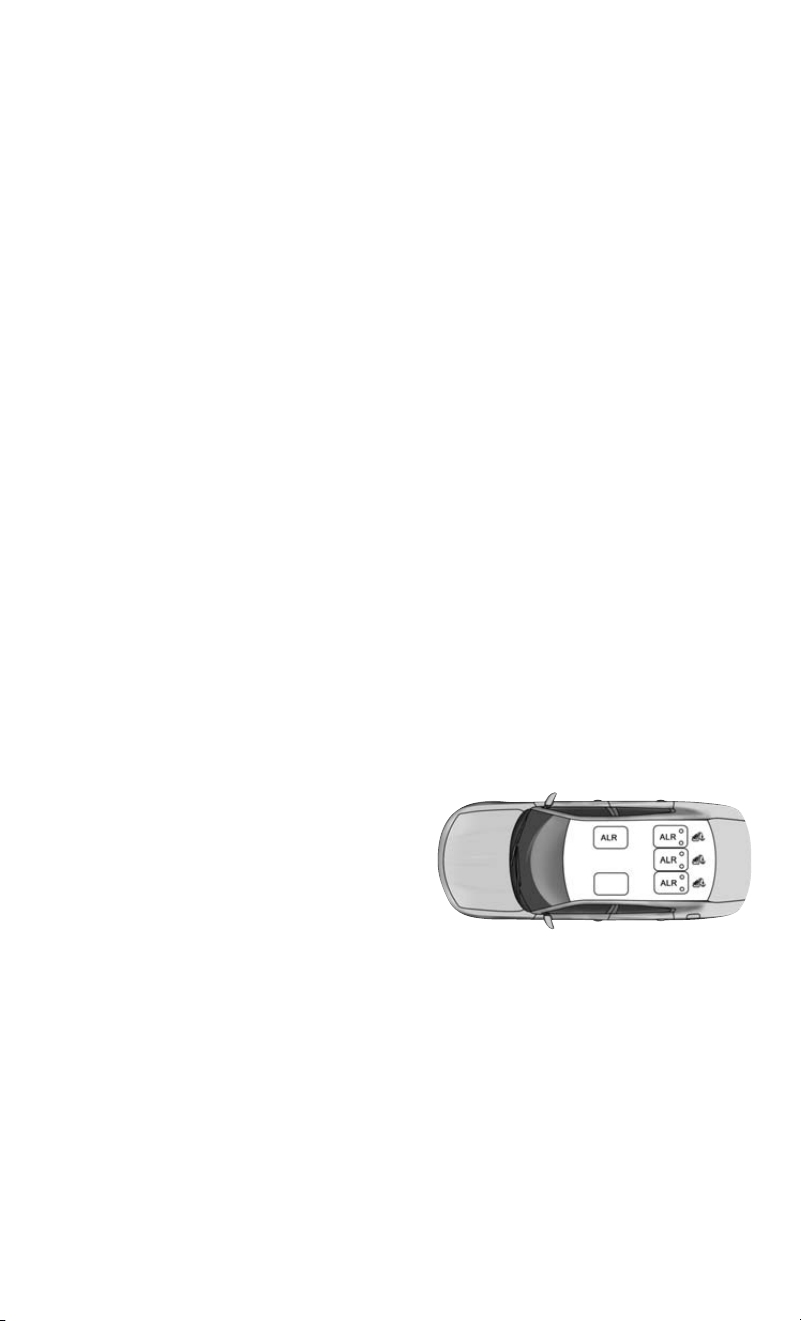
Switchable Automatic Locking Retractors (ALR)
The seat belts in the passenger seating positions are equipped with a Switchable
Automatic Locking Retractor (ALR) which is used to secure a child restraint system. For
additional information, refer to “Installing Child Restraints Using The Vehicle Seat Belt”
under the “Child Restraints” section of this manual. The figure below illustrates the
locking feature for each seating position.
If the passenger seating position is equipped
with an ALR and is being used for normal
usage, only pull the seat belt webbing out far
enough to comfortably wrap around the occu-
pant’s mid-section so as to not activate the
ALR. If the ALR is activated, you will hear a
clicking sound as the seat belt retracts. Allow
the webbing to retract completely in this case
and then carefully pull out only the amount of
webbing necessary to comfortably wrap
around the occupant’s mid-section. Slide the
latch plate into the buckle until you hear a
"click."
ALR — Switchable Automatic Locking
Retractor
GETTING STARTED
29

In Automatic Locking Mode, the shoulder belt is automatically pre-locked. The seat belt
will still retract to remove any slack in the shoulder belt. Use the Automatic Locking Mode
anytime a child restraint is installed in a seating position that has a seat belt with this
feature. Children 12 years old and under should always be properly restrained in a vehicle
with a rear seat.
WARNING!
• Never place a rear -facing child restraint in front of an air bag. A deploying passenger
front air bag can cause death or serious injury to a child 12 years or younger,
including a child in a rear-facing child restraint.
• Only use a rear-facing child restraint in a vehicle with a rear seat.
How To Engage The Automatic Locking Mode
1. Buckle the combination lap and shoulder belt.
2. Grasp the shoulder portion and pull downward until the entire seat belt is extracted.
3. Allow the seat belt to retract. As the seat belt retracts, you will hear a clicking sound.
This indicates the seat belt is now in the Automatic Locking Mode.
How To Disengage The Automatic Locking Mode
Unbuckle the combination lap/shoulder belt and allow it to retract completely to
disengage the Automatic Locking Mode and activate the vehicle sensitive (emergency)
locking mode.
WARNING!
• The seat belt assembly must be replaced if the switchable Automatic Locking
Retractor (ALR) feature or any other seat belt function is not working properly when
checked according to the procedures in the Service Manual.
• Failure to replace the seat belt assembly could increase the risk of injury in collisions.
• Do not use the Automatic Locking Mode to restrain occupants who are wearing the
seat belt or children who are using booster seats. The locked mode is only used to
install rear -facing or forward-facing child restraints that have a harness for restraining
the child.
GETTING STARTED
30

Supplemental Restraint Systems (SRS)
Some of the safety features described in this section may be standard equipment on some
models, or may be optional equipment on others. If you are not sure, ask your authorized
dealer.
The air bag system must be ready to protect you in a collision. The Occupant Restraint
Controller (ORC) monitors the internal circuits and interconnecting wiring associated with
the electrical Air Bag System Components. Y our vehicle may be equipped with the
following Air Bag System Components:
Air Bag System Components
• Occupant Restraint Controller (ORC)
• Air Bag W arning Light
• Steering Wheel and Column
• Instrument Panel
• Knee Impact Bolsters
• Driver and Front Passenger Air Bags
• Supplemental Side Air Bags
• Supplemental Knee Air Bags
• Front and Side Impact Sensors
• Seat Belt Pretensioners
• Seat Track Position Sensors
• Seat Belt Buckle Switch
Air Bag Warning Light
The ORC monitors the readiness of the electronic parts of the air bag system
whenever the ignition switch is in the ST AR T or ON/RUN position. If the ignition switch is
in the OFF position or in the ACC position, the air bag system is not on and the air bags will
not inflate.
The ORC contains a backup power supply system that may deploy the air bag system even
if the battery loses power or it becomes disconnected prior to deployment.
The ORC turns on the Air Bag Warning Light in the instrument panel for approximately
four to eight seconds for a self-check when the ignition switch is first in the ON/RUN
position. After the self-check, the Air Bag Warning Light will turn off. If the ORC detects
a malfunction in any part of the system, it turns on the Air Bag Warning Light, either
momentarily or continuously. A single chime will sound to alert you if the light comes on
again after initial startup.
GETTING STARTED
31
The ORC also includes diagnostics that will illuminate the instrument panel Air Bag
W arning Light if a malfunction is detected that could affect the air bag system. The
diagnostics also record the nature of the malfunction. While the air bag system is designed
to be maintenance free, if any of the following occurs, have an authorized dealer service
the air bag system immediately.
• The Air Bag Warning Light does not come on during the four to eight seconds when the
ignition switch is first in the ON/RUN position.
• The Air Bag Warning Light remains on after the four to eight-second interval.
• The Air Bag Warning Light comes on intermittently or remains on while driving.
NOTE:
If the speedometer, tachometer , or any engine related gauges are not working, the
Occupant Restraint Controller (ORC) may also be disabled. In this condition the air bags
may not be ready to inflate for your protection. Have an authorized dealer service the air
bag system immediately.
WARNING!
Ignoring the Air Bag W arning Light in your instrument panel could mean you won’t have
the air bag system to protect you in a collision. If the light does not come on as a bulb
check when the ignition is first turned on, stays on after you start the vehicle, or if it
comes on as you drive, have an authorized dealer service the air bag system immedi-
ately.
Redundant Air Bag Warning Light
If a fault with the Air Bag W arning Light is detected, which could affect the Supplemental
Restraint System (SRS), the Redundant Air Bag W arning Light will illuminate on the instrument
panel. The Redundant Air Bag W arning Light will stay on until the fault is cleared. In addition,
a single chime will sound to alert you that the Redundant Air Bag Warning Light has come on
and a fault has been detected. If the Redundant Air Bag Warning Light comes on intermittently
or remains on while driving have an authorized dealer service the vehicle immediately. For
additional information regarding the Redundant Air Bag Warning Light, refer to “W arning/
Indicator Lights And Messages” in “Understanding Your Instrument Panel” in the Owner’s
Manual on
www.dodge.com/en/owners/manuals.
GETTING STARTED
32

Front Air Bags
This vehicle has front air bags and lap/shoulder belts for both the driver and front
passenger. The front air bags are a supplement to the seat belt restraint systems. The
driver front air bag is mounted in the center of the steering wheel. The passenger front air
bag is mounted in the instrument panel, above the glove compartment. The words “SRS
AIRBAG” or “AIRBAG” are embossed on the air bag covers.
WARNING!
• Being too close to the steering wheel or instrument panel during front air bag
deployment could cause serious injury, including death. Air bags need room to
inflate. Sit back, comfortably extending your arms to reach the steering wheel or
instrument panel.
• Never place a rear -facing child restraint in front of an air bag. A deploying passenger
front air bag can cause death or serious injury to a child 12 years or younger,
including a child in a rear-facing child restraint.
• Only use a rear-facing child restraint in a vehicle with a rear seat.
Front Air Bag/Knee Impact Bolster Locations
1 — Driver And Passenger Front Air Bags
2 — Passenger Knee Impact Bolster
3 — Driver Knee Impact Bolster/
Supplemental Driver Knee Air Bag
GETTING STARTED
33

Driver And Passenger Front Air Bag Features
The Advanced Front Air Bag system has multistage driver and front passenger air bags.
This system provides output appropriate to the severity and type of collision as determined
by the Occupant Restraint Controller (ORC), which may receive information from the front
impact sensors (if equipped) or other system components.
The first stage inflator is triggered immediately during an impact that requires air bag
deployment. A low energy output is used in less severe collisions. A higher energy output
is used for more severe collisions.
This vehicle may be equipped with a driver and/or front passenger seat belt buckle switch
that detects whether the driver or front passenger seat belt is buckled. The seat belt
buckle switch may adjust the inflation rate of the Advanced Front Air Bags.
This vehicle may be equipped with driver and/or front passenger seat track position
sensors that may adjust the inflation rate of the Advanced Front Air Bags based upon seat
position.
WARNING!
• No objects should be placed over or near the air bag on the instrument panel or
steering wheel because any such objects could cause harm if the vehicle is in a
collision severe enough to cause the air bag to inflate.
• Do not put anything on or around the air bag covers or attempt to open them
manually. Y ou may damage the air bags and you could be injured because the air
bags may no longer be functional. The protective covers for the air bag cushions are
designed to open only when the air bags are inflating.
• Relying on the air bags alone could lead to more severe injuries in a collision. The air
bags work with your seat belt to restrain you properly. In some collisions, air bags
won’t deploy at all. Always wear your seat belts even though you have air bags.
Front Air Bag Operation
Front Air Bags are designed to provide additional protection by supplementing the seat
belts. Front air bags are not expected to reduce the risk of injury in rear , side, or rollover
collisions. The front air bags will not deploy in all frontal collisions, including some that
may produce substantial vehicle damage — for example, some pole collisions, truck
underrides, and angle offset collisions.
On the other hand, depending on the type and location of impact, front air bags may
deploy in crashes with little vehicle front-end damage but that produce a severe initial
deceleration.
Because air bag sensors measure vehicle deceleration over time, vehicle speed and
damage by themselves are not good indicators of whether or not an air bag should have
deployed.
Seat belts are necessary for your protection in all collisions, and also are needed to help
keep you in position, away from an inflating air bag.
GETTING STARTED
34

When the ORC detects a collision requiring the front air bags, it signals the inflator units.
A large quantity of non-toxic gas is generated to inflate the front air bags.
The steering wheel hub trim cover and the upper right side of the instrument panel
separate and fold out of the way as the air bags inflate to their full size. The front air bags
fully inflate in less time than it takes to blink your eyes. The front air bags then quickly
deflate while helping to restrain the driver and front passenger.
Knee Impact Bolsters
The Knee Impact Bolsters help protect the knees of the driver and front passenger, and
position the front occupants for improved interaction with the front air bags.
WARNING!
• Do not drill, cut, or tamper with the knee impact bolsters in any way.
• Do not mount any accessories to the knee impact bolsters such as alarm lights,
stereos, citizen band radios, etc.
Supplemental Driver Knee Air Bag
This vehicle is equipped with a Supplemental Driver Knee Air Bag mounted in the
instrument panel below the steering column. The Supplemental Driver Knee Air Bag
provides enhanced protection during a frontal impact by working together with the seat
belts, pretensioners, and front air bags.
Supplemental Side Air Bags
Your vehicle is equipped with two types of side air bags:
1. Supplemental Seat-Mounted Side Air Bags (SABs): Located in the outboard side of the
front seats. The SABs are marked with a “SRS AIRBAG” or “AIRBAG” label sewn into the
outboard side of the seats.
The SABs may help to reduce the risk of
occupant injury during certain side im-
pacts and/or vehicle rollover events, in ad-
dition to the injury reduction potential pro-
vided by the seat belts and body structure.
When the SAB deploys, it opens the seam
on the outboard side of the seatback’s trim
cover. The inflating SAB deploys through
the seat seam into the space between the
occupant and the door. The SAB moves at a
very high speed and with such a high force
that it could injure occupants if they are
not seated properly, or if items are posi-
tioned in the area where the SAB inflates.
Children are at an even greater risk of injury
from a deploying air bag.
Front Supplemental Seat-Mounted Side Air
Bag Label
GETTING STARTED
35

WARNING!
Do not use accessory seat covers or place objects between you and the Side Air Bags;
the performance could be adversely affected and/or objects could be pushed into you,
causing serious injury.
2. Supplemental Side Air Bag Inflatable Curtains (SABICs): Located above the side
windows. The trim covering the SABICs is labeled “SRS AIRBAG” or “AIRBAG.”
SABICs may help reduce the risk of
head or other injuries to front and rear
seat outboard occupants in certain side
impacts and/or vehicle rollover events,
in addition to the injury reduction po-
tential provided by the seat belts and
body structure.
The SABICs deploy downward, covering
the side windows. An inflating SABIC
pushes the outside edge of the trim out of
the way and covers the window . The
SABICs inflate with enough force to injure
occupants if they are not belted and
seated properly , or if items are positioned
in the area where the SABICs inflate.
Children are at an even greater risk of
injury from a deploying air bag.
WARNING!
•
Do not mount equipment, or stack luggage or other cargo up high enough to block the
deployment of the SABICs. The trim covering above the side windows where the SABIC
and its deployment path are located should remain free from any obstructions.
•In order for the SABICs to work as intended, do not install any accessory items in your
vehicle which could alter the roof. Do not add an aftermarket sunroof to your vehicle.
Do not add roof racks that require permanent attachments (bolts or screws) for
installation on the vehicle roof. Do not drill into the roof of the vehicle for any reason.
The SABICs and SABs (Side Air Bags) are designed to activate in certain side impacts and
certain rollover events. The Occupant Restraint Controller (ORC) determines whether the
deployment of the Side Air Bags in a particular side impact or rollover event is appropriate,
based on the severity and type of collision. Vehicle damage by itself is not a good indicator
of whether or not Side Air Bags should have deployed.
Side Air Bags are a supplement to the seat belt restraint system. Side Air Bags deploy in
less time than it takes to blink your eyes.
Supplemental Side Air Bag Inflatable Curtain
(SABIC) Label Location
GETTING STARTED
36

WARNING!
• Occupants, including children, who are up against or very close to Side Air Bags can
be seriously injured or killed. Occupants, including children, should never lean on or
sleep against the door , side windows, or area where the side air bags inflate, even if
they are in an infant or child restraint.
• Seat belts (and child restraints where appropriate) are necessary for your protection
in all collisions. They also help keep you in position, away from an inflating Side Air
Bag. To get the best protection from the Side Air Bags, occupants must wear their
seat belts properly and sit upright with their backs against the seats. Children must
be properly restrained in a child restraint or booster seat that is appropriate for the
size of the child.
WARNING!
• Side Air Bags need room to inflate. Do not lean against the door or window . Sit
upright in the center of the seat.
• Being too close to the Side Air Bags during deployment could cause you to be
severely injured or killed.
• Relying on the Side Air Bags alone could lead to more severe injuries in a collision.
The Side Air Bags work with your seat belt to restrain you properly . In some collisions,
Side Air Bags won’t deploy at all. Always wear your seat belt even though you have
Side Air Bags.
NOTE:
Air bag covers may not be obvious in the interior trim, but they will open during air bag
deployment.
Side Impacts
In side impacts, the side impact sensors aid the ORC in determining the appropriate
response to impact events. The system is calibrated to deploy the Side Air Bags on the
impact side of the vehicle during impacts that require Side Air Bag occupant protection.
In side impacts, the Side Air Bags deploy independently; a left side impact deploys the
left Side Air Bags only and a right side impact deploys the right Side Air Bags only .
The Side Air Bags will not deploy in all side collisions, including some collisions at certain
angles, or some side collisions that do not impact the area of the passenger compartment.
The Side Air Bags may deploy during angled or offset frontal collisions where the front air
bags deploy.
GETTING STARTED
37

Rollover Events
Side Air Bags are designed to activate in certain rollover events. The ORC determines
whether the deployment of the Side Air Bags in a particular rollover event is appropriate,
based on the severity and type of collision. Vehicle damage by itself is not a good indicator
of whether or not Side Air Bags should have deployed.
The Side Air Bags will not deploy in all rollover events. The rollover sensing system
determines if a rollover event may be in progress and whether deployment is appropriate.
In the event the vehicle experiences a rollover or near rollover event, and deployment of
the Side Air Bags is appropriate, the rollover sensing system will also deploy the seat belt
pretensioners on both sides of the vehicle.
The SABICs may help reduce the risk of partial or complete ejection of vehicle occupants
through side windows in certain rollover or side impact events.
The Occupant Restraint Controller (ORC) monitors the internal circuits and interconnect-
ing wiring associated with electrical Air Bag System Components listed below:
Air Bag System Components
• Occupant Restraint Controller (ORC)
• Air Bag W arning Light
• Steering Wheel and Column
• Instrument Panel
• Knee Impact Bolsters
• Driver and Front Passenger Air Bags
• Supplemental Side Air Bags
• Supplemental Knee Air Bags
• Front and Side Impact Sensors
• Seat Belt Pretensioners
• Seat Track Position Sensors
• Seat Belt Buckle Switch
GETTING STARTED
38

If A Deployment Occurs
The front air bags are designed to deflate immediately after deployment.
NOTE:
Front and/or side air bags will not deploy in all collisions. This does not mean something
is wrong with the air bag system.
If you do have a collision which deploys the air bags, any or all of the following may occur:
• The air bag material may sometimes cause abrasions and/or skin reddening to the
occupants as the air bags deploy and unfold. The abrasions are similar to friction rope
burns or those you might get sliding along a carpet or gymnasium floor. They are not
caused by contact with chemicals. They are not permanent and normally heal quickly.
However, if you haven’t healed significantly within a few days, or if you have any
blistering, see your doctor immediately.
• As the air bags deflate, you may see some smoke-like particles. The particles are a
normal by-product of the process that generates the non-toxic gas used for air bag
inflation. These airborne particles may irritate the skin, eyes, nose, or throat. If you
have skin or eye irritation, rinse the area with cool water. For nose or throat irritation,
move to fresh air. If the irritation continues, see your doctor. If these particles settle on
your clothing, follow the garment manufacturer’ s instructions for cleaning.
Do not drive your vehicle after the air bags have deployed. If you are involved in another
collision, the air bags will not be in place to protect you.
WARNING!
Deployed air bags and seat belt pretensioners cannot protect you in another collision.
Have the air bags, seat belt pretensioners, and the seat belt retractor assemblies
replaced by an authorized dealer immediately. Also, have the Occupant Restraint
Controller System serviced as well.
NOTE:
• Air bag covers may not be obvious in the interior trim, but they will open during air bag
deployment.
• After any collision, the vehicle should be taken to an authorized dealer immediately.
Enhanced Accident Response System
In the event of an impact, if the communication network remains intact, and the power
remains intact, depending on the nature of the event, the ORC will determine whether to
have the Enhanced Accident Response System perform the following functions:
• Cut off fuel to the engine.
• Flash hazard lights as long as the battery has power or until the hazard light button is
pressed. The hazard lights can be deactivated by pressing the hazard light button.
• Turn on the interior lights, which remain on as long as the battery has power.
• Unlock the power door locks.
GETTING STARTED
39

Enhanced Accident Response System Reset Procedure
In order to reset the Enhanced Accident Response System functions after an event, the
ignition switch must be changed from ignition STAR T or ON/RUN to ignition OFF.
Carefully check the vehicle for fuel leaks in the engine compartment and on the ground
near the engine compartment and fuel tank before resetting the system and starting the
engine.
Maintaining Your Air Bag System
WARNING!
• Modifications to any part of the air bag system could cause it to fail when you need
it. You could be injured if the air bag system is not there to protect you. Do not modify
the components or wiring, including adding any kind of badges or stickers to the
steering wheel hub trim cover or the upper right side of the instrument panel. Do not
modify the front bumper, vehicle body structure, or add aftermarket side steps or
running boards.
• It is dangerous to try to repair any part of the air bag system yourself. Be sure to tell
anyone who works on your vehicle that it has an air bag system.
• Do not attempt to modify any part of your air bag system. The air bag may inflate
accidentally or may not function properly if modifications are made. Take your
vehicle to an authorized dealer for any air bag system service. If your seat, including
your trim cover and cushion, needs to be serviced in any way (including removal or
loosening/tightening of seat attachment bolts), take the vehicle to your authorized
dealer. Only manufacturer approved seat accessories may be used. If it is necessary
to modify the air bag system for persons with disabilities, contact your authorized
dealer.
Event Data Recorder (EDR)
This vehicle is equipped with an event data recorder (EDR). The main purpose of an EDR
is to record, in certain crash or near crash-like situations, such as an air bag deployment
or hitting a road obstacle, data that will assist in understanding how a vehicle’ s systems
performed. The EDR is designed to record data related to vehicle dynamics and safety
systems for a short period of time, typically 30 seconds or less. The EDR in this vehicle is
designed to record such data as:
• How various systems in your vehicle were operating;
• Whether or not the driver and passenger safety belts were buckled/fastened;
• How far (if at all) the driver was depressing the accelerator and/or brake pedal; and,
• How fast the vehicle was traveling.
These data can help provide a better understanding of the circumstances in which crashes
and injuries occur .
GETTING STARTED
40

NOTE:
EDR data are recorded by your vehicle only if a non-trivial crash situation occurs; no data
are recorded by the EDR under normal driving conditions and no personal data (e.g.,
name, gender , age, and crash location) are recorded. However , other parties, such as law
enforcement, could combine the EDR data with the type of personally identifying data
routinely acquired during a crash investigation.
To read data recorded by an EDR, special equipment is required, and access to the vehicle
or the EDR is needed. In addition to the vehicle manufacturer , other parties, such as law
enforcement, that have the special equipment, can read the information if they have
access to the vehicle or the EDR.
Child Restraints
Everyone in your vehicle needs to be buckled up at all times, including babies and
children. Every state in the United States, and every Canadian province, requires that
small children ride in proper restraint systems. This is the law , and you can be prosecuted
for ignoring it.
Children 12 years or younger should ride properly buckled up in a rear seat, if available.
According to crash statistics, children are safer when properly restrained in the rear seats
rather than in the front.
WARNING!
In a collision, an unrestrained child can become a projectile inside the vehicle. The
force required to hold even an infant on your lap could become so great that you could
not hold the child, no matter how strong you are. The child and others could be badly
injured or killed. Any child riding in your vehicle should be in a proper restraint for the
child’s size.
There are different sizes and types of restraints for children from newborn size to the child
almost large enough for an adult safety belt. Always check the child seat Owner’s Manual
to make sure you have the correct seat for your child. Carefully read and follow all the
instructions and warnings in the child restraint Owner’ s Manual and on all the labels
attached to the child restraint.
Before buying any restraint system, make sure that it has a label certifying that it meets
all applicable Safety Standards. You should also make sure that you can install it in the
vehicle where you will use it.
NOTE:
• For additional information, refer to www .safercar.gov/parents/index.htm or call:
1–888–327–4236.
•
Canadian residents should refer to Transport Canada’ s website for additional information:
http://www.tc.gc.ca/eng/motorvehiclesafety/safedrivers-childsafety-index-53.htm
GETTING STARTED
41

Summary Of Recommendations For Restraining Children In Vehicles
Child Size, Height, Weight or
Age
Recommended Type of Child
Restraint
Infants and Toddlers
Children who are two years
old or younger and who have
not reached the height or
weight limits of their child
restraint
Either an Infant Carrier or a
Convertible Child Restraint,
facing rearward in the rear
seat of the vehicle
Small Children
Children who are at least two
years old or who have out-
grown the height or weight
limit of their rear-facing
child restraint
Forward-Facing Child Re-
straint with a five-point Har-
ness, facing forward in the
rear seat of the vehicle
Larger Children
Children who have out-grown
their forward-facing child
restraint, but are too small to
properly fit the vehicle’ s seat
belt
Belt Positioning Booster
Seat and the vehicle seat
belt, seated in the rear seat
of the vehicle
Children Too Large for Child
Restraints
Children 12 years old or
younger, who have out-grown
the height or weight limit of
their booster seat
V ehicle Seat Belt, seated in
the rear seat of the vehicle
Infant And Child Restraints
Safety experts recommend that children ride rear -facing in the vehicle until they are two
years old or until they reach either the height or weight limit of their rear -facing child
restraint. Two types of child restraints can be used rear -facing: infant carriers and
convertible child seats.
The infant carrier is only used rear -facing in the vehicle. It is recommended for children
from birth until they reach the weight or height limit of the infant carrier . Convertible child
seats can be used either rear-facing or forward-facing in the vehicle. Convertible child
seats often have a higher weight limit in the rear-facing direction than infant carriers do,
so they can be used rear-facing by children who have outgrown their infant carrier but are
still less than at least two years old. Children should remain rear-facing until they reach the
highest weight or height allowed by their convertible child seat.
WARNING!
• Never place a rear -facing child restraint in front of an air bag. A deploying passenger
front air bag can cause death or serious injury to a child 12 years or younger,
including a child in a rear-facing child restraint.
• Only use a rear-facing child restraint in a vehicle with a rear seat.
GETTING STARTED
42

Older Children And Child Restraints
Children who are two years old or who have outgrown their rear -facing convertible child
seat can ride forward-facing in the vehicle. Forward-facing child seats and convertible
child seats used in the forward-facing direction are for children who are over two years old
or who have outgrown the rear -facing weight or height limit of their rear-facing convertible
child seat. Children should remain in a forward-facing child seat with a harness for as long
as possible, up to the highest weight or height allowed by the child seat.
All children whose weight or height is above the forward-facing limit for the child seat
should use a belt-positioning booster seat until the vehicle’ s seat belts fit properly . If the
child cannot sit with knees bent over the vehicle’ s seat cushion while the child’ s back is
against the seatback, they should use a belt-positioning booster seat. The child and
belt-positioning booster seat are held in the vehicle by the seat belt.
WARNING!
• Improper installation can lead to failure of an infant or child restraint. It could come
loose in a collision. The child could be badly injured or killed. Follow the child
restraint manufacturer’s directions exactly when installing an infant or child re-
straint.
• After a child restraint is installed in the vehicle, do not move the vehicle seat forward
or rearward because it can loosen the child restraint attachments. Remove the child
restraint before adjusting the vehicle seat position. When the vehicle seat has been
adjusted, reinstall the child restraint.
• When your child restraint is not in use, secure it in the vehicle with the seat belt or
LATCH anchorages, or remove it from the vehicle. Do not leave it loose in the vehicle.
In a sudden stop or accident, it could strike the occupants or seatbacks and cause
serious personal injury.
Children Too Large For Booster Seats
Children who are large enough to wear the shoulder belt comfortably, and whose legs are
long enough to bend over the front of the seat when their back is against the seatback,
should use the seat belt in a rear seat. Use this simple 5-step test to decide whether the
child can use the vehicle’ s seat belt alone:
1. Can the child sit all the way back against the back of the vehicle seat?
2. Do the child’ s knees bend comfortably over the front of the vehicle seat – while they are
still sitting all the way back?
3. Does the shoulder belt cross the child’s shoulder between their neck and arm?
4. Is the lap part of the belt as low as possible, touching the child’s thighs and not their
stomach?
5. Can the child stay seated like this for the whole trip?
GETTING STARTED
43

If the answer to any of these questions was “no,” then the child still needs to use a booster
seat in this vehicle. If the child is using the lap/shoulder belt, check seat belt fit
periodically and make sure the seat belt buckle is latched. A child’ s squirming or
slouching can move the belt out of position. If the shoulder belt contacts the face or neck,
move the child closer to the center of the vehicle, or use a booster seat to position the seat
belt on the child correctly.
WARNING!
Never allow a child to put the shoulder belt under an arm or behind their back. In a
crash, the shoulder belt will not protect a child properly, which may result in serious
injury or death. A child must always wear both the lap and shoulder portions of the seat
belt correctly.
Recommendations For Attaching Child Restraints
Restraint
Type
Combined
Weight of the
Child + Child
Restraint
Use Any Attachment Method Shown With An “X” Below
LATCH –
Lower An-
chors Only
Seat Belt
Only
LATCH –
Lower An-
chors + Top
Tether An-
chor
Seat Belt +
Top Tether
Anchor
Rear -Facing
Child Re-
straint
Up to 65 lbs
(29.5 kg) X X
Rear -Facing
Child Re-
straint
More than
65 lbs
(29.5 kg)
X
Forward-
Facing Child
Restraint
Up to 65 lbs
(29.5 kg)
XX
Forward-
Facing Child
Restraint
More than
65 lbs
(29.5 kg)
X
GETTING STARTED
44

Lower Anchors And Tethers For CHildren (LATCH) Restraint System
Your vehicle is equipped with the child
restraint anchorage system called LATCH,
which stands for Lower Anchors and Tethers
for CHildren. The LATCH system has three
vehicle anchor points for installing LATCH-
equipped child seats. There are two lower
anchorages located at the back of the seat
cushion where it meets the seatback and
one top tether anchorage located behind
the seating position. These anchorages are
used to install LATCH-equipped child seats without using the vehicle’ s seat belts. Some
seating positions may have a top tether anchorage but no lower anchorages. In these
seating positions, the seat belt must be used with the top tether anchorage to install the
child restraint. Please see the following table for more information.
LATCH Positions For Installing Child Restraints In This Vehicle
Frequently Asked Questions About Installing Child Restraints With LATCH
What is the weight limit
(child’s weight + weight
of the child restraint) for
using the LATCH an-
chorage system to at-
tach the child restraint?
65 lbs
(29.5 kg)
Use the LATCH anchorage system until the com-
bined weight of the child and the child restraint is
65 lbs (29.5 kg). Use the seat belt and tether an-
chor instead of the LATCH system once the com-
bined weight is more than 65 lbs (29.5 kg).
LATCH Label
LATCH Positions For Installing Child
Restraints In This Vehicle
Lower Anchorage Symbol (2 Anchor-
ages Per Seating Position)
Top Tether Anchorage Symbol
GETTING STARTED
45

Frequently Asked Questions About Installing Child Restraints With LATCH
Can the LATCH anchor-
ages and the seat belt
be used together to at-
tach a rear -facing or
forward-facing child
restraint?
No
Do not use the seat belt when you use the LATCH
anchorage system to attach a rear-facing or
forward-facing child restraint.
Booster seats may be attached to the LATCH an-
chorages if allowed by the booster seat manufac-
turer. See your booster seat Owner’s Manual for
more information.
Can two child restraints
be attached using a
common lower LATCH
anchorage?
No
Never “share” a LATCH anchorage with two or
more child restraints. If the center position does
not have dedicated LATCH lower anchorages, use
the seat belt to install a child seat in the center
position next to a child seat using the LATCH an-
chorages in an outboard position.
Can the rear -facing
child restraint touch the
back of the front pas-
senger seat?
Yes
The child seat may touch the back of the front
passenger seat if the child restraint manufacturer
also allows contact. See your child restraint own-
er’s manual for more information.
Can the head restraints
be removed?
Yes Center position only may be removed.
Locating The LATCH Anchorages
The lower anchorages are round bars that are found at the rear of the seat cushion
where it meets the seatback, below the anchorage symbols on the seatback. They are just
visible when you lean into the rear seat to install the child restraint. Y ou will easily feel
them if you run your finger along the gap between the seatback and seat cushion.
LATCH Anchorages
GETTING STARTED
46

Locating The Upper Tether Anchorages
There are tether strap anchorages behind each rear seating position located in the
panel between the rear seatback and the rear window. They are found under a plastic cover
with the tether anchorage symbol on it.
LATCH-compatible child restraint systems
will be equipped with a rigid bar or a flexible
strap on each side. Each will have a hook or
connector to attach to the lower anchorage
and a way to tighten the connection to the
anchorage. Forward-facing child restraints
and some rear -facing child restraints will
also be equipped with a tether strap. The
tether strap will have a hook at the end to
attach to the top tether anchorage and a
way to tighten the strap after it is attached
to the anchorage.
Center Seat LATCH
If a child restraint installed in the center position blocks the seat belt webbing or buckle
for the outboard position, do not use that outboard position. If a child seat in the center
position blocks the outboard LATCH anchors or seat belt, do not install a child seat in that
outboard position.
WARNING!
Never use the same lower anchorage to attach more than one child restraint. Please
refer to “To Install A LATCH-Compatible Child Restraint” for typical installation
instructions.
Always follow the directions of the child restraint manufacturer when installing your child
restraint. Not all child restraint systems will be installed as described here.
Tether Strap Anchorages
GETTING STARTED
47

To Install A LATCH-Compatible Child Restraint
If the selected seating position has a Switchable Automatic Locking Retractor (ALR) seat
belt, stow the seat belt, following the instructions below. See the section “Installing Child
Restraints Using The Vehicle Seat Belt” to check what type of seat belt each seating
position has.
1. Loosen the adjusters on the lower straps and on the tether strap of the child seat so that
you can more easily attach the hooks or connectors to the vehicle anchorages.
2. Place the child seat between the lower anchorages for that seating position. For some
second row seats, you may need to recline the seat and/or raise the head restraint to get
a better fit. If the rear seat can be moved forward and rearward in the vehicle, you may
wish to move it to its rear -most position to make room for the child seat. Y ou may also
move the front seat forward to allow more room for the child seat.
3. Attach the lower hooks or connectors of the child restraint to the lower anchorages in
the selected seating position.
4. If the child restraint has a tether strap, connect it to the top tether anchorage. See the
section “Installing Child Restraints Using The Top Tether Anchorage” for directions to
attach a tether anchor .
5. Tighten all of the straps as you push the child restraint rearward and downward into the
seat. Remove slack in the straps according to the child restraint manufacturer’ s
instructions.
6. Test that the child restraint is installed tightly by pulling back and forth on the child
seat at the belt path. It should not move more than 1 inch (25.4 mm) in any direction.
How To Stow An Unused Switchable-ALR (ALR) Seat Belt:
When using the LATCH attaching system to install a child restraint, stow all ALR seat belts
that are not being used by other occupants or being used to secure child restraints. An
unused belt could injure a child if they play with it and accidentally lock the seat belt
retractor. Before installing a child restraint using the LATCH system, buckle the seat belt
behind the child restraint and out of the child’ s reach. If the buckled seat belt interferes
with the child restraint installation, instead of buckling it behind the child restraint, route
the seat belt through the child restraint belt path and then buckle it. Do not lock the seat
belt. Remind all children in the vehicle that the seat belts are not toys and that they should
not play with them.
WARNING!
• Improper installation of a child restraint to the LATCH anchorages can lead to failure
of the restraint. The child could be badly injured or killed. Follow the child restraint
manufacturer’s directions exactly when installing an infant or child restraint.
• Child restraint anchorages are designed to withstand only those loads imposed by
correctly-fitted child restraints. Under no circumstances are they to be used for adult
seat belts, harnesses, or for attaching other items or equipment to the vehicle.
GETTING STARTED
48

Installing Child Restraints Using The Vehicle Seat Belt
Child restraint systems are designed to be secured in vehicle seats by lap belts or the lap
belt portion of a lap/shoulder belt.
WARNING!
• Improper installation or failure to properly secure a child restraint can lead to failure
of the restraint. The child could be badly injured or killed.
• Follow the child restraint manufacturer’ s directions exactly when installing an infant
or child restraint.
The seat belts in the passenger seating positions are equipped with a Switchable
Automatic Locking Retractor (ALR) that is designed to keep the lap portion of the seat belt
tight around the child restraint so that it is not necessary to use a locking clip. The ALR
retractor can be “switched” into a locked mode by pulling all of the webbing out of the
retractor and then letting the webbing retract back into the retractor. If it is locked, the
ALR will make a clicking noise while the webbing is pulled back into the retractor. Refer
to the “Automatic Locking Mode” description in “Switchable Automatic Locking Retrac-
tors (ALR)” under “Occupant Restraint Systems” for additional information on ALR.
Please see the table below and the following sections for more information.
Lap/Shoulder Belt Systems For Installing Child Restraints In This Vehicle
Frequently Asked Questions About Installing Child Restraints With Seat Belts
What is the weight limit (child’s
weight + weight of the child re-
straint) for using the Tether Anchor
with the seat belt to attach a for-
ward facing child restraint?
W eight limit of
the Child Re-
straint
Always use the tether anchor when
using the seat belt to install a for-
ward facing child restraint, up to
the recommended weight limit of
the child restraint.
Automatic Locking Retractor (ALR) Locations
ALR = Switchable Automatic Locking
Retractor
Top Tether Anchorage Symbol
GETTING STARTED
49

Frequently Asked Questions About Installing Child Restraints With Seat Belts
Can the rear -facing child restraint
touch the back of the front passen-
ger seat?
Yes
Contact between the front passen-
ger seat and the child restraint is
allowed, if the child restraint
manufacturer also allows contact.
Can the head restraints be re-
moved?
Yes Center Only may be removed.
Can the buckle stalk be twisted to
tighten the seat belt against the
belt path of the child restraint?
No
Do not twist the buckle stalk in a
seating position with an ALR re-
tractor.
Installing A Child Restraint With A Switchable Automatic Locking Retractor (ALR):
Child restraint systems are designed to be secured in vehicle seats by lap belts or the lap
belt portion of a lap/shoulder belt.
WARNING!
• Improper installation or failure to properly secure a child restraint can lead to failure
of the restraint. The child could be badly injured or killed.
• Follow the child restraint manufacturer’ s directions exactly when installing an infant
or child restraint.
1. Place the child seat in the center of the seating position. For some second row seats,
you may need to recline the seat and/or raise the head restraint to get a better fit. If the
rear seat can be moved forward and rearward in the vehicle, you may wish to move it
to its rear-most position to make room for the child seat. Y ou may also move the front
seat forward to allow more room for the child seat.
2. Pull enough of the seat belt webbing from the retractor to pass it through the belt path
of the child restraint. Do not twist the belt webbing in the belt path.
3. Slide the latch plate into the buckle until you hear a “click.”
4. Pull on the webbing to make the lap portion tight against the child seat.
5. To lock the seat belt, pull down on the shoulder part of the belt until you have pulled
all the seat belt webbing out of the retractor . Then, allow the webbing to retract back
into the retractor . As the webbing retracts, you will hear a clicking sound. This means
the seat belt is now in the Automatic Locking mode.
6. Try to pull the webbing out of the retractor . If it is locked, you should not be able to pull
out any webbing. If the retractor is not locked, repeat step 5.
7. Finally , pull up on any excess webbing to tighten the lap portion around the child
restraint while you push the child restraint rearward and downward into the vehicle
seat.
GETTING STARTED
50

8. If the child restraint has a top tether strap and the seating position has a top tether
anchorage, connect the tether strap to the anchorage and tighten the tether strap. See
the section “Installing Child Restraints Using the Top Tether Anchorage” for directions
to attach a tether anchor .
9. Test that the child restraint is installed tightly by pulling back and forth on the child
seat at the belt path. It should not move more than 1 inch (25.4 mm) in any direction.
Any seat belt system will loosen with time, so check the belt occasionally, and pull it tight
if necessary.
Installing Child Restraints Using The Top Tether Anchorage
WARNING!
Do not attach a tether strap for a rear-facing car seat to any location in front of the car
seat, including the seat frame or a tether anchorage. Only attach the tether strap of a
rear -facing car seat to the tether anchorage that is approved for that seating position,
located behind the top of the vehicle seat. See the section “Lower Anchors and Tethers
for CHildren (LATCH) Restraint System” for the location of approved tether anchorages
in your vehicle.
1. Look behind the seating position where you plan to install the child restraint to find the
tether anchorage. Y ou may need to move the seat forward to provide better access to
the tether anchorage. If there is no top tether anchorage for that seating position, move
the child restraint to another position in the vehicle if one is available.
2. Rotate or lift the cover to access the anchor directly behind the seat where you are
placing the child restraint.
GETTING STARTED
51

3. Route the tether strap to provide the most direct path for the strap between the anchor
and the child seat. If your vehicle is equipped with adjustable rear head restraints,
raise the head restraint, and where possible, route the tether strap under the head
restraint and between the two posts. If not possible, lower the head restraint and pass
the tether strap around the outboard side of the head restraint.
4. Attach the tether strap hook of the child
restraint to the top tether anchorage as
shown in the diagram.
5. Remove slack in the tether strap accord-
ing to the child restraint manufacturer’ s
instructions.
WARNING!
• An incorrectly anchored tether strap could lead to increased head motion and
possible injury to the child. Use only the anchorage position directly behind the child
seat to secure a child restraint top tether strap.
• If your vehicle is equipped with a split rear seat, make sure the tether strap does not
slip into the opening between the seatbacks as you remove slack in the strap.
Center Tether Attachment
1. Lower the adjustable center head restraint to the full down position.
2. Route the tether strap over the seatback and head restraint.
3. Attach the tether strap hook of the child restraint to the center tether anchorage
located in the panel between the rear seatback and the rear window .
4. Remove slack in the tether strap according to the child restraint manufacturer’ s
instructions.
Transporting Pets
Air Bags deploying in the front seat could harm your pet. An unrestrained pet will be
thrown about and possibly injured, or injure a passenger during panic braking or in a
collision.
Pets should be restrained in the rear seat in pet harnesses or pet carriers that are secured
by seat belts.
Tether Strap Attachment
1 — Cover
3 — Attaching Strap
A — Tether Strap Hook
B — Tether Anchor
GETTING STARTED
52

HEAD RESTRAINTS
Head restraints are designed to reduce the risk of injury by restricting head movement in
the event of a rear impact. Head restraints should be adjusted so that the top of the head
restraint is located above the top of your ear .
WARNING!
• All occupants, including the driver , should not operate a vehicle or sit in a vehicle’ s
seat until the head restraints are placed in their proper positions in order to minimize
the risk of neck injury in the event of a crash.
• Head restraints should never be adjusted while the vehicle is in motion. Driving a
vehicle with the head restraints improperly adjusted or removed could cause serious
injury or death in the event of a collision.
NOTE:
Do not reverse the head restraints (making the rear of the head restraint face forward) in
an attempt to gain additional clearance to the back of your head.
Reactive Head Restraints — Front Seats
The front driver and passenger seats are equipped with Reactive Head Restraints (RHR).
In the event of a rear impact, the RHRs will automatically extend forward minimizing the
gap between the back of the occupants head and the RHR.
The RHRs will automatically return to their normal position following a rear impact. If the
RHRs do not return to their normal position, see your authorized dealer immediately .
To raise the head restraint, pull upward on the head restraint. To lower the head restraint,
push the adjustment button located at the base of the head restraint and push downward
on the head restraint.
GETTING STARTED
53

NOTE:
To remove the head restraint, raise it as far as it can go then push the release button and
the adjustment button at the base of each post while pulling the head restraint up. To
reinstall the head restraint, put the head restraint posts into the holes and push
downward. Then, adjust the head restraint to the appropriate height.
WARNING!
• A loose head restraint thrown forward in a collision or hard stop could cause serious
injury or death to occupants of the vehicle. Always securely stow removed head
restraints in a location outside the occupant compartment.
• ALL the head restraints MUST be reinstalled in the vehicle to properly protect the
occupants. Follow the re-installation instructions above prior to operating the vehicle
or occupying a seat.
• Do not place items over the top of the Reactive Head Restraint, such as coats, seat
covers or portable DVD players. These items may interfere with the operation of the
Reactive Head Restraint in the event of a collision and could result in serious injury
or death.
Adjustment Button
1 — Release Button
2 — Adjustment Button
GETTING STARTED
54

Rear Head Restraints
The center head restraint has two adjustable positions: up or down. When the center seat
is being occupied, the head restraint should be in the raised position. When there are no
occupants in the center seat, the head restraint can be lowered for maximum visibility for
the driver .
To raise the head restraint, pull upward on the head restraint. To lower the head restraint,
push the adjustment button located at the base of the head restraint and push downward
on the head restraint.
NOTE:
• The head restraint should only be re-
moved by qualified technicians, for ser -
vice purposes only. If the center rear
head restraints requires removal, see
your authorized dealer .
• The outboard head restraints are not
adjustable.
WARNING!
ALL the head restraints MUST be reinstalled in the vehicle to properly protect the
occupants. Follow the re-installation instructions above prior to operating the vehicle or
occupying a seat.
Adjustment Button
GETTING STARTED
55

SEATING
FRONT SEATS
Power Seats
On models equipped with power seats, the switch is located on the outboard side of the
seat near the floor . Use this switch to move the driver's seat up, down, forward, rearward
or to recline the seatback.
Adjusting The Seat Forward Or Rearward
The seat can be adjusted both forward and
rearward. Push the seat switch forward or
rearward. The seat will move in the direc-
tion of the switch. Release the switch when
the desired position has been reached.
Adjusting The Seat Up Or Down
The height of the seats can be adjusted up
or down. Pull upward or push downward on
the seat switch. The seat will move in the
direction of the switch. Release the switch
when the desired position is reached.
Tilting The Seat Up Or Down
The angle of the seat cushion can be ad-
justed in four directions. Pull upward or
push downward on the front or rear of the
seat switch, the front or rear of the seat
cushion will move in the direction of the
switch. Release the switch when the desired position has been reached.
Reclining The Seatback
The angle of the seatback can be adjusted forward or rearward. Push the seatback switch
forward or rearward, the seat will move in the direction of the switch. Release the switch
when the desired position is reached.
WARNING!
• Adjusting a seat while driving may be dangerous. Moving a seat while driving could
result in loss of control which could cause a collision and serious injury or death.
• Seats should be adjusted before fastening the seat belts and while the vehicle is
parked. Serious injury or death could result from a poorly adjusted seat belt.
• Do not ride with the seatback reclined so that the shoulder belt is no longer resting
against your chest. In a collision, you could slide under the seat belt, which could
result in serious injury or death.
Power Seat Switches
1 — Seatback Control
2 — Seat Control
GETTING STARTED
56

CAUTION!
Do not place any article under a power seat or impede its ability to move as it may cause
damage to the seat controls. Seat travel may become limited if movement is stopped
by an obstruction in the seat’ s path.
Power Lumbar
V ehicles equipped with power driver or passenger seats may also be equipped with power
lumbar. The power lumbar switch is located on the outboard side of the power seat. Push
the switch forward or rearward to increase or decrease the lumbar support. Push the
switch upward or downward to raise or lower the lumbar support.
Memory Seat
This feature allows the driver to store up to two different memory profiles for easy recall
through a memory switch. Each memory profile contains desired position settings for the
driver seat, side mirrors, and power tilt and telescopic steering column (if equipped) and
a set of desired radio station presets. Y our remote keyless entry key fob can also be
programmed to recall the same positions when the unlock button is pushed.
NOTE:
If your vehicle is equipped with two key fobs, one key fob can be linked to memory position 1
and the other key fob can be linked to memory position 2.
Power Lumbar Switch
GETTING STARTED
57

The memory seat switch is located on the driver’ s door trim panel. The switch consists of
three buttons: The set (S) button, which is used to activate the memory save function, and
the memory (1) and (2) buttons, which are used to recall either of two pre-programmed
memory profiles.
Programming The Memory Feature
NOTE:
Saving a new memory profile will erase an
existing profile from memory.
To create a new memory profile, perform the
following:
1. Place the vehicle’s ignition to the ON/
RUN position.
2. Adjust all memory profile settings to
desired preferences (i.e., seat, side mir-
ror, power tilt and telescopic steering
column [if equipped], and radio station
presets).
3. Push and release the set (S) button on
the memory switch.
4. Within five seconds, push and release memory button (1) or memory button (2). The
instrument cluster display will show which memory position has been set.
NOTE:
• Memory profiles can be set without the vehicle in P ARK, but the vehicle must be in
PARK to recall a memory profile.
• To set a memory profile to your key fob, refer to “Linking And Unlinking The Remote
Keyless Entry Key Fob To Memory” in this section for further information.
Linking And Unlinking The Remote Keyless Entry Key Fob To Memory
Your key fobs can be programmed to recall one of two pre-programmed memory profiles
by pushing the unlock button on the key fob.
NOTE:
Before programming your key fobs you must select the “Memory To FOB” or “Personal
Settings Linked To Fob” feature through the Uconnect system screen. Refer to “Uconnect
Settings” in “Understanding Y our Instrument Panel” in the Owner’s Manual on
www.dodge.com/en/owners/manuals for further information.
Memory Seat Switches
GETTING STARTED
58

To program your key fobs, perform the following:
1. Place the vehicle’s ignition to the OFF position.
2. Select desired memory profile (1) or (2). The system will recall any stored settings for
this profile. W ait for the system to complete the memory recall before continuing to
step three.
NOTE:
If a memory profile has not already been set, refer to "Programming The Memory Feature"
in this section for instructions on how to set a memory profile.
3. Once the profile has been recalled, push and release the set (S) button on the memory
switch, then push and release memory button (1) or memory button (2) accordingly.
“Memory Profile Set” (1 or 2) will display in the instrument cluster display .
4. Push and release the lock button on the key fob within 10 seconds.
NOTE:
Your key fobs can be unlinked from your memory settings by pushing the set (S) button,
and within 10 seconds push the unlock button on the key fob.
Memory Position Recall
NOTE:
The vehicle must be in PARK to recall memory positions. If a recall is attempted when the
vehicle is not in P ARK, a message will display in the instrument cluster display .
To recall the memory settings for driver 1, push memory button (1) on the driver's door or
the unlock button on the key fob linked to memory position 1.
NOTE:
If the vehicle is equipped with Passive Entry, the memory settings will be recalled with a
Passive Entry Unlock into the driver's door using the key fob linked to position 1.
To recall the memory setting for driver 2, push memory button (2) on the driver's door or
the unlock button on the key fob linked to memory position 2.
NOTE:
If the vehicle is equipped with Passive Entry, the memory settings will be recalled with a
Passive Entry Unlock into the driver's door using the key fob linked to position 2.
A recall can be cancelled by pushing any of the memory buttons (S, 1, or 2) on the driver's
door during a recall. When a recall is cancelled, the driver's seat or power tilt and
telescopic steering column (if equipped) stop moving. A delay of one second will occur
before another recall can be selected.
GETTING STARTED
59

Easy Entry/Exit Seat
This feature provides automatic driver's seat positioning to enhance driver mobility when
entering and exiting the vehicle.
The distance the driver's seat moves depends on where you have the driver's seat
positioned when you cycle the vehicle’ s ignition to the OFF position.
• When you cycle the vehicle’ s ignition to the OFF position, the driver's seat will move
about 2.4 inches (60 mm) rearward if the driver's seat position is greater than or equal
to 2.7 inches (67.7 mm) forward of the rear stop. The seat will return to its previously
set position when you cycle the vehicle’ s ignition to the ACC or RUN position.
• The Easy Entry/Easy Exit feature is disabled when the driver seat position is less than
0.9 of an inch (22.7 mm) forward of the rear stop. At this position, there is no benefit
to the driver by moving the seat for Easy Exit or Easy Entry .
Each stored memory setting will have an associated Easy Entry and Easy Exit position.
NOTE:
The Easy Entry/Exit feature is not enabled when the vehicle is delivered from the factory .
The Easy Entry/Exit feature is enabled (or later disabled) through the programmable
features in the Uconnect system. Refer to “Uconnect Settings/Customer Programmable
Features” in “Understanding Your Instrument Panel” in your Owner’ s Manual on
www.dodge.com/en/owners/manuals for further details.
GETTING STARTED
60

Manual Seat Adjustments
Forward Or Rearward Adjustment
The adjusting bar is at the front of the seat, near the floor. Pull the bar upward to move the
seat forward or rearward. Release the bar once the seat is in the position desired. Using
body pressure, move forward and rearward on the seat to be sure that the seat adjusters
have latched.
WARNING!
Adjusting a seat while the vehicle is moving is dangerous. The sudden movement of the
seat could cause you to lose control. The seat belt might not be properly adjusted and
you could be injured. Adjust the seat only while the vehicle is parked.
Recline
To adjust the seatback, lift the lever located on the outboard side of the seat, lean back to
the desired position and release the lever. To return the seatback, lift the lever, lean
forward and release the lever .
WARNING!
Do not ride with the seatback reclined so that the shoulder belt is no longer resting
against your chest. In a collision, you could slide under the seat belt, which could result
in serious injury or death.
Manual Seat Adjustment
1 — Recliner Lever
2 — Adjustment Bar
GETTING STARTED
61

REAR SEATS
Folding Rear Seat
The rear seatbacks can be folded forward to provide an additional storage area. To fold the
rear seatback, pull on the loops located on the upper seatback.
NOTE:
These loops can be tucked away when not in use.
After releasing the seatback, it can be
folded forward.
NOTE:
You may experience deformation in the seat
cushion from the seat belt buckles if the
seats are left folded for an extended period
of time. This is normal and by simply open-
ing the seats to the open position, over time
the seat cushion will return to its normal
shape.
When the seatback is folded to the upright
position, make sure it is latched by strongly
pulling on the top of the seatback above the
seat strap.
WARNING!
• Be certain that the seatback is securely locked into position. If the seatback is not
securely locked into position, the seat will not provide the proper stability for child
seats and/or passengers. An improperly latched seat could cause serious injury.
• The cargo area in the rear of the vehicle (with the rear seatbacks in the locked-up or
folded down position) should not be used as a play area by children when the vehicle
is in motion. They could be seriously injured in a collision. Children should be seated
and using the proper restraint system.
Rear Seat Loop
GETTING STARTED
62
HEATED SEATS
On some models, the front and rear seats may be equipped with heaters in both the seat
cushions and seatbacks.
The front driver and passenger heated seats are operated using the Uconnect System.
WARNING!
• Persons who are unable to feel pain to the skin because of advanced age, chronic
illness, diabetes, spinal cord injury, medication, alcohol use, exhaustion or other
physical condition must exercise care when using the seat heater . It may cause burns
even at low temperatures, especially if used for long periods of time.
• Do not place anything on the seat or seatback that insulates against heat, such as a
blanket or cushion. This may cause the seat heater to overheat. Sitting in a seat that
has been overheated could cause serious burns due to the increased surface
temperature of the seat.
Front Heated Seats
The front heated seats control buttons are located within the climate or controls screen of
the touchscreen.
You can choose from HI, LO, or off heat settings. The indicator arrows in touchscreen
buttons indicate the level of heat in use. Two indicator arrows will illuminate for HI, one
for LO, and none for off.
• Press the heated seat button
once to turn the HI setting on.
• Press the heated seat button
a second time to turn the LO setting on.
• Press the heated seat button
a third time to turn the heating elements off.
If the HI-level setting is selected, the system will automatically switch to LO-level after
approximately 60 minutes of continuous operation. At that time, the display will change
from HI to LO, indicating the change. The LO-level setting will turn off automatically after
approximately 45 minutes.
NOTE:
• Once a heat setting is selected, heat will be felt within two to five minutes.
• The engine must be running for the heated seats to operate.
GETTING STARTED
63

Vehicles Equipped With Remote Start
On models that are equipped with remote start, the driver’s heated seat can be pro-
grammed to come on during a remote start.
This feature can be programmed through the Uconnect system. Refer to “Uconnect
Settings” in “Understanding Your Instrument Panel” in your Owner’ s Manual on
www.dodge.com/en/owners/manuals for further details.
WARNING!
• Persons who are unable to feel pain to the skin because of advanced age, chronic
illness, diabetes, spinal cord injury, medication, alcohol use, exhaustion or other
physical condition must exercise care when using the seat heater . It may cause burns
even at low temperatures, especially if used for long periods of time.
• Do not place anything on the seat or seatback that insulates against heat, such as a
blanket or cushion. This may cause the seat heater to overheat. Sitting in a seat that
has been overheated could cause serious burns due to the increased surface
temperature of the seat.
Rear Heated Seats
On some models, the two outboard seats are equipped with heated seats. The heated seat
switches for these seats are located on the rear of the center console. There are two heated
seat switches
that allow the rear passengers to operate the seats independently .
You can choose from HI, LO or off heat settings. The indicator lights in each switch
indicate the level of heat in use. Two indicator lights will illuminate for HI, one for LO and
none for off.
• Push the heated seat button
once to select HI-level heating.
• Push the heated seat button
a second time to select LO-level heating.
• Push the heated seat button
a third time to turn the heating elements off.
NOTE:
• Once a heat setting is selected, heat will be felt within two to five minutes.
• The engine must be running for the heated seats to operate.
If the HI-level setting is selected, the system will automatically switch to LO-level after
approximately 60 minutes of continuous operation. At that time, the number of illumi-
nated LEDs changes from two to one, indicating the change. The LO-level setting will turn
off automatically after approximately 45 minutes.
GETTING STARTED
64

FRONT VENTILATED SEATS
If your vehicle is equipped with ventilated seats, the seat cushion and seat back will have
fans that draw the air from the passenger compartment and move air through fine
perforations in the seat cover to help keep the driver and front passenger cooler in higher
ambient temperatures. The fans operate at two speeds: HI and LO.
The front ventilated seats control buttons are located within the Uconnect system. Y ou
can gain access to the control buttons through the climate screen or the controls screen.
• Press the ventilated seat button
once to choose HI.
• Press the ventilated seat button
a second time to choose LO.
• Press the ventilated seat button
a third time to turn the ventilated seat off.
NOTE:
The engine must be running for the ventilated seats to operate.
Vehicles Equipped With Remote Start
On models that are equipped with remote start, the driver’s ventilated seat can be
programmed to come on during a remote start.
This feature can be programmed through the Uconnect system. Refer to “Uconnect
Settings” in “Understanding Y our Instrument Panel” in your Owner’ s Manual at
www.dodge.com/en/owners/manuals for further details.
HEATED STEERING WHEEL
The steering wheel contains a heating element that helps warm your hands in cold
weather. The heated steering wheel has only one temperature setting. Once the heated
steering wheel has been turned on, it will stay on for an average of 80 minutes or more
before automatically shutting off. This time will vary based on environmental tempera-
tures. The heated steering wheel can shut off early or may not turn on when the steering
wheel is already warm.
The heated steering wheel control button is located within the Uconnect system. Y ou can
gain access to the control button through the climate screen or the controls screen.
• Press the heated steering wheel button
once to turn the heating element on.
• Press the heated steering wheel button
a second time to turn the heating element
off.
NOTE:
The engine must be running for the heated steering wheel to operate.
GETTING STARTED
65

Vehicles Equipped With Remote Start
On models that are equipped with remote start, the heated steering wheel can be
programmed to come on during a remote start through the Uconnect system. Refer to
“Uconnect Settings” in “Understanding Your Instrument Panel” in the Owner’s Manual
on www .dodge.com/en/owners/manuals for further information.
WARNING!
• Persons who are unable to feel pain to the skin because of advanced age, chronic
illness, diabetes, spinal cord injury, medication, alcohol use, exhaustion, or other
physical conditions must exercise care when using the steering wheel heater. It may
cause burns even at low temperatures, especially if used for long periods.
• Do not place anything on the steering wheel that insulates against heat, such as a
blanket or steering wheel covers of any type and material. This may cause the
steering wheel heater to overheat.
TILT/TELESCOPING STEERING COLUMN
Manual Tilt/Telescoping Steering Column
This feature allows you to tilt the steering column upward or downward. It also allows you
to lengthen or shorten the steering column. The tilt/telescoping lever is located below the
steering wheel at the end of the steering column.
To unlock the steering column, pull the
lever downward. To tilt the steering column,
move the steering wheel upward or down-
ward as desired. To lengthen or shorten the
steering column, pull the steering wheel
outward or push it inward as desired. To
lock the steering column in position, push
the lever upward until fully engaged.
WARNING!
Do not adjust the steering column while driving. Adjusting the steering column while driving
or driving with the steering column unlocked, could cause the driver to lose control of the
vehicle. Failure to follow this warning may result in serious injury or death.
Manual Tilt/Telescoping Control Handle
GETTING STARTED
66

Power Tilt/Telescoping Steering Column
This feature allows you to tilt the steering column upward or downward. It also allows you
to lengthen or shorten the steering column. The power tilt/telescoping steering column
lever is located below the multifunction lever on the steering column.
To tilt the steering column, move the lever
up or down as desired. To lengthen or
shorten the steering column, pull the lever
toward you or push the lever away from you
as desired.
WARNING!
Do not adjust the steering column while driving. Adjusting the steering column while
driving or driving with the steering column unlocked, could cause the driver to lose
control of the vehicle. Failure to follow this warning may result in serious injury or
death.
Power Tilt/Telescoping Steering Control
GETTING STARTED
67

ENGINE BREAK-IN RECOMMENDATIONS
3.6L Engine Break-In
For vehicles equipped with the 3.6L, use the following engine break-in recommendations:
A long break-in period is not required for the drivetrain (engine, transmission, clutch, and
rear axle) in your new vehicle.
Drive moderately during the first 300 miles (500 km). After the initial 60 miles (100 km),
speeds up to 50 or 55 mph (80 or 90 km/h) are desirable.
While cruising, brief full-throttle acceleration within the limits of local traffic laws
contributes to a good break-in. However, wide-open throttle acceleration in low gear can
be detrimental and should be avoided.
The engine oil, transmission fluid, and axle lubricant installed at the factory is high-quality
and energy-conserving. Oil, fluid, and lubricant changes should be consistent with
anticipated climate and conditions under which vehicle operations will occur . For the
recommended viscosity and quality grades, refer to “Maintenance Procedures” in “Main-
taining Y our V ehicle” in this guide.
CAUTION!
Never use Non-Detergent Oil or Straight Mineral Oil in the engine or damage may result.
NOTE:
A new engine may consume some oil during its first few thousand miles (kilometers) of
operation. This should be considered a normal part of the break-in and not interpreted as
an indication of difficulty. Please check your oil level with the engine oil indicator often
during the break in period. Add oil as required.
5.7L Engine Break-In
For vehicles equipped with the 5.7L, use the following engine break-in recommendations:
A long break-in period is not required for the drivetrain (engine, transmission, clutch, and
rear axle) in your new vehicle.
Drive moderately during the first 300 miles (500 km). After the initial 60 miles (100 km),
speeds up to 50 or 55 mph (80 or 90 km/h) are desirable.
While cruising, brief full-throttle acceleration within the limits of local traffic laws
contributes to a good break-in. However, wide-open throttle acceleration in low gear can
be detrimental and should be avoided.
The engine oil, transmission fluid, and axle lubricant installed at the factory is high-quality
and energy-conserving. Oil, fluid, and lubricant changes should be consistent with
anticipated climate and conditions under which vehicle operations will occur . For the
recommended viscosity and quality grades, refer to “Maintenance Procedures” in “Main-
taining Y our V ehicle” in this guide.
OPERATING YOUR VEHICLE
68

CAUTION!
Never use Non-Detergent Oil or Straight Mineral Oil in the engine or damage may
result.
NOTE:
A new engine may consume some oil during its first few thousand miles (kilometers) of
operation. This should be considered a normal part of the break-in and not interpreted as
an indication of difficulty. Please check your oil level with the engine oil indicator often
during the break in period. Add oil as required.
6.4L Engine Break-In
For vehicles equipped with the 6.4L use the following engine break-in recommendations:
Despite modern technology and World Class manufacturing methods, the moving parts of
the vehicle must still wear in with each other . This wearing in occurs mainly during the first
500 miles (805 km) and continues through the first oil change interval.
It is recommended for the operator to observe the following driving behaviors during the
new vehicle break-in period:
0 to 100 miles (0 to 160 km):
• Do not allow the engine to operate at idle for an extended period of time.
• Press the accelerator pedal slowly and not more than halfway to avoid rapid accelera-
tion.
• Avoid aggressive braking.
• Drive with the engine speed less than 3,500 RPM.
• Maintain vehicle speed below 55 mph (88 km/h) and observe local speed limits.
100 to 300 miles (160 to 483 km):
• Press the accelerator pedal slowly and not more than halfway to avoid rapid accelera-
tion in lower gears (1st to 3rd gears).
• Avoid aggressive braking.
• Drive with the engine speed less than 5,000 RPM.
• Maintain vehicle speed below 70 mph (112 km/h) and observe local speed limits.
300 to 500 miles (483 to 805 km):
• Exercise the full engine rpm range, shifting manually (paddles or gear shift) at higher
rpms when possible.
• Do not perform sustained operation with the accelerator pedal at wide open throttle.
• Maintain vehicle speed below 85 mph (136 km/h) and observe local speed limits.
For the first 1500 miles (2414 km):
• Do not participate in track events, sport driving schools, or similar activities during the
first 1500 miles (2414 km).
OPERATING YOUR VEHICLE
69

NOTE:
Check engine oil with every refueling and add if necessary . Oil and fuel consumption may
be higher through the first oil change interval.
6.2L Engine Break-In
For vehicles equipped with the 6.2L SRT Engine, use the following engine break-in
recommendations. This procedure will be helpful in obtaining optimum performance and
maximum durability for your new SRT Vehicle.
Despite modern technology and World Class manufacturing methods, the moving parts of
the vehicle must still wear in with each other . This wearing in occurs mainly during the first
500 miles (805 km) and continues through the first oil change interval.
It is recommended for the operator to observe the following driving behaviors during the
new vehicle break-in period:
0 to 100 miles (0 to 160 km):
• Do not allow the engine to operate at idle for an extended period of time.
• Press the accelerator pedal slowly and not more than halfway to avoid rapid accelera-
tion.
• Avoid aggressive braking.
• Drive with the engine speed less than 3,500 RPM.
• Maintain vehicle speed below 55 mph (88 km/h) and observe local speed limits.
100 to 300 miles (160 to 483 km):
• Press the accelerator pedal slowly and not more than halfway to avoid rapid accelera-
tion in lower gears (1st to 3rd gears).
• Avoid aggressive braking.
• Drive with the engine speed less than 5,000 RPM.
• Maintain vehicle speed below 70 mph (112 km/h) and observe local speed limits.
300 to 500 miles (483 to 805 km):
• Exercise the full engine rpm range, shifting manually (paddles or gear shift) at higher
rpms when possible.
• Do not perform sustained operation with the accelerator pedal at wide open throttle.
• Maintain vehicle speed below 85 mph (136 km/h) and observe local speed limits.
For the first 1500 miles (2414 km):
• Do not participate in track events, sport driving schools, or similar activities during the
first 1500 miles (2414 km).
NOTE:
Check engine oil with every refueling and add if necessary . Oil and fuel consumption may
be higher through the first oil change interval.
OPERATING YOUR VEHICLE
70

TURN SIGNAL/WIPER/WASHER/HIGH BEAM LEVER
Turn Signal/Lane Change Assist
Tap the lever up or down once and the turn
signal (right or left) will flash three times.
Then, it will turn off automatically.
Front Wipers
Intermittent, Low And High Operation
Rotate the end of the lever to the first detent
position for one of four intermittent set-
tings, the second detent for low wiper op-
eration and the third detent for high wiper
operation.
Mist
Rotate the end of the lever downward when
a single wipe is desired.
NOTE:
The mist feature does not activate the
washer pump; therefore, no washer fluid
will be sprayed on the windshield. The wash function must be activated in order to spray
the windshield with washer fluid.
Washer Operation
Push the end of the lever inward and hold for as long as spray is desired.
Rain Sensing Wipers
This feature senses moisture on the vehicle's windshield and automatically activates the
wipers for the driver when the switch is in the intermittent position. Rotate the end of the
lever to one of four settings to activate this feature and adjust sensitivity .
Rain Sensing can be turned on and off using the Uconnect System, refer to “Uconnect
Settings” in “Understanding Y our Instrument Panel” in your Owner’ s Manual at
www.dodge.com/en/owners/manuals for further details.
High Beam Operation
Push the lever forward to activate the high beams. Pull the lever toward you for flash to
pass.
NOTE:
For safe driving, turn off the high beams when oncoming traffic is present to prevent
headlight glare and as a courtesy to other motorists.
Multifunction Lever
1 — Push For Washer
2 — Rotate Downward For Mist
3 — Push Lever For High Beams
OPERATING YOUR VEHICLE
71

HEADLIGHT SWITCH
Automatic Headlights/Parking Lights/Headlights
• Rotate the headlight switch, located on
the instrument panel to the left of the
steering wheel, to the first detent from
the off position for parking light
and
to the second detent for headlight
.
• With the parking lights or low beam
headlights on, push the headlight switch
for front fog lights. Pushing the switch a
second time will deactivate the front fog
lights. Turning the headlight switch off
will also deactivate the front fog lights.
• Rotate the headlight switch to AUTO for
automatic headlights.
• When set to AUTO, the system automati-
cally turns the headlights on or off based
on ambient light levels.
Automatic High Beams
The Automatic High Beams system provides increased forward lighting at night by automating
high beam control through the use of a digital camera mounted above the inside rearview mirror .
This camera detects vehicle specific light and automatically switches from high beams to low
beams until the approaching vehicle is out of view . This feature is programmable through the
Uconnect system. Refer to “Uconnect Settings” in “Understanding Your Instrument Panel” in
your Owner’ s Manual on
www.dodge.com/en/owners/manuals for further details.
Instrument Panel Dimmer
Rotate the dimmer control to the extreme bottom position to fully dim the instrument
panel lights and prevent the interior lights from illuminating when a door is opened.
Rotate the dimmer control up to increase the brightness of the instrument panel and
cupholders when the parking lights or headlights are on.
Rotate the dimmer control up to the next detent position to fully brighten the odometer
and radio when the parking lights or headlights are on.
Rotate the dimmer control up to the last detent position to turn on the interior lighting.
If your vehicle is equipped with a touchscreen, the dimming is programmable through the
Uconnect system. Refer to “Uconnect Settings” in “Understanding Your Instrument
Panel” in your Owner’s Manual on www .dodge.com/en/owners/manuals for further details.
Headlight Switch
1 — Automatic Headlights
2 — Rotate Headlight Switch
3 — Rotate Dimmer
4 — Rotate Ambient
OPERATING YOUR VEHICLE
72

Ambient Light Dimmer
Rotate the ambient light control up or down to increase or decrease the brightness of the
release handle, map pocket (if equipped), overhead and floor lighting when the parking
lights or headlights are on.
Rotate to extreme bottom position to turn off.
SPEED CONTROL
When engaged, the Speed Control takes over accelerator operations at speeds greater than
25 mph (40 km/h).
The Speed Control buttons are located on the right side of the steering wheel.
NOTE:
In order to ensure proper operation, the
Speed Control System has been designed to
shut down if multiple speed control func-
tions are operated at the same time. If this
occurs, the Speed Control System can be
reactivated by pushing the Speed Control
on/off button and resetting the desired ve-
hicle set speed.
To Activate
Push the on/off button to activate the
Speed Control. “CRUISE CONTROL
READY” will appear on the instrument clus-
ter display to indicate the Speed Control is
on. To turn the system off, push the on/off
button a second time. “CRUISE CONTROL
OFF” will appear on the instrument cluster
display to indicate the Speed Control is off.
The system should be turned off when not
in use.
WARNING!
Leaving the Speed Control system on when not in use is dangerous. Y ou could
accidentally set the system or cause it to go faster than you want. Y ou could lose control
and have an accident. Always leave the system off when you are not using it.
Speed Control Switches
1 — Push Cancel
2 — Push Set+/Accel
3 — Push Resume
4 — Push On/Off
5 — Push Set-/Decel
OPERATING YOUR VEHICLE
73

To Set A Desired Speed
Turn the Speed Control on. When the vehicle has reached the desired speed, push the
SET (+) or SET (–) button and release. Release the accelerator and the vehicle will operate
at the selected speed. Once a speed has been set a message, “CRUISE CONTROL SET TO
MPH (km/h)”, will appear indicating what speed was set. A cruise indicator lamp, along
with set speed will also appear and stay on in the instrument cluster display when the
speed is set.
To Deactivate
A soft tap on the brake pedal, pushing the CANC button or normal brake pressure while
slowing the vehicle will deactivate the Speed Control without erasing the set speed from
memory.
Pushing the on/off button or turning the ignition to the OFF position erases the set speed
from memory.
To Resume Speed
To resume a previously set speed, push the RES button and release. Resume can be used
at any speed above 20 mph (32 km/h).
To Vary The Speed Setting
To Increase Speed
When the Speed Control is set, you can increase speed by pushing the SET (+) button.
The driver's preferred units can be selected through the instrument panel settings if
equipped. Refer to “Understanding Your Instrument Panel” in your Owner’s Manual on
www.dodge.com/en/owners/manuals for further details. The speed increment shown is
dependant on the chosen speed unit of U.S. (mph) or Metric (km/h):
U.S. Speed (mph)
• Pushing the SET (+) button once will result in a 1 mph increase in set speed. Each
subsequent tap of the button results in an increase of 1 mph.
• If the button is continually pushed, the set speed will continue to increase until the
button is released, then the new set speed will be established.
Metric Speed (km/h)
• Pushing the SET (+) button once will result in a 1 km/h increase in set speed. Each
subsequent tap of the button results in an increase of 1 km/h.
• If the button is continually pushed, the set speed will continue to increase until the
button is released, then the new set speed will be established.
OPERATING YOUR VEHICLE
74

To Decrease Speed
When the Speed Control is set, you can decrease speed by pushing the SET (-) button.
The driver's preferred units can be selected through the instrument panel settings if
equipped. Refer to “Understanding Y our Instrument Panel” in your Owner’ s Manual on
www.dodge.com/en/owners/manuals for further details. The speed decrement shown is
dependant on the chosen speed unit of U.S. (mph) or Metric (km/h):
U.S. Speed (mph)
• Pushing the SET (-) button once will result in a 1 mph decrease in set speed. Each
subsequent tap of the button results in a decrease of 1 mph.
• If the button is continually pushed, the set speed will continue to decrease until the
button is released, then the new set speed will be established.
Metric Speed (km/h)
• Pushing the SET (-) button once will result in a 1 km/h decrease in set speed. Each
subsequent tap of the button results in a decrease of 1 km/h.
• If the button is continually pushed, the set speed will continue to decrease until the
button is released, then the new set speed will be established.
To Accelerate For Passing
Press the accelerator as you would normally . When the pedal is released, the vehicle will
return to the set speed.
Using Speed Control On Hills
The transmission may downshift on hills to maintain the vehicle set speed.
NOTE:
The Speed Control system maintains speed up and down hills. A slight speed change on
moderate hills is normal.
On steep hills, a greater speed loss or gain may occur, it may be preferable to drive without
Speed Control.
WARNING!
Speed Control can be dangerous where the system cannot maintain a constant speed.
Your vehicle could go too fast for the conditions, and you could lose control and have
an accident. Do not use Speed Control in heavy traffic or on roads that are winding, icy,
snow-covered or slippery.
OPERATING YOUR VEHICLE
75

ADAPTIVE CRUISE CONTROL (ACC)
If your vehicle is equipped with Adaptive
Cruise Control, the controls operate exactly
the same as Speed Control with only a
couple of differences. With this option, you
can set a specified distance you would like
to maintain between you and the vehicle in
front of you.
If the ACC sensor detects a vehicle ahead,
ACC will apply limited braking or accelera-
tion automatically to maintain a preset fol-
lowing distance, while matching the speed
of the vehicle ahead.
If the sensor does not detect a vehicle
ahead of you, ACC will maintain a fixed set
speed.
ACC On/Off
• Push and release the Adaptive Cruise
Control (ACC) on/off button.
ACC READY will appear in the instrument cluster display to indicate the ACC is on.
• Push and release the Adaptive Cruise Control (ACC) on/off button a second time to turn
the system off.
ADAPTIVE CRUISE CONTROL (ACC) OFF will appear in the instrument cluster display to
indicate the ACC is off.
To Vary The ACC Speed
To Increase Speed
While ACC is set, you can increase the set speed by pushing the SET (+) button.
The driver's preferred units can be selected through the instrument panel settings if
equipped. Refer to “Understanding Your Instrument Panel” in your Owner’s Manual on
www.dodge.com/en/owners/manuals for further details. The speed increment shown is
dependant on the chosen speed unit of U.S. (mph) or Metric (km/h):
U.S. Speed (mph)
• Pushing the SET (+) button once will result in a 1 mph increase in set speed. Each
subsequent tap of the button results in an increase of 1 mph.
• If the button is continually pushed, the set speed will continue to increase in 5 mph
increments until the button is released. The increase in set speed is reflected in the
instrument cluster display.
Adaptive Cruise Switches
1—
Adaptive Cruise Control (ACC) On/Off
2 — Distance Setting – Decrease
3 — Distance Setting – Increase
OPERATING YOUR VEHICLE
76

Metric Speed (km/h)
• Pushing the SET (+) button once will result in a 1 km/h increase in set speed. Each
subsequent tap of the button results in an increase of 1 km/h.
• If the button is continually pushed, the set speed will continue to increase in 10 km/h
increments until the button is released. The increase in set speed is reflected in the
instrument cluster display.
To Decrease Speed
While ACC is set, the set speed can be decreased by pushing the SET (-) button.
The driver's preferred units can be selected through the instrument panel settings if
equipped. Refer to “Understanding Y our Instrument Panel” in your Owner’ s Manual on
www.dodge.com/en/owners/manuals for further details. The speed decrement shown is
dependant on the chosen speed unit of U.S. (mph) or Metric (km/h):
U.S. Speed (mph)
• Pushing the SET (-) button once will result in a 1 mph decrease in set speed. Each
subsequent tap of the button results in a decrease of 1 mph.
• If the button is continually pushed, the set speed will continue to decrease in 5 mph
decrements until the button is released. The decrease in set speed is reflected in the
instrument cluster display.
Metric Speed (km/h)
• Pushing the SET (-) button once will result in a 1 km/h decrease in set speed. Each
subsequent tap of the button results in a decrease of 1 km/h.
• If the button is continually pushed, the set speed will continue to decrease in 10 km/h
decrements until the button is released. The decrease in set speed is reflected in the
instrument cluster display.
NOTE:
• When you override and push the SET (+) button or SET (-) buttons, the new set speed
will be the current speed of the vehicle.
• When you use the SET (-) button to decelerate, if the engine’ s braking power does not
slow the vehicle sufficiently to reach the set speed, the brake system will automatically
slow the vehicle.
• The ACC system applies the brake down to a full stop when following a target vehicle.
If an ACC host vehicle follows a target vehicle to a standstill, the host vehicle will
release the vehicle brakes two seconds after coming to a full stop.
• The ACC system maintains set speed when driving up hill and down hill. However, a
slight speed change on moderate hills is normal. In addition, downshifting may occur
while climbing uphill or descending downhill. This is normal operation and necessary
to maintain set speed. When driving up hill and down hill, the ACC system will cancel
if the braking temperature exceeds normal range (overheated).
OPERATING YOUR VEHICLE
77

Distance Setting (ACC Only)
The specified following distance for ACC can be set by varying the distance setting
between four bars (longest), three bars (long), two bars (medium) and one bar (short).
Using this distance setting and the vehicle speed, ACC calculates and sets the distance to
the vehicle ahead. This distance setting displays in the instrument cluster display .
• To increase the distance setting, push the Distance Setting—Increase button and
release. Each time the button is pushed, the distance setting increases by one bar
(longer).
• To decrease the distance setting, push the Distance Setting—Decrease button and
release. Each time the button is pushed, the distance setting decreases by one bar
(shorter).
Changing Modes (ACC Only)
If desired, the Adaptive Cruise Control mode can be turned off and the system can be
operated as Normal (Fixed Speed) Cruise Control mode. While in the Normal (Fixed
Speed) Cruise Control mode the distance setting feature will be disabled and the system
will maintain the speed you set.
• To change between the different cruise control modes, push the Adaptive Cruise
Control (ACC) on/off button which turns the ACC and the Normal (Fixed Speed) Cruise
Control off.
• Pushing the Normal (Fixed Speed) Cruise Control on/off button will result in turning on
(changing to) the Normal (Fixed Speed) Cruise Control mode.
Refer to your Owner’ s Manual on www .dodge.com/en/owners/manuals for further details.
OPERATING YOUR VEHICLE
78

WARNING!
Adaptive Cruise Control (ACC) is a convenience system. It is not a substitute for active
driving involvement. It is always the driver’s responsibility to be attentive of road,
traffic, and weather conditions, vehicle speed, distance to the vehicle ahead; and, most
importantly, brake operation to ensure safe operation of the vehicle under all road
conditions. Y our complete attention is always required while driving to maintain safe
control of your vehicle. Failure to follow these warnings can result in a collision and
death or serious personal injury.
The ACC system:
• Does not react to pedestrians, oncoming vehicles, and stationary objects (e.g., a
stopped vehicle in a traffic jam or a disabled vehicle).
• Cannot take street, traffic, and weather conditions into account, and may be limited
upon adverse sight distance conditions.
• Does not always fully recognize complex driving conditions, which can result in
wrong or missing distance warnings.
• Will bring the vehicle to a complete stop while following a target vehicle and hold the
vehicle for 2 seconds in the stop position. If the target vehicle does not start moving
within two seconds the ACC system will display a message that the system will
release the brakes and that the brakes must be applied manually. An audible chime
will sound when the brakes are released.
You should switch off the ACC system:
• When driving in fog, heavy rain, heavy snow, sleet, heavy traffic, and complex driving
situations (i.e., in highway construction zones).
• When entering a turn lane or highway off ramp; when driving on roads that are
winding, icy, snow-covered, slippery , or have steep uphill or downhill slopes.
• When towing a trailer up or down steep slopes.
• When circumstances do not allow safe driving at a constant speed.
The Cruise Control system has two control modes:
• Adaptive Cruise Control mode for maintaining an appropriate distance between
vehicles.
• Normal (Fixed Speed) Cruise Control mode for cruising at a constant preset speed.
For additional information, refer to “Normal (Fixed Speed) Cruise Control Mode” in
your Owner’ s Manual at www .dodge.com/en/owners/manuals for further details.
Normal (Fixed Speed) Cruise Control will not react to preceding vehicles. Always be
aware of the mode selected.
You can change the mode by using the Cruise Control buttons. The two control modes
function differently. Always confirm which mode is selected.
OPERATING YOUR VEHICLE
79

FORWARD COLLISION WARNING (FCW)
The Forward Collision Warning (FCW) system provides the driver with audible warnings
and visual warnings within the instrument cluster display, to warn the driver when it
detects a potential frontal collision. The warnings are intended to provide the driver with
enough time to react, avoid or mitigate the potential collision.
NOTE:
FCW monitors the information from the forward looking sensors as well as the Electronic
Brake Controller (EBC), to calculate the probability of a forward collision. When the
system determines that a forward collision is probable, the driver will be provided with
audible and visual warnings.
Turning FCW On Or Off
The forward collision button is located in the Uconnect display in the controls settings.
When FCW is selected "off", there will be an "FCW OFF" icon that appears in the
instrument cluster display.
NOTE:
• The default status of FCW is “on”, this allows the system to warn you of a possible
collision with the vehicle in front of you.
• Changing the FCW status to “off” prevents the system from warning you of a possible
collision with the vehicle in front of you. If FCW is set to off, “FCW OFF” will be
displayed in the instrument cluster display.
Changing FCW Status
The FCW feature has two settings and can be changed within the Uconnect System
Screen:
• Far
• Near
Far
The default status of FCW is the “Far” setting.
The far setting provides warnings for potential collisions more distant in front of the
vehicle, allowing the driver to have the most reaction time to avoid a collision.
More cautious drivers that do not mind frequent warnings may prefer this setting.
NOTE:
This setting gives you the most reaction time.
Near
Changing the FCW status to the “Near” setting, allows the system to warn you of a
potential frontal collision when you are much closer .
OPERATING YOUR VEHICLE
80

This setting provides less reaction time than the “Far” setting, which allows for a more
dynamic driving experience.
More dynamic or aggressive drivers that want to avoid frequent warnings may prefer this
setting.
Refer to your Owner’ s Manual on www .dodge.com/en/owners/manuals for further details.
WARNING!
Forward Collision W arning (FCW) is not intended to avoid a collision on its own, nor can
FCW detect every type of potential collision. The driver has the responsibility to avoid
a collision by controlling the vehicle via braking and steering. Failure to follow this
warning could lead to serious injury or death.
LANESENSE
The LaneSense system can be enabled and disabled with the LaneSense button, located
on the switch panel below the Uconnect display .
• Push the LaneSense button
to turn the system on (LED turns off).
The LaneSense system is operational at speeds above 37 mph (60 km/h) and below
112 mph (180 km/h). The LaneSense system uses a forward looking camera to detect
lane markings and measure vehicle position within the lane boundaries.
When both lane markings are detected and the driver unintentionally drifts out of the lane
(no turn signal applied), the LaneSense system provides a haptic warning in the form of
torque applied to the steering wheel to prompt the driver to remain within the lane
boundaries. If the driver continues to unintentionally drift out of the lane, the LaneSense
system provides a visual warning through the instrument cluster display to prompt the
driver to remain within the lane boundaries.
The driver may manually override the haptic warning by applying torque into the steering
wheel at any time.
When only a single lane marking is detected and the driver unintentionally drifts across
the lane marking (no turn signal applied), the LaneSense system provides a visual warning
through the instrument cluster display to prompt the driver to remain within the lane.
When only a single lane marking is detected, a haptic (torque) warning will not be
provided.
Refer to your Owner’ s Manual on www .dodge.com/en/owners/manuals for further details.
NOTE:
When operating conditions have been met, the LaneSense system will monitor if the
driver’s hands are on the steering wheel and provides an audible warning to the driver
when the driver’ s hands are not detected on the steering wheel. The system will cancel if
the driver does not return their hands to the wheel.
OPERATING YOUR VEHICLE
81

PARKVIEW REAR BACK UP CAMERA
Your vehicle may be equipped with the ParkView Rear Back Up Camera that allows you to
see an on-screen image of the rear surroundings of your vehicle whenever the gear selector
is put into REVERSE. The ParkView camera is located on the rear of the vehicle above the
rear license plate. The image will be displayed in the touchscreen display along with a
caution note to “check entire surroundings” across the top of the screen. After five
seconds, this note will disappear .
NOTE:
The ParkView Rear Back Up Camera has programmable modes of operation that may be
selected through the Uconnect System. Refer to “Uconnect Settings” in “Understanding
Your Instrument Panel” in your Owner’s Manual on www.dodge.com/en/owners/manuals
for further details.
If your vehicle is equipped with the Camera Delay feature and it is turned on, the rear
camera image will be displayed for up to 10 seconds when the vehicle is shifted out of
REVERSE. However, this feature is canceled if the forward vehicle speed exceeds 8 mph
(13 km/h), the transmission is shifted into P ARK or the vehicle's ignition is cycled to the
OFF position.
When the vehicle is shifted out of REVERSE (with Camera Delay turned off), the rear
camera mode is exited and the last touchscreen appears again.
When enabled, active guide lines are overlaid on the image to illustrate the width of the
vehicle and its projected backup path based on the steering wheel position. The active
guide lines will show separate zones that will help indicate the distance to the rear of the
vehicle.
Different colored zones indicate the distance to the rear of the vehicle.
WARNING!
Drivers must be careful when backing up even when using the ParkView Rear Back Up
Camera. Always check carefully behind your vehicle, and be sure to check for
pedestrians, animals, other vehicles, obstructions, or blind spots before backing up.
You are responsible for the safety of your surroundings and must continue to pay
attention while backing up. Failure to do so can result in serious injury or death.
OPERATING YOUR VEHICLE
82

CAUTION!
• To avoid vehicle damage, ParkView should only be used as a parking aid. The
ParkView camera is unable to view every obstacle or object in your drive path.
• To avoid vehicle damage, the vehicle must be driven slowly when using ParkView to
be able to stop in time when an obstacle is seen. It is recommended that the driver
look frequently over his/her shoulder when using ParkView .
NOTE:
If snow, ice, mud, or any foreign substance builds up on the camera lens, clean the lens,
rinse with water , and dry with a soft cloth. Do not cover the lens.
PARKSENSE REAR PARK ASSIST
The ParkSense Park Assist system provides visual and audible indications of the distance
between the rear bumper and a detected obstacle when backing up, e.g. during a parking
maneuver.
ParkSense can be enabled and disabled with the ParkSense switch, located on the switch
panel below the Uconnect display.
NOTE:
ParkSense will retain the last system state (enabled or disabled) from the last ignition
cycle when the ignition is changed to the ON/RUN position.
ParkSense can be active only when the gear selector is in REVERSE. If ParkSense is
enabled at this gear selector position, the system will remain active until the vehicle speed
is increased to approximately 7 mph (11 km/h) or above. The system will become active
again if the vehicle speed is decreased to speeds less than approximately 6 mph (9 km/h).
The four ParkSense sensors, located in the rear fascia/bumper, monitor the area behind
the vehicle that is within the sensors’ field of view.
NOTE:
• The sensors can detect obstacles from approximately 12 inches (30 cm) up to
79 inches (200 cm) from the rear bumper while the vehicle is in REVERSE, a warning
will display in the instrument cluster display only when “Sound and Display” is
selected from the Uconnect System.
• As the vehicle moves closer to the obstacle, the instrument cluster display will show
fewer arcs and the sound tone will change from slow, to fast, to continuous.
Refer to your Owner's Manual on www .dodge.com/en/owners/manuals for further details.
OPERATING YOUR VEHICLE
83

BLIND SPOT MONITORING
The Blind Spot Monitoring (BSM) system uses two radar sensors, located inside the rear
bumper fascia, to detect highway licensable vehicles (automobiles, trucks, motorcycles
etc.) that enter the blind spot zones from the rear/front/side of the vehicle.
The BSM detection zone covers approximately one lane width on both sides of the vehicle
12 ft (3.8 m). The zone length starts at the outside rear view mirror and extends
approximately 10 ft (3 m) beyond the rear bumper of the vehicle. The BSM system
monitors the detection zones on both sides of the vehicle when the vehicle speed reaches
approximately 6 mph (10 km/h) or higher and will alert the driver of vehicles in these
areas.
When the vehicle is started, the BSM warn-
ing light will momentarily illuminate in both
outside rear view mirrors to let the driver
know that the system is operational. The
BSM system sensors operate when the ve-
hicle is in any forward gear or REVERSE,
and enters standby mode when the vehicle
is in P ARK.
The BSM warning light, located in the outside mirrors, will illuminate if a vehicle moves
into a blind spot zone.
The BSM system can also be configured to
sound an audible (chime) alert and mute
the radio to notify you of objects that have
entered the detection zones.
Rear Detection Zones
Blind Spot Mirror
OPERATING YOUR VEHICLE
84

Rear Cross Path (RCP)
The Rear Cross Path (RCP) feature is intended to aid the driver when backing out of
parking spaces where the vision of oncoming vehicles may be blocked. Proceed slowly and
cautiously out of the parking space until the rear end of the vehicle is exposed. The RCP
system will then have a clear view of the cross traffic and if an oncoming vehicle is
detected, will alert the driver . When RCP is on and the vehicle is in REVERSE, the driver
is alerted using both the visual and audible alarms, including reducing the radio volume.
Refer to “Blind Spot Monitoring” in “Understanding The Features Of Your Vehicle” in your
Owner’s Manual on www .dodge.com/en/owners/manuals for further details.
Modes Of Operation
Three selectable modes of operation are available in the Uconnect System. Refer to
“Uconnect Settings” in “Understanding Y our Instrument Panel” in your Owner’ s Manual
at www .dodge.com/en/owners/manuals for further details.
Blind Spot Alert Lights Only (Default Setting)
When operating in Blind Spot Alert mode, the BSM system will provide a visual alert in the
appropriate side view mirror based on a detected object. However, when the system is operating
in Rear Cross Path mode, the system will respond with both visual and audible alerts when a
detected object is present. Whenever an audible alert is requested, the radio volume is reduced.
Blind Spot Alert Lights/Chime
When operating in Blind Spot Alert Lights/Chime mode, the BSM system will provide a visual
alert in the appropriate side view mirror based on a detected object. If the turn signal is then
activated, and it corresponds to an alert present on that side of the vehicle, an audible chime
will also be sounded. Whenever a turn signal and detected object are present on the same side
at the same time, both the visual and audio alerts will be issued. In addition to the audible alert
the radio (if on) volume will be reduced.
NOTE:
•
Whenever an audible alert is requested by the BSM system, the radio volume is reduced.
• If the Hazard W arning Flashers are on, the system will request the appropriate visual
alert only.
When the system is in RCP, the system shall respond with both visual and audible alerts
when a detected object is present. Whenever an audible alert is requested, the radio
volume is reduced. Turn signal and Hazard signal status is ignored; the RCP state always
requests the chime.
Blind Spot Alert Off
When the BSM system is turned off, there will be no visual or audible alerts from either the
BSM or RCP systems.
NOTE:
The BSM system will store the current operating mode when the vehicle is shut off. Each
time the vehicle is started, the previously stored mode will be recalled and used.
OPERATING YOUR VEHICLE
85

EIGHT-SPEED AUTOMATIC TRANSMISSION
WARNING!
• Never use the P ARK position as a substitute for the parking brake. Always apply the
parking brake fully when exiting the vehicle to guard against vehicle movement and
possible injury or damage.
• Y our vehicle could move and injure you and others if it is not in PARK. Check by trying
to move the transmission gear selector out of P ARK with the brake pedal released.
Make sure the transmission is in P ARK before exiting the vehicle.
• The transmission may not engage PARK if the vehicle is moving. Always bring the
vehicle to a complete stop before shifting to P ARK, and verify that the transmission
gear position indicator solidly indicates P ARK (P) without blinking. Ensure that the
vehicle is completely stopped, and the PARK position is properly indicated, before
exiting the vehicle.
• It is dangerous to shift out of PARK or NEUTRAL if the engine speed is higher than
idle speed. If your foot is not firmly pressing the brake pedal, the vehicle could
accelerate quickly forward or in reverse. Y ou could lose control of the vehicle and hit
someone or something. Only shift into gear when the engine is idling normally and
your foot is firmly pressing the brake pedal.
• Unintended movement of a vehicle could injure those in or near the vehicle. As with
all vehicles, you should never exit a vehicle while the engine is running. Before
exiting a vehicle, always come to a complete stop, then apply the parking brake, shift
the transmission into PARK, and turn the ignition OFF. When the ignition is in the
OFF mode, the transmission is locked in P ARK, securing the vehicle against
unwanted movement.
• When exiting the vehicle, always make sure the ignition is in the OFF mode, remove
the key fob from the vehicle, and lock the vehicle.
• Never leave children alone in a vehicle, or with access to an unlocked vehicle.
Allowing children to be in a vehicle unattended is dangerous for a number of reasons.
A child or others could be seriously or fatally injured. Children should be warned not
to touch the parking brake, brake pedal or the transmission gear selector .
• Do not leave the key fob in or near the vehicle (or in a location accessible to children),
and do not leave the ignition in the ACC or ON/RUN mode. A child could operate
power windows, other controls, or move the vehicle.
The transmission gear range (PRNDM) is displayed both on the gear selector and in the
instrument cluster .
OPERATING YOUR VEHICLE
86

To select a gear range, press the lock button on the gear selector and move the selector
rearward or forward. To shift the transmission out of P ARK, the engine must be running
and the brake pedal must be pressed. Y ou must also press the brake pedal to shift from
NEUTRAL into DRIVE or REVERSE when the vehicle is stopped or moving at low speeds.
Select the DRIVE range for normal driving.
The electronically-controlled transmission
adapts its shift schedule based on driver
inputs, along with environmental and road
conditions. The transmission electronics
are self-calibrating; therefore, the first few
shifts on a new vehicle may be somewhat
abrupt. This is a normal condition, and
precision shifts will develop within a few
hundred miles (kilometers).
Only shift from DRIVE to PARK or RE-
VERSE when the accelerator pedal is re-
leased and the vehicle is stopped. Be sure
to keep your foot on the brake pedal when
shifting between these gears.
The transmission gear selector has PARK, RE-
VERSE, NEUTRAL, DRIVE, and MANUAL
(Autostick) shift positions. Manual shifts can
be made using the Autostick shift control (re-
fer to “AutoStick” in this section for further
information). Toggling the gear selector forward (-) or rearward (+) while in the MANUAL
(AutoStick) position (beside the DRIVE position) will manually select the transmission gear, and
will display the current gear in the instrument cluster as M1, M2, M3, etc.
NOTE:
If the gear selector cannot be moved to the PARK, REVERSE, or NEUTRAL position (when
pushed forward) it is probably in the MANUAL (AutoStick, +/-) position (beside the DRIVE
position). In MANUAL (AutoStick) mode, the transmission gear is displayed in the
instrument cluster (as M1, M2, M3, etc.). Move the gear selector to the right (into the
DRIVE [D] position) for access to P ARK, REVERSE, and NEUTRAL.
Refer to Automatic Transmission in the Owner’s Manual at
www.dodge.com/en/owners/manuals for further details.
Transmission Gear Selector
1 — Lock Button
2 — Gear Selector
OPERATING YOUR VEHICLE
87

AUTOSTICK/STEERING WHEEL MOUNTED PADDLE SHIFTERS
AutoStick is a driver-interactive transmission feature that offers manual gear shifting to
provide you with more control of the vehicle. AutoStick allows you to maximize engine
braking, and improve overall vehicle performance.
This system can also provide you with more control during passing, city driving, cold
slippery conditions, mountain driving, trailer towing, and many other situations.
Operation
When the gear selector is in the DRIVE (D) position, the transmission will operate
automatically, shifting between the eight available gears. To activate AutoStick, move the
gear selector into the MANUAL (M) position (beside the DRIVE position). The current
transmission gear will be displayed in the instrument cluster , along with a highlighted "M"
(Manual) indication. When the gear selector is in the MANUAL (M) position, tap the gear
selector forward (-) (or tap the (-) shift paddle on the steering wheel, if equipped) to
downshift the transmission to the next lower gear, or tap the lever rearward (+) (or tap the
(+) shift paddle, if equipped) to command an upshift.
NOTE:
•
Tapping one of the steering wheel-mounted
shift paddles (+/-), if equipped, while the
gear selector is in DRIVE, will activate a
temporary AutoStick mode. Tapping (-) to
enter AutoStick mode will downshift the
transmission to the next lower gear , while
tapping (+) to enter AutoStick mode will
retain the current gear . The current gear
will be displayed in the instrument cluster ,
but the "M" will not be highlighted. The
transmission will revert back to normal op-
eration (if the gear selector remains in DRIVE) after a period of time, depending on
accelerator pedal activity.
• In some models, the shift paddles may be disabled (or re-enabled, as desired) using the
Uconnect Personal settings or the Drive Mode Set-Up, accessed by selecting Perfor-
mance Control (or Drive Modes, for SRT models) from the Apps menu in the Uconnect
screen.
In AutoStick mode, the transmission will shift up or down when (+/-) is manually selected
by the driver (using the gear selector, or the shift paddles [if equipped]), unless an engine
lugging or overspeed condition would result. It will remain in the selected gear until
another upshift or downshift is chosen, except as described below.
• In temporary AutoStick mode (gear selector in DRIVE), the transmission will automati-
cally shift up when maximum engine speed is reached. If the accelerator is fully
depressed, the transmission will downshift when possible (based on current vehicle
speed and gear, except 6.2L and 6.4L models). Lack of accelerator pedal activity will
cause the transmission to revert to automatic operation.
Shifter Paddles
1 — (–) Shift Paddle
2 — (+) Shift Paddle
OPERATING YOUR VEHICLE
88

• If normal AutoStick mode is engaged (gear selector in MANUAL position), manual gear
selection will be maintained until the gear selector is returned to DRIVE, or as
described below . The transmission will not upshift automatically at redline in this
mode, nor will downshifts be obtained if the accelerator pedal is pressed to the floor .
• The transmission will automatically downshift as the vehicle slows (to prevent engine
lugging) and will display the current gear .
• The transmission will automatically downshift to first gear when coming to a stop. After
a stop, the driver should manually upshift (+) the transmission as the vehicle is
accelerated.
• Y ou can start out, from a stop, in first or second gear . Tapping (+) (at a stop) will allow
starting in second gear . Starting out in second gear can be helpful in snowy or icy
conditions.
• If a requested downshift would cause the engine to over-speed, that shift will not occur .
• The system will ignore attempts to upshift at too low of a vehicle speed.
• Holding the (-) paddle depressed (if equipped), or holding the gear selector in the (-)
position, will downshift the transmission to the lowest gear possible at the current
speed.
• Transmission shifting will be more noticeable when AutoStick is enabled.
• The system may revert to automatic shift mode if a fault or overheat condition is
detected.
To disengage AutoStick mode, return the gear selector to the DRIVE position, or press and
hold the (+) shift paddle (if equipped, and the gear selector is already in DRIVE) until “D”
is once again indicated in the instrument cluster . You can shift in or out of the AutoStick
mode at any time without taking your foot off the accelerator pedal.
WARNING!
Do not downshift for additional engine braking on a slippery surface. The drive wheels
could lose their grip and the vehicle could skid, causing a collision or personal injury.
SPORT MODE — WITHOUT PERFORMANCE CONTROL
Your vehicle is equipped with a Sport Mode feature. This mode is a configuration set up
for typical enthusiast driving. The engine, transmission, and steering systems are all set to
their SPORT settings. Sport Mode will provide improved throttle response and modified
shifting for an enhanced driving experience, as well the greatest amount of steering feel.
This mode may be activated and deactivated by pushing the Sport button on the
instrument panel switch bank.
For vehicles equipped with Drive Modes or a “SUPER TRACK P ACK” button, refer to
“Performance Control — If Equipped” within “Uconnect Settings” in “Understanding
Your Instrument Panel” in your Owner’ s Manual at www .dodge.com/en/owners/manuals
for further details or in the “Drive Mode Supplement” within your Owners information kit
for further information.
OPERATING YOUR VEHICLE
89

MANUAL CLIMATE CONTROLS
Uconnect 5.0 Manual Climate Controls
1 — MAX A/C Button
2 — A/C Button
3 — Air Recirculation Button
4 — Front Defroster Button
5 — Rear Defroster Button
6 — Mode Control Button
7 — Climate Control Button
8 — OFF Button
9 — Sync Button
10 — Temperature Control Button
11 — Blower Control Button
OPERATING YOUR VEHICLE
90

SYNC Temperature Button
• Press the “SYNC” button once to control driver and passenger temperatures simulta-
neously.
• Press the “SYNC” button a second time to control the temperatures individually .
Air Recirculation
• Use Recirculation for maximum A/C operation.
• For window defogging, turn the Recirculation button off.
• Recirculation is allowed in floor mode and defrost/floor (mix mode) for approximately
five minutes.
Heated Mirrors
The mirrors are heated to melt frost or ice. This feature is activated whenever you turn on
the rear window defroster .
Manual Climate Controls
1 — FRONT Defroster Button
2 — Driver Temperature Up
3 — Blower Control Knob
4 — Passenger Temperature Up
5 — A/C Button
6 — Air Recirculation Button
7 — Passenger Temperature Down
8 — Off Button
9 — Driver Temperature Down
10 — REAR Window Defroster Button
OPERATING YOUR VEHICLE
91

AUTOMATIC TEMPERATURE CONTROLS (ATC)
Uconnect 8.4 Touchscreen Automatic Climate Controls
1 — MAX A/C Button
2 — A/C Button
3 — Air Recirculation Button
4 — AUTO Button
5 — FRONT Defroster Button
6 — REAR Defroster Button
7 — Passenger Temperature Up
8 — Passenger Temperature Down
9 — SYNC Button
10 — Blower Control Buttons
11 — Mode Control Buttons
12 — OFF Button
13 — Driver Temperature Down
14 — Driver Temperature Up
OPERATING YOUR VEHICLE
92

Automatic Operation
The climate system will automatically adjust settings to achieve and maintain comfort.
• Press the AUTO button.
• Select the desired temperature by pushing the Temperature Controls for the driver
and/or passenger .
Automatic Climate Controls
1 — FRONT Defroster Button
2 — Driver Temperature Up
3 — Blower Control Knob
4 — Passenger Temperature Up
5 — A/C Button
6 — Air Recirculation Button
7 — Passenger Temperature Down
8 — Off Button
9 — AUTO Button
10 — Driver Temperature Down
11 — REAR Window Defroster Button
OPERATING YOUR VEHICLE
93

Air Conditioning (A/C)
If the air conditioning button is pressed while in AUTO mode, the system will exit AUTO
mode and stay in A/C. The mode and blower will be set at the closest mode and blower
position that the system was operating in AUTO.
MAX A/C
MAX A/C sets the control for maximum cooling performance.
• Press and release to toggle between MAX A/C and the prior settings. The button on the
touchscreen illuminates when MAX A/C is ON.
In MAX A/C, the blower level and mode position can be adjusted to desired user settings.
Pressing other settings will cause the MAX A/C operation to switch to the prior settings and
the MAX A/C indicator will turn off.
SYNC Temperature Button
• Press the “SYNC” button once to control driver and passenger temperatures simulta-
neously.
• Press the “SYNC” button a second time to control the temperatures individually .
Air Recirculation
• Use Recirculation for maximum A/C operation.
• For window defogging, turn the Recirculation button off.
• If the Recirculation button is pushed while in the AUTO mode, the indicator light may
flash three times to indicate the cabin air is being controlled automatically . The
Recirculation button will be greyed out in these conditions.
Heated Mirrors
The mirrors are heated to melt frost or ice. This feature is activated whenever you turn on
the rear window defroster .
OPERATING YOUR VEHICLE
94

POWER SUNROOF
The power sunroof switch is located on the overhead console.
Opening Sunroof
Express Open
Push the switch rearward and release it
within one-half second. The sunroof will
fully open and stop automatically.
Manual Open
Push and hold the switch rearward to open
the sunroof. Any release of the switch will
stop the movement, and the sunroof will
remain in a partially open position until the
switch is pushed again.
Venting Sunroof
Push and release the button and the sun-
roof will open to the vent position.
This is called “Express Vent” and will occur
regardless of sunroof position. During Ex-
press V ent operation, any movement of the
switch will stop the sunroof.
Power Sunroof Switch
1 — Opening Sunroof
2 — V enting Sunroof
3 — Closing Sunroof
OPERATING YOUR VEHICLE
95

Closing Sunroof
Express Closing
Push the switch forward and release it within one-half second. The sunroof will fully close
automatically from any position.
Manual Closing
Push and hold the switch forward to close the sunroof. Any release of the switch will stop
the movement, and the sunroof will remain in a partially closed position until the switch
is pushed again.
Pinch Protection Feature
This feature will detect an obstruction in the opening of the sunroof during Express Close
operation. If an obstruction in the path of the sunroof is detected, the sunroof will
automatically retract. Remove the obstruction if this occurs. Next, push the switch
forward and release to Express Close.
NOTE:
If three consecutive sunroof close attempts result in Pinch Protect reversals, the fourth
close attempt will be a Manual Close movement with Pinch Protect disabled.
OPERATING YOUR VEHICLE
96

WARNING!
• Do not let children play with the sunroof. Never leave children unattended in a
vehicle, or with access to an unlocked vehicle. Do not leave the key fob in or near the
vehicle, and do not leave the ignition of a vehicle equipped with Keyless Enter -N-Go
in the ACC or ON/RUN mode. Occupants, particularly unattended children, can
become entrapped by the power sunroof while operating the power sunroof switch.
Such entrapment may result in serious injury or death.
• In a collision, there is a greater risk of being thrown from a vehicle with an open
sunroof. You could also be severely injured or killed. Always fasten your seat belt
properly and make sure all passengers are properly secured.
• Do not allow small children to operate the sunroof. Never allow your fingers, other
body parts, or any object to project through the sunroof opening. Injury may result.
WIND BUFFETING
Wind buffeting can be described as a helicopter-type percussion sound. If buffeting
occurs with the rear windows open, adjust the front and rear windows together.
If buffeting occurs with the sunroof open, adjust the sunroof opening, or adjust any
window. This will minimize buffeting.
OPERATING YOUR VEHICLE
97

YOUR VEHICLE'S SOUND SYSTEM
1. Uconnect Phone Button pg. 155
2. Uconnect Voice Command Button pg. 115
3. Phone Hang Up Button
4. Steering Wheel Audio Controls (Left – Behind Steering Wheel) pg. 164
5. Steering Wheel Audio Controls (Right – Behind Steering Wheel) pg. 164
6. Volume Knob/Power On/Off Button
ELECTRONICS
98


CYBERSECURITY
Your vehicle may be a connected vehicle and may be equipped with both wired and
wireless networks. These networks allow your vehicle to send and receive information.
This information allows systems and features in your vehicle to function properly .
Your vehicle may be equipped with certain security features to reduce the risk of
unauthorized and unlawful access to vehicle systems and wireless communications.
V ehicle software technology continues to evolve over time and FCA US LLC, working with
its suppliers, evaluates and takes appropriate steps as needed. Similar to a computer or
other devices, your vehicle may require software updates to improve the usability and
performance of your systems or to reduce the potential risk of unauthorized and unlawful
access to your vehicle systems.
The risk of unauthorized and unlawful access to your vehicle systems may still exist, even
if the most recent version of vehicle software (such as Uconnect software) is installed.
WARNING!
• It is not possible to know or to predict all of the possible outcomes if your vehicle’s
systems are breached. It may be possible that vehicle systems, including safety
related systems, could be impaired or a loss of vehicle control could occur that may
result in an accident involving serious injury or death.
• ONLY insert media (e.g., USB, SD card, or CD) into your vehicle if it came from a
trusted source. Media of unknown origin could possibly contain malicious software,
and if installed in your vehicle, it may increase the possibility for vehicle systems to
be breached.
• As always, if you experience unusual vehicle behavior, take your vehicle to your
nearest authorized dealer immediately.
NOTE:
• FCA or your dealer may contact you directly regarding software updates.
• To help further improve vehicle security and minimize the potential risk of a security
breach, vehicle owners should:
• Routinely check www .driveuconnect.com/software-update to learn about available
Uconnect software updates.
• Only connect and use trusted media devices (e.g. personal mobile phones, USBs,
CDs).
Privacy of any wireless and wired communications cannot be assured. Third parties may
unlawfully intercept information and private communications without your consent. For
further information, refer to “Data Collection & Privacy” in “Uconnect + SiriusXM
Guardian” in your Uconnect Owner’s Manual Supplement and “Onboard Diagnostic
System (OBD II) Cybersecurity” in “Maintaining Your Vehicle” in your Owner’ s Manual on
www.dodge.com/en/owners/manuals/.
ELECTRONICS
100

IDENTIFYING YOUR RADIO
Uconnect 5.0
• 5” Touchscreen
• Three buttons on the faceplate on either
side of the display
Uconnect 8.4/8.4 NAV
• 8.4” Touchscreen
• NA V app will only be present on the
Uconnect 8.4 NA V menu bar. It will not
be present on the Uconnect 8.4.
Uconnect 5.0
Uconnect 8.4 NAV
ELECTRONICS
101

SIRIUSXM GUARDIAN — IF EQUIPPED
SiriusXM Guardian — If Equipped (Available on Uconnect 8.4/8.4 NAV —
U.S. Residents Only)
WARNING!
ALWAYS obey traffic laws and pay attention to the road. ALWAYS drive safely with your
hands on the steering wheel. Y ou have full responsibility and assume all risks related to
the use of the Uconnect and SiriusXM Guardian features and applications in this
vehicle. Only use Uconnect features and SiriusXM Guardian services when it is safe to
do so. Failure to do so may result in an accident involving serious injury or death.
NOTE:
Your vehicle may be transmitting data as authorized by the subscriber.
SiriusXM Guardian enhances your ownership and driving experience. When connected to
an operable network, you can:
• Place a SOS Call to a SiriusXM Guardian operator who can connect you to emergency
responders.
• Remotely lock/unlock your doors and start your vehicle from virtually anywhere, using
the SiriusXM Guardian App from your device. You can also do so by logging into your
owner site, or by calling SiriusXM Guardian Care when your vehicle has an operable
network connection. Services can only be used where coverage is available.
• Receive text or email notifications if your vehicle's security alarm goes off.
• Receive stolen vehicle assistance, using GPS technology to help authorities locate your
vehicle if it is stolen.
• Get operator assistance using the ASSIST button on your interior rearview mirror.
Before you drive, familiarize yourself with the easy-to-use SiriusXM Guardian services.
1. The ASSIST and SOS Call buttons are located on your rearview mirror . The ASSIST
button is used for contacting Roadside Assistance, Vehicle Care, SiriusXM Guardian
Care, and Uconnect Care. The SOS Call button connects you to a SiriusXM Guardian
Care Agent, who can connect you to emergency services.
2. The Uconnect “Apps
” button is located in the center of the menu bar of the radio
touchscreen. This is where you can manage your Apps.
3. The Uconnect V oice Command and Uconnect Phone buttons are located on the left
side of your steering wheel. These buttons let you use your voice to give commands,
make phone calls, send and receive text messages hands-free, enter navigation
destinations, and control your radio and media devices.
ELECTRONICS
102

Included Trial Period For New Vehicles
Your new vehicle may come with an included trial period for use of the SiriusXM Guardian
services starting at the date of vehicle purchase (date based on vehicle sales notification
from your dealer). To activate the trial, you must first register with SiriusXM Guardian.
After the trial period, if you wish to continue your SiriusXM Guardian services you can
choose to purchase a subscription.
SiriusXM Guardian Activation (Uconnect 8.4/8.4 NAV, U.S. 48 Contiguous States,
Alaska And Hawaii)
To unlock the full potential of SiriusXM Guardian in your vehicle, you must activate your
SiriusXM Guardian services.
1. Press the Apps icon on the bottom of your in-vehicle touchscreen.
2. Select the Activate Services icon from your list of apps.
3. Select “Customer Care” to speak with a SiriusXM Guardian Customer Care agent who
will activate services in your vehicle, or select “Enter Email” to activate on the web.
Why sign up for SiriusXM Guardian? Here are just a few examples of things you’ll be able
to do:
• Know that help, if you need it, is only a button press away with Assist.
• Lock and unlock your vehicle doors from hundreds of miles away .
• Find your vehicle, no matter where you parked, using the convenient V ehicle Finder
function.
• Use Send & Go to send a navigation route from your mobile phone to your vehicle’s
navigation system.
For further information, please visit www .siriusxm.com/guardian.
ELECTRONICS
103

Download The SiriusXM Guardian App
You’re only a few steps away from using remote commands and other valuable services.
To use the SiriusXM Guardian App:
• Search for and download the "SiriusXM
Guardian" app from the store on your
compatible iPhone or Android powered
device.
• Log in to the app using the email address
and password you created when you ac-
tivated the services.
• Press the “Remote” button on the bot-
tom menu bar of the app to Lock/Unlock,
Remote Start (if equipped), and activate
your horn and lights remotely.
• Press the “Location” button on the bot-
tom menu bar of the app to bring up a
map to locate your vehicle or send a
location to your vehicle’ s navigation system.
• Press the menu button (three horizontal lines) in the upper left corner of the app to
access settings and support information.
Renewing Subscriptions (Uconnect 8.4/8.4 NAV, U.S. 48 Contiguous States,
Alaska And Hawaii)
Subscriptions can be purchased online by logging into your owner account. If you need
help push the ASSIST button on the rearview mirror , then select SiriusXM Guardian Care
or dial:
1-844-796-4827
Maintaining Your SiriusXM Guardian Account
Selling Your Vehicle
When you sell your vehicle, we recommend that you remove your SiriusXM Guardian
Account information from the vehicle. Y ou can do this by pressing the ASSIST button in
your vehicle and selecting SiriusXM Guardian, or call from any phone:
1-844-796-4827
Mobile App
ELECTRONICS
104

Built-In Features
WARNING!
ALWAYS drive safely with your hands on the wheel. You have full responsibility and
assume all risks related to the use of the Uconnect features, SiriusXM Guardian
services, and applications in this vehicle. Only use Uconnect features and SiriusXM
Guardian services when it is safe to do so. Failure to do so may result in an accident
involving serious injury or death.
WARNING!
• ALWAYS obey traffic laws and pay attention to the road. Some features are limited
while the vehicle is in motion. Some services, including SOS, will NOT work without
a subscription and an operable network connection.
• Ignoring the rearview mirror light could mean you may not have SOS Call service if
needed. If the rearview mirror light is illuminated, have an authorized dealer service
the SOS Call system immediately.
• The Occupant Restraint Controller (ORC) turns on the Air Bag Warning Light on the
instrument panel if a malfunction is detected in any part of the airbag system. If the
Air Bag Warning Light is illuminated, the air bag system may not be working properly
and the SOS Call system may not send a signal to a SOS Call operator if an air bag
is deployed. If the Air Bag W arning Light is illuminated, have an authorized dealer
service your vehicle immediately.
• If anyone in the vehicle could be in danger (e.g., fire or smoke is visible, dangerous
road conditions or location), do not wait for voice contact from a SOS Call operator .
All occupants should exit the vehicle immediately and move to a safe location.
• The SOS Call system is embedded into the vehicle’s electrical system. Do not add
aftermarket electrical equipment to the vehicle’s electrical system. This may prevent
your vehicle from sending a signal to initiate an emergency call. To avoid interference
that can cause the SOS Call system to fail, never add aftermarket equipment (e.g.,
two-way mobile radio, CB radio, data recorder , etc.) to your vehicle’ s electrical
system or modify the antennas on your vehicle.
• IF YOUR VEHICLE LOSES BATTERY POWER FOR ANY REASON (INCLUDING
DURING OR AFTER AN ACCIDENT), the Uconnect features, apps, and SiriusXM
Guardian services, among others, will not operate.
NOTE:
Your vehicle may be transmitting data as authorized by the subscriber.
ELECTRONICS
105

1. ASSIST Call (8.4/8.4 NAV) — The rearview mirror contains an ASSIST button, allowing
you to speak to a call center agent for support:
• Roadside Assistance Call —Ifyou
get a flat tire, or need a tow , you’ll be
connected to someone who can help
anytime. Additional fees may apply.
Additional information in this sec-
tion.
• Uconnect Care — In vehicle support
for Uconnect Apps and Features.
• SiriusXM Guardian Care — In vehicle
support for SiriusXM Guardian ser -
vices.
• Vehicle Care — Total support for your
FCA US LLC vehicle.
NOTE:
In order to provide SiriusXM Guardian Services to you, we may record and monitor your
conversations with Roadside Assistance, Uconnect Care, SiriusXM Guardian Care, or
V ehicle Care, whether such conversations are initiated through the SiriusXM Guardian
services in your vehicle, your device, or via a landline device, and may share information
obtained through such recording and monitoring in accordance with regulatory require-
ments. You acknowledge, agree, and consent to any recording, monitoring or sharing of
information obtained through any such call recordings.
2. Emergency SOS Call (If Equipped) — The rearview mirror contains a SOS Call button
that, when pressed, may place a call from your vehicle to a SiriusXM Guardian Care
operator, who can connect you to emergency service operators, to request help from
local police, fire or ambulance personnel. If this button is accidentally pressed, you
will have ten seconds to stop the call. To cancel, press the SOS Call button again or
press the “Cancel” button shown on the touchscreen. After ten seconds has passed,
the SOS call will be placed and only the SOS Call operator can cancel it. The LED light
on the rearview mirror will turn green once a connection to a SOS Call operator has
been made. The green LED light will turn off once the SOS Call is terminated. Have an
authorized dealer service the vehicle if the rearview mirror light is continuously red. On
equipped vehicles, this feature requires a functioning electrical system, a subscrip-
tion, and an operable network connection. If a connection is made between a SOS Call
operator and your vehicle, you understand and agree that SOS Call operators will stay
on the line, even after you connect with emergency services. The Emergency services
operator may, like any other emergency call, record conversations and sounds in and
near your vehicle upon connection.
SOS Call Button And ASSIST
1 — SOS Call Button
2 — ASSIST Button
ELECTRONICS
106

3. Security Alarm Notification —
The Security Alarm Notification feature notifies you via
email or text (SMS) message when the vehicle’s factory-installed security alarm system has
been set-off. There are a number of reasons why your alarm may have been triggered, one of
which could be that your vehicle was stolen. If so, please see the details of the Stolen Vehicle
Assistance service below . When you activate, Security Alarm Notification is automatically
set to send you an email at the email address you provide should the alarm go off. Y ou may
also opt to have a text message sent to your device.
4. Stolen Vehicle Assistance —
If your vehicle is stolen, contact local law enforcement
immediately to file a stolen vehicle report. Once this report has been filed, SiriusXM
Guardian Care can help locate your vehicle. The SiriusXM Guardian Care agent will ask for
the stolen vehicle report number issued by local law enforcement. As long as your vehicle
has a SiriusXM Guardian subscription and an operable network connection, the agent may
be able to locate the stolen vehicle and work with law enforcement to help recover it. Your
vehicle must have an operable network connection and must be registered with SiriusXM
Guardian with an active subscription that includes the applicable feature.
NOTE:
Your vehicle must have a working electrical system for any of the in vehicle SiriusXM
Guardian services to operate.
SiriusXM Guardian Remote Features
If you own a compatible iPhone or Android powered device, the SiriusXM Guardian App
allows you to remotely lock or unlock your doors, start your engine or activate your horn and
lights from virtually anywhere. Y our vehicle must be equipped with remote start, must
have a SiriusXM Guardian subscription, and must have an operable network connection.
Services can only be used where coverage is available. Y ou can download the App from
Mopar Owner Connect or from the App Store (iPhone) or Google Play Store (Android). V isit
UconnectPhone.com to determine if your device is compatible. For Uconnect Phone
customer support and to determine if your device is compatible.
U.S. residents - visit UconnectPhone.com or call 1-877-855-8400.
Remote Start (If Equipped) — This feature provides the ability to start the engine on your
vehicle, without the keys and from virtually any distance. Y ou can send a request to your
vehicle in one of two ways:
1. Using the SiriusXM Guardian App from a compatible device.
2. From the Mopar Owner Connect website.
• After 15 minutes if you have not entered your vehicle with the key, the engine will
shut off automatically.
• Y ou can also send a command to turn-off an engine that has been remote started.
• This remote function requires your vehicle to be equipped with a factory-installed
Remote Start system. To utilize this feature after the SiriusXM Guardian App is
downloaded, login with your user name and password.
ELECTRONICS
107

To use this feature after the SiriusXM Guardian App is downloaded, login using your user
name and password. Y ou will need your four digit SiriusXM Guardian Security PIN to
confirm the request. Press the “remote start” icon on your SiriusXM Guardian App to
remotely start the vehicle.
You can set-up notifications for your account to receive an email or text (SMS) message every
time a command is sent. Login to Mopar Owner Connect at
moparownerconnect.com and
click on Edit Profile to manage SiriusXM Guardian Notifications.
Remote Door Lock/Unlock — This feature provides the ability to lock or unlock the door on
your vehicle, without the keys and from virtually any distance. Y ou can send a request to
your vehicle in one of three ways:
1. Using the SiriusXM Guardian App from a compatible device.
2. From the Mopar Owner Connect website.
3. By contacting the SiriusXM Guardian Care on the phone.
To use this feature after the SiriusXM Guardian App is downloaded, login using your user
name and password. Y ou will need your four digit SiriusXM Guardian Security PIN to
confirm the request. Press the “closed lock” icon on your SiriusXM Guardian App to lock
the doors, and press the “open lock” icon to unlock the driver’ s door.
You can set-up notifications for your account to receive an email or text (SMS) message every
time a command is sent. Login to Mopar Owner Connect at
moparownerconnect.com and
click on Edit Profile to manage SiriusXM Guardian Notifications.
Remote Horn And Lights — It’ s easy to locate a vehicle in a dark, crowded or noisy parking
area by activating the horn and lights. It may also help if you need to draw attention to your
vehicle for any reason. Y ou can send a request to your vehicle in one of three ways:
1. Using the SiriusXM Guardian App from a compatible device.
2. From the Mopar Owner Connect website.
3. By contacting the SiriusXM Guardian Care on the phone.
To use this feature after the SiriusXM Guardian App is downloaded, login using your user
name and password. Y ou will need your four digit SiriusXM Guardian Security PIN to
confirm the request. Y ou can set-up notifications for your account to receive an email or
text (SMS) message every time a command is sent. Login to Mopar Owner Connect at
moparownerconnect.com and click on Edit Profile to manage SiriusXM Guardian Notifi-
cations.
ELECTRONICS
108

Vehicle Finder
The V ehicle Finder feature of the SiriusXM Guardian Mobile App allows you to find the
location of your vehicle when you can't remember where it's parked. Y ou can also sound
the alarm and flash the lights to make finding your vehicle even easier.
To find your vehicle:
1. Press the “Location” tab on the SiriusXM Guardian Mobile App bottom bar .
2. Select the “Vehicle” icon to determine the location of your vehicle.
3. Select the “Find Route” button that appears, once your vehicle is located.
4. Select your preferred Navigation App to route a path to your vehicle.
Send & Go
The Send & Go feature of the SiriusXM Guardian Mobile App allows you to search for a
destination on your mobile device and then send the route to your vehicle’s Uconnect
Navigation system.
To send a navigation route to your vehicle:
1. Press the “Location” tab on the SiriusXM Guardian Mobile App bottom bar .
2. Either type in the destination you would like to navigate to, or search through one of the
categories provided.
3. Select the destination you want to route to from the list that appears.
4. Press the “Send To V ehicle” button, and then confirm the destination by pressing
“Yes,” to send the navigation route to the Uconnect Navigation in your vehicle.
5. Finally , confirm the route inside your vehicle by pressing the “Go Now” option on the
pop-up that appears on the touchscreen, when the vehicle is started.
ELECTRONICS
109

UCONNECT 5.0
WARNING!
ALWAYS drive safely with your hands on the wheel. You have full responsibility and
assume all risks related to the use of the Uconnect features and applications in this
vehicle. Only use Uconnect when it is safe to do so. Failure to do so may result in an
accident involving serious injury or death.
CAUTION!
Do NOT attach any object to the touchscreen, doing so can result in damage to the
screen.
Uconnect 5.0
1 — RADIO Mode Button
2 — MEDIA Mode Button
3 — Uconnect PHONE Button
4 — COMP ASS Button
5 — CLIMATE Button
6 — MORE Button
ELECTRONICS
110

Clock Setting
To start the clock setting procedure, perform the following:
1. Push the MORE button on the faceplate. Next press the “Settings” button on the
touchscreen and then press the “Clock and Date” button on the touchscreen.
2. Press the “Set Time” button on the touchscreen.
3. Press the “Up” or “Down” arrows to adjust the hours or minutes, then select the “AM”
or “PM” button on the touchscreen. Y ou can also select 12hr or 24hr format by
pressing the desired button on the touchscreen.
4. Once the time is set, press the “Done” button on the touchscreen to exit the time
screen.
NOTE:
In the Clock Setting Menu, you can also select “Display Clock”, which turns the clock
display in the status bar on or off.
Equalizer, Balance And Fade
1. Push the MORE button on the faceplate.
2. Press the “Settings” button on the touchscreen.
3. Scroll down and press the “Audio” button on the touchscreen to get to the Audio
menu.
4. The Audio Menu shows the following options for you to customize your audio settings.
Equalizer
• Press the “Equalizer” button on the touchscreen to adjust the Bass, Mid and Treble.
Use the “+” or “–” button on the touchscreen to adjust the equalizer to your desired
settings. Press the “Done” button on the touchscreen when finished.
Balance/Fade
• Press the “Balance/Fade” button on the touchscreen to adjust the sound from the
speakers. Use the “arrow” button on the touchscreen to adjust the sound level from the
front and rear or right and left side speakers. Press the Center “C” button on the
touchscreen to reset the balance and fade to the factory setting. Press the “Done”
button on the touchscreen when finished.
Speed Adjustable
• Press the “Speed Adjusted V olume” button on the touchscreen to select between OFF,
1, 2 or 3. This will decrease the radio volume relative to a decrease in vehicle speed.
Press the “Done” button on the touchscreen when finished.
Loudness
• Press the “Loudness” button on the touchscreen to select the Loudness feature. When
this feature is activated it improves sound quality at lower volumes.
ELECTRONICS
111

Radio Operation
Seek Up/Down Buttons
• Press the up or down button to seek through radio stations in AM, FM or SXM bands.
• Hold either button to bypass stations without stopping.
Store Radio Presets Manually
The radio stores up to 12 presets in each of the radio modes. There are four visible presets
at the top of the radio screen. Pressing the “All” button on the touchscreen on the radio
home screen will display all of the preset stations for that mode.
To store a radio preset manually, follow the steps below:
1. Tune to the desired station.
2. Press and hold the desired preset button on the touchscreen for more than two seconds
or until you hear a confirmation beep.
Uconnect 5.0 Radio Screen
1 — Radio Station Presets
2 — Show All Presets
3 — Seek Up
4 — Audio Settings
5 — Station Info
6 — Direct Tune
7 — Radio Band
8 — Seek Down
ELECTRONICS
112

SiriusXM Premier Over 160 Channels
Get every channel available on your satellite radio, and enjoy all you want, all in one place.
Hear commercial-free music plus sports, news, talk and entertainment. Get all the
premium programming, including Howard Stern, every NFL game, Oprah Radio, every
MLB and NHL game, every NASCAR race, Martha Stewart and more. And get 20+ extra
channels, including SiriusXM Latino, offering 20 channels of commercial free music,
news, talk, comedy, sports and more dedicated to Spanish language programming.
To access SiriusXM Satellite Radio, push the RADIO button on the faceplate and then the
SXM button on the touchscreen.
SiriusXM services require subscriptions, sold separately after the 12-month trial included
with the new vehicle purchase. If you decide to continue your service at the end of your
trial subscription, the plan you choose will automatically renew and bill at then-current
rates until you call SiriusXM at 1-866-635-2349 for U.S. residents and 1-888-539-7474
for Canadian residents to cancel. See SiriusXM Customer Agreement for complete terms
at www.siriusxm.com for U.S. residents and www.siriusxm.ca for Canadian residents. All
fees and programming subject to change. Our satellite service is available only to those at
least 18 and older in the 48 contiguous USA and D.C. Our Sirius satellite service is also
available in PR (with coverage limitations). Our Internet radio service is available
throughout our satellite service area and in AK and HI. © 2017 Sirius XM Radio Inc.
Sirius, XM and all related marks and logos are trademarks of Sirius XM Radio Inc.
USB/Audio Jack (AUX) — If Equipped
To select a specific audio source, push the
MEDIA button on the faceplate. To allow
music to play from your device through the
vehicle’s speakers, press the “Source” but-
ton then select one of the following modes:
USB/iPod
• USB/iPod Mode is entered by either in-
serting a USB Jump Drive or iPod cable
into the USB port or by pushing the
MEDIA button on the faceplate located
left of the display.
Audio Jack (AUX)
• The AUX allows a device, such as an MP3 player or an iPod, to be plugged into the radio
and utilize the vehicle’s audio system, using a 3.5 mm audio cable, to amplify the
source and play through the vehicle speakers.
• The functions of the device are controlled using the device buttons, not the buttons on
the radio. The volume may be controlled using the radio or device.
Uconnect Media Hub
1 — AUX Port
2 — USB Port
3 — SD Card Slot
ELECTRONICS
113

SD Card
• Play songs stored on an SD card inserted into the SD card slot.
• Song playback can be controlled using the radio or Steering Wheel Audio Controls to
play, skip to the next or previous track, browse, and list the contents.
Bluetooth
• If using a Bluetooth-equipped device, you may also be able to stream music to your
vehicle's sound system.
UCONNECT 5.0 VOICE RECOGNITION QUICK TIPS
Introducing Uconnect
Start using Uconnect V oice Recognition with these helpful quick tips. It provides the key
V oice Commands and tips you need to know to control your Uconnect 5.0 system.
Key Features:
• 5” touchscreen
• Three buttons on either side of the display
Uconnect 5.0
ELECTRONICS
114

Get Started
1. U.S. residents can visit UconnectPhone.com to check device and feature compatibility
and to find device pairing instructions.
2. Reduce background noise. Wind and passenger conversations are examples of noise
that may impact recognition.
3. Speak clearly at a normal pace and volume while facing straight ahead. The micro-
phone is positioned on the headliner and aimed at the driver.
4. Each time you give a V oice Command, you must first push either the VR or Phone
button, wait until after the beep, then say your Voice Command.
5. Y ou can interrupt the help message or system prompts by pushing the VR or Phone
button and saying a Voice Command from current category.
All you need to control your Uconnect system with your voice are the buttons on your
steering wheel.
Uconnect VR/Phone Buttons
1 — Push To Initiate Or To Answer A Phone Call, Send Or Receive A Text
2 — Push To Begin Radio Or Media Functions
3 — Push To End Call
ELECTRONICS
115

Basic Voice Commands
The basic V oice Commands below can be given at any point while using your Uconnect
system.
Push the VR button
. After the beep, say:
• Cancel to stop a current voice session
• Help to hear a list of suggested Voice Commands
• Repeat to listen to the system prompts again
Notice the visual cues that inform you of your voice recognition system’s status. Cues
appear on the touchscreen.
Uconnect 5.0 Visual Cues
ELECTRONICS
116

Radio
Use your voice to quickly get to the AM, FM or SiriusXM Satellite Radio stations you would
like to hear . (Subscription or included SiriusXM Satellite Radio trial required.)
Push the VR button
. After the beep, say:
• Tune to ninety-five-point-five FM
• Tune to Satellite Hits 1
TIP:
At any time, if you are not sure of what to say or want to learn a Voice Command, push the
VR button
and say
“Help.” The system will provide you with a list of commands.
Uconnect 5.0 Radio
ELECTRONICS
117

Media
Uconnect offers connections via USB, SD, Bluetooth and auxiliary ports (If Equipped).
V oice operation is only available for connected USB and iPod devices.
Push the VR button
. After the beep, say one of the following commands and follow
the prompts to switch your media source or choose an artist.
• Change source to Bluetooth
• Change source to iPod
• Change source to USB
• Play artist Beethoven; Play album Greatest Hits; Play song Moonlight Sonata; Play
genre Classical
TIP: Press the Browse button on the touchscreen to see all of the music on your iPod or
USB device. Your V oice Command must match exactly how the artist, album, song and
genre information is displayed.
Uconnect 5.0 Media
ELECTRONICS
118

Phone
Making and answering hands-free phone calls is easy with Uconnect. When the Phone-
book button is illuminated on your touchscreen, your system is ready.
U.S. residents can visit UconnectPhone.com to check device and feature compatibility
and to find device pairing instructions.
Push the Phone button
. After the beep, say one of the following commands…
• Call John Smith
• Dial 123-456-7890 and follow the system prompts
• Redial (call previous outgoing phone number)
• Call back (call previous incoming phone number)
TIP: When providing a V oice Command, push the Phone button
and say “Call,” then
pronounce the name exactly as it appears in your phone book. When a contact has
multiple phone numbers, you can say “Call John Smith work.”
Uconnect 5.0 Phone
ELECTRONICS
119

Voice Text Reply
Uconnect will announce incoming text messages. Push the Phone button and say
Listen. (Must have compatible device paired to Uconnect system.)
1. Once an incoming text message is read to you, push the Phone button
. After the
beep, say: Reply.
2. Listen to the Uconnect prompts. After the beep, repeat one of the pre-defined
messages and follow the system prompts.
TIP: Your device must have the full implementation of the Message Access Profile (MAP)
to take advantage of this feature. For details about MAP, visit UconnectPhone.com for
U.S. residents. Apple iPhone iOS6 or later supports reading incoming text messages only.
PRE-DEFINED VOICE TEXT REPLY RESPONSES
Yes. Stuck in traffic. See you later .
No. Start without me. I’ll be late.
Okay. Where are you?
I will be <number> minutes
late.
Call me. Are you there yet?
I’ll call you later . I need directions.
See you in <number>
minutes.
I’m on my way .
Can’t talk right now .
I’m lost. Thanks.
Additional Information
© 2017 FCA US LLC. All rights reserved. Mopar , Mopar Owner Connect and Uconnect are
registered trademarks of FCA US LLC. Android is a trademark of Google Inc. Y elp, Y elp
logo, Yelp burst and related marks are registered trademarks of Yelp. SiriusXM and all
related marks and logos are trademarks of SiriusXM Radio Inc.
For Uconnect system support, visit DriveUconnect.com or call: 1-877-855-8400
(24 hours a day 7 days a week)
ELECTRONICS
120

UCONNECT 8.4/8.4 NAV
Uconnect 8.4/8.4 NAV At A Glance
WARNING!
ALWAYS drive safely with your hands on the wheel. You have full responsibility and
assume all risks related to the use of the Uconnect features, SiriusXM Guardian
services, and applications in this vehicle. Only use Uconnect features and SiriusXM
Guardian services when it is safe to do so. Failure to do so may result in an accident
involving serious injury or death.
CAUTION!
Do NOT attach any object to the touchscreen, doing so can result in damage to the
screen.
Uconnect 8.4 NAV Radio Screen
ELECTRONICS
121

Setting The Time
• Model 8.4 NAV synchronizes time automatically via GPS, so it should not require any
time adjustment. If you do need to set the time manually, follow the instructions below
for Model 8.4 NA V.
• For Model 8.4, turn the unit on, and then press the time display at the top of the screen.
Press “Y es.”
• If the time is not displayed at the top of the screen, press the “Settings” button on the
touchscreen. In the Settings screen, press the “Clock” button on the touchscreen, then
check or uncheck this option.
• Press “+” or “–” next to Set Time Hours and Set Time Minutes to adjust the time.
• If these features are not available, uncheck the Sync Time box.
• Press “X” to save your settings and exit out of the Clock Setting screen.
Background Themes
• Screen background themes are selectable from a pre-loaded list of themes. If you’d like
to set a theme, follow the instructions below .
• Press the “Settings” button on the touchscreen.
• Press the “Display” button on the touchscreen.
• Then press “Set Theme” button on the touchscreen and select a theme.
Audio Settings
• Press of the “Settings” button on the touchscreen to activate the Audio settings screen
to adjust Balance\Fade, Equalizer , and Speed Adjusted Volume.
• Y ou can return to the Radio screen by pressing the “X” located at the top right.
Balance/Fade
• Press the “Balance/Fade” button on the touchscreen to Balance audio between the
front speakers or fade the audio between the rear and front speakers.
• Pressing the “Front,” “Rear ,” “Left,” or “Right” buttons on the touchscreen or press
and drag the Speaker Icon to adjust the Balance/Fade.
Equalizer
• Press the “Equalizer” button on the touchscreen to activate the Equalizer screen.
• Press the “+” or “–” buttons on the touchscreen, or press and drag over the level bar
for each of the equalizer bands. The level value, which spans between plus or minus
nine, is displayed at the bottom of each of the Bands.
Speed Adjusted Volume
• Press the “Speed Adjusted Volume” button on the touchscreen to activate the Speed
Adjusted Volume screen. The Speed Adjusted Volume is adjusted by pressing the
volume level indicator . This alters the automatic adjustment of the audio volume with
variation to vehicle speed.
ELECTRONICS
122

Personalized Menu Bar
The Uconnect features and services in the main menu bar are easily changed for your
convenience. Simply follow these steps:
1. Press the “Apps
” button to open the App screen.
2. Press and hold, then drag the selected App to replace an existing shortcut in the main
menu bar .
The new app shortcut, that was dragged down onto the main menu bar , will now be an
active App/shortcut.
NOTE:
This feature is only available if the vehicle is in PARK.
Uconnect 8.4/8.4 NAV Main Menu
ELECTRONICS
123

Radio
WARNING!
ALWAYS drive safely with your hands on the wheel. You have full responsibility and
assume all risks related to the use of the Uconnect features, SiriusXM Guardian
services, and applications in this vehicle. Only use Uconnect features and SiriusXM
Guardian services when it is safe to do so. Failure to do so may result in an accident
involving serious injury or death.
• To access the Radio mode, press the “Radio” button on the touchscreen.
Selecting Radio Stations
• Press the desired radio band (AM, FM or SXM) button on the touchscreen.
Uconnect 8.4 NAV Radio
1 — Radio Station Presets
2 — Toggle Between Presets
3 — Status Bar
4 — View Small Navigation Map
5 — HD Radio
6 — Main Category Bar
7 — Audio Settings
8 — Seek Up
9 — Direct Tune To A Radio Station
10 — Seek Down
11 — Browse And Manage Presets
12 — Radio Bands
ELECTRONICS
124

Seek Up/Seek Down
• Press the Seek up or down arrow buttons on the touchscreen for less than two seconds
to seek through radio stations.
• Press and hold either arrow button on the touchscreen for more than two seconds to
bypass stations without stopping. The radio will stop at the next listenable station once
the arrow button on the touchscreen is released.
Direct Tune
• Tune directly to a radio station by pressing the “Tune” button on the screen, and
entering the desired station number .
Store Radio Presets Manually
Your radio can store 36 total preset stations, 12 presets per band (AM, FM and SXM).
They are shown at the top of your radio screen. To see the 12 preset stations per band,
press the arrow button on the touchscreen at the top right of the screen to toggle between
the two sets of six presets.
To store a radio preset manually, follow the steps below:
1. Tune to the desired station.
2. Press and hold the desired numbered button on the touchscreen for more than two
seconds or until you hear a confirmation beep.
HD Radio — If Equipped
• HD Radio (available on Uconnect 8.4/8.4 NA V) operates similar to conventional radio
except it allows broadcasters to transmit a high-quality digital signal.
• With an HD radio receiver , the listener is provided with a clear sound that enhances the
listening experience. HD radio can also transmit data such as song title or artist.
SiriusXM Premier Over 160 Channels
Get every channel available on your satellite radio, and enjoy all you want, all in one place.
Hear commercial-free music plus sports, news, talk and entertainment. Get all the
premium programming, including Howard Stern, every NFL game, Oprah Radio, every
MLB and NHL game, every NASCAR race, Martha Stewart and more. And get 20+ extra
channels, including SiriusXM Latino, offering 20 channels of commercial free music,
news, talk, comedy, sports and more dedicated to Spanish language programming.
• To access SiriusXM Satellite Radio, press the “SXM” button on the touchscreen on the
main Radio screen.
ELECTRONICS
125

The following describes features that are available when in SiriusXM Satellite Radio
mode:
Seek Up/Seek Down
• Press the Seek arrow buttons on the touchscreen for less than two seconds to seek
through channels in SXM mode.
• Press and hold either arrow button on the touchscreen for more than two seconds to
bypass channels without stopping. The radio will stop at the next listenable channel
once the arrow button on the touchscreen is released.
Direct Tune
• Tune directly to a SXM channel by pressing the “Tune” button on the touchscreen on
the screen, and entering the desired station number .
Tune Start
• The Tune Start feature begins playing a song from the beginning when you tune to your
favorite preset SXM channel. Tune Start can be enabled or disabled through the
SiriusXM setup page.
Jump
• Automatically tells you when Traffic & Weather for a favorite city is available, and gives
you the option to switch to that channel. Press “Jump” to activate the feature. After
listening to Traffic and Weather, press “Jump” again to return to the previous channel.
Fav
• Activates the favorites menu. Y ou can add up to 50 favorite artists or songs. Just press
“Add Fav Artist” or “Add Fav Song” while the song is playing. Y ou will then be alerted
any time one of these songs, or works by these artists, is playing on other SiriusXM
channels.
Album Art
• When arriving at a station, the Channel Art will be displayed to the left of the station
information. After five seconds the Channel Art will be replaced with the Album Art (if
available).
SiriusXM Parental Controls
• Y ou can skip or hide certain channels from view if you do not want access to them.
Press the “Apps” button on the touchscreen, then the “Settings” button on the
touchscreen, next press the “Sirius Setup” button on the touchscreen, then select
Channel Skip. Press the box check-mark next to the channel you want skipped. They
will not show up in normal usage.
• SiriusXM also offers the option to permanently block selected channels. Call
(1-888-601-6297 for U.S. customers, 1-877-438-9677 for Canadian customers)
and request the Family-Friendly Package.
ELECTRONICS
126
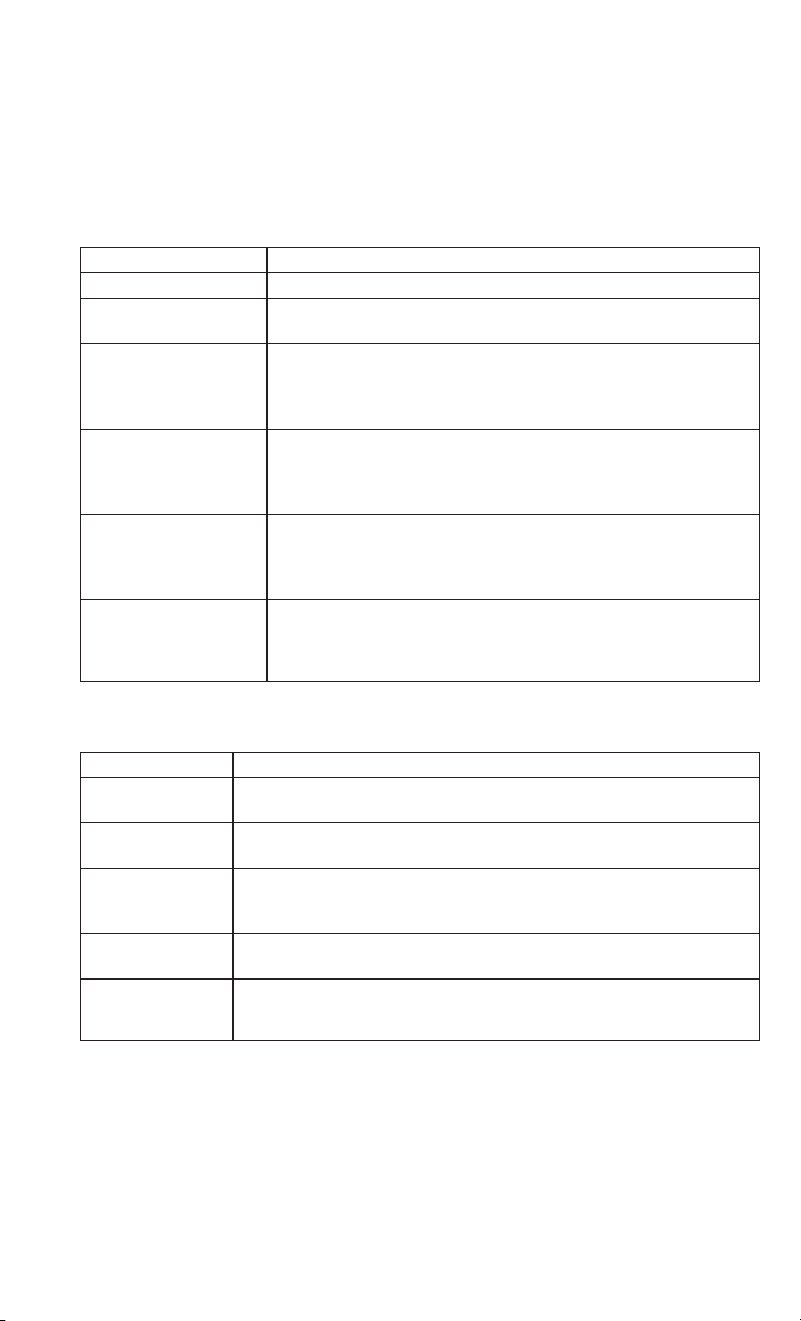
Browse
Lets you browse the SiriusXM channel listing or Genre listing. Favorites, Game Zone,
W eather and Jump settings also provide a way to browse the SiriusXM channel list.
Browse Sub-Menu Sub-Menu Description
All Shows the channel listing.
Genre Provides a list of all genres, and lets you jump to a channel within
the selected genre.
Presets Lets you scroll the list of Preset satellite channels. Press the
channel, or press Enter on the Tune knob, to go to that channel.
Press the trash can icon to delete a preset. Your presets are also
shown at the top of the main Satellite Radio screen.
Favorites Lets you manage artists and songs in the Favorites list and config-
ure Alert Settings to let you know when favorite songs or artists are
playing on other channels. Also, view a list of channels airing any of
your Favorites.
Game Zone Provides alerts when your favorite sports teams are starting a game
which is being aired on other SiriusXM channels, or when their
game score is announced. Y ou can select and manage your Teams
list here, and configure alerts.
Jump Lets you select your favorite cities for Traffic & W eather informa-
tion, which is used by the Jump feature on the main satellite radio
screen.
Replay
Lets you replay up to 44 minutes of the content of the current SiriusXM channel.
Replay Option Option Description
Play/Pause Press to Pause content playback. Press Pause/Play again to resume
playback.
Rewind/RW Rewinds the channel content in steps of five seconds. Press and hold to
rewind continuously, then release to begin playing content at that point.
Fast Forward/FW Forwards the content, and works similarly to Rewind/RW. However , Fast
Forward/FW can only be used when content has been previously re-
wound.
Replay Time Displays the amount of time in the upper center of the screen by which
your content lags the Live channel.
Live Resumes playback of Live content at any time while replaying rewound
content.
ELECTRONICS
127

• SiriusXM services require subscriptions, sold separately after the 12-month trial
included with the new vehicle purchase. If you decide to continue your service at the
end of your trial subscription, the plan you choose will automatically renew and bill at
then-current rates until you call SiriusXM at 1-866-635-2349 for U.S. residents and
1-888-539-7474 for Canadian residents to cancel. See SiriusXM Customer Agreement
for complete terms at www.siriusxm.com (U.S. residents) or siriusxm.ca (Canadian
residents). All fees and programming subject to change. Our satellite service is
available only to those at least 18 and older in the 48 contiguous USA and D.C. Our
Sirius satellite service is also available in PR (with coverage limitations). Our Internet
radio service is available throughout our satellite service area and in AK and HI.
©2017 Sirius XM Radio Inc. Sirius, XM and all related marks and logos are trademarks
of Sirius XM Radio Inc.
Media Hub — USB/Audio Jack (AUX) — If Equipped
There are many ways to play music from
MP3 players or USB devices through your
vehicle's sound system. Press your Media
button on the touchscreen to begin.
Audio Jack (AUX)
• The AUX allows a device to be plugged
into the radio and utilize the vehicle’ s
sound system, using a 3.5 mm audio
cable, to amplify the source and play
through the vehicle speakers.
•
Pressing the “AUX” button on the touch-
screen will change the mode to auxiliary
device if the audio jack is connected, allow-
ing the music from your device to be heard
through the vehicle's speakers. To activate
the AUX, plug in the audio jack.
• The functions of the device are con-
trolled using the device buttons. The
volume may be controlled using the ra-
dio or device.
• To route the audio cable out of the center console, use the access cut out in the front
of the console.
Uconnect Media Hub
1 — USB Port One
2 — Audio/AUX Jack
3 — USB Port Two
ELECTRONICS
128

USB Port
• Connect your compatible device using a USB cable into the USB Port. USB Memory
sticks with audio files can also be used. Audio from the device can be played on the
vehicles sound system while providing metadata (artist, track title, album, etc.)
information on the radio display.
• When connected, the compatible USB device can be controlled using the radio or
Steering Wheel Audio Controls to play, skip to the next or previous track, browse, and
list the contents.
• The battery charges when plugged into the USB port (if supported by the specific
device).
• To route the USB cable out of the center console, use the access cut out.
NOTE:
When connecting your device for the first time, the system may take several minutes to
read your music, depending on the number of files. For example, the system will take
approximately five minutes for every 1,000 songs loaded on the device. Also during the
reading process, the Shuffle and Browse functions will be disabled. This process is
needed to ensure the full use of your features and only happens the first time it is
connected. After the first time, the reading process of your device will take considerably
less time unless changes are made or new songs are added to the playlist.
Bluetooth Streaming Audio
• If equipped with Uconnect V oice Command, your Bluetooth-equipped device may also
be able to stream music to your vehicle's sound system. Your connected device must be
Bluetooth-compatible and paired with your system (see Uconnect Phone for pairing
instructions). Y ou can access the music from your connected Bluetooth device by
pressing the Bluetooth
button on the touchscreen while in Media mode.
ELECTRONICS
129

Media Controls
The controls are accessed by pressing the desired button on the touchscreen and choosing
between AUX, USB, or Bluetooth.
NOTE:
Uconnect will automatically switch to the appropriate mode when something is first
connected or inserted into the system.
Media Controls
1 — Repeat Music Track
2 — Music Track And Time
3 — Shuffle Music Tracks
4 — Music Track Information
5 — Show Songs Currently In Queue To
Be Played
6 — Browse Music By
7 — Music Source
ELECTRONICS
130

Android Auto
Android Auto is a feature of your Uconnect system, and your Android 5.0 Lollipop, or
higher, powered smartphone with a data plan, that allows you to project your smartphone
and a number of its apps onto the touchscreen radio display. Android Auto automatically
brings you useful information, and organizes it into simple cards that appear just when
they are needed. Android Auto can be used with Google's best-in-class speech technology,
the steering wheel controls, the knobs and buttons on your radio faceplate, and the radio
display’s touchscreen to control many of your apps. To use Android Auto follow the
following procedure:
1. Download the Android Auto app from the Google Play store on your Android-powered
smartphone.
2. Connect your Android powered smartphone to one of the media USB ports in your
vehicle. If the Android Auto app was not downloaded, the first time you plug your
device in, the app will begin to download.
NOTE:
Be sure to use the factory-provided USB cable that came with your phone, as aftermarket
cables may not work.
3. Once the device is connected and rec-
ognized, the “Phone” icon on the per -
sonalized menu bar will automatically
change to the Android Auto Icon.
Android Auto should automatically
launch, but if it does not launch auto-
matically, refer to the Uconnect Owner’ s
Manual Supplement for the procedure
to enable the feature “AutoShow”. Y ou
can also launch it by touching the
Android Auto icon on the touchscreen.
Once Android Auto is up and running on
your Uconnect radio, the following features can be utilized using your smartphone’ s data
plan:
• Google Maps for navigation
• Google Play Music, Spotify , iHeart Radio, etc. for music
• Handsfree Calling, and Texting for communication
• Hundred of compatible apps
Android Auto
ELECTRONICS
131

NOTE:
To use Android Auto, make sure you are in an area with cellular coverage. Android Auto
may use cellular data and your cellular coverage is shown in the upper right corner of the
radio screen.
Maps
Push and hold the VR button on the steering wheel or tap the microphone icon to ask
Google to take you to a desired destination by voice. Y ou can also touch the Navigation
icon in Android Auto to access Google Maps.
NOTE:
If the VR button is not held, and is only pushed, the native Uconnect VR will prompt you
and any navigation command said will launch the native Uconnect navigation system.
While using Android Auto, Google Maps provides voice-guided:
• Navigation
• Live traffic information
• Lane guidance
Google Maps Data And Cellular Coverage
Google Maps
ELECTRONICS
132

NOTE:
If you are using the native Uconnect navigation system, and you try and start a new route
using the Android Auto, via voice or any other method, a pop-up will appear asking if you
would like to switch from Uconnect navigation to smartphone navigation. A pop-up will
also appear, asking if you’d like to switch, if Android Auto is currently in use and you
attempt to launch a native Uconnect route. Selecting “Yes” will switch the navigation type
to the newly used method of navigation and a route will be planned for the new
destination. If “No” is selected the navigation type will remain unchanged.
For further information, refer to www .android.com/auto/.
For further information on the navigation function, please refer to
https://support.google.com/android or https://support.google.com/androidauto/.
Music
Android Auto allows you to access and stream your favorite music with apps like Google
Play Music, iHeartRadio, and Spotify. Using your smartphone’ s data plan, you can stream
endless music on the road.
NOTE:
Music apps, playlists, and stations must be set up on your smartphone prior to using
Android Auto, for them to work with Android Auto.
NOTE:
To see the metadata for the music playing
through Android Auto, select the Uconnect
System’s media screen.
For further information refer to
https://support.google.com/androidauto.
Android Auto Music
ELECTRONICS
133

Communication
With Android Auto connected, press and hold the VR button on the steering wheel to
activate voice recognition specific to the Android Auto. This will allow you to send and
reply to text messages, have incoming text messages read out loud, and place and receive
hands-free calls.
Apps
The Android Auto App will display all the compatible apps that are available to use with
Android Auto, every time it is launched. You must have the compatible app downloaded,
and you must be signed in to the app for it to work with Android Auto. Refer to
g.co/androidauto to see the latest list of available apps for Android Auto.
Android Auto Contact
Android Auto Phone
ELECTRONICS
134

Apple CarPlay Integration
Uconnect works seamlessly with Apple CarPlay , the smarter, more secure way to use your
iPhone in the car , and stay focused on the road. Use your Uconnect Touchscreen display,
the vehicle's knobs and controls, and your voice with Siri to get access to Apple Music,
Maps, Messages, and more.
To use CarPlay, make sure you are using iPhone 5 or later , have Siri enabled in Settings,
ensure your iPhone is unlocked for the very first connection only, and then use the
following procedure:
1. Connect your iPhone to one of the media USB ports in your vehicle.
NOTE:
Be sure to use the factory-provided Lightning cable that came with your phone, as
aftermarket cables may not work.
2. Once the device is connected and recognized, the “Phone” icon on the personalized
menu bar will automatically change to the Apple CarPlay icon. Apple CarPlay should
launch automatically, but if not, refer to the Uconnect Owner’s Manual Supplement for
the procedure to enable the feature “AutoShow”. You can also touch the Apple CarPlay
icon on the touchscreen to launch it.
Once CarPlay is up and running on your
Uconnect radio, the following features can
be utilized using your iPhone’ s data plan:
• Phone
• Music
• Messages
• Maps
NOTE:
To use CarPlay make sure that cellular data
is turned on, and that you are in an area
with cellular coverage. Your data and cellular coverage is shown on the left side of the radio
screen.
CarPlay
CarPlay Data And Cellular Coverage
ELECTRONICS
135

Phone
With CarPlay, press and hold the VR button on the steering wheel to activate a Siri voice
recognition session. Y ou can also press and hold the Home button within CarPlay to start
talking to Siri. This will allow you to make calls or listen to voice mail as you normally
would using Siri on your iPhone.
NOTE:
Only temporarily pushing the VR button on the steering wheel will launch a native VR
session, not a Siri session, and it will not function with CarPlay .
Music
CarPlay allows you to access all your artists, playlists, and music from iTunes. Using your
iPhone’s data plan, you can also use select third party audio apps including music, news,
sports, podcasts and more.
Messages
Just like Phone, CarPlay allows you to use Siri to send or reply to text messages. Siri can
also read incoming text messages, but driver’ s will not be able to read messages, as
everything is done via voice.
Apple Music
ELECTRONICS
136

Maps
To use your Apple Maps for navigation on your Uconnect system, launch CarPlay, and push
and hold the VR button on the steering wheel to use Siri to set your desired destination.
Alternatively, choose a Nearby destination by pressing Destinations and selecting a
category, by launching Siri from the destinations page, or even by typing in a destination.
NOTE:
• If the VR button is not held, and is only
pushed, the native Uconnect VR will
prompt you and any navigation com-
mand said will launch the native
Uconnect navigation system.
• If you are using the native Uconnect
navigation system, and you try and start
a new route using CarPlay, via voice or
any other method, a pop-up will appear
asking if you would like to switch from
Uconnect navigation to iPhone navigation. A pop-up will also appear , asking if you’d
like to switch, if an CarPlay navigation is currently in use and you attempt to launch a
native Uconnect route. Selecting “Y es” will switch the navigation type to the newly
used method of navigation and a route will be planned for the new destination. If “No”
is selected the navigation type will remain unchanged.
Apps
To use a compatible app with CarPlay , you must have the compatible app downloaded,
and you must be signed in to the app. Refer to http://www .apple.com/ios/carplay/ to see
the latest list of available apps for CarPlay .
Maps
Navigation Pop-Up
ELECTRONICS
137

Navigation
• The information in the section below is only applicable if you have the 8.4 NAV system
or the Navigation has been activated on your 8.4 system.
Press the “Nav” button on the touchscreen in the menu bar to access the Navigation
system.
Changing The Navigation Voice Prompt Volume
1. Press the “Settings” button on the touchscreen in the lower right area of the screen.
2. In the Settings menu, press the “Guidance” button on the touchscreen.
3. In the Guidance menu, adjust the Nav Volume by pressing the “+” or “–” buttons on
the touchscreen.
Uconnect 8.4 NAV Navigation
1 — Search For A Destination In All
Categories
2 — Find A Destination
3 — View Map
4 — Navigate To Saved Home
Destination
5 — Navigate To Saved Work
Destination
6 — Navigation Settings
7 — Emergency
8 — Information
ELECTRONICS
138

Finding Points Of Interest
• From the main Navigation menu, press the “Where To?” button on the touchscreen,
then press the “Points of Interest” button on the touchscreen.
• Select a category and then a subcategory, if necessary.
• Select your destination and press the “GO!” button on the touchscreen.
Finding A Place By Spelling The Name
• From the Main Navigation Menu press the “Where to?” button on the touchscreen,
press the “Points of Interest” button on the touchscreen, then press the “Spell Name”
button on the touchscreen.
• Enter the name of your destination.
• Press the “List” button on the touchscreen.
• Select your destination and press the “GO!” button on the touchscreen.
One-Step Voice Destination Entry
• Enter a navigation destination without taking your hands off the wheel.
• Just push the Uconnect V oice Command
button on the steering wheel, wait for
the beep and say something like, "Find Address 800 Chrysler Drive Auburn Hills MI."
NOTE:
Destination entry is not available while your vehicle is in motion. However, you can also
use Voice Commands to enter an address while moving. Refer to “Uconnect 8.4/8.4 NAV
V oice Recognition Quick Tips” in this section for further information.
Setting Your Home Location
• To add a Home location, press the “Nav” button on the touchscreen in the menu bar
to access the Navigation system and the Main Navigation menu.
• Press the “Home” button on the touchscreen. Y ou can add a Home location by either
selecting “Spell City ,” “Spell Street,” or “Select Country.” Select County is automati-
cally filled out based on your state.
• Once you have entered your Home location, select the “Save Home” button located on
the lower left-hand side of your touchscreen.
• To delete a saved Home location (or other saved locations), so you can save a new Home
location, press the “Nav” button on the touchscreen, and in the “Where To” screen,
press “Edit Where To” and then press the “Home” button on the touchscreen. Under
the Manage screen press the “Reset Location” button. A confirmation screen will
appear asking if you “Are you sure you want to reset this location?” Press “Reset” to
confirm the deletion. Set a new Home location by following the previous instructions.
ELECTRONICS
139

Home
• A Home location must be saved in the system. From the Main Navigation menu, press
the “Home” button on the touchscreen.
Your route is marked with a blue line on the map. If you depart from the original route, your
route is recalculated. A speed limit icon could appear as you travel on major roadways.
Adding A Stop
• To add a stop you must be navigating a route.
• Press the “Menu” button on the touchscreen to return to the Main Navigation menu.
• Press the “Where To?” button on the touchscreen, then search for the extra stop. When
another location has been selected, you can choose to cancel your previous route, add
as the first destination or add as the last destination.
• Press the desired selection and press the “GO!” button on the touchscreen.
Taking A Detour
• To take a detour you must be navigating a route.
• Press the “Detour” button on the touchscreen.
Uconnect 8.4 NAV Map
1 — Distance To Next Turn
2 — Next Turn Street
3 — Estimated Time Of Arrival
4 — Zoom In And Out
5 — Y our Location On The Map
6 — Navigation Main Menu
7 — Current Street Location
8 — Navigation Routing Options
ELECTRONICS
140

NOTE:
If the route you are currently taking is the only reasonable option, the device may not calculate
a detour . For more information, see your Uconnect Owner's Manual Supplement.
SiriusXM Traffic Plus (8.4 NAV & US Market Only)
Don't Drive Through Traffic. Drive Around It.
Avoid congestion before you reach it. By enhancing your vehicle's navigation system with
the ability to see detailed traffic information, you can pinpoint traffic incidents, determine
average traffic speed and estimate travel time along your route. Since the service is
integrated with a vehicle's navigation system, SiriusXM Traffic Plus can help drivers pick
the fastest route based on traffic conditions.
• Detailed information on traffic speed, accidents, construction, and road closings.
• Traffic information from multiple sources, including police and emergency services,
cameras and road sensors.
• Coast-to-coast delivery of traffic information.
• View conditions for points along your route and beyond. Available in over 130 markets.
SiriusXM Travel Link (8.4 NAV & US Market Only)
In addition to delivering over 130 channels of the best sports, entertainment, talk, and
commercial-free music, SiriusXM offers premium data services that work in conjunction
with compatible navigation systems. SiriusXM Travel Link brings a wealth of useful
information into your vehicle and right to your fingertips.
• Fuel Prices — Check local gas and diesel prices in your area and route to the station of
your choice.
• Movie Listings — Check local movie theatres and listings in your area and route to the
theater of your choice.
• Sports Scores — In-game and final scores as well as weekly schedules.
• Weather — Check variety of local and national weather information from radar maps to
current and 5-day forecast.
SiriusXM Travel Link feature is completely integrated into your vehicle. A few minutes
after you start your vehicle, Travel Link information arrives and updates in the background.
You can access the information whenever you like, with no waiting.
To access SiriusXM Travel Link, press “Apps” button on the touchscreen, then press the
“SiriusXM Travel Link” button on the touchscreen.
NOTE:
SiriusXM Travel Link requires a subscription, sold separately after the five (5) year trial
subscription included with your vehicle purchase.
SiriusXM Travel Link is only available in the United States.
ELECTRONICS
141

UCONNECT 8.4/8.4 NAV VOICE RECOGNITION QUICK TIPS
Introducing Uconnect
Start using Uconnect V oice Recognition with these helpful quick tips. It provides the key
V oice Commands and tips you need to know to control your Uconnect system.
If you see the NAV icon on the bottom bar , or in the Apps menus, of your touchscreen, you
have the Uconnect 8.4 NA V system. If not, you have a Uconnect 8.4 system.
Get Started
All you need to control your Uconnect system with your voice are the buttons on your
steering wheel.
1. Visit UconnectPhone.com to check mobile device and feature compatibility and to
find phone pairing instructions.
2. Reduce background noise. Wind noise and passenger conversations are examples of
noise that may impact recognition.
3. Speak clearly at a normal pace and volume while facing straight ahead. The micro-
phone is located in the headliner and aimed at the driver.
4. Each time you give a V oice Command, you must first push either the VR or Phone
button, wait until after the beep, then say your Voice Command.
5. Y ou can interrupt the help message or system prompts by pushing the VR or Phone
button and saying a Voice Command from current category.
Uconnect Phone Button
, Push to ini-
tiate, answer , or end a phone call.
Uconnect Voice Recognition Button
.
1. Short Press: Push and release the VR
button to begin Radio, Climate, Naviga-
tion, and other embedded functions. Af-
ter you hear the single beep, say a com-
mand.
2. Long Press: Push and hold continuously
for a few seconds, then release the VR
button for Siri functions. After you hear
the familiar Siri "double beep," say a
command.
Phone Hang Up Button, Push to end a call.
Uconnect VR And Phone Buttons
1 — Uconnect Phone Button
2 — Uconnect Voice Recognition Button
3 — Phone Hang Up Button
ELECTRONICS
142

Basic Voice Commands
The basic V oice Commands below can be given at any point while using your Uconnect
system.
Push the VR button
. After the beep, say…
• Cancel to stop a current voice session
• Help to hear a list of suggested Voice Commands
• Repeat to listen to the system prompts again
Notice the visual cues that inform you of your voice recognition system’s status. Cues
appear on the top of the touchscreen.
Uconnect 8.4/8.4 NAV
ELECTRONICS
143

Radio
Use your voice to quickly get to the AM, FM or SiriusXM Satellite Radio stations you would
like to hear . (Subscription or included SiriusXM Satellite Radio trial required.)
Push the VR button
. After the beep, say…
• Tune to ninety-five-point-five FM
• Tune to Satellite Channel Hits 1
TIP: At any time, if you are not sure of what to say or want to learn a Voice Command, push
the VR button
and say “Help.” The system will provide you with a list of commands.
Uconnect 8.4/8.4 NAV Radio
ELECTRONICS
144

Media
Uconnect offers connections via USB, Bluetooth and auxiliary ports (If Equipped). Voice
operation is only available for connected USB and AUX devices. (Remote CD player
optional and not available on all vehicles.)
Push the VR button
. After the beep, say one of the following commands and follow
the prompts to switch your media source or choose an artist.
• Change source to Bluetooth
• Change source to AUX
• Change source to USB
• Play artist Beethoven; Play album Greatest Hits; Play song Moonlight Sonata; Play
genre Classical
TIP: Press the Browse button on the touchscreen to see all of the music on your USB
device. Y our V oice Command must match exactly how the artist, album, song and genre
information is displayed.
Uconnect 8.4/8.4 NAV Media
ELECTRONICS
145

Phone
Making and answering hands-free phone calls is easy with Uconnect. When the Phone-
book button is illuminated on your touchscreen, your system is ready . Check
UconnectPhone.com for mobile phone compatibility and pairing instructions.
Push the Phone button
. After the beep, say one of the following commands…
• Call John Smith
• Dial 123-456-7890 and follow the system prompts
• Redial (call previous outgoing phone number)
• Call back (call previous incoming phone number)
TIP: When providing a Voice Command, push the Phone button
and say “Call,”
then pronounce the name exactly as it appears in your phone book. When a contact has
multiple phone numbers, you can say “Call John Smith work.”
Uconnect 8.4/8.4 NAV Phone
ELECTRONICS
146

Climate (8.4/8.4 NAV)
Too hot? Too cold? Adjust vehicle temperatures hands-free and keep everyone comfortable
while you keep moving ahead. (If vehicle is equipped with climate control.)
Push the VR button
. After the beep, say one of the following commands:
• Set driver temperature to 70 degrees
• Set passenger temperature to 70 degrees
TIP: V oice Command for Climate may only be used to adjust the interior temperature of
your vehicle. V oice Command will not work to adjust the heated seats or steering wheel if
equipped.
Uconnect 8.4/8.4 NAV Climate
ELECTRONICS
147

Navigation (8.4 NAV)
The Uconnect navigation feature helps you save time and become more productive when
you know exactly how to get to where you want to go. (Navigation is optional on the
Uconnect 8.4 system.)
1. To enter a destination, push the VR button
. After the beep, say:
• For the 8.4 Uconnect System, say: “Enter state.”
• For the 8.4 NAV Uconnect System, say: “Find address 800 Chrysler Drive Auburn
Hills, Michigan.”
2. Then follow the system prompts.
TIP: To start a POI search, push the VR button
. After the beep, say: “Find nearest
coffee shop.”
Uconnect 8.4/8.4 NAV Navigation
ELECTRONICS
148

SiriusXM Guardian (8.4 NAV) — If Equipped
WARNING!
Some SiriusXM Guardian services, including SOS Call and Roadside Assistance Call
will NOT work without an operable LTE (voice/data) or 3G or 4G (data) network
connection compatible with your device.
NOTE:
Your vehicle may be transmitting data as authorized by the subscriber.
An included trial and/or subscription is required to take advantage of the SiriusXM
Guardian services in the next section of this guide. To register with SiriusXM Guardian,
press the Apps button on the 8.4-inch touchscreen to get started.
NOTE:
SiriusXM Guardian is available only on equipped vehicles purchased within the continen-
tal United States, Alaska and Hawaii. Services can only be used where coverage is
available; see coverage map for details.
SOS Call
Theft Alarm Notification
Remote Door Lock/Unlock
Send & Go
V ehicle Finder
Stolen V ehicle Assistance
Remote V ehicle Start**
Remote Horn & Lights
Roadside Assistance Call
V ehicle Health Reports**
V ehicle Health Alert**
Performance Pages Plus**
**If vehicle is equipped.
ELECTRONICS
149

Register (8.4 NAV)
To unlock the full potential of SiriusXM Guardian in your vehicle, you must activate your
SiriusXM Guardian services.
1. Press the Apps icon on the bottom of your in-vehicle touchscreen.
2. Select the Activate Services icon from your list of apps.
3. Select “Customer Care” to speak with a SiriusXM Guardian Customer Care agent who
will activate services in your vehicle, or select “Enter Email” to activate on the web.
For further information, please visit siriusxm.com/guardian.
Vehicle Health Report/Alert (8.4 NAV)
Your vehicle will send you a monthly email report, which summarizes the performance of
your vehicle’s key systems so you can stay on top of your vehicle’ s maintenance needs.
Your vehicle will also send you Vehicle Health Alerts when it detects issues with its key
systems that need your attention. For further information go to the Owner Site website
(owners.dodge.com, owners.chrysler .com, or owners.jeep.com).
Mobile App (8.4 NAV)
You’re only a few steps away from using remote commands and playing your favorite music
in your car .
To use the SiriusXM Guardian App:
• Download the SiriusXM Guardian App to
your mobile device.
• Press the Info button on the navigation
bar at the bottom of the app for Vehicle
Info.
• Press the Remote button on the naviga-
tion bar at the bottom of the app to
Lock/Unlock, Remote Start, and activate
your horn and lights remotely.
• Press the Location button on the naviga-
tion bar at the bottom of the app to bring
up a map to locate your vehicle or send a
location to your vehicle’ s navigation sys-
tem.
• Press the Settings button in the upper left corner of the app to bring up app settings
and access the Assist Call Centers.
NOTE:
For further information please visit DriveUconnect.com.
Mobile App
ELECTRONICS
150

SiriusXM Travel Link (8.4 NAV)
Need to find a gas station, view local movie listings, check a sports score or the5-day
weather forecast? SiriusXM Travel Link is a suite of services that brings a wealth of
information right to your Uconnect 8.4 NAV system. (Not available for 8.4 system or
vehicles sold in the Canadian market.)
Push the VR button
. After the beep, say one of the following commands:
• Show fuel prices
• Show 5 - day weather forecast
• Show extended weather
TIP: Traffic alerts are not accessible with Voice Command.
SiriusXM Travel Link
ELECTRONICS
151

Apple CarPlay — If Equipped
Apple CarPlay allows you to use your voice to interact with Siri through your vehicle’ s voice
recognition system, and use your smartphone’ s data plan to project your iPhone and a
number of its apps onto your Uconnect touchscreen. Connect your iPhone 5, or higher , to
one of the media USB ports, using the factory-provided Lightning cable, and press the
new CarPlay icon that replaces your “Phone” icon on the main menu bar to begin Apple
CarPlay. Press and hold the VR button on the steering wheel, or press and hold the
“Home” button within Apple CarPlay, to activate Siri, which recognizes natural voice
commands to use a list of your iPhone’ s features:
• Phone
• Music
• Messages
• Maps
• Additional Apps
Refer to your Uconnect Owner’ s Manual
Supplement for further information.
Apple CarPlay
ELECTRONICS
152

Android Auto — If Equipped
Android Auto allows you to use your voice to interact with Android’ s best-in-class speech
technology through your vehicle’s voice recognition system, and use your smartphone’ s
data plan to project your Android powered smartphone and a number of its apps onto your
Uconnect touchscreen. Connect your Android 5.0 (Lollipop), or higher, to one of the
media USB ports, using the factory-provided USB cable, and press the new Android Auto
icon that replaces your “Phone” icon on the main menu bar to begin Android Auto. Push
and hold the VR button on the steering wheel, or press and hold the “Microphone” icon
within Android Auto, to activate Android’ s VR, which recognizes natural voice commands,
to use a list of your smartphone’ s features:
• Maps
• Music
• Phone
• Text Messages
• Additional Apps
Refer to your Uconnect Owner’ s Manual
Supplement for further information.
Android Auto
ELECTRONICS
153

General Information
The following regulatory statement applies to all Radio Frequency (RF) devices equipped
in this vehicle:
This device complies with Part 15 of the FCC Rules and with Industry Canada license-
exempt RSS standard(s). Operation is subject to the following two conditions:
1. This device may not cause harmful interference, and
2. This device must accept any interference received, including interference that may
cause undesired operation.
NOTE:
Changes or modifications not expressly approved by the party responsible for compliance
could void the user’ s authority to operate the equipment.
Additional Information
© 2017 FCA US LLC. All rights reserved. Mopar and Uconnect are registered trademarks
and Mopar Owner Connect is a trademark of FCA US LLC. Android is a trademark of
Google Inc. SiriusXM and all related marks and logos are trademarks of SiriusXM Radio
Inc.
Uconnect System Support:
• U.S. residents visit DriveUconnect.com or call: 1-877-855-8400 (24 hours a day
7 days a week)
• Canadian residents visit DriveUconnect.ca or call: 1-800-465-2001 (English) or
1-800-387-9983 (French)
SiriusXM Guardian services support, call:
1-844-796-4827
ELECTRONICS
154

UCONNECT PHONE
Uconnect Phone (Bluetooth Hands Free Calling)
Uconnect 5.0 Phone Menu
1 — Call/Redial/Hold
2 — Mobile Phone Signal Strength
3 — Currently Paired Mobile Phone
4 — Mobile Phone Battery Life
5 — Mute Microphone
6 — Transfer To/From Uconnect
System
7 — Uconnect Phone Settings Menu
8 — Text Messaging
9 — Direct Dial Pad
10 — Recent Call Log
11 — Browse Phone Book
(Contains 9-1-1)
12 — End Call
ELECTRONICS
155

The Uconnect Phone feature enables you to place and receive hands-free mobile phone
calls. Drivers can also place mobile phone calls using their voice or by using the buttons
on the touchscreen (see Voice Command section).
The hands-free calling feature is made possible through Bluetooth technology — the
global standard that enables different electronic devices to connect to each other
wirelessly.
If the Uconnect Phone Button
exists on your steering wheel, you then have the
Uconnect Phone features.
Uconnect 8.4/8.4 NAV Phone Menu
1 — Favorite Contacts
2 — Mobile Phone Battery Life
3 — Currently Paired Mobile Phone
4 — Mobile Phone Signal Strength
5 — Mute Microphone
6 — Transfer To/From Uconnect
System
7 — Conference Call*
8 — Phone Settings
9 — Text Messaging**
10 — Direct Dial Pad
11 — Recent Call Log
12 — Browse Phone Book Entries
(Contains SOS Call)
13 — End Call
14 — Call/Redial/Hold
15 — Do Not Disturb
16 — Reply with Text Message
* — Conference call feature only avail-
able on GSM mobile devices
** — Text messaging feature not avail-
able on all mobile phones (requires
Bluetooth MAP profile)
ELECTRONICS
156

NOTE:
• The Uconnect Phone requires a mobile phone equipped with the Bluetooth Hands-
Free Profile, V ersion 1.0 or higher.
• Most mobile phones/devices are compatible with the Uconnect system, however some
mobile phones/devices may not be equipped with all of the required features to utilize
all of the Uconnect system features.
• For Uconnect Customer Care:
• U.S. residents visit UconnectPhone.com or call 1-877-855-8400.
Pairing (Wirelessly Connecting) Your Mobile Phone To The Uconnect System
Mobile phone pairing is the process of establishing a wireless connection between a
cellular phone and the Uconnect system.
NOTE:
• To use the Uconnect Phone feature, you first must determine if your mobile phone and
software are compatible with the Uconnect system. Please visit UconnectPhone.com
for complete mobile phone compatibility information.
• Mobile phone pairing is not available while the vehicle is in motion.
• A maximum of ten mobile phones can be paired to the Uconnect system.
Start Pairing Procedure On The Radio
Uconnect 5.0:
1. Place the ignition in the ACC or ON
position.
2. Press the “Phone” button.
3. Select “Settings.”
4. Select “Paired Phones.”
5. Select “Add device.”
• Uconnect Phone will display an “In
progress” screen while the system is
connecting.
Uconnect 5.0
ELECTRONICS
157

Uconnect 8.4, 8.4 NAV:
1. Place the ignition in the ACC or ON
position.
2. Press the “Phone” button in the Menu
Bar on the touchscreen.
3. Select “Settings.”
4. Select “Paired Phones.”
5. Select “Add device.”
• Uconnect Phone will display an “In
progress” screen while the system is
connecting.
Pair Your iPhone:
To search for available devices on your
Bluetooth enabled iPhone:
1. Press the Settings button.
2. Select Bluetooth.
• Ensure the Bluetooth feature is en-
abled. Once enabled, the mobile
phone will begin to search for
Bluetooth connections.
3. When your mobile phone finds the
Uconnect system, select “Uconnect”.
Complete The iPhone Pairing Procedure:
1. When prompted on the mobile phone,
accept the connection request from
Uconnect Phone.
NOTE:
Some mobile phones will require you to
enter the PIN number .
Uconnect 8.4 & 8.4 NAV
Bluetooth On/Uconnect Device
Pairing Request
ELECTRONICS
158

Select The iPhone's Priority Level
When the pairing process has successfully completed, the system will prompt you to
choose whether or not this is your favorite mobile phone. Selecting “Y es” will make this
mobile phone the highest priority. This mobile phone will take precedence over other
paired mobile phones within range and will connect to the Uconnect system automatically
when entering the vehicle. Only one mobile phone and/or one Bluetooth audio device can
be connected to the Uconnect system at a time. If “No” is selected, simply select
“Uconnect” from the mobile phone/audio device Bluetooth screen, and the Uconnect
system will reconnect to the Bluetooth device.
Pair Your Android Device:
To search for available devices on your
Bluetooth enabled Android Device:
1. Push the Menu button.
2. Select Settings.
3. Select Connections.
4. Turn Bluetooth setting to “On.”
• Ensure the Bluetooth feature is en-
abled. Once enabled, the mobile
phone will begin to search for
Bluetooth connections.
5. Once your mobile phone finds the Uconnect system, select “Uconnect”.
• Y ou may be prompted by your mobile phone to download the phonebook, check “Do
Not Ask Again” to automatically download the phonebook. This is so you can make
calls by saying the name of your contact.
Complete The Android Pairing Procedure:
1. Confirm the passkey shown on the mo-
bile phone matches the passkey shown
on the Uconnect system then accept the
Bluetooth pairing request.
NOTE:
Some mobile phones require the PIN to be
entered manually, enter the PIN number
shown on the Uconnect screen.
Uconnect Device
Pairing Request
ELECTRONICS
159

Select The Android Mobile Phone's Priority Level
When the pairing process has successfully completed, the system will prompt you to
choose whether or not this is your favorite mobile phone. Selecting “Yes” will make this
mobile phone the highest priority. This mobile phone will take precedence over other
paired mobile phones within range and will connect to the Uconnect system automatically
when entering the vehicle. Only one mobile phone and/or one Bluetooth audio device can
be connected to the Uconnect system at a time. If “No” is selected, simply select
“Uconnect” from the mobile phone/audio device Bluetooth screen, and the Uconnect
system will reconnect to the Bluetooth device.
You are now ready to make hands-free calls. Press the Uconnect “Phone” button
on
your steering wheel to begin.
NOTE:
Refer to UconnectPhone.com website for additional information on mobile phone pairing
and for a list of compatible phones.
Common Phone Commands (Examples)
• “Call John Smith”
• “Call John Smith mobile”
• “Dial 1 248 555 1212”
• “Redial”
Mute (Or Unmute) Microphone During Call
• During a call, press the “Mute” button on the Phone main screen to mute and unmute
the call.
Transfer Ongoing Call Between Handset And Vehicle
• During an on-going call, press the “Transfer” button on the Phone main screen to
transfer an on-going call between handset and vehicle.
Phonebook
The Uconnect system will automatically sync your phonebook from your paired phone, if
this feature is supported by your phone. Phonebook contacts are updated each time that
the phone is connected. If your phone book entries do not appear , check the settings on
your phone. Some phones require you to enable this feature manually.
• Y our phonebook can be browsed on the Uconnect system touchscreen, but editing can
only be done on your phone. To browse, press the “Phone” button on the touchscreen,
then the “Phonebook” button on the touchscreen.
Favorite phonebook entries can be saved as Favorites for quicker access. Favorites are
shown at the top of the main phone screen.
ELECTRONICS
160

Voice Command Tips
• Speaking complete names (i.e; Call John Doe vs. Call John) will result in greater system
accuracy.
• Y ou can “link” commands together for faster results. Say “Call John Doe, mobile,” for
example.
• If you are listening to available voice command options, you do not have to listen to the
entire list. When you hear the command that you need, push the
button on the
steering wheel, wait for the beep and say your command.
Changing The Volume
• Start a dialogue by pushing the Phone button , then say a command. For
example, "Help".
• Use the radio VOLUME/MUTE rotary knob to adjust the volume to a comfortable level
while the Uconnect system is speaking.
NOTE:
The volume setting for Uconnect is different than the audio system.
NOTE:
To access help, push the Uconnect Phone button
on the steering wheel and say
"help." Push the Uconnect Phone Pickup button
or the VR button and say
"cancel" to cancel the help session.
Using Do Not Disturb
With Do Not Disturb, you can disable notifications from incoming calls and texts, allowing
you to keep your eyes on the road and hands on the wheel. For your convenience, there is
a counter display to keep track of your missed calls and text messages while you were
using Do Not Disturb.
Do Not Disturb can automatically reply with a text message, a call or both, when declining
an incoming call and send it to voicemail.
Automatic reply messages can be:
• “I am driving right now, I will get back to you shortly .”
• Create a custom auto reply message up to 160 characters.
While in Do Not Disturb, Conference Call can be selected so you can still place a second
call without being interrupted by incoming calls.
NOTE:
• Only the beginning of your custom message will be seen on the touchscreen.
• Reply with text message is not compatible with iPhones.
• Auto reply with text message is only available on phones that supporting Bluetooth
MAP.
ELECTRONICS
161

Incoming Text Messages
After pairing your Uconnect system with a Bluetooth enabled mobile device with the
Message Access Profile (MAP), the Uconnect system can announce a new incoming text
message and read it to you over the vehicle’ s audio system.
NOTE:
Only incoming text messages received during the current ignition cycle can be viewed/
read.
To enable incoming text messaging:
iPhone
1. Press the settings button on the mobile phone.
2. Select Bluetooth.
• Ensure Bluetooth is enabled, and the mobile phone is paired to the Uconnect
system.
3. Select
located under DEVICES next to Uconnect.
4. Turn “Show Notifications” to on.
Enable iPhone Incoming Text Messages
ELECTRONICS
162

Android Devices
1. Push the Menu button on the mobile phone.
2. Select Settings.
3. Select Connections.
4. Turn “Show Notifications” to on.
• A pop up will appear asking you to accept a request for permission to connect to
your messages. Select “Don’t ask again” and press OK.
NOTE:
All incoming text messages received during
the current ignition cycle will be deleted
from the Uconnect system when the igni-
tion is turned to the OFF position.
Helpful Tips And Common Questions To Improve Bluetooth Performance With
Your Uconnect System
Mobile Phone won’t reconnect to system after pairing:
• Set mobile phone to auto-connect or trusted device in mobile phone Bluetooth settings
(Blackberry devices).
• Perform a factory reset on your mobile phone. Refer to your mobile phone manufacturer
or cellular provider for instructions.
• Many mobile phones do not automatically reconnect after being restarted (hard
reboot). Y our mobile phone can still be connected manually. Close all applications that
may be operating (refer to mobile phone manufacturer’s instructions), and follow
“Pairing (Wirelessly Connecting) Y our Mobile Phone To The Uconnect System”.
Enable Android Device Incoming Text
Messages
ELECTRONICS
163

Mobile Phone won’t pair to system:
• Perform a hard reset in the mobile phone by removing the battery (if removable — see
your mobile phone’ s owner manual).
• Delete pairing history in mobile phone and Uconnect system; usually found in phone’ s
Bluetooth connection settings.
• Verify you are selecting “Uconnect” in the discovered Bluetooth devices on your mobile
phone.
• If your vehicle system generates a pin code the default is 0000.
Mobile Phonebook didn’t download:
• Check “Do not ask again,” then accept the “phonebook download” request on your
mobile phone.
• Up to 5,000 contact names with four numbers per contact will transfer to the
Uconnect 8.4/8.4 NA V system phonebook.
• Up to 2,000 contact names with six numbers per contact will transfer to the Uconnect
5.0 system phonebook.
Can’t make a conference call:
• CDMA (Code-Division Multiple Access) carriers do not support conference calling.
Refer to your mobile phone user’ s manual for further information.
Making calls while connected to AUX:
• Plugging in your mobile phone to AUX while connected to Bluetooth will disable
Hands-Free Calling. Do not make calls while your mobile phone is plugged into the AUX
jack.
STEERING WHEEL AUDIO CONTROLS
The steering wheel audio controls are located on the rear surface of the steering wheel.
Left Switch
• Push the switch up or down to search for
the next listenable station.
• Push the button in the center to select
the next preset station.
Right Switch
• Push the switch up or down to increase
or decrease the volume.
• Push the button in the center to change
modes AM/FM/SAT.
Steering Wheel Audio Controls
ELECTRONICS
164

INSTRUMENT CLUSTER DISPLAY
The instrument cluster display features a driver interactive display that is located in the
instrument cluster . Pushing the controls on the left side of the steering wheel allows the
driver to select vehicle information and Personal Settings. Refer to “Programmable
Features” in this guide for further information.
• Push the up arrow button to scroll up-
ward through the main menus (Speed-
ometer, V ehicle Info, Driver Assist, Fuel
Economy, Trip, Audio, Messages, Screen
Setup) and sub menus.
• Push the down arrow button to scroll
downward through the main menus and
sub menus.
• Push the right arrow button to scroll
forward to the next menu or sub menu.
• Push the left arrow button to scroll back
to a previous menu or sub menu.
• Push the OK button to access/select the
information screens, the submenu
screens of a main menu item, or to select
a personal setting in the setup menu. Push and hold the OK button for two seconds to
reset displayed/selected features that can be reset.
Compass Calibration
This compass is self-calibrating, which eliminates the need to set the compass manually.
When the vehicle is new , the compass may appear erratic, and the cluster will display
dashes (- -) until the compass is calibrated.
You may also calibrate the compass by completing one or more 360 degree turns (in an
area free from large metal or metallic objects) until the dashes (- -) displayed in the cluster
turn off. The compass will now function normally .
Instrument Cluster Display Controls
ELECTRONICS
165

PERFORMANCE FEATURES
Overview Of Performance Features
WARNING!
ALWAYS drive safely with your hands on the wheel. You have full responsibility and
assume all risks related to the use of the Uconnect features and applications in this
vehicle. Only use Uconnect when it is safe to do so. Failure to do so may result in an
accident involving serious injury or death.
The Performance Features include the following:
0-60 MPH (0-100 km/h) Timer
•
Best
• Last
• Current
• Reaction Timer
0-100 MPH (0-161 km/h) Timer
•
Best
• Last
• Current
• Reaction Timer
1/8 Mile (200 meters) Timer
•
Best
• Last
• Current
• Reaction Timer
1/4 Mile (400 meters) Timer
•
Best
• Last
• Current
• Reaction Timer
Braking Distance
•
Distance
• From Speed
Current G-Forces
Peak G-Forces
Lap Timer
Lap History
• Will list the last 5 laps with the best lap
highlighted in green.
Top Speed
ELECTRONICS
166

The following describes each feature and its operation:
0-60 MPH (0-100 km/h)
When selected, this screen displays the time it takes for the vehicle to go from 0 to
60 MPH (0 to 100 km/h) within 10 seconds.
• The feature will “ready” when the vehicle speed is at 0 MPH (0 km/h). The word
“READY” will flash when conditions are met for the event to begin.
• Dashes will display if the vehicle fails to reach 60 MPH (100 km/h) in less then
10 seconds.
• To clear the vehicle's best, last, and current 0-60 MPH (0-100 km/h) time, push and
hold the OK button for two seconds.
0-100 MPH (0-161 km/h)
When selected, this screen displays the time it takes for the vehicle to go from 0 to
100 MPH (0 to 161 km/h) within 15 seconds.
• The feature will “ready” when the vehicle speed is at 0 MPH (0 km/h). The word
“READY” will flash when conditions are met for the event to begin.
• Dashes will display if the vehicle fails to reach 0 to 100 MPH (0 to 161 km/h) in less
then 15 seconds.
• To clear the vehicle's best, last and current 0 to 100 MPH (0 to 161 km/h) time, push
and hold the OK button for two seconds.
1/8 Mile (200 Meters)
When selected, this screen displays the time it takes the vehicle to travel 1/8 mile within
15 seconds and the vehicle's speed when it reaches 1/8 mile.
• The feature will “ready” when the vehicle is at 0 MPH (0 km/h). The word “READY” will
flash when conditions are met for the event to begin.
• Dashes will display if the vehicle fails to reach 1/8 mile (200 meters) in less then
15 seconds.
• To clear the vehicle's best 1/8 mile (200 meters) run, push and hold the OK button for
five seconds.
1/4 Mile (400 Meters)
When selected, this screen displays the time it takes the vehicle to travel 1/4 mile within
25 seconds and the vehicle's speed when it reaches 1/4 mile (400 meters).
• The feature will “ready” when the vehicle is at 0 MPH (0 km/h). The word “READY” will
flash when conditions are met for the event to begin.
• Dashes will display if the vehicle fails to reach 1/4 mile (400 meters) in less then 25
seconds.
• To clear the vehicle's best 1/4 mile (400 meters) run, push and hold the OK button for
two seconds.
ELECTRONICS
167

Braking Distance
When selected, this screen displays the vehicle's braking distance, and the speed at which
the brake pedal was pushed.
• This feature will only function when applying the brakes at speeds above 30 MPH
(48 km/h).
• Engaging the parking brake will disable this feature.
• The word “READY” will display when conditions are met for the event to begin.
• The distance and speed measurements display while the event is taking place.
• The distance measurement will be aborted if the brake pedal is released before the
vehicle comes to a complete stop.
• Pushing and holding the OK button will clear the current and last run values.
Current G-Force
When selected, this screen displays the current G-Force (lateral and longitudinal) that
displays the directions of the forces.
Peak G-Force
When selected, this screen displays all four G-Force values (two lateral and two longitu-
dinal).
• When a force greater than zero is measured, the display will update the value as it
climbs. As the G-Force falls, the peak forces will continue to display .
• Push and hold the OK button to clear the peak force values.
Lap Timer
When selected, the Lap Timer page will show the timer always at 0:00.00 with the
previous Best and Last time data (unless the driver has cleared it via hold to Reset).
• Pushing the OK button will start “current” timer from 0:00.0.
• When the OK button is pushed, the times are updated accordingly .
• As soon as the driver exits the Lap Timer pages, the “current” timer will stop and the
time will be reset to 0:00.00.
• If the driver stays on the Lap Timer pages, the “current” timer will reset to 0:00.0 when
ignition is placed in the off position, or ignition placed in the ON position (or will roll
over at 59:59.99 if ever possible).
• Each time the driver pushes the OK button for a Lap that current time populates, the
Last time and also populates the 1st (top) space on the Timer History page the current
time resets to 0:00.0 at every push of the OK button.
• The timer will stop when the driver navigates away from this page.
ELECTRONICS
168

Lap History
When selected, this screen displays the Lap History, and will color highlight the time that
is the best time from the Timer Page.
• Each time the driver pushes the OK button (while on the Lap Timer page) the current
Lap Time populates the 1st spot and the rest of the data shifts down.
• Color will indicate the time that is the best time from the Timer Page.
• Holding the OK button only resets the page you are on.
• Lap History page is a static display of lap times only .
Top Speed
When selected, this screen displays the Top Speed since last reset:
• Populates a top speed from first drive cycle and every time that speed is exceeded that
number is stored here unless/until the driver resets the screen.
• Latching over ignition cycles.
• Units will change with the global change in units.
For further information, please refer to your Owner’ s Manual at
www.dodge.com/en/owners/manuals/.
PROGRAMMABLE FEATURES
Instrument Cluster Display
The instrument cluster display can be used to view or change the following settings. Push
the up arrow button or the down arrow button to scroll through the main menus, then push
the right arrow button to scroll through the submenus of each menu item. Push the left
arrow button to scroll back to a previous menu or sub menu. Push the OK button to
access/select the information screens or submenu screens of a main menu item. Push
and hold the OK button for two seconds to reset displayed/selected features that can be
reset.
• Speedometer • Audio
• Vehicle Info • Messages
• Driver Assist — If Equipped • Screen Setup
• Fuel Economy • Speed W arning — If Equipped
• Trip • Diagnostic — If Equipped
ELECTRONICS
169

Uconnect Customer Programmable Features
The Uconnect system allows you to access Customer Programmable feature settings such
as Display, Units, Voice, Clock, Safety & Driving Assistance, Lights, Doors & Locks,
Auto-On Comfort, Engine Off Options, Audio, Phone/Bluetooth, SiriusXM Setup, Restore
Settings, Clear Personal Data, System Information, and Compass Settings (5.0 Radio
Only) through buttons on the touchscreen.
NOTE:
If equipped with the Super Track Pak option please refer to the “Drive Mode Supplement”
for further descriptions of these modes.
• Press the “Controls” button located near the bottom of the touchscreen, then press the
“Settings” button on the touchscreen to access the Settings screen. When making a
selection, scroll up or down until the preferred setting is highlighted, then press and
release the preferred setting until a check-mark appears next to the setting, showing
that setting has been selected. The following feature settings are available:
• Display • Engine Off Options
• Units • Audio
• Voice • Phone/Bluetooth
• Clock • SiriusXM Setup
• Safety & Driving Assistance • Restore Settings
• Lights • Clear Personal Data
• Doors & Locks • System Information
• Auto-On Comfort • Compass (5.0 Radio Only)
Refer to “Uconnect Settings/Customer Programmable Features” found within “Under -
standing Your Instrument Panel” located in your Owner's Manual on
www.dodge.com/en/owners/manuals/ for further information.
ELECTRONICS
170

UNIVERSAL GARAGE DOOR OPENER
Universal Garage Door Opener (HomeLink)
HomeLink replaces up to three hand-held transmitters that operate devices such as
garage door openers, motorized gates, lighting or home security systems. The HomeLink
unit is powered by your vehicles 12 Volt battery.
The HomeLink buttons that are located in the overhead console or sunvisor designate the
three different HomeLink channels.
The HomeLink indicator is located above the center button.
Before You Begin Programming
HomeLink
Ensure that your vehicle is parked outside
of the garage before you begin program-
ming.
For efficient programming and accurate
transmission of the radio-frequency signal,
it is recommended that a new battery be
placed in the hand-held transmitter of the
device that is being programmed to the
HomeLink system.
To erase the channels, place the ignition switch into the ON/RUN position, then push and
hold the two outside HomeLink buttons (I and III) for up to 20 seconds or until the red
indicator flashes.
NOTE:
Erasing all channels should only be performed when programming HomeLink for the first
time. Do not erase channels when programming additional buttons.
If you have any problems, or require assistance, please call toll-free 1-800-355-3515 or,
on the Internet at HomeLink.com for information or assistance.
Programming A Rolling Code
NOTE:
For programming Garage Door Openers that were manufactured after 1995, these Garage
Door Openers can be identified by the “LEARN” or “TRAIN” button located where the
hanging antenna is attached to the Garage Door Opener. It is NOT the button that is
normally used to open and close the door . The name and color of the button may vary by
manufacturer.
1. Place the ignition switch into the ON/RUN position.
2. Place the hand-held transmitter 1 to 3 inches (3 to 8 cm) away from the HomeLink
button you wish to program while keeping the HomeLink indicator light in view.
HomeLink Buttons
ELECTRONICS
171

3. Push and hold the HomeLink button you want to program while you push and hold the
hand-held transmitter button.
4. Continue to hold both buttons and observe the indicator light. The HomeLink indicator
will flash slowly and then rapidly after HomeLink has received the frequency signal
from the hand-held transmitter . Release both buttons after the indicator light changes
from slow to rapid.
5. At the garage door opener motor (in the garage), locate the “LEARN” or “TRAINING”
button. This can usually be found where the hanging antenna wire is attached to the
garage door opener motor . Firmly push and release the “LEARN” or “TRAINING”
button.
NOTE:
You have 30 seconds in which to initiate the next step after the “LEARN” button has been
pushed.
6. Return to the vehicle and push the programmed HomeLink button twice (holding the
button for two seconds each time). If the device is plugged in and activated,
programming is complete.
NOTE:
If the device does not activate, push the button a third time (for two seconds) to complete
the training.
7. To program the remaining two HomeLink buttons, repeat each step for each remaining
button. DO NOT erase the channels.
Programming A Non-Rolling Code
NOTE:
For programming Garage Door Openers manufactured before 1995.
1. Place the ignition switch to the ON/RUN position.
2. Place the hand-held transmitter 1 to 3 inches (3 to 8 cm) away from the HomeLink
button you wish to program while keeping the HomeLink indicator light in view.
3. Push and hold the HomeLink button you want to program while you push and hold the
hand-held transmitter button.
4. Continue to hold both buttons and observe the indicator light. The HomeLink indicator
will flash slowly and then rapidly after HomeLink has received the frequency signal
from the hand-held transmitter . Release both buttons after the indicator light changes
from slow to rapid.
5. Push and hold the programmed HomeLink button and observe the indicator light. If
the indicator light stays on constantly, programming is complete and the garage door
(or device) should activate when the HomeLink button is pushed.
6. To program the two remaining HomeLink buttons, repeat each step for each remaining
button. DO NOT erase the channels.
ELECTRONICS
172

Using HomeLink
To operate, push and release the programmed HomeLink button. Activation will now occur
for the programmed device (e.g., garage door opener , gate operator , security system, entry
door lock, home/office lighting, etc.). The hand-held transmitter of the device may also be
used at any time.
WARNING!
• Y our motorized door or gate will open and close while you are programming the
universal transceiver . Do not program the transceiver if people or pets are in the path
of the door or gate.
• Do not run your vehicle in a closed garage or confined area while programming the
transceiver. Exhaust gas from your vehicle contains Carbon Monoxide (CO) which is
odorless and colorless. Carbon Monoxide is poisonous when inhaled and can cause
you and others to be severely injured or killed.
POWER OUTLET
There are two 12 V olt electrical outlets on
this vehicle.
The front 12 V olt power outlet has power
available only when the ignition is placed in
the ACC or RUN position.
The center console outlet is powered di-
rectly from the battery (power available at
all times). Items plugged into this outlet
may discharge the battery and/or prevent
the engine from starting.
Front Power Outlet
Center Console Power Outlet
ELECTRONICS
173

NOTE:
• Do not exceed the maximum power of 160 Watts (13 Amps) at 12 V olts. If the
160 Watt (13 Amp) power rating is exceeded, the fuse protecting the system will need
to be replaced.
• Power outlets are designed for accessory plugs only . Do not insert any other object in
the power outlet as this will damage the outlet and blow the fuse. Improper use of the
power outlet can cause damage not covered by your New V ehicle Limited Warranty.
Power Outlet Fuses
1 — #12 Fuse 20A Y ellow Cigar Lighter Integrated Center Stack / Dual USB Charge
Only Ports
2 — #38 Fuse 20A Y ellow Power Outlet Center Console / Media Hub
ELECTRONICS
174

TRAILER TOWING WEIGHTS (MAXIMUM TRAILER WEIGHT
RATINGS)
Engine/Transmission Frontal Area Max. GTW
(Gross Trailer Wt.)
Max. Tongue Wt.
(See Note)
3.6L Automatic
22 sq ft (2.04 sq m) 1,000 lbs (453 kg) 100 lbs (45 kg)
5.7L Automatic
32 sq ft (2.97 sq m) 1,000 lbs (453 kg) 100 lbs (45 kg)
Refer to local laws for maximum trailer towing speeds
Trailer towing with the 6.4L or 6.2L Supercharged engine is not recommended.
RECREATIONAL TOWING (BEHIND MOTORHOME, ETC.)
Two-Wheel Drive And All-Wheel Drive
Recreational towing (with all four wheels on the ground, or using a tow dolly) is NOT
ALLOWED. The only acceptable method for towing this vehicle (behind another vehicle) is
on a vehicle trailer with all four wheels OFF the ground.
CAUTION!
Towing this vehicle in violation of the above requirements can cause severe transmis-
sion and/or transfer case damage. Such damage is not covered by the New Vehicle
Limited W arranty.
UTILITY
175

DRIVE MODES
Your SRT vehicle is equipped with a SRT Drive Mode feature. This feature gives the driver
control over the systems in the vehicle which affect its performance, enabling the driver
to tune it for desired driving scenarios. Below are the modes of operation:
NOTE:
Refer to “Drive Modes” in “Understanding Y our Instrument Panel” in the Owner’ s Manual
on www .dodge.com/en/owners/manuals for further descriptions of these modes.
Launch Control — If Equipped
This vehicle is equipped with a Launch Control system that is designed to allow the driver
to achieve maximum vehicle acceleration in a straight line. Launch Control is a form of
traction control that manages tire slip while launching the vehicle. This feature is
intended for use during race events on a closed course where consistent quarter mile
(400m) and 0 to 60 (100km/h) times are desired. The system is not intended to
compensate for lack of driver experience or familiarity with the race track. Use of this
feature in low traction (cold, wet, gravel, etc.) conditions may results in excess wheel slip
outside this systems control resulting in an aborted launch.
NOTE:
Launch control is not available within the first 500 miles (804 km) of engine break-in.
Preconditions:
• Launch control should not be used on public roads. Always check track conditions and
the surrounding area.
• Launch Control should only be used when the engine and transmission are at operating
temperature.
• Launch Control is intended to be used on dry, paved road surfaces only. Use on slippery
or loose surfaces may cause damage to vehicle components and is not recommended.
Launch Control is available when the following procedure is followed:
1. Push the LAUNCH button on the center stack switch bank.
NOTE:
Pushing the SR T button on the center stack or pressing Race Options within Drive Modes, then
selecting the Launch Control tab, followed by the soft, Launch Control button are two other
options to access launch control features. Please refer to “Uconnect Settings” in “Understand-
ing Y our Instrument Panel” in the Owner’ s Manual on
www.dodge.com/en/owners/manuals,
or the “Drive Modes Supplement”, for further information.
SRT
176

2. Push the “Launch RPM Set-Up” button on the touchscreen. This screen will allow you
to adjust your launch RPM’ s for optimum launch/traction.
3. Push the “Activate Launch Control” button on the touchscreen.
4. Make sure the vehicle is not moving.
5. Make sure the steering wheel is pointing straight.
6. Hold the brake and make sure the vehicle is in “DRIVE” or “AutoStick” position.
7. While holding the brake, rapidly apply the accelerator pedal to wide open throttle. The
engine speed will hold at the RPM that was set in the “Launch RPM Set-up” screen.
NOTE:
Messages will appear in the instrument cluster to inform the driver if one or more of the
above conditions have not been met.
8. When conditions 4 through 7 have been met, the instrument cluster display will read
“Launch Ready Release Brake”.
9. Keep the vehicle pointed straight.
Launch control will be active until the vehicle reaches 62 mph (100 km/h), at which point
the ESC system will return to its current ESC mode.
Launch control will abort before launch completion, display “Launch Aborted” in the
cluster under any the following conditions:
• The accelerator pedal is released during launch. ESC system continues in ESC Full ON.
• The ESC system detects that the vehicle is no longer moving in a straight line.
• The “ESC OFF” button is pushed to change the system to another mode.
NOTE:
After launch control has been aborted, ESC will return to its current ESC mode.
CAUTION!
Do not attempt to shift when the drive wheels are spinning and do not have traction.
Damage to the transmission may occur .
SRT
177

SRT PERFORMANCE FEATURES
SRT Instrument Cluster Display
The instrument cluster display can be used
to view or change the following SRT Perfor -
mance Features. Push the up or down arrow
button until SR T Performance displays in
the instrument cluster display, then push
the right arrow button. Follow the prompts
to view and set your desired settings. Push
the left arrow button to scroll back to a
previous menu or sub menu.
SRT Performance Sub Menu Items
•
0-60 MPH (0-100 km/h) Timer
•
Current G-Force
•
0-100 MPH (0–161 km/h) Timer
•
Peak G-Force
•
1/8 Mile
•
Lap Timer
•
1/4 Mile
•
Lap History
•
Braking Distance
•
Top Speed
0-60 MPH (0-100 km/h)
• When selected, this screen displays the time it takes for the vehicle to go from 0 to
60 MPH (0 to 100 km/h) within 10 seconds.
0–100 MPH (0–161 km/h)
• When selected, this screen displays the time it takes for the vehicle to go from 0 to
100 MPH (0 to 161 km/h) within 15 seconds.
1/8 Mile, 1/4 Mile
• When selected, this screen displays the time it takes the vehicle to travel 1/8 mile (15
sec) or 1/4 mile (25 sec) and the vehicle's speed when it reaches 1/8 mile (1/4 mile).
Braking Distance
• When selected, this screen displays the vehicle's braking distance and the speed at
which the brake pedal was depressed.
Current G-Force
• When selected, this screen displays the current G-Force (lateral and longitudinal) along
with a friction circle that displays the directions of the forces.
SRT Instrument Cluster Display Controls
SRT
178

Peak G-Force
• When selected, this screen displays all four G-Force values (two lateral and two
longitudinal).
Lap Timer
• When selected, the Lap Timer page will show the timer always at 0:00.00 with the
previous Best and Last time data (unless the driver has cleared it via hold to Reset).
Lap History
• When selected, this screen displays the Lap History , and will color highlight the time
that is the best time from the Timer Page.
Top Speed
• When selected, this screen displays the Top Speed since last reset.
UCONNECT PERFORMANCE PAGES
To access the Performance Pages, press the “Apps” button on the touchscreen then press
the “Performance Pages” button on the touchscreen.
The Performance Pages includes the following menus:
•
Home
•
Gauges 2
•
Timers
•
G – Force
•
Gauges 1
•
Engine
Home
When Home is selected, the following options will be available:
• A series of six images which can be selected by the user.
• A left and right arrow to allow the user to scroll through vehicle images.
• A short-cut to the Drive Modes feature.
Timers
When the Timers Page is selected you will be able to select from following “Tickets”:
Current
• Pressing the “Current” button displays a “real time” summary of performance timers.
Last
• Pressing the “Last” button displays the last recorded run of performance timers.
Best
• Pressing the “Best” button displays the best recorded run of performance timers,
except for braking data.
Save
• Pressing the “Save” button will let you save the last run. Any saved run over 10, will
overwrite the last saved run for Uconnect System storage.
SRT
179

Gauges 1
When selected, this screen displays the following values:
• Coolant Temperature
• Oil Pressure
• Oil Temperature
• Battery Voltage
• Trans Oil Temp
Gauges 2
When selected, this screen displays the following values for the 6.2L:
• Boost Pressure
• Air Fuel Ratio
• Inter-Cooler (I/C) Coolant Temperature
• Intake Air Temperature
When selected, this screen displays the following values for the 6.4L:
• Battery Voltage
• Intake Air Temperature
• Transmission Temperature
G-Force
When selected, this screen displays the following values:
• Lateral G-Force Left and Right
• Longitudinal G-Force Fore and Aft
• Peak G-Forces Fore Aft, Left and Right
• Vehicle Speed
• Steering Wheel Angle
Engine
When selected, this screen displays the following values:
• Vehicle Speed
• Instantaneous Horsepower/Kilowatts
• Instantaneous Torque
• Oil Pressure (6.4L Only)
• Gear (Automatic Transmission only)
• Boost Pressure (6.2L Only)
SRT
180

ROADSIDE ASSISTANCE
Dial toll-free
1-800-521-2779
for U.S. Residents or
1-800-363-4869
for Canadian Residents.
• Provide your name, vehicle identification number , license plate number, and your
location, including the telephone number from which you are calling.
• Briefly describe the nature of the problem and answer a few simple questions.
• Y ou will be given the name of the service provider and an estimated time of arrival. If
you feel you are in an “unsafe situation”, please let us know . W ith your consent, we will
contact local police or safety authorities.
WARNING AND INDICATOR LIGHTS
The warning/indicator lights switch on in the instrument panel together with a dedicated
message and/or acoustic signal when applicable. These indications are indicative and
precautionary and as such must not be considered as exhaustive and/or alternative to the
information contained in the Owner’ s Manual, which you are advised to read carefully in
all cases. Always refer to the information in this chapter in the event of a failure indication.
All active telltales will display first, if applicable. The system check menu may appear
different based upon equipment options and current vehicle status.
This guide illustrates and describes the operation of warning and indicator telltales that
are either standard or optional based on the vehicle build. FCA reserves the right to make
changes in design and specifications and/or make additions to or improvements to its
products without imposing any obligation upon itself to install them on products
previously manufactured.
Instrument Cluster Warning Lights
— Low Fuel Warning Light
This warning light indicates when the fuel level reaches approximately 1.5 gal (5.8 L).
This light will turn on and a single chime will sound.
— Battery Charge Warning Light
This light illuminates when the battery is not charging properly. If the battery charge
warning light remains on, it means that the vehicle is experiencing a problem with the
charging system.
W e recommend you do not continue driving if the battery charge warning light is on. Have
the vehicle serviced immediately.
WHAT TO DO IN EMERGENCIES
181

— Oil Pressure Warning Light
This light indicates low engine oil pressure. If the light turns on while driving, stop the
vehicle and shut off the engine as soon as possible. A chime will sound when this light
turns on.
W e recommend you do not operate the vehicle or engine damage will occur . Have the
vehicle serviced immediately.
— Anti-Lock Brake (ABS) Light
This light monitors the Anti-Lock Brake System (ABS).
If the light is not on during startup, stays on, or turns on while driving we recommend you
contact the nearest authorized dealer and have the vehicle serviced immediately.
— Air Bag Warning Light
If the light is not on during startup, stays on, or turns on while driving have the vehicle
serviced by an authorized dealer immediately.
— Electronic Throttle Control (ETC) Indicator Light
This light informs you of a problem with the system.
If a problem is detected, the light will come on while the engine is running. Cycle the
ignition when the vehicle has completely stopped and the gear selector is placed in the
PARK position; the light should turn off.
If the light remains lit with the engine running, your vehicle will usually be drivable.
However, see an authorized dealer immediately . If the light is flashing when the engine is
running, immediate service is required, and you may experience reduced performance, an
elevated/rough idle or engine stall, and your vehicle may require towing.
— Tire Pressure Monitoring System (TPMS) Warning Light
The warning light switches on and a message is displayed to indicate that the tire pressure
is lower than the recommended value and/or that slow pressure loss is occurring. In these
cases, optimal tire duration and fuel consumption may not be guaranteed.
Should one or more tires be in the condition mentioned above, the display will show the
indications corresponding to each tire in sequence.
CAUTION!
Do not continue driving with one or more flat tires as handling may be compromised.
Stop the vehicle, avoiding sharp braking and steering. If a tire puncture occurs, repair
immediately using the dedicated tire repair kit and contact your authorized dealer as
soon as possible.
WHAT TO DO IN EMERGENCIES
182

Each tire, including the spare (if provided), should be checked monthly when cold and
inflated to the inflation pressure recommended by the vehicle manufacturer on the
vehicle placard or tire inflation pressure label. (If your vehicle has tires of a different size
than the size indicated on the vehicle placard or tire inflation pressure label, you should
determine the proper tire inflation pressure for those tires.)
As an added safety feature, your vehicle has been equipped with a tire pressure
monitoring system (TPMS) that illuminates a low tire pressure telltale when one or more
of your tires is significantly under -inflated. Accordingly, when the low tire pressure telltale
illuminates, you should stop and check your tires as soon as possible, and inflate them to
the proper pressure. Driving on a significantly under-inflated tire causes the tire to
overheat and can lead to tire failure. Under-inflation also reduces fuel efficiency and tire
tread life, and may affect the vehicle’ s handling and stopping ability.
Please note that the TPMS is not a substitute for proper tire maintenance, and it is the
driver’s responsibility to maintain correct tire pressure, even if under-inflation has not
reached the level to trigger illumination of the TPMS low tire pressure telltale.
Your vehicle has also been equipped with a TPMS malfunction indicator to indicate when
the system is not operating properly. The TPMS malfunction indicator is combined with
the low tire pressure telltale. When the system detects a malfunction, the telltale will flash
for approximately one minute and then remain continuously illuminated. This sequence
will continue upon subsequent vehicle start-ups as long as the malfunction exists. When
the malfunction indicator is illuminated, the system may not be able to detect or signal
low tire pressure as intended. TPMS malfunctions may occur for a variety of reasons,
including the installation of replacement or alternate tires or wheels on the vehicle that
prevent the TPMS from functioning properly . Always check the TPMS malfunction telltale
after replacing one or more tires or wheels on your vehicle to ensure that the replacement
or alternate tires and wheels allow the TPMS to continue to function properly .
CAUTION!
The TPMS has been optimized for the original equipment tires and wheels. TPMS
pressures and warning have been established for the tire size equipped on your vehicle.
Undesirable system operation or sensor damage may result when using replacement
equipment that is not of the same size, type, and/or style. Aftermarket wheels can
cause sensor damage. Using aftermarket tire sealants may cause the Tire Pressure
Monitoring System (TPMS) sensor to become inoperable. After using an aftermarket
tire sealant it is recommended that you take your vehicle to your authorized dealer to
have your sensor function checked.
— Engine Temperature Warning Light
This light warns of an overheated engine condition.
If the light turns on or flashes continuously while driving, safely pull over and stop the
vehicle. If the A/C system is on, turn it off. Also, shift the transmission into NEUTRAL and
idle the vehicle. If the temperature reading does not return to normal, turn the engine off
immediately.
WHAT TO DO IN EMERGENCIES
183
W e recommend that you do not operate the vehicle or engine damage will occur . Have the
vehicle serviced immediately.
WARNING!
A hot engine cooling system is dangerous. You or others could be badly burned by
steam or boiling content.
— Electronic Stability Control (ESC) Indicator Light
The “ESC Indicator Light” in the instrument cluster will come on when the ignition switch
is turned to the ON/RUN position. It should go out with the engine running. If the “ESC
Indicator Light” comes on continuously with the engine running, a malfunction has been
detected in the ESC system.
If this light remains on after several ignition cycles, and the vehicle has been driven
several miles (kilometers) at speeds greater than 30 MPH (48 km/h), we recommend you
drive to the nearest service center and have the vehicle serviced immediately .
— Brake Warning Light
This light monitors various brake functions, including brake fluid level and parking brake
application. If the brake light turns on it may indicate that the parking brake is applied,
that the brake fluid level is low , or that there is a problem with the anti-lock brake system
reservoir.
If the light remains on when the parking brake has been disengaged, and the fluid level is
at the full mark on the master cylinder reservoir, it indicates a possible brake hydraulic
system malfunction or that a problem with the Brake Booster has been detected by the
Anti-Lock Brake System (ABS) / Electronic Stability Control (ESC) system. In this case,
the light will remain on until the condition has been corrected. If the problem is related to
the brake booster , the ABS pump will run when applying the brake, and a brake pedal
pulsation may be felt during each stop.
The dual brake system provides a reserve braking capacity in the event of a failure to a
portion of the hydraulic system. A leak in either half of the dual brake system is indicated
by the Brake Warning Light, which will turn on when the brake fluid level in the master
cylinder has dropped below a specified level.
The light will remain on until the cause is corrected.
NOTE:
The light may flash momentarily during sharp cornering maneuvers, which change fluid
level conditions. The vehicle should have service performed, and the brake fluid level
checked.
If brake failure is indicated, immediate repair is necessary .
WHAT TO DO IN EMERGENCIES
184

WARNING!
Driving a vehicle with the red brake light on is dangerous. Part of the brake system may
have failed. It will take longer to stop the vehicle. You could have a collision. Have the
vehicle checked immediately.
V ehicles equipped with the Anti-Lock Brake System (ABS) are also equipped with
Electronic Brake Force Distribution (EBD). In the event of an EBD failure, the Brake
W arning Light will turn on along with the ABS Light. Immediate repair to the ABS system
is required.
Operation of the Brake Warning Light can be checked by turning the ignition switch from
the OFF position to the ON/RUN position. The light should illuminate for approximately
two seconds. The light should then turn off unless the parking brake is applied or a brake
fault is detected. If the light does not illuminate, have the light inspected by an authorized
dealer.
The light also will turn on when the parking brake is applied with the ignition switch in the
ON/RUN position.
NOTE:
This light shows only that the parking brake is applied. It does not show the degree of
brake application.
– Malfunction Indicator Light (MIL)
Certain conditions, such as a poor fuel quality , etc., may illuminate the MIL after engine
start. The vehicle should be serviced if the light stays on through several typical driving
cycles. In most situations, the vehicle will drive normally and not require towing.
If the MIL flashes when the engine is running, serious conditions may exist that could lead
to immediate loss of power or severe catalytic converter damage. We recommend you do
not operate the vehicle. Have the vehicle serviced immediately .
— Forward Collision OFF Warning (FCW) Light
This warning light indicates the Forward Collision Warning is off.
Instrument Cluster Indicator Lights
— Turn Signal Indicator
The arrows will flash with the exterior turn signals when the turn signal lever is operated.
A tone will chime, and an instrument cluster display message will appear if either turn
signal is left on for more than 1 mile (1.6 km).
NOTE:
If either indicator flashes at a rapid rate, check for a defective outside light bulb.
WHAT TO DO IN EMERGENCIES
185

— High Beam Indicator
Indicates that headlights are on high beam.
— Front Fog Light Indicator
This indicator will illuminate when the front fog lights are on.
— Vehicle Security Light
This light will flash rapidly for approximately 15 seconds when the vehicle security alarm
is arming. The light will flash at a slower speed continuously after the alarm is set. The
security light will also come on for about three seconds when the ignition is first turned on.
— Speed Control Set
Indicates that the Speed Control has been set.
– Adaptive Cruise Control (ACC) ON Indicator
If your vehicle is equipped with adaptive cruise control, the controls operate exactly the
same as the normal (fixed speed) cruise control with one difference. Y ou can set a
specified distance you would like to maintain between you and the vehicle in front of you.
If the ACC sensor detects a vehicle ahead, ACC will apply limited braking or acceleration
automatically to maintain a preset following distance, while matching the speed of the
vehicle ahead.
If the sensor does not detect a vehicle ahead of you, ACC will maintain a fixed set speed.
Refer to “Speed Control” in “Operating Y our Vehicle” for further information on Adaptive
Cruise Control (ACC) ON operation and proper use.
NOTE:
Adaptive Cruise Control (ACC) increases the driving convenience provided by cruise
control while traveling on highways and major roadways. However , it is not a safety system
and not designed to prevent collisions.
— Electronic Stability Control (ESC) OFF Indicator Light
The ESC Off mode is intended for off-highway or off-road use only and should not be used
on any public roadways. In this mode, all TCS and ESC stability features are turned OFF.
To enter the “Full Off” mode, push and hold the “ESC” switch for five seconds while the
vehicle is stopped with the engine running. After five seconds, a chime will sound, the
“ESC OFF” Indicator Light” will illuminate, and the "ESC OFF" message will display in the
vehicle cluster (left of the odometer). To turn ESC ON again, momentarily push the “ESC”
switch.
— Door Open Indicator
This indicator will illuminate when a door(s) is left open and not fully closed.
WHAT TO DO IN EMERGENCIES
186

Oil Change Due
Your vehicle is equipped with an engine oil change indicator system. The “Oil Change
Due” message will display for 5 seconds along with a single chime to indicate the next
scheduled oil change interval. The engine oil change indicator system is duty cycle based,
which means the engine oil change interval may fluctuate dependent upon your personal
driving style.
Resetting The Light After Servicing
Vehicles Equipped With Keyless Enter-N-Go
1. Without pushing the brake pedal, push the ENGINE START/STOP button and cycle the
ignition to the ON/RUN position (do not start the engine).
2. Fully push the accelerator pedal, slowly , three times within 10 seconds.
3. Without pushing the brake pedal, push the ENGINE START/STOP button once to
return the ignition to the OFF/LOCK position.
Vehicles Not Equipped With Keyless Enter-N-Go
1. Turn the ignition switch to the ON/RUN position (do not start the engine).
2. Fully push the accelerator pedal, slowly , three times within 10 seconds.
3. Turn the ignition switch to the OFF/LOCK position.
NOTE:
• If the indicator message illuminates when you start the vehicle, the oil change indicator
system did not reset. If necessary, repeat this procedure.
• Resetting the oil life can also be done within the "Oil Life" menu under “V ehicle Info.”
IF YOUR ENGINE OVERHEATS
In any of the following situations, you can reduce the potential for overheating by taking
the appropriate action.
• On the highways — slow down.
• In city traffic — while stopped, place the transmission in NEUTRAL, but do not
increase the engine idle speed.
NOTE:
There are steps that you can take to slow down an impending overheat condition:
• If your air conditioner (A/C) is on, turn it off. The A/C system adds heat to the engine
cooling system and turning the A/C off can help remove this heat.
• Y ou can also turn the temperature control to maximum heat, the mode control to floor
and the blower control to high. This allows the heater core to act as a supplement to the
radiator and aids in removing heat from the engine cooling system.
WHAT TO DO IN EMERGENCIES
187

WARNING!
You or others can be badly burned by hot engine coolant (antifreeze) or steam from your
radiator. If you see or hear steam coming from under the hood, do not open the hood
until the radiator has had time to cool. Never try to open a cooling system pressure cap
when the radiator or coolant bottle is hot.
CAUTION!
Driving with a hot cooling system could damage your vehicle. If the temperature gauge
reads “H,” pull over and stop the vehicle. Idle the vehicle with the air conditioner
turned off until the pointer drops back into the normal range. If the pointer remains on
the “H,” turn the engine off immediately and call for service.
JACKING AND TIRE CHANGING
WARNING!
• Do not attempt to change a tire on the side of the vehicle close to moving traffic. Pull
far enough off the road to avoid the danger of being hit when operating the jack or
changing the wheel.
• Being under a jacked-up vehicle is dangerous. The vehicle could slip off the jack and
fall on you. Y ou could be crushed. Never put any part of your body under a vehicle
that is on a jack. If you need to get under a raised vehicle, take it to a service center
where it can be raised on a lift.
• Never start or run the engine while the vehicle is on a jack.
• The jack is designed to be used as a tool for changing tires only. The jack should not
be used to lift the vehicle for service purposes. The vehicle should be jacked on a firm
level surface only. Avoid ice or slippery areas.
WHAT TO DO IN EMERGENCIES
188

Jack Location/Spare Tire Stowage
The jack and spare tire are both stowed under an access cover in the trunk. Follow these
steps to access the jack and spare tire.
NOTE:
The spare tire must be removed in order to access the jack.
1. Open the trunk.
2. Lift the access cover using the pull strap.
Spare Tire/Tools Location
1 — Jack Beneath Spare Tire
2 — Spare Tire
3 — Pull Strap
WHAT TO DO IN EMERGENCIES
189

3. Rotate the fastener securing the spare tire counterclockwise to remove it.
4. Remove the spare tire.
5. Rotate the fastener securing the jack counterclockwise to remove it.
6. Remove the wheel chocks, jack and lug
wrench assembly from under the spare
tire. Turn the jack screw to the left to
loosen the lug wrench, and remove the
wrench from the jack assembly.
WARNING!
A loose tire or jack thrown forward in a collision or hard stop could endanger the
occupants of the vehicle. Always stow the jack parts and the spare tire in the places
provided. Have the deflated (flat) tire repaired or replaced immediately .
Spare Tire Fastener
Jack Fastener
WHAT TO DO IN EMERGENCIES
190

Preparations For Jacking
1. Park the vehicle on a firm, level surface as far from the edge of the roadway as possible.
Avoid icy or slippery areas.
WARNING!
Do not attempt to change a tire on the side of the vehicle close to moving traffic, pull
far enough off the road to avoid being hit when operating the jack or changing the
wheel.
2. Turn on the Hazard Warning flasher .
3. Apply the parking brake.
4. Place the gear selector into PARK.
5. Turn off the ignition.
6. Block both the front and rear of the wheel diagonally opposite of the jacking position
using the provided wheel chocks. For example, if changing the right front tire, chock
the left rear wheel. Place both chocks under the tire.
NOTE:
Passengers should not remain in the vehicle
when the vehicle is being jacked.
Wheel Chocks
WHAT TO DO IN EMERGENCIES
191

Jacking And Changing A Tire
WARNING!
Carefully follow these tire changing warnings to help prevent personal injury or damage
to your vehicle:
• Always park on a firm, level surface as far from the edge of the roadway as possible
before raising the vehicle.
• Turn on the Hazard Warning flasher .
• Chock the wheel diagonally opposite the wheel to be raised.
• Set the parking brake firmly and set an automatic transmission in P ARK.
• Never start or run the engine with the vehicle on a jack.
• Do not let anyone sit in the vehicle when it is on a jack.
• Do not get under the vehicle when it is on a jack. If you need to get under a raised
vehicle, take it to a service center where it can be raised on a lift.
• Only use the jack in the positions indicated and for lifting this vehicle during a tire
change.
• If working on or near a roadway, be extremely careful of motor traffic.
• To assure that spare tires, flat or inflated, are securely stowed, spares must be stowed
with the valve stem facing the ground.
CAUTION!
Do not attempt to raise the vehicle by jacking on locations other than those indicated
in the Jacking Instructions for this vehicle.
1. Remove the spare tire, jack, wheel chocks, and lug wrench.
2. If equipped with aluminum wheels where the center cap covers the lug nuts, use the
lug wrench to pry the center cap off carefully before raising the vehicle.
Warning Label
WHAT TO DO IN EMERGENCIES
192

3. Before raising the vehicle, use the lug wrench to loosen, but not remove, the lug nuts
on the wheel with the flat tire. Turn the lug nuts counterclockwise one turn while the
wheel is still on the ground.
4. Place the jack underneath the lift area that is closest to the flat tire. Turn the jack screw
clockwise to firmly engage the jack saddle with the lift area of the sill flange.
NOTE:
If the vehicle is too low for jack placement, slide the jack on its side and rotate it up into
position.
5. Raise the vehicle just enough to remove
the flat tire and install the spare tire.
WARNING!
Raising the vehicle higher than necessary can make the vehicle less stable. It could slip
off the jack and hurt someone near it. Raise the vehicle only enough to remove the tire.
6. Remove the lug nuts and tire.
Rear Jacking Location
Front Jacking Location
WHAT TO DO IN EMERGENCIES
193

7. Mount the spare tire.
CAUTION!
Be sure to mount the spare tire with the valve stem facing outward. The vehicle could
be damaged if the spare tire is mounted incorrectly .
NOTE:
• For vehicles so equipped, do not at-
tempt to install a center cap or wheel
cover on the compact spare.
• Refer to “Compact Spare Tire” and to
“Limited-Use Spare” under “Tires—
General Information” in “Starting And
Operating” in your Owner's Manual on
www.dodge.com/en/owners/manuals
for additional warnings, cautions, and
information about the spare tire, its
use, and operation.
8. Install the lug nuts with the cone shaped end of the lug nut toward the wheel. Lightly
tighten the lug nuts.
WARNING!
To avoid the risk of forcing the vehicle off the jack, do not tighten the lug nuts fully until
the vehicle has been lowered. Failure to follow this warning may result in personal
injury.
9. Lower the vehicle to the ground by turning the jack handle counterclockwise.
10. Finish tightening the lug nuts. Push down on the wrench while at the end of the
handle for increased leverage. Tighten the lug nuts in a star pattern until each nut has
been tightened twice. The correct tightness of each lug nut is 130 ft-lbs (176 N·m).
If in doubt about the correct tightness, have them checked with a torque wrench by
your authorized dealer or service station.
NOTE:
For the SR T model the correct wheel nut tightness is 111 ft lbs (150 N·m).
11. Stow the wheel chocks, jack, tools and flat tire. Make sure the base of the jack faces
the front of the vehicle before tightening down the fastener.
Installing Compact Spare
WHAT TO DO IN EMERGENCIES
194

WARNING!
A loose tire or jack thrown forward in a collision or hard stop could endanger the
occupants of the vehicle. Always stow the jack parts and the spare tire in the places
provided. Have the deflated (flat) tire repaired or replaced immediately .
Road Tire Installation
1. Mount the road tire on the axle.
2. Install the remaining lug nuts with the cone shaped end of the nut toward the wheel.
Lightly tighten the lug nuts.
WARNING!
To avoid the risk of forcing the vehicle off the jack, do not tighten the lug nuts fully until
the vehicle has been lowered. Failure to follow this warning may result in personal
injury.
3. Lower the vehicle to the ground by turning the jack handle counterclockwise.
4. Finish tightening the lug nuts. Push down on the wrench while at the end of the handle
for increased leverage. Tighten the lug nuts in a star pattern until each nut has been
tightened twice. The correct tightness of each lug nut is 130 ft-lbs (176 N·m). If in
doubt about the correct tightness, have them checked with a torque wrench by your
authorized dealer or service station.
NOTE:
For the SR T model the correct wheel nut tightness is 111 ft lbs (150 N·m).
5. After 25 miles (40 km), check the lug nut torque with a torque wrench to ensure that
all lug nuts are properly seated against the wheel.
WHAT TO DO IN EMERGENCIES
195

TIRE SERVICE KIT — IF EQUIPPED
Description
Small punctures up to 1/4 inch (6 mm) in the tire tread can be sealed with Tire Service Kit.
Foreign objects (e.g., screws or nails) should not be removed from the tire. Tire Service Kit
can be used in outside temperatures down to approximately -4°F (-20°C).
This kit will provide a temporary tire seal, allowing you to drive your vehicle up to
100 miles (160 km) with a maximum speed of 55 mph (90 km/h).
Tire Service Kit Storage
The Tire Service Kit is located in the trunk.
Tire Service Kit Components And Operation
Using The Mode Select Knob And Hoses
Your Tire Service Kit is equipped with the
following symbols to indicate the air or seal-
ant mode.
•
Selecting Air Mode
Push in the Mode Select Knob (5) and turn
to this position for air pump operation only.
Use the Black Air Pump Hose (7) when
selecting this mode.
•
Selecting Sealant Mode
Push in the Mode Select Knob (5) and turn
to this position to inject the Tire Service Kit
Sealant and to inflate the tire. Use the
Sealant Hose (clear hose) (6) when select-
ing this mode.
•
Using The Power Button
Push and release the Power Button (4) once
to turn on the Tire Service Kit. Push and
release the Power Button (4) again to turn
Off the Tire Service Kit.
•
Using The Deflation Button
Push the Deflation Button (2) to reduce the
air pressure in the tire if it becomes over -
inflated.
Tire Service Kit Components
1 — Sealant Bottle
2 — Deflation Button
3 — Pressure Gauge
4 — Power Button
5 — Mode Select Knob
6 — Sealant Hose (Clear)
7 — Air Pump Hose (Black)
8 — Power Plug (located on the bottom
side of the Tire Service Kit)
WHAT TO DO IN EMERGENCIES
196

Tire Service Kit Usage Precautions
• Replace the Tire Service Kit Sealant Bottle (1) and Sealant Hose (6) prior to the
expiration date (printed at the lower right hand corner on the bottle label) to assure
optimum operation of the system. Refer to “Sealing A Tire W ith Tire Service Kit”
section (F) “Sealant Bottle And Hose Replacement”.
• The Sealant Bottle (1) and Sealant Hose (6) are a one tire application use and need to
be replaced after each use. Always replace these components immediately at your
original equipment vehicle dealer .
• When the Tire Service Kit sealant is in a liquid form, clean water , and a damp cloth will
remove the material from the vehicle or tire and wheel components. Once the sealant
dries, it can easily be peeled off and properly discarded.
• For optimum performance, make sure the valve stem on the wheel is free of debris
before connecting the Tire Service Kit.
• Y ou can use the Tire Service Kit air pump to inflate bicycle tires. The kit also comes with
two needles, located in the Accessory Storage Compartment (on the bottom of the air
pump) for inflating sport balls, rafts, or similar inflatable items. However , use only the
Air Pump Hose (7) and make sure the Mode Select Knob (5) is in the Air Mode when
inflating such items to avoid injecting sealant into them. The Tire Service Kit Sealant
is only intended to seal punctures less than 1/4 inch (6 mm) diameter in the tread of
your tire.
• Do not lift or carry the Tire Service Kit by the hoses.
WHAT TO DO IN EMERGENCIES
197

WARNING!
• Do not attempt to seal a tire on the side of the vehicle closest to traffic. Pull far
enough off the road to avoid the danger of being hit when using the Tire Service Kit.
• Do not use Tire Service Kit or drive the vehicle under the following circumstances:
• If the puncture in the tire tread is approximately 1/4 inch (6 mm) or larger.
• If the tire has any sidewall damage.
• If the tire has any damage from driving with extremely low tire pressure.
• If the tire has any damage from driving on a flat tire.
• If the wheel has any damage.
• If you are unsure of the condition of the tire or the wheel.
• Keep Tire Service Kit away from open flames or heat sources.
• A loose Tire Service Kit thrown forward in a collision or hard stop could endanger the
occupants of the vehicle. Always stow the Tire Service Kit in the place provided.
Failure to follow these warnings can result in injuries that are serious or fatal to you,
your passengers, and others around you.
• Take care not to allow the contents of Tire Service Kit to come in contact with hair ,
eyes, or clothing. Tire Service Kit sealant is harmful if inhaled, swallowed, or
absorbed through the skin. It causes skin, eye, and respiratory irritation. Flush
immediately with plenty of water if there is any contact with eyes or skin. Change
clothing as soon as possible, if there is any contact with clothing.
• Tire Service Kit Sealant solution contains latex. In case of an allergic reaction or rash,
consult a physician immediately. Keep Tire Service Kit out of reach of children. If
swallowed, rinse mouth immediately with plenty of water and drink plenty of water .
Do not induce vomiting! Consult a physician immediately .
Sealing A Tire With Tire Service Kit
(A) Whenever You Stop To Use Tire Service Kit:
1. Pull over to a safe location and turn on the vehicle’s Hazard W arning flashers.
2. Verify that the valve stem (on the wheel with the deflated tire) is in a position that is
near to the ground. This will allow the Tire Service Kit Hoses (6) and (7) to reach the
valve stem and keep the Tire Service Kit flat on the ground. This will provide the best
positioning of the kit when injecting the sealant into the deflated tire and running the
air pump. Move the vehicle as necessary to place the valve stem in this position before
proceeding.
3. Place the transmission in P ARK (auto transmission) or in Gear (manual transmission)
and place the ignition in the OFF position.
4. Apply the parking brake.
WHAT TO DO IN EMERGENCIES
198

(B) Setting Up To Use Tire Service Kit:
1. Push in the Mode Select Knob (5) and turn to the Sealant Mode position.
2. Uncoil the Sealant Hose (6) and then remove the cap from the fitting at the end of the
hose.
3. Place the Tire Service Kit flat on the ground next to the deflated tire.
4. Remove the cap from the valve stem and then screw the fitting at the end of the
Sealant Hose (6) onto the valve stem.
5. Uncoil the Power Plug (8) and insert the plug into the vehicle’ s 12 V olt power outlet.
NOTE:
Do not remove foreign objects (e.g., screws or nails) from the tire.
(C) Injecting Tire Service Kit Sealant Into The Deflated Tire:
• Always start the engine before turning on the Tire Service Kit.
NOTE:
Manual transmission vehicles must have the parking brake engaged and the gear selec-
tor in NEUTRAL.
• After pushing the Power Button (4), the sealant (white fluid) will flow from the Sealant
Bottle (1) through the Sealant Hose (6) and into the tire.
NOTE:
Sealant may leak out through the puncture in the tire.
If the sealant (white fluid) does not flow within0–10seconds through the Sealant
Hose (6):
1. Push the Power Button (4) to turn off the Tire Service Kit. Disconnect the Sealant Hose
(6) from the valve stem. Make sure the valve stem is free of debris. Reconnect the
Sealant Hose (6) to the valve stem. Check that the Mode Select Knob (5) is in the
Sealant Mode position and not Air Mode. Push the Power Button (4) to turn on the Tire
Service Kit.
2. Connect the Power Plug (8) to a different 12 Volt power outlet in your vehicle or
another vehicle, if available. Make sure the engine is running before turning on the Tire
Service Kit.
3. The Sealant Bottle (1) may be empty due to previous use. Call for assistance.
NOTE:
If the Mode Select Knob (5) is on Air Mode and the pump is operating, air will dispense
from the Air Pump Hose (7) only, not the Sealant Hose (6).
WHAT TO DO IN EMERGENCIES
199

If the sealant (white fluid) does flow through the Sealant Hose (6):
1. Continue to operate the pump until sealant is no longer flowing through hose (typically
takes 30 - 70 seconds). As the sealant flows through the Sealant Hose (6), the
Pressure Gauge (3) can read as high as 70 psi (4.8 Bar). The Pressure Gauge (3) will
decrease quickly from approximately 70 psi (4.8 Bar) to the actual tire pressure when
the Sealant Bottle (1) is empty.
2. The pump will start to inject air into the tire immediately after the Sealant Bottle (1)
is empty . Continue to operate the pump and inflate the tire to the pressure indicated
on the tire pressure label on the driver-side latch pillar (recommended pressure).
Check the tire pressure by looking at the Pressure Gauge (3).
If the tire does not inflate to at least 26 psi (1.8 Bar) pressure within 15 minutes:
• The tire is too badly damaged. Do not attempt to drive the vehicle further. Call for
assistance.
NOTE:
If the tire becomes overinflated, push the Deflation Button to reduce the tire pressure to
the recommended inflation pressure before continuing.
If the tire inflates to the recommended pressure or is at least 26 psi (1.8 Bar) pressure
within 15 minutes:
1. Push the Power Button (4) to turn off the Tire Service Kit.
2. Remove the Speed Limit sticker from the top of the Sealant Bottle (1) and place the
sticker on the instrument panel.
3. Immediately disconnect the Sealant Hose (6) from the valve stem, reinstall the cap on
the fitting at the end of the hose, and place the Tire Service Kit in the vehicle storage
location. Quickly proceed to (D) “Drive Vehicle.”
CAUTION!
• The metal end fitting from Power Plug (8) may get hot after use, so it should be
handled carefully.
• Failure to reinstall the cap on the fitting at the end of the Sealant Hose (6) can result
in sealant contacting your skin, clothing, and the vehicle’s interior . It can also result
in sealant contacting internal Tire Service Kit components which may cause perma-
nent damage to the kit.
(D) Drive Vehicle:
Immediately after injecting sealant and inflating the tire, drive the vehicle 5 miles (8 km)
or 10 minutes to ensure distribution of the Tire Service Kit Sealant within the tire. Do not
exceed 55 mph (90 km/h).
WHAT TO DO IN EMERGENCIES
200

WARNING!
Tire Service Kit is not a permanent flat tire repair . Have the tire inspected and repaired
or replaced after using Tire Service Kit. Do not exceed 55 mph (90 km/h) until the tire
is repaired or replaced. Failure to follow this warning can result in injuries that are
serious or fatal to you, your passengers, and others around you.
(E) After Driving:
Pull over to a safe location. Refer to “Whenever Y ou Stop To Use Tire Service Kit” before
continuing.
1. Push in the Mode Select Knob (5) and turn to the Air Mode position.
2. Uncoil the power plug and insert the plug into the vehicle's 12 Volt power outlet.
3. Uncoil the Air Pump Hose (7) (black in color) and screw the fitting at the end of hose
(7) onto the valve stem.
4. Check the pressure in the tire by reading the Pressure Gauge (3).
If tire pressure is less than 19 psi (1.3 Bar):
The tire is too badly damaged. Do not attempt to drive the vehicle further. Call for
assistance.
If the tire pressure is 19 psi (1.3 Bar) or higher:
1. Push the Power Button (4) to turn on Tire Service Kit and inflate the tire to the pressure
indicated on the tire and loading information label on the driver -side door opening.
NOTE:
If the tire becomes over -inflated, push the Deflation Button to reduce the tire pressure to
the recommended inflation pressure before continuing.
2. Disconnect the Tire Service Kit from the valve stem, reinstall the cap on the valve stem
and unplug from 12 Volt outlet.
3. Place the Tire Service Kit in its proper storage area in the vehicle.
4. Have the tire inspected and repaired or replaced at the earliest opportunity at an
authorized dealer or tire service center .
5. Remove the Speed Limit sticker from the instrument panel after the tire has been
repaired.
6. Replace the Sealant Bottle (1) and Sealant Hose (6) assembly at your authorized
dealer as soon as possible. Refer to (F) “Sealant Bottle And Hose Replacement”.
NOTE:
When having the tire serviced, advise the authorized dealer or service center that the tire
has been sealed using the Tire Service Kit.
WHAT TO DO IN EMERGENCIES
201

(F) Sealant Bottle And Hose Replacement:
1. Uncoil the Sealant Hose (6) (clear in color).
2. Locate the round Sealant Bottle release button in the recessed area under the sealant
bottle.
3. Push the Sealant Bottle release button. The Sealant Bottle (1) will pop up. Remove the
bottle and dispose of it accordingly.
4. Clean any remaining sealant from the Tire Service Kit housing.
5. Position the new Sealant Bottle (1) in the housing so that the Sealant Hose (6) aligns
with the hose slot in the front of the housing. Push the bottle into the housing. An
audible click will be heard indicating the bottle is locked into place.
6. Verify that the cap is installed on the fitting at the end of the Sealant Hose (6) and
return the hose to its storage area (located on the bottom of the air pump).
7. Return the Tire Service Kit to its storage location in the vehicle.
BATTERY LOCATION
The battery is stored under an access cover in the trunk. Remote battery posts are located
on the right side of the engine compartment for jump starting.
JUMP STARTING PROCEDURES
If your vehicle has a discharged battery , it can be jump started using a set of jumper cables
and a battery in another vehicle or by using a portable battery booster pack. Jump starting
can be dangerous if done improperly , so please follow the procedures in this section
carefully.
NOTE:
When using a portable battery booster pack, follow the manufacturer’ s operating instruc-
tions and precautions.
WARNING!
Do not attempt jump-starting if the battery is frozen. It could rupture or explode and
cause personal injury.
CAUTION!
Do not use a portable battery booster pack or any other booster source with a system
voltage greater than 12 V olts or damage to the battery, starter motor , alternator or
electrical system may occur .
WHAT TO DO IN EMERGENCIES
202

Preparations For Jump Start
The battery is stored under an access cover in the trunk. Remote battery posts are located
on the right side of the engine compartment for jump starting.
NOTE:
The remote battery posts are viewed by standing on the right side of the vehicle looking
over the fender .
WARNING!
• Take care to avoid the radiator cooling fan whenever the hood is raised. It can start
anytime the ignition switch is ON. Y ou can be injured by moving fan blades.
• Remove any metal jewelry such as watch bands or bracelets that might make an
inadvertent electrical contact. Y ou could be seriously injured.
•
Batteries contain sulfuric acid that can burn your skin or eyes and generate hydrogen gas
which is flammable and explosive. Keep open flames or sparks away from the battery.
1. Apply the parking brake, shift the automatic transmission into P ARK and place the
ignition in the OFF position.
2. Turn off the heater, radio, and all unnecessary electrical accessories.
3. If using another vehicle to jump start the battery, park the vehicle within the jumper
cables reach, set the parking brake and make sure the ignition is OFF.
WARNING!
Do not allow vehicles to touch each other as this could establish a ground connection
and personal injury could result.
Remote Battery Posts
1 — Positive Battery Post
2 — Negative Battery Post
WHAT TO DO IN EMERGENCIES
203

Jump Starting Procedure
WARNING!
Failure to follow this jump-starting procedure could result in personal injury or property
damage due to battery explosion.
CAUTION!
Failure to follow these procedures could result in damage to the charging system of the
booster vehicle or the discharged vehicle.
Connecting The Jumper Cables
1. Connect the positive (+) end of the jumper cable to the remote positive (+) post of the
vehicle with the discharged battery.
2. Connect the opposite end of the positive (+) jumper cable to the positive (+) post of the
booster battery.
3. Connect the negative (-) end of the jumper cable to the negative (-) post of the booster
battery.
4. Connect the opposite end of the negative (-) jumper cable to the remote negative (-)
post of the vehicle with the discharged battery .
WARNING!
Do not connect the jumper cable to the negative (-) post of the discharged battery. The
resulting electrical spark could cause the battery to explode and could result in
personal injury. Only use the specific ground point, do not use any other exposed metal
parts.
5. Start the engine in the vehicle that has the booster battery, let the engine idle a few
minutes, and then start the engine in the vehicle with the discharged battery .
6. Once the engine is started, remove the jumper cables in the reverse sequence:
Disconnecting The Jumper Cables
1. Disconnect the negative (-) end of the jumper cable from the remote negative (-) post
of the vehicle with the discharged battery.
2. Disconnect the opposite end of the negative (-) jumper cable from the negative (-) post
of the booster battery.
3. Disconnect the positive (+) end of the jumper cable from the positive (+) post of the
booster battery.
4. Disconnect the opposite end of the positive (+) jumper cable from the remote positive
(+) post of the vehicle with the discharged battery .
WHAT TO DO IN EMERGENCIES
204

If frequent jump starting is required to start your vehicle you should have the battery and
charging system inspected at your authorized dealer .
CAUTION!
Accessories plugged into the vehicle power outlets draw power from the vehicle’s
battery, even when not in use (i.e., cellular devices, etc.). Eventually, if plugged in long
enough without engine operation, the vehicle’s battery will discharge sufficiently to
degrade battery life and/or prevent the engine from starting.
MANUAL PARK RELEASE — 8 SPEED TRANSMISSION
WARNING!
Always secure your vehicle by fully applying the parking brake, before activating the
Manual Park Release. In addition, you should be seated in the driver’ s seat with your
foot firmly on the brake pedal when activating the Manual Park Release. Activating the
Manual Park Release will allow your vehicle to roll away if it is not secured by the
parking brake or by proper connection to a tow vehicle. Activating the Manual Park
Release on an unsecured vehicle could lead to serious injury or death for those in or
around the vehicle.
In order to move the vehicle in cases where the transmission will not shift out of P ARK
(such as a dead battery), a Manual Park Release is available.
Follow these steps to use the Manual Park Release:
1. Firmly apply the parking brake.
2. Remove the console storage bin.
3. Remove the plastic cover under the bin
by using the slot provided to access the
Manual Park Release lever .
4. Using a small screwdriver or similar tool,
fish the tether strap up through the
opening in the console base.
Console Storage Bin
WHAT TO DO IN EMERGENCIES
205

5. Insert the screwdriver into the slot in the center of the lever , and disengage the lever
locking tab by pushing it to the right.
6. While holding the locking tab in the
disengaged position, pull the tether
strap to rotate the lever up and rearward,
until it locks in place in the vertical
position. The vehicle is now out of P ARK
and can be moved. Release the parking
brake only when the vehicle is securely
connected to a tow vehicle.
To Reset The Manual Park Release:
1. Push the latch (at the base of the lever,
on the rear side) rearward (away from the
lever) to unlatch the lever .
2. Rotate the Manual Park Release lever
forward and down, to its original posi-
tion, until the locking tab snaps into
place to secure the lever .
3. Pull up gently on the tether strap to
confirm that the lever is locked in its
stowed position.
4. Tuck the tether strap into the base of the console. Reinstall the Manual Park Release
cover and the console storage bin.
Manual Park Release
1 — Tether Strap
2 — Locking Tab
WHAT TO DO IN EMERGENCIES
206

TOWING A DISABLED VEHICLE
This section describes procedures for towing a disabled vehicle using a commercial
towing service.
Towing
Condition
Wheels OFF
The Ground
RWD MODELS AWD MODELS
Flat Tow NONE
If transmission is operable:
• Transmission in NEUTRAL
• 30 mph (48 km/h) max
speed
•30miles(48km)max dis-
tance
NOT ALLOWED
Wheel Lift Or
Dolly Tow
Front
NOT RECOMMENDED (but, if
used, same limitations as
above)
NOT ALLOWED
Rear NOT RECOMMENDED
NOT RECOMMENDED, but,
if used:
•
Ignition in ON/RUN mode
• Transmission in NEUTRAL
(NOT in PARK)
Flatbed
ALL BEST METHOD BEST METHOD
Refer to your Owner's Manual on www .dodge.com/en/owners/manuals for further details.
FREEING A STUCK VEHICLE
If your vehicle becomes stuck in mud, sand, or snow , it can often be moved using a rocking
motion. Turn the steering wheel right and left to clear the area around the front wheels.
Push and hold the lock button on the gear selector. Then, shift back and forth between
DRIVE and REVERSE while gently pressing the accelerator. Use the least amount of
accelerator pedal pressure that will maintain the rocking motion, without spinning the
wheels or racing the engine.
NOTE:
Shifts between DRIVE and REVERSE can only be achieved at wheel speeds of 5 mph
(8 km/h) or less. Whenever the transmission remains in NEUTRAL for more than two
seconds, you must press the brake pedal to engage DRIVE or REVERSE.
CAUTION!
Racing the engine or spinning the wheels may lead to transmission overheating and
failure. Allow the engine to idle with the transmission in NEUTRAL for at least one
minute after every five rocking-motion cycles. This will minimize overheating and
reduce the risk of transmission failure during prolonged efforts to free a stuck vehicle.
WHAT TO DO IN EMERGENCIES
207

NOTE:
Push the "ESC Off" switch, to place the Electronic Stability Control (ESC) system in "Partial Off"
mode, before rocking the vehicle. Refer to “Electronic Brake Control System” in “Starting And
Operating” in your Owner’ s Manual on
www.dodge.com/en/owners/manuals for further
details. Once the vehicle has been freed, push the "ESC Off" switch again to restore "ESC
On" mode.
WARNING!
Fast spinning tires can be dangerous. Forces generated by excessive wheel speeds may
cause damage, or even failure, of the axle and tires. A tire could explode and injure
someone. Do not spin your vehicle's wheels faster than 30 mph (48 km/h) or for longer
than 30 seconds continuously without stopping when you are stuck and do not let
anyone near a spinning wheel, no matter what the speed.
CAUTION!
• When “rocking” a stuck vehicle by shifting between DRIVE and REVERSE, do not
spin the wheels faster than 15 mph (24 km/h), or drivetrain damage may result.
• Revving the engine or spinning the wheels too fast may lead to transmission
overheating and failure. It can also damage the tires. Do not spin the wheels above
30 mph (48 km/h) while in gear (no transmission shifting occurring).
ENHANCED ACCIDENT RESPONSE SYSTEM (EARS)
This vehicle is equipped with an Enhanced Accident Response System.
Please refer to “Occupant Restraint Systems” in “Getting Started” for further information
on the Enhanced Accident Response System (EARS) function.
EVENT DATA RECORDER (EDR)
This vehicle is equipped with an Event Data Recorder (EDR). The main purpose of an EDR
is to record, in certain crash or near crash-like situations, such as an air bag deployment
or hitting a road obstacle, data that will assist in understanding how a vehicle’ s systems
performed.
Please refer to “Occupant Restraint Systems” in “Getting Started” for further information
on the Event Data Recorder (EDR).
WHAT TO DO IN EMERGENCIES
208

OPENING THE HOOD
1. Pull the hood release lever located on
the instrument panel, below the head-
light switch.
2. Raise the hood and locate the safety
catch lever, in the middle of the hood
opening.
3. Push the safety catch lever to the left
while lifting the hood at the same time.
WARNING!
Be sure the hood is fully latched before driving your vehicle. If the hood is not fully
latched, it could open when the vehicle is in motion and block your vision. Failure to
follow this warning could result in serious injury or death.
Hood Release
MAINTAINING YOUR VEHICLE
209

ENGINE COMPARTMENT — 3.6L
1. Remote Jump Start Positive Terminal
2. Power Distribution Center (Fuses)
3. Remote Jump Start Negative Terminal
4. Engine Oil Dipstick
5. Washer Fluid Reservoir
MAINTAINING YOUR VEHICLE
210

6. Engine Oil Fill
7. Brake Fluid Reservoir Access Cover
8. Engine Coolant Reservoir Pressure Cap
9. Air Cleaner Filter
MAINTAINING YOUR VEHICLE
211

ENGINE COMPARTMENT — 5.7L
1. Remote Jump Start Positive Terminal
2. Power Distribution Center (Fuses)
3. Remote Jump Start Negative Terminal
4. Engine Oil Dipstick
5. Washer Fluid Reservoir
MAINTAINING YOUR VEHICLE
212

6. Engine Oil Fill
7. Brake Fluid Reservoir Access Cover
8. Engine Coolant Reservoir Pressure Cap
9. Air Cleaner Filter
MAINTAINING YOUR VEHICLE
213

ENGINE COMPARTMENT — 6.2L SUPERCHARGED
1. Remote Jump Start Positive Terminal
2. Power Distribution Center (Fuses)
3. Intercooler Coolant Reservoir Pressure Cap
4. Remote Jump Start Negative Terminal
5. Engine Oil Dipstick
6. Washer Fluid Reservoir
MAINTAINING YOUR VEHICLE
214

7. Power Steering Fluid Reservoir
8. Engine Oil Fill
9. Brake Fluid Reservoir Access Cover
10. Engine Coolant Reservoir Pressure Cap
11. Air Filter Cleaner
MAINTAINING YOUR VEHICLE
215

ENGINE COMPARTMENT — 6.4L
1. Remote Jump Start Positive Terminal
2. Power Distribution Center (Fuses)
3. Remote Jump Start Negative Terminal
4. Engine Oil Dipstick
5. Washer Fluid Reservoir
MAINTAINING YOUR VEHICLE
216

6. Engine Oil Fill
7. Brake Fluid Reservoir Access Cover
8. Engine Coolant Reservoir Pressure Cap
9. Air Cleaner Filter
MAINTAINING YOUR VEHICLE
217
FLUID CAPACITIES — DODGE
Fluid Capacities — 3.6L
U.S. Metric
Fuel (Approximate)
87 Octane, 0-15% Ethanol or up to 85% Ethanol for
Flex Fuel (E-85) Engine
18.5 Gallons 70 Liters
Engine Oil With Filter
SAE 5W-20, API Certified 6 Quarts 5.6 Liters
Cooling System*
Mopar Antifreeze/Engine Coolant 10 Y ear/
150,000 Mile Formula or equivalent
10 Quarts 9.5 Liters
* Includes heater and coolant recovery bottle filled to MAX level.
Fluid Capacities — 5.7L
U.S. Metric
Fuel (Approximate)
89 Octane Recommended – 87 Octane Acceptable,
0-15% Ethanol
18.5 Gallons 70 Liters
Engine Oil With Filter
SAE 5W-20, API Certified 7 Quarts 6.6 Liters
Cooling System*
Mopar Antifreeze/Engine Coolant 10 Y ear/
150,000 Mile Formula or equivalent – without Severe
Duty II Cooling System
14.5 Quarts 13.9 Liters
Mopar Antifreeze/Engine Coolant 10 Y ear/
150,000 Mile Formula or equivalent – with Severe
Duty II Cooling System
15 Quarts 14.3 Liters
* Includes heater and coolant recovery bottle filled to MAX level.
Fluid Capacities — 6.4L
U.S. Metric
Fuel (Approximate)
91 Octane or higher , 0-15% Ethanol 18.5 Gallons 70 Liters
Engine Oil With Filter
SAE 0W-40, Synthetic API Certified 7 Quarts 6.6 Liters
Cooling System*
Mopar Antifreeze/Engine Coolant (OAT coolant con-
forming to MS.90032) 10 Y ear/150,000 Mile For-
mula or equivalent
15 Quarts 14.4 Liters
* Includes heater and coolant recovery bottle filled to MAX level.
MAINTAINING YOUR VEHICLE
218

FLUID CAPACITIES — SRT
Fluid Capacities — SRT 6.2L
U.S. Metric
Fuel (Approximate)
91 Octane or higher , 0-15% Ethanol 18.5 Gallons 70 Liters
Engine Oil With Filter
SAE 0W-40, Synthetic API Certified 7 Quarts 6.6 Liters
Cooling System *
Engine: Mopar Antifreeze/Engine Coolant (OAT coolant
conforming to MS.90032) 10 Y ear/150,000 Mile For-
mula or equivalent
15.2 Quarts 14.4 Liters
Intercooler: Mopar Antifreeze/Engine Coolant
(OAT coolant conforming to MS.90032) 10 Y ear/
150,000 Mile Formula or equivalent
5 Quarts 4.7 Liters
* Includes heater and coolant recovery bottle filled to MAX level.
Fluid Capacities — SRT 6.4L
U.S. Metric
Fuel (Approximate)
91 Octane or higher , 0-15% Ethanol 18.5 Gallons 70 Liters
Engine Oil With Filter
SAE 0W-40, Synthetic API Certified 7 Quarts 6.6 Liters
Cooling System *
Mopar Antifreeze/Engine Coolant (OAT coolant con-
forming to MS.90032) 10 Y ear/150,000 Mile For-
mula or equivalent
15.2 Quarts 14.4 Liters
* Includes heater and coolant recovery bottle filled to MAX level.
MAINTAINING YOUR VEHICLE
219
FLUIDS, LUBRICANTS, AND GENUINE PARTS — DODGE
Important Information
CAUTION!
• Mixing of engine coolant (antifreeze) other than specified Organic Additive Technol-
ogy (OAT) engine coolant (antifreeze), may result in engine damage and may
decrease corrosion protection. Organic Additive Technology (OAT) engine coolant is
different and should not be mixed with Hybrid Organic Additive Technology (HOAT)
engine coolant (antifreeze) or any “globally compatible” coolant (antifreeze). If a
non-OAT engine coolant (antifreeze) is introduced into the cooling system in an
emergency, the cooling system will need to be drained, flushed, and refilled with
fresh OAT coolant (conforming to MS.90032), by an authorized dealer as soon as
possible.
• Do not use water alone or alcohol-based engine coolant (antifreeze) products. Do not
use additional rust inhibitors or antirust products, as they may not be compatible
with the radiator engine coolant and may plug the radiator.
• This vehicle has not been designed for use with propylene glycol-based engine
coolant (antifreeze). Use of propylene glycol-based engine coolant (antifreeze) is not
recommended.
Engine — 3.6L
Component Fluid, Lubricant, or Genuine Part
Engine Coolant W e recommend you use Mopar Antifreeze/Coolant 10 Y ear/
150,000 Mile Formula OAT (Organic Additive Technology).
Engine Oil
W e recommend you use API Certified SAE 5W-20 Engine
Oil, meeting the requirements of FCA Material Standard
MS-6395 such as Mopar , Pennzoil, and Shell Helix. Refer
to your engine oil filler cap for correct SAE grade.
Engine Oil Filter W e recommend you use a Mopar Engine Oil Filter.
Spark Plugs W e recommend you use Mopar Spark Plugs.
Fuel Selection – 3.6L En-
gine
87 Octane, 0-15% Ethanol.
Fuel Selection – 3.6L Flex
Fuel (E-85) Engine
87 Octane, Up to 85% Ethanol.
Engine — 5.7L
Component Fluid, Lubricant, or Genuine Part
Engine Coolant W e recommend you use Mopar Antifreeze/Coolant 10 Y ear/
150,000 Mile Formula OAT (Organic Additive Technology).
MAINTAINING YOUR VEHICLE
220

Component Fluid, Lubricant, or Genuine Part
Engine Oil W e recommend you use API Certified SAE 5W -20 Engine
Oil, meeting the requirements of FCA Material Standard
MS-6395 such as Mopar , Pennzoil, and Shell Helix. Refer
to your engine oil filler cap for correct SAE grade.
Engine Oil Filter W e recommend you use a Mopar Engine Oil Filter.
Spark Plugs W e recommend you use Mopar Spark Plugs.
Fuel Selection –
5.7L Engine
89 Octane Recommended – 87 Octane Acceptable, 0-15%
Ethanol.
Engine — 6.4L
Component Fluid, Lubricant, or Genuine Part
Engine Coolant W e recommend you use Mopar Antifreeze/Coolant 10 Y ear/
150,000 Mile Formula OAT (Organic Additive Technology).
Engine Oil For best performance and maximum protection under all
types of operating conditions, the manufacturer only recom-
mends full synthetic engine oils.
The manufacturer recommends the use of Pennzoil Ultra
0W -40 or equivalent Mopar engine oil meeting the require-
ments of FCA Material Standard MS-12633 for use in all
operating temperatures.
Engine Oil Filter W e recommend you use Mopar Engine Oil Filters.
Spark Plugs W e recommend you use Mopar Spark Plugs.
Fuel Selection 91 Octane or higher , 0-15% Ethanol.
Chassis — 3.6L & 5.7L
Component Fluid, Lubricant, Or Genuine Part
Automatic Transmission —
8-Speed Transmission
Use only Mopar ZF 8&9 Speed ATF Automatic Transmission
Fluid, or equivalent. Failure to use the correct fluid may
affect the function or performance of your transmission.
Brake Master Cylinder
W e recommend you use Mopar DOT 3 and SAE J1703. If DOT
3 brake fluid is not available, then DOT 4 is acceptable.
Front Axle We recommend you use Mopar Synthetic Gear Lubricant
SAE 75W90 (API GL-5).
Rear Axle W e recommend you use Mopar OD Synthetic Gear Lubri-
cant SAE 75W85 (API GL-5).
Transfer Case W e recommend you use Mopar Transfer Case Lubricant for
BorgW arner 44–40.
MAINTAINING YOUR VEHICLE
221

Chassis — 6.4L
Component Fluid, Lubricant, or Genuine Part
Automatic Transmission Use only Mopar ZF 8&9 Speed ATF Automatic Transmission
Fluid, or equivalent. Failure to use the correct fluid may affect
the function or performance of your transmission.
Brake Master Cylinder W e recommend you use Mopar DOT 3 brake fluid. If DOT 3
brake fluid is not available, then DOT 4 is acceptable.
Rear Axle W e recommend you use Mopar LSD Synthetic Gear Lubricant
SAE 75W85 (API GL-5).
FLUIDS, LUBRICANTS, AND GENUINE PARTS — SRT
Important Information
CAUTION!
• Mixing of engine coolant (antifreeze) other than specified Organic Additive Technol-
ogy (OAT) engine coolant (antifreeze), may result in engine damage and may
decrease corrosion protection. Organic Additive Technology (OAT) engine coolant is
different and should not be mixed with Hybrid Organic Additive Technology (HOAT)
engine coolant (antifreeze) or any “globally compatible” coolant (antifreeze). If a
non-OAT engine coolant (antifreeze) is introduced into the cooling system in an
emergency, the cooling system will need to be drained, flushed, and refilled with
fresh OAT coolant (conforming to MS.90032), by an authorized dealer as soon as
possible.
• Do not use water alone or alcohol-based engine coolant (antifreeze) products. Do not
use additional rust inhibitors or antirust products, as they may not be compatible
with the radiator engine coolant and may plug the radiator.
• This vehicle has not been designed for use with propylene glycol-based engine
coolant (antifreeze). Use of propylene glycol-based engine coolant (antifreeze) is not
recommended.
MAINTAINING YOUR VEHICLE
222
Engine
Component Fluid, Lubricant, or Genuine Part
Engine/Intercooler Coolant We recommend you use Mopar Antifreeze/Coolant 10 Year/
150,000 Mile Formula OAT coolant conforming to
MS.90032.
Engine Oil For best performance and maximum protection under all
types of operating conditions, the manufacturer only recom-
mends full synthetic engine oils.
The manufacturer recommends the use of Pennzoil Ultra
0W -40 or equivalent Mopar engine oil meeting the require-
ments of FCA Material Standard MS-12633 for use in all
operating temperatures.
Engine Oil Filter Mopar Engine Oil Filter or equivalent.
Spark Plugs W e recommend you use Mopar Spark Plugs.
Fuel Selection 91 Octane or higher , 0-15% Ethanol.
Chassis
Component Fluid, Lubricant, or Genuine Part
Automatic Transmission Use only Mopar ZF 8&9 Speed ATF Automatic Transmission
Fluid, or equivalent. Failure to use the correct fluid may affect
the function or performance of your transmission.
Brake Master Cylinder W e recommend you use Mopar DOT 3 brake fluid. If DOT 3
brake fluid is not available, then DOT 4 is acceptable.
DOT 4 brake fluid must be changed every 24 months. This
interval is time based only, mileage intervals do not apply.
Hydraulic Power Steering
Reservoir — If Equipped
W e recommend you use Mopar Hydraulic System Power
Steering Fluid or equivalent meeting the requirements of FCA
Material Standard MS-10838.
Rear Axle W e recommend you use Mopar LSD Synthetic Gear Lubricant
SAE 75W85 (API GL-5).
MAINTAINING YOUR VEHICLE
223

MAINTENANCE PROCEDURES
For information on the maintenance procedures for your vehicle, please refer to “Main-
tenance Procedures” in “Maintaining Your Vehicle” in your Owner’ s Manual or an
applicable supplement at www .dodge.com/en/owners/manuals for further information.
MAINTENANCE SCHEDULE — 3.6L
Your vehicle is equipped with an automatic oil change indicator system. The oil change
indicator system will remind you that it is time to take your vehicle in for scheduled
maintenance.
Based on engine operation conditions, the oil change indicator message will illuminate. This
means that service is required for your vehicle. Operating conditions such as frequent
short-trips, trailer tow, extremely hot or cold ambient temperatures, and E85 fuel usage will
influence when the “Change Oil” or “Oil Change Required” message is displayed. Severe
Operating Conditions can cause the change oil message to illuminate as early as 3,500 miles
(5,600 km) since last reset. Have your vehicle serviced as soon as possible, within the next
500 miles (805 km).
The “Oil Change Required” message will be displayed in the instrument cluster and a
single chime will sound, indicating that an oil change is necessary.
Your authorized dealer will reset the oil change indicator message after completing the
scheduled oil change. If a scheduled oil change is performed by someone other than your
authorized dealer, the message can be reset by referring to the steps described under
“Instrument Cluster Warning Lights” in “What To Do In Emergencies” in this guide, or
“Instrument Cluster Display” in “Understanding Your Instrument Panel” in your Owner’s
Manual on www .dodge.com/en/owners/manuals for further information.
NOTE:
Under no circumstances should oil change intervals exceed 10,000 miles (16,000 km),
twelve months or 350 hours of engine run time, whichever comes first. The 350 hours of
engine run or idle time is generally only a concern for fleet customers.
Severe Duty All Models
Change Engine Oil at 4,000 miles (6,500 km) if the vehicle is operated in a dusty and
off-road environment, or is operated predominantly at idle or only very low engine RPM’s.
This type of vehicle use is considered Severe Duty .
Once A Month Or Before A Long Trip:
• Check engine oil level.
• Check windshield washer fluid level.
• Check tire pressure and look for unusual wear or damage. Rotate tires at the first sign
of irregular wear , even if it occurs before your next scheduled service.
• Check the fluid levels of the coolant reservoir , brake master cylinder , and power
steering (if equipped) and fill as needed.
• Check function of all interior and exterior lights.
MAINTAINING YOUR VEHICLE
224

MAINTENANCE SCHEDULE — 5.7L
Your vehicle is equipped with an automatic oil change indicator system. The oil change
indicator system will remind you that it is time to take your vehicle in for scheduled
maintenance.
Based on engine operation conditions, the oil change indicator message will illuminate.
This means that service is required for your vehicle. Operating conditions such as frequent
short-trips, trailer tow , extremely hot or cold ambient temperatures, and E85 fuel usage
will influence when the “Change Oil” or “Oil Change Required” message is displayed.
Severe Operating Conditions can cause the change oil message to illuminate as early as
3,500 miles (5,600 km) since last reset. Have your vehicle serviced as soon as possible,
within the next 500 miles (805 km).
The “Oil Change Required” message will be displayed in the instrument cluster and a
single chime will sound, indicating that an oil change is necessary.
Your authorized dealer will reset the oil change indicator message after completing the
scheduled oil change. If a scheduled oil change is performed by someone other than your
authorized dealer, the message can be reset by referring to the steps described under
“Instrument Cluster Warning Lights” in “What To Do In Emergencies” in this guide, or
“Instrument Cluster Display” in “Understanding Y our Instrument Panel” in your Owner’ s
Manual on www .dodge.com/en/owners/manuals for further information.
NOTE:
Under no circumstances should oil change intervals exceed 10,000 miles (16,000 km),
twelve months or 350 hours of engine run time, whichever comes first. The 350 hours of
engine run or idle time is generally only a concern for fleet customers.
Severe Duty All Models
Change Engine Oil at 4,000 miles (6,500 km) if the vehicle is operated in a dusty and
off-road environment, or is operated predominantly at idle or only very low engine RPM’s.
This type of vehicle use is considered Severe Duty .
Once A Month Or Before A Long Trip:
• Check engine oil level.
• Check windshield washer fluid level.
• Check tire pressure and look for unusual wear or damage. Rotate tires at the first sign
of irregular wear , even if it occurs before your next scheduled service.
• Check the fluid levels of the coolant reservoir , brake master cylinder , and power
steering (if equipped) and fill as needed.
• Check function of all interior and exterior lights.
MAINTAINING YOUR VEHICLE
225

Maintenance Chart — 3.6L And 5.7L
Required Maintenance Intervals:
Refer to the maintenance schedules on the following page for the required maintenance
intervals.
At Every Oil Change Interval As Indicated By Oil Change Indicator System:
•
Change oil and filter
•
Rotate the tires
Rotate at the first sign of irregular wear, even if it occurs before your next scheduled
service
•
Inspect battery and clean and tighten terminals as required
•
Inspect brake pads, shoes, rotors, drums, hoses and park brake
•
Inspect engine cooling system protection and hoses
•
Inspect exhaust system
•
Inspect engine air cleaner if using in dusty or off-road conditions
MAINTAINING YOUR VEHICLE
226

Mileage or time passed (whichever comes first)
20,000
30,000
40,000
50,000
60,000
70,000
80,000
90,000
100,000
110,000
120,000
130,000
140,000
150,000
Or Years: 2 3 4 5 6 7 8 9 10 11 12 13 14 15
Or Kilometers:
32,000
48,000
64,000
80,000
96,000
112,000
128,000
144,000
160,000
176,000
192,000
208,000
224,000
240,000
Additional Inspections
Inspect the CV joints. X X X X X
Inspect front suspension, tie rod ends, boot seals, and replace if
necessary.
XXX X X X X
Inspect the rear axle fluid. Inspect the front axle fluid (All Wheel
Drive Only).
XXX X X X X
Inspect the brake linings, replace as necessary . X X X X X X X
Adjust park brake on vehicles equipped with four wheel disc
brakes.
XXX X X X X
Inspect transfer case fluid (All Wheel Drive Only). X X X
Additional Maintenance
Replace engine air filter. X X X X X
Replace cabin/air conditioning filter. X X X X X X X
Replace spark plugs. ** X
Flush and replace the engine coolant at 10 years or
150,000 miles (240,000 km) whichever comes first.
XX
Inspect the transfer case fluid. Change the transfer case fluid; if
using your vehicle for any of the following: police, taxi, fleet, off-
road, or frequent trailer towing. (All Wheel Drive Only).
XX
Change the rear axle fluid and on models equipped with All Wheel Drive
(A WD) change the front axle fluid if using your vehicle for any of the
following: police, taxi, fleet, off-road, or frequent trailer towing.
XX X
Inspect and replace PCV valve if necessary . X
MAINTAINING YOUR VEHICLE
227

** The spark plug change interval is mileage based only , yearly intervals do not apply .
WARNING!
• Y ou can be badly injured working on or around a motor vehicle. Do only service work for which you have the knowledge and the right
equipment. If you have any doubt about your ability to perform a service job, take your vehicle to a competent mechanic.
• Failure to properly inspect and maintain your vehicle could result in a component malfunction and effect vehicle handling and
performance. This could cause an accident.
MAINTAINING YOUR VEHICLE
228

MAINTENANCE RECORD
Odometer Date
Signature, Authorized
Service Center
20,000 Miles
(32,000 km) or
2 Y ears
30,000 Miles
(48,000 km) or
3 Y ears
40,000 Miles
(64,000 km) or
4 Y ears
50,000 Miles
(80,000 km) or
5 Y ears
60,000 Miles
(96,000 km) or
6 Y ears
70,000 Miles
(112,000 km) or
7 Y ears
80,000 Miles
(128,000 km) or
8 Y ears
Odometer Date
Signature, Authorized
Service Center
90,000 Miles
(144,000 km) or
9 Y ears
100,000 Miles
(160,000 km) or
10 Y ears
110,000 Miles
(176,000 km) or
11 Y ears
120,000 Miles
(192,000 km) or
12 Y ears
130,000 Miles
(208,000 km) or
13 Y ears
140,000 Miles
(224,000 km) or
14 Y ears
150,000 Miles
(240,000 km) or
15 Y ears
MAINTAINING YOUR VEHICLE
229

MAINTENANCE SCHEDULE — 6.2L SUPERCHARGED
The Scheduled Maintenance services listed in this manual must be done at the times or
mileages specified to protect your vehicle warranty and ensure the best vehicle perfor-
mance and reliability. More frequent maintenance may be needed for vehicles in severe
operating conditions, such as dusty areas and very short trip driving. Inspection and
service should also be done anytime a malfunction is suspected.
The oil change indicator system will remind you that it is time to take your vehicle in for
scheduled maintenance.
A “Oil Change Required” message will be displayed in the instrument cluster and a single
chime will sound, indicating that an oil change is necessary .
Based on engine operation conditions, the oil change indicator message will illuminate.
This means that service is required for your vehicle. Have your vehicle serviced as soon as
possible, within the next 500 miles (805 km).
NOTE:
• The oil change indicator message will not monitor the time since the last oil change.
Change your vehicle's oil if it has been six months since your last oil change, even if the
oil change indicator message is NOT illuminated.
• Change your engine oil more often if you drive your vehicle off-road/track usage for an
extended period of time.
• Under no circumstances should oil change intervals exceed 6,000 miles (10,000 km)
or six months, whichever comes first.
Your authorized dealer will reset the oil change indicator message after completing the
scheduled oil change. If a scheduled oil change is performed by someone other than your
authorized dealer, the message can be reset by referring to the steps described under
“Instrument Cluster Warning Lights” in “What To Do In Emergencies” in this guide, or
“Instrument Cluster Display” in “Understanding Your Instrument Panel” in your Owner’s
Manual on www .dodge.com/en/owners/manuals, for further information.
At Each Stop For Fuel
• Check the engine oil level. Refer to “Maintenance Procedures/Engine Oil” in “Main-
taining Y our V ehicle” for further information.
• Check the windshield washer solvent and add if required.
Once A Month
• Check tire pressure and look for unusual wear or damage.
• Inspect the battery , and clean and tighten the terminals as required.
• Check the fluid levels of the coolant reservoir , brake master cylinder , and power
steering, and add as needed.
• Check all lights and other electrical items for correct operation.
MAINTAINING YOUR VEHICLE
230

At Each Oil Change
• Change the engine oil filter .
• Inspect the brake hoses and lines.
CAUTION!
Failure to perform the required maintenance items may result in damage to the vehicle.
MAINTENANCE SCHEDULE — 6.4L
The Scheduled Maintenance services listed in this manual must be done at the times or
mileages specified to protect your vehicle warranty and ensure the best vehicle perfor-
mance and reliability. More frequent maintenance may be needed for vehicles in severe
operating conditions, such as dusty areas and very short trip driving. Inspection and
service should also be done anytime a malfunction is suspected.
The oil change indicator system will remind you that it is time to take your vehicle in for
scheduled maintenance.
A “Oil Change Required” message will be displayed in the instrument cluster and a single
chime will sound, indicating that an oil change is necessary .
Based on engine operation conditions, the oil change indicator message will illuminate.
This means that service is required for your vehicle. Have your vehicle serviced as soon as
possible, within the next 500 miles (805 km).
NOTE:
• The oil change indicator message will not monitor the time since the last oil change.
Change your vehicle's oil if it has been six months since your last oil change, even if the
oil change indicator message is NOT illuminated.
• Change your engine oil more often if you drive your vehicle off-road/track usage for an
extended period of time.
• Under no circumstances should oil change intervals exceed 6,000 miles (10,000 km)
or six months, whichever comes first.
Your authorized dealer will reset the oil change indicator message after completing the
scheduled oil change. If a scheduled oil change is performed by someone other than your
authorized dealer, the message can be reset by referring to the steps described under
“Instrument Cluster Warning Lights” in “What To Do In Emergencies” in this guide, or
“Instrument Cluster Display” in “Understanding Y our Instrument Panel” in your Owner’ s
Manual on www .dodge.com/en/owners/manuals, for further information.
MAINTAINING YOUR VEHICLE
231

At Each Stop For Fuel
• Check the engine oil level. Refer to “Maintenance Procedures/Engine Oil” in “Main-
taining Y our V ehicle” for further information.
• Check the windshield washer solvent and add if required.
Once A Month
• Check tire pressure and look for unusual wear or damage.
• Inspect the battery , and clean and tighten the terminals as required.
• Check the fluid levels of the coolant reservoir , and brake master cylinder, and add as
needed.
• Check all lights and other electrical items for correct operation.
At Each Oil Change
• Change the engine oil filter .
• Inspect the brake hoses and lines.
CAUTION!
Failure to perform the required maintenance items may result in damage to the vehicle.
MAINTAINING YOUR VEHICLE
232

Maintenance Chart — 6.2L Supercharged And 6.4L
Miles:
6,000
12,000
18,000
24,000
30,000
36,000
42,000
48,000
54,000
60,000
66,000
72,000
78,000
84,000
90,000
96,000
102,000
108,000
114,000
120,000
126,000
132,000
138,000
144,000
150,000
Or Months: 6 12 18 24 30 36 42 48 54 60 66 72 78 84 90 96 102 108 114 120 126 132 138 144 150
Or Kilometers:
10,000
20,000
30,000
40,000
50,000
60,000
70,000
80,000
90,000
100,000
110,000
120,000
130,000
140,000
150,000
160,000
170,000
180,000
190,000
200,000
210,000
220,000
230,000
240,000
250,000
Change the engine oil and engine oil
filter .
XXXXXXXXXXXXXXXX XXXXXXXXX
Rotate the tires, rotate at the first sign
of irregular wear , even if it occurs be-
fore scheduled maintenance.
XXXXXXXXXXXXXXXX XXXXXXXXX
If using your vehicle for any of the fol-
lowing: dusty or off-road conditions.
Inspect the engine air cleaner filter;
replace if necessary.
XXXXXXXXXXXX
Inspect the brake linings; replace if
necessary.
XXXXXXXXXXXX
Inspect the CV joints. X X X X X X X X XXXX
Inspect the exhaust system. X X X X X X X X XXXX
Adjust the parking brake on vehicles
equipped with four wheel disc brakes.
XXX X X
Change the rear axle fluid if using your
vehicle for any of the following: police,
taxi, fleet or frequent trailer towing.
XX X
Inspect the rear axle fluid. X X X X X X X X
Inspect front suspension, tie rod ends,
and boot seals, for cracks or leaks and
all parts for damage, wear , improper
looseness or end play; replace if neces-
sary.
XXXXXXXXXXXX
MAINTAINING YOUR VEHICLE
233

Miles:
6,000
12,000
18,000
24,000
30,000
36,000
42,000
48,000
54,000
60,000
66,000
72,000
78,000
84,000
90,000
96,000
102,000
108,000
114,000
120,000
126,000
132,000
138,000
144,000
150,000
Or Months: 6 12 18 24 30 36 42 48 54 60 66 72 78 84 90 96 102 108 114 120 126 132 138 144 150
Or Kilometers:
10,000
20,000
30,000
40,000
50,000
60,000
70,000
80,000
90,000
100,000
110,000
120,000
130,000
140,000
150,000
160,000
170,000
180,000
190,000
200,000
210,000
220,000
230,000
240,000
250,000
Replace the engine air cleaner filter. X X X X X
Replace the air conditioning filter . X X X X X X X X XXXX
Inspect and replace the PCV V alve if
necessary
X
Replace the spark plugs – 6.2L Super-
charged Engine **
XX
Replace the spark plugs – 6.4L Engine
**
X
Flush and replace the engine coolant/
intercooler at 120 months if not done
at 150,000 miles (240,000 km).
XX
** The spark plug change interval is mileage based only , yearly intervals do not apply .
WARNING!
• Y ou can be badly injured working on or around a motor vehicle. Do only service work for which you have the knowledge and the right
equipment. If you have any doubt about your ability to perform a service job, take your vehicle to a competent mechanic.
• Failure to properly inspect and maintain your vehicle could result in a component malfunction and effect vehicle handling and
performance. This could cause an accident.
MAINTAINING YOUR VEHICLE
234

6.2L SUPERCHARGED AND 6.4L MAINTENANCE RECORD
Odometer Date Signature, Authorized
Service Center
6,000 Miles
(10,000 km) or
6 Months
12,000 Miles
(20,000 km) or
12 Months
18,000 Miles
(30,000 km) or
18 Months
24,000 Miles
(40,000 km) or
24 Months
30,000 Miles
(50,000 km) or
30 Months
36,000 Miles
(60,000 km) or
36 Months
42,000 Miles
(70,000 km) or
42 Months
Odometer Date Signature, Authorized
Service Center
48,000 Miles
(80,000 km) or
48 Months
54,000 Miles
(90,000 km) or
54 Months
60,000 Miles
(100,000 km) or
60 Months
66,000 Miles
(110,000 km) or
66 Months
72,000 Miles
(120,000 km) or
72 Months
78,000 Miles
(130,000 km) or
78 Months
MAINTAINING YOUR VEHICLE
235

FUSES
WARNING!
• When replacing a blown fuse, always use an appropriate replacement fuse with the
same amp rating as the original fuse. Never replace a fuse with another fuse of higher
amp rating. Never replace a blown fuse with metal wires or any other material. Failure
to use proper fuses may result in serious personal injury, fire and/or property damage.
• Before replacing a fuse, make sure that the ignition is off and that all the other
services are switched off and/or disengaged.
• If the replaced fuse blows again, contact an authorized dealer.
• If a general protection fuse for safety systems (air bag system, braking system),
power unit systems (engine system, gearbox system) or steering system blows,
contact an authorized dealer .
Front Power Distribution Center (Fuses)
The Front Power Distribution Center is located in the engine compartment. This module
contains fuses and relays. Fuse cavity location and descriptions are printed on the inside
of the power distribution center cover .
CAUTION!
• When installing the power distribution center cover , it is important to ensure the
cover is properly positioned and fully latched. Failure to do so may allow water to get
into the power distribution center and possibly result in an electrical system failure.
• When replacing a blown fuse, it is important to use only a fuse having the correct
amperage rating. The use of a fuse with a rating other than indicated may result in a
dangerous electrical system overload. If a properly rated fuse continues to blow , it
indicates a problem in the circuit that must be corrected.
Cavity Cartridge Fuse Mini-Fuse Description
1 – – Fuse – Spare
2 40 Amp Green – Radiator Fan #1 – (Non 6.2L Super-
charged)
3 50 Amp Red – Electric Power Steering #1 – If Equipped /
Radiator Fan (6.2L Supercharged) – If
Equipped
4 30 Amp Pink – Starter
5 40 Amp Green – Anti Lock Brake
6 30 Amp Pink – Anti Lock Brake
7 20 Amp Blue – Police Ignition Run / ACC #1
8 20 Amp Blue – Police Ignition Run / ACC # 2
9 – 20 Amp Yellow All-Wheel Drive Module – If Equipped
MAINTAINING YOUR VEHICLE
236

Cavity Cartridge Fuse Mini-Fuse Description
10 – 10 Amp Red Intrusion MOD (300) – If Equipped / Un-
der Hood Lamp – Police
11 – 20 Amp Y ellow Horns
12 – 10 Amp Red Air Conditioning Clutch
13 – – Fuse – Spare
14 – – Fuse – Spare
15 – 20 Amp Y ellow Left HID – If Equipped
16 – 20 Amp Y ellow Right HID – If Equipped
18 50 Amp Red – Radiator Fan – (Non 6.2L Supercharged)
19 50 Amp Red – Electric Power Steering #2 – If Equipped /
Radiator Fan #2 (6.2L Supercharged)
20 30 Amp Pink – Wiper Motor
21 30 Amp Pink
20 Amp Blue –
Police
– Headlamp Washers – If Equipped
Police Bat Feed #2
22 40 Amp Green
/ 20 Amp Blue
– Police
– Engine Cooling Pump (6.2L Super -
charged) / Police Bat Feed # 3
23 20 Amp Blue – Police Bat Feed # 1
24 20 Amp Blue – Police Ignition Run/ACC Feed # 3
28 – – Fuse – Spare
29 – 15 Amp Blue Transmission Control Module (Challenger/
Charger Police) / Electronic Shift Module
(Challenger)
30 – – Fuse – Spare
31 – 25 Amp Clear Engine Module
32 – – Fuse – Spare
33 – – Fuse – Spare
34 – 25 Amp Clear Powertrain #1
35 – 20 Amp Y ellow Powertrain #2
36 – 10 Amp Red Anti-Lock Brake Module
37 – 10 Amp Red Engine Controller / Rad Fan Relays
(Charger/300) / Electric Power Steering
Module (Charger/300) / 5-Speed TCM
38 – 10 Amp Red Airbag Module
39 – 10 Amp Red EPS (Challenger) / EHPS (Police) / AC
Clutch Relay / Vacuum Pump Relay / Rad
Fan Relays (Challenger)
48 – 10 Amp Red AWD Module/Front Axle Disconnect – If
Equipped
49 – – Fuse – Spare
50 – – Fuse – Spare
MAINTAINING YOUR VEHICLE
237

Cavity Cartridge Fuse Mini-Fuse Description
51 – 20 Amp Y ellow V acuum Pump
52 – 5 Amp Tan Adaptive Cruise – If Equipped
53 – – Fuse – Spare
Rear Power Distribution Center (Fuses)
There is also a power distribution center located in the trunk under the spare tire access
panel. This center contains fuses and relays. Fuse cavity location and descriptions are
printed on the inside of the power distribution center cover.
CAUTION!
• When installing the power distribution center cover , it is important to ensure the
cover is properly positioned and fully latched. Failure to do so may allow water to get
into the power distribution center and possibly result in an electrical system failure.
• When replacing a blown fuse, it is important to use only a fuse having the correct
amperage rating. The use of a fuse with a rating other than indicated may result in a
dangerous electrical system overload. If a properly rated fuse continues to blow , it
indicates a problem in the circuit that must be corrected.
Cavity Cartridge Fuse Mini-Fuse Description
2 60 Amp Y ellow – Front PDC Feed #1
3 – – Fuse – Spare
4 60 Amp Y ellow – Front PDC Feed #2
5
30 Amp Pink
20 Amp Blue – Po-
lice
– Sunroof/Dome Lamp – Police
6 40 Amp Green – Exterior Lighting #1
7 40 Amp Green – Exterior Lighting #2
8 30 Amp Pink – Interior Lighting
9 40 Amp Green – Power Locks
10 30 Amp Pink – Driver Door Control Module
11 30 Amp Pink – Passenger Door Control Module
12
– 20 Amp Y ellow Dual USB Center Console
Rear/Cigar Lighter IP – If
Equipped
15 40 Amp Green – HVAC Blower
16 20 Amp Blue – Left Spot Lamp – Police
17 – – Fuse – Spare
18 30 Amp Pink – Mod Network Interface – Police
19 – – Fuse – Spare
20 – – Fuse – Spare
MAINTAINING YOUR VEHICLE
238

Cavity Cartridge Fuse Mini-Fuse Description
21 30 Amp Pink – Fuel Pump
22
– 20 Amp Y ellow –
Police
Right Spot Lamp – Police
23 – 10 Amp Red Fuel Door/Diagnostic Port
24 – 10 Amp Red Integrated Center Stack
25 – 10 Amp Red Tire Pressure Monitor
26
– 15 Amp Blue Cygnus Transmission Module
(Charger/300) / Electronic
Shift Module (Charger/300)
27 – 25 Amp Clear Amplifier – If Equipped
31 – 25 Amp Breaker Power Seats – If Equipped
32 – 15 Amp Blue HV AC Module/Cluster
33
– 15 Amp Blue Ignition Switch/RF Hub
Module/Steering Column Lock
(300) – If Equipped
34
– 10 Amp Red Steering Column Module/Clock
(300)
35 – 5 Amp Tan Battery Sensor
36
– 15 Amp Blue Electronic Exhaust Valve – If
Equipped
37 – 20 Amp Y ellow Radio
38
– 20 Amp Y ellow Power Outlet Inside Arm Rest/
Console Media Hub
40 – – Fuse – Spare
41 – – Fuse – Spare
42 30 Amp Pink – Rear Defrost
43
– 20 Amp Y ellow Comfort Seat And Steering
Wheel Module (Heated Steer-
ing Wheel/RR Heated Seats)
44
– 10 Amp Red Park Assist / Blind Spot / Rear
View Camera
45
– 15 Amp Blue Cluster / Rearview Mirror /
Compass (Charger/300) / Hu-
midity Sensor / Forward Facing
Camera (Lane Departure)
46 – – Fuse – Spare
47
– 10 Amp Red Adaptive Front Lighting / Day
Time Running Lamps – If
Equipped
48
– 20 Amp Y ellow Active Suspension – (6.4L /
6.2L)
49 – – Fuse – Spare
50 – – Fuse – Spare
MAINTAINING YOUR VEHICLE
239

Cavity Cartridge Fuse Mini-Fuse Description
51 – 20 Amp Y ellow
Front Heated / Vented Seats –
If Equipped
52 – 10 Amp Red
Heated Cupholders/Rear
Heated Seat Switches – If
Equipped
53 – 10 Amp Red
HV AC Module/In Vehicle Tem-
perature Sensor
54 – – Fuse – Spare
55 – – Fuse – Spare
56 – – Fuse – Spare
57 – – Fuse – Spare
58 – 10 Amp Red Airbag Module
59 – 20 Amp Y ellow Adjustable Pedals – Police
60 – – Fuse – Spare
61 – – Fuse – Spare
62 – – Fuse – Spare
63 – – Fuse – Spare
64 – 25 Amp Breaker Rear Windows (Charger/300)
65 – 10 Amp Red Airbag Module
66 – – Fuse – Spare
67 – 10 Amp Red
Rain and Light Sensor / Sun-
roof / Inside RR View Mirror /
Police Run Acc Relay
68 – 10 Amp Red
Dual USB Power Outlet – R/A
Sense (Charger/300) Rear Sun-
shade (Charger/300) RR USB
Timer
69 – – Fuse – Spare
70 – – Fuse – Spare
MAINTAINING YOUR VEHICLE
240

TIRE SAFETY INFORMATION
Tire Markings
NOTE:
• P (Passenger) — Metric tire sizing is
based on U.S. design standards.
P-Metric tires have the letter “P” molded
into the sidewall preceding the size des-
ignation. Example: P215/65R15 95H.
• European — Metric tire sizing is based
on European design standards. Tires de-
signed to this standard have the tire size
molded into the sidewall beginning with
the section width. The letter "P" is absent
from this tire size designation. Example:
215/65R15 96H.
• LT (Light Truck) — Metric tire sizing is
based on U.S. design standards. The
size designation for LT-Metric tires is the
same as for P-Metric tires except for the
letters “LT” that are molded into the
sidewall preceding the size designation.
Example: LT235/85R16.
• Temporary spare tires are designed for temporary emergency use only. Temporary high
pressure compact spare tires have the letter “T” or “S” molded into the sidewall
preceding the size designation. Example: T145/80D18 103M.
• High flotation tire sizing is based on U.S. design standards and it begins with the tire
diameter molded into the sidewall. Example: 31x10.5 R15 LT.
1 — U.S. DOT
Safety Standards
Code (TIN)
4 — Maximum
Load
2 — Size
Designation
5 — Maximum
Pressure
3 — Service
Description
6 — Treadwear,
Traction and
Temperature
Grades
MAINTAINING YOUR VEHICLE
241

Tire Sizing Chart
EXAMPLE:
Example Size Designation: P215/65R15XL 95H, 215/65R15 96H, LT235/85R16C, T145/
80D18 103M, 31x10.5 R15 LT
P = Passenger car tire size based on U.S. design standards, or
"....blank...." = Passenger car tire based on European design standards, or
LT = Light truck tire based on U.S. design standards, or
TorS= Temporary spare tire or
31 = Overall diameter in inches (in)
215, 235, 145 = Section width in millimeters (mm)
65, 85, 80 = Aspect ratio in percent (%)
–
Ratio of section height to section width of tire, or
10.5 = Section width in inches (in)
R = Construction code
–
"R" means radial construction, or
– "D" means diagonal or bias construction
15, 16, 18 = Rim diameter in inches (in)
Service Description:
95 = Load Index
–
A numerical code associated with the maximum load a tire can carry
H = Speed Symbol
– A symbol indicating the range of speeds at which a tire can carry a load corresponding
to its load index under certain operating conditions
– The maximum speed corresponding to the speed symbol should only be achieved un-
der specified operating conditions (i.e., tire pressure, vehicle loading, road conditions,
and posted speed limits)
Load Identification:
Absence of the following load identification symbols on the sidewall of the tire indicates a
Standard Load (SL) tire:
•
XL = Extra load (or reinforced) tire, or
• LL = Light load tire or
•
C, D, E, F, G = Load range associated with the maximum load a tire can carry at a specified
pressure
Maximum Load – Maximum load indicates the maximum load this tire is designed to carry
Maximum Pressure – Maximum pressure indicates the maximum permissible cold tire
inflation pressure for this tire
MAINTAINING YOUR VEHICLE
242

Tire Identification Number (TIN)
The TIN may be found on one or both sides of the tire; however , the date code may only
be on one side. Tires with white sidewalls will have the full TIN, including the date code,
located on the white sidewall side of the tire. Look for the TIN on the outboard side of
black sidewall tires as mounted on the vehicle. If the TIN is not found on the outboard
side, then you will find it on the inboard side of the tire.
EXAMPLE:
DOT MA L9 ABCD 0301
DOT = Department of Transportation
• This symbol certifies that the tire is in compliance with the U.S. Department of Trans-
portation tire safety standards and is approved for highway use
MA = Code representing the tire manufacturing location (two digits)
L9 = Code representing the tire size (two digits)
ABCD = Code used by the tire manufacturer (one to four digits)
03 = Number representing the week in which the tire was manufactured (two digits)
•
03 means the 3rd week
01 = Number representing the year in which the tire was manufactured (two digits)
•
01 means the year 2001
• Prior to July 2000, tire manufacturers were only required to have one number to repre-
sent the year in which the tire was manufactured. Example: 031 could represent the
3rd week of 1981 or 1991
Tire Terminology And Definitions
Term Definition
B-Pillar
The vehicle B-Pillar is the structural member of the
body located behind the front door.
Cold Tire Inflation Pressure
Cold tire inflation pressure is defined as the tire pres-
sure after the vehicle has not been driven for at least
three hours, or driven less than 1 mile (1.6 km) after
sitting for a minimum of three hours. Inflation pres-
sure is measured in units of PSI (pounds per square
inch) or kPa (kilopascals).
Maximum Inflation Pressure
The maximum inflation pressure is the maximum
permissible cold tire inflation pressure for this tire.
The maximum inflation pressure is molded into the
sidewall.
Recommended Cold Tire Inflation
Pressure
V ehicle manufacturer's recommended cold tire infla-
tion pressure as shown on the tire placard.
Tire Placard
A label permanently attached to the vehicle describ-
ing the vehicle’ s loading capacity, the original equip-
ment tire sizes and the recommended cold tire infla-
tion pressures.
MAINTAINING YOUR VEHICLE
243

Tire Loading And Tire Pressure
Tire And Loading Information Placard Location
NOTE:
The proper cold tire inflation pressure is listed on the driver’ s side B-Pillar or the rear edge
of the driver's side door .
Check the inflation pressure of each tire, including the spare tire (if equipped), at least
monthly and inflate to the recommended pressure for your vehicle.
NOTE:
Refer to the Owner's Manual, or the Tire Infor-
mation Supplement, located in your Owner’ s
Information kit for more information regarding
tire warnings and instructions.
Example Tire Placard Location (Door)
Example Tire Placard Location (B-Pillar)
MAINTAINING YOUR VEHICLE
244

WARNING!
• Overloading of your tires is dangerous. Overloading can cause tire failure, affect
vehicle handling, and increase your stopping distance. Use tires of the recom-
mended load capacity for your vehicle. Never overload them.
• Improperly inflated tires are dangerous and can cause collisions.
• Under-inflation increases tire flexing and can result in over-heating and tire failure.
• Over-inflation reduces a tire’s ability to cushion shock. Objects on the road and chuck
holes can cause damage that results in tire failure.
• Unequal tire pressures can cause steering problems. You could lose control of your
vehicle.
• Unequal tire pressures from one side of the vehicle to the other can cause the vehicle
to drift to the right or left.
• Over-inflated or under -inflated tires can affect vehicle handling and can fail sud-
denly, resulting in loss of vehicle control.
• Always drive with each tire inflated to the recommended cold tire inflation pressure.
Tire And Loading Information Placard
This placard tells you important information
about the:
1. Number of people that can be carried in
the vehicle.
2. Total weight your vehicle can carry.
3. Tire size designed for your vehicle.
4. Cold tire inflation pressures for the front,
rear, and spare tires.
Tire And Loading Information Placard
MAINTAINING YOUR VEHICLE
245

Loading
The vehicle maximum load on the tire must not exceed the load carrying capacity of the
tire on your vehicle. You will not exceed the tire's load carrying capacity if you adhere to the
loading conditions, tire size, and cold tire inflation pressures specified on the Tire and
Loading Information placard in “V ehicle Loading” in the “Starting And Operating” section
of the Owner’s Manual, or the Tire Information Supplement, located in your Owner’ s
Information kit.
NOTE:
Under a maximum loaded vehicle condition, gross axle weight ratings (GAWRs) for the
front and rear axles must not be exceeded. Refer to “Vehicle Loading” in “Starting And
Operating” in the Owner’ s Manual, or the Tire Information Supplement, located in your
Owner’s Information kit for further information on GAWRs, vehicle loading, and trailer
towing.
To determine the maximum loading conditions of your vehicle, locate the statement “The
combined weight of occupants and cargo should never exceed XXX kg or XXX lbs” on the
Tire and Loading Information placard. The combined weight of occupants, cargo/luggage
and trailer tongue weight (if applicable) should never exceed the weight referenced here.
Steps For Determining Correct Load Limit—
(1) Locate the statement “The combined weight of occupants and cargo
should never exceed XXX kg or XXX lbs.” on your vehicle's placard.
(2) Determine the combined weight of the driver and passengers that will be
riding in your vehicle.
(3) Subtract the combined weight of the driver and passengers from XXX kg
or XXX lbs.
(4) The resulting figure equals the available amount of cargo and luggage
load capacity. For example, if “XXX” amount equals 1400 lbs. and there will
be five 150 lb passengers in your vehicle, the amount of available cargo and
luggage load capacity is 650 lbs. (1400-750 (5x150) = 650 lbs.)
(5) Determine the combined weight of luggage and cargo being loaded on
the vehicle. That weight may not safely exceed the available cargo and
luggage load capacity calculated in Step 4.
(6) If your vehicle will be towing a trailer , load from your trailer will be
transferred to your vehicle. Consult this manual to determine how this
reduces the available cargo and luggage load capacity of your vehicle.
MAINTAINING YOUR VEHICLE
246

Metric Example For Load Limit
For example, if “XXX” amount equals 635 kg, and there will be five 68 kg passengers in
your vehicle, the amount of available cargo and luggage load capacity is 295 kg (635-340
(5x68) = 295 kg) as shown in step 4.
NOTE:
• If your vehicle will be towing a trailer , load from your trailer will be transferred to your
vehicle. The following table shows examples on how to calculate total load, cargo/
luggage, and towing capacities of your vehicle with varying seating configurations and
number and size of occupants. This table is for illustration purposes only and may not
be accurate for the seating and load carry capacity of your vehicle.
• For the following example, the combined weight of occupants and cargo should never
exceed 865 lbs (392 kg).
WARNING!
Overloading of your tires is dangerous. Overloading can cause tire failure, affect vehicle
handling, and increase your stopping distance. Use tires of the recommended load
capacity for your vehicle. Never overload them.
MAINTAINING YOUR VEHICLE
247

TIRES — GENERAL INFORMATION
Tire Pressure
Proper tire inflation pressure is essential to the safe and satisfactory operation of your
vehicle. Four primary areas are affected by improper tire pressure:
• Safety and V ehicle Stability
• Economy
• Tread Wear
• Ride Comfort
Safety
WARNING!
• Improperly inflated tires are dangerous and can cause collisions.
• Underinflation increases tire flexing and can result in overheating and tire failure.
• Overinflation reduces a tire's ability to cushion shock. Objects on the road and
chuckholes can cause damage that result in tire failure.
• Overinflated or underinflated tires can affect vehicle handling and can fail suddenly,
resulting in loss of vehicle control.
• Unequal tire pressures can cause steering problems. You could lose control of your
vehicle.
• Unequal tire pressures from one side of the vehicle to the other can cause the vehicle
to drift to the right or left.
•
Always drive with each tire inflated to the recommended cold tire inflation pressure.
Both under -inflation and over -inflation affect the stability of the vehicle and can produce
a feeling of sluggish response or over responsiveness in the steering.
NOTE:
• Unequal tire pressures from side to side may cause erratic and unpredictable steering
response.
• Unequal tire pressure from side to side may cause the vehicle to drift left or right.
Fuel Economy
Underinflated tires will increase tire rolling resistance resulting in higher fuel consump-
tion.
Tread Wear
Improper cold tire inflation pressures can cause abnormal wear patterns and reduced
tread life, resulting in the need for earlier tire replacement.
MAINTAINING YOUR VEHICLE
248
Ride Comfort And Vehicle Stability
Proper tire inflation contributes to a comfortable ride. Over-inflation produces a jarring
and uncomfortable ride.
Tire Inflation Pressures
The proper cold tire inflation pressure is listed on the driver's side B-Pillar or rear edge of
the driver's side door .
At least once a month:
• Check and adjust tire pressure with a good quality pocket-type pressure gauge. Do not
make a visual judgement when determining proper inflation. Tires may look properly
inflated even when they are under-inflated.
• Inspect tires for signs of tire wear or visible damage.
CAUTION!
After inspecting or adjusting the tire pressure, always reinstall the valve stem cap. This
will prevent moisture and dirt from entering the valve stem, which could damage the
valve stem.
Inflation pressures specified on the placard are always “cold tire inflation pressure”. Cold
tire inflation pressure is defined as the tire pressure after the vehicle has not been driven
for at least three hours, or driven less than 1 mile (1.6 km) after sitting for a minimum of
three hours. The cold tire inflation pressure must not exceed the maximum inflation
pressure molded into the tire sidewall.
Check tire pressures more often if subject to a wide range of outdoor temperatures, as tire
pressures vary with temperature changes.
Tire pressures change by approximately 1 psi (7 kPa) per 12°F (7°C) of air temperature
change. Keep this in mind when checking tire pressure inside a garage, especially in the
Winter.
Example: If garage temperature = 68°F (20°C) and the outside temperature = 32°F (0°C)
then the cold tire inflation pressure should be increased by 3 psi (21 kPa), which equals
1 psi (7 kPa) for every 12°F (7°C) for this outside temperature condition.
Tire pressure may increase from 2 to 6 psi (13 to 40 kPa) during operation. DO NOT
reduce this normal pressure build up or your tire pressure will be too low.
MAINTAINING YOUR VEHICLE
249

Tire Pressures For High Speed Operation
The manufacturer advocates driving at safe speeds and within posted speed limits. Where
speed limits or conditions are such that the vehicle can be driven at high speeds,
maintaining correct tire inflation pressure is very important. Increased tire pressure and
reduced vehicle loading may be required for high-speed vehicle operation. Refer to your
authorized tire dealer or original equipment vehicle dealer for recommended safe
operating speeds, loading and cold tire inflation pressures.
WARNING!
High speed driving with your vehicle under maximum load is dangerous. The added
strain on your tires could cause them to fail. You could have a serious collision. Do not
drive a vehicle loaded to the maximum capacity at continuous speeds above 75 mph
(120 km/h).
Radial Ply Tires
WARNING!
Combining radial ply tires with other types of tires on your vehicle will cause your
vehicle to handle poorly . The instability could cause a collision. Always use radial ply
tires in sets of four . Never combine them with other types of tires.
Tire Repair
If your tire becomes damaged, it may be repaired if it meets the following criteria:
• The tire has not been driven on when flat.
• The damage is only on the tread section of your tire (sidewall damage is not repairable).
• The puncture is no greater thana¼ofaninch (6 mm).
Consult an authorized tire dealer for tire repairs and additional information.
Damaged Run Flat tires, or Run Flat tires that have experienced a loss of pressure should
be replaced immediately with another Run Flat tire of identical size and service descrip-
tion (Load Index and Speed Symbol).
Tire Types
All Season Tires — If Equipped
All season tires provide traction for all seasons (Spring, Summer, Fall and Winter). Traction
levels may vary between different all season tires. All season tires can be identified by the
M+S, M&S, M/S or MS designation on the tire sidewall. Use all season tires only in sets
of four; failure to do so may adversely affect the safety and handling of your vehicle.
MAINTAINING YOUR VEHICLE
250

Summer Or Three Season Tires — If Equipped
Summer tires provide traction in both wet and dry conditions, and are not intended to be
driven in snow or on ice. If your vehicle is equipped with Summer tires, be aware these
tires are not designed for Winter or cold driving conditions. Install Winter tires on your
vehicle when ambient temperatures are less than 40°F (5°C) or if roads are covered with
ice or snow . For more information, contact an authorized dealer.
Summer tires do not contain the all season designation or mountain/snowflake symbol on
the tire sidewall. Use Summer tires only in sets of four; failure to do so may adversely
affect the safety and handling of your vehicle.
WARNING!
Do not use Summer tires in snow/ice conditions. You could lose vehicle control,
resulting in severe injury or death. Driving too fast for conditions also creates the
possibility of loss of vehicle control.
Snow Tires
Some areas of the country require the use of snow tires during the Winter. Snow tires can
be identified by a “mountain/snowflake” symbol on the tire sidewall.
If you need snow tires, select tires equivalent in size and type to the
original equipment tires. Use snow tires only in sets of four; failure to
do so may adversely affect the safety and handling of your vehicle.
Snow tires generally have lower speed ratings than what was originally
equipped with your vehicle and should not be operated at sustained
speeds over 75 mph (120 km/h). For speeds above 75 mph
(120 km/h), refer to original equipment or an authorized tire dealer for recommended safe
operating speeds, loading and cold tire inflation pressures.
While studded tires improve performance on ice, skid and traction capability on wet or dry
surfaces may be poorer than that of non-studded tires. Some states prohibit studded tires;
therefore, local laws should be checked before using these tire types.
Run Flat Tires — If Equipped
Run Flat tires allow you the capability to drive 50 miles (80 km) at 50 mph (80 km/h) after
a rapid loss of inflation pressure. This rapid loss of inflation is referred to as the Run Flat
mode. A Run Flat mode occurs when the tire inflation pressure is of/or below 14 psi
(96 kPa). Once a Run Flat tire reaches the Run Flat mode, it has limited driving
capabilities and needs to be replaced immediately. A Run Flat tire is not repairable.
It is not recommended to drive a vehicle loaded at full capacity, or to tow a trailer while a
tire is in the Run Flat mode.
See the tire pressure monitoring section for more information.
MAINTAINING YOUR VEHICLE
251

Spare Tires — If Equipped
NOTE:
For vehicles equipped with Tire Service Kit instead of a spare tire, please refer to the “Tire
Service Kit” section located in your Owner’ s Information kit for further information.
CAUTION!
Because of the reduced ground clearance, do not take your vehicle through an
automatic car wash with a compact or limited use temporary spare installed. Damage
to the vehicle may result.
Spare Tire Matching Original Equipped Tire And Wheel — If Equipped
Your vehicle may be equipped with a spare tire and wheel equivalent in look and function
to the original equipment tire and wheel found on the front or rear axle of your vehicle. This
spare tire may be used in the tire rotation for your vehicle. If your vehicle has this option,
refer to an authorized tire dealer for the recommended tire rotation pattern.
Compact Spare Tire — If Equipped
The compact spare is for temporary emergency use only . Y ou can identify if your vehicle
is equipped with a compact spare by looking at the spare tire description on the Tire and
Loading Information Placard located on the driver’ s side door opening or on the sidewall
of the tire. Compact spare tire descriptions begin with the letter “T” or “S” preceding the
size designation. Example: T145/80D18 103M.
T,S=Temporary Spare Tire
Since this tire has limited tread life, the original equipment tire should be repaired (or
replaced) and reinstalled on your vehicle at the first opportunity .
Do not install a wheel cover or attempt to mount a conventional tire on the compact spare
wheel, since the wheel is designed specifically for the compact spare tire. Do not install
more than one compact spare tire and wheel on the vehicle at any given time.
WARNING!
Compact and Collapsible spares are for temporary emergency use only. With these
spares, do not drive more than 50 mph (80 km/h). Temporary use spares have limited
tread life. When the tread is worn to the tread wear indicators, the temporary use spare
tire needs to be replaced. Be sure to follow the warnings, which apply to your spare.
Failure to do so could result in spare tire failure and loss of vehicle control.
MAINTAINING YOUR VEHICLE
252

Collapsible Spare Tire — If Equipped
The collapsible spare is for temporary emergency use only. You can identify if your vehicle
is equipped with a collapsible spare by looking at the spare tire description on the Tire and
Loading Information Placard located on the driver’ s side door opening or on the sidewall
of the tire.
Collapsible spare tire description example: 165/80-17 101P.
Since this tire has limited tread life, the original equipment tire should be repaired (or
replaced) and reinstalled on your vehicle at the first opportunity .
Inflate collapsible tire only after the wheel is properly installed to the vehicle. Inflate the
collapsible tire using the electric air pump before lowering the vehicle.
Do not install a wheel cover or attempt to mount a conventional tire on the collapsible
spare wheel, since the wheel is designed specifically for the collapsible spare tire.
WARNING!
Compact and Collapsible spares are for temporary emergency use only. With these
spares, do not drive more than 50 mph (80 km/h). Temporary use spares have limited
tread life. When the tread is worn to the tread wear indicators, the temporary use spare
tire needs to be replaced. Be sure to follow the warnings, which apply to your spare.
Failure to do so could result in spare tire failure and loss of vehicle control.
Full Size Spare — If Equipped
The full size spare is for temporary emergency use only. This tire may look like the
originally equipped tire on the front or rear axle of your vehicle, but it is not. This spare tire
may have limited tread life. When the tread is worn to the tread wear indicators, the
temporary use full size spare tire needs to be replaced. Since it is not the same as your
original equipment tire, replace (or repair) the original equipment tire and reinstall on the
vehicle at the first opportunity.
Limited Use Spare — If Equipped
The limited use spare tire is for temporary emergency use only. This tire is identified by a
label located on the limited use spare wheel. This label contains the driving limitations for
this spare. This tire may look like the original equipped tire on the front or rear axle of your
vehicle, but it is not. Installation of this limited use spare tire affects vehicle handling.
Since it is not the same as your original equipment tire, replace (or repair) the original
equipment tire and reinstall on the vehicle at the first opportunity.
MAINTAINING YOUR VEHICLE
253

WARNING!
Limited use spares are for emergency use only. Installation of this limited use spare tire
affects vehicle handling. With this tire, do not drive more than the speed listed on the
limit use spare wheel. Keep inflated to the cold tire inflation pressures listed on your
Tire and Loading Information Placard located on the driver’s side B-Pillar or the rear
edge of the driver’ s side door . Replace (or repair) the original equipment tire at the first
opportunity and reinstall it on your vehicle. Failure to do so could result in loss of
vehicle control.
Tire Spinning
When stuck in mud, sand, snow , or ice conditions, do not spin your vehicle's wheels above
30 mph (48 km/h) or for longer than 30 seconds continuously without stopping.
Refer to “Freeing A Stuck Vehicle” in “What To Do In Emergencies” for further
information.
WARNING!
Fast spinning tires can be dangerous. Forces generated by excessive wheel speeds may
cause tire damage or failure. A tire could explode and injure someone. Do not spin your
vehicle's wheels faster than 30 mph (48 km/h) for more than 30 seconds continuously
when you are stuck, and do not let anyone near a spinning wheel, no matter what the
speed.
Tread Wear Indicators
Tread wear indicators are in the original equipment tires to help you in determining when
your tires should be replaced.
These indicators are molded into the bot-
tom of the tread grooves. They will appear
as bands when the tread depth becomes a
1/16 of an inch (1.6 mm). When the tread
is worn to the tread wear indicators, the tire
should be replaced. Refer to “Replacement
Tires” in this section for further informa-
tion.
Tire Tread
1 — W orn Tire
2 — New Tire
MAINTAINING YOUR VEHICLE
254

Life Of Tire
The service life of a tire is dependent upon varying factors including, but not limited to:
• Driving style.
• Tire pressure – Improper cold tire inflation pressures can cause uneven wear patterns
to develop across the tire tread. These abnormal wear patterns will reduce tread life,
resulting in the need for earlier tire replacement.
• Distance driven.
• Performance tires, tires with a speed rating of V or higher , and Summer tires typically
have a reduced tread life. Rotation of these tires per the vehicle maintenance schedule
is highly recommended.
WARNING!
Tires and the spare tire should be replaced after six years, regardless of the remaining
tread. Failure to follow this warning can result in sudden tire failure. You could lose
control and have a collision resulting in serious injury or death.
Keep dismounted tires in a cool, dry place with as little exposure to light as possible.
Protect tires from contact with oil, grease, and gasoline.
Replacement Tires
The tires on your new vehicle provide a balance of many characteristics. They should be
inspected regularly for wear and correct cold tire inflation pressures. The manufacturer
strongly recommends that you use tires equivalent to the originals in size, quality and
performance when replacement is needed. Refer to the paragraph on “Tread Wear
Indicator” in this section. Refer to the Tire and Loading Information placard or the Vehicle
Certification Label for the size designation of your tire. The Load Index and Speed Symbol
for your tire will be found on the original equipment tire sidewall.
See the Tire Sizing Chart example found in the “Tire Safety Information” section of this
manual for more information relating to the Load Index and Speed Symbol of a tire.
It is recommended to replace the two front tires or two rear tires as a pair. Replacing just
one tire can seriously affect your vehicle’ s handling. If you ever replace a wheel, make sure
that the wheel’ s specifications match those of the original wheels.
It is recommended you contact your authorized tire dealer or original equipment dealer
with any questions you may have on tire specifications or capability. Failure to use
equivalent replacement tires may adversely affect the safety, handling, and ride of your
vehicle.
MAINTAINING YOUR VEHICLE
255

WARNING!
• Do not use a tire, wheel size or rating other than that specified for your vehicle. Some
combinations of unapproved tires and wheels may change suspension dimensions
and performance characteristics, resulting in changes to steering, handling, and
braking of your vehicle. This can cause unpredictable handling and stress to steering
and suspension components. You could lose control and have a collision resulting in
serious injury or death. Use only the tire and wheel sizes with load ratings approved
for your vehicle.
• Never use a tire with a smaller load index or capacity, other than what was originally
equipped on your vehicle. Using a tire with a smaller load index could result in tire
overloading and failure. Y ou could lose control and have a collision.
• Failure to equip your vehicle with tires having adequate speed capability can result
in sudden tire failure and loss of vehicle control.
CAUTION!
Replacing original tires with tires of a different size may result in false speedometer and
odometer readings.
Wheel And Wheel Trim Care
All wheels and wheel trim, especially aluminum and chrome plated wheels, should be
cleaned regularly using mild (neutral Ph) soap and water to maintain their luster and to
prevent corrosion. W ash wheels with the same soap solution recommended for the body of
the vehicle.
Your wheels are susceptible to deterioration caused by salt, sodium chloride, magnesium
chloride, calcium chloride, etc., and other road chemicals used to melt ice or control dust
on dirt roads. Use a soft cloth or sponge and mild soap to wipe away promptly. Do not use
harsh chemicals or a stiff brush. They can damage the wheel’s protective coating that
helps keep them from corroding and tarnishing.
NOTE:
Many aftermarket wheel cleaners contain strong acids or strong alkaline additives that can
harm the wheel surface.
MAINTAINING YOUR VEHICLE
256

CAUTION!
Avoid products or automatic car washes that use acidic solutions or strong alkaline
additives or harsh brushes. Many aftermarket wheel cleaners and automatic car washes
may damage the wheel's protective finish. Such damage is not covered by the New
V ehicle Limited W arranty. Only car wash soap, Mopar Wheel Cleaner or equivalent is
recommended.
When cleaning extremely dirty wheels including excessive brake dust, care must be taken
in the selection of tire and wheel cleaning chemicals and equipment to prevent damage
to the wheels. Mopar Wheel Treatment, Mopar Chrome Cleaner, or their equivalent is
recommended or select a non-abrasive, non-acidic cleaner for aluminum or chrome
wheels. Do not use any products on Dark V apor or Black Satin Chrome Wheels. They will
permanently damage this finish and such damage is not covered by the New Vehicle
Limited W arranty.
CAUTION!
Do not use scouring pads, steel wool, a bristle brush, metal polishes or oven cleaner .
These products may damage the wheel's protective finish. Such damage is not covered
by the New V ehicle Limited Warranty. Only car wash soap, Mopar Wheel Cleaner or
equivalent is recommended.
NOTE:
If you intend parking or storing your vehicle for an extended period after cleaning the
wheels with wheel cleaner, drive your vehicle for a few minutes before doing so. Driving the
vehicle and applying the brakes when stopping will reduce the risk of brake rotor
corrosion.
Dark Vapor Or Black Satin Chrome Wheels
CAUTION!
If your vehicle is equipped with these specialty wheels, DO NOT USE wheel cleaners,
abrasives, or polishing compounds. They will permanently damage this finish and such
damage is not covered by the New Vehicle Limited Warranty. HAND W ASH ONLY
USING MILD SOAP AND WATER WITH A SOFT CLOTH. Used on a regular basis; this
is all that is required to maintain this finish.
MAINTAINING YOUR VEHICLE
257

DEPARTMENT OF TRANSPORTATION UNIFORM TIRE QUALITY
GRADES
The following tire grading categories were established by the National
Highway Traffic Safety Administration. The specific grade rating assigned by
the tire's manufacturer in each category is shown on the sidewall of the tires
on your vehicle.
All passenger vehicle tires must conform to Federal safety requirements in
addition to these grades.
Treadwear
The Treadwear grade is a comparative rating, based on the wear rate of the
tire when tested under controlled conditions on a specified government test
course. For example, a tire graded 150 would wear one and one-half times
as well on the government course as a tire graded 100. The relative
performance of tires depends upon the actual conditions of their use,
however, and may depart significantly from the norm due to variations in
driving habits, service practices, and differences in road characteristics and
climate.
Traction Grades
The Traction grades, from highest to lowest, are AA, A, B, and C. These
grades represent the tire's ability to stop on wet pavement, as measured
under controlled conditions on specified government test surfaces of asphalt
and concrete. A tire marked C may have poor traction performance.
WARNING!
The traction grade assigned to this tire is based on straight-ahead braking
traction tests, and does not include acceleration, cornering, hydroplaning,
or peak traction characteristics.
MAINTAINING YOUR VEHICLE
258

Temperature Grades
The temperature grades are A (the highest), B, and C, representing the tire's
resistance to the generation of heat and its ability to dissipate heat, when
tested under controlled conditions on a specified indoor laboratory test
wheel. Sustained high temperature can cause the material of the tire to
degenerate and reduce tire life, and excessive temperature can lead to
sudden tire failure. The grade C corresponds to a level of performance, which
all passenger vehicle tires must meet under the Federal Motor Vehicle Safety
Standard No. 109. Grades B and A represent higher levels of performance
on the laboratory test wheel, than the minimum required by law.
WARNING!
The temperature grade for this tire is established for a tire that is properly
inflated and not overloaded. Excessive speed, under-inflation, or exces-
sive loading, either separately or in combination, can cause heat buildup
and possible tire failure.
FUEL DOOR RELEASE
The fuel door release button is located in the driver's door map pocket.
• Push the button once and release to
open the fuel door .
Fuel Door Release Button
MAINTAINING YOUR VEHICLE
259

Fuel Door Emergency Release
• To manually open the fuel door, remove
the cover and pull the release cable lo-
cated in the trunk.
Emergency Refueling
A funnel is provided (located in the trunk in the spare tire area) to open the flapper door
to allow for emergency refueling with a gas can.
WARNING!
• Never have any smoking materials lit in or near the vehicle when the fuel door is open
or the tank is being filled.
• Never add fuel when the engine is running. This is in violation of most state and
federal fire regulations and/or local bylaws, and will cause the MIL to turn on.
•
A fire may result if gasoline is pumped into a portable container that is inside of a vehicle.
You could be burned. Always place gas containers on the ground while filling.
CAUTION!
To avoid fuel spillage and overfilling, do not “top off” the fuel tank after filling.
Fuel Door Emergency Release
Emergency Fuel Funnel
MAINTAINING YOUR VEHICLE
260

Materials Added To Fuel
Designated TOP TIER Detergent Gasoline contains a higher level of
detergents to further aide in minimizing engine and fuel system
deposits. When available, the usage of Top Tier Detergent gasoline is
recommended. Visit www.toptiergas.com for a list of TOP TIER
Detergent Gasoline Retailers.
Indiscriminate use of fuel system cleaning agents should be avoided. Many of these
materials intended for gum and varnish removal may contain active solvents or similar
ingredients. These can harm fuel system gasket and diaphragm materials.
FLEXIBLE FUEL (3.6L ENGINE ONLY) — IF EQUIPPED
E-85 General Information
The information in this section is unique for Flexible Fuel vehicles only. These vehicles
can be identified by a unique fuel filler door label that states Ethanol (E-85) or Unleaded
Gasoline Only and a yellow fuel cap. Refer to the Owner’ s Manual for further information.
CAUTION!
Only vehicles with the E-85 fuel filler door label or a yellow gas cap can operate on
E-85.
REPLACEMENT BULBS
All of the interior bulbs are glass wedge base or glass cartridge types. Aluminum base
bulbs are not approved and should not be used for replacement.
Interior Bulbs
Bulb Number
Rear Courtesy/Reading Lamps W5W
Rear Compartment (Trunk) Lamp 562
Overhead Console Reading Lamp 578
Visor V anity Lamps A6220
Glove Compartment Lamp – If Equipped 194
Door Courtesy 562
Shift Indicator Lamp JKLE14140
Center High-Mount Stop Lamp (CHMSL) LED (Serviced At Authorized Dealer)
Optional Door Map Pocket/Cup Holder LED (Serviced At Authorized Dealer)
For lighted switches, see your authorized dealer for replacement instructions.
MAINTAINING YOUR VEHICLE
261

Exterior Bulbs
Bulb Number
Low/High Beam Headlamp (Standard Halo-
gen Bi Function Projector)
9005SL+
Low/High Beam Headlamp – High Intensity
Discharge (Premium HID Bi Function Pro-
jector)
D3S (Serviced At Authorized Dealer)
Front Park/Turn Lamp LED (Serviced At Authorized Dealer)
Front Fog Lamp – If Equipped LED (Serviced At Authorized Dealer)
Front Side Marker LED (Serviced At Authorized Dealer)
Rear Tail Lamp LED (Serviced At Authorized Dealer)
Rear Stop/Turn Lamp LED (Serviced At Authorized Dealer)
Rear Side Marker LED (Serviced At Authorized Dealer)
Backup Lamp LED (Serviced At Authorized Dealer)
License LED (Serviced At Authorized Dealer)
MAINTAINING YOUR VEHICLE
262

FCA US LLC CUSTOMER CENTER
P.O. Box 21–8004 Auburn Hills, MI 48321–8004 Phone: 1-800-423-6343
FCA CANADA INC. CUSTOMER CENTER
P.O. Box 1621 Windsor , Ontario N9A 4H6 Phone: 1-800-465-2001 (English)
Phone: 1-800-387-9983 (French)
ASSISTANCE FOR THE HEARING IMPAIRED
To assist customers who have hearing difficulties, the manufacturer has installed special
TDD (Telecommunication Devices for the Deaf) equipment at its customer center . Any
hearing or speech impaired customer, who has access to a TDD or a conventional
teletypewriter (TTY) in the United States, can communicate with the manufacturer by
dialing 1-800-380-CHR Y. Canadian residents with hearing difficulties that require
assistance can use the special needs relay service offered by Bell Canada. For TTY
teletypewriter users, dial 711 and for Voice callers, dial 1-800-855-0511 to connect with
a Bell Relay Service operator .
WARNING!
Engine exhaust, some of its constituents, and certain vehicle components contain, or
emit, chemicals known to the State of California to cause cancer and birth defects, or
other reproductive harm. In addition, certain fluids contained in vehicles and certain
products of component wear contain, or emit, chemicals known to the State of
California to cause cancer and birth defects, or other reproductive harm.
PUBLICATIONS ORDERING
• Y ou can purchase a copy of the Owner's Manual, Navigation/Uconnect Manuals or
W arranty Booklet. United States customers may visit the Dodge Contact Us page at
www.dodge.com scroll to the bottom of the page and select the “Contact Us” link, then
select the “Owner’ s Manual and Glove Compartment Material” from the left menu. Y ou
can also purchase a copy by calling 1-800-423-6343 (U.S.) or 1-800-387-1143
(Canada).
• Replacement User Guide kits, DVDs, or, if you prefer, additional printed copies of the
Owner's Manual, Warranty Booklet, or Radio Manuals may be purchased by visiting
www.techauthority.com or by calling 1-800-890-4038 (U.S.) or 1-800-387-1143
(Canada). Visa, Master Card, American Express and Discover orders are accepted.
NOTE:
• The Owner's Manual and User Guide electronic files are also available on the Chrysler,
Jeep
®
, Ram Truck, Dodge and SRT websites.
• Click on the “For Owners” tab, select “Owner/Service Manuals”, then select your
desired model year and vehicle from the drop down lists.
CONSUMER ASSISTANCE
263

REPORTING SAFETY DEFECTS IN THE UNITED STATES
If you believe that your vehicle has a defect that could cause a crash or cause
injury or death, you should immediately inform the National Highway Traffic
Safety Administration (NHTSA) in addition to notifying FCA US LLC.
If NHTSA receives similar complaints, it may open an investigation, and if it
finds that a safety defect exists in a group of vehicles, it may order a recall
and remedy campaign. However, NHTSA cannot become involved in indi-
vidual problems between you, your authorized dealer or FCA US LLC.
To contact NHTSA, you may call the Vehicle Safety Hotline toll free at
1-888-327-4236 (TTY: 1-800-424-9153); or go to http://
www.safercar .gov
; or write to: Administrator , NHTSA, 1200 New Jersey
Avenue, SE., West Building, Washington, D.C. 20590. Y ou can also obtain
other information about motor vehicle safety from http://www.safercar .gov
.
In Canada
If you believe that your vehicle has a safety defect, you should contact the
Customer Service Department immediately. Canadian customers who wish
to report a safety defect to the Canadian government should contact
Transport Canada, Motor Vehicle Defect Investigations and Recalls at
1-800-333-0510 or go to http://www .tc.gc.ca/roadsafety/
.
French Canadian customers who wish to report a safety defect to the
Canadian government should contact Transport Canada, Motor V ehicle
Defect Investigations and Recalls at 1-800-333-0510 or go to http://
www.tc.gc.ca/securiteroutiere/
.
CONSUMER ASSISTANCE
264

AUTHENTIC ACCESSORIES BY MOPAR
• The following highlights just some of the many Authentic Dodge Accessories by Mopar
featuring a fit, finish, and functionality specifically for your Dodge Charger.
• In choosing Authentic Accessories you gain far more than expressive style, premium
protection, or extreme entertainment, you also benefit from enhancing your vehicle
with accessories that have been thoroughly tested and factory-approved.
• For the full line of Authentic Dodge Accessories by Mopar , visit your local dealership or
online at mopar .com for U.S. residents and mopar .ca for Canadian residents.
NOTE:
All parts are subject to availability.
EXTERIOR:
• Rear Spoiler • Custom Wheels • Fog Lights
• Trailer Hitch Receiver And
Wire Harness
• Graphics Packages • Molded Splash Guards
INTERIOR:
• Premium Carpet Floor Mats • Slush Mats • Bright Pedal Kit
• Door Sill Guards • Premium Carpet Cargo Mat • Katzkin Leather Interiors
ELECTRONICS:
• Kicker Sound System • Uconnect Phone • Remote Start
• Electronic Vehicle Tracking
System (EVTS)
• Mopar Connect
PERFORMANCE
• Cold Air Intake • Cat Back Exhaust • Strut Tower Braces
• Scat Pack Performance
Packages
• Performance Suspension • Anti Sway Bars
• Kicker is a registered trademark of Stillwater Designs and Audio, Inc.
MOPAR® ACCESSORIES
265

FAQ’s
GETTING STARTED
How do I install my LATCH Equipped Child Seat? pg. 48
How do I program my Front Seat Memory? pg. 57
OPERATING YOUR VEHICLE
How does the Automatic Climate Control operate? pg. 92
ELECTRONICS
How do I know which radio I have?
• Uconnect 5.0 pg. 110
• Uconnect 8.4, 8.4 NA V pg. 121
How do I select the AUX music source? pg. 128
How do I set the clock on my radio?
• Uconnect 5.0 pg. 111
• Uconnect 8.4, 8.4 NA V pg. 121
How do I use the Navigation feature? pg. 138
How do I pair my cell phone via Bluetooth with the Uconnect Hands-Free Voice Activation
System? pg. 157
How do I configure my Universal Garage Door Opener (HomeLink)? pg. 171
How do I improve the Bluetooth performance of my Uconnect System? pg. 163
UTILITY
How do I know how much I can tow with my vehicle? pg. 175
WHAT TO DO IN EMERGENCIES
What do I do if my TPMS warning light is blinking? pg. 182
How do I change a flat tire? pg. 188
How do I Jump-Start my vehicle? pg. 202
MAINTAINING YOUR VEHICLE
Where is my Fuse Block located? pg. 236
What type of oil do I use in my 3.6L or 5.7L engine? pg. 220
What type of oil do I use in my 6.4L or 6.2L Supercharged engine? pg. 222
How often should I change my engine’ s oil? pg. 224
How often should I change my SRT engine’ s oil? pg. 230
What should my tire pressure be set at? pg. 244
FREQUENTLY ASKED QUESTIONS
266

Accessories...............265
Mopar ................265
Adaptive Cruise Control (ACC)
Off ..................76
On ..................76
Adaptive Cruise Control (ACC)
(CruiseControl)............76
Adding Engine Coolant (Antifreeze) . .224
Adding Washer Fluid..........224
Additives, Fuel .............261
Adjust
Down .................56
Forward ...............56
Rearward ...............56
Up ..................56
Aftermarket................5
AirBag..................33
Advance Front Air Bag .......33
Air Bag Operation ..........34
AirBagWarningLight........31
Driver Knee Air Bag .........35
Enhanced Accident
Response ...........39,208
Event Data Recorder (EDR) ....208
FrontAirBag ............33
If A Deployment Occurs .......39
Knee Impact Bolsters ........35
Maintaining Y our Air Bag System .40
Redundant Air Bag Warning Light .32
Side Air Bags ............35
Transporting Pets ..........52
AirBagLight............31,182
Air Bag Maintenance ..........40
Air Cleaner , Engine (Engine Air Cleaner
Filter) ................224
Air Conditioner Maintenance .....224
Air Conditioning ......90,92,93,94
Air Conditioning Refrigerant ......224
Air Conditioning System ........224
AirPressure,Tires...........249
Alarm
V ehicle Security Alarm .......20
Alarm (Security Alarm) ......20,186
Antifreeze (Engine
Coolant).........218, 219, 224
Disposal ..............224
Anti-Lock Warning Light ........182
Appearance Care ............224
Arming System (Security Alarm) ....20
Assistance Towing ...........181
Audio Jack ............113, 128
Automatic Headlights ..........72
Automatic High Beams .........72
Automatic Oil Change Indicator ....187
Automatic Temperature
Control(ATC)...........92,93
AirRecirculation ..........94
SYNC Temperature Button . . .91, 94
Automatic Transmission .........86
Adding Fluid . .220, 221, 222, 223
FluidType ....220, 221, 222, 223
Autostick
Operation ..............88
AxleFluid ......220, 221, 222, 223
Axle Lubrication . . .220, 221, 222, 223
Battery..............202, 224
Jump Starting ...........202
Location ..............202
Blind Spot Monitoring ..........84
Body Mechanism Lubrication .....224
Boost ..................180
B-Pillar Location ............244
B
rakeFluid .....220, 221, 222, 223
Brakes .................224
Brake System .............224
Fluid Check . . .220, 221, 222, 223
Master Cylinder ..........224
WarningLight ...........184
Braking.................168
SRT.................168
Braking Distance ............168
SRT.................168
Break-In Recommendations,
NewVehicle .............68
Bulb Replacement ...........261
Bulbs,Light ..............261
Calibration, Compass .........165
Camera, Rear ..............82
Canada ...............4,264
Capacities, Fluid .........218, 219
Caps, Filler
Oil (Engine) ............224
Car Washes ...............224
Change Oil Indicator ..........187
INDEX
267

Changing A Flat Tire ..........188
Charging System Light.........181
Chart, Tire Sizing ............242
Child Restraint..............41
Child Restraints
Booster Seats ............43
Child Restraints ...........41
Child Seat Installation ........50
How To Stow An Unused ALR Seat
Belt..................48
Infants And Child Restraints ....42
Lower Anchors And Tethers For
Children ...............45
Older Children And Child
Restraints ..............43
Seating Positions ..........44
Cleaning
Wheels ............224, 256
Windshield Wiper Blades .....224
ClimateControl.........90,92,93
Clock..................111
Cluster Warning/Indicator Lights
Anti-Lock Brake (ABS) Light . . .182
Charging System Light ......181
Electronic Throttle Control (ETC)
IndicatorLight ...........182
Engine Temperature W arning
Light ................183
FrontFogLightIndicator .....186
HighBeamIndicator .......186
Oil Pressure W arning Light ....182
Turn Signal Indicator .......185
V ehicle Security Light .......186
Clutch .................224
ClutchFluid ..............224
Compact Spare Tire ..........252
Compass Calibration ..........165
Cooling System.............224
Adding Coolant (Antifreeze) ....224
Coolant Capacity ......218, 219
Coolant Level ...........224
Disposal Of Used Coolant .....224
Drain, Flush, And Refill ......224
Inspection .............224
Points To Remember .......224
PressureCap ...........224
Selection Of Coolant (Antifreeze)
.218,
219, 220, 221, 222, 223, 224
CorrosionProtection..........224
Customer Assistance.......263, 264
Customer Programmable Features . .170
Deck Lid, Emergency Release .....16
Deck Lid, Power Release ........15
Defects, Reporting ...........264
Defroster, Rear Window .........90
Defroster,Windshield..........90
Dimmer Control ...........72,73
Dimmer Switch, Headlight .......72
DisabledVehicleTowing.....181, 207
Disarming, Security System .......20
Disposal
Antifreeze (Engine Coolant) ....224
Disturb .................161
Door Locks ................13
Drive Modes ...........170, 176
E-85 Fuel................261
Electronic Power Distribution Center
(Fuses) ...............236
Electronics.................5
Your Vehicle's Sound System ....98
Electronic Speed Control (Cruise
Control)................73
Electronic Stability Control (ESC) . . .184
Electronic Stability Control (ESC) OFF
Indicator...............186
Electronic Throttle Control Warning
Light.................182
Emergencies, What To Do In .....181
Emergency ...............181
Emergency Deck Lid Release ......16
Emergency, In Case Of
Freeing Vehicle When Stuck . . .207
Jacking ...............188
Jump Starting ........202, 204
Overheating ............187
Towing ............181, 207
Emergency Key .............14
Emergency Trunk Release ........16
Engine .................180
Air Cleaner .............224
Break-In Recommendations ....68
Checking Oil Level .........224
Compartment . .210, 212, 214, 216
INDEX
268

Coolant
(Antifreeze) . . .220, 221, 222, 223
Cooling ...............224
Jump Starting ........202, 204
Oil ....218, 219, 220, 221, 222,
223, 224
Oil Change Interval ........187
Oil Filler Cap ...........224
OilSelection .....218, 219, 224
Overheating ............187
Starting ...............19
Stopping ..............19
Temperature Warning Light ....183
Engine Break-In
3.6L .................68
5.7L .................68
6.2L .................70
6.4L .................69
Enhanced Accident Response
Feature.............39,208
Ethanol.................261
Exhaust System ............224
FAQ...................266
Filters
Air Cleaner .............224
Engine Oil
.220, 221, 222, 223, 224
Engine Oil Disposal ........224
Flashers
Turn Signal ............185
Flexible Fuel V ehicles
Fuel Requirements ........261
Fluid,Brake.....220, 221, 222, 223
Fluid Capacities .........218, 219
Fluids, Lubricants And Genuine
Parts .............220, 222
FogLights.............72,186
Folding Rear Seat ............62
Forward Collision W arning........80
FreeingAStuckVehicle........207
Frequently Asked Questions ......266
Fuel
Additives ..............261
Ethanol ..............261
Filler Door Emergency Release . .260
Filler Door (Gas Cap) .......259
Materials Added ..........261
Octane Rating . .220, 221, 222, 223
Specifications . .220, 221, 222, 223
Tank Capacity ........218, 219
Fuel, Flexible ..............261
Fuses..................236
Garage Door Opener
(HomeLink) ..........171, 173
Gauge..................180
SRT.................180
General Maintenance .........224
G-Force..............168, 180
SRT..............168, 180
Glass Cleaning .............224
Hands-Free Phone (Uconnect) ....155
Headlamp ..............71,72
Headlights
Automatic ..............72
Cleaning ..............224
Dimmer Switch ...........72
High Beam .............71
Head Restraints ...........53,55
Head Rests .............53,55
Heated Mirrors ...........91,94
Heated Seats ..............63
High Beam Indicator..........186
High Beam/Low Beam Select (Dimmer)
Switch ................71
Home ..................179
HomeLink
Operation ..............173
HomeLink (Garage Door
Opener) ............171, 173
Hood Release .............209
Horsepower...............180
Instrument Cluster ............8
Instrument Cluster Display
Instrument Cluster Display ....166
Instrument Cluster W arning Lights . .181
Instrument Panel Cover ........224
Instrument Panel Lens Cleaning . . .224
Interior And Instrument Lights ......7
Interior Appearance Care .......224
Intermittent
Wipers (Delay Wipers) . . .71
Introduction ................3
AftermarketElectronics........5
Canada ................4
INDEX
269

iPod/USB/MP3 Control
Bluetooth Streaming Audio ....155
JackLocation..............189
JackOperation.............188
Jump Starting ..........202, 204
KeyFob...............12,13
BlackKey ..............13
Function ...............12
Lock The Doors ...........13
SRT..................13
Unlock The Doors ..........13
Keyless Enter-N-Go ...........17
Accessory Postition .........19
AutomaticTrans ...........19
Engine Starting ...........19
Engine Stopping ...........19
Lock The V ehicle’s Doors ......13
Lock/Unlock .............17
Starting/Stopping ..........19
Lane Change Assist ...........71
LaneSense ................81
Lap History ...............169
SRT.................169
Lap/Shoulder Belts ...........24
LapTimer................168
SRT.................168
LifeOfTires ..............255
LightBulbs...............261
Lights
AirBag ...............31
BrakeWarning ...........184
Fog .................186
HighBeamIndicator .......186
Interior................73
LowFuel ..............181
Security Alarm ...........186
Service ...............261
Tire Pressure Monitoring (TPMS) .182
Loading Vehicle
Tires ................244
Locks
Door .................13
Lubrication, Body ...........224
MaintainingYourVehicle .......209
Maintenance ..............209
Maintenance Free Battery .......224
Maintenance, General ......209, 224
Maintenance Procedures .......224
Maintenance Record.......229, 235
Maintenance Schedule. .224, 225, 226,
230, 231, 233
Malfunction Indicator Light (Check
Engine) ...............185
Master Cylinder (Brakes)........224
Media Center Radio ..........118
Memory Feature (Memory Seat).....57
Memory Seat...............57
Memory Seats And Radio ........57
Mirrors
Heated .............91,94
Mopar..................265
Mopar Accessories ...........265
Navigation............138, 141
NewVehicleBreak-InPeriod......68
Occupant Restraints ...........21
Octane Rating, Gasoline
(Fuel) .......220, 221, 222, 223
Oil Change Indicator ..........187
Oil Change Indicator , Reset ......187
Oil, Engine. . .220, 221, 222, 223, 224
Capacity ...........218,
219
Change Interval .......187, 224
Checking ..............224
Disposal ..............224
Filter . . .220, 221, 222, 223, 224
Filter Disposal ...........224
Materials Added To ........224
Recommendation . . .218, 219, 224
Viscosity ........218, 219, 224
Oil Filter , Selection...........224
OilPressureLight ...........182
Outlet
Power ...............173
Overheating, Engine ..........187
PaintCare ...............224
Panic Alarm ...............13
ParkSense System, Rear ........83
Performance ...........166, 179
Personalized Menu Bar ........123
INDEX
270

Pets ...................52
Phone, Hands-Free (Uconnect) ....155
Phone(Pairing).............157
Phone (Uconnect) ........119, 155
PinchProtection.............96
Placard, Tire And Loading
Information..........244, 245
Power
Deck Lid Release ..........15
Distribution Center (Fuses) ....238
Glass Sunroof ............95
Outlet (Auxiliary Electrical Outlet) .173
Seats ................56
Tilt/Telescoping Steering Column .67
Power Seats
Down .................56
Forward ...............56
Power Lumbar ............57
Rearward ...............56
Recline................56
Up ..................56
Power Steering
Fluid .......220, 221, 222, 223
Pregnant Women And Seat Belts ....28
Preparation For Jacking ........191
Pretensioners
Seat Belts ..............29
Programmable Electronic
Features............169, 178
Radial Ply Tires.............250
Radio ............101, 110, 117
Balance and Fade .........111
Equalizer ..............111
Operation ..............112
Presets ...............124
Setting the Clock ..........111
Radio Screens .............121
Radio (Sound Systems) . .101, 110, 117
Rain Sensitive Wiper System ......71
Rear Camera ...............82
RearCrossPath.............84
Rear ParkSense System .........83
Rear Seat, Folding ............62
Recreational Towing ..........175
Refrigerant...............224
Reminder, Seat Belt ...........22
Remote Control
TrunkRelease ............13
Remote Keyless Entry
Lock The Doors ...........13
Unlock The Doors ..........13
Remote Starting
Enter Remote Start Mode ......15
Exit Remote Start Mode ......15
How To Use Remote Start ......15
KeyFob ...............15
Remote Starting System ......15
Remote Starting System ........15
Remote Trunk Release..........15
Replacement Bulbs ..........261
Replacement Tires ...........255
Reporting Safety Defects .......264
Resetting Oil Change Indicator ....187
Restraint, Head ...........53,55
Restraints,Child.............41
Rocking Vehicle When Stuck .....207
SafetyInformation,Tire........241
Schedule, Maintenance .224, 225, 226,
230,
231
Seat Belt
Adjustable Upper Shoulder Belt
Anchorage ..............27
Automatic Locking
Retractor (ALR) ...........29
Energy Management Feature ....29
Lap/Shoulder Belt Operation ....26
Lap/Shoulder Belts .........24
Lap/Shoulder Belt Untwisting ....26
Pregnant Women ..........28
Seat Belt Extender .........28
Seat Belt Pretensioner .......29
Seat Belt Reminder .........22
Seat Belt Maintenance ........224
Seat Belt Reminder ...........22
Seat Belts ................22
AdjustableShoulderBelt ......27
Adjustable Upper Shoulder
Anchorage ..............27
ChildRestraint ...........41
Extender ...............28
Front Seat .........22,24,26
Operating Instructions .......26
Pregnant Women ..........28
INDEX
271

Pretensioners ............29
Rear Seat ..............24
Untwisting Procedure ........26
Seats..............56,63,64
Adjustment .............56
EasyEntry ..............60
Head Restraints ........53,55
Heated .............63,64
Height Adjustment .........56
Memory ...............57
Power ................56
Rear Folding ............62
Seatback Release ..........62
Tilting ................56
Vented ................65
V entilated ..............65
Security Alarm .............186
Security Alarm ............20
Selection Of Coolant
(Antifreeze) ....220, 221, 222, 223
Shoulder Belts ..............24
Signals, Turn............71,185
Sirius Satellite Radio ......113, 125
Traffic&Weather..........141
Sirius Travel Link............141
SiriusXM Guardian ...........102
Account ...............102
In Vehicle Features .........105
Maintaining Y our Account .....104
MobileApp..........104, 150
Registration ............103
Remote Features ..........107
Renewing Subscriptions ......104
Send&Go .............109
V ehicle Finder ...........109
VehicleHealthAlert ........150
Snow Tires ...............251
Sound Systems
(Radio) ......101, 110, 128, 138
Spare Tire .........189, 252, 253
Spark Plugs .....220, 221, 222, 223
Specifications
Fuel (Gasoline) .220, 221, 222, 223
Oil ........220, 221, 222, 223
Speed ..............167, 168
Speed Control
Accel/Decel ...........74,75
Accel/Decel (ACC Only) .......76
Cancel ................74
Distance Setting (ACC Only) ....78
Mode Setting (ACC Only) ......78
Set ..................74
Speed Control (Cruise Control) .....73
SR T
Engine ...............180
Gauge ...............180
G-Force............168,
180
Home ................179
LapHistory.............169
Timers .........167, 168, 179
Top Speed .............169
SR T Performance Features ......178
Starting
Remote ...............15
Steering
Column Lock ............66
TiltColumn ...........66,67
Wheel, Heated ...........65
Wheel, Tilt ...........66,67
Steering Wheel Audio Controls ....164
Stuck, Freeing .............207
Sunroof
Closing................96
Opening ...............95
Venting................95
Sun Roof .................95
Supplemental Restraint System - Air
Bag..................33
Telescoping Steering Column....66,67
Temperature Control, Automatic
(ATC)...............92,93
TextMessaging..........120, 162
TiltSteeringColumn ........66,67
Timers ...........167, 168, 179
SRT...........167, 168, 179
Tire And Loading Information
Placard ............244, 245
TireMarkings..............241
Tires ............248, 252, 258
Aging (Life Of Tires) ........255
AirPressure .........244, 248
Changing ..........188, 195
Compact Spare ..........252
Flat Changing ...........195
General Information .....248, 252
INDEX
272

High Speed ............250
InflationPressures ........249
Jacking............188, 191
LifeOfTires ............255
Load Capacity ........244, 246
PressureWarningLight ......182
Quality Grading ..........258
Radial ...............250
Replacement ........195, 255
Safety ............241, 248
Sizes ................242
Snow Tires .............251
Spare Tire .......189, 252, 253
Spinning ..............254
TreadWearIndicators .......254
Wheel Mounting ..........195
TireSafetyInformation.........241
Tire Service
Kit.....196, 197, 198, 199, 200,
201, 202
Top Speed ............169, 180
SRT.................169
Torque .................180
Towing .................175
DisabledVehicle ..........207
Recreational ............175
Towing Vehicle Behind A
Motorhome .............175
Trailer Towing
Trailer And Tongue Weight ....175
TrailerWeight..............175
Transfer Case
Fluid ..........220, 221, 222
Transmission
Automatic ..............86
Fluid . . .220, 221, 222, 223, 224
Maintenance ............224
Transporting Pets ............52
TreadWearIndicators.........254
Trunk Lid (Deck Lid) ........15,16
Trunk Release, Emergency .......16
Trunk Release Remote Control .....15
Turn Signals ............71,185
Uconnect 5.0 .............110
Uconnect 8.4/8.4 NA V ........121
HelpfulTipsForBluetooth.....163
Mute ................160
Phonebook .............160
Transfer Ongoing Call Between
Handset And V ehicle ........160
V oice Recognition Tips .......161
Uconnect 8.4/8.4 NA V V oice Recognition
Register ...............150
SiriusXM Guardian .........149
Uconnect (Hands-Free Phone)
Making A Phone Call ....155, 161
Receiving A Call ..........155
Uconnect Phone ......155, 160, 162
Uconnect Voice
Command ....114, 115, 116, 117,
118, 119, 120, 142, 160
Uniform Tire Quality Grades ......258
Untwisting Procedure, Seat Belt ....26
USBPort.............113, 128
V ehicle Loading ............246
V ehicle User Guide
ICON Symbol Glossary .......10
InVehicleHelp ...........10
IVH..................10
Navigation ..............10
Operating Instructions ........10
Searching User Guide ........10
V oice Command . .114, 115, 116, 117,
118,
119, 120, 160
V oice Recognition System (VR)
. .114, 115,
116, 117, 118, 119, 120, 142, 160, 161
W asher
Adding Fluid ............224
Washers,Windshield ..........71
WashingVehicle............224
Wheel And Wheel Trim .....224, 256
Wheel And Wheel Trim Care. . .224, 256
WindBuffeting..............97
Windshield W ashers ...........71
Windshield Wiper Blades .......224
WindshieldWipers............71
Wiper Blade Replacement .......224
NOTES
273

NOTES
274

The driver’s primary responsibility
is the safe operation of the
vehicle. Driving while distracted
can result in loss of vehicle
control, resulting in a collision
and personal injury. FCA US LLC
strongly recommends that the
driver use extreme caution when
using any device or feature that
may take their attention off
the road. Use of any electrical
devices, such as cellular
telephones, computers, portable
radios, vehicle navigation or other
devices, by the driver while the
vehicle is moving is dangerous
and could lead to a serious
collision. Texting while driving is
also dangerous and should never
be done while the vehicle is
moving. If you find yourself unable
to devote your full attention to
vehicle operation, pull off the
road to a safe location and stop
your vehicle. Some states or
provinces prohibit the use of
cellular telephones or texting
while driving. It is always the
driver’s responsibility to comply
with all local laws.
IMPORTANT
This User Guide is intended to familiarize you with the important
features of your vehicle. Your Owner’s Manual, Navigation/Uconnect
Manuals and Warranty Booklets can be found on your DVD (if applicable)
or by visiting the website on the back cover of your User Guide. We hope
you find it useful. U.S. residents can purchase replacement kits by
visiting www.techauthority.com and Canadian residents can purchase
replacement kits by calling 1-800-387-1143.
DODGE.COM (U.S.)
DODGE.CA (CANADA)
This guide has been prepared to help you get quickly acquainted with your
new Dodge brand vehicle and to provide a convenient reference source for
common questions. However, it is not a substitute for your Owner’s Manual.
For complete operational instructions, maintenance procedures and
important safety messages, please consult your Owner’s Manual,
Navigation/Uconnect Manuals and other Warning Labels in your vehicle.
Not all features shown in this guide may apply to your vehicle. For additional
information on accessories to help personalize your vehicle, visit
www.mopar.com (U.S.), www.mopar.ca (Canada) or your local Dodge brand dealer.
If you are the rst registered retail owner of your vehicle, you may
obtain a complimentary printed copy of the Owner’s Manual,
Navigation/Uconnect Manuals or Warranty Booklets by calling
1-800-423-6343 (U.S.) or 1-800-387-1143 (Canada) or by
contacting your dealer.
DRIVING AND ALCOHOL
Drunken driving is one of the most frequent causes of accidents.
Your driving ability can be seriously impaired with blood alcohol
levels far below the legal minimum. If you are drinking, don’t drive.
Ride with a designated non-drinking driver, call a cab, a friend, or
use public transportation.
WARNING!
Driving after drinking can lead to an accident. Your perceptions are
less sharp, your reflexes are slower, and your judgment is impaired
when you have been drinking. Never drink and then drive.

17D481-926-AA
CHARGER
FOURTH EDITION REV 1
USER GUIDE
DOWNLOAD A FREE
ELECTRONIC COPY OF THE OWNER’S
MANUAL AND WARRANTY BOOKLET
BY VISITING:
WWW.MOPAR.COM/DODGE,
WWW.DODGE.COM/EN/OWNERS/MANUALS
OR WWW.DODGE.COM/EN/WARRANTY ( U . S . );
WWW.OWNERS.MOPAR.CA/EN (CANADA).
©2017 FCA US LLC. ALL RIGHTS RESERVED.
DODGE IS A REGISTERED TRADEMARK OF FCA US LLC.
2017
CHARGER
USER
GUIDE
INCLUDES SRT 392/SRT HELLCAT
Whether it’s providing information about specific product features,
taking a tour through your vehicle’s heritage, knowing what steps
to take following an accident or scheduling your next appointment,
we know you’ll find the app an important extension of your Dodge brand
vehicle. Simply download the app, select your make and model and enjoy
the ride. To get this app, go directly to the App Store or Google Play and
enter the search keyword “Dodge” (U.S. markets only).
Dodge.com/EN/Owners provides special offers tailored to your needs,
customized vehicle galleries, personalized service records and more.
To get this information, just create an account and check back often.