
EN User Manual
ES Manual del Usuario
FR Manuel d’Utilisation
Register your product and get support at
www.philips.com/support
EN: For further assistance, call the customer support service in your country.
• Toobtainassistance,contactPhilipsCustomerCareCenter;
IntheU.S.A.,Canada,PuertoRico,ortheU.S.VirginIslands1 866 309 0843
MéxicoD.F.andÁreaMetropolitana;58 87 97 36
InteriordelaRepublica;01 800 839 19 89
ES: Para obtener más información, llame al servicio de soporte al cliente de su
país.
• Paraobtenerasistencia,comuníqueseconCentrodeatenciónalclientedePhilips;
EnlosEstadosUnidos,enCanadá,PuertoRicooenlasIslasVírgenesdelosEstadosUnidos;
1 866 309 0843
MéxicoD.F.yÁreaMetropolitana;58 87 97 36
InteriordelaRepublica;01 800 839 19 89
FR: Pour obtenir de l’aide supplémentaire, communiquez avec le centre de service
à la clientèle de votre pays.
•
Pourobtenirdel’aide,communiquezaveclecentredeserviceàlaclientèlePhilipsau;
DansleÉtats-Unis,auCanada,àPuertoRicoouauxÎlesViergesaméricaines;1 866 309 0843
MéxicoD.F.etÁreaMetropolitana;58 87 97 36
InteriordelaRepublica;01 800 839 19 89
32PFL4907
26PFL4907
22PFL4907

English
2
Contents
1 Notice 5
2 Important 7
Positioning the TV 7
Regulatory notices 7
Environmental care 7
3 Get started 8
Features 8
Supplied accessories 8
Symbols used in this User Manual 8
Attaching the base 9
Managing cables 9
Installing the remote control batteries 9
Remote control function 10
Control panel 11
Terminals 11
Connecting the antenna or the cable 12
Plugging in the AC power cord 12
Initial setup 13
4 Use your TV 15
Switching on your TV and putting it in Standby mode 15
Adjusting volume 15
Switching channels 15
Watching channels from an external device 16
Access the Home menu 16
Philips Wireless MediaConnect 17
View photos, play music and watch videos using DLNA 17
Net TV 19
Enjoying vTuner 20
Pandora
®
operations 22
Using Twitter 23
Using auto mode 25
Create and use lists of favorite channels 25
Sleep timer 25
Changing picture format 26
TV screen information 26
USB 27
5 Use more of your TV 29
Picture 30
Sound 32
Featur
es 33
Caption settings 33
Sleeptimer 34
Child and r
atings lock 34
Change PIN 36
Installation 36
Language 36
Channel installation 37
Pref
erences 38
Use Philips EasyLink 38
Network 40
Return your settings to default values 43
Software 43
Checking your current software version 43
Preparing f
or the software upgrade 43
Upgrading the software 44
Automatically check for latest software 44
Netfl ix deactivation 44
Netfl ix ESN 44
VUDU deactivation 44
YouTube deactivation 44
6 Connecting devices 45
Selecting your connection quality 45
Connecting your devices 45
7 Useful tips 49
FAQ 49
Troubleshooting 49
8 Information 52
Glossary 52
Maintenance 52
9 Specifi cations 53
10 Warranty 54
License end of book

English
3
Know these safety symbols
The lightning flash with arrowhead symbol, within an equilateral
triangle, is intended to alert the user to the presence of
uninsulated “dangerous voltage” within the apparatus’s enclosure
that may be of sufficient magnitude to constitute a risk of
electric shock to persons.
The exclamation point within an equilateral triangle is intended to
alert the user to the presence of important operating and
maintenance (servicing) instructions in the literature accompanying
the apparatus.
WARNING: To reduce the risk of fire or electric shock, do not expose this apparatus to rain or moisture. Apparatus shall
not be exposed to dripping or splashing and no objects filled with liquids, such as vases, shall be placed on the
apparatus.
CAUTION: To prevent electric shock, match wide blade of plug to wide slot, fully insert.
ATTENTION
: Pour éviter les choc électriques,introduire la lame la plus large de la fiche dans la borne correspondante de la
prise et pousser jusqu’au fond.
CAUTION: TO REDUCE THE RISK OF ELECTRIC SHOCK, DO NOT
REMOVE COVER (OR BACK). NO USER-SERVICEABLE PARTS
INSIDE. REFER SERVICING TO QUALIFIED SERVICE PERSONNEL.
RISK OF ELECTRIC SHOCK
DO NOT OPEN
The caution marking is located on the rear or bottom of the cabinet.
CAUTION
*Product Safety Notification *Additional Benefits
By registering your product, you'll receive notification -
directly from the manufacturer - in the rare case of a
product recall or safety defect.
Registering your product guarantees that you'll receive
all of the privileges to which you're entitled, including
special money-saving offers.
Registering your model with Philips makes you eligible for all of the valuable benefits listed below, so don't miss out.
Complete and return your Product Registration Card at once or visit at www.philips.com/support to ensure:
Visit our World Wide Web Site at www.philips.com/support
Return your Product Registration Card or visit at
http://www.productrecords.com/philips/ today to get the very most from your purchase.
www.CE.org/safety
English
4
ImportantSafetyInstructions
1. Read these instructions.
2. Keep these instructions.
3. Heed all warnings.
4. Follow all instructions.
5. Do not use this apparatus near water.
6. Clean only with dry cloth.
7. Do not block any ventilation openings. Install in accordance with the
manufacturer’s instructions.
8.
Do not install near any heat sources such as radiators, heat registers,
stoves, or other apparatus (including ampliers) that produce heat.
9.
Do not defeat the safety purpose of the polarized or grounding-
type plug. A polarized plug has two blades with one wider than the
other. A grounding type plug has two blades and a third grounding
prong. The wide blade or the third prong are provided for your
safety. If the provided plug does not t into your outlet, consult an
electrician for replacement of the obsolete outlet.
10.
Protect the power cord from being walked on or pinched
particularly at plugs, convenience receptacles, and the point where
they exit from the apparatus.
11.
Only use attachments / accessories specied by the manufacturer.
12. Use only with the cart, stand, tripod, bracket, or
table specied by the manufacturer, or sold with the
apparatus. When a cart is used, use caution when
moving the cart / apparatus combination to avoid injury
from tip-over.
13.
Unplug this apparatus during lightning storms or when unused for
long periods of time.
14.
Refer all servicing to qualied service personnel. Servicing is
required when the apparatus has been damaged in any way, such
as power-supply cord or plug is damaged, liquid has been spilled
or objects have fallen into the apparatus, the apparatus has been
exposed to rain or moisture, does not operate normally, or has
been dropped.
NotetotheCATVsysteminstaller:
This reminder is provided to call the CATV system installer’s
attention to Article 820-40 of the NEC that provides guidelines for
proper grounding and, in particular, species that the cable ground
shall be connected to the grounding system of the building, as close
to the point of cable entry as practical.
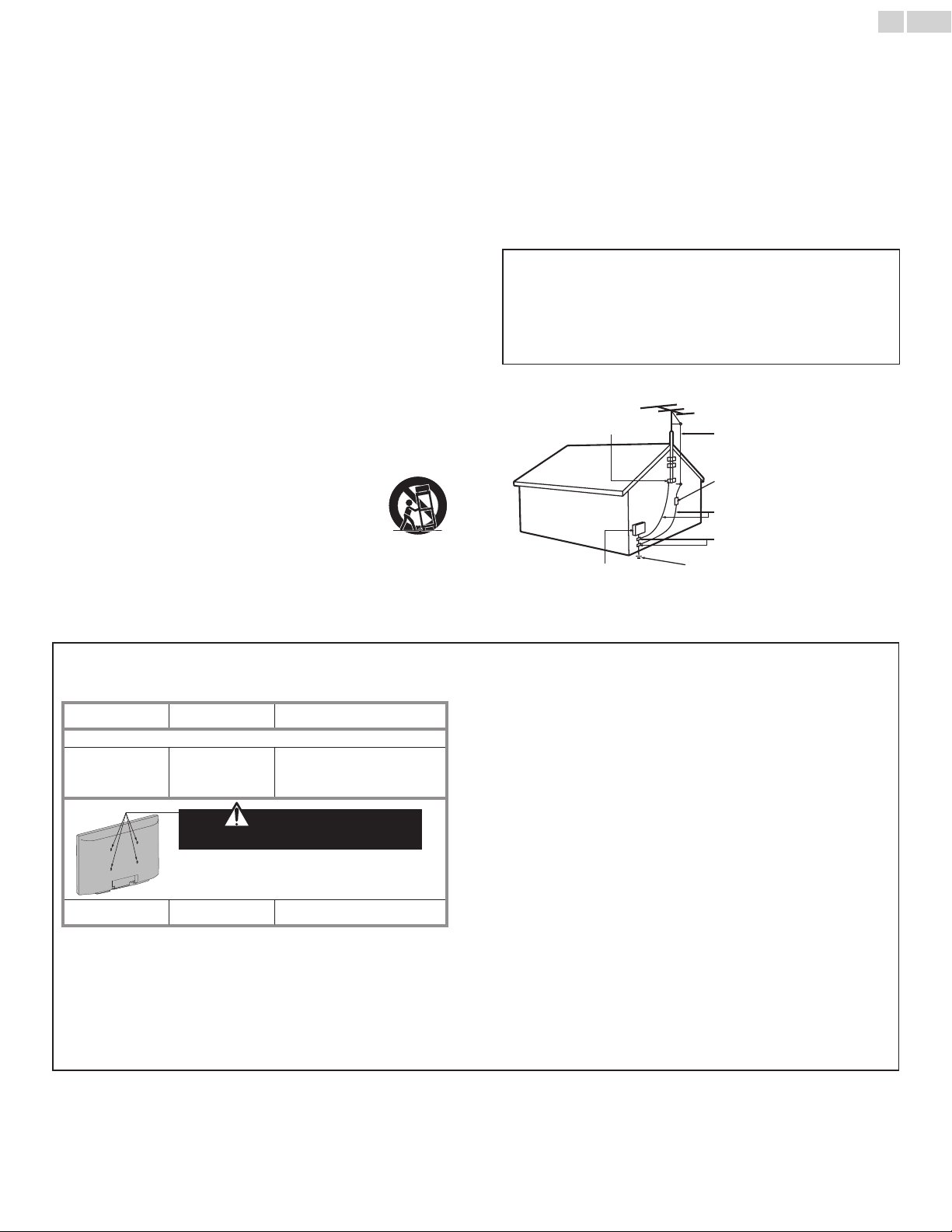
ExampleofAntennaGroundingasperNEC−National
ElectricCode
ANTENNADISCHARGE
UNIT(NECSECTION810-20)
GROUNDINGCONDUCTORS
(NECSECTION810-21)
POWERSERVICEGROUNDING
ELECTRODESYSTEM
(NECART250,PARTH)
ANTENNALEADINWIRE
GROUNDCLAMPS
ELECTRICSERVICE
EQUIPMENT
GROUNDCLAMP
WallMountBracketKit
Brand: SANUS
Model# Screwdimension
22PFL4907 SAN10b M4 x 0.472” (12mm)
For26inchTVs,screwsw/washersarerequired.(soldseparately)
26PFL4907 SAN213b
M4 x 0.472” (12mm)
+
Washer 0.039” (T1mm)
DoNOTusescrews
packedwithWallMountBracketKit
For32inchTVs,youneedtopurchasescrews
separatelywithdimensionsdescribedbelow.
32PFL4907 VM200s M4 x 0.472” (12mm)
• The recommended Wall Mount Bracket Kit (sold separately)
allows the mounting of the TV on the wall.
• For detailed information on installing the wall mount, refer to
the Wall Mount Instruction Book.
• P&F USA is not responsible for any damage to the product or
injury to yourself or others if you elect to install the TV Wall
Mount Bracket or mount the TV onto the Bracket on your own.
• The Wall Mount Bracket must be installed by experts.
P&FUSAisnotliableforthesetypesofaccidentsorinjurynoted
below.
• Install the Wall Mount Bracket on a sturdy vertical wall.
• If installed onto a ceiling or slanted wall, the TV and Wall Mount
Bracket may fall which could result in a severe injury.
• Do not use screws that are longer or shorter than their
specied length. If screws too long are used this may cause
mechanical or electrical damage inside the TV set. If screws too
short are used this may cause the TV set to fall.
• Do not fasten the screws by excessive force. This may damage
the product or cause the product to fall, leading to an injury.
• For safety reasons use 2 people to mount the TV onto a Wall
Mounting Bracket.
• Do not mount the TV onto the Wall Mounting Bracket while
your TV is plugged in or Turned On. It may result in an electrical
shock injury.
Wheninstallingtheunitonthewall,allowthismuchspace.
Top: 11.8 inches (30cm)
Leftandrightside: 5.9 inches (15cm)
Bottom: 3.9 inches (10cm)

English
5
1 Notice
Trademarks are the property of Koninklijke Philips Electronics N.V. or
their respective owners.
P&F USA reserves the right to change products at any time without
being obliged to adjust earlier supplies accordingly.
The material in this User Manual is believed adequate for the intended
use of the system. If the product or its individual modules or procedures
are used for purposes other than those specied herein, conrmation
of their validity and suitability must be obtained. P&F USA warrants
that the material itself does not infringe any United States patents. No
further warranty is expressed or implied.
P&F USA cannot be held responsible neither for any errors in the
content of this document nor for any problems as a result of the
content in this document. Errors reported to P&F USA will be adapted
and published on the P&F USA support website as soon as possible.
Pixelcharacteristics
This LCD product has a high number of color pixels. Although it has
effective pixels of 99.999% or more, black dots or bright points of light
(red, green or blue) may appear constantly on the screen. This is a
structural property of the display (within common industry standards)
and is not a malfunction.
Warranty
No components are user serviceable. Do not open or remove covers
to the inside of the product. Repairs may only be done by Service
Centers and ofcial repair shops. Failure to do so shall void any
warranty, stated or implied.
Any operation expressly prohibited in this User Manual, any adjustments
or assembly procedures not recommended or authorized in this User
Manual shall void the warranty.
FederalCommunicationsCommissionNotice
Thisequipmenthasbeentestedandfoundtocomplywiththelimits
foraClassBDigitaldevice,pursuanttopart15oftheFCCRules.
Theselimitsaredesignedtoprovidereasonableprotectionagainst
harmfulinterferenceinaresidentialinstallation.Thisequipment
generates,uses,andcanradiateradiofrequencyenergyand,ifnot
installedandusedinaccordancewiththeinstructions,maycause
harmfulinterferencetoradiocommunications.However,thereisno
guaranteethatinterferencewillnotoccurinaparticularinstallation.If
thisequipmentdoescauseharmfulinterferencetoradioortelevision
reception,whichcanbedeterminedbyTurningtheequipmentOffand
On,theuserisencouragedtotrytocorrecttheinterferencebyone
ormoreofthefollowingmeasures:
• Reorient or relocate the receiving antenna.
• Increase the separation between the equipment and the receiver.
• Connect the equipment into an outlet on a circuit different from
that to which the receiver is connected.
• Consult the dealer or an experienced radio or television technician
for help.
DeclarationofConformity
TradeName: PHILIPS
ResponsibleParty: P&F USA, Inc.
Model: 32PFL4907, 26PFL4907, 22PFL4907
Address: PO Box 2248, Alpharetta, GA 30023-2248
U.S.A.
TelephoneNumber: 1 866 309 0843
Modications
This apparatus may generate or use radio frequency energy. Changes or
modications to this apparatus may cause harmful interference
unless the modications are expressly approved in the User Manual.
The user could lose the authority to operate this apparatus if an
unauthorized change or modication is made.
Cables
Connections to this device must be made with shielded cables with
metallic RFI / EMI connector hoods to maintain compliance with FCC
Rules and Regulations.
Canadiannotice
ThisClassBDigitalapparatuscomplieswithCanadianICES-003.
StandardTelevisionReceivingApparatus,CanadaBETS-7/NTMR-7.
ThefollowingFCC/ICRSS-GenisdescriptionofUSB
WirelessLANadapter.
FCCCaution:Anychangesormodicationsnotexpresslyapproved
bythepartyresponsibleforcompliancecouldvoidtheuser’s
authoritytooperatethisequipment.
This transmitter must not be co-located or operating in conjunction
with any other antenna or transmitter.
CountryCodeStatement
For product available in the USA market, only channel 1~11 can be
operated. Selection of other channels is not possible.
To maintain compliance with FCC RF exposure requirements, use
only belt-clips, holsters or similar accessories that do not contain
metallic components in its assembly. The use of accessories that do
not satisfy these requirements may not comply with FCC RF exposure
requirements and should be avoided.
FCCRadiationExposureStatement
This equipment is compliance with SAR for general population/
uncontrolled exposure limits in ANSI/IEEE C95.1-1999 and had been
tested in accordance with the measurement methods and procedures
specied in OET Bulletin 65 Supplement C. This equipment should
be installed and operated with minimum distance 2.5cm between the
radiator & your body.
This device complies with Industry Canada license-exempt RSS
standard(s). Operation is subject to the following two conditions: (1)
this device may not cause interference and (2) this device must accept
any interference, including interference that may cause undesired
operation of the device.

English
6
Copyright
All other registered and unregistered trademarks are the property of
their respective owners.
The terms HDMI and HDMI High-
Denition Multimedia Interface, and
the HDMI Logo are trademarks
or registered trademarks of HDMI
Licensing LLC in the United States and
other countries.
Manufactured under license from
Dolby Laboratories. Dolby and the
double-D symbol are trademarks of
Dolby Laboratories.
is a trademark of SRS Labs, Inc.
TruSurround XT technology is
incorporated under license from SRS
Labs, Inc.
SRS TruSurround XT
®
creates a truly
immersive surround sound experience
with rich bass and clear dialog from
only two speakers.
ENERGY STAR
®
is a joint program
of the U.S. Environmental Protection
Agency and the U.S. Department of
Energy helping us all save money and
protect the environment through
energy efcient products and practices.
ConsumerNotice:
This TV has been set to maximize energy efciency while delivering the
best possible picture using the factory installed home mode settings.
Changing or enabling other features in this TV (e.g. brightened
backlighting) will possibly increase energy consumption beyond the
original ENERGY STAR
®
qualied limits.
DLNA®, the DLNA Logo and DLNA
CERTIFIED® are trademarks, service
marks, or certication marks of the
Digital Living Network Alliance.
Netix and the Netix logo are
trademarks or registered trademarks
of Netix, Inc.
Film Fresh and the Film Fresh logo are
registered trademarks of Film Fresh Inc.
VUDU
TM
is a trademark of VUDU, Inc.
YouTube and the YouTube logo are
trademarks of Google Inc.
CloudTV™ (CloudTV™ by
ActiveVideo®) technology provided
under license from ActiveVideo
Networks, Inc. U.S. and Foreign Patents
apply. CloudTV™ and the “CloudTV™”
logo are proprietary trademarks of
ActiveVideo Networks, Inc.
PANDORA, the PANDORA logo,
and the Pandora trade dress are
trademarks or registered trademarks
of Pandora Media, Inc. Used with
permission.
Twitter is a trademark of Twitter, Inc.
vTuner is a trademark of Nothing Else
Matters Software, Ltd.
Portionsofthissoftwarearecopyright©TheFreeTypeProject
(www.freetype.org).
TheAmericanAcademyofPediatricsdiscouragestelevisionviewingfor
childrenyoungerthantwoyearsofage.

English
7
2 Important
PositioningtheTV
• Large screen TVs are heavy. 2 people are required to carry and
handle a large screen TV.
• Make sure to hold the upper and bottom
frames of the unit rmly as illustrated.
• Install the unit in a horizontal and stable
position.
• Do not install the unit in direct sunlight
or in a place subject to dust or strong
vibration.
• Depending on the environment, the temperature of this unit may
increase slightly. This is not a malfunction.
• Avoid a place with drastic temperature changes.
• Do not place anything directly on top or bottom of the unit.
• Depending on your external devices, noise or disturbance of the
picture and / or sound may be generated if the unit is placed too
close to them. In this case, please ensure enough space between
the external devices and the unit.
• Do not insert the AC power cord into the power socket outlet
before all the connections are made.
• Ensure that you always have easy access to the AC power cord or
plug to disconnect the TV from the power.
• Before you move the TV, disconnect attached cables to prevent
damage to connectors.
• Be sure to unplug the AC power cord from the AC outlet before
moving or carrying the unit.
Regulatorynotices
Donotplacetheunitonthefurniturethatiscapableofbeingtilted
byachildandanadultleaning,pulling,standingorclimbingonit.
Afallingunitcancauseseriousinjuryorevendeath.
Thisapparatusshouldnotbeplacedinabuilt-ininstallationsuchasa
bookcaseorrackunlessproperventilationisprovided.
Makesuretoleaveaspaceof4inches(10cm)ormorearoundthis
apparatus.
Press toTurntheunitOnandgointoStandbymode.
TocompletelyTurnOfftheunit,youmustunplugtheACpowercord.
DisconnecttheACplugtoshuttheunitoffwhentroubleisfoundor
notinuse.TheACplugshallremainreadilyavailable.
NeveruseagasdusteronthisTV.
Thegastrappedinsideofthisunitmaycauseignitionandexplosion.
CAUTION: Danger of explosion if battery is incorrectly replaced.
Replace only with the same or equivalent type.
WARNING:
Batteries (battery pack or battery installed) shall not be
exposed to excessive heat such as sunshine, re or the
like.
WARNING:
To prevent injury, this apparatus must be securely
attached to the furniture / wall in accordance with the
instructions. Tipping, shaking, or rocking the unit may
cause injury / death.
Environmentalcare
The packaging of this product is intended to be recycled.
Contact your local authorities for information about how to recycle the
packaging.
For product recycling information, please visit - www.recycle.philips.com
Endoflifedirectives
Philips pays a lot of attention to produce environment-friendly products
in green focal areas. Your new TV contains materials which can be
recycled and reused. At the end of its life, specialized companies can
dismantle the discarded TV to concentrate the reusable materials and to
minimize the amount of materials to be disposed of. Please ensure you
dispose of your old TV according to local regulations.
Disposalofusedbatteries
Thebatteriessupplieddonotcontaintheheavymetalsmercuryand
cadmium.Nevertheless,inmanyareasbatteriesmaynotbedisposed
ofwithyourhouseholdwaste.Pleaseensureyoudisposeofbatteries
accordingtolocalregulations.
English
8
3 Getstarted
Features
• DTV/TV/CATV
You can use your remote control to select channels which are broadcast in
Digital format and conventional Analog format. Also, cable subscribers can
access their cable TV channels.
• Informationdisplay
You can display the title, contents and other information of the current
program on the TV screen.
• AutoProgram
This unit automatically scans and memorizes channels available in your area,
eliminating difcult setup procedures.
• NetTV
This unit lets you enjoy Internet services. Use the remote control to
browse the Net TV pages. You can play movies and much more, all
from your TV screen.
• Childlock
This feature allows you to block children’s access to inappropriate
programs.
• ClosedCaptiondecoder
Built-in Closed Caption decoder displays text for Closed Caption
supported programs.
• MTS/SAPtuner
Audio can be selected from the remote control.
• AutoStandby
If there is no Input signal and no operation for 15 minutes, the unit will go
into Standby mode automatically.
• Sleeptimer
You can set the unit to go into Standby mode after a specic amount of
time.
• Choicesforon-screenlanguage
Select your on-screen language: English, Spanish or French.en language: English, Spanish or French.
• Stereosoundfunction
• PLLfrequencysynthesizedtuning
Provides free and easy channel selection and lets you tune directly to any
channel using the number and decimal point “•” buttons on the remote
control.
• Variousadjustmentforpictureandsound
Customizes image quality suitable for your room and sets your sound
preference.
• EasyLinkviaHDMIlink
EasyLink allows your other HDMI link devices to be controlled by the
HDMI cable connected to your TV.
• HDMIInput
• HDMI-DVIInput
If your video device has DVI Output jack, use an HDMI-DVI conversion
cable to connect the unit.
• ComponentVideoInput
• PCInput
• AVInput
• USBterminal
The picture (JPEG), music (MP3) and video (MPEG) les stored on a USB
Memory Stick can be played back on this unit.
• DigitalAudioOutput
• HeadphoneAudioOutput
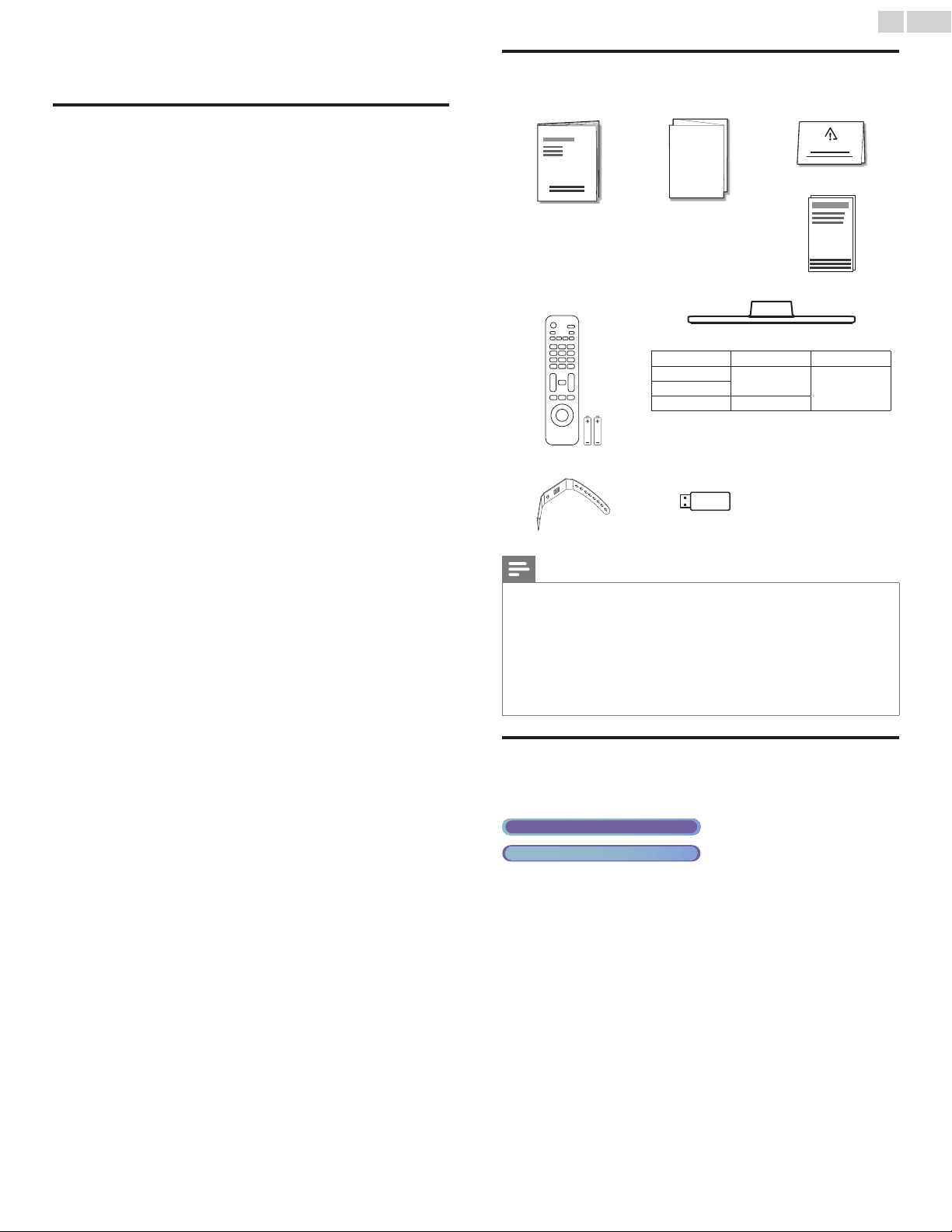
Suppliedaccessories
UserManual QuickStartguide
Quick
Start
Registrationcard
IMPORTANT
Box-inserts
RemoteControl and
batteries (AAA, 1.5V x 2)
AAA
AAA
TVbase andscrews
Screws packed with this unit:
Model Quantity Size
32PFL4907
3
M4 x 1426PFL4907
22PFL4907 2
Cablemanagementtie
USBwirelessLAN
adapter
Note
• If you lose the screws, please purchase the above-mentioned Phillips head screws at
your local store.
• If you need to replace these accessories, please refer to the part name or No. with the
illustrations and call our toll free customer support line found on the cover of this User
Manual.
Whenusingauniversalremotecontroltooperatethisunit.
• Make sure the component code on your universal remote control is set to our brand.
Refer to the instruction book accompanying your remote control for more details.
• We do not guarantee 100% interoperability with all universal remote controls.
SymbolsusedinthisUserManual
The following is the description for the symbols used in this User
Manual. Description refers to:
DigitalTVoperation
Analog/CableTVoperation
• If neither symbol appears, the operation is applicable to both.
English
9
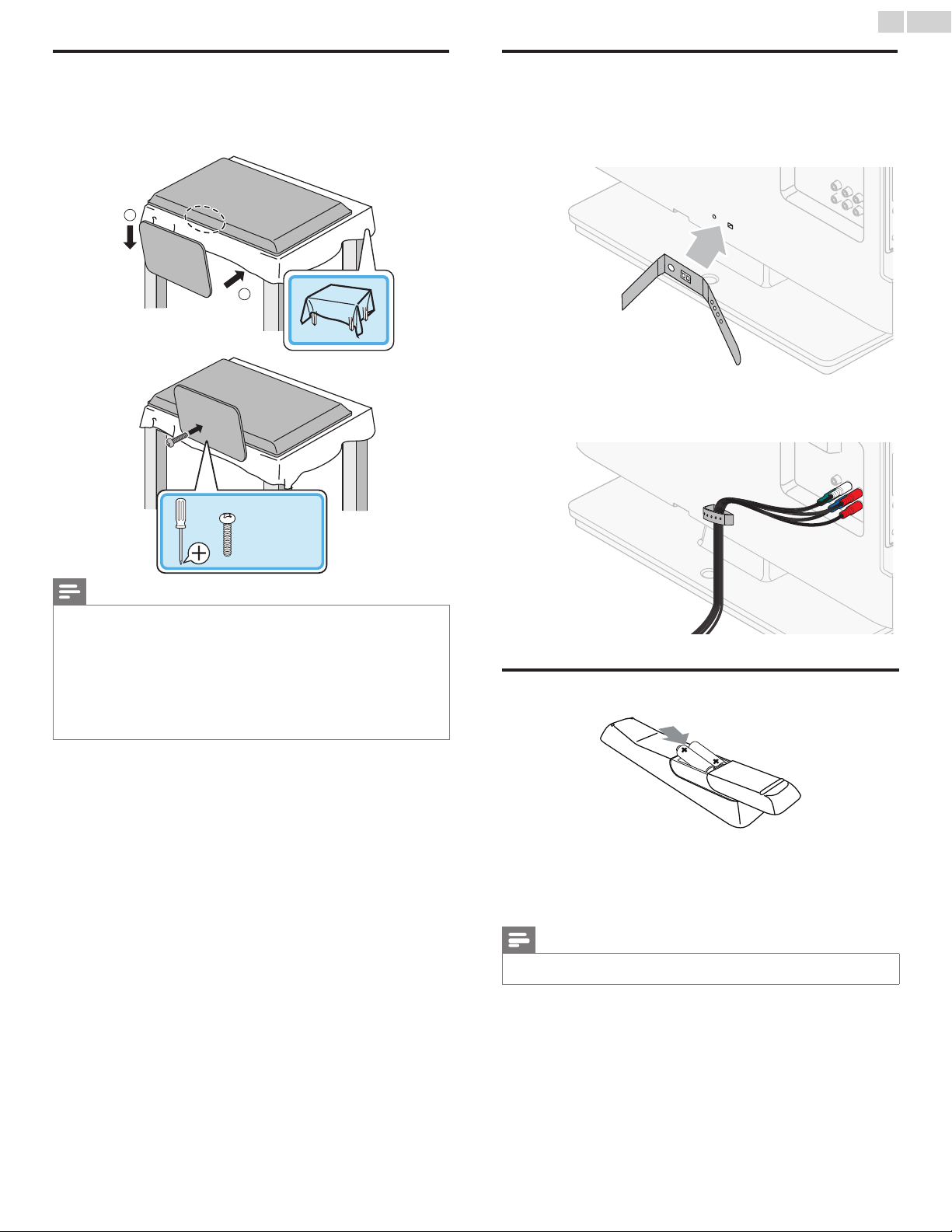
Attachingthebase
You must attach the base to the unit to have it as a table top unit.
Be sure the front and rear of the base match the proper direction.
For large screen TVs, at least 2 people are required for these steps.
1
2
1
1
2
2
2
1
1
2
32"/26"
x
3
22"
x
2
Note
• Make sure to use a table which can support the weight of this unit and is larger than
this unit.
• Make sure the table is in a stable location.
• When attaching the base, ensure that “FRONT” with “arrow” written on the bottom of
the base is downward. If it’s not downward, the 2 hooks don’t t into the base.
• When attaching the base, ensure that all screws are tightly fastened. If the base is not
properly attached, it could cause the unit to fall, resulting in injuries as well as damage
to the unit.
• To remove the base from this unit, unscrew the Phillips head screws in step 2.
Be careful not to drop the base when you remove it.
Managingcables
Route your antenna cable and all other cables through the cable
management tie at the back of the TV.
The holder helps keep your cables tidy and easily manageable.
1 Attach the cable management tie as illustrated below.
2 Pass cables through the cable management tie to avoid tangles.
Installingtheremotecontrolbatteries
1 Slide the battery cover off the back of the remote control.
2 Insert the 2 supplied batteries (AAA, 1.5V). Be sure the + and −
ends of the batteries line up with the markings inside the case.
3 Slide the cover back into position.
Note
• Remove the batteries if not using the remote control for an extended period of time.
English
10
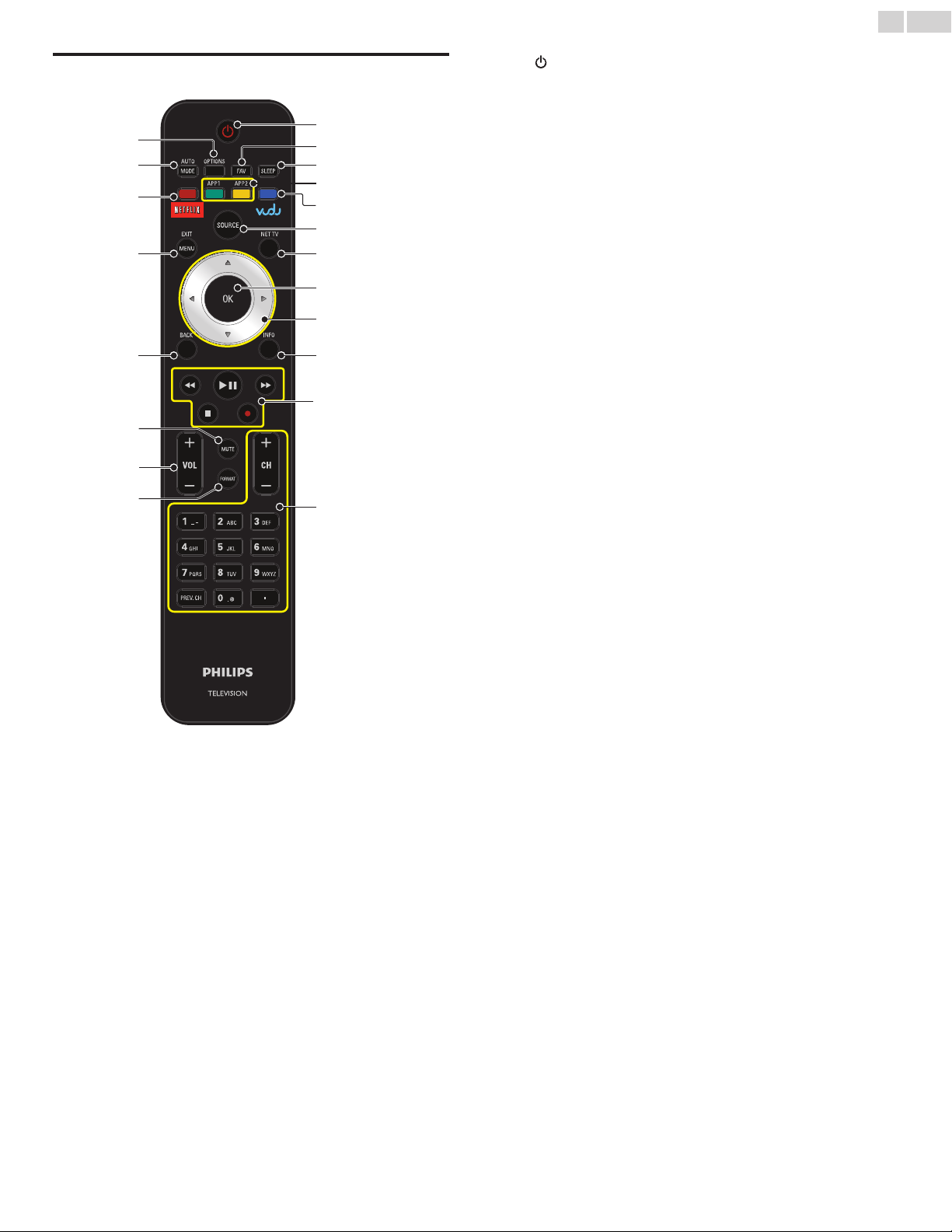
Remotecontrolfunction
b
c
a
d
f
i
p
q
s
r
t
j
k
l
n
o
m
h
g
e
a (POWER-ON/STANDBY-ON)
Press to Turn the unit On and go into Standby mode.
To completely Turn Off the unit, you must unplug the AC power
cord.
b FAVFAV
Displays a list of all channels marked as favorite.
(Includes subchannels)
c SLEEP
Press to activate the sleep timer.
d COLORbuttons(green/yellow)
Functionally useful for Net service.
e VUDUandCOLORbutton(blue)
Starts up VUDU and functionally useful for Net service.
f SOURCE
Toggles to select connected devices.
g NETTV
Displays the Net TV menu.
h OK
Press to decide the command of setting when the Home menu is
displayed.
i ▲▼◄►(NAVIGATIONbuttons)
Press to move left / right / up / down through the items.
j INFO
Displays information about the TV channel or accessory device.
k EasyLinkbuttons
Functionally useful for EasyLink, Net service and DLNA.
E/D
Press to search backward or forward through the disc.
Æ∆
Press to start, pause or resume playback.
C
Press to stop the disc playback.
I
Press to start or stop video recording.
l 0−9(NUMBERbuttons)
Press to select channels.
• (DOT) Press to shift the subchannel from the main
channel.
PREV.CH Press to return to the previously viewed channel.
CH+/− Press to select channels.
m FORMAT
Selects a picture format.
n VOL+/−
Press to adjust the volume.
o MUTE
Press to Turn the sound On and Off.
p BACK
Press to return to the previous menu operation.
q MENU/E�ITMENU/E�IT
Press to display the Home menu.
r NETFLI�andCOLORbutton(red)
Starts up NETFLIX and functionally useful for Net service.
s AUTOMODEAUTOMODE
Cycles through preset picture and sound settings.
t OPTIONSOPTIONS
Displays a list of menu items applicable to the highlighted object
or screen.
English
11
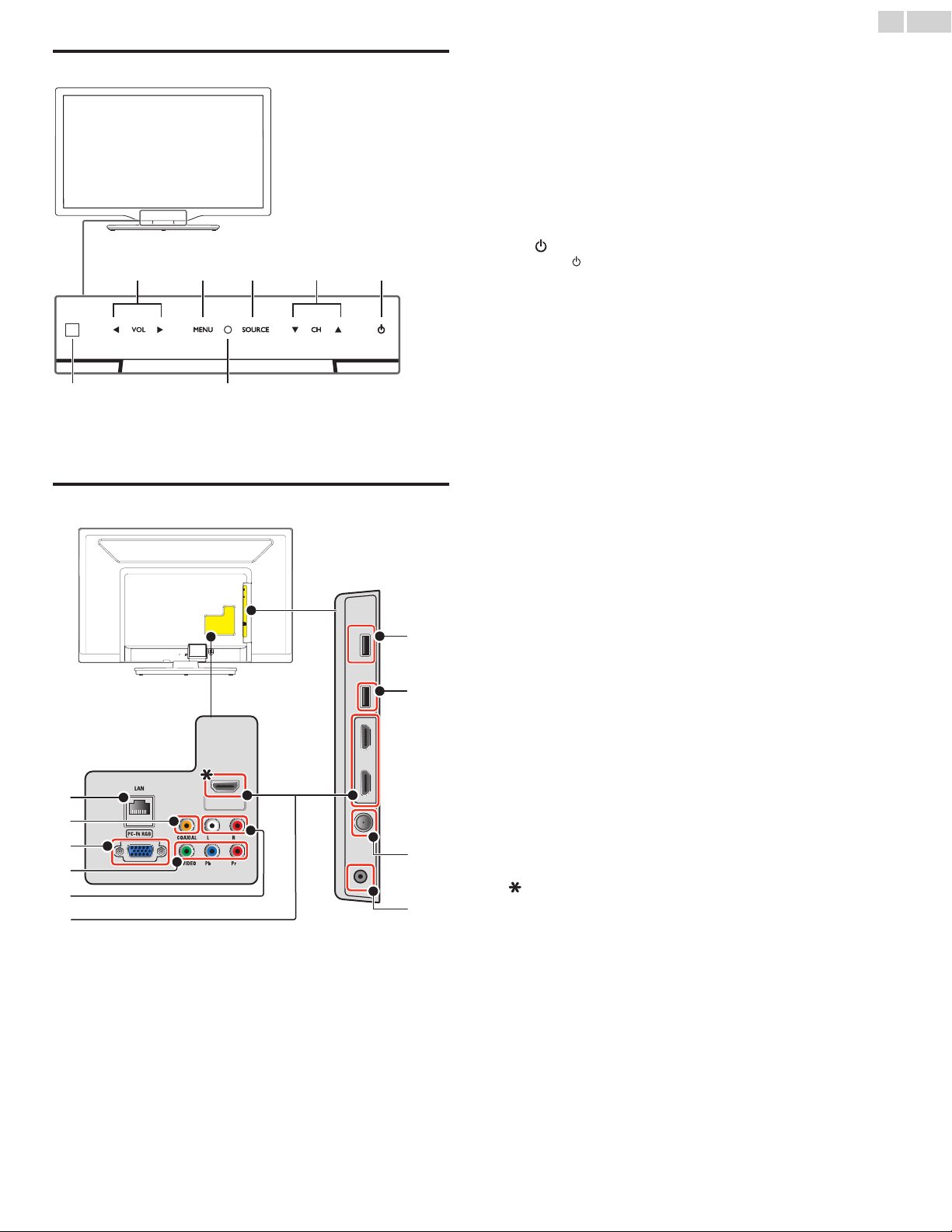
Controlpanel
a VOL◄/►
Touch to adjust volume down (◄) / up (►) or to move left
(◄) / right (►) when selecting menu items.
b MENU
Touch to display the Home menu.
c SOURCE
Touch to select the connected devices.
d CH▲/▼
Touch to select channels or to move up (▲) / down (▼) when
selecting menu items
e (POWER-ON/STANDBY-ON)
Touch
to Turn the unit On and go into Standby mode.
To completely Turn Off the unit, you must unplug the AC power
cord.
f PowerOnindicator
Lights up white when the unit is Turned On and ashes while the
unit is Turning On.
g Infraredsensor
Receives IR signals from remote control.
a db c e
fg
Terminals
i
h
l
m
n
o
p
j
k
q
h Ethernetport
For Internet connection using an Ethernet cable with an RJ-45
connector.
i DigitalAudioOutputjack
Digital Audio (S/PDIF) Output to home theaters and other Digital
Audio systems.
j PCInputjack
VGA cable connection for PC.
k Component(Y/Pb/Pr)/CompositeVideo(VIDEO)Inputjacks
forVIDEO
Composite Video Input (VIDEO) jack is shared jack with Composite Video Input (VIDEO) jack is shared jack with
Component Video Input (Y) jack.
l AnalogAudio(L/R)Inputjacks
Connects Analog Audio signals from;
– HDMI-DVI / Analog Audio (L/R) jacks signal.
– Component Video / Analog Audio (L/R) jacks signal.
– Composite Video / Analog Audio (L/R) jacks signal.
– PC Connection / Analog Audio (L/R) jacks signal with Stereo
mini 3.5mm plug Audio cable on PC.
m HDMIInputjacks
Digital Audio and video Input from high denition Digital devices
such as Blu-ray disc players, cable boxes and satellite set-top
boxes.
For HDMI 1 only
In addition to normal HDMI and HDMI-DVI functionality, it
outputs TV Audio to an HDMI-ARC-compliant device, such as a
home theater system.
n USBwirelessnetworkterminal
Connects the supplied USB wireless LAN adapter.
o USBterminal
Data Input from USB Memory Stick only.
Do not connect any device to this terminal such as; Digital
camera, keyboard, mouse, etc.
p 75ohmCable/Antennaconnection
Signal Input from an antenna, cable or satellite.
q HeadphoneAudioOutputjack
Headphone 3.5mm stereo jack for personal listening.
English
12
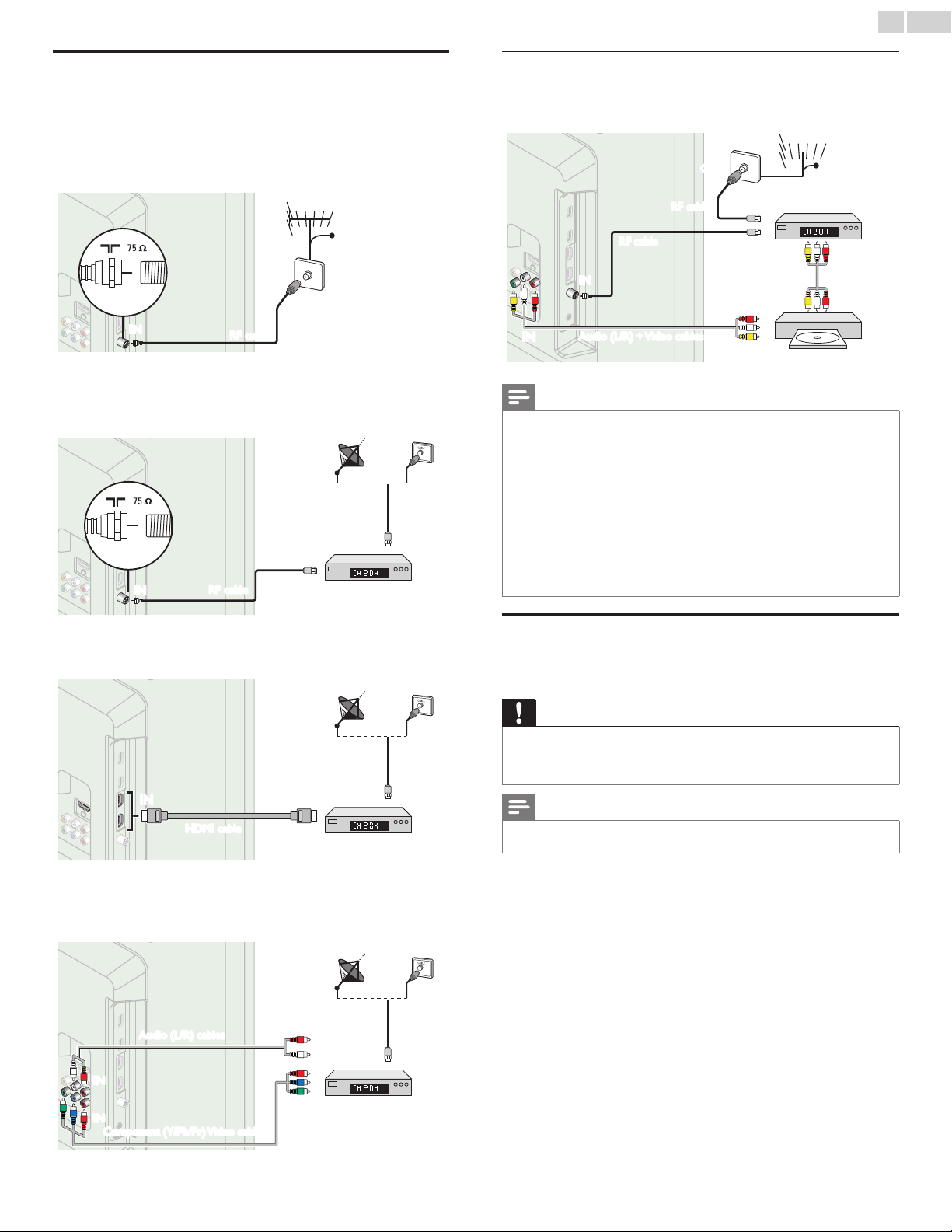
Connectingtheantennaorthecable
Be sure your antenna or other device is connected properly before
plugging in the AC power cord.
IfyouconnecttoanantennathroughRFcable
Any DTV programs that are broadcasted in your area can be received
for free through an antenna connection.
ININ
OUT
antenna
RFcable
cable
Ifyouconnectaset-topboxthroughRFcable
If the TV is connected to a cable box or satellite set-top box via a
coaxial connection, set the TV to channel 3, 4 or the channel specied
by the service provider.
IN
ININ
OUT
set-topbox
RFcable
antenna
RFcable
Ifyouconnectaset-topboxthroughHDMI
If the TV is connected to a cable box or satellite set-top box via HDMI,
make sure you select the correct Source by using SOURCE.
IN
ININ OUT
set-topbox
HDMIcable
RFcable
Ifyouconnectaset-topboxthroughComponentVideoInput
If the TV is connected to a cable box or satellite set-top box via
Component Video Input, make sure you select the correct Component
Video Source by using SOURCE.
IN
OUTOUT
IN
IN
IN
IN
OUT
OUT
set-topbox
RFcable
Audio(L/R)cables
Component(Y/Pb/Pr)Videocables
Connectingaset-topbox,Blu-ray/DVDrecordervia
compositeconnectorsandAnalogAudio
Do not place your recorder too close to the screen because some
recorders can be susceptible to signals.
ININ
OUT
OUT
OUT
ININ
IN
IN
OUT
IN
OUT
OUT
RFcable
RFcable
cable
set-topbox
Blu-raydisc/DVDrecorder
Audio(L/R)+Videocables
Audio(L/R)+
Videocables
Note
• If you have any question about the DTV’s antenna, visit www.antennaweb.org for further
information.
• Depending on your antenna system, you may need different types of combiners
(mixers) or separators (splitters) for HDTV signal. The minimum RF bandpass on these
devices is 2,000MHz or 2GHz.
• For your safety and to avoid damage to this unit, please unplug the RF coaxial cable
from the antenna Input jack before moving the unit.
• If you did use an antenna to receive Analog TV, it should also work for DTV reception.
Outdoor or attic antennas will be more effective than a set-top box or inside antenna.
• To Turn On your reception source easily between antenna and cable, install an antenna
selector.
• If you are not receiving a signal from your cable service, contact the Cable provider.
• Only the left loudspeaker reproduces sound for mono equipment. Use a mono to
stereo adapter (not supplied) for sound reproduction via all internal loudspeakers.
PluggingintheACpowercord
Make sure that the AC power cord must be plugged to an AC outlet
after all the necessary connections are made.
Caution
• Do not connect the AC power cord to a power supply outside the indicated voltage of
this unit (AC 120V).
• Connecting the AC power cord to a power supply outside of this range may result in
re or electrical shocks.
Note
• Each time you plug in the AC power cord, no operations will be performed for a few
seconds. This is not a malfunction.

English
13
These operations are accessible by remote control.
Some may also be accessible by control panel on the main unit.
Initialsetup
This section will guide you through the unit’s initial setting which
includes selecting a language for your on-screen menu, country, location
and AutoProgram, which automatically scans and memorizes viewable
channels. You can also set the network connection in this setting.
Before you begin:
Make sure the unit is connected to antenna or cable.
1 After making all the necessary connections, press to Turn On the
unit.
• It may take a few moments to Turn On the unit for the rst time.
• Initial setup menu appears automatically after the unit is Turned
On.
2 Use ▲▼ to select the on-screen language, country, location on the
right side of the TV screen, then press OK.
• You must set Home in location setting. Otherwise, Picture and
Sound settings you adjusted will not be memorized after the unit
goes into Standby mode.
3 Use ▲▼ to select the signal type.
• If the TV is connect to a cable box or satellite set-top box, select
the 2nd one and skip to step 5.
TosetupaTVsignalfromacableTV
walljackorastandardTVantenna.
Select
TosetupaTVsignalfromacableTV
boxorsatelliteTVreceiver.
Select
4 Use ▲▼ to select Antenna for TV channels or Cable for CATV
channels, then press OK.
Makesurethatyouhave
attachedyourantennaorcable
signalintothejackontheback
ofyourTVlabeled“ANTENNA.IN”.
NowselecteitherAntennaor
Cable,usingup/downkeyofthe
remotecontrol.Onceyouhave
madeyouselection,pressthe
OKbuttontoproceed.
Antenna
Cable
Skip
– When Antenna is selected, the TV detects antenna signals. It searches
for DTV and Analog TV channels available in your area.
– When Cable is selected, the TV detects signals supplied by cable. It
searches for DTV, Analog TV and Cable channels available in your
area.
• Autoprogram will begin.
Systemsearching.Pleasewait...
Digitalchannelsfound: 0
Analogchannelsfound: 0
Autoprogrammingmaytakemorethan20minutesto
complete.DigitalchannelswilltakelongerthanAnalog
tofindandprogram.Pleasewaituntilyousee
theAutoProgrammingcompletemessage.
Stop
5 After the channel installation is completed, Network setup screen
will appear. Use ▲▼ to select Wireless or Wired, then press OK.
ThisTVcanbeconnectedto
yourhomenetwork.
Selectyourconnectiontype.
Wireless
Wired
Skip
Wireless
If you have a router with WPS function, select
Wireless to connect to the Internet.
Wired
If you connect with an Ethernet cable, select
Wired to connect to the Internet.
• If you select Wireless, use ▲▼ to select EasyConnect and
press OK.
6 Follow the on-screen instructions to complete the installation.
• When you select On in the selection screen of
Autosoftwareupdate. A message will appear if there is the
latest software on the network server.
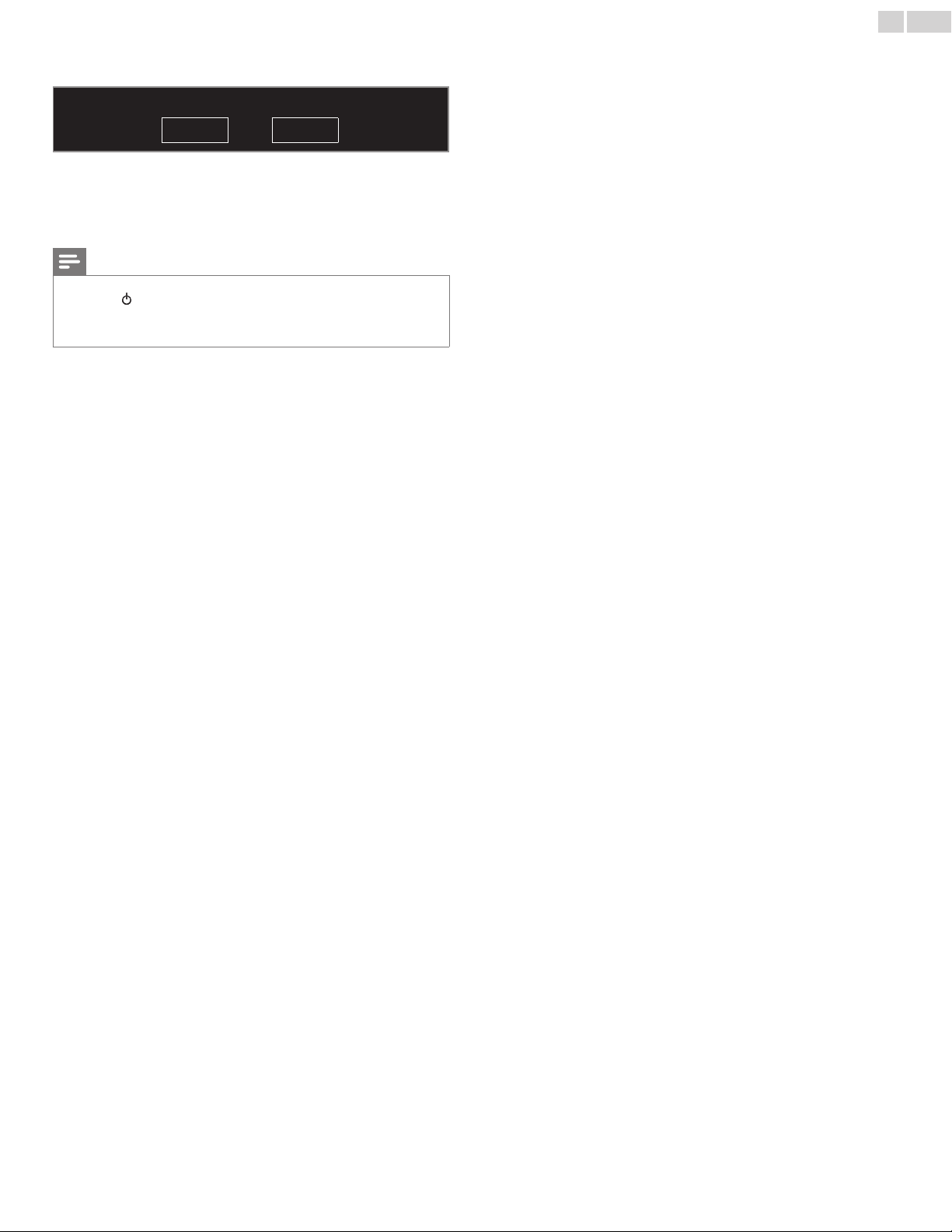
7 Use ◄► to select Start,thenpress OK to begin Settingsassistant.
Settingsassistantwillallowyoutocustomizeyourpicturesettingstoyour
personalpreference.Youwillseeaseriesoftestpictureswhere
therightsideandleftsidediffer.Selectthesidethatismostpleasingto
youwiththeLeft/Rightbuttons.
Cancel Start
8 Press ◄
or ►
5 times to select the side of the pictures that is the
most pleasing to you, then press OK.
Whichsideofthepicturedoyouprefer?
Cancel Picture A Picture B
Continued on next page.
English
14
9 Press OK to nish Settingsassistant.
Storeyourpreferences.
Cancel Store
• Networkupdates will appear after Connectiontest succeeds.
Use ◄► to select Yes, then press OK.
• When the initial setup is completed, the lowest memorized
channel with the conrmation message of the location setting
will be displayed on the TV screen.
Note
• If you are not receiving a signal from your cable service, contact the Cable provider.
• If you press during AutoProgram, this setup of TV channels will be canceled.
• The initial AutoProgram function can be executed for either Antenna or Cable only
once. When you change the connection (Antenna / Cable), set Autoprogram again.
➠
p.37
After an initial setup is completed...
• If you want to scan the channels automatically again.
Autoprogram
➠
p.37
• You can add the desired cable and Analog channels
unmemorized by AutoProgram.
Weakchannelinstallation
➠
p.37
• If you want to change to another language.
Language
➠
p.36
• If you want to change the country setting.
Country
➠
p.19
• If you want to change the location setting.
Location
➠
p.38
• If you want to change the network setting.
Network
➠
p.40
• If you want to restore the picture setting.
Settingsassistant
➠
p.30
English
15
4 UseyourTV
SwitchingonyourTVandputtingitin
Standbymode
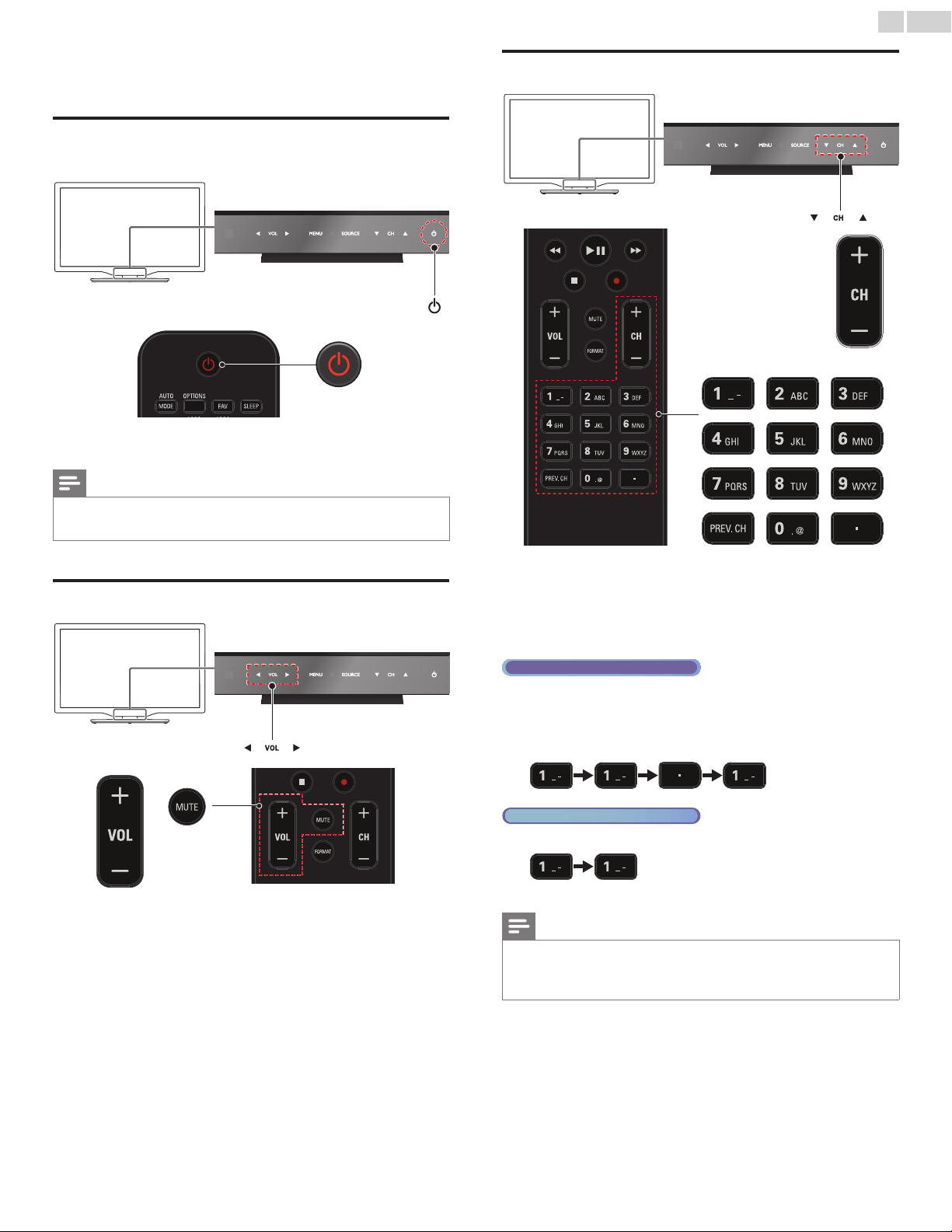
ToTurnPowerOnortoTurnStandbyOn
• Touch or press
.
on the front panel or the remote control.
Note
• Energy consumption contributes to air and water pollution. When the AC power
cord is plugged in, your TV consumes energy. Your TV has very low Standby power
consumption.
Adjustingvolume
Toincreaseordecreasevolume
• Touch VOL◄(down) / ►(up)on the front panel or press
VOL+/− on the remote control.
Tomuteorunmutesound
• Press MUTE on the remote control to mute the sound.
• Press MUTE again or VOL+/− to recover the original sound.
Switchingchannels
ToselectChannelsbyusingCH▲/▼orCH+/−
• Touch CH▲(up) / ▼(down)on the front panel or press CH+/−
on the remote control.
ToselectChannelsbyusingtheNUMBERbuttons
DigitalTVoperation
• For Digital channels, press a number followed by a dot “•” and the
corresponding sub channel number.
– When selecting Digital channel 11.1
Be sure to press • before entering the subchannel number.
Analog/CableTVoperation
– When selecting cable or Analog channel 11
Press PREV.CH to return to the previously viewed channel.
Note
• To select the non-memorized channels, use theNUMBERbuttons.
• ChannelnotavailableorNoSignal will appear on the TV screen after the subchannel
broadcast is over.
• Audioonly message will appear on the TV screen, when you receive only sound signal.
English
16
Watchingchannelsfromanexternaldevice
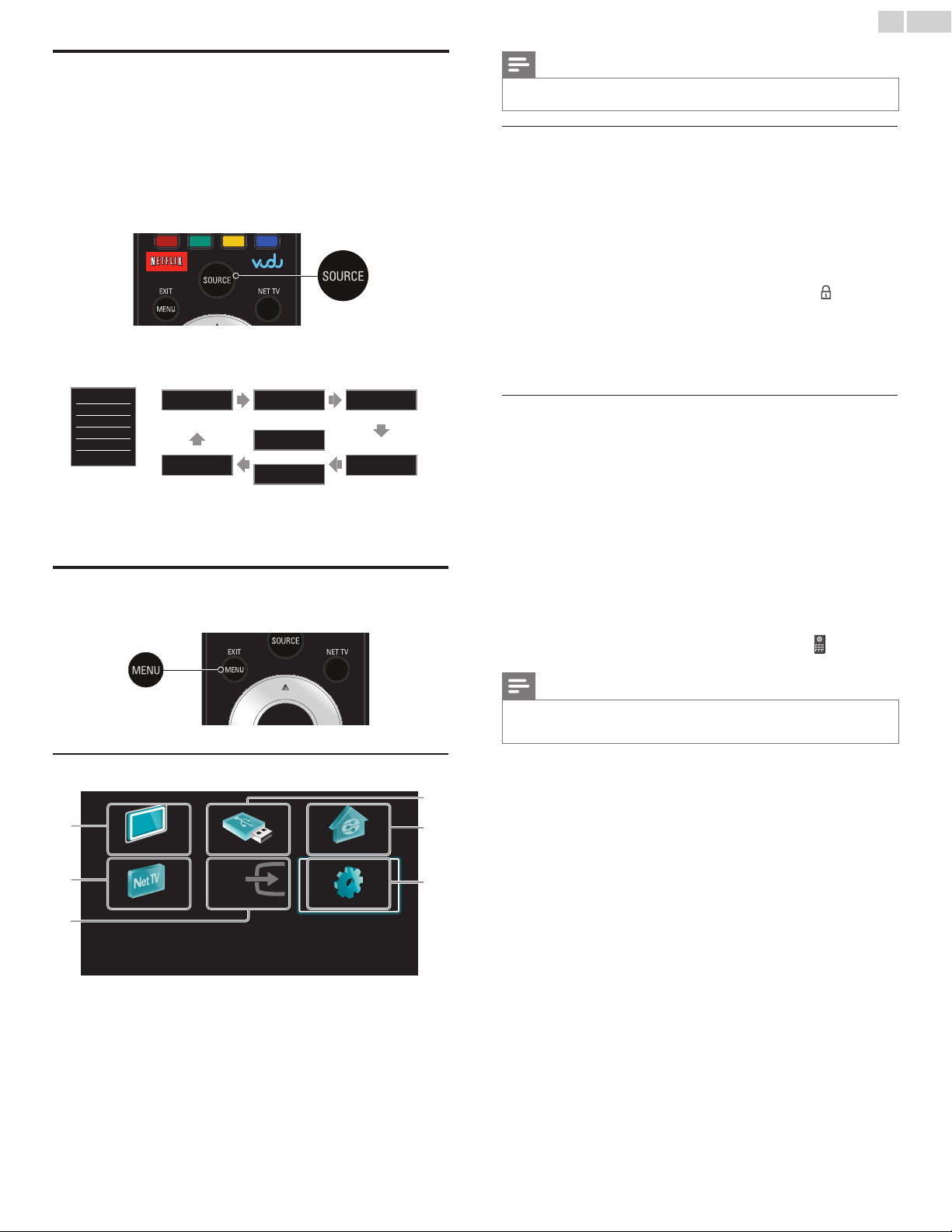
Switching Each Input Mode can easily switch with the remote control
between TV (DTV or Analog TV) and external devices when they are
connected to the unit.
1 Turn On a set-top box or the connected device.
• The picture from your set-top box or the connected device
might appear automatically on the TV screen.
If the picture does not appear
Press SOURCE repeatedly to select the set-top box or the
connected device and wait a few seconds till the picture appears.
e.g.)
TV
HDMI1
HDMI2
HDMI3
Video
PC
11.1 HDMI1 HDMI2
DTV/TVchannel
Video
or
Component
PC HDMI3
• Pressing ▲ reverses the direction of the Input modes.
2 Use the remote control of the set-top box or the connected device
to select channels.
AccesstheHomemenu
1 Press MENU/E�IT.
GuidetoHomemenu
WatchTV BrowseUSB BrowsePC
NetTV Addnewdevices Setup
a
b
c
d
e
f
a Watch TV :
Switches back to the antenna source if
another source is selected.
b Net TV :
Accesses Net TV menus.
c Add new devices :
Adds new devices to the Home menu.
d Browse USB :
Accesses USB menus.
e Browse PC :
Accesses DLNA menus.
f Setup :
Accesses menus that allow you to
change picture, sound and other TV
settings.
Note
• After selecting Addnewdevices, follow the on-screen instructions to select the correct
device and connector.
LockorunlockyourdevicefromtheHomemenu
This section describes how to lock or unlock specied device.
1 Press MENU/E�IT on the remote control.
2 Use ▲▼◄► to select a device to lock or unlock.
3 Press OPTIONS on the remote control.
4 Use
▲▼ to select
Devicelock or Deviceunlock, then press OK.
• If device lock is unlocked, Devicelock will be displayed. If device
lock is locked,
Deviceunlock will be displayed and will be
displayed at the top right of the device icons.
5 Enter your PIN. ChangePIN
➠
p.36
• Once you have set PIN, PIN input menu does not appear after
the unit is Turned on.
EnableordisableRCkeyforwardingfromtheHome
menu
This section describes how to enable or disable RC key forwarding for
a particular device.
1 Press MENU/E�IT on the remote control.
2 Use ▲▼◄► to select a device to enable or disable RC key
forwarding.
3 Press OPTIONS on the remote control.
4 Use ▲▼ to select EnableRCkeyforwarding or
DisableRCkeyforwarding, then press OK.
• If RC key forwarding is set to off, EnableRCkeyforwarding
will be displayed. If RC key forwarding is set to on,
DisableRCkeyforwarding will be displayed and will be
displayed at the top left of the device icons.
Note
• This function is available only when your devices are connected to this unit
through HDMI cables and assigned to an HDMI port (HDMI 1 to HDMI 3) with
Addnewdevices in the Home menu.

English
17
PhilipsWirelessMediaConnect
(Available for 32PFL4907 & 26PFL4907only)
You can enjoy your TV as a PC monitor wirelessly using your home
network. Make sure you download the Philips Wireless MediaConnect
software and install it on your PC before you perform the steps below.
InstallPhilipsWirelessMediaConnect
1 Display Setup using Home menu and use ▲▼ to select Software,
then press OK.
2 Use ▲▼ to select MediaConnectcode, then press OK.
• Write down the 12-digit code displayed on the screen. You will
need this to download MediaConnect software.
3 Start your Internet browser on your PC and open
the Philips Wireless MediaConnect download page at
www.wifimediaconnect.philips.com/
On the website, you can check the necessary PC system
requirements.
4 Enter the 12 digit code you wrote at step 2.
5 Click the “Download now” button to download the free
Philips Wireless MediaConnect software.
6 Once downloaded, start the le “Philips Wireless MediaConnect_
setup.exe”. Follow the instructions on the screen to complete
software installation.
UsingPhilipsWirelessMediaConnect
1 Launch Philips Wireless MediaConnect on your PC rst.
• Select “Start projecting” with right click on the in the
system tray.
• The start up screen for Philips Wireless MediaConnect will
be displayed and the unit searches for an available PC that is
running Philips Wireless MediaConnect software.
Once connected, the Philips Wireless MediaConnect software will
encode and stream the screen of your PC as a video along with audio.
Depending on your computer and network conguration, there will be
a delay between your PC screen and the TV but the audio-video will
always be in sync.
PhilipsWirelessMediaConnectHelp
To read the Philips Wireless MediaConnect Help, right click the program
icon in the notication tray of the PC and select Help.
Specics
You can project high denition (HD) or standard denition (SD) video,
depending on the processing power of your PC. For smooth playback
of HD video, please use a hardware accelerated video player on your
computer. A hardware accelerated video player uses the graphics
adapter of your PC to render HD video rather than the processor.
This frees up the processor for Philips Wireless MediaConnect video
encoding. The content protection on most Blu-ray or DVD disc
movies might restrict watching the movie on TV when the disc is
playing on a PC. The TV shows PC media les with a small delay.
Philips Wireless MediaConnect is only available for PC.
PCrequirements
Windows XP, Windows Vista, Windows 7,
Mac OS X 10.6 or above (PC only)
MinimumPCrequirements
• Intel
®
Core™ 2 Duo 1.8GHz
• 512MB RAM
• IEEE 802.11n
RecommendedPCrequirements
• Intel
®
Core™ 2 Duo 2.1GHz
• 1GB RAM
Viewphotos,playmusicandwatchvideos
usingDLNA
On your TV you can play video, music and photo les stored on DLNA
certied home media servers connected to your home network. In
order to use this feature, you must connect this unit to the Internet.
Itisrecommendedthatlestobeplayedbackinthisunitarerecorded
underthefollowingspecications:
<MP3>
• Sampling frequency : 32kHz or 44.1kHz or 48kHz
• Constant bit rate : 32kbps - 320kbps
<JPEG>
• Upper limit : 16Mpixel
<MPEG>
• Playable codec : MPEG1, MPEG2
• Maximum size of a video : 1920 x 1080
• Audio type : AC3, MPEG1 audio layer 3 (MP3),
MPEG1 audio layer 2, LPCM
Note
• A maximum of 1,023 folders or les can be recognized.
• For the home server list, maximum of 16 servers can be displayed.
• The 10th and deeper hierarchies cannot be displayed.
• Unplayable les in the home server will not be displayed in the le list.
• For some les, playback is not available even if displayed in the le list.
• In order to play back the contents in home servers, the player and the servers must be
connected to the same access point.
• Compatibility and available playback function may differ depending on the home server.
• Video les with unsupported audio format will be skipped.
• The quality of the playback picture or audio differs depending on your network condition.
BeforeusingDLNA
Follow the procedure below before using DLNA.
1 Connect this unit to the Internet.
ConnectingtheTVtotheInternetusinganEthernetcable
➠
p.46
or ConnectingtheTVtotheInternetusingawirelessLAN
➠
p.47
• Broadband Internet connection of 8Mbps or faster is required.
2 Set up the necessary network connection settings. Network
➠
p.40
UsingDLNA
1 Start DLNA home media servers in your home network.
• For details, refer to the instruction book of the DLNA certied
device.
2 Press MENU/E�IT on the remote control.
3 Use ▲▼◄► to select BrowsePC.
• This unit will start loading the home server list.
4 After loading, home server list will appear. Select a home server you
want to access, then press OK.
English
18
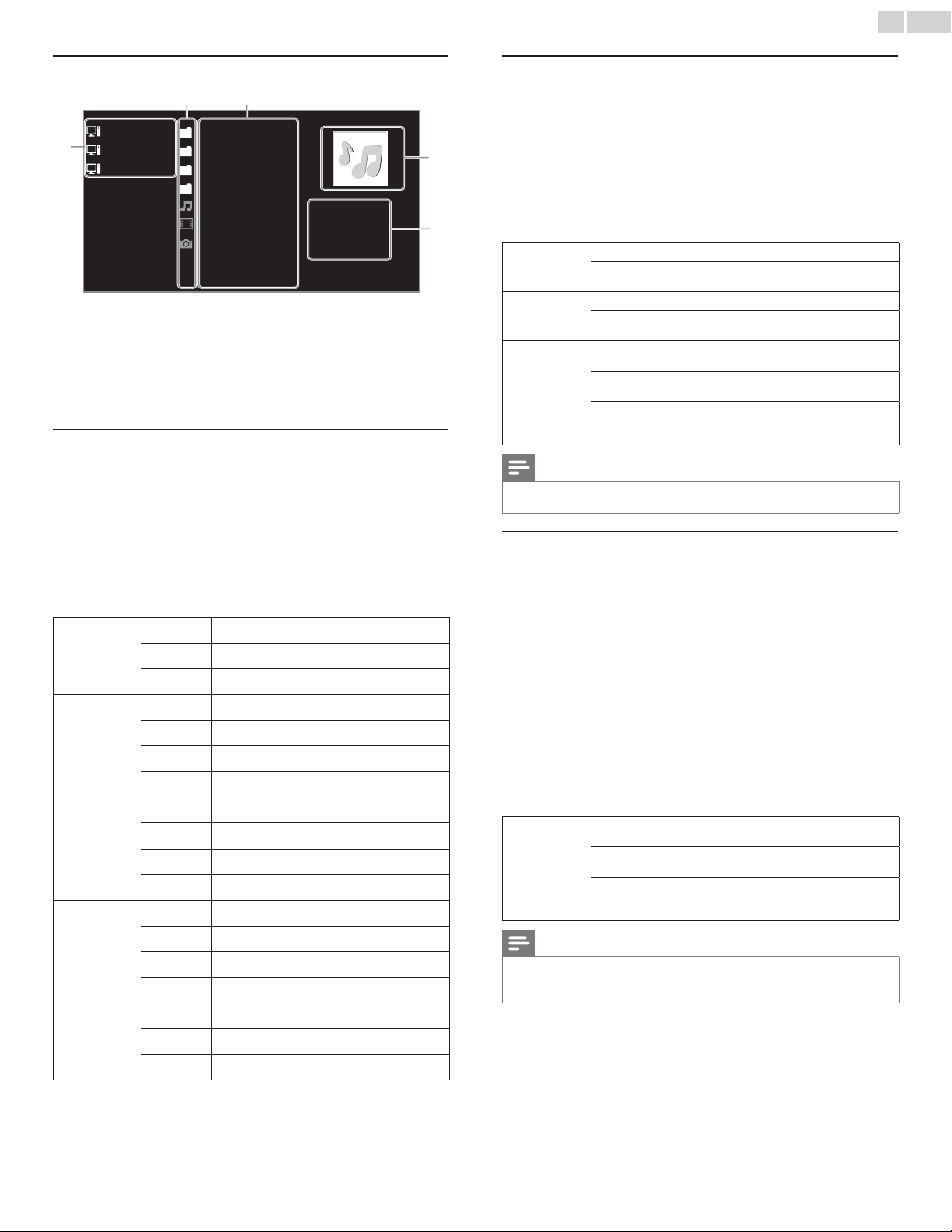
GuidetoDLNA
a
Server 1 Audio
Server 2 Photos
Server 3 Video
Folder
Highway Blues
Title:
Artist:
Album:
Duration:
0
0:05:28
Year:
Video10
Blue hills
b c
d
e
a Home server list
b Folder / media icon
c Group (folder) / le list
d Image
e Current le info
ViewyourpicturesusingDLNA
1 Press ▲▼ to select a le or a folder.
2 Press OK or
Æ∆
to start a Slide show of the les.
• Press OK or
Æ∆
to pause the Slide show.
The F icon appears.
• Press E or D to move between images.
• Press BACK or C to stop the Slide show.
• Press OPTIONS to display the optional menu, then use ▲▼
to
select the desired item.
Slidetime*
1
Short
Switches to the next image in 5 seconds.
Medium
Switches to the next image in 10 seconds.
Long
Switches to the next image in 15 seconds.
Transitions*
1
None
No effect when switching images.
Dissolve
Overlaps a next image on a current image.
Wiperight
Pushes a current image out from left.
Wipeleft
Pushes a current image out from right.
Wipeup
Pushes a current image out from bottom.
Wipedown
Pushes a current image out from top.
Boxin
A next image comes into the center from out.
Boxout
A next image goes to the out from center.
Rotate*
2
0
Displays an image at its original direction.
90
Rotates an image clockwise by 90 degrees.
180
Rotates an image clockwise 180 degrees.
270
Rotates an image clockwise 270 degrees.
Zoom*
2
1x
Displays an image at its original size.
2x
Magnies a current image as twice.
4x
Magnies a current image as fourfold.
*
1
You can set Slidetimeand Transitions when images are in Slide show.
*
2
You can set Rotate and Zoom when Slide show is in pause mode.
ListentomusicusingDLNA
1 Press ▲▼ to select a le or a folder.
2 Press OK or
Æ∆
to play the selected les.
• Press OK or
Æ∆
to pause, press OK or
Æ∆
again to resume.
• Press D to skip up the next le.
• Press E to skip down the previous le.
• Press C to stop playback.
• Press OPTIONS to display the optional menu, then use ▲▼
to
select the desired item.
Repeat
Off
Sets repeat playback to off.
On
Sets repeat playback for all MP3 les in the
current folder.
Shufe
Off
Sets shufe playback to off.
On
Sets shufe playback for all MP3 les in the
current folder.
TVspeakers
Off
The sound will not be output from the unit's
speakers.
On
The sound will be output from the unit's
speakers.
Speakers
EasyLink
You can control audio output from your
connected EasyLink Compliant Devices with
VOL+/−by using this unit's remote control.
Note
• MasterEasyLink must be activated in the Preferences menu to make the
TVspeakers menu available when you select OnorSpeakersEasyLink.
WatchvideosusingDLNA
1 Press ▲▼ to select a le or a folder.
2 Press OK or
Æ∆
to play the selected les.
• Press OK or
Æ∆
to pause, press OK or
Æ∆
again to resume.
• Press D to fast-forward search.
• Press E to fast-backward search.
• Press C to stop playback.
Press
Æ∆
to resume from the point at which playback was
stopped. Press OK to play from the beginning of the le at
which playback was stopped.
• Press CH+to play the next le.
• Press CH− to play the current le at the beginning.
Press CH− twice within 5 seconds to play the previous le.
• Press OPTIONS to display the optional menu, then use ▲▼
to
select the desired item.
TVspeakers
Off
The sound will not be output from the unit's
speakers.
On
The sound will be output from the unit's
speakers.
Speakers
EasyLink
You can control audio output from your
connected EasyLink Compliant Devices with
VOL+/−by using this unit's remote control.
Note
• The resume information will be kept even when the unit is Turned Off.
• If you play another le while the previously viewed le is being resumed, the resume
information of the previously viewed le will be deleted.
English
19
NetTV
Net TV offers Internet services for your TV. Use the remote control to
browse the Net TV pages. You can play movies and much more, all from
your TV screen.
– Because Net TV is an online system, it can be modified over time to
better serve its purpose.
– Some Net TV services can be added, changed or stopped after
some time.
– You cannot download and save files or install plug-ins.
BeforeLoggingintoNetTV
Follow the procedure below before logging in to Net TV.
1 Connect this unit to the Internet.
2 Set up the necessary network connection settings. Network
➠
p.40
LoggingintoNetTV
1 Press NETTV.
• Net TV screen will appear, then use ▲▼◄► to select service
icon.
• For the rst time only, PhilipsTermsofUseInternet
Enabledproductscreen will appear. After conrming the
content, use ◄► to select Agree, then press OK.
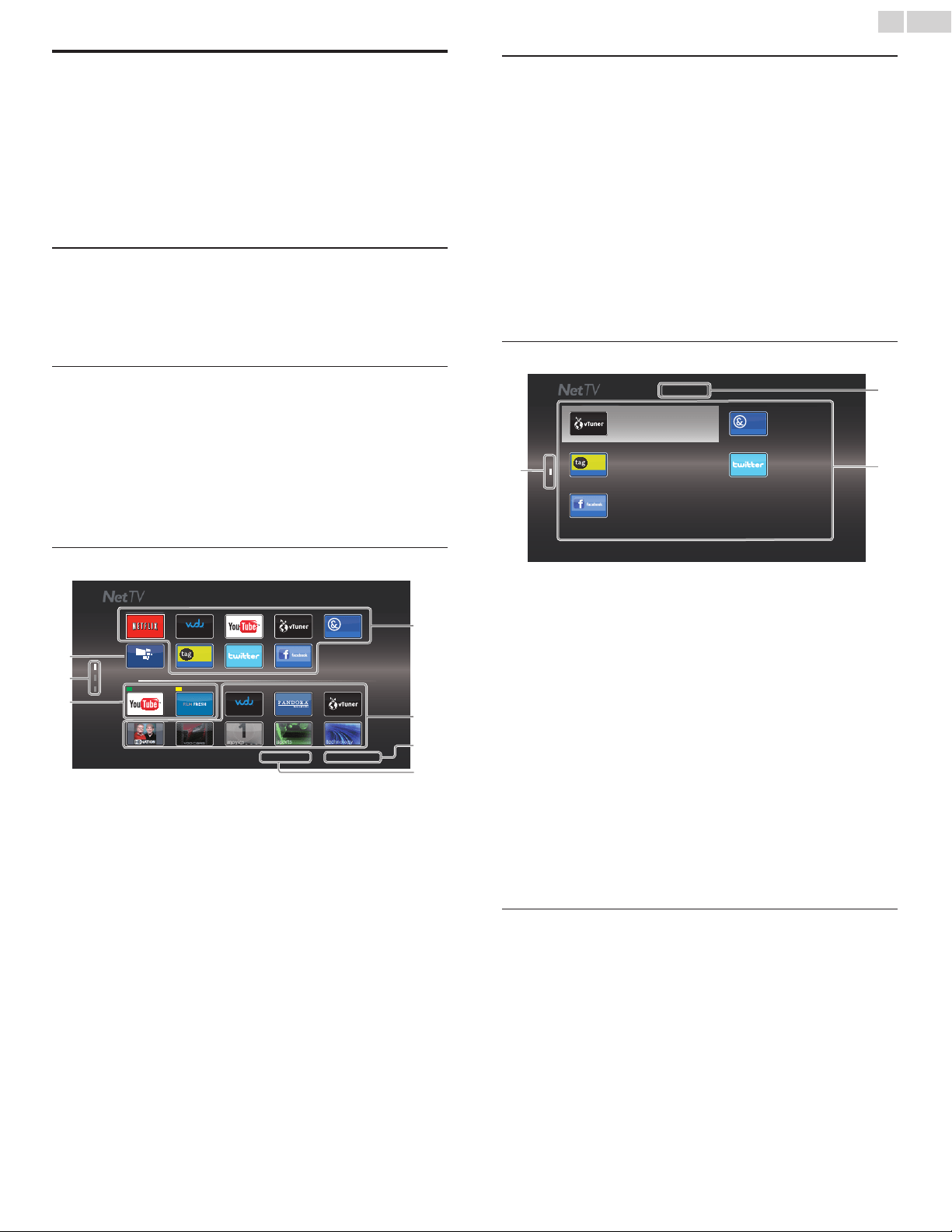
GuidetoNetTVscreen
Apps
HD MOVIES
App Gallery
Video
Radio
Cloud TV™ POWERD
Cloud TV™ POWERD
Cloud TV™ POWERD
GA MES
movies sports technology
APP1
My Apps
APP2
: USA
Termsofuse
Country
f
e
g
b
a
c
d
a Net service icons (xed) :
Displays default service icons.
b MyApps list :
Displays Net service icons you have listed
in AppGallery.
c Country :
Selects what country you live.
d Termsofuse :
Displays a clause of Net service.
e AppGallery :
Displays currently available Net service
icons in your country.
f Page guide :
Displays the order of pages. The current
page will be highlighted.
g APP1 / APP2 :
Displays Net service icons you
have registered in AppGallery for
APP1 / APP2.
• Press COLORbuttons(green/yellow)
to start up APP1 / APP2 accordingly.
MyAppsfunctions
RemoveApp
1 Use ▲▼◄► to select the desired App, then press OPTIONS.
2 Use ▲▼ to select RemoveApp, then press OK.
• The selected App will be removed from MyApps list.
MoveApp
1 Use ▲▼◄► to select the desired App, then press OPTIONS.
2 Use ▲▼ to select MoveApp, then press OK.
• The selected App icon will be smaller.
3 Use ▲▼◄► to the point you want to place, then press OK.
GuidetoAppGallery
App Gallery
Video
Cloud TV™ POWERD
Cloud TV™ POWERD
GA MES
Cloud TV™ POWERD
vTuner Video Cloud TV
Twitter
Tag Games
facebook (CloudTV)
a
b
c
All
a Category menu: :
List of category menu.
b Icon list :
Displays unregistered Net service icons
on
MyAppslist.
c Page guide :
Displays the order of pages. The current
page will be highlighted.
1 Press NETTV, then use ▲▼◄► to select AppGallery.
2 Use ▲▼◄► to select the desired App in MyApps list, then press
OK.
• You can also choose from Category menu. Use ▲▼◄► to
select All, then use ▲▼ OK to select the desired category.
• If you select Add, the selected App icon will be placed at the
end of
MyApps list.
• If you select Addandmove, the selected App icon will be
smaller and use ▲▼◄► to the point you want to place, then
press OK.
Even if you press BACK to cancel this function, the selected App
icon will be placed at the end of
MyApps list.
InformationonNetworkServices
For detailed information on 3rd party Internet services, please visit the
service providers website:
Netix :
http://www.netflix.com/HowItWorks
Film Fresh : http://filmfresh.roxionow.com/
VUDU : http://www.vudu.com/product_overview.html
Cloud TV : http://www.activevideo.com
English
20
EnjoyingvTuner
With this unit, you can enjoy video and Internet radio with vTuner via
the Internet. In order to watching video and listen to Internet radio, you
must connect this unit to the Internet.
Videoplayback
After you set up the network connection, follow the procedure below
to watch the video.
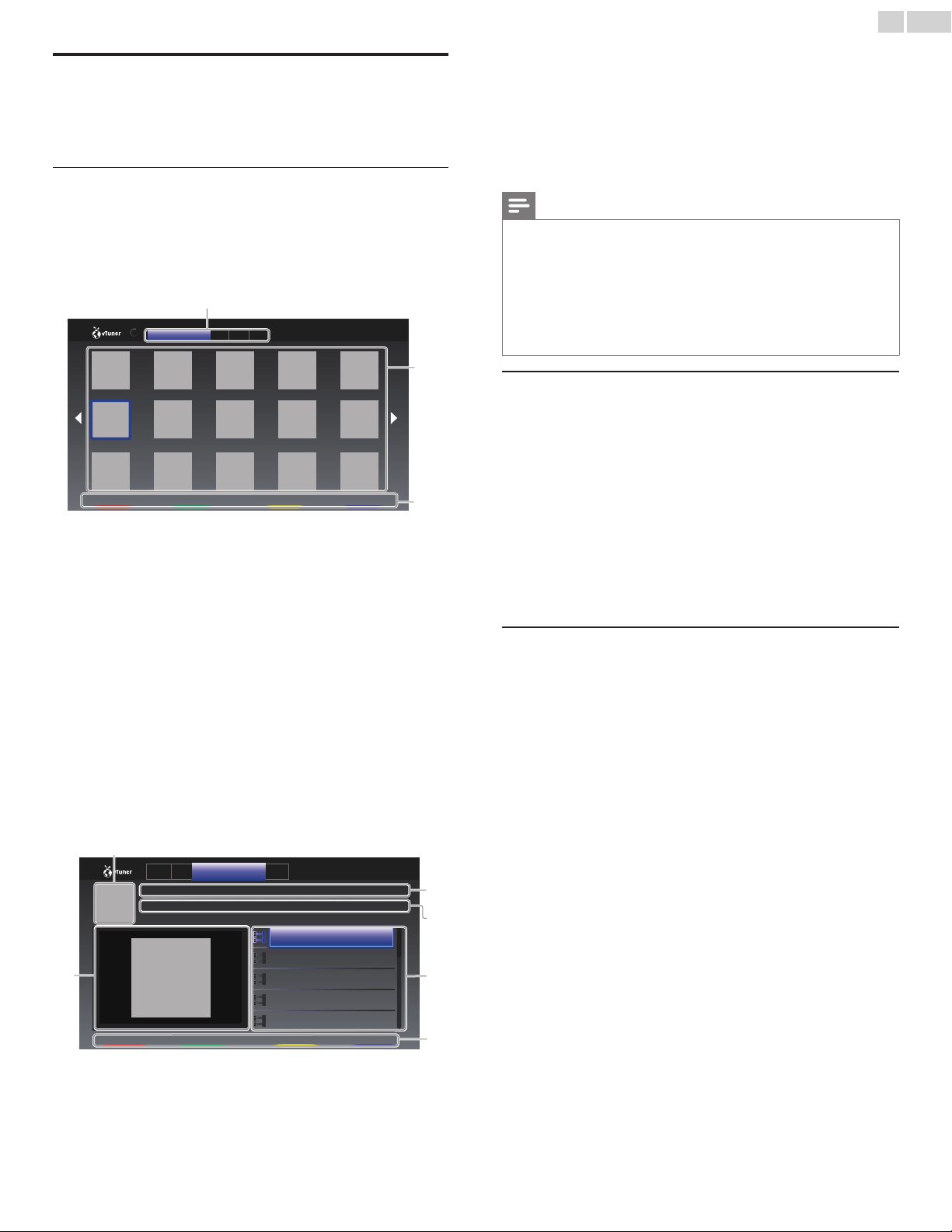
Guidetotheplayerscreen
e.g.) Recommendations
a
b
c
2/3
NewsNews
FavoriteNextPrevious
Recommendations Favo Genr Most
a Category :
List of category menus
Recommendations
: List of recommendation stations
Favorites
: List of your favorite video stations
Genre
: List of stations categorized by genre
MostPopularPodcasts : List of popular podcasts
b Station list :
Displays station list.
c Operation guide :
Displays COLORbuttons
(red/green/yellow/blue) guide.
1 Press NETTV on the remote control and then use ▲▼◄►
to
select
vTunerVideo.
2 Use ◄► to select the desired category, then press OK.
3 In the player screen, use ▲▼◄► to select the desired station or
genre, then press OK.
Guidetotheplaybackscreen
a
f
b
c
d
e
FavoriteNextPrevious
NEWSNEWS(11.25.10)
NEWSNEWS(11.24.10)
NEWSNEWS(11.23.10)
NEWSNEWS(11.22.10)
NEWSNEWS(11.21.10)
Date :Nov/25/2010
Duration :00:19:24
NEWSNEWS(Video)
Thelatestnews
Reco Favo Genre Most
a Station icon
b Station name
c Station information
d Episode list
e COLORbuttons(red/green/yellow/blue) guide
f Current episode information
4 In the playback screen, use ▲▼ to select the desired episode, then
press OK.
• After loading, playback of the selected episode will start.
• To stop playback, press C.
• Episode list can be displayed 5 episodes at one time. To show
the previous / next episodes, press COLORbuttons(red/green).
• To enlarge playback screen, press COLORbutton(blue).
Note
• Video service may not be fully available with narrowband Internet connection. (e.g.
56k modem) When watching video, use broadband Internet connection. (For details,
contact your Internet service provider.)
• Depending on the bit rate of a station or the network environment, it may take a while
to complete loading the station or playback may not be available.
• The streaming video may be interrupted during playback, when the vTuner server is busy.
• Some stations cannot be displayed in the list, depending on the network environment.
• If the loading time of a station exceeds 3 minutes, the loading will be canceled.
• The order of station / episode in the list depends on the information from vTuner
server and may change without notice.
AddtoFavorites
You can add your favorite stations to Favorites in the category tab. To
add your favorite stations, follow the procedure below.
1 Follow steps 1 to 2 in Videoplayback.
➠
p.20
2 Use ▲▼◄► to select the station you want to add to Favorites,
then press
COLORbutton(yellow).
• The selected station is added to the station list in Favorites.
• Conrmation message will appear.
• Press COLORbutton(yellow) to add your favorite station in
Favorites while the desired episode is selected in the episode list
or the episode is being played back.
3 Press OK.
RemovefromFavorites
1 Follow step 1 in Videoplayback.
➠
p.20
2 Use ◄►
to select Favorites in the category tab, then press OK.
3 Use ▲▼◄►
to select the station you want to remove from
Favorites, then press
COLORbutton(yellow).
• Conrmation message will appear.
4 Use ◄► to select Yes, then press OK.
• The selected station is removed from Favorites.

English
21
Internetradioplayback
After you set up the network connection, follow the procedure below
to listen to Internet radio.
Guidetotheplaybackscreen
e.g.)Location
b
c
d
f
e
a
Jazz(3)
FM
7
6.2
F
M
Jazz
j
Azz
j
aZz
j
azZ
Schonan
B
each
F
M
7
8.9
Favorite
Genre :Jazz
Location :Japan
Language :Japanese
a Current hierarchy (total number of items)
b Current station information
(Information will be changed when INFO is pressed)
c COLORbuttons(red/green/yellow/blue) guide
d Station list
e Playback status
f Station icon
1 Press NETTV on the remote control and then use ▲▼◄►
to
select
vTunerRadio.
• Category list will appear.
2 In the category list, use ▲▼ to select the desired category, then
press OK.
• Station / folder list of selected category will appear.
• For Location and Genre, use ▲▼ to select the desired location
or genre after selecting the category, then press OK.
RecentlyPlayed
List of stations which are recently played
Favorites
List of your favorite radio stations
MyAddedStations
List of stations which are added on vTuner
website (This category will appear only
after you add stations on vTuner website. )
Location
List of stations categorized by location
Genre
List of stations categorized by genre
NewStations
List of the latest stations which are recently
added automatically.
MostPopularStations
List of the most frequently accessed
stations by the all listeners.
3 In the station / folder list, use ▲▼ to select the desired station, then
press OK.
• After loading, playback of the selected station will start.
• If you select a folder, use ▲▼ to select the desired station in the
next hierarchy, then press OK.
• To stop playback, press C.
• To go back to the previous or next hierarchy, press ◄►.
Note
• This unit cannot play back stations with audio format other than MP3 and WMA.
• Internet radio service may not be fully available with narrowband Internet connection.
(e.g. 56k modem) When listening to Internet radio, use broadband Internet connection.
(For details, contact your Internet service provider.)
• Depending on the bit rate of a station or the network environment, it may take a while
to complete loading the station or playback may not be available.
• The streaming audio may be interrupted during playback, when the vTuner server is busy.
• Some stations cannot be displayed in the list, depending on the network environment.
• If the loading time of a station exceeds 3 minutes, the loading will be canceled.
• The order of station / folder in the list depends on the information from vTuner server
and may change without notice.
Addtofavoritelist
You can add your favorite stations to Favorites in the category list. To
add your favorite stations, follow the procedure below.
1 Follow steps 1 to 3 in Internetradioplayback.
➠
p.21
2 Use ▲▼ to select the station you want to add to Favorites, then
press
COLORbutton(yellow).
• The selected station is added to Favorites folder.
• Conrmation message will appear.
• If you select a folder, use ▲▼ to select the desired station in the
next hierarchy, then press
COLORbutton(yellow).
3 Press OK.
Note
• You can also add your favorite stations to Favorites on your PC. To add your favorite
stations on your PC, visit http://go2service.vtuner.com/pe/ and create a vTuner account
with the access code, which you can check from the category list.
Internetradio
playback
➠
p.21
• You can change folder names or order of lists in your vTuner page on the Internet.
• My_Favorite folder will appear after you add a station to Favorites on this unit. (Your
favorite station will also be added to My_Favorite folder.)
Removefromfavoritelist
1 Follow step 1 in Internetradioplayback.
➠
p.21
2 Use ▲▼ to select Favorites, then press OK.
3 Use ▲▼ to select the station you want to remove from Favorites,
then press
COLORbutton(yellow).
• Conrmation message will appear.
4 Use ◄► to select Yes, then press OK.
• The selected station is removed from Favorites folder.
AddstationsonthevTunerwebsite
You can add stations which are not in the vTuner station list.
1 Follow step 1 in Internetradioplayback.
➠
p.21
2 Use ▲▼ to select Getaccesscode, then press OK.
• The latest vTuner website address and access code for this unit
will be displayed. Please take a note of the access code. (This
access code will be required when creating a vTuner account.)
3 On your PC, visit the website and create your vTuner account.
• Follow the instructions given on the PC screen.
4 Add stations by following the instructions given on the PC screen.
• The stations will be added to MyAddedStations.

English
22
Resetthestationlist
You can remove all stations / folders in RecentlyPlayed, Favorites and
MyAddedStations.
1 Follow step 1 in Internetradioplayback.
➠
p.21
2 Use ▲▼ to select Reset, then press OK.
3 Use ◄► to select Yes, then press OK.
• All stations / folders in RecentlyPlayed, Favorites and
MyAddedStations are removed.
Pandora
®
operations
With this unit, you can instantly listen to personalized radio stations
streamed over the Internet from Pandora.
To learn more about Pandora, please visit www.pandora.com
ActivatingPandora
In order to listen to Internet radio streamed from Pandora via the
Internet, you must create a Pandora account and activate this unit.
1 Press NETTV,then use▲▼◄► to select PANDORA.
2 Use ▲▼ to select Createnewaccount, then press OK.
3 Use ▲▼ to select No,IamnewtoPandora., then press OK.
4 Note the activation code and website address displayed on the TV
screen.
5 On your PC, visit the website address noted at step 4.
6 Follow directions on the website to create your account.
7 On this unit, select Continue and press OK to complete activation.
AddingPandoraUserAccounts
You can add multiple Pandora user accounts on this unit.
1 Follow steps 1 to 2 inActivatingPandora.
➠
p.22
2 Use ▲▼ to select Yes,IhaveaPandoraaccount, then press OK.
3 Enter your e-mail address, then press OK while OK is selected.
4 Enter a password, then press OK while OK is selected.
5 Use ▲▼ to select SignIn, then press OK.
• Your account is added to the user list and player screen appears
on the TV screen.
Note
• Pandora is available only in the United States.
• You can add up to 5 accounts. After creating 5 accounts, Createnewaccount will not
be displayed.
CreatingaNewStation
By entering your favorite artists or tracks, Pandora selects music and
creates a new station for you on the basis of the entered information.
1 On the player screen, press COLORbutton(yellow) to call up the
ToolMenu.
2 Use ▲▼ to select Createanewstation, then press OK.
3 Enter a name of your favorite artist or tracks, then press OK while
OK is selected.
• Search result will appear on the right side of the TV screen.
• If the selection screen of result type appears, use ▲▼ to select
the desired type, then press OK.
4 Use ▲▼ to select the desired station, then press OK to start the
playback.
Æ∆
Resumes the playback / pause the playback.
C
Stops the playback and the station list will appear.
∫
Skips to the next track.
Note
• On the ToolMenu, you can delete or rename the currently selected station.
GuidetothePlayerScreen
On the player screen, you can set various options to the currently
playing track.
: XXXXX
: XXXXX
ABC
American Oldies Radio
4:52 0:00
cba d e f
Exit
By
On
Whythistrack? ToolMenu StationList
g
a Artist name
: Displays artist name.
b Album name
: Displays album name.
c
: Give thumbs up to the currently playing track.
Pandora will play tracks similar to the track.
d
: Give thumbs down to the currently playing
track. Pandora will skip and will not play the
track.
e
: Bookmarks the currently playing track.
You can view your bookmarked tracks list by
accessing Pandora website and log into your
account.
f
: Tells Pandora that you do not like the currently
playing track. Pandora will not play the track for
about a month.
g
Operation guide
: Displays COLORbuttons
(red/green/yellow/blue) guide.
English
23
UsingTwitter
You can view your Twitter feeds and more using the Twitter application
on this unit.
– For more details about Twitter, please visit www.twitter.com
LoggingintoTwitter
After you set up the network connection, you must log in with your
Twitter account.
Make sure the unit is not in network service or Browse USB mode.
1 Press NETTV on the remote control and then use ▲▼◄►
to
select Twitter.
• Login screen will appear.
2 Use ▲▼ to select Username, then press OK.
• Software keyboard will appear.
Characters
Select each one of characters from the list.
Clear
Delete the last character in the entry eld.
Allclear
Delete all characters in the entry eld.
a/A/@
Switch case and symbols.
Cancel
Cancel the input.
OK
Determine the input Username and/or Password.
3 Use ▲▼◄► to input your Usernameand Password into the
entry elds. Select
OKafter you have lled in all the necessary
items in the entry eld, then press OK.
• Password can be skipped next time onwards once you have
selected
Rememberme when registering the user name.
• Software keyboard will disappear.
4 Use ▲▼◄► to select Start, then press OK.
• The unit will now establish a connection with the Twitter server
and perform authentication.
5 When the unit is logged in successfully, Twitter Homescreen will
appear at the left and the timeline will appear at the bottom of the
TV screen.
Note
• User name and password are case-sensitive.
• User name will not accept your e-mail account. Use only your user name registered on
the Twitter server.
• If you select Start with no user name, the unit logs in as 'Public'. In this case you can
display 'Public timeline' and 'Trends' only.
• For questions regarding Twitter, please visit www.twitter.com
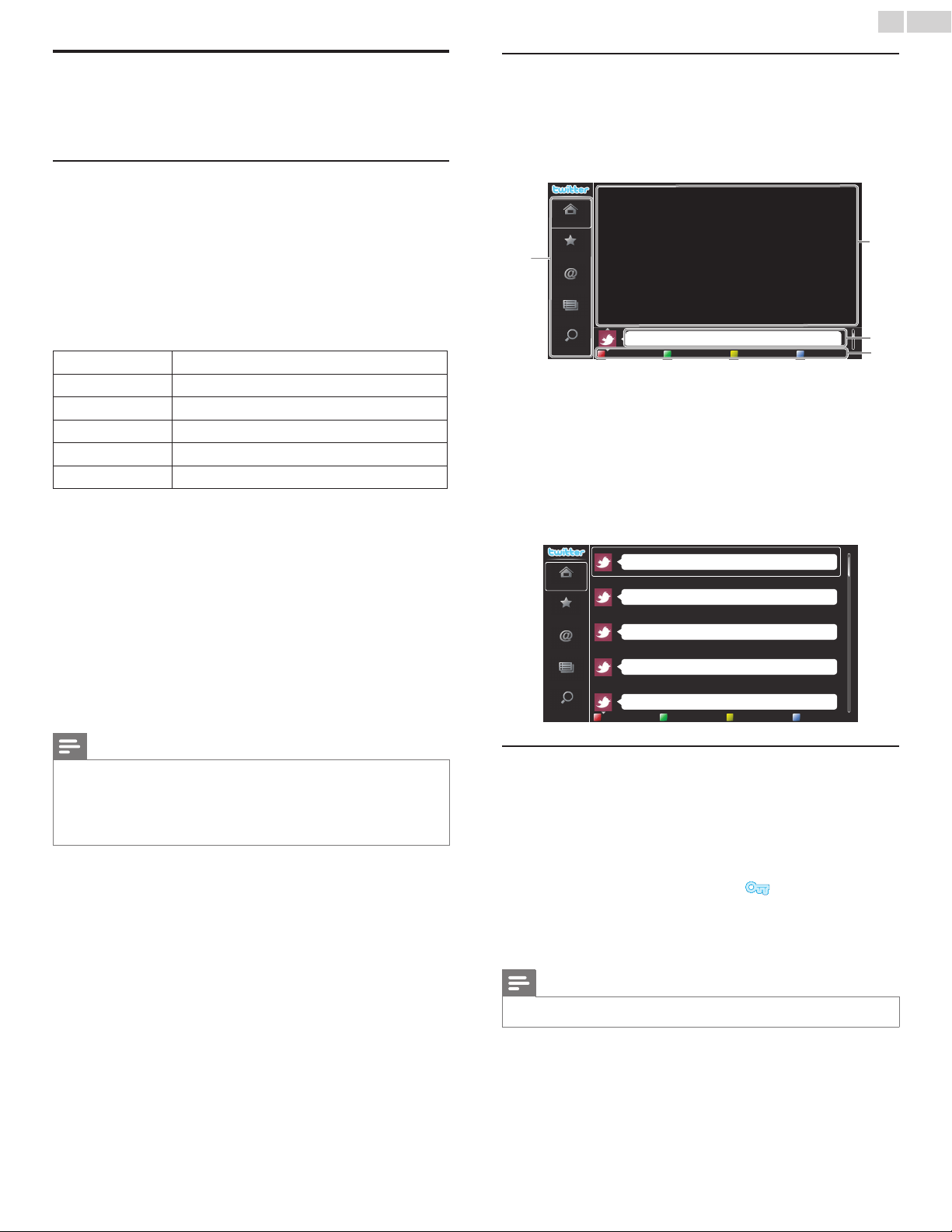
GuidetoTwitterHomescreen
Twitter Home Screen consolidates browsing of tweets and some
functional menus for Twitter.
To call up the screen, press
NETTV on the remote control and then
use ▲▼◄►
to select Twitter.
SingleView
Phily and Maggy
Home
Favorite
Mentions
List
Trends
a
b
d
c
Rightasrain.Thatwasasenseofhumor...
lessthan1minute
a Menu :
List of functional menus.
b
Viewing channel :
Displays currently watching channel.
c
Timeline :
Displays currently tweeting on Twitter.
d
Operation guide :
Displays COLORbuttons
(red/green/yellow/blue) guide.
FullView
Single view switches to Full view when you select timeline then press
OK.
Peter’s rock star
Propatanga
Tinner Loberto
Perseverance prevails.
Phily and Maggy
Home
Favorite
Mentions
List
Trends
Rightasrain.Thatwasasenseofhumor...
lessthan1minute
I'llbethere,textbookinhand!
lessthan1minute
Greetings,Iamlookingforasmalltinystoveinwhichtoheatonceaday.
lessthan1minute
Wouldyoulikethestraightforwardreasonsthatpeoplebelieveinit?
lessthan1minute
It’snotsorichacountryasyourcountry.
lessthan1minute
ViewingtweetsontheTV
After logging in to Twitter, your TV will download the latest 20 tweets
to display.
1 Press NETTV on the remote control and then use ▲▼◄►
to
select
Twitter.
2 Use ▲▼◄► to select the desired user name, then press OK.
• If you have not stored the password, will appear beside the
user name.
3 When the unit is logged in successfully, Twitter Homemenu will
appear at the left and the timeline will appear at the bottom of the
TV screen.
Note
• 4 user names (accounts) can be stored in this unit.
Continued on next page.
English
24
ViewingFavoritesonTwitter
Your TV displays the logged in user's favorites on Twitter.
1 Follow steps 1 to 2 in ViewingtweetsontheTV.
➠
p.23
2 Use ▲▼ to select Favorite, then press OK.
• If you have no favorites, TVwasnotabletoacquiretheTweet.
will appear.
DisplayingMentionsonTwitter
Your TV displays replies for the logged in user.
1 Follow steps 1 to 2 in ViewingtweetsontheTV.
➠
p.23
2 Use ▲▼ to select Mentions, then press OK.
• If you have no replies, TVwasnotabletoacquiretheTweet.
will appear.
ViewingListsonTwitter
The list shows timeline categories such as friends, family, colleagues, or
sports teams created by yourself on your account.
1 Follow steps 1 to 2 in ViewingtweetsontheTV.
➠
p.23
2 Use ▲▼ to select List, then press OK.
• If you have no lists, Cannotgetthelistinformation. will appear.
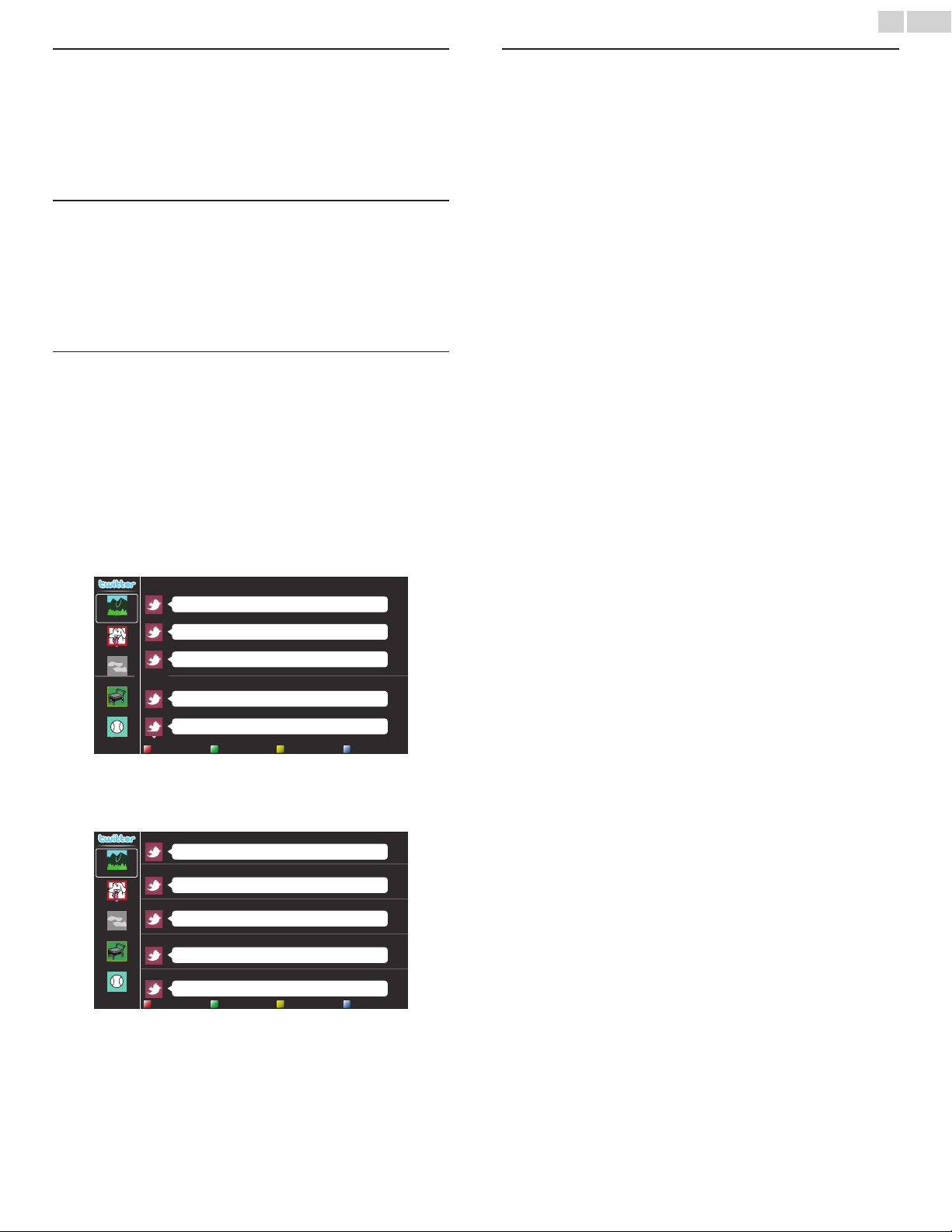
3 When you press COLORbutton(yellow) in 1 or 5 list view, the
timeline will be separated at top and bottom. The upside displays 3
timelines and the downside display 2 timelines.
2ListView
Peter’s rock star
Propatanga
Tinner Loberto
Perseverance prevails.
Phily and Maggy
Rightasrain.Thatwasasenseofhumor...
lessthan1minute
I'llbethere,textbookinhand!
lessthan1minute
Greetings,Iamlookingforasmalltinystoveinwhichtoheatonceaday.
lessthan1minute
Wouldyoulikethestraightforwardreasonsthatpeoplebelieveinit?
lessthan1minute
It’snotsorichacountryasyourcountry.
lessthan1minute
4 When you press COLORbutton(blue) in 1 or 2 list view, the
timeline will increase 5 lines.
5ListView
Peter’s rock star
Propatanga
Tinner Loberto
Perseverance prevails.
Phily and Maggy
Rightasrain.Thatwasasenseofhumor...
lessthan1minute
I'llbethere,textbookinhand!
lessthan1minute
Greetings,Iamlookingforasmalltinystoveinwhichtoheatonceaday.
lessthan1minute
Wouldyoulikethestraightforwardreasonsthatpeoplebelieveinit?
lessthan1minute
It’snotsorichacountryasyourcountry.
lessthan1minute
ViewingTrendsonTwitter
Trends show topics trending in your area.
1 Follow steps 1 to 2 in ViewingtweetsontheTV.
➠
p.23
2 Use
Îï
to select Trends, then press OK.
• Press COLORbutton(green)to switch between the Area and
Trends.
• If you display Area, the topside will be displayed some countries,
and the downside will be displayed some cities.
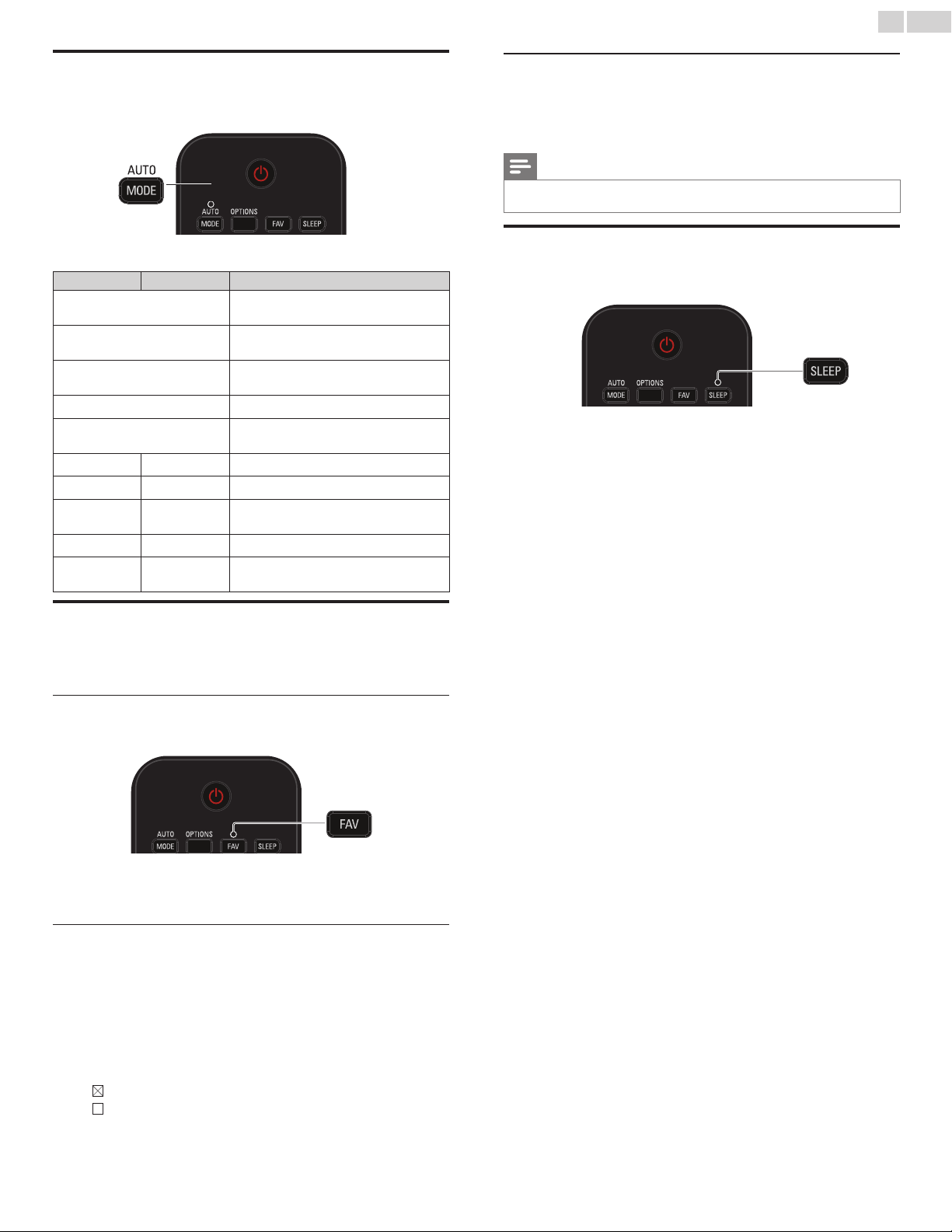
English
25
Usingautomode
1 Press AUTOMODE to set your TV to a predened picture and
sound setting.
2 Use ▲▼to select one of the following settings :
Autopicture Autosound Description
Personal
The customized settings you dened using
the Picture and Sound menu
Vivid
Enhanced picture contrast, sharpness and
sound for viewing in a well-lit room
Sports
Brilliant picture settings and clear sound for
high action
Standard
For normal TV viewing
Movie
Deep picture and powerful sound settings
for a cinematic experience
Game -
Optimized for PCs and game consoles
Internetvideo -
Optimized for low bitrate Internet video
Powersaver -
Eco TV settings for low power
consumption
- Music
Optimized for music playback
- News
Controls picture tone and set the anchor's
voice at a comfortable volume
Createanduselistsoffavoritechannels
You can create lists of your preferred TV channels so that you can nd
those channels easily.
Selectalistoffavoritechannels
1 Press FAV.
• Your lists of favorite channels are displayed.
2 Use ▲▼
to select the desired list, then press OK.
Createoreditalistoffavoritechannels
1 Press FAV to display your lists of favorite channels.
2 Use ▲▼
to select the desired list, then press OK.
3 Press OPTIONS to enter edit mode.
• A list of channels is shown.
4 Use ▲▼ to select the desired channel, then press OK to add or
remove on the list of favorite channels.
• indicates that the channel is added.
• indicates that the channel is removed.
5 Press MENU/E�IT to exit.
Switchtooneofthechannelsonalist
1 Press OK to display the last list that you selected.
2 Use ▲▼ to select a channel, then press OK.
• The TV switches to that channel.
Note
• Press CH+/− to select channels in a list or press theNUMBERbuttons to select
channels that are not in a list. .
Sleeptimer
Sleep timer can set the unit to go into Standby mode after an
incremental period of time.
Press SLEEP repeatedly to change the amount of time
(increases the time by 5 minutes up to 180 minutes).
• Each press of ◄ will decrease the time by 5 minutes.
• Press INFO once to call up the display for checking the
remaining time.
• To cancel sleep timer, press SLEEP or ◄► repeatedly until
“ 0 ” is displayed.
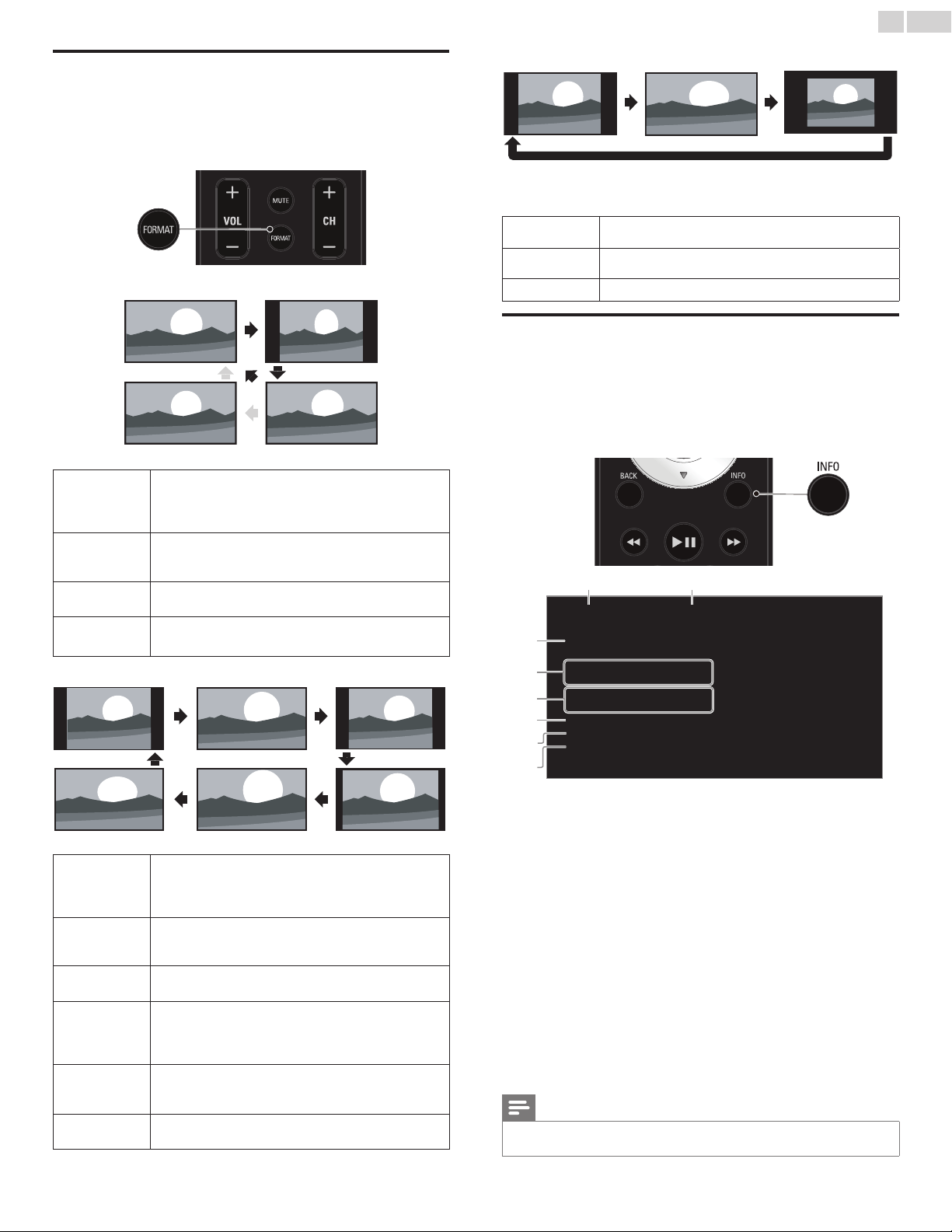
English
26
Changingpictureformat
Display modes can be selected when your TV receives a 16:9 or 4:3
video signal.
Three types of display modes can be selected for a PC Input signal.
Press
FORMATrepeatedly to switch the TV aspect ratio.
For16:9videosignal
Automatic
Widescreen
4:3
Full(1080i/p only)
Automatic
Other than DTV and HDMI connected devices, enlarges
the picture to best t the screen.
DTV and HDMI connected devices display the picture at
its original size. The subtitles may remain visible.
4:3
Displays a 16:9 picture at a 4:3 size; the picture is
shortened horizontally.
Sidebars appear on both edges of the screen.
Widescreen
Displays a 16:9 picture that is stretched horizontally and
vertically.
Full
(1080i/p only)
Displays a 16:9 picture at its original size.
For4:3videosignal
Automatic
4:3
Superzoom
Movieexpand16:9
Movieexpand14:9
Widescreen
Automatic
Other than DTV and HDMI connected devices, enlarges
the picture to best t the screen.
DTV and HDMI connected devices display the picture at
its original size. The subtitles may remain visible.
Superzoom
Displays a 4:3 picture at a 16:9 size; the picture is stretched
horizontally and vertically and its left and right edges are
enlarged. This crops out the top and bottom of the picture.
4:3
Displays a 4:3 picture at its original size.
Sidebars appear on both edges of the screen.
Movieexpand
14:9
Displays a 4:3 picture at a 14:9 size; the picture is stretched
horizontally and vertically.
This crops out the top and bottom of the picture. Sidebars
appear on both edges of the screen.
Movieexpand
16:9
Displays a 4:3 picture at a 16:9 size; the picture is stretched
horizontally and vertically.
This crops out the top and bottom of the picture.
Widescreen
Displays a picture that is stretched out of proportion to ll
the screen.
ForPCInputsignal
4:3
Unscaled
Widescreen
• This unit can also be connected to your PC that has a DVI terminal. Use an HDMI-DVI
conversion cable for this Video connection and it requires Stereo mini 3.5mm plug Audio
cable for Analog Audio signal as well.
• Refer to 16:9 video signal on this page if PC has HDMI Output.
4:3
Displays a proportionately stretched picture.
Sidebars appear on both edges of the screen.
Widescreen
Displays a picture that is stretched out of proportion to ll
the screen.
Unscaled
Displays a picture in its original size.
TVscreeninformation
You can display the currently selected channel or other information
such as the aspect ratio on the TV screen.
In the Digital mode, the detailed broadcasting information for the current
off-the-air channel such as program title and program guides are displayed.
1 Press INFO.
11.1 KABC
ADayofMemories
Resolution 1080i
Pictureformat Widescreen
Soundmode
Stereo
Audiolanguage English
CCpresence
CC
Rating None
Sleeptimer
c
d
e
f
g
h
ab
a broadcast station
b channel number / Input mode26
Switchingchannels
➠
p.15
Watchingchannelsfromanexternaldevice
➠ p.16
c program title (for DTV only)
d program’s image aspect ratio
Changingpictureformat
➠
p.26
e audio language (DTV) / audio mode (Analog TV)
Sound
➠
p.32
f CC (not available if Closed Caption is set to Off)
Captionsettings
➠
p.33
g child lock rating
Childandratingslock
➠
p.34
h remaining time of sleeptimer
Sleeptimer
➠
p.34
2 Press INFO to hide the information.
Note
• While the program guide is displayed, the Closed Caption function is interrupted.
• The information display will automatically disappear in 5 seconds.
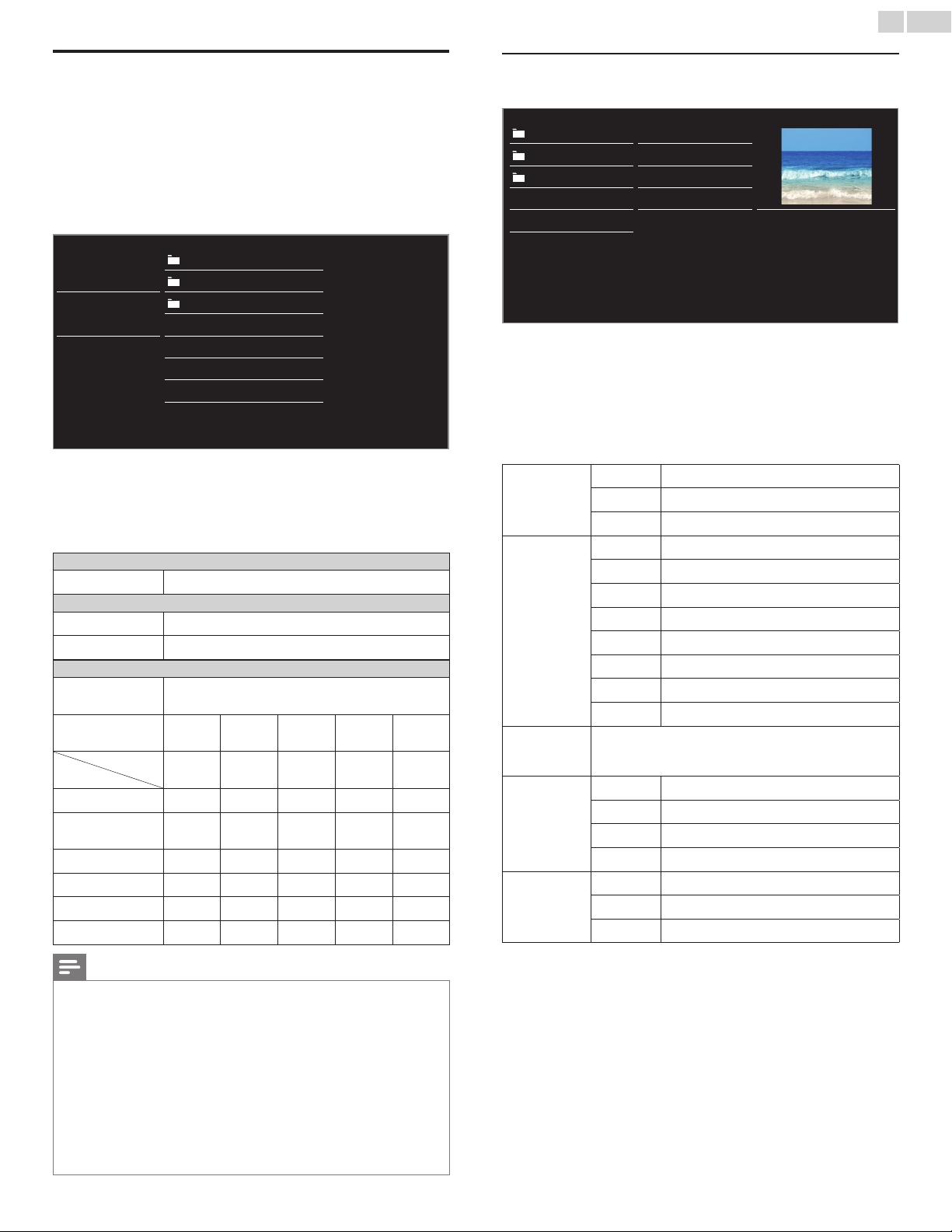
English
27
USB
Your TV is tted with a USB connection that enables you to view
photos, listen to music or watch MPEG les stored on a USB Memory
Stick.
1 Connect the USB Memory Stick to the USB terminal on the side of
your TV.
2 Press MENU/E�IT and use ▲▼◄► to select USB, then press
OK.
Picture
avi
jpg
Music
mp3
Image1.jpg
Video
Image2.jpg
Image3.jpg
Image4.jpg
Image5.jpg
3 Use ▲▼ to select the Picture, Music or Video, then press OK.
• The les recorded under the following specications are
required.
• Press OPTIONS to display the optional menu, then press OK to
switch between List and Thumbnails.
Picture(JPEG)
Upper limit
16Mpixel
Music(MP3)
Sampling frequency
32 kHz, 44.1 kHz or 48 kHz
Constant bit rate
32 kbps - 320 kbps
Video(MPEG)
Maximum size of a
video
1920 x 1080
Extension
.mpg,
.mpeg
.vob .avi .mp4 .wmv
Video codec
Audio codec
MPEG1,
MPEG2
MPEG2
MPEG4 SP
MPEG4 ASP
H.264,
MPEG4
WMV9
(WVC1)
AC3 YES YES YES NO NO
MPEG1 audio layer3
(MP3)
YES NO YES NO NO
MPEG1 audio layer2 YES NO YES NO NO
LPCM YES NO NO NO NO
AAC-LC NO NO NO YES NO
WMA NO NO NO NO YES
Note
• Up to 2GB (FAT16) or 8GB (FAT32) capacity can be supported.
• Up to 10,000 les or 1,000 folders with 19 hierarchies can be recognized.
• Up to 255 English characters can be recognized.
• This unit does not support MTP(Media Transfer Protocol).
• This unit supports FAT16 and FAT32 le systems.
• If the le is not supported, an error message appears.
• When the USB Memory Stick is not recognized, try reconnecting it again.
• We cannot be held responsible if your USB Memory Stick is not supported, nor will we
accept any liability for damage or loss of stored data.
• A le name exceeding 128 characters or contains a dot character is not supported on
this TV.
• Progressive JPEG les are not supported.
• Only an MPEG le with “.mpg”, “.mpeg”, “.vob”, “.avi” or “.mp4”extension is supported.
An extension “.mov” is not supported.
Picture(JPEG)
1 Use ▲▼ to select a le or a folder.
avi Image4.jpg
jpg Image5.jpg
mp3 Image6.jpg
Image1.jpg Image7.jpg
Image2.jpg Image8.jpg
Image4.jpg
11/11/201111:11AM
800×600pixels
Image3.jpg
2 Press OK or
Æ∆
to start a Slide show of the les.
• Press OK or
Æ∆
to pause the Slide show.
The F icon appears.
• Press E or D to move between images.
• Press BACK or C to stop the Slide show.
• Press OPTIONS to display the optional menu, then use ▲▼
to
select the desired item.
Slidetime*
1
Short
Switches to the next image in 5 seconds.
Medium
Switches to the next image in 10 seconds.
Long
Switches to the next image in 15 seconds.
Transitions*
1
None
No effect when switching images.
Dissolve
Overlaps a next image on a current image.
Wiperight
Pushes a current image out from left.
Wipeleft
Pushes a current image out from right.
Wipeup
Pushes a current image out from bottom.
Wipedown
Pushes a current image out from top.
Boxin
A next image comes into the center from out.
Boxout
A next image goes to the out from center.
Autopicture
Selects the picture mode according to your preference.
(Vivid,
Sports,Standard,Movie, Game, Internetvideo and
Powersaver)
Rotate*
2
0
Displays an image at its original direction.
90
Rotates an image clockwise by 90 degrees.
180
Rotates an image clockwise 180 degrees.
270
Rotates an image clockwise 270 degrees.
Zoom*
2
1x
Displays an image at its original size.
2x
Magnies a current image by 2 times.
4x
Magnies a current image by 4 times.
*
1
You can set Slidetimeand Transitions when images are in Slide show.
*
2
You can set Rotate and Zoom when Slide show is in Pause mode.
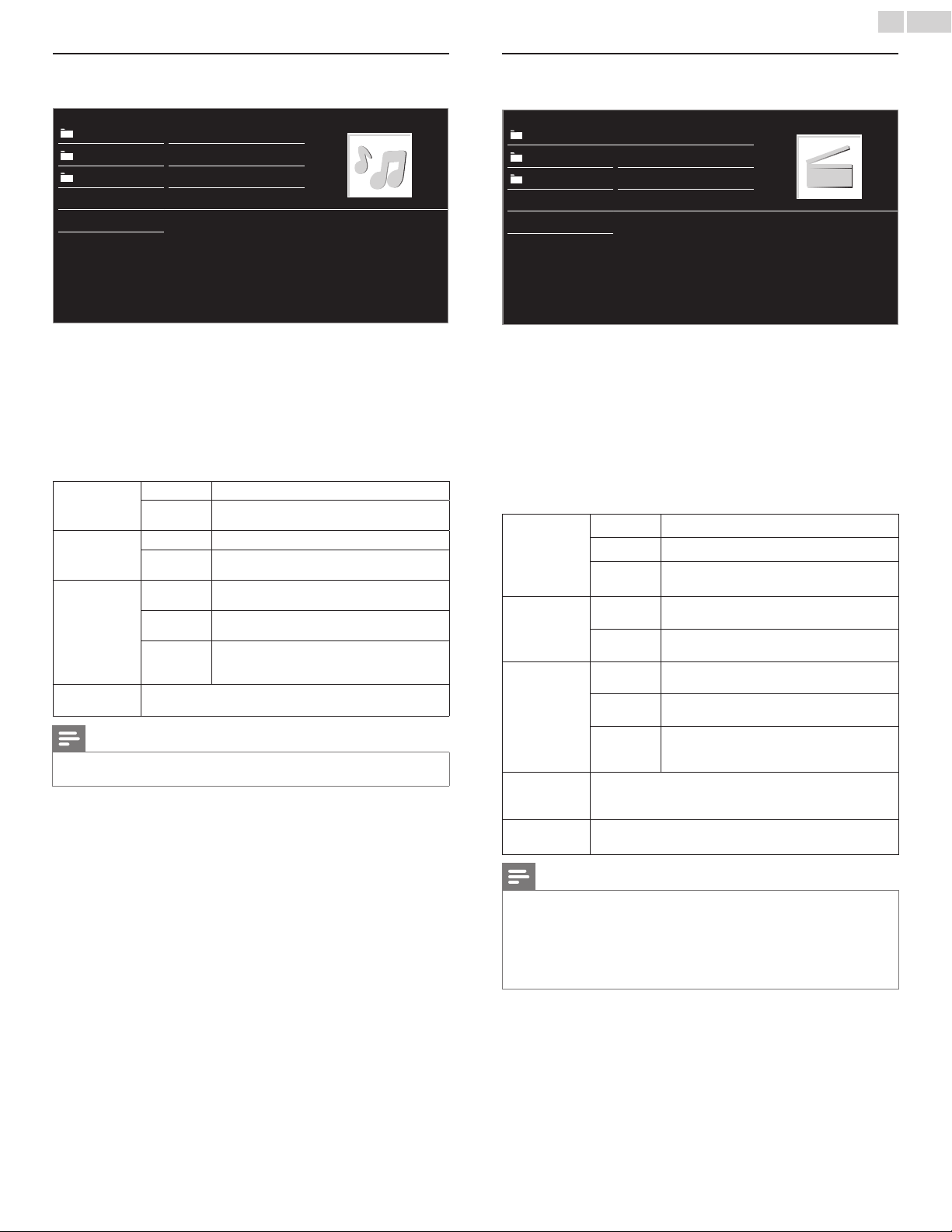
English
28
Music(MP3)
1 Use ▲▼ to select a le or a folder.
avi Track4.mp3
jpg Track5.mp3
mp3 Track6.mp3
Track1.mp3 Track7.mp3
Track2.mp3 Track8.mp3
Title:
Artist:
Album:
Duration:00:05:28
Year:
Track3.mp3
2 Press OK or
Æ∆
to play the selected les.
• Press OK or
Æ∆
to pause, then press OK or
Æ∆
again to
resume.
• Press D to skip to the next le.
• Press E to return to the beginning of the le currently playing.
• Press C to stop playback.
• Press OPTIONS to display the optional menu, then use ▲▼
to
select the desired item.
Repeat
Off
Sets repeat playback to Off.
On
Sets repeat playback for all MP3 les in the
current folder.
Shufe
Off
Sets shufe playback to Off.
On
Sets shufe playback for all MP3 les in the
current folder.
TVspeakers
Off
The sound will not be output from the unit's
speakers.
On
The sound will be output from the unit's
speakers.
Speakers
EasyLink
You can control Audio Output from your
connected
EasyLink Compliant Devices with
VOL+/−by using this unit's remote control.
Autosound
Selects the sound mode according to your preference.
(Standard,
Vivid,Sports,Movie,MusicandNews)
Note
• TVspeakers will be displayed only when MasterEasyLink is set to On.
EasyLink
➠
p.39
Video(MPEG)
1 Use ▲▼ to select a le or a folder.
avi Movie4.avi
jpg Movie5.avi
mp3 Movie6.avi
Movie1.avi Movie7.avi
Movie2.avi Movie8.avi
Title:
Director:
Date:
Duration:
Movie3.avi
2 Press OK or
Æ∆
to play the selected les.
• Press OK or
Æ∆
to pause, then press OK or
Æ∆
again to
resume.
• Press D to fast-forward search.
• Press E to fast-backward search.
• Press C to stop playback.
Press
Æ∆
to resume from the point at which playback was
stopped. Press OK to play from the beginning of the le.
• Press OPTIONS to display the optional menu, then use ▲▼
to
select the desired item.
Subtitle
Notavailable
Displays if no subtitle is available.
SubtitleOff
Sets subtitle to Off.
Subtitle1-8
Selects the desired subtitle if the Video le
contains them.
Audio
language
Notavailable
The unit displays if no Audio language is
available.
Audio1-8
Selects the desired Audio language if the Video
le contains them.
TVspeakers
Off
The sound will not be output from the unit's
speakers.
On
The sound will be output from the unit's
speakers.
Speakers
EasyLink
You can control Audio Output from your
connected
EasyLink Compliant Devices with
VOL+/−by using this unit's remote control.
Autopicture
Selects the picture mode according to your preference.
(Vivid,
Sports,Standard,Movie, Game, Internetvideo and
Powersaver)
Autosound
Selects the sound mode according to your preference.
(Standard,
Vivid,Sports,Movie,MusicandNews)
Note
• The resume information will be kept even when the unit is Turned Off.
• If you play another le while the previously viewed le is being resumed, the resume
information of the previously viewed le will be deleted.
• The le or the folder in resume stop mode will be highlighted in gray on
List or
Thumbnails
.
• TVspeakers will be displayed only when MasterEasyLink is set to On.
EasyLink
➠
p.39
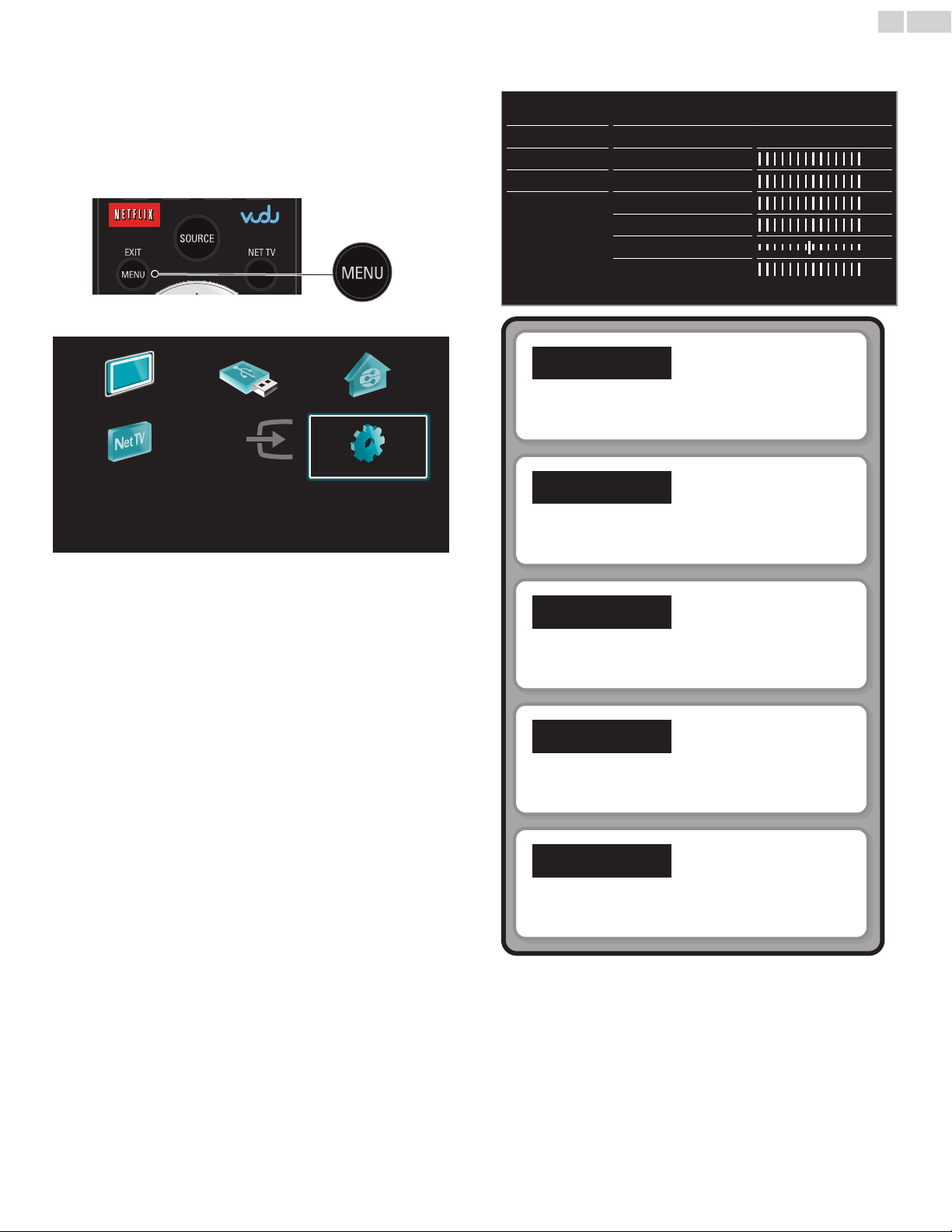
English
29
5 UsemoreofyourTV
3 Use ▲▼ to select the desired menu and an item, then press OK
or use ▲▼◄► to determine the setting.
Picture
Settings assistant
Start now
Auto picture
Personal
Backlight
Contrast
Brightness
Color
Tint
Sharpness
Sound
Features
Installation
Software
Picture
➠
p.30
Adjusting the picture mode or customize the picture
quality as your preference.
Sound
➠
p.32
Adjusting the sound mode, equalizer and some other
sound functions.
Features
➠
p.33
Adjusting the Closed Caption, parental guide and some
other useful functions.
Installation
➠
p.36
You can choose language, scan the channels available in
your area or make the Network settings.
Software
➠
p.43
You can check the current software version, update the
software or deactivate the setting for Netix and VUDU.
4 When the setting is completed, press MENU/E�IT or BACK to
exit.
This section describes the overview of the Setup menu displayed when
you press
MENU/E�IT and use ▲▼◄►to selectSetup.
The Setup menu consists of the function setting items below.
1 Press MENU/E�ITto display Home menu.
2 Use ▲▼◄► to select Setup, then press OK.
WatchTV BrowseUSB BrowsePC
NetTV Addnewdevices Setup
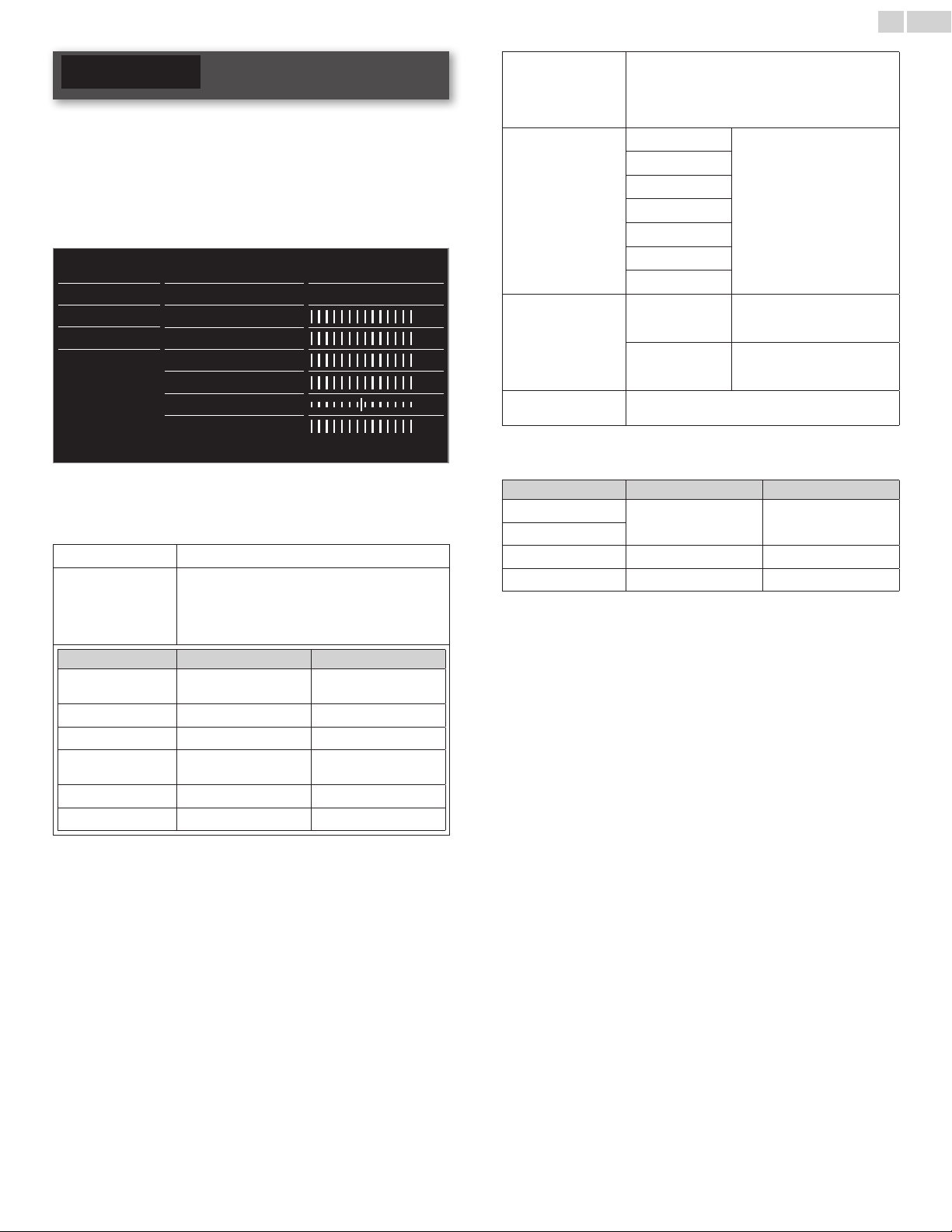
English
30
Picture
Before you begin:
You must set Home in Location.
➠
p.38
Otherwise, personalized picture and sound settings will not be
memorized after the unit goes into Standby mode.
1 Press MENU/E�IT and use ▲▼◄► to select Setup, then press
OK.
2 Use ▲▼ to select Picture, then press OK.
Picture
Settings assistant
Start now
Auto picture
Personal
Backlight
Contrast
Brightness
Color
Tint
Sharpness
Sound
Features
Installation
Software
3 Use ▲▼◄► to select the item you want to adjust, then press OK.
• The following picture settings can be congured. Depending on
the format of the picture Source, some picture settings are not
available.
Settingsassistant
to guide you through the best picture setting
Autopicture
to select the desired setting, then press OK
(Personal, Vivid, Sports, Standard, Movie,
Game
Internetvideoand Powersaver)
When you adjust the following settings, Personal will
be set automatically.
Cursor◄ Cursor►
Backlight
to reduce power
consumption
to set the backlight
brighter
Contrast
to decrease contrast to increase contrast
Brightness
to decrease brightness to increase brightness
Color
to decrease color
intensity
to increase color intensity
Tint
to add red to add green
Sharpness
to soften to sharpen
*Advancedpicture
to select the desired setting, then press OK
(
Coloralignment, Noisereduction, Blackstretch,
Dynamiccontrast, Gamma, MPEGartifactreduction,
Colorenhancement,Customcolormanagement
andFilmmode)
Pictureformat
Automatic
Changingpictureformat
➠
p.26
Superzoom
4:3
Movieexpand14:9
Movieexpand16:9
Widescreen
Unscaled
Modeselection
PC
to Turn Off image enhancement
features which makes the TV to
act purely as a monitor
HDTV
to enable image enhancement
features to improve picture
quality
Autoadjustment
to adjust the horizontal / vertical position, clock and
phase of the PC screen automatically
Cursor◄ Cursor►
Clock
to decrease setting value to increase setting value
Phase
Horizontalshift
to move PC screen left to move PC screen right
Verticalshift
to move PC screen down to move PC screen up
Continued on next page.
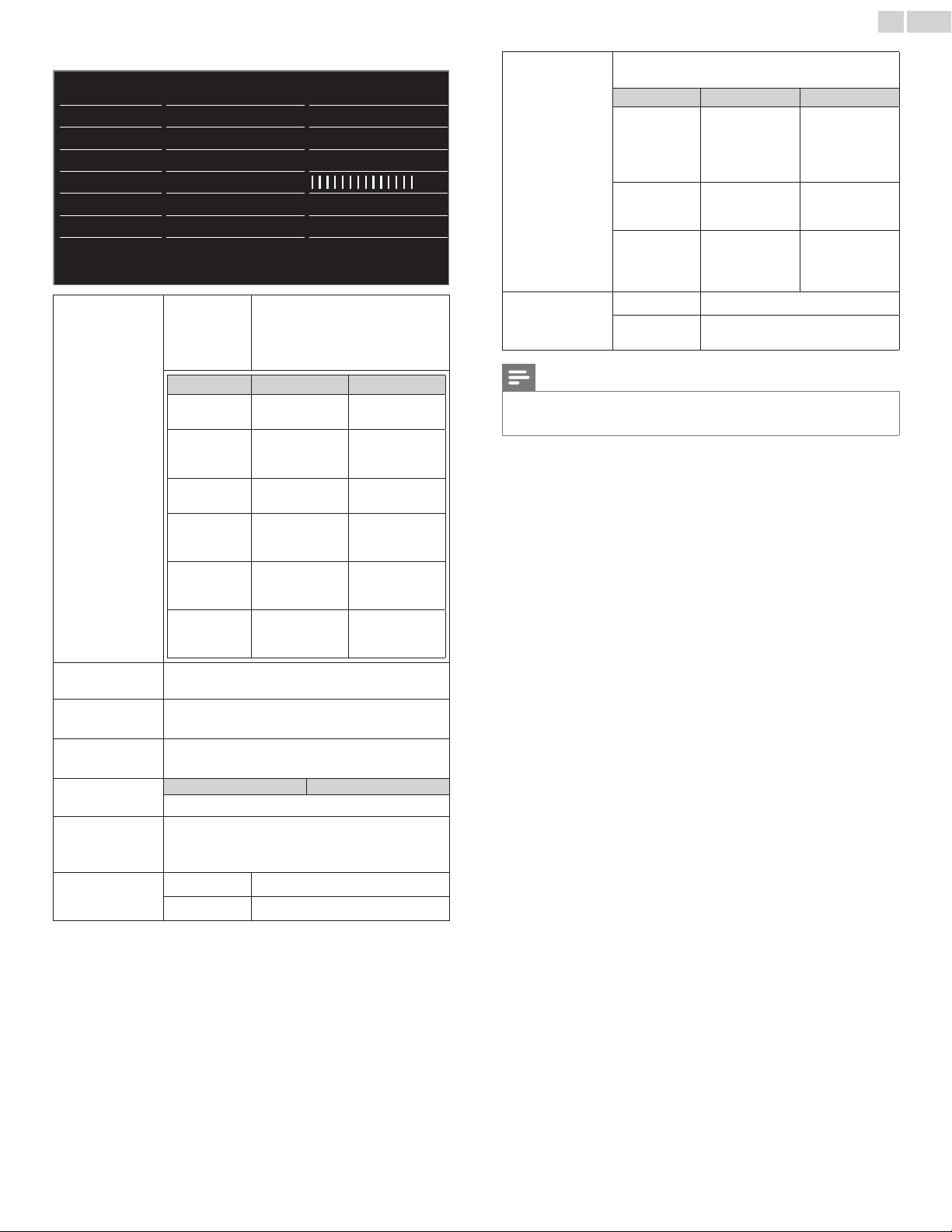
English
31
*You can set a particular about picture quality in Advanced picture.
Auto picture Color alignment
Mode
Noise reduction
Minimum
Black stretch
On
Dynamic contrast
Off
Gamma
MPEG artifact reduction
Off
Color enhancement
Off
Custom color managem
Red
Backlight
Contrast
Brightness
Color
Tint
Sharpness
Advanced picture
Color
alignment
Mode
to set the color temperature to
Personal, Cool, Normal and Warm
When you adjust the following
settings, Personal will be set
automatically.
Cursor◄ Cursor►
Redgain
to decrease
contrast with red
to increase
contrast with red
Greengain
to decrease
contrast with
green
to increase
contrast with
green
Bluegain
to decrease
contrast with blue
to increase
contrast with blue
Redoffset
to decrease
brightness with
red
to increase
brightness with
red
Greenoffset
to decrease
brightness with
green
to increase
brightness with
green
Blueoffset
to decrease
brightness with
blue
to increase
brightness with
blue
Noise
reduction
to select the desired setting, then press OK
(Off, Minimum, Medium, Maximum and Auto)
Black
stretch
to select the desired setting, then press OK
(Off, Minimum, Medium and Maximum)
Dynamic
contrast
to select the desired setting, then press OK
(Off, Minimum, Medium and Maximum)
Gamma
Cursor◄ Cursor►
to adjust the gamma encoding of images
MPEG
artifact
reduction
to select the desired setting, then press OK
(Off, Minimum, Medium and Maximum)
Color
enhancement
Off
to set color enhancement to Off
On
to make colors more vivid and bright
Custom
color
management
to select the desired setting, then press OK
(Red, Yellow,
Green,Cyan,BlueandMagenta)
Cursor◄ Cursor►
Tint
to rotate only
selected color
tint in clockwise
direction
to rotate
only selected
color tint in
counterclockwise
direction
Saturation
to decrease color
with only selected
color
to increase color
with only selected
color
Brightness
to decrease
brightness with
only selected
color
to increase
brightness with
only selected
color
Filmmode
Off
to set lm mode to Off
Auto
to optimize the picture recorded by
the original lm
Note
• Modeselection is available only if
– the external Input modes are selected HDMI 1, HDMI 2 or HDMI 3.
– the connected HDMI device is outputting a video signal.
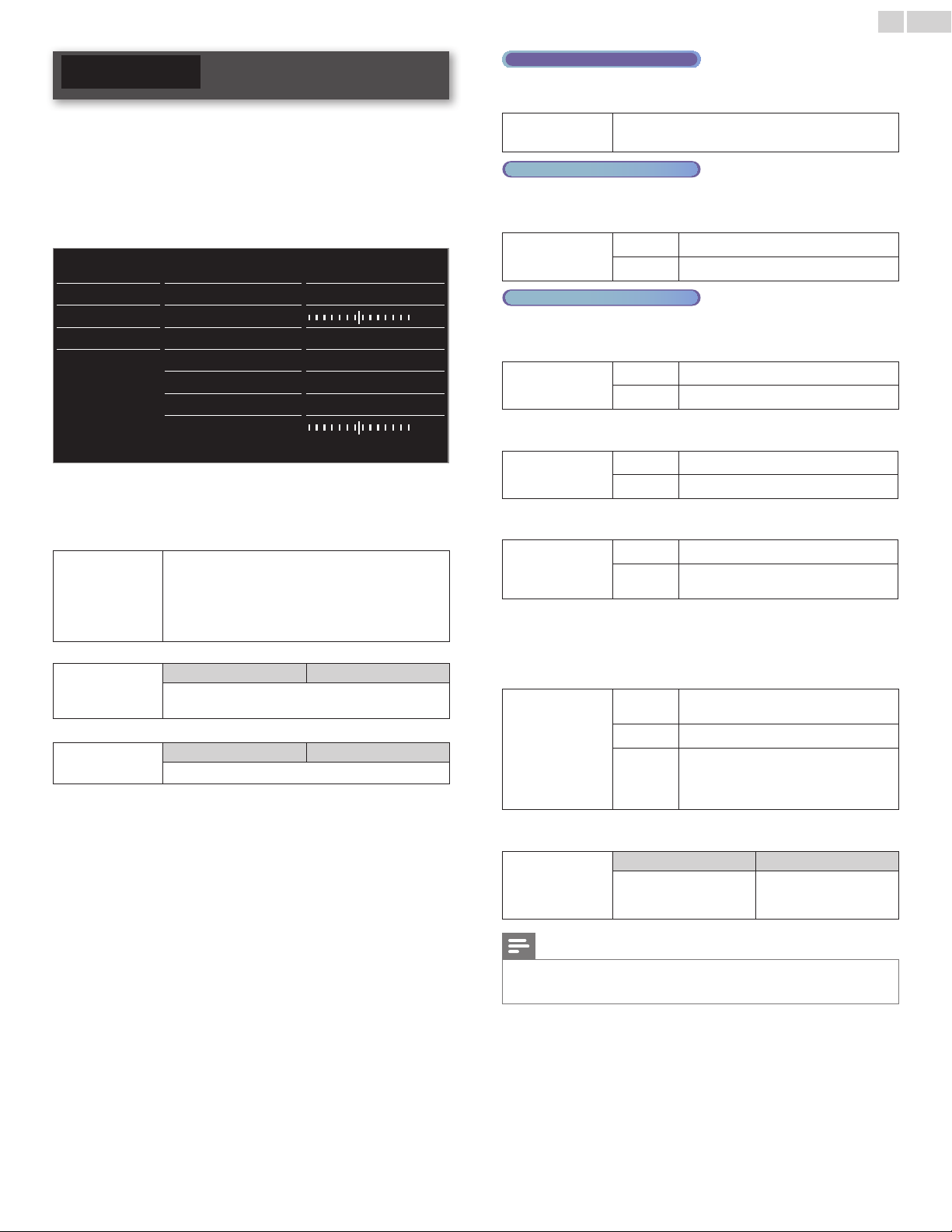
English
32
Sound
Before you begin:
You must set Home in Location.
➠
p.38
Otherwise, personalized picture and sound settings will not be
memorized after the unit goes into Standby mode.
1 Press MENU/E�IT and use ▲▼◄► to select Setup, then press
OK.
2 Use ▲▼ to select Sound, then press OK.
Picture
Auto sound
Personal
Sound
Equalizer Start now
Features
Balance
Installation
Digital audio language English
Software
SRS TruSurround XT On
AVL
Off
TV speakers
On
Delta volume
3 Use ▲▼◄► to select the item you want to adjust, then press
OK.
The following sound settings can be congured. Depending on the
format of the broadcasting, some sound settings are not available.
Autosound
to select the desired setting
(Personal, Standard, Vivid, Sports, Movie,
Musicand
News)
When you adjust the following settings (Equalizer,
SRSTruSurround�Tand AVL), Personalwill be set
automatically.
Adjust the tonal quality for each frequency.
Equalizer
Cursor◄ Cursor►
to adjust the each level of tonal quality
Press BACK to go back to the previous menu.
Adjust the speakers to suit your listening preference.
Balance
Cursor◄ Cursor►
to adjust the balance of the right and left speakers
DigitalTVoperation
You can select the Audio language while your TV is receiving the Digital
broadcasting.
Digitalaudio
language
to select the language according to your preference.
(It differs depending on the program.)
Analog/CableTVoperation
You can select Main or SAP while your TV is receiving the Analog
broadcasting that has the SAP (Second Audio Program).
(It differs depending on the program.)
Alternateaudio
Main to output main-audio
SAP to output second-audio program
Analog/CableTVoperation
When you set to Main in Alternateaudio above, you can select Mono
or Stereo if the Analog broadcasting is sending the MTS (Multichannel
television sound).
Mono/Stereo
Mono to output mono-audio
Stereo to output stereo-audio
This selects sound modes for more spatial or surround sound
reproduction.
SRSTruSurround
�T
Off
to set SRS TruSurround XT
®
to Off
On
to set SRS TruSurround XT
®
to On
This function keeps a constant loudness differential between the TV
commercials and the programs.
AVL
Off
to remove the auto volume leveling
On
to reduce volume differences between the
TV commercials and the programs
You can select the Audio Output from the unit’s speakers or not. If your
amplier is HDMI link function compatible and connected by an HDMI
cable to this unit, some sound operations such as volume up can be
changed by using this unit’s remote control. Make sure
MasterEasyLink
is set to On.
➠
p.39
TVspeakers
Off
not to output sound from the unit’s
speakers
On
to output sound from the unit’s speakers
Speakers
EasyLink
to control Audio Output from your
connected EasyLink Compliant Devices
with
VOL+/−by using this unit's remote
control.
If a channel or Input device is too loud or too soft, navigate to that
channel or Input device.
Deltavolume
Cursor◄ Cursor►
to set a negative delta
volume level as per your
personal preferences
to set a positive delta
volume level as per your
personal preferences
Note
• Alternateaudio and Mono/Stereo are not available when you watching TV programs
with a cable box or satellite set-top box connected through an HDMI cable or
Component Video cables.
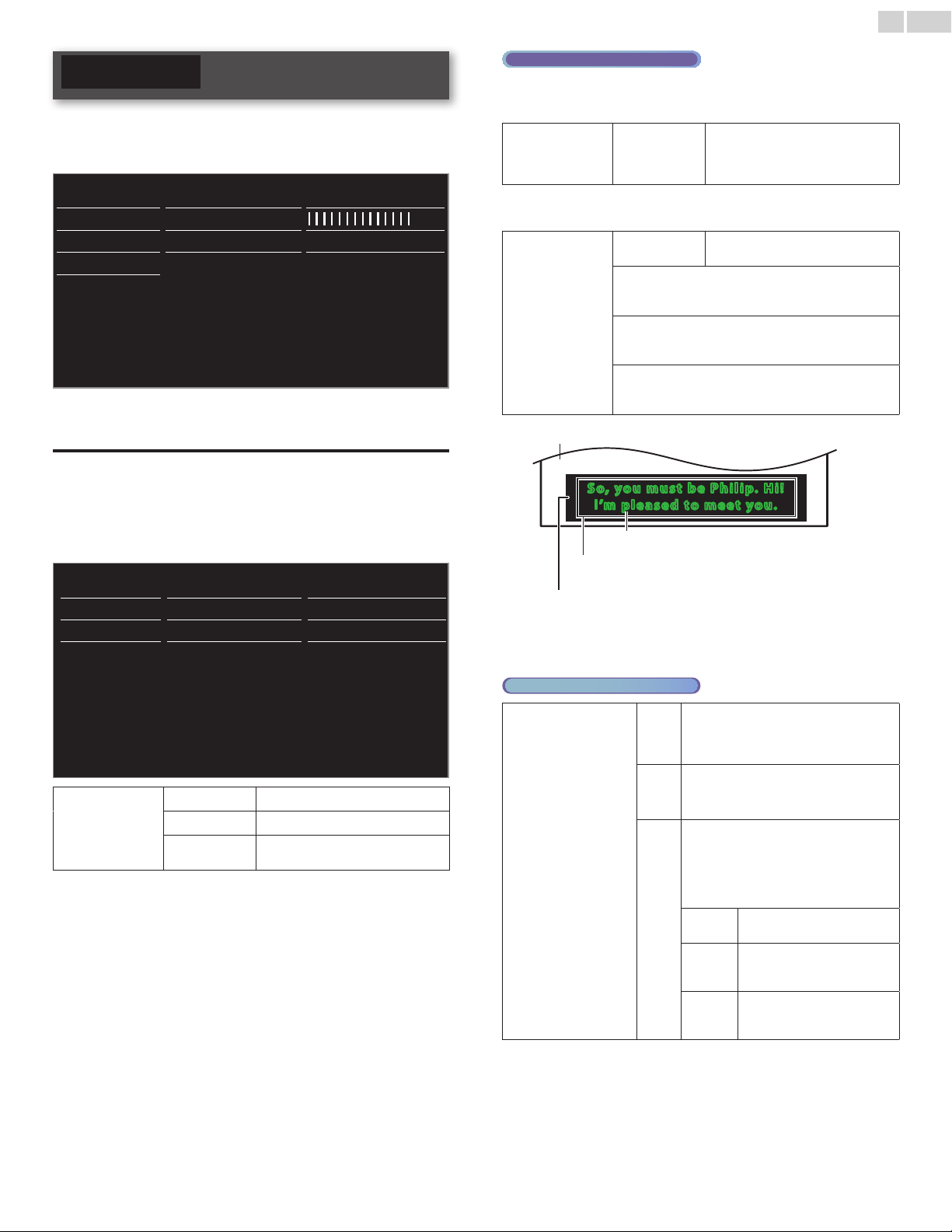
English
33
Features
1 Press MENU/E�IT and use ▲▼◄► to select Setup, then press
OK.
2 Use ▲▼ to select Features, then press OK.
Picture Caption settings Closed captions
Sound Sleeptimer
Features Child lock Channel lock
Installation
Change PIN Start now
Software
3 Adjust the following items.
Captionsettings
Closed Captioning displays the Audio portion of programming as text
superimposed over the video.
1 Use ▲▼ to select Captionsettings, then press OK.
Caption settings Closed captions Off
Sleeptimer Caption service CC-1
Child lock Digital caption service CS-1
Change PIN Digital caption options Reset to default
Closedcaptions
Off
not to display the Closed Caption
On
to display the Closed Caption
Onduringmute
to display the Closed Caption when
you set to mute
DigitalTVoperation
In addition to the basic Closed Caption, DTV has its own Closed
Caption called Digital caption service. Use this menu to change the
settings for Digital caption service.
Digitalcaption
service
CS-1
to
CS-6
Selects one of these before changing
any other item in
Captionsettings
menu. Choose CS-1 under normal
circumstances.
You can choose the size, font, color, background and other
characteristics of the caption text.
Digitalcaption
options
Resettodefault
You can reset the status of Digital
caption options.
You can change Closed Captioning font size, style, color
and transparency.
(Size, Style,
TextColor and Textopacity)
You can change background color and transparency of
the displayed caption.
(
Backgroundcolor and Backgroundopacity)
You can change edge color and type of the displayed
caption.
(
Edgetype and Edgecolor)
So, you m ust be P hili p. Hi !
I’m ple a sed to m eet yo u.
So, you m ust be P hili p. Hi !
I’m ple a sed to m eet yo u.
Background
(BackgroundcolorandBackgroundopacity)
Picturedisplay
Font
(Style,Size,TextColorandTextopacity)
Edge
(EdgecolorandEdgetype)
• Review your setting choice made below by looking in the upper
left corner of the displayed setting box (not all selections show
the differences selected).
Analog/CableTVoperation
Captionservice
CC-1
and
T-1
The primary caption and text services. The
captioning or text is displayed in the same
language as the program’s dialog (up to 4
lines of script on the TV screen).
CC-3
and
T-3
Serve as the preferred data channels. The
captioning or text is often a secondary
language.
CC-2,
CC-4,
T-2
and
T-4
Rarely available and broadcasters use them
only in special conditions, such as when
CC-1 and CC-3 or T-1 and T-3 are not
available.
• There are 3 display modes according to
programs:
Paint-on
Displays input characters on
the TV screen immediately.
Pop-on
Once characters are stored in
memory, they are displayed all
at once.
Roll-up
Displays the characters
continuously by scrolling (max.
4 lines).
Continued on next page.
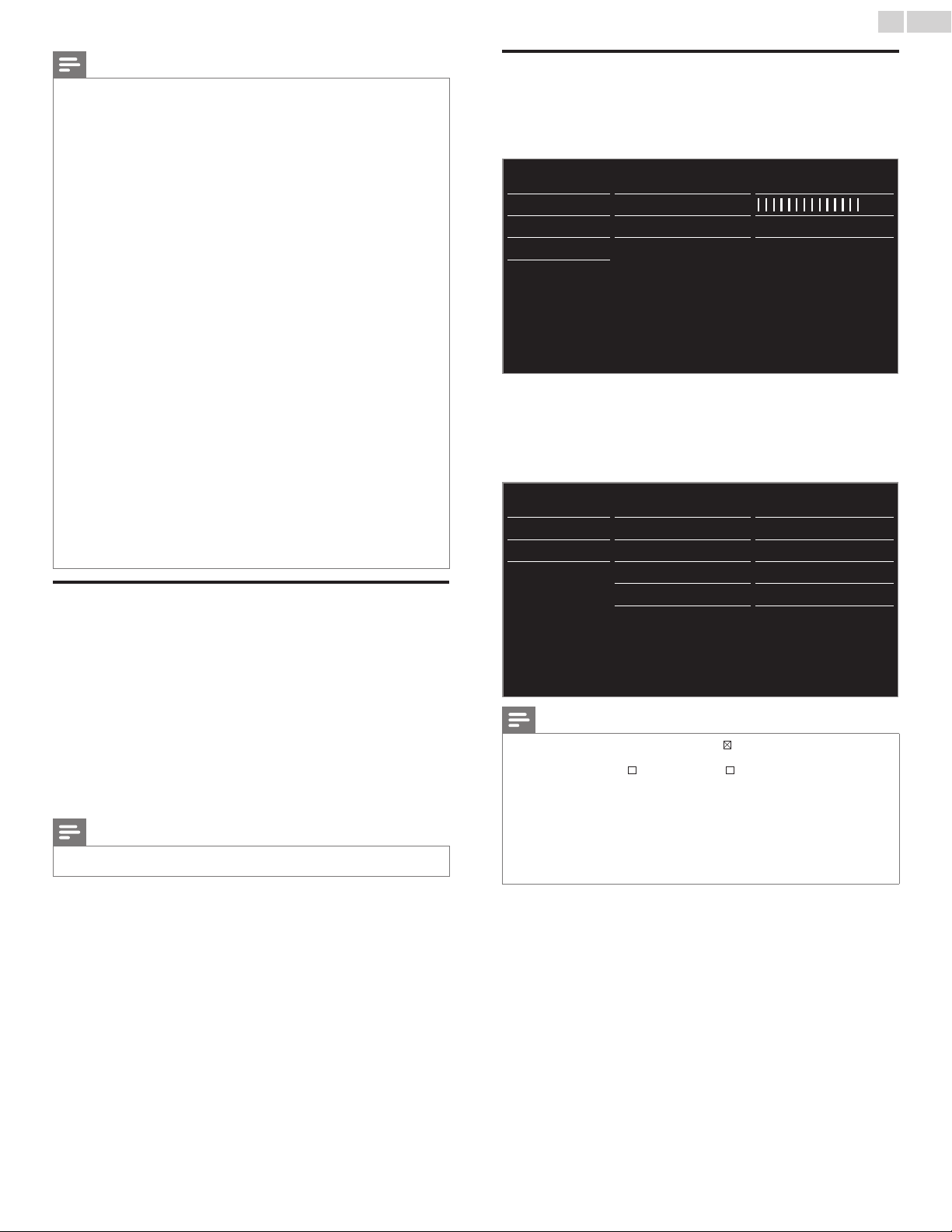
English
34
Note
• Digitalcaptionservice that you can switch differs depending on the broadcast
description.
• Closed Captioning service may not be controlled by this unit’s menu options if you are
watching television through an external cable or satellite set-top box. In which case
you will need to use the menu options on the external set-top box to control Closed
Captioning.
• The captions do not always use correct spelling and grammar.
• Not all TV programs and product commercials include Closed Caption information.
Refer to your area TV program listings for the TV channels and times of Closed Caption
shows. The captioned programs are usually noted in the TV listings with service marks
such as CC.
• Not all captioning services are used by a TV channel during the transmission of a
Closed Caption program.
• Closed Caption will NOT be displayed when you are using an HDMI connection.
• To show the Closed Caption on your TV screen, broadcast signal must contain the
Closed Caption data.
• Not all TV programs and commercials have the Closed Caption or all types of the
Closed Caption.
• Captions and texts may not exactly match the TV voice.
• Changing channels may delay the Closed Caption for a few seconds.
• Adjusting or muting the volume may delay the Closed Caption for a few seconds.
• Abbreviations, symbols and other grammatical shortcuts may be used in order to keep
pace with the on-screen action. This is not a malfunction.
• The caption or text characters will not be displayed while the Home menu or functions
display is shown.
• If a black box appears on the TV screen, this means that the Closed Caption is set to
the text mode. To clear the box, select CC-1, CC-2, CC-3 or CC-4.
• If the unit receives poor quality television signals, the captions may contain errors or
there might be no captions at all. Some possible causes of poor quality signals are:
– Automobile ignition noise
– Electric motor noise
– Weak signal reception
– Multiplex signal reception (ghosts or screen flutter)
– Data dropout and Pixelation (for DTV only)
• The unit retains the Closed Caption setting if the power fails.
• When the unit receives special effects playback signal (e.g. Search, Slow and Still) from a
VCR’s video Output channel (ch3 or ch4), the unit may not display the correct caption
or text.
Sleeptimer
Sleep timer can set the unit to go into Standby mode after an
incremental period of time.
1 Use ▲▼ to select Sleeptimer, then press OK.
2 Use ► repeatedly to change the amount of time
(increases the time by 5 minutes up to 180 minutes).
• Each press of ◄ will decrease the time by 5 minutes.
• Press INFO once to call up the display for checking the
remaining time.
• To cancel the sleep timer, press ► repeatedly until “ 0 ” is
displayed.
Note
• You can also press SLEEP directly to switch the desired setting.
➠
p.25
Childandratingslock
You can prevent your children from watching certain programs or
certain channels by locking the TV controls and by using ratings.
1 Use ▲▼ to select Childlock, then press OK.
Picture Caption settings Closed captions
Sound Sleeptimer
Features Child lock Channel lock
Installation
Change PIN Start now
Software
2 Use theNUMBERbuttons to enter the 4-digit numbers for your
PIN code.
• When you have not set up your PIN code, enter 0, 0,0,0.
• When the PIN code is correct, Childlock menu is displayed.
See the following description for setting each item.
Caption settings Channel lock
Select
Sleeptimer TV ratings lock
Select
Child lock Movie ratings lock
Select
Change PIN
Canada English ratings lo
Select
Canada French ratings lo Select
Region ratings lock Select
Note
• When you select the higher rating and set it to , the lower ratings will be blocked
automatically.
• When you set the All to , all ratings return to automatically.
• Regionratingslock will be available when the unit receives a Digital broadcast using
the new rating system.
• To block any inappropriate programs, set your limits in TVratingslock,
Movieratingslockand Regionratingslock.
• The child lock setting will be retained after a power failure or after the power is
removed for longer than 10 seconds.
• For the United States, the unit may download the Region Ratings Lock Table, if required.
• The Canadian rating systems on this unit are based on CEA-766-A and CRTC policy.
Continued on next page.
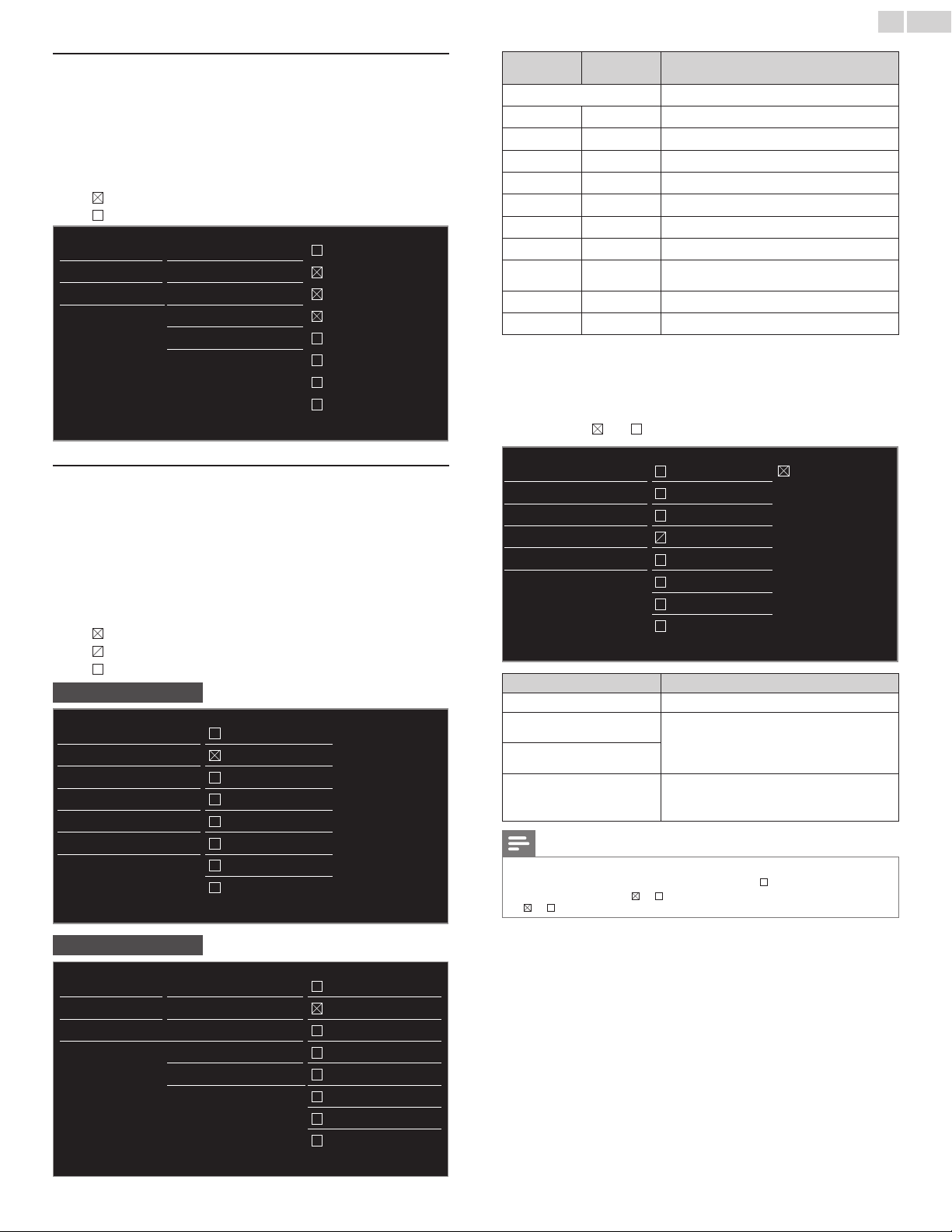
English
35
Channellock
Particular channels or external Input modes can be invisible in this
function.
3 Use ▲▼ to select Channellock, then press OK.
4 Use ▲▼ to select the particular channels or external Input, then
press OK repeatedly to switch between view and block.
• indicates that the channel or Input Source is locked.
• indicates that the channel or Input Source is not locked.
Caption settings Channel lock
40.1 DTV
Sleeptimer TV ratings lock
40.2 DTV
Child lock Movie ratings lock
40.3 DTV
Change PIN
Canada English ratings lo
40.4 DTV
Canada French ratings lo
HDMI1
Region ratings lock
HDMI2
HDMI3
Video
SettingTVandmovieratings
Movie ratings lock is the rating system created by MPAA. TV ratings lock
has controlled access to individual programs based on their age ratings
and content rating.
3 Use ▲▼ to select TVratingslock or Movieratingslock, then
press OK.
4 Use ▲▼ to select the desired rating, then press OK repeatedly to
switch between view and block.
• indicates that the rating is locked.
• indicates that the sub rating is locked.
• indicates that the rating is not locked.
TV ratings lock
Channel lock
All
TV ratings lock
None
Movie ratings lock
TV-Y
Canada English ratings
TV-Y7
Canada French ratings
TV-G
Region ratings lock
TV-PG
TV-14
TV-MA
Movie ratings lock
Caption settings
Channel lock
All
Sleeptimer TV ratings lock
NR
Child lock
Movie ratings lock
G
Change PIN
Canada English ratings lo
PG
Canada French ratings lo
PG-13
Region ratings lock
R
NC-17
�
USmovie
ratings
USTV
ratings
Description
All
All ratings locked including no rating
NR None
No rating
− TV-Y
Appropriate for all children
− TV-Y7
Appropriate for all children 7 and older
G TV-G
General audience
PG TV-PG
Parental guidance suggested
PG-13 −
Unsuitable for children under 13
− TV-14
Unsuitable for children under 14
R −
Restricted under 17 requires accompanying
parent or adult guardian
NC-17 −
No one under 17 admitted
� TV-MA
Mature audience only
To set the sub ratings
For TV ratings lock, you can further set the sub ratings to block specic
elements of programming. To set the sub ratings, follow the step below.
Use ▲▼◄► to select the desired rating, then press OK repeatedly to
switch between
and .
Channel lock
All FantasyViolence
TV ratings lock
None
Movie ratings lock
TV-Y
Canada English ratings
TV-Y7
Canada French ratings
TV-G
Region ratings lock
TV-PG
TV-14
TV-MA
USTVratings SubRating
TV-Y7
Fantasy Violence
TV-PG
Dialog
Language
Sex
Violence
TV-14
TV-MA
Language
Sex
Violence
Note
• Blocked sub rating will appear beside the main rating category in TVratingslock menu.
• You cannot block a sub rating if the main rating is set to .
• Changing the category to or automatically changes all its sub ratings to the same
( or ).
Continued on next page.
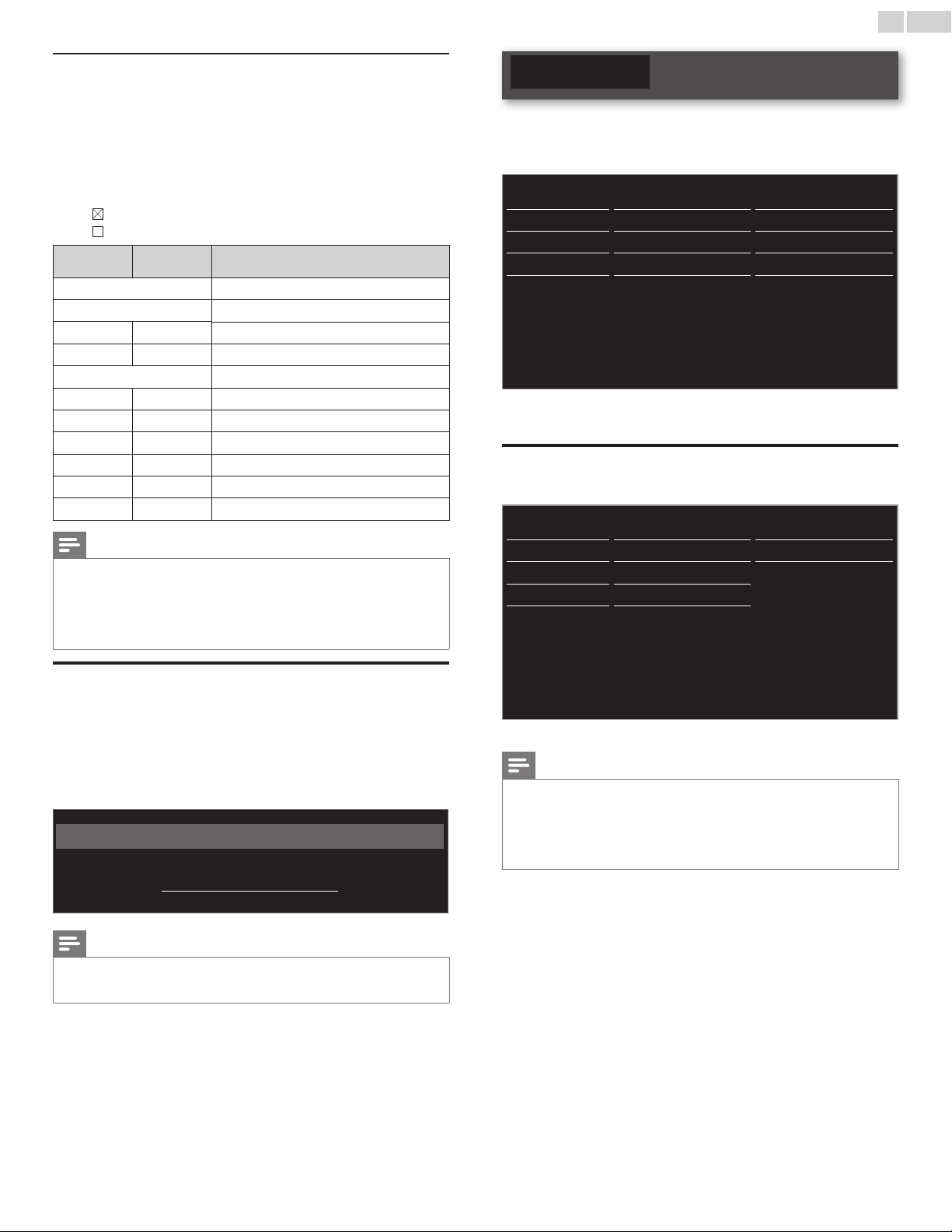
English
36
CanadaEnglishorCanadaFrenchratings
You can select the rating for Canada English or Canada French
broadcasting.
3 Use ▲▼ to select CanadaEnglishratingslock or
CanadaFrenchratingslock, then press OK.
4 Use ▲▼ to select the desired rating, then press OK repeatedly to
switch between view and block.
• indicates that the rating is locked.
• indicates that the rating is not locked.
CanadaEnglish
ratingslock
CanadaFrench
ratingslock
Description
All
Locked all ratings
E
Exempt program
C −
For all children
C8+ −
For children over 8
G
General audience
− 8ans+
Unsuitable for ages under 8
PG −
Parental guidance suggested
− 13ans+
Unsuitable for ages under 13
14+ −
Unsuitable for ages under 14
− 16ans+
Unsuitable for ages under 16
18+ 18ans+
Adult audience only
Note
• The V-Chip can block non rated programs as per “CEA-608-E sec. L.3”. If the option
to block NR, None or E programs is used in
Movieratingslock, TVratingslock,
CanadaEnglishratingslock or CanadaFrenchratingslock accordingly “unusual
results may occur and the unit may not receive emergency bulletins or other types
of programming:” / Emergency Bulletins (Such as EAS messages, weather warnings
and others) / Locally originated programming / News / Political / Public Service
Announcements / Religious / Sports / Weather.
ChangePIN
Although the default PIN code (0000) is supplied with the unit, you can
set your own PIN code.
1 Use ▲▼ to select ChangePIN, then press OK.
2 PresstheNUMBERbuttons to enter the new 4-digit PIN code.
• Enter PIN code again to conrm.
Change PIN
Please enter your current PIN.
Note
• Make sure new PIN code and conrm PIN code must be exactly the same. If they are
different, the space is cleared for reentering.
• If you have forgotten your PIN code, enter 0711 to reset the PIN code.
Installation
1 Press MENU/E�IT and use ▲▼◄► to select Setup, then press
OK.
2 Use ▲▼ to select Installation, then press OK.
Picture Language English
Sound Channels Autoprogram
Features Preferences Location
Installation Network Network settings assi
Software Reset AV settings Start now
3 Adjust the following items.
Language
1 Use ▲▼ to select Language, then press OK.
Picture Language English
Sound Channels Français
Features Preferences
Español
Installation Network
Software Reset AV settings
2 Use ▲▼ to select English,Español or Français, then press OK.
Note
• If you need the English menu instead of the Spanish or French menu’s, press
MENU/E�IT.
Use ◄►▲▼ to select Conguración or Conguration, then press OK.
Use ▲▼ to select Instalación or Installation, then press OK.
Use ▲▼ to select Idioma or Langue, then press OK.
Use ▲▼ to select English, then press OK.
Press MENU/E�IT to exit the Home menu.
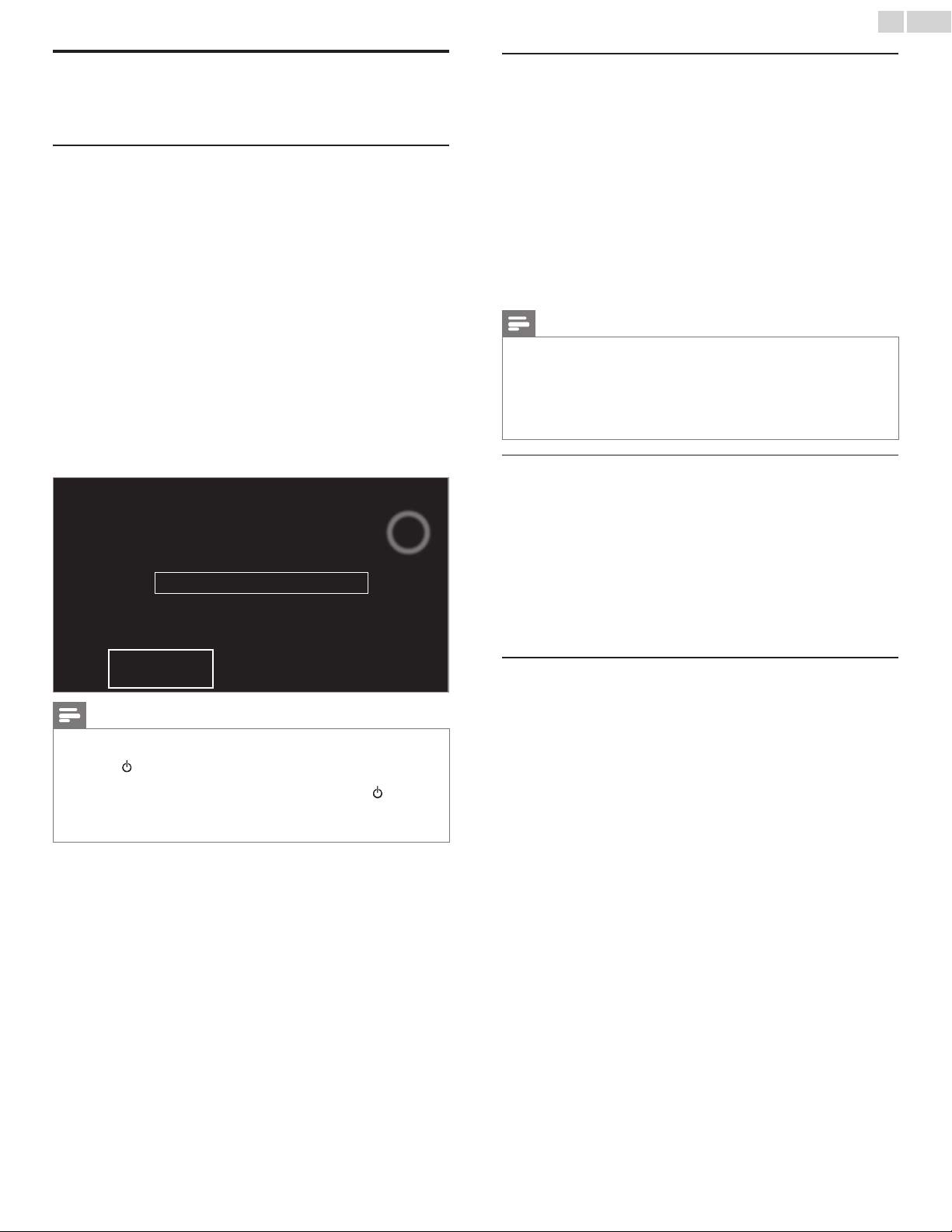
English
37
Channelinstallation
Be sure the RF cable is correctly connected to this unit and you are
registered with your cable TV provider when you install cable channels.
Autoprogram
If you switch wires (e.g. between antenna and CATV) or if you move
the unit to a different area after the initial setting, or if you restore the
DTV channels you deleted, it is recommended to use AutoProgram to
perform a new channel search.
You need to select the signal type in
Installationmode before you
perform AutoProgram.
1 Use ▲▼ to select Channels, then press OK.
2 Use ▲▼ to select Autoprogram, then press OK.
• If you run Autoprogram when you have locked channels, a
message appears asking to enter your PIN code. Enter your
PIN code in order to complete the installation. You need to set
the channel lock again after the installation.
3 Press OK to select Startnow.
• When the scanning and memorizing are completed, the lowest
memorized channel will be displayed.
4 Follow the on-screen instructions to complete the installation.
Systemsearching.Pleasewait...
Digitalchannelsfound: 0
Analogchannelsfound: 0
Autoprogrammingmaytakemorethan20minutesto
complete.
Stop
Note
• After setting Autoprogram, using CH+/−skips unavailable programs automatically.
• If you are not receiving a signal from your cable service, contact the cable provider.
• If you press or during AutoProgram, the setup of TV channels will be canceled.
• Even if Autoprogram is completed, the channel setting will be lost if the AC power
cord is unplugged before the unit goes into Standby mode by pressing
.
• The PIN code will be required once you set a PIN code in the Childandratingslock.
➠
p.34
• If you want to change your PIN code, follow the instruction of ChangePIN.
➠
p.36
Weakchannelinstallation
This function lets you add the channels that were not added by the
AutoProgram due to the reception conditions during the initial setup.
It is available only when you select Antenna in
Installationmode.
1 Use ▲▼ to select Channels, then press OK.
2 Use ▲▼ to select Weakchannelinstallation, then press OK.
• The PIN code will be required if you have locked channels.
3 Use ◄►
to select
channel Input box, then use ▲▼ to select a
channel you want to memorize.
4 Use ◄►
to select Search, then press OK.
5 Display will be changed to Store from Search when the channel is
found, then press OK.
Note
• In most cases, Digital channels are not broadcast on the RF channel on which they
appear on your TV. To add Digital channels you need to know the RF channel on which
the Digital channel is being broadcast. (e.g. If there is a Digital channel 9.1 which is being
broadcast on RF channel 25, you need to enter 25 while performing a weak channel
installation.) To nd out the RF channel on which a particular Digital channel is being
broadcast, please contact your local service provider.
Installing Digital channels using Weakchannelinstallation might not work for direct
cable connections and if the Digital signal is too weak for the TV to process.
Installationmode
1 Use ▲▼ to select Channels, then press OK.
2 Use ▲▼ to select Installationmode, then press OK.
3 Use ▲▼
to select Antenna or Cable, then press OK.
• When Antenna is selected, the TV detects antenna signals. It
searches for DTV and Analog TV channels available in your area.
• When Cable is selected, the TV detects signals supplied by cable.
It searches for DTV Analog TV and Cable channels available in
your area.
Uninstallchannels
Those channels can still be selected with theNUMBERbuttons.
1 Use ▲▼ to select Channels, then press OK.
2 Use ▲▼ to select Uninstallchannels, then press OK.
3 Use ▲▼
to select the channel you want to remove, then press OK.
• You will not be able to select the channel again using CH+/−.
• The removed channels are not displayed on the list of favorite
channels.
• To reactivate a removed channel, use ▲▼ then press OK.
English
38
Preferences
You can set the unit to reduce the power consumption or adjust the
backlight brightness in Location setting.
EasyLink allows you to operate your connected EasyLink device.
Settingyourlocationtohome
Choosing Home gives you full exibility to change predened settings
for picture and sound.
1 Use ▲▼ to select Preferences, then press OK.
2 Use ▲▼ to select Location, then press OK.
Language Location Retail store
Channels
EasyLink Home
Preferences
Network
Reset AV settings
3 Use ▲▼ to select Home, then press OK.
Retailstore
The unit will be set up with predened settings for
retail displays. In this setting, the power consumption
may possibly exceed the limit requirement of the
ENERGY STAR
®
qualication.
Home
This setting is ENERGY STAR
®
qualied.
The unit is set to maximize the energy efciency
for home setting and it can be adjusted through a
choice of picture and sound quality according to your
preference.
Note
• You must set Home. Otherwise, personalized picture and sound settings will not be
memorized after the unit goes into Standby mode.
• If you select Home, E-sticker will not be displayed.
E-sticker
When you set Locationto Retailstore, E-sticker (Electronic Sticker) is
displayed. E-sticker can be Turned Off using procedure below.
1 Use ▲▼ to select Preferences, then press OK.
2 Use ▲▼ to select E-sticker, then press OK.
3 Use ▲▼
to select Off, then press OK.
UsePhilipsEasyLink
Your TV supports Philips EasyLink, which enables one-touch play and
one-touch Standby between EasyLink-compliant devices. Compliant
devices must be connected via an HDMI connector.
One-touchplay
When you connect your TV to devices that support one-touch play,
you can control your TV and the devices with one remote control. For
example, when you press ►(play) on your DVD remote control, your
TV automatically switches to the correct channel to show the DVD
content.
One-touchStandby
When you connect your TV to devices that support Standby, you can
use your TV remote control to put your TV and all connected HDMI
devices in Standby mode. You can perform one-touch Standby using the
remote control from any of the connected HDMI devices.
Systemaudiocontrol
When you connect your TV to HDMI CEC compliant devices, your
TV can switch automatically to play audio from the connected device.
To use one-touch audio, you must map the audio input from the
connected device to your TV. You can use the remote control from the
connected device to adjust the volume.
Remotecontrol(RC)keyforwarding
RC key forwarding allows you to control EasyLink-compliant devices
using your TV remote control.
HDMI-ARC(AudioReturnChannel)
HDMI-ARC allows you to use Philips EasyLink to output TV audio
directly to a connected Audio device, without the need for an additional
Digital Audio cable. Be sure that the device is HDMI CEC and ARC
compliant, and that the TV is connected to the device using an HDMI
cable attached to both HDMI-ARC connectors.
Note
• Philips does not guarantee 100% interoperability with all HDMI CEC devices.
• The EasyLink-compliant device must be Switched On and selected as the source.
English
39
EasyLink
This function allows you to operate the linked functions between our
brand devices with a EasyLink feature and this unit connecting through
an HDMI cable. You must connect this unit to our brand EasyLink
devices and be sure its EasyLink setting is also set to On.
1 Use ▲▼ to select Preferences, then press OK.
2 Use ▲▼ to select EasyLink, then press OK.
3 Use ▲▼◄► to select the item you want to adjust, then press
OK.
Location Master EasyLink On
EasyLink
Auto TV on On
RC key forwarding Select
HDMI-ARC Off
Device list Select
Set the MasterEasyLink to On or Off. The following additional settings
will be grayed out when you set to Off.
MasterEasyLink
Off
Disables all EasyLink.
On
Selects if you have connected an
external device that is compatible with
the EasyLink function.
This unit will Turn On when the Power On signal is sent from your
connected EasyLink device.
AutoTVon
Off
This unit stays in Standby mode even if
you Turn On your connected EasyLink
device.
On
This unit Turns On automatically when
you Turn On your connected EasyLink
device.
You can operate some functions such as disc playback or call up the
menu of the connected devices, by using this unit’s remote control.
You can set each HDMI input to activate the
RCkeyforwarding. Each
press of OK will toggle
RCkeyforwarding On or Off.
• indicates that the RCkeyforwarding is On.
• indicates that the RCkeyforwarding is Off.
RCkeyforwarding
HDMI1
PLAY, PAUSE
Æ∆
/ STOPC /
FWD D / REV E / OPTIONS /
▲▼◄► / OK / BACK /
theNUMBERbuttonscan be used
to control your connected EasyLink
devices by this unit’s remote control.
HDMI2
HDMI3
HDMI-ARC allows you to use Philips EasyLink to output TV Audio
directly to a connected Audio device, without the need for an
additional Digital Audio cable
HDMI-ARC
Off
Disable HDMI-ARC.
On
You can output TV Audio through
the HDMI cable solely, provided both
the TV and device are HDMI-ARC
compliant.
Devicelist
This function lets you see the product model number or name of
connected devices.
Use ▲▼ to select the desired EasyLink device listed on the TV screen,
then press OK.
Your connected EasyLink device will be Turned On if the device is in
Stand by mode.
Device list
Refresh
Back
HDMI1:DVDrecorder
HDMI2:Blu-raydiscplayer
HDMI3:Hometheatersystem
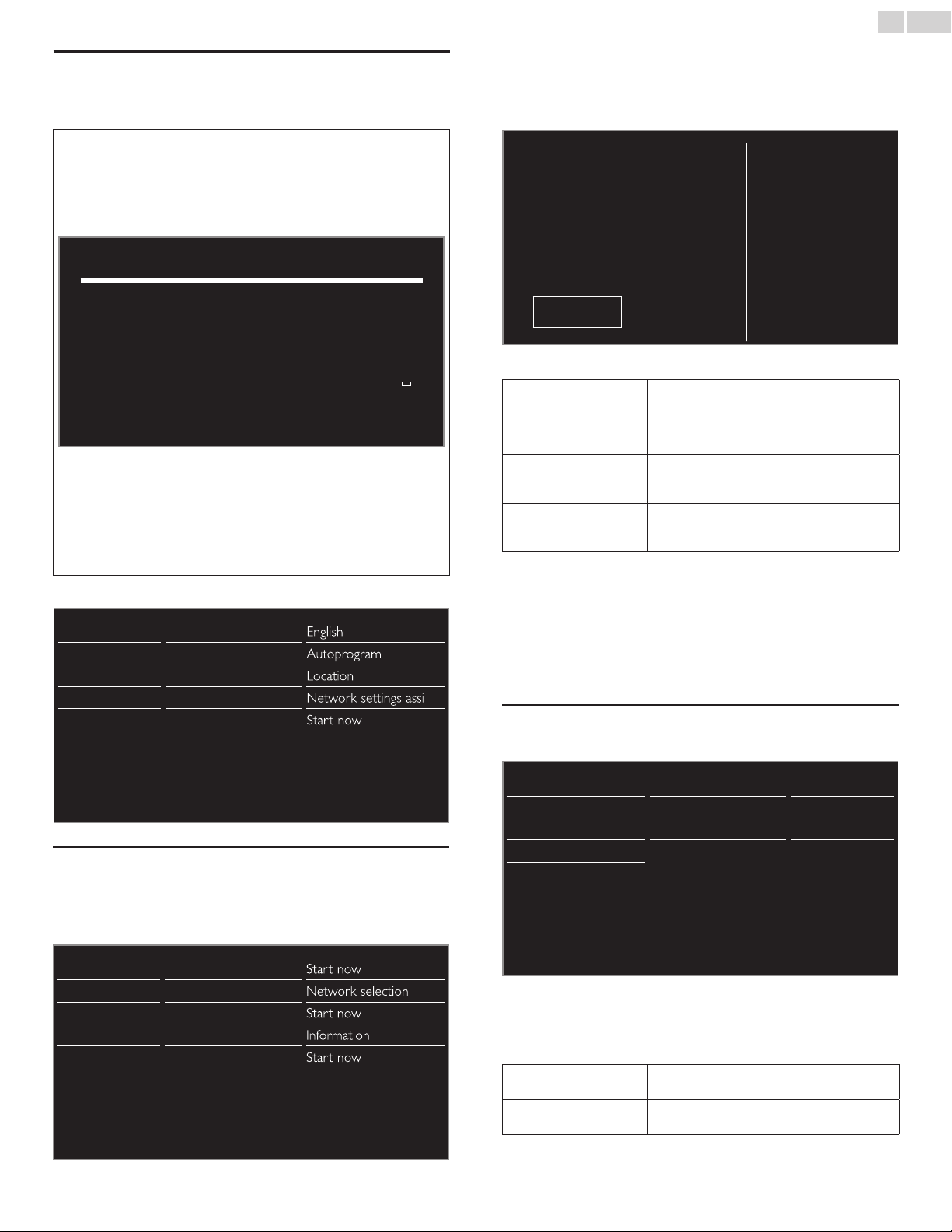
English
40
Network
Set up network connection settings in order to use Net TV or network
upgrade function.
• The meanings of abbreviations are dened as below.
AP
:WirelessLANAccessPoint
WPS :Wi-FiprotectedSetup
SSID :Wirelessnetworkname
• The key entry screen will appear when you select SSID,
WEP / WPA or Proxy address.
1 2 3 4 5 6 7 8 9 0
a b c d e f g h i j
k l m n o p q r s t
u v w x y z . - _
―
Clear Allclear a/A/@ Cancel OK
• Enter the key of the selected wireless network using ▲▼◄►,
then press OK.
Clear : Clear the entered number or word.
Allclear : Clear all the entered numbers or words.
a/A/@ : Switch between abc, ABC and @ ! ?
Cancel : Shows the cancellation display.
OK : Set the entered number or word.
1 Use ▲▼ to select Network, then press OK.
Picture Language English
Sound Channels Autoprogram
Features Preferences Location
Installation Network Network settings assi
Software Reset AV settings Start now
Networksettingsassistant
Before you proceed to Connectiontest or other settings in Network
section, set this selection to suit your preference.
2 Use ▲▼ to select Networksettingsassistant, then press OK.
Language Network settings assistant Start now
Channels Manual network settings Network selection
Preferences Connection test Start now
Network Setting status Information
Reset AV settings Reset network settings Start now
3 Press OK to select Startnow.
Wirelesssetting
Select to use a wireless LAN to connect to the Internet by wireless
connection.
4 Use ▲▼ to select Wireless, then press OK.
ThisTVcanbeconnectedtoyourhome
network.
Selectyourconnectiontype.
Wireless
Wired
Cancel
5 Use ▲▼ to select the desired setting, then press OK.
Easyconnect
Select this setting if your router has a WPS
button. Start scanning for wireless networks on
the TV after pressing the WPS button on your
router. If connection test fails, refer to the router’s
manual for more details.
Scan
Search for wireless networks automatically
and select the SSID from the list.
Wirelessnetworksetting
➠
p.41
Manualentry
Set up the connection to the AP (e.g. wireless
router) manually by entering the SSID.
Wiredsetting
Select to use an Ethernet cable to connect to the Internet by wired
connection. Please purchase shielded Ethernet cables at your local store
and use them when you connect to network equipment.
4 Use ▲▼ to select Wired, then press OK.
• Connectiontest will start automatically.
➠
p.42
Manualnetworksettings
2 Use ▲▼ to select Manualnetworksettings, then press OK.
Network settings assistant Network selection Wireless
Manual network settings Wireless network setting Auto
Connection test IP configuration IP setting mode
Setting status
Proxy configuration Proxy setting
Reset network settings
Networkselection
3 Use ▲▼ to select Networkselection, then press OK.
4 Use ▲▼ to select the desired setting, then press OK.
Wired
If you connect to an Ethernet cable, select Wired
to connect to the Internet.
Wireless
If you have a router with WPS function, select
Wireless to connect to the Internet.
Continued on next page.
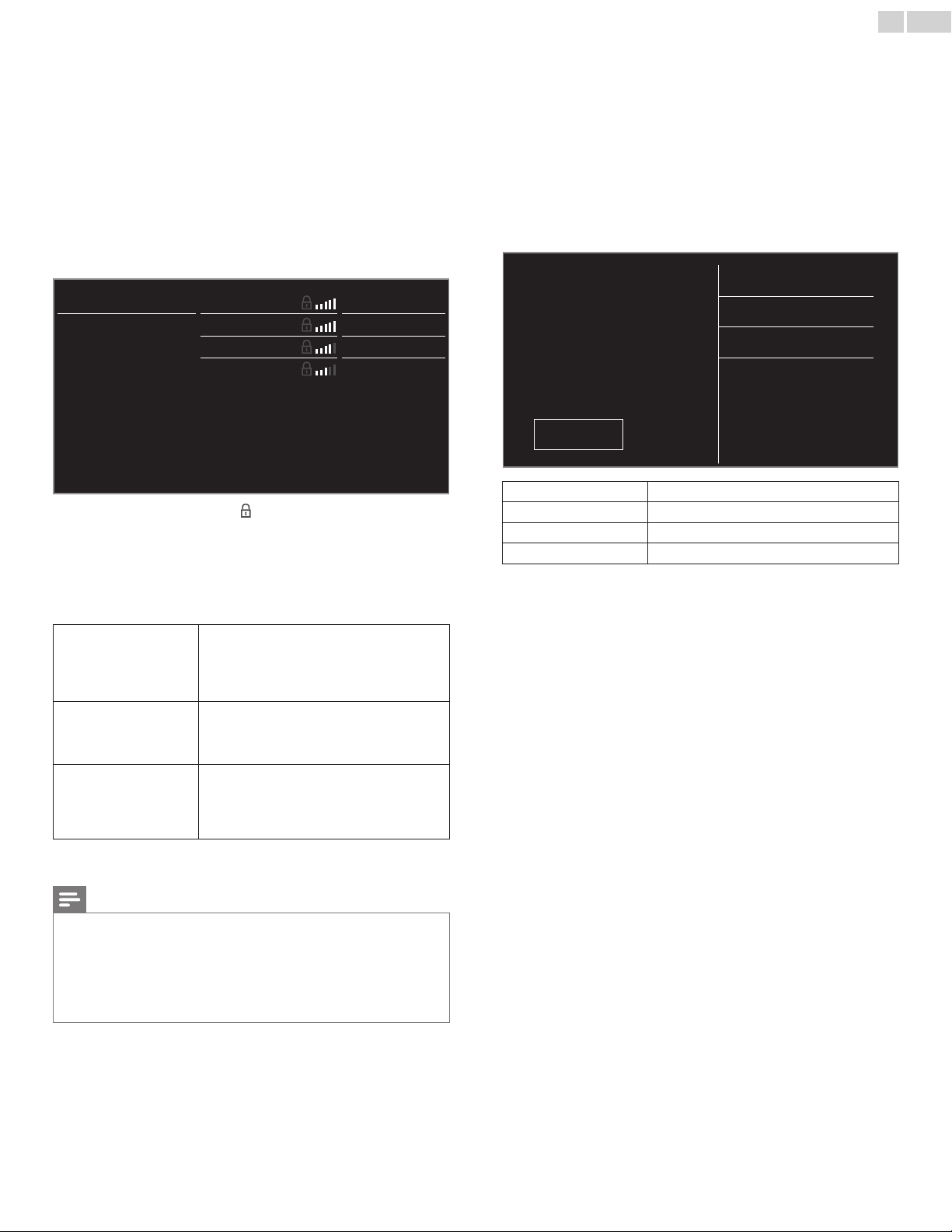
English
41
Wirelessnetworksetting
This menu is displayed only when you set Wireless in
Networkselection. In order to use a wireless network, you must set up
a connection to the AP (e.g. wireless router).
3 Use ▲▼ to select Wirelessnetworksetting, then press OK.
Auto
Search for wireless networks automatically and select the SSID from the
list.
4 Use ▲▼ to select Auto, then press OK.
5 The list of wireless networks will be displayed.
Use ▲▼ to select the appropriate the SSID, then press OK.
Auto Router 1
Enter Key
Manually enter your S
Router 2
Select
Router 3
Enter Key
Router 4
Select
• If you select the SSID with , WEP / WPA Key entry screen will
appear.
Enter the WEP / WPA key of the selected wireless network
using ▲▼◄►, then press OK.
• If you select the SSID has a WPS, the WPS setting screen will
appear.
Use ▲▼◄► to select a setting, then press OK.
Easyconnect
Select this setting if your router has a WPS
button. Start scanning for wireless networks on
the TV after pressing the WPS button on your
router. If connection test fails, refer to the router’s
manual for more details.
WPScode
Select this setting if your router has a WPS but
does not have a WPS button. Enter the 8-digit
WPS PIN code shown on your TV in the router
settings menu via PC before Connect is selected.
Manual
If your wireless network with authentication
setting (WEP, WPA-PSK or WPA2-PSK),
WEP / WPA Key entry screen will appear. Enter
the WEP / WPA key of the selected wireless
network using ▲▼◄►, then press OK.
• Conrmation message will appear. Select OK to complete the
settings.
Note
• For a wireless network with authentication setting, key icon appears to the right hand
of the SSID.
• Signal icon shows the strength of the signal.
• WEP / WPA key appears as asterisks on the conrmation screen.
• The wireless LAN supports following specications.
– Wireless standards : IEEE 802.11 b/g/n
– Frequency spectrum : 2.4GHz
– Security protocol : WEP / WPA / WPA2
ManuallyenteryourSSID
Set up the connection to the AP (e.g. wireless router) manually by
entering the SSID.
4 Use ▲▼ to select ManuallyenteryourSSID, then press OK.
• AP (e.g. wireless router) SSID entry screen will appear.
Enter the SSID using ▲▼◄►, then press OK.
5 Use ▲▼ to select the authentication setting of the selected
wireless network.
• For a wireless network with authentication setting, select the
authentication setting, according to the security type of the
wireless network.
Selectsecuritytypefor
"Router1"
None
WEP
WPA-PSK
WPA2-PSK
Back
None
Set the authentication setting to None.
WEP
Set the authentication setting to WEP.
WPA-PSK
Set the authentication setting to WPA-PSK.
WPA2-PSK
Set the authentication setting to WPA2-PSK.
• For a wireless network without authentication setting, select
None.
• If you selectWEP, WPA-PSK or WPA2-PSK, WEP / WPA Key
entry screen will appear.
Enter the WEP / WPA key of the selected wireless network
using ▲▼◄►, then press OK.
• Conrmation message will appear. Select Yes to complete the
settings.
Continued on next page.
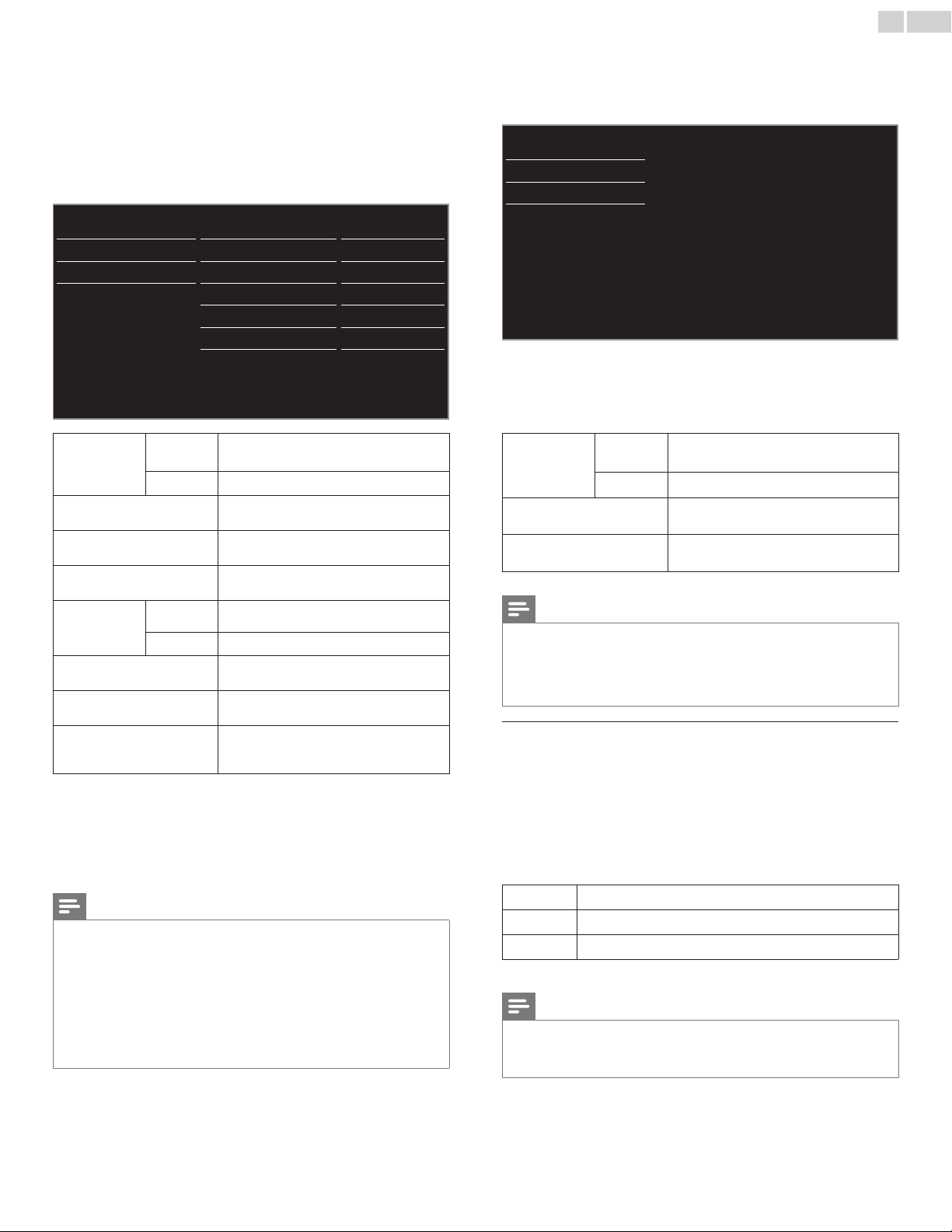
English
42
IPconguration
In following cases, select IPconguration to set each setting as
necessary.
– When connection test failed with the setting of Connectiontest.
– When instructed by your Internet service provider to make specific
settings in accordance with your network environment.
3 Use ▲▼ to select IPconguration, then press OK.
4 Use ▲▼ to select a setting, then press OK.
Network selection IP setting mode Manual
Wireless network setting IP address 192.168.11.3
IP configuration Subnet mask 255.255.255.0
Proxy configuration
Default gateway 192.168.11.1
Primary DNS 192.168.11.1
Secondary DNS
0.0.0.0
MAC address 00:12:0E:10:09:15
IPsettingmode
Auto
Sets the IP setting automatically.
Manual
Sets the IP setting manually.
IPaddress*
1, 3
A set of numbers which are assigned to
devices participating in a computer network.
Subnetmask*
1, 3
A mask which is used to determine what
subnet an IP address belongs to.
Defaultgateway *
1, 3
IP address of the network device (such as
router) which provides Internet access.
DNS
settingmode
Auto
Sets the DNS setting automatically.
Manual
Sets the DNS setting manually.
PrimaryDNS *
2, 3
A server which handles the name and IP
address over the Internet.
SecondaryDNS *
2, 3
A server which handles the name and IP
address over the Internet.
MACaddress
An address which recognizes the devices
connecting to the network. It is also called
Hardware Address.
*
1
Items can be selected only when IPsettingmode is set to Manual.
*
2
Items can be selected only when DNSsettingmode is set to Manual.
*
3
Use ▲▼ or theNUMBERbuttons to input numbers. When you use
▲▼ to input numbers, then press OK or input the triple digits by using
theNUMBERbuttons, the cursor moves to the next entry eld. When you
use ▲▼ to input numbers, then press OK or input the triple digits by using
theNUMBERbuttons at the rightmost entry eld, numbers will be stored
and go back to the previous menu.
Note
• The range of input numbers is between 0 and 255.
• If you enter a number larger than 255, the number will automatically be 255.
• The manually entered number will be saved even if you change the setting to Auto.
• If you want to enter 1 or 2 digit number in one cell, press OK to move on to the next
cell.
• If the entered IP address or the default gateway or primary DNS number is same as
the default setting, IP address setting will be set to Auto. (The manually entered number
will be saved).
• When IP address setting is set to Manual, the setting of DNS setting will automatically
be Manual and when IP address setting is set to Auto, you can set either Auto or
Manual for DNS setting.
Proxyconguration
3 Use ▲▼ to select Proxyconguration, then press OK.
4 Use ▲▼ to select a setting, then press OK.
Network selection
Proxy setting Do not use
Wireless network setting
IP configuration
Proxy configuration
• Donotuse is selected for default settings.
• If you need to change the proxy setting as instructed by your
Internet service provider to set the designated proxy address
and port, select Use.
Proxysetting
Donotuse
Not use the proxy server.
Use
Uses the proxy server.
Proxyaddress*
Selects the number or word by using
▲▼◄►, then press OK.
Proxyport*
Use ▲▼ or theNUMBERbuttons to input
numbers.
*
Items can be selected only when Proxysetting is set to Use.
Note
• The range of input numbers for the port number is between 0 and 65535.
(If you enter a number larger than 65535, it will be regarded as 65535.)
• For proxy port, the selected ports may be blocked and not be able to use depending
on your network environment.
• If the proxy address is entered with blank only, proxy server setting will be set to
Donotuse.
Connectiontest
Perform the following steps to test your Internet connection after you
have connected an Ethernet cable or entered network settings such as
IP address, DNS settings, etc. manually.
2 Use ▲▼ to select Connectiontest, then press OK.
3 Press OK to select Startnow.
• Connection test will start automatically and the test result will
appear right after the connection test nishes.
Testing…
The test is in progress.
Pass
Connection test is successfully completed.
Fail
Connection test failed. Check the connection settings.
4 Press OK to go to the list of network status conrmation screen.
Note
• If the connection test passes, you are ready to use Net TV or network upgrade function
using the Internet without making any additional settings.
• If the connection test fails, check if the Ethernet cable is connected to this TV properly
or if you have entered all the required details for the wireless LAN connection properly.
Continued on next page.
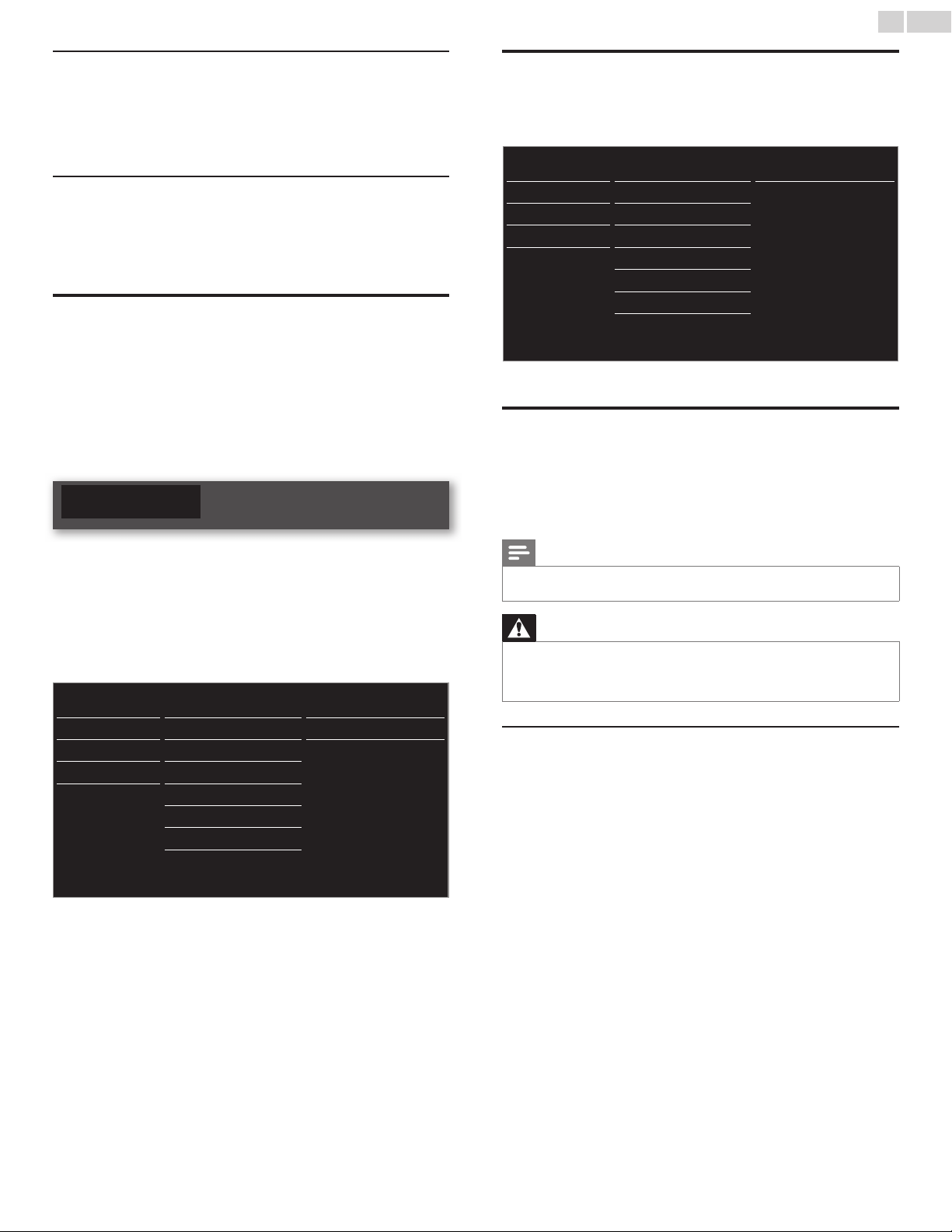
English
43
Setting status
You can check the status of network settings.
2 Use ▲▼ to select Setting status, then press OK.
• Network setting list will be displayed.
• MAC address of this unit will be displayed in the list.
Reset network settings
You can reset the status of network settings.
2 Use ▲▼ to select Reset network settings, then press OK.
3 Press OK to select Start now.
Return your settings to default values
When you return picture and sound settings to their default values the
channel installation settings are not affected.
1 Use ▲▼ to select Reset AV settings, then press OK.
2 Press OK to select Start now.
Software
Philips continuously tries to improve its products and we strongly
recommend that you upgrade the TV software when upgrades are available.
New software can be downloaded from our website at
www.philips.com/support using the model number of your TV to fi nd
information.
1 Press MENU / EXIT and use ▲▼◄► to select Setup, then press OK.
2 Use ▲▼ to select Software, then press OK.
Picture Software information Select
Sound Software update USB
Features
Automatically check for
Off
Installation Netflix deactivation
Software
Netflix ESN
VUDU deactivation
YouTube deactivation
MediaConnect code
Checking your current software version
1
Use ▲▼ to select Software information, then press OK.
• The version and a description of the current software is
displayed.
Picture Software information PHL-XXXX_XXX_X
Sound Software update
Features
Automatically check for
Installation Netflix deactivation
Software
Netflix ESN
VUDU deactivation
YouTube deactivation
MediaConnect code
Preparing for the software upgrade
You require the following equipment :
– A PC with web browsing capability
– An archive utility that supports the ZIP-format
(e.g. WinZip for Windows or StuffIt for Mac OS)
– An empty clean formatted USB Memory Stick
Note
• Only FAT / DOS-formatted portable memory is supported.
• Use only software upgrades that can be found on the Philips web site.
Warning
• When the software upgrade is running, don’t press any buttons.
• Do not remove the USB Memory Stick during the software upgrade.
• If an error occurs during the upgrade, retry the procedure or for further assistance,
please contact Call Center.
Downloading the software
Find information and software related to your TV and download the
latest software upgrade fi le to your PC.
1 On your PC, open a web browser and go to
www.philips.com/support.
2 Enter the model number in the “Type the Model Number...” fi eld.
3 Click the desired software to be downloaded.
• Decompress the ZIP-fi le.
4 Copy the upgrade fi le to the root directory of the USB Memory
Stick.
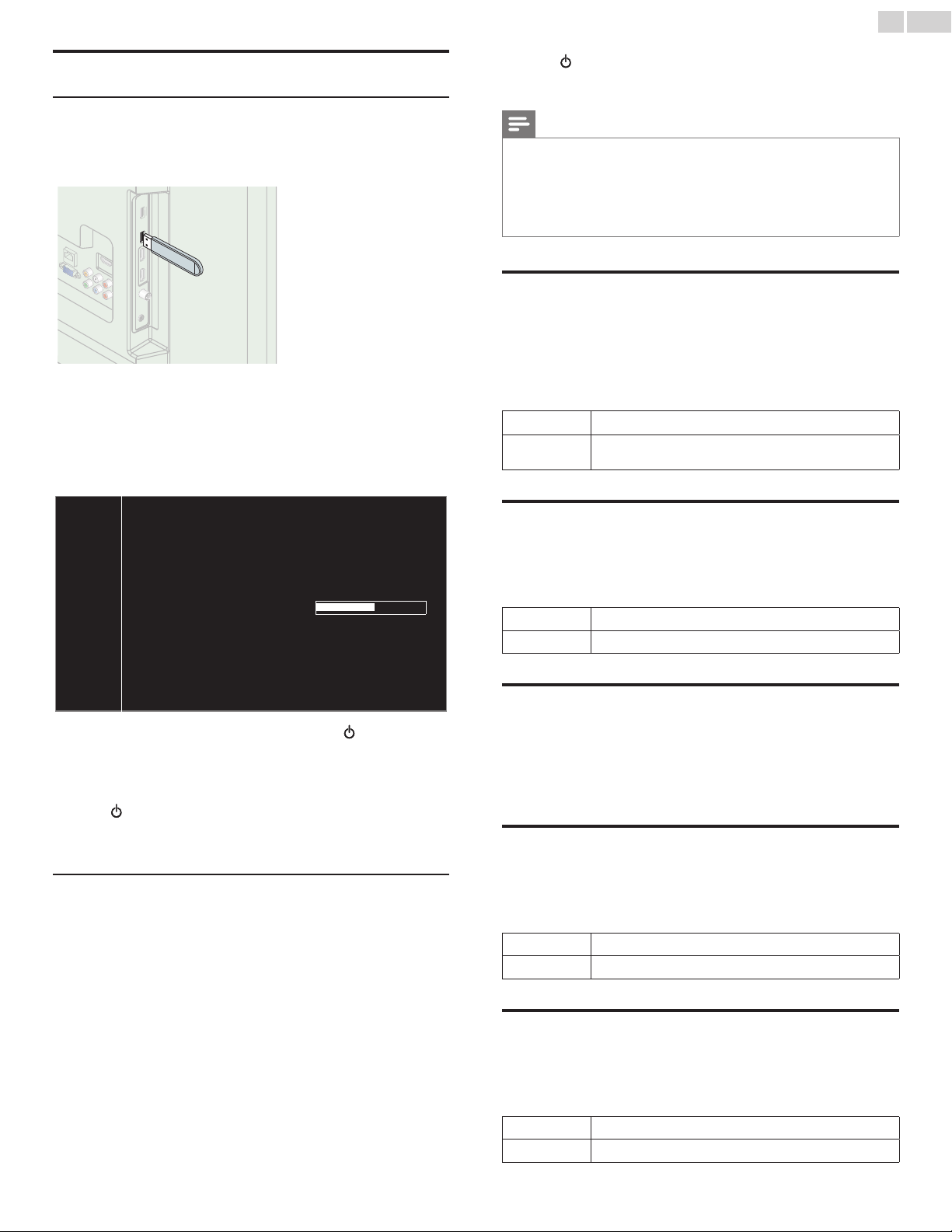
English
44
Upgrading the software
USB upgrade
You can upgrade the software by using USB Memory Stick.
1 Connect your USB Memory Stick with the upgrade fi le to the USB
terminal on the side of your TV.
2 Use ▲▼
to select Software update, then press OK.
3 Use ▲▼
to select USB, then press OK.
4 Use ▲▼
to select the desired Update fi le.
5 Use ◄►
to select Ye s , then press OK.
6 Read the on-screen instructions and confi rm that you want to
continue with the installation.
Software update is in progress. Please wait.
Do not remove the USB storage device or turn the TV off while
upgrade is in progress.
Update your TV with new software:
7 When the software upgrade is completed, press to set the unit
to go into Standby mode, then remove the USB Memory Stick.
8 Unplug the AC power cord for a few seconds from AC outlet and
plug it again.
9 Press again to Turn the unit On.
• The TV starts up with the new software.
For further assistance, please contact Call Center.
Network update
You can update the software by connecting the unit to the Internet.
1 Use ▲▼
to select Software update, then press OK.
2 Use ▲▼
to select Network, then press OK.
3 Use ◄► to select Ye s, then press OK.
• This unit will then start checking for the latest fi rmware version.
4 Confi rmation message will appear.
Use ◄► to select Ye s, then press OK.
• The unit will start downloading the latest fi rmware version.
• The unit will start updating the fi rmware version.
• It may take a while to complete the updating.
5 When the software update is complete, press
.
to make sure the
unit goes to Standby mode.
6 Unplug the AC power cord for a few seconds from AC outlet and
plug it again.
7 Press again to Turn the unit On.
• The TV starts up with the new software.
For further assistance, please contact Call Center.
Note
• In order to update software via the Internet, you must connect the unit to the Internet
and set up necessary settings. Network settings assistant
➠
p. 40 Network
➠
p. 40
• Please do not unplug the AC power cord or Ethernet cable while executing the
Network update.
• All settings will remain the same even if you update the software version.
• The version of Net service will also be updated if newer version of Net service is
available when updating the fi rmware.
Automatically check for latest software
This function lets you know if the latest software is available while the
unit is connected to the Internet.
1 Use ▲▼ to select Automatically check for latest software, then
press OK.
2 Use ▲▼ to select the desired option, then press OK.
Off
Disable automatically check for latest software.
On
A message will appear if there is the latest software on the
network server.
Netfl ix deactivation
Displays the deactivation setting for Netfl ix.
1 Use ▲▼ to select Netfl ix deactivation, then press OK.
2 Use ▲▼ to select the desired option, then press OK.
Ye s
Deactivate the connection to Netfl ix.
No
Activate the connection to Netfl ix.
Netfl ix ESN
Displays the ESN information.
1 Use ▲▼ to select Netfl ix ESN, then press OK.
• Displays the ESN (Electronic Serial Number) to get any services
from Netfl ix.
VUDU deactivation
Displays the deactivation setting for VUDU.
1 Use ▲▼ to select VUDU deactivation, then press OK.
2 Use ▲▼ to select the desired option, then press OK.
Ye s
Deactivate the connection to VUDU.
No
Activate the connection to VUDU.
YouTube deactivation
Displays the deactivation setting for YouTube.
1 Use ▲▼ to select YouTube deactivation, then press OK.
2 Use ▲▼ to select the desired option, then press OK.
Ye s
Deactivate the connection to YouTube.
No
Activate the connection to YouTube.
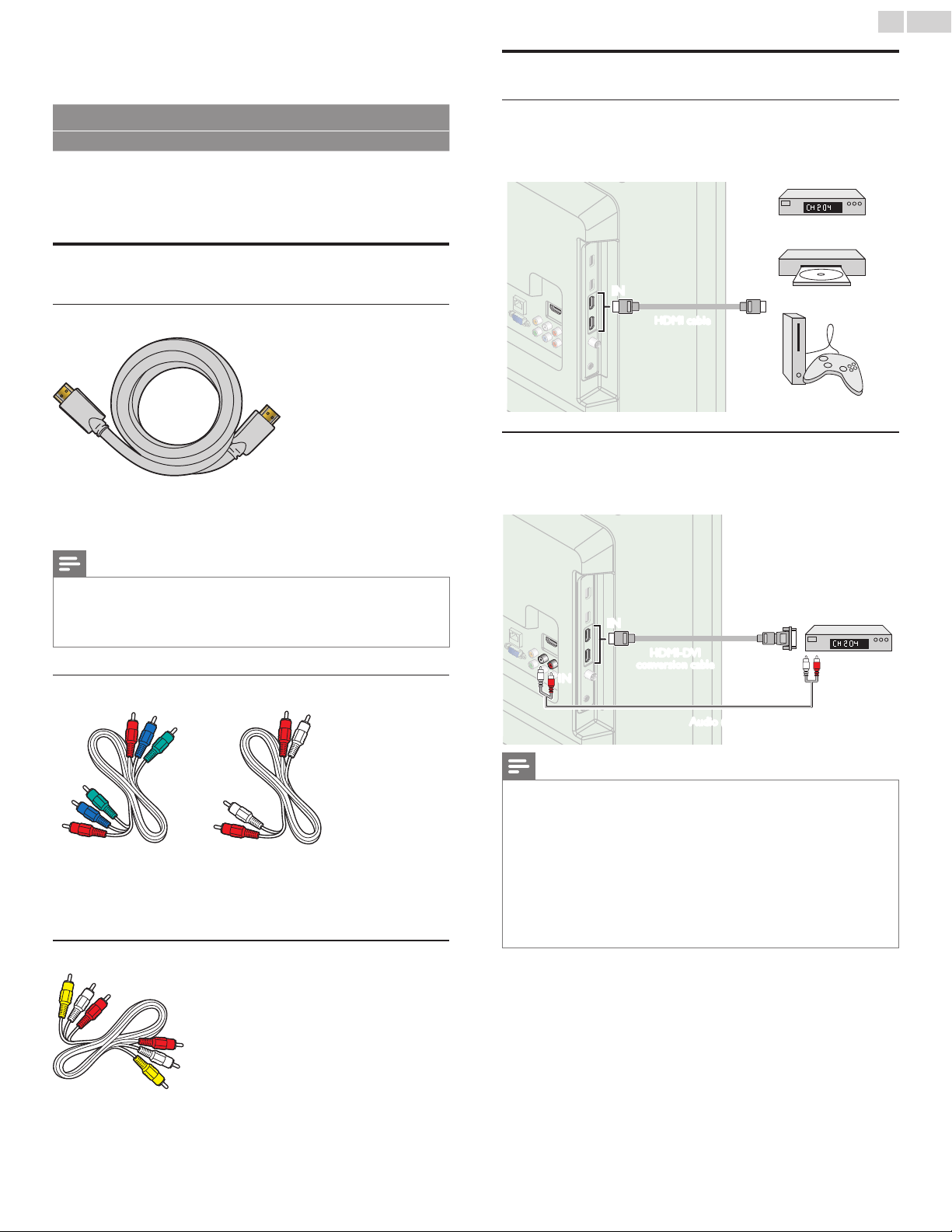
English
45
6 Connectingdevices
No supplied cables are used with these connections:
• Please purchase the necessary cables at your local store.
Before you connect AC power cord:
Be sure other devices are connected properly before plugging in the AC
power cord.
Selectingyourconnectionquality
HDMI-Highestquality
Supports high-denition Digital signals and gives highest picture and
sound quality. Video and Audio signals are combined in one cable. You
must use HDMI for full high-denition video and to enable Philips
EasyLink.
Note
• Philips HDMI supports HDCP (High-bandwidth Digital Contents Protection). HDCP
is a form of Digital Rights Management that protects high denition content in Blu-ray
discs or DVDs.
• The HDMI-ARC connector on the TV features HDMI-ARC functionality. This allows
output of TV Audio to an HDMI-ARC-compliant device.
Component(YPbPr)-Highquality
Supports high-denition Analog signals but gives lower picture quality than
HDMI. Component (Y/Pb/Pr) Video cables combine Red / Green / Blue
video cables with Red / White Audio (L/R) cables. Match the cable
colors when you connect to the TV.
Composite-Basicquality
For Analog connections. Composite Video / Audio Analog cable usually
combine a Yellow video cable with Red / White Audio (L/R) cables.
With this unit, Yellow cable must be connected to Y (Green) of
Component Video Input jacks.
Connectingyourdevices
HDMIDigitalconnection
HDMI connection offers the highest picture quality. connection offers the highest picture quality.
HDMI (High-Denition Multimedia Interface) transports high denition
Digital video and multi-channel Digital Audio through a single cable.
ININ OUT
set-topbox
or
Blu-raydiscplayer
or
HDgameconsole
HDMIcable
HDMI-DVIconnection
This unit can be connected to your device that has a DVI terminal.
Use an HDMI-DVI conversion cable for this connection and it requires
Audio cable for Analog Audio signal as well.
ININ OUT
IN
IN
OUT
HDMI-DVI
conversioncable
Audio(L/R)cables
cablereceiveror
satelliteboxwiththe
DVIOutputjack
Note
• Use an HDMI cable with the HDMI logo (a certied HDMI cable). High Speed HDMI
cable is recommended for the better compatibility.
ForHDMIconnection
• The unit accepts 480i / 480p / 720p / 1080i, 1080p 24/30/60Hz of video signals, 32kHz
/ 44.1kHz and 48kHz of Audio signals.
• This unit accepts 2 channel Audio signal (LPCM) only.
• This unit accepts only signals in compliance with EIA861.
ForHDMI-DVIconnection
• The unit accepts 480i, 480p, 720p, 1080i and 1080p video signals.
• HDMI-DVI connection requires separate Audio connections as well and the Audio
signals are output as Analog (L/R) Audio.
• DVI does not display 480i image which is not in compliance with EIA/CEA-861/861B.
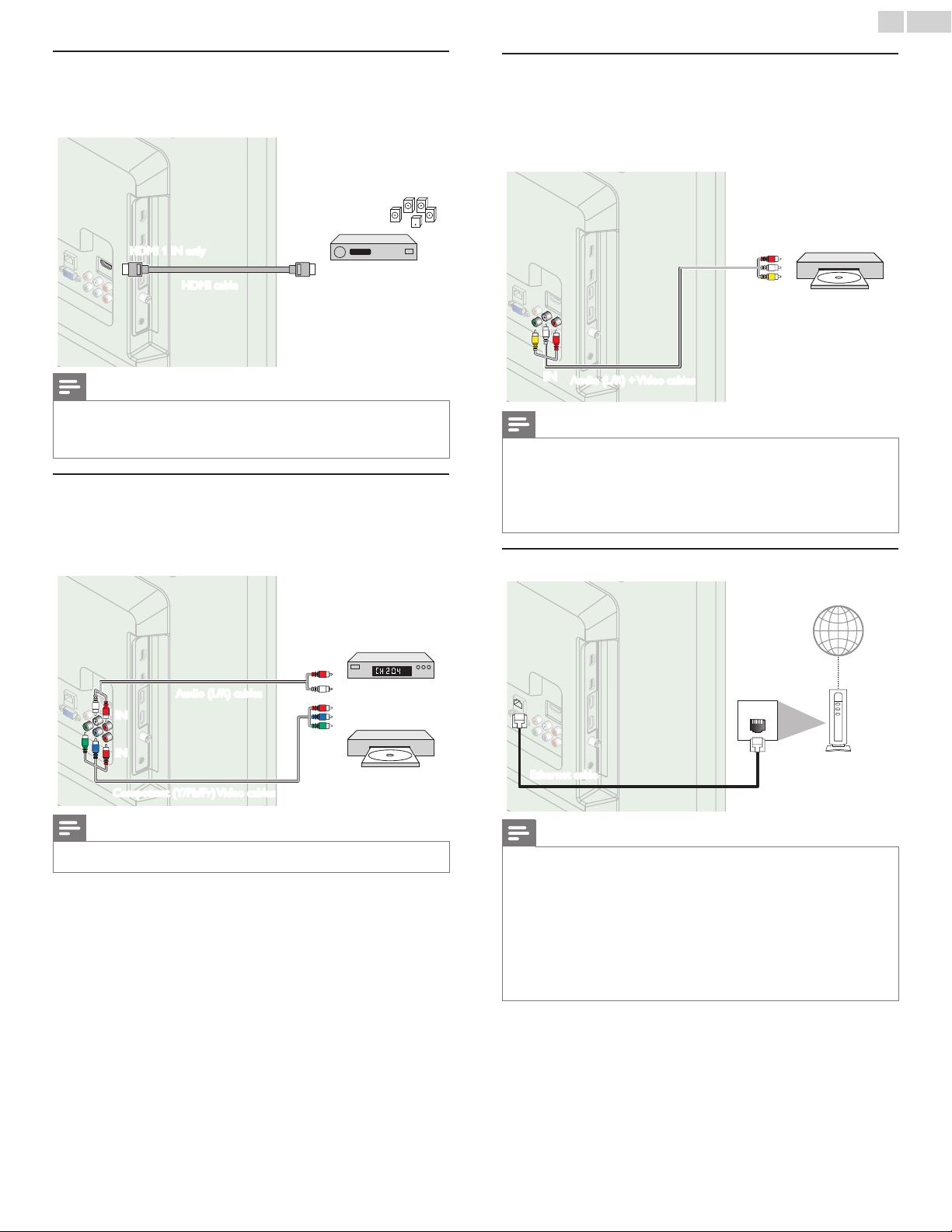
English
46
HDMI-ARCconnection
HDMI-ARC allows you to use EasyLink to output TV Audio directly to
a connected Audio device, without the need for an additional Digital
Audio cable.
OUT
HDMI-ARC
Digitalhometheater
amplier
HDMIcable
HDMI1INonly
Note
• The HDMI 1 connector is HDMI Audio Return Channel (ARC) compliant. Use it to
output Digital Audio to an HDMI home theater system.
• Be sure that the device is HDMI CEC and ARC compliant and that the TV is connected
to the device using an HDMI cable attached to HDMI-ARC connectors.
ComponentAnalogVideoConnection
Component Analog Video connection offers better picture quality for
video devices connected to the unit.
If you connect to the unit’s Component Video (Y/Pb/Pr) Input jacks,
connect Analog Audio cables to the Analog Audio (L/R) Input jacks.
OUTOUT
IN
IN
IN
IN
OUT
OUT
Component(Y/Pb/Pr)Videocables
Audio(L/R)cables
set-topbox
or
Blu-raydisc/DVD
recorder
Note
• The unit accepts 480i / 480p / 720p and 1080i/p of video signals for this connection.
CompositeAnalogVideoConnection
Composite Analog Video connection offers standard picture quality for
video devices connected to the unit.
If you connect to the unit’s Composite Video (Y/VIDEO) Input jack,
connect Audio cables to the Audio (L/R) Input jacks. When the Audio is
monaural, then only connect to the Audio L Input jack.
OUTOUT
IN
IN
DVDplayer
Audio(L/R)+Videocables
Note
• With this unit, Yellow cable must be connected to Y (Green) of Component Video Input
jacks.
• Whenever you connect to the Composite Video Input jack (Y/VIDEO), you must
disconnect the Component Video Input jacks (Pb and Pr). If you leave those jacks
connected, it may cause of unstable picture.
• Only the left loudspeaker reproduces sound for mono equipment. Use a mono to
stereo adapter (not supplied) for sound reproduction via all internal loudspeakers.
ConnectingtheTVtotheInternetusinganEthernetcable
LAN
Networkprovisioning
equipment
Ethernetcable
Internet
Note
• Please purchase shielded Ethernet cables at your local store and use them when you
connect to network equipment.
• After connecting an Ethernet cable, set up necessary network settings. Network
➠
p.40
• Do not insert any cable other than an Ethernet cable to the Ethernet port to avoid
damaging the unit.
• If your telecommunications equipment (modem, etc.) does not have broadband router
functions, connect a broadband router.
• If your telecommunications equipment (modem, etc.) has broadband router functions
but there is no vacant port, use a hub.
• For a broadband router, use a router which supports 10BASE-T / 100BASE-TX.
• Do not connect your PC directly to the Ethernet port of this unit.
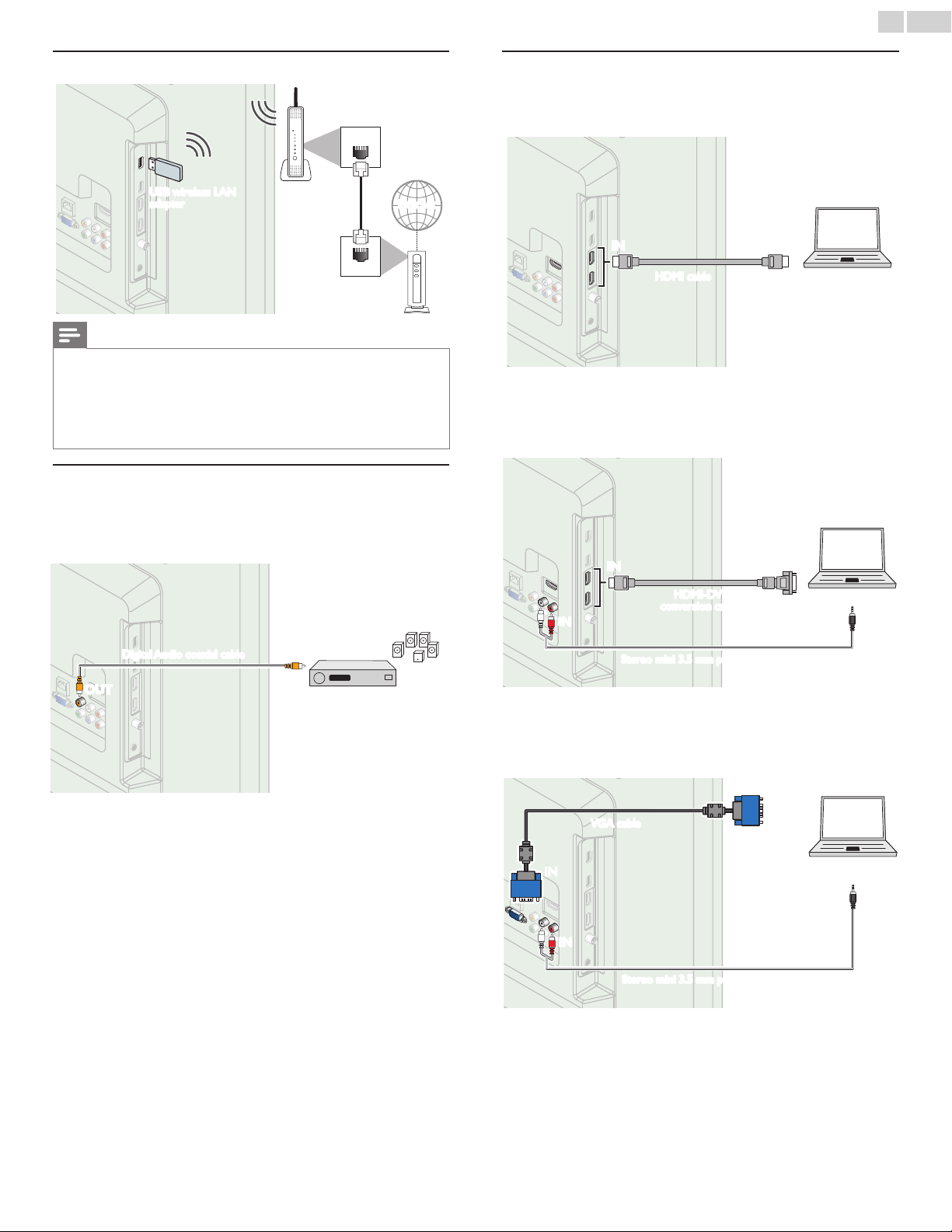
English
47
ConnectingtheTVtotheInternetusingawirelessLAN
WLAN
LAN
Broadbandrouter
USBwirelessLAN
adapter
Networkprovisioning
equipment
Ethernetcable
Internet
Note
• After you made the wireless connection, set up necessary network settings.
Network
➠
p.40
• Use a Wireless LAN Access Point (AP) (e.g. wireless router) which supports IEEE
802.11 b/g/n. (n is recommended for stable operation of the wireless network.)
• This unit does not support Ad-hoc mode.
• Other radio devices or obstacles may cause interference to the wireless network
connection.
DigitalAudioOutputConnection
If you connect this unit to an external Digital Audio device, you can
enjoy multi-channel Audio like 5.1ch Digital broadcasting sound.
Use a Digital Audio coaxial cable to connect the unit to external Digital
Audio devices.
ININ
OUT
OUT
Digitalhometheater
amplier
DigitalAudiocoaxialcable
PCconnection
HDMI connection
This unit can be connected to your PC that has a HDMI terminal. Use
an HDMI cable for this Digital connection.
ININ OUT
PC
HDMIcable
HDMI-DVI connection
This unit can be connected to your PC that has a DVI terminal. Use
an HDMI-DVI conversion cable for this Video Digital connection and it
requires Stereo mini 3.5mm plug Audio cable for Analog Audio signal as
well.
OUT
IN
IN
OUT
ININ
PC
Stereomini3.5mmplugAudiocable
HDMI-DVI
conversioncable
VGA connection
This unit is equipped with a PC Input jack. If you connect this unit to
your PC, you can use this unit as a PC monitor.
Use a VGA cable for this Video connection and it requires a Stereo mini
3.5mm plug Audio cable for Analog Audio signal as well.
OUT
IN
IN
IN
IN
OUT
PC
VGAcable
Stereomini3.5mmplugAudiocable
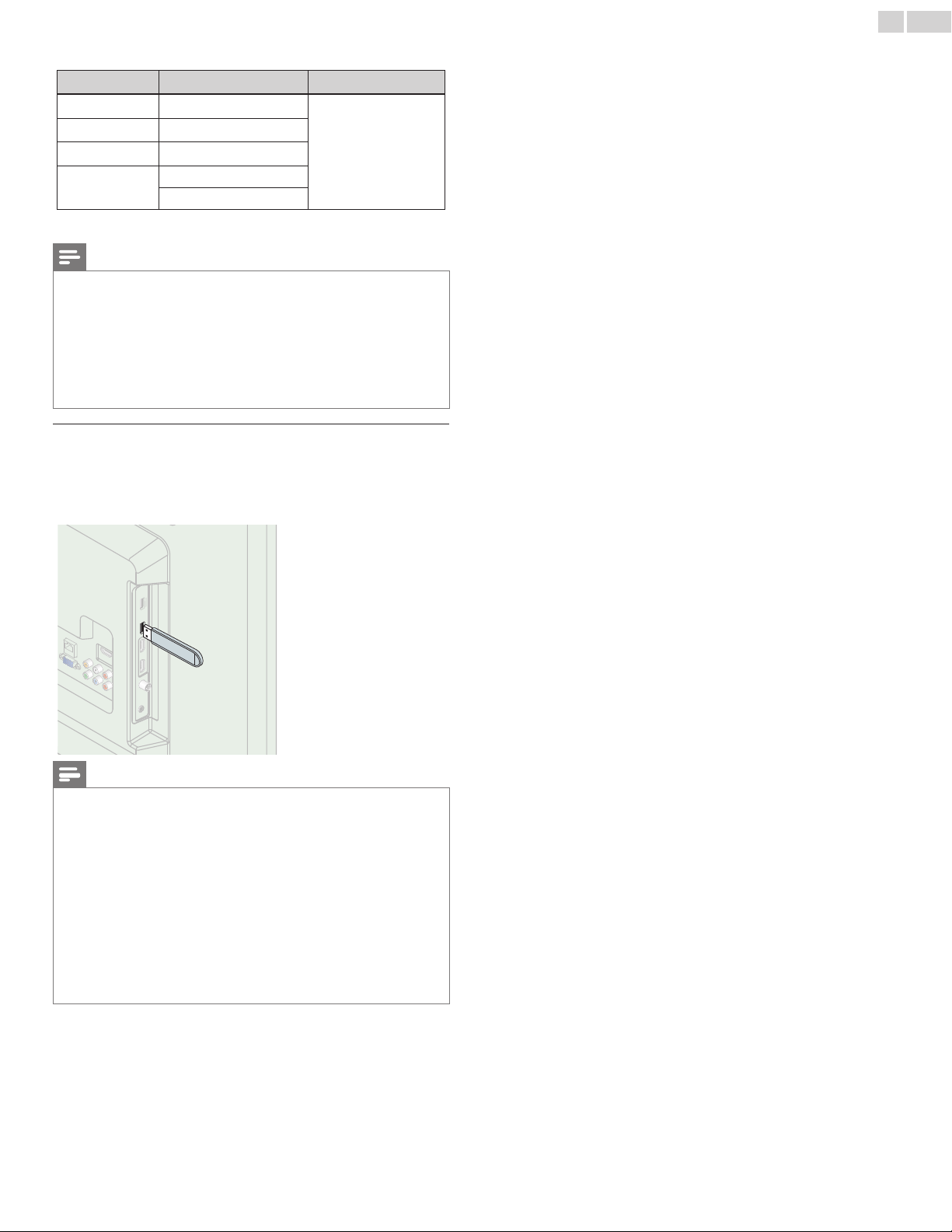
English
48
The following video signals can be displayed:
Format Resolution Refreshrate
VGA
640
x
480
60Hz
SVGA
800
x
600
XGA
1,024
x
768
WXGA
1,280
x
768
1,360
x
768
Other formats or non-standard signals will not be displayed correctly.
Note
• Please purchase the VGA cable or HDMI-DVI conversion cable that has a ferrite core.
• The following operations may reduce noise.
– Attach a ferrite core to the AC power cord of your PC.
– Unplug the AC power cord and use the built-in battery of your PC.
• Use an HDMI cable with the HDMI logo (a certied HDMI cable). High Speed HDMI
cable is recommended for the better compatibility.
• The unit accepts 480i, 480p, 720p, 1080i and 1080p video signals.
• HDMI-DVI connection requires separate Audio connections as well and the Audio
signals are output as Analog (L/R) Audio.
• DVI does not display 480i image which is not in compliance with EIA/CEA-861/861B.
USBMemoryStickMemoryStick
This unit offers easy playback of picture (JPEG), music (MP3) and video
(MPEG) les.
Insert the USB Memory Stick into the USB terminal shown below.
USB
➠
p.27
Note
• The unit recognizes only a USB Memory Stick.
• Do not use a USB hub or an extension cable to connect an external hard disk drive to
the unit. (Not supported.)
• A USB Memory Stick is always inserted to this unit directly.
• A USB Memory Stick is not supplied with this unit.
• We do not guarantee that all USB Memory Sticks can be supported by this unit.
• Be sure to keep a backup copy of the original les on your device before you play them
back on this unit. We have no responsibilities for damage or loss of your stored data.
• To protect your USB Memory Stick les from being erased place the write protect
sliding tab in the protect position.
• When you are ready to remove a USB Memory Stick, set the unit to go into Standby
mode to avoid any damage to your data and the unit.
• A USB Memory Stick that requires its own driver or the device with a special system
such as ngerprint recognition are not supported.
• This unit is not allowed to use the USB Memory Stick which requires an external
power supply (500mA or more).

English
49
7 Usefultips
FAQ
Question Answer
Myremotecontroldoesnot
work.
WhatshouldIdo?
• Check the antenna or cable connection to the main unit.
• Check the batteries of the remote control.
• Check if there is an obstacle between the infrared sensor window and the remote control.
• Test the signal Output use IRSignalCheck.
➠
p.52 If okay, then possible infrared sensor trouble.
• Aim the remote control directly at the infrared sensor window on the front of the unit.
• Reduce the distance to the unit.
• Re-insert the batteries with their polarities (+/–) as indicated.
• When there is an infrared-equipped device such as PC near this unit, it may interrupt the remote control signal of this unit. Move
the infrared-equipped device away from this unit, change the angle of the infrared sensor or Turn Off the infrared communication
function.
Howcometheinitialsetup
appearseverytimeITurnOn
thisunit?
• Make sure to complete the initial setup before the unit goes into Standby mode.
WhycanInotwatchsomeRF
signalTVprograms.
• Autoprogram must be completed when you set up the unit for the rst time or move it to a location where previously unavailable
channels are broadcast.
• Make sure Autoprogram has been completed.
➠
p.37
• The selected channel may not be broadcasting.
• When Autoprogram is interrupted and not completed, some channels will not be received. Make sure to complete the
Autoprogram.
➠
p.37
• The selected channel cannot be viewed by the Childandratingslock setting.
➠
p.34
• The unit requires some kind of antenna Input. An indoor antenna (Digital or VHF / UHF), an external antenna (Digital or VHF / UHF)
or an RF coaxial cable from your wall cable/satellite box needs to be plugged into the unit.
Howcomethereisnoimage
fromtheconnectedexternal
devices?
• Check if the correct Input mode is selected by pressing SOURCE. Watchingchannelsfromanexternaldevice
➠
p.16
• Check the antenna, cable or other Input connection to the unit.
• When using the Component Video Connection check that the Green (Y), Blue (Pb/Cb) and Red (Pr/Cr) connectors are connected
to their corresponding colored jacks on the unit.
WhenIenterachannelnumber,
itchangesautomatically.
• Many Digital channels have alternate channel numbers. The unit changes the numbers automatically to the ones signifying the
broadcasting station channel number. These basic numbers used for previous Analog broadcasts. (e.g., Input ch# 30 automatically
changes to ch# 6.1)
Whyarecaptionsnotdisplayed
entirely?Or,captionsare
delayedbehindthedialog.
• Captions that are delayed a few seconds behind the actual dialog are common for live broadcasts. Most captioning production
companies can display a dialog to maximum of 220 words per minute. If a dialog exceeds that rate, selective editing is used to
insure that the captions remain up-to date with the current TV screen dialog.
HowcanIsettheclock? • There is no clock function on this unit.
IcannotchangetheChildlock
settingbecausemyPINcodeno
longerworks.
• Although the default PIN code (0000) is supplied with the unit, the PIN code will be required once you set a PIN code in Child
andratingslock.
➠
p.34When you forget your PIN code, enter 0711 in ChangePIN to reset the PIN code.
➠
p.36
Troubleshooting
If the unit does not perform properly when operated as instructed in this User Manual,
checkthefollowingchartandallconnectionsoncebeforecallingforservice.
Symptom Remedy
No power
• Make sure the AC power cord is plugged in.
• Make sure that the AC outlet supplies the proper voltage, plug another electrical appliance into the AC outlet to ensure that the AC
outlet operates normally.
• If a power failure occurs, unplug the AC power cord for 1 minute to allow the unit to reset itself.
Control buttons do not work.
• Press only one button at a time. Do NOT press more than one button at the same time.
• Ensure that no buttons on the remote control are depressed and move freely.
Continued on next page.

English
50
Symptom Remedy
Power is ON but no screen
image.
• Check whether the connection of the antenna, cable receiver or satellite box is connected correctly.
• Check whether all the cables to the unit are connected to the correct Output jack of your device like Blu-ray / DVD recorder.
• Make sure that the selected Input mode is connected to the working Input jack.
• Check if your computer is NOT in sleep mode when the Input mode of this unit is in PC mode. Tap any key on the keyboard to
wake up your computer.
No picture or sound
• Check if the Power is On.
• Check whether all the cables to the unit are connected to the correct Output jack of your device like Blu-ray / DVD recorder.
• View other TV channels. The problem might be limited to the broadcasting station or weak signal strength.
• Unplug the AC power cord and wait for about 1 minute, then plug the AC power cord and Turn On the unit again.
• Check whether the connection of the antenna, cable receiver or satellite box is connected correctly.
• Make sure that the selected Input mode is connected to the working Input jack.
• Check if your computer is NOT in sleep mode when the Input mode of this unit is in PC mode. Tap any key on the keyboard to
wake up your computer.
• Make sure that the sound is not muted. Press MUTEso that the volume bar and current volume level will appear on the TV screen.
• Make sure that the volume is NOT set to 0 or . If so, use VOL+/− to adjust to the desired volume.
• Make sure that the headphone is NOT connected to the Headphone Audio Output jack.
• Make sure that the TVspeakers is NOT set to Off.
No color
• View other TV channels. The problem might be limited to the broadcasting station or weak signal strength.
• Adjust Color in Picture settings.
➠
p.30
No sound, distorted sound or
incorrect Audio Sound is heard
when using the HDMI-DVI
connections.
• Make sure that the Analog Audio signals from the HDMI-DVI device are connected to the Analog Audio (L/R) Input jacks.
• When using Component Analog Video, Composite Analog Video or PC VGA Video make sure that the Analog Audio (L/R)
connectors are mounted into the Audio (L/R) Input jacks.
Adjusted Picture or Sound
settings are not effective every
time the unit is Turned On.
• You must set Home in Location.
➠
p.38
Otherwise, the settings you adjusted will not be memorized after the unit goes into Standby mode.
Sound OK, picture poor • Electrical interference from nearby appliances may affect picture quality when viewing an off-the-air low power NTSC analog
broadcast signal.
• Adjust Contrast and Brightness in Picture settings.
➠
p.30
• View other TV channels. The problem might be limited to the broadcasting station or weak signal strength.
• For the best picture quality, watch High Denition wide screen programs.
If the HD content is not available, watch Standard Denition programs instead.
Picture OK, sound poor • View other TV channels. The problem might be limited to the broadcasting station or weak signal strength.
• Check if the Audio cable is connected into the unit correctly.
You see a distorted picture or
hear an unusual sound.
• You may be getting interference from electrical appliances, automobiles, motorcycles or uorescent lights when viewing an off-the-
air low power NTSC analog broadcast signal.
• Try moving the unit to another location to see if this is the cause of the problem.
Ghosts, lines or streaks in picture
• Electrical interference from nearby appliances may affect picture quality when viewing an off-the-air low power NTSC analog
broadcast signal.
• View other TV channels. The problem might be limited to the broadcasting station or weak signal strength.
You see noise or trash on the
screen.
• When the capabilities of the unit exceed the capabilities of the Digital broadcasting, the signal will be increased to match the
capabilities of the display of the unit. This may cause noise or trash.
When viewing an off-the-air low power NTSC Analog broadcast signal may show noise or trash on the screen.
Different color marks on the TV
screen
• View other TV channels. The problem might be limited to the broadcasting station, missing data or pixelation.
You switch to a different Input
and the volume changes.
• This unit will memorize the volume level from the last time you adjusted it.
• If the volume of the sound from another device is higher or lower, then the loudness will change.
• Make sure AVL is set to On.
➠
p.32
You switch to a different Input
and the screen size changes.
• This unit will memorize the viewing mode from the last time you used the particular Input modes.
The display image does not
cover the entire screen.
• If you are using the unit as a PC monitor, make sure that Horizontalshift and Verticalshift in Picture are set correctly.
➠
p.30
• If you are watching TV or using the Composite Video, Component Video or HDMI with 480i Input, press FORMAT repeatedly to
switch various screen modes.
Captions are displayed as a white
box. No caption is displayed in
the Closed Caption-supported
program.
• Interference from buildings or weather conditions may cause captioning to be incomplete if watching Analog TV (NTSC) signals.
• Broadcasting station may shorten the program to insert advertisements.
• The Closed Caption decoder cannot read the information of the shortened program.
Black box is displayed on the TV
screen.
• The text mode is Selected. For caption, select CC-1, CC-2, CC-3 or CC-4.
Cannot connect to the network.
• Check if the Ethernet cable connection is properly made. Turn On the modem or broadband router.
• Check the network settings.
• Check if the broadband router and/or modem is correctly connected.
Sometimes video quality is poor
when using the wireless LAN.
• The wireless network connection quality varies depending on the distance or obstacles (e.g. wall, basement, 2nd oor) between the TV
Wireless LAN Adapter and the wireless router (access point), from other wireless networks, and brand and type of the wireless router
(access point). When using the Wireless LAN of the TV, it is suggested to place the wireless router as close as possible to the Television.
Continued on next page.

English
51
Symptom Remedy
Wireless LAN connection fails or
wireless connection is poor.
• Check the installation location of the TV and wireless router (access point). Signal quality may be affected for the following reasons.
– Interference of other wireless devices, microwaves, fluorescent lights, etc., are placed nearby.
– There are floors or walls between the wireless router and TV.
– If the problems continue even after checking the above, try making a wired LAN connection.
Cannot use the wireless
connection.
• Check if the Wireless LAN Access Point (AP) (e.g. wireless router) is oriented properly or not placed too close between them.
• Once you have activated the wireless connection please wait 30 seconds for the connection to be established after Turning On the
unit, before trying to access network features such as Net TV.
Cannot use Netix feature.
• Netix is available only in the United States and Canada.
• Check if the network connection is properly made.
• Visit http://www.netflix.com/HowItWorks on your PC and become a Netix member.
Cannot add movies or TV
episodes to the Instant Queue.
• Visit www.netflix.com on your PC.
Even though the speed of the
Internet connection improves
during playback, the picture
quality of Netix streaming
movie does not improve.
• The picture quality does not change during playback. It differs depending on the speed of Internet connection at the time of loading.
Cannot use VUDU feature. • VUDU is available only in the United States.
• Check if the network connection is properly made.
Cannot rent or buy movies / TV
episodes on VUDU.
• You need to activate the VUDU account. For detailed information, please visit the service providers website at
http://www.vudu.com/product_overview.html
• Log into your account at http://my.vudu.com and check your payment information.
The picture quality of streaming
movie (Netix, Film Fresh or
VUDU) is poor.
• Check the speed of your Internet connection. You need speeds of at least 8 Mbps to this player for high quality uninterrupted
playback.
Streaming movie (Netix,
Film Fresh or VUDU) often
stops or starts buffering during
playback.
• Contact your Internet service provider to troubleshoot your Internet connection for speed and line quality. Consistent line quality
and speed are very important for Internet video playback.
Cannot connect to the network
while my PC is connected to the
network.
• Check the content of your Internet service contract to see if your Internet Service Provider prevents multiple terminals connecting
at the same time.
Folder or les stored on DLNA
home media server are not
displayed in the le list or cannot
be played back.
• Check the setting on your home media server. (Refer to the user manual of the home media server.)
• Check the network connection and settings.
Cannot use Film Fresh feature. • Film Fresh is available only in the United States.
• Check if the network connection is properly made.
• Visit http://filmfresh.roxionow.com/ (Film Fresh) on your PC and create an account.
Cannot use Pandora feature. • Check if the network connection is properly made.
• Pandora is available only in the United States.
• You must create a Pandora account and activate this unit. ActivatingPandora
➠
p.22
The audio of Internet radio
station interrupted.
• vTuner server, station or the Internet connection is busy. The bit rate of the station is high.
Cannot play back Internet radio. • Check if the network connection is properly made.
• Check the rewall setting of the modem or router.
• For some stations, playback is not available on this unit.
The quality of the Internet radio
audio is poor or noise occurs
during playback of Internet
station.
• The bit rate of the station is low.
Cannot get into the
PC's screen even the
Philips Wireless MediaConnect is
launched.
• The start up screen (PHILIPS logo with spinning circle) keep displaying until the unit found the PC that is running
Philips Wireless MediaConnect.
• Make sure if the network connection is connected properly.
• Check if your PC runs Philips Wireless MediaConnect.
• Make sure your TV and PC are connected on the same network.
I have a 1.8GHz CPU but
MediaConnect does not work
on my PC.
• For smooth operation of your PC while Philips Wireless MediaConnect is running you need a mainstream dual core processor from
Intel
®
or AMD.
Intel
®
: Core™2 Duo or Core™ i3/5/7 @ 1.8GHz or higher.
AMD : Athlon™ II X2, Turion™ II Dual-Core or Phenom™ X2 @ 2GHz or higher.
Note
• The LCD screen is manufactured to provide many years of useful life. Occasionally a few non active pixels may appear as a xed point of blue, green or red.
This is not to be considered a defect in the LCD screen.
• Some functions are not available in specic modes, but this is not a malfunction. Read the description in this User Manual for more details on correct operations.

English
52
8 Information
Glossary
DTV(ATSC)
Acronym that stands for Advanced Television Systems Committee and the name
of the Digital broadcasting standards.
Aspectratio
The width of a TV screen relative to its height. Conventional TVs are 4:3 (in other
words, the TV screen is almost square); widescreen models are 16:9 (the TV
screen is almost twice as wide as its height).
CEC(ConsumerElectronicsControl)
This allows you to operate the linked functions between our brand devices with
CEC feature and this unit. We do not guarantee 100% interoperability with other
brands of CEC compliant devices.
ComponentVideo
This is a video signal format that conveys each of 3 principal colors of light
(red, blue and green) through different signal lines. This allows the viewers to
experience picture colors as original as it is. There are several signal formats,
including Y / Pb / Pr and Y / Cb / Cr.
DolbyDigital
The system developed by Dolby Laboratories to compress Digital sound. It offers
stereo sound (2ch) or multi-channel Audio.
E-sticker
E-sticker is showing set features, technical information, etc on this TV set
that is displayed on the TV screen mainly used by TV retailers. Previously the
information was on a printed sticker that was put on the display.
HDMI(High-DenitionMultimediaInterface)
Interface that supports all uncompressed, Digital Audio / Video formats including
set-top box, Blu-ray / DVD recorder or Digital television, over a single cable.
HDTV(HighDenitionTV)
Ultimate Digital format that produces high resolution and high picture quality.
AnalogTV(NTSC)
Acronym that stands for National Television Systems Committee and the name
of Analog broadcasting standards.
off-the-air NTSC signals are no longer being sent by major broadcasting stations
in the USA.
PINcode
A stored 4-digit number that allows access to parental control features.
SAP(SecondaryAudioProgram)
Second-Audio channel delivered separately from main-Audio channel. This Audio
channel is used as an alternate in bilingual broadcasting.
SDTV(StandardDenitionTV)
Standard Digital format that is similar to the Analog TV (NTSC) picture quality.
SRSTruSurround�T
®
Creates a truly immersive surround sound experience with rich bass and clear
dialog from only two speakers.
Maintenance
CabinetCleaning
• Wipe the front panel and other exterior surfaces of the unit with
a soft cloth.
• Never use a solvent or alcohol. Do not spray insecticide liquid near
the unit. Such chemicals may cause damage and discoloration to
the exposed surfaces.
PanelCleaning
Wipe the panel of the unit with a soft cloth. Before cleaning the panel,
disconnect the AC power cord.
Servicing
Should your unit become inoperative, do not try to correct the
problem yourself. There are no user serviceable parts inside. Call our
toll free customer support line found on the cover of this User Manual
to locate an authorized service center.
IRSignalCheck
If the remote control is not working properly, you can use a Digital
camera (including a cellular phone with built-in camera) to see if it is
sending out an infrared signal.
With a Digital camera
(including built-in cell phone cameras):
Point the Digital Camera towards the remote control
infrared diode at the front of the remote control.
Press any button on the remote control and loOK
through the camera display. If the infrared pulsating
light appears through the camera, the remote control
is sending out an IR signal.
English
53
9 Specifications
Model# 32PFL4907 26PFL4907 22PFL4907
Pictureenhancement
Type WXGA (1366 x 768 pixels 60Hz)
Aspectratio 16:9
Viewingangles 178° (V) by 178° (H) 150° (V) by 160° (H) 160° (V) by 170° (H)
Built-inDigitaltuner ATSC / NTSC
Soundenhancement
Mono/Stereo Mono, Stereo, SRS TruSurround XT
®
Poweroutput(RMSwatts) 8 W x 2 2W x 2
Equalizer 5 band
Easeofuse
Pictureformat
SD (4:3 Source) :
HD (16:9 Source) :
HDMI AV (4:3 Source) :
HDMI AV (16:9 Source) :
PC Source :
Automatic / Super zoom / 4:3 / Movie expand 14:9 / Movie expand 16:9 /
Wide screen
Automatic / 4:3 / Wide screen / Full (1080i/p only)
Automatic / Super zoom / 4:3 / Movie expand 14:9 / Movie expand 16:9 /
Wide screen
Automatic / 4:3 / Wide screen / Full (1080i/p only)
4:3 / Wide screen / Unscaled
(Refer to HDMI AV (16:9 Source) above if PC has HDMI Output. )
PhotoSlideshow JPEG les only
MP3playback MP3 les only
Videoplayback
MPEG1 (.mpg / .mpeg), MPEG2 (.mpg / .mpeg / .vob), H.264 (.mp4),
MPEG4 SP / ASP (.avi), MPEG4 (.mp4), WVC1 (.wmv)
Connections
ComponentVideoInput
1
supporting video signals : 480i/p, 720p, 1080i/p 60Hz
CompositeVideoInput
(sharedYterminalofComponent
Video)
1
HDMIInput
3
supporting video signals : 480i/p, 720p, 1080i/p, 24Hz-60Hz
HDMI-ARC (HDMI 1 only)
PC-Input signal up to WXGA (1360 x 768)
AudioL/RInput 1
PCInput via VGA, HDMI and HDMI-DVI + Analog Audio L/R
USB
2
1 terminal mainly for wireless LAN adapter, both terminals function as a USB input terminal
WirelessLAN Supporting wireless standards : IEEE 802.11 b/g/n (2.4GHz)
Ethernetport 1
DigitalAudioOutput
1
supporting Dolby Digital
HeadphoneOutput
1
1/8 inches (3.5mm)
Power
Powerrequirements 120V~ AC +/− 10%, 60Hz +/− 0.5%
Temperature
Operatingtemperature 41 °F (5 °C) to 104 °F (40 °C)
• Specications are subject to change without prior notice.

English
54
10Warranty
P&F USA, Inc. PO Box 2248, Alpharetta, GA 30023-2248
LIMITED WARRANTY
ONE
(
1
)
YEAR
WARRANTY COVERAGE:
This warranty obligation is limited to the terms as set forth
below.
WHO IS COVERED:
This product warranty is issued to the original purchaser or the
person receiving the product as a gift against defects in materials
and workmanship as based on the date of original purchase
(“Warranty Period”) from an Authorized Dealer. The original
sales receipt showing the product name and the purchase date
from an authorized retailer is considered such proof.
WHAT IS COVERED:
This warranty covers new products if a defect in material or
workmanship occurs and a valid claim is received within the
Warranty Period. At its option, the company will either (1)
repair the product at no charge, using new or refurbished
replacement parts, or (2) exchange the product with a product
that is new or which has been manufactured from new, or ser-
viceable used parts and is at least functionally equivalent or most
comparable to the original product in current inventory, or (3)
refund the original purchase price of the product.
Replacement products or parts provided under this warranty are
covered against defects in materials and workmanship from the
date of the replacement or repair for ninety (90) days or for the
remaining portion of the original product’s
warranty, whichever
provides
longer coverage for you. When a product or part is
exchanged, any replacement item becomes your property and the
replaced item becomes company property. When a refund is
given, your product becomes company property.
Note: Any product sold and identified as refurbished or
renewed carries a ninety (90) day limited warranty.
Replacement product can only be sent if all warranty
requirements are met. Failure to follow all requirements
can result in delay.
WHAT IS NOT COVERED - EXCLUSIONS AND LIMI-
TATIONS:
This Limited Warranty applies only to new company manufac-
tured products that can be identified by the trademark, trade
name, or logo affixed to it. This Limited Warranty does not apply
to any hardware product or any software, even if packaged or
sold with the product, as manufacturers, suppliers, or publishers
may provide a separate warranty for their own products pack-
aged with the bundled product.
The company is not liable for any damage to or loss of any pro-
grams, data, or other information stored on any media contained
within the product, or other additional product or part not cov-
ered by this warranty. Recovery or reinstallation of programs,
data or other information is not covered under this Limited
Warranty.
This warranty does not apply (a) to
damage caused by
accident,
abuse, misuse, neglect, misapplication, or non-supplied product,
(b) to damage caused by service performed by anyone other than
company approved Authorized Service Location, (c) to a product
or a part that has been modified without written company per-
mission, or (d) if any serial number has been removed or defaced,
or (e) product, accessories or consumables sold “AS IS” without
warranty of any kind by including refurbished product sold “AS
IS” by some retailers.
This Limited Warranty does not cover:
• Shipping charges to return defective product.
• Labor charges for installation or setup of the product, adjust-
ment of customer controls on the product, and installation or
repair of antenna/signal source systems outside of the product.
• Product repair and/or part replacement because of improper
installation or maintenance, connections to improper voltage
supply, power line surge, lightning damage, retained images or
screen markings resulting from viewing fixed stationary con-
tent for extended periods, product cosmetic appearance items
due to normal wear and tear, unauthorized repair or other
cause not within the control of the company.
• Damage or claims for products not being available for use, or
for lost data or lost software.
• Damage from mishandled shipments or transit accidents when
returning product.
• A product that requires modification or
adaptation to enable
it
to operate in any country other than the country for which
it was designed, manufactured, approved and/or authorized, or
repair of products damaged by these modifications.
• A product used for commercial or institutional purposes
(including but not limited to rental purposes).
• Product lost in shipment and no signature verification receipt
can be provided.
• Failure to operate per Owner’s Manual.
TO OBTAIN ASSISTANCE…
Contact the Customer Care Center at:
1 866 309 0843
REPAIR OR REPLACEMENT AS PROVIDED UNDER THIS
WARRANTY IS THE EXCLUSIVE REMEDY FOR THE CON-
SUMER, WITH THE ISSUING COMPANY NOT LIABLE FOR
ANY INCIDENTAL OR CONSEQUENTIAL DAMAGES FOR
BREACH OF ANY EXPRESS OR IMPLIED WARRANTY ON
THIS PRODUCT. EXCEPT TO THE EXTENT PROHIBITED BY
APPLICABLE LAW, ANY IMPLIED WARRANTY OF MER-
CHANTABILITY OR FITNESS FOR A PARTICULAR PURPOSE
ON THIS PRODUCT IS LIMITED IN DURATION TO THE
DURATION OF THIS WARRANTY.
Some states do not allow the exclusions or limitation of inciden-
tal or consequential damages, or allow limitations on how long an
implied warranty lasts, so the above limitations or exclusions may
not apply to you.
This warranty gives you specific legal rights. You may have other rights which vary from state/province to state/province.
061708

i
License
Thisproductusessomeopensourcesoftware:
GPL software:linux, gcc,sysfsutils, RealtekWiFidriver, binutils, busybox,
dhcpcd
LGPLsoftware:directfb,glibc,Qt
MIT:Expat,c-ares,libxml2,lua,lua-xmlreader,lua-slncrypto,giib
MIT/X:cURL
gSOAPPublicLicense:gSOAP
BSD:WPASupplicant
zlib/libpngLicense:zlib,libpng
XML-RPCFORC/C++license:xmlrpc
FreeType,LibJPEG,OpenSSL,MINIX3,unicode,ADPCM,OpenGL
GPL
GNUGENERALPUBLICLICENSE
Version2,June1991
Copyright(C)1989,1991FreeSoftwareFoundation,Inc.
51FranklinStreet,FifthFloor,Boston,MA02110-1301,USA
Everyone is permitted to copy and distribute verbatim copies of this
licensedocument,butchangingitisnotallowed.
Preamble
Thelicensesformostsoftwarearedesignedtotakeawayyourfreedom
toshareandchangeit.Bycontrast,theGNUGeneralPublicLicenseis
intendedtoguaranteeyourfreedomtoshareandchangefreesoftware
tomakesure thesoftware isfreeforallits users.ThisGeneral Public
License applies to most of the Free Software Foundation's software
and to any other program whose authors commit to using it. (Some
otherFreeSoftwareFoundationsoftwareiscoveredbytheGNULesser
GeneralPublicLicenseinstead.)Youcanapplyittoyourprograms,too.
Whenwespeakoffreesoftware,wearereferringtofreedom,notprice.
OurGeneralPublicLicensesaredesignedtomakesurethatyouhavethe
freedomtodistributecopiesoffreesoftware(andchargeforthisservice
ifyouwish),thatyoureceivesourcecodeorcangetitifyouwantit,that
youcanchangethesoftwareorusepiecesofitinnewfreeprograms;and
thatyouknowyoucandothesethings.
Toprotectyourrights,weneedtomakerestrictionsthatforbidanyone
todenyyoutheserightsor toaskyouto surrender therights.These
restrictionstranslatetocertainresponsibilitiesforyouifyoudistribute
copiesofthesoftware,orifyoumodifyit.Forexample,ifyoudistribute
copiesofsuchaprogram,whethergratisorforafee,youmustgivethe
recipientsalltherightsthatyouhave.Youmustmakesurethatthey,too,
receiveor can get the source code.And youmustshowthemthese
termssotheyknowtheirrights.
Weprotectyourrightswithtwosteps:(1)copyrightthesoftware,and(2)
offeryouthislicensewhichgivesyoulegalpermissiontocopy,distribute
and/ormodifythesoftware.
Also,foreachauthor'sprotectionandours,wewanttomakecertainthat
everyoneunderstandsthatthereisnowarrantyforthisfreesoftware.If
thesoftwareismodiedbysomeoneelseandpassedon,wewantits
recipientstoknowthatwhattheyhaveisnottheoriginal,sothatany
problemsintroducedbyotherswillnotreectontheoriginalauthors'
reputations.
Finally,anyfree programis threatened constantly bysoftwarepatents.
We wish to avoid the danger that redistributors of a free program
will individually obtain patent licenses, in effect making the program
proprietaryTopreventthis,wehavemadeitclearthatanypatentmust
belicensedforeveryone'sfreeuseornotlicensedatall.
The precise terms and conditions for copying, distribution and
modicationfollow.
TERMSAND CONDITIONS FOR COPYING, DISTRIBUTIONAND
MODIFICATION
0. ThisLicenseappliestoanyprogramorotherworkwhichcontains
anoticeplacedbythecopyrightholdersayingitmaybedistributed
underthetermsofthisGeneralPublicLicense.The“Program”,
below,referstoanysuchprogramorwork,anda"workbased
on the Program" means either the Program or any derivative
work undercopyrightlaw:thatistosay,aworkcontainingthe
Programoraportionofit,eitherverbatimorwithmodications
and/ortranslatedintoanotherlanguage.(Hereinafter,translation
is included without limitation in the term“modication".)Each
licensee is addressed as “you”. Activities other than copying,
distribution and modication are not covered by this License;
theyareoutsideitsscope.TheactofrunningtheProgramisnot
restricted,andtheoutputfromtheProgramiscoveredonlyifits
contentsconstituteaworkbasedontheProgram(independent
ofhavingbeenmadebyrunningtheProgram).Whetherthatis
truedependsonwhattheProgramdoes.
1. Youmaycopyand distributeverbatimcopiesof theProgram's
source code as you receive it, in any medium, provided that
you conspicuously and appropriately publish on each copy an
appropriate copyright notice and disclaimer of warranty; keep
intactallthenoticesthatrefertothisLicenseandtotheabsence
ofanywarranty;andgiveanyotherrecipientsofthePrograma
copyofthisLicensealongwiththeProgram.Youmaychargeafee
forthephysicalactoftransferringacopy,andyoumayatyour
optionofferwarrantyprotectioninexchangeforafee.
2. You may modify your copy or copies of the Program or any
portionofit,thusforminga workbased on the Program,and
copyanddistributesuchmodicationsorworkundertheterms
of Section 1 above, provided that you also meet all of these
conditions:
a)Youmustcausethemodiedlestocarryprominentnotices
statingthatyouchangedthelesandthedateofanychange.
b)Youmustcauseanyworkthatyoudistributeorpublish,thatin
wholeorinpartcontainsorisderivedfromtheProgramor
anypartthereof,tobelicensedasawholeatnochargetoall
thirdpartiesunderthetermsofthisLicense.
c)Ifthemodiedprogramnormallyreadscommandsinteractively
whenrun,youmustcause it,whenstartedrunning forsuch
interactiveuseinthemostordinaryway,toprintordisplayan
announcementincludinganappropriatecopyrightnoticeanda
noticethatthereisnowarranty(orelse,sayingthatyouprovide
awarranty)andthatusersmayredistributetheprogramunder
theseconditions,andtellingtheuserhowtoviewacopyofthis
License.(Exception:iftheProgramitselfisinteractivebutdoes
notnormallyprintsuchanannouncement,yourworkbasedon
theProgramisnotrequiredtoprintanannouncement.)
These requirements apply to the modied work as a whole.
If identiable sections of that work are not derived from the
Program, and can be reasonably considered independent and
separateworksinthemselves,thenthisLicense,anditsterms,do
notapplytothosesectionswhenyoudistributethemasseparate
works.Butwhenyoudistributethe samesectionsaspart ofa
wholewhichisaworkbasedontheProgram,thedistributionof
thewholemustbeonthetermsofthisLicense,whosepermissions
forotherlicenseesextendtotheentirewhole,andthustoeach
andeverypartregardlessofwhowroteit.
Thus,itisnottheintentofthissectiontoclaimrightsorcontest
yourrightstoworkwrittenentirelybyyou;rather,theintentis
toexercisetherighttocontrolthedistributionofderivativeor
collectiveworksbasedontheProgram.
In addition, mere aggregation of another work not based on
theProgram with the Program(or with a workbased on the
Program)onavolumeofastorageordistributionmediumdoes
notbringtheotherworkunderthescopeofthisLicense.

ii
3. YoumaycopyanddistributetheProgram(oraworkbasedon
it,underSection2)inobjectcodeorexecutableformunderthe
termsofSections1and2aboveprovidedthatyoualsodooneof
thefollowing:
a)Accompany it with the complete corresponding machine-
readable source code, which must be distributed under the
termsofSections1and2aboveonamediumcustomarilyused
forsoftwareinterchange;or,
b)Accompany it with a written offer, valid for at least three
years,togiveanythirdparty,forachargenomorethanyour
costofphysicallyperforming sourcedistribution, a complete
machine-readablecopyofthecorrespondingsourcecode,to
bedistributedunderthetermsofSections1and2aboveona
mediumcustomarilyusedforsoftwareinterchange;or,
c)Accompanyitwiththeinformationyoureceivedastotheoffer
to distribute corresponding source code. (This alternative is
allowed onlyfor noncommercial distribution and only if you
receivedtheprograminobjectcodeorexecutableformwith
suchanoffer,inaccordwithSubsectionbabove.)
Thesourcecodeforaworkmeansthepreferredformofthework
formakingmodicationstoit.Foranexecutablework,complete
sourcecodemeansallthesourcecodeforallmodulesitcontains,
plusanyassociatedinterfacedenitionles,plusthescriptsusedto
controlcompilationandinstallationoftheexecutable.However,as
aspecialexception,thesourcecodedistributedneednotinclude
anythingthatisnormallydistributed(ineithersourceorbinary
form)withthemajorcomponents(compiler,kernel,andsoon)
oftheoperatingsystemonwhichtheexecutableruns,unlessthat
componentitselfaccompaniestheexecutable.
Ifdistributionofexecutableorobjectcodeismadebyoffering
accesstocopyfromadesignatedplace,thenofferingequivalent
accesstocopythesourcecodefromthesameplacecountsas
distributionofthesourcecode,eventhoughthirdpartiesarenot
compelledtocopythesourcealongwiththeobjectcode.
4. Youmaynotcopy,modify,sublicense,ordistributetheProgram
except as expressly provided under this License. Any attempt
otherwisetocopy,modify,sublicenseordistributetheProgram
is void, and will automatically terminate your rights under this
License. However, parties who have received copies, or rights,
fromyouunderthisLicensewillnothavetheirlicensesterminated
solongassuchpartiesremaininfullcompliance.
5. YouarenotrequiredtoacceptthisLicense,sinceyouhavenot
signedit.However,nothingelsegrantsyoupermissiontomodify
ordistributetheProgramoritsderivativeworks.Theseactions
areprohibitedbylawifyoudonotacceptthisLicense.Therefore,
bymodifyingordistributingtheProgram(oranyworkbasedon
theProgram),youindicateyouracceptanceofthisLicensetodo
so, and all its terms and conditions for copying, distributing or
modifyingtheProgramorworksbasedonit.
6. EachtimeyouredistributetheProgram(oranyworkbasedon
theProgram),therecipientautomaticallyreceivesalicensefrom
the originallicensor to copy, distribute or modify the Program
subject to these terms and conditions. You may not impose
anyfurtherrestrictionsontherecipients'exerciseoftherights
grantedherein.Youarenotresponsibleforenforcingcompliance
bythirdpartiestothisLicense.
7. If,asaconsequenceofacourtjudgmentorallegationofpatent
infringement or for any other reason (not limited to patent
issues),conditionsareimposedonyou(whetherbycourtorder,
agreementorotherwise)thatcontradicttheconditionsofthis
License, they do not excuse you from the conditions of this
License.If youcannot distributesoas to satisfy simultaneously
your obligations under this License and any other pertinent
obligations, then as a consequence you may not distributethe
Programatall.Forexample,ifapatentlicensewouldnotpermit
royalty-freeredistributionoftheProgrambyallthosewhoreceive
copiesdirectlyorindirectlythroughyou,thentheonlywayyou
couldsatisfybothitandthisLicensewouldbetorefrainentirely
fromdistributionoftheProgram.
Ifanyportionofthissectionisheldinvalidorunenforceableunder
anyparticularcircumstance,thebalanceofthesectionisintended
toapplyandthesectionasawholeisintendedtoapplyinother
circumstances.
Itisnotthepurposeofthissectiontoinduceyoutoinfringeany
patentsorotherpropertyrightclaimsortocontestvalidityof
anysuchclaims;thissectionhasthesolepurposeofprotecting
the integrity of the free software distribution system, which is
implementedbypubliclicensepractices.Manypeoplehavemade
generouscontributionstothewiderangeofsoftwaredistributed
throughthatsysteminrelianceonconsistentapplicationofthat
system;itisuptotheauthor/donortodecideifheorsheiswilling
todistributesoftwarethroughanyothersystemandalicensee
cannotimposethatchoice.
Thissectionisintendedtomakethoroughlyclearwhatisbelieved
tobeaconsequenceoftherestofthisLicense.
8. If the distribution and/or use of the Program is restricted in
certaincountrieseitherbypatentsorbycopyrightedinterfaces,
theoriginalcopyrightholderwhoplacestheProgramunderthis
License may add an explicit geographical distribution limitation
excludingthosecountries,sothatdistributionispermittedonlyin
oramongcountriesnotthusexcluded.Insuchcase,thisLicense
incorporatesthelimitationasifwritteninthebodyofthisLicense.
9. TheFreeSoftwareFoundationmaypublishrevisedand/ornew
versionsoftheGeneralPublicLicensefromtimetotime.Such
newversionswillbesimilarinspirittothepresentversion,but
maydifferindetailtoaddressnewproblemsorconcerns.
Each version is given a distinguishing version number. If the
ProgramspeciesaversionnumberofthisLicensewhichapplies
toitand“anylaterversion”,youhavetheoptionoffollowingthe
termsandconditionseitherofthatversionorofanylaterversion
publishedbytheFreeSoftwareFoundation.IftheProgramdoes
notspecifyaversionnumberofthisLicense,youmaychooseany
versioneverpublishedbytheFreeSoftwareFoundation.
10. IfyouwishtoincorporatepartsoftheProgramintootherfree
programswhosedistributionconditionsaredifferent,writetothe
authortoaskforpermission.Forsoftwarewhichiscopyrighted
by the Free Software Foundation, write to the Free Software
Foundation;wesometimesmakeexceptionsforthis.Ourdecision
willbeguidedbythetwogoalsofpreservingthefreestatusofall
derivativesofourfreesoftwareandofpromotingthesharingand
reuseofsoftwaregenerally.
NOWARRANTY
11. BECAUSETHE PROGRAM IS LICENSED FREE OF CHARGE,
THERE IS NOWARRANTY FORTHE PROGRAM,TOTHE
EXTENTPERMITTEDBYAPPLICABLELAW.EXCEPTWHEN
OTHERWISE STATED IN WRITING THE COPYRIGHT
HOLDERSAND/OROTHERPARTIESPROVIDETHEPROGRAM
“AS IS” WITHOUT WARRANTY OF ANY KIND, EITHER
EXPRESSEDORIMPLIED,INCLUDING,BUTNOTLIMITEDTO,
THE IMPLIED WARRANTIES OF MERCHANTABILITY AND
FITNESSFORAPARTICULARPURPOSE.THEENTIRERISKAS
TOTHEQUALITYANDPERFORMANCEOFTHEPROGRAM
ISWITHYOU.SHOULDTHEPROGRAMPROVEDEFECTIVE,
YOUASSUMETHE COST OFALL NECESSARY SERVICING,
REPAIRORCORRECTION.
12. IN NO EVENT UNLESS REQUIRED BY APPLICABLE LAW
OR AGREED TO IN WRITING WILL ANY COPYRIGHT
HOLDER,ORANYOTHERPARTYWHOMAYMODIFYAND/
OR REDISTRIBUTETHE PROGRAMAS PERMITTEDABOVE,
BE LIABLE TO YOU FOR DAMAGES, INCLUDING ANY
GENERAL, SPECIAL, INCIDENTAL OR CONSEQUENTIAL
DAMAGES ARISING OUT OFTHE USE OR INABILITYTO
USETHE PROGRAM (INCLUDING BUT NOT LIMITEDTO
LOSSOFDATAORDATABEINGRENDEREDINACCURATE

iii
OR LOSSES SUSTAINED BYYOU ORTHIRD PARTIES OR
A FAILURE OFTHE PROGRAMTO OPERATEWITH ANY
OTHER PROGRAMS), EVEN IF SUCH HOLDER OR OTHER
PARTYHASBEENADVISEDOFTHEPOSSIBILITYOFSUCH
DAMAGES.
ENDOFTERMSANDCONDITIONS
HowtoApplyTheseTermstoYourNewPrograms
Ifyoudevelopanew program,andyouwantittobeofthegreatest
possibleuse to the public,the best way to achievethisistomakeit
freesoftwarewhicheveryonecanredistributeandchangeunderthese
terms.Todoso,attachthefollowingnoticestotheprogram.Itissafestto
attachthemtothestartofeachsourceletomosteffectivelyconveythe
exclusionofwarranty;andeachleshouldhaveatleastthe“copyright”
lineandapointertowherethefullnoticeisfound.
onelinetogivetheprogram'snameandanideaofwhatitdoes.
Copyright(C)yyyynameofauthor
Thisprogramisfreesoftware;youcanredistributeitand/ormodifyit
underthetermsoftheGNUGeneralPublicLicenseaspublishedbythe
FreeSoftwareFoundation;eitherversion2oftheLicense,or(atyour
option)anylaterversion.
This program is distributed in the hope that it will be useful, but
WITHOUTANYWARRANTY;withouteventheimpliedwarrantyof
MERCHANTABILITYorFITNESSFORAPARTICULARPURPOSE.See
theGNUGeneralPublicLicenseformoredetails.
YoushouldhavereceivedacopyoftheGNUGeneralPublicLicense
alongwiththisprogram;ifnot,writetotheFreeSoftwareFoundation,
Inc.,51FranklinStreet,FifthFloor,Boston,MA02110-1301,USA.
Alsoaddinformationonhowtocontactyoubyelectronicandpaper
mail.
Iftheprogramisinteractive,makeitoutputashortnoticelikethiswhen
itstartsinaninteractivemode:
Gnomovisionversion69,Copyright(C)yearnameofauthor
GnomovisioncomeswithABSOLUTELYNOWARRANTY;fordetails
type‘showw’.Thisisfreesoftware,andyouarewelcometoredistribute
itundercertainconditions;type‘showc’fordetails.
The hypothetical commands‘show w’ and‘show c’ should show the
appropriatepartsoftheGeneralPublicLicense.Ofcourse,thecommands
youusemaybecalledsomethingotherthan‘showw’and‘showc’;they
couldevenbemouse-clicksormenuitems--whateversuitsyourprogram.
Youshouldalsogetyouremployer(ifyouworkasaprogrammer)or
yourschool,if any, to sign a“copyright disclaimer” for the program, if
necessary.
Hereisasample;alterthenames:
Yoyodyne, Inc., hereby disclaims all copyright interest in the program
‘Gnomovision’ (which makes passes at compilers) written by James
Hacker.
signatureofTyCoon,1April1989
TyCoon,PresidentofVice
ThisGeneralPublicLicensedoesnotpermitincorporatingyourprogram
intoproprietaryprograms.Ifyourprogramisasubroutinelibrary,you
mayconsider itmoreuseful to permit linking proprietaryapplications
with the library. If this is what you want to do, use the GNU Lesser
GeneralPublicLicenseinsteadofthisLicense.
IfyouareinterestedinobtainingGPLsourcecodeusedinthisproduct,
pleasecontact
OpenSourceTeam,P&FUSA,Inc.,POBox2248,Alpharetta,GA30023-
2248.
LGPL
GNULESSERGENERALPUBLICLICENSE
Version2.1,February1999
Copyright(C)1991,1999FreeSoftwareFoundation,Inc.
51FranklinStreet,FifthFloor,Boston,MA02110-1301USA
Everyone is permitted to copy and distribute verbatim copies of this
licensedocument,butchangingitisnotallowed.
[Thisis the rstreleased version of theLesser GPL. Italsocounts as
thesuccessoroftheGNULibraryPublicLicense,version2,hencethe
versionnumber2.1.]
Preamble
Thelicensesformostsoftwarearedesignedtotakeawayyourfreedom
toshareandchangeit.Bycontrast,theGNUGeneralPublicLicensesare
intendedtoguaranteeyourfreedomtoshareandchangefreesoftware
tomakesurethesoftwareisfreeforallitsusers.
Thislicense,theLesserGeneralPublicLicense,appliestosomespecially
designated software packages--typically libraries--of the Free Software
Foundationandotherauthorswhodecidetouseit.Youcanuseittoo,
butwesuggest you rst think carefully about whether this license or
theordinaryGeneralPublicLicenseisthebetterstrategytouseinany
particularcase,basedontheexplanationsbelow.
Whenwespeakoffreesoftware,wearereferringtofreedomofuse,
notprice.OurGeneralPublicLicensesaredesignedtomakesurethat
youhavethefreedomtodistributecopiesoffreesoftware(andcharge
forthisserviceifyouwish);thatyoureceivesourcecodeorcangetitif
youwantit;thatyoucanchangethesoftwareandusepiecesofitinnew
freeprograms;andthatyouareinformedthatyoucandothesethings.
To protect your rights, we need to make restrictions that forbid
distributorstodenyyoutheserightsortoaskyoutosurrenderthese
rights.Theserestrictionstranslatetocertainresponsibilitiesforyouifyou
distributecopiesofthelibraryorifyoumodifyit.
Forexample,ifyoudistributecopiesofthelibrary,whethergratisorfora
fee,youmustgivetherecipientsalltherightsthatwegaveyou.Youmust
makesurethatthey,too,receiveorcangetthesourcecode.Ifyoulink
othercodewiththelibrary,youmustprovidecompleteobjectlesto
therecipients,sothattheycanrelinkthemwiththelibraryaftermaking
changestothelibraryandrecompilingit.Andyoumustshowthemthese
termssotheyknowtheirrights.
Weprotectyourrightswithatwo-stepmethod:(1)wecopyrightthe
library,and(2)weofferyouthislicense,whichgivesyoulegalpermission
tocopy,distributeand/ormodifythelibrary.
Toprotecteachdistributor,wewanttomakeitveryclearthatthereisno
warrantyforthefreelibrary.Also,ifthelibraryismodiedbysomeone
elseandpassedon,therecipientsshouldknowthatwhattheyhaveisnot
theoriginalversion,sothattheoriginalauthor'sreputationwillnotbe
affectedbyproblemsthatmightbeintroducedbyothers.
Finally,softwarepatentsposeaconstantthreattotheexistenceofany
freeprogram.Wewishtomakesurethatacompanycannoteffectively
restricttheusersofafreeprogrambyobtainingarestrictivelicensefrom
apatentholder.Therefore,weinsistthatanypatentlicenseobtainedfor
aversionofthelibrarymustbeconsistentwiththefullfreedomofuse
speciedinthislicense.
MostGNUsoftware,includingsomelibraries,iscoveredbytheordinary
GNU General Public License.This license, the GNU Lesser General
PublicLicense,appliestocertaindesignatedlibraries,andisquitedifferent
fromtheordinaryGeneralPublicLicense.Weusethislicenseforcertain
librariesinordertopermitlinkingthoselibrariesintonon-freeprograms.
Whena programislinkedwithalibrary, whetherstaticallyorusinga
sharedlibrary,thecombinationofthetwoislegallyspeakingacombined
work, a derivative of the original library.The ordinary General Public
Licensethereforepermitssuchlinkingonlyiftheentirecombinationts

iv
itscriteriaoffreedom.TheLesserGeneralPublicLicensepermitsmore
laxcriteriaforlinkingothercodewiththelibrary.
Wecallthislicensethe“Lesser”GeneralPublicLicensebecauseitdoes
Less to protect the user's freedom than the ordinary GeneralPublic
License. It also provides other free software developers Less of an
advantageovercompetingnon-freeprograms.Thesedisadvantagesare
thereasonweusetheordinaryGeneralPublicLicenseformanylibraries.
However, the Lesser license provides advantages in certain special
circumstances.
Forexample,onrareoccasions,theremaybeaspecialneedtoencourage
thewidestpossibleuseofacertainlibrary,sothatitbecomesade-facto
standard.Toachievethis,non-freeprogramsmustbeallowedtousethe
library.Amorefrequentcaseisthatafreelibrarydoesthesamejobas
widelyusednon-freelibraries.Inthiscase,thereislittletogainbylimiting
thefreelibrarytofreesoftwareonly,soweusetheLesserGeneralPublic
License.
Inothercases,permissiontouseaparticularlibraryinnon-freeprograms
enablesagreaternumberofpeopletousealargebodyoffreesoftware.
Forexample,permissiontousetheGNUCLibraryinnon-freeprograms
enablesmanymorepeopletousethewholeGNUoperatingsystem,as
wellasitsvariant,theGNU/Linuxoperatingsystem.
AlthoughtheLesserGeneralPublicLicenseisLessprotectiveoftheusers'
freedom,itdoesensurethattheuserofaprogramthatislinkedwiththe
Libraryhasthefreedomandthewherewithaltorunthatprogramusing
amodiedversionoftheLibrary.
Theprecisetermsandconditionsforcopying,distributionandmodication
follow.Paycloseattentiontothedifferencebetweena“workbasedon
thelibrary”anda“workthatusesthelibrary”.Theformercontainscode
derivedfromthelibrary,whereasthelattermustbecombinedwiththe
libraryinordertorun.
GNULESSERGENERALPUBLICLICENSE
TERMSAND CONDITIONS FOR COPYING, DISTRIBUTIONAND
MODIFICATION
0. ThisLicenseAgreementappliestoanysoftwarelibraryorother
programwhichcontainsanoticeplacedbythecopyrightholder
or other authorized party saying it may be distributed under
thetermsofthisLesserGeneralPublicLicense(alsocalled“this
License”).Eachlicenseeisaddressedas“you”.
A “library” means a collection of software functions and/or
datapreparedso as to beconveniently linkedwith application
programs(whichusesomeofthosefunctionsanddata)toform
executables.
The“Library”,below,referstoanysuchsoftwarelibraryorwork
which has been distributedunder these terms.A“workbased
on the Library” means either the Library or any derivative
work undercopyrightlaw:thatistosay,aworkcontainingthe
Libraryoraportionofit,eitherverbatimorwithmodications
and/or translated straightforwardly into another language.
(Hereinafter,translationisincludedwithoutlimitationintheterm
“modication”.)
“Sourcecode”foraworkmeansthepreferredformofthework
formakingmodicationstoit.Foralibrary,completesourcecode
meansall thesource codeforallmodules itcontains, plusany
associatedinterfacedenitionles,plusthescriptsusedtocontrol
compilationandinstallationofthelibrary.
Activitiesotherthancopying,distributionandmodicationarenot
covered bythis License; they are outside its scope.Theact of
runningaprogramusingtheLibraryisnotrestricted,andoutput
fromsuchaprogramiscoveredonlyifitscontentsconstitutea
workbasedontheLibrary(independentoftheuseoftheLibrary
inatoolforwritingit).Whetherthatistruedependsonwhatthe
LibrarydoesandwhattheprogramthatusestheLibrarydoes.
1. You may copy and distribute verbatim copies of the Library's
completesourcecodeasyoureceiveit,inanymedium,provided
thatyouconspicuouslyandappropriatelypublishoneachcopy
anappropriatecopyrightnoticeanddisclaimerofwarranty;keep
intactallthenoticesthatrefertothisLicenseandtotheabsence
ofanywarranty;anddistributeacopyofthisLicensealongwith
theLibrary.
Youmaychargeafeeforthephysicalactoftransferringacopy,
andyoumayatyouroptionofferwarrantyprotectioninexchange
forafee.
2. YoumaymodifyyourcopyorcopiesoftheLibraryoranyportion
ofit,thusforminga workbased onthe Library, and copyand
distributesuchmodicationsorworkunderthetermsofSection
1above,providedthatyoualsomeetalloftheseconditions:
a)Themodiedworkmustitselfbeasoftwarelibrary.
b)Youmustcausethelesmodiedtocarryprominentnotices
statingthatyouchangedthelesandthedateofanychange.
c)Youmustcausethewholeoftheworktobelicensedatno
chargetoallthirdpartiesunderthetermsofthisLicense.
d)IfafacilityinthemodiedLibraryreferstoafunctionoratable
of data to be supplied by an application program that uses
thefacility,otherthanasanargumentpassedwhenthefacility
isinvoked,thenyoumustmakeagoodfaithefforttoensure
that,intheeventanapplicationdoesnotsupplysuchfunction
ortable,thefacilitystilloperates,andperformswhateverpart
of its purpose remains meaningful. (For example, a function
in a library to compute square roots has a purposethat is
entirelywell-denedindependentoftheapplication.Therefore,
Subsection2drequiresthatanyapplication-suppliedfunction
ortableusedbythisfunctionmustbeoptional:iftheapplication
doesnotsupplyit,thesquarerootfunctionmuststillcompute
squareroots.)
Theserequirements applyto themodied workasa whole.If
identiablesectionsofthatworkarenotderivedfromtheLibrary,
and can be reasonably considered independent and separate
worksinthemselves,thenthisLicense,anditsterms,donotapply
tothosesectionswhenyoudistributethemasseparateworks.
Butwhen youdistributethesamesectionsaspart ofa whole
whichisaworkbasedontheLibrary,thedistributionofthewhole
mustbeonthetermsofthisLicense,whosepermissionsforother
licenseesextendtotheentirewhole,andthustoeachandevery
partregardlessofwhowroteit.
Thus,itisnottheintentofthissectiontoclaimrightsorcontest
yourrightstoworkwrittenentirelybyyou;rather,theintentis
toexercisetherighttocontrolthedistributionofderivativeor
collectiveworksbasedontheLibrary.
Inaddition,mereaggregationofanotherworknotbasedonthe
LibrarywiththeLibrary(orwithaworkbasedontheLibrary)on
avolumeofastorageordistributionmediumdoesnotbringthe
otherworkunderthescopeofthisLicense.
3. YoumayopttoapplythetermsoftheordinaryGNUGeneral
Public License instead of this License to a given copy of the
Library.Todothis,youmustalterallthenoticesthatrefertothis
License,sothattheyrefertotheordinaryGNUGeneralPublic
License,version2,insteadoftothisLicense.(Ifanewerversion
thanversion2oftheordinaryGNUGeneralPublicLicensehas
appeared,thenyoucanspecifythatversioninsteadifyouwish.)
Donotmakeanyotherchangeinthesenotices.
Oncethischangeismadeinagivencopy,itisirreversibleforthat
copy,sotheordinaryGNUGeneralPublicLicenseappliestoall
subsequentcopiesandderivativeworksmadefromthatcopy.
Thisoptionisusefulwhenyouwishtocopypartofthecodeof
theLibraryintoaprogramthatisnotalibrary.

v
4. You may copy and distribute the Library (or a portion or
derivative of it, under Section 2) in object code or executable
formunderthetermsofSections1and2aboveprovidedthat
you accompany it with the complete corresponding machine-
readablesourcecode,whichmustbedistributedundertheterms
of Sections 1 and 2 aboveon a medium customarilyused for
softwareinterchange.
Ifdistributionofobjectcodeismadebyofferingaccesstocopy
fromadesignatedplace,thenofferingequivalentaccesstocopy
thesourcecodefromthesameplacesatisestherequirement
todistributethesourcecode,eventhoughthirdpartiesarenot
compelledtocopythesourcealongwiththeobjectcode.
5. AprogramthatcontainsnoderivativeofanyportionoftheLibrary,
butisdesignedtoworkwiththeLibrarybybeingcompiledor
linkedwithit,iscalleda“workthatusestheLibrary”.Suchawork,
inisolation,isnotaderivativeworkoftheLibrary,andtherefore
fallsoutsidethescopeofthisLicense.
However,linkinga“workthatusestheLibrary”withtheLibrary
createsanexecutablethatisaderivativeoftheLibrary(because
itcontainsportionsoftheLibrary),ratherthana“workthatuses
thelibrary”.TheexecutableisthereforecoveredbythisLicense.
Section6statestermsfordistributionofsuchexecutables.
Whena“workthatusestheLibrary”usesmaterialfromaheader
lethatispartoftheLibrary,theobjectcodefortheworkmay
beaderivativeworkoftheLibraryeventhoughthesourcecode
isnot.Whetherthisistrueisespeciallysignicantiftheworkcan
belinkedwithouttheLibrary,oriftheworkisitselfalibrary.The
thresholdforthistobetrueisnotpreciselydenedbylaw.
If such an object le uses only numerical parameters, data
structurelayoutsandaccessors,andsmallmacrosandsmallinline
functions(tenlinesorlessinlength),thentheuseoftheobject
leisunrestricted,regardlessofwhetheritislegallyaderivative
work.(Executablescontainingthisobjectcodeplusportionsof
theLibrarywillstillfallunderSection6.)
Otherwise, if the work is a derivative of the Library, you may
distribute the object code for the work under the terms of
Section6.Anyexecutablescontainingthatworkalsofallunder
Section6,whetherornottheyarelinkeddirectlywiththeLibrary
itself.
6. AsanexceptiontotheSectionsabove,youmayalsocombineor
linka“workthatusestheLibrary”withtheLibrarytoproduce
a work containing portions of the Library, and distribute that
workundertermsofyourchoice,providedthatthetermspermit
modicationoftheworkforthecustomer'sownuseandreverse
engineeringfordebuggingsuchmodications.
You must give prominent notice with each copy of the work
thattheLibraryisusedinitandthattheLibraryanditsuseare
coveredbythisLicense.YoumustsupplyacopyofthisLicense.
Iftheworkduringexecutiondisplayscopyrightnotices,youmust
includethecopyrightnoticefortheLibraryamongthem,aswell
asareferencedirectingtheusertothecopyofthisLicense.Also,
youmustdooneofthesethings:
a)Accompany the work with the complete corresponding
machine-readable source code for the Library including
whatever changes were used in the work (which must be
distributed under Sections 1 and 2 above); and, if the work
is an executable linked with the Library, with the complete
machine-readable“workthatusestheLibrary”,asobjectcode
and/orsourcecode,sothattheusercanmodifytheLibrary
andthenrelinktoproduceamodiedexecutablecontaining
the modied Library. (It is understood that the user who
changesthecontentsofdenitionslesintheLibrarywillnot
necessarily be able to recompile the application to use the
modieddenitions.)
b)Useasuitablesharedlibrarymechanismforlinking withthe
Library.Asuitablemechanismisonethat(1)usesatruntime
acopyofthelibraryalreadypresentontheuser'scomputer
system,ratherthancopyinglibraryfunctionsintotheexecutable,
and(2)willoperateproperlywithamodiedversionofthe
library,iftheuserinstallsone,aslongasthemodiedversionis
interface-compatiblewiththeversionthattheworkwasmade
with.
c)Accompany the work with a written offer, valid for at least
threeyears, to givethesame user the materialsspecied in
Subsection6a,above,forachargenomorethanthecostof
performingthisdistribution.
d)Ifdistributionoftheworkismadebyofferingaccesstocopy
fromadesignatedplace,offerequivalentaccesstocopythe
abovespeciedmaterialsfromthesameplace.
e)Verify that the user has already received a copy of these
materialsorthatyouhavealreadysentthisuseracopy.
For an executable, the required form of the“work that uses
theLibrary”mustincludeanydataandutilityprogramsneeded
for reproducing the executable from it. However, as a special
exception, the materials to be distributed need not include
anythingthatisnormallydistributed(ineithersourceorbinary
form)withthemajorcomponents(compiler,kernel,andsoon)
oftheoperatingsystemonwhichtheexecutableruns,unlessthat
componentitselfaccompaniestheexecutable.
It may happen that this requirement contradicts the license
restrictions of other proprietary librariesthat do not normally
accompanytheoperatingsystem.Suchacontradictionmeansyou
cannotuseboththemandtheLibrarytogetherinanexecutable
thatyoudistribute.
7. You may place library facilities that are a work based on the
Library side-by-side in a single library together with other
libraryfacilitiesnotcoveredbythisLicense,anddistributesuch
acombinedlibrary,providedthattheseparatedistributionofthe
work basedonthe Libraryand of theother libraryfacilities is
otherwisepermitted,andprovidedthatyoudothesetwothings:
a)Accompany the combined library with a copy of the same
workbasedontheLibrary,uncombinedwithanyotherlibrary
facilities. This must be distributed under the terms of the
Sectionsabove.
b)Giveprominentnoticewiththecombinedlibraryofthefact
thatpartofitisaworkbasedontheLibrary,andexplaining
where to nd the accompanying uncombined form of the
samework.
8. You may not copy, modify, sublicense, link with, or distribute
the Library except as expressly provided under this License.
Anyattempt otherwisetocopy,modify,sublicense,linkwith, or
distributetheLibraryisvoid,andwillautomaticallyterminateyour
rights under this License. However, parties who have received
copies, or rights, from you under this License will not have
their licenses terminatedso long as suchparties remain in full
compliance.
9. YouarenotrequiredtoacceptthisLicense,sinceyouhavenot
signedit.However,nothingelsegrantsyoupermissiontomodify
ordistributetheLibraryoritsderivativeworks.Theseactionsare
prohibitedbylawifyoudonotacceptthisLicense.Therefore,by
modifyingordistributingtheLibrary(oranyworkbasedonthe
Library),youindicateyouracceptanceofthisLicensetodoso,and
allitstermsandconditionsforcopying,distributingormodifying
theLibraryorworksbasedonit.
10. EachtimeyouredistributetheLibrary(oranyworkbasedonthe
Library), therecipientautomaticallyreceivesalicense fromthe
originallicensortocopy,distribute,linkwithormodifytheLibrary

vi
subject to these terms and conditions. You may not impose
anyfurtherrestrictionsontherecipients'exerciseoftherights
grantedherein.Youarenotresponsibleforenforcingcompliance
bythirdpartieswiththisLicense.
11. If,asaconsequenceofacourtjudgmentorallegationofpatent
infringement or for any other reason (not limited to patent
issues),conditionsareimposedonyou(whetherbycourtorder,
agreementorotherwise)thatcontradicttheconditionsofthis
License, they do not excuse you from the conditions of this
License.If youcannot distributesoas to satisfy simultaneously
your obligations under this License and any other pertinent
obligations, then as a consequence you may not distributethe
Libraryatall.Forexample,ifapatentlicensewouldnotpermit
royalty-freeredistributionoftheLibrarybyallthosewhoreceive
copiesdirectlyorindirectlythroughyou,thentheonlywayyou
couldsatisfybothitandthisLicensewouldbetorefrainentirely
fromdistributionoftheLibrary.
Ifanyportionofthissectionisheldinvalidorunenforceableunder
anyparticularcircumstance,thebalanceofthesectionisintended
toapply,andthesectionasawholeisintendedtoapplyinother
circumstances.
Itisnotthepurposeofthissectiontoinduceyoutoinfringeany
patentsorotherpropertyrightclaimsortocontestvalidityof
anysuchclaims;thissectionhasthesolepurposeofprotecting
the integrity of the free software distribution system which is
implementedbypubliclicensepractices.Manypeoplehavemade
generouscontributionstothewiderangeofsoftwaredistributed
throughthatsysteminrelianceonconsistentapplicationofthat
system;itisuptotheauthor/donortodecideifheorsheiswilling
todistributesoftwarethroughanyothersystemandalicensee
cannotimposethatchoice.
Thissectionisintendedtomakethoroughlyclearwhatisbelieved
tobeaconsequenceoftherestofthisLicense.
12. If the distribution and/or use of the Library is restricted in
certaincountrieseitherbypatentsorbycopyrightedinterfaces,
theoriginalcopyrightholderwhoplacestheLibraryunderthis
License may add an explicit geographical distribution limitation
excludingthosecountries,sothatdistributionispermittedonlyin
oramongcountriesnotthusexcluded.Insuchcase,thisLicense
incorporatesthelimitationasifwritteninthebodyofthisLicense.
13. TheFreeSoftwareFoundationmaypublishrevisedand/ornew
versionsoftheLesserGeneralPublicLicensefromtimetotime.
Suchnewversionswillbesimilarinspirittothepresentversion,
butmaydifferindetailtoaddressnewproblemsorconcerns.
Eachversionisgivenadistinguishingversionnumber.IftheLibrary
speciesaversionnumberofthisLicensewhichappliestoitand
“anylaterversion”,youhavetheoptionoffollowingtheterms
and conditions either of that version or of any later version
publishedbytheFreeSoftwareFoundation.IftheLibrarydoes
notspecifyalicenseversionnumber,youmaychooseanyversion
everpublishedbytheFreeSoftwareFoundation.
14. Ifyouwish toincorporateparts oftheLibraryintootherfree
programs whose distribution conditions are incompatible with
these, writeto the author to ask for permission. For software
whichiscopyrightedbytheFreeSoftwareFoundation,writeto
theFreeSoftwareFoundation;wesometimesmakeexceptions
forthis.Ourdecisionwillbeguidedbythetwogoalsofpreserving
the free status of all derivatives of our free software and of
promotingthesharingandreuseofsoftwaregenerally.
NOWARRANTY
15. BECAUSE THE LIBRARY IS LICENSED FREE OF CHARGE,
THERE IS NO WARRANTY FOR THE LIBRARY, TO THE
EXTENTPERMITTEDBYAPPLICABLELAW.EXCEPTWHEN
OTHERWISE STATED IN WRITING THE COPYRIGHT
HOLDERSAND/OROTHERPARTIESPROVIDETHELIBRARY
“AS IS” WITHOUT WARRANTY OF ANY KIND, EITHER
EXPRESSEDORIMPLIED,INCLUDING,BUTNOTLIMITEDTO,
THE IMPLIED WARRANTIES OF MERCHANTABILITY AND
FITNESSFORAPARTICULARPURPOSE.THEENTIRERISKAS
TOTHEQUALITYANDPERFORMANCEOFTHELIBRARYIS
WITHYOU.SHOULDTHELIBRARYPROVEDEFECTIVE,YOU
ASSUMETHECOSTOFALLNECESSARYSERVICING,REPAIR
ORCORRECTION.
16. IN NO EVENT UNLESS REQUIRED BY APPLICABLE LAW
OR AGREED TO IN WRITING WILL ANY COPYRIGHT
HOLDER,ORANYOTHERPARTYWHOMAYMODIFYAND/
OR REDISTRIBUTE THE LIBRARY AS PERMITTED ABOVE,
BE LIABLE TO YOU FOR DAMAGES, INCLUDING ANY
GENERAL, SPECIAL, INCIDENTAL OR CONSEQUENTIAL
DAMAGES ARISING OUT OFTHE USE OR INABILITYTO
USE THE LIBRARY (INCLUDING BUT NOT LIMITED TO
LOSSOFDATAORDATABEINGRENDEREDINACCURATE
ORLOSSESSUSTAINEDBYYOUORTHIRDPARTIESORA
FAILUREOFTHELIBRARYTOOPERATEWITHANYOTHER
SOFTWARE),EVENIFSUCHHOLDEROROTHERPARTYAS
BEENADVISEDOFTHEPOSSIBILITYOFSUCHDAMAGES.
ENDOFTERMSANDCONDITIONS
HowtoApplyTheseTermstoYourNewLibraries
Ifyoudevelopanewlibrary,andyouwantittobeofthegreatestpossible
usetothepublic,werecommendmakingitfreesoftwarethateveryone
canredistributeandchange.Youcandosobypermittingredistribution
under these terms (or, alternatively, under the terms of the ordinary
GeneralPublicLicense).
To apply these terms, attach the followingnotices to the library. It is
safesttoattachthemtothestartofeachsourceletomosteffectively
conveytheexclusionofwarranty;andeachleshouldhaveatleastthe
“copyright”lineandapointertowherethefullnoticeisfound.
<onelinetogivethelibrary'snameandabriefideaofwhatitdoes.>
Copyright(C)<year><nameofauthor>
Thislibraryisfreesoftware;youcanredistributeitand/ormodifyitunder
thetermsoftheGNULesserGeneralPublicLicenseaspublishedbythe
FreeSoftwareFoundation;eitherversion2.1oftheLicense,or(atyour
option)anylaterversion.Thislibraryisdistributedinthehopethatitwill
beuseful,butWITHOUTANYWARRANTY;withouteventheimplied
warranty of MERCHANTABILITY or FITNESS FOR A PARTICULAR
PURPOSE.SeetheGNULesserGeneralPublicLicenseformoredetails.
You should have received a copy of the GNU Lesser General Public
License along with this library; if not, write to the Free Software
Foundation,Inc.,51FranklinStreet,FifthFloor,Boston,MA02110-1301
USA
Alsoaddinformationonhowtocontactyoubyelectronicandpaper
mail.
Youshouldalsogetyouremployer(ifyouworkasaprogrammer)oryour
school,ifany,tosigna“copyrightdisclaimer”forthelibrary,ifnecessary.
Hereisasample;alterthenames:
Yoyodyne,Inc.,herebydisclaimsallcopyrightinterestinthelibrary`Frob'
(alibraryfortweakingknobs)writtenbyJamesRandomHacker.
<signatureofTyCoon>,1April1990
TyCoon,PresidentofVice
That'sallthereistoit!
IfyouareinterestedinobtainingGPLsourcecodeusedinthisproduct,
please contact Open Source Team, P&F USA, Inc.,PO Box 2248,
Alpharetta,GA30023-2248.

vii
MIT
Expat
Copyright(c)1998,1999,2000ThaiOpenSourceSoftwareCenterLtd
andClarkCooper
Copyright(c)2001,2002,2003,2004,2005,2006Expatmaintainers.
c-ares
Copyright1998,2009bytheMassachusettsInstituteofTechnology.
Copyright(C)2007-2009byDanielStenberg
Permission to use, copy, modify, and distribute this software and its
documentation for any purpose and without fee is hereby granted,
providedthattheabovecopyrightnoticeappearinallcopiesandthat
boththatcopyrightnoticeandthispermissionnoticeappearinsupporting
documentation,andthatthenameofM.I.T.notbeusedinadvertising
orpublicitypertaining to distribution ofthe softwarewithoutspecic,
written prior permission. M.I.T. makes no representations about the
suitabilityofthissoftwareforanypurpose.Itisprovided“asis”without
expressorimpliedwarranty.
libxml2
Copyright(C)1998-2003DanielVeillard.AllRightsReserved.
lua
Copyright(c)1994-2010Lua.org,PUC-Rio
lua-xmlreader
Copyright(c)2008A.S.Bradbury
lua-slncrypto
Copyright(c)2005MaletePartner,Berlin,partner@malete.org
giib
TheGIFLIBdistributionisCopyright(c)1997EricS.Raymond
Permissionisherebygranted,freeofcharge,toanypersonobtaininga
copyofthissoftwareandassociateddocumentationles(the“Software”),
todealintheSoftwarewithoutrestriction,includingwithoutlimitationthe
rightstouse,copy,modify,merge,publish,distribute,sublicense,and/orsell
copiesoftheSoftware,andtopermitpersonstowhomtheSoftwareis
furnishedtodoso,subjecttothefollowingconditions:
Theabovecopyrightnoticeandthispermissionnoticeshallbeincluded
inallcopiesorsubstantialportionsoftheSoftware.
THESOFTWAREISPROVIDED“ASIS”,WITHOUTWARRANTYOF
ANYKIND,EXPRESSORIMPLIED,INCLUDINGBUTNOTLIMITED
TO THE WARRANTIES OF MERCHANTABILITY, FITNESS FOR A
PARTICULARPURPOSEANDNONINFRINGEMENT.INNOEVENT
SHALLTHEAUTHORSORCOPYRIGHTHOLDERSBELIABLEFOR
ANY CLAIM, DAMAGES OR OTHER LIABILITY,WHETHER IN AN
ACTIONOF CONTRACT,TORTOR OTHERWISE,ARISING FROM,
OUT OF OR IN CONNECTIONWITHTHE SOFTWARE ORTHE
USEOROTHERDEALINGSINTHESOFTWARE.
Permissionisherebygranted,freeofcharge,toanypersonobtaininga
copyofthissoftwareandassociateddocumentationles(theSoftware),
todealintheSoftwarewithoutrestriction,includingwithoutlimitation
therightstouse,copy,modify,merge,publish,distribute,sublicense,and/
or sell copies of the Software, and to permit persons to whom the
Softwareisfurnishedtodoso,subjecttothefollowingconditions:
Theabovecopyrightnoticeandthispermissionnoticeshallbeincluded
inallcopiesorsubstantialportionsoftheSoftware.
THESOFTWAREISPROVIDED“ASIS”,WITHOUTWARRANTYOF
ANYKIND,EXPRESSORIMPLIED,INCLUDINGBUTNOTLIMITED
TO THE WARRANTIES OF MERCHANTABILITY, FITNESS FOR A
PARTICULARPURPOSEANDNONINFRINGEMENT.INNOEVENT
SHALLTHEAUTHORSORCOPYRIGHTHOLDERSBELIABLEFOR
ANY CLAIM, DAMAGES OR OTHER LIABILITY,WHETHER IN AN
ACTIONOF CONTRACT,TORTOR OTHERWISE,ARISING FROM,
OUT OF OR IN CONNECTIONWITHTHE SOFTWARE ORTHE
USEOROTHERDEALINGSINTHESOFTWARE.
MIT/�
cURL
COPYRIGHTANDPERMISSIONNOTICE
Copyright(c)1996-2009,DanielStenberg,<[email protected]>.
Allrightsreserved.
Permission to use, copy, modify, and distribute this software for any
purposewithorwithoutfeeisherebygranted,providedthattheabove
copyrightnoticeandthispermissionnoticeappearinallcopies.
THE SOFTWARE IS PROVIDED “AS IS”, WITHOUT WARRANTY
OF ANY KIND, EXPRESS OR IMPLIED, INCLUDING BUT NOT
LIMITEDTOTHE WARRANTIES OF MERCHANTABILITY, FITNESS
FOR A PARTICULAR PURPOSE AND NONINFRINGEMENT OF
THIRDPARTYRIGHTS.IN NOEVENT SHALLTHEAUTHORSOR
COPYRIGHTHOLDERSBELIABLEFORANYCLAIM,DAMAGESOR
OTHERLIABILITY,WHETHERINANACTIONOFCONTRACT,TORT
OROTHERWISE,ARISINGFROM,OUTOFORINCONNECTION
WITHTHESOFTWAREORTHEUSEOROTHERDEALINGSINTHE
SOFTWARE.
Exceptascontainedinthisnotice,thenameofacopyrightholdershall
not be used in advertising or otherwise to promote the sale, use or
otherdealingsinthisSoftwarewithoutpriorwrittenauthorizationofthe
copyrightholder.
gSOAP
PartofthesoftwareembeddedinthisproductisgSOAPsoftware.
PortionscreatedbygSOAPareCopyright(C)2001-2009RobertA.van
Engelen,Geniviainc.AllRightsReserved.
THE SOFTWARE INTHIS PRODUCT WAS IN PART PROVIDED
BY GENIVIA INCANDANY EXPRESS OR IMPLIEDWARRANTIES,
INCLUDING, BUT NOT LIMITEDTO,THE IMPLIEDWARRANTIES
OF MERCHANTABILITY AND FITNESS FOR A PARTICULAR
PURPOSEAREDISCLAIMED.INNO EVENTSHALLTHEAUTHOR
BE LIABLE FOR ANY DIRECT, INDIRECT, INCIDENTAL, SPECIAL,
EXEMPLARY, OR CONSEQUENTIAL DAMAGES (INCLUDING,
BUTNOTLIMITEDTO,PROCUREMENTOFSUBSTITUTEGOODS
OR SERVICES; LOSS OF USE, DATA, OR PROFITS; OR BUSINESS
INTERRUPTION)HOWEVERCAUSEDANDONANYTHEORYOF
LIABILITY,WHETHER IN CONTRACT, STRICT LIABILITY, ORTORT
(INCLUDING NEGLIGENCE OR OTHERWISE) ARISING IN ANY
WAYOUTOFTHEUSEOFTHISSOFTWARE,EVENIFADVISEDOF
THEPOSSIBILITYOFSUCHDAMAGE.

viii
BSD
Copyright(c)2003-2010,JouniMalinen<j@w1.>andcontributors
AllRightsReserved.
Redistribution and use in source and binary forms, with or without
modication, are permittedprovidedthat the followingconditionsare
met:
1. Redistributionsofsourcecodemustretaintheabovecopyright
notice,thislistofconditionsandthefollowingdisclaimer.
2. Redistributions in binary form must reproduce the above
copyrightnotice,thislistofconditionsandthefollowingdisclaimer
inthedocumentationand/orothermaterialsprovidedwiththe
distribution.
3. Neitherthename(s)oftheabove-listedcopyrightholder(s)nor
thenamesofitscontributorsmaybeusedtoendorseorpromote
productsderivedfromthissoftwarewithoutspecicpriorwritten
permission.
THIS SOFTWARE IS PROVIDED BYTHE COPYRIGHT HOLDERS
AND CONTRIBUTORS “AS IS” AND ANY EXPRESS OR IMPLIED
WARRANTIES, INCLUDING, BUT NOT LIMITEDTO,THE IMPLIED
WARRANTIES OF MERCHANTABILITY AND FITNESS FOR A
PARTICULAR PURPOSE ARE DISCLAIMED. IN NO EVENT SHALL
THE COPYRIGHT OWNER OR CONTRIBUTORS BE LIABLE FOR
ANY DIRECT, INDIRECT, INCIDENTAL, SPECIAL, EXEMPLARY, OR
CONSEQUENTIALDAMAGES(INCLUDING,BUTNOTLIMITEDTO,
PROCUREMENTOFSUBSTITUTEGOODSORSERVICES;LOSSOF
USE,DATA,ORPROFITS;ORBUSINESSINTERRUPTION)HOWEVER
CAUSED AND ON ANY THEORY OF LIABILITY, WHETHER IN
CONTRACT,STRICTLIABILITY,ORTORT(INCLUDINGNEGLIGENCE
OR OTHERWISE) ARISING IN ANY WAY OUT OFTHE USE OF
THISSOFTWARE,EVENIFADVISEDOFTHEPOSSIBILITYOFSUCH
DAMAGE.
zlib/libpng License
zlib.h--interfaceofthe'zlib'generalpurposecompressionlibraryversion
1.2.3,July18th,2005
Copyright(C)1995-2005Jean-loupGaillyandMarkAdler
Thissoftwareisprovided'as-is',withoutanyexpressorimpliedwarranty.
Innoeventwilltheauthorsbeheldliableforanydamagesarisingfrom
theuseofthissoftware.
Permissionis grantedto anyone touse thissoftwareforanypurpose,
includingcommercialapplications,andtoalteritandredistributeitfreely,
subjecttothefollowingrestrictions:
1. The origin of this software must not be misrepresented; you
mustnotclaimthatyouwrotetheoriginalsoftware.Ifyouuse
this software in a product, an acknowledgment in the product
documentationwouldbeappreciatedbutisnotrequired.
2. Alteredsourceversionsmustbeplainlymarkedassuch,andmust
notbemisrepresentedasbeingtheoriginalsoftware.
3. This notice may not be removed or altered from any source
distribution.
Jean-loupGailly MarkAdler
ThedataformatusedbythezliblibraryisdescribedbyRFCs(Requestfor
Comments)1950to1952intheleshttp://www.ietf.org/rfc/rfc1950.txt
(zlibformat),rfc1951.txt(deateformat)andrfc1952.txt(gzipformat).
xmlrpc
XML-RPCForC/C++License
Copyright(C)2001byFirstPeer,Inc.Allrightsreserved.
Copyright(C)2001byEricKidd.Allrightsreserved.
Redistribution and use in source and binary forms, with or without
modication, are permittedprovidedthat the followingconditionsare
met:
1. Redistributionsofsourcecodemustretaintheabovecopyright
notice,thislistofconditionsandthefollowingdisclaimer.
2. Redistributions in binary form must reproduce the above
copyrightnotice,thislistofconditionsandthefollowingdisclaimer
inthedocumentationand/orothermaterialsprovidedwiththe
distribution.
3. Thenameoftheauthormaynotbeusedtoendorseorpromote
productsderivedfromthissoftwarewithoutspecicpriorwritten
permission.
THIS SOFTWARE IS PROVIDED BY THE AUTHOR AND
CONTRIBUTORS ``AS IS'' AND ANY EXPRESS OR IMPLIED
WARRANTIES, INCLUDING, BUT NOT LIMITEDTO,THE IMPLIED
WARRANTIES OF MERCHANTABILITY AND FITNESS FOR A
PARTICULAR PURPOSE ARE DISCLAIMED. IN NO EVENT SHALL
THEAUTHORORCONTRIBUTORSBE LIABLEFORANYDIRECT,
INDIRECT,INCIDENTAL,SPECIAL,EXEMPLARY,ORCONSEQUENTIAL
DAMAGES (INCLUDING, BUT NOT LIMITEDTO, PROCUREMENT
OFSUBSTITUTEGOODSORSERVICES; LOSS OFUSE, DATA, OR
PROFITS;ORBUSINESSINTERRUPTION)HOWEVERCAUSEDAND
ONANYTHEORYOFLIABILITY,WHETHERINCONTRACT,STRICT
LIABILITY, ORTORT(INCLUDING NEGLIGENCE OROTHERWISE)
ARISINGINANYWAYOUTOFTHEUSEOFTHISSOFTWARE,EVEN
IFADVISEDOFTHEPOSSIBILITYOFSUCHDAMAGE.
Free Type
Portionsofthissoftwarearecopyright(c)2001,2002,2003,2004,2006
TheFreeTypeProject(www.freetype.org).Allrightsreserved.
LibJPEG
This software is based in part on the workof the Independent JPEG
Group.
OpenSSL
LICENSE ISSUES
TheOpenSSLtoolkitstaysunderaduallicense,i.e.boththeconditionsof
theOpenSSLLicenseandtheoriginalSSLeaylicenseapplytothetoolkit.
Seebelowfortheactuallicensetexts.ActuallybothlicensesareBSD-style
OpenSourcelicenses.IncaseofanylicenseissuesrelatedtoOpenSSL
pleasecontact[email protected].
OpenSSL License
Copyright(c)1998-2011TheOpenSSLProject.Allrightsreserved.
Redistribution and use in source and binary forms, with or without
modication, are permittedprovidedthat the followingconditionsare
met:
1. Redistributionsofsourcecodemustretaintheabovecopyright
notice,thislistofconditionsandthefollowingdisclaimer.
2. Redistributions in binary form must reproduce the above
copyrightnotice,thislistofconditionsandthefollowingdisclaimer
inthedocumentationand/orothermaterialsprovidedwiththe
distribution.
3. All advertising materials mentioning features or use of this
software must display the following acknowledgment: “This
productincludessoftwaredevelopedbytheOpenSSLProjectfor
useintheOpenSSLToolkit.(http://www.openssl.org/)”
4. Thenames“OpenSSLToolkit”and“OpenSSLProject”mustnotbe
usedtoendorseorpromoteproductsderivedfromthissoftware
withoutpriorwrittenpermission.Forwrittenpermission,please
contact[email protected].

ix
5. Productsderivedfromthissoftwaremaynotbecalled“OpenSSL”
normay“OpenSSL”appearintheirnameswithoutpriorwritten
permissionoftheOpenSSLProject.
6. Redistributionsofanyformwhatsoevermustretainthefollowing
acknowledgment:“Thisproductincludessoftwaredevelopedby
theOpenSSLProjectforuseintheOpenSSLToolkit(http://www.
openssl.org/)”
THIS SOFTWARE IS PROVIDED BY THE OpenSSL PROJECT
``AS IS'' AND ANY EXPRESSED OR IMPLIED WARRANTIES,
INCLUDING,BUTNOTLIMITEDTO,THEIMPLIEDWARRANTIESOF
MERCHANTABILITYAND FITNESS FORA PARTICULARPURPOSE
ARE DISCLAIMED.IN NO EVENT SHALLTHE OpenSSL PROJECT
OR ITS CONTRIBUTORS BE LIABLE FORANY DIRECT, INDIRECT,
INCIDENTAL, SPECIAL, EXEMPLARY, OR CONSEQUENTIAL
DAMAGES (INCLUDING, BUT NOT LIMITEDTO, PROCUREMENT
OFSUBSTITUTEGOODSORSERVICES; LOSS OFUSE, DATA, OR
PROFITS;ORBUSINESSINTERRUPTION)HOWEVERCAUSEDAND
ONANYTHEORYOFLIABILITY,WHETHERINCONTRACT,STRICT
LIABILITY, ORTORT(INCLUDING NEGLIGENCE OROTHERWISE)
ARISINGINANYWAYOUTOFTHEUSEOFTHISSOFTWARE,EVEN
IFADVISEDOFTHEPOSSIBILITYOFSUCHDAMAGE.
ThisproductincludescryptographicsoftwarewrittenbyEricYoung
(eay@cryptsoft.com).
Thisproduct includessoftware writtenbyTim Hudson(tjh@cryptsoft.
com).
Original SSLeay License
Copyright(C)1995-1998EricYoung(eay@cryptsoft.com)
Allrightsreserved.
This package is an SSL implementation written by EricYoung (eay@
cryptsoft.com).
TheimplementationwaswrittensoastoconformwithNetscapesSSL.
Thislibraryisfreeforcommercialandnon-commercialuseaslongas
thefollowingconditionsareahearedto.Thefollowingconditionsapply
toallcodefoundinthisdistribution,beittheRC4,RSA,lhash,DES,etc.,
code;notjusttheSSLcode.TheSSLdocumentationincludedwiththis
distribution is covered by the same copyright terms except that the
holderisTimHudson(tjh@cryptsoft.com).
CopyrightremainsEricYoung's,andassuchanyCopyrightnoticesinthe
codearenottoberemoved.Ifthispackageisusedinaproduct,Eric
Youngshouldbegivenattributionastheauthorofthepartsofthelibrary
used.Thiscanbeintheformofatextualmessageatprogramstartupor
indocumentation(onlineortextual)providedwiththepackage.
Redistribution and use in source and binary forms, with or without
modication, are permittedprovidedthat the followingconditionsare
met:
1. Redistributionsofsourcecodemustretainthecopyrightnotice,
thislistofconditionsandthefollowingdisclaimer.
2. Redistributions in binary form must reproduce the above
copyrightnotice,thislistofconditionsandthefollowingdisclaimer
inthedocumentationand/orothermaterialsprovidedwiththe
distribution.
3. All advertising materials mentioning features or use of this
software must display the following acknowledgement: “This
product includes cryptographic software written by EricYoung
(eay@cryptsoft.com)”
Theword'cryptographic'canbeleftoutiftherouinesfromthe
librarybeingusedarenotcryptographicrelated:-).
4. IfyouincludeanyWindowsspeciccode(oraderivativethereof)
fromtheappsdirectory(applicationcode)youmustincludean
acknowledgement:“ThisproductincludessoftwarewrittenbyTim
Hudson(tjh@cryptsoft.com)”
THIS SOFTWARE IS PROVIDED BY ERICYOUNG ``AS IS'' AND
ANYEXPRESSORIMPLIEDWARRANTIES,INCLUDING,BUTNOT
LIMITEDTO,THE IMPLIED WARRANTIES OF MERCHANTABILITY
ANDFITNESSFORAPARTICULARPURPOSEAREDISCLAIMED.IN
NOEVENTSHALLTHEAUTHORORCONTRIBUTORSBELIABLE
FORANYDIRECT,INDIRECT,INCIDENTAL,SPECIAL,EXEMPLARY,OR
CONSEQUENTIALDAMAGES(INCLUDING,BUTNOTLIMITEDTO,
PROCUREMENTOFSUBSTITUTEGOODSORSERVICES;LOSSOF
USE,DATA,ORPROFITS;ORBUSINESSINTERRUPTION)HOWEVER
CAUSED AND ON ANY THEORY OF LIABILITY, WHETHER IN
CONTRACT,STRICTLIABILITY,ORTORT(INCLUDINGNEGLIGENCE
OR OTHERWISE) ARISING IN ANY WAY OUT OFTHE USE OF
THISSOFTWARE,EVENIFADVISEDOFTHEPOSSIBILITYOFSUCH
DAMAGE.
Thelicenceanddistributiontermsforanypublicallyavailableversionor
derivativeofthiscodecannotbechanged.i.e.thiscodecannotsimplybe
copiedandputunderanotherdistributionlicence
[includingtheGNUPublicLicence.]
MINI� 3
Copyright(c)1987,1997,2006,VrijeUniversiteit,Amsterdam,
TheNetherlandsAllrightsreserved.
RedistributionanduseoftheMINIX3operatingsysteminsourceand
binaryforms,withorwithoutmodication,arepermittedprovidedthat
thefollowingconditionsaremet:
Redistributionsofsourcecodemustretaintheabovecopyrightnotice,
thislistofconditionsandthefollowingdisclaimer.
Redistributionsinbinaryformmustreproducetheabovecopyrightnotice,
thislistofconditionsandthefollowingdisclaimerinthedocumentation
and/orothermaterialsprovidedwiththedistribution.
NeitherthenameoftheVrijeUniversiteitnorthenamesofthesoftware
authorsorcontributorsmaybeusedtoendorseorpromoteproducts
derivedfromthissoftwarewithoutspecicpriorwrittenpermission.
Anydeviationsfrom theseconditions requirewrittenpermissionfrom
thecopyrightholderinadvance
unicode
UnicodeCopyright.
1. Copyrightc1991-2011Unicode,Inc.Allrightsreserved.
2. Certain documents and les on this website contain a legend
indicatingthat“Modicationispermitted."Anypersonishereby
authorized, withoutfee,to modifysuch documentsand lesto
create derivative works conforming to the UnicodeR Standard,
subjecttoTermsandConditionsherein.
3. Any person is hereby authorized, without fee, to view, use,
reproduce, and distribute all documents and les solely for
informationalpurposesinthecreationofproductssupportingthe
UnicodeStandard,subjecttotheTermsandConditionsherein.
4. Further specications of rights and restrictions pertaining to
theuseoftheparticularsetofdatalesknownastheUnicode
CharacterDatabasecanbefoundinExhibit1.
5. EachversionoftheUnicodeStandardhasfurtherspecications
ofrightsandrestrictionsofuse.Forthebookeditions(Unicode
5.0and earlier), these arefoundon thebackof the title page.
Theonlinecodechartscarryspecicrestrictions.Allotherles,
including online documentation of the core specication for
Unicode6.0andlater,arecoveredunderthesegeneralTermsof
Use.
6. Nolicenseisgrantedto"mirror"theUnicodewebsitewherea
feeischargedforaccesstothe"mirror"site.

x
7. Modicationisnotpermittedwithrespecttothisdocument.All
copiesofthisdocumentmustbeverbatim.
E�HIBIT 1
UNICODE, INC. LICENSE AGREEMENT - DATA FILES AND
SOFTWARE
UnicodeDataFilesincludealldatalesunderthedirectories
http://www.unicode.org/Public/, http://www.unicode.org/reports/, and
http://www.unicode.org/cldr/data/. Unicode Data Files do not include
PDFonlinecodechartsunderthedirectory
http://www.unicode.org/Public/. Software includes any source code
publishedintheUnicodeStandardorunderthedirectories
http://www.unicode.org/Public/, http://www.unicode.org/reports/, and
http://www.unicode.org/cldr/data/.
NOTICETO USER: Carefully read the following legal agreement. BY
DOWNLOADING,INSTALLING,COPYINGOROTHERWISEUSING
UNICODEINC.'SDATAFILES("DATAFILES"),AND/ORSOFTWARE
("SOFTWARE"),YOU UNEQUIVOCALLYACCEPT,ANDAGREETO
BE BOUND BY,ALL OFTHETERMSAND CONDITIONS OFTHIS
AGREEMENT. IFYOU DO NOT AGREE, DO NOT DOWNLOAD,
INSTALL, COPY, DISTRIBUTE OR USE THE DATA FILES OR
SOFTWARE.
COPYRIGHTANDPERMISSIONNOTICE
Copyright c 1991-2011 Unicode, Inc. All rights reserved. Distributed
undertheTermsofUseinhttp://www.unicode.org/copyright.html.
Permissionisherebygranted,freeofcharge,toanypersonobtaininga
copyoftheUnicodedatalesandanyassociateddocumentation(the
Data Files) or Unicode software and any associated documentation
(theSoftware)todealintheDataFilesorSoftwarewithoutrestriction,
includingwithoutlimitationtherightstouse,copy,modify,merge,publish,
distribute,and/orsellcopiesoftheDataFilesorSoftware,andtopermit
personsto whom the Data FilesorSoftware are furnishedto do so,
provided that (a) the above copyright notice(s) and this permission
noticeappearwithallcopiesoftheDataFilesorSoftware,(b)boththe
abovecopyrightnotice(s)andthispermissionnoticeappearinassociated
documentation,and(c)thereisclearnoticeineachmodiedDataFileor
intheSoftwareaswellasinthedocumentationassociatedwiththeData
File(s)orSoftwarethatthedataorsoftwarehasbeenmodied.
THEDATAFILESANDSOFTWAREAREPROVIDED"ASIS",WITHOUT
WARRANTY OF ANY KIND, EXPRESS OR IMPLIED, INCLUDING
BUTNOTLIMITEDTOTHEWARRANTIESOFMERCHANTABILITY,
FITNESSFORAPARTICULARPURPOSEANDNONINFRINGEMENT
OFTHIRDPARTYRIGHTS.INNOEVENTSHALLTHECOPYRIGHT
HOLDERORHOLDERSINCLUDEDINTHISNOTICEBELIABLEFOR
ANY CLAIM, ORANY SPECIAL INDIRECT OR CONSEQUENTIAL
DAMAGES,ORANYDAMAGESWHATSOEVERRESULTINGFROM
LOSS OF USE, DATA OR PROFITS, WHETHER IN AN ACTION
OF CONTRACT, NEGLIGENCE OR OTHERTORTIOUS ACTION,
ARISING OUT OF OR IN CONNECTION WITH THE USE OR
PERFORMANCEOFTHEDATAFILESORSOFTWARE.
Exceptascontainedinthisnotice,thenameofacopyrightholdershall
not be used in advertising or otherwise to promote the sale, use or
other dealings in these Data Files or Software without prior written
authorizationofthecopyrightholder.
ADPCM
Copyright 1992 by Stichting Mathematisch Centrum,Amsterdam,The
Netherlands.
AllRightsReserved
Permission to use, copy, modify, and distribute this software and its
documentation for any purpose and without fee is hereby granted,
providedthattheabovecopyrightnoticeappearinallcopiesandthat
boththatcopyrightnoticeandthispermissionnoticeappearinsupporting
documentation,andthatthenamesofStichtingMathematischCentrum
orCWInotbeusedinadvertisingorpublicitypertainingtodistribution
ofthesoftwarewithoutspecic,writtenpriorpermission.
STICHTING MATHEMATISCH CENTRUM DISCLAIMS ALL
WARRANTIESWITH REGARDTOTHIS SOFTWARE, INCLUDING
ALLIMPLIEDWARRANTIESOFMERCHANTABILITYANDFITNESS,
IN NO EVENT SHALL STICHTING MATHEMATISCH CENTRUM
BE LIABLE FOR ANY SPECIAL, INDIRECT OR CONSEQUENTIAL
DAMAGESORANYDAMAGESWHATSOEVERRESULTINGFROM
LOSS OF USE, DATA OR PROFITS, WHETHER IN AN ACTION
OF CONTRACT, NEGLIGENCE OR OTHERTORTIOUS ACTION,
ARISING OUT OF OR IN CONNECTION WITH THE USE OR
PERFORMANCEOFTHISSOFTWARE.
OpenGL
Notice
LicenseApplicability.Excepttotheextentportionsofthislearemade
subjecttoanalternativelicenseaspermittedintheSGIFreeSoftware
LicenseB,Version1.0(the“License”),thecontentsofthislearesubject
onlytotheprovisionsoftheLicense.Youmaynotusethisleexceptin
compliancewiththeLicense.YoumayobtainacopyoftheLicenseat
SiliconGraphics,Inc.,attn:LegalServices,1600AmphitheatreParkway,
MountainView,CA94043-1351,orat:http://oss.sgi.com/projects/FreeB
Note that, as provided in the License, the Software is distributed on
an “AS IS” basis, with ALL EXPRESS AND IMPLIED WARRANTIES
AND CONDITIONS DISCLAIMED, INCLUDING, WITHOUT
LIMITATION, ANY IMPLIED WARRANTIES AND CONDITIONS
OF MERCHANTABILITY, SATISFACTORYQUALITY,FITNESSFORA
PARTICULARPURPOSE,ANDNON-INFRINGEMENT.
OriginalCode.TheOriginalCodeis:OpenGLSampleImplementation,
Version1.2.1,releasedJanuary26,2000,developedbySiliconGraphics,
Inc.TheOriginalCodeisCopyright(c)1991-2000SiliconGraphics,Inc.
Copyright in any portions created by third parties is as indicated
elsewhereherein.AllRightsReserved.
Additional Notice Provisions:The application programming interfaces
established by SGI in conjunction with the Original Code are The
OpenGL(R)Graphics System:A Specication (Version1.2.1),released
April1,1999;TheOpenGL(R)GraphicsSystemUtilityLibrary(Version
1.3), released November 4, 1998; and OpenGL(R) Graphics with the
XWindow System(R) (Version 1.3), released October 19, 1998.This
software was created using the OpenGL(R) version 1.2.1 Sample
ImplementationpublishedbySGI,buthasnotbeenindependentlyveried
asbeingcompliantwiththeOpenGL(R)version1.2.1Specication.SGI
FREESOFTWARELICENSEB(Version1.1[02/22/2000])
1. Denitions.
1.1. “AdditionalNoticeProvisions”meanssuchadditionalprovisions
as appear in the Notice in Original Code under the heading
“AdditionalNoticeProvisions.”
1.2. “CoveredCode”meanstheOriginalCodeorModications,or
anycombinationthereof.
1.3. “Hardware” means any physical device that accepts input,
processesinput,storestheresultsofprocessing,and/orprovides
output.
1.4. “LargerWork”meansaworkthatcombinesCoveredCodeor
portionsthereof with codenot governedbythetermsof this
License.
1.5. “Licensable” means havingthe rightto grant, to the maximum
extent possible, whether at the time of the initial grant or
subsequentlyacquired,anyandalloftherightsconveyedherein.
1.6. “License”meansthisdocument.

xi
1.7. “LicensedPatents”meanspatentclaimsLicensablebySGIthatare
infringedbytheuseorsaleofOriginalCodeoranyModications
providedbySGI,oranycombinationthereof.
1.8. “Modications” means any addition to or deletion from the
substance or structure of the Original Code or any previous
Modications.WhenCoveredCodeisreleasedasaseriesofles,
aModicationis:
A.AnyadditiontothecontentsofalecontainingOriginalCode
and/or addition to or deletion from the contents of a le
containingpreviousModications.
B.Anynewle thatcontainsanypartoftheOriginalCodeor
previousModications.
1.9. “Notice”meansanynoticeinOriginalCodeorCoveredCode,as
requiredbyandincompliancewiththisLicense.
1.10.“OriginalCode”meanssourcecodeof computersoftware code
that is described in the source code Notice required byExhibit
AasOriginalCode,andupdatesanderrorcorrectionsspecically
thereto.
1.11. “Recipient”meansanindividualoralegalentityexercisingrights
under,andcomplyingwithallofthetermsof,thisLicenseora
futureversion of this License issuedunderSection 8.For legal
entities,“Recipient”includesanyentitythatcontrols,iscontrolled
by,orisundercommoncontrolwithRecipient.Forpurposesof
thisdenition,“control”ofanentitymeans(a)thepower,director
indirect,todirectormanagesuchentity,or(b)ownershipoffty
percent(50%)or moreoftheoutstandingsharesorbenecial
ownershipofsuchentity.
1.12.“RecipientPatents”meanspatentclaimsLicensablebyaRecipient
that are infringed by the use or sale of Original Code or any
ModicationsprovidedbySGI,oranycombinationthereof.
1.13.“SGI”meansSiliconGraphics,Inc.
1.14.“SGIPatents”meanspatentclaimsLicensablebySGIotherthanthe
LicensedPatents.
2. LicenseGrantandRestrictions.
2.1. SGI License Grant. Subject to the terms of this License and
any third party intellectual property claims, for the duration
of intellectual property protections inherent in the Original
Code, SGI hereby grants Recipient a worldwide, royalty-free,
non-exclusive license, to do the following: (i) under copyrights
Licensable by SGI, to reproduce, distribute, create derivative
worksfrom,and,totheextentapplicable,displayandperformthe
Original Codeand/oranyModicationsprovidedbySGIalone
and/oraspart ofa LargerWork;and(ii)underanyLicensable
Patents,tomake,havemade,use,sell,offerforsale,importand/
orotherwisetransfertheOriginalCodeand/oranyModications
providedbySGI.Recipientacceptsthetermsandconditionsof
thisLicensebyundertakinganyoftheaforementionedactions.The
patentlicenseshallapplytotheCoveredCodeif,atthetimeany
relatedModicationisadded,suchadditionoftheModication
causessuchcombinationtobecoveredbytheLicensedPatents.
ThepatentlicenseinSection2.1(ii)shallnotapplytoanyother
combinationsthatincludetheModication.Nopatentlicenseis
providedunderSGIPatentsforinfringementsofSGIPatentsby
ModicationsnotprovidedbySGIorcombinationsof Original
Code and Modications not provided by SGI. 2.2. Recipient
LicenseGrant.SubjecttothetermsofthisLicenseandanythird
party intellectual property claims, Recipient hereby grants SGI
andanyotherRecipientsaworldwide,royalty-free,non-exclusive
license,underanyRecipientPatents,tomake,havemade,use,sell,
offerforsale,importand/orotherwisetransfertheOriginalCode
and/oranyModicationsprovidedbySGI.
2.3. NoLicenseForHardwareImplementations.Thelicensesgranted
inSection 2.1 and2.2are not applicableto implementationin
HardwareofthealgorithmsembodiedintheOriginalCodeor
anyModicationsprovidedbySGI.
3. Redistributions.
3.1. Retention of Notice/Copy of License.The Notice set forth in
ExhibitA,below,mustbeconspicuouslyretainedorincludedin
anyandallredistributionsofCoveredCode.Fordistributionsof
theCoveredCodeinsourcecodeform,theNoticemustappear
ineverylethatcanincludeatextcommentseld;inexecutable
form,theNoticeandacopyofthisLicensemustappearinrelated
documentationorcollateralwheretheRecipient’srightsrelating
toCoveredCodearedescribed.AnyAdditionalNoticeProvisions
whichactuallyappearsintheOriginalCodemustalsoberetained
orincludedinanyandallredistributionsofCoveredCode.
3.2. Alternative License. Provided that Recipient is in compliance
withthetermsofthisLicense,Recipientmay,solongaswithout
derogation of any of SGI’srights in and to the Original Code,
distribute the source code and/or executable version(s) of
CoveredCodeunder(1)thisLicense;(2)alicenseidenticalto
thisLicensebutforonlysuchchangesasarenecessaryinorder
toclarifyRecipient’sroleaslicensorofModications;and/or(3)a
licenseofRecipient’schoosing,containingtermsdifferentfromthis
License,providedthatthelicensetermsincludethisSection3and
Sections4,6,7,10,12,and13,whichtermsmaynotbemodied
orsuperseded byanyothertermsof such license.If Recipient
electstouseanylicenseotherthanthisLicense,Recipientmust
makeitabsolutelyclearthatanyofitstermswhichdifferfrom
thisLicenseareofferedbyRecipientalone,andnotbySGI.Itis
emphasizedthatthisLicenseisalimitedlicense,and,regardlessof
thelicenseformemployedbyRecipientinaccordancewiththis
Section3.2,Recipientmayrelicenseonlysuchrights,inOriginal
CodeandModicationsbySGI,asithasactuallybeengrantedby
SGIinthisLicense.
3.3. Indemnity. Recipient hereby agrees to indemnify SGI for any
liabilityincurredbySGIasaresultofanysuchalternativelicense
termsRecipientoffers.
4. Termination.ThisLicenseand therightsgrantedhereunderwill
terminateautomaticallyifRecipientbreachesanytermhereinand
failstocuresuchbreachwithin30daysthereof.Anysublicense
totheCoveredCodethatisproperlygrantedshallsurviveany
terminationofthisLicense,absentterminationbythetermsof
suchsublicense.Provisionsthat,bytheirnature,mustremain in
effectbeyondtheterminationofthisLicense,shallsurvive.
5. NoTrademarkOrOtherRights.ThisLicensedoesnotgrantany
rights to: (i) any software apart from the Covered Code, nor
shallanyotherrightsorlicensesnotexpresslygrantedhereunder
arise byimplication,estoppel orotherwisewith respect tothe
CoveredCode;(ii)anytradename,trademarkorservicemark
whatsoever, including without limitation any related right for
purposes of endorsement or promotion of products derived
fromtheCoveredCode,withoutpriorwrittenpermissionofSGI;
or(iii)anytitletoorownershipoftheOriginalCode,whichshall
atalltimesremainswithSGI.AllrightsintheOriginalCodenot
expresslygrantedunderthisLicensearereserved.
6. Compliance with Laws; Non-Infringement. There are various
worldwide laws, regulations, and executive orders applicable
to dispositions of Covered Code, including without limitation
export, re-export, and import control laws, regulations, and
executiveorders,oftheU.S.governmentandothercountries,and
Recipientisremindeditisobligedtoobeysuchlaws,regulations,
and executive orders. Recipient may not distribute Covered
Codethat(i)inanywayinfringes(directlyorcontributorily)any
intellectualproperty rightsof any kindofany other personor
entity or (ii) breaches anyrepresentation or warranty, express,

xii
impliedorstatutory,towhich,underanyapplicablelaw,itmightbe
deemedtohavebeensubject.
7. ClaimsofInfringement.IfRecipientlearnsofanythirdpartyclaim
thatanydispositionofCoveredCodeand/orfunctionalitywholly
orpartiallyinfringesthethirdparty’sintellectualpropertyrights,
RecipientwillpromptlynotifySGIofsuchclaim.
8. Versions of the License. SGI may publish revised and/or new
versionsoftheLicensefromtimetotime,eachwithadistinguishing
versionnumber.OnceCoveredCodehasbeenpublishedunder
aparticularversionoftheLicense,Recipientmay,fortheduration
ofthelicense,continuetouseitunderthetermsofthatversion,
orchoosetousesuchCoveredCodeunderthetermsofany
subsequentversionpublishedbySGI.Subjecttotheprovisionsof
Sections3and4ofthisLicense,onlySGImaymodifytheterms
applicabletoCoveredCodecreatedunderthisLicense.
9. DISCLAIMER OF WARRANTY. COVERED CODE IS
PROVIDED“ASIS.”ALLEXPRESSANDIMPLIEDWARRANTIES
AND CONDITIONS ARE DISCLAIMED, INCLUDING,
WITHOUT LIMITATION,ANY IMPLIEDWARRANTIESAND
CONDITIONS OF MERCHANTABILITY, SATISFACTORY
QUALITY,FITNESSFORAPARTICULARPURPOSE,ANDNON-
INFRINGEMENT.SGIASSUMESNORISKASTOTHEQUALITY
AND PERFORMANCE OF THE SOFTWARE. SHOULD
THE SOFTWARE PROVE DEFECTIVE INANY RESPECT,SGI
ASSUMESNOCOSTORLIABILITYFORSERVICING,REPAIR
OR CORRECTION. THIS DISCLAIMER OF WARRANTY IS
AN ESSENTIAL PART OFTHIS LICENSE. NO USE OFANY
COVERED CODE IS AUTHORIZED HEREUNDER EXCEPT
SUBJECTTOTHISDISCLAIMER.
10. LIMITATION OF LIABILITY. UNDER NO CIRCUMSTANCES
NOR LEGAL THEORY, WHETHER TORT (INCLUDING,
WITHOUT LIMITATION, NEGLIGENCE OR STRICT
LIABILITY), CONTRACT, OR OTHERWISE, SHALL SGI OR
ANYSGILICENSORBELIABLEFORANYDIRECT,INDIRECT,
SPECIAL, INCIDENTAL, OR CONSEQUENTIAL DAMAGES
OFANYCHARACTERINCLUDING,WITHOUTLIMITATION,
DAMAGES FOR LOSS OF GOODWILL,WORK STOPPAGE,
LOSSOFDATA,COMPUTERFAILUREOR MALFUNCTION,
OR ANY AND ALL OTHER COMMERCIAL DAMAGES
OR LOSSES, EVEN IF SUCH PARTY SHALL HAVE BEEN
INFORMEDOFTHEPOSSIBILITYOFSUCHDAMAGES.THIS
LIMITATIONOFLIABILITYSHALLNOTAPPLYTOLIABILITY
FORDEATHORPERSONALINJURYRESULTINGFROMSGI’s
NEGLIGENCETOTHEEXTENTAPPLICABLELAWPROHIBITS
SUCHLIMITATION.SOMEJURISDICTIONSDONOTALLOW
THE EXCLUSION OR LIMITATION OF INCIDENTAL OR
CONSEQUENTIALDAMAGES,SOTHATEXCLUSIONAND
LIMITATIONMAYNOTAPPLYTORECIPIENT.
11. Indemnity.Recipientshallbesolelyresponsiblefordamagesarising,
directlyorindirectly,outofitsutilizationofrightsunderthisLicense.
Recipientwilldefend,indemnifyandholdharmlessSiliconGraphics,Inc.
fromandagainstanyloss,liability,damages,costsorexpenses(including
thepaymentofreasonableattorneysfees)arisingoutofRecipient’suse,
modication,reproductionanddistributionoftheCoveredCodeorout
ofanyrepresentationorwarrantymadebyRecipient.
12. U.S.GovernmentEndUsers.TheCoveredCodeisa“commercial
item” consisting of “commercial computer software” as such
termsaredenedintitle48oftheCodeofFederalRegulations
andall U.S.GovernmentEndUsers acquireonly therightsset
forthinthisLicenseandaresubjecttothetermsofthisLicense.
13. Miscellaneous.ThisLicenserepresentsthecomplete agreement
concerningtheitssubjectmatter.IfanyprovisionofthisLicense
isheldtobeunenforceable,suchprovisionshallbereformedso
astoachieveasnearlyaspossiblethesamelegalandeconomic
effectastheoriginalprovisionandtheremainderofthisLicense
will remain in effect. This License shall be governed by and
construedinaccordancewiththelawsoftheUnitedStatesand
theStateofCaliforniaasappliedtoagreementsenteredintoand
to be performed entirely within California between California
residents.AnylitigationrelatingtothisLicenseshallbesubjectto
theexclusivejurisdictionoftheFederalCourtsoftheNorthern
DistrictofCalifornia(or,absentsubjectmatterjurisdictioninsuch
courts, the courts of the State of California), with venue lying
exclusivelyinSantaClaraCounty,California,withthelosingparty
responsibleforcosts,includingwithoutlimitation,courtcostsand
reasonableattorneysfeesand expenses.The applicationofthe
United Nations Conventionon Contracts forthe International
SaleofGoodsisexpresslyexcluded.Anylaworregulationthat
providesthatthelanguageofacontractshallbeconstruedagainst
thedraftershallnotapplytothisLicense.
Exhibit A
LicenseApplicability.Excepttotheextentportionsofthislearemade
subjecttoanalternativelicenseaspermittedintheSGIFreeSoftware
LicenseB,Version1.1(the“License”),thecontentsofthislearesubject
onlytotheprovisionsoftheLicense.Youmaynotusethisleexceptin
compliancewiththeLicense.YoumayobtainacopyoftheLicenseat
SiliconGraphics,Inc., attn: Legal Services,1600Amphitheatre Parkway,
MountainView,CA94043-1351,orat:http://oss.sgi.com/projects/FreeB
Note that, as provided in the License, the Software is distributed on
an “AS IS” basis, with ALL EXPRESS AND IMPLIED WARRANTIES
AND CONDITIONS DISCLAIMED, INCLUDING, WITHOUT
LIMITATION, ANY IMPLIED WARRANTIES AND CONDITIONS
OF MERCHANTABILITY, SATISFACTORYQUALITY,FITNESSFORA
PARTICULARPURPOSE,ANDNON-INFRINGEMENT.
OriginalCode.TheOriginalCodeis:[nameofsoftware,versionnumber,
andreleasedate],developedbySiliconGraphics,Inc.TheOriginalCodeis
Copyright(c)[datesofrstpublication,asappearingintheNoticeinthe
OriginalCode]SiliconGraphics,Inc.Copyrightinanyportionscreatedby
thirdpartiesisasindicatedelsewhereherein.AllRightsReserved.
AdditionalNoticeProvisions:[suchadditionalprovisions,ifany,asappear
intheNoticeintheOriginalCodeundertheheading“AdditionalNotice
Provisions”]

A27F5UH/A27A5UH/A2776UT
HHHHH
Philips and Philips Shield are used under license of
Koninklijke Philips Electronics N.V.
P&FUSA,Inc.
POBox2248,Alpharetta,GA30023-2248
P&FMexicana,S.A.deC.V.
Av.LaPalmaNo.6,Col.SanFernandoLaHerradura,
HuixquilucanEdo.deMéxicoC.P.52787