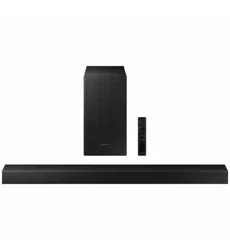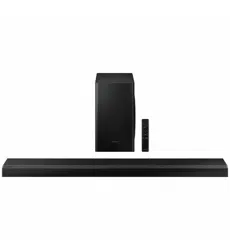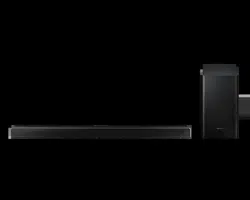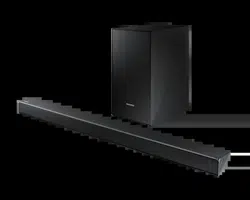

HW-N650
USER MANUAL
ENG - ii
SAFETY INFORMATION
SAFETY WARNINGS
TO REDUCE THE RISK OF ELECTRIC SHOCK, DO
NOT REMOVE THE COVER (OR BACK).
NO USER-SERVICEABLE PARTS ARE INSIDE.
REFER SERVICING TO QUALIFIED SERVICE
PERSONNEL.
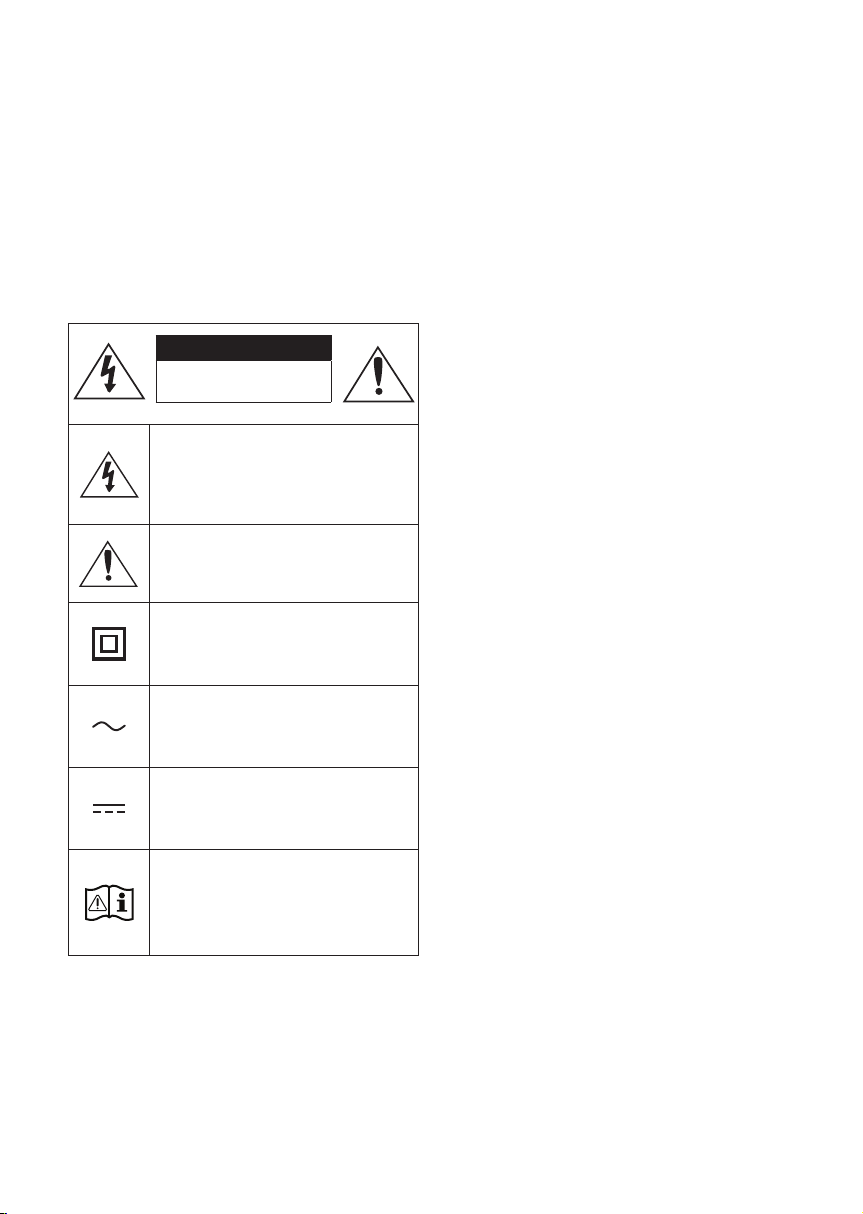
CAUTION
RISK OF ELECTRIC SHOCK.
DO NOT OPEN.
This symbol indicates that high voltage
is present inside. It is dangerous to
make any kind of contact with any
internal part of this product.
This symbol indicates that this product
has included important literature
concerning operation and maintenance.
Class II product : This symbol indicates
that it does not require a safety
connection to electrical earth (ground).
AC voltage : This symbol indicates that
the rated voltage marked with the
symbol is AC voltage.
DC voltage : This symbol indicates that
the rated voltage marked with the
symbol is DC voltage.
Caution, Consult instructions for use :
This symbol instructs the user to
consult the user manual for further
safety related information.
WARNING
• To reduce the risk of re or electric shock, do
not expose this appliance to rain or moisture.
CAUTION
• TO PREVENT ELECTRIC SHOCK, MATCH WIDE
BLADE OF PLUG TO WIDE SLOT, FULLY
INSERT.
• This apparatus shall always be connected to a
AC outlet with a protective grounding
connection.
• To disconnect the apparatus from the mains,
the plug must be pulled out from the mains
socket, therefore the mains plug shall be
readily operable.
• Do not expose this apparatus to dripping or
splashing. Do not put objects lled with
liquids, such as vases on the apparatus.
• To turn this apparatus off completely, you
must pull the power plug out of the wall
socket. Consequently, the power plug must
be easily and readily accessible at all times.
ENG - iii
PRECAUTIONS
1. Ensure that the AC power supply in your
house complies with the power
requirements listed on the identication
sticker located on the bottom of your
product. Install your product horizontally, on
a suitable base (furniture), with enough
space around it for ventilation (7~10 cm).
Make sure the ventilation slots are not
covered. Do not place the unit on ampliers
or other equipment which may become hot.
This unit is designed for continuous use. To
fully turn off the unit, disconnect the AC plug
from the wall outlet. Unplug the unit if you
intend to leave it unused for a long period of
time.
2. During thunderstorms, disconnect the AC
plug from the wall outlet. Voltage peaks due
to lightning could damage the unit.
3. Do not expose the unit to direct sunlight or
other heat sources. This could lead to
overheating and cause the unit to
malfunction.
4. Protect the product from moisture (i.e.
vases), and excess heat (e.g. a replace) or
equipment creating strong magnetic or
electric elds. Unplug the power cable from
the AC wall socket if the unit malfunctions.
Your product is not intended for industrial
use. It is for personal use only. Condensation
may occur if your product has been stored in
cold temperatures. If transporting the unit
during the winter, wait approximately
2 hours until the unit has reached room
temperature before using.
5. The battery used with this product contains
chemicals that are harmful to the
environment. Do not dispose of the battery
in the general household trash. Do not
expose the battery to excess heat, direct
sunlight, or re. Do not short circuit,
disassemble, or overheat the battery.
Danger of explosion if the battery is replaced
incorrectly. Replace only with the same or
equivalent type.
ABOUT THIS MANUAL
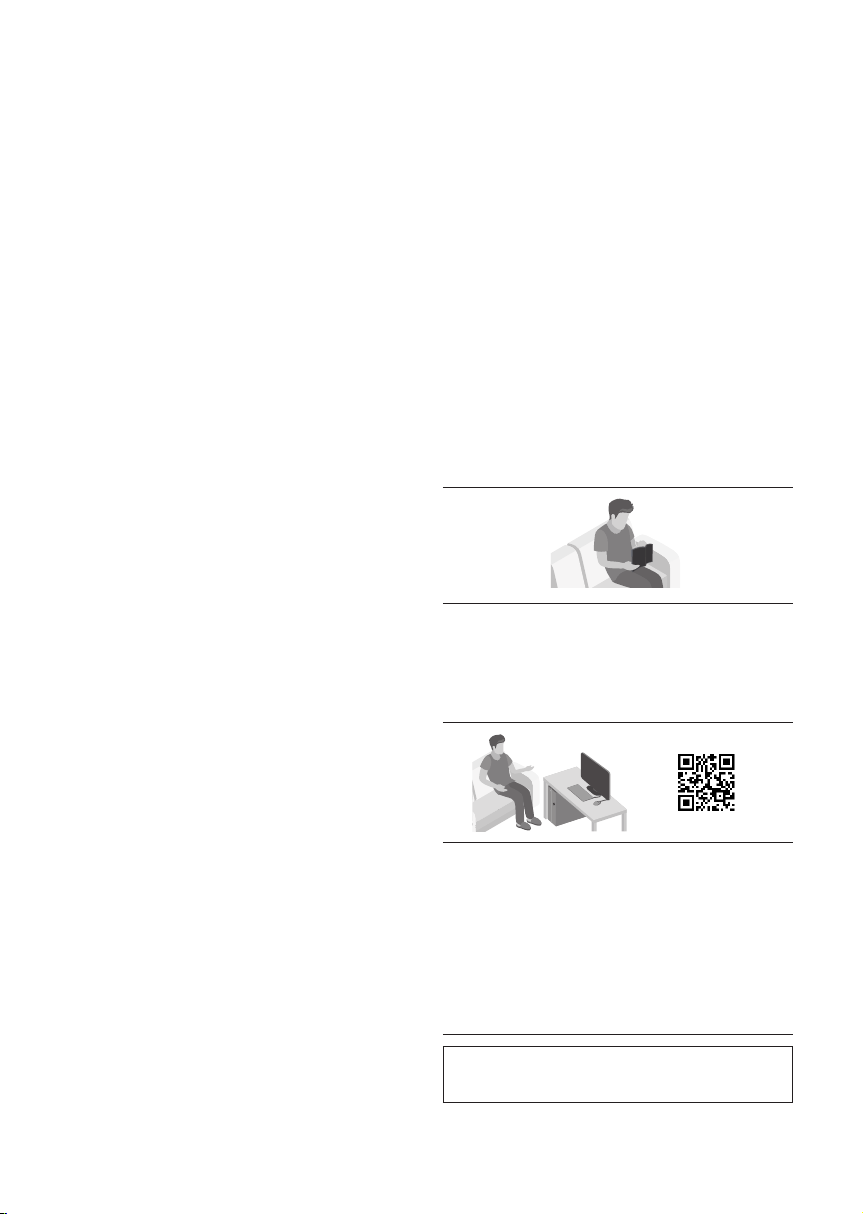
The user manual has two parts: this simple paper
USER MANUAL and a detailed FULL MANUAL you
can download.
USER MANUAL
See this manual for safety instructions,
product installation, components,
connections, and product specications.
FULL MANUAL
You can access the FULL MANUAL on
Samsung’s on-line customer support centre by
scanning the QR code. To see the manual on
your PC or mobile device, download the
manual in document format from Samsung’s
website. (http://www.samsung.com/support)
Design and specications are subject to change
without prior notice.

ENG - iv
CONTENTS
01 Checking the Components 2
Inserting Batteries before using the Remote Control (AA batteries X 2) ------------------------- 2
02 Product Overview 3
Front Panel / Right Side Panel of the Soundbar ------------------------- 3
Bottom Panel of the Soundbar ------------------------- 3
03 Connecting the Soundbar 4
Connecting Electrical Power
-------------------------
4
Connecting the Soundbar to the Subwoofer
-------------------------
5
– Automatic connection between the Subwoofer and the Soundbar
-------------------------
5
– Manually connecting the Subwoofer if automatic connection fails
-------------------------
6
Connecting the SWA-8500S to a Soundbar (Sold Separately)
-------------------------
7
04 Connecting to your TV 9
Method 1. Connecting with a Cable
-------------------------
9
– Connecting a TV using an HDMI Cable
-------------------------
9
– Connecting using an Optical Cable
-------------------------
10
Method 2. Connecting Wirelessly
-------------------------
11
– Connecting a TV via Bluetooth
-------------------------
11
05 Connecting an External Device 13
Connecting using an HDMI Cable
-------------------------
13
Connecting using an Optical or Analogue Audio (AUX) Cable
-------------------------
14
06 Connecting a USB Storage Device 15
Software Update
-------------------------
15

ENG - v
07 Connecting a Mobile Device 16
Connecting via Bluetooth
-------------------------
16
08 Using the Remote Control 17
How to Use the Remote Control
-------------------------
17
Adjusting the Soundbar volume with a TV remote control
-------------------------
20
09 Installing the Wall Mount 21
Installation Precautions
-------------------------
21
Wallmount Components
-------------------------
21
10 Troubleshooting 24
11 Licence 25
12 Open Source Licence Notice 25
13 Important Notes About Service 25
14 SpecicationsandGuide 26
Specications
-------------------------
26
ENG - 2
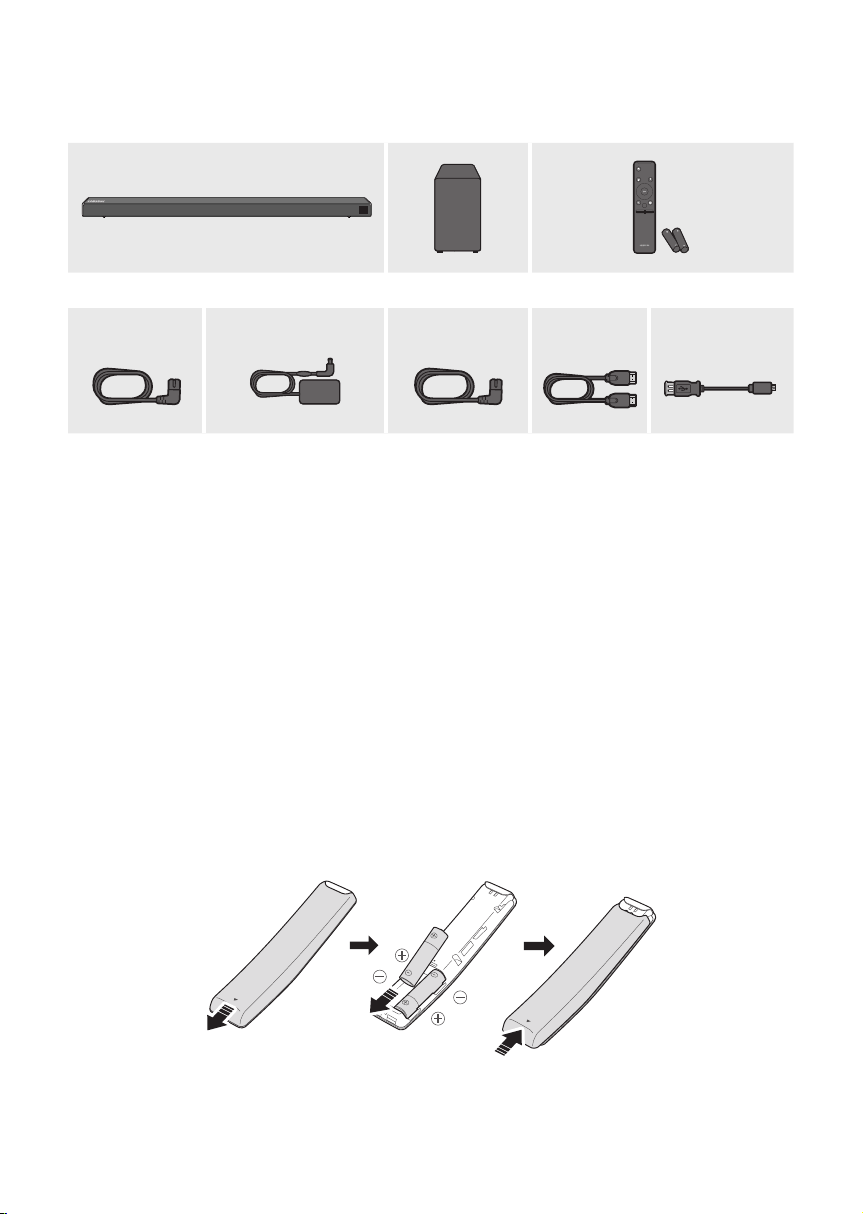
01 CHECKING THE COMPONENTS
VOL WOOFER
SOUNDBAR
SOUND
MODE
PAIR
Soundbar Main Unit Subwoofer Remote Control / Batteries
1 2 3
Power Cord
(Subwoofer)
AC/DC Adapter
(Main Unit)
Power Cord
(AC/DC Adapter)
HDMI Cable Micro USB to
USB adapter Cable
(Optionally)
• For more information about the power supply and power consumption, refer to the label attached
to the product. (Label : Bottom of the Soundbar Main Unit)
• The power components are labelled (1, 2, 3). For more information about power connections,
see page 4.
• For Soundbar wall mounting components, see page 21.
• To purchase additional components or optional cables, contact a Samsung Service Centre or
Samsung Customer Care.
Inserting Batteries before using the Remote Control (AA batteries X 2)
Slide the battery cover in the direction of the arrow until it is completely removed. Insert 2 AA batteries
(1.5V) oriented so that their polarity is correct. Slide the battery cover back into position.

ENG - 3
02 PRODUCT OVERVIEW
Front Panel / Right Side Panel of the Soundbar
Display
Position the product so
that the SAMSUNG logo
is located on the top.
Volume
Right Side of the Soundbar
Power
Bottom Panel of the Soundbar
HDMI IN
HDMI OUT
(TV-ARC)
USB (5V 0.5A)
AUX IN
DIGITAL AUDIO IN (OPTICAL)
DC 24V
HDMI OUT
(TV-ARC)
HDMI IN
DC 24V
USB (5V 0.5A)
AUX IN
DIGITAL AUDIO IN (OPTICAL)
Source
Selects the source input mode. (D.IN / AUX / HDMI / BT / USB)
• To turn on “BT PAIRING” mode, change the source to “BT” mode, and then press and
hold the (Source) button for more than 5 seconds.
USB Connect a USB device here to play music les on the USB device through the Soundbar.
AUX Connect to the Analogue output of an external device.
D.IN Connect to the digital (optical) output of an external device.
HDMI IN
Inputs digital video and audio signals simultaneously using an HDMI cable.
Connect to the HDMI output of an external device.
HDMI OUT Connect to the HDMI (ARC) jack on a TV.
DC 24V Connect the AC/DC power adapter. (Power Supply In)
ENG - 4
03 CONNECTING THE SOUNDBAR
Connecting Electrical Power
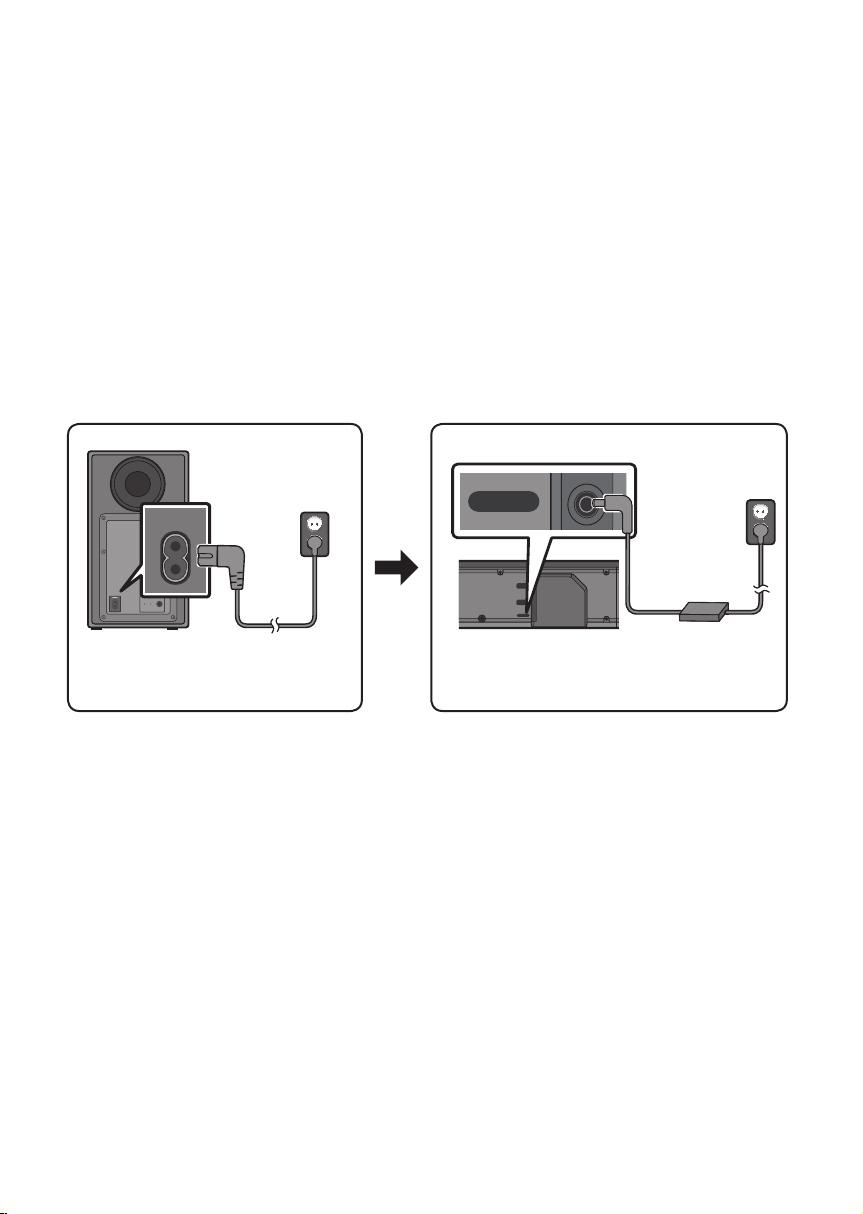
Use the power components (1, 2
, 3
) to connect the Subwoofer and Soundbar to an electrical outlet in
the following order:
1 Connect the power cord to the Subwoofer.
2 Connect the power output cable to the power adapter, and then to the Soundbar.
3
Connect the power cord to a wall socket.
See the illustrations below.
• For more information about the required electrical power and power consumption, refer to the
label attached to the product. (Label : Bottom of the Soundbar Main Unit)
POWER
Rear of Subwoofer
1 Power Cord
Connecting
Electrical Power
HDMI OUT
(TV-ARC)
DC 24V
HDMI IN
DC 24V
Bottom of the
Soundbar Main Unit
2 AC/DC Adapter
3 Power Cord
Connecting
Electrical Power
• Make sure to rest the AC/DC Adapter at on a table or the oor. If you place the AC/DC Adapter so
that it is hanging with the AC cord input facing upwards, water or other foreign substances could
enter the Adapter and cause the Adapter to malfunction.

ENG - 5
Connecting the Soundbar to the Subwoofer
When the subwoofer is connected, you can enjoy rich bass sound.
Automatic connection between the Subwoofer and the Soundbar
When you turn the power on after connecting the power cables to the Soundbar and subwoofer, the
subwoofer is automatically connected to the Soundbar.
• When auto pairing is complete, the blue indicators at the rear of the subwoofer turn on.
LED Indicator Lights on the Rear of Subwoofer
LED Status Description Resolution
Blue
On
Successfully connected
(normal operation)
-
Blinking Recovering the connection
Check if the power cable attached to the
main Soundbar unit is connected properly
or wait about 5 minutes. If blinking persists,
try manually connecting the subwoofer.
See page 6.
Red On
Standby (with the Soundbar
main unit turned off)
Check if the power cable attached to the
main Soundbar unit is connected properly.
Connection failed
Connect again. See the instructions for
manual connection on page 6.
Red and
blue
Blinking Malfunction
See the contact information for the
Samsung Service Centre in this manual.
ENG - 6
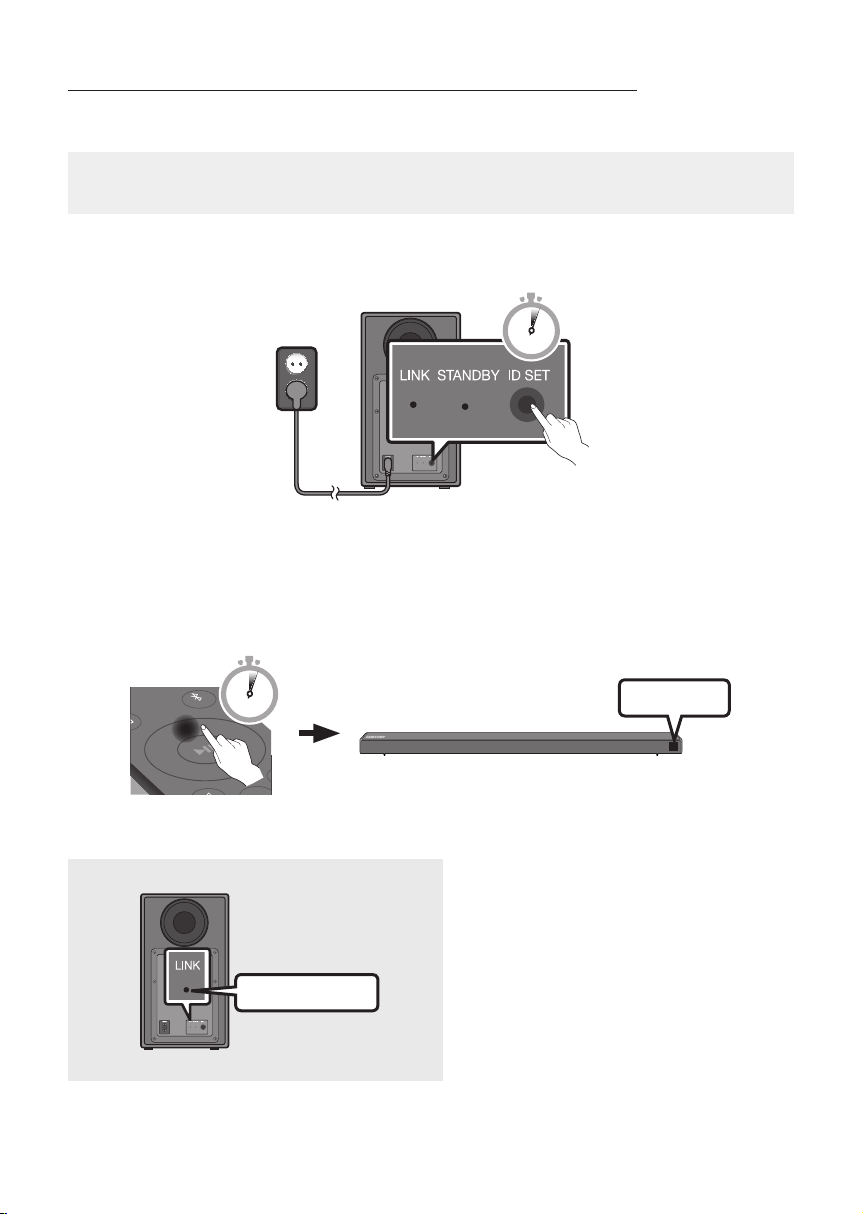
Manually connecting the Subwoofer if automatic connection fails
Before performing the manual connection procedure below:
• Check whether the power cables for the Soundbar and subwoofer are connected properly.
• Make sure that the Soundbar is turned on.
1. Press and hold ID SET on the rear of the subwoofer for at least 5 seconds.
• The red indicator on the rear of the subwoofer turns off and the blue indicator blinks.
5 Sec
Rear of Subwoofer
2. Press and hold the Up button on the remote control for at least 5 seconds.
• The ID SET message appears on the display of the Soundbar for a moment, and then it
disappears.
• The Soundbar will automatically power on when ID SET is complete.
SOUND
MODE
PAIR
5 Sec
ID SET
3. Check if the LINK LED is solid blue (connection complete).
Blue is On
The LINK LED indicator stops blinking and
glows a solid blue when a connection is
established between the Soundbar and the
Wireless Subwoofer.
ENG - 7
Connecting the SWA-8500S to a Soundbar (Sold Separately)
Expand to true wireless surround sound by connecting the Samsung Wireless Rear Speaker Kit
(SWA-8500S) to your Soundbar (Sold separately).
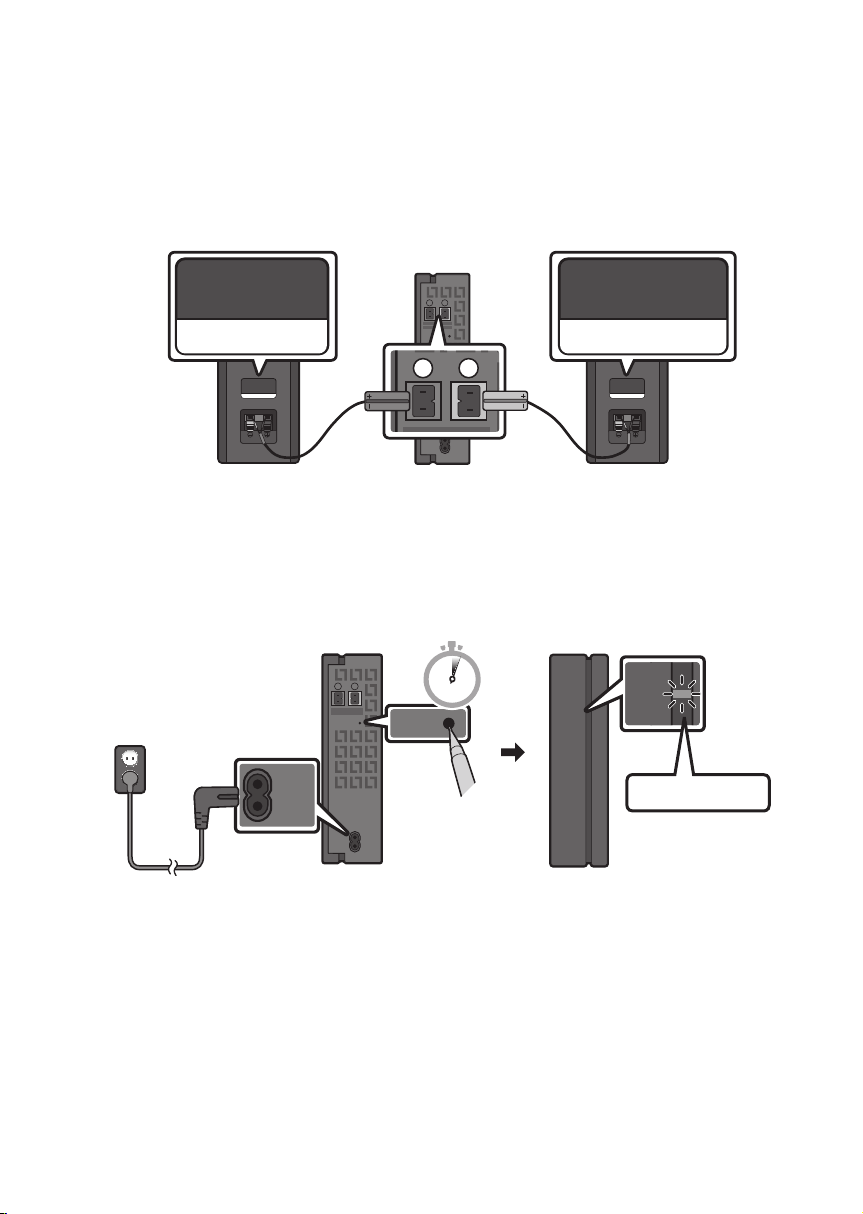
1. Connect the Wireless Receiver Module to 2 Surround Speakers.
– The speaker cables are colour coded.
SURROUND-LEFT
ID SET
L
R
SURROUND SPEAKERS OUT
SPEAKER IMPEDANCE : 3Ω
POWER
ID SET
L
R
SURROUND SPEAKERS OUT
SPEAKER IMPEDANCE : 3Ω
SURROUND-RIGHT
SURROUND-LEFT SURROUND-RIGHT
2. Check the standby status of the Wireless Receiver Module after plugging it into an electrical outlet.
• The LINK LED indicator (blue LED) on the Wireless Receiver Module blinks. If the LED does not
blink, press the ID SET button on the back of the Wireless Receiver Module with a pen tip for
5~6 seconds until the LINK LED indicator blinks (in Blue). For more about the LED, please refer
to the SWA-8500S user manual.
ID SET
L
R
SURROUND SPEAKERS OUT
SPEAKER IMPEDANCE : 3Ω
POWER
POWER
STANDBY
LINK
STANDBY
LINK
ID SET
SURROUND SPEAKERS OUT
SPEAKER IMPEDANCE : 3Ω
ID SET
L
R
SURROUND SPEAKERS OUT
SPEAKER IMPEDANCE : 3Ω
POWER
POWER
STANDBY
LINK
STANDBY
LINK
ID SET
SURROUND SPEAKERS OUT
SPEAKER IMPEDANCE : 3Ω
Blue blinking
5 Sec
ENG - 8
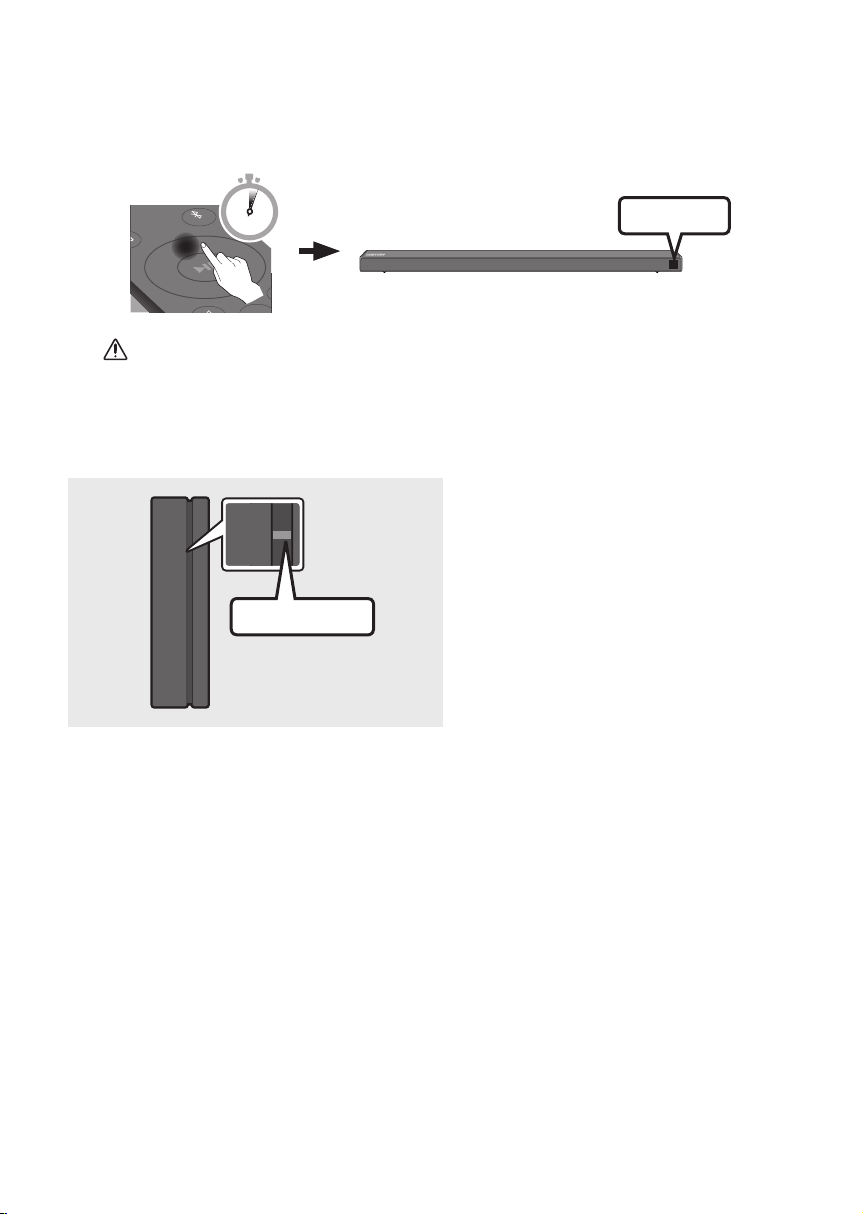
3. Press and hold the Up button on the remote control for at least 5 seconds.
• The ID SET message appears on the display of the Soundbar for a moment, and then it
disappears.
• The Soundbar will automatically power on when ID SET is complete.
SOUND
MODE
PAIR
5 Sec
ID SET
CAUTION
• If your Soundbar was playing music when it connects to the SWA-8500S, you may hear some
stuttering from the woofer as the connection nalises.
4. Check if the LINK LED is solid blue (connection complete).
STANDBY
LINK
STANDBY
LINK
Blue is On
The LINK LED indicator stops blinking and
glows a solid blue when a connection is
established between the Soundbar and the
Wireless Receiver Module.
5. If SWA-8500S is not connected, repeat the procedure from Step 2.
ENG - 9
04 CONNECTING TO YOUR TV
Hear TV sound from your Soundbar through wired or wireless connections.
• When the Soundbar is connected to selected Samsung TVs, the Soundbar can be controlled using
the TV’s remote control.
– This feature is supported by 2017 and later Samsung Smart TVs that support Bluetooth when
you connect the Soundbar to the TV using an optical cable.
– This function also allows you to use the TV menu to adjust the sound eld and various settings
as well as the volume and mute.
Method 1. Connecting with a Cable
When the audio in a broadcast is encoded in Dolby Digital and the “Digital Output Audio Format” on
your TV is set to PCM, we recommend that you change the setting to Dolby Digital. When the setting on
the TV is changed, you will experience better sound quality. (The TV menu may differ depending on the
TV manufacturer.)
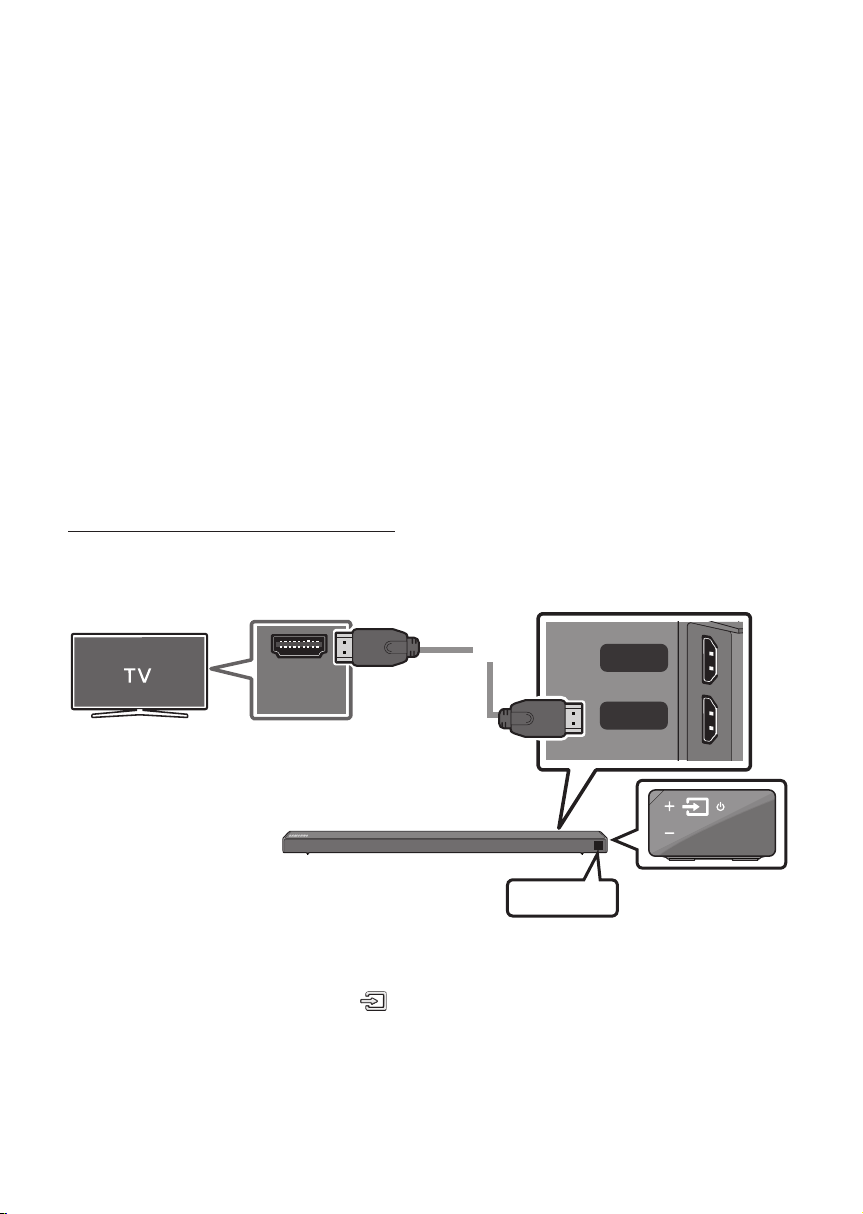
Connecting a TV using an HDMI Cable
HDMI OUT
(TV-ARC)
HDMI IN
DC 24V
HDMI IN
(ARC)
HDMI Cable
Bottom of the Soundbar
TV ARC
Connect to the HDMI OUT (TV-ARC)
port of the Soundbar main unit.
Right Side of the Soundbar
Connect to the HDMI IN
(ARC) port of your TV.
1. With the Soundbar and TV turned on, connect the HDMI cable as shown in the gure.
2. “TV ARC” appears in the display window of the Soundbar main unit and the Soundbar plays TV sound.
• If TV sound is inaudible, press the (Source) button on the remote control or on the right side
of the Soundbar to switch to “D.IN” mode. The screen displays “D.IN” and “TV ARC” in sequence,
and TV sound is played.
ENG - 10
• If “TV ARC” does not appear in the display window of the Soundbar main unit, conrm that the
HDMI cable is connected to the correct port.
• Use the volume buttons on the TV’s remote control to change the volume on the Soundbar.
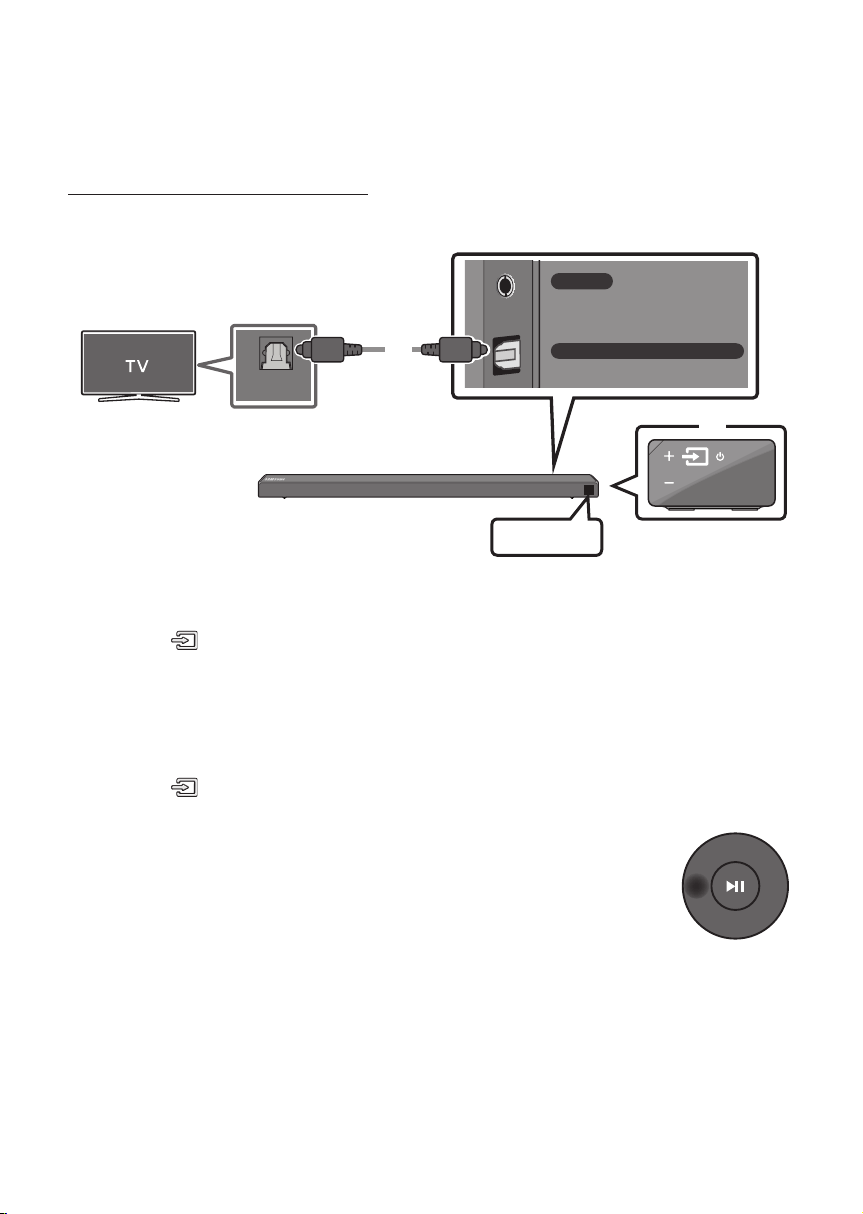
Connecting using an Optical Cable
AUX IN
DIGITAL AUDIO IN (OPTICAL)
OPTICAL OUT
Optical Cable
(not supplied)
Bottom of the Soundbar
D.IN
Right Side of the Soundbar
1. Connect the DIGITAL AUDIO IN (OPTICAL) jack on the Soundbar to the OPTICAL OUT jack of the TV
with a digital optical cable (not supplied).
2. Press the (Source) button on the right side panel or remote control, and then select the “D.IN”
mode.
Auto Power Link
Auto Power Link automatically turns on the Soundbar when the TV is turned on.
1. Connect the Soundbar and a TV with a digital optical cable (not supplied).
2. Press the (Source) button on the right side panel or on the remote control, and then select
“D.IN”.
3. Press the Left button on the remote control (the blue spot in the illustration to
the right) for 5 seconds to turn Auto Power Link on or off.
• Auto Power Link is set to ON by default.
(To turn off this function, hold the Left button on the remote for 5 seconds.)
• Depending on the connected device, Auto Power Link may not function.
• This function is only available in the “D.IN” mode.
ENG - 11
Method 2. Connecting Wirelessly
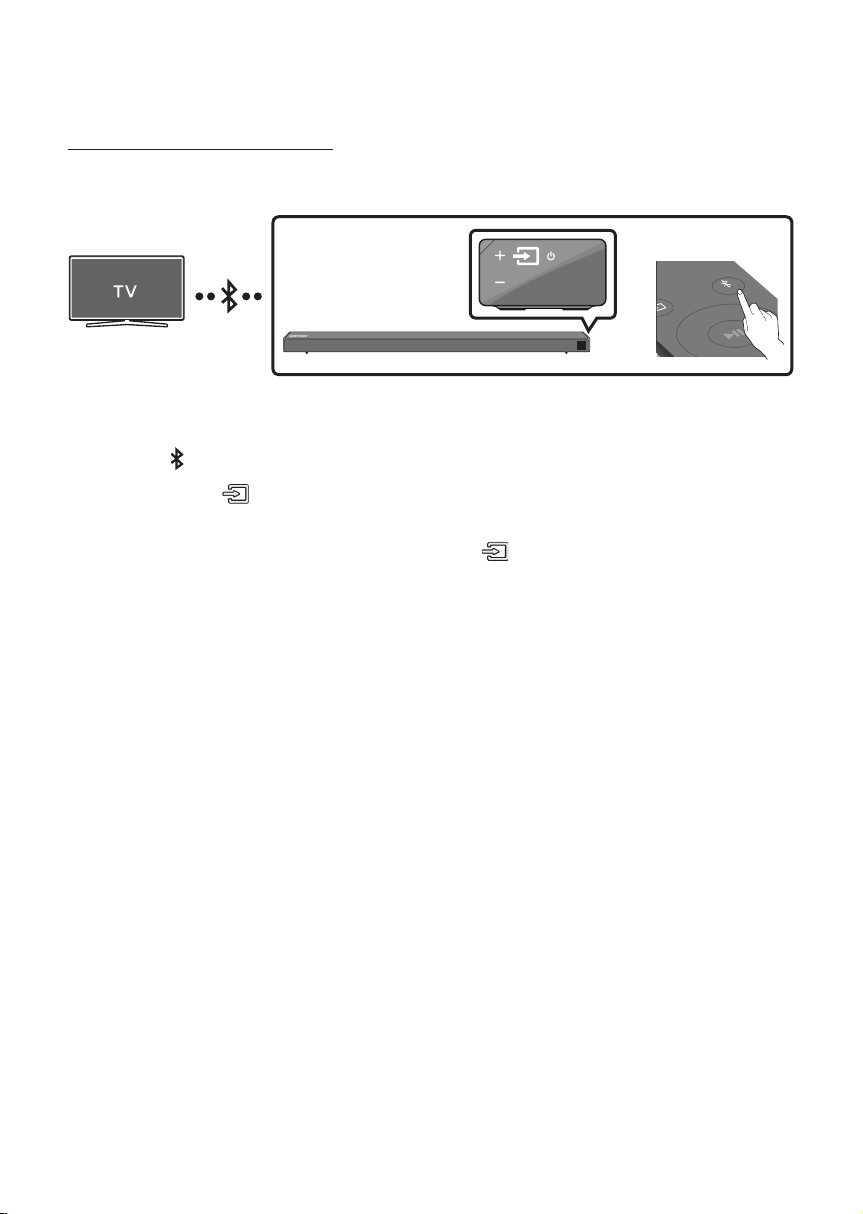
Connecting a TV via Bluetooth
When a TV is connected using Bluetooth, you can hear stereo sound without the hassle of cabling.
• Only one TV can be connected at a time.
SOUND
MODE
PAIR
OR
The initial connection
1. Press the PAIR button on the remote control to enter the “BT PAIRING” mode.
(OR)
a. Press the (Source) button on the right side panel and then select “BT”.
Change “BT” to “BT READY”.
b. When “BT READY” appears, press and hold the (Source) button on the right side panel
of the Soundbar for more than 5 seconds to display “BT PAIRING”.
2. Select Bluetooth mode on the TV. (For more information, see the TV’s manual.)
3. Select “[AV] Samsung Soundbar Nxxx N-Series” from the list on TV’s screen.
An available Soundbar is indicated with “Need Pairing” or “Paired” on the TV’s Bluetooth device
list. To connect the TV to the Soundbar, select the message, and then establish a connection.
• When the TV is connected, [TV Name] → “BT” appears on the Soundbar’s front display.
4. You can now hear TV sound from the Soundbar.
If the device fails to connect
• If a previously connected Soundbar listing (e.g. “[AV] Samsung Soundbar Nxxx N-Series”) appears
in the list, delete it.
• Then repeat steps 1 through 3.

ENG - 12
Disconnecting the Soundbar from the TV
Press the (Source) button on the right side panel or on the remote control and switch to any mode
but “BT”.
• Disconnecting takes time because the TV must receive a response from the Soundbar.
(The time required may differ, depending on the TV model.)
• To cancel the automatic Bluetooth connection between the Soundbar and TV, press the
p (Play/Pause) button on the remote control for 5 seconds with the Soundbar in “BT READY” status.
(Toggle On → Off)
What is the difference between BT READY and BT PAIRING?
• BT READY : In this mode, you can search for previously connected TVs or connect a previously
connected mobile device to the Soundbar.
• BT PAIRING : In this mode, you can connect a new device to the Soundbar. (Press the PAIR button
on the remote control or press and hold the (Source) button on the right side of the Soundbar
for more than 5 seconds while the Soundbar is in “BT” mode.)
NOTES
• If asked for a PIN code when connecting a Bluetooth device, enter <0000>.
• In Bluetooth connection mode, the Bluetooth connection will be lost if the distance between the
Soundbar and the Bluetooth device exceeds 10 meters.
• The Soundbar automatically turns off after 5 minutes in the Ready state.
• The Soundbar may not perform Bluetooth search or connection correctly under the following
circumstances:
– If there is a strong electrical eld around the Soundbar.
– If several Bluetooth devices are simultaneously paired with the Soundbar.
– If the Bluetooth device is turned off, not in place, or malfunctions.
• Electronic devices may cause radio interference. Devices that generate electromagnetic waves
must be kept away from the Soundbar main unit - e.g., microwaves, wireless LAN devices, etc.
ENG - 13
05 CONNECTING AN EXTERNAL DEVICE
Connect to an external device via a wired or wireless network to play the external device’s sound
through the Soundbar.
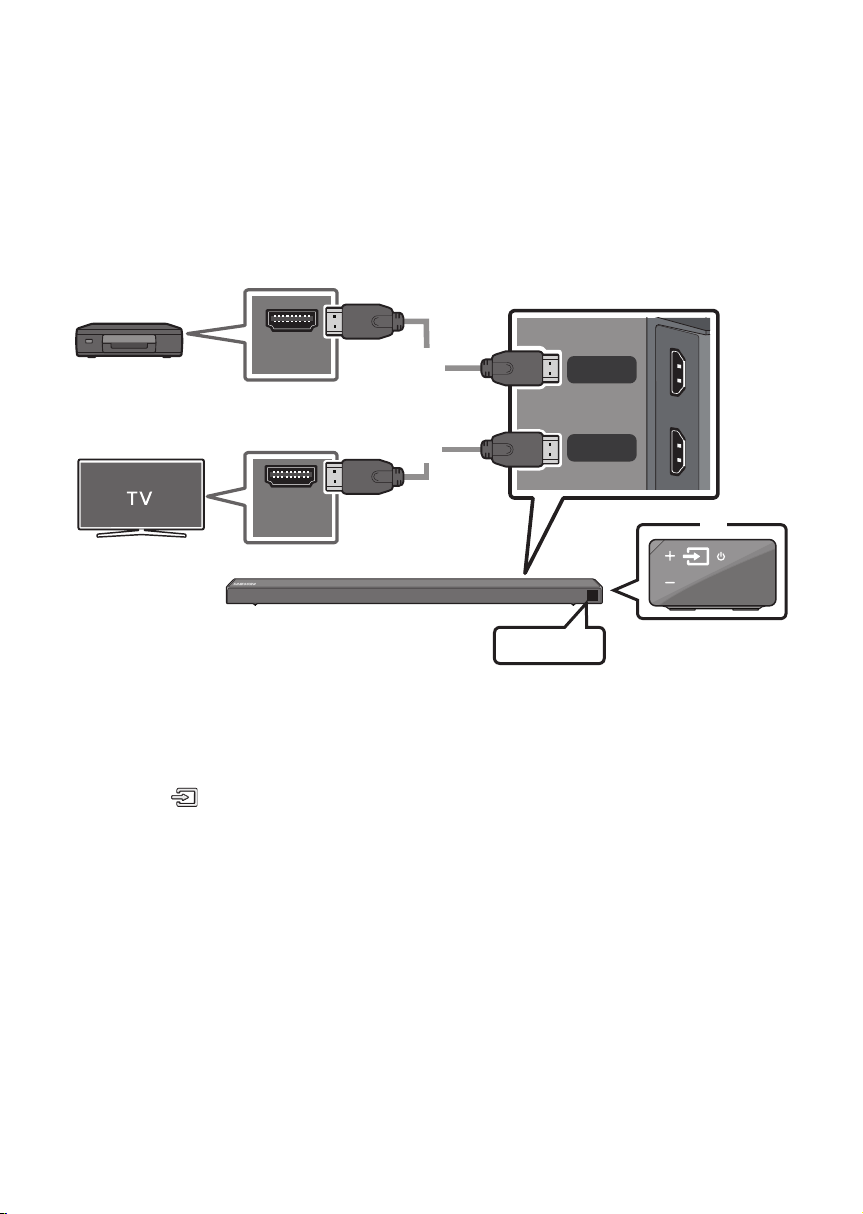
Connecting using an HDMI Cable
Right Side of the Soundbar
HDMI OUT
HDMI OUT
(TV-ARC)
HDMI IN
HDMI IN
(ARC)
HDMI Cable
HDMI Cable
Bottom of the Soundbar
HDMI
External Device
1. Connect an HDMI cable from the HDMI IN jack on the back of the product to the HDMI OUT jack on
your digital device.
2. Connect an HDMI cable from the HDMI OUT (TV-ARC) jack on the back of the product to the HDMI
IN jack on your TV.
3. Press the (Source) button on the right side panel or on the remote control, and then select
“HDMI”.
4. “HDMI” mode is displayed on the Soundbar display panel and sound plays.

ENG - 14
Connecting using an Optical or Analogue Audio (AUX) Cable
Right Side of the Soundbar
USB (5V 0.5A)
AUX IN
DIGITAL AUDIO IN (OPTICAL)
OPTICAL OUT
- AUDIO -
R L
Bottom of the Soundbar
Optical Cable
(not supplied)
Audio (AUX) Cable
(not supplied)
BD / DVD player /
Set-top box / Game console
1 Audio (AUX) Cable
X Connect AUX IN (Audio) on the main unit to the AUDIO OUT jack of the Source Device using an
audio cable.
Y Select “AUX” mode by pressing the (Source) button on the right side panel or on the remote
control.
2 Optical Cable
X Connect DIGITAL AUDIO IN (OPTICAL) on the main unit to the OPTICAL OUT jack of the Source
Device using a digital optical cable (not supplied).
Y Select “D.IN” mode by pressing the (Source) button on the right side panel or on the remote
control.
ENG - 15
06 CONNECTING A USB STORAGE DEVICE
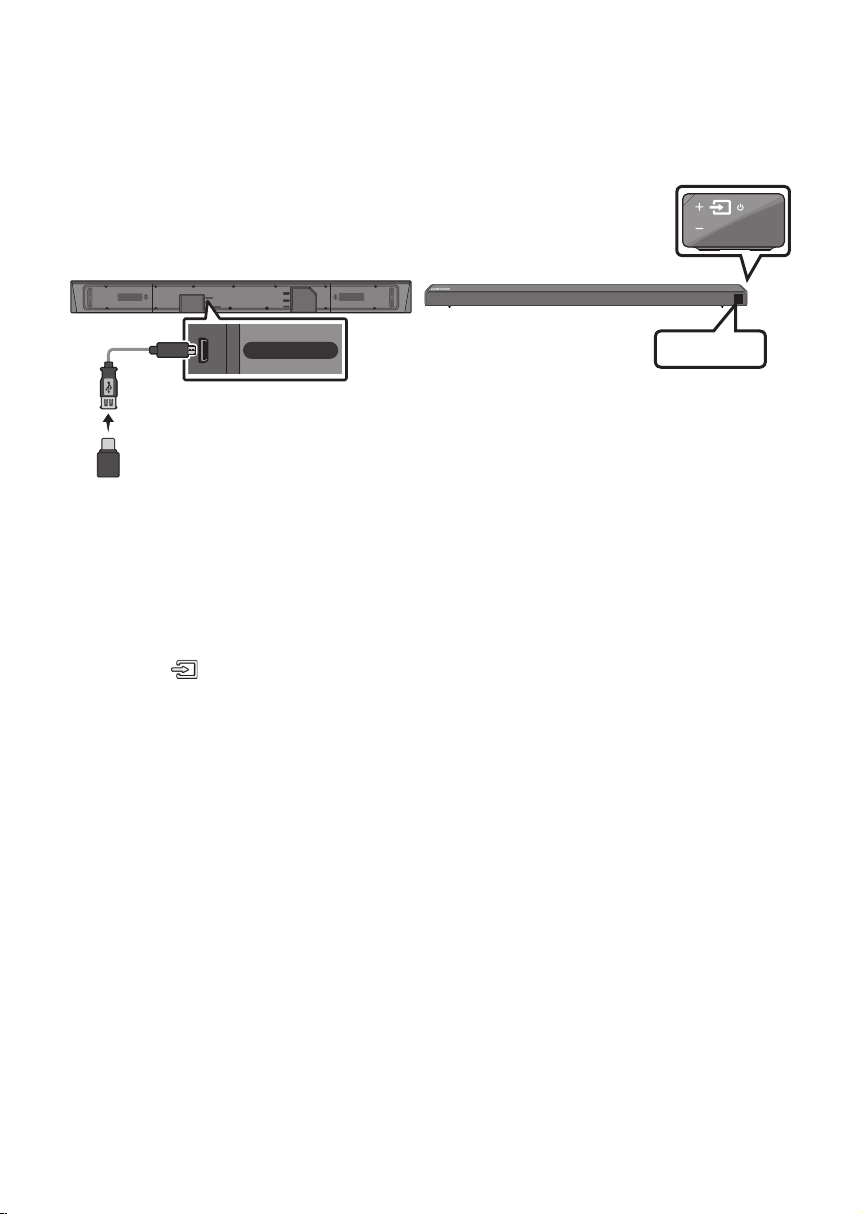
You can play music les located on USB storage devices through the Soundbar.
DisplayUSB port
HDMI OUT
(TV-ARC)
USB (5V 0.5A)
AUX IN
DIGITAL AUDIO IN (OPTICAL)
DC 24V
HDMI IN
USB (5V 0.5A)
Micro USB to
USB adapter Cable
(Optionally)
USB
1. Connect a Micro USB to USB adapter cable with a male USB 2.0 Micro USB plug (Type B) on one
end and a standard female 2.0 USB jack (Type A) on the other end to the micro USB jack on your
Soundbar.
• The Micro USB to USB adapter cable is sold separately. To purchase, contact a Samsung Service
Centre or Samsung Customer Care.
2. Connect your USB device to the female end of the adapter cable.
3. Press the (Source) button on the right side panel or on the remote control, and then select
“USB”.
4. “USB” appears in the display screen.
5. Play music les from the USB storage device through the Soundbar.
• The Soundbar automatically turns off (Auto Power Off) if no USB device has been connected for
more than 5 minutes.
Software Update
SamsungmayofferupdatesfortheSoundbar’ssystemrmwareinthefuture.
If an update is offered, you can update the rmware by connecting a USB device with the rmware
update stored on it to the USB port on your Soundbar. For more information about how to download
update les, go to the Samsung Electronics website at www.samsung.com
Support.
Then, enter or select the model number of your Soundbar, select the Software & Apps option, and then
Downloads. Note that the option names can vary.
ENG - 16
07 CONNECTING A MOBILE DEVICE
Connecting via Bluetooth
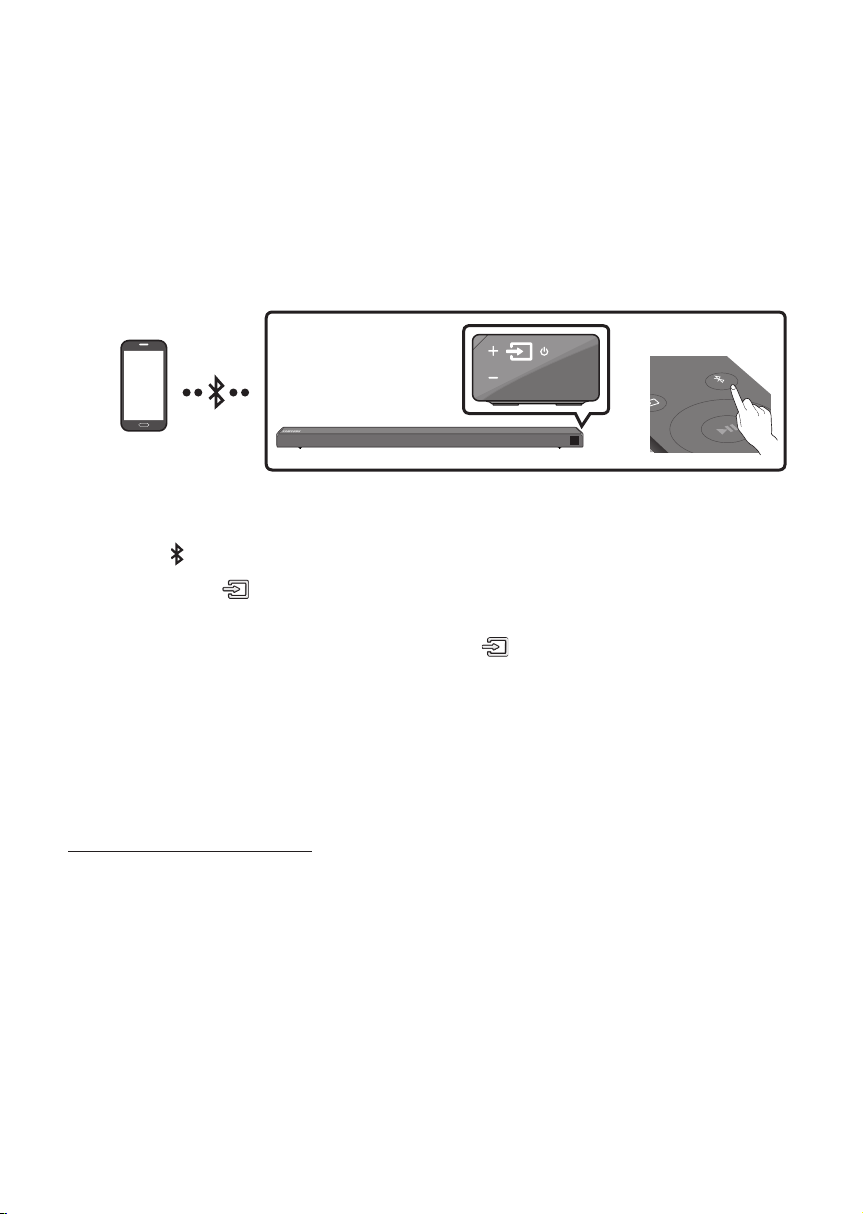
When a mobile device is connected using Bluetooth, you can hear stereo sound without the hassle of
cabling.
• You cannot connect more than one Bluetooth device at a time.
SOUND
MODE
PAIR
OR
Bluetooth device
The initial connection
1. Press the PAIR button on the remote control to enter the “BT PAIRING” mode.
(OR)
a. Press the (Source) button on the right side panel and then select “BT”.
Change “BT” to “BT READY”.
b. When “BT READY” appears, press and hold the (Source) button on the right side panel
of the Soundbar for more than 5 seconds to display “BT PAIRING”.
2. On your device, select “[AV] Samsung Soundbar Nxxx N-Series” from the list that appears.
• When the Soundbar is connected to the Bluetooth device, [Bluetooth Device Name] → “BT”
appears in the front display.
3. Play music les from the device connected via Bluetooth through the Soundbar.
If the device fails to connect
• If a previously connected Soundbar listing (e.g. “[AV] Samsung Soundbar Nxxx N-Series”) appears
in the list, delete it.
• Then repeat steps 1 through 2.
NOTE
• After you have connected the Soundbar to your mobile device the rst time, use the “BT READY”
mode to reconnect. See Page 12 for details.
For more information about Bluetooth connections, refer to “Connecting a TV via
Bluetooth” on pages 11~ 12.
ENG - 17
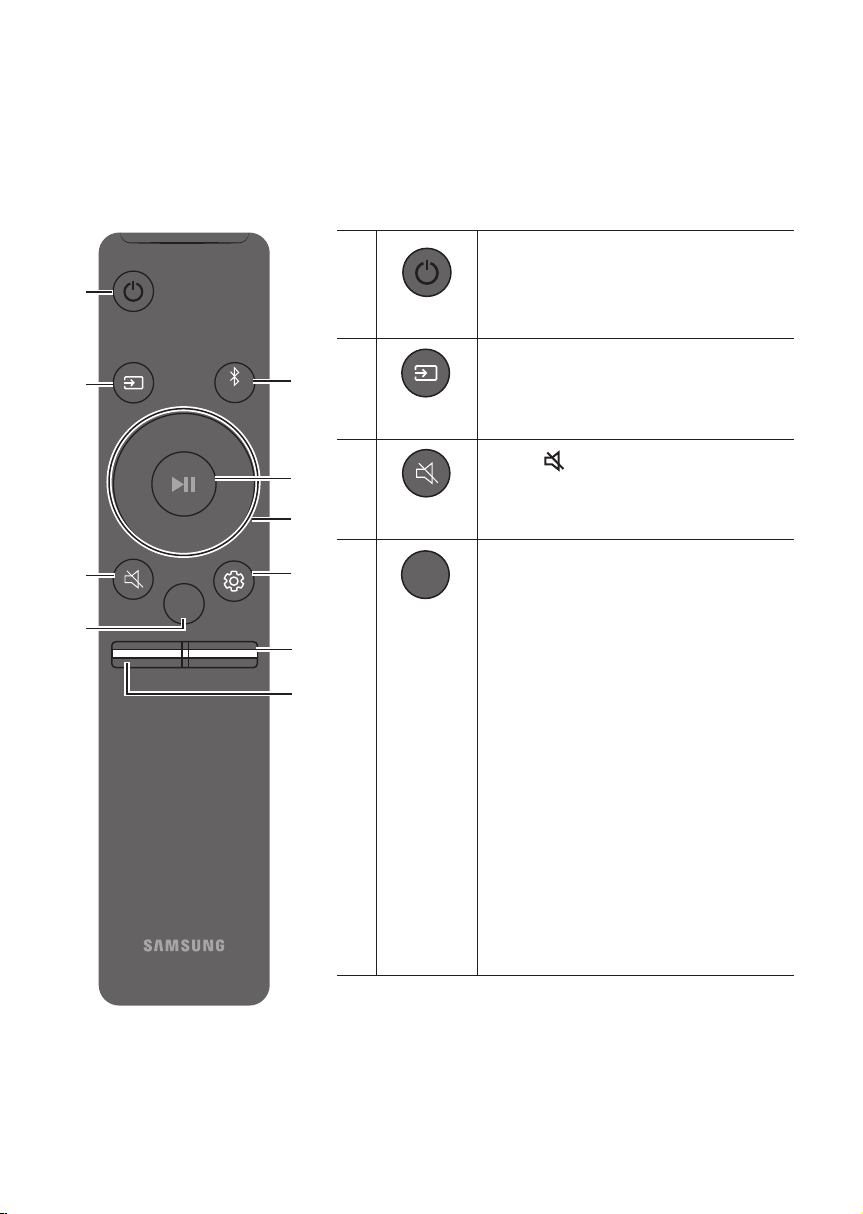
08 USING THE REMOTE CONTROL
How to Use the Remote Control
VOL WOOFER
SOUNDBAR
SOUND
MODE
PAIR
Power
VOL WOOFER
SOUND
MODE
PAIR
Turns the Soundbar on and off.
VOL WOOFER
SOUND
MODE
PAIR
Source
Press to select a source connected to the
Soundbar.
Mute
VOL WOOFER
SOUND
MODE
PAIR
Press the (Mute) button to mute the sound.
Press it again to unmute the sound.
SOUND MODE
VOL WOOFER
SOUND
MODE
PAIR
You can select the desired sound effect by
choosing STANDARD, SURROUND, or GAME.
• DRC (Dynamic Range Control)
Lets you apply dynamic range control to
Dolby Digital tracks. Press and hold the
SOUND MODE button while the Soundbar is
powered off to turn DRC (Dynamic Range
Control) on or off. With the DRC turned on,
loud sound is reduced. (The sound may be
distorted.)
• Bluetooth Power
This feature automatically turns the
Soundbar on when it receives a connection
request from a previously connected TV or
Bluetooth device. The setting is On by
default.
– Press and hold the SOUND MODE
button for more than 5 seconds to turn
off the Bluetooth Power function.
ENG - 18
VOL WOOFER
SOUND
MODE
PAIR
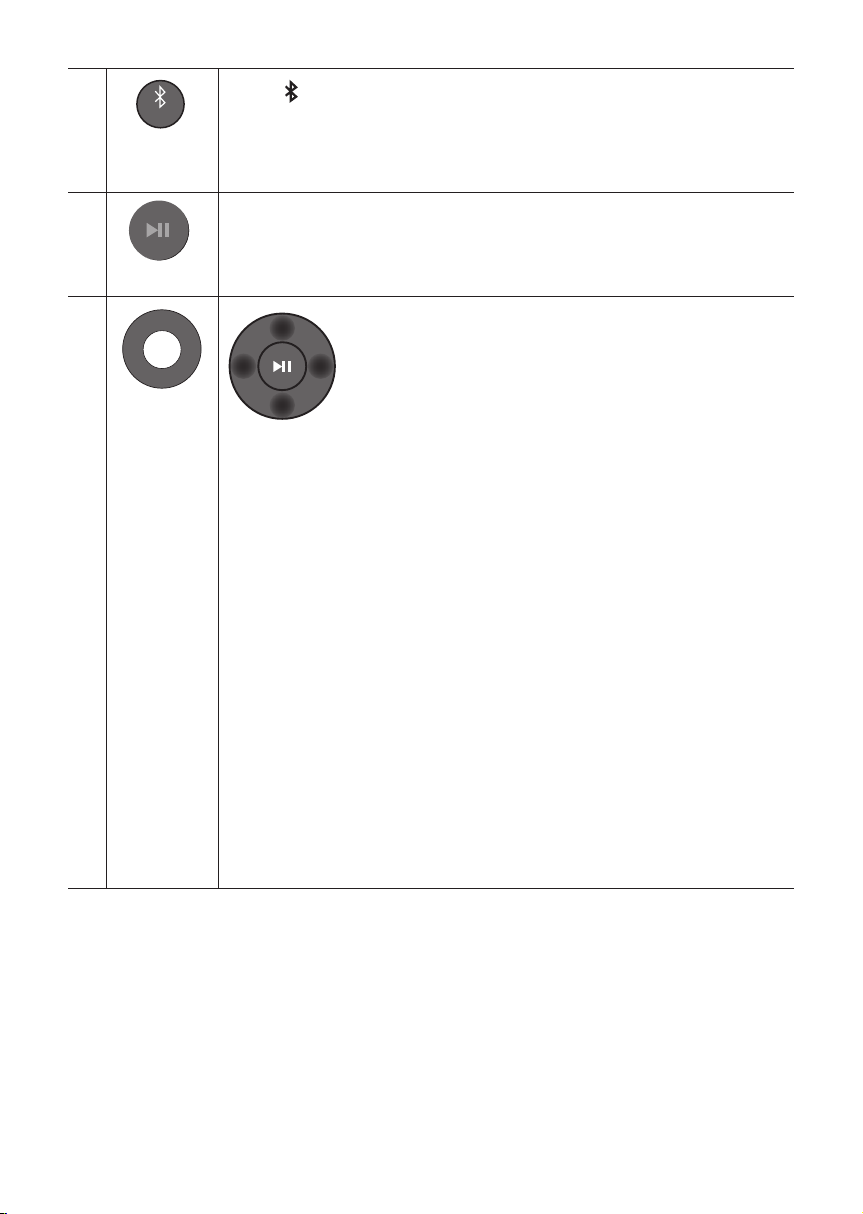
Bluetooth
PAIR
Press the PAIR button. “BT PAIRING” appears in the Soundbar’s display.
You can connect the Soundbar to a new Bluetooth device in this mode by selecting the
Soundbar from the Bluetooth device's search list.
Play / Pause
VOL WOOFER
SOUND
MODE
PAIR
Press the p button to pause a music le temporarily.
When you press the button again, the music le plays.
VOL WOOFER
SOUND
MODE
PAIR
Up/Down/
Left/Right
Press the indicated areas to select Up/Down/Left/Right.
Press Up/Down/Left/Right on the button to select or set functions.
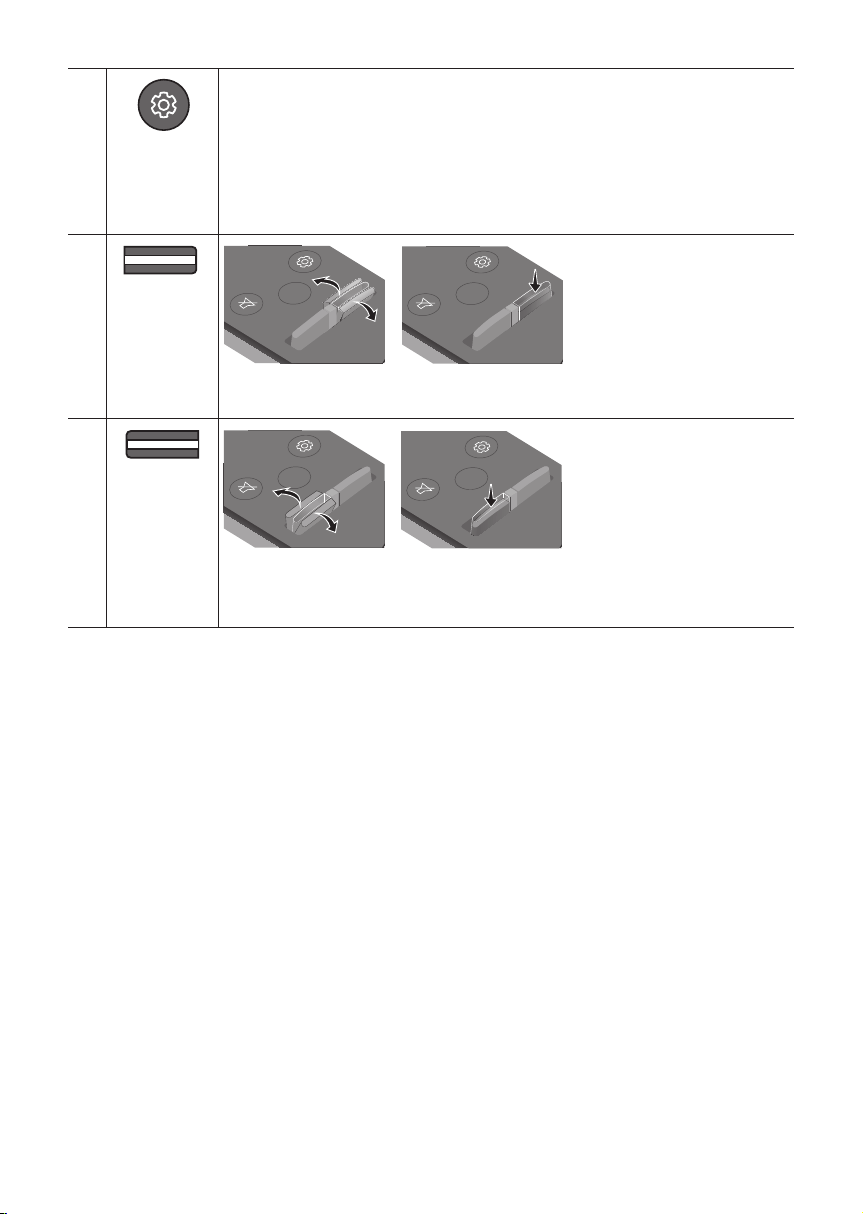
• Repeat
To use the Repeat function in “USB” mode, press the Up button.
• Music Skip
Press the Right button to select the next music le. Press the Left button to select the
previous music le.
• Anynet+ / Auto Power Link
You can turn Anynet+ and Auto Power Link on or off.
Anynet+ and Auto Power Link are turned on and turned off by the Right and Left
buttons respectively.
– Anynet+ : If the Soundbar is connected to a Samsung TV through an HDMI cable,
you can control your Soundbar with a Samsung TV remote control.
Press and hold the Right button for 5 seconds to toggle Anynet+ ON and OFF.
– Auto Power Link : If the Soundbar is connected to your TV through a digital optical
cable, the Soundbar can automatically turn on when you turn on your TV. Press
and hold the Left button for 5 seconds to toggle Auto Power Link ON and OFF.
– Anynet+ / Auto Power Link are set to ON by default.
• ID SET
Press and hold the Up button for 5 seconds to complete ID SET (when connecting to an
accessary item).
ENG - 19
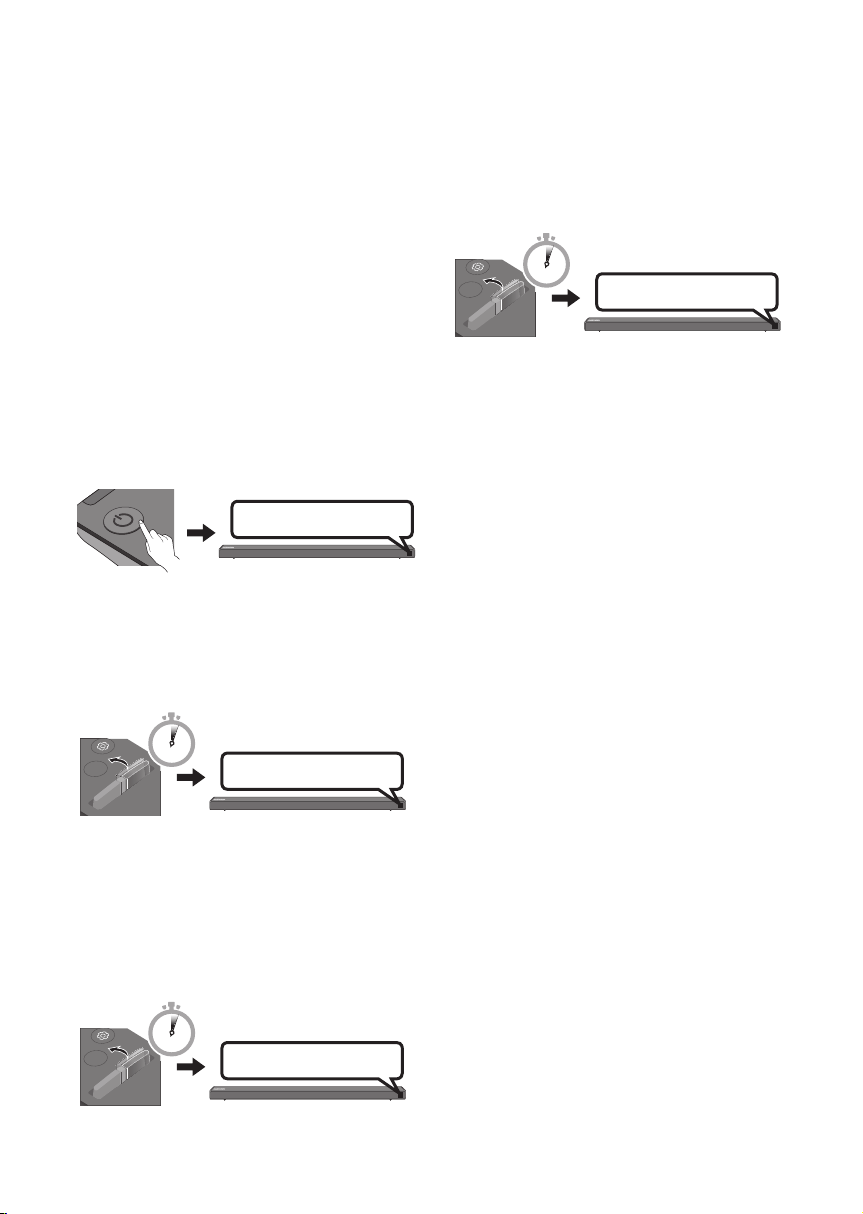
Sound Control
VOL WOOFER
SOUND
MODE
PAIR
You can select from TREBLE, BASS, or AUDIO SYNC.
• To control the volume of the treble or bass sound, select TREBLE or BASS in Sound
Settings, and then adjust the volume between -6~+6 by using the Up/Down buttons.
• If the video on the TV and audio from the Soundbar are not synchronised, select AUDIO
SYNC in Sound Settings, and then
set the audio delay between 0~300 milliseconds
by
using the Up/Down buttons. (Not available in “USB” mode.)
• AUDIO SYNC is only supported for some functions.
VOL WOOFER
SOUND
MODE
PAIR
WOOFER
SOUND
MODE
VOL
WOOFER
SOUNDBAR
SOUND
MODE
VOL
WOOFER
SOUNDBAR
SOUND
MODE
VOL
WOOFER
SOUNDBAR
SOUND
MODE
VOL
WOOFER
SOUNDBAR
Push the button up or down to adjust the volume of the subwoofer to -12 or between -6 to
+6. To set the subwoofer volume level to 0, press the button.
VOL WOOFER
SOUND
MODE
PAIR
VOL
SOUND
MODE
VOL
WOOFER
SOUNDBAR
SOUND
MODE
VOL
WOOFER
SOUNDBAR
SOUND
MODE
VOL
WOOFER
SOUNDBAR
SOUND
MODE
VOL
WOOFER
SOUNDBAR
Push the button up or down to adjust the volume.
• Mute
Press the VOL button to mute the sound. Press it again to unmute the sound.
ENG - 20
Adjusting the Soundbar volume
with a TV remote control
If you have a Samsung TV, you can adjust
the Soundbar’s volume using the IR remote
control that came with your Samsung TV.
First use the TV menu to set the TV audio on your
Samsung TV to external speakers, then use your
Samsung remote to control the Soundbar’s
volume. For more information, see the TV’s user
manual. The default mode for this function is
control by a Samsung TV remote. If your TV is not
a Samsung TV, follow the directions below to
change the settings of this function.
1. Turn Off the Soundbar.
BYE
2. If you do not want to use this function, push
up and hold the WOOFER button repeatedly
for 5 seconds until “OFF-TV REMOTE”
appears in the display.
SOUND
MODE
VOL
WOOFER
SOUNDBAR
5 Sec
OFF-TV REMOTE
3. If you want to control the Soundbar with
your TV’s remote, push up and hold the
WOOFER button for 5 seconds repeatedly
until “ALL-TV REMOTE” appears in the
display. Then, use your TV’s menu to select
external speakers.
SOUND
MODE
VOL
WOOFER
SOUNDBAR
5 Sec
ALL-TV REMOTE
4. If you want to return the Soundbar to the
default mode (control by a Samsung TV
remote), push up and hold the WOOFER
button for 5 seconds repeatedly until
“SAMSUNG-TV REMOTE” appears in the
display.
SOUND
MODE
VOL
WOOFER
SOUNDBAR
5 Sec
SAMSUNG-TV REMOTE
(Default mode)
– Each time you push the WOOFER button
up and hold it for 5 seconds, the mode
switches in the following order:
“SAMSUNG-TV REMOTE” (Default mode)
→ “OFF‑TV REMOTE” → “ALL‑TV REMOTE”.
– This function may not be available,
depending on the remote control.
– For manufacturers that support this
feature, refer to the FULL MANUAL for
your Soundbar on the Samsung web site
(www.samsung.com/support).
– This volume control function works with
IR TV remotes only. It does not work with
Bluetooth TV remotes (remotes that
require pairing)
ENG - 21
09 INSTALLING THE
WALL MOUNT
Installation Precautions
• Install on a vertical wall only.
• Do not install in a place with high
temperature or humidity.
• Verify whether the wall is strong enough to
support the product’s weight. If not, reinforce
the wall or choose another installation point.
• Purchase and use the xing screws or
anchors appropriate for the kind of wall you
have (plaster board, iron board, wood, etc.). If
possible, x the support screws into wall
studs.
• Purchase wall mounting screws according to
the type and thickness of the wall you want to
mount the Soundbar on.
– Diameter: M5
– Length: 35 mm or longer recommended.
• Connect cables from the unit to external
devices before you install the Soundbar on
the wall.
• Make sure the unit is turned off and
unplugged before you install it. Otherwise, it
may cause an electric shock.
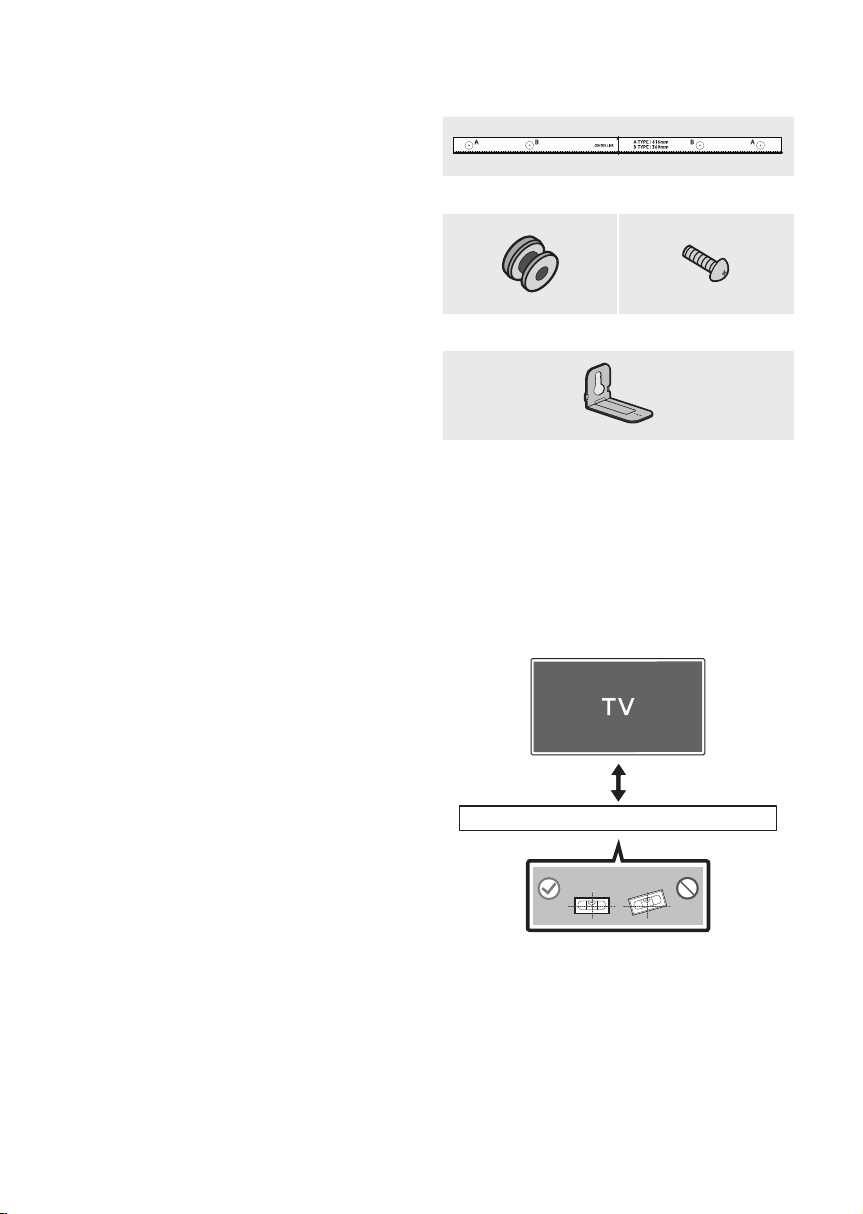
Wallmount Components
Wall Mount Guide
Holder-Screw (2 EA) Screw (2 EA)
Bracket-Wall Mount
(2 EA)
1. Place the Wall Mount Guide against the wall
surface.
• The Wall Mount Guide must be level.
• If your TV is mounted on the wall, install
the Soundbar at least 5 cm below the TV.
5 cm or more
ENG - 22
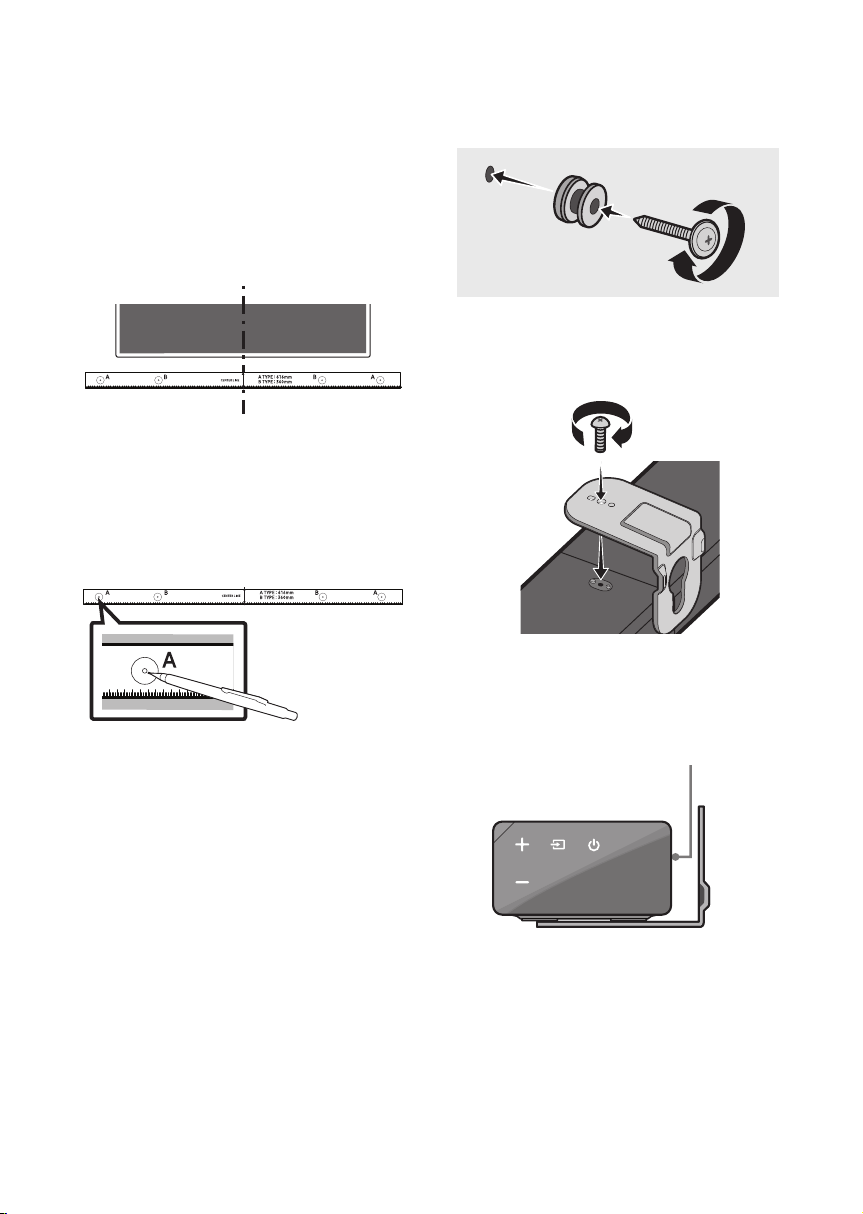
2. Align the Wall Mount Guide’s Centre Line
with the centre of your TV (if you are
mounting the Soundbar below your TV), and
then x the Wall Mount Guide to the wall
using tape.
• If you are not mounting below a TV, place
the Centre Line in the centre of the
installation area.
Centre Line
3. Push a pen tip or sharpened pencil tip
through the centre of the A-TYPE images on
each end of the Guide to mark the holes for
the supporting screws, and then remove the
Wall Mount Guide.
4. Using an appropriately sized drill bit, drill a
hole in the wall at each marking.
• If the markings do not correspond to the
positions of studs, make sure you insert
appropriate anchors or mollies into the
holes before you insert the support
screws. If you use anchors or mollies,
make sure the holes you drill are large
enough for the anchors or mollies you
use.
5. Push a screw (not supplied) through each
Holder-Screw, and then screw each screw
rmly into a support screw hole.
6. Install the 2 Bracket-Wall Mounts in the
correct orientation on the bottom of the
Soundbar using 2 Screws.
• When assembling, make sure the hanger
part of the Bracket-Wall Mounts are
located behind the rear of the Soundbar.
Rear of Soundbar
Right end of Soundbar

ENG - 23
7. Install the Soundbar with the attached
Bracket-Wall Mounts by hanging the
Bracket-Wall Mounts on the Holder-Screws
on the wall.
8. Slide the Soundbar down as shown below so
that the Bracket-Wall Mounts rest securely
on the Holder-Screws.
• Insert the Holder-Screws into the wide
(bottom) part of the Bracket-Wall
Mounts, and then slide the Bracket-Wall
Mounts down so that Bracket-Wall
Mounts rest securely on the
Holder-Screws.

ENG - 24
10 TROUBLESHOOTING
Before seeking assistance, check the following.
The unit will not turn on.
Is the power cord plugged into the outlet?
; Connect the power plug to the outlet.
A function does not work when the button is pressed.
Is there static electricity in the air?
; Disconnect the power plug and connect it again.
Sound dropouts occur in BT mode.
; See the Bluetooth connection sections on pages 11 and 16.
Sound is not produced.
Is the Mute function on?
; Press the VOL button to cancel the function.
Is the volume set to minimum?
; Adjust the Volume.
The remote control does not work.
Are the batteries drained?
; Replace with new batteries.
Is the distance between the remote control and Soundbar main unit too far?
; Move the remote control closer to the Soundbar main unit.
The red LED on the subwoofer blinks and the subwoofer is not producing sound.
This issue can occur if the subwoofer is not connected to the Soundbar main unit.
; Try to connect your subwoofer again. (See page 5.)
The subwoofer drones and vibrates noticeably.
Try to adjust the vibration of your subwoofer.
; Push the WOOFER button on your remote control up or down to adjust the subwoofer volume.
(to -12, or between -6 ~ +6).

ENG - 25
11 LICENCE
Manufactured under license from Dolby
Laboratories. Dolby, Dolby Audio, Pro Logic, and
the double-D symbol are trademarks of Dolby
Laboratories.
For DTS patents, see http://patents.dts.com.
Manufactured under license from DTS
Licensing Limited. DTS, the Symbol, DTS in
combination with the Symbol, and DTS Digital
Surround are registered trademarks or
trademarks of DTS, Inc. in the United States
and/or other countries. © DTS, Inc. All Rights
Reserved.
The terms HDMI and HDMI High-Denition
Multimedia Interface, and the HDMI Logo are
trademarks or registered trademarks of HDMI
Licensing LLC in the United States and other
countries.
12 OPEN SOURCE
LICENCE NOTICE
To send inquiries and requests regarding open
sources, contact Samsung via Email
(oss.request@samsung.com).
13 IMPORTANT
NOTES ABOUT
SERVICE
Figures and illustrations in this User Manual are
provided for reference only and may differ from
actual product appearance.

ENG - 26
14 SPECIFICATIONS AND GUIDE
Specications
Model Name HW-N650
USB 5V/0.5A
Weight 3.6 kg
Dimensions(W x H x D) 1100.0 x 59.0 x 100.0 mm
Operating Temperature Range +5°C to +35°C
Operating Humidity Range 10 % ~ 75 %
AMPLIFIER
Rated Output power 30W x 6 + 10W x 2
Supported play formats
LPCM 2ch, Dolby Audio™
(supporting Dolby® Digital), DTS
Subwoofer Name PS-WN30
Weight 7.0 kg
Dimensions(W x H x D) 215.0 x 384.5 x 304.0 mm
AMPLIFIER
Rated Output power 160W
NOTES
• Samsung Electronics Co., Ltd reserves the right to change the specications without notice.
• Weight and dimensions are approximate.
• For India Only
“This product is RoHS compliant”
© 2018 Samsung Electronics Co., Ltd. All rights reserved.
Contact SAMSUNG WORLD WIDE
If you have any questions or comments relating to Samsung products, please contact the SAMSUNG customer
care Centre.
Area Contact Centre
Web Site
`
Asia Pacifi c
CHINA 400-810-5858 www.samsung.com/cn/support
HONG KONG 3698 4698
www.samsung.com/hk/support (Chinese)
www.samsung.com/hk_en/support (English)
MACAU 0800 333 www.samsung.com/support
SINGAPORE 1800 7267864 | 1800-SAMSUNG www.samsung.com/sg/support
AUSTRALIA 1300 362 603 www.samsung.com/au/support
NEW ZEALAND
0800 726 786 (All Product)
0800 6 726 786
www.samsung.com/nz/support
VIETNAM 1800 588 889 www.samsung.com/vn/support
THAILAND
0-2689-3232
1800-29-3232 (Toll free)
www.samsung.com/th/support
MYANMAR +95-1-2399-888 www.samsung.com/mm/support
CAMBODIA
+855-23-993232
1800-20-3232 (Toll free)
www.samsung.com/th/support
LAOS +856-214-17333
MALAYSIA
1800-88-9999
+603-7713 7420 (Overseas contact)
www.samsung.com/my/support
INDONESIA
021-5699-7777
0800-112-8888 (All Product, Toll Free)
www.samsung.com/id/support
PHILIPPINES
1-800-10-726-7864 [ PLDT Toll Free ]
1-800-8-726-7864 [ Globe Landline and Mobile ]
02-422-2111 [ Standard Landline ]
www.samsung.com/ph/support
TAIWAN 0800-329-999 www.samsung.com/tw/support
INDIA 1800 40 SAMSUNG (1800 40 7267864) (Toll-Free)
www.samsung.com/in/support
NEPAL
16600172667 (Toll Free for NTC Only)
9801572667
BANGLADESH
09612300300
08000300300 (Toll free)
SRI LANKA
+9411SAMSUNG (+94117267864)
+94117540540
+94115900000
AH68-03036H-00
AH68-03036H-00