OWNER’S MANUAL
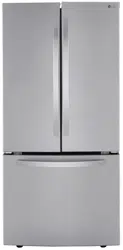
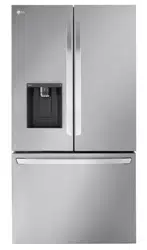
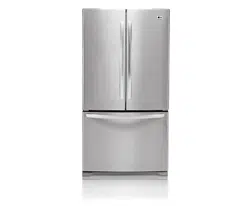
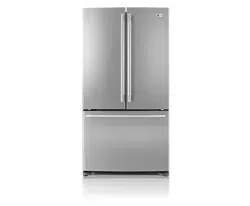
FRENCH DOOR
REFRIGERATOR
Please read this owner's manual thoroughly before
operating and keep it handy for reference at all times.
LFX28995
**
P/No. : MFL62184422
www.lg.com
ENGLISH FRANÇAIS ESPAÑOL
2
TABLE OF CONTENTS
ENGLISH
TABLE OF CONTENTS
4 PRODUCT FEATURES
5
IMPORTANT SAFETY
INSTRUCTIONS
8 COMPONENTS
8 Refrigerator Exterior
9 Refrigerator Interior
10 INSTALLATION
10 Installation Overview
10 Specifications
11 - LCD Display
11 - Modem FCC / IC Certification
12 Unpacking Your Refrigerator
12 Choosing the Proper Location
12 - Flooring
13 - Ambient Temperature
13 - Measuring the Clearances
13 Removing/Assembling the Refrigerator
Door Handles
14 Removing/Assembling the Freezer
Drawer Handle
14 Removing/Assembling the Doors and
Drawers
14 - Removing the Left Refrigerator Door
15 - Removing the Right Refrigerator Door
16 - Assembling the Right Refrigerator Door
16 - Assembling the Left Refrigerator Door
17 - Removing the Freezer Drawers
18 - Assembling the Freezer Drawers
19 Connecting the Water Line
19 - Before You Begin
19 - Water Pressure
19 - What You Will Need
20 - Water Line Installation Instructions
22 Turning On the Power
23 Leveling and Door Alignment
23 - Leveling
23 - Door Alignment
24 HOW TO USE
24 Before Use
25 Control Panel
25 - Control Panel Features
27 In-Door Ice Bin
27 - Detaching the In-Door Ice Bin
27 - Assembling the In-Door Ice Bin
28 Automatic Icemaker
28 - Turning the Automatic Icemaker On or
Off
29 - When You Should Turn the Icemaker Off
29 - Normal Sounds You May Hear
29 - Preparing for Vacation
30 Ice and Water Dispenser
30 - Dispenser
30 - Using the Dispenser
30 - Locking the Dispenser
30 - Cleaning the Dispenser Stand
31 Storing Food
31 - Food Preservation Location
32 - Food Storage Tips
32 - Storing Frozen Food
33 Humidity Controlled Crisper and
Glide’N’Serve
34 Detaching and Assembling the Storage
Bins
36 Adjusting the Refrigerator Shelves
3
TABLE OF CONTENTS
ENGLISH
37
SMART REFRIGERATOR
DISPLAY SCREEN
37 Before Use
37 - Smart Refrigerator display Screen
37 - Touch button Function
38 - Necessary Installation Parts
38 - Note Before Using
39 - Downloading The Smart Phone
Application
39 - Turning the touch screen on or off.
40 Home Screen
41 Basic button
42 Settings
42 - Brightness
42 - Volume
43 - Wireless Network
45 - Update
47 - Screen Saver
48 - Date / Time
49 - Zigbee
50 - Log In / Reset
52 Energy Saving
52 - Smart Grid
53 - Smart Saving
54 Food Manager
54 - Frequently used Items
56 - Food Manager by Category
57 - Food Manager Using Voice Recognition
59 - Food Manager Using Keyboard
61 - Phone
63 - Food List
64 - Recipes
64 - Grocery
65 - Deleting Individual Stored Items
65 - Removing All Stored Items
66 Recipes
67 - Recipes Search
68 - Recommended recipes by available
items.
69 Grocery
69 - Phone
70 - Remove Grocery
71 Food Guide
71 - Fruit / Vegetable Lists
72 Calendar
72 - Creating / Scheduling an event
74 - Edit / Delete event
75 - Calendar Menu Button
76 Memo
76 - Creating Memo
78 - Delete Memo
78 - Save memo to Home Screen
79 Photo Album
80 - View Photos
81 - Saving photo to Home Screen
82 Timer
82 - Setting the Timer
84 Using the Widgets
87 MAINTENANCE
87 Cleaning
88 Replacing the Water Filter
93 SMART DIAGNOSIS
93 Using Smart Diagnosis
94 TROUBLESHOOTING
104 WARRANTY

4
PRODUCT FEATURES
ENGLISH
PRODUCT FEATURES
* Depending on the model, some of the following functions may not be available.
FILTERED WATER AND ICE DISPENSER
The water dispenser dispenses fresh, chilled water.
The ice dispenser dispenses cubed and crushed ice.
DOOR ALARM
The Door Alarm function is designed to prevent refrigerator malfunctioning
that could occur if a refrigerator door or freezer drawer remains open. If a
refrigerator door or freezer drawer is left open for more than 60 seconds, a
warning alarm sounds in 30 second intervals.
HUMIDITY CONTROLLED CRISPER
The Humidity Controlled Crisper is designed to help keep your fruits and
vegetables fresh and crisp. You can control the amount of humidity in the
crisper by adjusting the setting between Low and High.
GLIDE‘N’SERVE
Glide`N’Serve provides storage space that keeps the compartment colder
than the refrigerator.
It is a convenient place to store sandwiches or meat to be cooked.
ICE PLUS
Ice production can be increased by approximately 20 percent when the
freezer section is maintained at the coldest temperature for a 24-hour
period.
5
IMPORTANT SAFETY INSTRUCTIONS
ENGLISH
IMPORTANT SAFETY INSTRUCTIONS
READ ALL INSTRUCTIONS BEFORE USING THE APPLIANCE.
This guide contains many important safety messages. Always
read and obey
all safety messages.
WARNING
You can be killed or seriously injured if you do not follow instructions.
CAUTION
Indicates an imminently hazardous situation which, if not avoided, may result
in minor or moderate injury, or product damage.
WARNING
To reduce the risk of fire, electric shock, or personal injury when using your product, basic safety
precautions should be followed, including the following.
Power
NEVER unplug your refrigerator by pulling on the power cord. Always grip the plug firmly and
y
pull it straight out from the outlet.
Immediately repair or replace all power cords that have become frayed or otherwise
y
damaged. Do not use a cord that shows cracks or abrasion damage along its length or at
either the plug or connector end.
Do not use an uncertified power outlet.
y
Unplug the power plug immediately in the event of a blackout or thunderstorm.
y
Plug in the power plug with the power cord facing downward.
y
Installation
Contact an authorized service center when you install or relocate the refrigerator.
y
When moving your refrigerator away from the wall, be careful not to roll over or damage the
y
power cord.
Connect this product to a dedicated grounded electric outlet conforming with the rating prior
y
to use. It is the user’s responsibility to replace a standard 2-prong wall outlet with a standard
3-prong wall outlet.
Do not install the refrigerator where there may be a danger of falling.
y
Use
DO NOT allow children to climb, stand, or hang on the refrigerator doors or shelves in the
y
refrigerator. They could damage the refrigerator and seriously injure themselves.
Do not place heavy objects on the dispenser of the refrigerator or hang onto it.
y
Do not place heavy or dangerous objects (bottles with liquid) on the refrigerator.
y
Do not put live animals inside of the refrigerator.
y
Do not allow children to climb into the product when it is in use.
y
In the event of a gas leak (propane/LPG), ventilate sufficiently and contact an authorized
y
service center before use. Do not touch or disassemble the electric outlet of the refrigerator.
In the event of a refrigerant leak, move flammable objects away from the refrigerator.
y
Ventilate sufficiently and contact an authorized service center.
Do not use or place flammable substances (chemicals, medicine, cosmetics, etc) near the
y
refrigerator or store them inside the refrigerator. Do not place the refrigerator in the vicinity
of flammable gas.
This is the safety alert symbol. It alerts you to safety messages that inform you of
hazards that can kill or hurt you or others, or cause damage to the product.
All safety messages will be preceded by the safety alert symbol and the hazard
signal word WARNING or CAUTION. These words mean:
6
IMPORTANT SAFETY INSTRUCTIONS
ENGLISH
Do not use this product for special purposes (storage of medicine or test materials or for ships,
y
etc).
Unplug the power plug before cleaning or repairing the refrigerator.
y
When you replace the light bulb in the refrigerator, unplug the refrigerator or turn off the power.
y
Do not modify or extend the power cord.
y
Do not use a dryer to dry the interior. Do not light a candle to remove the interior odor.
y
For your safety, this appliance must be properly grounded. Have the wall outlet and the circuit
y
checked by a qualified electrician to make sure the outlet is properly grounded.
Do not use an outlet that can be turned off with a switch. Do not use an extension cord. It is the
y
user’s responsibility to replace a standard 2-prong wall outlet with a standard 3-prong wall outlet.
Do not, under any circumstances, cut or remove the third (ground) prong from the power cord.
y
Do not use an adapter plug and plug the power plug into a multi-outlet extension cord.
y
Disconnect the power cord immediately if you hear a noise, smell a strange odor or detect
y
smoke.
Turn the power off if water or dust penetrates into the refrigerator. Call a service agent.
y
Do not disassemble or modify the refrigerator.
y
Do not put hands, feet, or metal objects below or behind the refrigerator.
y
Do not operate the refrigerator or touch the power cord with wet hands.
y
In refrigerators with automatic icemakers, avoid contact with the moving parts of the ejector
y
mechanism or with the heating element that releases the cubes. Do not place fingers or hands
on the automatic ice-making mechanism while the refrigerator is plugged in.
When dispensing ice from the dispenser, do not use crystal ceramics.
y
Do not touch the cold surfaces in the freezer compartment with wet or damp hands, when your
y
refrigerator is in operation.
Do not put glass containers, glass bottles or soda in the freezer.
y
This appliance is not intended for use by persons (including children) with reduced physical,
y
sensory or mental capabilities, or lack of experience and knowledge, unless they have been given
supervision or instruction concerning the use of the appliance by a person responsible for their
safety.
Do not refreeze frozen food that have thawed completely. It may result in a serious health issue.
y
If you are throwing away your old refrigerator, make sure the CFC coolant is removed for proper
y
disposal by a qualified servicer. If you release CFC coolant, you may be fined or imprisoned in
accordance with the relevant environmental law.
Junked or abandoned refrigerators are dangerous, even if they are sitting for only a few days.
y
When disposing the refrigerator, remove the packing materials from the door or take off the
doors but leave the shelves in place so that children may not easily climb inside.
READ ALL INSTRUCTIONS BEFORE USING THE APPLIANCE.
To reduce the risk of fire, electric shock, or personal injury when using your product, basic safety
precautions should be followed, including the following.
7
IMPORTANT SAFETY INSTRUCTIONS
ENGLISH
CAUTION
Installation
The refrigerator must be properly installed in accordance with the Installer Instructions that
y
were taped to the front of the refrigerator.
Be careful when you unpack and install the refrigerator. Immediately dispose of packing
y
materials (plastic) out of reach of children.
Use
Close the door carefully when children are around.
y
Keep fingers out of pinch point areas; clearances between the doors and cabinets are
y
necessarily small. Be careful closing doors when children are in the area.
If you store food properly, beware that it may fall and cause injury.
y
Maintenance
Do not use strong detergents like wax or thinners for cleaning. Clean with a soft fabric.
y
Wipe foreign objects (dust, water, etc) off the prongs of the power plug and contact areas
y
regularly.
READ ALL INSTRUCTIONS BEFORE USING THE APPLIANCE.
To reduce the risk of fire, electric shock, or personal injury when using your product, basic safety
precautions should be followed, including the following.
SAVE THESE INSTUCTIONS
8
COMPONENTS
ENGLISH
COMPONENTS
Use this page to become more familiar with the parts and features of your refrigerator.
Page references are included for your convenience.
*The appearance and specifications of the actual product may differ depending on the model.
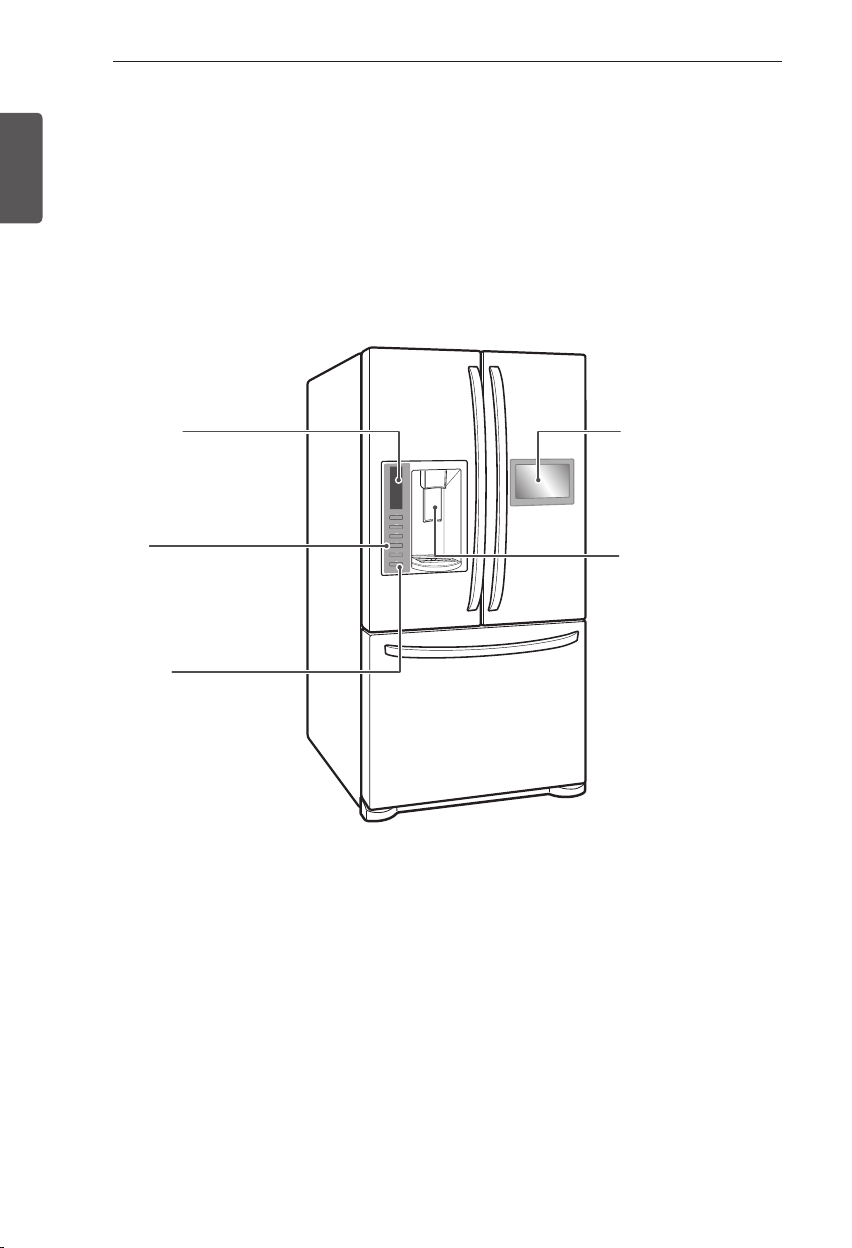
Refrigerator Exterior
LED Display
Displays the refrigerator and
freezer temperature, the water
filter condition and the dispenser
status.
Ice Plus
When this feature is activated,
the freezer section will run at the
coldest temperature for a 24-hour
period to increase ice production.
Door Alarm
A warning alarm sounds at 30-
second intervals when the
refrigerator or freezer door is left
open for more than 60 seconds.
Filtered Water and
Ice Dispenser
Dispenses fresh, chilled,
filtered water through
the door. The ice
dispenser offers cubed
or crushed ice.
LCD Display
You can enjoy various
experiences by
conveniently and simply
operating the refrigerator
functions.
9
COMPONENTS
ENGLISH
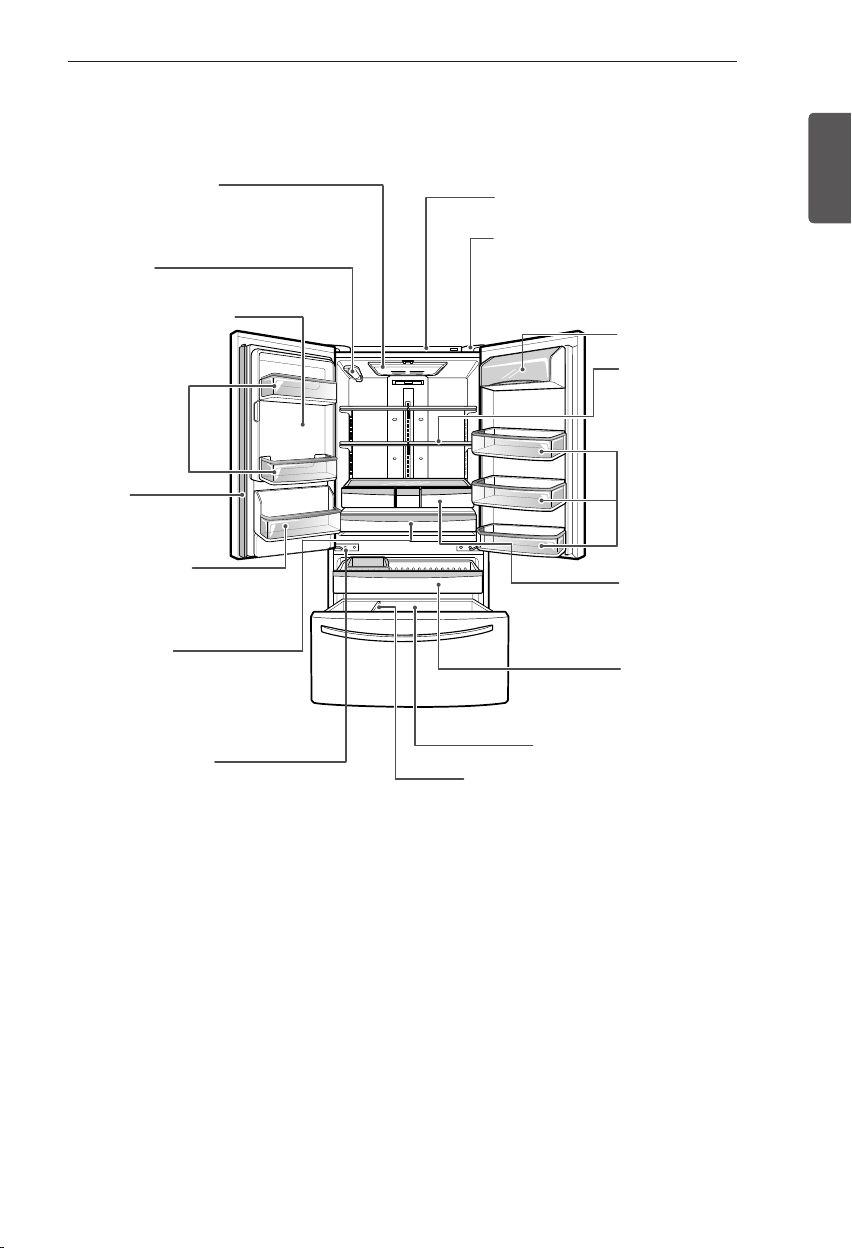
Refrigerator Interior
Modular Door Bins
Dairy Product Bin
Pullout Drawer
LED Interior Lamps
The interior lamps light up the
inside of the refrigerator.
Refrigerator Shelves
The shelves in your
refrigerator are adjustable
to meet your individual
storage needs.
Durabase Divider
Durabase
Fixed Door Bins
Can Storage Bin
Used to preserve chilled
food or drinks.
Water Filter
Mullion
Folds in when the
left door is opened.
SpacePlus Ice System
Automatically produces
80-130 ice cubes in a
24-hour period.
Auto Closing Hinge
The refrigerator doors
and freezer drawers close
automatically when you push
them slightly.
(The door only closes
automatically when it is open
at an angle of less than 30°.)
Crispers
Controls humidity and
helps vegetables and
fruit to stay crisp.
Glide’N’Serve
Allows you to store food items
at a different temperature than
the regular refrigerator area.
Smart Diagnosis Speaker
Hold your phone to this speaker when
activating Smart Diagnosis. Refer to the
Smart Diagnosis section for more details.
Holder cover
10
INSTALLATION
ENGLISH
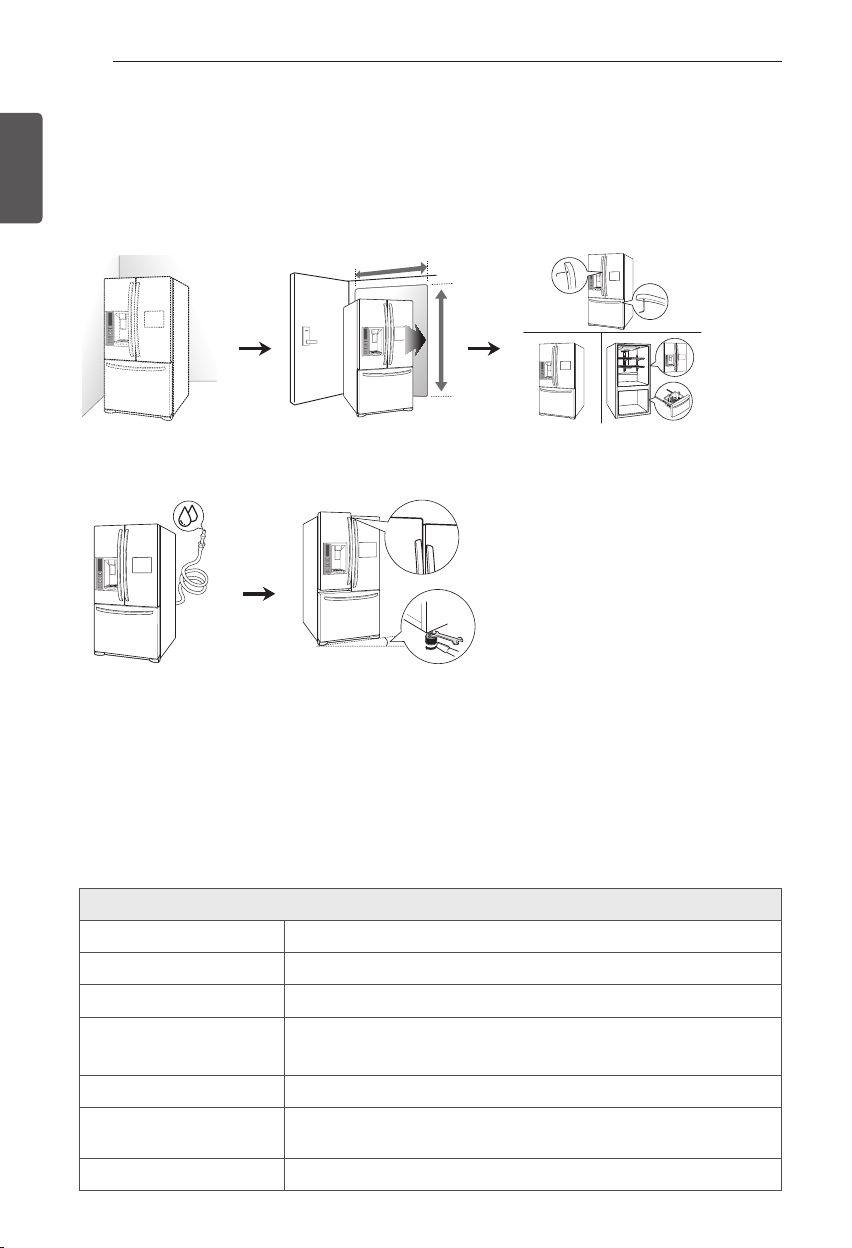
1 Unpacking your
refrigerator
2 Choosing the proper
location
3 Disassembling/Assembling
4 Connecting the water
supply and water line
5 Leveling and Door
Alignment
INSTALLATION
Installation Overview
Please read the following installation instructions first after purchasing this product or transporting
it to another location.
Specifications
The appearance and specifications listed in this manual may vary due to constant product
improvements.
Bottom-freezer refrigerator model LFX28995
Description
French door refrigerator
Electrical requirements
115 VAC @ 60 Hz
Min. / Max. Water pressure
20 - 120 psi (1.4 - 8.4 kgf/cm
2
)
Dimensions 35 3/4” (W) X 35 3/8” (D) X 69 3/4” (H), 47 5/8” (D w/ door open)
908 mm (W) X 899 mm (D) X 1 772 (H), 1 210 mm (D w/ door open)
Net weight
342 lb. (155kg)
Refrigerator storage
capacity
18.82 cu. ft.
Freezer storage capacity
8.79 cu. ft.
11
INSTALLATION
ENGLISH
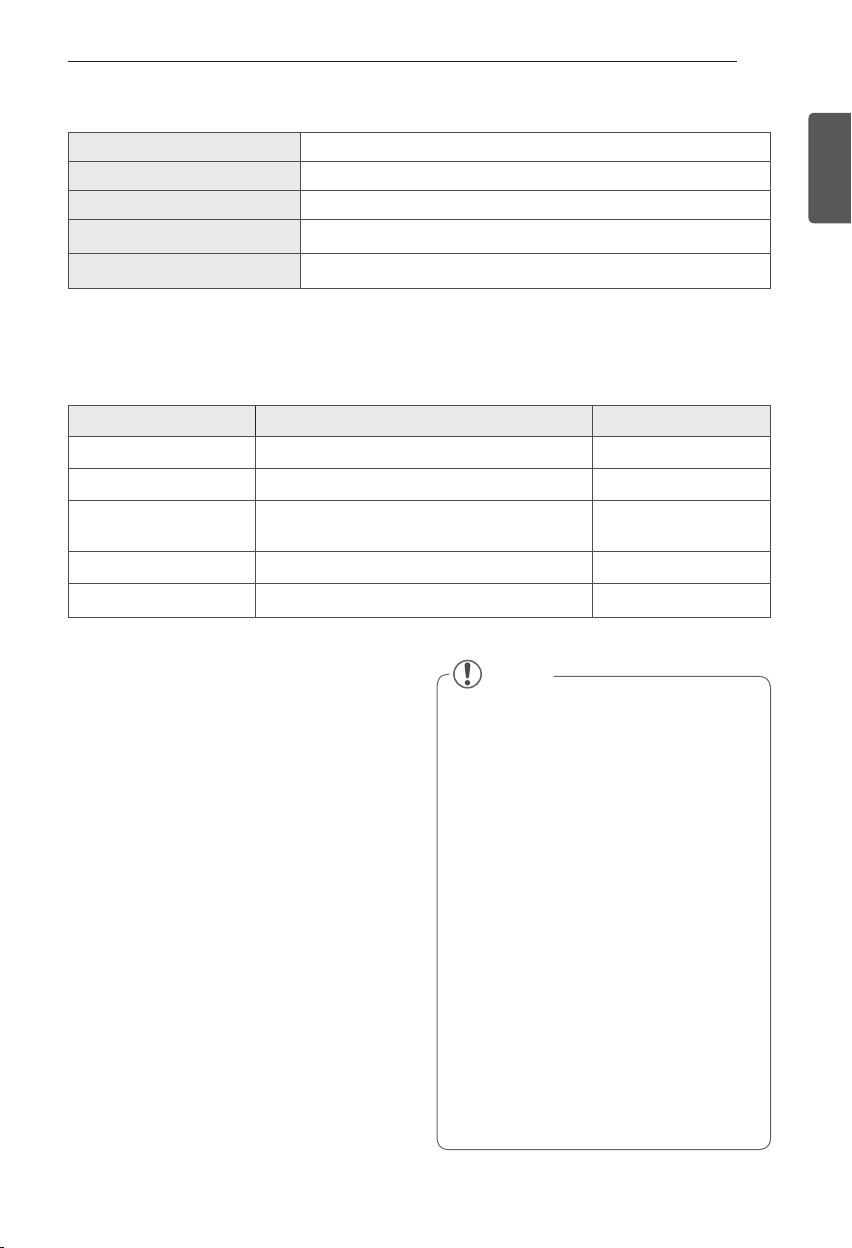
WLAN (Wi-Fi) ZigBee
Model
LGHA-WNA1105 LGHA-ZNA1105
Frequency Range
2412 ~ 2462 MHz 2405 ~ 2475 MHz
RF Max Power
802.11b(22.88 dBm)/802.11g(21.65dBm)/
802.11n(20.67dBm)
18.91dBm
Channel
11 15
Modulation type
CCK/DSSS/OFDM DSSS
Processor
Telechips (ARM Core)
ROM
2GB
RAM
512MB
LCD
10.1” TFT-LCD (1024 X 600)
Network
802.11 b/g/n
LCD Display
Modem FCC / IC Certification
- U.S. Regulatory Wireless Notice
This products emits radio frequency energy,
but the radiated output power of this device is
far below the FCC radio frequency exposure
limits. Nevertheless, the device should be
used in such a manner that the potential for
human contact with the antenna during normal
operation is minimized.
- FCC WARNING:
This equipment may generate or use radio
frequency energy. Changes or modifications
to this equipment may cause harmful
interference unless the modifications are
expressly approved in the instruction manual.
The user could lose the authority to operate
this equipment if an unauthorized change or
modification is made.
- Product Specification
NOTE
This device complies with part 15 of the
FCC rules.
Operation is subject to the following two
conditions :
(1) This device may not cause harmful
interference, and
(2) This device must accept any interference
received, including interference that may
cause undesired operation.
This device complies with RSS-210 of the
Industry Canada Rules.
Operation is subject to the following two
conditions:
(1) This device may not cause interference
and
(2) This device must accept any
interference, including interference that
may cause undesired operation of the
device.
12
INSTALLATION
ENGLISH
Choosing the Proper Location
Select a place where a water supply can
y
be easily connected for the automatic
icemaker.
Unpacking Your Refrigerator
WARNING
Use two or more people to move and
y
install the refrigerator. Failure to do so
can result in back or other injury.
Your refrigerator is heavy. When moving
y
the refrigerator for cleaning or service,
be sure to protect the floor. Always pull
the refrigerator straight out when moving
it. Do not wiggle or walk the refrigerator
when trying to move it, as floor damage
could occur.
Keep flammable materials and vapors,
y
such as gasoline, away from the
refrigerator. Failure to do so can result in
fire, explosion, or death.
Remove tape and any temporary labels from your
refrigerator before using. Do not remove any
warning-type labels, the model and serial number
label, or the Tech Sheet that is located under the
front of the refrigerator.
To remove any remaining tape or glue, rub the
area briskly with your thumb. Tape or glue residue
can also be easily removed by rubbing a small
amount of liquid dish soap over the adhesive with
your fingers. Wipe with warm water and dry.
Do not use sharp instruments, rubbing alcohol,
flammable fluids, or abrasive cleaners to remove
tape or glue. These products can damage the
surface of your refrigerator.
Refrigerator shelves are installed in the shipping
position. Please reinstall shelves according to
your individual storage needs.
Flooring
To avoid noise and vibration, the unit must be
leveled and installed on a solidly constructed
floor. If required, adjust the leveling legs to
compensate for unevenness of the floor. The
front should be slightly higher than the rear to
aid in door closing. Leveling legs can be turned
easily by tipping the cabinet slightly. Turn the
leveling legs to the left to raise the unit or to
the right to lower it. (See Leveling and door
AlIgnment.)
NOTE
Installing on carpeting, soft tile surfaces,
a platform or weakly supported structure
is not recommended.
The refrigerator should always be plugged
y
into its own individual properly grounded
electrical outlet rated for 115 Volts, 60 Hz,
AC only, and fused at 15 or 20 amperes.
This provides the best performance
and also prevents overloading house
wiring circuits which could cause a fire
hazard from overheated wires. It is
recommended that a separate circuit
serving only this appliance be provided.
WARNING
To reduce the risk of electric shock, do not
install the refrigerator in a wet or damp
area.
NOTE
The water pressure must be between
20 and 120 psi on models without a
water filter and between 43 and 121 psi
on models with a water filter.
13
INSTALLATION
ENGLISH
Ambient Temperature
Install this appliance in an area where the
temperature is between 55°F (13°C) and 110°F
(43°C). If the temperature around the appliance
is too low or high, cooling ability may be
adversely affected.
Measuring the Clearances
Too small of a distance from adjacent items
may result in lowered freezing capability and
increased electricity consumption charges.
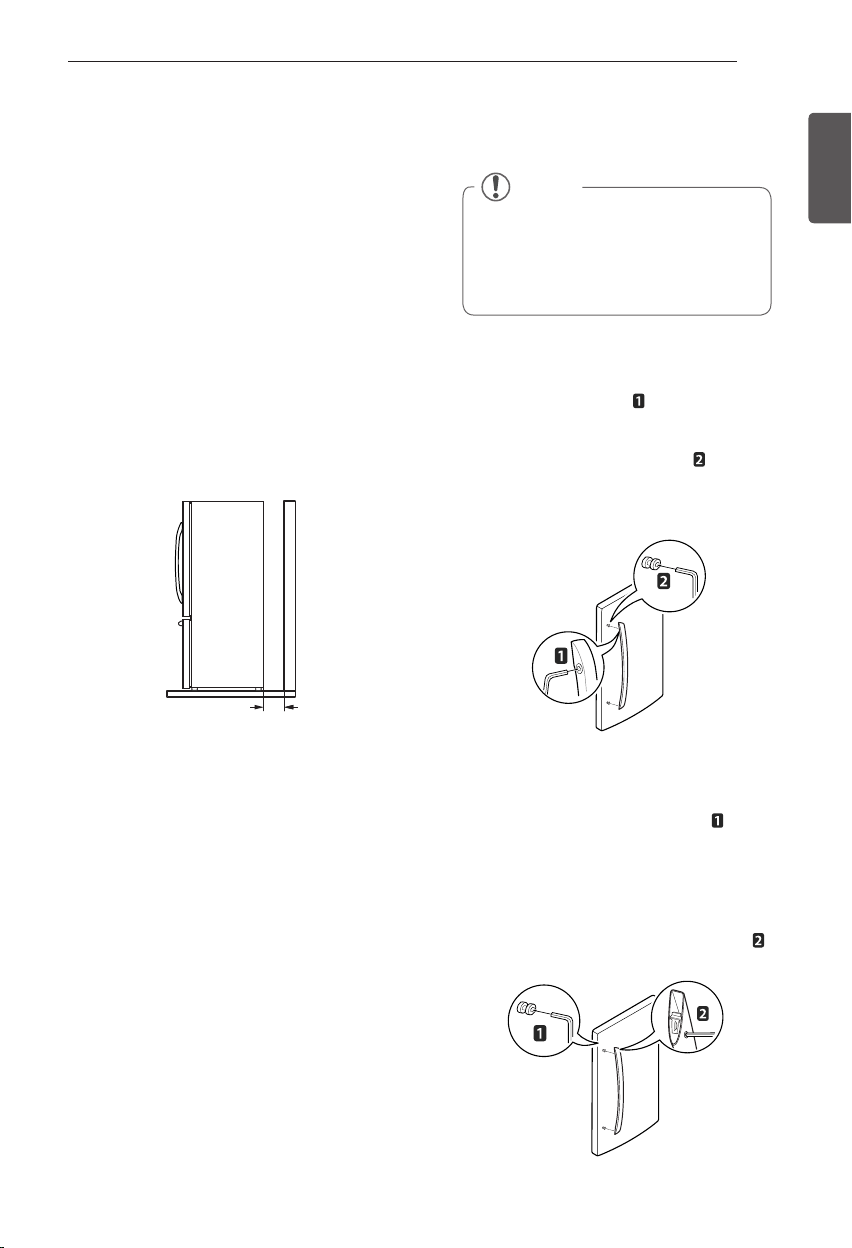
Allow at least 24 inches (61 cm) in front of the
refrigerator to open the doors, and at least
2 inches (5.08 cm) between the back of the
refrigerator and the wall.
2” (5.08 cm)
24” (61 cm)
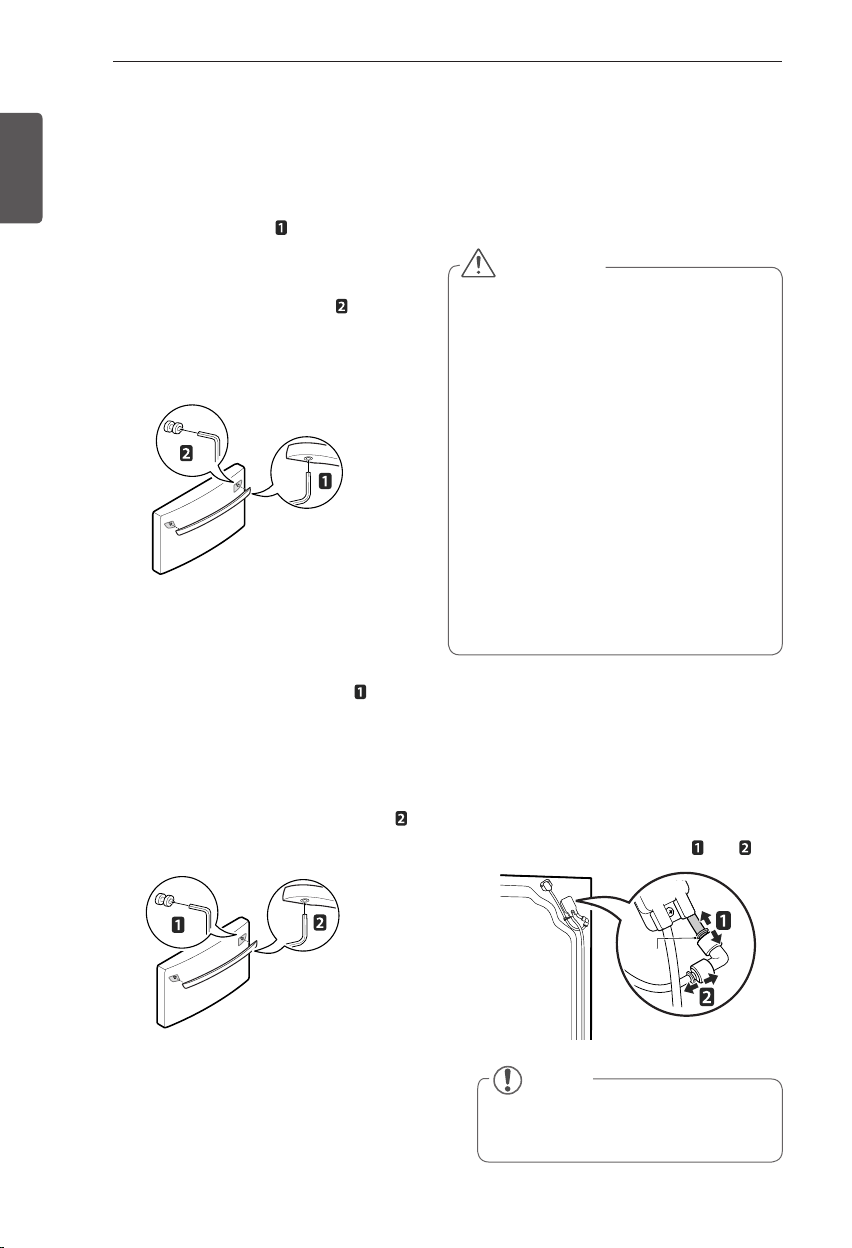
Removing/Assembling the
Refrigerator Door Handles
Removing the Handles
1
Loosen the set screws with a
3
/
32
in.
Allen wrench and remove the handle.
2
Loosen the mounting fasteners that
connect to the refrigerator door and handle
using a
1
/
4
in. Allen wrench, remove the
mounting fasteners.
Assembling the Handles
1
Assemble the mounting fasteners at
both ends of the handle using a
1
/
4
in.
Allen wrench.
2
Place the handle on the door by fitting
the handle footprints over the mounting
fasteners and tightening the set screws
with a
3
/
32
in. Allen wrench.
NOTE
Removing the doors is always
recommended when it is necessary to
move the refrigerator through a narrow
opening. If it is necessary to remove the
handles, follow the directions below.
14
INSTALLATION
ENGLISH
Removing/Assembling the
Freezer Drawer Handle
Removing the Handles
1
Loosen the set screws located on the
lower side of the handle with a
1
/
8
in. Allen
wrench and remove the handle.
2
Loosen the mounting fasteners that
connect to the freezer drawer and handle
using a
1
/
4
in. Allen wrench, and remove
the mounting fasteners.
Assembling the Handles
1
Assemble the mounting fasteners at
both ends of the handle using a
1
/
4
in. Allen
wrench.
2
Place the handle on the door by fitting
the handle footprints over the mounting
fasteners and tightening the set screws
with a
1
/
8
in. Allen wrench.
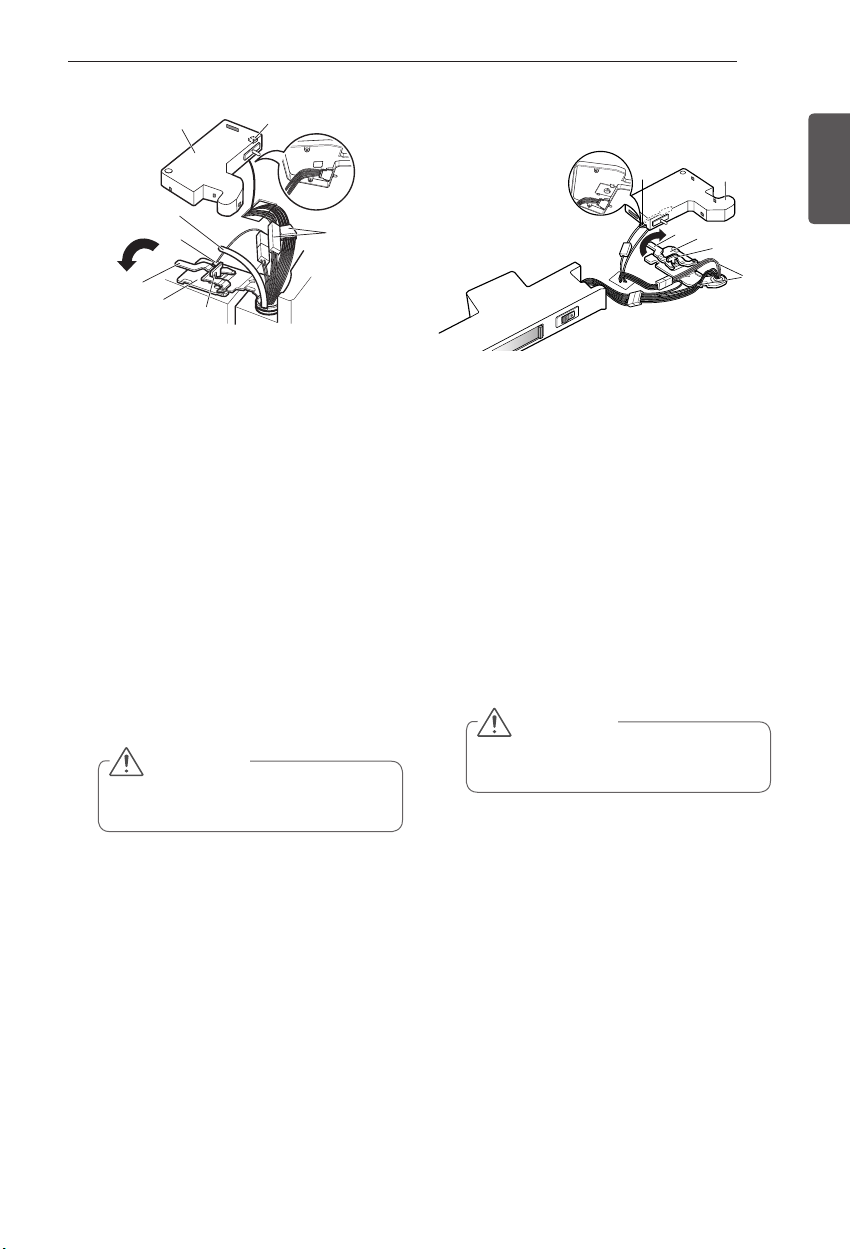
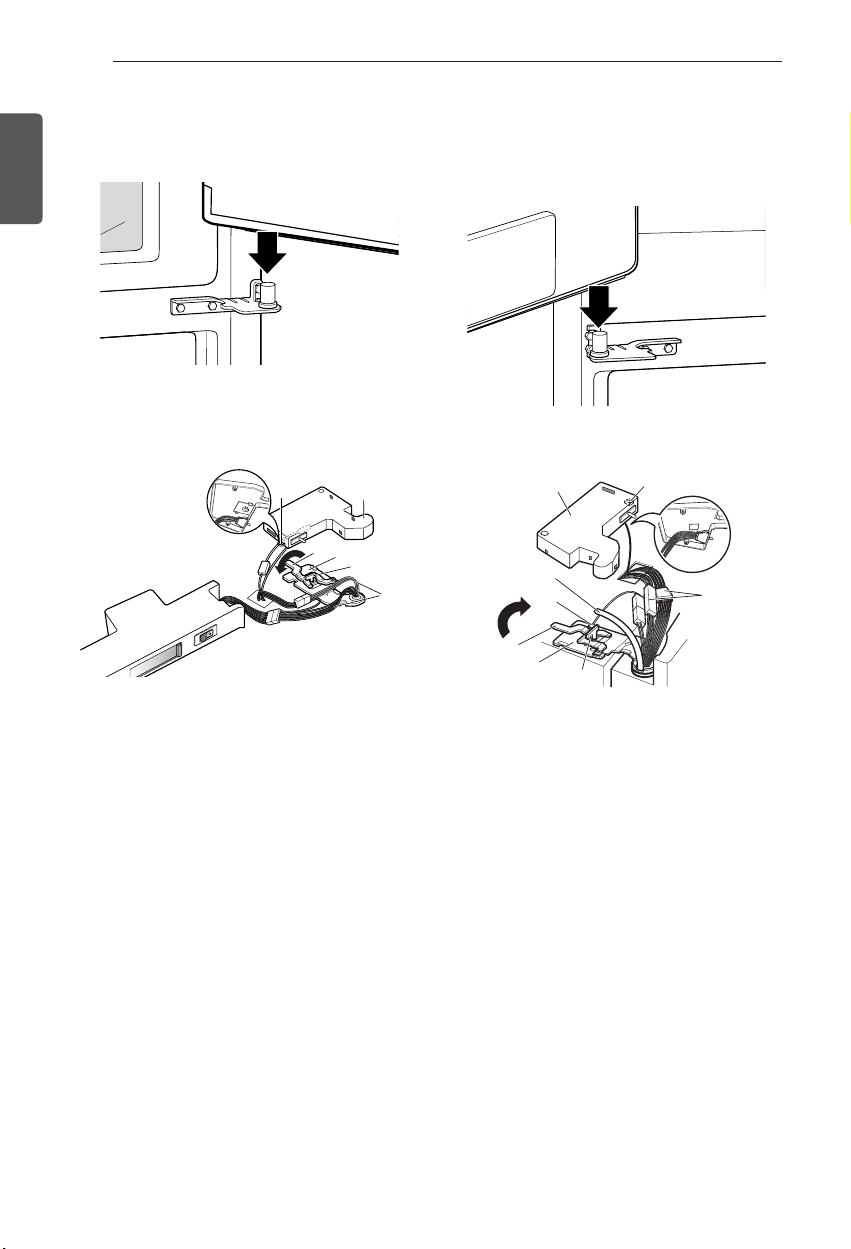
Removing the Left Refrigerator Door
1
The water supply is connected to the
upper right part of the rear surface of the
refrigerator. Remove the ring in the joint
area. Hold the water supply connection
and gently push the Collet to detach the
water supply line as shown in and .
NOTE
Detachment of the water supply line is
applicable only when detaching the left
refrigerator door.
WARNING
If your entrance door is too narrow for the
y
refrigerator to pass through, remove the
refrigerator doors and move the refrigerator
sideways through the doorway.
Use two or more people to remove and
y
install the refrigerator doors. Failure to do
so can result in back or other injury.
Disconnect the electrical supply to the
y
refrigerator before installing. Failure to do
so could result in serious injury or death.
Do not put hands, feet or other objects into
y
the air vents or bottom of the refrigerator.
You may be injured or receive an electrical
shock.
Be careful when handling the hinge and
y
stopper. It may result in injury.
Remove food and bins from the doors and
y
drawers before detaching.
Collet
Removing/Assembling the
Doors and Drawers
Removing the doors is always recommended
when it is necessary to move the refrigerator
through a narrow opening.
15
INSTALLATION
ENGLISH
2
Open the left door. Remove the top hinge
cover screw (1). Lift up the cover (2).
3
Remove the cover.
4
Pull out the tube (3).
5
Disconnect all wire harnesses (4).
6
Remove the grounding screw (5).
7
Rotate the hinge lever (6)
counterclockwise. Lift the top hinge (7)
free of the hinge lever latch (8).
8
Lift the door from the middle hinge pin and
remove the door.
9
Place the door, inside facing up, on a non-
scratching surface.
CAUTION
When lifting the hinge free of the latch, be
careful that the door does not fall forward.
CAUTION
When lifting the hinge free of the latch, be
careful that the door does not fall forward.
Removing the Right Refrigerator Door
1
Open the door. Remove the top hinge
cover screw (1). Lift up the cover (2).
2
Remove the cover.
3
Disconnect all wire harnesses (3).
4
Rotate the hinge lever (4) clockwise.
Lift the top hinge (5) free of the hinge
lever latch (6).
5
Lift the door from the middle hinge pin and
remove the door.
6
Place the door, inside facing up, on a
non- scratching surface.
(2)
(1)
(3)
(4)
(5)
(6)
(7)
(8)
(2)
(4)
(5)
(6)
(1)
(3)
16
INSTALLATION
ENGLISH
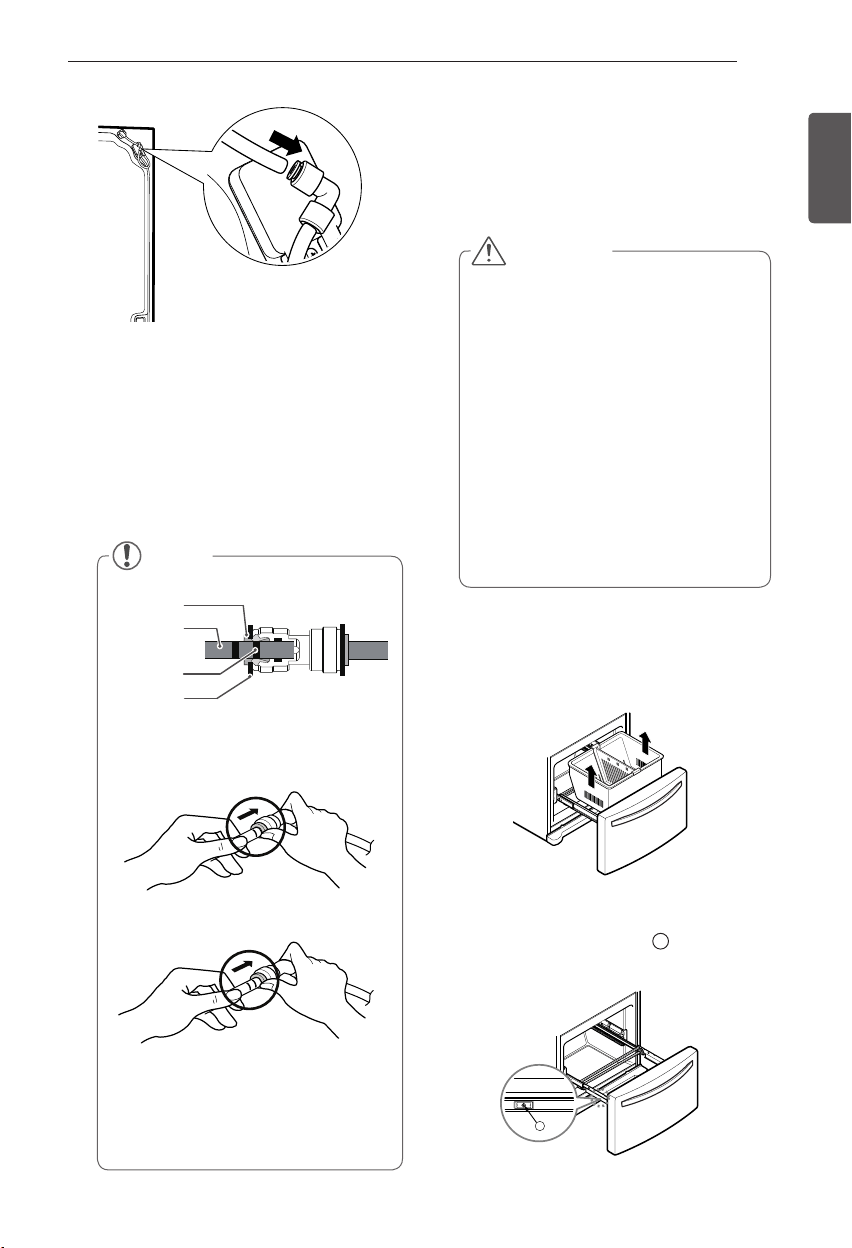
1
Lower the door onto the middle hinge pin.
2
Fit the top hinge (7) over the hinge lever
latch (8) and into place.
3
Rotate the lever (6) clockwise to secure
the hinge.
4
Install the grounding screws (5) and
connect the two wire harnesses (4).
5
Push the water tube (3) located at the top
of the left door into the hole beside the left
hinge on the top of the cabinet until it exits
through the back.
6
Insert the water supply tube (3) into the
connector until you see only one scale
mark. Fully insert the tub cover (15 mm).
7
Hook the tabs on the left side of the hinge
cover (1) under the edge of the top hinge (7)
and position the cover in place.
8
Insert and tighten the cover screw (1).
1
Lower the door onto the middle hinge
pin. Make sure that the plastic sleeve is
inserted into the bottom of the door.
2
Fit the top hinge (5) over the hinge lever
latch (6) and into place.
3
Rotate the lever (4) counterclockwise to
secure the hinge.
4
Connect the two wire harnesses (3).
5
Hook the tabs on the right side of the
hinge cover (2) under the edge of the top
hinge (5) and position the cover in place.
6
Insert and tighten the cover screw (1).
Install the right-side door first.
Assembling the Right Refrigerator
Door
Assembling the Left Refrigerator
Door
Install the left refrigerator door after the right
door is installed.
(2)
(4)
(5)
(6)
(1)
(3)
(2)
(1)
(3)
(4)
(5)
(6)
(7)
(8)
17
INSTALLATION
ENGLISH
CAUTION
Use two or more people to remove and
y
install the freezer drawer. Failure to do so
can result in back or other injury.
Do not hold the handle when removing
y
or replacing the drawer. The handle may
come off and it could cause personal
injury.
Be careful of sharp hinges on both sides
y
of the drawer.
When you lay the drawer down, be
y
careful not to damage the floor.
Do not sit or stand on the freezer drawer.
y
To prevent accidents, keep children and
y
pets away from the drawer. Do not leave
the drawer open.
NOTE
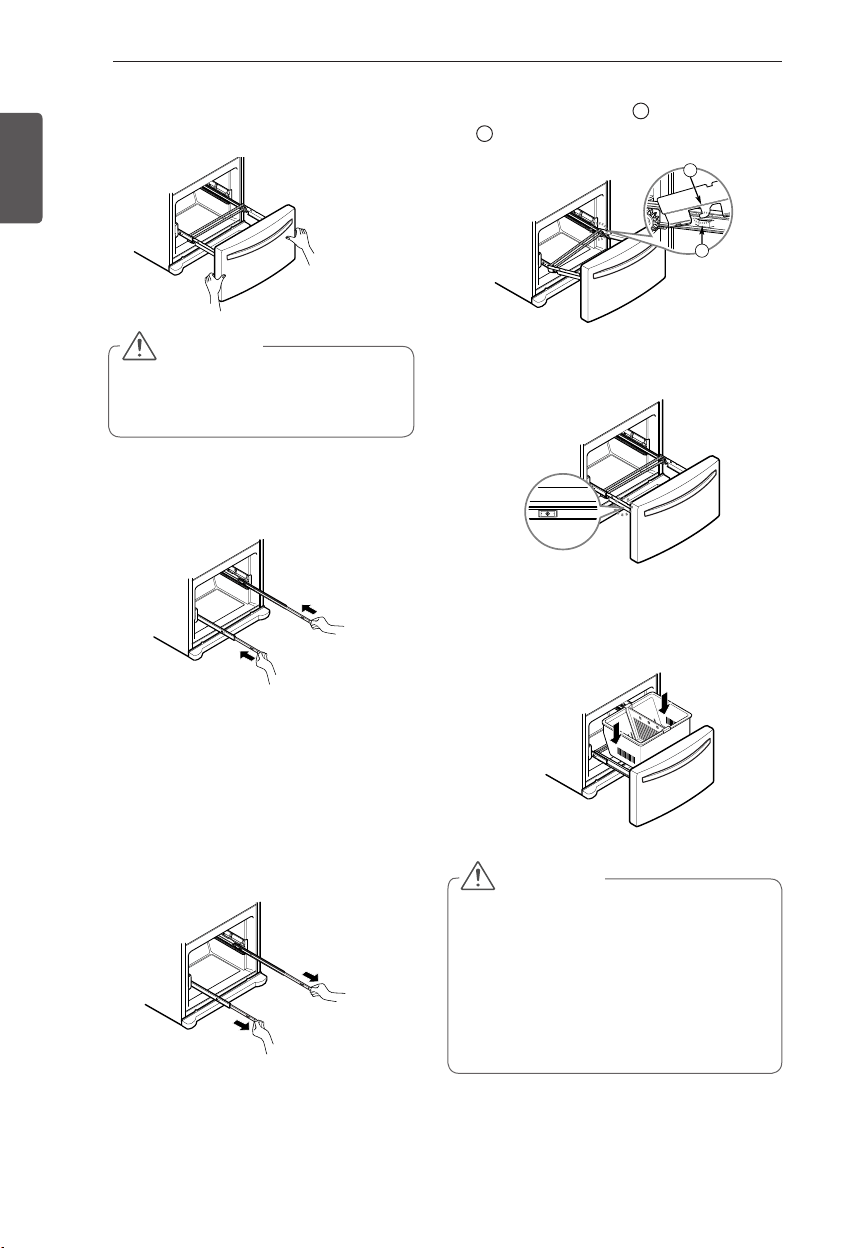
1) Gently press the Collet and insert the
tube until only one line shows on the
tube.
(Correct)
(Incorrect)
2) Pull the tube to make sure that the
tube is tightly fastened and then insert
the clip.
Removing the Freezer Drawers
The top, middle and bottom drawers are all
removed in the same way. In the following
figures, the Pullout Drawer located above the
freezer drawer is not shown for clarity.
1
Fully extend the freezer drawer. Lifting up
and out to remove the Dura Base basket
making sure to clear the rail system.
2
Remove one white screw
1
on each side
of the rails.assembly.
Collet
Tube
Insert Line
Clip
9
Insert the water supply tube at least 5/8 in.
(15 mm) into the connector.
10
Hook the tab on the door switch side
of the cover under the edge of the wire
opening in the cabinet top.
11
Position the cover into place. Insert and
tighten the cover screw.
1
18
INSTALLATION
ENGLISH
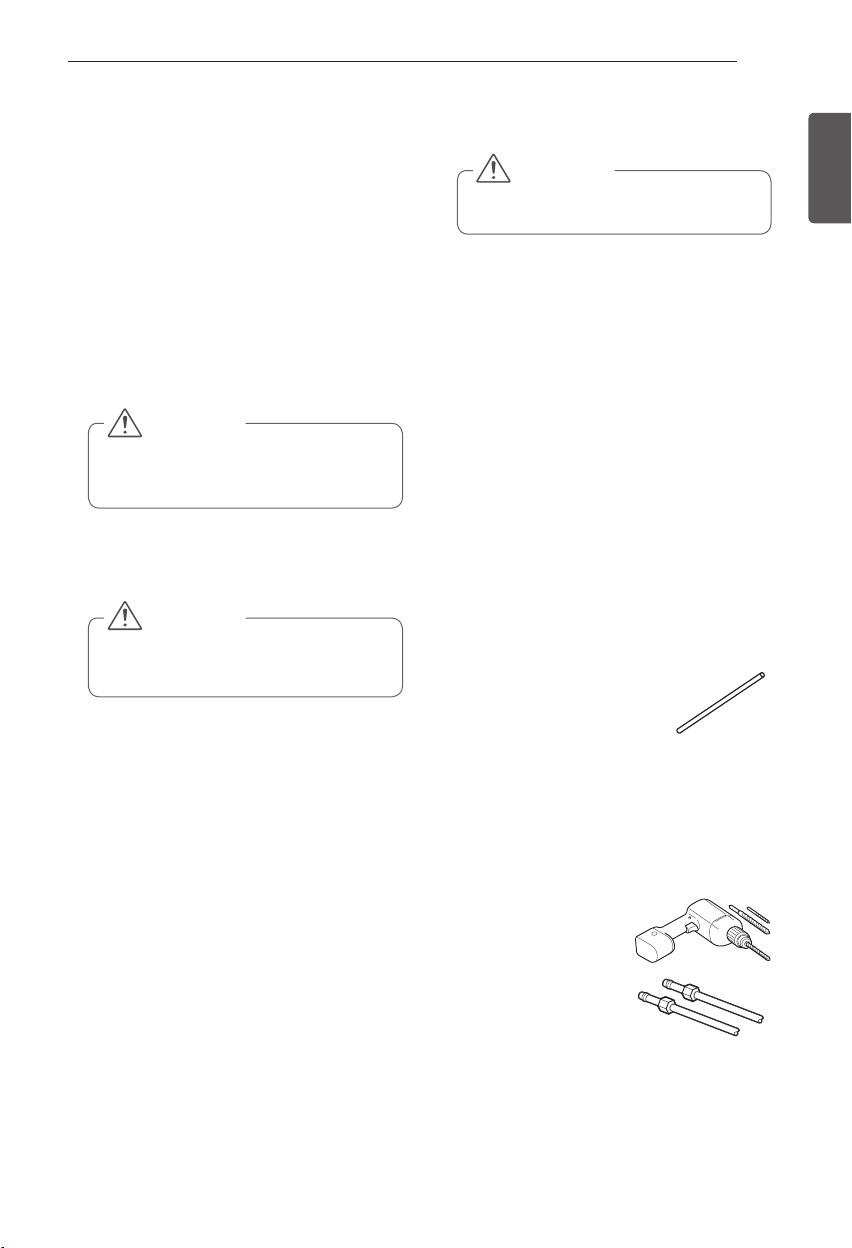
2
1
3
Lower door into final position and tighten the
screws.
4
With the drawer pulled out to full extension,
insert the lower basket in the rail assembly.
2
Hook the door support
1
into the rail tabs
2
on both sides.
Assembling the Freezer Drawer
1
With both hands, pull out each rail
simultaneously until both rails are fully
extended.
3
With both hands, grasp the sides of the door
and pull it up to separate it from the rails.
4
With both hands, hold each rail and push it in
to allow both rails to slide in simultaneously.
CAUTION
When you remove the drawer, do not
hold the handle. The handle may come
off and it could cause personal injury.
WARNING
If the Durabase divider is removed, there is
y
enough open space for children or pets to
crawl inside. To prevent accidental child and
pet entrapment or suffocation risk, DO NOT
allow them to touch or go near the freezer
drawer.
DO NOT step or sit down on freezer
y
drawer.
19
INSTALLATION
ENGLISH
CAUTION
Wear eye protection during installation
to prevent injury.
Connecting the Water Line
Before You Begin
This water line installation is not covered by the
refrigerator warranty. Follow these instructions
carefully to minimize the risk of expensive water
damage.
Water hammer (water banging in the pipes) in
house plumbing can cause damage to refrigerator
parts and can lead to water leakage or flooding.
Call a qualified plumber to correct water hammer
before installing the water supply line to the
refrigerator.
If you use your refrigerator before connecting
the water line, make sure the icemaker power
switch is in the OFF (O) position.
Water Pressure
A cold water supply. The water pressure must
be between 20 and 120 psi on models without
a water filter and between 43 and 121 psi on
models with a water filter.
If a reverse osmosis water filtration system is
connected to your cold water supply, this water
line installation is not covered by the refrigerator
warranty. Follow the following instructions
carefully to minimize the risk of expensive water
damage.
If a reverse osmosis water filtration system is
connected to your cold water supply, the water
pressure to the reverse osmosis system needs to
be a minimum of 40 to 60 psi (2.8 kgf/cm
2
~ 4.2
kgf/cm
2
, less than 2.0~3.0 sec. to fill a cup of 7 oz
capacity).
If the water pressure from the reverse osmosis
system is less than 21 psi or 1.5 kgf/cm
2
(takes
more than 4.0 sec to fill a cup of 7 oz capacity):
Check to see if the sediment filter in
y
the reverse osmosis system is blocked.
Replace the filter if necessary.
Allow the storage tank on the reverse
y
usage.
If the issue concerning water pressure
y
from reverse osmosis remains, call a
licensed, qualified plumber.
All installations must be in accordance
y
with local plumbing code requirements.
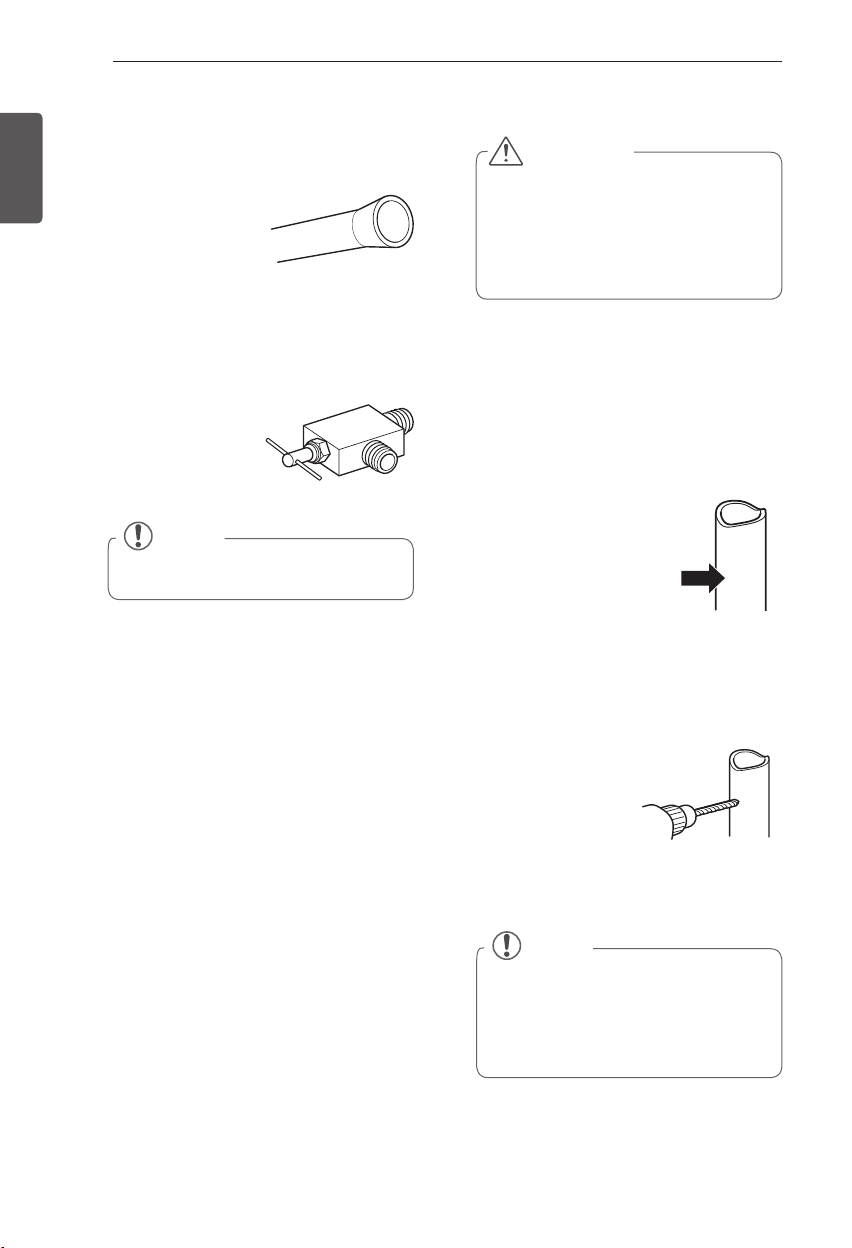
What You Will Need
Copper Tubing,
y
¼ in. outer diameter, to
connect the refrigerator to the water
supply. Be sure both ends of the tubing
are cut square.
To determine how
y
much tubing you need:
measure the distance
from the water valve on the back of the
refrigerator to the water supply pipe.
Then, add 8 feet
(2.4 m). Be sure there is sufficient extra
tubing (about 8 feet [2.4 m] coiled into 3
turns of about 10 in. [25 cm] diameter)
to allow the refrigerator to move out
from the wall after installation.
Power drill.
y
½ in. or adjustable
y
wrench.
Flat blade and Phillips
y
head screwdrivers.
Two ¼ in. outer
y
diameter compression
nuts and 2 ferrules (sleeves)
to connect the
copper tubing to the shutoff valve and
the refrigerator water valve.
CAUTION
Do not install the icemaker tubing in
areas where temperatures fall below
freezing.
CAUTION
To prevent burns and product damange,
only connect the refrigerator water line to
a cold water supply.
20
INSTALLATION
ENGLISH
NOTE
A self piercing saddle type water valve
should not be used.
NOTE
The hookup line cannot be white, plastic
tubing. Licensed plumbers must use
only copper tubing NDA tubing #49595
or 49599 or Cross Link Polyethylene
(PEX) tubing.
If your existing copper water line has a
y
flared fitting at the end, you will need
an
adapter
(available at plumbing supply
stores) to connect the water line to the
refrigerator OR you can cut off the flared
fitting with a tube
cutter and then use a
compression fitting.
Shutoff valve to
y
connect to the cold water line.
The shutoff
valve should have a water inlet with a
minimum inside diameter of 5/32 in. at
the point of connection to the COLD
WATER LINE. Saddle-type shutoff valves
are included in many water supply kits.
Before purchasing,
make sure a saddle-
type valve complies
with your local
plumbing codes.
Water Line Installation Instructions
Install the shutoff valve on the nearest
frequently used drinking water line.
1
SHUT OFF THE MAIN WATER SUPPLY
Turn on the nearest faucet to relieve the
pressure on the line.
2
CHOOSE THE VALVE LOCATION
Choose a location for
the valve that is easily
accessible. It is best to
connect into the side of a
vertical water pipe. When
it is necessary to connect
into a horizontal water
pipe, make the connection to the top or
side, rather than at the bottom, to avoid
drawing off any sediment from the water
pipe.
3
DRILL THE HOLE FOR THE VALVE
Drill a ¼ in. hole in
the water pipe using
a sharp bit. Remove
any burrs resulting
from drilling the hole
in the pipe. Be careful
not to allow water
to drain into the drill. Failure to drill a ¼ in.
hole may result in reduced ice production
or smaller cubes.
WARNING
When using any electrical device
(such as a power drill) during
installation, be sure the device is
battery powered, double insulated
or grounded in a manner that will
prevent the hazard of electric shock.
21
INSTALLATION
ENGLISH
NOTE
Be sure there is sufficient extra tubing
(about 8 feet coiled into 3 turns of
about 10 in. diameter) to allow the
refrigerator to move out from the wall
after installation.
4
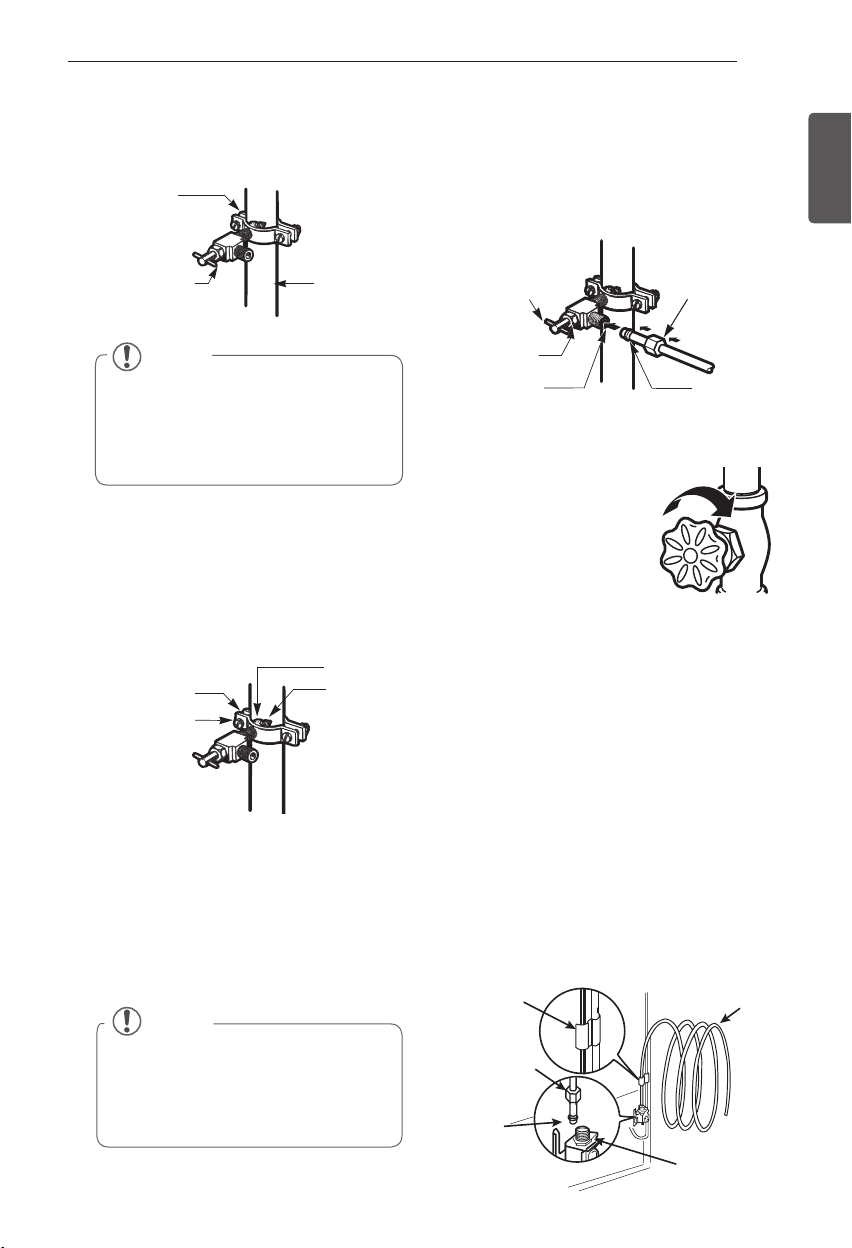
FASTEN THE SHUTOFF VALVE
Fasten the shutoff valve to the cold water
pipe with the pipe clamp.
Pipe Clamp
Saddle-Type
Shutoff Valve
Vertical Cold
Water Pipe
NOTE
Commonwealth of Massachusetts
Plumbing Codes 248CMR shall be
adhered to. Saddle valves are illegal and
use is not permitted in Massachusetts.
Consult with your licensed plumber.
5
TIGHTEN THE PIPE CLAMP
Tighten the clamp screws until the sealing
washer begins to swell.
NOTE: Do not overtighten clamp or
you may crush the tubing.
6
ROUTE THE TUBING
Route the tubing between the cold water
line and the refrigerator.
Route the tubing through a hole drilled in
the wall or floor (behind the refrigerator or
adjacent base cabinet) as close to the wall
as possible.
Pipe Clamp
Clamp Screw
Washer
Inlet End
7
CONNECT THE TUBING TO THE VALVE
Place the compression nut and ferrule
(sleeve) for copper tubing onto the end of
the tubing and connect it to the shutoff
valve. Make sure the tubing is fully inserted
into the valve. Tighten the compression
nut securely.
8
FLUSH OUT THE TUBING
Turn the main water
supply on and flush out
the tubing until the water
is clear.
Shut the water off at the
water valve after about
one quart of water has
been flushed through the tubing.
9
CONNECT THE TUBING TO THE
REFRIGERATOR
NOTE:
Before making the connection
to the refrigerator, be sure that the
refrigerator power cord is not plugged into
the wall outlet.
a. Remove the plastic flexible cap from
the water valve.
b. Place the compression nut and ferrule
(sleeve) onto the end of the tubing as
shown.
c. Insert the end of the copper tubing into
the connection as far as possible. While
holding the tubing, tighten the fitting.
Tubing Clamp
¼ in. Tubing
¼ in.
Compression
Nut
Refrigerator
Connection
Ferrule
(sleeve)
Saddle-Type
Shutoff Valve
Packing Nut
Outlet Valve
Compression
Nut
Ferrule (sleeve)
22
INSTALLATION
ENGLISH
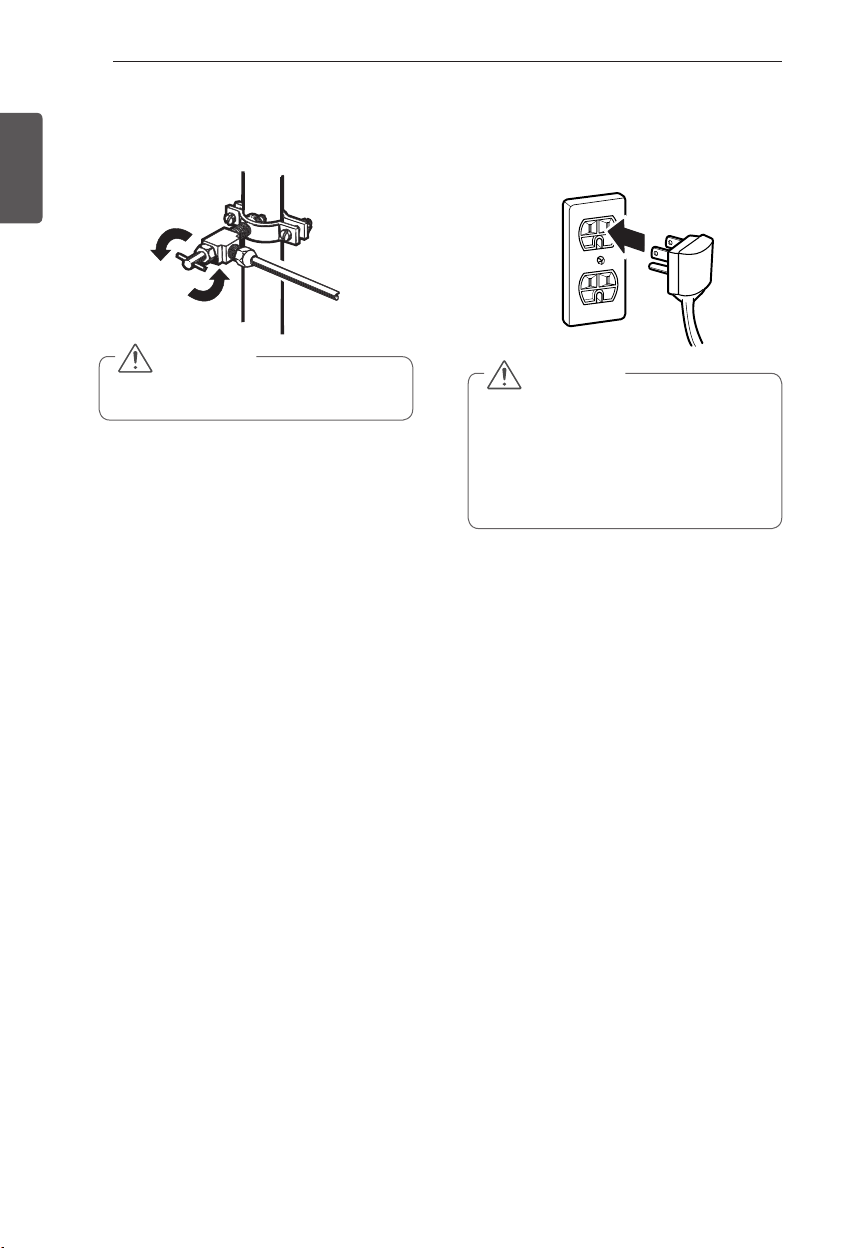
10
TURN THE WATER ON AT THE SHUTOFF
VALVE
Tighten any connections that leak.
11
PLUG IN THE REFRIGERATOR
Arrange the coil of tubing so that it
does not vibrate against the back of the
refrigerator or against the wall. Push the
refrigerator back to the wall.
12
START THE ICEMAKER
Set the icemaker power switch to the
ON
position.
The icemaker will not begin to operate
until it reaches its operating temperature
of 15°F (–9°C) or below. It will then begin
operation automatically if the icemaker
power switch is in the
ON (I)
position.
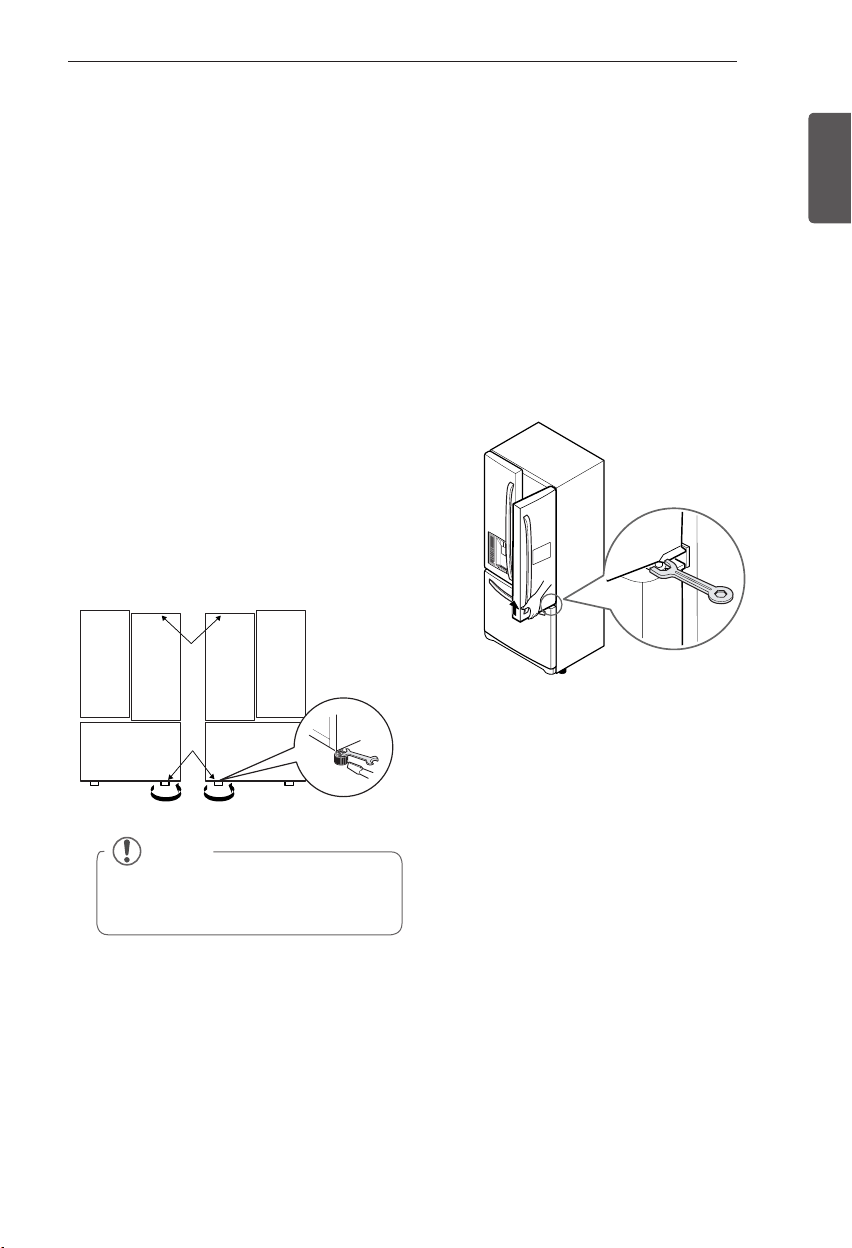
Turning On The Power
1
Plug in the refrigerator.
CAUTION
Check to see if leaks occur at the water
line connections.
CAUTION
Connect to a rated power outlet.
y
Have a certified electrician check
y
the wall outlet and wiring for proper
grounding.
Do not damage or cut off the ground
y
terminal of the power plug.
23
INSTALLATION
ENGLISH
Leveling and Door Alignment
Leveling
After installing, plug the refrigerator’s power
cord into a 3-prong grounded outlet and push
the refrigerator into the final position.
Your refrigerator has two front leveling legs—
one on the right and one on the left. Adjust the
legs to alter the tilt from front-to-back or side-
to-side. If your refrigerator seems unsteady, or
you want the doors to close more easily, adjust
the refrigerator’s tilt using the instructions
below:
1
Remove the base grille. Refer to the Base
Grille Installation section.
2
Turn the leveling leg to the left to raise
that side of the refrigerator or to the right
to lower it. It may take several turns of
the leveling leg to adjust the tilt of the
refrigerator.
3
Open both doors again and check to make
sure that they close easily. If the doors do
not close easily, tilt the refrigerator slightly
more to the rear by turning both leveling
legs to the left. It may take several more
turns, and you should turn both leveling
legs the same mount.
4
Replace the base grille.
NOTE
A flare nut wrench works best, but an
open-end wrench will suffice.
Do not over-tighten.
Door Alignment
Both the left and right refrigerator doors have
an adjustable nut, located on the bottom hinge,
to raise and lower them to align properly.
If the space between your doors is uneven,
follow the instructions below to align the doors
evenly:
Use the wrench (included with the Owner’s
Manual) to turn the nut in the door hinge to
adjust the height. To the right to raise or to the
left to lower the height.
24
HOW TO USE
ENGLISH
HOW TO USE
Before use
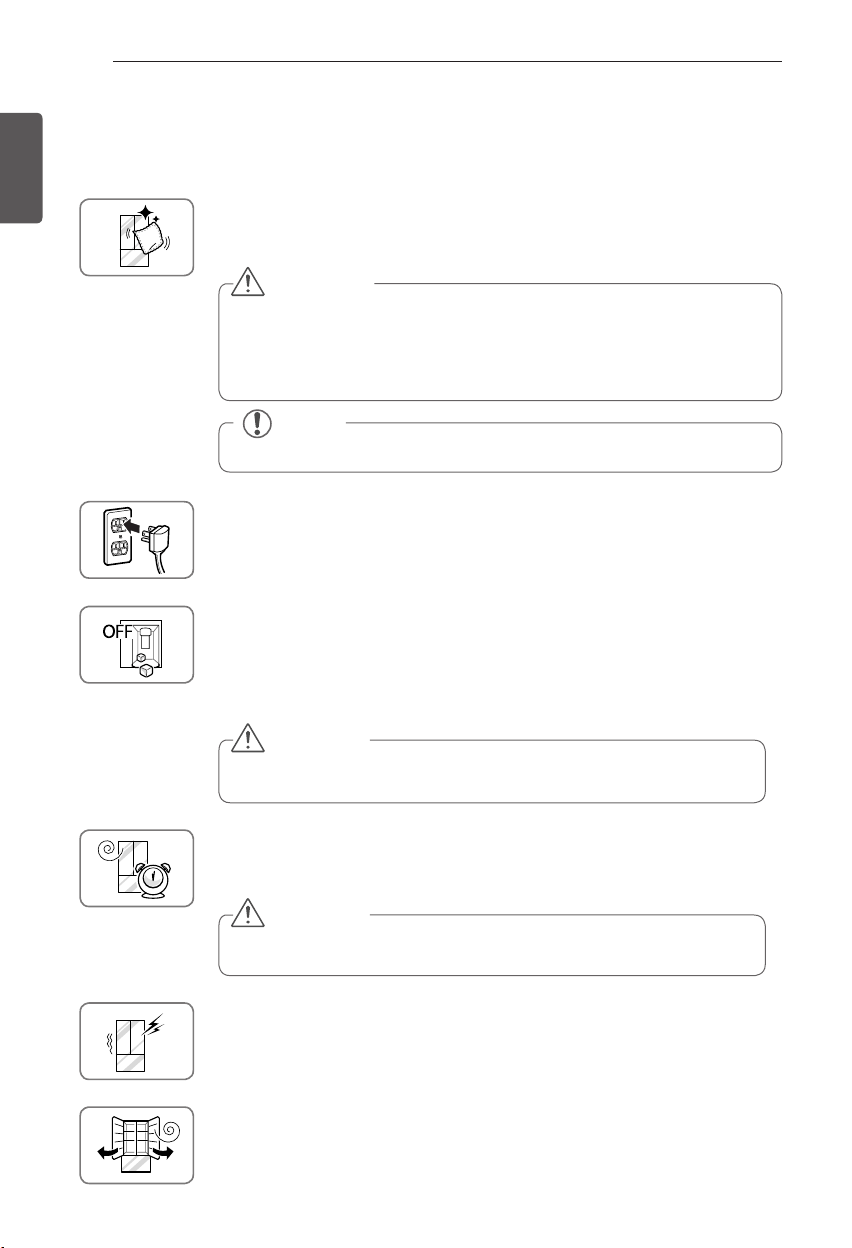
Clean the refrigerator.
Clean your refrigerator thoroughly and wipe off all dust that accumulated during
shipping.
NOTE
Remove adhesive residue by wiping it off with your thumb or dish detergent.
CAUTION
Do not scratch the refrigerator with a sharp object or use a detergent that
y
contains alcohol, a flammable liquid or an abrasive when removing any tape
or adhesive from the refrigerator,.
Do not peel off the model or serial number label or the technical information
y
on the rear surface of the refrigerator.
Connect the power supply.
Check if the power supply is connected before use.
Read the “Turning On The Power” section.
CAUTION
Running the automatic icemaker before connecting it to the water
supply may cause the refrigerator to malfunction.
Turn off the icemaker if the refrigerator is not yet connected to the
water supply.
Turn off the automatic icemaker and then plug the power plug of the refrigerator
into the grounded electric outlet.
* This is applicable only to certain models.
CAUTION
Putting food in the refrigerator before it has cooled could cause the
food to spoil, or a bad odor could remain inside the refrigerator.
Wait for the refrigerator to cool.
Allow your refrigerator to run for at least two to three hours before putting food in
it. Check the flow of cold air in the freezer compartment to ensure proper cooling.
The refrigerator makes a loud noise after initial operation.
This is normal. The loudness will decrease as the temperature lowers.
Open refrigerator doors and freezer drawers to ventilate the interior.
The inside of the refrigerator may smell like plastic at first. Remove any adhesive
tape from inside the refrigerator and open the refrigerator doors and the freezer
drawers for ventilation.
25
HOW TO USE
ENGLISH
NOTE
To change the display from Fahrenheit to
Celsius, press and hold the FREEZER and
REFRIGERATOR button for five seconds.
Control Panel
* Depending on the model, some of the following functions may not be available.
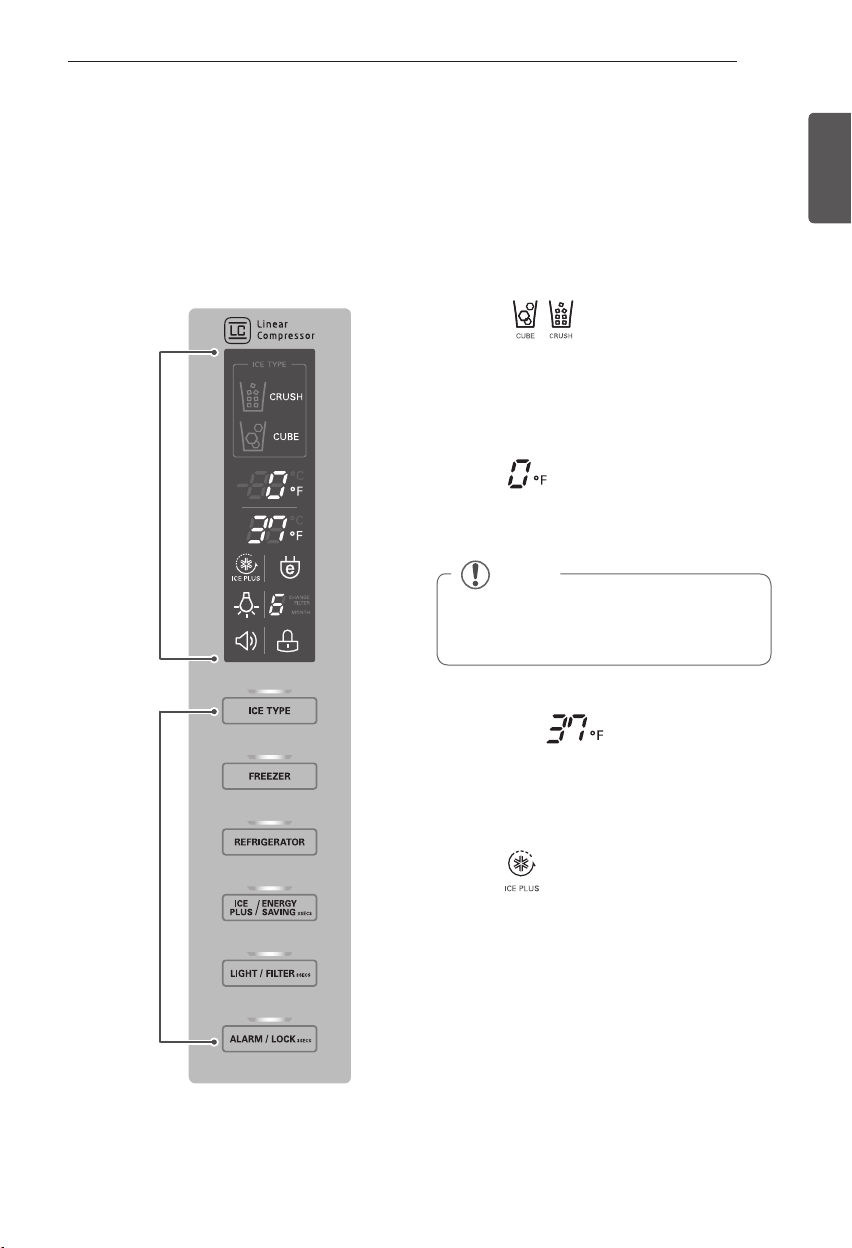
The LED Display shows the temperature settings, dispenser options, water filter, door alarm, and
locking status messages.
Control Panel Features
LED Display
Control
Buttons
Ice Type Ice Type
Press the ICE TYPE button to select either
Crushed or Cubed Ice. The selected option will
illuminate on the LED display.
Freezer Freezer
Press the FREEZER button to adjust the
temperature in the freezer compartment.
Refrigerator Refrigerator
Press the REFRIGERATOR button to adjust the
temperature in the freezer compartment.
Ice Plus Ice Plus
This function increases both ice making and
freezing capabilities.
When you touch the Ice Plus button, the
y
graphic will illuminate in the display and
will continue for 24 hours. The function will
automatically shut off after 24 hours.
You can stop this function manually by
y
touching the button one more time.
26
HOW TO USE
ENGLISH
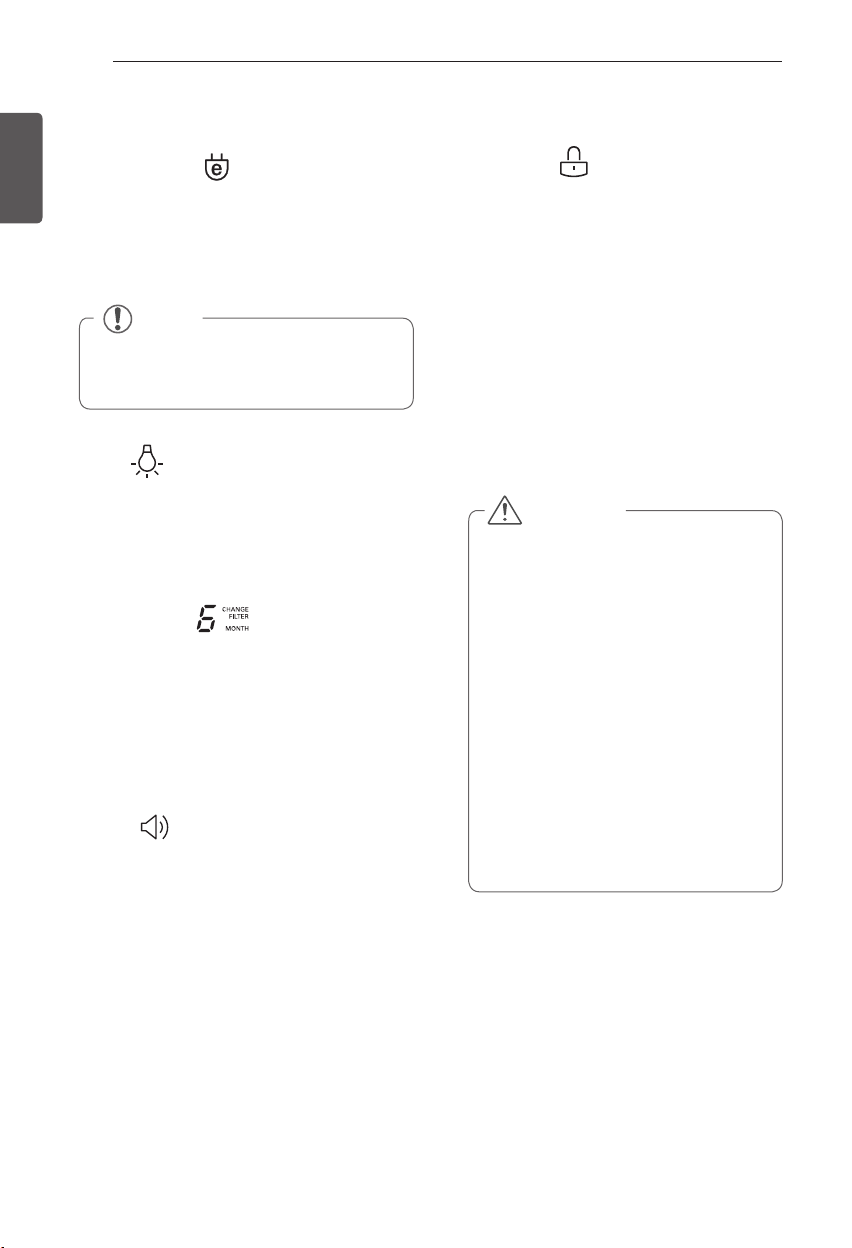
LightLight
Press the LIGHT button, to turn on the
dispenser light. The indicator will appear on the
LED display.
Control Panel Features (continued)
Change Filter Change Filter
When the water filter indicator turns on, you
have to change the water filter. After changing
the water filter, press and hold the FILTER
button for three seconds to turn the indicator
light off. You need to change the water filter
approximately every six months.
Alarm Alarm
When power is connected to the
y
refrigerator, the door alarm is initially set to
ON. When you press the ALARM button,
the display will change to OFF and the
Alarm function will deactivate.
When either the refrigerator or the freezer
y
door is left open for more than 60 seconds,
the alarm tone will sound to let you know
that the door is open.
When you close the door, the door alarm
y
will stop.
Control Lock Control Lock
The Control Lock function disables every other
button on the display.
When power is initially connected to the
y
refrigerator, the Lock function is off.
If you want to activate the Lock function to
y
lock other buttons, press and hold the Lock
button for three seconds or more. The Lock
icon will display and the Lock function is
now enabled.
To disable the Lock function, press and hold
y
the Lock button for approximately three
seconds.
NOTE
Discontinue using the Energy Saving function
if excessive moisture begins to collect on the
door mullion.
Energy Saving Energy Saving
The Energy Saving function disables the mullion
heater located on the refrigerator door in order to
conserve electricity. Press and hold the Energy
Saving button for three seconds to activate or
deactivate this function.
CAUTION
Display Mode (For Store Use Only)
The Display Mode disables all cooling
in the refrigerator and freezer sections
to conserve energy while on display in
a retail store. When activated, OFF will
display on the control panel.
To deactivate:
With either refrigerator door opened,
press and hold the Refrigerator and
Ice Plus buttons at the same time for
five seconds. The control panel will
beep and the temperature settings will
display to confirm that Display Mode is
deactivated. Use the same procedure to
activate the Display Mode.
27
HOW TO USE
ENGLISH
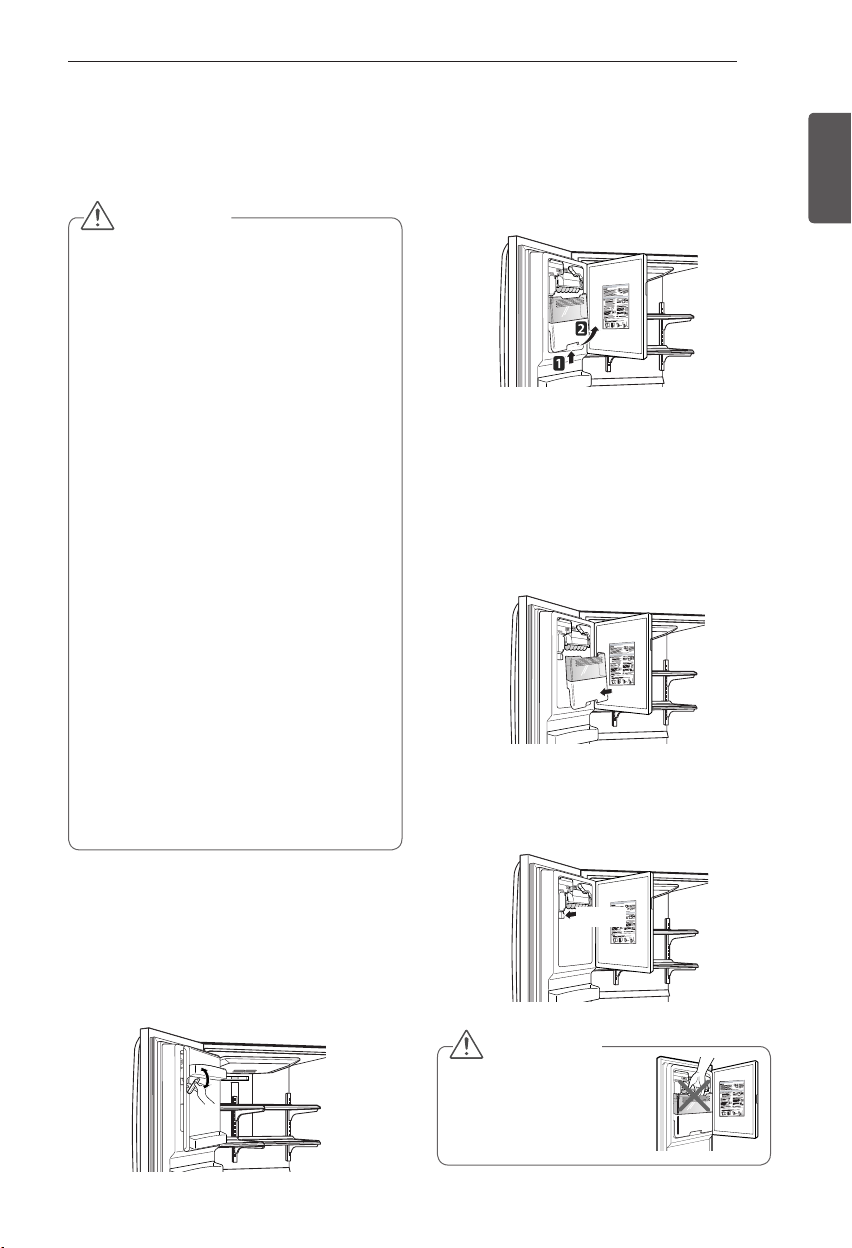
Assembling the In-Door Ice Bin
1
Carefully insert the in-door ice bin while
slightly slanting it to avoid contact with the
icemaker.
2
Avoid touching the ice-detecting sensor
when replacing the ice bin. See the label
on the ice compartment door for details.
Ice-detecting
sensor
CAUTION
When handling the ice bin,
keep hands away from the
icemaker tray area to avoid
personal injury.
In-Door Ice Bin
* Depending on the model, some of the
following functions may not be available.
Detaching the In-Door Ice Bin
1
Gently pull the handle to open the ice
compartment.
2
To remove the in-door ice bin, grip the
front handle, slightly lift the lower part,
and slowly pull out the bin as shown.
CAUTION
Keep hands and tools out of the ice
y
compartment door and dispenser chute.
Failure to do so may result in damage or
personal injury.
The icemaker will stop producing ice when
y
the in-door ice bin is full. If you need more
ice, empty the ice bin into the extra ice bin
in the freezer compartment. During use,
the ice can become uneven causing the
icemaker to misread the amount of ice
cubes and stop producing ice. Shaking the
ice bin to level the ice within it can reduce
this problem.
Storing cans or other items in the ice bin will
y
damage the icemaker.
Keep the ice compartment door closed
y
tightly. If the ice compartment door is not
closed tightly, the cold air in the ice bin will
freeze food in the refrigerator compartment.
This could also cause the icemaker to stop
producing ice.
If the O
y
N/OFF switch on the icemaker is
set to OFF for an extended period of time,
the ice compartment will gradually warm
up to the temperature of the refrigerator
compartment. To prevent ice cubes from
melting and leaking from the dispenser,
ALWAYS empty the ice bin when the
icemaker is set to OFF for more than a few
hours.
28
HOW TO USE
ENGLISH
Automatic Icemaker
* Depending on the model, some of the
following functions may not be available.
Ice is made in the automatic icemaker and sent
to the dispenser. The icemaker will produce
12 cubes per cycle—approximately 120 cubes
in a 24-hour period, depending on freezer
compartment temperature, room temperature,
number of door openings and other operating
conditions.
It takes about 12 to 24 hours for a newly
y
installed refrigerator to begin making ice. Wait
72 hours for full ice production to occur.
Ice making stops when the in-door ice bin
y
is full. When full, the in-door ice bin holds
approximately 6 to 8 (12-16 oz) glasses of ice.
The water pressure must be between 20 and
y
120 psi on models without a water filter and
between 43 and 121 psi on models with a
water filter to produce the normal amount and
size of ice cubes.
Foreign substances or frost on the ice-
y
detecting sensor can interrupt ice production.
Make sure the sensor area is clean at all times
for proper operation.
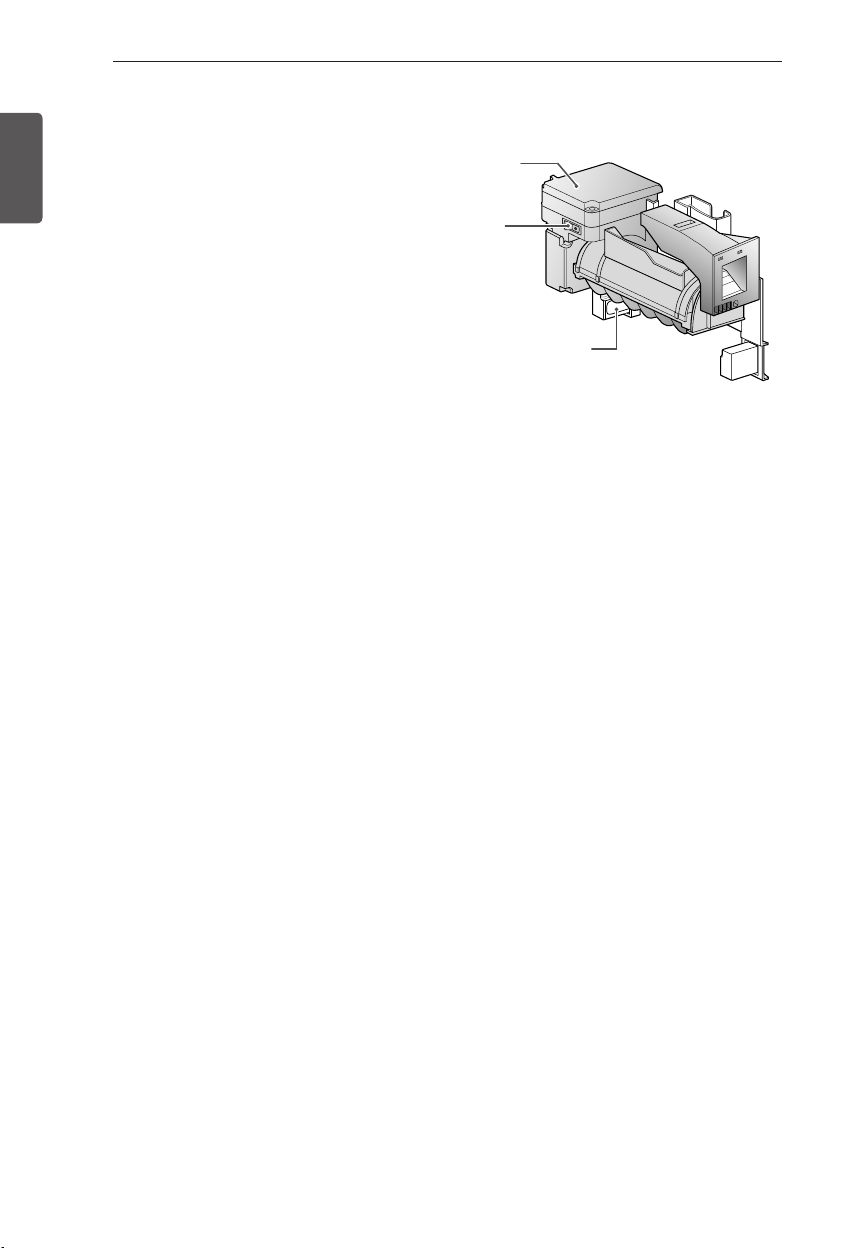
Ice-detecting
Sensor
Power
Switch
Icemaker
Turning the Automatic Icekamer
On or Off
To turn off the automatic icemaker, set the
icemaker switch to
OFF (O)
. To turn on the
automatic icemaker, set the switch to
ON (I)
.
29
HOW TO USE
ENGLISH
Automatic Icemaker
(continued)
The first ice and water dispensed may
y
include particles or odor from the water
supply line or the water tank.
Throw away the first few batches of ice
y
(about 24 cubes). This is also necessary if
the refrigerator has not been used for a long
time.
Never store beverage cans or other items in
y
the ice bin for the purpose of rapid cooling.
Doing so may damage the icemaker or the
containers may burst.
If discolored ice is dispensed, check the
y
water filter and water supply. If the problem
continues, contact a Sears or other qualified
service center. Do not use the ice or water
until the problem is corrected.
Keep children away from the dispenser.
y
Children may play with or damage the
controls.
The ice passage may become blocked with
y
frost if only crushed ice is used. Remove the
frost that accumulates by removing the ice
bin and clearing the passage with a rubber
spatula. Dispensing cubed ice can also help
prevent frost buildup.
Never use thin crystal glass or crockery to
y
collect ice. Such containers may chip or
break resulting in glass fragments in the ice.
Dispense ice into a glass before filling it
y
with water or other beverages. Splashing
may occur if ice is dispensed into a glass
that already contains liquid.
Never use a glass that is exceptionally
y
narrow or deep. Ice may jam in the ice
passage and refrigerator performance may
be affected.
Keep the glass at a proper distance from
y
the ice outlet. A glass held too close to the
outlet may prevent ice from dispensing.
To avoid personal injury, keep hands out of
y
the ice door and passage.
Never remove the dispenser cover.
y
If ice or water dispenses unexpectedly, turn
y
off the water supply and contact a qualified
service center.
CAUTION
When You Should Turn the
Icemaker Off
When the water supply will be shut off
y
for several hours.
When the ice bin is removed for more
y
than one or two minutes.
When the refrigerator will not be used
y
for several days.
Normal Sounds You May Hear
The icemaker water valve will buzz as
y
the icemaker fills with water. If the
power switch is in the ON (I) position,
it will buzz even if it has not yet been
hooked up to water. To stop the buzzing,
move the power switch to OFF (O).
You will hear the sound of cubes
y
dropping into the bin and water running
in the pipes as the icemaker refills.
Preparing For Vacation
Set the icemaker power switch to OFF (O) and
shut off the water supply to the refrigerator.
If the ambient temperature will drop below
freezing, have a qualified technician drain
the water supply system to prevent serious
property damage due to flooding caused by
ruptured water lines or connections.
NOTE
The ice bin should be emptied when the
icemaker on/off switch is turned to the
OFF
position.
NOTE
Keeping the power switch in the ON
(I) position before the water line is
connected can damage the icemaker.
NOTE
The ice bin should be emptied anytime
the icemaker on/off switch is turned to
the OFF (O) position.
30
HOW TO USE
ENGLISH
Ice and Water Dispenser
* Depending on the model, some of the
following functions may not be available.
CAUTION
Keep children away from the dispenser.
Children may play with or damage the
controls.
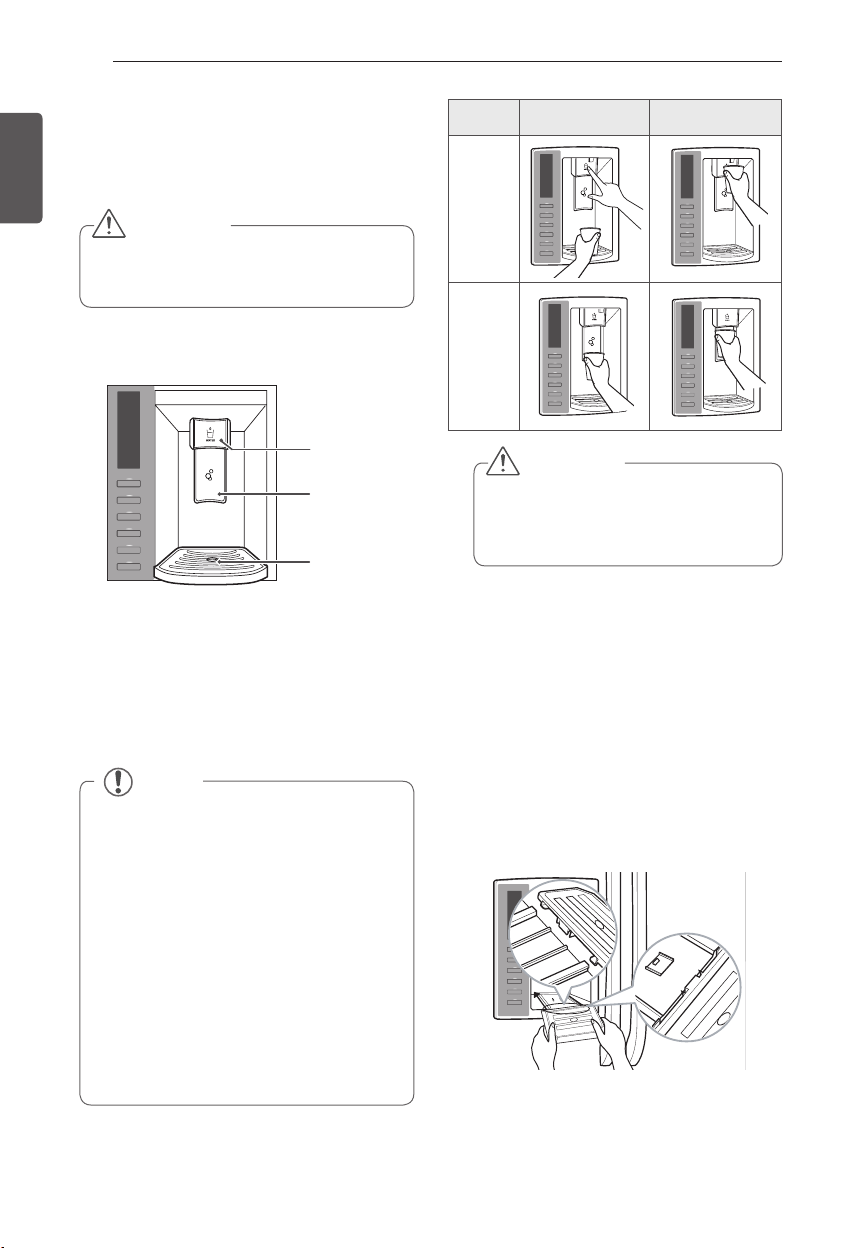
Dispenser
Ice Switch
Stand
Water Switch
Using the Dispenser
To dispense
y
cold
water
, push on the
water switch with a glass.
To dispense
y
ice
, push on the ice switch
with a glass.
NOTE
If discolored ice is dispensed, check
y
the water filter and water supply. If the
problem continues, contact a qualified
service center. Do not use the ice or
water until the problem is corrected.
The dispenser will not operate when
y
either of the refrigerator doors are open.
If dispensing water or ice into a container
y
with a small opening, place it as close to
the dispenser as possible.
Some dripping may occur after
y
dispensing. Hold your cup beneath
the dispenser for a few seconds after
dispensing to catch all of the drops.
Incorrect Way Correct Way
Water
Ice
CAUTION
Throw away the first few batches of ice
(about 24 cubes). This is also necessary
if the refrigerator has not been used for
a long time.
Locking the Dispenser
Press and hold the Alarm and Lock button
simultainously for 3 seconds to lock the
dispenser and all the control panel functions.
Follow the same instructions to unlock.
Cleaning the Dispenser Stand
1
Grip the stand with both hands and pull it
out.
2
Wipe out dirty areas with a clean cloth.
31
HOW TO USE
ENGLISH
Storing Food
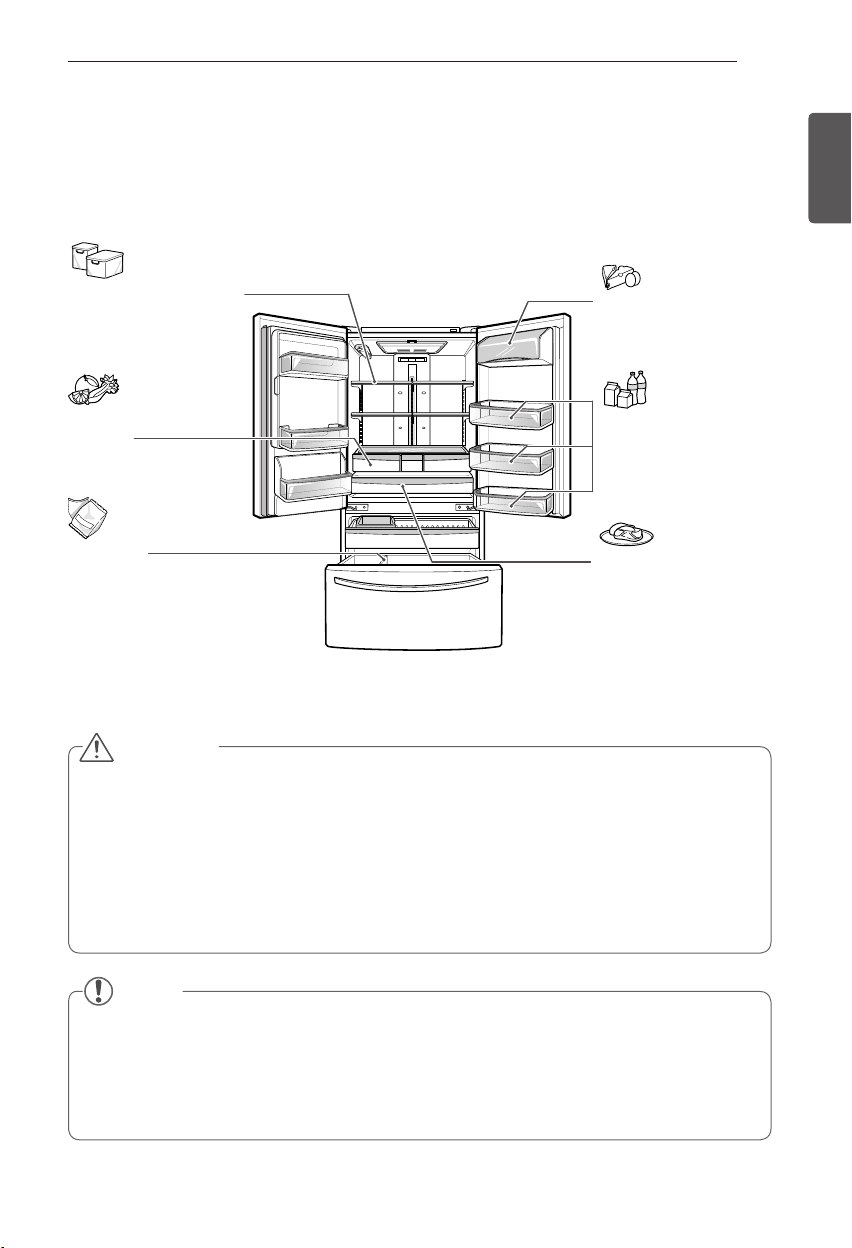
Food Preservation Location
Each compartment inside the refrigerator is designed to store different types of food.
Store your food in the optimal space to enjoy the freshest taste.
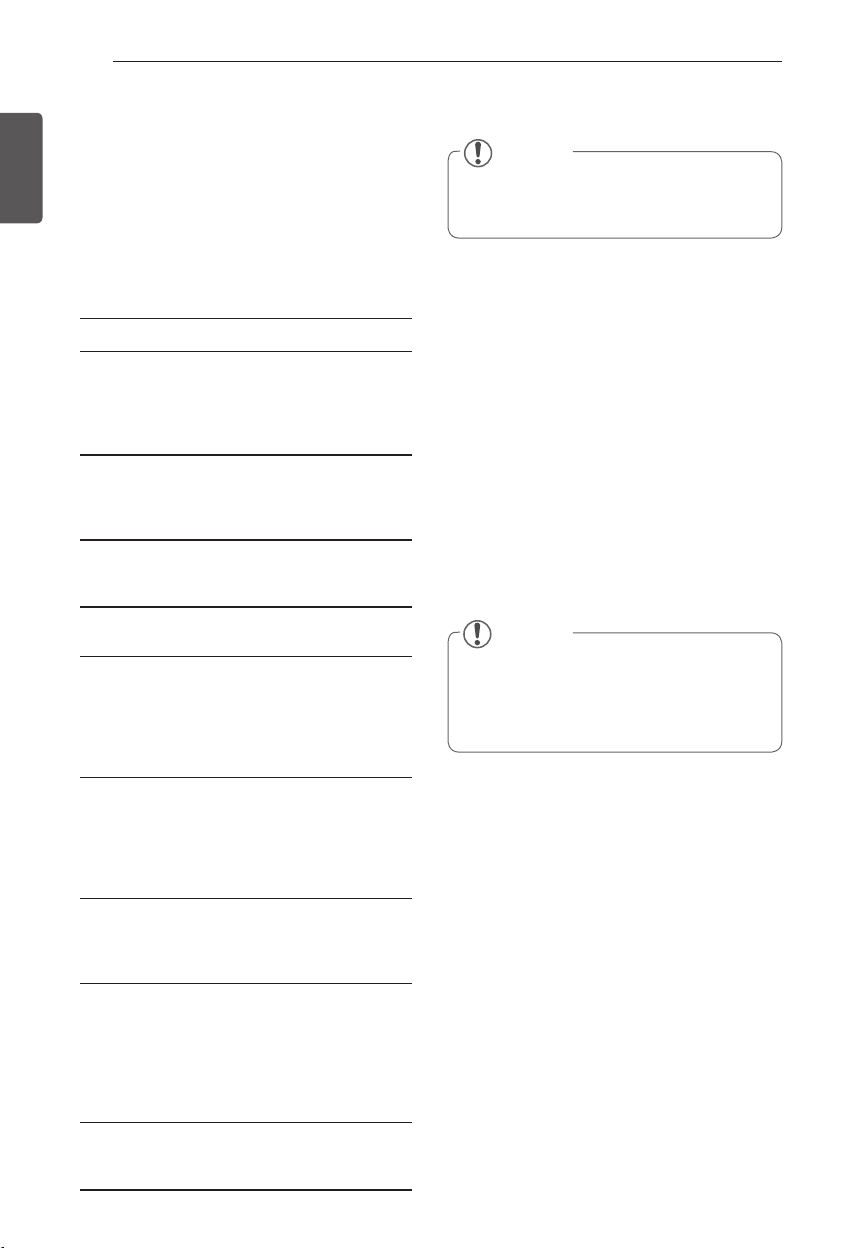
Vegetable storage
(Crisper)
Preserves vegetables
and fruit.
Gallon Storage Bin
Store drinks such as
juice and soda, as well as
seasonings, salad dressings
and other food items.
Durabase
®
Largest storage space in
the freezer.
Dairy product bin
Store milk products such as
butter and cheese.
Adjustable refrigerator shelf
Adjustable shelves to meet
your individual storage
needs.
Glide‘N’Serve
Provides storage space that
keeps the compartment
at a different temperature
than the refrigerator. It is a
convenient place to store
sandwiches or meat to be
cooked.
CAUTION
Do not store food with high moisture content towards the top of the refrigerator. The moisture
y
could come in direct contact with the cold air and freeze.
Wash food before storing it in the refrigerator. Vegetables and fruit should be washed, and food
y
packaging should be wiped down to prevent adjacent foods from being contaminated.
If the refrigerator is kept in a hot and humid place, frequent opening of the door or storing a lot of
y
vegetables in the refrigerator may cause condensation to form. Wipe off the condensation with a
clean cloth or a paper towel.
If the refrigerator door or freezer drawer is opened or closed too often, warm air may penetrate
y
the refrigerator and raise its temperature. It can also increase the cost of electricity.
NOTE
If you are leaving home for a short period of time, like a short vacation, the refrigerator should
y
be left on. Refrigerated foods that are able to be frozen will stay preserved longer if stored in the
freezer.
If you are leaving the refrigerator turned off for an extended period of time, remove all food and
y
unplug the power cord. Clean the interior, and leave the door open to prevent fungi from growing
in the refrigerator.
32
HOW TO USE
ENGLISH
Food Storage Tips
* The following tips may not be applicable
depending on the model.
Wrap or store food in the refrigerator in airtight
and moisture-proof material unless otherwise
noted. This prevents food odor and taste transfer
throughout the refrigerator. For dated products,
check date code to ensure freshness.
Food How to
Butter or
Margarine
Keep opened butter in a covered
dish or closed compartment.
When storing an extra supply,
wrap in freezer packaging and
freeze.
Cheese
Store in the original wrapping
until you are ready to use it.
Once opened, rewrap tightly in
plastic wrap or aluminum foil.
Milk Wipe milk cartons. For best
storage, place milk on interior
shelf, not on door shelf.
Eggs Store in original carton on
interior shelf, not on door shelf.
Fruit Do not wash or hull the fruit
until it is ready to be used. Sort
and keep fruit in its original
container, in a crisper, or store
in a completely closed paper
bag on a refrigerator shelf.
Leafy
Vegetables
Remove store wrapping and
trim or tear off bruised and
discolored areas. Wash in cold
water and drain. Place in plastic
bag or plastic container and
store in crisper.
Vegetables
with skins
(carrots,
peppers)
Place in plastic bags or plastic
container and store in crisper.
Fish Store fresh fish and shellfish
in the freezer section if they
are not being consumed the
same day of purchase. It is
recommended to consume
fresh fish and shellfish the
same day purchased.
Leftovers
Cover leftovers with plastic
wrap, aluminum foil, or plastic
containers with tight lids.
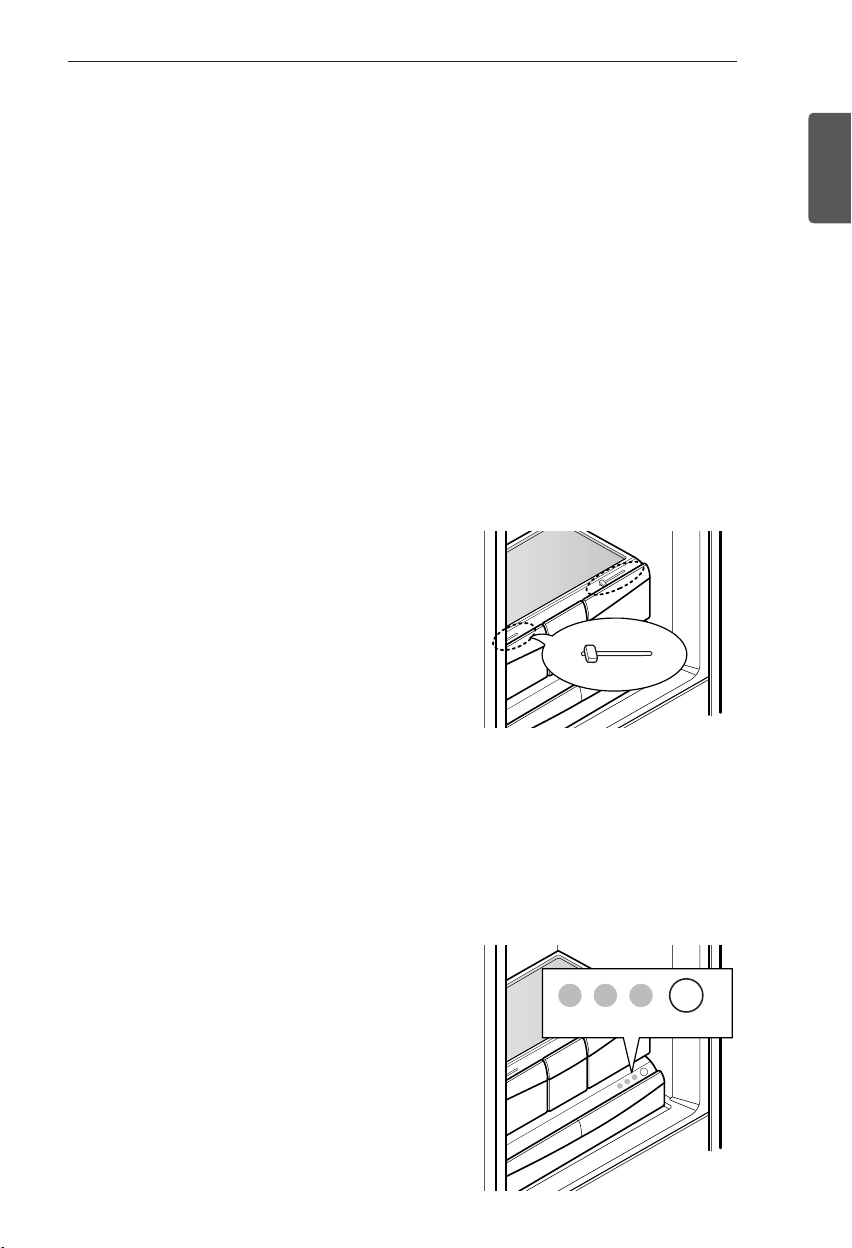
Storing Frozen Food
FreezingFreezing
Your freezer will not quick-freeze a large
quantity of food. Do not put more unfrozen
food into the freezer than will freeze within
24 hours (no more than 2 to 3 lbs. of food per
cubic foot of freezer space). Leave enough
space in the freezer for air to circulate around
packages. Be careful to leave enough room at
the front so the door can close tightly.
Storage times will vary according to the quality
and type of food, the type of packaging or wrap
used (how airtight and moisture-proof) and
the storage temperature. Ice crystals inside a
sealed package are normal. This simply means
that moisture in the food and air inside the
package have condensed, creating ice crystals.
NOTE
Check a freezer guide or a reliable cookbook
for further information about preparing food
for freezing or food storage times.
NOTE
Allow hot foods to cool at room temperature
for 30 minutes, then package and freeze.
Cooling hot foods before freezing saves
energy.
33
HOW TO USE
ENGLISH
Humidity Controlled Crisper
and Glide’N’Serve
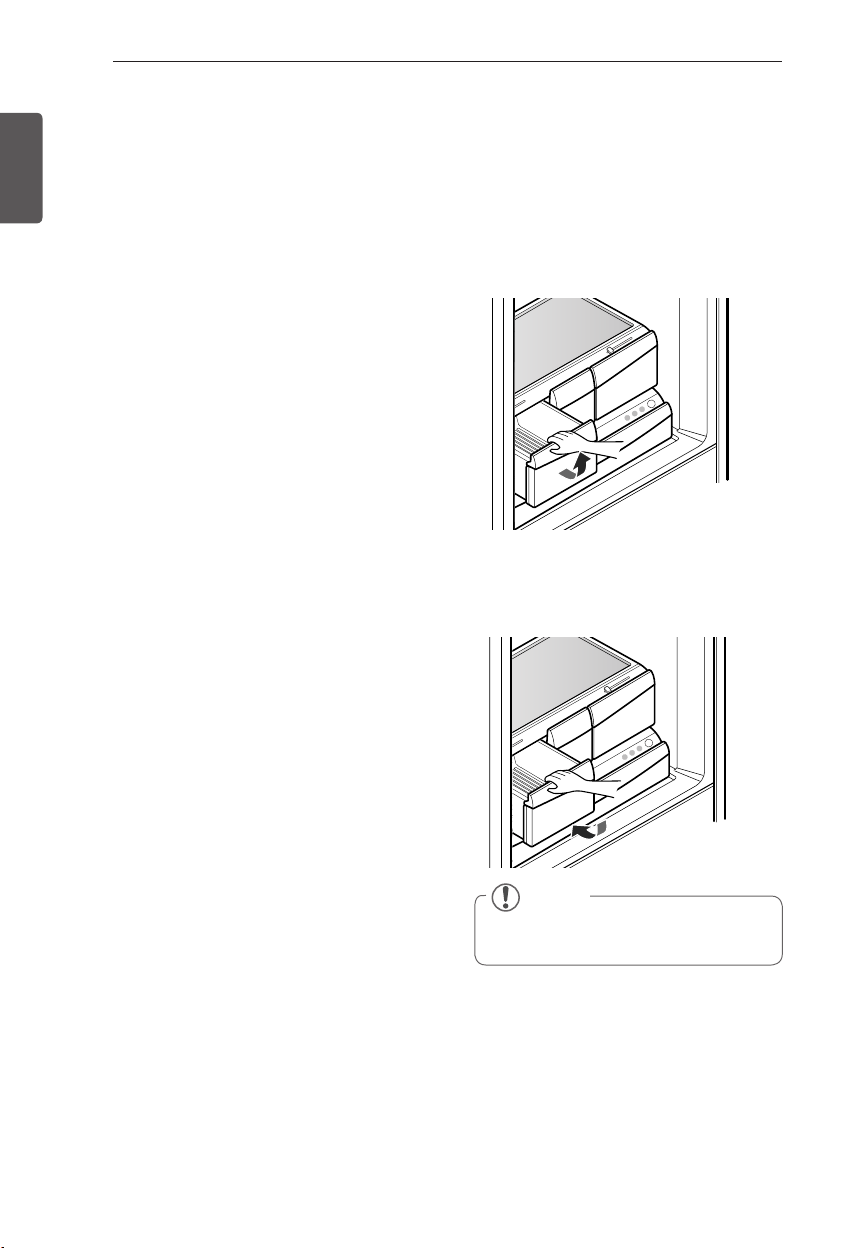
Humidity Controlled Crisper
* Depending on the model, some of the
following functions may not be available.
The crispers provide fresher tasting fruit and
vegetables by letting you easily control humidity
inside the drawer.
You can control the amount of humidity in
the moisture-sealed crispers by adjusting the
control to any setting between
HIGH
and
LOW.
HIGH
y
keeps moist air in the crisper for
best storage of fresh, leafy vegetables.
LOW
y
lets moist air out of the crisper for
best storage of fruit.
MEAT
DELI
PRODUCE
TEMP. SELECTOR
LOW
HIGH
LOW
LOW
HIGH
Glide’N’Serve
The Glide`N’Serve provides storage space with
a variable temperature control that keeps the
compartment colder than refrigerator.
This drawer can be used for large party trays,
deli items, or beverages.
MEAT
DELI
PRODUCE
TEMP. SELECTOR
LOW
HIGH
LOW
MEAT
DELI
PRODUCE
TEMP. SELECTOR
Storing Frozen Food (continued)
PackagingPackaging
Successful freezing depends on correct
packaging. When you close and seal the
package, it must not allow air or moisture in or
out. If it does, you could have food odor and
taste transfer throughout the refrigerator and
could also dry out frozen food.
Packaging recommendations:Packaging recommendations:
Rigid plastic containers with tight-fitting
y
lids
Straight-sided canning/freezing jars
y
Heavy-duty aluminum foil
y
Plastic-coated paper
y
Non-permeable plastic wraps
y
Specified freezer-grade self-sealing plastic
y
bags
Follow package or container instructions for
proper freezing methods.
Do not useDo not use
Bread wrappers
y
Non-polyethylene plastic containers
y
Containers without tight lids
y
Wax paper or wax-coated freezer wrap
y
Thin, semi-permeable wrap
y
34
HOW TO USE
ENGLISH
Humidity Controlled Crisper
and Glide’N’Serve (continued)
Selection Button
When “
y
MEAT
“ is selected, the
temperature of the Glide`N’Serve can
be kept around 34°F (1°C). This feature
helps keep meat or fish fresh for a longer
time. The Glide`N’Serve temperature
can be maintained under recommended
temperature setting (Freezer : 0°F,
Referigerator : 37°F).
When “
y
DELI
“ is selected, the temperature
of the Glide`N’Serve can be kept around
38°F (3°C). This feature helps keep food
fresh for a longer time. The Glide`N’Serve
temperature can be maintained under
recommended temperature setting
(Freezer : 0°F, Referigerator : 37°F).
When “
y
PRODUCE
“ is selected, the
temperature of the Glide`N’Serve can
be kept around 41°F (5°C). This feature
helps keep food fresh for a long time.
The Glide`N’Serve temperature can
be maintained under recommended
temperature setting (Freezer : 0°F,
Referigerator : 37°F).
Detaching and Assembling the
Storage Bins
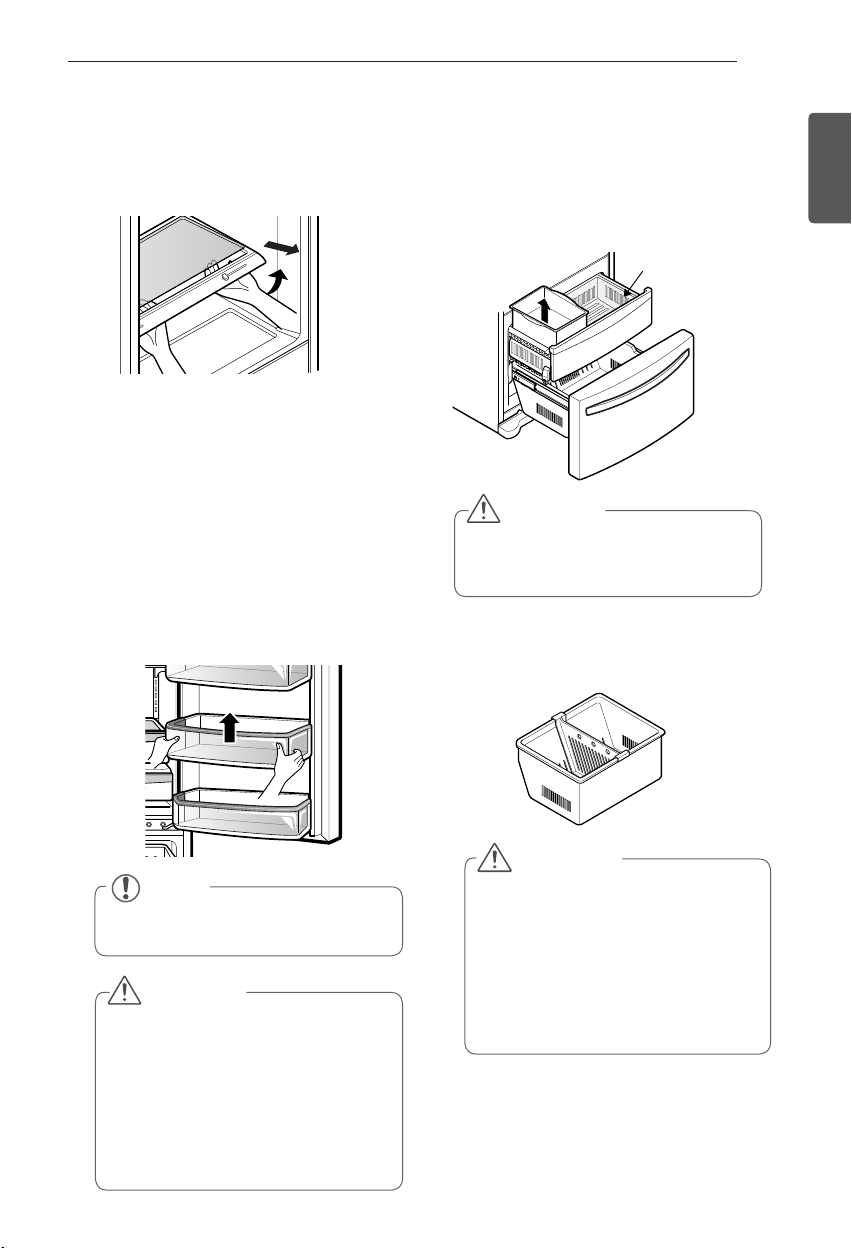
Humidity Controlled Crisper
To remove, pull the drawer out to full
y
extension.
Lift the front of the crisper up, then pull it
y
straight out.
To install, slightly tilt up the front, insert the
drawer into the frame and push it back into
place.
MEAT
DELI
PRODUCE
TEMP. SELECTOR
LOW
HIGH
LOW
MEAT
DELI
PRODUCE
TEMP. SELECTOR
LOW
HIGH
LOW
NOTE
Storage Bins may vary in appearance,
depending on your model.
35
HOW TO USE
ENGLISH
Door Bins
The door bins are removable for easy cleaning
and adjustment.
1
To remove the bin, simply lift the bin up and
pull straight out.
2
To replace the bin, slide it in above the
desired support and push down until it snaps
into place.
DuraBase ® Divider
Ice Bin
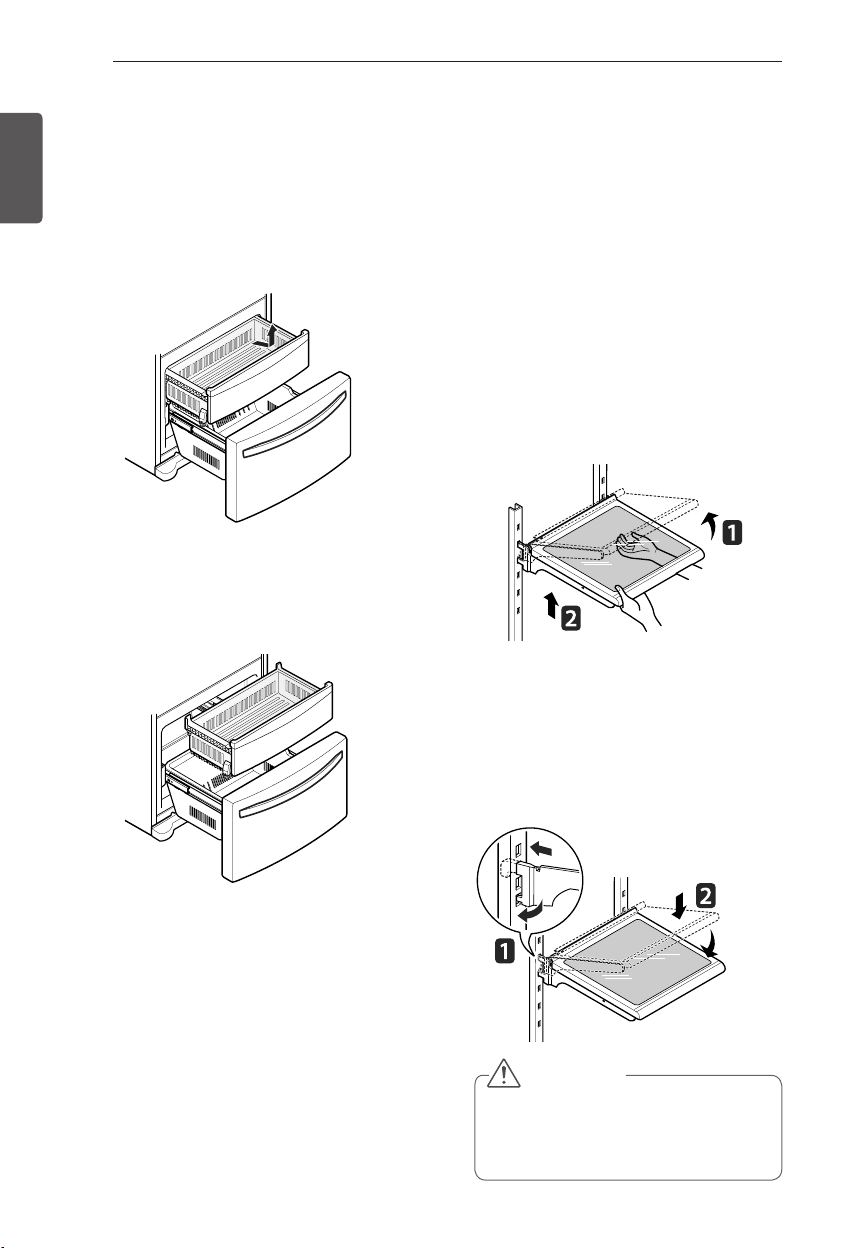
To separate the ice bin, pull out the drawer to
full extension. Gently lift and pull out the ice
bin.
To reinstall, simply set the ice bin in its correct
position.
NOTE
Some bins may vary in appearance and
will only fit in one location.
CAUTION
Do not apply excessive force while
y
detatching or assembling the storage
bins.
Do not use the dishwasher to clean
y
the storage bins and shelves.
Regularly detach and wash the
y
storage bins and shelves; they can
become easily contaminated by the
food.
CAUTION
Pinch hazard! Keep hands and feet
y
clear of the bottom of the door when
opening and closing.
To Remove the Glass
(Pantry drawer not shown for clarity)
Lift up the glass under the crisper cover, and
pull up and out.
LOW
HIGH
LOW
Drawer
WARNING
Child Entrapment Hazard
If the Durabase divider is removed,
y
there is enough open space for
children or pets to crawl inside.
To prevent accidental child and pet
y
entrapment or suffocation risk, DO
NOT allow them to play inside of
drawer.
36
HOW TO USE
ENGLISH
Detaching and Assembling the
Storage Bins (continued)
Pull-Out Drawer
To remove the drawer, push the tabs located
on the front inside surface of each rail. Next,
gently lift the rear left and right sides of the
drawer and pull it out.
To reinstall, pull out and fully extend both rails.
Insert the end of rib in the bracket at left and
right. Making sure that the guides at the front
are lined up properly, gently push down on
both sides.
Adjusting the Refrigerator
Shelves
The shelves in your refrigerator are adjustable
to meet your individual storage needs. Your
model may have glass or wire shelves.
Adjusting the shelves to fit different heights
of items will make finding the exact item you
want easier. Doing so will also reduce the
amount of time the refrigerator door is open
which will save energy.
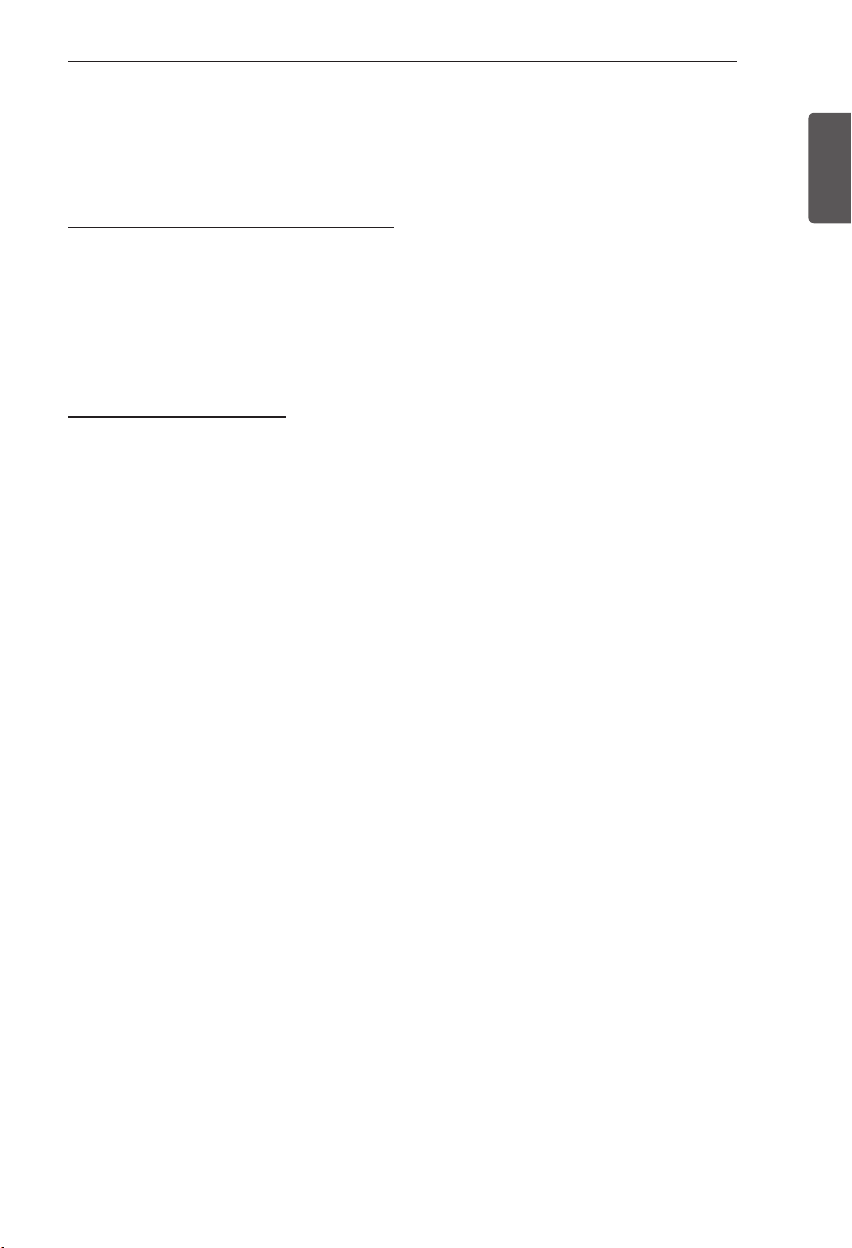
Detaching the Shelf
Tilt up the front of the shelf and lift it straight
up. Pull the shelf out.
Assembling the Shelf
Tilt the front of the shelf up and guide the shelf
hooks into the slots at a desired height. Then,
lower the front of the shelf so that the hooks
drop into the slots.
CAUTION
Make sure that shelves are level from
one side to the other. Failure to do so
may result in the shelf falling or spilling
food.
37
SMART REFRIGERATOR DISPLAY SCREEN
ENGLISH
SMART REFRIGERATOR DISPLAY SCREEN
Before Use
1. Smart refrigerator display screen
Utilize the many new features, such as Food Manager, Note Pad and Weather application, on the
LCD display.
Display screen buttons are touch activated.
y
The touch screen will only respond to the human touch. Gloves, pens or other objects will not
y
work with the touchscreen, and may cause a malfunction.
2. Touch button function
The touch screen buttons do not need to be pressed hard or excessively. Lightly touch the
y
touch screen buttons and icons.
When the touch screen is turned off, touch the screen once to brighten the screen, and again
y
to use the functions. If the touch screen is locked, you must first unlock the screen in order to
use the functions.
Turn off the display screen before cleaning.
y
Excessive dirt or residue on the display may inhibit the function. The display should be kept
y
clean at all times for optimal performance.
The touch function may not operate normally if there is moisture on the display. Wipe the
y
display with a soft cloth.
The touch screen will only respond to the human touch. Touch gloves, pens or other objects
y
will not work with the touchscreen, and may cause a malfunction.
Do not touch the screen while the refrigerator is initially booting up. Doing so may cause a
y
malfunction.
38
SMART REFRIGERATOR DISPLAY SCREEN
ENGLISH
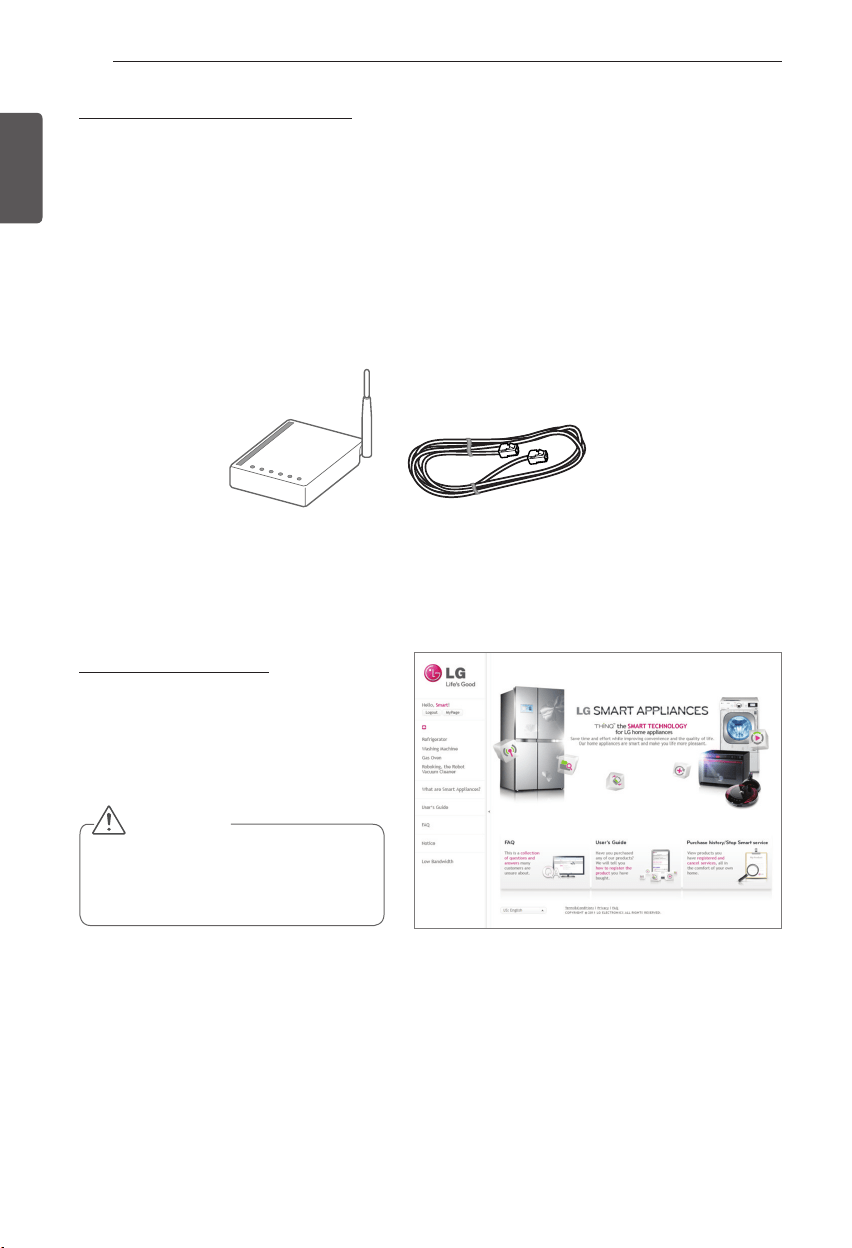
Wireless outer LAN cable
3. Necessary Installation Parts
To use the wireless network connection, please verify the following steps:
The wireless modem can be purchased separately and installed to use smart refrigerator
y
functions such as Food Manager and Weather (linked with smart phone using Wi-Fi) when the
product is purchased).
The user must use a wireless router that supports IEEE 802.11 b/g/n.
y
Consult with your internet service provider or install a wireless router to connect your smart
y
refrigerator.
For best results, install the wireless router as close to the refrigerator as possible.
y
For WEP security, IEEE 802.11 b/g is supported. Do not set up IEEE 802.11 n independently.
y
4. Note Before Using
To use the connectivity features of your
appliance, you must first create a user ID
and password at:
us.smartthinq.com
or
www.smartthinq.com
CAUTION
Connectivity features are not available
y
unless the product is registered.
Images may vary.
y
39
SMART REFRIGERATOR DISPLAY SCREEN
ENGLISH
5. Downloading the Smart Phone Application
Download the application from the Android smart phone market.
Search for ‘LG Smart Refrigerator’ in the search section of the market.
Optimal resolution for this application is 480x800.
y
6. Turning the touch screen on or off.
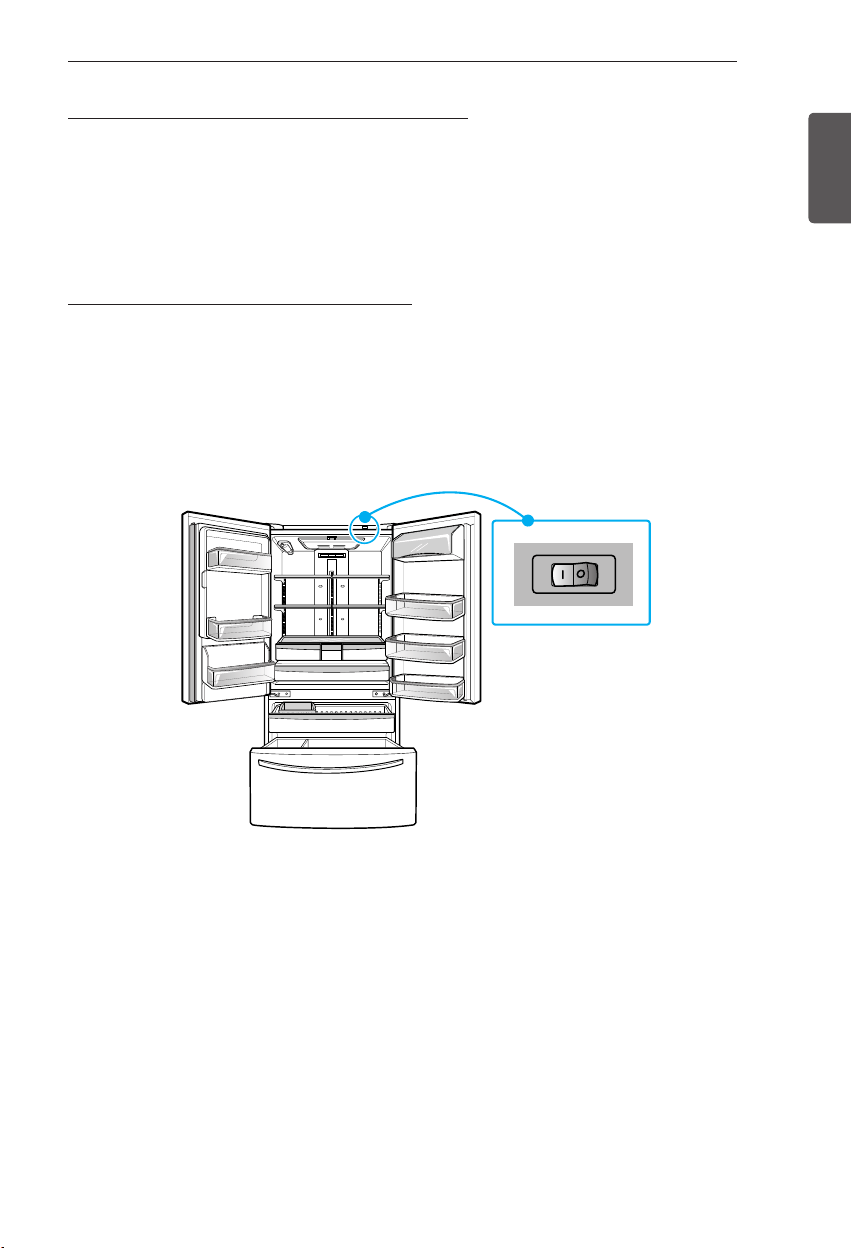
Turn the touch screen on or off using the reset switch.
If the touch screen does not seem to be operating properly, reset the screen using the reset
y
switch.
Using the reset switch does not effect the refrigerator/freezer compartments.
y
You must open the refrigerator doors to located the reset switch, located on the upper right
y
hand corner (see image below).
Reset switch
I : Display screen ON
O: Display screen OFF
40
SMART REFRIGERATOR DISPLAY SCREEN
ENGLISH
Home Screen
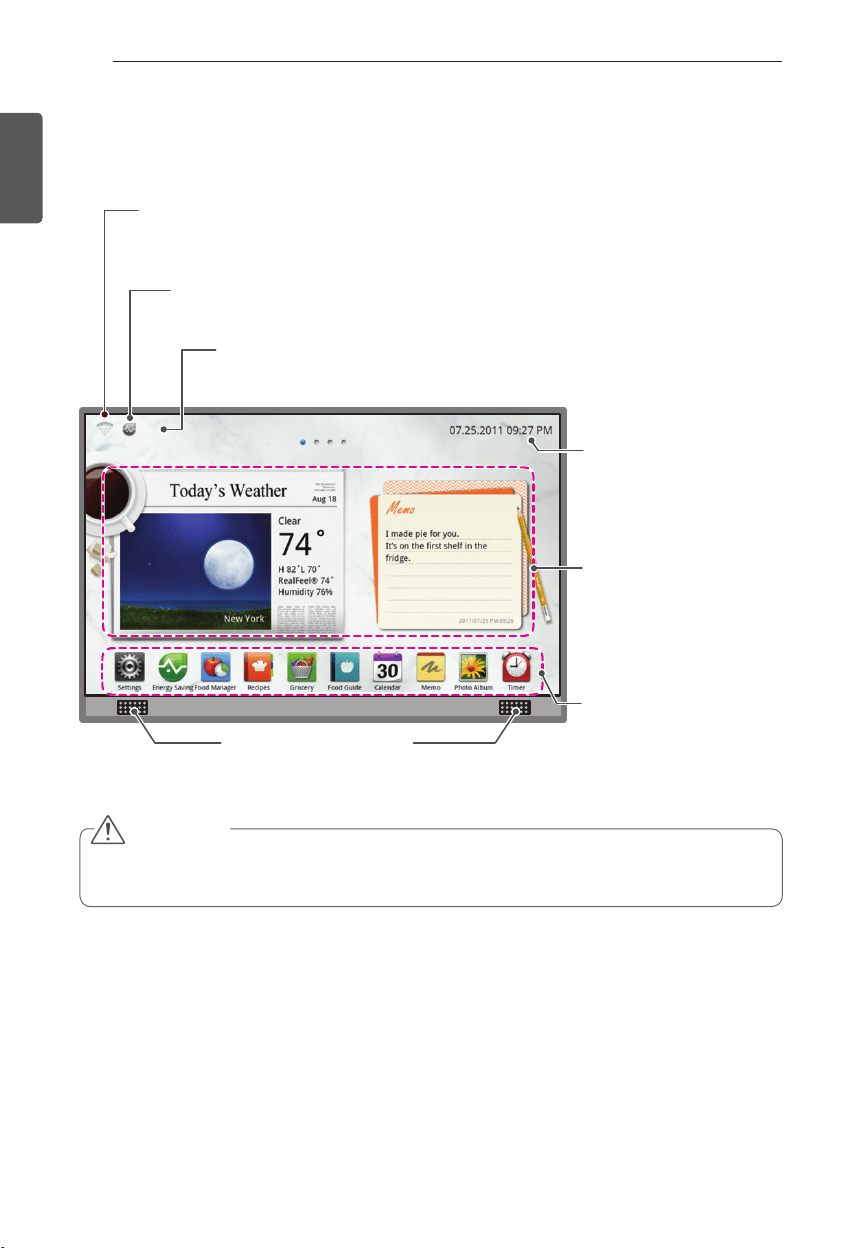
- The Home screen shows Widgets, Function Icons, Date/Time, Wi-Fi, Energy Saving, Zigbee.
Date/Time
The date and time can either be
manually entered or linked with
the Wi-Fi connection.
Widget
The Home screen includes six
Widgets that are located on four
separate pages. You can scroll
through the pages by swiping left
or right.
Function Icons
This is composed of 10 icons.
Voice recognition microphone
Zigbee display
This display shows On/Off status of Zigbee.
When Zigbee module is plugged in, Icon will be displayed.
Energy Saving display
This display shows On/Off status of Smart Grid or Smart Saving.
Wi-fi signal strength display
Displays the Wi-Fi signal connection. If Wi-Fi is not
connected, check your wireless network.
CAUTION
The touch screen will only respond to the human touch. Touch gloves, pens or other objects will
y
not work with the touchscreen, and may cause a malfunction.
41
SMART REFRIGERATOR DISPLAY SCREEN
ENGLISH
Basic button
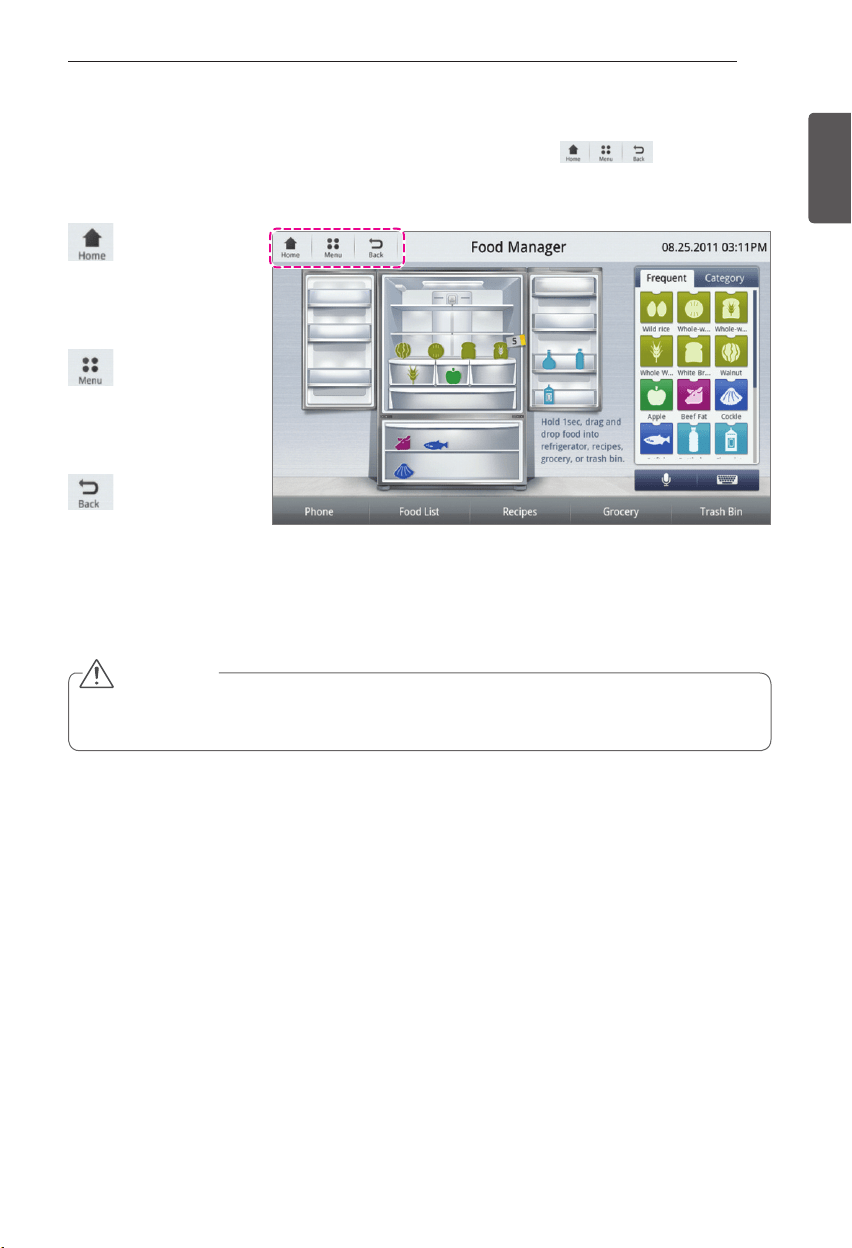
- When the user touches each function icon menu, the basic button ( ) is shown on
the top left corner.
Home Button
Touch the Home button
to return to the Home
screen.
Menu Button
Touch the Menu button
for menu options of the
present screen.
Back Button
Touch the Back button
to return to the previous
screen.
CAUTION
The touch screen will only respond to the human touch. Touch gloves, pens or other objects will
y
not work with the touchscreen, and may cause a malfunction.
42
SMART REFRIGERATOR DISPLAY SCREEN
ENGLISH
Settings
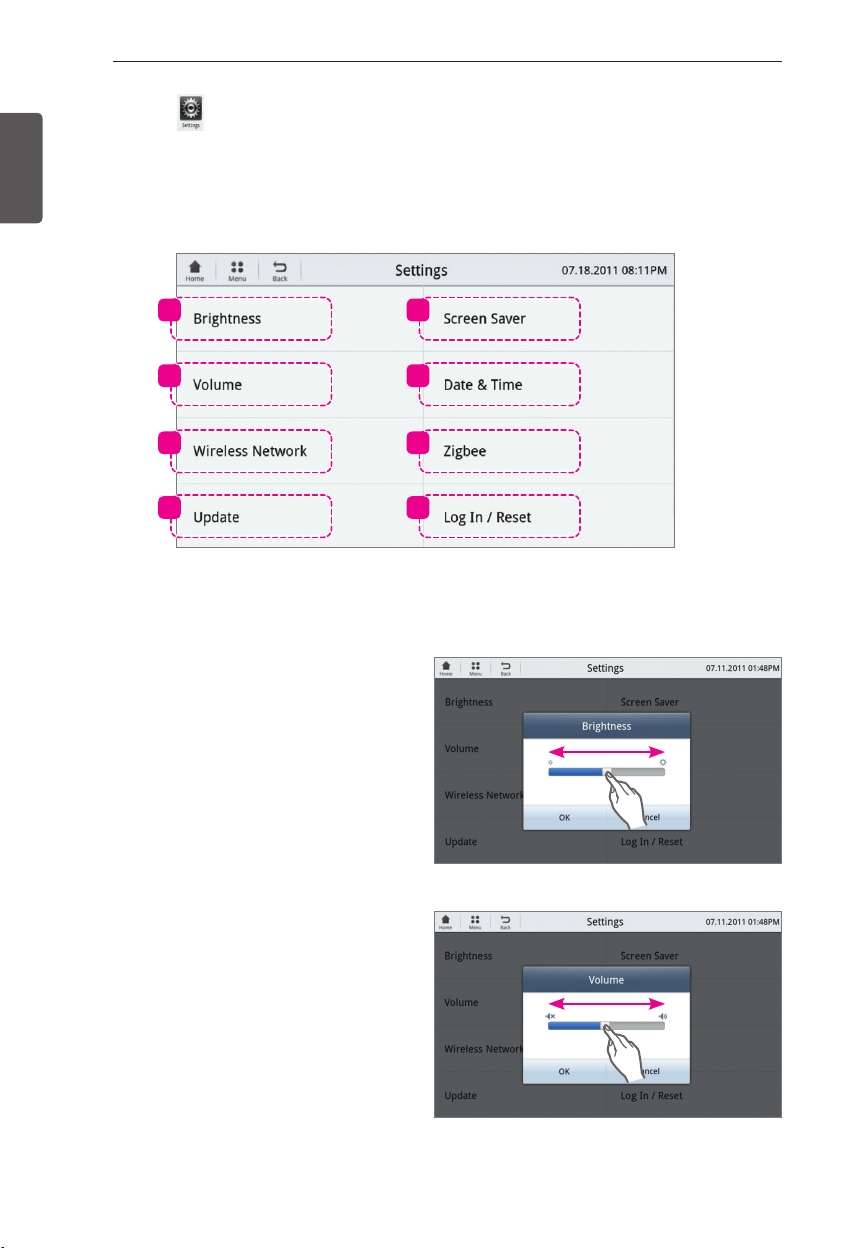
- Touch the Settings button to view or modify the display settings: Brightness, Volume, Wireless
Network, Update, Screen Saver, Date & Time, Zigbee, Log In/Reset.
1. Brightness
Touch the Brightness button from the Settings
screen.
Move the scroll bar left (darker) or right
y
(brighter) to control the brightness of the
display screen.
2. Volume
Touch the Volume button from the Settings
screen.
Move the scroll bar left (softer) or right
y
(louder) to control the volume of the
display screen.
1 5
2 6
3 7
4 8
43
SMART REFRIGERATOR DISPLAY SCREEN
ENGLISH
3. Wireless Network
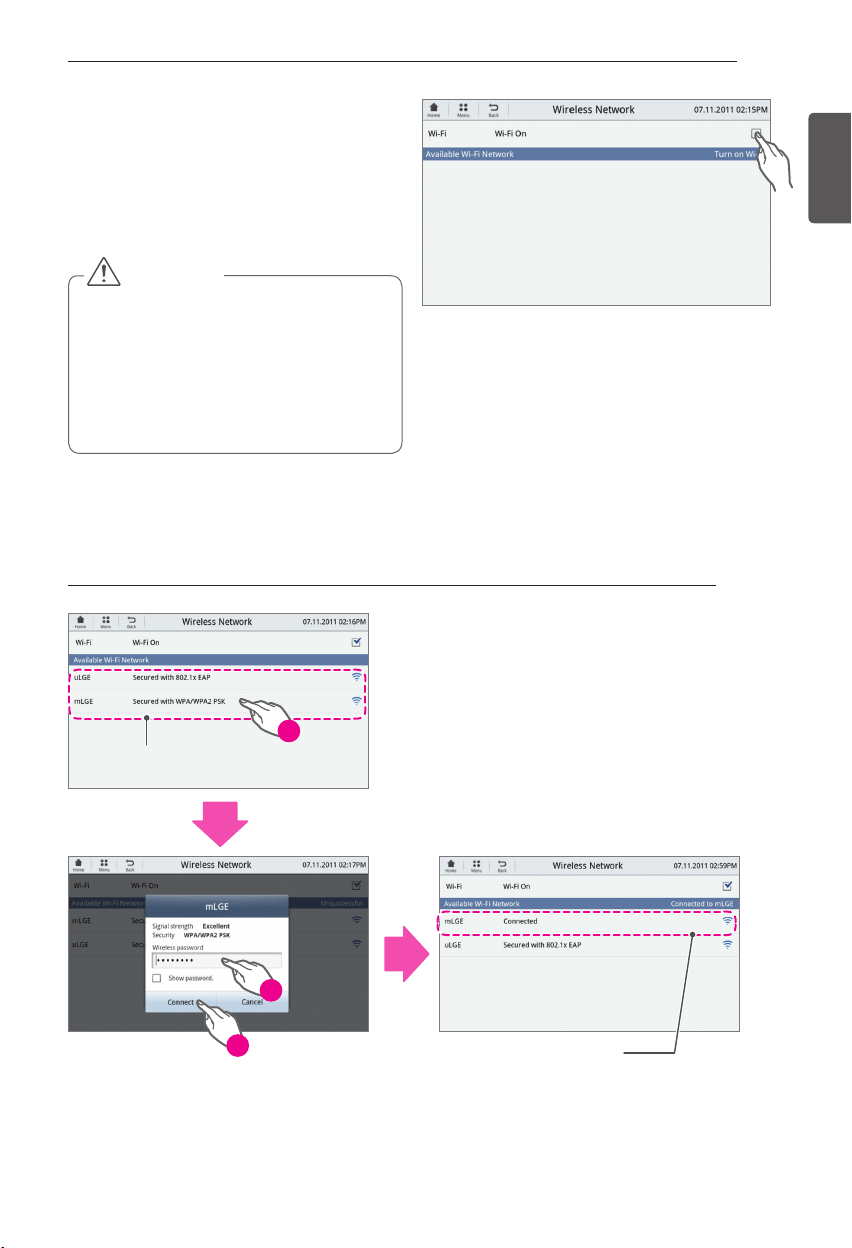
- Touch the Wi-Fi button on the Settings
screen.
- Touch the Wi-Fi on/off button. The Wi-Fi is
turned on when there is a check mark in the
box.
CAUTION
When searching for the wireless network,
y
wireless routers other than the one
installed in the house hold used nearby
can be searched. Using other routers
without permission is illegal and can
result in legal consequences when found.
Therefore always use only the wireless
routers that are authorized for use.
- Select the wireless network that you would
like to use.
- When the wireless password popup displays
on the screen, enter the wireless password
(refer to the 'How to enter the wireless
password on the Keyboard' section on the
following page).
- Touch the Connect button to complete the
wireless connection setup.
How to connect the wireless network How to connect the wireless network
Status of wireless
network
Wireless network connection
completed state (Example of router mLGE)
1
2
3
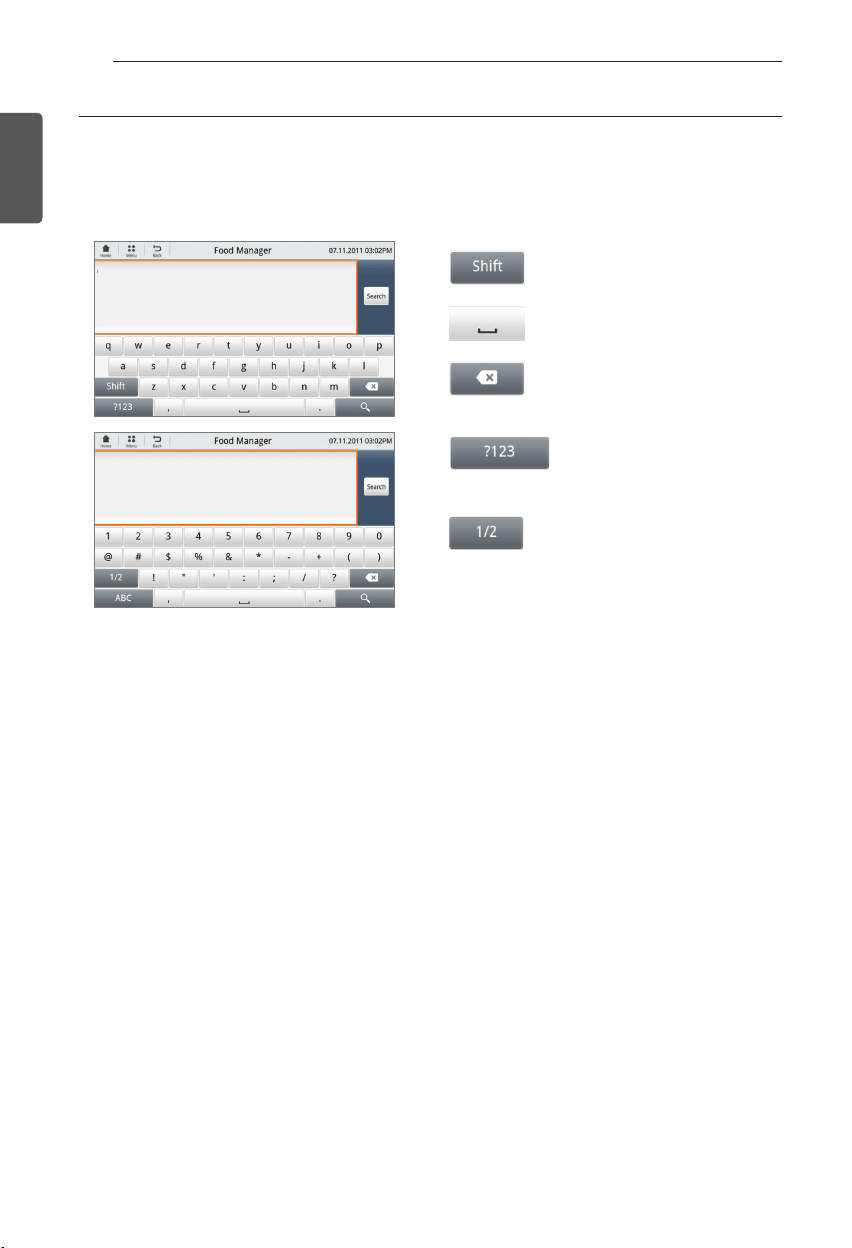
44
SMART REFRIGERATOR DISPLAY SCREEN
ENGLISH
How to enter the wireless password on the keyboard How to enter the wireless password on the keyboard
- Use the alphabet and number keyboard to enter the password.
* Keyboard input for all text type is the same.
Shift for lowercase or capital
letters
Space button
Delete button
Alphabet/Number and special
character switch button
Special character switch button
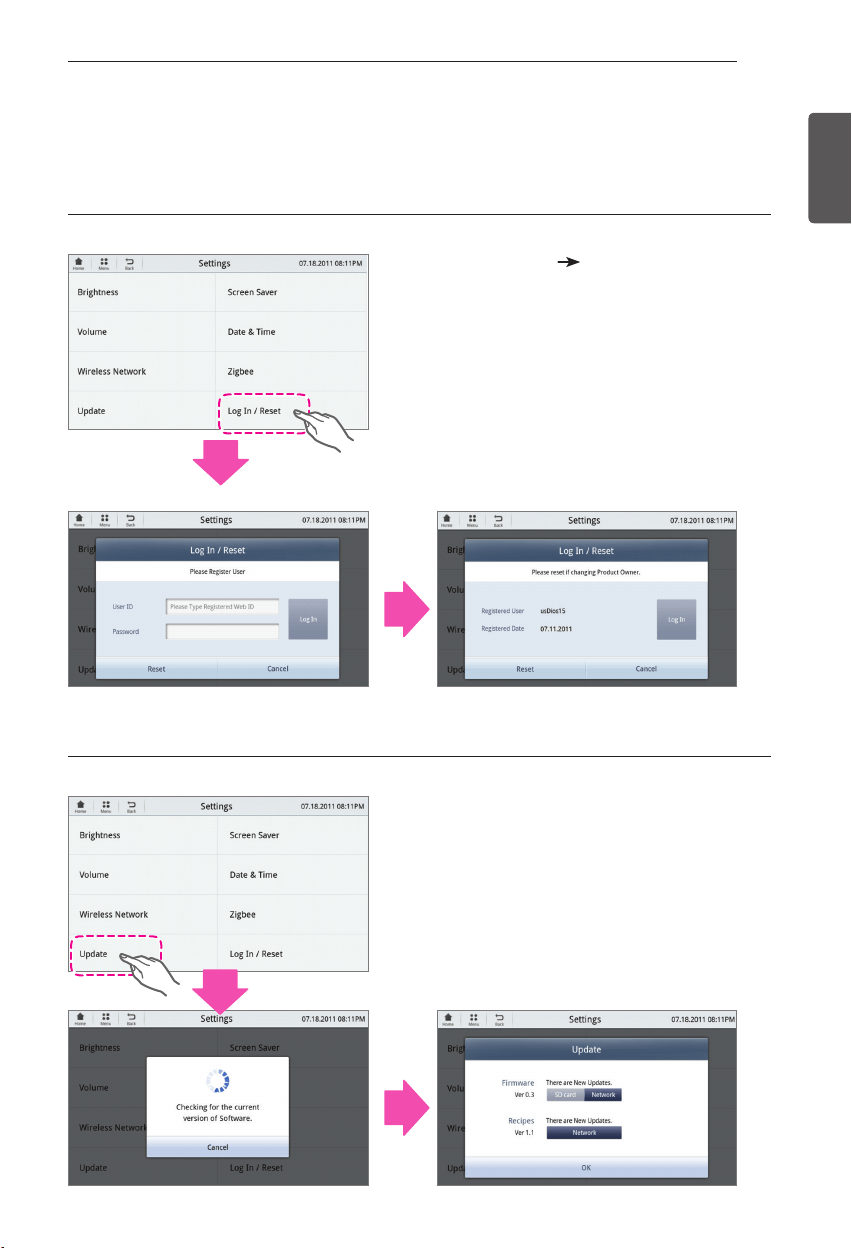
45
SMART REFRIGERATOR DISPLAY SCREEN
ENGLISH
4. Update
Once the user registration is complete, the firmware and recipes will automatically update through
the network.
- Select Settings
Log In / Reset.
- Once you are registered, touch the Update
button from the Settings screen.
- Firmware and recipe updates are
automatically checked.
- If there is a new item to update, press the
Network button.
1) Confirm registration 1) Confirm registration
2) Press the Update button in Settings. 2) Press the Update button in Settings.
[Settings screen]
[Settings screen]
[Log In / Reset Screen] [Example]
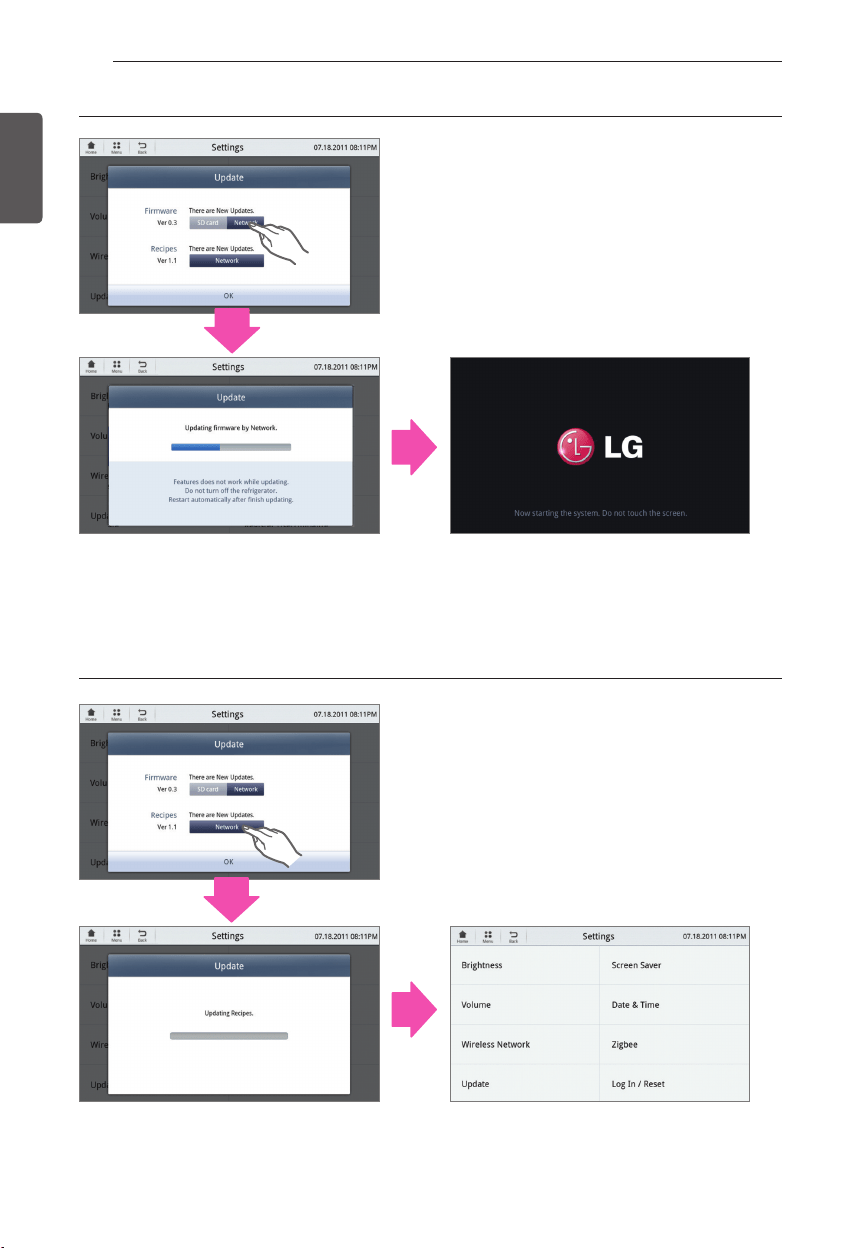
46
SMART REFRIGERATOR DISPLAY SCREEN
ENGLISH
- Touch the Network button if "There are new
updates" appears in the display.
- After the update, the screen will automatically
switch over to Settings. Do not touch the
screen while the recipe is updating.
3) Update firmware 3) Update firmware
4) Update recipes 4) Update recipes
- Touch the Network button if "There are new
updates" appears in the display.
- After the update, the system will
automatically reboot.
Do not touch the screen while the firmware
is updating.
- The update may take longer depending on the Wi-Fi connection. Please be patient. If the screen
stalls during the update (progress bar has stopped) open the door and flip the reset switch off and
on.
- The update may take longer depending on the Wi-Fi connection. Please be patient. If the screen
stalls during the update (progress bar has stopped) open the door and flip the reset switch off and
on.
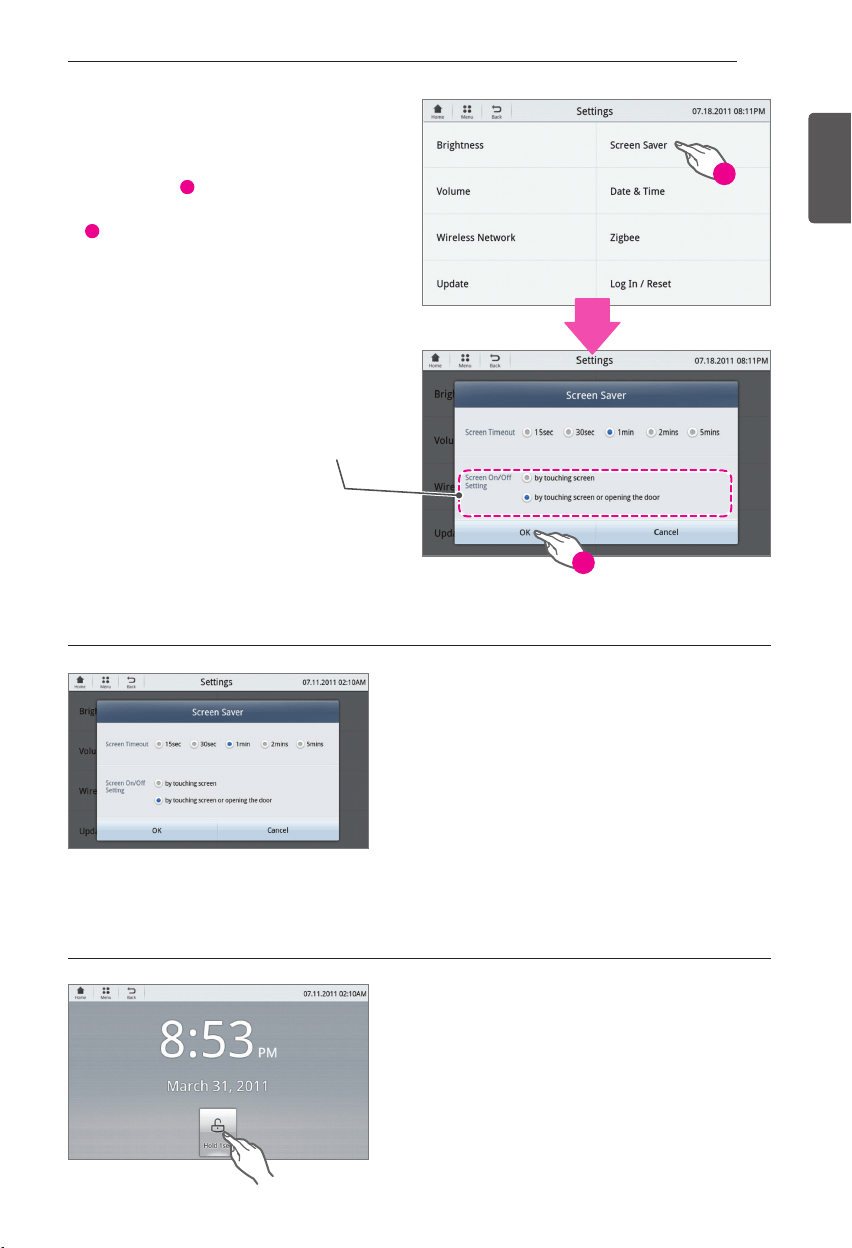
47
SMART REFRIGERATOR DISPLAY SCREEN
ENGLISH
5. Screen Saver
The user can set the screen saver.
From the Settings, touch the Screen
y
Saver button
1
.
After setting the screen saver, touch Ok
y
2
.
- The screen will be turned off after the screen
timeout and it will be locked when the user
touches the screen.
- Use the refrigerator content after unlocking
the screen.
- To unlock the screen, touch and hold the Hold
1sec icon for one second. After the screen is
unlocked, the most recently used screen will
appear in the display.
Screen lock Screen lock
Unlock screen Unlock screen
2
1
The user can select to turn on
the screen based on the user
convenience.
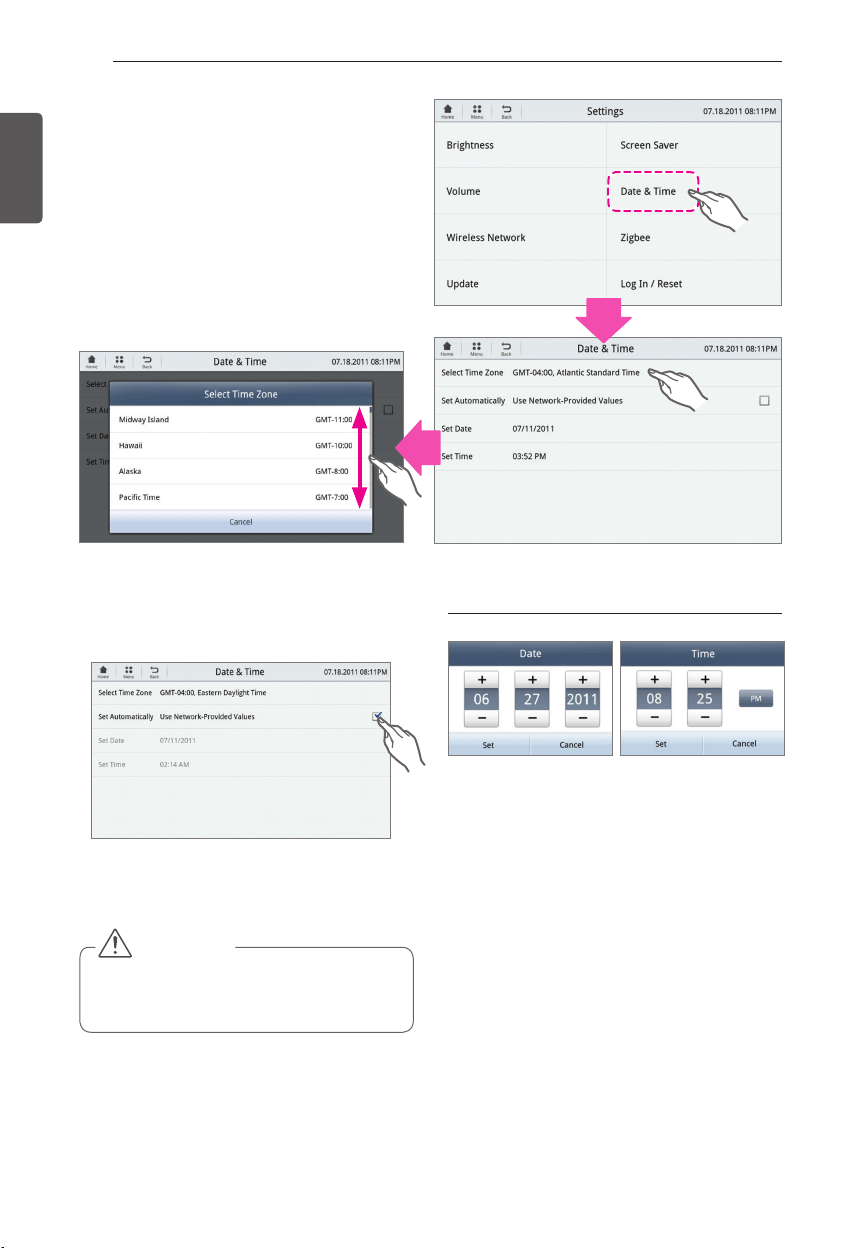
48
SMART REFRIGERATOR DISPLAY SCREEN
ENGLISH
6. Date / Time
- You can select a time zone of your location.
Touch the Select Time Zone button and scroll
up and down the time zone to identify your
desired time zone.
- Selecting "Set Automatically" (recommended)
will link the date and time through your Wi-Fi
connection.
- If necessary, you may also set the date and
time manually by selecting "Set Date" and
"Set Time."
- Use the +/- and AM/PM buttons to set up the
date and time.
When the user sets the date and time When the user sets the date and time
CAUTION
Saved data value can be different from
y
that of the network based on the date/
time set up by the user.
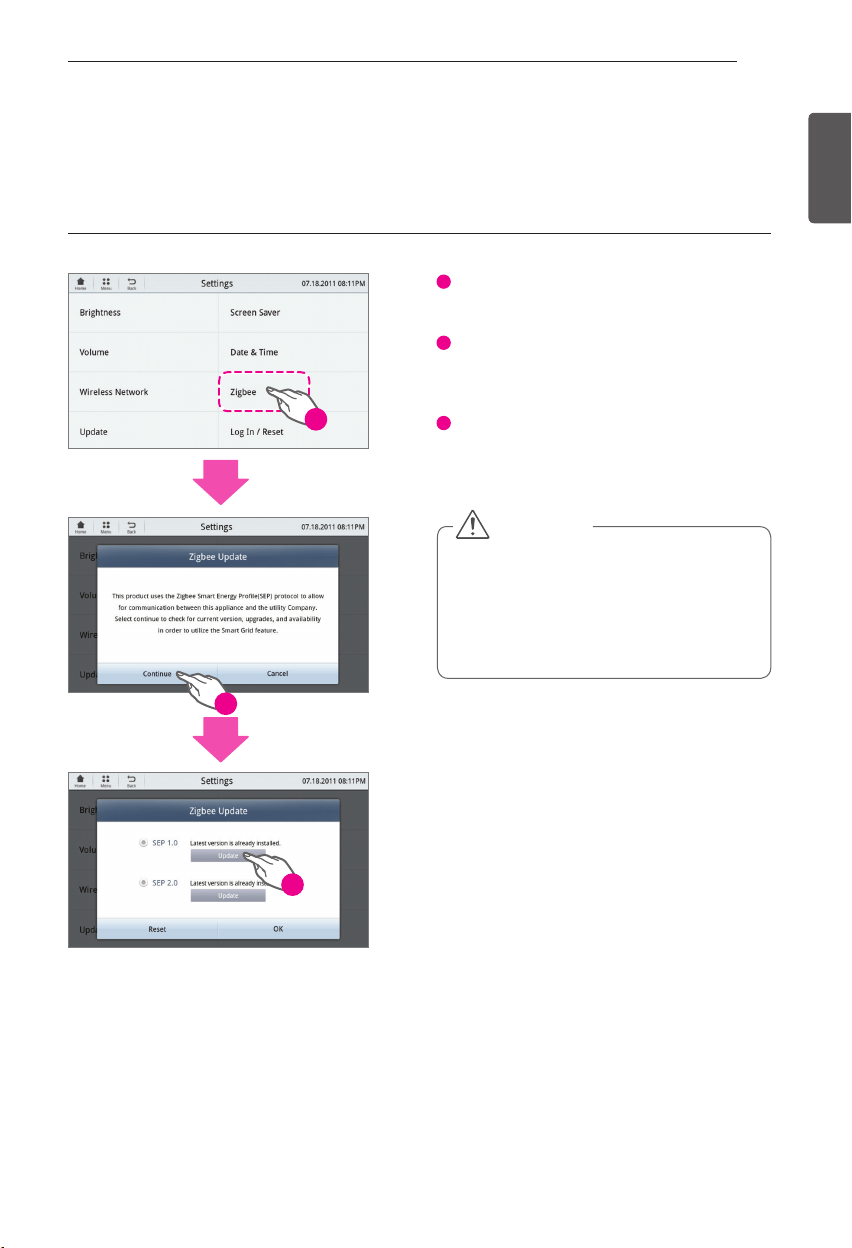
49
SMART REFRIGERATOR DISPLAY SCREEN
ENGLISH
CAUTION
Smart Grid feature can be used only
y
when Smart Grid service is provided by
the utility company. The LG Electronics
Zigbee module must be compatible with
the Smart Meter and installed properly
prior to usage.
7. Zigbee
- Zigbee is a modem to use Smart Grid.
- It communicates with electric power corporation.
1
Touch the Zigbee in Settings.
2
Touch Continue when Zigbee Update pops
up.
3
After checking current version, Zigbee
Update pops up. Update if it is not the
newest version.
Update Zigbee Update Zigbee
1
2
3
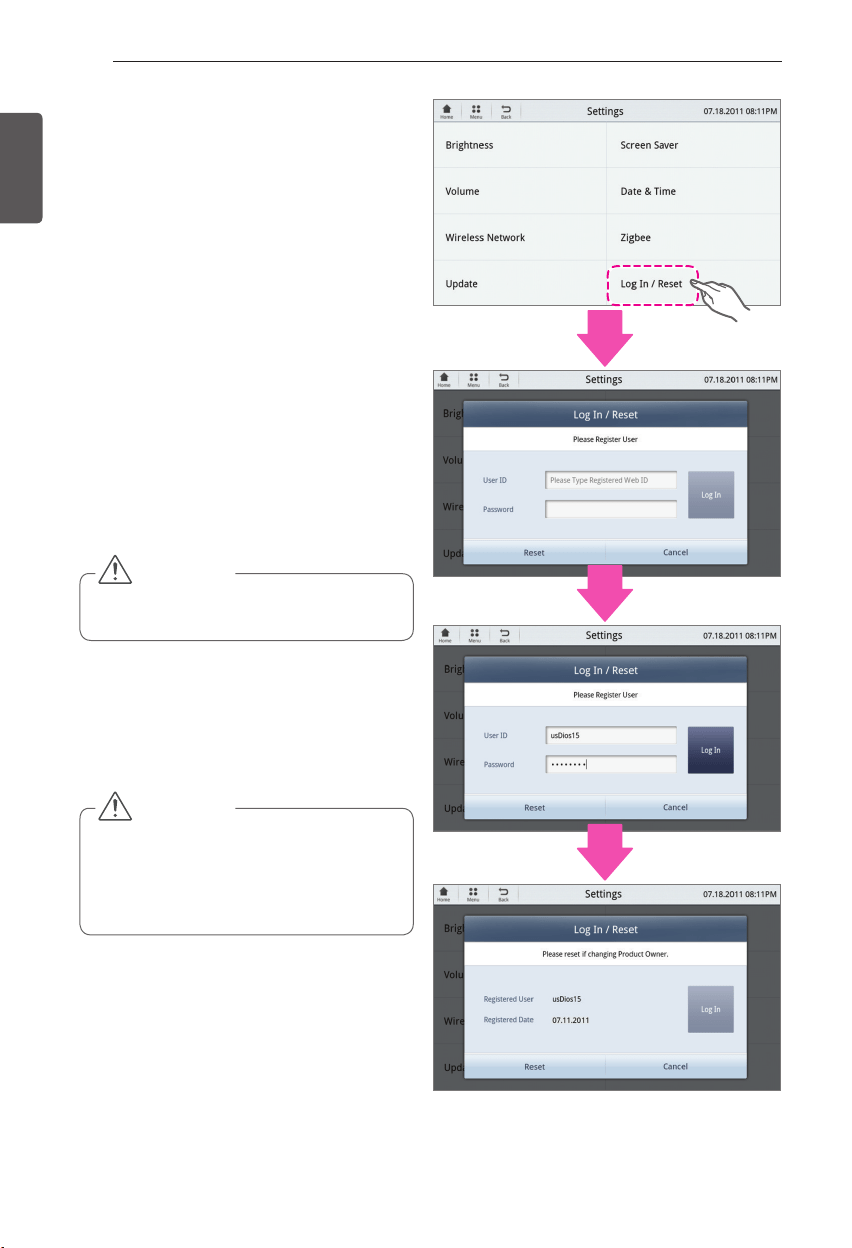
50
SMART REFRIGERATOR DISPLAY SCREEN
ENGLISH
8. Log In / Reset
To use various functions of this refrigerator,
such as Food Manager and Software Update,
it is necessary to Login.
The product must first be registered online
at: us.smartthinq.com and create a Login
ID and Password. (Refer to "How to set up
ID/Password for User Registration" on the
following page.)
< Log In >
- Enter your User I.D. and password created
when you registered your product.
- Select the Log In button. A popup will verify
the login.
- The date of registration can be verified by
returning to the Log In screen.
< Reset Log In information >
- Select the Reset button.
- A popup will appear to verify your selection.
Enter your password and select the Confirm
button.
CAUTION
After resetting, all information will go back
y
to its original settings.
CAUTION
The product must first be registered
y
online at: us.smartthinq.com and create a
Login ID and Password. (Refer to "How to
set up ID/Password for User Registration"
on the following page.)
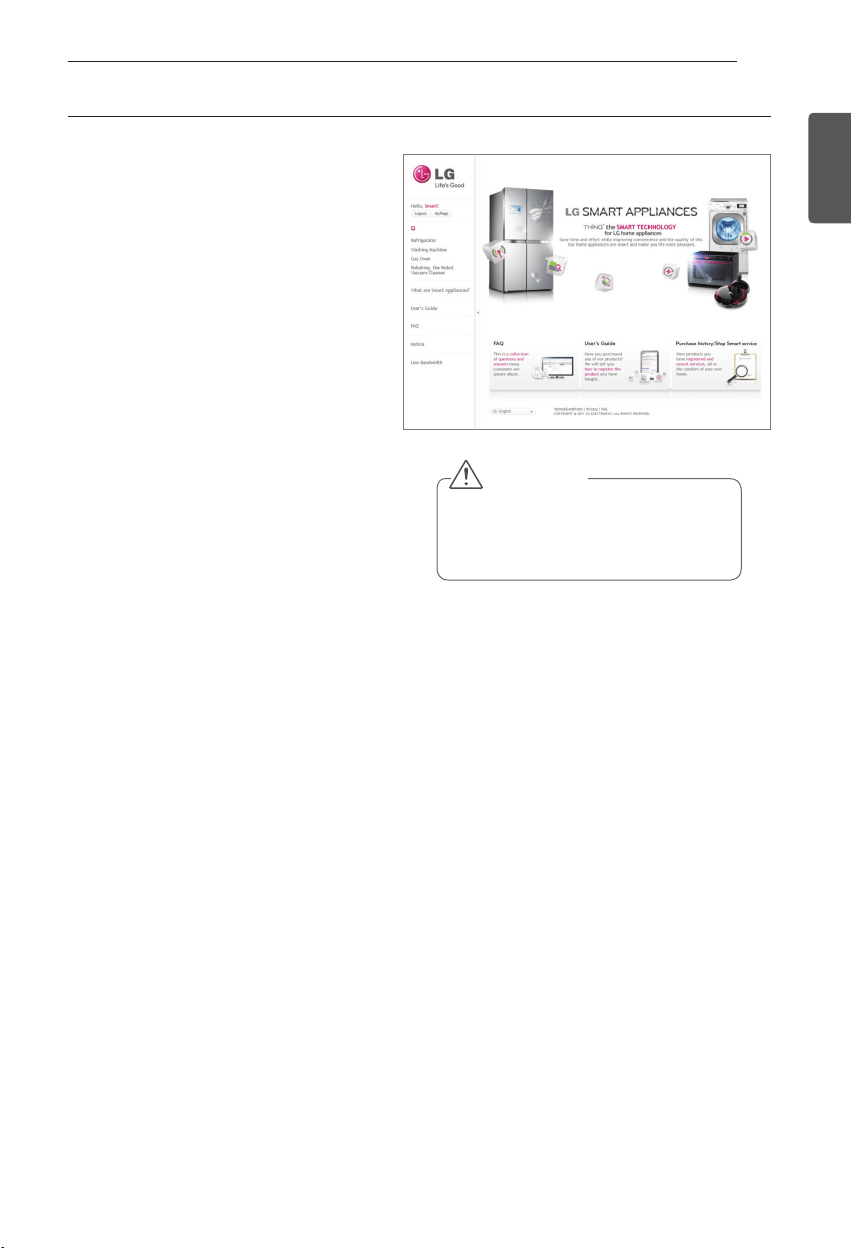
51
SMART REFRIGERATOR DISPLAY SCREEN
ENGLISH
To use the connectivity features of your
appliance, you must first create a user ID and
password at the LG SMARTTHINQ website
(http://us.smartthinq.com). From your home
computer, or other computer with internet
access, open the SMARTTHINQ website and
follow the instructions below for creating your
ID and password.
- Click Sign In in the left corner of the web
page.
- On the Sign In page, below the ID and
password boxes, click the Membership
Resister button.
- On the next page, you must agree to the
terms of use and the privacy statement.
Click “Confirm.”
- Next, enter your email address. This will be
your user ID. You will receive a confirmation
email for activating the account at that email
address, and this ID will be entered on the
ID and password screen on your appliance
when registering the appliance.
- Enter a password. Passwords are case
sensitive, and you will need to enter this
password on your appliance when you
register the appliance. The password should
be 6~12 characters, and you should make
note of it for later use.
- Type the characters from the security box
into the box to the right of the security box.
- Click the “Confirm” button. The system
will send you an email containing a link to
confirm your identity for the account.
- Click the link in the confirmation email, and
the website will display a confirmation page.
You are now ready to register your
appliances so you can take advantage of
all the connectivity features of your LG
SMARTTHINQ appliance.
How to set up ID/Password for User Registration How to set up ID/Password for User Registration
CAUTION
Connectivity features are not available
y
unless the product is registered.
Images may vary.
y
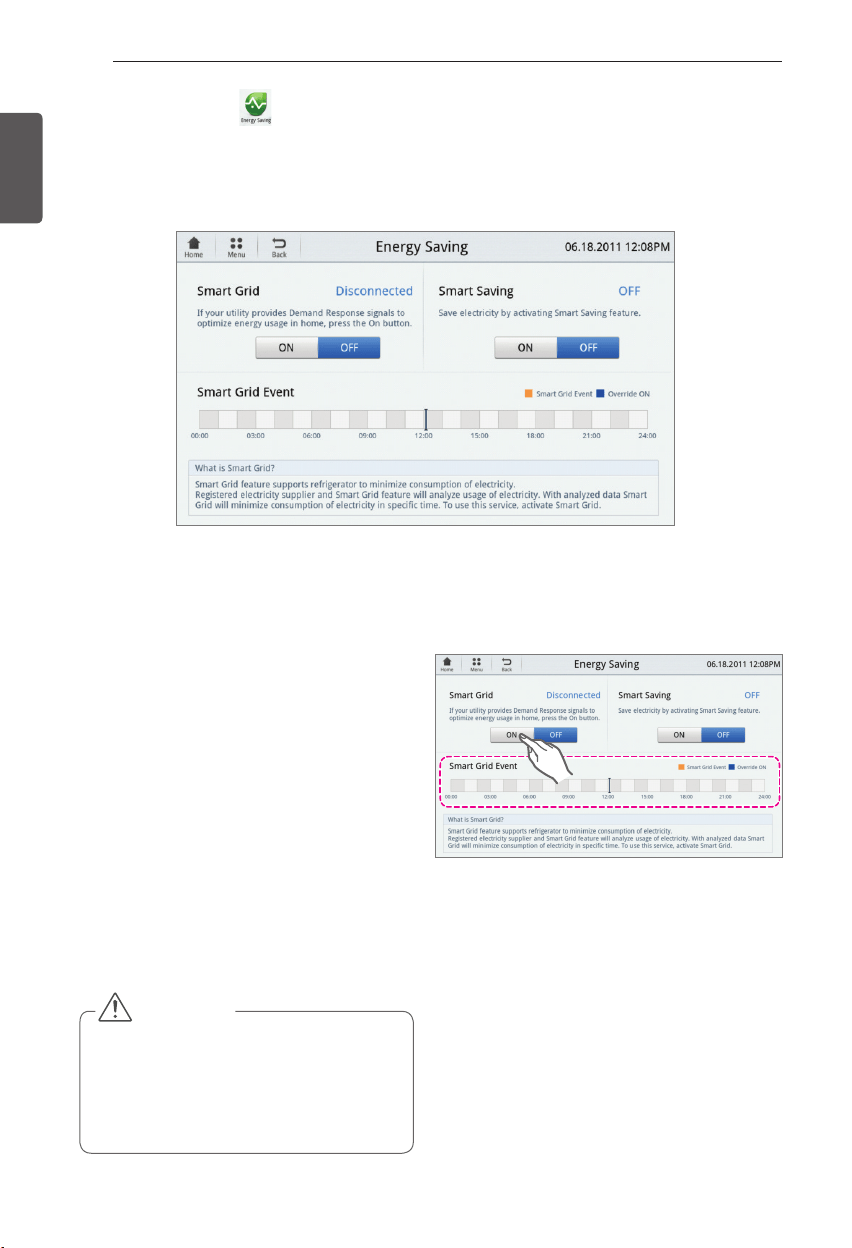
52
SMART REFRIGERATOR DISPLAY SCREEN
ENGLISH
Energy Saving
- Touch the Energy Saving button at the bottom of the Home screen.
- The refrigerator power consumption can be reduced by either turning on the Smart Grid feature
or the Smart Saving feature. Both features cannot be on at the same time.
Smart Grid
Smart appliances can communicate with
local utility companies that are equipped
with SMART GRID equipment. These utility
companies can then adjust the operating times
for enabled smart appliances during peak
electricity demands. Turning this feature on
can help reduce your electricity consumption
by allowing the utility company to delay some
of the functions of your machine during peak
electric demand.
Select ON or OFF to turn the SMART
y
GRID feature on or off. The status of the
smart grid is shown on the home screen.
Contact your utility company to find out
y
more about its system’s capabilities and
for help in setting up your machine.
CAUTION
Smart Grid feature can be used only
y
when Smart Grid service is provided by
the utility company. The LG Electronics
Zigbee module must be compatible with
the Smart Meter and installed properly
prior to usage.
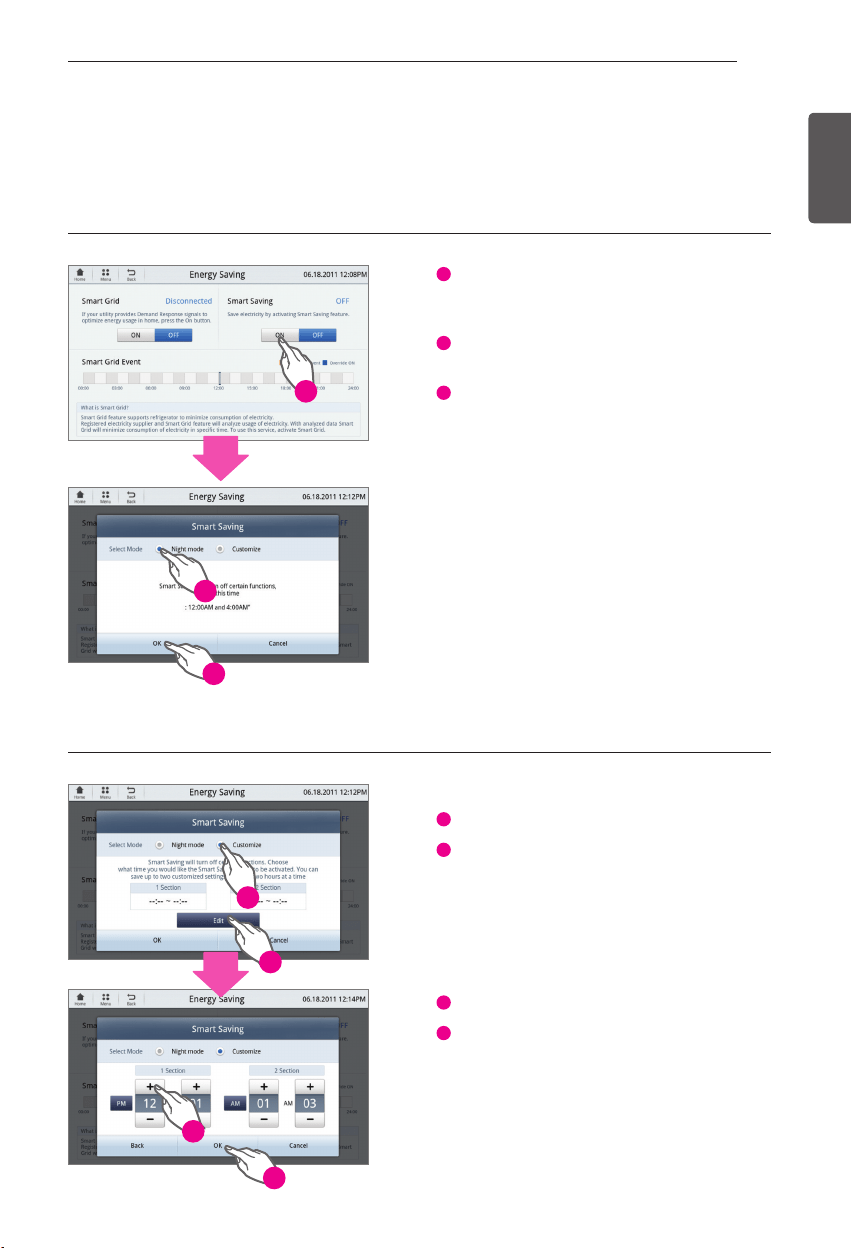
53
SMART REFRIGERATOR DISPLAY SCREEN
ENGLISH
Smart Saving
- Smart Saving reduces power consumption for up to four hours either at night or at custom set
time periods.
1
Touch the on button to turn on Smart
Savings and customize your smart saving
settings.
2
Choose the mode: Night Mode or
Customize.
3
Touch the OK button.
Night Mode:
Minimizes power consumption
of the refrigerator during the hours of 12am to
4am.
Customize:
Minimizes power consumption
during user defined time periods. You are able
to set up to two Smart Saving time periods.
Each period may not last longer than two
hours.
1
Touch the Customize button.
2
Touch the Edit button. Set the time zone.
3
Touch the +/- buttons to set the time.
4
Touch the OK button.
Setting Smart Saving Setting Smart Saving
Customize Customize
1
1
2
2
3
3
4
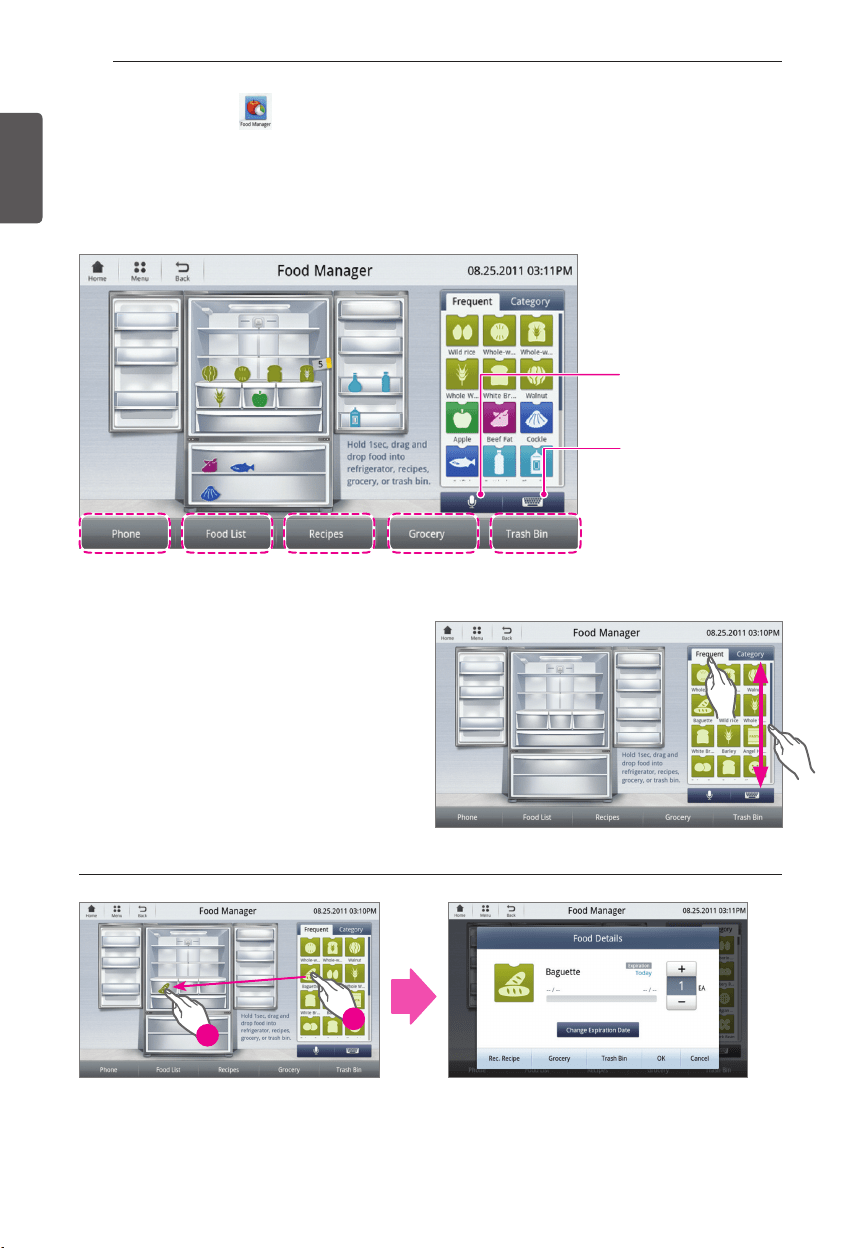
54
SMART REFRIGERATOR DISPLAY SCREEN
ENGLISH
Food Manager
- Touch the Food Manager button at the bottom of the Home screen.
- There are 5 options in the Food Manager. (Phone, Food List, Recipes, Grocery, Trash Bin)
- In Food Manager, you can search for food items with the keyboard, voice recognition, or drag and
drop.
Touch for Food
Manager using voice
recognition.
Touch for Food
Manager using
keyboard.
Frequently used items
This tab displays frequently used food items.
Use the scroll bar to view all of the list of
y
items.
- Touch and hold the item for one second and then drag it into the desired refrigerator location.
- The screen of food details appears.
1) Loading frequent food to the refrigerator 1) Loading frequent food to the refrigerator
1
2
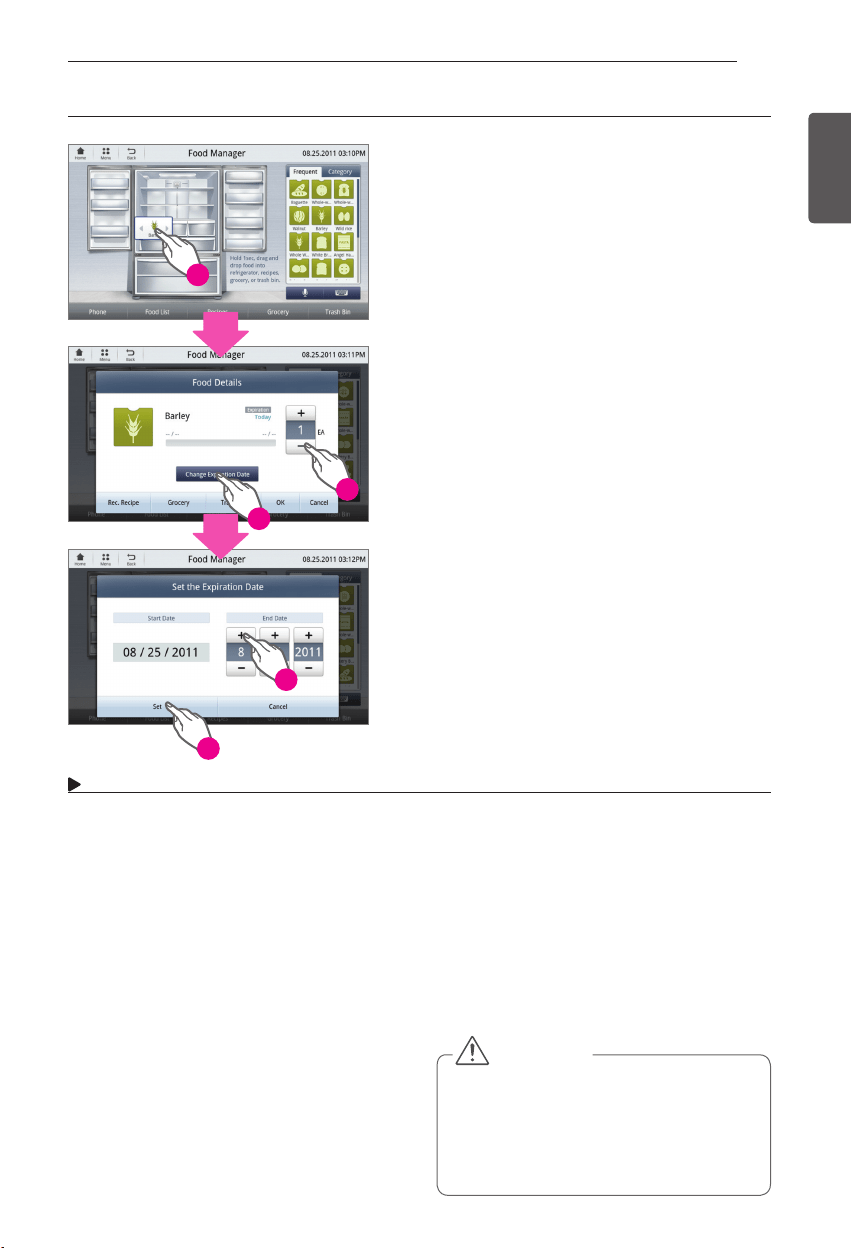
55
SMART REFRIGERATOR DISPLAY SCREEN
ENGLISH
- After the item has been loaded to the
refrigerator, you are able to enter detailed
information about the item, such as quantity
and an expiration date.
- To enter information on an item, touch the
item in the refrigerator.
- Enter desired information into the Food
Details popup. To enter quantity, touch the
+/- buttons. To enter an expiration date, touch
the Change Expiration Date button and use
the +/- buttons to set the date.
- Food with short storage period is notified
to the user daily through Freshness Tracker
widget.
1. When the storage period is entered longer
than normal either because the expiration
date is unknown or because it was entered
incorrectly.
2. When children are playing with the
refrigerator.
3. When the same type of food is stored in the
same location with a time gap, but the food
stored earlier is misjudged to have been
stored later.
4. When the food stored in the freezer is
moved to the fridge but only the storage
location have been changed and not the
storage period.
5. When the time and environment (High
temperature and humidity etc.) are not
considered from the time of purchasing the
food to storing the food.
6. When the food is taken out of the
refrigerator and put back in without being
used and the time passed has not been
reflected.
7. When the food is stored in a different
location after partially being used (Store in
another compartment where same type of
food is stored).
8. When the food with damaged packaging is
set to be stored until normal expiration date.
2) Entering detail information of food (Quantity and Set storage period) 2) Entering detail information of food (Quantity and Set storage period)
3
2
4
1
5
Example of misuse of storage period and storage location setting. Example of misuse of storage period and storage location setting.
CAUTION
The ending date can differ based on
y
the expiration date and stored condition
of the food and the manufacturer or
the refrigerator manufacturer is not
responsible for the storage period that the
user has set.
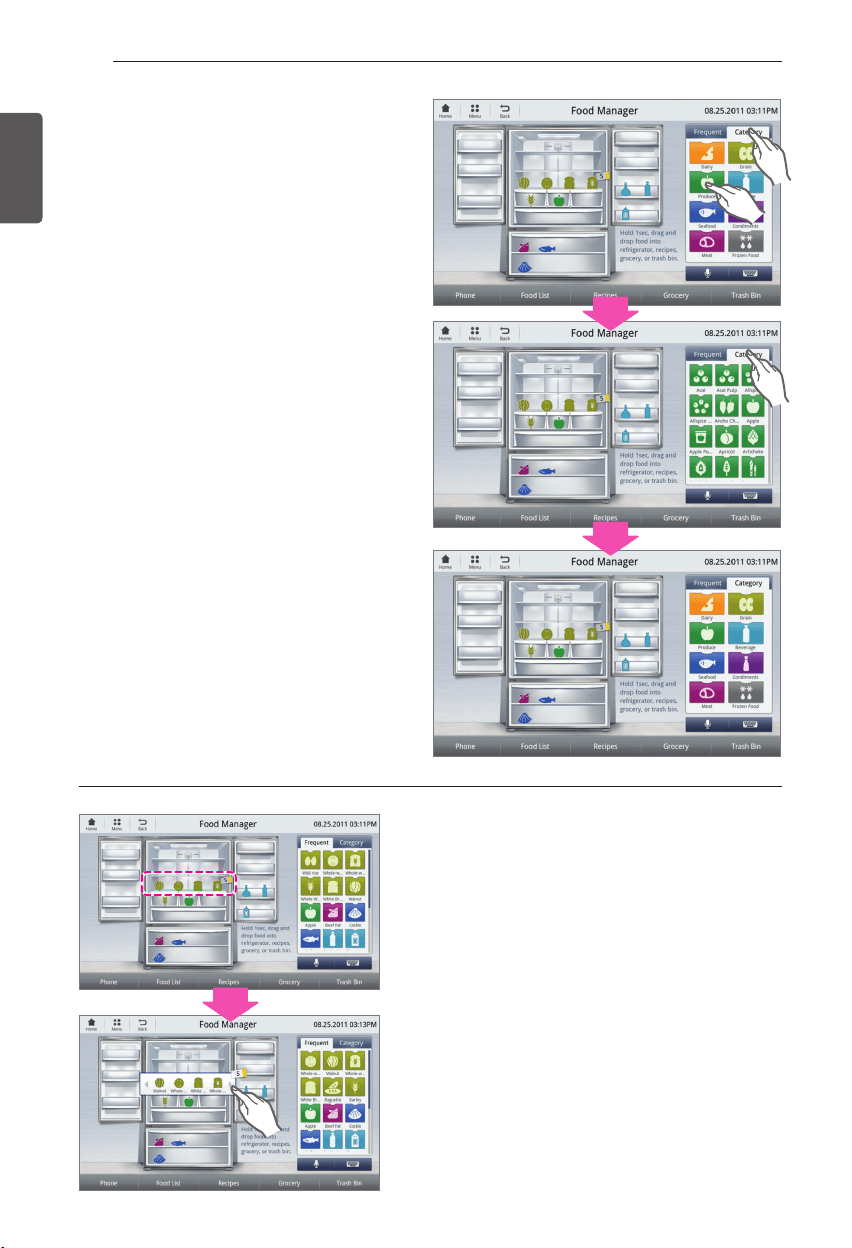
56
SMART REFRIGERATOR DISPLAY SCREEN
ENGLISH
Food Manager by Category
Search for food items by category.
The Category includes Dairy, Grain,
y
Produce, Beverage, Seafood, Condiments,
Meat, Frozen Food.
When the user selects the category of the
y
food to store (For example Fruit), the food
is displayed below.
The method of storing the food is the
y
same as that of food storage by Frequent.
In addition, If you want to change the
y
category to store food in category, touch
the Category button to switch to the
previous stage.
- If the user stores more than a certain quantity
of food in the applicable location, the number
of types of food is shown is displayed on the
right side.
- To enter the detail information of the food,
the user touches the location to activate the
applicable compartment.
- If the user stores more than a certain quantity
of food in the applicable location, the user can
use the < or > to search for the food.
- When the user touches the applicable food,
the screen to enter the detail information of
the food is displayed.
1) Search food by storage location 1) Search food by storage location
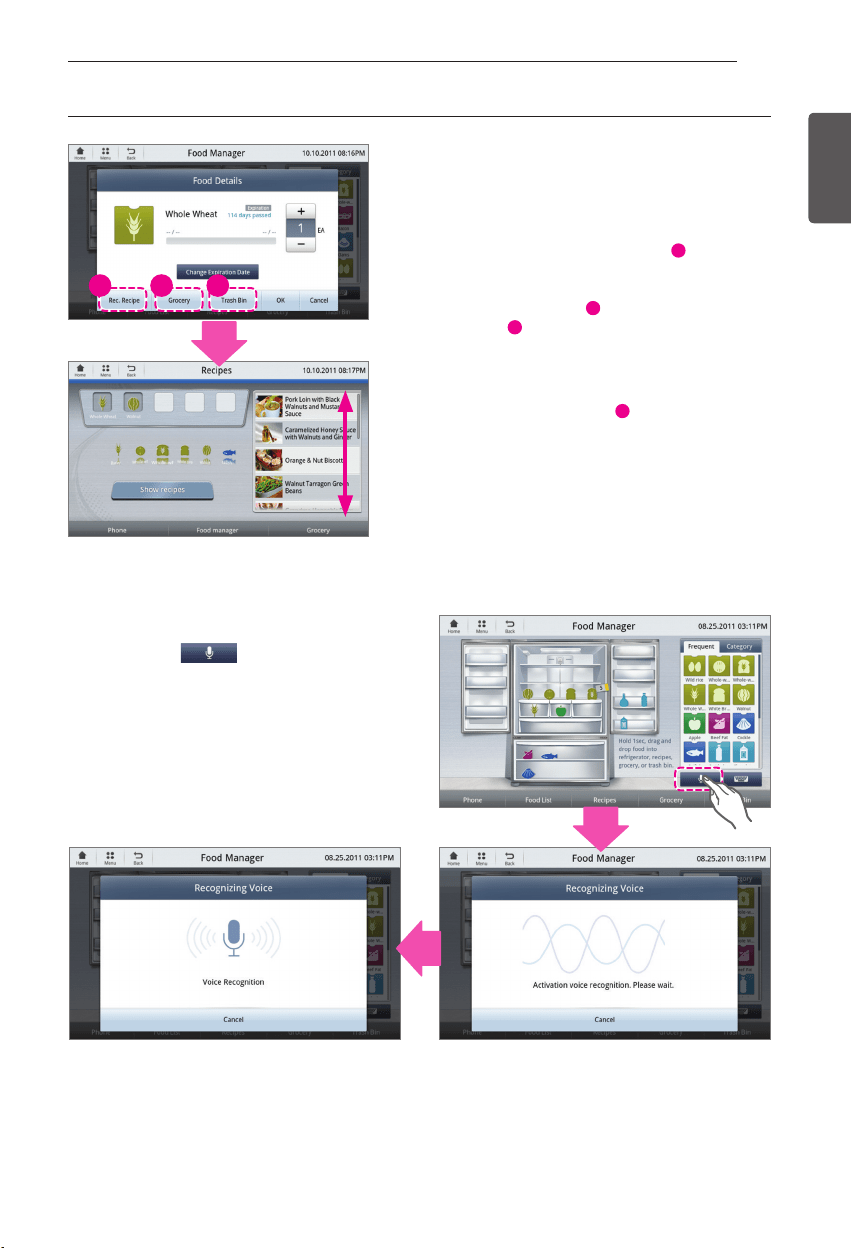
57
SMART REFRIGERATOR DISPLAY SCREEN
ENGLISH
Food Manager Using Voice
Recognition
- Touch the Voice Recognition button.
- Once "Activation voice recognition. Please
wait." appears the in the display, say the item
that you would like to search for.
- The user can use the quantity (+, - button)
and Change Expiration Date button to change
the detail information.
- From the detail information view of the
stored food, the user can view (
1
) the
recommended recipe that can be cooked
from the applicable food, and the applicable
food can be added (
2
) to the Grocery or
deleted (
3
) from the stored food list.
- Touch the Rec. Recipe (
1
) and select the
necessary recipe.
2) Enter detail information of food and view recommended recipe by storage location. 2) Enter detail information of food and view recommended recipe by storage location.
1 2 3
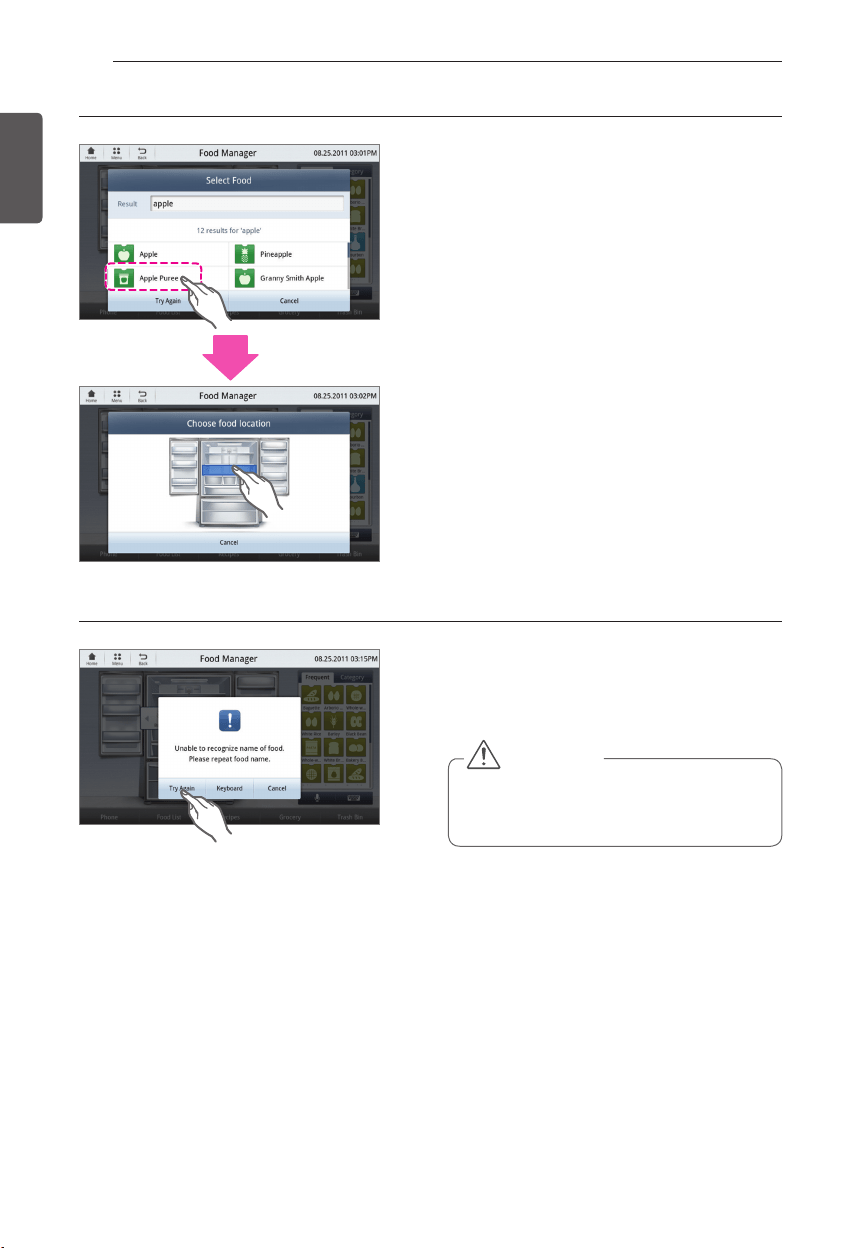
58
SMART REFRIGERATOR DISPLAY SCREEN
ENGLISH
- The search results will appear on the display.
- Touch the item that you would like to add to
the refrigerator.
- Touch the location in the refrigerator that you
would like your item to be stored.
- If the Voice Recognition is unable to
recognize the item, a popup will display giving
you the option to try again, use the keyboard
or cancel.
Voice Recognition Food Manager Method Voice Recognition Food Manager Method
If item is not recognized If item is not recognized
CAUTION
The sensitivity of the recognition may
y
differ depending on the voice tone of the
user.
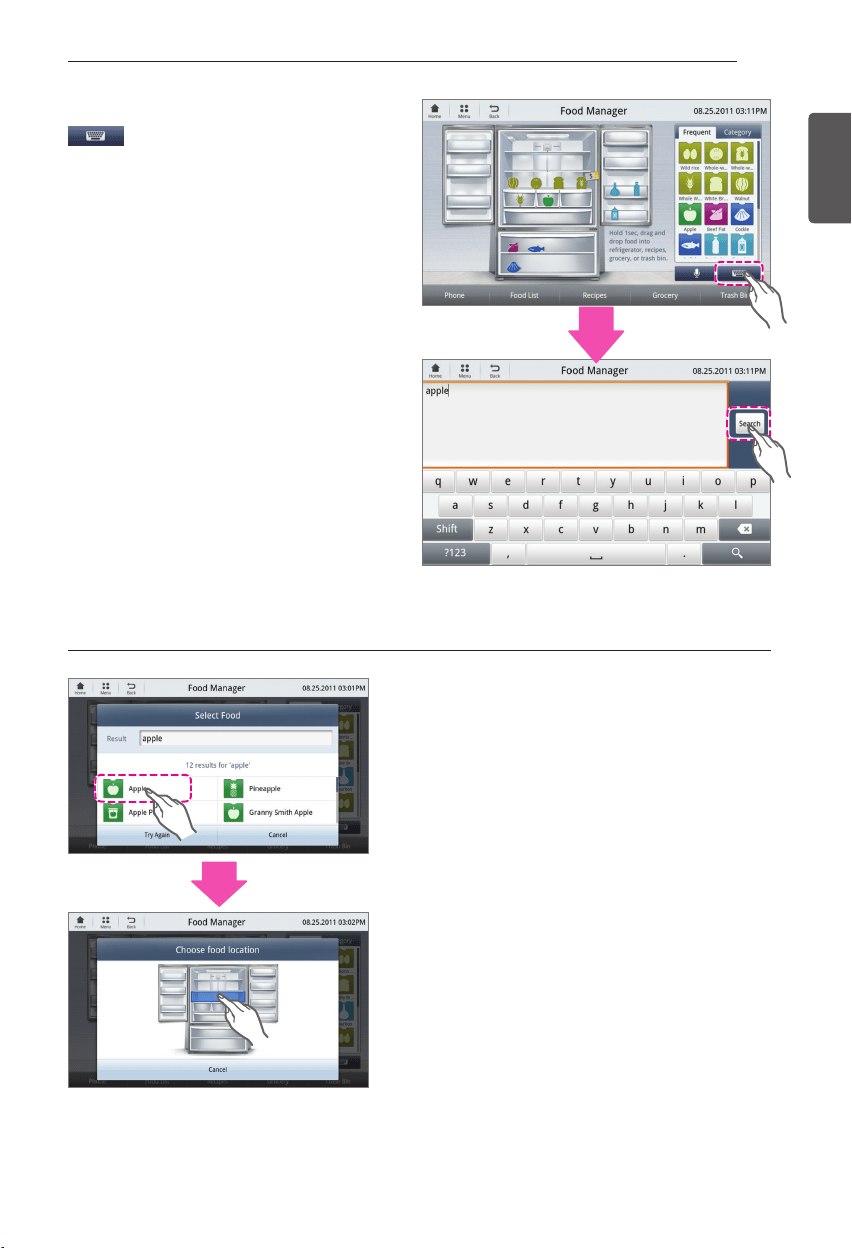
59
SMART REFRIGERATOR DISPLAY SCREEN
ENGLISH
Food Manager Using Keyboard
- Touch the Keyboard button.
- Using the Keyboard, type in the name of the
item that you would like to search for.
- Touch the Search button.
- The search results will appear on the display.
- Touch the item that you would like to add to
the refrigerator.
- Touch the location in the refrigerator that you
would like your item to be stored.
When saved on the database When saved on the database
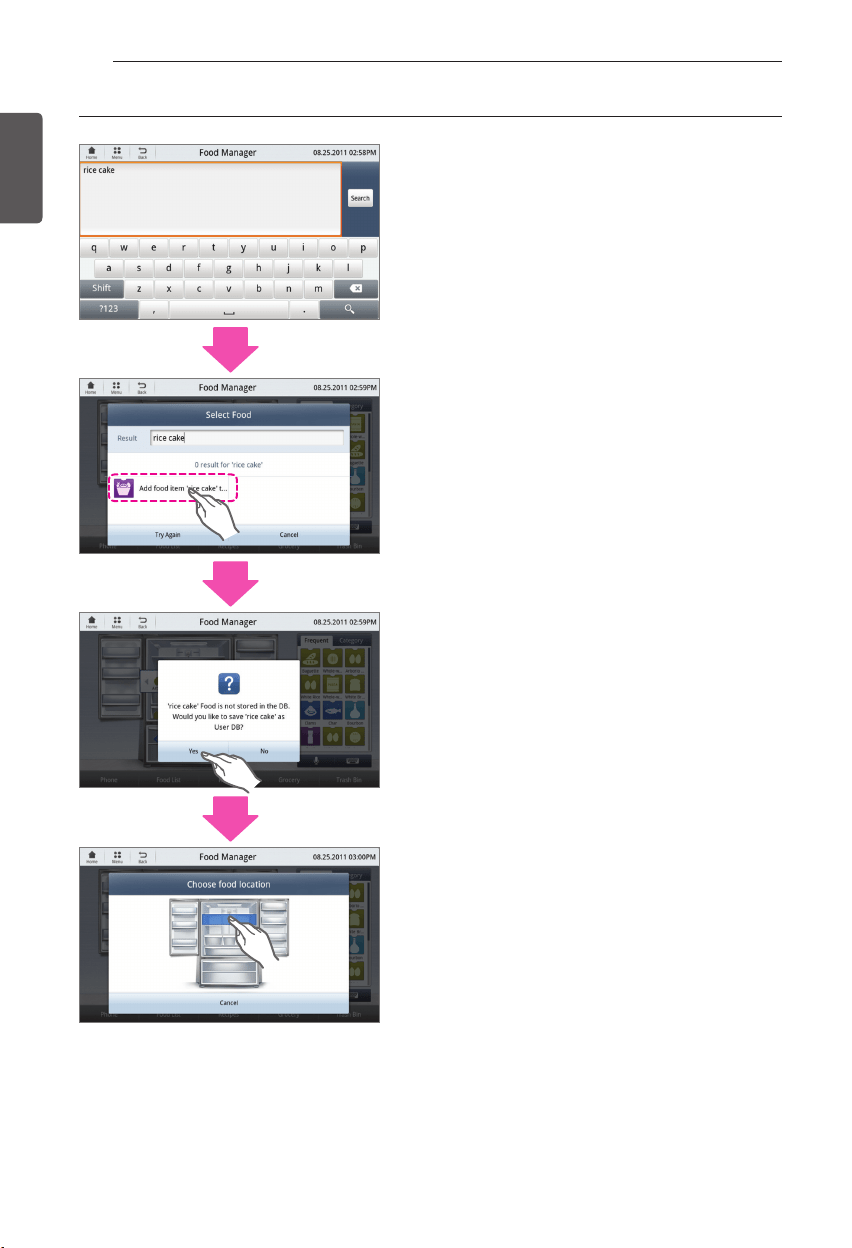
60
SMART REFRIGERATOR DISPLAY SCREEN
ENGLISH
- A popup will display if the searched item is
not in the database.
- To add a new item to the database, select the
"Add food item..." button.
- A confirmation popup will display. Touch the
Yes button.
- Touch the location in the refrigerator that you
would like your item to be stored.
Adding new items into the database Adding new items into the database
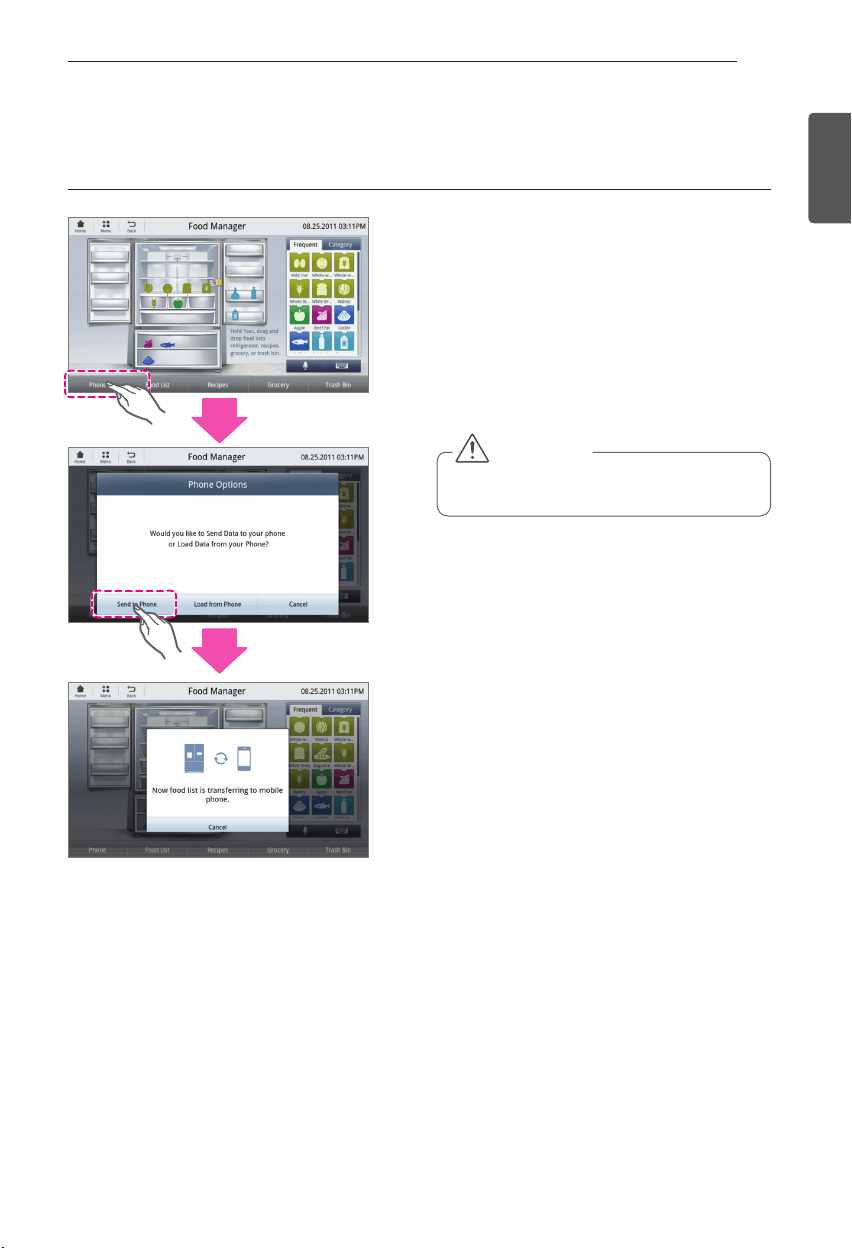
61
SMART REFRIGERATOR DISPLAY SCREEN
ENGLISH
Touch this button to send the current food list
information to the server and smart phone.
- When the information is sent from the display
screen to the smart phone, it connects to the
application on the smart phone and the user
can check whether the applicable changes
are applied.
- Popup is displayed based on the success/
failure of the send result.
1) Send 1) Send
CAUTION
If the user does not log in in Settings,
y
the food information is not updated.
Phone
This is the button to send or load the food list to or from the phone.
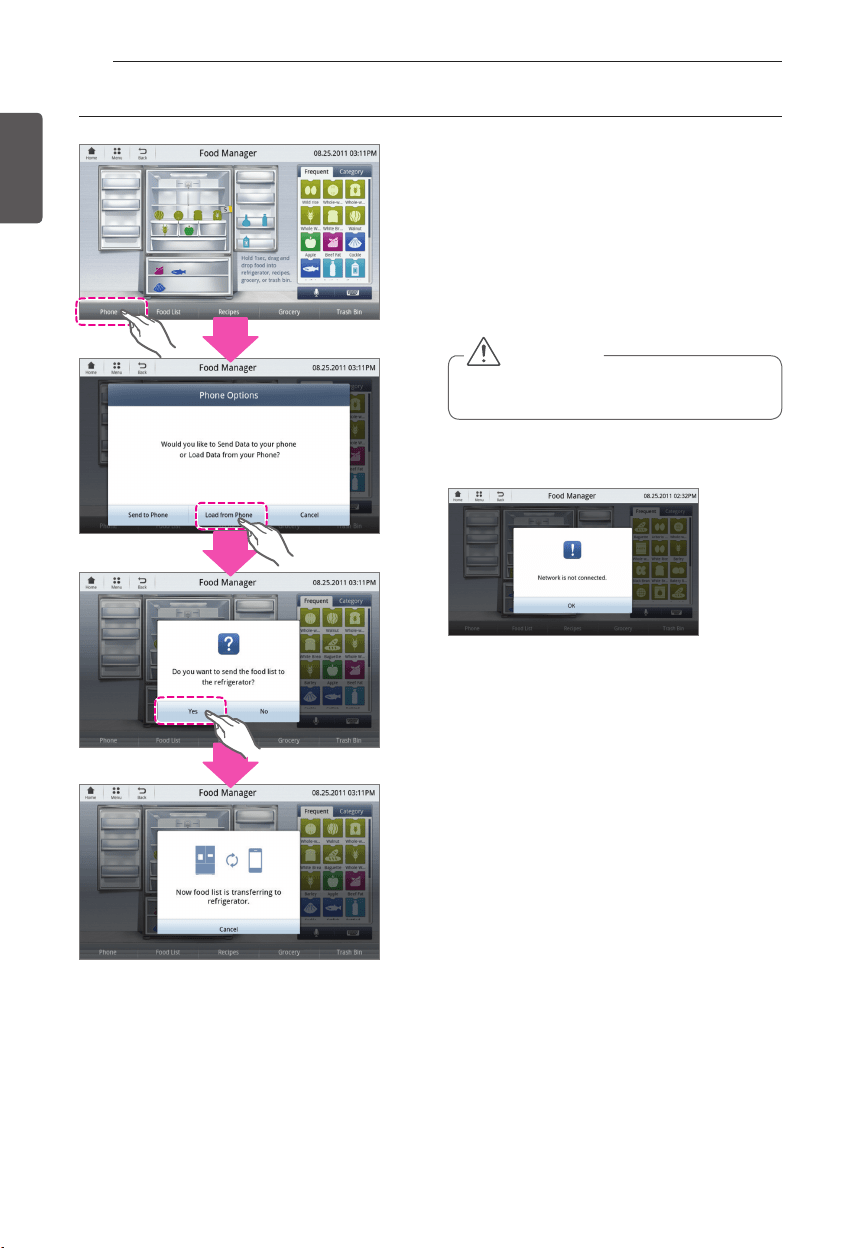
62
SMART REFRIGERATOR DISPLAY SCREEN
ENGLISH
Touch this button to open the current food list
sent from the server and smart phone.
- When the information is sent from Smart
phone to the display screen, the user can
check whether the applicable changes are
applied.
- Popup is displayed based on the success/
failure of the send result.
2) Load 2) Load
CAUTION
If the user does not log in in Settings,
y
the food information is not updated.
- In case of wireless network error, the error popup
window is displayed. Press the Ok button and press
the Send or Load button again to refresh the screen.
* If the network is not connected, the same message
is displayed. Press Ok for use, and there is no issue
with Food Manager.
►
Send/Load error
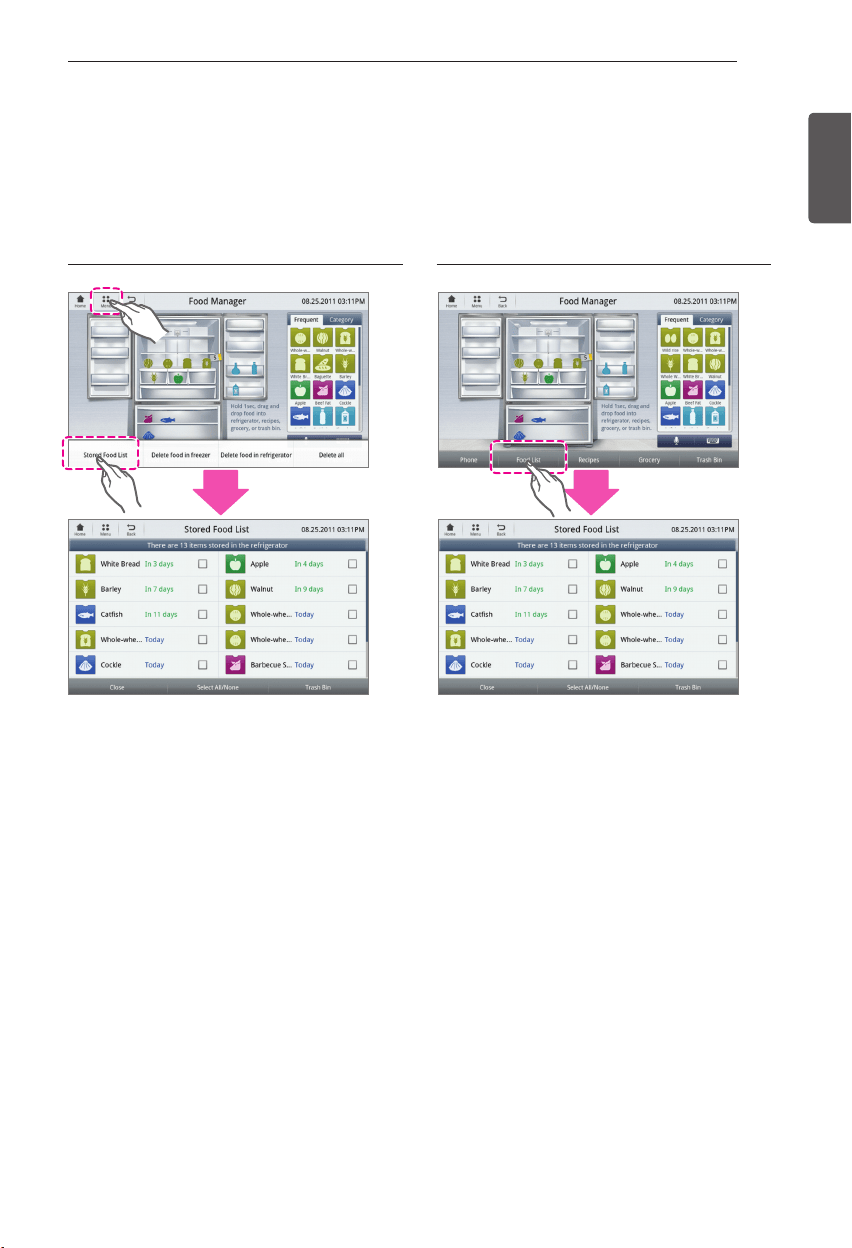
63
SMART REFRIGERATOR DISPLAY SCREEN
ENGLISH
Food List
- The user can view the list of all foods in the refrigerator from the main screen of the Food
Manager.
The user can check the number of days the food is stored from the list of stored food and can
y
remove the stored food selectively or entirely.
1) Use the Menu button 1) Use the Menu button 2) Use the Food List button 2) Use the Food List button
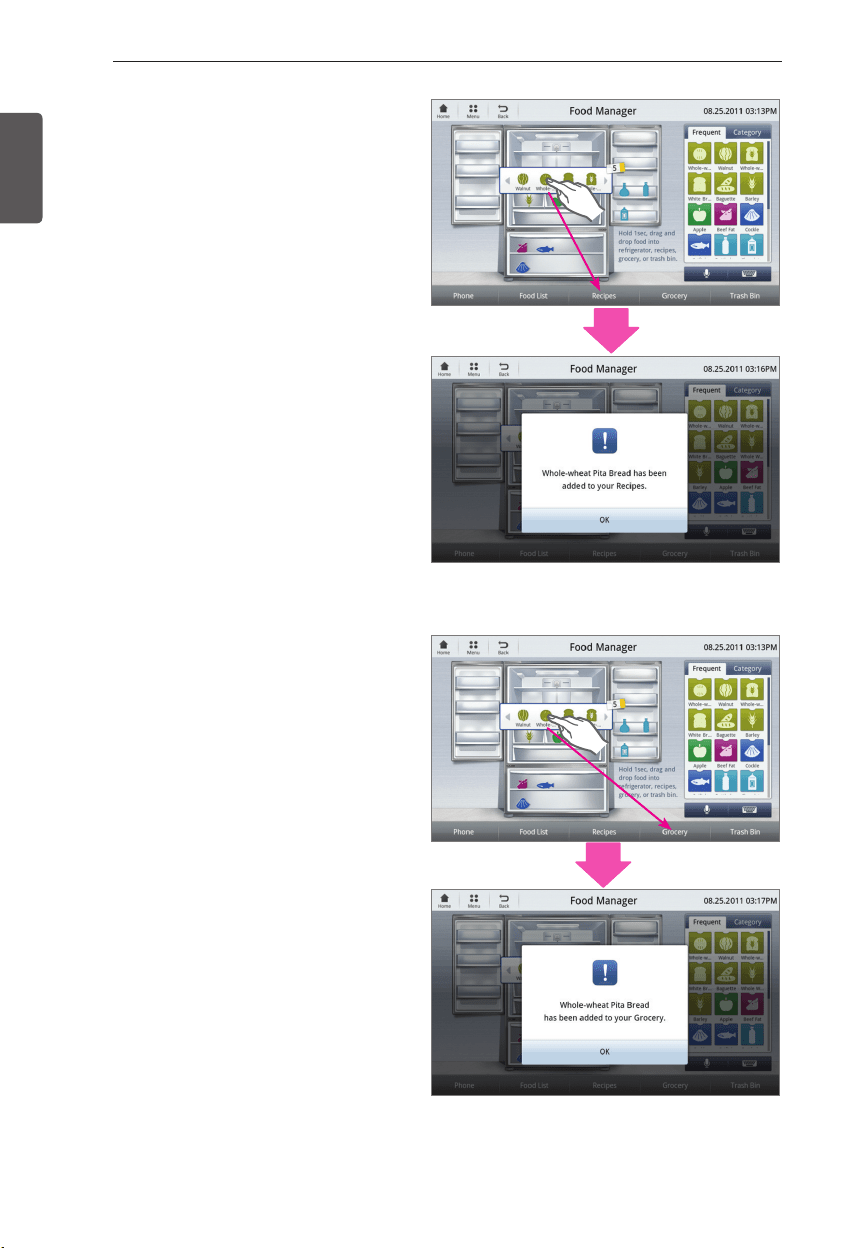
64
SMART REFRIGERATOR DISPLAY SCREEN
ENGLISH
Recipes
The recipe function can be used to find
recipes based on ingredients you have in your
refrigerator.
To retrieve recipes based on available
y
ingredients, drag and drop the ingredients
you would like to use into the Recipes
button. To drag and drop you must press
and hold the food icon until it activates,
then drag it where you would like.
A popup will appear to confirm that the
y
item has been added to the Recipes list.
For more information on using the
y
Recipes function, refer to the Recipes
page in this manual.
Grocery
The Grocery function is used to create a
grocery shopping list. This list can be sent to
your smartphone using the refrigerator's Wifi
connection.
To add food items to your grocery list,
y
drag and drop food items from your
refrigerator or the food list onto the
Grocery button. To drag and drop you
must press and hold the food icon until it
activates, then drag it where you would
like.
A popup will appear to confirm that the
y
item has been added to the Grocery list.
For more information on using the Grocery
y
function, refer to the Grocery page in this
manual.
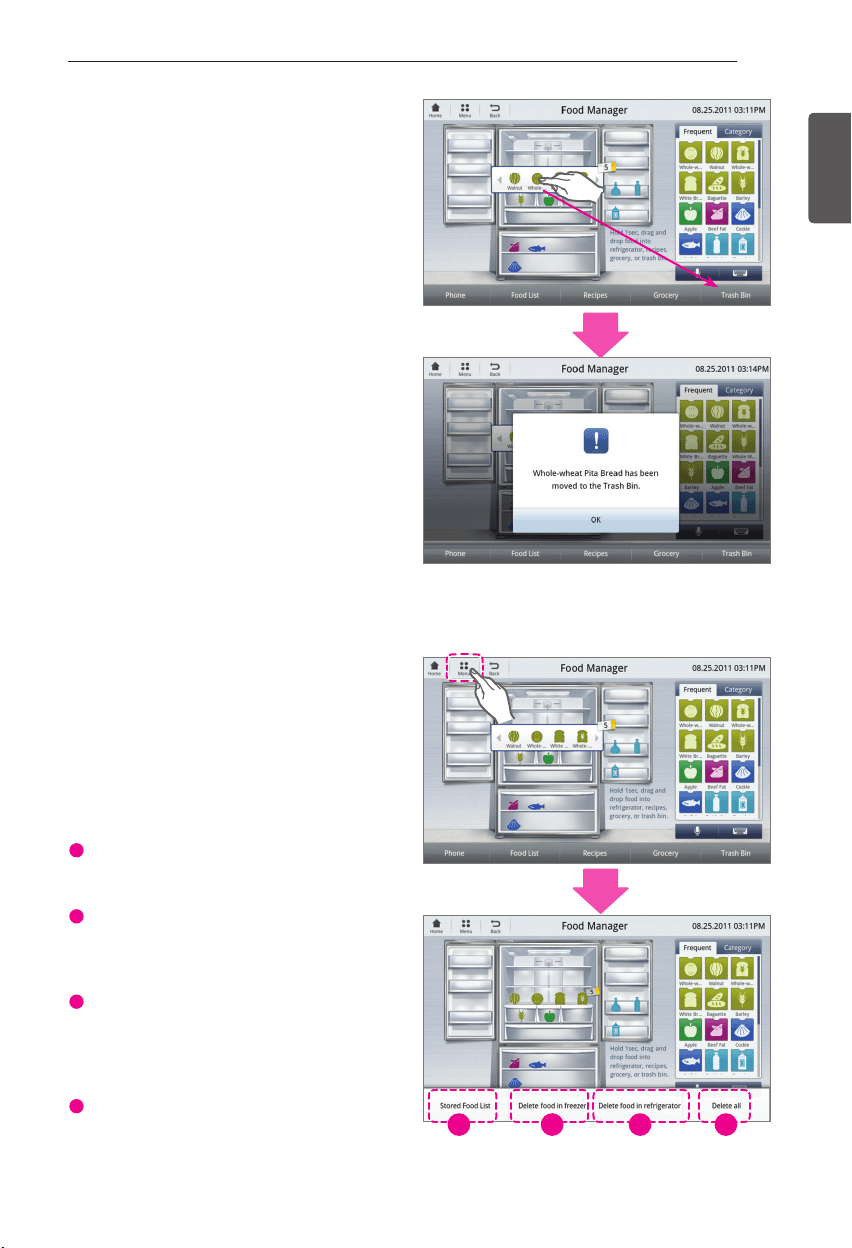
65
SMART REFRIGERATOR DISPLAY SCREEN
ENGLISH
Deleting Individual Stored Items
To remove items from your refrigerator's
contents, use the Trash Bin function.
Select the compartment in which the food
y
item you want to delete is stored.
Drag and drop the food item you would
y
like to delete onto the Trash Bin button.
To drag and drop you must press and hold
the food icon until it activates, then drag it
where you would like.
A popup will appear confirming that
y
the item has been removed from the
refrigerator.
Removing All Stored Items
When managing your refrigerator's contents,
you have the option to remove all items in the
refrigerator, freezer, or both.
- On the Food Manager home screen, press
the Menu button in the upper left hand
corner. A list of options will appear on the
bottom of the screen.
1
Stored Food List -
Selecting this option
will display a list of all foods stored in your
refrigerator and freezer.
2
Delete food in freezer -
This option will
delete all stored food in the freezer section
only. You will be prompted for confirmation
before freezer items are deleted.
3
Delete food in refrigerator -
This option
will delete all stored food in the refrigerator
section only. You will be prompted for
confirmation before refrigerated items are
deleted.
4
Delete all -
Selecting this option will delete
all stored food items in both the refrigerator
and freezer. You will be prompted for
confirmation before all items are deleted.
1 2 3 4

66
SMART REFRIGERATOR DISPLAY SCREEN
ENGLISH
Recipes
- The Recipes function can be accessed either by selecting the Recipes icon from the bottom of
the home page or by pressing the Recipes widget on the home screen.
- In the Recipes section there are several options for finding recipes:
-
Search for Recipes:
You may search for recipes by course, time, ingredient, or cuisine.
-
Recommended recipes by available items:
Your refrigerator will recommend recipes to you
using items you already have in your refrigerator. You may add ingredients to included in your
recommendations through Food Manager. Please refer to the Food Manager section of this
manual for more information on this.
1
2
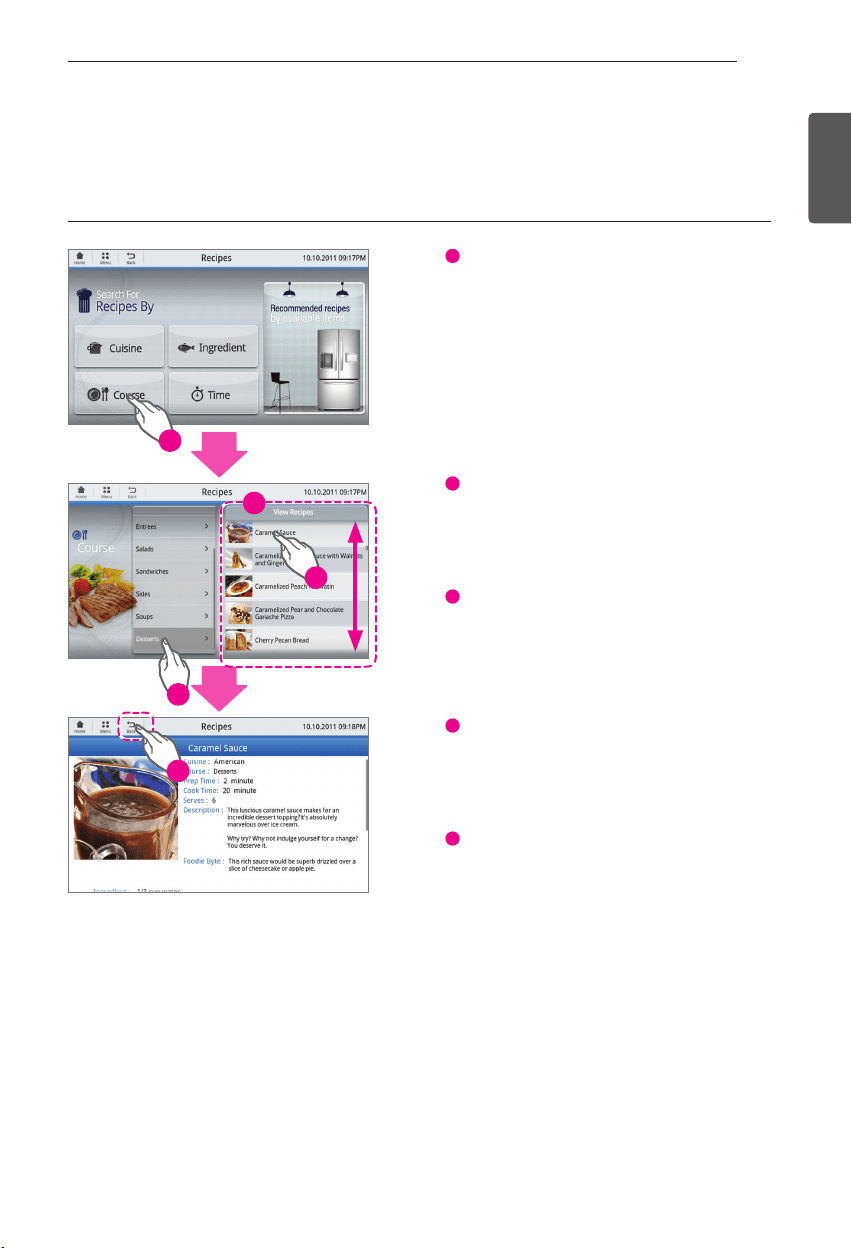
67
SMART REFRIGERATOR DISPLAY SCREEN
ENGLISH
Recipes Search
- You may search for recipes in four different ways: by course, ingredient, time, or cuisine.
-
1
One of the 4 search methods that you
wish to use.
-
2
Once you have selected your preferred
search method, a new screen will appear on
the left side with a list of categories. Select
the category for which you would like to view
recipes.
-
3
A list of recipes pertaining to the category
you selected will appear directly to the
right of the category list. The category you
are currently viewing will remain appear
highlighted in the category list.
-
4
Scroll up and down the recipes list to
identify your desired recipe. Once you have
found a recipe you would like to view, select
the recipe by pressing it. The recipe will
appear.
-
5
To return to the View Recipes screen from
a recipe, press the Back button in the upper
left hand corner.
- In the same way, the recipes for Time,
Ingredient and Cuisine can be viewed.
Using Recipes Search Using Recipes Search
1
2
4
3
5
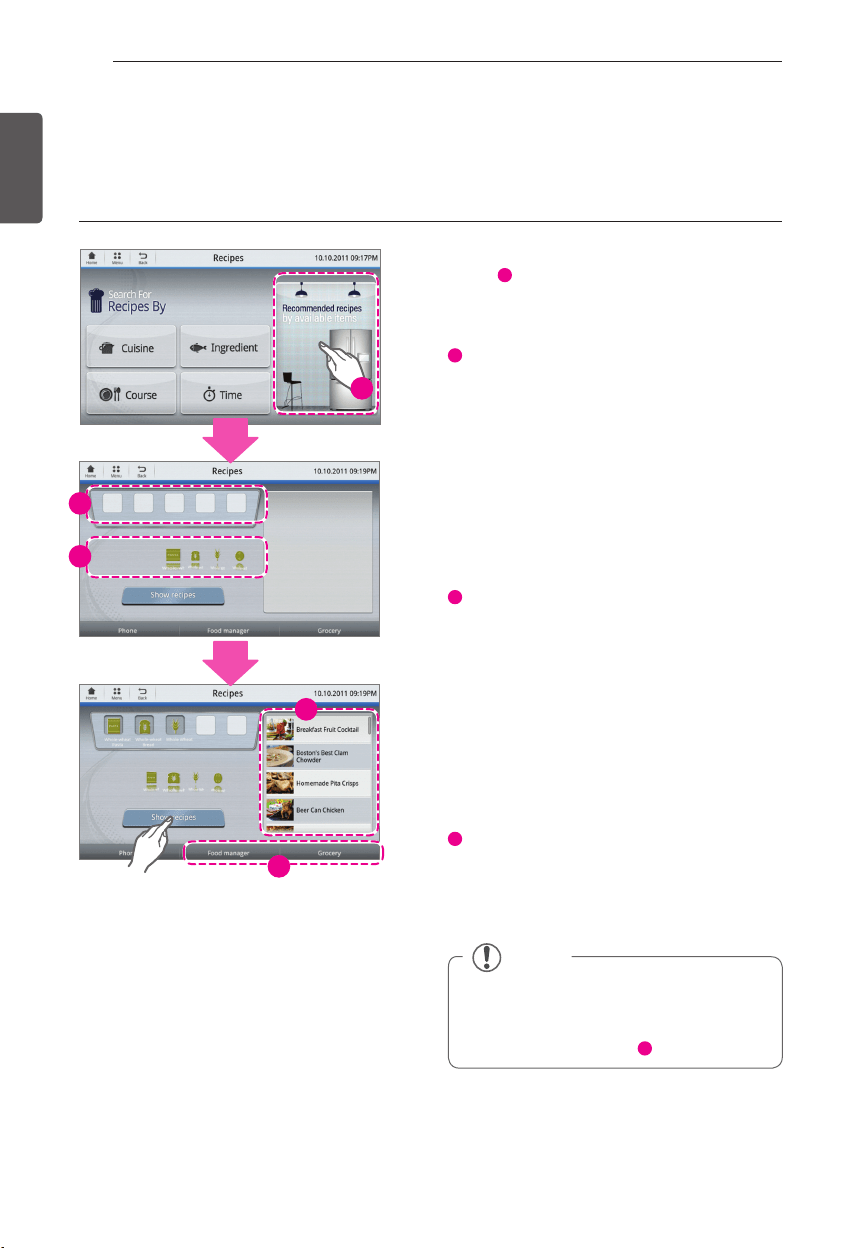
68
SMART REFRIGERATOR DISPLAY SCREEN
ENGLISH
Recommended recipes by available items.
This feature will recommend recipes to you based on items you have available in
your refrigerator.
- Touch Recommended recipes by the stored
food (
1
).
- The recipe recommendation home screen
has three main parts:
2
Available Ingredients -
This includes
ingredients from Food Manager that you have
made available for recipe recommendation.
These are the ingredients that you can use
to find recipes. To view all of the available
ingredients, you can scroll through them
by swiping the list left or right. (For more
information on adding ingredients to this list,
refer to the Food Manager section of this
manual. To access Food Manager, you can use
the Food Manager button at the bottom of the
screen.)
3
The Pot -
Here, you will add the ingredients
you would like to include in your search.
Adding ingredients from the Pot is as easy
as dragging and dropping from the Available
Ingredients list (to drag and drop you must
press and hold the food icon until it activates,
then drag it where you would like). To delete
items from the Pot, simply press the item you
would like to remove and it will be removed.
Once you have included all of the ingredients
you would like to use for your search, press
Show Recipes.
4
Recommended Recipes -
Once you have
selected your ingredients and pressed Show
Recipes, recipes fitting your ingredient list will
appear here. To view a recipe, simply touch
the recipe you want on this list.
Viewing Recommended recipes Viewing Recommended recipes
1
3
2
5
4
NOTE
You can access the Food Manager or
y
your Grocery list from this screen at any
time by selecting the corresponding
shortcut at the bottom(
5
) of the screen.
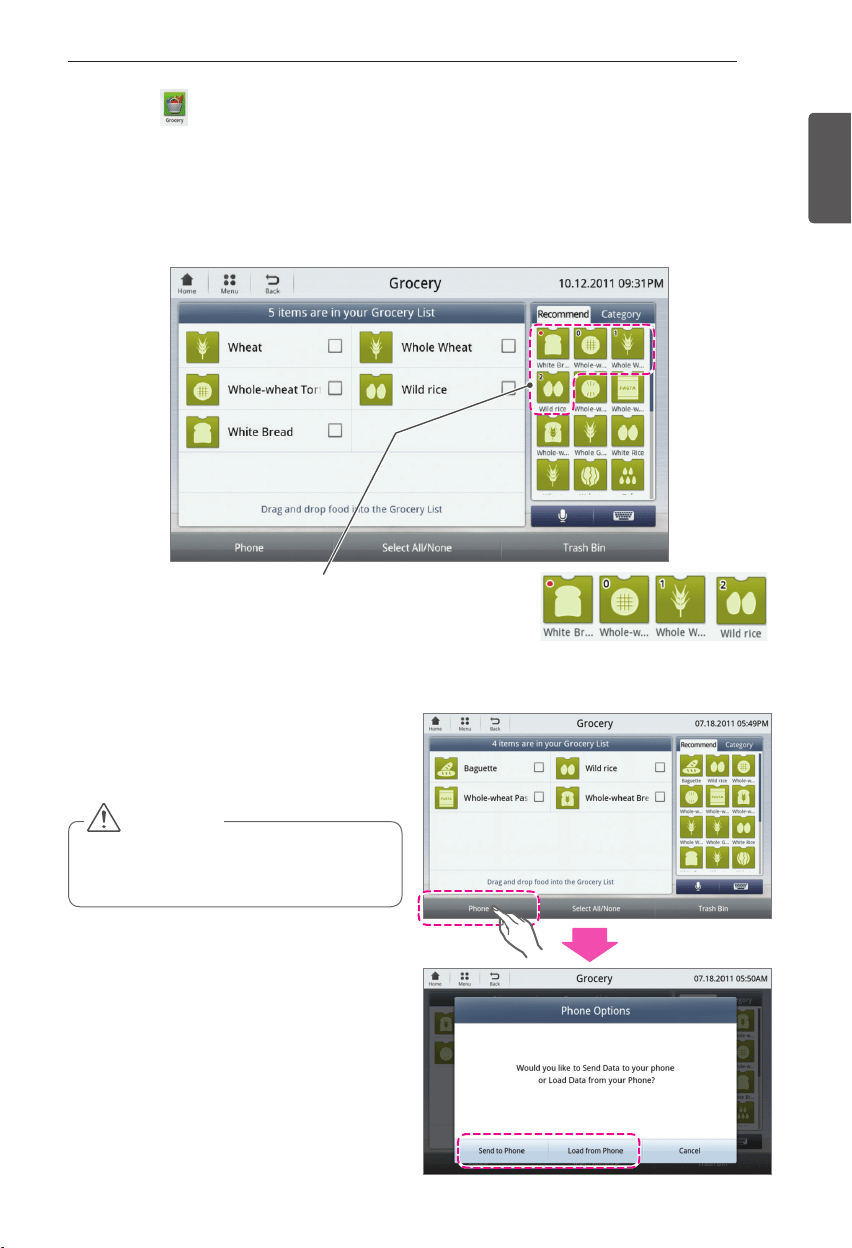
69
SMART REFRIGERATOR DISPLAY SCREEN
ENGLISH
CAUTION
You will not be able to load the grocery
y
list to your smart phone if the refrigerator
has not been registered.
Grocery
- Touch the Grocery icon at the bottom of the Home screen.
- Drag and drop the groceries into the grocery list.
- You can check the name of food with a long name by tapping the icon of the food.
- Recommend displays food in the order of frequency of use by users.
- Once the grocery list has been updated, you have the option of sending the list to your smart phone.
Phone
Press the Phone button to send or load the
grocery list to or from your smart phone.
• Among the stored food list, food that has passed the
expiration date or is 2 days before the expiration date is
displayed as follows:
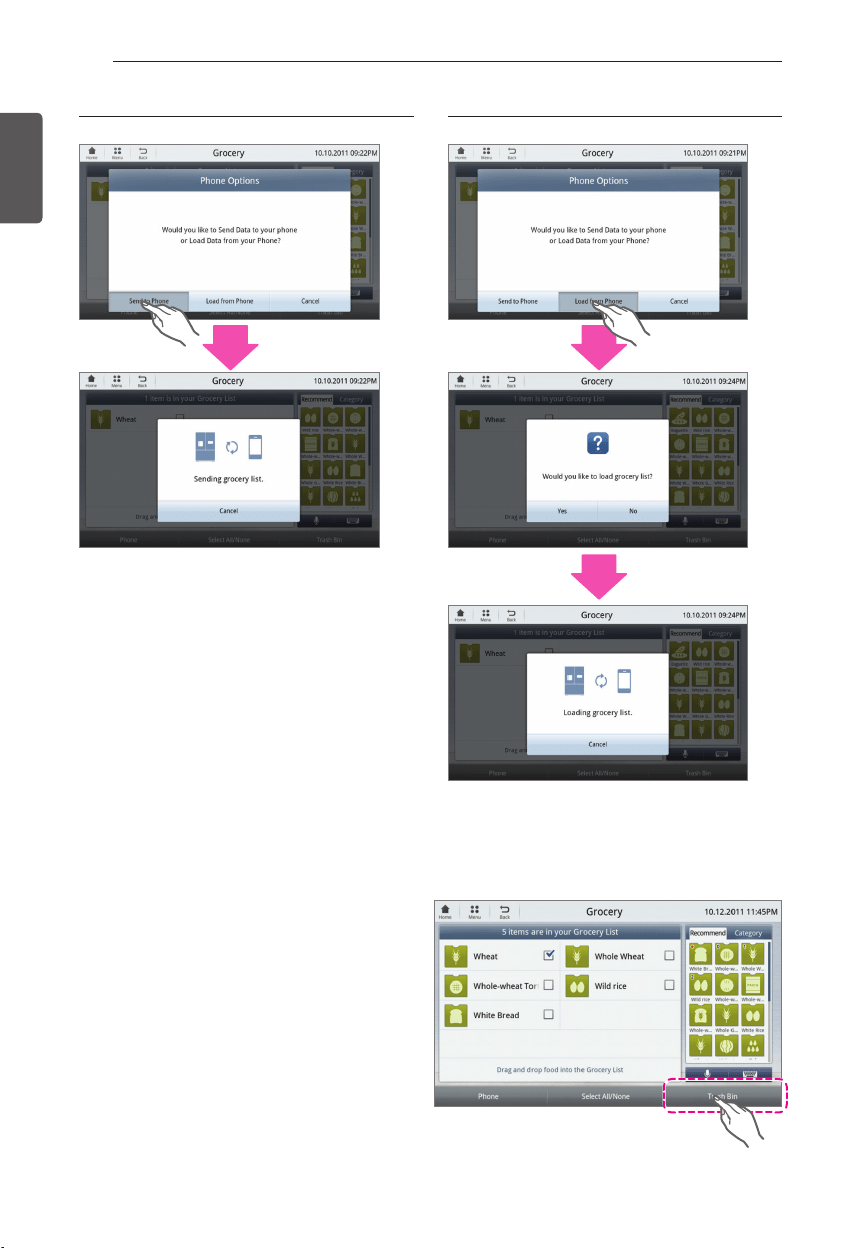
70
SMART REFRIGERATOR DISPLAY SCREEN
ENGLISH
Remove Grocery
Drag and drop items into the Trash Bin to
remove them from your grocery list.
The user can delete food by dragging and
y
dropping food icon into Trash Bin.
After selecting food by touching the
y
Select All/None button or check box, the
user can delete food by touching the
Trash Bin button.
Make sure to select the correct items
y
before removing them.
When the user touches the Load from Phone When the user touches the Load from Phone When the user touches the Send to Phone When the user touches the Send to Phone
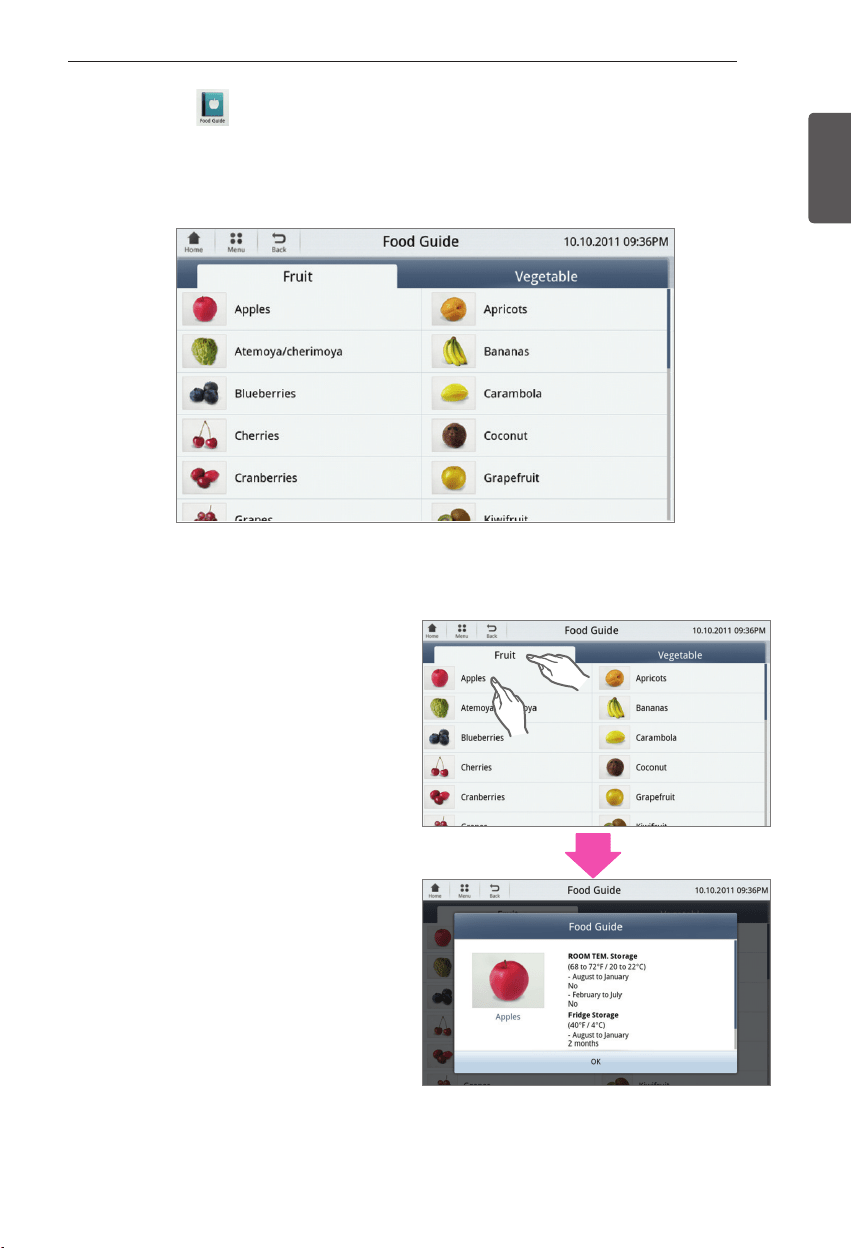
71
SMART REFRIGERATOR DISPLAY SCREEN
ENGLISH
Food Guide
- Touch the Food Guide icon at the bottom of the Home screen.
- The food guide provides information, such as Storage temperature, on an array of fruits and
vegetables.
Fruit / Vegetable Lists
- Select either the Fruit or Vegetable list.
- Select the item that you would like to see
information on.
- Detailed information on the selected fruit or
vegetable will display on the screen.
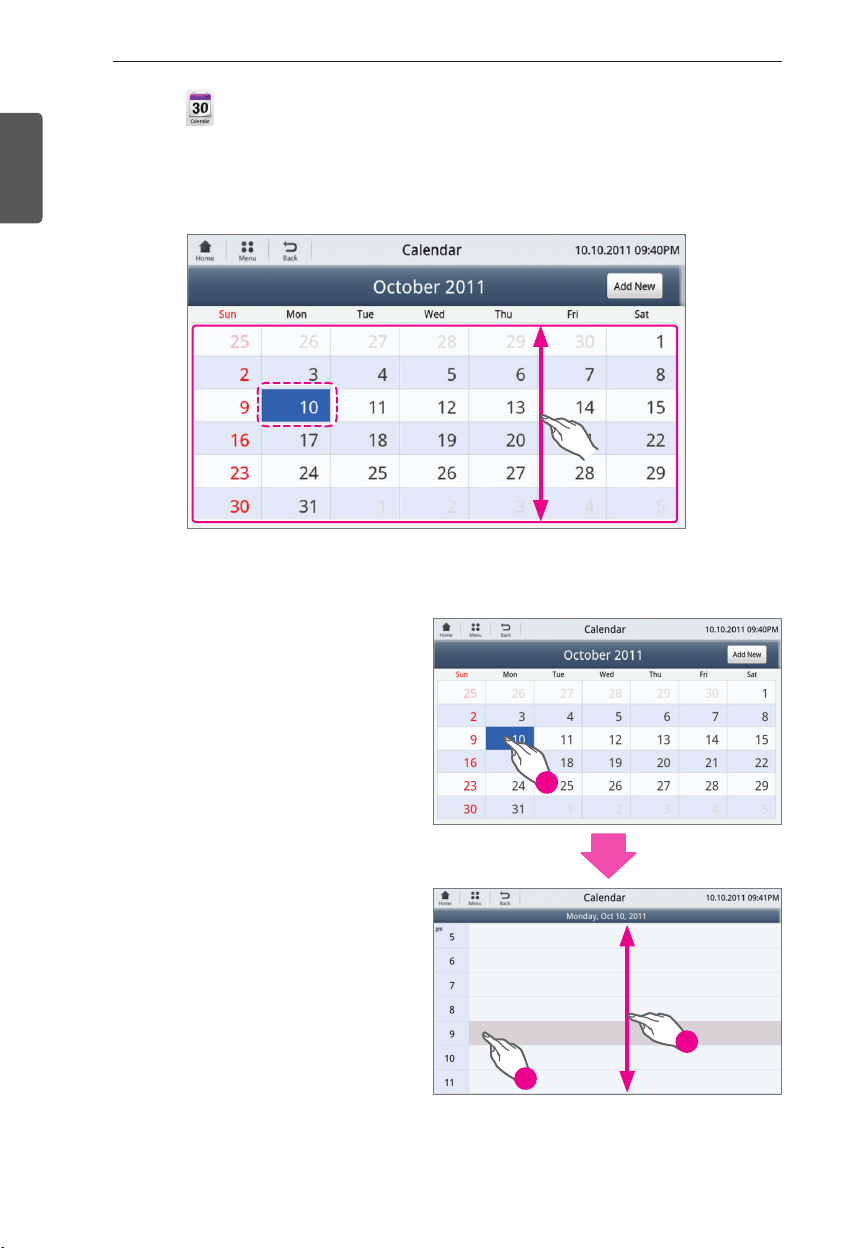
72
SMART REFRIGERATOR DISPLAY SCREEN
ENGLISH
Calendar
- Touch either the Calendar button on the bottom of the Home screen or the Calendar widget.
- The default screen displays the current day.
- Swipe the calendar up or down to scroll through the different months.
Creating/Scheduling an event
- Touch the date on the calendar that you
would like to schedule an event for.
- Touch the time of day that you would like to
schedule the event.
2
3
1
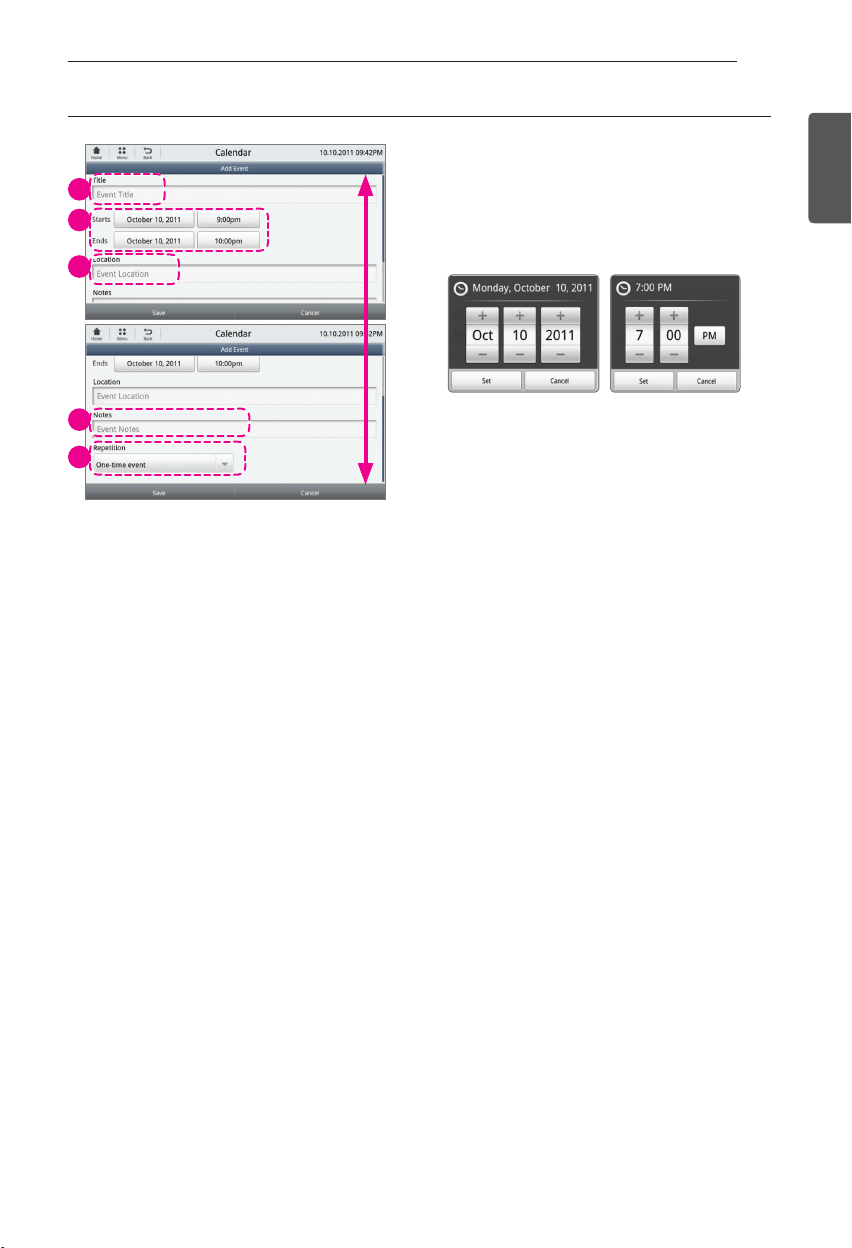
73
SMART REFRIGERATOR DISPLAY SCREEN
ENGLISH
- Customize your event. Touch the Title box
and a Keyboard will display. Type in the name
of your event. Press Done.
- Enter the start and end date by selecting the
the date and time buttons. Adjust the date/
time by using the +/- buttons on the display.
- Touch the Set button to save the date/time
settings.
- You may also enter the event location or
notes. Touch the Location or Notes box and
a Keyboard will display. Type in the Location
or Notes for the event. Press Done.
- Touch the Repetition button to make it a
recurring or one-time event. Swipe up or
down for the repetition options.
- Press the Save button to save the event.
Enter detail information of event Enter detail information of event
1
2
3
4
5
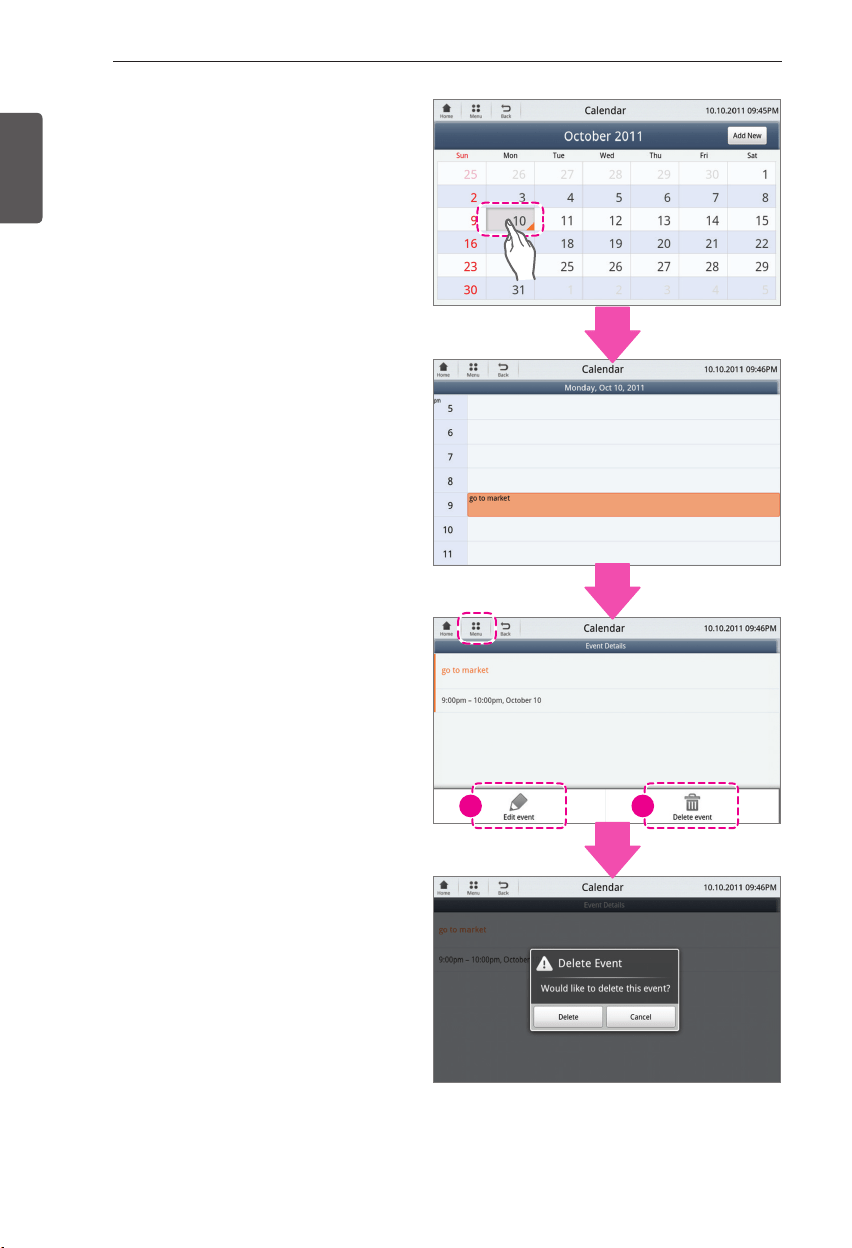
74
SMART REFRIGERATOR DISPLAY SCREEN
ENGLISH
Edit / Delete event
- Select the date of the event from the
calendar.
- Select the event that you would like to edit or
delete.
- Select the Menu button.
- Select Edit event or Delete event.
- If editing the event, edit the information and
press Save.
- To delete an event, select the Delete button.
1 2
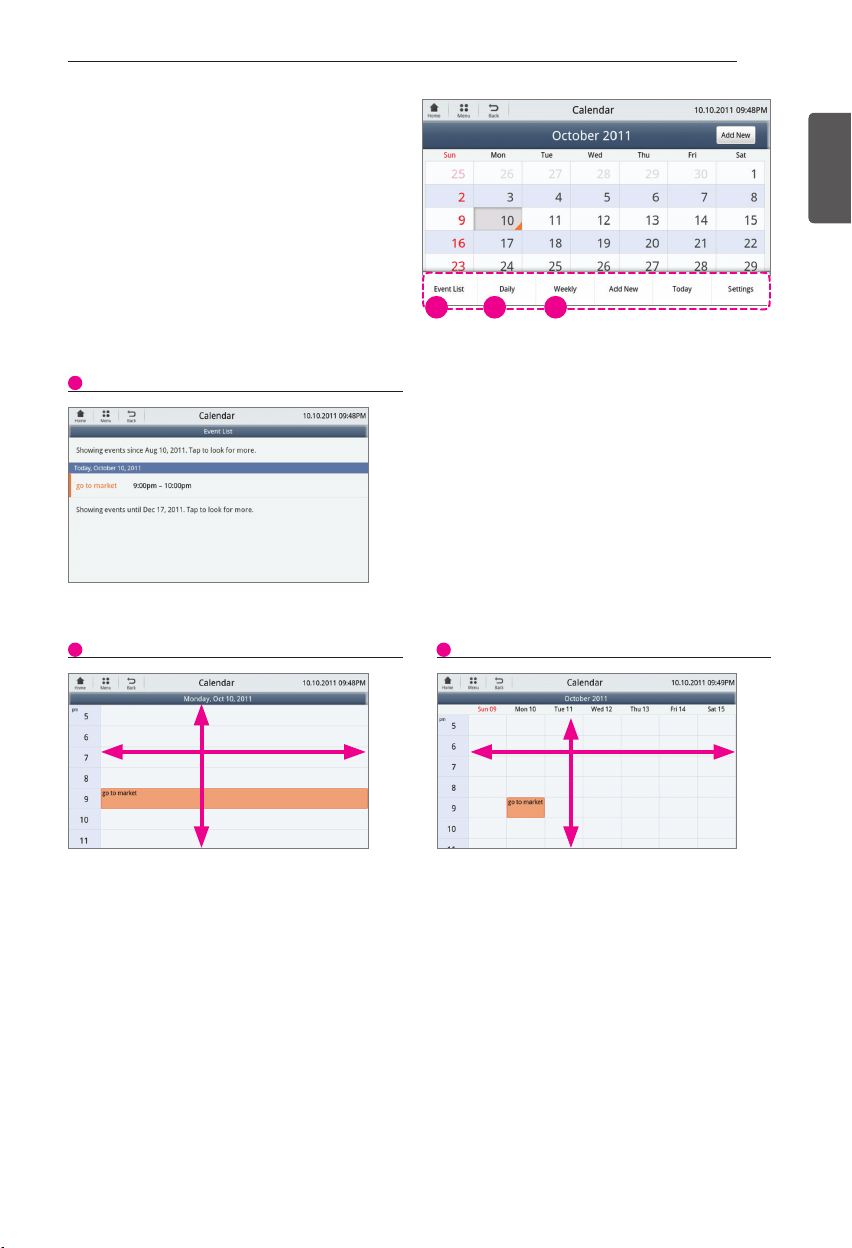
75
SMART REFRIGERATOR DISPLAY SCREEN
ENGLISH
Calendar Menu Button
Use the Menu to view quick event information,
or to add a new event.
Touch the Menu button to view and select
y
the different menu options.
- Swipe up and down, and from side to side to
view the events.
- Swipe up and down, and from side to side to
view the events.
When selecting List Tasks When selecting List Tasks
Search daily event Search daily event Search weekly event Search weekly event
1
2 3
1 2 3

76
SMART REFRIGERATOR DISPLAY SCREEN
ENGLISH
1
Touch the empty box and a Keyboard will
display.
2
Enter your note using the Keyboard. Touch
the Done button when you are finished
typing the note.
3
Touch the Save button to save a memo.
1) Entering memo with text 1) Entering memo with text
Memo
- Touch the Memo icon on the bottom of the Home screen or the Memo widget.
Creating Memo
The user can create a new memo by entering text and drawing picture.
1
2
3
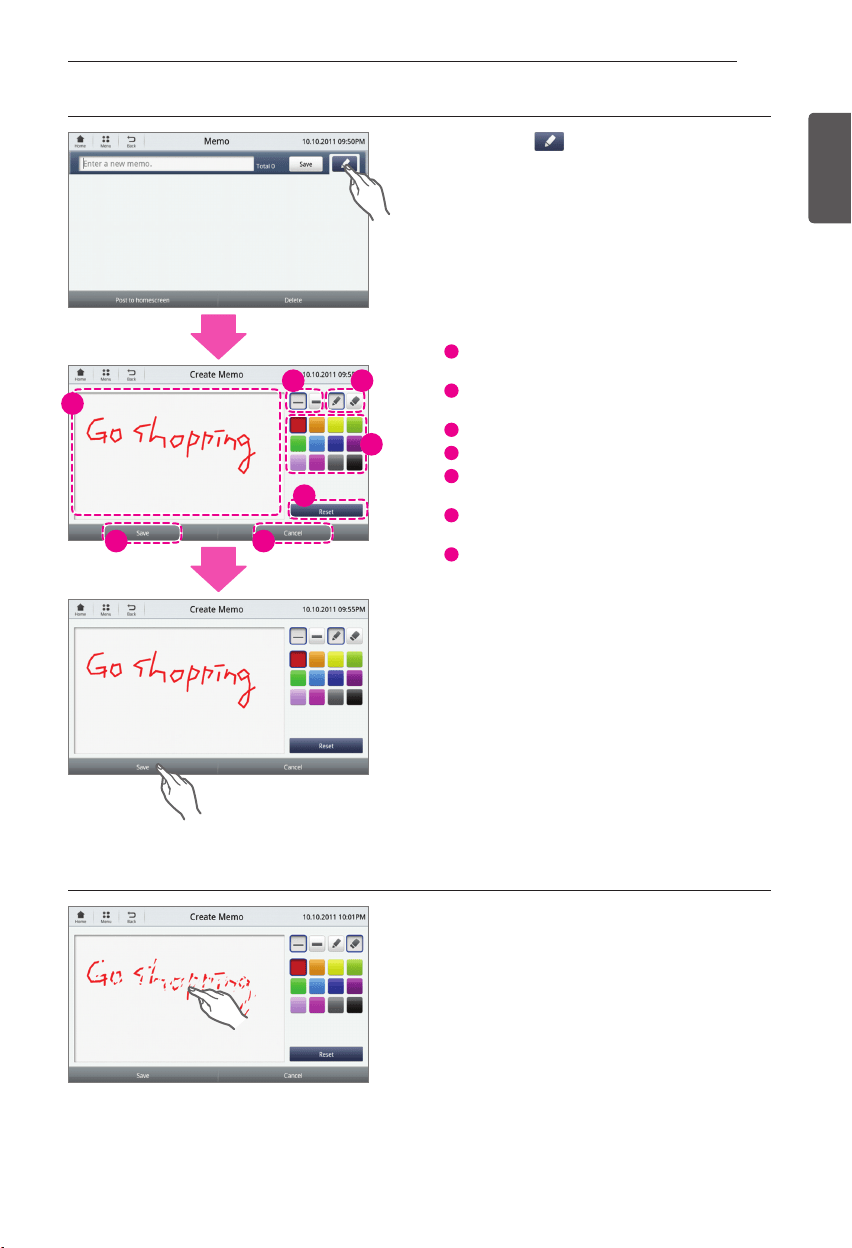
77
SMART REFRIGERATOR DISPLAY SCREEN
ENGLISH
- Touch the ( ) icon from the Memo
screen.
Touch the screen to draw the memo.
1
A memo can only drawn within the drawing area
of the screen (see image).
2
The thickness of the line can be set. Select one
of the 2 types.
3
Drawing and Eraser function.
4
The color of the line can be selected.
5
Select the Reset button to erase the image from
the screen.
6
Touch the Save button once you are done
drawing your memo.
7
Cancel the memo by touching the Cancel button.
- Touch the Save button to save your memo.
- Select the eraser button.
- Use your finger to to wipe away the
information in the memo screen.
2) Entering memo by drawing 2) Entering memo by drawing
* How to use the eraser * How to use the eraser
1
2 3
4
5
6 7
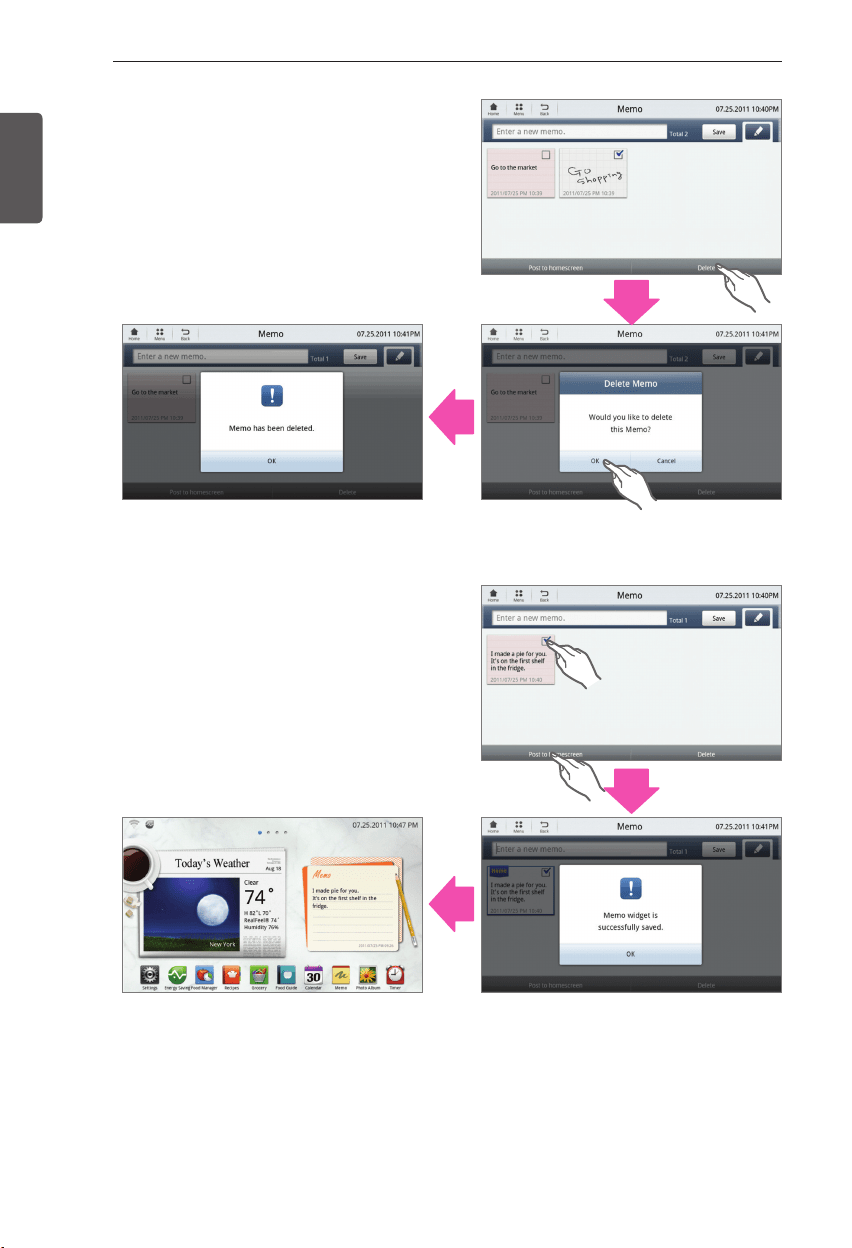
78
SMART REFRIGERATOR DISPLAY SCREEN
ENGLISH
Delete Memo
- Touch the check box on the upper right hand
corner of the memo.
- Touch the Delete button.
- A confirmation popup will display. Touch
Delete.
Save memo to Home Screen
- Touch the check box on the upper right hand
corner of the memo.
- Touch the Post to home screen button.
- A confirmation popup will display.
- View your memo on the Home screen next to
the weather widget.
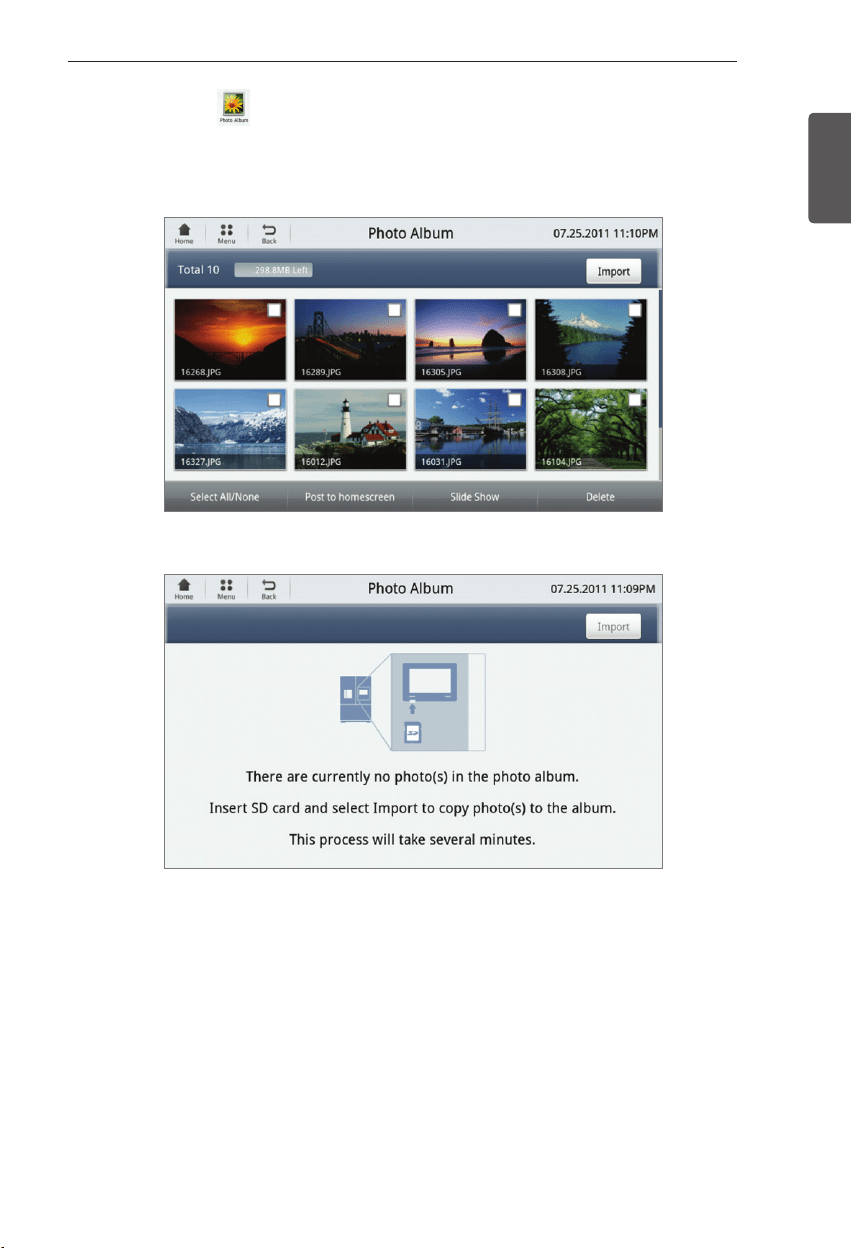
79
SMART REFRIGERATOR DISPLAY SCREEN
ENGLISH
Photo Album
- Touch the Photo Album button on the bottom of the Home screen or the Photo Album widget.
- You can store up to 300MB. Video is not supported.
* If there are not any photos loaded, a screen will appear instructing you
to insert the SD card.
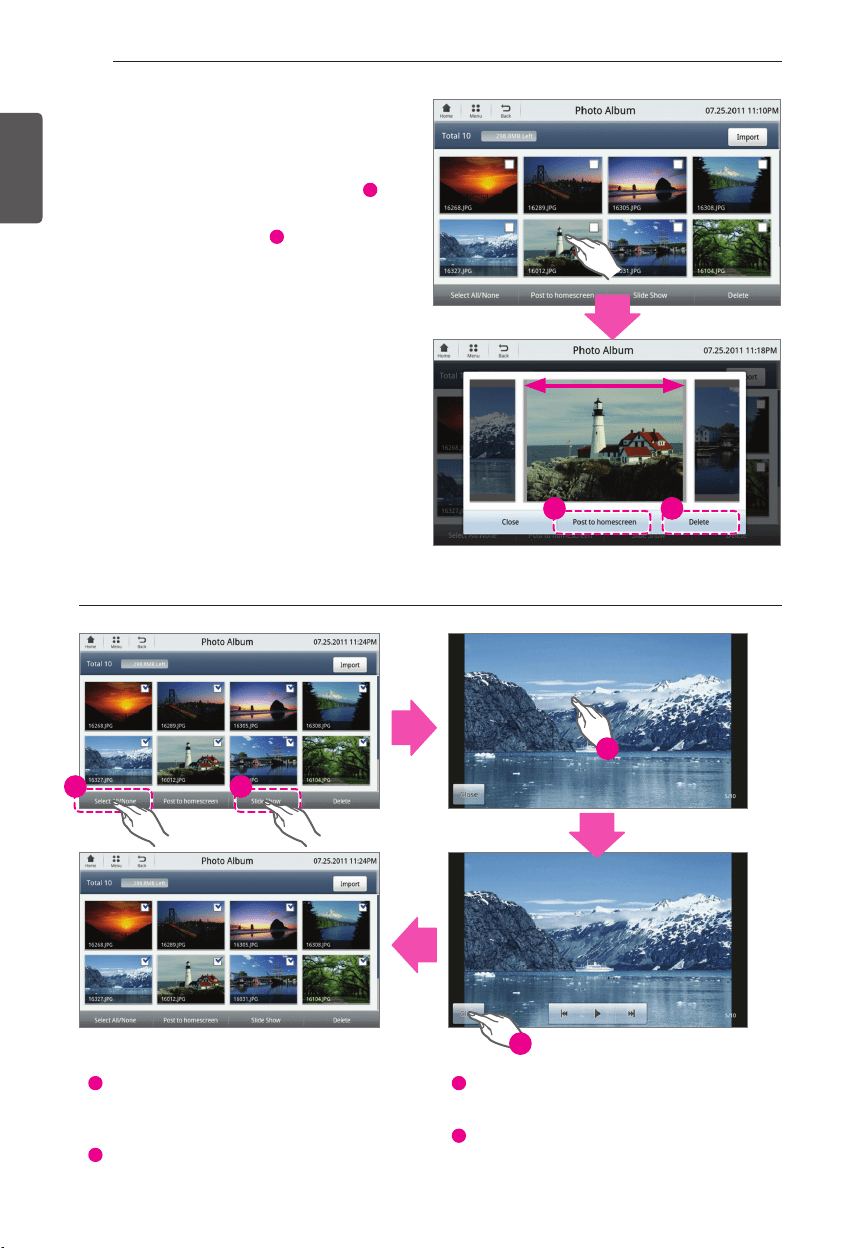
80
SMART REFRIGERATOR DISPLAY SCREEN
ENGLISH
View Photos
- Select a photo to either post the photo to the
Home screen or delete it.
- Touch the Post to homescreen button(
1
) to
post the photo to the Home screen.
- Touch The Delete button(
2
) to delete the
photo.
-
1
Photos can be selected one by one. Or by
touching “Select All On/Off” all photos can be
selected.
-
2
After selecting photos, touch Slide Show to
view a slide show of photos.
-
3
Touch the screen to stop the slide show
and view the photo being displayed.
-
4
Touch the Close button to switch to the
main screen of Photo Album.
Slide Show Slide Show
1 2
3
4
1 2
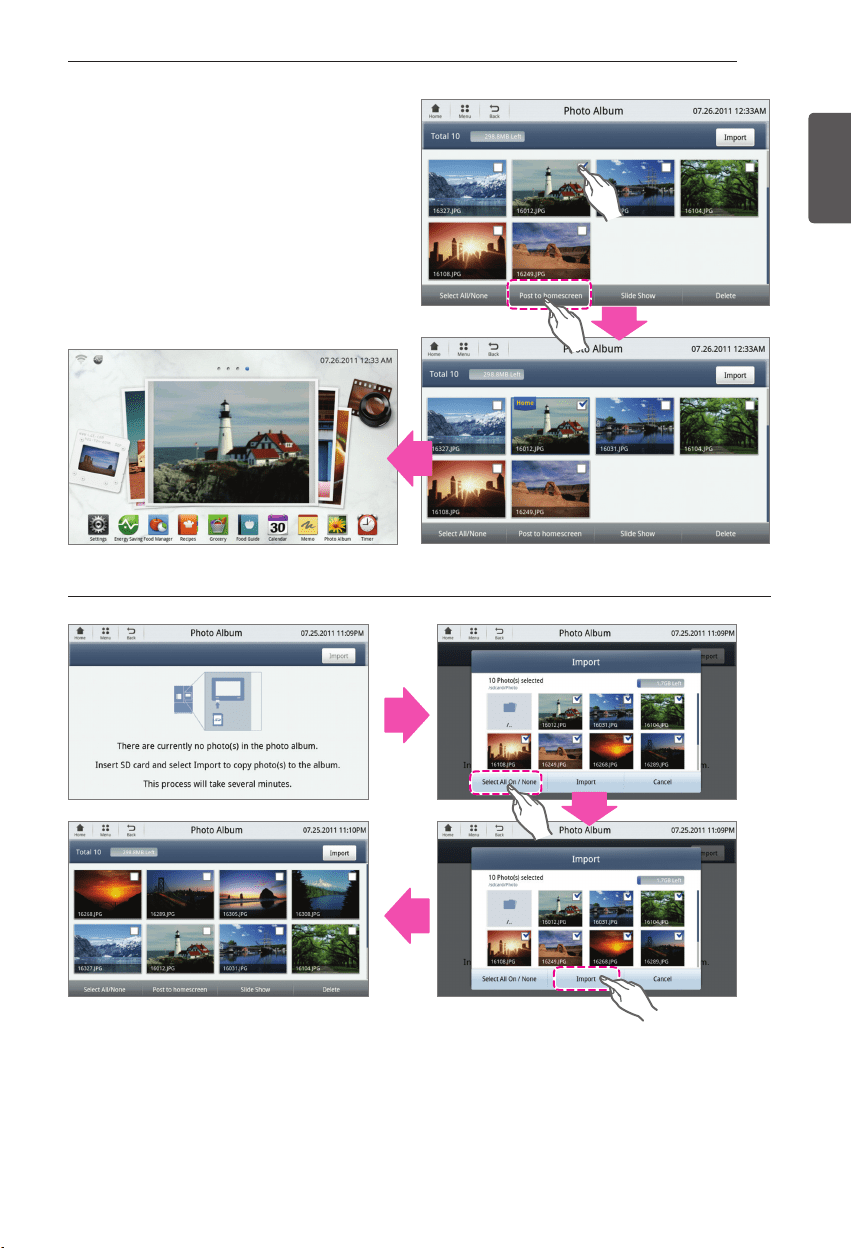
81
SMART REFRIGERATOR DISPLAY SCREEN
ENGLISH
Saving photo to Home Screen
- From the Photo Album screen, select the
photo that you would like to save to the
Home screen.
- Touch the Post to homescreen button.
Uploading photos to the album Uploading photos to the album
- This should appear in the beginning of the
Photo Album section.
- If there are no photos loaded to the album, a
screen will display instructing you to import
photos from an SD card.
- Insert your SD card into the SD port.
- The photos loaded to your SD card will display
on the screen.
- Select the photos that you would like to add to
the photo album, or touch the Select All On/
Off button to load all photos on the SD card.
- After selecting the desired photos, touch the
Import button.
- Photos are now saved in Photo Album.
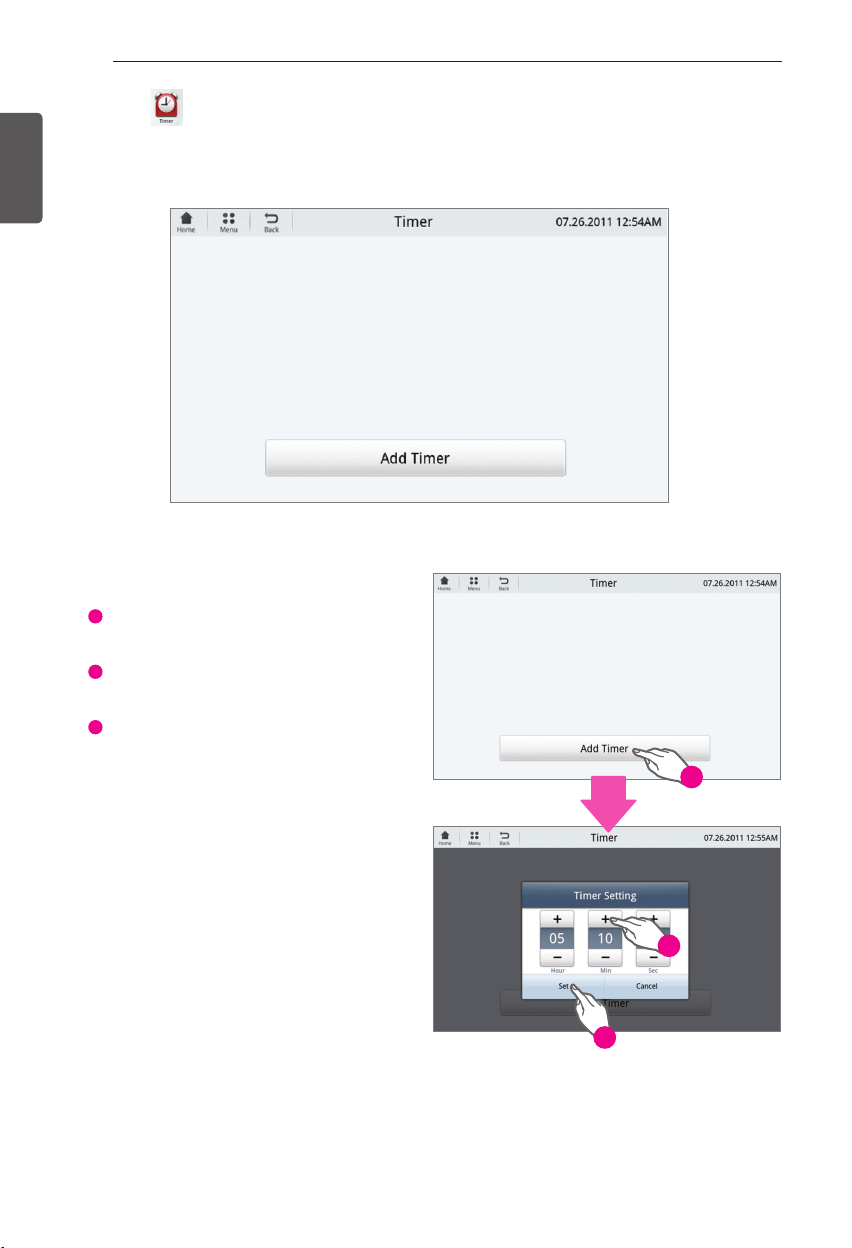
82
SMART REFRIGERATOR DISPLAY SCREEN
ENGLISH
Timer
- Touch the Timer button at the bottom of the Home screen.
- Set up to three timers at a time.
Setting the Timer
-
1
Touch the Add Timer button.
-
2
Use the +/- buttons to set the timer.
-
3
Touch the Set button.
1
2
3
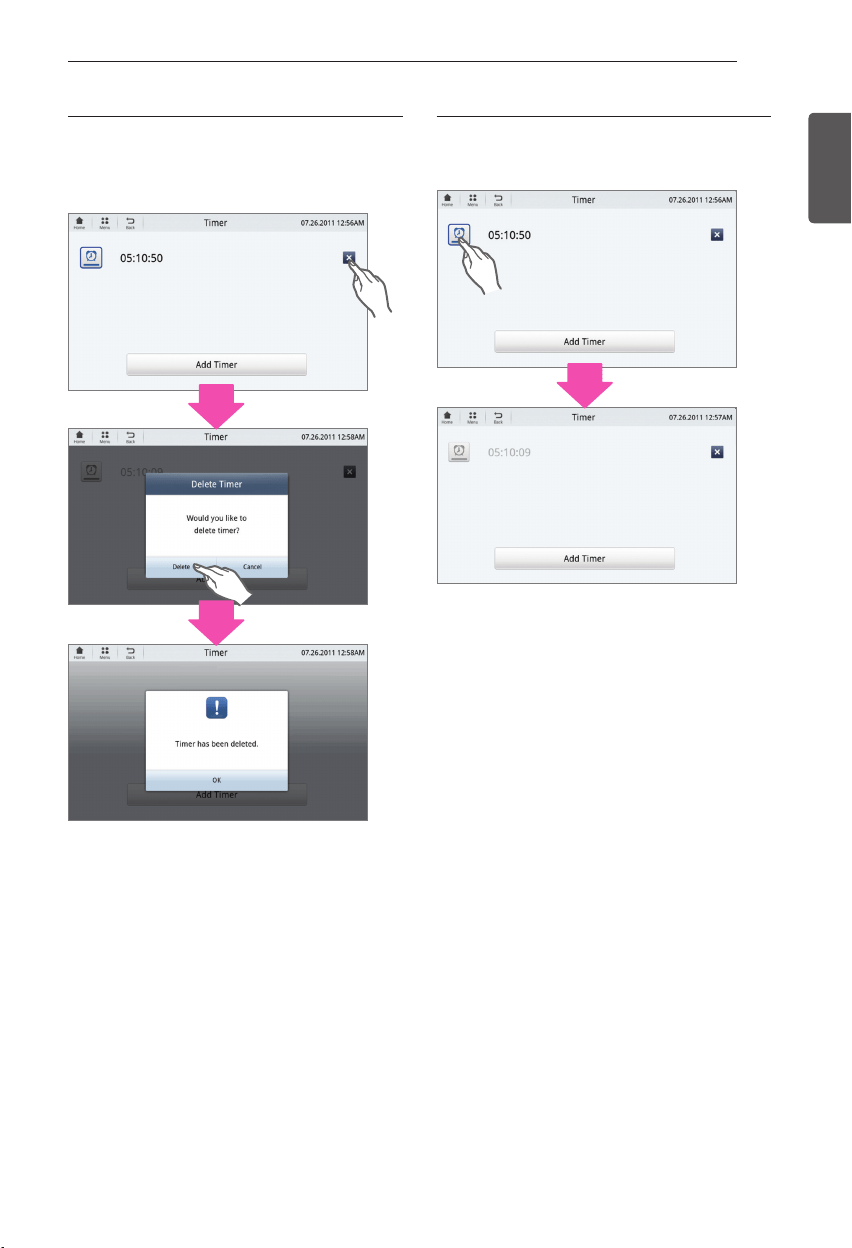
83
SMART REFRIGERATOR DISPLAY SCREEN
ENGLISH
Touch the X button next to the timer that
y
you would like to delete.
Touch the Delete button on the popup.
y
Touch the timer icon. The icon will turn
y
gray once it is off.
To delete the timer: To delete the timer: To turn off the timer: To turn off the timer:
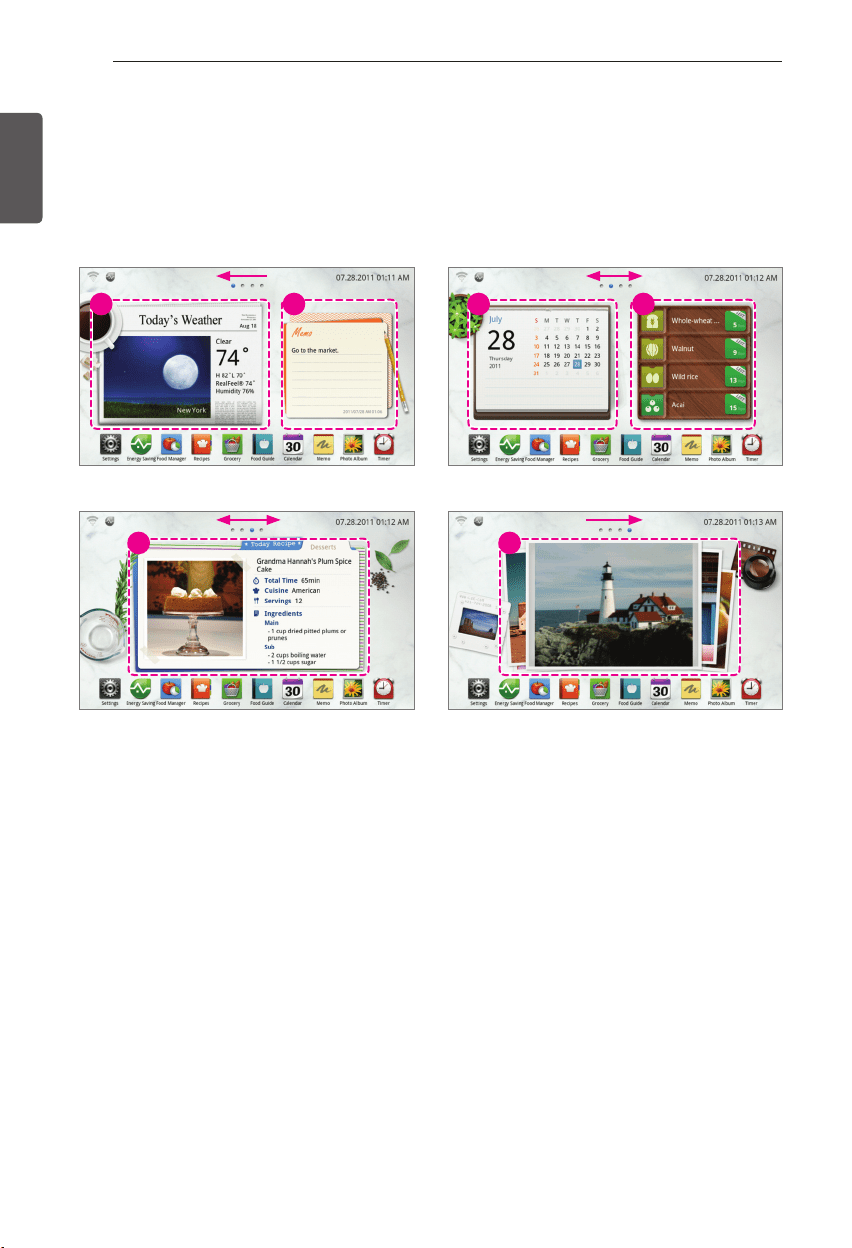
84
SMART REFRIGERATOR DISPLAY SCREEN
ENGLISH
Using the Widgets
- A widget is a mini application that can be accessed without using a web browser.
- There are six widgets that are loaded to the display: Weather, Memo, Calendar, Freshness
Tracker, Recipes, and Photo Album.
- View the widgets by swiping your finger left or right on the display screen. The Home screen can
be set to any of the below widget screens.
* The user can swipe in the arrow direction to switch over to the next widget.
1. Weather widget
This displays the current weather image and
temperature of the set region.
2. Memo widget
This displays the memo ‘Post to Homescreen’ from the
main memo screen.
3. Calendar widget
This displays the calendar where the events are
displayed on a weekly basis.
4. Freshness Tracker widget
This displays the 4 types of foods with the shortest
remaining storage period for the food that the user set
the storage date.
5. Recommended recipe widget
- This recommends and displays recipes that can be
prepared based on the stored food in random order.
- The recipe is refreshed once a day (7AM).
- When the user touches the recipe widget, it moves to
the recommended recipe to show the user with the
description of the recipe.
6. Photo widget
This displays the photo ‘Post to Homescreen’ from the
main photo screen.
1 2
5
3 4
6
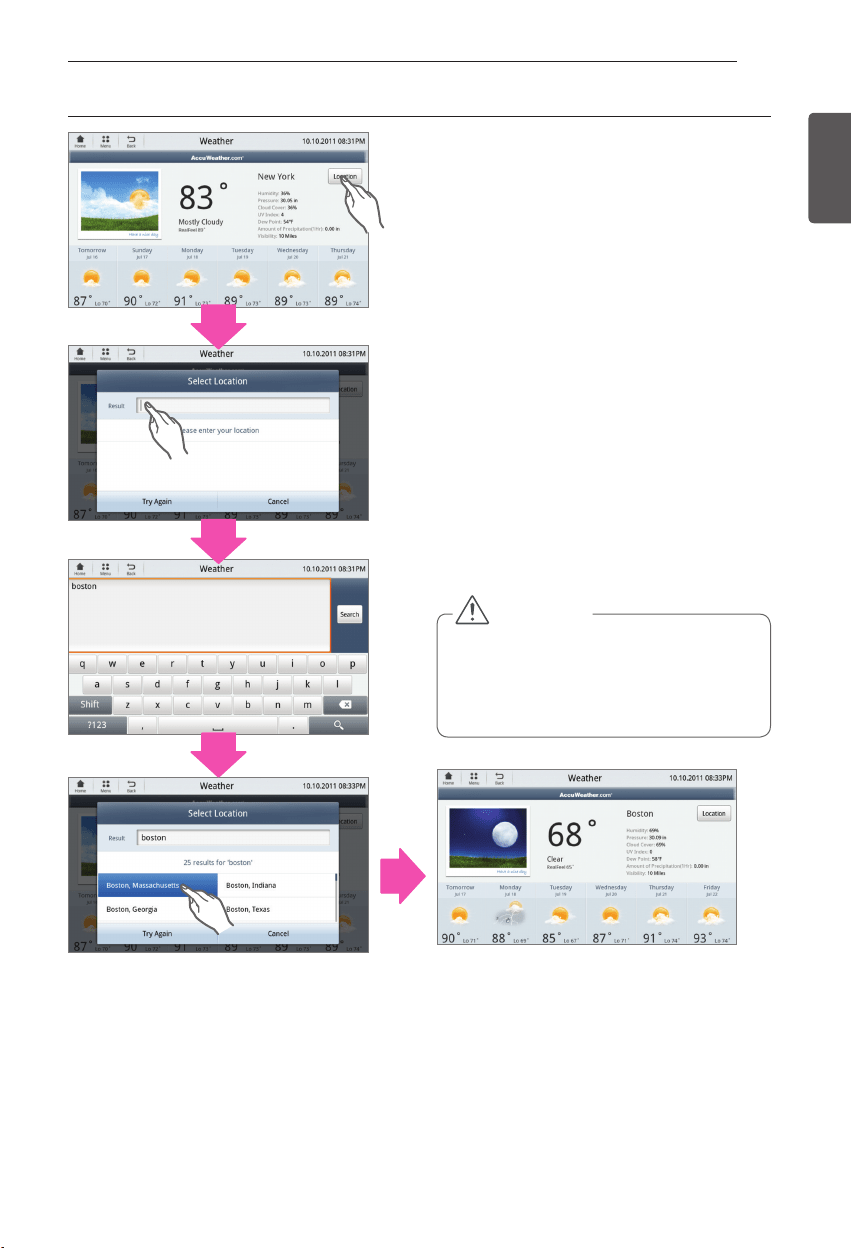
85
SMART REFRIGERATOR DISPLAY SCREEN
ENGLISH
- To change the weather region on the
Weather widget:
- Touch the weather widget on the Home
screen.
- Touch the Location button on the upper right
hand corner of the display.
- Touch the region box.
- A Keyboard will display. Type the region that
you would like to search and touch the Done
button.
- Select the desired city from the search
results.
Setting the weather region Setting the weather region
CAUTION
This function only works when the system
y
is connected to the Wi-fi network.
Applicable weather only includes weather
y
information provided by Accuweather Co.
Ltd.
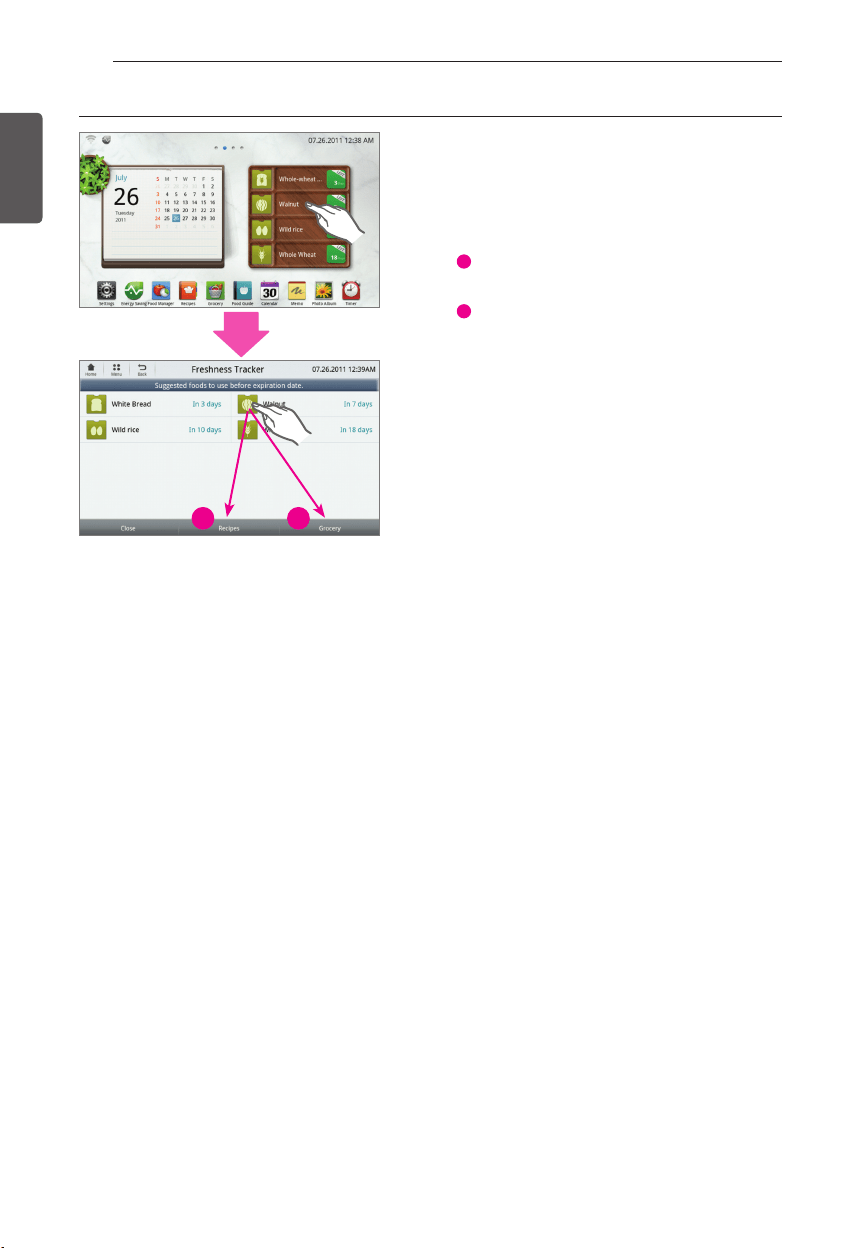
86
SMART REFRIGERATOR DISPLAY SCREEN
ENGLISH
Touch the Freshness Tracker widget at the
Home screen.
- When the user drags the applicable food to
the applicable button, the user can easily use
the function.
-
1
Provide recipe made with food with short
storage period.
-
2
When the food is used as the ingredient
for the recipe, it is reflected to the Grocery
for future purchase.
- Food with short storage period is notified to
the user daily through the Freshness Tracker
widget.
Using the Freshness Tracker widget Using the Freshness Tracker widget
1 2
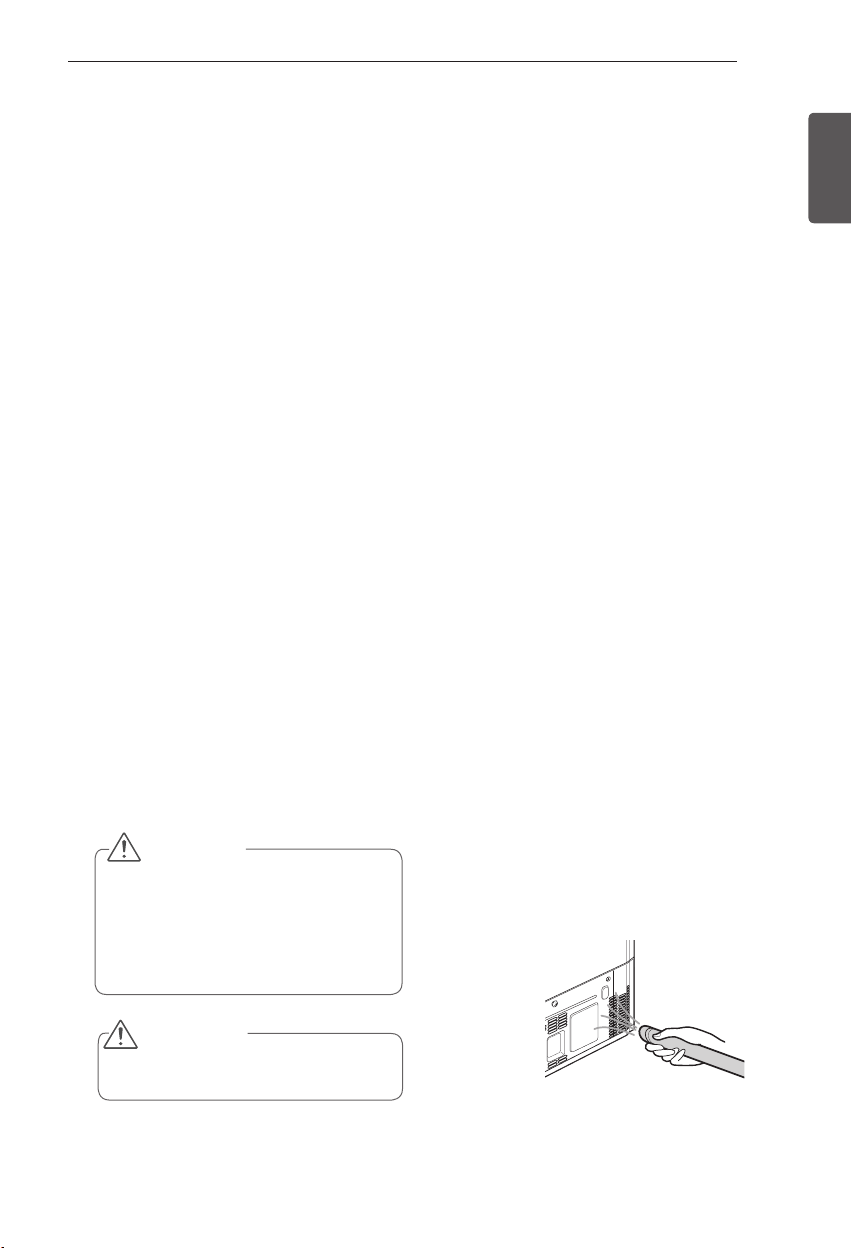
87
MAINTENANCE
ENGLISH
MAINTENANCE
Cleaning
Both the refrigerator and freezer sections defrost automatically; however, clean both
y
sections about once a month to prevent odors.
Wipe up spills immediately.
y
Always unplug the refrigeration before cleaning.
y
General Cleaning TipsGeneral Cleaning Tips
Unplug refrigerator or disconnect power.
y
Remove all removable parts, such as
y
shelves, crispers, etc.
Use a clean sponge or soft cloth and a
y
mild detergent in warm water. Do not
use abrasive or harsh cleaners.
Hand wash, rinse and dry all surfaces
y
thoroughly.
ExteriorExterior
Waxing external painted metal surfaces helps
provide rust protection. Do not wax plastic
parts. Wax painted metal surfaces at least
twice a year using appliance wax (or auto paste
wax). Apply wax with a clean, soft cloth.
For products with a stainless steel exterior,
use a clean sponge or soft cloth and a mild
detergent in warm water. Do not use abrasive
or harsh cleaners. Dry thoroughly with a soft
cloth.
Inside Walls (allow freezer to warm Inside Walls (allow freezer to warm
up so the cloth will not stick)up so the cloth will not stick)
To help remove odors, you can wash the inside
of the refrigerator with a mixture of baking
soda and warm water. Mix 2 tablespoons of
baking soda to 1 quart of water (26 g soda
to 1 liter water.) Be sure the baking soda is
completely dissolved so it does not scratch the
surfaces of the refrigerator.
Door Liners and GasketsDoor Liners and Gaskets
Use a clean sponge or soft cloth and a mild
detergent in warm water. Do not use cleaning
waxes, concentrated detergents, bleaches,
or cleaners containing petroleum on plastic
refrigerator parts.
Plastic Parts (covers and panels)Plastic Parts (covers and panels)
Use a clean sponge or soft cloth and a mild
detergent in warm water. Do not use window
sprays, abrasive cleansers, or flammable fluids.
These can scratch or damage the material.
Condenser CoilsCondenser Coils
Use a vacuum cleaner with an attachment to
clean the condenser cover and vents. Do not
remove the panel covering the condenser coil
area.
CAUTION
Do not use a rough cloth or sponge
y
when cleaning the interior and exterior
of the refrigerator.
Do not place your hand on the bottom
y
surface of the refrigerator when
opening and closing.
WARNING
Use non-flammable cleaner. Failure to do
so can result in fire, explosion, or death.
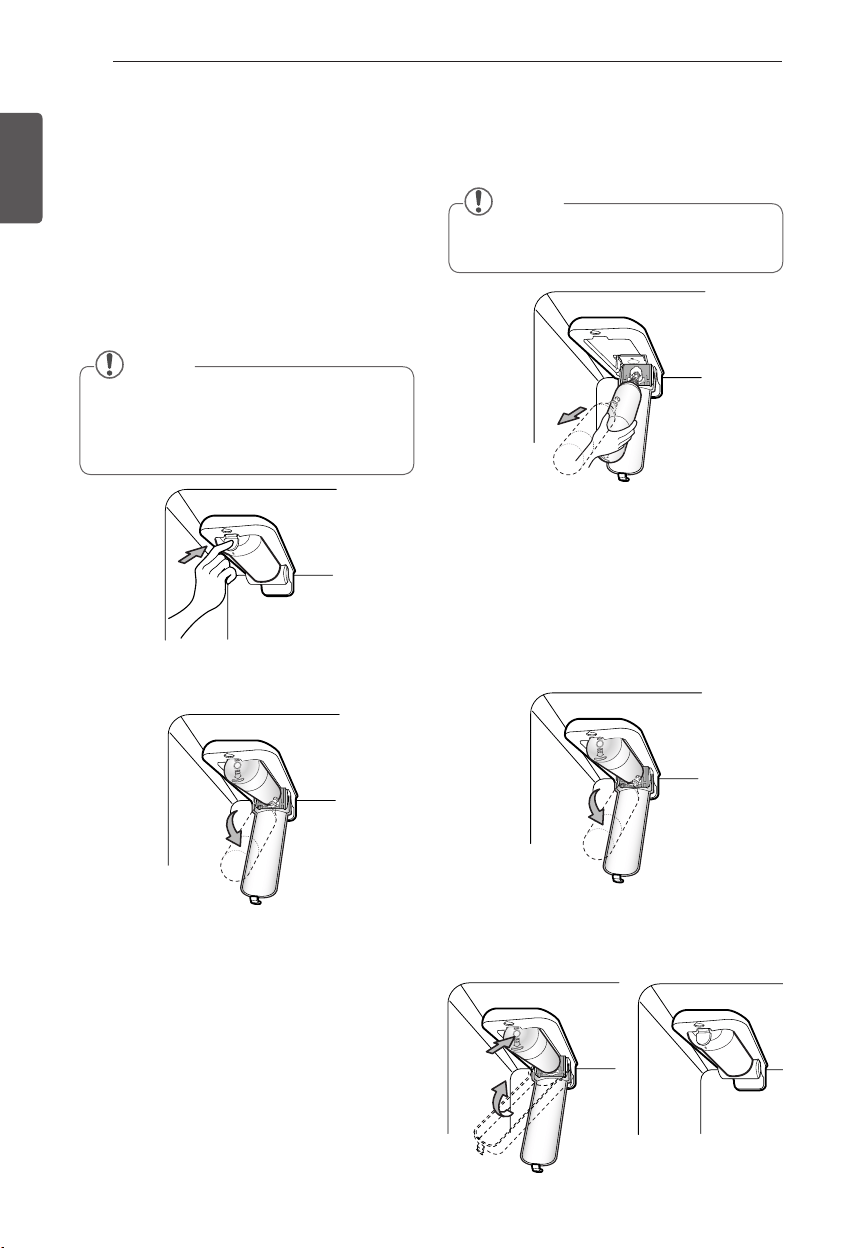
88
MAINTENANCE
ENGLISH
Replacing the Water Filter
It is recommended that you replace the filter
approximately every 6 months, when the water
filter indicator reaches 0 months, or when the
ice and water dispenser noticeably decreases
out-put.
Remove the old cartridge.Remove the old cartridge.
1.
Press the push button to open the filter cover.
2.
Pull the cartridge downward.
3.
Pull out the filter cartridge.
2.
Firmly lock in the cartridge. The cover will click
back into place.
Replace with a new cartridge.Replace with a new cartridge.
1.
Take the new cartridge out of its packing and
remove the protective cover from the o-rings.
With cartridge ears in the horizontal position,
push the new filter cartridge into the manifold
hole until it stops.
NOTE
Replacing the filter causes a small
y
amount of water (around 1 oz. or 25 cc)
to drain. Place a cup under the filter hole
to catch any waste.
NOTE
When opened at a full angle the
y
cartridge should easily come out.
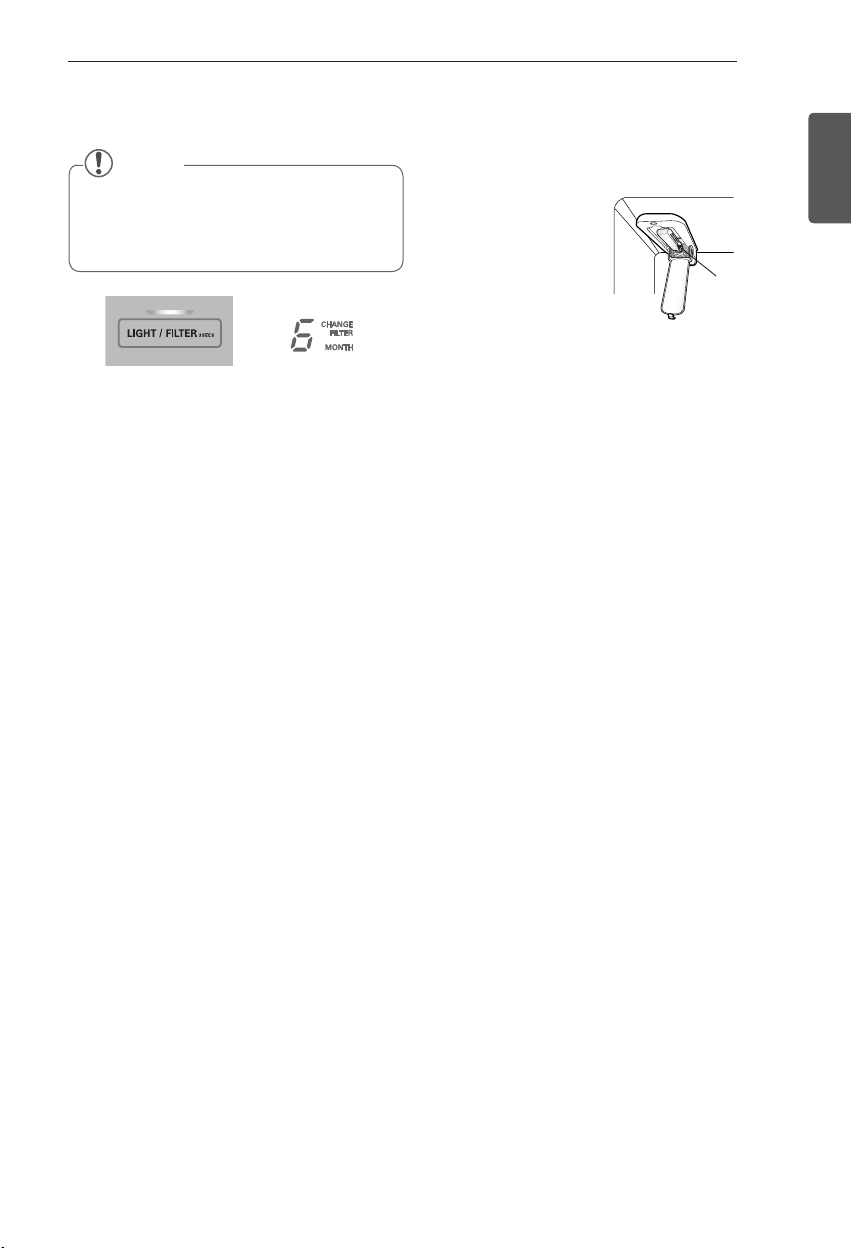
89
MAINTENANCE
ENGLISH
When the water filter indicator displays the
message 0 Filter Month, hold 3 seconds. Reset
the water filter status display and indicator light
by pressing and holding the LIGHT/FILTER
button for at least 3 seconds.
Filter Bypass Plug Filter Bypass Plug
Keep the filter bypass
plug.
You must use the
filter bypass plug
when a replacement
filter cartridge is not
available.
The icemaker will not operate without the filter
or filter bypass plug inserted in the proper
compartment.
To purchase replacement water filter
cartridges, visit your local appliance dealer or
parts distributor.
You can also call USA 1-800-243-0000
CANADA 1-888-LGCANADA (24 hours per day/
7 days per week).
The replacement water filter cartridge’s part
number is ADQ36006101.
Filter Bypass
Plug
NOTE
After replacing the filter, flush 2.5
y
gallons through filter before use (flush
for approximately 5 minutes). Check the
filter for leaks.
90
MAINTENANCE
ENGLISH
Contaminant
Reduction
Average
Influent
NSF specified
Challenge
Concentration
Avg %
Reduction
Average
Product Water
Concentration
Max
Permissible
Product
Water
Concentration
NSF Reduction
Requirements
NSF Test
Report
Chlorine Taste and
Odor
2.1 mg/L
2.0 mg/L
± 10%
97.2% 0.06 mg/L
N/A
≥
50% J-00049247
Nominal Particulate
Class I, ,
≥
0.5 to <
1.0 µm
5,600,000
pts/mL
At least 10,000
particles/mL
98.7% 73,000 pts/ml
N/A
≥
85% J-00049282
Asbestos 190 MFL
107 to 108 MFL;
fibers greater than
10 µm in length
>99% < 1MLF N/A
≥
99% J-0004928
Atrazine 0.0094 mg/L
0.009 mg/L
± 10%
94.7% 0.00005 mg/L 0.003 mg/L N/A J-00049293
Benzene 0.016 mg/L
0.015 mg/L
± 10%
96.7% 0.005 mg/L 0.005 mg/L N/A J-00049300
Carbofuran 0.08 mg/L
0.08 mg/L
± 10%
98.1% 0.002 mg/L 0.04 mg/L N/A J-00049294
Lindane 0.002 mg/L
0.002 mg/L
± 10%
98.2% 0.00004 mg/L 0.0002 mg/L N/A J-00051975
P-Dichlorobenzene 0.22 mg/L
0.225 mg/L
± 10%
99.8% 0.0005 mg/L 0.075 mg/L N/A J-00049298
Toxaphene 0.014 mg/L
0.015 mg/L
± 10%
93% 0.001 mg/L 0.003 mg/L N/A J-00049302
2,4-D 0.213 mg/L
0.210 mg/L
± 10%
95.2% 0.009 mg/L 0.07 mg/L N/A J-00049284
Lead pH @6.5 0.150 mg/L
0.15 mg/L
± 10%
>99.3% 0.001 mg/L 0.010 mg/L N/A J-00051974
Lead pH @8.5 0.150 mg/L
0.15 mg/L
± 10%
>99.3% 0.001 mg/L 0.010 mg/L N/A J-00049277
Mercury @ pH 6.5 0.0059 mg/L
0.006 mg/L
± 10%
96.1 0.0002 mg/L 0.002 mg/L N/A J-00053886
Mercury @ pH 8.5 0.0058 mg/L
0.006 mg/L
± 10%
90.1 0.0006 mg/L 0.002 mg/L N/A J-00051972
Cyst*
120,000
cysts/L
Minimum 50,000
cysts/L
99.99% <1 cyst/L N/A
≥
99.95% J-00049281
Performance Data Sheet
Model: LG ADQ36006101-S Use Replacement Cartridge: ADQ36006101
The concentration of the indicated substances in water entering the system was reduced to a
concentration less than or equal to the permissible limit for water leaving the system as specified in
NSF/ANSI Standard 42 and Standard 53.
System tested and certified by NSF International against NSF/ANSI Standard 42
and Standard 53 for the reduction of substances listed below.
* Based on the use of Cryptosporidium parvum oocysts.
91
MAINTENANCE
ENGLISH
Application Guidelines/Water Supply Parameters
Service Flow
0.5 gpm (1.9 lpm)
Water Supply Potable Water
Water Pressure 20 -120 psi (138 - 827 kPa)
Water Temperature
33°F - 100°F (0.6°C - 38°C)
CAUTION
To reduce the risk associated with property
damage due to water leakage:
Read and follow. Use Instructions before
y
installation and use of this system.
Installation and use MUST comply with all
y
state and local plumbing codes.
Do not install if water pressure exceeds
y
120 psi (827 kPa). If your water pressure
exceeds 80 psi, you must install a
pressure limiting valve. Contact a plumbing
professional if you are uncertain how to
check your water pressure.
Do not install where water hammer
y
conditions may occur. If water hammer
conditions exist you must install a water
hammer arrester. Contact a plumbing
professional if you uncertain how to check
for this condition.
Do not install on hot water supply lines. The
y
maximum operating water temperature of
this filter system is 100°F (38°C).
Protect filter from freezing. Drain filter when
y
temperatures drop below 40°F (4.4°C).
The disposable filter cartridge must be
y
replaced every 6 months, at the rated
capacity or if a noticeable reduction in flow
rate occurs.
WARNING
To reduce the risk associated with ingestion
of contaminants:
Do not use with water that is microbiologically
unsafe or of unknown quality without adequate
disinfection before and after the system.
Systems certified for cyst reduction may be
used on disinfected water that may contain
filterable cysts.
EPA Establishment Number 10350-MN-005
It is essential that the manufacturer’s
recommended installation, maintenance and
filter replacement requirements be carried out
for the product to perform as advertised.
3M is a trademark of 3M Company.
NSF is a trademark of NSF International.
© 2009 3M Company. All rights reserved.
Manufactured for LG®Electronics by CUNO
Incorporated 400 Research Parkway Meriden,
CT 06450 U.S.A Worldwide: 203-237-5541
www.cuno.com
NOTE
While the testing was performed under
y
standard laboratory conditions, actual
performance may vary.
Replacement Cartridge:
y
ADQ36006101
For estimated costs of replacement
y
elements please call USA
1-800-243-0000
CANADA
1-888-LGCANADA
(24 hours per
day/7 days per week) or visit our website at
www.lg.com
92
MAINTENANCE
ENGLISH
State of California
Department of Public Health
Water Treatment Device
Certificate Number
Date Issued: December 15, 2009
Trademark/Model Designation
Replacement Elements
201809 -
ADQ36006101-S
ADQ36006101
Manufacturer:
Cuno Inc.
The water treatment device(s) listed on this certificate have met the testing requirements pursuant to Section
116830 of the Health and Safety Code for the following health related contaminants:
Cysts Asbestos
Lead
Mercury
2,4-D Reduction
Atrazine
Benzene
Carbofuran
Lindane
p-Dichlorobenzene
Toxaphene
Microbiological Contaminants and Turbidity
Inorganic/Radiological Contaminants
Organic Contaminants
200 gal
Rated Service Capacity:
0.5 gpm
Rated Service Flow:
Conditions of Certification:
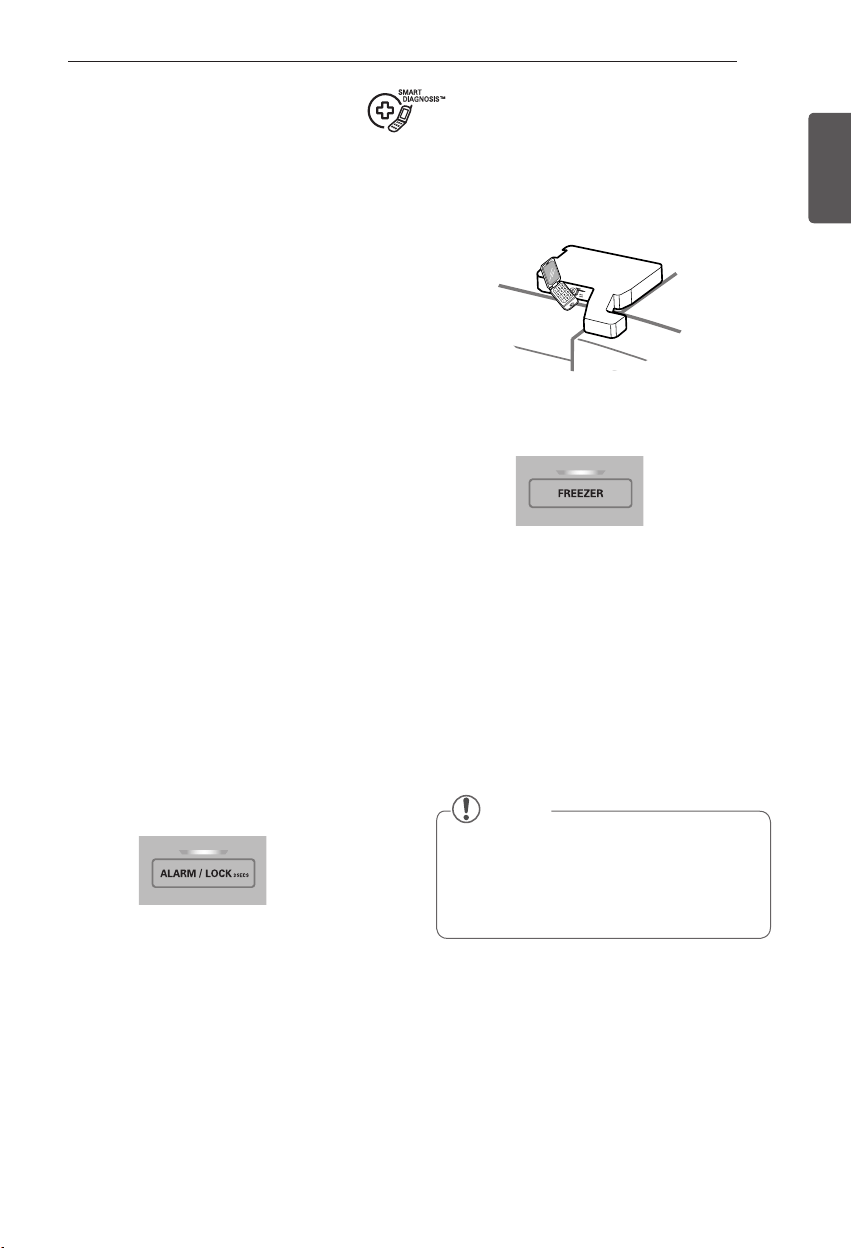
93
SMART DIAGNOSIS
ENGLISH
3
Hold the mouthpiece of your phone in
front of the speaker that is located on the
right hinge of the refrigerator door, when
instructed to do so by the call center.
4
Press and hold the Freezer Temperature
button for three seconds while continuing
to hold your phone to the speaker.
5
After you hear three beeps, release the
Freezer Temperature button.
6
Keep the phone in place until the tone
transmission has finished. This takes about
15 seconds, and the display will count
down the time. Once the countdown is
over and the tones have stopped, resume
your conversation with the specialist, who
will then be able to assist you in using the
information transmitted for analysis.
Should you experience any problems with
your refrigerator, it has the capability of
transmitting data via your telephone to the LG
service center. This gives you the capability of
speaking directly to our trained specialists. The
specialist records the data transmitted from
your machine and uses it to analyze the issue,
providing a fast and effective diagnosis.
If you experience problems with your
refrigerator, call 1-800-243-0000. Only use
the Smart Diagnosis feature when instructed
to do so by the LG call center agent. The
transmission sounds that you will hear are
normal and sound similar to a fax machine.
Smart Diagnosis cannot be activated unless
your refrigerator is connected to power. If
your refrigerator is unable to turn on, then
troubleshooting must be done without using
Smart Diagnosis.
Using Smart Diagnosis
First, call 1-800-243-0000. Only use the Smart
Diagnosis feature when instructed to do so by
the LG call center agent.
1
Lock the display. To lock the display,
press and hold the Lock button for three
seconds. (If the display has been locked
for over five minutes, you must deactivate
the lock and then reactivate it.)
2
Open the right refrigerator door.
SMART DIAGNOSIS
NOTE
For best results, do not move the phone
y
while the tones are being transmitted.
If the call center agent is not able to get
y
an accurate recording of the data, you
may be asked to try again.
94
TROUBLESHOOTING
ENGLISH
TROUBLESHOOTING
Review the Troubleshooting section before calling for service; doing so will save you both time
and money.
Problem Possible Causes Solutions
Refrigerator and
Freezer section
are not cooling.
The refrigerator control is set to
OFF (some models).
Turn the control ON. Refer to the Setting the
Controls section for proper temperature settings.
Refrigerator is in the defrost
cycle.
During the defrost cycle, the temperature of
each compartment may raise slightly. Wait 30
minutes and confirm the proper temperature
has been restored once the defrost cycle has
completed.
Refrigerator was recently
installed.
It may take up to 24 hours for each compartment
to reach the desired temperature.
Refrigerator was recently
relocated.
If the refrigerator was stored for a long period of
time or moved on its side, it is necessary for the
refrigerator to stand upright for 24 hours before
connecting it to power.
Cooling System
runs too much.
Refrigerator is replacing an
older model.
Modern refrigerators require more operating
time but use less energy due to more efficient
technology.
Refrigerator was recently
plugged in or power restored.
The refrigerator will take up to 24 hours to cool
completely.
Door opened often or a large
amount of food / hot food was
added.
Adding food and opening the door warms the
refrigerator, requiring the compressor to run
longer in order to cool the refrigerator back
down. In order to conserve energy, try to get
everything you need out of the refrigerator
at once, keep food organized so it is easy to
find, and close the door as soon as the food is
removed. (Refer to the Food Storage Guide.)
Doors are not closed
completely.
Firmly push the doors shut. If they will not
shut all the way, see the Doors will not close
completely or pop open section in Parts &
Features Troubleshooting.
Refrigerator is installed in a hot
location.
The compressor will run longer under warm
conditions. At normal room temperatures (70°F)
expect your compressor to run about 40% to
80% of the time. Under warmer conditions,
expect it to run even more often. The refrigerator
should not be operated above 110°F.
Condenser / back cover is
clogged.
Use a vacuum cleaner with an attachment to
clean the condenser cover and vents. Do not
remove the panel covering the condenser coil
area.
95
TROUBLESHOOTING
ENGLISH
Problem Possible Causes Solutions
Refrigerator or
Freezer section is
too warm.
Refrigerator was recently
installed.
It may take up to 24 hours for each compartment
to reach the desired temperature.
Air vents are blocked. Rearrange items to allow air to flow throughout
the compartment. Refer to the Airflow diagram in
the Using Your Refrigerator section.
Doors are opened often or for
long periods of time.
When the doors are opened often or for long
periods of time, warm, humid air enters the
compartment. This raises the temperature and
moisture level within the compartment. To lessen
the effect, reduce the frequency and duration of
door openings.
Unit is installed in a hot location. The refrigerator should not be operated in
temperatures above 110°F.
A large amount of food or
hot food was added to either
compartment.
Adding food warms the compartment requiring
the cooling system to run. Allowing hot food to
cool to room temperature before putting it in the
refrigerator will reduce this effect.
Doors not closed correctly. See the Doors will not close correctly or pop open
section in Parts & Features Troubleshooting.
Temperature control is not set
correctly.
If the temperature is too warm, adjust the
control one increment at a time and wait for the
temperature to stabilize. Refer to the Setting the
Controls section for more information.
Defrost cycle has recently
completed.
During the defrost cycle, the temperature of each
compartment may raise slightly and condensation
may form on the back wall. Wait 30 minutes
and confirm the proper temperature has been
restored once the defrost cycle has completed.
96
TROUBLESHOOTING
ENGLISH
Problem Possible Causes Solutions
Interior moisture
buildup.
Doors are opened often or for
long periods of time.
When the doors are opened often or for long
periods of time, warm, humid air enters the
compartment. This raises the temperature and
moisture level within the compartment. To
lessen the effect, reduce the frequency and
duration of door openings.
Doors not closed correctly. See the Doors will not close correctly section in
the Troubleshooting section.
Weather is humid. Humid weather allows additional moisture
to enter the compartments when the doors
are opened leading to condensation or frost.
Maintaining a reasonable level of humidity in the
home will help to control the amount of moisture
that can enter the compartments.
Defrost cycle recently
completed.
During the defrost cycle, the temperature
of each compartment may raise slightly and
condensation may form on the back wall.
Wait 30 minutes and confirm that the proper
temperature has been restored once the defrost
cycle has completed.
Food is not packaged correctly. Food stored uncovered or unwrapped, and damp
containers can lead to moisture accumulation
within each compartment. Wipe all containers
dry and store food in sealed packaging to prevent
condensation and frost.
Food is freezing
in the refrigerator
compartment.
Food with high water content
was placed near an air vent.
Rearrange items with high water content away
from air vents.
Refrigerator temperature control
is set incorrectly.
If the temperature is too cold, adjust the control
one increment at a time and wait for the
temperature to stabilize. Refer to the Setting the
Controls section for more information.
Refrigerator is installed in a cold
location.
When the refrigerator is operated in temperature
below 41°F (5°C), food can freeze in the
refrigerator compartment. The refrigerator should
not be operated in temperature below 55°F (13°C).
Frost or ice
crystals form
on frozen food
(outside of
package).
Door is opened frequently or for
long periods of time.
When the doors are opened often or for long
periods of time, warm, humid air enters the
compartment. This raises the temperature and
moisture level within the compartment. Increased
moisture will lead to frost and condensation.
To lessen the effect, reduce the frequency and
duration of door openings.
Door is not closing properly. Refer to the Doors will not close correctly or pop
open section in the Troubleshooting section.
Refrigerator or
Freezer section is
too cold.
Incorrect temperature control
settings.
If the temperature is too cold, adjust the control
one increment at a time and wait for the
temperature to stabilize. Refer to the Setting the
Controls section for more information.
97
TROUBLESHOOTING
ENGLISH
Problem Possible Causes Solutions
Frost or ice
crystals on frozen
food (inside of
sealed package).
Condensation from food with a
high water content has frozen
inside of the food package.
This is normal for food items with a high water
content.
Food has been left in the freezer
for a long period of time.
Do not store food items with high water content
in the freezer for a long period of time.
Icemaker is not
making enough
ice.
Demand exceeds ice storage
capacity.
The icemaker will produce approximately 100
cubes in a 24 hour period.
House water supply is not
connected, valve is not turned
on fully, or valve is clogged.
Connect the refrigerator to a cold water supply
with adequate pressure and turn the water
shutoff valve fully open.
If the problem persists, it may be necessary to
contact a plumber.
Water filter has been
exhausted.
It is recommended that you replace the water
filter:
Approximately every six months.•
When the water filter indicator turns on.•
When the water dispenser output decreases. •
When the ice cubes are smaller than normal.•
Low house water supply
pressure.
The water pressure must be between 20 and 120
psi on models without a water filter and between
43 and 121 psi on models with a water filter.
If the problem persists, it may be necessary to
contact a plumber.
Reverse Osmosis filtration
system is used.
Reverse osmosis filtration systems can reduce
the water pressure below the minimum amount
and result in icemaker issues.
(Refer to Water Pressure section.)
Tubing connecting refrigerator
to house supply valve is kinked.
The tubing can kink when the refrigerator is
moved during installation or cleaning resulting
in reduced water flow. Straighten or repair the
water supply line and arrange it to prevent future
kinks.
98
TROUBLESHOOTING
ENGLISH
Problem Possible Causes Solutions
Icemaker is not
making enough
ice (continued).
Doors are opened often or for
long periods of time.
If the doors of the unit are opened often, ambient
air will warm the refrigerator which will prevent
the unit from maintaining the set temperature.
Lowering the refrigerator temperature can help,
as well as not opening the doors as frequently.
Doors are not closed
completely.
If the doors are not properly closed, ice
production will be affected. See the Doors will
not close completely or pop open section in Parts
& Features Troubleshooting for more information.
The temperature setting for the
freezer is too warm.
The recommended temperature for the freezer
compartment for normal ice production is 0°F. If
the freezer temperature is warmer, ice production
will be affected.
Dispensing water
slowly.
Water filter has been exhausted. It is recommended that you replace the water
filter:
Approximately every six months.•
When the water filter indicator turns on.•
When the water dispenser output decreases. •
When the ice cubes are smaller than normal.•
Reverse osmosis filtration
system is used.
Reverse osmosis filtration systems can reduce
the water pressure below the minimum amount
and result in icemaker issues.
If the problem persists, it may be necessary to
contact a plumber.
Low house water supply
pressure.
The water pressure must be between 20 and 120
psi on models without a water filter and between
43 and 121 psi on models with a water filter.
If the problem persists, it may be necessary to
contact a plumber.
99
TROUBLESHOOTING
ENGLISH
Problem Possible Causes Solutions
Not dispensing
ice.
Doors are not closed
completely.
Ice will not dispense if any of the refrigerator
doors are left open.
Infrequent use of the dispenser. Infrequent use of the ice dispenser will cause
the cubes to stick together over time, which
will prevent them from properly dispensing.
Check the ice bin for ice cubes clumping/sticking
together. If they are, break up the ice cubes to
allow for proper operation.
The delivery chute is clogged
with frost or ice fragments.
Eliminate the frost or ice fragments by removing
the ice bin and clearing the chute with a plastic
utensil. Dispensing cubed ice can also help
prevent frost or ice fragment buildup.
The dispenser display is locked. Press and hold the Lock button for three seconds
to unlock the control panel and dispenser.
Ice bin is empty. It may take up to 24 hours for each compartment
to reach the desired temperature and for the
icemaker to begin making ice. Make sure that the
shutoff
(arm/sensor) is not obstructed.
Once the ice supply in the bin has been
completely exhausted, it my take up to 90
minutes before additional ice is available, and
approximately 24 hours to completely refill the
bin.
Icemaker is not
making ice.
Refrigerator was recently
installed or icemaker recently
connected.
It may take up to 24 hours for each compartment
to reach the desired temperature and for the
icemaker to begin making ice.
Icemaker not turned on. Locate the icemaker ON/OFF switch and confirm
that it is in the ON (I) position.
The ice detecting sensor is
obstructed.
Foreign substances or frost on the ice-detecting
sensor can interrupt ice production. Make sure
that the sensor area is clean at all times for proper
operation.
The refrigerator is not connected
to a water supply or the supply
shutoff valve is not turned on.
Connect refrigerator to the water supply and turn
the water shutoff valve fully open.
Icemaker shutoff (arm or
sensor) obstructed.
If your icemaker is equipped with an ice shutoff
arm, make sure that the arm moves freely. If
your icemaker is equipped with the electronic ice
shutoff sensor, make sure that there is a clear
path between the two sensors.
Reverse osmosis water filtration
system is connected to your
cold water supply.
Reverse osmosis filtration systems can reduce
the water pressure below the minimum amount
and result in icemaker issues.
(Refer to the Water Pressure section.)
100
TROUBLESHOOTING
ENGLISH
Problem Possible Causes Solutions
Not dispensing
water.
New installation or water line
recently connected.
Dispense 2.5 gallons of water (flush for
approximately 5 minutes) to remove trapped air
and contaminates from the system.
Do not dispense the entire 2.5 gallon amount
continuously. Depress and release the dispenser
pad for cycles of 30 seconds ON and 60 seconds
OFF.
The dispenser panel is locked. Press and hold the Lock button for three seconds
to unlock the control panel and dispenser.
The dispenser is not set for
water dispensing.
The dispenser can be set for ice or water. Make
certain that the control panel is set for the proper
operation. Press the Water button on the control
panel to dispense water.
Refrigerator or freezer doors are
not closed properly.
Water will not dispense if any of the refrigerator
doors are left open.
Water filter has been recently
removed or replaced.
After the water filter is replaced, dispense 2.5
gallons of water (flush for approximately 5
minutes) to remove trapped air and contaminates
from the system. Do not dispense the entire 2.5
gallon amount continuously. Depress and release
the dispenser pad for cycles of 30 seconds ON
and 60 seconds OFF.
Tubing connecting refrigerator
to house supply valve is kinked.
The tubing can kink when the refrigerator is
moved during installation or cleaning resulting in
reduced water flow. Straighten or repair the water
supply line and arrange it to prevent future kinks.
The house water supply is not
connected, the valve is not
turned on fully, or the valve is
clogged.
Connect refrigerator to the water supply and turn
the water shutoff valve fully open.
If the problem persists, it may be necessary to
contact a plumber.
101
TROUBLESHOOTING
ENGLISH
Problem Possible Causes Solutions
Ice has bad taste
or odor.
Water supply contains minerals
such as sulfur.
A water filter may need to be installed to
eliminate taste and odor problems.
NOTE: In some cases, a filter may not help. It
may not be possible to remove all minerals / odor
/ taste in all water supplies.
Icemaker was recently installed. Discard the first few batches of ice to avoid
discolored or bad tasting ice.
Ice has been stored for too
long.
Ice that has been stored for too long will shrink,
become cloudy, and may develop a stale taste.
Throw away old ice and make a new supply.
The food has not been stored
properly in either compartment.
Rewrap the food. Odors may migrate to the ice if
food is not wrapped properly.
The interior of the refrigerator
needs to be cleaned.
See the Care and Cleaning section for more
information.
The ice storage bin needs to be
cleaned.
Empty and wash the bin (discard old cubes).
Make sure that the bin is completely dry before
reinstalling it.
Dispensing warm
water.
Refrigerator was recently
installed.
Allow 24 hours after installation for the water
storage tank to cool completely.
The water dispenser has been
used recently and the storage
tank was exhausted.
Depending on your specific model, the water
storage capacity will range from approximately 20
to 30 oz.
Dispenser has not been used
for several hours.
If the dispenser has not been used for several
hours, the first glass dispensed may be warm.
Discard the first 10 oz.
Refrigerator is connected to the
hot water supply.
Make sure that the refrigerator is connected to a
cold water pipe.
WARNING: Connecting the refrigerator to a
hot water line may damage the icemaker.
Water has bad
taste or odor.
Water supply contains minerals
such as sulfur.
A water filter may need to be installed to
eliminate taste and odor problems.
Water filter has been exhausted. It is recommended that you replace the water
filter:
Approximately every 6 months.•
When the water filter indicator turns on.•
When the water dispenser output decreases. •
When the ice cubes are smaller than normal.•
Refrigerator was recently
installed.
Dispense 2.5 gallons of water (flush for
approximately 5 minutes) to remove trapped
air and contaminates from the system. Do
not dispense the entire 2.5 gallon amount
continuously. Depress and release the dispenser
pad for cycles of 30 seconds ON and 60 seconds
OFF.
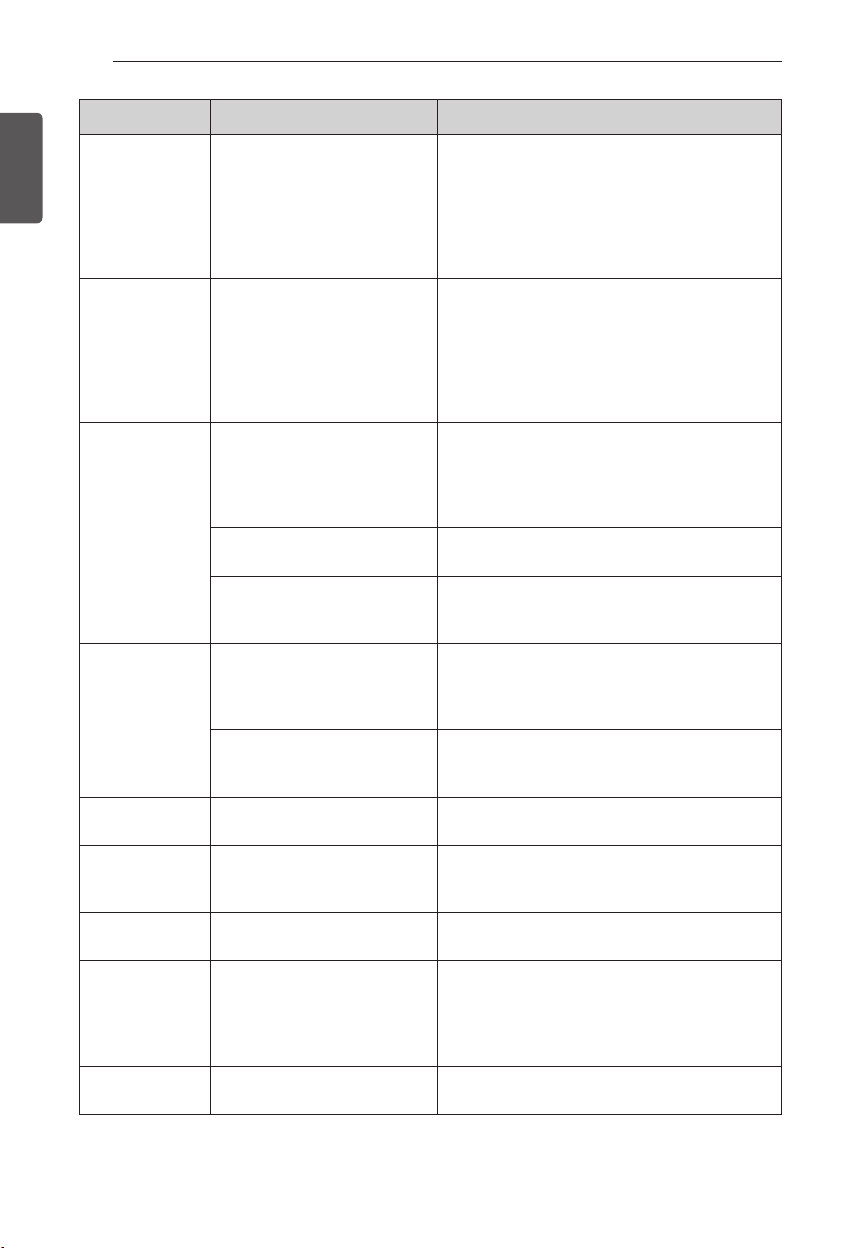
102
TROUBLESHOOTING
ENGLISH
Problem Possible Causes Solutions
Icemaker is
making too much
ice.
Icemaker shutoff (arm/sensor)
is obstructed.
Empty the ice bin. If your icemaker is equipped
with an ice shutoff arm, make sure that the arm
moves freely. If your icemaker is equipped with
the electronic ice shutoff sensor, make sure that
there is a clear path between the two sensors.
Reinstall the ice bin and wait 24 hours to confirm
proper operation.
Clicking The defrost control will click
when the automatic defrost
cycle begins and ends.
The thermostat control (or
refrigerator control on some
models) will also click when
cycling on and off.
Normal Operation
Rattling Rattling noises may come from
the flow of refrigerant, the
water line on the back of the
unit, or items stored on top of
or around the refrigerator.
Normal Operation
Refrigerator is not resting solidly
on the floor.
Floor is weak or uneven or leveling legs need to
be adjusted. See the Door Alignment section.
Refrigerator with linear
compressor was jarred while
running.
Normal Operation
Whooshing Evaporator fan motor is
circulating air through the
refrigerator and freezer
compartments.
Normal Operation
Air is being forced over the
condenser by the condenser
fan.
Normal Operation
Gurgling Refrigerant flowing through the
cooling system.
Normal Operation
Popping Contraction and expansion of
the inside walls due to changes
in temperature.
Normal Operation
Sizzling Water dripping on the defrost
heater during a defrost cycle.
Normal Operation
Vibrating If the side or back of the
refrigerator is touching a cabinet
or wall, some of the normal
vibrations may make an audible
sound.
To eliminate the noise, make sure that the sides
and back cannot vibrate against any wall or
cabinet.
Dripping Water running into the drain pan
during the defrost cycle.
Normal Operation

103
TROUBLESHOOTING
ENGLISH
Problem Possible Causes Solutions
Pulsating or
High-Pitched
Sound
Your refrigerator is designed
to run more efficiently to keep
your food items at the desired
temperature. The high efficiency
compressor may cause your
new refrigerator to run longer
than your old one, but it is still
more energy efficient than
previous models. While the
refrigerator is running, it is
normal to hear a pulsating or
high-pitched sound.
Normal Operation
Doors will not
close correctly or
pop open.
Food packages are blocking the
door open.
Rearrange food containers to clear the door and
door shelves.
Ice bin, crisper cover, pans,
shelves, door bins, or baskets
are out of position.
Push bins all the way in and put crisper cover,
pans, shelves and baskets into their correct
positions. See the Using Your Refrigerator section
for more information.
The doors were removed during
product installation and not
properly replaced.
Remove and replace the doors according to the
Removing and Replacing Refrigerator Handles
and Doors section.
Refrigerator is not leveled
properly.
See Door Alignment in the Refrigeration
Installation section to level refrigerator.
Doors are difficult
to open.
The gaskets are dirty or sticky. Clean the gaskets and the surfaces that they
touch. Rub a thin coat of appliance polish or
kitchen wax on the gaskets after cleaning.
Door was recently closed. When you open the door, warmer air enters the
refrigerator. As the warm air cools, it can create
a vacuum. If the door is hard to open, wait one
minute to allow the air pressure to equalize, then
see if it opens more easily.
Refrigerator
wobbles or
seems unstable.
Leveling legs are not adjusted
properly.
Refer to the Leveling and Door Alignment section.
Floor is not level. It may be necessary to add shims under the
leveling legs or rollers to complete installation.
Lights do not
work.
LED interior lighting failure. The refrigerator compartment lamp is LED interior
lighting, and service should be performed by a
qualified technician.
Refrigerator has
an unusual odor.
The Air Filter may need to
be set to the MAX setting or
replaced.
Set the Air Filter to the MAX setting. If the odor
does not go away within 24 hours, the filter may
need to be replaced. See the Replacing the Air
Filter section for replacement instructions.
The interior of
the refrigerator
is covered with
dust or soot.
The refrigerator is located near a
fire source, such as a fireplace,
chimney or candle.
Make sure that the refrigerator is not located near
a fire source, such as a fireplace, chimney or
candle.
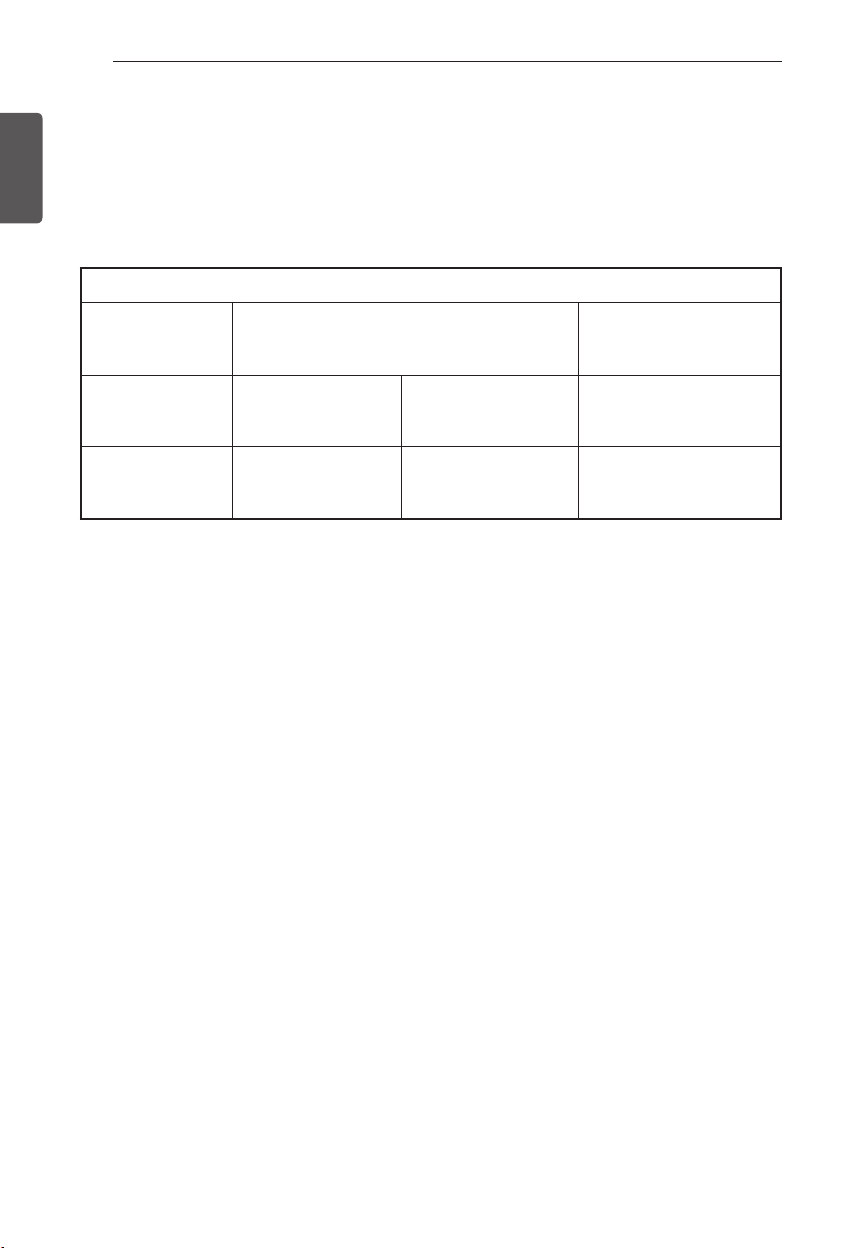
104
WARRANTY
ENGLISH
Should your LG Refrigerator (“Product”) fail due to a defect in materials or workmanship under
normal home use, during the warranty period set forth below, LG will at its option repair or replace
the product. This limited warranty is valid only to the original retail purchaser of the product and
applies only when purchased and used within the United States including U.S. Territories. Proof of
original retail purchase is required to obtain warranty service under this limited warranty.
Noises associated with normal operation and failure to follow instructions found in the use and
care and installation guides or operating the unit in an unsuitable environment will not be covered
under this warranty.
X
Replacement products and parts are warranted for the remaining portion of the original warranty
period or ninety (90) days, whichever is greater.
X
Replacement products and parts may be new or remanufactured.
THIS WARRANTY IS IN LIEU OF ANY OTHER WARRANTY, EXPRESS OR IMPLIED,
INCLUDING WITHOUT LIMITATION, ANY WARRANTY OF MERCHANTABILITY OR FITNESS
FOR A PARTICULAR PURPOSE. TO THE EXTENT ANY IMPLIED WARRANTY IS REQUIRED
BY LAW, IT IS LIMITED IN DURATION TO THE EXPRESS WARRANTY PERIOD ABOVE.
NEITHER THE MANUFACTURER NOR ITS U.S. DISTRIBUTOR SHALL BE LIABLE FOR ANY
INCIDENTAL, CONSEQUENTIAL, INDIRECT, SPECIAL, OR PUNITIVE DAMAGES OF ANY
NATURE, INCLUDING WITHOUT LIMITATION, LOST REVENUES OR PROFITS, OR ANY
OTHER DAMAGE WHETHER BASED IN CONTRACT, TORT, OR OTHERWISE.
Some states do
not allow the exclusion or limitation of incidental or consequential damages or limitations on how
long an implied warranty lasts, so the above exclusion or limitation may not apply to you. This
warranty gives you specific legal rights and you may also have other rights that vary from state
to state.
WARRANTY (USA)
WARRANTY PERIOD
Refrigerator
Sealed System
(Condenser, Dryer, Connecting Tube,
Refrigerant and Evaporator)
Linear Compressor
One (1) year from
the date of original
retail purchase
One (1) year from the
date of original retail
purchase
Seven (7) years from
the date of original
retail purchase
Ten (10) years from the
date of original retail
purchase
Parts and Labor
(internal/functional
parts only)
Parts and Labor Parts only (Consumer
will be charged for
labor)
Part only (Consumer will
be charged for labor)
105
WARRANTY
ENGLISH
For complete warranty details and customer assistance, please call or visit our website:
Call 1-800-243-0000 (24 hours a day, 365 days a year) and select the appropriate option from the
menu, or visit our website at
http://www.lg.com
Or by mail: LG Customer Information Center:
P. O. Box 240007, 201 James Record Road Huntsville, Alabama 35813 ATTN: CIC
Write your warranty information below: _______________________________________________
Product Registration Information: _____________________________________________________
Model: ____________________________________________________________________________
Serial Number: _____________________________________________________________________
Date of Purchase: __________________________________________________________________
THIS LIMITED WARRANTY DOES NOT COVER:
1. Service trips to deliver, pick up, install, or repair the product; instruct the customer on
operation of the product; repair or replace fuses or correct wiring or plumbing, or correction of
unauthorized repairs/installation.
2. Failure of product to perform during power failures and interruptions or inadequate electrical
service.
3. Damage caused by leaky or broken water pipes, frozen water pipes, restricted drain lines,
inadequate or interrupted water supply or inadequate supply of air.
4. Damage resulting from operating the product in a corrosive atmosphere or contrary to the
instructions outlined in the product owner’s manual.
5. Damage to the product caused by accidents, pests and vermin, lightning, wind, fire, floods, or
acts of God.
6. Damage resulting from misuse, abuse, improper installation, repair, or maintenance. Improper
repair includes use of parts not approved or specified by LG.
7. Damage or failure caused by unauthorized modification or alteration, or if it is used for other
than the intended purpose, or any water leakage where the unit was not properly installed.
8. Damage or failure caused by incorrect electrical current, voltage, or plumbing codes,
commercial or industrial use, or use of accessories, components, or consumable cleaning
products that are not approved by LG.
9. Damage caused by transportation and handling, including scratches, dents, chips, and/or other
damage to the finish of your product, unless such damage results from defects in materials or
workmanship and is reported within one (1) week of delivery (Call: 1-800-243-0000).
10. Damage or missing items to any display, open box, discounted, or refurbished product.
11. Products with original serial numbers that have been removed, altered, or can not be readily
determined. Model and Serial numbers, along with original retail sales receipt, are required for
warranty validation.
12. Increases in utility costs and additional utility expenses.
13. Replacement of light bulbs, filters, or any consumable parts.
14. Repairs when your product is used in other than normal and usual household use (e.g.
commercial use, offices, and recreational facilities) or contrary to the instructions outlined in
the product owner’s manual.
15. Costs associated with removal of your product from your home for repairs.
16. The removal and reinstallation of the product if it is installed in an inaccessible location or is
not installed in accordance with published installation instructions, including LG’s owner’s and
installation manuals.
17. Shelves, door bins, drawers, handles, accessories, and other parts besides those that were
originally included with this particular model.
The cost of repair or replacement under these excluded circumstances shall be borne
by the consumer.
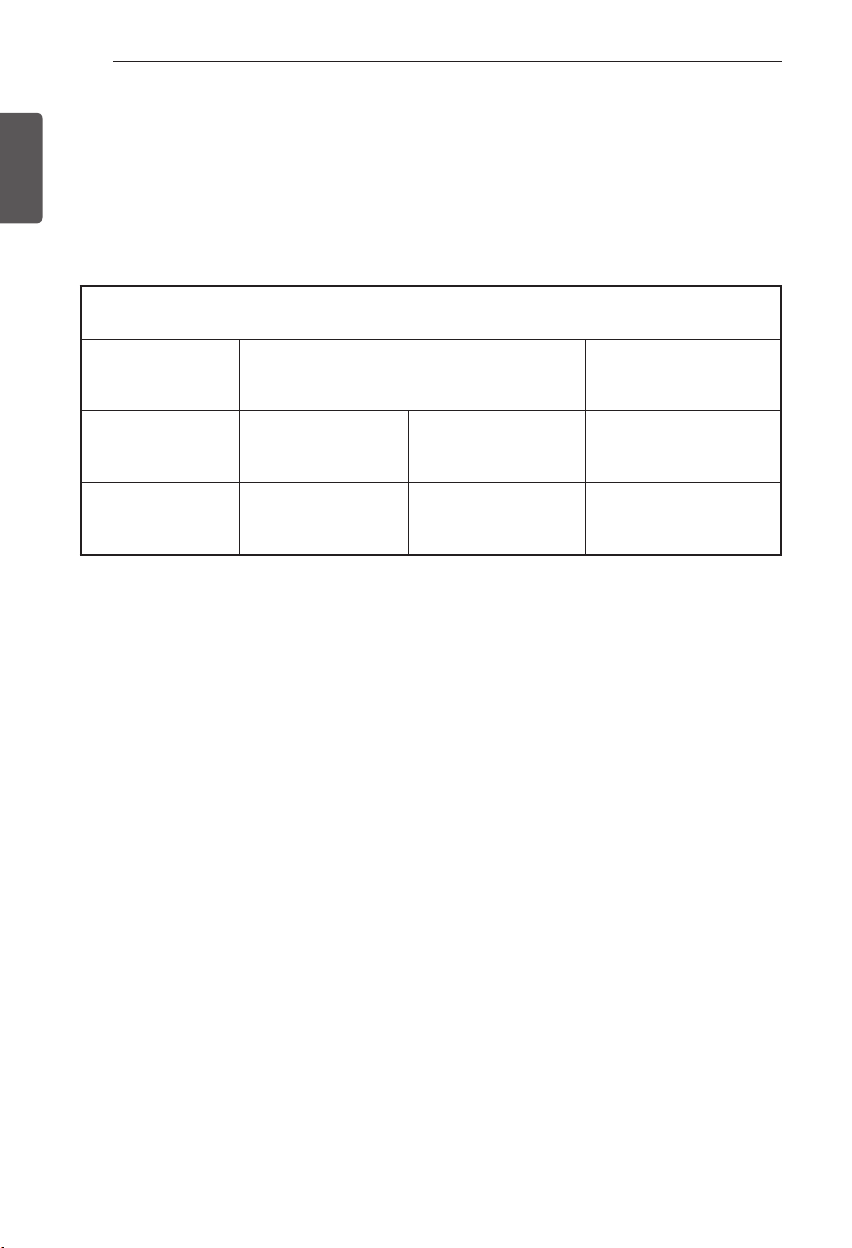
106
WARRANTY
ENGLISH
WARRANTY (Canada)
WARRANTY
: Should your LG Refrigerator (“Product”) fail due to a defect in material or workmanship
under normal home use during the warranty period set forth below, LG Canada will at its option
repair or replace the Product upon receipt of proof of original retail purchase. This warranty is valid
only to the original retail purchaser of the product and applies only to a Product distributed in Canada
by LG Canada or an authorized Canadian distributor thereof. The warranty only applies to Products
located and used within Canada.
Noises associated with normal operation and failure to follow instructions found in the use and care
and installation guides or operating the unit in an unsuitable environment will not be covered under
this warranty.
X
Replacement products and parts are warranted for the remaining portion of the original warranty
period or ninety (90) days, whichever is greater.
X
Replacement products and parts may be new or remanufactured.
X
LG Authorized Service Center warranties their repair work for thirty (30) days.
LG CANADA’S SOLE LIABILITY IS LIMITED TO THE WARRANTY SET OUT ABOVE. EXCEPT
AS EXPRESSLY PROVIDED ABOVE, LG CANADA MAKES NO AND HEREBY DISCLAIMS
ALL OTHER WARRANTIES AND CONDITIONS RESPECTING THE PRODUCT, WHETHER
EXPRESS OR IMPLIED, INCLUDING, BUT NOT LIMITED TO, ANY IMPLIED WARRANTY OR
CONDITION OF MERCHANTABILITY OR FITNESS FOR A PARTICULAR PURPOSE, AND
NO REPRESENTATIONS SHALL BE BINDING ON LG CANADA. LG CANADA DOES NOT
AUTHORIZE ANY PERSON TO CREATE OR ASSUME FOR IT ANY OTHER WARRANTY
OBLIGATION OR LIABILITY IN CONNECTION WITH THE PRODUCT. TO THE EXTENT THAT
ANY WARRANTY OR CONDITION IS IMPLIED BY LAW, IT IS LIMITED TO THE EXPRESS
WARRANTY PERIOD ABOVE. LG CANADA, THE MANUFACTURER OR DISTRIBUTOR SHALL
NOT BE LIABLE FOR ANY INCIDENTAL, CONSEQUENTIAL, SPECIAL, DIRECT OR INDIRECT
DAMAGES, LOSS OF GOODWILL, LOST PROFITS, PUNITIVE OR EXEMPLARY DAMAGES
OR ANY OTHER DAMAGE, WHETHER ARISING DIRECTLY OR INDIRECTLY FROM ANY
CONTRACTUAL BREACH, FUNDAMENTAL OR OTHERWISE, OR FROM ANY ACTS OR
OMISSIONS, TORT, OR OTHERWISE.
This warranty gives you specific legal rights. You may
have other rights which may vary from province to province depending on applicable provincial
laws. Any term of this warranty that negates or varies any implied condition or warranty under
provincial law is severable where it conflicts with provincial law without affecting the remainder
of this warranty’s terms.
WARRANTY PERIOD:
(Note: If the original date of purchase can not be verified,
the warranty will begin sixty (60) days from the date of manufacture)
Refrigerator/
Freezer
Sealed System
(Condenser, Dryer, Connecting Tube,
Refrigerant and Evaporator)
Linear Compressor
One (1) year from
the date of original
retail purchase
One (1) year from
the date of original
retail purchase
Seven (7) years from
the date of original
retail purchase
Ten (10) years from the
date of original retail
purchase
Parts and Labor
(internal/functional
parts only)
Parts and Labor Parts only (Consumer
will be charged for
labor)
Part only (Consumer will
be charged for labor)
107
WARRANTY
ENGLISH
For complete warranty details and customer assistance, please call or visit our website:
Call 1-888-542-2623 (24 hours a day, 365 days a year) and select the appropriate option from the
menu, or visit our website at
http://www.lg.com
Write your warranty information below: _________________________________________________
Product Registration Information: _______________________________________________________
Model: ______________________________________________________________________________
Serial Number: _______________________________________________________________________
Date of Purchase: ____________________________________________________________________
THIS LIMITED WARRANTY DOES NOT COVER:
1. Service trips to deliver, pick up, or install the product; instructing a customer on operation of
the product; repair or replacement of fuses or correction of wiring or plumbing, or correction of
unauthorized repairs/installation.
2. Failure of the product to perform during power failures and interruptions or inadequate
electrical service.
3. Damage caused by leaky or broken water pipes, frozen water pipes, restricted drain lines,
inadequate or interrupted water supply or inadequate supply of air.
4. Damage resulting from operating the Product in a corrosive atmosphere or contrary to the
instructions outlined in the Product owner’s manual.
5. Damage to the Product caused by accidents, pests and vermin, lightning, wind, fire, floods, or
acts of God.
6. Damage resulting from the misuse, abuse, improper installation, repair, or maintenance of the
Product. Improper repair includes use of parts not approved or specified by LG Canada.
7. Damage or product failure caused by unauthorized modification or alteration, or use for other
than its intended purpose, or resulting from any water leakage due to improper installation.
8. Damage or Product failure caused by incorrect electrical current, voltage, or plumbing codes,
commercial or industrial use, or use of accessories, components, or cleaning products that are
not approved by LG Canada.
9. Damage caused by transportation and handling, including scratches, dents, chips, and/or other
damage to the finish of your product, unless such damage results from defects in materials or
workmanship and is reported within one (1) week of delivery.
10. Damage or missing items to any display, open box, discounted, or refurbished Product.
11. Products with original serial numbers that have been removed, altered, or cannot be readily
determined. Model and Serial numbers, along with original retail sales receipt, are required for
warranty validation.
12. Increases in utility costs and additional utility expenses.
13. Replacement of light bulbs, filters, or any consumable parts.
14. Repairs when your Product is used in other than normal and usual household use (including,
without limitation, commercial use, in offices or recreational facilities) or contrary to the
instructions outlined in the Product owner’s manual.
15. Costs associated with removal of the Product from your home for repairs.
16. The removal and reinstallation of the Product if it is installed in an inaccessible location or is not
installed in accordance with published installation instructions, including the Product owner’s
and installation manuals.
17. Shelves, door bins, drawers, handles, and accessories to the Product. Also excluded are parts
besides those that were originally included with the Product.
All costs associated with the above excluded circumstances
shall be borne by the consumer.
108
OPEN SOURCE SOFTWARE NOTICE
ENGLISH
Open Source Software Notice
To obtain the source code under GPL, LGPL, MPL and other open
source licenses, that is contained in this product, please visit
http://opensource.lge.com .
In addition to the source code, all referred license terms, warranty
disclaimers and copyright notices are available for download.
LG Electronics will also provide open source code to you on
CD-ROM for a charge covering the cost of performing such
distribution (such as the cost of media, shipping and handling)
upon email request to [email protected]. This offer is valid for
three (3) years from the date on which you purchased the product.


1-800-243-0000
1-888-865-3026
1-888-542-2623
USA, Consumer User
USA, Commercial User
CANADA
For inquires or comments,
visit www.lg.com or call;
www.lg.com
Register your product Online!
LG Customer Information Center