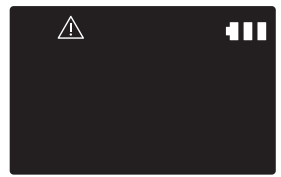
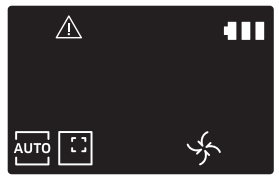
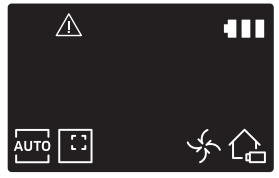
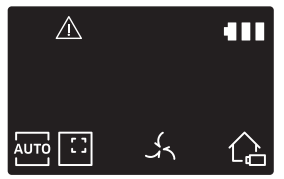
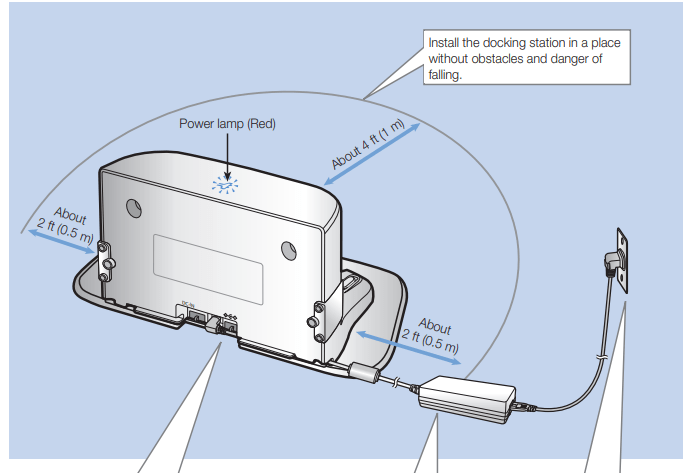
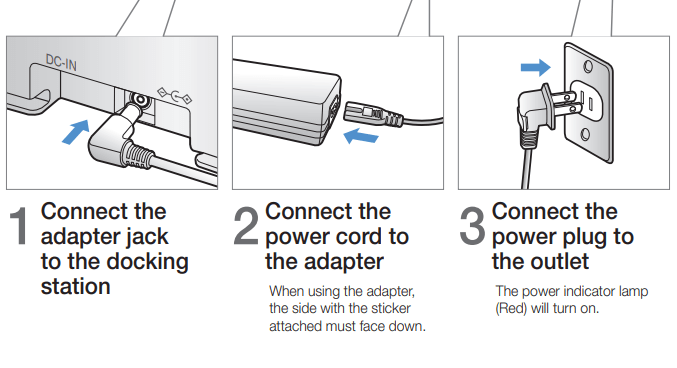
The docking station must be plugged in and turned on at all times
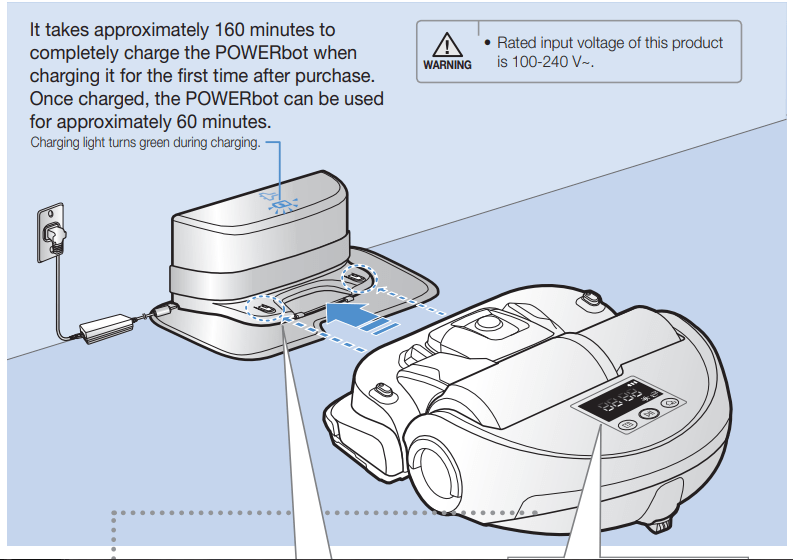
Charging
Automatic charging
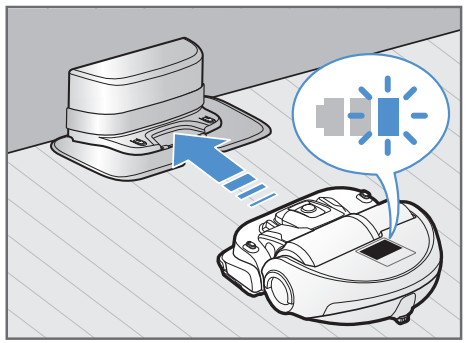
When the battery indicator blinks during cleaning, the POWERbot will return to the docking station to charge itself automatically
Recharging
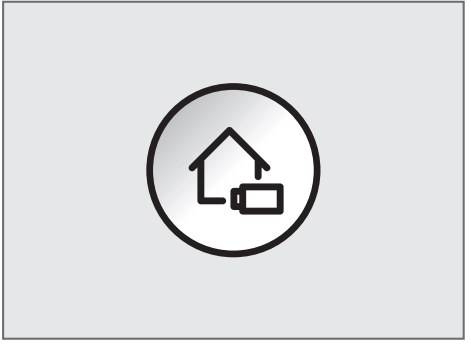
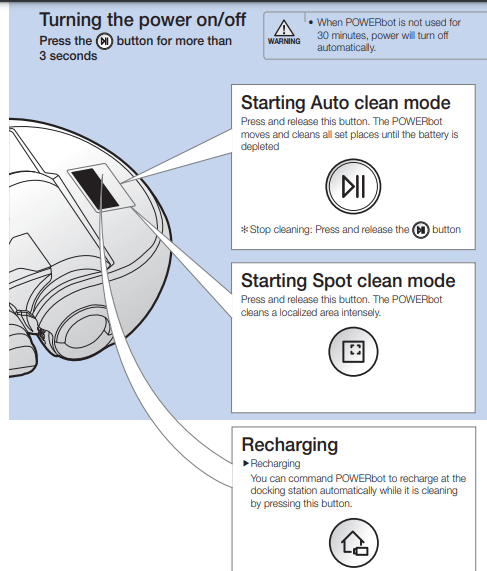
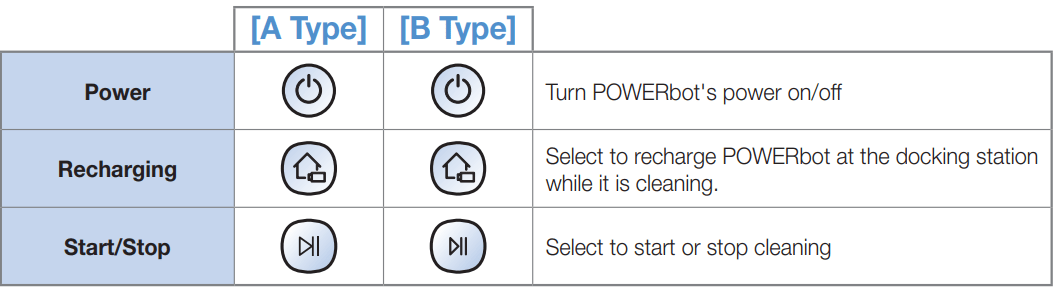
You can command the POWERbot to recharge at the docking station while it is in cleaning.
Low battery
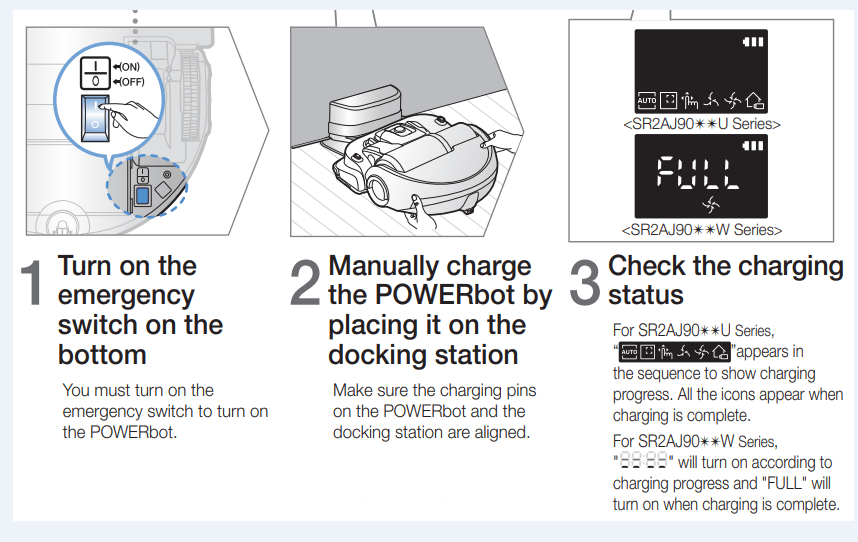
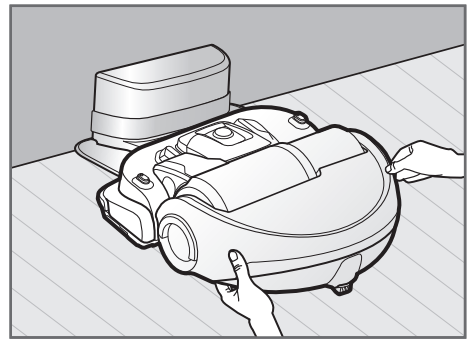
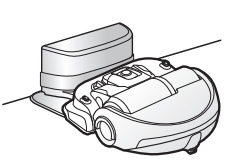
Manually charge the POWERbot by placing it on the docking station.
Steps to take if recharging not occurring:
Check the installation status of the docking station when:
The docking station is located in a place where the POWERbot cannot easily access it.
The distance between the docking station and POWERbot is over 16.5 ft (5 m).
It may take a long time for POWERbot to return to the docking station for recharging
Manually charge the POWERbot when:
The docking station is located in a corner
The battery is fully exhausted
The POWERbot is immobilized by an obstacle (furniture etc.)
The POWERbot can't climb a threshold near the docking station (The maximum height of a threshold the POWERbot can climb is about 0.6 inches (1.5 cm).)
The battery indicator blinks
The POWERbot is set to the Spot clean or Manual clean mode
Using POWERbot
You must turn on the emergency switch on the bottom of the unit before using POWERbot.
Selecting cleaning modes
Cleaning mode
How to select
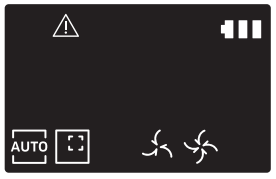
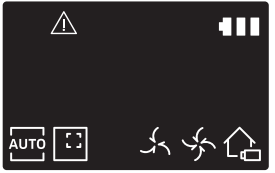
Displayed icon
SR2AJ90✴✴U Series
SR2AJ90✴✴W Series
Auto clean
Spot clean
Manual clean
✻ The movement and direction of the POWERbot is controlled by the remote control.
✻ When the POWERbot is being charged, you can select the Auto clean mode only.
✻ If the POWERbot fails to return to the charger, it will be turned into the sleep mode. Then the display panel of the main body will be turned off. Press [Start/Stop] or [Power] button to cancel the sleep mode.
✻ Charging and cleaning times may differ according to conditions of use.
Cleaning method for each modes
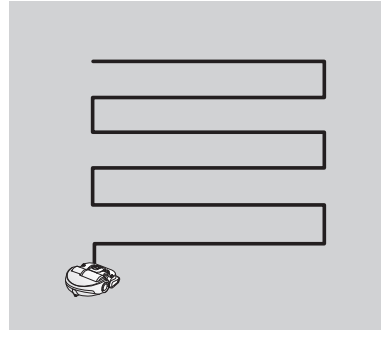
Auto clean
Cleans all set places until the battery is depleted.
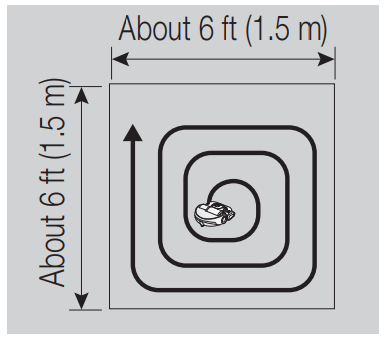
Spot clean
Cleans a localized area intensely. It can be used to clean bread or cookie crumbs.
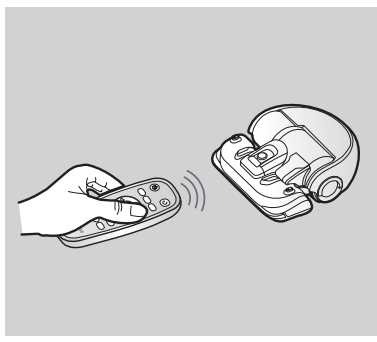
Manual clean
You can control the POWERbot with the remote control and direct it to clean a desired spot
Using Energy-saving mode
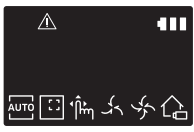
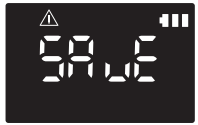
You may select the Energy-saving mode to save energy during battery charging. Energy-saving mode turns off all functions except battery charging. It reduces the power consumption while you are away from home for an extended period of time
How to select or cancel
Displayed icon
SR2AJ90✴✴U Series
SR2AJ90✴✴W Series
Press for 5 sec.
✻ About 3 seconds later, the previous indicator will appear.
✻ When the POWERbot is in the Energy-saving mode, the green lamp of the docking station will blink.
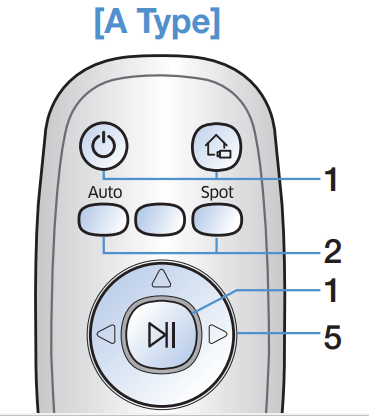
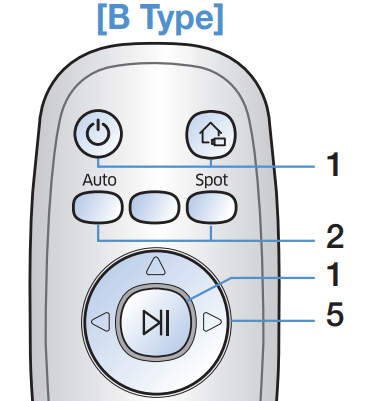
Using the remote control
1. Power/Recharging
2. Cleaning modes
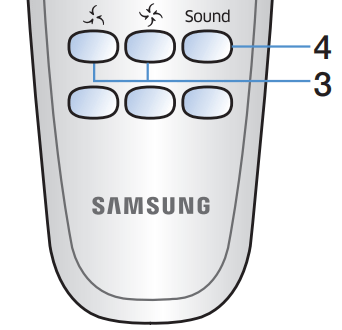
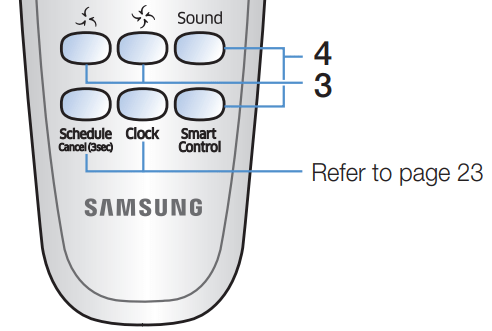
3. Suction modes
4. Additional functions
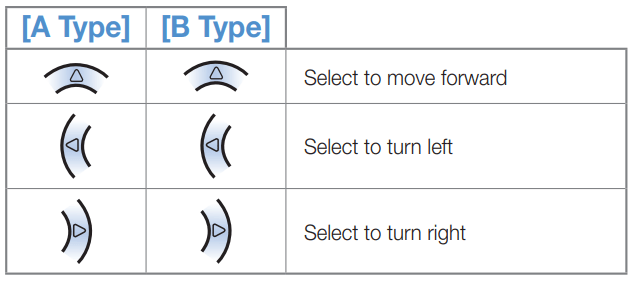
5. Direction control
✻ Moving backward is not available
Inserting batteries
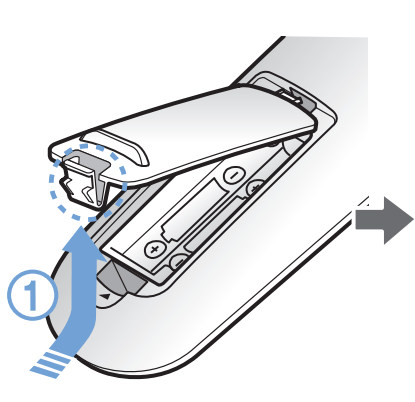
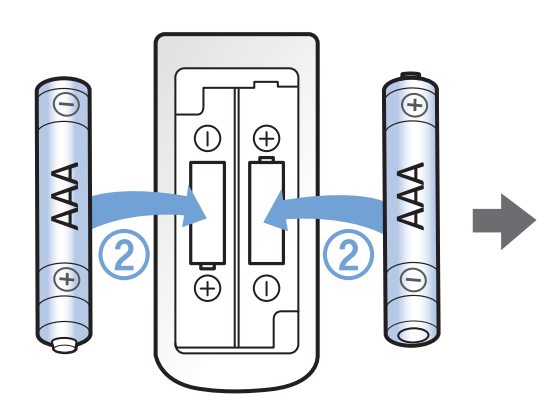
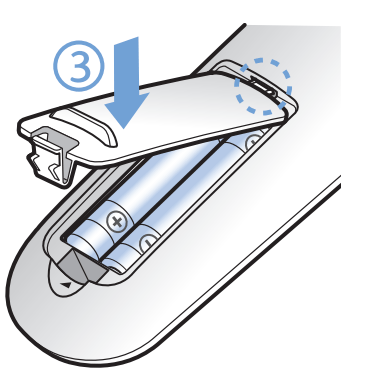
Open the battery cover by lifting it up while pressing the locking tab, and then insert the batteries as shown in the illustration. Then, close the cover until it clicks into place.
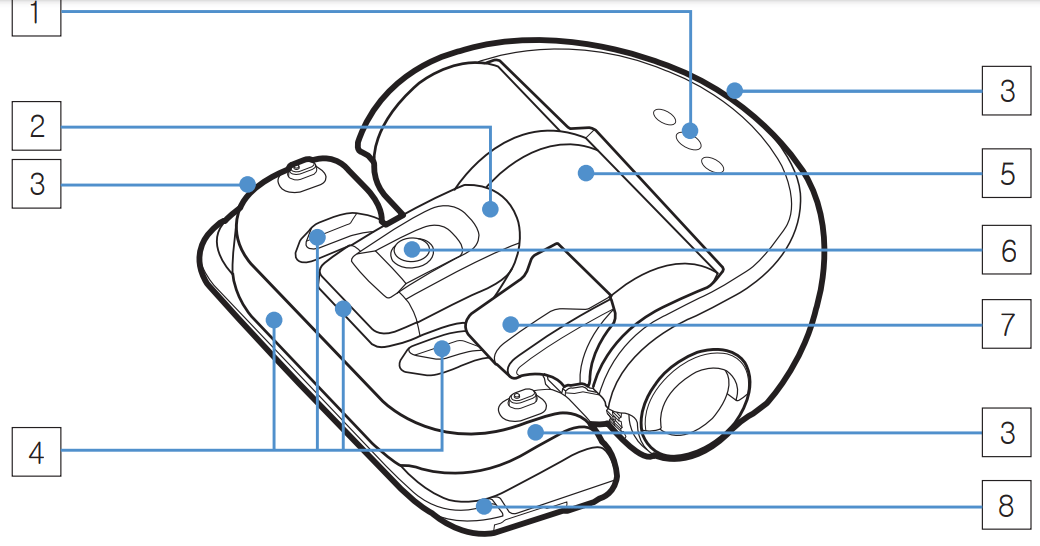
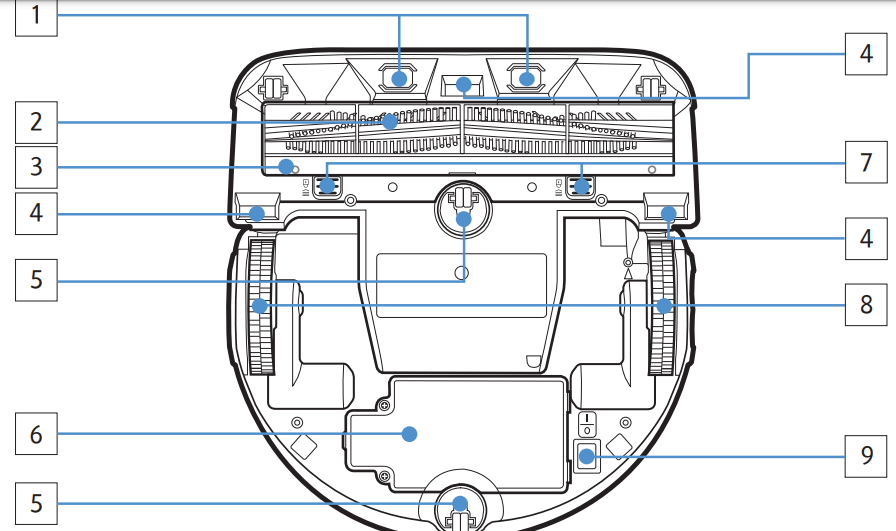
Name of each part
Top
1. Display panel
2. Dustbin holder
3. Remote control signal receiver
4. Obstacle sensor
5. Dustbin
6. Camera
7. Dustbin handle
8. Bumper sensor
Bottom
1. Charge pins
2. Pet brush
3. Pet brush cover
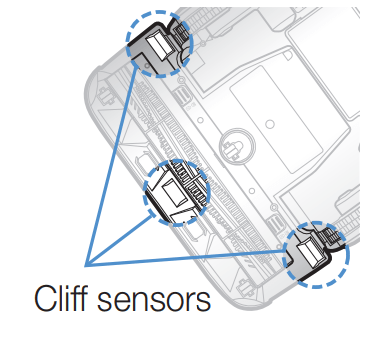
4. Cliff sensor
5. Roller
6. Battery cover
7. Pet brush cover button
8. Driving wheel
9. Emergency switch
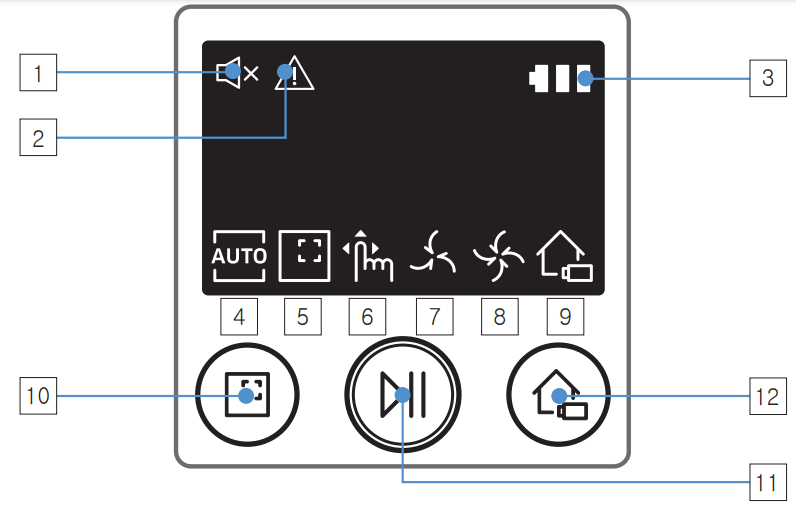
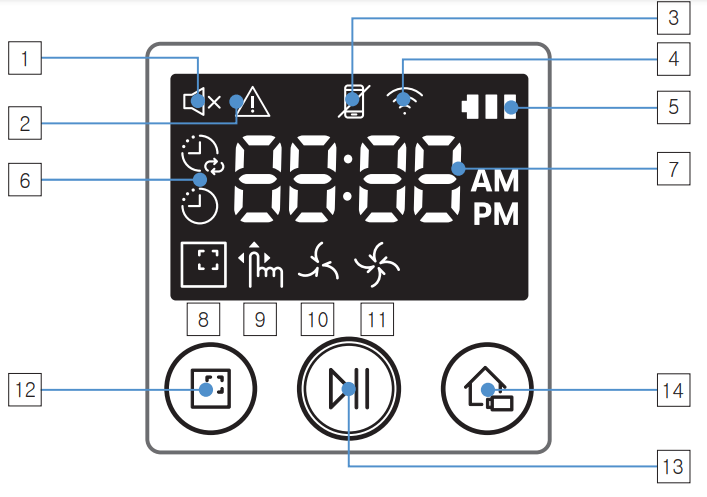
Display panel
SR2AJ90✴✴U Series
1. Mute
2. Information indicator
3. Battery indicator
4. Auto clean
5. Spot clean
6. Manual clean
7. Silence mode
8. Normal mode
9. Recharging
10. Spot cleaning button
11. Start/Stop button
12. Recharging button
SR2AJ90✴✴W Series
1. Mute
2. Information indicator
3. Smart Control
4. Wi-Fi indicator
5. Battery indicator
6. One-time/Daily schedule
7. Number display
8. Spot clean
9. Manual clean
10. Silence mode
11. Normal mode
12. Spot cleaning button
13. Start/Stop button
14. Recharging button
Cleaning and maintaining
Cleaning the dustbin
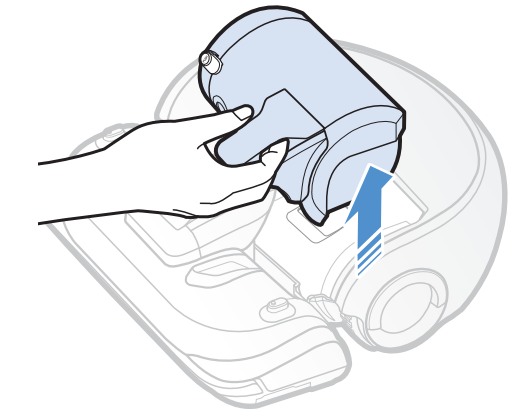
1. Remove the dustbin
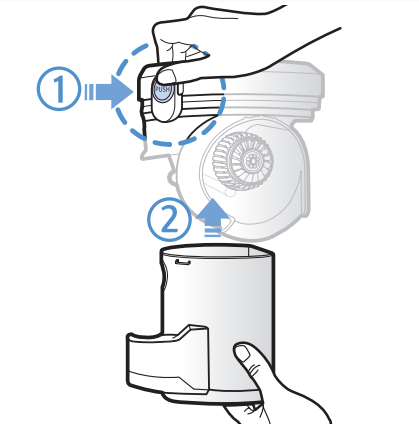
2. Remove the dustbin cover
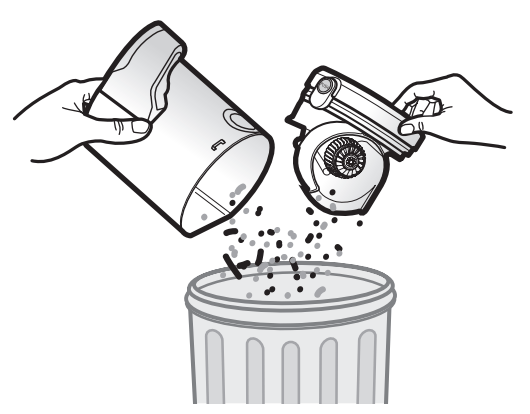
3. Remove dust in the dustbin and cyclone unit
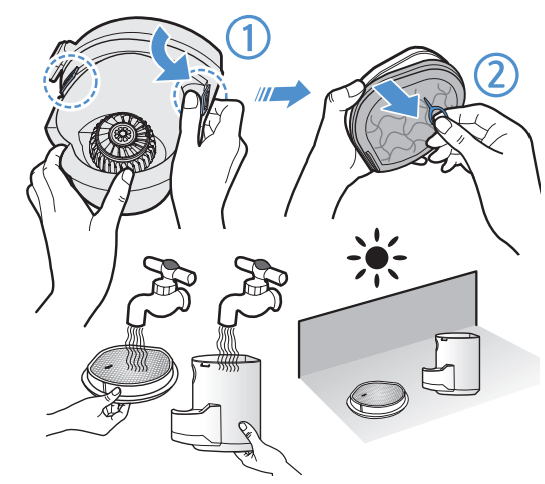
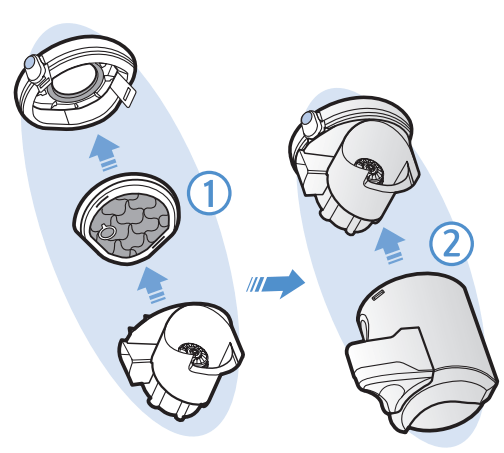
4. Detach the cyclone unit from the dustbin cover, and then wash the dustbin and the filter
5. Reassemble the dustbin
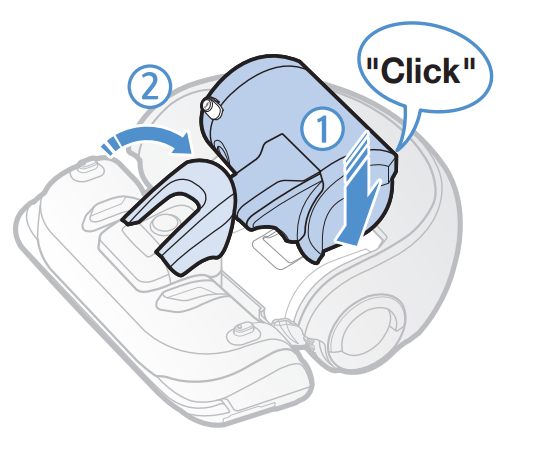
6. Reinsert the dustbin into the main body until it clicks
Cleaning the sensors and the camera
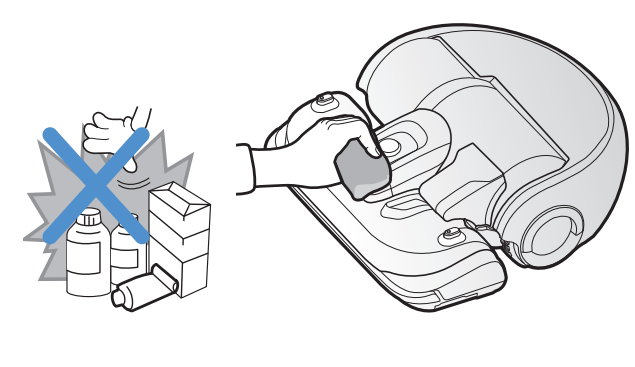
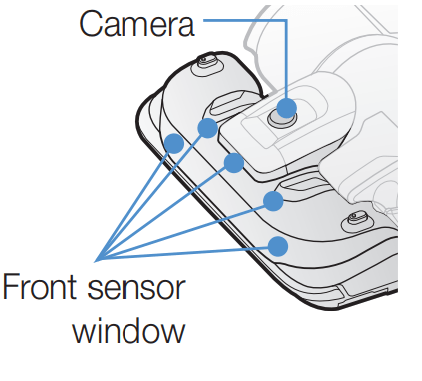
Lightly wipe with soft cloth. Do not use water or cleaning solutions.
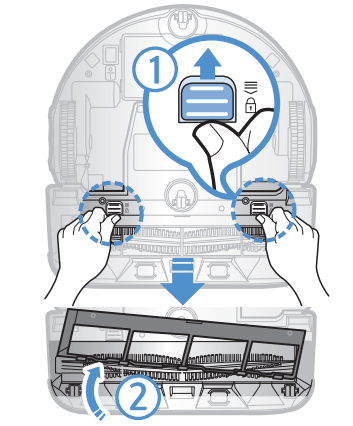
Cleaning the Pet brush
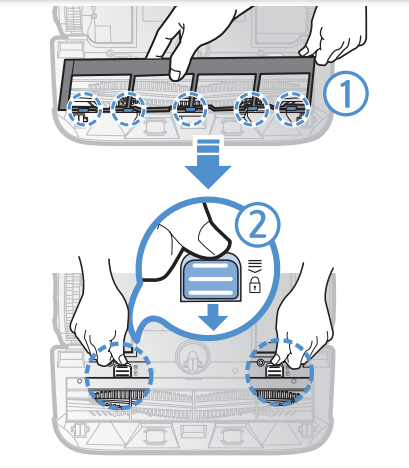
1. Remove the Pet brush cover
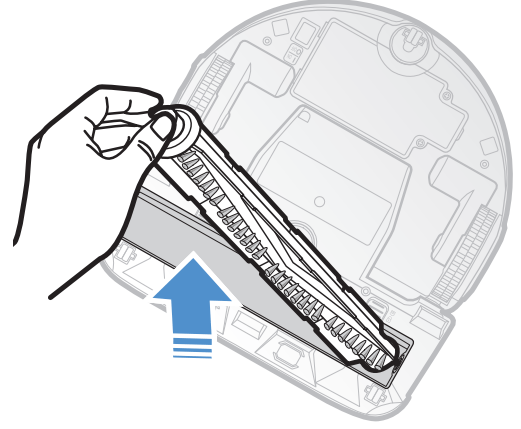
2.. Remove the Pet brush
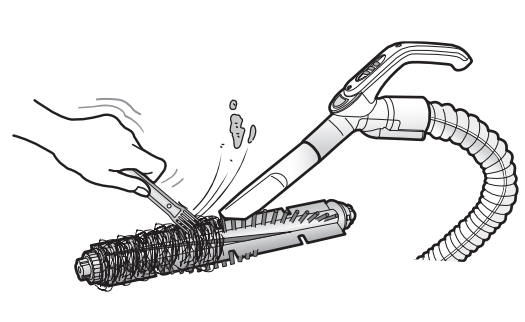
3. Clean the Pet brush
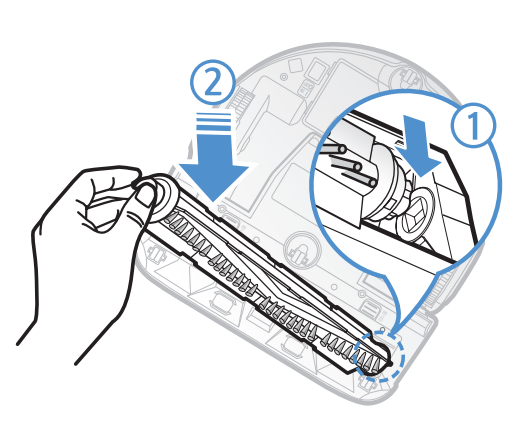
4. Reassemble the Pet brush
5. Reassemble the Pet brush cover
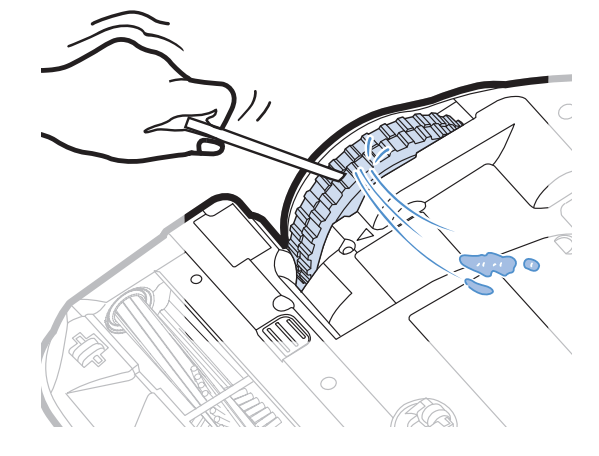
Cleaning the Driving wheel
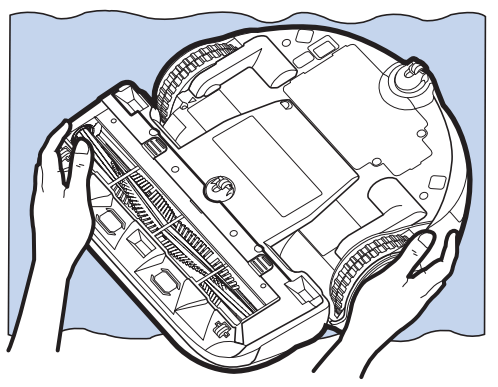
1. Put a soft cloth on the floor and place POWERbot upside-down on the cloth.
2. Use a blunt rod or tweezers to remove foreign matter
Setting time/schedule
This function is only available for SR2AJ90✴✴W Series.
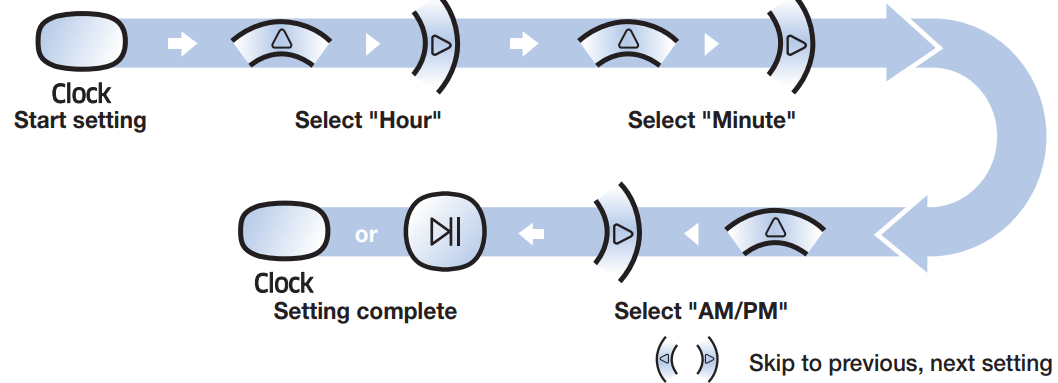
Setting the time
You must set the current time before using the One-time/daily schedule
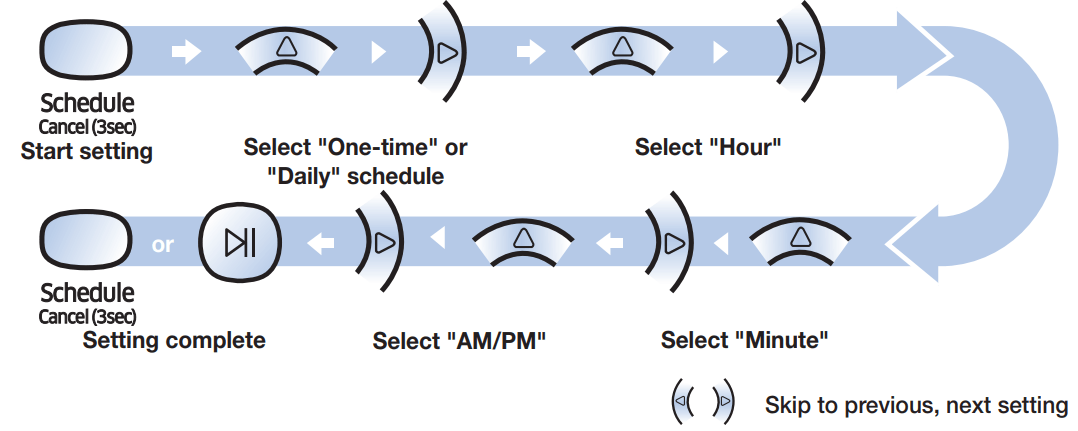
Setting the schedule
Setting/canceling the schedule can only be done while POWERbot is docked on the charger.
Canceling during setup
Setting will be canceled automatically when there's no input for 1 minute.
Cancelling One-time/Daily Schedule
When both One-time/ Daily schedule is set
When either one of One-time or Daily schedule is set
Notes and cautions
Charging
If the battery overheats during charging, it may take longer to charge.
When automatic charging is not working, do the following:
– Turn the emergency switch (on the bottom of POWERbot) off and on again.
– Unplug the docking station's power plug and then plug it back on.
– Unplug the docking station, and then check whether there is any foreign matter on the charge pins and clean POWERbot and the charge pins of the docking station with a dry cloth or rag.
– Check for any obstacles such as reflective objects, chairs, etc. near the docking station.
If POWERbot is left detached from the docking station, the battery will drain naturally.
– Try to keep POWERbot being charged on the docking station. (However, turn off the emergency switch and leave the docking station unplugged when planning to leave the house for long periods of time by going on a business trip or vacation, etc.)
In use
The POWERbot may get caught on thresholds, etc. during cleaning.
– To restart operation, shut off the emergency switch, move the POWERbot to an area where it can move easily, and then turn on the power again.
The POWERbot cannot completely clean areas it cannot enter, such as corners, between the wall and sofa, etc.
– Please use another cleaning tool to clean them regularly. f The POWERbot cannot vacuum clumps of dirt, so some may remain on the floor after cleaning.
– Please use another cleaning tool to clean them regularly.
If the battery becomes low during Auto clean mode, POWERbot will recharge and finish cleaning the remaining area after recharging. (Repeat cleaning frequency: 1 time)
You cannot select and have the POWERbot execute Spot/Manual clean mode while it is charging.
Do not unnecessarily move the POWERbot or press buttons while it is in Auto clean mode. It assumes that cleaning is complete and starts cleaning again from the beginning.
Close doors before cleaning with the POWERbot. The POWERbot can enter rooms through thresholds even though the thresholds are below 1.9 in (5 cm)
Try not to use the POWERbot at areas near slides, indoor swing, pots, fireplaces, or places with flame or moisture.
– If not, it may cause the loss of property
Do not lie down around the POWERBOT that is running.
– Your hair may be caught in the Pet brush, resulting in physical injury
Cleaning and maintenance
If you washed the dustbin and filter with water
– Dustbin: Completely wipe out the water.
– Filter: Completely dry it in the shade before using.
Purchase a filter at authorized Samsung service centers if you need more filters.
Watch your fingers when attaching or detaching the filter, since they may get stuck in the dustbin's intake.
To avoid blockages by foreign matter, do not let the POWERbot vacuum up toothpicks, cotton swabs etc.
If it is difficult to remove foreign matter from the Pet brush, contact an authorized Samsung service center.
Since the Pet brush removes dirt from the floor during cleaning, foreign matter such as thread, long hair, etc. may get caught in it. For the best cleaning results, check and clean it regularly
About the battery
Purchase batteries at authorized Samsung service centers and check for the genuine part symbol (SAM SUNG ) and model name before purchasing.
This battery is exclusively for the Samsung Electronics POWERbot. Do not use it for any other product.
Do not disassemble or modify the battery. f Do not throw the battery out in the fire or heat it.
Do not connect any metallic object to the charging contacts (+, -).
Store the battery indoors (at 32 °F~104 °F).
If the battery malfunctions, do not disassemble it yourself. Contact your nearest Samsung service center.
Battery charging time and usage time may decrease the more the battery is used. If the battery’s lifespan has been exceeded and it no longer charges properly, have it replaced at a Samsung service center.
The battery warranty period is 6 months from the date of purchase.
Information codes
SR2AJ90✴✴U Series
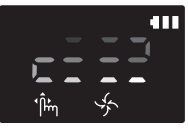
Information codes
Checklist
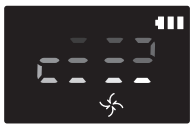
The POWERbot is caught, stuck, trapped or lifted while moving around.
Turn off the emergency switch and move the POWERbot to another area.
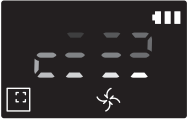
Foreign matter caught in the Power brush.
Turn off the emergency switch and remove the foreign matter from the Power brush.
Foreign matter caught in the left Driving wheel.
Turn off the emergency switch and remove the foreign matter from the Driving wheel
Foreign matter caught in the right Driving wheel.
Turn off the emergency switch and remove the foreign matter from the Driving wheel.
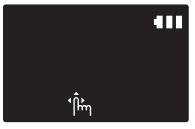
Bumper sensor needs to be checked.
Turn off the emergency switch and turn it back on.
Contact a service center if information code does not disappear.
Foreign matter accumulated on the obstacle sensor.
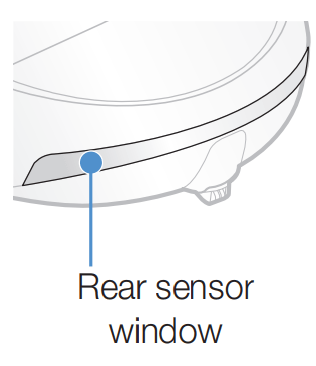
Turn off the emergency switch and clean the front and rear sensor with a soft cloth.
Foreign matter accumulated on the cliff sensor.
Turn off the emergency switch and clean the cliff sensor with a soft cloth.
SR2AJ90✴✴W Series
Information codes
Checklist
The POWERbot is caught, stuck or trapped while moving around.
Turn off the emergency switch and move the POWERbot to another area.
Foreign matter caught in the Power brush.
Turn off the emergency switch and remove the foreign matter from the Power brush.
Foreign matter caught in the left Driving wheel.
Turn off the emergency switch and remove the foreign matter from the Driving wheel.
Foreign matter caught in the right Driving wheel.
Turn off the emergency switch and remove the foreign matter from the Driving whee
Bumper sensor needs to be checked.
Turn off the emergency switch and turn it back on.
When information code does not disappear, check if there's any small foreign matter between the bumper and the main body. If there is, pull the bumper slightly and remove the foreign matter.
Foreign matter accumulated on the obstacle sensor.
Turn off the emergency switch and clean the front and rear sensor with a soft cloth.
Foreign matter accumulated on the cliff sensor.
Turn off the emergency switch and clean the cliff sensor with a soft cloth.
Troubleshooting
Symptom
Checklist
The POWERbot is not working at all.
Check if the emergency switch is on.
Check if all the icons are displayed on the display panel.
Check if the POWERbot's battery is depleted.
Replace the batteries (AAA type) if the remote controller is not working.
The POWERbot has stopped during cleaning
When POWERbot is immobilized by an obstacle such as a cord, threshold, etc, pick it up and move it away from the obstacle.
– If any fabric or string is caught in a drive wheel, turn off the emergency switch and remove the fabric or string before using it again.
Suction power is weak.
When there's too much dust in the dustbin, suction power may get weakened. Turn off the emergency switch and empty the dustbin.
If the intake (on bottom of POWERbot) is blocked by foreign matter, turn off the emergency switch and remove foreign matter from the intake.
When noise suddenly increases, turn off the emergency switch and empty the dustbin.
If the dustbin is assembled incorrectly, suction power may get weakened. Turn off the emergency switch and refer to page 21 for reassembling.
The POWERbot cannot find the docking station.
Check if there's a power failure or whether the power plug is unplugged.
Remove any obstacles around the docking station that may prevent POWERbot from returning to the docking station.
When there's foreign matter on the charge pins, charging can be affected. Clean the foreign matter off the pins.
The POWERbot suddenly cleans diagonally
Check if the docking station is installed along the grain of wooden floors or tiles.
The POWERbot may clean in a diagonal direction if it is moving to another area using the shortest route. It may also move at a diagonal if it made contact with obstacles at that angle, if it was charged at the charger at an angle, or if the grain of the wooden/tile floor skewed is in that direction
POWERbot does not clean a certain area.
Check if the charger is installed near a narrow passage or door, and reinstall it in the other areas.
– If the charger is installed near a narrow passage or door, the POWERbot cannot pass through the passage or threshold.
I have installed the Samsung Smart Home app, but, the POWERbot fails to be connected.
You can use the product after connecting the wireless router and the POWERbot through Easy-Setup according to the procedure.
I fail to log into the Samsung account.
Check your ID and password on the screen of the Samsung account.
There appears a message saying there is a failure during Easy-Setup.
You may have failed temporarily due to the distance from the wireless router or other obstacles. Please try again after a while.
The products do not work even though the smart phone is normally connected to the POWERbot
Turn off the Samsung Smart Home app and then run it again, or disconnect the smartphone from the wireless router and then connect it again. Or turn off the power supply of the POWERbot, turn it on, wait for a minute or longer, and then run the Smart Home app again.
The functions of the Samsung Smart Home App do not work.
Check if the Smart control blocking function of the POWERbot is set. (If the WiFi indicator is turned off, the Smart control is locked.)
The Samsung Smart Robot Vacuum App fails to get started.
Check if the POWERbot is connected to the wireless router
POWERbot is not connected to Wi-Fi.
Check the setting status of the wireless router.
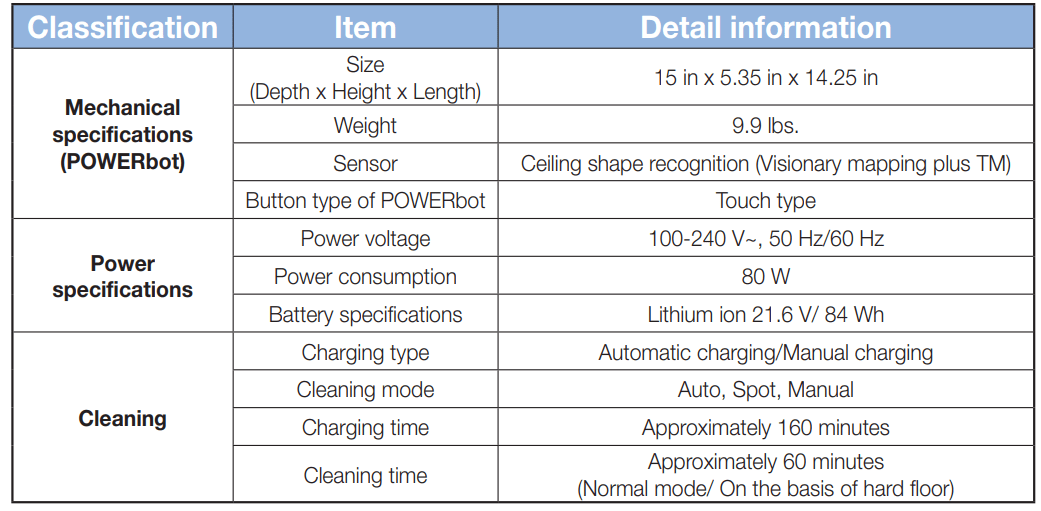
Specifications
✻ Charging and cleaning times may differ according to conditions of use.
✻ This vacuum cleaner is compliant with the following regulations:










 Setting will be canceled automatically when there's no input for 1 minute.