LED
Display Users Guide
Class
L
T-32N386A
32
SOURC E

CONTENTS
1
1. W
arning and Precautions ............................................................................
2. Important Safety Instructions ......................................................................
3. Connection and Preparation of TV...............................................................
3.1 Accessories ...........................................................................................
3.2 Installation of Stand ..............................................................................
3.3 Keys and Interfaces ..............................................................................
3.4 Remote Control .....................................................................................
3.5 Installation of Batteries .........................................................................
4. Basic Operation ..........................................................................................
4.1 Power ON/OFF(Optional) ....................................................................
4.2 Setting of Standby Mode ......................................................................
4.3 Selection of Input Mode ........................................................................
4.4 Menu Option Adjustment .....................................................................
4.5 Auto Installation ...................................................................................
4.6 Menu Functions ...................................................................................
4.6.1 PICTURE Function .....................................................................
4.6.2 Sound Menu ...............................................................................
4.6.3 TV Channel ................................................................................
4.6.4 Feature Function Description......................................................
4.6.5 Setup Menu ................................................................................
4.7 Multimedia ...........................................................................................
4.7.1 MEDIA Function .........................................................................
4.7.2 USB Function .............................................................................
1. PHOTO ....................................................................................
2. MUSIC .....................................................................................
3. MOVIE......................................................................................
4. eBook.......................................................................................
4.8 EPG / PVR / Timeshift .........................................................................
5. Technical Specification ..............................................................................
6. Supported Signal Modes ...........................................................................
7. Troubleshooting .........................................................................................
2
3
6
6
6
7
9
10
10
10
10
10
11
12
13
14
15
15
19
22
23
23
24
24
26
27
28
29
45
46
47
2.
2.
5
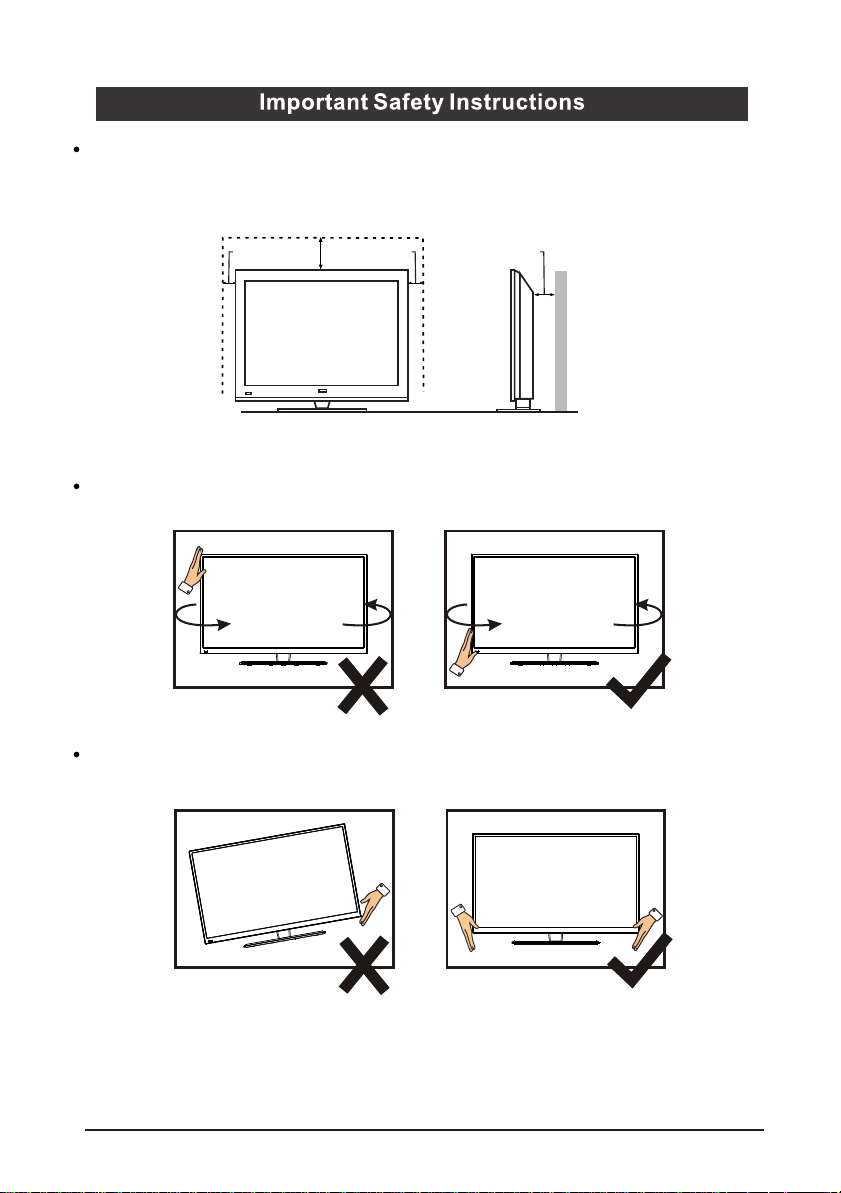
Place the TV on a firm and flat surface, leaving a space of at least 10cm around
the set and 30cm from the top of the set to the wall or cabinet. Ensure the TV is
positioned close to the wall to avoid it falling if pushed.
10cm 30cm 10cm 10cm
When turning the TV set, do not hold the top side. Always hold the bottom.
When lifting the TV set, do not use one hand to handle it. Always use two
hands.
2.
6
1
2
3
3.Connection and Preparation of TV
3.1 Accessories
User Manual
Remote Control
Battery(2 x AAA)
3.2 Installation of Stand
2 x Legs
4 x Leg Screws
Place a soft cloth on a table and place the TV face down on it. This is to prevent
the panel from being damaged.
(DTV) (Smatr)
(Big Head Machine Screw)
Screw Qty: 4PCS
Screw Size: BM4x10
Align each leg to the screw holes on the back of the TV.
Insert the 4 x provided screws (2 for each leg) and tighten them.
3.3 Keys and Interfaces
7
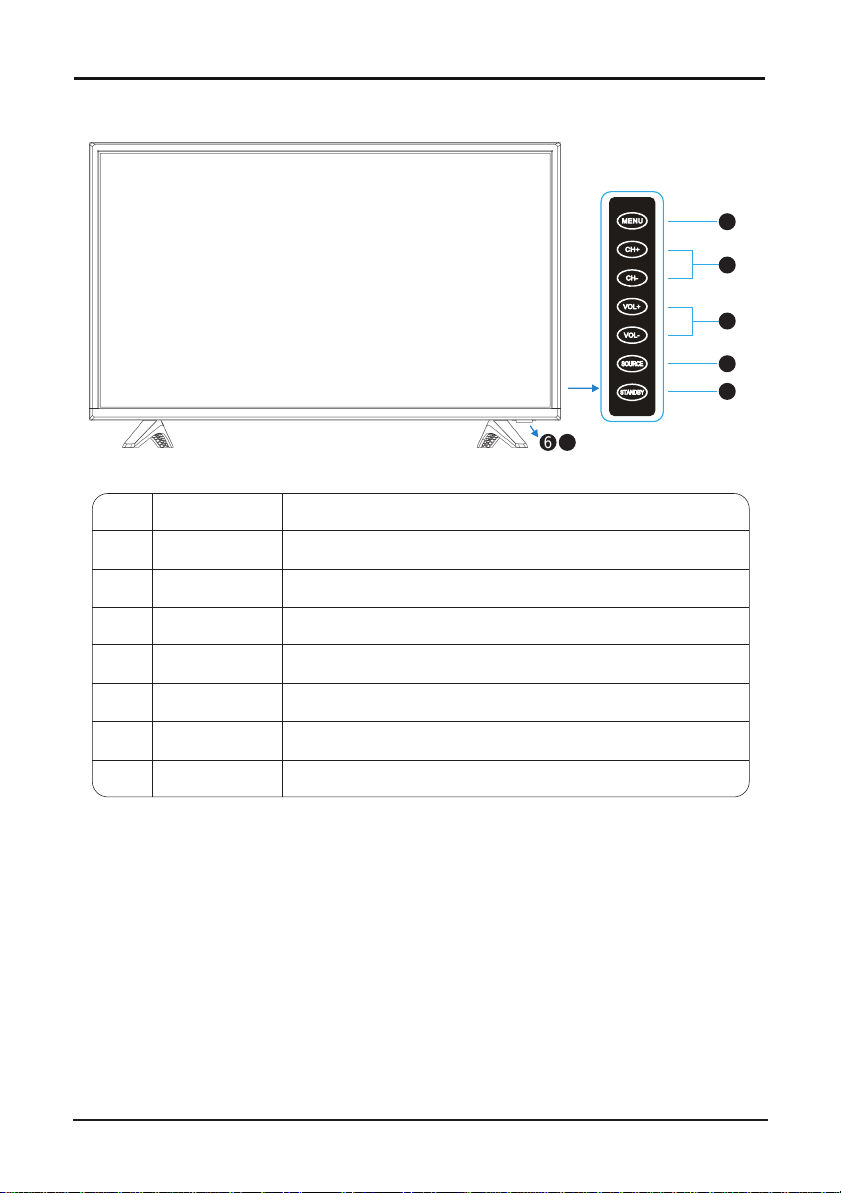
ITEM
1
2
3
4
5
6
7
BUTTON NAME
MENU
CH+/-
VOL+/-
SOURCE
STANDBY
Pleasa Note:
POWER INDICATOR
REMOTE SENSOR
Press to bring up the main menu to the screen.
Press to scan through channels.
Press to increase or decrease the sound level.
Press to select the input source.
Press to switch the TV on during Standby mode or vice versa.
Infrared sensor for the remote control.
Shows red in standby mode and No light when the TV is switched on.
FUNCTION DESCRIPTION
The receiving range for the remote control
signal is 6 metres from the front of the
remote sensor, with a window of 30 degrees to the left or right, and 20 degrees
above or below.
1
2
3
4
5
6 7
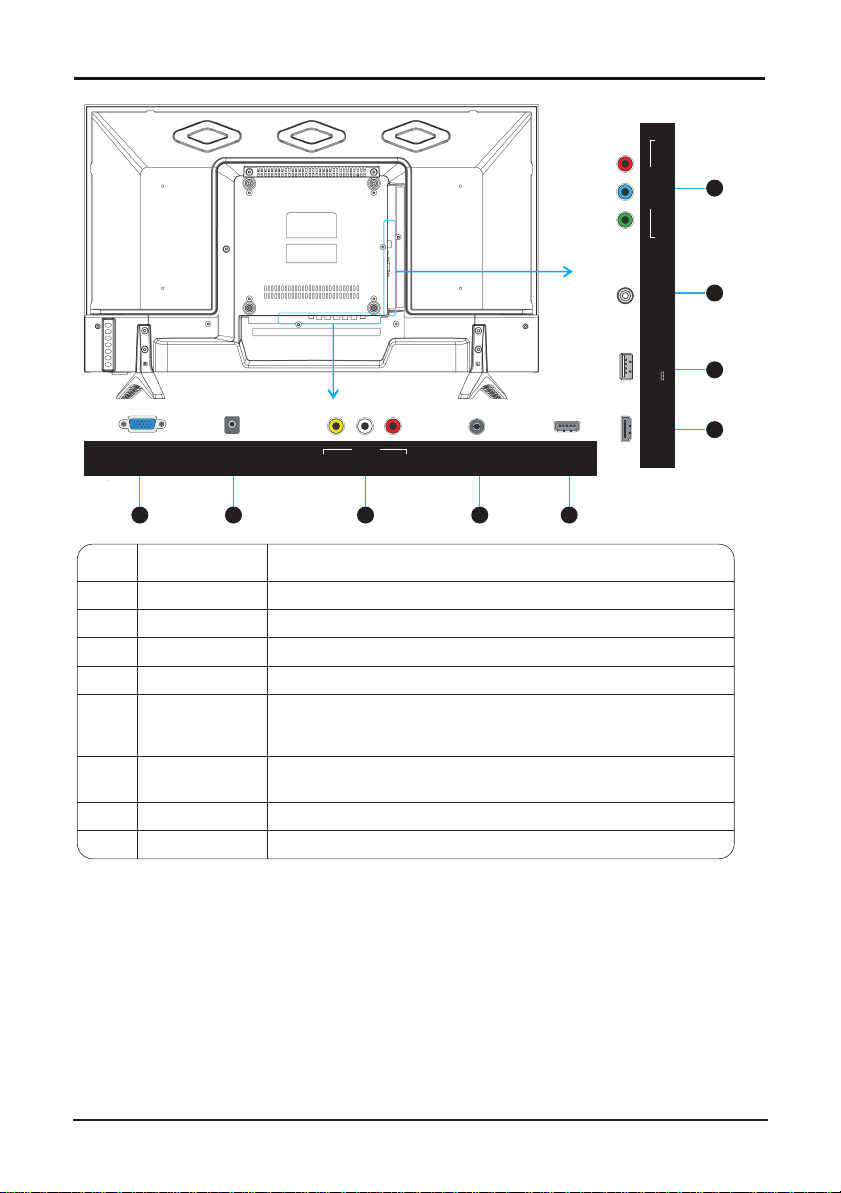
ITEM
1
2
3
5
6
BUTTON NAME
PC(VGA)
PC AUDIO
AV IN
HDMI
USB
Connect to the VGA output on your Comuter.
Connect to the Audio output jack of your Computer.
Composite input.
4 RF IN
Connect antenna here to get TV signal.
7 COAXIAL
Coaxial Digital Audio ouput.
8 YPbPr IN
Component video input.
FUNCTION DESCRIPTION
Pleasa Note:
Some USB memory devices, such as external hard drives and some portable hard
drives, require their own power supply to operate See also the Technical Specifica-
tions section for compatible file types and storage limits.
Connect to the HDMI output jack of up to 2 external video sources
(eg Bluray player/ games console)
Note: HDMI 2 port supports ARC function.
Plug in your USB memory device(eg. USB stick) to play
compatible files stored in it.
8
HDMI
VIDEO RL
AV IN
PC(VGA) PC AUDIO
RF IN
1
2 3 4 5
COAXIAL
USB
5V 500mA
5
6
7
8
Y PrPb
YPbPr IN
HDMI2
(ARC)
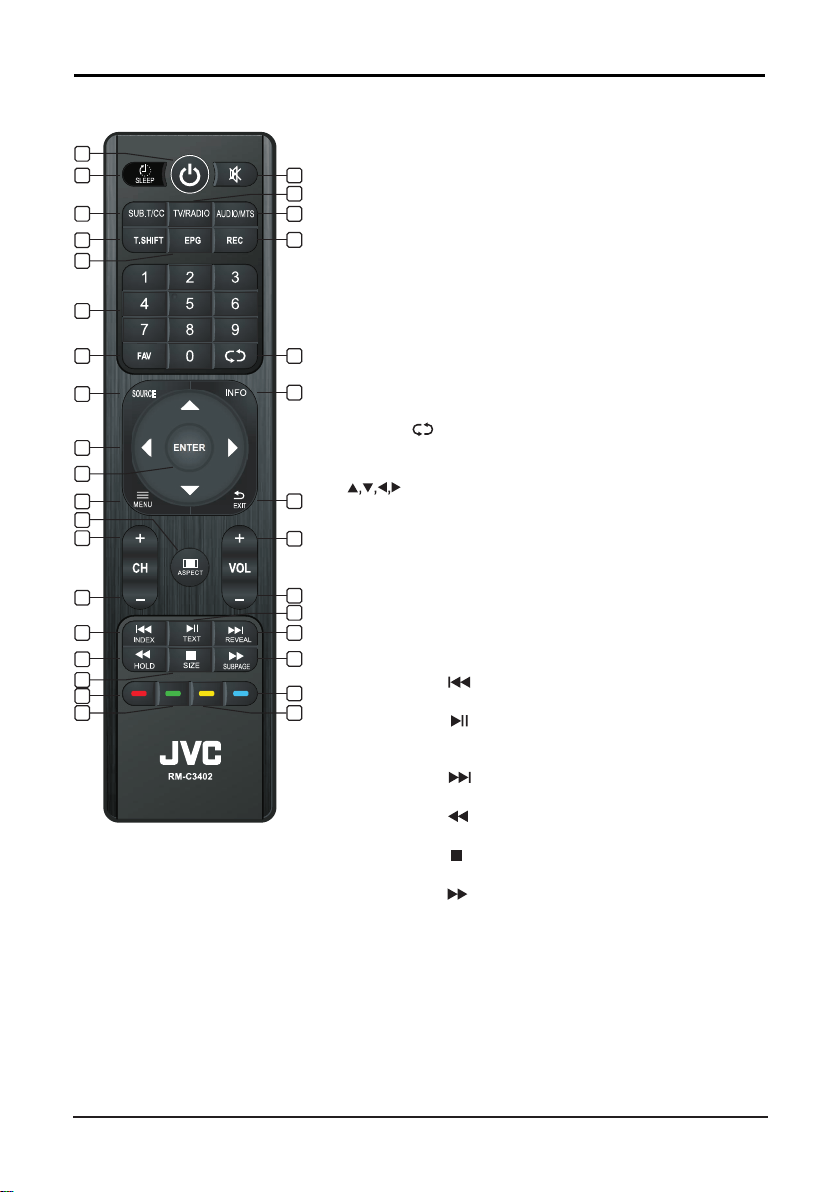
3.4 Remote Control
8
STANDBY: Press to enter or exit Standby mode.
SLEEP: Press to select the sleep time.
MUTE: Press to mute sound.
SUB.T/CC: Press to select subtitle.
TV/RADIO: Press to select TV or Radio mode.
AUDIO/MTS: Press to select TV audio mode.
T.SHIFT: Press to activate Timeshift function in DTV mode
for delayed viewing. Please note: A USB device must be
connected for this function to be activated.
EPG: Press to show the EPG (Electronic Program Guide)
menu.
REC: Press to record from DTV channels.
(Note: USB memory device is required for recording.)
0-9: Press to select a channel.
FAV: Press to view the favorite channel list.
RECALL : Press to return to the previous channel.
SOURCE: Press to select the signal source.
INFO: Press to display the source and channel information.
Key: Menu item selection.
ENTER: Press to confirm or enter.
MENU: Press to enter or exit the menu.
EXIT: Press to exit the menu or selection.
ASPECT: Press to change picture proportions(aspect ratio).
CH+: Press to select the next channel.
CH-: Press to select the previous channel.
VOL+: Press to increase the volume.
VOL-: Press to decrease the volume.
INDEX: Press to display the index page*.
MEDIA mode: Previous.
TEXT: Press to enter or exit teletext*.
MEDIA mode: Press once to pause, press again to
playback.
REVEAL: Press to reveal the hidden information*.
MEDIA Mode: Next.
HOLD: Press to hold the current page*.
MEDIA mode: Rewind.
SIZE: Press to set the size of the characters*.
MEDIA mode: Stop playback and return to file list.
SUBPAGE: Press to enter Sub Page mode*.
MEDIA mode: Fast forward.
RED: Press to access the red item or page.
BLUE: Press to access the blue item or page.
GREEN: Press to access the green item or page.
YELLOW: Press to access the yellow item or page.
1.
2.
3.
4.
5.
6.
7.
8.
9.
10.
11.
12.
13.
14.
15.
16.
17.
18.
19.
20.
21.
22.
23.
24.
25.
26.
27.
28.
29.
30.
31.
32.
33.
SOURCE
2
1
4
7
10
11
13
15
17
20
21
3
5
6
9
12
14
22
23
18
19
8
16
24
27
30
25
26
29
31
33
28
32
* Teletext functions are not available in Australia.
10
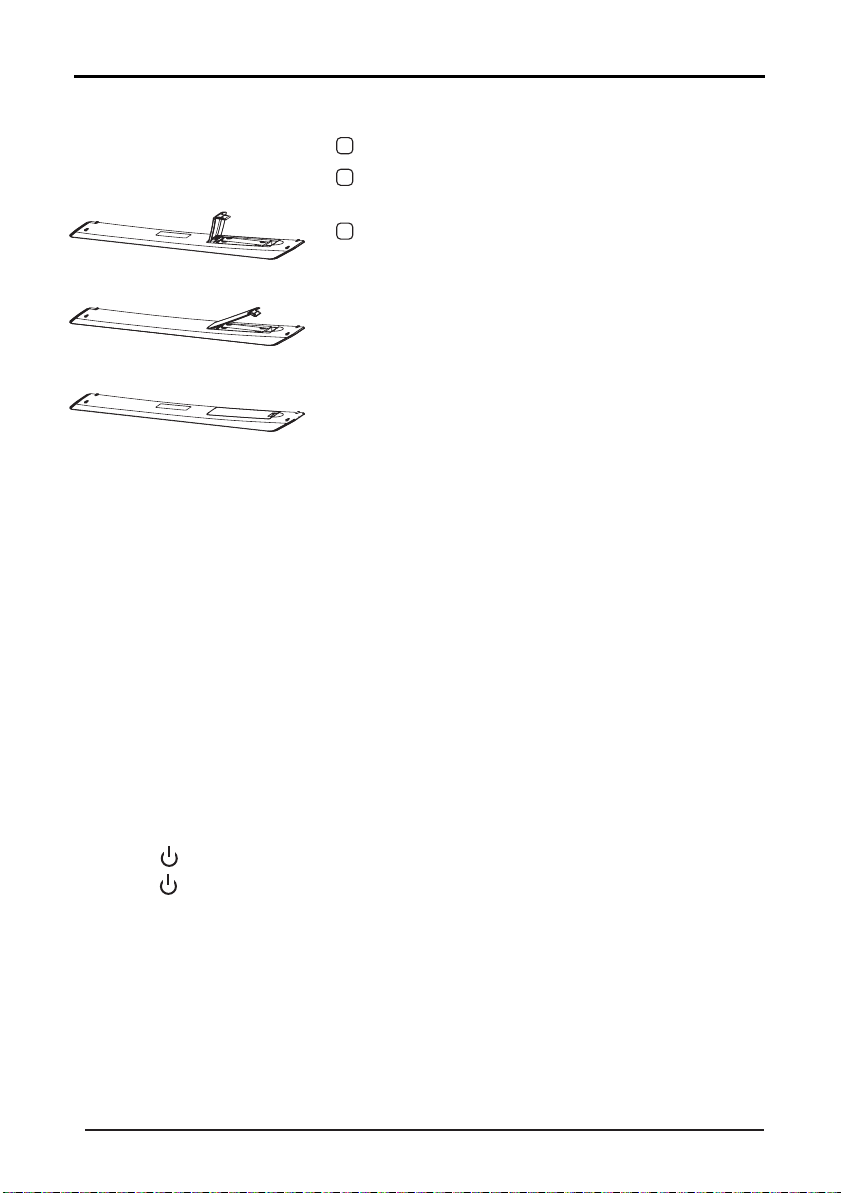
3.5 Installation of Batteries
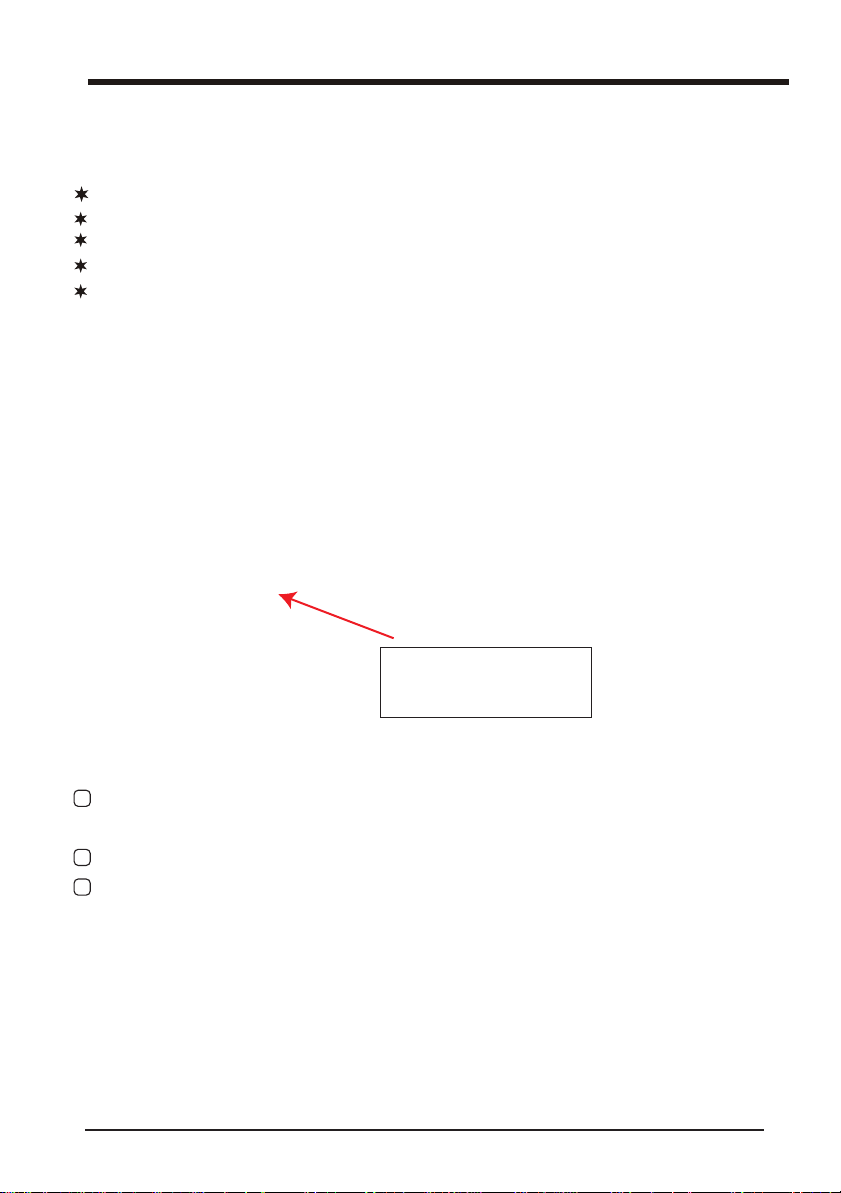
1 Open the back lid of the remote control.
2 Install two (AAA)1.5V batteries(included).
Ensure the correct polarity of the batteries.
3 Replace the back lid.
If the remote control doesn't work properly,
please carry out the following checks:
- Check if the TV is turned on.
- Check that the polarity of the batteries are correct.
- Check the batteries are not drained.
- Check if the power supply is normal or the power
cord is correctly connected.
- Check there are no special fluorescent or neon
lights around.
4. Basic Operation
4.1 Power ON/OFF
Connect the power cord to the A C input. Insert the power cord into the
appropriate socket.
Note:
4.2 Setting of Standby Mode
- Press ( ) button to turn on the unit.
- Press ( ) button again to return to standby mode. The
power indicator turns red.
- Be sure not to keep your TV in standby mode for a long period of time.
4.3 Selection of Input Mode
This set has different signal source modes, continue pressing the
Source button to select a signal source.
Note: Please remove the batteries, if the remote
control will not be in use for a long time.
Do not switch on the TV immediately after switching it off. Please wait for a
minute before turning on again.
When selecting the signal source, the screen will display the information.
No Signal
1 _ _:_ _
TV PAL DK Mono
TV
mode
11
displayed per below.
When there is no signal from the selected source, a warning message will be
Either change the channel i n TV mode or press
Source button to change source.
4.4 Menu Option Adjustment
After you have installed the batteries into the remote control, you will
need to set some preferences on the TV, using the menu system.
The buttons for the menu option adjustment include: M enu,
, ,
,
Enter
buttons.
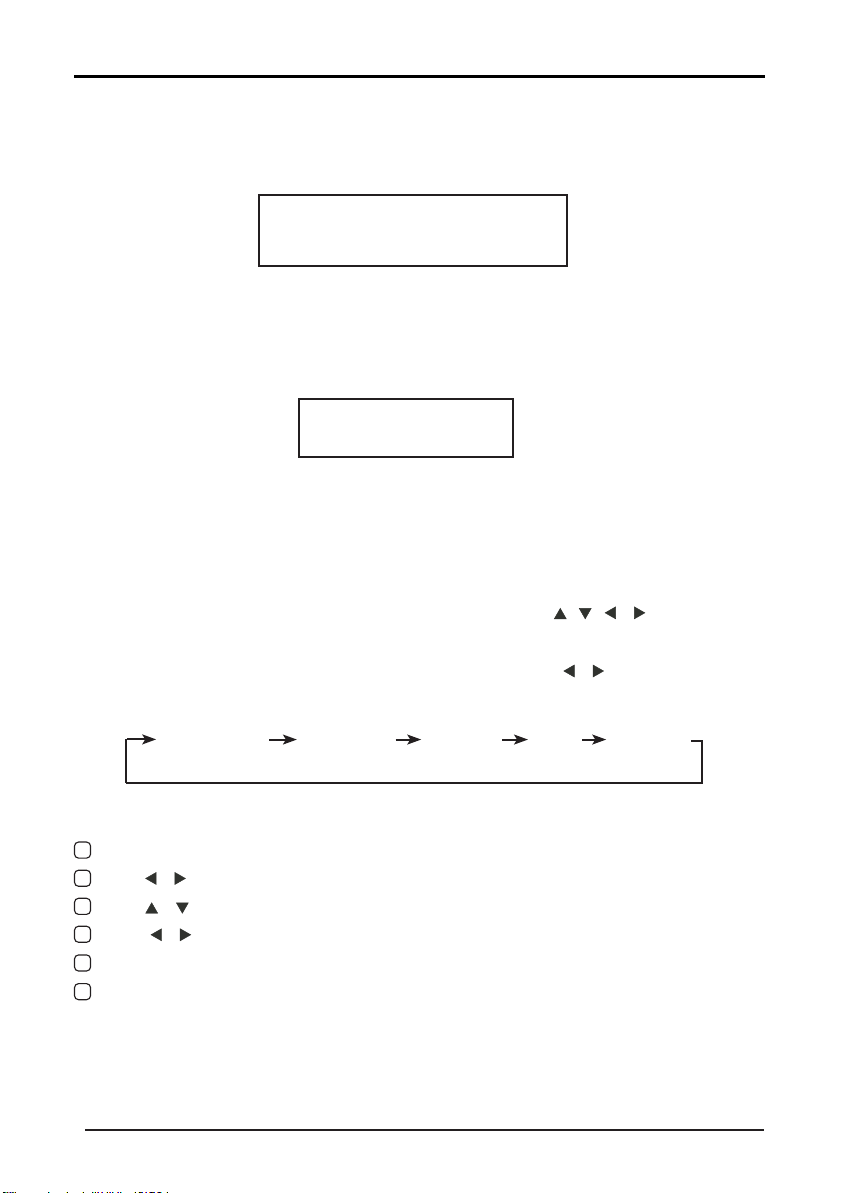
- Press the Menu button to open the OSD menu, then press
button to select
the pages. The pages are displayed in the following sequence (circular display):
1
2
3
4
5
PICTURE
SOUND
TIMECHANNEL
OPTION
Press the Menu button to display the menu system.
Press button to select the menu pages.
Press
,
button to select an item.
Press
, button to adjust a setting.
If you do not make a selection within 10 seconds, the menu will close automatically.
6
Press the Menu button to return or exit OSD menu.
Please note: CHANNEL is only for TV mode.
,
,

Setup
1: Set up the Country Setup 2: Set up the Language
4.5 Auto Installation
12
SearchSetup
5: Set up the Auto All/ATV/DTV
If this is the first time you are turning on the TV and there are no channels in the TV memory, the “Auto
Installation” menu will appear on the screen.There are 5 setup options as below:
Setup 3: Set up the Auto Power Off
Note: Choose the option 'Air' for regular channel viewing.
Setup 4: Set up the Auto Search Air/Cable Type
Open the main menu by pressing 'Menu' button on the remote control. The focus will move to the sub
4.6 Menu Functions
4.6.1 PICTURE Menu
1.1 Picture Menu
T
he result of the action pressing down some button when in Picture menu:
Key
Stroke
Acti
on
KEY_UP
Highlight the previous sub item. If it is the first button currently,
then highlight the last one in the list.
KEY_DOWN
Highlight the next sub item. If it is the last button in the list
currently, then highlight the first one.
KEY_LEFT Back to Main Menu.
KEY_RIGHT
If the current focus sub item is ”Picture Mode” 、 ”Color
Temperature” 、 ”Aspect Ratio” or ”Noise Reduction”,a popup
menu will appear for user to make further choice. If not,
mainmenu will be cleaned for new “adjust menu”.
KEY_ENTER
Same as KEY_RIGHT。
KEY_MENU Back to Main Menu.
KEY_EXIT Exit Main Menu.
13
This chapter will describe the function of Picture in the main menu.
items in the Picture menu by pressing down the button “RIGHT” and then functions in the Picture can be set.
The Picture menu is shown as follows:
2.1 Sound Menu
The range and the default values of every sub items in Sound menu are shown in the following table:
Key
Stroke
Acti
on
KEY_UP
Highlight the previous sub item. If it is the first button currently,
then highlight the last one in the list.
KEY_DOWN
Highlight the next sub item. If it is the last button in the list
currently, then highlight the first one.
KEY_LEFT Back to main menu
KEY_RIGHT
If the current focus sub item is ” Sound Mode”/” Surround” / ”
Stable Sound”,a popup menu will appear for user to make
further choice. If not, main menu will be cleaned for new “adjust
menu”.
KEY_ENTER
KEY_MENU Back to main menu
KEY_EXIT Exit Main Menu.
4.6.2 Sound Menu
Same
as KEY_RIGHT.
14
This chapter will describe the function of Sound in the main menu.
Open the main menu by pressing 'Menu' button on the remote control. Now press the button “down” on the
remote. The focus will move to the sub items in the Sound menu by pressing down the button “RIGHT” and then
functions in the Sound can be set. The Sound menu is shown as follows:

3.1 C
hannel User Interface
T
here are following functions in this page:
Channel Management: To manage (Delete//Swap/Lock/Skip) all channels;
Favorite Management: To manage (Add/Delete) Favorite channels;
Country: To select country.
Auto Search: To select auto search mode (DTV/ATV)
DTV Manual Search: To search digital channel by entering parameters manually(only for DTV)
ATV Manual Search: To search analogue channel by entering parameters manually(only for ATV);
4.6.3 TV Channel
3.2
Function Description
3.2.1 Channel Manager
Press
“ENTER” or “RIGHT” key on “Channel management” of “Channel” page in ATV or DTV source. The
operation interface shows as follows:
T
V connection:To select the DTV signal mode(Air/Cable)
15
Press Menu button on the remote control and press Down button two times until the Channel User Interface is
highlighted. Now press Right arrow to enter the sub-options as below:
Note: Select 'Air' for regular channel viewing.

prog
ram and press “BLUE” key to swap them.
Select the program to be swapped and press “BLUE” key, the selected program will blink. Now select another
3.2.1.1 D
elete/Skip/Lock Channel
1)
Press “UP (▲)” and “DOWN (▼)” key to select the programs to be deleted and press “RED”, “GREEN” or
2)
After marking press “MENU” key to save the result.
3.2.1.2 S
wap Channel
3.2.2 Favorite Management
1)
Press “ENTER” or “RIGHT” key on “Favorite management” of “Channel” page in ATV or DTV source. The
2)
Press “UP (▲)” and “DOWN (▼)” key to select the programs to be added into favorite list and press
16
“YELLOW” key to mark them as below:
operation interface shows as below:
“RED”,“GREEN”,”YELLOW” or ”BLUE” key to mark them as below:
3) Press “MENU”key to return to “Favorite management” page and save the result.

3.2.3 C
ountry
1)
Select the country.
3.2.4 A
uto Search
3.2.4.1
Air signal mode
All Mode: Select “All” item to scan all digital channels carried by current signal mode firstly and then switch
to scan all analog channels in selected country automatically. User can skip digital search to analog search directly
by entering “EXIT” or “MENU” key and can also stop auto scan directly by entering “EXIT” or “MENU” during
analog scanning.
Digital Mode: Select “Digital” item to search all digital channels in selected country carried by current signal
mode. User can stop search directly by entering “EXIT” or “MENU” key.
Analog Mode: Select “Analogue” item to search all analogue channels in selected country carried by current
signal mode. User can stop search directly by entering “EXIT” or “MENU” key.
...
17
Select “Auto Search” item to enter auto search user operation interface as below:

S
how the Frequency when searched
Sele
ct “Analogue Manual Search” item to enter analogue manual search in ATV source:
Select “Digital Manual Search” item to enter air channel manual search in DTV source:
3.2.5 D
igital Manual Search
3.2.5.1
Air signal mode
Select channel number by “RIGHT” key or entering number directly. The strength and the quality shows at
the bottom. Press “ENTER” key on “Start” item to start current channel search. The manual searching UI and
auto searching UI are the same.
3.2.6 A
nalog Manual Search
Analog
Parameters
Value
Current
Channel
001-100
Frequency
Search
Press the button “enter” to open the
search sub page.
Fine Tune Press the button “enter” to open the
fine tune sub page.
Color System Auto/PAL/SECAM
Sound System BG/DK/I
C02
18
the
The various sub-options are as below:
)” key to fine tune current channel. Press “MENU” key to return to “Channel-
User also can select “Fine Tune” item to fine tune current channel and the UI shows as the last picture.
Press
“Left
(
◄
) (
►
“Left
(
◄
)
”, “Right
(
►
Operations in Feature Menu are shown in the following table:
Key
Stroke
Acti
on
KEY_UP
Highlight the previous sub item. If it is the first button currently,
then highlight the last one in the list.
KEY_DOWN
Highlight the next sub item. If it is the last button in the list
currently, then highlight the first one.
KEY_LEFT Back to mainmenu
KEY_RIGHT
If the focused item is ”Timer”, mainmenu will be closed firstly
and then open the Timer Menu;
If the focused item is ” Hearing Impaired”, a Popup Menu will be
opened;
If not, Feature Menu will be closed firstly and then open the
corresponding sub menus.
KEY_ENTER Same as KEY_RIGHT.
KEY_MENU Back to Main Menu.
KEY_EXIT Exit Main Menu.
4.6.4 Feature Function Description
19
Enter these parameters and then select “Search” item to enter analog channel tune. A dialog pops up on the
left bottom:
to search lower frequency channels and “Right
)" key to search higher frequency channels.
Press “MENU” key to return to “Channel-Analogue Manual Search” page and press “RED” key to save the
scanned channel to database.
Press
Analogue Manual Search” page and press “RED” key to save the tuned channel to database.
4.1 Lock
The Lock sub page includes three parts:Lock Channel,Parental Lock,Change Pin Code as shown in the
following picture.
1) Operations in Lock Menu are shown in the following table
Opt
ion
Value
Lock
Channel On: turn on Lock Channel. User need to enter
Off: turn off Lock Channel
Parental Lock Off: turn off Parental Lock
4-18: turn on Parental Lock and set the age level
that are permitted to watch the program.
Change Pin Code KEY_RIGHT or KEY_ ENTER to enter the pin code
changing page.
2)
Change Pin Code
3) Key Operation
Key
Stroke
Acti
on
KEY_NUM_0
~
KEY_NUM_9
Press the numeral buttons to enter the password. If the entered
numbers are not exactly the old password, then show a new
password-enter menu to enter again. If they are right, then it will ask
user to enter the new password that will take place of the old ones. If
the New Password is the same as the Confirm New Password, it’ll
show a success message. If not, it will ask you to enter the new
password.
KEY_MENU
Close the whole Main Menu。
KEY_EXIT
KEY_LEFT
Cancel pin-code-change-action and back to Child Lock Menu。
password(0000)
to watch the channels which
locked. Also need to enter password when
user tries to change settings in items like
“reset system”/”reset database” etc.
are
20
4.2HDM
I Link
It i
s used to control HDMI link.
1)
Range of the values of items in Clock Menu
O
ption
Va
lue
E
nable HDMILink
O
n/Off
A
uto PowerOn
O
n/Off
A
uto Standby
O
n/Off
S
peaker Preference
T
V Speakers/Amplfier
A
mplifier Support
A
RC
O
n/Off
2
)
Ke
y Stroke
Ac
tion
KEY
_UP
H
ighlight the previous sub item. If it is the first button currently,
then highlight the last one in the list.
KEY
_DOWN
H
ighlight the next sub item. If it is the last button in the list
currently, then highlight the first one.
KEY
_LEFT
B
ack to Feature Menu。
KEY
_RIGHT
O
pen/Close Popup Menu
KEY
_
EN
TER
S
ame as KEY_RIGHT。
KEY
_EXIT
E
xit Main Menu。
KEY
_MENU
B
ack to Feature Menu
KEY
_STANDBY
E
nter standby mode
21
Note: Audio Return Channel (ARC) returns audio though the same HDMI channel that is used to send
video to the TV. If switched on, you won't need a separate audio cable to return sound from the TV.
ARC Feature is available on HDMI 2 port.
Key operation:
T
he range and the default values of every sub items in Setup menu are shown in the following table:
Operations in Setup Menu are shown in the following table:
S
etup Menu Items
Value
OS
D Timer ( 5, 10, 15, 20, 25, 30 Seconds,Never)
PC Setup “ ENTER ”
Blue Screen Off/On
Reset TV Setting “ ENTER ”
“ ENTER ”
Ke
y S troke
Action
KEY_UP
H
ighlight the previous sub item. If it is the first button
currently, then highlight the last one in the list.
KEY_DOWN
Highlight the next sub item. If it is the last button in
the list currently, then highlight the first one.
KEY_LEFT Back to Main Menu.
KEY_RIGHT
If the cursor is on ”OSD Timer” 、 “Auto SCART” , “Blue
Screen”, a popup menu will appear for user to make
further choice. If not, Setup Menu will be cleaned for
other sub menus.
KEY_ ENTER Same as KEY_RIGHT.
KEY_MENU Back to Main Menu.
T
he Setup Menu is shown as follows
:
4.6.5 Setup Menu
5.1
Software Upgrade
22
A. Support multimedia le:
Multimedia data Format
Image JPEG; BMP; PNG
Music MP3, WMA
V
ideo MPEG-1(.DAT/.MPG)
MPEG-2(.MPG/.VOB)
MPEG-4(.AVI/.MP4)
Digital movies
TXT .txt
4.7 Multimedia
4.7.1 MEDIA
Function
23
5.2 P
C Setup
It
is only available in PC source.
1) Auto Adjust
Auto Adjust the H Position
, V Position, Phase, Clock
2) H Position
Manually adjust H Position
3) V Position
Manually adjust V Position
4) Phase
Manually adjust Phase
5) Clock Manually adjust Clock
Mode-Options Value
Auto
Adjust “OK”
H Position -16~16
V Position -16~16
Phase 0~31
Clock -30~30
B. Compatible USB devices:The device should be formatted in FAT or FAT32.
4.7.2 USB Function
1.
Photo
1.1 Format Supported
Ty
pe
Container Max Resolution
PHOTO JPEG
165370
Progressive
JPEG 61648
BMP
101439
PNG
101439
GI
F
TI
FF
1.2
Function Introduction
High
light the “PHOTO” item in multimedia mainmenu by press “RIGHT” / “LEFT” key, then press “ENTER”
key enter photo page, as follow:
.
Multimedia
Key
Operation
2)
GRE
EN:
Add/De
l all photo files to play list.
24
1)
RED: Delete the focused folder/file.
3) ENTER: Add/Del highlight files to play list.
4) CH+/-: Page up/Page down.
5) PLAY: Play the files in play list.

1.2.1 Playback
Press "PLAY" key to start playback.
Key Operation
1) : Same as "PLAY" key on remote, to start playing pictures in slide show mode
2) : Same as "PAUSE" key on remote, to pause the playing file
3)
: Same as "STOP" key on remote, to stop sliding show, and return to the file browser
4) : Same as "|<<" / ">>|" key on remote, to play the previous or next file directly
5) : To rotate the playing picture(
0 º、90 º、180 º、270º
).
6) : To zoom the playing picture.
7) : Same as "INFO" key on remote, to display the information of the current file.
8) : To enter “Photo Setup” menu, including “Repeat Mode”, “Background Music”, “Music Source”,
”Slide Time”, “Effect”.
9) : To enter the play list menu.
1.2.2 Thumbnails
1). Thumbnails mode can be shown only in photo mode and highlight in file browser by press “EXIT” “Right
(►)” as follow:
2). The direction keys are to move highlight in files.
3). Press "EXIT" key ,and press “LEFT” key, exchange to photo list mode.
25

2.
Music
2.1 Format Supported
MUSIC
Audio
.mp3
MP3
.wma
2.2
Function Introduction
High
light the “MUSIC” item in multimedia mainmenu by press “RIGHT” / “LEFT” key, then press “ENTER”
key enter music page, as follow:
Key
Operation
1) RED: Delete the focused folder/file.
2)
GRE
EN:
Add/De
l all photo files to play list.
3) ENTER: Add/Del highlight files to play list.
4) CH+/-: Page up/Page down.
5) PLAY: Play the files in play list.
2.2.1
Playback
Press
"PLAY" key to start playback.
Key
Operation
1)
:
Same as "PLAY" key on remote, to start playing file,
2)
:
Same as "PAUSE" key on remote, to pause the playing file
3)
:
Same as "STOP" key on remote, to stop the playing file.
4) :
Same as "<<" / ">>" key on remote, to play fast
twice, four times, eight times and sixteen times,
、
X4
、
X8
、
X16” on screen
5)
:
Same as "|<<" / ">>|" key on remote, to play the previous or next file directly.
6)
:
To switch the repeat mode, including ”Repeat 1”, ”Repeat All”, ”Repeat Dir” and ”Random” modes.
7)
:
To switch the window between “Information” and “Play List”.
8)
:
Same as “BLUE” key on remote, to close the panel only in “MUSIC” mode, and then it can be opened
by every key on remote.
or resume the paused file.
backward or forward. The speed can switch to
and displayed with “X2
.m4a/.aac
File
Exit
WMA
AAC
26

3.MOVIE
Highlight the “MOVIE” item in multimedia mainmenu by press “RIGHT” / “LEFT” key, then press “ENTER”
key enter movie page, as follow:
Key Operation
2)
GREEN:
Add/Del all photo files to play list.
3.1 Playback
Press "PLAY" key to start playback.
Key Operation
1) : Same as "PLAY" key on remote, to start playing file, or resume the paused file.
2) : Same as "PAUSE" key on remote, to pause the playing file
3)
: Same as "STOP" key on remote, to stop the playing file, and return to the file browser interface.
4)
: Same as "<<" / ">>" key on remote, to play fast backward or forward. The speed can switch to
twice, four times, eight times and sixteen times, and displayed with “X2
、
X4
、
X8
、
X16” on screen
5) : Same as "|<<" / ">>|" key on remote, to play the previous or next file directly.
6) : To enter slow mode. The speed can switch to 1/2, 1/4, 1/8, 1/16, and displayed with “X1/2, X1/4, X1/8,
X1/16” on screen.
7)
: To enter step mode.
8) : To set AB repeat, the first press sets A point, and the second press sets B point, and then play
betweenA and B repeatedly.
9) : To enter the play list menu.
10) : Same as "INFO" key on remote, to display the information of the current file.
11) : To enter “Movie Setup” menu, including “Program”, “Subtitle”, “Audio”, ”Repeat Mode”.
12)
: To enter “GO TO” function, user can input the time he want to start directly.
27
1) RED: Delete the focused folder/file.
3) ENTER: Add/Del highlight files to play list.
4) CH+/-: Page up/Page down.
5) PLAY: Play the files in play list.

4.
eBook
4.1 Format Supported
O
nly txt format eBook is supported.
4.2
Function Introduction
High
light the “eBook” item in multimedia mainmenu by press “RIGHT” / “LEFT” key, then press “ENTER” key
Key
Operation
1) RED: Delete the focused folder/file.
2)
GRE
EN:
Add/De
l all photo files to play list.
3) ENTER: Add/Del highlight files to play list.
4) CH+/-: Page up/Page down.
5) PLAY: Play the files in play list.
4.2.1 P
layback
Press
"PLAY" key to start playback
Key
Operation
“RED” To add/del bookmark.
“GREEN” To input the page number directly.
“YELLOW” To enter the “Bookmark list” page.
“BLUE” To enter the “Play list” page.
“<<” / “>>” To page down/page up.
"EXIT" To close the file and return to the file browser.
28
to enter eBook page, as follow:

4.8 EPG/PVR/Timeshift
29
4.
8.1
EPG
1.1
EPG abstract
1.2
D
aily Mode
D
isplay
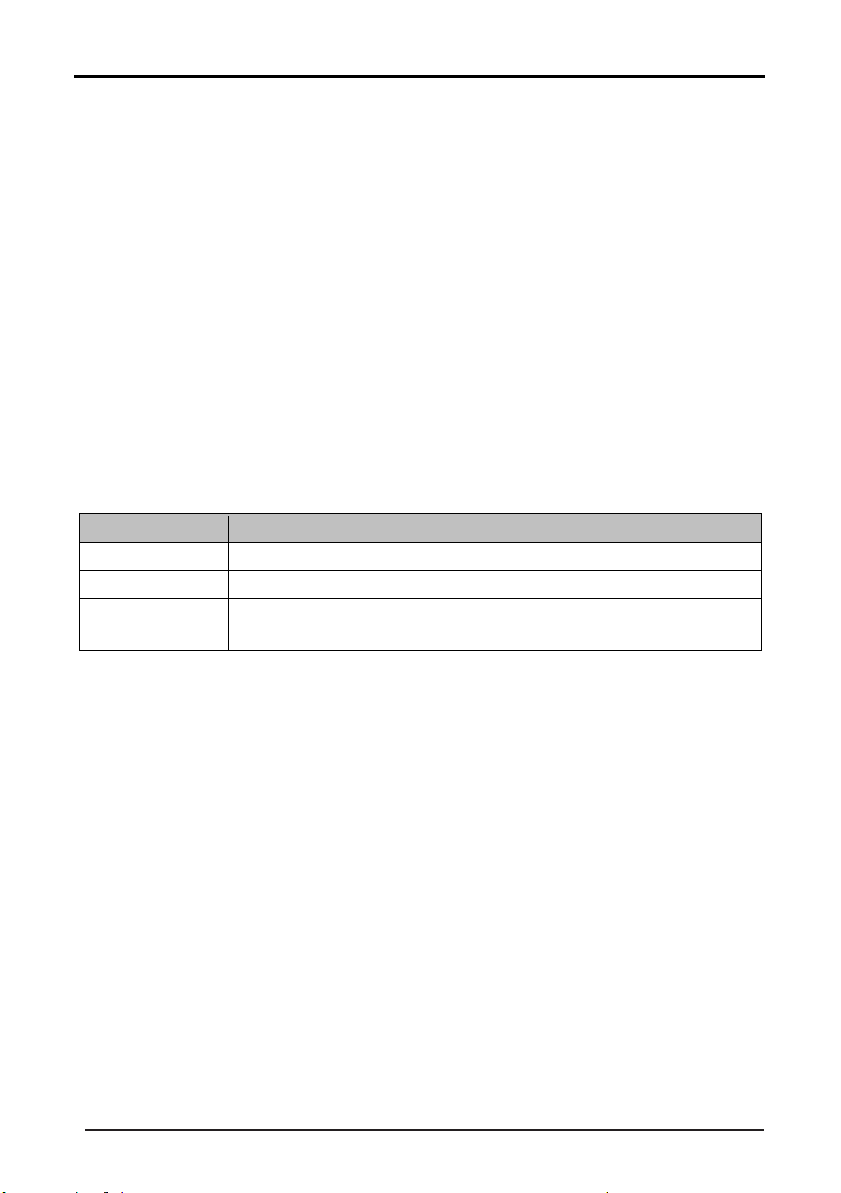
the information of the programs that start in a scheduled period of time in the current channel. It
includes name, start time, end time, short content description, current date/time, etc.
EPG
Daily
Mode
Press the EPG button on the remote control to open the Electronic Program Guide. The EPG shows information
about the current and upcoming programs running on each channel.
There are three modes - Daily mode, Weekly mode and Extended mode.
If the highlighted program is not parental locked, it will be played simultaneously in the background.
KEY
_GREEN
Ke
y Stroke
Ac
tion
KEY
_RED
Change to weekly mode.
KEY_YELLOW
KEY_BLUE
KEY_INFO
If the cursor lies on the right event list, change to Extended Mode by enter the key
“KEY_INFO” or back to daily mode by enter the key “KEY_RETURN”.
KEY_EXIT Exit EPG.
DIRECTION KEYS
Scroll through the channels and programs on each channel.
Set a reminder for the selected program.
Show the previous day's programs.
Show the next day's programs.
30
1.3
W
eekly Mode:
D
isplay
the information of the programs that start in a scheduled period of time in the current channel. It
includes name, start time, end time, short content description, current date/time, etc.
Focusing on different channels on the left, it displays corresponding programs in schedule of time.
EPG
Weekly Mode
If the highlighted program is not parental locked, it will be played simultaneously in the background.
Ke
y Stroke
Ac
tion
KEY
_RED
KEY_YELLOW
KEY_BLUE
KEY_INFO
KEY_EXIT
Exit EPG.
DIRECTION KEYS
Scroll through the channels and programs on each channel.
Show the previous day's programs.
Show the next day's programs.
Change to daily mode.
If
the cursor lies on the right event list, change to Extended Mode by enter the key
“KEY_INFO” or back to weekly mode by enter the key “KEY_RETURN”.
31
1.4
E
xtended Mode:
E
PG Extended Mode
Ke
y Stroke
Ac
tion
KEY
_UP If the information takes more than one page, the current page rolls up a row.
KEY
_DOWN If the information takes more than one page, the current page rolls down a row.
KEY
_Exit
If it entered Extended Mode from daily mode, back to daily mode.
If it entered Extended Mode from weekly mode, back to weekly mode.

32
4.
8.2
PVR
2.1
P
VR involved Menus
1.
P
VR/Timeshift menu;
2.
Partition List menu;
3.
Timer menu;
4.
Timer Edit menu;
5.
Record List menu;
6.
REC info menu;
7.
Timeshit info menu.
2.
1.1
PVR/Timeshift menu
I
nformation:PVR/Timeshift menu manages almost all the information that have relationship with PVR.
(
PVR/Timeshift menu)
The PVR (Personal Video Recorder) function allows you to record programs on to a USB memory device.
Press the RECORD button on the remote control to activate the PVR function.
Enter the PVR/ Timeshift menu from the Feature Menu:
Note: A USB memory device must be connected in order to record programs.
33
F
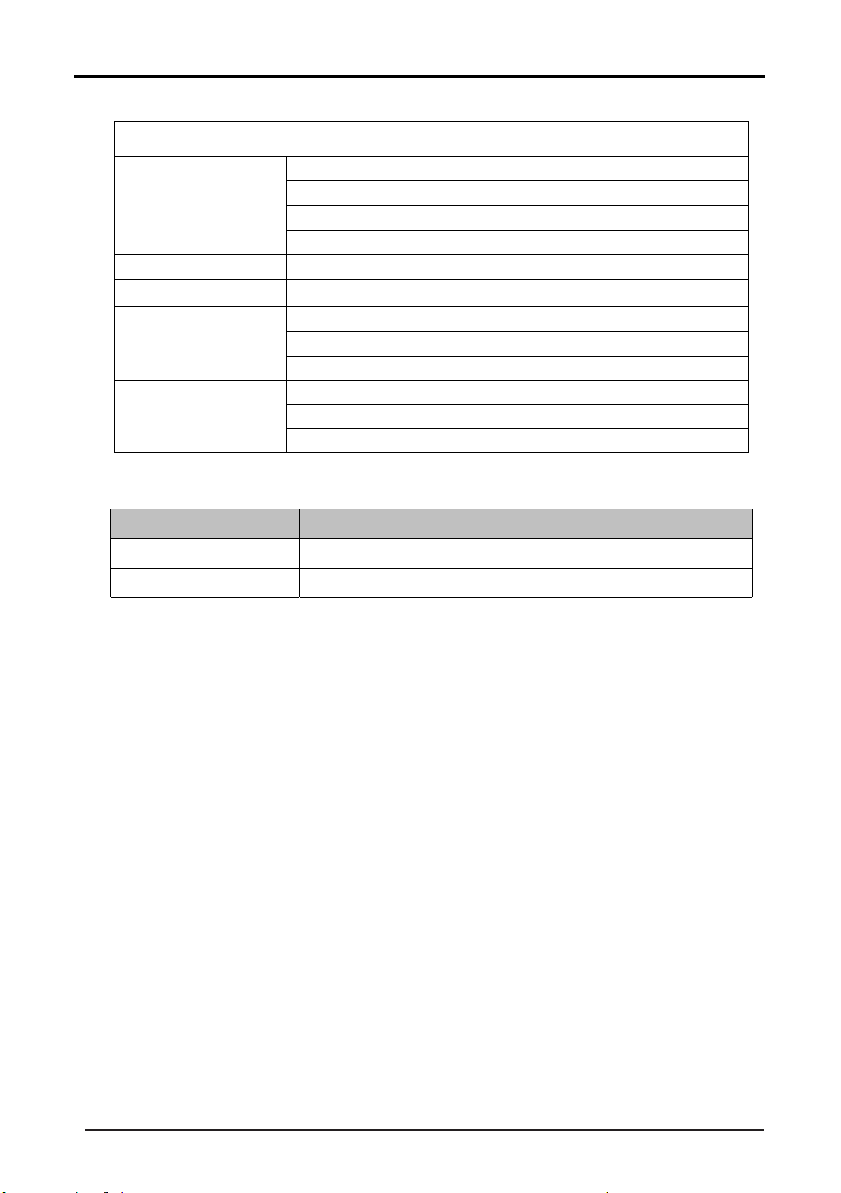
unction list explain:
I
tems
P
artition Select
Enter Partition Select menu;
D
isplay partition’ s infomation;
F
ormat partition function;
S
et default partition function;
A
uto Timeshift
Auto Timeshift:off (Stop auto Timeshift) 、Auto (Start auto Timeshift);
T
imeshift Buffer
Set Timeshift Buffer:auto、30Mins、1hr、2hr;
Ti
mer
Enter Timer menu;
P
reengaged programs’ information;
Ad
d、delete preengaged programs;
R
ecord List
Enter Record List menu;
D
isplay Recorders’ information;
P
layback Recorders.
(
PVR/Timeshift Function List)
Key Stroke in
menu:
Ke
y Stroke
Ac
tion
KEY
_ Exit
Exit all menu.
(PVR/Timeshift menu Key Stroke)
DIRECTION KEYS
Scroll through the various options.

34
2.
1.2
Partition List menu
I
nformation:Partition List menu manages the partitions connected to system.
(
Partition List menu)
Function:
a)
Partitions:The list in the menu shows the partitions connected to system;
b)
Partitions’ property:Total size and Free size;
c)
Format Partition:Press KEY_RED to format the focus partition. Before format, there is a prompted popup
window to confirm;If format successfully there is a message “Format Success!”, otherwise, there is a
“Format Fail!”;
d)
Key Stroke in menu:
Ke
y Stroke
Ac
tion
KEY
_UP
Focus on the previous option on the partition list.
KEY
_DOWN
Focus on the next option on the partition list.
KEY
_MENU
Return to the previous menu’s focus (PVR/Timeshift menu “Partition
select” option).
KEY
_RED
Format the chosen partition.
KEY
_GREEN
Set the chosen partition as the default partition.
KEY
_ Exit
Exit all menus.
(
Partition List menu Key Stroke)
Set default partition: Press KEY_GREEN to set the focus partition as the default partition. The recorded
programs are stored in the default partition. It needs to be reset if the default partition is full in recording
progress.

P
ress KEY_YELLOW for add or KEY_BLUE for edit to enter Timer Edit menu.
Timer menu manages the programs scheduled for recording. You can add or delete programs
from this menu.
35
2.
1.3
Timer menu
I
nformation:
.
(T
imer menu)
Prompted information explain:
a)
CH NO. :Channel number;
b)
Channel :Channel name;
c)
Start : Start recording time;
d)
Duration :The total recording time;
e)
Date : The date of starting recording;
f)
Mode : Record Mode;
g)
On the left top of menu is current date and time in system.
PS:
1)
These information except “g” all come from the preengaged programs in Timer Edit menu or EPG;
2)
Press KEY_RED to
delete the focus program,press KEY_GREEN to delete all the programs.
Key Stroke in menu:
Ke
y Stroke
Ac
tion
KEY
_UP
Focus on the previous option on the record list.
KEY
_DOWN
Focus on the next option on the record list.
KEY
_RED
Delete the chosen program.
KEY
_GREEN
Delete all the programs.
KEY
_YELLOW
Add recording program; Enter Timer Edit menu.
KEY
_BLUE/ KEY_ENTER
Edit the chosen recording program; Enter Timer Edit menu.
KEY
_MENU
Return to the previous menu’s focus (PVR/Timeshift menu “Timer”
option).
KEY
_ Exit Exit all menus.
(
Timer menu Key Stroke)

Recorder : (Off / On). "Off" sets a reminder for a particular program for watching; it does not record the
s
embles Add function except that Type and Channel can not changed again
36
2.1
.4
Timer Edit menu
(
Timer Edit menu)
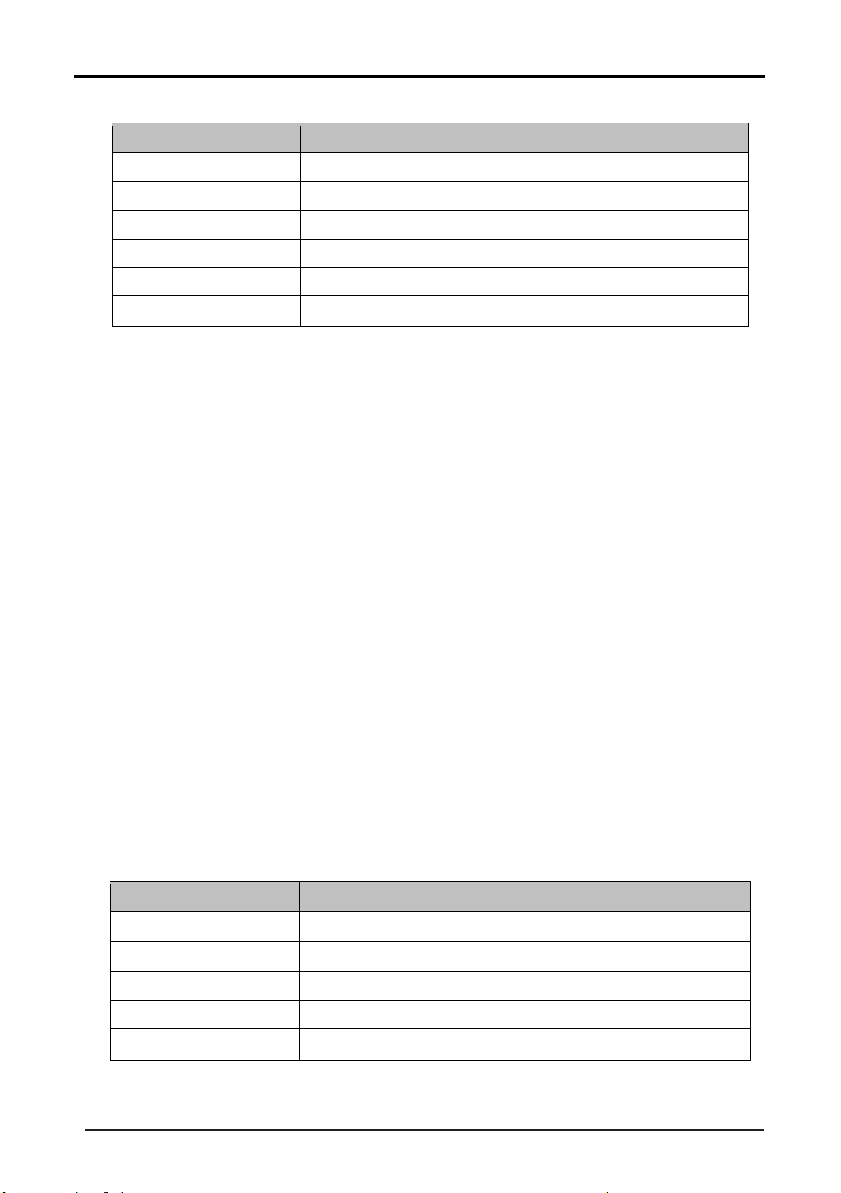
Function explain:
a)
b)
Type: DTV、Radio,DTV means to preengage DTV Channel program and Radio means to preengage Radio
Channel program;
c)
Channel: DTV or Radio Channel programs;
d)
Start Time: Start recording time; Format is
hour
/
m
inute
e)
D
uration: The total recording time ; Format is
;
hour
/
m
inute
f)
F
ormat is
;PS:The status of this option is disable,only
when Recorder is“On”,it can be set;
day
/
m
onth
/
y
ear
g)
M
ode : Once、Daily、Weekly、Month;
;
PS:
1)
The start recording time must be reasonable (behind current system time);If the timer is repeat or not
reasonable, there will be a message ”Set timer fail!” to prompt when return;
2)
The Edit function re .
You can edit the programs scheduled for recoding from the Timer Edit menu.
program. "On" schedules a program for watching and recording.
Date :The date when recording starts,
Record List menu manages the Recorded programs. User can playback recorded content
37
K
ey Stroke in menu:
Ke
y Stroke
Ac
tion
KEY
_UP
Focus on the previous option on the Edit list.
KEY
_DOWN
Focus on the next option on the Edit list.
KEY
_0~9
Edit Start Time、Duration、Date.
KEY
_ENTER
Confirm the choice.(For popList options)
KEY
_MENU
Return to the previous menu (Timer menu) and save the setting.
KEY
_ Exit
Exit all menus.
(
Timer Edit menu Key Stroke)
2.
1.5
Record List menu
I
nformation:
(R
ecord List menu)
Key Stroke in menu:
Ke
y Stroke
Ac
tion
KEY
_UP
Focus on the previous option on the program
list.
KEY
_DOWN
Focus on the next option on the program list.
KEY
_ENTER
Play the focus program.
KEY
_MENU
Return to the PVR/Timeshift menu (focus on Record List option).
KEY
_ Exit
Exit all menus.
(R
ecord List Key Stroke)
from this menu.
ur
rent Timeshift information.
38
2.
1.6
REC info menu
R
EC input info menu:
REC info banner menu:
Enter method:After REC start, press KEY_DISPLAY to show the REC info banner menu.
Function explain:
a)
Time is equal to current REC time minus REC start time.
b)
Progress bar is for current REC length compared with the disk free space when REC start.
c)
MB Free is the disk instantaneous free space.
Menu shows as follows:
(R
EC info menu)
Key Stroke in menu:
K
ey Stroke
Ac
tion
KEY
_PAUSE
Start or pause recording.
KEY
_DISPLAY
Enter banner info menu.
KEY
_STOP
Stop REC.
(R
EC info Key Stroke)
2.
1.7
Timeshift info menu
T
imeshift input info menu:
Timeshift info banner menu:
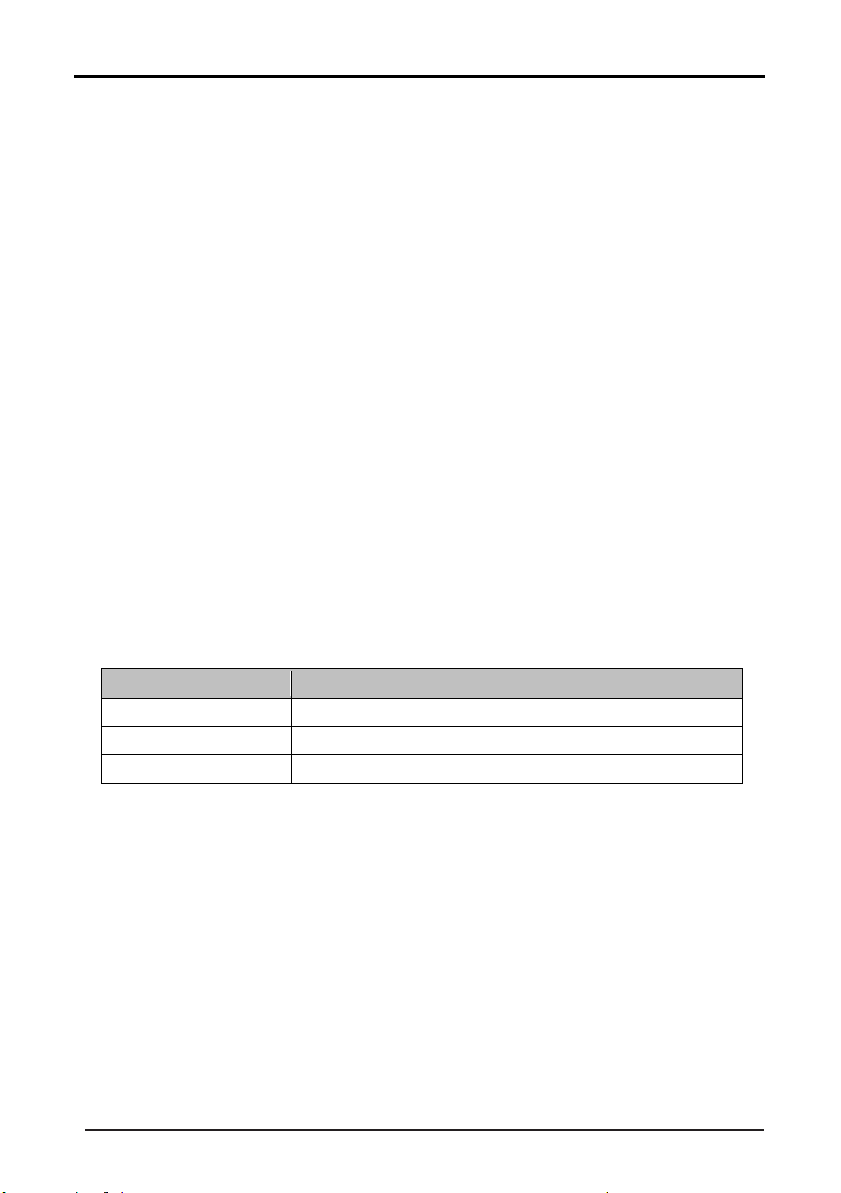
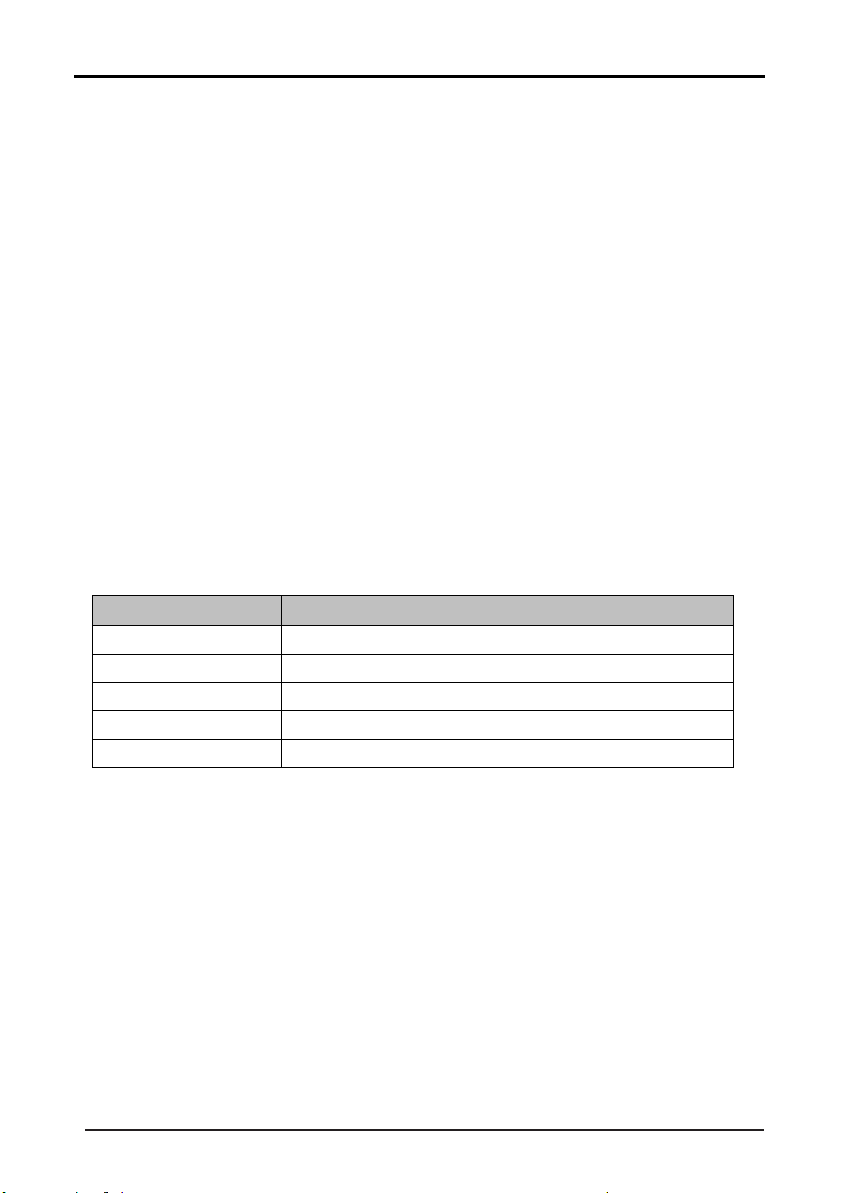
Information:Timeshit info banner shows some c
Enter method:After Timeshift start, press KEY_DISPLAY to show the menu .
Function explain :
a)
Time is equal to current play time minus current recording time.
This indicates that recording is in progress. It is displayed continuously until recording is stopped
(except when some other menu is selected).
This displays information about the current recording.
This indicates that timeshift is in progress. It is displayed continuously until timeshift is stopped
(except when some other menu is selected).
39
b)
P
rogress bar is for current recording length compared with the disk free space when REC start. The
black triangular icon is for current play length compared with current recording length.
c)
MB Free is the disk instantaneous free space.
d)
The right red time menu has the same function with the time in info banner menu(only when
info
banner menu closed it showed).
Menu shows as follows:
(T
imeshift info menu)
(T
imeshift time menu)
Key Stroke in menu:
Ke
y Stroke
Ac
tion
KEY
_PAUSE
Start or pause recording and playing.
KEY
_DISPLAY
Enter banner info menu and close time menu.
KEY
_STOP
Stop Timeshit.
KEY
_FF
Playing video fast forward with speed “x2”,“x4”,“x8”,“x16”
KEY
_FB
Playing video fast behind with speed “x2”,“x4”,“x8”,“x16”
(T
imeshift info Key Stroke)
4.
8.3
REC
T
his section is for recording flow.
3.1
RE
C
1.
I
nformation:
a)
Input:MPEG2 TS,NIM,ISO/IEC 13818-2,H.264;
O
utput:MPEG2 PS packet,only contain Video and Audio PID,no Teletext,Subtitle,EPG etc,the output
Video file format is “.MPG” and Audio file format is “.MP3”,the output files can be played by other
players which supports MPEG2 PS;TS packet,
contain Video and Audio PID,Teletext,Subtitle etc,the
output Video file format is “.TSV” ,the output files can be played by other players which supports TS

us
er choose Yes, it will record constrainedly. In addition, if the speed is high enough, it initializes in the
want to start Recording?”. After confirmation, the system will read the speed of the storage device.
System will set the partition which is recognised first as default partition before record if user
Press KEY_GREEN to set the focus partition as default;
artition list that shows the partitions connected to the system in Partition List menu,
(This step is same for Timeshift also)
The save direction for the output files: the inserted storage device (USB/Card). If user wants to change
40
b)
t
he output direction, he can open the partition list by pressing the button “Device” and make the choice.
It supports 4 partitions at most;
c)
The rules of naming the output files: Program name + (REC date_time(h/m/s),eg : BBC
ONE(20111023_123456).MPG. If a long-time recorded file takes more than 3.9GB, it cuts and makes a
new file named by adding an extra sequence number. eg: BBC ONE(20111023_123456)001.MPG.
2.
Recording Flow:
a)
Set up the working partition(default partition):
There is a P
does not set before;
Recorded files will be stored in the default partition.
b)
Press KEY_REC to start recording, when there is a program playing, it will pop up a message “Do you
If the
speed is too low for recording, there is a message “Device speed not enough, RECORD anyway?” if
first instance and starts to record later.
(C
onfirm record window)
(I
nitializing recorder window)
c)
As the initialization successfully ends, a REC input info menu appears on the right top corner of the
picture and it starts to record while the program is playing in the background;
d)
Press KEY_DISPLAY to get the current recording information from the Info Banner, such as current
recording time and the recording progress. The recording time depends on how much of the program
has been recorded actually;

w
arning message pops up, the recording process stops and it will keep on the
41
e)
I
f the signal is not stable there may be some pause;
f)
The recording progress will stop when the device has no more free spaces if there is no setting about
when to end before. A
normal playback process. Otherwise the progress ends naturally when the timer is timeout. Also user
could press KEY_STOP to end recording
manually;
(
REC info and stop recording window)
g)
System will prompt user error message and try to continue recording if there are some bad tracks in
disk.
3.2
T
imer REC
T
here are two methods to set a timer. As follows:
1.
In the EPG menu user can preengage programs
for
watching or recording;
a)
Pressing
KEY_GREEN
once
is to preengage the program
only for watching(when timeout, it jumps to
the program
and only play.
b)
Pressing
KEY_GREEN
twice
is to preengage the program
for recording (when timeout, it jumps to the
program
and starts recording). if it is timeout in standby mode, it will power on 2 minutes in advance
and starts to record under background without powering on the panel. To watch the program, user need
to press KEY_POWER;
c)
The preengaged programs can be checked in Timer menu.
(Pre
ss KEY_GREEN once
for
reminder)

42
(Pre
ss KEY_GREEN twice
for
recorder)
2.
In Timer menu, user can increase、delete preengage programs; In Timer Edit menu, user could set、modify
preengaged programs’ information;
In Timer menu: press KEY_YELLOW to get into Timer Edit menu to add a timer .Then set timer’s information
in Timer Edit menu.
Flow of setting a timer’s information:
a)
Type: Set program type :DTV
or RADIO;
b)
Mode: Way of triggering a timer(once/daily/weekly/monthly);
c)
Recorder:“ON”: preengage for watching and recording(record). “OFF”: preengage only for
watching(reminder);
d)
Set the date/time and Duration time (exact to minutes);Must be reasonable (behind current time);
e)
Timer: when there are some conflicts a warning message will pop up;
f)
Press KEY_MENU to return to Timer menu and store the timer’s information.
(T
imer Edit menu )
3.
When the timer recorder is timeout, it jumps to the very channel and starts to record the program
automatically.(if a manual recording is under process, it will stop the manual recording process and starts the
timer recorder automatically);When there is left 10s before recorder , a prompted window will pops
up;

43
(T
imer Record start prompt window )
4.
If there are not any storage media, the settings fail and a warning message “no USB device” shows;
5.
If target partition
(default partition)
is not set, it selects the first partition that the system identified
automatically.
3.3
T
imeshift
T
imeshift can record program and play the current recording program at the same time.
1.
Set Timeshift Buffer in PVR/Timeshift menu, Timeshift Buffer means how long a recorder can be stored when
Timeshift. If Buffer is overstepped , the previous recorder stored there will be lie over; There are three modes:
auto、30Mins、1hr、2hr,“auto”means all the free spaces on the storage media;
2.
In the normal playback process in DTV source, there are two
ways to start timeshift:
a)
Manually: press KEY_PAUSE to start Timeshift when there is no menu focused ( Stop: press
KEY_STOP ) ;
b)
Automatically: set the “Auto Timeshift”option as “Auto” in PVR/Timeshift menu ( Stop: set “Auto
Timeshift”as “Off”) .
3.
Before Manually Timeshift, there is a message
“Do you want to start Timeshift”.
After confirm,If signal is
stable, it will check whether the speed of the storage device that the user inserted is enough for Timeshift. If
the speed is not enough, a warning message will pop up to let the user make decision whether to go on. If
timeshift
is force to take place, there may be some pause or mosaic. Otherwise the speed is enough for
Timeshift, it’ll take place under background and users are able to pause or move fast backward;After a
pause, users are able to pause or move fast backward;
4.
After
Automatically Timeshift, it will take some minutes to initialize, then it take place automatically;
(T
imeshift Play start prompt menu)
Note: A USB memory device must be connected for this function.

44
(T
imeshift Play Info menu and stop prompt)
5.
A UI
(Timeshift time menu) on the right top corner shows the fallen time
between the current picture and the
living broadcasting picture;
6.
During the recoding progress, if the signal is missing, the recording process will take a pause until the signal
is stable again.
3
.4
REC Playback
P
lay videos and recorded files
1.
The recorded Videos can be played in Record List menu , in Record manage menu or in Source Media
Movie mode;
2.
When a video playing, the Info Banner menu shows the length of the video and the time that the video has
been played. Also there is a progress bar indicating the process of playing the video;
3.
A playing video can move fast forward with the speed “x2”,“x4”,“x8”,“x16” or play in a normal speed by
pressing the button “fast forward”;
4.
A playing video can move fast backward with the speed “x2”,“x4”,“x8”,“x16” or play in
a normal speed by
pressing the button “fast backward”;
5.
If it moves fast backward to the start of the video, it turns into the normal playing speed automatically;
6.
When a video playing, pause the process by pressing the button “pause/play” and restart the process by
another press again;
7.
When a video playing, it can jump to the previous or the next video to play by pressing the button “previous”
or “next”;
8.
When a video playing, user can stop the process by pressing the button “stop” and it goes back to the
browser in movie mode;
9.
When it comes to the end of a video, it will stop/repeat/play the next one depending on the value of Repeat
mode。
PS:The 3、4、5、6、7、8 upwards also adapt to the playback when it is recording。
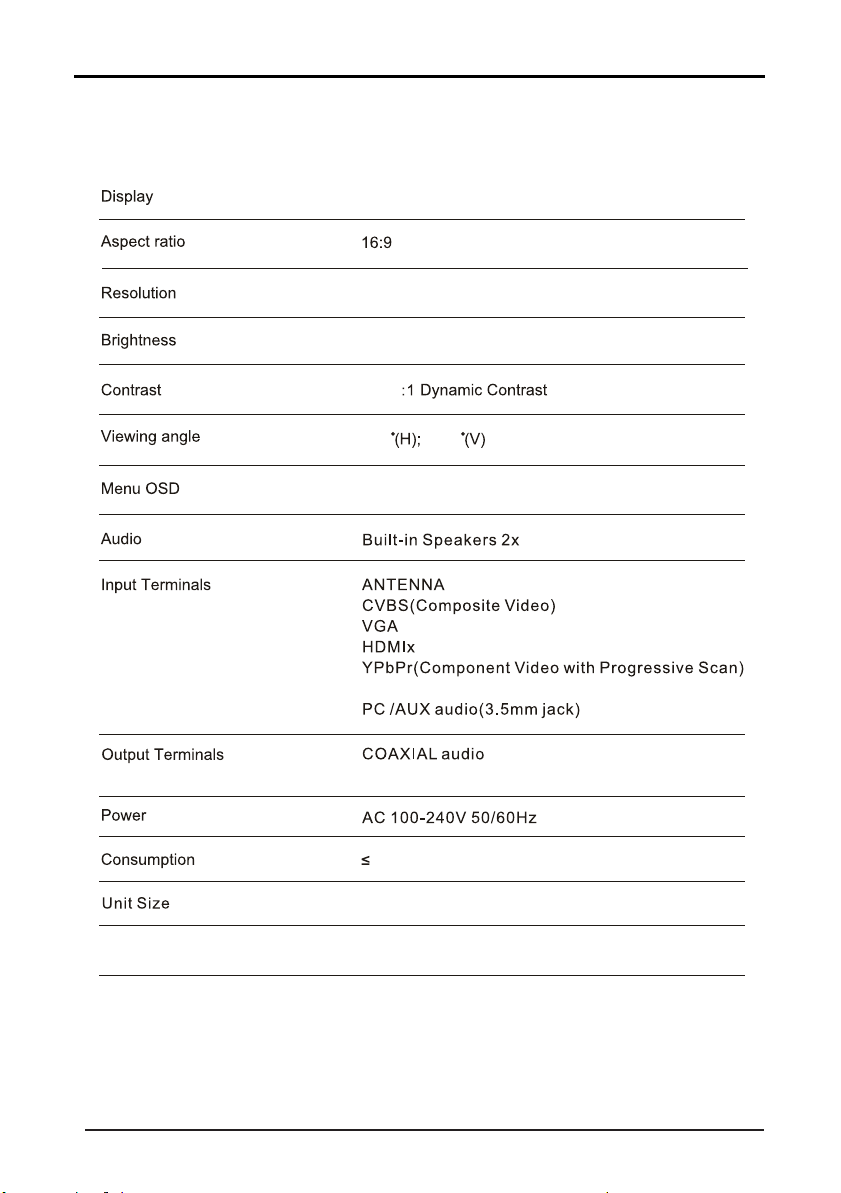
730x189x472mm(L x D x H)
Net Weight: 4.3 kg
32 inch ( 81cm )
45
60W
1366 X 768
English
176 176
8 W
3000
5.Technical Specification
200±10%
1 x USB ports
2
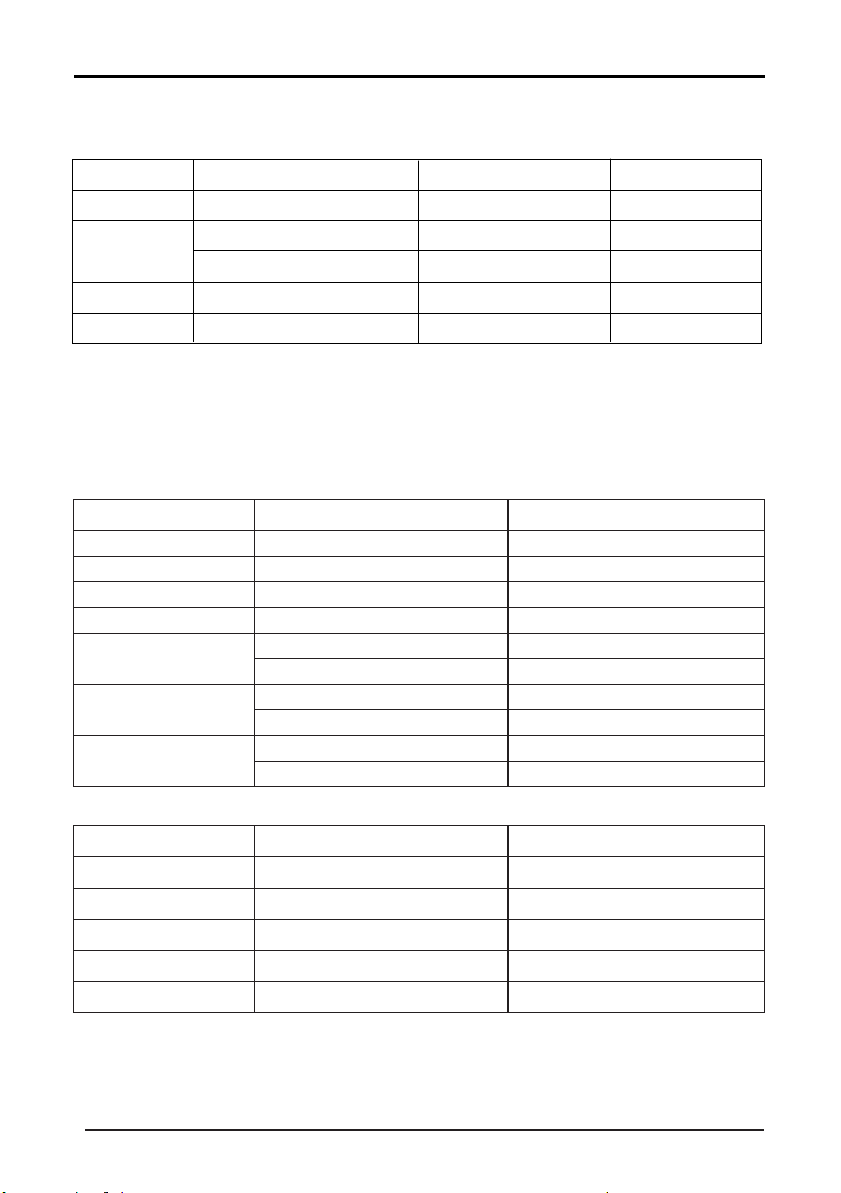
6. Supported Signal Modes
A.VGA Mode
B.YPbPr Mode
Resolution
480i
480p(720x480)
576i
576p(720x576)
720p(1280x720)
1080i
1080P(1920x1080)
59.94
59.94
50.00
50.00
50.00
60.00
50.00
60.00
60.00
50.00
15.734
31.468
15.625
31.25
37.50
45.00
28.13
33.75
67.50
56.25
Horizontal Frequency (Khz) Vertical Frequency (Hz)
C.HDMI Mode
Resolution Horizontal Frequency (Khz) Vertical Frequency (Hz)
480p
576p
720P
1080i
1080P(1920x1080)
59.94
50.00
60.00
60.00
60.00
31.468
31.25
45.00
33.75
67.50
-When the signal received by the display exceeds the allowed range, a
warning message will appear on the screen.
-You can confirm the input signal format onscreen.
Resolution Horizontal Frequency (Khz) Vertical Frequency (Hz)
640 x 480
800 x 600
1024 x 768
60.00
56.25
60.00
60.00
60.00
31.50
35.16
37.90
48.40
47.85
Memo
1366x 768
46
Note:Use VGA connecting cord of less than 5 meters
to ensure the appropriate
picture quality.
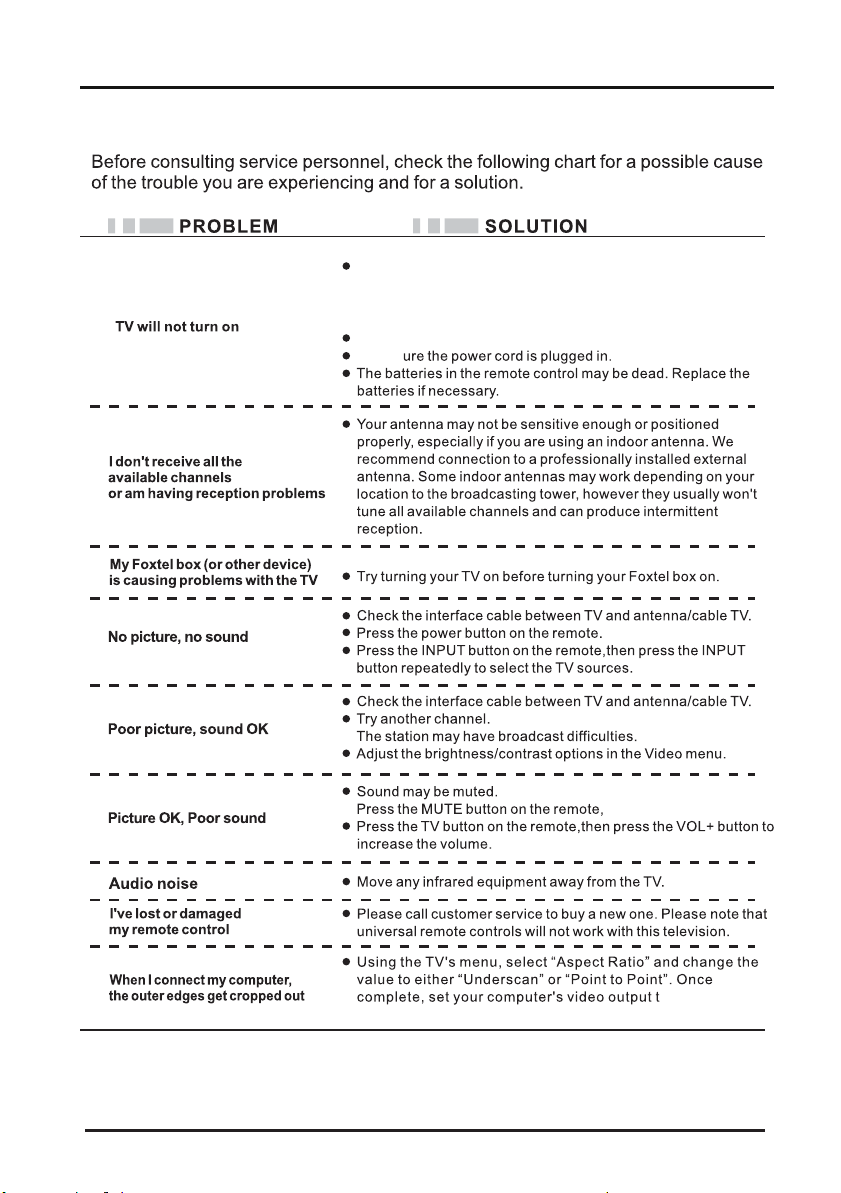
Simple Troubleshooting
Make s
o 1366x768
for best performance.
47
I
f your TV has a main power switch (O/I switch), make sure it is
set to ON - refer to the Overview diagram for position.
Note: The main power switch, if available, is separate from the
standby button.
Make sure the standby button is also turned on.

RWXM00-E139