User Manual
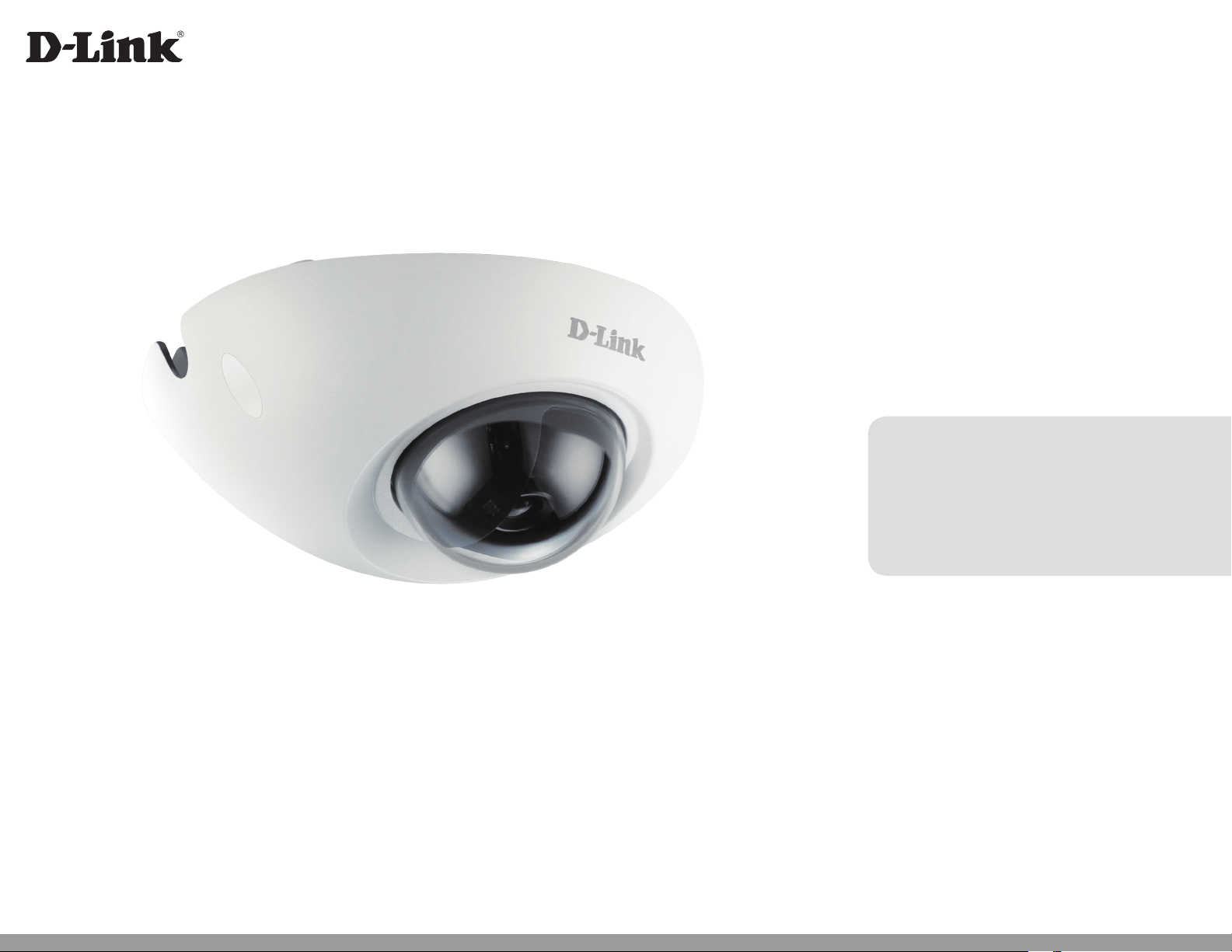
Full HD Mini Fixed Dome Network Camera
DCS-6210
Version 1.1 | 11/08/2012
2D-Link DCS-6210 User Manual
D-Link reserves the right to revise this publication and to make changes in the content hereof without obligation to notify any person or
organization of such revisions or changes. Information in this document may become obsolete as our services and websites develop and
change. Please refer to the www.mydlink.com website for the most current information.
Manual Revisions
Revision Date Description
1.0 October 11, 2012 DCS-6210 Revision A1 with rmware version 1.00
1.1 November 08, 2012 DCS-6210 Revision A1 with power consumption revise
Trademarks
D-Link and the D-Link logo are trademarks or registered trademarks of D-Link Corporation or its subsidiaries in the United States or other
countries. All other company or product names mentioned herein are trademarks or registered trademarks of their respective companies.
Copyright © 2012 D-Link Corporation.
All rights reserved. This publication may not be reproduced, in whole or in part, without prior expressed written permission from D-Link Corporation.
Preface

3D-Link DCS-6210 User Manual
Table of Contents
Product Overview ........................................................ 4
Package Contents ................................................................. 4
Introduction ............................................................................5
System Requirements .........................................................5
Features ....................................................................................6
Hardware Overview ............................................................. 7
Outside ................................................................................. 7
Internal ................................................................................. 8
Installing or Removing an SD Card.................................9
Camera Installation Wizard .............................................10
Manual Hardware Installation ........................................17
Adjusting the Camera .......................................................19
Mounting the Camera .......................................................20
Conguration ............................................................22
Using the Conguration Interface ................................22
Live Video ..............................................................................23
Setup .......................................................................................25
Setup Wizard ....................................................................25
Network Setup .................................................................31
Dynamic DNS ...................................................................34
Image Setup .....................................................................35
Audio and Video ..............................................................37
Preset ...................................................................................39
Motion Detection ...........................................................41
Time and Date ..................................................................42
Event Setup .......................................................................43
SD Card ...............................................................................51
HTTPS ..................................................................................52
Access List ..........................................................................53
Maintenance .........................................................................54
Device Management .....................................................54
System ................................................................................55
Firmware Upgrade ..........................................................56
Status ......................................................................................57
Device Info ........................................................................57
Logs .....................................................................................58
Help......................................................................................59
Technical Specications ............................................60
Safety Statements .....................................................62
4D-Link DCS-6210 User Manual
Section 1: Product Overview
Product Overview
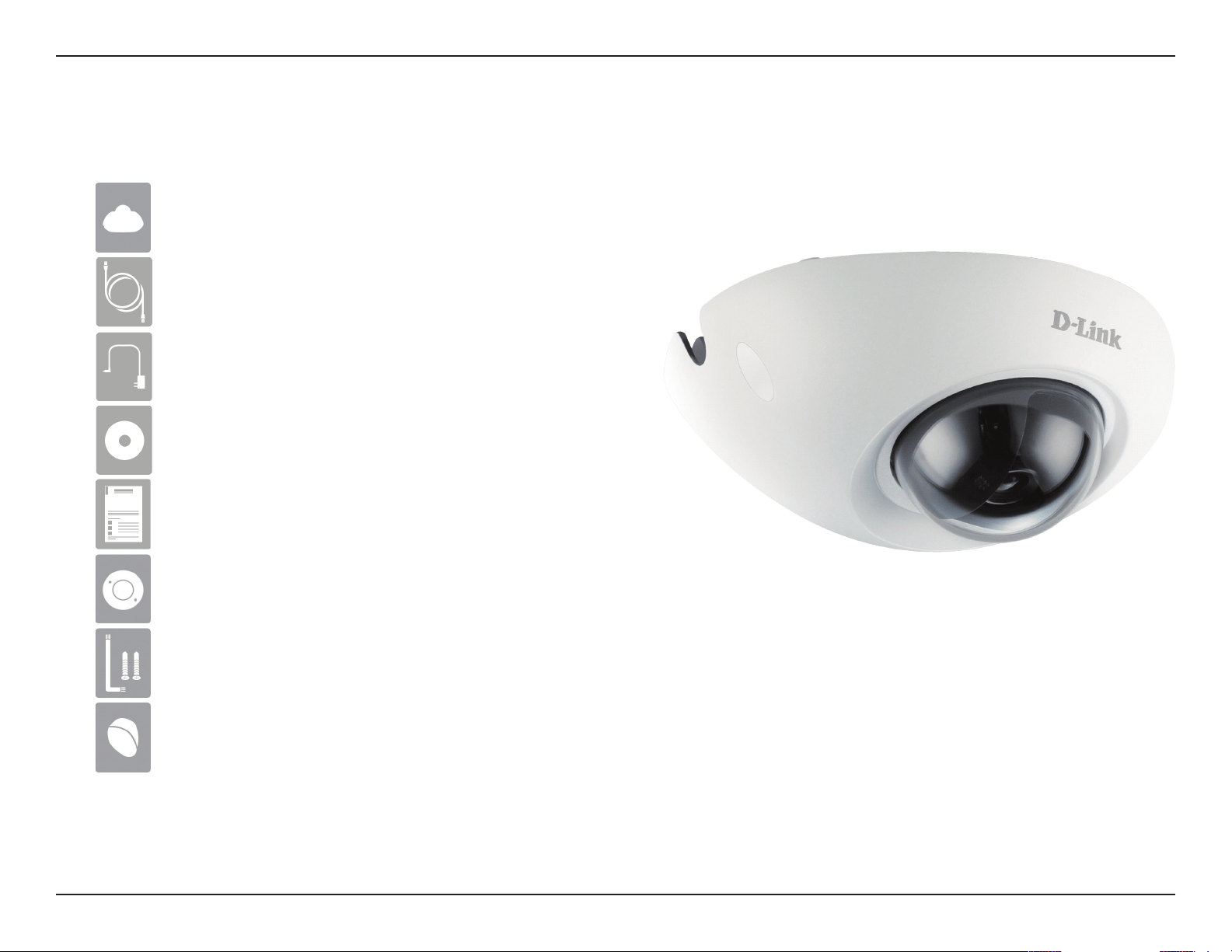
Package Contents
If any of the above items are missing, please contact your reseller.
Note: Using a power supply with a dierent voltage than the one included with your product will cause damage and void the warranty for
this product.
Quick Installation Guide
CAT5 Ethernet cable
Power adapter
CD-ROM with User Manual and software
DCS-6210 Full HD Mini Fixed Dome Network Camera
Weatherproong rubber screw coverings
Screwdriver and screws for installation
Alignment Sticker

5D-Link DCS-6210 User Manual
Section 1: Product Overview
Introduction
Congratulations on your purchase of the DCS-6210 Full HD Mini Fixed Dome Network Camera. The DCS-6210 is a versatile and
unique solution for your small oce or home. Unlike a standard webcam, the DCS-6210 is a complete system with a built-in CPU
and web server that transmits high quality video images for security and outdoor surveillance. The DCS-6210 can be accessed
remotely, and controlled from any PC/Notebook over your local network or through the Internet via a web browser. The simple
installation and intuitive web-based interface oer easy integration with your Ethernet/Fast Ethernet network. The DCS-6210
vandal-proof housing and Power over Ethernet make it an ideal solution for a complete and cost-eective surveillance solution
with an easy clutter-free installation. The remote monitoring, infrared, motion detection and event notications features enable
you be truly responsive to your surveillance deployment.
• Computer with Microsoft Windows® 7, Vista®, or XP (for CD-ROM Setup Wizard), Mac OS or Linux
• PC with 1.3GHz or above; at least 128MB RAM
• Internet Explorer 7 or above , Firefox 3.5 or above, Safari 4 and Chrome 8.0 or above
• Existing 10/100 Ethernet-based network or 802.11n wireless network
• A MicroSD memory card (optional) is required for recording to onboard storage. SDHC Class 6 or above is recommended.
• Broadband Internet connection
System Requirements

6D-Link DCS-6210 User Manual
Section 1: Product Overview
Simple to Use
The DCS-6210 is a stand-alone system with a built-in CPU, requiring no special hardware or software. The DCS-6210 supports both ActiveX mode
for Internet Explorer and Java mode for other browsers such as Firefox® and Safari®.
Supports a Variety of Platforms
Supporting TCP/IP networking, HTTP, and other Internet related protocols. The DCS-6210 can also be integrated easily into other Internet/Intranet
applications because of its standards-based features. The DCS-6210 oers Ethernet/Fast Ethernet connectivity, making the DCS-6210 easy to
integrate into your existing network environment. The DCS-6210 works with a 10Mbps Ethernet based network or 100Mbps Fast Ethernet based
network for traditional wired environments.
Web Conguration
Using a standard Web browser, administrators can congure and manage the Network Camera directly from its own Web page via Intranet or
Internet. This means you can access your DCS-6210 anytime, anywhere in the world.
IK10 Vandal-proof & IP66 Weather-proof Housing
The DCS-6210 uses IK10 vandal-proof and IP66 weatherproof housing, allowing you to rest assured that in the toughest of conditions, it will continue
to provide round-the-clock surveillance at vandal-prone locations such as transportation hubs, schools, or correctional facilities both in all weathers.
Broad Range of Applications
With today’s high-speed Internet services, the Network Camera can provide the ideal solution for delivering live video images over the Intranet and
Internet for remote monitoring. The Network Camera allows remote access using a Web browser for live image viewing, and allows the administrator
to manage and control the Network Camera anytime, anywhere in the world. Many applications exist, including industrial and public monitoring
of homes, oces, banks, hospitals, child-care centers, and amusement parks.
Remote Monitoring Utility
The D-ViewCam application adds enhanced features and functionality for the Network Camera and allows administrators to congure and access
the Network Camera from a remote site via Intranet or Internet. Other features include image monitoring, recording images to a hard drive, viewing
up to 32 cameras on one screen, and taking snapshots.
PoE (Power over Ethernet) for Flexible Installation
The DCS-6210 can draw all the power it needs from a powered Ethernet port meaning installation is simple and clutter free.
Features
7D-Link DCS-6210 User Manual
Section 1: Product Overview
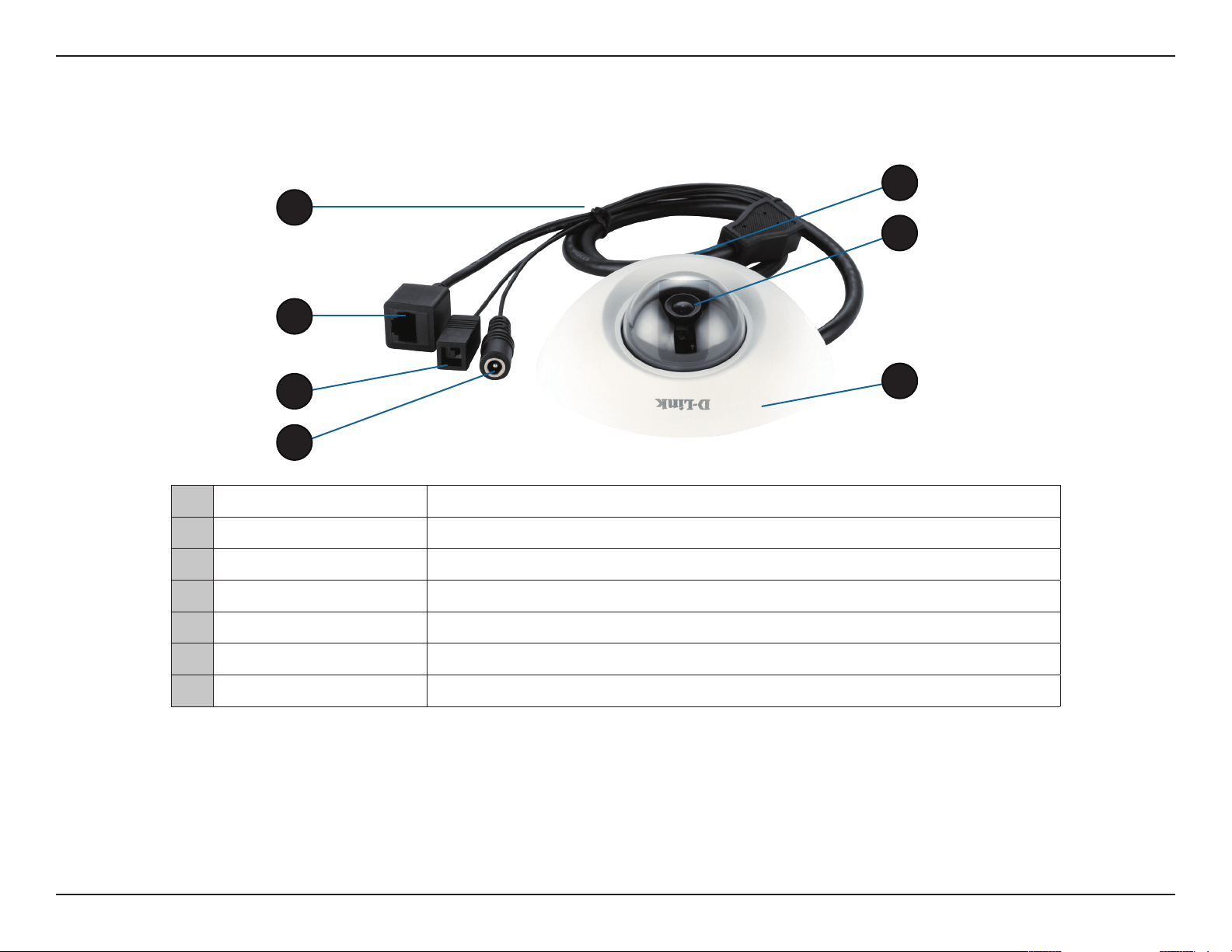
Outside
Hardware Overview
1 Cable Harness The cable harness retains the individual cables for easier manipulation
2 Ethernet Port
Connects to an RJ45 Ethernet cable or PoE cable to connect to your network
3 Reset Button
Press and hold the recessed button for 10 seconds to reset the camera
4 Power Connector Power receptor for the provided power adapter
5 Microphone
Built in microphone records audio of the surrounding area
6 Camera Lens Full HD Fixed Lens records video of the surrounding area
7 Camera Cover
Remove the cover to adjust the Camera Lens and access the Micro SD Card slot
6
1
7
2
3
4
5
8D-Link DCS-6210 User Manual
Section 1: Product Overview
Internal
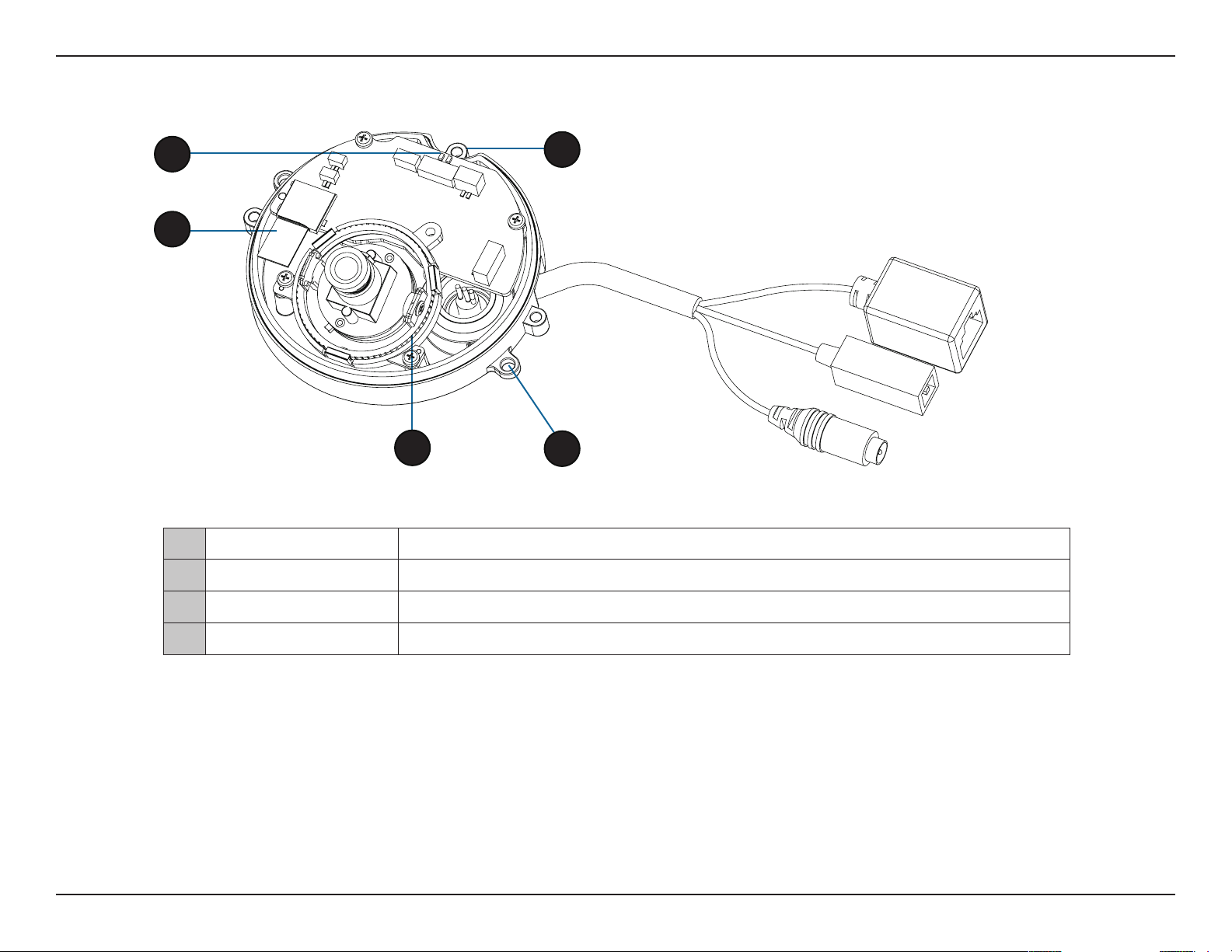
You can access the inside of the DCS-6210 by loosening the 3 security screws, then lifting the cover o of the camera.
1 LED Power and network indicator.
2 SD/SDHC Card Slot
Insert an SD/SDHC card for storing internal recorded images and video.
3 Adjustable Lens Seat
Adjustable triple ring lens mount.
4 Mounting Screw Hole
Guide to assist correct casing alignment with the cable channel.
1
2
3
4
4
9D-Link DCS-6210 User Manual
Section 1: Product Overview
Installing or Removing an SD Card
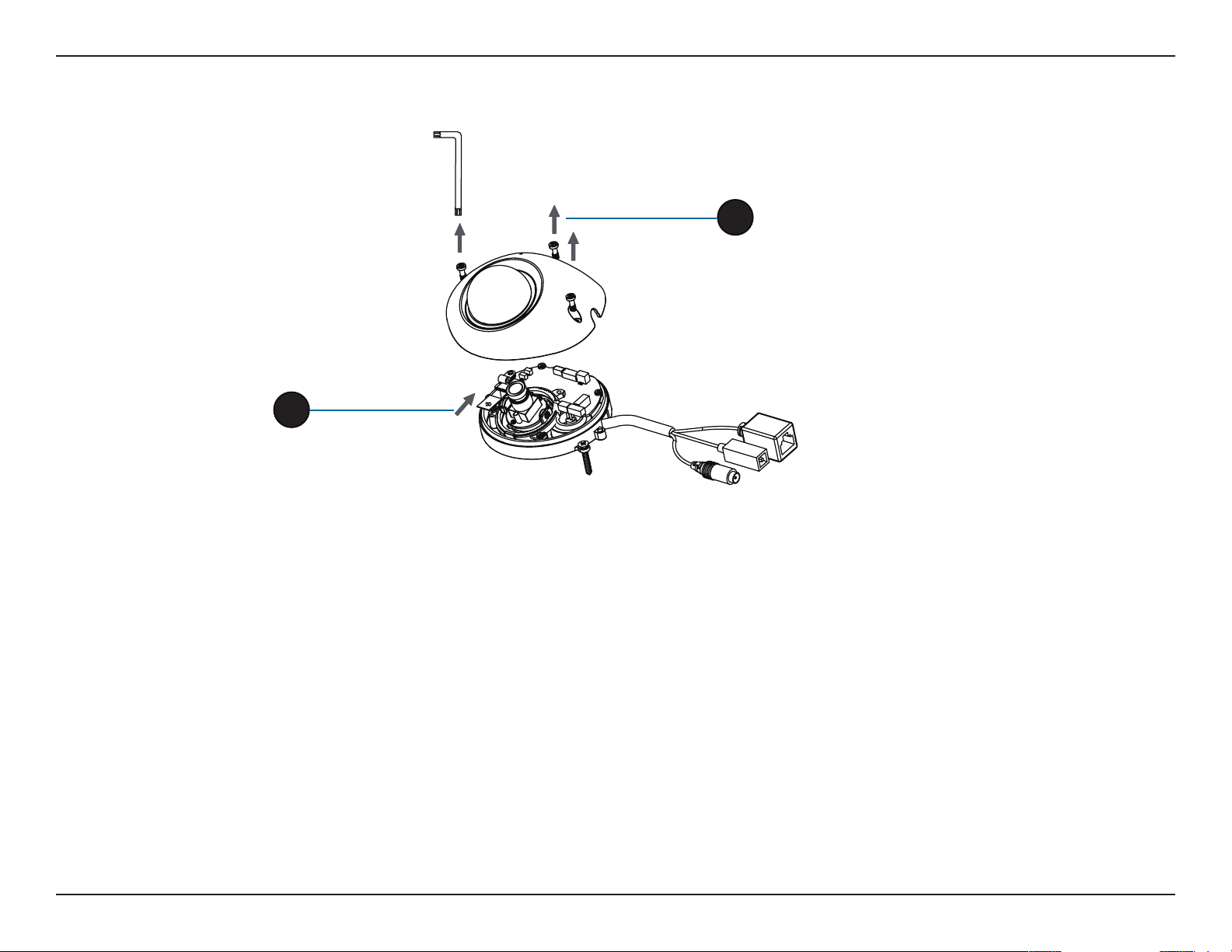
Step 1:
Place the camera face down on a non-slip at surface.
Step 2:
Open the camera enclosure by loosening the 3 screws. Lift the dome o the base of the camera.
Step 3:
Push the SD card into the camera with the gold contacts oriented towards the base of the camera. To eject the SD card, push the SD card into the slot.
Step 4:
Replace the dome enclosure ensuring a tight t.
Note: To ensure that the camera stays weatherproof, users are advised to ensure that the weatherproof sheath is secured rmly in place.
3
2
10D-Link DCS-6210 User Manual
Section 2: Installation
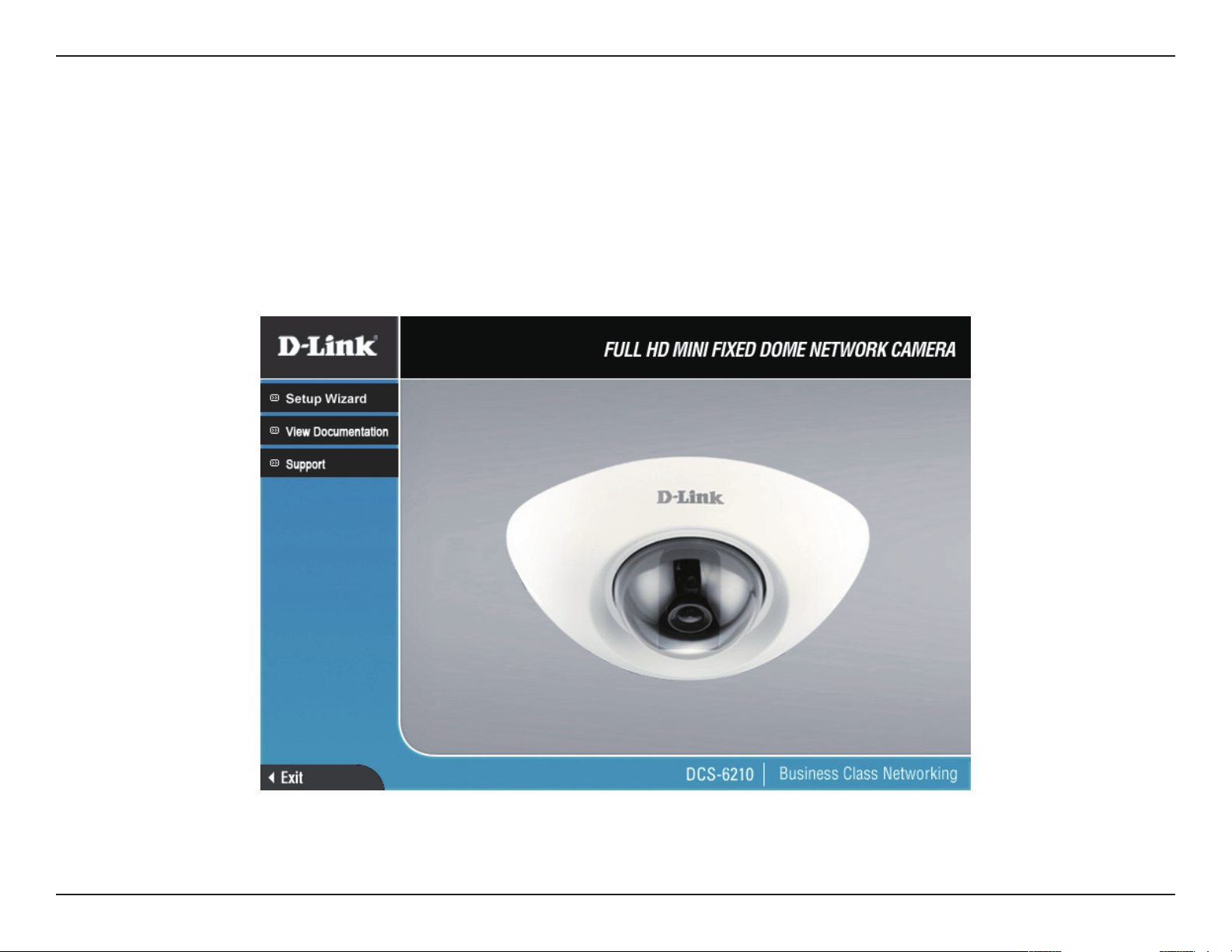
The CD-ROM will open the Camera Installation Wizard. Simply click Setup Wizard to go through the Installation Wizard, which
will guide you through the installation process from connecting your hardware to conguring your camera.
Camera Installation Wizard
Insert the DCS-6210 CD into your computer's CD-ROM drive to begin the installation. If the Autorun function on your computer
is disabled, or if the D-Link Launcher fails to start automatically, click Start > Run. Type D:\autorun.exe, where D: represents the
drive letter of your CD-ROM drive.
11D-Link DCS-6210 User Manual
Section 2: Installation
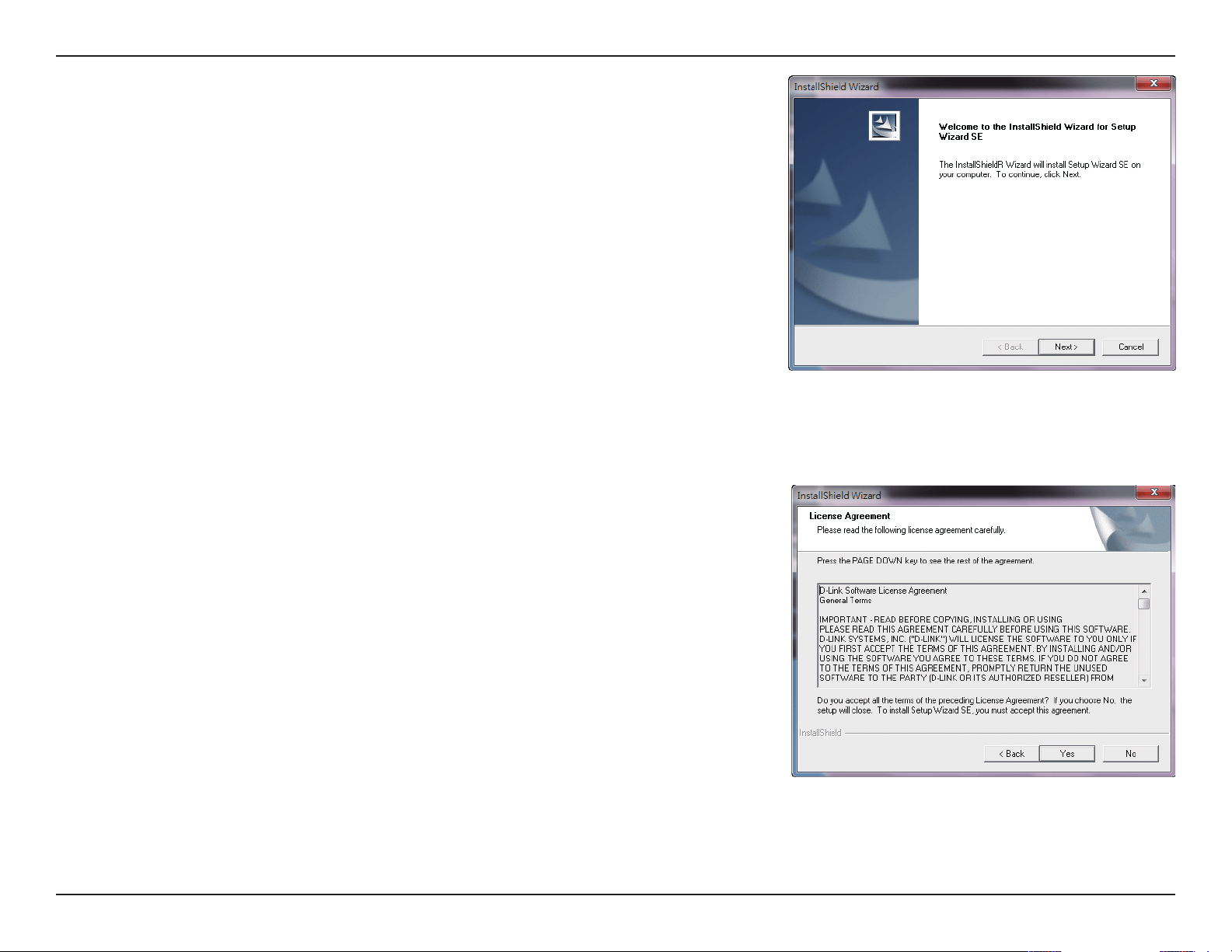
After clicking Setup Wizard, the following window will open.
Click Next to continue.
Click Yes to accept the License Agreement.
12D-Link DCS-6210 User Manual
Section 2: Installation
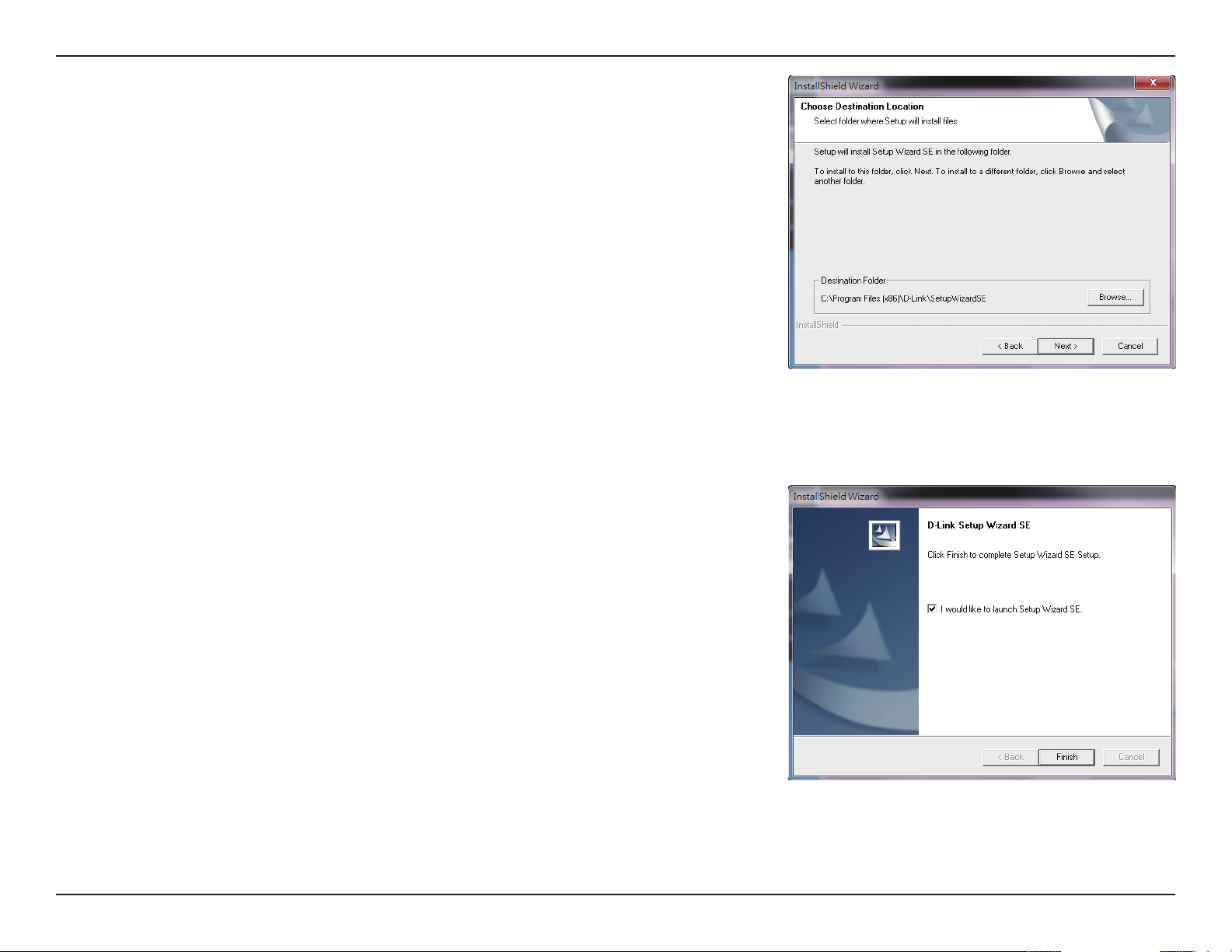
Click Finish to complete the installation.
To start the installation process, click Next.
Note: The installation may take several minutes to nish.
13D-Link DCS-6210 User Manual
Section 2: Installation
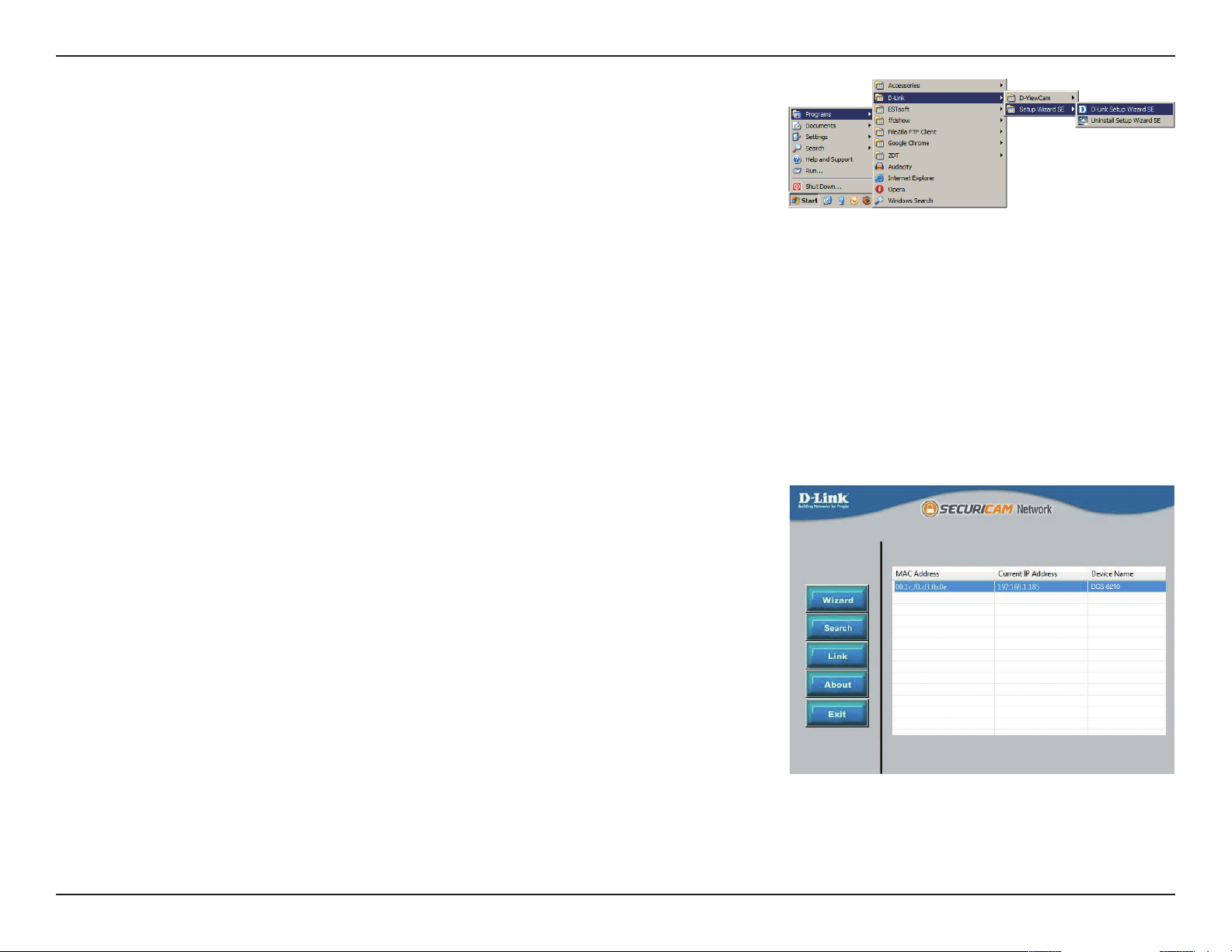
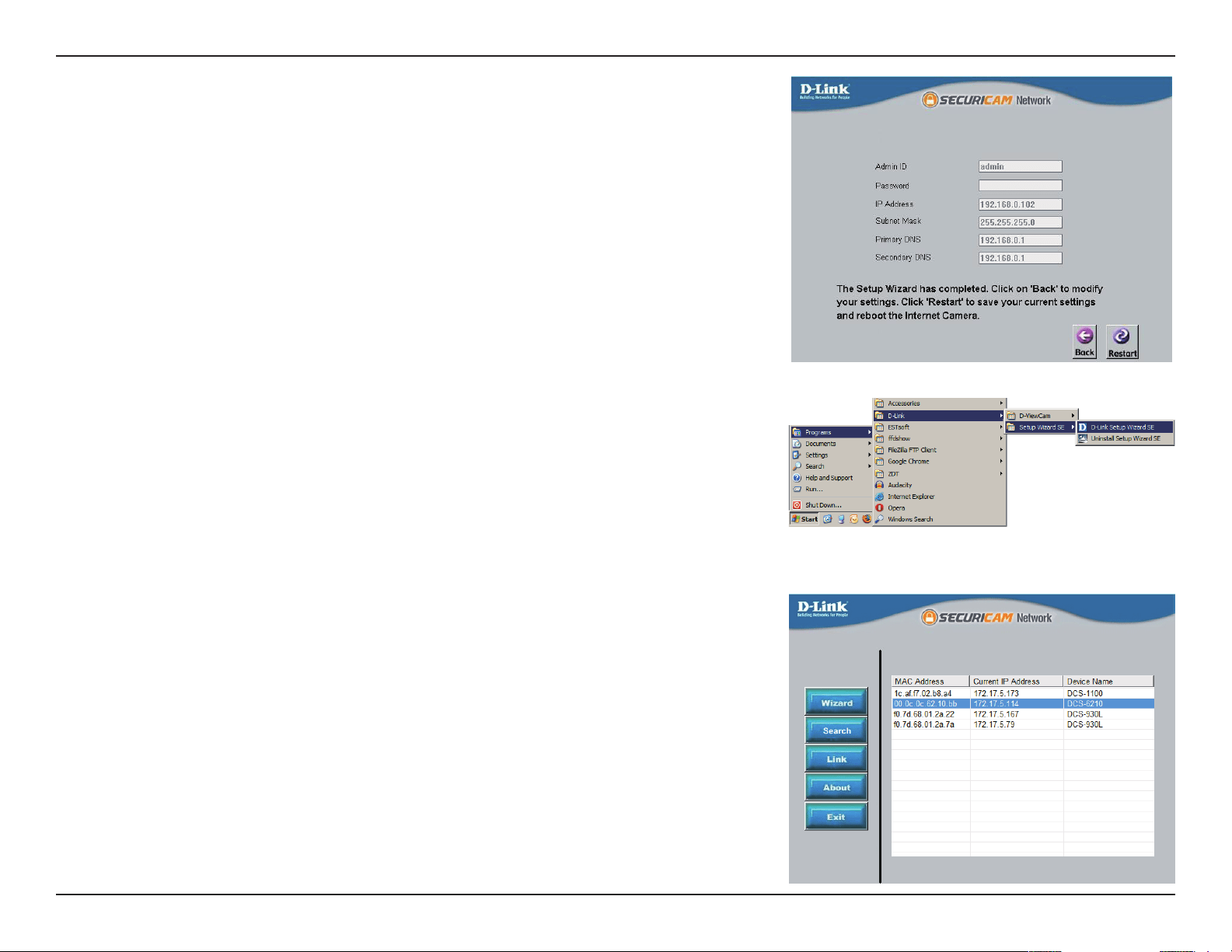
Click on the D-Link Setup Wizard SE icon that was created in your Windows Start
menu.
Start > D-Link > Setup Wizard SE
The Setup Wizard will appear and display the MAC address and IP address of your
camera(s). If you have a DHCP server on your network, a valid IP Address will be
displayed. If your network does not use a DHCP server, the network camera's
default static IP 192.168.0.20 will be displayed.
Click the Wizard button to continue.
14D-Link DCS-6210 User Manual
Section 2: Installation
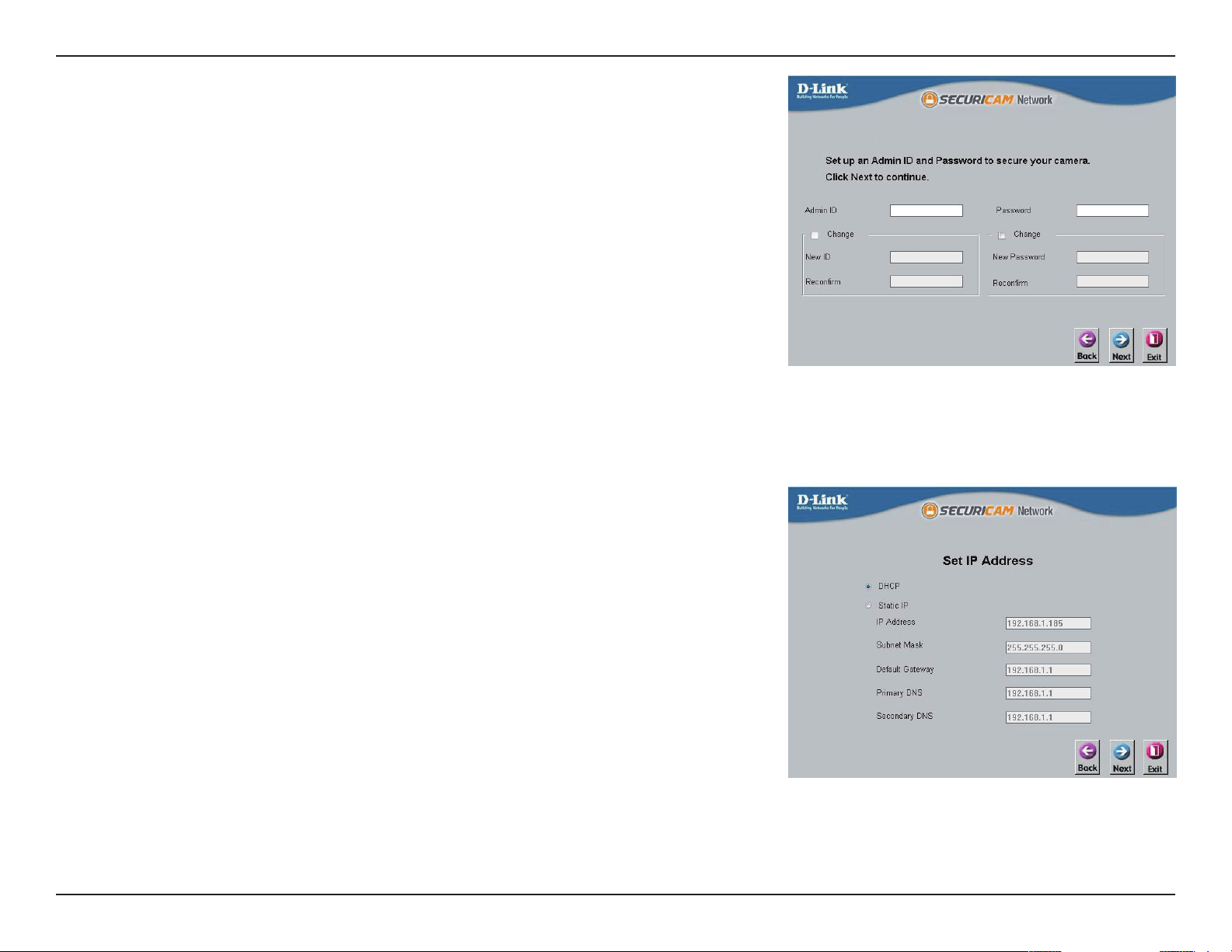
Select DHCP if your camera obtains an IP address automatically when it boots up.
Select static IP if the camera will use the same IP address each time it is started.
Click Next, to proceed to the next page.
Enter the Admin ID and password. When logging in for the rst time, the default
Admin ID is admin with the password left blank.
Click Next, to proceed to the next page.
15D-Link DCS-6210 User Manual
Section 2: Installation
Take a moment to conrm your settings and click Restart.
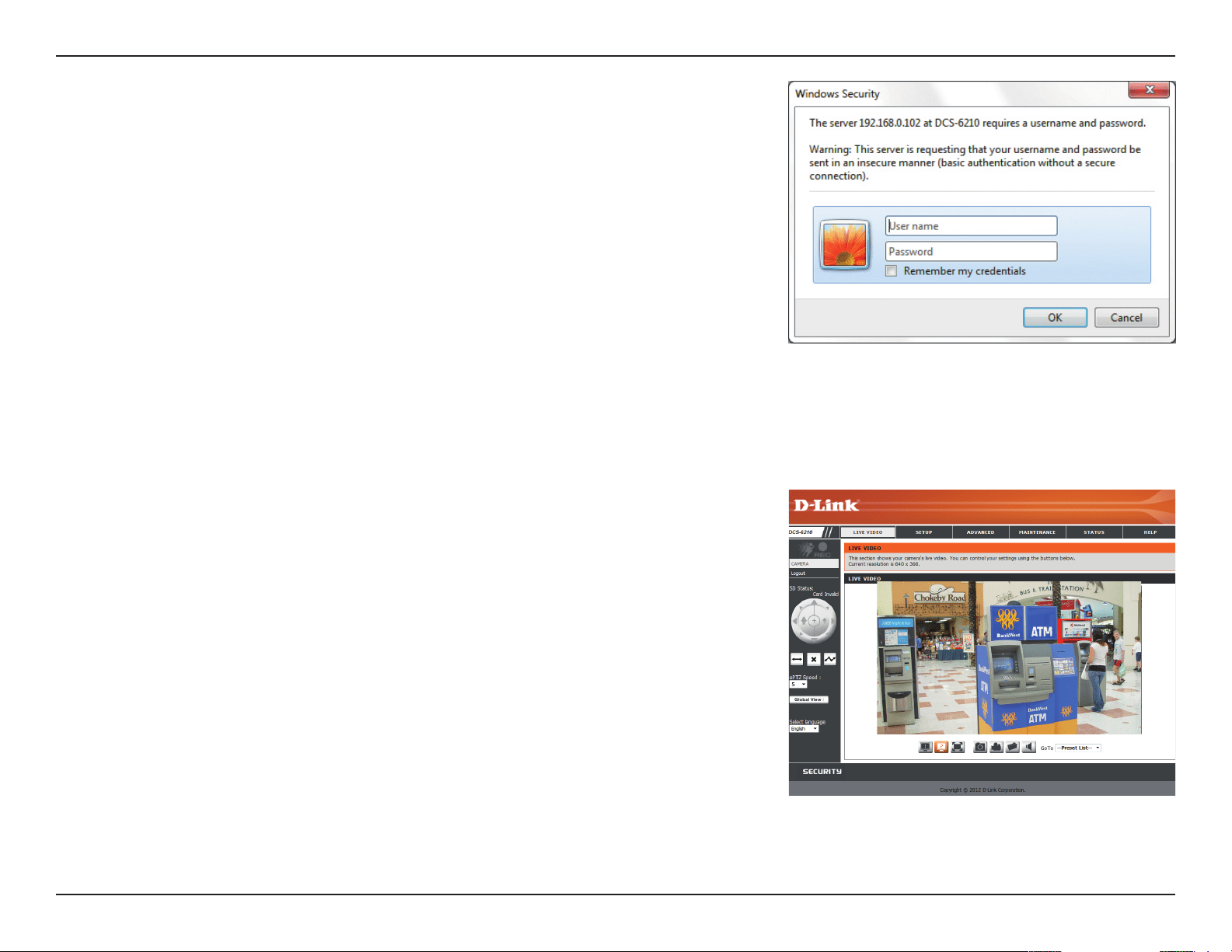
Click on the D-Link Setup Wizard SE icon that was created in your Windows Start
menu.
Start > D-Link > Setup Wizard SE
Select the camera and click the button labeled "Link" to access the web
conguration.
The Setup Wizard will automatically open your web browser to the IP address of the
camera.
16D-Link DCS-6210 User Manual
Section 2: Installation
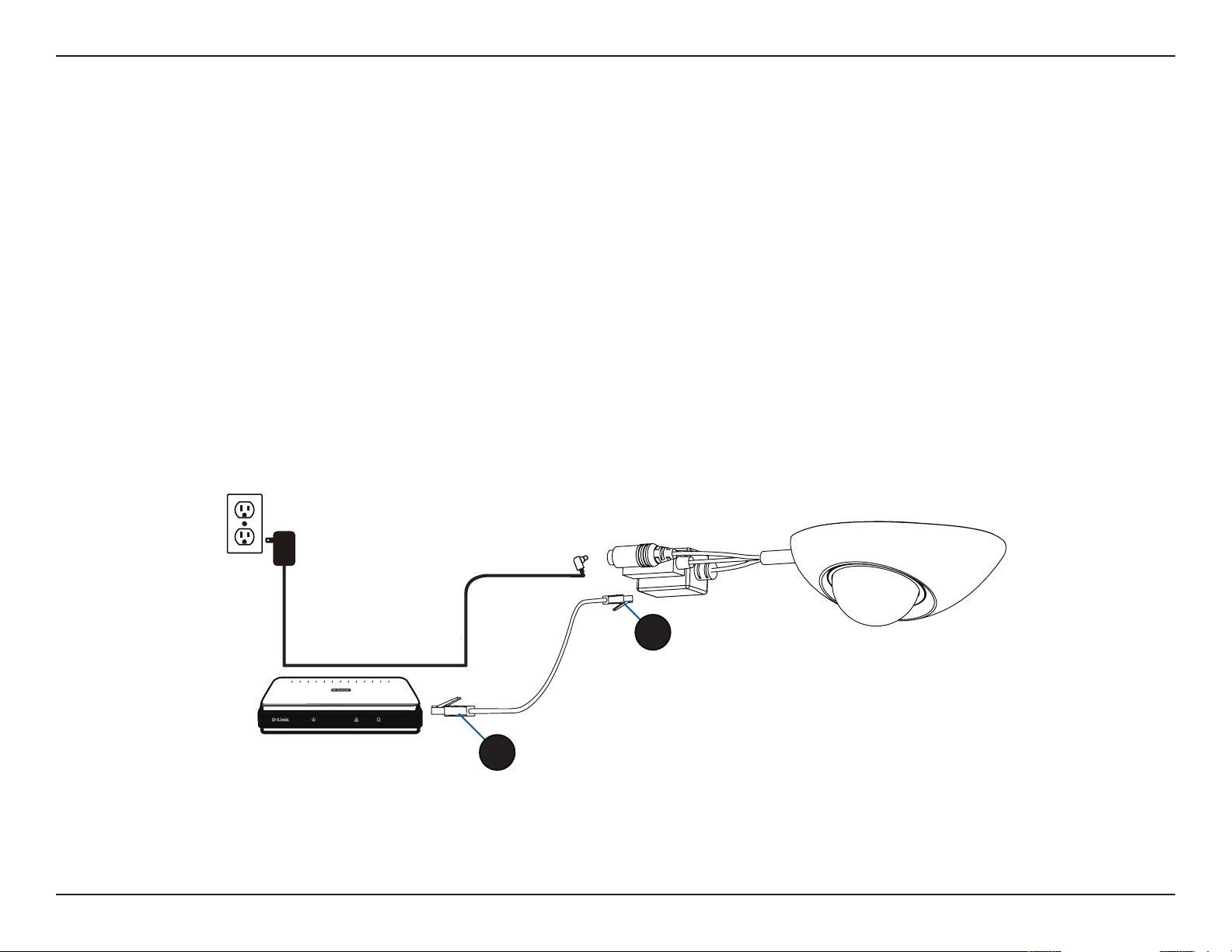
This section shows your camera’s live video. You can select your video prole
and view or operate the camera. For additional information about web
conguration"Conguration" on page 22.
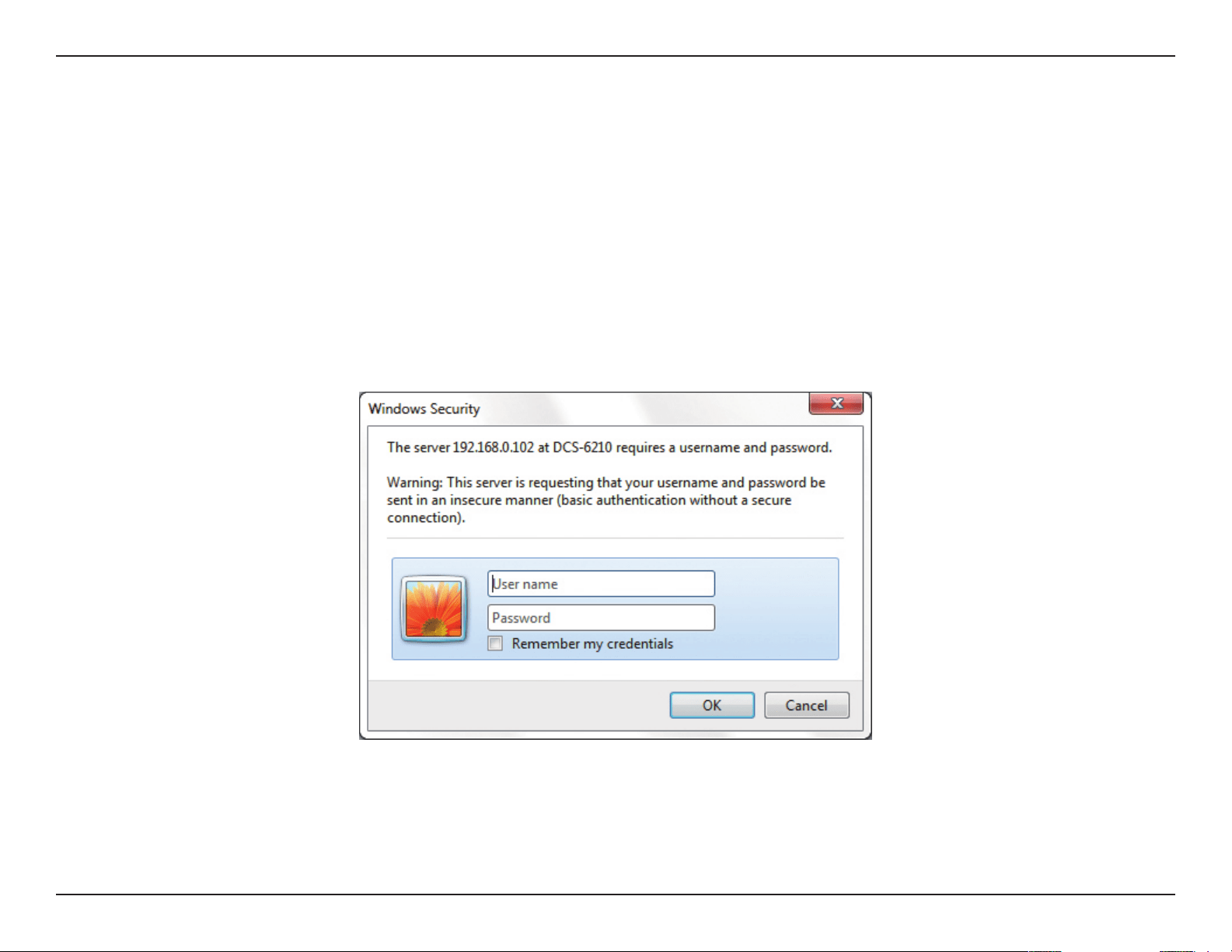
Enter admin as the default username and leave the password blank. Click OK to
continue.
17D-Link DCS-6210 User Manual
Section 2: Installation
Manual Hardware Installation
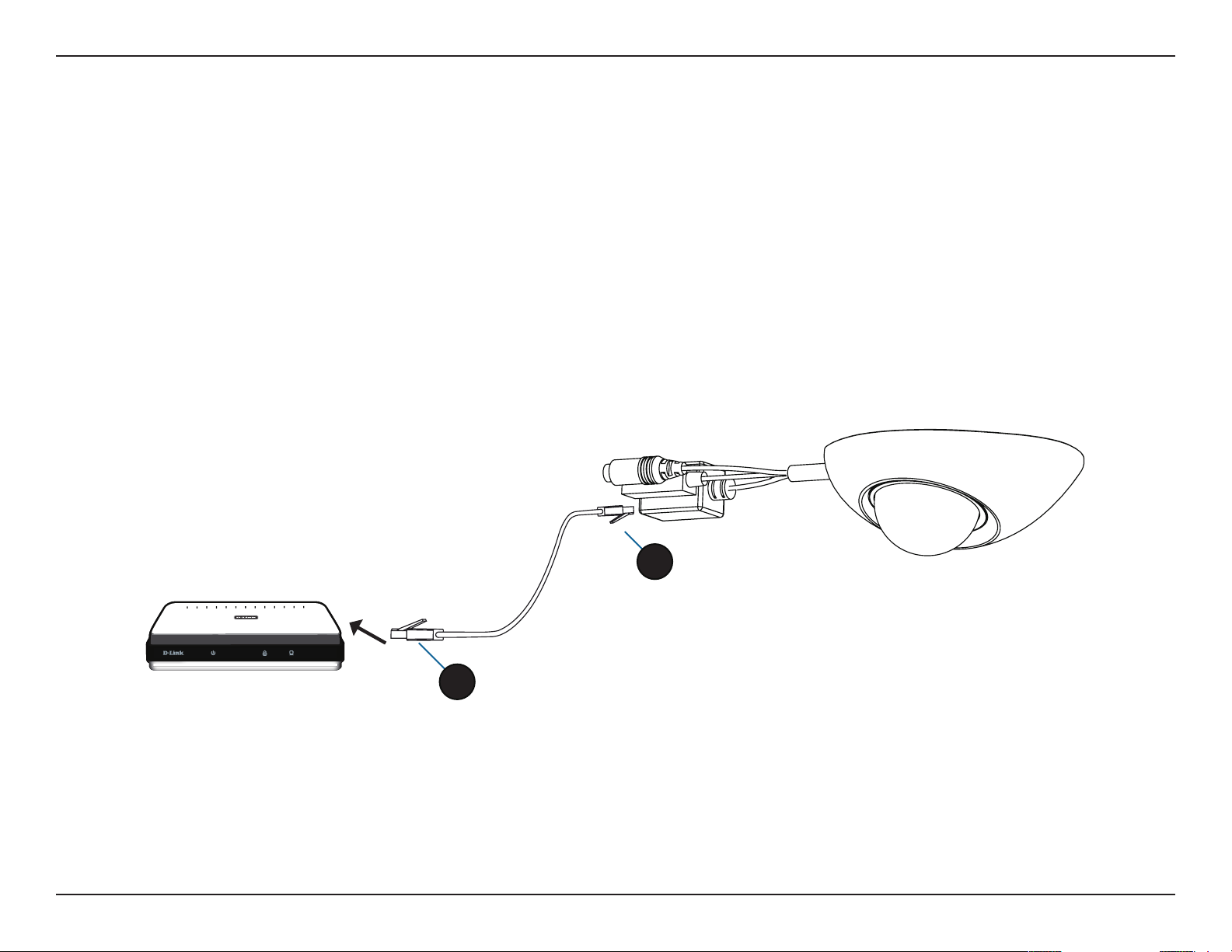
If you wish to set up your camera without using the Camera Setup Wizard, please follow these steps.
General connection with 12 V DC Power Adaptor
Step 1
Place the camera on a non-slip surface.
Using the provided Ethernet cable connect the provided Ethernet cable to the
Ethernet port on the Cable harness
Step 2
Connect the other end of the Ethernet cable your network..
1
2
18D-Link DCS-6210 User Manual
Section 2: Installation
Connection using PoE
Step 1
If you are using a PoE hub, connect the IP camera to the hub via an Ethernet cable,
which will provide transmission of both power and data over a single cable.
Step 2
Connect the other end of the Ethernet cable your network..
1
2
19D-Link DCS-6210 User Manual
Section 2: Installation
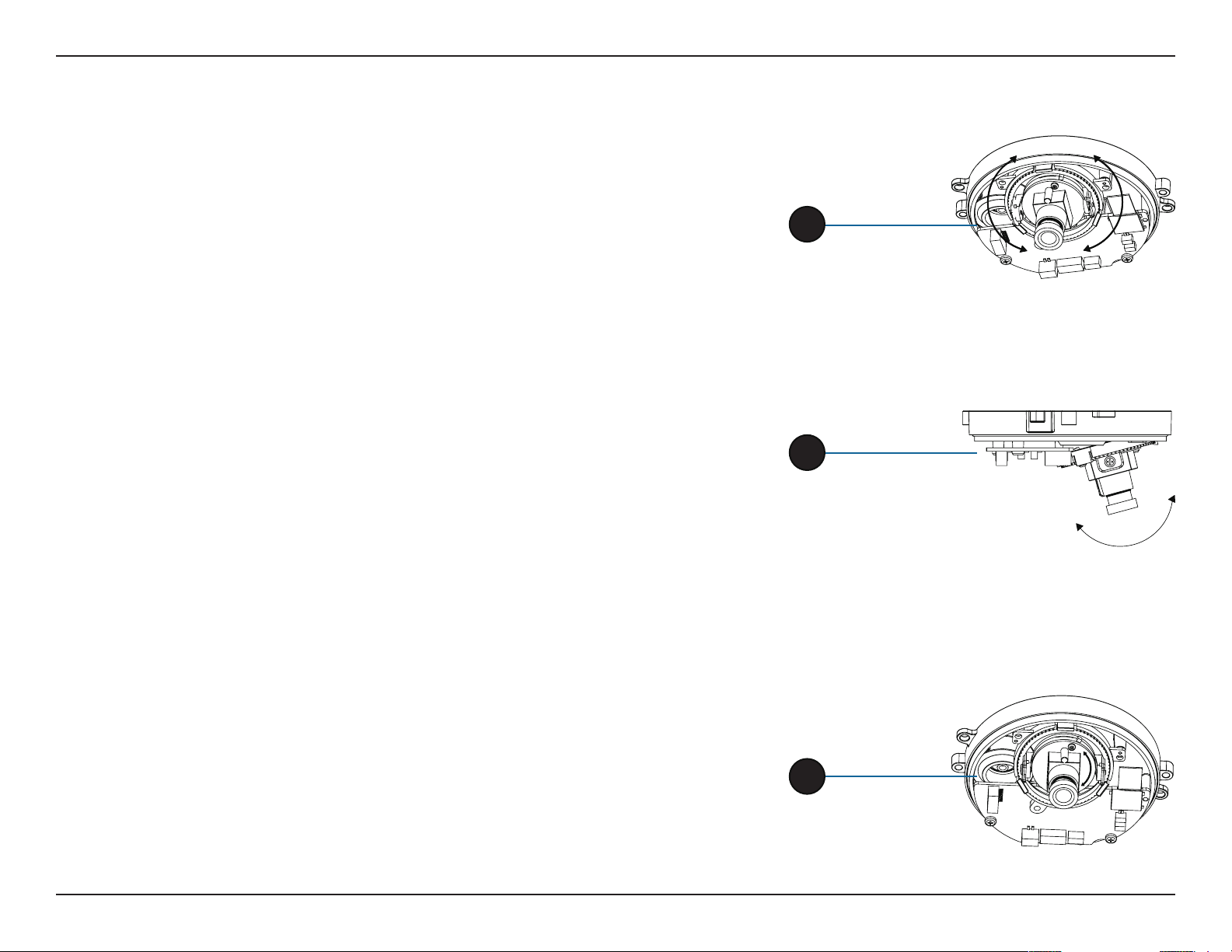
Adjusting the Camera
The DCS-6210 can be focused by adjusting the lens.
Step 1
Place the camera on a non-slip surface.
Step 2
Remove the cover by following the steps outlined in "Installing or Removing an
SD Card" on page 9.
Step 3
Adjust the Viewing Angle of the 3-axis Mechanism by turning the lens module
left and right until the desired position is achieved.
Step 4
Turn the lens up and down until the desired position is achieved.
Step 5
Turn the lens to adjust the IP camera’s image until the desired orientation is
achieved
Step 6
Seat the cover and fasten the three security screws.
Step 7
Insert the weatherproof rubber screw coverings over the screws ensuring a tight
seal.
4
3
5
20D-Link DCS-6210 User Manual
Section 2: Installation
Mounting the Camera
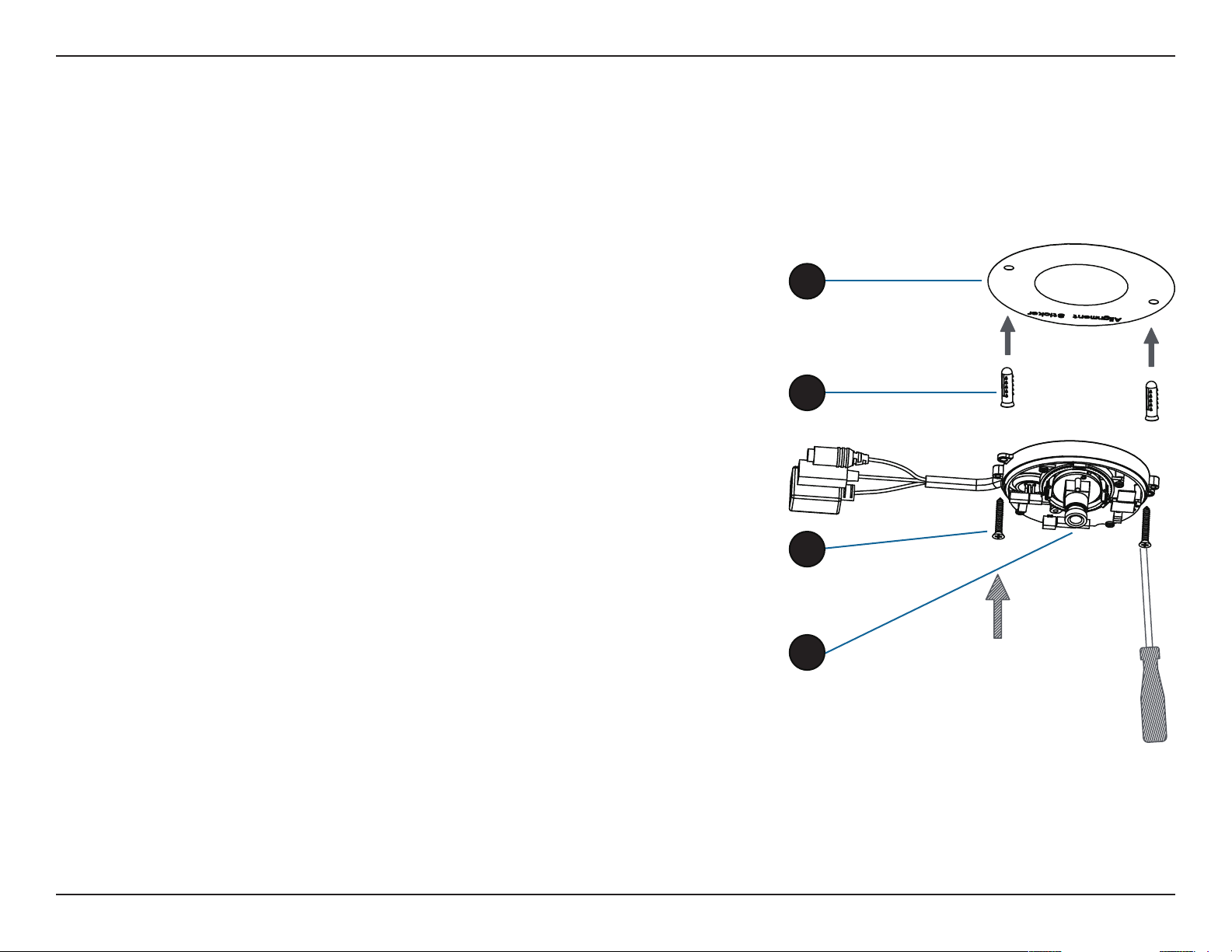
The DCS-6210 is suitable for mounting to a ceiling or wall.
Step 1
Position the alignment sticker in the desired location for the camera.
Step 2
Use a 6mm drill bit to make required holes approximately 25mm deep.
Step 3
Insert wall anchors.
Step 4
Ax the DCS-6210 base using the screws provided.
Step 5
Adjust the Lens. For detailed instructions on adjusting the lens see "Adjusting
the Camera" on page 19
1
3
4
5
21D-Link DCS-6210 User Manual
Section 2: Installation
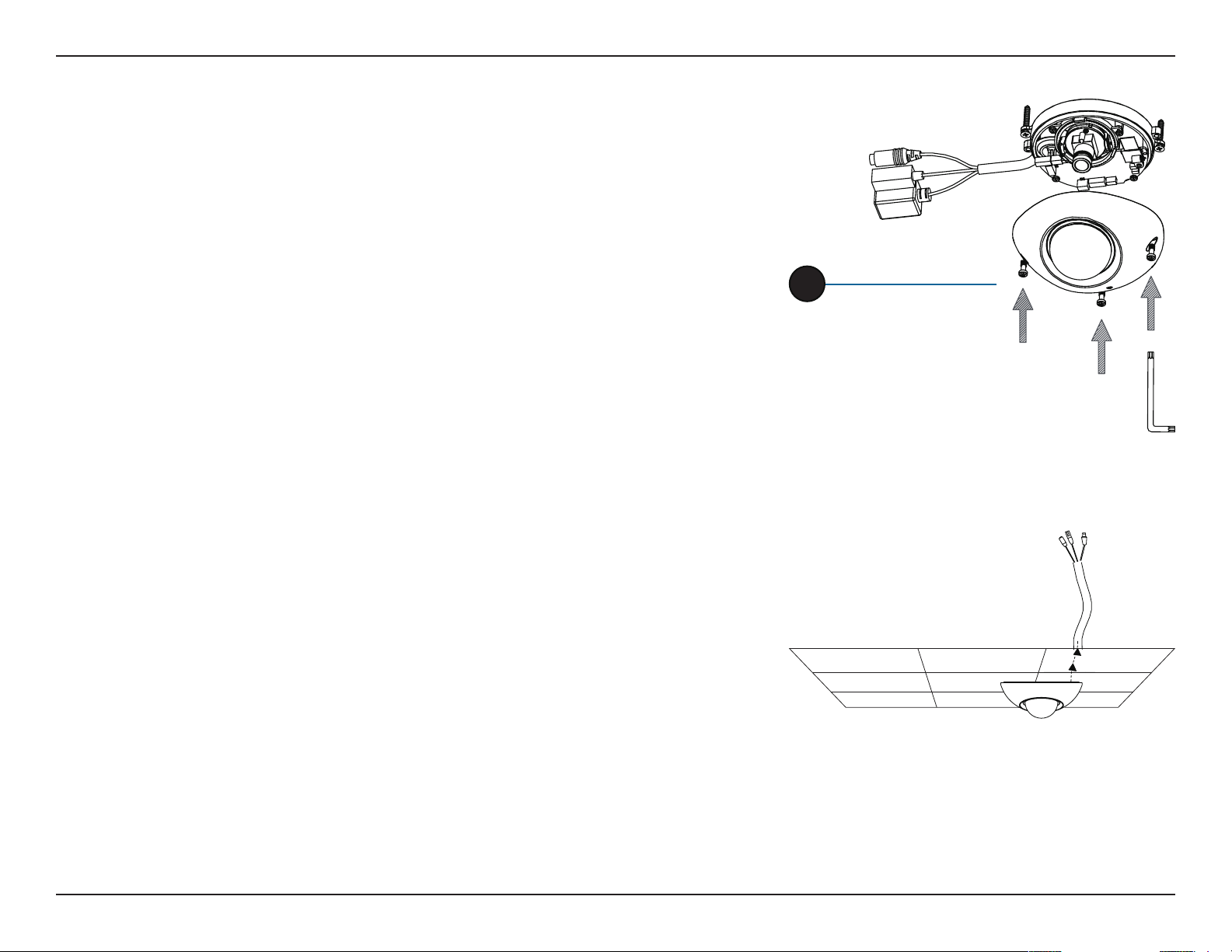
Step 6
Ax the DCS-6210 dome using the screws provided.
Step 7
Insert the weatherproof rubber screw coverings over the screws ensuring a tight
seal.
6
Note: When mounting ensure the camera is oriented with the cables positioned
to the bottom of the device.
22D-Link DCS-6210 User Manual
Section 4: Conguration
Conguration
Using the Conguration Interface
After completing the Camera Installation Wizard, you are ready to use your camera. The camera’s built-in Web conguration utility is designed to
allow you to easily access and congure your DCS-6210. At the end of the wizard, click Go To Camera, or enter the IP address of your camera into
a web browser, such as Mozilla Firefox. To log in, use the User name admin and the password you created in the Installation Wizard. If you did not
create a password, the default password is blank. After entering your password, click OK.
23D-Link DCS-6210 User Manual
Section 4: Conguration
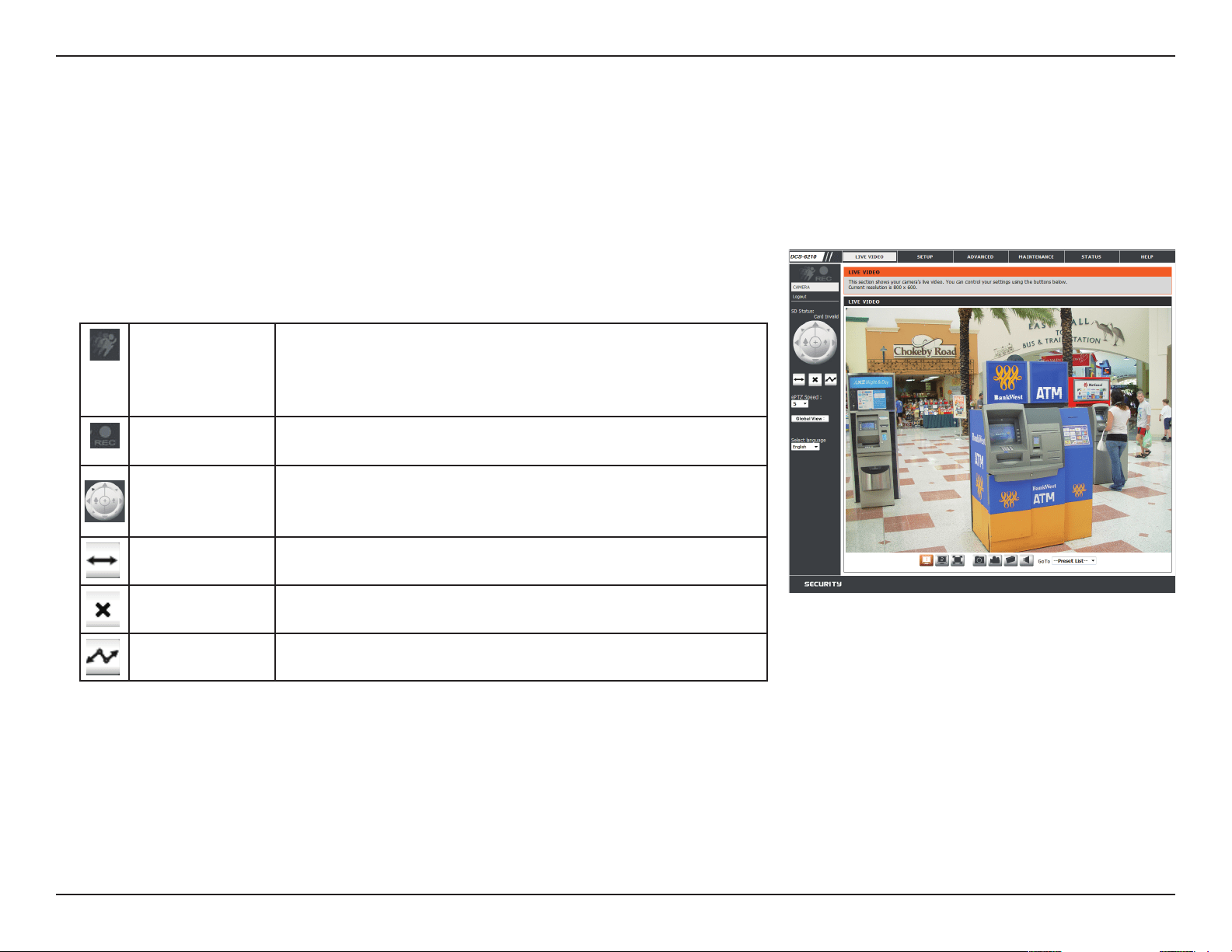
Live Video
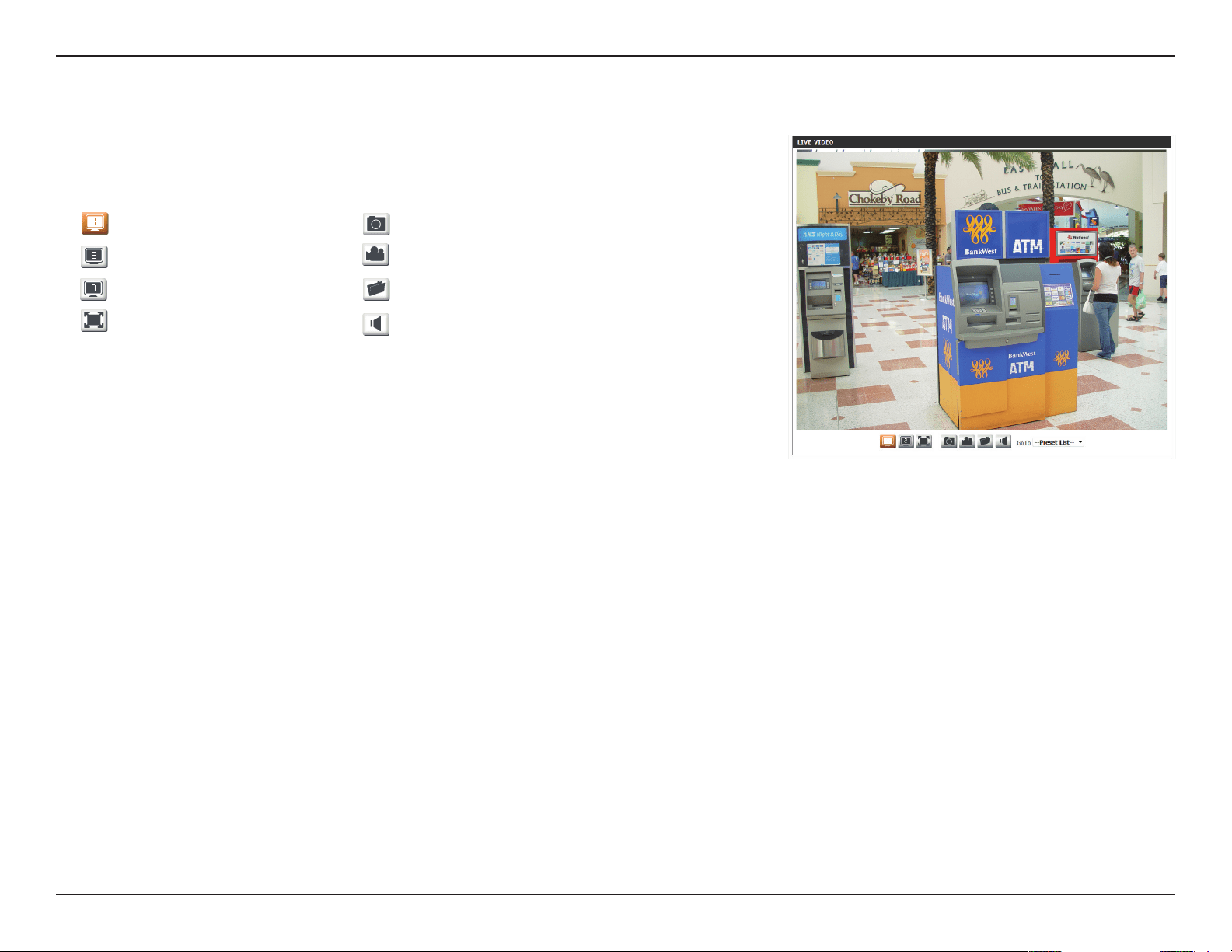
This section shows your camera’s live video. You may select any of the available icons listed below to operate the camera. You may also select your
language using the drop-down menu on the left side of the screen.
You can zoom in and out on the live video image using your mouse. Right-click to zoom out or left-click to zoom in on the image.
Motion Trigger
Indicator
This indicator will change color when a trigger event occurs.
Note: The video motion feature for your camera must be
enabled.
Recording
Indicator
When a recording is in progress, this indicator will change
color.
Control Pad
This control pad can be used to electronically pan, tilt, and
zoom (ePTZ) within the camera's predened view area, if one
has been dened.
Auto Pan Starts the automatic panning function. The ROI will pan from
back and forth within the FOV
Stop Stops the camera ePTZ motion
Preset Path Starts the camera's motion along the predened path
You may select a value between 0 and 64. 0 is the slowest and 64 is the
fastest.
ePTZ Speed:
This option displays the status of the SD card. If no SD card has been
inserted, this screen will display the message "Card Invalid."
SD Status:
24D-Link DCS-6210 User Manual
Section 4: Conguration
If any presets have been dened, selecting a preset from this list will
display it.
Go To:
(Preset List)
Video Prole 1
Video Prole 2
Video Prole 3
Full screen mode
Take a Snapshot
Record a Video Clip
Set a Storage Folder
Listen/Stop Audio In (from microphone)
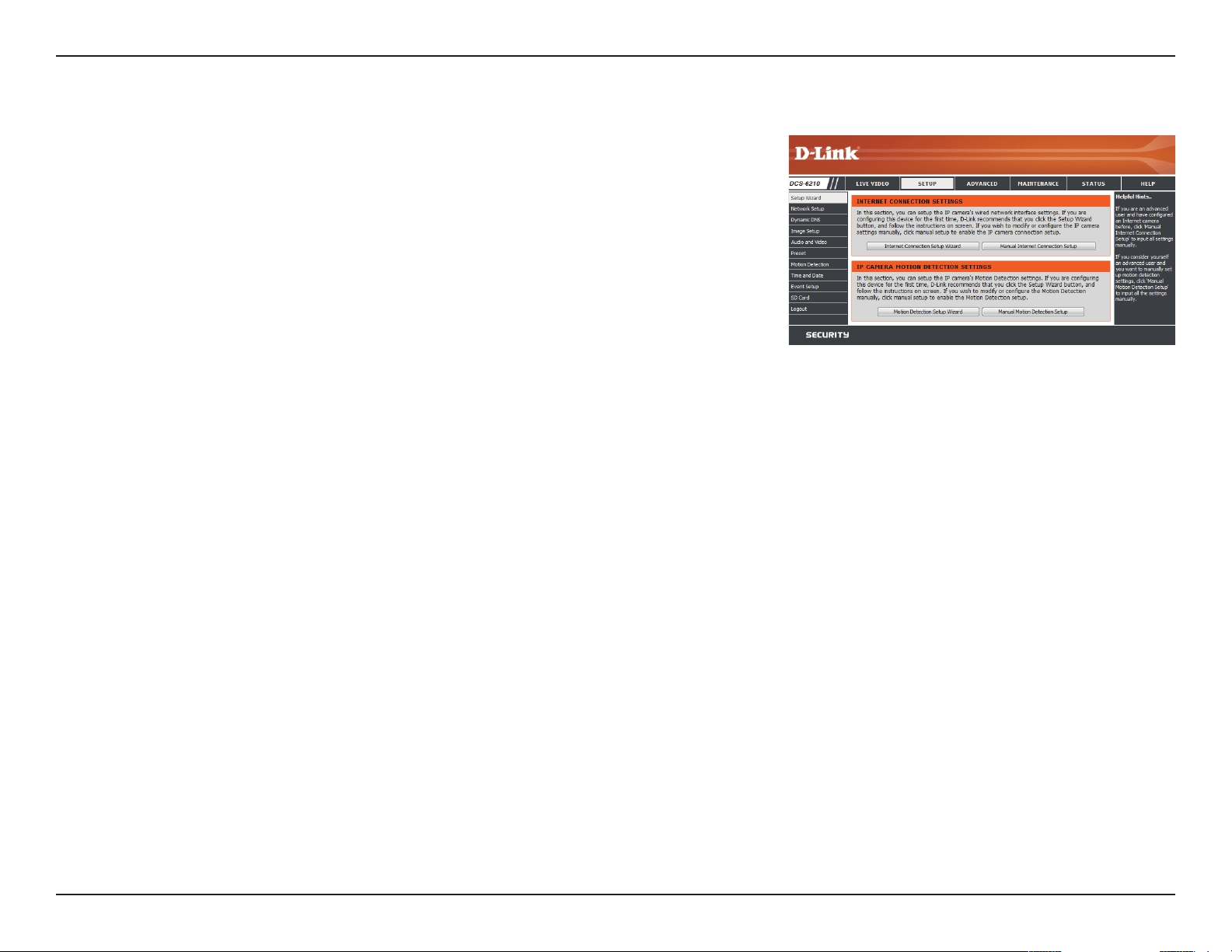
This window indicates the total eld of view (FOV) of the camera. The
red box indicates the visible region of interest (ROI).
You may select the interface language using this menu.
Global View:
Language:
25D-Link DCS-6210 User Manual
Section 4: Conguration
Setup
Setup Wizard
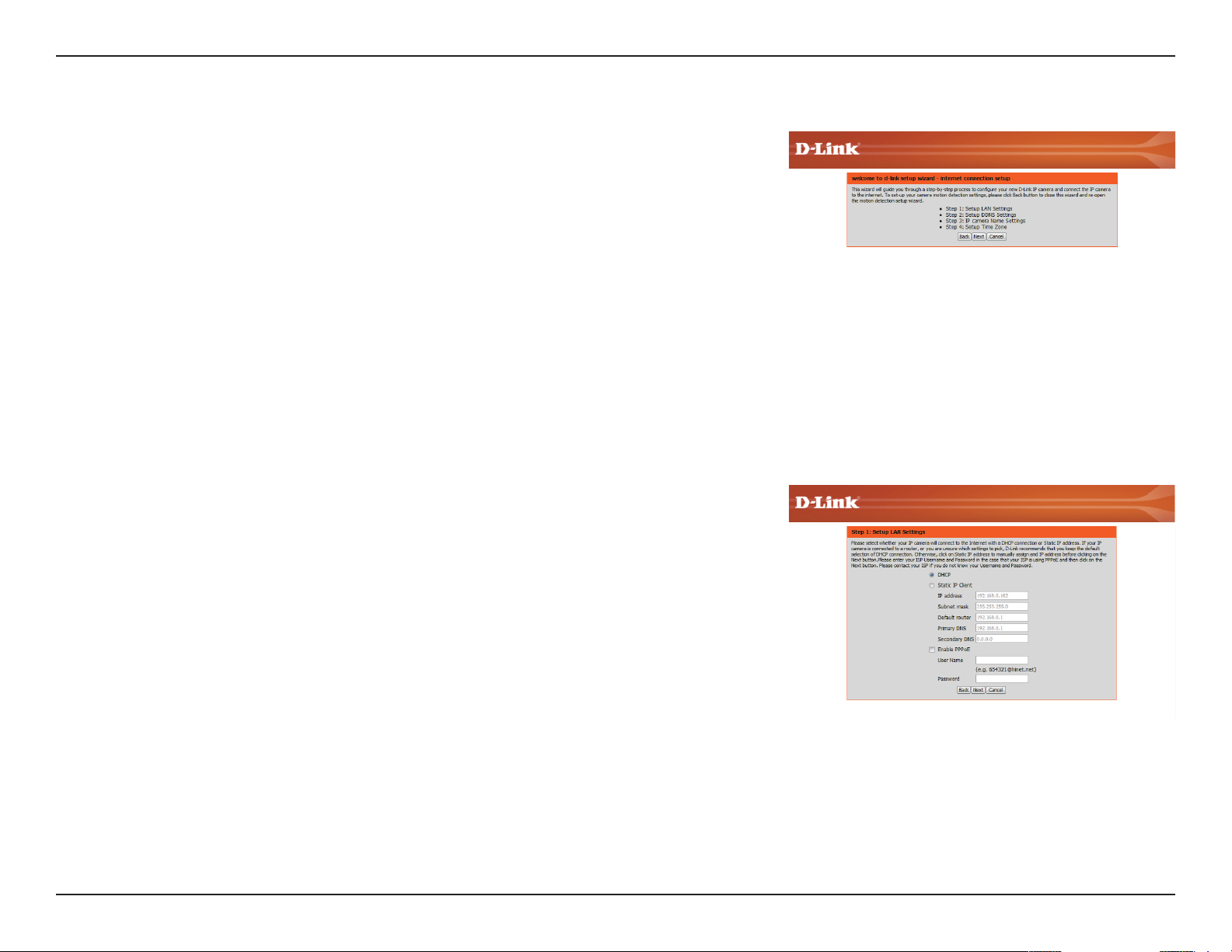
To congure your Network Camera, click Internet Connection Setup Wizard. Alternatively,
you may click Manual Internet Connection Setup to manually congure your Network
Camera and skip to "Network Setup" on page 31.
To quickly congure your Network Camera’s motion detection settings, click Motion
Detection Setup Wizard. If you want to enter your settings without running the wizard, click
Manual Motion Detection Setup and skip to"Motion Detection" on page 41.
26D-Link DCS-6210 User Manual
Section 4: Conguration
Internet Connection Setup Wizard
This wizard will guide you through a step-by-step process to congure your new D-Link
Camera and connect the camera to the internet. Click Next to continue.
Note: Select DHCP if you are unsure of which settings to choose.
Click Next to continue.
27D-Link DCS-6210 User Manual
Section 4: Conguration
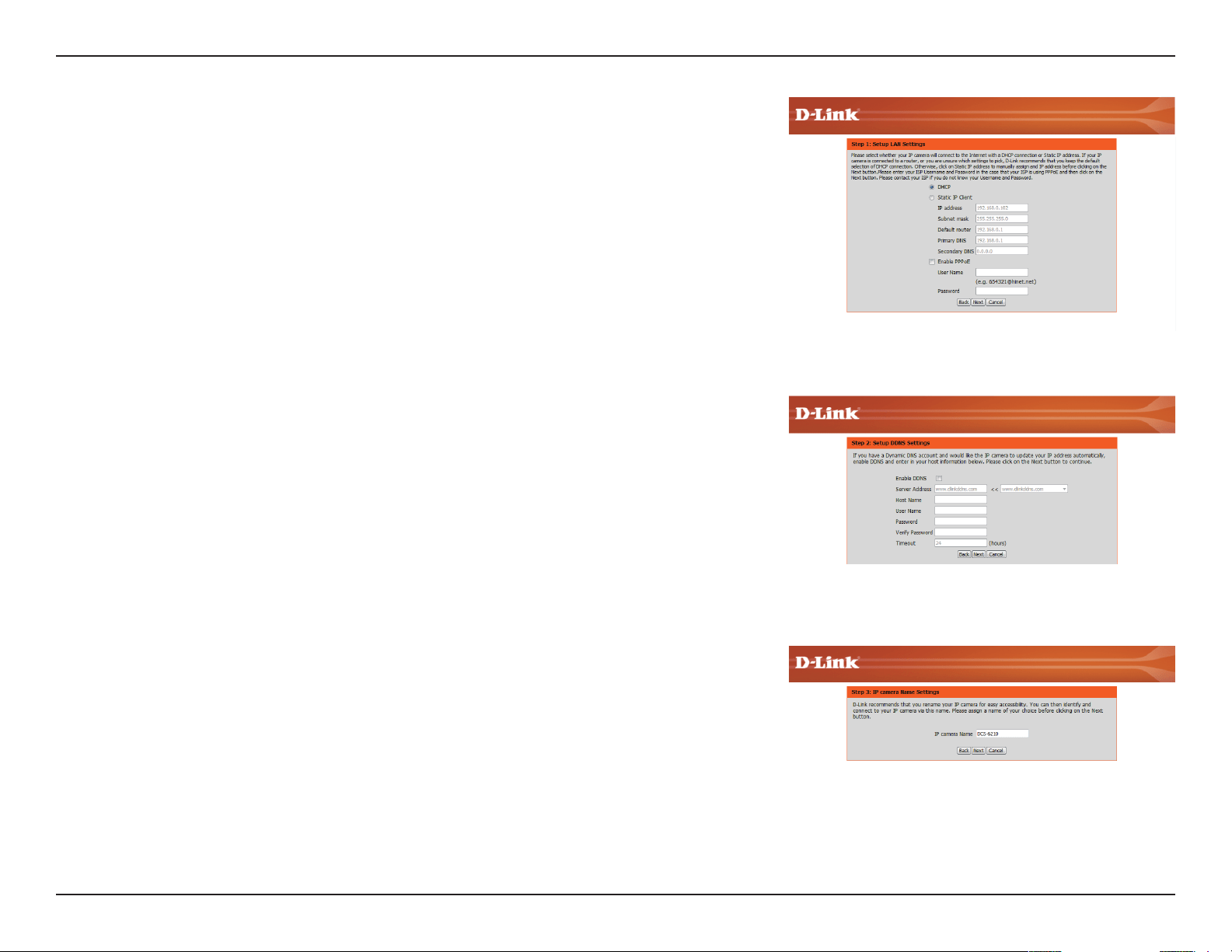
Select Static IP if your Internet Service Provider has provided you with connection settings, or
if you wish to set a static address within your home network. Enter the correct conguration
information and click Next to continue.
If you are using PPPoE, select Enable PPPoE and enter your user name and password,
otherwise click Next to continue.
If you have a Dynamic DNS account and would like the camera to update your IP address
automatically, Select Enable DDNS and enter your host information. Click Next to continue.
Enter a name for your camera and click Next to continue.
28D-Link DCS-6210 User Manual
Section 4: Conguration
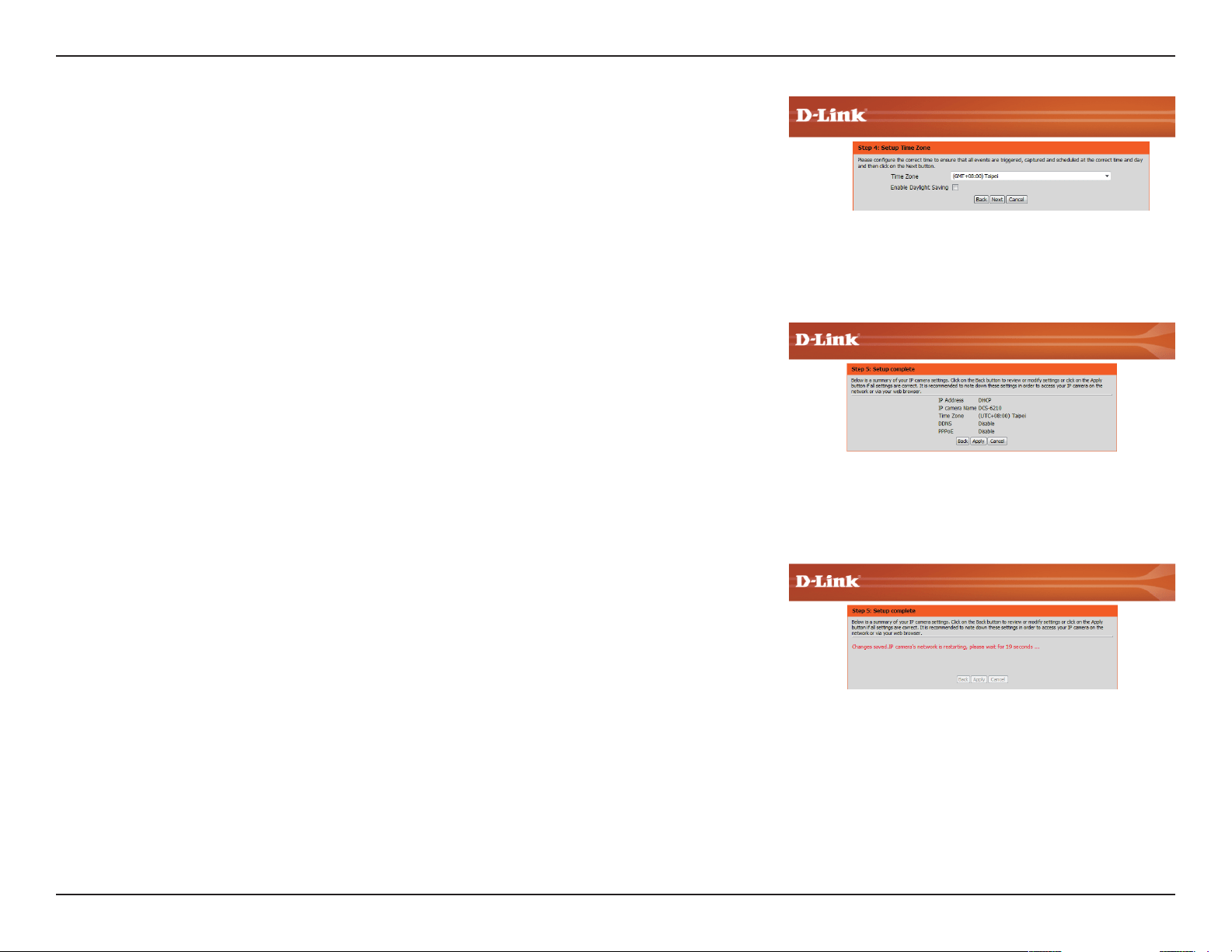
Congure the correct time to ensure that all events will be triggered as scheduled. Click Next
to continue.
Conrm the settings are correct and click Apply to save them..
The settings will be saved to the DCS-6210 and the camera will restart.
29D-Link DCS-6210 User Manual
Section 4: Conguration
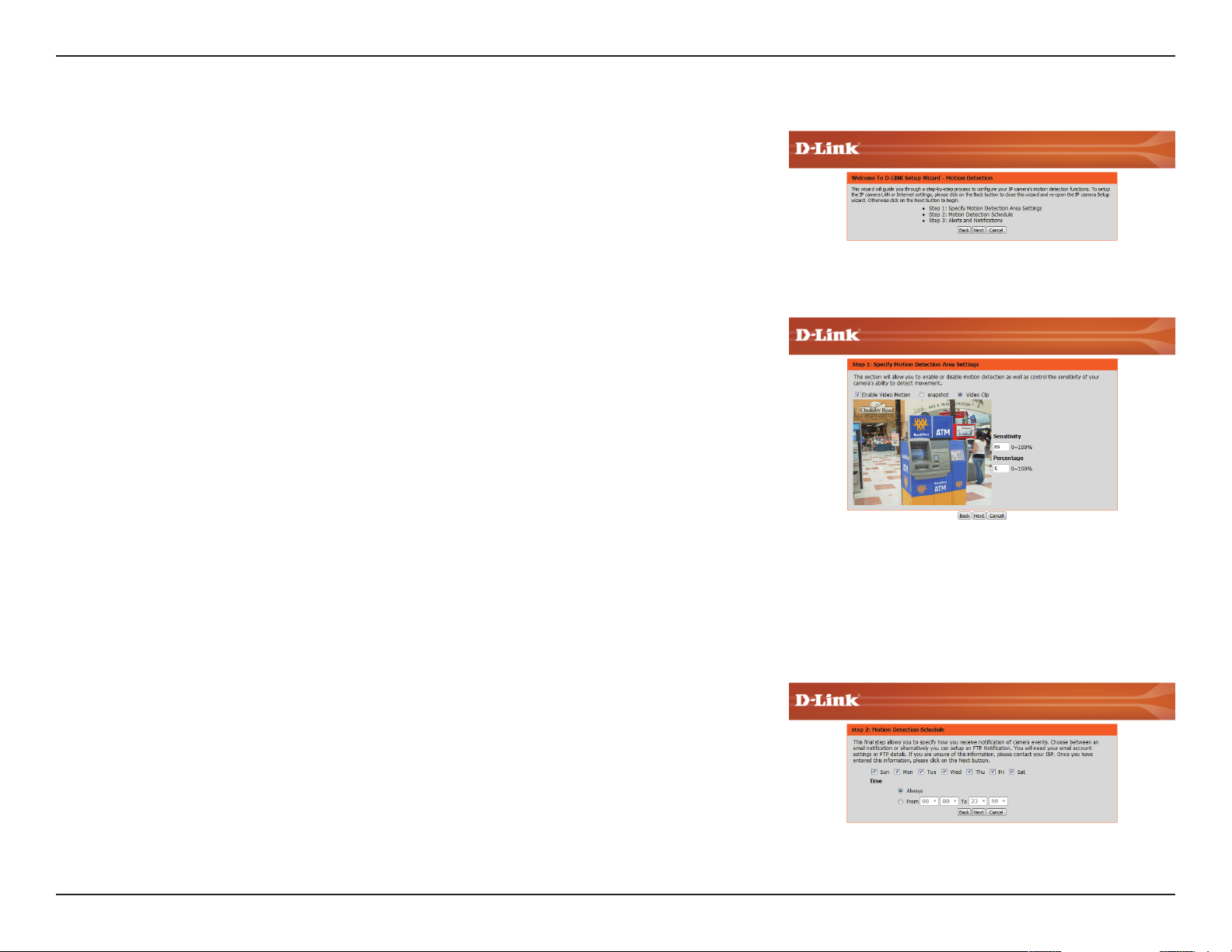
This wizard will guide you through a step-by-step process to congure your camera's
motion detection functions.
Click Next to continue.
Motion Detection Setup Wizard
Step 1
This step will allow you to enable or disable motion detection, specify the detection sensitivity,
and adjust the camera’s ability to detect movement.
You may specify whether the camera should capture a snapshot or a video clip when motion
is detected.
Please see the Motion Detection section on "Motion Detection" on page 41for information
about how to congure motion detection.
Step 2
This step allows you to enable motion detection based on a customized schedule. Specify the
day and hours. You may also choose to always record whenever motion is detected.
30D-Link DCS-6210 User Manual
Section 4: Conguration
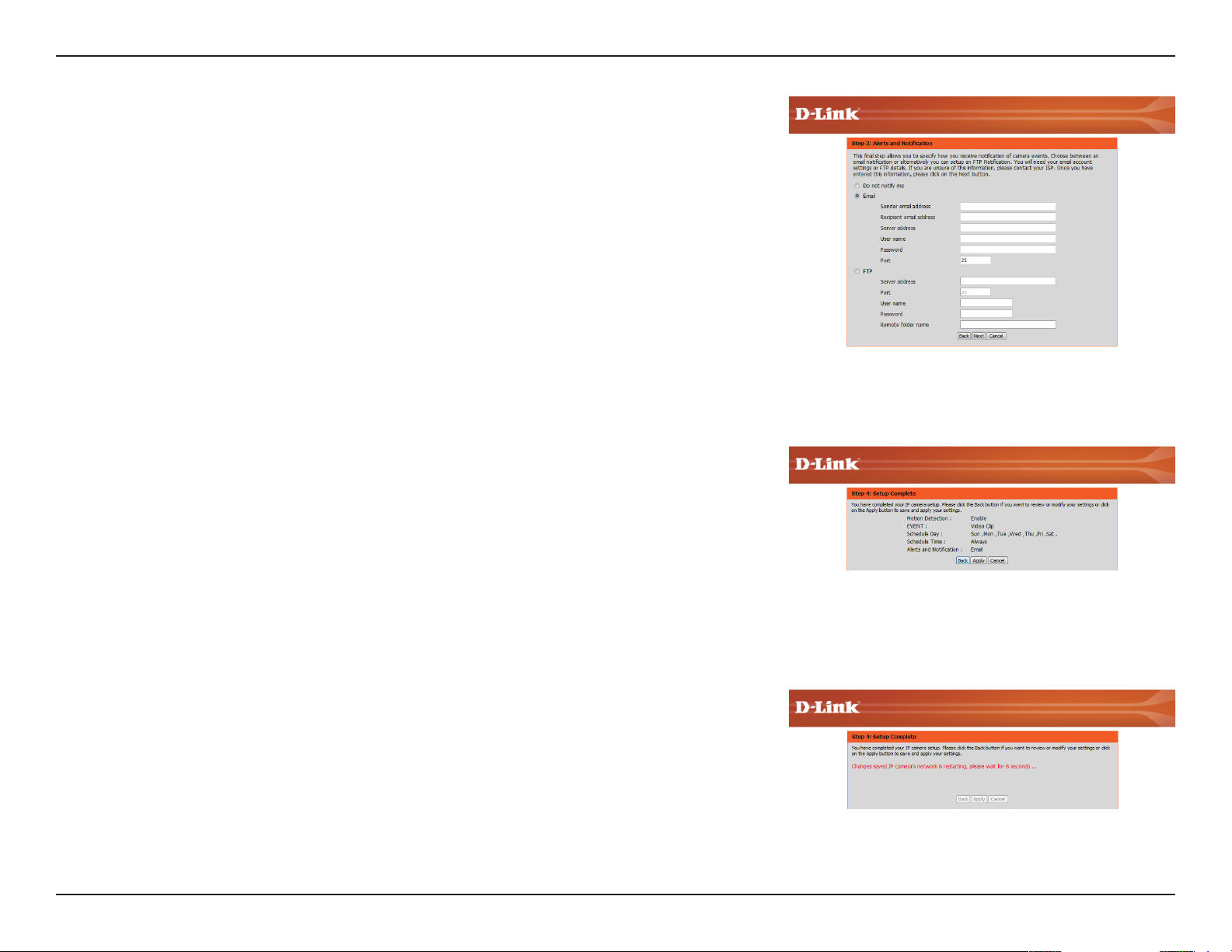
Step 3
This step allows you to specify how you will receive event notications from your camera. You
may choose not to receive notications, or to receive notications via e-mail or FTP.
Please enter the relevant information for your e-mail or FTP account.
Click Next to continue.
Step 4
You have completed the Motion Detection Wizard.
Please verify your settings and click Apply to save them.
Please wait a few moments while the camera saves your settings and restarts.
31D-Link DCS-6210 User Manual
Section 4: Conguration
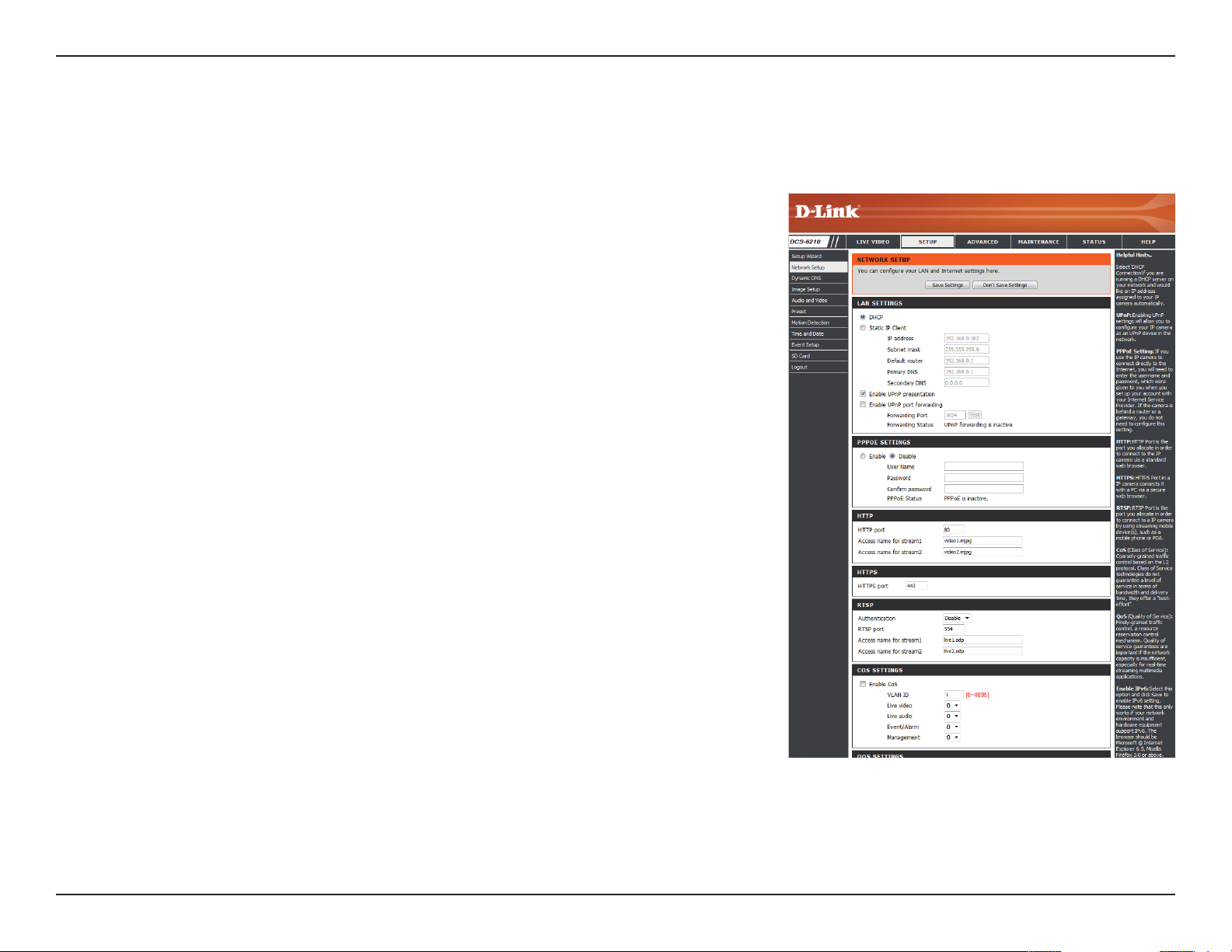
Network Setup
Use this section to congure the network connections for your camera. All relevant information must be entered accurately. After making any
changes, click the Save Settings button to save your changes.
LAN Settings:
DHCP:
Static IP Client:
IP Address:
Subnet Mask:
Default Gateway:
Primary DNS:
Secondary DNS:
This section lets you congure settings for your local
area network.
Select this connection if you have a DHCP server running
on your network and would like your camera to obtain
an IP address automatically.
If you choose DHCP, you do not need to ll out the IP
address settings.
You may obtain a static or xed IP address and other
network information from your network administrator
for your camera. A static IP address may simplify access
to your camera in the future.
Enter the xed IP address in this eld.
This number is used to determine if the destination is in
the same subnet. The default value is 255.255.255.0.
The gateway used to forward frames to destinations in a
dierent subnet. Invalid gateway settings may cause the
failure of transmissions to a dierent subnet.
The primary domain name server translates names to IP
addresses.
The secondary DNS acts as a backup to the primary DNS.
32D-Link DCS-6210 User Manual
Section 4: Conguration
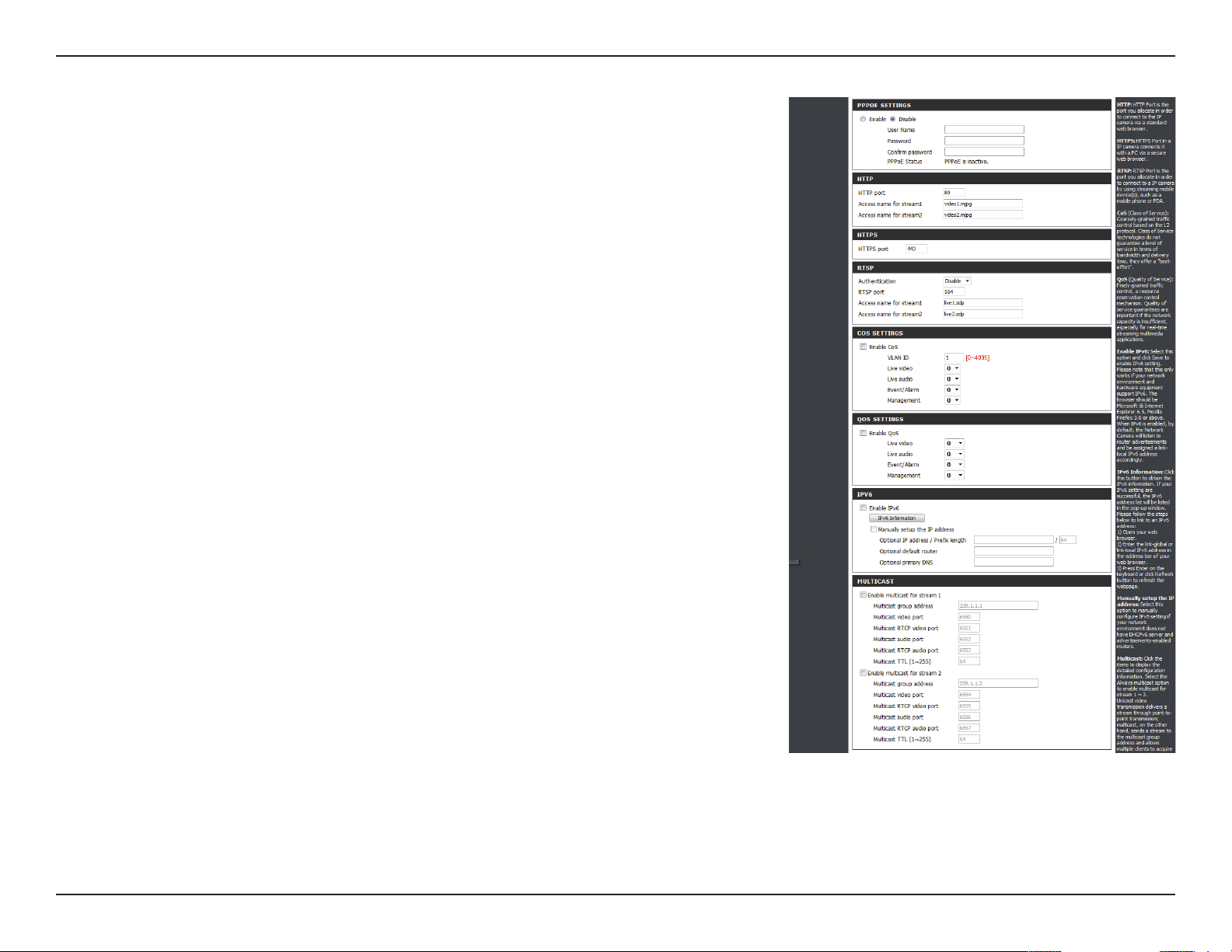
Enable UPnP Presentation:
Enable UPnP Port Forwarding:
Enable PPPoE:
User Name / Password:
HTTP Port:
Access Name for Stream 1~3:
HTTPS Port:
RTSP Port:
Enabling this setting allows your camera to be congured
as a UPnP device on your network.
Enabling this setting allows the camera to add port
forwarding entries into the router automatically on a
UPnP capable network.
Enable this setting if your network uses PPPoE.
Enter the username and password for your PPPoE
account. Re-enter your password in the Conrm
Password eld. You may obtain this information from
your ISP.
The default port number is 80.
The default name is video#.mjpg, where # is the number
of the stream.
You may use a PC with a secure browser to connect to
the HTTPS port of the camera. The default port number
is 443.
The port number that you use for RTSP streaming to
mobile devices, such as mobile phones or PDAs. The
default port number is 554. You may specify the address
of a particular stream. For instance, live1.sdp can be
accessed at rtsp://x.x.x.x/video1.sdp where the x.x.x.x
represents the ip address of your camera.
33D-Link DCS-6210 User Manual
Section 4: Conguration
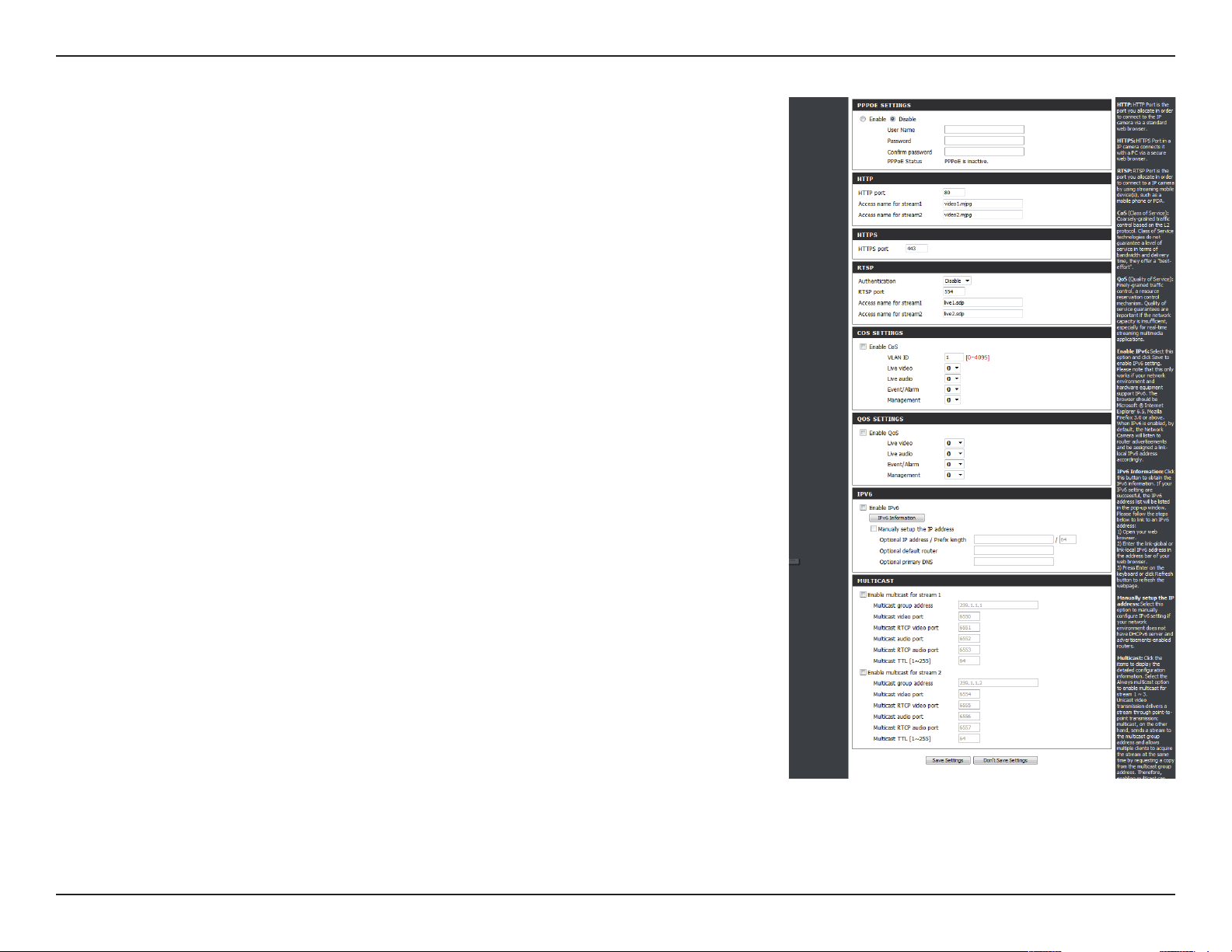
Enable CoS:
Enable QoS:
Enable IPv6:
Enable Multicast for stream
Enabling the Class of Service setting implements a
best-eort policy without making any bandwidth
reservations.
Enabling QoS allows you to specify a trac priority
policy to ensure a consistent Quality of Service during
busy periods. If the Network Camera is connected to a
router that itself implements QoS, the router's settings
will override the QoS settings of the camera.
Enable the IPV6 setting to use the IPV6 protocol. Enabling
the option allows you to manually set up the address,
specify an optional IP address, specify an optional router
and an optional primary DNS.
The DCS-6210 allows you to multicast each of the
available streams via group address and specify the TTL
value for each stream. Enter the port and TTL settings
you wish to use if you do not want to use the defaults.
34D-Link DCS-6210 User Manual
Section 4: Conguration
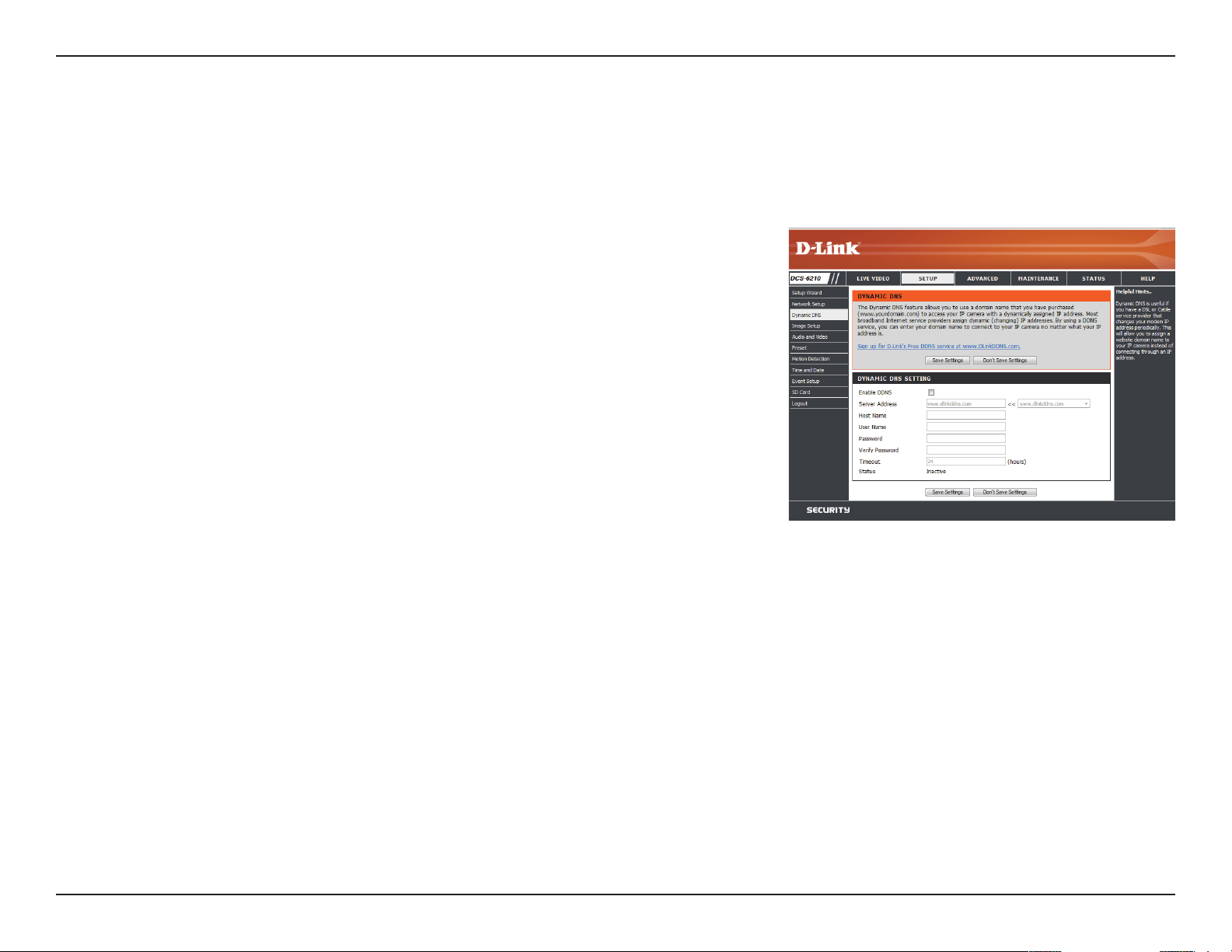
Dynamic DNS
DDNS (Dynamic Domain Name Server) will hold a DNS host name and synchronize the public IP address of the modem when it has been modied.
A user name and password are required when using the DDNS service. After making any changes, click the Save Settings button to save your
changes.
Enable DDNS:
Server Address:
Host Name:
User Name:
Password:
Timeout:
Status:
Select this checkbox to enable the DDNS function.
Select your Dynamic DNS provider from the pull down
menu or enter the server address manually.
Enter the host name of the DDNS server.
Enter the user name or e-mail used to connect to your
DDNS account.
Enter the password used to connect to your DDNS
server account.
Enter the DNS timeout values you wish to use.
Indicates the connection status, which is automatically
determined by the system.
35D-Link DCS-6210 User Manual
Section 4: Conguration
Image Setup
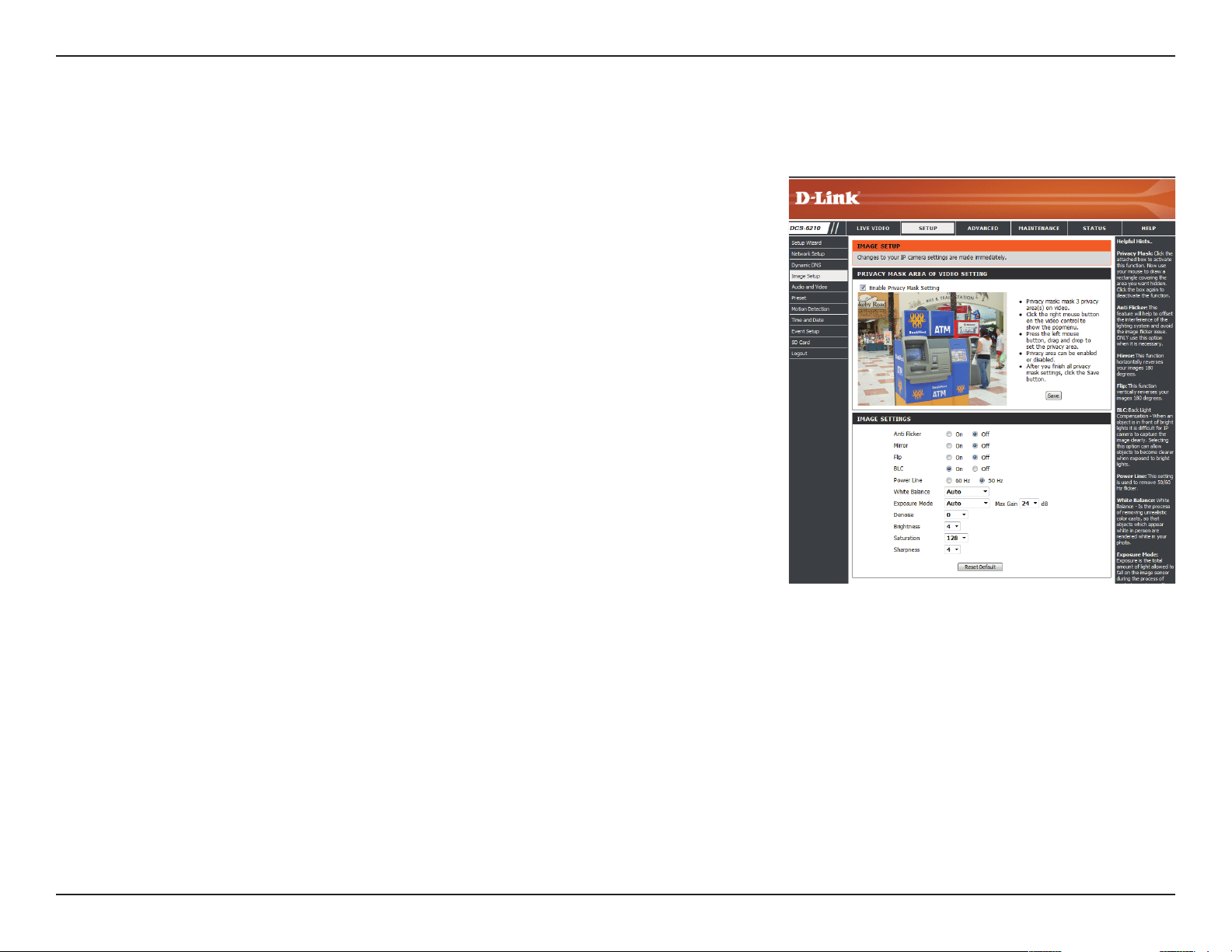
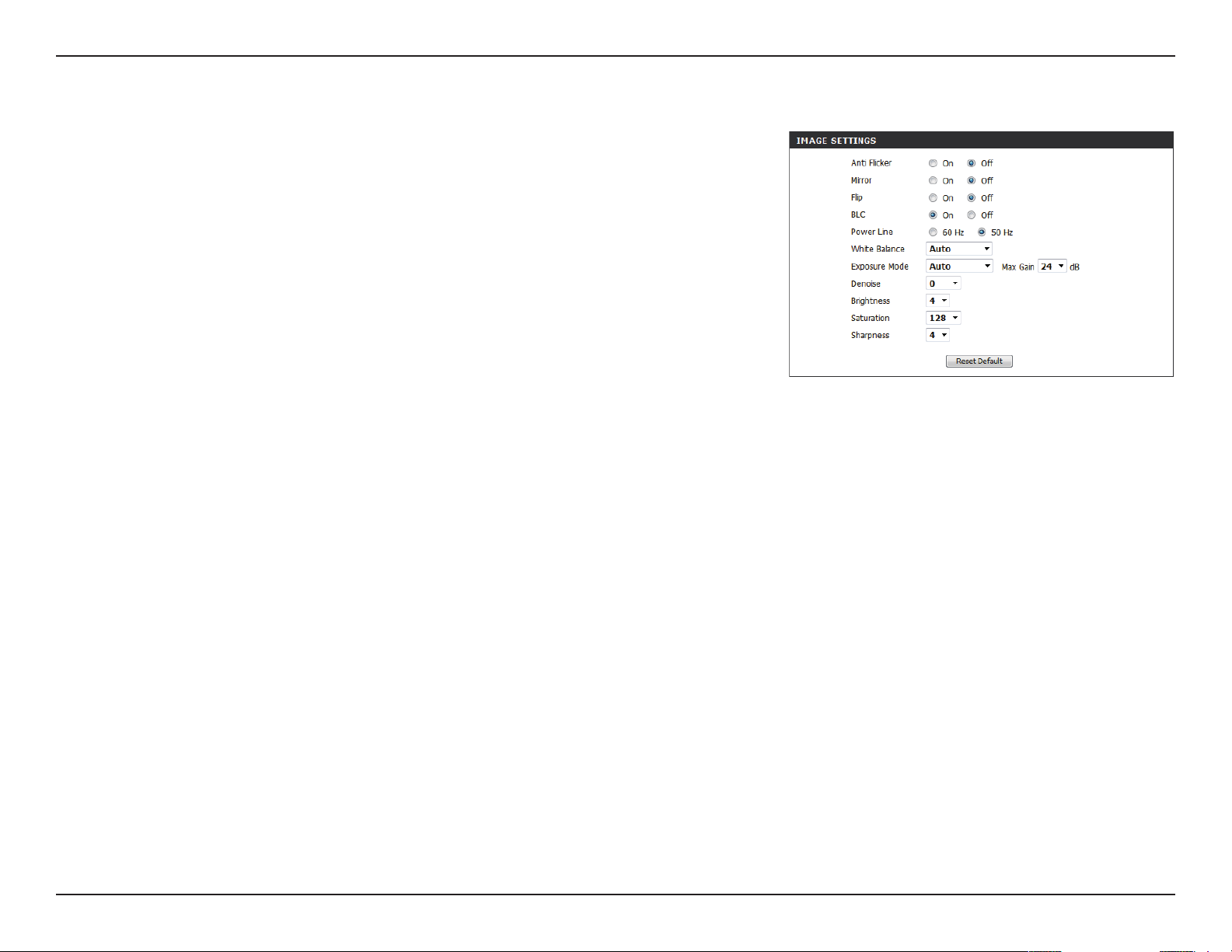
In this section, you may congure the video image settings for your camera. A preview of the image will be shown in Live Video.
Enable Privacy Mask:
Anti Flicker:
Mirror:
Flip:
Power Line:
White Balance:
The Privacy Mask setting allows you to specify up to 3
rectangular areas on the camera's image to be blocked/
excluded from recordings and snapshots.
You may click and drag the mouse cursor over the
camera image to draw a mask area. Right clicking on the
camera image brings up the following menu options:
Disable All: Disables all mask areas
Enable All: Enables all mask areas
Reset All: Clears all mask areas.
If the video ickers, try enabling this setting.
This will mirror the image horizontally.
This will ip the image vertically. When turning Flip on,
you may want to consider turning Mirror on as well.
Select the frequency used by your power lines to avoid
interference or distortion.
Use the drop-down box to change white balance settings
to help balance colors for dierent environments. You
can choose from Auto, Outdoor, Indoor, Fluorescent,
and Push Hold.
36D-Link DCS-6210 User Manual
Section 4: Conguration
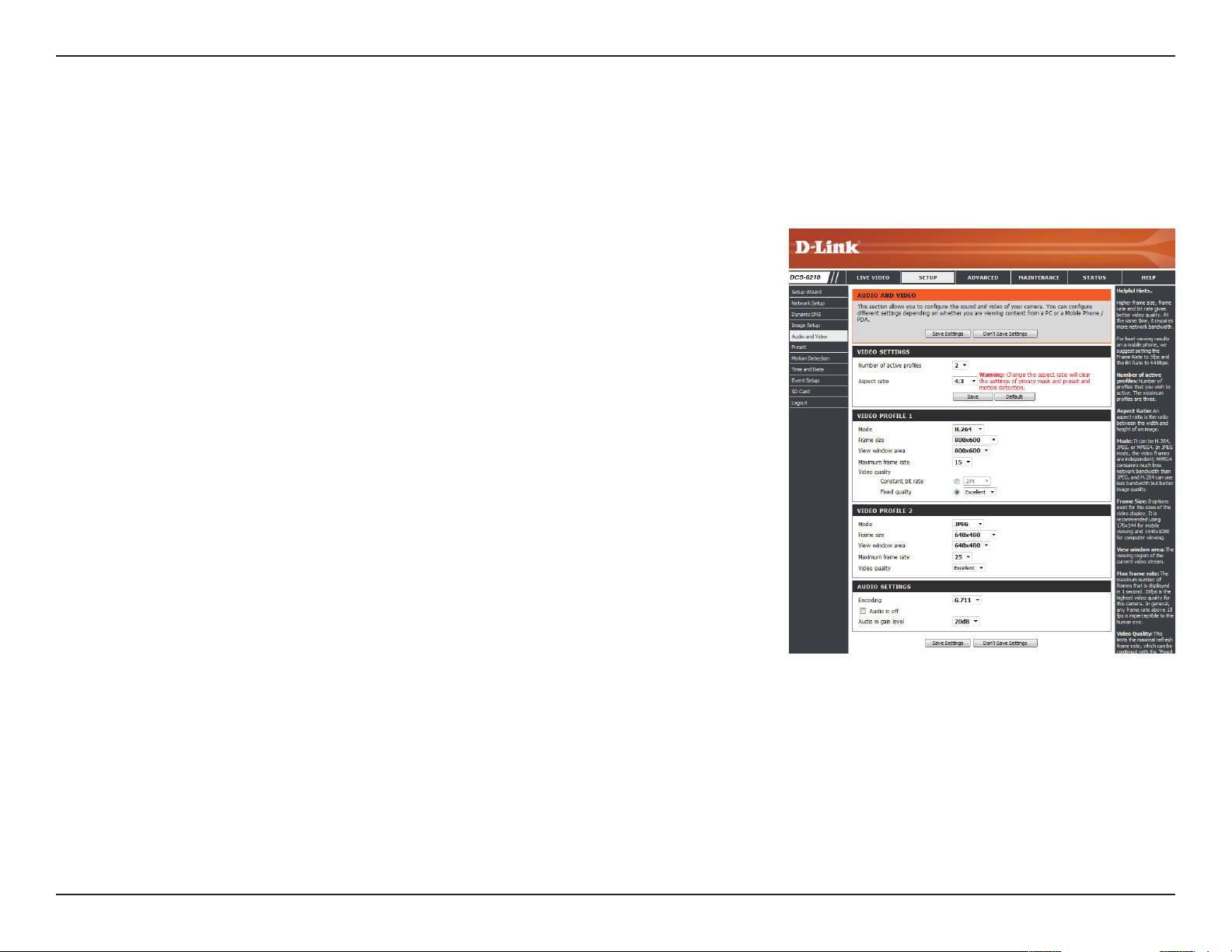
Exposure Mode:
Denoise:
Brightness:
Saturation:
Sharpness:
Reset Default:
Changes the exposure mode. Use the drop-down
box to set the camera for Indoor, Outdoor, or Night
environments, or to Moving to capture moving objects.
The Low Noise option will focus on creating a high-
quality picture without noise. You can also create 3
dierent custom exposure modes. The Max Gain setting
will allow you to control the maximum amount of gain
to apply to brighten the picture.
This setting controls the amount of noise reduction that
will be applied to the picture.
Adjust this setting to compensate for backlit subjects.
This setting controls the amount of coloration, from
grayscale to fully saturated.
Specify a value from 0 to 8 to specify how much
sharpening to apply to the image.
Click this button to reset the image to factory default
settings.
37D-Link DCS-6210 User Manual
Section 4: Conguration
Audio and Video
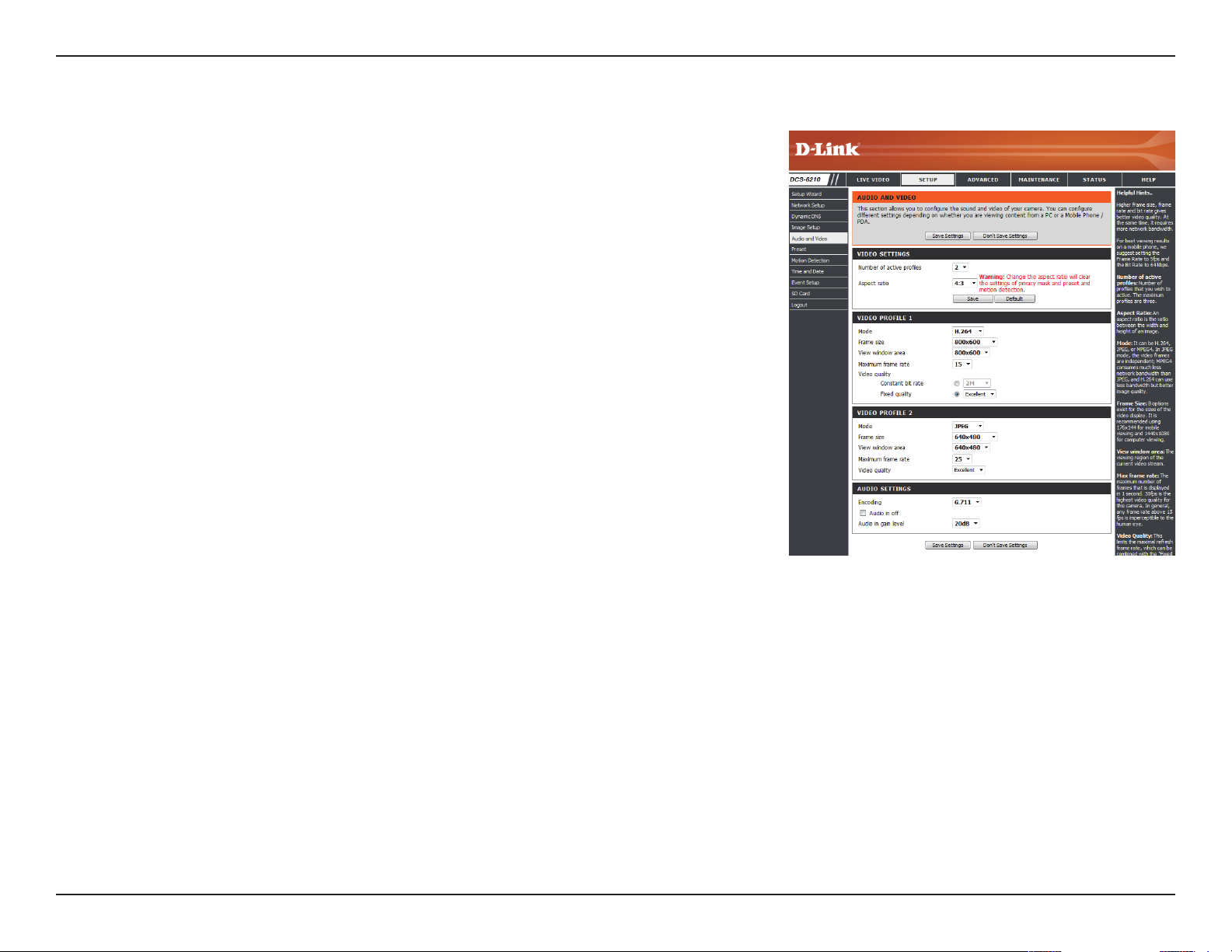
You may congure up to 3 video proles with dierent settings for your camera. Hence, you may set up dierent proles for your computer and
mobile display. In addition, you may also congure the two-way audio settings for your camera. After making any changes, click the Save Settings
button to save your changes.
Aspect ratio:
Mode:
Frame size:
Maximum frame rate:
Set the aspect ratio of the video to 4:3 standard or 16:9
widescreen.
Set the video codec to be used to JPEG, MPEG-4, or
H.264.
Frame size determines the total capture resolution, and
View window area determines the Live Video viewing
window size. If the Frame size is larger than the Live
Video size, you can use the ePTZ controls to look around.
16:9 -1920 x 1080,1280 x 720,800 x 450,640 x 360,
480x270,320 x 176,176 x 144
4:3 -1440 x 1080,1280 x 960,1024 x 768, 800 x 600,
640x480, 320 x 240,176 x 144
Note: If your View window area is the same as your Frame
size, you will not be able to use the ePTZ function.
A higher frame rate provides smoother motion for
videos, and requires more bandwidth. Lower frame
rates will result in stuttering motion, and requires less
bandwidth.
38D-Link DCS-6210 User Manual
Section 4: Conguration
Video Quality:
Constant bit rate:
Fixed quality:
Encoding
Audio in o:
Audio in gain level:
This limits the maximum frame rate, which can be
combined with the "Fixed quality" option to optimize
the bandwidth utilization and video quality. If xed
bandwidth utilization is desired regardless of the video
quality, choose "Constant bit rate" and select the desired
bandwidth.
The bps will aect the bit rate of the video recorded
by the camera. Higher bit rates result in higher video
quality.
Select the image quality level for the camera to try to
maintain. High quality levels will result in increased bit
rates.
Select the audio encoding codec to ne tune bandwidth
usage, storage and recording quality.
Selecting this checkbox will mute incoming audio.
This setting controls the amount of gain applied to
incoming audio to increase its volume.
39D-Link DCS-6210 User Manual
Section 4: Conguration
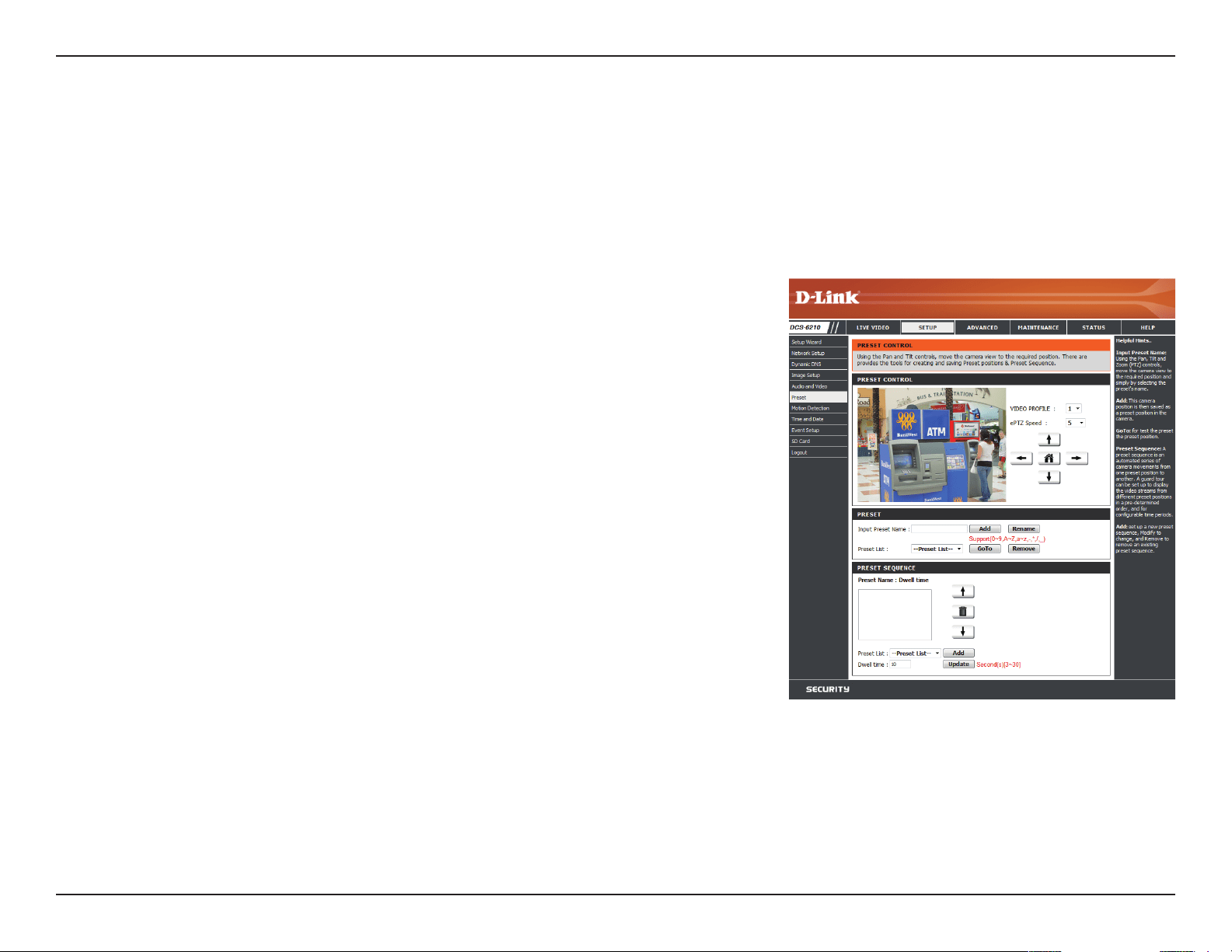
Preset
This screen allows you to set preset points for the ePTZ function of the camera, which allows you to look around the camera's viewable area by
using a zoomed view. Presets allow you to quickly go to and view a specic part of the area your camera is covering, and you can create preset
sequences, which will automatically change the camera's view between the dierent presets according to a dened order and timing you can set.
Note: If your View window area is the same as your Frame size, you will not be able to use the ePTZ function.
Video Prole:
ePTZ Speed:
Arrow Buttons and Home Button:
Input Preset Name:
Preset List:
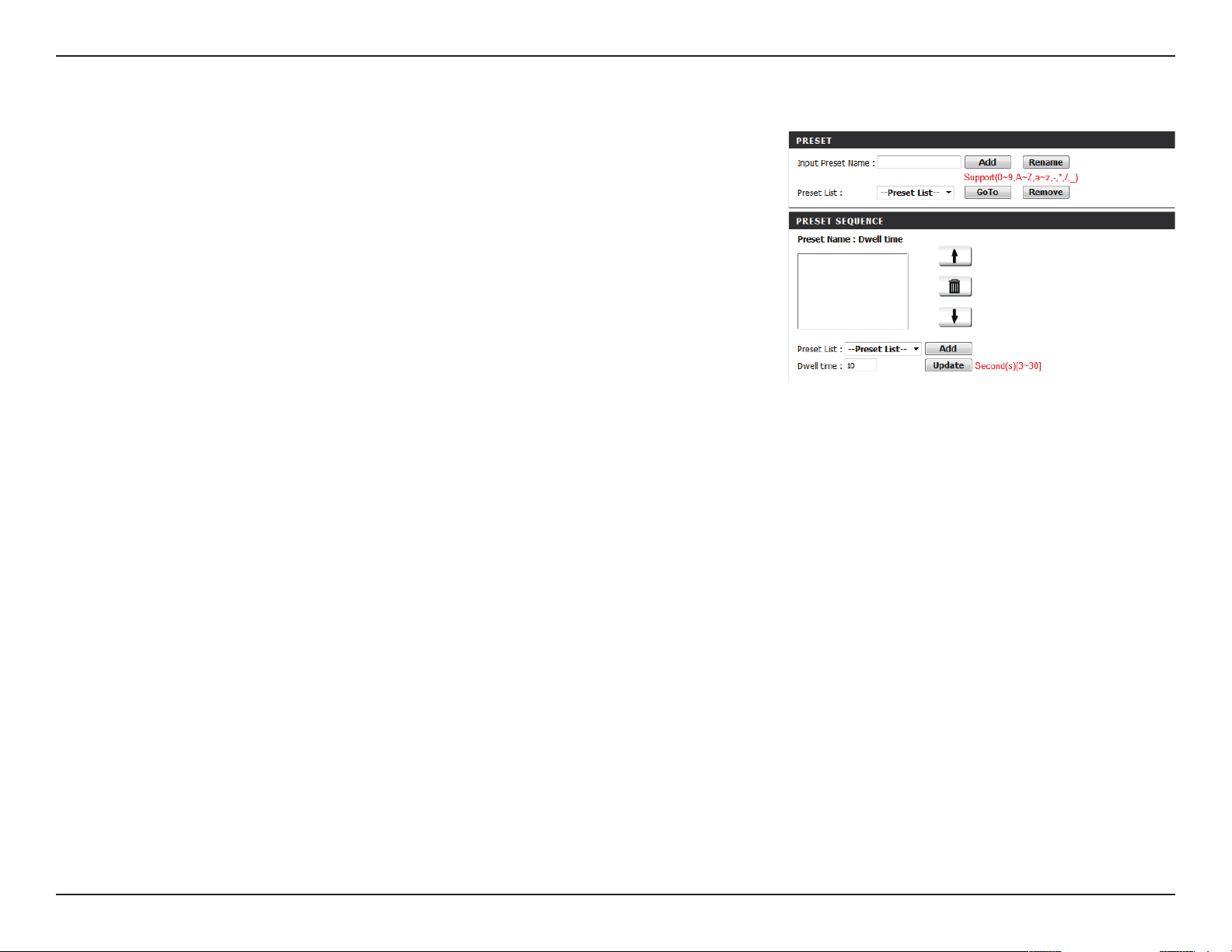
Preset Sequence:
This selects which video prole to use.
You may select a value between 1 and 10. 1 is the slowest
and 10 is the fastest.
Use these buttons to move to a specic part of the
viewing area, which you can then set as a preset. Click
the Home button to return to the center of the viewing
area.
Enter the name of the preset you want to create, then
click the Add button to make a new preset. If an existing
preset has been selected from the Preset List, you can
change its name by typing in a new name, then clicking
the Rename button.
Click this drop-down box to see a list of all the presets
that have been created. You can select one, then click
the GoTo button to change the displayed camera view
to the preset. Clicking the Remove button will delete
the currently selected preset.
This section allows you to create a preset sequence,
which automatically moves the camera's view between
a set of preset views.
40D-Link DCS-6210 User Manual
Section 4: Conguration
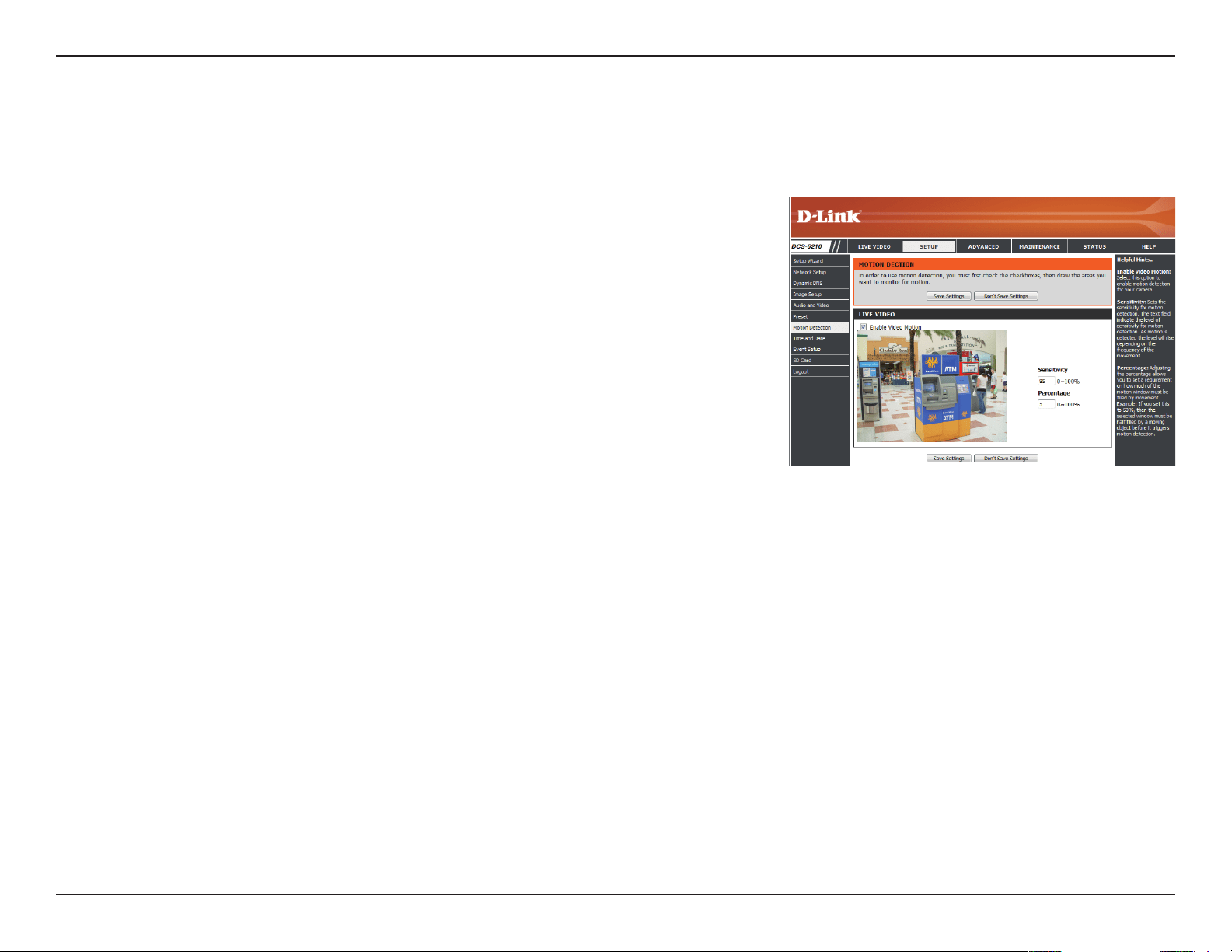
Preset List: To add a preset to the sequence, select it from the drop-
down box at the bottom of this window, set the Dwell
time to determine how long the camera view will stay at
that preset, then click the Add button. The preset name
will appear in the list, followed by the dwell time to view
that preset for.
You can rearrange your presets in the sequence by
selecting a preset in the sequence, then clicking the
arrow buttons to move it higher or lower in the current
sequence.
Clicking the trash can button will remove the currently
selected preset from the sequence.
If you want to change the dwell time for a preset, select
it from the list, enter a new dwell time, then click the
Update button.
41D-Link DCS-6210 User Manual
Section 4: Conguration
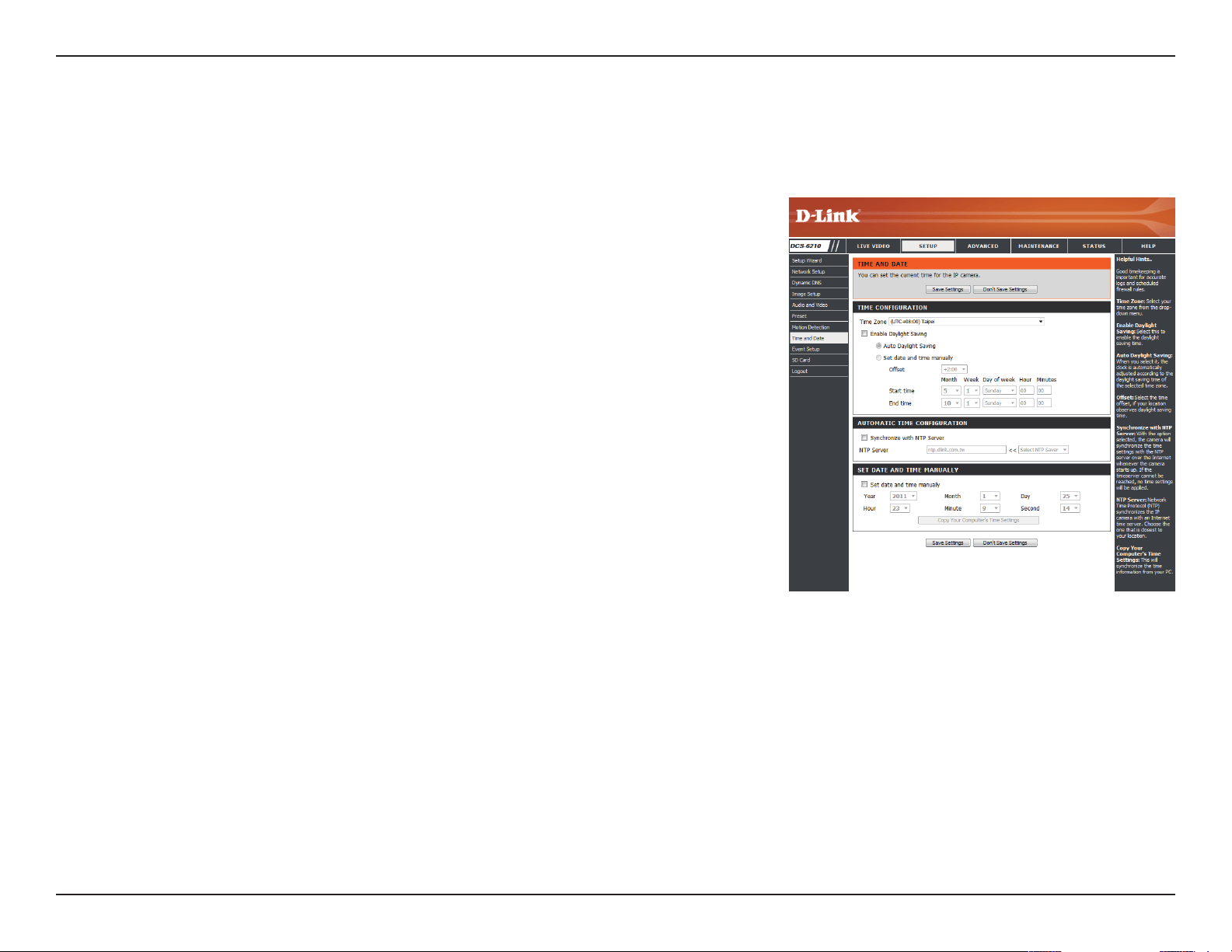
Motion Detection
Enabling Video Motion will allow your camera to use the motion detection feature. You may draw a nite motion area that will be used for
monitoring. After making any changes, click the Save Settings button to save your changes.
Enable Video Motion:
Sensitivity:
Percentage:
Draw Motion Area:
Erase Motion Area:
Select this box to enable the motion detection feature
of your camera.
Species the measurable dierence between two
sequential images that would indicate motion. Please
enter a value between 0 and 100.
Species the amount of motion in the window being
monitored that is required to initiate an alert. If this is set
to 100%, motion is detected within the whole window
will trigger a snapshot.
Draw the motion detection area by dragging your mouse
in the window (indicated by the red square).
To erase a motion detection area, simply click on the red
square that you wish to remove.
Right clicking on the camera image brings up the
following menu options:
Select All: Draws a motion detection area over the
entire screen.
Clear All: Clears any motion detection areas that have
been drawn.
Restore: Restores the previously specied motion
detection areas.
42D-Link DCS-6210 User Manual
Section 4: Conguration
Time and Date
This section allows you to automatically or manually congure, update, and maintain the internal system clock for your camera. After making any
changes, click the Save Settings button to save your changes.
Time Zone:
Enable Daylight Saving:
Auto Daylight Saving:
Set Date and Time Manually:
Oset:
Synchronize with NTP Server:
NTP Server:
Set the Date and Time Manually:
Copy Your Computer's Time
Settings:
Select your time zone from the drop-down menu.
Select this to enable Daylight Saving Time.
Select this option to allow your camera to congure the
Daylight Saving settings automatically.
Selecting this option allows you to congure the Daylight
Saving date and time manually.
Sets the amount of time to be added or removed when
Daylight Saving is enabled.
Enable this feature to obtain time automatically from an
NTP server.
Network Time Protocol (NTP) synchronizes the DCS-6210
with an Internet time server. Choose the one that is
closest to your location.
This option allows you to set the time and date manually.
This will synchronize the time information from your PC.
43D-Link DCS-6210 User Manual
Section 4: Conguration
Event Setup
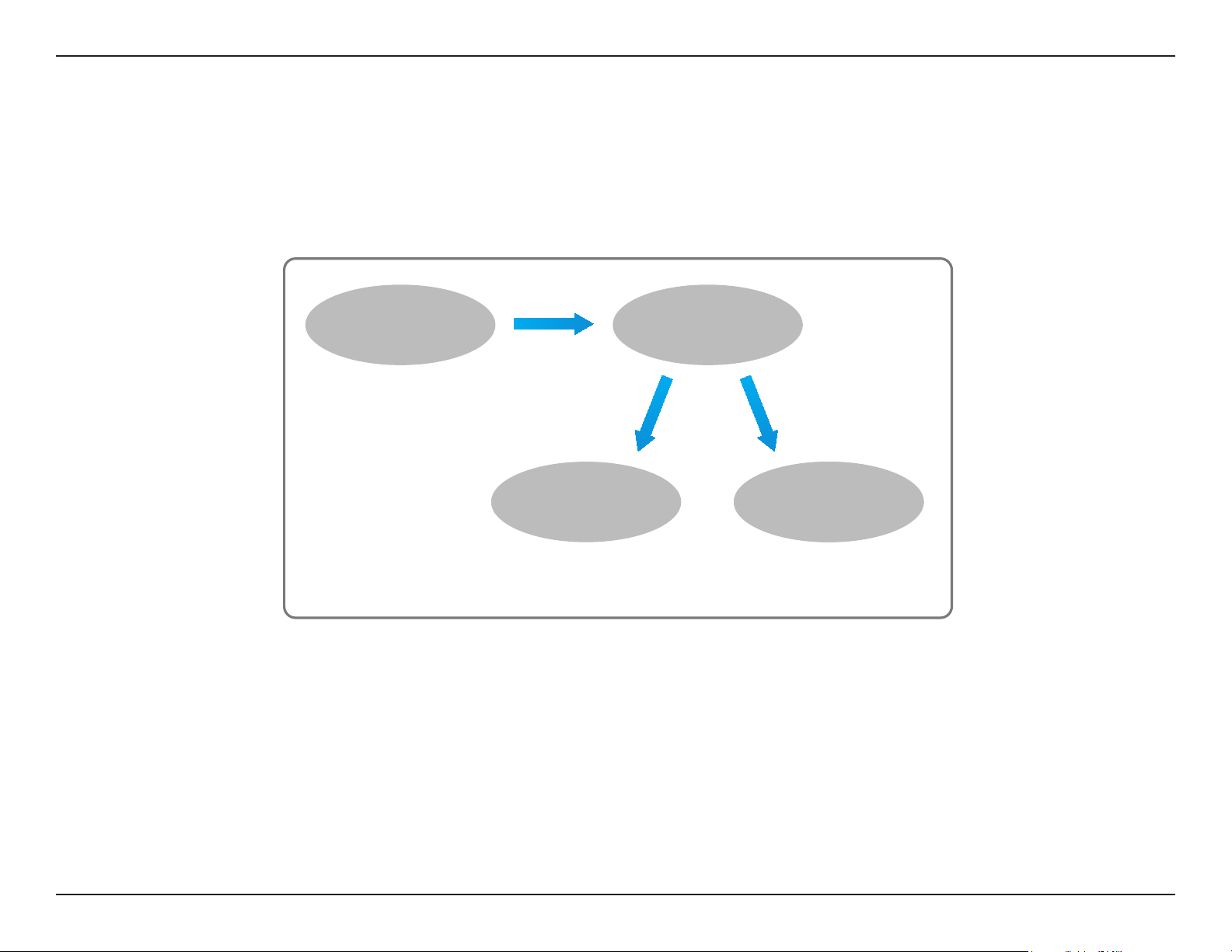
In a typical application, when motion is detected, the DCS-6210 sends images to a FTP server or via e-mail as notications. As shown in the
illustration below, an event can be triggered by many sources, such as motion detection. When an event is triggered, a specied action will be
performed. You can congure the Network Camera to send snapshots or videos to your e-mail address or FTP site.
To start plotting an event, it is suggested to congure server and media columns rst so that the Network Camera will know what action shall be
performed when a trigger is activated.
ex.
Motion detection,
Periodically, Digital input,
System reboot
Event Condition
ex.
Snapshot, Video Clips
ex.
Email, FTP
Media
(what to send)
Server
(where to send)
Action
44D-Link DCS-6210 User Manual
Section 4: Conguration
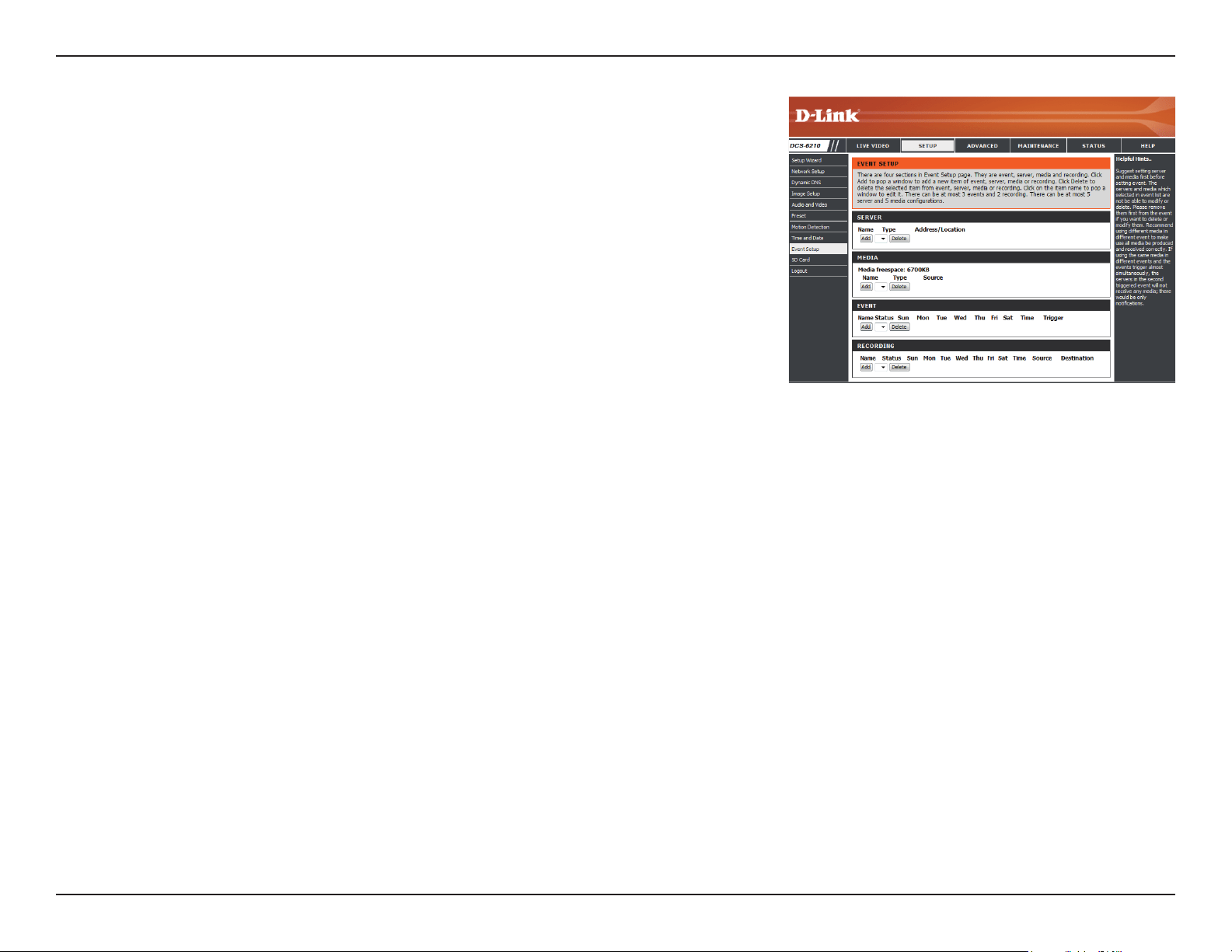
The Event Setup page includes 4 dierent sections.
• Event
• Server
• Media
• Recording
1. To add a new item - "event, server or media," click Add. A screen will appear and allow you
to update the elds accordingly.
2. To delete the selected item from the pull-down menu of event, server or media, click Delete.
3. Click on the item name to pop up a window for modifying.
45D-Link DCS-6210 User Manual
Section 4: Conguration
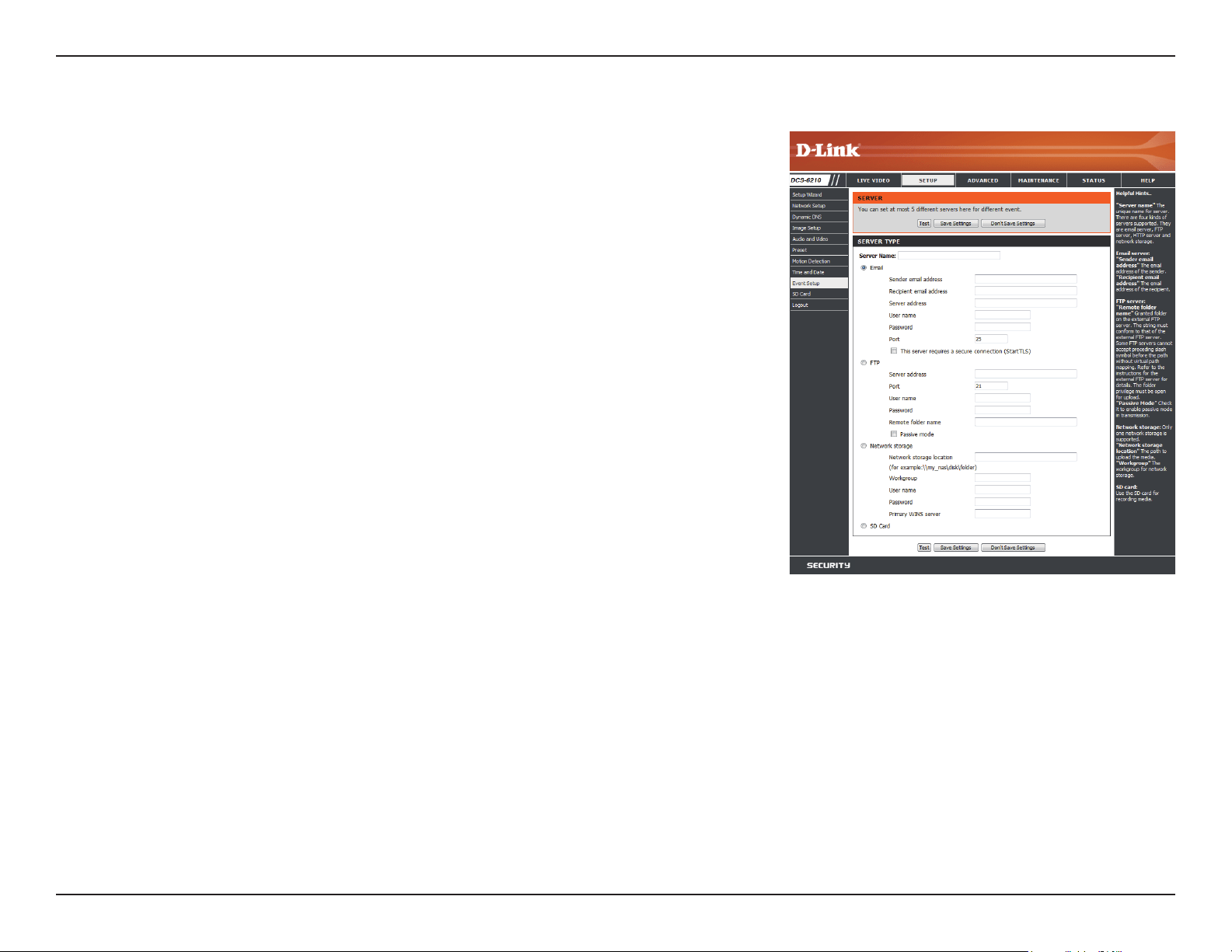
Add Server
Server Name:
E-mail:
FTP:
Network Storage:
SD Card:
Enter the unique name of your server.
Enter the conguration for the target e-mail server
account.
Enter the conguration for the target FTP server account.
Specify a network storage device. Only one network
storage device is supported.
Use the camera's onboard SD card storage.
You can congure up to 5 servers to save snapshots and/or video to. After making any
changes, click the Save Settings button to save your changes.
46D-Link DCS-6210 User Manual
Section 4: Conguration
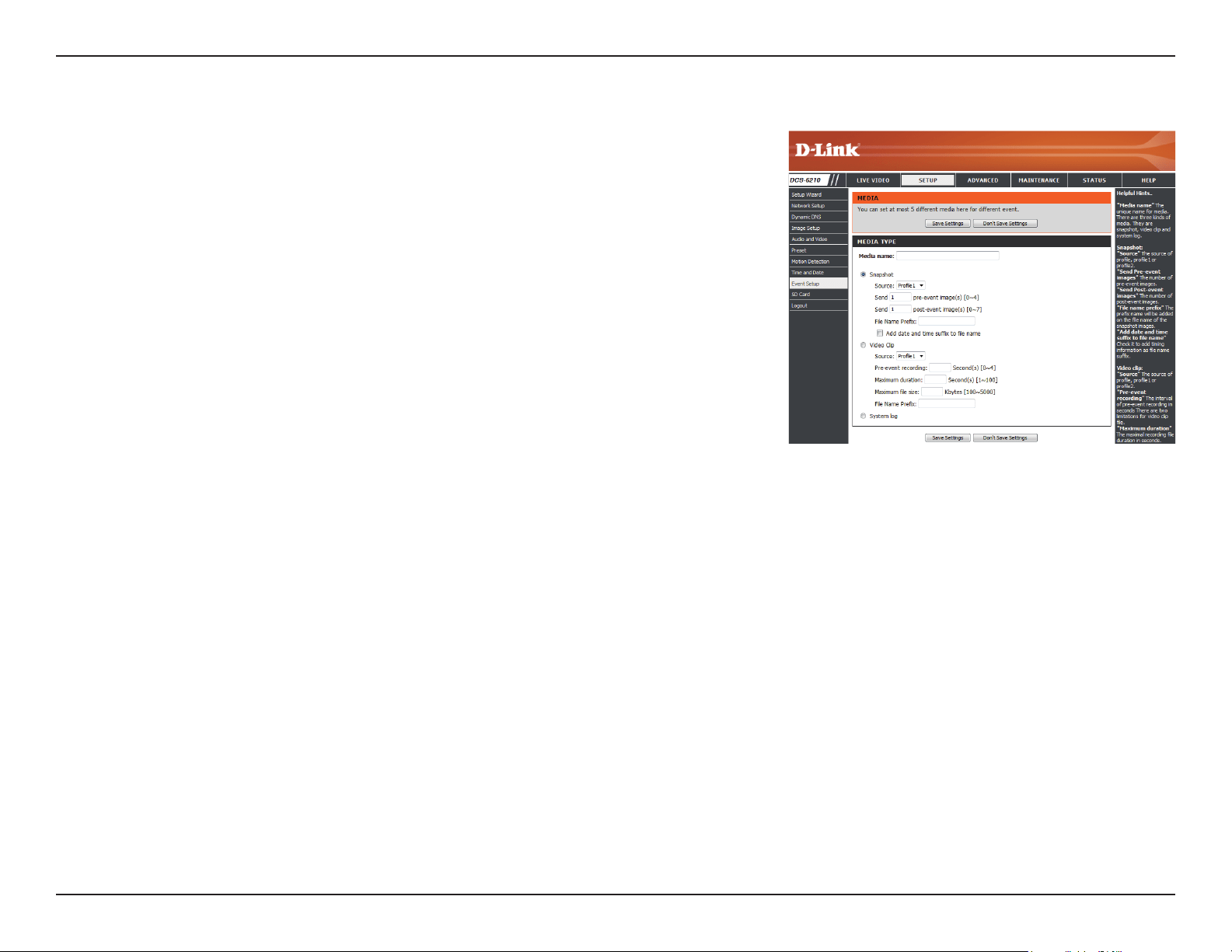
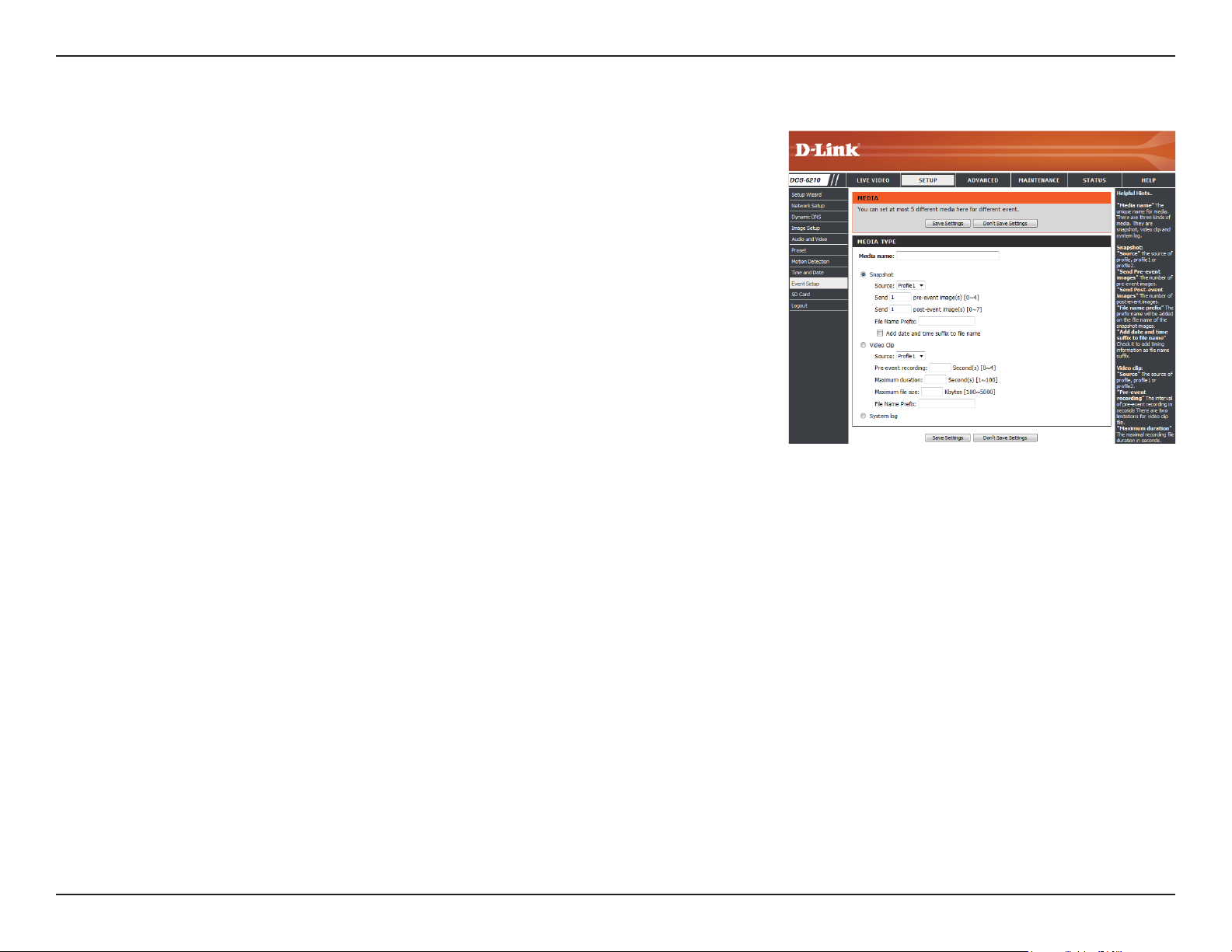
Add Media
Media Name:
Snapshot:
Source:
Send pre-event image(s) [0~4]:
Send post-event image(s) [0~7]:
File name prex:
Add date and time sux to le
name:
Enter a unique name for media type you want to create.
Select this option to set the media type to snapshots.
Set the video prole to use as the media source. Refer to
"Audio and Video" on page 37 for more information on
video proles.
Set the number of pre-event images to take. Pre-event
images are images taken before the main event snapshot
is taken.
Set the number of post-event images to take. Post-event
images are images taken after the main event snapshot
is taken. You can set up to 7 post-event images to be
taken.
The prex name will be added on the le name.
Check it to add timing information as le name sux.
There are three types of media, Snapshot, Video Clip, and System Log. After making any
changes, click the Save Settings button to save your changes.
47D-Link DCS-6210 User Manual
Section 4: Conguration
Video clip:
Source:
Pre-event recording:
Maximum duration:
Maximum le size:
File name prex:
System log:
Select this option to set the media type to video clips.
Set the video prole to use as the media source. Refer
to "Audio and Video" on page 37 for more information on
video proles.
This sets how many seconds to record before the main
event video clip starts. You can record up to 4 seconds of
pre-event video.
Set the maximum length of video to record for your
video clips.
Set the maximum le size to record for your video clips.
This is the prex that will be added to the lename of
saved video clips.
Select this option to set the media type to system logs.
This will save the event to the camera system log, but
will not record any snapshots or video.
48D-Link DCS-6210 User Manual
Section 4: Conguration
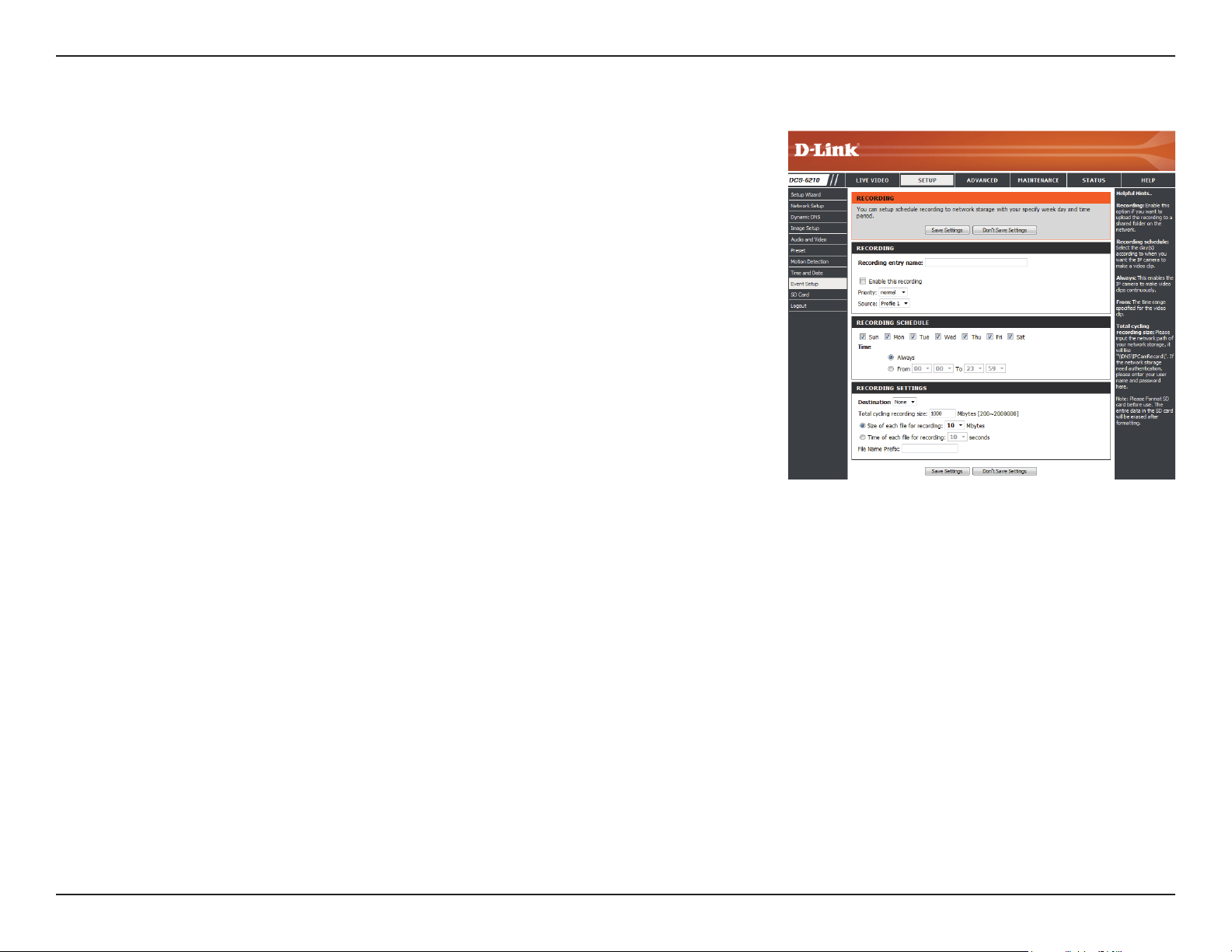
Add Event
Create and schedule up to 2 events with their own settings here. After making any changes,
click the Save Settings button to save your changes.
Event name:
Enable this event:
Priority:
Delay:
Trigger:
Video Motion Detection:
Periodic:
System Boot:
Network Lost:
Time:
Enter a name for the event.
Select this box to activate this event.
Set the priority for this event. The event with higher
priority will be executed rst.
Select the delay time before checking the next event. It
is being used for both events of motion detection and
digital input trigger.
Specify the input type that triggers the event.
Motion is detected during live video monitoring. Select
the windows that need to be monitored.
The event is triggered in specied intervals. The trigger
interval unit is in minutes.
Triggers an event when the system boots up.
Triggers an event when the network connection is lost.
Select Always or enter the time interval.
49D-Link DCS-6210 User Manual
Section 4: Conguration
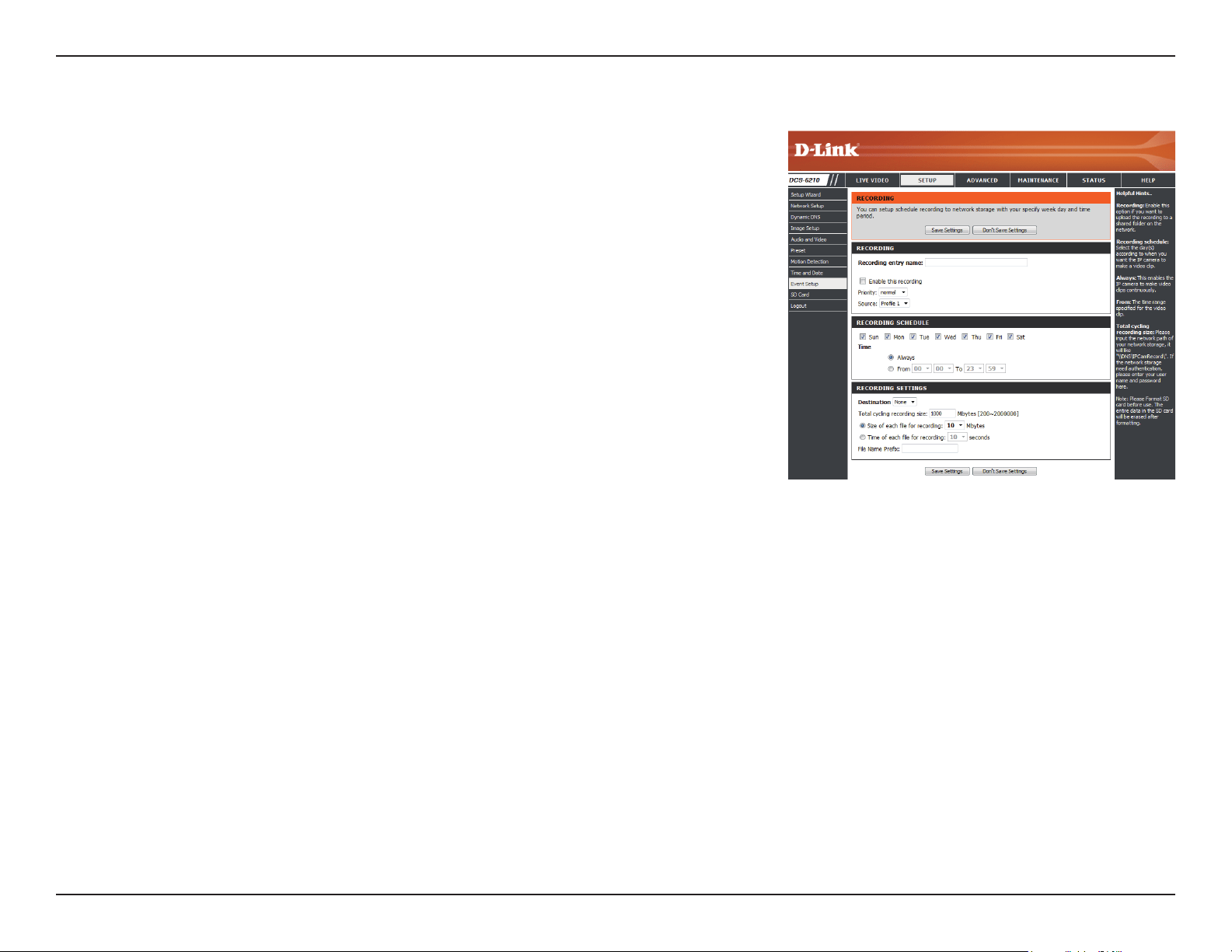
Add Recording
Recording entry name:
Enable this recording:
Priority:
Source:
Recording schedule:
Recording settings:
Destination:
Total cycling recording size:
The unique name of the entry.
Select this to enable the recording function.
Set the priority for this entry. The entry with a higher
priority value will be executed rst.
The source of the stream.
Scheduling the recording entry.
Conguring the setting for the recording.
Select the folder where the recording le will be stored.
Please input a HDD volume between 1MB and 2TB for
recording space. The recording data will replace the
oldest record when the total recording size exceeds this
value. For example, if each recording le is 6MB, and the
total cyclical recording size is 600MB, then the camera
will record 100 les in the specied location (folder) and
then will delete the oldest le and create new le for
cyclical recording.
Please note that if the free HDD space is not enough, the
recording will stop. Before you set up this option please
make sure your HDD has enough space, and it is better to
not save other les in the same folder as recording les.
Here you can congure and schedule the recording settings. After making any changes,
click the Save Settings button to save your changes.
50D-Link DCS-6210 User Manual
Section 4: Conguration
Size of each le for recording:
Time of each le for recording:
File Name Prex:
If this is selected, les will be separated based on the le
size you specify.
If this is selected, les will be separated based on the
maximum length you specify.
The prex name will be added on the le name of the
recording le(s).
51D-Link DCS-6210 User Manual
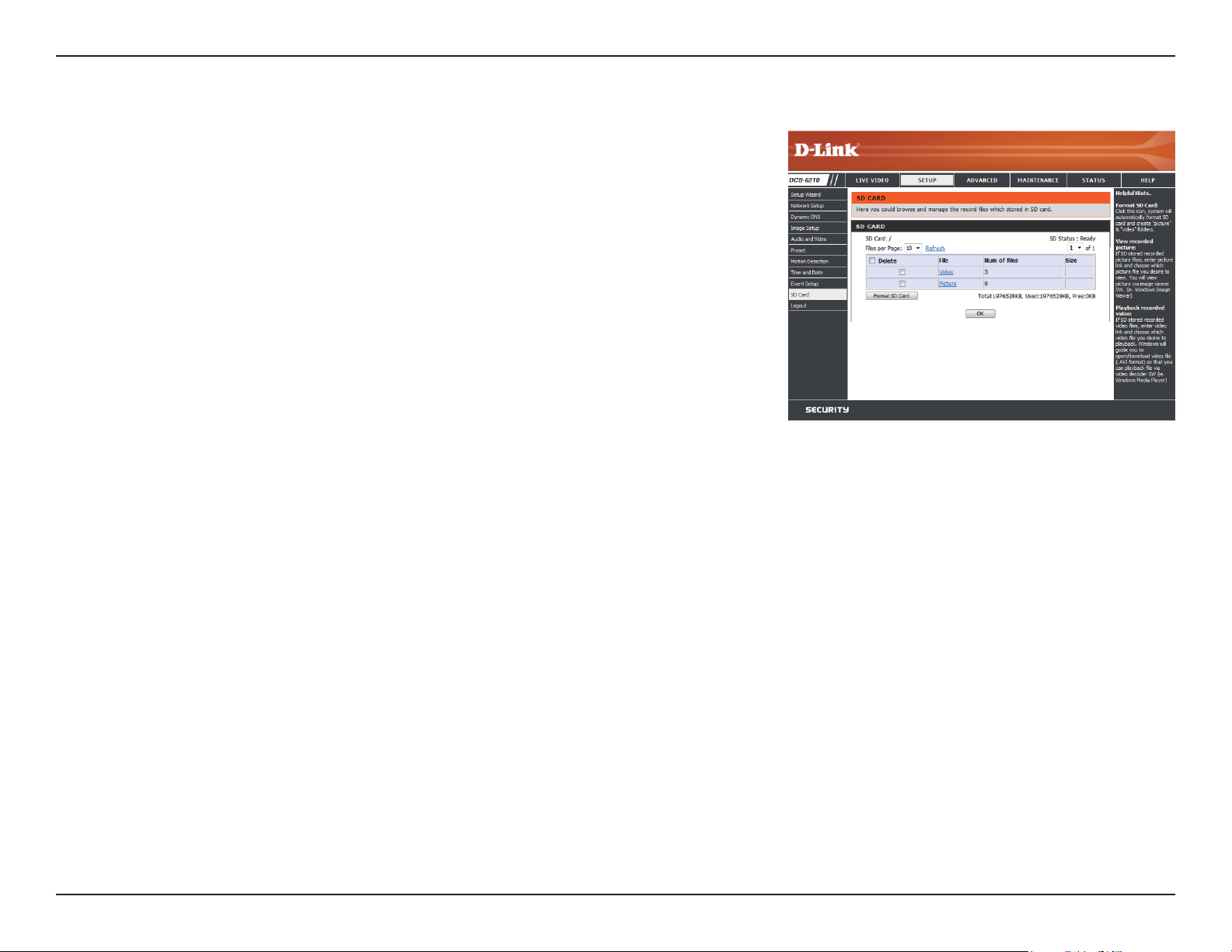
Section 4: Conguration
SD Card
Format SD Card:
View Recorded Picture:
Playback Recorded Video:
Refresh:
Click this icon to automatically format the SD card and
create "picture" & "video" folders.
If the picture les are stored on the SD card, click on the
picture folder and choose the picture le you would like
to view.
If video les are stored on the SD card, click on the video
folder and choose the video le you would like to view.
Reloads the le and folder information from the SD card.
Here you may browse and manage the recorded les which are stored on the SD card.
52D-Link DCS-6210 User Manual
Section 4: Conguration
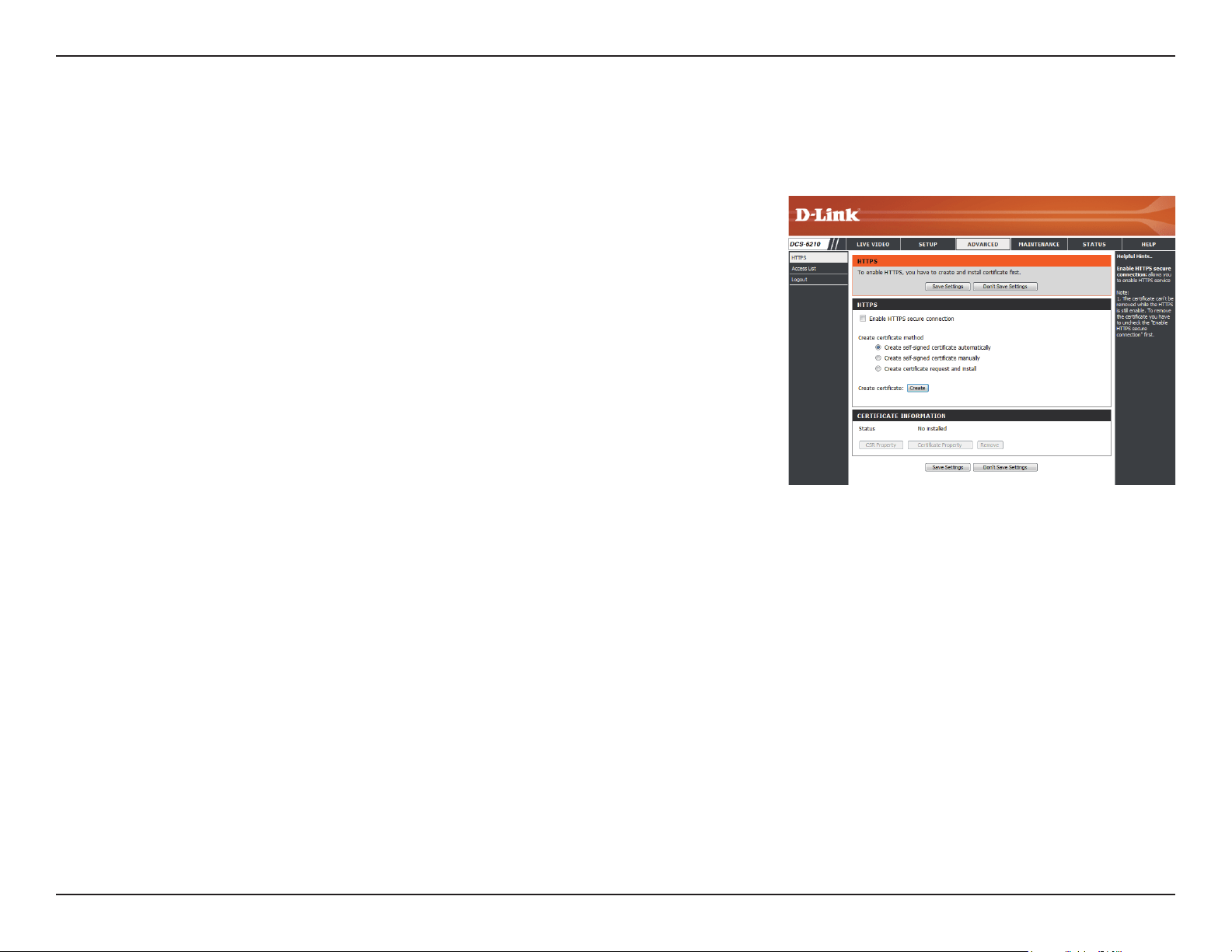
HTTPS
This page allows you to install and activate an HTTPS certicate for secure access to your camera. After making any changes, click the Save Settings
button to save your changes.
Enable HTTPS Secure Connection:
Create Certicate Method:
Status:
Note:
Enable the HTTPS service.
Choose the way the certicate should be created. Three
options are available:
Create a self-signed certicate automatically
Create a self-signed certicate manually
Create a certicate request and install
Displays the status of the certicate.
The certicate cannot be removed while the HTTPS is
still enabled. To remove the certicate, you must rst
uncheck Enable HTTPS secure connection.
53D-Link DCS-6210 User Manual
Section 4: Conguration
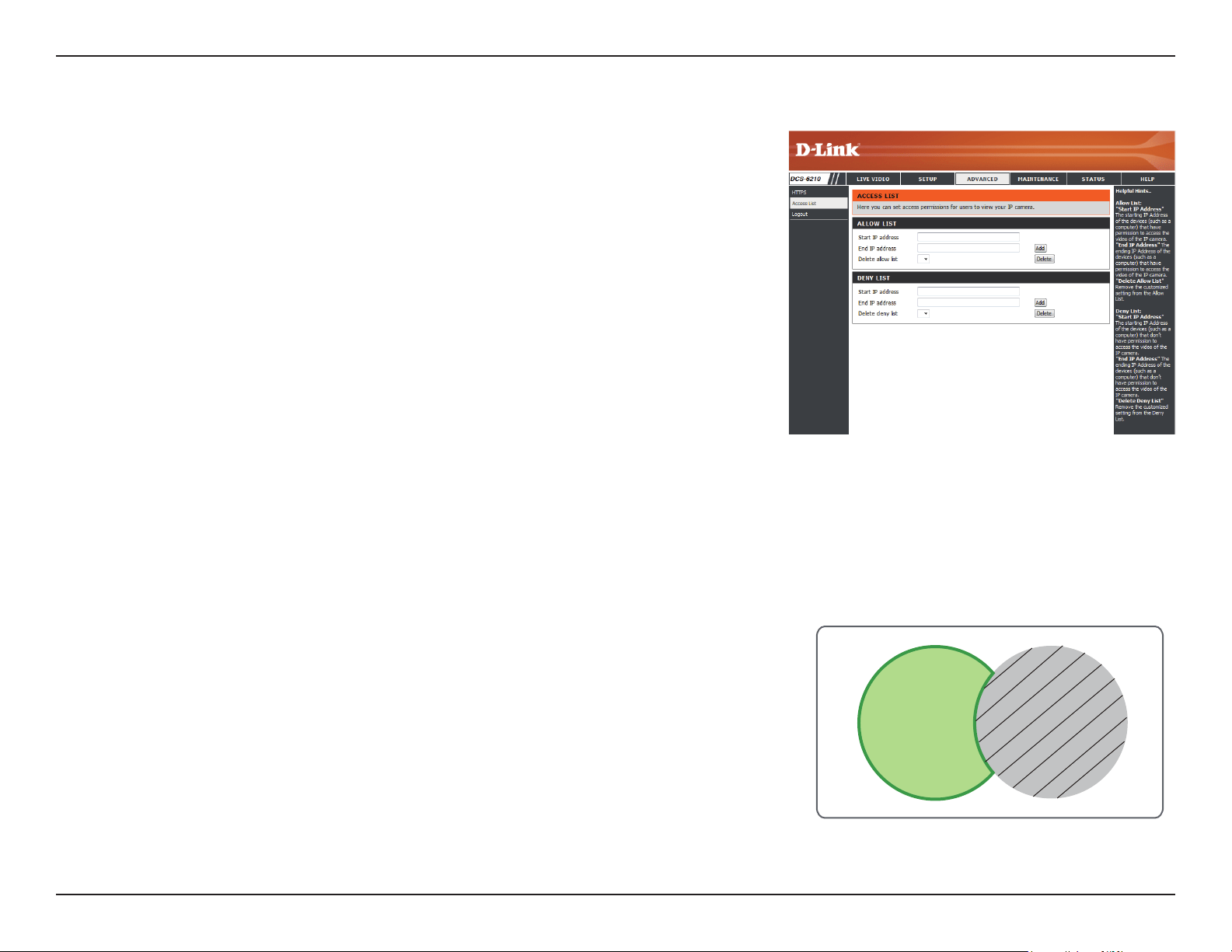
Access List
Here you can set access permissions for users to view your DCS-6210.
Allow list:
Start IP address:
End IP address:
Delete allow list:
Deny list:
Delete deny list:
The list of IP addresses that have the access right to the
camera.
The starting IP Address of the devices (such as a computer)
that have permission to access the video of the camera.
Click Add to save the changes made.
Note: A total of seven lists can be congured for both
columns.
The ending IP Address of the devices (such as a computer)
that have permission to access the video of the camera.
Remove the customized setting from the Allow List.
The list of IP addresses that have no access rights to the
camera.
Remove the customized setting from the Delete List.
For example:
When the range of the Allowed List is set from 1.1.1.0
to 192.255.255.255 and the range of the Denied List is
set from 1.1.1.0 to 170.255.255.255. Only users with IPs
located between 171.0.0.0 and 192.255.255.255 can
access the Network Camera.
Alowed
List
Denied
List
54D-Link DCS-6210 User Manual
Section 4: Conguration
Maintenance
Device Management
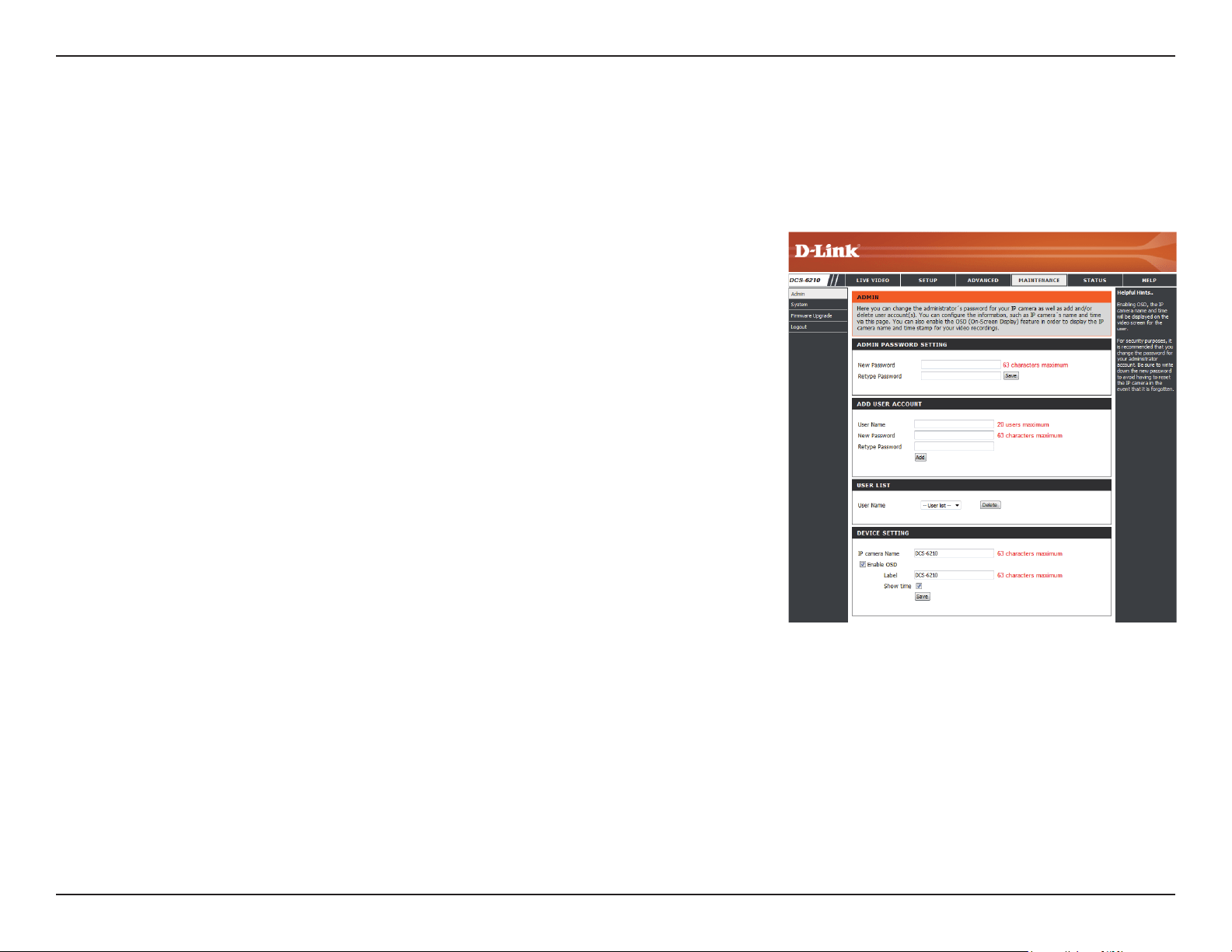
You may modify the name and administrator’s password of your camera, as well as add and manage the user accounts for accessing the camera.
You may also use this section to create a unique name and congure the OSD settings for your camera.
Admin Password Setting:
Add User Account:
User Name:
Password:
User List:
Camera Name:
Enable OSD:
Label:
Show Time:
Set a new password for the administrator’s account.
Add new user account.
The user name for the new account.
The password for the new account.
All the existing user accounts will be displayed here. You
may delete accounts included in the list, but you may
want to reserve at least one as a guest account.
Create a unique name for your camera that will be added
to the le name prex when creating a snapshot or a
video clip.
Select this option to enable the On-Screen Display
feature for your camera.
Enter a label for the camera, which will be shown on the
OSD when it is enabled.
Select this option to enable the time-stamp display on
the video screen.
55D-Link DCS-6210 User Manual
Section 4: Conguration
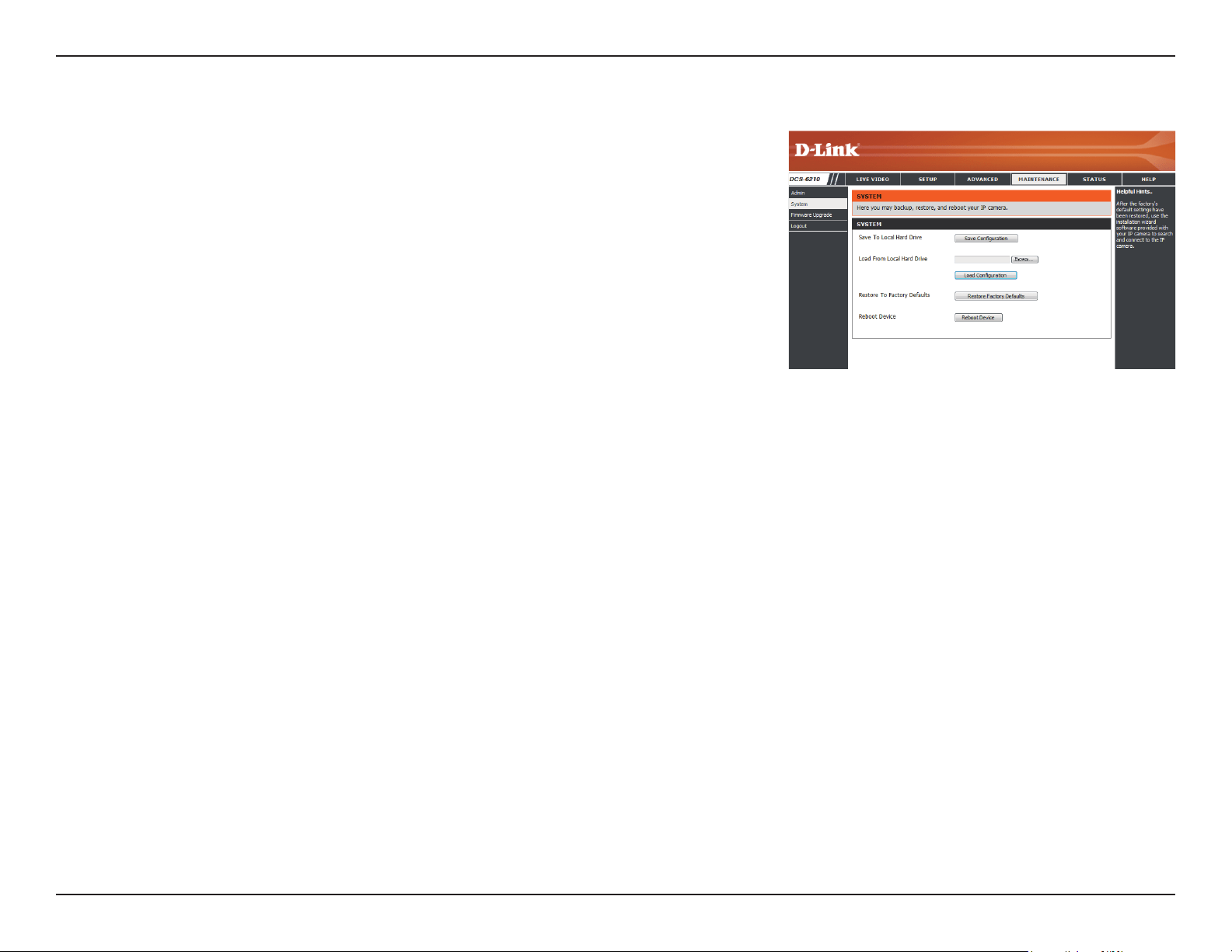
System
In this section, you may backup, restore and reset the camera conguration, or reboot the camera.
Save To Local Hard Drive:
Local From Local Hard Drive:
Restore to Factory Default:
Reboot Device:
You may save your current camera conguration as a le
on your computer.
Locate a pre-saved conguration by clicking Browse and
then restore the pre-dened settings to your camera by
clicking Load Conguration.
You may reset your camera and restore the factory
settings by clicking Restore Factory Defaults.
This will restart your camera.
56D-Link DCS-6210 User Manual
Section 4: Conguration
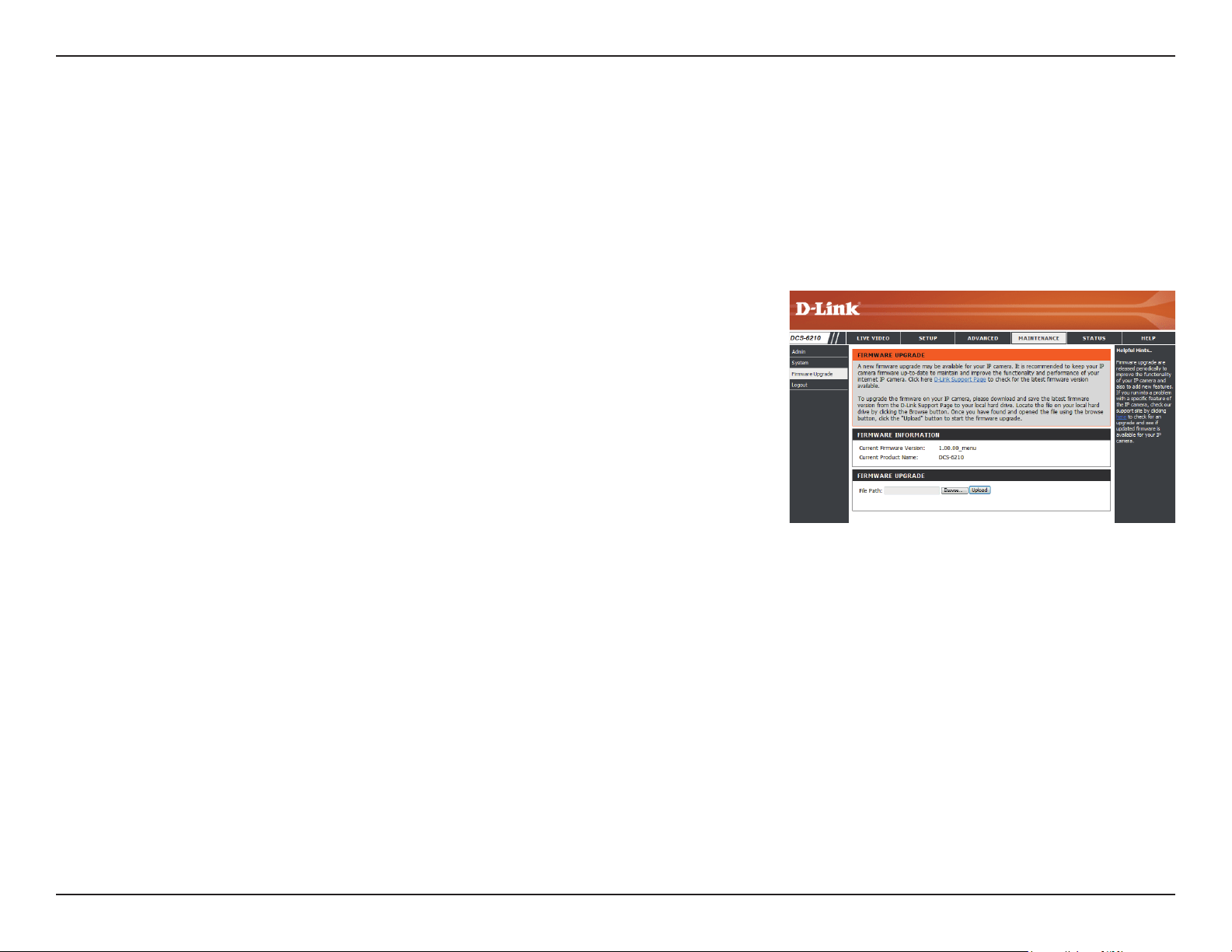
Firmware Upgrade
The camera's current rmware version will be displayed on this screen. You may visit the D-Link Support Website to check for the latest available
rmware version.
To upgrade the rmware on your DCS-6210, please download and save the latest rmware version from the D-Link Support Page to your local
hard drive. Locate the le on your local hard drive by clicking the Browse button. Select the le and click the Upload button to start upgrading the
rmware.
Current Firmware Version:
Current Product Name:
File Path:
Upload:
Displays the detected rmware version.
Displays the camera model name.
Locate the le (upgraded rmware) on your hard drive
by clicking Browse.
Uploads the new rmware to your camera.
57D-Link DCS-6210 User Manual
Section 4: Conguration
Status
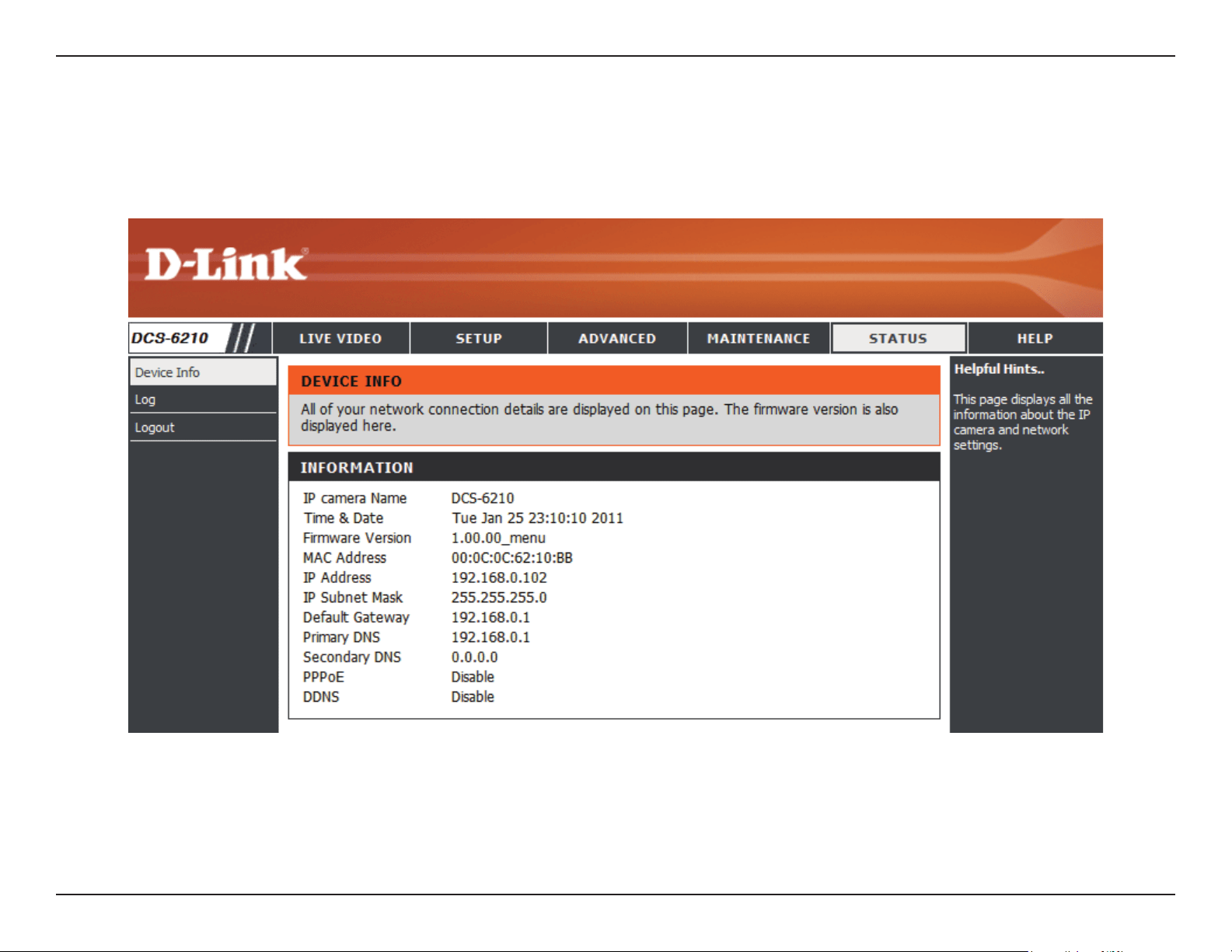
Device Info
This page displays detailed information about your device and network connection.
58D-Link DCS-6210 User Manual
Section 4: Conguration
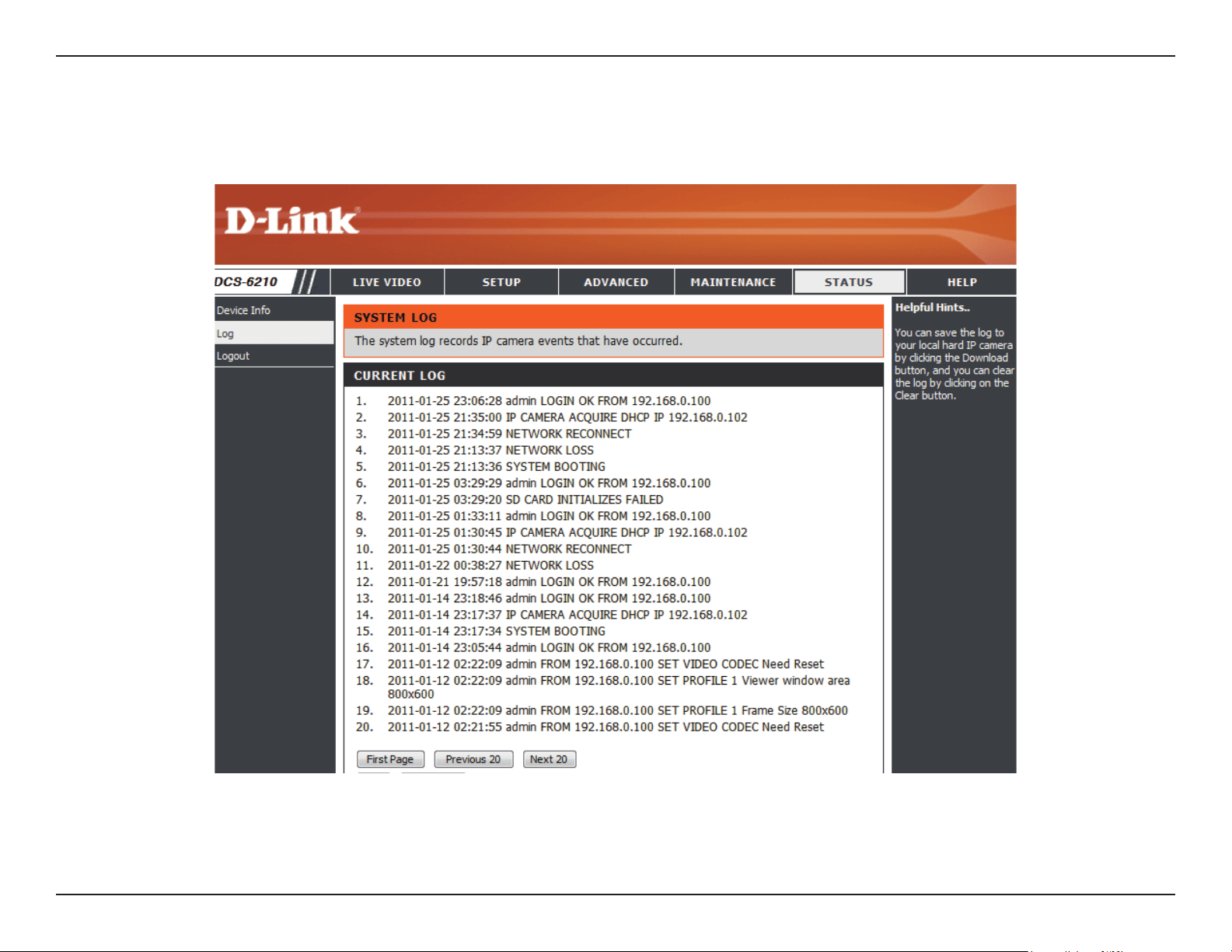
This page displays the log information of your camera. You may download the information by clicking Download. You may also click Clear to delete
the saved log information.
Logs
59D-Link DCS-6210 User Manual
Section 4: Conguration
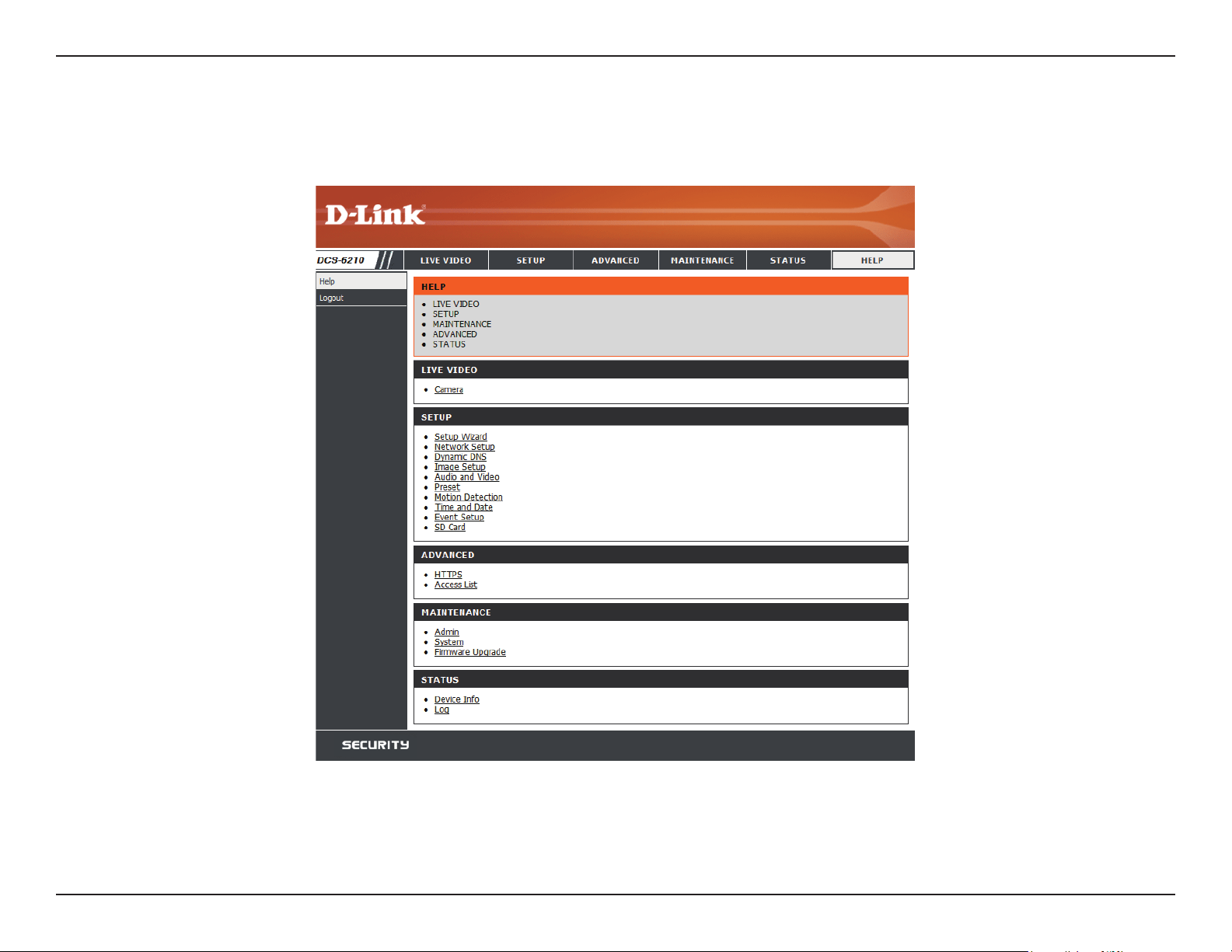
This page provides helpful information regarding camera operation.
Help

60D-Link DCS-6210 User Manual
Appendix A: Technical Specications
Technical Specications
Camera
Camera Hardware Profile • 1/2.7” 2 Megapixel progressive CMOS sensor
• Fixed Lens, focal length 4.3 mm, aperture F2.0
• 10x digital zoom
• Angle of view:
• (H) 79 °
• (V) 43 °
• (D) 90 °
Camera Housing • IP-66 weather-proof compliant • IK-10 vandal-proof compliant
Image Features • Configurable image size, quality, frame rate, and bit rate
• Time stamp and text overlays
• Configurable motion detection windows
• Configurable privacy mask zones
• Configurable white balance, brightness, saturation, contrast, sharpness, and BLC
Video Compression • Simultaneous H.264/MPEG-4/MJPEG format compression
• H.264/MPEG-4 multicast streaming
• JPEG for still images
Video Resolution • 16:9 - 1920 x 1080 (upto 15 fps) 1280 x 800, 1280 x 720, 800 x 450, 640 x 360, 480 x
270, 320 x 176, 176 x 144 up to 30 fps recording1
• 4:3 - 1440 x 1080 (up to 25 fps) 1024 x 768, 800 x 600, 640 x 480, 480 x 360, 320 x 240,
176 x 144 up to 30 fps recording1
Audio Support • G.726 • G.711
External Device Interfaces • 10/100 BASE-TX Fast Ethernet port
• Supports 802.3af PoE
• MicroSD/SDHC card slot
Network
Network Protocols • IPv6
• IPv4
• TCP/IP
• UDP
• ICMP
• DHCP client
• NTP client (D-Link)
• DNS client
• DDNS client (D-Link)
• SMTP client
• FTP client
• HTTP / HTTPS
• Samba client
• PPPoE
• UPnP port forwarding
• RTP / RTSP/ RTCP
• IP filtering
• QoS
• CoS
• Multicast
• IGMP
• ONVIF compliant
Security • Administrator and user group protection
• Password authentication
• HTTP and RTSP digest encryption
61D-Link DCS-6210 User Manual
Appendix A: Technical Specications
System Management
System Requirements for Web
Interface
• Browser: Internet Explorer, Firefox, Safari, Chrome
Event Management • Motion detection
• Event notification and uploading of snapshots/video clips via e-mail or FTP
• Supports multiple SMTP and FTP servers
• Multiple event notifications
• Multiple recording methods for easy backup
Remote Management • Take snapshots/video clips and save to local hard drive or NAS via web browser • Configuration interface accessible via web browser
D-ViewCam™ System
Requirements
• Operating System: Microsoft Windows 7/Vista/XP
• Web Browser: Internet Explorer 7 or higher
• Protocol: Standard TCP/IP
D-ViewCam™ Software Functions • Remote management/control of up to 32 cameras
• Viewing of up to 32 cameras on one screen
• Scheduled motion triggered, or manual recording options
• Supports all management functions in web interface
Physical
Weight • 412.2 g ± 5%
Power Consumption • 8.6 watts ± 5%
Temperature • Operating: -25 to 50 °C (-22 to 122 °F) • Storage: -20 to 70 °C (-4 to 158 °F)
Humidity • Operating: 20% to 80% non-condensing • Storage: 5% to 95% non-condensing
Certifications • CE
• CE LVD
• FCC
• C-Tick
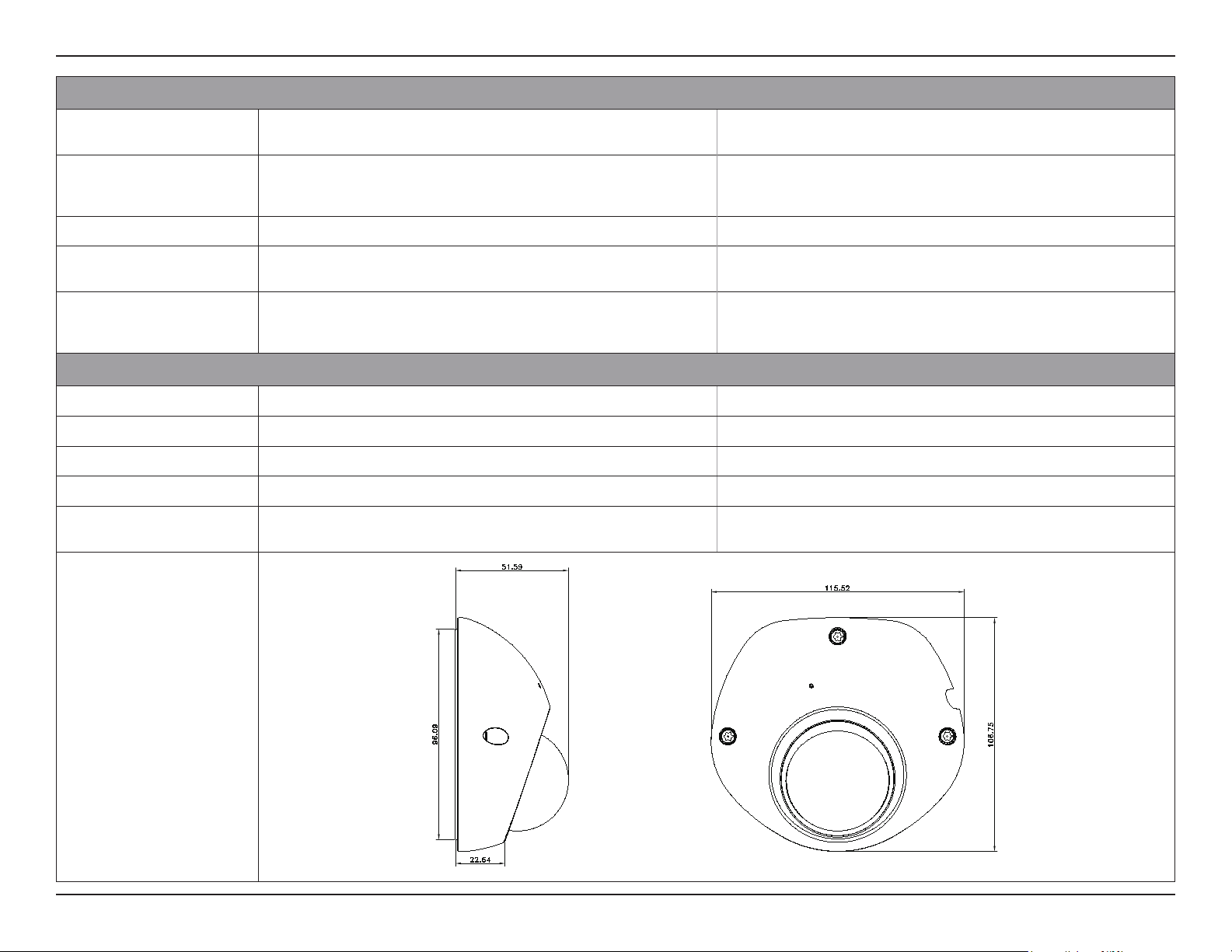
Dimensions

62D-Link DCS-6210 User Manual
Appendix B: Safety Statements
CE Mark Warning:
This is a Class B product. In a domestic environment, this product may cause radio interference, in which case the user may be required to take
adequate measures.
FCC Statement:
This equipment has been tested and found to comply with the limits for a Class B digital device, pursuant to part 15 of the FCC Rules. These limits are
designed to provide reasonable protection against harmful interference in a residential installation. This equipment generates, uses, and can radiate
radio frequency energy and, if not installed and used in accordance with the instructions, may cause harmful interference to radio communication.
However, there is no guarantee that interference will not occur in a particular installation. If this equipment does cause harmful interference to radio
or television reception, which can be determined by turning the equipment o and on, the user is encouraged to try to correct the interference by
one or more of the following measures:
• Reorient or relocate the receiving antenna.
• Increase the separation between the equipment and receiver.
• Connect the equipment into an outlet on a circuit dierent from that to which the receiver is connected.
• Consult the dealer or an experienced radio/TV technician for help.
FCC Caution:
Any changes or modications not expressly approved by the party responsible for compliance could void the user’s authority to operate this
equipment.
This device complies with Part 15 of the FCC Rules. Operation is subject to the following two conditions:
(1) This device may not cause harmful interference, and (2) this device must accept any interference received, including interference that may cause
undesired operation.
Safety Statements

63D-Link DCS-6210 User Manual
Appendix B: Safety Statements
IMPORTANT NOTICE:
FCC Radiation Exposure Statement:
This equipment complies with FCC radiation exposure limits set forth for an uncontrolled environment. This equipment should be installed and
operated with minimum distance 20cm between the radiator & your body. This transmitter must not be co-located or operating in conjunction
with any other antenna or transmitter.
The availability of some specic channels and/or operational frequency bands are country dependent and are rmware programmed at the factory
to match the intended destination. The rmware setting is not accessible by the end user.
For detailed warranty information applicable to products purchased outside the United States, please contact the corresponding local D-Link
oce.
Industry Canada Notice:
This device complies with RSS-210 of the Industry Canada Rules. Operation is subject to the following two conditions:
(1) This device may not cause harmful interference, and (2) this device must accept any interference received, including interference that may cause
undesired operation.
IMPORTANT NOTE:
Radiation Exposure Statement:
This equipment complies with IC radiation exposure limits set forth for an uncontrolled environment. This equipment should be installed and
operated with minimum distance 20cm between the radiator & your body.