DCS-2630L
Quick Install Guide
Full HD Ultra-Wide View Wi-Fi Camera
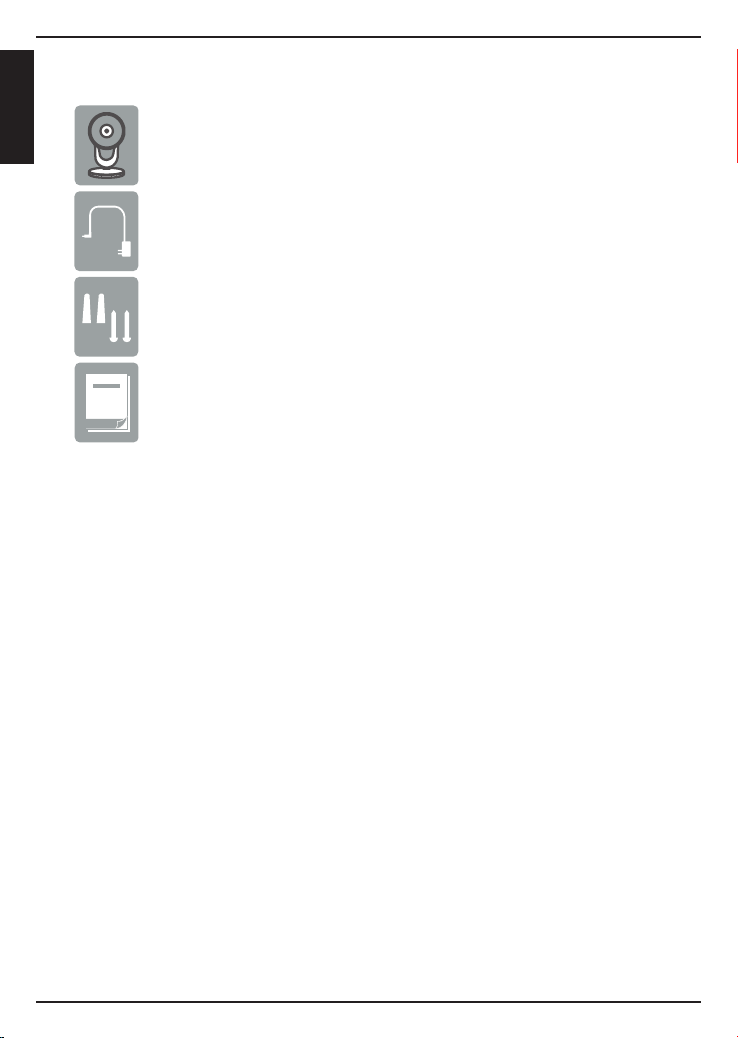
If any of the above items are missing, please contact your reseller.
DCS-2630L Full HD Ultra-Wide View Wi-Fi Camera
Power Adapter
Package Contents
Mounting Hardware
Minimum Requirements
Mobile Device (to use mydlink Lite app)
• iPhone, iPad, Android smartphone or tablet, or Windows Phone 8/8.1
(Refer to the mobile app’s store page to see if your device is compatible)
Network Device and Service
• A wireless router (802.11ac/n/g) with Internet service
• An e-mail account (required to create a mydlink® account)
* If you use a mobile device with the mydlink Lite app, a PC is not required for
setup. Refer to Setting up Your Camera on page 4.
Quick Install Guide
For warranty and regulatory information, please visit:
http://support.dlink.com/download.ashx?type=w&le=DCS-2630L
2
ENGLISH
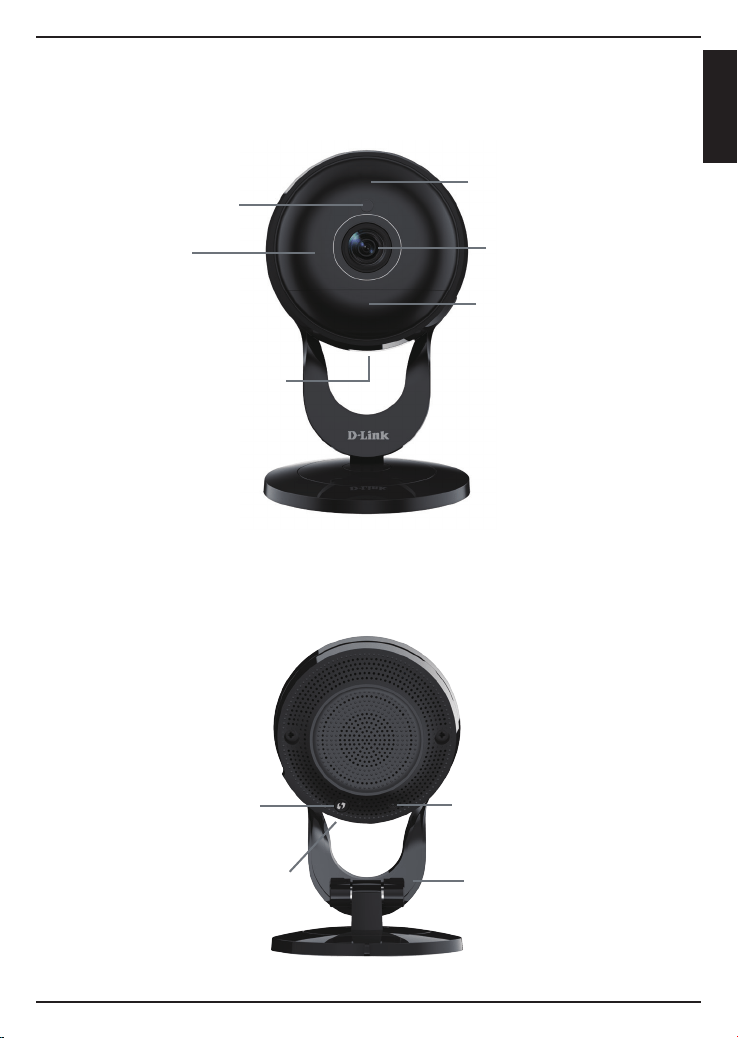
Product Overview
Camera Lens
Microphone
Power Connector
Reset Button
WPS Button
Front
Back
microSD Slot
Camera Stand
Light Sensor
IR LEDs
PIR Sensor
3
ENGLISH
Setting Up Your Camera
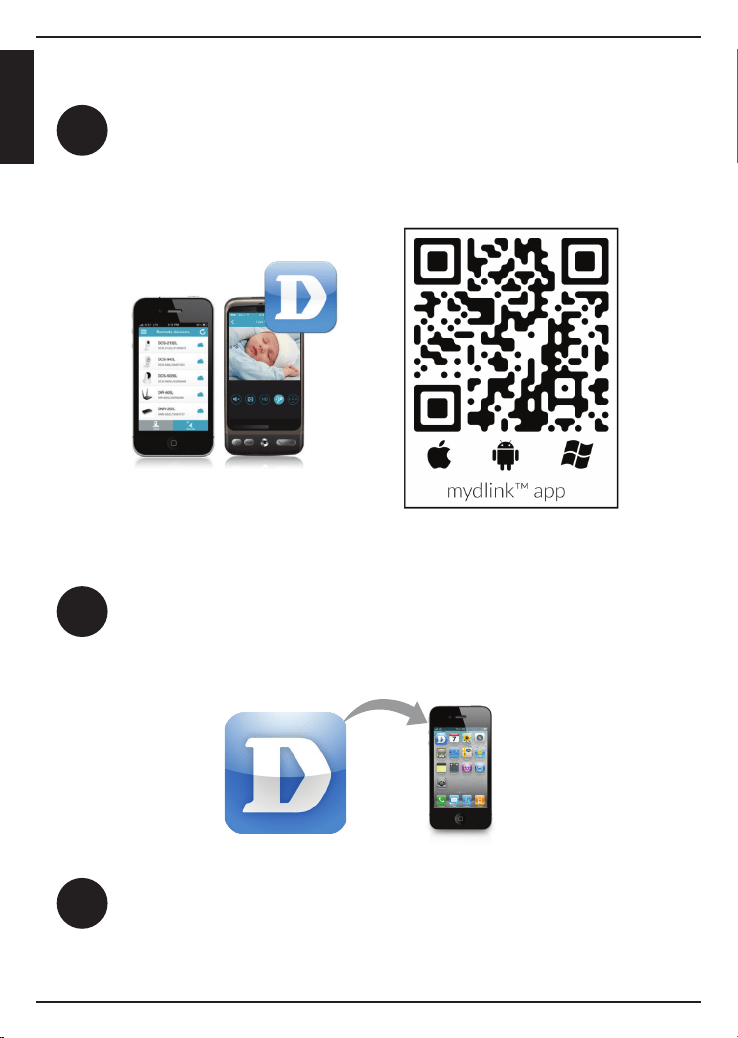
System Requirements: Refer to the mydlink Lite app page on Apple App Store, Google Play or Windows Phone Store.
Launch the mydlink Lite app, then create a new account or log in to your
existing account.
Download the free mydlink Lite app on your smartphone or tablet by
scanning the QR code below, or by searching for mydlink Lite in the app
store for your device.
1
2
3
The app will guide you through the rest of the conguration process.
4
ENGLISH
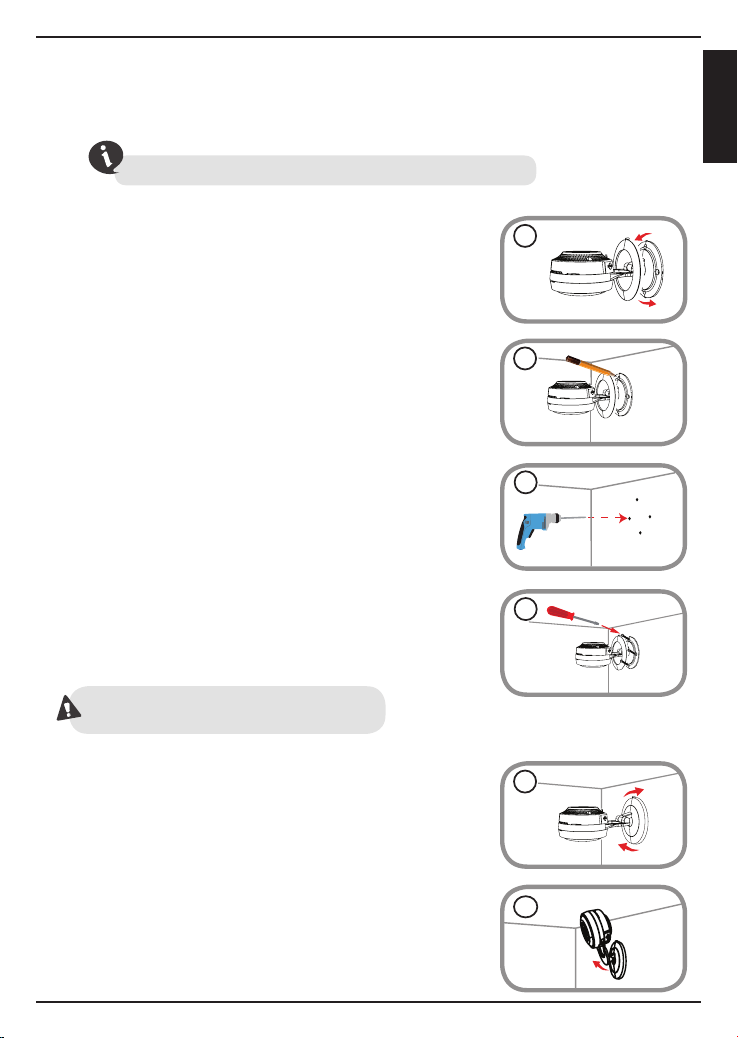
Mount the Camera
2. Place the camera base where you want to position the
camera and use a pencil to mark the holes.
5. Attach the base cover and turn it clockwise to lock it
in place.
6. Adjust the angle of the camera as desired and then
attached the power supply to the camera and plug
into a power outlet.
3. Depending on the material of the wall or ceiling, use
proper tools to drill four holes 25mm deep with a
6mm drill bit where you marked. If the wall is made
out of concrete, drill the holes rst, then insert the
plastic anchors to support the screws.
4. Place the camera base over the holes that are in the
wall. Make sure to align the camera base holes with the
holes in the wall. Use the supplied screws to attach the
camera to the surface of the wall.
Please refer to the steps below to assist you with mounting the camera.
We suggest that you congure the camera before mounting.
Do not overtighten the screws as this may
crack the mount.
1. Rotate the camera base cover counterclockwise, then lift
it to expose the mounting holes.
1
2
3
4
5
6
5
ENGLISH
1. What is a mydlink No.? What is it used for?
Each camera has a unique eight-digit mydlink No. which will be shown on
the label on the back of your camera. This eight-digit number identies
your device, and is required to add your device to your mydlink account.
2. What can I do if my DCS-2630L is not working correctly?
• Reset the camera (see next step) and run the setup steps starting
on page 4 again.
• To make sure your hardware is installed correctly, make sure that:
- the power LED is solid green
- your Internet connection is working
- your router’s LAN & WAN connections are working
- your router supports UPnP
®
- your camera is on the same network as your mobile device
- both your mobile device and camera have a working Internet connection
• If your camera is still not working, check your router and make sure it
has the latest rmware.
3. What can I do if I forget my password?
FAQs
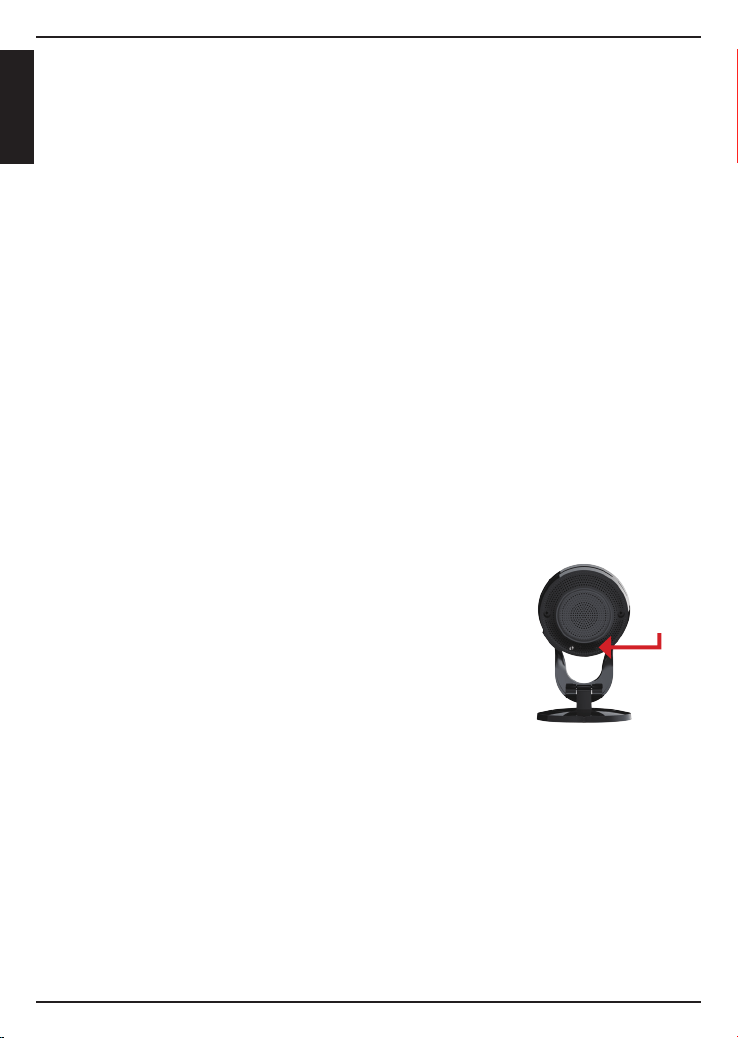
If you forget your password, you must reset the
camera. Unfortunately, this process will change
your settings back to factory default. To reset the
camera, locate the reset button on the back of
the camera. With the camera powered on, use an
unfolded paper clip to hold the button down for
10 seconds. Run the setup procedure located on
page 4 once the camera restarts.
4. Why is there a white haze when viewing in night vision mode?
When viewing in night vision mode, the IR lights on the camera may be
reecting o a nearby surface. Try repositioning the camera in order to
avoid glare from IR LEDs.
Reset
Button
6
ENGLISH

Notes
7
ENGLISH
Technical Support
This guide is only for initial conguration. Please refer to the user
manual to learn more or visit http://www.mydlink.com for more
information. Also feel free to contact us. U.S. and Canadian customers
can contact D-Link Technical Support through our website.
http://support.dlink.com
USA
http://support.dlink.ca
Canada
Version 1.00(US)_90x130
July 16, 2015
6CS2630LQ.01G
Copyright ©2015 All rights reserved. D-Link and the D-Link logo are registered trademarks of D-Link
Corporation or its subsidiaries. Other trademarks are the property of their respective owners. Maximum
wireless signal rate derived from IEEE Standard 802.11ac and 802.11n specications. Actual data
throughput will vary. Network conditions and environmental factors, including volume of network
trac, building materials and construction, and network overhead, lower actual data throughput rate.
Environmental factors will adversely aect wireless signal range. Product specications, size and shape are
subject to change without notice, and actual product appearance may dier from that depicted on the
packaging. Visit dlink.com (US) or dlink.ca (Canada) for more details.