
www.lg.com
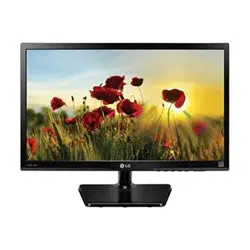
IPS LED MONITOR MODEL
24MP60
Please read this manual carefully before operating
your set and retain it for future reference.
Owner's Manual
IPS LED MONITOR
(LED MONITOR*)
*LG LED Monitors are LCD Monitors with LED Backlighting.

2
ENGLISH
TABLE OF CONTENTS
CONTENTS
3 LICENSE
4 ASSEMBLINGANDPREPAR-
ING
4 Unpacking
5 SupportedDriversandSoftware
6 Partsandbuttons
6 - HowtoUsetheJoystickButton
7 - InputConnector
8 MovingandLiftingtheMonitor
9 SettinguptheMonitorset
9 - AttachingtheStandBase
10 - DetachingtheStandBase
11 - Mountingonatable
12 - Usingthecableholder
14 USINGTHEMONITORSET
14 ConnectingtoaPC
14 - D-SUBconnection
14 - DVI-Dconnection
14 - HDMIconnection
15 ConnectingtoAVDevices
15 - HDMIconnection
16 ConnectingtoExternalDevices
16 - Peripheraldeviceconnection
17 CUSTOMIZINGSETTINGS
18 Customizingsettings
24 TROUBLESHOOTING
26 SPECIFICATIONS
27 PresetModes(Resolution)
27 Indicator

3
ENG
ENGLISH
LICENSE
LICENSE
Eachmodelhasdifferentlicenses.Visitwww.lg.comformoreinformationonthelicense.
ThetermsHDMIandHDMIHigh-DefinitionMultimediaInterface,andthe
HDMIlogoaretrademarksorregisteredtrademarksofHDMILicensingLLC
intheUnitedStatesandothercountries.
ThefollowingcontentisonlyappliedtothemonitorwhichissoldinEuropemarketandwhichneedsto
meettheErPDirective:
*Thismonitorissettobeturnedoffautomaticallyin4hoursafteryouturnedondisplayifthereisno
adjustmenttodisplay.
*Tomakethissettingbedisabled,changetheoptionto‘Off’inOSDmenuof“AutomaticStandby”.
4
ENG
ENGLISH
ASSEMBLING AND PREPARING
(Thiscableisnotincluded
inallcountries.)
27MP67VQ24MP67VQ22MP67VQ 23MP67VQ
22MP67HQ 23MP67HQ 24MP67HQ 27MP67HQ
ASSEMBLINGANDPREPARING
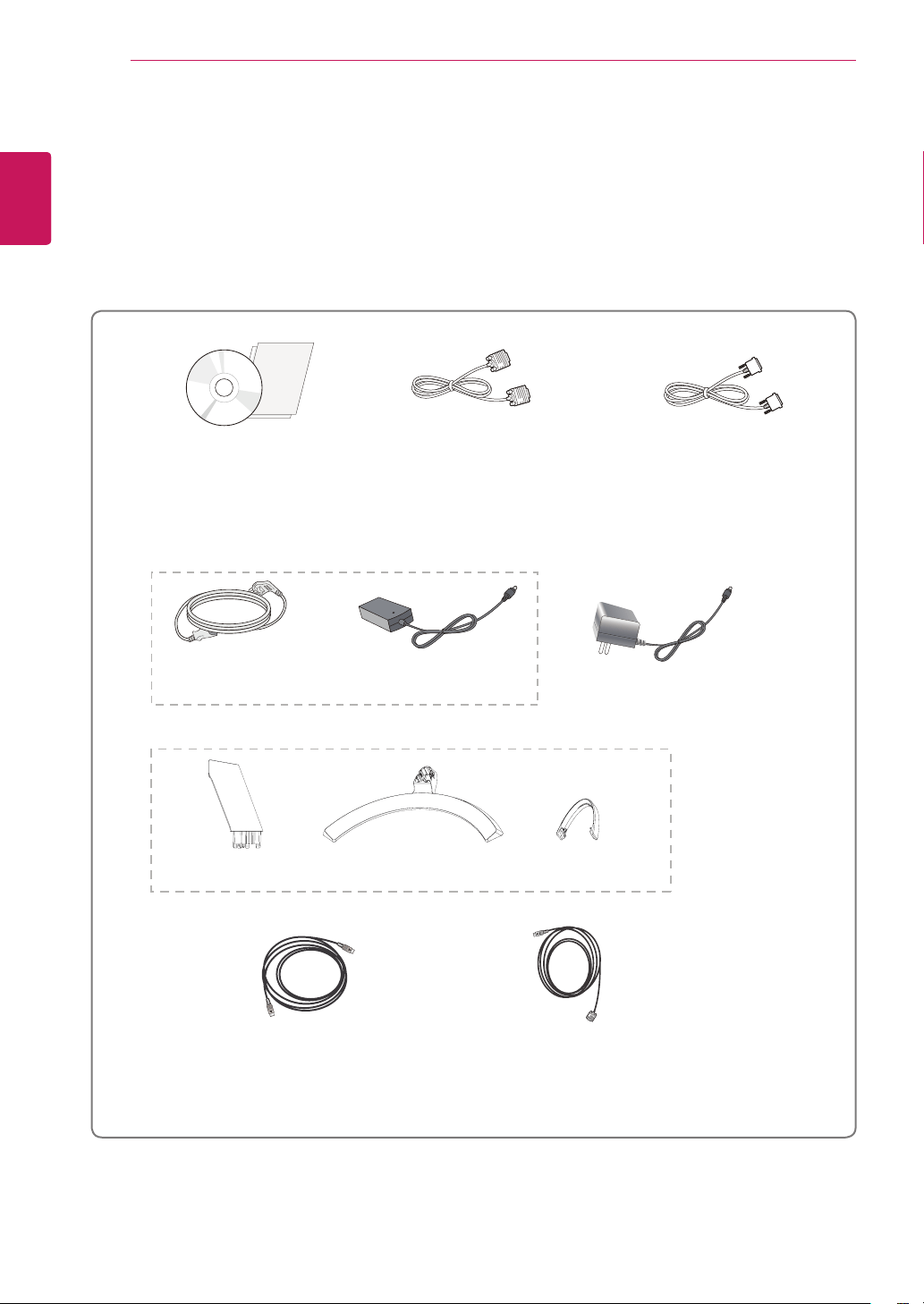
Unpacking
Checkyourproductboxforthefollowingitems.Ifthereareanymissingaccessories,contactthelocal
dealerwhereyoupurchasedyourproduct.Theillustrationsinthismanualmaydifferfromtheactualproduct
andaccessories.
CD(Owner'sManual)/
Card
(Dependingonthecountry)
(Dependingonthecountry)
PowerCord
AC-DCAdapter
AC-DCAdapter
or
D-SUBCable
(Thiscableisnotincludedinall
countries.)
DVI-DCable
(Thiscableisnotincludedinall
countries.)
27MP67VQ24MP67VQ22MP67VQ 23MP67VQ
22MP67HQ 23MP67HQ 24MP67HQ 27MP67HQ
StandBody
StandBase
HDMICable
(Thiscableisnotincludedinall
countries.)
CableHolder
5
ENG
ENGLISH
ASSEMBLING AND PREPARING
Donotuseanyunapprovedaccessoriestoensurethesafetyandproductlifespan.
Anydamagesorinjuriesbyusingunapprovedaccessoriesarenotcoveredbythewarranty.
Theaccessoriessuppliedwithyourproductmayvarydependingonthemodel.
Productspecificationsorcontentsinthismanualmaybechangedwithoutpriornoticeduetoupgrade
ofproductfunctions.
CAUTION
NOTE
SupportedDriversandSoftware
CheckthedriversandsoftwaresupportedbyyourproductandrefertothemanualsontheCDenclosedin
theproductpackage.
RequiredandRecommended:YoucandownloadandinstallthelatestversionfromtheenclosedCD
orfromtheLGEwebsite(www.lg.com).
Drivers and Software Installation Priority
24MP60
Monitor Driver Recommended O
OnScreen Control Recommended O
6
ENG
ENGLISH
ASSEMBLING AND PREPARING
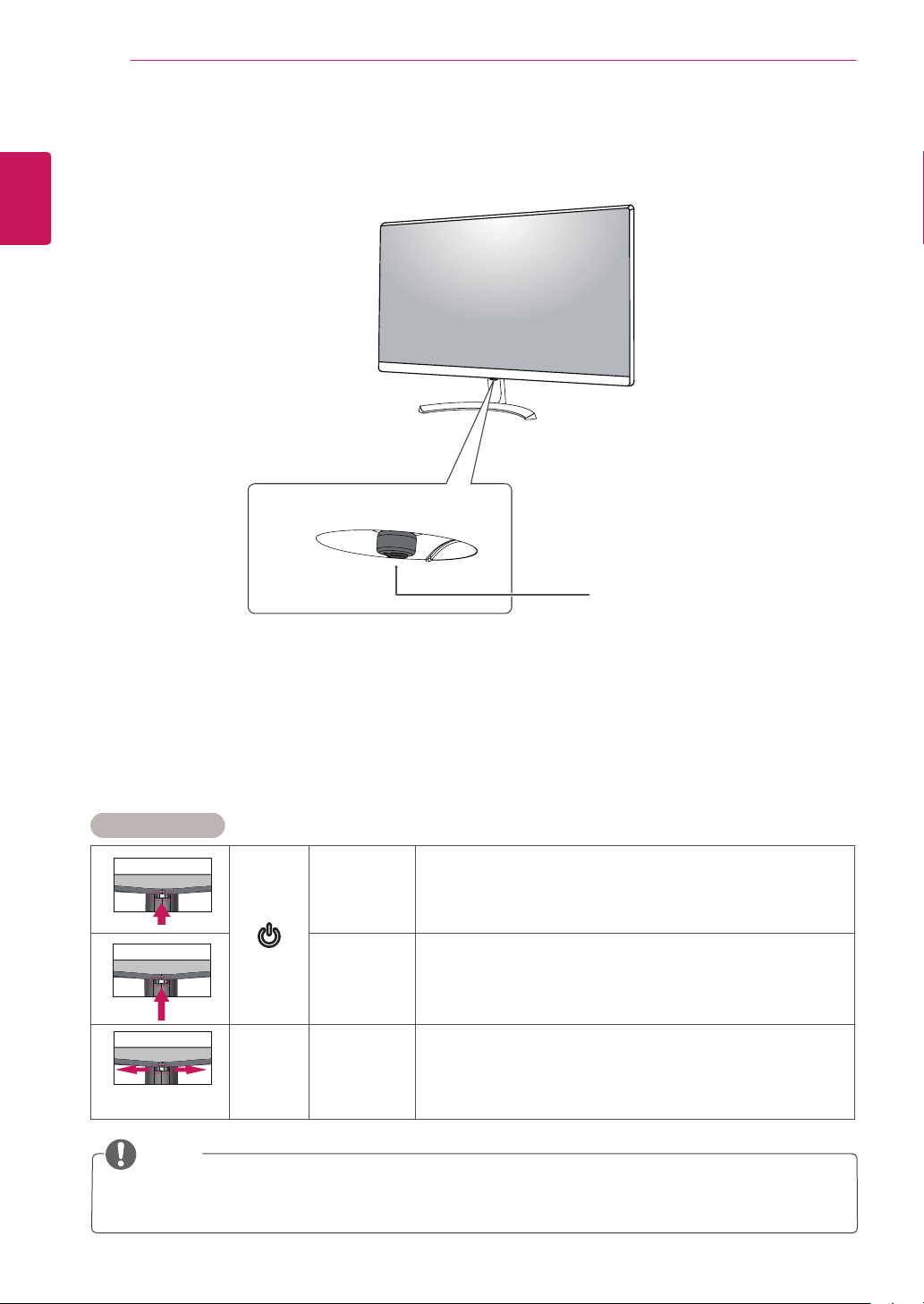
Partsandbuttons
JoystickButton/
PowerIndicator
On:powerison
Off:powerisoff
Thejoystickbuttonislocatedatthebottomofthemonitor.
NOTE
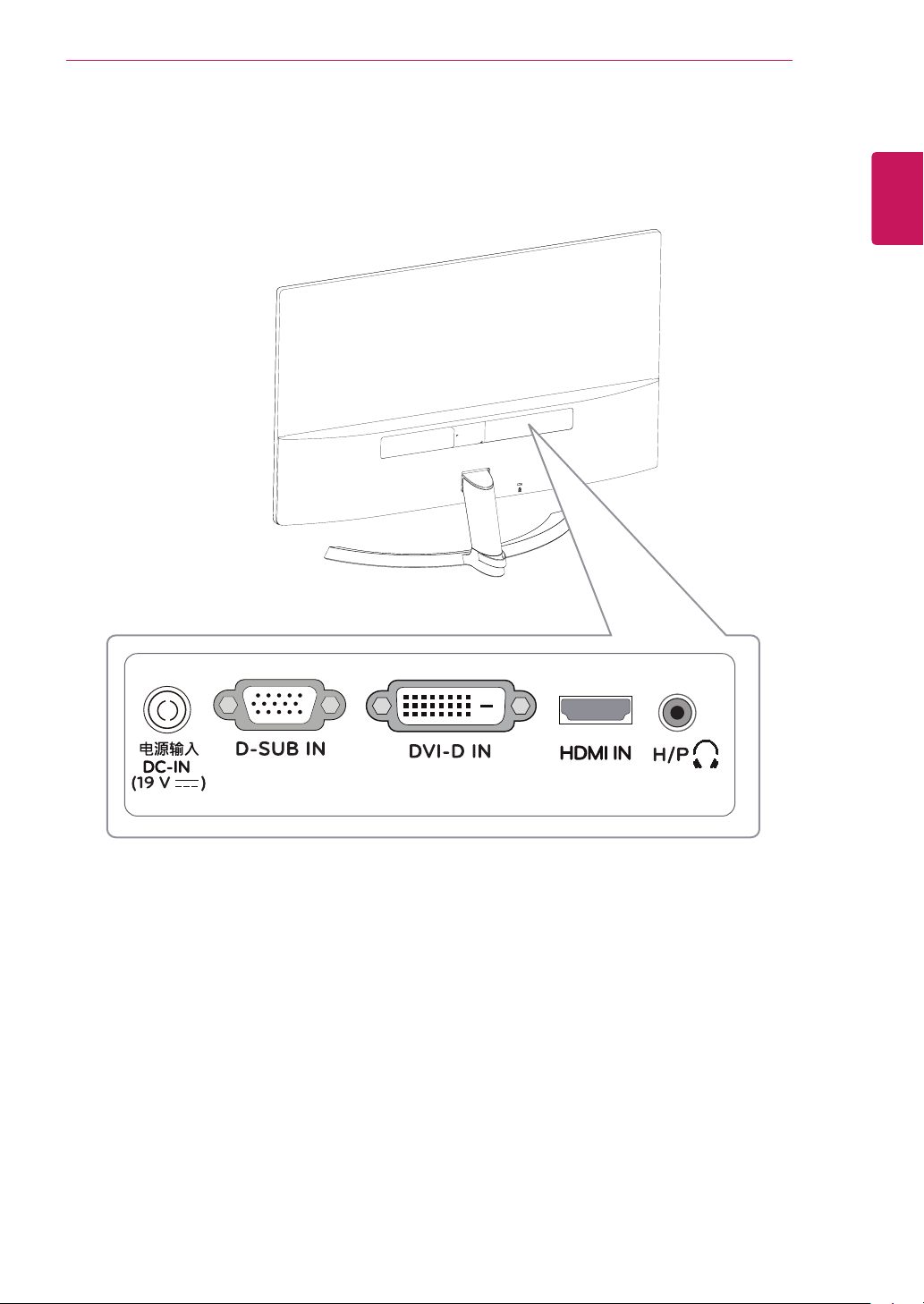
HowtoUsetheJoystickButton
Youcaneasilycontrolthefunctionsofthemonitorbypressingthejoystickbuttonormovingitleft/rightwith
yourfinger.
BasicFunctions
Poweron
Pressthejoystickbuttononcewithyourfingertoturnonthe
monitor.
Poweroff
Pressandholdthejoystickbuttononcewithyourfingertoturnoff
themonitor.
◄/►
Volume
Control
Youcancontrolthevolumebymovingthejoystickbuttonleft/right.
7
ENG
ENGLISH
ASSEMBLING AND PREPARING
Partsandbuttons
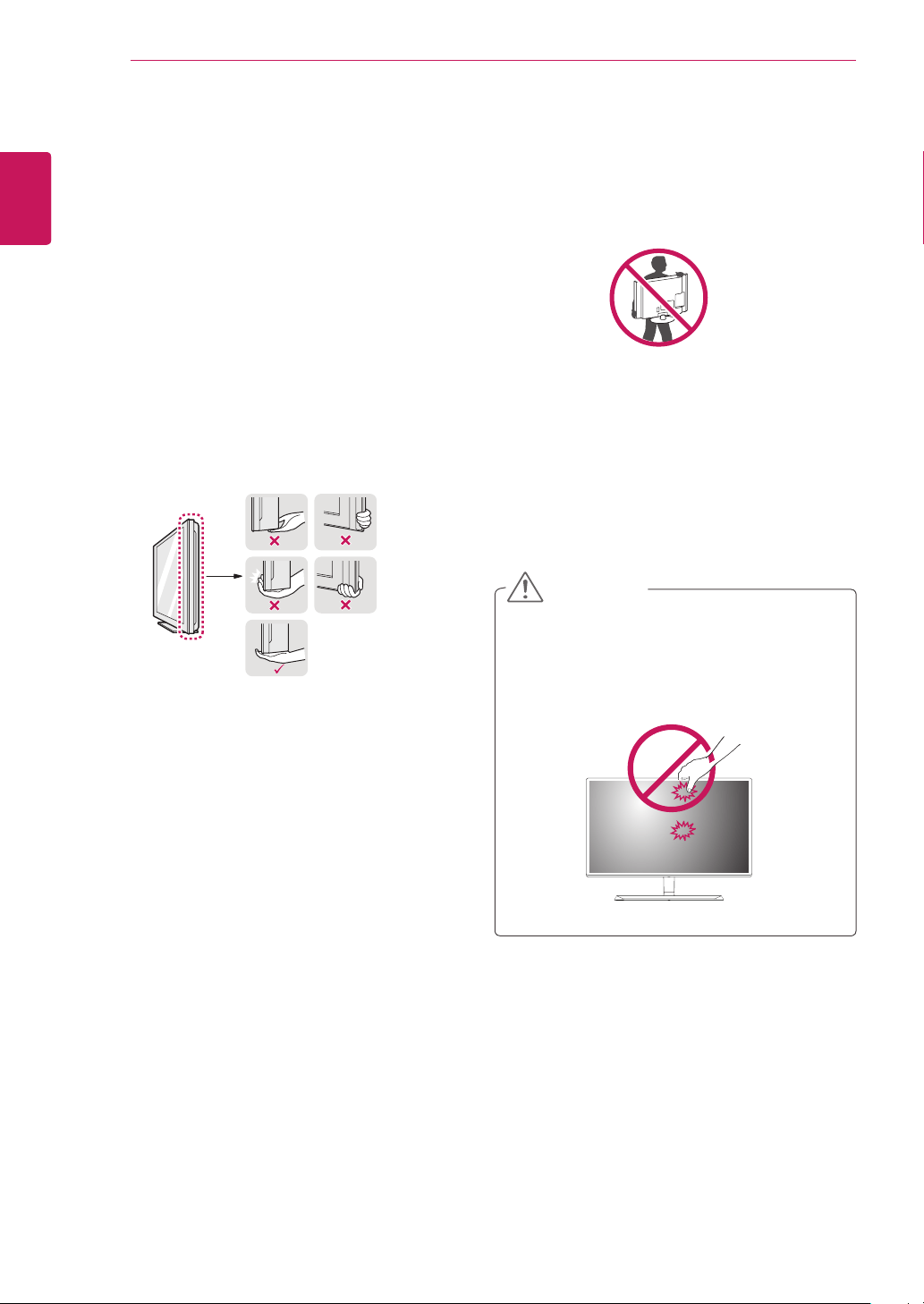
InputConnector
8
ENG
ENGLISH
ASSEMBLING AND PREPARING
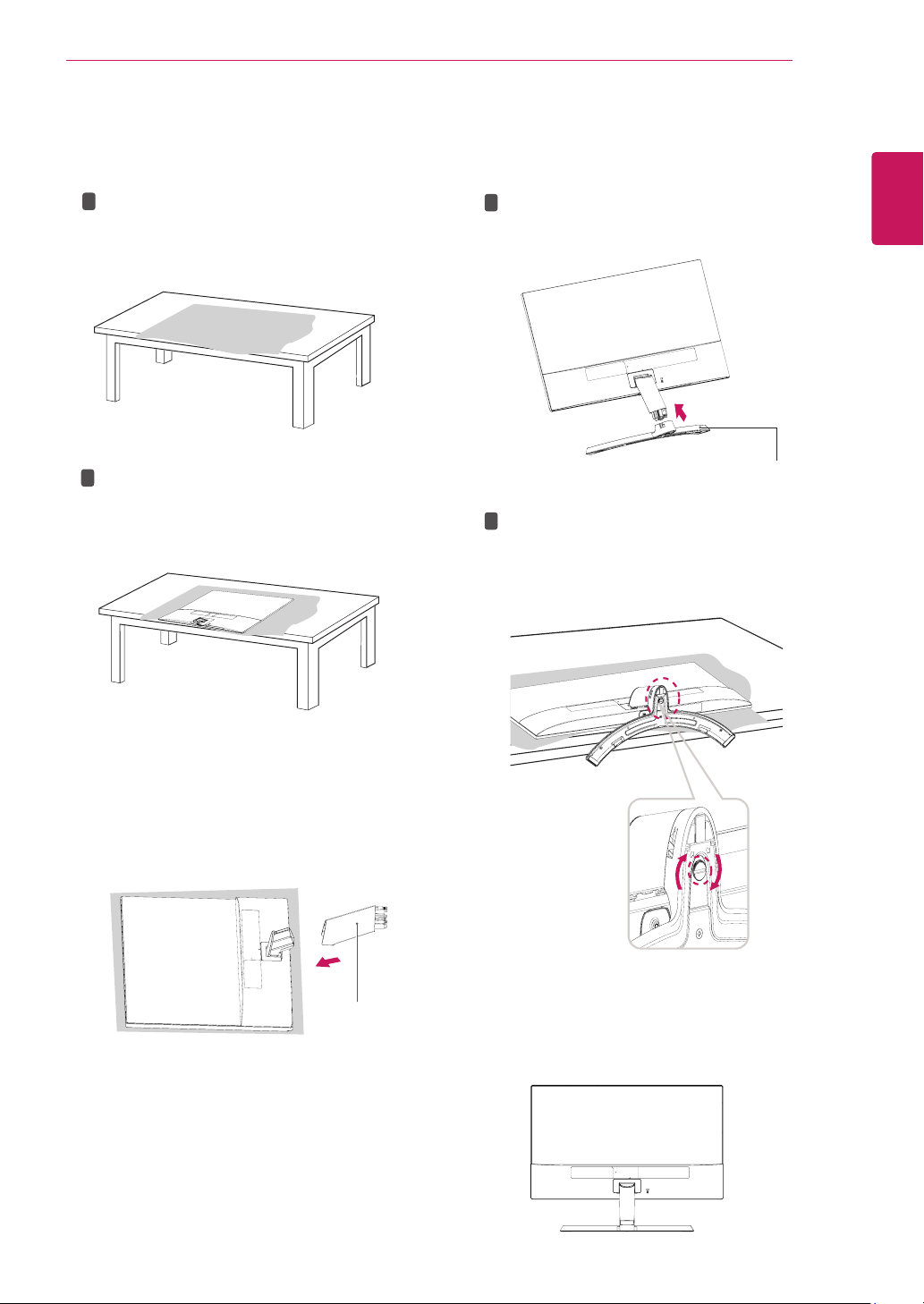
MovingandLiftingtheMonitor
Whenmovingorliftingthemonitor,followthese
instructionstopreventthemonitorfrombeing
scratchedordamagedandtoensuresafetrans-
portationregardlessofitsshapeorsize.
Asfaraspossible,avoidtouchingthemoni-
torscreen.Thismayresultindamagetothe
screenorsomeofthepixelsusedtocreate
images.
Itisadvisabletoplacethemonitorinthe
originalboxorpackingmaterialbeforeat-
temptingtomoveit.
Beforemovingorliftingthemonitor,discon-
nectthepowercordandallcables.
Holdthetopandbottomofthemonitorframe
firmly.Donotholdthepanelitself.
Whenholdingthemonitor,thescreenshould
faceawayfromyoutopreventitbeing
scratched.
Whenmovingthemonitor,avoidanystrong
shockorvibrationstotheproduct.
Whenmovingthemonitor,keepitupright,
neverturnthemonitoronitssideortiltit
sideways.
CAUTION
8
9
ENG
ENGLISH
ASSEMBLING AND PREPARING
SettinguptheMonitorset
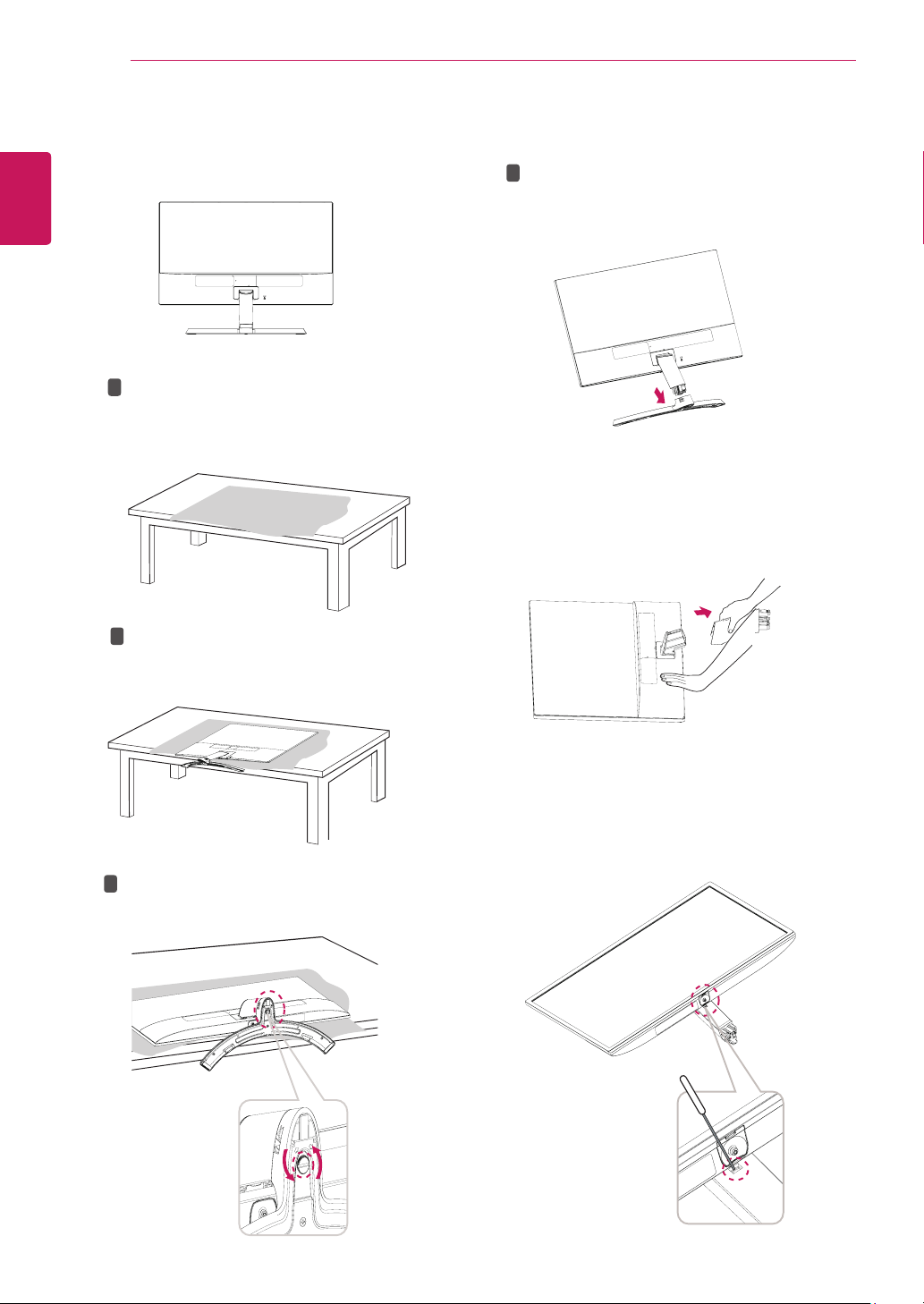
AttachingtheStandBase
1
Pleaseputasoftclothonalowtableorbox
toprotectthescreenofthemonitor.
Pleaseputthemonitoronthesoftclothwith
thescreenfacingdown.
2
Pleasegrabthe
Standbody
inonehand,and
pushitinthedirectionofthearrowto
hinge
body
.Afterassembling,youmustcheckifthe
Standbody
latchedinornot.
3
Pleasepushthe
StandBase
inthedirection
ofthearrowasshownbelowandassemble
together.
Pleaseuseadriver(-)orcointoinsertthumb
screwandturnrightarrowdirectionlock.
*Itisnecessarytothoroughlytightenitwith
ThumbScrew
,orthemonitorwillshake.
4
PleasesettheMonitorupright,andinstallthe
necessarycable.
*Mustuseonetypeinputcable.Don'tuse
morethantwotypescabletogether.
1
2
1
2
Standbody
StandBase
10
ENG
ENGLISH
ASSEMBLING AND PREPARING
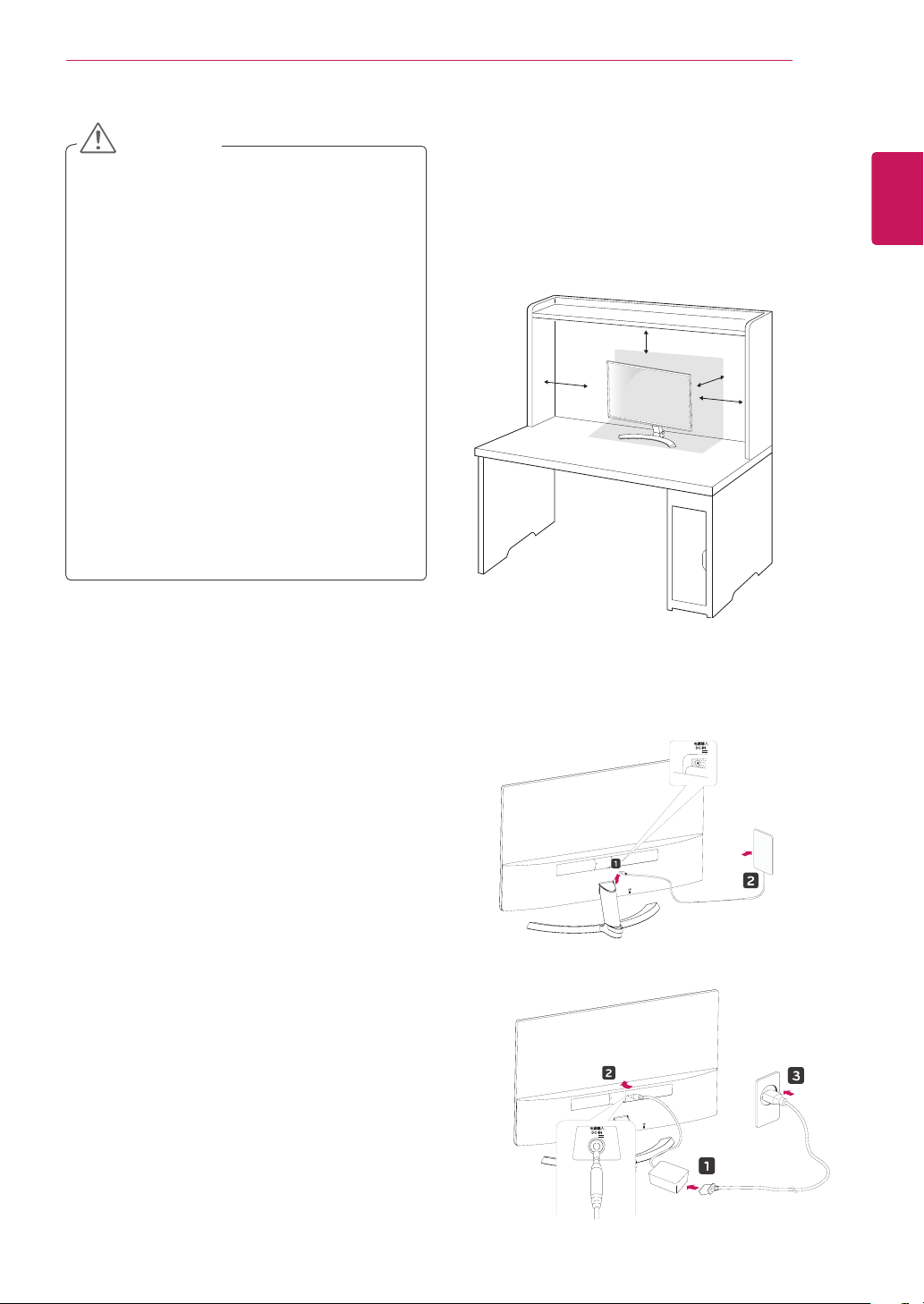
1
Pleaseremovethecableinstalledtothemonitor.
2
Pleaseputasoftclothonalowtableorboxto
protectthescreenofthemonitor.
Pleaseputthemonitoronthesoftclothwith
thescreenfacingdown.
3
Pleaseusethedriver(-)orcoininsertthumb
screwandturnleftarrowdirectionunlock.
Pleasepullthe
StandBase
inthedirectionof
thearrowasshownbelowanddisassemble
asshownbelow.
4
Afterfixingthemonitorinonehand,removethe
Standbody
bypullingitstronglyinthedirection
ofthearrowasshownbelow.
1
2
1
2
*
Ifitisdifficulttoremove,youcanpushthe
Latchwithasmallflat-headscrewdriverora
flat-headedtoolanddisassembleasshown
below.
DetachingtheStandBase
11
ENG
ENGLISH
ASSEMBLING AND PREPARING
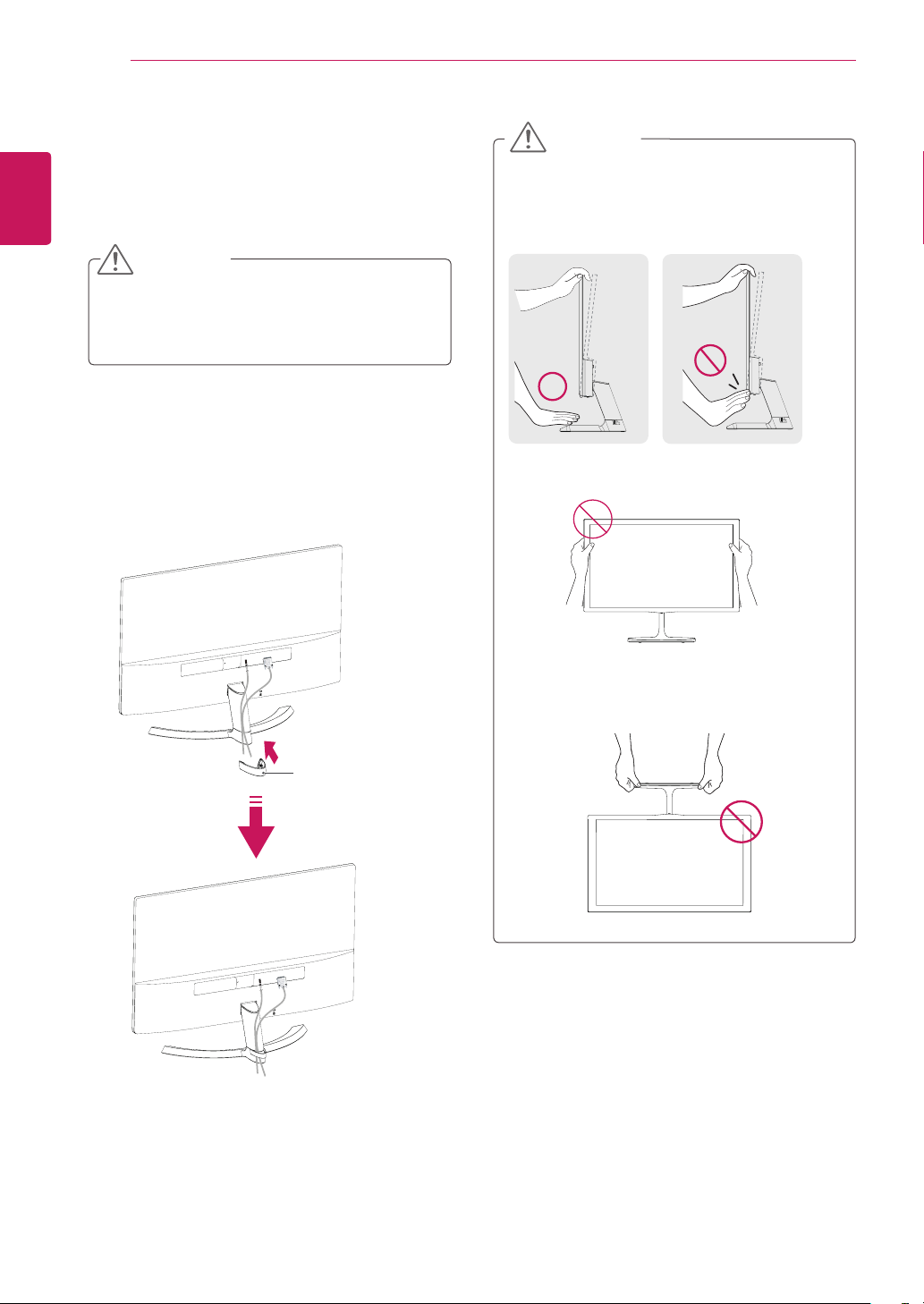
Mountingonatable
1
LiftandtilttheMonitorsetintoitsupright
positiononatable.
Leavea100mm(minimum)spacefromthe
wallforproperventilation.
2
ConnecttheAC-DCAdapterandPowerCord
toawalloutlet.
100 mm
100 mm
100 mm
100 mm
or
(19 V )
(19 V )
Illustrationsinthisdocumentrepresent
typicalprocedures,sotheymaylook
differentfromtheactualproduct.
Donotcarrythemonitorupsidedownby
justholdingthestandbase.Thismaycause
themonitortofalloffthestandandcould
resultinpersonalinjury.
Whenliftingormovingthemonitor,donot
touchthemonitorscreen.Theforceapplied
tothemonitorscreenmaycausedamage
toit.
Donotapplyforeignsubstances(oils,
lubricants,etc.)tothescrewpartswhen
assemblingtheproduct.(Doingsomay
damagetheproduct.)
Applyingexcessiveforcewhentightening
screwsmaycausedamagetothemonitor.
Damagecausedinthiswaywillnotbe
coveredbytheproductwarranty.
CAUTION
12
ENG
ENGLISH
ASSEMBLING AND PREPARING
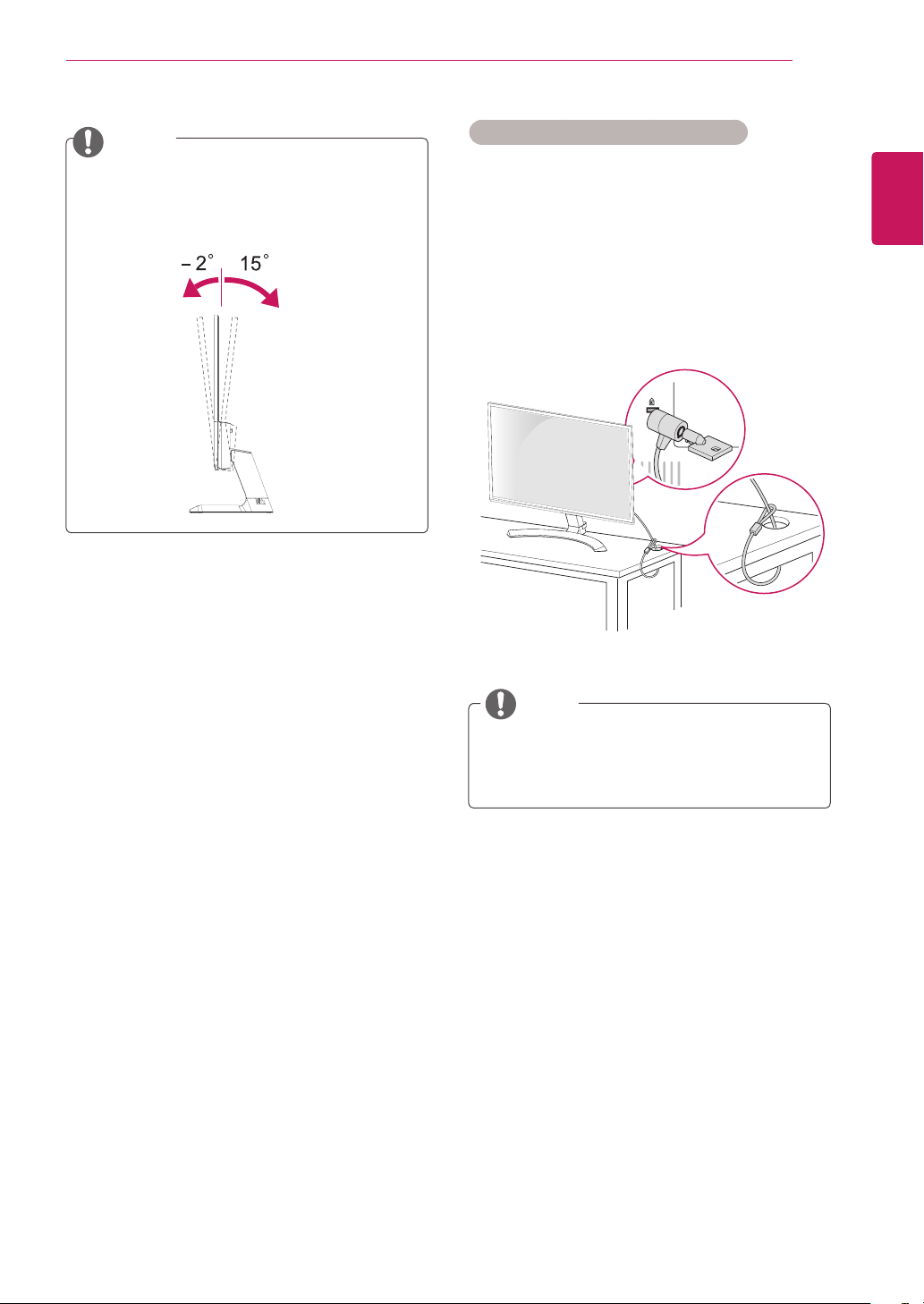
Usingthecableholder
3
Pressthejoystickbuttononthebottomofthe
monitortoturnonthemonitor.
Unplugthepowercordbeforemovingthe
Monitortoanotherlocation.Otherwiseelectric
shockmayoccur.
CAUTION
Cableholder
Whenyouadjusttheangle,donotholdthe
bottomoftheMonitorsetframeasshownon
thefollowingillustration,asmayinjureyour
fingers.
Donottouchorpressthescreenwhen
adjustingtheangleofthemonitor.
Donotholdthissetlikebelowpicture.Monitor
screencandetachfromstandbaseandinjure
yourbody.
WARNING
13
ENG
ENGLISH
ASSEMBLING AND PREPARING
UsingtheKensingtonsecuritysystem
TheKensingtonsecuritysystemconnectoris
locatedatthebackoftheMonitorset.Formore
informationofinstallationandusing,refertothe
manualsuppliedwiththeKensingtonsecurity
systemorvisit
http://www.kensington.com
.
ConnecttheKensingtonsecuritysystemcable
betweentheMonitorsetandatable.
TheKensingtonsecuritysystemisoptional.
Youcanobtainitfrommostelectronicsstores.
NOTE
Tiltfrom+15to-2degreesupordowntoadjust
theangleoftheMonitorsettosuityourview.
NOTE
Front Rear
14
ENGLISH
USING THE MONITOR SET
USINGTHEMONITORSET
ConnectingtoaPC
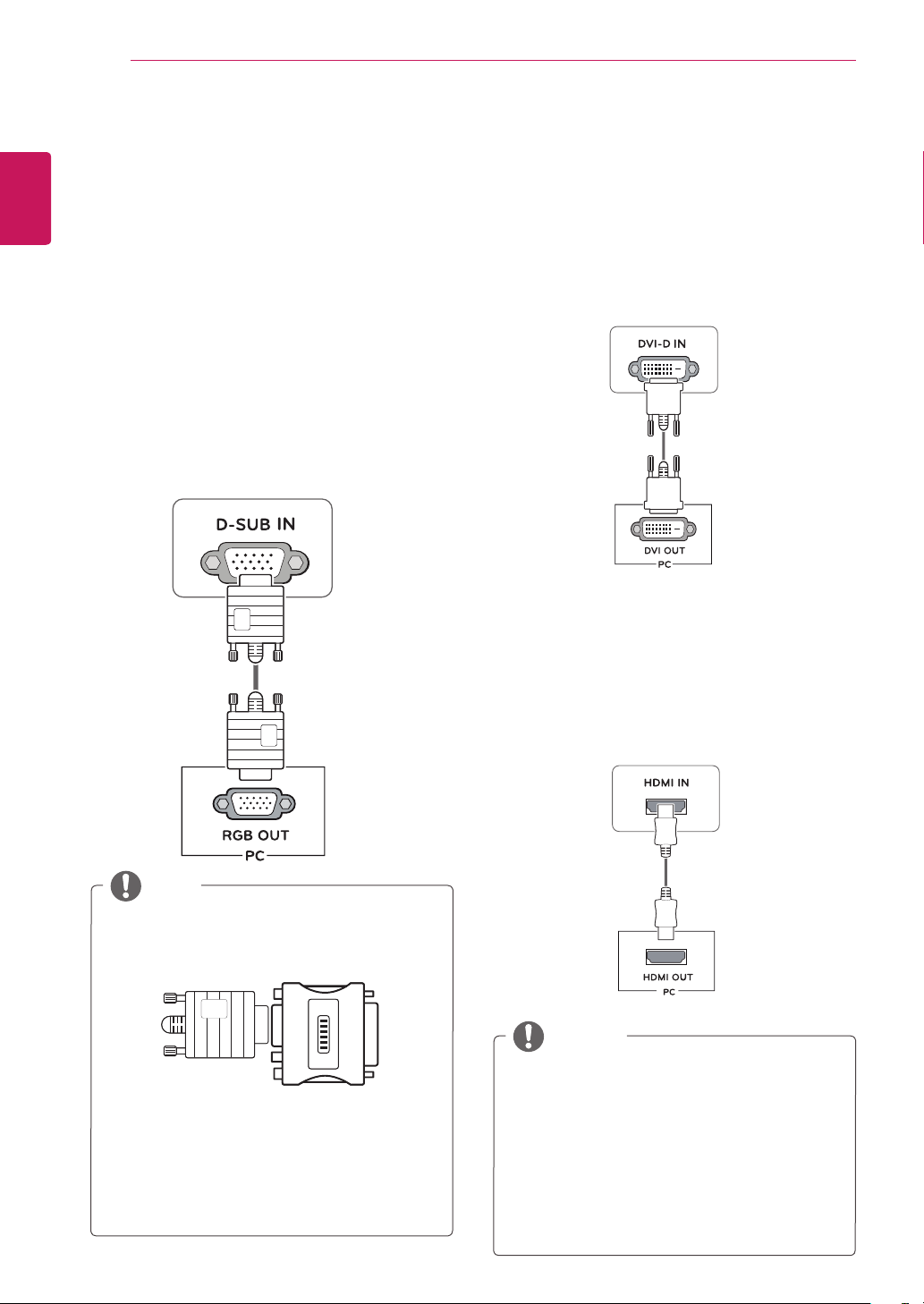
YourMonitorsetsupportsPlug&Play*.
*Plug&Play:APCrecognizesaconnected
devicethatusersconnecttoaPCandturn
on,withoutdeviceconfigurationoruser
intervention.
D-SUBconnection
TransmitsanalogvideofromyourPCtothe
Monitorset.ConnectthePCandtheMonitorset
withthesuppliedD-sub15pinsignalcableas
showninthefollowingillustrations.
Macadapter
ForAppleMacintoshuse,aseparateplug
adapterisneededtochangethe15pin
highdensity(3row)D-SUBVGAconnector
onthesuppliedcabletoa15pin2row
connector.
WhenusingaD-Subsignalinputcable
connectorforMacintosh
NOTE
HDMIconnection
Transmitsthedigitalvideoandaudiosignalsfrom
yourPCtotheMonitorset.ConnectthePCand
theMonitorsetwiththeHDMIcableasshownin
thefollowingillustrations.
DVI-Dconnection
TransmitsadigitalvideosignalfromyourPCtothe
Monitorset.ConnectthePCandtheMonitorsetwith
aDVIcableasshowninthefollowingillustrations.
IfyouuseHDMIPC,itcancausecompatibility
problem.
UseacertifiedcablewiththeHDMIlogo
attached.IfyoudonotuseacertifiedHDMI
cable,thescreenmaynotdisplayora
connectionerrormayoccur.
RecommendedHDMIcabletypes
-High-SpeedHDMI
®
/
TM
Cable
-High-SpeedHDMI
®
/
TM
CablewithEthernet
NOTE
15
ENG
ENGLISH
USING THE MONITOR SET
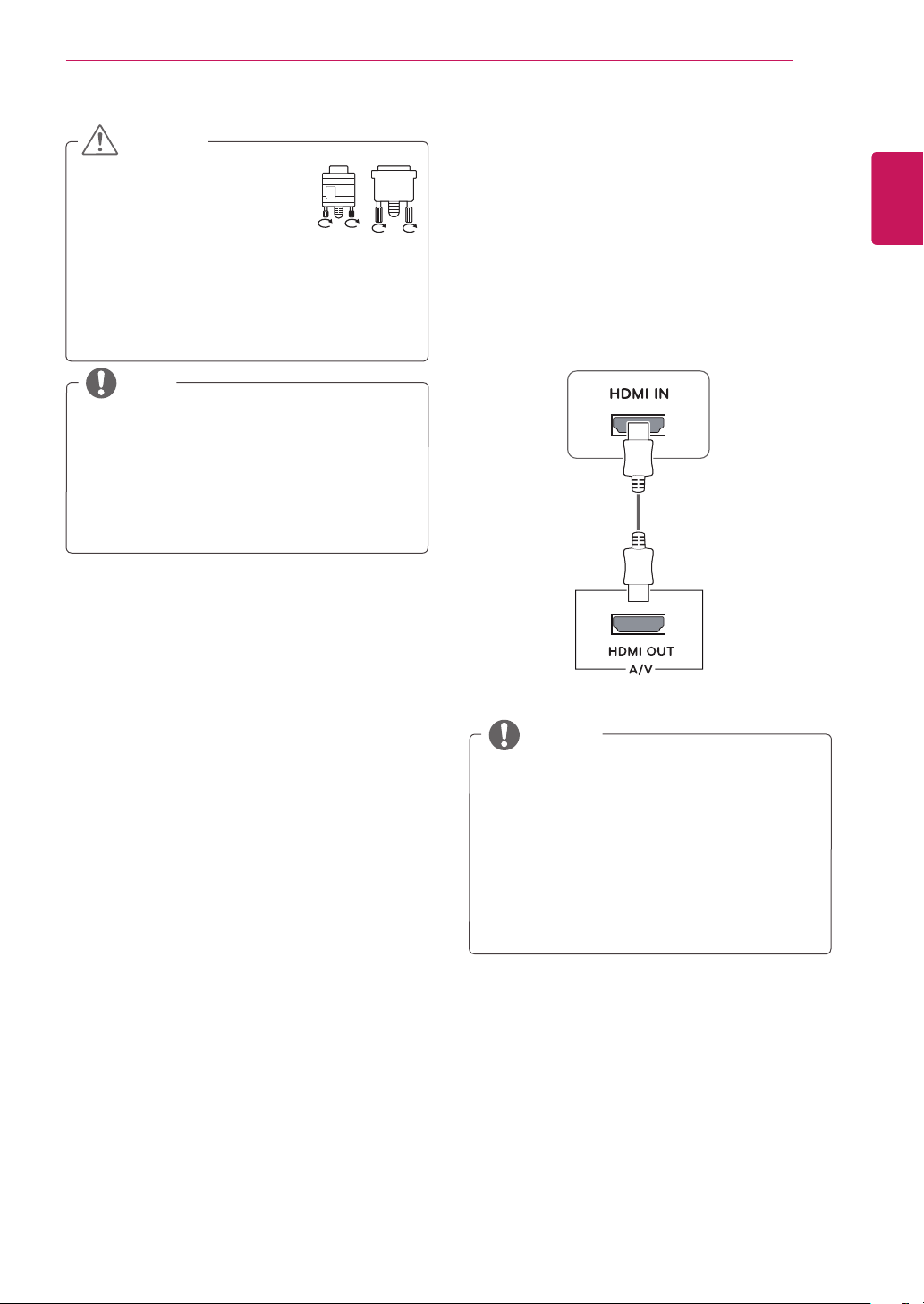
Connectthesignalinputcable
andtightenitbyturningthe
screwsclockwise.
Donotpressthescreenwith
yourfingerforalongtimeasthismay
resultintemporarydistortiononthescreen.
Avoiddisplayingafixedimageonthe
screenforalongperiodoftimetoprevent
imageburn.Useascreensaverifpossible.
CAUTION
WhenyouwanttousetwoPCinourMonitor,
pleaseconnectthesignalcable(D-SUB/
DVI-D/HDMI)respectivelyinMonitorset.
IfyouturntheMonitorsetonwhileitiscold,
thescreenmayflicker.Thisisnormal.
Somered,green,orbluespotsmayappear
onthescreen.Thisisnormal.
NOTE
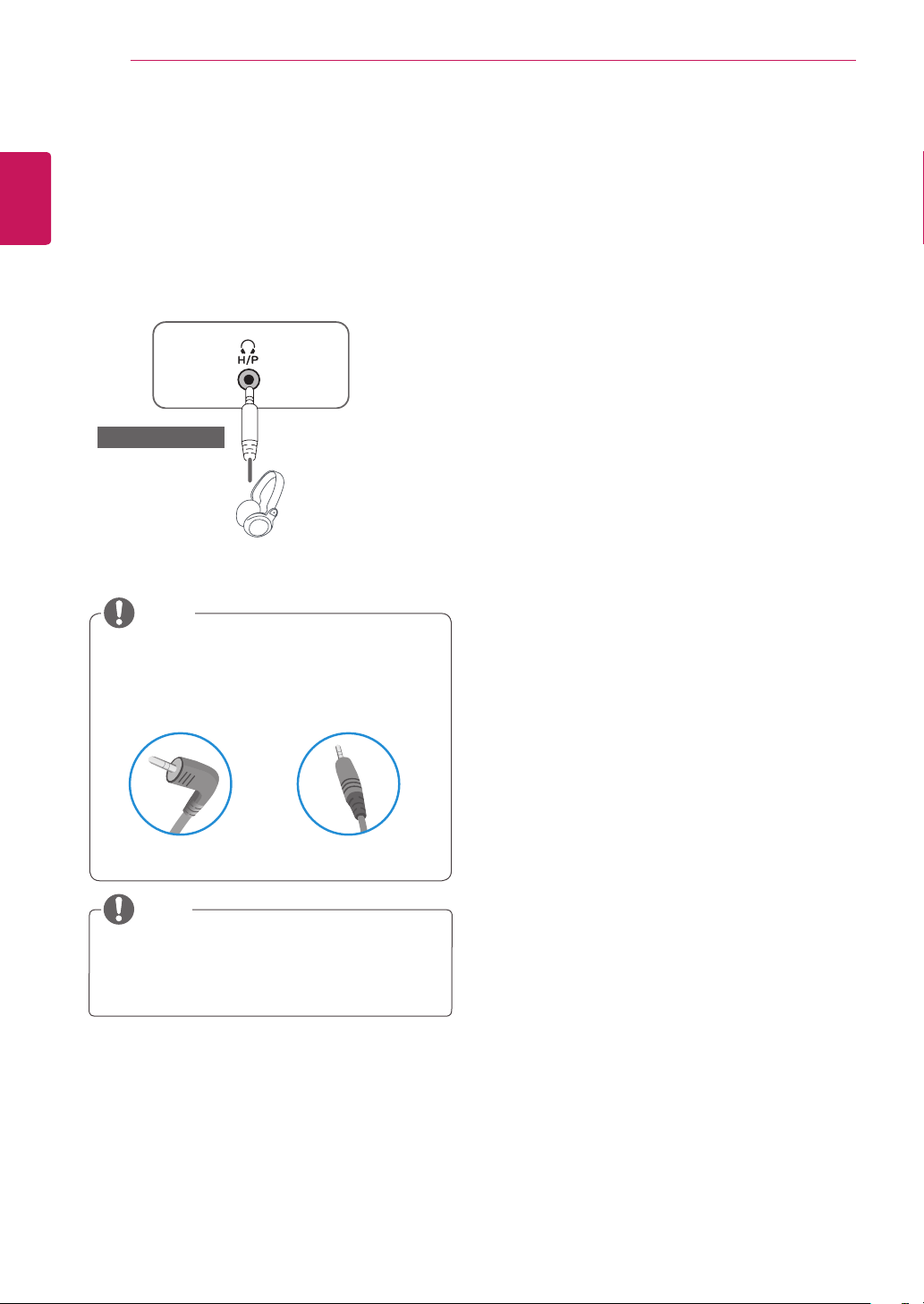
ConnectingtoAVDevices
HDMIconnection
Transmitsthedigitalvideoandaudiosignalsfrom
yourAVdevicestothemonitor.ConnectyourAV
devicetothemonitorwiththeHDMIcableasil-
lustratedbelow.
IfyouuseHDMIPC,itcancausecompatibility
problem.
UseacertifiedcablewiththeHDMIlogo
attached.IfyoudonotuseacertifiedHDMI
cable,thescreenmaynotdisplayora
connectionerrormayoccur.
RecommendedHDMIcabletypes
-High-SpeedHDMI
®
/
TM
Cable
-High-SpeedHDMI
®
/
TM
CablewithEthernet
NOTE
16
ENGLISH
USING THE MONITOR SET
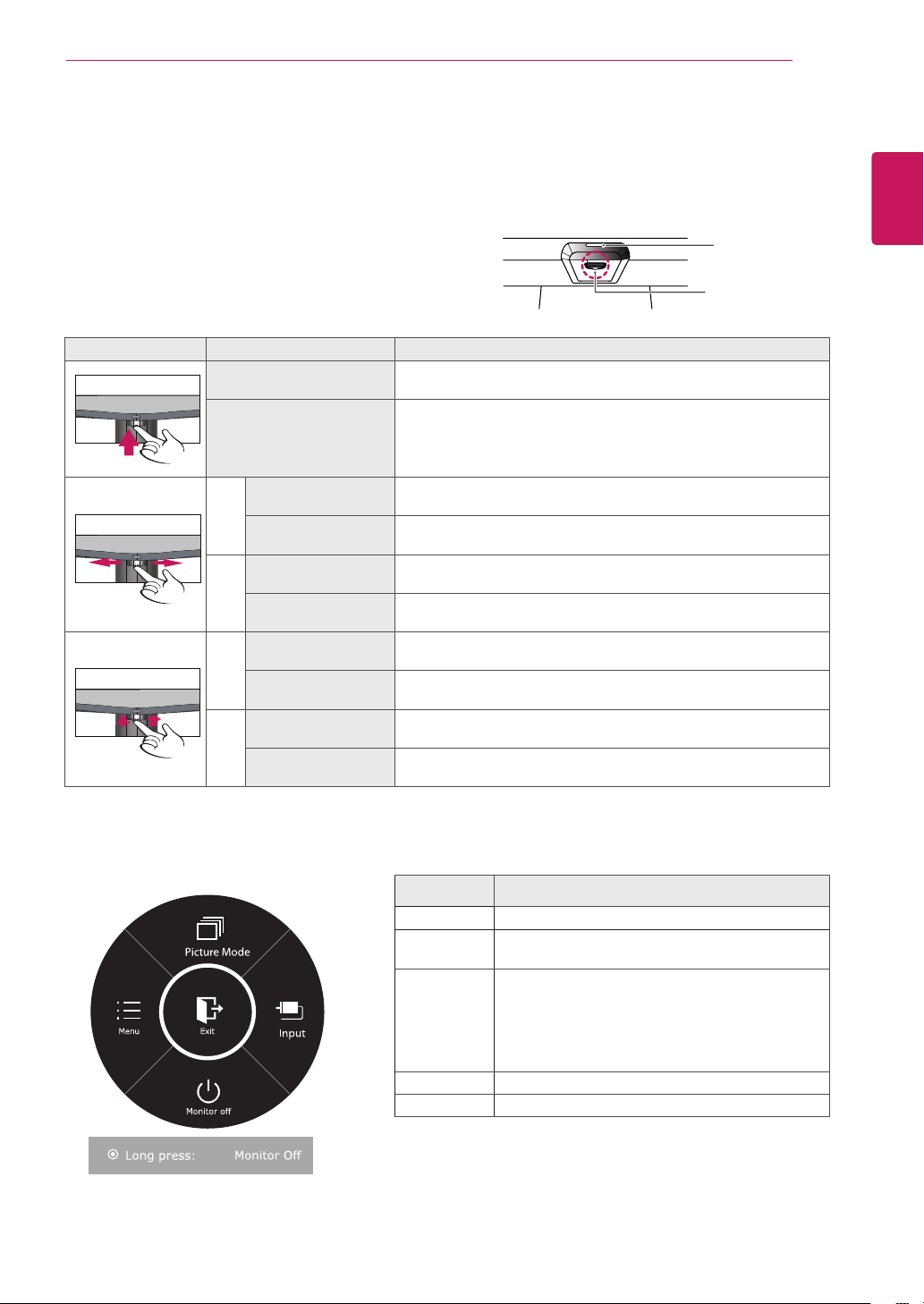
ConnectingtoExternalDevices
Peripheraldeviceconnection
Connectperipheraldevicestothemonitorusing
headphoneports.
Peripheraldevicesaresoldseparately.
Cableswithangledplugsmayhaveclear-
anceissues,usestraightplugswhenpos-
sible.
AngleType StraightType
NOTE
NOTE
Headphonesorspeakersmaynotworknor-
mally,dependingontheserverPCsettings.
(soldseparately)
17
ENG
ENGLISH
CUSTOMIZING SETTINGS
ActivatingtheMainMenu
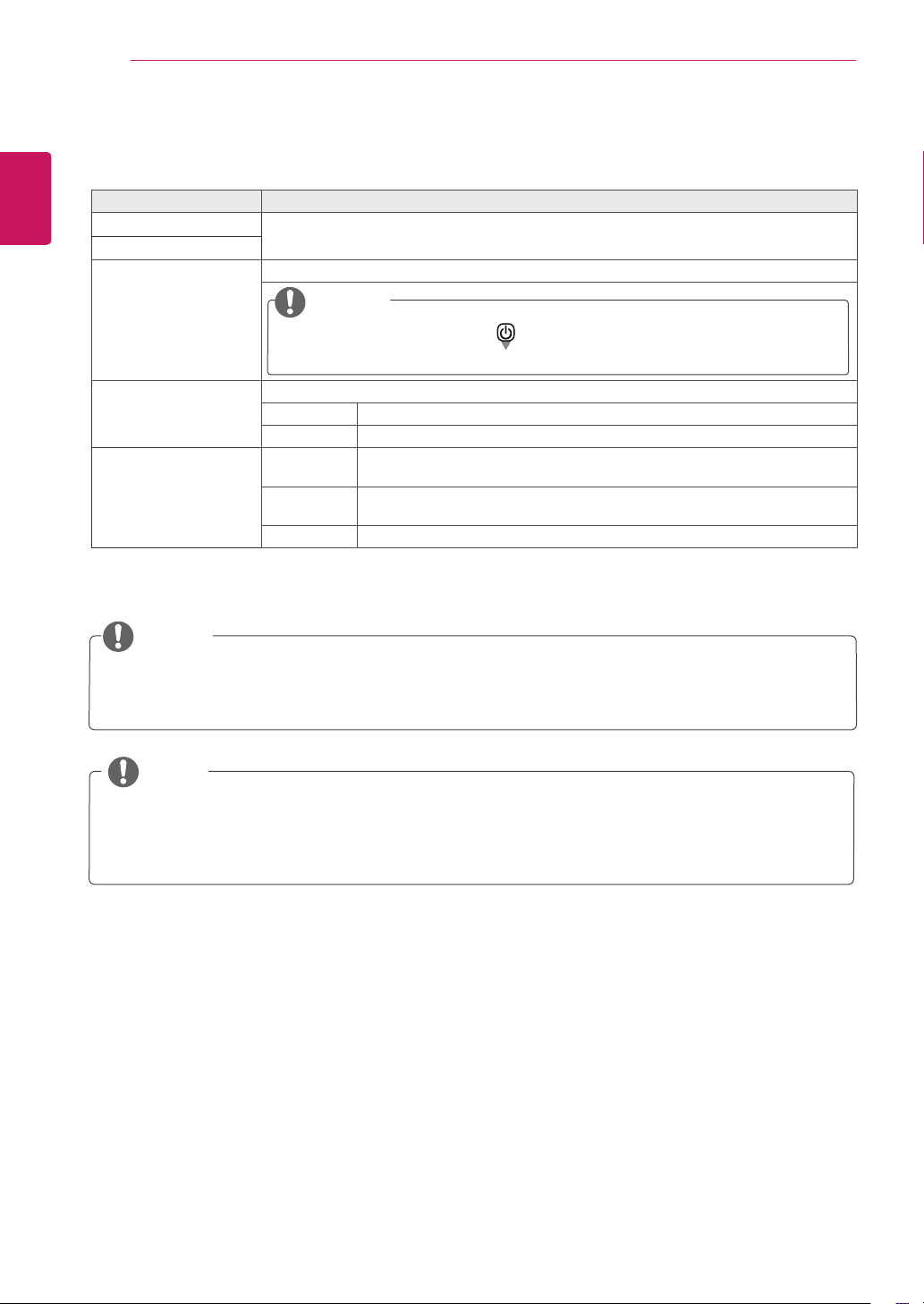
Button MenuStatus Description
Picture Mode
Mainmenudisabled
Enablesthemainmenu.
Mainmenuenabled
Exitsthemainmenu.
(Holdingdownthebuttontoturnoffthemonitor:Youcanturnoff
themonitorthiswayatanytime,includingwhentheOSDison.)
Picture Mode
◄
Mainmenudisabled
Adjuststhemonitorvolumelevel.
Mainmenuenabled
Entersthemenufeatures.
►
Mainmenudisabled
Adjuststhemonitorvolumelevel.
Mainmenuenabled
OperatestheInputchange.
Picture Mode
▲
Mainmenudisabled
Enablesthemainmenu.
Mainmenuenabled
Entersthepicturemodefeature.
▼
Mainmenudisabled
Enablesthemainmenu.
Mainmenuenabled
Turnsoffthemonitor.
MainMenuFeatures
MainMenu Description
Menu
Configuresthescreensettings.
PictureMode
Selectpicturemodetoachievethebestdisplay
effect.
Input
Youcanoperatethechangeofinputsignals.
•Whentwoinputsignalsoverareconnectedandselect
theinputmenu,inputsignal(D-SUB/DVI-D/HDMI)will
bechangedsequentially.
•Whenonlyonesignalisconnected,itisautomatically
detected.ThedefaultsettingisD-SUB.
Monitoroff
Turnsoffthemonitor.
Exit
Exitsthemainmenu.
CUSTOMIZINGSETTINGS
Picture Mode
JoystickButton
PowerIndicator
Picture Mode
1
Pressthejoystickbuttononthebottomofthemonitor.
2
Movethejoystickup/down(▲/▼)andleft/right(◄/►)to
settheoptions.
3
Pressthejoystickbuttononcemoretoexitthemain
menu.
18
ENG
ENGLISH
CUSTOMIZING SETTINGS
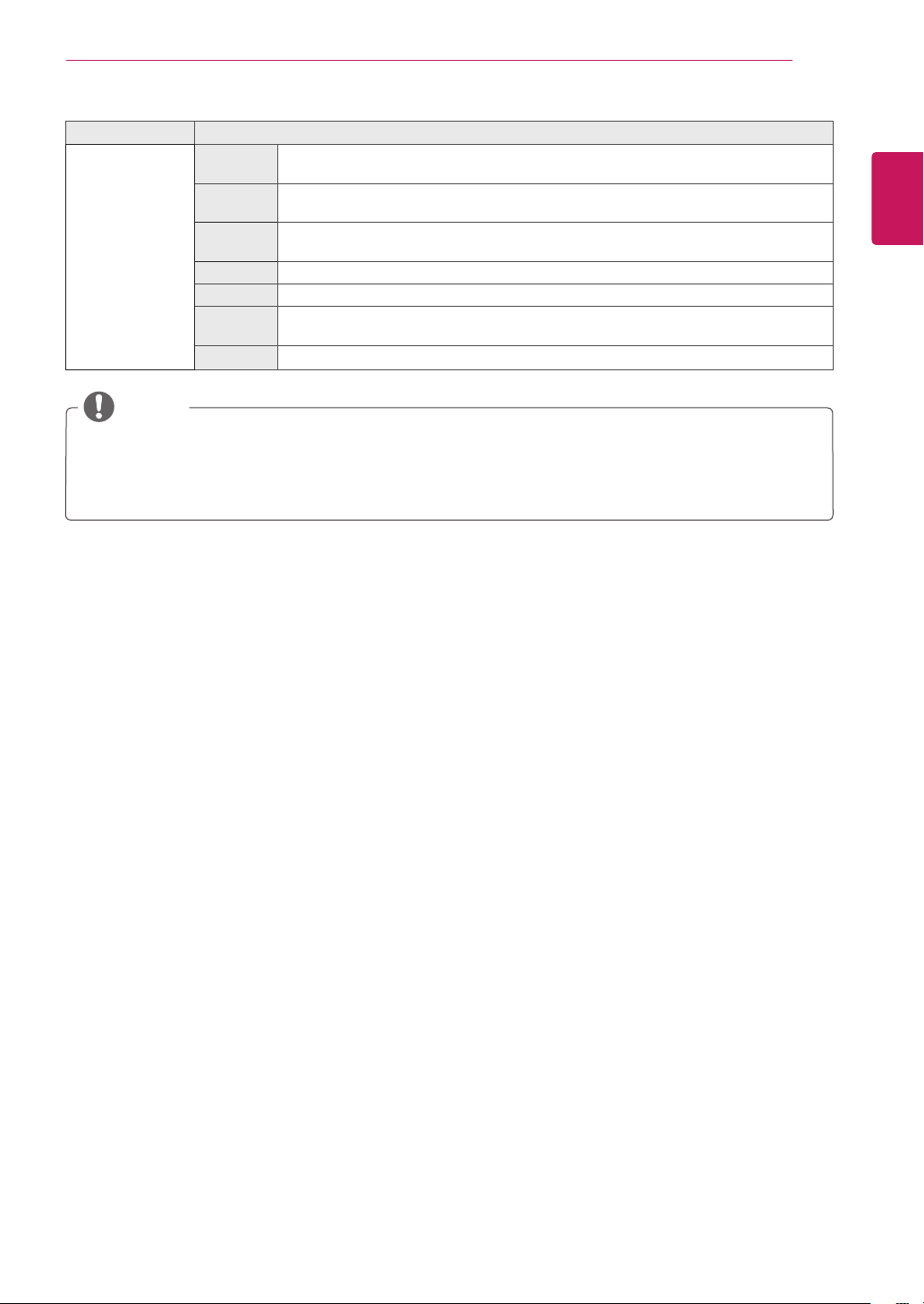
Eachoptionisdescribedbelow.
Customizingsettings
Menu>QuickSettings Description
Brightness
Adjuststhecolorcontrastandbrightnessofthescreen.
Contrast
Volume Adjuststhevolume.
NOTE
Jogjoystickbuttondown(
)intheVolumemenuwillenable/disable
theMutefunction.
Ratio Adjuststhescreenratio.
Wide Displaysthevideoinwide-screen,regardlessofthevideosignalinput.
Original Displaysavideoaccordingtotheinputvideosignalaspectratio.
SMARTENERGY
SAVING
High
EnablesSMARTENERGYSAVINGyoucansaveenergywiththisenergy-highefficient
function.
Low
EnablesSMARTENERGYSAVINGyoucansaveenergywiththisenergy-low
efficientfunction.
Off DisablesSMARTENERGYSAVING.
NOTE
ThedisplaymaylookthesameforWide,Originaloptionsattherecommendedresolution(1920x
1080).
Theratioisdisabledintheinterlacedsignal.
*SMARTENERGYSAVING:Conserveenergybyusingluminancecompensationalgorithm.
SavingDatadependsonthePanel.So,thosevaluesshouldbedifferentfromeachpanelandpanel
vendor.IfoptionofSMARTENERGYSAVINGisHighorLow,monitorluminancebecomehigheror
lowerdependonsource.
NOTE
19
ENG
ENGLISH
CUSTOMIZING SETTINGS
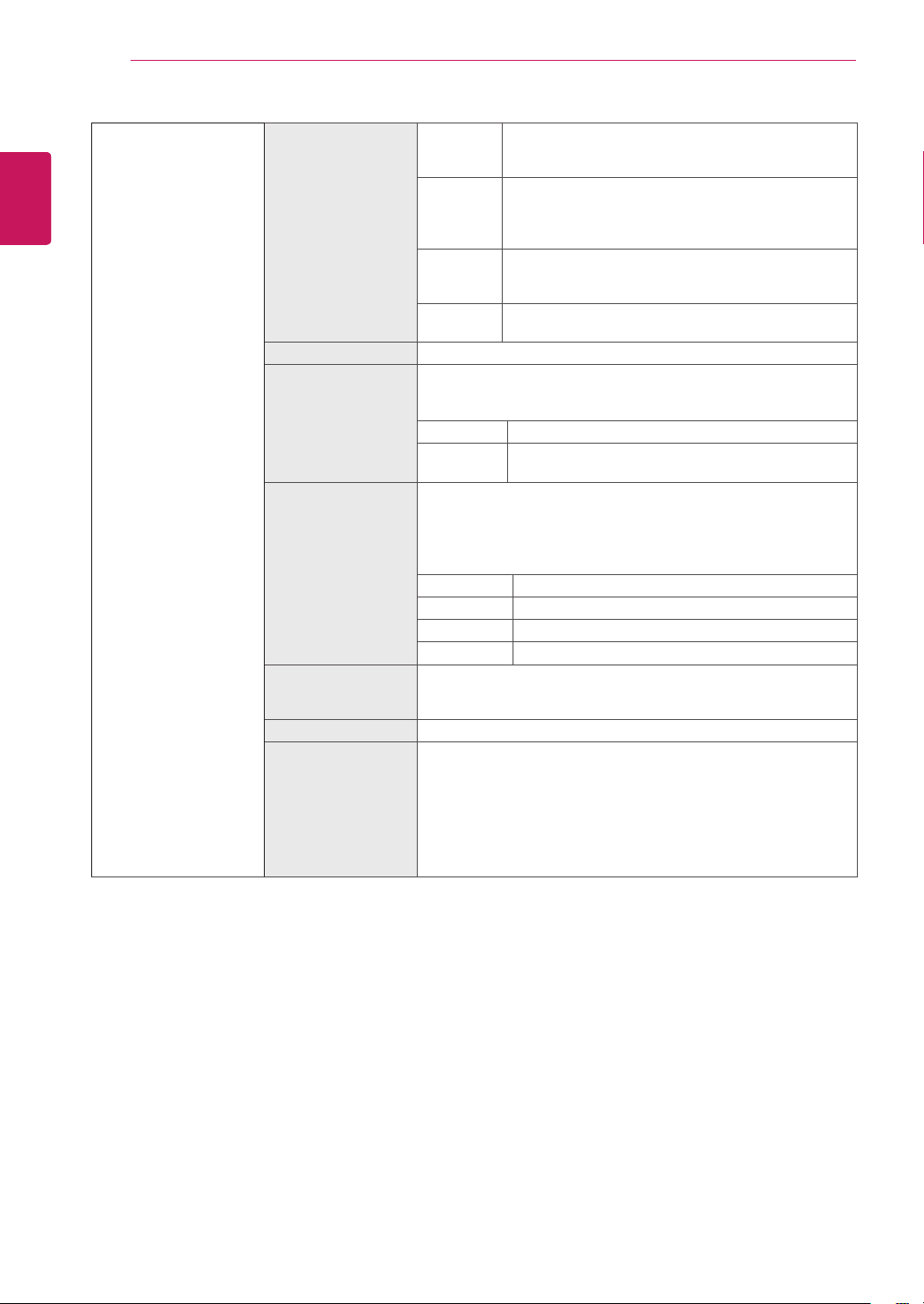
Menu>Picture Description
PictureMode Custom Allowstheusertoadjusteachelement.Thecolormodeofthemainmenucanbead-
justed.
Reader1 Itisamodethatthescreenisadjustedtothebestforthenewspaper.Ifyouwant
screenmorebright,youcancontrolbrightnessinMenuOSD.
Reader2 Itisamodethatthescreenisadjustedtothebestforthecartoon.Ifyouwantscreen
morebright,youcancontrolbrightnessinMenuOSD.
Photo Optimizesthescreentoviewphotos.
Cinema Optimizesthescreentoimprovethevisualeffectsofavideo.
Color
weakness
Thismodeisforuserswhocannotdistinguishbetweenredandgreen.Itenablesusers
withcolorweaknesstoeasilydistinguishbetweenthetwocolors.
Game Optimizesthescreenforgameplay.
NOTE
Thisissubsidiaryforcolorweaknessuser.Thereforeifyoufeeluncomfortablewiththescreen,
pleaseturnoffthisfunction.
Thisfunctioncan’tdistinguishsomecolorsinsomeimages.
20
ENG
ENGLISH
CUSTOMIZING SETTINGS
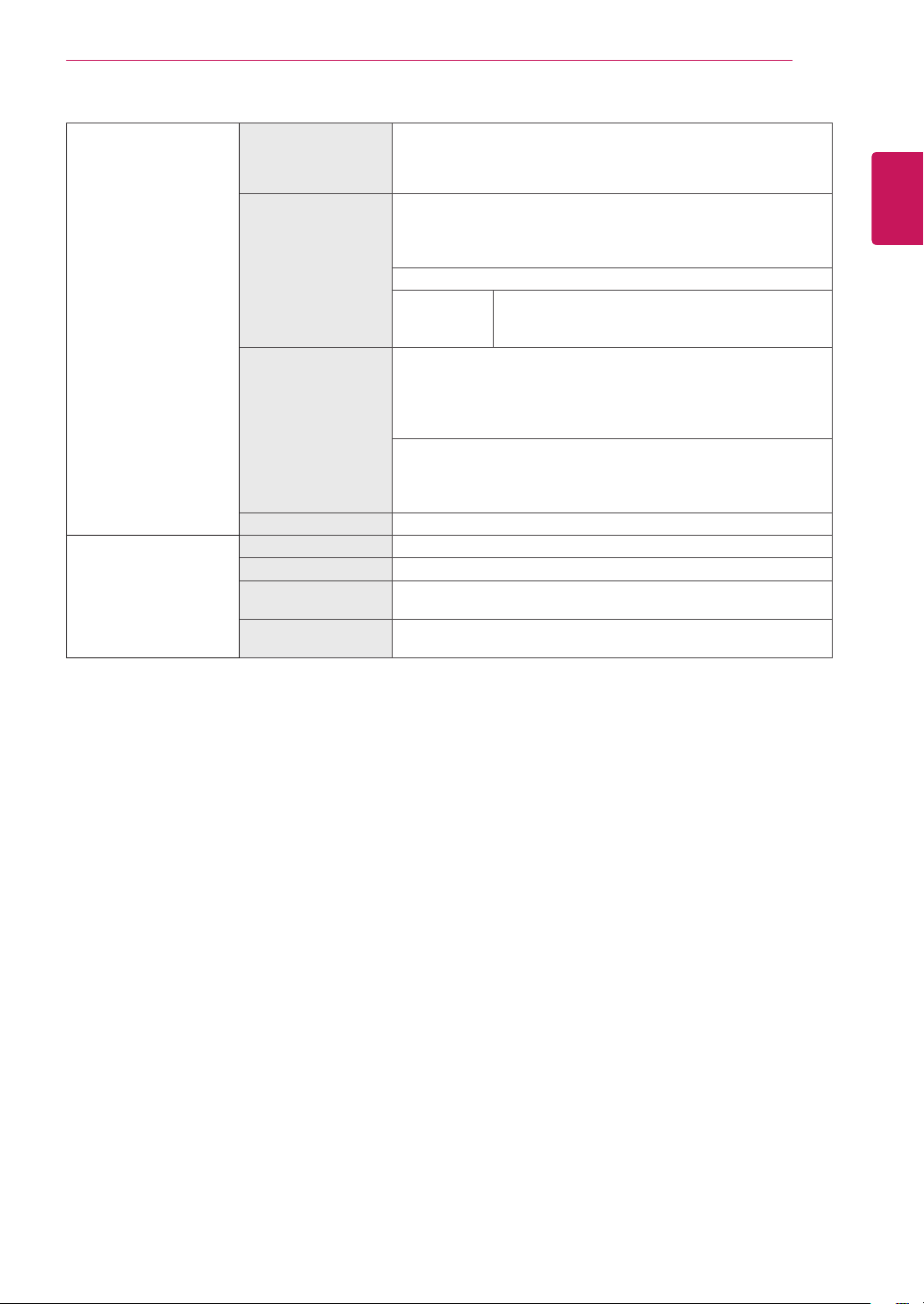
PictureAdjust SUPERRESOLU-
TION+
High Optimizedpicturequalityisdisplayedwhenauser
wantscrystalclearimages.Itiseffectiveforhigh
qualityvideoorgame.
Middle Theoptimizedpicturequalityisdisplayedwhena
userwantsimagesbetweenlowandhighmodesfor
comfortableviewing.ItiseffectiveforUCCorSD
video.
Low Theoptimizedpicturequalityisdisplayedwhenauser
wantssmoothandnaturalimages.Itiseffectivefor
slow-movingpicturesorstillimages.
Off Selectthisoptionforeverydayviewing.SUPER
RESOLUTION+isturnedoffinthismode.
Sharpness Adjuststhesharpnessofthescreen.
BlackLevel Setstheoffsetlevel(forHDMIonly).
Offset:
asareferenceforavideosignal,thisisthedarkestcolor
themonitorcandisplay.
High Keepsthecurrentcontrastratioofthescreen.
Low Lowerstheblacklevelsraisesthewritelevelsfrom
thecurrentcontrastratioofthescreen.
ResponseTime Setsaresponsetimefordisplayedpicturesbasedonthespeedof
thescreen.Foranormalenvironment,itisrecommendedthatyou
useNormal.Forafast-movingpicture,itisrecommendedthatyou
useHigh.
SettingtoHighmaycauseimagesticking.
High SetstheresponsetimetoHigh.
Middle SetstheresponsetimetoMiddle.
Low SetstheresponsetimetoLow.
Off SetstheresponsetimetoOff.
Overscan ToselecttherangeofoutputimageforDTVtiminginHDMIinput.
(onlyforHDMIinput)Recommendoverscanfunctiontoturnon
whenconnectAVequipment.
DFC Adjuststhebrightnessautomaticallyaccordingtothescreen.
BlackStabilizer BlackStabilizer
:Youcancontroltheblackcontrasttohavebettervisibilityindark
scenes.
IncreasingtheBlackStabilizervaluebrightensthelowgraylevel
areaonthescreen.(Youcaneasilydistinguishobjectsondark
gamescreens.)
ReducingtheBlackStabilizervaluedarkensthelowgraylevelarea
andincreasesthedynamiccontrastonthescreen.
21
ENG
ENGLISH
CUSTOMIZING SETTINGS
ColorAdjust Gamma Thehigherthegammavalue,thedarkertheimagebecomes.
Likewise,thelowerthegammavalue,thelightertheimage
becomes.Ifyoudonotneedtoadjustthegammasettings,select
Off.
ColorTemp Selectsthefactorydefaultpicturecolor.
Warm:
Setsthescreencolortoareddishtone.
Medium:
Setsthescreencolorbetweenaredandbluetone.
Cool:
Setsthescreencolortoabluishtone.
Custom
Red
Green
Blue
YoucancustomizethepicturecolorusingRed,
Green,andBluecolors.
SixColor Meetstheuserrequirementsforcolorsthroughadjustingthecolor
andsaturationofthesixcolors(
Red_Hue,Red_Saturation,Green_
Hue,Green_Saturation,Blue_Hue,Blue_Saturation,Cyan_Hue,
Cyan_Saturation,Magenta_Hue,Magenta_Saturation,Yellow_
Hue,Yellow_Saturation
)andsavingthesettings.
*Hue:Adjuststoneofthescreen.
*Saturation:Adjuststhesaturationofthescreencolors.Thelower
thevalue,lesssaturatedandbrightthecolorsbecome.Thehigher
thevalue,themoresaturatedanddarkthecolorsbecome.
Reset Returnsthecolorsettingstothedefaultsettings.
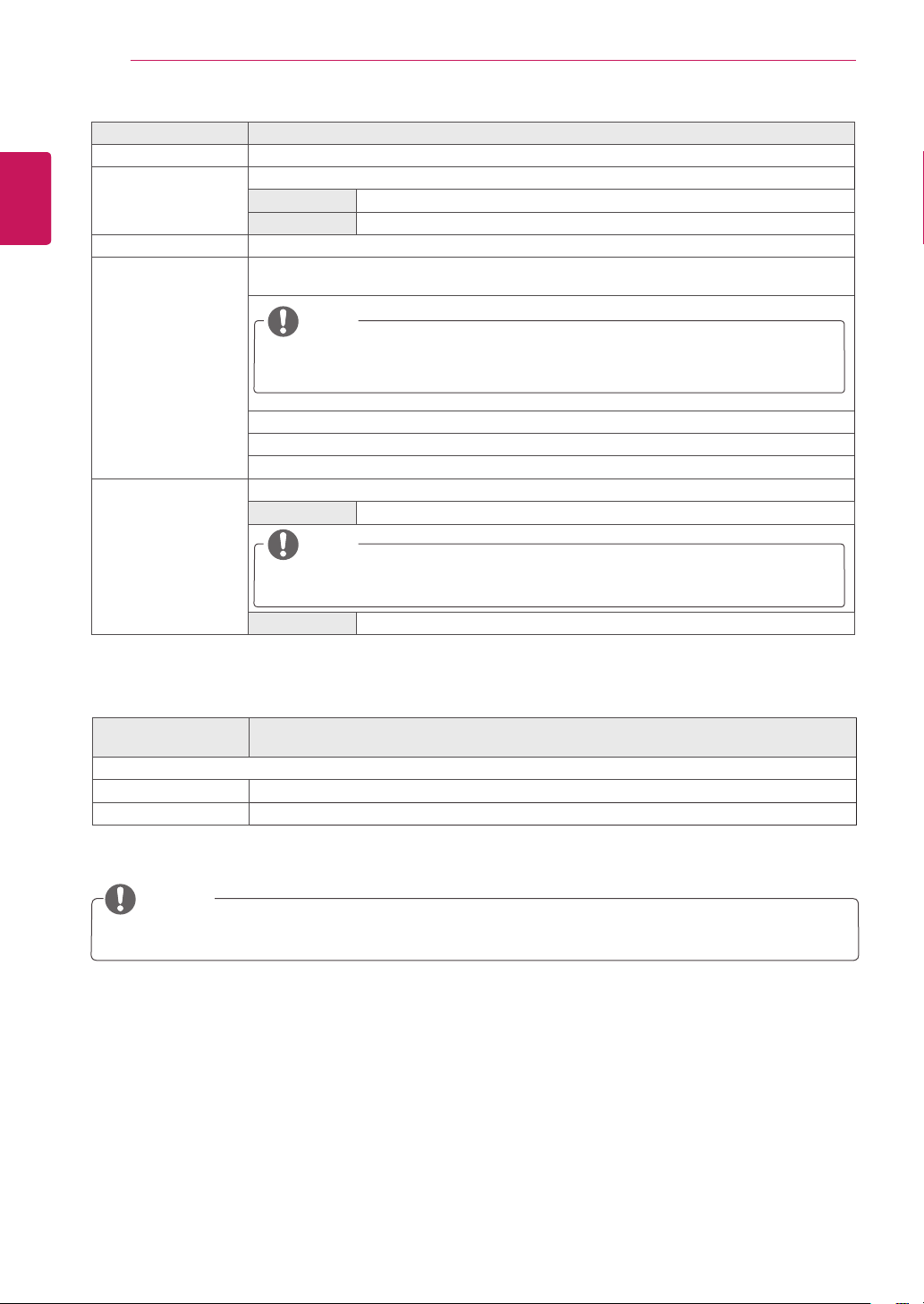
Display Horizontal Tomoveimageleftandright.
Vertical Tomoveimageupanddown.
Clock Tominimizeanyverticalbarsorstripesvisibleonthescreen
background.Thehorizontalscreensizewillalsochange.
Phase Toadjustthefocusofthedisplay.Thisitemallowsyoutoremove
anyhorizontalnoiseandclearorsharpentheimageofcharacters.
22
ENG
ENGLISH
CUSTOMIZING SETTINGS
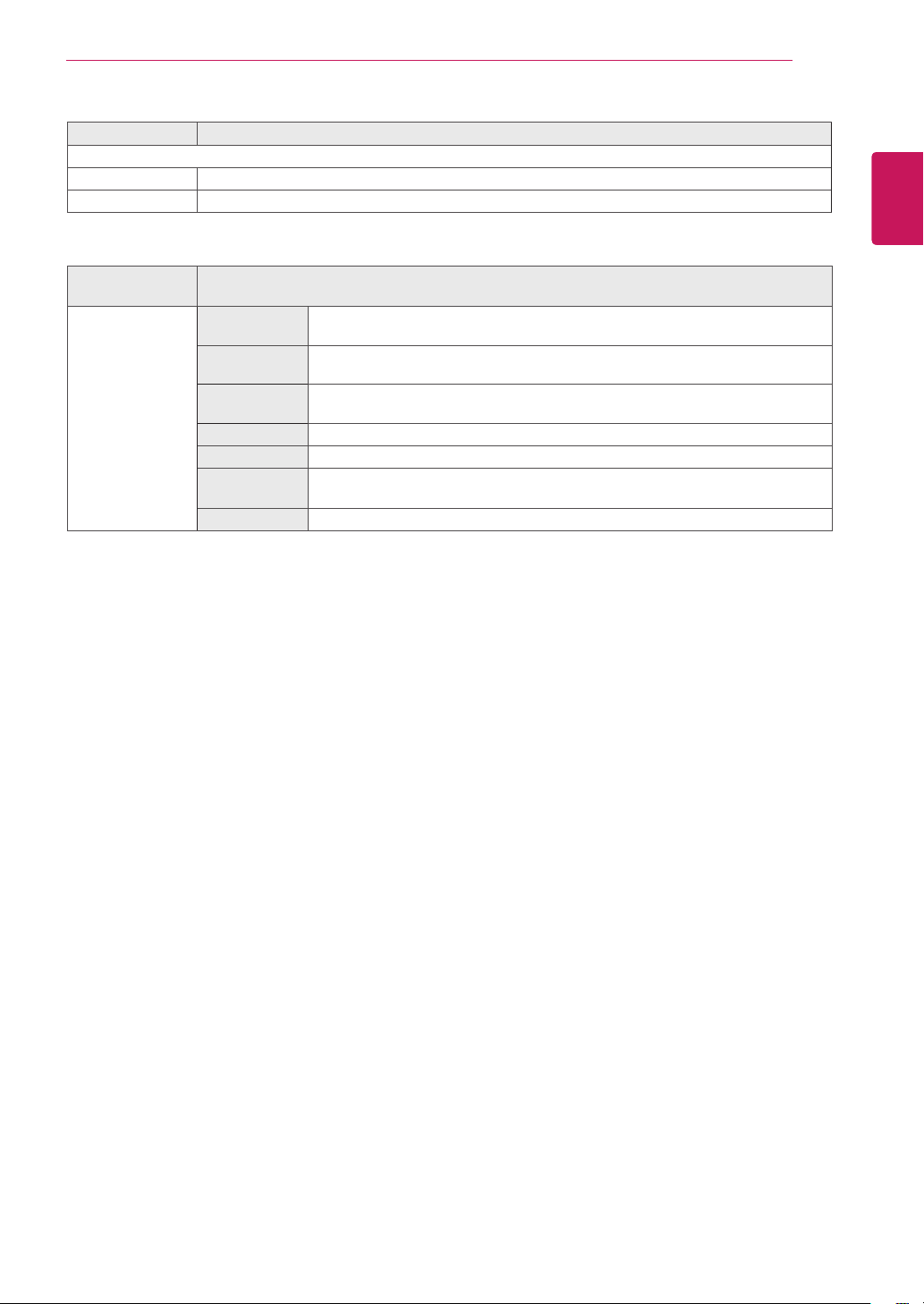
Menu>General Description
Language Tochoosethelanguageinwhichthecontrolnamesaredisplayed.
PowerLED Turnsthepowerindicatoronthefrontsideofthemonitoron/off.
On Thepowerindicatorisautomaticallyturnedon.
Off Thepowerindicatoristurnedoff.
AutomaticStandby Themonitorwillautomaticallyswitchtostandbymodeafteracertainperiod.
Resolution Usercansetthedesiredresolution.Thisoptionisenabledonlywhenthescreenresolutionon
yourcomputerissettothefollowing(D-SUBonly).
NOTE
Thefunctionisenabledonlywhenthescreenresolutiononyourcomputerissettothe
following,exceptthatthePCoutputwrongresolution.
1024x768,1280x768,1360x768,1366x768,Off
1280x960,1600x900,Off
1440x900,1600x900,Off
OSDLock Preventsincorrectkeyinput.
On Keyinputisdisabled.
NOTE
AllfunctionsexceptfortheOSDLockmodeandtheExitbuttonforBrightness,Con-
trast,Volume,Input,andGeneralaredisabled.
Off Keyinputisenabled.
Menu>AutoCon-
figuration
Description
DoyouwanttoAutoconfuguration?
Yes OperatetheAutoconfigurationforoptimaldisplayinD-SUB.
Cancel Canceltheselect.
NOTE
Thisfunctionwillbeenableonlyinanaloginput.
23
ENG
ENGLISH
CUSTOMIZING SETTINGS
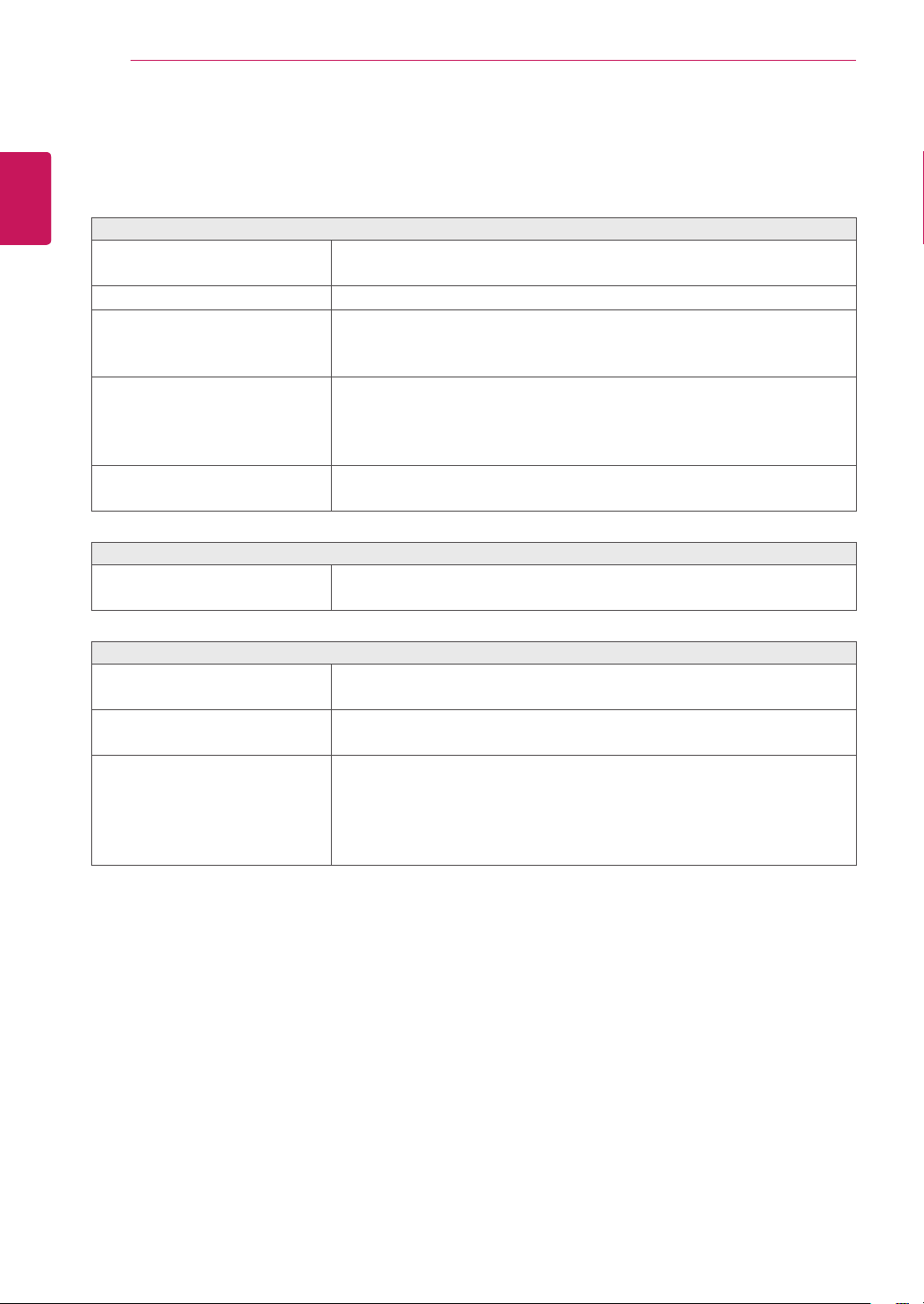
Menu>Reset Description
Doyouwanttoresetyoursettings?
Reset Returnstothedefaultsettings.
Cancel Canceltheselect.
JoystickButton>
PictureMode
Description
PictureMode Custom Allowstheusertoadjusteachelement.Thecolormodeofthemainmenucanbe
adjusted.
Reader1 Itisamodethatthescreenisadjustedtothebestforthenewspaper.Ifyouwant
screenmorebright,youcancontrolbrightnessinMenuOSD.
Reader2 Itisamodethatthescreenisadjustedtothebestforthecartoon.Ifyouwant
screenmorebright,youcancontrolbrightnessinMenuOSD.
Photo Optimizesthescreentoviewphotos.
Cinema Optimizesthescreentoimprovethevisualeffectsofavideo.
Colorweak-
ness
Thismodeisforuserswhocannotdistinguishbetweenredandgreen.Itenables
userswithcolorweaknesstoeasilydistinguishbetweenthetwocolors.
Game Optimizesthescreenforgameplay.
24
ENG
ENGLISH
TROUBLESHOOTING
TROUBLESHOOTING
Checkthefollowingbeforecallingforservice.
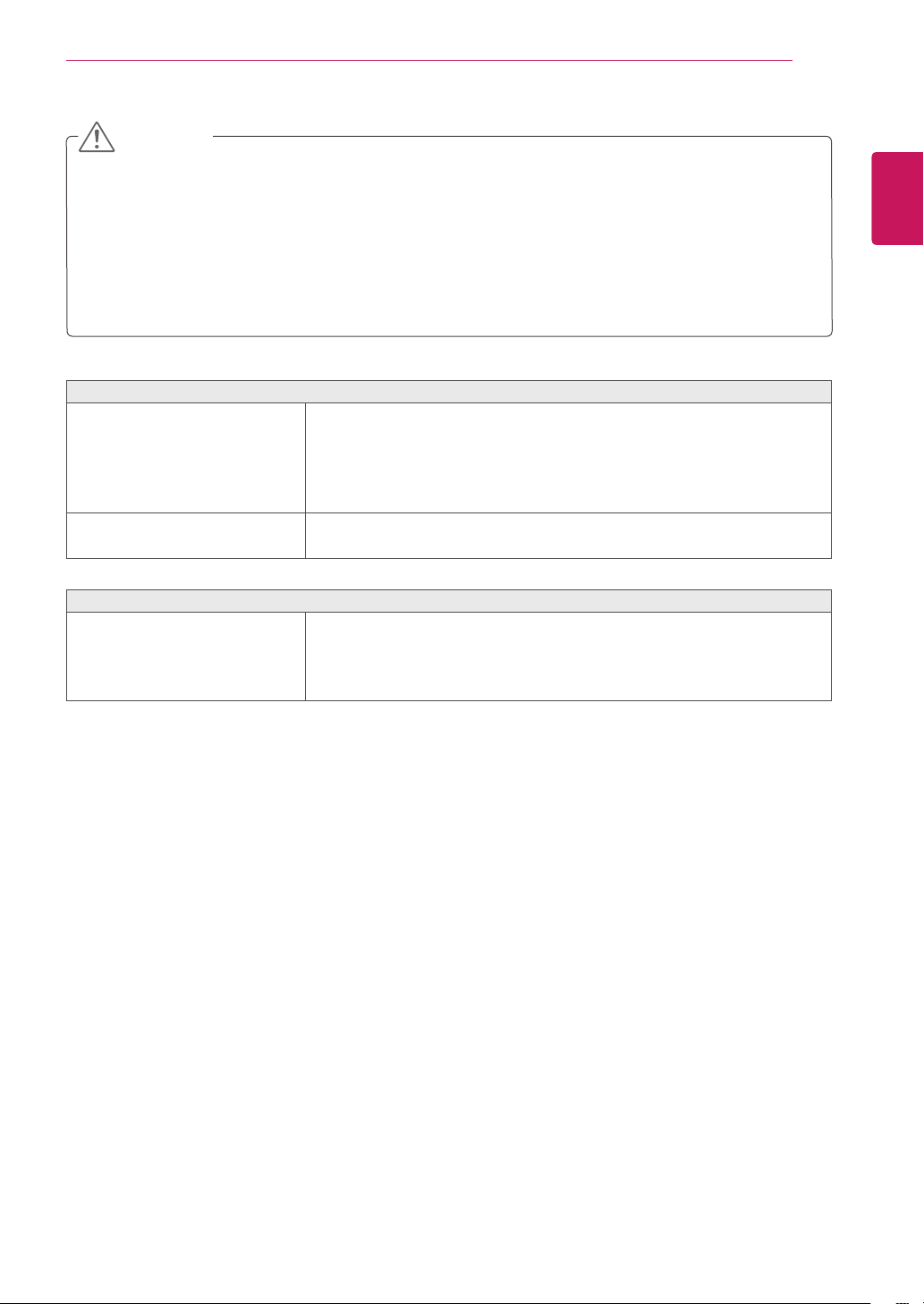
Noimageappears
Isthepowercordofthedisplay
connected?
Checkandseeifthepowercordisconnectedproperlytothepower
outlet.
Isthepowerindicatorlighton?
PressthePowerbutton.
Isthepowerindicatorflickering?
Ifthedisplayisinpowersavingmode,trymovingthemouseor
pressinganykeyonthekeyboardtobringupthescreen.
TrytoturnonthePC.
Doyouseean"OUTOFRANGE"
messageonthescreen?
ThismessageappearswhenthesignalfromthePC(videocard)is
outofhorizontalorverticalfrequencyrangeofthedisplay.Seethe
'Specifications'sectionofthismanualandconfigureyourdisplay
again.
Doyouseea"NOSIGNAL"
messageonthescreen?
ThisisdisplayedwhenthesignalcablebetweenthePCandthe
monitorismissingordisconnected.Checkthecableandreconnectit.
Can'tyoucontrolsomefunctionsinOSD?
Can'tyouselectsomemenuin
OSD?
YoucanunlocktheOSDcontrolsatanytimebyenteringtheOSD
lockmenuandchangingitemstooff.
Displayimageisincorrect
DisplayPositionisincorrect.
EntertheAutoConfigurationfunctionandselectthe"Yes"itemto
automaticallyadjustyourdisplayimagetotheidealsetting.
Onthescreenbackground,vertical
barsorstripesarevisible.
EntertheAutoConfigurationfunctionandselectthe"Yes"itemto
automaticallyadjustyourdisplayimagetotheidealsetting.
Anyhorizontalnoiseappearingin
anyimageorcharactersarenot
clearlyportrayed.
EntertheAutoConfigurationfunctionandselectthe"Yes"itemto
automaticallyadjustyourdisplayimagetotheidealsetting.
CheckControlPanel►Display►Settingsandadjustthedisplayto
therecommendedresolutionoradjustthedisplayimagetotheideal
setting.Setthecolorsettinghigherthan24bits(truecolor).
25
ENG
ENGLISH
TROUBLESHOOTING
Check
ControlPanel►Display►Settings
andseeifthefrequencyortheresolutionwere
changed.Ifyes,readjustthevideocardtotherecommendresolution.
Iftherecommendedresolution(optimalresolution)isnotselected,lettersmaybeblurredandthe
screenmaybedimmed,truncatedorbiased.Makesuretoselecttherecommendresolution.
ThesettingmethodcandifferbycomputerandO/S(OperationSystem),andresolutionmentioned
abovemaynotbesupportedbythevideocardperformance.Inthiscase,pleaseasktothecomputer
orthevideocardmanufacturer.
CAUTION
Displayimageisincorrect
Thescreencolorismonoor
abnormal.
Checkifthesignalcableisproperlyconnectedanduseascrewdriver
tofastenifnecessary.
Makesurethevideocardisproperlyinsertedintheslot.
Setthecolorsettinghigherthan24bits(truecolor)at
ControlPanel
►
Settings
.
Thescreenblinks.
Checkifthescreenissettointerlacemodeandifyes,changeittothe
recommendresolution.
Doyouseean"Unrecognizedmonitor,Plug&Play(VESADDC)monitorfound"message?
Haveyouinstalledthedisplay
driver?
BesuretoinstallthedisplaydriverfromthedisplaydriverCD(or
diskette)thatcomeswithyourdisplay.Or,youcanalsodownloadthe
driverfromourwebsite:http://www.lg.com.
MakesuretocheckifthevideocardsupportsPlug&Playfunction.
26
ENG
ENGLISH
SPECIFICATIONS
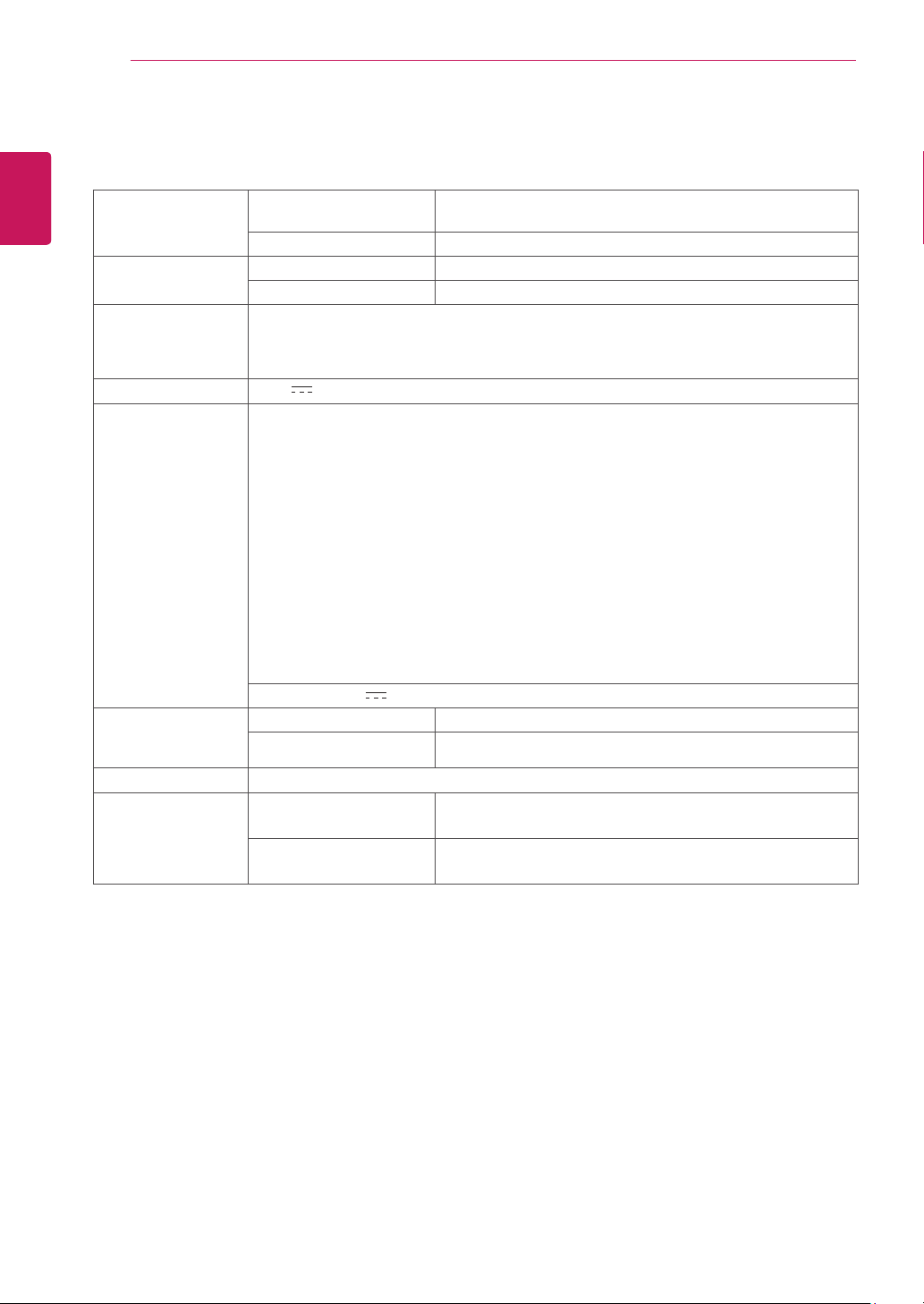
Display ScreenType FlatPanelActivematrix-TFTLCD
Anti-Glarecoating
PixelPitch 0.2745mmx0.2745mm(PixelPitch)
Resolution Max 1920x1080@60Hz
Recommend VESA1920x1080@60Hz
Power
Consumption
OnMode:17.1WTyp.(ENERGYSTAR®standard)*
24.6WTyp.(Outgoingcondition)**
SleepMode≤0.3W
OffMode≤0.3W
PowerInput 19V
1.3A
AC-DCAdapter
TypeADS-40SG-19-319025G,manufacturedbySHENZHENHONORELECTRONIC
orTypeADS-40FSG-1919025GPG-1,manufacturedbySHENZHENHONORELECTRONIC
orTypeADS-40FSG-1919025GPBR-1,manufacturedbySHENZHENHONORELECTRONIC
orTypeADS-40FSG-1919025GPI-1,manufacturedbySHENZHENHONORELECTRONIC
orTypeADS-40FSG-1919025GPCU-1,manufacturedbySHENZHENHONORELECTRONIC
orTypeADS-40FSG-1919025GPB-2,manufacturedbySHENZHENHONORELECTRONIC
orTypeADS-25FSG-1919025EPCU-1L,manufacturedbySHENZHENHONORELECTRONIC
orTypeLCAP21,manufacturedbyLIENCHANGELECTRONICENTERPRISE
orTypeLCAP26-A,manufacturedbyLIENCHANGELECTRONICENTERPRISE
orTypeLCAP26-E,manufacturedbyLIENCHANGELECTRONICENTERPRISE
orTypeLCAP26-I,manufacturedbyLIENCHANGELECTRONICENTERPRISE
orTypeLCAP26-B,manufacturedbyLIENCHANGELECTRONICENTERPRISE
orTypeLCAP51,manufacturedbyLIENCHANGELECTRONICENTERPRISE
orTypePA-1021-23,manufacturedbyLite-OnTechnologyCorporation
OUTPUT:
19V 1.3A
Dimensions
(WidthxHeightx
Depth)
WithStand 550.5mmx419mmx186.8mm
WithoutStand 550.5mmx332.1mmx85.5mm
Weight 3.2kg
Environmental
conditions
OperatingTemperature
OperatingHumidity
0°Cto40°C
≤80%
StorageTemperature
StorageHumidity
-20°Cto60°C
≤85%
Productspecificationsshownabovemaybechangedwithoutpriornoticeduetoupgradeofproduct
functions.
*Thepowerconsumptionlevelcanbedifferentbyoperatingconditionandmonitorsetting.
*TheOnmodepowerconsumptionismeasuredwithENERGYSTAR®teststandard.
**TheOnmodepowerconsumptionismeasuredwithLGEteststandard(FullWhitepattern,Maximum
resolution).
SPECIFICATIONS
27
ENG
ENGLISH
SPECIFICATIONS
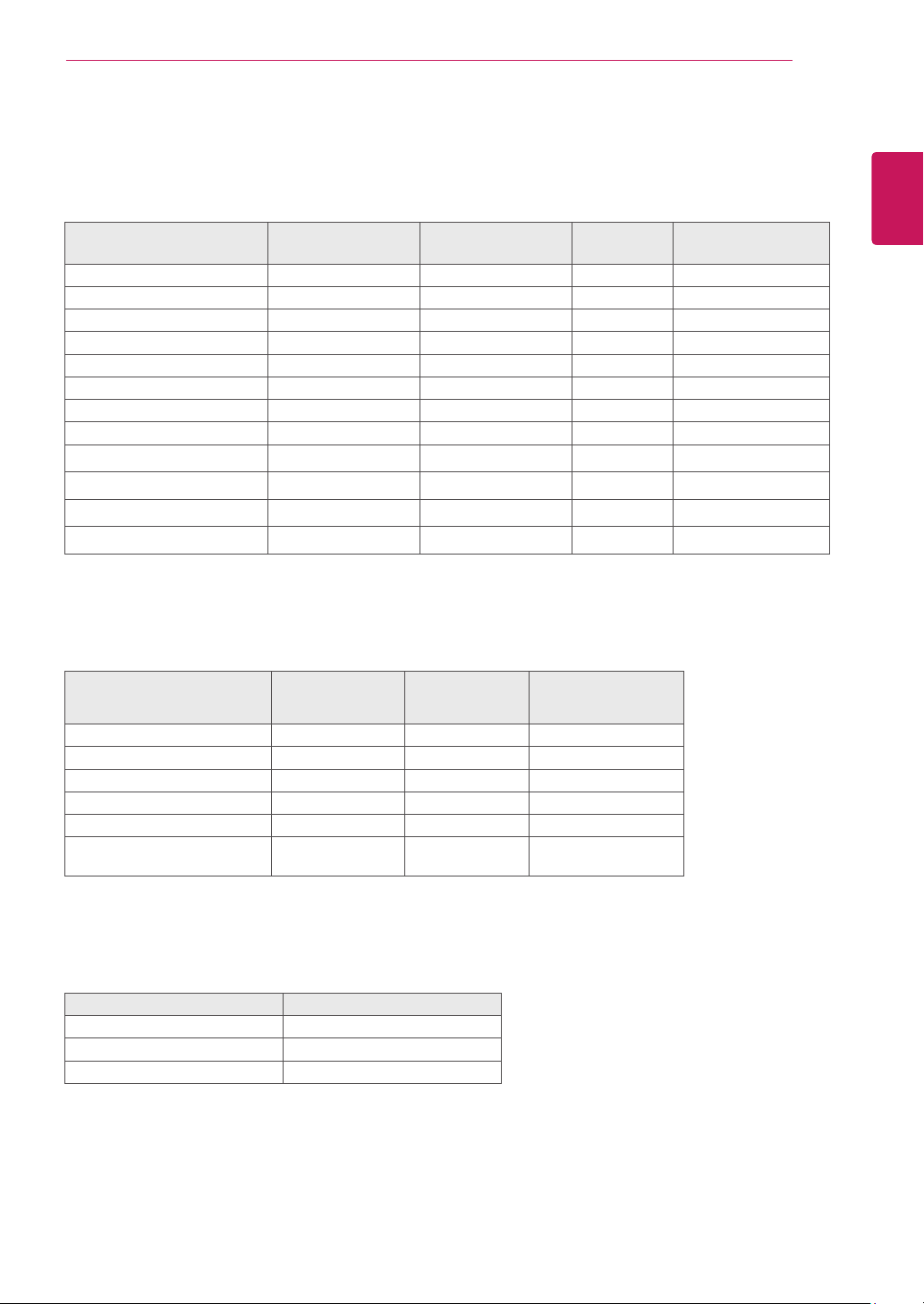
PresetModes(Resolution)
D-SUB/DVI-D/HDMIPCTiming
DisplayModes(Resolution)
Horizontal
Frequency(kHz)
Vertical
Frequency(Hz)
Polarity(H/V)
720x400 31.468 70 -/+
640x480 31.469 60 -/-
640x480 37.500 75 -/-
800x600 37.879 60 +/+
800x600 46.875 75 +/+
1024x768 48.363 60 -/-
1024x768 60.023 75 +/+
1152x864 67.500 75 +/+
1280x1024 63.981 60 +/+
1280x1024 79.976 75 +/+
1680x1050 65.290 60 -/+
1920x1080 67.500 60 +/+ RecommendMode
HDMITiming(Video)
Factorysupportmode
(PresetMode)
Horizontal
Frequency(kHz)
Vertical
Frequency(Hz)
HDMI
480P 31.50 60 O
576P 31.25 50 O
720P 37.50 50 O
720P 45.00 60 O
1080P 56.25 50 O
1080P 67.50 60
O
RecommendMode
Indicator
Mode LEDColor
OnMode White
SleepMode BlinkingWhite
OffMode Off
Make sure to read the Safety Precautions before
using the product.
Keep the Owner’s Manual (CD) in an accessible
place for future reference.
The model and serial number of the SET is
located on the back and one side of the SET.
Record it below should you ever need service.
MODEL
SERIAL
*above information is only for USA FCC Regulatory
Declaration of Conformity
Trade Name: LG
Model : 24MP60
Responsible Party: LG Electronics Inc.
Address : 1000 Sylvan Ave. Englewood Cliffs
NJ 07632 U.S.A
TEL: 201-266-2534
As an ENERGY STAR Partner LGE
U. S. A.,Inc. has determined that this
product meets the ENERGY STAR
guidelines for energy efficiency.
ENERGY STAR is a set of power-saving
guidelines issued by the U.S.Environmental
Protection Agency(EPA).
Refer to ENERGY STAR.gov for more
information on the ENERGY STAR program.