SAMSUNG
Galaxy
Fit
User manual

Table of contents
i
Device f
eatures 1
Exercise in the water 1
Good night mode 1
Water and dust resistances 1
Get started 2
Device layout 3
Assemble your device 4
Charge the battery 5
Wear the Galaxy Fit 6
Start using your device 8
Turn the screen on 8
Connect the Galaxy Fit to a smartphone 8
Navigation 10
Quick panel 12
Do not disturb mode 13
Water lock mode 13
Find my phone 13
Good night mode 14
WEA_R370_EN_UM_TN_SDP_052219_FINAL

Table of contents
ii
Widgets
15
Health summary
16
Exercise
16
Doing multiple exercises
16
Swimming
17
Stress
17
Breathing exercise
17
Sleep
18
Weather
18
Galaxy Wearable
19
Battery
20
Samsung Health
20
Health settings
22
Alarm
22
Weather
22
Quick responses
23
Find My Band
23
Notifications
23
Widgets
24

Table of contents
iii
Vibration 24
Display 25
Advanced 25
Account and backup 26
About band 26
About Galaxy Wearable 27
Watch faces 27
Learn more 28
Videos 28
Tips 28
Smart Simulator 28
Samsung Care 28
Talk to an agent 28
Legal information 29
Intellectual property 29
Open source software 30
Disclaimer of warranties; exclusion of liability 30
Modification of software 31
Samsung Knox 31

Device features
Exercise in the water
Use Water lock mode when you exercise in the water. See Water lock mode on
page 13.
Good night mode
Good night mode mutes all alerts, except alarms, so you can sleep without
constant interruptions. For more information, see Good night mode on page 14.
Water and dust resistances
This device is rated 5ATM, and passed military specification (MIL-STD-810G)
testing. See Maintaining water and dust resistance on page 32.
1

Get started
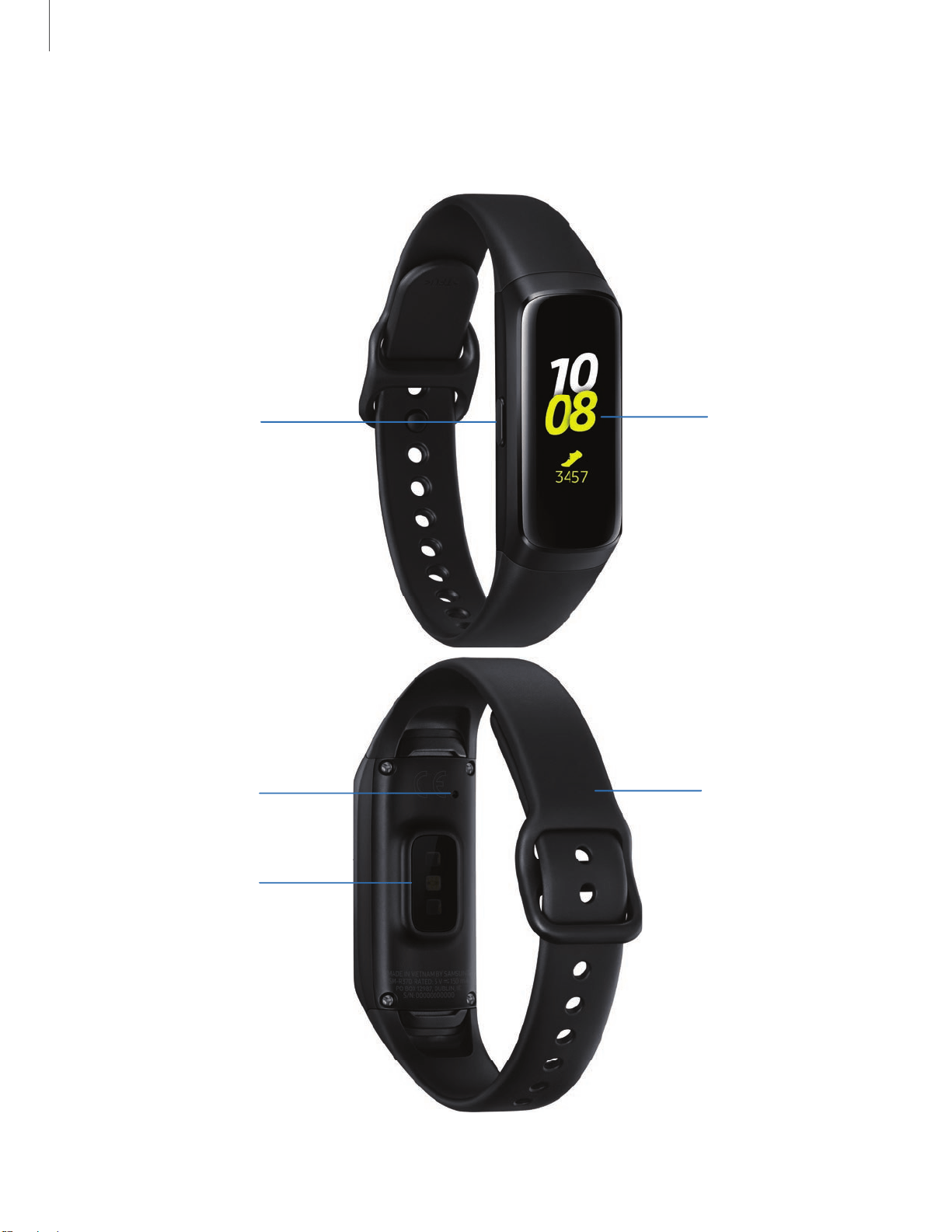
Device layout
Watch face
Band
Side key
Pressure vent
Heart rate
sensor
Devices and software are constantly evolving — the illustrations you see here are for reference only.
3
-'IJ-
Get started
Assemble your device
Learn more about your device hardware, assembly procedures, and how to get started
using your new device.
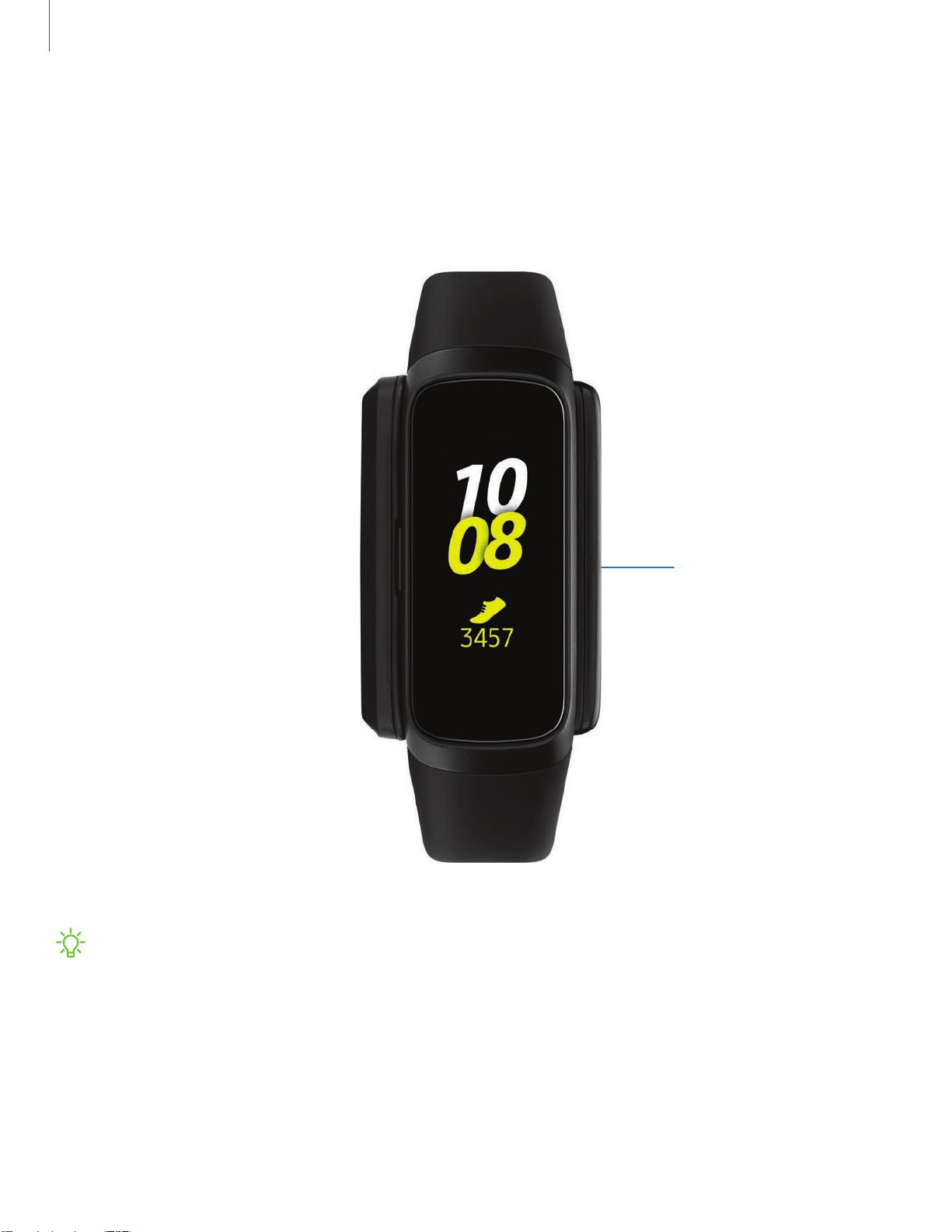
Charge your device
Place the Galaxy Fit
on the wireless
charging surface.
NOTE Do not disassemble, modify, or repair your device. Placing objects, such as
magnetic stripe cards, including credit cards, phone cards, passbooks, and
boarding passes, next to the device or charger may cause damage from the
charger or device’s magnetic field.
Devices and software are constantly evolving — the illustrations you see here are for reference only.
4

-'fj-
-'fj-
-'fj-
Get started
Charge the battery
Your device is powered by a rechargeable battery.
NOTE The charging head for plugging the USB cable into a wall outlet is not
included. Use only Samsung charging devices rated with an output voltage of 5V
and an output current of over 150mA (sold separately). Samsung accessories are
designed for your device to maximize battery life. Using other accessories may
void your warranty and may cause damage.
NOTE Prevent the USB charger port and the small end of the charger from
coming into contact with conductive materials, such as liquids, dust, metal
powders, and pencil leads.
While charging, the device and the charger may become hot and stop charging. This
does not affect the device’s lifespan or performance and is in the device’s normal
range of operation.
TIP Disconnect the charger from the device and wait for the device to cool down.
For more information, visit samsung.com/us/support/answer/ANS00076952.
5
\
Get started
Wear the Galaxy Fit
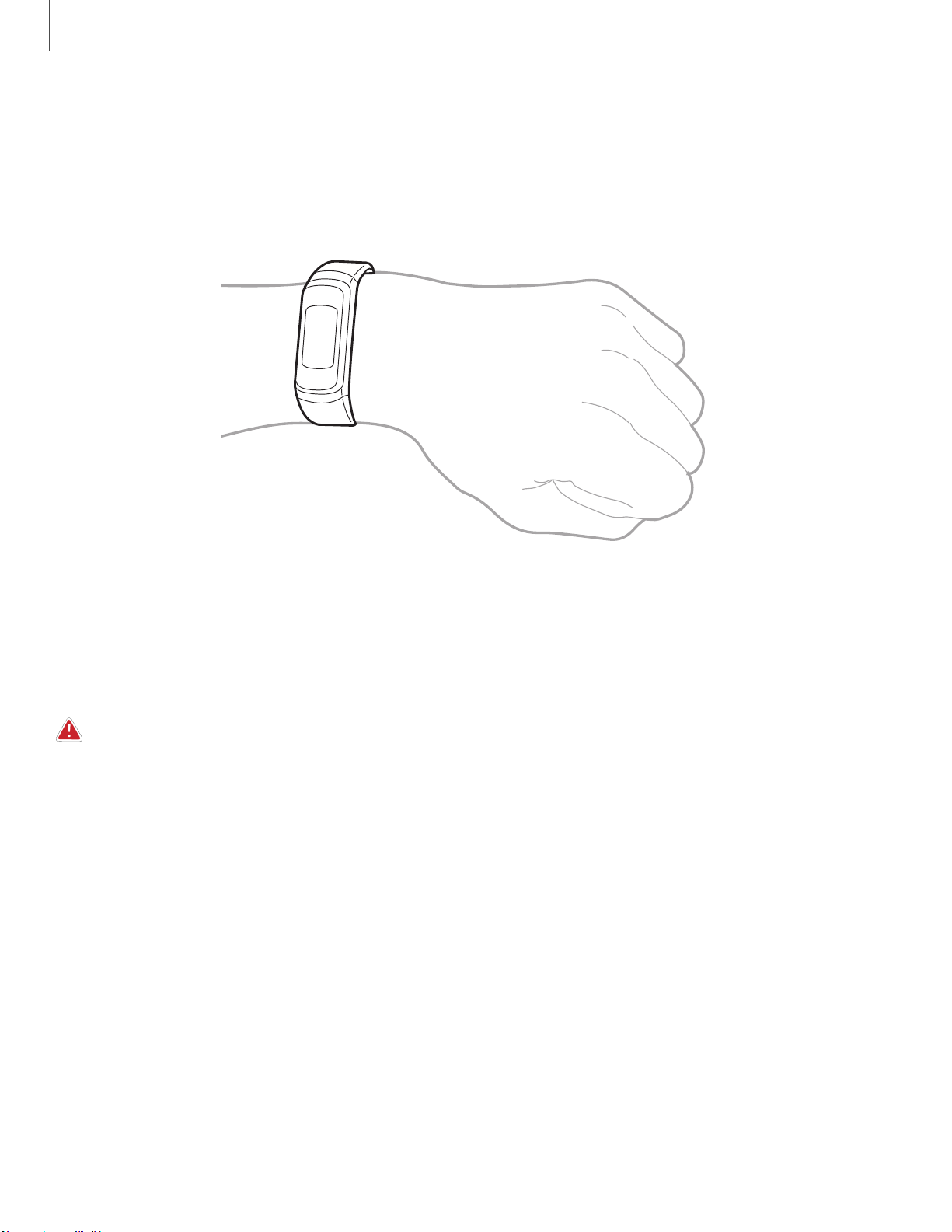
Wear the Galaxy Fit firmly around your lower arm just above your wrist as shown
below. Do not fasten the band too tightly.
1. Open the buckle and place the band around your wrist.
2. Fit the band to your wrist, insert the pin into an adjustment hole, and then
secure the buckle to close it.
WARNING Wear the Fit or device correctly. If you feel discomfort while using the
device, stop using it. If your device becomes hot, please remove it until it cools.
Strap tips and precautions
l Some people may experience discomfort when wearing the Fit for prolonged
periods.
l If you have sensitive skin or fasten the Fit too tightly, you may feel some
discomfort.
Devices and software are constantly evolving — the illustrations you see here are for reference only.
6
Q
Q
Q
Q
Q
Q
,,-
--
--1'-
JL
Q
Q
Q
Q
Get started
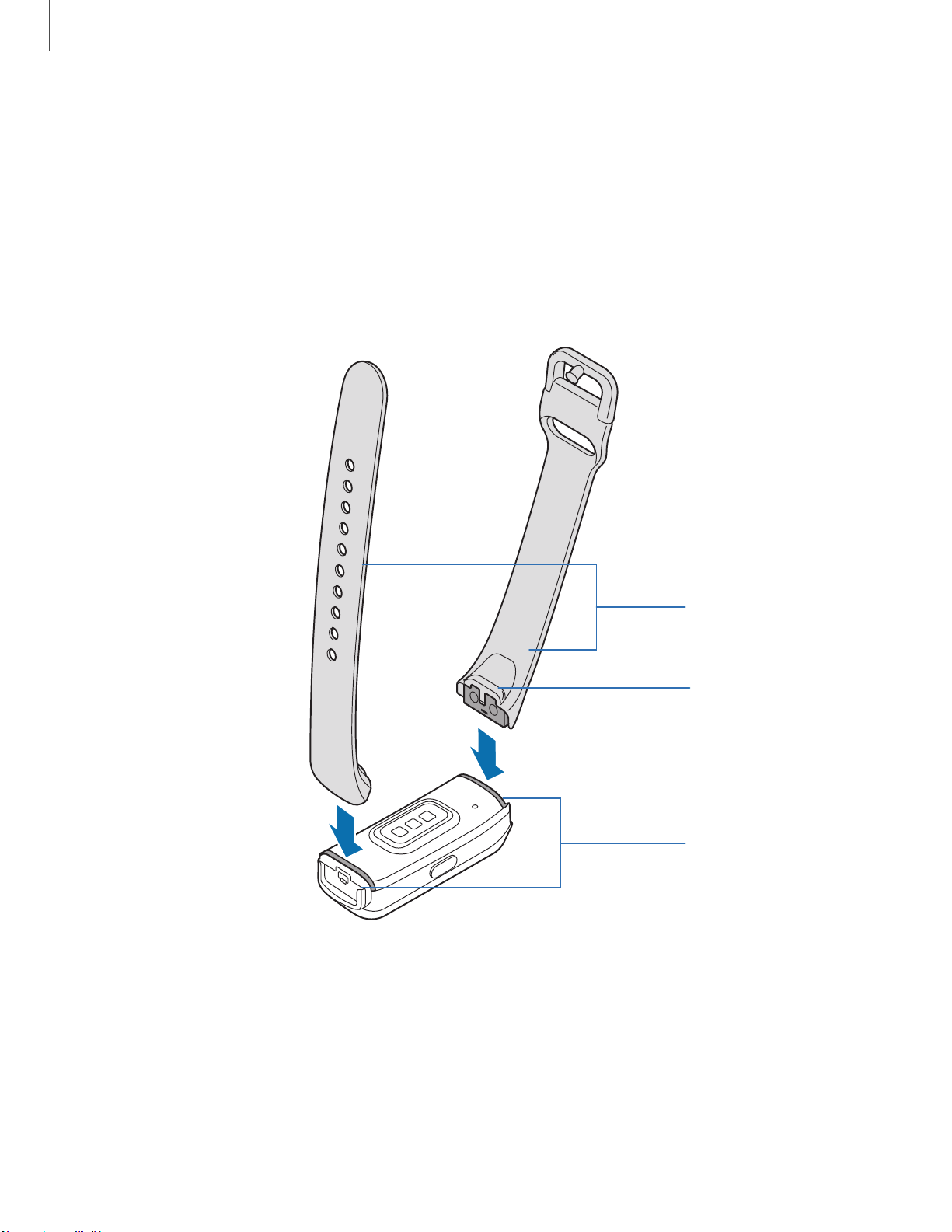
Replace the band
Detach the band from the Galaxy Fit to replace it with a new one.
1. With the Galaxy Fit facing down, press the band lock in and pull the band up and
away from the device.
2. Align the new band with the notches on both sides of the Galaxy Fit, and push in
until the band lock clicks in place.
Bands
Notches
Band lock
Devices and software are constantly evolving — the illustrations you see here are for reference only.
7
-'n'-
,):(,
•
Get started
Start using your device
Use the Side key to turn your device on or off.
◌
Press and hold the Side key.
•
To turn the device off, press and hold the
Side
key, and then tap
.
•
To restart the device if it is not responsive, press and hold the Side key for
more than 7 seconds.
Turn the screen on
Use the Side key to turn the screen on.
◌
Press the Side key once.
•
To turn off the screen, cover it with your palm. It may automatically turn off
if the Galaxy Fit is not used for a specified period.
TIP You can also turn on the screen using the Wake-up gesture feature. On your
smartphone, tap
Galaxy Wearable > Home > Advanced > Wake-up gesture.
Connect the Galaxy Fit to a smartphone
To connect your Galaxy Fit to a smartphone, install the Galaxy Wearable app on the
smartphone. You can download the app from Galaxy Store, or the Google Play
™
store.
Galaxy Wearable is compatible with select devices using Android
™
5.0 and later, with
at least 1.5 GB RAM. Supported devices may vary by carrier. Some features may not be
available. For best results, connect with compatible Samsung Galaxy devices. Visit
samsung.com/us/support/owners/app/galaxy-wearable-watch for a list of
compatible smartphones.
1
.
From the Apps screen of the smartphone, tap
Galaxy Wearable.
2. If necessary, update the app to the latest version.
3. Tap Start the Journey, and follow the prompts to select your device.
4. When the Bluetooth
®
pairing request window is displayed, confirm the passkeys
displayed on your Galaxy Fit and smartphone match, and then tap Connect.
8

-
Get started
Disconnect
Disconnect the Galaxy Fit from your smartphone.
◌
From Galaxy Wearable, tap the Home tab.
9
Get started
Navigation
The touchscreen responds best to a light touch from the pad of your finger or a
capacitive stylus. Using excessive force or a metallic object on the touchscreen may
damage the tempered glass surface and void the warranty.
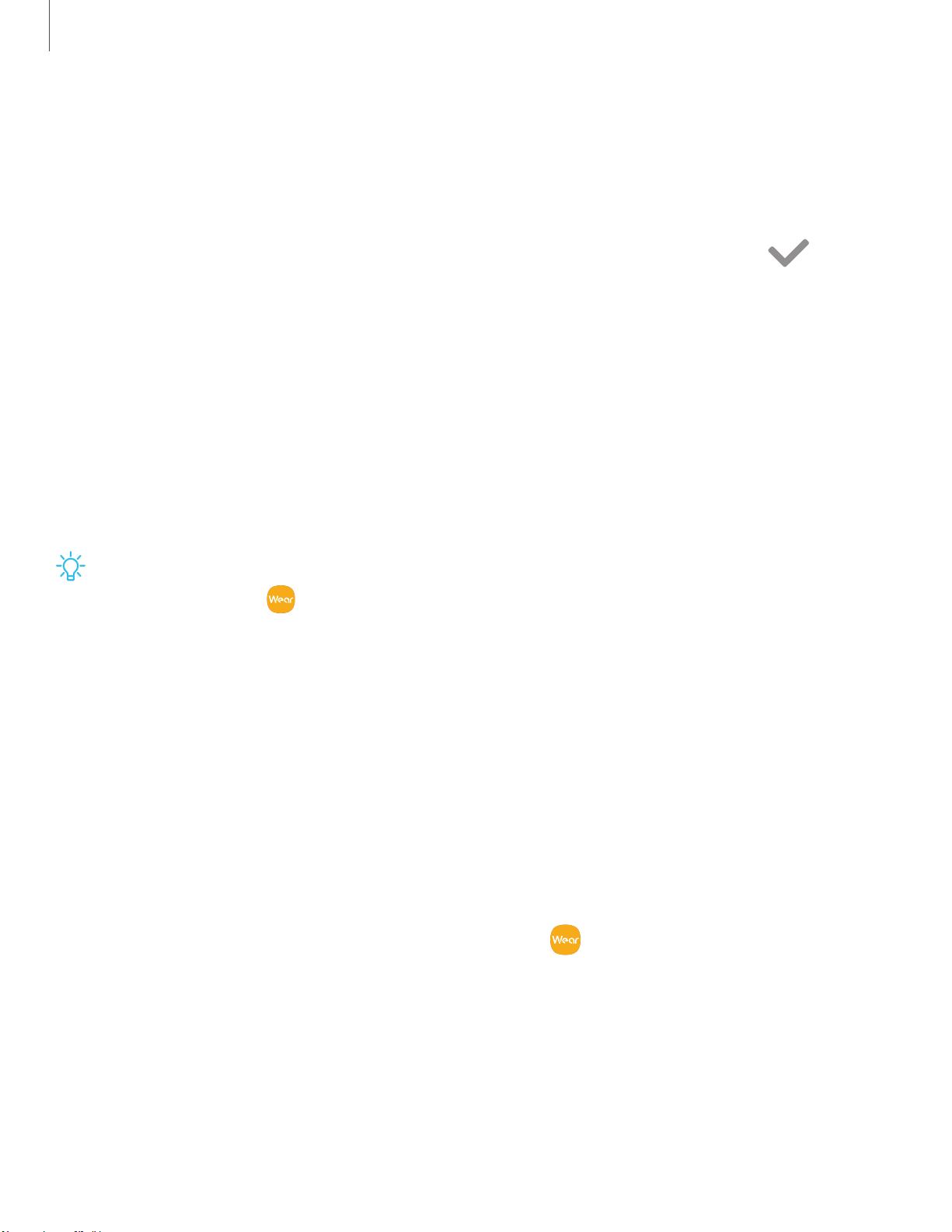
Tap
◌
Lightly tap the screen to launch an app, select a menu item, or press a button.
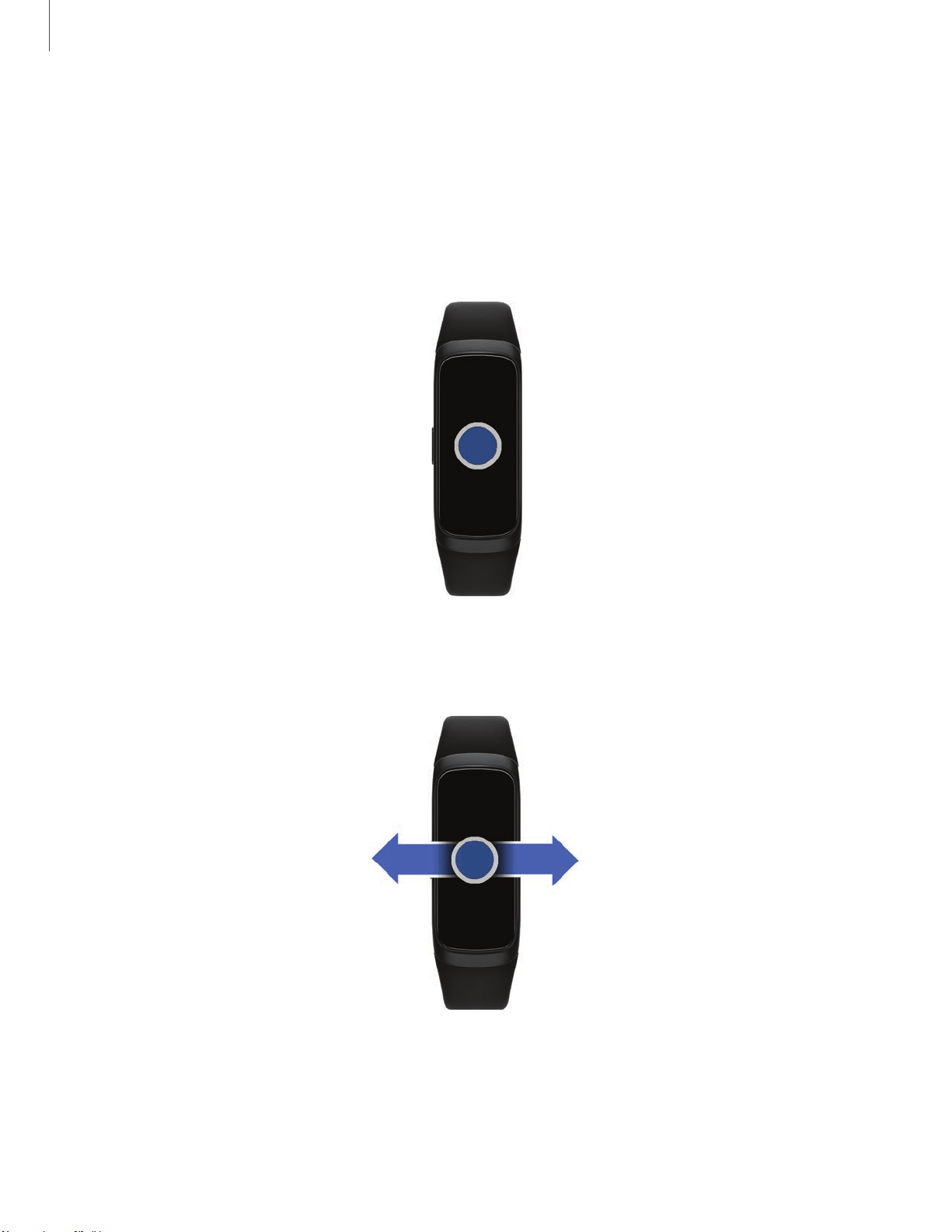
Swipe
◌
Lightly drag your finger vertically or horizontally across the screen to view
panels.
Devices and software are constantly evolving — the illustrations you see here are for reference only.
10
Get started
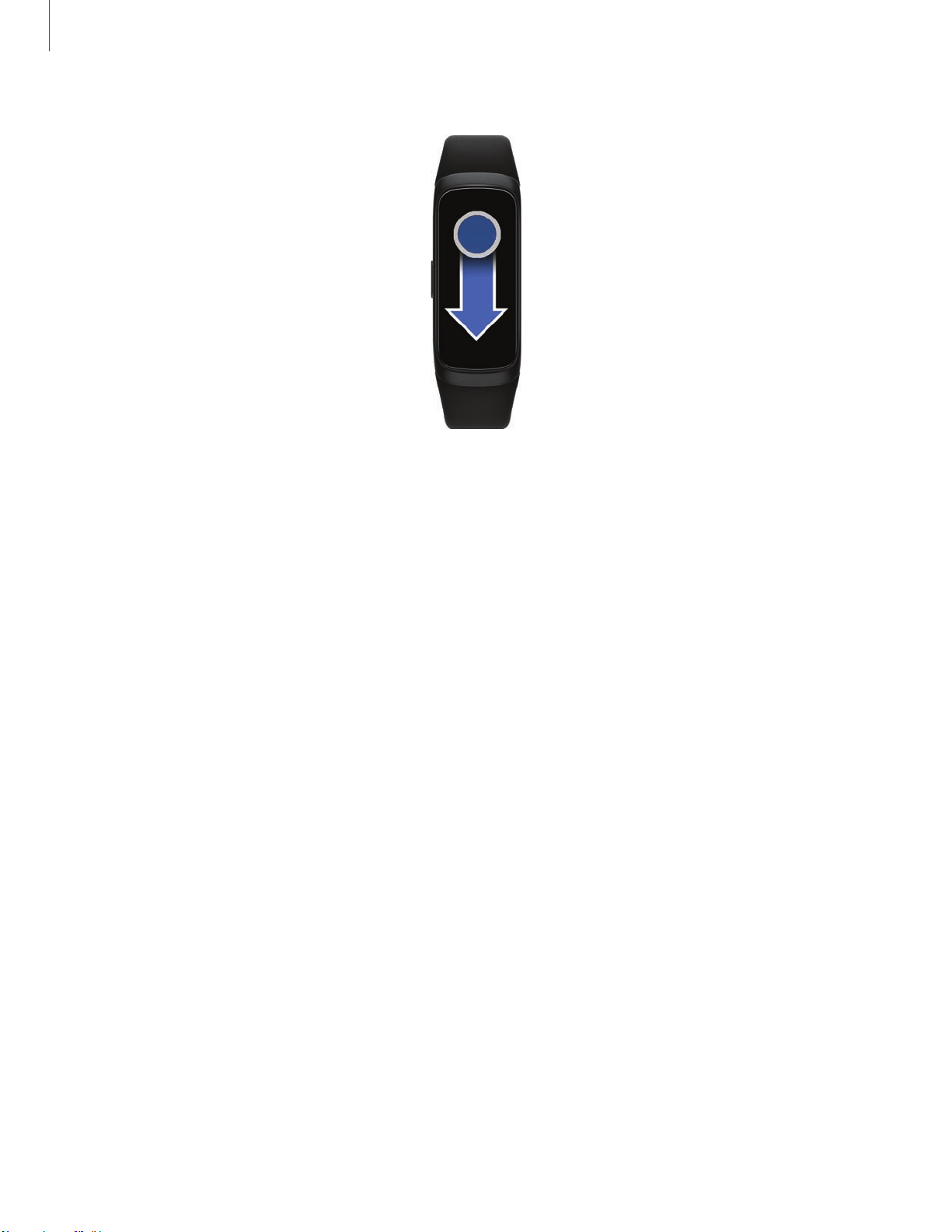
Drag
◌
Touch and hold an item, and then move it to a new location.
Devices and software are constantly evolving — the illustrations you see here are for reference only.
11
0
0
0
0
0
e>
Get started
Quick panel
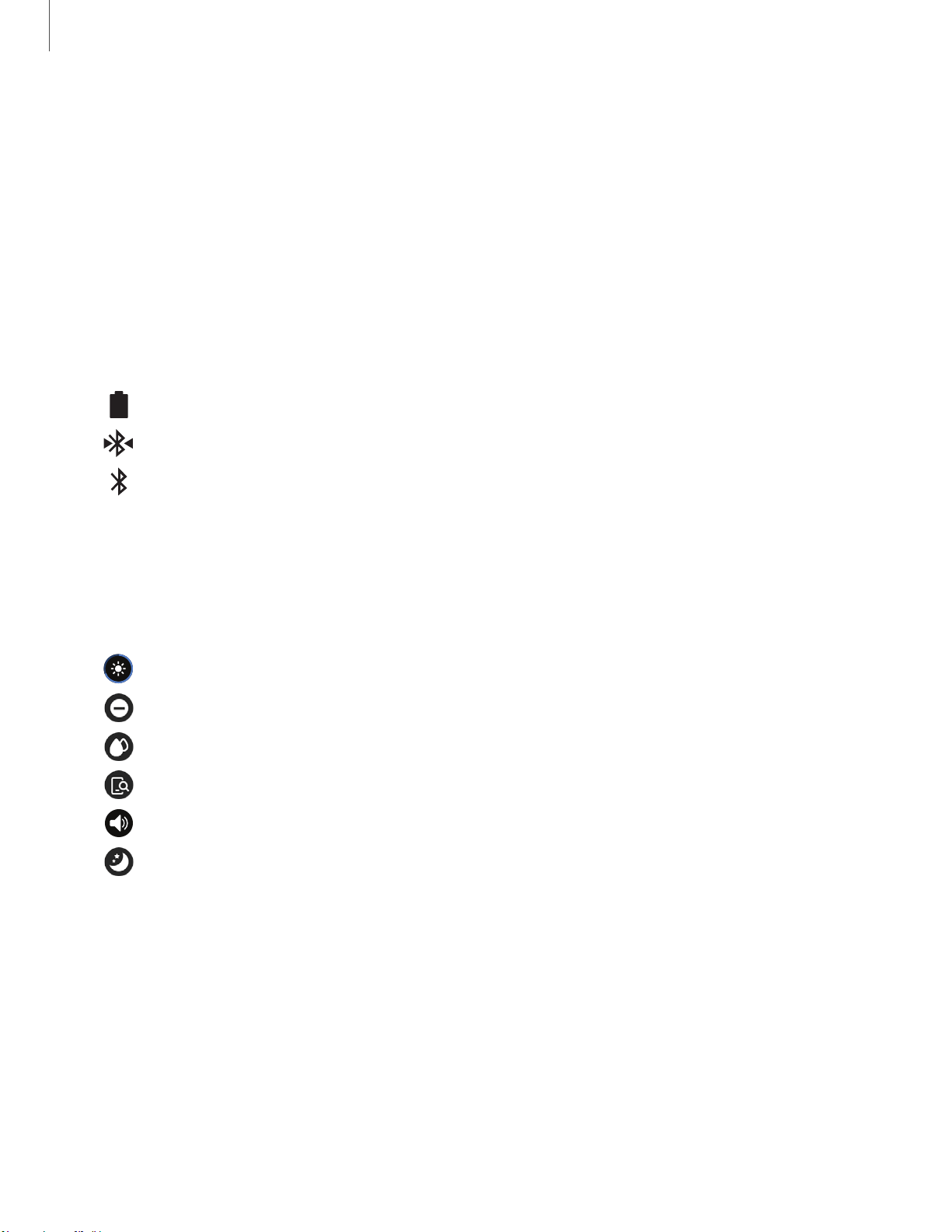
This panel allows you to view the Galaxy Fit’s current status and configure settings.
◌
Swipe down from the top of the screen to open the Quick panel.
Indicator icons
Indicator icons appear at the top of the quick panel and let you know the Galaxy Fit’s
current status. The icons listed in the table below are most common.
Indicator icons
Battery full
Bluetooth connected
Bluetooth enabled but not connected
Quick settings
Quick setting icons appear on the quick panel.
◌
Tap the icon to enable or change the setting.
Adjust the brightness
Activate Do not disturb mode
Activate Water lock mode
Launch the Find my phone feature
Change the sound mode
Activate Good night mode
12
0
(I
8
(±)
A
V
-~-
0
0
0
Get started
Edit the quick settings icon
You can edit the icons on the quick panel.
1.
From Galaxy Wearable, tap the Home tab.
2.
Tap Advanced > Edit quick settings.
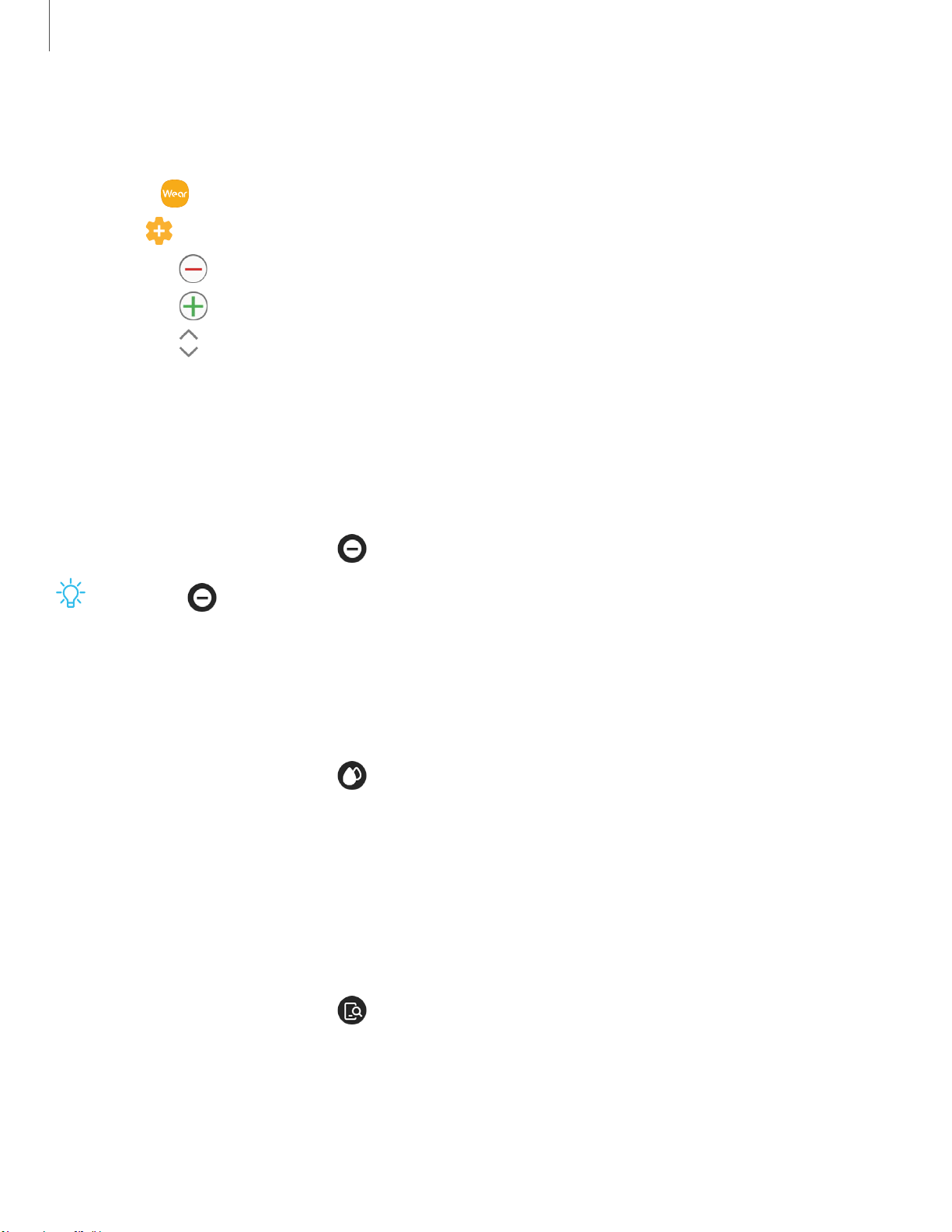
•
Tap next to
the quick setting icon to remove it.
•
Tap next to
the quick setting icon to add it.
•
Tap next to
a quick setting icon and drag it to another position.
3. Tap Save.
Do not disturb mode
Set the Galaxy Fit to mute all notifications except for alarms and the screen will not
turn on when notifications are received.
◌
On the quick panel, tap .
TIP The Do
not disturb icon displays at the top of the watch face when this
mode is enabled.
Water lock mode
Activate water lock mode when you exercise in water.
◌
On the quick panel, tap .
•
To tu
rn off water lock mode, press and hold the Side key until the circle
disappears.
Find my phone
Launch the find my phone feature and find your smartphone when you misplace it.
The smartphone will emit sound and turn on the Galaxy Fit screen.
◌
On the quick panel, tap .
13

-~-
Get started
Good night mode
Activate Good night mode while sleeping. All notifications except for alarms are
muted and the screen does not turn on when notifications are received while enabled.
◌
On the quick panel, tap .
TIP The Good night mode icon displays at the top of the watch face when
this mode is enabled.
14
-'lj-
Widgets
Health summary
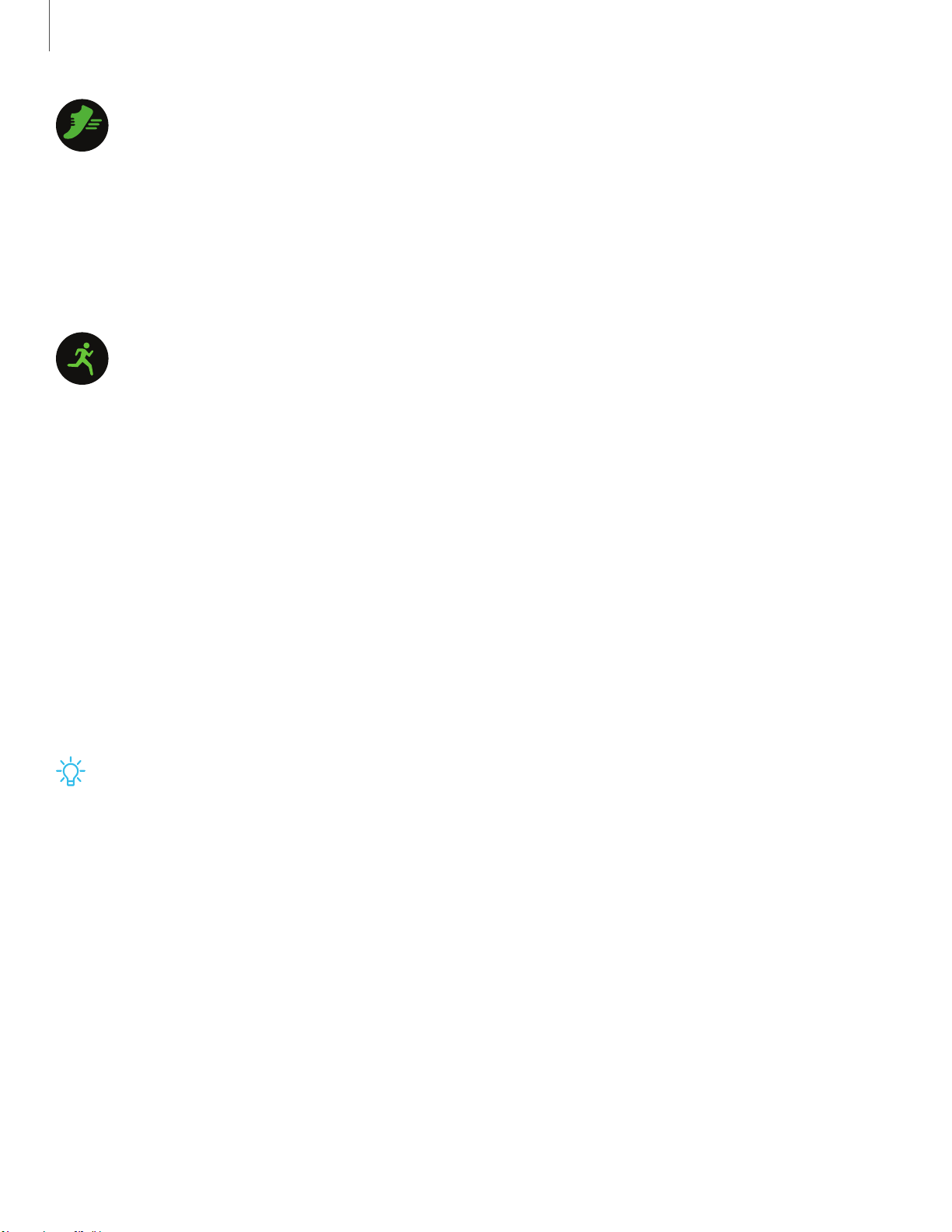
View your activity and health information, such as steps, calories burned, and
real-time heart rate.
1. Swipe to the left on the watch screen to switch to the health summary widget.
2. Swipe up or down to view your health information.
Exercise
Record your exercise information and check the results, such as burned calories, with
the exercise feature.
1. Swipe to the left on the watch screen to switch to the exercise widget screen.
2. Tap Select workout and select the exercise type you want from the list.
3. Tap Start to start exercising.
4. Swipe the screen to the left or right to view exercise information, such as your
heart rate, distance, or time, on the workout screen.
5. Press the Side key to pause the exercise.
• To restart the exercise, tap the Side key again after pausing the exercise.
• To finish exercising, tap Finish.
TIP While swimming, press and hold the Side key to deactivate water lock mode,
and then tap Finish.
Doing multiple exercises
You can log various exercises or complete an entire exercise routine.
1. Press the Side key to pause the current exercise.
2. Tap Finish > New.
3. Select the exercise type and start the next exercise.
16
0
@
Widgets
Swimming
When you select Swimming, Water lock mode will be automatically activated.
When you select Swimming, the recorded value may not be accurate in the following
cases:
•
If you stop swimming before reaching the completion point.
•
If you change your swimming stroke midstream.
•
If you stop moving your arms before reaching the completion point.
•
If you kick with your legs on a kickboard or swim without moving your arms.
•
If you do not pause or restart the exercise by pressing the Side key, but finish the
exercise by pressing the Side key and tapping Finish.
Stress
Calculate and record your stress level by using changes in your heart rate. Reduce
your stress by following the breathing exercise that your Galaxy Fit provides.
The Galaxy Fit measures and records your stress level at regular intervals throughout
the day.
1. Swipe to the left on the watch screen to switch to the stress widget screen.
2. Swipe up or down on the screen to view your stress level information.
Breathing exercise
You can alleviate stress with a deep and slow breathing exercise by following the
Galaxy Fit.
1. Swipe up or down on the screen and tap Breathe on the stress widget screen.
2
.
Tap
and start to breathe.
•
To stop the breathing exercise, tap
.
1
7
-~ -
0
Widgets
Sleep
Wear your Galaxy Fit while you sleep to record your sleep patterns by analyzing your
movements and measuring your sleep record.
1. Swipe to the left on the watch screen to switch to the sleep widget screen after
you wake up.
2. Swipe up or down on the screen to view your sleep information.
TIP: You can view your sleep patterns and information using the Samsung
Health app on the smartphone that is connected to your Galaxy Fit.
Weather
View weather information on the Galaxy Fit for locations set on the connected
smartphone.
◌
Swipe to the left on the watch screen to switch to the weather widget screen.
18

-~-
-
0
Galaxy Wearable
Battery
View the remaining battery power of your Galaxy Fit.
◌
From Galaxy Wearable, tap the Home tab. The battery percentage is
displayed under Battery.
Samsung Health
View the Galaxy Fit’s data saved in the Samsung Health app on your smartphone. Use
Samsung Health
™
to plan, track various aspects of daily life contributing to well-being
such as physical activity, diet, and sleep. For more information, visit
samsung.com/us/support/owners/app/samsung-health.
1
.
From
Galaxy Wearable, tap the Home tab.
2
.
Tap
Samsung Health to launch the app on your smartphone.
NOTE The information gathered from this device, Samsung Health, or related
software is not intended for use in the diagnosis of disease or other conditions, or
in the cure, mitigation, treatment or prevention of disease.
The accuracy of the information and data provided by this device and its related
software, including heart rate readings, may be affected by factors such as
environmental conditions, skin condition, specific activity performed while
using/wearing the device, settings of the device, user configuration/user-provided
information, placement of the sensor on the body, and other end-user interactions.
For more information on proper wear and use, visit samsung.com/us/heartratesensor.
2
0

Galaxy Wearable
Before you start exercising
Although the Samsung Health application is a great companion to your exercise
routine, it is always best to make sure you consult with your physician before
beginning any exercise regimen. While moderate physical activity, such as brisk
walking, is safe for most people, health experts suggest that you talk with your doctor
before you start an exercise program, particularly if you have any of the following
conditions:
•
Heart disease; Asthma or lung disease; Diabetes, or liver or kidney disease; and
Arthritis.
Before beginning your exercise regimen check with your doctor if you have symptoms
suggestive of heart, lung, or other serious disease, such as:
•
Pain or discomfort in your chest, neck, jaw, or arms during physical activity;
•
Dizziness or loss of consciousness;
•
Shortness of breath with mild exertion or at rest, or when lying down or going to
bed;
•
Ankle swelling, especially at night;
•
A heart murmur or a rapid or pronounced heartbeat;
•
Muscle pain when walking upstairs or up a hill that goes away when you rest.
It is recommended that before engaging in an exercise routine, you consult with your
doctor or medical practitioner. If you are unsure of your health status, have several
health problems, or are pregnant, you should speak with your doctor before starting a
new exercise program.
21
-
0
-
0 +
-
0
Galaxy Wearable
Health settings
Stay up to date with events, notifications, and messages from your smartphone.
1.
From
Galaxy Wearable, tap the Home tab.
2.
Tap
Health settings for the following options:
• Notifications: Enable notification alerts about your health.
• Step target: Set a goal for your daily step count.
• Manage exercises: Add or remove exercise types, and set targets.
• Workout detection: Automatically detect and record workouts.
• Keep screen on during exercise: Set the screen to stay on during workouts.
• Auto stress settings: Measure your stress throughout the day.
• Breath settings: Set a breathing target and pattern for vibration feedback
during breathing exercises.
• Auto heart rate settings: Set the frequency of heart rate recordings.
• High heart rate alert: Enable a notification when your heart rate is above
120 bpm.
Alarm
Set and manage alarms.
1.
From
Galaxy Wearable, tap the Home tab.
2.
Tap
Alarm > Add alarm.
3. Set the alarm time, select the days for the alarm to repeat, and then tap Save.
Weather
Configure weather information displayed on the weather widget.
1.
From
Galaxy Wearable, tap the Home tab.
2.
Tap
Weather > Settings to open the Weather settings page on your
smartphone.
22
-
•
0
0
E)
Galaxy Wearable
Quick responses
Add or edit responses to text messages.
1.
From
Galaxy Wearable, tap the Home tab.
2.
Tap
Quick responses and tap a response to edit it, or tap Add to add a new
response.
3. When finished, tap Save.
Find My Band
Locate your Galaxy Fit by making it light up and vibrate.
1.
From
Galaxy Wearable, tap the Home tab.
2.
Tap
Find my band, and tap Start.
• The Galaxy Fit vibrates and the screen turns on.
3.
Drag
Stop up on the Galaxy Fit or tap Stop on the smartphone.
Notifications
Stay up to date with events, notifications, and messages from your smartphone.
1.
From
Galaxy Wearable, tap the Home tab.
2.
Tap
Notifications, and tap to activate notifications, and then tap to
select items:
• Manage notifications: Select apps on the smartphone to send notifications to
the Galaxy Fit.
• Show only while wearing band: Show notifications on your Galaxy Fit only
while it is being worn.
• Mute connected phone: Mute notifications on your smartphone while
receiving them on your Galaxy Fit.
• Show while using phone: Show notifications from your smartphone on your
Galaxy Fit while you are using your smartphone .
23

-
•••
8
(±)
A
V
Galaxy Wearable
• Auto show details: Set your Galaxy Fit to show details for notifications when
they are received.
• Notification indicator: Show an indicator on the watch screen when there are
unread notifications.
• Turn on screen: Set the Galaxy Fit to turn on the screen when a notification is
received.
Widgets
Add, remove, and rearrange widgets on your Galaxy Fit.
1.
From
Galaxy Wearable, tap the Home tab.
2
.
Tap
Widgets.
•
Tap
Remove to remove a widget.
•
Tap Add to add a widget.
•
Drag
Move to change the position of the widget in the screen order.
3. When finished, tap Save.
Vibration
Enable or disable vibrating alerts on your Galaxy Fit band.
1.
From
Galaxy Wearable, tap the Home tab.
2
.
Tap
Vibration for the following options:
• Vibration: Enable or disable vibration alerts.
• Long vibration: Enable or disable longer vibration alerts for calls and
notifications.
2
4

-
~·#
-•-
#.~
-
0
Galaxy Wearable
Display
Configure brightness and timeout settings for the Galaxy Fit.
1.
From
Galaxy Wearable, tap the Home tab.
2
.
Tap
Display for the following options:
• Brightness: Adjust the brightness by dragging the slider.
• Screen timeout: Choose the length of time before the screen turns off.
Advanced
Configure advanced features.
1.
From
Galaxy Wearable, tap the Home tab.
2
.
Tap
Advanced for the following options:
• Press and hold Side key: Use the Side key to start a workout.
• Wake-up gesture: Turn on the screen when you raise the wrist that is wearing
the Galaxy Fit.
• Water lock mode: Enable water lock mode to protect the Galaxy Fit in water.
The touchscreen and wake-up gesture feature are deactivated.
• Do not disturb: Mute all notifications except for alarms. The screen does not
turn on for notifications.
• Sync Do not disturb with phone: Enable Do not disturb on the Galaxy Fit
whenever the feature is enabled on the connected smartphone.
• Good night mode: Enable good night mode while sleeping.
• Edit quick settings: Remove, add, or rearrange settings on the Galaxy Fit’s
quick panel.
• Status indicator: Enable status indicator icons on the watch screen.
• Alert: Receive an alert when Bluetooth connection is interrupted.
2
5
-
0
Galaxy Wearable
Account and backup
Set up, view, and configure your Samsung account.
1.
From
Galaxy Wearable, tap the Home tab.
2.
Tap
Account and backup for the following options:
• Customization Service: Improve your experience by personalizing your
content in supported apps and services.
• Samsung account: Add and configure your Samsung account.
• Back up and restore: Configure your device to back up data to your personal
accounts.
About band
View information about your Galaxy Fit, including current status, legal information,
hardware and software versions, and more.
1
.
From
Galaxy Wearable, tap the Home tab.
2
.
Tap
About band for the following options:
• Update band software: Check for the latest software for your Galaxy Fit.
• Legal information: View legal information.
• Report diagnostic info: Enable or disable sending diagnostic and usage
information about your Galaxy Fit to Samsung.
• Device name: Change the name of your Galaxy Fit as it appears to other
devices using Bluetooth.
• Device information: View your Galaxy Fit’s device information, including the
serial number, Bluetooth address, software version, and more.
• Reset band: Erase all information on your Galaxy Fit.
• Help: View help screens for using your Galaxy Fit.
26

-
0
Galaxy Wearable
About Galaxy Wearable
View version information for the Galaxy Wearable app.
1.
From
Galaxy Wearable, tap the Home tab.
2
.
Tap
About Galaxy Wearable > App info to view version information.
Watch faces
Customize your watch face style.
1.
From
Galaxy Wearable, tap the Watch faces tab.
2. Tap a desired watch face. The selected watch face is applied on the main screen
of the Galaxy Fit.
2
7

Legal information
READ THIS INFORMATION BEFORE USING YOUR MOBILE DEVICE.
Arbitration Agreement - This Product is subject to a binding arbitration agreement
between you and SAMSUNG ELECTRONICS AMERICA, INC. (“Samsung”). You can opt
out of the agreement within 30 calendar days of the first consumer purchase by
emailing optout@sea.samsung.com or calling 1-800-SAMSUNG (726-7864) and
providing the applicable information. For complete terms and conditions that bind
you and Samsung, refer to the “Arbitration Agreement” section of the Terms &
Conditions, included with the Product.
Find Legal Information Online
The full Arbitration Agreement, Standard Limited Warranty, and Health & Safety
Information for your device are available online:
https://www.samsung.com/us/Legal/Gear-HSGuide/
The full End User License Agreement (EULA) for your device can be found in the
Galaxy Wearable application, which is required for operation of your device, and
online:
• Online: www.samsung.com/us/Legal/SamsungLegal-EULA-GEAR
• Galaxy Wearable application: Home tab > About band > Legal information
Intellectual property
All Intellectual Property, as defined below, owned by or which is otherwise the
property of Samsung or its respective suppliers relating to the SAMSUNG mobile
device, including but not limited to, accessories, parts, or software relating thereto
(the “mobile device”), is proprietary to Samsung and protected under federal laws,
state laws, and international treaty provisions. Intellectual Property includes, but is
not limited to, inventions (patentable or unpatentable), patents, trade secrets,
copyrights, software, computer programs, and related documentation and other works
of authorship.
29

Legal information
You may not infringe or otherwise violate the rights secured by the Intellectual
Property. Moreover, you agree that you will not (and will not attempt to) modify,
prepare derivative works of, reverse engineer, decompile, disassemble, or otherwise
attempt to create source code from the software. No title to or ownership in the
Intellectual Property is transferred to you. All applicable rights of the Intellectual
Property shall remain with SAMSUNG and its suppliers.
Open source software
Some software components of this product, including but not limited to ‘PowerTOP’
and ‘e2fsprogs’, incorporate source code covered under GNU General Public License
(GPL), GNU Lesser General Public License (LGPL), OpenSSL License, BSD License and
other open source licenses. To obtain the source code covered under the open source
licenses, please visit: opensource.samsung.com
Disclaimer of warranties; exclusion
of liability
The information below explains that a user accepts this Product as sold, including the
hardware and software components as created and packaged for sale. If the user
changes these parameters through a unique modification, Samsung will not be held
responsible for damages or issues that result from these end-user changes.
Except as set forth in the Standard Limited Warranty that accompanies the Product,
the purchaser takes the product “as is”, and Samsung makes no express or implied
warranty of any kind whatsoever with respect to the Product, including but not
limited to the:
•
merchantability of the Product or its fitness for any particular purpose or use;
•
design, condition or quality of the Product;
•
performance of the Product;
•
workmanship of the Product or the components contained therein; or
•
compliance of the Product with the requirements of any law, rule, specification
or contract pertaining thereto.
30

Legal information
Nothing contained in the User Manual or any other document shall be construed to
create an express or implied warranty of any kind whatsoever with respect to the
Product. Neither Samsung nor the wireless carrier are responsible for, and the
Standard Limited Warranty does not apply to, any damage or injury arising from
disassembly or repairs by persons not authorized or approved by Samsung to service
this Product. In addition, Samsung shall not be liable for any damages of any kind
resulting from the purchase or use of the Product or arising from the breach of the
express warranty, including incidental, special or consequential damages, or loss of
anticipated profits or benefits.
Modification of software
Samsung is not liable for performance issues or incompatibilities caused by your
editing of registry settings, or your modification of Operating System (OS) software.
Using custom OS software may cause your device and applications to work
improperly. Your carrier may not permit users to download certain software, such as
custom OS.
Samsung Knox
Samsung Knox is Samsung’s security platform and is a mark for a Samsung device
tested for security with enterprise use in mind. Additional licensing fee may be
required. For more information about Knox, please refer to: samsung.com/us/knox.
3
1

&
-~-
-~-
Legal information
Maintaining water and dust resistance
CAUTION To avoid electric shock and damage to your device, do not charge
device while it is wet or in an area where it could get wet. Do not handle device,
charger or cords with wet hands while charging.
This device is rated 5ATM. Your device is water resistant up to 50 meters per ISO
standard 22810:2010. Not intended for scuba diving. Avoid excessive, sudden
temperature changes, and high velocity activities. Falls and shocks may breach
integrity. After use in sea water, rinse in fresh water and dry device. Despite this
classification, your device is not impervious to water damage in any situation. It is
important that all compartments are closed tightly.
NOTE If any liquid is found to have entered your device components or an
internally sealed system, this condition will void your device warranty.
Follow these tips carefully to prevent damage to the device.
l Whenever your device gets wet, dry it thoroughly with a clean, soft cloth. Failure to
rinse the device in fresh water and dry it as instructed may cause the device to
suffer from operability or cosmetic issues.
l Do not expose the device to water at high pressure.
l If the device is dropped or receives an impact, the water and dust resistant features
of the device may be damaged.
NOTE This device passed military specification (MIL-STD-810G) testing against
specific conditions, including drops from 4.9 feet, extreme temperatures, dust,
shock/vibration, and low pressure/high altitude. Device may not perform as
described in all extreme conditions.
Restricting children’s access to your
mobile device
Your device is not a toy. Do not allow children to play with it because they could hurt
themselves and others, or damage the device. Keep the device and all its parts and
accessories out of the reach of small children.
3
2

1-11:
HEVCL\dvance
TM
~
C
Covered
by
Patents
at
patentlist.hevcadvance.com
Legal information
Samsung Electronics America, Inc.
Address:
85 Challenger Road
R
idgefield Park
New Jersey 07660
Phone: 1-800-SAMSUNG (726-7864)
Internet: s
amsung.com
©2019 Samsung Electronics America, Inc. Samsung, Samsung Galaxy and Samsung
Galaxy Watch are all trademarks of Samsung Electronics Co., Ltd.
Other marks are the property of their respective owners.
Some multimedia (audio/video) files contain Digital Rights Management (DRM)
technology to verify you have the right to use the files. Preloaded apps on your
device may not be compatible with DRM-protected files.
Screen images are simulated. Appearance of device may vary.
The actual available capacity of the internal memory is less than the specified
capacity because the operating system and default applications occupy part of the
memory. The available capacity may change when you upgrade the device.
Please check with your service provider to verify qualifying services/features.
3
3