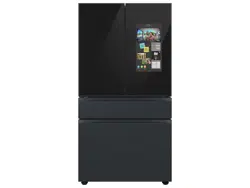
Use the refrigerator only for its intended purpose as described in this manual.
Any servicing must be performed by a qualified technician.
Dispose of the product packaging material in compliance with the local regulations.
To prevent electric shock, unplug the power cord before servicing.
NOTE: Your refrigerator and the provided component parts of your refrigerator may differ from the illustrations in this manual, depending on the model and your country.
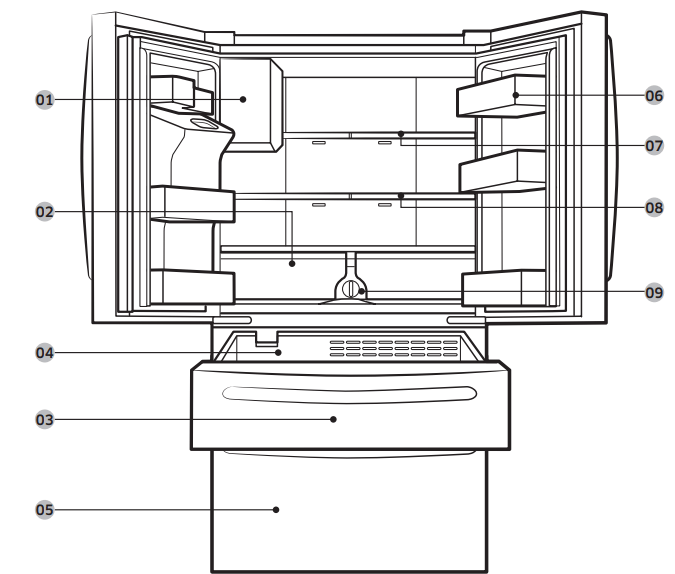
Auto ice maker *
Vegetables & fruit drawers
FlexZone™
Upper basket
Freezer
Door bins
Fridge shelf
2-Step foldable shelf
Water filter *
* applicable models only
NOTE:
For energy efficiency, keep all shelves, drawers, and baskets in their original positions.
When closing the door, make sure the vertical hinged section is in the correct position to avoid scratching the other door.
If the vertical hinged section is reversed, put it back into the correct position, and then close the door.
Moisture may form at times on the vertical hinged section.
If you close a door forcefully, the other door may open.
When the door is opened, the interlock switch automatically disables the auger motor of the ice maker for safety reasons.
If the internal or external LED lamp is out of order, contact a local Samsung service center.
Operations
User interface
NOTE:
For detailed information about the refrigerator's functions, and apps, see the on-screen user manual available on the LCD display of your refrigerator.
The content of apps and widgets and their design is subject to change. Support for apps and widgets may be discontinued without notice, depending on the content provider’s policy.
Children's use of the refrigerator's functions, apps, and services must be supervised by adults.
The PANDORA apps are only available in the United States.
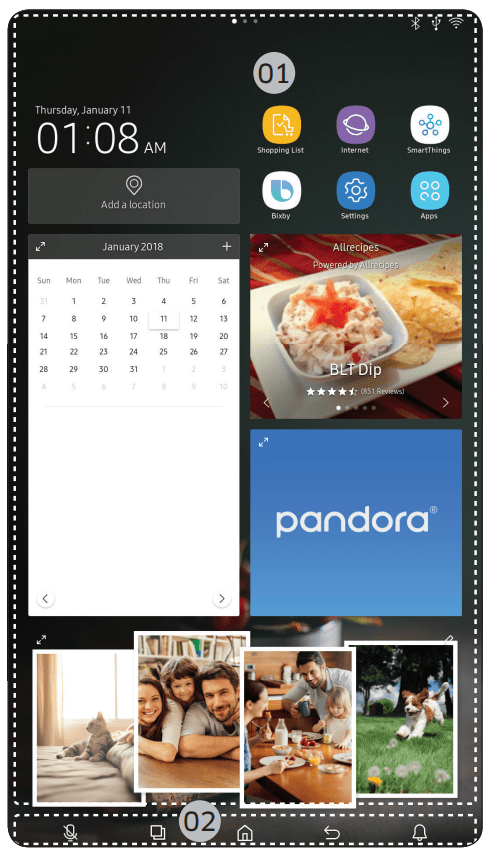
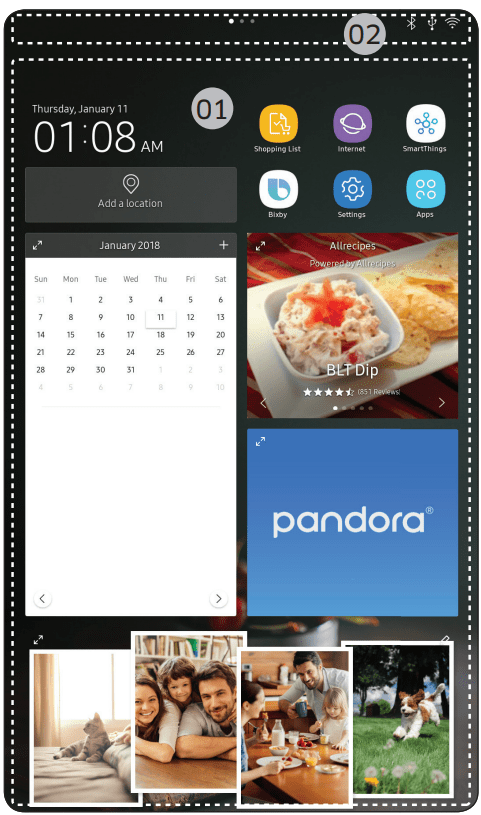
01. Home screen
02. Soft buttons
01 Home screen
01. Apps & Widgets
Tap a desired app or widget to launch it.
Tap and hold an app or widget to enter Edit mode. A grid appears. In Edit mode, you can drag and drop an app or widget to a new position on the grid. When you move the app or widget to a new grid location, the location turns blue if it is available. If it is not available, it turns red.
You can add an app or widget that has been removed from the Apps list.
02. Status bar
Displays the status of various functions. (Refer to the following Icon descriptions table.)
Icon descriptions
Bluetooth ( )
Indicates Bluetooth connection status.
USB ( )
Indicates USB connection status.
NOTE: The refrigerator supports USB memory that is formatted in the FAT32 or exFAT file systems. NTFS is not supported. Be sure to convert NTFS to FAT32 or exFAT before use.
Remote Management ( )
Turns on when Remote Management is enabled and running.
Network ( )
Indicates network connection status in 5 levels (Off, 1-4).
Software Update ( )
Indicates that the newest version of the refrigerator's software has been downloaded from the server and is ready to update.
Notification ( )
Indicates there is a notification message.
Cloud sync ( )
Indicates Family Hub is receiving data from the cloud server.
Energy Saver ( )
Indicates Energy Saver is on.
02 Soft buttons
01. Microphone
Tap to turn the microphone on or off.
02. Task Manager
Tap to open the Task Manager.
03. Home
Tap to open the Home screen.
04. Return
Tap to return to the previous screen.
05. Notification
Tap to display the Quick Panel.
06. Hide/Show
Tap to hide or show Soft buttons.
The Hide/Show button only appears when an app is active.
Fridge Manager
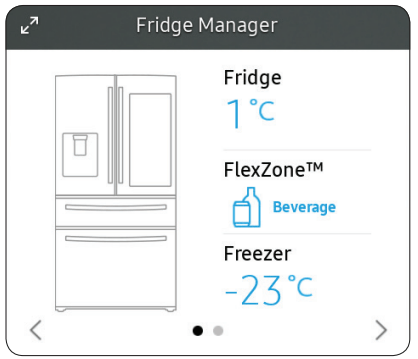
To access Fridge Manager, swipe the Home screen to the left, and then tap the Fridge Manager widget.
The design of the Fridge Manager widget differs with the model.
On the Fridge Manager widget, the current fridge and freezer temperatures are displayed.
For detailed settings, tap the widget to open the Fridge Manager.
NOTE: If you tap Buy Filter on the second page of the Fridge Manager widget, you will be directed to the website where you can purchase a water filter.
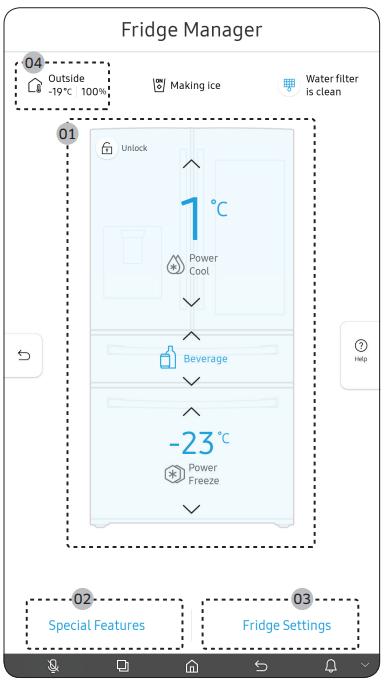
The Fridge Manager is a graphical representation of your refrigerator. The top half represents the refrigerator compartment, and the bottom half represents the freezer compartment. The temperature or mode settings for each are displayed over each section.
Fridge Manager At a Glance
01 Temperature
Changes the set temperature in the fridge or freezer. You can also turn on and turn off the refrigerator's Power Cool function and the freezer's Power Freeze function.
Power Freeze speeds up the freezing process at maximum fan speed. The freezer keeps running at full speed for several hours and then returns to the previous temperature.
To freeze large amounts of food, activate Power Freeze at least 20 hours before putting the food in the freezer.
NOTE: Using Power Freeze increases power consumption. Make sure you turn it off so the freezer returns to its previous temperature if you do not need it any longer.
02 Special Features
View a short explanation of some of the refrigerator's special features.
03 Fridge Settings
Change many of the fridge's settings including settings for ice making, the door alarm, and the temperature units (°F or °C). See the next page for details.
04 External Conditions
Displays the external (ambient) temperature and humidity.
NOTE: The displayed conditions may differ from the actual temperature and humidity.
NOTE: Also displayed is the Ice Off (ice making off) indicator at the top, center. When the indicator displays Ice Off, the refrigerator's ice maker is turned off.
Ice Maker (applicable models only)
Turns the icemaker on and off. Tap and drag the button to turn on or off. Note that if the ice bucket is full of ice, the refrigerator does not start making ice when you tap and drag this button (turning the Ice Maker on), but displays the Ice Full indicator on the main screen.
If you hold down the dispenser lever for 5 seconds, the Ice Maker Off status changes to Ice Maker On.
Dispenser Lock (applicable models only)
Turns the ice and water dispensers on and off. Tap to set Dispenser Lock on or off.
Door Alarm
The door alarm sounds if you leave the door open. Tap and drag the button to turn on or off.
Temp. Unit
Switch the temperature scale between Celsius and Fahrenheit. Touch °F or °C to change the scale.
Water Filter (applicable models only)
Provides a water filter replacement tutorial and lets you reset the water filter replacement indicator. Tap to open.
NOTE
After installing the water filter, tap Water Filter, and then tap Reset. Tapping Reset re-initializes the function that measures the time remaining until the water filter needs to be replaced again.
If you tap Buy Filter, you will be directed to the website where you can purchase a water filter.
Self Check
Self Check is a self diagnoses function. Tap to open. Tap Start to run.
Energy Saver
Tap and drag this button to turn Energy Saver mode on and off.
The Energy Saver function automatically turns off when power is supplied to the refrigerator. The settings for Energy Saver may differ with the model. If condensation or water drops appear on the doors, turn the Energy Saver mode off.
Demand Response (applicable models only)
Works with the Smart Grid energy saving manager. Tap to open. Tap and drag the button to turn on or off. See the Smart Grid section in this manual for more information.
Cooling Of
Cooling Off mode (also called Shop mode), is designed for use by retailers when they are displaying refrigerators on the shop floor.
In Cooling Off mode, the refrigerator’s fan motor and lights work normally, but the compressors do not run, and the refrigerator and freezer do not get cold. If Cooling Off is turned on, all cooling controls will turn to OFF on the Fridge Manager.
To activate Cooling Off, tap Activate > Proceed from Cancel/Proceed.
To deactivate Cooling Off, tap Deactivate > Proceed from Cancel/Proceed
Settings
Display
You can set the screen brightness, wallpapers, auto wake-up, motion detector, theme, screen timeout, and duration of the screen saver.
Sound
Set the volume and equalizer and turn on or turn off the touch sound.
Wi-Fi
Turn on or turn off a Wi-Fi connection. The current Wi-Fi network is listed first in the access point (AP) list.
Bluetooth
Up to 4 recently paired Bluetooth devices are listed.
To add a new device when 4 paired devices are listed, first unpair a paired device from the device list.
Available devices are Bluetooth-enabled headsets, headphones, and speakers.
Voice
You can check the Voice function language, turn on or turn off Voice wake-up, select Wake Word, register and manage Voice ID, and check information about Bixby.
Profile
You can add, edit, or delete a profile.
Security
Enable or disable restrictions on Family Hub features and apps.
Language
Select a preferred language. Available languages depend on the sales region.
Date and Time
Make sure the Auto update function is on with a proper Wi-Fi network connection. Open the fridge door and locate the display reset button on the inner side of the door. Press the button and press again to reset the display. Then, the date and time will be synced by the time server.
You can change the time zone through the Time zone menu.
About Device
Make sure the Software Update function is on with a proper Wi-Fi network connection.
When updates are available, the Update button becomes active. When updates are complete, the refrigerator restarts automatically.
Legal information displays the Open Source License Agreement. Tap the list item to open the Open Source Announcement
Easy Connection
Easy Connection can be used with Samsung Smartphone apps, and allows you to connect your device to the same home Wi-Fi network that your smartphone is connected to.
Clean screen mode
Turn on so you can clean the screen without activating any apps.
Accessibility
Set to turn on or off the screen reader function for blind and lowvision users.
Online Manual
The online manual will walk you through various menus and apps that the refrigerator provides directly on the display.
Factory Data Reset
Tap Reset to restart the refrigerator in Factory Data Reset mode. All user data will be removed permanently. Data that will be removed includes account information, memos, photos, and user settings.
CAUTION Once factory reset is complete, no user data can be recovered.
Remote Management
Use Remote Management to allow a service representative to remotely diagnose problems and provide solutions.
Remote Management requires a Wi-Fi connection.
The Remote Management menu does not appear on models that do not support Remote Management.
Display reset (applicable models only)
If the display is not working correctly, try resetting the display. This may resolve the problem.
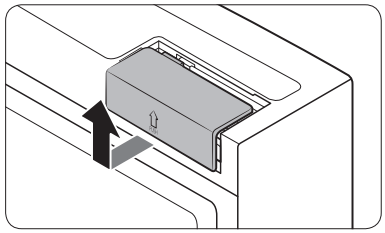
1. Open the right-side fridge door and locate the switch cover on the top right corner of the door.
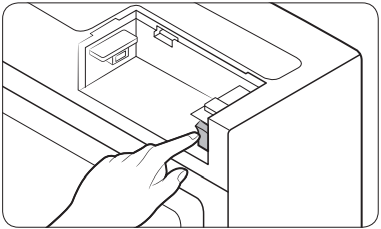
2. Push up the cover to reveal the power switch.
3. Turn the switch off, and then turn it on again.
4. Reinsert the switch cover. You will hear a click when the cover is in place.
SmartThings
Installation
Visit the Google Play Store, Galaxy Apps, or Apple App Store and search for “SmartThings”. Download and install the SmartThings app provided by Samsung Electronics to your smart device.
NOTE
The SmartThings app is designed for Android 6.0 (Marshmallow) or later, iOS 10.0 or later, iPhone 6 or later, and is optimized for Samsung smartphones (Galaxy S and Galaxy Note series).
For improved performance, the SmartThings app is subject to change without notice or discontinued support according to the manufacturer’s policy.
Recommended encryption systems include WPA/TKIP and WPA2/AES. Any newer or non-standard Wi-Fi authentication protocols are not supported.
Wireless networks may be affected by the surrounding wireless communication environment.
If your Internet service provider has registered the MAC address of your PC or modem for identification, your Samsung Smart Refrigerator may fail to connect to the Internet. If this happens, contact your Internet service provider for technical assistance.
The firewall settings of your network system may prevent your Samsung Smart Refrigerator from accessing the Internet. Contact your Internet service provider for technical assistance. If this symptom continues, contact a local Samsung service center or retailer.
To configure the wireless access point (AP) settings, see the user manual of the AP (router).
Samsung Smart Refrigerators support both Wi-Fi 2.4 GHz with IEEE 802.11 b/g/n and Soft-AP protocols. (IEEE 802.11 n is recommended.)
Unauthorized Wi-Fi wireless routers may fail to connect to applicable Samsung Smart Refrigerators.
Samsung account
You are required to register your Samsung account to use the app. If you don’t have a Samsung account, follow the app’s onscreen instructions to create a free Samsung account.
Getting started
Turn on the device you want to connect, open the SmartThings app on your phone, and then follow the instructions below.
If a pop-up appears saying that a new device has been found, tap ADD NOW.
If a pop-up doesn't appear, tap the + button, and then select the device you want to connect from the list of available devices.
If your device isn't in the list of available devices, tap Supported Devices, select the device type (Refrigerator), and then select the specific device model.
Follow the instructions in the app to set up your device. Once setup is complete, your refrigerator will appear as a "card" on your Devices screen.
Refrigerator app
Integrated control
You can monitor and control your refrigerator at home and on the go.
Tap the refrigerator icon on the SmartThings Dashboard or tap the Devices icon at the bottom of the Dashboard, and then tap the refrigerator "card" to open the Refrigerator page.
Check the operation status or notifications related to your refrigerator, and then change options or settings if necessary.
NOTE: Some options or settings of the refrigerator may not be available for remote control.
Category
Item
Description
Monitoring
Fridge temperature
Displays the current temperature setting of the fridge.
Freezer temperature
Displays the current temperature setting of the freezer.
FlexZone™ settings
Displays the settings of the FlexZone™
Diagnosis
Detects abnormal operations of the refrigerator
Energy monitoring
Checks the accumulated power consumption of the refrigerator for the last 180 days.
Functions
Ice making
You can turn the ice making function on or off, and check the current settings of the function.
You can also check the status and progress of ice making.
Power Cool
You can turn Power Cool on or off, and check the current settings.
Power Freeze
You can turn Power Freeze on or off, and check the current settings.
Alarms
Abnormally high temperature
This alarm is triggered when the fridge or freezer has abnormally high temperatures.
Door opening
This alarm is triggered if the fridge door, the freezer drawer, or the FlexZone™ drawer is open for a specific length of time.
Water filter replacement
This alarm reminds you that the water filter must be replaced.
Inside Image
You can view the inside of the refrigerator and can see if you need to replace food items.
Family Hub App Link
You can connect to the App Store and download the Refrigerator app.
SMART GRID Function (Demand Response) (applicable models only)
When the refrigerator operates in SMART GRID (Demand Response) mode, the Energy Management Refrigerator function can control energy usage or delay the operation of some functions to save money when energy prices or demand are the highest.
NOTE:
You can deactivate the SMART GRID (Demand Response) function at any time using the Override On/Off function.
To use the SMART GRID (Demand Response) function, you need a separate contract with your electric utility company.
In addition, to use the Smart Grid (Demand Response) function, you must register for the service with your electric company. The company must have an EMS (Energy Management System) that supports SEP (Smart Energy profile).
Using the SMART GRID (Demand Response) Function
This feature monitors energy prices and demand information from your utility company and sends notifications to the refrigerator to run high energy consuming tasks during offpeak times when electricity costs and demand are lower.
If the refrigerator receives a control signal from the utility company, the refrigerator will display the DAL (L3) ~ TALR (L4) levels on the refrigerator display and control the power consumption according to the level.
Exception condition: The DAL and TALR control signals from a utility company work as long as product performance is maintained.
If the refrigerator receives the SMART GRID (Demand Response) signal (DAL or TALR), the refrigerator will operate in Delay Appliance Load or Temporary Appliance Load Reduction mode.
Delay Appliance Load (L3): The refrigerator responds to a DAL signal by providing a moderate load reduction for the duration of the delay period. This function controls functions that consume a lot of energy such as adjusting the Cooling system, running the defrost cycle, and making ice.
DAL mode is automatically deactivated after it lasts for the amount of time stipulated by the DAL signal (max. 4.5 hours) or when the Override function is turned on.
Temporary Appliance Load Reduction (L4): The refrigerator responds to a TALR signal by aggressively reducing the load for a short time period. This function reduces energy consumption by stopping the compressor and controlling the functions that consume a lot of energy such as the defrost cycle and making ice.
TALR (L4) mode is automatically deactivated after it lasts for the received duration (max. 15 minutes), or when the Override function is turned on. The mode is immediately deactivated and the refrigerator returns to the normal state when the door is opened or closed, or the dispenser is used.
To check the MAC address
1. Tap the Settings icon on the Home screen.
2. Scroll down to and open About Device.
3. The screen displays (among others) the Wi-Fi MAC address.
Override Mode
When you want the refrigerator to ignore the SMART GRID (Demand Response) signal from the utility company, you can activate OVERRIDE mode.
When you activate OVERRIDE mode, the refrigerator ignores the SMART GRID (Demand Response) signal and is not controlled by the utility company.
Activating and deactivating Override mode
1. Tap the Fridge Manager icon.
2. On the bottom of the Fridge Manager screen, tap the Fridge Settings icon.
3. Tap Demand Response.
4. Slide the DAL/TALR override button to the ON or OFF position.
NOTE: Alternatively, you can activate or deactivate OVERRIDE mode using the SmartThings app and the Energy Management function.
Using the Energy Management Function
The Energy Management function enables you to control and monitor your Energy Management refrigerator using the SmartThings app for your convenience.
NOTE: To use the Energy Management refrigerator functions, you have to install the corresponding app first.
1. Operational Status
You can check the DR and Override status.
2. Energy Consumption Reporting
Shows the accumulated power consumption. Power consumption data is updated every 5 minutes.
NOTE: The energy consumption report may differ from the power consumption specifications of the product depending on the operating environment and the quantity and type of stored food.
3. Delay Defrost Capability
The Delay Defrost Capability function saves energy by delaying the defrost operation to a time specified by the user. You can configure the time. and this function will save energy during the specified period in a 24 hour cycle. If the time is not set, the function works with the default time settings. The default time settings are below:
6 am to 10 am: November 1st to April 30th.
3 pm to 7 pm: May 1st to October 31st.
To change the time setting for the Delay Defrost Capability
You can change the time setting for the Delay Defrost Capability on the app.
Recommendations for voice recognition
For the voice recognition function, there is a built-in microphone on top of the refrigerator’s display. To use the voice recognition function:
Stand no more than 3 feet (1 meter) from the refrigerator and speak loudly and clearly towards the built-in microphone.
Speak at a regular pace. Reduce ambient noises, such as noises from a living-room TV.
NOTE: The voice recognition function may not be enabled if you stand more than 3 feet (1 meter) away or if you speak too softly.
Samsung Family Hub
Installation
Visit the Google Play Store, Galaxy Apps, or Apple App Store and search for “Samsung Family Hub”. Download and install the Samsung Family Hub app provided by Samsung Electronics to your smart device.
NOTE:
The Samsung Family Hub app is designed for Android 4.4 (KitKat) or higher, or iOS 8.0 or higher, and is optimized for Samsung smartphones (Galaxy S and Galaxy Note series).
For improved performance, the Samsung Family Hub app is subject to change without notice. Support may be discontinued according to the manufacturer’s policy.
Wireless networks may be affected by the surrounding wireless communication environment.
If your Internet service provider has registered the MAC address of your PC or modem for identification, your Samsung Smart Refrigerator may fail to connect to the Internet. If this happens, contact your Internet service provider for technical assistance.
The firewall settings of your network system may prevent your Samsung Smart Refrigerator from accessing the Internet. Contact your Internet service provider for technical assistance. If this symptom continues, contact a local Samsung service center or retailer.
Samsung account
You are required to register your Samsung account to use the Samsung Family Hub app. If you don’t have a Samsung account, follow the app’s onscreen instructions to create a free Samsung account.
NOTE: To connect your smartphone and the refrigerator, register your Samsung account in Settings → Profile.
Item
Description
Calendar
You can share your schedule with your family
To Do
You can create and edit a to-do list.
Memo
You can create and edit a memo for specific users.
Whiteboard
You can send White Board contents created on the refrigerator to your smartphone or vice versa.
Photo
You can send photos from your smartphone to the refrigerator.
View Inside
You can view the inside of the refrigerator and see electronic labels you created with item-specific storage periods to keep track of item expiration dates.
Shopping List
You can create and edit a shopping list.
Special features
Water/Ice dispenser (applicable models only)
With the dispenser, you can dispense water with or without ice.
The water dispenser offers 3 options: chilled water, cubed ice, and crushed ice. To dispense chilled water, press Water on the dispenser panel. Put a water glass against dispenser lever, and then push the dispenser lever.
To dispense water with ice
1. With the Ice Maker enabled, press Cubed Ice or Crushed Ice to select the ice type.
2. Place a water glass against the dispenser lever and push it. Ice will be dispensed from the dispenser.
3. Press Water to select water.
4. Place the glass against the dispenser lever, and then push it. Water will be dispensed from the dispenser.
NOTE:
The dispenser will stop dispensing if you keep pushing the dispenser lever for about 1 minute. To dispense more water, release and push the lever again.
To prevent spills, wait 1 second before removing the glass after dispensing.
Make sure the glass is vertically aligned with the dispenser to prevent the dispensed water from spilling out.
If you do not use the water dispenser for 2-3 days, the dispensed water may have an abnormal smell or taste. This is not a system failure. Discard the first 1-2 glasses of water.
Ice maker (applicable models only)
The refrigerator has a built-in ice maker that automatically dispenses ice so that you can enjoy filtered water with cubed or crushed ice.
Ice making
After you have installed your refrigerator and plugged it in, follow these instructions to ensure proper ice making and to keep the ice bucket full of ice:
1. Let the refrigerator run at least 24 hours without dispensing ice for optimal performance.
2. Dispense the first 4 to 6 ice cubes into a glass.
3. Wait another 8 hours and dispense another 4 to 6 ice cubes.
4. Then, wait another 16 hours and dispense the first glass-full of ice.
NOTE:
If you consume all the ice at once, you must wait 8 hours before dispensing the first 4 to 6 cubes. This ensures that the ice bucket is filled with ice properly.
Ice cubes generated rapidly may look white, which is normal.
Diagnosis
If ice does not dispense, first check the ice maker.
To check the ice maker
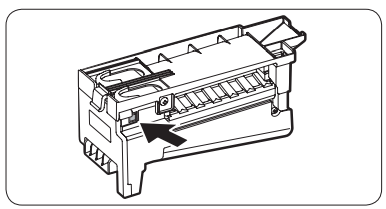
1. Press Test on the side of the ice maker. You will hear a chime (ding-dong) when you press the button.
2. You will hear another chime if the ice maker is operating properly.
CAUTION:
If the ice making chime rings repeatedly, contact the waterline installer or a local Samsung service center.
Do not press Test repeatedly after the ice tray is filled with ice or water. Water may overflow or ice may jam.
Do not put food in the ice bucket. The frozen food may damage the ice maker, especially when you open or close the door.
When the refrigerator recovers power after a power failure, the ice bucket may contain a mix of melted and jammed ice cubes, which can prevent the ice maker from working properly. To prevent this, make sure to empty the ice bucket before using the ice maker again.
Do not put fingers or any objects into the dispenser outlet or the ice maker. This can cause physical injury or property damage.
When reinserting the ice maker tray, make sure that the tray is properly centered at the entrance. Otherwise, the tray can get stuck.
Ice Maker Off
To disable the icemaker, tap Fridge Manager > Fridge Settings > Ice Maker on the Home screen, and then select Off. Make sure to empty the ice bucket.
Remaining ice cubes may clump together, making it difficult to remove them.
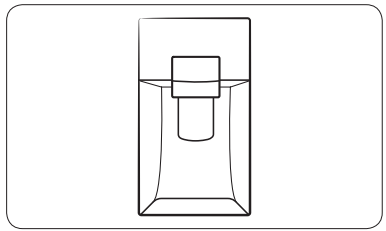
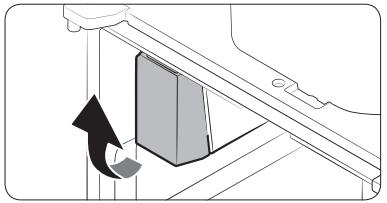
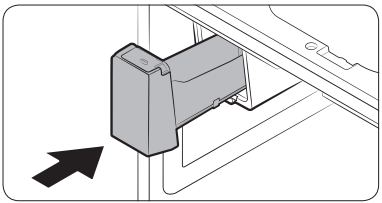
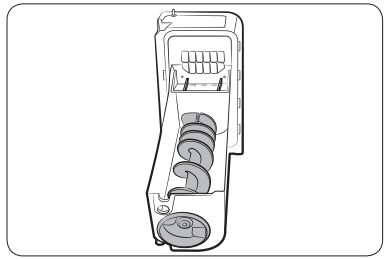
To remove the ice bucket.
NOTE: Removal of the ice bucket does not affect the thermal and mechanical performance of the refrigerator.
Water clouding
Water supplied to the refrigerator flows through a core alkaline filter. During this filtering process, the water pressure of the water increases and the water becomes saturated with oxygen and nitrogen. This causes the water to look misty or cloudy temporarily when dispensed. This is normal and the water will look clear after a few seconds.
FlexZone™
The FlexZone™ is a full-width drawer featuring temperature control. It has a temperature sensor that adjusts the amount of cold air allowed into the zone.
Press FlexZone™ repeatedly to select a desired mode. By default, Deli is selected.
The refrigerator adjusts the temperature in the FlexZone™ according to the selected mode.
Mode
Description
Examples
Wine
Select Wine to keep food fresh for a long time.
The temperature of the FlexZone™ will be kept around 42 °F (5 °C).
Wine, cocktails, cake, cheese
Deli
Select Deli to keep food fresh for a longer time.
The temperature of the FlexZone™ will be kept around 37 °F (3 °C).
Pineapples, lemons, biscuits, potatoes
Beverage
Select Beverage to keep drinks cold and refreshing.
The temperature of the FlexZone™ will be kept around 33 °F (1 °C).
Bottled water, juice, soft drinks, beer
Meat
Select Meat to keep meat or fish fresh for a longer time.
The temperature of the FlexZone™ will be kept around 29 °F (-1 °C).
Steaks, cold cuts, bacon, chili dogs
CAUTION:
Do not use the FlexZone™ to store most kinds of fruit or leafy vegetables. These food items may suffer cold-temperature damage.
Do not store glass bottles in the FlexZone™ in Beverage or Meat mode. They may break and cause physical injury.
FlexZone™ divider
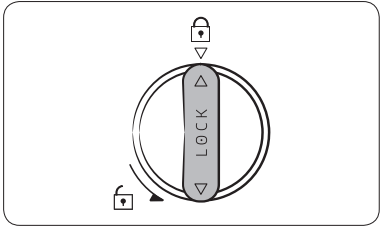
You can change the divider position. To do this, unlock the divider by turning the divider dial counter clockwise. Then, move the width and height bars as appropriate. When done, turn the dial clockwise to lock the divider.
NOTE: If the divider lock does not function, wipe the bars to remove moisture on them.
Maintenance
Handling and care
Ice bucket (applicable models only)
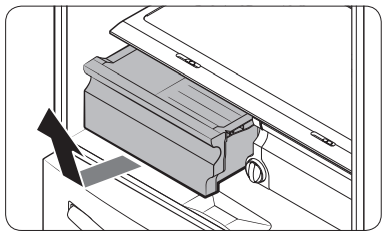
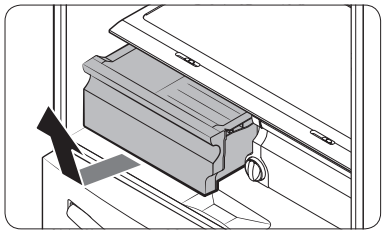
If you do not dispense ice for an extended period, ice may form clumps inside the bucket. If this happens, remove and empty the ice bucket.
1. To remove the ice bucket, gently lift it up, and then pull it out slowly while holding the bottom of the bucket with one hand and the side with the other hand.
2. Empty the bucket.
3. When done, put the bucket back into position. If the bucket does not fit in, turn the helix screw 90 degrees, and then try again.
If the ice bucket is not firmly inserted, turn the ice screw 90 degrees, and then try again.
CAUTION:
Do not apply excessive force to the bucket cover. The cover may break.
Do not forcefully close the door. Water may spill over the ice maker.
To prevent injury, make sure to clean up any ice or water that has fallen on the floor.
To prevent accidents or injury, do not let children play with the water dispenser or the ice maker.
Do not put your hand or an object into the ice chute. This may cause physical injury or product damage.
Use only the provided ice bucket. Third-party ice buckets may cause a system failure.
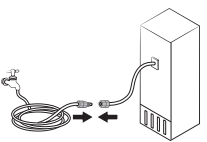
Use only potable water that is connected to the water supply line.
NOTE:
The water pressure required for ice making is between 20 psi and 125 psi (138 and 862 kPa).
Noise from the the ice maker as it produces ice during the ice making process is normal.
While the door is open, neither the ice maker nor the water dispenser operates.
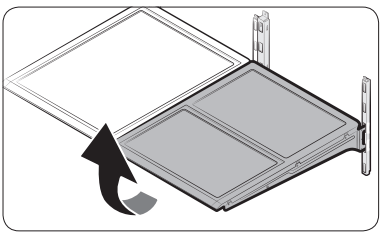
Tempered glass shelves (fridge)
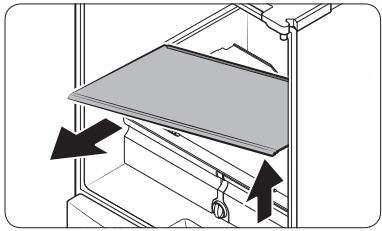
To remove a shelf, fully open the corresponding door. Hold the front of the shelf, and then gently lift up and slide out.
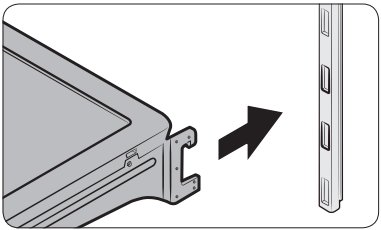
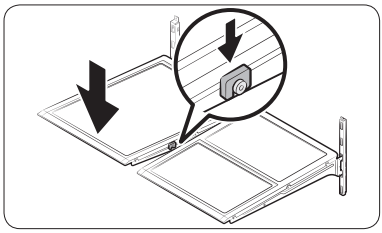
To reinsert, hold the shelf at an angle so the front is higher than the back, and then insert the top hook into the top shelf notch. Then, lower the shelf and insert the bottom shelf hook into the bottom shelf notch.
CAUTION:
The tempered glass shelves are heavy. Use caution when removing them.
The shelf must be inserted correctly. Do not insert upside down.
Glass containers may scratch the surface of glass shelves.
Door bins
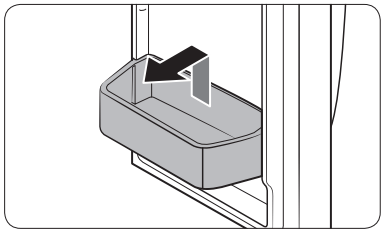
The top door bin section has a marked line to ensure easy removal and proper reinsertion.
Lift up the door bin, and then pull out straight.
CAUTION: Do not allow children to play with the bins. Sharp-edged corners may cause injury.
Vegetable & fruit drawers
Gently lift up the front of the drawer and slide out.
We recommend that you remove the door bins before removing the drawer. This is to prevent damage to the door bins.
Vegetable shelf
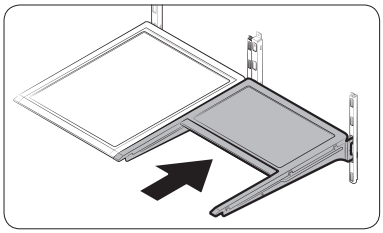
1. Slide out the left-side vegetable drawer.
2. Slide in the right-side foldable shelf.
3. While supporting the vegetable shelf with one hand, slide it out with the other hand.
NOTE: To use the space that is opened up after removing the foldable shelf, take out the vegetable shelf. To reinsert, follow the steps above in the reverse order.
FlexZone™ basket
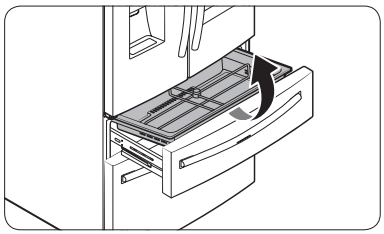
To remove, fully open the FlexZone™ drawer. Lift up the FlexZone™ basket, and then pull out with both hands.
To reinsert, fully open the FlexZone™ drawer. While tilting up the front of the basket, insert the rear of the basket into the rail assembly. Lower the front until the basket settles down.
If the divider lock does not function, wipe the bars to remove moisture on them.
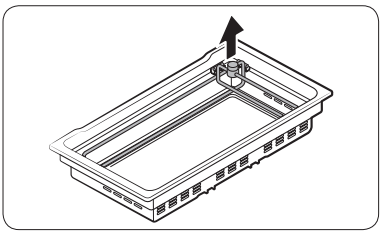
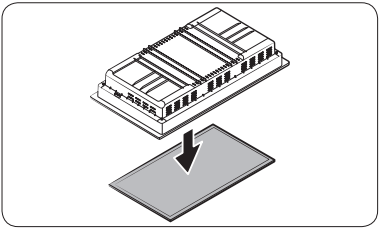
To remove the divider and the metal cooling plate (applicable models only) from the FlexZone™ basket
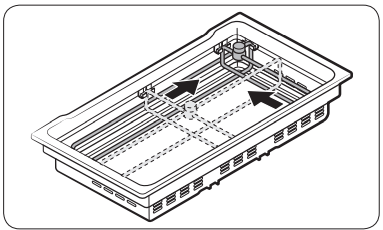
1. Unlock the divider by turning the divider dial counter clockwise.
2. Slide the divider to the end as shown.
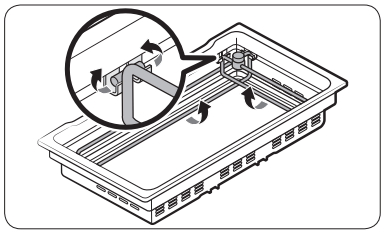
3. The divider has width and length bars. Push the lower part of each bar inward to unlock.
4. Hold the divider and pull up to remove.
5. Turn over the basket to remove the metal cooling plate.
CAUTION: The basket and the metal cooling plate are heavy. Use caution when handling them. Careless handling may cause personal injury or property damage.
To reinsert the metal cooling plate
Reinsertion in the reverse order of removal.
Reinsert the divider into the FlexZone™ basket firmly until you hear a click.
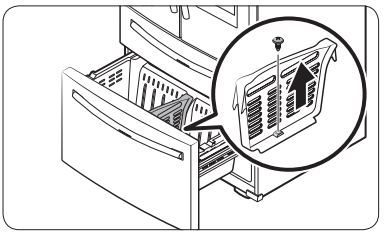
Freezer basket divider
Loosen and remove the screw from the lower side of the divider. Then, pull straight up to remove the divider.
Cleaning
Interior and exterior
WARNING:
Do not use benzene, thinner, home/car detergent, or Clorox™ for cleaning. They may damage the surface of the refrigerator or cause a fire.
Do not spray water onto the refrigerator. This may cause electric shock.
Do not put fingers or any objects into the dispenser outlet.
Regularly use a dry cloth to remove all foreign substances such as dust or water from the power plug terminals and contact points.
To clean the refrigerator
1. Unplug the power cord.
2. Use a moistened, soft, lint-free cloth or paper towel to clean the refrigerator’s interior and exterior.
3. When done, use a dry cloth or paper towel to dry well.
4. Plug in the power cord.
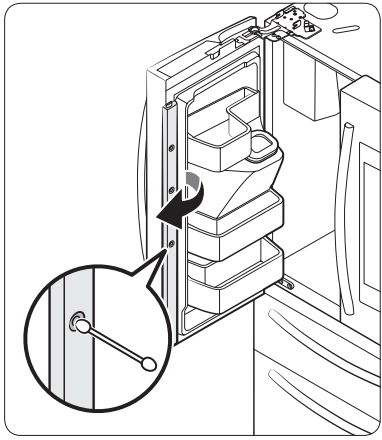
Inner-view camera
NOTE: Use a cotton swab or microfiber cloth to clean the camera on the left-side door of the fridge.
Replacement
Water filter (applicable models only)
WARNING:
Do not use third-party water filters. Use only Samsung-provided or -approved filters.
Unapproved filters may leak and damage the refrigerator, causing electric shock. Samsung is not responsible for any damage that may occur from use of third-party water filters.
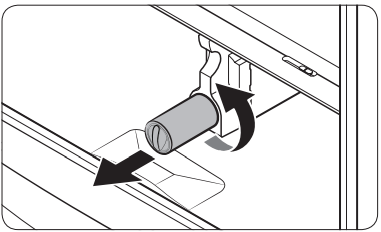
The filter indicator ( ) turns red to let you know it is time to replace the water filter. Before replacing the filter, shut off the water supply line.
1. Turn the knob of the filter cartridge counter clockwise 90 degrees (1/4 turn). The filter cartridge unlocks.
2. Pull out to remove the cartridge.
If the water filter is severely contaminated, the cartridge may not be easy to remove. If that is the case, use force to remove the cartridge.
To prevent water leaks from the filter opening, pull the cartridge straight out while removing it.
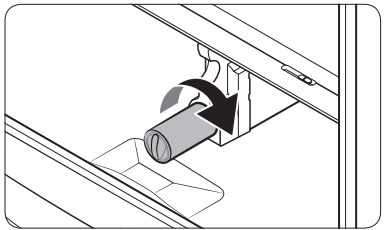
3. Insert a new filter cartridge. Use only Samsung-provided or approved filters.
4. Turn the cartridge knob clockwise to lock into place.
5. On the Home screen, tap Fridge Manager > Fridge Settings > Water Filter, and then select Reset. The filter indicator turns off.
6. When you are done replacing the filter, open the water valve and run water through the dispenser for about 7 minutes. This is to remove impurities and air from the water line.
NOTE:
A newly installed filter may cause the water dispenser to spurt water briefly. This is because air has entered the waterline.
The replacement process may cause the water dispenser to drip for a short period of time. If it drips, simply wipe up any water on the floor with a dry towel.
Reverse osmosis water filtration system
The water pressure of the water supply system to a reverse osmosis water filtration system must be between 35 psi and 120 psi (241 kPa and 827 kPa).
The water pressure of the reverse osmosis water filtration system to the refrigerator’s cold water line must be at least 40 psi (276 kPa). If the water pressure is below these specifications:
Check if the sediment filter in the reverse osmosis system is blocked. Replace the filter if necessary.
Refill the water tank in the reverse osmosis system with water.
If your refrigerator has a water filter, it may further reduce the water pressure when used in conjunction with a reverse osmosis system. Remove the water filter.
For more information or servicing, contact a licensed plumbing professional.
LED Lights
To replace the LED lights on the refrigerator, contact a local Samsung service center.
WARNING: The LED lights are not user-serviceable. Do not attempt to replace an LED light yourself. This can cause electric shock.
Troubleshooting
General
Temperature
Symptom
Possible causes
Solution
Fridge/freezer does not operate. Fridge/freezer temperature is warm.
Power cord is not plugged in properly.
Properly plug in the power cord.
Temperature control is not set correctly.
Set the temperature lower.
Refrigerator is located near a heat source or direct sunlight.
Keep the refrigerator away from direct sunlight or a heat source.
Not enough clearance between refrigerator and nearby walls or cabinets.
Make sure there is a gap of at least 2.5 inches (5 cm) between the refrigerator back and sides and any nearby walls or cabinets.
The refrigerator is overloaded. Food is blocking the refrigerator vents.
Do not overload the refrigerator. Do not allow food to block ventilation.
Fridge/freezer is over-cooling.
Temperature control is not set correctly.
Set the temperature higher
Interior wall is hot
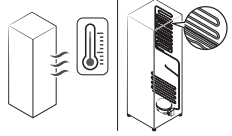
Refrigerator has heat-proof piping in the interior wall.
To prevent condensation from forming, the refrigerator has heat-proof piping in the front corners. If the ambient temperature rises, this equipment may not work effectively. This is not a system failure.
Odors
Symptom
Possible causes
Solution
Refrigerator has odors.
Spoiled food.
Clean the refrigerator and remove any spoiled food.
Food with strong odors.
Make sure strong smelling food is wrapped airtight.
Frost
Symptom
Possible causes
Solution
Frost around the vents.
Food is blocking the vents.
Make sure no food blocks the refrigerator vents.
Frost on interior walls.
Door is not closed properly.
Make sure food does not block the door. Clean the door gasket.
Fruits or vegetables are frozen.
Fruits or vegetables are stored in the FlexZone and the temperature was set too low.
Set the temperature of the FlexZone to a temperature appropriate for fruits or vegetables.
Condensation
Symptom
Possible causes
Solution
Condensation forms on the interior walls.
If door is left open, moisture enters the refrigerator.
Remove the moisture and do not leave a door open for extended periods of time.
Food with high moisture content.
Make sure food is wrapped airtight.
Water/ice (dispenser models only)
Symptom
Possible causes
Solution
Water flow is weaker than normal.
Water pressure is too low.
Make sure the water pressure is between 20 to 120 psi (138 to 827 kPa).
Ice maker makes a buzzing sound.
The ice maker function is activated, but the water supply to the refrigerator has not been connected.
Press Ice Maker off .
Ice maker does not make ice.
Ice maker has just been installed.
You must wait 12 hours for the refrigerator to make ice.
Freezer temperature is too low.
Set the freezer temperature below 0 °F (-18 °C) or -4 °F (-20 °C) in warm, ambient air.
Dispenser Lock is activated.
Deactivate Dispenser Lock.
Ice maker is off.
Turn on the ice maker.
Ice does not dispense.
Ice may jam if the ice dispenser is not used for a long time (approx. 3 weeks).
If you won't be using the refrigerator for a long time, empty the ice bucket and turn off the ice maker.
Ice bucket is not properly inserted.
Make sure the ice bucket is properly inserted.
Water line is not connected properly or water supply is not on.
Check if the water line is installed correctly. Check if the water line stop cock is closed.
Water does not dispense.
Water line is not connected properly or water supply is not on.
Check the water installation conditions.
Dispenser Lock is activated.
Deactivate Dispenser Lock.
A third-party water filter was installed.
Use only Samsung-provided or approved filters.
Unapproved filters may leak and damage the refrigerator.
Water filter indicator turns on or blinks.
Replace the water filter. After replacing, reset the filter indicator sensor.
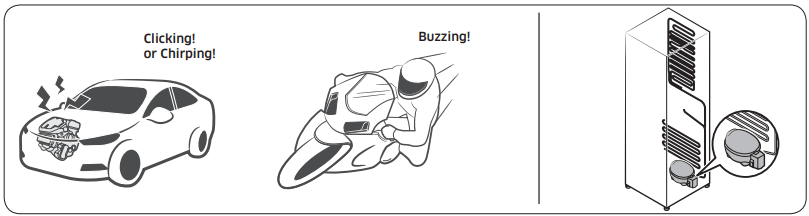
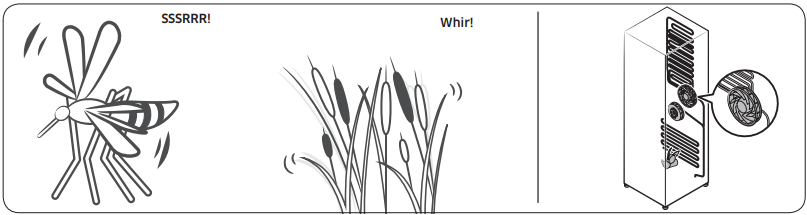
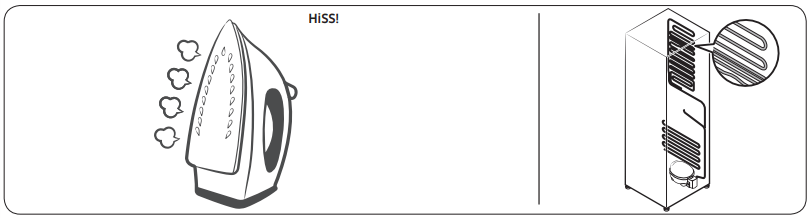
Do you hear abnormal sounds from the refrigerator?
These sounds are normal.
When starting or ending an operation, the refrigerator may make sounds similar to a car engine ignition. As the operation stabilizes, the sounds will decrease.
While the fan is operating, these sounds may occur. When the refrigerator reaches the set temperature, the fan sound will stop.
During a defrost cycle, water may drip on the defrost heater, causing sizzling sounds
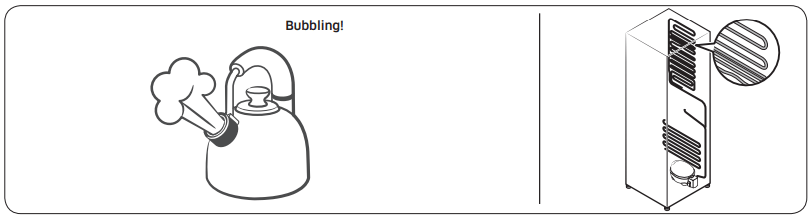
As the refrigerator cools or freezes, refrigerant gas moves through sealed pipes, causing bubbling sounds.
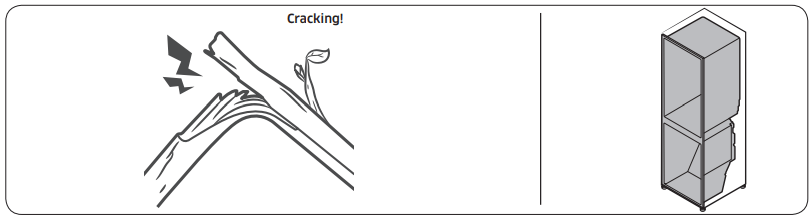
As the refrigerator temperature increases or decreases, plastic parts contract and expand, creating knocking noises. These noises occur during the defrosting cycle or when electronic parts are working.
For ice maker models: When the water valve opens to fill the ice maker, buzzing sounds may occur.
Due to pressure equalizing when you open and close the refrigerator door, whooshing sounds may occur.
SmartThings
Symptom
Action
Could not find “SmartThings” in the app market.
The SmartThings app is designed for Android 6.0 (Marshmallow) or later, iOS 10.0 or later, iPhone 6 or later, and is optimized for Samsung smartphones (Galaxy S and Galaxy Note series).
The SmartThings app fails to operate.
The SmartThings app is available for applicable models only.
The old Samsung Smart Refrigerator app cannot connect with Samsung Smart Home models.
The SmartThings app is installed but is not connected to my refrigerator.
You must log into your Samsung account to use the app.
Make sure that your router is operating normally.
If you have not connected your refrigerator to the SmartThings App after the app was installed, you must make the connection using the device registration function of the app.
Could not log into the app.
You must log into your Samsung account to use the app.
If you don’t have a Samsung account, follow the app’s onscreen instructions to create one.
An error message appears when I try to register my refrigerator.
Easy Connection may fail due to the distance from your access point (AP) or electrical interference from the surrounding environment. Wait a moment and try again.
The SmartThings app is successfully connected to my refrigerator but does not run
Exit and restart the SmartThings app or disconnect and reconnect the router.
Unplug the power cord of the refrigerator, and then plug it in again after 1 minute.
Samsung Family Hub
Symptom
Action
Could not find “Samsung Family Hub” in the app market.
The Samsung Family Hub app is available for smartphones that run Android 4.4 (KitKat) or higher, or iOS 8.0 or higher.
Could not log into the app.
You must log into your Samsung account to use the app.
If you don’t have a Samsung account, follow the app’s onscreen instructions to create one.
Smart Grid (applicable models only)
Symptom
Action
What Do I Need to use the Energy Management and Smart Grid functions?
To use the Smart Grid (Demand Response) and Energy Management functions on your refrigerator, you need the following:
Devices
A wireless access point (router)
A Samsung Energy Management-supported refrigerator
A smartphone
Registration
Connect your refrigerator to your home Wi-Fi network.
Register for the EMS service with your electric company. Your electric company must have an EMS (Energy Management System) supporting SEP (Smart Energy profile).
App
Download the SmartThings app from the Google Play Store, Apple App Store, or Samsung Galaxy Apps.
Install and run the SmartThings app on your smartphone.
Why isn’t the Energy Management function working normally?
Make sure that your home router is operating normally with proper Internet service and connection.
Make sure that the refrigerator is connected to the AP (router).
Checkpoints
Connect your smartphone to the router (AP, Access Point), and then check if you can browse the Internet on the smartphone.
Why isn’t the Delay Defrost Capability working normally?
Make sure that your home router is operating normally with proper Internet service and connection.
LCD
Symptom
Action
Cannot connect to my TV.
This refrigerator can connect only with Samsung Smart TV 6400 series or higher models released since 2015. Please check the model name of your TV first.
Network connections may suffer temporary interruptions. Turn your TV off, and then try again.
The inner view picture looks bulged out or incomplete.
The edges of the inner view may look bulged out. The bulging is caused by the convex lens of the camera.
The inner view may be incomplete due to the blind spots on the left and right corners or be screened depending on the layout of food items. Make sure to place food items in the front center.
The displayed measurement on the Fridge Manager is not correct.
The displayed conditions may differ from the actual temperature and humidity.
 )
) )
) )
) )
) )
) )
) )
) )
)
 ) turns red to let you know it is time to replace the water filter. Before replacing the filter, shut off the water supply line.