DigitalDigital
MODEL
AR-C250
• GETTING STARTED
• MAKING COPIES
•
SPECIAL FUNCTIONS
•
SUPPLIES
•
COPIER TROUBLE?
• GENERAL
INFORMATION
•
OPTIONAL EQUIPMENT
1-1
2-1
3-1
4-1
5-1
6-1
7-1
DIGITAL FULL COLOR
COPYING MACHINE
OPERATION MANUAL
Page
• GETTING STARTED
• MAKING COPIES
• SPECIAL FUNCTIONS
• SUPPLIES
• COPIER TROUBLE?
• GENERAL
INFORMATION
• OPTIONAL EQUIPMENT
1-1
2-1
3-1
4-1
5-1
6-1
7-1
DIGITAL FULL COLOR
COPYING MACHINE
OPERATION MANUAL
Page

❧❧❧❧❧❧❧❧❧❧❧❧❧❧❧❧❧❧❧❧❧❧❧❧❧❧❧❧❧❧❧❧❧❧❧❧❧❧❧❧❧❧❧❧❧❧❧
❧
❧❧❧❧❧❧❧❧❧❧❧❧❧❧❧❧❧
❧
❧❧❧❧❧❧❧❧❧❧❧❧❧❧❧❧❧❧❧❧❧❧❧❧❧❧❧❧❧❧❧❧❧❧❧❧❧❧❧❧❧❧❧❧❧❧❧
❧
❧❧❧❧❧❧❧❧❧❧❧❧❧❧❧❧❧
❧
➢➣➢➣➢➣➢➣➢➣➢➣➢➣➢➣➢➣➢➣➢➣➢➣➢➣➢➣➢➣➢➣
➢
➣➢➣➢➣➢➣➢➣➢➣➢➣➢➣➢➣➢➣
➢
➣➢➣➢➣➢➣➢➣➢➣➢➣➢➣➢➣➢➣➢➣➢➣➢➣➢➣➢➣➢➣➢➣
➢
➣➢➣➢➣➢➣➢➣➢➣➢➣➢➣➢➣➢➣
➢
➣
The power switch positions are marked “I” to indicate power “ON” and
“ ” to indicate stand-by.
In the stand-by position, power is being supplied to a drying heater
within the optical system of the copier.
Caution:
For complete electrical disconnection, pull out the main plug.
The socket-outlet shall be installed near the equipment and shall be
easily accessible.
FOR YOUR RECORDS ...
To protect against loss or theft, record and retain for reference the
copier’s serial number located on the right hand side at the rear corner
of the copier.
Model Number
AR-C250
Serial Number
Date of Purchase
Place of Purchase
Authorized Sharp Copier
Service Department Number
Do not make copies of anything which is prohibited from copying by law. The following items are
nomally prohibited from copying by national law. Other items may be prohibited by local law.
●
Money
●
Stamps
●
Bonds
●
Stocks
●
Bank drafts
●
Checks
●
Passports
●
Driver’s licenses
1
The following pages contain samples of the various color copying functions described in this manual. They are
designed to demonstrate the wide range of capabilities and applications for the Sharp AR-C250 digital full color
copying machine.
Note that the samples shown on page 1 to page 8 are not actual copies from the AR-C250 copier. The colors
displayed may differ from those of actual copies.
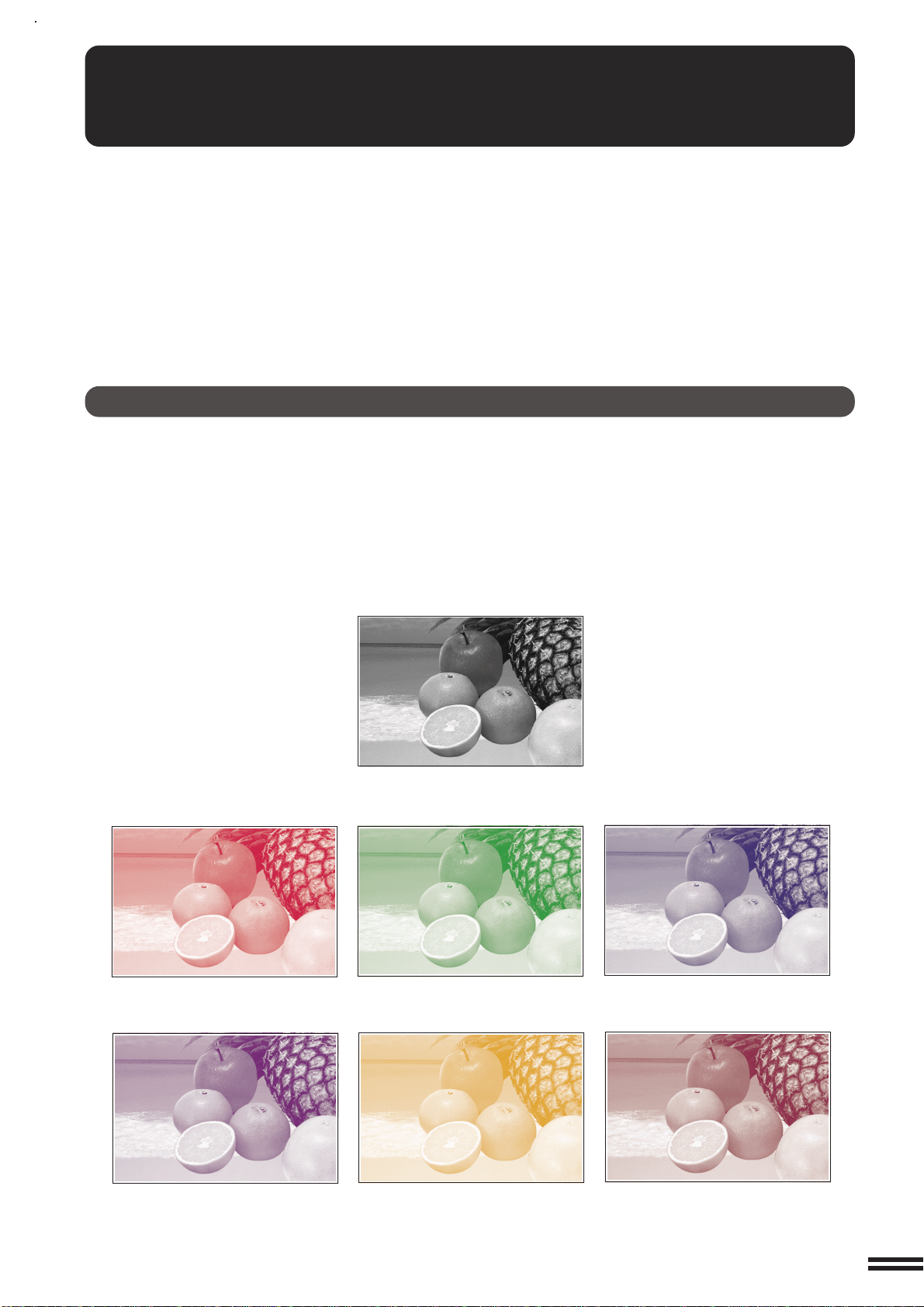
Color Copying with Special Features
1. Single color copying (See page 3-24.)
The single color function is used to produce copies using a selected single color.
Original
Red
Purple
Green
Orange
Blue
Brown
COLOR COPY SAMPLES
2
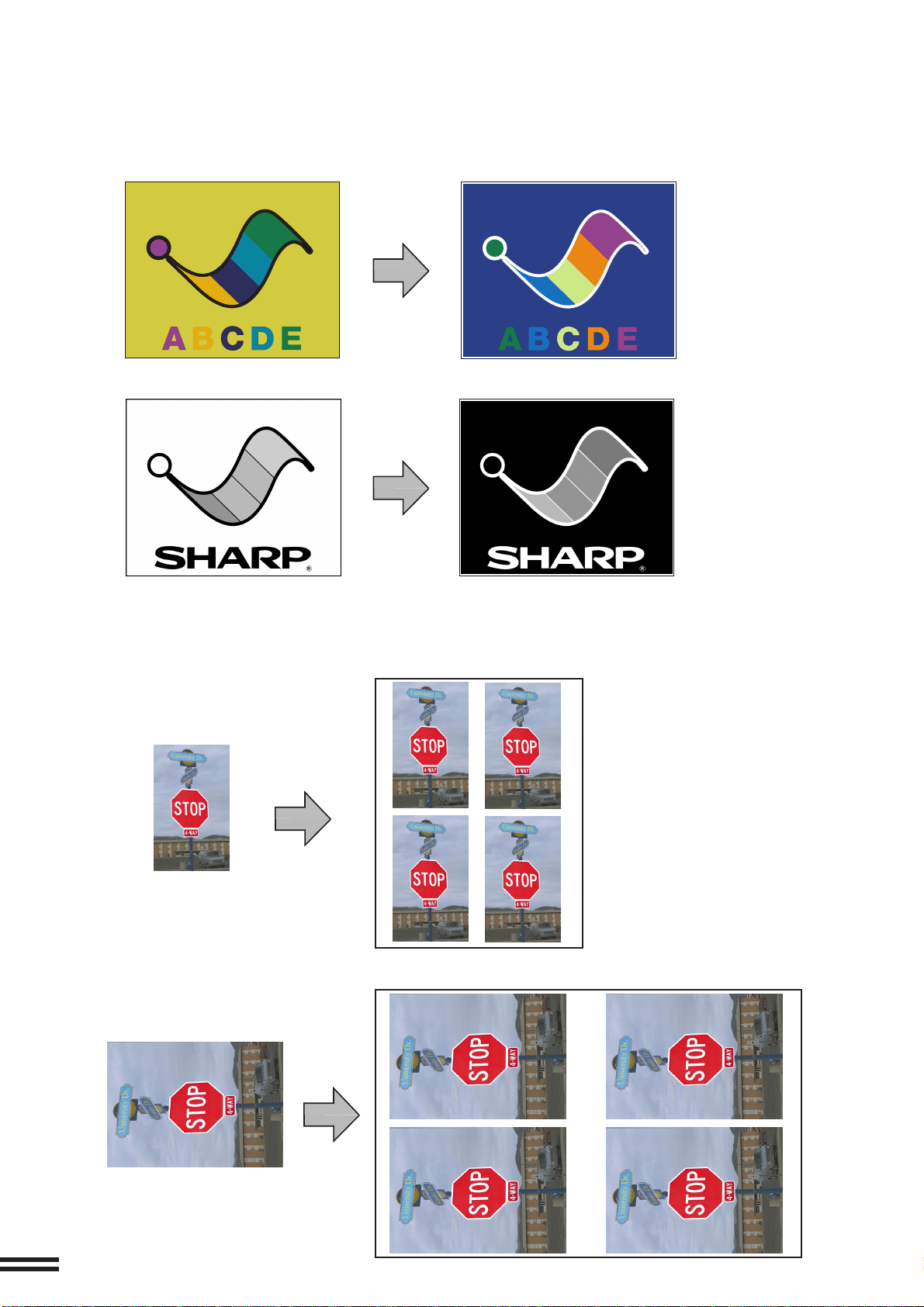
2. Neg./Pos. Reverse (See page 3-26.)
The NEG./POS. REVERSE function is used to transform a color original into its complementary colors. If this function
is selected in the black/white mode, the black and white areas of the original will be reversed.
Original
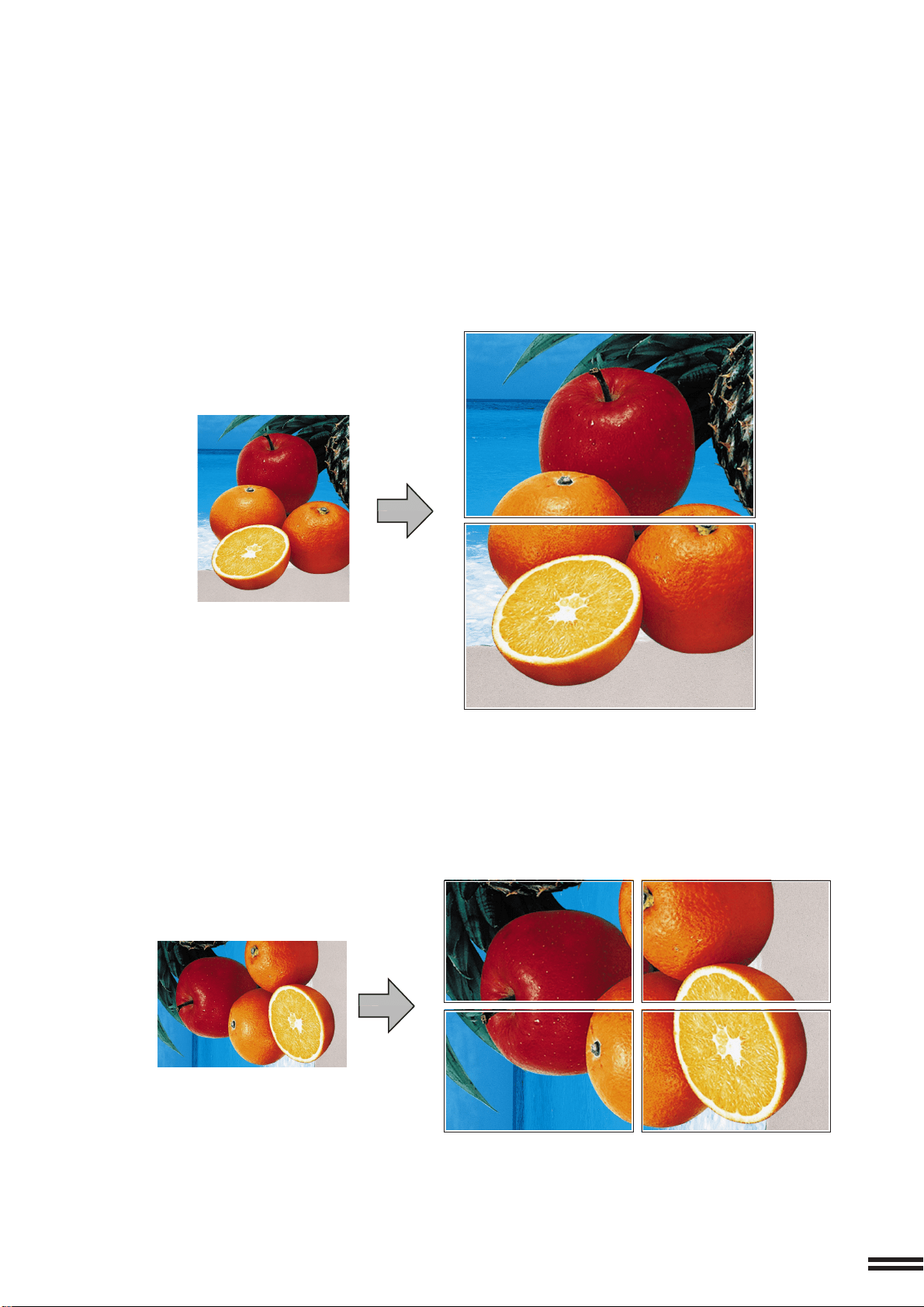
3. Photo repeat (See page 3-30.)
PHOTO REPEAT is used to produce multiple copies of a photo on a single sheet of copy paper.
Copy (8-1/2" x 11")
Copy (11" x 17")
Color copy
Black/white copy
Original (3" x 5")
Original (5" x 7")
3
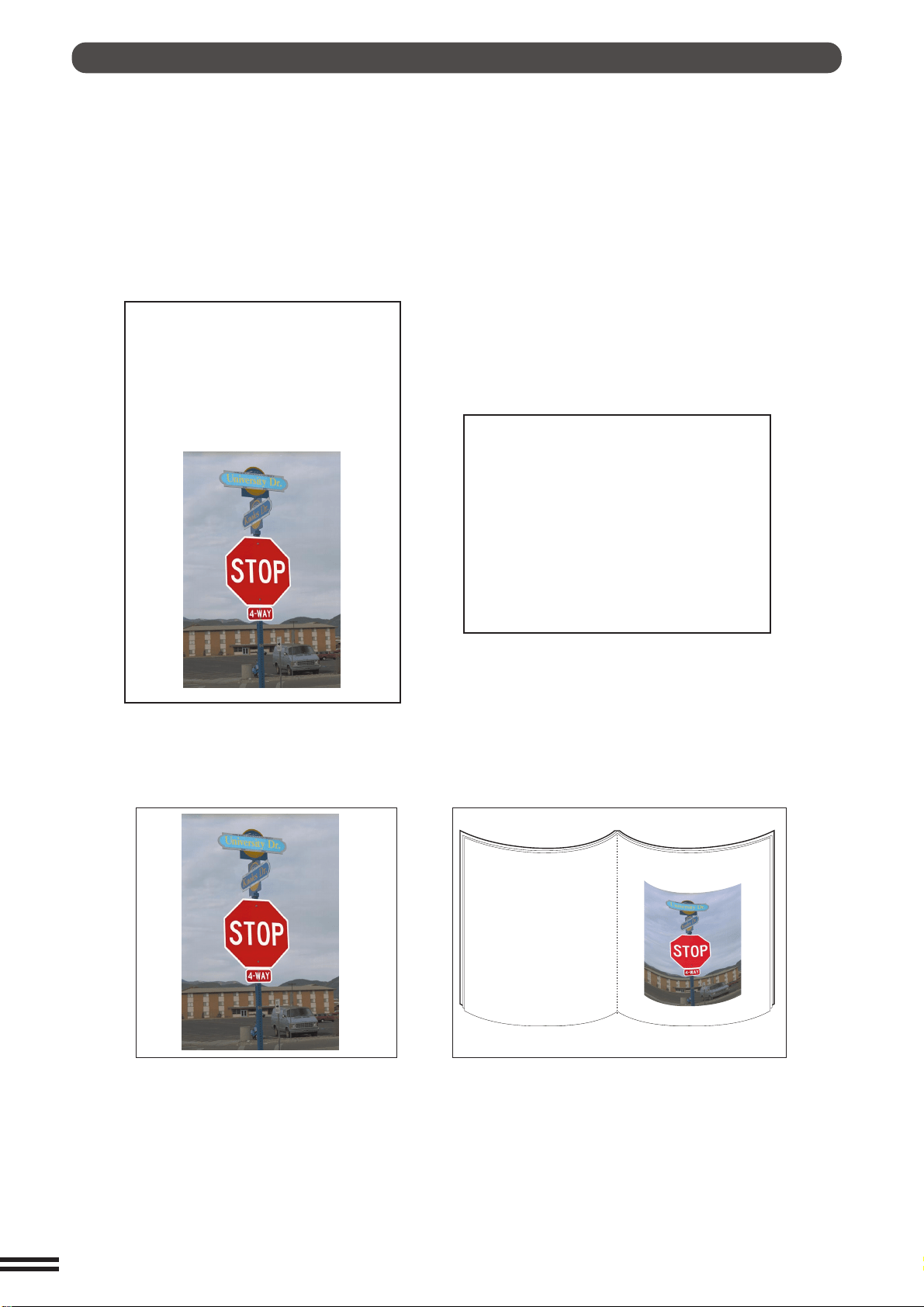
4. Multi-page Enlargement (See page 3-34.)
This function is used to enlarge an original image to a size larger than 11" x 17" and to print portions of the image onto
multiple sheets of paper.
Original (8.5" x 11")
Copies (2 sheets of 11" x 17")
Original (11" x 17")
Copies (4 sheets of 11" x 17")
4
Adjustments for Color Copying
1. Exposure adjustments (See page 2-16.)
Exposure selections for this copier should be selected according to the type of originals being copied: TEXT/PRTD.
PHOTO, TEXT/PHOTO, TEXT, PHOTO, PRINTED PHOTO or MAP.
Text/prtd. photo mode,
Text/photo mode:
Text mode:
Photo mode:
Printed photo mode:
This mode is useful for copying printed photographs.This mode provides the best quality
reproduction of photographs with
fine detail.
This mode is useful for enhancing low density
areas of an original or suppressing high density
background areas.
K
E
Y
O
P
E
R
A
T
O
R
C
O
D
E
N
U
M
B
E
R
A
k
e
y
o
p
e
r
a
t
o
r
c
o
d
e
n
u
m
b
e
r
m
u
s
t
b
e
r
e
g
i
s
t
e
r
e
d
b
e
f
o
r
e
a
k
e
y
o
p
e
r
a
t
o
r
p
r
o
g
r
a
m
c
a
n
b
e
u
s
e
d
.
T
h
e
k
e
y
o
p
e
r
a
t
o
r
m
u
s
t
r
e
m
e
m
b
e
r
t
h
i
s
n
u
m
b
e
r
.
O
n
l
y
t
h
i
s
r
e
g
i
s
t
e
r
e
d
n
u
m
b
e
r
w
i
l
l
a
l
l
o
w
a
c
c
e
s
s
t
o
t
h
e
k
e
y
o
p
e
r
a
t
o
r
p
r
o
g
r
a
m
s
.
R
e
g
i
s
t
e
r
i
n
g
t
h
e
k
e
y
o
p
e
r
a
t
o
r
c
o
d
e
n
u
m
b
e
r
1
P
r
e
s
s
t
h
e
C
U
S
T
O
M
S
E
T
T
I
N
G
S
k
e
y
.
P
h
o
t
o
KEY OPERATOR CODE NUMBER
A key operator code number must be registered
before a key operator program can be used. The
key operator must remember this number. Only
this registered number will allow access to
the key operator programs.
Registering the key operator code number.
1 Press the CUSTOM SETTINGS key.
These modes provide the best
balance for copying originals which
contain text, printed photos and
photos.

5
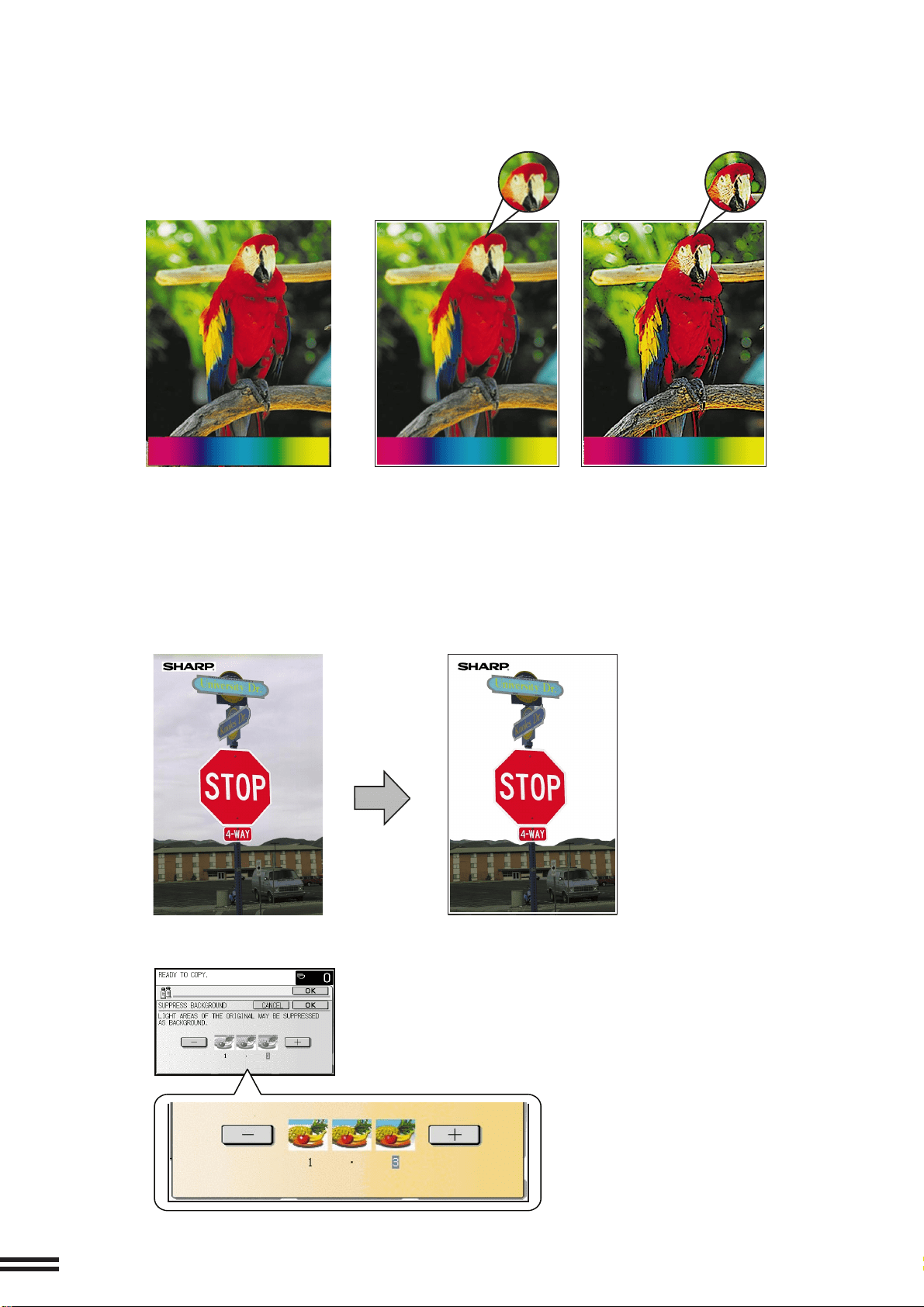
2. RGB Adjust (See page 3-16.)
RGB adjustments function to increase or decrease the overall amount of a single primary color. The amount of change
depends upon the characteristics of the particular original being copied. Generally, lighter toned areas will be affected
to a greater degree than will darker toned areas.
Original
Blue +
Blue -
Green +
Green -
Red +
Red -
The thumbnails appearing on the screen
are a guideline to show the relative effect of
adjustments. The actual amount of change
will vary for different originals.
6
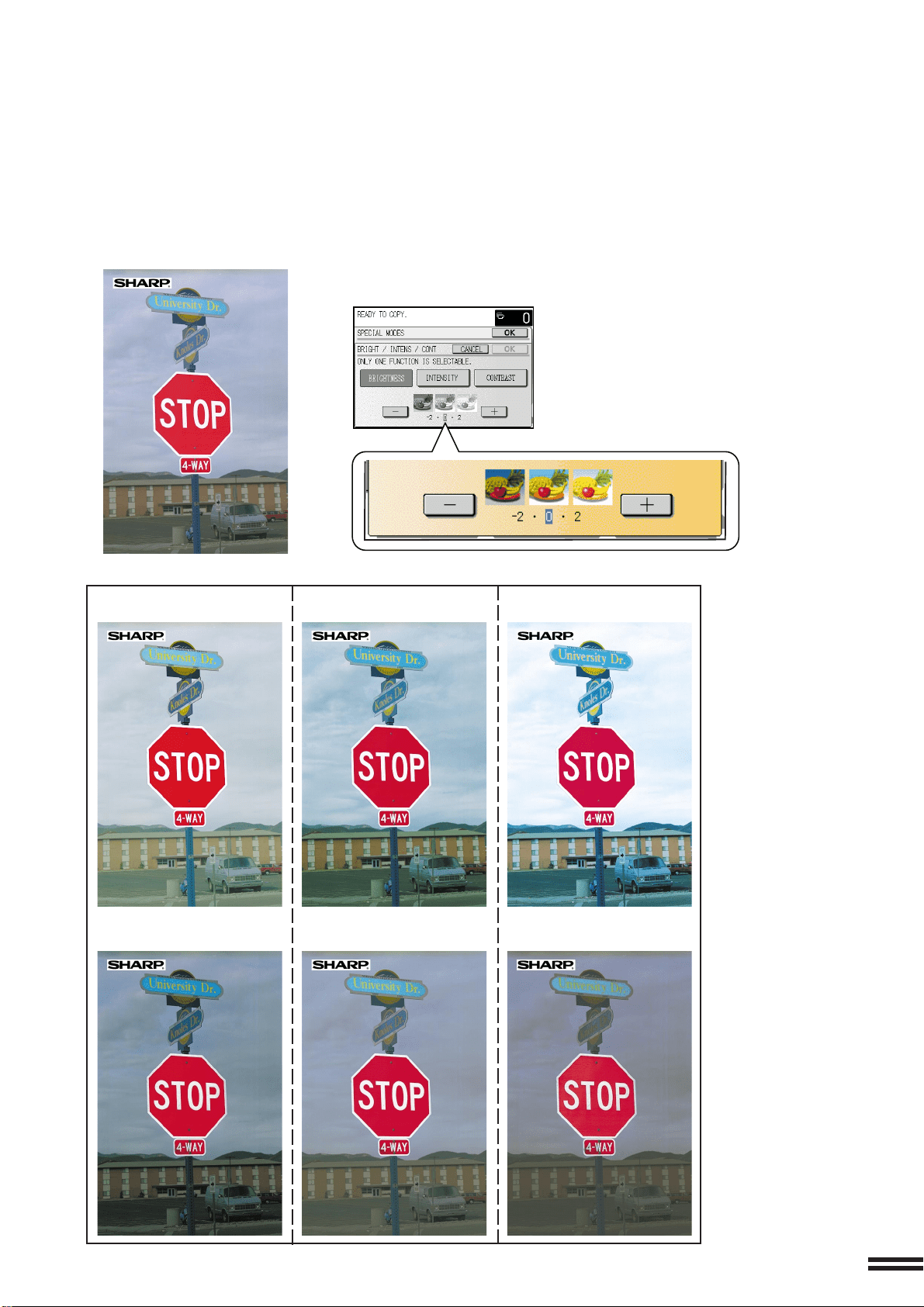
4. Suppress background (See page 3-20.)
This copier can suppress unnecessary background colors on the original image when copying. This function is used
to adjust the density level of background colors to be erased.
Original Copy
3. Sharpness (See page 3-18.)
This function is used to sharpen or soften image outlines.
Original Softer Sharper
The thumbnails appearing on the screen
are a guideline to show the relative effect of
adjustments. The actual amount of change
will vary for different originals.
7
Contrast +Brightness + Intensity +
Contrast -Brightness - Intensity -
Original
5. Brightness/intensity/contrast (See page 3-22.)
This copier allows the level of brightness, intensity or contrast of images to be adjusted. If brightness is selected, color
tone can be darkened or lightened. If intensity is selected, the level of color saturation can be modified between vivid
and dull. If contrast is selected, the contrast between two image areas can be adjusted higher or lower.
The thumbnails appearing on the screen
are a guideline to show the relative effect of
adjustments. The actual amount of change
will vary for different originals.
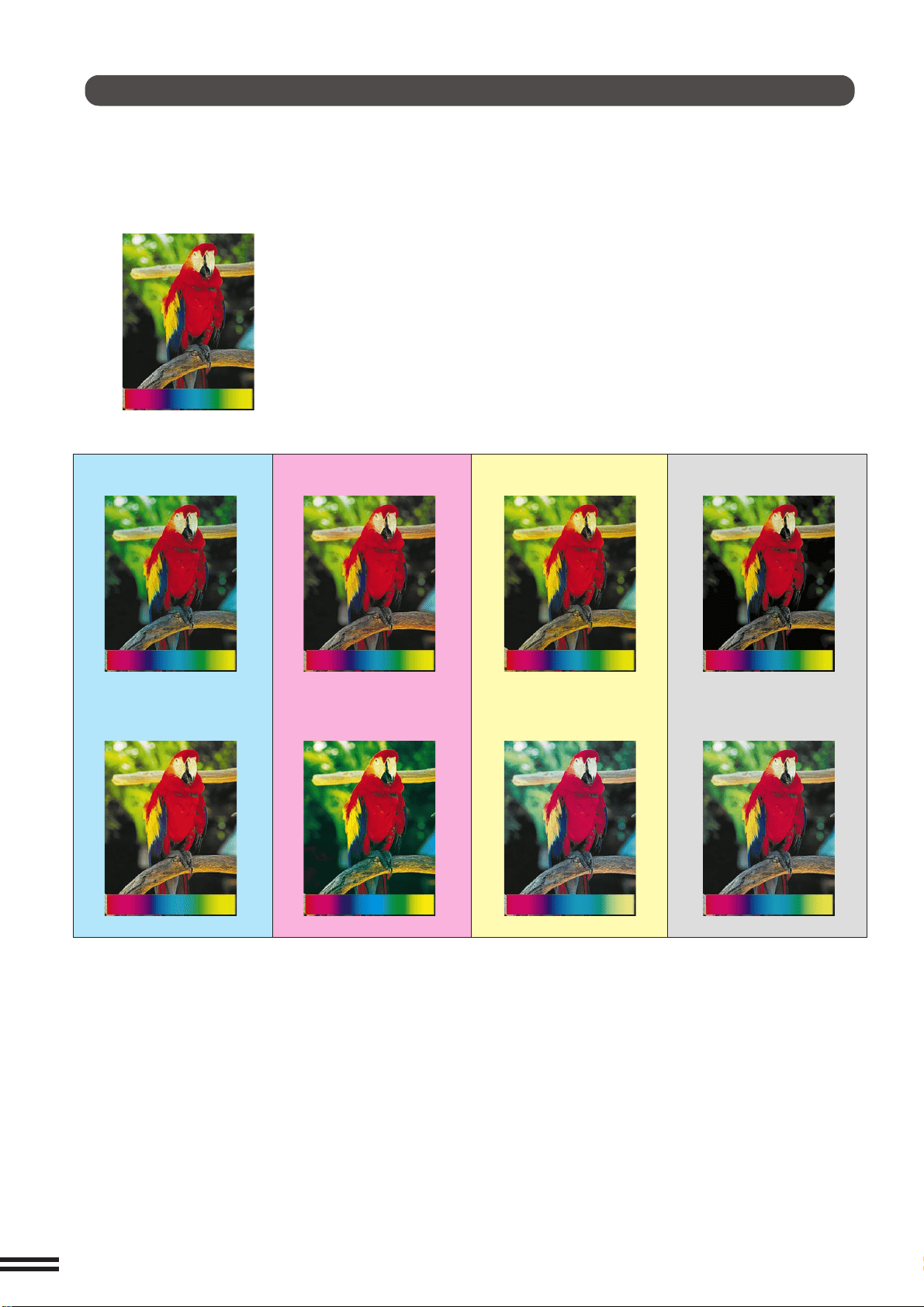
8
Color Balance
The key operator program Color Balance allows the key operator to adjust the density of colors. Adjusted color
samples are shown below. (See page 22 of the KEY OPERATOR’S GUIDE.)
Black adjustment -
Cyan adjustment-
Magenta adjustment -
Yellow adjustment -
Black adjustment +
Cyan adjustment + Magenta adjustment +
Yellow adjustment +
Original

9
CHAPTER 4
SUPPLIES
●
PAPER .......................... 4-2
Types and sizes of copy paper ......... 4-2
Loading copy paper ................. 4-2
●
ADDING TONER ................... 4-5
●
USED TONER DISPOSAL ............ 4-8
●
STORAGE OF SUPPLIES ............ 4-9
CHAPTER 5
COPIER TROUBLE?
●
MISFEED REMOVAL................ 5-2
●
MAINTENANCE REQUIRED ......... 5-11
●
TONER COLLECTING CONTAINER OF
TRANSFER UNIT ................. 5-12
●
TROUBLESHOOTING .............. 5-13
CHAPTER 6
GENERAL INFORMATION
●
PART NAMES AND FUNCTIONS....... 6-2
Exterior .......................... 6-2
Interior .......................... 6-3
Operation panel .................... 6-4
Touch panel (Basic screen) ........... 6-5
●
USER MAINTENANCE .............. 6-6
●
TOUCH PANEL CONTRAST
ADJUSTMENT .................... 6-7
●
SPECIFICATIONS .................. 6-8
CHAPTER 7
OPTIONAL EQUIPMENT
●
SYSTEM CONFIGURATION .......... 7-2
●
20-BIN STAPLE SORTER (AR-SS2)..... 7-3
●
LARGE CAPACITY TRAY (AR-LC2) .... 7-15
●
FINISHER (AR-FN4) ............... 7-19
●
INTRODUCTION ....................10
●
USING THIS MANUAL................10
CHAPTER 1
GETTING STARTED
●
INSTALLATION REQUIREMENTS ...... 1-2
●
CAUTIONS ....................... 1-3
●
POWER ON AND OFF............... 1-5
Power save modes ................. 1-6
●
INFORMATION FUNCTION ........... 1-7
●
USING THE TOUCH PANEL .......... 1-8
How to use the touch panel ........... 1-8
Selection of function................. 1-8
Function setting icons ............... 1-9
CHAPTER 2
MAKING COPIES
●
AUDITING ACCOUNTS .............. 2-2
●
COPYING FROM THE DOCUMENT
GLASS .......................... 2-3
●
USING THE RADF ................. 2-6
●
REDUCTION/ENLARGEMENT/ZOOM .. 2-11
●
SPECIAL PAPERS (manual feed) ...... 2-14
Two-sided copying with bypass tray .... 2-15
●
EXPOSURE ADJUSTMENTS......... 2-16
●
JOB MEMORY ................... 2-18
●
INTERRUPTING A COPY RUN ....... 2-20
CHAPTER 3
SPECIAL FUNCTIONS
●
XY ZOOM ........................ 3-2
●
MARGIN SHIFT.................... 3-4
●
ERASE .......................... 3-6
●
DUAL PAGE COPYING .............. 3-8
●
CENTERING ..................... 3-10
●
TRANSPARENCY FILM WITH
INSERT SHEETS ................. 3-12
●
COVERS ....................... 3-14
●
COLOR ADJUSTMENTS ............ 3-16
RGB adjust ...................... 3-16
Sharpness....................... 3-18
Suppress background .............. 3-20
Brightness/intensity/contrast .......... 3-22
●
IMAGE EDITING FUNCTIONS ........ 3-24
Single color ...................... 3-24
Neg./pos. reverse ................. 3-26
Mirror image ..................... 3-28
Photo repeat ..................... 3-30
11x17 full-bleed ................... 3-32
Multi-page enlargement ............. 3-34
Extra size ....................... 3-36
Page
Page
CONTENTS
CHAPTER1
CHAPTER2 CHAPTER3
CHAPTER4
CHAPTER5 CHAPTER6 CHAPTER7

10
INTRODUCTION
The AR-C250 copier is a digital color image processing copier which provides
high productivity at a color copy speed of 25 copies/minute and convenient
features including intelligent image-editing functions.
Amongst its many useful features and functions are the document feeder
(optional), photo copying, internal auditor, and various special functions such as
dual page copying, margin shift, erase, XY zoom, and NEG./POS. reverse
functions. This copier can be equipped with an optional large capacity tray which
holds 3,000 sheets of copy paper. The machine can also be equipped with an
optional staple sorter or an optional finisher with offset stack function to provide
finished copy sets ready for distribution.
This copier was also designed with ease of use in mind. The easy-to-understand
and colored operation panel with touch panel system and INFORMATION
function will guide the user through most operations. To gain the maximum
benefit of all the copier features, however, it is recommended that users first read
this manual to become familiar with all the copier features.
NOTES:
●
This manual describes only copier features. For a description of optional
printer features, see the separate relevant manual.
●
This copier can be equipped with an optional document cover or reversing
automatic document feeder (RADF). The illustrations in this manual are
mainly for the copier with an optional RADF installed.
●
The display on the touch panel varies with installation of optional equipment.
The illustrations of the touch panel in this manual are mainly for the copier with
an optional RADF (AR-RF1) installed.
USING THIS MANUAL
This manual is intended as an operation guide for both general users and key
operators.
For General Users
It is recommended that you read the GETTING STARTED, MAKING COPIES,
and SPECIAL FUNCTIONS sections to become familiar with the available
features and functions of your copier. Then refer to the manual as needed to
become thoroughly familiar with those features you will normally use.
For Key Operators
Please read all sections thoroughly to become familiar with all features and
functions of your copier. Throughout the manual, information which is relevant
to key operator functions is noted by “★ KEY OPERATOR.” Please pay close
attention to these notes and to the SUPPLIES, COPIER TROUBLE?, GENERAL
INFORMATION, and OPTIONAL EQUIPMENT sections so you can ensure
smooth and efficient operation of your machine.
A separate KEY OPERATOR’S GUIDE has been written especially for you. It
contains the programs and programming information that will enable you to tailor
functions for maximum benefit to your company.

1-1
CHAPTER1
CHAPTER 1
GETTING STARTED
This chapter describes the basic information on the use of this copier.
Page
●●
●●
●
INSTALLATION REQUIREMENTS ..................... 1-2
●●
●●
●
CAUTIONS ...................................... 1-3
●●
●●
●
POWER ON AND OFF .............................. 1-5
Power save modes ................................. 1-6
●●
●●
●
INFORMATION FUNCTION .......................... 1-7
●●
●●
●
USING THE TOUCH PANEL .......................... 1-8
How to use the touch panel ........................... 1-8
Selection of function ................................ 1-8
Function setting icons ............................... 1-9
1-2
CHAPTER
1
INSTALLATION REQUIREMENTS
To ensure safety and proper machine performance, please note the following
before initial installation and whenever the machine is to be relocated.
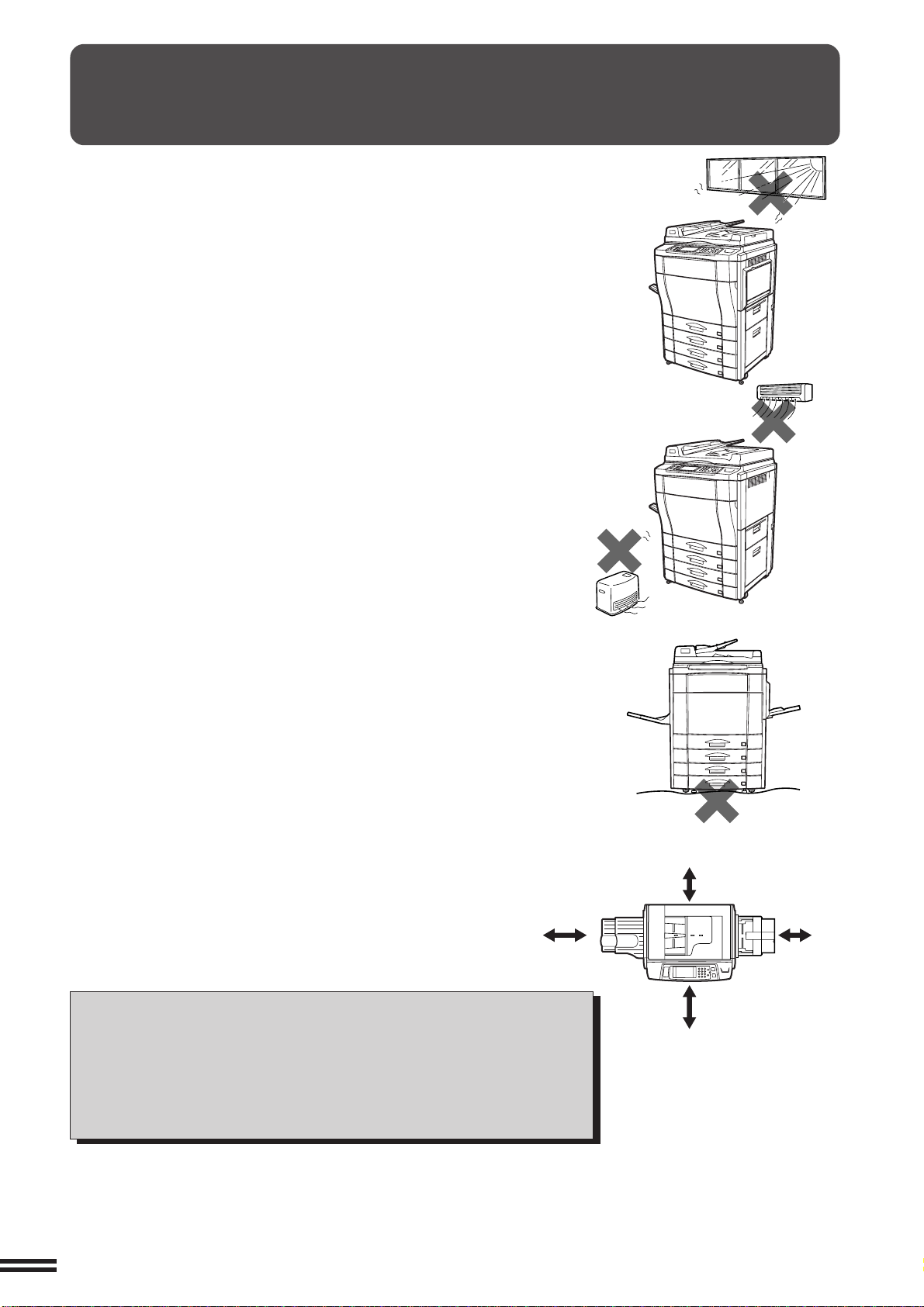
1. The copier should be installed near an accessible power outlet for easy
connection.
2. Be sure to connect the power cord only to a power outlet that meets the
specified voltage and current requirements.
Also make certain the outlet is properly grounded.
3. Do not install the machine where it is:
●
damp or humid,
●
exposed to direct sunlight,
●
extremely dusty,
●
poorly ventilated,
●
subject to extreme temperature or humidity changes (e.g., near an air
conditioner or heater).
4. Ensure that the area chosen for the machine location is level.
5. Be sure to allow the required space around the machine for servicing and
proper ventilation.
A small amount of ozone is produced within the copier during operation.
The emission level is insufficient to cause any health hazard.
NOTE:
The present recommended long term exposure limit for ozone is 0.1 ppm
(0.2 mg/m
3
) calculated as an 8 hr. time-weighted average concentration.
However, since the small amount that is emitted may have an objectionable
odor, it is advisable to place the copier in a ventilated area.
GETTING STARTED Installation requirements
11-13/16"
(30 cm)
23-5/8"
(60 cm)
23-5/8"
(60 cm)
11-13/16"
(30 cm)
1-3
CHAPTER1
CAUTIONS
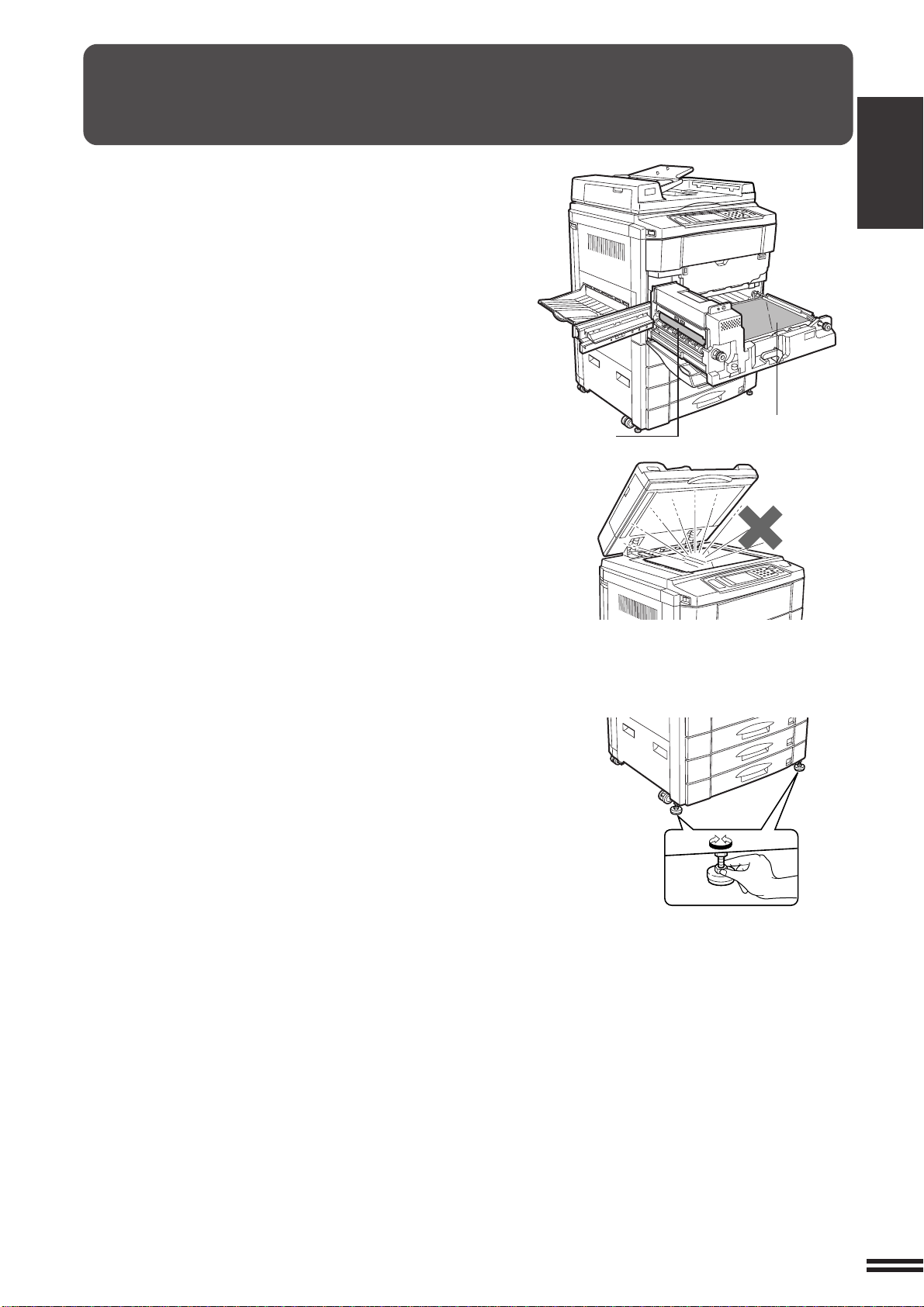
1. Do not touch the photoconductive drums or paper transport.
Scratches or smudges on them will cause copy defects.
2. The fusing unit is extremely hot. Exercise care in this area.
3. Do not look directly at the light source. Doing so may damage
your eyes.
4. Installation adjsuters.
When moving the machine, be sure to raise the installation
adjusters. After moving the machine, lower the installation
adjusters until they reach the floor.
This copier contains fusing oil that is very slippery if leaked
on the floor. Ensure that the machine is located at level
position and take care if it is to be moved that oil leakage does
not occur.
5. This copier is equipped with a forgery prevention feature. If paper
that closely resembles paper money is used as an original,
copying may not be performed properly.
GETTING STARTED Cautions
Fusing unit
Paper transport
Lock
Release
Adjuster
1-4
CHAPTER
1
CAUTIONS
GETTING STARTED Cautions
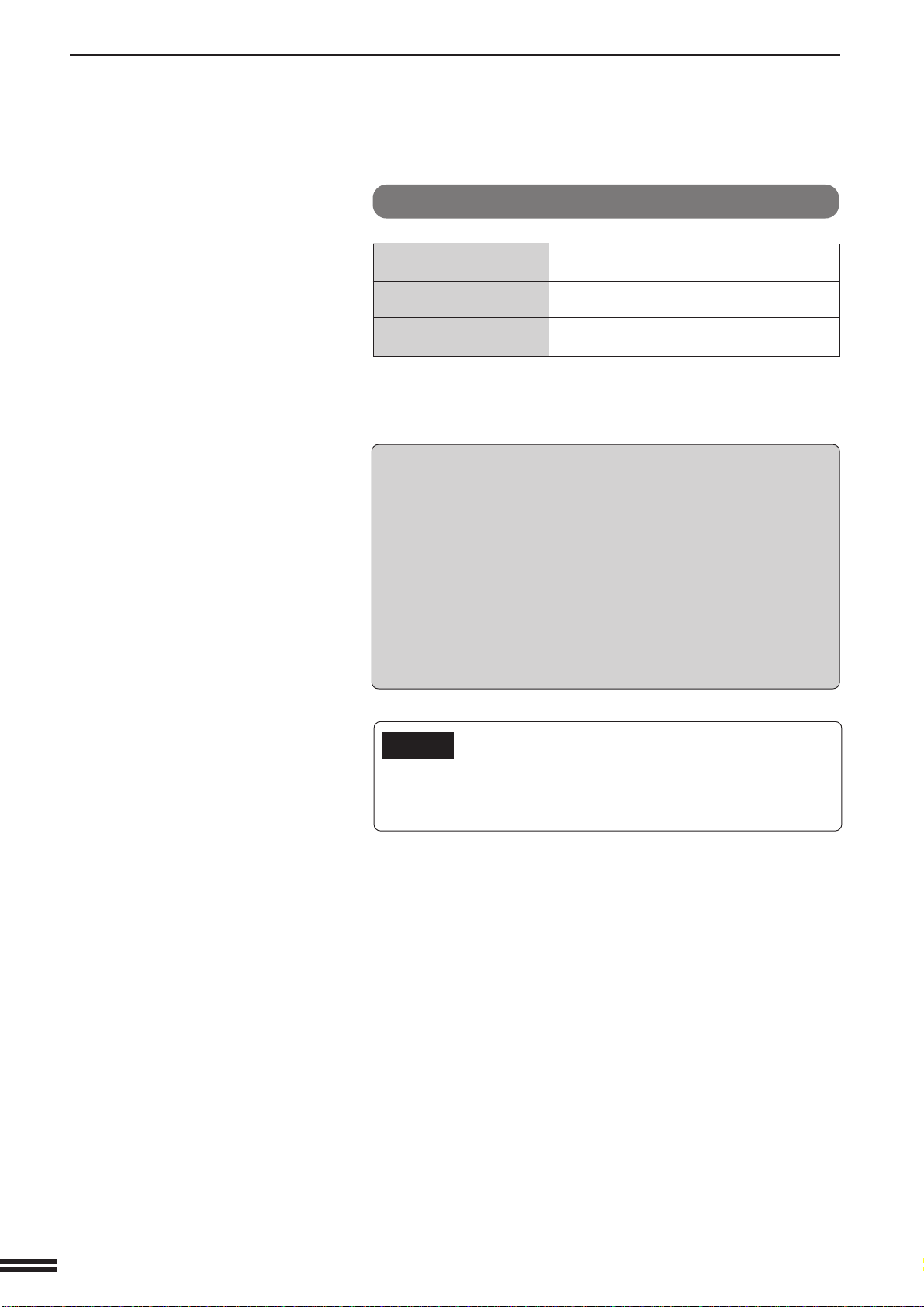
Cautions on laser
Wave length
+10 nm
785 nm
- 15 nm
Pulse times (4.374 µs ±4.4 ns)/7 mm
Output power 0.25 mW - 0.45 mW
SAFETY PRECAUTIONS
This Digital Copier is rated Class 1 and complies with 21 CFR
1040.10 and 1040.11 of the CDRH standards. This means that
the copier does not produce hazardous laser radiation. For your
safety, observe the precautions below.
●
Do not remove the cabinet, operation panel or any other
covers.
●
The copier’s exterior covers contain several safety interlock
switches. Do not bypass any safety interlock by inserting
wedges or other items into switch slots.
Caution
Use of controls or adjustments or performance of procedures other
than those specified herein may result in hazardous radiation
exposure.
1-5
CHAPTER1
POWER ON AND OFF
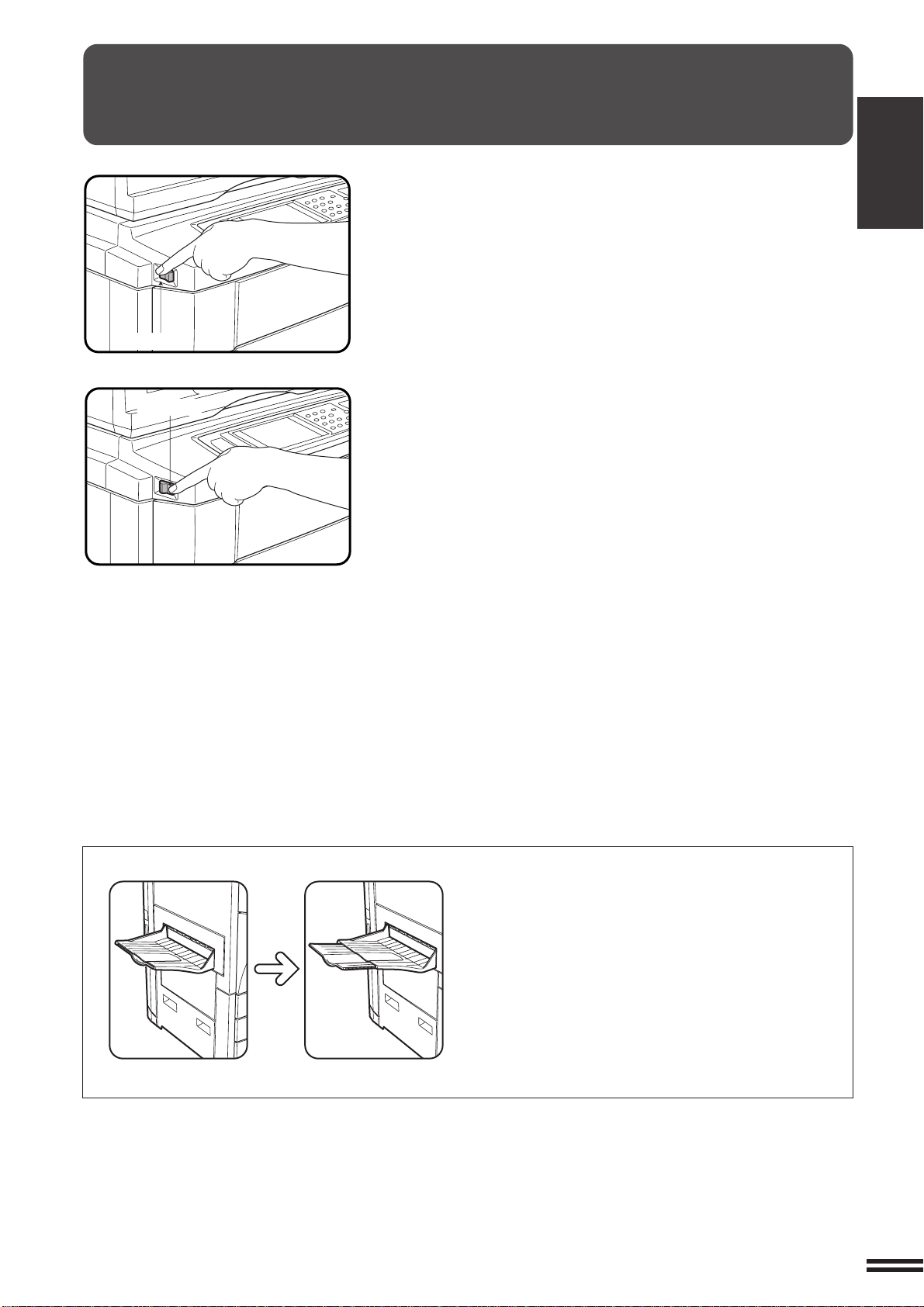
The power switch is located on the left side of the copier. When the
power switch is turned to the “ON” position, the message “WARMING
UP. PLEASE WAIT.” will appear in the message display. Warming
up takes about 330 seconds. Once the copier is ready, the message
display will change to “READY TO COPY.”, and the START key
indicators will light up, indicating that copying is possible.
If the copier has been programmed in the auditing mode, the message
“ENTER YOUR ACCOUNT NUMBER. -----” will appear after warming
up. Once a valid account number has been entered, copying will
become possible.
GETTING STARTED Power on and off
Power off
Power on
●
Be sure to extend the tray when paper sizes 8-1/2"
x 14" or larger are to be received.
1-6
CHAPTER
1
GETTING STARTED Power on and off
Sleep mode
If the sleep mode is enabled, the copier will enter the mode once a
programmed length of time has elapsed without any copier
operation after the last copy of a run is made or the power is first
turned on. When the copier enters the sleep mode, the display on
the touch panel will disappear. In this condition, power is not
supplied to the fuser in the copier. To exit from the sleep mode,
press the COPY key.
★ KEY OPERATOR See page 25 of the KEY OPERATOR’S GUIDE for
setting the sleep mode timer. See page 30 of the KEY OPERATOR’S
GUIDE for enabling or disabling the sleep mode.
Preheat mode
The copier will enter the mode once the set time has elapsed without
any copier operation after the last copy of a run is made or power is
turned on.
When the copier enters the preheat mode, the message “PREHEAT
MODE. PLACE ORIGINALS.” will appear.
In this condition, the fuser in the copier is maintained at a lower heat
level thereby saving power. The preheat level is, however, high
enough to allow the copier to come to a ready condition or begin
copying approximately 30 seconds after any key input is made.
To copy from the preheat mode, make desired copier selections and
press a START key using the normal copying procedure.
★ KEY OPERATOR See page 26 of the KEY OPERATOR’S GUIDE for
information on setting the preheat mode.
As an ENERGY STAR
®
Partner,
SHARP has determined that this
product meets the ENERGY
STAR
®
guidelines for energy
efficiency.
POWER ON AND OFF
Power save modes
The copier has two power save modes to reduce overall power
consumption and thereby reduce the cost of operation and to conserve
natural resources to help reduce environmental pollution. The two
power save modes are preheat mode and sleep mode.
★ KEY OPERATOR
The preheat activation time and the sleep activation time have been
preset at the factory to 15 min. for preheat mode and 60 min. for sleep
mode. These times can be changed as described in the key operator’s
guide. It is suggested that you set appropriate times according to the
actual usage of the copier.
1-7
CHAPTER1
1
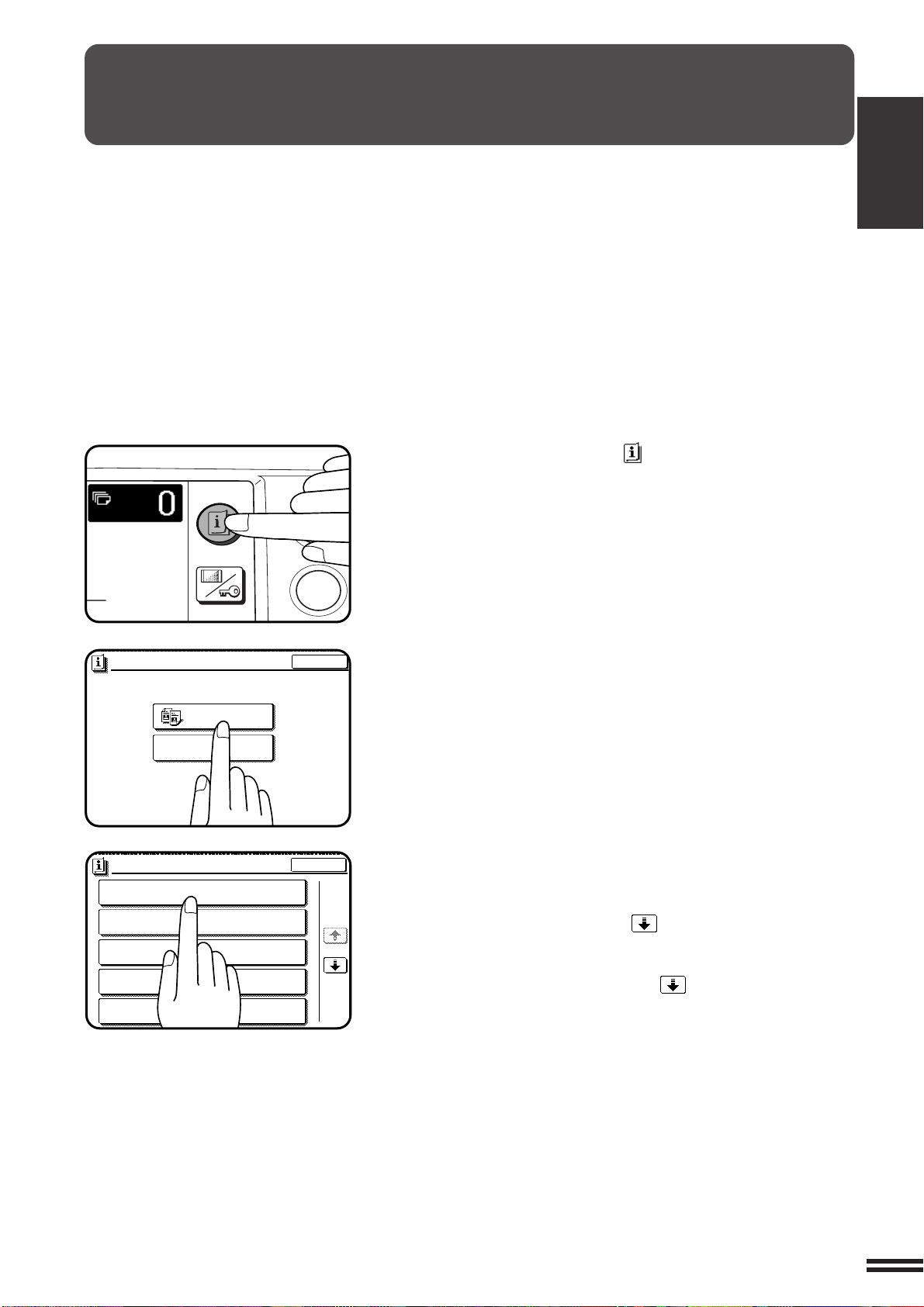
Press the INFORMATION ( ) key in the standby mode.
●
The screen for the information categories will appear.
2
Select the “COPIER” key to display the first screen of
the copier feature items.
●
If the toner supply is low, press the ADDING TONER key for
toner replenishment instructions.
3
Select the feature you would like to know about by
pressing a copier feature item key on the touch panel.
●
If the feature you would like to know about is not displayed on the
touch panel, press the scroll ( ) key on the touch panel until
the feature is displayed.
●
If a copier feature item key is pressed, the description for that
feature will appear. Use the scroll ( ) key to display additional
information until all information for that feature has been displayed.
●
To return to the copier feature item screen, press the “INDEX”
key.
●
To exit the INFORMATION mode, press the “EXIT” key on the
touch panel.
INFORMATION FUNCTION
The information function provides a quick reference guide to the use
of the various features and functions of this copier. The information
mode can be entered when the copier is in the standby mode.
GETTING STARTED Information function
EXIT
INFORMATION
SELECT INFORMATION.
COPIER
ADDING TONER
EXIT
MAKING 2-SIDED COPIES (2-SIDED COPY)
INFORMATION
SORTING COPIES INTO SETS OR STAPLING
FINISHED SETS OF COPIES (OUTPUT)
USING THE DOCUMENT FEEDER
(
DOCUMENT FEEDER
)
REDUCTION/ENLARGEMENT/ZOOM
(COPY RATIO)
STORING FREQUENTLY USED JOB PROGRAMS
(PROGRAM)
1/5
1
4
INFORMATION
CUSTOM
SETTINGS

1-8
CHAPTER
1
USING THE TOUCH PANEL
How to use the touch panel
You can set or cancel a function displayed on the touch
panel by pressing (touching) a key with a finger. The touch
key operation can be confirmed with a beep tone (and
highlighting of the touch key).
★★
★★
★ KEY OPERATOR For the beep tone to be heard, the beep tone must be
enabled by a key operator program. See page 27 of the KEY OPERATOR’S
GUIDE.
A transparent status function key represents unavailability
of that function. If a transparent status key is pressed, two
short beeps will sound.
Selection of function
To register the selected settings for a function, press the
“OK” key on the setting screen. The settings indicated by
a highlighted display will be registered as a selected function.
Some special functions can be selected by pressing the
relevant keys on the SPECIAL MODES screen (page 3-4) or
on the IMAGE EDIT menu (page 3-24) to highlight the keys.
To cancel these functions, press the relevant keys again to
return the keys to the normal display. These functions are:
Dual page copying, Centering, Transparency inserts, Neg./
pos. reverse, Mirror image, and 11x17 full-bleed.
GETTING STARTED Using the touch panel
READY TO COPY.
SPECIAL MODES
MARGIN SHIFT ERASE
IMAGE EDITCOVERS
CENTERING
DUAL PAGE
COPY
COLOR
ADJUSTMENTS
TRANSPARENCY INSERTS
OK
AUTO
EXPOSURE PAPER SELECT
100%
COPY RATIO
8/ 11AUTO
1
2
ERASE
EDGE ERASE
CENTER ERASE
EDGE+CENTER
ERASE
CANCEL
1/2
OK
OK
(0~1)
inch
READY TO COPY.
AUTO
EXPOSURE
PAPER SELECT
100%
COPY RATIO
1.8/ 11
2.11 17
3.8/ 14
1
2
1
2
16~28 lbs.
28+~35 lbs.
35+~55 lbs.
TRANSPARENCY
PAPER TYPE
STORE/DELETE
RECALL
1 2 3
4 56
789
1-9
CHAPTER1
Function setting icons
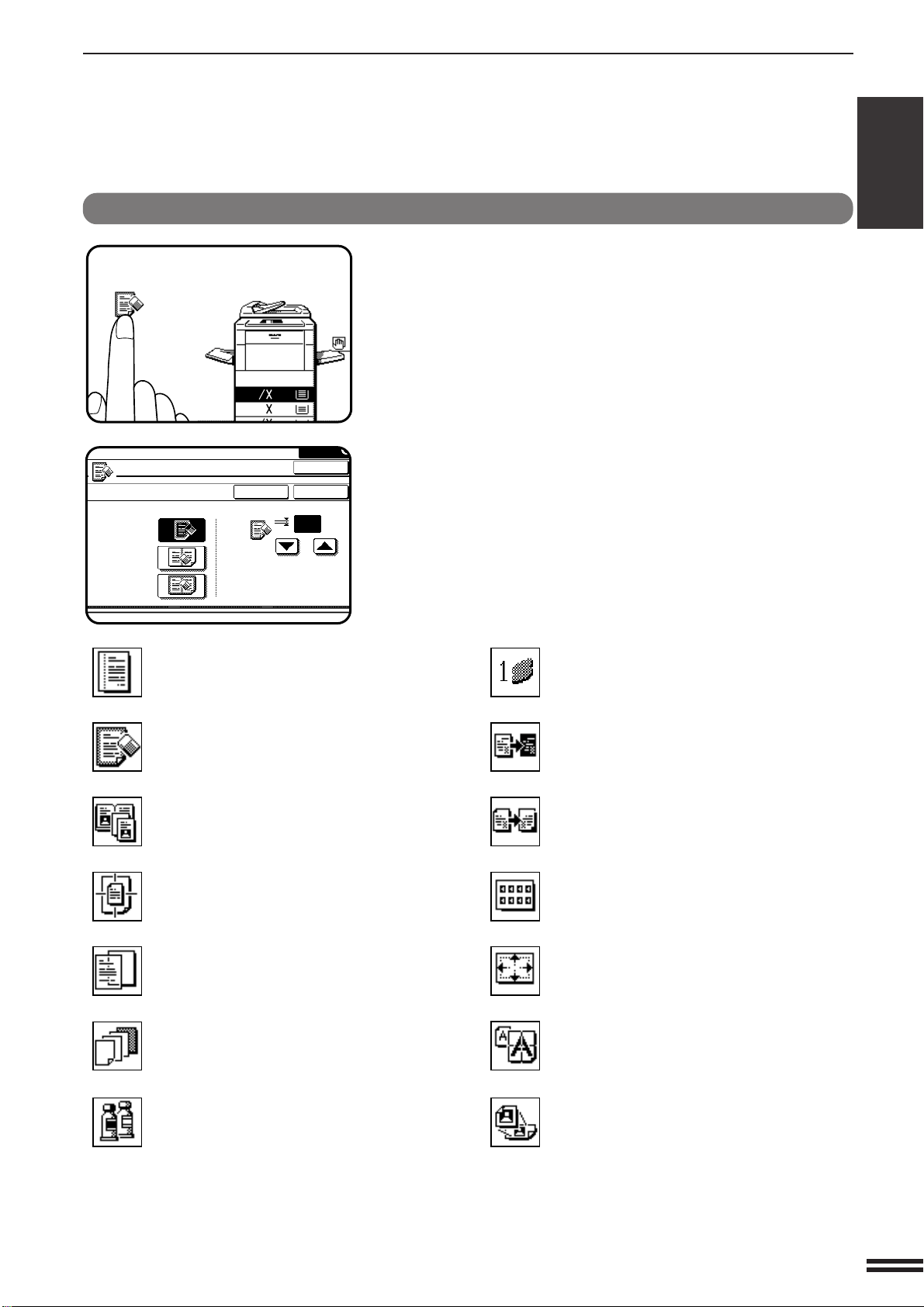
Icons representing special functions which have been
selected will appear on the basic screen. The functions and
their associated icons are listed below.
The content of the icons of functions indicated by (*) will
vary depending upon particular settings selected for these
functions. The other functions are on or off type functions
and have no associated setting screens.
USING THE TOUCH PANEL
GETTING STARTED Using the touch panel
5
1.
8
11
1
2
2.
1711
3
8
14
1
READY TO COPY.
ERASE
EDGE ERASE
CENTER ERASE
EDGE+CENTER
ERASE
CANCEL
1/2
OK
OK
(0~1)
inch
* Margin shift (p.3-4)
* Erase (p.3-6)
Dual page copying (p.3-8)
Centering (p.3-10)
Transparency film with insert sheets
(p.3-12)
* Covers (p.3-14)
Color adjustments (p.3-16)
* Single color (p.3-24)
Neg./pos. reverse (p.3-26)
Mirror image (p.3-28)
* Photo repeat (p.3-30)
11 x 17 full-bleed (p.3-32)
Multi-page enlargement (p.3-34)
* Extra size (p.3-36)


2-1
CHAPTER2
CHAPTER 2
MAKING COPIES
This chapter describes the basic copying functions such as normal
copying, reduction/enlargement, and exposure adjustments.
Page
●●
●●
●
AUDITING ACCOUNTS ............................. 2-2
●●
●●
●
COPYING FROM THE DOCUMENT GLASS.............. 2-3
●●
●●
●
USING THE RADF ................................. 2-6
●●
●●
●
REDUCTION/ENLARGEMENT/ZOOM ................. 2-11
●●
●●
●
SPECIAL PAPERS (manual feed) .................... 2-14
Two-sided copying with bypass tray .................... 2-15
●●
●●
●
EXPOSURE ADJUSTMENTS ........................ 2-16
●●
●●
●
JOB MEMORY ................................... 2-18
●●
●●
●
INTERRUPTING A COPY RUN....................... 2-20
2-2
CHAPTER2
AUDITING ACCOUNTS
If this copier has been programmed in the auditing mode, it will not function until an assigned 5-digit account number
has been entered.The auditing mode can be set for both the color and black/white (B/W) copy modes or for only the
color copy mode.
★ KEY OPERATOR See page 9 of the KEY OPERATOR’S GUIDE for setting the auditing mode.
MAKING COPIES Auditing accounts
If the auditing mode has been set for both the color and B/W copy
modes, the initial status of the message display will be:
ENTER YOUR ACCOUNT NUMBER. -----
If the auditing mode has been set for only the color copy mode, the
following display will appear when the AUDIT key or the COLOR
COPY START ( ) key is pressed.
ENTER YOUR ACCOUNT NUMBER
FOR COLOR COPYING.
-----
●
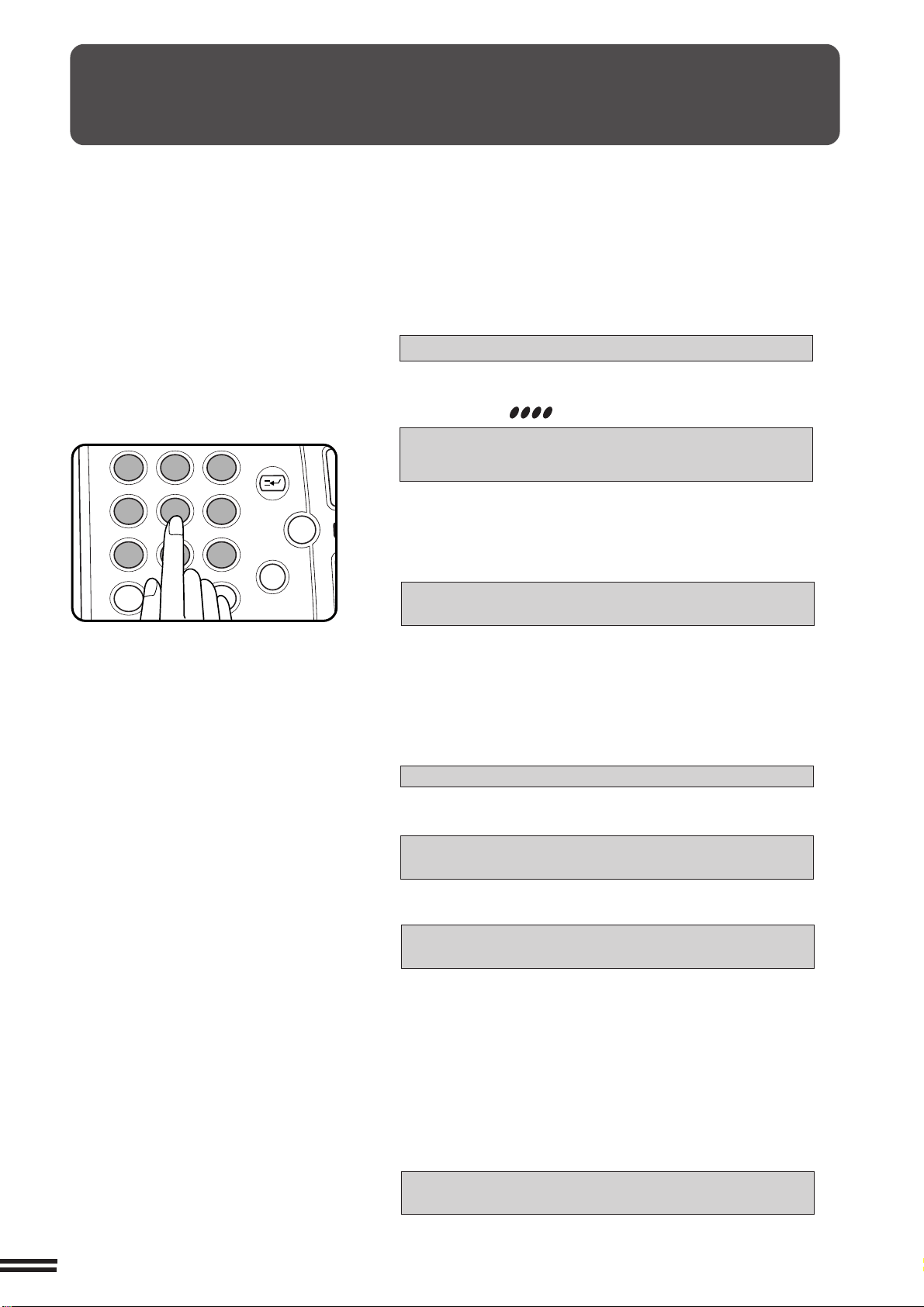
Enter your account number using the 10-key pad.
●
As each digit is entered, the dashes in the display will change to
asterisks.
The following message will appear after the number is entered.
ACCOUNT STATUS: COPIES MADE /REMAINING
B/W: 000,000/000,000 CL: 000,000/000,000
“COPIES REMAINING” will appear only if account limit has been
set using a key operator program.
★★
★★
★ KEY OPERATOR See page 16 of the KEY OPERATOR’S
GUIDE for account limit settings.
●
The message will be displayed for several seconds, then change
to the following message.
READY TO COPY.
●
When a copy run is performed, the following message will
appear.
READY TO COPY.
PRESS [AUDIT] WHEN FINISHED.
●
In the interrupt copy mode (see page 2-20), the following
message will appear instead of the message above.
READY TO COPY. WHEN COPYING IS
FINISHED, PRESS [INTERRUPT].
NOTE:
If an unassigned number is entered, the message display will show
“ENTER YOUR ACCOUNT NUMBER.-----”, indicating that the
number was not accepted.
When the key operator program of account number security has
been set:
If an unassigned number is entered three successive times, the
copier will not accept another number for one minute, and the
following message will appear.
PLEASE SEE YOUR KEY OPERATOR FOR
ASSISTANCE.
★★
★★
★ KEY OPERATOR See page 17 of the KEY OPERATOR’S
GUIDE for account number security.
12
3
456
789
0
P
C
CA
CLEAR
PROGRAM
AUDIT
INTERRUPT
CLEAR
ALL
N
2-3
CHAPTER2
COPYING FROM THE DOCUMENT GLASS
1-sided copies of 1-sided originals
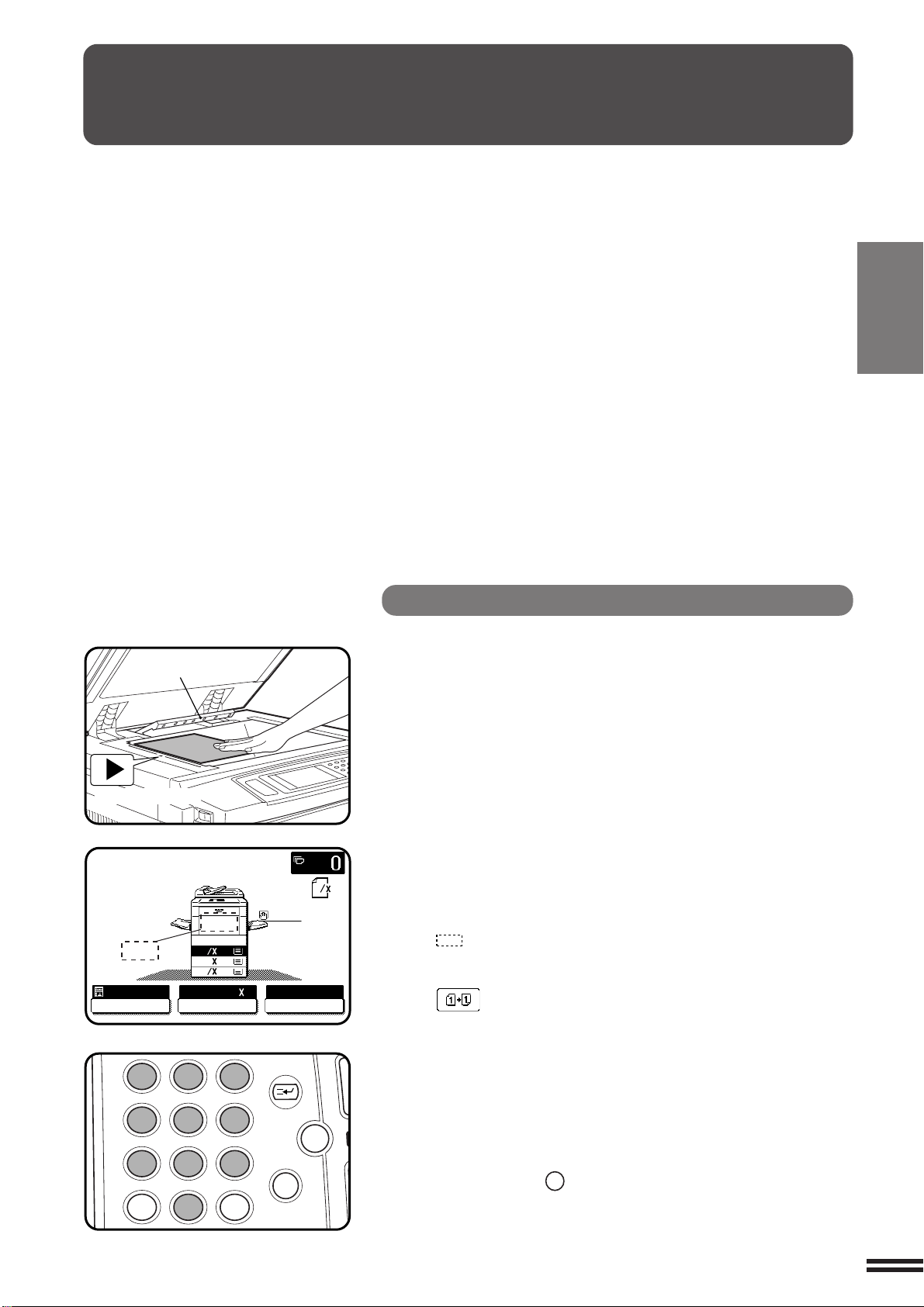
1
Open the document cover and place an original face
down on the document glass, using the centering scale
to position it.
●
When copying multi-page documents, copy from the last page to
the first page.
NOTE:
Do not place objects under the original size detector, because they
may damage it.
2
Close the document cover.
●
The original size will be indicated on the touch panel, and the paper
tray with the corresponding paper size will be automatically selected.
3
Ensure that the 1-sided to 1-sided copying mode is
selected on the touch panel.
●
When no icon is displayed in the area indicated in the illustration
( ), the 1-sided to 1-sided copying mode is selected.
●
If the 1-sided to 1-sided mode is not selected, press the
2-SIDED COPY key and then press the 1-sided to 1-sided key
( ) on the touch panel. Press the “OK” key to return to the
basic screen.
4
Use the 10-key pad to enter the desired number of
copies.
●
The number will be shown in the copy quantity display of the
touch panel.
●
A single copy can be made with the initial setting, i.e., when “0”
is displayed.
●
Use the CLEAR (
C
) key to cancel an entry if a mistake is made.
MAKING COPIES Copying from the document glass
Use the document glass for copying single originals,
bound documents, and other originals that cannot be set
in the optional RADF.
●
Only 1-sided to 1-sided and 1-sided to 2-sided
copying can be selected when copying from the
document glass.
●
Duplex copying will not work when a non-standard
sized paper or 5-1/2" x 8-1/2"R paper is used.
●
2-sided to 2-sided or 2-sided to 1-sided copying
cannot be selected when copying from the
document glass. These operations can, however,
be performed simply by turning over the original
manually.
●
Image loss (max. 13/64" (5 mm)) can occur along
the leading edge of the copies. Image loss (max. 9/
32" (7mm)) can occur along the trailing edge of the
copies. Also image loss (max. 1/4" (6 mm) in total)
can occur along the other edges of the copies.
Original size detector
Centering scale
ORIGINAL
8
11
1
2
1.
8
11
1
2
2.
1711
3.
8
14
1
2
READY TO COPY.
AUTO
EXPOSURE PAPER SELECT
100%
COPY RATIO
8/ 11AUTO
1
2
12
3
456
789
0
P
C
CA
CLEAR
PROGRAM
AUDIT
INTERRUPT
CLEAR
ALL
N
2-4
CHAPTER2
MAKING COPIES Copying from the document glass
COPYING FROM THE DOCUMENT GLASS
5
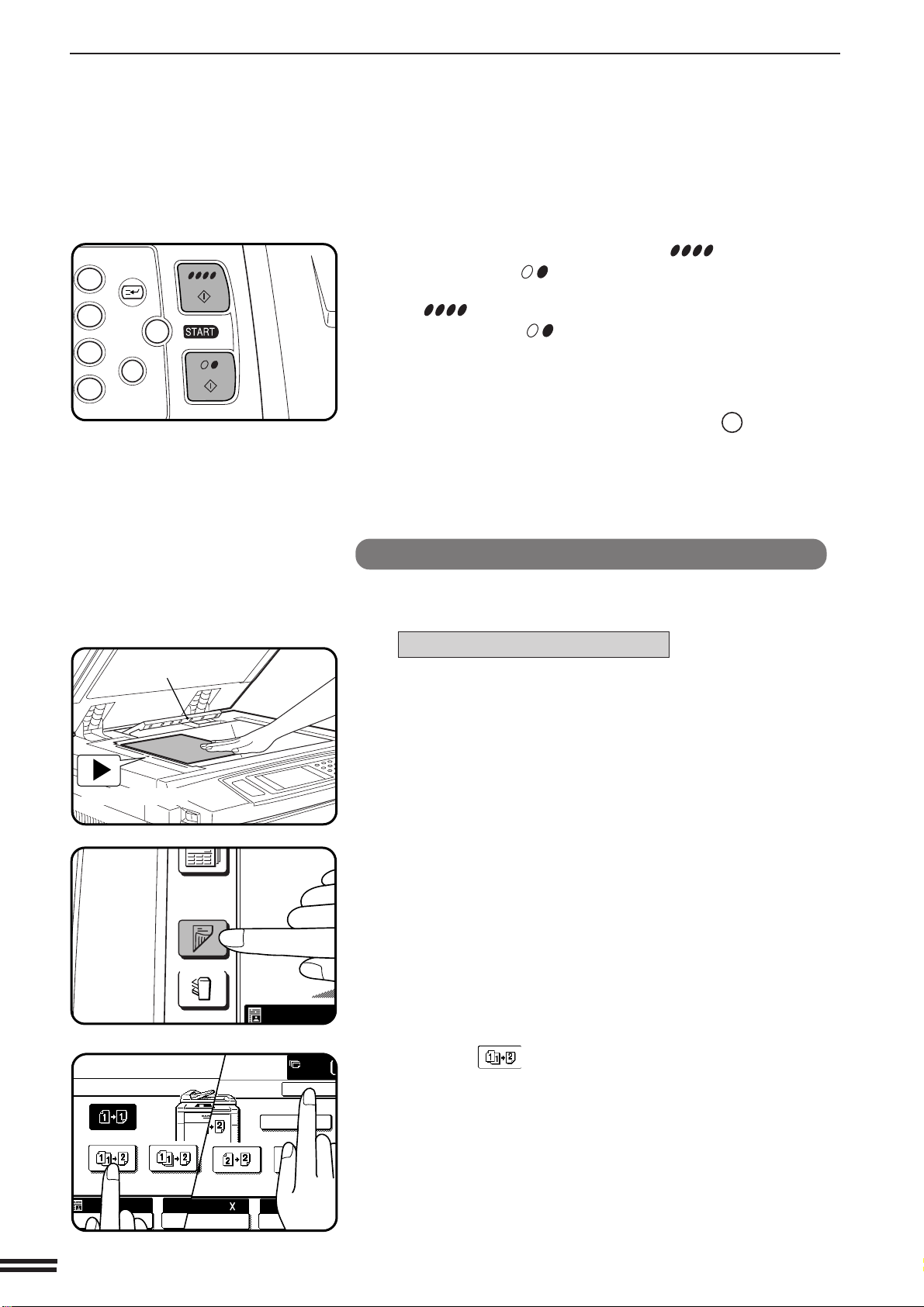
Press the COLOR COPY START ( ) key or BLACK
COPY START (
) key.
●
To perform color copying, press the COLOR COPY START
( ) key. To perform black/white copying, press the BLACK
COPY START ( ) key.
●
The number in the copy quantity display will decrease by 1 each
time a copy is made. To repeat the same copy sequence with a
different original, simply replace the original and press the
START key.
●
To cancel a copy run, press the CLEAR ALL (
CA
) key. Copying
will stop and the number in the copy quantity display will be reset
to 0.
2-sided copies from 1-sided originals
To copy in the 1-sided to 2-sided copy mode, an optional duplex module
(AR-DU2) must be installed.
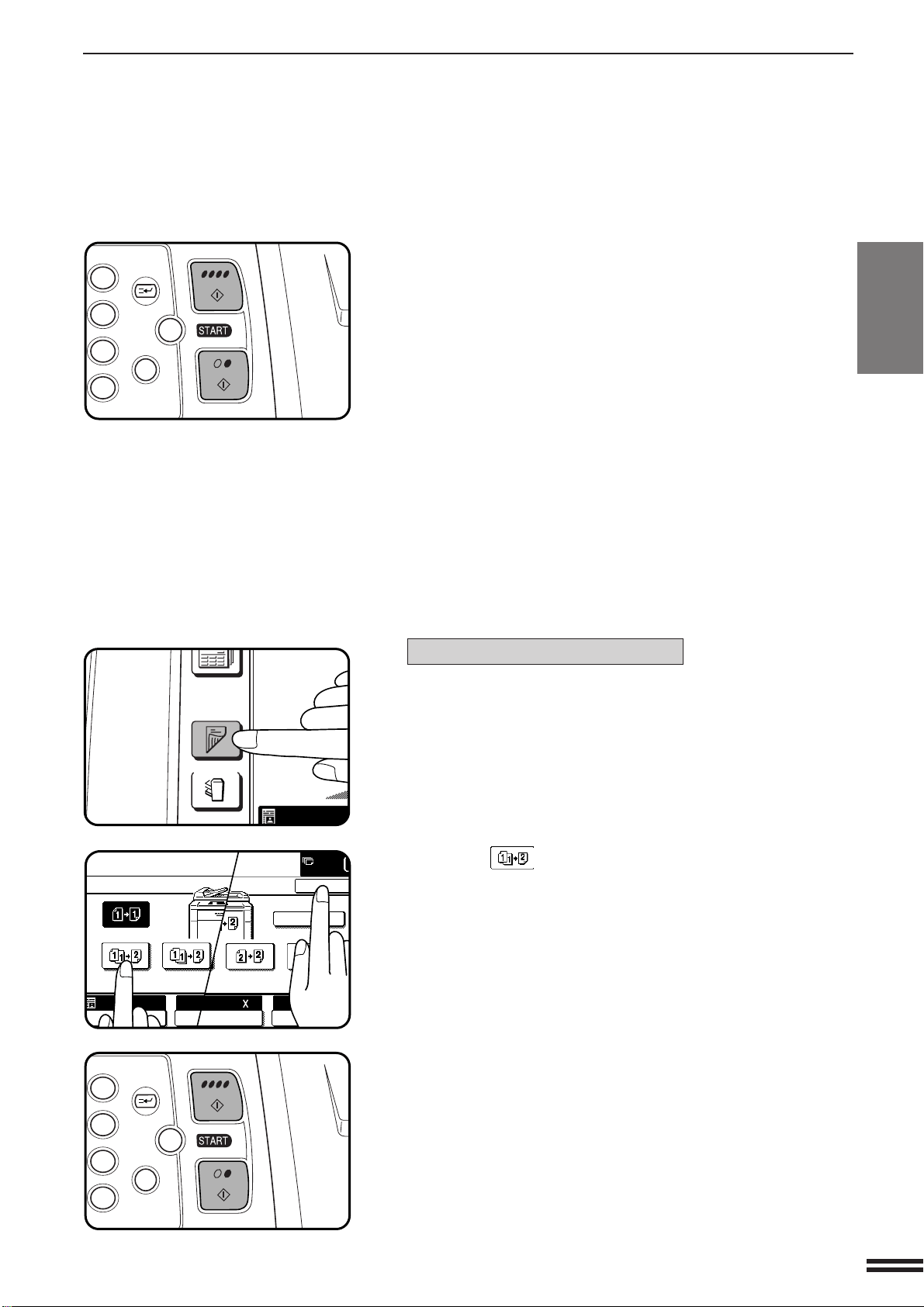
For an odd number of originals:
1
Set the last page of the document onto the document
glass, and copy it in the 1-sided to 1-sided mode.
2
Press the 2-SIDED COPY key.
3
Press the (EVEN NUMBER ORIGINALS) key on the
touch panel and then press the “OK” key.
OUTPUT
2-SIDED
COPY
AUTO
PRE-COUNT
MBER
ALS
OK
APER SELECT
100%
COPY RATIO
TO 8/ 11
1
2
READY TO COPY.
2-SIDED COPY
EVEN NUMBER
ORIGINALS
ODD NUMBER
ORIGINALS
AUTO
EXPOSURE PAPER SELE
8/AUTO
1
2
Original size detector
Centering scale
3
6
9
P
C
CA
CLEAR
PROGRAM
INTERRUPT
CLEAR
ALL
2-5
CHAPTER2
4
Copy the reminder of the originals in reverse order.
●
When making color copies in the duplex mode onto extra size
paper or paper 8-1/2" x 14" or larger, only one copy per original
can be made. Even if a multiple number of copies is set, the
number will be changed to 1 when a START key is pressed.
For an even number of originals:
1
Press the 2-SIDED COPY key.
2
Press the (EVEN NUMBER ORIGINALS) key on the
touch panel and then press the “OK” key.
3
Copy the originals in reverse order.
●
When making color copies in the duplex mode onto extra size
paper or paper 8-1/2" x 14" or larger, only one copy per original
can be made. Even if a multiple number of copies is set, the
number will be changed to 1 when a START key is pressed.
MAKING COPIES
Copying from the document glass
COPYING FROM THE DOCUMENT GLASS
OUTPUT
2-SIDED
COPY
AUTO
3
6
9
P
C
CA
CLEAR
PROGRAM
INTERRUPT
CLEAR
ALL
3
6
9
P
C
CA
CLEAR
PROGRAM
INTERRUPT
CLEAR
ALL
PRE-COUNT
MBER
ALS
OK
APER SELECT
100%
COPY RATIO
TO 8/ 11
1
2
READY TO COPY.
2-SIDED COPY
EVEN NUMBER
ORIGINALS
ODD NUMBER
ORIGINALS
AUTO
EXPOSURE PAPER SELE
8/AUTO
1
2

2-6
CHAPTER2
USING THE RADF
●
Duplex copying will not work when a non-standard
sized paper or 5-1/2" x 8-1/2" paper is used.
●
Image loss (max. 13/64" (5 mm)) can occur along the
leading edge of the copies. Image loss (max. 9/32"
(7mm)) can occur along the trailing edge of the
copies. Also image loss (max. 1/4" (6 mm) in total)
can occur along the other edges of the copies.
●
The RADF can handle a maximum of 50 originals of
5-1/2" x 8-1/2" to 8-1/2" x 11" sizes and 30 originals
of 8-1/2" x 14" to 11" x 17" sizes.
●
2-sided to 1-sided copying and 2-sided to 2-sided*
copying can be performed.
* For 2-sided to 2-sided copying, an optional duplex
module (AR-DU2) must be installed.
●
The originals must be set face up in the document
feeder tray.
●
Different size originals with the same width can be
placed in the document feeder tray and automatically
copied onto copy paper of their respective sizes.
The automatic copy ratio selection will not function in
this case.
This copier can be equipped with an optional reversing
automatic document feeder (RADF).
The RADF will handle multiple originals.
●
Before loading originals into the document feeder
tray, be sure to remove any staples or paper clips
from them.
●
Damaged or crumpled originals or originals which
have been folded may misfeed in the RADF or cause
incorrect size detection. It is recommended that these
be copied from the document glass and the copies be
used as original documents.
●
When feeding originals which have closely spaced
binding holes punched along an edge, place the
originals so that the punched edge is positioned to the
right or along the side guides.
●
Special originals such as transparency film and tracing
paper should not be fed from the RADF, but should be
placed on the document glass.
Stream feeding mode
If the stream feeding mode has been enabled using a key operator
program, the message “NEWLY PLACED ORIGINALS WILL BE FED
AND COPIED AUTOMATICALLY.” will appear and the original feed
indicator will continue to blink for approximately 5 seconds after
feeding of all originals is completed. While this message is displayed,
any new originals placed in the document feeder tray will be fed and
copied automatically.
★ KEY OPERATOR See page 24 of the KEY OPERATOR’S GUIDE
for information on setting the stream feeding mode.
MAKING COPIES Using the RADF
2-7
CHAPTER2
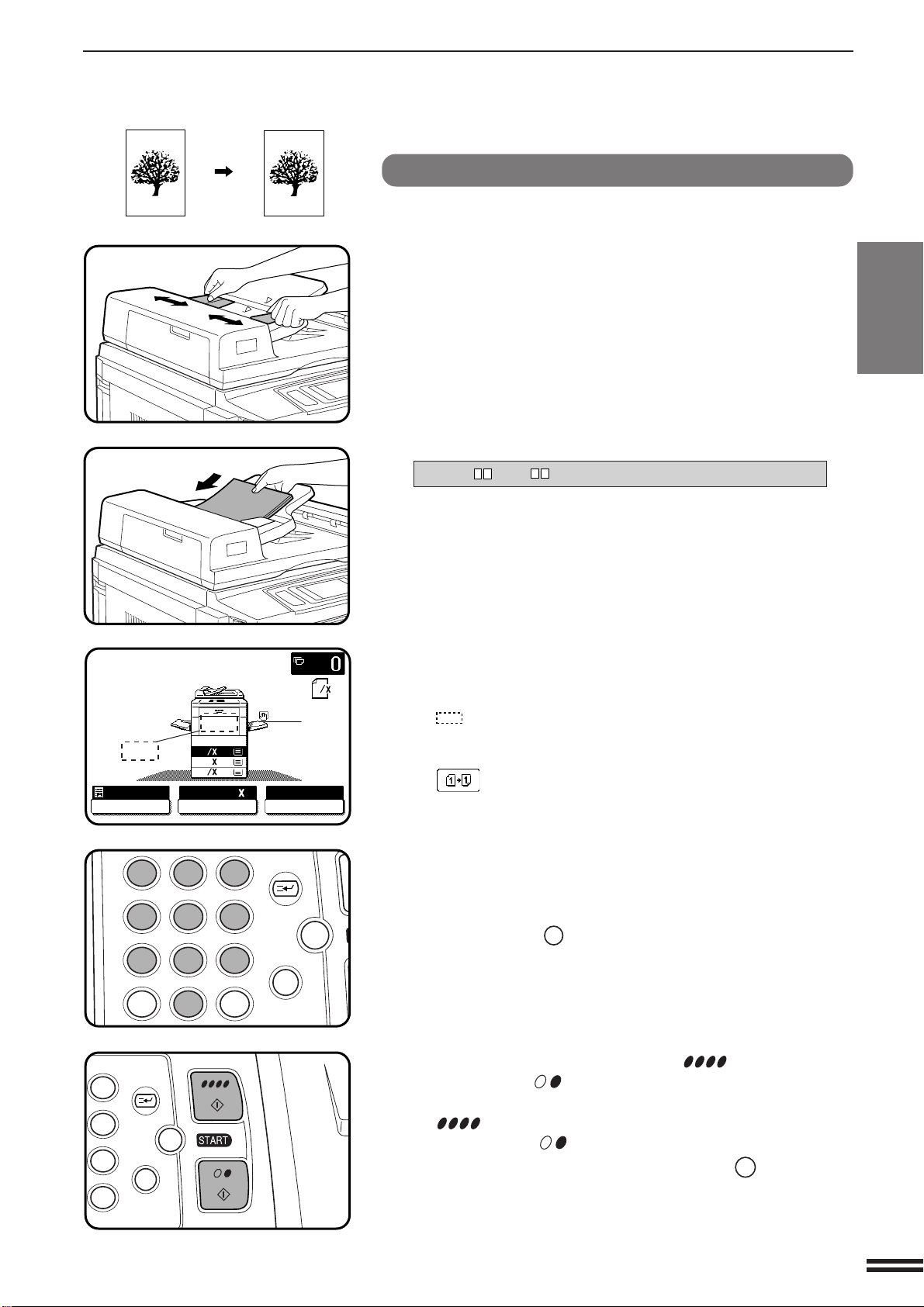
1-sided copies of 1-sided originals
1
Adjust the original guides to the size of the originals and
set the originals face up in the document feeder tray.
●
The original size will be indicated on the touch panel, and the
paper tray with the corresponding paper size will be automatically
selected.
●
Be sure to remove any original from the document glass before
setting the originals in the document feeder tray. If an original is
left on the document glass, the original reminder indicator will
blink. Remove the original from the document glass in this case.
●
If copy paper of the required size is not installed in any of the
trays, the following message will appear.
LOAD " x " PAPER.
If a tray of the required size is not installed, use the bypass tray
and press the “PAPER SELECT” key on the touch panel to select
the bypass tray.
●
To copy onto a different size paper, use the “PAPER SELECT”
key to make the selection.
2
Ensure that the 1-sided to 1-sided copying mode is
selected on the touch panel.
●
When no icon is displayed in the area indicated in the illustration
( ), the 1-sided to 1-sided copying mode is selected.
●
If the 1-sided to 1-sided mode is not selected, press the
2-SIDED COPY key and then press the 1-sided to 1-sided key
( ) on the touch panel. Press the “OK” key to return to the
basic screen.
3
Use the 10-key pad to enter the desired number of
copies.
●
The number will be shown in the copy quantity display of the
touch panel.
●
Use the CLEAR (
C
) key to cancel an entry if a mistake has been
made.
4
Press the COLOR COPY START ( ) key or BLACK
COPY START (
) key.
●
To perform color copying, press the COLOR COPY START
( ) key. To perform black/white copying, press the BLACK
COPY START ( ) key.
●
To cancel a copy run, press the CLEAR ALL (
CA
) key. Copying
will stop and the RADF will output any originals which have been
fed. Also, the number in the copy quantity display will be reset to
0.
Copy
Original
MAKING COPIES Using the RADF
USING THE RADF
ORIGINAL
8
11
1
2
1.
8
11
1
2
2.
1711
3.
8
14
1
2
READY TO COPY.(DOCUMENT FEEDER MODE)
AUTO
EXPOSURE PAPER SELECT
100%
COPY RATIO
8/ 11AUTO
1
2
12
3
456
789
0
P
C
CA
CLEAR
PROGRAM
AUDIT
INTERRUPT
CLEAR
ALL
N
3
6
9
P
C
CA
CLEAR
PROGRAM
INTERRUPT
CLEAR
ALL
2-8
CHAPTER2
MAKING COPIES Using the RADF
USING THE RADF
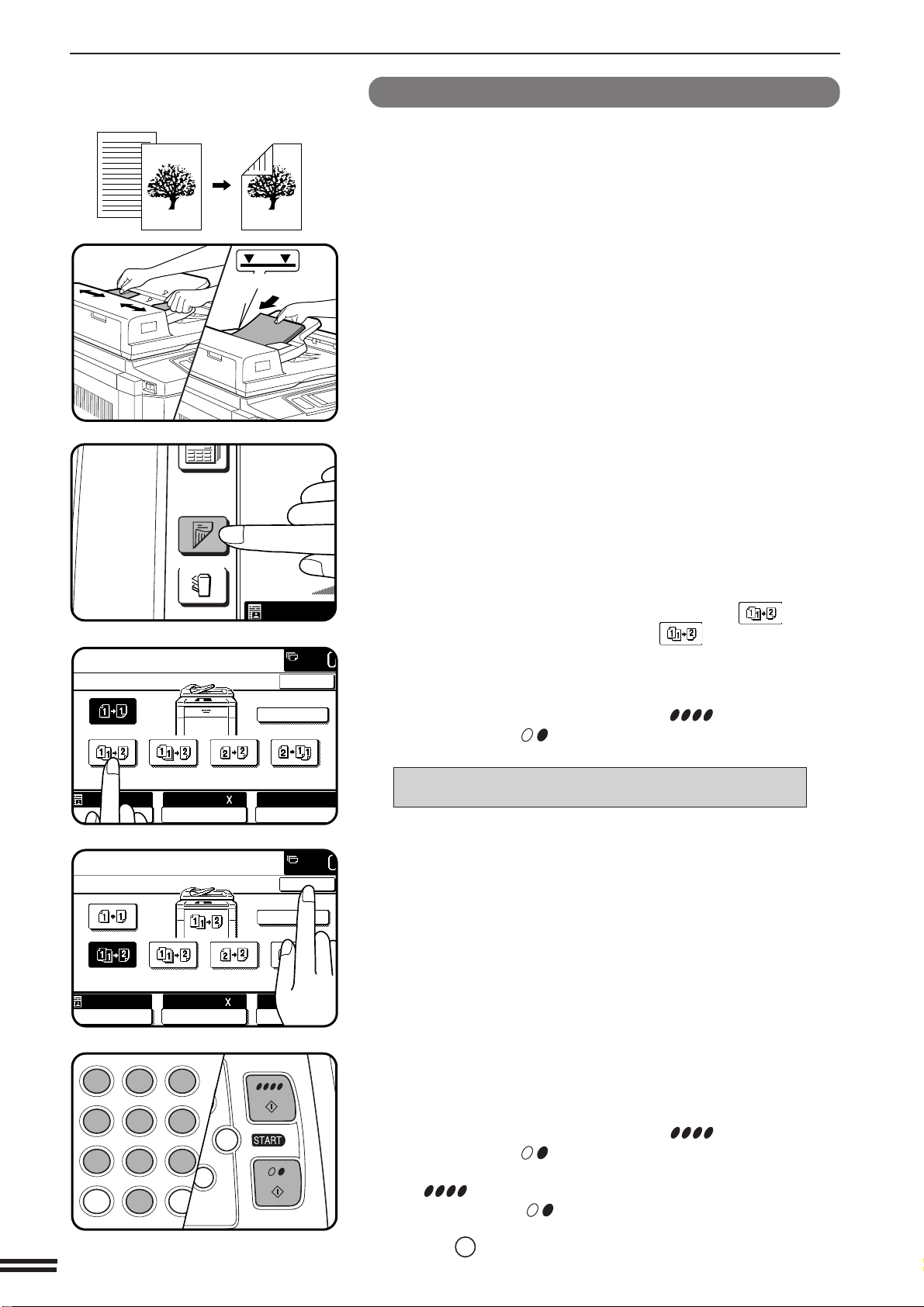
2-sided copies from 1-sided originals
To copy in the 1-sided to 2-sided copy mode, an optional duplex module
(AR-DU2) must be installed.
1
Adjust the original guides to the size of the originals and
set the originals face up in the document feeder tray.
2
Press the 2-SIDED COPY key.
3
If the number of originals is known, use the (EVEN
NUMBER ORIGINALS) key or (ODD NUMBER
ORIGINALS) key on the touch panel, then proceed to
step 4. If the number of originals is not known, select
“PRE-COUNT” for an automatic count by the RADF and
press the COLOR COPY START ( ) key or BLACK
COPY START (
) key.
●
The following message will appear.
PRE-COUNT MODE
NUMBER OF ORIGINALS IS
**.**.
**.**.
**.
●
If the number of originals exceeds the limit, other messages will
appear .
●
When the count is complete and the number is known, replace
the originals in the document feeder tray and select “EVEN
NUMBER ORIGINALS” or “ODD NUMBER ORIGINALS” as
above.
4
Press the “OK” key.
5
Enter the desired number of copies.
●
When making color copies in the duplex mode onto extra size
paper or paper 8-1/2" x 14" or larger, only one copy per original
can be made. Even if a multiple number of copies is set, the
number will be changed to 1 when a START key is pressed.
6
Press the COLOR COPY START ( ) key or BLACK
COPY START (
) key.
●
To perform color copying, press the COLOR COPY START
( ) key. To perform black/white copying, press the BLACK
COPY START ( ) key.
●
To cancel a copy run during duplex copying, press the CLEAR
ALL (
CA
) key.
Copy (2-sided)
Originals (1-sided)
OUTPUT
2-SIDED
COPY
AUTO
READY TO COPY.(DOCUMENT FEEDER MODE)
2-SIDED COPY
PRE-COUNT
EVEN NUMBER
ORIGINALS
ODD NUMBER
ORIGINALS
OK
AUTO
EXPOSURE PAPER SELECT
100%
COPY RATIO
8/ 11AUTO
1
2
READY TO COPY.(DOCUMENT FEEDER MODE)
2-SIDED COPY
PRE-COUNT
EVEN NUMBER
ORIGINALS
ODD NUMBER
ORIGINALS
OK
AUTO
EXPOSURE PAPER SELECT
100%
COPY RATIO
8/ 11
AUTO
1
2
Maximum height
line
C
CA
CLEAR
INTERRUPT
CLEAR
ALL
12
3
456
789
0
P
C
CL
PROGRAM
AUDIT
INTE
CLE
AL
2-9
CHAPTER2
MAKING COPIES Using the RADF
USING THE RADF
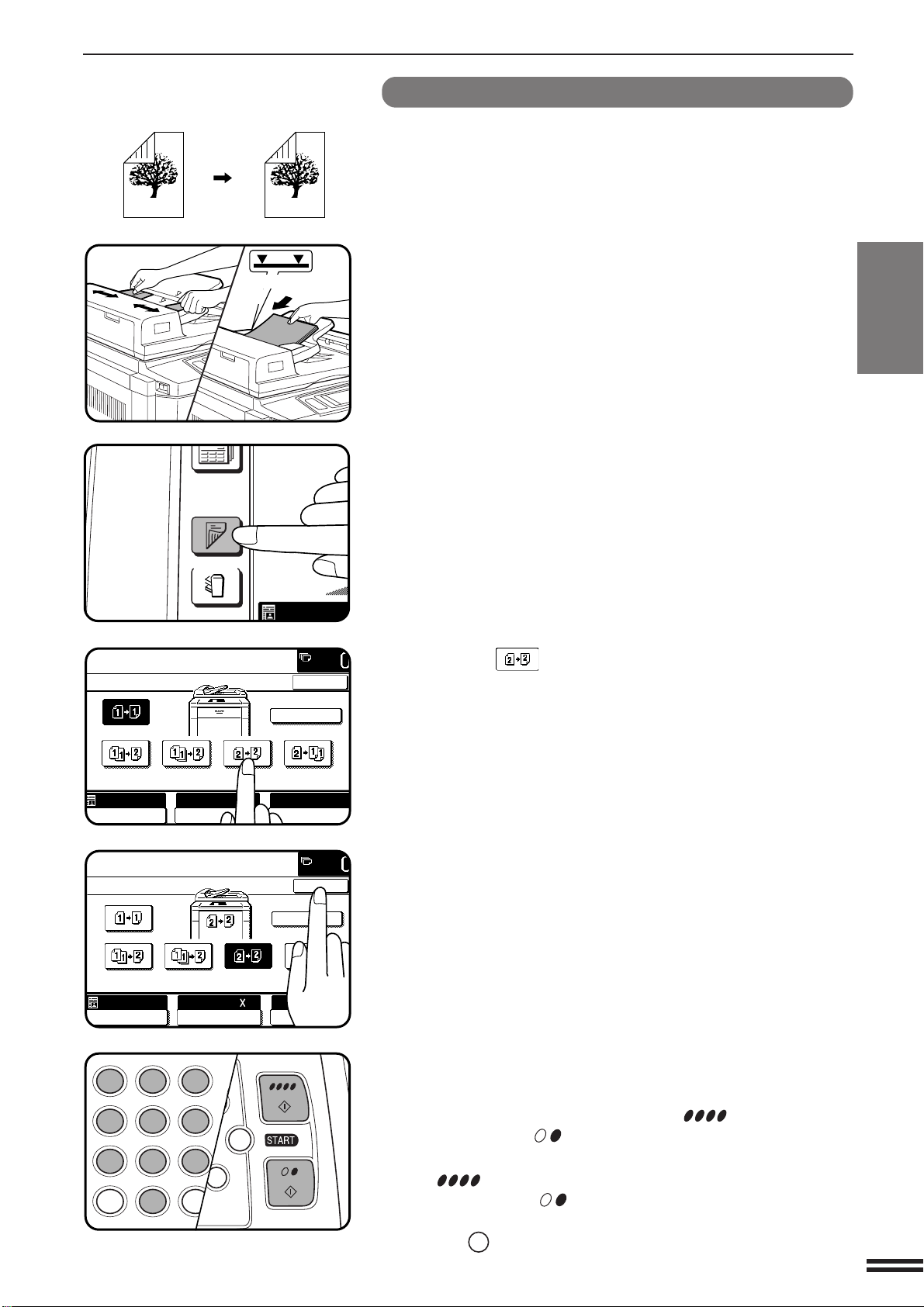
2-sided copies from 2-sided originals
To copy in the 2-sided to 2-sided mode, an optional duplex module (AR-
DU2) must be installed.
1
Adjust the original guides to the size of the originals and
set the originals face up in the document feeder tray.
2
Press the 2-SIDED COPY key.
3
Press the key on the touch panel.
4
Press the “OK” key.
5
Enter the desired number of copies.
●
When making color copies in the duplex mode onto extra size
paper or paper 8-1/2" x 14" or larger, only one copy per original
can be made. Even if a multiple number of copies is set, the
number will be changed to 1 when a START key is pressed.
6
Press the COLOR COPY START ( ) key or BLACK
COPY START (
) key.
●
To perform color copying, press the COLOR COPY START
( ) key. To perform black/white copying, press the BLACK
COPY START ( ) key.
●
To cancel a copy run during duplex copying, press the CLEAR
ALL (
CA
) key.
Copy (2-sided)
Original (2-sided)
OUTPUT
2-SIDED
COPY
AUTO
READY TO COPY.(DOCUMENT FEEDER MODE)
2-SIDED COPY
PRE-COUNT
EVEN NUMBER
ORIGINALS
ODD NUMBER
ORIGINALS
OK
AUTO
EXPOSURE PAPER SELECT
100%
COPY RATIO
8/ 11AUTO
1
2
Maximum height
line
READY TO COPY.(DOCUMENT FEEDER MODE)
2-SIDED COPY
PRE-COUNT
EVEN NUMBER
ORIGINALS
ODD NUMBER
ORIGINALS
OK
AUTO
EXPOSURE PAPER SELECT
100%
COPY RATIO
8/ 11AUTO
1
2
C
CA
CLEAR
INTERRUPT
CLEAR
ALL
12
3
456
789
0
P
C
CL
PROGRAM
AUDIT
INTE
CLE
AL
2-10
CHAPTER2
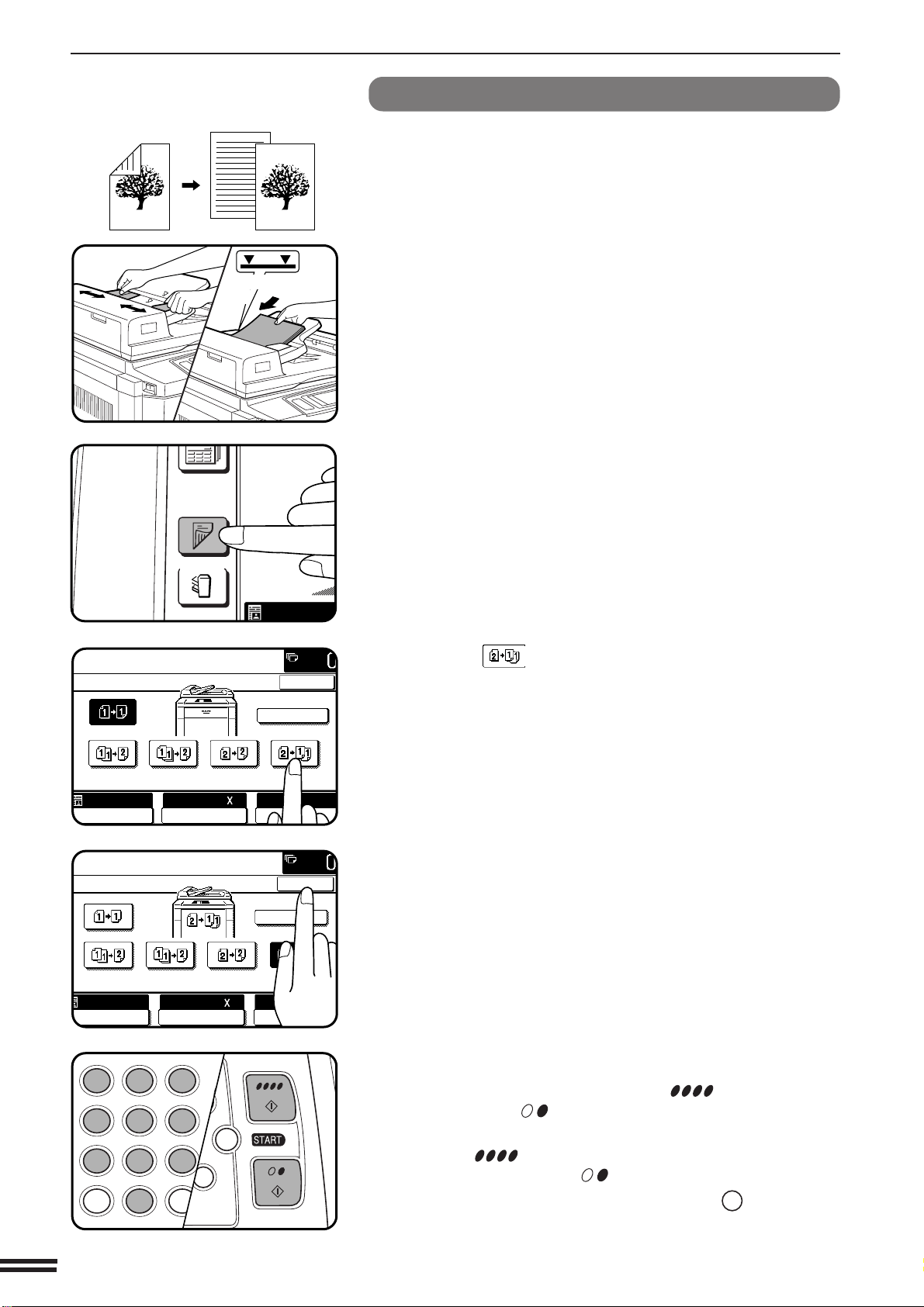
1-sided copies from 2-sided originals
1
Adjust the original guides to the size of the originals and
set the originals face up in the document feeder tray.
2
Press the 2-SIDED COPY key.
3
Press the key on the touch panel.
4
Press the “OK” key.
5
Enter the desired number of copies.
6
Press the COLOR COPY START ( ) key or BLACK
COPY START (
) key.
●
To perform color copying, press the COLOR COPY
START( ) key. To perform black/white copying, press the
BLACK COPY START ( ) key.
●
To cancel a copy run, press the CLEAR ALL (
CA
) key. Copying
will stop and the RADF will output any originals which have been
fed. Also, the number in the copy quantity display will be reset to
0.
MAKING COPIES Using the RADF
USING THE RADF
OUTPUT
2-SIDED
COPY
AUTO
READY TO COPY.(DOCUMENT FEEDER MODE)
2-SIDED COPY
PRE-COUNT
EVEN NUMBER
ORIGINALS
ODD NUMBER
ORIGINALS
OK
AUTO
EXPOSURE PAPER SELECT
100%
COPY RATIO
8/ 11AUTO
1
2
Maximum height
line
READY TO COPY.(DOCUMENT FEEDER MODE)
2-SIDED COPY
PRE-COUNT
EVEN NUMBER
ORIGINALS
ODD NUMBER
ORIGINALS
OK
AUTO
EXPOSURE PAPER SELECT
100%
COPY RATIO
8/ 11AUTO
1
2
C
CA
CLEAR
INTERRUPT
CLEAR
ALL
12
3
456
789
0
P
C
CL
PROGRAM
AUDIT
INTE
CLE
AL
Copies (1-sided)
Original (2-sided)
2-11
CHAPTER2
MAKING COPIES Reduction/Enlargement/Zoom
Automatic selection
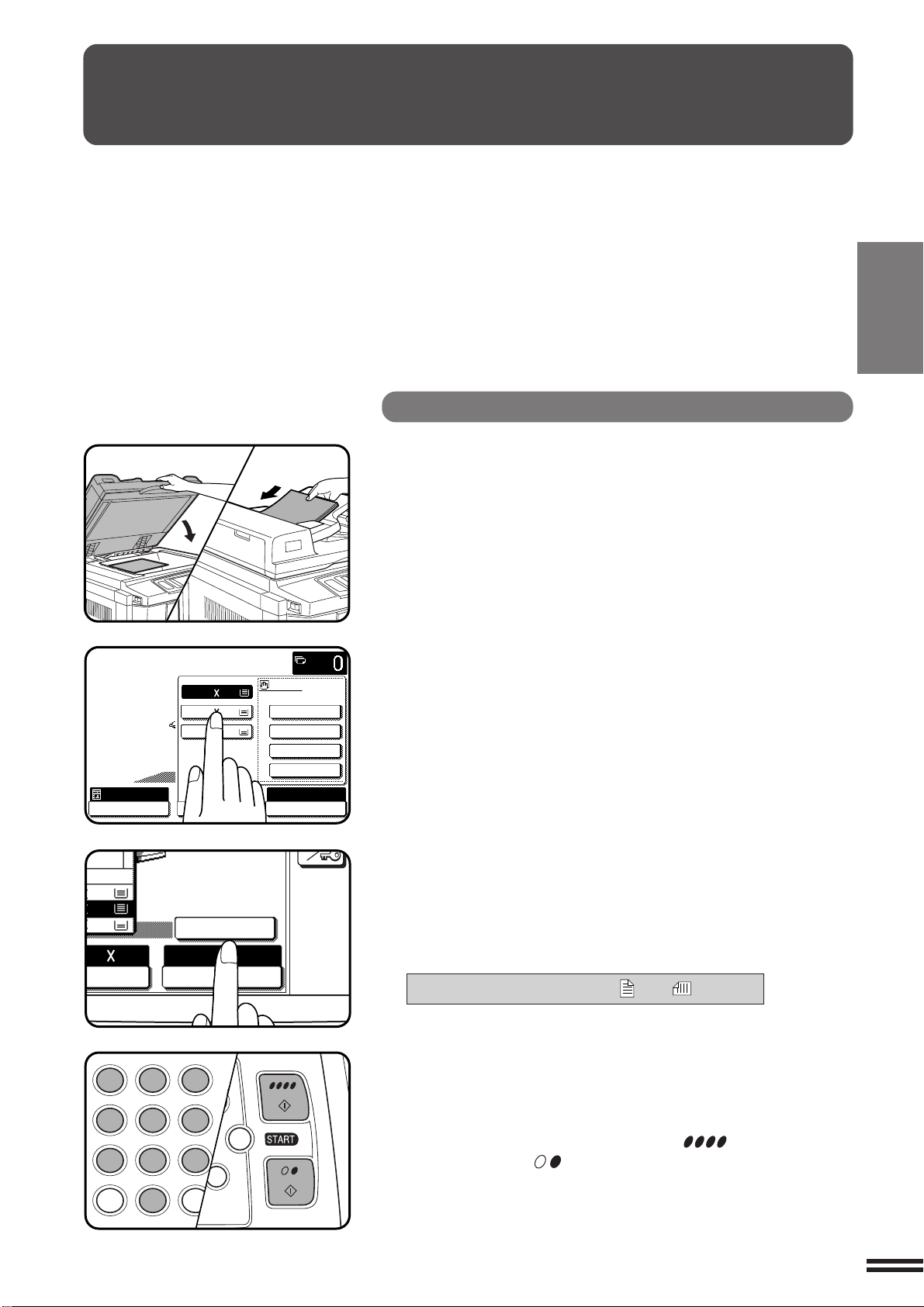
1
Place the original on the document glass or in the
optional document feeder tray.
●
The original size will be detected and indicated on the touch
panel.
2
Press the “PAPER SELECT” key on the touch panel and
select the paper tray with the desired paper size.
NOTE:
This feature will not work when original or copy paper is of non-
standard size.
3
Press the “AUTO IMAGE” key on the touch panel.
●
The best reduction or enlargement ratio for the selected paper
size will be automatically set and displayed on the touch panel.
●
If the originals and the selected copy paper are not facing the
same direction, the following message will appear to indicate
how the original should be placed.
ROTATE ORIGINAL FROM TO .
4
Enter the desired number of copies.
5
Press the COLOR COPY START ( ) key or BLACK
COPY START (
) key.
●
To cancel the automatic reduction/enlargement mode, press the
“AUTO IMAGE” key again.
REDUCTION/ENLARGEMENT/ZOOM
Reduction and enlargement ratios can be selected either
automatically with the “AUTO IMAGE” key or manually with the
reduction, enlargement or “ZOOM” keys on the touch panel. The
zoom function enables precise copy ratio selection from 25% to
400% in 1% increments.
★ KEY OPERATOR A total of four extra preset copy ratios, two each
for reduction and enlargement, can be added. See page 19 of the KEY
OPERATOR’S GUIDE.
READY TO COPY.
AUTO
EXPOSURE
PAPER SELECT
100%
COPY RATIO
1.8/ 11
2.11 17
3.8/ 14
1
2
1
2
16~28 lbs.
28+~35 lbs.
35+~55 lbs.
TRANSPARENCY
PAPER TYPE
11
17
14
SELECT
100%
COPY RATIO
AUTO IMAGE
11 17
C
CA
CLEAR
INTERRUPT
CLEAR
ALL
12
3
456
789
0
P
C
CL
PROGRAM
AUDIT
INTE
CLE
AL
2-12
CHAPTER2
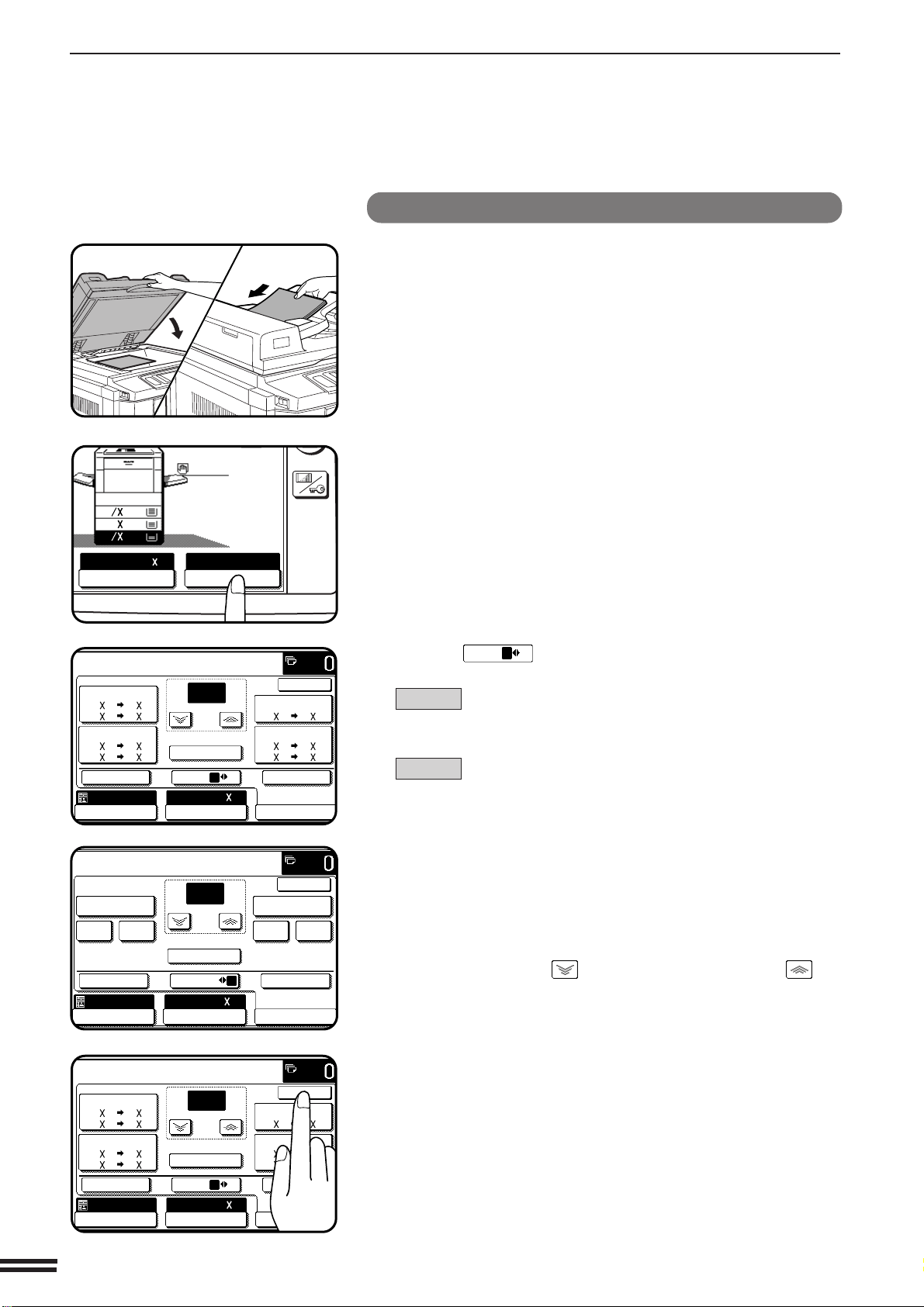
Manual selection
1
Place the original on the document glass or in the
optional document feeder tray.
2
Press the “COPY RATIO” key on the touch panel.
3
Use the
MENU 1 2
key to select menu 1 or menu 2 for copy
ratio selection.
Menu 1
A.Preset reduction copy ratios are: 77% and 64%.
B.Preset enlargement copy ratios are: 121% and 129%.
Menu 2
A.Preset reduction copy ratios are: 95%, 50%, and 25%.
B.Preset enlargement copy ratios are: 141%, 200%
and 400%.
4
Use the reduction, enlargement, and “ZOOM” keys on
the touch panel to set the desired copy ratio.
Zoom ratios: Any ratio from 25% to 400% can be set in
1% increments.
●
Press a reduction or enlargement key to set the approximate
ratio, then press the key to decrease the ratio or the key
to increase the ratio.
●
To set the horizontal and vertical copy ratios separately, use the
XY ZOOM feature. See page 3-2.
●
To reset the copy ratio to 100%, press the “100%” key on the
touch panel.
●
The message “IMAGE IS LARGER THAN COPY PAPER.” may
appear, indicating that the selected copy ratio is too large for the
copy paper size. However, if you press the START key, a copy
will be made.
5
Press the “OK” key.
MAKING COPIES Reduction/Enlargement/Zoom
REDUCTION/ENLARGEMENT/ZOOM
MENU 1
MENU 2
1.
8
11
1
2
2.
1711
3.
8
14
1
2
PAPER SELECT
100%
COPY RATIO
AUTO 8/ 14
1
2
CUSTOM
SETTINGS
READY TO COPY.
AUTO
XY ZOOM
100%
ZOOM
%
100
MENU 1 2
77%
EXPOSURE PAPER SELECT
11 17 8/ 14
8/ 14 8/ 11
100%
COPY RATIO
AUTO IMAGE
AUTO 8/ 14
1
2
1
2
1
2
1
2
64%
11 17 8/ 11
8/ 11 5/ 8/
1
2
1
2
1
2
1
2
121%
OK
8/ 14 11 17
1
2
129%
8/ 11 11 17
5/ 8/ 8/ 11
1
2
1
2
1
2
1
2
READY TO COPY.
AUTO
XY ZOOM
95
%
50
%
25
%
141
%
200
%
400
%
100%
ZOOM
%
100
MENU 1 2
EXPOSURE PAPER SELECT
100%
COPY RATIO
AUTO IMAGE
OK
8/ 14AUTO
1
2
READY TO COPY.
AUTO
XY ZOOM
100%
ZOOM
%
129
MENU 1 2
77%
EXPOSURE PAPER SELECT
11 17 8/ 14
8/ 14 8/ 11
100%
COPY RATIO
AUTO IMAGE
1
2
1
2
1
2
64%
11 17 8/ 11
8/ 11 5/ 8/
1
2
1
2
1
2
1
2
121%
OK
8/ 14 11 17
1
2
129%
8/ 11 11 17
5/ 8/ 8/ 11
1
2
1
2
1
2
1
2
8/ 14AUTO
1
2
2-13
CHAPTER2
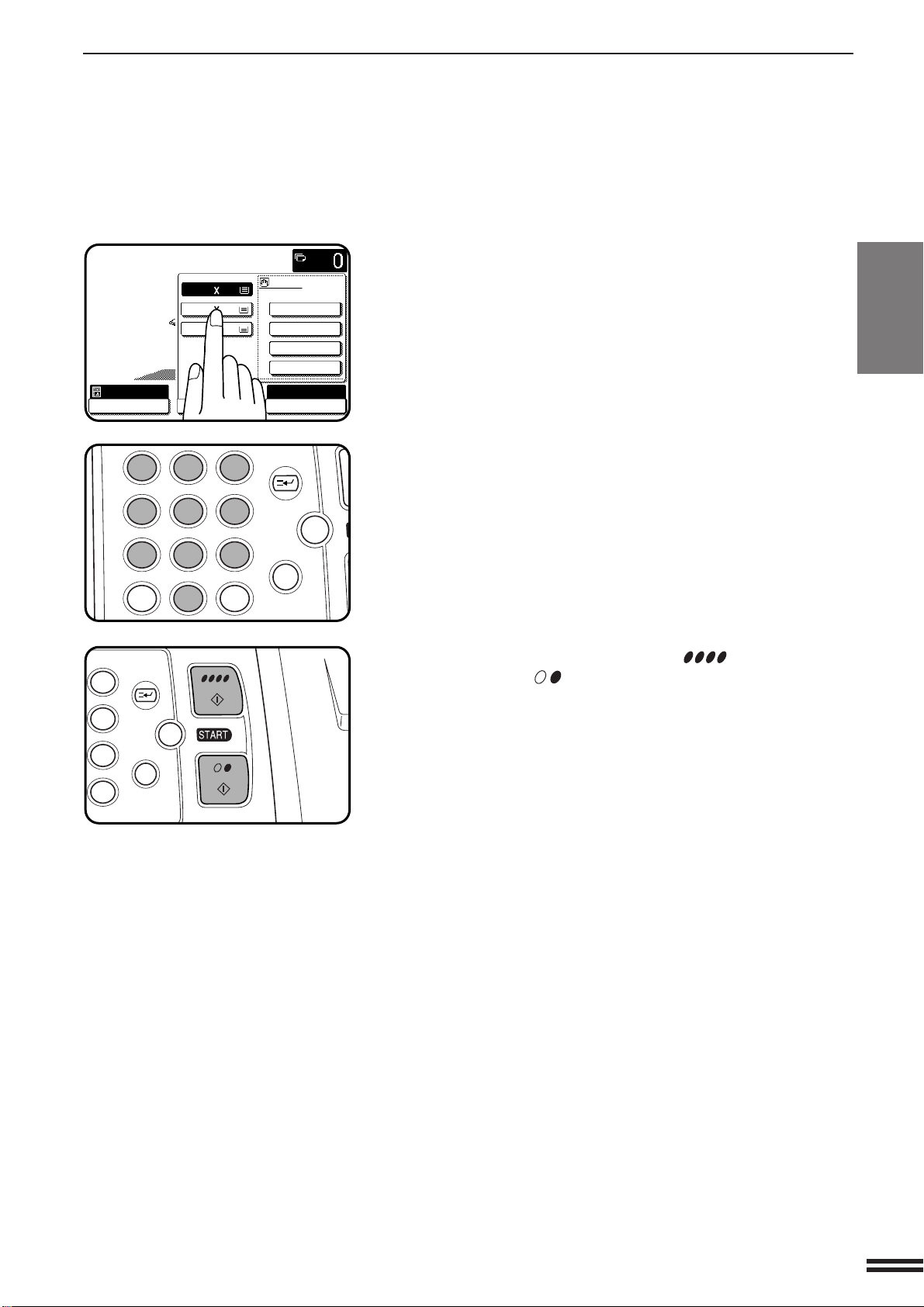
6
Use the “PAPER SELECT” key to select the paper tray
with the desired paper size.
●
If the AUTO PAPER SELECT mode is on, the appropriate copy
paper size will have been automatically selected based on the
original size and selected copy ratio.
●
If a tray of the required size is not installed, use the bypass tray
and press the “PAPER SELECT” key to select the bypass tray.
7
Enter the desired number of copies.
8
Press the COLOR COPY START ( ) key or BLACK
COPY START (
) key.
REDUCTION/ENLARGEMENT/ZOOM
MAKING COPIES Reduction/Enlargement/Zoom
READY TO COPY.
AUTO
EXPOSURE
PAPER SELECT
100%
COPY RATIO
1.8/ 11
2.11 17
3.8/ 14
1
2
1
2
16~28 lbs.
28+~35 lbs.
35+~55 lbs.
TRANSPARENCY
PAPER TYPE
3
6
9
P
C
CA
CLEAR
PROGRAM
INTERRUPT
CLEAR
ALL
12
3
456
789
0
P
C
CA
CLEAR
PROGRAM
AUDIT
INTERRUPT
CLEAR
ALL
N
2-14
CHAPTER2
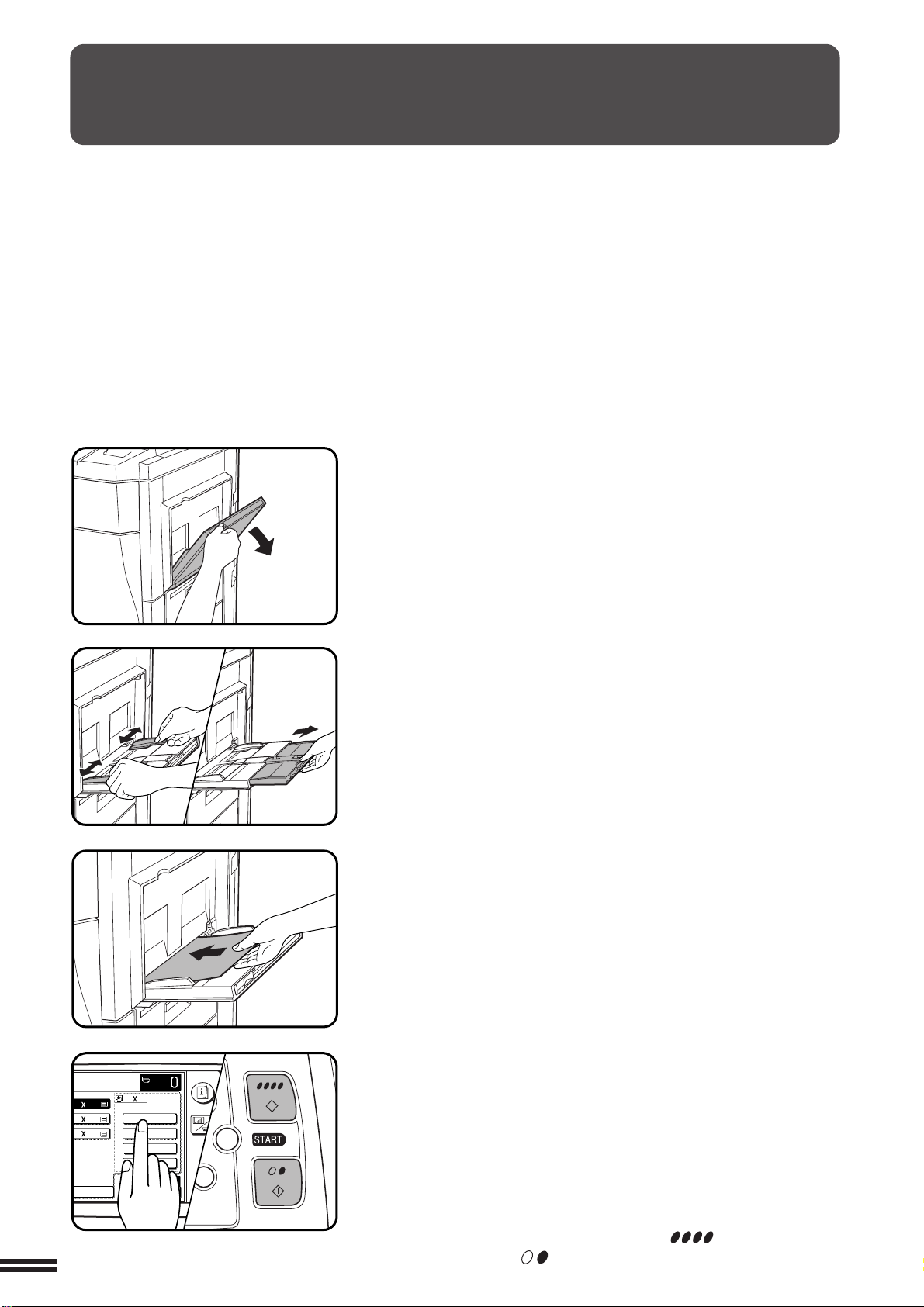
1
Place the original on the document glass or in the
optional document feeder tray.
2
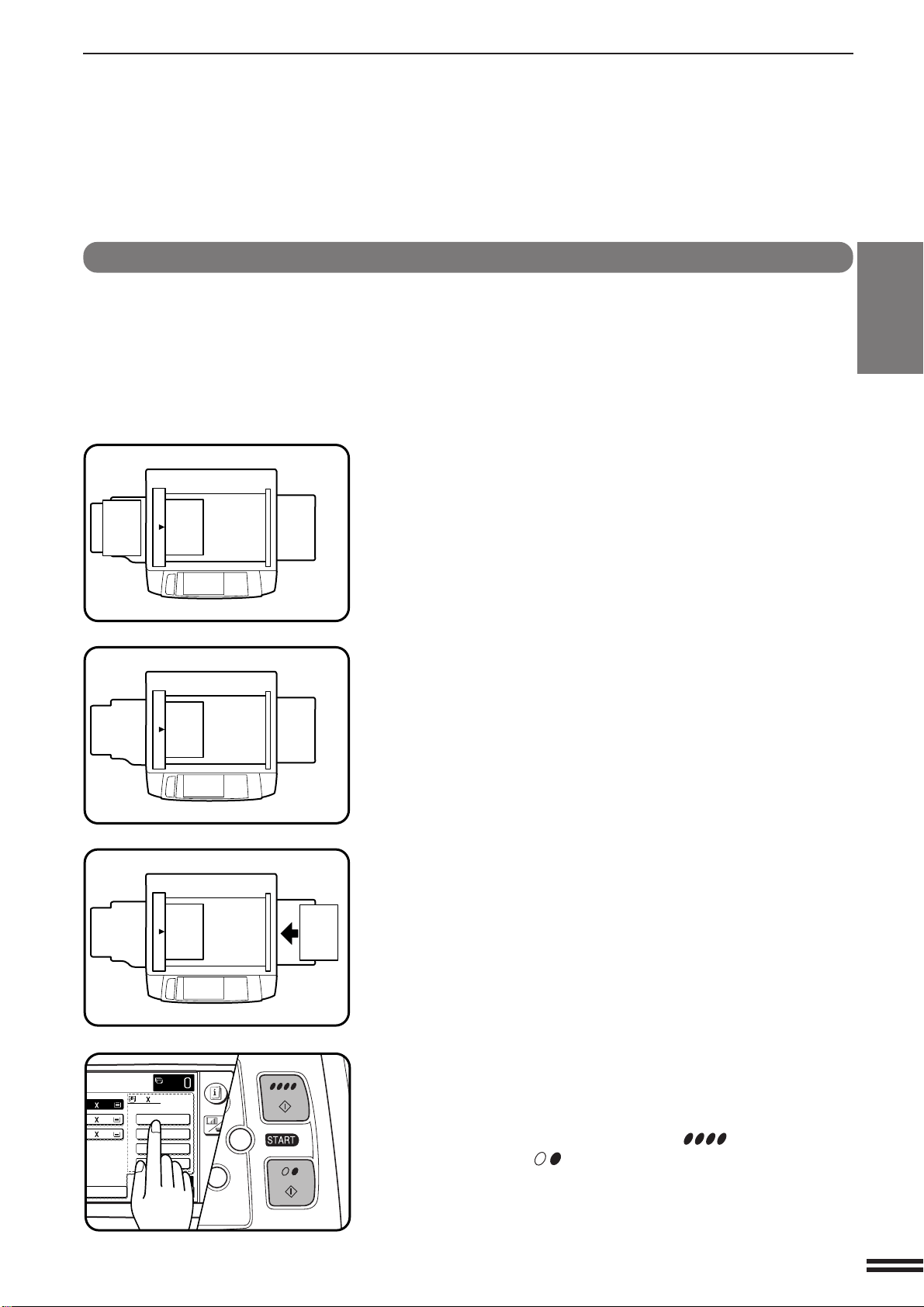
Open the bypass tray.
3
Set the bypass tray guides to the width of the copy
paper.
●
Be sure to extend the tray when feeding paper larger than
8-1/2" x 11" size.
●
If the bypass tray guides are set wider than the copy paper, the
inside of the machine may become soiled, resulting in smudges
on succeeding copies.
4
Insert the copy paper all the way into the bypass tray.
●
Special purpose papers other than SHARP recommended
transparency film must be fed individually. Multiple sheets of
SHARP recommended transparency film can be loaded in the
bypass tray.
●
Up to 50 sheets of standard copy paper measuring from
5-1/2" x 8-1/2" to 12" x 18" can be loaded into the bypass tray.
●
When adding paper, first remove remaining paper, combine it
with the paper to be added and then reload as a single stack.
5
Press the “PAPER SELECT” key on the touch panel and
then select the desired paper type in the bypass tray
section.
●
“16 ~ 28 lbs.” (“PLAIN PAPER”), “28+ ~ 35 lbs.” (“HEAVY
PAPER 1”), “35+ ~ 55 lbs.” (“HEAVY PAPER 2”) or
“TRANSPARENCY” can be set.
6
Set the number of copies.
7
Press the COLOR COPY START ( ) key or BLACK
COPY START (
) key.
MAKING COPIES Special papers (manual feed)
SPECIAL PAPERS (manual feed)
The bypass tray is used to copy onto transparency film and other
special purpose papers. Up to 50 sheets of standard copy paper can
be set in the bypass tray.
●
When copying onto transparency film, the maximum image loss on
the copies will be 13/32" (10 mm) along the leading and trailing
edges and 1/4" (6 mm) in total along the other edges.
Transparency film must be fed long edge into the feed slot.
●
Automatic duplex copying will not work when a non-standard sized
paper is used even if an optional duplex module (AR-DU2) is
installed. If a duplex copying mode is selected and a non-standard
sized paper is used from the bypass tray, the corresponding one-
sided mode will be selected automatically when a START key is
pressed.
C
CA
CLEAR
INTERRUPT
CLEAR
ALL
ER SELECT
100%
COPY RATIO
.8/ 11
11 17
8/ 14
8/ 11
1
2
1
2
1
2
16~28 lbs.
28+~35 lbs.
35+~55 lbs.
TRANSPARENCY
INFORMATION
CUSTOM
SETTINGS
PAPER TYPE
2-15
CHAPTER2
Two-sided copying with bypass tray
Two-sided copies can be made manually using the bypass tray. The
procedure described below is useful for users of the copier without an
optional duplex module (AR-DU2).
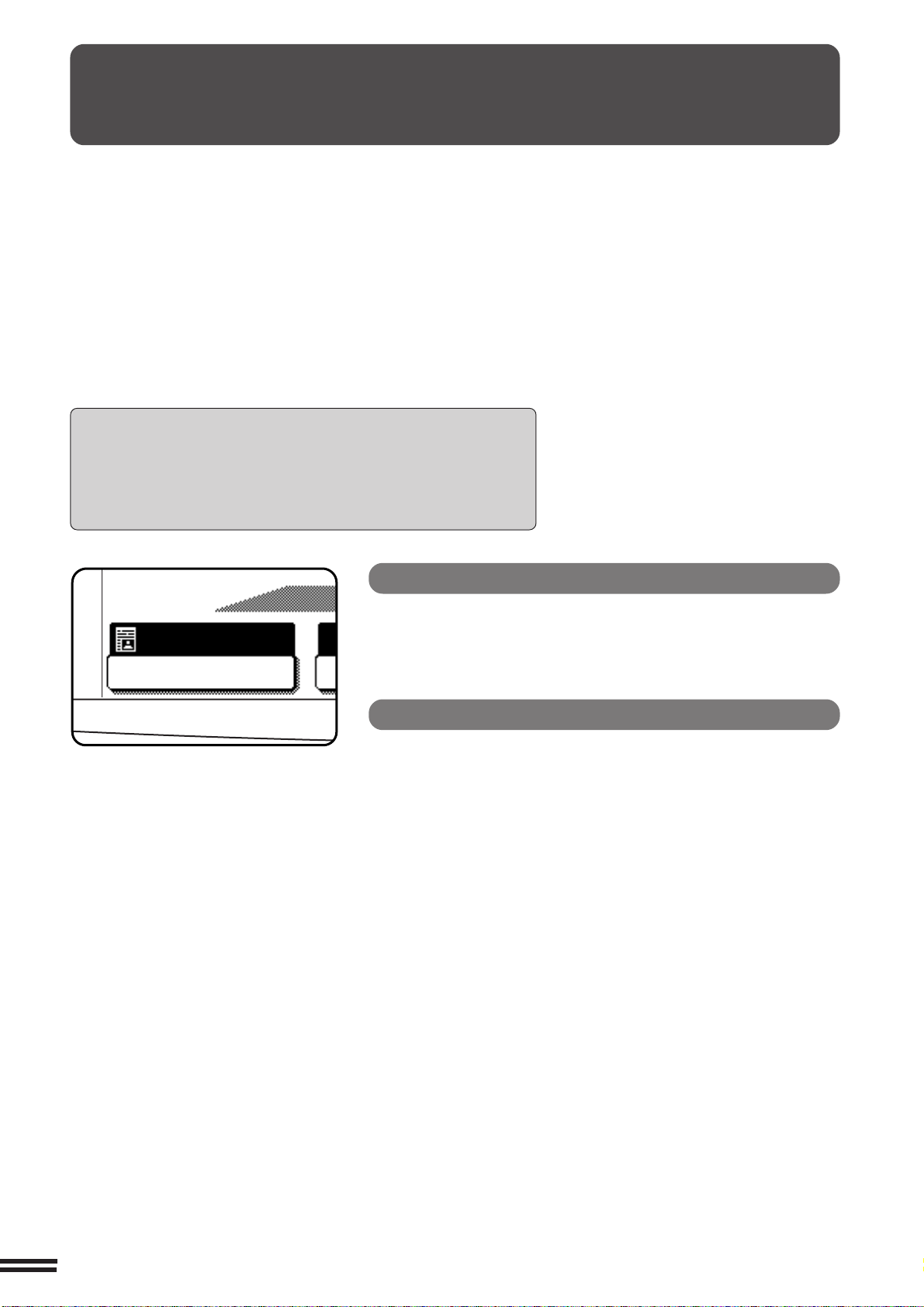
1
Place the first original face down on the document glass
and make a copy.
●
The first side of the copy can be made using any of the paper feed
stations.
2
Remove the first original and place the second original
face down on the document glass.
●
Make sure the first and second originals are oriented in the same
way on the document glass.
●
If an optional document feeder is used, the originals must be fed
one at a time.
3
Turn the first copy over without changing its top-bottom
orientation and place it into the bypass tray.
●
Be sure to feed the copies one sheet at a time.
4
Press the “PAPER SELECT” key and select the desired
paper type in the bypass tray section.
5
Press the COLOR COPY START ( ) key or BLACK
COPY START (
) key.
SPECIAL PAPERS (manual feed)
MAKING COPIES Special papers (manual feed)
1 2
1 2
3 4
3 4
1 2
C
CA
CLEAR
INTERRUPT
CLEAR
ALL
ER SELECT
100%
COPY RATIO
.8/ 11
11 17
8/ 14
8/ 11
1
2
1
2
1
2
16~28 lbs.
28+~35 lbs.
35+~55 lbs.
TRANSPARENCY
INFORMATION
CUSTOM
SETTINGS
PAPER TYPE
2-16
CHAPTER2
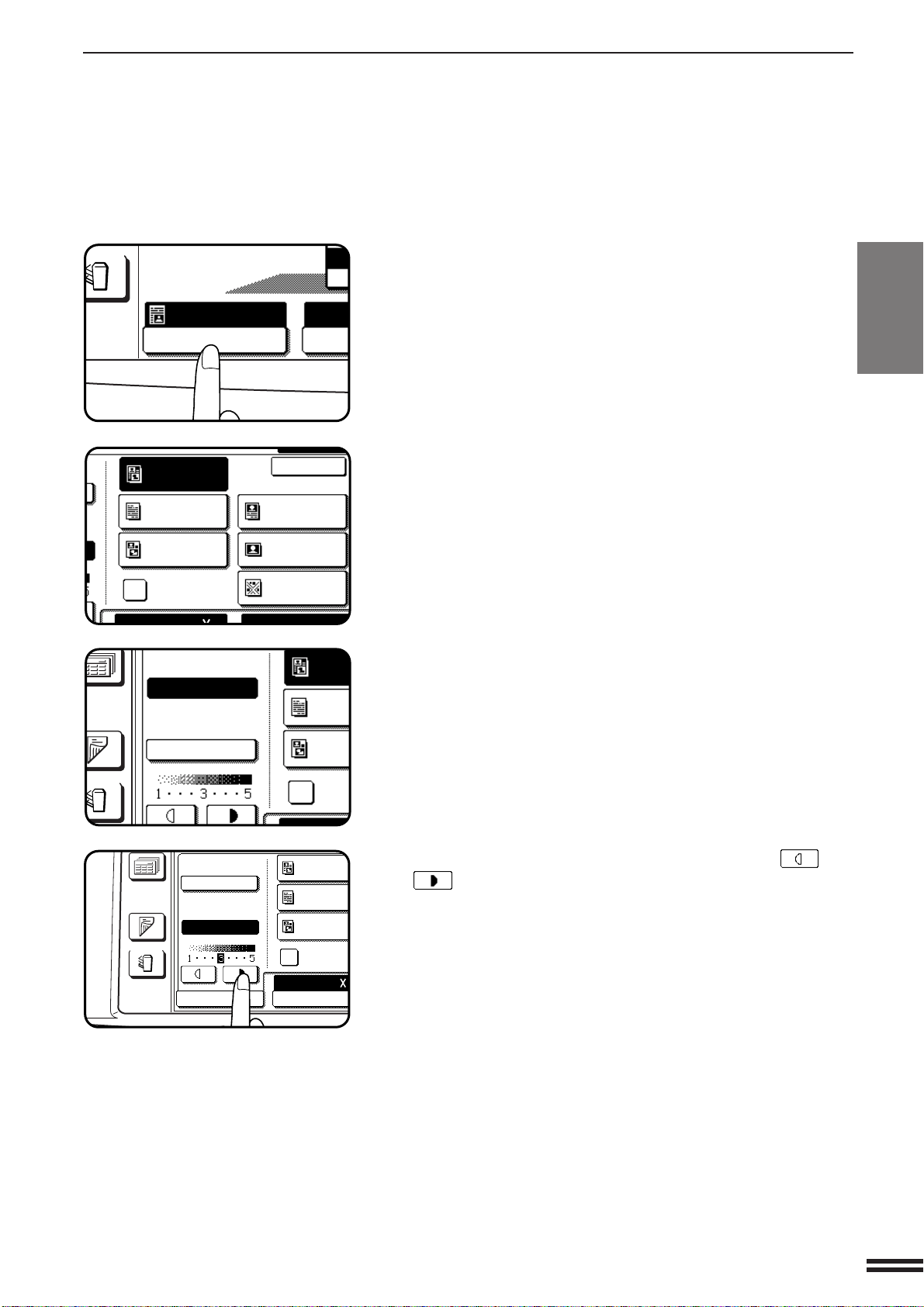
Automatic
This is the standard initial setting for this copier. In this mode, the
characteristics of an original being copied are “read” by the exposure
system, and exposure adjustments are made automatically.
This optimizes the contrast of the copied images.
Original image type
TEXT/PRTD. PHOTO:
This mode provides the best balance for copying
an original which contains both text and printed
photographs.
TEXT: This mode is useful in enhancing very low density
areas of an original or in suppressing unusually
high-density background areas.
TEXT/PHOTO: This mode provides the best balance for copying
an original which contains both text and
photographs.
PRINTED PHOTO: This mode is useful for copying printed
photographs.
PHOTO: This mode provides the best copies of photographs
with fine details.
MAP: This mode is useful to provide the best shading
and fine details found on most maps.
COPY OF COPY: This mode provides the better adjustment for the
printed originals such as copied text or copied
photo. If the check box is checked, only Text/prtd.
photo, Text and Printed photo mode keys are
shown on the touch panel, then select the type of
original among them. The exposure can only be
adjusted manually.
EXPOSURE ADJUSTMENTS
Exposure selections for this copier should be selected according to
the type of originals being copied: TEXT/PRTD. PHOTO, TEXT,
TEXT/PHOTO, PHOTO, PRINTED PHOTO or MAP. (Refer to the
samples on page 4 to see the effects on copy images in relation to
the EXPOSURE ADJUSTMENTS.) If the original image type is
TEXT/PRTD. PHOTO, TEXT or TEXT/PHOTO, the exposure can be
adjusted automatically or manually. If the original image type is
PHOTO, PRINTED PHOTO or MAP, the exposure can be adjusted
manually only. Also if the COPY OF COPY mode is selected, it allows
only TEXT/PRTD. PHOTO, TEXT and PRINTED PHOTO image
types for the better copy result and the exposure can be adjusted
manually only. The standard initial setting of the original image type
for this copier is TEXT/PRTD. PHOTO.
When copying a colored original in the Black/White copy mode, a
colored background with text in the background area may be
copied with the text obscured. Check with the key operator for the
setting of “Disabling of Pre-scan in B/W Copy” program (see page
30 of the Key Operator’s Guide). If pre-scan is enabled, such
obscuring may be reduced.
MAKING COPIES Exposure adjustments
AUTO
EXPOSURE
2-17
CHAPTER2
MAKING COPIES Exposure adjustments
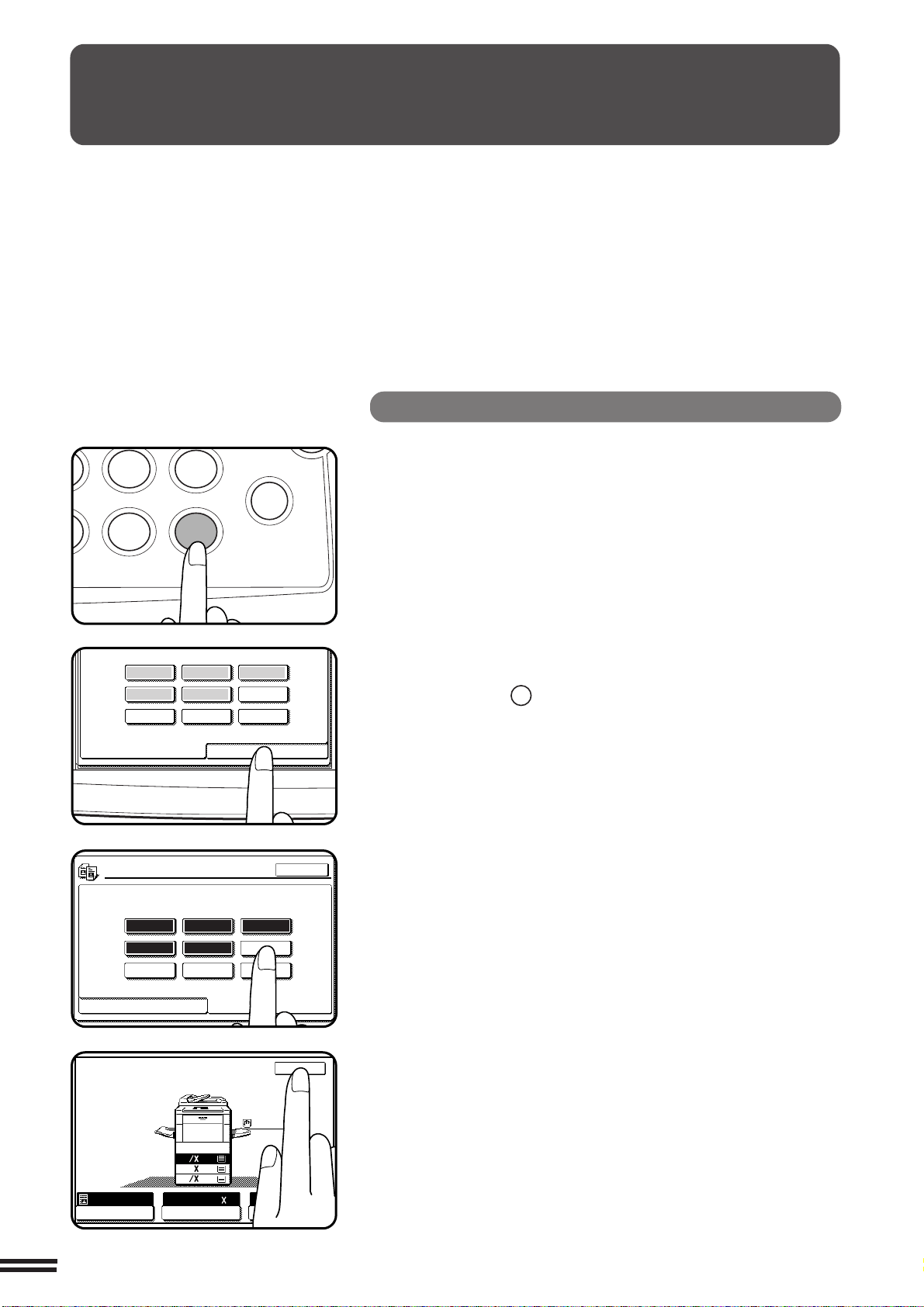
1
Press the “EXPOSURE” key on the touch panel.
2
Select “TEXT/PRTD. PHOTO”, “TEXT”, “TEXT/PHOTO”,
“PRINTED PHOTO”, “PHOTO”, or “MAP” depending on
the original.
●
When making a copy from a copy made by the AR-C250,
checking the box of COPY OF COPY then choosing the proper
alternatives depending upon the content of the original allows for
the best result.
●
When checking the COPY OF COPY check box, TEXT/
PRTD.PHOTO, TXT and PRINTED PHOTO can be selected.
3
If “TEXT/PRTD. PHOTO”, “TEXT” or “TEXT/PHOTO”
has been selected in step 2, select “AUTO” or “MANUAL”.
●
When the COPY OF COPY check box is checked, the exposure
is automatically set to “MANUAL”.
4
If the manual mode has been selected, use the and
keys to adjust the copy density as desired.
EXPOSURE ADJUSTMENTS
UTPUT
AUTO
EXPOSURE PAPE
AUTO
TEXT/
PRTD.PHOTO
TEXT
PRINTED
PHOTO
COPY
OF COPY
TEXT/PHOTO
PHOTO
MAP
100%
8/ 11AUTO
1
OK
TEXT/
PRTD.PHOT
TEXT
PRINTED
PHOTO
COPY
OF COPY
EXPOSURE
AUTO
MANUAL
PAPER SELECT
8/ 1AUTO
1
2
OUTPUT
2-SIDED
COPY
TE
PRTD.
TE
PRI
PH
CO
OF
AUTO
MANUAL
AUTO
SIDED
OPY
UTPUT
2-18
CHAPTER2
JOB MEMORY
Frequently used job programs can be stored in one of nine storage
registers. This is convenient for quick job recall without losing time
manually reprogramming each aspect of the job.
●
All functions that can be set in the copy mode except the copy
quantity setting can be stored in the job memory.
●
If any function which has been stored in a job program is modified
by a key operator program, the key operator settings will supercede
the previous setting.
★ KEY OPERATOR Job memory replacement/deletion can be
prohibited. See page 28 of the KEY OPERATOR’S GUIDE.
Storing a job program
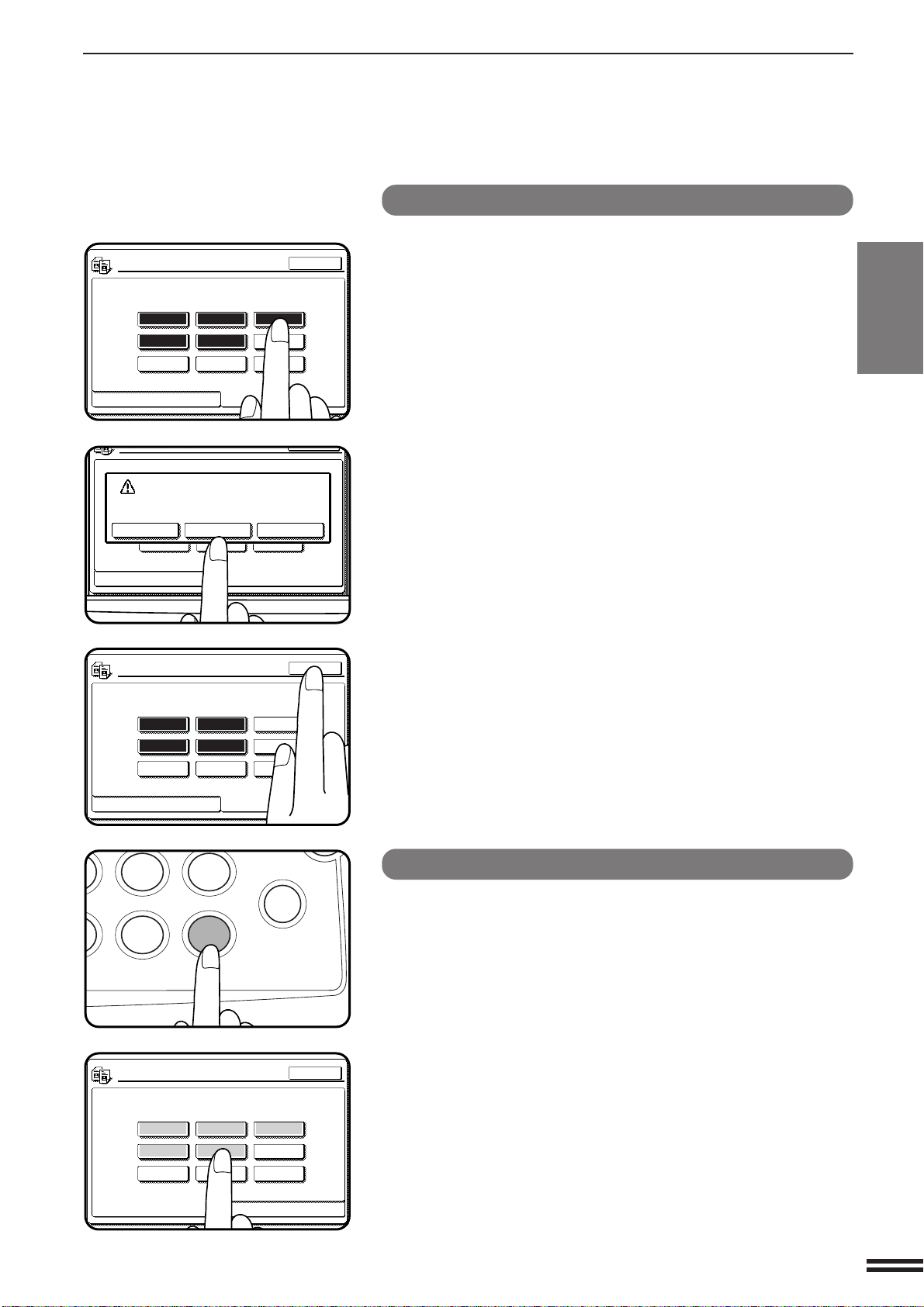
1
Press the PROGRAM key.
●
The JOB PROGRAMS screen will appear on the touch panel.
2
Press the “STORE/DELETE” key on the touch panel.
●
To cancel the job memory mode, press the “EXIT” key or the
CLEAR ALL (
CA
) key.
3
Select a program number from 1 to 9 on the touch panel.
●
The numbers which are highlighted are job registers which
already contain job programs.
●
If a program number containing a registered job program is
selected, a message will appear to confirm the selection. To
replace a stored job program with a new program, press the
“STORE” key and proceed to the next step.
To cancel replacement, press the “CANCEL” key.
4
Make all copier selections to be stored.
5
Press the “OK” key to complete the storage.
MAKING COPIES Job memory
STORE/DELETE
RECALL
1 2 3
4 56
789
1 2 3
4 5
6
789
JOB PROGRAMS
STORE/DELETE
RECALL
PRESS PROGRAM NUMBER.
EXIT
1.
8
11
1
2
2.
1711
3.
8
14
1
2
AUTO
EXPOSURE PAPER SELECT
100%
COPY RATIO
8/ 11AUTO
1
2
MAKE COPIER SELECTIONS AND PRESS
[OK].
OK
CANCEL
89
0
P
C
CLEAR
PROGRAM
IT
2-19
CHAPTER2
MAKING COPIES Job memory
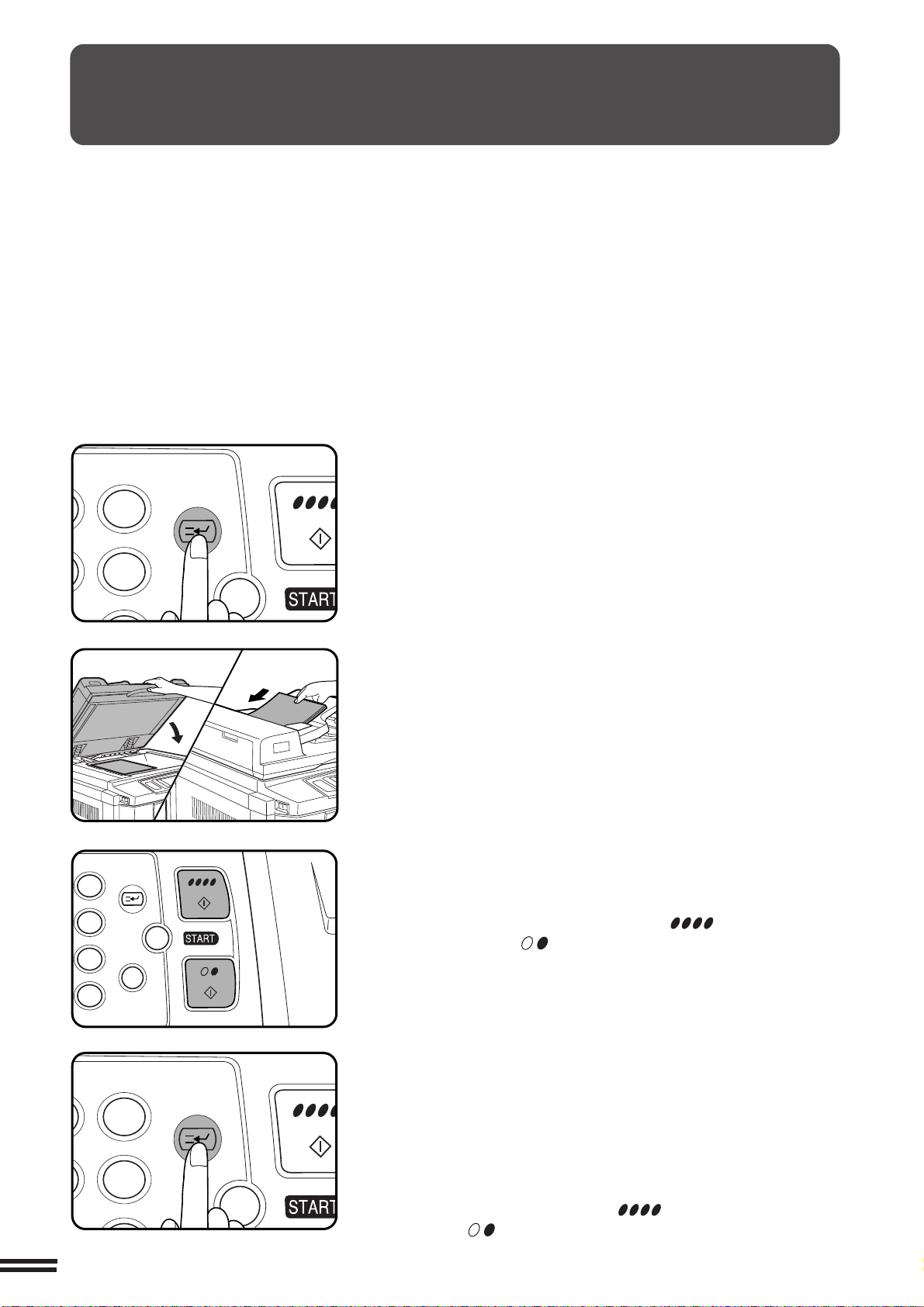
Deleting a stored job program
1
Follow steps 1 and 2 in “Storing a job program” on the
previous page. (1. Press the PROGRAM key. 2. Press
the “STORE/DELETE” key.)
2
Select the storage register number of the program to be
deleted.
●
Be sure to select a number which contains a stored program. If
not, “Storing a job program” operation will start.
3
Press the “DELETE” key or the “CANCEL” key.
●
If the “DELETE” key is pressed, the program will be deleted from
memory.
●
Press the “CANCEL” key to keep the program.
4
Press the “EXIT” key to exit the job memory mode.
Recalling a job program
1
Press the PROGRAM key.
●
The JOB PROGRAMS screen will appear on the touch panel.
●
The numbers which are highlighted are program numbers which
contain stored programs.
2
Select a stored program from 1 to 9 on the touch panel.
●
All selections stored in the program will appear on the touch
panel.
●
The recalled settings may be modified for a particular job run, but
any changes made will not be stored in the job memory. To store
the new settings, follow the “Storing a job program” procedure.
JOB MEMORY
1 2 3
4 5
6
789
JOB PROGRAMS
STORE/DELETE
RECALL
PRESS PROGRAM NUMBER.
EXIT
JOB PROGRAMS
JOB PROGRAM HAS BEEN ALREADY STORED.
STORE ANOTHER PROGRAM?
OR DELETE?
CANCEL DELETE STORE
STORE/DELETE
RECALL
PRESS PROGRAM NUMBER.
1 2 3
4 5
6
789
JOB PROGRAMS
STORE/DELETE
RECALL
PRESS PROGRAM NUMBER.
EXIT
1 2 3
4 5
6
789
JOB PROGRAMS
STORE/DELETE
RECALL
PRESS PROGRAM NUMBER.
EXIT
89
0
P
C
CLEAR
PROGRAM
IT
2-20
CHAPTER2
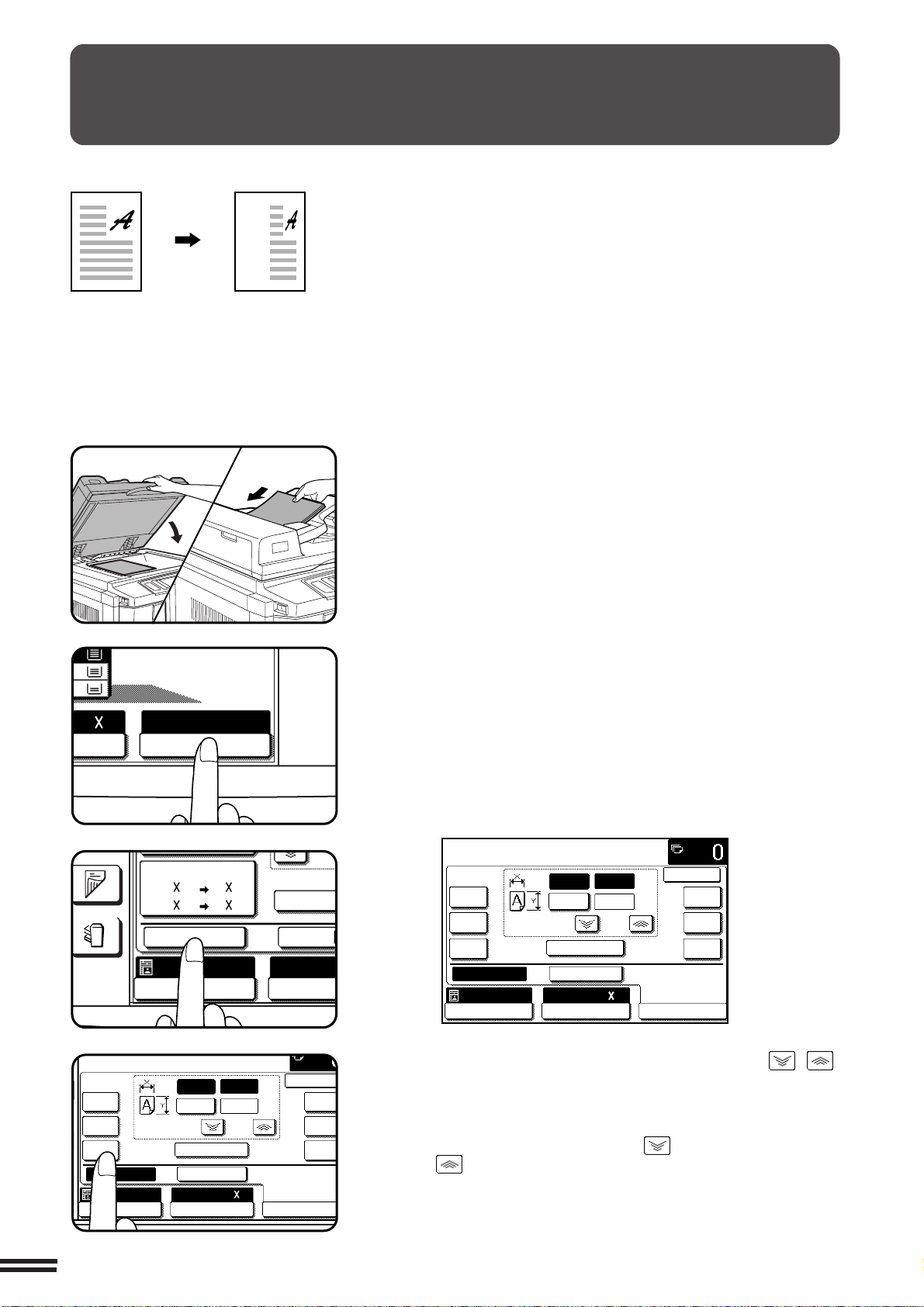
1
Press the INTERRUPT key.
●
When the optional document feeder is being used, the copier will
stop after copying any originals which have been fed into the
document feeder. The INTERRUPT indicator will blink until the
copier stops.
When the copier stops, it will return to its initial settings and the
INTERRUPT indicator will light steadily. At this time, the copier
is ready for interrupt copying.
●
If the copier has been programmed in the auditing mode, the
account number entry message will appear. Enter your account
number using the 10-key pad. The number of copies of the
interrupt copying will be accumulated against this account
number.
2
When the copier stops, remove the original(s) and set
the original(s) for interrupt copying on the document
glass or in the optional document feeder tray.
3
Select the desired available copier functions.
4
Press the COLOR COPY START ( ) key or BLACK
COPY START (
) key.
5
When the interrupt copy run is complete, press the
INTERRUPT key again to cancel the mode and remove
the original(s) used for interrupt copying.
●
The copier will reset itself to the functions which were in use
before the INTERRUPT key was first pressed.
6
Replace the original(s) for the interrupted job and press
the COLOR COPY START ( ) key or BLACK COPY
START (
) key to resume copying.
MAKING COPIES Interrupting a copy run
INTERRUPTING A COPY RUN
INTERRUPT can be used to temporarily stop a long copy run so that
another job can be run.
●
INTERRUPT will not function during duplex copying (when an
optional duplex module (AR-DU2) is installed).
●
Duplex copying, sort, group, staple sort and offset cannot be
selected during interrupt copying. Also job program recall cannot be
selected.
3
6
CA
INTERRUPT
CLEAR
ALL
3
6
CA
INTERRUPT
CLEAR
ALL
3
6
9
P
C
CA
CLEAR
PROGRAM
INTERRUPT
CLEAR
ALL

3-1
CHAPTER3
CHAPTER 3
SPECIAL FUNCTIONS
This chapter describes the special copying functions including various
image editing functions which have been made possible by digital image
processing technology.
Page
●●
●●
●
XY ZOOM ....................................... 3-2
●●
●●
●
MARGIN SHIFT ................................... 3-4
●●
●●
●
ERASE ......................................... 3-6
●●
●●
●
DUAL PAGE COPYING ............................. 3-8
●●
●●
●
CENTERING .................................... 3-10
●●
●●
●
TRANSPARENCY FILM WITH INSERT SHEETS .......... 3-12
●●
●●
●
COVERS ....................................... 3-14
●●
●●
●
COLOR ADJUSTMENTS ........................... 3-16
RGB adjust ..................................... 3-16
Sharpness ...................................... 3-18
Suppress background .............................. 3-20
Brightness/intensity/contrast ......................... 3-22
●●
●●
●
IMAGE EDITING FUNCTIONS ....................... 3-24
Single color ..................................... 3-24
Neg. /pos. reverse ................................. 3-26
Mirror image..................................... 3-28
Photo repeat .................................... 3-30
11 x 17 full-bleed ................................. 3-32
Multi-page enlargement............................. 3-34
Extra size....................................... 3-36
3-2
CHAPTER3
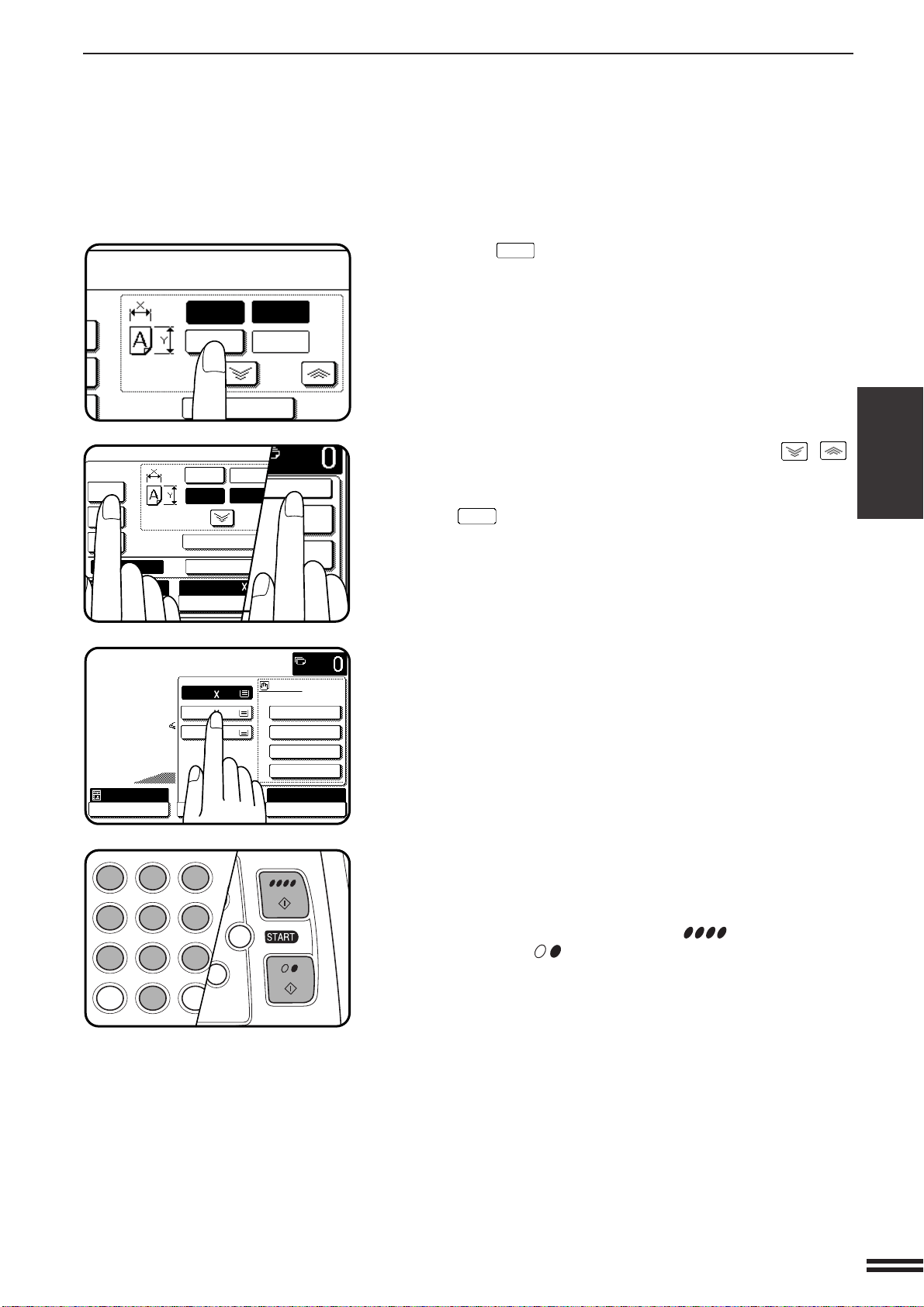
1
Place the original on the document glass or in the
optional document feeder tray.
2
Press the “COPY RATIO” key on the touch panel.
3
Press the “XY ZOOM” key.
●
The following screen will appear.
4
Use the reduction, enlargement , and ZOOM ( , )
keys to change the copy ratio in the horizontal (X)
direction.
●
Press a reduction key or an enlargement key to set the
approximate ratio, then press the key to decrease the ratio
or key to increase the ratio.
XY ZOOM
The XY ZOOM feature allows the horizontal and vertical copy ratios to
be changed independently. If this feature is selected, the copy ratios
can be set from 25% to 400%.
SPECIAL FUNCTIONS XY zoom
Original Copy
ELECT
100%
COPY RATIO
8/ 11
1
2
AUTO
XY ZOOM
//
64
%
11 17 8/ 11
8/ 11 5/ 8/
100%
ZOOM
MENU
EXPOSURE PAPER S
AUTO
1
2
1
2
1
2
1
2
OUTPUT
COPY
READY TO COPY.
AUTO
XY ZOOM
X
Y
100%
ZOOM
100
100
%
%
OK
77
%
64
%
50
%
129
%
200
%
400
%
EXPOSURE PAPER SELECT
100%
COPY RATIO
8/ 11
1
2
AUTO
CANCEL
READY TO COPY.
AUTO
XY ZOOM CANCEL
X
Y
100%
ZOOM
100
100
%
%
OK
77
%
64
%
50
%
129
%
200
%
400
%
EXPOSURE PAPER SELECT
100%
COPY RATIO
8/ 11AUTO
1
2
3-3
CHAPTER3
5
Press the
Y
key.
●
The copy ratio in the vertical (Y) direction will be highlighted.
6
Use the reduction, enlargement, and ZOOM ( , )
keys to change the copy ratio in the vertical (Y) direction.
●
To change the copy ratio in the horizontal direction again, press
the
X
key.
●
The message “IMAGE IS LARGER THAN COPY PAPER.” may
appear, indicating that the selected copy ratio is too large for the
copy paper size. However, if you press a START key, a copy will
be made.
7
Press the “OK” key.
8
Press the “PAPER SELECT” key and select the paper
tray with the desired paper size.
●
If the AUTO PAPER SELECT mode is on, the appropriate copy
paper size will have been automatically selected based on the
original size and selected copy ratios.
9
Enter the desired number of copies.
10
Press the COLOR COPY START ( ) key or BLACK
COPY START ( ) key.
●
To cancel this function, press the “CANCEL” key or the “XY
ZOOM” key again as in step 3.
SPECIAL FUNCTIONS XY zoom
XY ZOOM
TO COPY.
X
Y
100%
ZOOM
50
100
%
%
READY TO COPY.
AUTO
XY ZOOM
X
Y
ZOOM
50
100
77
%
64
%
50
%
EXPOSURE PAPER SELECT
8/ 11AUTO
1
2
%
%
100%
CANCEL
OK
141
%
200
%
400
%
READY TO COPY.
AUTO
EXPOSURE
PAPER SELECT
X-50% Y-70%
COPY RATIO
1.8/ 11
2.11 17
3.8/ 14
1
2
1
2
16~28 lbs.
28+~35 lbs.
35+~55 lbs.
TRANSPARENCY
PAPER TYPE
C
CA
CLEAR
INTERRUPT
CLEAR
ALL
12
3
456
789
0
P
C
CL
PROGRAM
AUDIT
INTE
CLE
AL
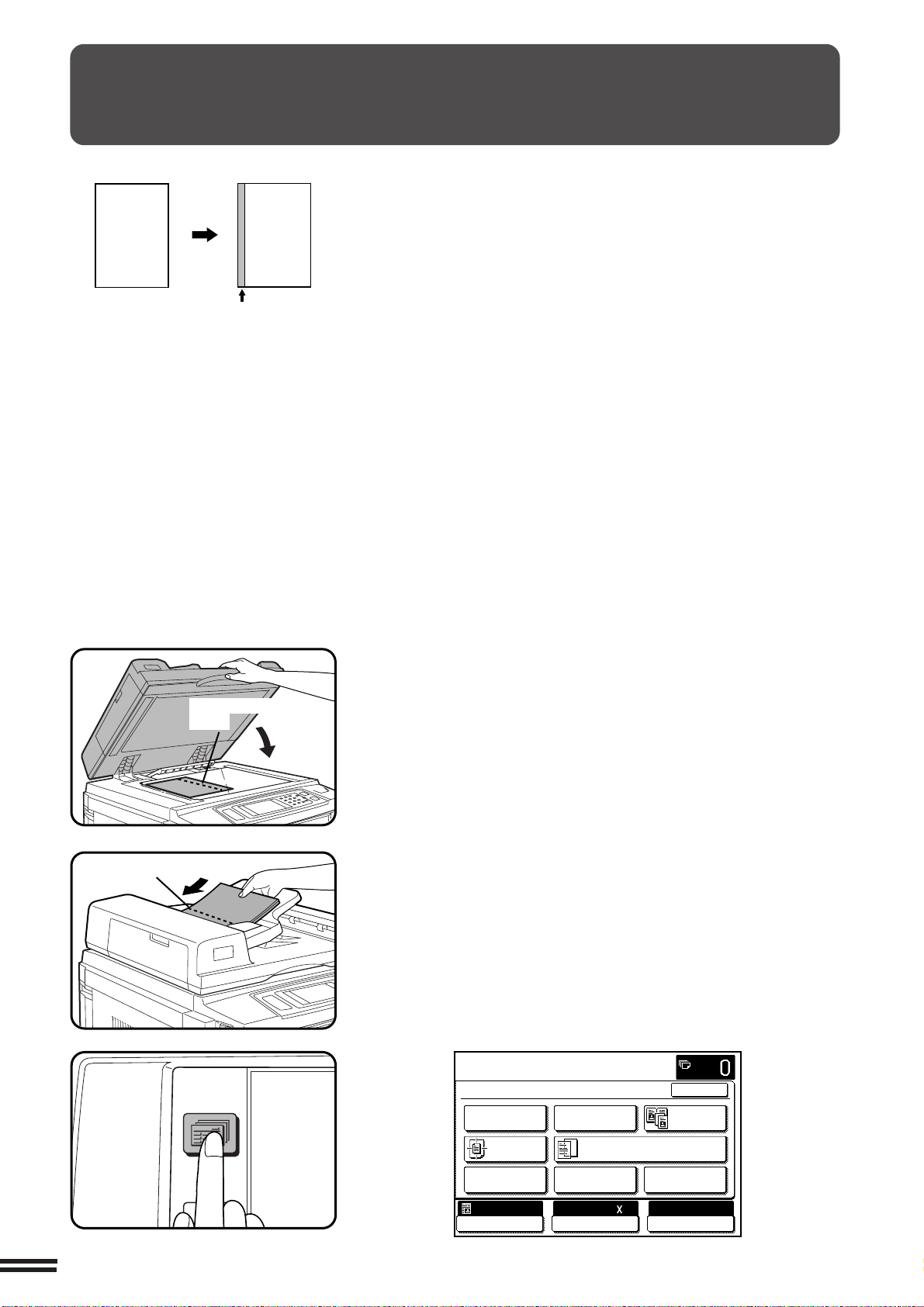
3-4
CHAPTER3
SPECIAL FUNCTIONS Margin shift
The MARGIN SHIFT feature, in its initial setting, shifts the text or image to
the right on one-sided copies and on the front side of two-sided copies. The
text or image is shifted to the left on the reverse side of two-sided copies.
Shift direction can be changed to left or right as described in step 4 below.
●
The standard shift amount is 1/2", but can be changed from 0" to 1" in
1/8" increments.
★ KEY OPERATOR The initial shift setting can be changed from 0" to 1"
in 1/8" increments. See page 20 of the KEY OPERATOR’S GUIDE.
NOTE:
The front side and reverse side are referred to as “SIDE 1” and “SIDE 2”
respectively on the touch panel.
MARGIN SHIFT
Expanded margin
Copy
Original
1
Place an original on the document glass or in the
optional document feeder tray.
2
Press the SPECIAL MODES key.
●
The SPECIAL MODES screen will appear.
(Initial setting:
copy image shifted to the right)
Margin is expanded
here.
Margin is expanded
here.
2-SIDED
COPY
SPECIAL
MODES
READY TO
READY TO COPY.
SPECIAL MODES
MARGIN SHIFT ERASE
IMAGE EDITCOVERS
CENTERING
DUAL PAGE
COPY
COLOR
ADJUSTMENTS
TRANSPARENCY INSERTS
OK
AUTO
EXPOSURE PAPER SELECT
100%
COPY RATIO
8/ 11AUTO
1
2
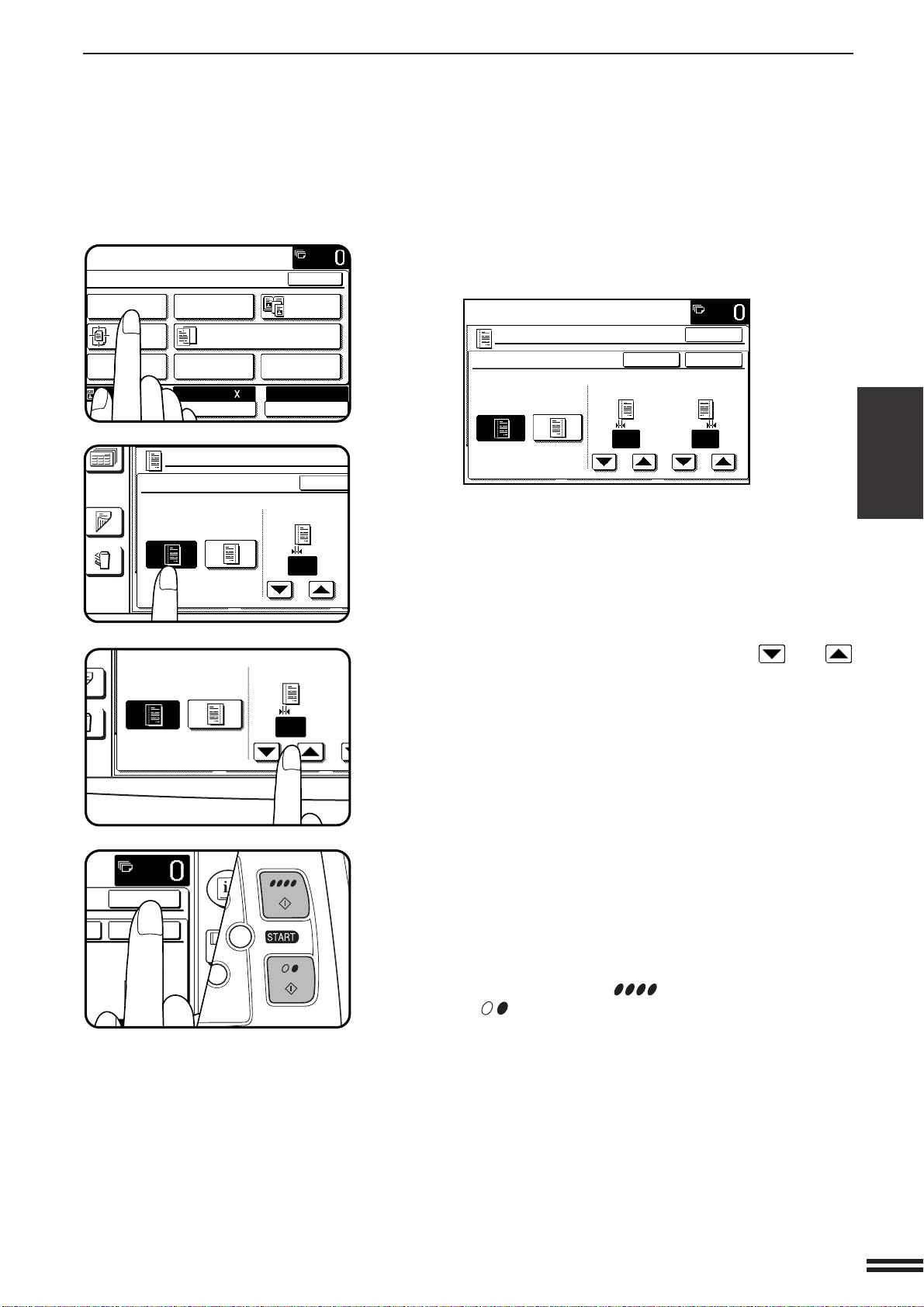
3-5
CHAPTER3
SPECIAL FUNCTIONS Margin shift
MARGIN SHIFT
3
Press the “MARGIN SHIFT” key on the touch panel.
●
The setting screen for MARGIN SHIFT will appear.
●
If an optional duplex module (AR-DU2) is not installed, the
margin shift setting for the reverse side will not be displayed.
4
Select the shift direction.
●
Select “RIGHT” or “LEFT” on the touch panel. The selected shift
direction will be highlighted.
5
Select the desired shift amounts using the and
keys.
6
Press the upper “OK” key on the touch panel.
7
Make all other desired copier selections and press the
COLOR COPY START ( ) key or BLACK COPY
START ( ) key.
●
To cancel the MARGIN SHIFT function, select the MARGIN
SHIFT function again and press the “CANCEL” key.
READY TO COPY.
SPECIAL MODES
MARGIN SHIFT ERASE
IMAGE EDITCOVERS
CENTERING
DUAL PAGE
COPY
COLOR
ADJUSTMENTS
TRANSPARENCY INSERTS
OK
AUTO
EXPOSURE PAPER SELECT
100%
COPY RATIO
8/ 11AUTO
1
2
OUTPUT
2-SIDED
COPY
MARGIN SHIFT
CANCEL
SIDE 1
1/2
RIGHT LEFT
(0~1)
inch
PUT
DED
PY
SIDE 1
1/2
RIGHT
LEFT
(0~1)
inch
C
CA
CLEAR
INTERRUPT
CLEAR
ALL
INFORMAT
CUSTO
SETTING
OK
OK
SIDE 2
READY TO COPY.
MARGIN SHIFT
CANCEL
SIDE 1 SIDE 2
1/2 1/2
RIGHT LEFT
OK
OK
(0~1)
inch
(0~1)
inch
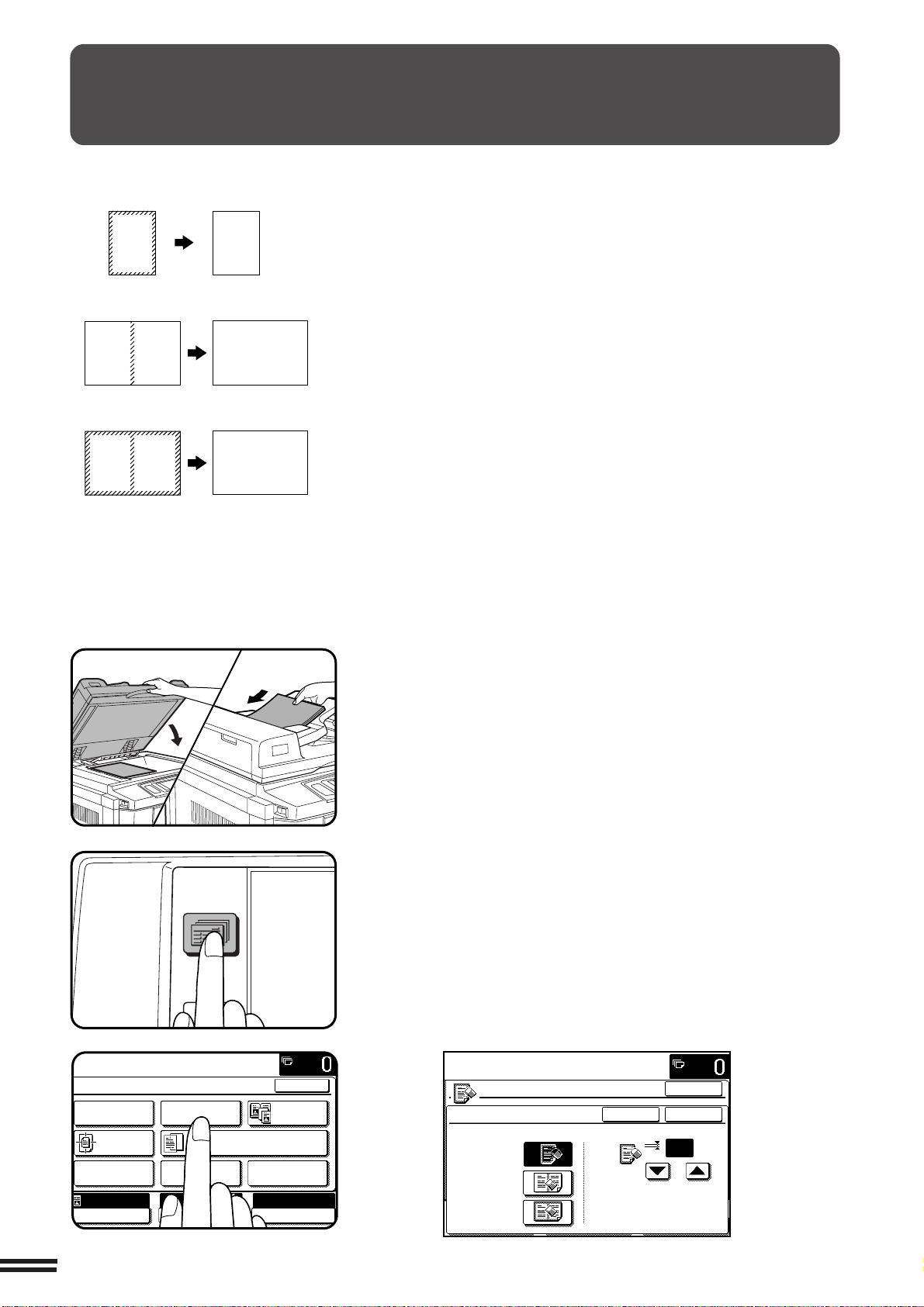
3-6
CHAPTER3
Erase function can be used to eliminate shadow lines around the edges and
the center part of copies as shown in the illustrations, which are caused
when such originals as thick paper, books or bound documents are used.
3 patterns of erase function, EDGE ERASE, CENTER ERASE and
EDGE+CENTER ERASE can be selected.
●
The standard erase width is 1/2", but can be changed from 0" to 1" in
1/8" increments.
★ KEY OPERATOR The initial setting of the width for edge erase and center
erase can be changed. See page 20 of the KEY OPERATOR’S GUIDE.
SPECIAL FUNCTIONS Erase
ERASE
1
Place an original on the document glass or in the
optional document feeder tray.
2
Press the SPECIAL MODES key.
●
The SPECIAL MODES screen will appear.
3
Press the “ERASE” key on the touch panel.
●
The setting screen for ERASE will appear.
2-SIDED
COPY
SPECIAL
MODES
READY TO
READY TO COPY.
SPECIAL MODES
MARGIN SHIFT ERASE
IMAGE EDITCOVERS
CENTERING
DUAL PAGE
COPY
COLOR
ADJUSTMENTS
TRANSPARENCY INSERTS
OK
AUTO
EXPOSURE PAPER SELECT
100%
COPY RATIO
8/ 11AUTO
1
2
READY TO COPY.
ERASE
EDGE ERASE
CENTER ERASE
EDGE+CENTER
ERASE
CANCEL
1/2
OK
OK
(0~1)
inch
A B
A B
A
A
A B
A B
Edge erase
Edge + center erase
Center erase
(Original) (Copy)
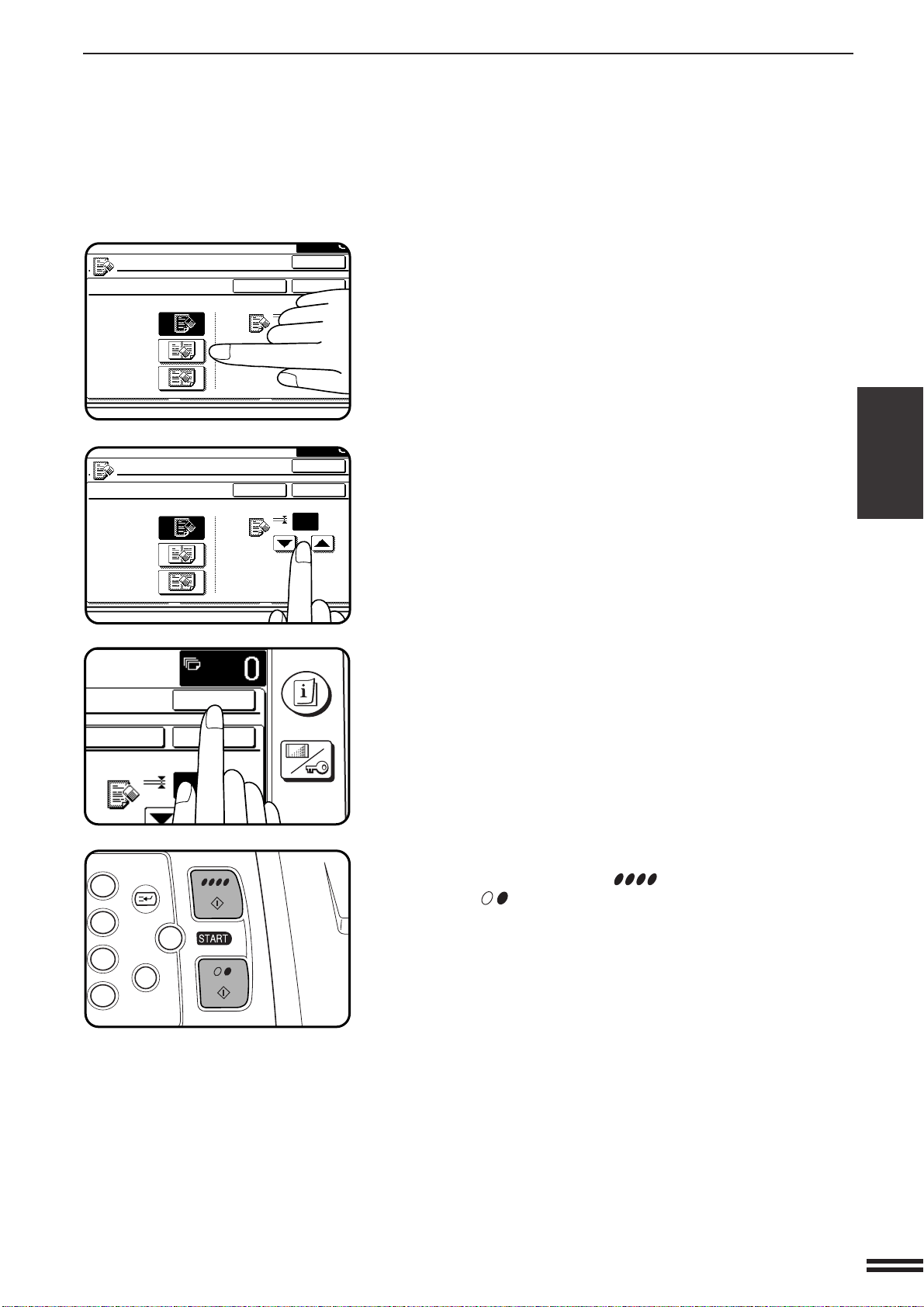
3-7
CHAPTER3
4
Select the desired erase mode.
●
Select “EDGE ERASE”, “CENTER ERASE” or “EDGE+CENTER
ERASE” on the touch panel. The selected erase mode will be
highlighted.
5
Adjust the amount of edge erase and/or center erase if
needed.
●
The amount can be adjusted between 0" and 1" in 1/8" increments.
6
Press the upper “OK” key on the touch panel.
7
Make all other desired copier selections and press the
COLOR COPY START ( ) key or BLACK COPY
START ( ) key.
●
To cancel the ERASE function, select the ERASE function again
and press the “CANCEL” key.
SPECIAL FUNCTIONS Erase
ERASE
ERASE
EDGE ERASE
CENTER ERASE
EDGE+CENTER
ERASE
CANCEL
1
OK
OK
(0~1)
inch
INFORMATION
CUSTOM
SETTINGS
CANCEL
1/2
OK
OK
(0~1)
inch
3
6
9
P
C
CA
CLEAR
PROGRAM
INTERRUPT
CLEAR
ALL
ERASE
EDGE ERASE
CENTER ERASE
EDGE+CENTER
ERASE
CANCEL
1/2
OK
OK
(0~1)
inch
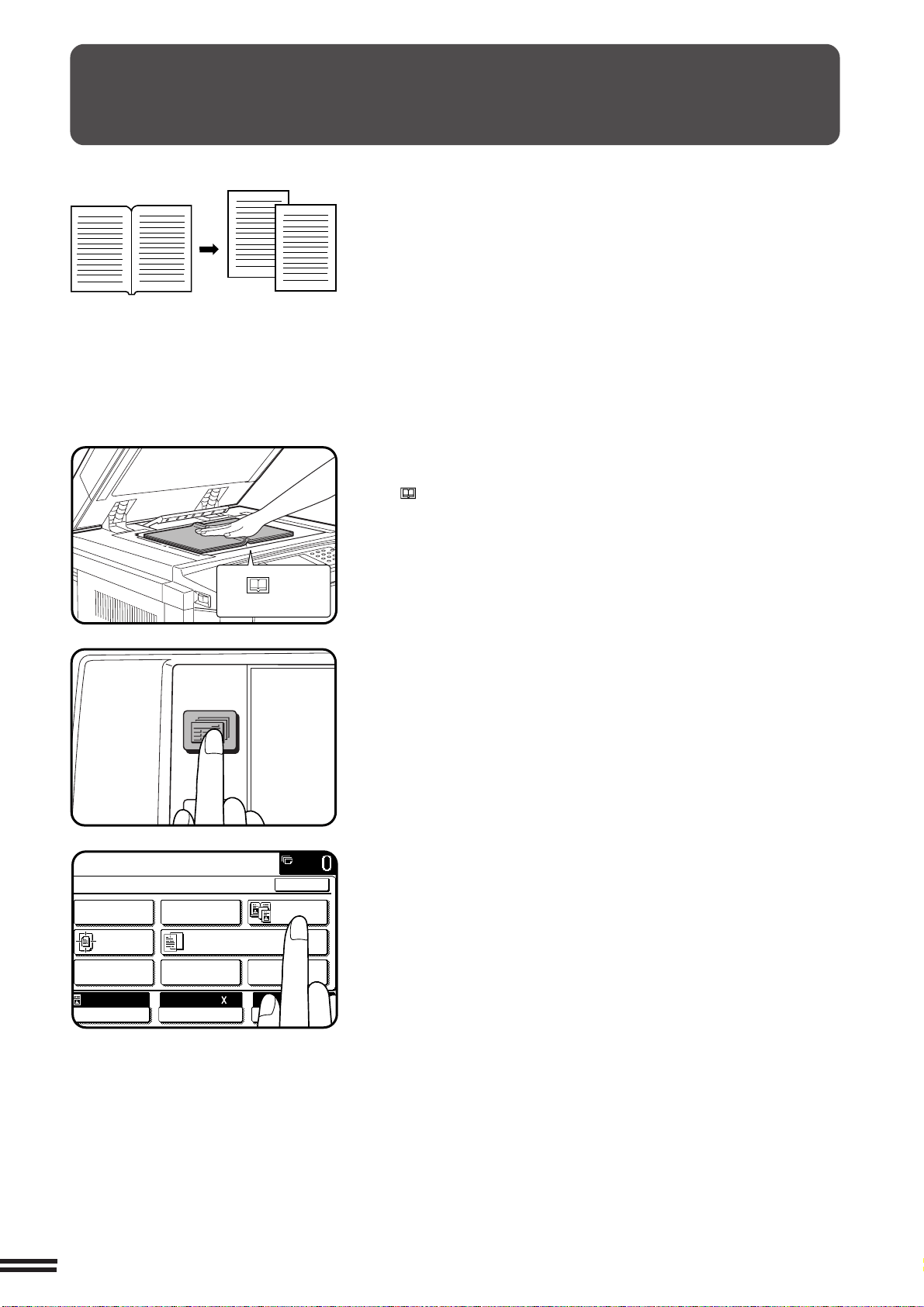
3-8
CHAPTER3
SPECIAL FUNCTIONS Dual page copying
The DUAL PAGE COPY feature produces separate copies of two
documents placed side by side on the document glass. It is especially
useful when copying books and other bound documents.
This feature can be used in the one-sided to two-sided copying mode.
DUAL PAGE COPYING
1
Place the originals on the document glass with the
center of the two pages aligned with the paper size index
8
1
/2. Close the document cover.
●
Set the page to be copied first on the left part of the document
glass.
2
Press the SPECIAL MODES key.
●
The SPECIAL MODES screen will appear.
3
Press the “DUAL PAGE COPY” key on the touch panel.
●
The “DUAL PAGE COPY” key will be highlighted.
●
8-1/2" x 11" sized copy paper will be automatically selected.
If 8-1/2" x 11" copy paper is not loaded, copying can be done on
another size.
●
To leave a binding margin on the copy, select the MARGIN
SHIFT function. See page 3-4.
●
To erase shadows caused by document binding, use the EDGE
ERASE feature. See page 3-6.
●
The CENTER ERASE feature is not available with the DUAL
PAGE COPY feature.
8
1
/
2
Paper size index
2-SIDED
COPY
SPECIAL
MODES
READY TO
READY TO COPY.
SPECIAL MODES
MARGIN SHIFT ERASE
IMAGE EDITCOVERS
CENTERING
DUAL PAGE
COPY
COLOR
ADJUSTMENTS
TRANSPARENCY INSERTS
OK
AUTO
EXPOSURE PAPER SELECT
100%
COPY RATIO
8/ 11AUTO
1
2
Copies
Original
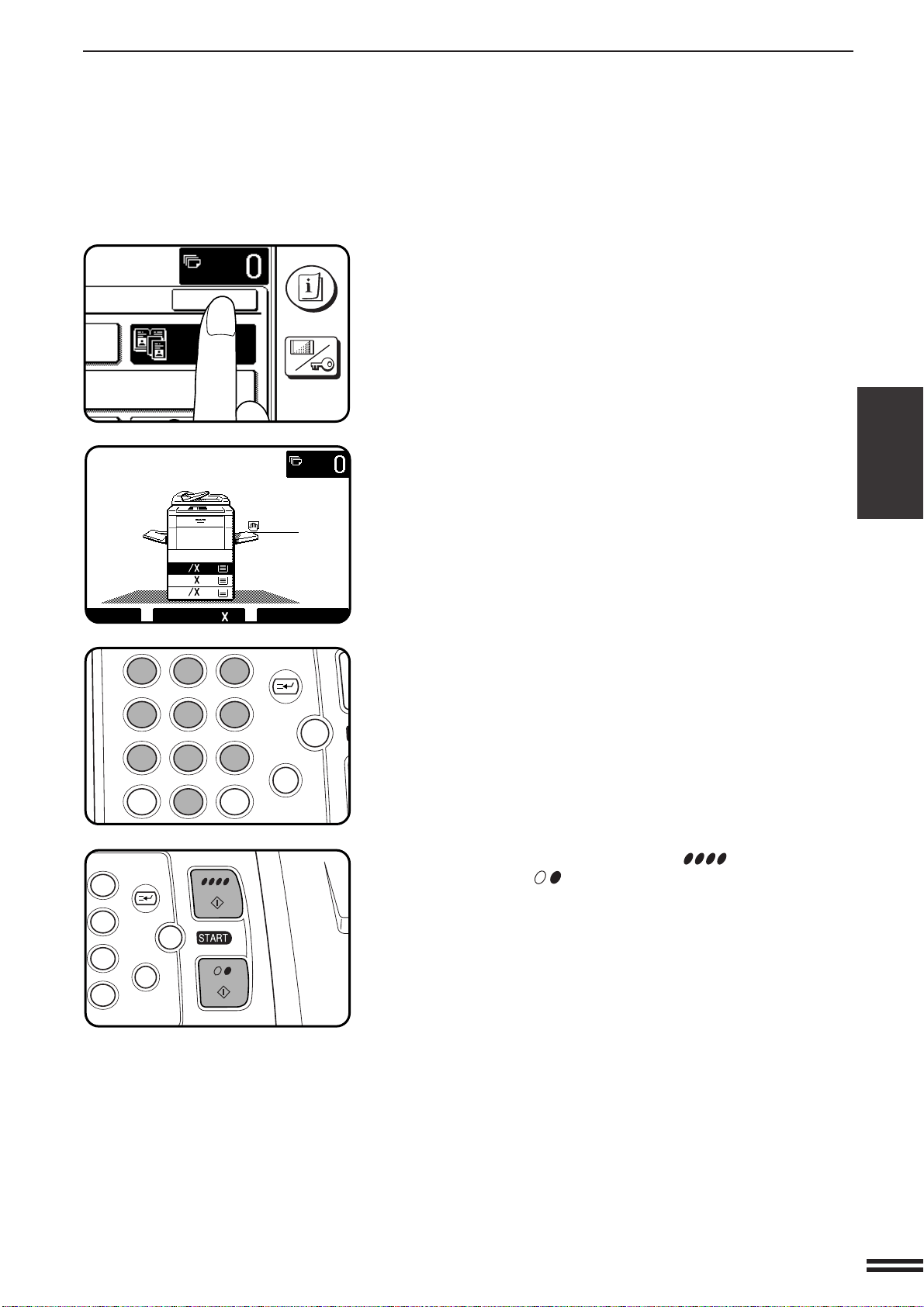
3-9
CHAPTER3
SPECIAL FUNCTIONS Dual page copying
4
Press the “OK” key.
5
Ensure that the desired tray is selected.
6
Enter the desired number of copies.
7
Press the COLOR COPY START ( ) key or BLACK
COPY START ( ) key.
●
To cancel the DUAL PAGE COPY function, press the “DUAL
PAGE COPY” key again on the SPECIAL MODES screen.
DUAL PAGE COPYING
DUAL PAGE
COPY
SPARENCY INSERTS
OK
INFORMATION
CUSTOM
SETTINGS
1.
8
11
1
2
2.
1711
3.
8
14
1
2
TO COPY.
AUTO
100%
8/ 11AUTO
1
2
12
3
456
789
0
P
C
CA
CLEAR
PROGRAM
AUDIT
INTERRUPT
CLEAR
ALL
N
3
6
9
P
C
CA
CLEAR
PROGRAM
INTERRUPT
CLEAR
ALL
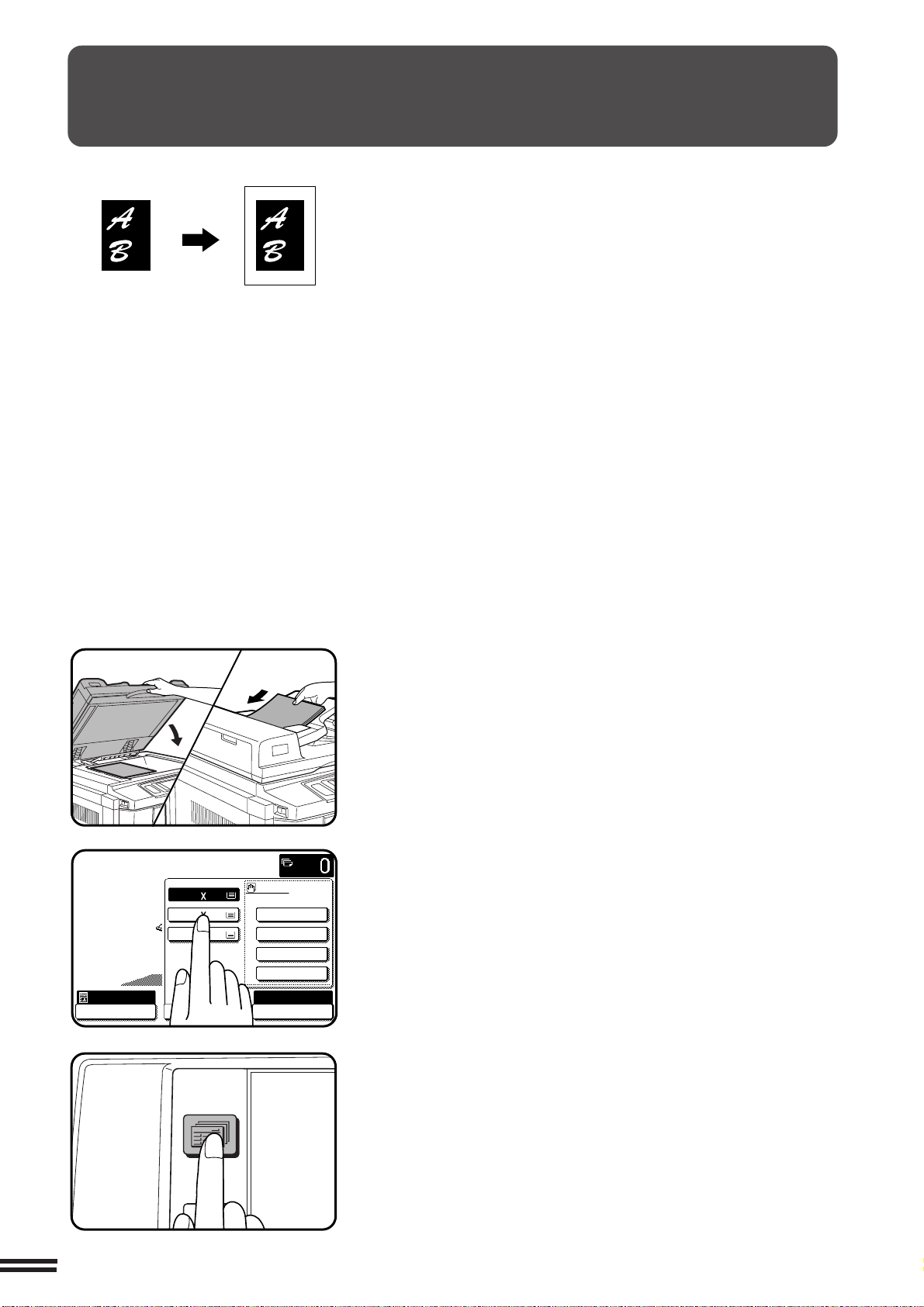
3-10
CHAPTER3
SPECIAL FUNCTIONS Centering
When the original and copy paper are of different sizes, CENTERING
is used to shift the image as a whole to the center of the copy paper.
The image will shift only in the left to right direction, not in the top to
bottom direction.
●
This function can be used to reduce a larger sized original image and
center it on a copy of smaller paper size, as well as center a smaller
original onto a larger sized copy.
●
This function will not work when non-standard size originals or copy
paper are used. This function cannot be selected when enlargement
copying has been selected.
1
Place the originals on the document glass or in the
optional document feeder tray.
2
Press the “PAPER SELECT” key on the touch panel and
select the desired paper size.
3
Press the SPECIAL MODES key.
●
The SPECIAL MODES screen will appear.
CENTERING
READY TO COPY.
AUTO
EXPOSURE
PAPER SELECT
100%
COPY RATIO
1.8/ 11
2.11 17
3.8/ 14
1
2
1
2
16~28 lbs.
28+~35 lbs.
35+~55 lbs.
TRANSPARENCY
PAPER TYPE
2-SIDED
COPY
SPECIAL
MODES
READY TO
Copy
Original
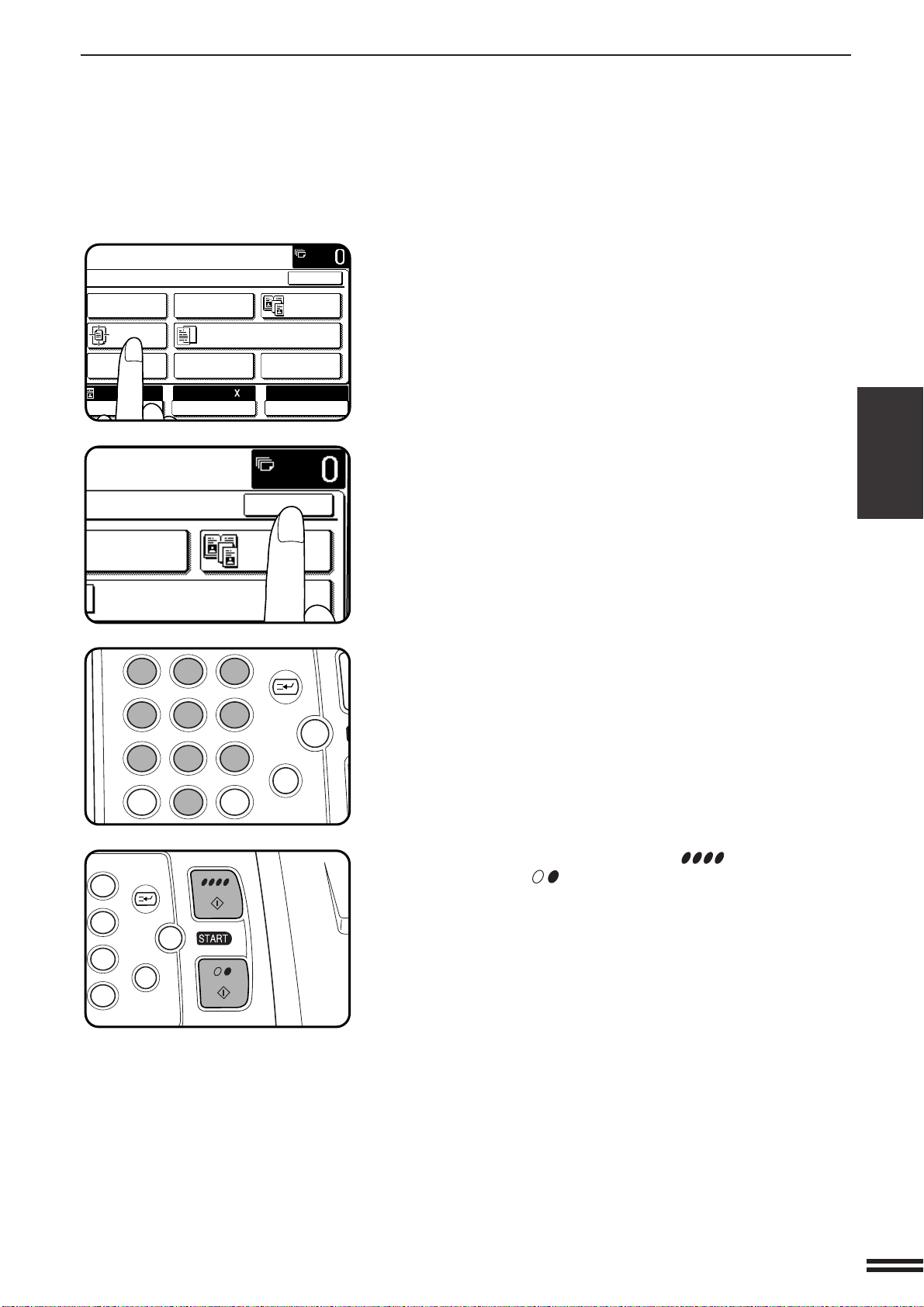
3-11
CHAPTER3
4
Press the “CENTERING” key on the touch panel.
●
The “CENTERING” key will be highlighted.
5
Press the “OK” key.
6
Make all other desired copier selections and enter the
desired number of copies.
7
Press the COLOR COPY START ( ) key or BLACK
COPY START ( ) key.
●
To cancel the CENTERING function, press the “CENTERING”
key again on the SPECIAL MODES screen.
SPECIAL FUNCTIONS Centering
CENTERING
READY TO COPY.
SPECIAL MODES
MARGIN SHIFT ERASE
IMAGE EDITCOVERS
CENTERING
DUAL PAGE
COPY
COLOR
ADJUSTMENTS
TRANSPARENCY INSERTS
OK
AUTO
EXPOSURE PAPER SELECT
100%
COPY RATIO
8/ 11AUTO
1
2
ERASE
DUAL PAGE
COPY
TRANSPARENCY INSERTS
OK
12
3
456
789
0
P
C
CA
CLEAR
PROGRAM
AUDIT
INTERRUPT
CLEAR
ALL
N
3
6
9
P
C
CA
CLEAR
PROGRAM
INTERRUPT
CLEAR
ALL
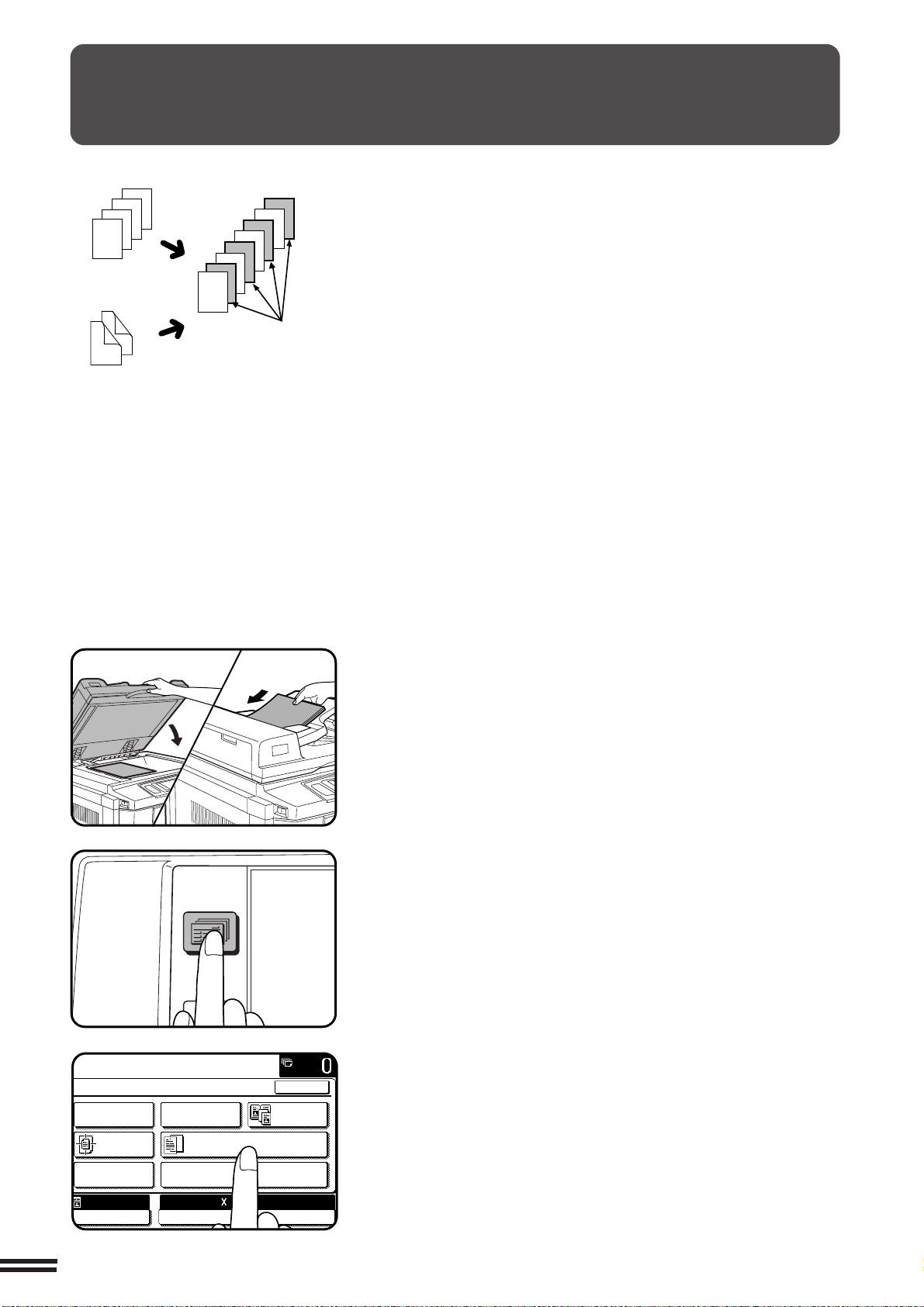
3-12
CHAPTER3
TRANSPARENCY FILM WITH INSERT SHEETS
When copying onto transparency film, blank insert sheets can be
placed following each transparent sheet.
●
Insert sheets cannot be copied on in any mode.
●
This mode can be selected only in the 1-sided to 1-sided and 2-sided
to 1-sided modes.
●
A multiple number of copies cannot be selected in this mode.
●
Transparency film must be fed from the bypass tray.
●
Insert sheets must be the same size as the transparency film.
●
For best results, use SHARP recommended transparency film.
1
Place the originals on the document glass or in the
optional document feeder tray.
2
Press the SPECIAL MODES key.
●
The SPECIAL MODES screen will appear.
3
Press the “TRANSPARENCY INSERTS” key on the touch
panel.
●
The “TRANSPARENCY INSERTS” key will be highlighted.
SPECIAL FUNCTIONS Transparency film with insert sheets
2
3
4
Originals (1-sided)
Originals (2-sided)
Insert sheets
4
3
2
1
4
1
2
3
1
2-SIDED
COPY
SPECIAL
MODES
READY TO
READY TO COPY.
SPECIAL MODES
MARGIN SHIFT ERASE
IMAGE EDITCOVERS
CENTERING
DUAL PAGE
COPY
COLOR
ADJUSTMENTS
TRANSPARENCY INSERTS
OK
AUTO
EXPOSURE PAPER SELECT
100%
COPY RATIO
8/ 11AUTO
1
2
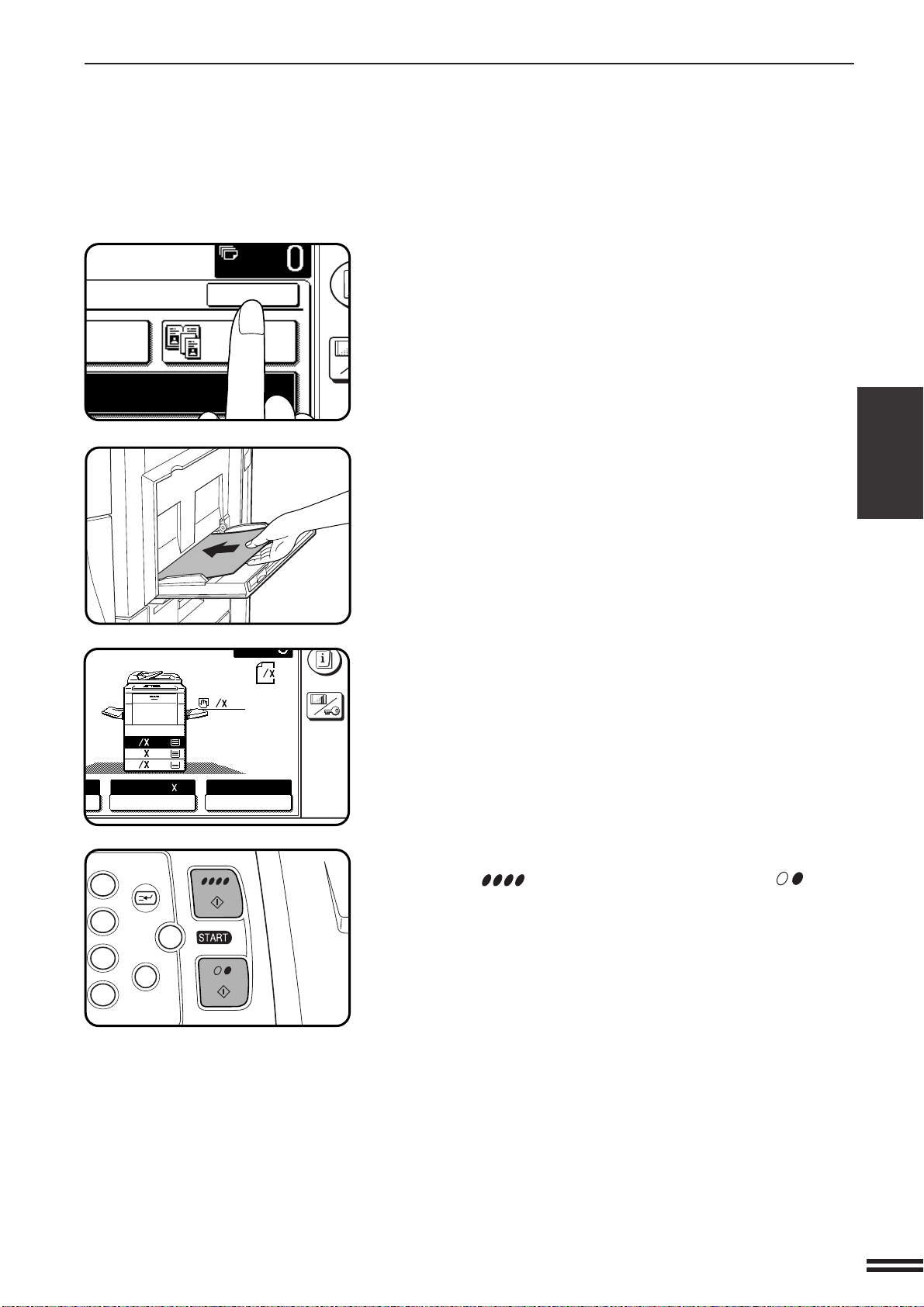
3-13
CHAPTER3
TRANSPARENCY FILM WITH INSERT SHEETS
4
Press the “OK” key.
5
Load transparency film into the bypass tray.
●
Set the long edge of the film to be fed into the machine.
6
Ensure that the tray selected for the insert sheets
contains paper of the same size and orientation of the
transparency films.
7
Make all other selections and press the COLOR COPY
START ( ) key or BLACK COPY START ( ) key.
●
When copying is completed, remove remaining transparency
film.
●
To cancel the TRANSPARENCY INSERTS function, press the
“TRANSPARENCY INSERTS” key again on the SPECIAL
MODES screen.
SPECIAL FUNCTIONS Transparency film with insert sheets
INFOR
CUS
SET
SE
DUAL PAGE
COPY
RANSPARENCY INSERTS
OK
CUSTOM
SETTINGS
ORIGINAL
TRANSPARENCY
8
11
1
2
11
8
1.
1
2
8
11
1
2
2.
1711
3.
8
14
1
2
PAPER SELECT
100%
COPY RATIO
8/ 11AUTO
1
2
3
6
9
P
C
CA
CLEAR
PROGRAM
INTERRUPT
CLEAR
ALL
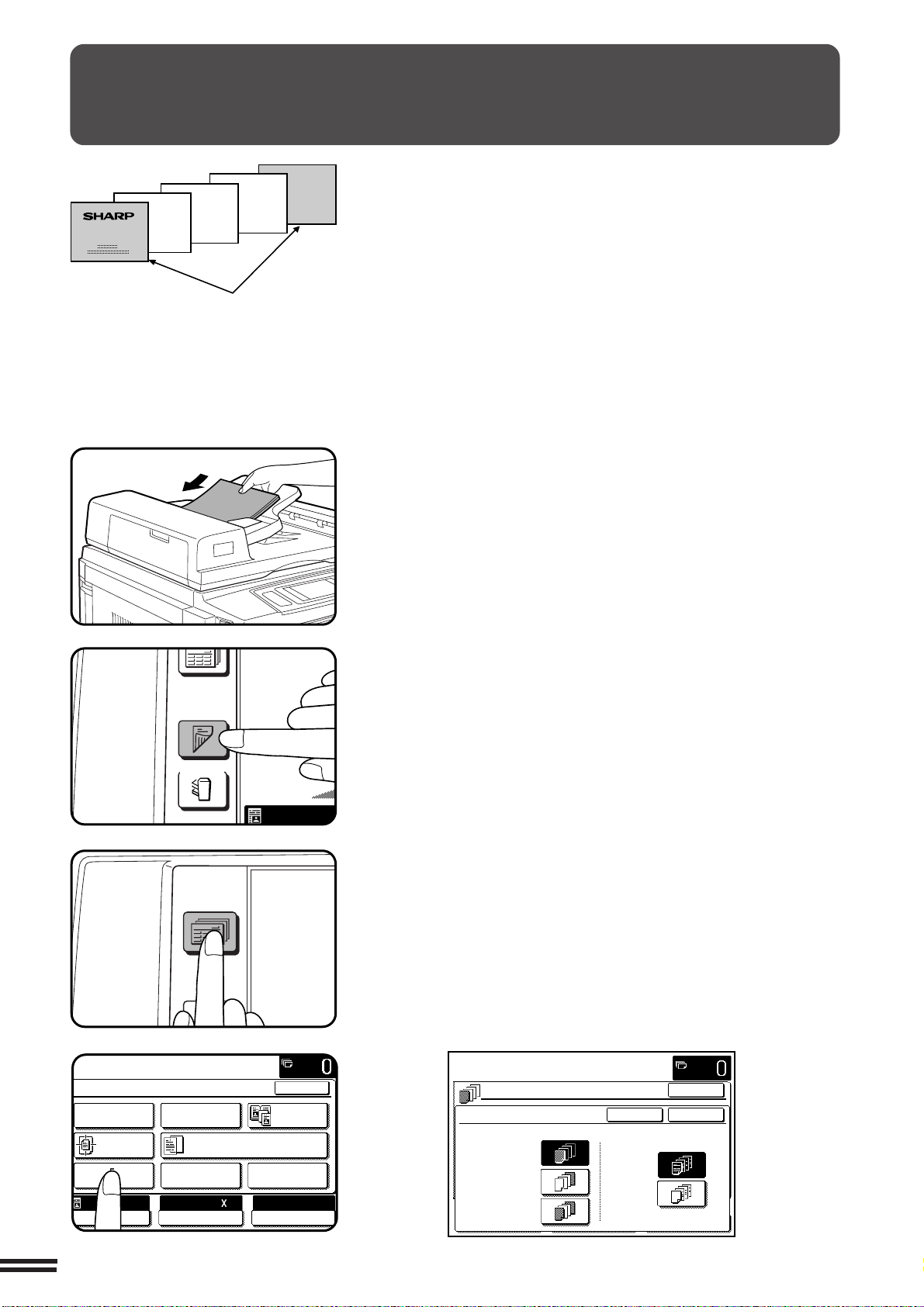
3-14
CHAPTER3
SPECIAL FUNCTIONS Covers
COVERS
The COVERS mode is used to place covers on the front, back, or both
the front and back of multipage documents.
●
To use the COVERS mode, an optional RADF must be installed.
●
Front cover sheets can be copied on, but only on the front side even
in the 1-sided to 2-sided and 2-sided to 2-sided copy modes.
The back side of the original designated as the cover will not be
copied.
●
Back cover sheets cannot be copied on, either on the front side or on
the back side.
●
Cover sheets must be fed from the bypass tray and must be the same
size as the copy paper being used to copy the document.
●
When the COVERS mode is selected, the stream feeding mode of
the RADF will always be off.
1
Place the originals in the optional document feeder tray.
2
Press the 2-SIDED COPY key and select the desired
duplex mode if needed. Press the “OK” key to close the
duplex selection window.
●
To copy in the 1-sided to 2-sided or 2-sided to 2-sided copy
mode, an optional duplex module (AR-DU2) must be installed.
3
Press the SPECIAL MODES key.
●
The SPECIAL MODES screen will appear.
4
Press the “COVERS” key on the touch panel.
●
The setting screen for COVERS will appear.
Covers
OUTPUT
2-SIDED
COPY
AUTO
2-SIDED
COPY
SPECIAL
MODES
READY TO
READY TO COPY.
SPECIAL MODES
MARGIN SHIFT ERASE
IMAGE EDITCOVERS
CENTERING
DUAL PAGE
COPY
COLOR
ADJUSTMENTS
TRANSPARENCY INSERTS
OK
AUTO
EXPOSURE PAPER SELECT
100%
COPY RATIO
8/ 11AUTO
1
2
LOAD COVER STOCK INTO BYPASS-TRAY.
COVERS
FRONT
BACK
FRONT+BACK
YES
NO
PRINT ON FRONT COVER?
CANCEL
OK
OK
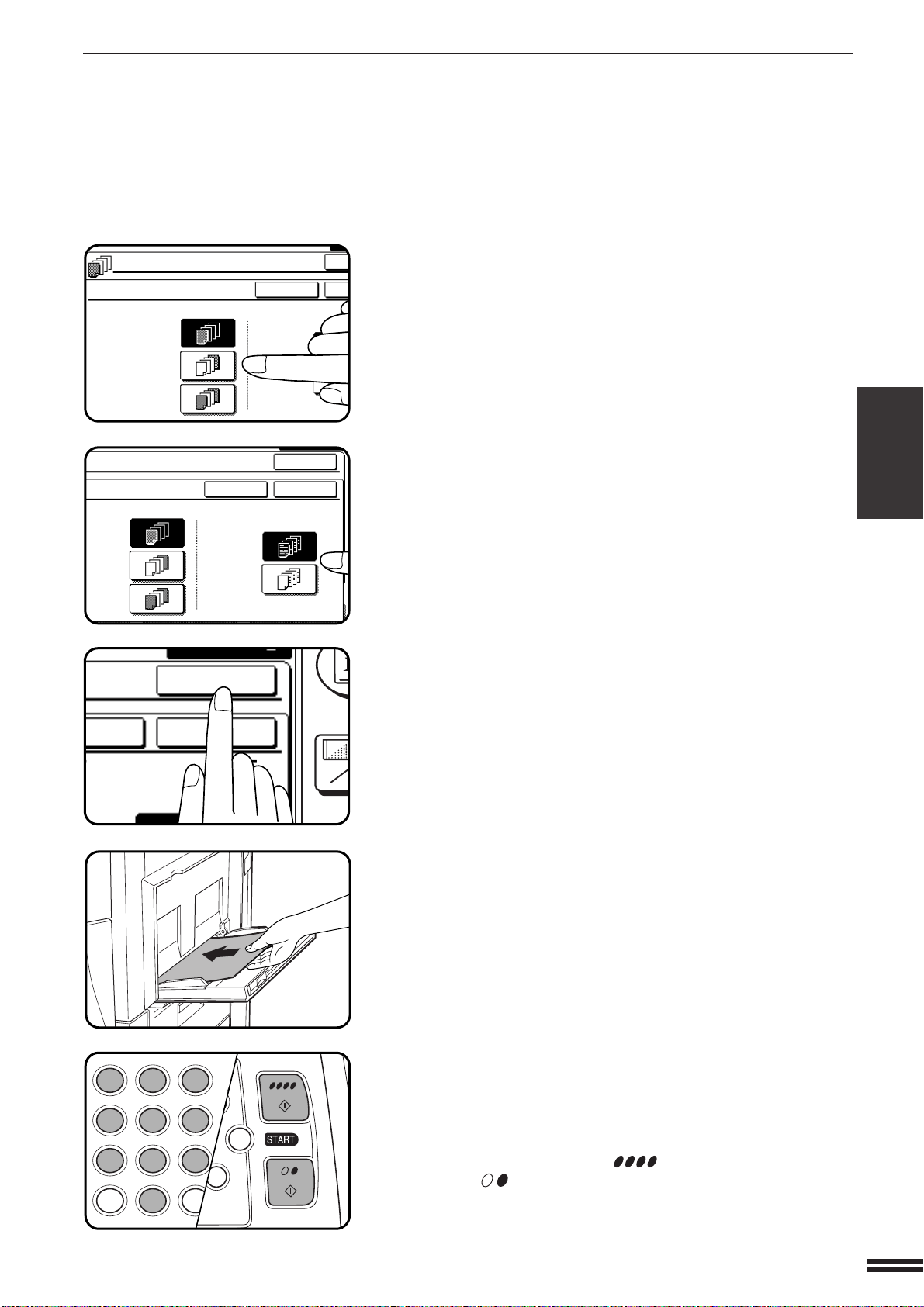
3-15
CHAPTER3
5
Select cover placement.
●
Select “FRONT”, “BACK” or “FRONT+BACK” on the touch
panel.
6
Indicate whether the front cover sheets are copied on or
not.
●
Select “YES” or “NO” on the touch panel. If “YES” is selected, the
first page of the document will be copied onto the front cover
sheet.
●
If “BACK” has been selected in step 5, this selection is not
needed.
7
Press the upper “OK” key.
8
Load the cover stock into the bypass tray, making sure
that the cover stock is the same size as the copy paper.
●
The message “SELECT PAPER TYPE FOR BYPASS-TRAY.”
will appear if “16 ~ 28 lbs.” (“PLAIN PAPER”), “28+ ~ 35 lbs.”
(“HEAVY PAPER 1”) or “35+ ~ 55 lbs.” (“HEAVY PAPER 2”) has
not been selected.
9
Select the paper type for the bypass tray.
●
Transparency film cannot be selected as cover stock.
●
The START key indicators will light up.
10
Enter the desired number of copies and press the
COLOR COPY START ( ) key or BLACK COPY
START ( ) key.
●
To cancel the COVERS function, select the COVERS function
again and press the “CANCEL” key.
COVERS
SPECIAL FUNCTIONS Covers
COVERS
FRONT
BACK
FRONT+BACK
YES
NO
PRINT ON FRONT
CANCEL
O
O
T
T+BACK
YES
NO
PRINT ON FRONT COVER?
CANCEL
OK
OK
CUS
SETT
T ON FRONT COVER?
NCEL
OK
OK
C
CA
CLEAR
INTERRUPT
CLEAR
ALL
12
3
456
789
0
P
C
CL
PROGRAM
AUDIT
INTE
CLE
AL
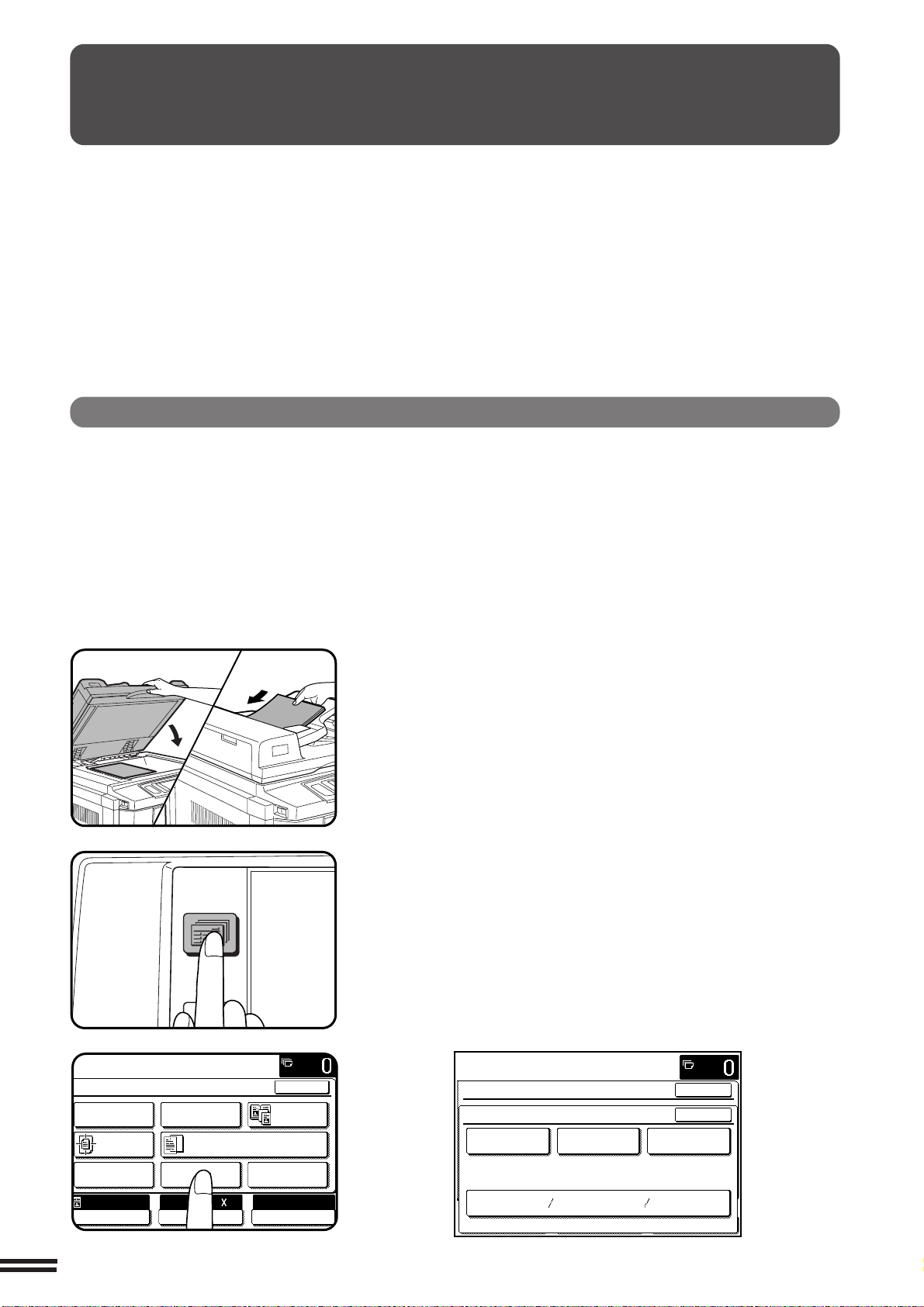
3-16
CHAPTER3
COLOR ADJUSTMENTS
SPECIAL FUNCTIONS Color adjustments
The color adjustments include the following items.
●
RGB adjust: Strengthens or weakens one of three primary colors, red (R), green (G), or blue (B).
●
Sharpness: Sharpens or softens image outlines.
●
Suppress background: Suppresses copying of lighter background areas.
●
Brightness/intensity/contrast: These adjust the level of brightness, intensity or contrast of images.
RGB ADJUST
This function can be used to strengthen or weaken the three primary
colors, red (R), green (G), or blue (B).
Only one primary color can be adjusted at a time.
If a second primary color is adjusted, the first adjustment will be
cancelled.
(Refer to the samples on page 5 to see the effect on copy images in
relation to the RGB ADJUST.)
1
Place the original on the document glass or in the
optional document feeder tray.
2
Press the SPECIAL MODES key.
●
The SPECIAL MODES screen will appear.
3
Press the “COLOR ADJUSTMENTS” key on the touch
panel.
●
The COLOR ADJUSTMENTS menu will appear.
2-SIDED
COPY
SPECIAL
MODES
READY TO
READY TO COPY.
SPECIAL MODES
MARGIN SHIFT ERASE
IMAGE EDITCOVERS
CENTERING
DUAL PAGE
COPY
COLOR
ADJUSTMENTS
TRANSPARENCY INSERTS
OK
AUTO
EXPOSURE PAPER SELECT
100%
COPY RATIO
8/ 11AUTO
1
2
CONTRAST
READY TO COPY.
SPECIAL MODES
COLOR ADJUSTMENTS
RGB ADJUST
BRIGHTNESS INTENSITY
SHARPNESS
SUPPRESS
BACKGROUND
OK
OK
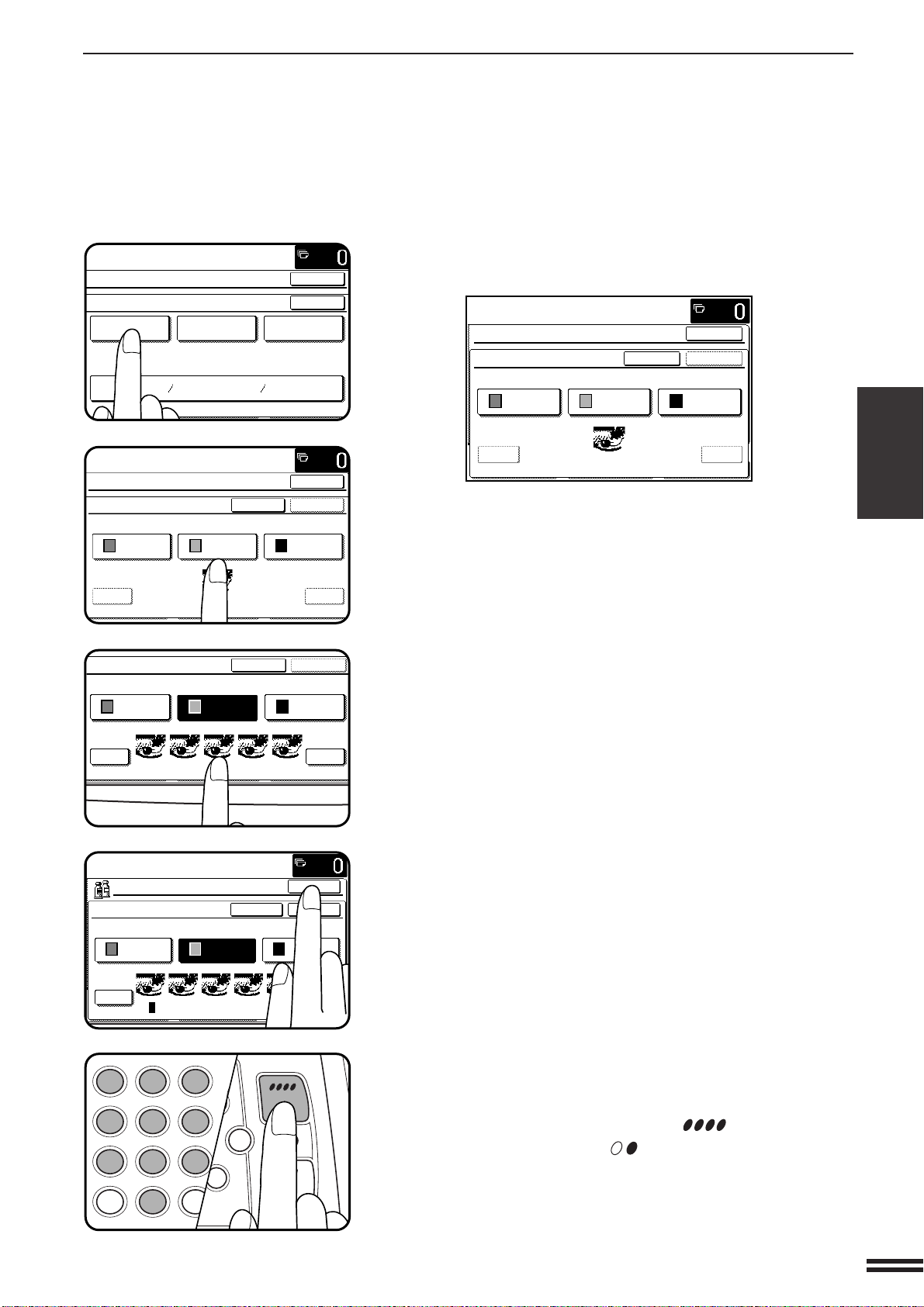
3-17
CHAPTER3
4
Press the “RGB ADJUST” key on the touch panel.
●
The setting screen for RGB ADJUSTMENTS will appear.
5
Select a color to be adjusted.
●
Select a color from R (RED), G (GREEN), and B (BLUE).
●
Thumbnails representing the effect of adjustments will appear.
These are representations only and do not represent the actual
amount of change for every copied original.
6
Press the “+” to strengthen the selected color or press
the “-” key to weaken the color.
●
The level can be adjusted from -2 to 2 in eleven steps.
7
Press the upper “OK” key.
8
Make all other desired copier selections and enter the
desired number of copies.
9
Press the COLOR COPY START ( ) key.
●
The BLACK COPY START ( ) key can be pressed for copying.
However, the RGB ADJUST setting will be ignored.
●
To cancel the RGB ADJUST function, select the RGB ADJUST
function again and press the “CANCEL” key.
COLOR ADJUSTMENTS
SPECIAL FUNCTIONS Color adjustments
CONTRAST
READY TO COPY.
SPECIAL MODES
COLOR ADJUSTMENTS
RGB ADJUST
BRIGHTNESS INTENSITY
SHARPNESS
SUPPRESS
BACKGROUND
OK
OK
OK
OK
+-
-2 · -1 · · 0 · · 1 · 2
READY TO COPY.
SPECIAL MODES
RGB ADJUST
ONLY ONE COLOR CAN BE ADJUSTED.
CANCEL
G(GREEN)R(RED) B(BLUE)
OK
OK
+-
-2 · -1 · · 0 · · 1 · 2
READY TO COPY.
SPECIAL MODES
RGB ADJUST
ONLY ONE COLOR CAN BE ADJUSTED.
CANCEL
G(GREEN)R(RED) B(BLUE)
OK
+-
-2 · -1 · · 0 · · 1 · 2
RGB ADJUST
ONLY ONE COLOR CAN BE ADJUSTED.
CANCEL
G(GREEN)R(RED) B(BLUE)
OK
OK
+-
-2 · -1 · · 0 · · 1 · 2
READY TO COPY.
RGB ADJUST
ONLY ONE COLOR CAN BE ADJUSTED.
CANCEL
G(GREEN)R(RED) B(BLUE)
C
CA
CLEAR
INTERRUPT
CLEAR
ALL
12
3
456
789
0
P
C
CL
PROGRAM
AUDIT
INTE
CLE
AL
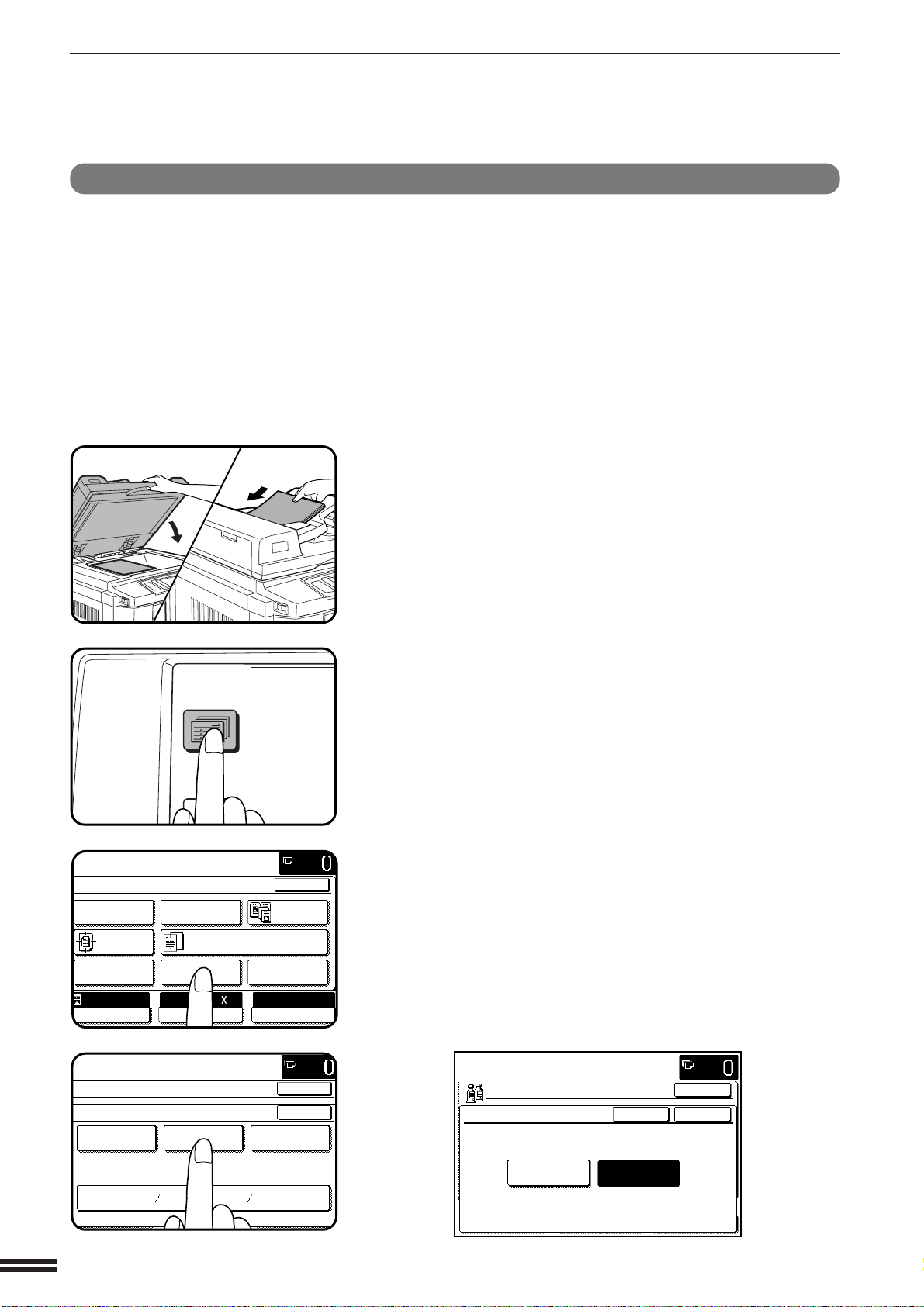
3-18
CHAPTER3
COLOR ADJUSTMENTS
1
Place the original on the document glass or in the
optional document feeder tray.
2
Press the SPECIAL MODES key.
●
The SPECIAL MODES screen will appear.
3
Press the “COLOR ADJUSTMENTS” key on the touch
panel.
●
The COLOR ADJUSTMENTS menu will appear.
4
Press the “SHARPNESS” key on the touch panel.
●
The setting screen for SHARPNESS will appear.
CENTERING
SHARPNESS
This function is used to sharpen or soften image outlines.
(Refer to the samples on page 6 to see the effect on copy images
in relation to the SHARPNESS.)
SPECIAL FUNCTIONS Color adjustments
2-SIDED
COPY
SPECIAL
MODES
READY TO
READY TO COPY.
SPECIAL MODES
MARGIN SHIFT ERASE
IMAGE EDITCOVERS
CENTERING
DUAL PAGE
COPY
COLOR
ADJUSTMENTS
TRANSPARENCY INSERTS
OK
AUTO
EXPOSURE PAPER SELECT
100%
COPY RATIO
8/ 11AUTO
1
2
CONTRAST
READY TO COPY.
SPECIAL MODES
COLOR ADJUSTMENTS
RGB ADJUST
BRIGHTNESS INTENSITY
SHARPNESS
SUPPRESS
BACKGROUND
OK
OK
READY TO COPY.
SHARPNESS
CANCEL
SOFT SHARP
OK
OK
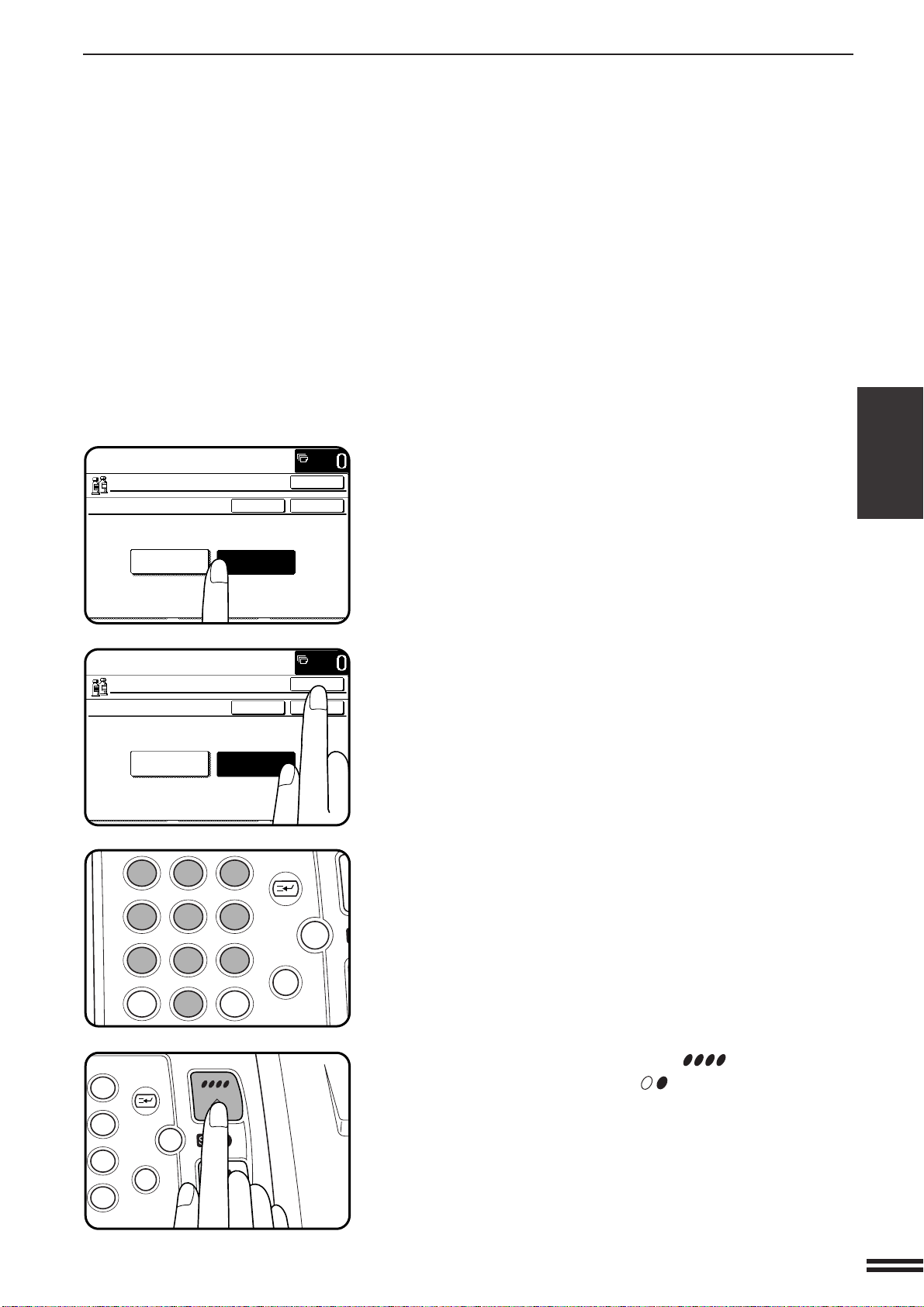
3-19
CHAPTER3
5
Press the “SOFT” key to soften image outlines or press
the “SHARP” key to sharpen them.
6
Press the upper “OK” key.
7
Make all other desired copier selections and enter the
desired number of copies.
8
Press the COLOR COPY START ( ) key.
●
The BLACK COPY START ( ) key can be pressed for
copying. However, the SHARPNESS setting will be ignored.
●
To cancel the SHARPNESS function, select the SHARPNESS
function again and press the “CANCEL” key.
SPECIAL FUNCTIONS Color adjustments
COLOR ADJUSTMENTS
READY TO COPY
SHARPNESS
CANCEL
SOFT SHARP
OK
OK
READY TO COPY
SHARPNESS
CANCEL
SOFT SHARP
OK
OK
12
3
456
789
0
P
C
CA
CLEAR
PROGRAM
AUDIT
INTERRUPT
CLEAR
ALL
N
3
6
9
P
C
CA
CLEAR
PROGRAM
INTERRUPT
CLEAR
ALL
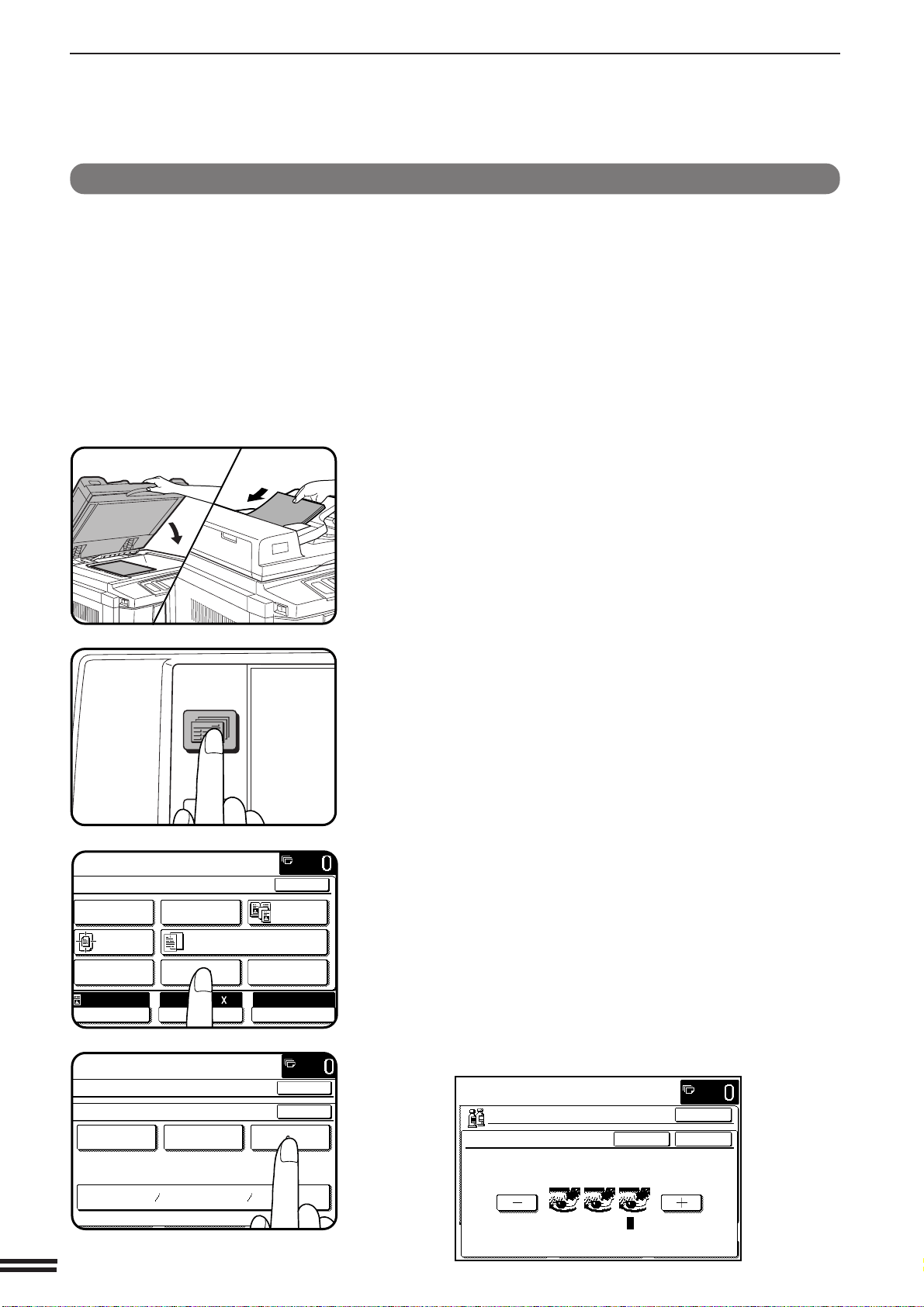
3-20
CHAPTER3
COLOR ADJUSTMENTS
1
Place the original on the document glass or in the
optional document feeder tray.
2
Press the SPECIAL MODES key.
●
The SPECIAL MODES screen will appear.
3
Press the “COLOR ADJUSTMENTS” key on the touch
panel.
●
The COLOR ADJUSTMENTS menu will appear.
4
Press the “SUPPRESS BACKGROUND” key on the touch
panel.
●
The setting screen for SUPPRESS BACKGROUND will appear.
CENTERING
SUPPRESS BACKGROUND
This copier can suppress unwanted background areas on the original
images when copying. This function is used to adjust the density
level of background images to be erased.
(Refer to the samples on page 6 to see the available copy images in
relation to the SUPPRESS BACKGROUND.)
SPECIAL FUNCTIONS Color adjustments
2-SIDED
COPY
SPECIAL
MODES
READY TO
READY TO COPY.
SPECIAL MODES
MARGIN SHIFT ERASE
IMAGE EDITCOVERS
CENTERING
DUAL PAGE
COPY
COLOR
ADJUSTMENTS
TRANSPARENCY INSERTS
OK
AUTO
EXPOSURE PAPER SELECT
100%
COPY RATIO
8/ 11AUTO
1
2
CONTRAST
READY TO COPY.
SPECIAL MODES
COLOR ADJUSTMENTS
RGB ADJUST
BRIGHTNESS INTENSITY
SHARPNESS
SUPPRESS
BACKGROUND
OK
OK
READY TO COPY.
SUPPRESS BACKGROUND
LIGHT AREAS OF THE ORIGINAL MAY BE SUPPRESSED
AS BACKGROUND.
CANCEL
OK
OK
1 · 3
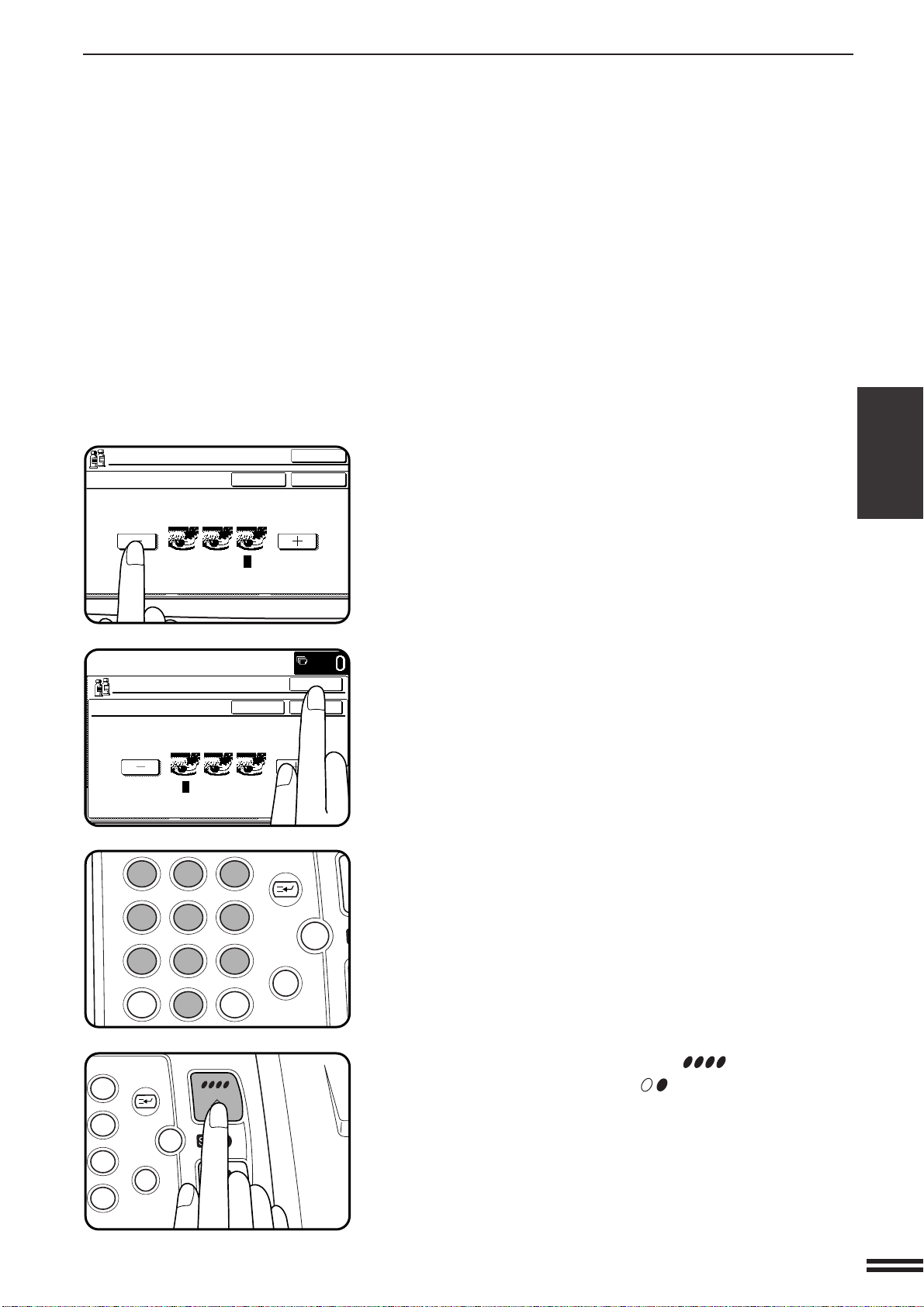
3-21
CHAPTER3
5
Use the “-” and “+” keys to select the desired background
suppression level.
●
If level 1 is selected, darker background areas will be erased.
The level can be adjusted in three steps. The default setting is
level 3.
6
Press the upper “OK” key.
7
Make all other desired copier selections and enter the
desired number of copies.
8
Press the COLOR COPY START ( ) key.
●
The BLACK COPY START ( ) key can be pressed for
copying. However, the SUPPRESS BACKGROUND setting will
be ignored.
●
To cancel the SUPPRESS BACKGROUND function, select the
SUPPRESS BACKGROUND function again and press the
“CANCEL” key.
SPECIAL FUNCTIONS Color adjustments
COLOR ADJUSTMENTS
SUPPRESS BACKGROUND
LIGHT AREAS OF THE ORIGINAL MAY BE SUPPRESSED
AS BACKGROUND.
CANCEL
OK
OK
1 · 3
READY TO COPY.
SUPPRESS BACKGROUND
LIGHT AREAS OF THE ORIGINAL MAY BE SUPPRESSED
AS BACKGROUND.
CANCEL
OK
OK
1 · 3
12
3
456
789
0
P
C
CA
CLEAR
PROGRAM
AUDIT
INTERRUPT
CLEAR
ALL
N
3
6
9
P
C
CA
CLEAR
PROGRAM
INTERRUPT
CLEAR
ALL
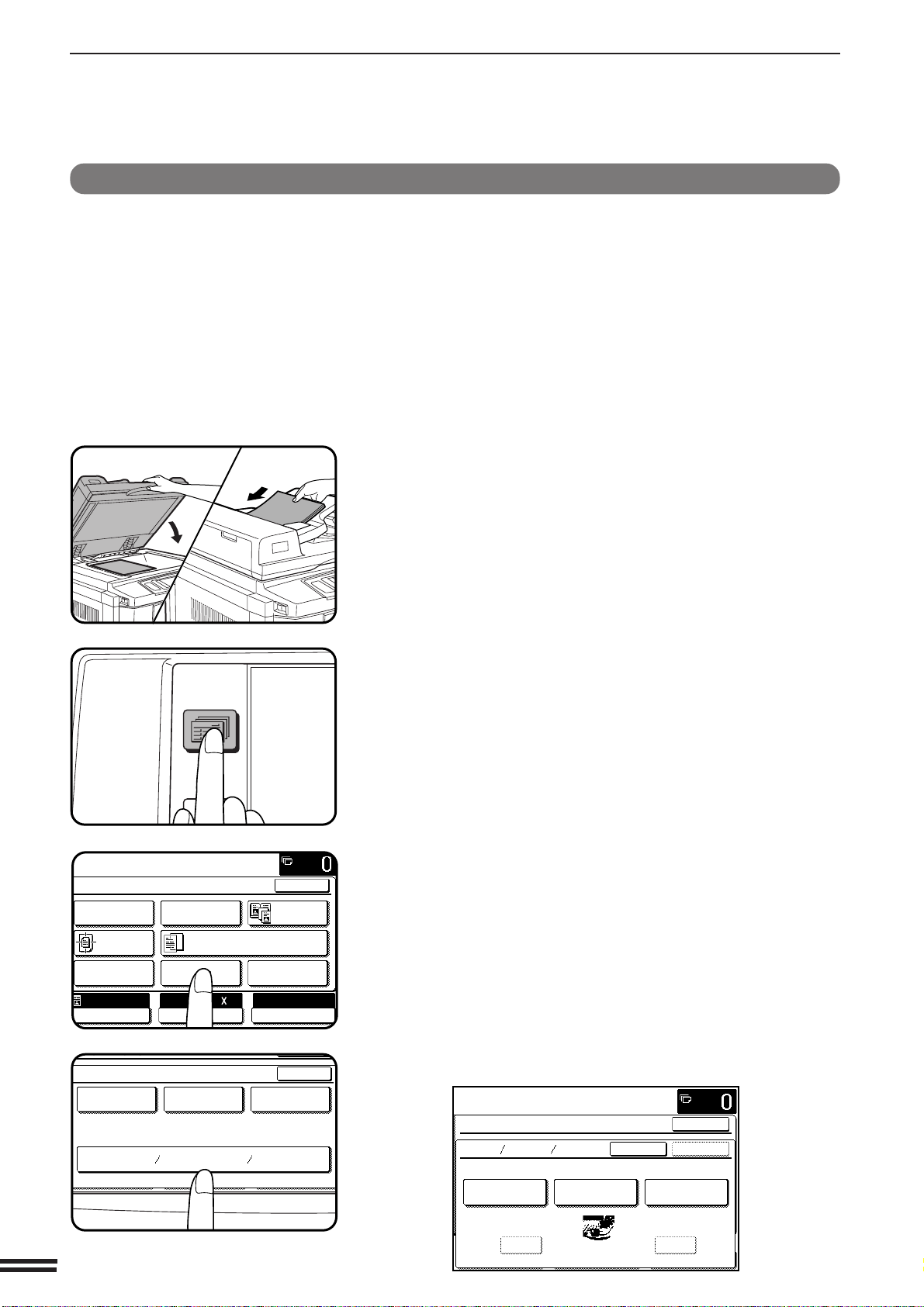
3-22
CHAPTER3
COLOR ADJUSTMENTS
1
Place the original on the document glass or in the
optional document feeder tray.
2
Press the SPECIAL MODES key.
●
The SPECIAL MODES screen will appear.
3
Press the “COLOR ADJUSTMENTS” key on the touch
panel.
●
The COLOR ADJUSTMENTS menu will appear.
4
Press the “BRIGHTNESS/INTENSITY/CONTRAST” key
on the touch panel.
●
The setting screen for BRIGHTNESS/INTENSITY/CONTRAST
will appear.
BRIGHTNESS /INTENSITY /CONTRAST
This copier allows the level of brightness, intensity or contrast of
images to be adjusted. If brightness is selected, color tone can be
darkened or lightened. If intensity is selected, color saturation can be
made to be more vivid or more dull. If contrast is selected, the
contrast between image areas can be made to be higher or lower.
(Refer to the samples on page 7 to see the effect on copy images in
relation to the BRIGHTNESS /INTENSITY /CONTRAST
adjustments.)
SPECIAL FUNCTIONS Color adjustments
2-SIDED
COPY
SPECIAL
MODES
READY TO
READY TO COPY.
SPECIAL MODES
MARGIN SHIFT ERASE
IMAGE EDITCOVERS
CENTERING
DUAL PAGE
COPY
COLOR
ADJUSTMENTS
TRANSPARENCY INSERTS
OK
AUTO
EXPOSURE PAPER SELECT
100%
COPY RATIO
8/ 11AUTO
1
2
CONTRAST
SPECIAL MODES
COLOR ADJUSTMENTS
RGB ADJUST
BRIGHTNESS INTENSITY
SHARPNESS
SUPPRESS
BACKGROUND
OK
OK
READY TO COPY.
SPECIAL MODES
BRIGHT INTENS CONT
ONLY ONE FUNCTION IS SELECTABLE.
CANCEL
INTENSITYBRIGHTNESS CONTRAST
OK
OK
-2 · 0 · 2
-+
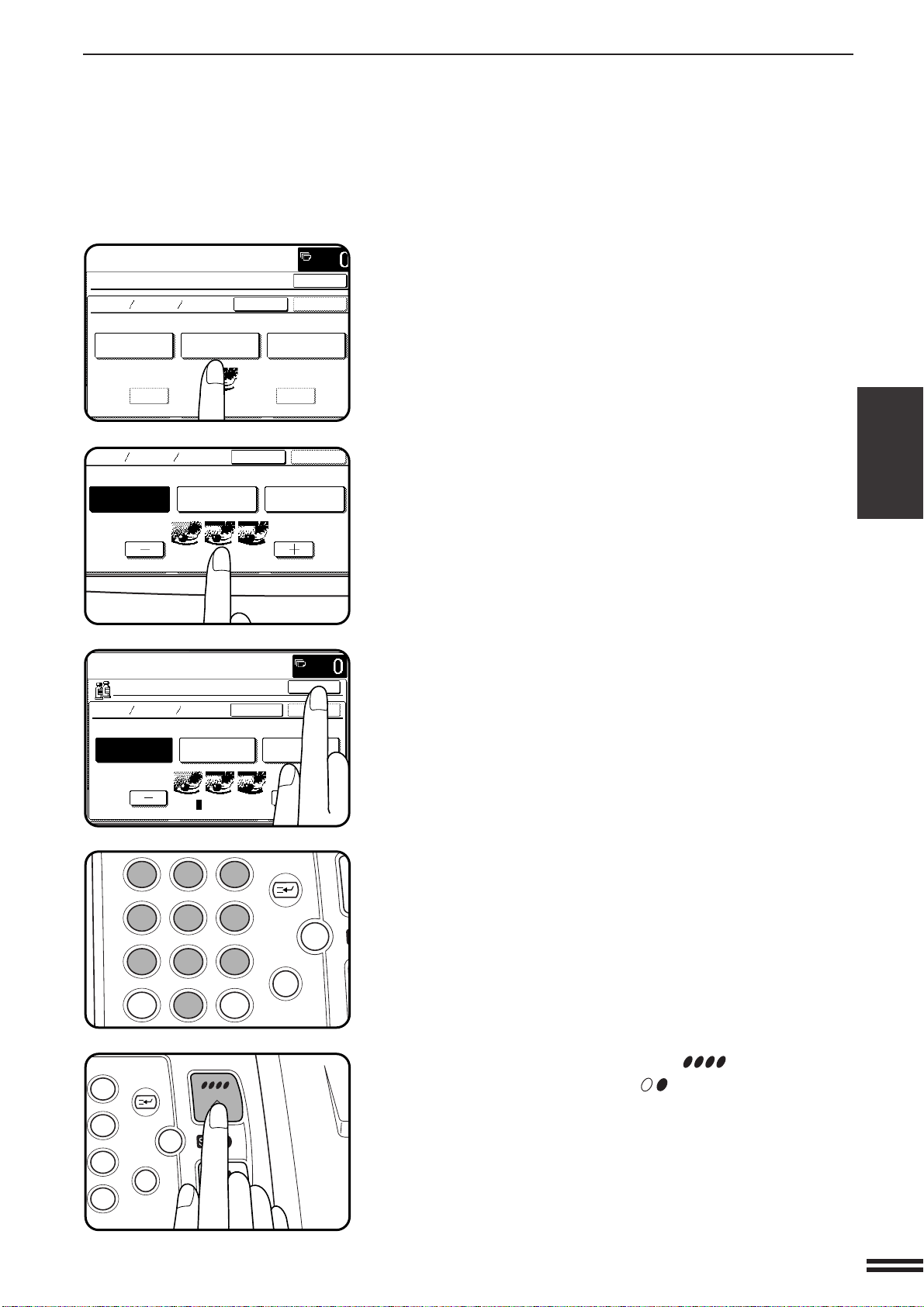
3-23
CHAPTER3
5
Select the desired item to be adjusted.
●
Select “BRIGHTNESS”, “INTENSITY” or “CONTRAST” on the
touch panel.
6
Use the “-” and “+” keys to adjust the level of the
selected item.
7
Press the upper “OK” key.
8
Make all other desired copier selections and enter the
desired number of copies.
9
Press the COLOR COPY START ( ) key.
●
The BLACK COPY START ( ) key can be pressed for
copying. However, the BRIGHTNESS/INTENSITY/CONTRAST
setting will be ignored.
●
To cancel the BRIGHTNESS/INTENSITY/CONTRAST function,
select the BRIGHTNESS/INTENSITY/CONTRAST function
again and press the “CANCEL” key.
SPECIAL FUNCTIONS Color adjustments
COLOR ADJUSTMENTS
READY TO COPY.
SPECIAL MODES
BRIGHT INTENS CONT
ONLY ONE FUNCTION IS SELECTABLE.
CANCEL
INTENSITYBRIGHTNESS CONTRAST
+-
OK
OK
-2 · 0 · 2
BRIGHT INTENS CONT
ONLY ONE FUNCTION IS SELECTABLE.
CANCEL
INTENSITYBRIGHTNESS CONTRAST
OK
-2 · 0 · 2
READY TO COPY.
BRIGHT INTENS CONT
ONLY ONE FUNCTION IS SELECTABLE.
CANCEL
INTENSITYBRIGHTNESS CONTRAST
OK
OK
-2 · 0 · 2
12
3
456
789
0
P
C
CA
CLEAR
PROGRAM
AUDIT
INTERRUPT
CLEAR
ALL
N
3
6
9
P
C
CA
CLEAR
PROGRAM
INTERRUPT
CLEAR
ALL
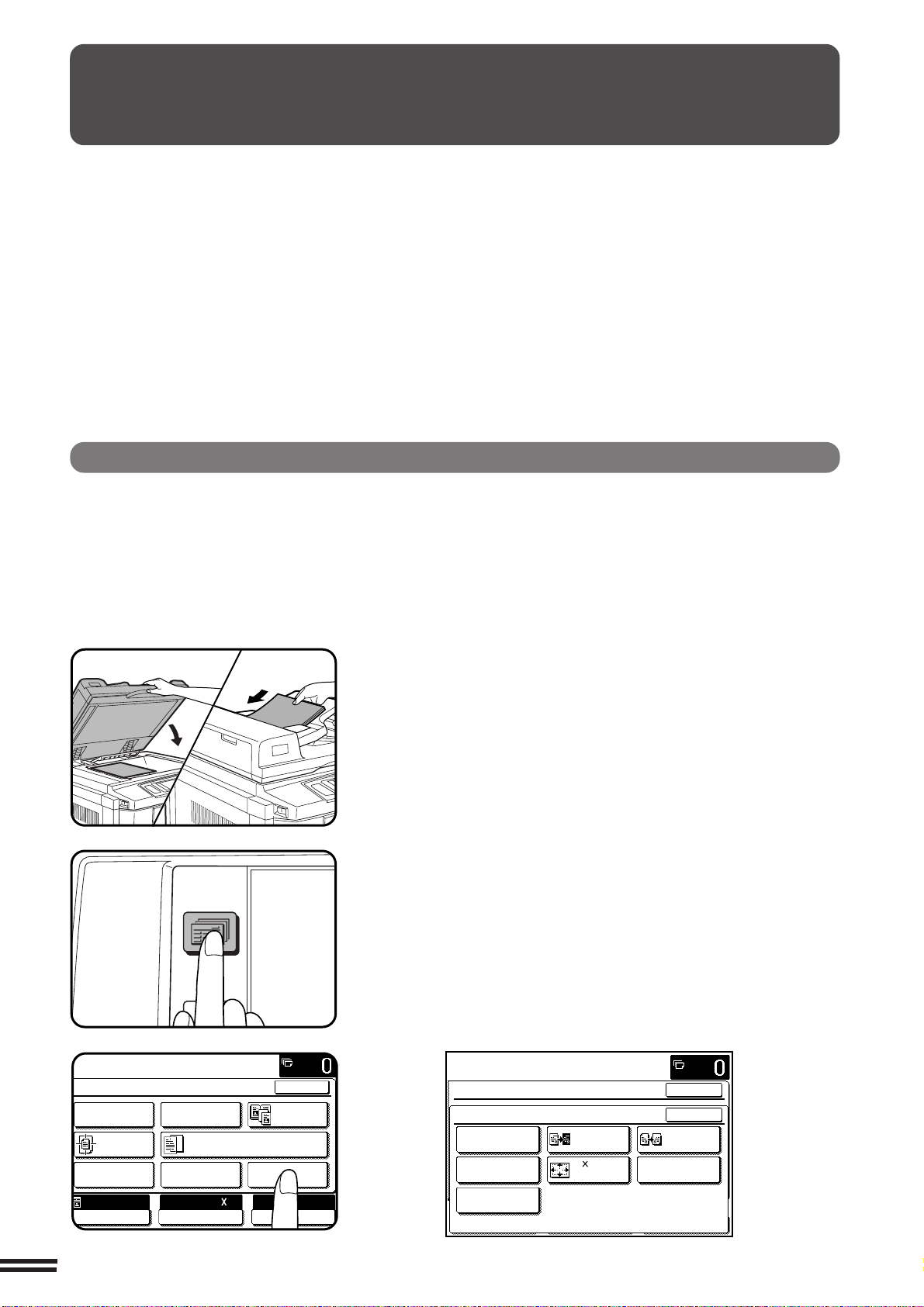
3-24
CHAPTER3
SPECIAL FUNCTIONS Image editing functions
IMAGE EDITING FUNCTIONS
The single color function is used to produce copies with a selected
single color.
(Refer to the samples on page 1 to see the effect on copy images in
relation to the SINGLE COLOR function.)
1
Place the originals on the document glass or in the
optional document feeder tray.
2
Press the SPECIAL MODES key.
●
The SPECIAL MODES screen will appear.
3
Press the “IMAGE EDIT” key on the touch panel.
●
The IMAGE EDIT menu will appear.
The image editing functions include the following items.
●
Single color: Produces copies with a selected single color.
●
Neg./pos. reverse: Copies original image in complementary colors.
●
Mirror image: A mirror image of the original is printed.
●
Photo repeat: Produces repeated images of a photo on a single sheet of copy paper.
●
11 x 17 full-bleed: Produces 11" x 17" full image copies onto 12" x 18" copy paper.
●
Multi-page enlargement: Enlarges an original image to a size larger than 11" x 17" and prints divided images onto
multiple sheets of copy paper for assembly into large composite copy.
●
Extra size: Allows copying from an extra sized original or onto extra sized paper.
These functions are selected by pressing the “IMAGE EDIT” key on the SPECIAL MODES screen and pressing the
key of an individual function.
SINGLE COLOR
2-SIDED
COPY
SPECIAL
MODES
READY TO
READY TO COPY.
SPECIAL MODES
MARGIN SHIFT ERASE
IMAGE EDITCOVERS
CENTERING
DUAL PAGE
COPY
COLOR
ADJUSTMENTS
TRANSPARENCY INSERTS
OK
AUTO
EXPOSURE PAPER SELECT
100%
COPY RATIO
8/ 11AUTO
1
2
READY TO COPY.
SPECIAL MODES
OK
OK
NEG./POS.
REVERSE
11 17
FULL-BLEED
MIRROR
IMAGE
MULTI-PAGE
ENLARGEMENT
IMAGE EDIT
SINGLE COLOR
PHOTO REPEAT
EXTRA SIZE
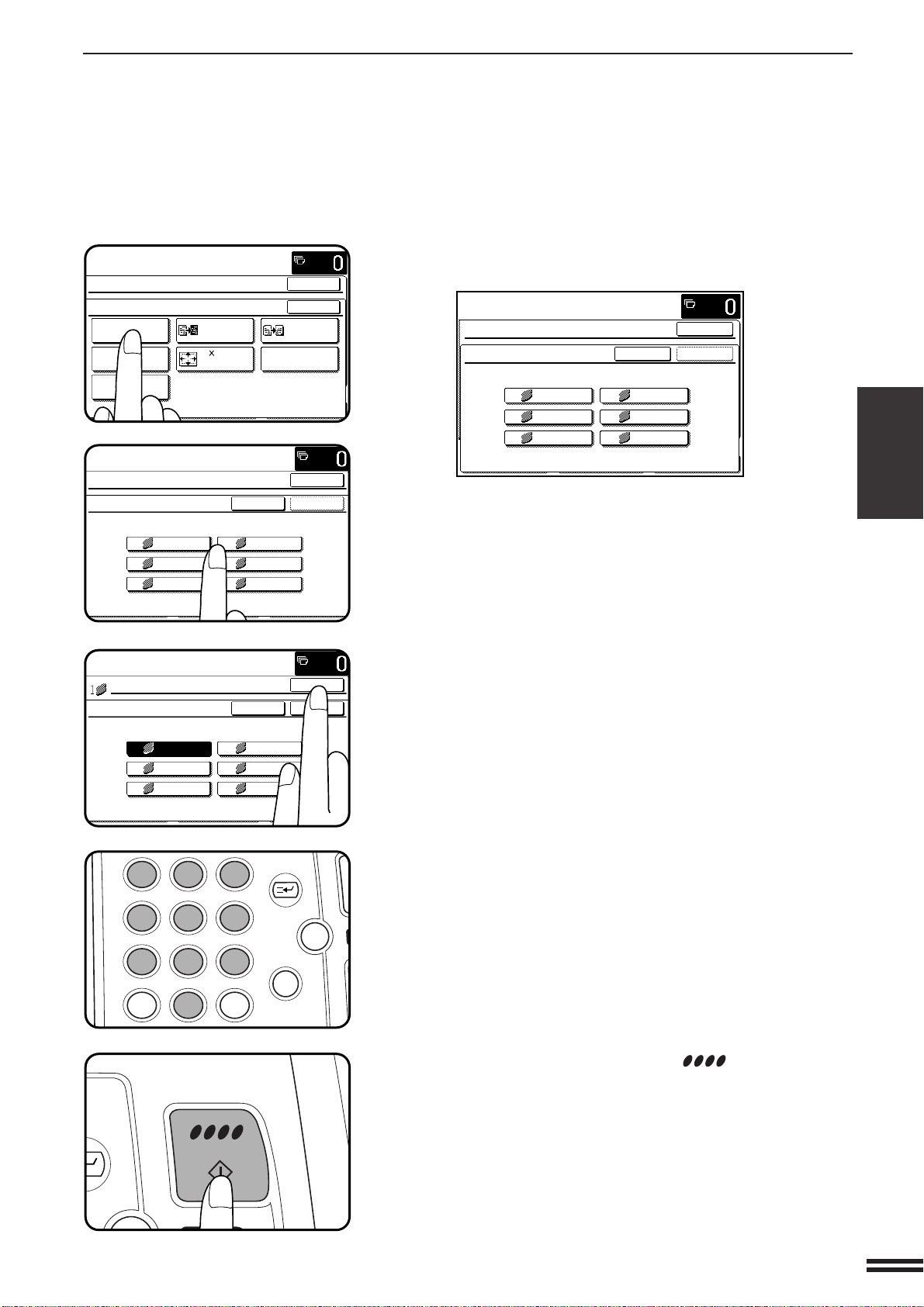
3-25
CHAPTER3
4
Press the “SINGLE COLOR” key on the touch panel.
●
The setting screen for SINGLE COLOR will appear.
5
Select the desired color.
●
The selected color key will be highlighted.
6
Press the upper “OK” key.
7
Make all other desired copier selections and enter the
desired number of copies.
8
Press the COLOR COPY START ( ) key.
●
To cancel the SINGLE COLOR function, select the SINGLE
COLOR function again and press the “CANCEL” key.
IMAGE EDITING FUNCTIONS
SPECIAL FUNCTIONS Image editing functions
READY TO COPY.
SPECIAL MODES
OK
OK
NEG./POS.
REVERSE
11 17
FULL-BLEED
MIRROR
IMAGE
MULTI-PAGE
ENLARGEMENT
IMAGE EDIT
SINGLE COLOR
PHOTO REPEAT
EXTRA SIZE
READY TO COPY.
SPECIAL MODES
OK
OK
SINGLE COLOR
1 RED
3 BLUE
5 ORANGE
2 GREEN
CANCEL
4 PURPLE
6 BROWN
READY TO COPY.
OK
OK
SINGLE COLOR
1 RED
3 BLUE
5 ORANGE
2 GREEN
CANCEL
4 PURPLE
6 BROWN
12
3
456
789
0
P
C
CA
CLEAR
PROGRAM
AUDIT
INTERRUPT
CLEAR
ALL
N
C
RUPT
AR
READY TO COPY.
SPECIAL MODES
OK
OK
SINGLE COLOR
1 RED
3 BLUE
5 ORANGE
2 GREEN
CANCEL
4 PURPLE
6 BROWN
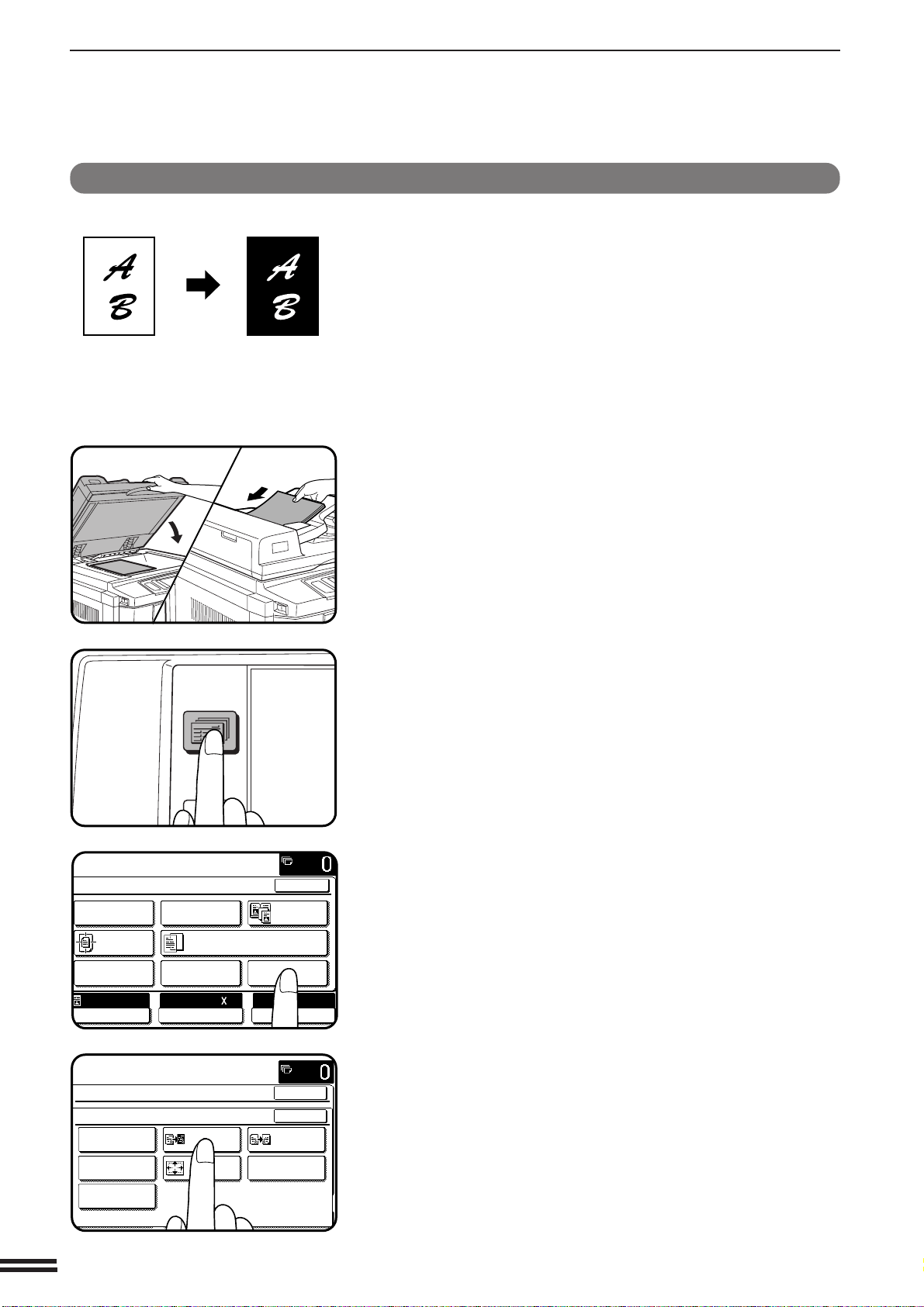
3-26
CHAPTER3
IMAGE EDITING FUNCTIONS
SPECIAL FUNCTIONS Image editing functions
NEG./POS. REVERSE
The NEG./POS. REVERSE function is used to copy the original image
in complementary colors. If this function is selected in the black/white
mode, the black and white areas will be reversed.
(Refer to the samples on page 2 to see the effect on copy images in
relation to the NEG./POS. REVERSE.)
●
When this function is selected, neither the COLOR ADJUSTMENTS
nor the SINGLE COLOR functions can be selected.
1
Place the original on the document glass or in the
optional document feeder tray.
2
Press the SPECIAL MODES key.
●
The SPECIAL MODES screen will appear.
3
Press the “IMAGE EDIT” key on the touch panel.
●
The IMAGE EDIT menu will appear.
4
Press the “NEG./POS. REVERSE” key on the touch
panel.
●
The “NEG./POS. REVERSE” key will be highlighted.
Copy
Original
2-SIDED
COPY
SPECIAL
MODES
READY TO
READY TO COPY.
SPECIAL MODES
MARGIN SHIFT ERASE
IMAGE EDITCOVERS
CENTERING
DUAL PAGE
COPY
COLOR
ADJUSTMENTS
TRANSPARENCY INSERTS
OK
AUTO
EXPOSURE PAPER SELECT
100%
COPY RATIO
8/ 11AUTO
1
2
READY TO COPY.
SPECIAL MODES
OK
OK
NEG./POS.
REVERSE
11 17
FULL-BLEED
MIRROR
IMAGE
MULTI-PAGE
ENLARGEMENT
IMAGE EDIT
SINGLE COLOR
PHOTO REPEAT
EXTRA SIZE
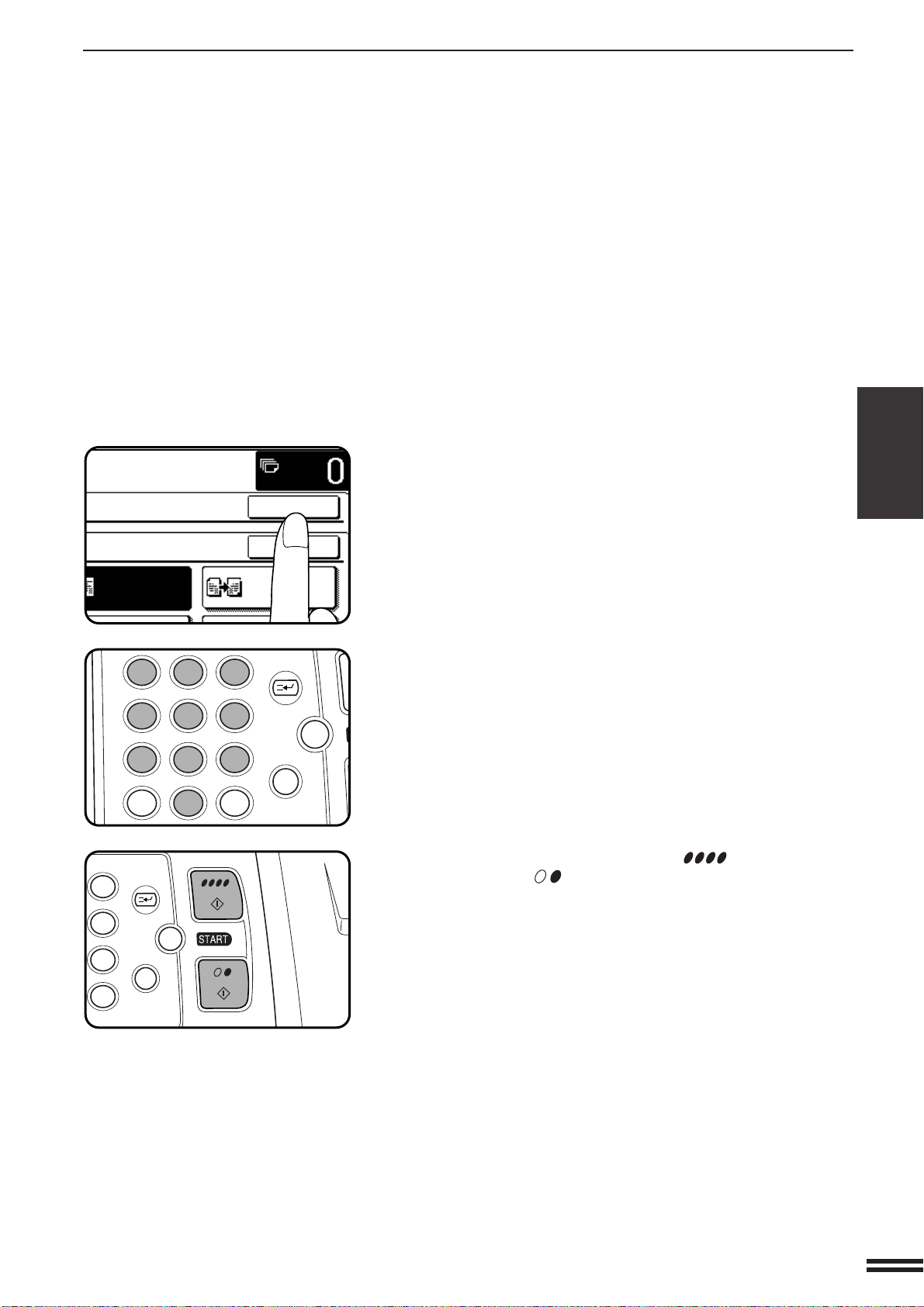
3-27
CHAPTER3
IMAGE EDITING FUNCTIONS
SPECIAL FUNCTIONS Image editing functions
5
Press the upper “OK” key.
6
Make all other desired copier selections and enter the
desired number of copies.
7
Press the COLOR COPY START ( ) key or BLACK
COPY START ( ) key.
●
To cancel the NEG./POS. REVERSE function, press the “NEG./
POS. REVERSE” key again on the IMAGE EDIT menu screen.
NEG./POS.
REVERSE
MIRROR
IMAGE
MULTI PAGE
11 17
OK
OK
12
3
456
789
0
P
C
CA
CLEAR
PROGRAM
AUDIT
INTERRUPT
CLEAR
ALL
N
3
6
9
P
C
CA
CLEAR
PROGRAM
INTERRUPT
CLEAR
ALL
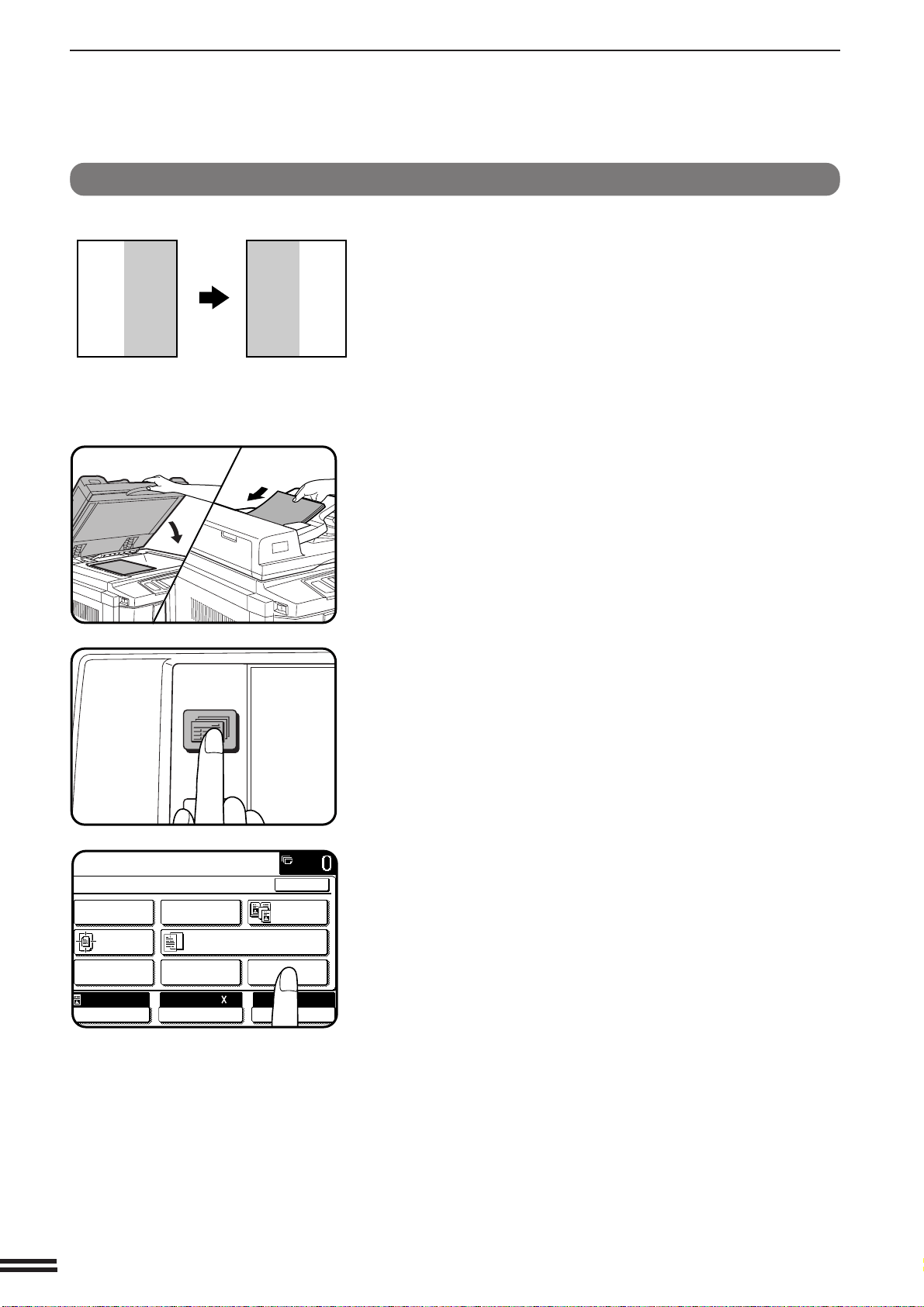
3-28
CHAPTER3
IMAGE EDITING FUNCTIONS
SPECIAL FUNCTIONS Image editing functions
MIRROR IMAGE
This function is used to print a mirror image of the original. The images
will be inverted in the right to left direction on the copies.
1
Place the originals on the document glass or in the
optional document feeder tray.
2
Press the SPECIAL MODES key.
●
The SPECIAL MODES screen will appear.
3
Press the “IMAGE EDIT” key on the touch panel.
●
The IMAGE EDIT menu will appear.
AB
CD
AB
CD
Copy
Original
2-SIDED
COPY
SPECIAL
MODES
READY TO
READY TO COPY.
SPECIAL MODES
MARGIN SHIFT ERASE
IMAGE EDITCOVERS
CENTERING
DUAL PAGE
COPY
COLOR
ADJUSTMENTS
TRANSPARENCY INSERTS
OK
AUTO
EXPOSURE PAPER SELECT
100%
COPY RATIO
8/ 11AUTO
1
2
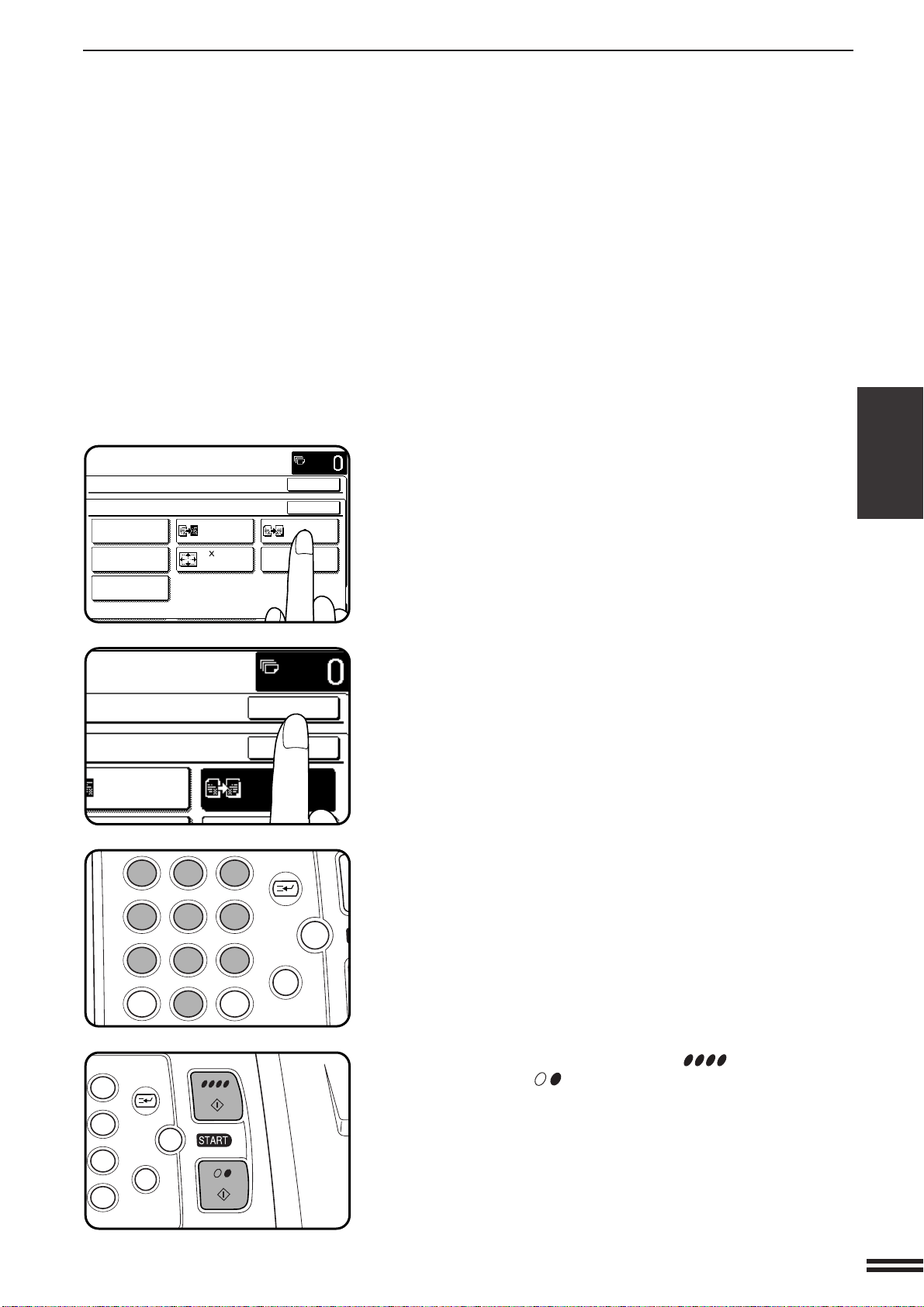
3-29
CHAPTER3
IMAGE EDITING FUNCTIONS
SPECIAL FUNCTIONS Image editing functions
4
Press the “MIRROR IMAGE” key on the touch panel.
●
The “MIRROR IMAGE” key will be highlighted.
5
Press the upper “OK” key.
6
Make all other desired copier selections and enter the
desired number of copies.
7
Press the COLOR COPY START ( ) key or BLACK
COPY START ( ) key.
●
To cancel the MIRROR IMAGE function, press the MIRROR
IMAGE again on the IMAGE EDIT menu screen.
READY TO COPY.
SPECIAL MODES
OK
OK
NEG./POS.
REVERSE
11 17
FULL-BLEED
MIRROR
IMAGE
MULTI-PAGE
ENLARGEMENT
IMAGE EDIT
SINGLE COLOR
PHOTO REPEAT
EXTRA SIZE
NEG./POS.
REVERSE
MIRROR
IMAGE
MULTI PAGE
11 17
OK
OK
12
3
456
789
0
P
C
CA
CLEAR
PROGRAM
AUDIT
INTERRUPT
CLEAR
ALL
N
3
6
9
P
C
CA
CLEAR
PROGRAM
INTERRUPT
CLEAR
ALL
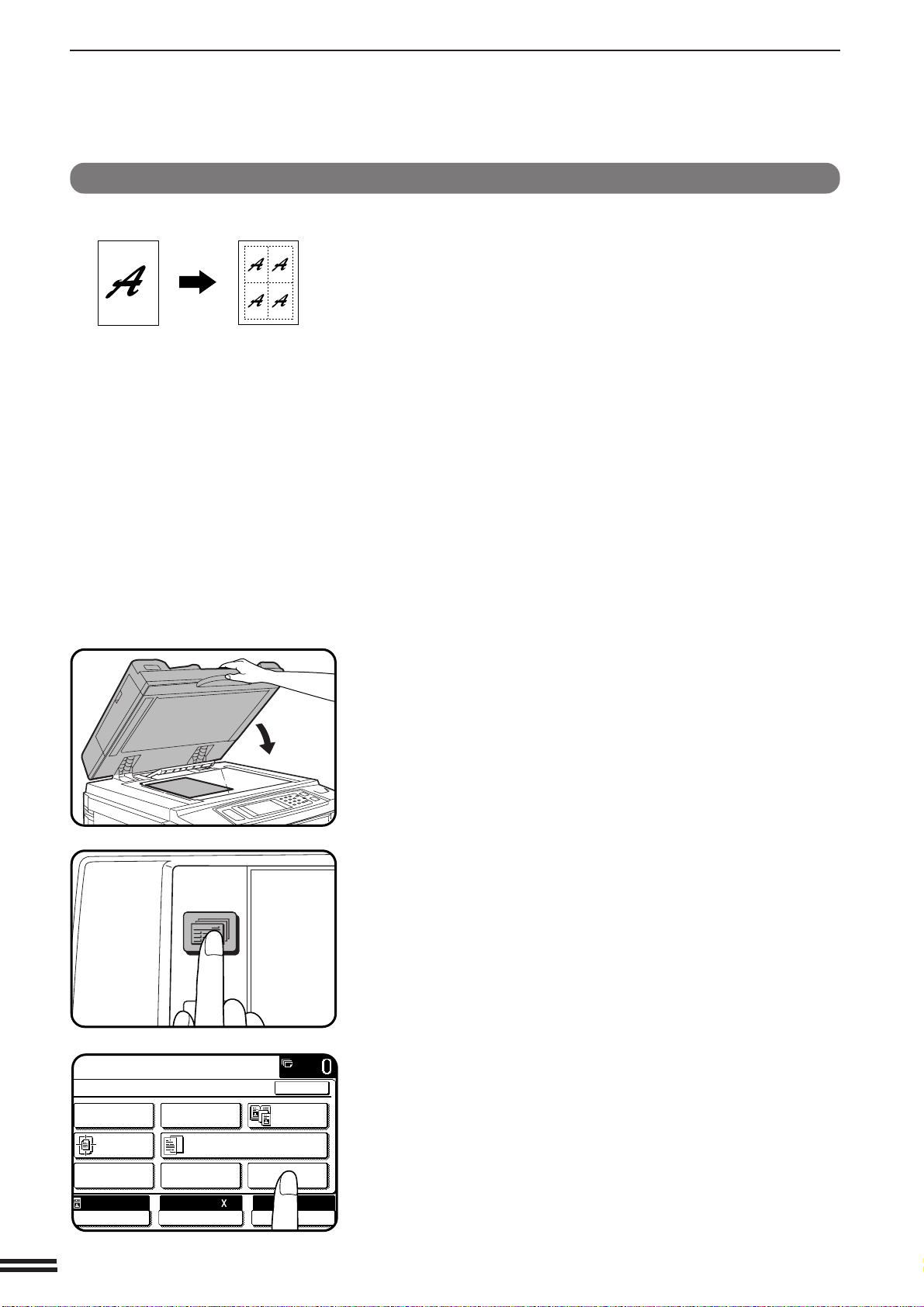
3-30
CHAPTER3
IMAGE EDITING FUNCTIONS
SPECIAL FUNCTIONS Image editing functions
PHOTO REPEAT
PHOTO REPEAT is used to produce repeated images of a photo on a
single sheet of copy paper.
(Refer to the samples on page 2 to see the effect on copy images in relation
to the PHOTO REPEAT.)
●
Up to 8 repeats can be made on a single copy sheet. The number of
copies on a single sheet depends on the original size and copy paper
size.
●
Reduction or enlargement cannot be selected with this function. If
reduction or enlargement has been selected, the copy ratio will be reset
to 100% when this function is selected.
●
This function will not work when non-standard size paper is used.
1
Place the original on the document glass.
●
The optional document feeder cannot be used with this function.
2
Press the SPECIAL MODES key.
●
The SPECIAL MODES screen will appear.
3
Press the “IMAGE EDIT” key on the touch panel.
●
The IMAGE EDIT menu will appear.
C
B
C
B
C
B
C
B
C
B
Copy
Original
2-SIDED
COPY
SPECIAL
MODES
READY TO
READY TO COPY.
SPECIAL MODES
MARGIN SHIFT ERASE
IMAGE EDITCOVERS
CENTERING
DUAL PAGE
COPY
COLOR
ADJUSTMENTS
TRANSPARENCY INSERTS
OK
AUTO
EXPOSURE PAPER SELECT
100%
COPY RATIO
8/ 11AUTO
1
2
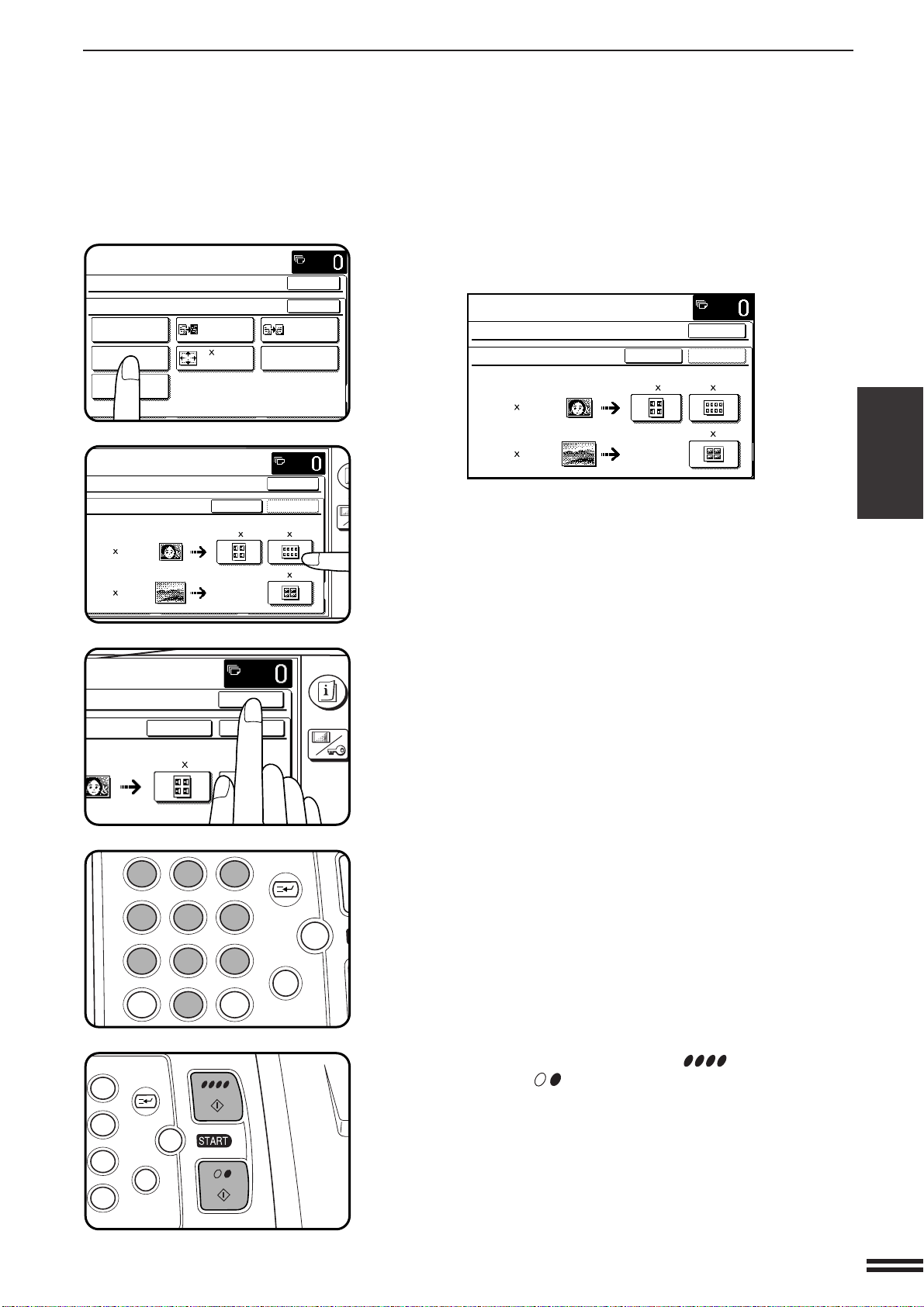
3-31
CHAPTER3
IMAGE EDITING FUNCTIONS
SPECIAL FUNCTIONS Image editing functions
4
Press the “PHOTO REPEAT” key on the touch panel.
●
The setting screen for PHOTO REPEAT will appear.
5
Select the desired repeat type.
●
Select the copy paper size depending on the original size.
6
Press the upper “OK” key.
7
Make all other desired copier selections and enter the
desired number of copies.
●
The paper tray will be automatically selected. If the copier has
another paper tray (including the bypass tray) that holds paper
of the same size as the selected paper tray, the tray can also be
selected.
8
Press the COLOR COPY START ( ) key or BLACK
COPY START ( ) key.
●
To cancel the PHOTO REPEAT function, select the PHOTO
REPEAT function again and press the “CANCEL” key.
READY TO COPY.
SPECIAL MODES
OK
OK
NEG./POS.
REVERSE
11 17
FULL-BLEED
MIRROR
IMAGE
MULTI-PAGE
ENLARGEMENT
IMAGE EDIT
SINGLE COLOR
PHOTO REPEAT
EXTRA SIZE
PLEASE SELECT REPEAT TYPE.
SPECIAL MODES
PHOTO REPEAT
~3 5"
REPEAT TYPEORIGINAL SIZE
CANCEL
OK
OK
8/ 11
2
1
11 17
11 17
~5 7"
INFOR
CUS
SETT
LEASE SELECT REPEAT TYPE.
PECIAL MODES
HOTO REPEAT COPY
~3 5"
REPEAT TYPEORIGINAL SIZE
CANCEL
OK
OK
8/ 11
2
1
11 17
11 17
~5 7"
12
3
456
789
0
P
C
CA
CLEAR
PROGRAM
AUDIT
INTERRUPT
CLEAR
ALL
N
3
6
9
P
C
CA
CLEAR
PROGRAM
INTERRUPT
CLEAR
ALL
INFORMATIO
CUSTOM
SETTINGS
EAT TYPE.
REPEAT TYPEE
CANCEL
OK
OK
8/ 11
2
1
11 17
11 17
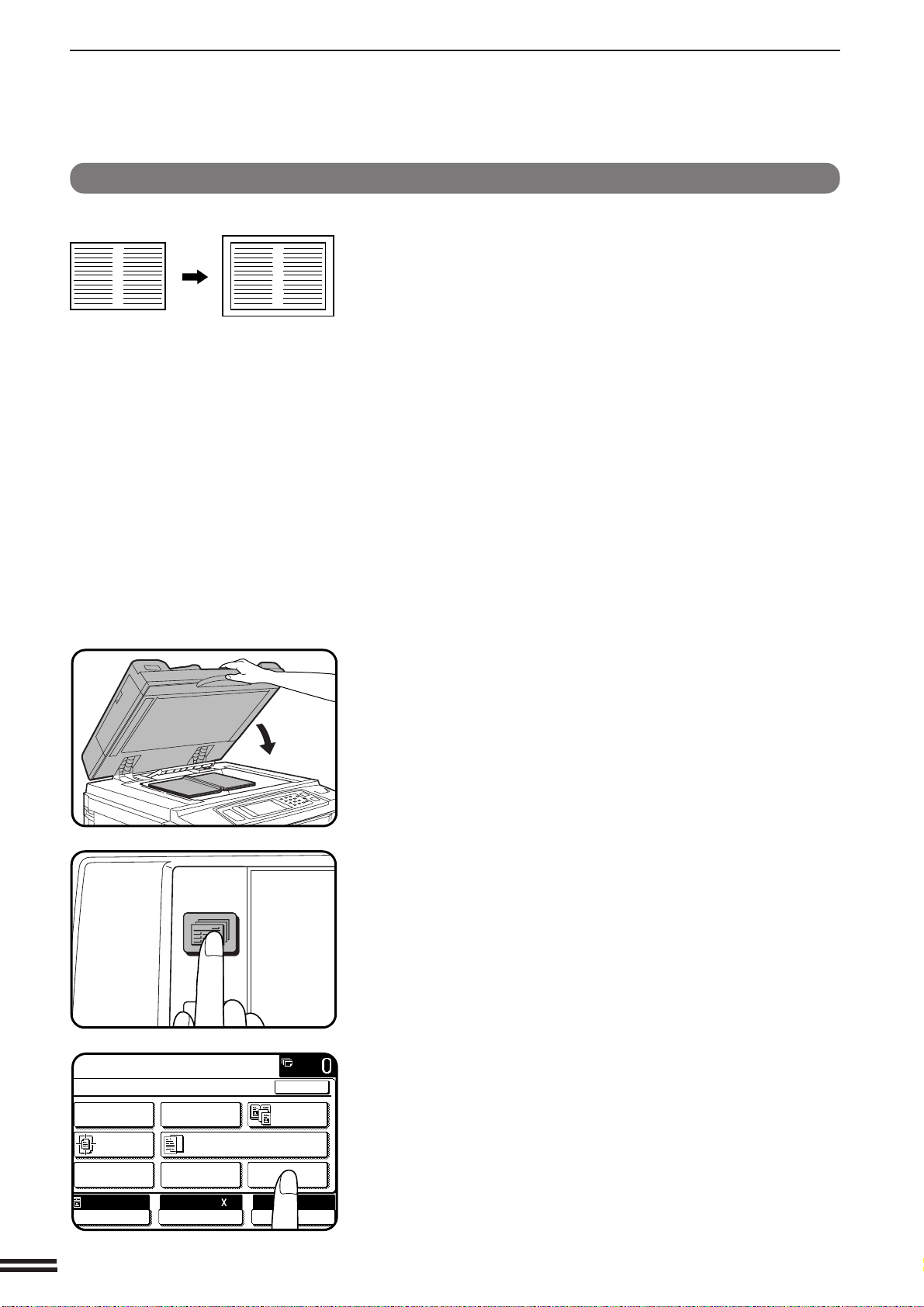
3-32
CHAPTER3
IMAGE EDITING FUNCTIONS
SPECIAL FUNCTIONS Image editing functions
11 x 17 FULL-BLEED
In other copy modes, image loss will occur along the copy edges. When the
11 x 17 FULL-BLEED function is used, the full image of an 11" x 17" size
original will be copied onto 12" x 18" size copy paper.
●
Reduction or enlargement cannot be selected with this function. If
reduction or enlargement has been selected, the copy ratio will be reset
to 100% when this function is selected.
1
Place the original on the document glass and close the
document cover.
●
The optional document feeder cannot be used with this function.
2
Press the SPECIAL MODES key.
●
The SPECIAL MODES screen will appear.
3
Press the “IMAGE EDIT” key on the touch panel.
●
The IMAGE EDIT menu will appear.
11" x 17" 12" x 18"
Copy
Original
2-SIDED
COPY
SPECIAL
MODES
READY TO
READY TO COPY.
SPECIAL MODES
MARGIN SHIFT ERASE
IMAGE EDITCOVERS
CENTERING
DUAL PAGE
COPY
COLOR
ADJUSTMENTS
TRANSPARENCY INSERTS
OK
AUTO
EXPOSURE PAPER SELECT
100%
COPY RATIO
11 17AUTO
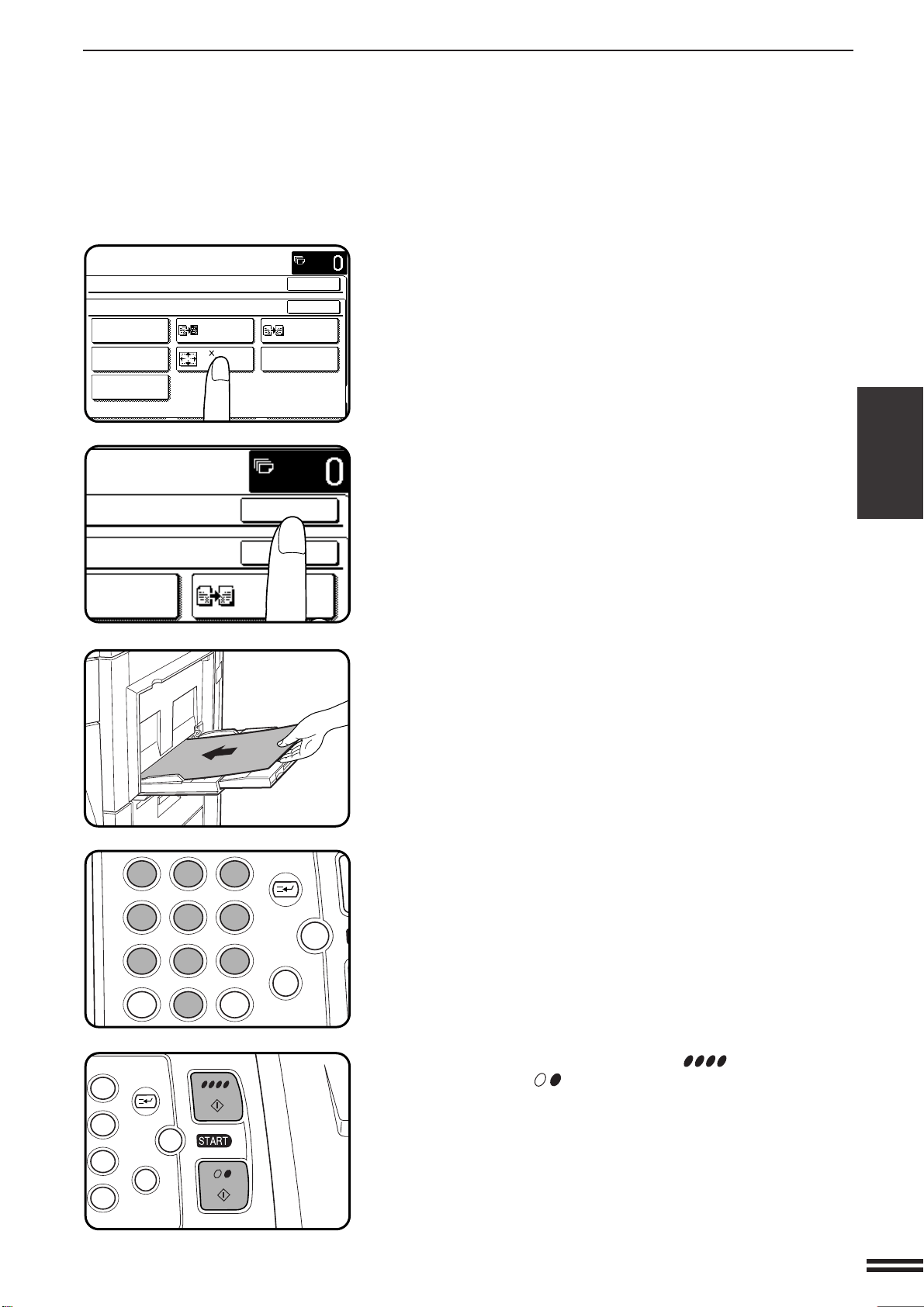
3-33
CHAPTER3
IMAGE EDITING FUNCTIONS
SPECIAL FUNCTIONS Image editing functions
4
Press the “11 x 17 FULL-BLEED” key on the touch panel.
●
The “11 x 17 FULL-BLEED” key will be highlighted.
5
Press the upper “OK” key.
6
Load 12" x 18" copy paper into the bypass tray.
7
Press the “PAPER SELECT” key on the touch panel and
then select the paper type (16 ~ 28 lbs., 28+ ~ 35 lbs. or
35+ ~ 55 lbs.) in the bypass tray.
8
Make all other desired copier selections and enter the
desired number of copies.
9
Press the COLOR COPY START ( ) key or BLACK
COPY START ( ) key.
●
To cancel the 11 x 17 FULL-BLEED function, press the “11 x 17
FULL-BLEED” key again on the IMAGE EDIT menu screen.
READY TO COPY.
SPECIAL MODES
OK
OK
NEG./POS.
REVERSE
11 17
FULL-BLEED
MIRROR
IMAGE
MULTI-PAGE
ENLARGEMENT
IMAGE EDIT
SINGLE COLOR
PHOTO REPEAT
EXTRA SIZE
12
3
456
789
0
P
C
CA
CLEAR
PROGRAM
AUDIT
INTERRUPT
CLEAR
ALL
N
3
6
9
P
C
CA
CLEAR
PROGRAM
INTERRUPT
CLEAR
ALL
NEG./POS.
REVERSE
MIRROR
IMAGE
OK
OK
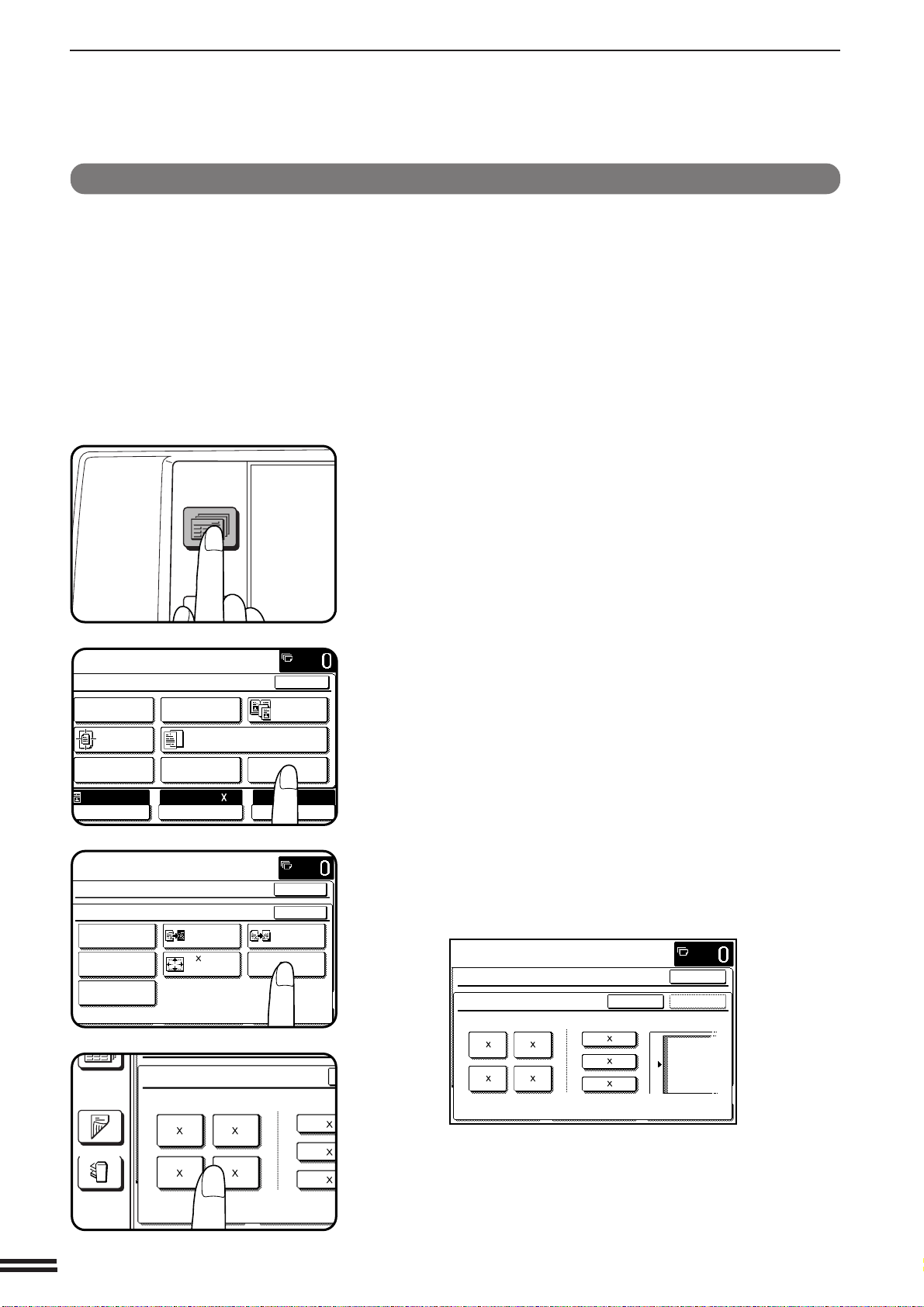
3-34
CHAPTER3
IMAGE EDITING FUNCTIONS
SPECIAL FUNCTIONS Image editing functions
MULTI-PAGE ENLARGEMENT
This function is used to enlarge an original image to a size larger than 11"
x 17" and print divided images onto multiple sheets of copy paper.
(Refer to the samples on page 3 to see the effect on copy images in relation
to the MULTI-PAGE ENLARGEMENT.)
1
Press the SPECIAL MODES key.
●
The SPECIAL MODES screen will appear.
2
Press the “IMAGE EDIT” key on the touch panel.
●
The IMAGE EDIT menu will appear.
3
Press the “MULTI-PAGE ENLARGEMENT” key on the
touch panel.
●
The setting screen for MULTI-PAGE ENLARGEMENT will
appear.
4
Select the desired enlargement size.
●
Select the desired size among the sizes displayed on the touch
panel.
2-SIDED
COPY
SPECIAL
MODES
READY TO
READY TO COPY.
SPECIAL MODES
MARGIN SHIFT ERASE
IMAGE EDITCOVERS
CENTERING
DUAL PAGE
COPY
COLOR
ADJUSTMENTS
TRANSPARENCY INSERTS
OK
AUTO
EXPOSURE PAPER SELECT
100%
COPY RATIO
8/ 11AUTO
1
2
READY TO COPY.
SPECIAL MODES
OK
OK
NEG./POS.
REVERSE
11 17
FULL-BLEED
MIRROR
IMAGE
MULTI-PAGE
ENLARGEMENT
IMAGE EDIT
SINGLE COLOR
PHOTO REPEAT
EXTRA SIZE
OUTPUT
2-SIDED
COPY
MULTI-PAGE ENLARGEMENT
ENLARGEMENT SIZE ORIGINAL
22 34
44 68
22 17
34 44
11 1
8/ 1
2
1
8/ 1
2
1
PLEASE SELECT ENLARGEMENT SIZE AND
ORIGINAL SIZE.
SPECIAL MODES
MULTI-PAGE ENLARGEMENT
ENLARGEMENT SIZE ORIGINAL SIZE & ORIENTATION
CANCEL
OK
OK
11 17
8/ 14
2
1
8/ 11
2
1
22 34
44 68
22 17
34 44

3-35
CHAPTER3
IMAGE EDITING FUNCTIONS
SPECIAL FUNCTIONS Image editing functions
5
Select the original size.
●
The original sizes that can be used depend on the selected
enlargement size.
●
The original orientation will be indicated depending on the
selected enlargement size and original size.
6
Press the upper “OK” key.
7
Place the original on the document glass in accordance
with the indicated orientation.
●
The area of the original that has been specified on the touch
panel will be scanned.
●
The optional document feeder cannot be used with this function.
8
Make all other desired copier selections and enter the
desired number of copies.
●
The paper tray will be automatically selected. If the copier has
another paper tray (including the bypass tray) that holds the
paper of the same size as the selected paper tray, the tray can
also be selected.
9
Press the COLOR COPY START ( ) key or BLACK
COPY START ( ) key.
●
The original image will be divided and copied onto multiple
sheets of paper. Overlapped areas will be made along the
leading and trailing edges of each copy.
●
To cancel the MULTI-PAGE ENLARGEMENT function, select
the MULTI-PAGE ENLARGEMENT function again and press
the “CANCEL” key.
AGE ENLARGEMENT
EMENT SIZE ORIGINAL SIZE & ORIENTATI
CANCEL
OK
11 17
8/ 14
2
1
8/ 11
2
1
22 34
44 68
7
4
T
ORIGINAL SIZE & ORIENTATION
CANCEL
OK
OK
11 17
12
3
456
789
0
P
C
CA
CLEAR
PROGRAM
AUDIT
INTERRUPT
CLEAR
ALL
N
3
6
9
P
C
CA
CLEAR
PROGRAM
INTERRUPT
CLEAR
ALL
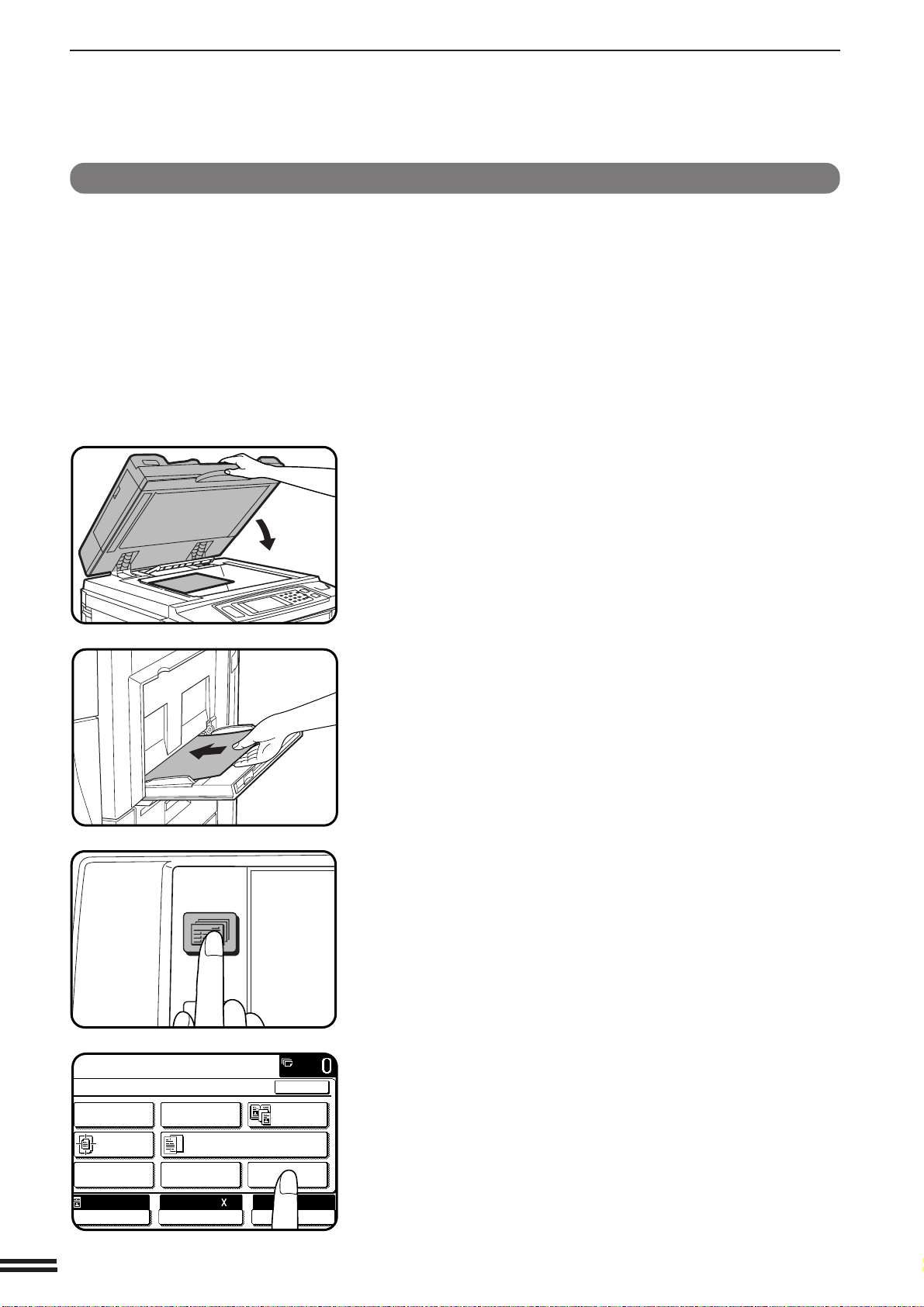
3-36
CHAPTER3
IMAGE EDITING FUNCTIONS
SPECIAL FUNCTIONS Image editing functions
EXTRA SIZE
The EXTRA SIZE function provides a method for entering the dimensions
of non-standard size copy paper and non-standard size originals for the
purpose of automatic enlargement or reduction of the image for a best fit
onto the copy paper.
★ KEY OPERATOR Extra paper size setting for each individual paper tray
of the copier can be made. See page 22 of the KEY OPERATOR’S GUIDE.
1
Place the non-standard original on the document glass
or the non-standard copy paper into the bypass tray.
●
Either one or both can be set.
2
Press the SPECIAL MODES key.
●
The SPECIAL MODES screen will appear.
3
Press the “IMAGE EDIT” key on the touch panel.
●
The setting screen for IMAGE EDIT selections will appear.
2-SIDED
COPY
SPECIAL
MODES
READY TO
READY TO COPY.
SPECIAL MODES
MARGIN SHIFT ERASE
IMAGE EDITCOVERS
CENTERING
DUAL PAGE
COPY
COLOR
ADJUSTMENTS
TRANSPARENCY INSERTS
OK
AUTO
EXPOSURE PAPER SELECT
100%
COPY RATIO
8/ 11AUTO
1
2
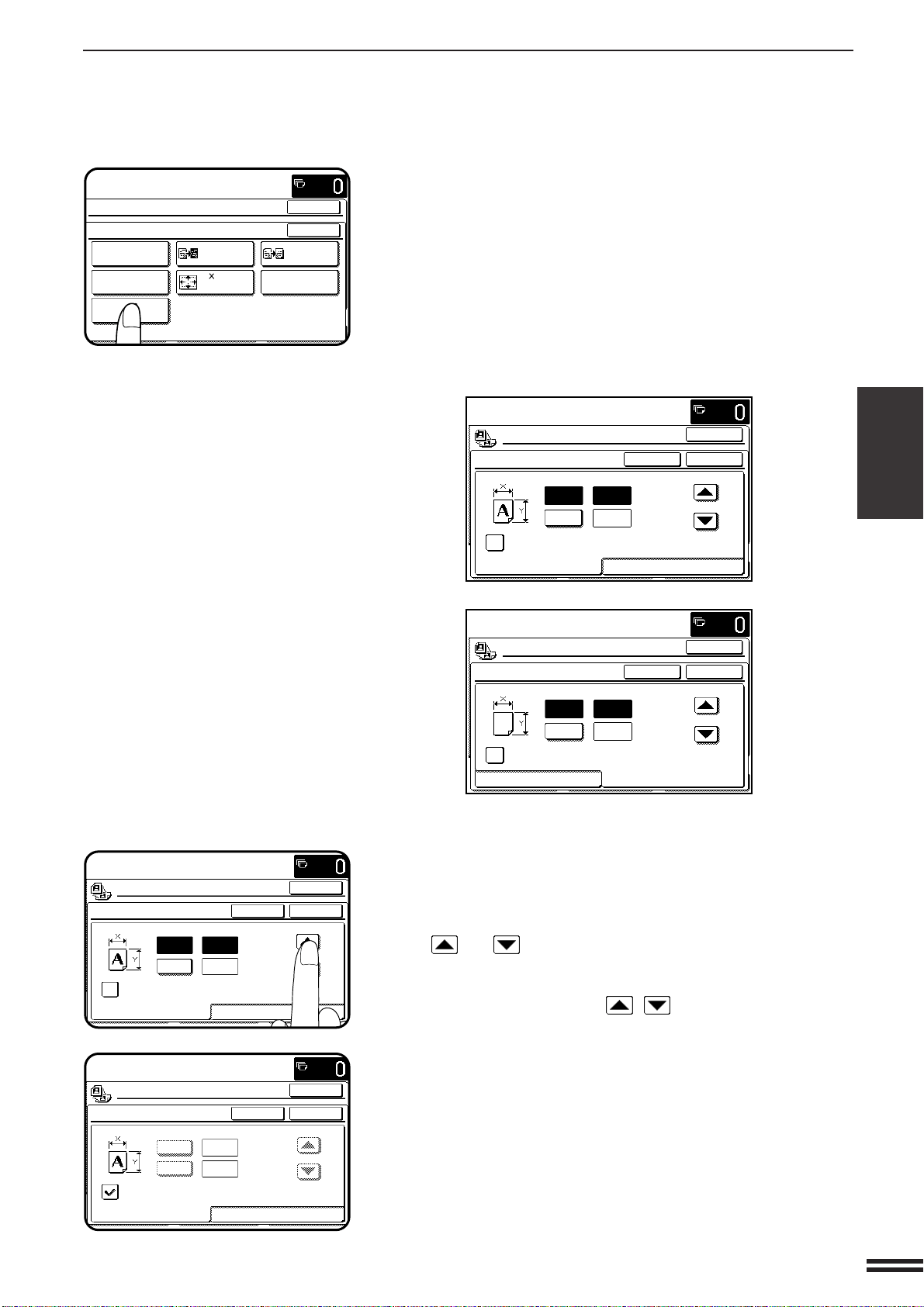
3-37
CHAPTER3
IMAGE EDITING FUNCTIONS
SPECIAL FUNCTIONS Image editing functions
4
Press the “EXTRA SIZE” key on the touch panel.
●
The setting screen for EXTRA SIZE will appear.
●
If an original on the document glass or paper in the bypass tray
is set on opening the EXTRA SIZE screen, the original and paper
dimensions in X (horizontal) and Y (vertical) will be shown
respectively on the ORIGINAL SIZE tab and the PAPER SIZE
FOR BYPASS tab.
As a starting point, the dimensions shown for extra size originals
or paper will be the closest match to standard sizes.
5
Adjust the original size on the “ORIGINAL SIZE” tab and
paper size on the “PAPER SIZE FOR BYPASS” tab,
respectively.
●
Adjust each X (horizontal) and Y (vertical) dimension using the
and keys.
●
If the “ENABLE AUTO SIZE DETECTION” check box is checked
on either tab, the size detection function will be activated. In this
case, the “X/Y” keys and “ / ” keys will be grayed out not
to allow any input.
READY TO COPY.
SPECIAL MODES
OK
OK
NEG./POS.
REVERSE
11 17
FULL-BLEED
MIRROR
IMAGE
MULTI-PAGE
ENLARGEMENT
IMAGE EDIT
SINGLE COLOR
PHOTO REPEAT
EXTRA SIZE
4
(5 1/2~17)
inch
(4~11 3/4)
inch
Y
CANCELEXTRA SIZE
ENABLE AUTO SIZE DETECTION
ORIGINAL SIZE PAPER SIZE FOR BYPASS
OK
OK
READY TO COPY.
X
/
12
4
1
(5 1/2~17)
inch
(4~11 3/4)
inch
Y
CANCELEXTRA SIZE
ENABLE AUTO SIZE DETECTION
ORIGINAL SIZE PAPER SIZE FOR BYPASS
OK
OK
READY TO COPY.
X
5
(5 1/2~17)
inch
(4~11 3/4)
inch
Y
CANCELEXTRA SIZE
ENABLE AUTO SIZE DETECTION
ORIGINAL SIZE PAPER SIZE FOR BYPASS
OK
OK
READY TO COPY.
X
/
8
2
1
/
2
1
5
(5 1/2~17)
inch
(4~11 3/4)
inch
Y
CANCELEXTRA SIZE
ENABLE AUTO SIZE DETECTION
ORIGINAL SIZE PAPER SIZE FOR BYPASS
OK
OK
READY TO COPY.
X
/
8
2
1
/
2
1
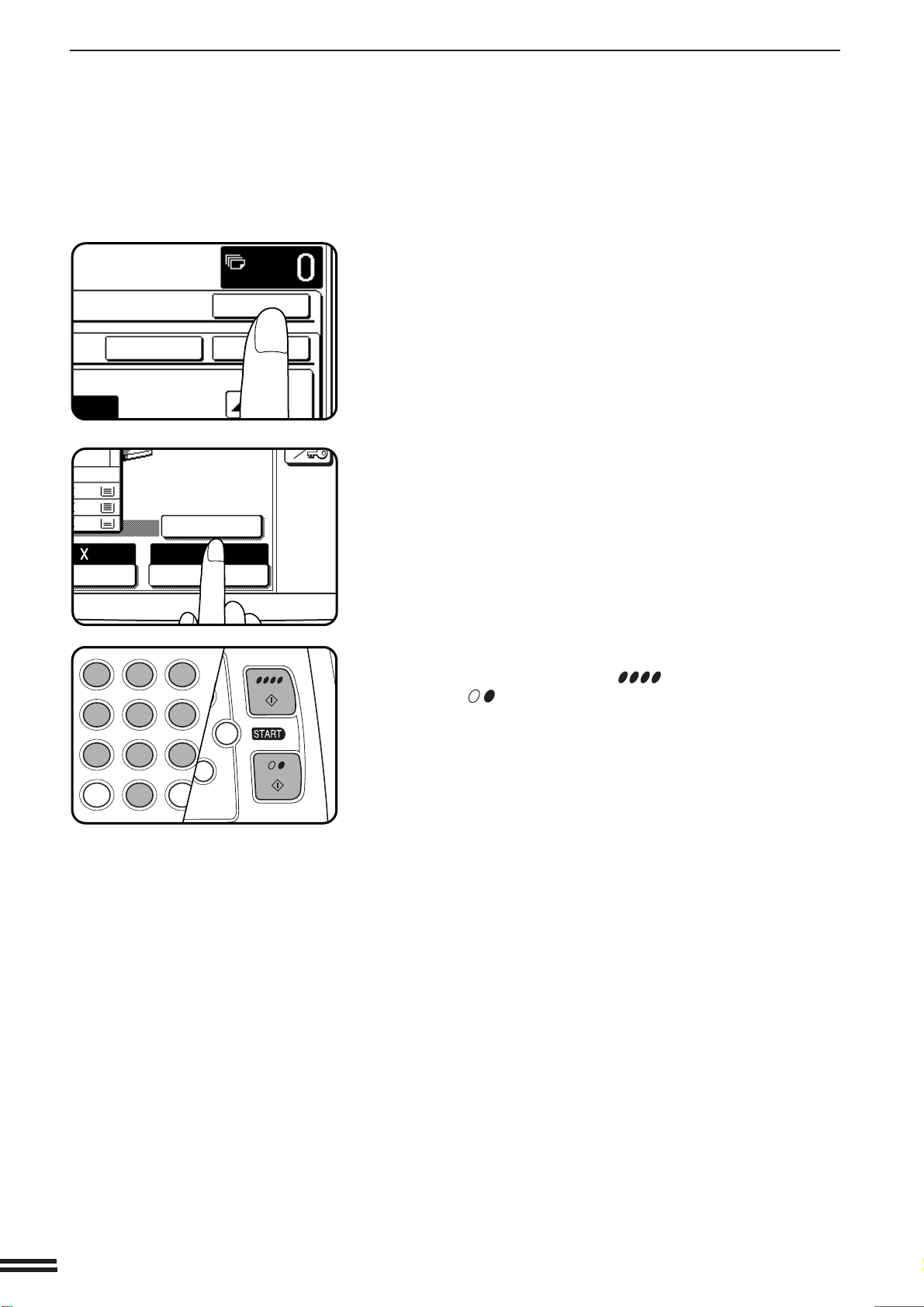
3-38
CHAPTER3
IMAGE EDITING FUNCTIONS
SPECIAL FUNCTIONS Image editing functions
6
Press the upper “OK” key on the touch panel.
7
Press the “AUTO IMAGE” key on the touch panel.
●
Refer to page 2-11 for the AUTO IMAGE function.
8
Enter the desired number of copies and press either of
the COLOR COPY START ( ) key or BLACK COPY
START ( ) key.
●
The setting screen for EXTRA SIZE will be closed and the initial
screen will appear.
C
CA
CLEAR
INTERRUPT
CLEAR
ALL
12
3
456
789
0
P
C
CL
PROGRAM
AUDIT
INTE
CLE
AL
I
(5 1/2~17)
inch
CANCEL
OK
OK
/
2
4
1
11
17
14
1
4
SELECT
100%
COPY RATIO
AUTO IMAGE
/ 4

4-1
CHAPTER4
CHAPTER 4
SUPPLIES
This chapter describes the supplies for this copier such as paper and
toner.
Page
●●
●●
●
PAPER ......................................... 4-2
Types and sizes of copy paper ......................... 4-2
Loading copy paper ................................ 4-2
●●
●●
●
ADDING TONER .................................. 4-5
●●
●●
●
USED TONER DISPOSAL ........................... 4-8
●●
●●
●
STORAGE OF SUPPLIES ........................... 4-9
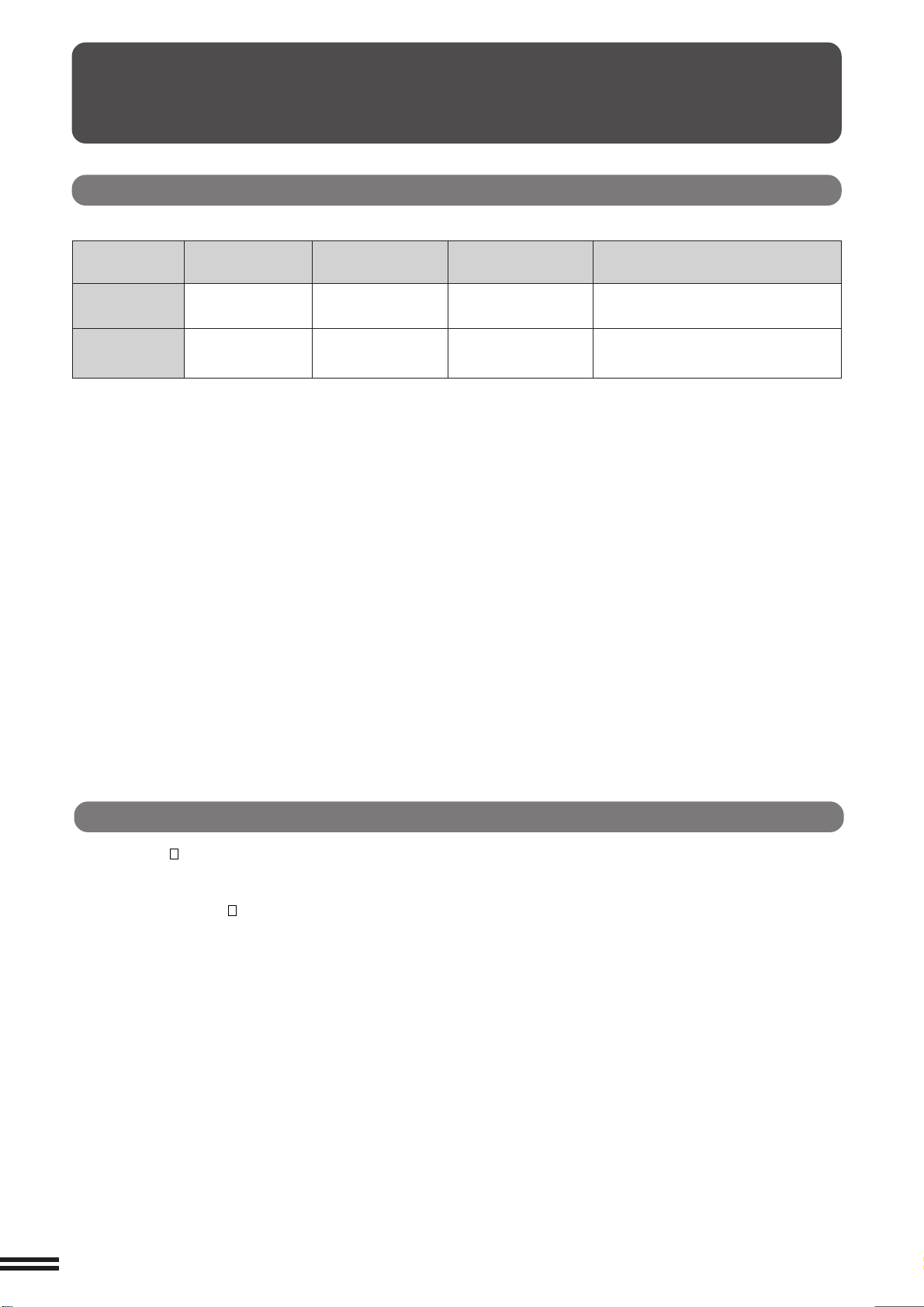
4-2
CHAPTER4
PAPER
Types and sizes of copy paper
Size Weight Capacity Special paper
(20 lb. bond paper)
Paper trays 5-1/2" x 8-1/2" 16 lbs. to 28 lbs. 500 sheets
to 11" x 17"
Bypass tray 5-1/2" x 8-1/2" 16 lbs. to 55 lbs. 50 sheets Transparency film, cover stock
to 12" x 18" (Ordinary paper) (65 lbs.), index stock (110 lbs.)
●
For best results, use only paper recommended by SHARP.
Loading copy paper
“OPEN TRAY AND ADD PAPER.” will be displayed when there is
no copy paper in a selected paper feed station.
When a selected paper tray is not installed or is improperly installed,
“PUSH PAPER TRAY INTO MACHINE UNTIL IT LATCHES.”
will be displayed. Install it or push it back firmly into place.
For best results, use only Sharp recommended paper.
SUPPLIES Paper
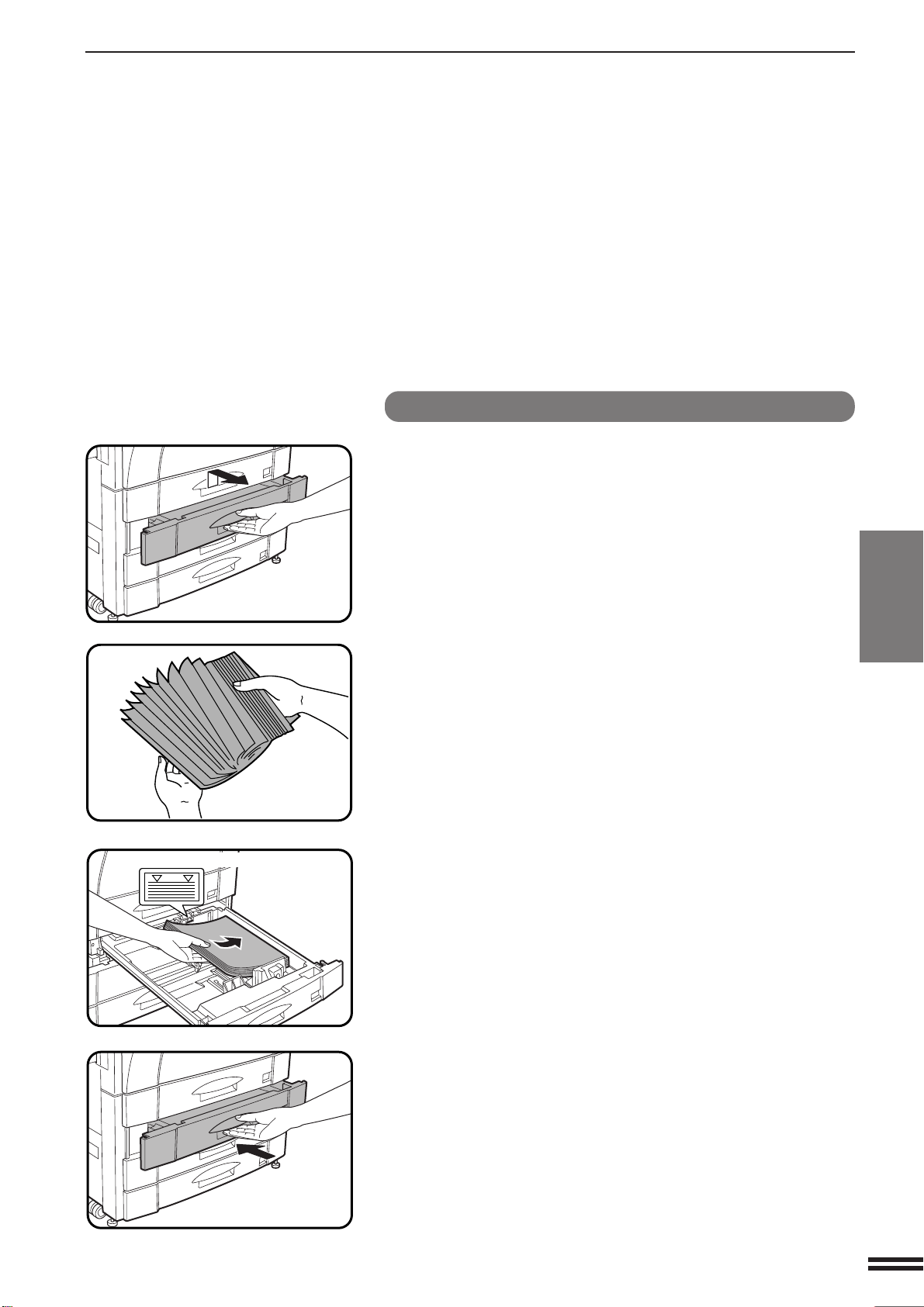
4-3
CHAPTER4
SUPPLIES Paper
Loading paper in the paper trays
1
Gently lift and pull out the paper tray.
2
Fan the copy paper and insert it into the tray.
●
The tray holds 500 sheets of 20 lb. bond paper.
Do not load paper above the maximum height line.
3
Push the paper tray firmly back into the copier.
PAPER
Maximum height line
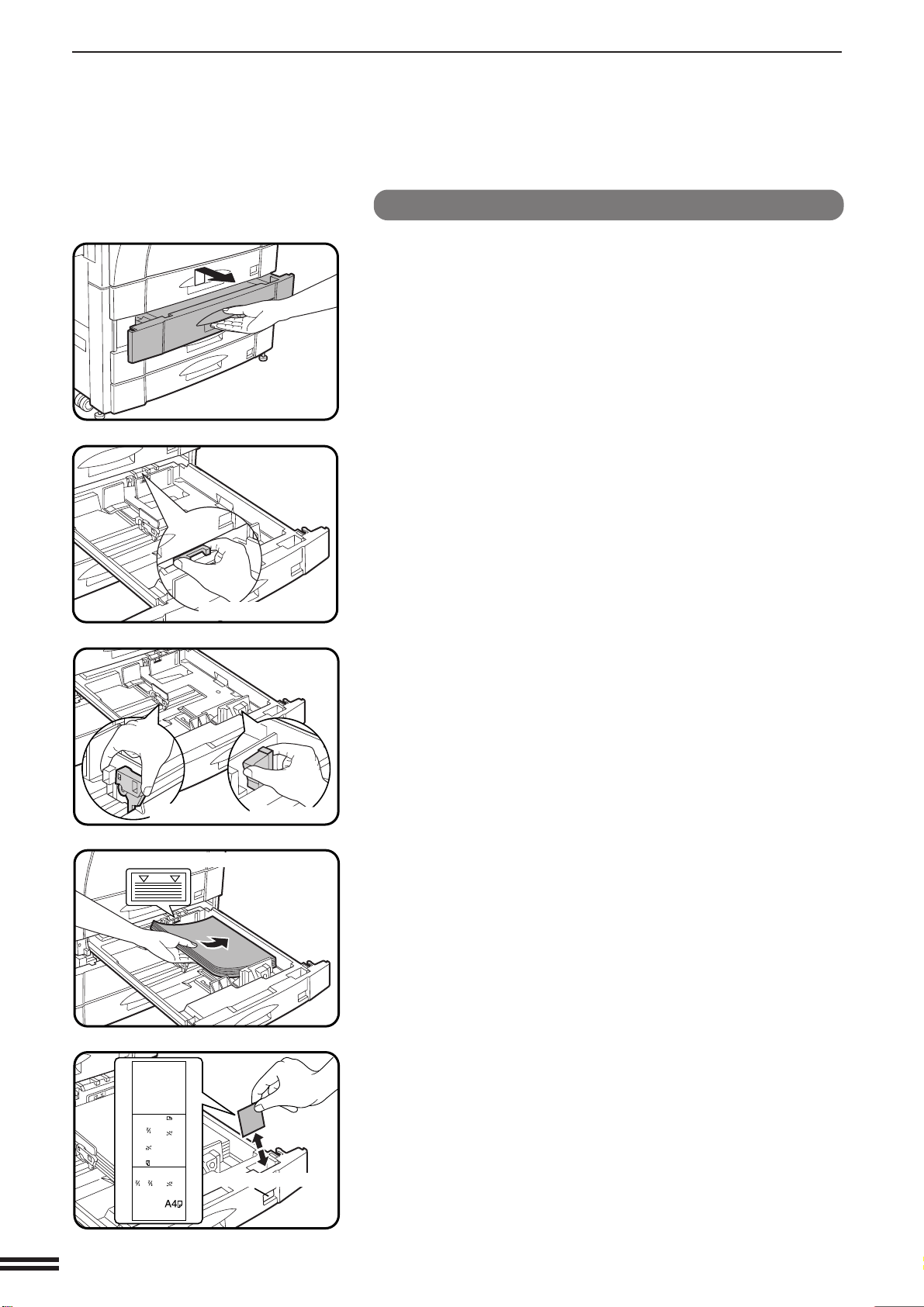
4-4
CHAPTER4
PAPER
Changing the copy paper size in the tray
1
Gently lift and pull out the paper tray until it stops.
2
Adjust the paper size indicator to match the paper size
to be set.
●
Slide the paper size indicator to the right or left to match the paper
size.
3
Adjust the front guide and left guide while squeezing
their lock levers.
●
Slide the front and left guides to match the width and length of the
copy paper.
4
Load copy paper into the tray.
5
Place the paper size card in the front of the paper tray.
●
The paper size card has three faces. Fold the card properly to
show the selected paper size. The paper size indication which
shows through the slot on the front of the copier should match the
selected paper size.
6
Push the paper tray firmly back into the copier.
SUPPLIES Paper
Paper size indicator
Left guide
Front guide
Maximum height line
8 x11
8 x14
11x17
8 x11
5 x8
8 x13
Paper size card
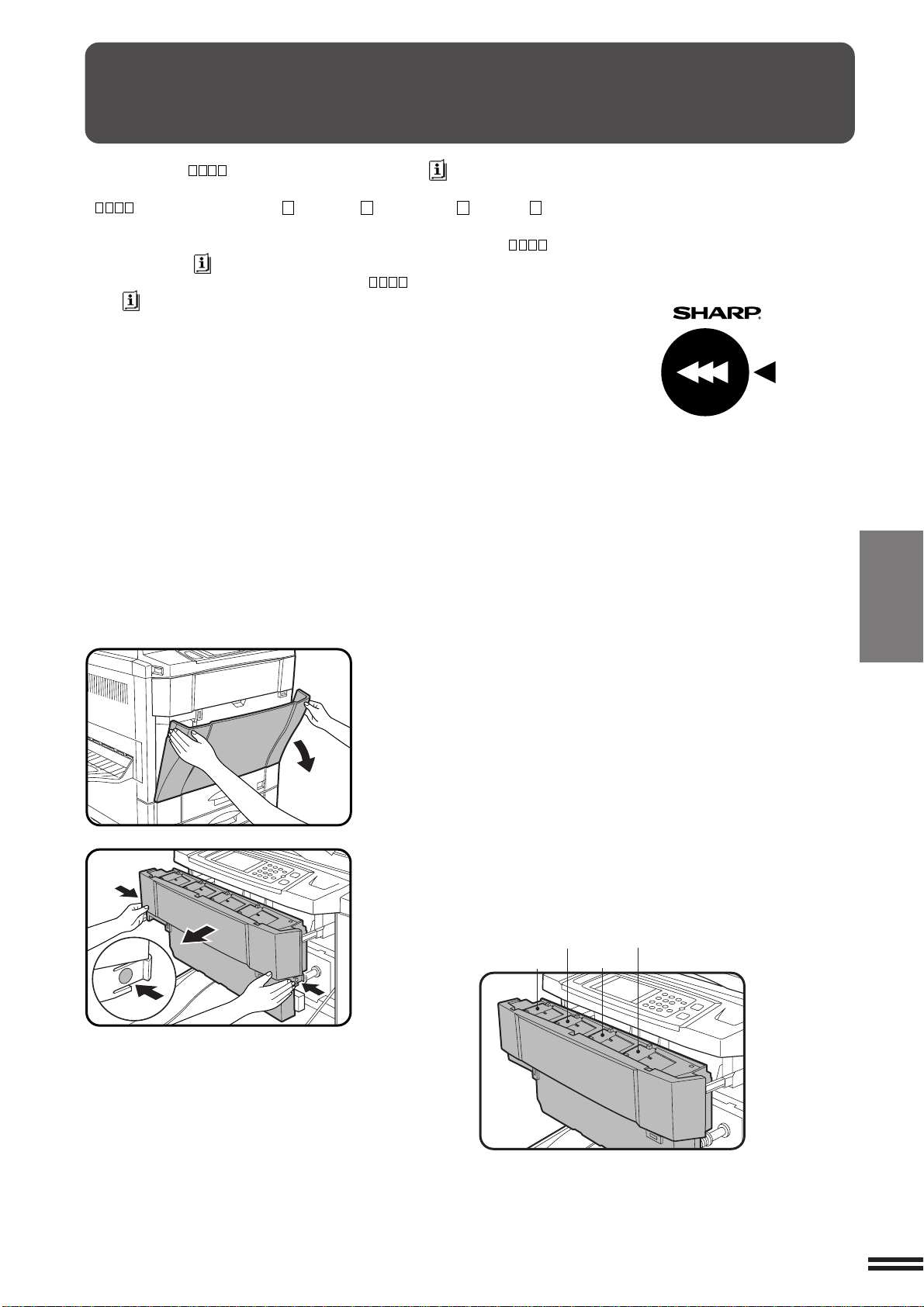
4-5
CHAPTER4
The message “ TONER SUPPLY IS LOW. ” will appear in
the message display before the toner supply is completely empty.
( indicate toner types.
Y
: yellow,
M
: magenta,
C
: cyan,
BK
:
black) If copying is continued, copies will gradually become lighter until
the copier stops and the message display changes to “ADD
TONER.PRESS .” indicating that the toner supply is empty. Toner
can be added any time after the message “ TONER SUPPLY IS
LOW. ” appears. To add toner, stop the copier and proceed as below.
When either message appears, you can use the INFORMATION key
for detailed information as necessary.
If any color toner supply is empty, color copying cannot be performed.
However, black/white copying can be performed unless the black
toner supply is empty.
During long copy runs of multiple originals containing many images
and/or dark shades, “TONER REPLENISHMENT IN PROGRESS.” may
appear and the copier may stop making copies even though toner is
left.
The copier will automatically cycle and replenish the toner to the
normal level and then the START key indicator will light up. Press the
START key to resume copying.
SUPPLIES Adding toner
ADDING TONER
For best copying results, be sure to use
only Sharp Genuine Supplies which are
designed, engineered, and tested to
maximize the life and performance of
Sharp copiers.
Look for the Genuine Supplies label on
the toner package.
1
Open the front cover.
2
Push the lock release buttons on both sides of the toner
box and pull the toner box out slowly until it stops.
●
The toner hoppers are located as below.
GENUINE SUPPLIES
Yellow
Cyan
Magenta
Black
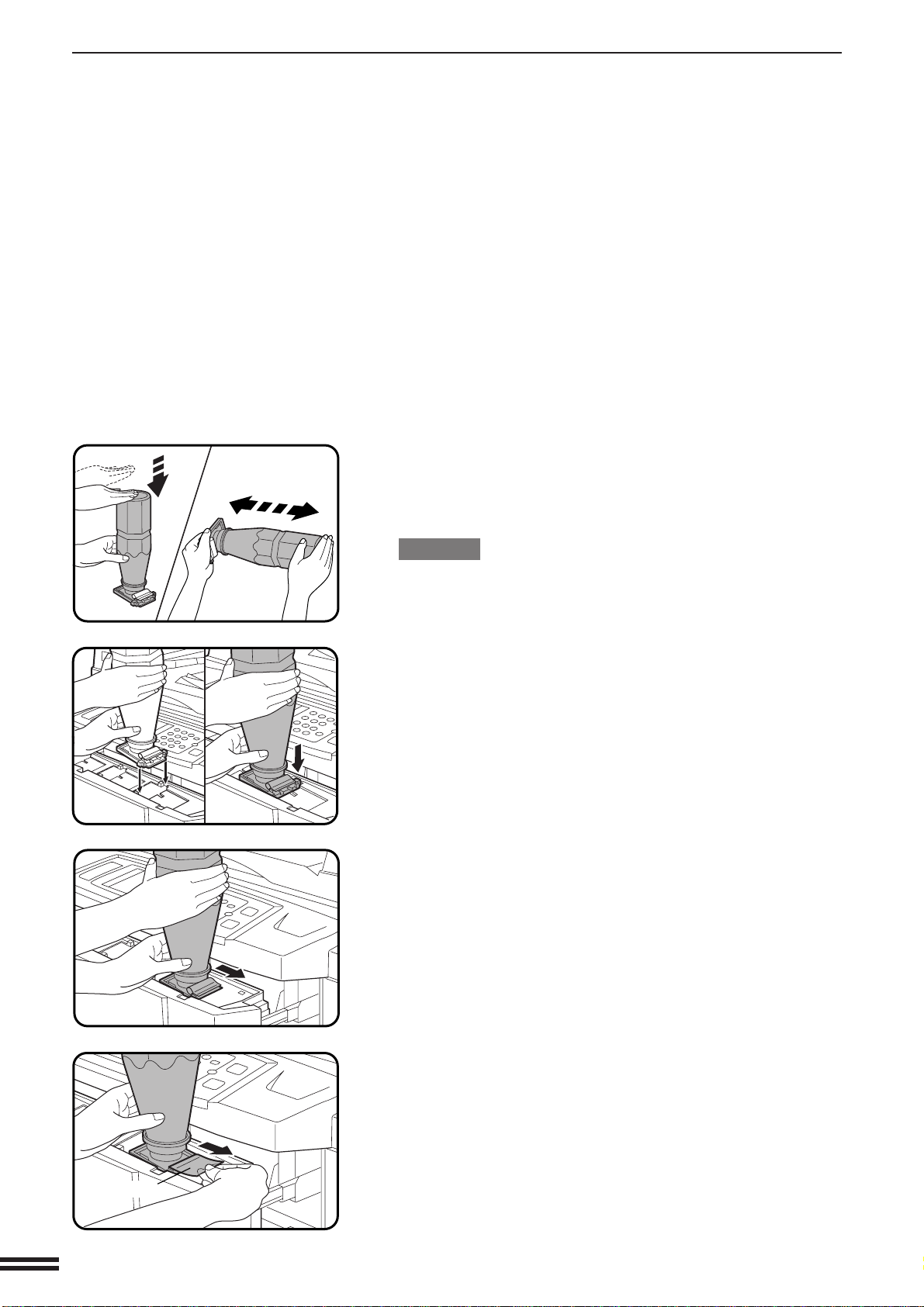
4-6
CHAPTER4
3
Tap on the top of the new toner cartridge 5 times. Then
hold the toner cartridge horizontally and vigorously
shake it about 20 times. This will loosen the toner and
allow it to flow more easily into the toner hopper.
CAUTION
Be sure to perform these steps. If not, toner may not flow easily into
the toner hopper.
4
Place the new toner cartridge with the protrusions into
the notches of the relevant toner hopper as shown.
●
The left example shows the toner hopper of black toner.
5
Slide the toner cartridge along the guides over the toner
hopper.
6
Hold the toner cartridge with one hand while pulling on
the sealing tape to remove it.
●
It will take about 40 seconds for the cartridge to empty.
ADDING TONER
SUPPLIES Adding toner
Sealing tape
5 x
20 x
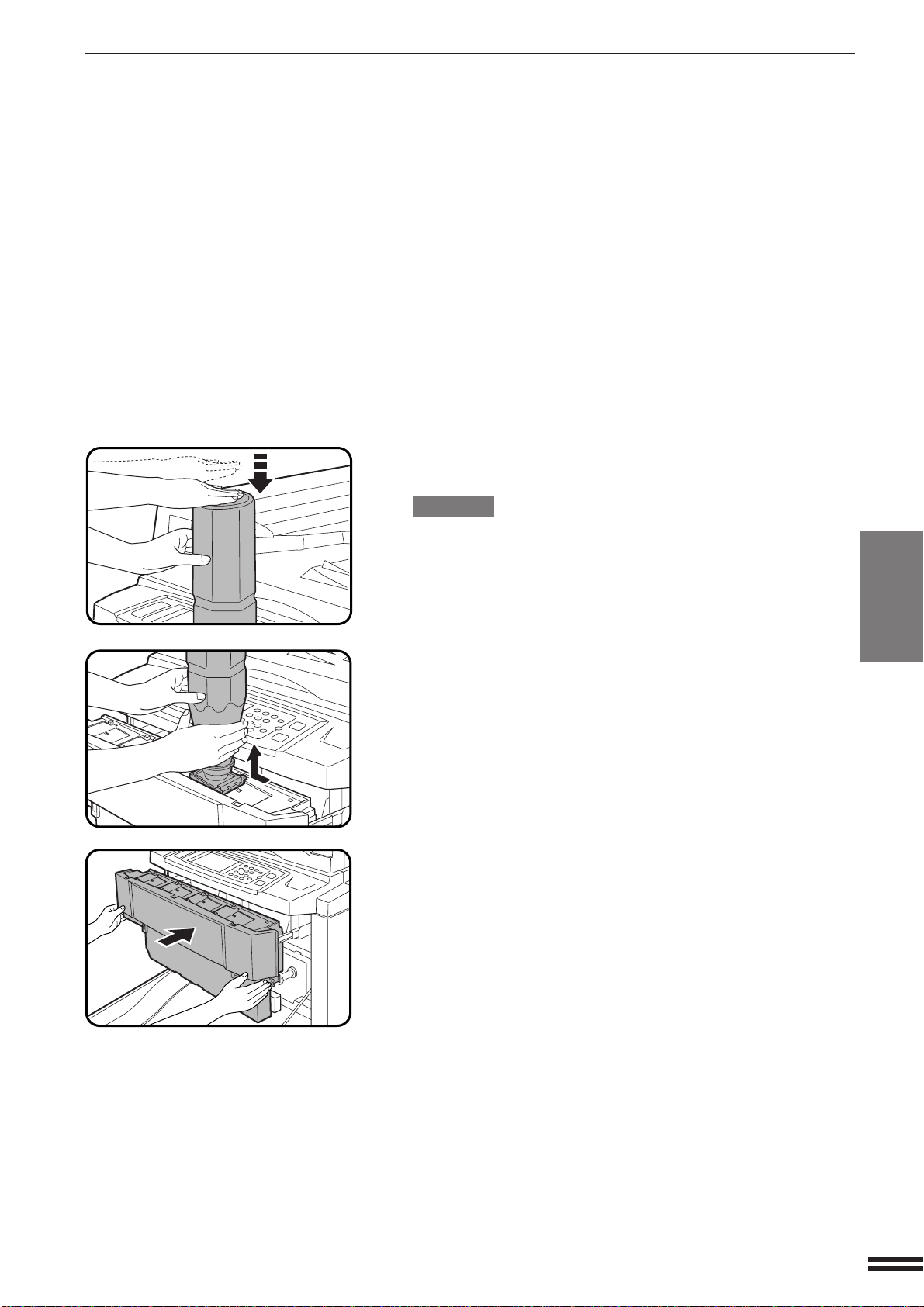
4-7
CHAPTER4
ADDING TONER
7
Tap on the top of the toner cartridge to ensure that the
cartridge completely empties.
CAUTION
Be sure to perform this step. If not, some toner may be scattered
when the cartridge is removed.
8
Slide the empty toner cartridge back along the guides
and remove it.
●
The cartridge opening will be closed as it is moved back along
the guides.
9
Push the toner box back into the copier.
10
Close the front cover.
NOTE:
Add only one cartridge of the color toner indicated as being low or
empty.
SUPPLIES Adding toner
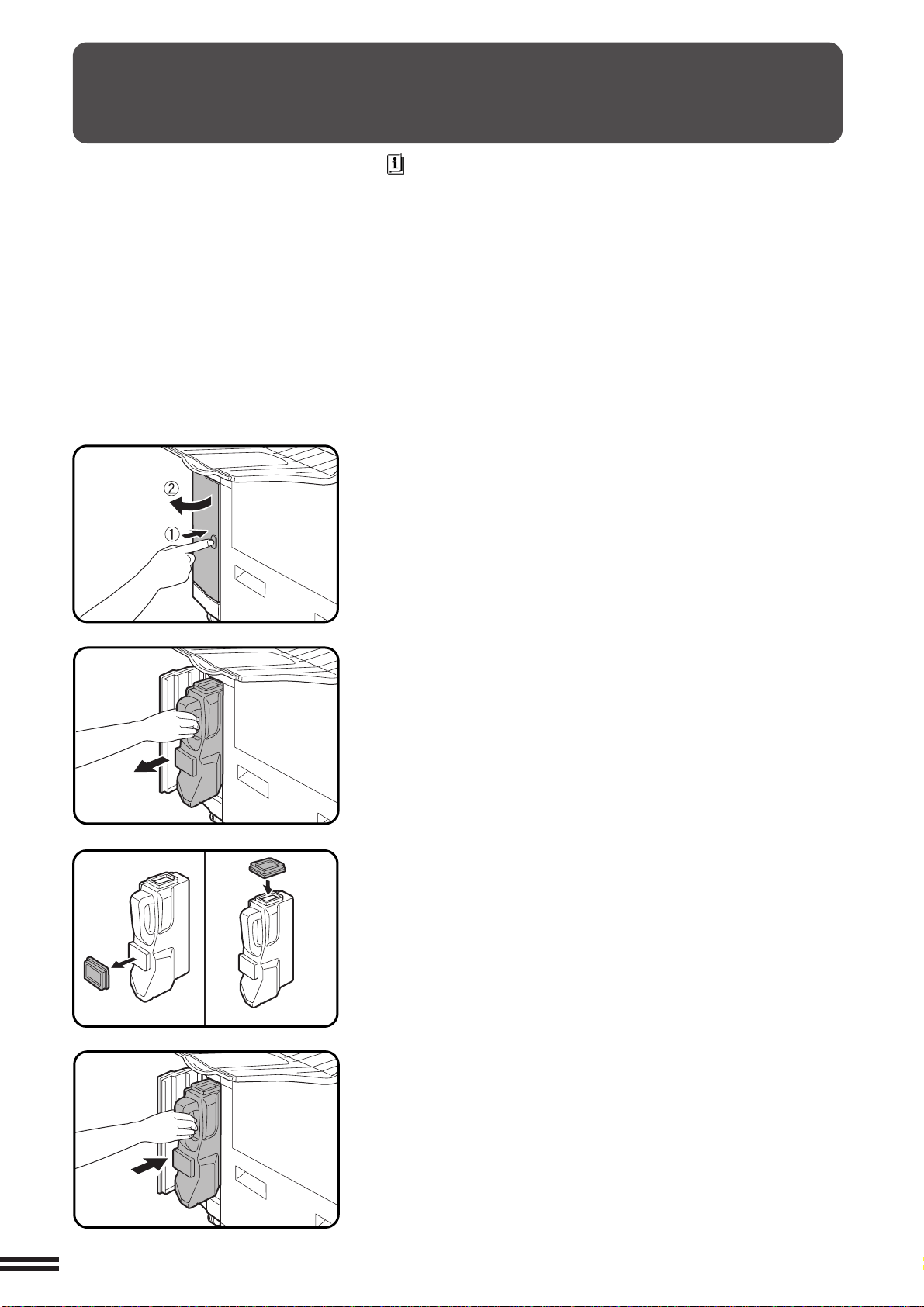
4-8
CHAPTER4
1
Open the toner collecting container cover.
●
Push once on the door to unlatch and open it.
2
Disengage and remove the container from the copier.
●
Toner cannot be reused. Do not transfer used toner to the toner
hopper.
●
Remove the cap from a new toner collecting container and use
it to cover the full toner collecting container.
●
Keep the full toner collecting container until the next regular
service call. Your authorized Sharp Service Technician will
collect the container for disposal.
3
Install a new toner collecting container until it clicks into
place.
4
Close the toner collecting container cover.
USED TONER DISPOSAL
“REPLACE USED TONER CONTAINER. PRESS FOR GUIDANCE.”
will appear when the toner collecting container is full.
The copier will stop and will not operate until a new container has been
installed. Replace the toner collecting container as described below.
When the above message is displayed, you can use the INFORMATION
key for detailed information as necessary.
SUPPLIES Used toner disposal
New container Removed container
4-9
CHAPTER4
SUPPLIES Storage of supplies
GENUINE SUPPLIES
STORAGE OF SUPPLIES
The supplies of this copier replaced by the user include copy paper,
toner, toner collecting container, and staple cartridges for the optional
staple sorter (AR-SS2) and the finisher (AR-FN4).
For best copying results, be sure to use
only Sharp Genuine Supplies which are
designed, engineered, and tested to
maximize the life and performance of
Sharp copiers. Look for the Genuine
Supplies label on the toner package.
Photoconductive drum
The AR-C250 Copier has advanced process control technology
which improves copy quality uniformity. This feature stabilizes copy
quality throughout the life of the photoconductive drum by automatically
compensating for the changes in drum characteristics due to wear,
operator use patterns, and environmental conditions. The automatic
adjustments are made in response to a sensor that detects the
reflectance characteristics of the drum.
WARNING
This feature requires drums containing the special reflectance area
(recommended Sharp genuine photoconductive drum), to prevent
low image density copies from poor process control and possible
damage to the machine. If you use other drums, the process control
system cannot run properly.
Proper storage
1
Store the supplies in a location that is:
●
clean and dry,
●
at a stable temperature,
●
not exposed to direct sunlight.
2
Store copy paper in the wrapper and lying flat.
●
Paper stored in packages standing up or out of the wrapper may
curl or become damp, resulting in paper misfeeds.


5-1
CHAPTER5
CHAPTER 5
COPIER TROUBLE?
This chapter describes how to remove misfed originals and paper and
other common trouble remedies.
Page
●●
●●
●
MISFEED REMOVAL ............................... 5-2
●●
●●
●
MAINTENANCE REQUIRED ........................ 5-11
●●
●●
●
TONER COLLECTING CONTAINER OF TRANSFER UNIT .. 5-12
●●
●●
●
TROUBLESHOOTING ............................. 5-13
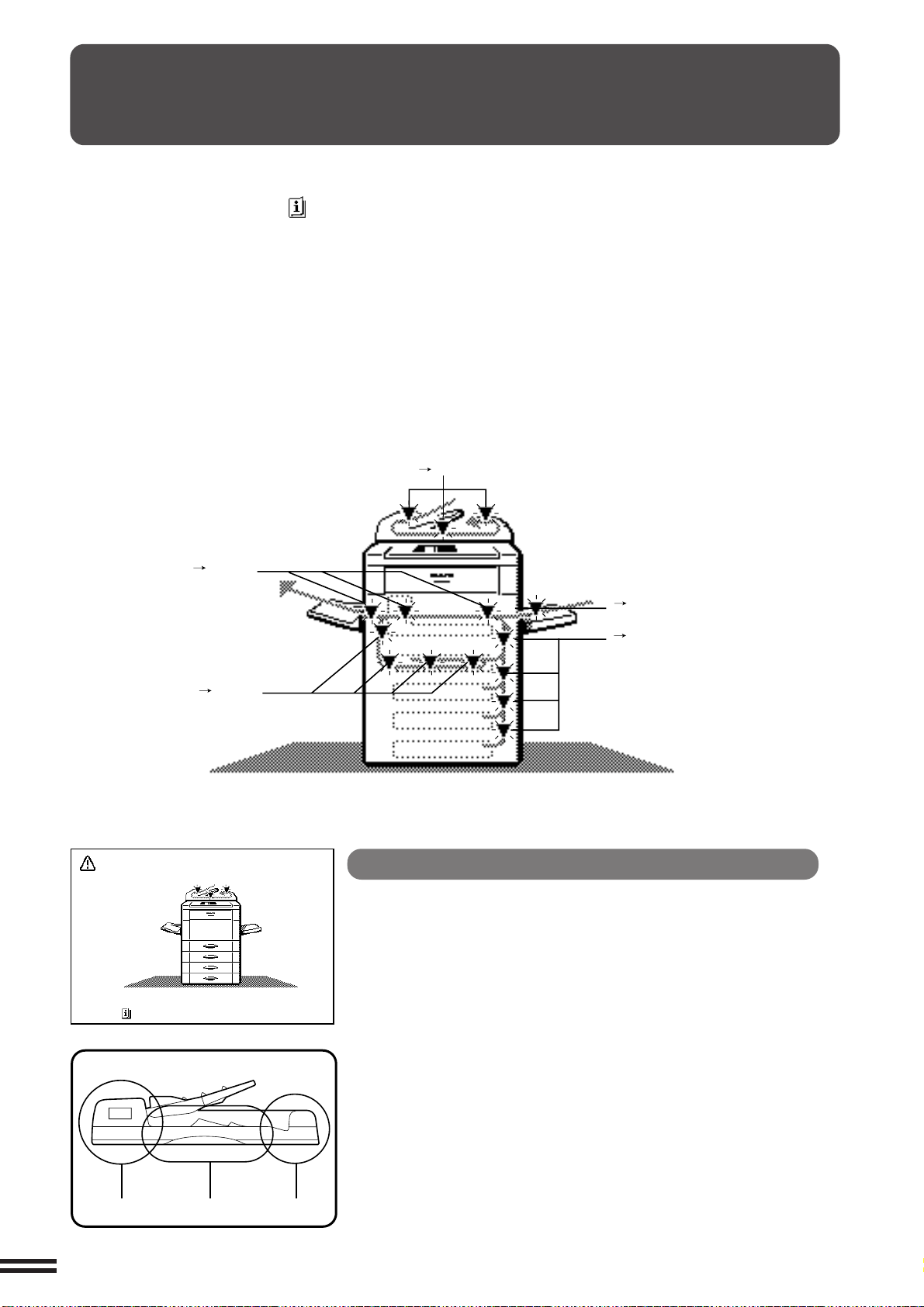
5-2
CHAPTER5
( P. 5-2)
( P. 5-3)
( P. 5-5)
( P. 5-6)
( P. 5-9)
Misfeed in the optional RADF
When the optional RADF misfeeds an original sheet, the copier will
stop and the misfeed message will appear.
An original misfeed may occur at one of three locations:
(A) in the RADF feed section, (B) in the exit roller, or (C)
under the transport belt.
ABC
MISFEED REMOVAL
When a misfeed occurs, the copier will stop.
The message “MISFEED HAS OCCURRED. CLEAR
INDICATED AREA. PRESS FOR RECOVERY
INSTRUCTIONS.” will appear with a display of paper
misfeed locations. Press the INFORMATION key for
more detailed information as necessary.
If paper becomes accidentally torn during removal, be
sure to remove all pieces. Be careful not to damage the
photoconductive drum or the corona wires.
First confirm the misfeed locations.
For misfeeds in an optional staple sorter, see page 7-13.
For misfeeds in an optional large capacity tray, see page
7-17.
For misfeeds in an optional finisher, see page 7-26.
COPIER TROUBLE? Misfeed removal
MISFEED HAS OCCURRED.
CLEAR INDICATED AREA.
PRESS FOR RECOVERY INSTRUCTIONS.
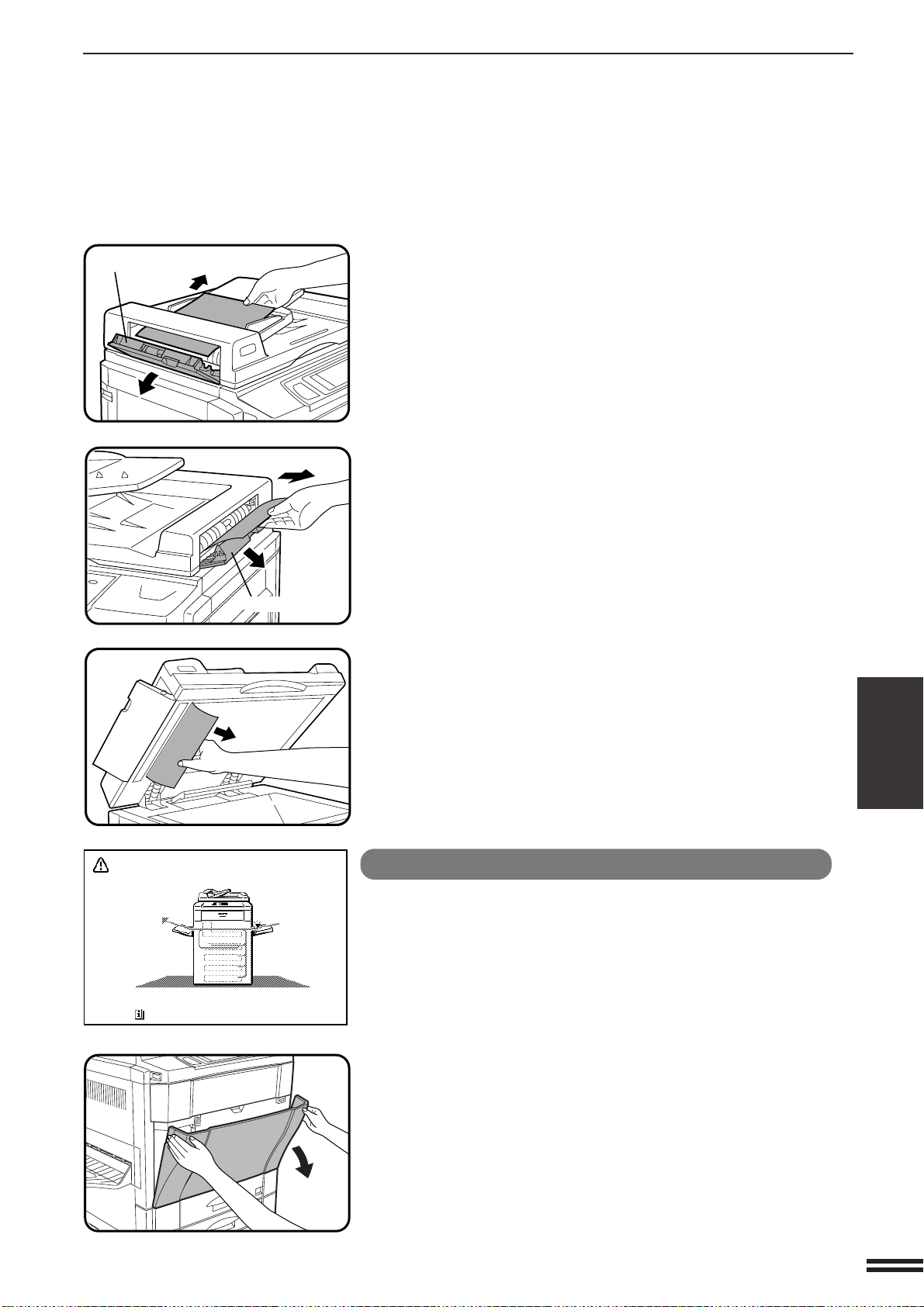
5-3
CHAPTER5
MISFEED REMOVAL
COPIER TROUBLE? Misfeed removal
(A) Open the feeding roller cover and pull the original gently
to the right and out from the document feeder tray.
●
Be sure to open and close the document feeder cover to cancel
the misfeed display.
(B) Open the exit roller cover and gently pull the original
out.
●
Be sure to open and close the document feeder cover to cancel
the misfeed display.
(C) Open the feeding roller cover and the document feeder
cover, and remove the original.
NOTE:
After misfed originals are removed from locations A, B and/or C, a
message may appear indicating the number of originals which must
be returned to the document feeder tray. Return the originals and
press the START key to resume copying.
Misfeed in the bypass tray
1
Open the front cover.
Feeding roller cover
Exit roller cover
MISFEED HAS OCCURRED.
CLEAR INDICATED AREA.
PRESS FOR RECOVERY INSTRUCTIONS.
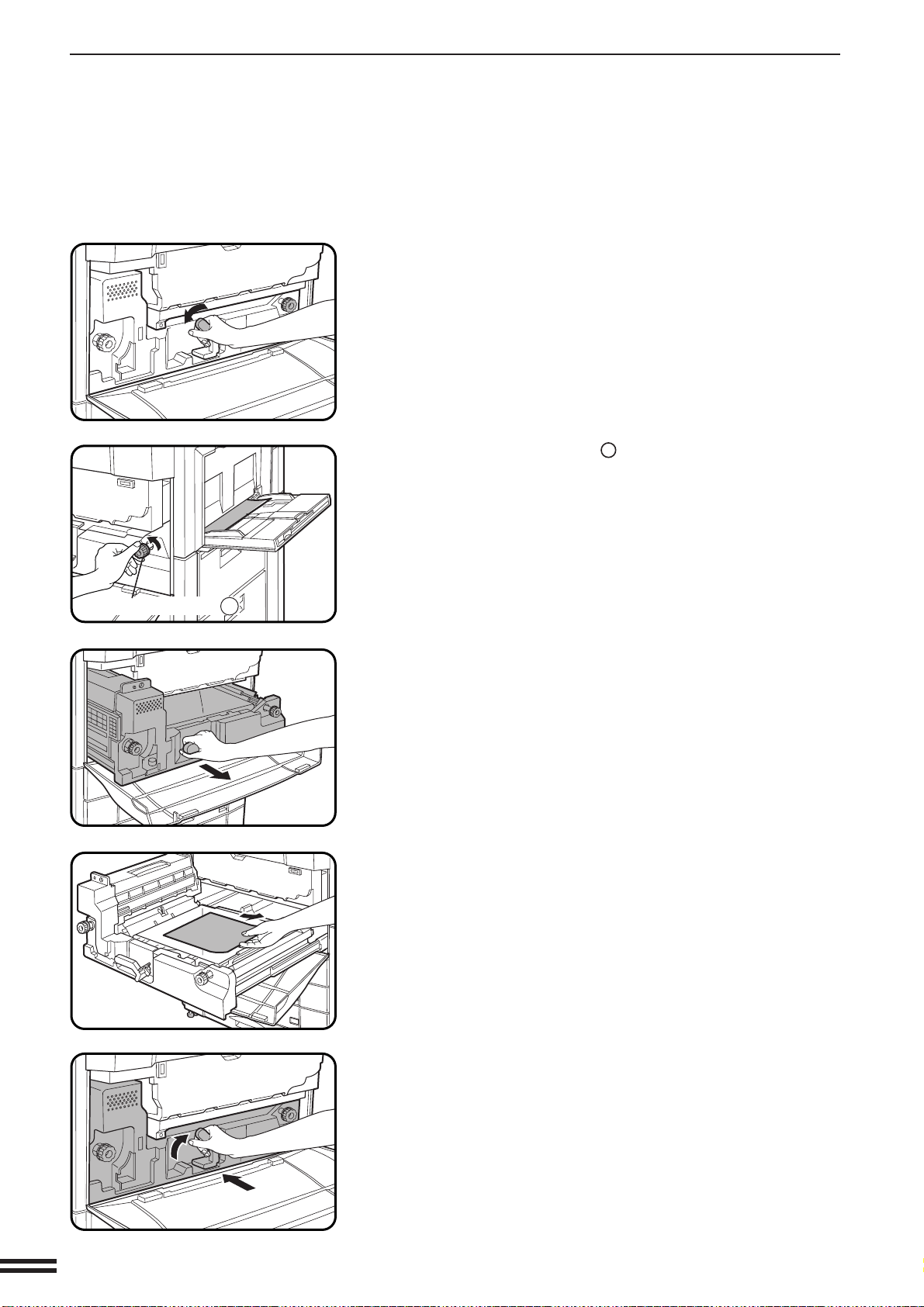
5-4
CHAPTER5
COPIER TROUBLE? Misfeed removal
MISFEED REMOVAL
2
Turn the transport lever to the left.
●
Do not pull out the paper transport in this step.
3
Turn roller rotating knob
A
in the direction of the arrow
to feed the misfed paper into the copier.
●
Do not pull the misfed paper out through the bypass tray because
unfixed toner may soil the inside of the copier.
4
Pull out the paper transport.
5
Remove the misfed paper.
6
Push the paper transport back securely into the copier
and turn the transport lever back.
Roller rotating knob A
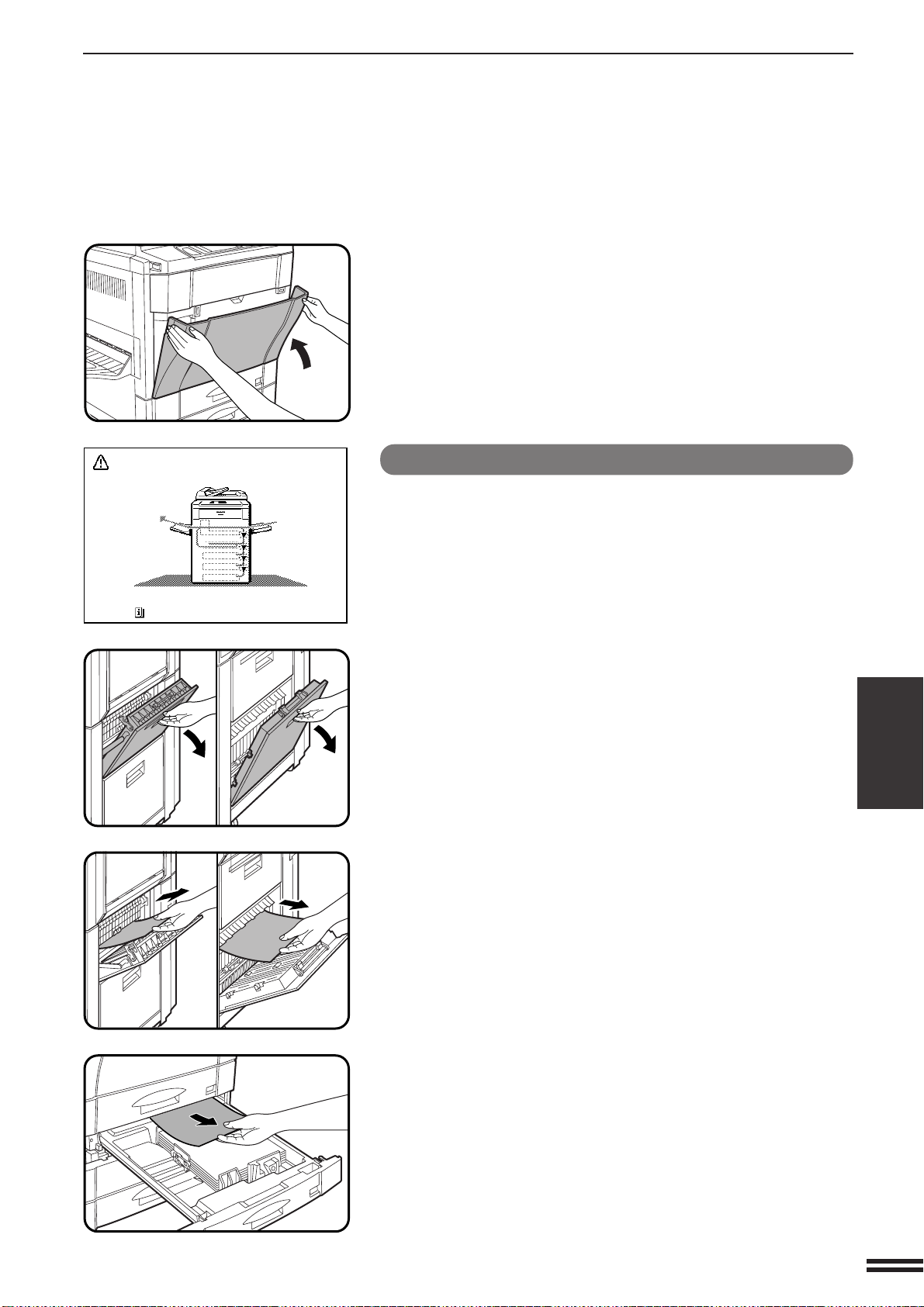
5-5
CHAPTER5
COPIER TROUBLE? Misfeed removal
MISFEED REMOVAL
7
Close the front cover.
Misfeed in the paper trays
1
Open the right side covers.
●
Grasp the handle and gently open the cover.
2
Remove the misfed paper.
●
Be careful not to tear the misfed paper during removal.
3
If the paper cannot be seen from the side, pull out the
paper tray which was in use and remove the misfed
paper.
●
Be careful not to tear the misfed paper during removal.
MISFEED HAS OCCURRED.
CLEAR INDICATED AREA.
PRESS FOR RECOVERY INSTRUCTIONS.
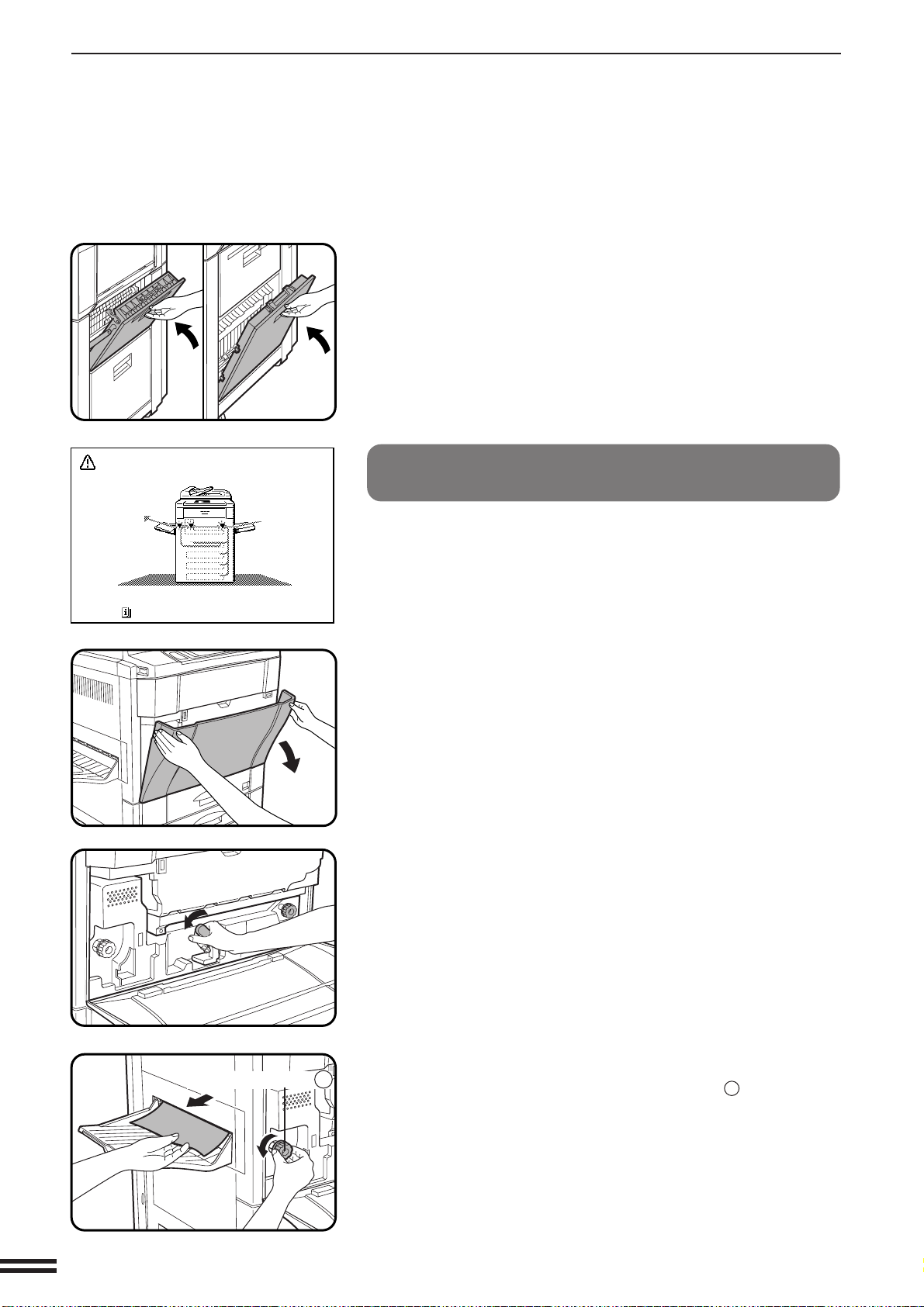
5-6
CHAPTER5
MISFEED REMOVAL
COPIER TROUBLE? Misfeed removal
4
Close the paper tray and the side covers.
●
Confirm that the misfeed display is cleared.
Misfeed in the transport area, exit area and
fusing area
1
Open the front cover.
2
Turn the transport lever to the left.
●
Do not pull out the paper transport in this step.
3
Check to see if any paper is misfed in the exit area.
●
If any paper is misfed, turn roller rotating knob
B
in the direction
of the arrow to remove the misfed paper.
Roller rotating knob B
MISFEED HAS OCCURRED.
CLEAR INDICATED AREA.
PRESS FOR RECOVERY INSTRUCTIONS.
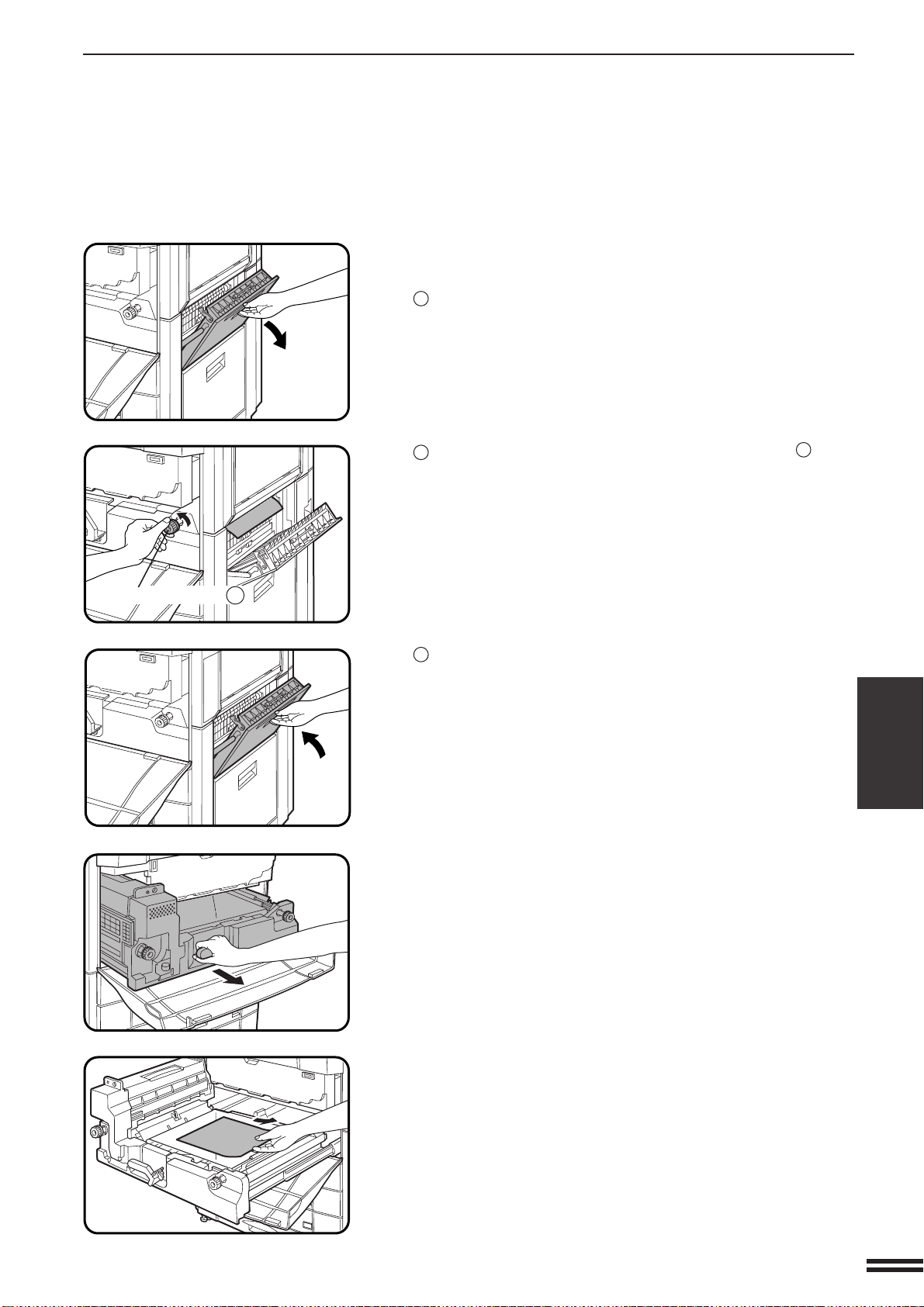
5-7
CHAPTER5
MISFEED REMOVAL
COPIER TROUBLE? Misfeed removal
4
Open the upper right side cover to check to see if any
paper is misfed.
1
Grasp the handle and open the cover.
2
If any misfed paper is seen, turn roller rotating knob
A
in the
direction of the arrow to feed the misfed paper into the copier.
3
Gently close the upper right side cover.
Caution
5
Pull out the paper transport.
6
Remove any misfed paper from the paper transport.
●
If misfed paper has been fed into the copier in step 4 or paper has
misfed on the transport belt, gently remove misfed paper not to
touch the belt.
Roller rotating knob A
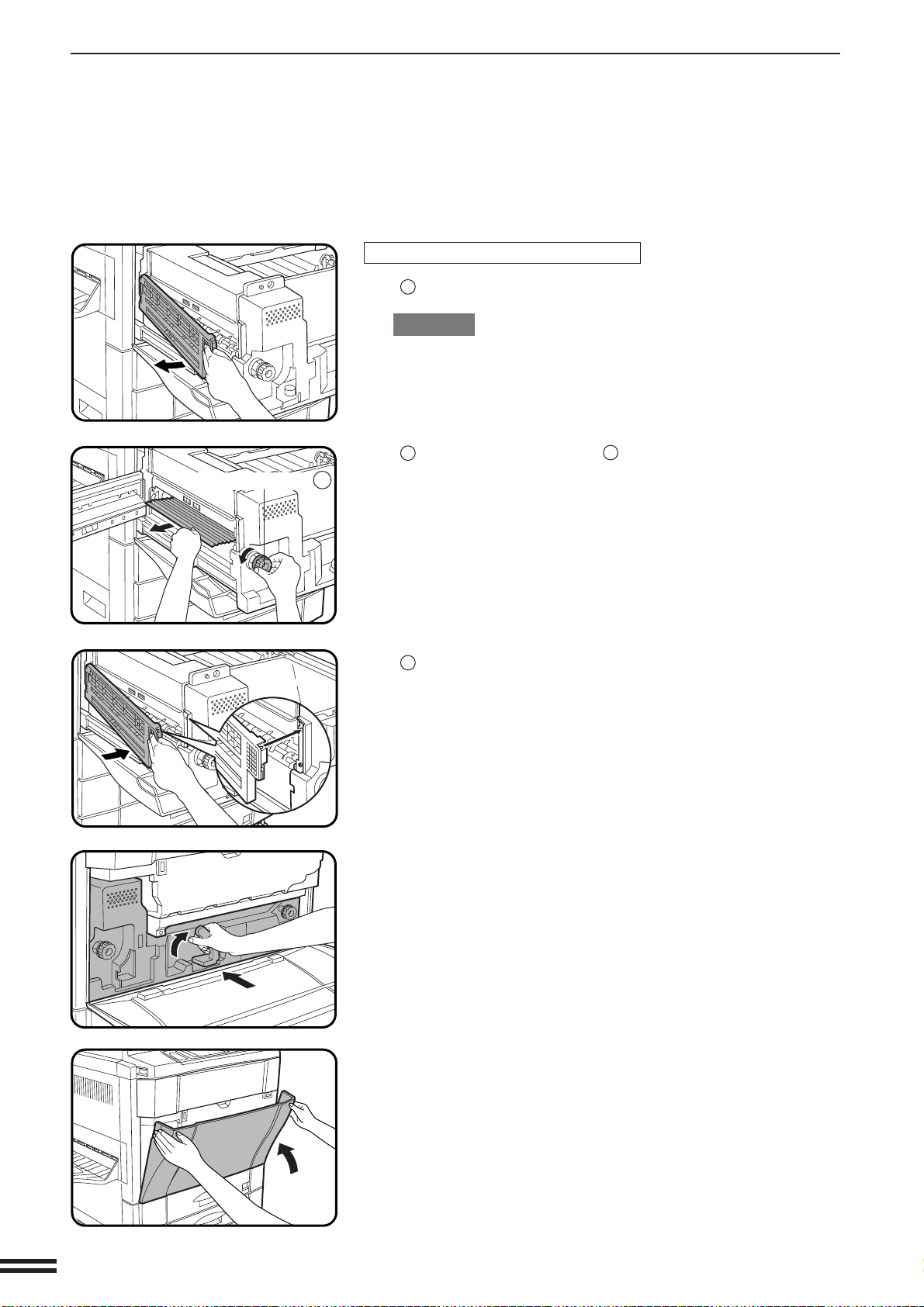
5-8
CHAPTER5
MISFEED REMOVAL
If the misfed paper is in the fusing unit:
1
Open the fusing unit cover in the direction of the arrow.
CAUTION
The fusing unit is hot. Use care in removing paper.
2
Turn roller rotating knob
B
in the direction of the arrow to
remove the misfed paper.
3
Return the fusing unit cover securely to its original position.
7
Push the paper transport back securely into the copier
and turn the transport lever back.
8
Close the front cover.
●
Confirm that the misfeed display is cleared.
COPIER TROUBLE? Misfeed removal
Roller rotating knob B
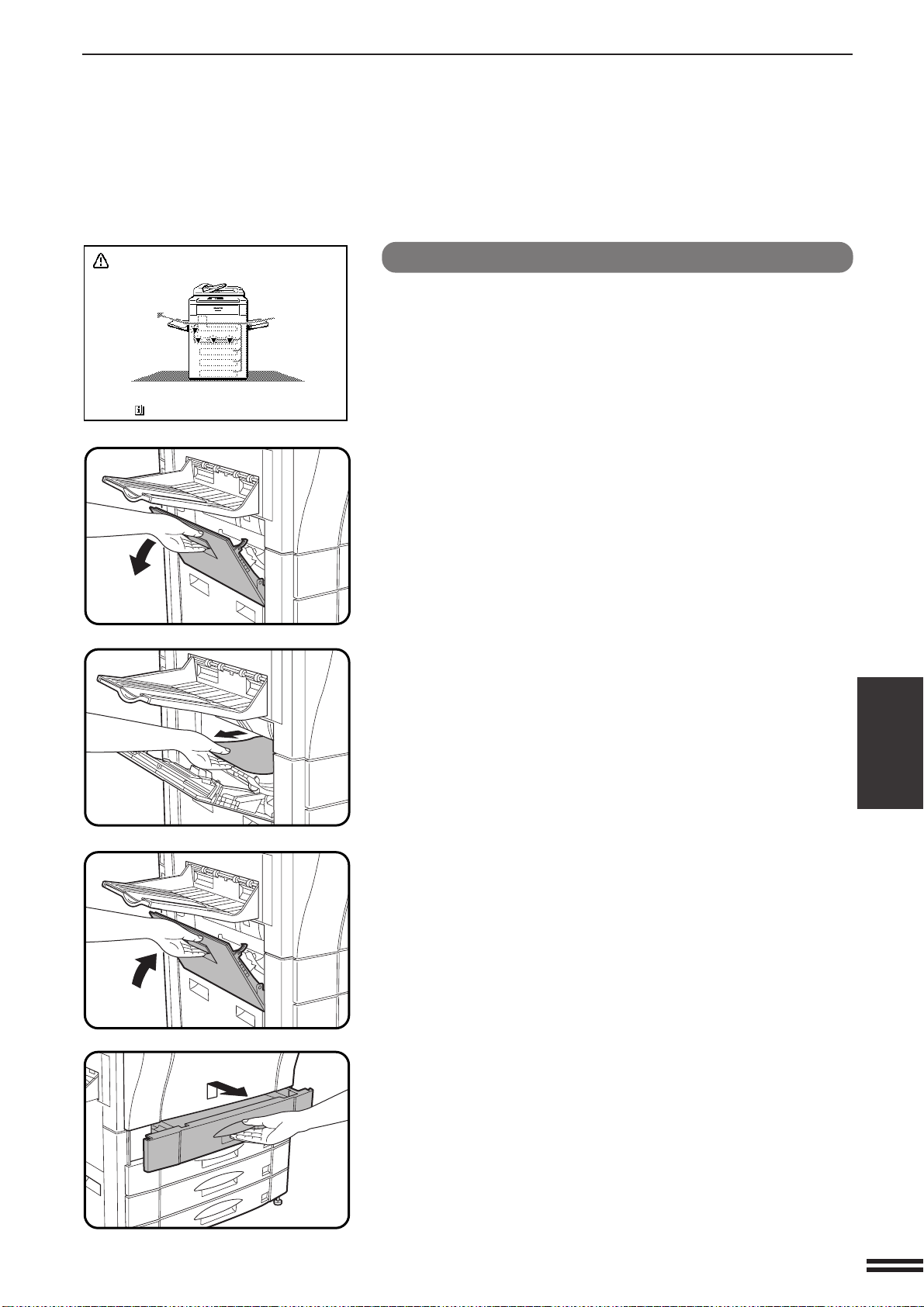
5-9
CHAPTER5
MISFEED REMOVAL
COPIER TROUBLE? Misfeed removal
Misfeed in the optional duplex module
NOTES:
●
For misfeed removal from an optional staple sorter (AR-SS2) or an
optional finisher (AR-FN4), please refer to chapter 7 Optional
Equipment.
●
If any other misfeed locations are indicated, be sure to remove any
misfed paper from these locations before pulling out the duplex
module. If not, a sheet of paper in another location may become torn
and difficult to remove.
1
Open the left side cover.
2
Remove the misfed paper.
3
Close the left side cover
4
Pull out the duplex module.
MISFEED HAS OCCURRED.
CLEAR INDICATED AREA.
PRESS FOR RECOVERY INSTRUCTIONS.
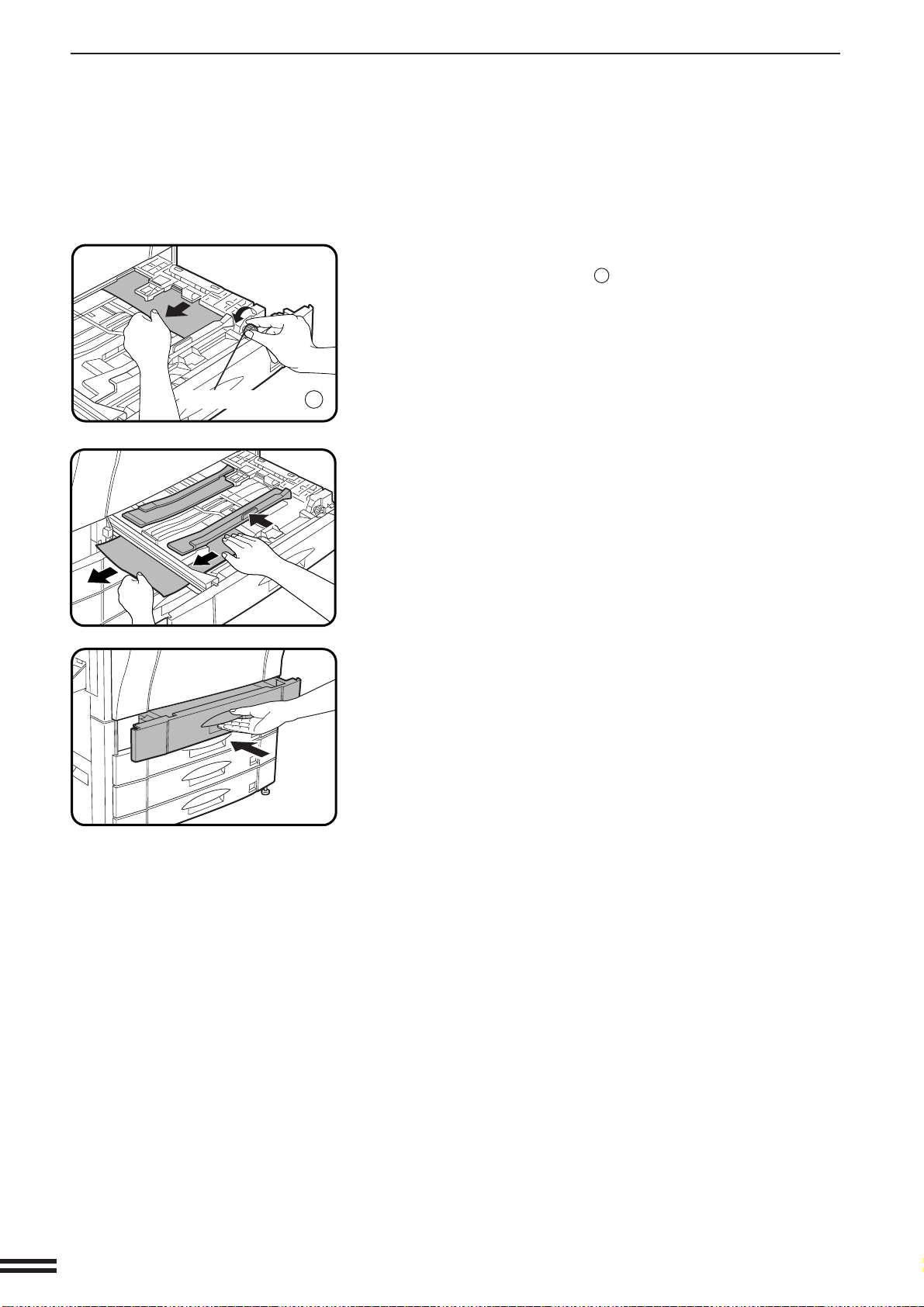
5-10
CHAPTER5
COPIER TROUBLE? Misfeed removal
MISFEED REMOVAL
5
Remove the misfed paper.
●
Turn roller rotating knob
C
in the direction of the arrow and
remove the misfed paper.
●
Slide the paper guide if needed.
6
Push the duplex module back into the copier.
Roller rotating knob C

5-11
CHAPTER5
MAINTENANCE REQUIRED
When the message “READY TO COPY. (MAINTENANCE REQUIRED.
CODE: )” appears in the message display, service by an authorized
Sharp Service Technician will be required soon. Contact your Service
Center as soon as possible.
COPIER TROUBLE? Maintenance required

5-12
CHAPTER5
COPIER TROUBLE? Toner collecting container of transfer unit
TONER COLLECTING CONTAINER OF
TRANSFER UNIT
When the message “TONER COLLECTING CONTAINER OF TRANSFER
UNIT IS FULL. CALL FOR SERVICE.” appears in the message
display, contact your Service Center.
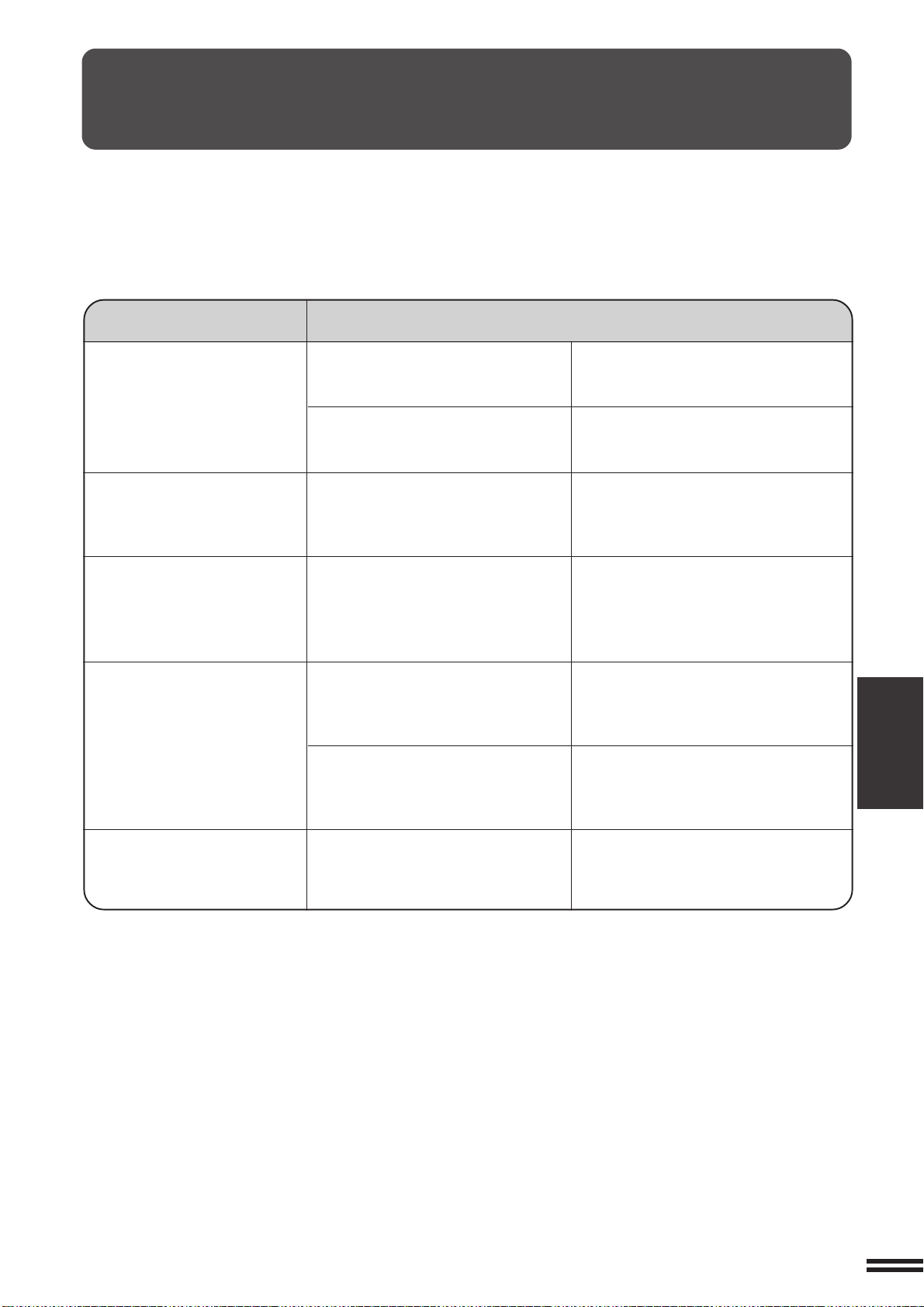
5-13
CHAPTER5
TROUBLESHOOTING
Always check the message display whenever the copier stops or
operation is not possible. The messages will give you easy-to-follow
directions. If the messages do not give specific instructions, check the
list below.
COPIER TROUBLE? Troubleshooting
Copier does not operate.
Copies are too dark or too
light.
Blank copies.
Copies smear if rubbed.
●
Copier plugged in?
●
Power switch on?
●
Copy density properly adjusted?
●
Is the original placed face down on
the document glass or face up in
the optional RADF?
●
Paper too heavy?
●
Paper damp?
●
Paper size indicator properly set?
Plug the copier into a grounded outlet.
Turn the power switch on.
See page 2-16.
Place the original face down on the
document glass or face up in the RADF.
Use copy paper within the specified
range. See page 4-2.
Replace with dry copy paper. Be sure
to store copy paper in a dry location.
When changing the copy paper size in
a tray, be sure to adjust the paper size
indicator. See page 4-4.
Problem Solution
Copy size is different from
the selected paper size.
5-14
CHAPTER5
TROUBLESHOOTING
Problem Solution
Paper misfeeds frequently.
Dust, dirt, smudges appear
on copies.
Touch panel is too dark or
too light.
●
Non-standard paper used?
●
Is paper properly installed?
●
Pieces of paper inside copier?
●
Paper curled or damp?
●
Document glass, optional
document cover or optional
RADF transport belt dirty?
COPIER TROUBLE? Troubleshooting
If a problem persists after checking the above, please consult your
authorized Sharp Service Center.
Self-diagnostic function
An automatic self-diagnostic function is built into this copier. Should the
copier malfunction, the self-diagnostic function will locate the problem
and stop the copier to prevent damage. An alphanumeric code will
appear in the message display.
Example
Should the copier stop completely, and the message “CALL FOR
SERVICE. CODE: - ” appear in the message display, contact
your authorized Sharp Service Center.
★ KEY OPERATOR See page 33 of the KEY OERATOR’S GUIDE.
Use standard paper.
If using special papers, feed the paper
through the bypass tray.
See pages 2-14 and 4-2.
Remove all pieces of misfed paper. See
page 5-2.
Store copy paper flat in the wrapper in a
dry location. See page 4-9.
Clean regularly. See page 6-6.
Adjust the LCD contrast.
See page 6-7.
●
Is LCD contrast properly
adjusted?

6-1
CHAPTER6
CHAPTER 6
GENERAL INFORMATION
This chapter describes general information for using this copier.
Page
●●
●●
●
PART NAMES AND FUNCTIONS ...................... 6-2
Exterior ......................................... 6-2
Interior .......................................... 6-3
Operation panel ................................... 6-4
Touch panel (Basic screen) ........................... 6-5
●●
●●
●
USER MAINTENANCE.............................. 6-6
●●
●●
●
TOUCH PANEL CONTRAST ADJUSTMENT .............. 6-7
●●
●●
●
SPECIFICATIONS ................................. 6-8
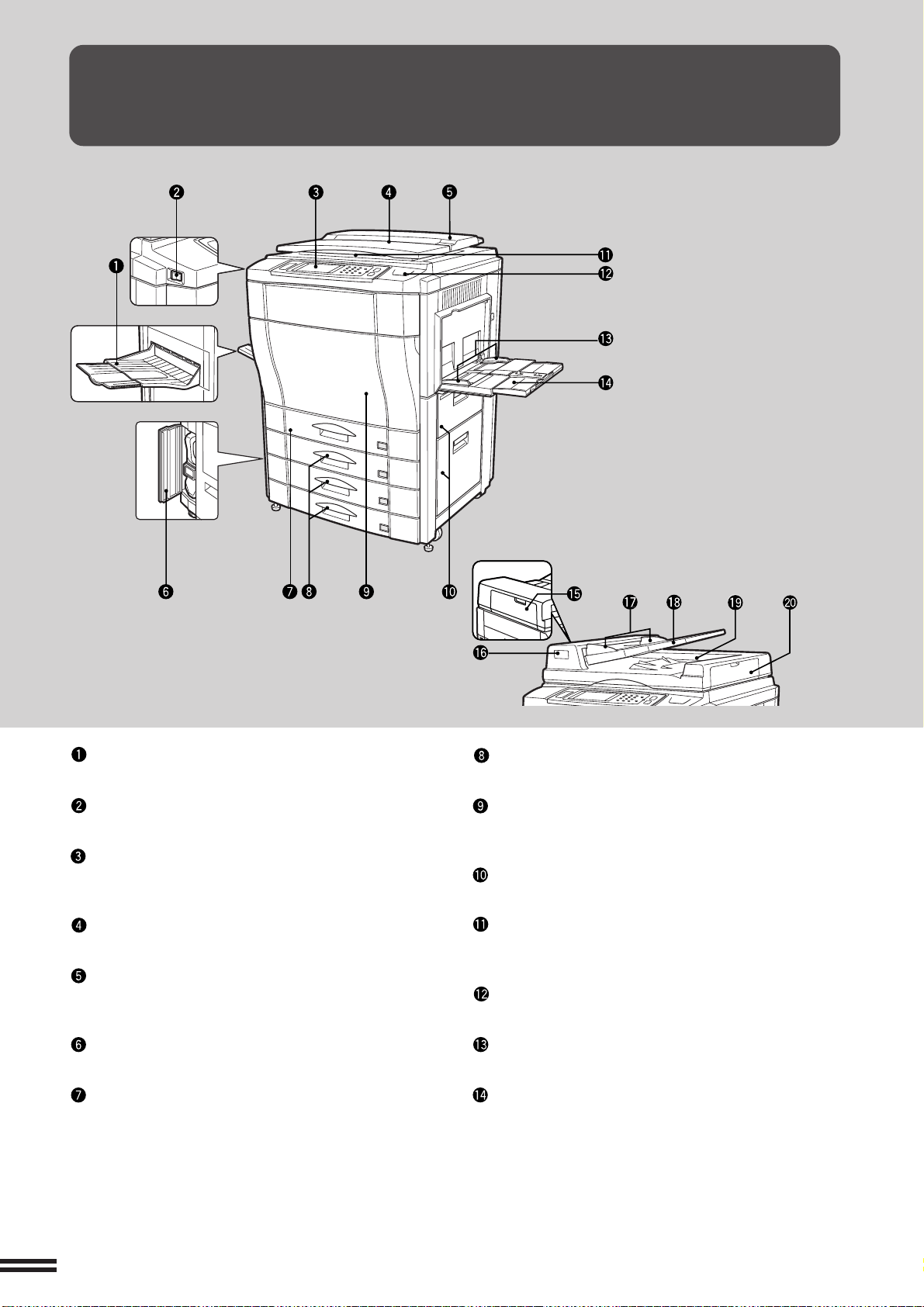
6-2
CHAPTER6
PART NAMES AND FUNCTIONS
Exit tray
Finished copies are deposited in the exit tray.
Power switch
Press to turn copier power on and off.
Operation panel
All copier controls are located here for easy
operation.
Original holder (optional)
Keep originals here.
Document cover (optional)
Place the original on the document glass and close
the document cover before copying starts.
Toner collecting container cover
Open to replace the toner collecting container.
Duplex module or 500-sheet paper drawer
(optional)
The copier can be equipped with either a duplex
module or a 500-sheet paper drawer. When
neither is installed, the opening is covered. The
duplex module provides duplex copying capability.
Paper trays
Each tray holds 500 sheets of 20 lb. bond paper.
Front cover
Open to remove misfeeds and to service the
copier.
Right side covers
Open to remove misfeeds in the paper feed area.
Document glass
All originals which cannot be copied from the
optional RADF must be copied here.
Paper clip tray
Keep paper clips here.
Bypass tray paper guides
Adjust to the width of the copy paper.
Bypass tray
Special papers (including transparency film) and
copy paper can be fed from the bypass tray.
GENERAL INFORMATION
Part names and functions
[AR-C250 with optional document cover]
[Optional RADF]
Exterior
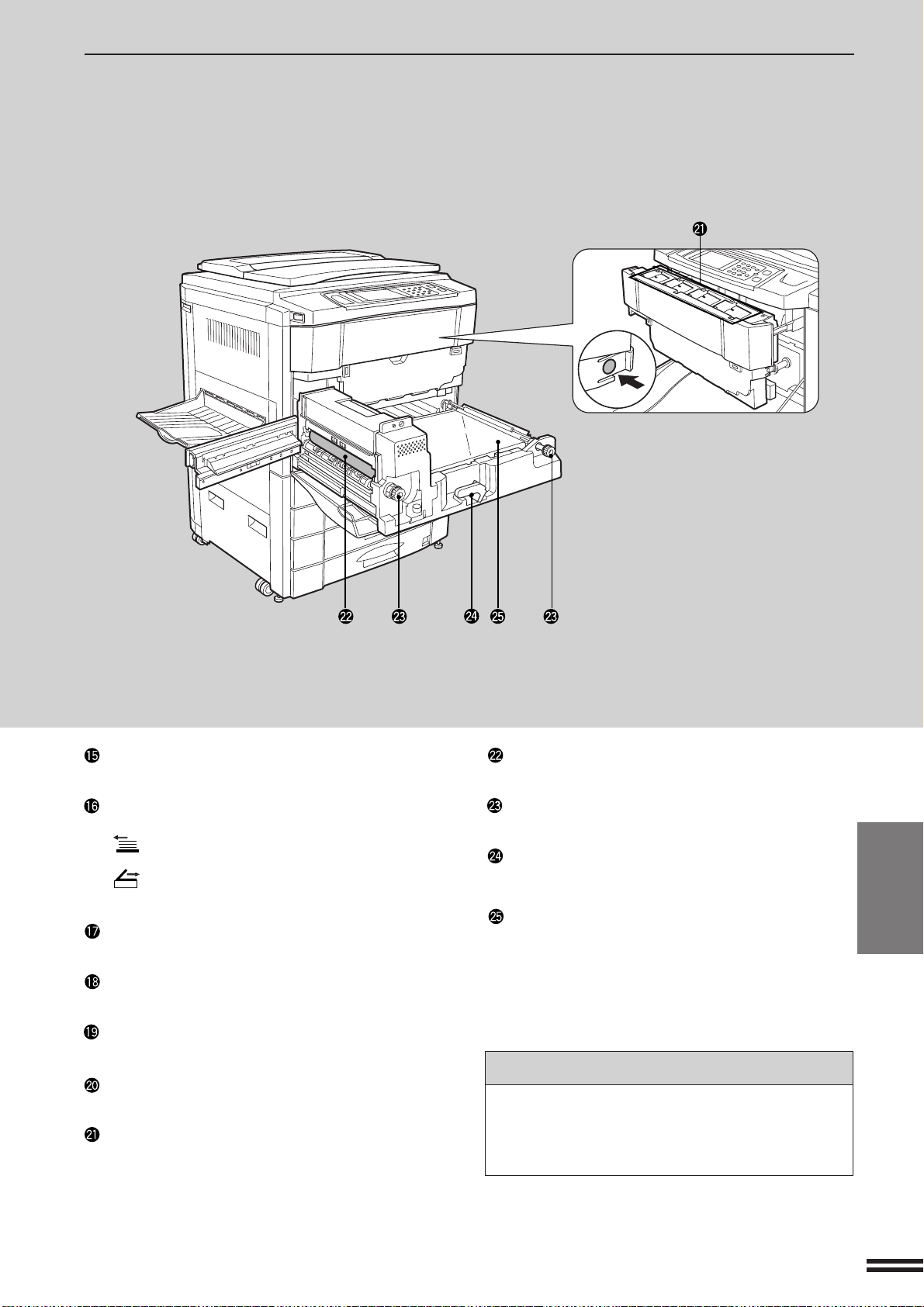
6-3
CHAPTER6
PART NAMES AND FUNCTIONS
Interior
GENERAL INFORMATION
Part names and functions
RADF feeding roller cover (optional)
Open to remove misfed originals.
Document feeder indicators (document feeder
is optional)
Original feed indicator
Indicates the originals in the tray will be fed.
Original reminder
Indicates an original is still on the document glass.
Original guides (optional)
Adjust to the size of the originals.
Document feeder tray (optional)
Holds up to 50 originals.
RADF exit area (RADF is optional)
Finished originals are output here.
RADF exit roller cover (RADF is optional)
Open to remove misfed originals.
Toner box
Contains four toner hoppers. Each toner hopper
contains relevant color toner or black toner.
Fusing unit
The fusing unit is hot. Exercise care in this area.
Roller rotating knobs
Turn to remove misfed paper.
Transport lever
Turn to pull out the paper transport.
Paper transport
Pull out to remove misfed paper.
NOTE:
Follow information messages for misfeed removal
procedure. (See page 5-2 to 5-10.)
Accessories
Operation manual . . . . . . . . . . . . . . . . . . . . . 1
Key operator’s guide . . . . . . . . . . . . . . . . . . . 1
Toner collecting containers
(including 1 pre-installed at the factory) . . . . . 2
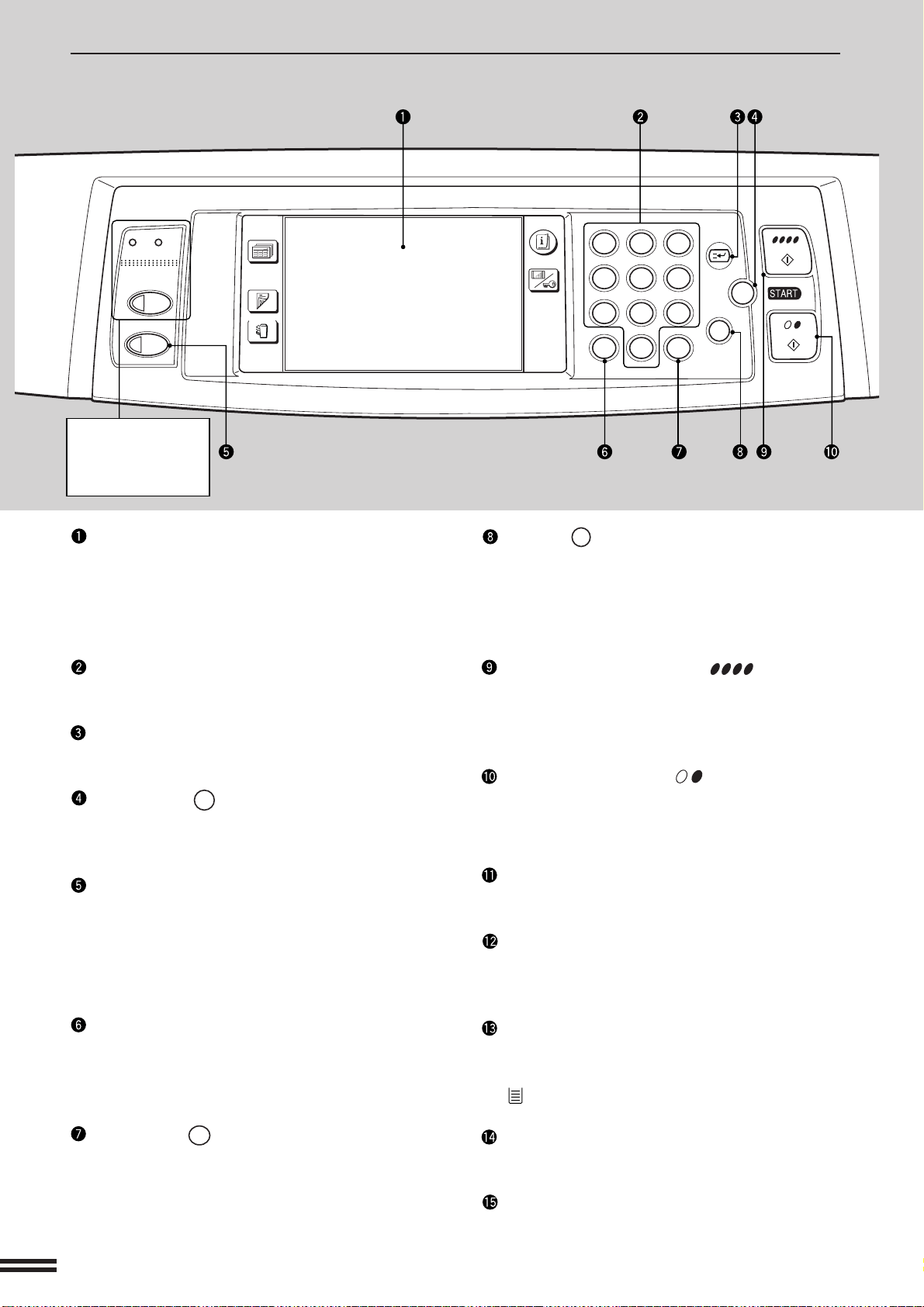
6-4
CHAPTER6
PART NAMES AND FUNCTIONS
Operation Panel
LCD touch panel
Displays information to assist the operator.
Various operation keys are included in the touch
panel depending on the particular screen being
displayed.
10-key pad
Used to set the copy quantity.
INTERRUPT key and indicator (p. 2-20)
Interrupts a copy run.
CLEAR ALL (
CA
) key
Clears all selected settings and returns the copier
to the initial settings.
COPY key
Press to return to the COPY mode when the
PRINT mode is active. If pressed in the COPY
mode, the total output count will be displayed
during the key press.
Press to exit the sleep mode.
AUDIT key
Press to enter the account number if the auditing
mode has been set for only the color copy mode.
Also closes an open account.
PROGRAM (
P
) key (p. 2-18)
Press to select the job memory mode.
CLEAR (
C
) key
Press to clear the copy quantity display, or press
during a copy run to terminate copying. The
copier will stop after copies in progress are
finished.
COLOR COPY START ( ) key and
indicator
Color copying is possible when the indicator is on.
Press to start color copying.
BLACK COPY START ( ) key and indicator
Black/white copying is possible when the
indicator is on.
Press to start black/white copying.
SPECIAL MODES key (p.3-1)
Press to select special functions.
Message display
Messages are displayed regarding copier status
and operation.
Paper size display
The sizes of loaded copy paper are displayed and
the selected paper feed location is highlighted.
indicates the amount of copy paper.
Copy quantity display
Displays the specified number of copies.
Original size display
The original paper size is displayed.
12
3
456
789
0
P
C
CA
CLEAR
PROGRAM
AUDIT
INTERRUPT
CLEAR
ALL
PRINT
COPY
DATA
ON LINE
OUTPUT
2-SIDED
COPY
SPECIAL
MODES
INFORMATION
CUSTOM
SETTINGS
The key and
indicators are not
used for the copier
features.
GENERAL INFORMATION
Part names and functions
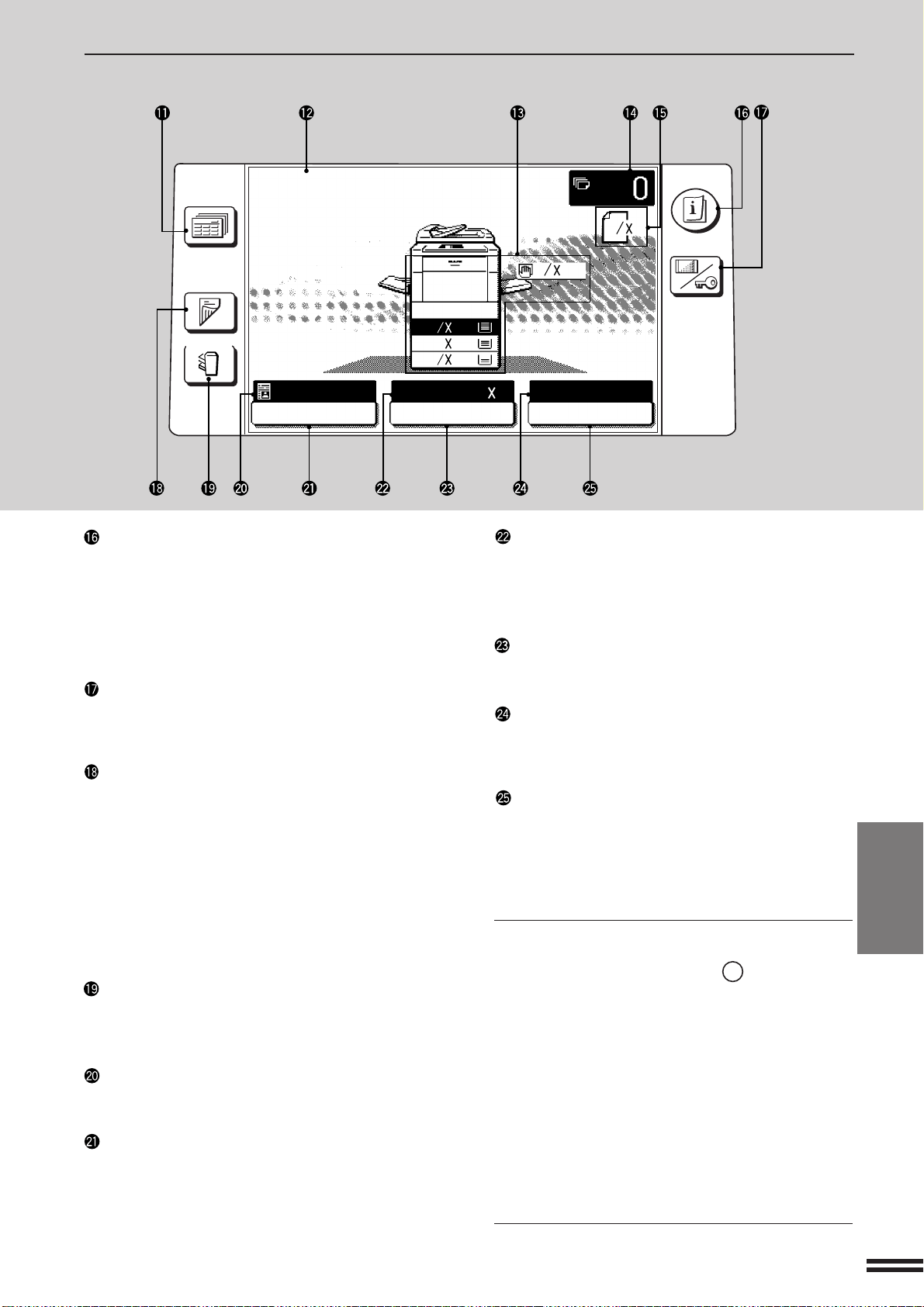
6-5
CHAPTER6
PART NAMES AND FUNCTIONS
OUTPUT
2-SIDED
COPY
SPECIAL
MODES
INFORMATION
CUSTOM
SETTINGS
ORIGINAL
8
11
1
2
8
11R
1
2
1.
8
11
1
2
2.
1711
3.
8
14
1
2
READY TO COPY.
AUTO
EXPOSURE PAPER SELECT
100%
COPY RATIO
8/ 11AUTO
1
2
INFORMATION key (p. 1-7)
Press for operation guidance on use of various
features of this copier.
Press for guidance when a misfeed occurs, when
adding toner, or when used toner must be
disposed of.
CUSTOM SETTINGS key
Press to set key operator programs or adjust the
contrast of the touch panel.
2-SIDED COPY key
Press to select the 1-sided to 1-sided, 1-sided to
2-sided*, 2-sided to 2-sided* or 2-sided to
1-sided* copy mode.
*To select the 1-sided to 2-sided or 2-sided to
2-sided copy mode, an optional duplex module
(AR-DU2) must be installed. To select the
2-sided to 1-sided or 2-sided to 2-sided copy
mode, an optional RADF must be installed.
OUTPUT key
Press to select the sorter mode when an optional
staple sorter (AR-SS2) is installed.
EXPOSURE display
Indicates the selected exposure mode.
EXPOSURE key (p. 2-16)
Press to select the exposure mode: AUTO or
MANUAL and TEXT/PRTD. PHOTO, TEXT/
PHOTO, TEXT, PHOTO, PRINTED PHOTO or
MAP.
PAPER SELECT display
Displays the selected paper size. When “AUTO”
is displayed, paper size matching the original and
copy ratio will be automatically selected.
PAPER SELECT key
Press to select the desired paper tray.
COPY RATIO display
Displays the copy ratios for reductions or
enlargements.
COPY RATIO key
Press to select a reduction or enlargement copy
ratio or select the automatic copy ratio selection
mode.
Initial settings
The copier assumes the initial settings when it is
turned on, when the CLEAR ALL (
CA
) key is pressed,
and approximately 1 minute after the last copy is
made in any mode.
●
Copy ratio: 100%
●
Automatic exposure, text/photo mode
●
Copy quantity: 0
●
All special copier modes are set to off.
●
Tray select: Paper tray 1.
Optional large capacity tray will be selected when
installed.
★ KEY OPERATOR Initial settings can be
programmed as desired. The auto clear time can also
be changed. See pages 21 and 25 of the KEY
OPERATOR’S GUIDE.
GENERAL INFORMATION
Part names and functions
Touch Panel (Basic screen)
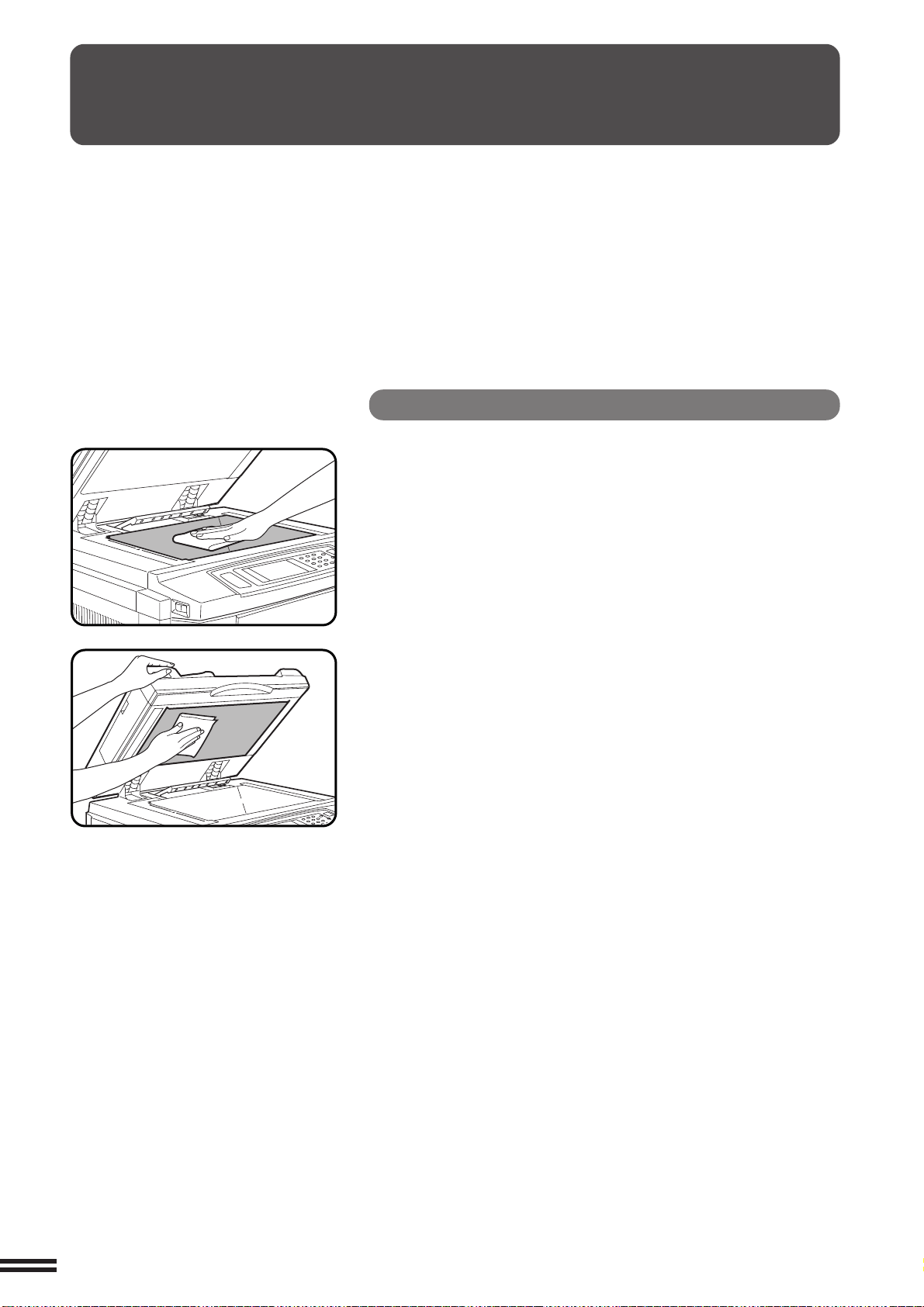
6-6
CHAPTER6
USER MAINTENANCE
The document glass, the optional document cover or the transport belt
of the optional RADF must be kept clean to avoid dirty areas from being
copied onto the copies.
Document glass and document cover
Wipe the document glass, the optional document cover
or the transport belt of the optional RADF with a soft,
clean cloth.
●
If necessary, dampen the cloth with water. Do not use thinner,
benzene, or similar volatile cleaning agents.
GENERAL INFORMATION
User maintenance
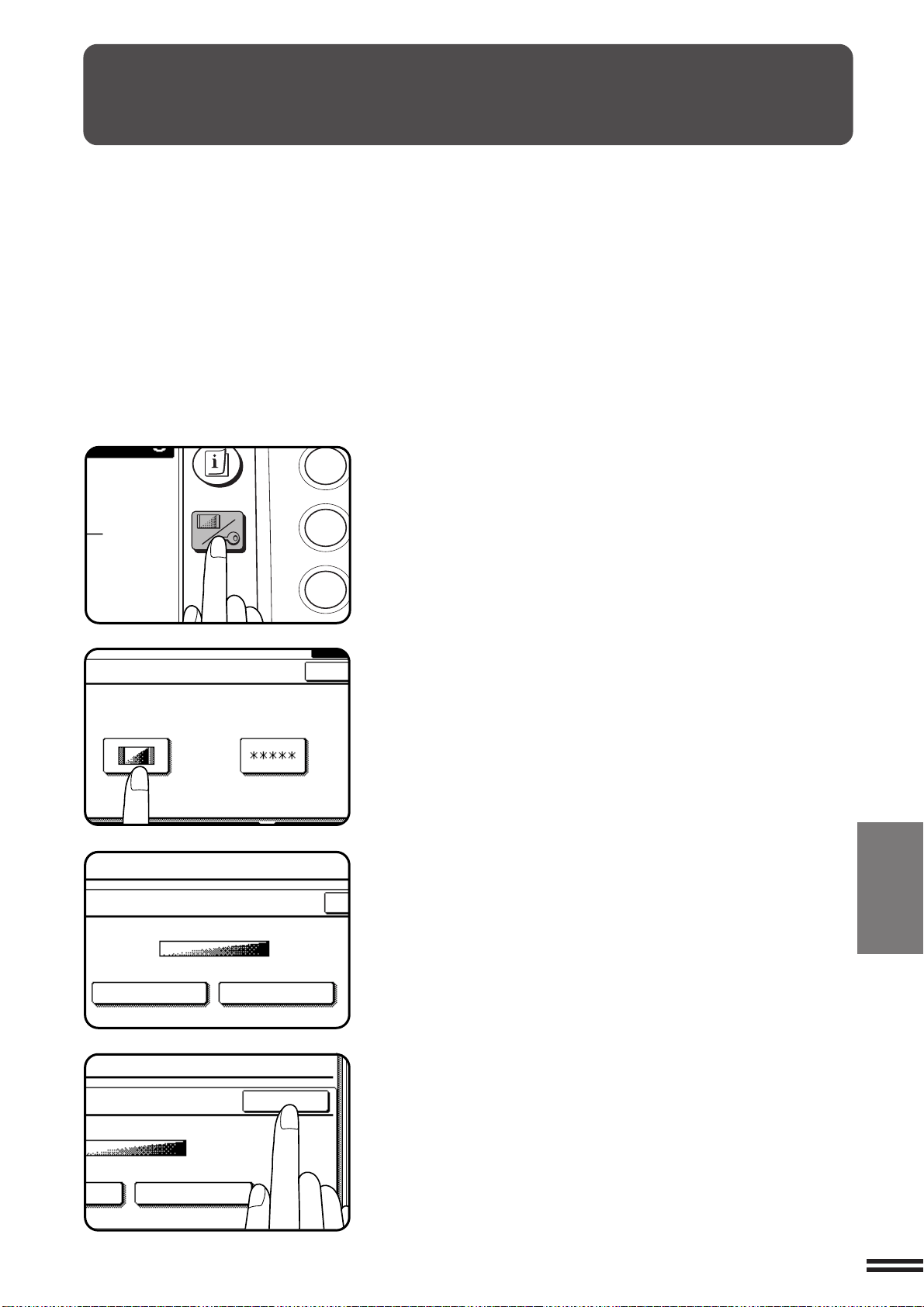
6-7
CHAPTER6
TOUCH PANEL CONTRAST ADJUSTMENT
The contrast of the touch panel can be adjusted as below.
1
Press the CUSTOM SETTINGS key.
2
Press the “DISPLAY CONTRAST” key on the touch
panel.
3
Press the “LIGHTER” or “DARKER” key to adjust the
contrast.
4
Press the “OK” key.
GENERAL INFORMATION
Touch panel contrast adjustment
1
4
7
AUDIT
CUSTOM
SETTINGS
KEY OPERATOR
PROGRAMS
ETTINGS
EXI
DISPLAY
CONTRAST
TTINGS
ONTRAST
LIGHTER DARKER
ER DARKER
OK
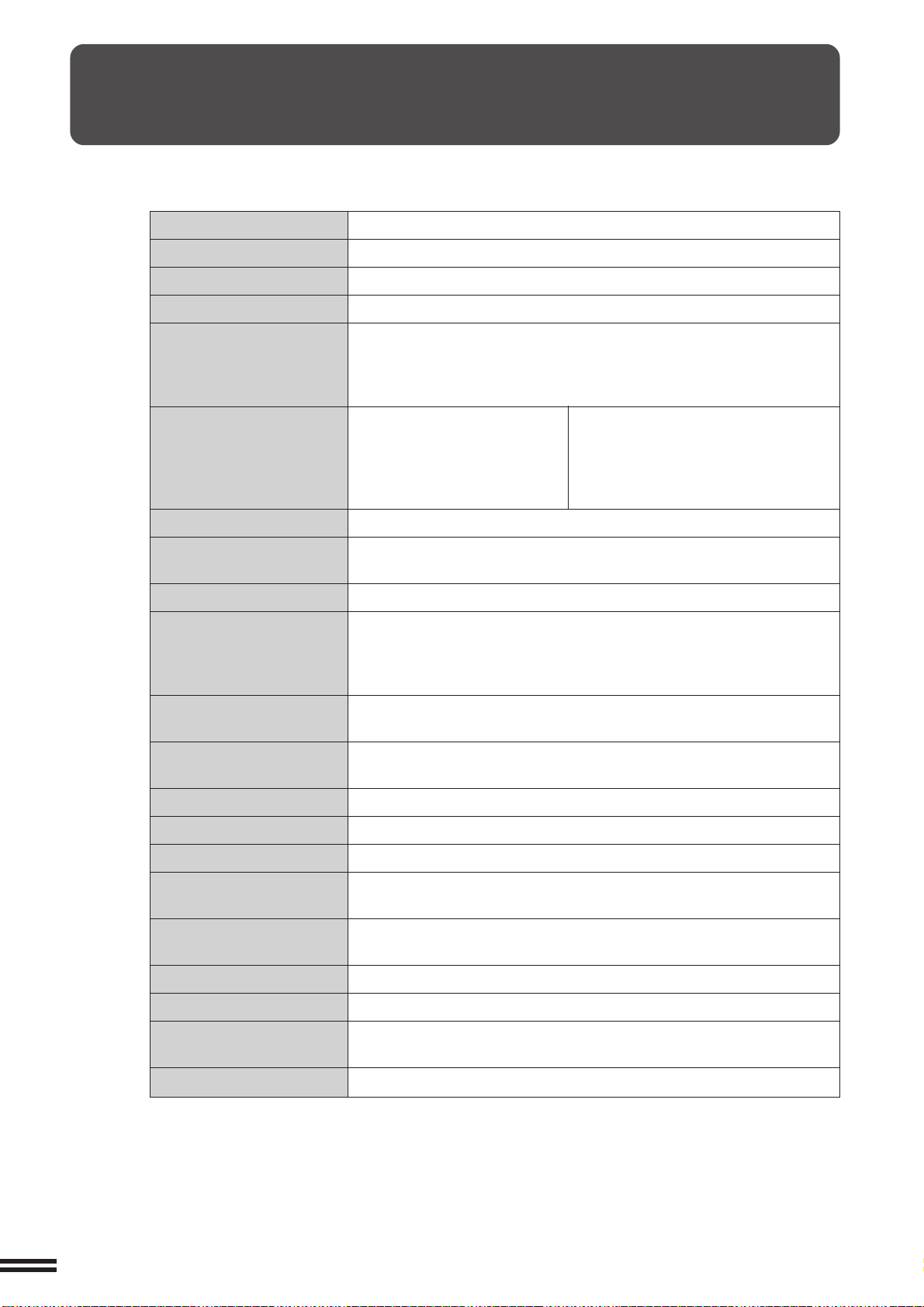
6-8
CHAPTER6
SPECIFICATIONS
GENERAL INFORMATION
Specifications
COPIER
Type Console
Copy system Dry, electrostatic transfer system
Originals Sheets, bound documents
Original sizes Max. 11" x 17"
Copy paper sizes Max. 12" x 18", min. 5-1/2" x 8-1/2"
Image loss: Max. 13/64" (5 mm) (leading edge)
Max. 9/32" (7 mm) (trailing edge)
Max. 1/4" (6 mm) (along all other edges in total)
Copying speed Color: Black/White:
25 copies/min. (8-1/2" x 11") 25 copies/min. (8-1/2" x 11")
19 copies/min. (8-1/2" x 11"R) 19 copies/min. (8-1/2" x 11"R)
15 copies/min. (8-1/2" x 14") 15 copies/min. (8-1/2" x 14")
13 copies/min. (11" x 17") 13 copies/min. (11" x 17")
Continuous copy Max. 999 copies; subtractive counter
First-copy time* Color : 10.2 sec. , Black/White : 19.5 sec.
*From the first tray. In the default setting.
Warm-up time Approx. 330 sec. (at 68F°)
Copy ratio Variable: 25 to 400% in 1% increments, total 376 steps
(can be set in the horizontal and vertical directions independently)
Fixed presets: 25%, 50%, 64%, 77%, 95%, 100%, 121%, 129%,
141%, 200%, 400%
Exposure system Moving optical source (stationary platen) with automatic exposure
function
Copy paper feed Three paper trays with automatic paper feed (500 sheets each);
one bypass tray with 50-sheet automatic feed capability
Fusing system Heat rollers
Developer system Magnetic brush development
Light source Halogen lamp
Resolution Scan: 600 dpi
Output: 600 dpi
Gradation Scan: 256 levels
Output: 256 levels
Required power supply AC 120V, 60 Hz, 15 amperes
Power consumption Max. 1.5 kW
Overall dimensions 55-19/32" (W) x 27-3/8" (D)
(1412 mm (W) x 695 mm (D))
Weight Approx. 335 lbs. (152 kg)
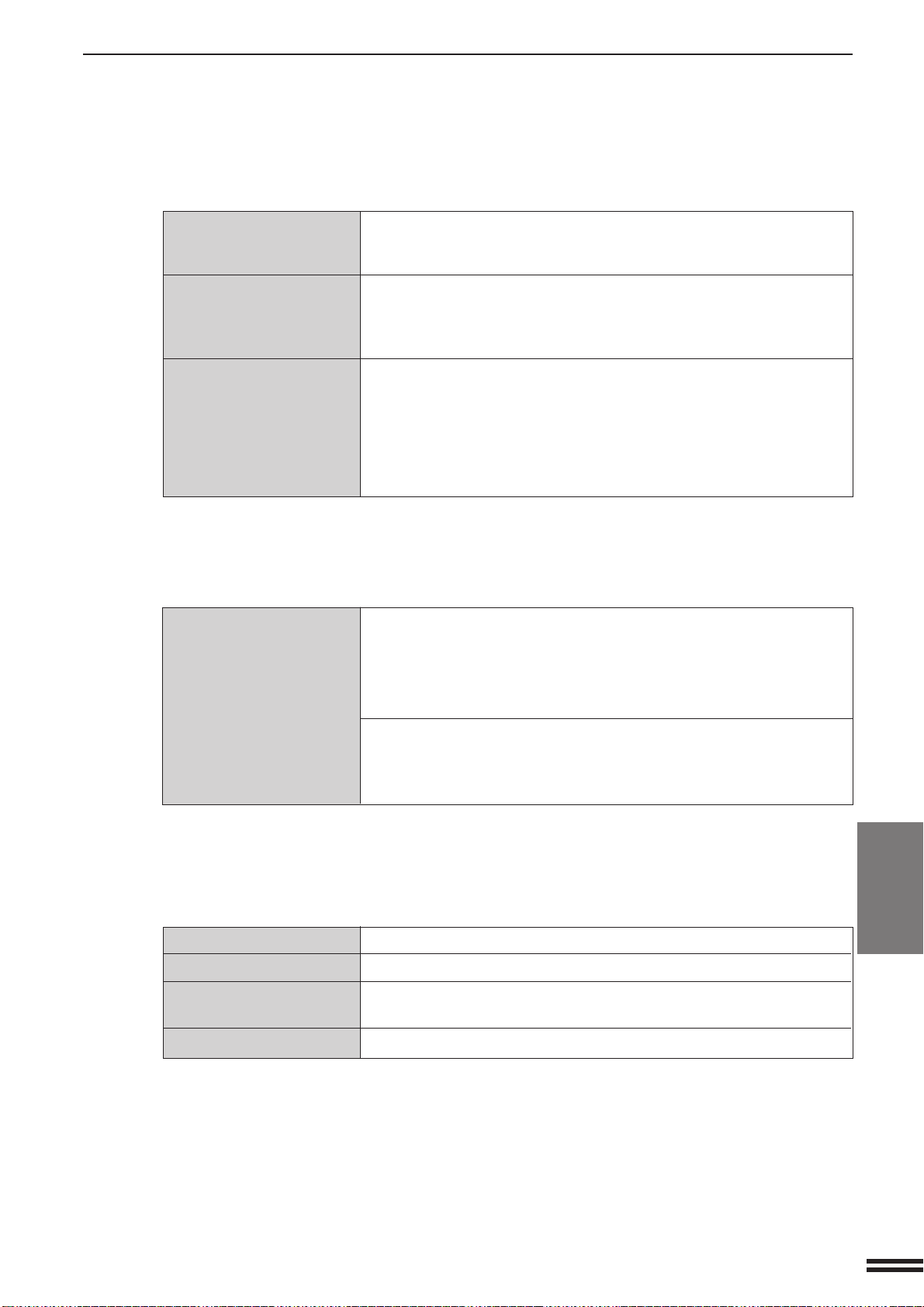
6-9
CHAPTER6
SPECIFICATIONS
GENERAL INFORMATION
Specifications
DUPLEX MODULE (optional)
Paper type Ordinary paper only
Number of copies 1 (trayless system)
Copy paper size 5-1/2" x 8-1/2", 7-1/4" x 10-1/2"R, 8-1/2" x 11", 8-1/2" x 11"R,
8-1/2" x 13", 8-1/2" x 14", 11" x 17"
Copy paper weight 15 lbs. to 28 lbs.
Specifications are subject to change for improvement without notice.
REVERSING AUTOMATIC DOCUMENT FEEDER (optional)
Acceptable originals Single-sided originals: 14 to 34 lbs.
Weight: Two-sided originals: 14 to 34 lbs. for 5-1/2" x 8-1/2"and
8-1/2" x 11" originals.
14 to 29 lbs. for 8-1/2"x 14" and 11" x 17" originals.
Size: 5-1/2" x 8-1/2" to 11" x 17"
Capacity: Up to 50 sheets for 5-1/2" x 8-1/2" and 8-1/2" x 11" originals provided
the total aggregate thickness does not exceed 1/4" or 6.5 mm (14 to
20 lbs.) or 3/16" or 5 mm (21 to 34 lbs.) Up to 30 sheets for 8-1/2" x
14" and 11" x 17" originals.
Copier dimensions 29-17/32" (W) x 27-3/8" (D) x 41-47/64" (H)
(with optional document (750 mm (W) x 695 mm (D) x 1060 mm (H))
cover)
Operating conditions* Temperature: 59°F to 95°F (15°C to 35°C)
Humidity: 20% to 80%
* If the temperature is higher than 86°F (30°C),
the humidity should be lower than 60%.
Optional equipment Document cover (AR-VR2)
Reversing automatic document feeder (AR-RF1)
20-bin staple sorter (AR-SS2)
Finisher (AR-FN4)
Large capacity tray (AR-LC2)
500-sheet paper drawer (AR-CS2)
Duplex module (AR-DU2)


7-1
CHAPTER7
CHAPTER 7
OPTIONAL EQUIPMENT
This chapter describes operating instructions for the 20-Bin Staple Sorter
(AR-SS2), Large Capacity Tray (AR-LC2) and Finisher (AR-FN4).
Page
●●
●●
●
SYSTEM CONFIGURATION .......................... 7-2
●●
●●
●
20-BIN STAPLE SORTER (AR-SS2) .................... 7-3
Part names ...................................... 7-3
Using the staple sorter .............................. 7-4
Sorter capacity .................................... 7-5
Staple sort ....................................... 7-6
Manual stapling ................................... 7-8
Staple cartridge replacement .......................... 7-9
Staple jam removal ................................ 7-11
Misfeed removal.................................. 7-13
Specifications .................................... 7-14
●●
●●
●
LARGE CAPACITY TRAY (AR-LC2) ................... 7-15
Part names ..................................... 7-15
Specifications .................................... 7-15
Loading copy paper ............................... 7-16
Misfeed removal .................................. 7-17
●●
●●
●
FINISHER (AR-FN4)............................... 7-19
Part names ..................................... 7-19
Specifications .................................... 7-19
Offset stack ..................................... 7-20
Staple print...................................... 7-21
Staple cartridge replacement ......................... 7-22
Staple jam removal ................................ 7-24
Misfeed removal .................................. 7-26
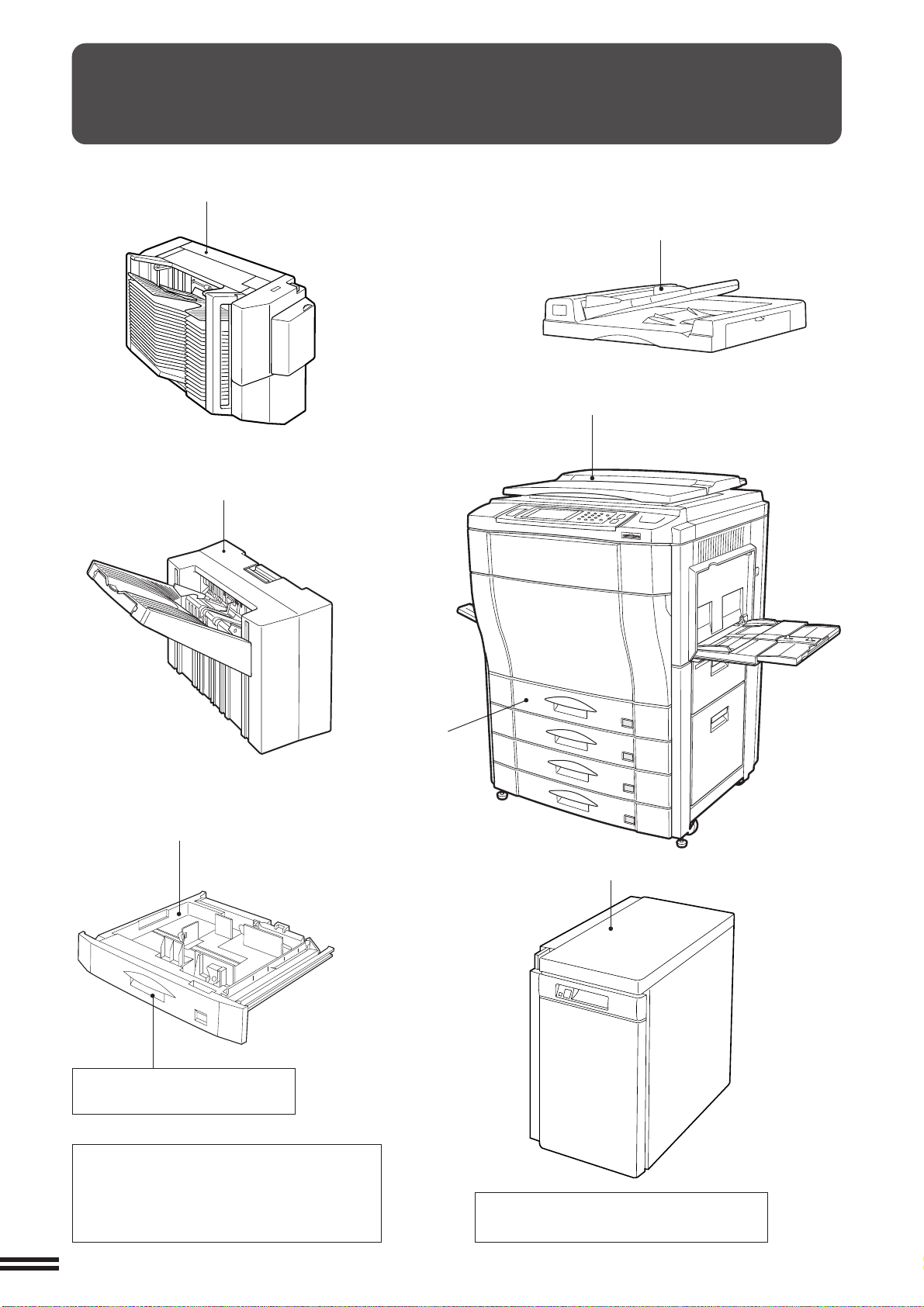
7-2
CHAPTER7
SYSTEM CONFIGURATION
The options which are available for this copier are shown below.
OPTIONAL EQUIPMENT
System configuration
The front cover is to be
transferred from the main unit.
Document cover (AR-VR2)
Reversing automatic
document feeder (AR-RF1)
Duplex module
(AR-DU2)
20-bin staple sorter (AR-SS2)
NOTE:
The specifications of the 500-sheet
paper drawer (AR-CS2) are the same as
those of the paper trays in the copier.
See page 4-2.
Large capacity tray (AR-LC2)
500-sheet paper drawer (AR-CS2)
Finisher (AR-FN4)
Optional printer connection kit (AR-PX2)
Optional printer controller (AR-PE1)
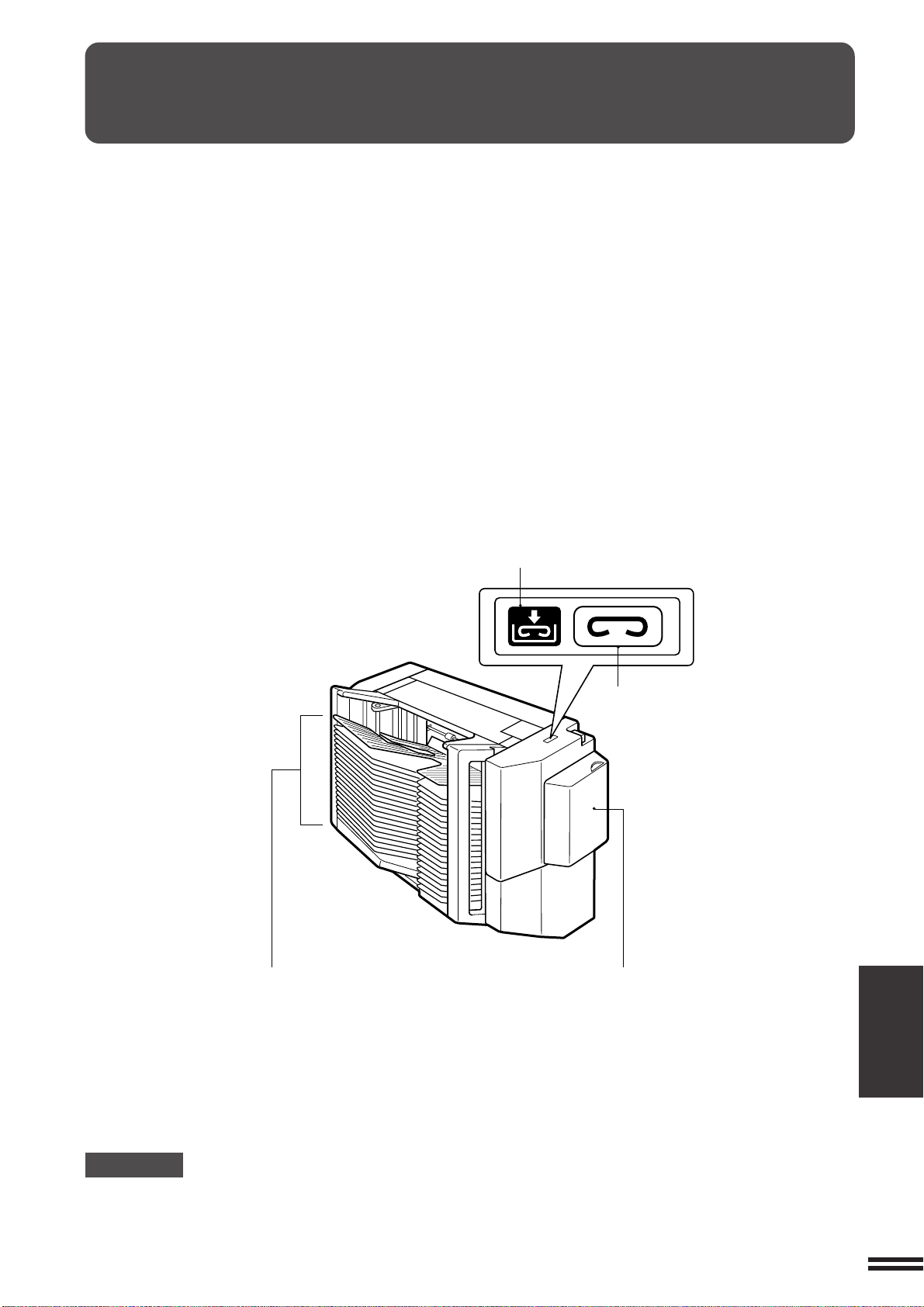
7-3
CHAPTER7
OPTIONAL EQUIPMENT
20-bin staple sorter (AR-SS2)
20-BIN STAPLE SORTER (AR-SS2)
There are two sorter modes for different copying jobs: one sorts
copies into sets matching the sequence of the originals and the
second groups copies from different originals into separate sort bins.
The AR-SS2 20-Bin Staple Sorter has, in addition to the above two
modes, a STAPLE SORT mode. Sorted copies can be automatically
stapled together.
The maximum allowable number of copies varies with the selected
mode.
The number of copies will be automatically reset to the maximum
number allowable for the selected mode when copying begins if this
maximum is exceeded.
★KEY OPERATOR In the default setting, if the number of copies
exceeds the bin capacity in the SORT or the STAPLE SORT mode, the
copying will be automatically stopped. To cancel this setting, see page 24
of the KEY OPERATOR'S GUIDE.
PART NAMES
CAUTION
●
Do not put pressure on the sorter or subject it to undue force.
●
Do not place your hands on the sorter during copying because the sorter moves up and down.
Staple required indicator
Manual staple key
Stapler cover
Sort bins
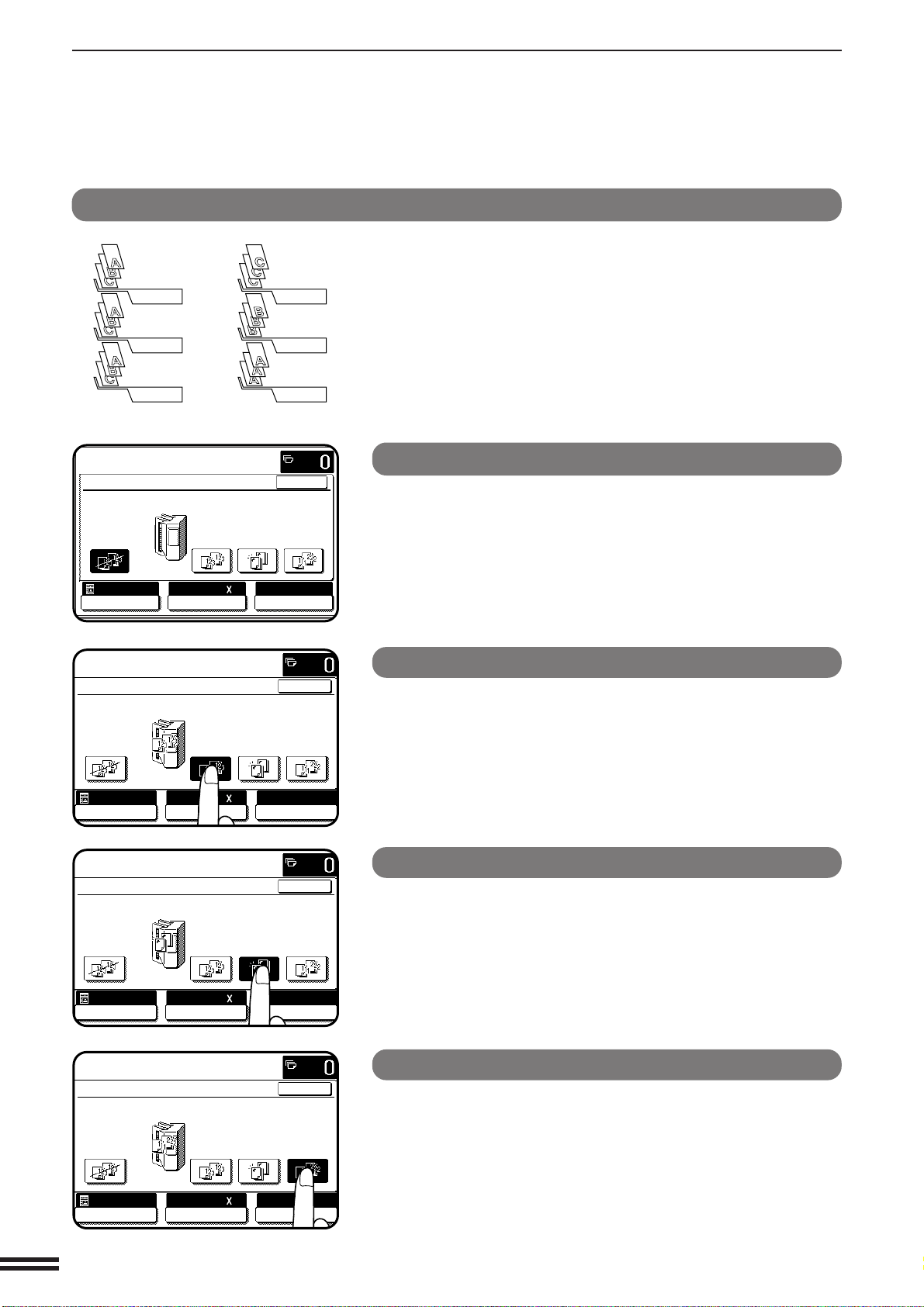
7-4
CHAPTER7
NON-SORT
When none of the three sorter modes, SORT, STAPLE SORT or
GROUP is selected, the copier is in the NON-SORT mode. In this
mode, all copies will be deposited in the top bin of the sorter.
Be sure to use the NON-SORT mode when copying onto special
papers such as transparency film or label stock.
SORT
Press the OUTPUT key and select the SORT mode.
SORT is used for automatic copy collating. Copies of each original
will be sequentially deposited in the sort bins.
STAPLE SORT
Press the OUTPUT key and select the STAPLE SORT mode.
In this mode, copies will be automatically sorted and finished sets of
copies can be stapled with the manual staple key.
When used in conjunction with an optional RADF, sorted copies will
be automatically stapled.
GROUP
Press the OUTPUT key and select the GROUP mode.
In the GROUP mode, all copies of the same original will be
deposited in the same bin.
Using the staple sorter
Press the OUTPUT key and select the desired mode.
To cancel the mode, press the OUTPUT key and select “NON
SORT” on the touch panel.
GROUP
SORT
20-BIN STAPLE SORTER (AR-SS2)
OPTIONAL EQUIPMENT
20-bin staple sorter (AR-SS2)
OUTPUT
NON SORT SORT
STAPLE
SORT
GROUP
OK
AUTO
EXPOSURE PAPER SELECT
100%
COPY RATIO
8/ 11AUTO
1
2
READY TO COPY.
OUTPUT
NON SORT SORT
STAPLE
SORT
GROUP
OK
AUTO
EXPOSURE PAPER SELECT
100%
COPY RATIO
8/ 11AUTO
1
2
READY TO COPY.
OUTPUT
NON SORT SORT
STAPLE
SORT
GROUP
OK
AUTO
EXPOSURE PAPER SELECT
100%
COPY RATIO
8/ 11AUTO
1
2
READY TO COPY.
OUTPUT
NON SORT SORT
STAPLE
SORT
GROUP
OK
AUTO
EXPOSURE PAPER SELECT
100%
COPY RATIO
8/ 11
AUTO
1
2
READY TO COPY.
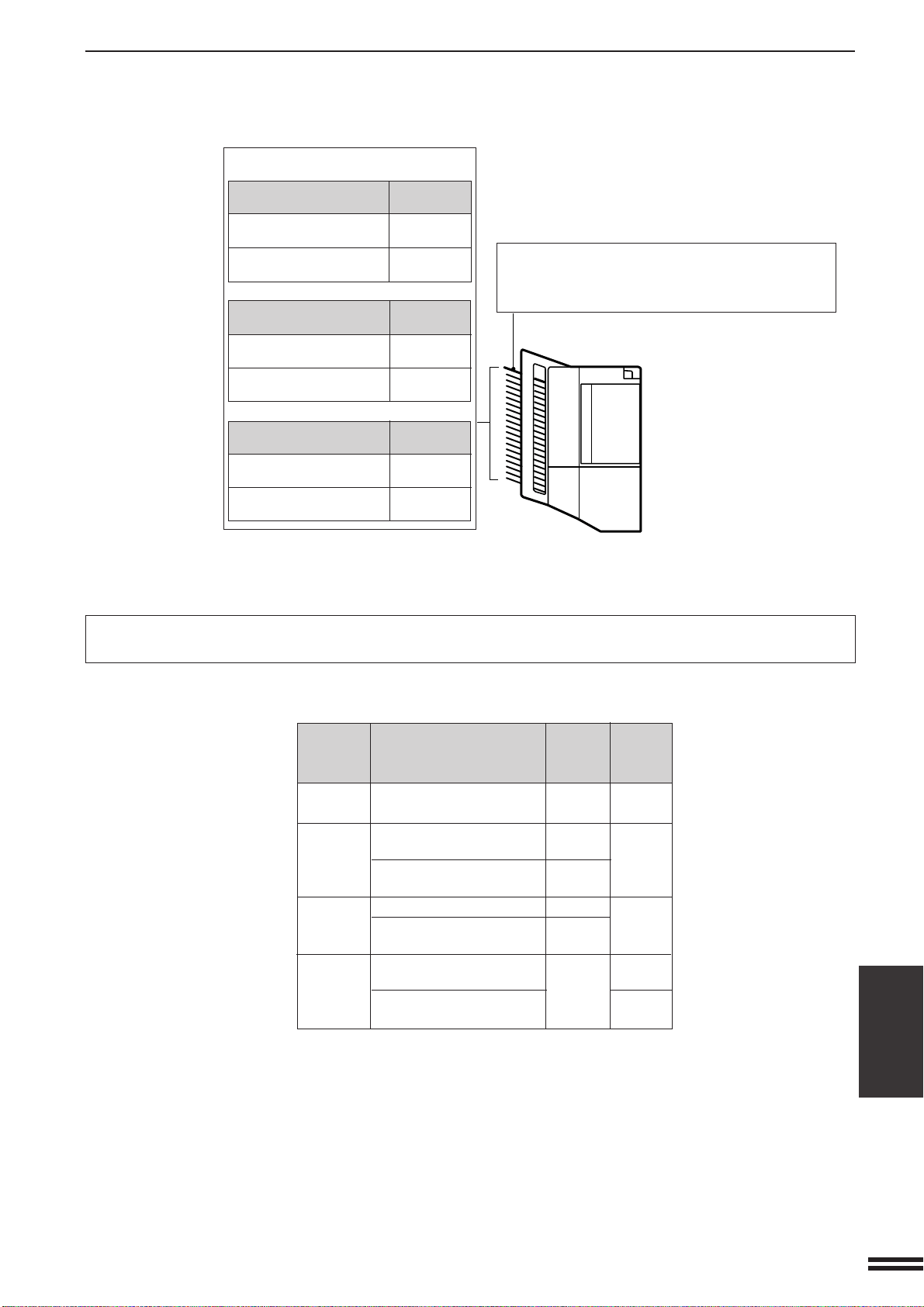
7-5
CHAPTER7
Max. No. Max. No.
Mode Paper size of of copies
originals to be set
NON- Min.: 5-1/2" x 8-1/2" – 100
SORT Max.: 12" x 18"
SORT 5-1/2" x 8-1/2", 8-1/2" x 50 20
11", 8-1/2" x 11"R
8-1/2" x 13", 8-1/2" x 14", 25
11" x 17"
STAPLE 8-1/2" x 11", 8-1/2" x 11"R 30 20
SORT 8-1/2" x 13", 8-1/2" x 14", 25
11" x 17"
GROUP 5-1/2" x 8-1/2", 8-1/2" x 20 30
11", 8-1/2" x 11"R
8-1/2" x 13", 8-1/2" x 14", 25
11" x 17"
NOTES:
●
When color copying is performed, much toner may be put on copy paper depending on the image. In this case,
the copies may be curled, resulting in improper stapling or improperly aligned copies.
●
If the specified number of copies is more than the maximum number of copies that can be set, the copy quantity
display will change to the corresponding number in the above table in the SORT, STAPLE SORT, or GROUP
mode after copying starts.
●
When making single-sided copies from two-sided originals, the maximum number of originals that can be copied
is half the number shown in the above table.
●
Do not use special paper in the SORT, STAPLE SORT, or GROUP mode.
20-BIN STAPLE SORTER (AR-SS2)
The limits for the number of originals which can be used and the number of copies that can be set for each
paper size are as follows:
Top bin
100 sheets in the NON-SORT mode
(60 sheets for 8-1/2" x 13, 8-1/2" x 14", 11" x 17", and
12" x 18" )
Sort bins
Sort Mode:
Paper size
Bin capacity
(max.)
5-1/2" x 8-1/2", 8-1/2" x
11", 8-1/2" x 11"R
8-1/2" x 13", 8-1/2" x 14",
11" x 17"
Staple Sort Mode:
Paper size
Bin capacity
(max.)
8-1/2" x 11", 8-1/2" x
11"R
8-1/2" x 13", 8-1/2" x 14",
11" x 17"
Group Mode:
Paper size
Bin capacity
(max.)
5-1/2" x 8-1/2", 8-1/2" x
11", 8-1/2" x 11"R
8-1/2" x 13", 8-1/2" x 14",
11" x 17"
SORTER CAPACITY
50
30
30
25
OPTIONAL EQUIPMENT
20-bin staple sorter (AR-SS2)
25
25
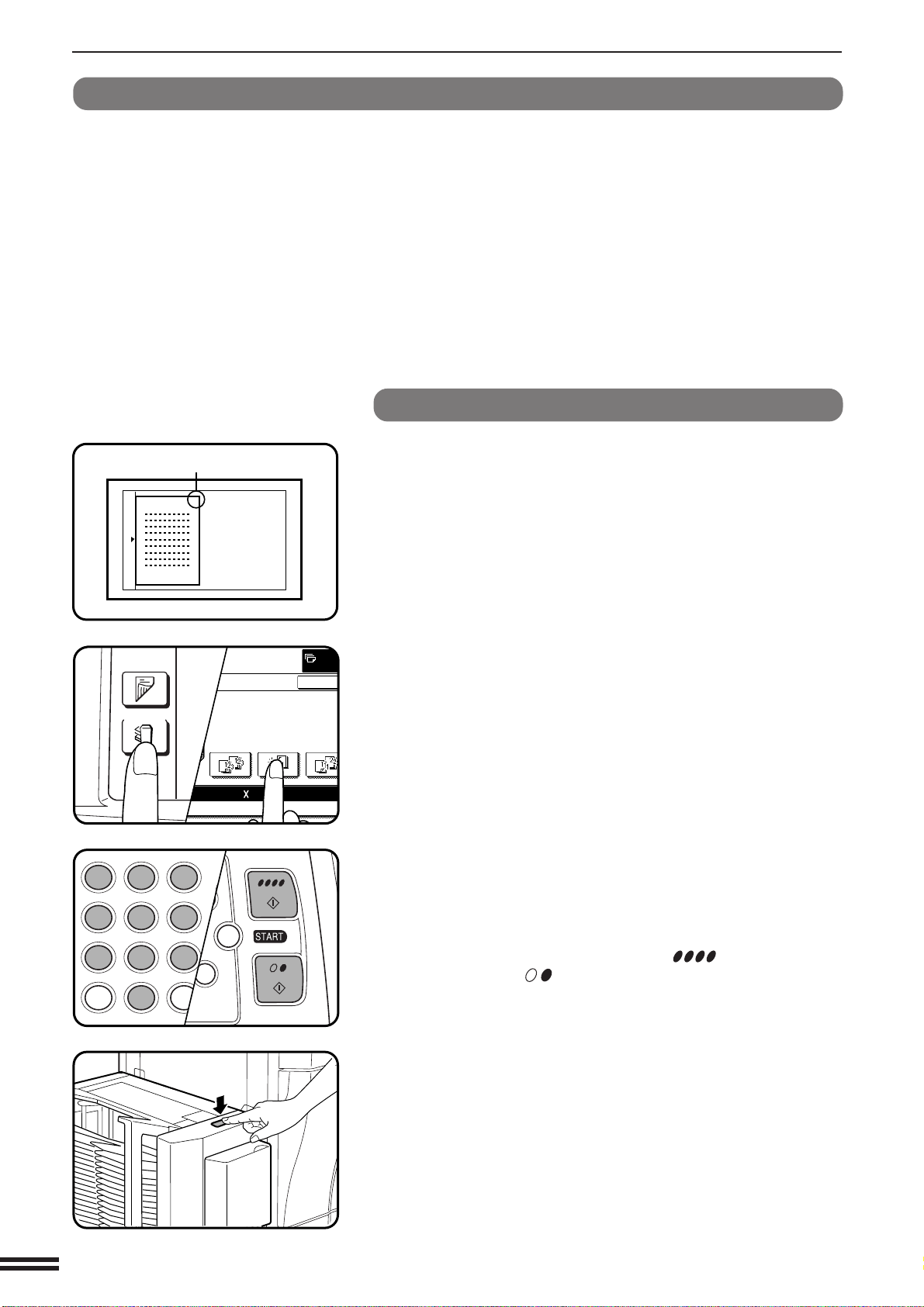
7-6
CHAPTER7
20-BIN STAPLE SORTER (AR-SS2)
Staple sort
The STAPLE SORT mode staples copies of 8-1/2" x 11", 8-1/2" x
11"R, 8-1/2" x 14", and 11" x 17" sizes. For other paper sizes, use the
manual stapling mode. See page 7-8.
Using the document glass
1
Set the original on the document glass with the corner
to be stapled to the upper right.
●
Copy from the last page to the first page.
●
If the number of copies to be delivered into each bin is more than
30 for 8-1/2" x 11" or 8-1/2" x 11"R paper or 25 for 8-1/2" x 14"
or 11" x 17" paper, the copies will not be stapled.
2
Press the OUTPUT key and select the STAPLE SORT
mode.
●
Make sure that there is no paper in any sort bin before selecting
the STAPLE SORT mode.
3
Set the number of copies.
●
Up to 20 sets can be made.
4
Press the COLOR COPY START ( ) key or BLACK
COPY START ( ) key.
5
When all copies are made and sorted, press the manual
staple key.
●
Each set of copies will be stapled.
●
Sets of copies containing copies of different width will not be
stapled.
OPTIONAL EQUIPMENT
20-bin staple sorter (AR-SS2)
Stapling position
SORT
STAPLE
SORT
GROUP
OK
PAPER SELECT
100%
COPY RATIO
8/ 11AUTO
1
2
OUTPUT
2-SIDED
COPY
C
CA
CLEAR
INTERRUPT
CLEAR
ALL
12
3
456
789
0
P
C
CL
PROGRAM
AUDIT
INTE
CLE
AL
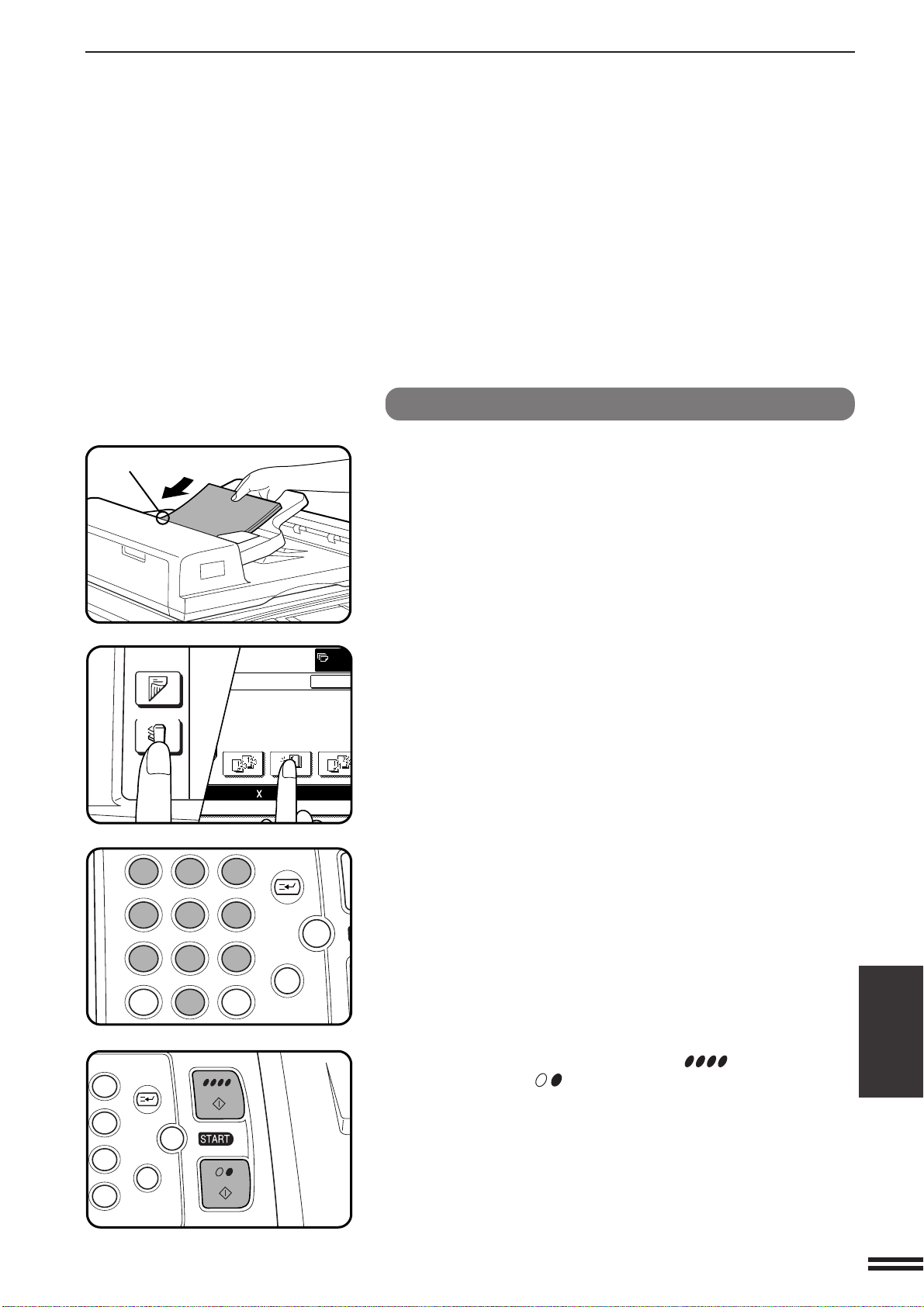
7-7
CHAPTER7
20-BIN STAPLE SORTER (AR-SS2)
Using the optional RADF
1
Set the originals in the document feeder tray face up
with the stapling position in the upper left corner.
●
If the number of copies to be delivered into each bin is more than
30 for 8-1/2" x 11" or 8-1/2" x 11"R paper or 25 for 8-1/2" x 14"
or 11" x 17" paper, the copies will not be stapled.
2
Press the OUTPUT key and select the STAPLE SORT
mode.
●
Make sure that there is no paper in any sort bin before selecting
the STAPLE SORT mode.
3
Set the number of copies.
●
Up to 20 sets can be made.
4
Press the COLOR COPY START ( ) key or BLACK
COPY START ( ) key.
●
When copying and sorting are completed, each set of copies will
be automatically stapled.
●
Sets of copies containing copies of different width will not be
stapled.
OPTIONAL EQUIPMENT
20-bin staple sorter (AR-SS2)
Stapling position
SORT
STAPLE
SORT
GROUP
OK
PAPER SELECT
100%
COPY RATIO
8/ 11AUTO
1
2
OUTPUT
2-SIDED
COPY
12
3
456
789
0
P
C
CA
CLEAR
PROGRAM
AUDIT
INTERRUPT
CLEAR
ALL
N
3
6
9
P
C
CA
CLEAR
PROGRAM
INTERRUPT
CLEAR
ALL
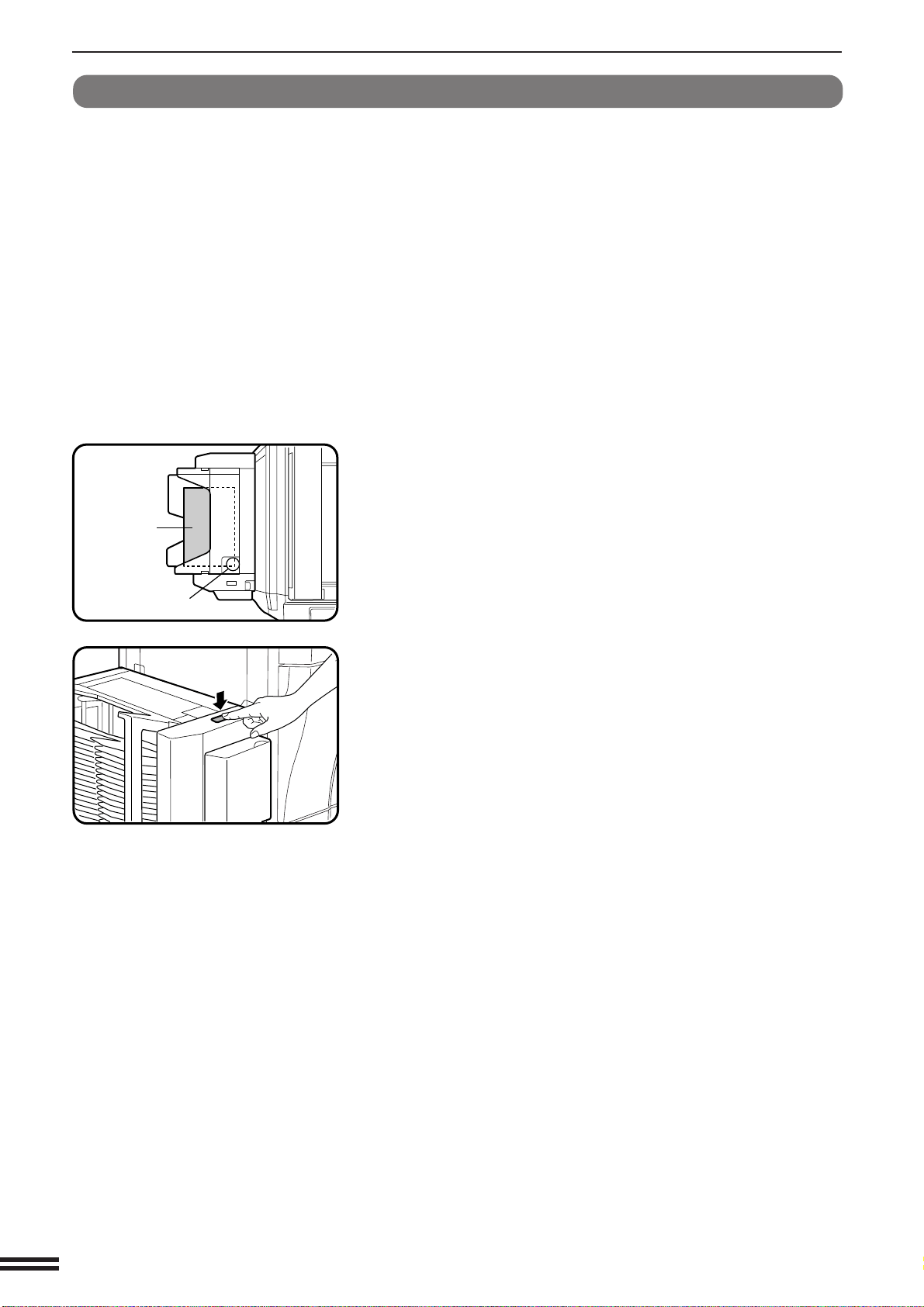
7-8
CHAPTER7
20-BIN STAPLE SORTER (AR-SS2)
Manual stapling
To use the stapling feature only, without using the STAPLE SORT
mode, follow the procedure below.
1
Align the edges of the copies to be stapled.
2
Place the set of copies into the top bin, making sure the
edges are flush with the inner right corner, as shown in
the figure.
●
Make sure that there is no paper in the other sort bins. If there
is, the manual staple key will not light up.
●
Up to 30 sheets of paper can be stapled together. Exceeding this
maximum may result in damage to the stapler.
3
Press the manual staple key when it lights up.
●
The set of copies will be stapled.
OPTIONAL EQUIPMENT
20-bin staple sorter (AR-SS2)
Copies
Stapling location
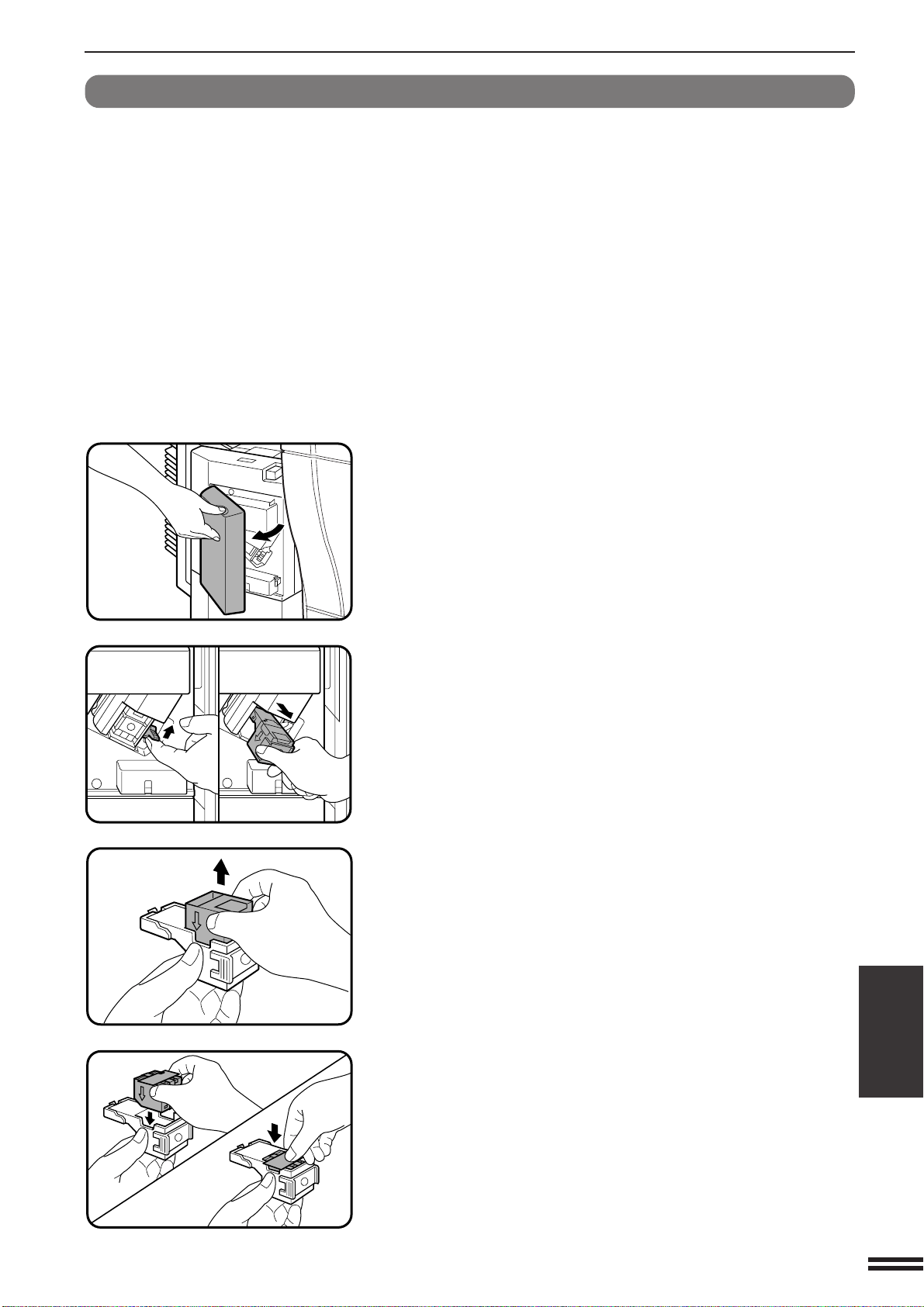
7-9
CHAPTER7
20-BIN STAPLE SORTER (AR-SS2)
1
Open the stapler cover.
2
Lift the release lever and pull out the staple box.
●
Lift the release lever to unlock the staple box. Then pull out the
box.
3
Remove the empty staple cartridge from inside the
staple box.
4
Insert the new staple cartridge into the box until it clicks
in place.
●
Insert the new cartridge by aligning the arrows on the cartridge
with those on the box. Check that the cartridge locks in place by
pulling it slightly.
●
The cartridge holds 5,000 staples.
NOTE:
Be sure not to remove the rear paper and tape before inserting
the cartridge.
Staple cartridge replacement
When the staple cartridge becomes empty, the message “ADD
STAPLES.” will appear. Replace the staple cartridge as follows:
OPTIONAL EQUIPMENT
20-bin staple sorter (AR-SS2)
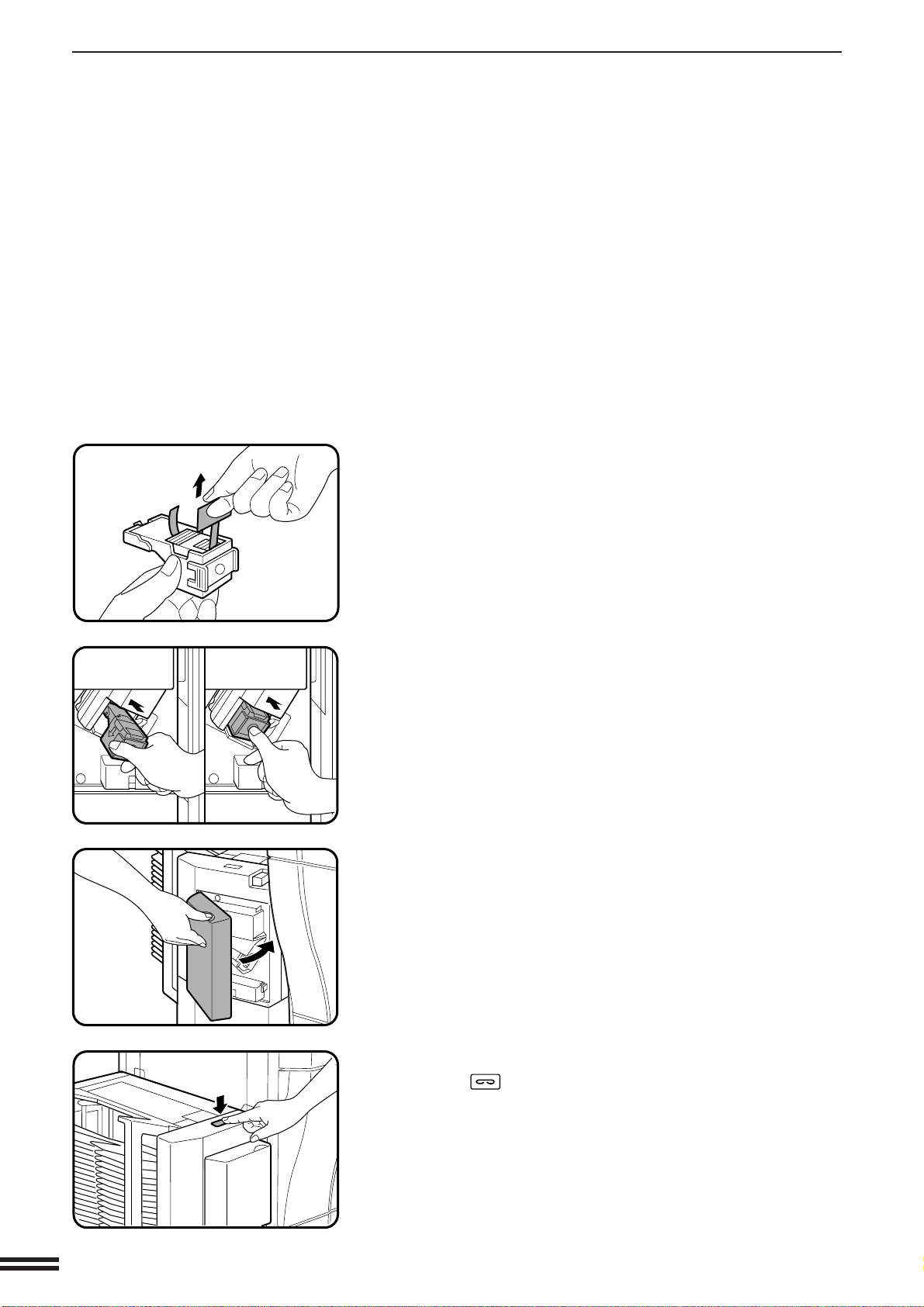
7-10
CHAPTER7
20-BIN STAPLE SORTER (AR-SS2)
5
Remove the rear paper and tape from the cartridge.
●
Pull them straight. If they are pulled obliquely, the tape may be
torn.
6
Insert the staple box into the stapler until it clicks in
place.
7
Close the stapler cover.
8
Place a sheet of paper into the top bin. Press the manual
staple ( ) key on the staple sorter when it lights up.
●
Check to see whether the sheet is stapled.
If it is not stapled, press the manual staple key again.
●
If the stapler does not operate properly even after
replacement, a staple may be jammed in it. See next page.
●
Staples for the staple sorter are available from your Sharp
dealer.
OPTIONAL EQUIPMENT
20-bin staple sorter (AR-SS2)
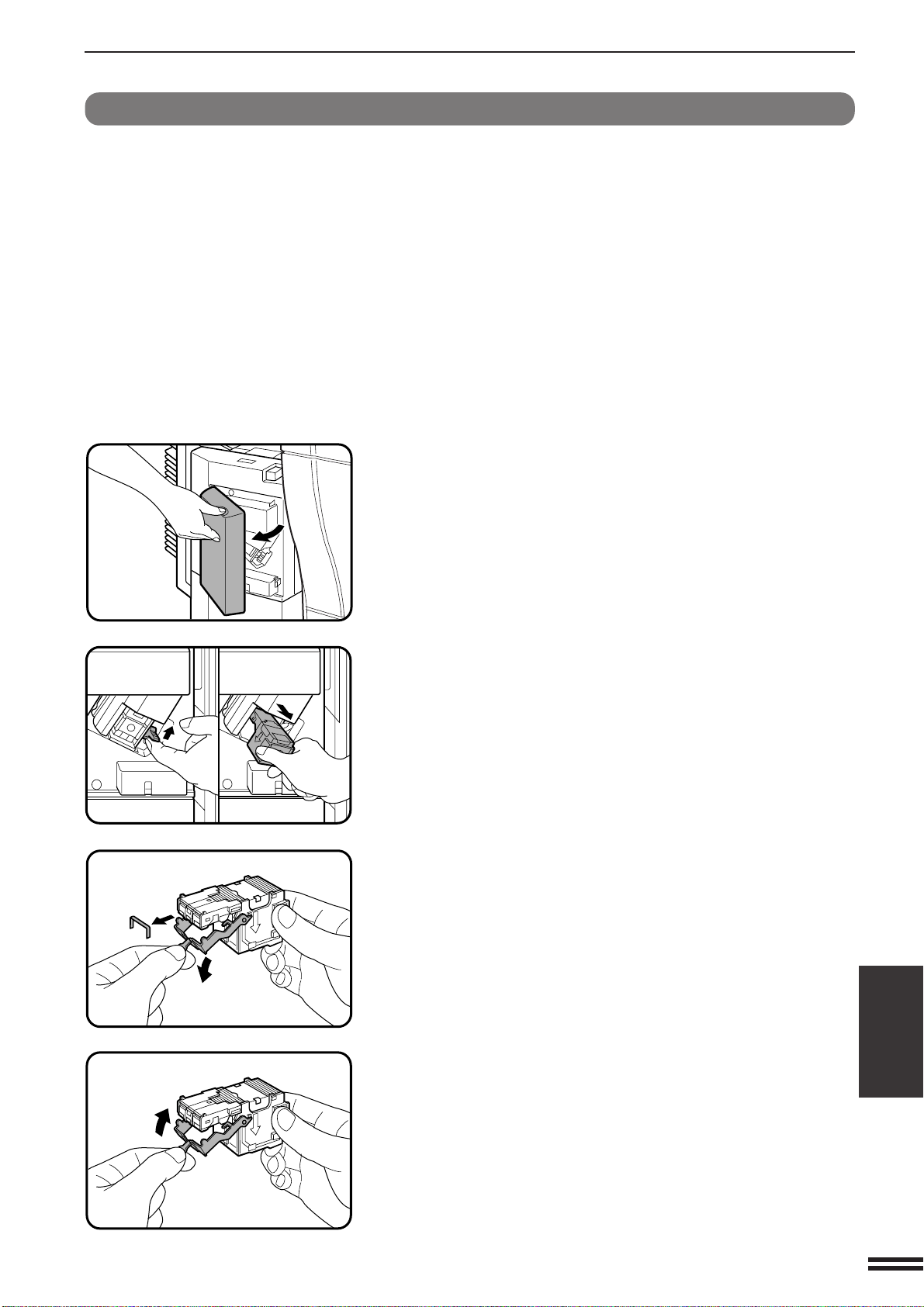
7-11
CHAPTER7
20-BIN STAPLE SORTER (AR-SS2)
1
Open the stapler cover.
2
Lift the release lever and pull out the staple box.
●
Lift the release lever to unlock the staple box. Then pull out the
box.
3
Lower the lever at the end of the staple box and remove
the jammed staples.
4
Return the lever to its original position.
Staple jam removal
If staples become jammed in the stapler, the message “CHECK
STAPLER POSITION OR STAPLE JAM.” will appear. Remove the
jammed staples in the manner described below:
OPTIONAL EQUIPMENT
20-bin staple sorter (AR-SS2)
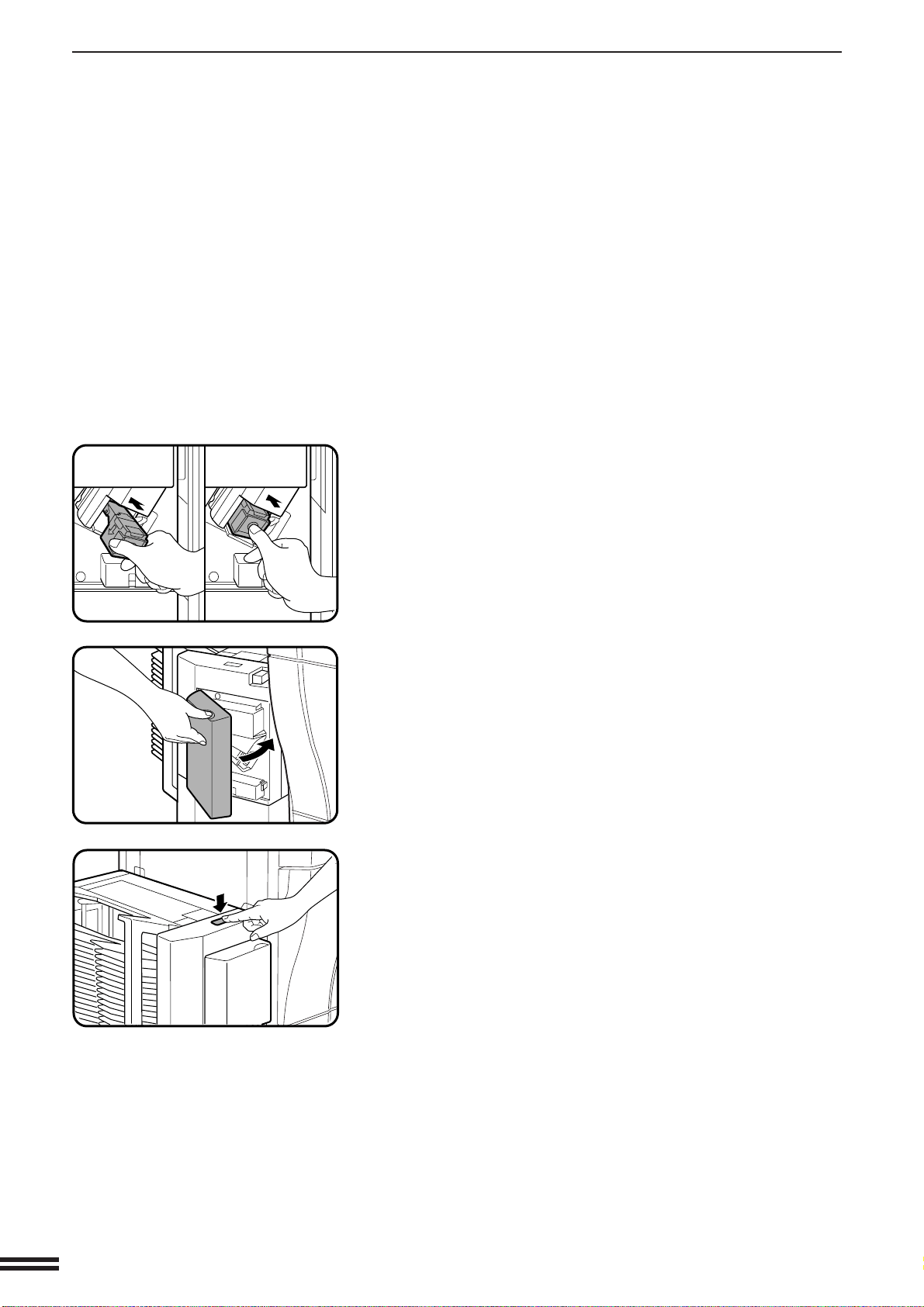
7-12
CHAPTER7
20-BIN STAPLE SORTER (AR-SS2)
5
Insert the staple box into the stapler unit until it clicks in
place.
6
Close the stapler cover.
7
Following the stapling procedure on page 7-8, staple a
copy to check that the stapler works properly.
●
If it does not, repeat this procedure until it does.
OPTIONAL EQUIPMENT
20-bin staple sorter (AR-SS2)
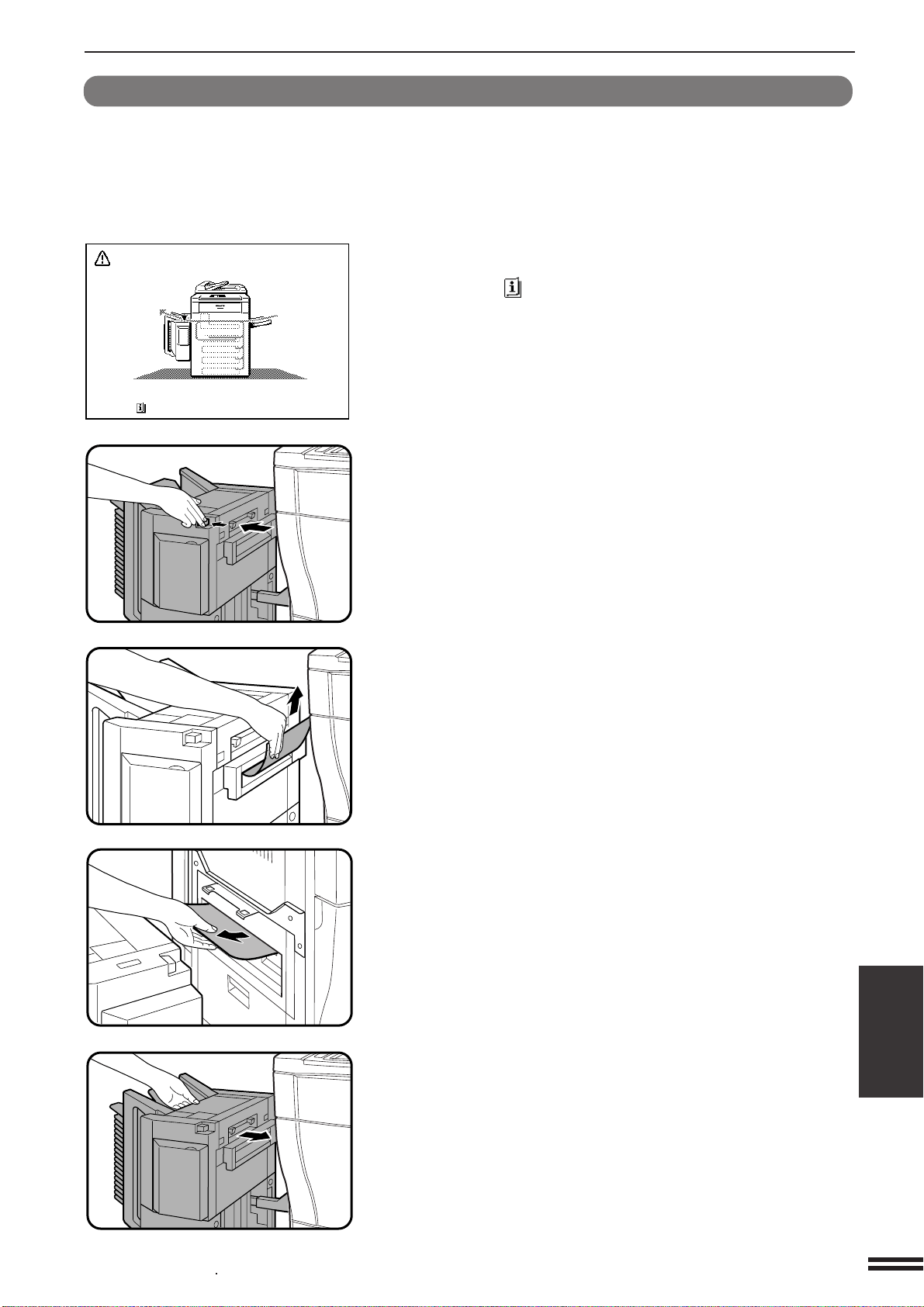
7-13
CHAPTER7
20-BIN STAPLE SORTER (AR-SS2)
Misfeed removal
The copier will stop when a misfeed occurs.
The message “MISFEED HAS OCCURRED. CLEAR INDICATED
AREA. PRESS FOR RECOVERY INSTRUCTIONS.” will appear
with a display of paper misfeed locations. Press the INFORMATION
key for more detailed information as necessary.
1
Push the sorter release button and slide the sorter
carefully along the guides away from the copier.
2
Remove the misfed paper from the sorter or from the
exit area of the copier.
3
Slide the sorter back toward the copier and latch it into
place.
●
Confirm that the misfeed display is cleared.
●
If the message indicating a misfeed is still displayed, check the
inside of the copier and remove any remaining misfed paper.
OPTIONAL EQUIPMENT
20-bin staple sorter (AR-SS2)
MISFEED HAS OCCURRED.
CLEAR INDICATED AREA.
PRESS FOR RECOVERY INSTRUCTIONS.
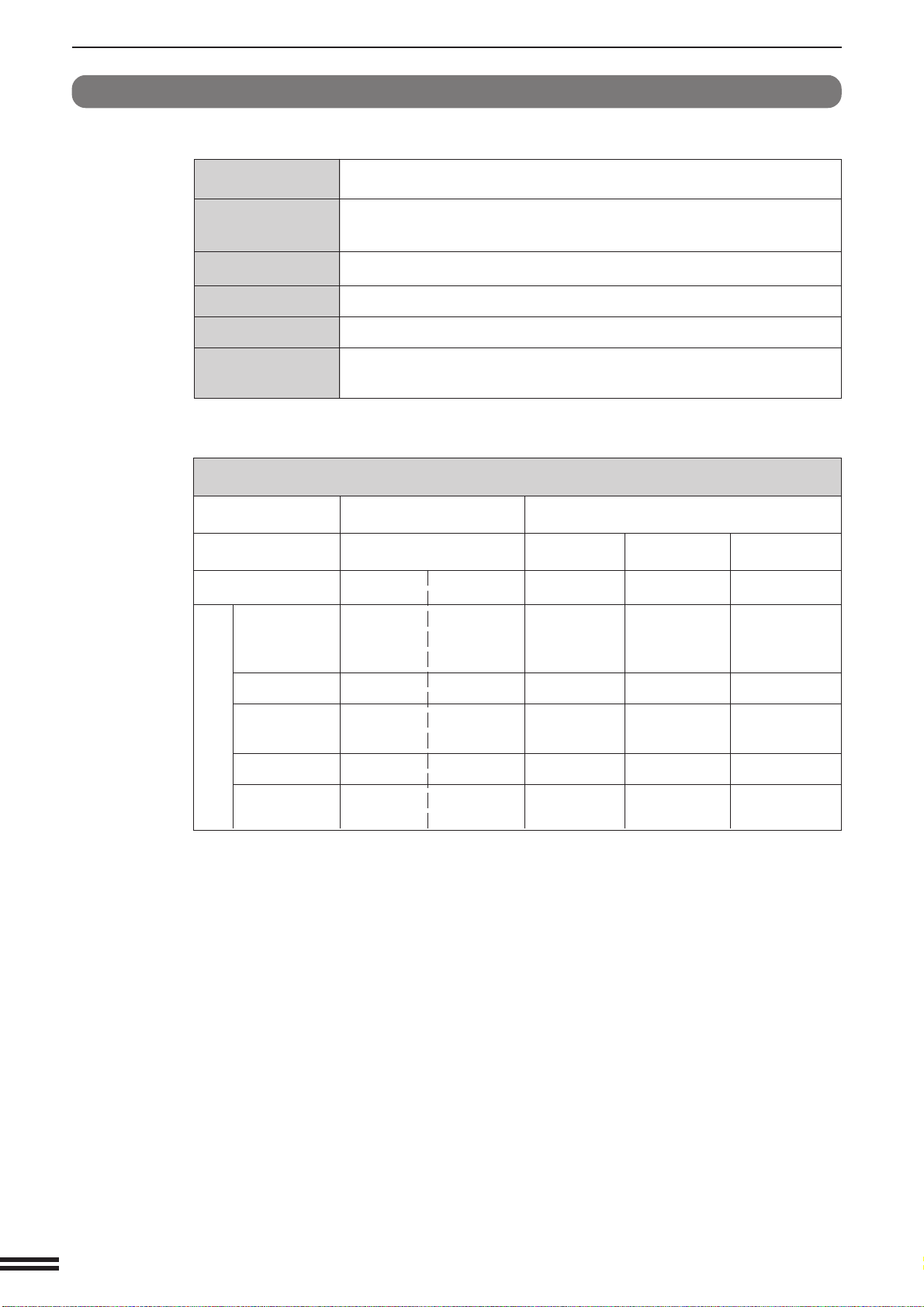
7-14
CHAPTER7
20-BIN STAPLE SORTER (AR-SS2)
OPTIONAL EQUIPMENT
20-bin staple sorter (AR-SS2)
Specifications
No. of bins 20
Paper size Max. 12" x 18"
Min. 5-1/2" x 8-1/2"
Stapling capacity 30 sheets (28 lbs.)
Power supply Drawn from the copier
Weight* Approx. 58.2 lbs. (26.4kg) *with mounting kit
Dimensions 16-37/64" (W) x 23-25/64" (D) x 24-37/64" (H)
(421 mm (W) x 594 mm (D) x 624 mm (H))
Bin capacity
Bin Top Bin Top Bin and Other Bins
Mode NON-SORT SORT GROUP
STAPLE SORT
Paper Weight 13 ~ 28 lbs. 28+ ~ 53 lbs. 17 ~ 28 lbs.* 17 ~ 28 lbs. 17 ~ 28 lbs.*
8-1/2" x 13", 60 10 25 25 25
8-1/2" x 14",
11" x 17"
12" x 18" 60 10 - - -
8-1/2" x 11", 100 10 50 30 30
8-1/2" x 11R"
5-1/2" x 8-1/2" 100 10 50 30 -
7-1/4" x 100 10 - - -
10-1/2"R
* In the COVERS mode, 2 sheets of 53 lb. paper can be fed.
Specifications are subject to change for improvement without notice.
Paper Size
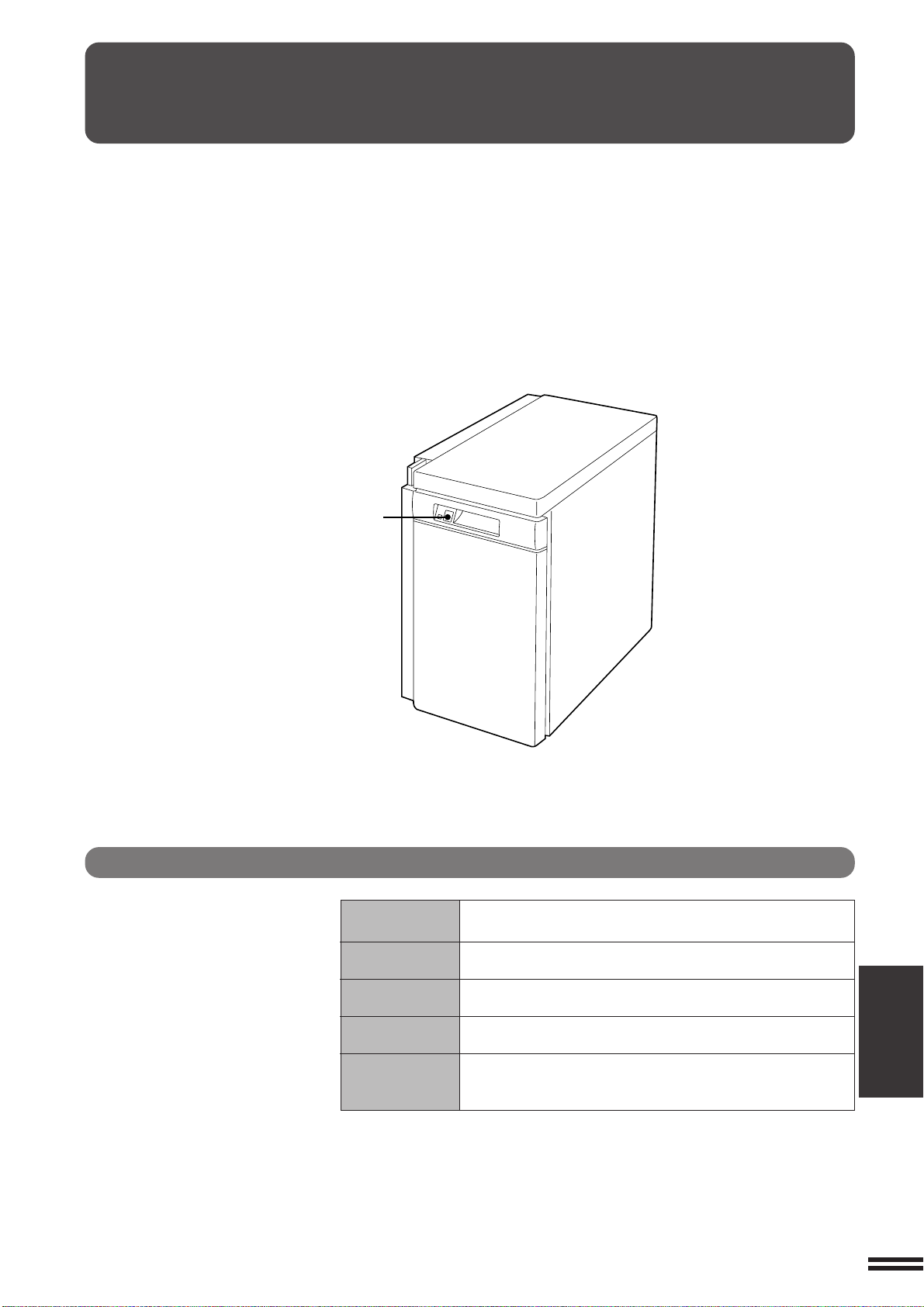
7-15
CHAPTER7
Specifications
Paper size 8-1/2" x 11"
Paper weight 15 lbs. to 28 lbs.
Paper capacity 3,000 sheets (20 lbs.)
Weight Approx. 70.6 lbs. (32 kg)
Dimensions 13" (W) x 21-17/64" (D) x 23-7/16" (H)
(330 mm (W) x 540 mm (D) x 595 mm (H))
Specifications are subject to change for improvement without notice.
LARGE CAPACITY TRAY (AR-LC2)
The large capacity tray provides the added convenience of having
3,000 additional sheets of 8-1/2" x 11" paper available.
PART NAMES
OPTIONAL EQUIPMENT
Large capacity tray (AR-LC2)
Paper tray control button
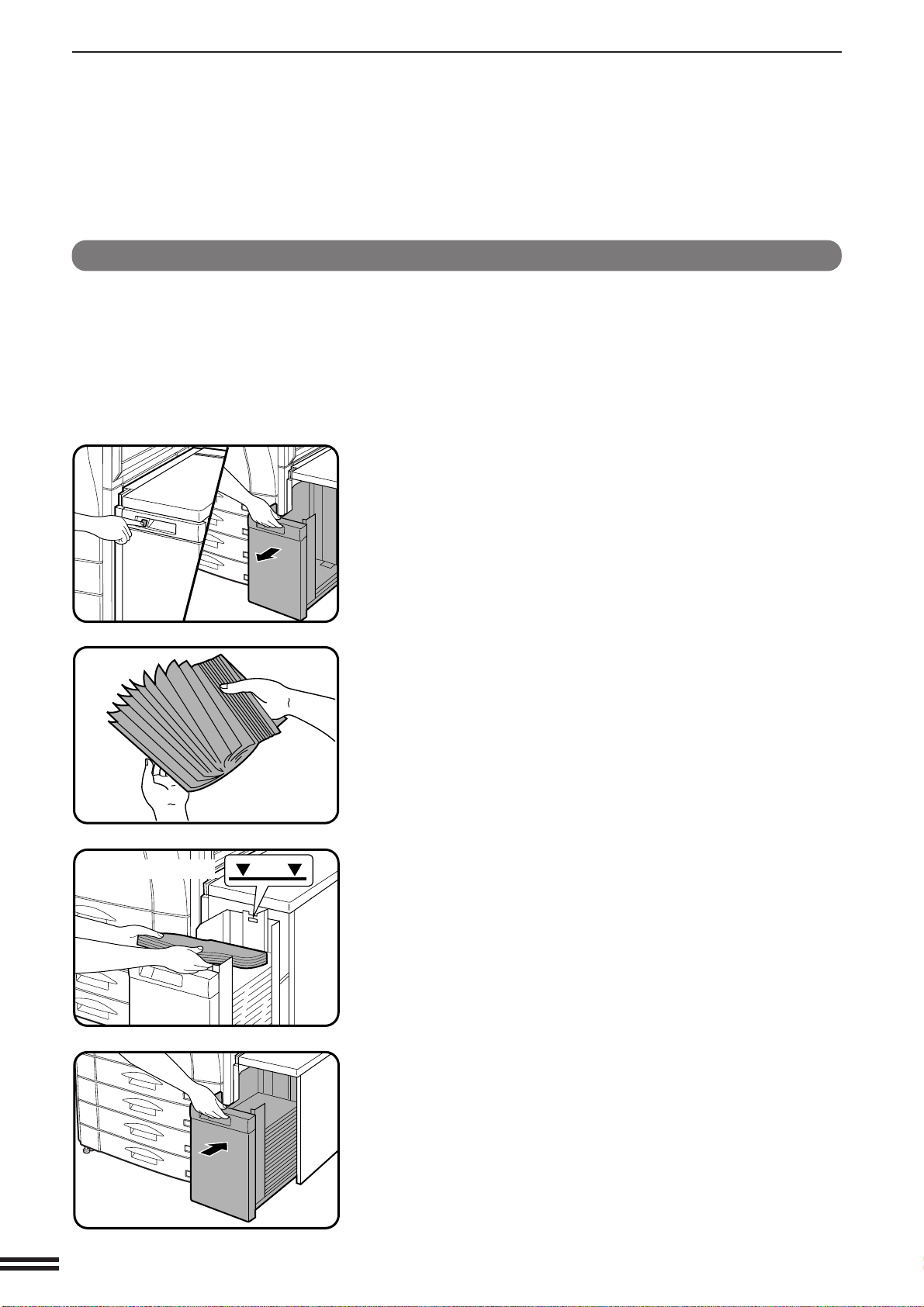
7-16
CHAPTER7
Loading copy paper
1
Press the paper tray control button on the large capacity
tray.
●
The button lamp will blink while the feed table is lowering and
will go out when the tray is ready to be opened.
2
When the button lamp goes out, pull the paper tray out.
●
Do not pull the paper tray out before the button lamp goes out.
3
Fan the copy paper.
4
Load the paper onto the feed table.
●
Be sure to load paper appropriate for the large capacity tray.
See page 7-15.
●
Do not exceed the maximum height line.
5
Gently push the large capacity tray back into place.
●
The paper tray control button lamp will blink as the feed table
returns to the feed position and will light up steadily when it is in
position to feed.
The large capacity tray will automatically lower when the tray runs out
of paper.
OPTIONAL EQUIPMENT
Large capacity tray (AR-LC2)
LARGE CAPACITY TRAY (AR-LC2)
Maximum height line
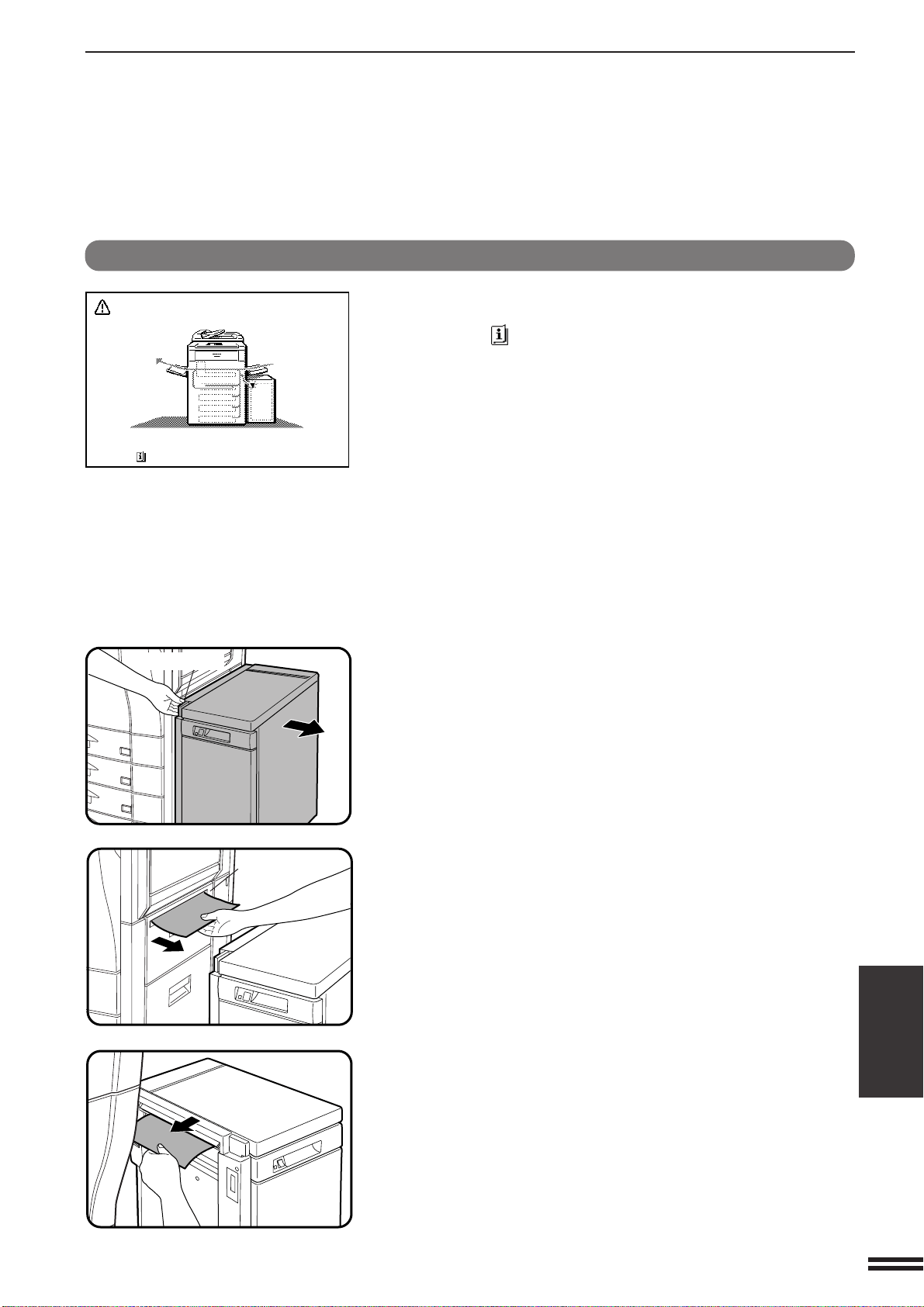
7-17
CHAPTER7
The copier will stop when a misfeed occurs.
The message “MISFEED HAS OCCURRED. CLEAR INDICATED
AREA. PRESS FOR RECOVERY INSTRUCTIONS.” will appear with
a display of paper misfeed locations. Press the INFORMATION key for
more detailed information as necessary.
1
While holding the tray release lever, carefully slide the
large capacity tray away from the copier until it stops.
2
Remove any misfed paper from the copier and the large
capacity tray.
●
Be sure not to tear the misfed paper during removal.
●
Open and close the upper right side cover of the copier after
removing the misfed paper from the copier.
If the misfed paper cannot be removed easily, open the upper
right side cover to remove the paper.
Misfeed removal
OPTIONAL EQUIPMENT
Large capacity tray (AR-LC2)
LARGE CAPACITY TRAY (AR-LC2)
MISFEED HAS OCCURRED.
CLEAR INDICATED AREA.
PRESS FOR RECOVERY INSTRUCTIONS.
Release lever
Upper right
side cover
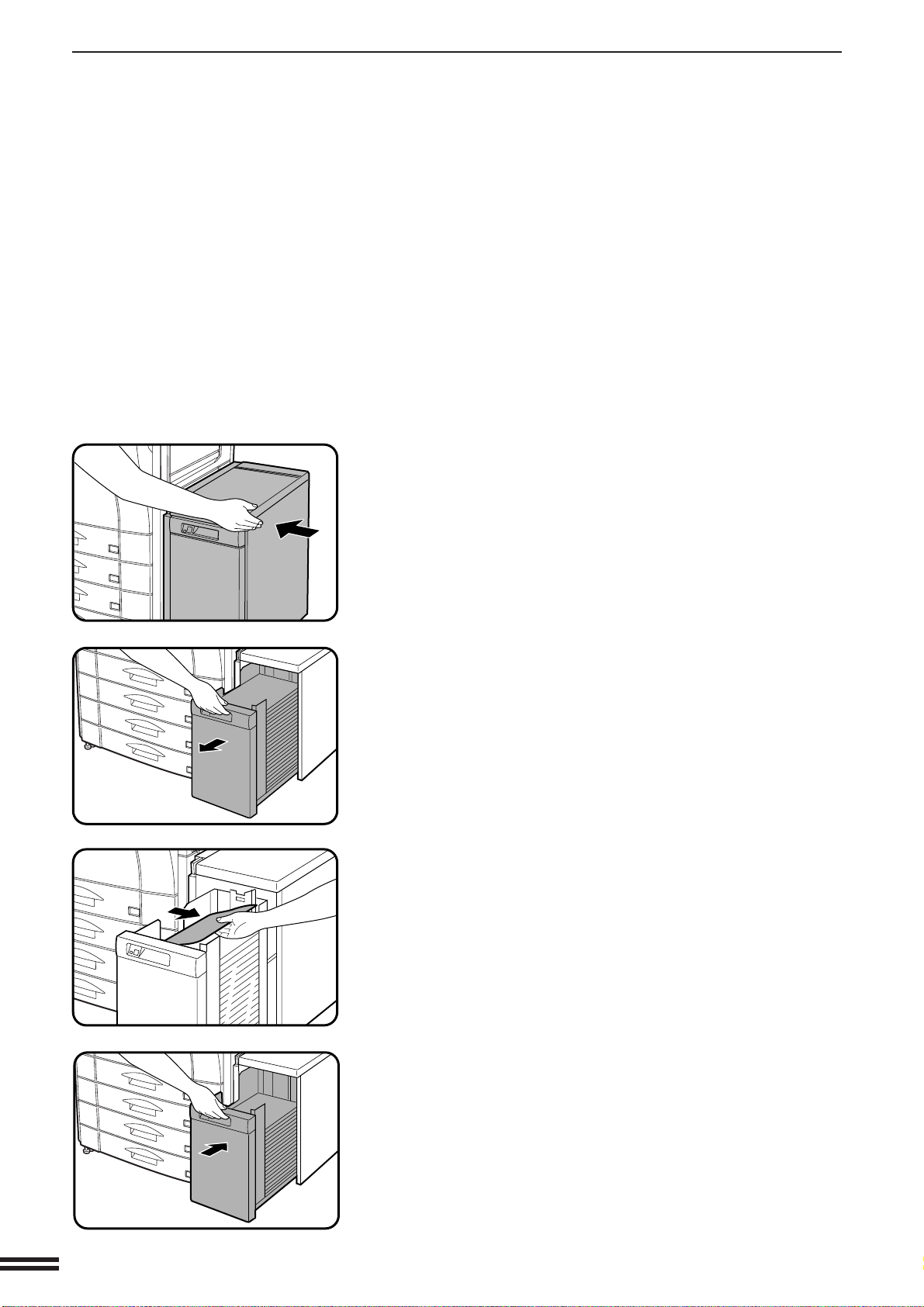
7-18
CHAPTER7
3
Push the large capacity tray toward the copier and latch
it into place.
4
If misfed paper is not found in step 2, pull the tray out.
●
When pulling the large capacity tray out, be sure to pull it out after
the paper tray control button lamp goes out.
5
Remove the misfed paper.
6
Gently push the tray back into place.
●
Confirm that the misfeed display is cleared.
OPTIONAL EQUIPMENT
Large capacity tray (AR-LC2)
LARGE CAPACITY TRAY (AR-LC2)
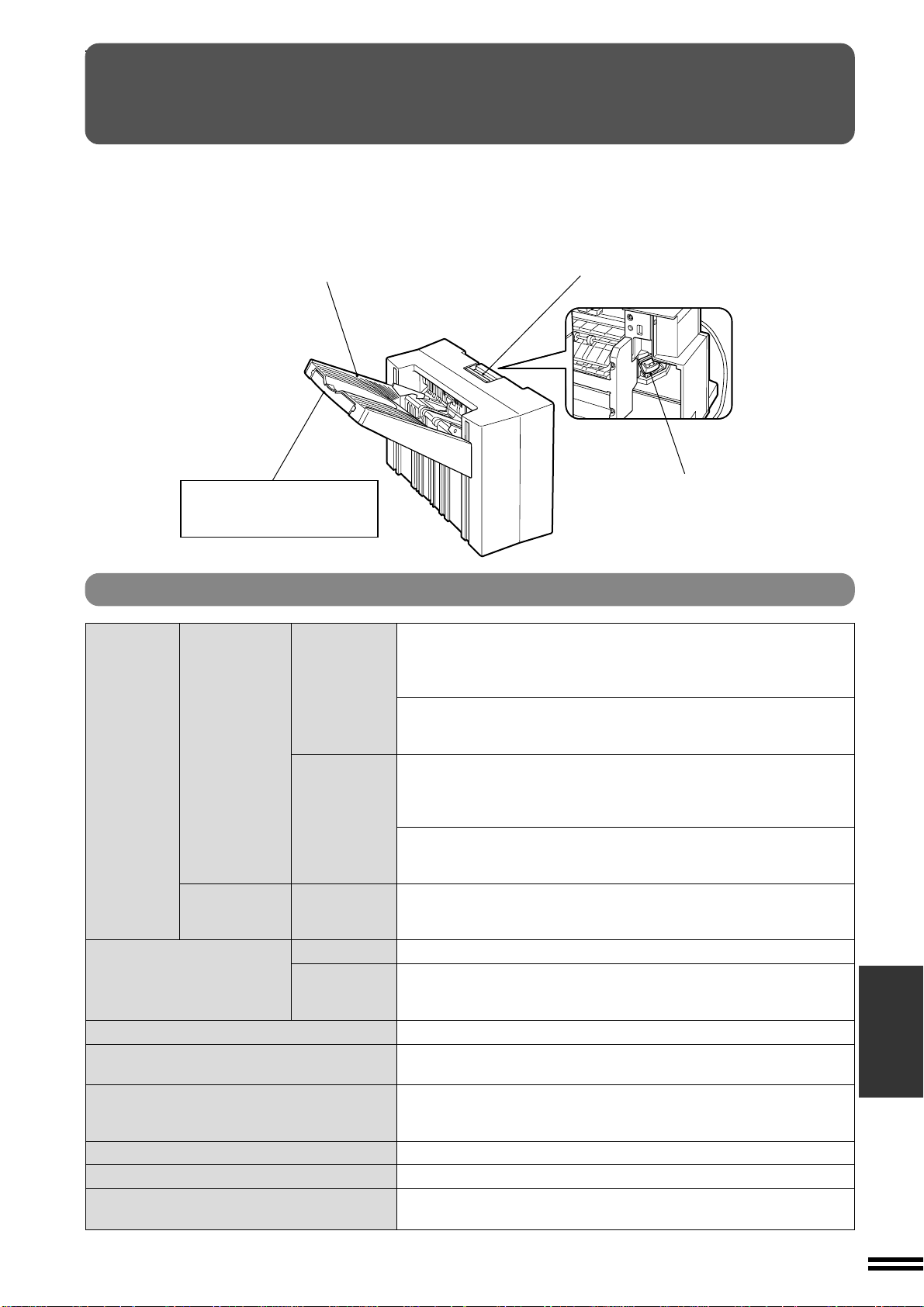
7-19
CHAPTER7
OPTIONAL EQUIPMENT
Finisher (AR-FN4)
FINISHER (AR-FN4)
FINISHER (AR-FN4)
The AR-FN4 finisher provides an offset stack mode of the output for
both copying and printing. A staple print mode is provided for the
printing mode only and will not function in the copying mode.
PART NAMES
Staple cartridge
Finisher release lever
Offset tray
Pull out the tray extension
when 8-1/2" x 14" or
larger paper is to be output.
Specifications
Paper Ordinary Face-up Non offset: 1,000 sheets 5-1/2" x 8-1/2", 5-1/2" x 8-1/2"R, 8-1/2" x 11",
capacity/size paper 8-1/2" x 11"R, 7-1/4" x 10-1/2"R
(16~28 lbs.) 700 sheets 8-1/2" x 13", 8-1/2" x 14"
500 sheets 11" x 17", 12" x 18"
Offset: 1,000 sheets 5-1/2" x 8-1/2", 8-1/2" x 11", 8-1/2" x 11"R
700 sheets 8-1/2" x 13", 8-1/2" x 14"
500 sheets 11" x 17"
Face-down Non offset: 1,000 sheets 5-1/2" x 8-1/2", 5-1/2" x 8-1/2"R, 8-1/2" x 11",
(*For printer 8-1/2" x 11"R, 7-1/4" x 10-1/2"R
use) 700 sheets 8-1/2" x 13", 8-1/2" x 14"
500 sheets 11" x 17", 12" x 18"
Offset: 1,000 sheets 5-1/2" x 8-1/2", 8-1/2" x 11", 8-1/2" x 11"R
700 sheets 8-1/2" x 13", 8-1/2" x 14"
500 sheets 11" x 17"
Heavy paper* Face-up Non offset: 10 sheets 8-1/2" x 11", 8-1/2" x 11"R, 11" x 17"
(*Transparency
film)
Paper weight Face-up 16-55 lbs.
Face-down 17-34 lbs.
(*For printer
use)
Offset 0.8 inches (20 mm)
Paper size for stapling 5-1/2" x 8-1/2", 8-1/2" x 11", 8-1/2" x 11"R, 8-1/2" x 13", 8-1/2" x 14",
(*For printer use) 11" x 17"
Stapling capacity* 20 sheets 5-1/2" x 8-1/2", 8-1/2" x 11", 8-1/2" x 11"R, 8-1/2" x 13",
(*For printer use /for 28 lbs. paper) 8-1/2" x 14"
15 sheets 11" x 17"
Power supply 24V, 2.5A Max. 6.5A (drawn from the copier)
Weight Approx. 30.9 lbs. (14kg) *without mounting kit
Dimensions 20.3"(W) x 22.6"(D) x 15.0"(H) *without mounting kit
(515mm(W) x 574mm(D) x 381mm(H))
Specifications are subject to change for improvement without notice.
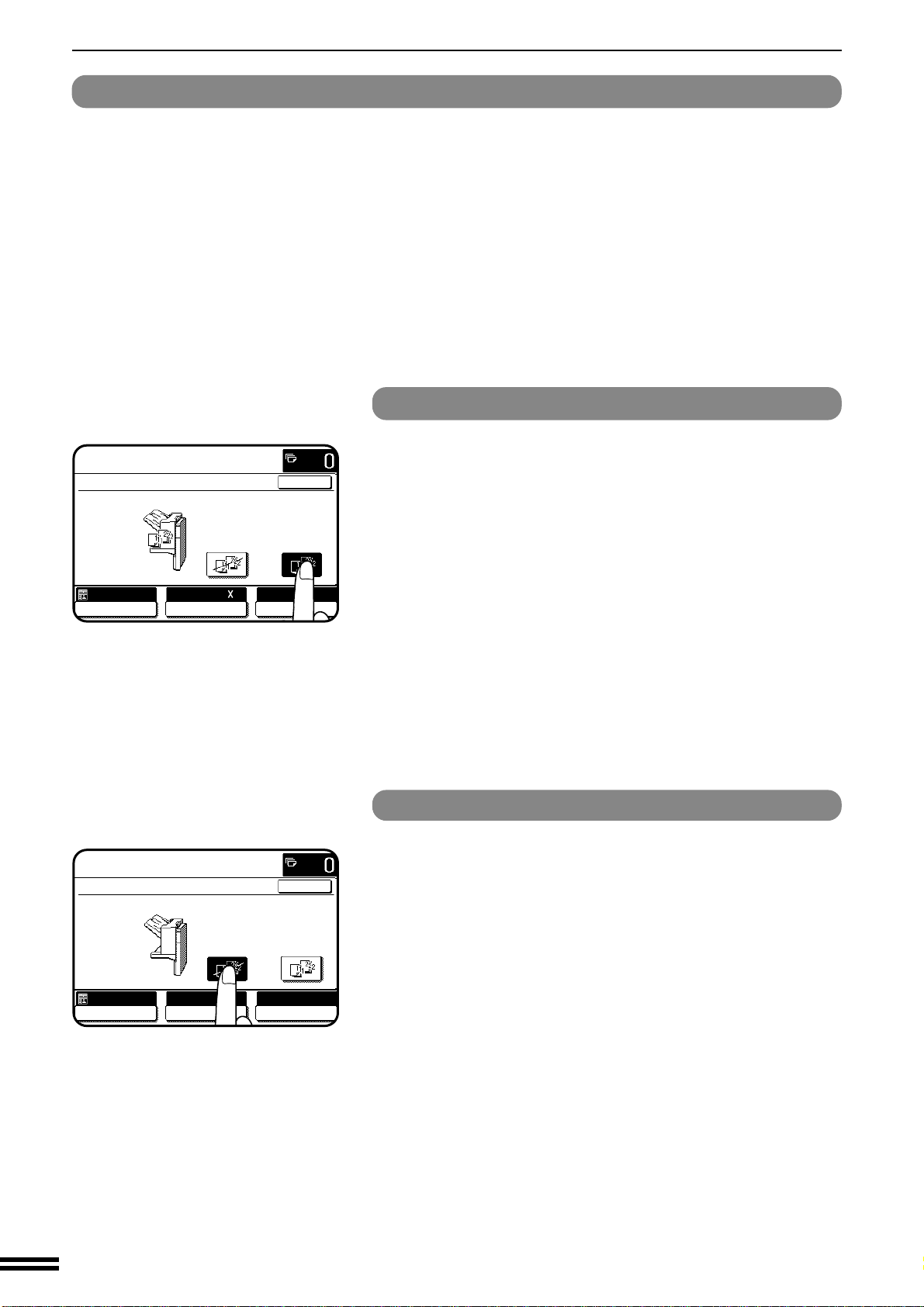
7-20
CHAPTER7
OPTIONAL EQUIPMENT
Finisher (AR-FN4)
FINISHER (AR-FN4)
OFFSET mode
When making copies, the output tray will shift from its
previous position by approximately 0.8 inches (20 mm)
each time a “START” key is pressed. In this way, the set in
progress will be offset from the previous set. Copies in the
size of 5-1/2" x 8-1/2", 8-1/2" x 11", 8-1/2" x 11"R, 8-1/2" x
13", 8-1/2" x 14" and 11"x 17" can be offset.
NON OFFSET mode
All copies will be aligned in one stack in the tray with no
offset.
Offset stack
In the initial settings, the offset stack function is set to off. To enable
the offset stack function, press the “OUTPUT” key and then touch the
“OFFSET” icon on the touch panel. To disable the “OFFSET”
function, press the “OUTPUT” key and then touch the “NON
OFFSET” icon. When the offset function is selected, the output tray
will move side to side each time a set is output so that each set is
offset by approximately 0.8 inches (20 mm) from the previous set.
OUTPUT
NON OFFSET OFFSET
OK
AUTO
EXPOSURE PAPER SELECT
100%
COPY RATIO
8/ 11
AUTO
1
2
READY TO COPY.
OUTPUT
NON OFFSET OFFSET
OK
AUTO
EXPOSURE PAPER SELECT
100%
COPY RATIO
8/ 11
AUTO
1
2
READY TO COPY.
NOTE:
Some type or quality of paper might cause tight curl when it is output.
In this case, remove the paper out of the paper tray or the bypass tray
and reload it upside down.
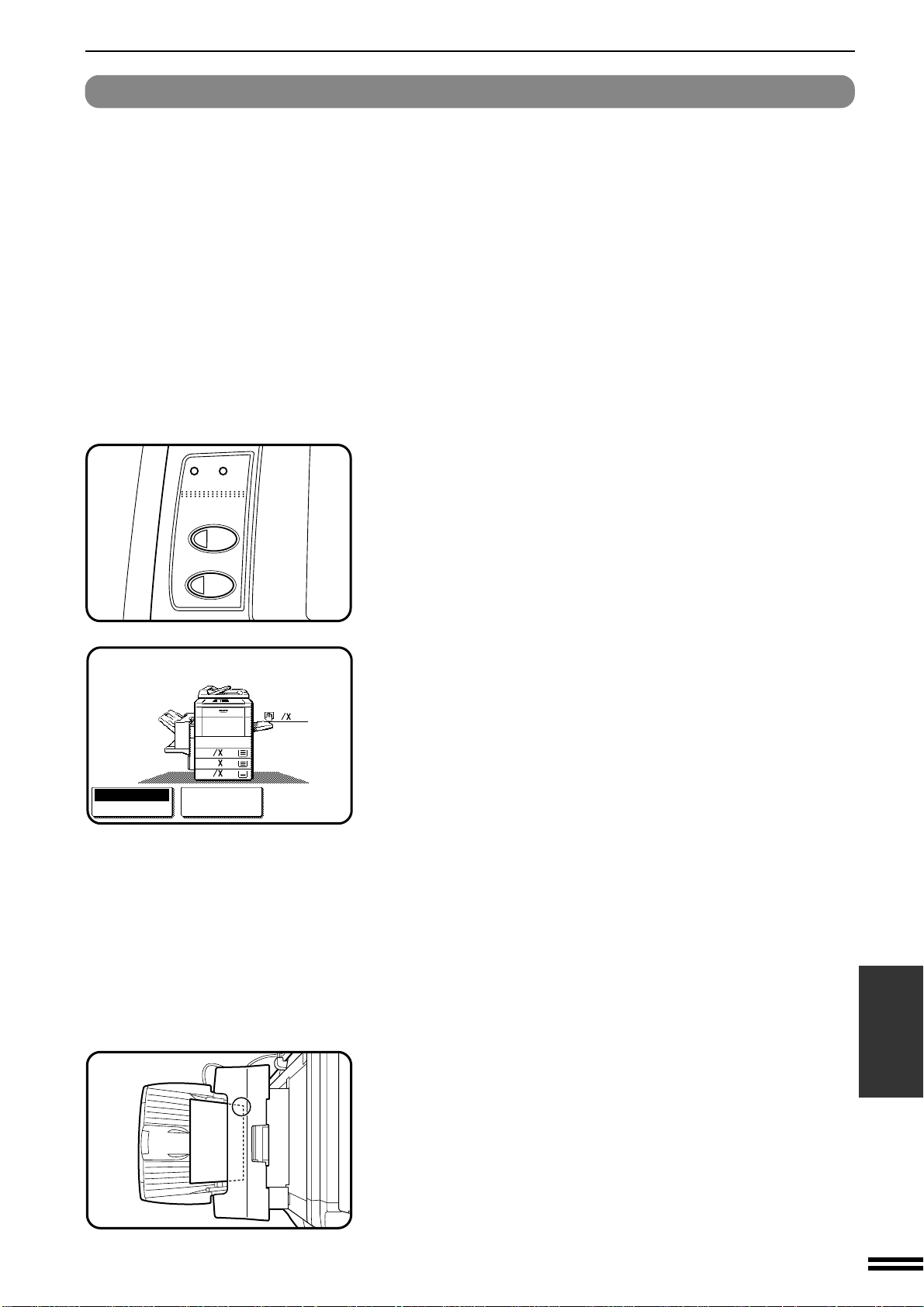
7-21
CHAPTER7
OPTIONAL EQUIPMENT
Finisher (AR-FN4)
FINISHER (AR-FN4)
Staple print* (*In the PRINT mode only)
The staple print mode can be selected for stapling printed sets in the
size of 5-1/2" x 8-1/2", 8-1/2" x 11", 8-1/2" x 11"R, 8-1/2" x 13",
8-1/2" x 14" and 11" x 17".
NOTE:
In the COPIER mode, which delivers the paper face up, this function
is not available.
1
Check the operation panel to confirm that the ONLINE
indicator is lit. If not lit, press the “PRINT” key to enter
the print mode and then press the ONLINE key on the
touch panel.
●
An optional printer connection kit (AR-PX2) and an optional
printer controller (AR-PE1) are needed for the printing from
computer.
2
Check the paper tray(s) to ensure that the desired paper
is loaded.
●
The maximum number of sheets for stapling is 20 for paper in the
size of 5-1/2" x 8-1/2", 8-1/2" x 11", 8-1/2" x 11"R, 8-1/2" x 13",
or 8-1/2" x 14" paper and 15 for 11" x 17" paper. If the maximum
is exceeded, the sheets will not be stapled.
●
Ensure that no paper remains in the output tray. Stapling will not
be done if paper remains at the start of the print job.
3
Make all print selections by the printer driver at your
computer and give the print command.
●
Refer to the documentation for the computer and/or the application
software for help on issuing the necessary commands.
4
The printed output will be stapled.
●
The printed sets will be delivered face down with one staple in
their top left edge.
PRINT
COPY
DATA
ON LINE
1.
8
11
1
2
8
11R
1
2
2.
1711
3.
8
14
1
2
READY TO PRINT.
ONLINE
OFFLINE
PAPER SELECT
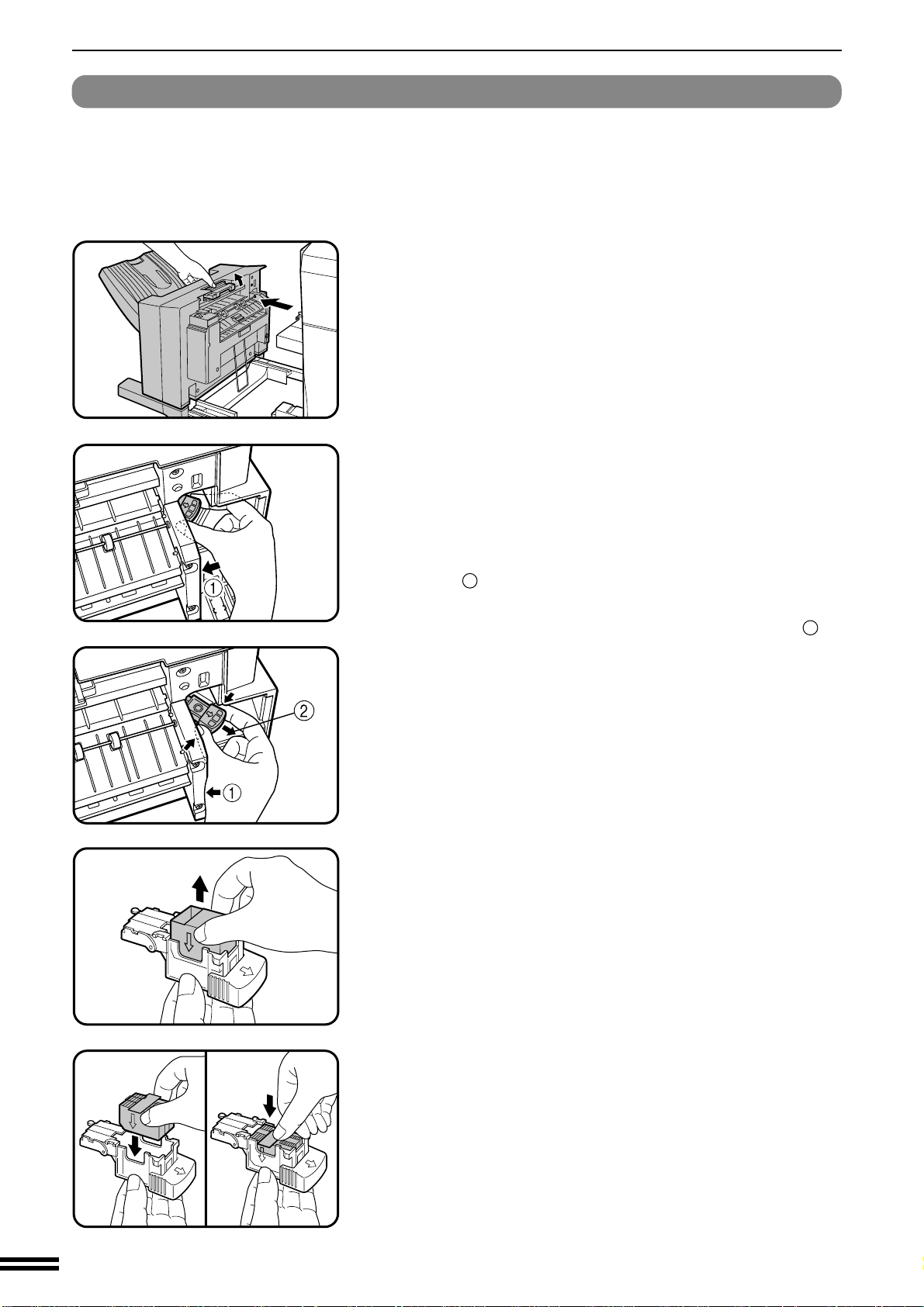
7-22
CHAPTER7
OPTIONAL EQUIPMENT
Finisher (AR-FN4)
FINISHER (AR-FN4)
Staple cartridge replacement
When the staple cartridge is empty, the message “SLIDE THE
FINISHER AWAY FROM THE COPIER AND ADD STAPLES.” will
appear.
Replace the staple as follows:
1
While holding the finisher release lever, slide the finisher
away from the copier.
2
Pull out the staple box.
●
To prevent bumping or scraping your hand during removal of the
staple box, proceed as shown in the illustration and as follows:
Grasp the staple box with your thumb and index finger, and place
the heel of your hand against the finisher frame as shown with
arrow
1
in the illustration.
Remove the staple box in the direction of the arrow
2
by
squeezing with your fingers and rotating against the heel of your
hand.
3
Remove the empty staple cartridge from inside the
staple box.
4
Insert the new staple cartridge into the box until it clicks
in place.
●
Insert the new cartridge by aligning the arrows on the cartridge
with those on the box. Check that the cartridge locks in place by
pulling it slightly.
●
The cartridge holds 3,000 staples.
NOTE:
Be sure to remove the rear paper and tape before inserting the
cartridge.

7-23
CHAPTER7
OPTIONAL EQUIPMENT
Finisher (AR-FN4)
FINISHER (AR-FN4)
5
Remove the rear paper and tape from the cartridge.
●
Pull them straight. If they are pulled obliquely, the tape may be
torn.
6
Insert the staple box into the stapler until it clicks in
place.
7
Push the finisher toward the copier and latch it in place.
●
If the stapler does not work properly after cartridge installation,
it may have a jammed staple in it. See next page.
●
Staples for the finisher are available from your Sharp dealer.
CAUTION
Use caution while latching the finisher into place.
To prevent pinching your fingers, do not place your hand or fingers
on the release lever while moving the finisher toward the copier.
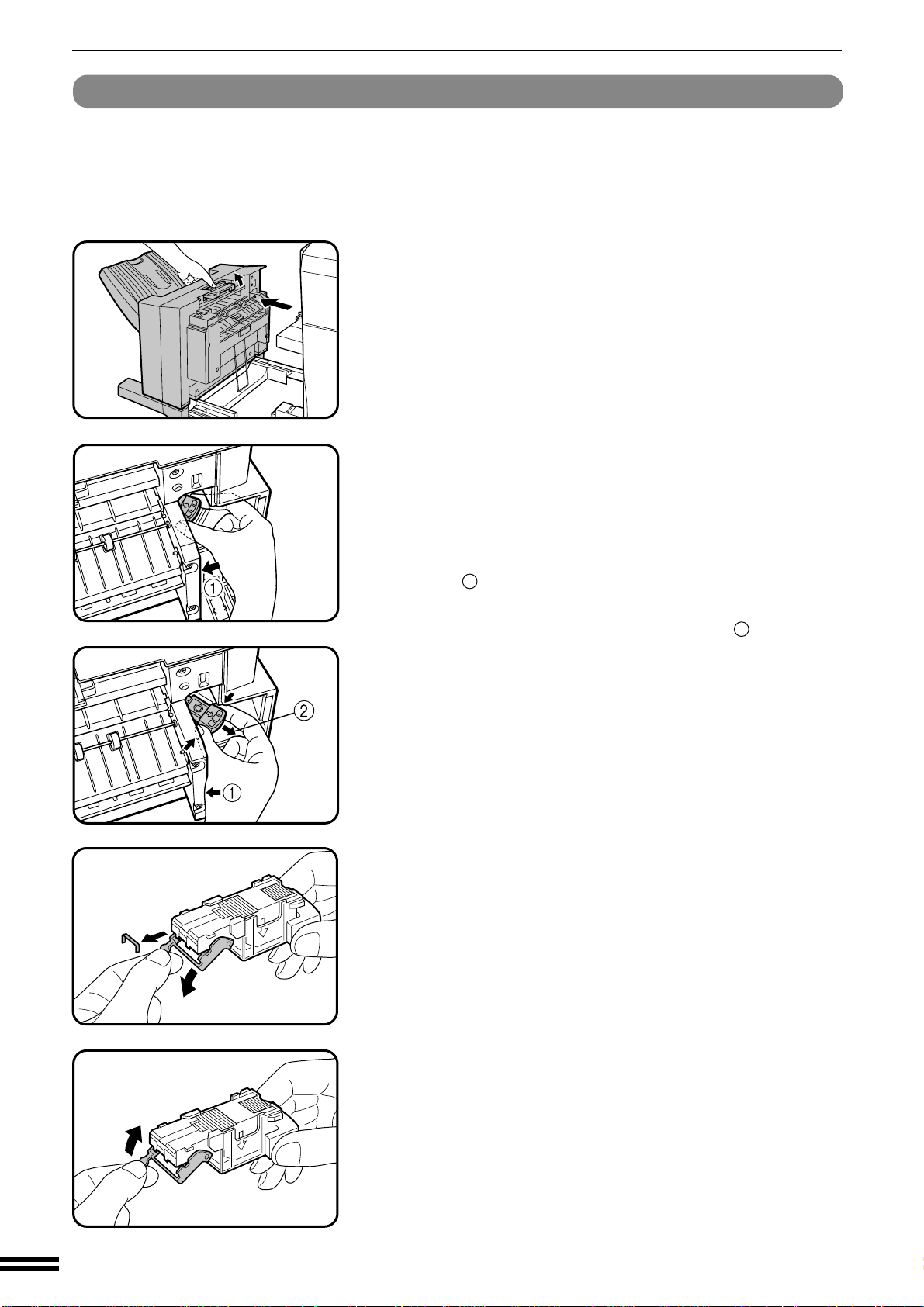
7-24
CHAPTER7
OPTIONAL EQUIPMENT
Finisher (AR-FN4)
FINISHER (AR-FN4)
Staple jam removal
If staples become jammed in the stapler, the message “CHECK
STAPLER POSITION OR STAPLE JAM” will appear. Remove the
jammed staples in the manner described below:
1
While holding the finisher release lever, slide the finisher
away from the copier.
2
Pull out the staple box.
●
To prevent bumping or scraping your hand during removal of the
staple box, proceed as shown in the illustration and as follows:
Grasp the staple box with your thumb and index finger, and place
the heel of your hand against the finisher frame as shown with
arrow
1
in the illustration.
Remove the staple box in the direction of arrow
2
by squeezing
with your fingers and rotating against the heel of your hand.
3
Lower the lever at the end of the staple box and remove
the jammed staples.
4
Return the lever to its original position.
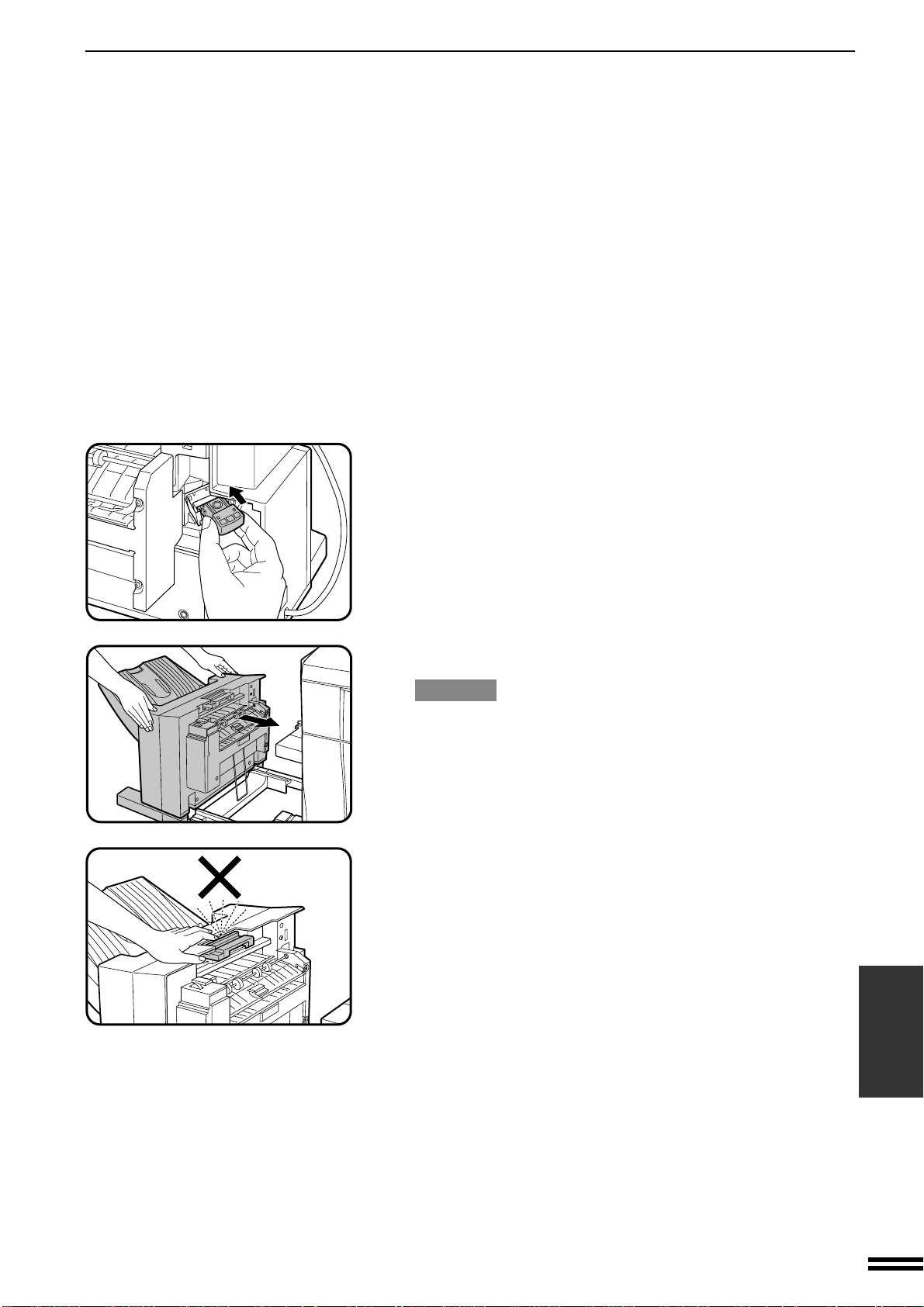
7-25
CHAPTER7
OPTIONAL EQUIPMENT
Finisher (AR-FN4)
FINISHER (AR-FN4)
5
Insert the staple box into the stapler unit until it clicks in
place.
6
Push the finisher toward the copier and latch it in place.
CAUTION
Use caution while latching the finisher into place.
To prevent pinching your fingers, do not place your hand or fingers
on the release lever while moving the finisher toward the copier.
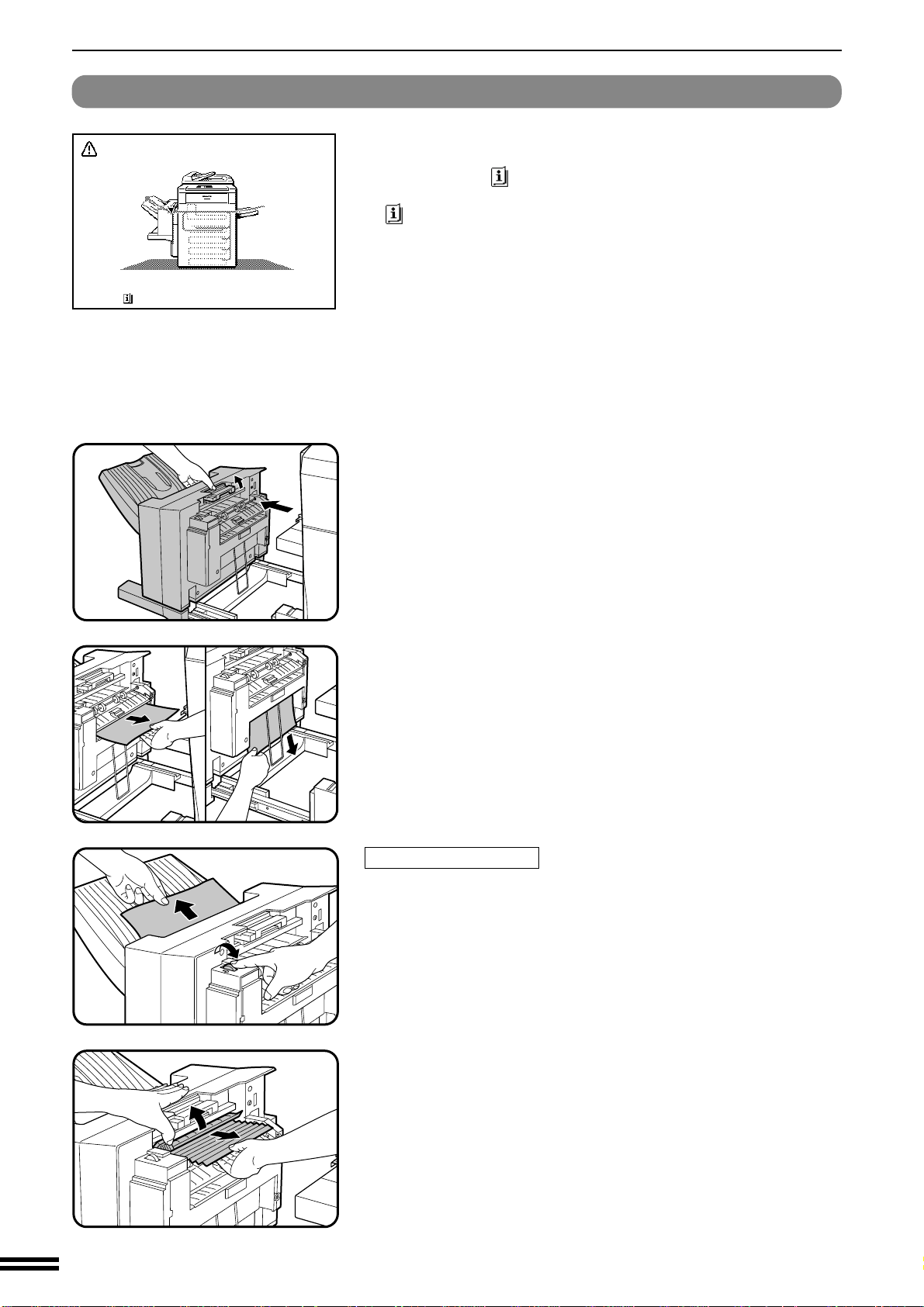
7-26
CHAPTER7
OPTIONAL EQUIPMENT
Finisher (AR-FN4)
FINISHER (AR-FN4)
Misfeed removal
1
While holding the finisher release lever, slide the finisher
away from the copier.
2
Remove the misfed paper from the finisher or from the
exit area of the copier.
Misfeed in the finisher
When a misfeed occurs in the finisher, turn the roller rotating knob in
the direction of arrow. The misfed paper will be delivered to the offset
tray. If the paper is not delivered to the offset tray, open the paper guide
as shown and remove the paper.
MISFEED HAS OCCURRED.
CLEAR INDICATED AREA.
PRESS FOR RECOVERY INSTRUCTIONS.
The copier will stop when a misfeed occurs.
The message “MISFEED HAS OCCURRED. CLEAR INDICATED
AREA. PRESS FOR RECOVERY INSTRUCTIONS.” will appear
with a display of paper misfeed locations. Press the INFORMATION
( ) key for more detailed information as necessary.
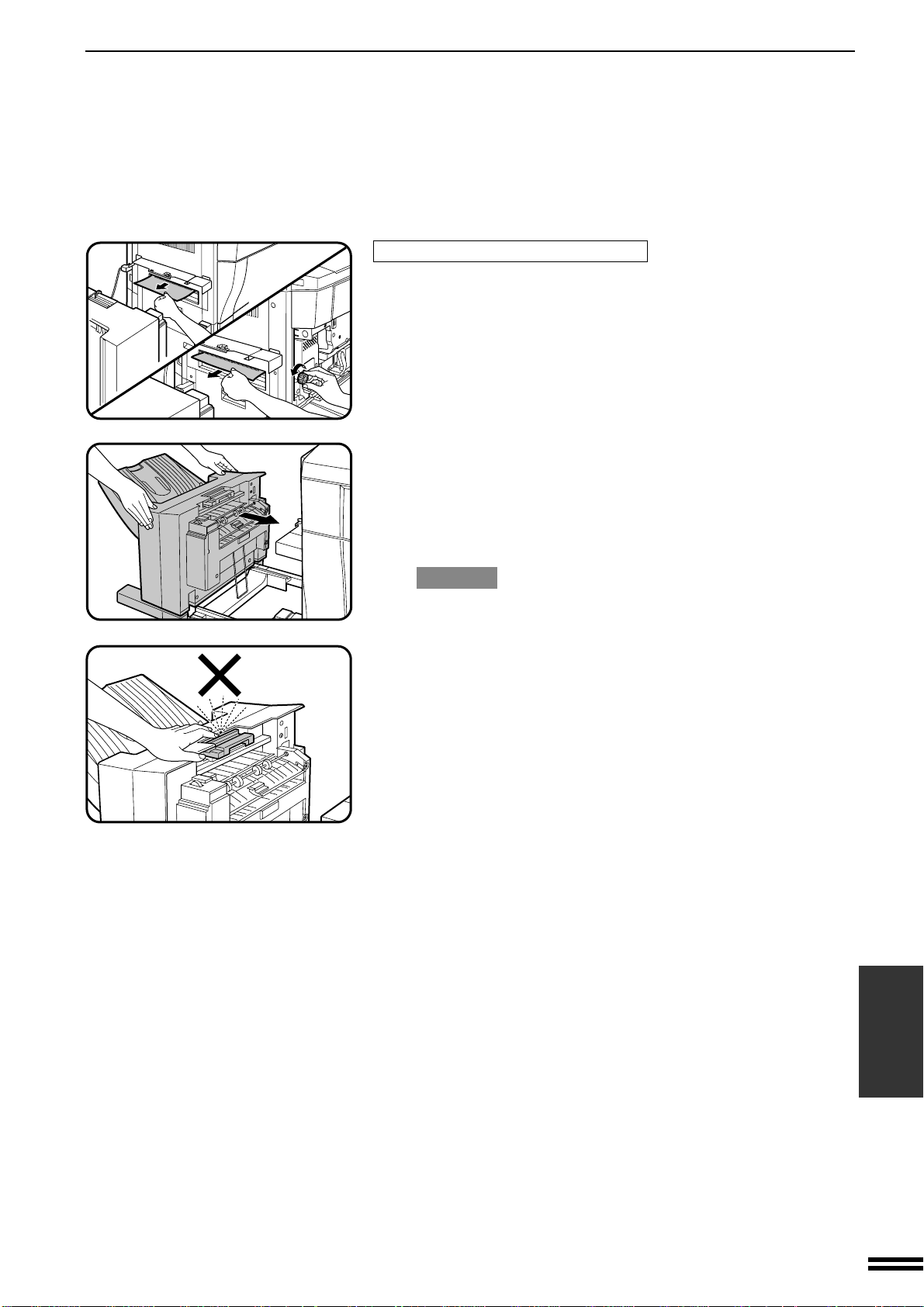
7-27
CHAPTER7
OPTIONAL EQUIPMENT
Finisher (AR-FN4)
FINISHER (AR-FN4)
Misfeed in the exit area of the copier
When misfed paper is lodged in the fusing roller of the copier and can
not be pulled out, open the front cover of the copier and turn the roller
rotating knob in the direction of arrow to remove the misfed paper.
3
Push the finisher toward the copier and latch it in place.
●
Confirm that the misfeed display is cleared.
●
If the message indicating a misfeed is still displayed, check the
inside of the copier and remove any remaining misfed paper.
CAUTION
Use caution while latching the finisher into place.
To prevent pinching your fingers, do not place your hand or fingers
on the release lever while moving the finisher toward the copier.

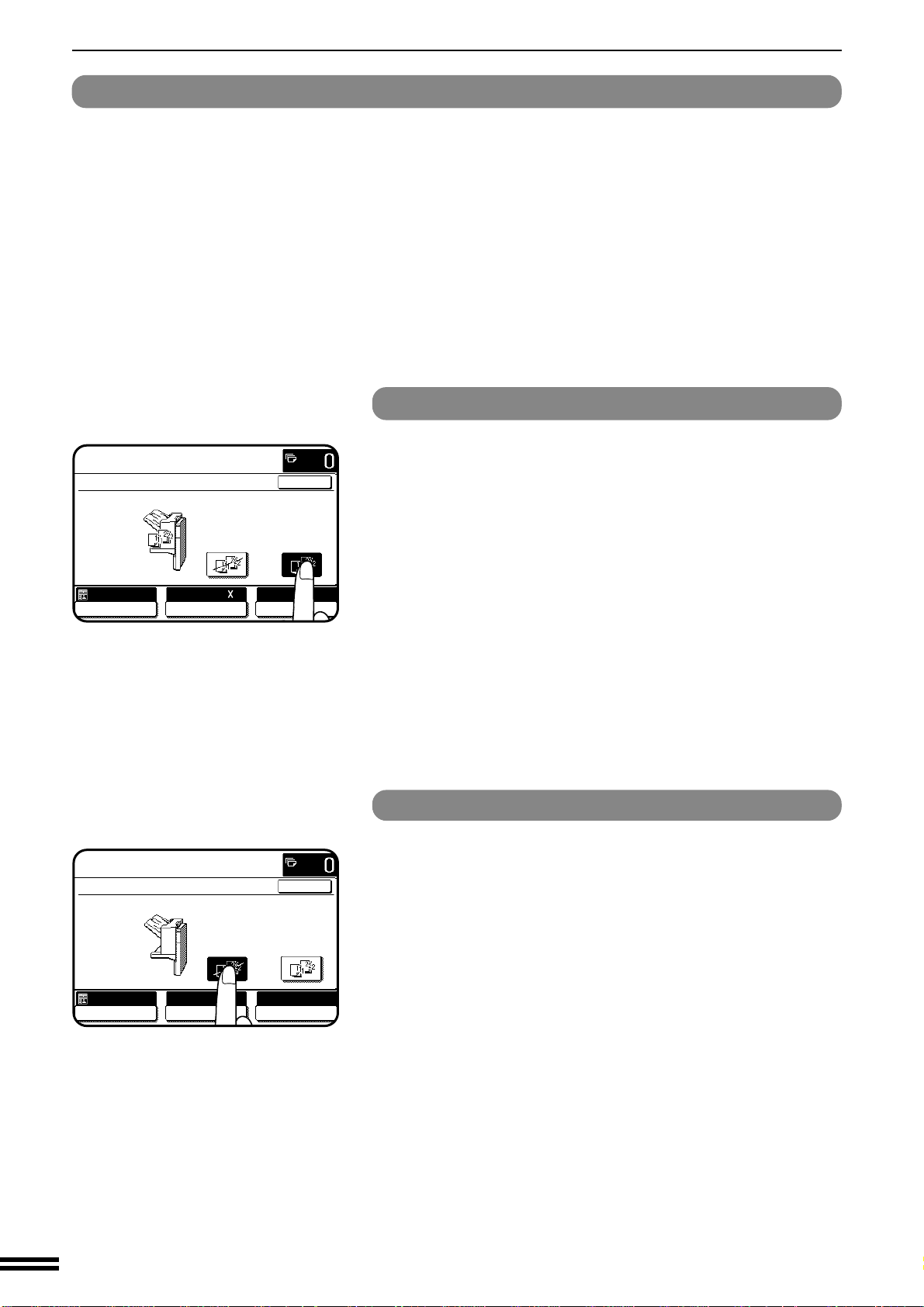
7-20
CHAPTER7
OPTIONAL EQUIPMENT
Finisher (AR-FN4)
FINISHER (AR-FN4)
OFFSET mode
When making copies, the output tray will shift from its
previous position by approximately 0.8 inches (20 mm)
each time a “START” key is pressed. In this way, the set in
progress will be offset from the previous set. Copies in the
size of 5-1/2" x 8-1/2", 8-1/2" x 11", 8-1/2" x 11"R, 8-1/2" x
13", 8-1/2" x 14" and 11"x 17" can be offset.
NON OFFSET mode
All copies will be aligned in one stack in the tray with no
offset.
Offset stack
In the initial settings, the offset stack function is set to off. To enable
the offset stack function, press the “OUTPUT” key and then touch the
“OFFSET” icon on the touch panel. To disable the “OFFSET”
function, press the “OUTPUT” key and then touch the “NON
OFFSET” icon. When the offset function is selected, the output tray
will move side to side each time a set is output so that each set is
offset by approximately 0.8 inches (20 mm) from the previous set.
OUTPUT
NON OFFSET OFFSET
OK
AUTO
EXPOSURE PAPER SELECT
100%
COPY RATIO
8/ 11
AUTO
1
2
READY TO COPY.
OUTPUT
NON OFFSET OFFSET
OK
AUTO
EXPOSURE PAPER SELECT
100%
COPY RATIO
8/ 11
AUTO
1
2
READY TO COPY.
NOTE:
Some type or quality of paper might cause tight curl when it is output.
In this case, remove the paper out of the paper tray or the bypass tray
and reload it upside down.
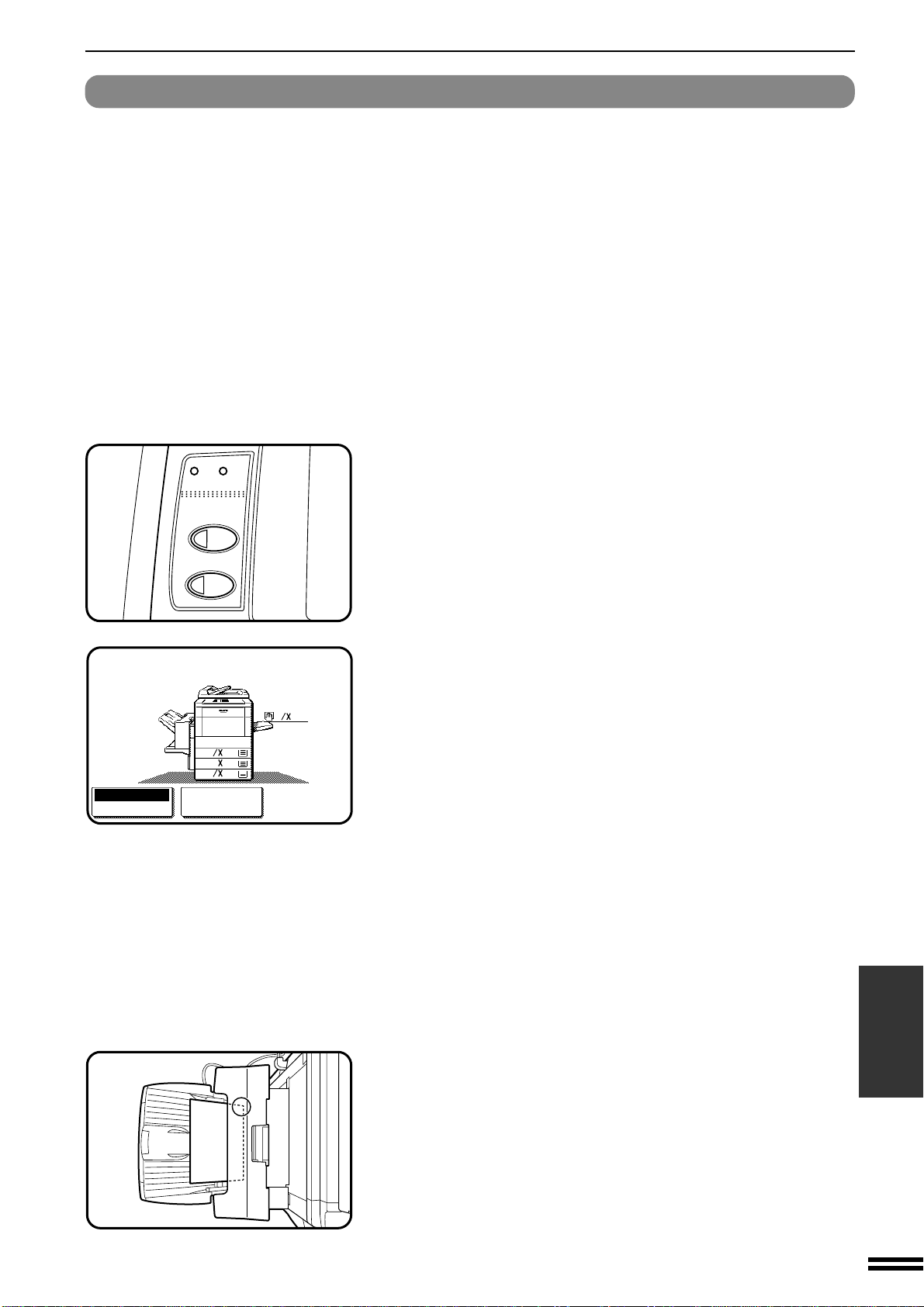
7-21
CHAPTER7
OPTIONAL EQUIPMENT
Finisher (AR-FN4)
FINISHER (AR-FN4)
Staple print* (*In the PRINT mode only)
The staple print mode can be selected for stapling printed sets in the
size of 5-1/2" x 8-1/2", 8-1/2" x 11", 8-1/2" x 11"R, 8-1/2" x 13",
8-1/2" x 14" and 11" x 17".
NOTE:
In the COPIER mode, which delivers the paper face up, this function
is not available.
1
Check the operation panel to confirm that the ONLINE
indicator is lit. If not lit, press the “PRINT” key to enter
the print mode and then press the ONLINE key on the
touch panel.
●
An optional printer connection kit (AR-PX2) and an optional
printer controller (AR-PE1) are needed for the printing from
computer.
2
Check the paper tray(s) to ensure that the desired paper
is loaded.
●
The maximum number of sheets for stapling is 20 for paper in the
size of 5-1/2" x 8-1/2", 8-1/2" x 11", 8-1/2" x 11"R, 8-1/2" x 13",
or 8-1/2" x 14" paper and 15 for 11" x 17" paper. If the maximum
is exceeded, the sheets will not be stapled.
●
Ensure that no paper remains in the output tray. Stapling will not
be done if paper remains at the start of the print job.
3
Make all print selections by the printer driver at your
computer and give the print command.
●
Refer to the documentation for the computer and/or the application
software for help on issuing the necessary commands.
4
The printed output will be stapled.
●
The printed sets will be delivered face down with one staple in
their top left edge.
PRINT
COPY
DATA
ON LINE
1.
8
11
1
2
8
11R
1
2
2.
1711
3.
8
14
1
2
READY TO PRINT.
ONLINE
OFFLINE
PAPER SELECT
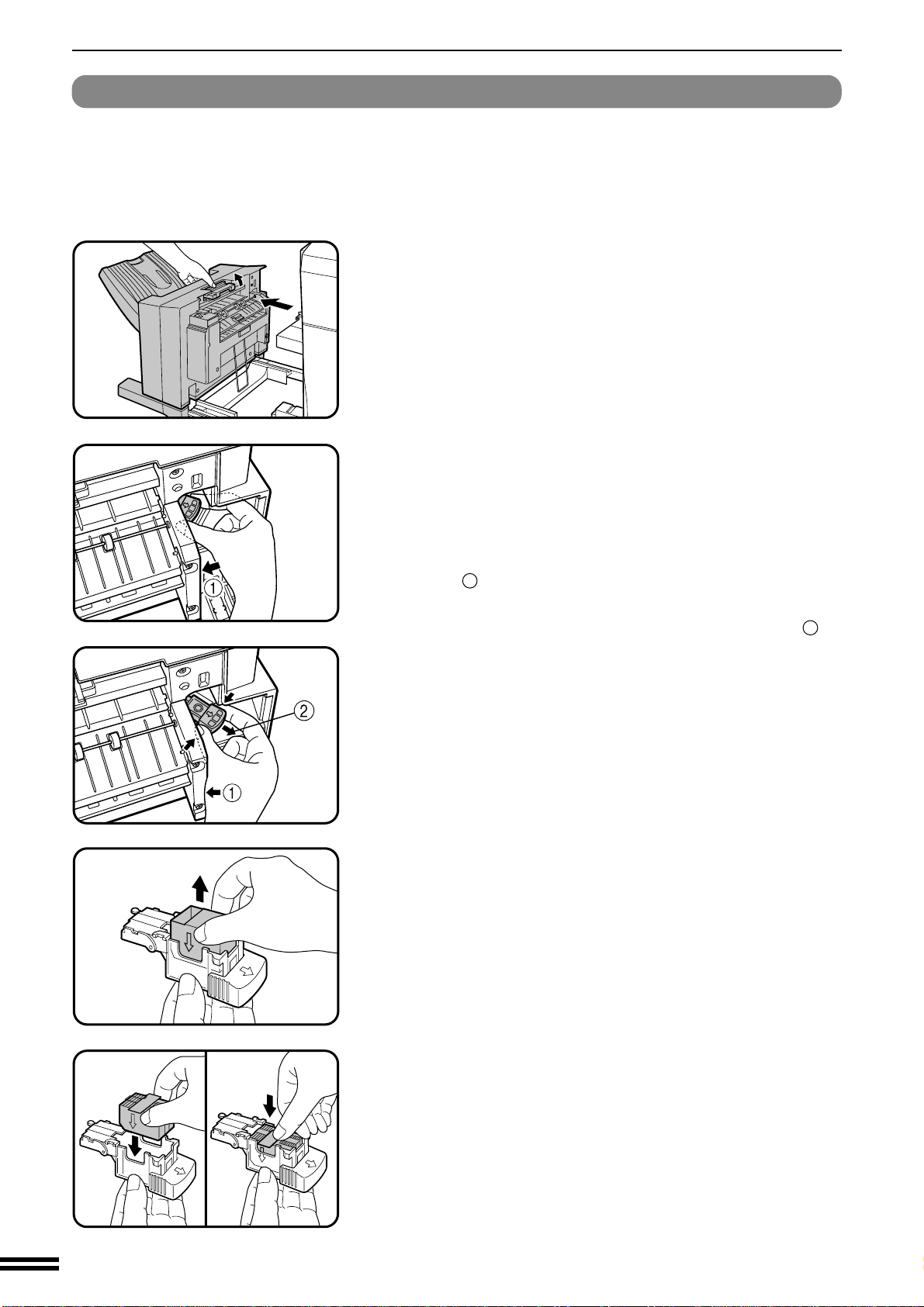
7-22
CHAPTER7
OPTIONAL EQUIPMENT
Finisher (AR-FN4)
FINISHER (AR-FN4)
Staple cartridge replacement
When the staple cartridge is empty, the message “SLIDE THE
FINISHER AWAY FROM THE COPIER AND ADD STAPLES.” will
appear.
Replace the staple as follows:
1
While holding the finisher release lever, slide the finisher
away from the copier.
2
Pull out the staple box.
●
To prevent bumping or scraping your hand during removal of the
staple box, proceed as shown in the illustration and as follows:
Grasp the staple box with your thumb and index finger, and place
the heel of your hand against the finisher frame as shown with
arrow
1
in the illustration.
Remove the staple box in the direction of the arrow
2
by
squeezing with your fingers and rotating against the heel of your
hand.
3
Remove the empty staple cartridge from inside the
staple box.
4
Insert the new staple cartridge into the box until it clicks
in place.
●
Insert the new cartridge by aligning the arrows on the cartridge
with those on the box. Check that the cartridge locks in place by
pulling it slightly.
●
The cartridge holds 3,000 staples.
NOTE:
Be sure to remove the rear paper and tape before inserting the
cartridge.
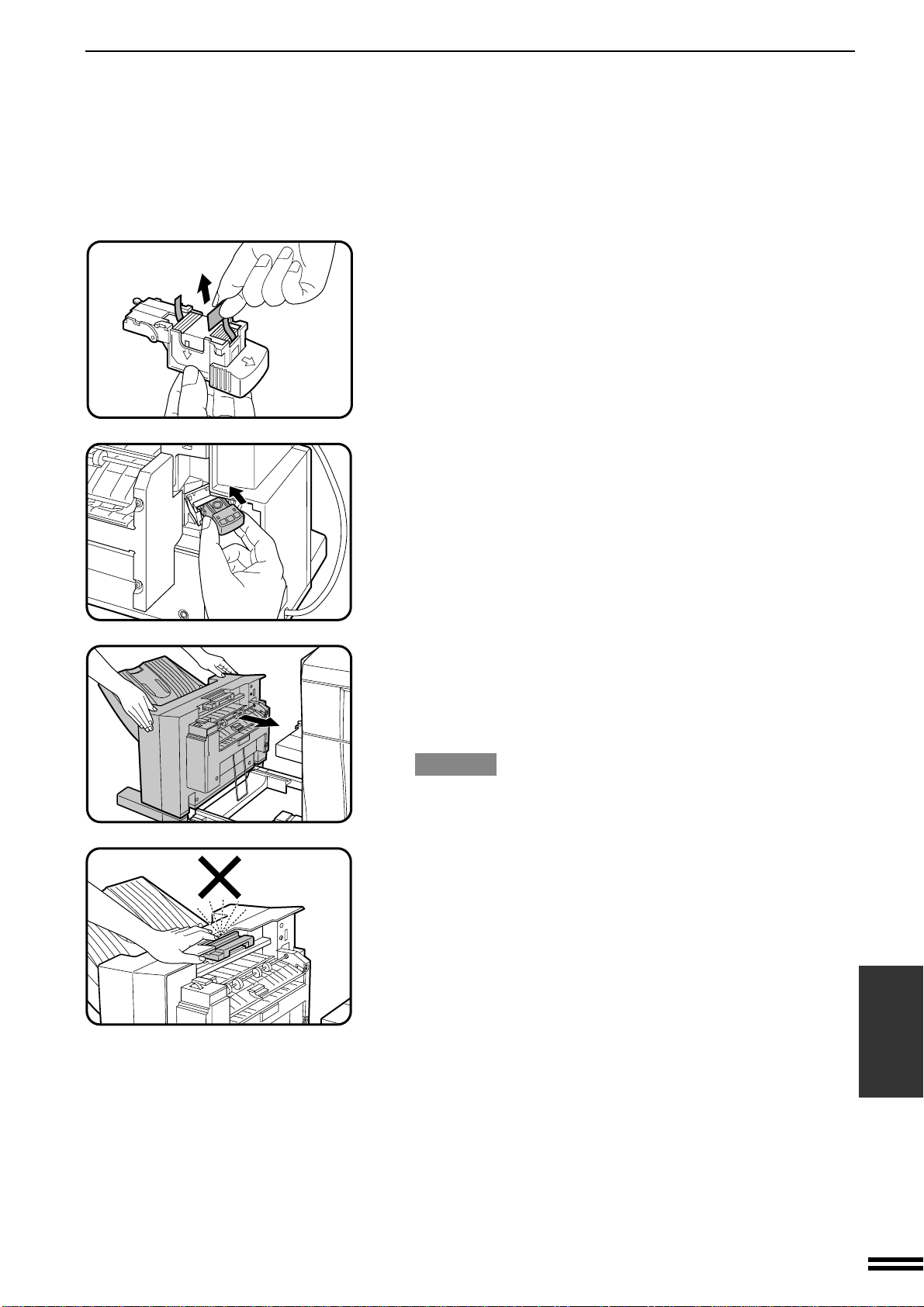
7-23
CHAPTER7
OPTIONAL EQUIPMENT
Finisher (AR-FN4)
FINISHER (AR-FN4)
5
Remove the rear paper and tape from the cartridge.
●
Pull them straight. If they are pulled obliquely, the tape may be
torn.
6
Insert the staple box into the stapler until it clicks in
place.
7
Push the finisher toward the copier and latch it in place.
●
If the stapler does not work properly after cartridge installation,
it may have a jammed staple in it. See next page.
●
Staples for the finisher are available from your Sharp dealer.
CAUTION
Use caution while latching the finisher into place.
To prevent pinching your fingers, do not place your hand or fingers
on the release lever while moving the finisher toward the copier.
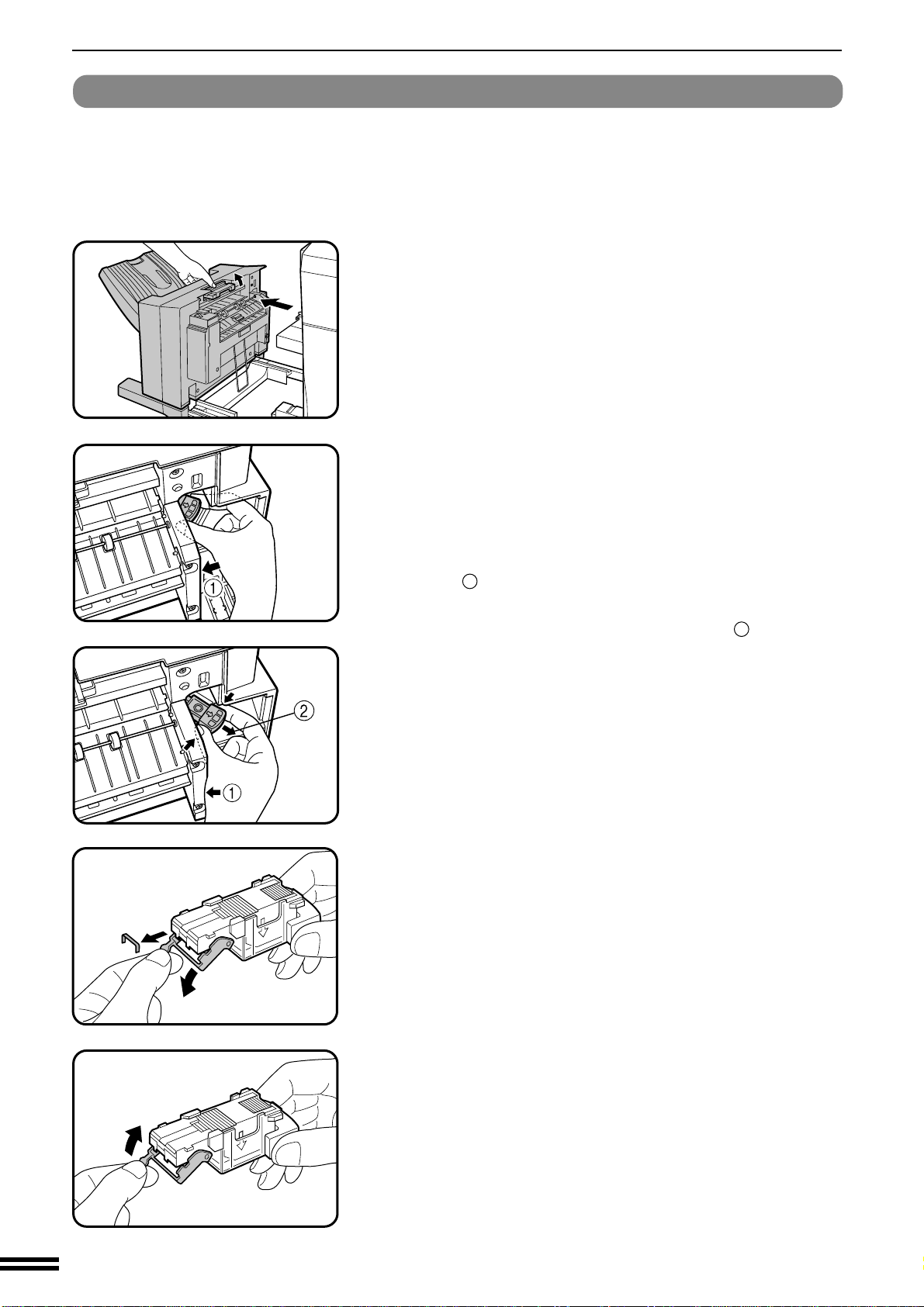
7-24
CHAPTER7
OPTIONAL EQUIPMENT
Finisher (AR-FN4)
FINISHER (AR-FN4)
Staple jam removal
If staples become jammed in the stapler, the message “CHECK
STAPLER POSITION OR STAPLE JAM” will appear. Remove the
jammed staples in the manner described below:
1
While holding the finisher release lever, slide the finisher
away from the copier.
2
Pull out the staple box.
●
To prevent bumping or scraping your hand during removal of the
staple box, proceed as shown in the illustration and as follows:
Grasp the staple box with your thumb and index finger, and place
the heel of your hand against the finisher frame as shown with
arrow
1
in the illustration.
Remove the staple box in the direction of arrow
2
by squeezing
with your fingers and rotating against the heel of your hand.
3
Lower the lever at the end of the staple box and remove
the jammed staples.
4
Return the lever to its original position.
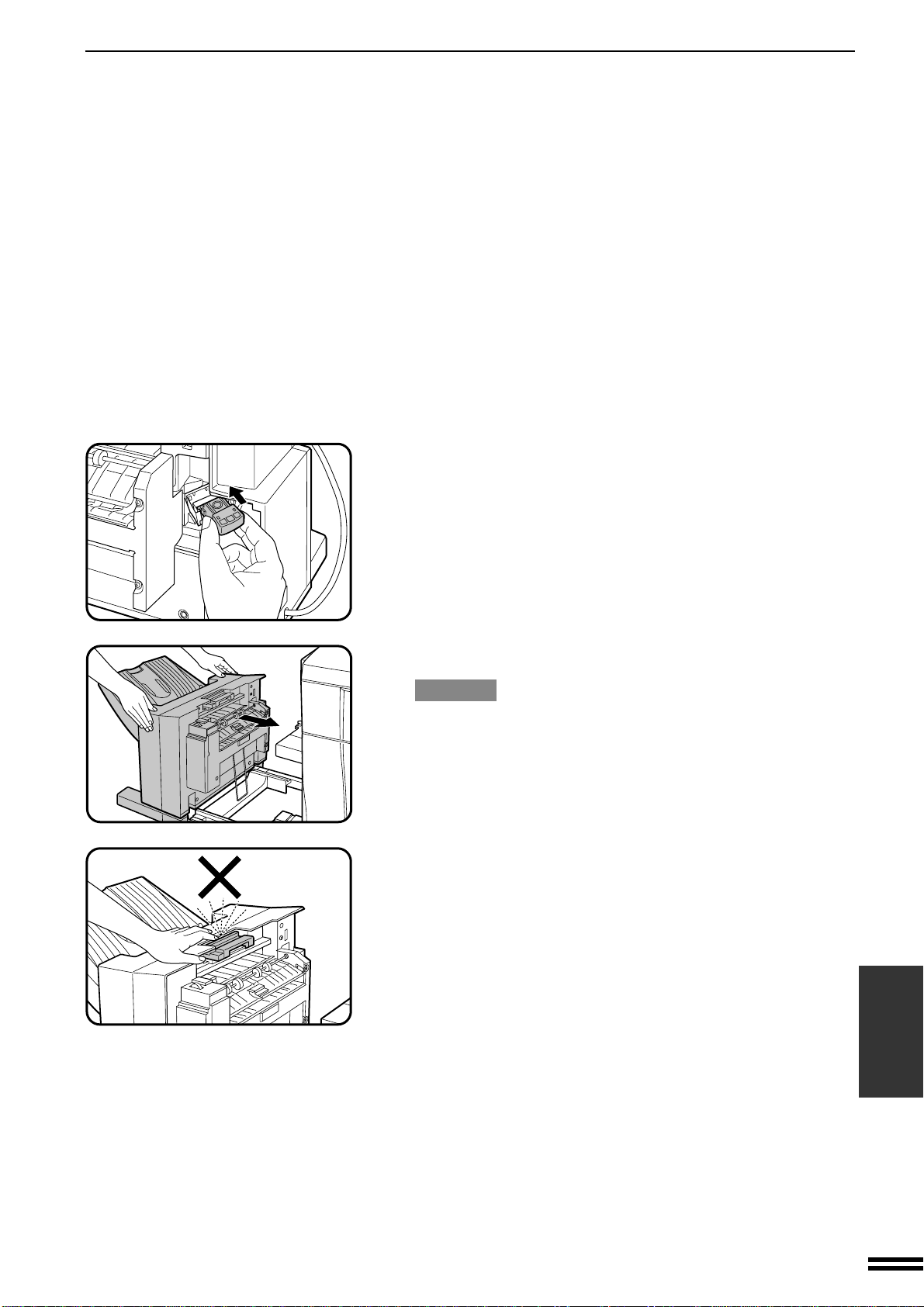
7-25
CHAPTER7
OPTIONAL EQUIPMENT
Finisher (AR-FN4)
FINISHER (AR-FN4)
5
Insert the staple box into the stapler unit until it clicks in
place.
6
Push the finisher toward the copier and latch it in place.
CAUTION
Use caution while latching the finisher into place.
To prevent pinching your fingers, do not place your hand or fingers
on the release lever while moving the finisher toward the copier.
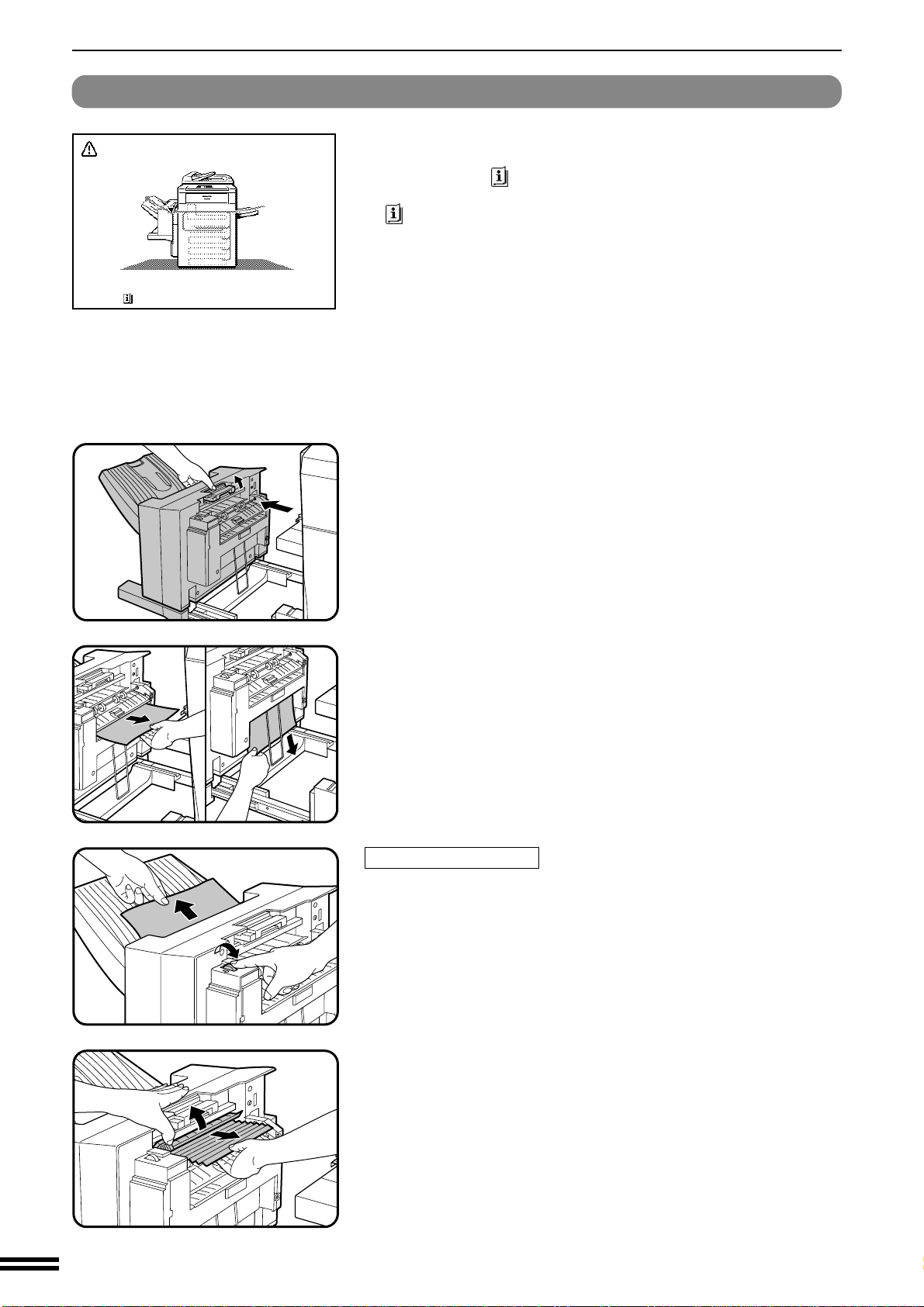
7-26
CHAPTER7
OPTIONAL EQUIPMENT
Finisher (AR-FN4)
FINISHER (AR-FN4)
Misfeed removal
1
While holding the finisher release lever, slide the finisher
away from the copier.
2
Remove the misfed paper from the finisher or from the
exit area of the copier.
Misfeed in the finisher
When a misfeed occurs in the finisher, turn the roller rotating knob in
the direction of arrow. The misfed paper will be delivered to the offset
tray. If the paper is not delivered to the offset tray, open the paper guide
as shown and remove the paper.
MISFEED HAS OCCURRED.
CLEAR INDICATED AREA.
PRESS FOR RECOVERY INSTRUCTIONS.
The copier will stop when a misfeed occurs.
The message “MISFEED HAS OCCURRED. CLEAR INDICATED
AREA. PRESS FOR RECOVERY INSTRUCTIONS.” will appear
with a display of paper misfeed locations. Press the INFORMATION
( ) key for more detailed information as necessary.
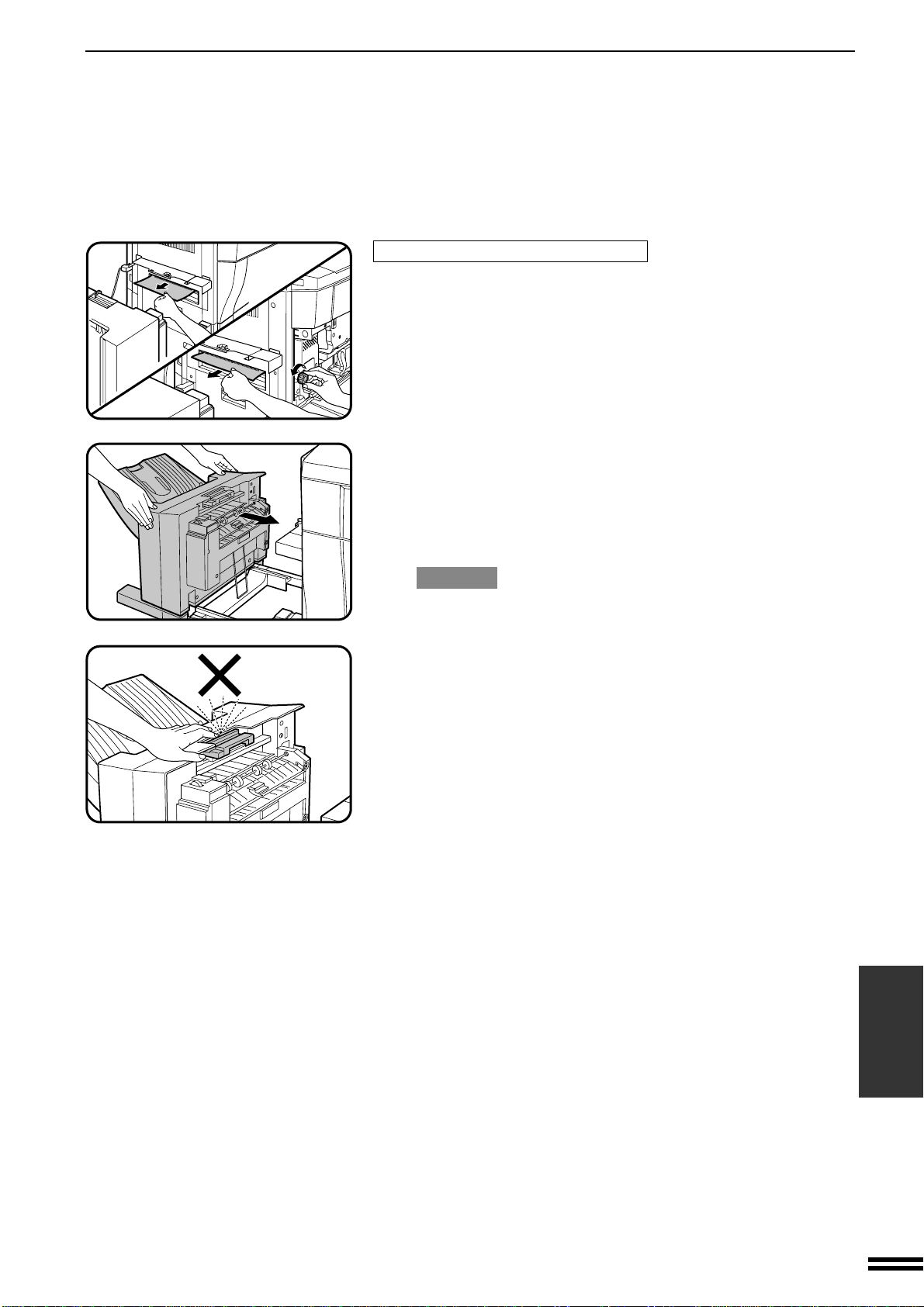
7-27
CHAPTER7
OPTIONAL EQUIPMENT
Finisher (AR-FN4)
FINISHER (AR-FN4)
Misfeed in the exit area of the copier
When misfed paper is lodged in the fusing roller of the copier and can
not be pulled out, open the front cover of the copier and turn the roller
rotating knob in the direction of arrow to remove the misfed paper.
3
Push the finisher toward the copier and latch it in place.
●
Confirm that the misfeed display is cleared.
●
If the message indicating a misfeed is still displayed, check the
inside of the copier and remove any remaining misfed paper.
CAUTION
Use caution while latching the finisher into place.
To prevent pinching your fingers, do not place your hand or fingers
on the release lever while moving the finisher toward the copier.

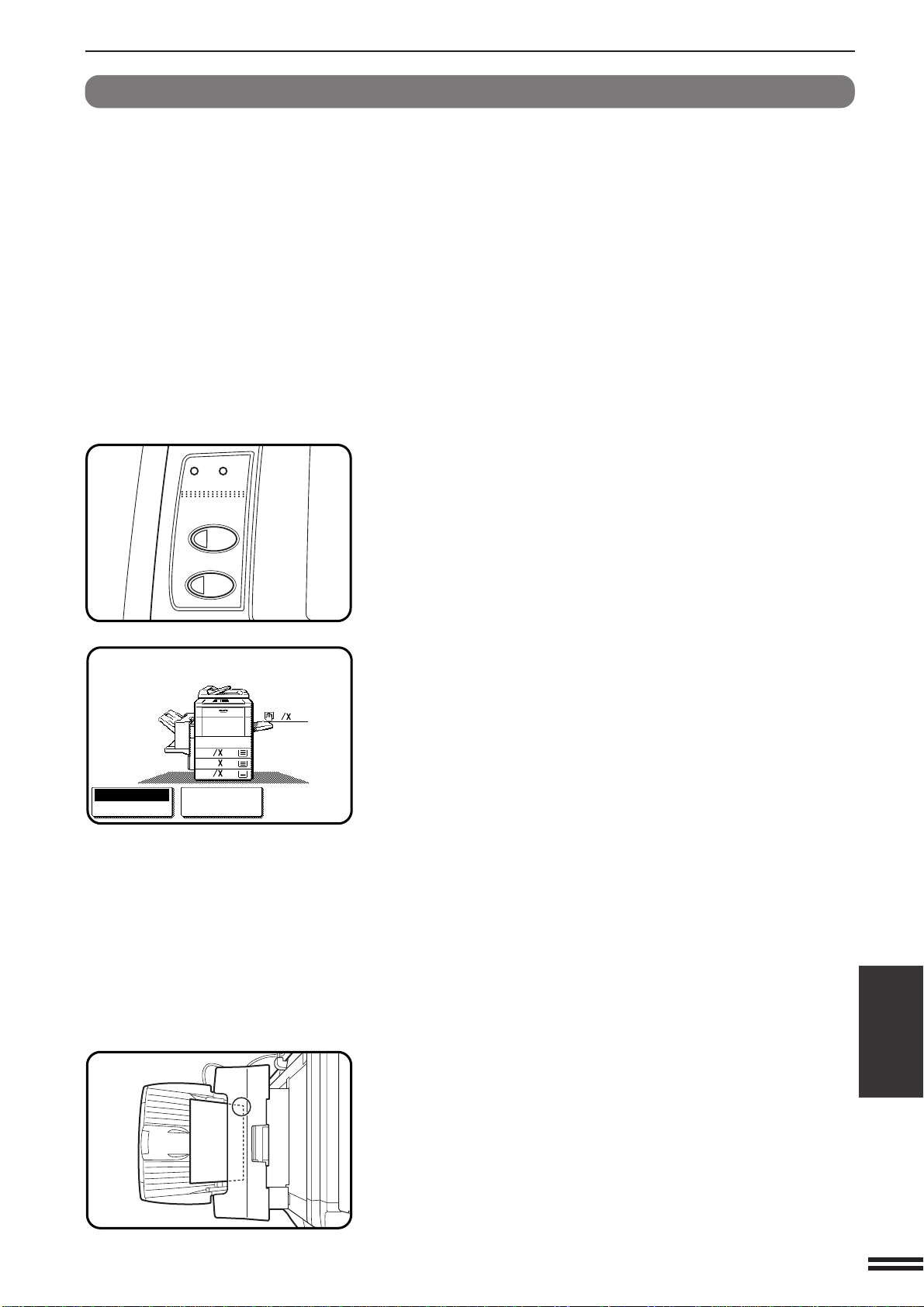
7-21
CHAPTER7
OPTIONAL EQUIPMENT
Finisher (AR-FN4)
FINISHER (AR-FN4)
Staple print* (*In the PRINT mode only)
The staple print mode can be selected for stapling printed sets in the
size of 5-1/2" x 8-1/2", 8-1/2" x 11", 8-1/2" x 11"R, 8-1/2" x 13",
8-1/2" x 14" and 11" x 17".
NOTE:
In the COPIER mode, which delivers the paper face up, this function
is not available.
1
Check the operation panel to confirm that the ONLINE
indicator is lit. If not lit, press the “PRINT” key to enter
the print mode and then press the ONLINE key on the
touch panel.
●
An optional printer connection kit (AR-PX2) and an optional
printer controller (AR-PE1) are needed for the printing from
computer.
2
Check the paper tray(s) to ensure that the desired paper
is loaded.
●
The maximum number of sheets for stapling is 20 for paper in the
size of 5-1/2" x 8-1/2", 8-1/2" x 11", 8-1/2" x 11"R, 8-1/2" x 13",
or 8-1/2" x 14" paper and 15 for 11" x 17" paper. If the maximum
is exceeded, the sheets will not be stapled.
●
Ensure that no paper remains in the output tray. Stapling will not
be done if paper remains at the start of the print job.
3
Make all print selections by the printer driver at your
computer and give the print command.
●
Refer to the documentation for the computer and/or the application
software for help on issuing the necessary commands.
4
The printed output will be stapled.
●
The printed sets will be delivered face down with one staple in
their top left edge.
PRINT
COPY
DATA
ON LINE
1.
8
11
1
2
8
11R
1
2
2.
1711
3.
8
14
1
2
READY TO PRINT.
ONLINE
OFFLINE
PAPER SELECT
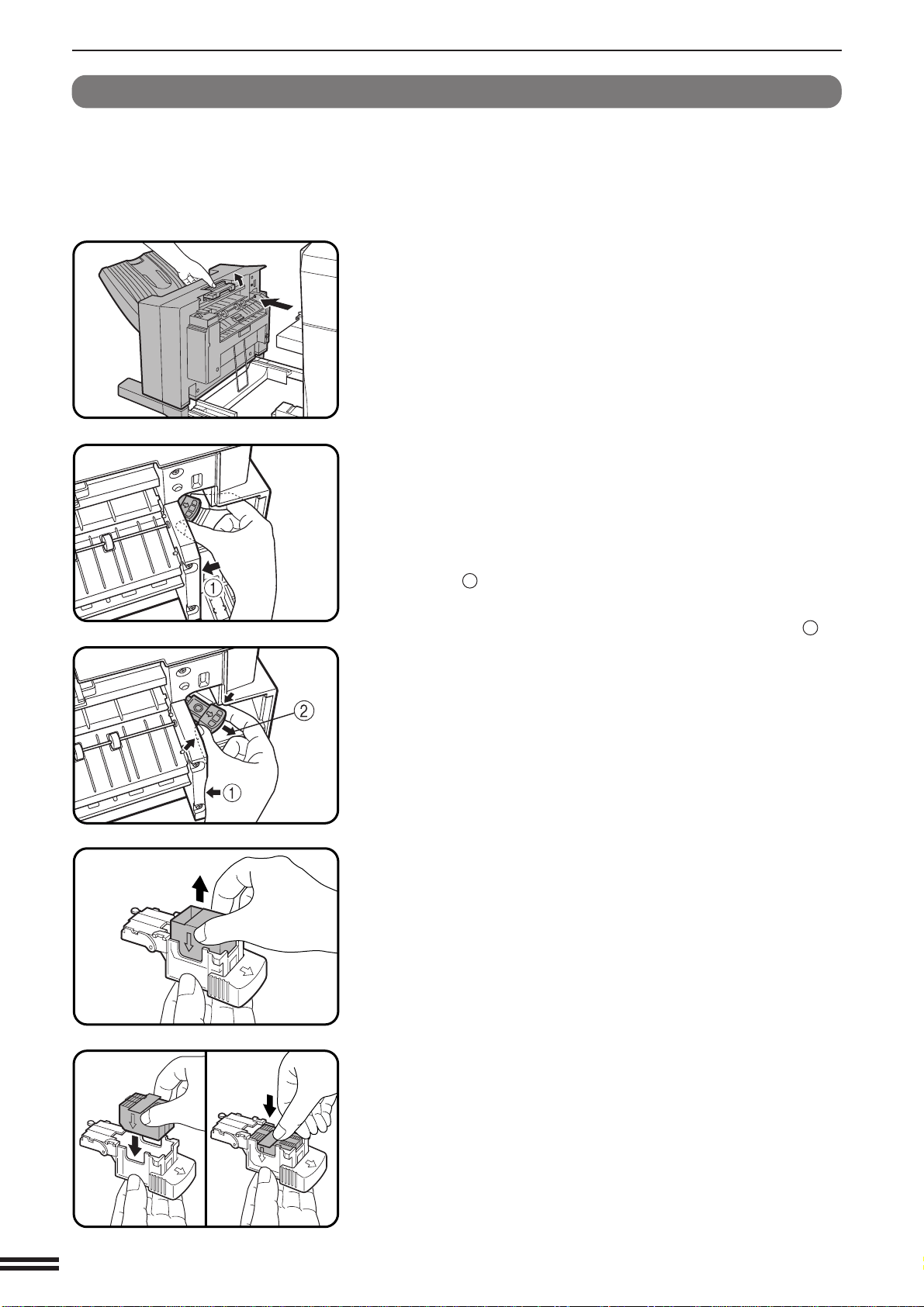
7-22
CHAPTER7
OPTIONAL EQUIPMENT
Finisher (AR-FN4)
FINISHER (AR-FN4)
Staple cartridge replacement
When the staple cartridge is empty, the message “SLIDE THE
FINISHER AWAY FROM THE COPIER AND ADD STAPLES.” will
appear.
Replace the staple as follows:
1
While holding the finisher release lever, slide the finisher
away from the copier.
2
Pull out the staple box.
●
To prevent bumping or scraping your hand during removal of the
staple box, proceed as shown in the illustration and as follows:
Grasp the staple box with your thumb and index finger, and place
the heel of your hand against the finisher frame as shown with
arrow
1
in the illustration.
Remove the staple box in the direction of the arrow
2
by
squeezing with your fingers and rotating against the heel of your
hand.
3
Remove the empty staple cartridge from inside the
staple box.
4
Insert the new staple cartridge into the box until it clicks
in place.
●
Insert the new cartridge by aligning the arrows on the cartridge
with those on the box. Check that the cartridge locks in place by
pulling it slightly.
●
The cartridge holds 3,000 staples.
NOTE:
Be sure to remove the rear paper and tape before inserting the
cartridge.
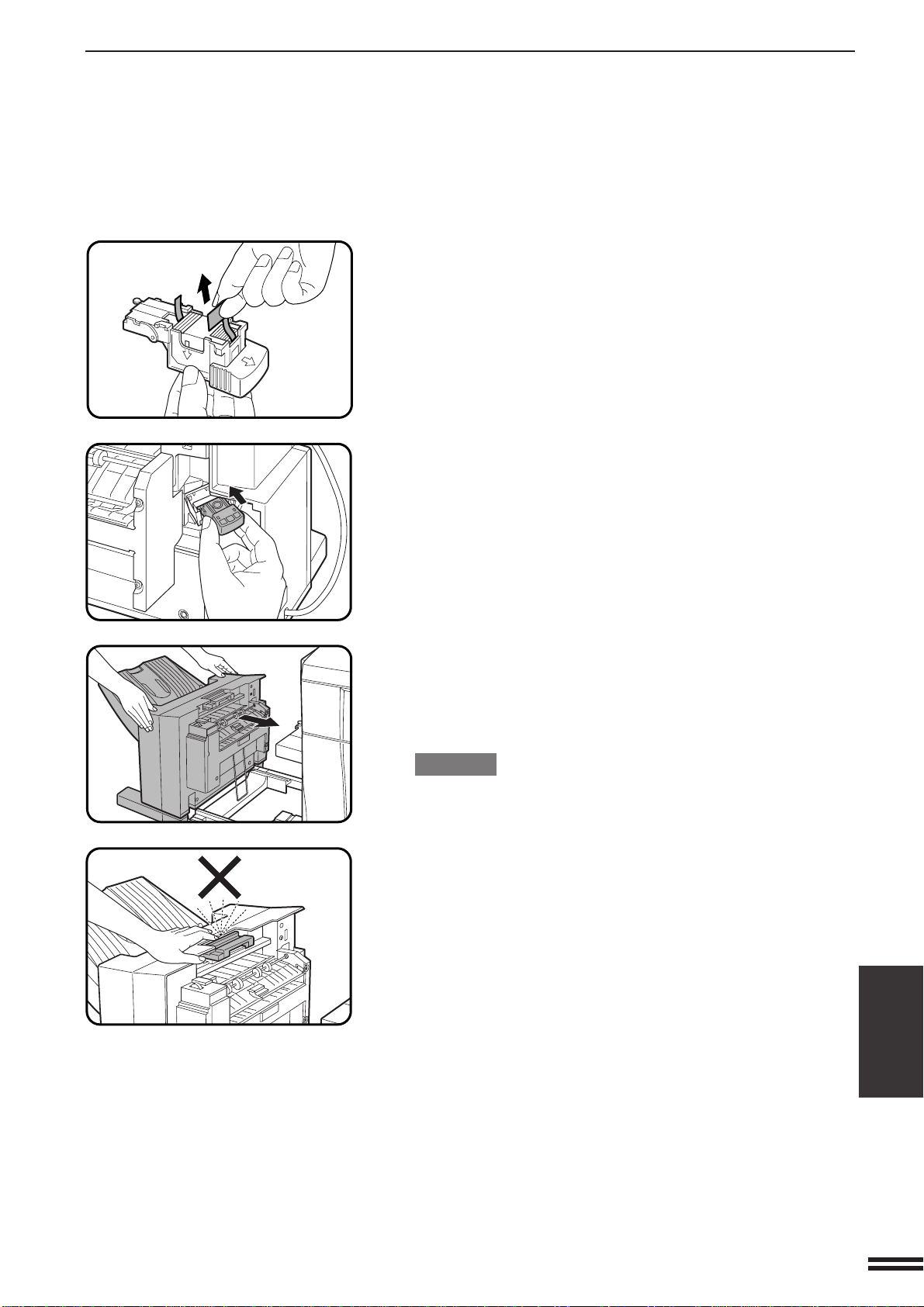
7-23
CHAPTER7
OPTIONAL EQUIPMENT
Finisher (AR-FN4)
FINISHER (AR-FN4)
5
Remove the rear paper and tape from the cartridge.
●
Pull them straight. If they are pulled obliquely, the tape may be
torn.
6
Insert the staple box into the stapler until it clicks in
place.
7
Push the finisher toward the copier and latch it in place.
●
If the stapler does not work properly after cartridge installation,
it may have a jammed staple in it. See next page.
●
Staples for the finisher are available from your Sharp dealer.
CAUTION
Use caution while latching the finisher into place.
To prevent pinching your fingers, do not place your hand or fingers
on the release lever while moving the finisher toward the copier.
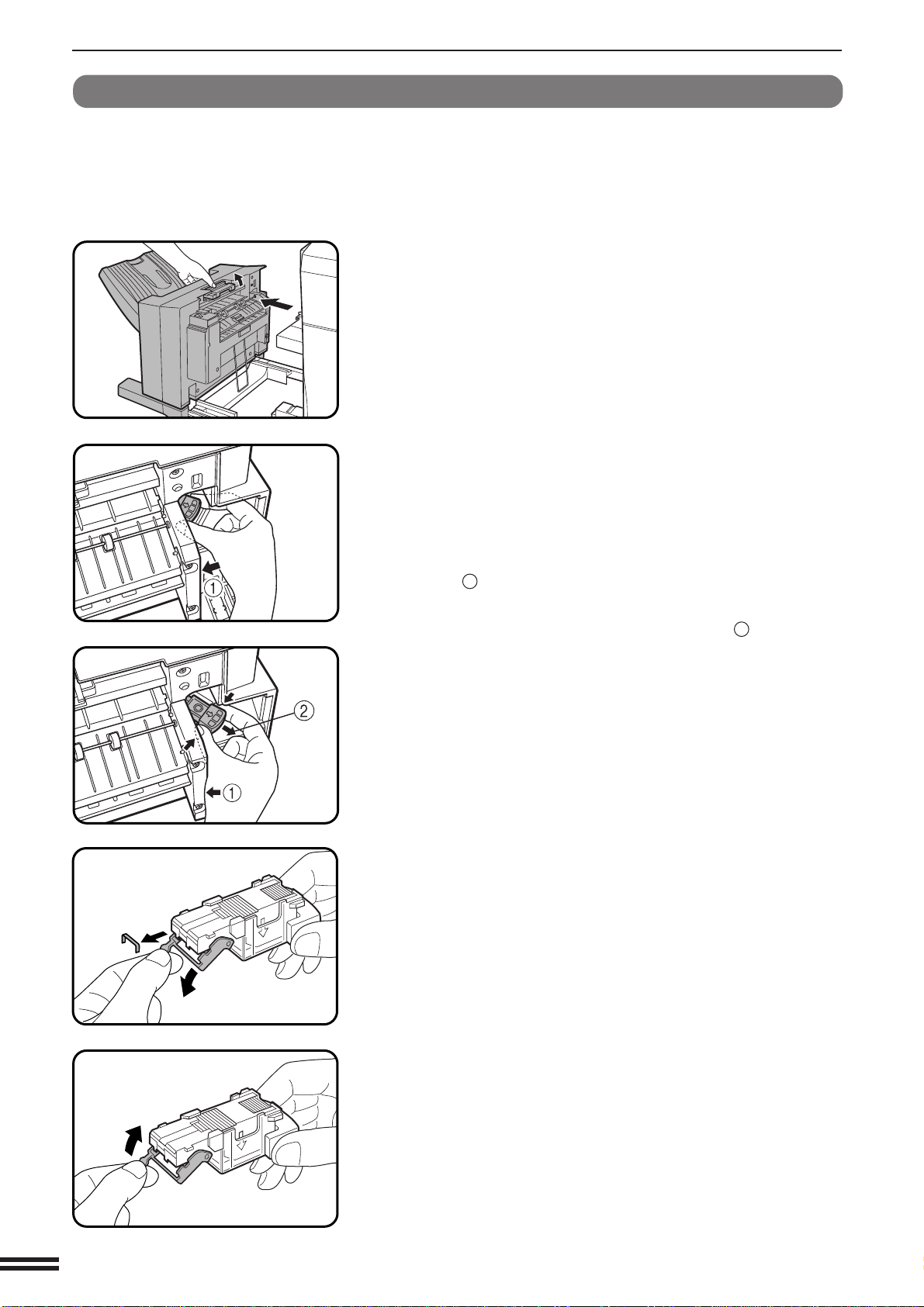
7-24
CHAPTER7
OPTIONAL EQUIPMENT
Finisher (AR-FN4)
FINISHER (AR-FN4)
Staple jam removal
If staples become jammed in the stapler, the message “CHECK
STAPLER POSITION OR STAPLE JAM” will appear. Remove the
jammed staples in the manner described below:
1
While holding the finisher release lever, slide the finisher
away from the copier.
2
Pull out the staple box.
●
To prevent bumping or scraping your hand during removal of the
staple box, proceed as shown in the illustration and as follows:
Grasp the staple box with your thumb and index finger, and place
the heel of your hand against the finisher frame as shown with
arrow
1
in the illustration.
Remove the staple box in the direction of arrow
2
by squeezing
with your fingers and rotating against the heel of your hand.
3
Lower the lever at the end of the staple box and remove
the jammed staples.
4
Return the lever to its original position.
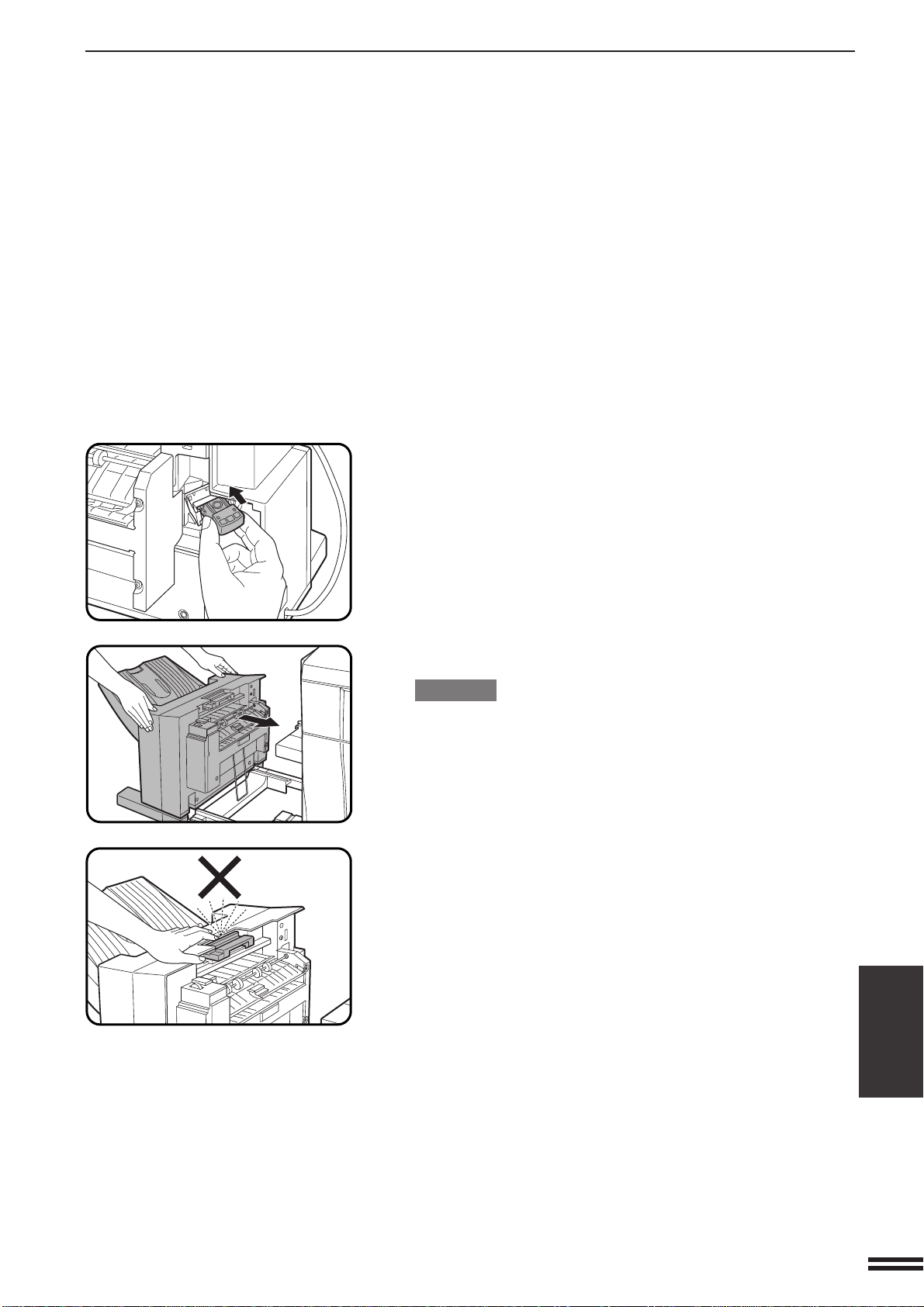
7-25
CHAPTER7
OPTIONAL EQUIPMENT
Finisher (AR-FN4)
FINISHER (AR-FN4)
5
Insert the staple box into the stapler unit until it clicks in
place.
6
Push the finisher toward the copier and latch it in place.
CAUTION
Use caution while latching the finisher into place.
To prevent pinching your fingers, do not place your hand or fingers
on the release lever while moving the finisher toward the copier.
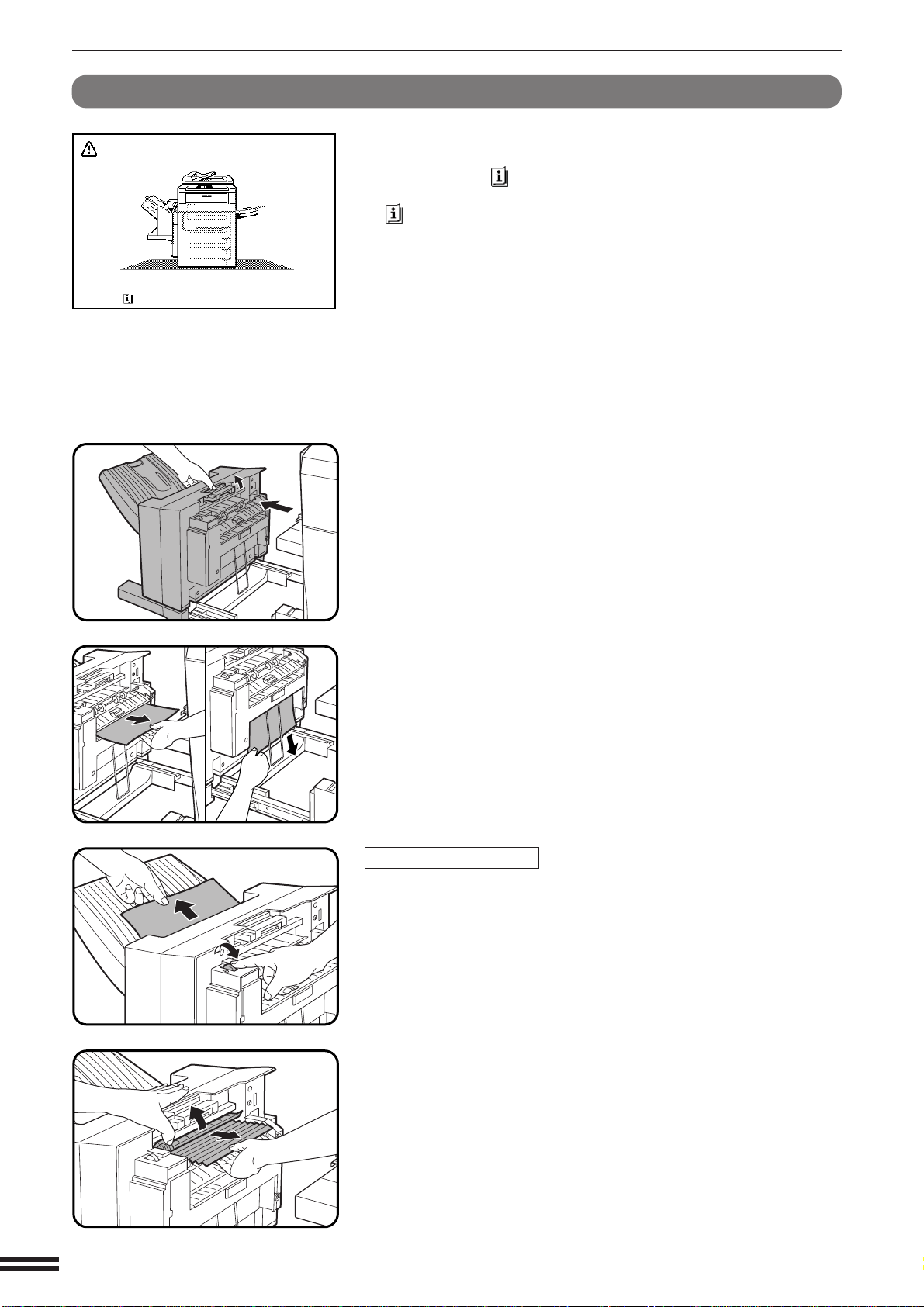
7-26
CHAPTER7
OPTIONAL EQUIPMENT
Finisher (AR-FN4)
FINISHER (AR-FN4)
Misfeed removal
1
While holding the finisher release lever, slide the finisher
away from the copier.
2
Remove the misfed paper from the finisher or from the
exit area of the copier.
Misfeed in the finisher
When a misfeed occurs in the finisher, turn the roller rotating knob in
the direction of arrow. The misfed paper will be delivered to the offset
tray. If the paper is not delivered to the offset tray, open the paper guide
as shown and remove the paper.
MISFEED HAS OCCURRED.
CLEAR INDICATED AREA.
PRESS FOR RECOVERY INSTRUCTIONS.
The copier will stop when a misfeed occurs.
The message “MISFEED HAS OCCURRED. CLEAR INDICATED
AREA. PRESS FOR RECOVERY INSTRUCTIONS.” will appear
with a display of paper misfeed locations. Press the INFORMATION
( ) key for more detailed information as necessary.
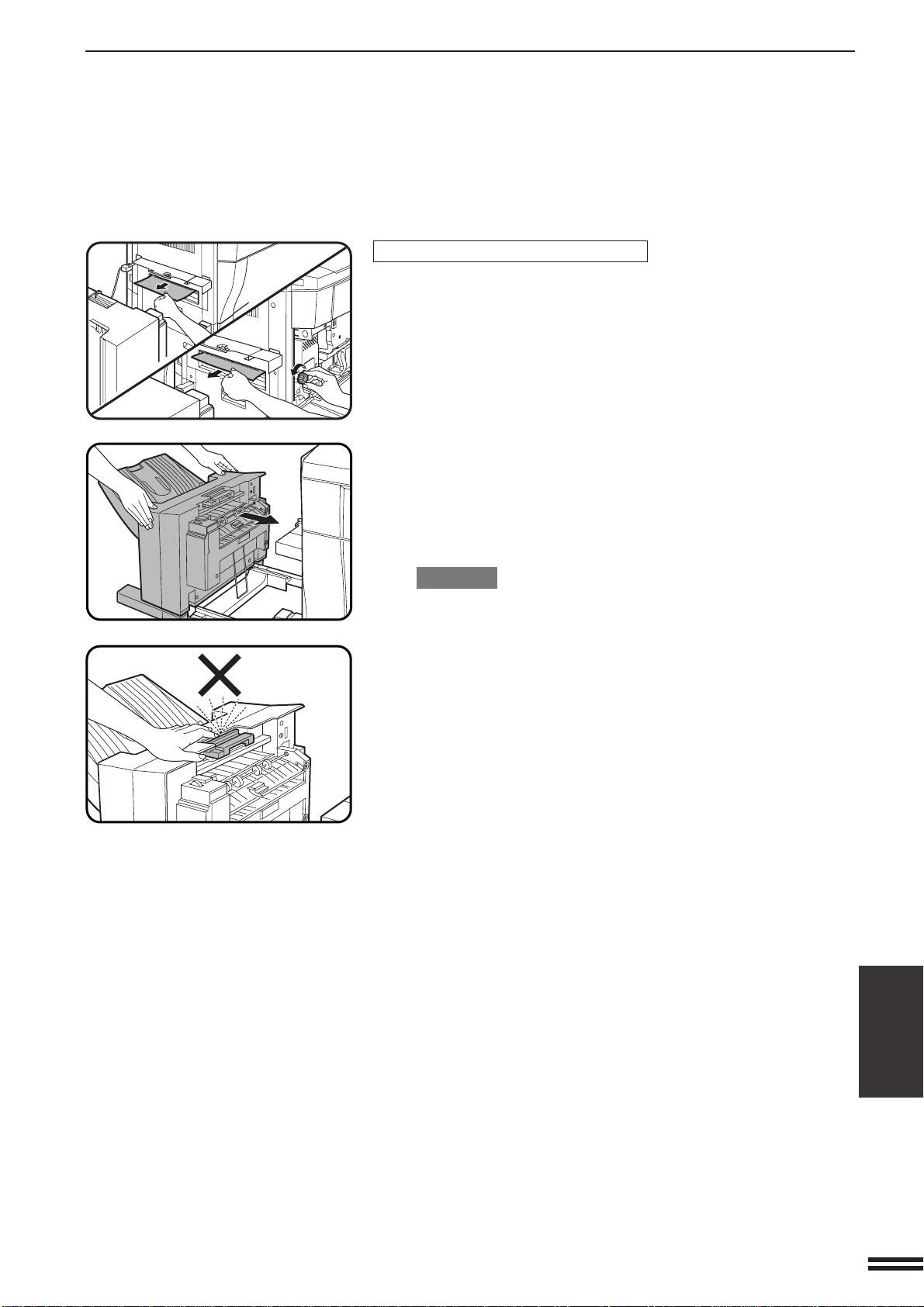
7-27
CHAPTER7
OPTIONAL EQUIPMENT
Finisher (AR-FN4)
FINISHER (AR-FN4)
Misfeed in the exit area of the copier
When misfed paper is lodged in the fusing roller of the copier and can
not be pulled out, open the front cover of the copier and turn the roller
rotating knob in the direction of arrow to remove the misfed paper.
3
Push the finisher toward the copier and latch it in place.
●
Confirm that the misfeed display is cleared.
●
If the message indicating a misfeed is still displayed, check the
inside of the copier and remove any remaining misfed paper.
CAUTION
Use caution while latching the finisher into place.
To prevent pinching your fingers, do not place your hand or fingers
on the release lever while moving the finisher toward the copier.


WARNING:
FCC Regulations state that any unauthorized changes or modifications to
this equipment not expressly approved by the manufacturer could void the
user's authority to operate this equipment.
Note:
This equipment has been tested and found to comply with the limits for a
Class A digital device, pursuant to Part 15 of the FCC Rules. These limits are
designed to provide reasonable protection against harmful interference when
the equipment is operated in a commercial environment. This equipment gen-
erates, uses, and can radiate radio frequency energy and, if not installed and
used in accordance with the operation manual, may cause harmful interfer-
ence to radio communications. Operation of this equipment in a residential area
is likely to cause harmful interference in which case the user will be required
to correct the interference at his own expense.
NOTICE
BE SURE TO ASK YOUR AUTHORIZED SHARP DEALER ABOUT THE WAR-
RANTY THAT YOUR SELLING DEALER EXTENDS TO YOU. In order to assure
you, the end-user, of warranty protection, Sharp extends a limited warranty to
each of its authorized dealers and, in turn, requires each of its authorized dealers
to extend its own warranty to you on terms that are no less favorable than those
given to the dealer by Sharp. You should be aware, however, that Sharp does not
itself extend any warranties, either express or implied, directly to you, the end-user
and no one is authorized to make any representations or warranties on behalf of
Sharp. Specifically, SHARP DOES NOT EXTEND TO YOU, THE END-USER, ANY
EXPRESS WARRANTY OR ANY IMPLIED WARRANTY OF MERCHANTABILITY,
FITNESS FOR USE OR FITNESS FOR ANY PARTICULAR PURPOSE IN CON-
NECTION WITH THE HARDWARE, SOFTWARE OR FIRMWARE EMBODIED
IN, OR USED IN CONJUNCTION WITH THIS PRODUCT. Sharp is not responsi-
ble for any damages or loss, either direct, incidental or consequential, which you,
the end-user, may experience as a result of your purchase or use of the hardware,
software or firmware embodied in or used in conjunction with this Product. Your
sole remedy, in the event that you encounter any difficulties with this Product, is
against the authorized dealer from which you purchased the Product.
In the event that this authorized dealer does not honor its warranty commitments,
please contact the General Manager , Business Products Group, Sharp Electronics
Corporation, Sharp Plaza, Mahwah, NJ 07430-2135, so that Sharp can try to help
assure complete satisfaction of all the warranty rights to which you are entitled
from the authorized dealer.

AR-C250
PRINTED IN JAPAN
2000E
KS1
TINSE2025FCZZ
SHARP ELECTRONICS CORPORATION
Sharp Plaza, Mahwah, New Jersey 07430-2135.
SHARP CORPORATION