User Guide
[UG template version 16a]
[spr_lg_G5_ug_en_110916_d4]

TOC i
Table of Contents
Getting Started .............................................................................................................................................. 1
Introduction ........................................................................................................................................... 2
About the User Guide ................................................................................................................... 2
Set Up Your Phone ............................................................................................................................... 3
Parts and Functions ...................................................................................................................... 3
Battery Use ................................................................................................................................... 5
Remove the Battery .............................................................................................................. 5
Insert the Battery ................................................................................................................... 6
Charge the Battery ................................................................................................................ 7
Nano SIM Card ............................................................................................................................. 8
microSD Card................................................................................................................................ 9
Insert a microSD Card .......................................................................................................... 9
Unmount the microSD Card ................................................................................................ 10
Remove microSD Card ....................................................................................................... 10
Format microSD Card ......................................................................................................... 10
Turn Your Phone On and Off ...................................................................................................... 11
Use the Touchscreen .................................................................................................................. 12
Activate Your Phone ................................................................................................................... 15
Complete the Setup Screens ...................................................................................................... 16
Basic Operations ................................................................................................................................. 18
Basics .......................................................................................................................................... 18
Home Screen and Applications (Apps) List ........................................................................ 18
Phone Settings Menu.......................................................................................................... 19
Portrait and Landscape Screen Orientation ....................................................................... 19
Capture Screenshots .......................................................................................................... 20
Applications ................................................................................................................................. 20
Launch Applications ............................................................................................................ 20
Preinstalled Apps ................................................................................................................ 21
Phone Number ............................................................................................................................ 23
Airplane Mode ............................................................................................................................. 23
Enter Text .................................................................................................................................... 24
Touchscreen Keyboards ..................................................................................................... 24
QWERTY Keyboard ............................................................................................................ 25

TOC ii
Phone Keyboard ................................................................................................................. 26
Tips for Editing Text ............................................................................................................ 27
Google Account .......................................................................................................................... 29
Create a Google Account ................................................................................................... 29
Sign into Your Google Account ........................................................................................... 30
Google Play Store ....................................................................................................................... 31
Find and Install an App ....................................................................................................... 31
Request a Refund for a Paid App ....................................................................................... 32
Update an App .................................................................................................................... 32
Uninstall an App .................................................................................................................. 33
Get Help with Google Play .................................................................................................. 33
Lock and Unlock Your Screen .................................................................................................... 33
Unlock Your Screen Using the Knock Code Feature ................................................................. 34
Update Your Phone .................................................................................................................... 35
Update Your Phone Software ............................................................................................. 35
Update Your Profile ............................................................................................................. 37
Update Your PRL ................................................................................................................ 38
Your Phone's Home Screen ................................................................................................................ 39
Home Screen Basics .................................................................................................................. 39
Home Screen Layout .......................................................................................................... 39
Extended Home Screens .................................................................................................... 40
Status Bar and Notification Panel ............................................................................................... 40
Status Bar ........................................................................................................................... 40
Notification Panel ................................................................................................................ 42
Customize the Home Screen ...................................................................................................... 43
Change the Wallpaper ........................................................................................................ 43
Add Widgets to the Home Screen ...................................................................................... 44
Add Folders to the Home Screen ....................................................................................... 44
Making Connections .................................................................................................................................... 45
Phone Calls and Voicemail ................................................................................................................. 46
Place and Answer Calls .............................................................................................................. 46
Call Using the Phone Dialer ................................................................................................ 46
Call Emergency Numbers ................................................................................................... 47
Answer Phone Calls ............................................................................................................ 48
In-Call Screen Layout and Operations................................................................................ 49

TOC iii
Place a Call from Contacts ................................................................................................. 50
Call from Call Logs .............................................................................................................. 51
Voicemail ..................................................................................................................................... 51
Voicemail Setup .................................................................................................................. 51
Visual Voicemail Setup ....................................................................................................... 51
Review Visual Voicemail ..................................................................................................... 53
Visual Voicemail Options .................................................................................................... 53
Configure Visual Voicemail Settings ................................................................................... 53
Optional Calling Services ............................................................................................................ 55
Wi-Fi Calling ........................................................................................................................ 55
Caller ID Blocking ............................................................................................................... 56
Call Waiting ......................................................................................................................... 56
Conference Calling ............................................................................................................. 57
Call Forwarding ................................................................................................................... 57
Call Settings Menu ...................................................................................................................... 58
Contacts .............................................................................................................................................. 61
Add a Contact ............................................................................................................................. 61
View Contacts ............................................................................................................................. 62
Contacts Screen Layout .............................................................................................................. 63
Edit a Contact.............................................................................................................................. 64
Delete a Contact ......................................................................................................................... 64
Share a Contact .......................................................................................................................... 64
Import Contacts ........................................................................................................................... 65
Back Up Contacts ....................................................................................................................... 65
Messaging ........................................................................................................................................... 66
Text and Multimedia Messaging ................................................................................................. 66
Send a Text Message ......................................................................................................... 66
Send a Multimedia Message (MMS) ................................................................................... 66
Save and Resume a Draft Message ................................................................................... 68
New Messages Notification ................................................................................................ 68
Manage Message Conversations ....................................................................................... 69
Text and MMS Options ....................................................................................................... 71
Gmail ........................................................................................................................................... 72
Create and Send a Gmail Message .................................................................................... 73
Check Received Gmail Messages ...................................................................................... 73

TOC iv
Use Gmail Labels ................................................................................................................ 74
Archive Gmail Threads ....................................................................................................... 74
Mute Gmail Threads ........................................................................................................... 75
Delete Gmail Threads ......................................................................................................... 75
Search Gmail Messages ..................................................................................................... 75
Report Spam ....................................................................................................................... 75
Add Another Google (Gmail) Account ................................................................................ 76
Switching between Gmail Accounts .................................................................................... 76
Gmail Settings ..................................................................................................................... 76
Email ........................................................................................................................................... 77
Set Up an Email Account .................................................................................................... 77
Add an Email Account......................................................................................................... 77
Add an Exchange Account ................................................................................................. 78
Compose and Send Email .................................................................................................. 79
Open Email Messages ........................................................................................................ 79
Delete an Email Account .................................................................................................... 80
Manage Your Email Inbox .................................................................................................. 80
Microsoft Exchange Email Features ................................................................................... 81
Internet and Social Networking ........................................................................................................... 83
Data Services General Information (4G LTE and 3G Networks) ................................................ 83
4G LTE ................................................................................................................................ 83
Your User Name ................................................................................................................. 83
Data Connection Status and Indicators .............................................................................. 84
Chrome Browser ......................................................................................................................... 84
Use the Browser ................................................................................................................. 84
Add a Bookmark ................................................................................................................. 85
View Browser History .......................................................................................................... 85
Open New Browser Tabs .................................................................................................... 85
Browser Settings ................................................................................................................. 86
Facebook .................................................................................................................................... 86
Install the Facebook App on Your Phone ........................................................................... 86
Use Facebook ..................................................................................................................... 86
Twitter ......................................................................................................................................... 87
Install the Twitter App on Your Phone ................................................................................ 87
Tweet on Twitter ................................................................................................................. 87

TOC v
Hangouts ..................................................................................................................................... 87
Global Services ................................................................................................................................... 89
Activate Sprint Worldwide Service on Your Account .................................................................. 89
Your Phone’s SIM Card for International GSM Roaming ........................................................... 89
Enable Global Roaming Mode .................................................................................................... 90
Set the Communications Method for Global Use ........................................................................ 90
Select a Carrier ........................................................................................................................... 90
Make and Receive Worldwide Calls ........................................................................................... 90
Sprint International Voicemail Service ........................................................................................ 91
Set Up Your Voicemail Access Number for International Use............................................ 92
Access Your Voicemail Internationally ................................................................................ 92
International Data Roaming ........................................................................................................ 93
Access Email and Data Services Internationally ................................................................ 93
Contact Sprint for Assistance with International Service ............................................................ 94
Connectivity ......................................................................................................................................... 96
Transfer Files Between Your Phone and a Computer ................................................................ 96
Wi-Fi ............................................................................................................................................ 97
Turn Wi-Fi On and Connect to a Wireless Network ............................................................ 97
Configure Wi-Fi Settings ..................................................................................................... 98
Disconnect Wi-Fi ................................................................................................................. 98
Wi-Fi Direct ......................................................................................................................... 98
Hotspot ........................................................................................................................................ 99
Tethering ..................................................................................................................................... 99
Bluetooth ................................................................................................................................... 100
Bluetooth Information ........................................................................................................ 100
Enable the Bluetooth Feature ........................................................................................... 100
Pair Bluetooth Devices...................................................................................................... 101
Connect to a Paired Bluetooth Device .............................................................................. 101
Send Information Using Bluetooth .................................................................................... 102
Receive Information via Bluetooth .................................................................................... 102
Content Sharing ........................................................................................................................ 103
Playing Content ................................................................................................................. 103
Sending or Receiving Files ............................................................................................... 103
Using Nearby Devices .............................................................................................................. 104
Viewing Content from Your Cloud ............................................................................................ 104

TOC vi
Apps and Entertainment ............................................................................................................................ 105
Camera and Video ............................................................................................................................ 106
Camera Overview ..................................................................................................................... 106
Configuring Camera Options ............................................................................................ 107
Switching between Cameras .................................................................................................... 108
Switch between the general and wide-angle camera ............................................................... 108
Wide-Angle Lens ....................................................................................................................... 109
Connecting with LG Friends Cameras ...................................................................................... 109
Take Pictures and Record Videos ............................................................................................ 109
Take Pictures .................................................................................................................... 110
Record Videos .................................................................................................................. 110
Simple Mode ............................................................................................................................. 110
Manual Mode ............................................................................................................................ 111
Burst Shot ................................................................................................................................. 111
Taking Selfies............................................................................................................................ 112
Gesture Shot ..................................................................................................................... 112
Interval Shot ...................................................................................................................... 112
Taking Auto-Selfies ........................................................................................................... 113
Gesture View .................................................................................................................... 113
View Pictures and Videos Using Gallery .................................................................................. 113
Edit Pictures .............................................................................................................................. 115
Share Pictures and Videos ....................................................................................................... 116
Send Pictures or Videos by Email .................................................................................... 116
Send a Picture or Video by Multimedia Message ............................................................. 116
Send Pictures or Videos Using Bluetooth ......................................................................... 117
Share Pictures or Videos via Additional Apps or Social Media ........................................ 117
Share Videos on YouTube ................................................................................................ 118
Camera Settings ....................................................................................................................... 118
Switch Cameras ................................................................................................................ 118
Set Camera Functions ...................................................................................................... 119
Productivity ........................................................................................................................................ 120
Calendar .................................................................................................................................... 120
Add an Event to the Calendar ........................................................................................... 120
View Calendar Events....................................................................................................... 121
Sync Calendars ................................................................................................................. 121

TOC vii
Synchronize an Microsoft Exchange Calendar ................................................................. 121
Navigation Apps ........................................................................................................................ 122
Google Maps ..................................................................................................................... 122
Scout ................................................................................................................................. 122
Google Search .......................................................................................................................... 123
Use Google Search ........................................................................................................... 123
Use Google Voice Search ................................................................................................ 124
Calculator .................................................................................................................................. 124
Clock ......................................................................................................................................... 125
Set Alarms ........................................................................................................................ 125
Additional Clock Features ................................................................................................. 126
Capture+ ................................................................................................................................... 127
QuickMemo+ ............................................................................................................................. 128
Weather ..................................................................................................................................... 128
File Manager ............................................................................................................................. 129
Voice Recorder ......................................................................................................................... 129
Uninstalled Apps ....................................................................................................................... 130
LG Health .................................................................................................................................. 130
QuickRemote ............................................................................................................................ 131
Entertainment and Activities ............................................................................................................. 133
Music ......................................................................................................................................... 133
Google Play Music ............................................................................................................ 133
Music Player ..................................................................................................................... 133
Sprint Music Plus ...................................................................................................................... 134
Back Up Your Downloaded Music Files............................................................................ 136
YouTube .................................................................................................................................... 136
View YouTube Videos....................................................................................................... 136
Post a Video to YouTube .................................................................................................. 136
Sprint Zone................................................................................................................................ 137
Settings ..................................................................................................................................................... 138
Basic Settings ................................................................................................................................... 139
Networks Settings ............................................................................................................................. 140
Airplane Mode ........................................................................................................................... 140
Wi-Fi Calling .............................................................................................................................. 141
Wi-Fi Settings ............................................................................................................................ 141

TOC viii
Bluetooth Settings ..................................................................................................................... 141
Mobile Data Settings ................................................................................................................. 141
Call Settings .............................................................................................................................. 141
Share & Connect ....................................................................................................................... 142
Tethering Settings ..................................................................................................................... 143
More Settings ............................................................................................................................ 144
Virtual Private Networks (VPN) ................................................................................................. 145
Prepare Your Phone for VPN Connection ........................................................................ 145
Set Up Secure Credential Storage ................................................................................... 146
Add a VPN Connection ..................................................................................................... 146
Connect to or Disconnect From a VPN............................................................................. 146
Sound Settings .................................................................................................................................. 147
Sound Profile............................................................................................................................. 148
Volume ...................................................................................................................................... 148
Ringtone .................................................................................................................................... 148
Ringtone ID ............................................................................................................................... 149
Vibration Strength ..................................................................................................................... 149
Sound with Vibration ................................................................................................................. 149
Vibrate Type .............................................................................................................................. 149
Do Not Disturb .......................................................................................................................... 150
Lock Screen .............................................................................................................................. 150
Apps .......................................................................................................................................... 150
Notification LED ........................................................................................................................ 150
More Settings ............................................................................................................................ 151
Display Settings ................................................................................................................................ 152
Home Screen ............................................................................................................................ 153
Lock Screen .............................................................................................................................. 154
Theme ....................................................................................................................................... 157
Home Touch Buttons ................................................................................................................ 157
Font Type .................................................................................................................................. 157
Font Size ................................................................................................................................... 157
Bold Text ................................................................................................................................... 158
Brightness ................................................................................................................................. 158
Always-On Display .................................................................................................................... 158
Auto-Rotate Screen .................................................................................................................. 158

TOC ix
Screen Timeout ......................................................................................................................... 159
More Settings ............................................................................................................................ 159
General Settings ............................................................................................................................... 160
Language & Keyboard .............................................................................................................. 161
Location ..................................................................................................................................... 162
Accounts & Sync ....................................................................................................................... 162
Cloud ......................................................................................................................................... 162
Accessibility............................................................................................................................... 163
Shortcut Keys ............................................................................................................................ 165
Google Services ........................................................................................................................ 166
Fingerprints & Security .............................................................................................................. 166
Smart Settings .......................................................................................................................... 167
Date & Time .............................................................................................................................. 167
Smart Cleaning ......................................................................................................................... 167
Storage ...................................................................................................................................... 167
Battery & Power Saving ............................................................................................................ 167
Memory ..................................................................................................................................... 168
Activate This Device ................................................................................................................. 168
System Updates ........................................................................................................................ 168
Apps .......................................................................................................................................... 168
Tap & Pay ................................................................................................................................. 169
Backup & Reset ........................................................................................................................ 169
About Phone ............................................................................................................................. 170
Regulatory & Safety .................................................................................................................. 171
Getting Help .............................................................................................................................................. 172
For Assistance .................................................................................................................................. 173
Troubleshooting ........................................................................................................................ 173
Sprint Account Information and Help ........................................................................................ 174
Sprint Account Passwords ................................................................................................ 174
Manage Your Account ...................................................................................................... 175
Sprint Support Services .................................................................................................... 175
Anti-Theft Guide ........................................................................................................................ 176
Copyright Information ................................................................................................................ 177
Type C-HDMI ............................................................................................................................ 177
Regulatory & Safety .................................................................................................................. 178


1
Getting Started
The following set of topics will introduce you to your phone, help you get set up with service, provide an
overview of the phone screen, and get you started with basic phone operations.

Introduction 2
Introduction
The following topics describe the basics of using this guide and your new phone.
About the User Guide
Thank you for purchasing your new LG G5. The following topics explain how best to use this guide to get
the most out of your phone.
Before Using Your Phone
Read the Get Started guide and Important Information booklet that were packaged with your phone
thoroughly for proper usage.
Accessible services may be limited by subscription contract conditions.
Descriptions in the User Guide
Note that most descriptions in this guide are based on your phone's setup at the time of purchase. Unless
otherwise noted, instructions begin from the phone's home screen, which is displayed by tapping the
Home key . Some operation descriptions may be simplified.
Screenshots and Key Labels
Screenshots in the user guide may appear differently on your phone. Key labels in the user guide are
simplified for description purposes and differ from your phone's display.
Other Notations
In the user guide, the phone may be referred to either as "phone," "device," or "handset." A microSD™ or
microSDHC™ card is referred to as an "SD Card" or a "memory card."
Set Up Your Phone 3
Set Up Your Phone
The following topics give you all the information you need to set up your phone and wireless service for
the first time.
Parts and Functions
These topics illustrate your phone’s primary parts and key functions.
Note: Your phone's screens and apps layouts are subject to change. This user guide uses sample
images only.
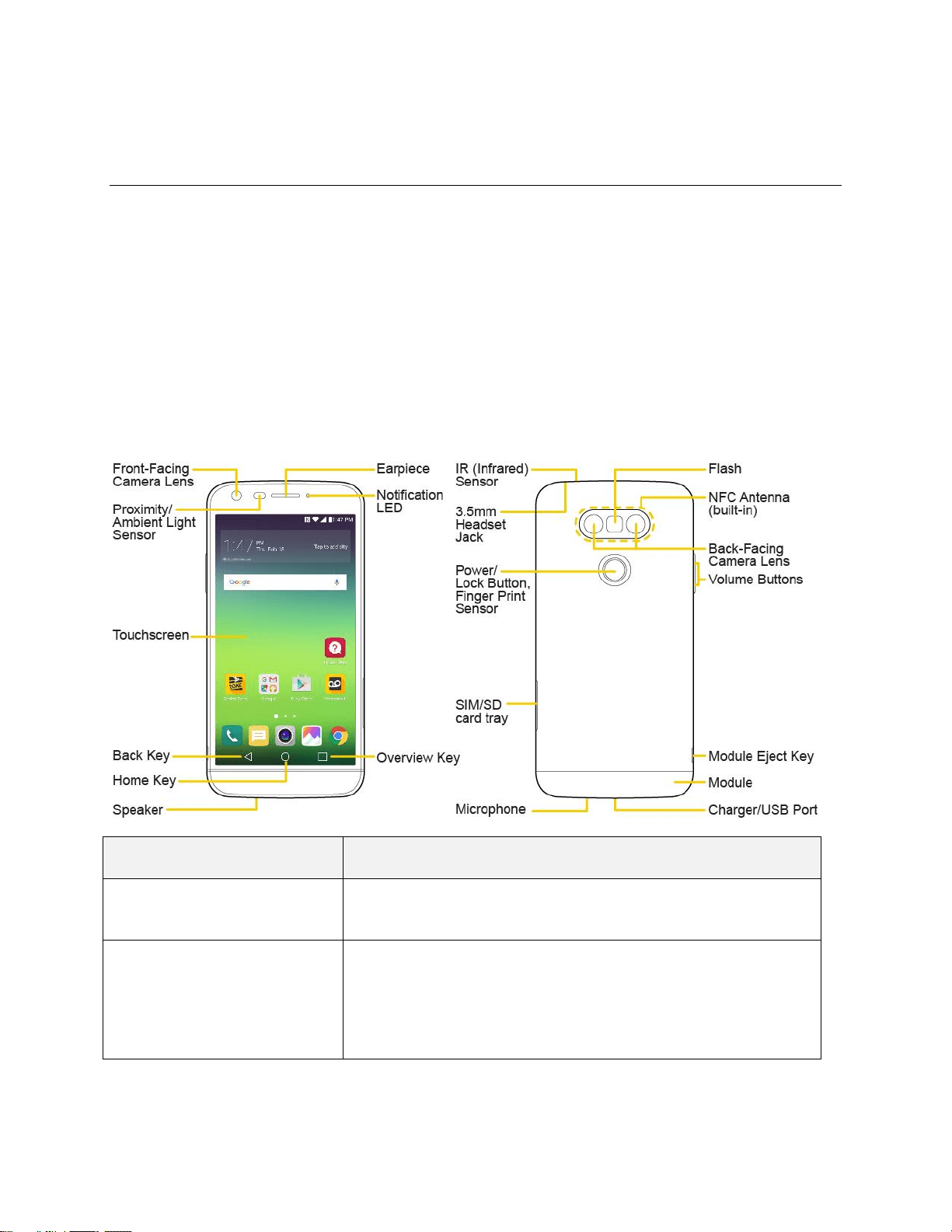
Phone Layout
The following illustration outlines your phone’s primary external features and buttons.
Part
Description
Front-Facing Camera Lens
Allows you to take pictures and video of yourself. Also lets you
participate in video chats.
Proximity/Ambient Light
Sensor
Senses proximity towards other objects (such as your head) so
that touch commands are not accidentally activated during a call.
Note: Please be careful not to cover the sensors with a protective
film, pouch, or a protective case not authorized by LG.
Set Up Your Phone 4
Touchscreen
Displays all the information needed to operate your phone, such
as the applications, call status, the Contacts list, the date and time,
and the signal and battery strength.
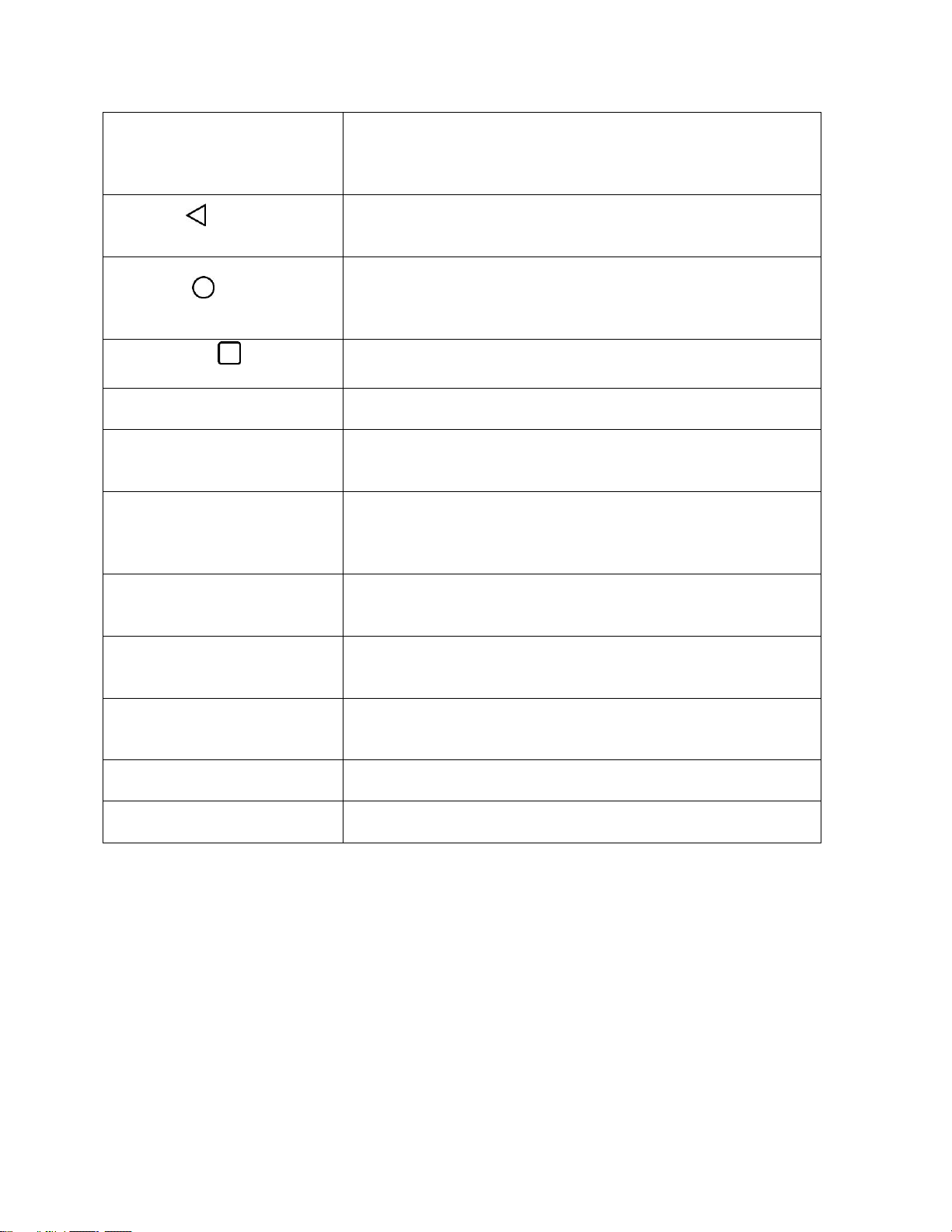
Back Key
Returns to the previous screen. It also closes pop-up display items
such as menus and dialog boxes.
Home Key
Returns to the Home screen. If you're already viewing one of
extension canvases, it opens the central Home screen. Touch and
hold to access Google Now.
Overview Key
Allows you to access recently-used apps.
Earpiece
Lets you hear the caller and automated prompts.
3.5mm Headset Jack
Allows you to plug in a headset for convenient, hands-free
conversations.
Power/Lock Button, Finger
Print Sensor
Locks the screen. Press and hold to open the phone options menu
for the following options: Power off, Power off and restart, and
Turn on/off Airplane mode.
Microphone
Transmits your voice for phone calls or records your voice or
ambient sounds for voice recordings and videos.
Charger/ USB Port
Allows you to connect the phone charger or an optional USB
cable.
Volume Buttons
Allow you to adjust the ringer and media volumes, or to adjust the
in-call volume during a call.
Back-Facing Camera Lens
Lets you take pictures and record videos.
Flash
Helps you take pictures and video in dim lighting.
CAUTION! Inserting an accessory into the incorrect jack/port may damage the phone.

Set Up Your Phone 5
Battery Use
The following topics explain how to insert and remove your phone’s battery.
Precautions When Using The Module
● Failure to follow the instructions provided in your User Guide may result in damage to your
product or personal injury.
● When replacing the battery, take extra care to ensure that no foreign substance or water enters
the device.
● Do not expose your device to moisture or hot and humid environments.
● Do not expose the inside of your device to water and do not insert foreign objects into the battery
compartment.
● After removing the module, put it back into the device as soon as possible to avoid damage to the
device’s interior.
● Do not forcefully separate the module without pressing the module eject key.
● Never remove the module when the device is in use.
● Do not insert a module from another device that is not compatible with your device’s service
provider and service area.
● Follow the instructions contained in your device manuals to ensure the battery and module are
inserted correctly. Failure to insert the battery and module correctly may result in damage to the
device or device malfunction.
● Only use the USB cable and charger provided with your device. The use of third party USB
accessories may damage the device and void the manufacturer’s limited warranty.
Battery Cautions
Storage: Avoid storing or leaving battery with no charge remaining. Saved information and settings
may become lost or changed, or battery may become unusable. Charge once every six months
before storing or leaving unused for a long period.
Bulges: Depending on use, bulges may appear near end of battery life. This does not affect safety.
Replacing Battery: The battery is a consumable item. It needs to be replaced if operating time
shortens noticeably. Purchase a new battery.
Cleaning: Clean soiled terminals between battery and phone with a clean, dry cotton swab. Soiled
terminals can result in a poor connection and prevent charging, etc.
Remove the Battery
Follow these instructions to remove your phone’s battery. Always power the phone off before removing
the battery.
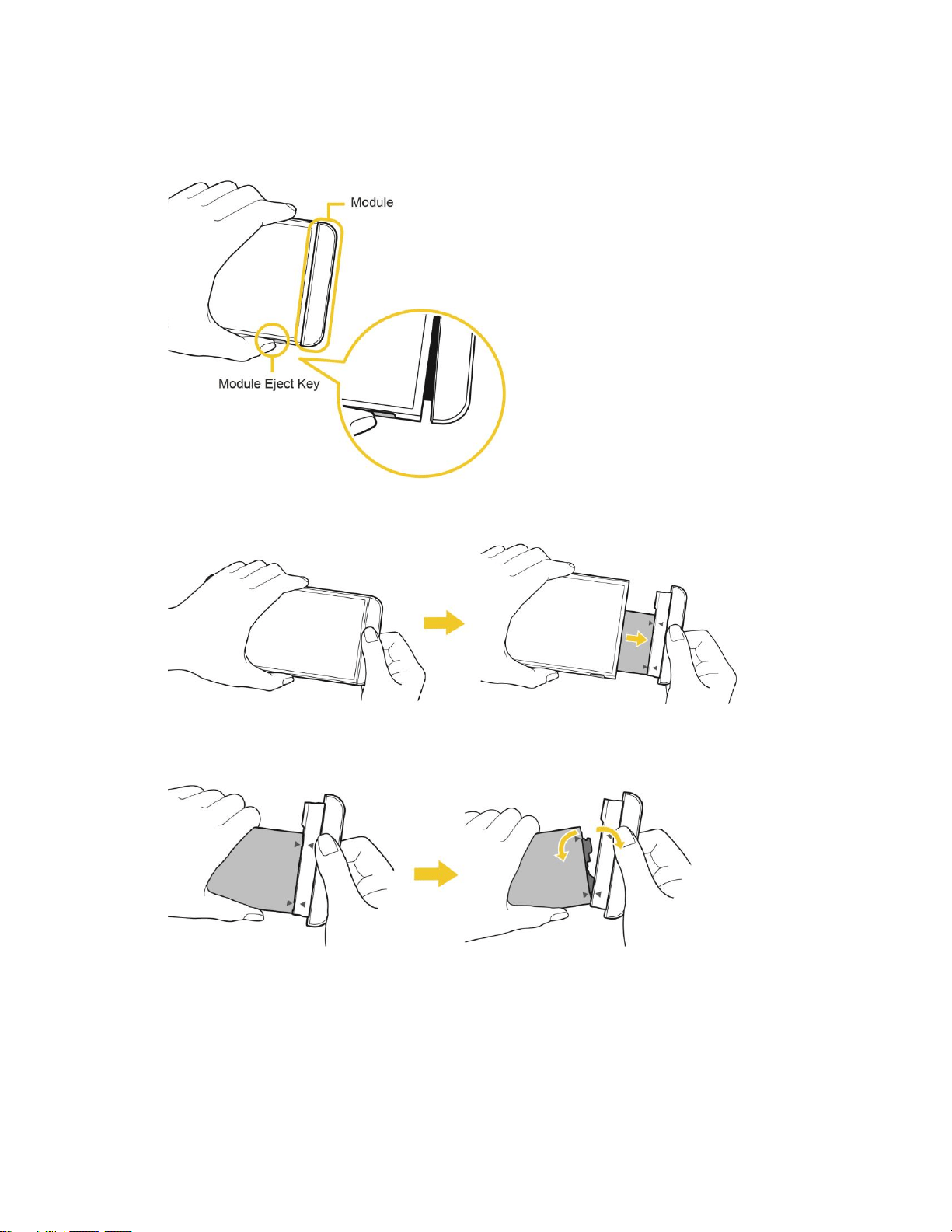
Set Up Your Phone 6
1. Press the module eject key to eject the battery module and then pull out the module to separate it
from the device.
2. Grab the middle of the ejected module and pull it out from the device.
3. Hold the battery and module with both hands and separate them from one another in an outward
arc (as indicated below) to disconnect the battery terminals.
Note: This device is supplied with the battery inserted. When using the device for the first time, check the
battery level and fully charge the battery before using the device if necessary.
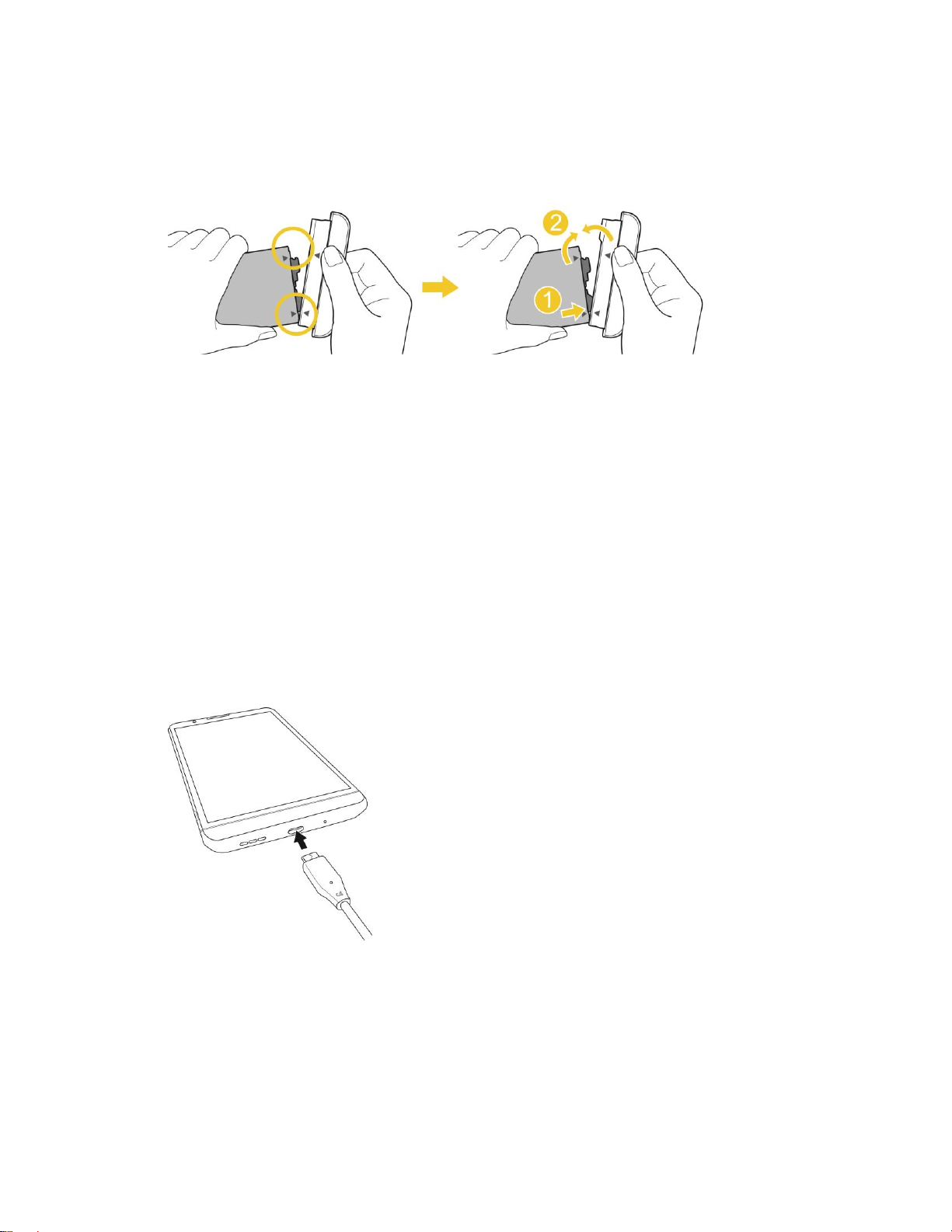
Insert the Battery
Follow these instructions to insert your phone’s battery safely and properly.
Set Up Your Phone 7
1. Press the module eject key to eject the module and then pull out the module to remove it from the
device.
2. Firmly insert the battery to the module using the arrows to correctly orient the battery.
3. Push the battery module all the way into the device.
Note: Never press the module eject key when inserting the module into the device.
Note: When inserting the battery into the device, make sure the battery is attached to the module.
Charge the Battery
Your phone is equipped with a Li-Ion battery. It allows you to recharge your battery before it is fully
drained. The battery provides up to 26.0 hours of continuous digital talk time.
You can charge your phone’s battery using either the included AC adapter or via a USB connection with
your computer.
Charge Using the AC Adapter
1. Plug the USB connector into the charger/USB port at the bottom of your phone.
2. Plug the other end of the USB cable into the AC adapter.
3. Plug the AC adapter into an electrical outlet.
The indicator light illuminates when charging starts. The light goes off when the battery is fully
charged. Fully charging a battery may take up to three hours.
4. After charging, disconnect the phone from the charger.
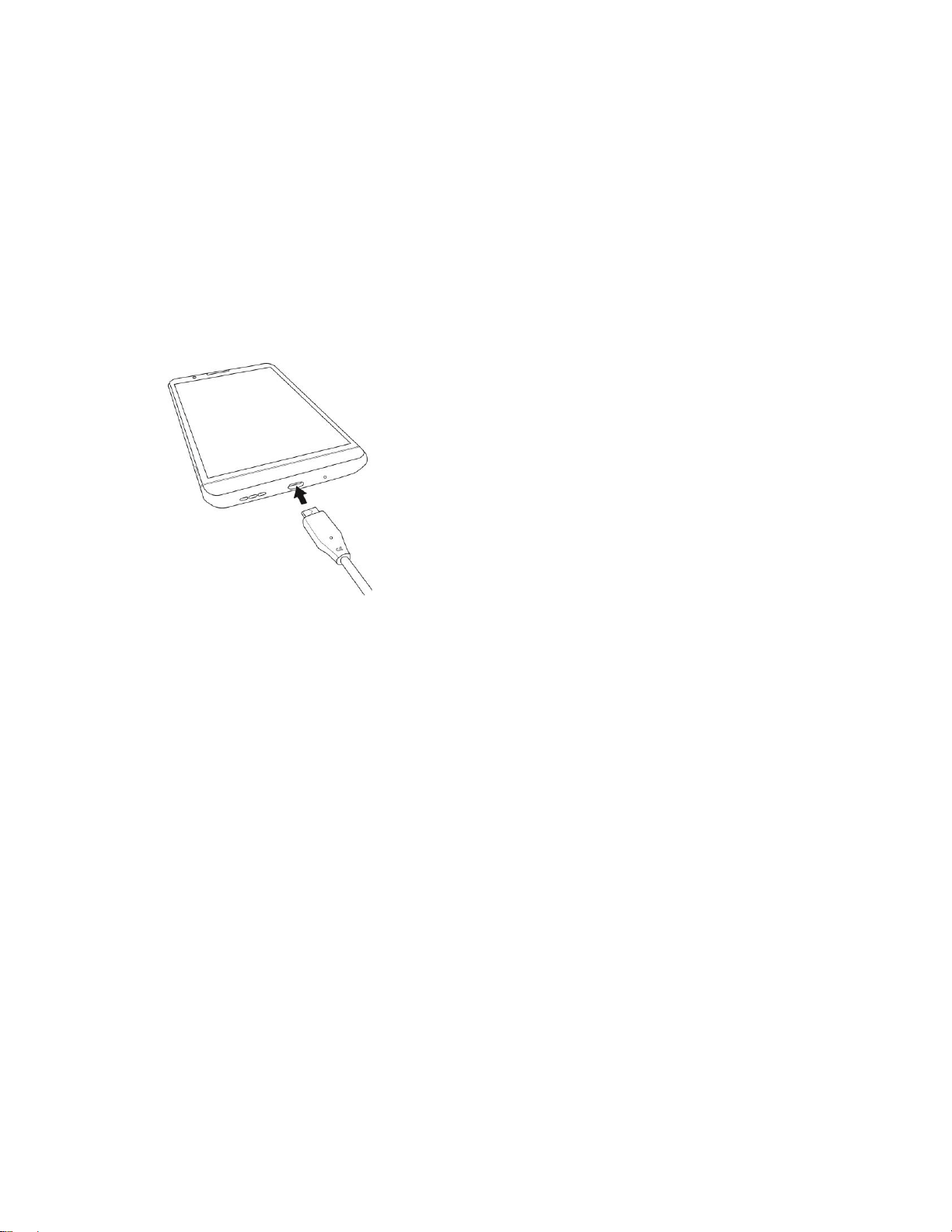
Set Up Your Phone 8
Unplug the AC adapter from the outlet, and remove the micro USB cable from the phone and
the AC adapter.
Note: Always unplug the charger from the wall socket after the phone is fully charged to save
unnecessary power consumption of the charger.
Charge Using a PC Connection
Before using a PC connection to charge your phone, ensure that the computer is turned on. Depending
on the type of connection, your phone’s battery may not charge.
1. Insert the small end of the USB cord into the charger/USB port at the bottom of your phone.
2. Insert the large end of the micro USB cord into an external USB port on your computer.
3. After charging, remove the micro USB cable from both the phone and the computer.
Nano SIM Card
The Nano SIM card is an IC (Integrated Circuit) card containing phone number and other customer
information.
Handling the Nano SIM Card
Keep the following in mind when handling a Nano SIM card.
● Customer is responsible for any damage caused by inserting Nano SIM card in another-brand IC
card reader, etc. Sprint is not responsible in such case.
● Always keep the IC chip clean.
● Wipe clean with a dry, soft cloth.
● Avoid applying labels. May damage the Nano SIM card.
● See instructions included with the Nano SIM card for handling.
● The Nano SIM card is the property of Sprint.
● The Nano SIM card is replaceable (at cost) in case of loss/damage.

Set Up Your Phone 9
● Return the Nano SIM card to Sprint when cancelling your subscription.
● Returned Nano SIM cards are recycled for environmental purposes.
● Note that Nano SIM card specifications and performance may change without notice.
● It is recommended that you keep a separate copy of information that is stored on the Nano SIM
card. Sprint is not responsible for damages from stored information that is lost.
● Always follow emergency procedures to suspend service if your Nano SIM card or phone (Nano
SIM card inserted) is lost/stolen. For details, contact Customer Service.
● Always power off the phone before inserting/removing a Nano SIM card.
microSD Card
Your phone supports the use of an optional microSD card (not included) to expand its storage capacity.
Some cards may not operate properly with your phone.
microSD card Cautions
Data: Information stored on the microSD card can become lost or changed accidently or as a result of
damage. It is recommended that you keep a separate copy of important data. Sprint is not
responsible for damages from data that is lost or changed.
Reading/Writing Data: Never power off or remove the battery while reading or writing data.
Handling microSD card: Use/store microSD cards away from the reach of infants. May cause
choking if swallowed.
Insert a microSD Card
Follow these steps to insert an optional microSD card (not included). Make sure to power your phone off
before inserting or removing a microSD card.
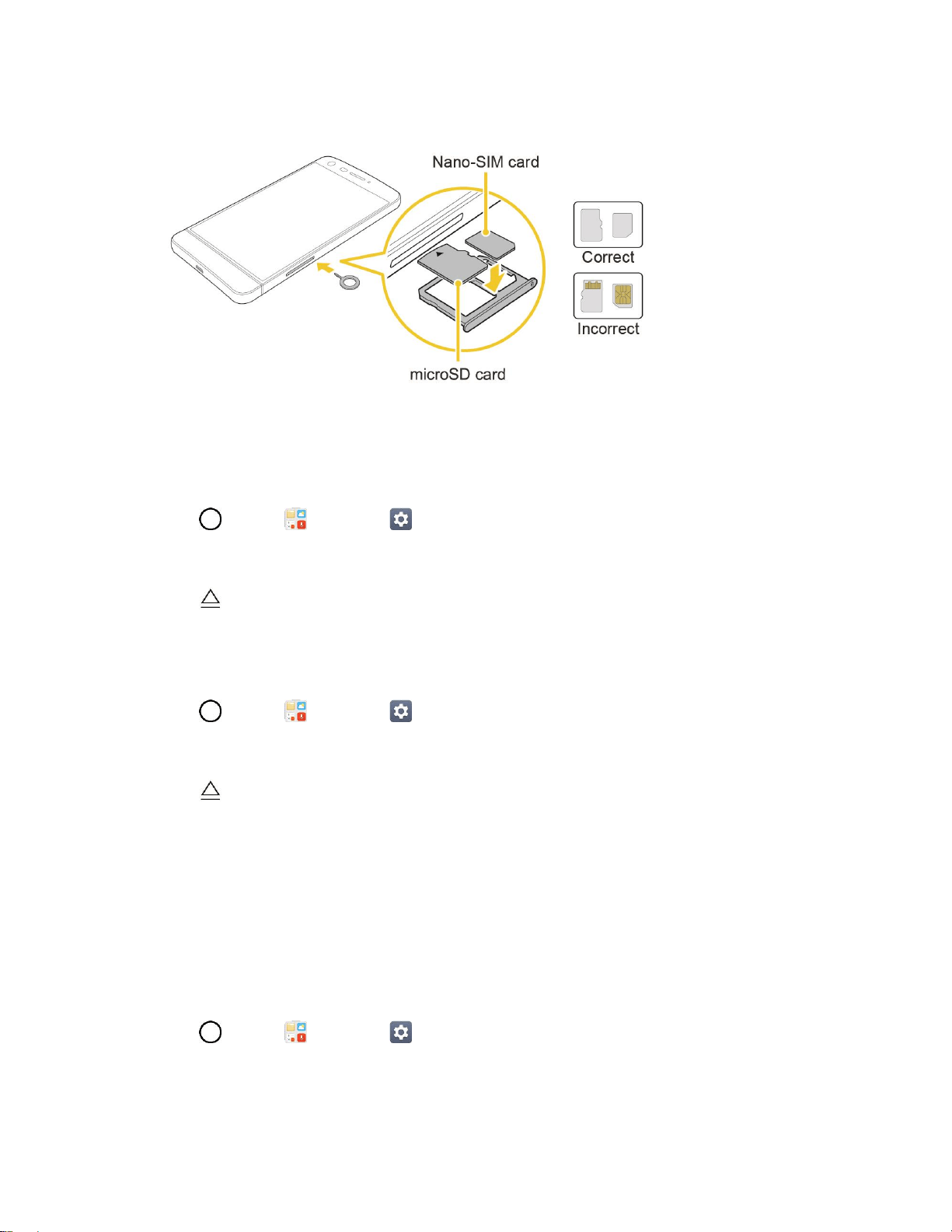
1. Gently insert the ejection pin into the hole on the card tray and then pull out the ejected tray.
2. Place the memory card into the correct section of the tray, with the arrows oriented correctly.
When inserting the SIM card, make sure that the metallic contacts face down.
Set Up Your Phone 10
3. Insert the card tray back into the slot.
Note: Always use a genuine Nano-SIM card supplied by the operator.
Unmount the microSD Card
Always unmount the microSD card before removing it from your phone.
1. Tap > Tools > Settings > General tab.
2. Tap Storage.
3. Tap .
Remove microSD Card
Follow these instructions to remove a microSD card.
1. Tap > Tools > Settings > General tab.
2. Tap Storage.
3. Tap .
4. Gently insert the ejection pin into the hole on the card tray and then pull out the ejected tray.
5. Remove the microSD card from the tray.
6. Insert the card tray back into the slot.
Format microSD Card
When you insert an optional microSD card for the first time, it is recommended that you format it on your
phone.
1. Tap > Tools > Settings > General tab.
2. Tap Storage.
3. Tap SD card.

Set Up Your Phone 11
4. Tap > Storage settings.
5. Tap Format > FORMAT.
All data on the microSD card is erased, and the card is formatted for use on your phone.
Turn Your Phone On and Off
The instructions below explain how to turn your phone on and off.
Turn Your Phone On
■ Press and hold the Power/Lock Button.
Your phone will power on. Depending on the settings, you may see the lock screen.
See Lock and Unlock Your Screen and Select Screen Lock for information about using the
screen lock.
The first time you turn the phone on, you will see the setup screens. See Complete the Setup
Screens for details.
If your phone is not yet activated, see Activate Your Phone for more information.
Turn Your Phone Off
1. Press and hold the Power/Lock Button to open the phone options menu.
2. Tap Power off to turn the phone off.
3. Tap POWER OFF to confirm.
Your phone will power off.
Your screen remains blank while your phone is off (unless the battery is charging).
Tip: The KnockON feature allows you to double-tap the screen to easily turn it on or off.
Set Up Your Phone 12
Use the Touchscreen
Your phone’s touchscreen lets you control actions through a variety of touch gestures.
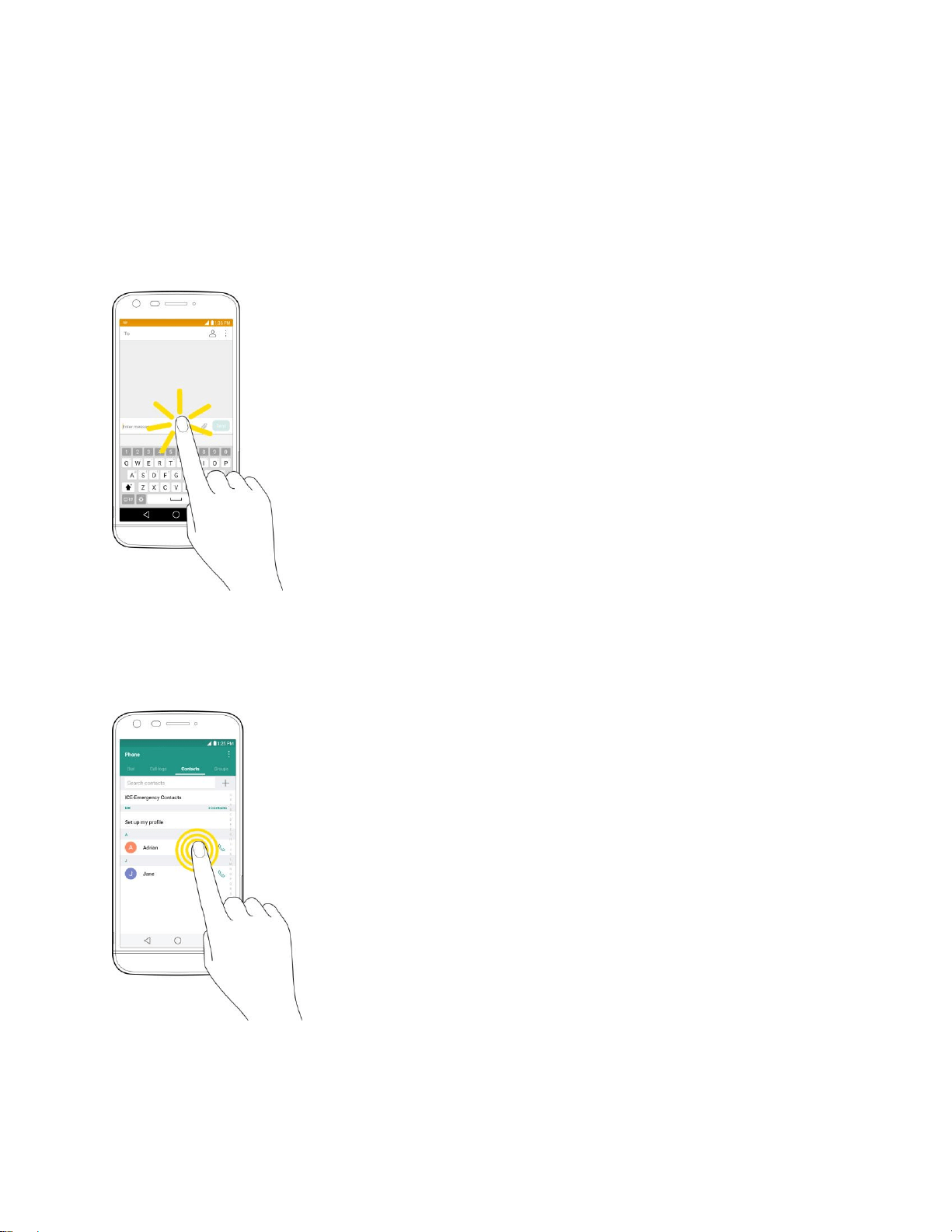
Tap
When you want to type using the onscreen keyboard, select items onscreen such as application and
settings icons, or press onscreen buttons by simply tapping or touching them with your finger.
Touch and Hold
To open the available options for an item (for example, a contact or link in a Web page), touch and hold
the item.
Set Up Your Phone 13
Swipe or Slide
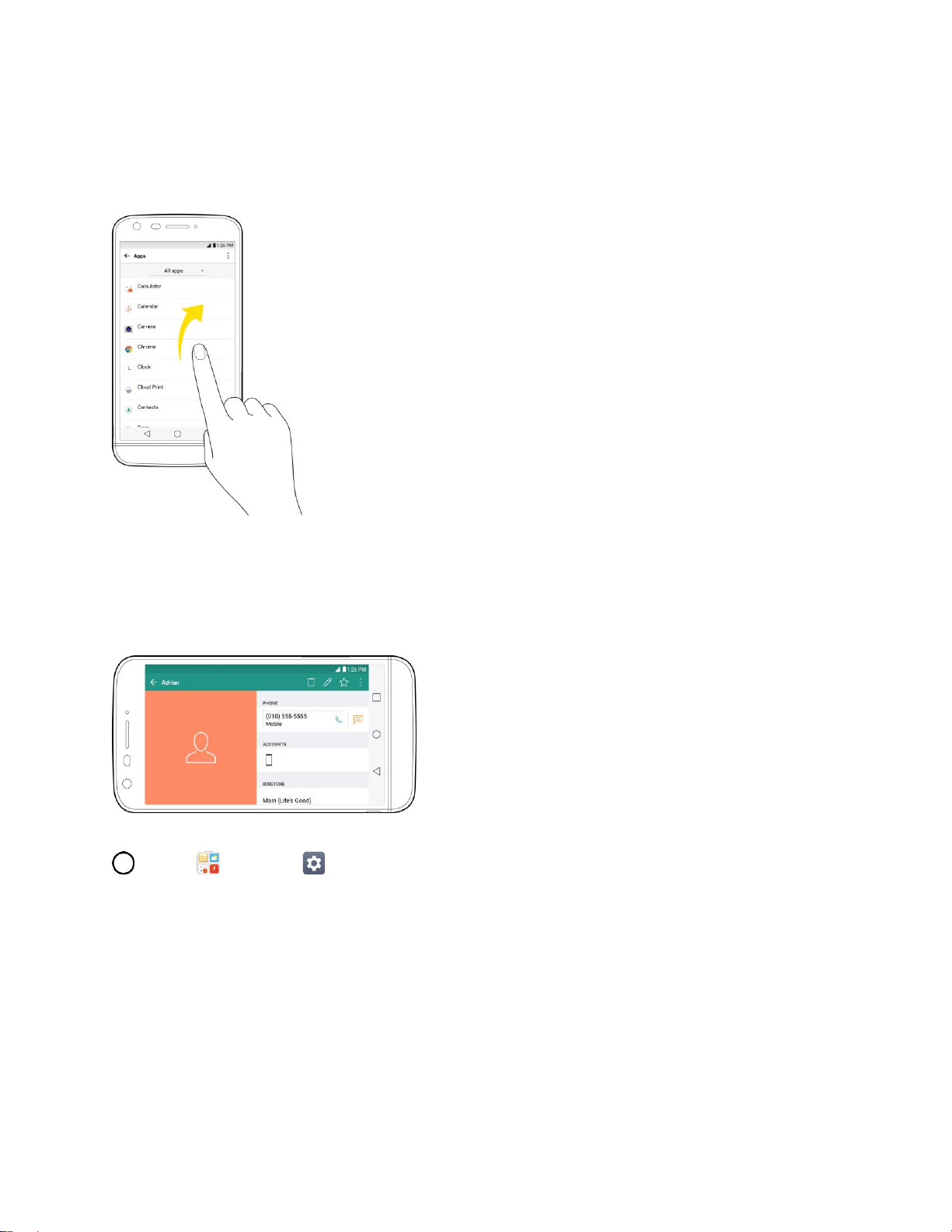
To swipe or slide means to quickly drag your finger vertically or horizontally across the screen.
Drag
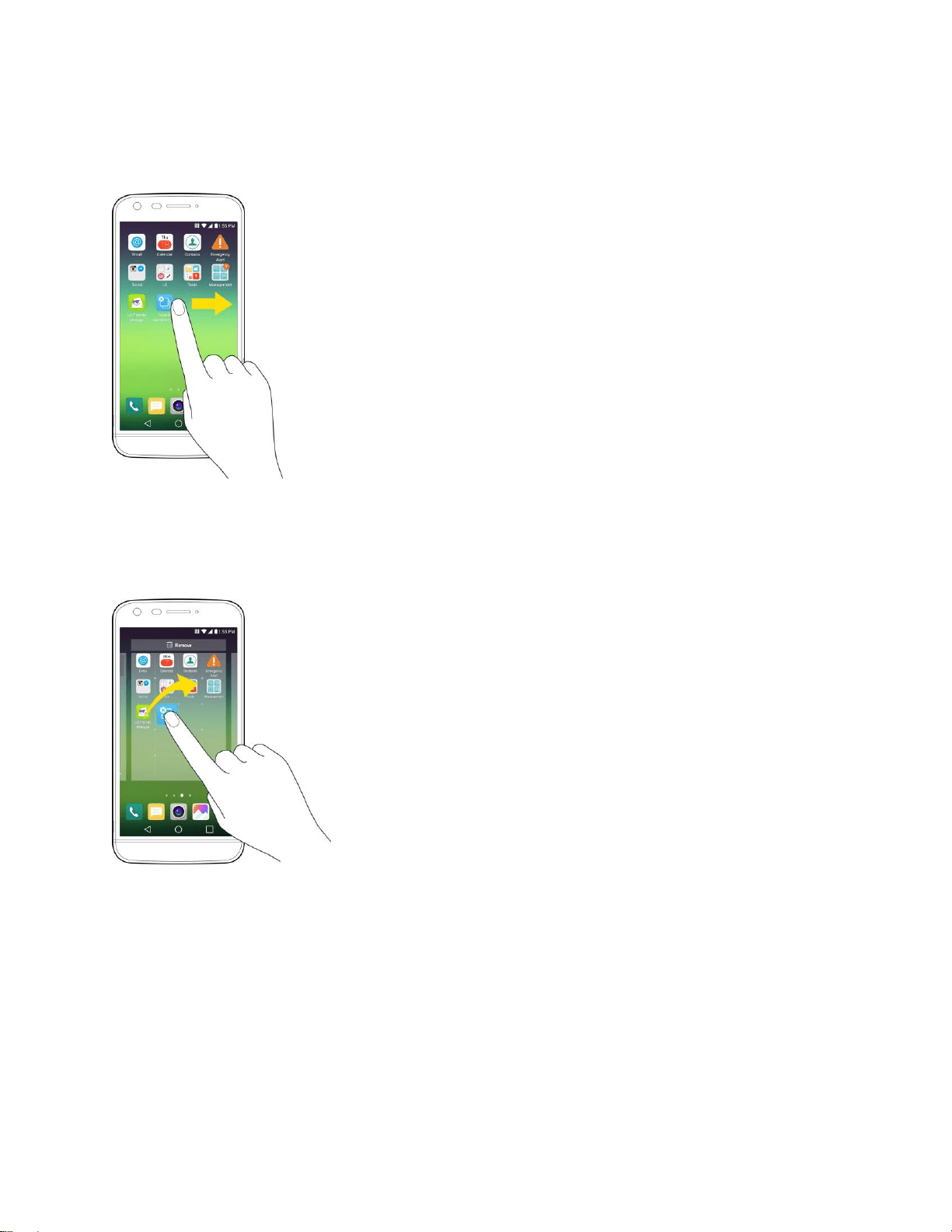
To drag, press and hold your finger with some pressure before you start to move your finger. While
dragging, do not release your finger until you have reached the target position.
Set Up Your Phone 14
Flick
Flicking the screen is similar to swiping, except that you need to swipe your finger in light, quick strokes.
This finger gesture is always in a vertical direction, such as when flicking the contacts or message list.
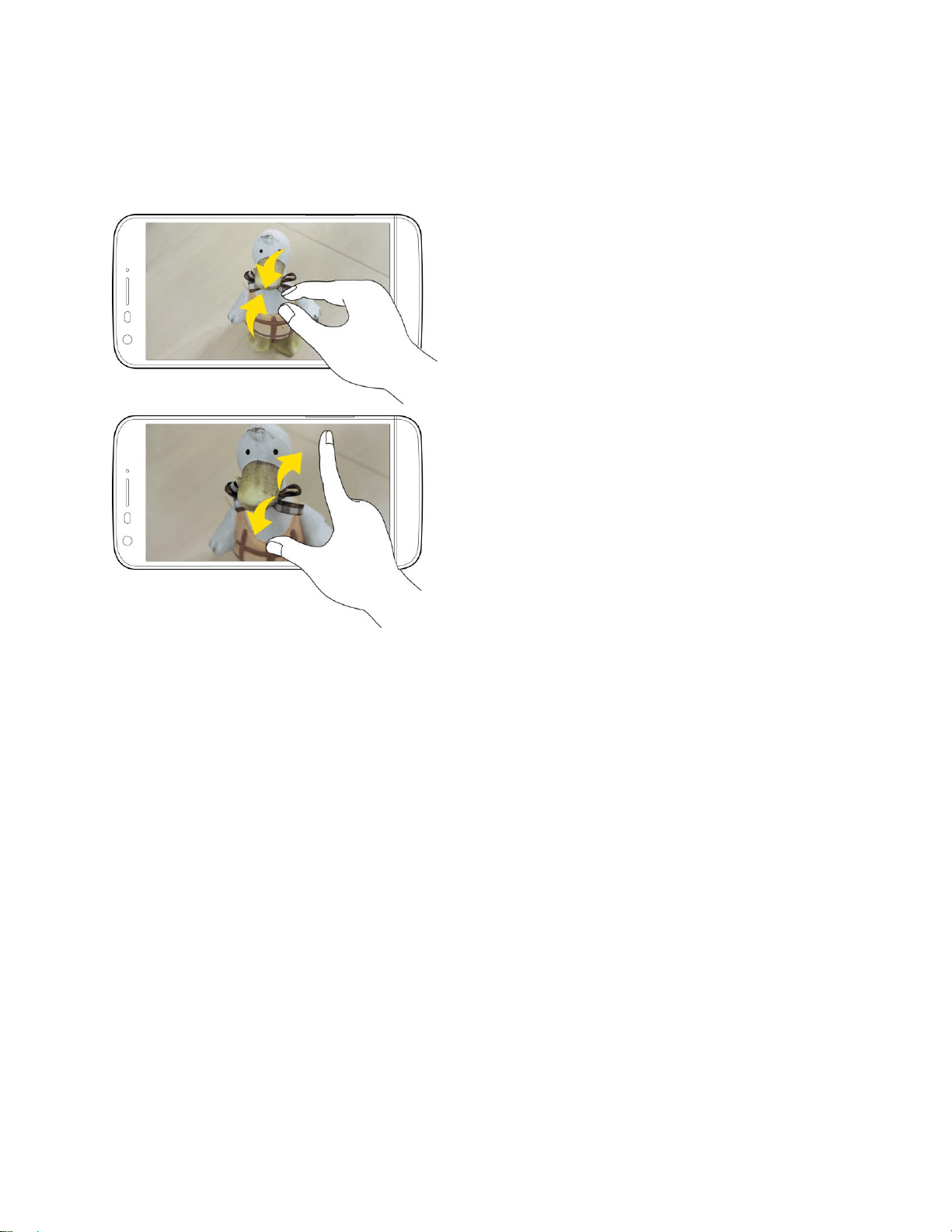
Rotate
For most screens, you can automatically change the screen orientation from portrait to landscape by
turning the phone sideways. When entering text, you can turn the phone sideways to bring up a bigger
keyboard.
Note: The Auto-rotate switch needs to be selected for the screen orientation to automatically change. Tap
> Tools > Settings > Display tab > Auto-rotate screen.
Tip: You can also access the screen rotation setting from the Notifications Window. Drag the Status Bar
down and tap Rotation to select or deselect the option.
Set Up Your Phone 15
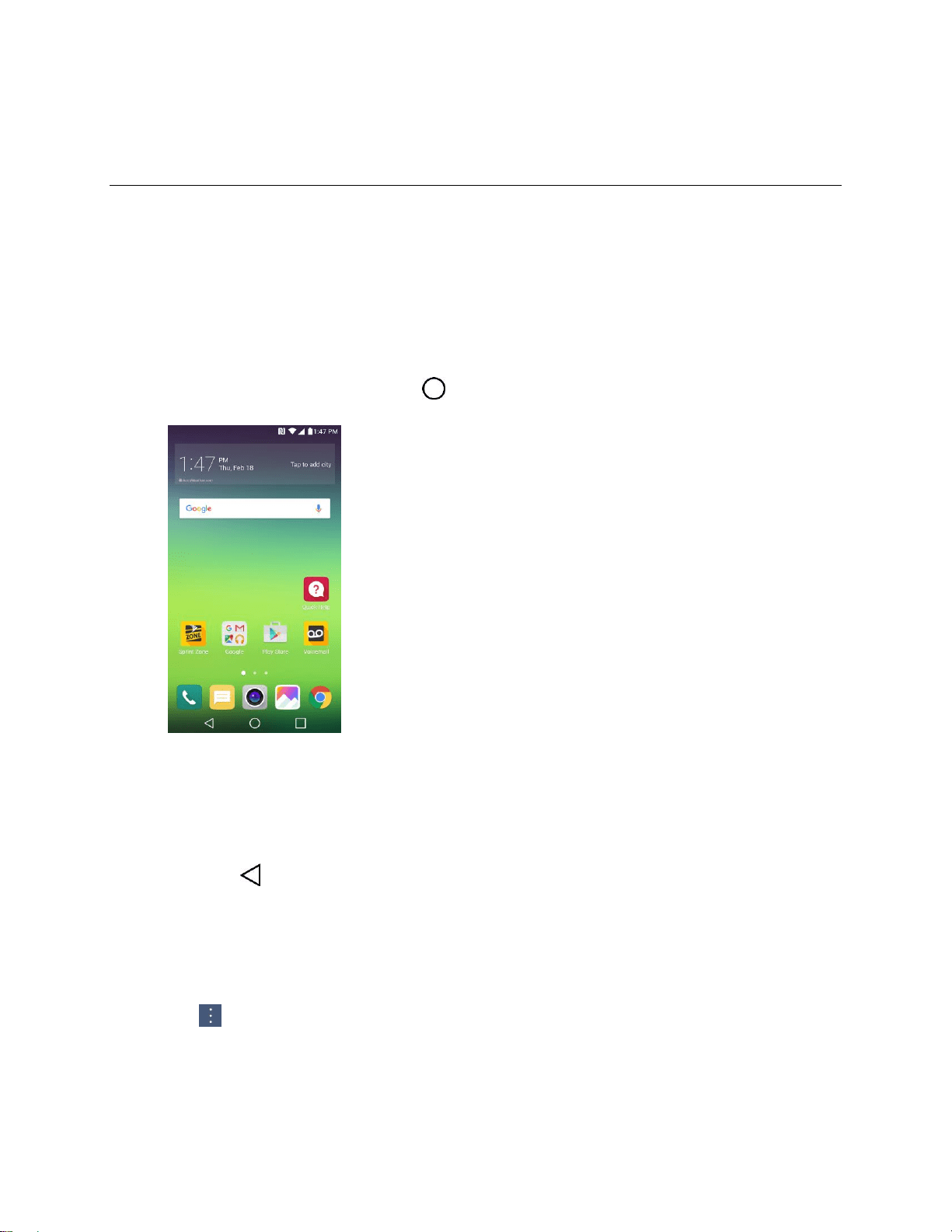
Pinch and Spread
“Pinch” the screen using your thumb and forefinger to zoom out or “spread” the screen to zoom in when
viewing a picture or a Web page. (Move fingers inward to zoom out and outward to zoom in.)
Activate Your Phone
Follow the instructions below to activate your phone if it has not already been activated. Depending on
your account or how and where you purchased your phone, it may be ready to use or you may need to
activate it on your Sprint account.
● If you purchased your phone at a Sprint Store, it is probably activated and ready to use.
● If you received your phone in the mail and it is for a new Sprint account or a new line of service, it
is designed to activate automatically.
When you turn the phone on for the first time, you should see a Hands Free Activation
screen, which may be followed by a PRL Update screen and a Firmware Update screen.
Follow the onscreen instructions to continue.
● If you received your phone in the mail and you are activating a new phone for an existing number
on your account (you’re swapping phones), you can activate on your computer online or directly
on your phone.
Activate on your computer:
• Go to sprint.com/activate and complete the online instructions to activate your phone.

Set Up Your Phone 16
Activate on your phone:
• Turn on your new phone. (Make sure the old one is turned off.) Your phone will
automatically attempt Hands-Free Activation.
• Tap Activate to override auto-activation and start the manual activation wizard.
• Follow the onscreen prompts to complete the activation process.
To confirm activation, make a phone call. If your phone is still not activated, visit sprint.com/support for
assistance. If you do not have access to the Internet, call Sprint Customer Service at 1-888-211-4727
from another phone.
Tip: Do not press the Power/Lock key while the phone is being activated. Pressing the Power/Lock key
cancels the activation process.
Note: If you are having any difficulty with activation, visit sprint.com/support.
Complete the Setup Screens
The setup screens help you set up certain features and preferences on your phone. Once your phone has
been turned on, you will see a Accessibility message. You can then complete the setup process.
Note: You may be able to complete the setup screens before your phone has been activated on your
account.
1. On the TalkBack screen, touch Next to get started.
2. Follow the onscreen instructions to complete each section. For each topic, you will have the
option to skip it and continue to the next screen.
Language Selection - Select a desired language.
Set Internet connection - If prompted, follow the prompts to sign in to an available Wi-Fi
network. For secured Wi-Fi networks, you will need to enter a password. See Wi-Fi for more
details.
Google Account - Sign in to (or set up) a Google Account.
Name - Add your name to personalize some apps.
Set Up Email - Set up your personal or Exchange email account.
Protect your phone - Prevent others from using this phone without your permission by
activating device protection features.
Google services - Read all of the information for the available Google Services and, if you
agree, tap NEXT. Otherwise, uncheck the options and tap NEXT.
• Help apps find your location - Helps apps determine location. This means sending
anonymous location to Google, even when no apps are running. Tap Learn more for
additional information.

Set Up Your Phone 17
• Improve location accuracy - Allows apps and services to scan for Wi-Fi networks even
when Wi-Fi is off.
• Help improve your Android experience - Allows your device to send diagnostic and
usage data to Google automatically. Tap Learn more for additional information.
Legal documents - Read all of the information about legal documents.
• EULA (End-User License Agreement) - Read the End-User License Agreement and tap
the I agree check box if you agree to the terms.
• Low power location estimation - Read the Low power location estimation information
and tap the I agree check box if you agree to the terms.
3. Tap DONE. Your setup is now complete. Follow the onscreen instructions to learn about basic
touch menu navigation, view tutorials, or just get started.
Your phone is now set up for use. If you skipped any part of the setup, you can access
additional options through the Apps screen or through Settings.
Note: You do not need to sign up for a Google Account to use your phone. However, to download apps
from Google Play, you must link your phone to a Google Account.
Basic Operations 18
Basic Operations
The following topics outline basic features and operations of your phone.
Basics
The following topics offer an overview of your phone’s basic operations.
Home Screen and Applications (Apps) List
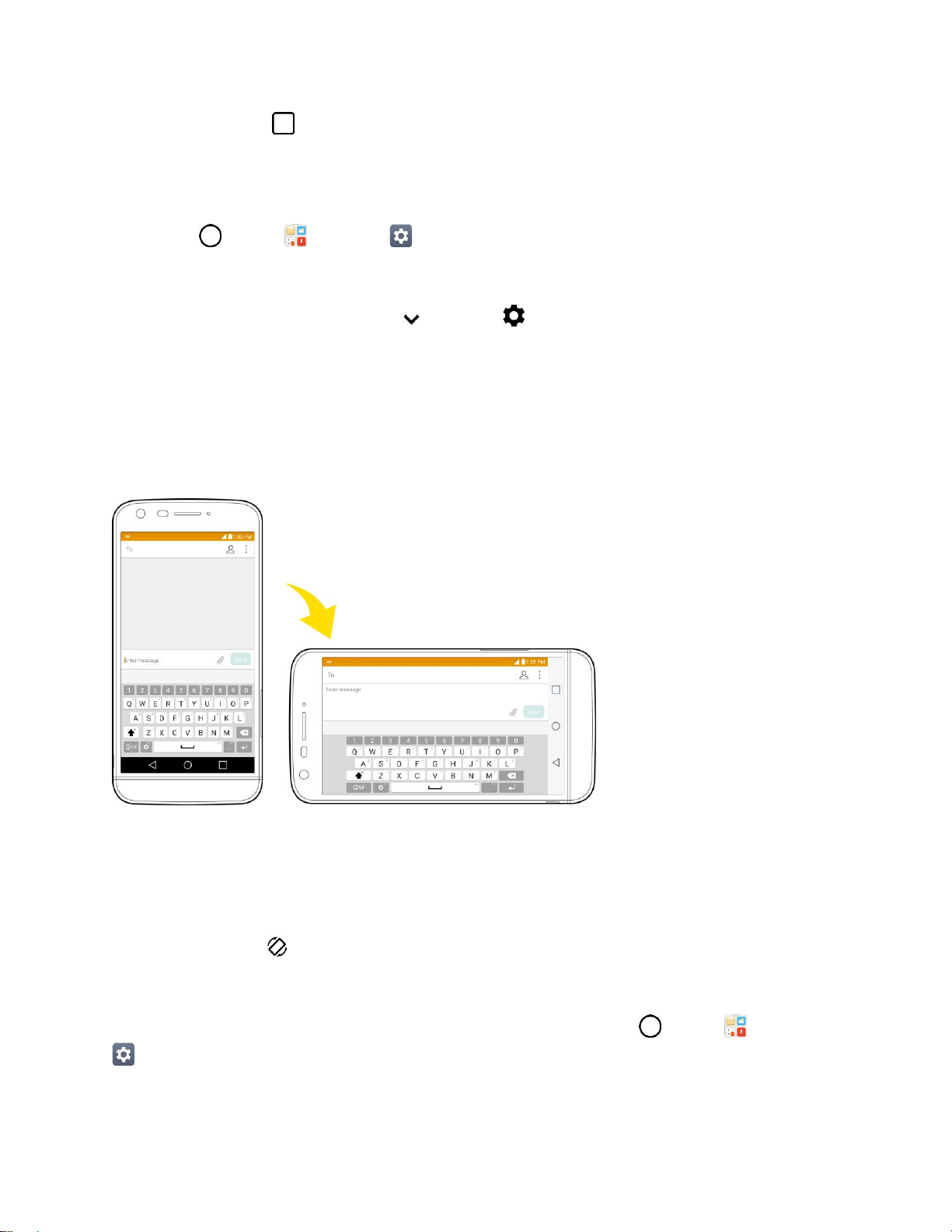
Most of your phone’s operations originate from the home screen or the apps list.
■ From any screen, tap the Home key to display the home screen and the apps list.
For information about using the home screen, see Home Screen Basics.
Select Options and Navigate Screens
Tap icons, onscreen keys, and other items to open or activate the assigned function.
■ Tap Back to return to the previous screen.
Menu Operations
You can display options menus using the menu key, any app-specific menu icon, or by tapping and
holding a screen area, depending on your current app.
■ Tap to view available settings and options.
Recent Applications
You can display a list of recently used applications using the Overview key.
Basic Operations 19
■ Tap Overview to view a list of recently used applications.
Phone Settings Menu
You can customize your phone’s settings and options through the Settings menu.
■ Tap > Tools > Settings .
– or –
Drag the status bar down and tap > Settings .
For more information, see Settings.
Portrait and Landscape Screen Orientation
The default orientation for your phone’s screen is portrait (vertical), but many apps will change to
landscape orientation (widescreen) when you rotate the phone sideways. Not all screens will adjust for
landscape orientation.
Note: Not all screens will adjust for landscape orientation.
Turn Screen Rotation On or Off
1. Pull down the status bar to display the quick settings menu.
2. Tap Rotation to turn the option on or off.
You may need to scroll left or right to see the Screen rotation option.
Note: You can also set the rotation option from the main settings menu. Tap > Tools > Settings
> Display tab > Auto-rotate screen.
Basic Operations 20
Capture Screenshots
You can use your phone’s power and volume buttons to capture screenshots.
■ Press and hold the Power/Lock Button and Volume Down Button at the same time to capture
a screenshot of the current screen.
The current screenshot will be captured and stored in the Screenshots album in the phone’s
Gallery. Tap > Gallery .
Applications
The following is a listing of the default applications available on your phone.
Launch Applications
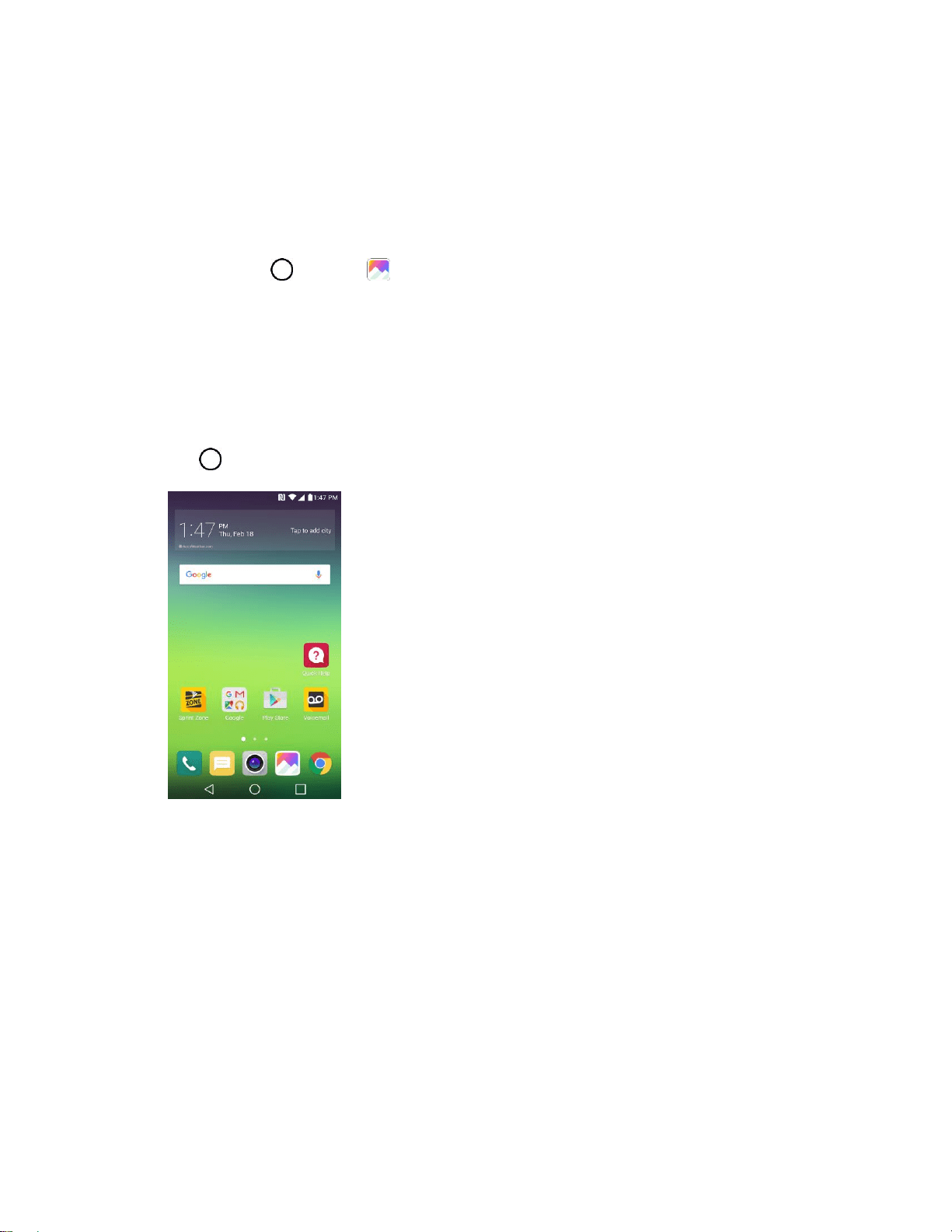
All installed apps can be accessed and launched from the Home screen.
1. Tap .
The Home screen opens.
Basic Operations 21
2. Tap an app icon to launch the corresponding application.
The application opens.
Preinstalled Apps
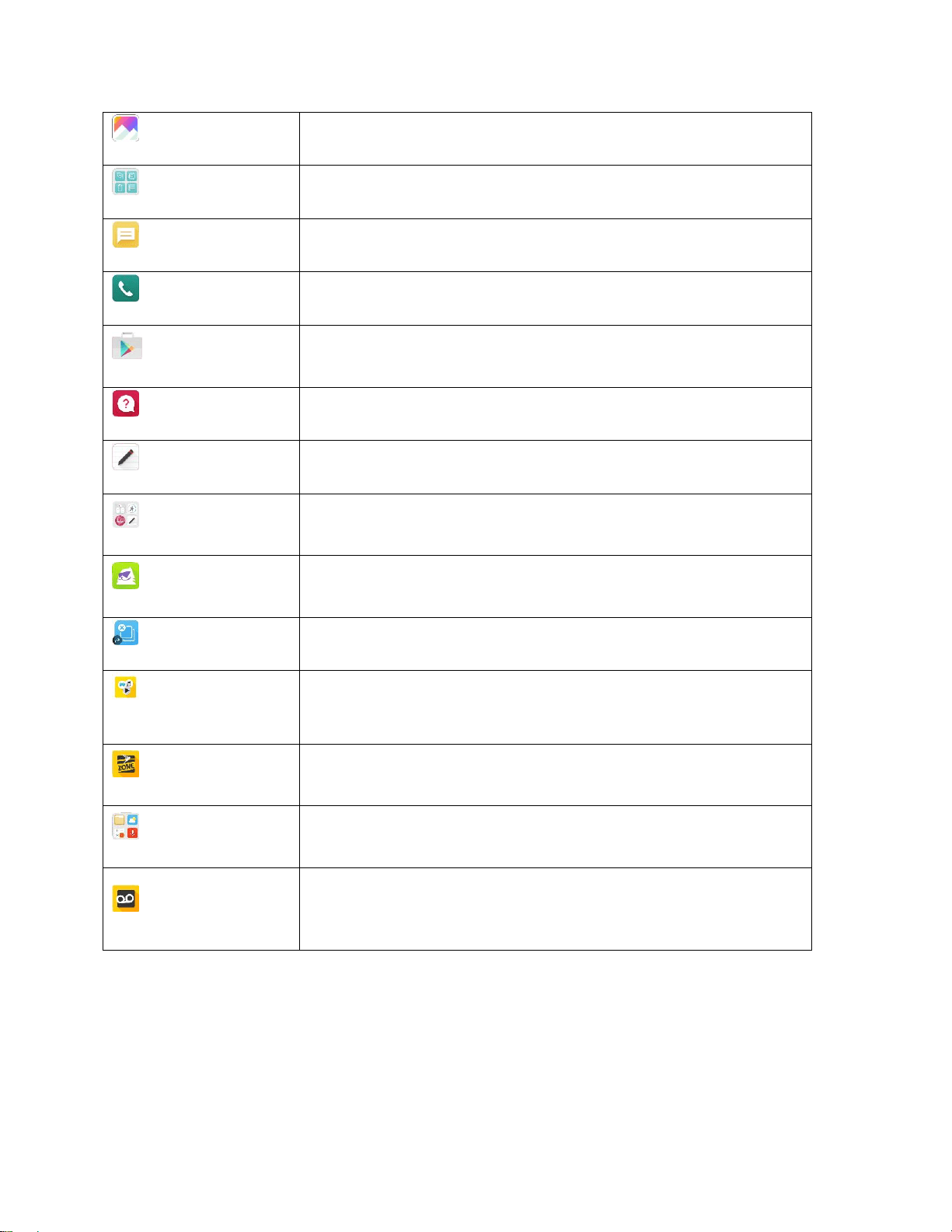
The following table outlines the primary apps that have been preinstalled on your phone.
App
Function/Service
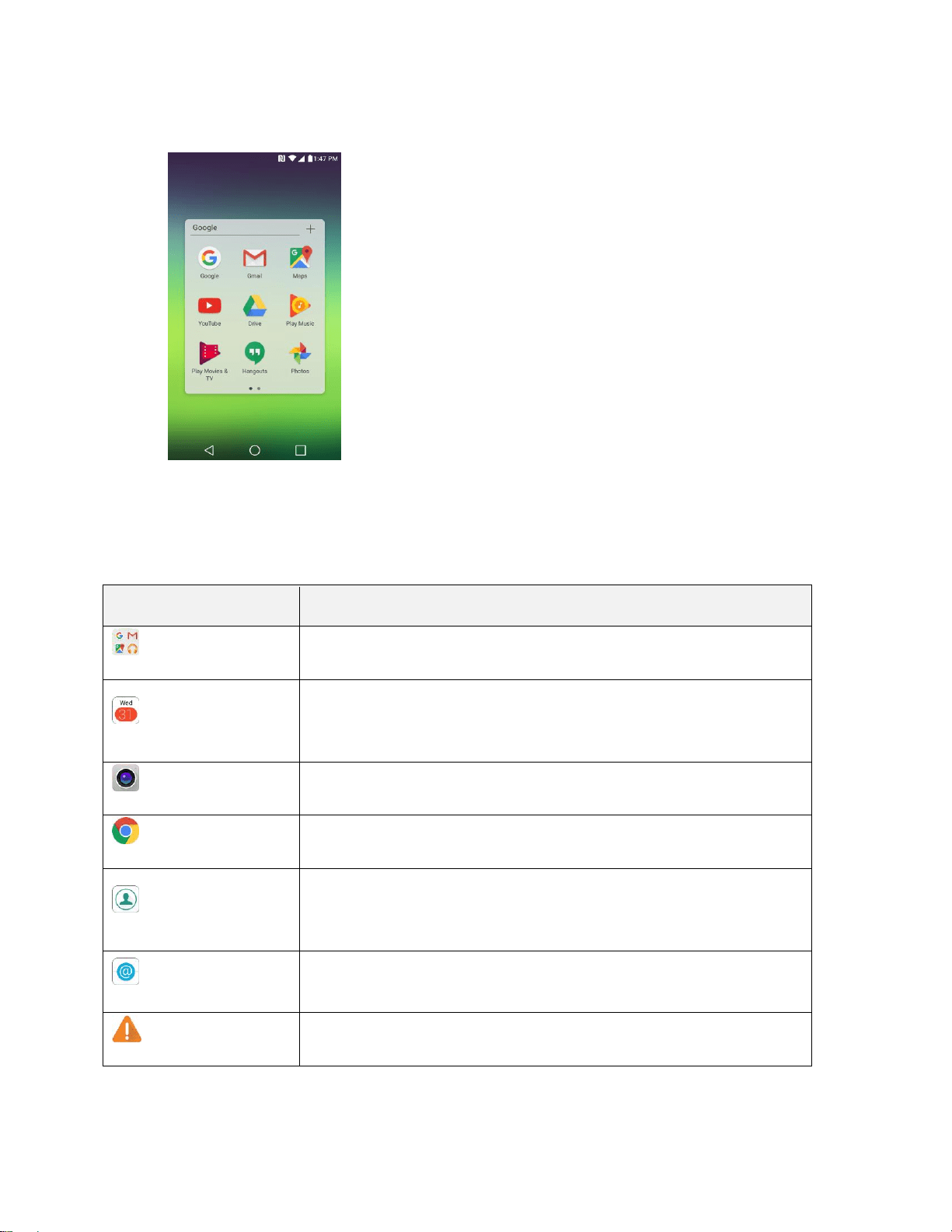
Google
Access the Google applications.
Calendar
Launches the Calendar application that can sync to either your Google
or Outlook
®
work calendar. Events can only be synched to a managed
account.
Camera
Take pictures and record videos using the front and rear cameras.
Chrome
Browse the Internet.
Contacts
Displays the Contacts that can be synchronized with your phone from
either your Google or Outlook account. Contacts can only be synched
to a managed account.
Email
Provides access your POP3, IMAP, and Exchange Server (Outlook)
email accounts. Also provides access to your Gmail account.
Emergency Alert
Provides access to your emergency messages and it's settings.
Basic Operations 22
Gallery
Displays a Gallery of camera images and video saved on your phone.
Management
Access power and storage space management apps.
Messaging
Provides access to your text and multimedia messages.
Phone
Access the dial pad to make calls.
Play Store
Browse, search for, and download applications from the Google Play
Store app.
Quick Help
Allows you to get help information about different features.
QuickMemo+
Allows you to take screen shots and write a memo using the images.
LG
Access the QuickRemote, LG Health, LG SmartWorld, and
QuickMemo+ applications.
LG Frends Manager
Check what devices are connected at a glance and connect to other LG
Friends devices nearby.
Uninstalled apps
Reinstall apps that have been uninstalled in the past 24 hours.
Sprint Fun &
Games
Access the newest apps and games.
Sprint Zone
Access your Sprint account, get device information and help, find
recommended apps, and more.
Tools
Access the File Manager, Weather, Calculator, Voice Recorder,
Downloads applications and more.
Voicemail
Use Visual Voicemail for a quick and easy way to access your
voicemail. Now you can find exactly the message you are looking for
without having to listen to every voicemail message first.

Basic Operations 23
Phone Number
Follow the instructions below to display your phone’s wireless phone number.
1. Tap > Tools > Settings > General tab.
2. Tap About phone.
3. Tap Status.
You will see the number listed under My phone number.
Airplane Mode
Airplane mode turns off all functions that emit or receive signals, while leaving your phone on so you can
use apps that don’t require a signal or data.
To turn on airplane mode:
1. Press and hold the Power/Lock Button to display the phone options menu.
2. Tap Turn on Airplane mode > TURN ON.
Your phone is now in airplane mode. You will see the airplane mode icon in the status bar.
Tip: You can also access airplane mode through the status bar menu. Drag the status bar down and tap
Airplane mode > TURN ON.
To turn off airplane mode:
1. Press and hold the Power/Lock Button to display the phone options menu.
2. Tap Turn off Airplane mode.
Your phone’s wireless connection features are now restored.
Tip: You can also access airplane mode through the status bar menu. Drag the status bar down and tap
Airplane mode .

Basic Operations 24
Enter Text
You can type on your phone using one of the available touchscreen keyboards or Google voice typing.
Touchscreen Keyboards
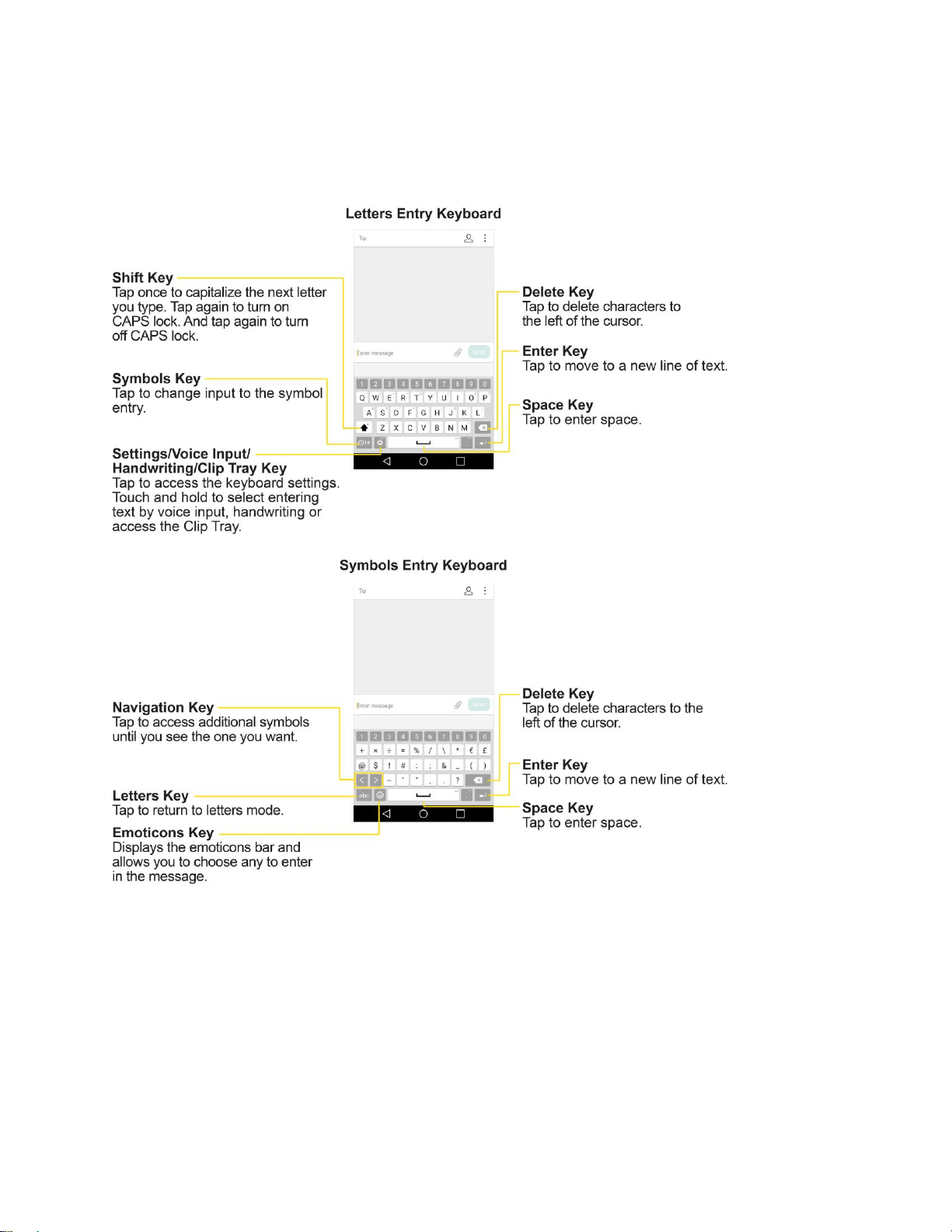
Your phone offers you a choice of touchscreen keyboards for entering text. The keyboard appear
automatically onscreen when you tap a text entry field, and they can be used in either portrait or
landscape mode.
The methods available include:
● Google Keyboard allows you to use a traditional QWERTY setup to enter text. Additional options
expand your ability to enter text faster and more accurately.
● Google voice typing allows to use Google voice recognition to convert speech to text.
● LG Keyboard allows you to use a LG keyboard to enter text.
Note: Keyboard layouts and options may change depending on where you’re using them. For example, if
you’re entering text to do a Web search, a search icon may be available instead of an enter key.
To change the keyboard:
1. From any screen where you can enter text, tap the input field to reveal the keyboard.
2. Drag the Status Bar down and tap Change keyboard.
Basic Operations 25
QWERTY Keyboard
You can enter text using the on-screen keyboard. The on-screen keyboard appears on the screen when
you tap an available text entry field.
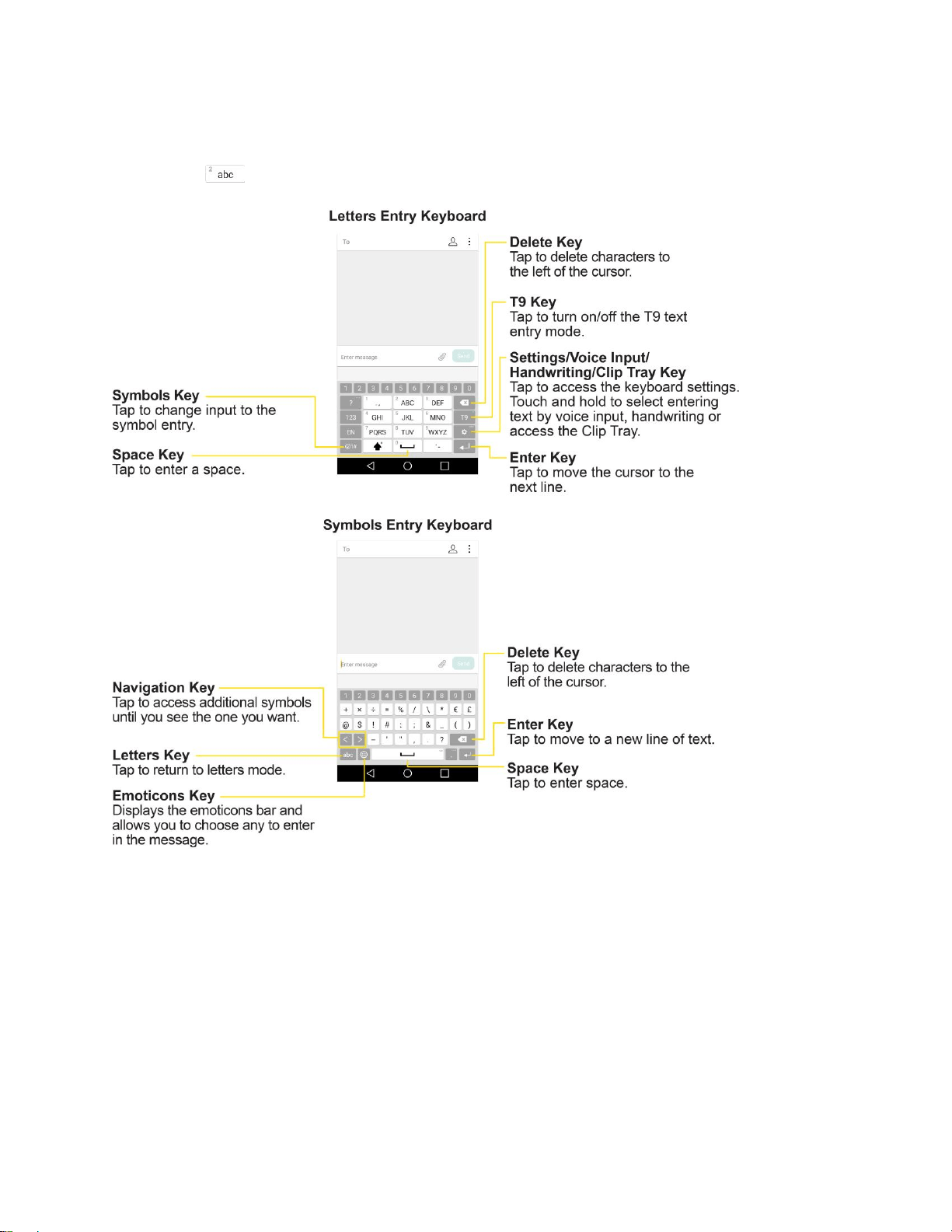
Basic Operations 26
Phone Keyboard
When T9 is off, to enter text, tap the key labeled with the desired letter until it appears on the screen. For
example, tap once for "a", twice for "b", or three times for "c".
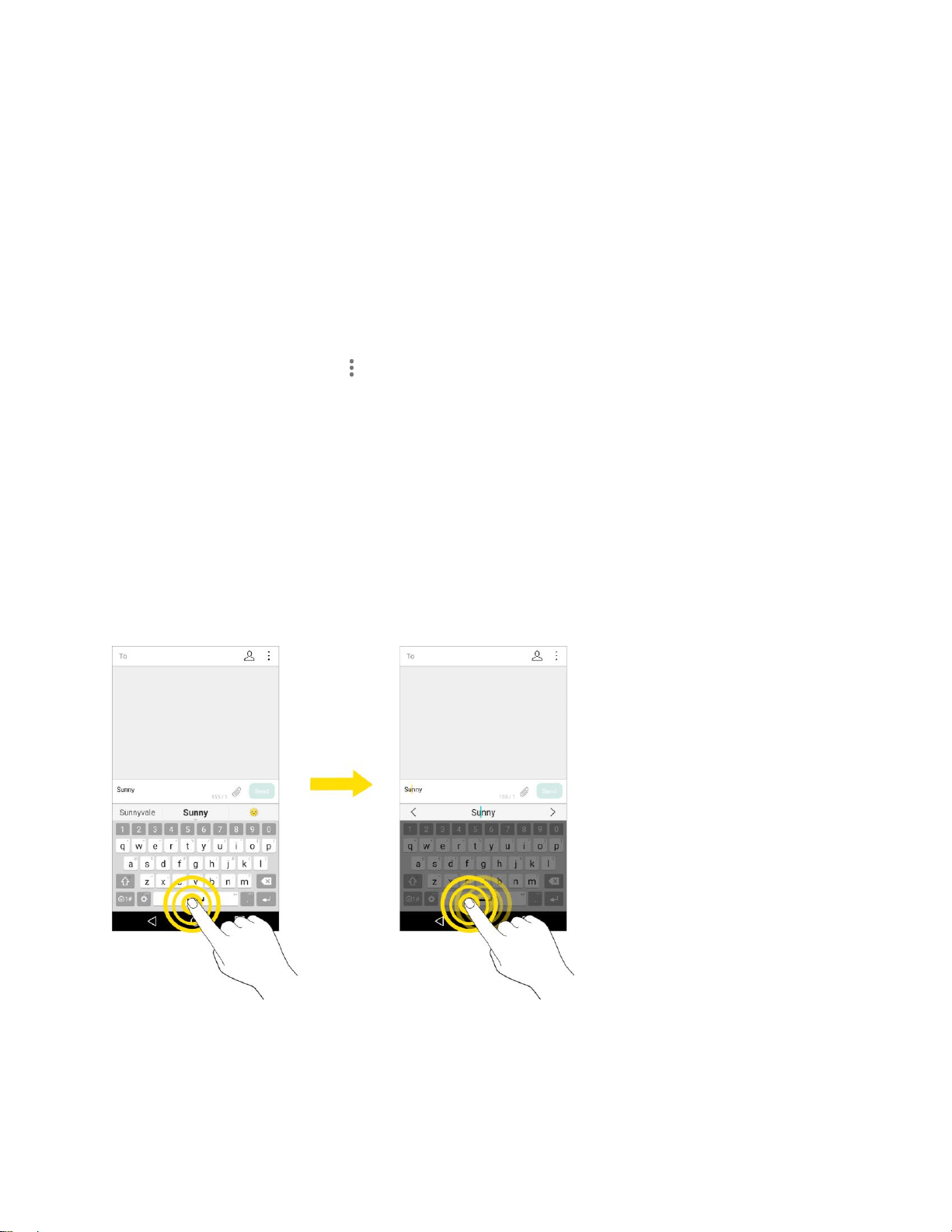
Basic Operations 27
Tips for Editing Text
Your phone gives you many options to make entering text easier, including copying, cutting, and pasting
text, using voice-to-text input, customizing the user dictionary, using predictive text, and more.
To cut/copy and paste:
1. Touch and hold a word to highlight it.
2. Drag the orange highlight markers to highlight the text you want.
– or –
To select all the text, tap > SELECT ALL in the context menu.
To cancel the selection, simply tap unselected text or empty area.
3. Tap CUT or COPY in the context menu.
4. Place the cursor on the location where you want to paste the text.
5. Touch and hold the text field and tap PASTE. The text that you pasted also remains in the
phone's memory (temporarily), so you can paste that same text in another location.
Move Cursor Using the Space Bar
Touch and hold the space bar and slide your finger to the left or right to move the cursor.
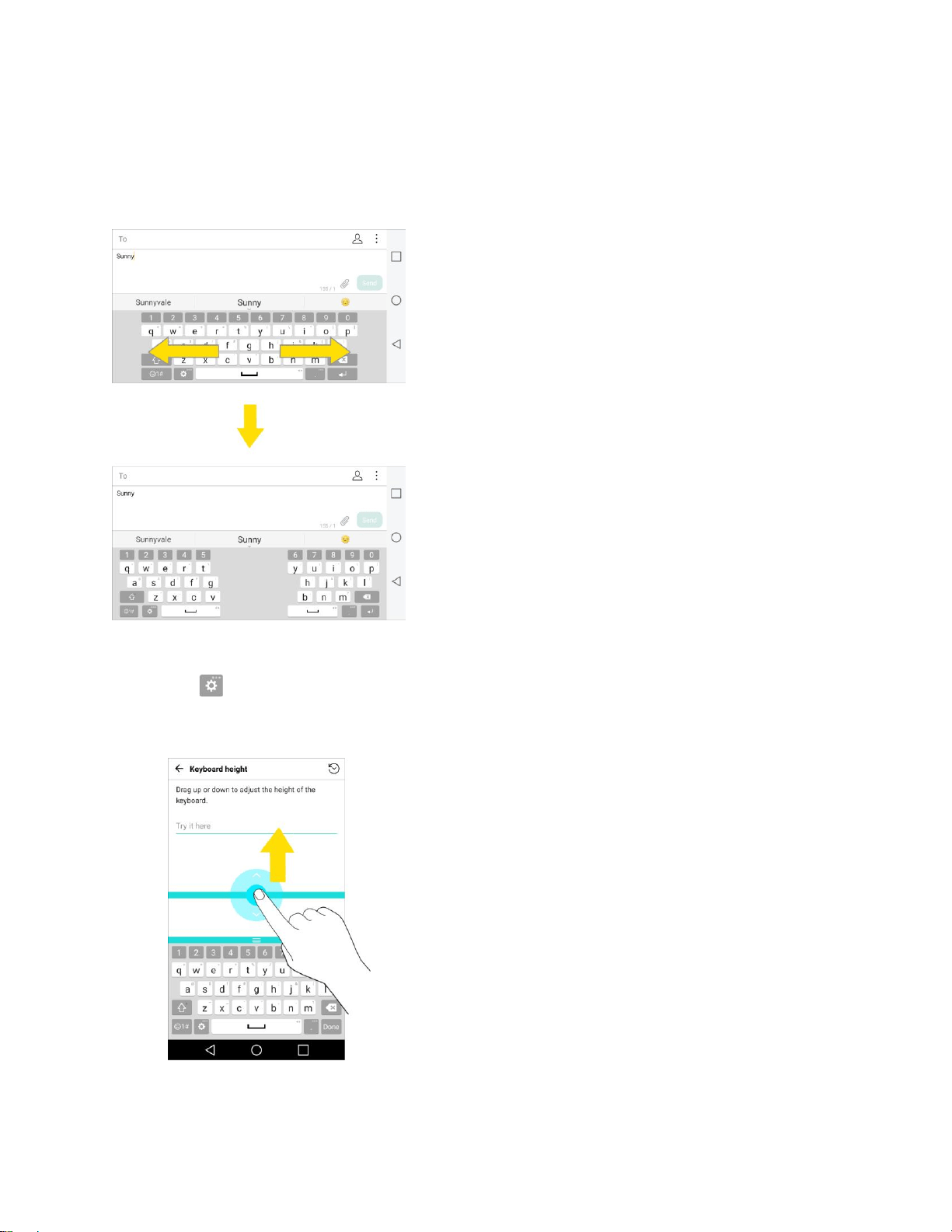
Basic Operations 28
Split Keyboard Using Gesture
The split keyboard feature allows you to use both hands to type while in landscape view. Each half of the
keyboard withdraws to the left and right of the screen. Place both thumbs on the keyboard and slide them
outwards in opposite directions.
To change the keyboard height:
1. Tap > Keyboard height and layout > Keyboard height.
2. Drag the blue bar to adjust the keyboard height.
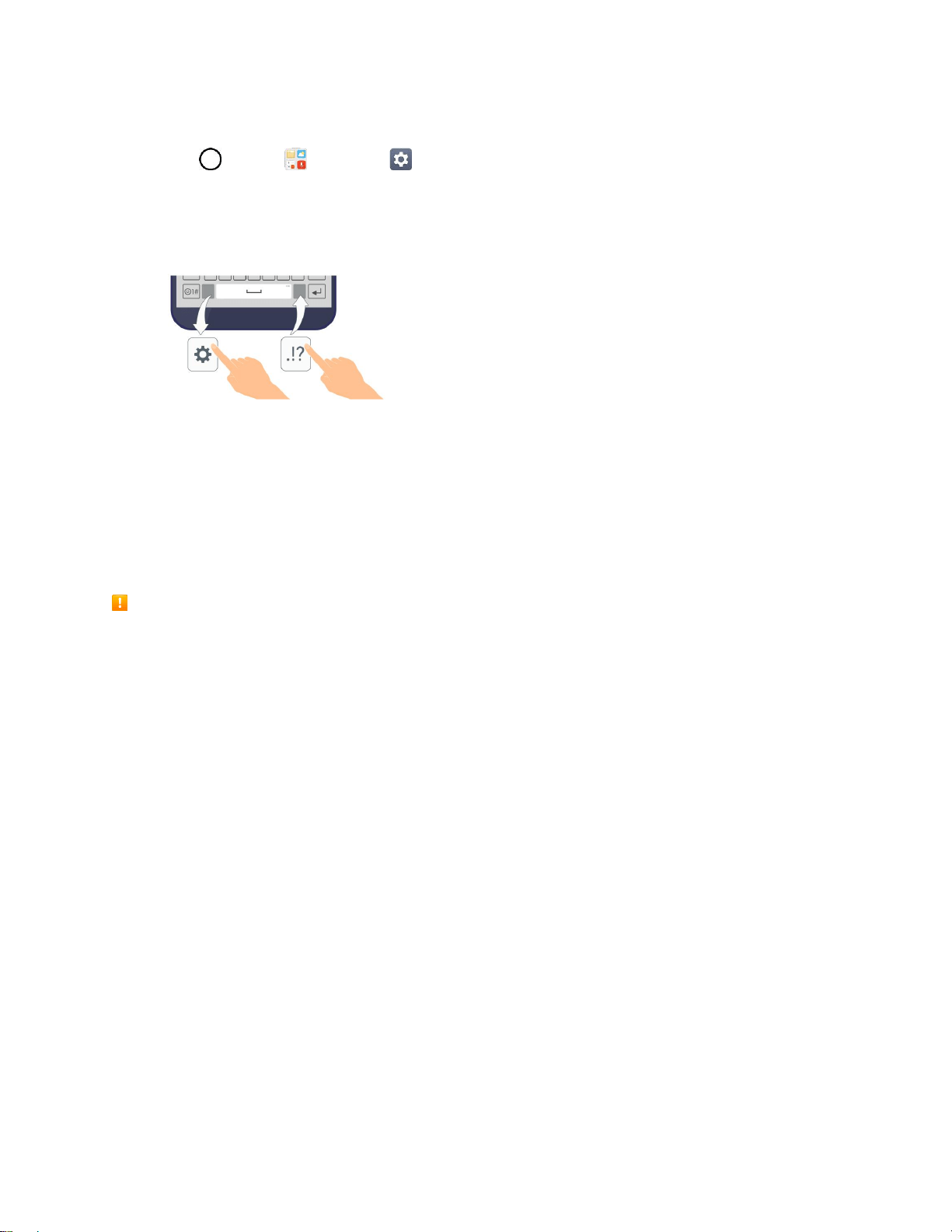
Basic Operations 29
To change the bottom row keys:
1. Tap > Tools > Settings > General tab > Language & keyboard > LG Keyboard >
Keyboard height and layout > QWERTY keyboard layout.
2. Drag to add or delete keys or change the order. To change to another character on the visible key,
tap the key and choose the desired character that you want displayed.
Note: This function does not support some languages.
Google Account
You will need a Google Account to access several phone features such as Gmail, Google Maps,
Hangouts, and the Google Play applications. Before you are able to access Google applications, you
must enter your account information. These applications sync between your phone and your online
Google Account.
Google Account Cautions
Be sure not to forget your Google Account ID or password.
Create a Google Account
You must create and/or sign into a Google Account to use Gmail, Google Hangouts
TM
, Google
Calendar
TM
, and other Google Apps. Signing into a Google Account is also necessary to download
applications from the Google Play Store app to sync your data (if applicable) with the Google servers, and
to take advantage of any other available Google services on your phone.
If you don’t have a Google Account, you will be prompted to create one. If you have an enterprise account
through your company or other organization, your IT department may have special instructions on how to
sign into that account.
Create a Google Account Online
1. From a computer, or from your phone's Browser, navigate to www.google.com.
2. On the main page, tap or click Sign in > Create an account.
3. Follow the on-screen prompts to create your free account.
4. Log into your provided email address, locate the email from Google, and respond to the new
email to both confirm and activate your new account.

Basic Operations 30
Create a Google Account Using Your Phone
1. Tap > Tools > Settings > General tab > Accounts & sync > ADD ACCOUNT.
2. Tap Google and then tap Or create a new account.
3. Follow the prompts to set up your account. Tap NEXT to proceed between steps, which may
include:
Enter your First name and Last name.
Enter a desired Username.
Enter and reenter a password.
Create a security question and answer, enter a secondary email address to help you recover
your password if you ever lose it.
On the Finish account screen, select your Web history and additional Google Play options.
Enter the letters from the Authenticating screen.
After your phone connects with the Google servers, select the items you would like to sync
with your phone and then tap Sync now.
4. Tap Finish setup.
You are signed in to your Google Account, and your phone will synchronize the selected items.
Note: When setting up a new Google Account, either on your phone or online, you will be prompted to
add a secondary email address. Enter a second Gmail address or any other email address from which
you currently send and receive email. This address is used to authenticate your account should you ever
encounter problems or forget your password. It is strongly encouraged for Android users so you can
regain access to Google services and purchases on your phone.
Sign into Your Google Account
If you have a Google Account but have not yet signed in with your phone, follow these instructions to sign
in to your Google Account.
1. Tap > Tools > Settings > General tab > Accounts & sync > ADD ACCOUNT.
2. Enter a Google Account and tap NEXT.
3. Enter your Password and tap NEXT.
4. Select if you want to back up your phone's apps, app data, settings, and Wi-Fi passwords and tap
NEXT.
5. Checkmark the entries you want to set up payment info (if necessary) and tap NEXT.
Your phone then communicates with the Google servers to confirm your information.

Basic Operations 31
Google Play Store
Google Play™ is the place to go to find new Android apps, books, movies, and music for your phone.
Choose from a wide variety of free and paid content ranging from productivity apps and games to
bestselling books and blockbuster movies and music. When you find what you want, you can easily
download and install it on your phone.
To access the Google Play store app, you must first connect to the Internet using your phone’s Wi-Fi or
mobile data connection and sign in to your Google Account. See Chrome Browser and Sign into Your
Google Account for details.
Installing Applications
Many different kinds of applications can be installed on your phone from Google Play (provided by
Google Inc.). Sprint is not responsible in any way for user-installed applications (quality, reliability,
legality, fitness for a purpose, credibility, accuracy, etc.) or resulting malfunctions (viruses, etc.).
Important: Our policies often do not apply to third-party applications. Third-party applications may access
your personal information or require us to disclose your customer information to the third-party application
provider. To find out how a third-party application will collect, access, use, or disclose your personal
information, check the application provider’s policies, which can usually be found on their website. If you
aren’t comfortable with the third-party application’s policies, don’t use the application.
Find and Install an App
When you install apps from Google Play app and use them on your phone, they may require access to
your personal information (such as your location, contact data, and more) or access to certain functions
or settings of your phone. Download and install only apps that you trust.
1. Tap > Play Store .
2. Browse for an application. Once you have decided on one, tap it to view its details.
3. Read the application descriptions and comments.
4. Tap INSTALL (for free applications) or the price button (for paid applications).
Warning: Use caution with applications which request access to any personal data, functions, or
significant amounts of data usage times.
5. Read the app's access requirements and tap ACCEPT if you agree to them.
6. Check the progress of the current download by opening the Notifications Panel.
7. You will be notified when the item is downloaded and installed on your phone.
8. On the Play Store screen, tap > My apps & games, tap the installed application in the list,
and then tap OPEN.

Basic Operations 32
Purchasing Applications
Purchase apps at your own risk. Sprint is not responsible for any harm to you or third parties resulting
from the use of purchased applications.
Request a Refund for a Paid App
If you are not satisfied with an app, you can ask for a refund within 15 minutes of the purchase. Your
credit card is not charged and the app is uninstalled from your phone.
If you change your mind, you can install the app again, but you can’t request a refund a second time.
1. Tap > Play Store .
2. Tap > My apps & games.
3. Tap the app to uninstall for a refund.
The details screen for the app opens.
4. Tap Refund, and then tap Yes to confirm.
Your app is uninstalled and the charge is canceled.
Update an App
Depending on your settings, many apps will update automatically, or you can update apps directly from
the Play Store app.
Update an App Directly
1. Tap > Play Store .
2. Tap > My apps & games.
3. Tap the app you want to update, and then tap UPDATE > CONTINUE.
The app update is downloaded and installed.
Set Automatic App Updates
1. Tap > Play Store .
2. Tap > Settings.
3. Tap Auto-update apps and select an option.
The app is set to update automatically whenever an update becomes available (depending on
your settings).
Note: Automatic updates are unavailable for some apps.

Basic Operations 33
Uninstall an App
You can uninstall any app that you have downloaded and installed from Google Play.
1. Tap > Play Store .
2. Tap > My apps & games.
3. On the Installed screen, tap the app you want to uninstall, and then tap UNINSTALL > OK.
The app is uninstalled and removed from your phone.
Get Help with Google Play
The Google Play store app offers an online help option if you have questions or want to know more about
the app.
1. Tap > Play Store .
2. Tap > Help & Feedback.
The Web browser will take you to the Google Play Help Web page, where you will find
comprehensive, categorized information about Google Play.
Lock and Unlock Your Screen
Your phone allows you to quickly turn the screen off when not in use and to turn it back on and unlock it
when you need it.
Turn the Screen Off When Not in Use
■ To quickly turn the screen off, press the Power/Lock Button. Pressing the Power/Lock Button
again or receiving an incoming call will turn on your phone screen and show the lock screen.
To save battery power, the phone automatically turns off the screen after a certain period of time when
you leave it idle. You will still be able to receive messages and calls while the phone’s screen is off.
Note: For information on how to adjust the time before the screen turns off, see Display Settings.
Turn the Screen On and Unlock It
1. To turn the screen on, press the Power/Lock Button.
The lock screen appears.
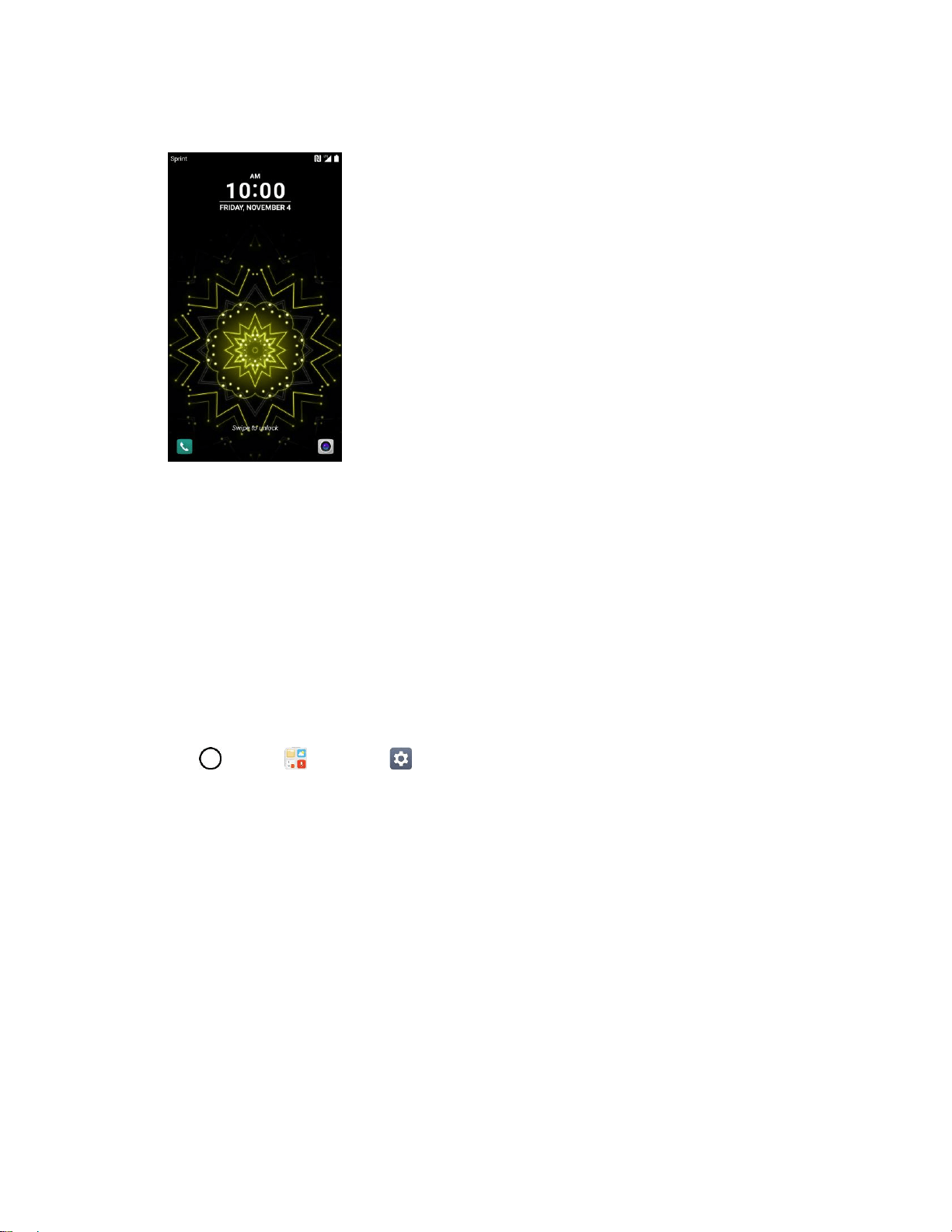
Basic Operations 34
2. Swipe your finger across the screen to unlock it.
The screen is unlocked.
If you have set up a screen lock, you will be prompted to draw the pattern or enter the
password or PIN. See Select Screen Lock.
Unlock Your Screen Using the Knock Code
Feature
The Knock Code feature allows you to create your own unlock code using a combination of knocks (or
taps) on the screen.
To activate the Knock Code feature:
1. Tap > Tools > Settings > Display tab.
2. Tap Lock screen.
3. Tap Select screen lock > Knock Code.
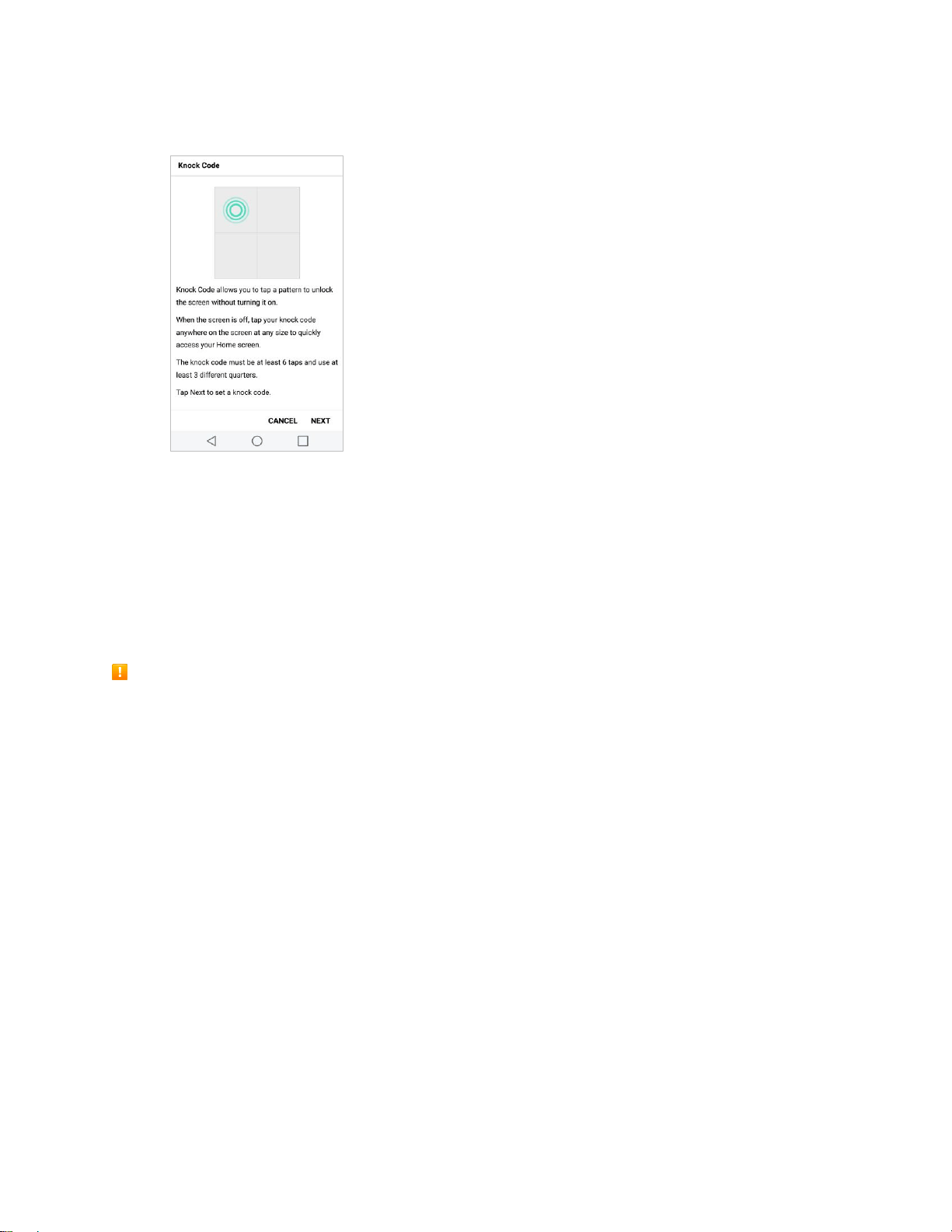
Basic Operations 35
4. Use the 2x2 grid to create a sequence of knocks (or taps) to set your knock code.
To unlock the phone using Knock Code:
■ While the screen is off, tap the same sequence you established anywhere on the screen. The
Home screen will be accessed directly.
Update Your Phone
From time to time, updates may become available for your phone. You can download and apply updates
through the Settings > General tab > System updates menu.
Software Update Cautions
During update: The phone cannot be used until the software update is complete. It may take time to
update your phone’s software.
Signal during update: Update your phone where signal reception is good, and do not change
location during the update process. Make sure the battery is adequately charged before beginning an
update. A weak signal or low battery during an update may cause the update to fail. An update failure
may disable the phone.
Other functions during update: Other phone functions cannot be used during a software update.
Update Your Phone Software
You can update your phone's software using the System Update option.
Before Updating Your Phone
Updating your phone may result in a loss of saved data depending on the condition of your phone
(malfunctioning, damaged, water seepage, etc.). You must back up all critical information before updating
your phone firmware.

Basic Operations 36
Back Up All Data Prior to Update
To back up your Gmail information:
1. Tap > Tools > Settings > General tab > Accounts & sync.
2. Tap the Auto-sync data option to enable the feature.
If the Auto-sync option is on, email, Calendar and Contacts automatically synchronize
whenever a change is made.
If the Auto-sync option is off, tap the sync icon within the account field to reveal the account’s
synchronization settings screen.
3. Select an account and then tap > > Sync now to sync your Google Account information.
To back up your Exchange Mail information:
1. Tap > Tools > Settings > General tab > Accounts & sync > Microsoft Exchange.
2. Select an account and then tap > > Sync now to sync your Microsoft Exchange account
information.
Toggle the switches to manually synchronize the desired parameters (Contacts or Calendar).
To back up stored text messages:
1. Tap > Messaging .
2. Select the text message from the list to view the message thread.
3. Touch and hold on a portion of the text message from the string.
The Message options context menu appears.
Note: You can back up stored text messages by forwarding them to your own phone number. Open the
messages after you have updated your firmware.
4. Tap Forward.
5. Enter your phone number and tap Send.
To restore your Google apps following the update:
1. Tap > Play Store .
2. Tap > My apps and games > ALL tab.
3. Scroll through the list of previously downloaded Google apps and choose those you wish to
reinstall.
4. Follow the onscreen instructions.

Basic Operations 37
Note: Your Google app purchases are reloaded remotely and can be re-installed after the update is
applied.
As an added precaution, to preserve any data on your microSD card, please unmount it from your phone
prior to starting the update process. Tap > Tools > Settings > General tab > Storage > .
Update Your Phone’s Software
Once you have backed up all your data, use the Update now option to update your phone’s software.
1. Tap > Tools > Settings > General tab > System updates.
2. Tap Update LG software > CHECK FOR UPDATE.
Your phone automatically downloads and installs any available updates. You may be required
to power your phone off and back on to complete the software upgrade.
Alternatively, you can access system updates through the notification panel.
1. Locate the System Update Available icon in notifications.
2. Pull down the status bar.
3. Tap to open the System Updates screen.
4. Tap Download and follow the onscreen instructions.
5. Tap Restart and install to complete the process.
Confirm Your Current Phone Software
1. Tap > Tools > Settings > General tab > About phone.
2. Tap Software info.
Update Your Profile
This option allows you to automatically update your online user profile information. If you choose to
change your user name and select a new one online, you must then update the user name on your phone.
1. Tap > Tools > Settings > General tab > System updates > Update profile.
2. Follow the onscreen instructions.
The phone will download and install the profile update and you will see a confirmation when
complete.
Note: If your data services or account syncing ever seems to go out unexpectedly, use this feature to
reconnect with the network.

Basic Operations 38
Update Your PRL
This option allows you to download and update the PRL (preferred roaming list) automatically.
1. Tap > Tools > Settings > General tab > System updates > Update PRL.
2. Follow the onscreen instructions.
The phone will download and install the PRL update and you will see a confirmation when
complete.
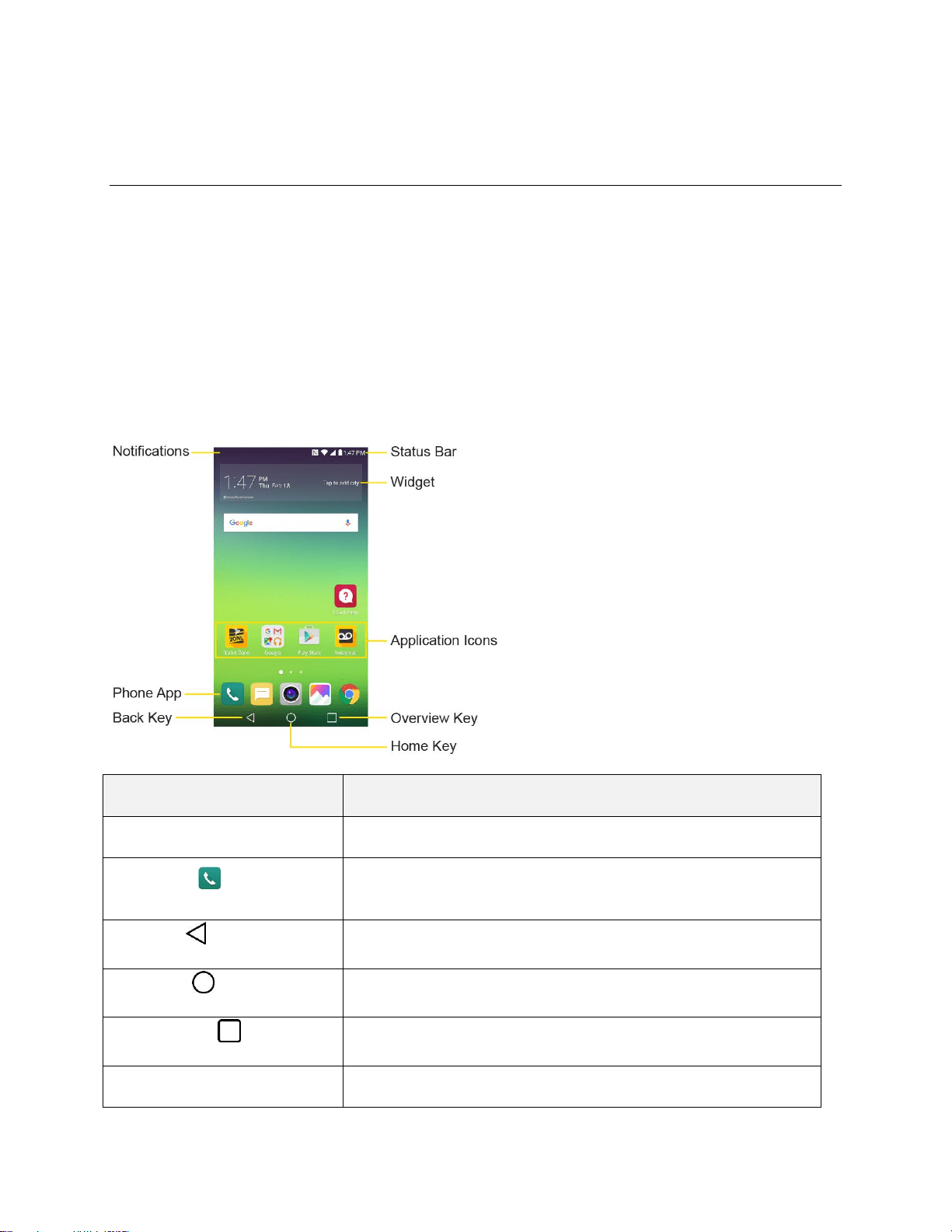
Your Phone's Home Screen 39
Your Phone's Home Screen
The following topics describe how to use and customize your phone’s home screen, understand the
status bar, and use the notifications window.
Home Screen Basics
The home screen is the starting point for your phone’s applications, functions, and menus. You can
customize your home screen by adding application icons, shortcuts, folders, widgets, and more.
Home Screen Layout
Your home screen extends beyond the initial screen. Swipe the screen left or right to display additional
screens.
Item
Description
Notifications
Displays your current notifications.
Phone App
Tap to open the dial pad. Also provides additional tabs to access
Call logs, Contacts, and Groups.
Back Key
Tap to return to the previous screen.
Home Key
Tap to display the main home screen.
Overview Key
Tap to access a list of your most recently-used apps.
Application Icons
Tap an icon (application, folder, etc.) to open and use it.
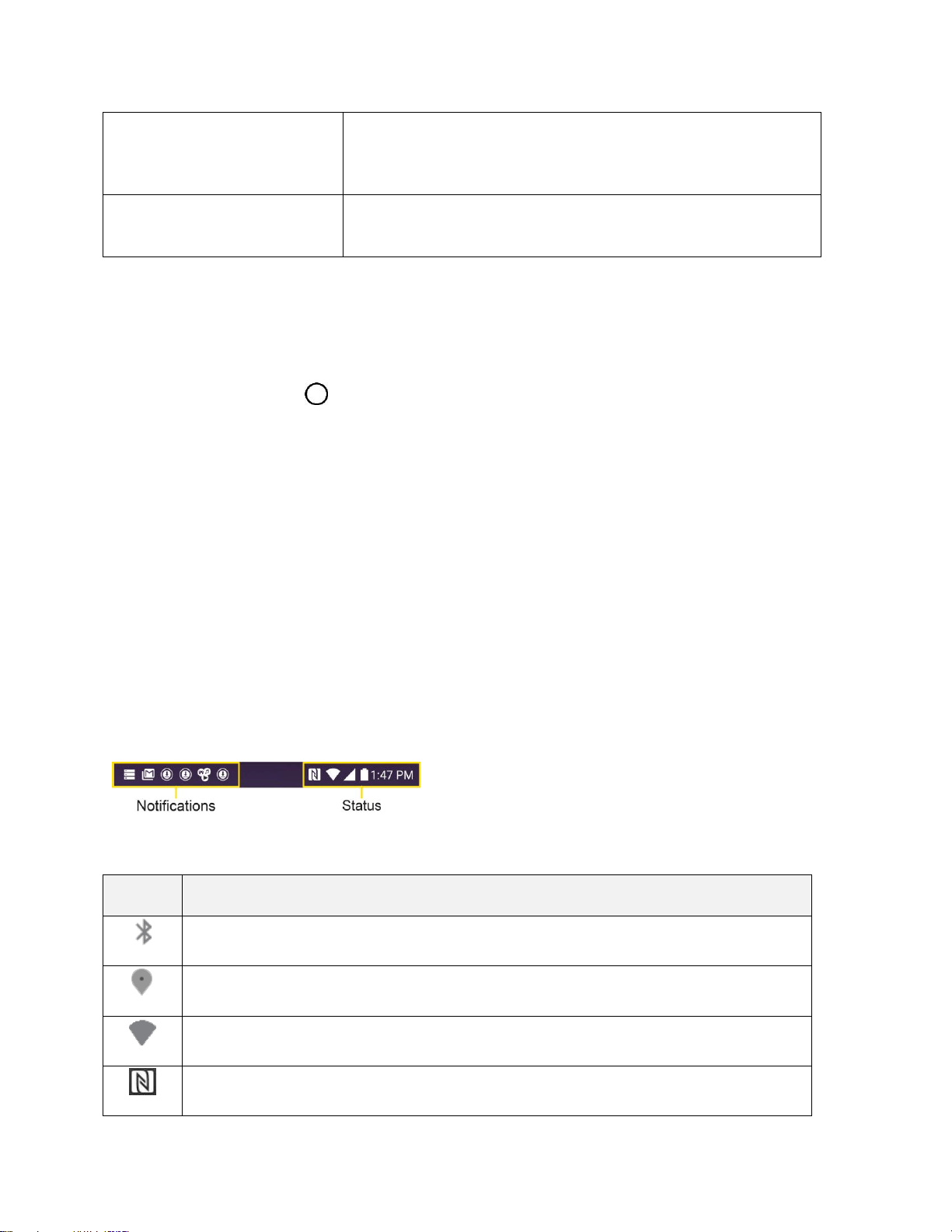
Your Phone's Home Screen 40
Widget
Widgets are self-contained apps that display on a home screen.
Unlike a shortcut, the Widget works like as an onscreen
application.
Status Bar
Shows device status information including the time, signal
strength, battery status, and notification icons.
Extended Home Screens
In addition to the main home screen, your phone features extended home screens to provide more space
for adding icons, widgets, and more. Swipe across the screen to move from the main screen to an
extended screen. The small circles above the primary shortcuts let you know your current screen position.
■ Tap the Home Key to display the main home screen.
To go directly to a particular screen:
● Swipe left and right to access additional Home screen panels.
● Tap the location dots near the bottom of the Home screen to move to the selected panel.
Status Bar and Notification Panel
Your phone’s status and notifications are available at a glance at the top of the screen.
Status Bar
The status bar at the top of the home screen provides phone and service status information on the right
side and notification alerts on the left. To view the notification panel or access the quick settings menu,
pull down the status bar from the top of the screen.
Status Bar Layout
Main Status Icons
Icon
Status
Bluetooth
®
active
GPS active
Wi-Fi
®
active
NFC Activated
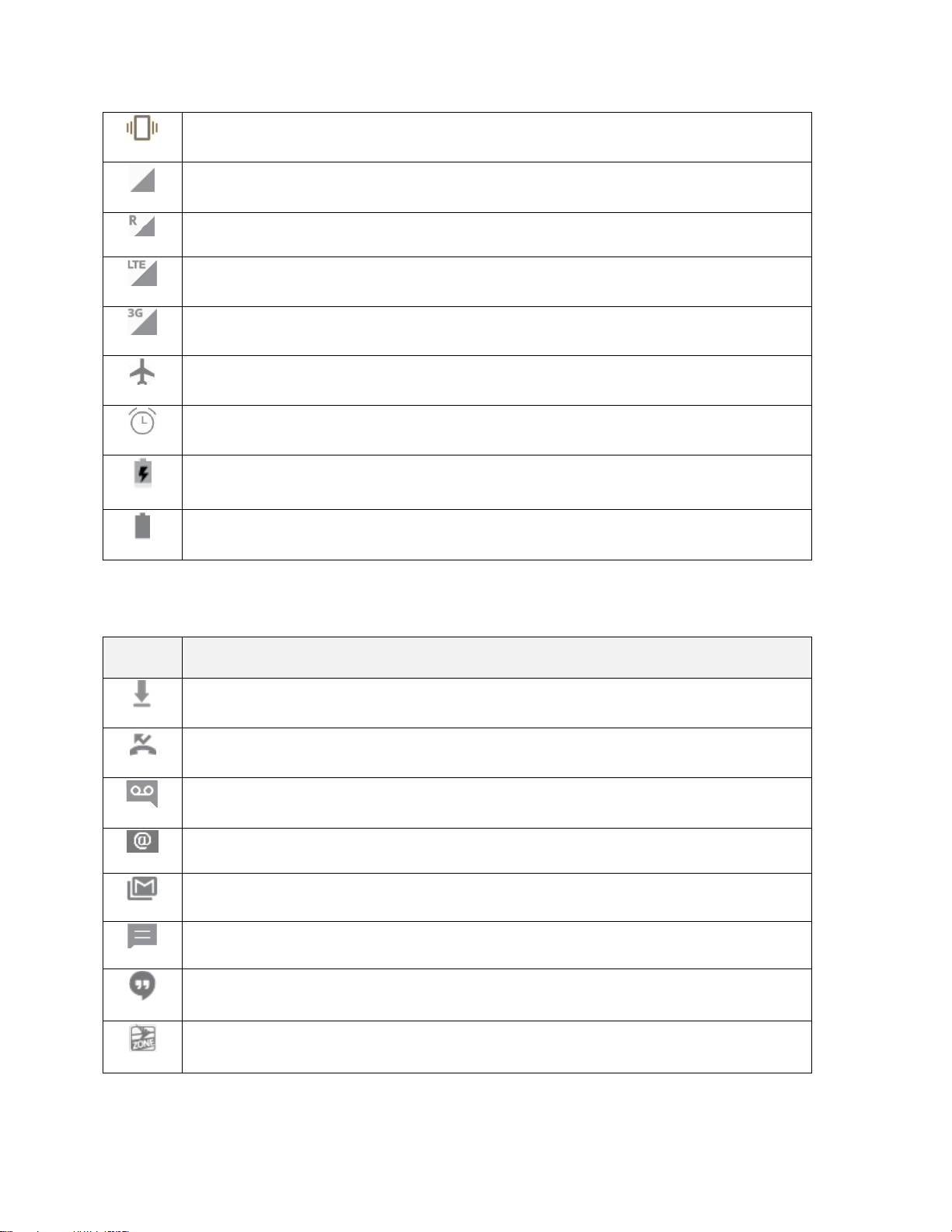
Your Phone's Home Screen 41
Vibrate
Network (full signal)
Network (roaming)
4G LTE data service
3G (data service)
Airplane mode
Alarm set
Battery (charging)
Battery (full charge)
Main Notification Icons
Icon
Notification
Downloading
Missed call
New voicemail
New email
New Gmail
New text or MMS message
New Hangout message
New Sprint Zone message
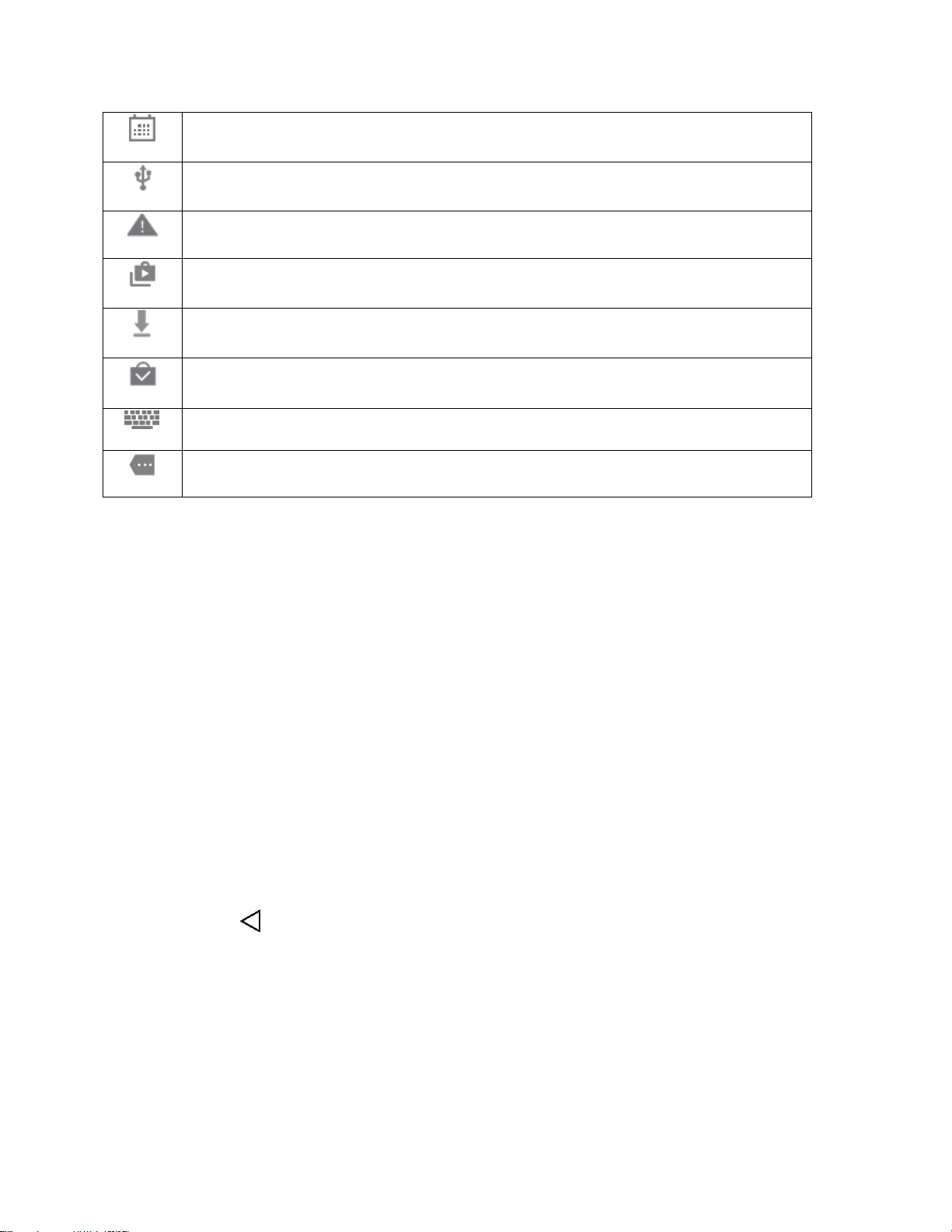
Your Phone's Home Screen 42
Event
USB connection
Warning
Update available
Update downloading
Update successful
Keyboard active
More notifications available (pull down to view)
Note: Additional notification icons may appear. All notifications may be accessed through the notification
panel.
Notification Panel
Your phone’s notifications appear at the left side of the status bar, and you can access the full notification
panel by pulling down the status bar. From there, you can check notifications, download updates, open
messaging apps, use the quick settings menu, and more.
Open the Notification Panel
■ Pull down the status bar. (Slide your finger down from the top of the screen.)
The notification panel opens. To check notifications, tap an item in the list.
Close the Notification Panel
■ Slide the notification panel up. (Slide your finger up from the bottom of the screen.)
– or –
Tap Back to close the notification panel.
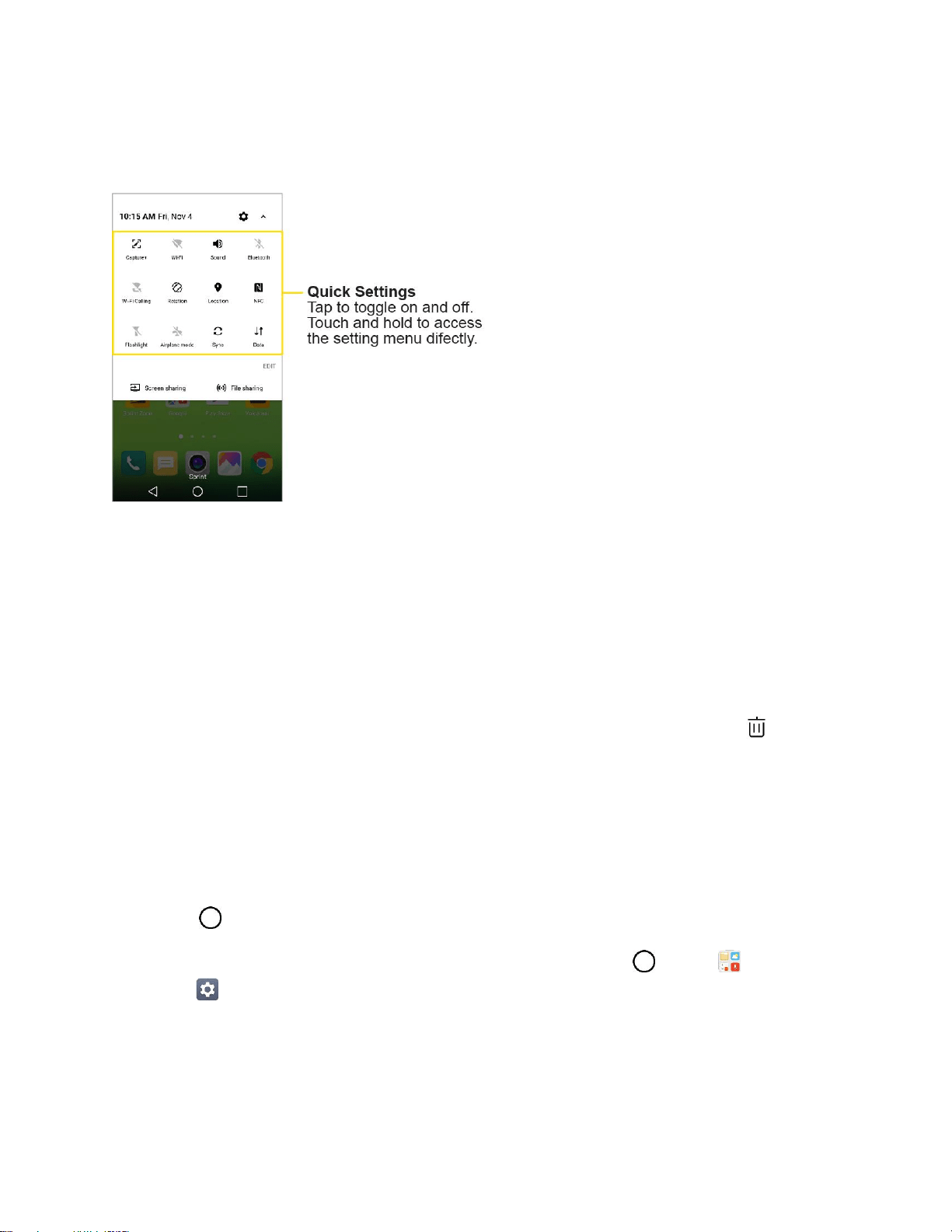
Your Phone's Home Screen 43
Notification Panel Layout
The notification panel gives you access both to notifications and the quick settings menu.
Customize the Home Screen
Learn how to set the wallpaper and add, move, or remove shortcuts, widgets, and folders from the home
screen.
Operations for Rearranging the Home Screen
● Moving Widgets and Icons: From home, touch and hold an item and then drag it to the desired
location.
● Deleting Widgets: From home, touch and hold an item and then drag it to Remove .
● Displaying the Home Screen Menu: From home, touch and hold an empty space to display the
home screen menu. Menu options include Widgets, Theme, Home screen settings and
Uninstalled apps.
Change the Wallpaper
Select and assign your phone’s background wallpaper.
1. Tap , touch and hold an empty space, and then tap Home screen settings > Wallpapers.
You can also access the wallpaper menu through settings. Tap > Tools > Settings
> Display tab > Home screen/Lock screen > Wallpaper.
2. Tap an option to select the wallpaper.
Home screen to set the background wallpaper for your home screen. Select from Gallery,
Wallpaper gallery, ID wallpapers, Live wallpapers, and Photos.

Your Phone's Home Screen 44
Lock screen to set the wallpaper for your phone’s lock screen. Select from Wallpaper
gallery or Gallery.
3. Select a wallpaper and tap OK, SET WALLPAPER or APPLY.
The wallpaper is set.
Note: If you select Gallery, you will need to select an album and a picture. Once selected, use the crop
tool to resize and position the image and then tap OK.
Note: If you select Live Wallpapers, before you tap Set wallpaper, you can tap Settings to select
custom animation settings, etc., for the live wallpaper.
Add Widgets to the Home Screen
You can add widgets to your phone’s home screen. Widgets are self-contained apps that display on a
home screen. Unlike a shortcut, the Widget works like as an onscreen application. There are all kinds of
widgets, including links to a specific contact, Internet bookmarks, Facebook
®
status windows, Gmail and
email accounts, and many others.
1. Tap , touch and hold an empty space, and then tap Widgets.
The widget list opens.
2. Touch and hold a widget icon.
The icon will disengage and you will see thumbnails of your home screens.
3. Drag the icon to an empty location on one of the home screens.
The widget is added to the home screen.
Add Folders to the Home Screen
You can group home screen shortcuts into folders for convenient access.
1. Tap , touch and hold a shortcut you want to place in a folder and drag it over another icon you
want to place in the folder. Then release it.
A new folder is created.
2. To add more app shortcuts to the folder, touch and hold a shortcut and drag it on top of the new
folder.
The new shortcut is added to the folder.
Change Folder Names
Once you have added folders, you can change the name easily from the folder display.
1. Tap , tap the folder to open it, and then tap the folder name.
2. Type a new name and then tap OK.

45
Making Connections
The following set of topics will cover your phone’s ability to help you make connections, from phone calls
and maintaining contacts, to text messages, email, Internet, and international services.

Phone Calls and Voicemail 46
Phone Calls and Voicemail
The following topics outline the use of your device’s phone app to place and receive calls, use voicemail,
set up and manage contacts, and more.
Place and Answer Calls
The following topics describe how to directly dial calls, how to answer incoming calls, and how to use the
in-call screen options.
Adjust In-Call Volume
■ Adjusting Call Volume: Press the Volume Buttons during the call.
Troubleshooting
Issue: Difficulty during call.
Solution 1: It may not be possible to make a call properly in a noisy location.
Solution 2: When calling using Speaker, check the call volume. Raising the call volume may make
calling difficult.
Issue: Sound pops momentarily during a call.
Solution: Are you changing location while calling? Sound pops when signal is weak and the phone
switches to a different area.
Emergency Call Cautions
Emergency calls are restricted in Airplane mode.
Call Using the Phone Dialer
The most "traditional" way to place a call is by using the phone's dialer screen.
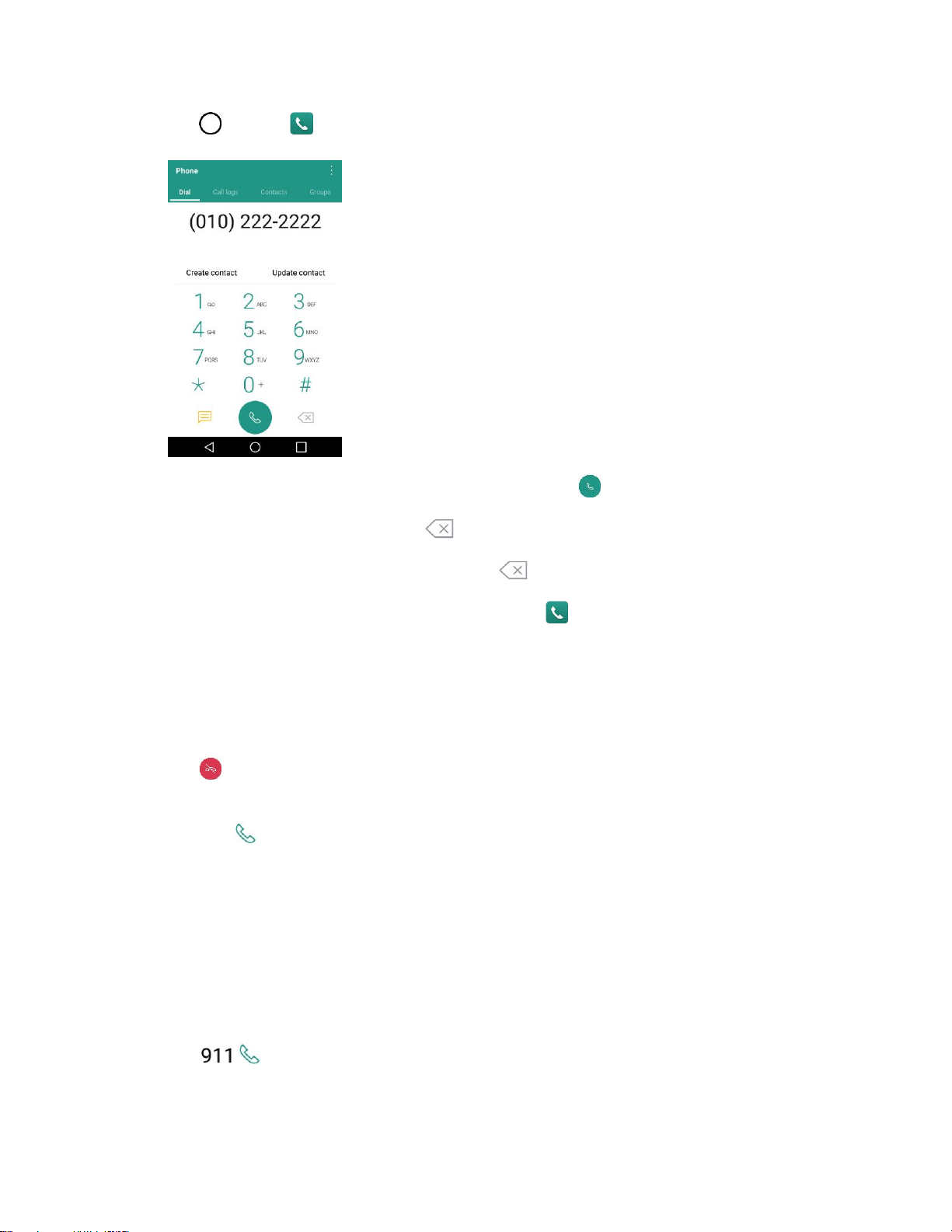
Phone Calls and Voicemail 47
1. Tap > Phone > Dial tab.
2. Enter a phone number using the on-screen dialpad and tap .
If you enter a wrong number, tap to erase digits one by one.
To erase the entire number, touch and hold .
You can open other applications during a call. The will appear in the Status Bar while the
call is underway.
Press the Volume Up/Down Buttons to adjust the call volume.
Use the on-screen buttons to add another call, put a call on hold, to use the speakerphone,
and for other options, as described in In-Call Screen Layout and Operations.
3. Tap to end the call.
Tip: To redial your last outgoing call, follow step 1 to access the Dialer, tap the Call logs tab, locate the
call entry and tap .
You can also make calls from your Contacts list and from the Call logs.
Call Emergency Numbers
You can place calls to 9-1-1 even if the phone’s screen is locked or your account is restricted.
To call the 9-1-1 emergency number when the phone’s screen is locked with a screen lock:
1. From the lock screen, tap Emergency call.
2. Tap .
As long as you are in an area covered by wireless service, the emergency call is placed.

Phone Calls and Voicemail 48
To call the 9-1-1 emergency number normally or when your account is restricted:
1. Unlock the screen. For more information, see Lock and Unlock Your Screen.
2. Tap > Phone > Dial tab.
3. Tap .
As long as you are in an area covered by wireless service, the emergency call is placed.
Enhanced 9-1-1 (E 9-1-1) Information
This phone features an embedded Global Positioning System (GPS) chip necessary for utilizing E 9-1-1
emergency location services where available.
When you place an emergency 9-1-1 call, the GPS feature of your phone seeks information to calculate
your approximate location. Depending on several variables, including availability and access to satellite
signals, it may take up to 30 seconds or more to determine and report your approximate location.
Important: Always report your location to the 9-1-1 operator when placing an emergency call. Some
designated emergency call takers, known as Public Safety Answering Points (PSAPs), may not be
equipped to receive GPS location information from your phone.
Answer Phone Calls
The following information lets you know how to answer incoming calls, mute the ringer on incoming calls,
reject incoming calls, and more.
When you receive a phone call from a contact, the Incoming call screen appears and displays the caller
ID icon, name, and phone number of the calling party. When you receive a phone call from someone who
is not stored in People, only the default caller ID icon and phone number appear on the Incoming call
screen.
Note: If your phone is turned off, all calls automatically go to voicemail.
Answer an Incoming Call
1. When a call arrives, drag in any direction to answer it.
2. To end the call, tap .
Mute the Ringing Sound
To mute the ringer without rejecting the call, you can do any of the following:
● Press the Volume Down Button.
● Place the phone face down on a level surface.
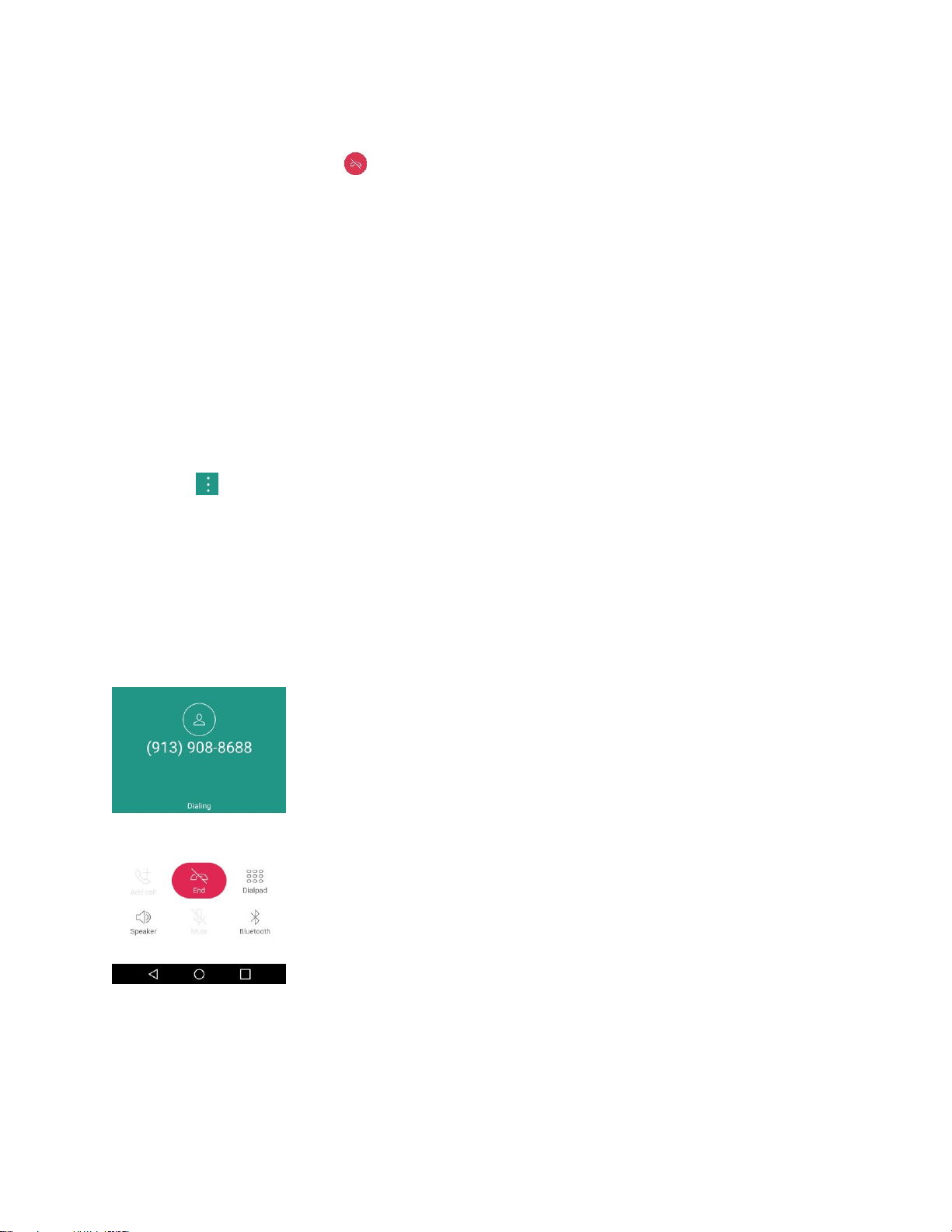
Phone Calls and Voicemail 49
Reject an Incoming Call
■ When a call arrives, drag in any direction to reject it.
The ringtone or vibration will stop and call will be sent directly to voicemail.
Reject a Call and Send a Text Message
You can reject an incoming call and automatically send a text message to the caller.
1. When a call arrives, slide Decline with message up from the bottom of the screen.
The ringtone or vibration will stop and you will see a list of preset text messages.
2. Tap one of the messages to send it to the caller.
The selected message will be delivered to the caller.
You can edit the reject messages through the Call settings menu. From the phone app, tap
> Call settings > Call blocking & Decline with message > Decline with message and
edit or create the reject messages.
In-Call Screen Layout and Operations
While you’re on a call, you will see a number of onscreen options. Tap an option to select it.
In-Call Screen Layout
Tap options to activate them during a call.
● Add call to initiate a 3-way call.
● End to end the current call.
● Dialpad to display the dialpad to enter additional numbers, for example, an extension or access
code.

Phone Calls and Voicemail 50
For example: When you call your bank‘s 800 number, use your dialpad to enter your account
number and PIN.
● Speaker to route the phone’s audio through the speaker (On) or through the earpiece (Off).
Activate the speaker to route the phone’s audio through the speaker. (You can adjust the
speaker volume using the volume buttons.)
Deactivate the speaker to use the phone’s earpiece.
Warning: Because of higher volume levels, do not place the phone near your ear during speakerphone
use.
● Mute to mute the microphone during an active call. Tap again to unmute the microphone.
● Bluetooth (Only available when a Bluetooth headset is connected to your phone) to route the
phone’s audio through a connected Bluetooth headset (On) or through the speaker (Off). For
details about pairing the phone with a Bluetooth headset.
When the call is routed to a Bluetooth headset, the current call area shows the Bluetooth call
icon ( ).
Note: The Headset button is activated to show the current call is routed to the connected Bluetooth
headset.
To route the current call back to the phone, tap Bluetooth to temporarily use the phone. Tap
it again to route the call back to the connected Bluetooth headset.
When Bluetooth or the Bluetooth headset is turned off, the call is routed through either the
earpiece or speaker and shows ( ).
● Tap during a call to display a list of additional in-call features:
Contacts: Display your contacts list.
Place a Call from Contacts
You can place phone calls directly from entries in your Contacts list.
1. Tap > Phone to display the phone app.
2. Tap the Contacts tab to display the Contacts list.
3. Tap a contact.
4. Tap Call next to the number you want to call.
5. To end the call, tap .

Phone Calls and Voicemail 51
Call from Call Logs
The Call logs list lets you quickly place calls to recent incoming, outgoing, or missed numbers.
1. Tap > Phone to display the phone app.
2. Tap the Call logs tab to display the Call logs list.
3. Tap an entry to display the call details.
4. Tap Call to place a call.
5. To end the call, tap .
Voicemail
The following topics describe how to set up and use your phone's voicemail and visual voicemail features.
Voicemail Setup
You should set up your voicemail and personal greeting as soon as your phone is activated. Always use a
password to protect against unauthorized access. Your phone automatically transfers all unanswered
calls to your voicemail, even if your phone is in use or turned off.
1. Tap > Phone > Dial tab.
2. Touch and hold to dial your voicemail number.
3. Follow the system prompts to:
Create your password.
Record your name announcement.
Record your greeting.
Important: Voicemail passcode – It is strongly recommended that you create a password when setting
up your voicemail to protect against unauthorized access. Without a password, anyone who has access
to your phone is able to access your voicemail messages.
Visual Voicemail Setup
This topic describes the Visual Voicemail feature of your phone's service, as well as the steps required to
set up Visual Voicemail on your phone.
About Visual Voicemail
Visual Voicemail gives you a quick and easy way to access your voicemail. Now you can find exactly the
message you are looking for without having to listen to every voicemail message first. This feature
periodically goes out to your voicemail, and gathers the caller information from all of the current
voicemails. It then populates a list with the caller name and number, along with the length of time and
priority level of the voicemail message.
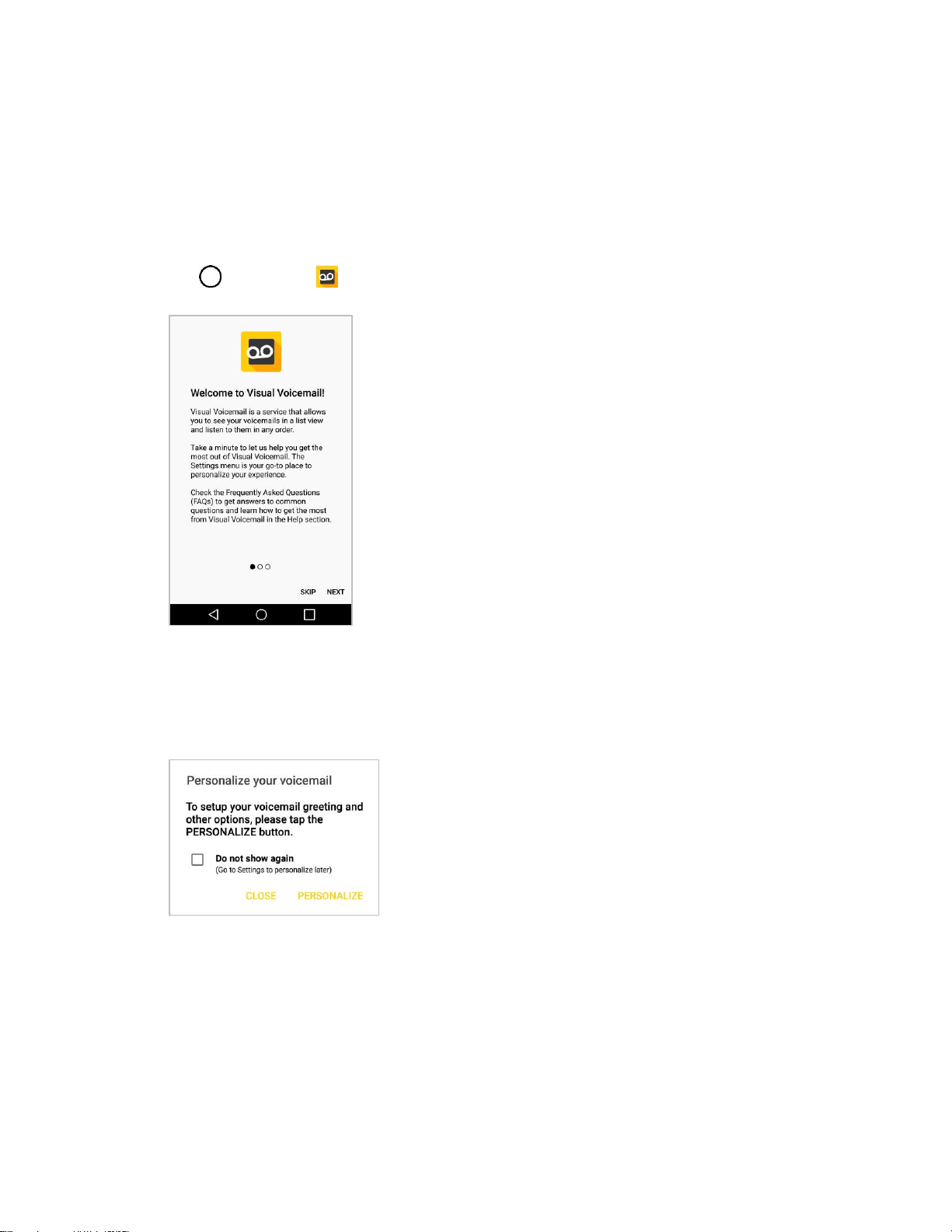
Phone Calls and Voicemail 52
Set Up Visual Voicemail
Setting up Visual Voicemail follows many of the same procedures as setting up traditional voicemail. You
should set up your voicemail and personal greeting as soon as your phone is activated. Your phone
automatically transfers all unanswered calls to your voicemail, even if your phone is in use or turned off.
Note: To set up your traditional voicemail box, see Voicemail.
1. Tap > Voicemail .
You’ll see a Welcome to Visual Voicemail screen.
2. Scroll through the introduction screens to view a brief explanation of visual voicemail services.
3. At the end of the welcome screens, you'll come to a Personalize your voicemail prompt.
4. Tap PERSONALIZE and follow the system prompts to:
Create a password (part of standard voicemail).
Record your name announcement.
Record your greeting.
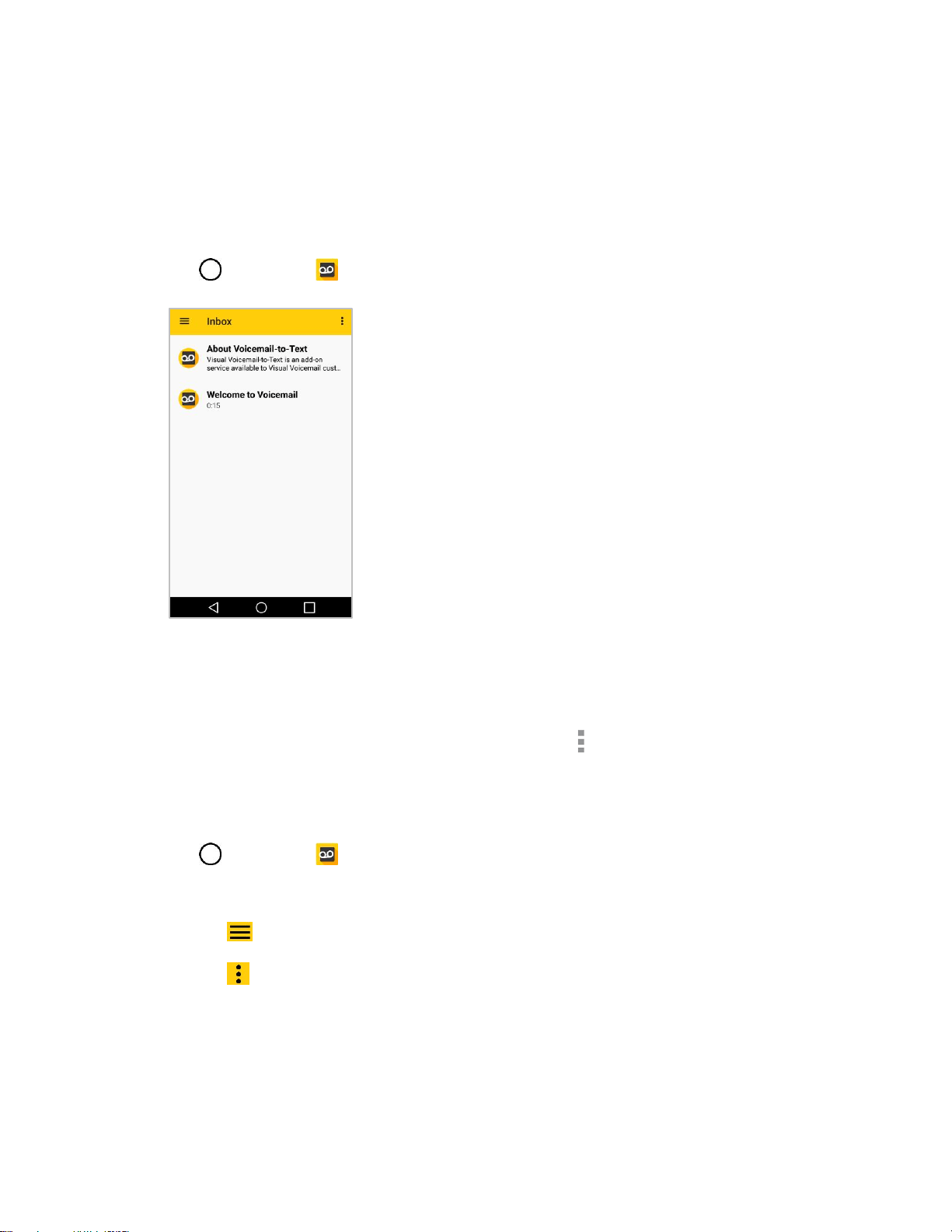
Phone Calls and Voicemail 53
Important: Voicemail passcode – It is strongly recommended that you create a password when setting
up your voicemail to protect against unauthorized access. Without a password, anyone who has access
to your phone is able to access your voicemail messages.
Review Visual Voicemail
Visual Voicemail lets you easily access and select which messages you want to review.
1. Tap > Voicemail .
You will see the voicemail inbox.
2. Tap a message to review it.
Tip: There are several icons at the bottom of the review screen for maintenance, storage, messaging,
and other options. For an explanation of all your options, tap Menu > Help > Visual Voicemail Menu.
Visual Voicemail Options
Use the following options to access and configure your Visual Voicemail options.
1. Tap > Voicemail .
2. From this initial screen, you can:
Tap to view the voicemail messages in other folder: Inbox, Sent, Archive, and Trash.
Tap to access New Voice SMS, New Avatar message, Search, Upgrade to Premium,
Store, Help, and Settings.
Configure Visual Voicemail Settings
The Visual Voicemail settings menu lets you access settings for notifications, pictures, greetings, and
more.

Phone Calls and Voicemail 54
1. Tap > Voicemail .
2. Tap > Settings and select from the following:
Avatar
• Disable Avatar to disable Avatar compose features and content store.
• Avatar Facebook ad signature to enable avatar advertising signature when posting on
Facebook.
• SMS delivery to allow sending SMS message to recipients who do not have Avatar
capability.
Display
• Themes to change the theme for the visual voicemail app.
• Display name to enter a name to identify yourself to people when replying or forwarding
messages.
Help/Info to see help information about visual voicemail.
Preferences
• Manage subscription to subscribe and unsubscribe from the visual voicemail premium
monthly subscription service. This may take a minute.
• Auto forward to email to send a copy of new messages to an email address of your
choice.
• Personalize voicemail to change your voicemail greeting for incoming calls and update
password.
• Transcription language to choose the transcription language (if available).
• Delete messages to set Visual Voicemail to permanently delete messages from the
Trash folder after a specific number of days.
• Mobile advertising preferences to manage participation in the Mobile Advertising
Program, including enabling bonus app features.
• Disable ads to control whether ads display inside Voicemail. Turning ads off also
disables bonus features.
• Transcriptions displayed to transcribe Voicemails from voice to text.
• Enable/Disable Free Trials to opt in or out of future free trials.
• SMS delivery of voice message to allow voice message delivery via SMS to recipients
who do not always have VoiceSMS capability.
Phone Calls and Voicemail 55
Sound
• Notifications to determine how you are notified of new voicemails. Set the notification
sound and vibrate option.
• Speakerphone to automatically turn the speaker on or off.
Updates to search for an upgrade to your Visual message software.
About Voicemail to view build information about the current visual voicemail application.
Change Your Main Greeting via the Voicemail Menu
Your main greeting can be changed directly via the Visual Voicemail system. This direct access saves
you from having to navigate within the voicemail menu.
1. Tap > Voicemail .
2. Tap > Settings > Preferences > Personalize voicemail.
3. Tap OK to connect to the voicemail system. Follow the prompts to change your current greeting.
Edit the Display Name via the Voicemail Menu
From your Visual Voicemail menu, you can quickly change the name or number attached to your voice
messages.
1. Tap > Voicemail .
2. Tap > Settings > Display > Display name.
3. Tap the existing identification field and enter a new identifying name or number (used to identify
you to recipients of your voice messages).
4. Tap OK to save your information.
Optional Calling Services
The following topics outline additional voice-related services available with your phone, including Wi-Fi
calling, call services and more.
Wi-Fi Calling
Wi-Fi Calling uses Wi-Fi networks to help improve voice and data coverage. It sends and receives calls
over a connected Wi-Fi network and may offer better coverage in buildings and areas of poor cellular
reception.
Set Up Wi-Fi Calling
1. Tap > Tools > Settings > Networks tab.
Phone Calls and Voicemail 56
2. Tap Wi-Fi Calling and follow the online prompts to set up Wi-Fi Calling.
Wi-Fi Calling is set up. You will see in the status bar when Wi-Fi Calling is active, or if
Wi-Fi Calling is set up but you are not currently connected to a Wi-Fi network.
Tip: For more information about Wi-Fi Calling, visit this FAQ link at sprint.com/support.
Enable or Disable Wi-Fi Calling
1. Tap > Tools > Settings > Networks tab > Wi-Fi Calling .
2. Tap On/Off to turn Wi-Fi Calling on or off.
Wi-Fi Calling will be turned off, and the Wi-Fi Calling icon will not appear in the status bar.
Tip: You can also turn Wi-Fi Calling on or off through the quick settings menu. Pull down the status bar to
display the quick settings menu and tap Wi-Fi Calling to enable or disable the feature.
Caller ID Blocking
Caller ID identifies a caller before you answer the phone by displaying the number of the incoming call. If
you do not want your number displayed when you make a call, follow these steps.
1. Tap > Phone > Dial tab.
2. Tap .
3. Enter a phone number.
4. Tap .
Your caller information will not appear on the recipient’s phone.
To permanently block your number, call Sprint Customer Service.
Call Waiting
When you’re on a call, Call Waiting alerts you to incoming calls by sounding two beeps. Your phone’s
screen informs you that another call is coming in and displays the caller’s phone number (if it is available).
To respond to an incoming call while you’re on a call:
■ Swipe in any direction. (This puts the first caller on hold and answers the second call.)
To switch back to the first caller:
■ Tap Swap calls.
Note: For those calls where you don’t want to be interrupted, you can temporarily disable Call Waiting by
pressing before placing your call. Call Waiting is automatically reactivated once you
end the call.
Phone Calls and Voicemail 57
Conference Calling
With conference calling, also known as 3-way calling, you can talk to two people at the same time. When
using this feature, the normal airtime rates will be charged for each of the two calls.
1. On the dial pad screen, enter a number and tap (or place a call from Log or Contacts).
2. Once you have established the connection, tap Add call, and dial the second number (or place
the call from Logs or Contacts).
This puts the first caller on hold and dials the second number.
3. When you’re connected to the second party, tap Merge calls. Your conference call is now in
session.
4. To end the three-way call, tap .
Note: If one of the people you called hangs up during your call, you and the remaining caller stay
connected. If you initiated the call and are the first to hang up, all callers are disconnected.
Call Forwarding
Call Forwarding lets you forward all your incoming calls to another phone number – even when your
phone is turned off. You can continue to make calls from your phone when you have activated Call
Forwarding.
Note: You are charged a higher rate for calls you have forwarded.
To activate Call Forwarding:
1. Tap > Phone > Dial tab.
2. Tap .
3. Enter the area code and phone number to which you want your calls forwarded.
4. Tap .
You will hear a tone to confirm the activation of Call Forwarding. All calls to your wireless
number will be forwarded to the designated phone number.
To deactivate Call Forwarding:
1. Tap > Phone > Dial tab.
2. Tap .
3. Tap .
You will hear a tone to confirm the deactivation.
Phone Calls and Voicemail 58
Call Settings Menu
Your phone’s Call Settings menu lets you configure your voicemail options and a number of other settings
for the phone application.
Call Settings Overview
Use the Call Settings menu to adjust the following settings:
Setting
Description
Decline with message
under Call blocking & Decline
with message
You can send out a simple text message when you want to ignore an
incoming call and respond to the caller with a text instead. You can add
or edit quick messages.
Blocked numbers
under Call blocking & Decline
with message
You can set call rejections and manage the reject list.
Digit filter
under Call blocking & Decline
with message
Block calls based on the starting or ending digits in their number.
Private numbers
under Call blocking & Decline
with message
You can set call rejections from a private number.
End calls with the Power key
under Answer and end calls
You can set the phone to end calls with Power/Lock Button.
Auto answer
under Answer and end calls
Allows you to set the time before a connected hands-free device
automatically answers an incoming call.
Voice clarity
You can set the phone to enhance voice clarity in noisy environments
so you can hear more clearly.
Incoming voice call pop-up
under More
Activate to display the incoming call pop-up when using an application.
Vibrate when call ends
under More
Activate to vibrate when ending calls.
Smart dialing
under More
Activate to make a call to the U.S. from abroad without entering the
national code. Touch and hold or tap the contact.
Answer an incoming call
under More > Gestures
During an incoming call, bring the phone to your ear to answer the call.
Phone Calls and Voicemail 59
Silence incoming calls
under More > Gestures
You can set the phone to silence incoming calls by just flipping the
phone.
Save unknown numbers
under More
You can set the phone to save the phone numbers not saved in
Contacts yet.
Proximity Sensor
under More
When receiving and making calls, this sensor automatically turns the
backlight off and locks the touch keypad by sensing when the phone is
near your ear. This extends battery life and prevents the touch keypad
from activating unintentionally during calls.
TTY mode
under More
A TTY (also known as a TDD or Text Telephone) is a
telecommunications phone that allows people who are deaf, hard of
hearing, or who have speech or language disabilities, to communicate
by telephone. Your phone is compatible with select TTY phones.
Please check with the manufacturer of your TTY phone to ensure that it
is compatible with digital cell phones. Your phone and TTY phone will
connect via a special cable that plugs into your phone's headset jack. If
this cable was not provided with your TTY phone, contact your TTY
phone manufacturer to purchase the connector cable.
Hearing aids
under More
Tap to place the switch to turn on hearing aid compatibility.
Use the Call Settings Menu
1. Tap > Phone .
The phone app opens.
2. Tap > Call settings.
The call settings menu appears.
3. Configure your options.
Tap a menu item to display its options.
Select your options and follow the prompts to set them.
Your call settings options are set.
TTY Mode
A TTY (teletypewriter, also known as a TDD or Text Telephone) is a telecommunications device that
allows people who are deaf, hard of hearing, or who have speech or language disabilities, to
communicate by telephone.

Phone Calls and Voicemail 60
Your phone is compatible with select TTY devices. Please check with the manufacturer of your TTY
device to ensure that it supports digital wireless transmission. Your phone and TTY device will connect
using a special cable that plugs into your phone’s headset jack. If this cable was not provided with your
TTY device, contact your TTY device manufacturer to purchase the connector cable.
To turn TTY Mode on or off:
1. Tap > Phone > Dial tab.
2. Tap > Call settings > More > TTY mode.
3. Tap TTY Full, TTY HCO, or TTY VCO to turn TTY mode on.
– or –
Tap TTY Off to turn TTY mode off.
Your phone’s TTY mode is set.
Note: When enabled, TTY mode may impair the audio quality of non-TTY devices connected to the
headset jack.
Warning: 9-1-1 Emergency Calling – It is recommended that TTY users make emergency calls by other
means, including Telecommunications Relay Services (TRS), analog cellular, and landline
communications. Wireless TTY calls to 9-1-1 may be corrupted when received by public safety answering
points (PSAPs), rendering some communications unintelligible. The problem encountered appears
related to TTY equipment or software used by PSAPs. This matter has been brought to the attention of
the FCC, and the wireless industry and the PSAP community are currently working to resolve this.
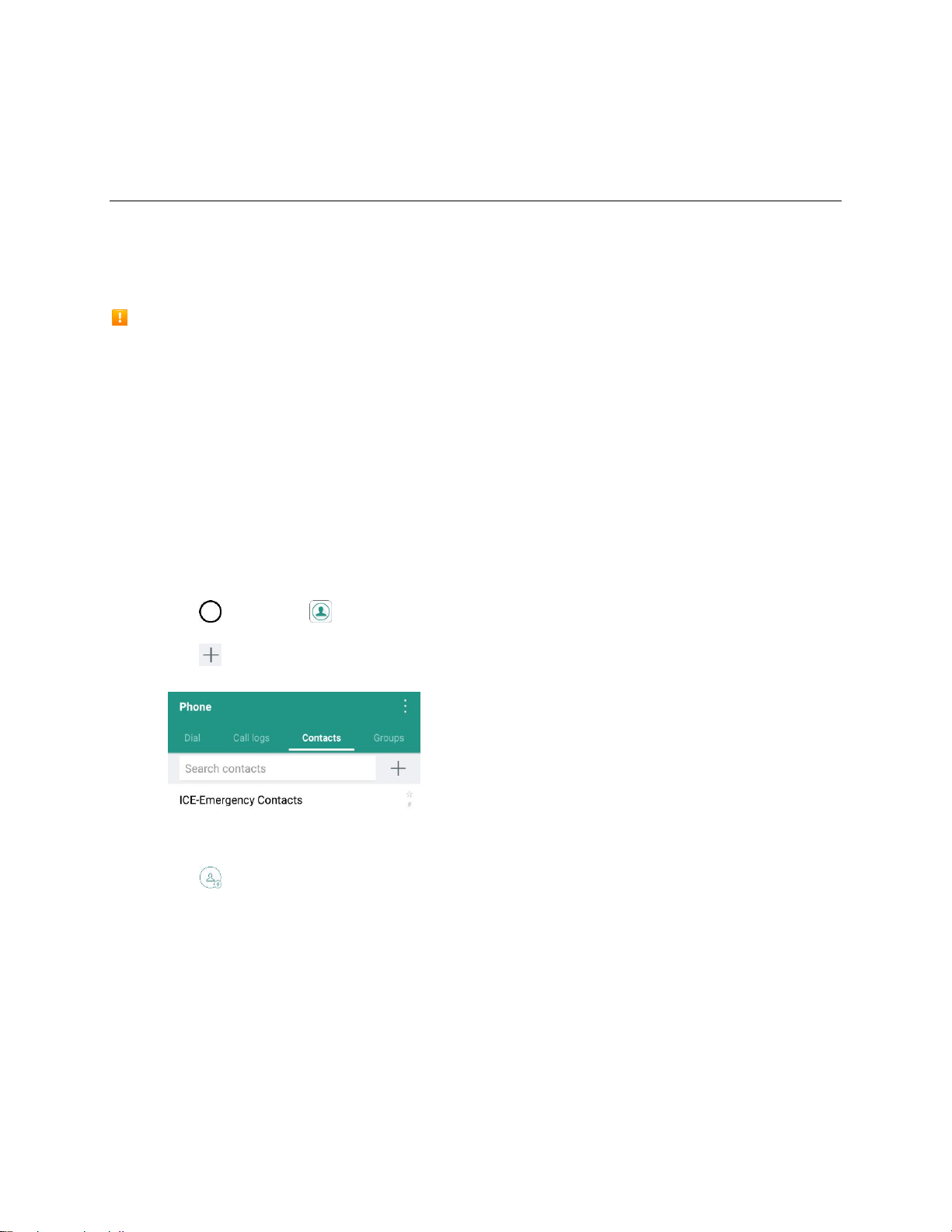
Contacts 61
Contacts
The Contacts application lets you store and manage contacts from a variety of sources, including
contacts you enter and save directly in your phone as well as contacts synchronized with your Google
Account, your PC, compatible email programs (including Exchange Server), and your friends from
compatible social networking applications.
Contacts Cautions
Information saved in Contacts may be lost or changed if the battery is removed for a long period or
left uncharged. Accident or malfunction may also cause loss or change to information. It is
recommended that you keep a separate copy of contacts and other important information. Sprint is
not responsible for any damages from lost or changed contacts.
Add a Contact
You can add contacts on your phone and synchronize them with the contacts in your Google Account,
Microsoft Exchange account, or other accounts that support syncing contacts.
The Contacts application tries to join new addresses with existing contacts, to create a single entry. You
can also manage that process manually.
1. Tap > Contacts .
2. Tap to add a contact.
3. Tap a destination type, Phone contact or Google (if available).
4. Tap to select a picture to display next to the name in your list of contacts and in the Caller ID.
5. Tap the Name field and enter a name for your contact.
6. Tap the Phone field and enter a phone number.
7. Enter any additional information you may want to save and when you're finished, tap SAVE.
Save a Phone Number
You can save a phone number to Contacts directly from the phone keypad.
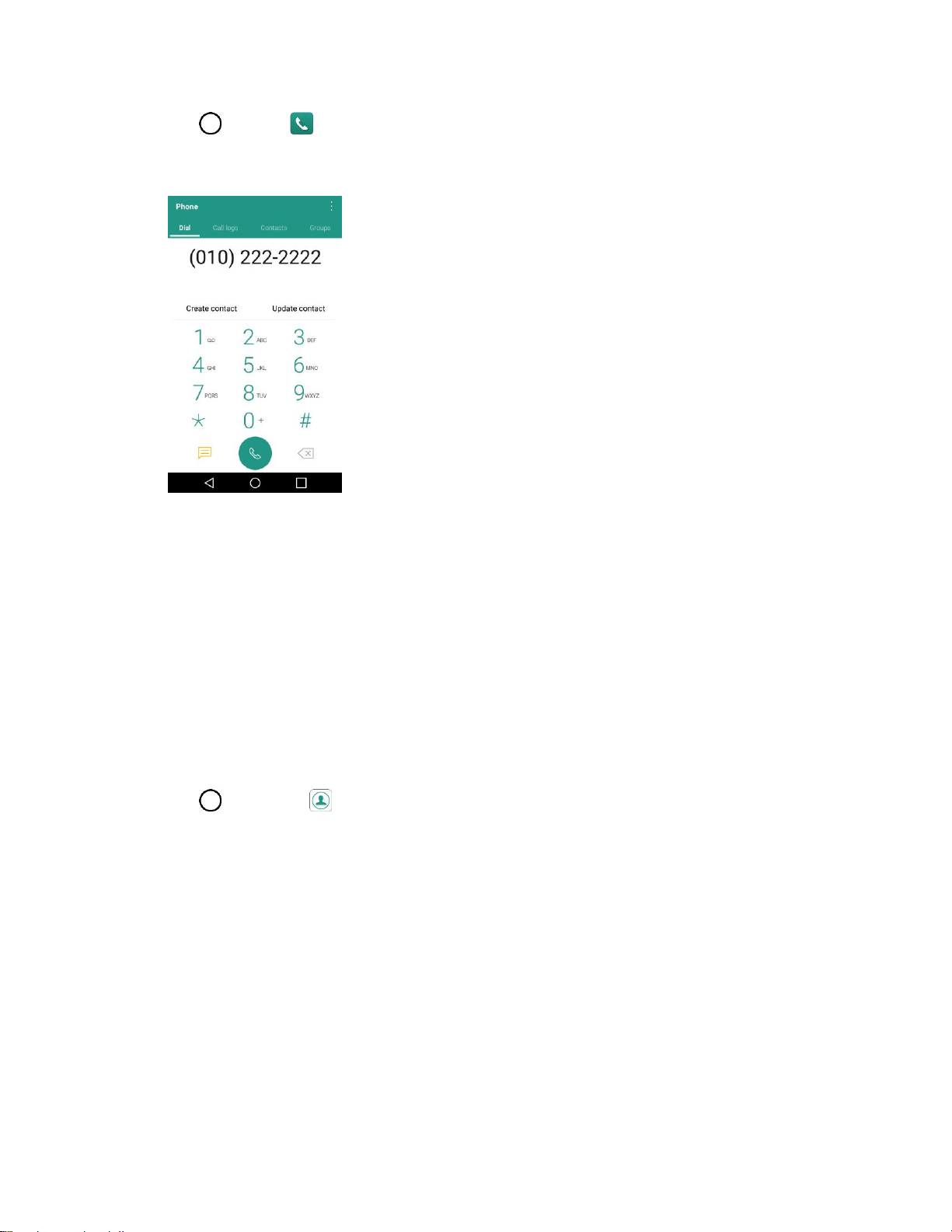
Contacts 62
1. Tap > Phone .
2. Enter a phone number.
3. To add the number to an existing contact, tap Update contact. To add a new contact, tap Create
contact.
For an existing contact, tap the contact name and select a number type for the new number.
For a new contact, enter the name and any additional information.
4. Tap SAVE.
The contact is added.
View Contacts
View a contact’s details by displaying a contact entry.
1. Tap > Contacts .
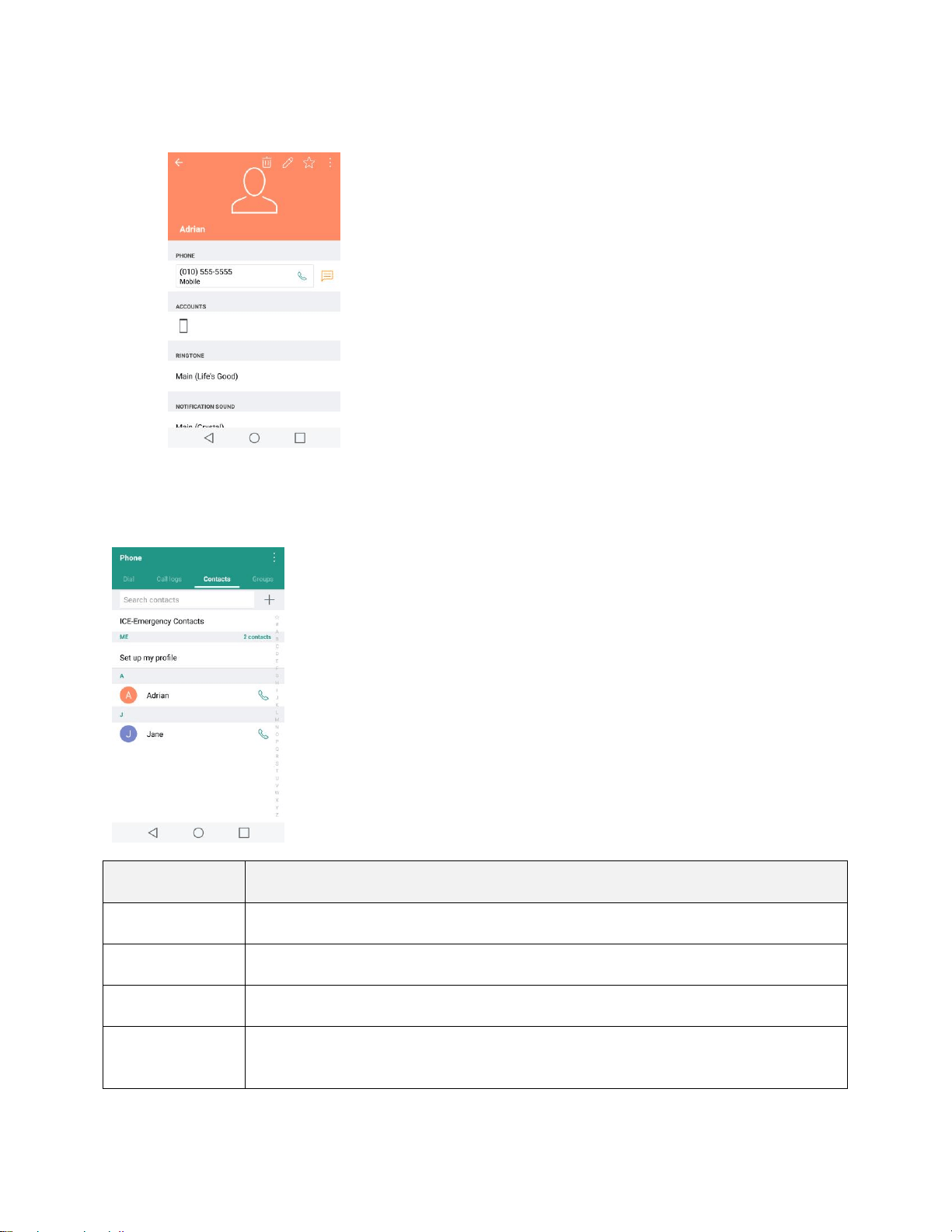
Contacts 63
2. Tap a contact to view its details.
Contacts Screen Layout
The following illustration show’s your Contacts app layout and describes the various features.
Item
Description
Groups tab
Show contact groups.
Contacts tab
Show all contacts.
Contact
Tap to show contact’s details.
Image
Tap to show thumbnail of contact entry. Tap an icon to place a call, send a message,
etc.
Contacts 64
Search
Search contacts.
Index
Browse contacts by letter.
Add new
Add a new contact.
Edit a Contact
Once you’ve added a contact, you can add or edit any of the information in the entry, assign a caller ID
picture, customize with a unique ringtone, and more.
1. Tap > Contacts .
2. Tap the contact to view its details.
3. Tap Edit .
4. Tap any field you want to change or add.
5. Add or edit the information, and then tap SAVE.
Note: To select a type (label) for a phone number, email address, or postal address (such as Home, Work,
etc.), tap the type to the right of the field.
Note: To add more phone numbers, email addresses, etc., tap below the current entry.
Delete a Contact
You can delete a contact from the contacts details page.
1. Tap > Contacts .
2. Tap a contact to view its details.
3. Tap .
4. Tap DELETE.
Tip: You can also touch and hold the contact from the contact list and then tap Delete contact >
DELETE.
Share a Contact
You can share contacts with others by sending as vCard files.
1. Tap > Contacts .
2. Tap > Share.

Contacts 65
3. Tap the contacts you want to share, then tap SHARE.
4. Choose the method for sending.
Import Contacts
You can import contacts from your internal storage directly to your Contacts application.
1. Copy the vCard files to your phone from your computer.
2. Tap > Contacts .
3. Tap > Manage contacts > Import.
4. Select where to import from and save to, then tap OK.
5. Tap the files you wish to import and tap IMPORT and IMPORT to confirm.
Back Up Contacts
You can back up and export all of the contacts on your phone, as vCard files. You can then copy this file
to a computer or another phone that is compatible with this format, such as an address book application.
1. Tap > Contacts .
2. Tap > Manage contacts > Back up.
3. Select a storage location and then tap OK.
4. Tap the contacts you want to export, then tap BACK UP and BACK UP to confirm.
5. Enter a file name and tap OK.

Messaging 66
Messaging
With wireless service and your phone’s messaging capabilities, you have the opportunity to share
information through many different channels and accounts, including Gmail (Google), personal and
corporate email, text and multimedia messaging.
Text and Multimedia Messaging
With text messaging (SMS), you can send and receive instant text messages between your wireless
phone and another messaging-ready phones. When you receive a new message, you will be notified by
your phone. Messaging is available via the Messaging application in your Applications screen. The icon
appears in Status Bar when a new text message is received.
Note: See your service plan for applicable charges for text messaging.
Send a Text Message
Quickly compose and send text messages on your phone.
1. Tap > Messaging .
2. Tap .
3. Tap the To field and enter a contact's information, see example below, using the on-screen
keyboard.
Contacts: As you enter either a name, phone number, or email address, if the information
matches a current contact’s entry information, you will see a match. When you see a match,
tap the associated name to complete the addressing.
Mobile: You can enter a wireless phone number directly.
Email: You can enter an email address directly.
4. Tap a matching entry from the on-screen dropdown list. This list is populated by matches found
from your contact list.
5. Tap the text field and enter your message.
To enter a smiley from the menu options, tap > Insert smiley. Make a selection from the
list to insert it into your current message.
To enter emojis, tap , then tap , and select a category at the bottom of the keyboard.
6. Review your message and tap Send.
Send a Multimedia Message (MMS)
When you need to add a little more to a text message, you can send a multimedia message (MMS) with
the contents such as images, videos, etc.

Messaging 67
Note: See your service plan for applicable charges for multimedia messaging.
Compose Multimedia Messages
1. Tap > Messaging .
2. Tap .
3. Tap the To field and enter the recipient’s name, phone number, or email information.
4. Tap the text field and enter your message.
5. Tap .
6. Select a multimedia attachment type:
Image: Opens the Gallery application. Use the on-screen navigation to select the picture you
wish to send with the outgoing message.
Take photo: Opens the Camera application. Take a picture, and then tap OK to use this
image in your message. (See Take Pictures.)
Video: Opens the Gallery application. Use the on-screen navigation to select a video and
attach it to your outgoing message.
Record video: Opens the Camcorder application. Record a video, then tap OK to use this
video in your message. (See Record Videos.)
Audio: Opens a menu that allows you to browse for audio files using different applications.
Record voice: Opens the message recorder.
• After recording your message, tap to attach it to your message.
Location: Opens a map screen. Select a location, then tap ATTACH to use this.
Contact: Opens your Contacts list and allows you to select of a Contact to send.
Schedule: Opens your Schedule event list and allow you to select an event to send.
Memo: Opens your memo list and allow you to select a memo to send.
Draw: Allows you to draw and attach an image like QuickMemo+.
Slide: Allows you to create a slideshow with your media files.
• Insert a multimedia file, then tap > Slide. You can also enter text to each slide.
Note: To remove or replace a picture or an audio attachment, on the Compose screen, tap next to the
attachment.
7. When you are finished creating your new MMS message, tap Send MMS.

Messaging 68
Create a Slideshow
In a multimedia message, you can add slides, each containing a picture, video, or audio.
1. In the multimedia message you’re composing, tap > Slide to add space for a new slide.
2. Tap the space for the slide.
3. To compose your slideshow, do any of the following:
Add a picture: Tap > Image and select a picture.
Add a video: Tap > Video and select a video. (You cannot add both a picture and a
video on the same slide.)
Add music or a voice recording: Tap > Audio and select a file.
Add a new slide: Tap > Slide.
View the next or previous slide: Slide up and down.
Preview your slideshow: Tap > Preview.
For more options, tap and select an option.
4. When you have finished composing the multimedia message, tap Send MMS.
Tip: To compose a slide show, you can also simply attach multiple items separately to the MMS message.
Tap and select a file type, location, and file and then repeat it for additional slides. Your phone will
automatically compile a slide show.
Save and Resume a Draft Message
While composing a text or multimedia message, tap to automatically save your message as a draft.
To resume composing the message:
1. On the screen with all message threads, tap the message. The Draft icon is displayed if a
saved draft is available.
2. When you finish editing the message, tap Send or Send MMS.
New Messages Notification
Depending on your notification settings, the phone will play a ringtone, vibrate, or display the message
briefly in the status bar when you receive a new text or multimedia message. To change the notification
for new text and multimedia messages, see Text and MMS Options for details.
A new message icon also appears in the notifications area of the status bar to notify you of a new
text or multimedia message. The Messages application icon (if shown on the home screen) also displays
the number of new messages .

Messaging 69
■ To open the message, pull down the status bar to open the notification panel. Tap the new
message to open and read it. For information on reading and replying to messages see Manage
Message Conversations.
Manage Message Conversations
Text and multimedia messages that are sent to and received from a contact (or a number) are grouped
into conversations or message threads in the Messaging screen. This allows you to see exchanged
messages (similar to a chat program) with a contact on the same screen.
Read a Text Message
■ Do one of the following:
On the Messages screen, tap the message thread to open and read it.
If you have a new message notification, drag the Status Bar down to open the Notifications
Window. Tap the new message to open and read it.
View a Multimedia Message (MMS)
1. Tap > Messaging .
2. On the Messaging screen, tap a message thread to open it.
3. While viewing a message, tap the play icon (on the video or audio file) to playback the file or tap
the image to view the picture.
Tip: The file attachment on the multimedia message can be saved to your phone's internal storage. To
save the attachment, touch and hold the file and tap Save attachment from the Message options context
menu.
Note: When Auto-retrieve in multimedia message settings is disabled, only the message header is
downloaded. To download the entire message, tap the Download button in the message. For details, see
Text and MMS Options.
Reply to a Message
1. Tap > Messaging .
2. On the Messages screen, tap a message thread to open it.
3. While viewing a message, tap the text field and type your reply message.
4. Once completed, tap Send or Send MMS.
To return to the All messages screen from a text message thread, tap .
Note: To view the details of a particular message, in the message thread, touch and hold the message to
open the options menu, and then tap Details.

Messaging 70
Note: If a message contains a link to a web page, tap the message and then tap the link to open it in the
web browser.
Note: If a message contains a phone number, tap the message and then tap the phone number to dial
the number or add it to your contacts.
Protect (Lock) a Message
You can lock a message so that it will not be deleted even if you delete the other messages in the
conversation.
1. Tap > Messaging .
2. On the Messages screen, tap a message thread to open it.
3. Touch and hold the message that you want to lock.
4. Tap Lock message on the options menu. A lock icon is displayed at the right hand side of the
message.
Delete Conversations
1. Tap > Messaging .
2. On the Messaging screen, tap .
3. Select the conversations you want to delete.
4. Tap DELETE and then tap DELETE to confirm. Any locked messages will not be deleted.
Tip: You can also delete a conversation while you're viewing it. While viewing a conversation, tap , and
then tap DELETE to confirm. Any locked messages in the conversation will not be deleted unless you
select the Include locked messages check box.
Delete a Single Message
1. While viewing a conversation, touch and hold the message that you want to delete.
If the message is locked, tap Unlock message on the options menu and hold the message
to display the options menu again.
2. Tap Delete on the options menu.
3. When prompted to confirm, tap DELETE.
View Contact Information from a Message
When you have received a message from someone in your stored contacts, you can tap the contact’s
photo or icon in the message thread to open a menu of options. Depending on the stored contact
information, you can view the contact details, phone or send an email message to the contact, and more.

Messaging 71
Text and MMS Options
The messages settings menu lets you control options for your text and multimedia messages including
message limits, size settings, and notifications.
1. Tap > Messaging .
2. On the Messages screen, tap > Settings.
3. Adjust the following settings according to your needs:
● Notification
New messages: Enable this option if you wish to receive a notification when a new text or
multimedia message arrives.
• Show as pop-ups: Enable this option if you wish to see a new message in a pop-up
window.
• Preview new messages: Enable this option if you wish to preview the contents of
messages when new messages arrive.
• Notification sound: Allows you to select a ringer to sound when a new message is
received. Tap this option, and then select a ringtone that is specific to new text and
multimedia messages. A sample will briefly be played upon selection, then tap OK to
save your new setting.
• Vibrate: Enable this option if you want the phone to vibrate when a new text or
multimedia message is received.
• Vibrate type: Choose what type of vibration you wish to apply to new messages.
● Conversation theme: Allows you to select the desired conversation theme for the message
thread wallpaper and message bubbles.
● Blocked numbers: Allows you to block calls and messages from certain numbers.
● Quick reply: Tap this to add or edit quick messages. Quick message is the specified text
message to send out when you choose to ignore an incoming call and respond to the caller with a
message instead.
● More
Text messages
• Priority: Allows you to set the default priority as Normal or High.
• Message reassembly: Enable this option so that multi-segment messages can be
reassembled and shown as a single message. Each segment will still count toward your
usage.

Messaging 72
Multimedia messages
• Group Messaging: Enable this option to send a single message as multimedia message
when there are multiple recipients.
• Auto-retrieve: Enable this option to automatically retrieve the entire content of your
multimedia message. When enabled, the multimedia message header, message body,
and any attachments will automatically download to your phone when the message is
received. If you disable this option, only the multimedia message header will be retrieved
and displayed.
- Auto-retrieve while roaming: Disable this option if you only desire the multimedia
message headers to download while roaming. Enable this option to automatically
download your complete multimedia messages even while roaming.
• Priority: Allows you to set the default priority as Low, Normal, or High.
Storage
• Delete old messages: Enable this option to delete older text messages when the limit for
maximum number of text messages is exceeded.
- Text message limit: Sets the maximum number of text messages that can be stored
on the phone (per message thread).
- Multimedia message limit: Sets the maximum number of multimedia messages that
can be stored on the phone (per message thread).
• Save to: Allows you to set the default storage location for files received through
Messages to Internal storage or SD card.
Link & send
• Send message with Enter key: You can opt to send a message by simply using the
Enter key. This menu allows you to select when this feature should be enabled.
• Signature: Tap this to automatically add a signature to your messages.
• Callback number: Enable this to automatically add a callback number to your messages.
Gmail
Use Google’s Gmail service and your Google Account to send, receive, and manage your Gmail
messages. Before using Gmail, you must register a Google (Gmail) Account on your phone. See Google
Account for details.
Gmail Cautions
Gmail is handled as email from a PC. Restricting email from PCs on your phone prevents your phone
from receiving Gmail.
Messaging 73
Create and Send a Gmail Message
Use your phone to create and send Gmail messages.
1. Tap > Google > Gmail .
The Gmail inbox opens.
2. In the inbox, tap .
The Gmail composition window opens.
3. Enter the message recipient(s), subject, and message, and then tap Send .
The Gmail message is sent.
Gmail Composition Options
● Adding Cc/Bcc: In the mail composition window, tap and then add recipients.
● Attaching Pictures or Videos: In the mail composition window, tap Attach file . Locate and
then tap the picture or video you want to attach.
● Save as a Draft (Send Later): While composing your message, tap > Save draft. The
message is saved as a draft for later.
● Delete Mail Being Composed: In the mail composition window, tap > Discard.
Note: To view your draft email messages, in the inbox, tap > Drafts.
Note: To view your sent messages, in the inbox, tap > Sent.
Check Received Gmail Messages
Your phone allows you to access, read, and reply to all your Gmail messages.
Open Gmail Messages from Notifications
When new Gmail arrives, you will see in the status bar.
1. Pull down the status bar to display the notification panel.
2. Tap the new message from the notification panel.
The new Gmail message opens.
If you have two or more new Gmail messages, tapping the notification opens the Gmail inbox.
Open Gmail Messages from the Inbox
You can also read and reply to all your Gmail messages from the Gmail inbox.
Messaging 74
1. Tap > Google > Gmail .
The Gmail inbox opens.
2. Tap the message thread you want to view.
The message thread opens, with the newest message displayed.
Options when Reviewing Gmail Messages
● Replying to Gmail Messages: With the Gmail message open, tap Reply , compose your
reply message, and tap Send .
To reply to all, tap > Reply all.
● Forwarding Gmail Messages: With the Gmail message open, tap > Forward, enter a
recipient and an additional message, and tap Send .
Use Gmail Labels
Gmail saves all mail in one box, but you can add labels that allow you to sort your Gmail conversation
threads. For example, when a new thread starts with a received mail, the label "Inbox" is automatically
added to the thread. By then adding the label "travel," all threads with "travel" are shown in a list.
1. Tap > Google > Gmail .
The inbox opens.
2. Touch and hold a conversation thread to add a checkmark to it, and then tap > Change
labels.
3. Tap a label for the thread.
The thread is added to the selected label.
Archive Gmail Threads
Remove sent and received Gmail threads so they do not appear in the inbox. When replies arrive for
archived threads, they appear in the inbox again.
1. Tap > Google > Gmail .
The inbox opens.
2. Touch and hold a conversation thread to add a checkmark to it, and then tap Archive .
The thread is now archived.
Messaging 75
Mute Gmail Threads
If registered on a mailing list, there will be threads with always-continuing conversations. For long threads
that are not important, mute the threads and they will no longer appear in the inbox. When mail arrives
that includes user's address as a recipient or in Cc, mail will again appear in the inbox.
1. Tap > Google > Gmail .
The inbox opens.
2. Touch and hold a conversation thread to add a checkmark to it, and then tap > Mute.
The thread is now hidden.
Delete Gmail Threads
If you no longer wish to keep a Gmail conversation thread, you can simply delete it from the inbox.
1. Tap > Google > Gmail .
The inbox opens.
2. Touch and hold a conversation thread to add a checkmark to it, and then tap Delete .
The thread is deleted.
Search Gmail Messages
If you need to find a specific message or message thread, you can search Gmail from the inbox.
1. Tap > Google > Gmail .
The inbox opens.
2. Tap .
3. Enter your search text and tap .
The search results appear. Tap a message or thread from the list to display it.
Report Spam
You can report spam Gmail messages from your phone’s Gmail inbox.
1. Tap > Google > Gmail .
The inbox opens.
2. Touch and hold a conversation thread to add a checkmark to it, and then tap > Report spam.
The selected message is reported as spam Gmail.
Messaging 76
Add Another Google (Gmail) Account
If you have multiple Gmail accounts you wish to view on your phone, you can add them from the Settings
> Account & sync menu.
1. Tap > Tools > Settings > General tab > Accounts & sync > ADD ACCOUNT.
2. Tap Google, and then tap Enter your email.
3. Enter your Gmail username and password, and then tap NEXT.
4. After your phone connects with the Google servers, select the items you would like to sync with
your phone and then tap Sync now.
5. Tap Finish setup.
You are signed in to your Google Account, and you can access both of your Gmail accounts
from the Gmail app.
Note: You can also sign up for a new Gmail account from the Settings menu. In step 2 above, tap Or
create a new account and follow the prompts.
Switching between Gmail Accounts
If you have more than one Gmail account set up, you can switch between them in the Gmail app.
1. Tap > Google > Gmail .
The inbox opens.
2. Tap .
3. Tap the account you want to view from the list at the top of the menu.
The selected account inbox is displayed.
Gmail Settings
You can access settings for the Gmail app and for your individual Gmail accounts from the Gmail Settings
menu.
1. Tap > Google > Gmail .
The Primary inbox opens.
2. Tap > Settings .
3. Tap General settings to access settings for all accounts, or tap an account name to configure
settings for a specific Gmail account.
General settings: Gmail default action, Conversation view, Swipe actions, Sender image,
Reply all, Auto-fit messages, Auto advance, Confirm before deleting, Confirm before
archiving, and Confirm before sending.

Messaging 77
Account settings: Inbox type, Inbox categories, Notifications, Inbox sound & vibrate,
Signature, Vacation responder, Sync Gmail, Days of mail to sync, Manage labels, Download
attachments, and Images.
Note: Available settings are subject to change.
Email
Use the Email application to send and receive emails from your webmail or other accounts, using POP3
or IMAP, or access your Exchange account for your corporate email needs.
Set Up an Email Account
Your phone supports several types of email accounts and allows you to have multiple email accounts set
up at one time.
Before setting up an email account, make sure you have the username (user ID), password, server name,
etc., so you can get set up successfully.
1. Tap > Email .
A pop-up window for adding an account appears if no email account has been previously set up.
2. Follow the onscreen instructions to set up your email account.
The email account is set up and you will begin receiving email.
Add an Email Account
You can add several types of personal email accounts, such as POP3 and IMAP accounts, on your
phone.
Add an Email Account from the Email App
You can add email accounts directly from the email app, even if you have another email account set up.
1. Tap > Email .
The email inbox opens.
2. Tap > Settings.
3. Tap Add account.
4. Follow the onscreen instructions to complete the account setup.
The email account is added and you will begin receiving email for the account.
Add an Email Account from the Settings Menu
You can also set up email accounts from the Settings > General tab > Accounts & sync menu.

Messaging 78
1. Tap > Tools > Settings > General tab > Accounts & sync > ADD ACCOUNT >
Email > Yahoo or Other.
2. Enter the EMAIL ADDRESS and PASSWORD for the email account and then tap NEXT.
Tapping NEXT prompts your phone to attempt a "regular" email setup and test the incoming
and outgoing servers.
If you have custom settings you need to configure, tap MANUAL SETUP and enter your
settings. These may include mail type, user name, password, server, security type, etc.
3. Select your sync settings and then tap NEXT.
4. Enter an account name and a display name and tap DONE to complete setup.
The email account is set up and you will begin receiving email for the account.
Important: If the account type you want to set up is not in the phone database, you will be asked to enter
more details. You should get all pertinent information for the email account, such as incoming and
outgoing server settings, before you proceed.
Add an Exchange Account
If you synchronize your phone with your Exchange account, you can read, manage, and send email in the
same easy way as with a POP3/IMAP account. However, you can also access some powerful Exchange
features.
Important: Before setting up a Microsoft Exchange Account, contact your company’s Exchange Server
administrator for required account settings information.
1. Tap > Tools > Settings > General tab > Accounts & sync > ADD ACCOUNT >
Microsoft Exchange.
2. Enter the EMAIL ADDRESS and PASSWORD for the email account and then tap NEXT.
3. Enter the required information:
DOMAIN: Enter your network domain.
USERNAME: Enter your user name.
PASSWORD: Enter your network access password (case-sensitive).
SERVER ADDRESS: Enter your system’s Exchange server remote email address. Obtain
this information from your company network administrator.
Use secure connection (SSL): Tap to place a checkmark in the box, if your system requires
SSL encryption.
Client certificate: Tap to place a checkmark in the box, if your system requires certification.
4. Follow the onscreen prompts to configure options for the account.

Messaging 79
5. Enter an account name and a display name and tap DONE to complete setup.
Your corporate email account is set up and you will begin receiving email for the account.
Compose and Send Email
Compose and send email using any account you have set up on your phone. Increase your productivity
by attaching files such as pictures, videos, or documents to email messages.
1. Tap > Email .
2. From the Inbox, tap .
3. Enter the recipient’s email address in the To field.
You can add as many message recipients as you want.
Note: To send an additional carbon copy (Cc) or a blind carbon copy (Bcc) of the current email to other
recipients, enter the recipients in the Cc or Bcc field.
4. Tap the Subject field and enter the email subject.
5. Tap the body field and compose your email.
To add an attachment (such as picture, video, contact, event, audio, etc.), tap .
You can access the internal storage and navigate to the file you wish to attach.
Tap the file you wish to attach.
6. Tap to send the email.
Note: If you close the messaging window before sending it, the message will be stored in Drafts.
Open Email Messages
You can open and read email messages directly from the email inbox. Reading and replying to email on
your phone is as simple as on your computer.
1. Tap > Email .
The email inbox opens.
2. Tap the message you want to view.
The email message opens.
3. Tap to reply to the message.
Tip: Tap the account name at the top of the screen to switch to a different email account.

Messaging 80
Tip: You can also access new email messages from the notification panel. Pull down the status bar to
display the notification panel, and then tap an email notification. The email inbox will open and display the
new email message.
Options when Reviewing Email Messages
● Resetting Mail as Unread: Tap . Tap the check box on the left side of a read message and
then tap MARK AS UNREAD.
● Deleting Email: Tap . Tap the check box on the left side of a message or messages and then
tap DELETE.
Delete an Email Account
You can delete an email account from your phone if you no longer wish to receive messages for the
account on your phone.
1. Tap > Email .
The email inbox opens.
2. Tap > Settings.
3. Tap > Remove account.
4. Select the account(s) to delete, and then tap REMOVE.
5. Tap REMOVE to confirm.
The account is deleted from your phone.
Manage Your Email Inbox
Your email inbox provides management options for viewing, sorting, and deleting your email messages.
View Your Email Inbox
1. Tap > Email .
The email inbox opens.
2. Tap to select a different inbox, or tap COMBINED VIEW to see all your email inboxes at
once.
Refresh an Email Account
Whatever your automatic synchronization settings are, you can also synchronize your sent and received
email messages manually at any time.
1. Tap > Tools > Settings > General tab > Accounts & sync.

Messaging 81
2. Tap Microsoft Exchange, or Email, then select the account to reveal the account‘s
synchronization settings screen.
3. If the option is available, turn on each option you want the phone to automatically synchronize. If
you want to manually synchronize, tap > Sync now.
Sort Email Messages
1. From the inbox, tap > Sort by.
2. Select from the options to sort email messages.
Delete an Email Message
1. From the inbox, touch and hold the message you want to delete.
2. On the options menu, tap DELETE.
Delete Multiple Email Messages
1. From the inbox, touch and hold each message you want to delete.
2. Tap DELETE.
Microsoft Exchange Email Features
Set options for your corporate Microsoft Exchange email messages, including synchronization options,
flagging messages, out-of-office messages, meeting requests, and message priority.
1. Tap > Tools > Settings > General tab > Accounts & sync.
2. Tap Microsoft Exchange, then select Email Settings and tap the desired account to reveal the
account’s synchronization settings screen.
3. The following settings are available.
Account name: Displays the name used by the phone to track the account.
Signature: To add a signature or other information to outgoing email.
• Edit signature: Displays a signature. Tap this to change it.
Notifications: Allows you to decide whether to notify you of new email.
• Notification sound: Allows you to select the notification sound for new emails.
• Vibrate: Allows you to configure vibrate options for new emails.
• Vibration type: Allows you to select the vibration type for new emails.
Auto-sync email: Allows you to automatically sync email.
Sync schedule: Allows you to choose when to sync your email.

Messaging 82
Folders to sync: Select the folders you want to synchronize.
Email sync period: Choose how many days of email you want to sync.
Message size limit: Allows you to set the size limit for messages.
Message format: Select the format you want to view email messages in.
Auto-download attachments: Allows you to download attachments for new emails while
connected to Wi-Fi.
Always Cc/Bcc me: Allows you to copy yourself to emails sent out.
Auto-resend times: Set the number of tries to resend a failed email message.
Out of office: Allows you to set your out of office settings and message.
Security settings: Set digital signatures and encryption to secure email.
Calendar sync period: Allows you to set the period of time to sync with your calendar.
Corporate directory: Searches online directory for the recipient input.
Server policy: View the server policy currently applied.
Server info: Allows you to change the server settings for your account.
4. Tap to return to the previous screen, your changes will be saved.

Internet and Social Networking 83
Internet and Social Networking
The following topics describe how to connect to and use the Internet on your phone, and how to access
popular social networking sites such as Facebook, Twitter, and Hangouts.
Data Services General Information (4G LTE and
3G Networks)
The following topics will help you learn the basics of using your data services, including managing your
user name, launching a data connection, and navigating the Web with your phone.
Important: Certain data services requests may require additional time to process. While your phone is
loading the requested service, the touchscreen or QWERTY keyboard may appear unresponsive when in
fact they are functioning properly. Allow the phone some time to process your data usage request.
4G LTE
The 4G enhanced LTE network provides your phone with wireless Internet access over greater distances
than Wi-Fi and delivers data transfer rates of up to 60 Mbps. To connect your phone to 4G, you need to
be in an area covered by the 4G enhanced LTE network.
For more information about the availability of 4G in your location, visit sprint.com/coverage.
Note: The availability and range of the network depends on a number of factors including your distance to
the base station, infrastructure and other objects through which the signal passes.
Set Your Network Options
1. Tap > Tools > Settings > Networks tab > More > Mobile networks > Network
mode.
2. Select the desired option.
By default, the phone will scan for the best available Sprint network and will automatically
connect to it.
When your phone is connected via 4G, the LTE icon appears in the status bar.
Note: The 4G network is self-discoverable, which means no additional steps are required for your phone
to connect to it.
Your User Name
When you buy your phone and sign up for service, you’re automatically assigned a user name, which is
typically based on your name and a number, followed by “@sprintpcs.com.” (For example, the third John
Smith to sign up for Sprint data services might have jsm[email protected]om as his user name.)
When you use data services, your user name is submitted to identify you to the network. Your user name
is automatically programmed into your phone. You don’t have to enter it.
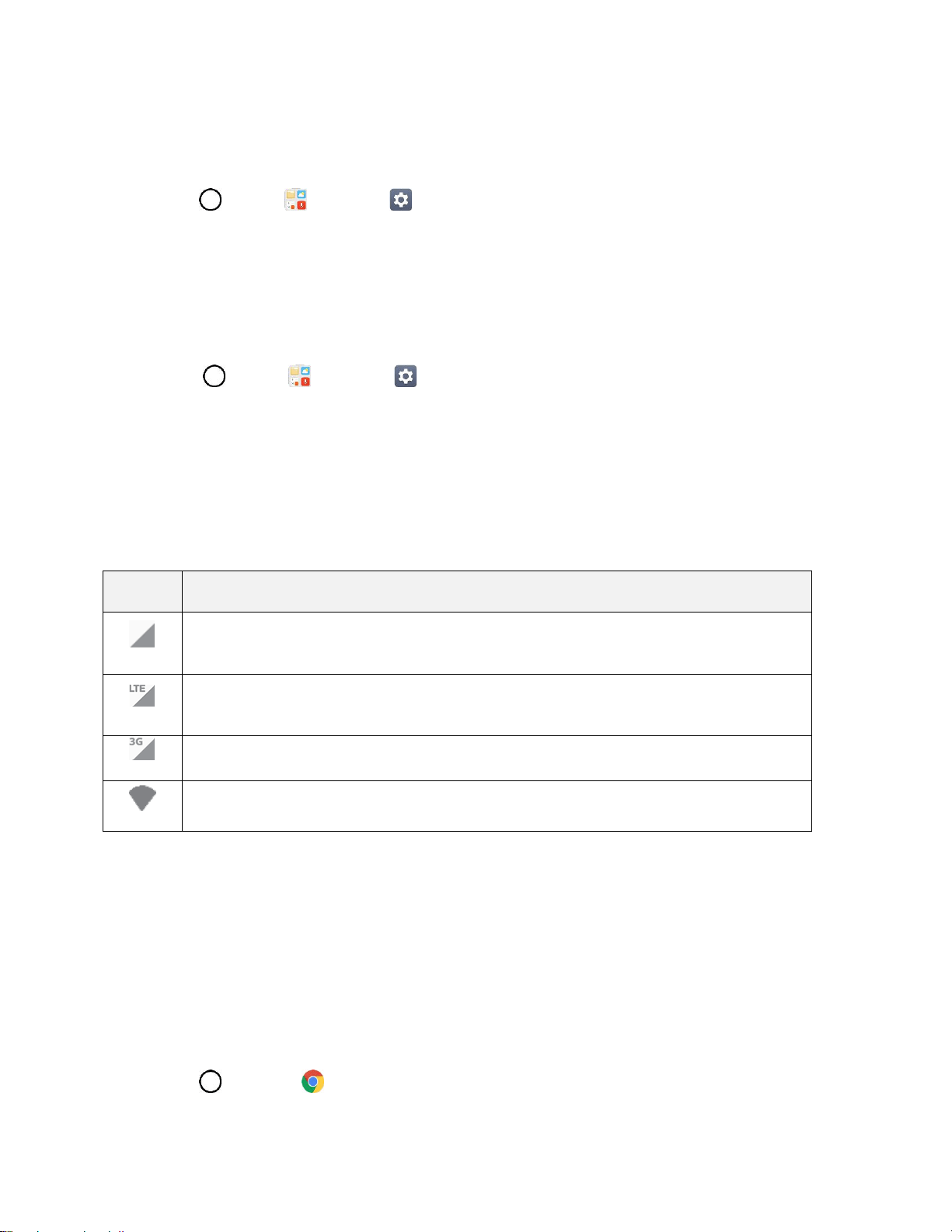
Internet and Social Networking 84
Find Your User Name
You can find your user name through your phone's device menu.
■ Tap > Tools > Settings > General tab > About phone.
You will see your user name under the "Username" heading.
Update Your User Name
If you choose to change your user name and select a new one online, or make any changes to your
services, you must then update the profile on your phone.
1. Tap > Tools > Settings > General tab > System update.
2. Tap Update profile.
Your phone will download and install the profile update.
Data Connection Status and Indicators
Your phone displays the current status of your data connection through indicators at the top of the screen.
The following symbols are used:
Icon
Status
Network (full signal): The number of bars indicate the strength of the signal. More bars
mean a better signal.
Enhanced 4G LTE data service: Your phone is connected to the 4G enhanced LTE
network.
3G (data service): Your phone is connected to the 3G network.
Wi-Fi connection: Your phone is connected to a Wi-Fi network for data.
Chrome Browser
The Chrome mobile Web browser gives you full access to both mobile and traditional websites on the go,
using data service or Wi-Fi data connections.
If you are signed in with a Google Account, the Chrome browser will import all your bookmarks and other
Web preferences for use on your phone.
Use the Browser
Launching the browser is as easy as tapping an icon.
1. Tap > Chrome .
Internet and Social Networking 85
The browser opens.
2. Tap the address bar at the top and enter search words (for a Google search) or a Web address.
Chrome Support
■ To find help in the Chrome browser, tap > Help & feedback.
A Web page will open displaying Google help for Chrome.
Tip: For more information, from your computer, visit: google.com/intl/en/chrome/browser/mobile/.
Add a Bookmark
Bookmark favorite sites using the browser menu options.
1. Tap > Chrome .
The browser opens.
2. Navigate to the Web page you want to bookmark, and tap > .
The Web page is added to bookmarks.
Bookmark Options
● Editing Bookmarks: From the browser, tap > Bookmarks > > Edit > edit the favorite >
.
● Deleting Bookmarks: From the browser, tap > Bookmarks > > Delete.
View Browser History
Use the browser menu options to view your browsing history.
1. Tap > Chrome .
The browser opens.
2. Tap > History.
The browser history window opens.
3. Tap an entry to open the Web page.
Open New Browser Tabs
Use tabbed browsing to switch between websites quickly and easily.
1. Tap > Chrome .
The browser opens.
Internet and Social Networking 86
2. Tap > New tab.
A new tab appears.
Tip: To switch tabs, tap > Recent tabs.
Browser Settings
Customize your experience with the Internet through the browser settings menu.
1. Tap > Chrome .
The browser opens.
2. Tap > Settings and customize your browser settings.
Your browser settings are saved.
Facebook
Post updates, read what your friends are up to, upload pictures and check-ins, and more with on-the-go
Facebook access.
Install the Facebook App on Your Phone
Before you use Facebook on your phone, you must download and install the app from the Google Play
store app.
1. Tap > Facebook .
2. Tap INSTALL.
The app will be downloaded and installed on your phone.
3. When the download has completed, tap OPEN.
Tap > Facebook .
Sign in to Your Facebook Account from Account Settings
1. Tap > Tools > Settings > General tab > Accounts & sync > ADD ACCOUNT.
2. Tap Facebook .
3. Enter your Email or Phone and password and tap LOG IN.
Your Facebook account is added to your phone.
Use Facebook
Once you’ve downloaded the app and signed in, you can post and read updates, upload pictures, tag
locations, and more, all from your phone.

Internet and Social Networking 87
1. Tap > Facebook .
The Facebook app launches.
If this is the first time you’ve used Facebook on your phone, enter your Email or Phone and
password and tap LOG IN to sign in to an existing account, or tap Sign Up for Facebook to
set up a new Facebook account.
2. Tap STATUS and type an update, tap PHOTO and upload a picture from the gallery, tap CHECK
IN to share your location, “Like” and comment on friends’ posts, and more.
Twitter
Tweet (post messages) and view other people's tweets on Twitter. Login may be required to use Twitter.
For details on Twitter, visit twitter.com.
Install the Twitter App on Your Phone
Before you can use Twitter on your phone, you have to download and install the app from Google Play.
1. Tap > Play Store .
2. Tap the Search icon and search for "twitter".
3. Tap Twitter from the results list.
4. Tap INSTALL.
The app will be downloaded and installed on your phone.
5. When the download has completed, tap OPEN.
Tap > Twitter.
Tweet on Twitter
Read Twitter feeds, follow your friends, and tweet your own updates right from your phone.
1. Tap > Twitter.
The Twitter app launches.
If this is the first time you’ve used Twitter on your phone, tap Sign in to sign in to an existing
account, or tap Register to set up a new Twitter account.
2. Tap the “What’s happening?” text box, type a tweet, and tap Tweet.
The tweet is sent and appears on your Twitter feed.
Hangouts
Hangouts is Google's instant messaging service. Use to communicate with other Hangout users, and also
use video calling. Log in to a Google account beforehand (see Google Account).

Internet and Social Networking 88
The Google Hangouts application lets you have real-time text conversations with your friends.
Open the Hangouts Application
■ Tap > Google > Hangouts .
Chat with Friends
1. Tap > Google > Hangouts .
2. Tap and select an ongoing conversation or the type of conversation you want to start.
Tap the name of the person in your contacts list. If your friend is not yet on Hangouts, you
can invite your friend via SMS.
– or –
Tap the text field to enter a name, email or number.
3. Enter your message.
4. Tap .

Global Services 89
Global Services
With your phone and global roaming service from Sprint Worldwide
SM
Wireless Service, you can make
phone calls and use wireless data services around the globe on compatible CDMA and GSM/UMTS
networks. For a country-specific travel guide, select your phone and destination from sprint.com/traveltips.
Activate Sprint Worldwide Service on Your
Account
Before using your phone in global roaming mode, you must activate Sprint Worldwide service.
To activate Sprint Worldwide service:
■ Chat with or email an international support rep by visiting sprint.com/swwsupport.
– or –
Call Sprint Worldwide Customer support at 1-888-226-7212.
Your Phone’s SIM Card for International GSM
Roaming
Your phone comes with a preinstalled SIM (Subscriber Identity Module) card to support roaming on
compatible GSM networks.
Note: Your SIM card should be preinstalled. If you need to reinstall your SIM card, follow the instructions
below.
Note: The SIM card included with your phone contains information specific to your phone and should be
retained for use on GSM networks.
Insert a SIM Card
Follow these instructions to insert a SIM card. Remember to power off your phone before inserting a SIM
card.
1. Gently insert the ejection pin into the hole on the card tray and then pull out the ejected tray. (See
Insert a microSD Card.)
2. Insert the SIM card.
Insert gently with gold IC chip facing downward.
3. Insert the card tray back into the slot.
For more information, see Nano SIM Card.
Global Services 90
Enable Global Roaming Mode
Your phone is designed to enter global roaming mode automatically when you activate your Sprint
Worldwide service, meaning that it should automatically connect to an appropriate CDMA/LTE network or
GSM/UMTS network when you travel. You may set global roaming options through the settings menu.
You may also need to set your network mode options through the settings menu. See Set the
Communications Method for Global Use.
To set your roaming options manually:
1. Tap > Tools > Settings > Networks tab > More > Mobile networks > Roaming.
2. Tap the Use roaming switch .
3. Select roaming guard options for each category.
The selected options are set.
Set the Communications Method for Global Use
Select a communications method for an overseas carrier as needed.
1. Tap > Tools > Settings > Networks tab > More > Mobile networks.
2. Tap Network mode > Automatic / LTE/CDMA / CDMA / GSM/UMTS.
The communications method is set.
Note: At the time of purchase, your phone is set to the Automatic mode by default. This allows global
usage and normally will not need to be changed.
Select a Carrier
You can select a specific local carrier to use when traveling internationally. At the time of purchase, your
phone is preset to connect automatically to an appropriate carrier in your current area.
1. Tap > Tools > Settings > Networks tab > More > Mobile networks > 4G settings >
Network operators.
2. Tap an available network.
The selected carrier is set.
To automatically select an appropriate carrier (default), tap Choose automatically.
To search for all available networks, tap Search networks.
Make and Receive Worldwide Calls
When traveling on international networks, you can place and answer calls as you would on the Sprint
network (see Place and Answer Calls), although some additional instructions may be required to place a

Global Services 91
call. Some features and services are not available in all countries. For more information on services that
are available while roaming, visit sprint.com/sww.
Make Calls Using Plus (+) Code Dialing
Placing calls from one country to another country is simple with the Plus (+) Code Dialing feature. When
placing international calls, you can use Plus Code Dialing to enter the appropriate international access
code for your location (for example, 011 for international calls placed from the United States).
Note: Plus Code Dialing is only available when roaming internationally on GSM networks and on certain
CDMA networks in the United States, Canada, and the Caribbean.
Note: International access codes and dialing information are available online at sprint.com/sww.
To use Plus Code Dialing to place an international call:
1. Tap > Phone > Dial tab to display the phone screen.
2. If you are on the GSM network, touch and hold to insert a “+” on the phone dial screen.
(The “+” symbol automatically inserts the international access code for the country from which
you are calling.)
3. If you are on the CDMA network outside Canada or the Caribbean, enter the international access
code for the country from which you are calling.
4. Tap to insert the US country code, and then enter the area code and number.
5. Tap to place the call.
Sprint International Voicemail Service
Your Sprint voicemail will follow you as you travel. All of your unanswered calls will be forwarded to your
Sprint voicemail. You will need to be sure your voicemail box is already set up and that you know your
voicemail passcode.
Note: Sprint voicemail may not be available on all networks; check sprint.com/sww for service information.
International Voicemail Troubleshooting
There are a few tips to keep in mind when using Sprint voicemail while traveling.
● Some carriers may not support voicemail indicators. It may be necessary to call your voicemail to
see if you have any new messages.
● If you hear the message “Please enter the number of the subscriber you wish to call,” enter your
10-digit wireless phone number.

Global Services 92
Set Up Your Voicemail Access Number for International Use
To simplify accessing your Sprint Voicemail while traveling, you can set up your voicemail access number
as a Contacts entry. This will make it faster and easier to access your messages while roaming
internationally.
1. Tap > Contacts .
2. Tap to add a contact.
3. Type the contact information (for example, “My Voicemail”).
4. Touch and hold and then tap (+1), your area code, and your wireless phone number.
5. Tap SAVE.
Your voicemail access number is saved as a contact.
Access Your Voicemail Internationally
You will need to call your voicemail number to access your voicemail while roaming internationally.
New Message Indicators
Your voicemail message indicators may be displayed differently when roaming internationally.
● A “Message Waiting” indicator icon or a text message is displayed when a voicemail message is
received.
● You may see “Missed Call” on your screen prior to receiving a message notification.
● You must call voicemail in order to retrieve messages. Follow the instructions on the previous
page to store your voicemail number for easy access.
Retrieve Voicemail Messages
The voicemail retrieval process while traveling is the same as on the Sprint Network; however, you will be
required to enter your voicemail passcode.
To retrieve your voicemail messages:
1. Tap > Contacts .
2. Tap the voicemail entry and then tap the number to call it.
Your phone dials your voicemail number.
3. When your voicemail answers, tap , enter the passcode, and then tap to access your
voicemail.
Your voicemail box is accessed.

Global Services 93
International Data Roaming
Sprint Worldwide Wireless Service can also keep you connected via email and Web browsing when
traveling in countries in which Sprint offers data service.
Data services are available on both CDMA and GSM/UMTS networks. Check sprint.com/traveltips and
sprint.com/sww to determine the services available where you are traveling.
Note: Prior to using your Sprint Worldwide GSM/UMTS Data Services, you must establish and utilize your
CDMA data services domestically on the Sprint Network.
Get Started With Sprint Worldwide Data Services
To use Sprint Worldwide Data Services, you will need to have these services activated on your account.
■ To activate, call Sprint Worldwide Customer Support at 1-888-226-7212. Representatives are
available 24 hours a day, 7 days a week to assist you.
Access Email and Data Services Internationally
To access your email and browse the Web when traveling, you may need to manually select the carrier
that provides Sprint service in your location. You can find a list of carriers for each country where GSM
data service is offered at sprint.com/sww. Then, follow the instructions below to select the appropriate
carrier network on your phone.
Access International Data Services on GSM/UMTS Networks
To select a GSM data service carrier for a specific country:
1. Tap > Tools > Settings > Networks tab > More > Mobile networks.
2. Tap Network mode > GSM/UMTS.
Data roaming on GSM/UMTS networks is set.
Access Email and Data Services Internationally on CDMA Networks
If data service is available on an international CDMA network, then you only need to set the phone to
CDMA; you will not need to select the specific carrier. Selecting a specific carrier is only necessary for
providers on the GSM network. If your phone has automatically selected a GSM network while traveling,
then you will need to set the phone to CDMA to access CDMA data services. (See Enable Global
Roaming Mode.) Visit sprint.com/sww for a list of services available in each country.

Global Services 94
Contact Sprint for Assistance with International
Service
If you experience any issues with voice or data services while outside of the United States, Sprint offers
customer support 24 hours a day. In the event that you do experience an issue, try the following actions:
● First try powering your phone off and then back on; this will force your phone to reregister with the
network.
● Try manually selecting another network. Information for selecting networks can be found in the
phone guide.
If neither of these actions resolves your issue, you will need to contact customer service (see below).
When calling to report an issue, the following information will be beneficial in trying to resolve your issue
as quickly as possible:
● Your wireless phone number.
● The city and country you are traveling in.
● Any error message that displays on your phone or that you heard when trying to place a call.
● If the issue is with data, were you able to place voice calls?
● If the issue is with voice service, were you able to access data?
Please call the numbers below if you need assistance:
While in the United States: Call 1-888-226-7212.
While traveling outside the United States:
● In GSM mode: touch and hold and then dial 1-817-698-4199.
● In CDMA mode: enter the country code and then dial 1-817-698-4199.
There is no charge for this call from your wireless phone.
From a landline phone when outside the United States:
Sprint Worldwide Customer Support can be reached from a landline phone at 1-817-698-4199. Access or
connection fees may apply. The toll free numbers below can also be used to contact Sprint Worldwide
Customer Support in the following countries:
Country
From Landline Phone
Caribbean (Anguilla, Barbados,
Cayman Islands, and Dominica)
1-888-226-7212
France
0800-903200
Global Services 95
Germany
0800-180-0951
Italy
800-787-986
Mexico
001-877-294-9003
Trinidad and Tobago
1-800-201-7545
United Kingdom
0808-234-6616
Note: This toll free service is available on ordinary landline phones and some public pay phones. This
service does not cover any hotel access charges.
Connectivity 96
Connectivity
The following topics address your phone’s connectivity options, including USB file transfer and tethering,
Wi-Fi, Bluetooth, IR connectivity, and more.
Transfer Files Between Your Phone and a
Computer
You can use the supplied USB connector to connect your phone directly to your computer and transfer
music, pictures, and other content files.
For example, if you have a music album stored on your computer that you want to listen to on your phone
with any of the music apps, just attach your phone to the computer and copy the files to the music folder.
File Transfer Tips
● If you want to save data to a microSD card on your phone, make sure the microSD card is
installed and active. See microSD Card.
● Avoid removing the battery or microSD card while transferring data.
● Data exchange may use the methods outlined in the following table:
Method
Description
File transfer
Transfer files between your phone and PC such as pictures, videos, and
music.
Photo transfer
Transfer image files between your phone and PC.
Transfer Files Between the Phone and a Computer
1. Connect your phone to your computer using the supplied USB/charging cable.
Insert the larger end of the cable into the charger/USB port at the bottom of the phone.
Insert the USB end of the cable into an available USB port on your computer. You may need
to remove the USB cable from the charging adapter to access it.
2. When appears in the notifications area, drag the Status bar down to display the Notifications
window.
3. You will see either Tap to change USB options as File transfer or Photo transfer.
The files on your phone can now be accessed via your computer.

Connectivity 97
For most transfers, you'll want to use File transfer.
To change the option, tap it in the Notifications window to open the storage settings, and then
tap the desired option from the USB PC connection window.
4. On your computer, navigate to the detected device (such as through the My Computer menu) and
open it.
5. If available, select a drive (SD card for microSD card or Internal storage for internal phone
storage).
6. Select a folder (for example, Music for songs and albums) and copy files to it from your computer.
7. When you are done, disconnect your phone from your computer.
The transferred files are now saved to your phone or microSD card.
Wi-Fi
To use your phone’s Wi-Fi, you need access to a wireless access point or “hotspot.”
The availability and range of the Wi-Fi signal depends on a number of factors, including infrastructure and
other objects through which the signal passes.
Turn Wi-Fi On and Connect to a Wireless Network
Use the Wi-Fi setting menu to enable your phone’s Wi-Fi radio and connect to an available Wi-Fi network.
1. Tap > Tools > Settings > Networks tab.
2. Tap Wi-Fi.
3. Tap the Wi-Fi switch to turn Wi-Fi on.
You will see the names and security settings of in-range Wi-Fi networks.
To disable Wi-Fi, tap the switch again.
4. Tap a Wi-Fi network to connect, enter the password (if it’s not an open network), and then tap
CONNECT.
Your phone is connected to the Wi-Fi network. You will see ( ) in the Status bar.
The password, for a household wireless LAN router, is sometimes found on a sticker on the
router (WEP, WPA, KEY, etc.). Contact the router manufacturer for information. For
password for a public wireless LAN, check with user's service provider.
Entering a password is not required if an access point is not security protected.
Note: The next time your phone connects to a previously accessed secured wireless network, you will not
be prompted to enter the password again, unless you reset your phone to its factory default settings or
you instruct the phone to forget the network.
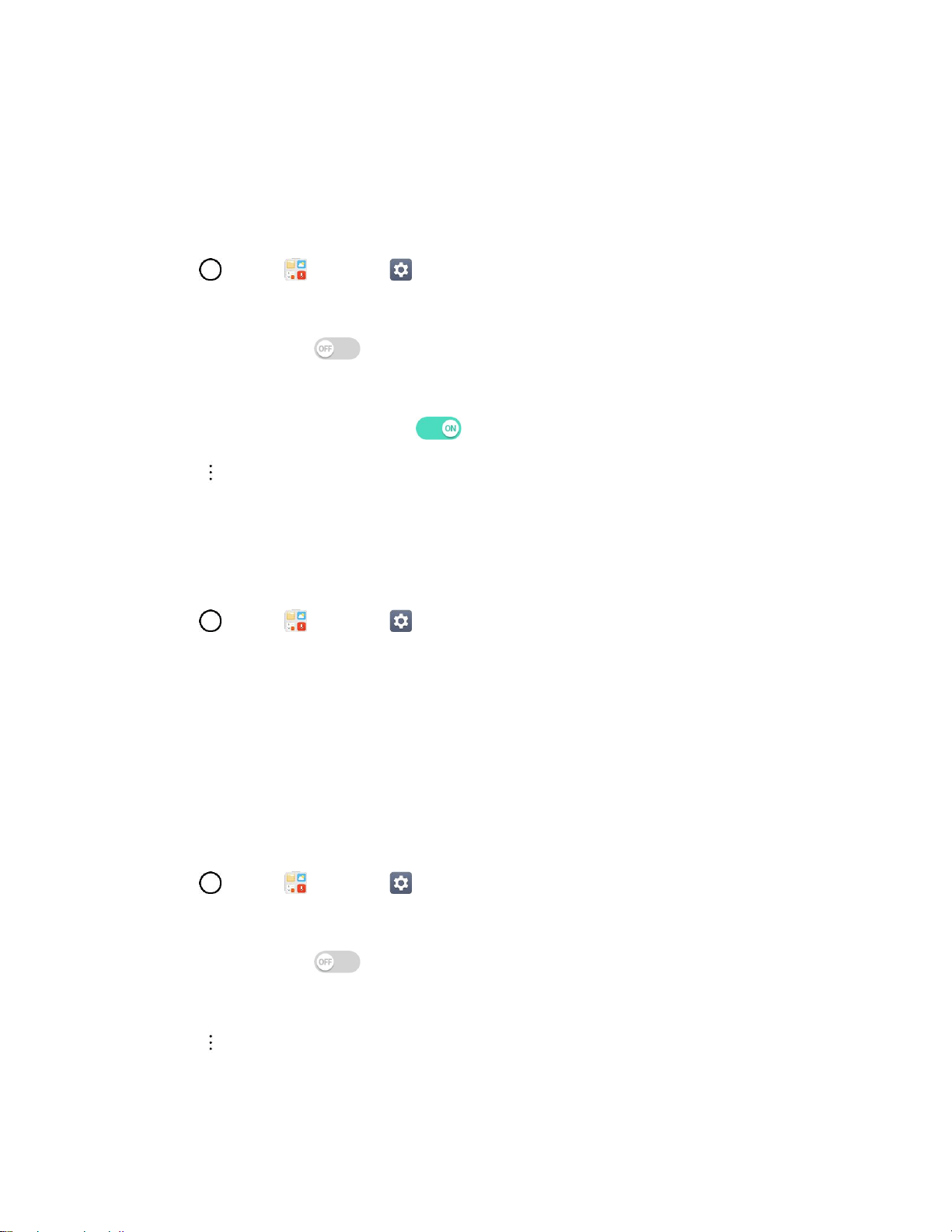
Connectivity 98
Note: Wi-Fi networks are self-discoverable, which means no additional steps are required for your phone
to connect to a Wi-Fi network. It may be necessary to provide a user name and password for certain
closed wireless networks.
Configure Wi-Fi Settings
Use the Wi-Fi settings menu to manually set your Wi-Fi connection options.
1. Tap > Tools > Settings > Networks tab.
2. Tap Wi-Fi.
3. Tap the Wi-Fi switch to turn Wi-Fi on.
You will see the names and security settings of in-range Wi-Fi networks.
To disable Wi-Fi, tap the switch again.
4. Tap > Advanced Wi-Fi.
5. Configure your Wi-Fi settings.
Disconnect Wi-Fi
You may wish to disconnect from a connected Wi-Fi network without turning Wi-Fi off.
1. Tap > Tools > Settings > Networks tab.
2. Tap Wi-Fi.
3. Tap the name of the connected access point and then tap FORGET.
After disconnecting from an access point, you may need to re-enter the password to
reconnect.
Wi-Fi Direct
Use Wi-Fi Direct to connect directly to other Wi-Fi Direct devices simply via Wi-Fi, without an access point
or the Internet.
1. Tap > Tools > Settings > Networks tab.
2. Tap Wi-Fi.
3. Tap the Wi-Fi switch to turn Wi-Fi on.
You will see the names and security settings of in-range Wi-Fi networks.
4. Tap > Advanced Wi-Fi > Wi-Fi Direct.
5. Tap a device with which to connect.
Connectivity 99
If connected via Wi-Fi, you will see a confirmation. Follow the onscreen instructions.
6. Accept the connection on the other device.
If a connection is not accepted after a certain period, the connection request is cancelled.
To stop a connection, tap the a device > OK.
Hotspot
Wi-Fi Hotspot allows you to turn your phone into a Wi-Fi hotspot. When this feature is turned on, you can
share your phone's mobile data services via Wi-Fi with other Wi-Fi enabled devices. The feature works
best when used in conjunction with 4G data services (although 3G service can also be used).
Important: Use of the Hotspot feature requires an additional subscription. Sign on to your account at
sprint.com/mysprint or access your account via Sprint Zone (Tap > Sprint Zone ) to learn more.
Note: Turning on Hotspot will disable your phone's connection to other Wi-Fi networks.
Set Up Wi-Fi Hotspot
1. Tap > Tools > Settings > Networks tab.
2. Tap Tethering > Wi-Fi Hotspot.
3. Tap the Wi-Fi Hospot switch to turn Wi-Fi hotspot on.
Wi-Fi hotspot is enabled.
To disable Wi-Fi hotspot, tap the switch again.
Note: The best way to keep using the phone as a hotspot is to have it connected to a power supply.
Important: Write down the passkey (password) for this connection (shown onscreen).
Connect to Wi-Fi Hotspot
1. Enable Wi-Fi (wireless) functionality on your target device (laptop, media device, etc.).
2. Scan for Wi-Fi networks from the device and select your phone hotspot from the network list.
3. Select this phone and follow your onscreen instructions to enter the passkey (provided on the Wi-
Fi Hotspot page).
4. Launch your Web browser to confirm you have an Internet connection.
Tethering
Use Tethering to share your device’s Internet connection with a computer that connects to your device via
USB tethering, Wi-Fi hotspot or by Bluetooth.
1. Tap > Tools > Settings > Networks tab > Tethering.
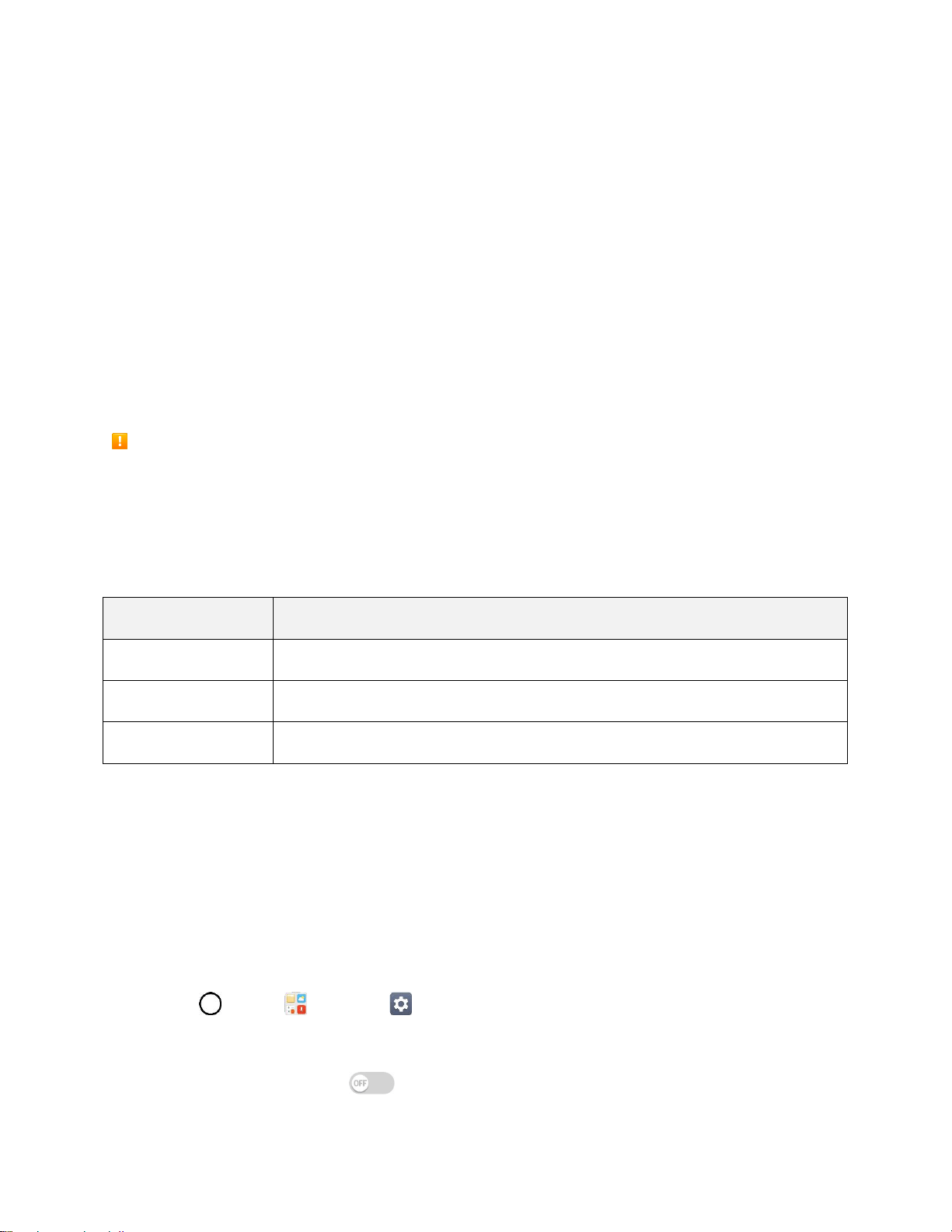
Connectivity 100
2. Select a tethering option:
USB tethering: Allows other devices to connect to your phone via USB cable.
Wi-Fi hotspot: Allows other devices to connect to your phone via Wi-Fi.
Bluetooth tethering: Pair your phone with the other device via Bluetooth.
Tip: For additional support with tethering, tap Help from the tethering menu.
Bluetooth
Bluetooth
®
is a short-range communications technology that allows you to connect wirelessly to a number
of Bluetooth devices, such as headsets and hands-free car kits, and Bluetooth Enabled devices such as
computers, printers, and wireless phones. The Bluetooth communication range is usually approximately
30 feet.
Bluetooth Function Cautions
Information may not appear correctly on connected devices depending on the transferred data.
Bluetooth Information
Bluetooth is a technology that enables wireless connection with PCs, Bluetooth devices with hands-free
features, etc.
Function
Description
Audio output
Listen to music wirelessly.
Hands-free calls
Call hands-free, using Bluetooth-capable hands-free devices and headsets.
Data exchange
Exchange data with Bluetooth devices.
Enable the Bluetooth Feature
Use the settings menu to enable or disable your phone’s Bluetooth capabilities.
● Wireless connection to all Bluetooth functions is not guaranteed for the phone.
● The phone may not connect properly depending on the other device.
● Noise may be experienced with wireless calls and hands-free calls depending on the conditions.
To enable Bluetooth:
1. Tap > Tools > Settings > Networks tab.
2. Tap Bluetooth.
3. Tap the Bluetooth switch to turn Bluetooth on.

Connectivity 101
To disable Bluetooth, tap the switch again.
Tip: You can also turn Bluetooth on or off with the toggle menu in the Notifications window. Drag the
Status bar down to display the Notifications window and then tap Bluetooth to turn Bluetooth on or off.
Note: Turn off Bluetooth when not in use to conserve battery power, or in places where using a wireless
phone is prohibited, such as aboard an aircraft and in hospitals.
Pair Bluetooth Devices
Search for and pair nearby Bluetooth devices. Registered Bluetooth devices can be connected simply.
■ Enable the Bluetooth function on the Bluetooth devices being paired beforehand.
To pair Bluetooth devices:
1. Tap > Tools > Settings > Networks tab.
2. Tap Bluetooth.
Nearby devices appear in the “AVAILABLE DEVICES” list.
If a target device is not detected, tap SEARCH to search again.
3. Tap a device from the “AVAILABLE DEVICES” list, and follow the onscreen instructions to pair
with the device.
Methods to accept a Bluetooth connection differ depending on the devices used.
Unpairing from a Paired Device
1. From the Bluetooth settings menu, tap Settings next to the paired device you wish to unpair.
2. Tap Unpair.
The device is unpaired from your phone. To make another connection with the device, you will
need to pair again.
Connect to a Paired Bluetooth Device
You can listen to music over a Bluetooth stereo headset, or have hands-free conversations using a
compatible Bluetooth headset or car kit. It’s the same procedure to set up stereo audio and hands-free
devices.
1. Tap > Tools > Settings > Networks tab.
2. Tap Bluetooth.
Paired Bluetooth devices appear in the “PAIRED DEVICES” list.
3. Tap a device from the “PAIRED DEVICES” list.
Your phone connects to the paired device.

Connectivity 102
The pairing and connection status is displayed below the device’s name in the Bluetooth devices section.
When the device is connected to your phone, the Bluetooth paired icon is displayed in the Status bar.
Depending on the type of device you have connected, you can then start using the headset or car kit to
listen to music or make and receive phone calls.
Note: Due to different specifications and features of other Bluetooth-compatible devices, display and
operations may be different, and functions such as transfer or exchange may not be possible with all
Bluetooth-compatible devices.
Send Information Using Bluetooth
You can use Bluetooth to transfer information between your phone and another Bluetooth-enabled device
such as a phone or computer.
Types of Data You Can Send via Bluetooth
You can send the following types of information, depending on the device you are sending to:
● Images and videos
● Calendar events
● Contacts
● Audio files
In the instructions below, Contacts data is being used as an example.
Sending Contacts Data via Bluetooth
1. Tap > Contacts .
2. Tap > Share
3. Tap the contact(s) you want to send and then tap SHARE > Bluetooth.
4. Tap a paired device to receive the data.
The contact information is sent.
If you see a message to confirm, follow the onscreen instructions.
Receive Information via Bluetooth
Your phone is capable of receiving a wide variety of file types with Bluetooth, including pictures, music
tracks, and documents such as PDFs.
1. When another device attempts to send a file to your phone via Bluetooth, you will see a request
to accept the file.
2. Tap ACCEPT.
The file is sent to your phone.
Connectivity 103
When your phone receives a file, you will see a notification. To open the file immediately,
drag the Status bar down to display the Notifications window, and then tap the notification.
When you open a received file, what happens next depends on the file type:
• Media files and documents are usually opened directly in a compatible application. For
example, if you open a music track, it starts playing in the default music application.
• For a vCalendar file, select the calendar where you want to save the event, and then tap
SAVE TO CALENDAR. The vCalendar is added to your Calendar events. (For more
information on using the Calendar, see Calendar.)
• For a vCard contact file, if there are multiple vCard files on your storage card, you can
choose to import one, several, or all of those contacts to your contacts list.
Content Sharing
Share your device’s data to another devices via various method.
Playing Content
You can play photos, videos or music saved on the device from a TV.
1. Connect the TV and device to the same Wi-Fi network.
2. Execute a file from the Gallery or Music app and tap Play on other device.
3. Select the TV.
Note: To use Chromecast, update Google Play to the latest version.
Sending or Receiving Files
You can send or receive files saved on your device to another LG device or tablet.
■ Tap > Tools > Settings > Networks tab > Share & connect > File sharing >
SmartShare Beam and swipe to activate it.
Note: Make sure that your device is connected to the same wireless network as the file transfer target
device.
Note: Make sure that File sharing is turned on in the notification panel of both the device and the target
device.
Sending Files to Another Device
1. Select a file and tap > SmartShare Beam. You can also share multiple files at once by
tapping from the file list, selecting the desired files, then tapping SHARE > SmartShare
Beam.
When the search permit confirmation window appears, tap OK.

Connectivity 104
2. Select a device from the list of nearby devices that support SmartShare Beam.
The file is sent to the device.
Using Nearby Devices
You can play multimedia files saved on a connected device from your device.
1. From the Gallery or Music app, select > Nearby devices.
2. Select a device from the device list.
If the desired device is not seen on the device list, check that DLNA is turned on, then tap
Search nearby devices.
3. Play content saved on the selected device.
Viewing Content from Your Cloud
You can directly view the content saved on your cloud account, without downloading it to your device.
1. From Gallery, Music or File Manager app, select > Cloud.
2. Select a cloud account and sign in.
3. Save or play content in your cloud.

105
Apps and Entertainment
The following set of topics will explore the features that make your phone so much more than a phone,
from the camera and productivity apps to music, entertainment, and more.
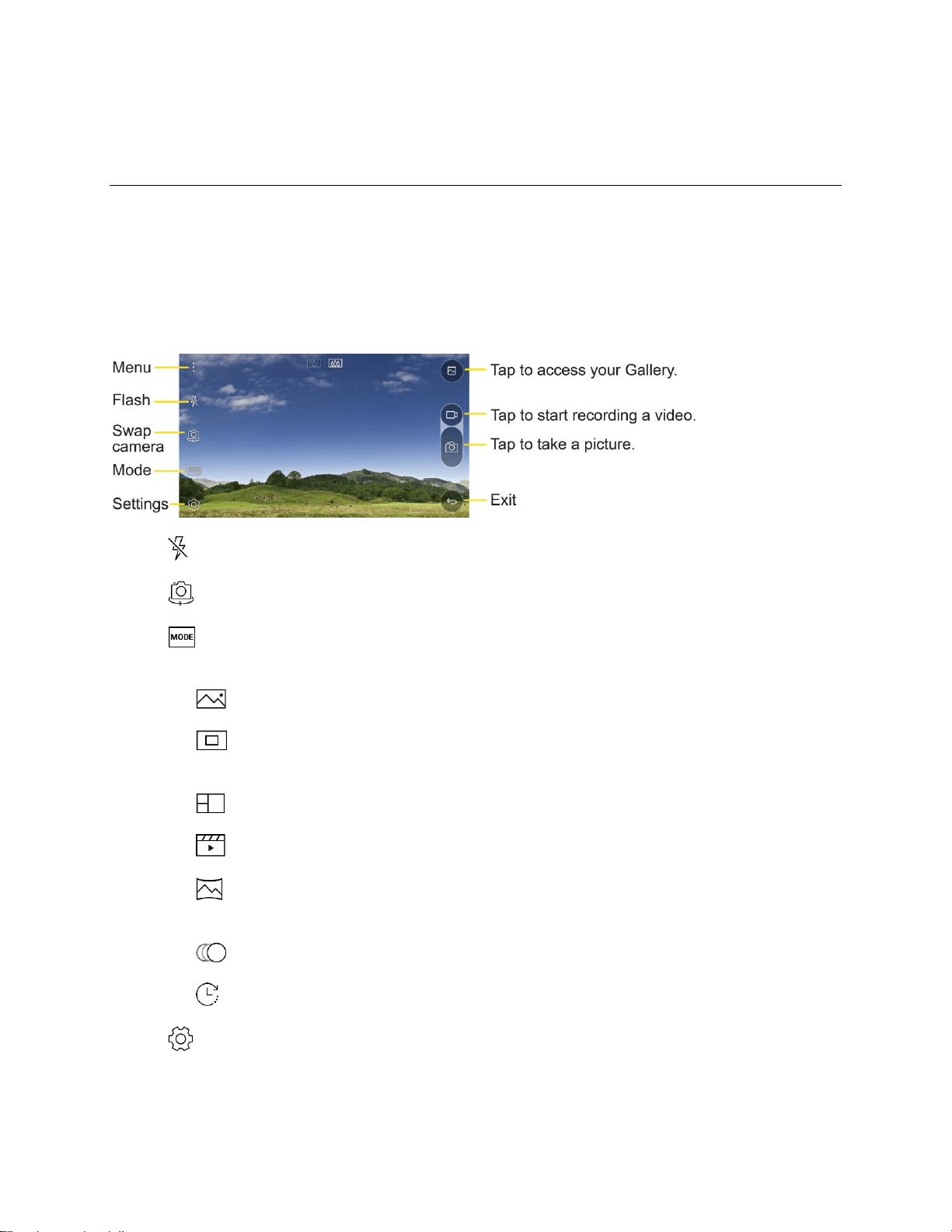
Camera and Video 106
Camera and Video
You can use the camera or camcorder to take and share pictures and videos. Your phone comes with a
16 megapixel camera that lets you capture sharp pictures and videos and an 8 megapixel camera for
wide angle pictures.
Camera Overview
The camera's viewfinder screen lets you view your subject and access camera controls and options.
● Flash to turn the flash On, Off or set it to Auto.
● Swap camera to swap between the rear camera lens and the front camera lens.
● Mode to select the mode from: Auto, Popout, Multi-view, Snap, Panorama, Slo-mo, Time-
lapse.
Auto: Default setting, automatically focuses on a subject.
Popout: Take photos or record videos by using the wide-angle camera and the rear
camera simultaneously.
Multi-view: View multiple scenes collectively in a single photo.
Snap: Stitches short video clips to create a video of your own.
Panorama: Creates a wide photo of a panoramic view. Hold the phone vertically, press
the shutter once to start and slowly sweep the camera across the scene.
Slo-mo: Creates a video in which everything moves more slowly than in reality.
Time-lapse: Creates a video where everything moves more quickly than in reality.
● Settings to adjust the following camera and video settings.
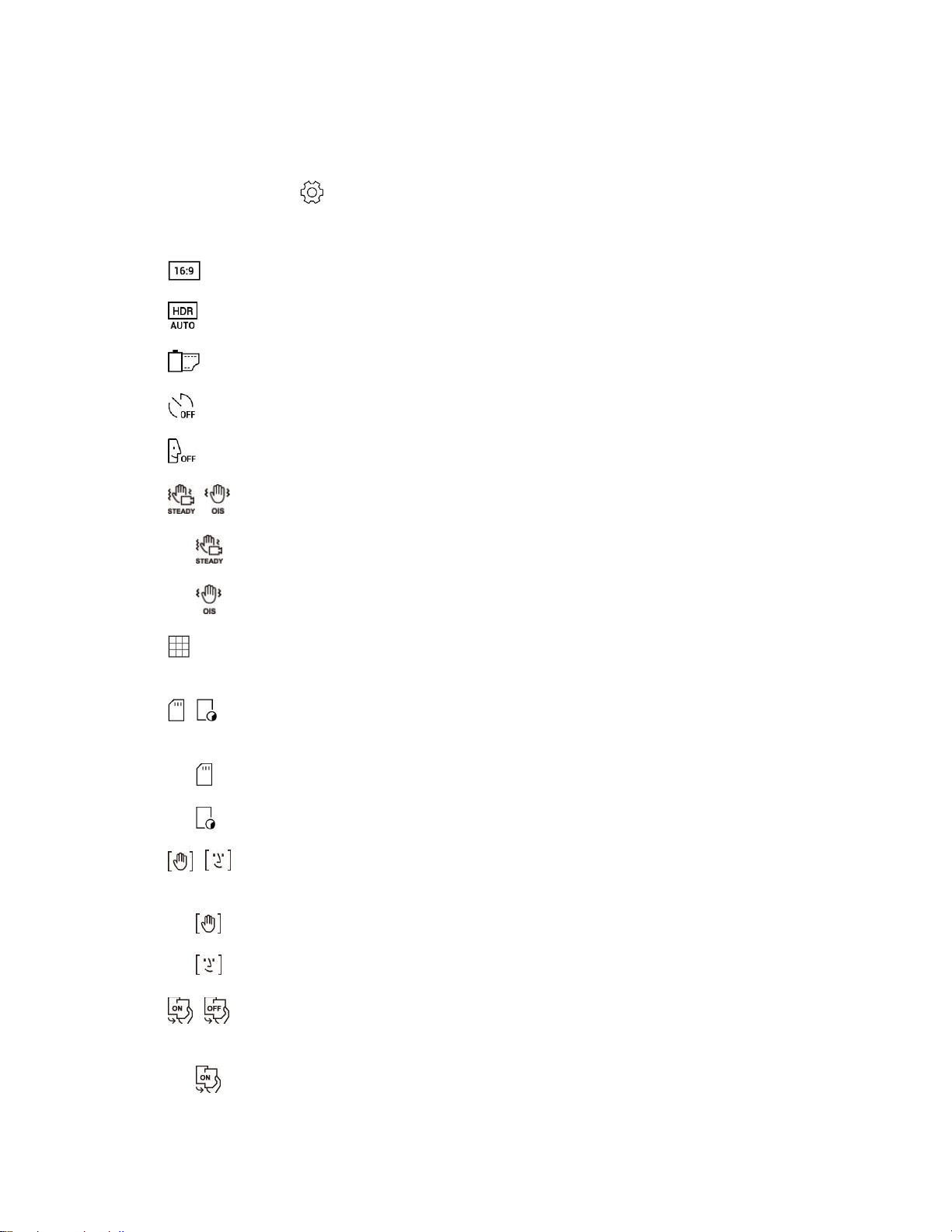
Camera and Video 107
Configuring Camera Options
You can customize a variety of camera options to suit your preferences.
On the camera screen, tap .
Note: Available options vary depending on the selected camera mode.
● : Select an aspect ratio for photos or quality for videos.
● : Combines photos taken at different exposures into one optimal photo.
● : Apply film effects to photos.
● : Set the timer to automatically take photos after a specified period of time.
● : Take photos with voice commands. (Available choices: cheese, smile, whisky, kimchi, LG)
● / : Reduce motion blur when taking a photo or recording a video.
: Use to further reduce blur when recording a video while you are moving or walking.
: Use to reduce blur while taking a photo or recording a video.
● : Display guide grids so that you can take photos or record videos based on the horizontal and
vertical reference lines.
● / : Set the locations where you want to save photos and videos. These options appear when
an external SD card is inserted.
: Save to the internal storage.
: Save to the external memory card.
● / : Customize the selfie-taking settings. These options appear when using the front
camera.
: Use Gesture Shot to take a picture.
: A picture will automatically be taken when the camera detects your face.
● / : Check selfies quickly after taking them. These options appear when using the front
camera.
: Turn on Gesture View.
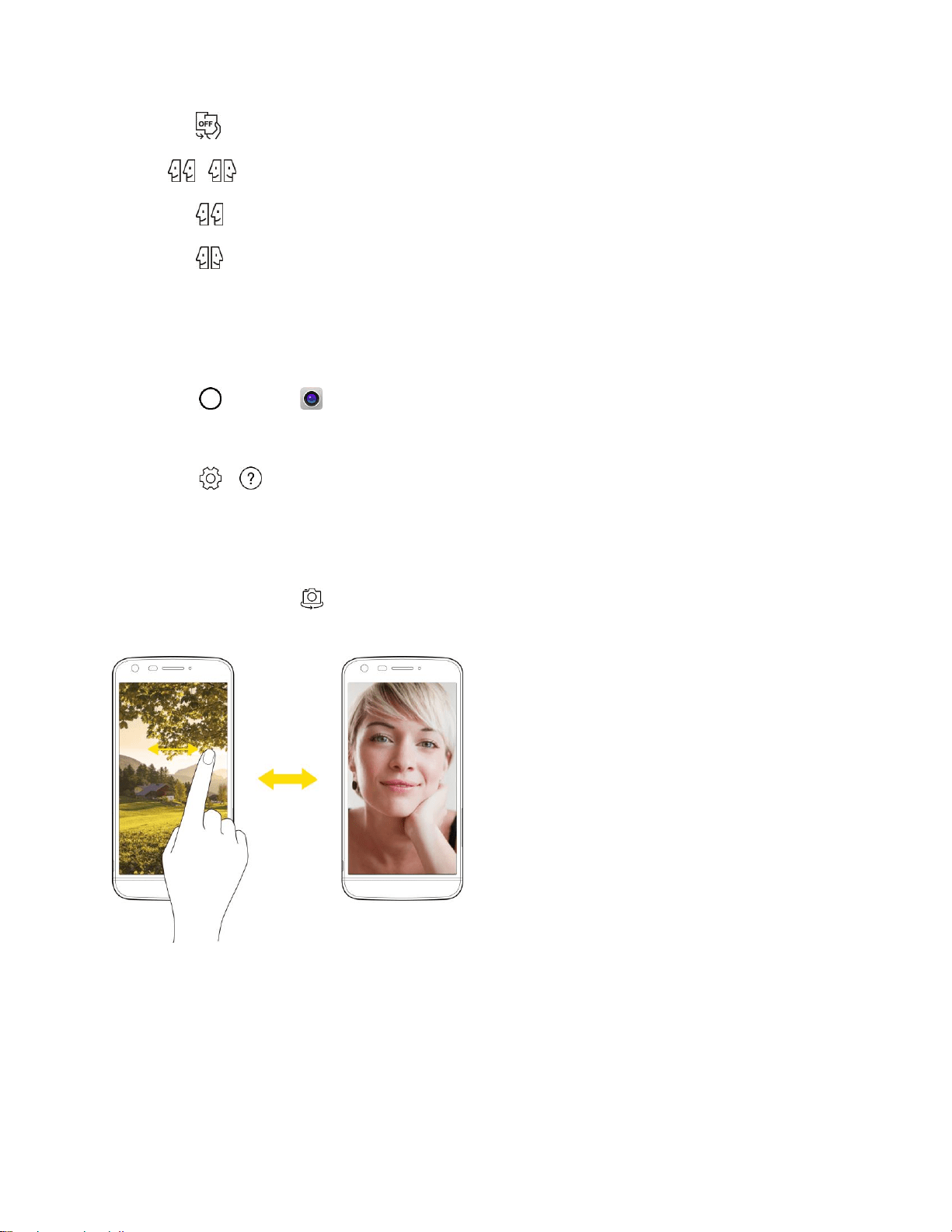
Camera and Video 108
: Turn off Gesture View.
● / : Flip images. These options appear when using the front camera.
: Do not flip the image.
: Flip the image horizontally.
Learn More About Your Phone's Camera
For an overview of your phone's camera and its features, you can access more information through the
phone's settings menu.
1. Tap > Camera .
The camera viewfinder appears.
2. Tap > , and scroll through the topics to learn more.
Switching between Cameras
You can switch between the front and rear camera.
On the camera screen, tap or drag the screen in any direction to switch between the front and rear
camera.
Note: Use front camera mode to take selfies. See Taking selfies for details.
Switch between the general and wide-angle
camera
You can use the dual camera feature to take photos by using either the general or wide-angle lens.
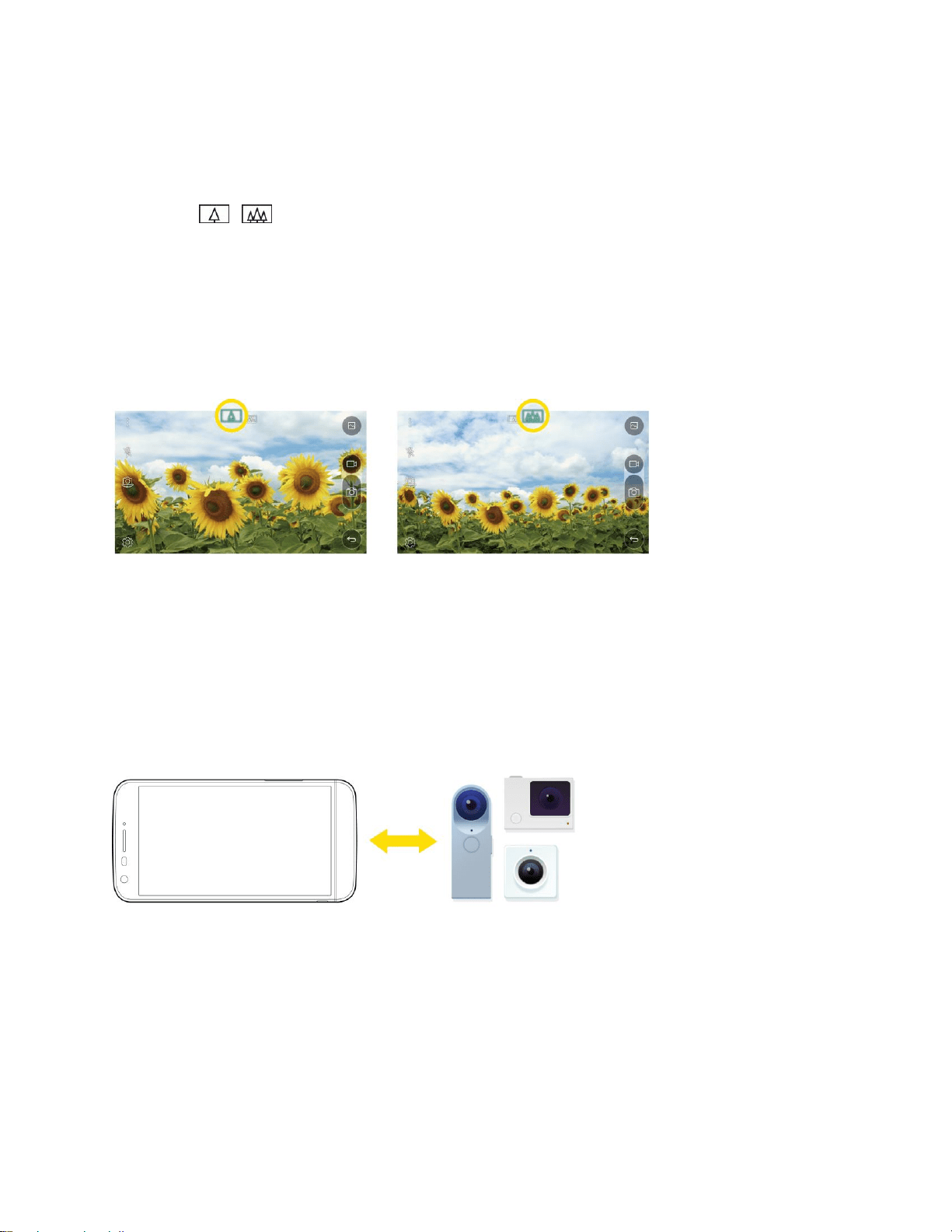
Camera and Video 109
On the camera screen, pinch or spread two fingers to switch between the general and wide-angle camera.
● Pinching fingers activates the wide-angle camera. Spreading fingers activates the general
camera.
● Tap / to switch between the general and wide-angle camera.
Wide-Angle Lens
You can use the wide-angle lens to take photos of a range that is wider than the actual field of vision. This
feature is useful when you take a photo or record a video of a landscape or a wide area from a narrow
area.
Note: See Switch between the general and wide-angle camera for details.
Connecting with LG Friends Cameras
You can connect the device to another camera to view photos or videos saved on the camera.
Note: The LG Friends cameras that can be connected with the device are optional accessories. Consult
with the LG Customer Center for purchasing.
Note: Some options may not be supported or may be different, depending on the service provider or the
service area.
Take Pictures and Record Videos
You can take high-resolution pictures using your phone’s camera.
Note: If you have an SD card installed, pictures and videos can be stored to the SD card. If no card is
installed, pictures and videos are saved to your phone’s memory.
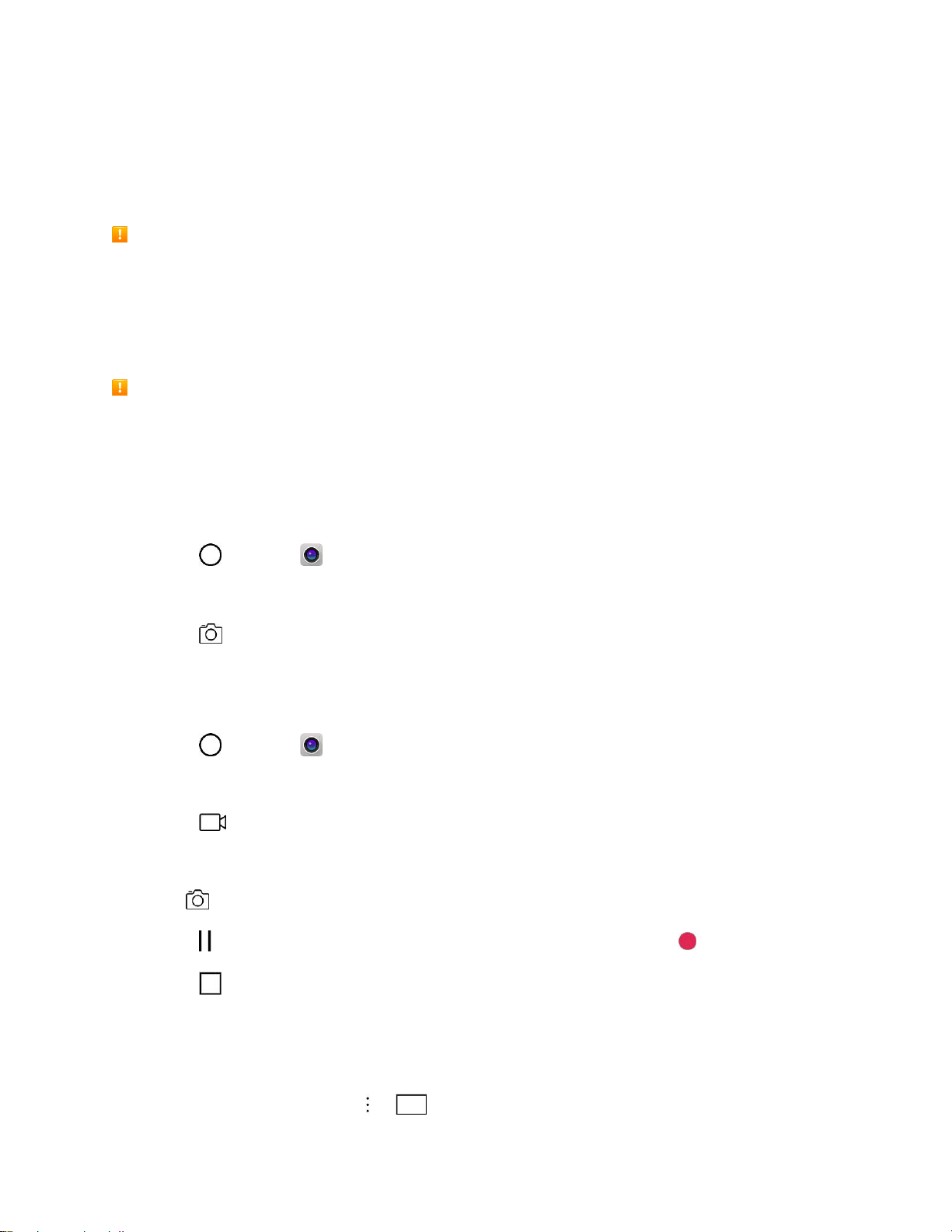
Camera and Video 110
Capturing Pictures/Videos
● File Format for Pictures: File format for pictures is JPEG.
● File Format for Videos: File format for videos is MPEG4.
Camera Cautions
If the Lens Becomes Dirty: Fingerprints/smudges on the lens prevent the capturing of clear still
images/videos. Wipe the lens with a soft cloth beforehand.
Avoid Exposure to Direct Sunlight: Be careful not to expose the lens to direct sunlight for long
periods. It may discolor the color filter and affect image colors.
Flash Warning
Do not shine the flash close to your eyes. Do not look directly at the flash when shining it. Do not
shine the flash at other people's eyes as it may affect eyesight, etc.
Take Pictures
You can take high-resolution pictures using your phone’s camera.
1. Tap > Camera .
2. Frame your subject on the screen.
3. Tap . Your picture will be automatically saved to the Gallery.
Record Videos
Record high-quality videos using your phone’s video camera.
1. Tap > Camera .
2. Frame your subject on the screen.
3. Tap to start recording the video.
4. The length of the recording is displayed on the top right of the screen.
Note: Tap to take pictures while recording video.
5. Tap to pause recording video. You can resume recording again tapping .
6. Tap to stop recording. Your video will be automatically saved to the Gallery.
Simple Mode
You can take photos by simply tapping the screen.
1. On the camera screen, tap > .
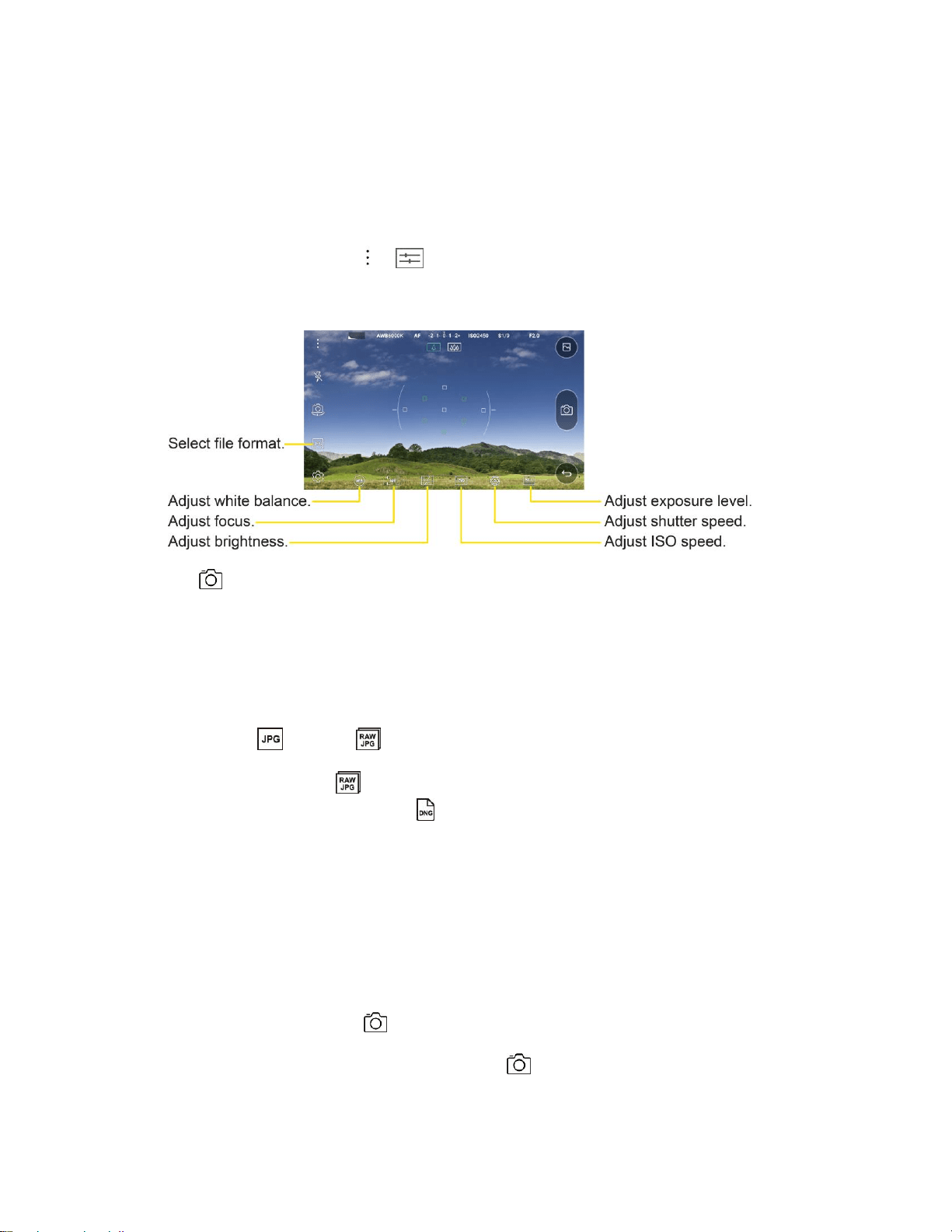
Camera and Video 111
2. Frame your subject and then tap on the screen.
Manual Mode
You can create photos featuring professional touch by using a variety of advanced features. Adjust the
white balance, focus, brightness, ISO, shutter speed and other options.
1. On the camera screen, tap > .
2. Customize the desired camera options.
3. Tap .
Saving in RAW file format
You can compensate the images of photos by saving them in the RAW file format. While taking a photo, a
DNG file is created along with the JPEG file. The DNG file is a file format that saves data in an
uncompressed high resolution format.
In manual mode, tap to turn on .
● If you take photos when is displayed, the images are saved as JPEG and DNG files. Gallery
shows only JPEG files and displays on photos.
● If you delete photos from Gallery, the DNG files are also deleted. If you delete photos from a
computer or File Manager, you can delete the JPEG and DNG files separately.
Note: Saving a photo in the RAW format takes up more space because the file contains larger data.
Burst Shot
You can take continuous shots of photos to create moving pictures.
On the camera screen, tap and hold .
■ Continuous shots are taken at a fast speed while is held down.
Note: Up to thirty (30) continuous photos can be taken.
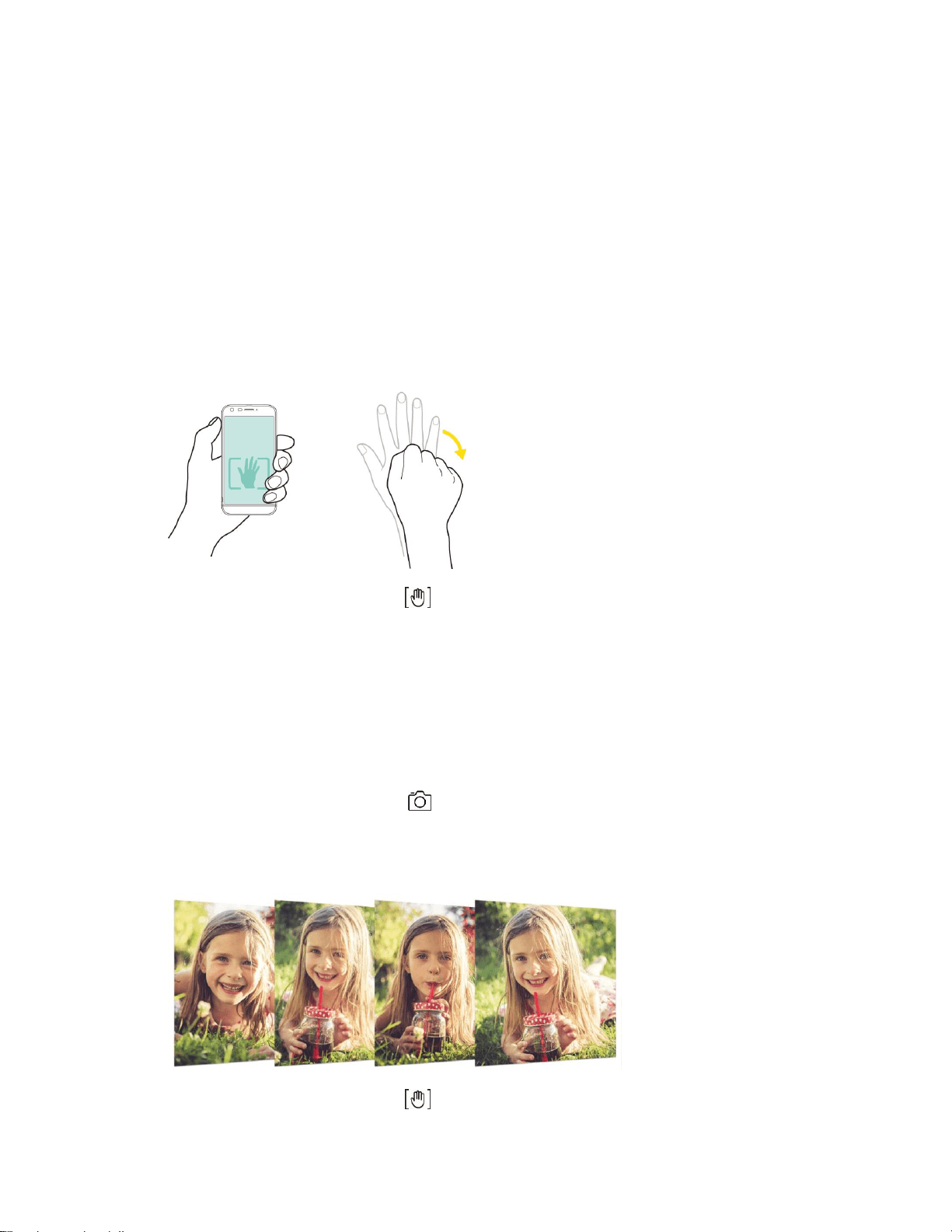
Camera and Video 112
Taking Selfies
You can use the front camera to view your face on the screen and take selfies.
Note: When using the front camera, you can change in camera options how selfies are taken. See
Configuring camera options for details.
Gesture Shot
You can take selfies by using gestures.
Show your palm to the front camera and then clench your fist.
■ In three seconds, a photo is taken.
Note: To use this function, make sure that is selected under camera options.
Note: An alternative way to take gesture shots is to clench your fist and then open it towards the front
camera.
Note: Make sure that your palm and fist are within the reference line so that the camera can detect them.
Interval Shot
You can take continuous selfies.
While using the front camera, tap and hold . You can also show your palm to the camera, then clench
your fist twice quickly.
■ Four photos are taken at three second interval.
Note: To use this function, make sure that is selected under camera options.
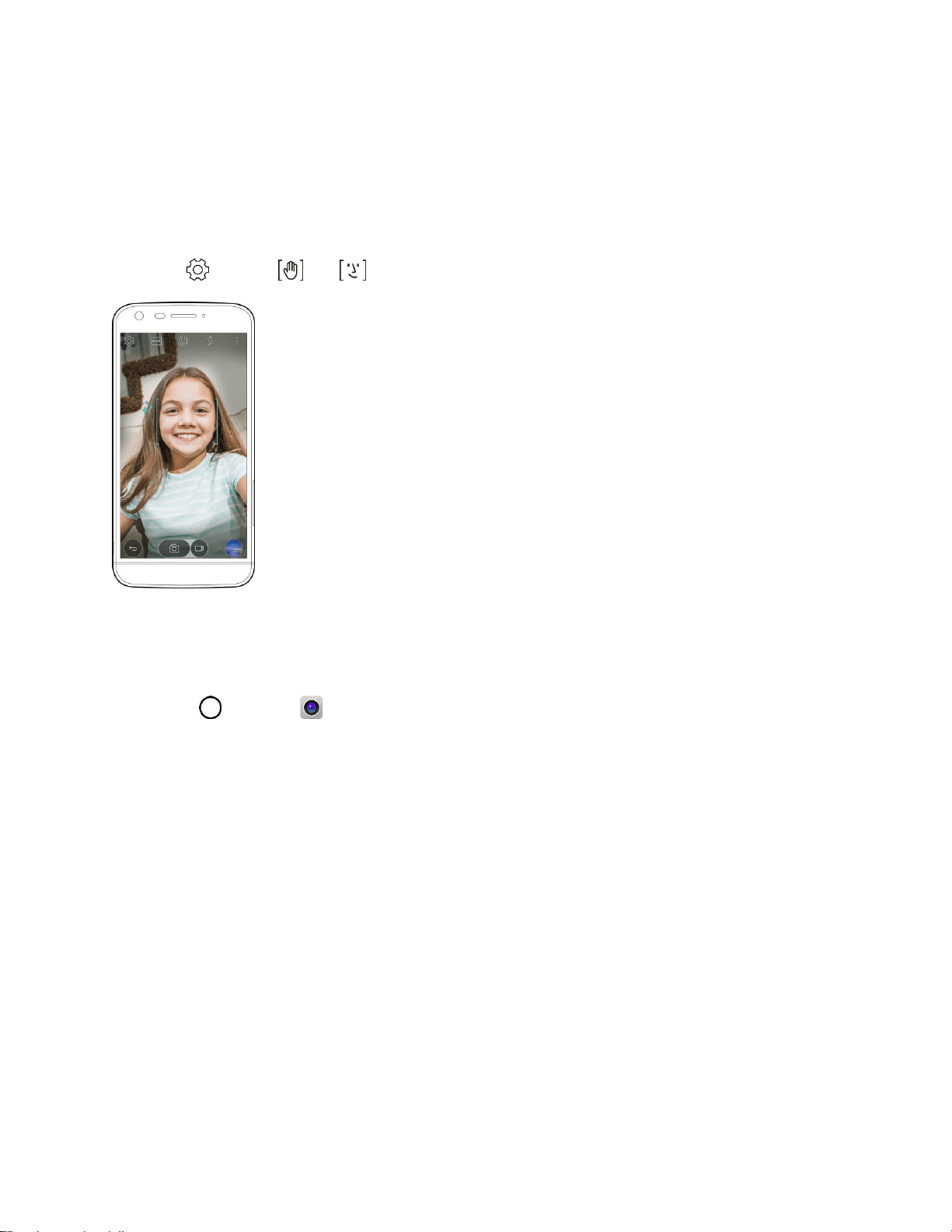
Camera and Video 113
Taking Auto-Selfies
You can use the face detection feature to take selfies easily and conveniently. You can set the device so
that, when you look at the screen, the front camera detects your face and takes a selfie automatically.
■ When the front camera detects your face, the frame turns white. Then if you stop moving, the
frame turns blue and the front camera takes a photo.
Note: Tap , then tap until appears to activate the auto-selfie function.
Gesture View
After taking a photo with the front camera lens, you can automatically check the captured photo with this
gesture.
1. Tap > Camera .
2. Take a picture with the front camera.
3. After taking the picture, bring the phone close to your face. The captured photo will be displayed.
You can quickly check the photos taken with the front camera without tapping on the screen.
View Pictures and Videos Using Gallery
Using the Gallery application, you can view pictures and watch videos that you’ve taken with your phone’s
camera, downloaded, or copied onto your storage card or phone memory.
For pictures that are on your storage card or phone memory, you can do basic editing such as rotating
and cropping. You can also easily assign a picture as your contact picture or wallpaper and share
pictures with your friends.
View Pictures and Videos
You can access and view all your stored pictures and videos from your phone’s Gallery.

Camera and Video 114
1. Tap > Gallery .
The album list opens.
2. Tap an album (such as Camera).
The list of pictures and videos for the album opens.
To select another album, tap Back to return to the Albums tab.
3. Tap an image to view the picture or video.
The picture opens or the video begins playing.
Tap a picture or video to view it full screen.
When viewing pictures and videos, you can touch and hold an image to open a selection
menu and choose what to do with the picture or video.
Timeline View
The Gallery automatically sorts and displays a lot of photos in chronological order to see at a glance.
1. Tap > Gallery .
2. Tap > Timeline.
3. Select from Year, Month and Day.
Memories View
The Gallery automatically organizes and displays the memories albums depending on the region and time
information of saved photos.
1. Tap > Gallery .
2. Tap > Memories.
3. Select a memories album.
Note: This feature is a location based service. Take photos and videos with their locations.
Pictures and Videos: Review Screen
After capturing a picture or video, from the camera screen, tap the thumbnail image at the bottom right
corner of the screen to see the item in the review screen. From there, you can access options such as
save, view, send, or delete the picture or video.

Camera and Video 115
Pictures and Videos: Options while Viewing
● Zoom In or Out on a Picture: Tap the screen twice or pinch the screen to zoom in or out on a
picture.
● Viewing Videos: Use the onscreen controls to play, pause, or stop the video playback.
After selecting an album from the Albums tab, you can browse through the pictures and videos of that
album. Tap a picture or video to view it in full screen. By default, the pictures and videos in an album are
displayed in grid view.
Note: When viewing pictures, you can touch and hold on a picture or video to open a selection menu and
choose what to do with the picture or video.
Edit Pictures
Whether you’re browsing pictures in filmstrip or grid view in the Gallery application, you can touch and
hold on a picture to open a selection menu and choose to delete the picture, rotate or crop it, and more.
Rotate and Save a Picture
1. Tap > Gallery .
The album list opens.
2. Tap an album (such as Camera).
The list of pictures and videos for the album opens.
3. Tap the picture you want to rotate.
4. Tap > Rotate, then select either Rotate left or Rotate right.
The picture is rotated and saved to the phone or SD card, depending on your settings.
Crop a Picture
1. Tap > Gallery .
The album list opens.
2. Tap an album (such as Camera).
The list of pictures and videos for the album opens.
3. Tap the picture you want to crop.
4. Tap > Crop.
A crop box appears on the picture.

Camera and Video 116
5. To adjust the crop box size, touch and hold the edge of the box. When directional arrows appear,
drag your finger inward to or outward to resize the crop box.
To move the crop box to the part of the picture that you want to crop, drag the crop box to the
desired size and position.
6. Tap OK to apply the changes to the picture.
The cropped picture is saved in the album as a copy. The original picture remains unedited.
Share Pictures and Videos
The Gallery application lets you send pictures and videos using email or multimedia messages. You can
share pictures on your social networks (such as Facebook, Flickr, and Twitter) and share videos on
YouTube. You can also send them to another phone or your computer using Bluetooth.
Send Pictures or Videos by Email
You can send several pictures, videos, or both in an email or Gmail message. They are added as file
attachments in your email. For more information about using email and Gmail, see Compose and Send
Email or Create and Send a Gmail Message.
1. Tap > Gallery .
The album list opens.
2. Tap an album (such as Camera).
The list of pictures and videos for the album opens.
3. Tap the picture or video you want to share.
To select multiple items, tap while viewing an album. Then tap all the items you want to
include.
4. Tap Share and then on the Share via menu, tap Email or Gmail.
5. Follow the onscreen prompts to complete and send the message.
Note: If you selected Email and you have multiple email accounts, the default email account will be used.
For more information about using email and Gmail, see Compose and Send Email or Create and Send a
Gmail Message.
Send a Picture or Video by Multimedia Message
Multimedia Messaging (MMS) lets you send pictures and videos using your phone’s messaging app.
Although you can send several pictures or videos in a multimedia message, it may be better to just send
one at a time, especially if the files are large in size.
1. Tap > Gallery .

Camera and Video 117
The album list opens.
2. Tap an album (such as Camera).
The list of pictures and videos for the album opens.
3. Tap the picture or video you want to share.
To select multiple items, tap while viewing an album. Then tap all the items you want to
include.
4. Tap Share and then on the Share via menu, tap Messaging.
5. Follow the onscreen prompts to complete and send the message.
For more information about sending multimedia messages, see Send a Multimedia Message (MMS).
Send Pictures or Videos Using Bluetooth
You can select several pictures, videos, or both and send them to someone’s phone or your computer
using Bluetooth.
1. Tap > Gallery .
The album list opens.
2. Tap an album (such as Camera).
The list of pictures and videos for the album opens.
3. Tap the picture or video you want to share.
To select multiple items, tap while viewing an album. Then tap all the items you want to
include.
4. Tap Share and then on the Share via menu, tap Bluetooth.
5. Follow the onscreen prompts to complete and send the files.
For more information, see Bluetooth.
Share Pictures or Videos via Additional Apps or Social Media
From Gallery, you can share your pictures and videos from a variety of apps and social media sites, such
as Facebook, Google+, Hangouts, Instagram, Flickr, Picasa, and more. Available apps will vary
depending on what you have installed on your phone.
1. Tap > Gallery .
The album list opens.
2. Tap an album (such as Camera).
Camera and Video 118
The list of pictures and videos for the album opens.
3. Tap the picture or video you want to share.
To select multiple items, tap while viewing an album. Then tap all the items you want to
include.
4. Tap Share and then on the Share via menu, tap the app you want to use.
5. Follow the prompts to complete and post or share your pictures or videos.
The upload is completed.
For confirmation, check the status bar for the upload information.
Share Videos on YouTube
You can share your videos by uploading them to YouTube™. Before you do this, you must create a
YouTube account and sign in to that account on your phone.
1. Tap > Gallery .
The album list opens.
2. Tap an album (such as Camera).
The list of pictures and videos for the album opens.
3. Tap the video you want to share.
To select multiple videos, tap while viewing an album. Then tap all the videos you want to
include.
4. Tap Share and then on the Share via menu, tap YouTube.
5. Enter the prompted information, such as description and tags, and select a privacy option.
6. Tap Upload .
The upload is completed.
Camera Settings
You can adjust your camera’s settings using the icons on the main camera screen and the full camera
settings menu.
Switch Cameras
Your phone lets you use different types of cameras depending on your settings and downloads.
1. Tap > Camera .

Camera and Video 119
The camera viewfinder appears.
2. Tap .
The camera switches.
Set Camera Functions
You can configure your camera’s settings to fit any situation and event.
1. Tap > Camera .
The camera viewfinder appears.
2. Tap .
The camera settings menu opens.
3. Select your desired settings.
The settings are applied.
Items that can be set differ depending on the camera type in use.

Productivity 120
Productivity
The following topics detail many of your phone’s tools and features such as maps and navigation,
calendar, clock, social networking apps, music, memos, and more.
Calendar
Use Calendar to create and manage events, meetings, and appointments. Your Calendar helps organize
your time and reminds you of important events. Depending on your synchronization settings, your
calendar stays in sync with Microsoft Exchange calendar or Google calendar.
In order to sync with your Google calendar, you must sign in to a Google account on your phone. See
Google Account.
Calendar Operations
● Change Calendar View: From the Calendar, tap Day, Week, Month, Year or Agenda to change
the current view.
● View Next/Previous Month (Month View): From the Calendar, flick the screen left or right.
● View Next/Previous Week (Week View): From the Calendar, flick the screen left or right.
● View Next/Previous Day (Day View): From the Calendar, flick the screen left or right.
Add an Event to the Calendar
Add events to your calendar directly from the Calendar application.
1. Tap > Calendar .
The Calendar app opens.
2. Tap .
The add event window opens.
3. Enter an event name, location, start date/time, end date/time, etc., and then tap SAVE.
The event is added to your calendar.
Selecting a Calendar
● If you have more than one calendar, select a calendar in which to add events:
Select your Google Account to create a Google Calendar event. If you have several Google
Calendars on the Web, select one in which to add your event.
• You can create multiple Google Calendars only in Google Calendar on the Web. After
creating them in Google Calendar on the Web, you’ll be able to see them in the Calendar

Productivity 121
application on your phone. For more information about creating and managing multiple
Google Calendars, visit the Google website: calendar.google.com.
If you have synchronized your phone with an Microsoft Exchange account on your computer,
you can also select these calendars.
View Calendar Events
You can display the Calendar in daily, weekly, monthly, or agenda view. To change the Calendar view,
tap the current view in the top left corner and then tap Year, Month, Week, Day, Agenda, or Tasks.
1. Tap > Calendar .
The Calendar app opens.
2. Tap a date and then tap an event.
The event details appear.
In event details, tap to edit the event.
In event details, tap and follow the prompts.
Sync Calendars
You can select which calendars you’d like to sync on your phone, along with what types of information
you want to sync.
1. Tap > Calendar .
The Calendar app opens.
2. Tap > Calendars to sync.
3. Select the desired options by switching on or off from the items.
The sync settings have been updated.
4. Tap SAVE.
The selected calendars sync.
Synchronize an Microsoft Exchange Calendar
If you have set up a Microsoft Exchange account on your phone, you can also synchronize Microsoft
Exchange calendar events on your phone. Calendar events on your Microsoft Exchange will also show in
Calendar if you chose to synchronize with the Microsoft Exchange Server.
1. Tap > Tools > Settings > General tab > Accounts & sync > Microsoft Exchange.
To confirm your sync settings, tap the account name and make sure the Calendar switch is
on. Tap to return to the sync menu.

Productivity 122
2. Tap > Sync now.
Note: If Microsoft Exchange ActiveSync doesn’t appear under the Accounts heading in the Settings menu,
you do not have an Exchange ActiveSync account configured on the phone. For information about adding
an account, see Add an Exchange Account.
Navigation Apps
Your phone offers a number of location-based navigation programs to help you figure out where you are
and get you where you’re going.
Enable Location Services on Your Phone
Before using any location-based services, you must enable your phone’s location feature. For information
about setting your phone’s location options, see Location.
Google Maps
Use the Google Maps app to determine your location, find directions, browse local businesses and
attractions, rate and review places, and more.
View Maps of Specified Places
Use Google Maps to locate and map a specific address or destination.
1. Tap > Google > Maps to view maps.
Google Maps opens.
If prompted, follow the onscreen instructions to accept terms of use.
2. Tap the search bar.
3. Enter an address, city, facility name, etc., and then tap a candidate in the results list or tap the
Search icon in the keyboard.
A map of the specified location opens.
Scout
Scout™ by Telenav is a daily personal navigator that helps you get where you’re going. It lets you see
and hear turn-by-turn directions and it can provide important, personalized information about traffic and
alternate routes.
Install the Scout App on Your Phone
Before you use Scout on your phone, you may need to download and install the app from the Google
Play Store app.
1. Tap > Play Store .
2. Tap the Search icon and search for "scout".

Productivity 123
3. Tap Scout GPS Navigation & Meet Up from the results list.
4. Tap INSTALL, and then tap ACCEPT.
The app will be downloaded and installed on your phone.
5. When the download has completed, tap OPEN.
To open the app from the home screen, tap > Scout .
Use Scout as Your Personal Navigator
1. Tap > Scout .
The Scout app will open.
If prompted, accept the terms of use before continuing.
2. Follow the on-screen instructions to access, launch, and use.
Google Search
Search information saved on the phone and in phone applications as well as on the Internet.
Use Google Search
Type search terms in the Google Search bar to find information on your phone and around the globe.
1. From the Home screen, tap the Google search bar or tap > Google > Google .
The Search window opens.
If confirmation appears, follow onscreen instructions.
2. Type your search keywords and tap .
Search results appear.
To search by voice, tap in the search bar and speak your search terms.
Google Search Options
● Changing Search Information: In the search window, tap > Settings > In Apps and select
where to search.
● Using Google Now: Google Now automatically searches for information based on search
keywords used, your current location, etc., and presents search results in the search screen.
Google Now also informs users of scheduled events.
To use all of Google Now’s functions, ensure that Google Location Reporting and Location
History are turned on in your location settings. Tap > Tools > Settings > General
tab > Location > Google Location History and select your options.
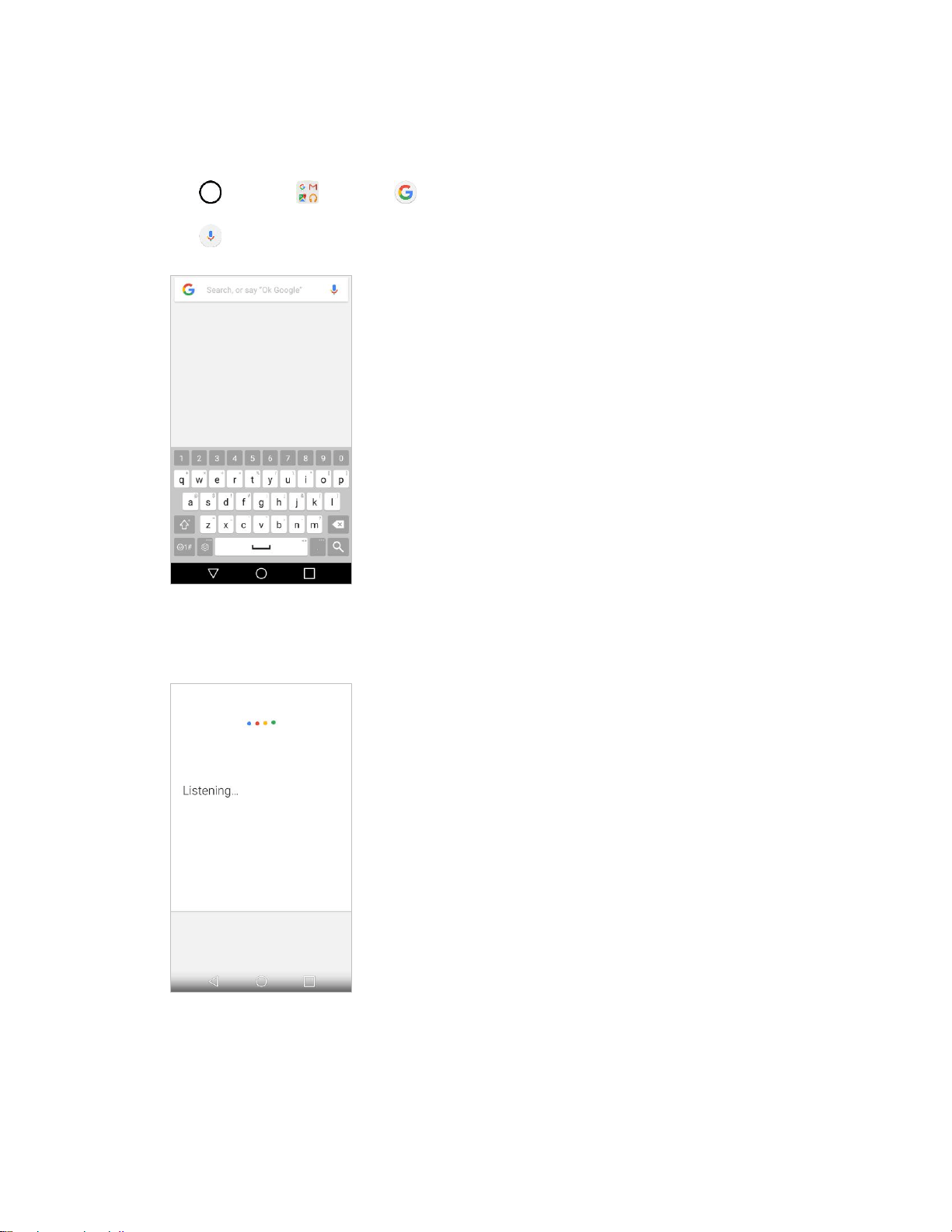
Productivity 124
Use Google Voice Search
Use your voice to search instead of typing, with Google Voice Search.
1. Tap > Google > Google .
2. Tap in the search bar.
The Voice Search window opens.
3. Say your search terms.
Search results appear.
Calculator
You can use the Calculator application to solve math problems.

Productivity 125
1. Tap > Tools > Calculator .
2. Enter numbers and arithmetic operators on the screen.
You can long-press the results to cut, copy, and/or paste the displayed values.
Tap to delete the last number or operator you entered. Touch and hold to delete
numbers repeatedly.
Tap to clear the screen.
Tap to open an Options menu to view your Calculation history or change panels
between Scientific/Basic calculator.
Clock
Your phone has a clock app that lets you set alarms, view time in time zones around the world, use a
stopwatch, set a timer, and use your phone as a desk clock.
Checking the Time
You can check the phone any time on your phone. The current time displays in the upper right corner of
the status bar. Many widgets and lock screens also display the time and provide options for how time is
displayed.
Set Alarms
Set multiple alarms using your phone’s Clock app.
1. Tap > Tools > Clock .
2. Tap an existing alarm to change its time and other attributes or tap Add alarm to add a new
one.
3. Set the time of the alarm. You can change the time by scrolling up/down the hour and minute and
AM/PM field or tap the hour and minutes fields to enter the time with the keyboard.
4. Tap Repeat to select the days when you want the alarm to sound. (If you don't set a repeat, the
alarm will only sound on the assigned day.)
5. Tap Alarm sound to select a ringtone for the alarm. The ringtone plays briefly when you select it.
6. Slide the button on the Alarm volume slider to the right to increase the alarm volume and to the
left to decrease it.
7. Tap Alarm with vibration to have the phone vibrate, in addition to playing the ringtone.
8. Tap Snooze duration to open a dialog box to set the amount of time to wait before sounding the
alarm again if it is not dismissed. You can set the alarm to ring repeatedly from 5 minutes up to 1
hour.
Productivity 126
9. Tap Enter memo text to enter a name for the alarm.
10. Tap Auto-start app to set the application you want to automatically open when you stop the
alarm.
11. Tap Puzzle lock to switch on the setting, which requires you to wake up enough to solve a simple
puzzle to dismiss the alarm.
12. When you're finished, tap SAVE.
Additional Clock Features
Your phone’s clock app provides additional useful features including world clock, stopwatch, and timer
functions. All features are available from the clock app display.
■ Tap > Tools > Clock .
World Clock
The world clock lets you keep track of the current time in multiple cities around the globe.
1. Tap > Tools > Clock > World clock tab.
2. Tap to add a city.
3. Enter the city name in the search field and tap on the keyboard.
– or –
Scroll through the cities list and tap the city.
4. You can add as many cities as you want. Repeat steps 2 and 3.
Timer
The timer provides a countdown timer.
1. Tap > Tools > Clock > Timer tab.
2. Tap the Hour/Minute/Second sections to set the timer.
3. Tap to start.
Tap to reset the timer and start over.
Tap to resume the timer after it's stopped.
Tap to pause the timer.
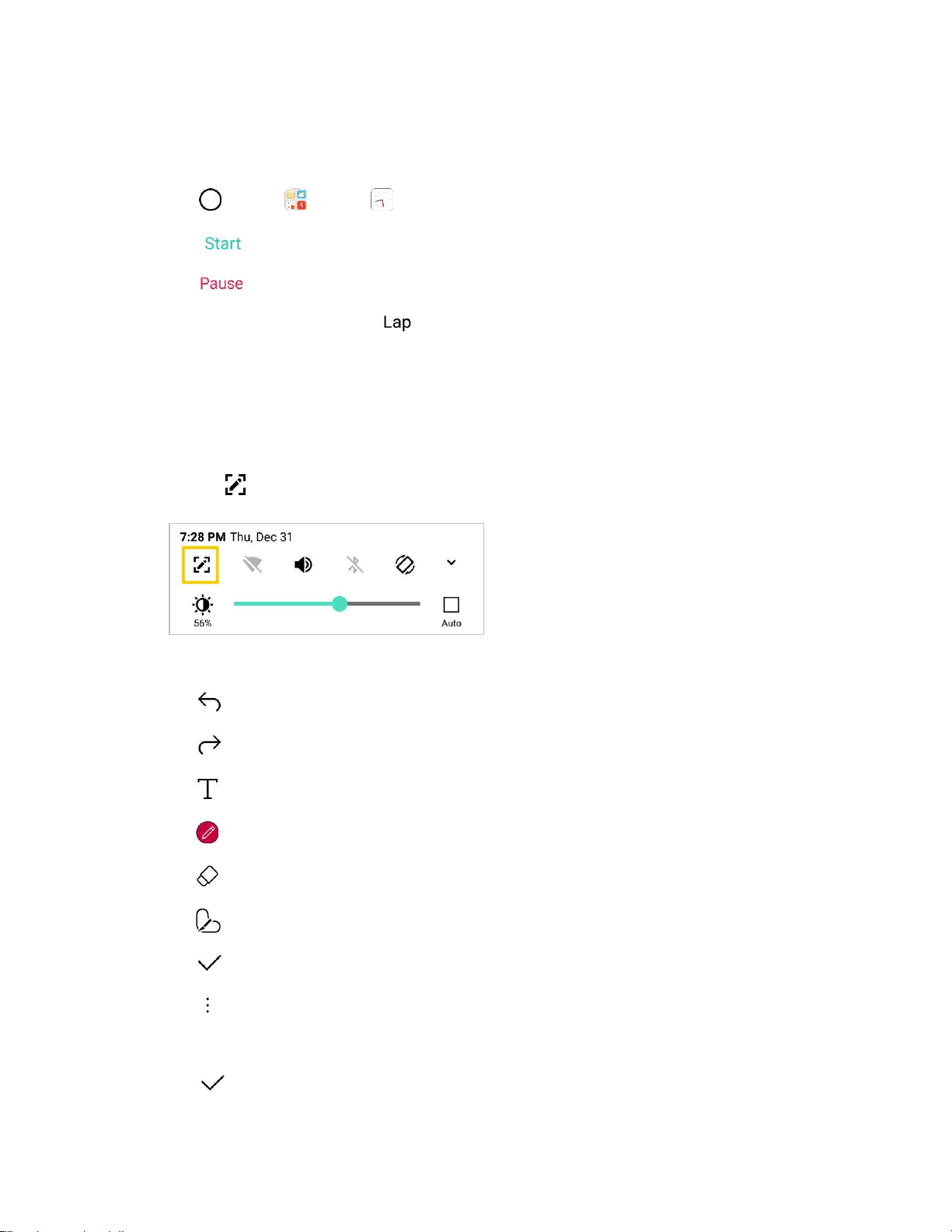
Productivity 127
Stopwatch
The stopwatch lets you time events down to the hundredth of a second.
1. Tap > Tools > Clock > Stopwatch tab.
2. Tap to start stopwatch time.
3. Tap to pause the stopwatch.
While measuring time, tap to record lap times.
Capture+
The Capture+ feature allows you to create memos and capture screen shots. You can use Capture+ to
easily and efficiently create memos during a call, with a saved picture or from most phone screens.
1. While viewing the screen you want to capture and create a memo on, slide the Status Bar down
and tap .
2. Create a memo using the following options:
: Tap to undo the most recent action.
: Tap to redo the most recently undone action.
: Tap to add typed text to the memo.
: Tap to add freehand notations to the memo.
: Tap to use the eraser on the drawing you've added to the memo.
: Tap to crop the memo.
: Tap to save the current memo.
: Tap to share the memo or change the background paper style.
Note: Please use a fingertip while using the Capture+ feature. Do not use your fingernail.
3. Tap to save the current memo.
Productivity 128
4. Tap QuickMemo+ or Gallery to select where to save the note.
Discard the current Capture+:
■ Tap until you exit Capture+.
View the Saved Memo
Your memo can be saved in the QuickMemo+ application or in the Gallery application.
To view the memo saved in QuickMemo+:
■ Tap > LG > QuickMemo+ and select the memo.
To view the memo saved in your Gallery:
■ Tap > Gallery and select the Capture+ album.
QuickMemo+
Use your phone’s QuickMemo+ app to save text, memos, lists, and more.
1. Tap > LG > QuickMemo+ .
The memopad list appears.
2. Tap and enter your memo title and text.
3. Tap .
The memo is saved.
Weather
You can view the weather information for a particular area.
1. Tap > Tools > Weather .
2. Tap and add the city you want.
On the detailed weather screen, tap </>, or swipe the screen left or right to view the weather
for other cities.
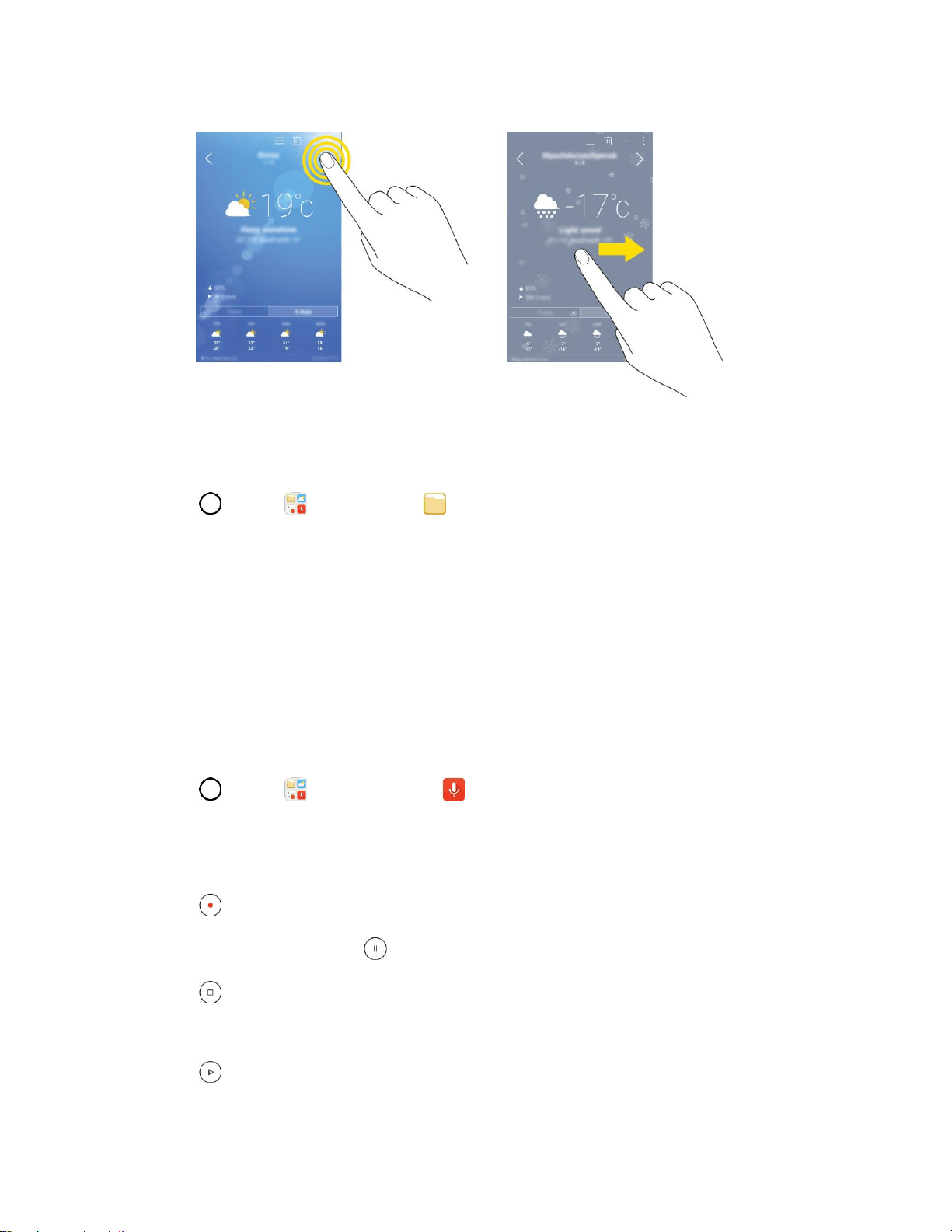
Productivity 129
File Manager
View files stored on your phone.
1. Tap > Tools > File Manager .
File Manager launches.
Follow onscreen instructions for first-time use and permissions.
2. Tap the file type and then tap the file you want to open.
The app opens and displays the file.
Voice Recorder
You can record and save your voice or others’ voices from important events. Recorded voice files can be
played back or shared.
1. Tap > Tools > Voice Recorder .
To save the location details of recording, tap Location.
To add an event, tap Event and add an event to the date you want.
2. Tap .
To pause recording, tap .
3. Tap to end the recording.
The file is saved automatically and the Recorded files screen appears.
4. Tap to play the recorded voice.

Productivity 130
Note: If you tap , recorded voice files appear. You can play a recorded voice file from the list.
Uninstalled Apps
You can view the uninstalled apps on the Home screen. You can also reinstall apps which were
uninstalled within 24 hours from now.
1. Tap > Uninstalled apps .
2. Activate the desired function:
Reinstall: Reinstall the selected app.
: Remove the uninstalled apps permanently from the device.
Note: Uninstalled apps are automatically removed from the device 24 hours after it was uninstalled. If you
want to reinstall the uninstalled apps, you must download them again from the app store.
Note: This feature is activated on the default Home screen only. If you uninstall apps while using the
EasyHome screen or other launcher, they are immediately and permanently removed from the device.
LG Health
You can set a daily exercise goal and check the amount of physical exercise to monitor your health and
fitness information.
Getting started with LG Health
You can configure LG Health when launching the app for the first time or after having already used it.
1. Tap > LG > LG Health .
2. Follow the on-screen instructions to complete the setup.
Using LG Health
1. Tap > LG > LG Health .
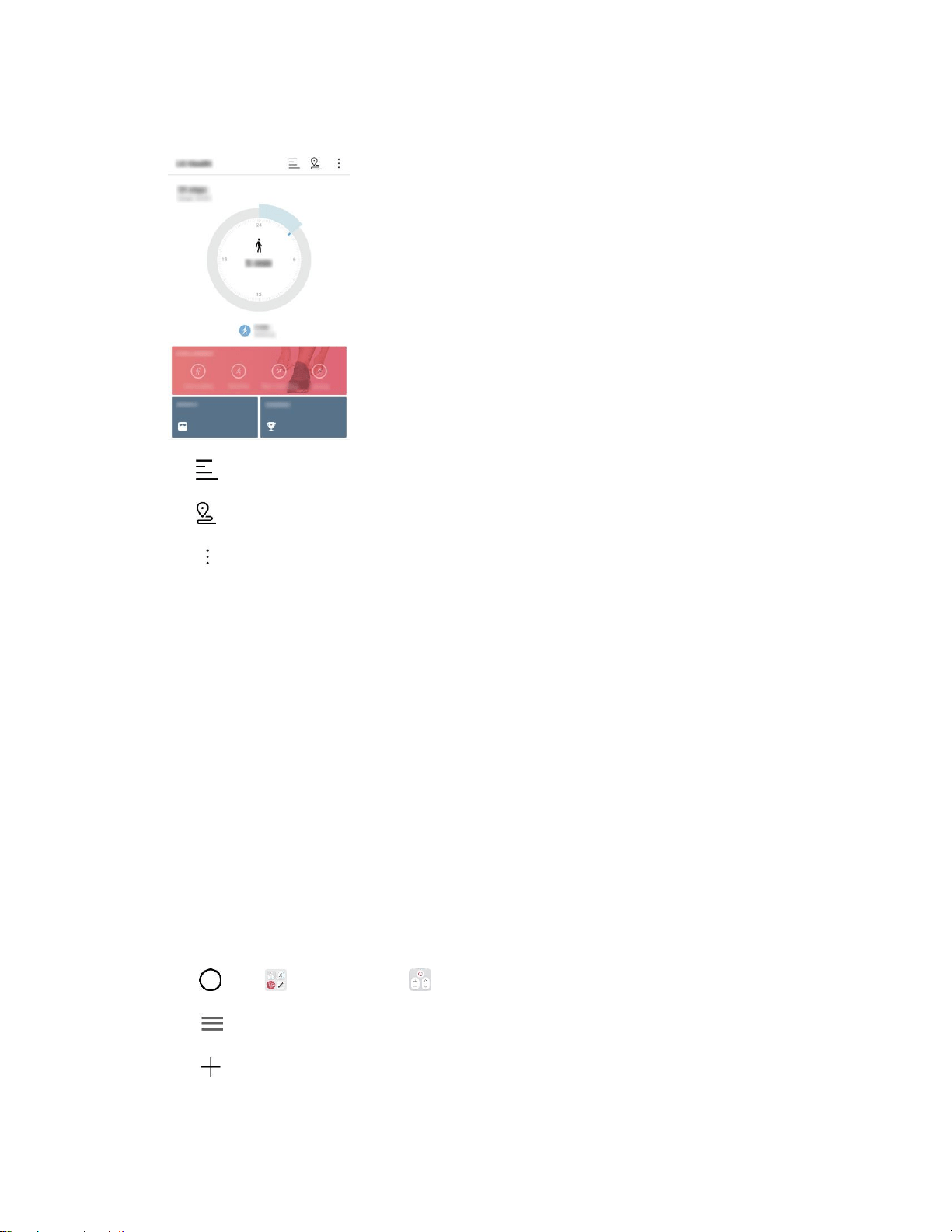
Productivity 131
2. The following options are available.
Display your exercise log.
Begin tracking an exercise.
Set various LG Health settings, including your profile and goals.
Note: Health-related information provided by LG Health is designed for user convenience and cannot be
used for purposes of disease prevention, treatment, diagnosis or other medical issues.
Note: LG Health may vary or may not be available, depending on the country and the mobile service
provider. LG Health functions that are available and apps that can be added to LG Health may vary,
depending on the country. This is due to differing laws and regulations.
QuickRemote
You can control many electronic devices in different locations by using your device as a remote control.
Note: This feature uses infrared (IR) signals and operates very similar to a remote control. When using
QuickRemote, keep the IR sensor at the top right of the device uncovered.
Note: This feature may not be supported, depending on the device manufacturer or service provider.
Register a Device for Remote Control
You can register a device you want to control remotely with your device.
1. Tap > LG > QuickRemote .
2. Tap to specify locations where you want to use the remote control.
3. Tap and select the type and manufacturer of the device you want to set up.

Productivity 132
4. Follow the on-screen instructions to make sure that the QuickRemote feature works properly on
the device.
Create a Universal Remote Control
You can create a customized universal remote control by assigning remote control functions to your
device.
1. Tap > LG > QuickRemote .
2. Tap to specify locations where you want to use the remote control.
3. Tap > Universal remote.
4. Enter a remote control name and tap OK.
5. Tap and hold the button you want, then drag it to the position you want.
6. Tap NEXT.
7. Follow the on-screen instructions to familiarize yourself with the function, then tap SAVE.

Entertainment and Activities 133
Entertainment and Activities
The following topics address your phone’s entertainment and activities options.
Music
You can play audio files that are stored in your phone's storage. Copy audio files from your computer onto
your phone before you open the Music application. The Music Player application supports audio files in
numerous formats.
Google Play Music
Google Play Music lets you browse, shop, and play back songs purchased from the Google Play Store
app, as well as songs you have loaded to Google's server from your own music library. The music you
choose is automatically stored in your Google Music library and instantly ready to play or download.
■ Tap > Google > Play Music .
Note: Learn more about Google Play Music at music.google.com.
Music Player
You can play music and set as ringtone.
1. Tap > Tools > Music .
2. You can select music tracks from the following tabs:
Songs: To browse through your downloaded music library.
Albums: To display your music library sorted by album.
Artists: To display your music library sorted by artist.
Genres: To display your music library sorted by genre.
3. Tap to see the additional options.
Favorites: To display your music library sorted by favorites.
Playlists: To select a customized playlist you’ve created.
Folders: To browse for music files using folders.
Nearby devices: To browse music files on other DLNA-compatible media servers.
Cloud: To browse music files saved on the cloud.
4. Once you’ve displayed a list of songs, you can browse through your available titles.
To listen to a song or playlist, tap it to begin playing.
Entertainment and Activities 134
Play a Song
1. Tap > Tools > Music > Songs tab.
2. Select the song you want to play.
Create a Playlist
1. Tap > Tools > Music .
2. Tap > Add to playlist.
3. Select the songs you want to add to the playlist and tap ADD.
4. Tap New playlist and enter a name.
5. Tap OK to save the playlist.
Assign a Song as a Ringtone
1. Tap > Tools > Music > Songs tab.
2. Touch and hold a song you’d like to use as your new ringtone. A context menu is displayed.
3. Tap Set as ringtone and select Phone ringtone to set it as the default ringtone or Caller
ringtones to set it as a ringtone for a specific contact.
4. Confirm the song has been successfully assigned by navigating to your phone's ringtone menu.
Tip: To modify Ringtones, open the Contact entry and check the Ringtone field or tap > Tools >
Settings > Sound tab > Ringtone.
Sprint Music Plus
With Sprint Music Plus and the Music Store, Ringtone Store, and Ringback Tone Store, you can purchase,
download, and play music, ringtones, and ringback tones for your phone.
Install the Sprint Music Plus App on Your Phone
Before you use Sprint Music Plus on your phone, you must download and install the app from the Google
Play store app.
1. Tap > Play Store .
2. Tap the Search icon and search for "sprint music plus".
3. Tap Sprint Music Plus from the results list.
4. Tap INSTALL.
The app will be downloaded and installed on your phone.

Entertainment and Activities 135
5. When the download has completed, tap OPEN.
To open the app from the home screen, tap > Sprint Music Plus .
Access Sprint Music Plus
1. Tap > Sprint Music Plus .
The app opens.
The first time you use the app, tap Accept to agree to the Premium Services Terms of Use.
2. Tap a store option from the main page (Ringbacks Store, Music Store, or Ringtones Store), or
tap > Music (under Library) to access your music.
Tap the onscreen navigation tools to skip ahead or rewind. Tap at any time to see
additional options.
For more information, tap Menu > Settings > About or Help.
Note: If you have loaded music on to your phone from your computer (see Transfer Files between Your
Phone and a Computer), you will need to sync your music to listen to it through Sprint Music Plus. From
the Sprint Music Plus app, tap > Settings > Synchronize your music library. Once synced, you will
see your music in the library.
Purchase and Download Music from the Sprint Music Plus Store
From the Sprint Music Plus Store, you can shop for songs to purchase and download to your phone.
1. Tap > Sprint Music Plus > Music Store.
The app will open and display the Music Store.
2. Enter a song or artist in the search field or browse through options in the tabs in the center of the
screen.
3. Tap a song to select it.
The song information screen is displayed.
4. Follow the onscreen instructions to preview or purchase the song. Tap at any time to display
the Sprint Music Plus menu.
Tip: For ringtones or ringback tones, tap Ringtone Store or Ringback Tone Store from the Sprint Music
Plus main menu.

Entertainment and Activities 136
Back Up Your Downloaded Music Files
Sprint recommends that you back up your downloaded music files to your computer. Although the
downloaded files can only be played on your phone and on your account, backing them up to your
computer lets you access the files in case your phone is misplaced.
1. Connect your phone to your PC using a USB cable.
2. Open the Notifications Panel and tap the USB connection.
3. Select File transfer and use your computer to navigate to phone's Music folder.
4. Select and copy the music files to a folder on your computer’s hard drive.
YouTube
View videos uploaded to YouTube and upload your own videos to your YouTube account.
View YouTube Videos
You can use the YouTube app to view videos on YouTube even if you aren’t signed in to a YouTube
account.
1. Tap > Google > YouTube .
The YouTube app launches.
If you’re prompted to provide confirmation to use the site, follow the onscreen instructions to
continue.
2. Search through the YouTube channels and tap a video you want to see.
The video plays on your phone screen.
Tap the screen to pause or resume play while watching.
Post a Video to YouTube
You can post videos to your YouTube account from your phone. Before posting, you must set up a
YouTube account and sign in to it on your phone.
1. Tap > Google > YouTube .
The YouTube app launches.
2. Tap > .
The Open from menu appears.
3. Select a video to upload.
Enter a title, description, and tags, and select a privacy setting.
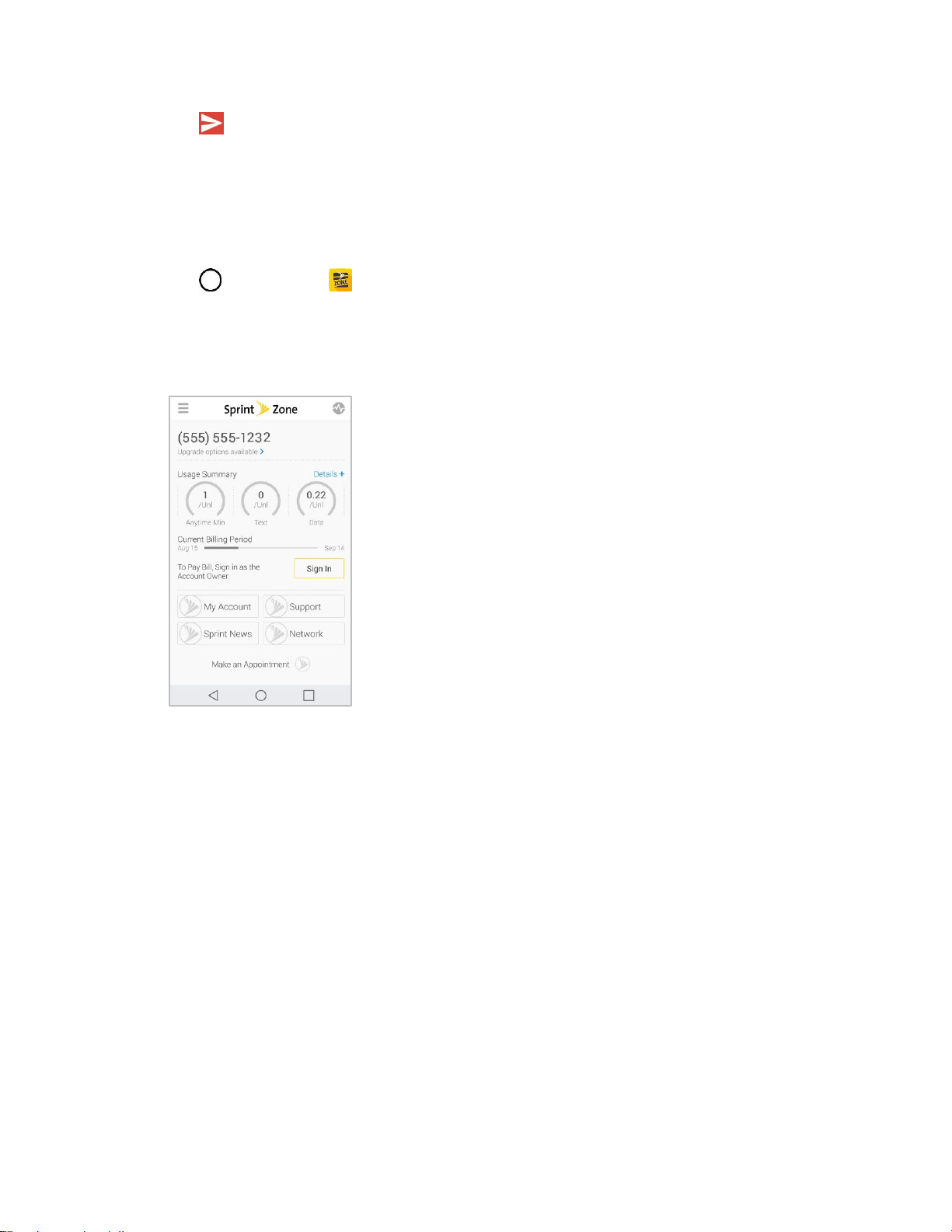
Entertainment and Activities 137
4. Tap .
The video is uploaded to your YouTube channel.
Sprint Zone
Access your Sprint account, get phone information and help, find recommended apps, and more.
1. Tap > Sprint Zone .
2. Tap My Account to sign in to and manage your Sprint account, Support to get help with your
device or service, Sprint News to learn the latest Sprint information, or Network to see or test
your current data connectivity.
Note: Sprint Zone categories and options are subject to change. Check back frequently for new content
and updates.


Basic Settings 139
Basic Settings
Tap > Tools > Settings to access your phone’s settings menu.
Access Settings
1. Tap > Tools > Settings .
The settings menu opens.
2. Select categories and then select your settings options.
Settings are made and applied.
Tip: You can also access settings from the notification panel. Pull down the status bar and tap Settings
.
Networks Settings 140
Networks Settings
Use Networks Settings to configure your phone's Wi-Fi settings, Bluetooth, Tethering, VPN, Mobile
networks, and more.
Networks Settings Overview
The Network settings menu allows you to configure the following options:
Category
Description
Airplane mode
Turn on or off wireless connections.
Wi-Fi Calling
Wi-Fi Calling uses Wi-Fi networks to help improve voice and data coverage.
Wi-Fi
Enable and set Wi-Fi options.
Bluetooth
Enable Bluetooth connections.
Mobile data
Check your phone’s Mobile data.
Call
Set various call settings.
Share & connect
Share data and media with other devices.
Tethering
Connect other devices to your phone's internet connection.
More
Adjust additional network settings.
Access Networks Settings
1. Tap > Tools > Settings .
2. Tap the Networks tab.
3. Set your networks options.
Your networks settings are saved and applied.
Airplane Mode
Airplane Mode (flight mode) allows you to use many of your phone’s features, such as games, and music,
when you are in an airplane or in any other area where making or receiving calls or data is prohibited.
When you set your phone to Airplane Mode, it cannot send or receive any calls or access online data.
Networks Settings 141
Activate Airplane Mode
1. Tap > Tools > Settings > Networks tab.
2. Tap the Airplane mode switch to turn the function on. While in Airplane Mode, your
phone’s Status bar will display .
Deactivate Airplane Mode
1. Tap > Tools > Settings > Networks tab.
2. Tap the Airplane mode switch to turn the function off.
Wi-Fi Calling
Wi-Fi Calling uses Wi-Fi networks to help improve voice and data coverage. It sends and receives calls
over a connected Wi-Fi network and may offer better coverage in buildings and areas of poor cellular
reception. See Wi-Fi Calling.
Wi-Fi Settings
Your phone lets you take advantage of Wi-Fi hotspots for high-speed data access using available
computer networks. For details on your phone‘s Wi-Fi features and settings, see Configure Wi-Fi Settings.
Bluetooth Settings
Your phone’s Bluetooth capabilities let you use wireless headsets, send and receive pictures and files,
and more. For details on your phone‘s Bluetooth settings, see Bluetooth.
Mobile Data Settings
You can check the current data usage, set to enable/disable mobile data, or set the mobile data limit.
Turn Mobile Data On or Off
1. Tap > Tools > Settings > Networks tab > Mobile data.
2. Tap the Mobile data switch to turn it on.
– or –
Tap the Mobile data switch to turn it off.
Call Settings
Your phone's Call settings menu lets you configure options. For details on your phone's Call settings, see
Call Settings Menu.
Networks Settings 142
Share & Connect
Your phone lets you use the wireless technology that enables data transmission between devices.
NFC
NFC (Near Field Communication) is a wireless technology that enables data transmission between two
objects when they are brought within a few inches of each other. When you enable NFC on your phone, it
can exchange data with other NFC-enabled devices or read information from smart tags embedded in
posters, stickers, and other products. From the NFC settings menu, you can manage direct sharing and
pairing.
To turn on NFC:
1. Tap > Tools > Settings > Networks tab > Share & connect.
2. Tap the NFC switch to activate the NFC feature.
Note: When NFC is turned on, you can use the Tap & pay feature to pay for items just by touching your
phone to a reader at a register. If your device doesn't have a default app, you can browse Google Play for
other payment apps.
Android Beam
When this feature is turned on, you can beam app content to another NFC-capable device by holding the
devices close together.
For example, you can beam browser pages, YouTube videos, contacts, and more. Just bring the devices
together (typically back to back) and then touch your screen. The app determines what gets beamed.
To turn on Android Beam:
1. Tap > Tools > Settings > Networks tab > Share & connect.
2. Tap the Android Beam switch to activate the feature. (NFC turns on automatically.)
File Sharing
Send and receive files with computers and LG devices.
■ Tap > Tools > Settings > Networks tab > Share & connect > File Sharing.
Media Server
Share media content with nearby DLNA-compatible devices.
1. Tap > Tools > Settings > Networks tab > Share & connect.
2. Tap Media server > Content sharing to allow nearby devices to access your content.

Networks Settings 143
Screen Sharing
You can play the screen and sound of the device on a different device, such as a TV, that supports the
Miracast function.
1. Tap > Tools > Settings > Networks tab > Share & connect.
2. Tap the Screen sharing switch to activate it.
3. Select a device from the list of nearby devices.
If the desired device does not appear, tap SEARCH to refresh the list.
After connecting to the device, the device displays the device screen.
Note: Miracast turns off automatically if there is no sharing-compatible device in the vicinity.
MirrorLink
You can connect your device to an automobile via USB and use the automobile's head unit to run
MirrorLink apps on the device. You may need to set USB connection to File transfer for using MirrorLink.
Note: This app is available only in automobiles that support MirrorLink.
1. Tap > Tools > Settings > Networks tab > Share & connect > MirrorLink.
2. Connect the device to an automobile via USB and turn on Use MirrorLink.
LG AirDrive
Connect to your PC to manage your phone. Download LG Bridge from the LG Electronics website on
your PC before use. When you sign in to the same LG Account on your phone and PC, you can use the
LG AirDrive function.
1. Log in to the same LG account on a mobile device and a PC.
2. Tap > Tools > Settings > Networks tab > Share & connect > LG AirDrive.
3. Run the LG Bridge application on your PC and select LG AirDrive.
Printing
The Printing menu allows you to manage your Google Cloud Print settings and print jobs.
■ Tap > Tools > Settings > Networks tab > Share & connect > Printing.
Tethering Settings
Use Tethering to share your device’s Internet connection with a computer that connects to your device via
USB tethering, Wi-Fi hotspot or by Bluetooth.
Networks Settings 144
1. Tap > Tools > Settings > Networks tab > Tethering.
2. Tap the switch to enable/disable the feature.
USB tethering: Connect your phone to the target device with the supplied USB cable.
Wi-Fi hotspot: Allows other devices to connect to your phone via Wi-Fi.
Bluetooth tethering: Pair your phone with the other device via Bluetooth.
Tip: For additional support with tethering, tap Help from the tethering menu.
More Settings
This menu allows you to personalize additional wireless feature settings.
Mobile Networks
This menu allows you to configure various mobile network settings.
■ Tap > Tools > Settings > Networks tab > More.
Mobile Data
Enable and disable data access over the mobile network.
1. Tap > Tools > Settings > Networks tab > More > Mobile networks.
2. Tap the Mobile data switch .
Roaming Settings
With your phone and global roaming service, you can make phone calls and use wireless data services
around the globe on compatible CDMA and GSM/UMTS networks.
1. Tap > Tools > Settings > Networks tab > More > Mobile networks > Roaming.
2. Tap the Use roaming switch .
Roaming Icon: Your display screen always lets you know when you’re off the Nationwide
Sprint Network. Anytime you are roaming, the phone displays the roaming icon ( ).
Roam on Other Digital Networks: When you’re roaming on digital networks, your call
quality and security will be similar to the quality you receive when making calls on the
Nationwide Sprint Network. However, you may not be able to access certain features, such
as data services, depending on the available network.
Note: If you’re on a call when you leave the Nationwide Sprint Network, your call will be dropped. If your
call is dropped in an area where you think Sprint service is available, turn your phone off and on again to
reconnect to the network.

Networks Settings 145
Check for Voicemail Messages While Roaming: When you are roaming off the Nationwide
Sprint Network, you may not receive a notification of new voicemail messages on your phone.
Callers can still leave messages, but you will need to periodically check your voicemail for
new messages if you are in a roaming service area for an extended period of time.
1. Dial your 10-digit wireless phone number.
2. When you hear your voicemail greeting, tap .
3. Enter your passcode at the prompt and follow the voice prompts.
4G Settings
View your 4G network provider and IP address.
1. Tap > Tools > Settings > Networks tab > More > Mobile networks.
2. Tap the 4G settings to check Network operator and IP address.
Network Mode
Choose your preferred network mode.
1. Tap > Tools > Settings > Networks tab > More > Mobile networks > Network
mode.
2. Choose from the following options:
Tap Automatic to turn on the Automatic radio band.
Tap LTE/CDMA to turn on the LTE/CDMA radio band.
Tap CDMA to turn on the CDMA radio band.
Tap GSM/UMTS to turn on the GSM/UMTS radio band.
Access Point Names
Manage APN information.
1. Tap > Tools > Settings > Networks tab > More.
2. Tap Mobile networks > Access Point Names.
Virtual Private Networks (VPN)
From your phone, you can add, set up, and manage virtual private networks (VPNs) that allow you to
connect and access resources inside a secured local network, such as your corporate network.
Prepare Your Phone for VPN Connection
Depending on the type of VPN you are using at work, you may be required to enter your login credentials
or install security certificates before you can connect to your company’s local network. You can get this
Networks Settings 146
information from your network administrator. Before you can initiate a VPN connection, your phone must
first establish a Wi-Fi or data connection.
Set Up Secure Credential Storage
If your network administrator instructs you to download and install security certificates, follow the
instructions below.
1. Tap > Tools > Settings > General tab > Fingerprints & security.
2. Tap Certificate management > Install from storage for desired certificates.
You can then download and install the certificates needed to access your local network. Your network
administrator can tell you how to do this.
Add a VPN Connection
Use the Wireless & networks settings menu to add a VPN connection to your phone.
1. Tap > Tools > Settings > Networks tab > More > VPN.
2. Tap Basic VPN or LG VPN.
Note: A screen lock is required to configure a VPN.
3. Configure the settings according to the security details you have obtained from your network
administrator.
4. When finished, tap SAVE.
The VPN is then added to the VPNs section of the VPN settings screen.
Connect to or Disconnect From a VPN
Once you have set up a VPN connection, use the Wireless networks settings menu to connect to or
disconnect from the VPN.
Connect to a VPN
1. Tap > Tools > Settings > Networks tab > More > VPN.
2. In the VPNs section, tap the connected VPN.
3. When you disconnect the VPN, the VPN connected icon disappears in the notification area
of the Status bar.
4. Open the web browser to access resources such as intranet sites on your corporate network.
Disconnect From a VPN
1. Drag the Status bar down to open the Notification panel.
2. Tap the VPN connection, and then tap Disconnect VPN to disconnect.
Sound Settings 147
Sound Settings
In the Sound settings menu, you can configure call and notification ringtones, audio volume, as well as
some related settings.
Sound Settings Overview
The sound settings menu allows you to configure the following options:
Category
Description
Sound profile
Set your phone's sound profile.
Volume
Adjust your phone's volume settings to suit your needs and your environment.
Ringtone
Set ringtones to alert you of incoming calls.
Ringtone ID
Set incoming calls with ringtones composed automatically from their phone
number.
Vibration strength
Set vibrate strength for incoming calls, notifications and touch feedback.
Sound with vibration
Set the phone to vibrate accompanying the ringtone.
Vibrate type
Set a vibrate type.
Do not disturb
Set a schedule when to prevent interruptions from notifications.
Lock screen
Choose if you want to show or hide notifications on the lock screen.
Apps
Prevent apps from displaying notifications or set apps to show notifications
with priority.
Notification LED
Configure the notification flash options.
More
Adjust additional sound settings.
Access Sound Settings
1. Tap > Tools > Settings .
2. Tap the Sound tab.
3. Set your sound options.

Sound Settings 148
Your sound settings are saved and applied.
Sound Profile
Set your phone's sound profile.
1. Tap > Tools > Settings > Sound tab.
2. Tap Sound profile.
3. Tap one of the three options:
Sound
Vibration only
Silent
Volume
Adjust your phone's volume settings to suit your needs and your environment.
1. Tap > Tools > Settings > Sound tab.
2. Tap Volume.
3. Adjust each volume level.
Ringtone: Changes the volume of your call ringtones (if applicable).
Notification sound: Allows you to set this volume level. This is the volume of the ringtone
when you receive a notification.
Touch feedback & system: Changes the volume for feedback taps and system notifications.
Music, video, games & other media: Changes the volume of your music, videos and other
media.
4. Tap OK.
Tip: You can adjust the ringer volume on the Home screen or Applications screen, or almost any screen
by using the Volume Buttons on the back of your phone. In other applications such as Music, YouTube,
spoken directions, and other audio, the Volume Buttons control the volume of the application.
Ringtone
The phone ringtones alert you of incoming calls.
To select a ringtone for voice calls:
1. Tap > Tools > Settings > Sound tab.
2. Tap Ringtone.
Sound Settings 149
3. Tap a ringtone to select it and to hear it. If you want to set the ringtone, tap OK. If not, select
another ringtone or tap CANCEL.
To use a song as a ringtone:
1. Tap > Tools > Settings > Sound tab.
2. Tap Ringtone.
3. Tap and tap a song.
For details about using the Music Player application, see Music.
Ringtone ID
Set incoming calls with ringtones composed automatically from their phone number.
1. Tap > Tools > Settings > Sound tab.
2. Tap Ringtone ID.
3. To activate this feature, tap the Ringtone ID switch .
4. Tap Compose ringtones for to select if you want to create ringtones for everyone, your contacts,
or your favorites.
Vibration Strength
Set vibrate strength for incoming calls, notifications and touch feedback.
1. Tap > Tools > Settings > Sound tab.
2. Tap Vibration strength.
3. Adjust the vibration level.
Sound with Vibration
Set the phone to vibrate in addition to ringing when you receive a call.
1. Tap > Tools > Settings > Sound tab.
2. Tap the Sound with vibration switch to turn on the feature.
Vibrate Type
Set a vibrate type for incoming calls, incoming messages and email, alarms, and calendar events.
1. Tap > Tools > Settings > Sound tab.
2. Tap Vibrate type.

Sound Settings 150
3. Set each vibrate type to the desired option.
4. Tap OK.
Do Not Disturb
Set a schedule when to prevent interruptions from notifications. You can set to allow certain features to
interrupt when Priority only is set.
1. Tap > Tools > Settings > Sound tab.
2. Tap Do not disturb.
3. Set the desired options as needed.
Lock Screen
Allows you to choose if you want to show or hide notifications on the lock screen.
1. Tap > Tools > Settings > Sound tab.
2. Tap Lock screen.
3. Tap the desired option.
Apps
Allows you to prevent apps from displaying notifications or set apps to show notifications with priority
when Do not disturb is set to Priority only.
1. Tap > Tools > Settings > Sound tab.
2. Tap Apps.
3. Tap the desired apps.
4. Choose Block to show no notifications from the app or choose Priority to show notifications with
priority on top of others and when Do not disturb set to Priority only.
Notification LED
Configure the notification flash options.
1. Tap > Tools > Settings > Sound tab.
2. Tap Notification LED.
3. To activate LED lights for notifications, tap the Notification LED switch .
4. Select the notification type(s) you want the LED to flash for.

Sound Settings 151
More Settings
This menu allows you to adjust additional sound settings.
Notification Sound
When you receive a notification such as the arrival of new messages, calendar events, or alarms, the
phone sounds a ringtone.
1. Tap > Tools > Settings > Sound tab.
2. Tap More > Notification sound.
3. Tap a sound to select it and to hear it. If you want to set the sound, tap OK. If not, select another
sound or tap CANCEL.
Vibrate on Tap
Vibrate when tapping the Home touch buttons and during other UI interactions.
1. Tap > Tools > Settings > Sound tab.
2. Tap More > Vibrate on tap.
3. Tap the switch to turn on the feature.
Sound Effects
This menu lets you select whether you hear tones when touching numbers on the dialpad, selecting on-
screen options, and more.
1. Tap > Tools > Settings > Sound tab.
2. Tap More > Sound effects.
3. Tap the switch next to a desired option to enable or disable the feature.
Message/Call Voice Notifications
To read out the incoming call and the message event automatically.
1. Tap > Tools > Settings > Sound tab.
2. Tap More > Message/call voice notifications.
3. Tap to turn the feature on and set the desired options.
Display Settings 152
Display Settings
Adjusting your phone's display settings not only helps you see what you want, it can also help increase
battery life.
Display Settings Overview
The display settings menu allows you to configure the following options:
Category
Description
Home screen
Configure your phone's home screen settings.
Lock screen
Configure your phone's lock screen settings.
Theme
Choose the desired theme.
Home touch buttons
Configure options for your home touch buttons.
Font type
Choose the desired font type.
Font size
Choose the desired font size.
Bold text
Choose whether the phone displays bold text.
Brightness
Adjust your screen’s contrast (brightness) to suit your surroundings.
Always-on display
Always display information, such as the date, time and notifications, even
when the screen is turned off.
Auto-rotate screen
Choose whether the phone automatically switches the orientation of the
screen as you turn it sideways or even upside down.
Screen timeout
Select how long the display screen remains backlit after you touch the screen
or press a key before the screen darkens.
More
Adjust additional display settings.
Access Display Settings
1. Tap > Tools > Settings .
2. Tap the Display tab.
3. Set your display options.

Display Settings 153
Your display settings are saved and applied.
Home Screen
Configure your phone's home screen settings.
Select Home
Choose the desired Home theme.
1. Tap > Tools > Settings > Display tab.
2. Tap Home screen > Select Home.
3. Tap Home (standard Android layout), EasyHome (simplified version for users less familiar with
Android navigation), or Home & app drawer (provides separate layout for the Home screen and
apps list).
Wallpaper
Choose the desired wallpaper for the Home screen.
1. Tap > Tools > Settings > Display tab.
2. Tap Home screen > Wallpaper.
3. Choose a location and select the desired wallpaper.
4. Tap OK, SET WALLPAPER or APPLY to set it as the wallpaper.
Screen Swipe Effect
Choose the desired type of effect to display when you swipe from one Home screen canvas to the next.
1. Tap > Tools > Settings > Display tab.
2. Tap Home screen > Screen swipe effect.
3. Tap the desired effect and then tap OK.
Sort Apps by
Sort apps by name or download date or download date on the home screen.
1. Tap > Tools > Settings > Display tab.
2. Tap Home screen > Sort apps by.
3. Tap the option you want to sort apps by.

Display Settings 154
Grid
Set the layout of the home screen.
1. Tap > Tools > Settings > Display tab.
2. Tap Home screen > Grid.
3. Tap the desired grid type and then tap OK.
Hide Apps
Choose if you want to show or hide apps on the home screen.
1. Tap > Tools > Settings > Display tab.
2. Tap Home screen > Hide apps.
3. Tap the app(s) that you want to hide and APPLY.
Smart Bulletin
Include an additional Home screen showing customized info.
1. Tap > Tools > Settings > Display tab.
2. Tap Home screen > Smart Bulletin.
3. Tap the desired options you want to display on the Home screen.
Lock Screen
Lock screen menu lets you configure screen lock options.
Select Screen Lock
You can increase your phone's security by setting up a Knock Code, pattern, PIN, or Password. When
these features are enabled, draw the correct unlock pattern, enter the PIN, or enter the password on the
screen to unlock and regain access to the phone.
1. Tap > Tools > Settings > Display tab.
2. Tap Lock screen > Select screen lock.
3. Select the desired screen lock option from the following options:
None: No screen lock set.
Swipe: Swipe any part of the screen to unlock the screen.

Display Settings 155
Knock Code: The Knock Code feature allows you to create your own unlock code using a
combination of knocks on the screen. You can access the Home screen directly when the
screen is off by tapping the same sequence on the screen.
Pattern: Opens a set of screens that guide you through drawing a screen unlock pattern.
Then, you can set vibrate on touch or whether to make the pattern visible.
PIN: Enter a numeric PIN to unlock screen.
Password: Enter a password to unlock screen.
From then on, any time you wish to turn the phone on or unlock the screen, you must draw your unlock
pattern or enter the PIN or password to unlock the screen.
Note: You have five opportunities to enter your unlock Pattern, PIN or Password. If you've entered wrong
information five times in a row, you must wait 30 seconds before you can attempt again.
Note: When using Knock Code, failing to enter the correct sequence 5 times will display an outlined grid
box to allow you precise entry.
Smart Lock
Allows you to set when to automatically unlock the phone.
1. Tap > Tools > Settings > Display tab.
2. Tap Lock screen > Smart Lock.
Note: If you use this function, set a screen lock first.
Wallpaper
Select the wallpaper to display for your lock screen.
1. Tap > Tools > Settings > Display tab.
2. Tap Lock screen > Wallpaper.
3. Select Gallery or Wallpaper gallery.
4. Select the desired wallpaper and tap SAVE or SET WALLPAPER.
Shortcuts
Allows you to choose the shortcuts available on the lock screen.
1. Tap > Tools > Settings > Display tab.
2. Tap Lock screen > Shortcuts.
3. Tap a shortcut and select the desired app. You can also select or delete the shortcuts.

Display Settings 156
Screen Swipe Effect
Choose the desired screen swipe effect when you swipe the screen.
1. Tap > Tools > Settings > Display tab.
2. Tap Lock screen > Screen swipe effect.
3. Tap Particle, Soda, Basic circle, or Vector circle.
Weather Animation
Show weather animation effect on the lock screen.
1. Tap > Tools > Settings > Display tab.
2. Tap Lock screen.
3. Tap the Weather animation switch to show a weather animation on the lock screen when it rains
or snows in your current location.
Contact Info for Lost Phone
Select whether to display the owner information on the lock screen and customize the owner information.
1. Tap > Tools > Settings > Display tab.
2. Tap Lock screen.
3. Tap Contact info for lost phone.
4. Enter the desired information in the field provided and tap SAVE.
Lock Timer
Choose the amount of time before the screen automatically locks after the screen has timed-out.
1. Tap > Tools > Settings > Display tab.
2. Tap Lock screen > Lock timer.
3. Tap the desired time.
Power Key Instantly Locks
Allows you to instantly lock the screen when you press the Power/Lock Button .
1. Tap > Tools > Settings > Display tab.
2. Tap Lock screen.
3. Tap Power key instantly locks to turn on the feature.

Display Settings 157
Theme
Choose the desired theme.
1. Tap > Tools > Settings > Display tab.
2. Tap Theme.
Home Touch Buttons
Configure options for your home touch buttons.
To select the combination of your home touch buttons:
1. Tap > Tools > Settings > Display tab.
2. Tap Home touch buttons > Button combination.
3. Drag the icons to rearrange the Home touch buttons.
To select the color of your home touch buttons:
1. Tap > Tools > Settings > Display tab.
2. Tap Home touch buttons > Color.
3. Tap the desired color theme from the list.
To select which apps hide the home touch buttons:
1. Tap > Tools > Settings > Display tab.
2. Tap Home touch buttons > Hide Home touch buttons.
3. Tap the switch next to the apps you want to hide the home touch buttons.
Font Type
Choose the desired font type.
1. Tap > Tools > Settings > Display tab.
2. Tap Font type.
3. Tap a desired font type.
Font Size
Choose the desired font size.
1. Tap > Tools > Settings > Display tab.
Display Settings 158
2. Tap Font size.
3. Tap a desired font size.
Bold Text
Choose whether the phone displays bold text.
1. Tap > Tools > Settings > Display tab.
2. Tap the Bold text switch o set the bold text.
Brightness
Adjust your screen’s contrast (brightness) to suit your surroundings.
1. Tap > Tools > Settings > Display tab.
2. Scroll down to Brightness and use the slider to set the brightness level.
Tip: For the best battery performance, use the dimmer levels. You can also set Auto to adjust brightness
depending on the surrounding lighting.
Always-On Display
Always display information, such as the date, time and notifications, even when the screen is turned off.
1. Tap > Tools > Settings > Display tab.
2. Tap the Always-on display switch to show the information when the screen is off.
3. Tap Set what to show and select items to display when the screen is off.
To always display the current time, select Time.
To display your signature instead of the current time, select Signature. Use Set signature to
enter a signature and change the font.
Auto-Rotate Screen
Choose whether the phone automatically switches the orientation of the screen as you turn it sideways or
even upside down.
1. Tap > Tools > Settings > Display tab.
2. Tap the Auto-rotate screen switch to automatically rotate the screen.
– or –
To disable the auto-rotate feature, tap the Auto-rotate screen switch again.

Display Settings 159
Note: Some applications on your phone do not support the Auto-rotate feature.
Screen Timeout
Select how long the display screen remains backlit after you touch the screen or press a key before the
screen darkens.
1. Tap > Tools > Settings > Display tab.
2. Tap Screen timeout.
3. Select 15 sec, 30 sec, 1 min, 2 min, 5 min, 10 min, 15 min, or Keep screen turned on.
Note: Long backlight settings reduce the battery’s talk and standby times. For the best battery
performance, use the shortest convenient timeout.
More Settings
The More settings menu allows you to adjust additional display settings.
■ Tap > Tools > Settings > Display tab > More.
Display Size
Set the items on the screen to a size that is easy for you to see. Some items may change position.
Screen Saver
Screensaver will be on when the phone is sleeping while docked and/or charging.
Motion Sensor Calibration
Improve the accuracy of the tilt and speed of the sensor.
General Settings 160
General Settings
This group of settings lets you configure general settings such as accounts & sync, location, and more.
General Settings Overview
You can set the following options in the General settings menu:
Category
Description
Language & keyboard
Set the language and keyboard type.
Location
Enable location service.
Accounts & sync
Manage and sync your accounts.
Cloud
Manage the cloud accounts for LG apps.
Accessibility
Configure any accessibility plug-ins you have installed on your phone.
Shortcut keys
Access to apps by pressing the Volume Buttons twice when the screen is off
or locked.
Google services
Use Google Settings to manage your Google apps and account settings.
Fingerprints & security
Use the Fingerprints & security settings to help secure your phone and its
data.
Smart settings
Turn on/off, open or change something such as Wi-Fi, Music, Sound profile
according to where you are or what you do.
Date & Time
Set your preferences for how the date and time is displayed. You can also
select a time zone.
Smart cleaning
Manage unused apps and data.
Storage
Monitor the used and available internal memory and SD card (if available).
you can also mount/unmount the SD card and erase its contents.
Battery & power saving
Show any battery information and configure options.
Memory
Monitor the memory used on average and the memory used by apps in the
device.
Activate this device
Activate your phone.
General Settings 161
System updates
From time to time, updates may become available for your phone. You can
download and apply updates through the Settings menu.
Apps
View details about the applications installed on your phone, manage their
data, force them to stop, and set whether you want to permit installation of
applications that you obtain from websites and email.
Tap & pay
You can make payments with your device instead of a credit card.
Backup & reset
Back-up your data, automatically restore data, and erase all the data on your
phone.
About Phone
Displays information such as the network, battery, hardware, and software.
Regulatory & Safety
Check the regulatory details information.
Access General Settings
1. Tap > Tools > Settings .
2. Tap the General tab.
3. Set your general options.
Your general settings are saved and applied.
Language & Keyboard
Your phone's Language & keyboard settings let you select a language for the devices screens and menus,
as well as manage a personal user dictionary. The keyboard settings let you select a preferred input
method, control keyboard settings, and more.
Language
You can choose to display your device's on-screen menus in multiple languages.
1. Tap > Tools > Settings > General tab > Language & keyboard > Language.
2. Select a language from the list.
Spelling Correction
Allows spelling correction when using the on-screen keyboard.
Keyboard & Input Methods
Shows the current keyboard type and the available input methods. Tap the options to configure each
keyboard’s settings.

General Settings 162
Text-to-Speech Output
Tap to set the preferred engine or general settings for text-to-speech output.
Pointer Speed
Adjust the pointer speed.
Reverse Buttons
Reverse the mouse buttons to use the primary button on the right side.
Location
The Location settings menu allows you to enable location service. Your phone determines your
approximate location using GPS, Wi-Fi and mobile networks.
■ Tap > Tools > Settings > General tab > Location.
Mode: Select a method to provide your location information.
My place: Set the device to analyze frequently visited places so that it can automatically
recognize a residential address.
RECENT LOCATION REQUEST: View apps that recently requested location information.
Low power location estimation: Estimate the device location by using low power
consumption.
Google Location History: Permit Google services to collect your location information.
Accounts & Sync
Use the Accounts & sync settings menu to add, remove, and manage your Google and other supported
accounts. You also use these settings to control how and whether all applications send, receive, and sync
data on their own schedules and whether all applications can synchronize user data automatically. Gmail,
Calendar, and other applications may also have their own settings to control how they synchronize data;
see the sections on those applications for details.
1. Tap > Tools > Settings > General tab.
2. Tap Accounts & sync.
Tap ADD ACCOUNT to add new account.
Tap Auto-sync data to automatically sync your account data.
Cloud
The Cloud menu allows you to manage the cloud accounts for LG apps.

General Settings 163
You can add your cloud account on the list and then you can browse, play and download your content on
LG apps.
To add a cloud account:
1. Tap > Tools > Settings > General tab.
2. Tap Cloud.
3. To add an account, tap ADD ACCOUNT and select Drive, Box, Dropbox, or OneDrive.
4. After signing in, tap the cloud menu in Gallery or Music app to use cloud content.
To set which apps to use the cloud with:
1. Tap > Tools > Settings > General tab > Cloud.
2. Select a cloud and tap the apps you want to use with it.
To remove an account:
1. Tap > Tools > Settings > General tab > Cloud.
2. Select a cloud and tap > Remove account > OK.
Accessibility
Use the Accessibility settings to configure any accessibility plug-ins you have installed on your phone.
Note: Requires additional plug-ins to become selectable.
Vision
The Vision setting allows you to configure the visual options.
1. Tap > Tools > Settings > General tab > Accessibility > Vision.
2. Set the following options:
TalkBack: Tap the TalkBack switch to turn it on. Tap Settings at the bottom of the
screen to adjust the TalkBack settings. When TalkBack is turned on, the touchscreen settings
require the user to first tap an item they wish to select, and then double tap the item again in
order to access this feature.
Message/call voice notifications: Use automatic spoken alerts for incoming calls and
messages.
Font size: Tap to set the size of the text.
Bold text: Tap to set bold text.

General Settings 164
Display size: Set the items on the screen to a size that is easy for you to see. Some items
may change position.
Touch zoom: Zoom in or out by tapping the screen three times.
Window zoom: Zoom in or out within a window and invert the color.
Large mouse pointer: Magnify the mouse pointer.
High contrast screen: Turn the background color into black for a high contrast screen.
Screen color inversion: Tap to invert the colors of the screen and content.
Screen color adjustment: Set the color contrast for better screen viewing.
Grayscale: Tap to set grayscale screen.
End calls with the Power key: Tap so that you can end voice calls by pressing the
Power/Lock Button. When this option is enabled, pressing the Power/Lock Button during a
call does not lock the screen.
Hearing
The Hearing setting allows you to configure hearing options.
1. Tap > Tools > Settings > General tab > Accessibility > Hearing.
2. Set your preferred options.
Captions: Customize caption settings for those with hearing impairments.
All notification LED: Turn on the LED light for incoming calls and notifications.
Flash alerts: The flash will blink for incoming calls and notifications.
Turn off all sounds: Activate to turn off all sounds.
Audio type: Tap to change the sound to Mono or Stereo.
Sound balance: To manually adjust the sound direction.
Motor & Cognition
The Motor & cognition setting allows you to configure physical and motor options.
1. Tap > Tools > Settings > General tab > Accessibility > Motor & cognition.
2. Set your preferred options.
Touch assistant: Provide a touch board with easy use for general buttons or gestures to
access in short. Tap the Touch assistant icon to access the Power Button, Home
Button, Volume Down Button, Volume Up Button, and the Next button (Screen capture,
Accessibility, Pinch).
General Settings 165
Touch input: Enter text by touching and holding the screen or modify it by simply touching
the screen.
Physical keyboard: Customize the keyboard settings.
Auto mouse click: Automatically click the mouse pointer in case of no movement.
Touch and hold for calls: Answer or decline calls by touching and holding the call button
instead of dragging it.
Screen timeout: Turn off the screen automatically when the device is left idle for a specified
period of time.
Touch control areas: Limit the touch area so that only a particular portion of the screen can
be controlled by touch input.
General
The General settings allows you to configure general system options.
1. Tap > Tools > Settings > General tab > Accessibility.
2. Set your preferred options.
Accessibility features shortcut: Sets quick, easy access to selected features when you
triple-tap the Home Key .
Persistent notification: Tap the switch to turn it on. Alerts sound repeatedly when
there are unread notifications for certain apps.
Auto-rotate screen: Tap to allow the device to rotate the screen depending on the device
orientation (portrait or landscape).
Services
The Services setting allows you to configure the service option.
1. Tap > Tools > Settings > General tab > Accessibility.
2. Tap Switch Access to control your device using configurable key combinations.
Shortcut Keys
Shortcuty Key provides quick access to apps by pressing the Volume Buttons twice when the screen is
off or locked.
Capture+: Press the Volume Up Button twice.
Camera: Press the Volume Down Button twice.
■ Tap > Tools > Settings > General tab > Shortcut keys.

General Settings 166
Google Services
Use Google Services to manage your Google apps and account settings.
■ Tap > Tools > Settings > General tab > Google services.
Fingerprints & Security
Use the Fingerprints & security settings to help secure your phone and its data.
■ Tap > Tools > Settings > General tab > Fingerprints & security.
Fingerprints
Use your fingerprint to unlock the screen or content.
Content Lock
Select lock types to lock files and memos in the Gallery and QuickMemo+.
Encrypt SD Card
Encrypt SD card storage and keep data unavailable for other devices.
Secure Start-up
When you power on your device, you will be required to enter your screen lock.
Password Typing Visible
Briefly show each character of passwords as you enter them so that you can see what you enter.
Phone Administrators
Allows you to view or deactivate device administrators.
Unknown Sources
Allows installation of non-Play Store applications.
Credential Protection
Displays the storage type for credentials.
Certificate Management
Allows you to manage the certificate.
Trust Agents
View or deactivate Trust agents.

General Settings 167
Screen Pin
This feature allows you to lock your device so that the current user can only access the pinned app. This
is useful for users with children.
Usage Access
Allows you to set access to App usage.
Smart Settings
Allows you to turn on/off, open or change something such as Wi-Fi, Music, Sound profile according to
where you are or what you do.
■ Tap > Tools > Settings > General tab > Smart settings.
Date & Time
Set your preferences for how the date and time is displayed. You can also select a time zone.
■ Tap > Tools > Settings > General tab > Date & time.
Smart Cleaning
Allows you to manage unused apps and data.
1. Tap > Tools > Settings > General tab > Smart cleaning.
2. Tap the data you want to remove, then tap DELETE.
3. Tap DELETE to proceed with deleting the files.
Storage
The Storage menu lets you monitor the used and available internal memory and SD card (if available).
You can also mount/unmount the SD card and erase its contents.
■ Tap > Tools > Settings > General tab > Storage.
Battery & Power Saving
The Battery menu lets you show any battery information and configure options.
1. Tap > Tools > Settings > General tab.
2. Tap Battery & power saving.
Tap Battery usage to display the apps that use the most battery power.
Tap Battery percentage on status bar to display the battery percentage indicator on the
Status Bar.

General Settings 168
Tap Battery saver to set the Battery saver feature on or off and select which functions are
changed when the feature is activated.
Tap Game battery saver to adjust the video quality in games to save battery.
Memory
You can monitor the memory used on average and the memory used by apps in the device.
■ Tap > Tools > Settings > General tab > Memory.
Activate This Device
Follow the onscreen instructions to activate your phone.
1. Tap > Tools > Settings > General tab > Activate this device.
2. Follow the on-screen instructions.
System Updates
From time to time, updates may become available for your phone. You can download and apply updates
through the Settings menu.
■ Tap > Tools > Settings > General tab > System updates.
Apps
The Apps settings menu lets you view details about the applications installed on your phone, manage
their data, force them to stop, and set whether you want to permit installation of applications that you
obtain from websites and email.
To view details about your applications:
1. Tap > Tools > Settings > General tab > Apps.
2. Tap the desired app to view its information.
To force applications to stop:
1. Tap > Tools > Settings > General tab > Apps.
2. Find the application to force stop and tap the application.
3. Tap Force stop.
4. Read the disclaimer and tap OK.
To uninstall a downloaded application:
1. Tap > Tools > Settings > General tab > Apps.

General Settings 169
2. Find the application you want to uninstall and tap it.
3. Tap Uninstall.
4. Read the disclaimer and tap OK.
Tap & Pay
You can make payments with your device instead of a credit card.
■ Tap > Tools > Settings > General tab > Tap & pay.
Note: Turn on NFC to use the Tap & pay feature.
Backup & Reset
The privacy settings on your device allow you to back-up your data, automatically restore data, and erase
all the data on your phone.
■ Tap > Tools > Settings > General tab > Backup & reset.
LG Backup
Backs up all information on the device and restores it in the event of data loss or replacement.
Back Up My Data
Allows you to back up app data, Wi-Fi passwords, and other settings to Google servers.
Backup Account
Allows you to choose an account to back up data.
Automatic Restore
When reinstalling an app, enabling this option restores backed up settings and data.
Network Settings Reset
Reset all network settings.
Factory Data Reset
Resetting the phone restores all the factory defaults, including personal data from phone storage,
information about your Google Account, any other accounts, your system and application settings, and
any downloaded applications. After resetting the phone, the next time you turn on the phone, you‘re
prompted to reenter the same kind of information as when you first started the phone. See Activate Your
Phone.
1. Tap > Tools > Settings > General tab > Backup & reset.
General Settings 170
2. If you are certain that you would like to restore all factory settings, tap Factory data reset.
3. Tap RESET PHONE.
4. Enter your unlock sequence if you have configured one, then tap Delete all and RESET to
confirm.
About Phone
The About Phone menu lets you access important phone information.
About Phone Overview
The following About Phone items may be reviewed or set:
About Phone Item
Description
Phone name
Change the name of your device.
Update Center
Check updates for apps provided by LG Electronics.
Network
Check network information such as the signal power, IP address and etc.
Status
Check your phone's status such as your phone number, MEID/IMEI and
etc.
Battery
Check your battery status, level and usage.
Hardware info
Check your hardware information such as the model number, hardware
version and etc.
Software info
Check your software information such as the Android version, software
version and etc.
Legal info
Review various types of important legal information for LG software, open
source licenses, Google and etc.
Patent information
Check patent information for this model.
Access About Phone Options
1. Tap > Tools > Settings > General tab > About phone.
2. Tap the desired menu.

General Settings 171
Regulatory & Safety
You can check the regulatory details information.
1. Tap > Tools > Settings > General tab > Regulatory & Safety.
2. Check the regulatory details information for your device.

172
Getting Help
The following set of topics will cover phone specifications and how to contact Sprint and manage your
wireless service.
For Assistance 173
For Assistance
The following topics address areas of support for your device, such as account information.
Troubleshooting
Check the questions and answers below for troubleshooting solutions for common phone issues.
Check Here First
Issue: Phone freezes/operation is unstable.
Solution: Turn the phone on again. If you are unable to turn the phone off, remove and replace the
Battery, and then turn the phone on again. Data that was being edited is erased after your phone is
powered on again.
Issue: Operation is unstable after a new application was installed.
Solution: The newly installed application may be the cause. Uninstall the application in Safe mode.
See Uninstall an App. To turn the phone on in Safe mode:
Press and hold the Power/Lock Button > touch and hold Power off, read the disclaimer for
safe mode, and then tap TURN ON.
• After turning the phone on in Safe mode, "Safe Mode" appears at lower left.
• After restarting in Safe mode, your phone can be powered on as usual.
• Before turning the phone on in Safe mode, it is recommended that you back up important
data.
• By powering the phone on in Safe mode, added widgets may be deleted.
Issue: Cannot use phone, mail, or Internet.
Solution 1: Check whether you are where signal is weak or out of service area.
Solution 2: Power the phone on again.
Solution 3: Is the phone in Airplane mode? To check that Airplane mode is canceled:
1. Tap > Tools > Settings > Networks tab.
2. Tap Airplane mode switch to turn the function off.
Solution 4: Is data communication disabled? To check that data communication is enabled:
1. Tap > Tools > Settings > Networks tab > Mobile data.
2. Tap the Mobile data switch to turn it on.

For Assistance 174
Solution 5: Is a disabled access point set? To reset to initial settings:
1. Tap > Tools > Settings > Networks tab > More.
2. Tap Mobile networks > Access Point Names.
3. Tap > Reset to default.
Issue: Battery level goes down quickly.
Solution: Are you where signal is weak or have been out of service area for a long period? Calling
where signal is weak or being out of service area uses a lot of Battery.
Issue: Cannot install applications.
Solution: Applications cannot be installed with only a little free space on the phone or SD card. To
check free space, see Storage Settings. Applications not supported by your phone cannot be installed.
Issue: Cannot unlock screen.
Solution: Power the phone on again. If you are unable to turn the phone off, remove and replace the
Battery, and then power the phone on again. Data that was being edited is erased after the phone is
powered on again.
Sprint Account Information and Help
Find out about account passwords and information about managing your account and finding help.
Sprint Account Passwords
You will need to create passwords to protect access to your personal account information, your voicemail
account, and your data services account. As a Sprint customer, you enjoy unlimited access to all your
information.
Account User Name and Password
If you are the account owner, you will create an account user name and password when you sign on to
sprint.com/mysprint. (Click Register and follow the prompts to get started.) If you are not the account
owner (if someone else receives the bill for your Sprint service), you can get a sub-account password at
sprint.com/mysprint.
Voicemail Passcode
You’ll create your voicemail passcode when you set up your voicemail. See Voicemail Setup for more
information on your voicemail passcode.
Data Services Password
With your Sprint phone, you may elect to set up an optional data services password to control access and
authorize purchases.
For more information, or to change your passwords, sign on to sprint.com/mysprint.

For Assistance 175
Manage Your Account
Manage your Sprint account from your computer, your Sprint phone, or any other phone.
Online: sprint.com/mysprint
● Access your account information.
● Check your minutes used (depending on your Sprint service plan).
● View and pay your bill.
● Enroll in Sprint online billing and automatic payment.
● Purchase accessories.
● Shop for the latest Sprint phones.
● View available Sprint service plans and options.
● Learn more about data services and other products like games, ringtones, screen savers, and
more.
From Your Sprint Phone
1. Tap > Phone > Dial tab.
2. Do any of the following:
Tap to access a summary of your Sprint service plan or get answers to other
questions.
Tap to access the “Pay My Bill” section of Sprint Zone to make a payment.
Tap to check minute usage and account balance.
Sprint Support Services
Sprint 411 and Sprint Operator Services let you easily access information and calling assistance from
your Sprint phone.
Sprint 411
Sprint 411 gives you access to a variety of services and information, including residential, business, and
government listings; movie listings or showtimes; driving directions, restaurant reservations, and major
local event information. You can get up to three pieces of information per call, and the operator can
automatically connect your call at no additional charge.
There is a per-call charge to use Sprint 411, and you will be billed for airtime.
■ Tap > Phone > Dial tab, and then tap .

For Assistance 176
Sprint Operator Services
Sprint Operator Services provides assistance when you place collect calls or when you place calls billed
to a local telephone calling card or third party.
■ Tap > Phone > Dial tab, and then tap .
For more information or to see the latest in products and services, visit us online at sprint.com/mysprint.
Anti-Theft Guide
You can set up your device to prevent other people from using it if it’s been reset to factory settings
without your permission. For example, if your device is lost, stolen, or wiped, only someone with your
Google account or screen lock information can use the device.
All you need to make sure your device is protected is:
● Set a screen lock: If your device is lost or stolen but you have a screen lock set, the device can’t
be erased using the Settings menu unless your screen is unlocked.
● Add your Google account on your device: If your device is wiped but you have your Google
account on it, the device can’t finish the setup process until your Google account information is
entered again.
After your device is protected, you’ll need to either unlock your screen or enter your Google account
password if you need to do a factory reset. This ensures that you or someone you trust is doing the reset.
Note: Do not forget your Google account and password you had added to your device prior to performing
a factory reset. If you can’t provide the account information during the setup process, you won’t be able to
use the device at all after performing the factory reset.

For Assistance 177
Copyright Information
© 2016 Sprint. Sprint and the logo are trademarks of Sprint. Other marks are trademarks of their
respective owners.
LG and the LG logo are registered trademarks of LG Corp. LG G5 is a trademark of LG Corp. Wi-Fi
®
and
the Wi-Fi logo are registered trademarks of the Wi-Fi Alliance. Bluetooth
®
is a registered trademark of
Bluetooth SIG, Inc. worldwide. Google is a trademark of Google Inc. microSD™ is a trademark of
SanDisk. Other trademarks and trade names are those of their respective owners. Unless otherwise
specified herein, all accessories referenced herein are sold separately. All features, functionality, and
other product specifications are subject to change. Screen shots are simulated and subject to change.
Note: Open Source Software
To obtain the source code under GPL, LGPL, MPL, and other open source licenses, that is contained in
this product, please visit http://opensource.lge.com. In addition to the source code, all referred license
terms, warranty disclaimers and copyright notices are available for download. LG Electronics will also
provide open source code to you on CD-ROM for a charge covering the cost of performing such
distribution (such as the cost of media, shipping, and handling) upon email request to
[email protected]om. This offer is valid for three (3) years from the date on which you purchased the
product.
Dolby Audio
Manufactured under license from Dolby Laboratories. Dolby, Dolby Audio, and the double-D symbol are
trademarks of Dolby Laboratories.
Reproduced with permission of Yahoo. © 2016 Yahoo. YAHOO! and the YAHOO! logo are
registered trademarks of Yahoo.
Type C-HDMI
The following topics explain how to connect between type-C and HDMI.
● You may not need to connect the charger with Type C-HDMI adaptor to display the content of the
screen. Connect the charger to reduce battery consumption.
● When you connect the device with Type C-HDMI adaptor or HDMI cable, you can view the UHD
video on the TV, projector, or monitor. You need the UHD supporting adaptor and HDMI cable for
UHD output.
● Copyright protected content (DRM/HDCP) may be limited depending on your output device. You
may be only able to view it on your own device screen.
● Some video files may not be played properly depending on the hardware performance or memory
limit.
● Some videos may not be played properly depending on the screen resolution, frame per second,
average bit transfer rate, or encoding settings.
● If the screen is cut or displayed abnormally, change the screen size into the original size on the
TV or monitor.

For Assistance 178
● The devices can mutually connect with themselves by connecting them with Type C-HDMI
adaptor and HDMI cable even if the power is turned off.
● If the TV, projector, monitor do not output the screen, disconnect the HDMI cable with the adaptor
for a moment. Some adaptors may not mutually connected with each other.
Regulatory & Safety
To view regulatory marks and related information on your phone, go to Settings > General tab >
Regulatory & Safety.

Index 179
Index
4G LTE, 83
About Phone, 170
About the User Guide, 2
Access Email and Data Services Internationally,
93
Access Your Voicemail Internationally, 92
Accessibility, 163
Accounts & Sync, 162
Activate Sprint Worldwide Service on Your
Account, 89
Activate This Device, 168
Activate Your Phone, 15
Add a Bookmark, 85
Add a Contact, 61
Add a VPN Connection, 146
Add an Email Account, 77
Add an Event to the Calendar, 120
Add an Exchange Account, 78
Add Another Google (Gmail) Account, 76
Add Folders to the Home Screen, 44
Add Widgets to the Home Screen, 44
Additional Clock Features, 126
Airplane Mode, 23, 140
Always-On Display, 158
Answer Phone Calls, 48
Anti-Theft Guide, 176
Applications, 20
Apps, 150, 168
Archive Gmail Threads, 74
Auto-Rotate Screen, 158
Back Up Contacts, 65
Back Up Your Downloaded Music Files, 136
Backup & Reset, 169
Basics, 18
Battery & Power Saving, 167
Battery Use, 5
Bluetooth, 100
Bluetooth Information, 100
Bluetooth Settings, 141
Bold Text, 158
Brightness, 158
Browser Settings, 86
Burst Shot, 111
Calculator, 124
Calendar, 120
Call Emergency Numbers, 47
Call Forwarding, 57
Call from Call Logs, 51
Call Settings, 141
Call Settings Menu, 58
Call Using the Phone Dialer, 46
Call Waiting, 56
Caller ID Blocking, 56
Camera Overview, 106
Camera Settings, 118
Capture Screenshots, 20
Capture+, 127
Change the Wallpaper, 43
Charge the Battery, 7
Check Received Gmail Messages, 73
Chrome Browser, 84
Clock, 125
Cloud, 162
Complete the Setup Screens, 16
Compose and Send Email, 79
Conference Calling, 57
Configure Visual Voicemail Settings, 53
Configure Wi-Fi Settings, 98
Configuring Camera Options, 107
Connect to a Paired Bluetooth Device, 101
Connect to or Disconnect From a VPN, 146
Connecting with LG Friends Cameras, 109
Contact Sprint for Assistance with International
Service, 94
Contacts Screen Layout, 63
Content Sharing, 103
Copyright Information, 177
Create a Google Account, 29
Create and Send a Gmail Message, 73
Customize the Home Screen, 43
Data Connection Status and Indicators, 84
Data Services General Information (4G LTE and
3G Networks), 83
Date & time, 167
Delete a Contact, 64
Delete an Email Account, 80
Delete Gmail Threads, 75
Disconnect Wi-Fi, 98
Do Not Disturb, 150
Edit a Contact, 64

Index 180
Edit Pictures, 115
Email, 77
Enable Global Roaming Mode, 90
Enable the Bluetooth Feature, 100
Enter Text, 24
Extended Home Screens, 40
Facebook, 86
File Manager, 129
Find and Install an App, 31
Fingerprints & Security, 166
Font Size, 157
Font Type, 157
Format microSD Card, 10
Gesture Shot, 112
Gesture View, 113
Get Help with Google Play, 33
Gmail, 72
Gmail Settings, 76
Google Account, 29
Google Maps, 122
Google Play Music, 133
Google Play Store, 31
Google Search, 123
Google Services, 166
Hangouts, 87
Home Screen, 153
Home Screen and Applications (Apps) List, 18
Home Screen Basics, 39
Home Screen Layout, 39
Home Touch Buttons, 157
Hotspot, 99
Import Contacts, 65
In-Call Screen Layout and Operations, 49
Insert a microSD Card, 9
Insert the Battery, 6
Install the Facebook App on Your Phone, 86
Install the Twitter App on Your Phone, 87
International Data Roaming, 93
Interval Shot, 112
Language & Keyboard, 161
Launch Applications, 20
LG Health, 130
Location, 162
Lock and Unlock Your Screen, 33
Lock Screen, 150, 154
Make and Receive Worldwide Calls, 90
Manage Message Conversations, 69
Manage Your Account, 175
Manage Your Email Inbox, 80
Manual Mode, 111
Memory, 168
microSD Card, 9
Microsoft Exchange Email Features, 81
Mobile Data Settings, 141
More Settings, 144, 151, 159
Music, 133
Music Player, 133
Mute Gmail Threads, 75
Nano SIM Card, 8
Navigation Apps, 122
New Messages Notification, 68
Notification LED, 150
Notification Panel, 42
Open Email Messages, 79
Open New Browser Tabs, 85
Optional Calling Services, 55
Pair Bluetooth Devices, 101
Parts and Functions, 3
Phone Keyboard, 26
Phone Number, 23
Phone Settings Menu, 19
Place a Call from Contacts, 50
Place and Answer Calls, 46
Playing Content, 103
Portrait and Landscape Screen Orientation, 19
Post a Video to YouTube, 136
Preinstalled Apps, 21
Prepare Your Phone for VPN Connection, 145
QuickMemo+, 128
QuickRemote, 131
QWERTY Keyboard, 25
Receive Information via Bluetooth, 102
Record Videos, 110
Regulatory & Safety, 171, 178
Remove microSD Card, 10
Remove the Battery, 5
Report Spam, 75
Request a Refund for a Paid App, 32
Review Visual Voicemail, 53
Ringtone, 148
Ringtone ID, 149
Save and Resume a Draft Message, 68
Scout, 122
Screen Timeout, 159
Search Gmail Messages, 75
Select a Carrier, 90
Send a Multimedia Message (MMS), 66

Index 181
Send a Picture or Video by Multimedia Message,
116
Send a Text Message, 66
Send Information Using Bluetooth, 102
Send Pictures or Videos by Email, 116
Send Pictures or Videos Using Bluetooth, 117
Sending or Receiving Files, 103
Set Alarms, 125
Set Camera Functions, 119
Set the Communications Method for Global Use,
90
Set Up an Email Account, 77
Set Up Secure Credential Storage, 146
Set Up Your Voicemail Access Number for
International Use, 92
Share & Connect, 142
Share a Contact, 64
Share Pictures and Videos, 116
Share Pictures or Videos via Additional Apps or
Social Media, 117
Share Videos on YouTube, 118
Shortcut Keys, 165
Sign into Your Google Account, 30
Simple Mode, 110
Smart Cleaning, 167
Smart Settings, 167
Sound Profile, 148
Sound with Vibration, 149
Sprint Account Information and Help, 174
Sprint Account Passwords, 174
Sprint International Voicemail Service, 91
Sprint Music Plus, 134
Sprint Support Services, 175
Sprint Zone, 137
Status Bar, 40
Status Bar and Notification Panel, 40
Storage, 167
Switch between the general and wide-angle
camera, 108
Switch Cameras, 118
Switching between Cameras, 108
Switching between Gmail Accounts, 76
Sync Calendars, 121
Synchronize an Microsoft Exchange Calendar,
121
System Updates, 168
Take Pictures, 110
Take Pictures and Record Videos, 109
Taking Auto-Selfies, 113
Taking Selfies, 112
Tap & Pay, 169
Tethering, 99
Tethering Settings, 143
Text and MMS Options, 71
Text and Multimedia Messaging, 66
Theme, 157
Tips for Editing Text, 27
Touchscreen Keyboards, 24
Transfer Files Between Your Phone and a
Computer, 96
Troubleshooting, 173
Turn Wi-Fi On and Connect to a Wireless
Network, 97
Turn Your Phone On and Off, 11
Tweet on Twitter, 87
Twitter, 87
Type C-HDMI, 177
Uninstall an App, 33
Uninstalled Apps, 130
Unlock Your Screen Using the Knock Code
Feature, 34
Unmount the microSD Card, 10
Update an App, 32
Update Your Phone, 35
Update Your Phone Software, 35
Update Your PRL, 38
Update Your Profile, 37
Use Facebook, 86
Use Gmail Labels, 74
Use Google Search, 123
Use Google Voice Search, 124
Use the Browser, 84
Use the Touchscreen, 12
Using Nearby Devices, 104
Vibrate Type, 149
Vibration Strength, 149
View Browser History, 85
View Calendar Events, 121
View Contacts, 62
View Pictures and Videos Using Gallery, 113
View YouTube Videos, 136
Viewing Content from Your Cloud, 104
Virtual Private Networks (VPN), 145
Visual Voicemail Options, 53
Visual Voicemail Setup, 51
Voice Recorder, 129
Voicemail, 51
Voicemail Setup, 51