www.lg.com
IPS LED MONITOR MODEL
Please read this manual carefully before operating
your set and retain it for future reference.
Owner's Manual
IPS LED MONITOR
(LED MONITOR*)
*LG LED Monitors are LCD Monitors with LED Backlighting.
22MP47A
22MP47D
22MP47HQ
23MP47D
23MP47HQ
20MP47A 24MP47HQ 27MP47HQ

2
ENG
ENGLISH
TABLE OF CONTENTS
CONTENTS
3 LICENSE
4 ASSEMBLINGANDPREPAR-
ING
4 Unpacking
6 Partsandbuttons
7 Partsandbuttons
8 MovingandLiftingtheMonitor
9 SettinguptheMonitorset
9 - AttachingtheStandBase
10 - DetachingtheStandBase
12 - Mountingonatable
13 - Usingthecableholder
15 - Mountingonawall
16 USINGTHEMONITORSET
16 ConnectingtoaPC
16 - D-SUBconnection
16 - DVI-Dconnection
17 - HDMIconnection
17 ConnectingtoAVDevices
17 - HDMIconnection
18 ConnectingtoExternalDevices
18 - Peripheraldeviceconnection
19 CUSTOMIZINGSETTINGS
21 CustomizingSettings
21 - MenuSettings
23 -Picture
24 -Color
25 -Display
25 -Audio
26 -Others
27 READERSetting
28 FUNC.Setting
28 -SMARTENERGYSAVING
29 -PictureMode
30 -Colorwizard
31 -DUALDISPLAY
31 -DUALWEB
32 TROUBLESHOOTING
34 SPECIFICATIONS
44 FactorySupportMode
(PresetMode,D-SUB/DVI/HDMIPC)
45 HDMITiming(Video)
45 Indicator
46 PROPERPOSTURE
46 ProperpostureforusingtheMonitorset.
3
ENG
ENGLISH
LICENSE
LICENSE
Eachmodelhasdifferentlicenses.Visitwww.lg.comformoreinformationonthelicense.
ThetermsHDMIandHDMIHigh-DefinitionMultimediaInterface,andthe
HDMIlogoaretrademarksorregisteredtrademarksofHDMILicensingLLC
intheUnitedStatesandothercountries.
22MP47HQ 23MP47HQ
ThefollowingcontentisonlyappliedtothemonitorwhichissoldinEuropemarketandwhichneedsto
meettheErPDirective:
*Thismonitorissettobeturnedoffautomaticallyin4hoursafteryouturnedondisplayifthereisnoadjust-
menttodisplay.
*Tomakethissettingbedisabled,changetheoptionto‘Off’inOSDmenuof“AutomaticStandby”.
24MP47HQ 27MP47HQ
4
ENG
ENGLISH
ASSEMBLING AND PREPARING
ASSEMBLINGANDPREPARING
Unpacking
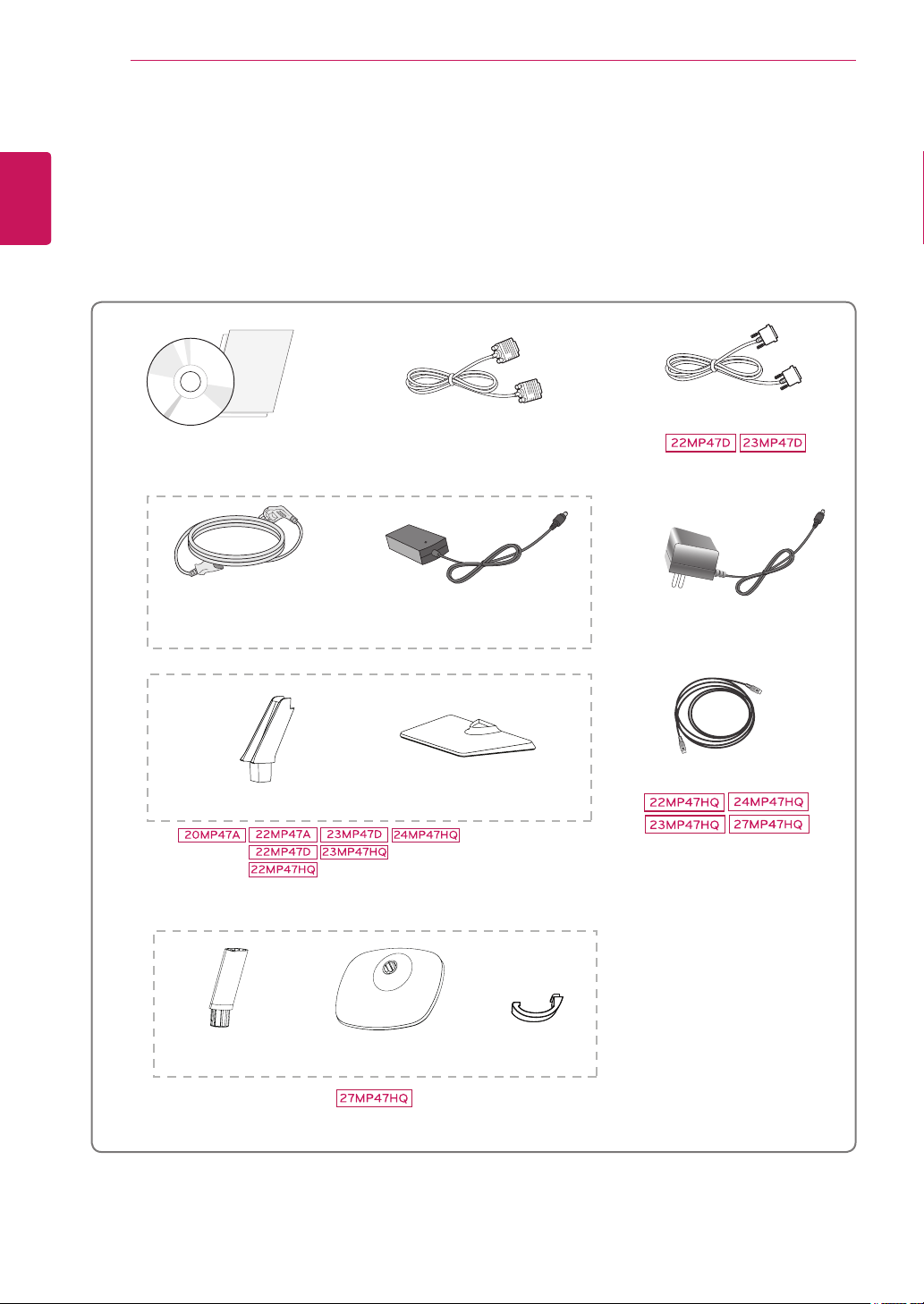
Checkyourproductboxforthefollowingitems.Ifthereareanymissingaccessories,contactthelocal
dealerwhereyoupurchasedyourproduct.Theillustrationsinthismanualmaydifferfromtheactualproduct
andaccessories.
CD(Owner'sManual)/
Card
(Dependingonthecountry)
(Dependingonthecountry)
PowerCord
AC-DCAdapter
AC-DCAdapter
or
D-SUBCable
(Thiscableisnotincludedinall
countries.)
HDMICable
StandBody
StandBase
(Thiscableisnotincludedinall
countries.)
DVI-DCable
(Thiscableisnotincludedinall
countries.)
StandBody
StandBase
Cableholder
5
ENG
ENGLISH
ASSEMBLING AND PREPARING
Donotuseanyunapprovedaccessoriestoensurethesafetyandproductlifespan.
Anydamagesorinjuriesbyusingunapprovedaccessoriesarenotcoveredbythewarranty.
Theaccessoriessuppliedwithyourproductmayvarydependingonthemodel.
Productspecificationsorcontentsinthismanualmaybechangedwithoutpriornoticeduetoupgrade
ofproductfunctions.
CAUTION
NOTE
6
ENG
ENGLISH
ASSEMBLING AND PREPARING
HDMI IN
22MP47A
22MP47HQ 23MP47HQ
22MP47D 23MP47D
READER
READER
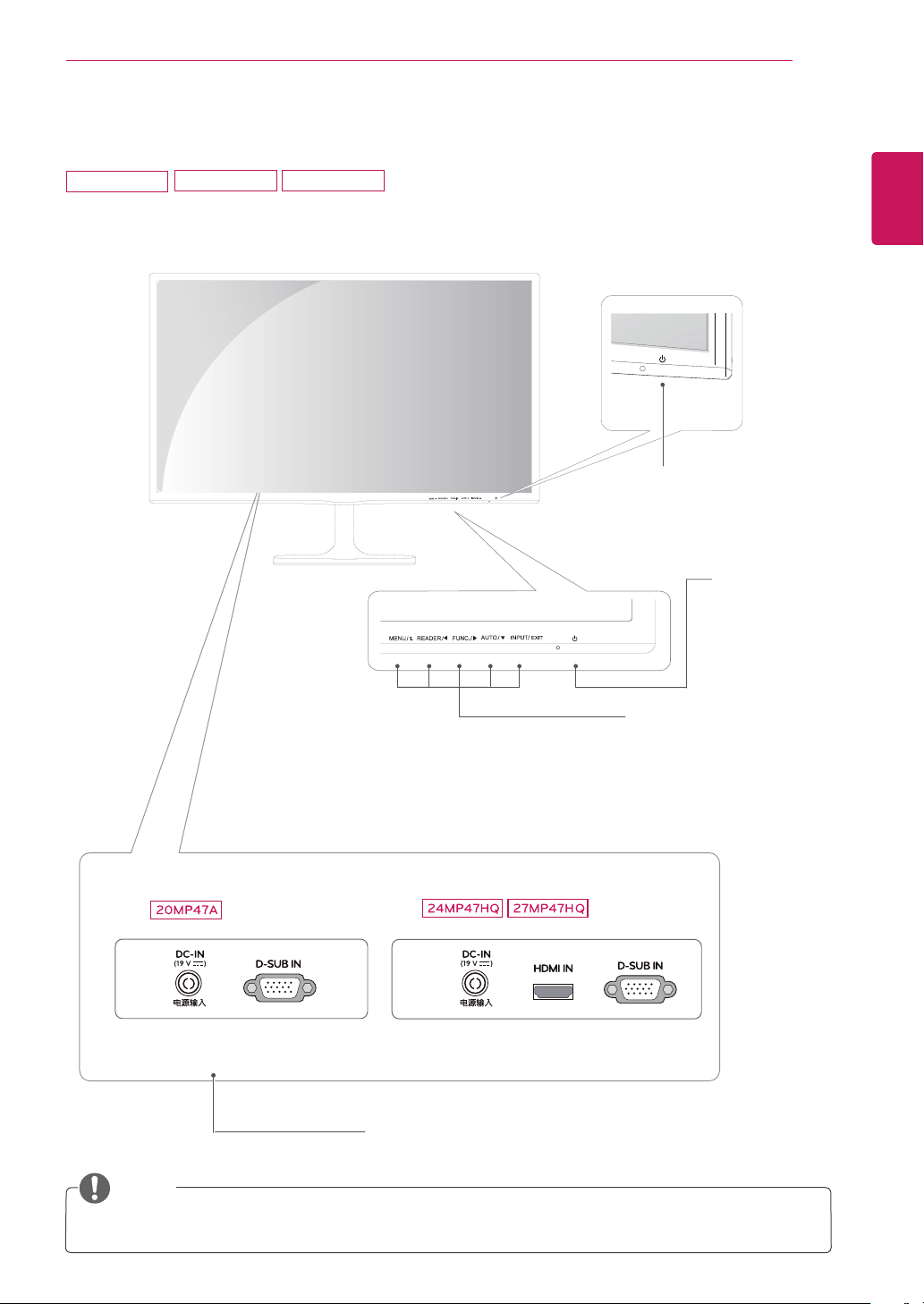
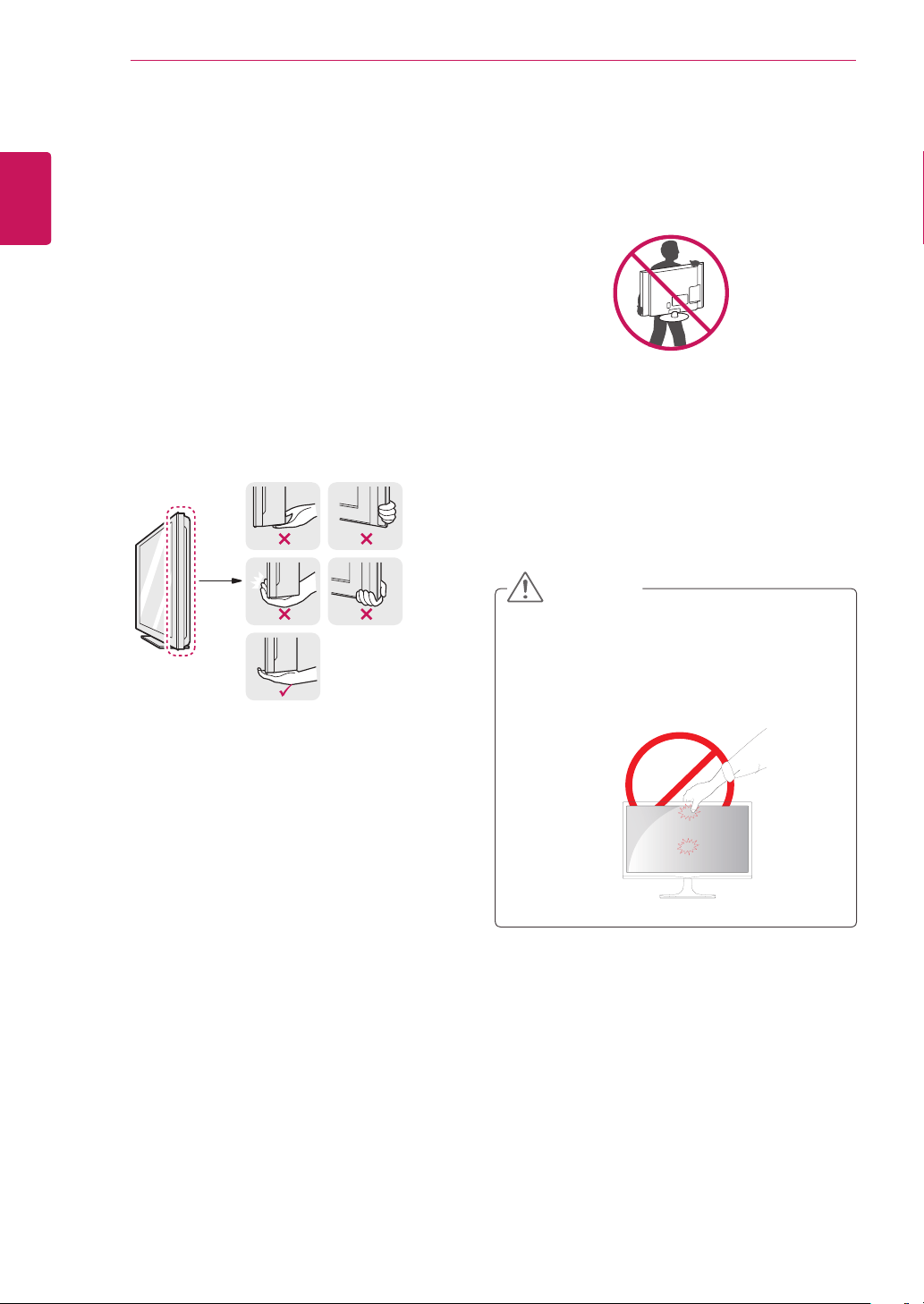
Partsandbuttons
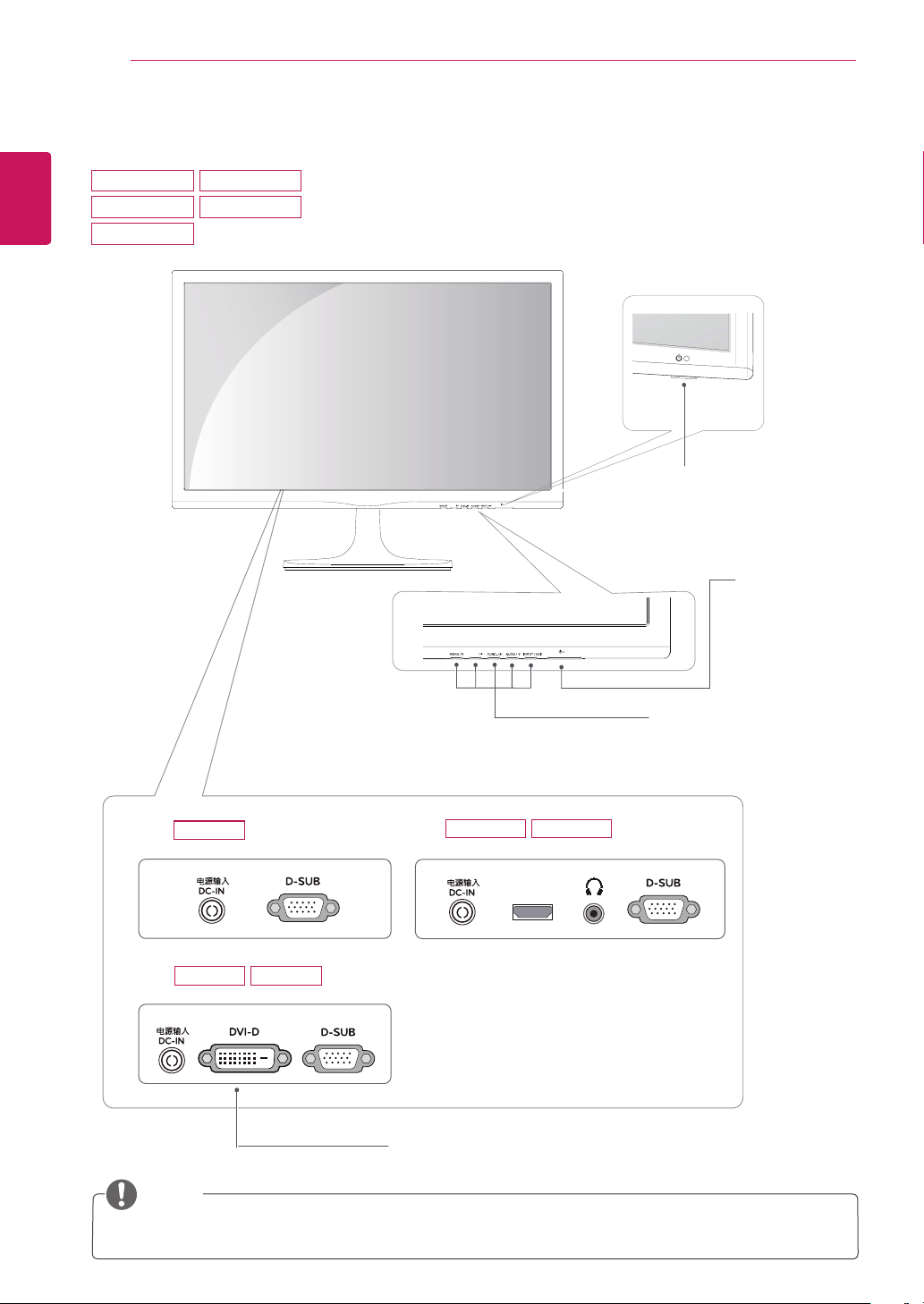
PowerIndicator
LightingOn:Turnedon
LightingOff:Turnedoff
Connectionpanel(Seep.16~18)
Button(Seep.19~20)
(PowerButton)
Thebuttonislocatedatthebottomofthemonitor.
NOTE
22MP47A
22MP47D
22MP47HQ
23MP47D
23MP47HQ
8
ENG
ENGLISH
ASSEMBLING AND PREPARING
MovingandLiftingtheMonitor
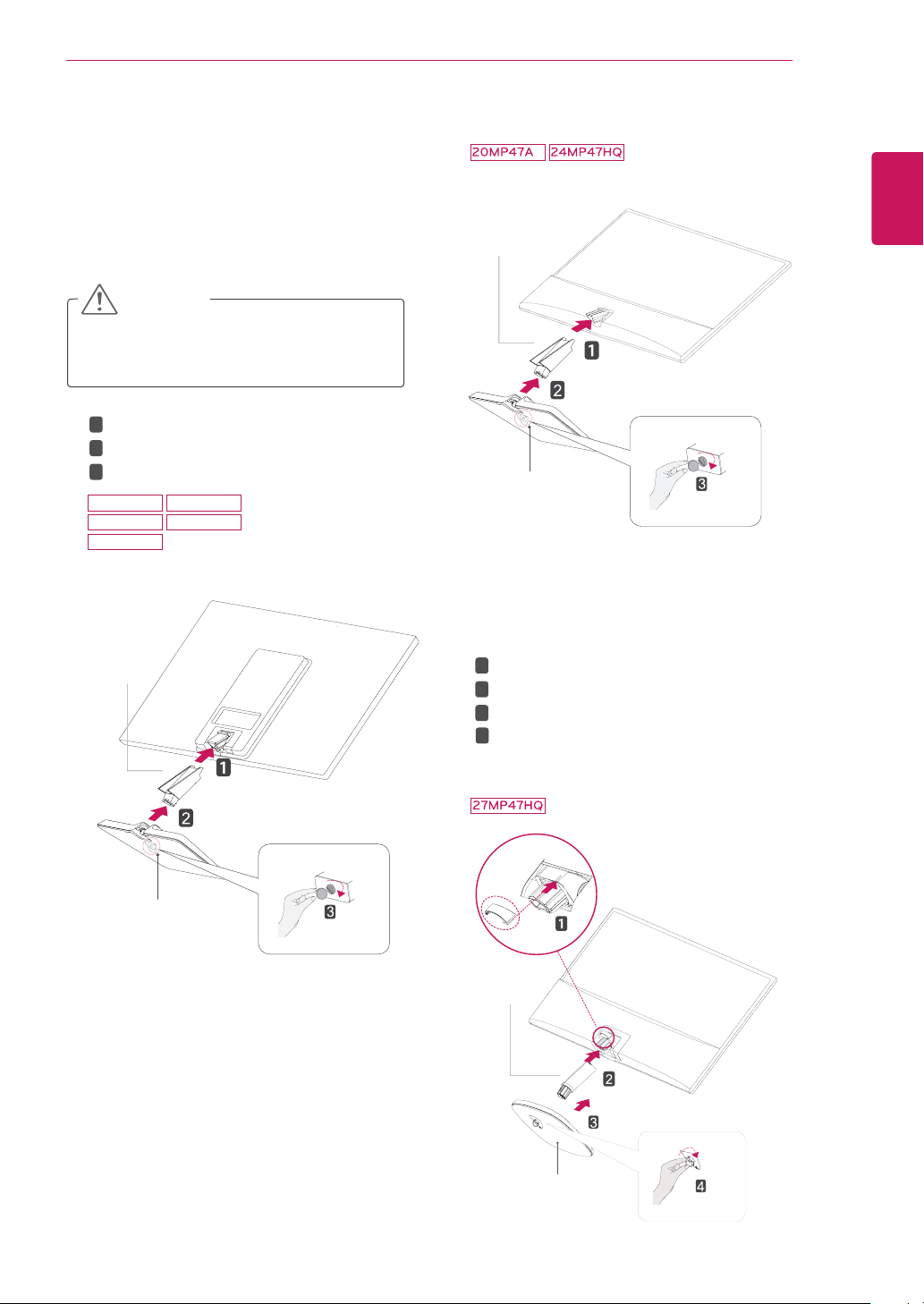
Whenmovingorliftingthemonitor,followthese
instructionstopreventthemonitorfrombeing
scratchedordamagedandtoensuresafetrans-
portationregardlessofitsshapeorsize.
Asfaraspossible,avoidtouchingthemoni-
torscreen.Thismayresultindamagetothe
screenorsomeofthepixelsusedtocreate
images.
Itisadvisabletoplacethemonitorinthe
originalboxorpackingmaterialbeforeat-
temptingtomoveit.
Beforemovingorliftingthemonitor,discon-
nectthepowercordandallcables.
Holdthetopandbottomofthemonitorframe
firmly.Donotholdthepanelitself.
Whenholdingthemonitor,thescreenshould
faceawayfromyoutopreventitbeing
scratched.
Whenmovingthemonitor,avoidanystrong
shockorvibrationstotheproduct.
Whenmovingthemonitor,keepitupright,
neverturnthemonitoronitssideortiltit
sideways.
CAUTION
9
ENG
ENGLISH
ASSEMBLING AND PREPARING
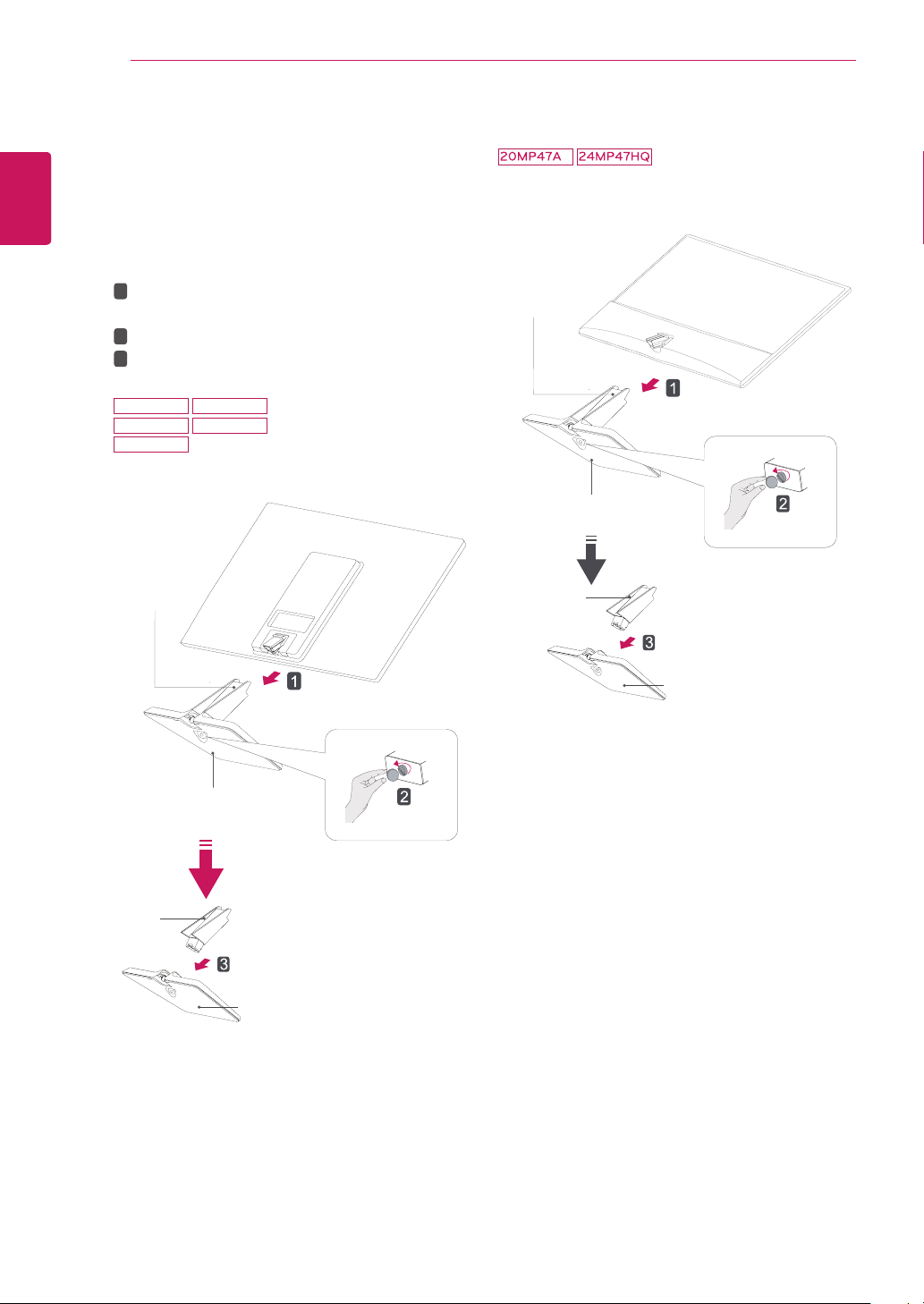
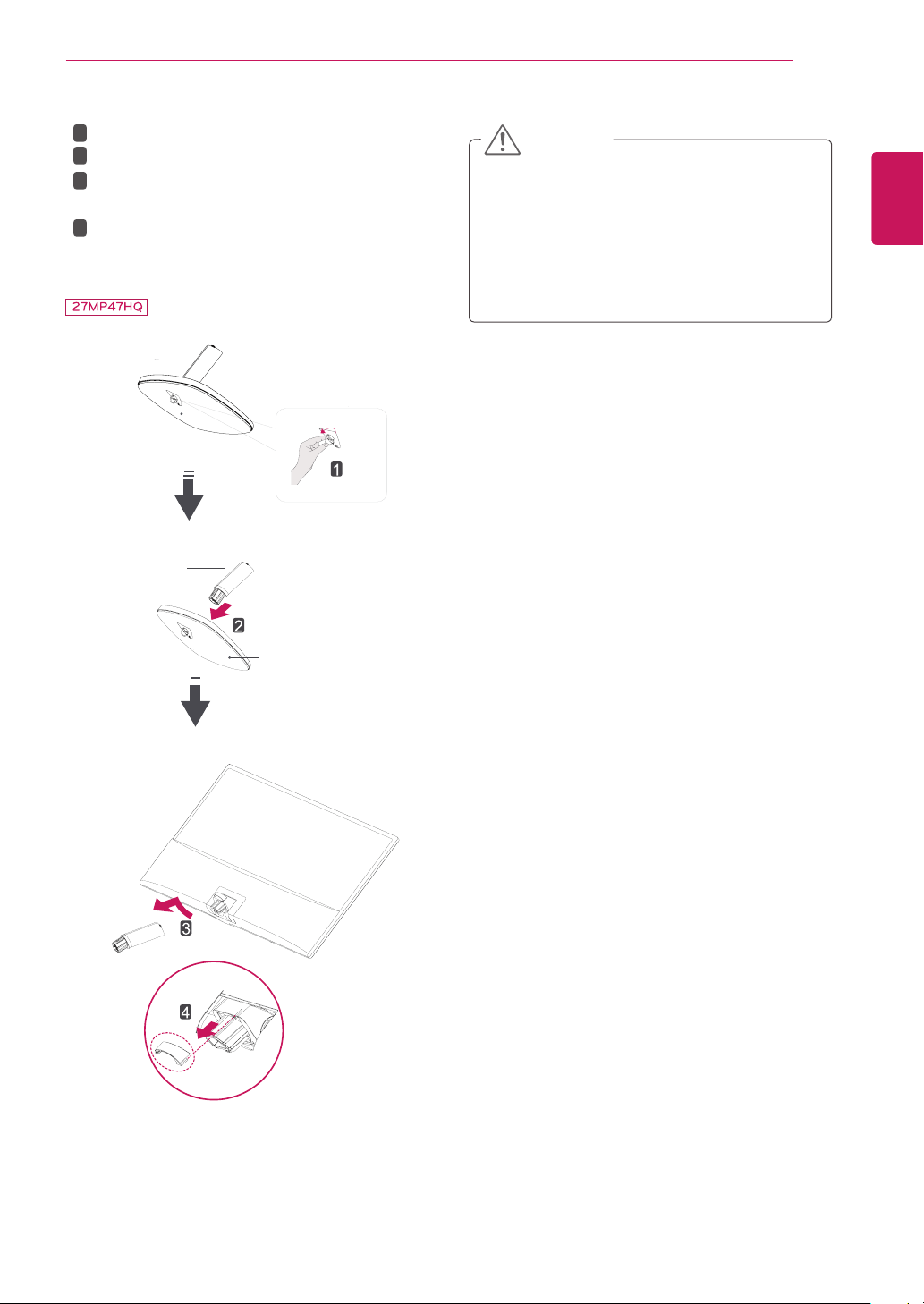
Attachthe
StandBody
tothemonitorset.
Attachthe
StandBase
.
Tightenthescrewtotherightwithacoin.
SettinguptheMonitorset
AttachingtheStandBase
1
PlacetheMonitorsetwiththescreenside
downonaflatandcushionedsurface.
Layafoammatorsoftprotectivecloth
onthesurfacetoprotectthescreenfrom
damage.
CAUTION
2
StandBase
StandBody
1
2
3
22MP47A
22MP47D
22MP47HQ
23MP47D
23MP47HQ
StandBase
StandBody
StandBase
StandBody
1
2
3
4
Insertthe
CableHolder
.
Attachthe
StandBody
tothemonitorset.
Attachthe
StandBase
to
StandBody
.
Tightenthescrewtotheright.
10
ENG
ENGLISH
ASSEMBLING AND PREPARING
DetachingtheStandBase
1
PlacetheMonitorsetwiththescreenside
downonaflatandcushionedsurface.
StandBase
StandBase
StandBody
StandBody
Pulloutthe
StandBody
and
StandBase
fromthemonitorset.
Turnthescrewtotheleftwithacoin.
Pulloutthe
StandBase
.
1
2
3
2
22MP47A
22MP47D
22MP47HQ
23MP47D
23MP47HQ
StandBase
StandBase
StandBody
StandBody
11
ENG
ENGLISH
ASSEMBLING AND PREPARING
Thisillustrationdepictsthegeneralmodelof
connection.Yourmonitormaydifferfromthe
itemsshowninthepicture.
Donotcarrytheproductupsidedownholding
onlythestandbase.Theproductmayfall
andgetdamagedorinjureyourfoot.
CAUTION
StandBase
StandBase
StandBody
StandBody
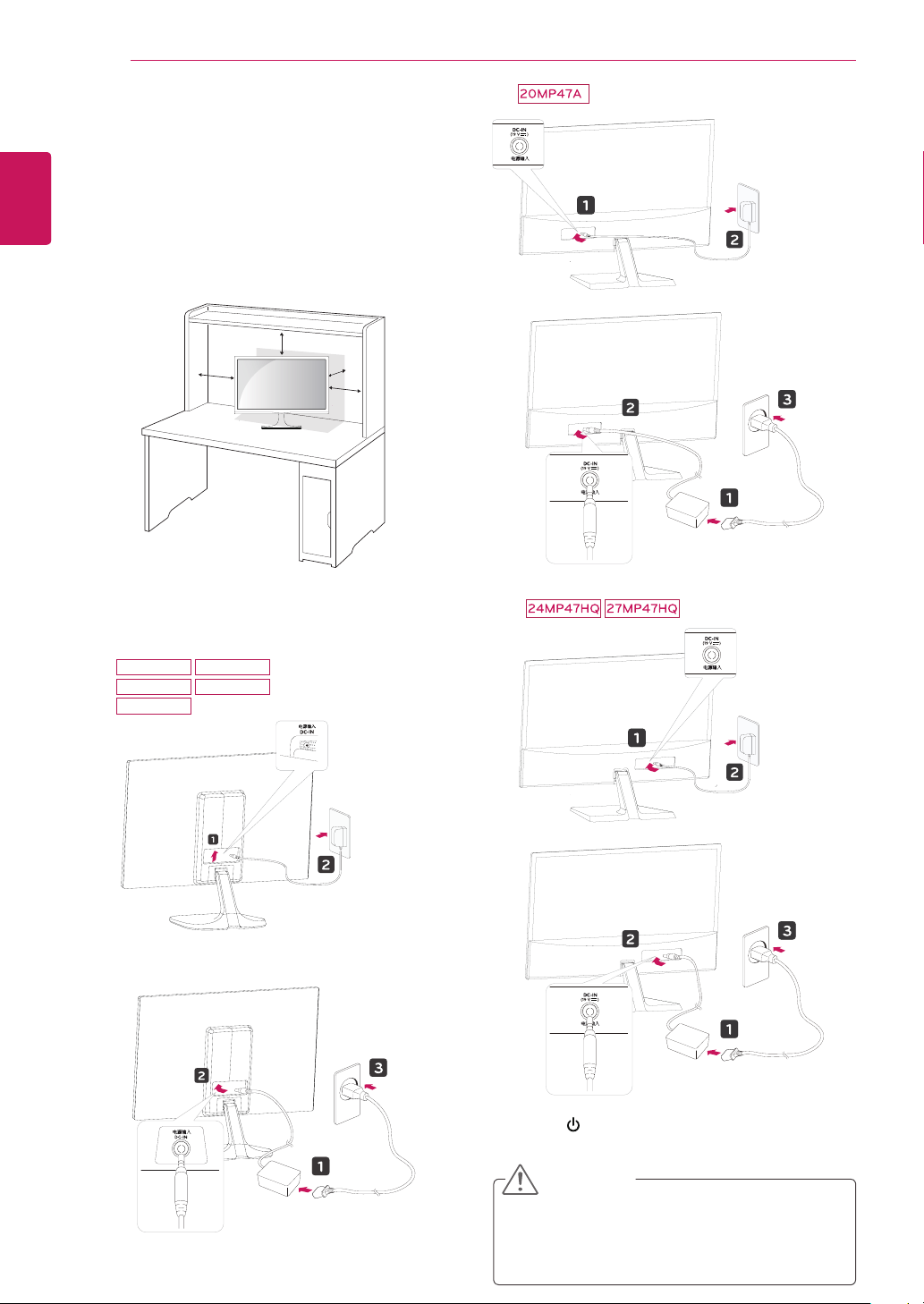
Turnthescrewtotheleft.
Pulloutthe
StandBase
.
Pulloutthe
StandBody
fromthemonitor
set.
Separatethe
CableHolder
.
1
2
3
4
12
ENG
ENGLISH
ASSEMBLING AND PREPARING
Mountingonatable
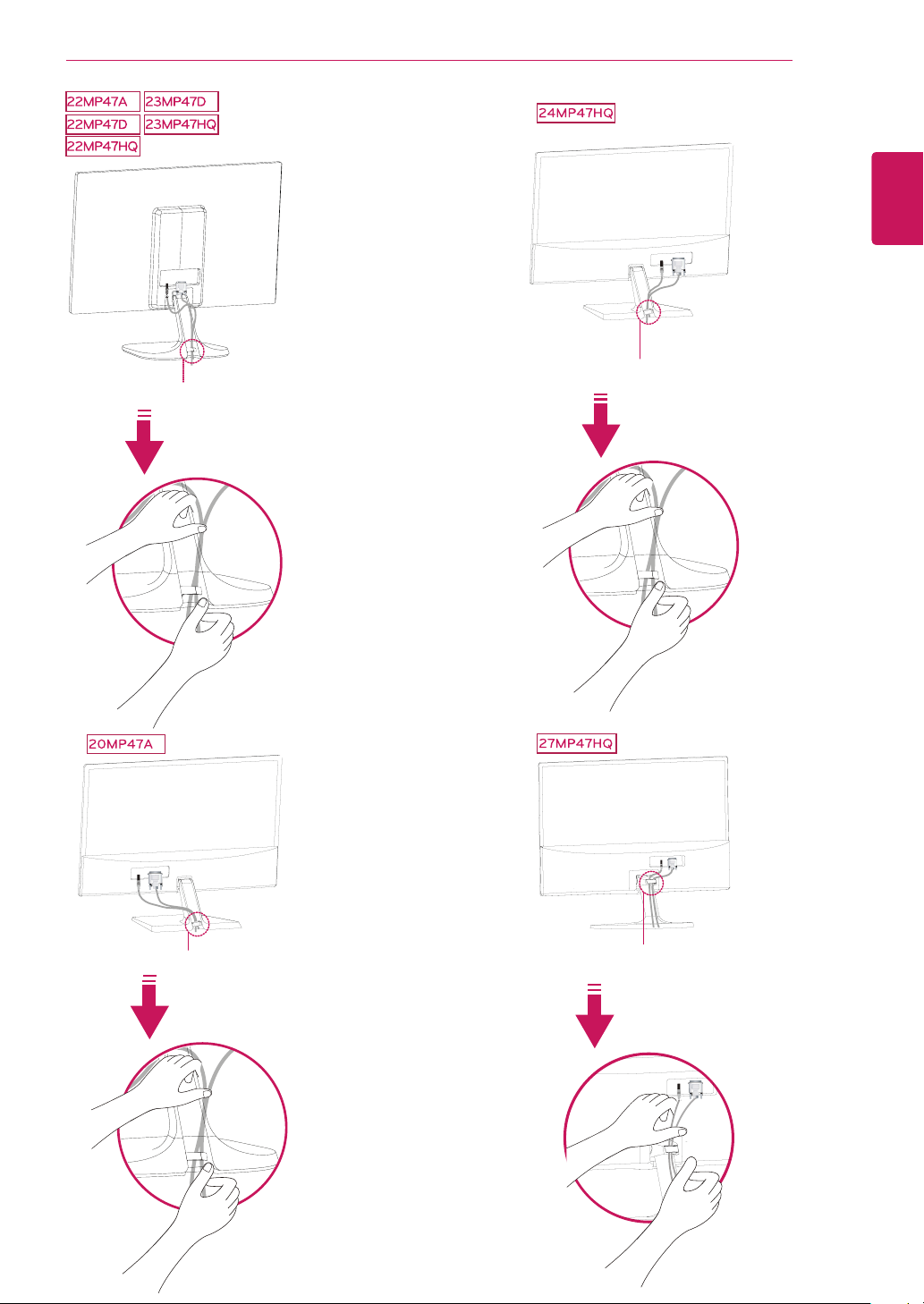
1
LiftandtilttheMonitorsetintoitsupright
positiononatable.
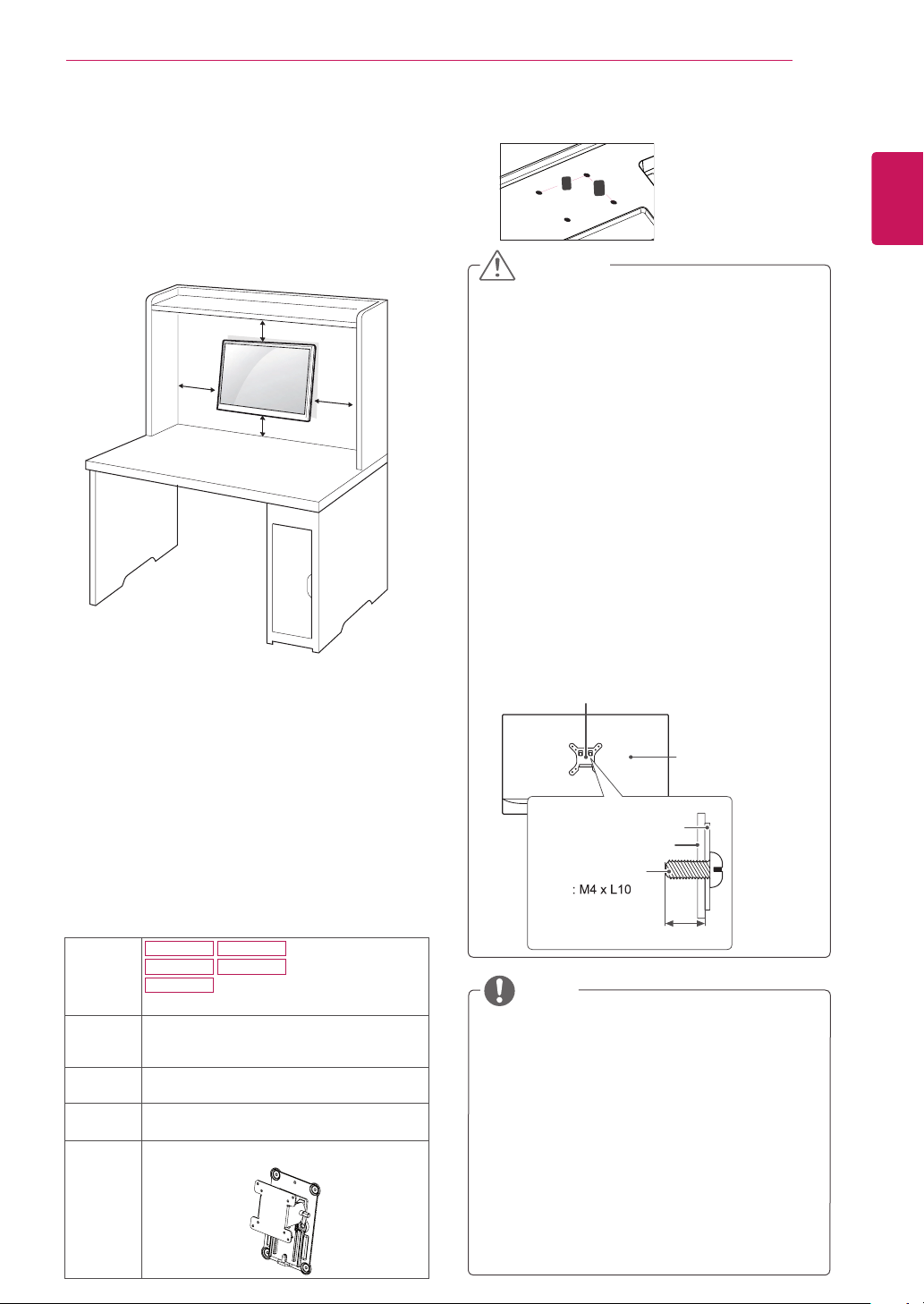
Leavea10cm(minimum)spacefromthewall
forproperventilation.
2
ConnecttheAC-DCAdapterandPowerCord
toawalloutlet.
3
Press (Power)buttononthebottomswitch
paneltoturnthepoweron.
10 cm
10 cm
10 cm
10 cm
Unplugthepowercordbeforemovingthe
Monitortoanotherlocation.Otherwiseelectric
shockmayoccur.
CAUTION
or
22MP47A
22MP47D
22MP47HQ
23MP47D
23MP47HQ
or
or
13
ENG
ENGLISH
ASSEMBLING AND PREPARING
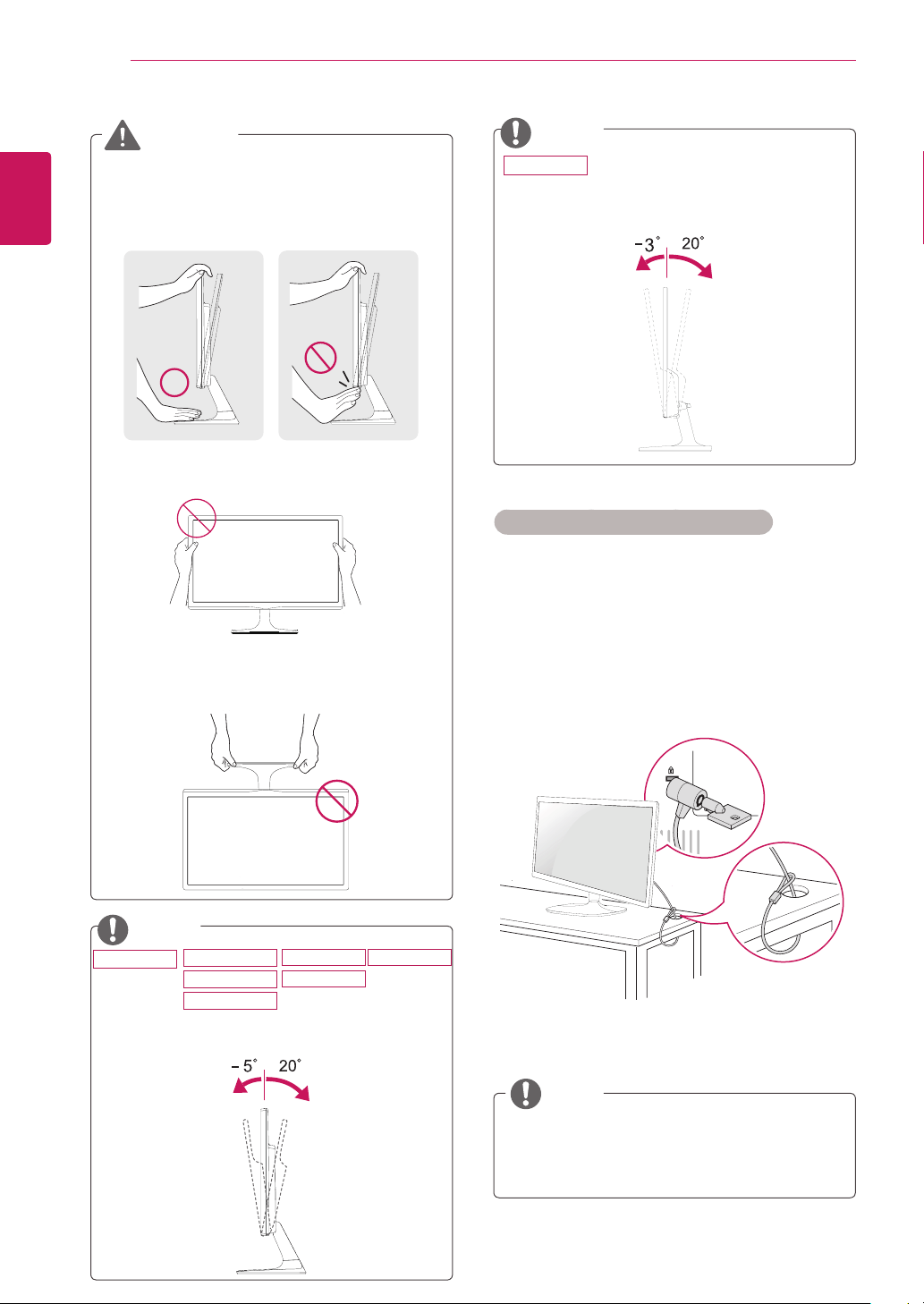
Usingthecableholder
Cableholder
Cableholder
Cableholder
Cableholder
14
ENG
ENGLISH
ASSEMBLING AND PREPARING
UsingtheKensingtonsecuritysystem
TheKensingtonsecuritysystemconnectoris
locatedatthebackoftheMonitorset.Formore
informationofinstallationandusing,refertothe
manualsuppliedwiththeKensingtonsecurity
systemorvisit
http://www.kensington.com
.
ConnecttheKensingtonsecuritysystemcable
betweentheMonitorsetandatable.
TheKensingtonsecuritysystemisoptional.
Youcanobtainitfrommostelectronicsstores.
NOTE
Whenyouadjusttheangle,donotholdthe
bottomoftheMonitorsetframeasshownon
thefollowingillustration,asmayinjureyour
fingers.
Donottouchorpressthescreenwhen
adjustingtheangleofthemonitor.
Donotholdthissetlikebelowpicture.Monitor
screencandetachfromstandbaseandinjure
yourbody.
WARNING
Tiltfrom+20to-5degreesupordowntoadjust
theangleoftheMonitorsettosuityourview.
NOTE
Front Rear
Tiltfrom+20to-3degreesupordowntoadjust
theangleoftheMonitorsettosuityourview.
NOTE
Front Rear
22MP47A
22MP47D
22MP47HQ
23MP47D
23MP47HQ
20MP47A
24MP47HQ
27MP47HQ
15
ENG
ENGLISH
ASSEMBLING AND PREPARING
Mountingonawall
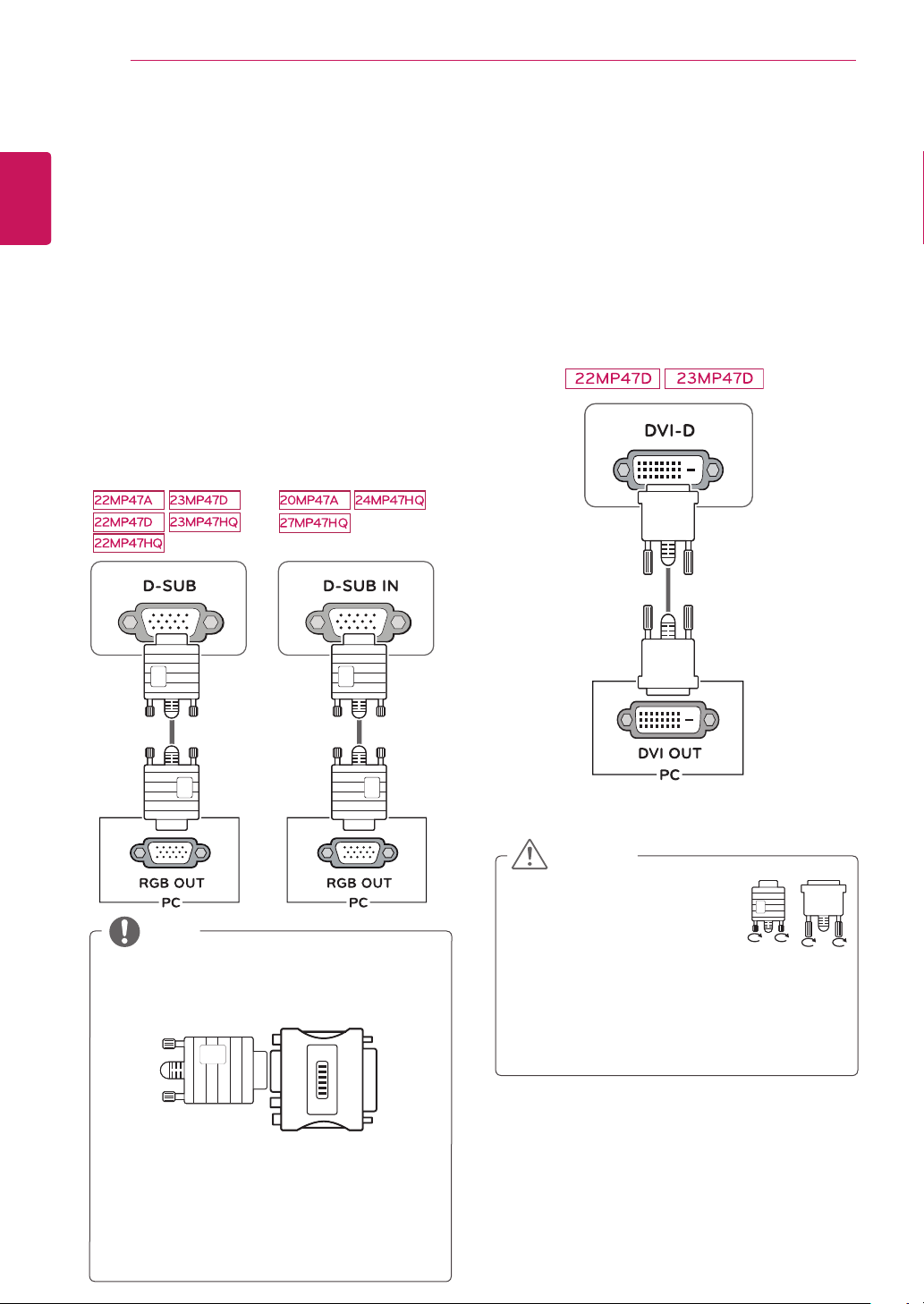
Forproperventilation,allowaclearanceof10cm
oneachsideandfromthewall.Detailed
instructionsareavailablefromyourdealer,seethe
optionalTiltWallMountingBracketInstallationand
SetupGuide.
IfyouintendtomounttheMonitorsettoawall,
attachWallmountinginterface(optionalparts)to
thebackoftheset.
WhenyouinstalltheMonitorsetusingawall
mountinginterface(optionalparts),attachit
carefullysoitwillnotdrop.
1Ifyouusescrewlongerthanstandard,themoni-
tormightbedamagedinternally.
2Ifyouuseimproperscrew,theproductmightbe
damagedanddropfrommountedposition.
Inthiscase,LGElectronicsisnotresponsible
forit.
10 cm
10 cm
10 cm
10 cm
Disconnectthepowercordfirst,andthen
moveorinstalltheMonitorset.Otherwise
electricshockmayoccur.
IfyouinstalltheMonitorsetonaceilingor
slantedwall,itmayfallandresultinsevere
injury.
UseonlyanauthorizedLGwallmount
andcontactthelocaldealerorqualified
personnel.
Donotovertightenthescrewsasthismay
causedamagetotheMonitorsetandvoid
yourwarranty.
Useonlyscrewsandwallmountsthat
meettheVESAstandard.Anydamages
orinjuriesbymisuseorusinganimproper
accessoryarenotcoveredbythewarranty.
Screwlengthfromoutersurfaceofback
covershouldbeunder8mm.
UsethescrewsthatarelistedontheVESA
standardscrewspecifications.
Thewallmountkitwillincludeaninstallation
manualandnecessaryparts.
Thewallmountbracketisoptional.Youcan
obtainadditionalaccessoriesfromyourlocal
dealer.
Thelengthofscrewsmaydifferdepending
onthewallmount.Besuretousetheproper
length.
Formoreinformation,refertothe
instructionssuppliedwiththewallmount.
CAUTION
NOTE
BackCover
WallmountPad
WallmountPad
BackCover
Standardscrew
Max.8mm
Model
22MP47A
22MP47D
22MP47HQ
23MP47D
23MP47HQ
Wall
Mount(A
xB)
75x75
Standard
screw
M4xL10
Number
ofscrews
4
Wall
Mount
Plate
(Optional)
RW120
WallMount(AxB)
A
B
16
ENG
ENGLISH
USING THE MONITOR SET
USINGTHEMONITORSET
ConnectingtoaPC
YourMonitorsetsupportsPlug&Play*.
*Plug&Play:APCrecognizesaconnected
devicethatusersconnecttoaPCandturn
on,withoutdeviceconfigurationoruser
intervention.
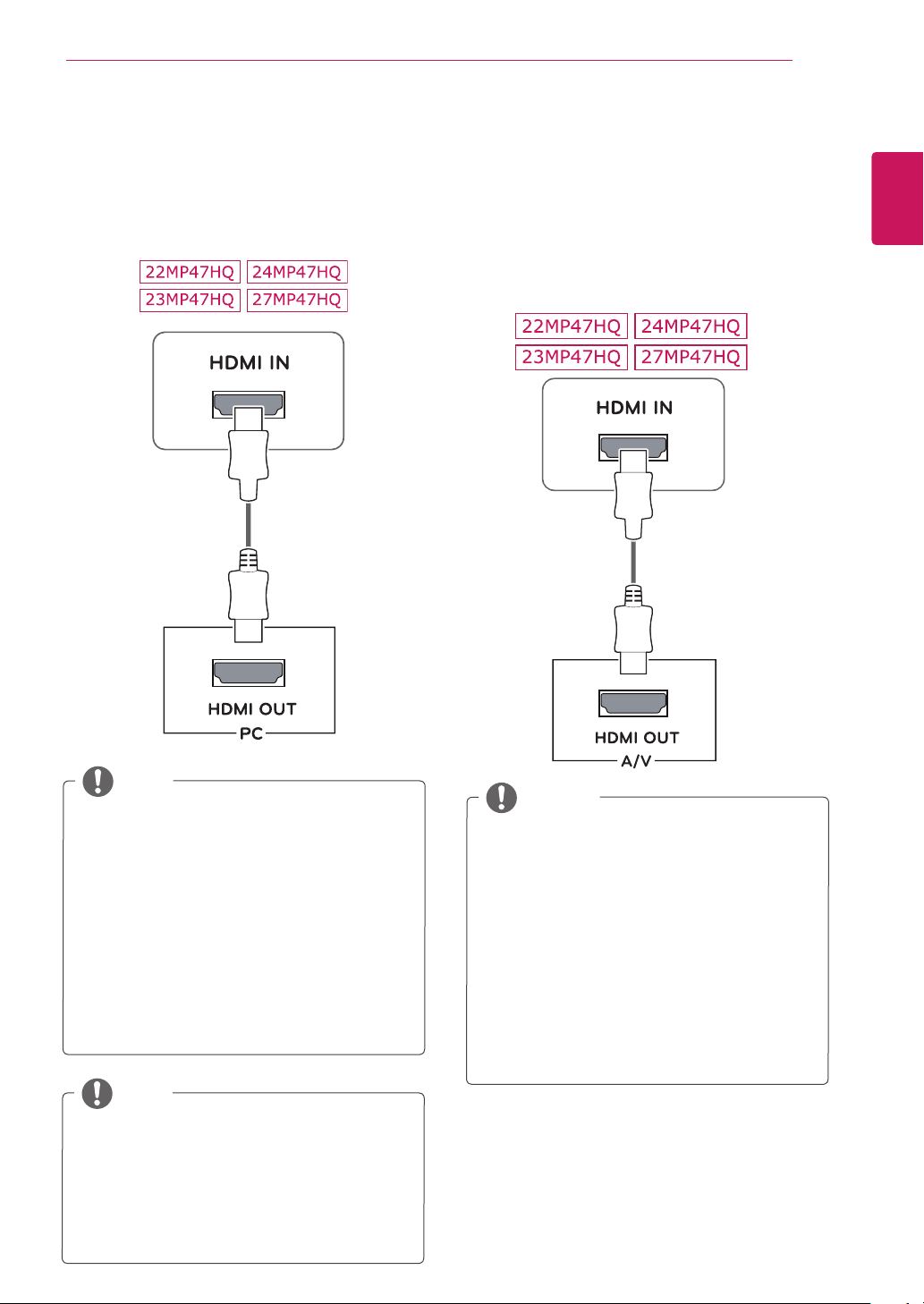
D-SUBconnection
TransmitsanalogvideofromyourPCtothe
Monitorset.ConnectthePCandtheMonitorset
withthesuppliedD-sub15pinsignalcableas
showninthefollowingillustrations.
Macadapter
ForAppleMacintoshuse,aseparateplug
adapterisneededtochangethe15pin
highdensity(3row)D-SUBVGAconnector
onthesuppliedcabletoa15pin2row
connector.
WhenusingaD-Subsignalinputcable
connectorforMacintosh
NOTE
DVI-Dconnection
TransmitsadigitalvideosignalfromyourPCto
theMonitorset.ConnectthePCandtheMonitor
setwithaDVIcableasshowninthefollowing
illustrations.
Connectthesignalinputcable
andtightenitbyturningthe
screwsclockwise.
Donotpressthescreenwith
yourfingerforalongtimeasthismay
resultintemporarydistortiononthescreen.
Avoiddisplayingafixedimageonthe
screenforalongperiodoftimetoprevent
imageburn.Useascreensaverifpossible.
CAUTION
17
ENG
ENGLISH
USING THE MONITOR SET
WhenyouwanttousetwoPCinourMonitor,
pleaseconnectthesignalcable(D-SUB/
DVI-D/HDMI)respectivelyinMonitorset.
IfyouturntheMonitorsetonwhileitiscold,
thescreenmayflicker.Thisisnormal.
Somered,green,orbluespotsmayappear
onthescreen.Thisisnormal.
NOTE
ConnectingtoAVDevices
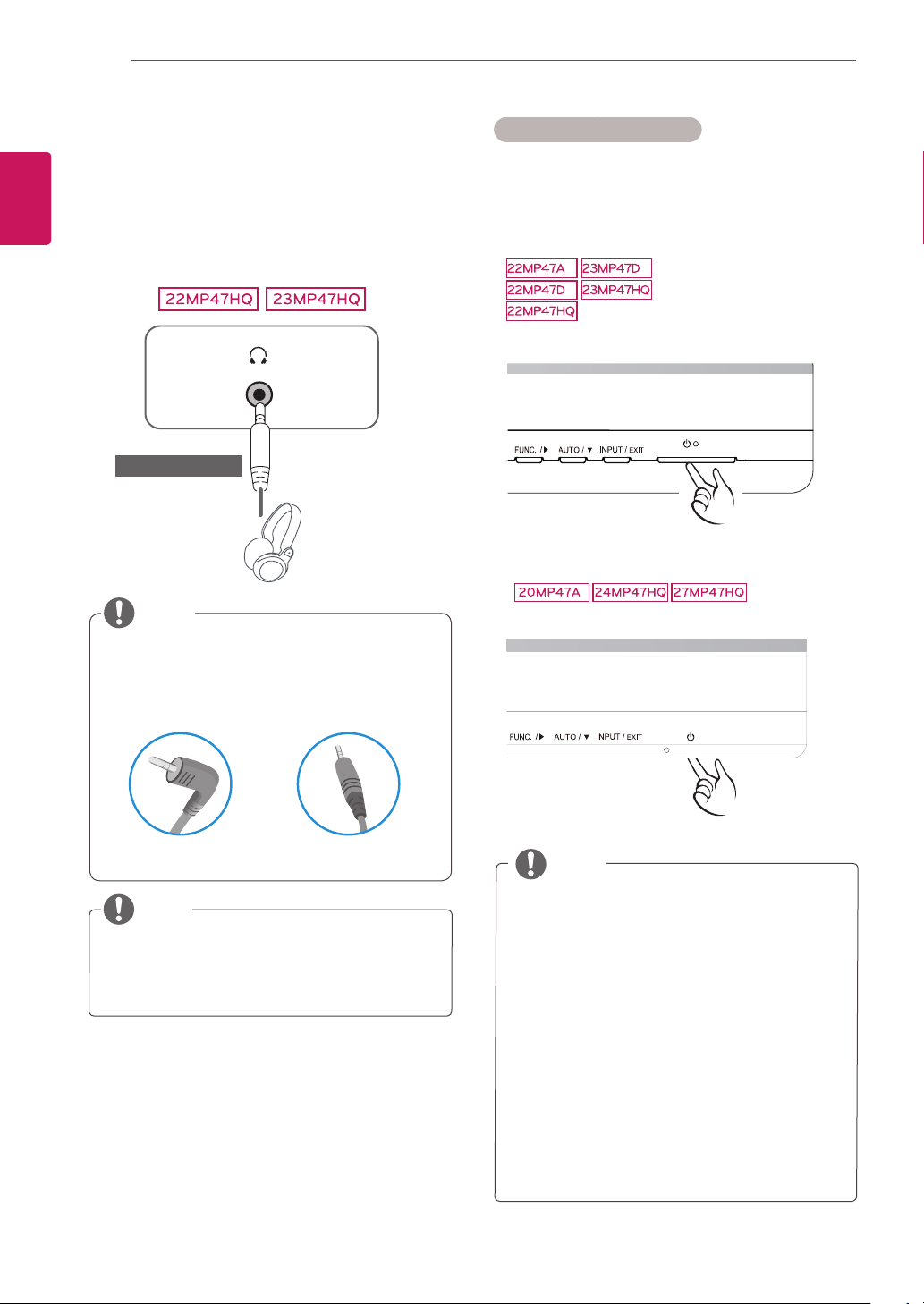
HDMIconnection
Transmitsthedigitalvideoandaudiosignalsfrom
yourAVdevicestothemonitor.ConnectyourAV
devicetothemonitorwiththeHDMIcableasil-
lustratedbelow.
IfyouuseHDMIPC,itcancausecompatibility
problem.
UseacertifiedcablewiththeHDMIlogo
attached.IfyoudonotuseacertifiedHDMI
cable,thescreenmaynotdisplayora
connectionerrormayoccur.
RecommendedHDMIcabletypes
-High-SpeedHDMI
®
/
TM
Cable
-High-SpeedHDMI
®
/
TM
CablewithEthernet
NOTE
HDMIconnection
Transmitsthedigitalvideoandaudiosignalsfrom
yourPCtotheMonitorset.ConnectthePCand
theMonitorsetwiththeHDMIcableasshownin
thefollowingillustrations.
IfyouuseHDMIPC,itcancausecompatibility
problem.
UseacertifiedcablewiththeHDMIlogo
attached.IfyoudonotuseacertifiedHDMI
cable,thescreenmaynotdisplayora
connectionerrormayoccur.
RecommendedHDMIcabletypes
-High-SpeedHDMI
®
/
TM
Cable
-High-SpeedHDMI
®
/
TM
CablewithEthernet
NOTE
18
ENG
ENGLISH
USING THE MONITOR SET
ConnectingtoExternalDevices
Peripheraldeviceconnection
Connectperipheraldevicestothemonitorusing
headphoneports.
Peripheraldevicesaresoldseparately.
Cableswithangledplugsmayhaveclear-
anceissues,usestraightplugswhenpos-
sible.
AngleType StraightType
NOTE
NOTE
Headphonesorspeakersmaynotworknor-
mally,dependingontheserverPCsettings.
"SelfImageSetting"Function.
Thisfunctionprovidestheuserwithoptimal
displaysettings.Whentheuserconnects
themonitorforthefirsttime,thisfunction
automaticallyadjuststhedisplaytooptimal
settingsforindividualinputsignals.(Only
supportedinAnalogMode)
‘AUTO’Function.
Whenyouencounterproblemssuchas
blurryscreen,blurredletters,screenflicker
ortiltedscreenwhileusingthedeviceor
afterchangingscreenresolution,pressthe
AUTOfunctionbuttontoimproveresolution.
(OnlysupportedinAnalogMode)
NOTE
SelfImageSettingFunction
Pressthepowerbuttononthebottompanelto
turnthepoweron.Whenmonitorpoweristurned
on,the"
SelfImageSetting
"Functionisexecuted
automatically.(OnlysupportedinAnalogMode)
(soldseparately)
19
ENG
ENGLISH
CUSTOMIZING SETTINGS
CUSTOMIZINGSETTINGS
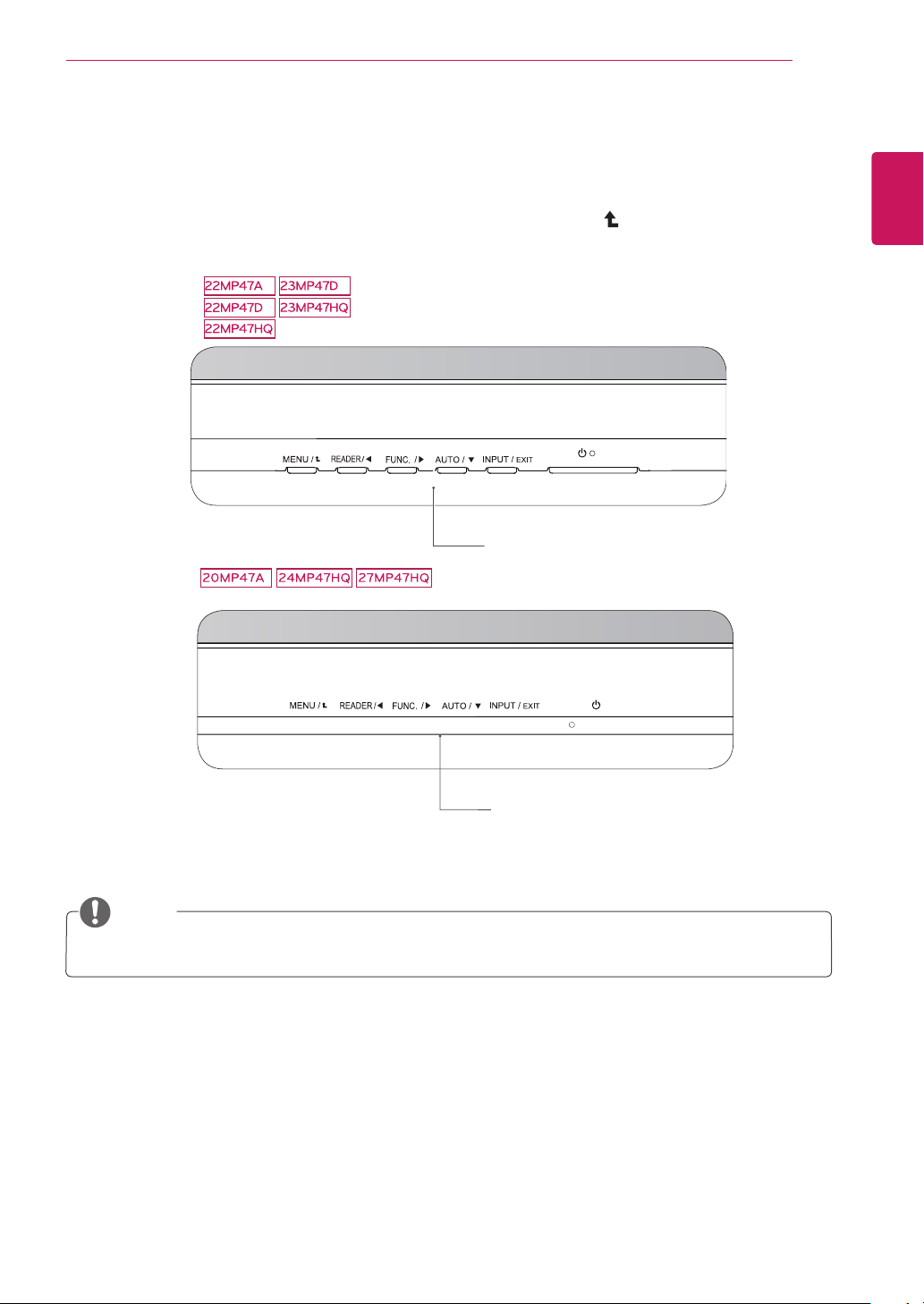
1
PressthedesiredbuttononthebottomoftheMonitorset.
2
ChangethevalueofthemenuitembypressingthebuttonsonthebottomoftheMonitorset.
Toreturntotheuppermenuorsetothermenuitems,usetheuparrow( )button.
3
Select
EXIT
toleavetheOSDmenu.
MonitorsetButtons
MonitorsetButtons
Thebuttonislocatedatthebottomofthemonitor.
NOTE
20
ENG
ENGLISH
CUSTOMIZING SETTINGS
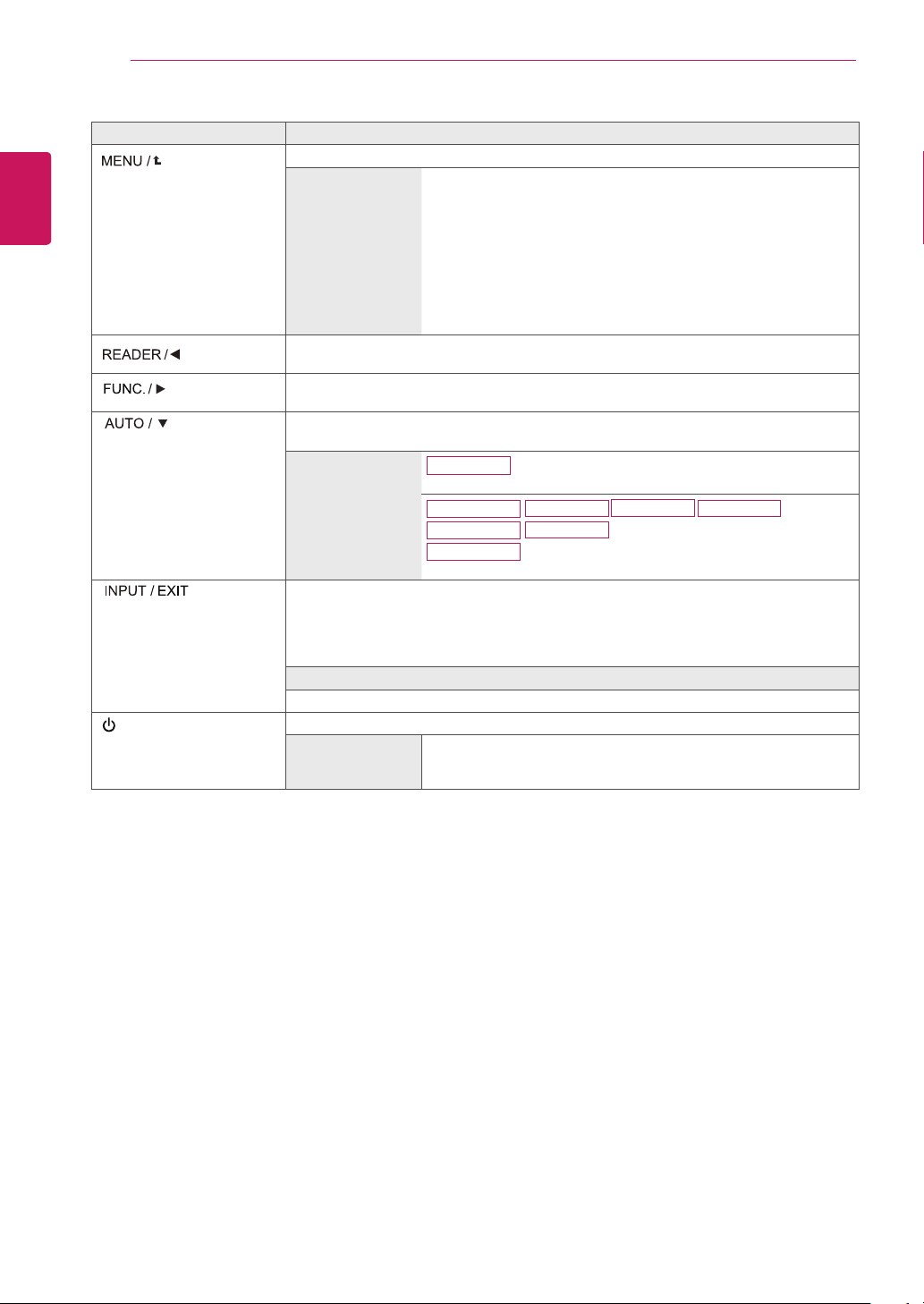
Button Description
Accessesthemainmenus.(Seep.21)
OSDLocked/OSD
Unlocked
Thisfunctionallowyoutolockthecurrentcontrolsettings,sothat
theycannotbeinadvertentlychanged.
PressandholdtheMENUbuttonforseveralseconds.ThenOSD
of“OSDLock”willappear.Afterthat,usercanselectlockorunlock
bypressingleft/rightbutton.
Ifuserselectsthe“Lock”iconbypressingthe“OK”button,the
message“OSDLocked”willappear.Otherwise,“OSDUnlocked”
willappear.Afterselectingthe“Lock”,Ifyouwanttochangeto
Unlock,youcanpushthe“MENU”buttonforseveralseconds.The
message“OSDUnlocked”willappear.
UsethisbuttontoenterReaderModemenu.Itsfunctionworkstodisplayscreenas
paper-likepictureforEyecomfort.Ifyouwanttomoreinformation(Seep.27).
UsethisbuttontoenterSMARTENERGYSAVING,PictureMode,ColorWizard,DUAL
DISPLAY,DUALWEBmenus.(Seep.28~31)
Whenadjustingyourdisplaysettings,alwayspresstheAUTObuttonontheMONITOR
SETUPOSD.(OnlysupportedinAnalogMode)
Thebestdisplay
mode
20MP47A
1440x900@60Hz
22MP47A
22MP47D
22MP47HQ
23MP47D
23MP47HQ
24MP47HQ
27MP47HQ
1920x1080@60Hz
Youcanchoosetheinputsignal.
• Whentwoinputsignalsareconnected,youcanselecttheinputsignal(D-SUB/DVI-D/
HDMI)youwant.
• Whenonlyonesignalisconnected,itisautomaticallydetected.Thedefaultsettingis
D-SUB.
EXIT
EXITtheOSD(OnScreenDisplay).
(PowerButton)
Turnsthepoweronoroff.
PowerIndicator Thepowerindicatorstayswhiteifthedisplayisrunningproperly(On
Mode).IfthedisplayisinSleepMode,thepowerindicatorblinks
white.
21
ENG
ENGLISH
CUSTOMIZING SETTINGS
CustomizingSettings
MenuSettings
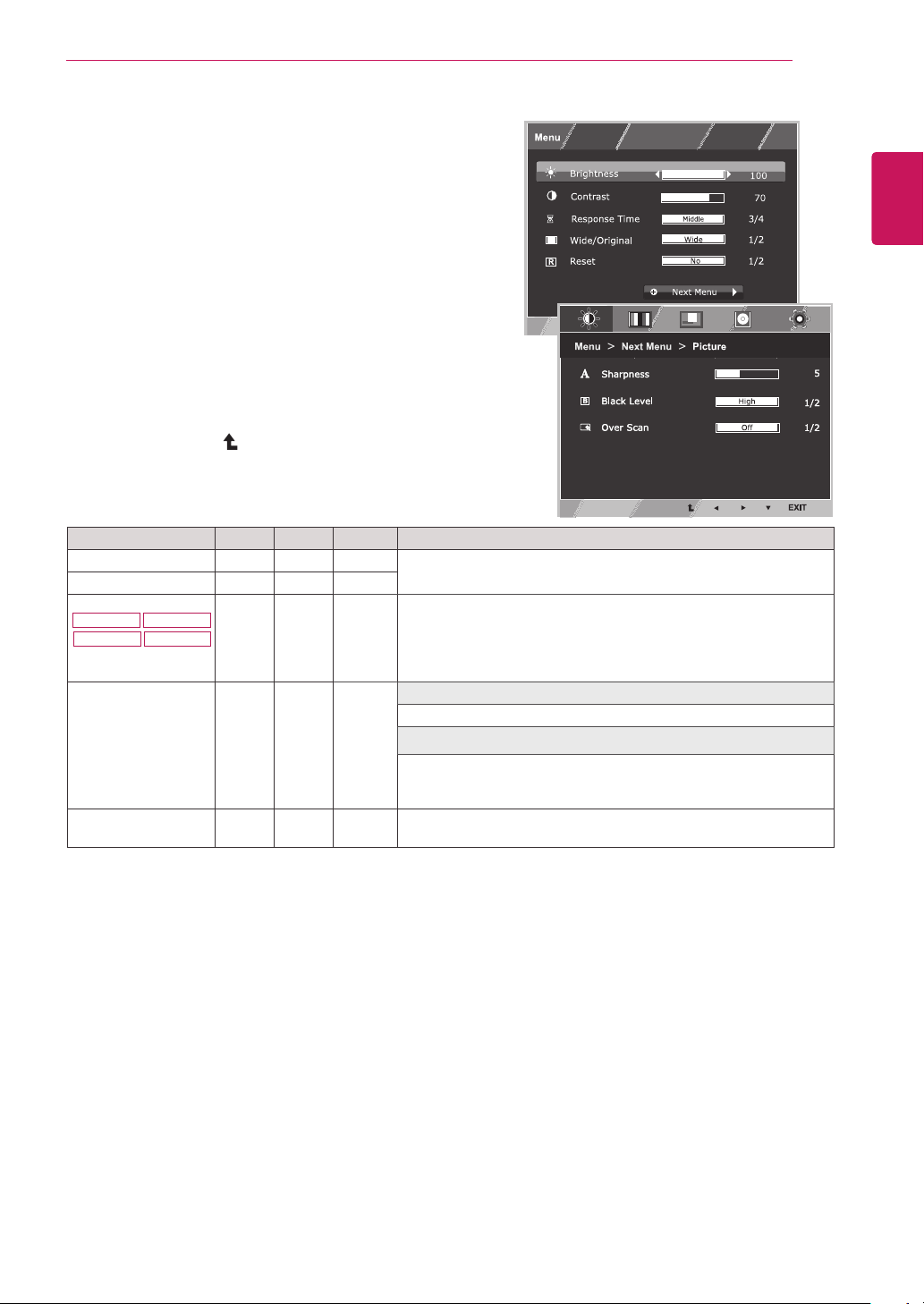
1
Press
MENU
buttononthebottomoftheMonitorset
todisplaythe
Menu
OSD.
2
Settheoptionsbypressingthe◄or►or▼
buttons.
3
Selectthe"
NextMenu
"buttontoenterthemore
optionsettings.
4
Select
EXIT
toleavetheOSDmenu.
Toreturntotheuppermenuorsetothermenuitems,
usetheuparrow( )button.
Eachoptionisexplainedbelow.
Menu Analog Digital HDMI Description
Brightness ● ● ●
Toadjustthebrightness,contrastofthescreen.
Contrast ● ● ●
ResponseTime
22MP47HQ 24MP47HQ
23MP47HQ 27MP47HQ
● ●
Youcansetaresponsetimefordisplayedpicturesbasedonthe
speedofthescreen.Foranormalenvironment,itisrecommended
thatyouuse'Off'.Forafast-movingpicture,itisrecommendedthat
youuse'High'.
Wide/Original
● ● ●
Wide
Switchtofullscreenmodeaccordingtoinputimagesignal.
Original
Changetheinputimagesignalratiotooriginal.
*ThisfunctionworksonlyifinputresolutionislowerthanMonitor
setratio.
Reset
● ● ●
Restoreallfactorydefaultsettings.Pressthe
◄
,
►
buttonstoreset
immediately.
22
ENG
ENGLISH
CUSTOMIZING SETTINGS
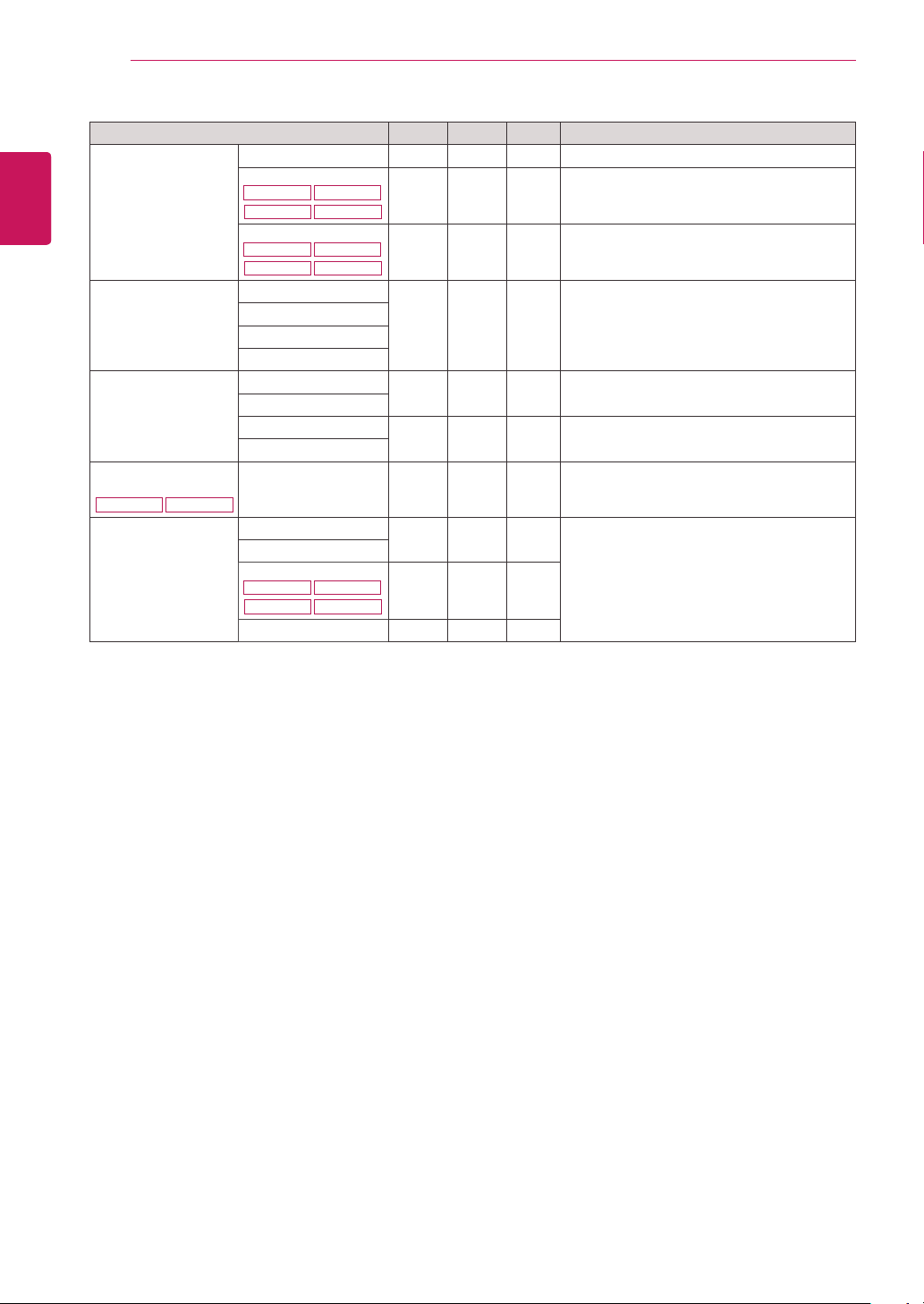
Menu>NextMenu Analog Digital HDMI Description
Picture Sharpness ● ● ●
Toadjusttheclearnessofthescreen
BlackLevel
22MP47HQ 24MP47HQ
23MP47HQ 27MP47HQ
●
Tosetoffsetlevel
OverScan
22MP47HQ 24MP47HQ
23MP47HQ 27MP47HQ
●
Toimprovetheclarityandstabilityofthe
screen
Color Gamma
● ● ●
Tocustomizethecolorofthescreen
ColorTemp
SixColor
ColorReset
Display Horizontal
●
Toadjustthepositionofthescreen
Vertical
Clock
●
Toimprovetheclarityandstabilityofthe
screen
Phase
Audio
22MP47HQ 23MP47HQ
Volume ●
Toadjustthevolume
Others Language
● ● ●
Tocustomizethescreenstatusforauser's
operatingenvironment
PowerIndicator
AutomaticStandby
22MP47HQ 24MP47HQ
23MP47HQ 27MP47HQ
● ● ●
Resolution ●
Analog:
D-SUB(Analogsignal)input.
Digital:
DVI-D(Digitalsignal)input.
HDMI:
HDMI(Digitalsignal)input.
23
ENG
ENGLISH
CUSTOMIZING SETTINGS
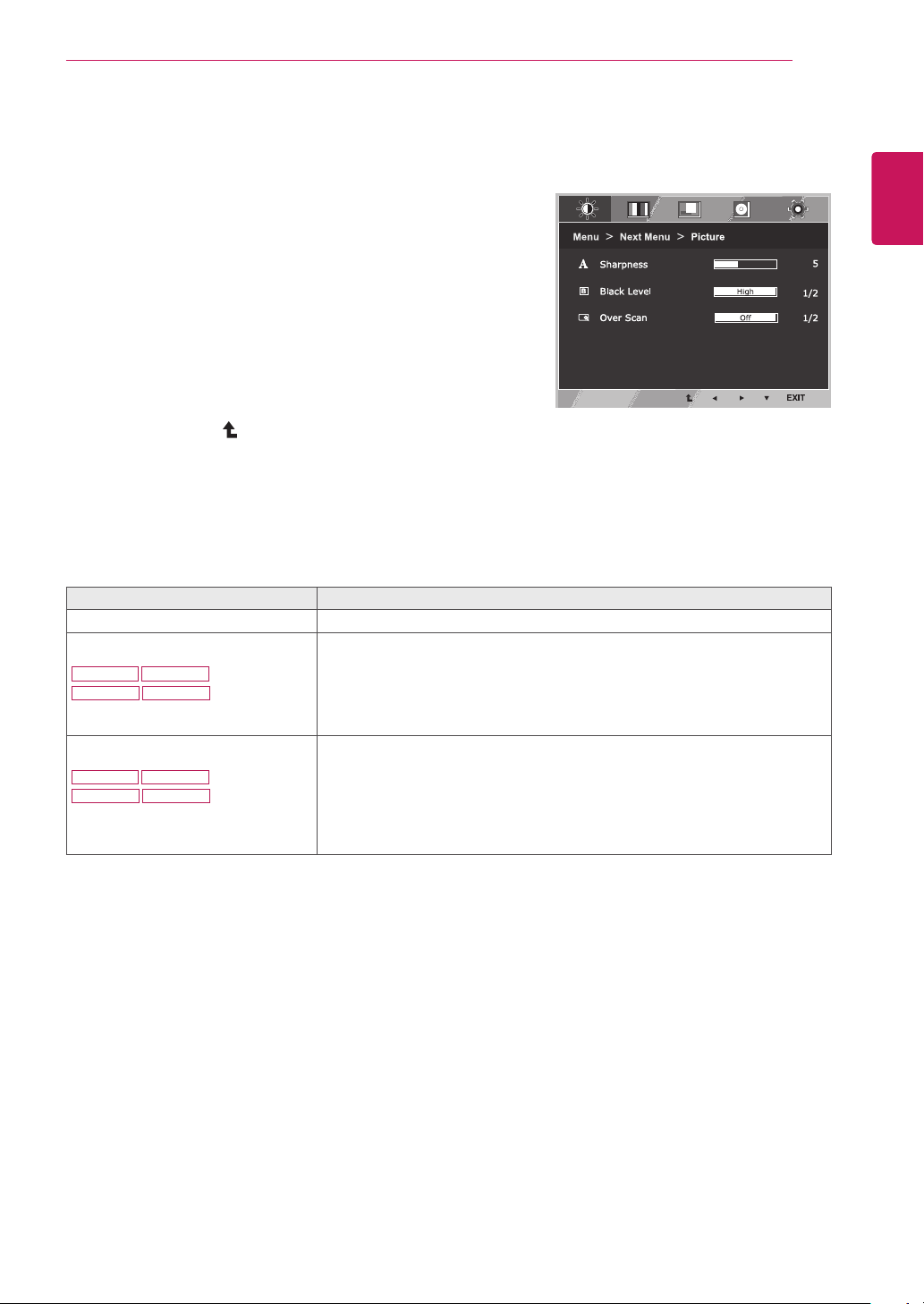
Picture
1
Press
MENU
buttononthebottomoftheMonitorset
todisplaythe
Menu
OSD.
2
Selectthe"
NextMenu
"buttontoenterthemore
optionsettings.
3
Enterto
Picture
bypressingthe▼button.
4
Settheoptionsbypressingthe◄or►or▼
buttons.
5
Select
EXIT
toleavetheOSDmenu.
Toreturntotheuppermenuorsetothermenuitems,
usetheuparrow( )button.
Eachoptionisexplainedbelow.
Menu>NextMenu>Picture Description
Sharpness Toadjusttheclearnessofthescreen.
BlackLevel
22MP47HQ 24MP47HQ
23MP47HQ 27MP47HQ
Youcansettheoffsetlevel.Ifyouselect'High',thescreenwillbebrightandif
youselect‘Low’,thescreenwillbedark.(onlyforHDMIinput)
*Offset?Asthecriteriaforvideosignal,itisthedarkestscreenthemonitorcan
show.
OverScan
22MP47HQ 24MP47HQ
23MP47HQ 27MP47HQ
ToselecttherangeofoutputimageforDTVtiminginHDMIinput.(onlyforHDMI
input)RecommendoverscanfunctiontoturnonwhenconnectAVequipment.
24
ENG
ENGLISH
CUSTOMIZING SETTINGS
Color
1
Press
MENU
buttononthebottomoftheMonitorset
todisplaythe
Menu
OSD.
2
Selectthe"
NextMenu
"buttontoenterthemore
optionsettings.
3
Select
Color
bypressingthe►button.
4
Enterto
Color
bypressingthe▼button.
5
Settheoptionsbypressingthe◄or►or▼
buttons.
6
Select
EXIT
toleavetheOSDmenu.
Toreturntotheuppermenuorsetothermenuitems,
usetheuparrow( )button.
Eachoptionisexplainedbelow.
Menu>NextMenu>Color Description
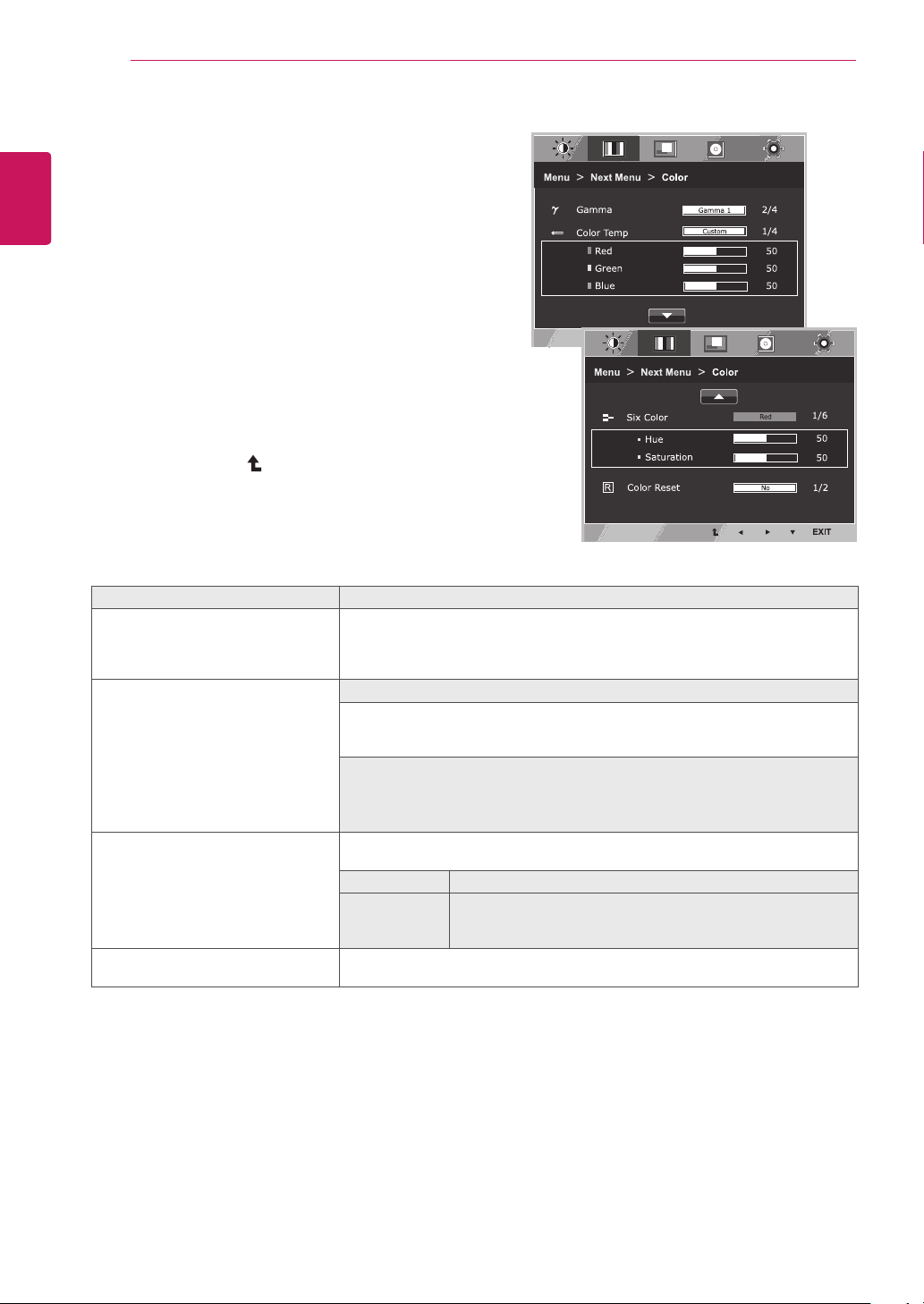
Gamma Setyourowngammavalue.:Gamma0,Gamma1,Gamma2,Offon
themonitor,highgammavaluesdisplaywhitishimagesandlowgamma
valuesdisplayblackishimages.
Ifuserdon'twantadjustedgamma,usercanselectGammaoff.
ColorTemp Custom
•Red:
Setyourownredcolorlevels.
•Green:
Setyourowngreencolorlevels.
•Blue:
Setyourownbluecolorlevels.
Selectthescreencolor.
Warm:
Setthescreentowarmcolortemperature(morered).
Medium:
Setthescreentomediumcolortemperature.
Cool:
Setthescreentocoolcolortemperature(moreblue).
SixColor Setsandstoresthehueandsaturationforsixcolors(Red/Green/Blue/Cyan/
Magenta/Yellow)tosatisfythecolorrequirementsofauser.
Hue Adjuststhescreenhue.
Saturation Adjuststhecolorsharpnessonthescreen.Lowervaluesmake
thecolorsharpnessweakerandcolorslighterwhilehigher
valuesmakethecolorsharpnessstrongerandcolorsdark.
ColorReset Resetsthecolorsettingstothefactorydefaultsettingsforthecurrentinput
device.
25
ENG
ENGLISH
CUSTOMIZING SETTINGS
Display
1
Press
MENU
buttononthebottomoftheMonitorset
todisplaythe
Menu
OSD.
2
Selectthe"
NextMenu
"buttontoenterthemore
optionsettings.
3
Select
Display
bypressingthe►button.
4
Enterto
Display
bypressingthe▼button.
5
Settheoptionsbypressingthe◄or►or▼
buttons.
6
Select
EXIT
toleavetheOSDmenu.
Toreturntotheuppermenuorsetothermenuitems,
usetheuparrow( )button.
Eachoptionisexplainedbelow.
Audio
1
Press
MENU
buttononthebottomoftheMonitorsettodisplay
the
Menu
OSD.
2
Selectthe"
NextMenu
"buttontoenterthemoreoption
settings.
3
Select
Audio
bypressingthe►button.
4
Enterto
Volume
bypressingthe▼button.
5
Settheoptionsbypressingthe◄or►buttons.
6
Select
EXIT
toleavetheOSDmenu.
Toreturntotheuppermenuorsetothermenuitems,usethe
uparrow( )button.
Eachoptionisexplainedbelow.
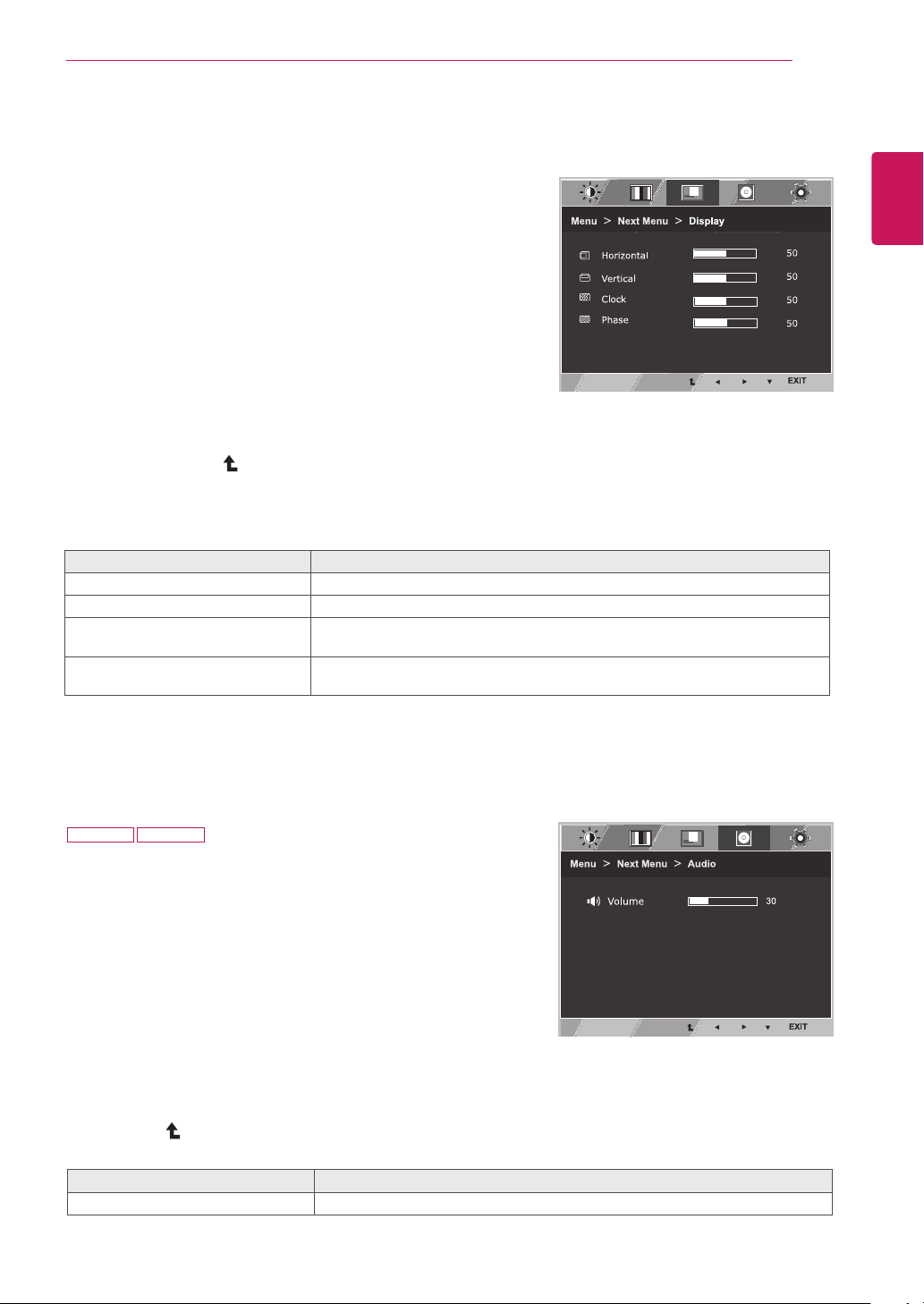
Menu>NextMenu>Display Description
Horizontal Tomoveimageleftandright.
Vertical Tomoveimageupanddown.
Clock Tominimizeanyverticalbarsorstripesvisibleonthescreenbackground.The
horizontalscreensizewillalsochange.
Phase Toadjustthefocusofthedisplay.Thisitemallowsyoutoremoveanyhorizontal
noiseandclearorsharpentheimageofcharacters.
Menu>NextMenu>Audio Description
Volume Toadjustthevolumeofheadphone/earphone.(OnlyforHDMIinput)
22MP47HQ 23MP47HQ
26
ENG
ENGLISH
CUSTOMIZING SETTINGS
Others
1
Press
MENU
buttononthebottomoftheMonitorset
todisplaythe
Menu
OSD.
2
Selectthe"
NextMenu
"buttontoenterthemore
optionsettings.
3
Select
Others
bypressingthe►button.
4
Enterto
Others
bypressingthe▼button.
5
Settheoptionsbypressingthe◄or►or▼
buttons.
6
Select
EXIT
toleavetheOSDmenu.
Toreturntotheuppermenuorsetothermenuitems,
usetheuparrow( )button.
Eachoptionisexplainedbelow.
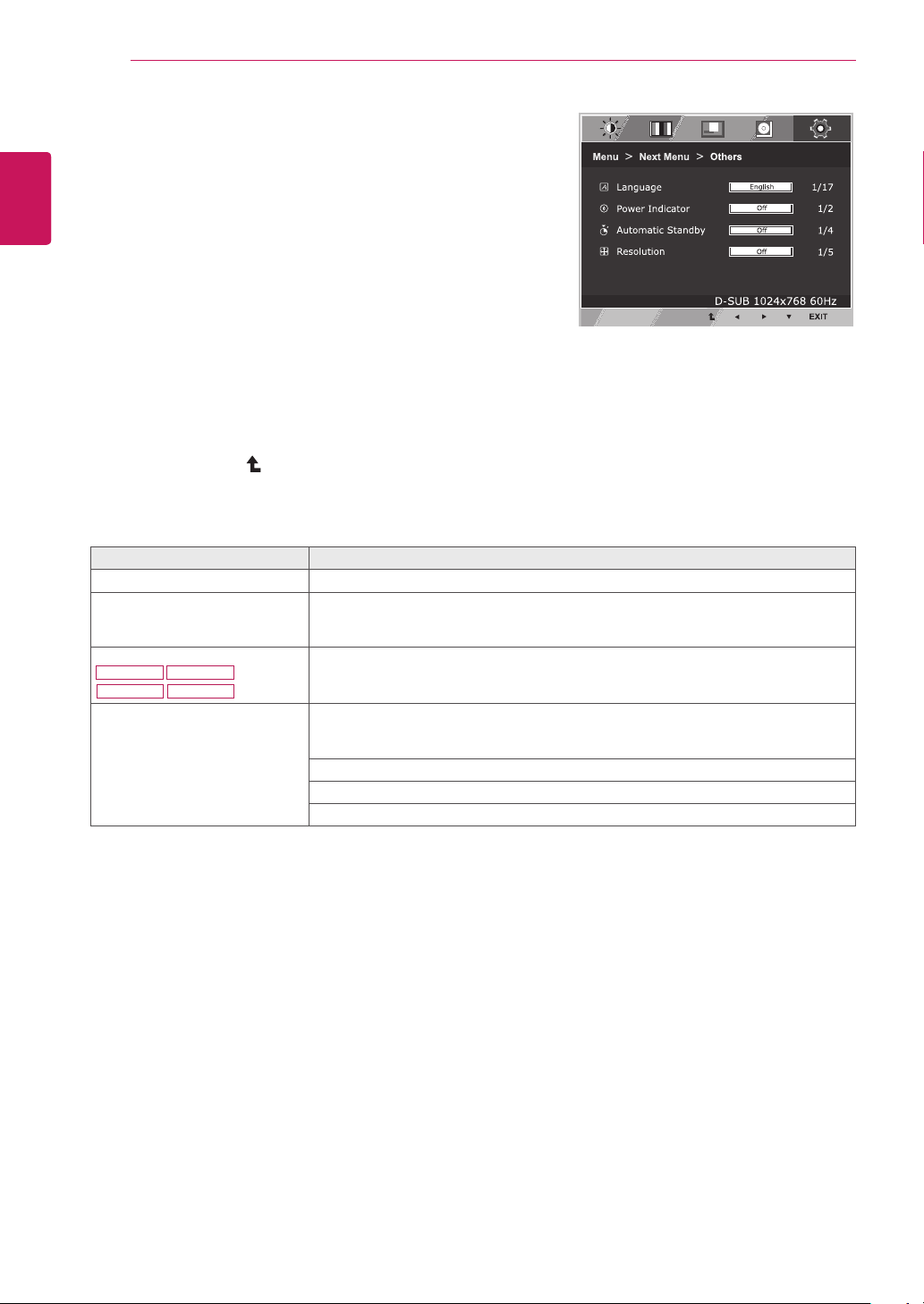
Menu>NextMenu>Others Description
Language Tochoosethelanguageinwhichthecontrolnamesaredisplayed.
PowerIndicator UsethisfunctiontosetthepowerindicatoronthebottomsideofthemonitortoOn
orOff.IfyousetOff,itwillgooff.
IfyousetOnatanytime,thepowerindicatorwillautomaticallybeturnedon.
AutomaticStandby
22MP47HQ 24MP47HQ
23MP47HQ 27MP47HQ
Themonitorwillautomaticallyswitchtostandbymodeafteracertainperiod.
Resolution Usercansetthedesiredresolution.Thefunctionisenabledonlywhenthescreen
resolutiononyourcomputerissettothefollowing,exceptthatthePCoutputwrong
resolution(D-SUBonly).
Off,1024x768,1280x768,1360x768,1366x768
Off,1280x960,1600x900
Off,1440x900,1600x900
27
ENG
ENGLISH
CUSTOMIZING SETTINGS
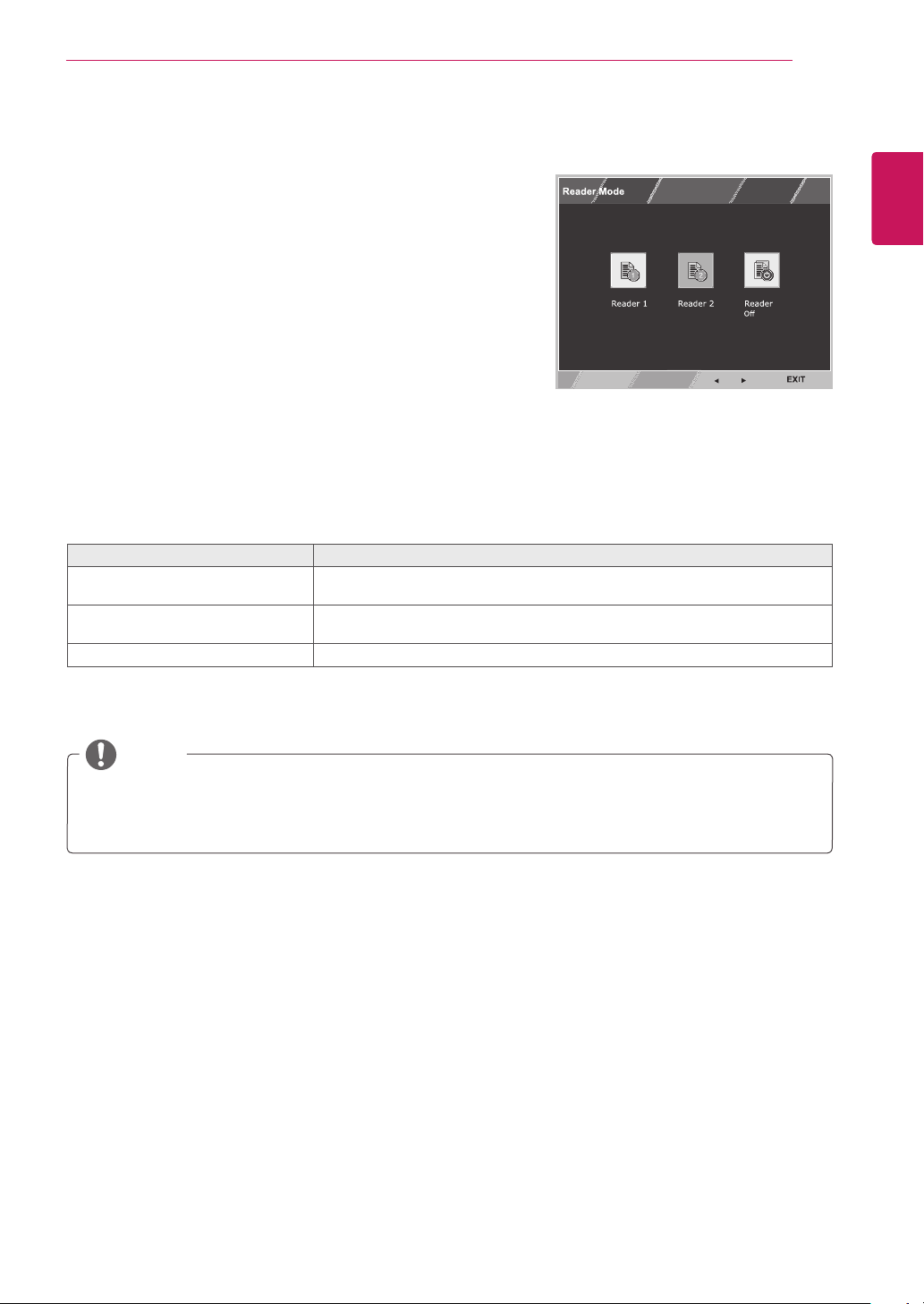
READERSetting
1
Press
READER
buttononthebottomoftheMonitor
settodisplaythe
ReaderMode
OSD.
2
Settheoptionsbypressingthe◄or►buttons.
3
Select
EXIT
toleavetheOSDmenu.
ReaderMode Description
Reader1 Itisamodethatthescreenisadjustedtothebestforthenewspaper.Ifyou
wantscreenmorebright,youcancontrolbrightnessinMenuOSD.
Reader2 Itisamodethatthescreenisadjustedtothebestforthecartoon.Ifyouwant
screenmorebright,youcancontrolbrightnessinMenuOSD.
ReaderOff Itisamodethatreadermodeisoff.
Eachoptionisexplainedbelow.
NOTE
IfoptionofReaderModeisReader1orReader2,PictureModewillautomaticallybeCustomand
SMARTENERGYSAVINGandColorWizardwillautomaticallybeOff.
28
ENG
ENGLISH
CUSTOMIZING SETTINGS
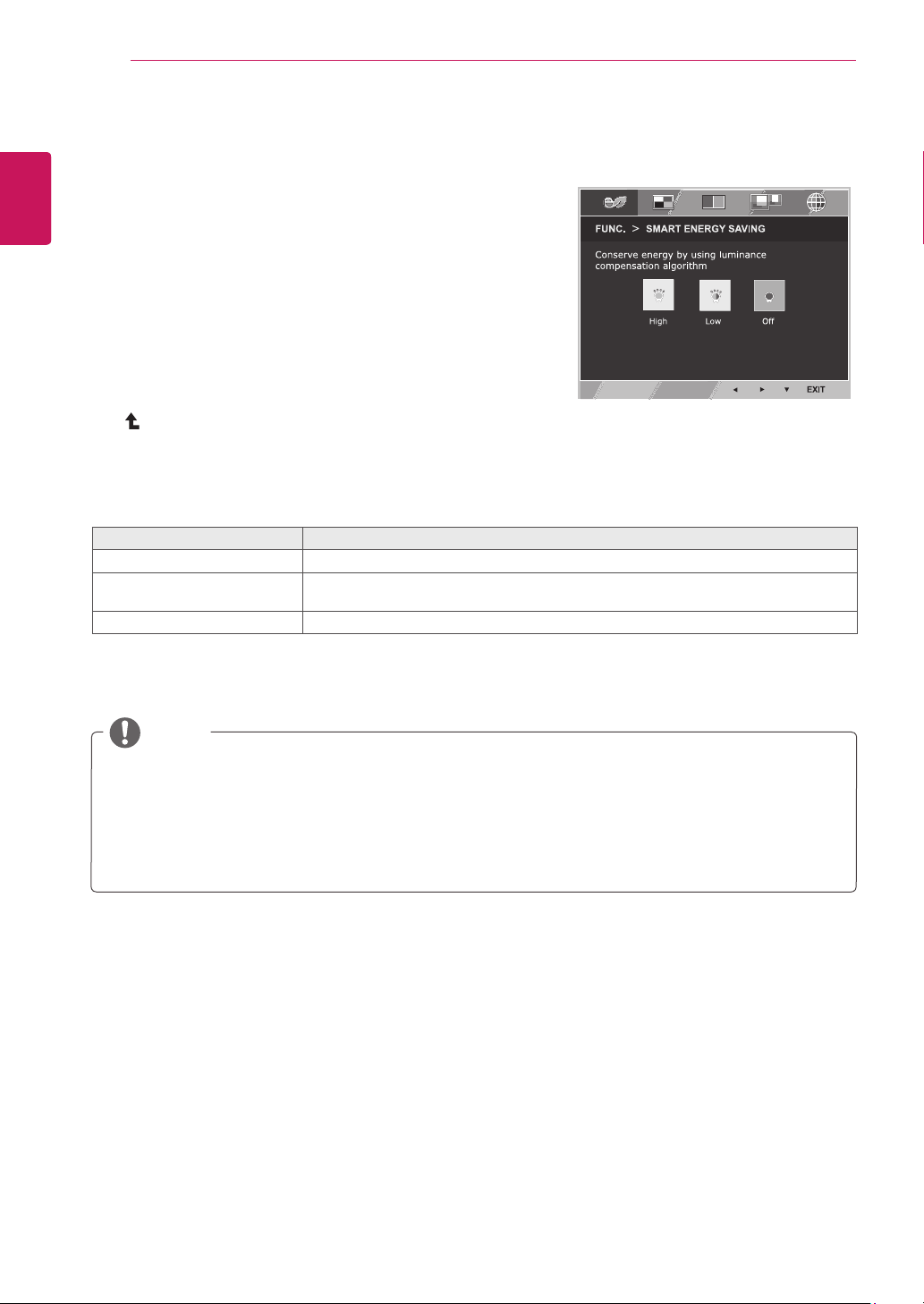
SMARTENERGYSAVING
1
Press
FUNC.
buttononthebottomoftheMonitorsetto
displaythe
FUNC.
OSD.
2
Enterto
SMARTENERGYSAVING
bypressingthe▼
button.
3
Settheoptionsbypressingthe◄or►buttons.
4
Select
EXIT
toleavetheOSDmenu.Toreturntothe
uppermenuorsetothermenuitems,usetheuparrow
( )button.
Eachoptionisexplainedbelow.
SMARTENERGYSAVING Description
High
EnablesSMARTENERGYSAVINGyoucansaveenergywiththisenergy-highefficientfunction.
Low
EnablesSMARTENERGYSAVINGyoucansaveenergywiththisenergy-lowefficient
function.
Off DisablesSMARTENERGYSAVING.
SavingDatadependsonthePanel.So,thosevaluesshouldbedifferentfromeachpanelandpanel
vendor.IfoptionofSMARTENERGYSAVINGisHighorLow,monitorluminancebecomehigheror
lowerdependonsource.
IfoptionofSMARTENERGYSAVINGisHighorLow,PictureModewillautomaticallybeCustomand
ReaderModeandColorWizardwillautomaticallybeOff.
NOTE
FUNC.Setting
*
SMARTENERGYSAVING:
Conserveenergybyusingluminancecompensationalgorithm.
29
ENG
ENGLISH
CUSTOMIZING SETTINGS
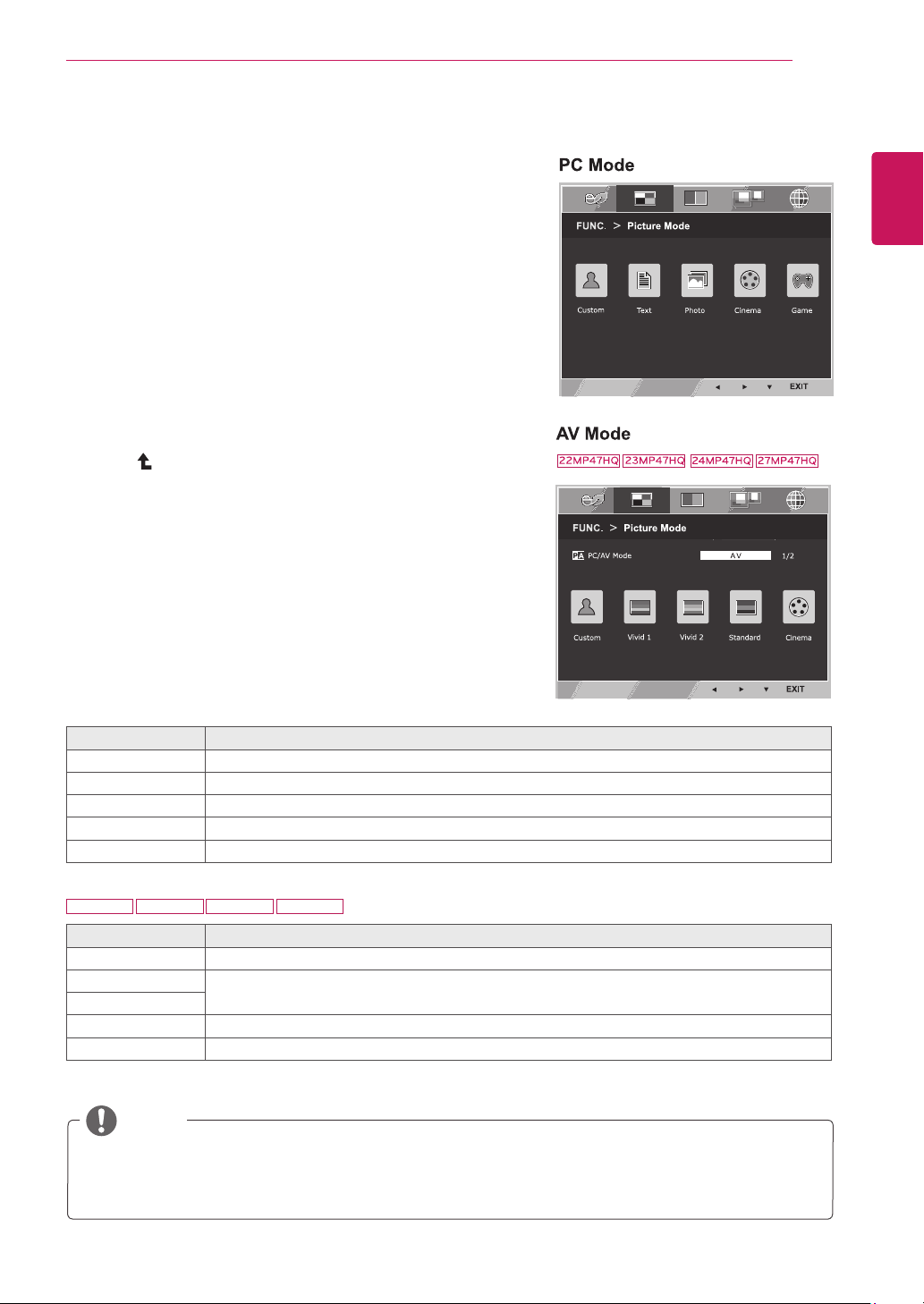
PictureMode
1
Press
FUNC.
buttonon thebottomoftheMonitorset
todisplaythe
FUNC.
OSD.
2
Select
PictureMode
bypressingthe►button.
3
Enterto
PictureMode
bypressingthe▼button.
4
Settheoptionsbypressingthe◄or►buttons.
5
Select
EXIT
toleavetheOSDmenu.Toreturntothe
uppermenuorsetothermenuitems,usetheup
arrow( )button.
PictureMode Description
Custom Itisamodethattheusercanadjusteachelement.ItcanadjustthecolormodeoftheMainMenu.
Text Itisamodethatthescreenisadjustedtothebestforthetextworks.
Photo Itisamodethatthescreenisadjustedtothebesttoviewpictures.
Cinema Itisamodethatthescreenisadjustedtothebesttoviewthevideos.
Game Itisamodethatthescreenisadjustedtothebesttoplayagame.
Eachoptionisexplainedbelow.
PictureMode Description
Custom Itisamodethattheusercanadjusteachelement.ItcanadjustthecolormodeoftheMainMenu.
Vivid1 Adjuststhevideoimagefortheretailenvironmentbyenhancingthecontrast,brightness,Colour,
andsharpness.
Vivid2
Standard Adjuststheimageforthenormalenvironment.
Cinema Itisamodethatthescreenisadjustedtothebesttoviewthevideos.
NOTE
IfoptionofPictureModeisnon-Custom,ReaderMode,SMARTENERGYSAVINGandColorWizard
willautomaticallybeOff.
22MP47HQ 23MP47HQ 24MP47HQ 27MP47HQ
30
ENG
ENGLISH
CUSTOMIZING SETTINGS
NOTE
Thisissubsidiaryforcolorweaknessuser.Thereforeifyoufeeluncomfortablewiththescreen,please
turnoffthisfunction.
Thisfunctioncan’tdistinguishsomecolorsinsomeimages.
IfoptionofColorWizardisnotOff,ReaderModeandSMARTENERGYSAVINGwillbeOffand
PictureModewillautomaticallybeCustom.
1
Press
FUNC.
buttononthebottomoftheMonitorset
todisplaythe
FUNC.
OSD.
2
Select
Colorwizard
bypressingthe►button.
3
Enterto
Colorwizard
bypressingthe▼button.
4
Settheoptionsbypressingthe◄or►buttons.
5
Select
EXIT
toleavetheOSDmenu.Toreturntothe
uppermenuorsetothermenuitems,usetheup
arrow( )button.
Eachoptionisexplainedbelow.
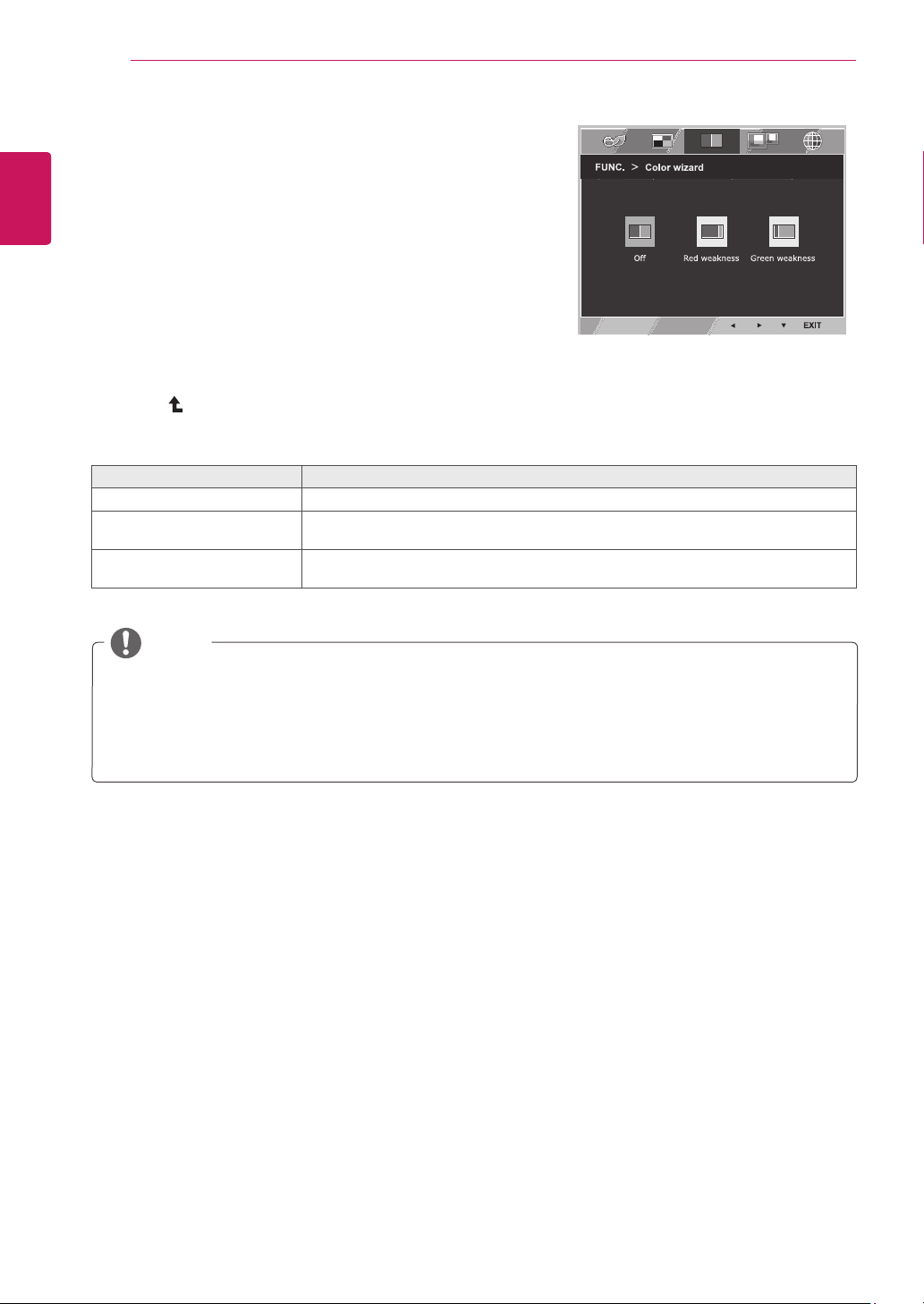
Colorwizard Description
Off
ItisamodethatColorWizardmodeisoff.
Redweakness Itisamodeforuserwhohasinabilitytoseeredcolor.Itmakecolorweaknessuser
caneasilydistinguishredcolors.
Greenweakness Itisamodeforuserwhohasinabilitytoseegreencolor.Itmakecolorweaknessuser
caneasilydistinguishgreencolors.
Colorwizard
31
ENG
ENGLISH
CUSTOMIZING SETTINGS
NOTE
Whenmonitorgoestopowersavingmodewithpcsavingoption->Pressinganybutton->OSD
appearandusershouldpressdualbutton->Usercanbringbacktonormalmode.
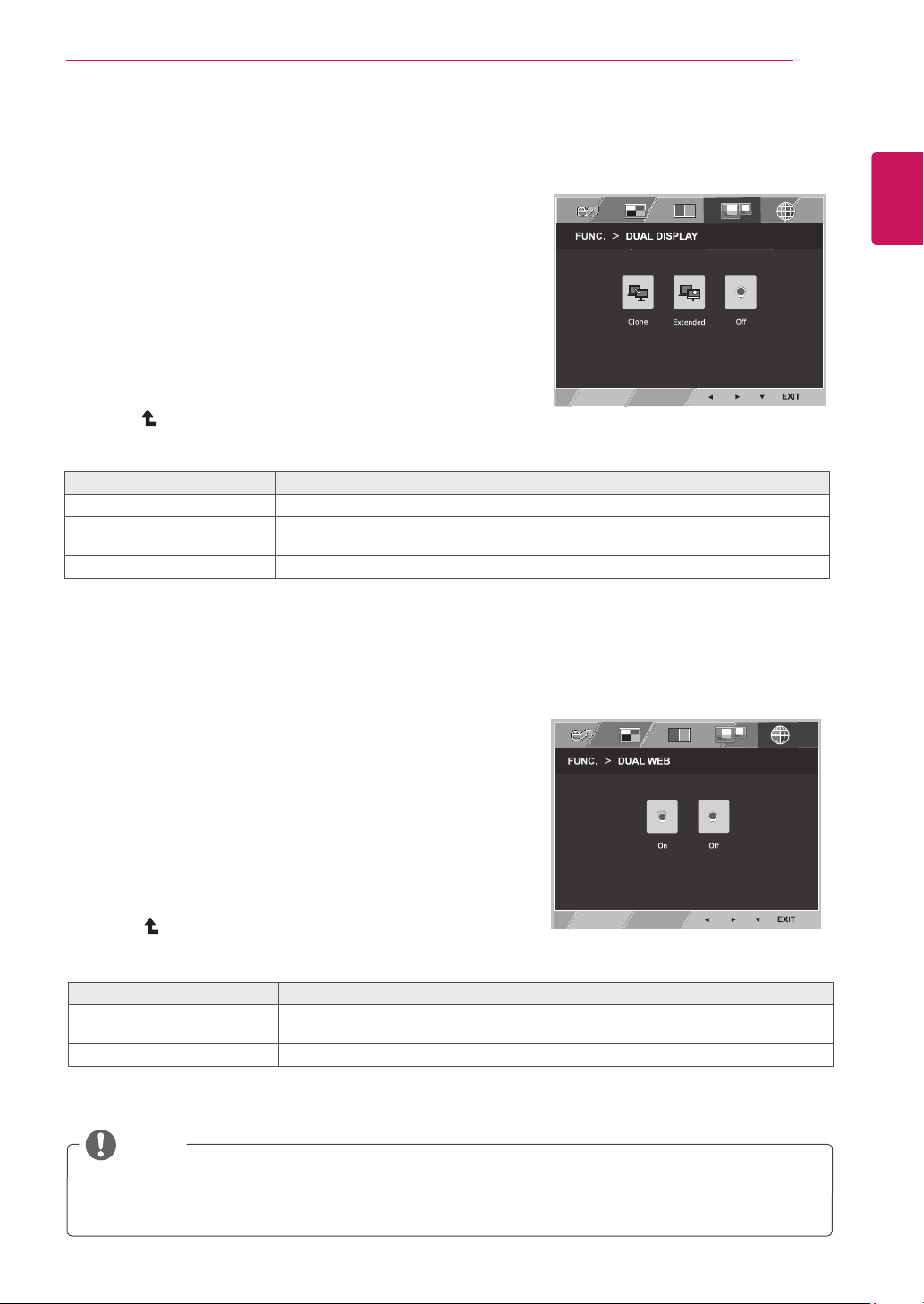
DUALDISPLAY
1
Press
FUNC.
buttononthebottomoftheMonitorset
todisplaythe
FUNC.
OSD.
2
Select
DUALDISPLAY
bypressingthe►button.
3
Enterto
DUALDISPLAY
bypressingthe▼button.
4
Settheoptionsbypressingthe◄or►buttons.
5
Select
EXIT
toleavetheOSDmenu.Toreturntothe
uppermenuorsetothermenuitems,usetheup
arrow( )button.
*Beforeusingbelowfunctions,pleaseinstallDUALSMARTSOLUTIONprogramme.
Eachoptionisexplainedbelow.
DUALDISPLAY Description
Clone ByselectingClone,usercanusesecondarymonitorasdonemodeofprimarymonitor.
Extended ByselectingExtended,usercanusesecondarymonitorasextendedmodeofprimary
monitor.
Off IfselectOff,DUALDISPLAYisoff.
DUALWEB
1
Press
FUNC.
buttononthebottomoftheMonitorset
todisplaythe
FUNC.
OSD.
2
Select
DUALWEB
bypressingthe►button.
3
Enterto
DUALWEB
bypressingthe▼button.
4
Settheoptionsbypressingthe◄or►buttons.
5
Select
EXIT
toleavetheOSDmenu.Toreturntothe
uppermenuorsetothermenuitems,usetheup
arrow( )button.
*Beforeusingbelowfunctions,pleaseinstallDUALSMARTSOLUTIONprogramme.
Eachoptionisexplainedbelow.
DUALWEB Description
On Helpusertobrowsewebefficientlybydividinginhalf.Helptoarrangeandmove
windowsonscreen.Helpusertocontroldividedwindowsratio.
Off IfselectOff,DUALWEBisoff.
32
ENG
ENGLISH
TROUBLESHOOTING
TROUBLESHOOTING
Checkthefollowingbeforecallingforservice.
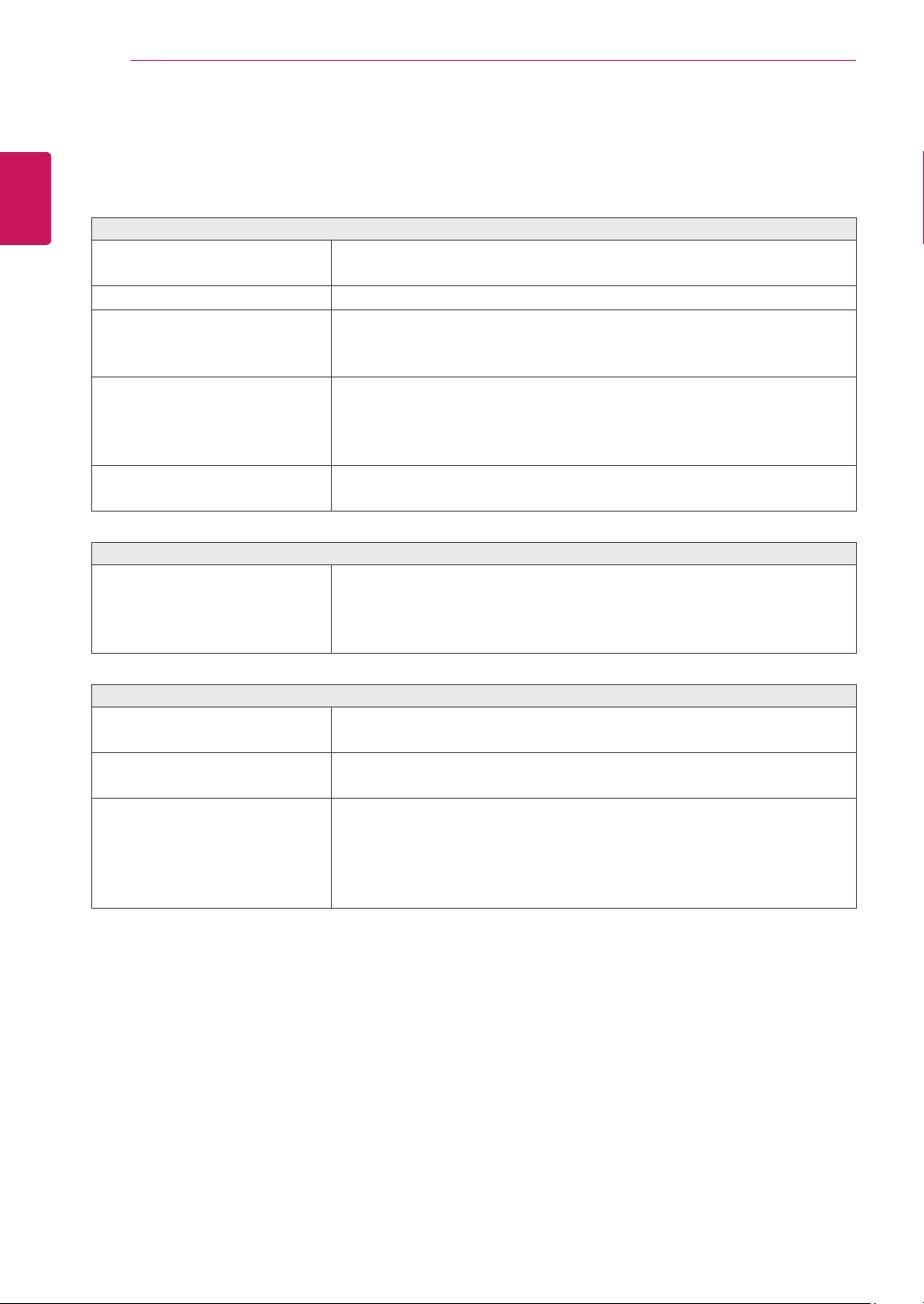
Noimageappears
Isthepowercordofthedisplay
connected?
Checkandseeifthepowercordisconnectedproperlytothepower
outlet.
Isthepowerindicatorlighton?
PressthePowerbutton.
Isthepowerindicatorflickering?
Ifthedisplayisinpowersavingmode,trymovingthemouseor
pressinganykeyonthekeyboardtobringupthescreen.
TrytoturnonthePC.
Doyouseean"OUTOFRANGE"
messageonthescreen?
ThismessageappearswhenthesignalfromthePC(videocard)is
outofhorizontalorverticalfrequencyrangeofthedisplay.Seethe
'Specifications'sectionofthismanualandconfigureyourdisplay
again.
Doyouseea"NOSIGNAL"
messageonthescreen?
Whenthemonitorison"No-Signal"in5minutes,themonitorgoesto
DPMmode.
Doyouseea"OSDLOCKED"messageonthescreen?
Doyousee“OSDLOCKED”when
youpushMENUbutton?
Youcansecurethecurrentcontrolsettings,sothattheycannotbe
inadvertentlychanged.YoucanunlocktheOSDcontrolsatanytime
bypushingtheMENUbuttonforseveralseconds:themessage“OSD
UNLOCKED”willappear.
Displayimageisincorrect
DisplayPositionisincorrect.
Pressthe
AUTO
buttontoautomaticallyadjustyourdisplayimageto
theidealsetting.
Onthescreenbackground,vertical
barsorstripesarevisible.
Pressthe
AUTO
buttontoautomaticallyadjustyourdisplayimageto
theidealsetting.
Anyhorizontalnoiseappearingin
anyimageorcharactersarenot
clearlyportrayed.
Pressthe
AUTO
buttontoautomaticallyadjustyourdisplayimageto
theidealsetting.
Check
ControlPanel►Display►Settings
andadjustthedisplay
totherecommendedresolutionoradjustthedisplayimagetotheideal
setting.Setthecolorsettinghigherthan24bits(truecolor).
33
ENG
ENGLISH
TROUBLESHOOTING
Displayimageisincorrect
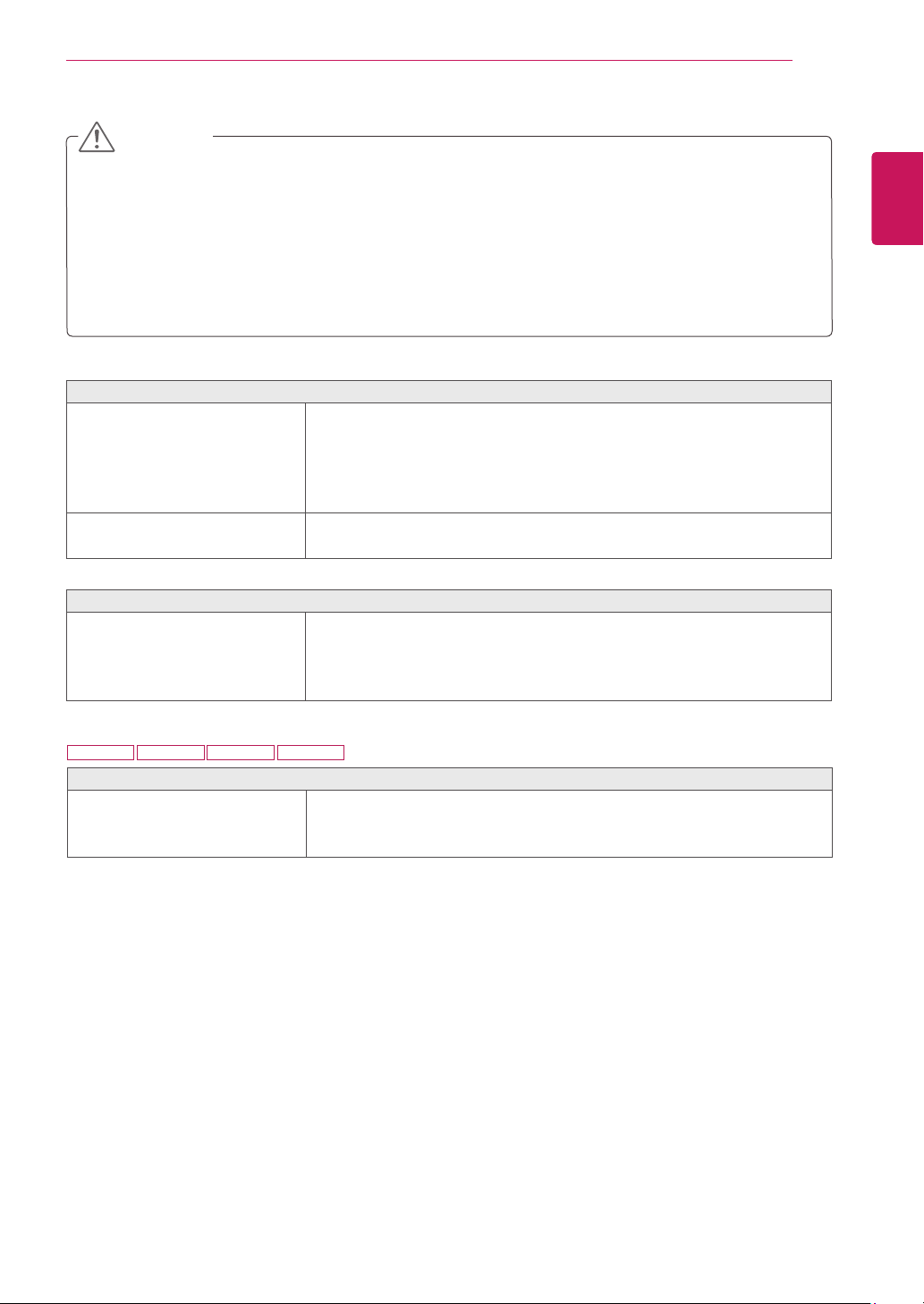
Thescreencolorismonoor
abnormal.
Checkifthesignalcableisproperlyconnectedanduseascrewdriver
tofastenifnecessary.
Makesurethevideocardisproperlyinsertedintheslot.
Setthecolorsettinghigherthan24bits(truecolor)at
ControlPanel
►
Settings
.
Thescreenblinks.
Checkifthescreenissettointerlacemodeandifyes,changeittothe
recommendresolution.
Doyouseean"Unrecognizedmonitor,Plug&Play(VESADDC)monitorfound"message?
Haveyouinstalledthedisplay
driver?
BesuretoinstallthedisplaydriverfromthedisplaydriverCD(or
diskette)thatcomeswithyourdisplay.Or,youcanalsodownloadthe
driverfromourwebsite:http://www.lg.com.
MakesuretocheckifthevideocardsupportsPlug&Playfunction.
Check
ControlPanel►Display►Settings
andseeifthefrequencyortheresolutionwere
changed.Ifyes,readjustthevideocardtotherecommendresolution.
Iftherecommendedresolution(optimalresolution)isnotselected,lettersmaybeblurredandthe
screenmaybedimmed,truncatedorbiased.Makesuretoselecttherecommendresolution.
ThesettingmethodcandifferbycomputerandO/S(OperationSystem),andresolutionmentioned
abovemaynotbesupportedbythevideocardperformance.Inthiscase,pleaseasktothecomputer
orthevideocardmanufacturer.
CAUTION
22MP47HQ 23MP47HQ 24MP47HQ 27MP47HQ
Thescreenisflickering.
Didyouselecttherecommended
resolution?
IftheselectedresolutionisHDMI
1080i
60/50Hz,thescreenmay
beflickering.Changetheresolutiontotherecommendedresolution
1080P
.
34
ENG
ENGLISH
SPECIFICATIONS
SPECIFICATIONS
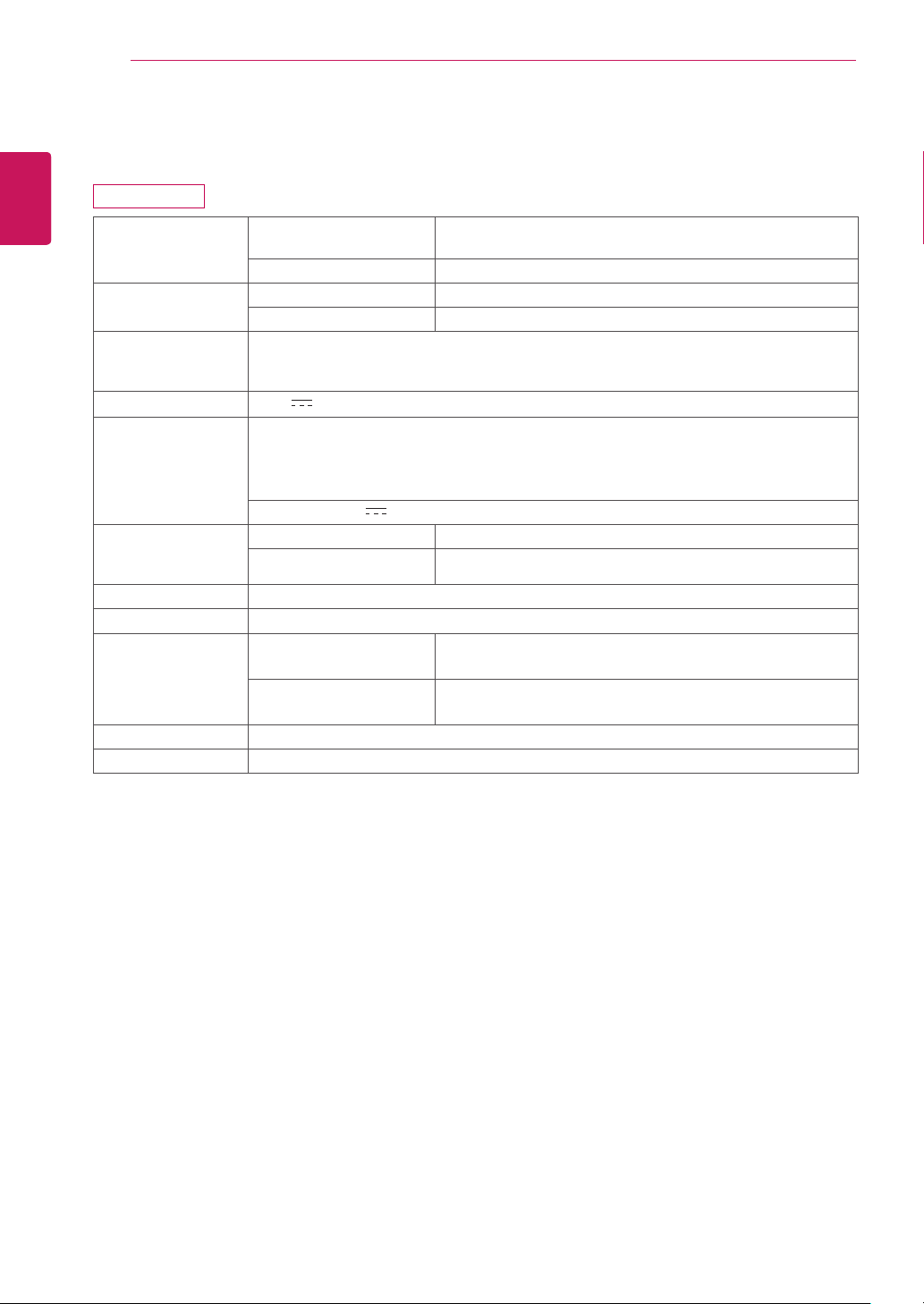
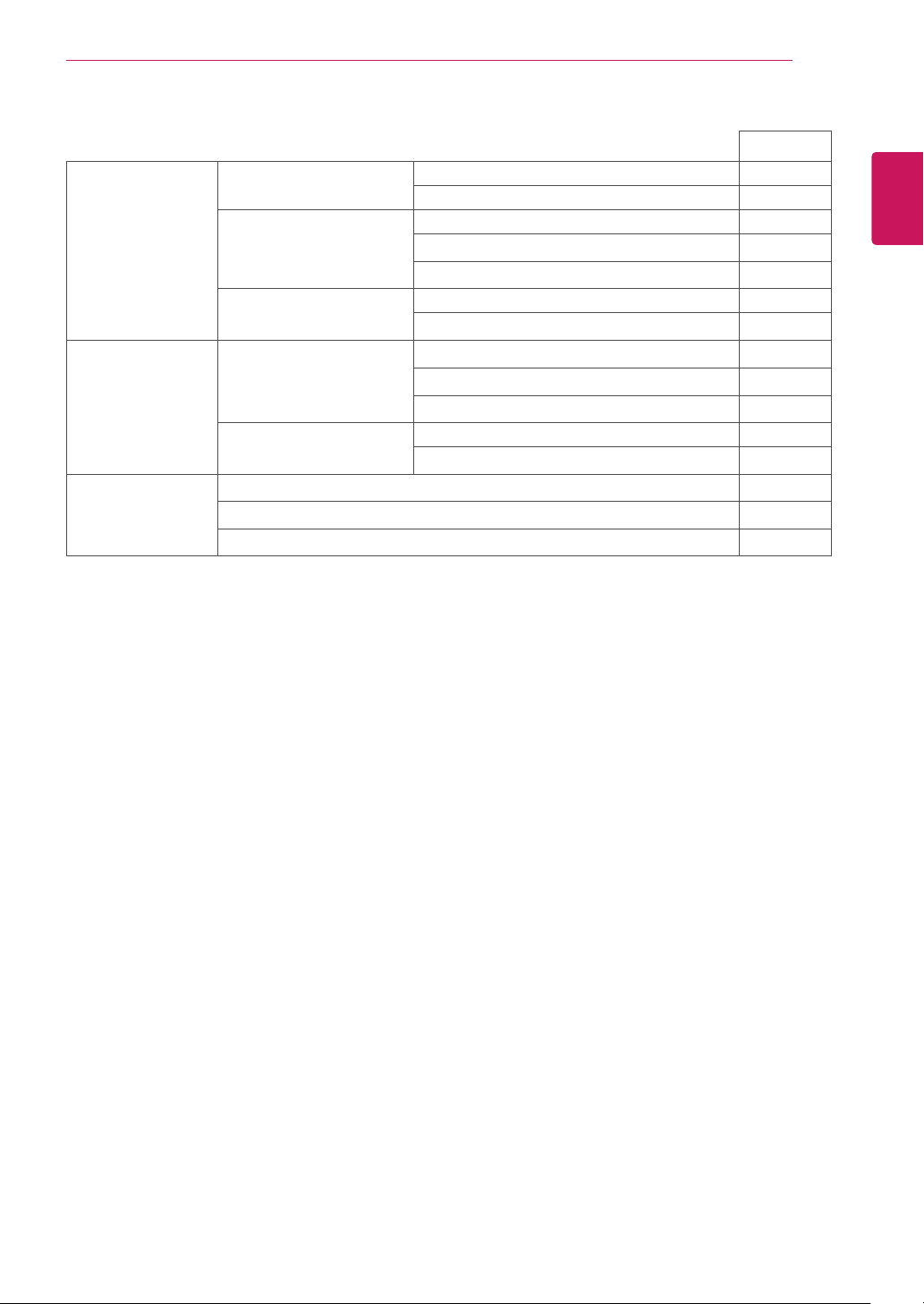
Display Screen Type Flat Panel Active matrix-TFT LCD
Anti-Glare coating
Pixel Pitch 0.0969 mm x RGB x 0.2915 mm (Pixel Pitch)
Resolution Max 1440 x 900 @ 60 Hz
Recommend VESA 1440 x 900 @ 60 Hz
Power
Consumption
On Mode : 15 W (ENERGY STAR® standard)*
Sleep Mode ≤ 0.3 W
Off Mode ≤ 0.3 W
Power Input 19 V
0.8 A
AC-DC Adapter
Type ADS-18SG-19-3 19016G, manufactured by SHENZHEN HONOR ELECTRONIC
or Type ADS-18FSG-19 19016GPG-1, manufactured by SHENZHEN HONOR ELECTRONIC
or Type LCAP42, manufactured by LIEN CHANG ELECTRONIC ENTERPRISE
or Type LCAP43-E, manufactured by LIEN CHANG ELECTRONIC ENTERPRISE
OUTPUT: 19 V
0.84 A
Dimensions
(Width x Height x
Depth)
With Stand 44.2 cm x 37.5 cm x 16.7 cm
Without Stand 44.2 cm x 29.7 cm x 5.9 cm
Weight 2.1 kg
Tilt Range -5° to 20°
Environmental
conditions
Operating Temperature
Operating Humidity
10°C to 35 °C
10 % to 80 %
Storage Temperature
Storage Humidity
-20°C to 60 °C
5 % to 90 % non-Condensing
Stand Base Attached ( ), Detached (O)
Power cord Wall-outlet type
Product specifications shown above may be changed without prior notice due to upgrade of product
functions.
* The power consumption level can be different by operating condition and monitor setting.
* The On mode power consumption is measured with ENERGY STAR® test standard.
20MP47A
35
ENG
ENGLISH
SPECIFICATIONS
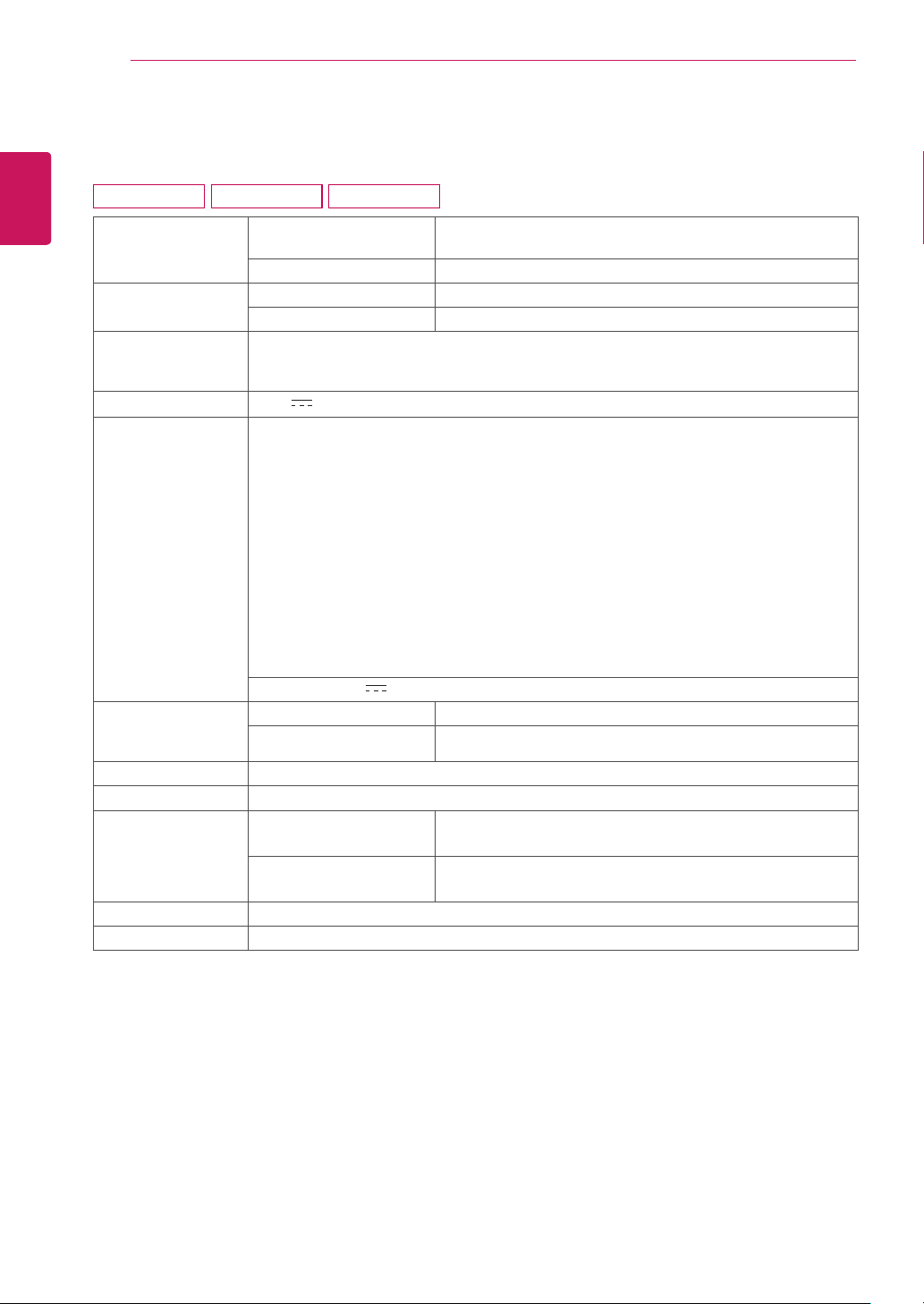
Sync Input Horizontal Frequency 30 kHz to 83 kHz (Automatic)
●
30 kHz to 61 kHz (Automatic)
Vertical Frequency D-SUB : 56 Hz to 75 Hz
●
DVI-D : 56 Hz to 75 Hz
HDMI : 56 Hz to 75 Hz
Input Form Separate Sync.
●
Digital
Video Input Signal Input 15 pin D-SUB Connector
●
DVI-D Connector (Digital)
HDMI Connector
Input Form RGB Analog
●
Digital
Plug & Play DDC 2B(Analog)
●
DDC 2B(Digital)
DDC 2B(HDMI)
20MP47A
36
ENG
ENGLISH
SPECIFICATIONS
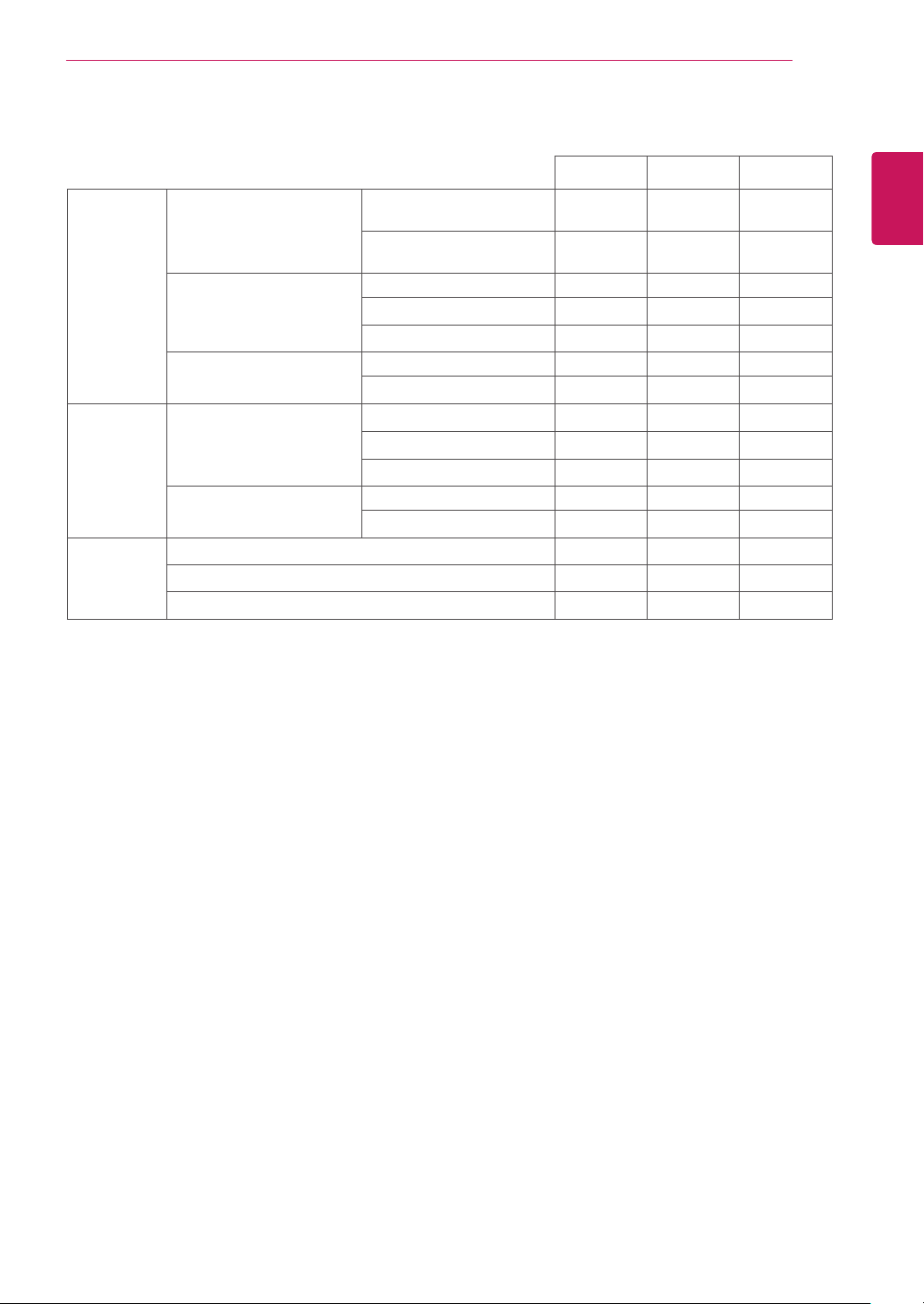
Display Screen Type Flat Panel Active matrix-TFT LCD
Anti-Glare coating
Pixel Pitch 0.248 mm x 0.248 mm (Pixel Pitch)
Resolution Max 1920 x 1080 @ 60 Hz
Recommend VESA 1920 x 1080 @ 60 Hz
Power
Consumption
On Mode : 21 W (ENERGY STAR® standard)*
Sleep Mode ≤ 0.3 W
Off Mode ≤ 0.3 W
Power Input 19 V
1.2 A
AC-DC Adapter
Type ADS-40SG-19-3 19025G, manufactured by SHENZHEN HONOR ELECTRONIC
or Type ADS-40FSG-19 19025GPG-1, manufactured by SHENZHEN HONOR ELECTRONIC
or Type ADS-40FSG-19 19025GPBR-1, manufactured by SHENZHEN HONOR ELECTRONIC
or Type ADS-40FSG-19 19025GPI-1, manufactured by SHENZHEN HONOR ELECTRONIC
or Type ADS-40FSG-19 19025GPCU-1, manufactured by SHENZHEN HONOR ELECTRONIC
or Type ADS-40FSG-19 19025GPB-2, manufactured by SHENZHEN HONOR ELECTRONIC
or Type ADS-25FSG-19 19025EPCU-1L, manufactured by SHENZHEN HONOR ELECTRONIC
or Type LCAP21, manufactured by LIEN CHANG ELECTRONIC ENTERPRISE
or Type LCAP26-A, manufactured by LIEN CHANG ELECTRONIC ENTERPRISE
or Type LCAP26-E, manufactured by LIEN CHANG ELECTRONIC ENTERPRISE
or Type LCAP26-I, manufactured by LIEN CHANG ELECTRONIC ENTERPRISE
or Type LCAP26-B, manufactured by LIEN CHANG ELECTRONIC ENTERPRISE
or Type LCAP51 , manufactured by LIEN CHANG ELECTRONIC ENTERPRISE
OUTPUT: 19 V
1.3 A
Dimensions
(Width x Height x
Depth)
With Stand 50.8 cm x 38.7 cm x 18.1 cm
Without Stand 50.8 cm x 31.3 cm x 5.7 cm
Weight 2.7 kg
Tilt Range -5° to 20°
Environmental
conditions
Operating Temperature
Operating Humidity
10°C to 35 °C
10 % to 80 %
Storage Temperature
Storage Humidity
-20°C to 60 °C
5 % to 90 % non-Condensing
Stand Base Attached ( ), Detached (O)
Power cord Wall-outlet type
Product specifications shown above may be changed without prior notice due to upgrade of product
functions.
* The power consumption level can be different by operating condition and monitor setting.
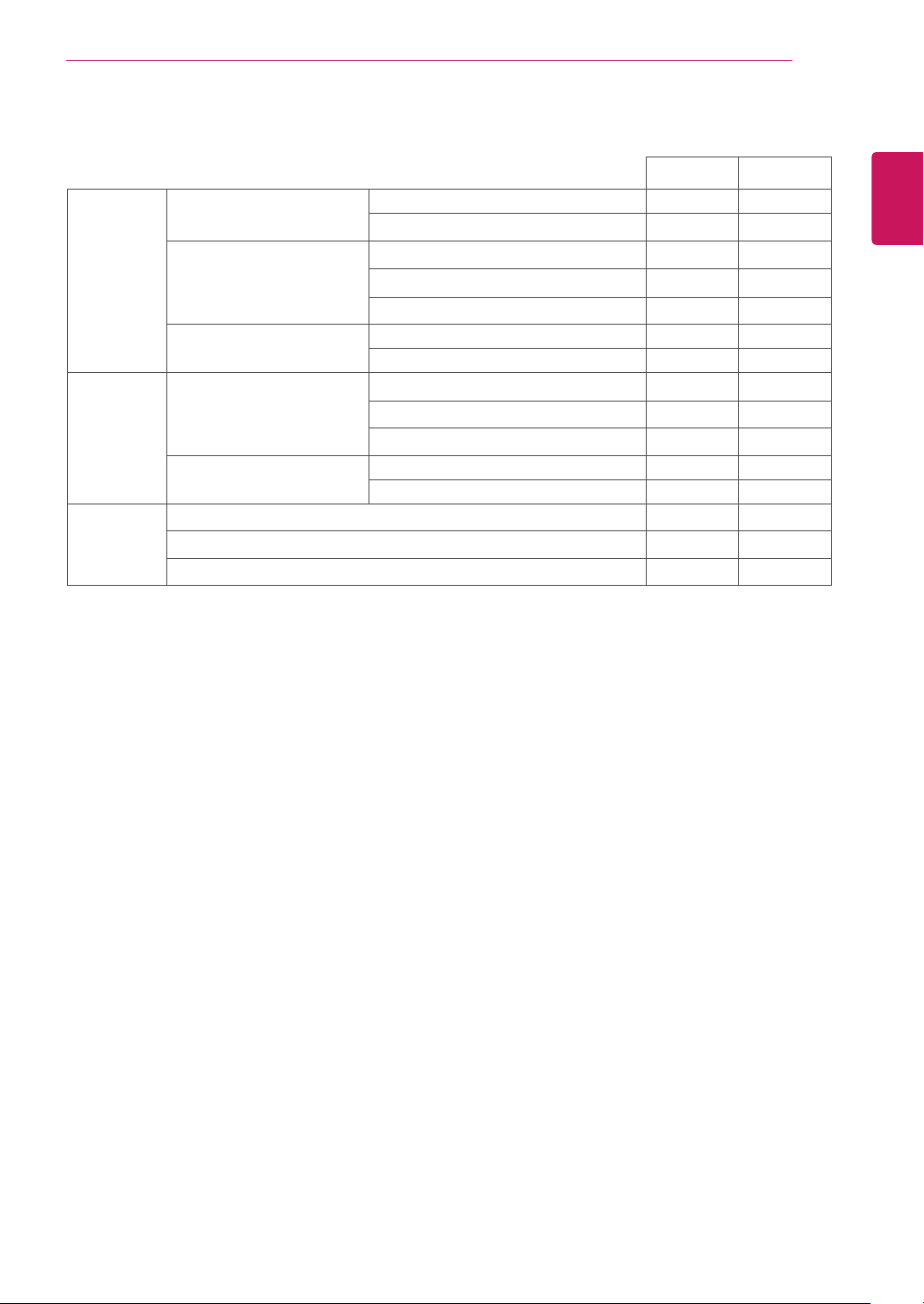
* The On mode power consumption is measured with ENERGY STAR® test standard.
SPECIFICATIONS
22MP47A 22MP47D 22MP47HQ
37
ENG
ENGLISH
SPECIFICATIONS
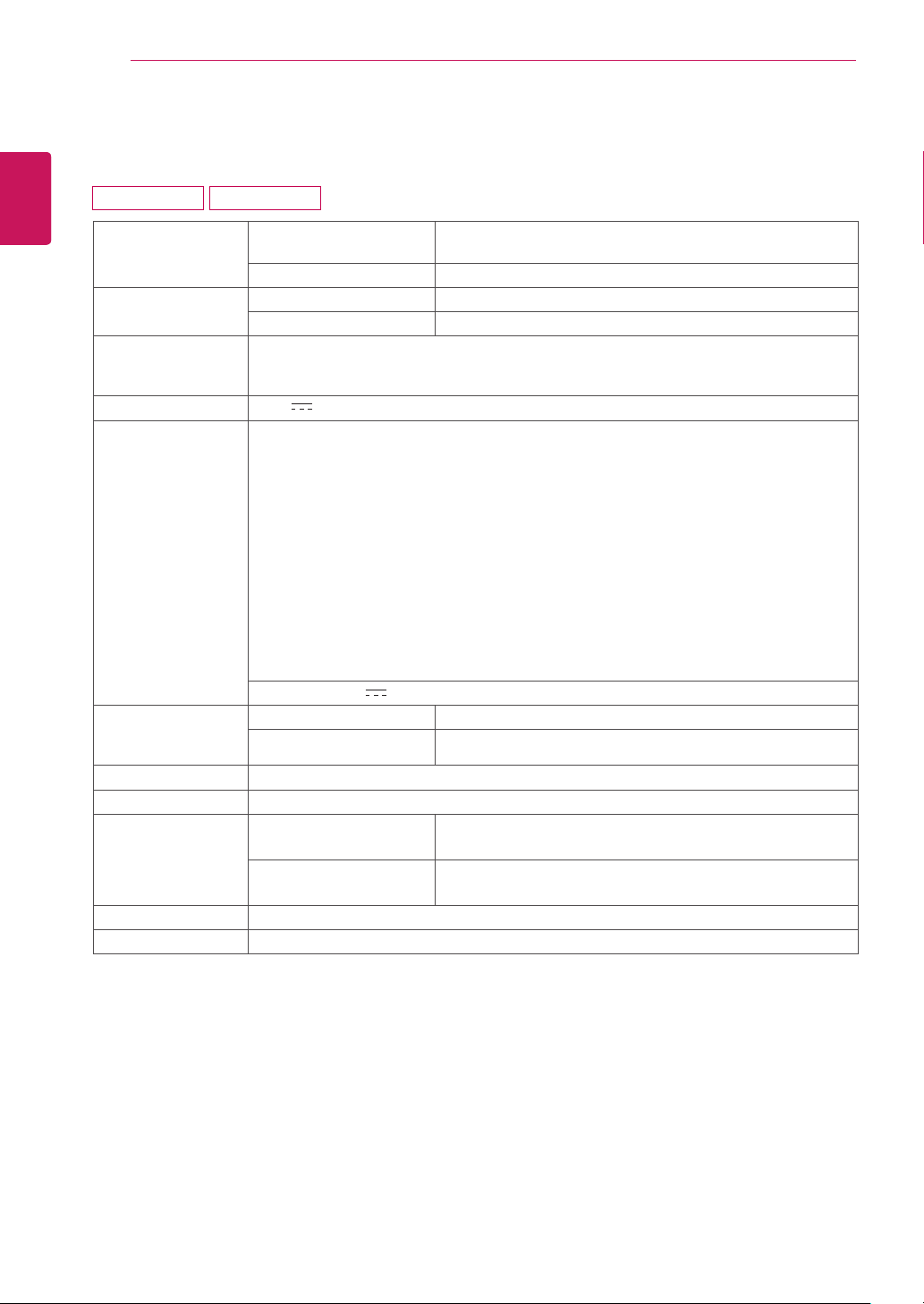
Sync Input Horizontal Frequency 30 kHz to 83 kHz
(Automatic)
● ● ●
30 kHz to 61 kHz
(Automatic)
Vertical Frequency D-SUB : 56 Hz to 75 Hz
● ● ●
DVI-D : 56 Hz to 75 Hz
●
HDMI : 56 Hz to 75 Hz
●
Input Form Separate Sync.
● ● ●
Digital
● ●
Video Input Signal Input 15 pin D-SUB Connector
● ● ●
DVI-D Connector (Digital)
●
HDMI Connector
●
Input Form RGB Analog
● ● ●
Digital
● ●
Plug & Play DDC 2B(Analog)
● ● ●
DDC 2B(Digital)
●
DDC 2B(HDMI)
●
22MP47A 22MP47D 22MP47HQ
38
ENG
ENGLISH
SPECIFICATIONS
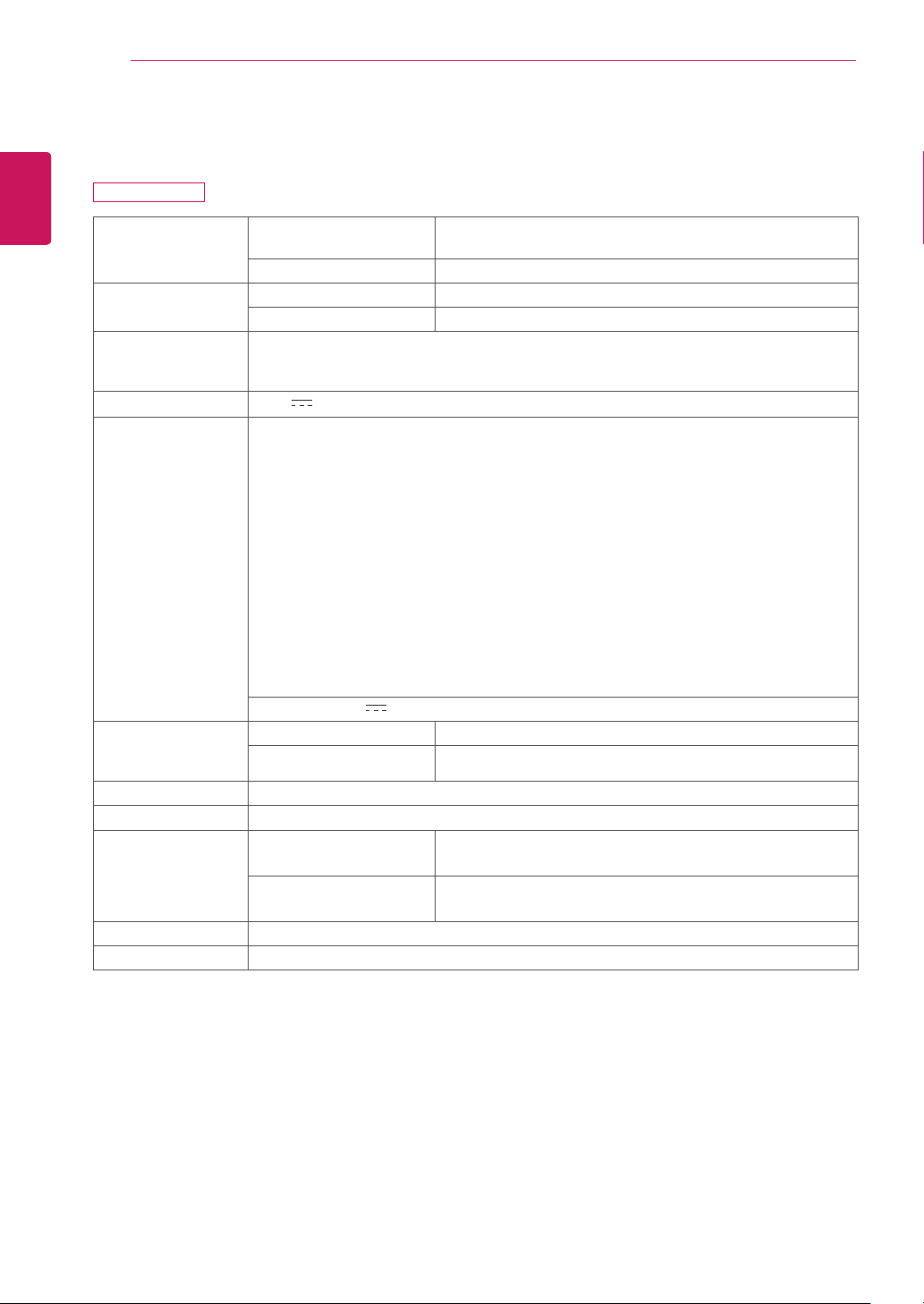
Display Screen Type Flat Panel Active matrix-TFT LCD
Anti-Glare coating
Pixel Pitch 0.265 mm x 0.265 mm (Pixel Pitch)
Resolution Max 1920 x 1080 @ 60 Hz
Recommend VESA 1920 x 1080 @ 60 Hz
Power
Consumption
On Mode : 21 W (ENERGY STAR® standard)*
Sleep Mode ≤ 0.3 W
Off Mode ≤ 0.3 W
Power Input 19 V
1.3 A
AC-DC Adapter
Type ADS-40SG-19-3 19025G, manufactured by SHENZHEN HONOR ELECTRONIC
or Type ADS-40FSG-19 19025GPG-1, manufactured by SHENZHEN HONOR ELECTRONIC
or Type ADS-40FSG-19 19025GPBR-1, manufactured by SHENZHEN HONOR ELECTRONIC
or Type ADS-40FSG-19 19025GPI-1, manufactured by SHENZHEN HONOR ELECTRONIC
or Type ADS-40FSG-19 19025GPCU-1, manufactured by SHENZHEN HONOR ELECTRONIC
or Type ADS-40FSG-19 19025GPB-2, manufactured by SHENZHEN HONOR ELECTRONIC
or Type ADS-25FSG-19 19025EPCU-1L, manufactured by SHENZHEN HONOR ELECTRONIC
or Type LCAP21, manufactured by LIEN CHANG ELECTRONIC ENTERPRISE
or Type LCAP26-A, manufactured by LIEN CHANG ELECTRONIC ENTERPRISE
or Type LCAP26-E, manufactured by LIEN CHANG ELECTRONIC ENTERPRISE
or Type LCAP26-I, manufactured by LIEN CHANG ELECTRONIC ENTERPRISE
or Type LCAP26-B, manufactured by LIEN CHANG ELECTRONIC ENTERPRISE
or Type LCAP51, manufactured by LIEN CHANG ELECTRONIC ENTERPRISE
OUTPUT: 19 V
1.3 A
Dimensions
(Width x Height x
Depth)
With Stand 54.4 cm x 40.6 cm x 18.1 cm
Without Stand 54.4 cm x 33.3 cm x 5.8 cm
Weight 3.0 kg
Tilt Range -5° to 20°
Environmental
conditions
Operating Temperature
Operating Humidity
10°C to 35 °C
10 % to 80 %
Storage Temperature
Storage Humidity
-20°C to 60 °C
5 % to 90 % non-Condensing
Stand Base Attached ( ), Detached (O)
Power cord Wall-outlet type
Product specifications shown above may be changed without prior notice due to upgrade of product
functions.
* The power consumption level can be different by operating condition and monitor setting.
* The On mode power consumption is measured with ENERGY STAR® test standard.
SPECIFICATIONS
23MP47D 23MP47HQ
39
ENG
ENGLISH
SPECIFICATIONS
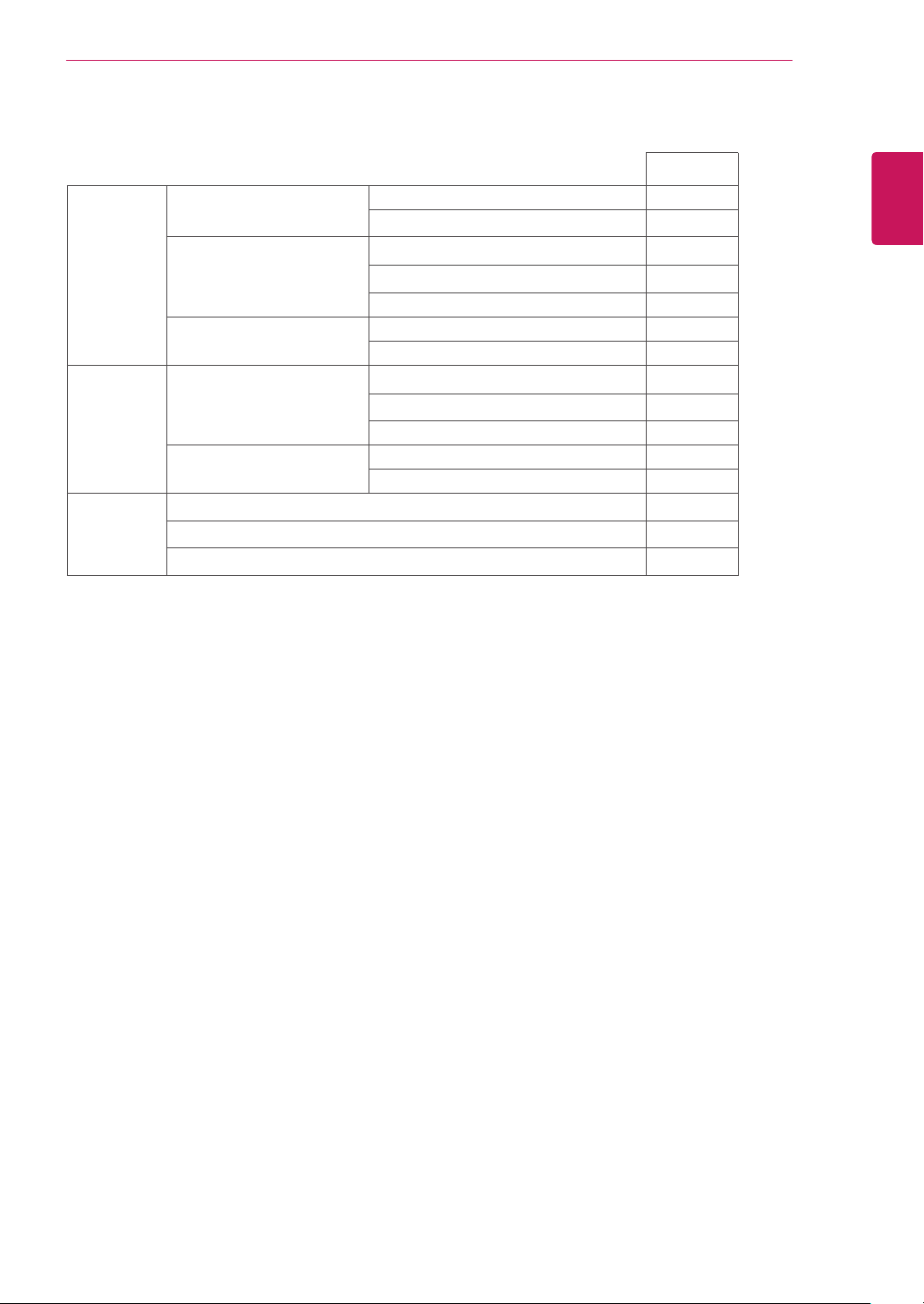
Sync Input Horizontal Frequency 30 kHz to 83 kHz (Automatic)
● ●
30 kHz to 61 kHz (Automatic)
Vertical Frequency D-SUB : 56 Hz to 75 Hz
● ●
DVI-D : 56 Hz to 75 Hz
●
HDMI : 56 Hz to 75 Hz
●
Input Form Separate Sync.
● ●
Digital
● ●
Video Input Signal Input 15 pin D-SUB Connector
● ●
DVI-D Connector (Digital)
●
HDMI Connector
●
Input Form RGB Analog
● ●
Digital
● ●
Plug & Play DDC 2B(Analog)
● ●
DDC 2B(Digital)
●
DDC 2B(HDMI)
●
23MP47D 23MP47HQ
40
ENG
ENGLISH
SPECIFICATIONS
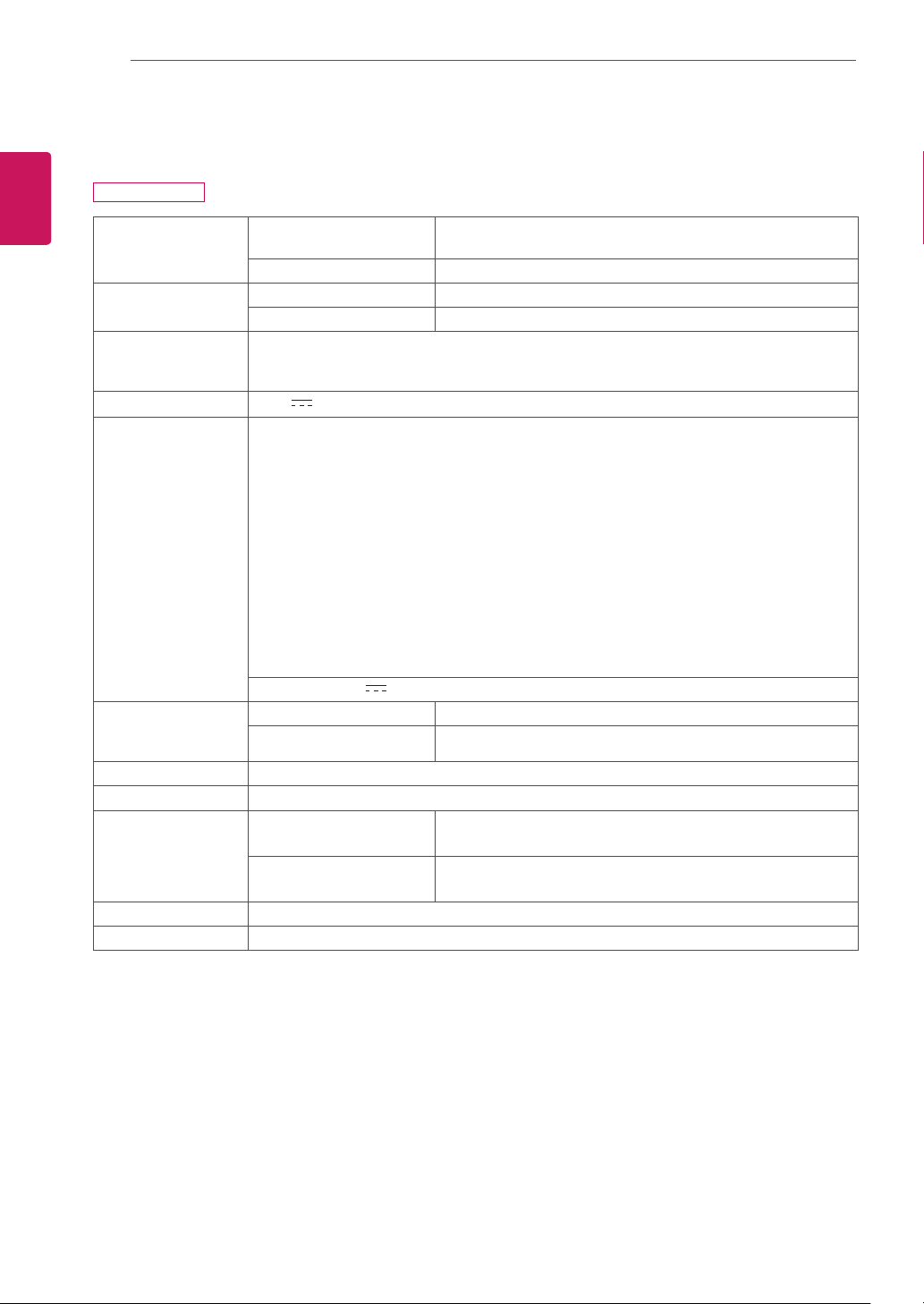
Display Screen Type Flat Panel Active matrix-TFT LCD
Anti-Glare coating
Pixel Pitch 0.2745 mm x 0.2745 mm (Pixel Pitch)
Resolution Max 1920 x 1080 @ 60 Hz
Recommend VESA 1920 x 1080 @ 60 Hz
Power
Consumption
On Mode : 22 W (ENERGY STAR® standard)*
Sleep Mode ≤ 0.3 W
Off Mode ≤ 0.3 W
Power Input 19 V
1.3 A
AC-DC Adapter
Type ADS-40SG-19-3 19025G, manufactured by SHENZHEN HONOR ELECTRONIC
or Type ADS-40FSG-19 19025GPG-1, manufactured by SHENZHEN HONOR ELECTRONIC
or Type ADS-40FSG-19 19025GPBR-1, manufactured by SHENZHEN HONOR ELECTRONIC
or Type ADS-40FSG-19 19025GPI-1, manufactured by SHENZHEN HONOR ELECTRONIC
or Type ADS-40FSG-19 19025GPCU-1, manufactured by SHENZHEN HONOR ELECTRONIC
or Type ADS-40FSG-19 19025GPB-2, manufactured by SHENZHEN HONOR ELECTRONIC
or Type ADS-25FSG-19 19025EPCU-1L, manufactured by SHENZHEN HONOR ELECTRONIC
or Type LCAP21, manufactured by LIEN CHANG ELECTRONIC ENTERPRISE
or Type LCAP26-A, manufactured by LIEN CHANG ELECTRONIC ENTERPRISE
or Type LCAP26-E, manufactured by LIEN CHANG ELECTRONIC ENTERPRISE
or Type LCAP26-I, manufactured by LIEN CHANG ELECTRONIC ENTERPRISE
or Type LCAP26-B, manufactured by LIEN CHANG ELECTRONIC ENTERPRISE
or Type LCAP51, manufactured by LIEN CHANG ELECTRONIC ENTERPRISE
or Type PA-1021-33,manufactured by Lite-On Technology Corporation
OUTPUT: 19 V
1.3 A
Dimensions
(Width x Height x
Depth)
With Stand 55.0 cm x 40.8 cm x 18.1 cm
Without Stand 55.0 cm x 33.0 cm x 6.3 cm
Weight 2.8 kg
Tilt Range -5° to 20°
Environmental
conditions
Operating Temperature
Operating Humidity
10°C to 35 °C
10 % to 80 %
Storage Temperature
Storage Humidity
-20°C to 60 °C
5 % to 90 % non-Condensing
Stand Base Attached ( ), Detached (O)
Power cord Wall-outlet type
Product specifications shown above may be changed without prior notice due to upgrade of product
functions.
* The power consumption level can be different by operating condition and monitor setting.
* The On mode power consumption is measured with ENERGY STAR® test standard.
SPECIFICATIONS
24MP47HQ
41
ENG
ENGLISH
SPECIFICATIONS
Sync Input Horizontal Frequency 30 kHz to 83 kHz (Automatic)
●
30 kHz to 61 kHz (Automatic)
Vertical Frequency D-SUB : 56 Hz to 75 Hz
●
DVI-D : 56 Hz to 75 Hz
HDMI : 56 Hz to 75 Hz
●
Input Form Separate Sync.
●
Digital
●
Video Input Signal Input 15 pin D-SUB Connector
●
DVI-D Connector (Digital)
HDMI Connector
●
Input Form RGB Analog
●
Digital
●
Plug & Play DDC 2B(Analog)
●
DDC 2B(Digital)
DDC 2B(HDMI)
●
24MP47HQ
42
ENG
ENGLISH
SPECIFICATIONS
Display Screen Type Flat Panel Active matrix-TFT LCD
Anti-Glare coating
Pixel Pitch 0.3114 mm x 0.3114 mm (Pixel Pitch)
Resolution Max 1920 x 1080 @ 60 Hz
Recommend VESA 1920 x 1080 @ 60 Hz
Power
Consumption
On Mode : 27 W (ENERGY STAR® standard)*
Sleep Mode ≤ 0.3 W
Off Mode ≤ 0.3 W
Power Input 19 V
1.6 A
AC-DC Adapter
Type ADS-40SG-19-3 19032G, manufactured by SHENZHEN HONOR ELECTRONIC
or Type ADS-40FSG-19 19032GPG-1, manufactured by SHENZHEN HONOR ELECTRONIC
or Type ADS-40FSG-19 19032GPBR-1, manufactured by SHENZHEN HONOR ELECTRONIC
or Type ADS-40FSG-19 19032GPI-1, manufactured by SHENZHEN HONOR ELECTRONIC
or Type ADS-40FSG-19 19032GPCU-1, manufactured by SHENZHEN HONOR ELECTRONIC
or Type ADS-32FSG-19 19032EPCU-1L, manufactured by SHENZHEN HONOR ELECTRONIC
or Type LCAP21A, manufactured by LIEN CHANG ELECTRONIC ENTERPRISE
or Type LCAP26A-A, manufactured by LIEN CHANG ELECTRONIC ENTERPRISE
or Type LCAP26A-E, manufactured by LIEN CHANG ELECTRONIC ENTERPRISE
or Type LCAP26A-I, manufactured by LIEN CHANG ELECTRONIC ENTERPRISE
or Type LCAP26A-B, manufactured by LIEN CHANG ELECTRONIC ENTERPRISE
or Type LCAP51A, manufactured by LIEN CHANG ELECTRONIC ENTERPRISE
or Type PA-1031-33, manufactured by Lite-On Technology Corporation
OUTPUT: 19 V
1.7 A
Dimensions
(Width x Height x
Depth)
With Stand 63.4 cm x 47.9 cm x 21.2 cm
Without Stand 63.4 cm x 38.1 cm x 7.1 cm
Weight 3.9 kg
Tilt Range -3° to 20°
Environmental
conditions
Operating Temperature
Operating Humidity
10°C to 35 °C
10 % to 80 %
Storage Temperature
Storage Humidity
-20°C to 60 °C
5 % to 90 % non-Condensing
Stand Base Attached ( ), Detached (O)
Power cord Wall-outlet type
Product specifications shown above may be changed without prior notice due to upgrade of product
functions.
* The power consumption level can be different by operating condition and monitor setting.
* The On mode power consumption is measured with ENERGY STAR® test standard.
SPECIFICATIONS
27MP47HQ
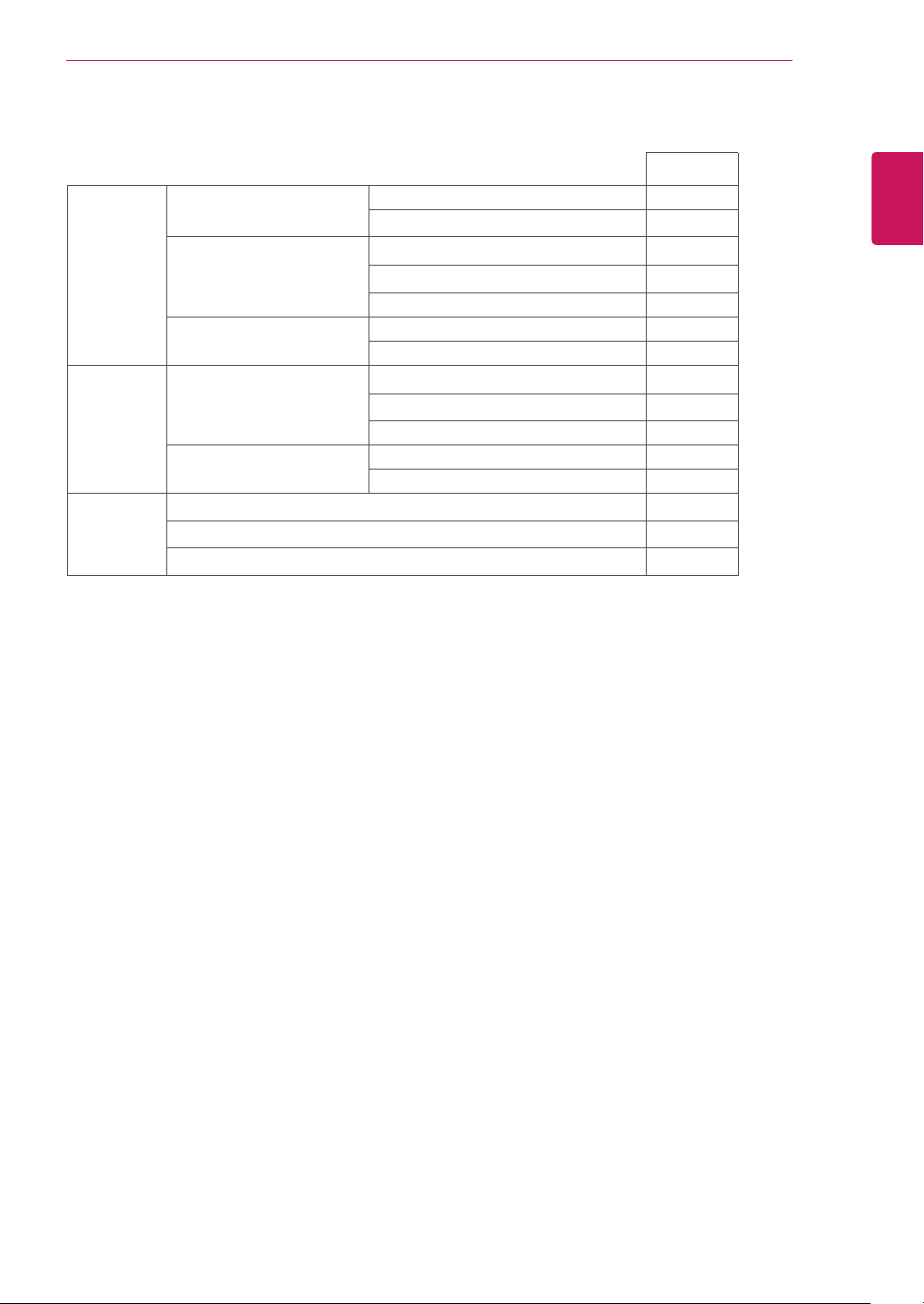
43
ENG
ENGLISH
SPECIFICATIONS
Sync Input Horizontal Frequency 30 kHz to 83 kHz (Automatic)
●
30 kHz to 61 kHz (Automatic)
Vertical Frequency D-SUB : 56 Hz to 75 Hz
●
DVI-D : 56 Hz to 75 Hz
HDMI : 56 Hz to 75 Hz
●
Input Form Separate Sync.
●
Digital
●
Video Input Signal Input 15 pin D-SUB Connector
●
DVI-D Connector (Digital)
HDMI Connector
●
Input Form RGB Analog
●
Digital
●
Plug & Play DDC 2B(Analog)
●
DDC 2B(Digital)
DDC 2B(HDMI)
●
27MP47HQ
44
ENG
ENGLISH
SPECIFICATIONS
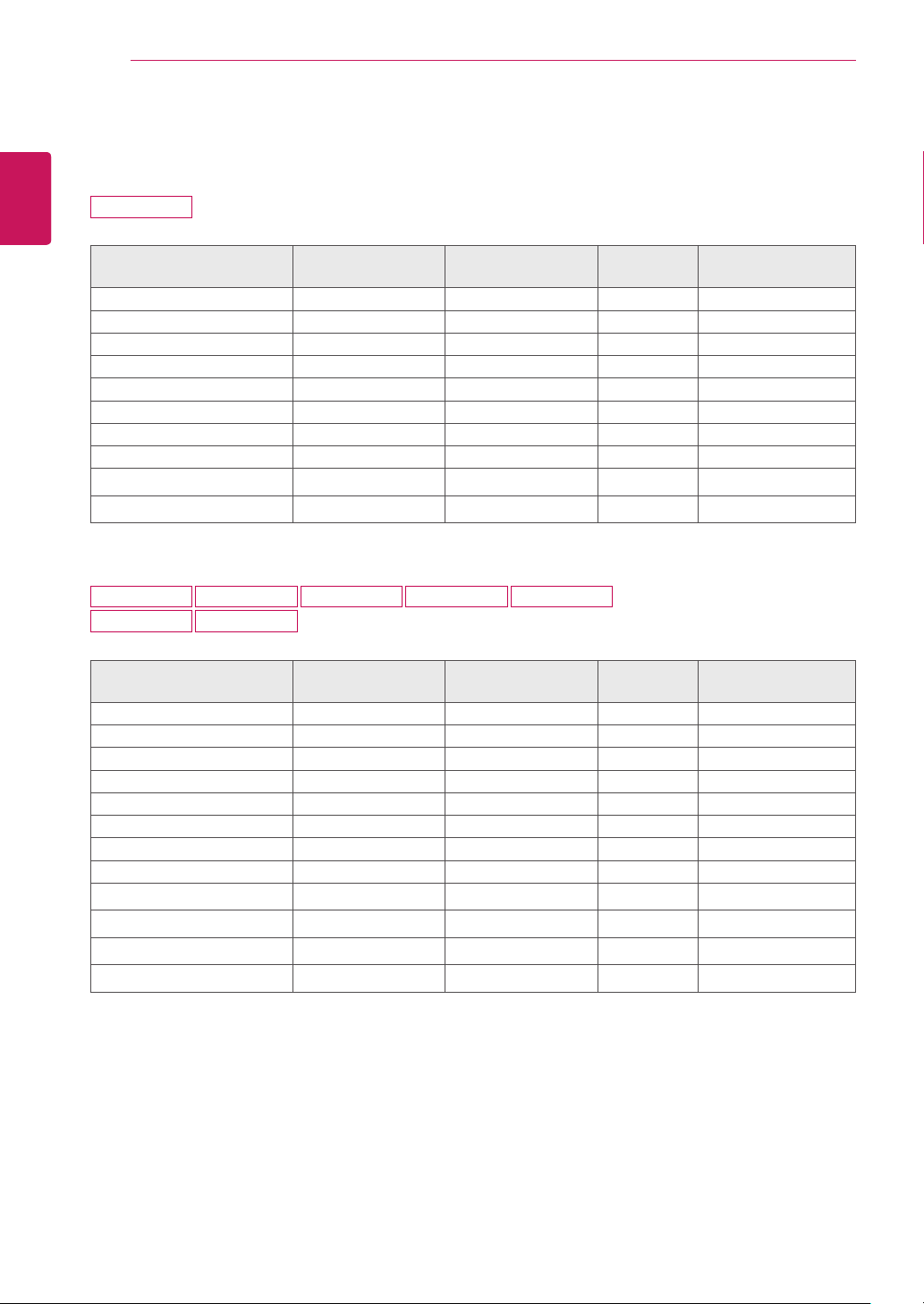
Factory Support Mode
(Preset Mode, D-SUB/DVI/HDMI PC)
20MP47A
Display Modes (Resolution)
Horizontal
Frequency(kHz)
Vertical
Frequency(Hz)
Polarity(H/V)
720 X 400 31.468 70 -/+
640 x 480 31.469 60 -/-
640 x 480 37.5 75 -/-
800 x 600 37.879 60 +/+
800 x 600 46.875 75 +/+
1024 x 768 48.363 60 -/-
1024 x 768 60.023 75 +/+
1152 x 864 67.5 75 +/+
1280 x 1024 63.981 60 +/+
1440 x 900 55.469 60 +/- Recommend Mode
22MP47A 22MP47D 22MP47HQ 23MP47D 23MP47HQ
24MP47HQ 27MP47HQ
Display Modes (Resolution)
Horizontal
Frequency(kHz)
Vertical
Frequency(Hz)
Polarity(H/V)
720 x 400 31.468 70 -/+
640 x 480 31.469 60 -/-
640 x 480 37.500 75 -/-
800 x 600 37.879 60 +/+
800 x 600 46.875 75 +/+
1024 x 768 48.363 60 -/-
1024 x 768 60.023 75 +/+
1152 x 864 67.500 75 +/+
1280 x 1024 63.981 60 +/+
1280 x 1024 79.976 75 +/+
1680 x 1050 65.290 60 -/+
1920 x 1080 67.500 60 +/+ Recommend Mode
45
ENG
ENGLISH
SPECIFICATIONS
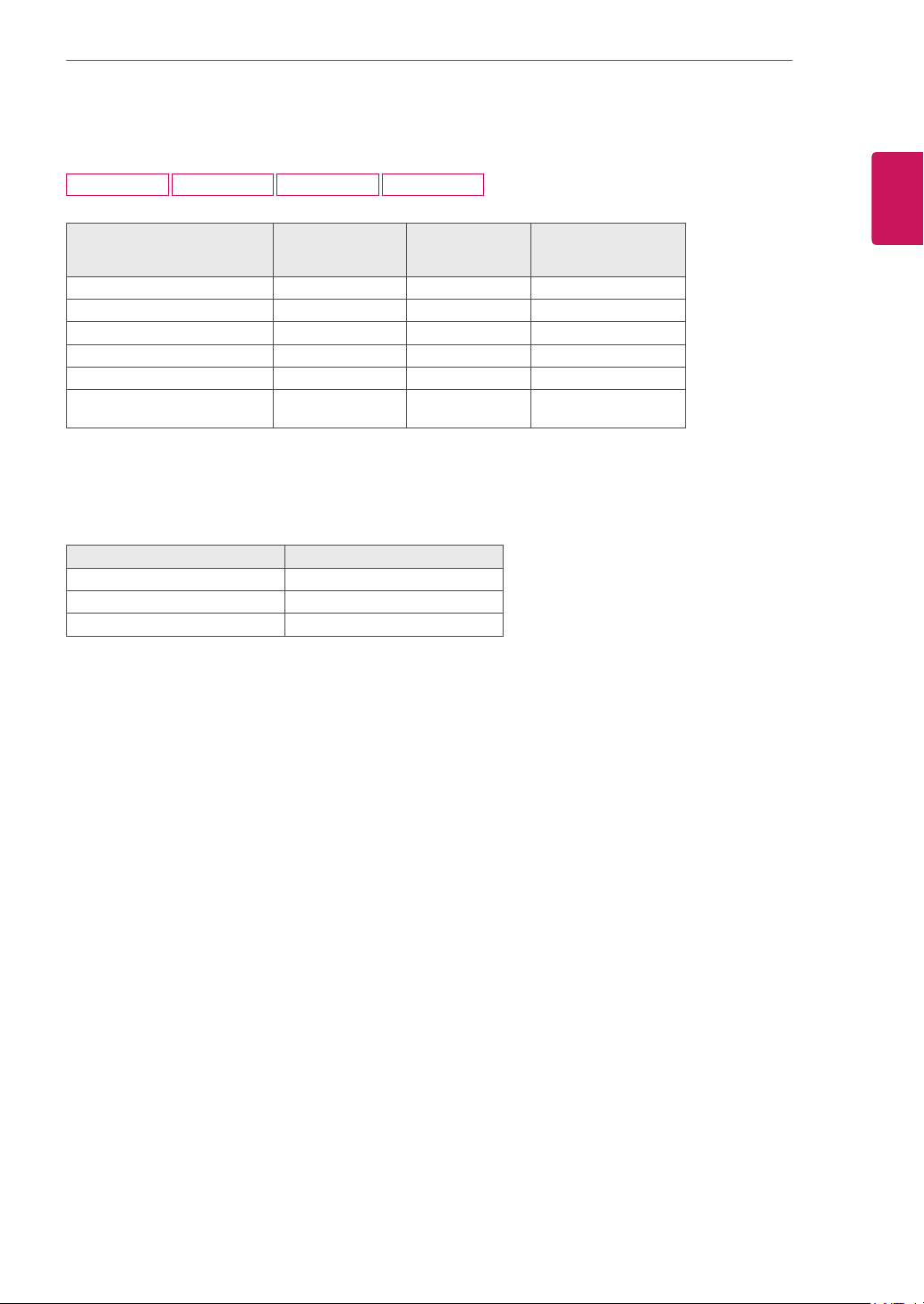
HDMI Timing(Video)
22MP47HQ 23MP47HQ 24MP47HQ 27MP47HQ
Factory support mode
(Preset Mode)
Horizontal
Frequency(kHz)
Vertical
Frequency(Hz)
HDMI
480P 31.50 60 O
576P 31.25 50 O
720P 37.50 50 O
720P 45.00 60 O
1080P 56.25 50 O
1080P 67.50 60
O
Recommend Mode
Indicator
Mode LED Color
On Mode White (Only 15 seconds)
Sleep Mode Blinking White
Off Mode Off
46
ENG
ENGLISH
PROPER POSTURE
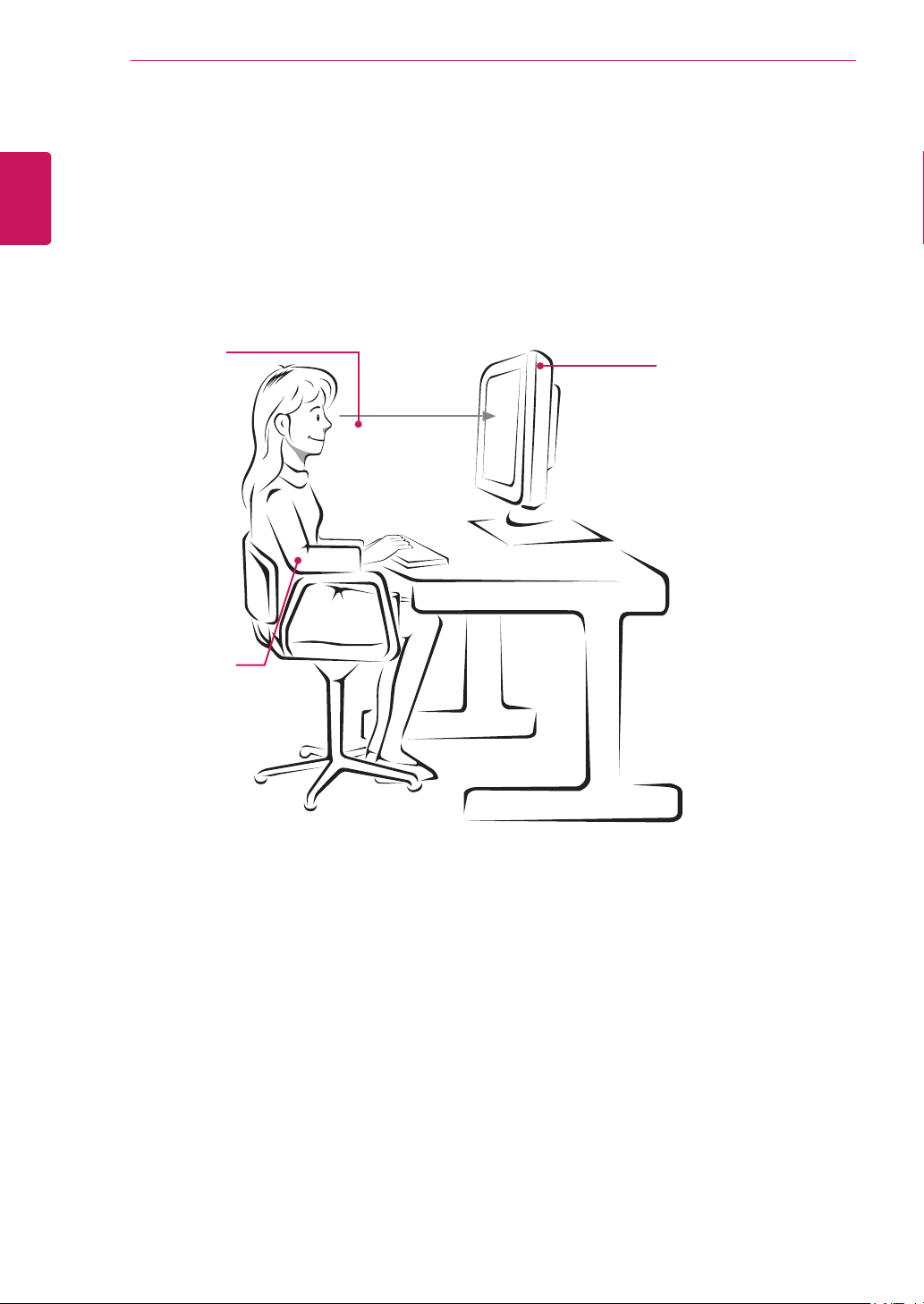
Proper posture for using the Monitor set.
PROPER POSTURE
Adjust the
Monitor set and
your posture to
allow you to view
images at the
optimal viewing
angle.
Place your hands
gently on the
keyboard, keeping
your arms bent at
the elbows and
horizontally outright.
Adjust the location of the
Monitor set to avoid it
reflecting light.
Make sure to read the Safety Precautions before
using the product.
Keep the Owner’s Manual (CD) in an accessible
place for future reference.
The model and serial number of the SET is
located on the back and one side of the SET.
Record it below should you ever need service.
MODEL
SERIAL
*above information is only for USA FCC Regulatory
Declaration of Conformity
Trade Name: LG
Model : 20MP47A, 22MP47A, 22MP47D,
22MP47HQ, 23MP47D, 23MP47HQ ,
24MP47HQ , 27MP47HQ
Responsible Party: LG Electronics Inc.
Address : 1000 Sylvan Ave. Englewood Cliffs
NJ 07632 U.S.A
TEL: 201-266-2534