

COOPER
COOPER S
JOHN COOPER
WORKS
Owner's Manual for Vehicle
Thank you for choosing a MINI.
The more familiar you are with your vehicle, the better control
you will have on the road. We therefore strongly suggest:
Read this Owner's Manual before starting off in your new MINI. It
contains important information on vehicle operation that will
help you make full use of the technical features available in your
MINI. The manual also contains information designed to en‐
hance operating reliability and road safety, and to contribute to
maintaining the value of your MINI.
Supplementary information can be found in the additional bro‐
chures in the onboard literature.
Set off now and have fun with your MINI.
The MINI Team of BMW AG
Online Edition for Part no. 01 40 2 911 544 - VI/13

© 2013 Bayerische Motoren Werke
Aktiengesellschaft
Munich, Germany
Reprinting, including excerpts, only with the written
consent of BMW AG, Munich.
US English VI/13, 07 13 500
Printed on environmentally friendly paper, bleached
without chlorine, suitable for recycling.
Online Edition for Part no. 01 40 2 911 544 - VI/13

Contents
The fastest way to find information on a partic‐
ular topic or item is by using the index, refer to
page 270.
6 Notes
At a glance
14 Cockpit
20 Onboard monitor
26 Voice activation system
Controls
32 Opening and closing
45 Adjusting
53 Transporting children safely
58 Driving
68 Displays
78 Lamps
82 Safety
93 Driving stability control systems
96 Driving comfort
99 Climate
104 Interior equipment
114 Storage compartments
Driving tips
122 Things to remember when driving
126 Loading
130 Saving fuel
Navigation
134 Navigation system
136 Destination entry
145 Destination guidance
153 What to do if...
Entertainment
156 Tone
158 Radio
166 CD/multimedia
Communication
180 Bluetooth hands-free system
190 Bluetooth mobile phone preparation
package
202 Office
210 MINI Connected
Mobility
216 Refueling
218 Fuel
220 Wheels and tires
232 Engine compartment
234 Engine oil
236 Coolant
237 Maintenance
239 Replacing components
248 Breakdown assistance
254 Care
Reference
260 Technical data
264 Short commands for voice activation
system
270 Everything from A to Z
Online Edition for Part no. 01 40 2 911 544 - VI/13

Notes
Using this Owner's
Manual
The fastest way to find information on a partic‐
ular topic is by using the index.
An initial overview of the vehicle is provided in
the first chapter.
Additional sources of information
Should you have any questions, your service
center will be glad to advise you at any time.
Information on MINI, e.g., on technology, is
available on the Internet: www.mini.com
Symbols
Indicates precautions that must be followed
precisely in order to avoid the possibility of per‐
sonal injury and serious damage to the vehicle.
◄ Marks the end of a specific item of informa‐
tion.
"..." Identifies Control Display texts used to se‐
lect individual functions.
›...‹ Verbal instructions to use with the voice ac‐
tivation system.
››...‹‹ Identifies the answers generated by the
voice activation system.
Refers to measures that can be taken to
help protect the environment.
Symbols on vehicle components
Indicates that you should consult the rele‐
vant section of this Owner's Manual for infor‐
mation on a particular part or assembly.
Vehicle equipment
The manufacturer of your MINI is the Bayeri‐
sche Motoren Werke Aktiengesellschaft, BMW
AG.
This Owner's Manual describes all models, all
series equipment, as well as country-specific
and special equipment offered in the model
series. Therefore, this Owner's Manual also de‐
scribes and depicts equipment that may not be
contained in your vehicle because of the se‐
lected special equipment or country version, for
example.
This also applies to safety-related functions and
systems.
For options and equipment not described in
this Owner's Manual, please refer to the Sup‐
plementary Owner's Manuals.
On right-hand drive vehicles, some controls are
arranged differently than shown in the illustra‐
tions.
Status of this Owner's
Manual at time of print‐
ing
The manufacturer of your vehicle pursues a
policy of constant development that is con‐
ceived to ensure that our vehicles continue to
embody the highest quality and safety stan‐
dards. In rare cases, therefore, the features de‐
scribed in this Owner's Manual may differ from
those in your vehicle.
Seite 6
Notes
6
Online Edition for Part no. 01 40 2 911 544 - VI/13

For your own safety
Warranty
Your vehicle is technically configured for the
operating conditions and registration require‐
ments applying in the country of first delivery
— homologation. If your vehicle is to be oper‐
ated in a different country it might be neces‐
sary to adapt your vehicle to potentially differ‐
ing operating conditions and permit
requirements. If your vehicle does not comply
with the homologation requirements in a cer‐
tain country you cannot lodge warranty claims
for your vehicle there. Further information can
be obtained from your Service Centre.
Maintenance and repairs
Advanced technology, e.g., the use of modern
materials and high-performance electronics,
requires suitable maintenance and repair
methods.
Therefore, have this work performed only by a
MINI service center or a workshop that works
according to MINI repair procedures with ap‐
propriately trained personnel.
If this work is not carried out properly, there is
the danger of subsequent damage and related
safety hazards.
Parts and accessories
For your own safety, use genuine parts and ac‐
cessories approved by the manufacturer of the
MINI. When you purchase accessories tested
and approved by the manufacturer of the MINI
and Original MINI Parts, you simultaneously ac‐
quire the assurance that they have been thor‐
oughly tested by the manufacturer of the MINI
to ensure optimum performance when instal‐
led on your vehicle. The manufacturer of the
MINI warrants these parts to be free from de‐
fects in material and workmanship. The manu‐
facturer of the MINI will not accept any liability
for damage resulting from installation of parts
and accessories not approved by the manufac‐
turer of the MINI. The manufacturer of the MINI
cannot test every product made by other man‐
ufacturers to verify if it can be used on a MINI
safely and without risk to either the vehicle, its
operation, or its occupants. Original MINI Parts,
MINI Accessories and other products approved
by the manufacturer of the MINI, together with
professional advice on using these items, are
available from all MINI Dealers. Installation and
operation of non-MINI approved accessories
such as alarms, radios, amplifiers, radar detec‐
tors, wheels, suspension components, brake
dust shields, telephones, including operation of
any mobile phone from within the vehicle with‐
out using an externally mounted antenna, or
transceiver equipment, for instance, CBs,
walkie-talkies, ham radios or similar accesso‐
ries, may cause extensive damage to the vehi‐
cle, compromise its safety, interfere with the
vehicle's electrical system or affect the validity
of the MINI Limited Warranty. See your MINI
Dealer for additional information. Maintenance,
replacement, or repair of the emission control
devices and systems may be performed by any
automotive repair establishment or individual
using any certified automotive part.
California Proposition 65 Warning
California laws require us to state the following
warning:
Engine exhaust and a wide variety of automo‐
bile components and parts, including compo‐
nents found in the interior furnishings in a vehi‐
cle, contain or emit chemicals known to the
State of California to cause cancer and birth de‐
fects and reproductive harm. In addition, cer‐
tain fluids contained in vehicles and certain
products of component wear contain or emit
chemicals known to the State of California to
cause cancer and birth defects or other repro‐
ductive harm. Battery posts, terminals and re‐
lated accessories contain lead and lead com‐
pounds. Wash your hands after handling. Used
engine oil contains chemicals that have caused
cancer in laboratory animals. Always protect
Seite 7
Notes
7
Online Edition for Part no. 01 40 2 911 544 - VI/13

your skin by washing thoroughly with soap and
water.
Service and warranty
We recommend that you read this publication
thoroughly. Your vehicle is covered by the fol‐
lowing warranties:
▷ New Vehicle Limited Warranty.
▷ Rust Perforation Limited Warranty.
▷ Federal Emissions System Defect Warranty.
▷ Federal Emissions Performance Warranty.
▷ California Emission Control System Limited
Warranty.
Detailed information about these warranties is
listed in the Service and Warranty Information
Booklet for US models or in the Warranty and
Service Guide Booklet for Canadian models.
Your vehicle has been specifically adapted and
designed to meet the particular operating con‐
ditions and homologation requirements in your
country and continental region in order to de‐
liver the full driving pleasure while the vehicle is
operated under those conditions. If you wish to
operate your vehicle in another country or re‐
gion, you may be required to adapt your vehi‐
cle to meet different prevailing operating con‐
ditions and homologation requirements. You
should also be aware of any applicable war‐
ranty limitations or exclusions for such country
or region. In such case, please contact Cus‐
tomer Relations for further information.
Maintenance
Maintain the vehicle regularly to sustain the
road safety, operational reliability and the New
Vehicle Limited Warranty.
Specifications for required maintenance meas‐
ures:
▷ MINI Maintenance system
▷ Service and Warranty Information Booklet
for US models
▷ Warranty and Service Guide Booklet for
Canadian models
If the vehicle is not maintained according to
these specifications, this could result in serious
damage to the vehicle. Such damage is not
covered by the MINI New Vehicle Limited War‐
ranty.
Data memory
Numerous electronic components in your vehi‐
cle contain data memories that store technical
information on the vehicle condition, events
and faults, either temporarily or permanently.
This technical information generally documents
the state of a component, a module, a system
or the environment.
▷ Operating conditions of system compo‐
nents, such as filling levels.
▷ Status messages from the vehicle and its in‐
dividual components, such as wheel rpm/
speed, motion delay, transverse accelera‐
tion.
▷ Malfunctions and defects in important sys‐
tem components, such as lights and brakes.
▷ Vehicle responses to special driving situa‐
tions, such as airbag deployment, use of
the stability control systems.
▷ Ambient conditions, such as the tempera‐
ture.
These data are of a technical nature only and
are used to detect and eliminate faults and to
optimize vehicle functions. Travel profiles of
routes driven with the vehicle cannot be cre‐
ated from these data. If services are used, for
instance in the event of repairs, service proc‐
esses, warranty cases, quality assurance, etc.,
this technical information can be read out from
the event and fault data memories by service
personnel, including the manufacturer, using
special diagnosis tools. This service personnel
can provide you with more information if
needed. After troubleshooting, the information
in the fault memory is cleared or overwritten
continuously.
Seite 8
Notes
8
Online Edition for Part no. 01 40 2 911 544 - VI/13

Situations are conceivable during the use of the
vehicle in which these technical data could be‐
come associated with a specific person in com‐
bination with other information, such as an ac‐
cident report, damage to the vehicle, witness
accounts, etc., possibly with the involvement of
an authorized expert.
Additional functions that are contractually
agreed with the customer, such as vehicle lo‐
calization in the event of an emergency, permit
the transfer of certain vehicle data out of the
vehicle.
Event Data Recorder EDR
This vehicle is equipped with an event data re‐
corder EDR. The main purpose of an EDR is to
record, in certain crash or near crash-like situa‐
tions, such as an air bag deployment or hitting
a road obstacle, data that will assist in under‐
standing how a vehicle's systems performed.
The EDR is designed to record data related to
vehicle dynamics and safety systems for a short
period of time, typically 30 seconds or less.
The EDR in this vehicle is designed to record
such data as:
▷ How various systems in your vehicle were
operating.
▷ Whether or not the driver and passenger
safety belts were fastened.
▷ How far, if at all, the driver was depressing
the accelerator and/or brake pedal.
▷ How fast the vehicle was traveling.
These data can help provide a better under‐
standing of the circumstances in which crashes
and injuries occur.
EDR data are recorded by your vehicle only if a
nontrivial crash situation occurs; no data are re‐
corded by the EDR under normal driving condi‐
tions and no personal data, e.g., name, gender,
age, and crash location, are recorded.
However, other parties, such as law enforce‐
ment, could combine the EDR data with the
type of personally identifying data routinely ac‐
quired during a crash investigation.
To read data recorded by an EDR, special
equipment is required, and access to the vehi‐
cle or the EDR is needed. In addition to the ve‐
hicle manufacturer, other parties, such as law
enforcement, that have the special equipment,
can read the information if they have access to
the vehicle or the EDR.
Reporting safety defects
For US customers
The following only applies to vehicles owned
and operated in the US.
If you believe that your vehicle has a defect
which could cause a crash or could cause injury
or death, you should immediately inform the
National Highway Traffic Safety Administration
NHTSA, in addition to notifying BMW of North
America, LLC, P.O. Box 1227, Westwood, New
Jersey 07675-1227, Telephone
1-800-831-1117.
If NHTSA receives similar complaints, it may
open an investigation, and if it finds that a
safety defect exists in a group of vehicles, it
may order a recall and remedy campaign.
However, NHTSA cannot become involved in
individual problems between you, your dealer,
or BMW of North America, LLC.
To contact NHTSA, you may call the Vehicle
Safety Hotline toll-free at 1-888-327-4236
(TTY: 1-800-424-9153); go to http://www.safe‐
rcar.gov; or write to: Administrator, NHTSA, 400
Seventh Street, SW., Washington, DC 20590.
You can also obtain other information about
motor vehicle safety from http://www.safe‐
rcar.gov
For Canadian customers
Canadian customers who wish to report a
safety- related defect to Transport Canada, De‐
fect Investigations and Recalls, may telephone
Seite 9
Notes
9
Online Edition for Part no. 01 40 2 911 544 - VI/13

the toll-free hotline 1-800-333-0510. You can
also obtain other information about motor ve‐
hicle safety from http://www.tc.gc.ca/roadsaf‐
ety.
Seite 10
Notes
10
Online Edition for Part no. 01 40 2 911 544 - VI/13

Seite 11
Notes
11
Online Edition for Part no. 01 40 2 911 544 - VI/13

WATCH ME.
Online Edition for Part no. 01 40 2 911 544 - VI/13

At a glance
Controls
Driving tips
Navigation
Entertainment
Communication
Mobility
Reference
Online Edition for Part no. 01 40 2 911 544 - VI/13
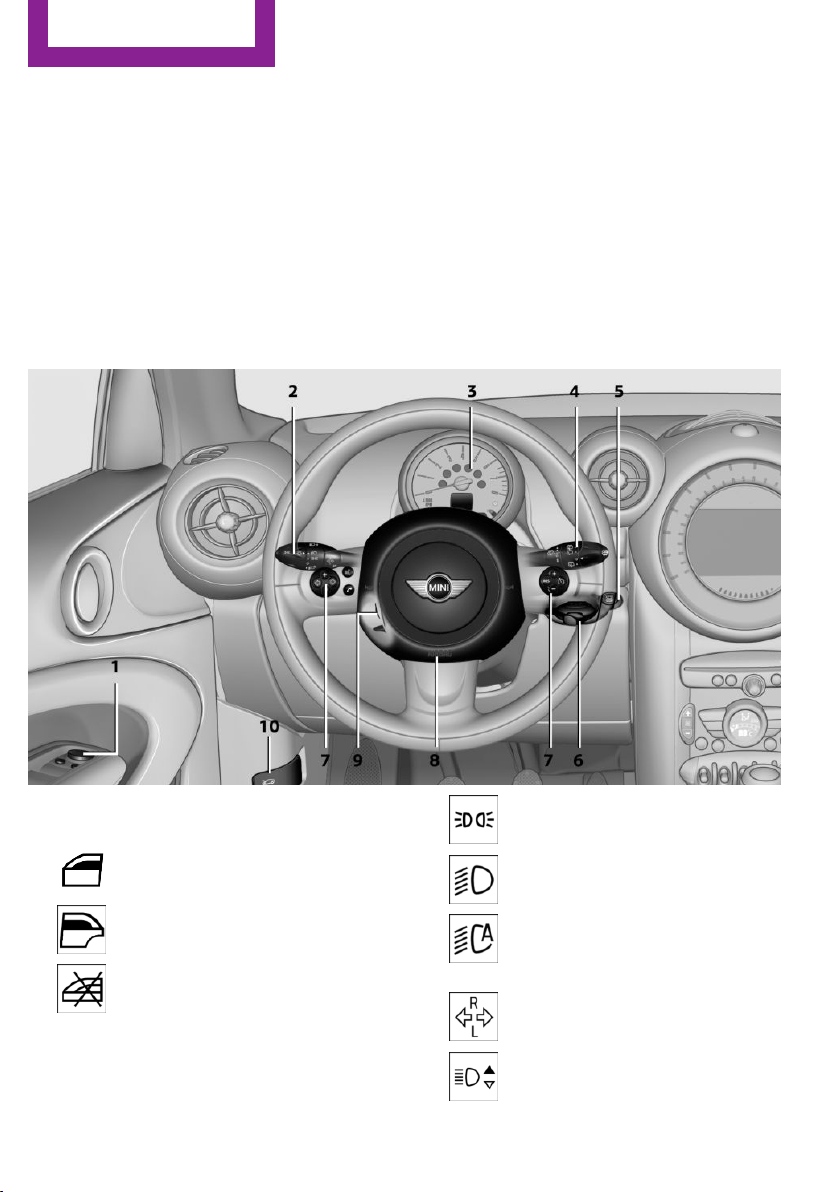
Cockpit
Vehicle equipment
This chapter describes all series equipment as
well as country-specific and special equipment
offered for this model series.Therefore, it also
describes equipment that may not be found in
your vehicle, for instance due to the selected
special equipment or the country version. This
also applies to safety-related functions and sys‐
tems.
All around the steering wheel
1 Setting the exterior mirror, folding it in and
out 51
Power windows, front 43
MINI Countryman: power win‐
dows, rear 43
MINI Countryman: safety switch
for rear power windows 44
2 Parking lamps 78
Low beams 78
Automatic headlamp con‐
trol 78
Adaptive Light Control 80
Turn signal 61
High beams 61
Headlamp flasher 61
Seite 14
At a glance
Cockpit
14
Online Edition for Part no. 01 40 2 911 544 - VI/13
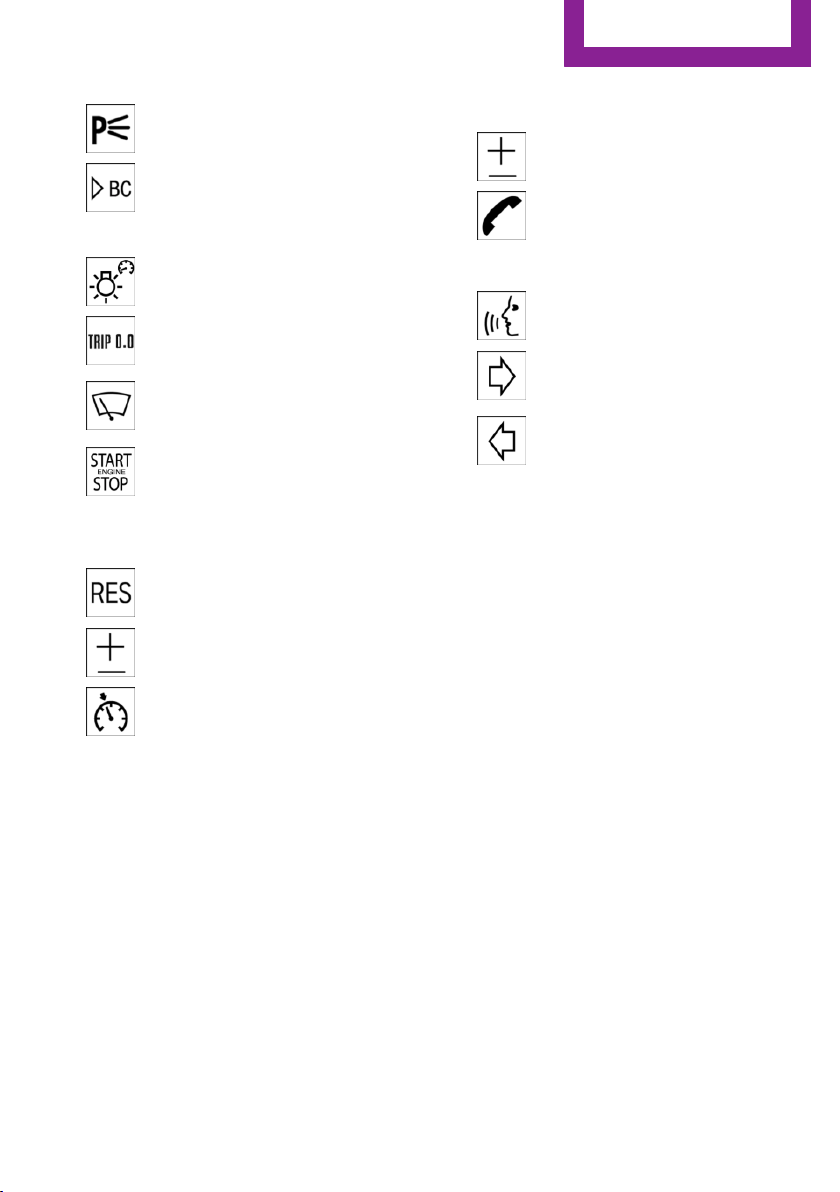
Roadside parking lamps 79
Computer 69
3 Tachometer 69
Instrument lighting 80
Resetting the trip odometer 68
4 Washer/wiper system 61
5 Start/stop the engine and switch
the ignition on/off 58
6 Ignition lock 58
7 Steering wheel buttons, right
Resuming cruise control 97
Storing the speed and accelerat‐
ing or slowing down 97
Activating/deactivating cruise
control 96
Steering wheel buttons, left
Volume
Bluetooth hands-free sys‐
tem 180
Bluetooth mobile phone prepara‐
tion package 190
Activate/deactivate the voice acti‐
vation system 26
Change the radio station
Select a music track
Scroll through the redial list
8 Horn, the entire surface
9 Adjust the steering wheel 52
10 Releasing the hood 233
Seite 15
Cockpit
At a glance
15
Online Edition for Part no. 01 40 2 911 544 - VI/13
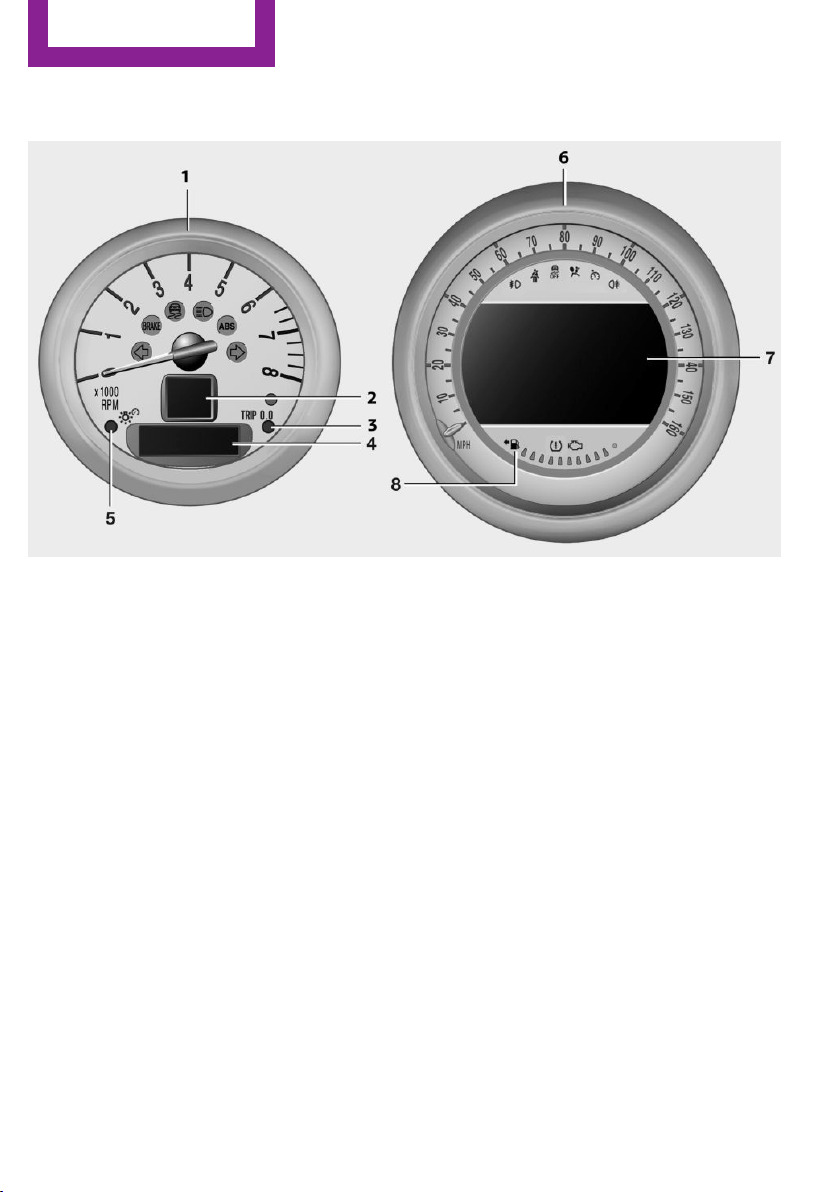
Displays
1 Tachometer 69
with indicator and warning lamps 17
2 Display for
▷ Current speed 68
▷ Indicator/warning lamps 17
3 Resetting the trip odometer 68
4 Display for
▷ Automatic transmission position 65
▷ Computer 69
▷ Service requirements 74
▷ Odometer and trip odometer 68
▷ Flat Tire Monitor 85
▷ Tire Pressure Monitor 85
▷ Settings and information 71
▷ Personal Profile settings 32
5 Instrument lighting 80
6 Speedometer with indicator and warning
lamps 17
7 Control Display 20
8 Fuel gauge 69
Seite 16
At a glance
Cockpit
16
Online Edition for Part no. 01 40 2 911 544 - VI/13
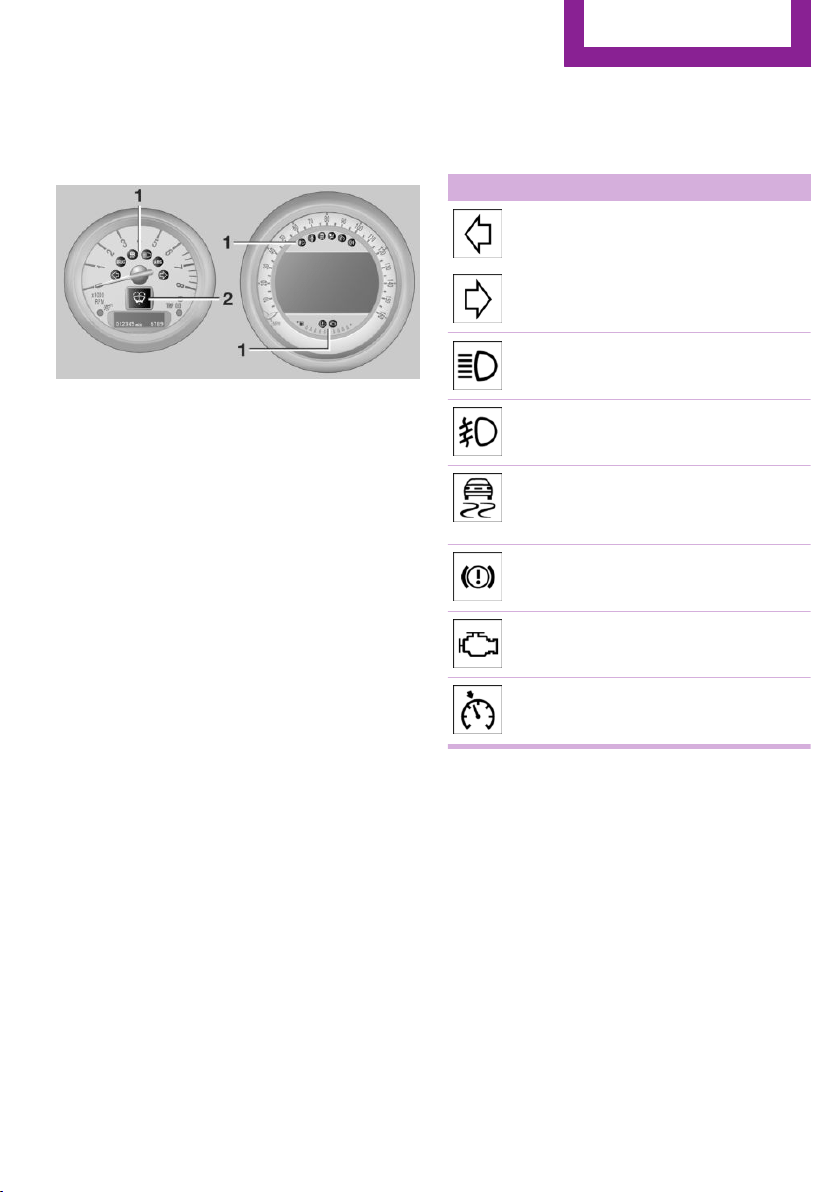
Indicator/warning lamps
The concept
The indicator and warning lamps can light up in
a variety of combinations and colors in display
area 1 or 2.
Several of the lamps are checked for proper
functioning when the engine is started or the
ignition is switched on, and light up briefly.
Text messages
Text messages at the upper edge of the Control
Display explain the meaning of the displayed
indicator and warning lamps.
Supplementary text messages
You can call up more information, e.g., on the
cause of a malfunction and on how to respond,
via Check Control, refer to page 75.
In urgent cases, this information will be shown
as soon as the corresponding lamp comes on.
Indicator lamps without text messages
The following indicator lamps notify you that
certain functions are active:
Symbol Function or system
Turn signal, refer to page 61
High beams/headlamp flasher, refer
to page 61
Front fog lamps, refer to page 80
DSC or DTC is regulating the propul‐
sive forces in order to maintain driv‐
ing stability, refer to page 93
The handbrake is set, refer to
page 60
Engine malfunction with adverse ef‐
fect on emissions, refer to page 238
Cruise control, refer to page 96
Seite 17
Cockpit
At a glance
17
Online Edition for Part no. 01 40 2 911 544 - VI/13
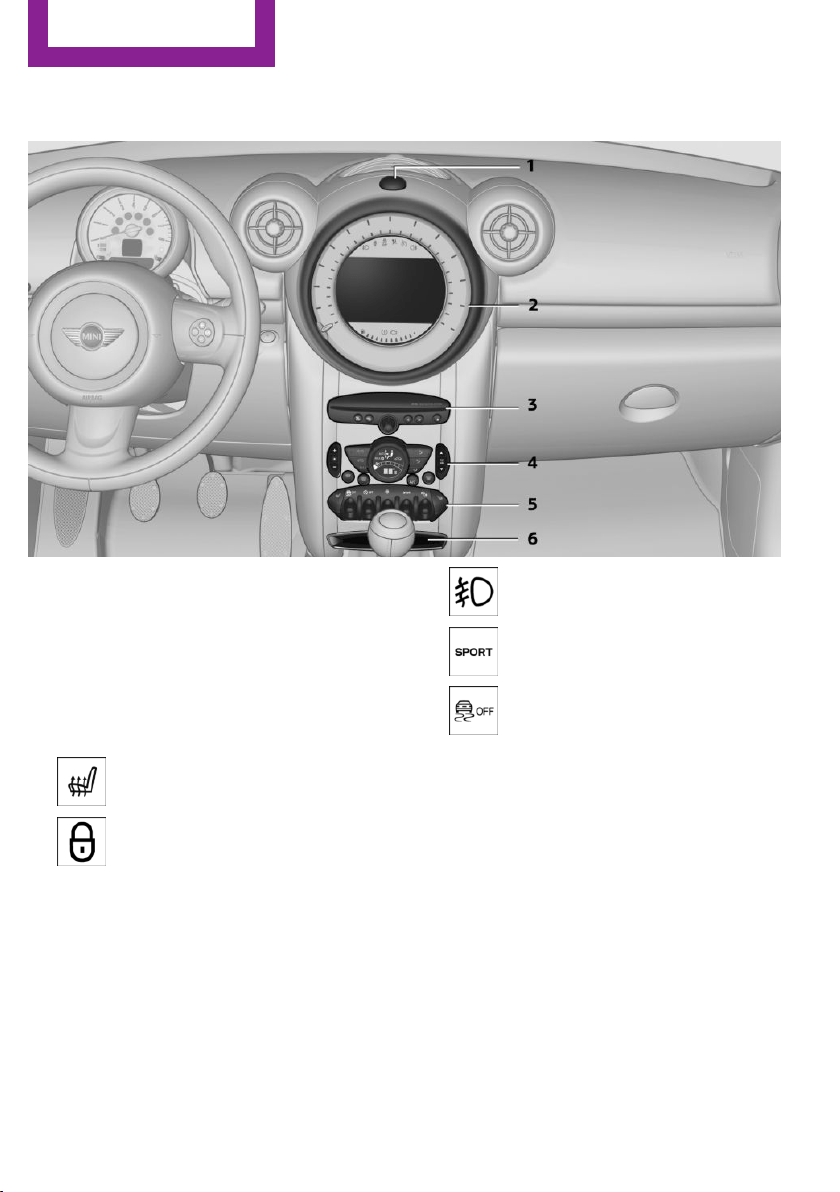
All around the center console
1 Hazard warning system
2 Speedometer with Control Display 16
3 Radio 158
CD/multimedia 158
4 Air conditioning, automatic climate con‐
trol 99
5 Buttons on the center console
Seat heating 47
Central locking, inside 36
Front fog lamps 80
Sport button 95
Driving stability control systems
DSC Dynamic Stability Con‐
trol 93
DTC Dynamic Traction Con‐
trol 94
6 Storage compartment
Seite 18
At a glance
Cockpit
18
Online Edition for Part no. 01 40 2 911 544 - VI/13
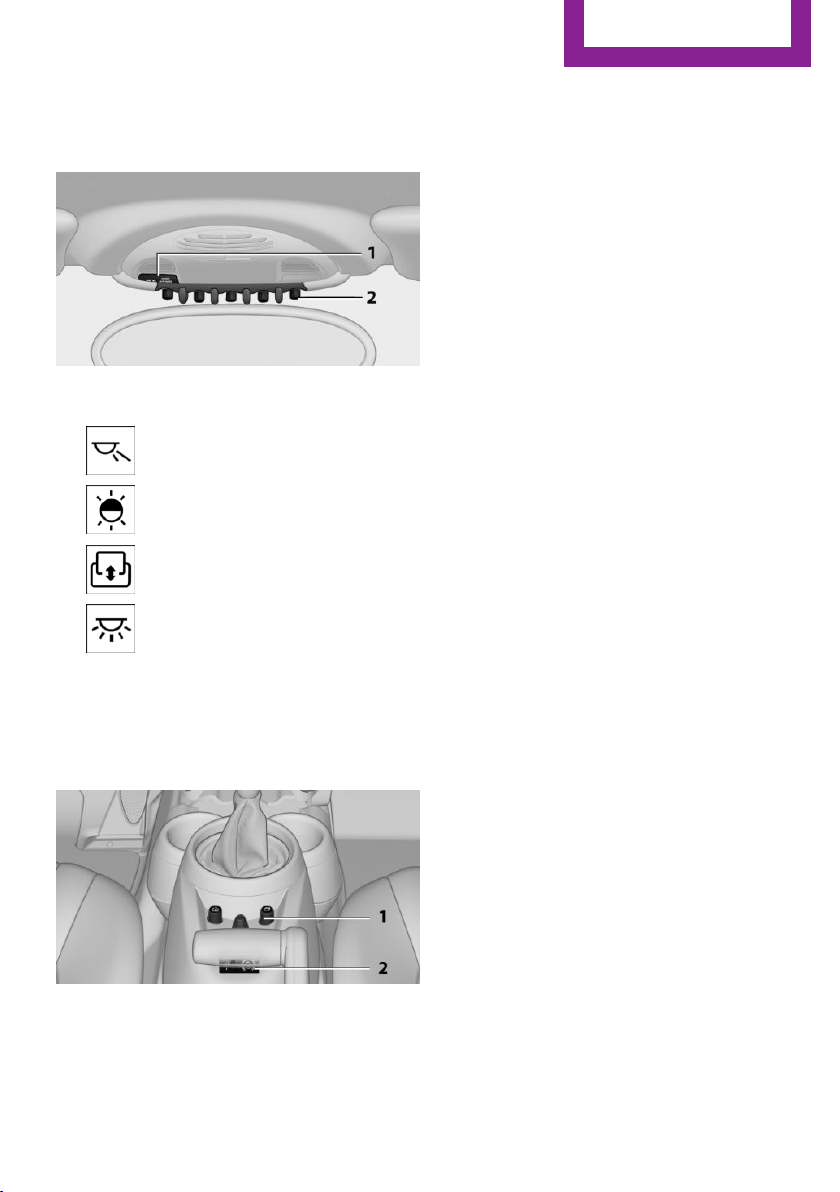
All around the head‐
liner
1 Indicator/warning lamps for the front pas‐
senger airbags 84
2 Reading lamps 81
Ambient lighting color 81
Glass sunroof, electrical 41
Interior lamps 81
All around the shift/
selector lever
1 MINI joystick with buttons 21
2 USB audio interface 170
Seite 19
Cockpit
At a glance
19
Online Edition for Part no. 01 40 2 911 544 - VI/13
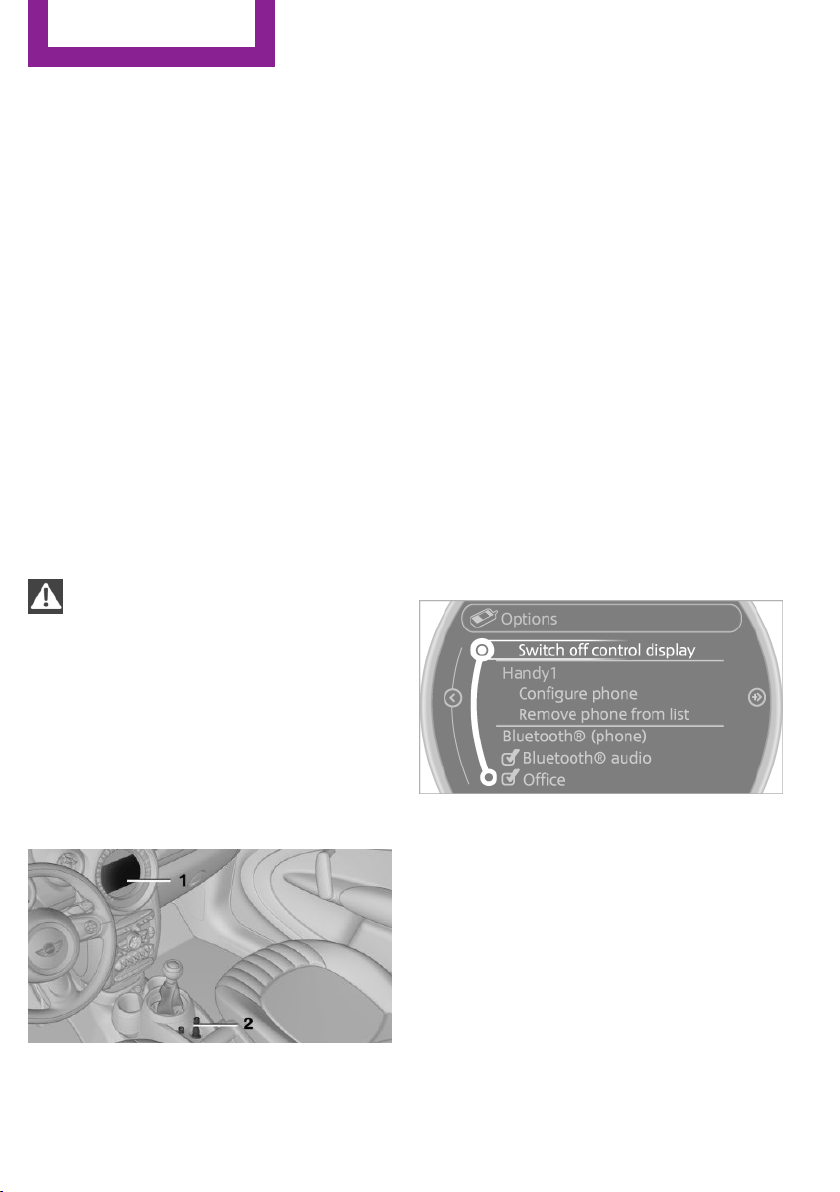
Onboard monitor
Vehicle equipment
This chapter describes all series equipment as
well as country-specific and special equipment
offered for this model series.Therefore, it also
describes equipment that may not be found in
your vehicle, for instance due to the selected
special equipment or the country version. This
also applies to safety-related functions and sys‐
tems.
The concept
The onboard monitor combines the functions
of a large number of different switches. Thus,
these functions can be operated from a central
location.
Using the onboard monitor during a trip
To avoid becoming distracted and posing
an unnecessary hazard to your vehicle's occu‐
pants and to other road users, never attempt to
use the controls or enter information unless
traffic and road conditions allow this.◀
Controls at a glance
Controls
1 Control Display
2 MINI joystick with buttons
The buttons can be used to open the me‐
nus directly. The MINI joystick can be used
to select menu items and create settings.
Control Display
Notes
▷ To clean the Control Display, follow the care
instructions, refer to page 257.
▷ Do not place objects close to the Control
Display; otherwise, the Control Display can
be damaged.
Switching off
1.
Move the MINI joystick repeatedly to the
right until the "Options" menu appears.
2. "Switch off control display"
Switching on
Press the MINI joystick to switch on.
Seite 20
At a glance
Onboard monitor
20
Online Edition for Part no. 01 40 2 911 544 - VI/13
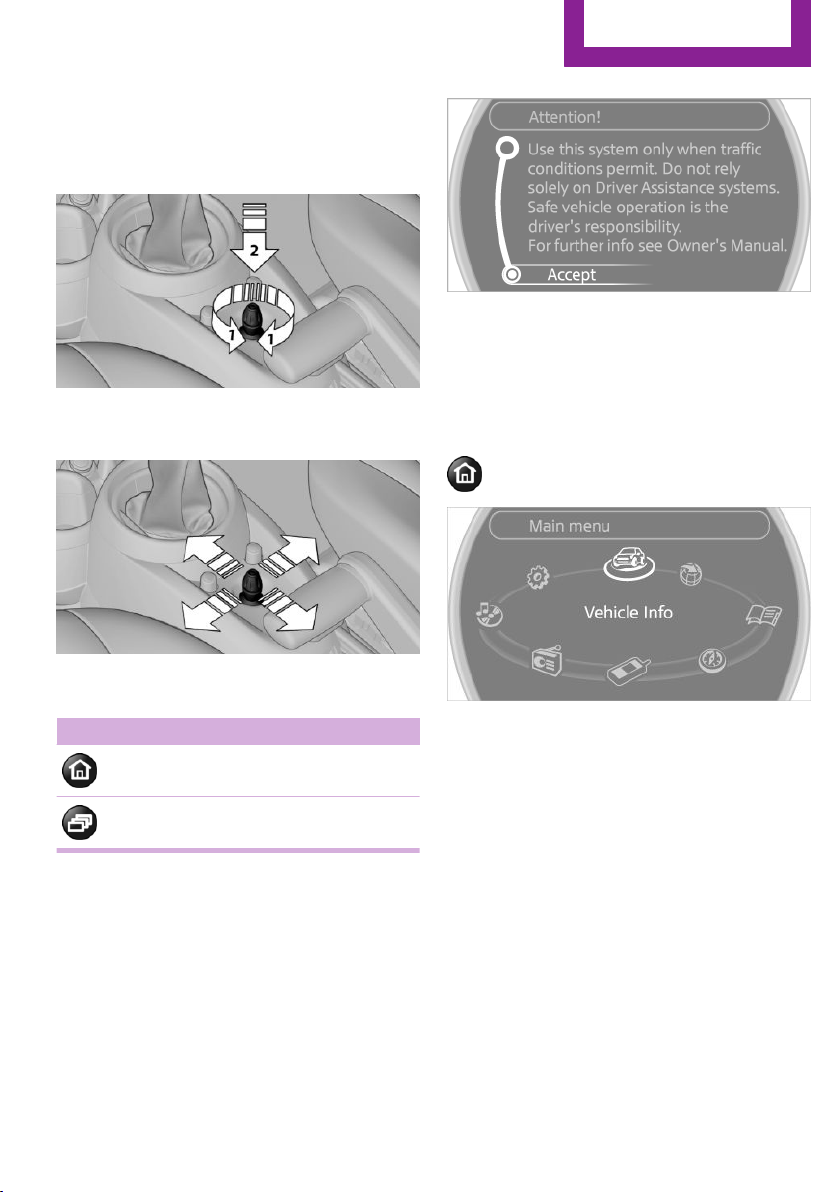
MINI joystick with buttons
Select menu items and create settings.
1. Turn, arrow 1.
2. Press, arrow 2.
3. Move in four directions.
Buttons on the MINI joystick
Press the button Function
Opens the main menu.
Changes to another menu.
Operating concept
Start screen
In the radio ready state and higher, the follow‐
ing message appears on the Control Display:
To hide the message: press the MINI joystick.
The main menu is displayed.
The message is automatically hidden after ap‐
prox. 10 seconds.
Opening the main menu
Press the button.
The main menu is displayed.
All onboard monitor functions can be called up
via the main menu.
Seite 21
Onboard monitor
At a glance
21
Online Edition for Part no. 01 40 2 911 544 - VI/13
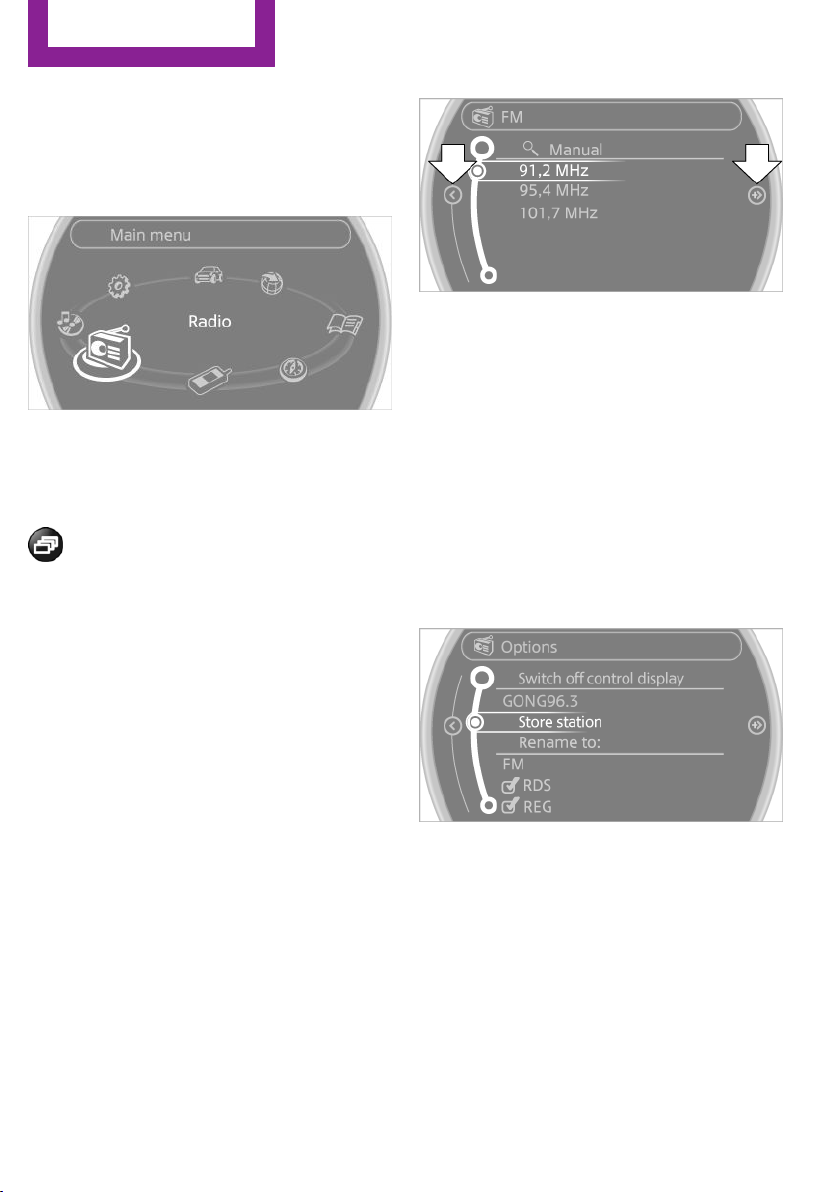
Selecting menu items
Menu items shown in white can be selected.
1. Turn the MINI joystick until the desired
menu item is highlighted.
2. Press the MINI joystick.
A new menu is displayed or the function is per‐
formed.
With the button on the MINI joystick:
Press the button.
The menu items of the main menu can be
opened consecutively by pressing the button
repeatedly.
Menu items in the Owner's Manual
In the Owner's Manual, menu items that can be
selected are set in quotation marks, e.g.,
"Settings".
Changing between panels
After a menu item is selected, e.g., "Radio", a
new panel is displayed. Panels can overlap.
▷ Move the MINI joystick to the left.
The current panel is closed and the previ‐
ous panel is displayed.
▷ Move the MINI joystick to the right.
A new panel is opened on top of the previ‐
ous display.
Arrows pointing to the left or right indicate that
additional panels can be opened.
View of an opened menu
When a menu is opened, it generally opens
with the panel that was last selected in that
menu. To display the first panel of a menu:
Move the MINI joystick to the left repeatedly
until the first panel is displayed.
Opening the Options menu
Move the MINI joystick repeatedly to the right
until the "Options" menu appears.
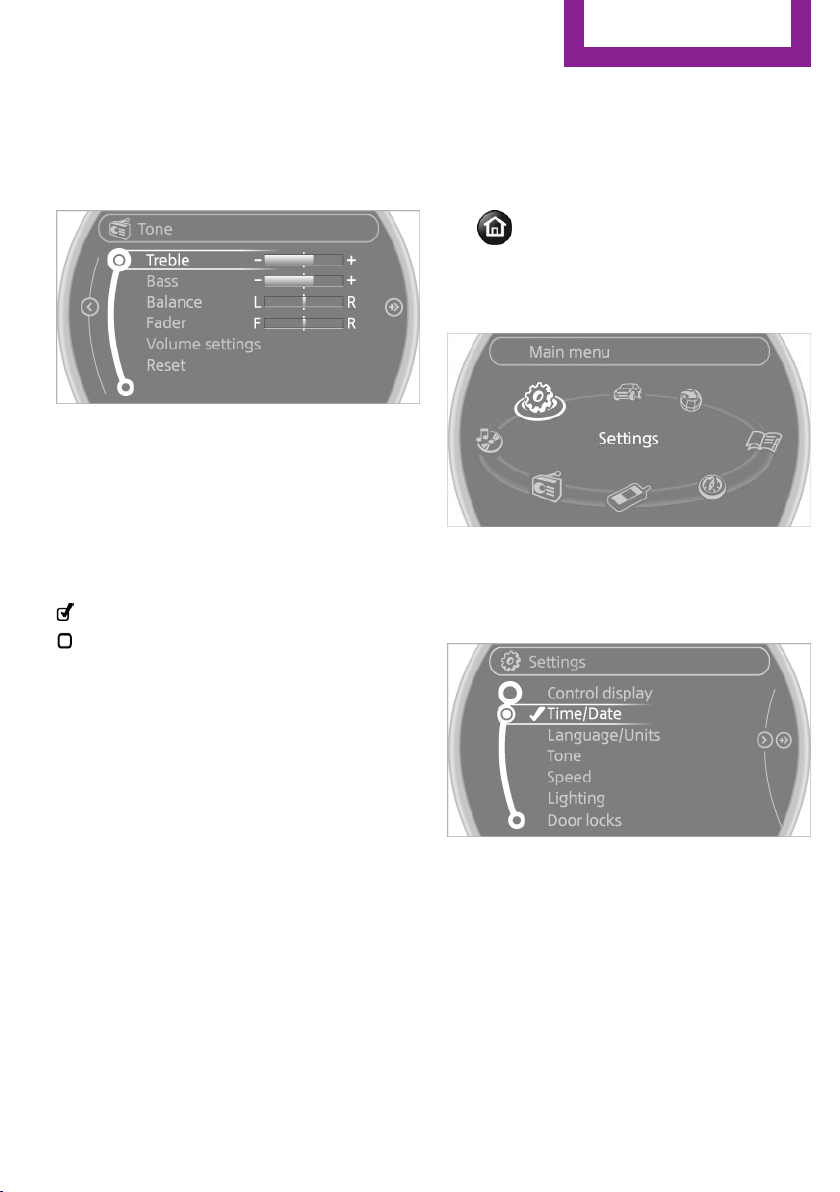
Options menu
The "Options" menu consists of various areas:
▷ Screen settings, e.g., "Switch off control
display".
▷ Control options for the selected main
menu, e.g., for "Radio".
▷ If applicable, further operating options for
the selected menu, for instance "Store
station".
Seite 22
At a glance
Onboard monitor
22
Online Edition for Part no. 01 40 2 911 544 - VI/13
Changing settings
1. Select a field.
2. Turn the MINI joystick until the desired set‐
ting is displayed.
3. Press the MINI joystick to confirm the set‐
ting.
Activating/deactivating the functions
Several menu items are preceded by a check‐
box. It indicates whether the function is acti‐
vated or deactivated. Selecting the menu item
activates or deactivates the function.
The function is activated.
The function is deactivated.
Example: setting the
clock
Setting the clock
1.
Press the button. The main menu is
displayed.
2. Turn the MINI joystick until "Settings" is
highlighted and press the MINI joystick.
3. If necessary, move the MINI joystick to the
left to display "Time/Date".
4. Turn the MINI joystick until "Time/Date" is
highlighted and press the MINI joystick.
5. Turn the MINI joystick to set the hours and
press the MINI joystick.
6. Turn the MINI joystick to set the minutes
and press the MINI joystick.
Status information
Status field
The following information is displayed in the
status field at the top right:
Seite 23
Onboard monitor
At a glance
23
Online Edition for Part no. 01 40 2 911 544 - VI/13
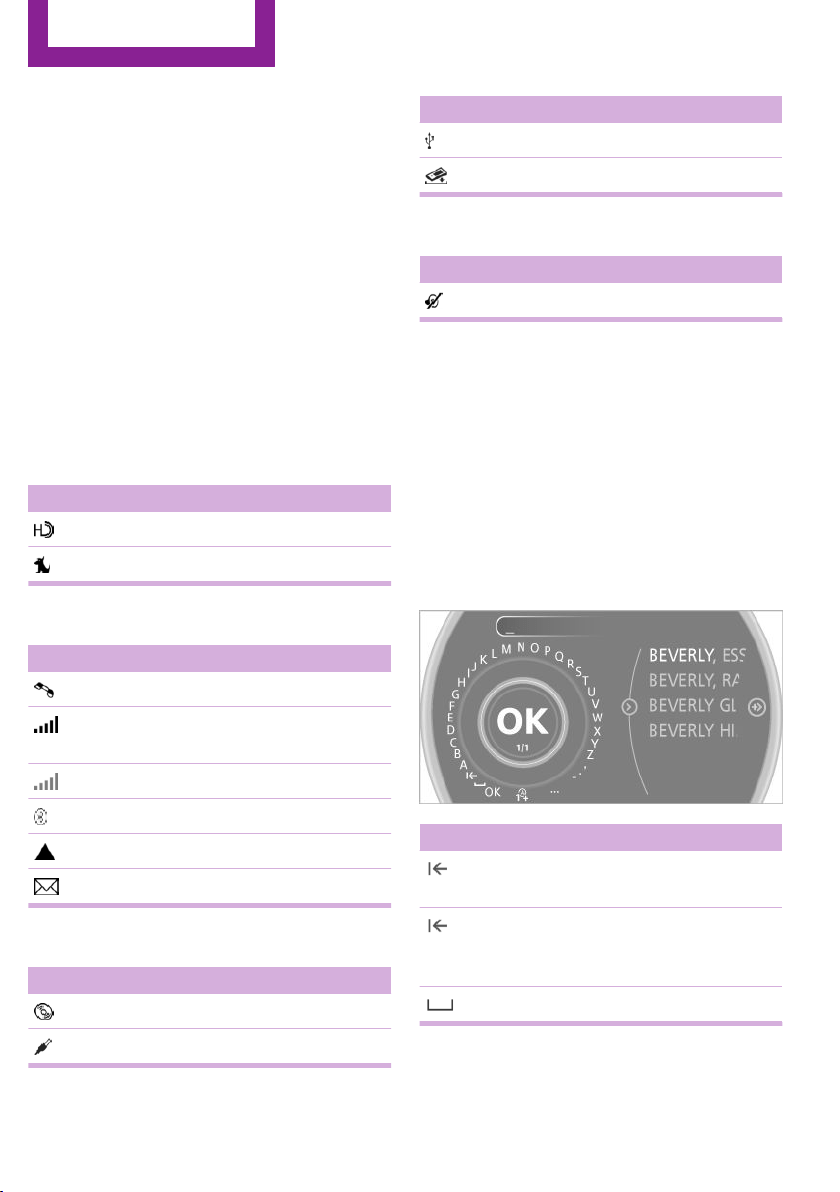
▷ Time.
▷ Current entertainment source.
▷ Sound output, on/off.
▷ Wireless network reception strength.
▷ Telephone status.
▷ Traffic bulletin reception.
Check Control messages and entries using the
voice activation system temporarily hide the
status information.
Status field symbols
The symbols are grouped into various catego‐
ries.
Radio symbols
Symbol Meaning
HD Radio™ is switched on.
Satellite radio is switched on.
Telephone symbols
Symbol Meaning
Incoming or outgoing call.
Wireless network reception strength
Symbol flashes: searching for network.
Wireless network is not available.
Bluetooth is switched on.
Roaming is active.
Text message, e-mail was received.
Entertainment symbols
Symbol Meaning
CD player.
AUX-IN port.
Symbol Meaning
USB audio interface.
Music interface for smartphones.
Additional symbols
Symbol Meaning
Spoken instructions are switched off.
Entering letters and
numbers
General information
1.
Turn the MINI joystick: select letters or
numbers.
2. Select additional letters or numbers if
needed.
3. "OK": confirm the entry.
Symbol Function
Press the MINI joystick: delete the let‐
ter or number.
Press the MINI joystick for an ex‐
tended period: delete all letters or
numbers.
Enter a blank space.
Switching between letters and numbers
Depending on the menu, you can switch be‐
tween entering letters and numbers.
Seite 24
At a glance
Onboard monitor
24
Online Edition for Part no. 01 40 2 911 544 - VI/13
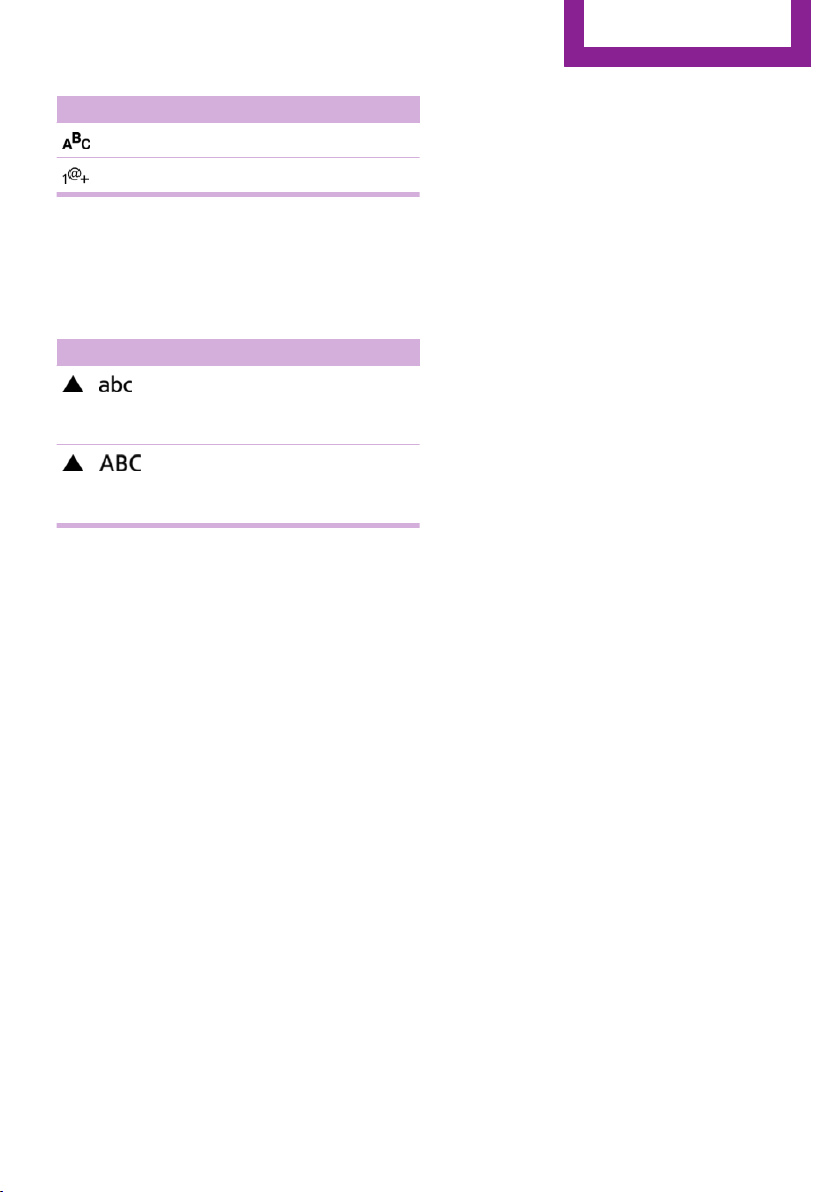
Symbol Function
Enter the letters.
Enter the numbers.
Switching between upper and lower
case letters
Depending on the menu, you can switch be‐
tween entering uppercase and lowercase let‐
ters.
Symbol Function
Move the MINI joystick forward:
switch from upper to lower case
letters.
Move the MINI joystick forward:
switch from lower to upper case
letters.
Entry comparison
Entry of names and addresses: the selection is
narrowed down every time a letter is entered
and letters may be added automatically.
The entries are continuously compared to the
data stored in the vehicle.
▷ Only those letters are offered during the
entry for which data is available.
▷ Destination search: town/city names can be
entered using the spelling of language
available on the Control Display.
Seite 25
Onboard monitor
At a glance
25
Online Edition for Part no. 01 40 2 911 544 - VI/13
Voice activation system
Vehicle equipment
This chapter describes all series equipment as
well as country-specific and special equipment
offered for this model series.Therefore, it also
describes equipment that may not be found in
your vehicle, for instance due to the selected
special equipment or the country version. This
also applies to safety-related functions and sys‐
tems.
The concept
▷ Most functions that are displayed on the
Control Display can be operated with the
voice activation system using spoken com‐
mands. The system prompts you to make
your entries.
▷ Functions that can only be used when the
vehicle is stationary cannot be operated us‐
ing the voice activation system.
▷ The system uses a special microphone in
the headliner on the driver's side.
▷ ›...‹ Verbal instructions in the Owner's
Manual to use with the voice activation sys‐
tem.
Requirements
Via the Control Display, set a language that is
also supported by the voice activation system
so that the spoken commands can be identi‐
fied.
Set the language, refer to page 73.
Using voice activation
Activating the voice activation system
1.
Press the button on the steering
wheel.
2. Wait for the signal.
This symbol on the Control Display indi‐
cates that the voice activation system is ac‐
tive.
3. Say the command.
The command appears on the Control Dis‐
play.
If no other commands are available, operate
the function via the onboard monitor in this
case.
Terminating the voice activation
system
Briefly press the button on the steering
wheel or ›Cancel‹.
Possible commands
Most menu items on the Control Display can be
voiced as commands.
The available commands depend on the menu
that is currently displayed on the Control Dis‐
play.
Seite 26
At a glance
Voice activation system
26
Online Edition for Part no. 01 40 2 911 544 - VI/13
The functions of the main menu have short
commands.
Some list items, such as the phone book en‐
tries, can also be selected via the voice activa‐
tion system. Say the list items exactly as they
are displayed on the list.
Having possible commands read aloud
You can have the system read possible com‐
mands aloud: ›Voice commands‹.
For example, if the "CD" menu is displayed, the
commands for the operating the CD player are
read out loud.
Executing functions using short
commands
Functions on the main menu can be performed
directly by means of short commands, usually
irrespective of which menu item is currently se‐
lected, for instance ›Vehicle status‹.
List of short commands of the voice activation
system, refer to page 264.
Help dialog for the voice activation
system
Calling up help dialog: ›Help‹
Additional commands for the help dialog:
▷ ›Help with examples‹: information about
the current operating options and the most
important commands for them are an‐
nounced.
▷ ›Help with voice activation‹: information
about the principle of operation for the
voice activation system is announced.
Example: playing back a
CD
Via the main menu
The commands of the menu items are spoken
out loud, in the same way as they are selected
via the MINI joystick.
1. Switch on the Entertainment sound output
if necessary.
2.
Press the button on the steering
wheel.
3. ›C D and multimedia‹
The medium last played is played back.
4. ›C D‹
5. ›C D drive‹
The CD is played back.
6.
Press the button on the steering
wheel again to select a specific track.
7. ›Track ...‹ e.g., CD track 4.
Via short commands
Playback of the CD can also be started using a
short command.
1.
Switch on the Entertainment sound output
if necessary.
2.
Press the button on the steering
wheel.
3. ›C D drive Track ...‹ e.g., CD track 4.
Setting the voice dialog
You can set whether the system should use the
standard dialog or a shorter version.
In the shorter variant of the voice dialog, the
announcements from the system are issued in
an abbreviated form.
Seite 27
Voice activation system
At a glance
27
Online Edition for Part no. 01 40 2 911 544 - VI/13
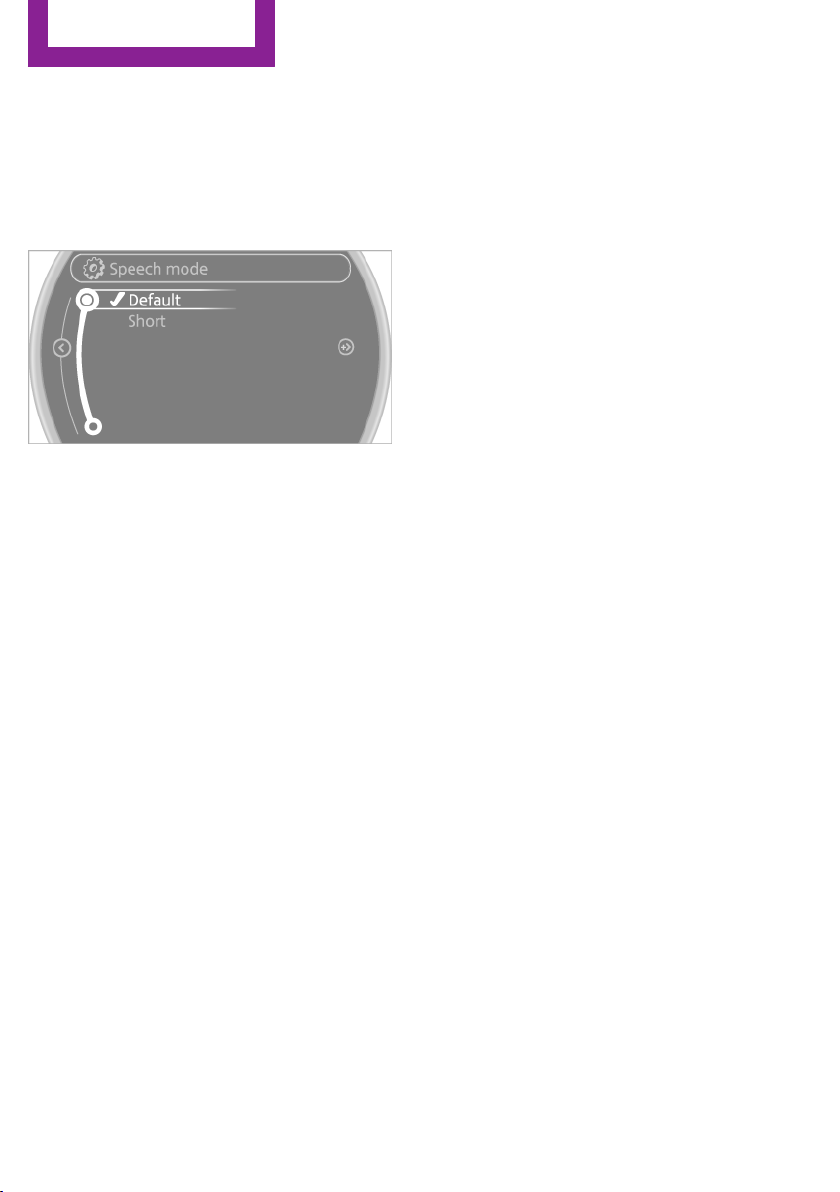
On the Control Display:
1. "Settings"
2. "Language/Units"
3. "Speech mode:"
4. Select the setting.
Adjusting the volume
Turn the volume knob while giving an instruc‐
tion until the desired volume is set.
▷ The volume remains constant even if the
volume of other audio sources is changed.
▷ The volume is stored for the remote control
currently in use.
Notes on Emergency Re‐
quests
Do not use the voice activation system to ini‐
tiate an Emergency Request. In stressful situa‐
tions, the voice and vocal pitch can change.
This can unnecessarily delay the establishment
of a telephone connection.
Environmental condi‐
tions
▷ Say the commands, numbers, and letters
smoothly and with normal volume, empha‐
sis, and speed.
▷ Always say commands in the language of
the voice activation system.
▷ Avoid making other noise in the vehicle
while speaking.
Seite 28
At a glance
Voice activation system
28
Online Edition for Part no. 01 40 2 911 544 - VI/13

Seite 29
Voice activation system
At a glance
29
Online Edition for Part no. 01 40 2 911 544 - VI/13
HANDLE ME.
Online Edition for Part no. 01 40 2 911 544 - VI/13

At a glance
Controls
Driving tips
Navigation
Entertainment
Communication
Mobility
Reference
Online Edition for Part no. 01 40 2 911 544 - VI/13
Opening and closing
Vehicle equipment
This chapter describes all series equipment as
well as country-specific and special equipment
offered for this model series.Therefore, it also
describes equipment that may not be found in
your vehicle, for instance due to the selected
special equipment or the country version. This
also applies to safety-related functions and sys‐
tems.
Remote control/key
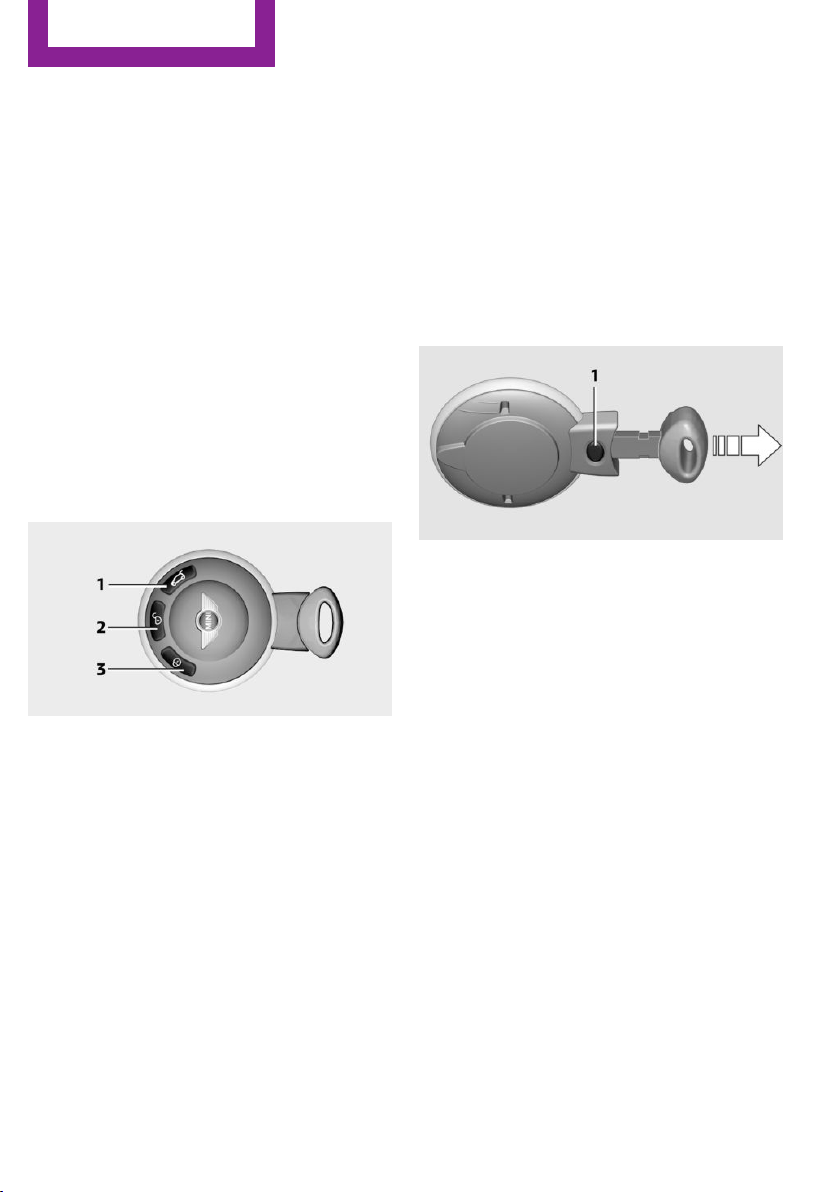
Buttons on the remote control
1 Opening tailgate
2 Unlocking
3 Locking
General information
Each remote control contains a rechargeable
battery that is automatically recharged when it
is in the ignition lock while the car is being
driven. Use each remote control at least twice a
year for longer road trips in order to maintain
the batteries' charge status. In vehicles equip‐
ped with Comfort Access, the remote control
contains a replaceable battery, refer to
page 41.
The settings called up and implemented when
the vehicle is unlocked depend on which re‐
mote control is used to unlock the vehicle, Per‐
sonal Profile, refer to page 32.
In addition, information about service require‐
ments is stored in the remote control, Service
data in the remote control, refer to page 237.
Integrated key
Press button 1 to unlock the key.
The integrated key fits the following locks:
▷ Driver's door, refer to page 35.
New remote controls
You can obtain new remote controls from your
service center.
Loss of the remote controls
Lost remote controls can be blocked by your
service center.
Personal Profile
The concept
You can set several of your vehicle's functions
to suit your personal needs and preferences.
▷ Through Personal Profile, most of these set‐
tings are stored for the remote control cur‐
rently in use.
▷ While the vehicle is being unlocked, the re‐
mote control is recognized and the settings
Seite 32
Controls
Opening and closing
32
Online Edition for Part no. 01 40 2 911 544 - VI/13

stored with it are called up and imple‐
mented.
▷ Your personal settings will be recognized
and called up again even if the vehicle has
been used in the meantime by someone
else with another remote control.
▷ The individual settings are stored for no
more than three remote controls.
Personal Profile settings
The following functions and settings can be
stored in a profile.
More information on the settings can be found
under:
▷ Response of the central locking system
when the car is being unlocked, refer to
page 34.
▷ Automatic locking of the vehicle, refer to
page 37.
▷ Triple turn signal activation, refer to
page 61.
▷ Settings for the displays on the onboard
monitor, in the speedometer, and in the
tachometer:
▷ 12h/24h clock format, refer to
page 72.
▷ Date format, refer to page 73.
▷ Brightness of the Control Display, refer
to page 74.
▷ Language on the Control Display, refer
to page 73.
▷ Units of measure for fuel consumption,
distance covered/remaining distances,
and temperature, refer to page 72.
▷ Light settings:
▷ Headlamp courtesy delay feature, refer
to page 79.
▷ Daytime running lights, refer to
page 79.
▷ Automatic climate control, refer to
page 101: AUTO program, activating/deac‐
tivating the cooling function, setting the
temperature, air volume, and air distribu‐
tion.
▷ Entertainment:
▷ Tone settings, refer to page 156.
▷ Volume, refer to page 156.
Central locking system
The concept
The central locking system becomes active
when the driver's door is closed.
The system simultaneously engages and re‐
leases the locks on the following:
▷ Doors.
▷ Tailgate.
▷ Fuel filler flap.
Operating from the outside
▷ Via the remote control.
▷ Via the door lock.
▷ In cars with Comfort Access, via the door
handles on the driver's and front passenger
sides.
The following takes place simultaneously when
locking/unlocking the vehicle via the remote
control:
▷ Depending on the vehicle equipment, the
anti-theft protection is switched on and off
as well. The anti-theft protection makes it
impossible to unlock the doors using the
lock buttons or door handles.
▷ The welcome lamps, interior lamps, and
ambient lighting are switched on and off.
▷ The alarm system is armed or disarmed, re‐
fer to page 41.
Operating from the inside
Via the switch/button for the central locking
system, refer to page 36.
Seite 33
Opening and closing
Controls
33
Online Edition for Part no. 01 40 2 911 544 - VI/13
In an accident of the necessary severity, the
central locking system unlocks automatically.
The hazard warning system and interior lamps
come on.
Opening and closing:
from the outside
Using the remote control
General information
Take the remote control with you
People or animals left unattended in a
parked vehicle can lock the doors from the in‐
side. Always take the remote control with you
when leaving the vehicle so that the vehicle
can then be opened from the outside.◀
Unlocking
Press the button. The vehicle is un‐
locked.
The welcome lamps and interior lamps are
switched on.
You can set how the vehicle is to be unlocked.
The setting is stored for the remote control cur‐
rently in use.
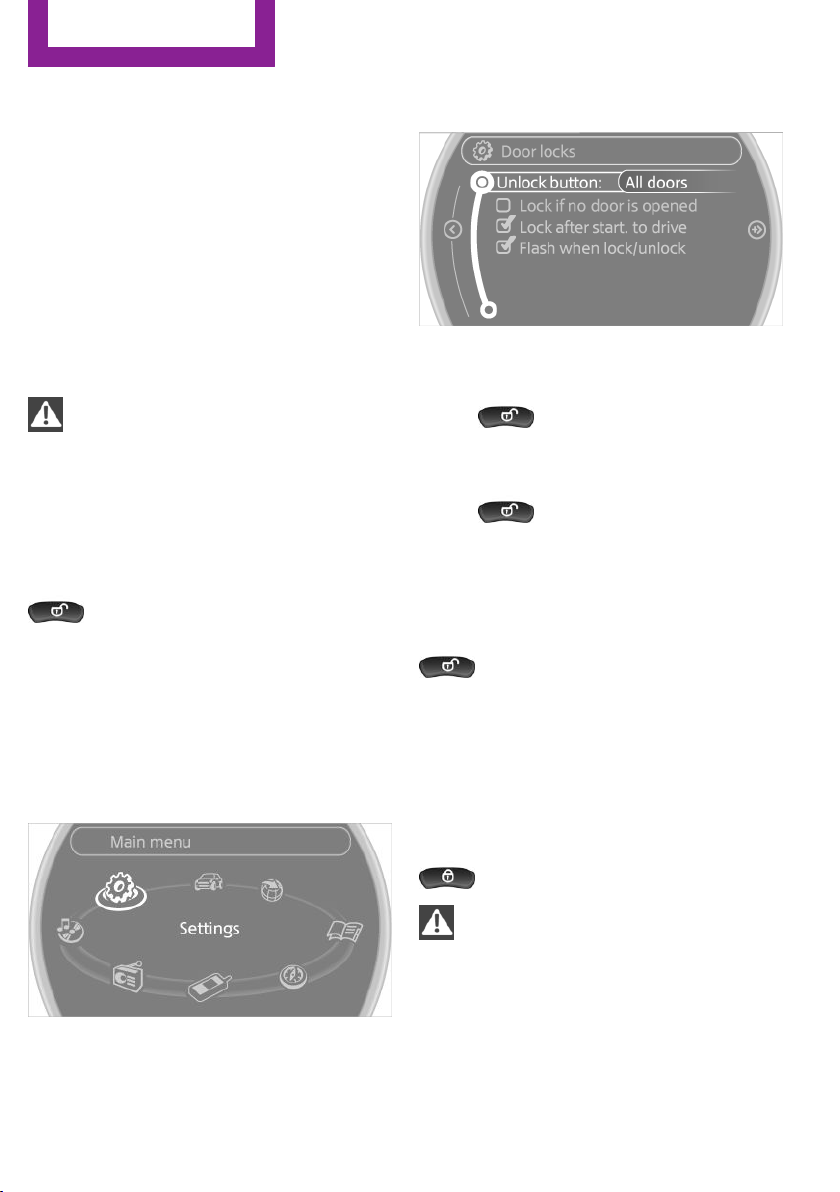
1.
"Settings"
2. "Door locks"
3. "Unlock button"
4. Select the desired function:
▷ "All doors"
Press the button once: the en‐
tire vehicle unlocks.
▷ "Driver's door only"
Pressing the button once un‐
locks only the driver's door and the fuel
filler flap. Pressing twice unlocks the
entire vehicle.
Convenient opening
Press and hold the button on the re‐
mote control.
The power windows are opened and the glass
sunroof is raised.
Convenient closing with the remote control is
not possible.
Locking
Press the button.
Locking from the outside
Do not lock the vehicle from the outside if
there are people in it, as the vehicle cannot be
unlocked from inside without special knowl‐
edge.◀
Seite 34
Controls
Opening and closing
34
Online Edition for Part no. 01 40 2 911 544 - VI/13
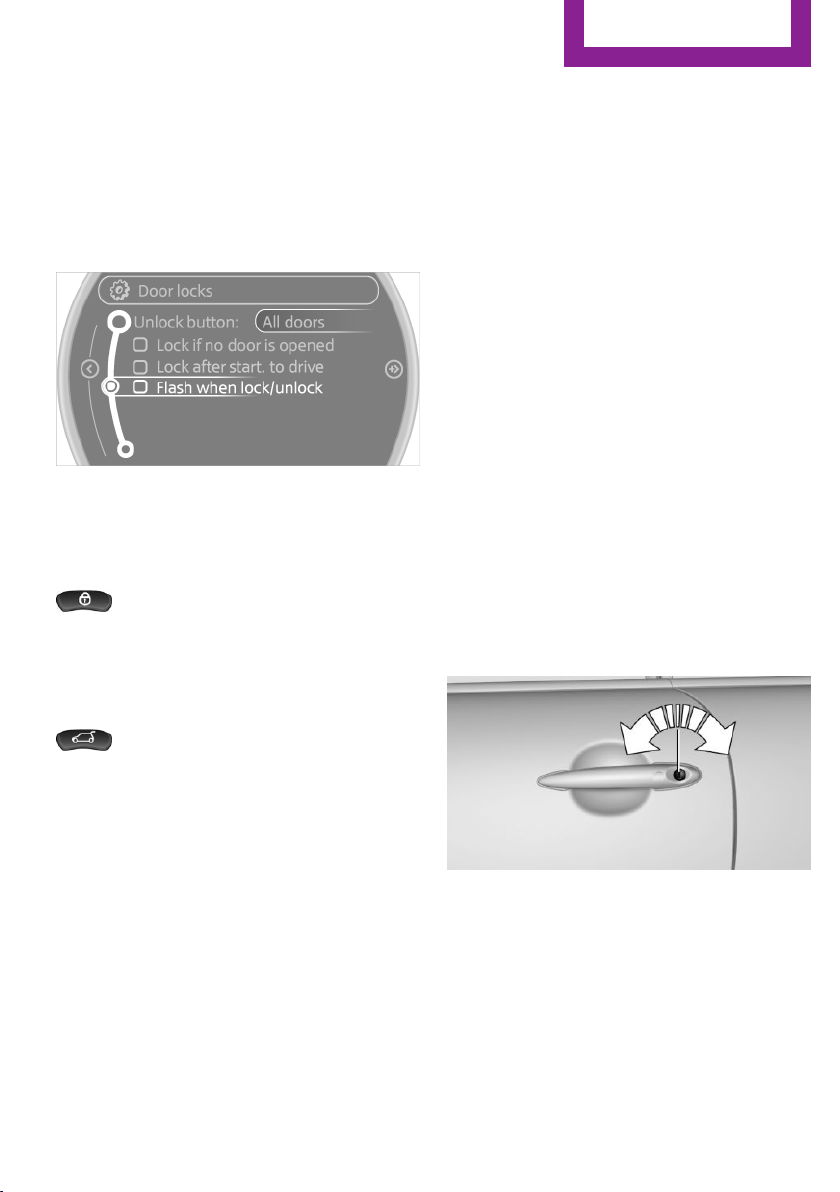
Setting the confirmation signals
Have unlocking or locking of the vehicle con‐
firmed.
1. "Settings"
2. "Door locks"
3. "Flash when lock/unlock"
4. Press the MINI joystick.
Switching on the interior lamps
When the vehicle is locked:
Press the button.
You can also use this function to locate your ve‐
hicle in parking garages, etc.
Unlocking the tailgate
Press the button for approx. 1 second
and then release it.
The tailgate pivots back and up when it opens.
Ensure that adequate clearance is available be‐
fore opening.
Malfunctions
The function of the remote control may be im‐
paired by local radio waves. If this occurs, un‐
lock and lock the vehicle at the door lock with
the integrated key.
If it should become impossible to lock the vehi‐
cle with a remote control, the battery in the re‐
mote control is discharged. Use this remote
control on an extended trip to recharge the
battery, refer to page 32.
For US owners only
The transmitter and receiver units comply with
part 15 of the FCC/Federal Communication
Commission regulations. Operation is governed
by the following:
FCC ID:
LX8766S
LX8766E
LX8CAS
Compliance statement:
This device complies with part 15 of the FCC
Rules. Operation is subject to the following two
conditions:
▷ This device may not cause harmful interfer‐
ence, and
▷ this device must accept any interference re‐
ceived, including interference that may
cause undesired operation.
Any unauthorized modifications or changes to
these devices could void the user's authority to
operate this equipment.
Using the door lock
Sets how the vehicle is to be unlocked, refer to
page 34.
In some vehicle equipment versions, only the
driver's door can be unlocked and locked via
the door lock.
Seite 35
Opening and closing
Controls
35
Online Edition for Part no. 01 40 2 911 544 - VI/13
Locking from the outside
Do not lock the vehicle from the outside if
there are people in it, as the vehicle cannot be
unlocked from inside without special knowl‐
edge.◀
Locking the doors and tailgate at once
To lock all doors, the fuel filler flap, and the tail‐
gate at once:
1. With the doors closed, lock the vehicle us‐
ing the button for the central locking sys‐
tem in the interior, refer to page 36.
2. Unlock and open the driver's or front pas‐
senger door, refer to page 37.
3. To lock the vehicle:
▷ Lock the driver's door using the
integrated key in the door lock, or
▷ Press down the lock button of the front
passenger door and close the door
from the outside.
Convenient opening and closing
In vehicles with an alarm system or Comfort Ac‐
cess, the windows and the glass sunroof can be
operated via the door lock.
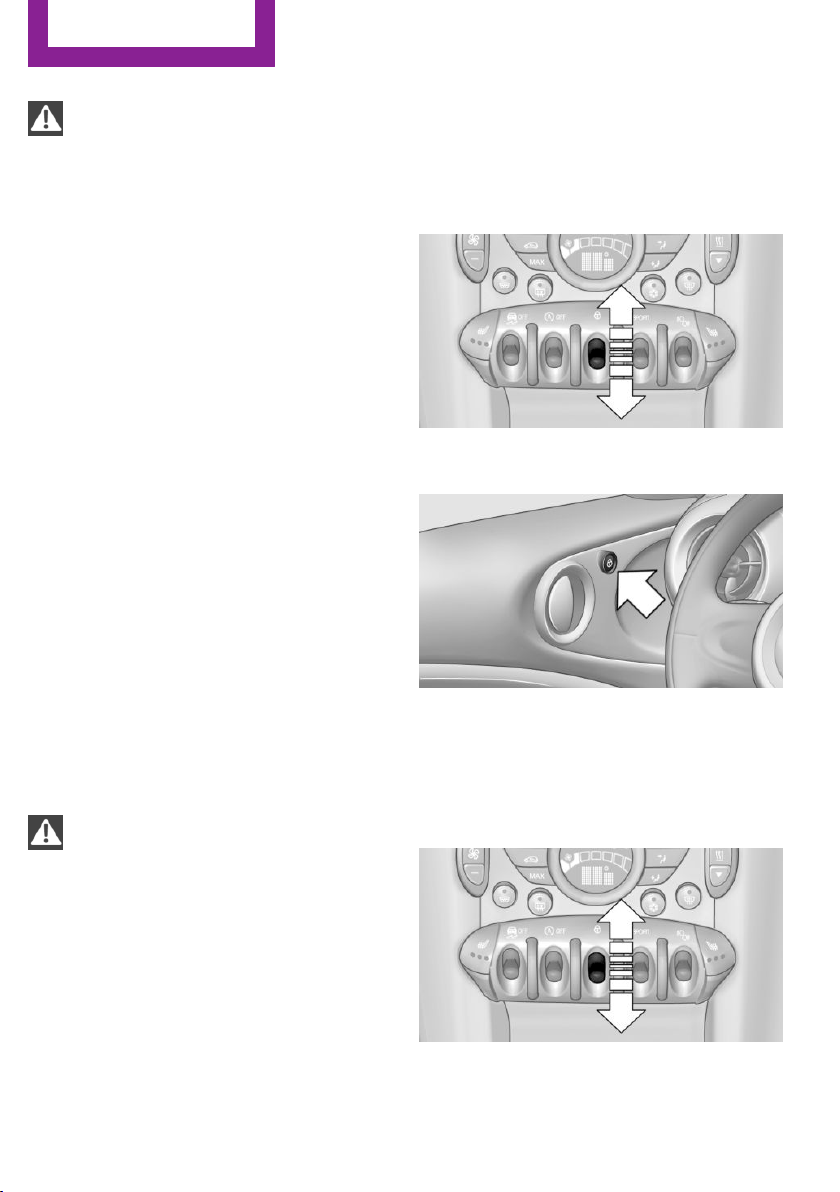
Opening/closing
Turn the key to the unlock or lock position and
hold it there.
Keep the closing area clear
Watch during the opening and closing
process to be sure that no one becomes trap‐
ped. Releasing the key stops the motion.◀
Manual operation
If an electrical malfunction occurs, the driver's
door can be unlocked or locked by turning the
integrated key to the end positions of the door
lock.
Opening and closing:
from the inside
Operation via
▷ Switch in the center console:
▷ Button in the driver's or front passenger
door:
The graphic shows the button in the MINI Pace‐
man as an example.
The switch or the buttons can be used to lock
or unlock the doors and tailgate when the
doors are closed, but they are not theft-pro‐
tected. The fuel filler flap remains unlocked.
Seite 36
Controls
Opening and closing
36
Online Edition for Part no. 01 40 2 911 544 - VI/13
Unlocking and opening doors
▷ Using the switch or the buttons for the cen‐
tral locking system, unlock all of the doors
at once and then pull the door opener
above the armrest, or
▷ Pull the door handle on each door twice:
the door is unlocked the first time and
opened the second time.
Locking
▷ Press the switch/button or
▷ Push down the lock button of a door. To
avoid locking yourself out by accident, the
driver's door cannot be locked at the lock
button while the door is open.
Automatic locking
In addition, it is possible to set the situations in
which the vehicle locks. The setting is stored for
the remote control in use.
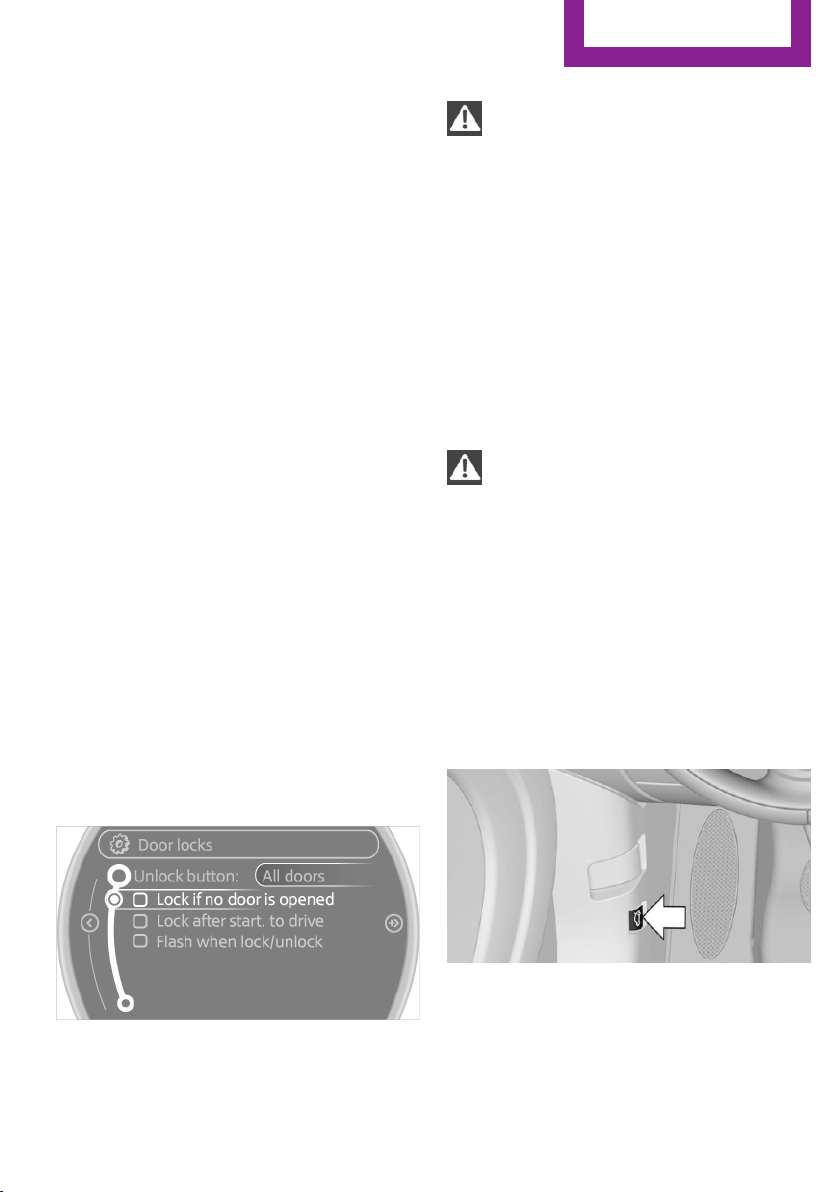
1.
"Settings"
2. "Door locks"
3. Select a menu item:
▷ "Lock if no door is opened"
The central locking system locks after a
short period if no door is opened.
▷ "Lock after start. to drive"
The central locking system locks when
you start driving.
Take the remote control with you
People or animals left unattended in a
parked vehicle can lock the doors from the in‐
side. Always take the remote control with you
when leaving the vehicle so that the vehicle
can then be opened from the outside.◀
Tailgate
Opening
The tailgate pivots back and up when it opens.
Ensure that adequate clearance is available be‐
fore opening.
Provide edge protection
Sharp or angular objects can hit the rear
window while driving and damage the heating
wires of the rear window. Provide edge protec‐
tion.◀
Only drive with the tailgate fully closed; other‐
wise, the tail lamps will be hidden from view
and driving safety will be compromised.
In some market-specific versions, the tailgate
can only be unlocked using the remote control
if the vehicle was unlocked first.
Opening from the inside
Press the button on the driver's footwell.
Seite 37
Opening and closing
Controls
37
Online Edition for Part no. 01 40 2 911 544 - VI/13
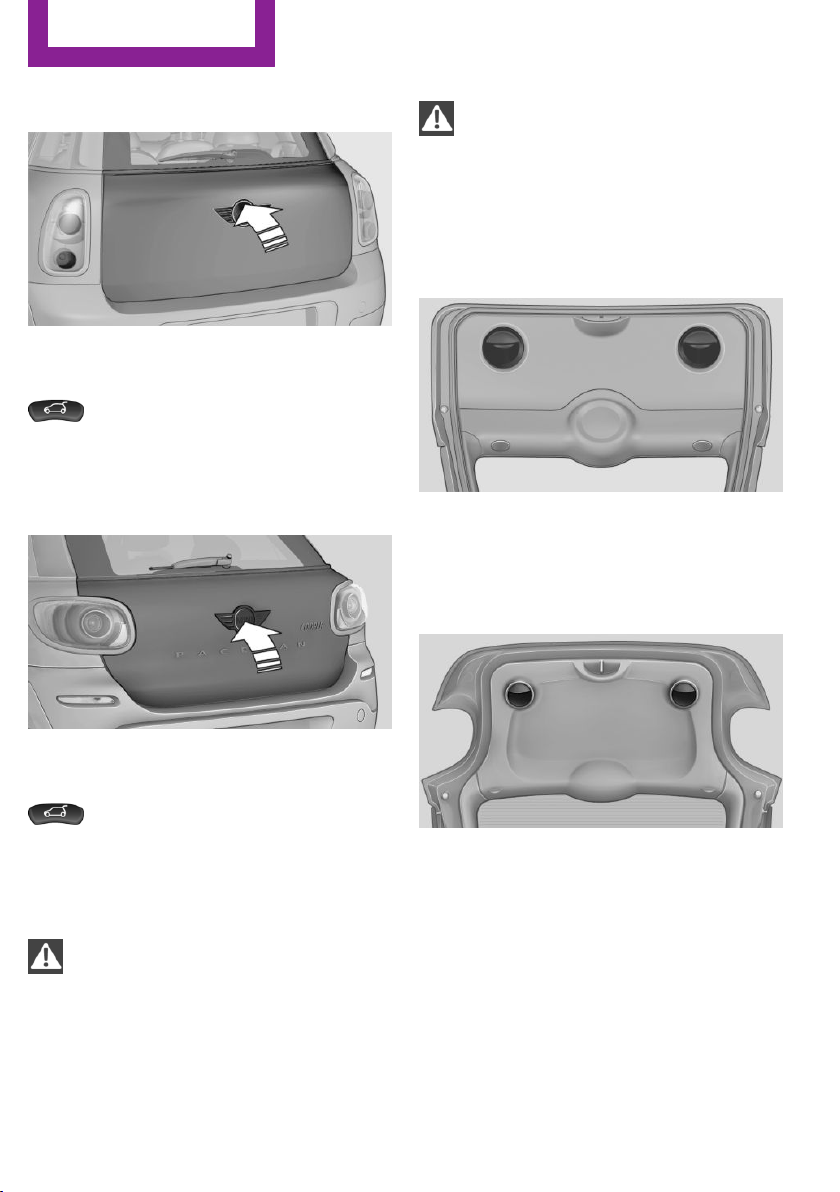
MINI Countryman
Press the top half of the MINI emblem, arrow,
or
Press the button on the remote control
for approx. 1 second and release. The tailgate is
unlocked.
MINI Paceman
Press the top half of the MINI emblem, arrow,
or
Press the button on the remote control
for approx. 1 second and release. The tailgate is
unlocked.
Closing
Keep the closing area clear
Make sure that the closing area of the
tailgate is clear; otherwise, injuries or damage
may result.◀
Take the remote control with you
Always take the remote control with you
when leaving the vehicle and do not place it in
the cargo area; otherwise, the remote control
may be locked into the vehicle when the tail‐
gate is closed.◀
MINI Countryman
Recessed grips on the inside trim of the tailgate
can be used to conveniently pull down the tail‐
gate.
MINI Paceman
Recessed grips on the inside trim of the tailgate
can be used to conveniently pull down the tail‐
gate.
Comfort Access
The concept
The vehicle can be accessed without activating
the remote control. All you need to do is to
have the remote control with you, e.g., in your
Seite 38
Controls
Opening and closing
38
Online Edition for Part no. 01 40 2 911 544 - VI/13

jacket pocket. The vehicle automatically de‐
tects the remote control when it is nearby or in
the passenger compartment.
Comfort Access supports the following func‐
tions:
▷ Unlocking/locking of the vehicle.
▷ Unlocking of the tailgate separately.
▷ Starting the engine.
Functional requirements
▷ There are no external sources of interfer‐
ence in the vicinity.
▷ To lock the vehicle, the remote control
must be located outside of the vehicle.
▷ The next unlocking and locking cycle is not
possible until after approx. 2 seconds.
▷ The engine can only be started if the re‐
mote control is inside the vehicle.
▷ The doors and tailgate must be closed to
operate the windows.
Comparison with ordinary remote
control
The functions can be controlled by pressing the
buttons or via Comfort Access.
Notes on opening and closing, refer to page 32.
If you notice a brief delay while opening or
closing the windows or glass sunroof, the sys‐
tem is checking whether a remote control is in‐
side the vehicle. Repeat the opening or closing
procedure, if necessary.
Unlocking
Press button 1.
Depending on the setting, either only the driv‐
er's door or the entire vehicle is unlocked, refer
to page 34.
Pressing the button again locks the entire vehi‐
cle again.
Convenient opening with the remote control,
refer to page 34.
Locking
Press button 1.
For Convenient closing, press and hold but‐
ton 1.
The windows and glass sunroof are closed in
addition.
Unlocking the tailgate separately
Press the top half of the MINI emblem.
This corresponds to pressing the following but‐
ton on the remote control: .
If a remote control accidentally left in the cargo
area is detected in the locked vehicle after the
tailgate is closed, the tailgate opens again
slightly. The hazard warning system flashes and
an acoustic signal sounds.
Power windows and electrical glass
sunroof
When the engine is switched off, the windows
and the sunroof can be operated as long as
neither the doors nor the tailgate are opened.
Seite 39
Opening and closing
Controls
39
Online Edition for Part no. 01 40 2 911 544 - VI/13

When the door and tailgate are closed again
and the remote control is detected inside the
vehicle, the windows and the sunroof can be
operated again.
Insert the remote control into the ignition lock
to be able to operate the windows and the sun‐
roof while the engine is switched off and the
doors are open.
Switching on the radio ready state
Press the Start/Stop button to switch on the
radio ready state, refer to page 58.
Do not depress the brake or the clutch; other‐
wise, the engine will start.
Starting the engine
The engine can be started or the ignition can
be switched on, refer to page 58, when a re‐
mote control is inside the vehicle. It is not nec‐
essary to insert a remote control into the igni‐
tion lock.
Switching off the engine in cars with
automatic transmission
The engine can only be switched off with the
selector lever in position P, refer to page 65.
To switch off the engine with the selector lever
in position N, the remote control must be in‐
serted in the ignition lock.
Before driving a vehicle with automatic
transmission into a car wash
1.
Insert the remote control into the ignition
switch.
2. Depress the brake pedal.
3. Move the selector lever to position N.
4. Switch the engine off.
The vehicle can roll.
Malfunction
The Comfort Access functions can be disturbed
by local radio waves, such as by a mobile
phone in the immediate vicinity of the remote
control or when a mobile phone is being
charged in the vehicle.
If this occurs, open or close the vehicle using
the buttons on the remote control or use the
integrated key in the door lock.
To start the engine afterward, insert the remote
control into the ignition switch.
Warning lamps
The warning lamp in the instrument
cluster lights up when you attempt to
start the engine: the engine cannot be
started.
The remote control is not in the vehicle or has a
malfunction. Take the remote control with you
inside the vehicle or have it checked. If neces‐
sary, insert another remote control into the ig‐
nition switch.
The warning lamp in the instrument
cluster lights up while the engine is run‐
ning: the remote control is no longer in‐
side the vehicle.
After switching off the engine, the engine can
only be started again within approx. 10 sec‐
onds if no door has been opened.
The indicator lamp lights up and a mes‐
sage appears on the Control Display: re‐
place the remote control battery.
Seite 40
Controls
Opening and closing
40
Online Edition for Part no. 01 40 2 911 544 - VI/13
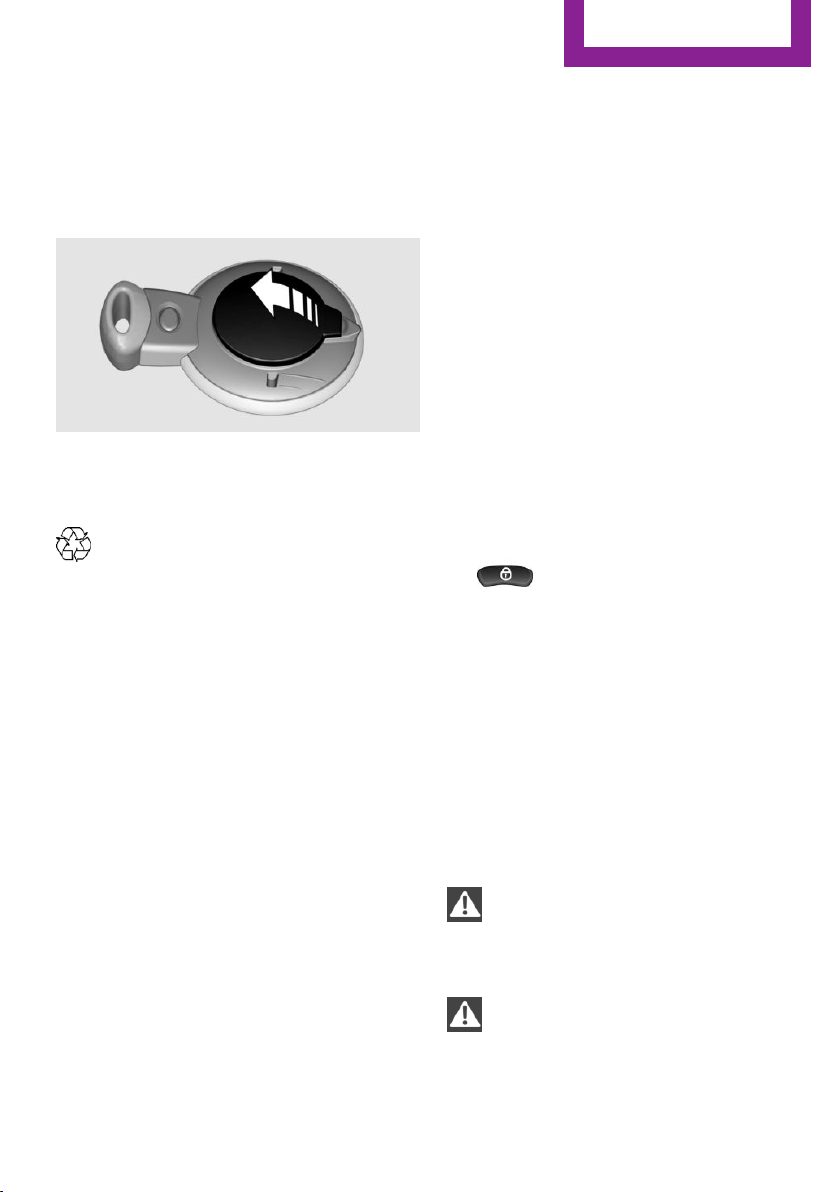
Replacing the battery
The remote control for Comfort Access contains
a battery that will need to be replaced from
time to time.
1. Remove the cover.
2. Insert a new battery with the positive side
facing upwards.
3. Press the cover closed.
Return used battery to a recycling center
or to your service center.
Alarm system
The concept
The enabled alarm system reacts to the follow‐
ing:
▷ Opening of a door, the hood or the tailgate.
▷ Movements inside the vehicle.
▷ Changes in the vehicle tilt, e.g., during at‐
tempts to steal a wheel or tow the car.
▷ Interruptions in battery voltage.
Depending on the market-specific version, the
alarm system briefly signals unauthorized entry
attempts by:
▷ By sounding an acoustic alarm.
▷ By switching on the hazard warning system.
Tilt alarm sensor
The tilt of the vehicle is monitored.
The alarm system responds in situations such as
attempts to steal a wheel or tow the car.
Interior motion sensor
For the interior motion sensor to function prop‐
erly, the windows and the glass sunroof must
be closed.
Avoiding unintentional alarms
The tilt alarm sensor and interior motion sensor
can be switched off together, such as in the fol‐
lowing situations:
▷ In duplex garages.
▷ During transport on car-carrying trains, at
sea or on a trailer.
▷ When animals are to remain in the vehicle.
Switching off the tilt alarm sensor and
interior motion sensor
▷
Press the button on the remote
control twice in succession.
▷ Lock the vehicle twice with the integrated
key.
The LEDs flash in short succession for approx.
2 seconds. The tilt alarm sensor and interior
motion sensor remain switched off until the ve‐
hicle is unlocked and locked again.
Glass sunroof, electrical
General information
Danger of pinching
Monitor the closing process and make
sure that the closing path of the glass sunroof is
clear; otherwise, injuries may result.◀
Take the remote control with you
Take the remote control with you when
leaving the vehicle so that children, for exam‐
ple, cannot operate the roof and injure them‐
selves.◀
Seite 41
Opening and closing
Controls
41
Online Edition for Part no. 01 40 2 911 544 - VI/13
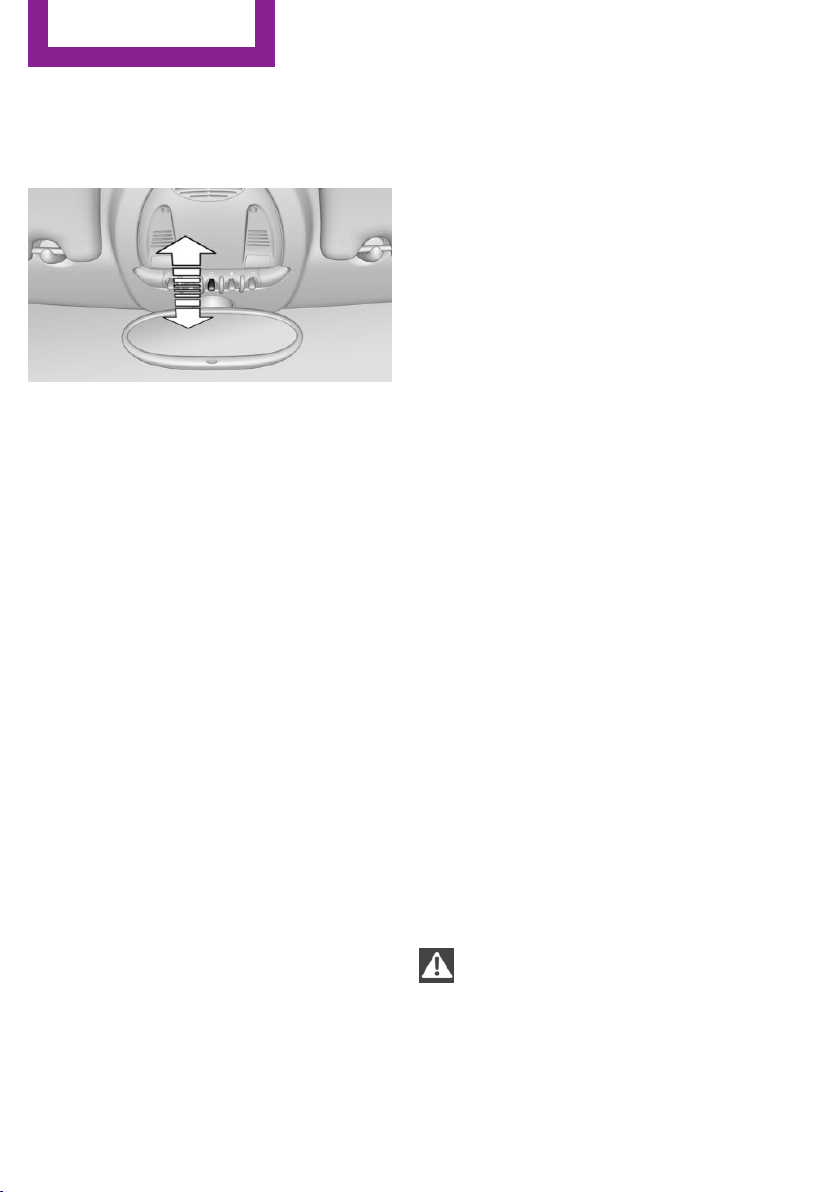
Convenient operation via:
▷ Door lock, refer to page 35
▷ Comfort Access, refer to page 39
Tilting the glass sunroof
MINI Countryman:
▷ Press the switch back to the resistance
point and hold.
Both glass sunroofs are raised.
Releasing stops the motion.
▷ With the ignition switched on, press the
switch back past the resistance point.
Both closed glass sunroofs are raised fully.
Pressing again stops the motion.
MINI Paceman:
▷ Press the switch back to the resistance
point and hold.
The front glass sunroof is raised.
Releasing stops the motion.
▷ With the ignition switched on, press the
switch back past the resistance point.
The front glass sunroof is fully raised.
Pressing again stops the motion.
Opening, closing
MINI Countryman:
▷ In the raised position with the ignition
switched on, press the switch back and
hold.
The front glass sunroof is opened. The rear
glass sunroof is closed.
Releasing stops the motion.
The same method is used to close the glass
sunroof, in this case by pressing the switch for‐
ward.
The front glass sunroof remains in the raised
position. The rear glass sunroof is raised. Press‐
ing again closes both sunroofs completely.
MINI Paceman:
▷ In the raised position with the ignition
switched on, press the switch back and
hold.
The front glass sunroof is opened.
Releasing stops the motion.
The same method is used to close the glass
sunroof, in this case by pressing the switch for‐
ward.
The front glass sunroof remains in the raised
position. Pressing again closes the roof com‐
pletely.
Roller sunblind
The roller sunblind can be opened and closed
separately from the glass sunroof.
After a power failure
After a power failure, it could happen that the
sunroof can only be raised. In this case, have
the system initialized. The manufacturer of your
MINI recommends having this work performed
by the service center.
Power windows
General information
Danger of pinching
Monitor the closing process and make
sure that the closing path of the window is
clear; otherwise, injuries may result.◀
Seite 42
Controls
Opening and closing
42
Online Edition for Part no. 01 40 2 911 544 - VI/13
Take the remote control with you
Take the remote control with you when
leaving the vehicle so that children, for exam‐
ple, cannot operate the power windows and in‐
jure themselves.◀
If, after having been opened and closed a num‐
ber of times in close succession, a window can
only be closed, the system is overheated. Let
the system cool down for several minutes with
the ignition switched on or the engine running.
Opening, closing
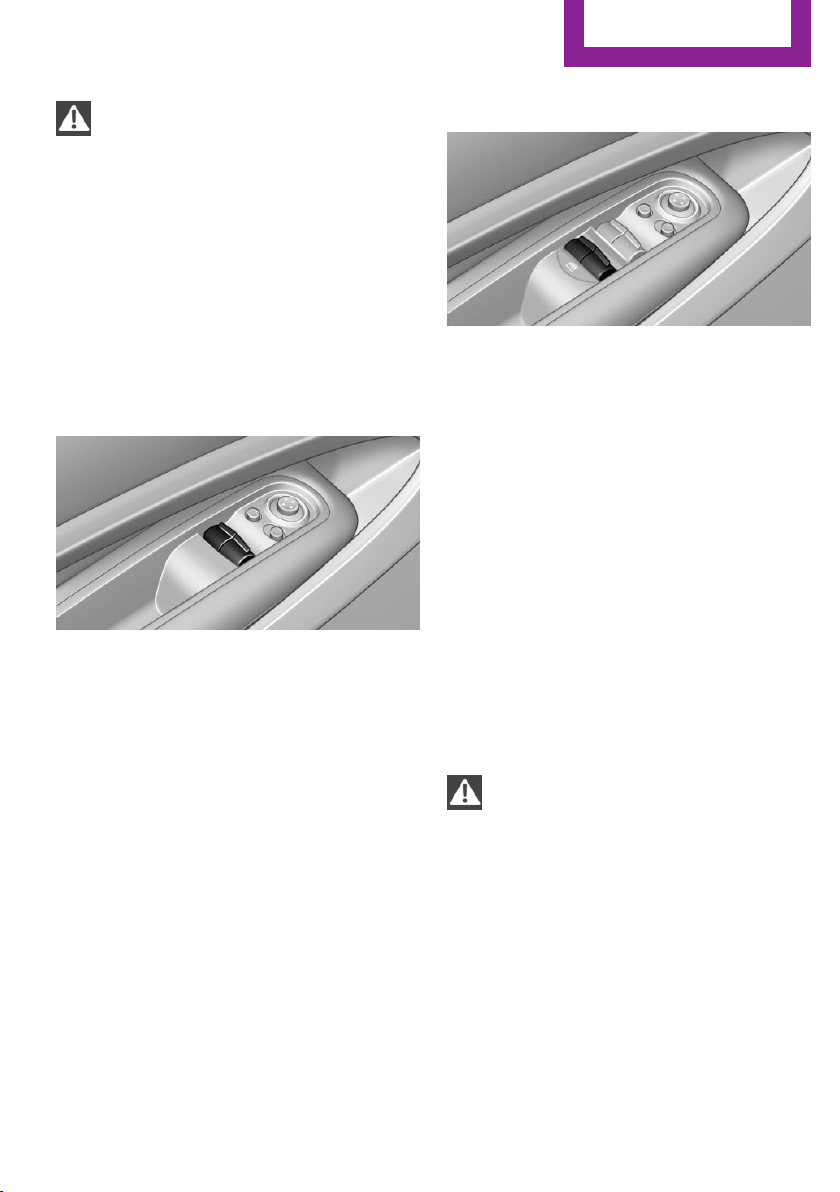
Front windows
To open:
▷ Press the switch to the resistance point. The
window opens while the switch is held.
▷ Press the switch beyond the resistance
point. The window opens automatically in
the radio ready state and higher.
Press again briefly to stop the opening pro‐
cedure.
To close:
▷ Pull the switch to the resistance point. The
window closes while the switch is held.
▷ Pull the switch beyond the resistance point.
The window closes automatically.
Pressing the switch stops the motion.
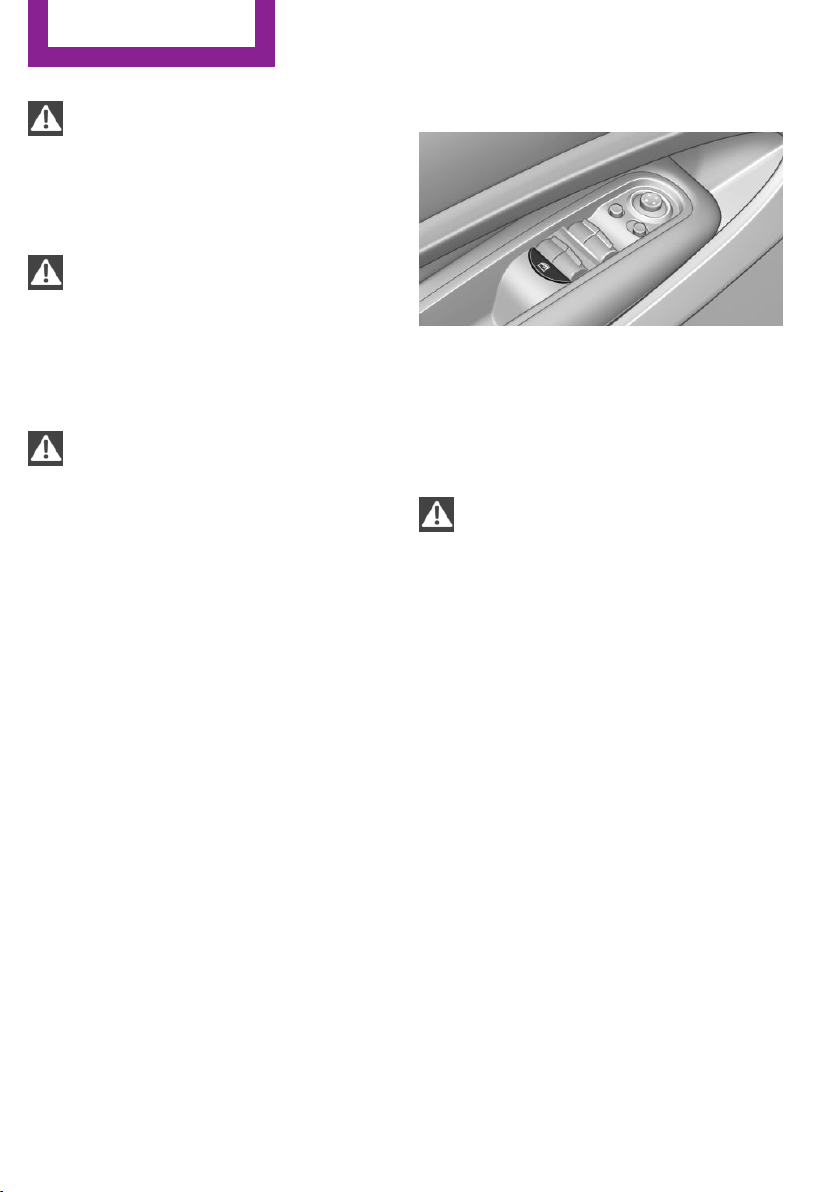
MINI Countryman: rear windows
To open:
▷ Press the switch to the resistance point. The
window opens while the switch is held.
▷ Press the switch beyond the resistance
point. The window opens automatically in
the radio ready state and higher.
To close:
▷ Pull the switch to the resistance point. The
window closes while the switch is held.
▷ Pull the switch beyond the resistance point.
The window closes automatically.
Pressing the switch stops the motion.
After the ignition is switched off
The windows can be operated for approx. 1 mi‐
nute after the remote control is removed or the
ignition is switched off.
Take the remote control with you
Take the remote control with you when
leaving the vehicle so that children, for exam‐
ple, cannot operate the power windows and in‐
jure themselves.◀
Pinch protection system
If the closing force exceeds a specific value as a
window closes, the closing action is inter‐
rupted.
The window reopens slightly.
Seite 43
Opening and closing
Controls
43
Online Edition for Part no. 01 40 2 911 544 - VI/13
Danger of pinching even with pinch pro‐
tection
Even with the pinch protection system, check
that the window's closing path is clear; other‐
wise, the closing action may not stop in certain
situations, e.g., if thin objects are present.◀
Do not use window accessories
Do not install any accessories in the range
of movement of the windows; otherwise, the
pinch protection system will be impaired.◀
Closing without the pinch protection
system
Danger of pinching
Monitor the closing process and make
sure that the closing path of the window is
clear; otherwise, injuries may result.◀
If there is an external danger or, for example, if
ice on the windows prevents a window from
closing normally, the window can be closed
manually.
1.
Pull the switch past the resistance point and
hold it there. Pinch protection is limited and
the window reopens slightly if the closing
force exceeds a certain value.
2. Pull the switch past the resistance point
again within approx. 4 seconds and hold it
there.
The window closes without pinch protec‐
tion.
MINI Countryman: safety switch
With the safety switch, the rear windows are
prevented from being opened or closed via the
switches in the rear passenger area, such as by
children.
Press the button. The LED lights up if the safety
function is switched on.
Safety switch for rear operation
Press the safety switch when transporting
children in the rear; otherwise, injury may result
if the windows are closed without supervi‐
sion.◀
Seite 44
Controls
Opening and closing
44
Online Edition for Part no. 01 40 2 911 544 - VI/13
Adjusting
Vehicle equipment
This chapter describes all series equipment as
well as country-specific and special equipment
offered for this model series.Therefore, it also
describes equipment that may not be found in
your vehicle, for instance due to the selected
special equipment or the country version. This
also applies to safety-related functions and sys‐
tems.
Sitting safely
The ideal seating position can make a vital con‐
tribution to relaxed, fatigue-free driving.
The seating position plays an important role in
an accident in combination with:
▷ Safety belts, refer to page 47
▷ Head restraints, refer to page 50.
▷ Airbags, refer to page 82.
Seats
Note before adjusting
Do not adjust the seat while driving
Never attempt to adjust the driver's seat
while driving. The seat could respond with un‐
expected movement and the ensuing loss of
vehicle control could lead to an accident.◀
Do not incline the backrest too far to the
rear
Do not incline the backrest on the front passen‐
ger side too far to the rear during driving. Oth‐
erwise, there is the danger of sliding under the
safety belt in an accident. This would eliminate
the protection normally provided by the belt.◀
Front seat adjustment
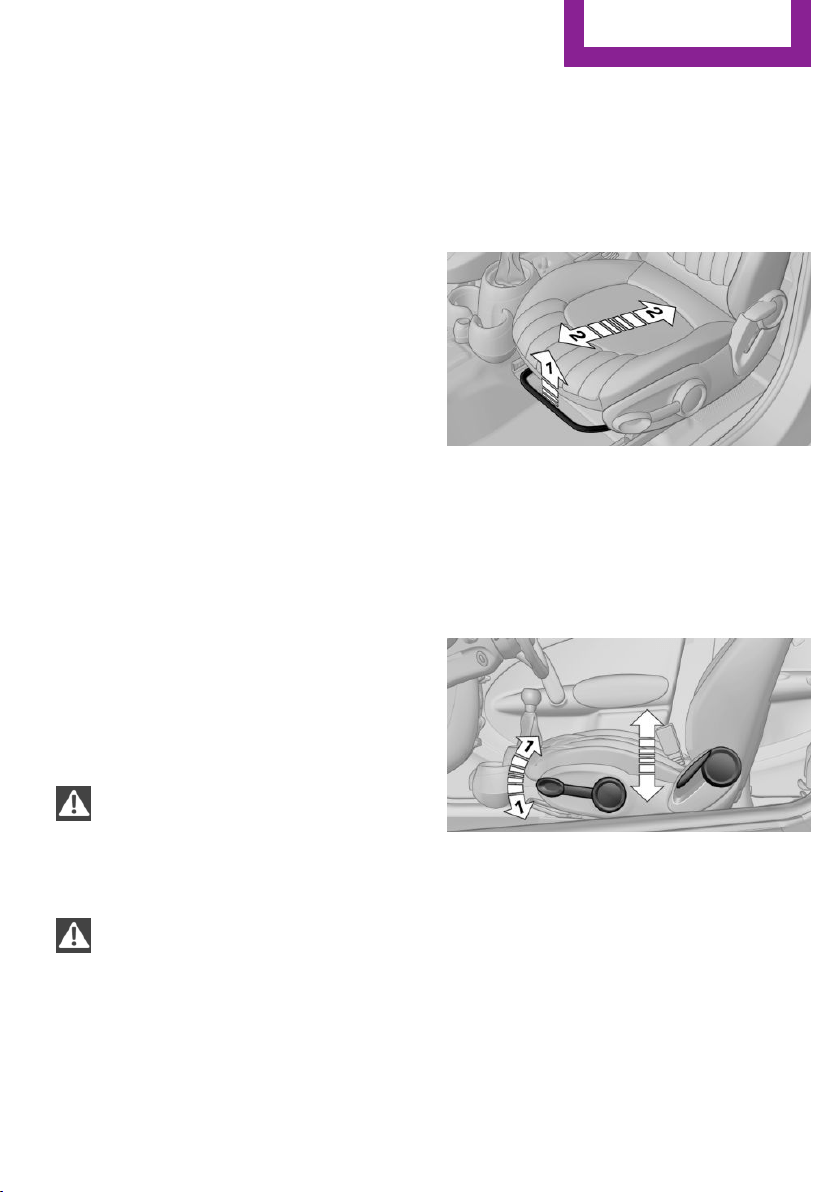
Forward/backward
Pull the lever, arrow 1, and slide the seat into
the desired position, arrows 2.
After releasing the lever, move the seat forward
or back slightly to make sure it engages prop‐
erly.
Height
Pull the lever up or push it down repeatedly, ar‐
rows 1, until the desired height is reached, ar‐
rows .
Backrest
MINI Countryman
Seite 45
Adjusting
Controls
45
Online Edition for Part no. 01 40 2 911 544 - VI/13
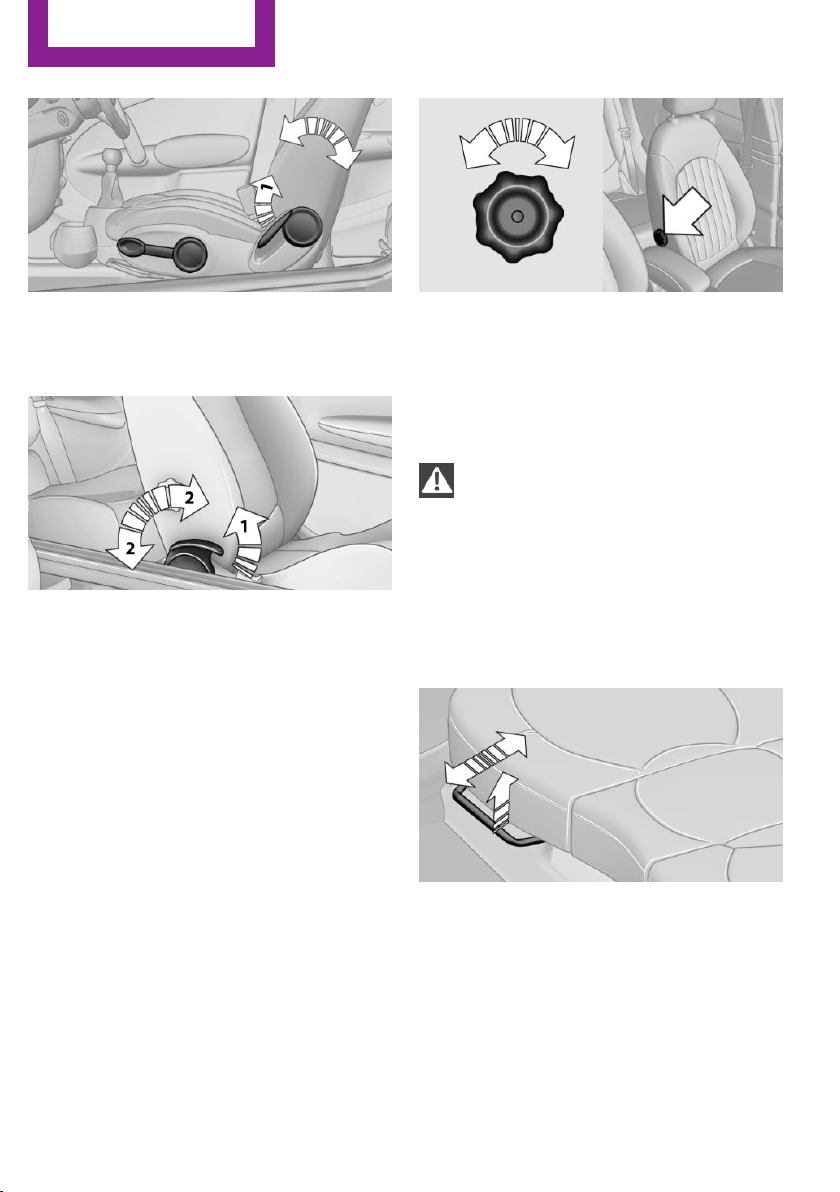
Pull the lever, arrow 1, and apply your weight
to the backrest or lift it off, as necessary.
MINI Paceman
Pull the lever, arrow 1, and apply your weight
to the backrest or lift it off, as necessary, ar‐
rows 2.
Lumbar support
You can also adjust the contour of the backrest
to obtain additional support in the lumbar re‐
gion.
The upper hips and spinal column receive sup‐
plementary support to help you maintain a re‐
laxed, upright sitting position.
The graphic shows the MINI Countryman as an
example.
Turn the wheel to increase or decrease the cur‐
vature.
MINI Countryman: rear seat adjustment
Observe the following when adjusting
Do not adjust the rear seats during a trip;
otherwise, there is a risk of passenger injury.
Make sure that the locking mechanisms of the
rear seats engage properly. Otherwise the re‐
straining effect of the safety belts during an ac‐
cident could be reduced.◀
Forward/backward
Pull the lever and slide the seat into the desired
position.
Release the lever and move the seat slightly
forward or back so that it engages properly.
Backrest
Adjust the backrest tilt, refer to page 110.
Seite 46
Controls
Adjusting
46
Online Edition for Part no. 01 40 2 911 544 - VI/13
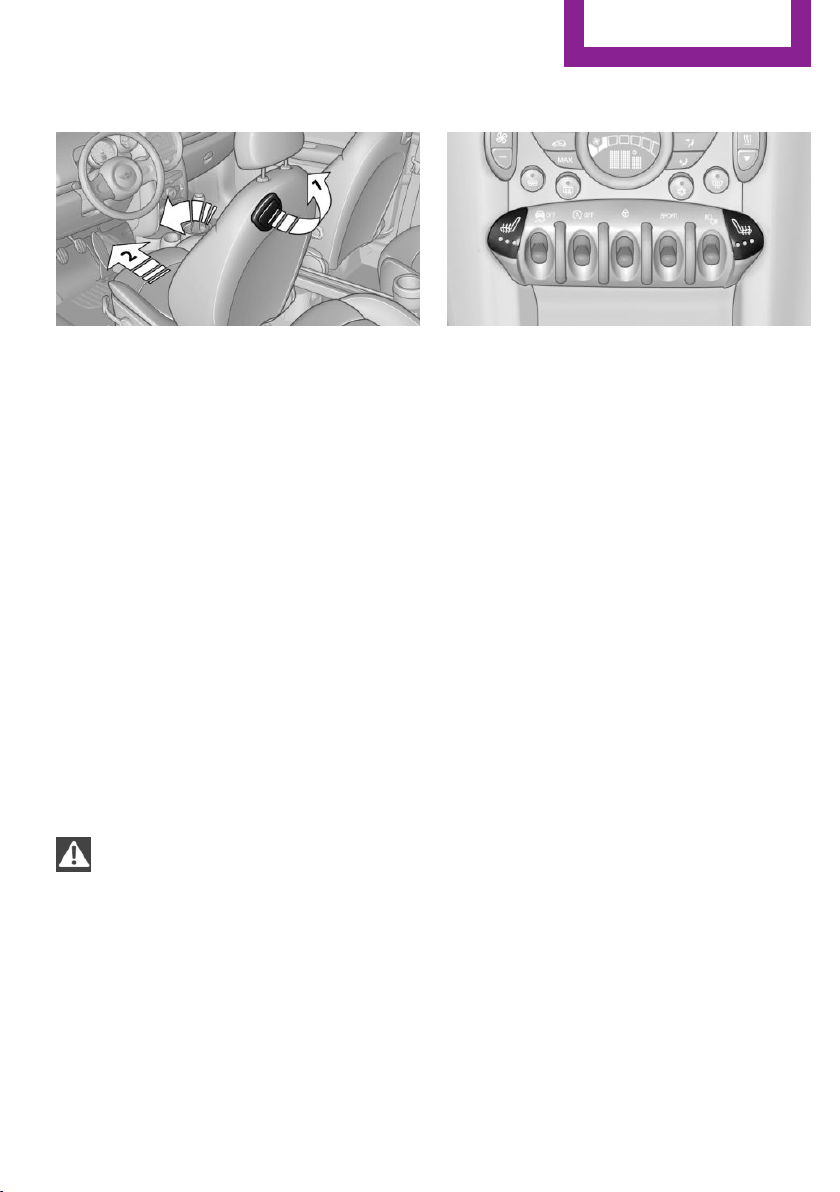
MINI Paceman: entry in the rear
1. Pull the lever on the back of the seat up‐
ward, arrow 1.
The backrest folds forward.
2. Push against the backrest to move the seat
forward, arrow 2.
To make it easier to enter the car in the rear,
push back the safety belt on the lower belt
guide rail if necessary.
Restoring the original seat position
The driver's seat has a mechanical memory
function for the forward/backward seat setting
and the backrest setting.
1.
Push the seat back to the original position.
Do not fold back the backrest until the seat
is in its original position; otherwise, the seat
will engage in its current position. If this
happens, adjust the forward/backward po‐
sition manually, refer to page 45.
2. Fold back the backrest to lock the seat.
Note the following when moving back the
seat
When moving back the seat, ensure that per‐
sons cannot be injured and objects cannot be
damaged. Lock the front seats and front back‐
rests before driving away; otherwise, there is
the risk of an accident if the seat or backrest
moves unexpectedly.◀
Seat heating
Switching on
The temperature setting progresses one step
through its control sequence each time you
press the button. The maximum temperature is
reached when three LEDs are lit.
If the trip is continued within approx. 15 mi‐
nutes, the seat heating is activated automati‐
cally with the temperature set last.
The temperature is reduced, if need be, down
to no heat in order to reduce the load on the
battery. The LEDs remain lit.
Switching off
Press the button longer.
Safety belts
Number of safety belts
Your vehicle has been fitted with four or five
safety belts for the safety of you and your pas‐
sengers.
However, they can only offer protection when
adjusted correctly.
Notes
Always make sure that safety belts are being
worn by all occupants before driving away.
Although airbags enhance safety by providing
added protection, they are not a substitute for
safety belts.
Seite 47
Adjusting
Controls
47
Online Edition for Part no. 01 40 2 911 544 - VI/13
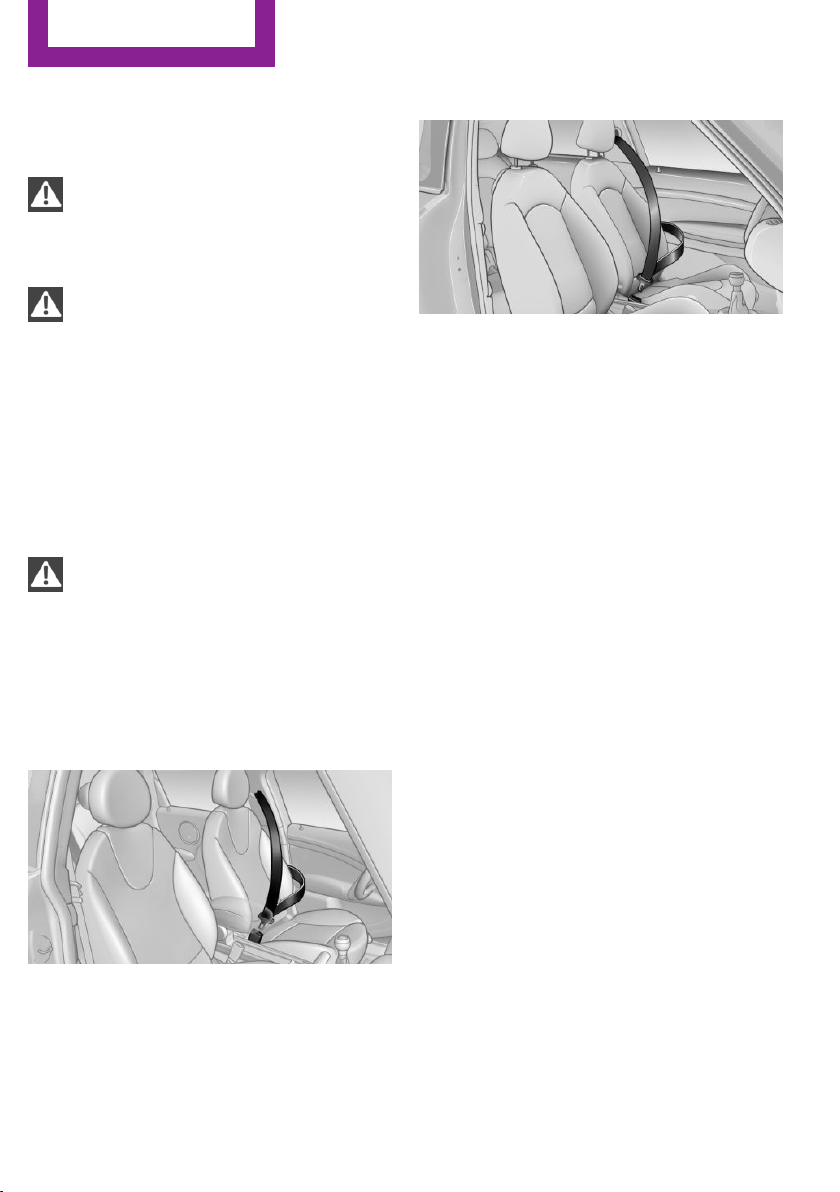
The shoulder strap's anchorage point will be
correct for adult seat occupants of every build if
the seat is correctly adjusted.
One person per safety belt
Never allow more than one person to
wear a single safety belt. Never allow infants or
small children to ride on a passenger's lap.◀
Putting on the belt
Lay the belt, without twisting, snugly
across the lap and shoulders, as close to the
body as possible. Make sure that the belt lies
low around the hips in the lap area and does
not press on the abdomen. Otherwise, the belt
can slip over the hips in the lap area in a frontal
impact and injure the abdomen.
The safety belt must not lie across the neck, rub
on sharp edges, be routed over solid or breaka‐
ble objects, or be pinched.◀
Reduction of restraining effect
Avoid wearing clothing that prevents the
belt from fitting properly, and pull the shoulder
belt periodically to readjust the tension across
your lap; otherwise, the retention effect of the
safety belt may be reduced.◀
Buckling the belt
MINI Countryman:
MINI Paceman:
Make sure you hear the latch plate engage in
the belt buckle.
The shoulder strap's anchorage point will be
correct for adult seat occupants of every build if
the seat is correctly adjusted, refer to page 45.
Unbuckling the belt
1.
Hold the belt firmly.
2. Press the red button in the belt buckle.
3. Guide the belt back into its reel.
Fastening the rear buckle tongues
When the outer rear seats are not occupied, the
buckle tongues of the rear seats can be slid up
to the cargo area trim with the clip.
This helps avoid annoying noises when driving.
MINI Countryman: center safety belt of
rear seat
The belt buckle embossed with the word CEN‐
TER is intended exclusively for use by passen‐
gers riding in the center position.
If the center safety belt in the rear is used, the
backrests must be locked, refer to page 111.
The safety belt will not have a restraining effect
if the backrest is not locked.
Belt holder in the headliner
The holder for the safety belt is located in the
headliner.
Seite 48
Controls
Adjusting
48
Online Edition for Part no. 01 40 2 911 544 - VI/13
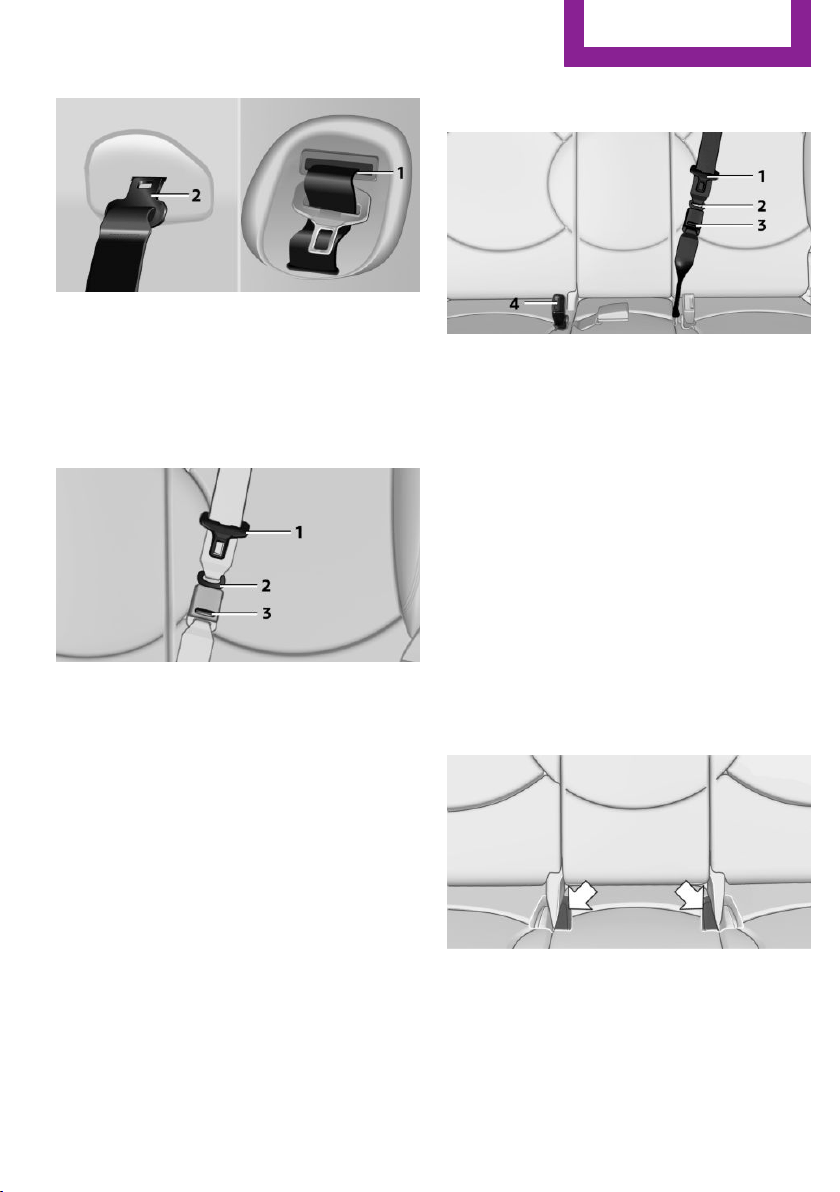
1 Opening for the safety belt
2 Holder for the small buckle tongue
Take the small buckle tongue out of the holder.
Move both buckle tongues downward.
Closing
Insert the small buckle tongue 2 of the safety
belt into the small belt buckle 3.
Opening
Press the red button on the small belt buckle 3
with buckle tongue 1.
When the center safety belt is locked:
Press the red button 3 with the buckle tongue
of the outer left safety belt.
Putting on the belt
1 Large buckle tongue
2 Small buckle tongue
3 Small belt buckle
4 Large belt buckle
Buckle tongue 1 must be inserted in belt
buckle 4. Make sure you hear the buckle
tongue engage in the belt buckle.
Insert the buckle tongue into the belt buckle in
such a way that the belt lies smoothly against
the body of the buckled person and is not
twisted.
Stowing the center safety belt
If the center seat is not occupied, insert the belt
buckles 3 and 4 into the respective holders, ar‐
rows.
Move the buckle tongues to the belt holder on
the headliner, refer to page 48, and insert them
into the provided holders.
Seite 49
Adjusting
Controls
49
Online Edition for Part no. 01 40 2 911 544 - VI/13
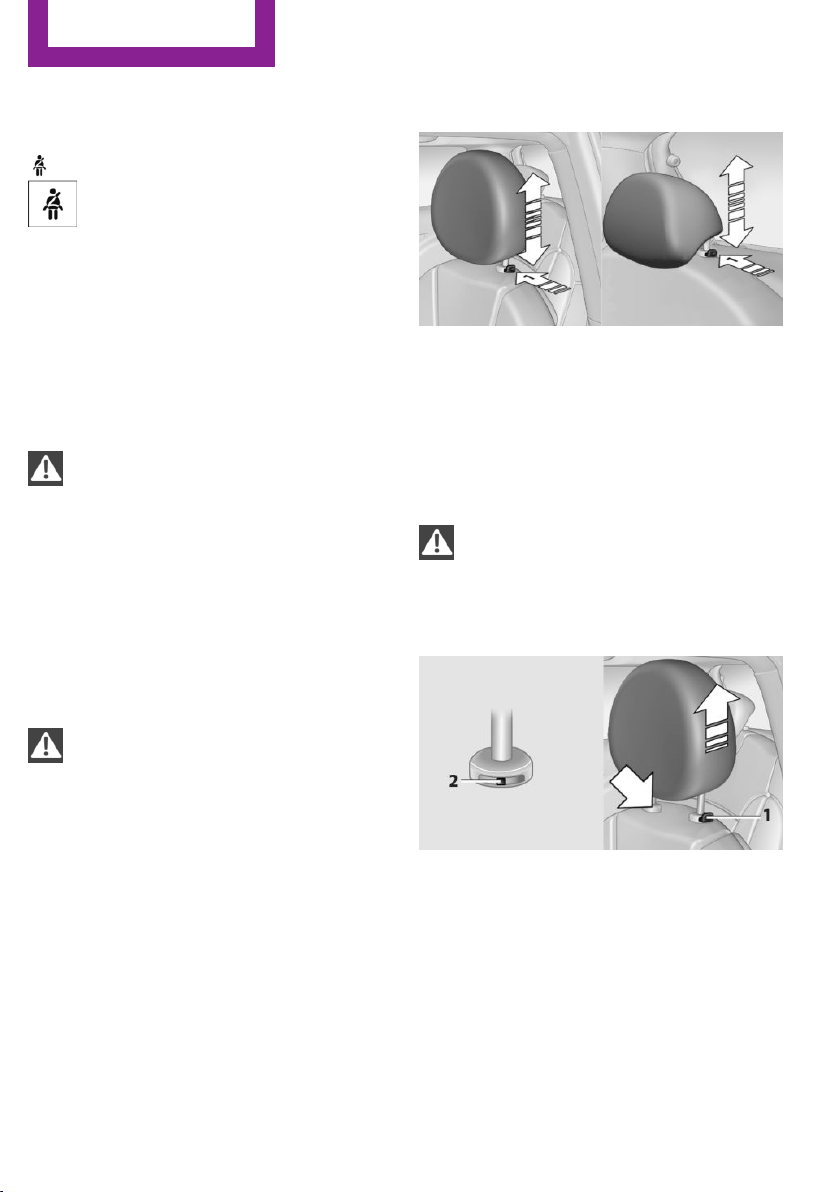
Safety belt reminder for driver's seat
and front passenger seat
The indicator lamps light up and a sig‐
nal sounds. In addition, a message ap‐
pears on the Control Display. Check
whether the safety belt has been fas‐
tened correctly.
Damage to safety belts
In the case of strain caused by accidents or
damage:
Have the safety belts, including the safety belt
tensioners, replaced and have the belt anchors
checked.
Checking and replacing safety belts
Have the work performed only by your
service center; otherwise, it cannot be ensured
that this safety feature will function properly.◀
Head restraints
Correctly set head restraint
A correctly adjusted head restraint reduces the
risk of spinal injury in the event of an accident.
Adjusting the head restraint
Correctly adjust the head restraints of all
occupied seats; otherwise, there is an increased
risk of injury in an accident.◀
Height
Adjust the head restraint so that its center is
approx. at ear level.
Height adjustment
To raise: pull.
To lower: press the button, arrow 1, and push
the head restraint down.
Removing
Only remove the head restraint if no one will be
sitting in the seat in question.
Before transporting passengers
Reinstall the head restraint before trans‐
porting anyone in the seat; otherwise, the pro‐
tective function of the head restraint is unavail‐
able.◀
Front
1.
Pull upward as far as possible.
2. Fold the backrest back slightly.
3. Press button 1 and pull out the head re‐
straint all the way to the stop.
4. MINI Countryman: press the additional but‐
ton 2 using a suitable tool.
5. Pull out the head restraint.
6. Fold back the backrest.
Seite 50
Controls
Adjusting
50
Online Edition for Part no. 01 40 2 911 544 - VI/13
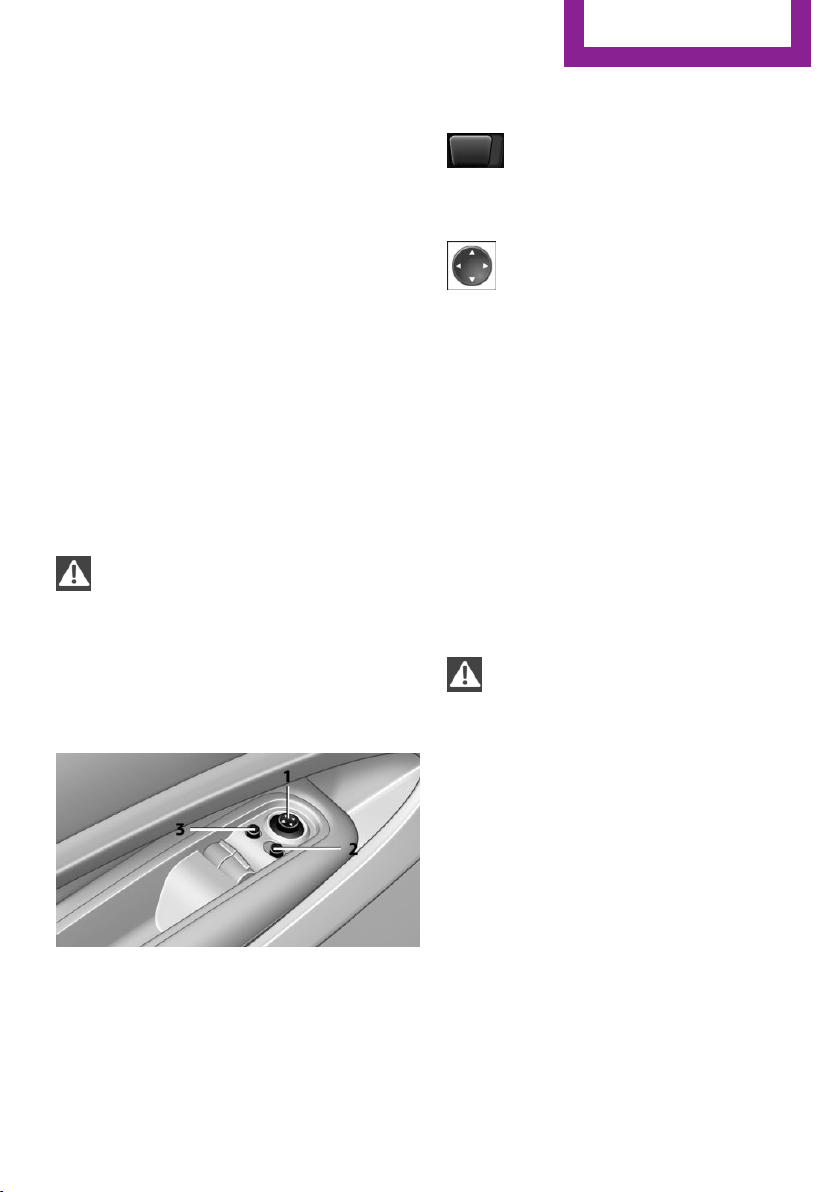
Rear
1. Pull upward as far as possible.
2. Fold the backrest forward slightly.
3. Press button 1 and pull out the head re‐
straint all the way to the stop.
4. Press the additional button 2 using a suita‐
ble tool.
5. Pull out the head restraint completely.
6. Fold back the rear seat backrest.
Mirrors
Exterior mirrors
General information
The mirror on the passenger side is more
curved than the driver's mirror.
Estimating distances correctly
Objects reflected in the mirror are closer
than they appear. Do not estimate the distance
to the traffic behind you based on what you see
in the mirror, as this will increase your risk of an
accident.◀
At a glance
1 Adjusting
2 Selecting the left/right mirror
3 Folding the mirror in and out
Selecting a mirror
To change to the other mirror: slide the
mirror switch over.
Adjusting electrically
The setting corresponds to the direction
in which the button is pressed.
Adjusting manually
If an electrical malfunction occurs, for example,
press the edges of the mirror glass.
Folding the mirror in and out
Press button 3.
The mirror can be folded in up to a vehicle
speed of approx. 20 mph/30 km/h.
For example, this is advantageous
▷ In car washes.
▷ In narrow streets.
▷ For folding back mirrors that were folded
away manually.
Fold in the mirror in a car wash
Before entering an automatic car wash,
fold in the exterior mirrors by hand or with the
button; otherwise, they could be damaged, de‐
pending on the width of the vehicle.◀
Automatic heating
Both exterior mirrors are heated automatically
while the engine is running or the ignition is
switched on when the external temperature is
below a certain value.
Seite 51
Adjusting
Controls
51
Online Edition for Part no. 01 40 2 911 544 - VI/13
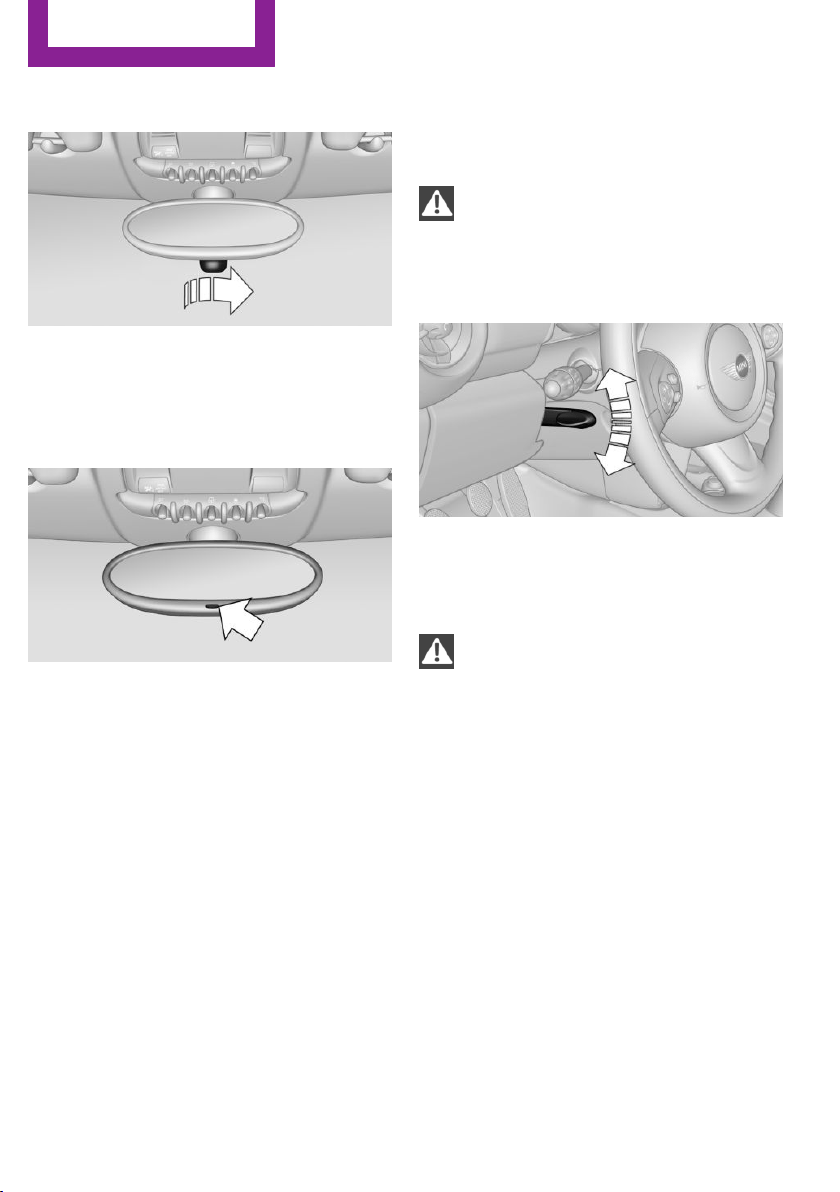
Interior rearview mirror
To reduce the blinding effect from the rear
when driving at night: turn the knob.
Interior rearview and exterior mirrors,
automatic dimming feature
Two photocells are used for control:
▷ In the mirror frame, see arrow.
▷ On the back of the mirror.
For proper operation:
▷ Keep the photocells clean.
▷ Do not cover the area between the inside
rearview mirror and the windshield.
▷ Do not apply stickers to the windshield in
front of the mirror.
Steering wheel
Adjusting
Do not adjust while driving
Do not adjust the steering wheel while
driving; otherwise, an unexpected movement
could result in an accident.◀
1. Fold the lever down.
2. Move the steering wheel to the preferred
height and angle to suit your seating posi‐
tion.
3. Fold the lever back.
Do not use force to swing the lever back.
Do not use force to swing the lever back
up; otherwise, the mechanism will be dam‐
aged.◀
Seite 52
Controls
Adjusting
52
Online Edition for Part no. 01 40 2 911 544 - VI/13

Transporting children safely
Vehicle equipment
This chapter describes all series equipment as
well as country-specific and special equipment
offered for this model series.Therefore, it also
describes equipment that may not be found in
your vehicle, for instance due to the selected
special equipment or the country version. This
also applies to safety-related functions and sys‐
tems.
The right place for chil‐
dren
Notes
Children in the vehicle
Do not leave children unattended in the
vehicle; otherwise, they could endanger them‐
selves and other persons, e.g., by opening the
doors.◀
Children should always be in the rear
Accident research shows that the safest place
for children is on the rear seat.
Transporting children in the rear
Transport children younger than 13 years
of age or shorter than 5 ft/150 cm in the rear
only, using child restraint fixing systems suita‐
ble for the age, weight, and height of the child;
otherwise, there is an increased risk of injury in
an accident.
Children 13 years of age or older must wear a
safety belt as soon as a suitable child restraint
fixing system can no longer be used, due to
their age, weight and size.◀
Installing child seats
Only install child seats in the rear when
the rear seat backrest is folded all the way back
and engaged; otherwise, there is an increased
risk of injury in an accident.◀
Children on the front passenger seat
Front passenger airbags
Should it be necessary to use a child restraint
fixing system on the front passenger seat,
make sure that the front and side airbags on
the front passenger side are deactivated, refer
to page 83.
Deactivating the front passenger airbags
If a child restraint fixing system is used in
the front passenger seat, the front passenger
airbags must be deactivated; otherwise, there
is an increased risk of injury to the child when
the airbags are triggered, even with a child re‐
straint fixing system.◀
Installing child re‐
straint fixing systems
Before mounting
MINI Countryman: before mounting a child re‐
straint fixing system on the rear seats, move
the seats into the rearmost positions.
Adjust the inclination of the center backrest to
that of the respective outer backrest.
After mounting the child restraint fixing system
on the respective outer rear seat, adjust the
backrest forward, if necessary, to ensure that
the backrest is in contact with the child re‐
straint fixing system. Rear seat backrests, refer
to page 110.
Seite 53
Transporting children safely
Controls
53
Online Edition for Part no. 01 40 2 911 544 - VI/13
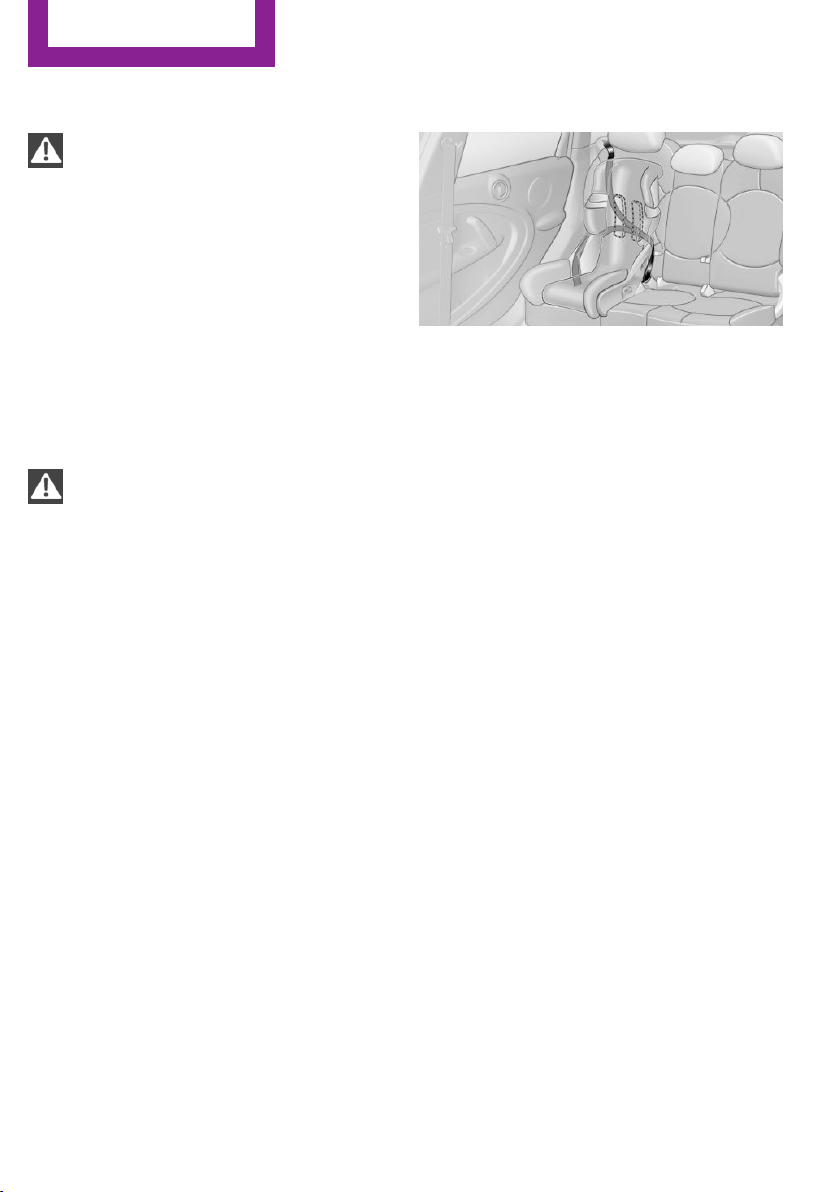
Notes
Manufacturer's information for child re‐
straint fixing systems
To select, mount and use child restraint fixing
systems, observe the information provided by
the system manufacturer; otherwise, the pro‐
tective effect can be impaired.◀
On the front passenger seat
Deactivating the airbags
After installing a child restraint fixing system on
the front passenger seat, ensure that the front,
side, and knee airbags on the front passenger
side are deactivated.
Deactivating the front passenger airbags
If a child restraint fixing system is used in
the front passenger seat, the front passenger
airbags must be deactivated; otherwise, there
is an increased risk of injury to the child when
the airbags are triggered, even with a child re‐
straint fixing system.◀
Seat position and height
Before installing a child restraint fixing system,
move the front passenger seat as far back as
possible and adjust its height to the highest po‐
sition to obtain the best possible position for
the belt and to offer optimal protection in the
event of an accident.
Do not change this seat position once it has
been set.
Child seat security
The graphic shows the MINI Countryman as an
example.
The rear safety belts and the safety belt for the
front passenger can be locked to prevent ex‐
tension in order to permit attachment of child
restraint fixing systems.
To lock the safety belt
1.
Secure the child restraint fixing system with
the belt.
2. Pull out the belt webbing completely.
3. Allow the belt webbing to be pulled in and
pull it taut against the child restraint fixing
system.
The safety belt is locked.
To unlock the safety belt
1.
Open the belt buckle.
2. Remove the child restraint fixing system.
3. Allow the belt webbing to be pulled in com‐
pletely.
Center safety belt: unlock belt buckle 3 in
addition, refer to page 49.
Guide the safety belt to the holder on the
headliner.
LATCH child restraint fix‐
ing system
LATCH: Lower Anchors and Tethers for Children.
Seite 54
Controls
Transporting children safely
54
Online Edition for Part no. 01 40 2 911 544 - VI/13
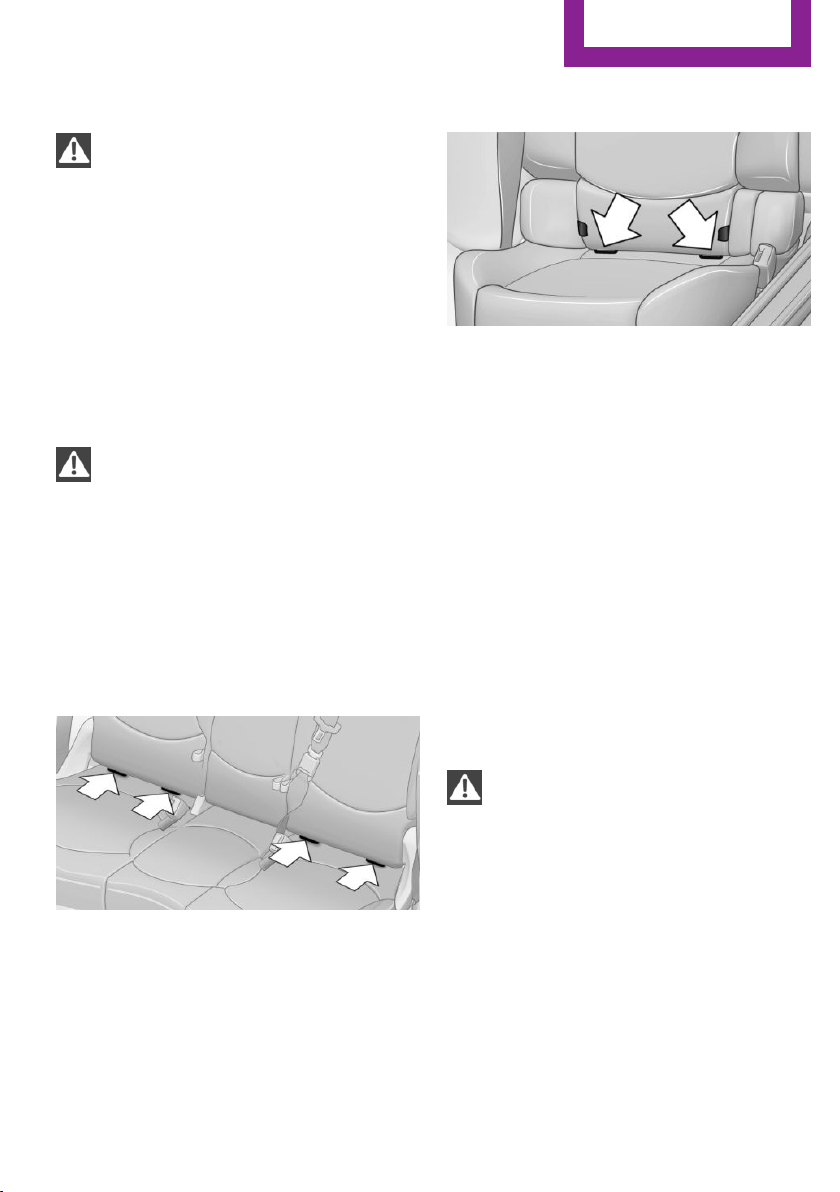
Notes
Manufacturer's information for LATCH
child restraint fixing systems
To mount and use the LATCH child restraint fix‐
ing systems, observe the operating and safety
information from the system manufacturer;
otherwise, the level of protection may be re‐
duced.◀
Mounts for the lower LATCH anchors
The lower anchors may be used to attach the
CRS to the vehicle seat up to a combined child
and CRS weight of 65 lb/30 kg when the child is
restrained by the internal harnesses.
Correctly engage the lower LATCH an‐
chors
Make sure that the lower LATCH anchors have
properly engaged and that the child restraint
fixing system is resting snugly against the back‐
rest; otherwise, the degree of protection of‐
fered may be reduced.◀
Before installing the child seat, pull the belt out
of the area for the child restraint fixing system.
MINI Countryman
The mounts for the lower LATCH anchors are
located at the points indicated by the arrows.
MINI Paceman
The mounts for the lower LATCH anchors are
located at the points indicated by the arrows.
Mounting LATCH child restraint fixing
systems
1.
Mount the child restraint fixing system; re‐
fer to the operating instructions of the sys‐
tem.
2. Ensure that both LATCH anchors are prop‐
erly connected.
Child restraint fixing
systems with an upper re‐
taining strap
Mounting points
LATCH mounting eyes
Only use the mounting eyes for the upper
LATCH retaining strap to secure child restraint
fixing systems; otherwise, the mounting eyes
could be damaged.◀
There are two additional mounting points for
child restraint fixing systems with an upper re‐
taining strap, arrows.
Seite 55
Transporting children safely
Controls
55
Online Edition for Part no. 01 40 2 911 544 - VI/13
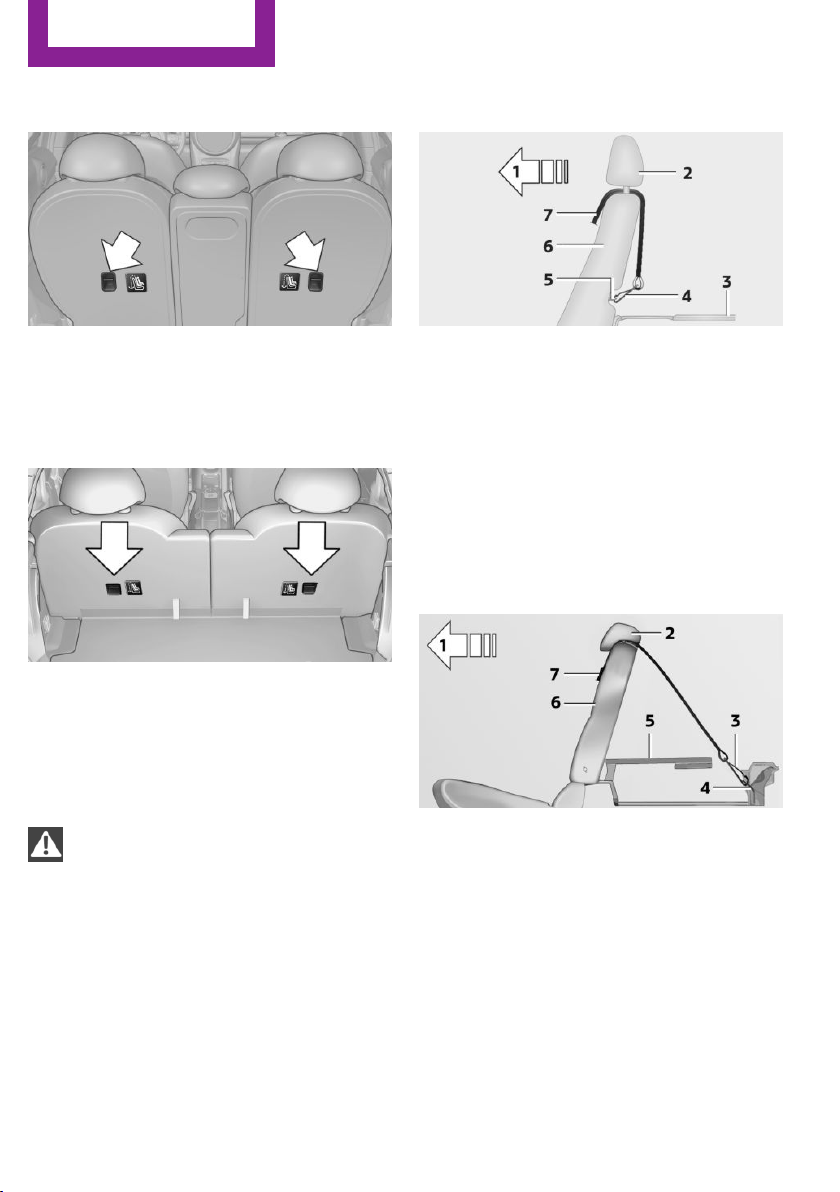
MINI Countryman
There are two additional mounting points for
child restraint fixing systems with an upper re‐
taining strap, arrows.
MINI Paceman
There are two additional mounting points for
child restraint fixing systems with an upper re‐
taining strap, arrows.
Guide of the upper LATCH retaining
strap
Retaining strap
Make sure the upper retaining strap does
not run over sharp edges and is not twisted as
it passes to the top anchor. Otherwise, the
strap will not properly secure the child restraint
fixing system in the event of an accident.◀
Outer seats:
1 Direction of travel
2 Head restraint
3 Cargo area floor
4 Hook for upper retaining strap
5 Mounting point
6 Backrest
7 Upper retaining strap of child restraint fix‐
ing system
MINI Countryman, center seat
1 Direction of travel
2 Head restraint
3 Hook for upper retaining strap
4 Mounting point
5 Cargo area floor
6 Backrest
7 Upper retaining strap of child restraint fix‐
ing system
Seite 56
Controls
Transporting children safely
56
Online Edition for Part no. 01 40 2 911 544 - VI/13
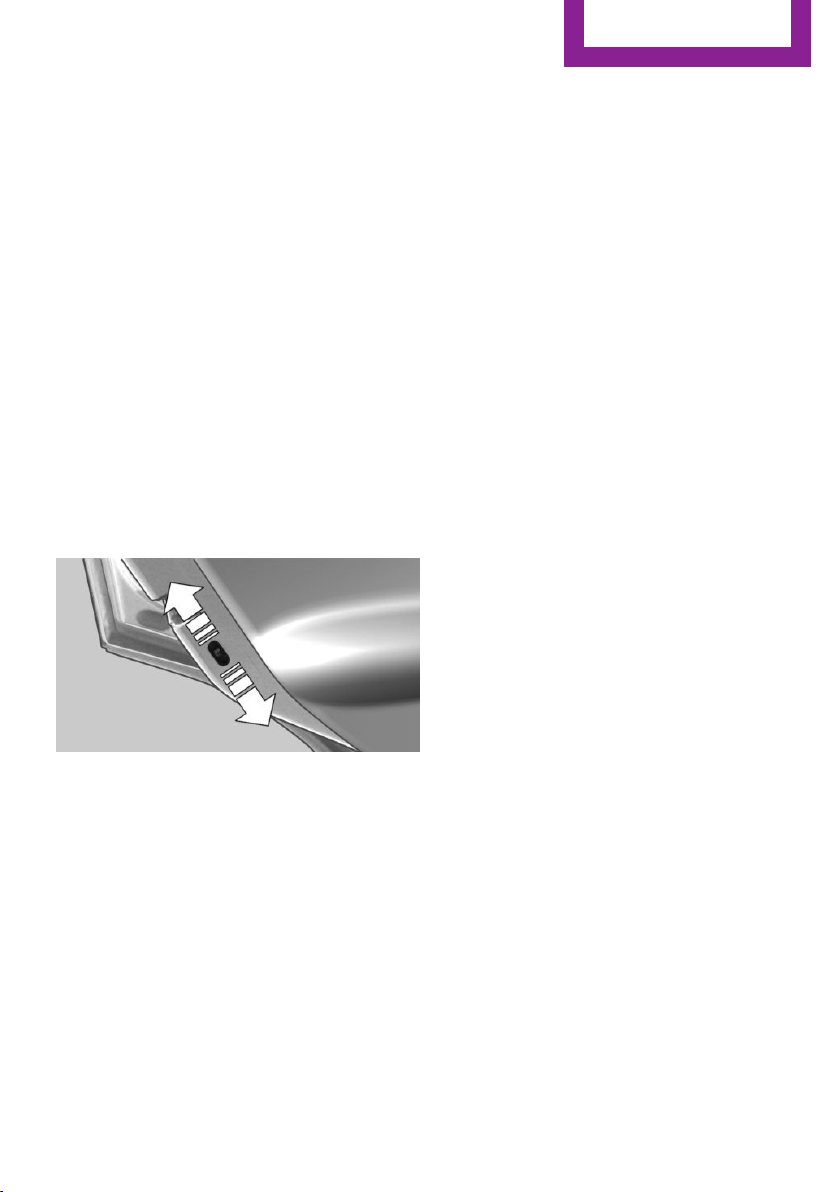
Attaching the upper retaining strap to
the mounting point
1. Slide the head restraint upward.
2. Center seat: fold the cargo area floor for‐
ward.
3. Guide the upper retaining strap between
the supports of the head restraint.
4. Attach the upper retaining strap to the
mounting point with the hook.
5. Slide the head restraint into the bottom po‐
sition.
6. Pull the upper retaining strap taut.
MINI Countryman: lock‐
ing doors and windows
Rear doors
Push the locking lever on the rear doors down.
The door can now be opened from the outside
only.
Safety switch for power window
This locks the rear window switches so that the
windows cannot be operated from the rear.
Press the safety switch, refer to page 44.
Seite 57
Transporting children safely
Controls
57
Online Edition for Part no. 01 40 2 911 544 - VI/13
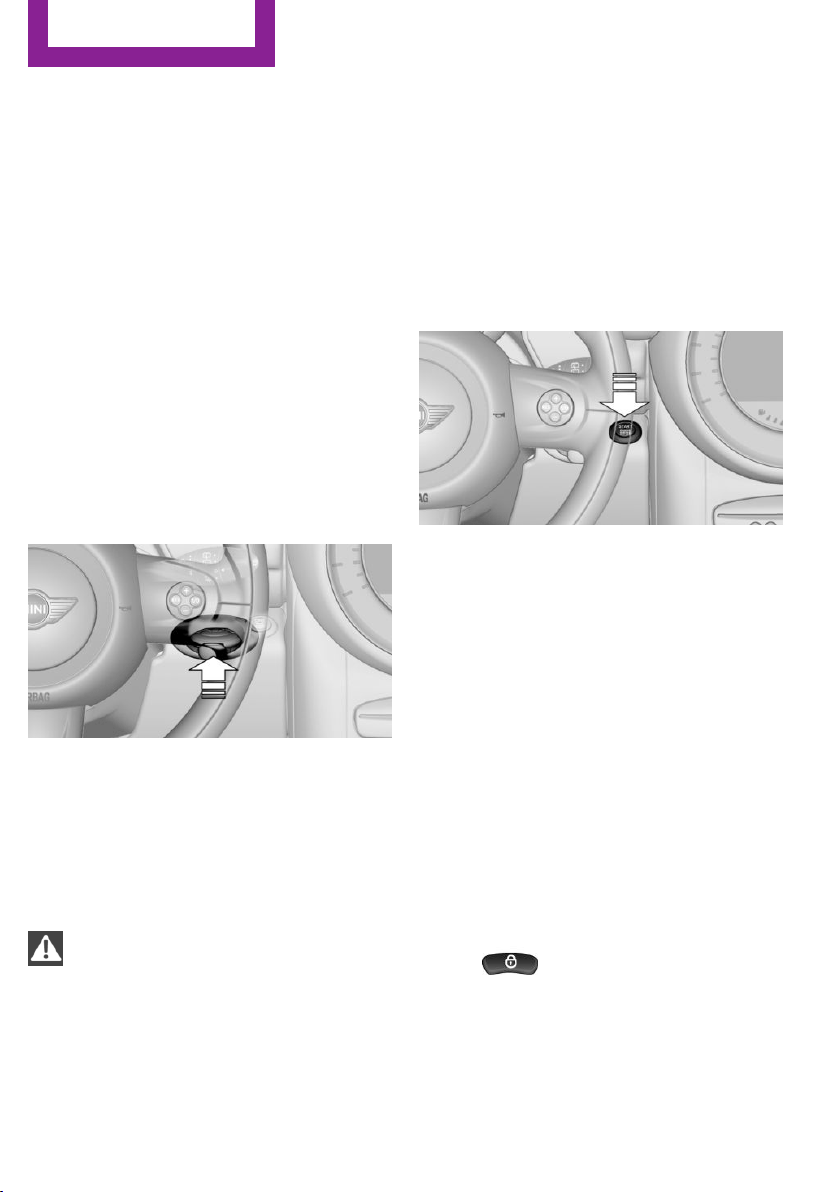
Driving
Vehicle equipment
This chapter describes all series equipment as
well as country-specific and special equipment
offered for this model series.Therefore, it also
describes equipment that may not be found in
your vehicle, for instance due to the selected
special equipment or the country version. This
also applies to safety-related functions and sys‐
tems.
Ignition lock
Insert the remote control into the
ignition lock
Insert the remote control all the way into the
ignition lock.
Radio ready state is switched on. Individual
electrical consumers can operate.
Removing the remote control from the
ignition lock
Do not forcibly pull the remote control
out of the ignition lock
Do not forcibly pull the remote control out of
the ignition lock as this may cause damage.◀
Before removing the remote control, push it all
the way in to release the locking mechanism.
The ignition is switched off if it was on.
Automatic transmission
You can only take out the remote control if
transmission position P is engaged: interlock.
Start/Stop button
Pressing the Start/Stop button switches the ig‐
nition on or off and starts the engine.
The engine starts when the Start/Stop button is
pressed and:
▷ Manual transmission: the clutch is de‐
pressed.
▷ Automatic transmission: the brake is de‐
pressed.
Radio ready state
Individual electrical consumers can operate.
Radio ready state is switched off automatically:
▷ When the remote control is removed from
the ignition lock.
▷ With Comfort Access, refer to page 38, by
pressing the button on the door handle or
the
button on the remote control.
▷ After a certain period of time.
Ignition on
All electrical consumers can operate. Most indi‐
cator and warning lamps light up for different
lengths of time.
Seite 58
Controls
Driving
58
Online Edition for Part no. 01 40 2 911 544 - VI/13
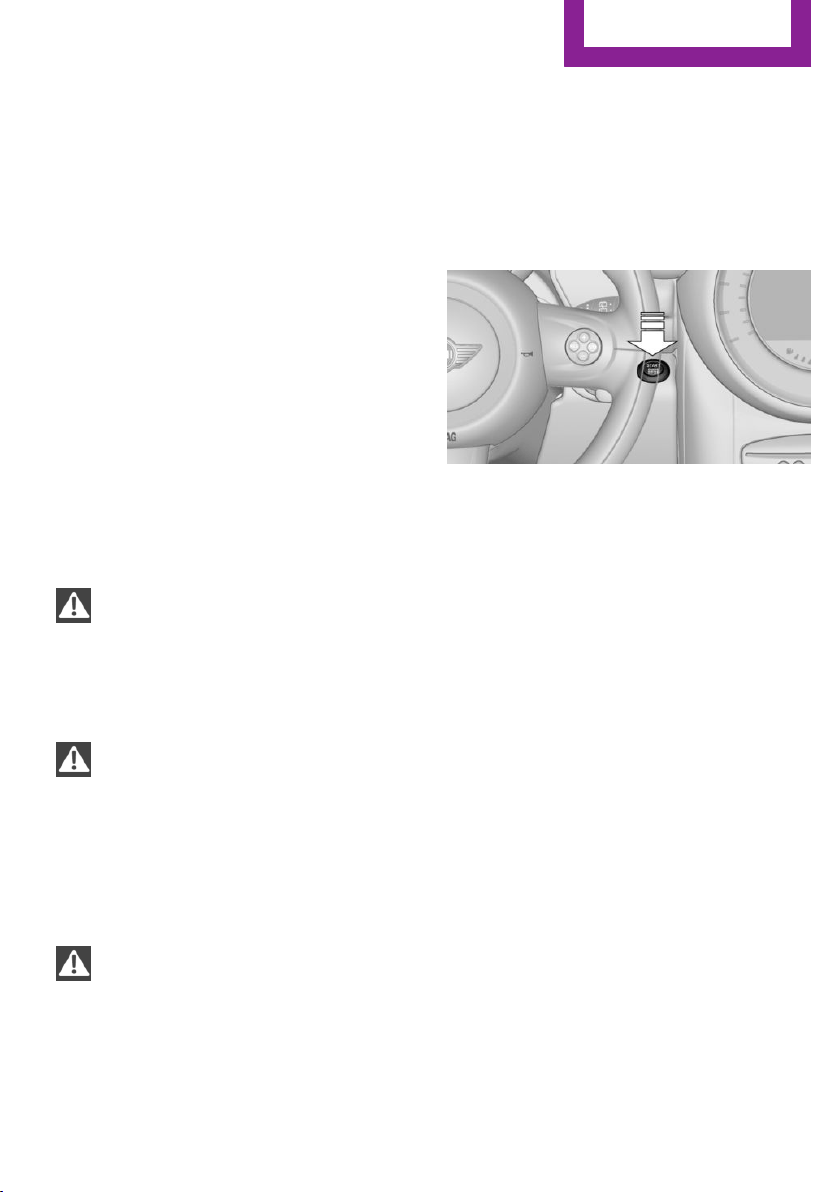
To save battery power when the engine is off,
switch off the ignition and any unnecessary
electronic systems/power consumers.
Radio ready state and ignition off
All indicator and warning lamps in the displays
go out.
The ignition switches off automatically when
the driver's door is opened. Pressing the Start/
Stop button again switches the ignition back
on.
For example, the ignition is not switched off in
the following situations:
▷ Depress the clutch or brake pedal.
▷ The low beams are switched on
Starting the engine
General information
Enclosed areas
Do not let the engine run in enclosed
areas; otherwise, breathing of exhaust fumes
may lead to loss of consciousness and death.
The exhaust gases contain carbon monoxide,
an odorless and colorless but highly toxic gas.◀
Unattended vehicle
Do not leave the car unattended with the
engine running; otherwise, it presents a poten‐
tial source of danger.
Before leaving the car with the engine running,
shift to neutral or engage transmission posi‐
tion P and set the handbrake firmly; otherwise,
the vehicle may begin to roll.◀
Frequent starting in quick succession
Avoid repeated futile attempts at starting
the car and avoid starting the car frequently in
quick succession. Otherwise, the fuel is not
burned or is inadequately burned, and there is
the danger of overheating and damaging the
catalytic converter.◀
Do not wait for the engine to warm-up while
the vehicle remains stationary; start driving
right away, but at moderate engine speeds.
Do not depress the accelerator when starting
the engine.
Starting the engine
Manual transmission
Remote control in the ignition lock or, with
Comfort Access, inside the vehicle, refer to
page 38.
1.
Depress the brake pedal.
2. Depress the clutch pedal.
3. Press the Start/Stop button.
The ignition is activated automatically for a cer‐
tain time and is stopped as soon as the engine
starts.
Automatic transmission
Remote control in the ignition lock or, with
Comfort Access, inside the vehicle, refer to
page 38.
1.
Depress the brake pedal.
2. Move the selector lever to position P or N.
3. Press the Start/Stop button.
The ignition is activated automatically for a cer‐
tain time and is stopped as soon as the engine
starts.
Seite 59
Driving
Controls
59
Online Edition for Part no. 01 40 2 911 544 - VI/13
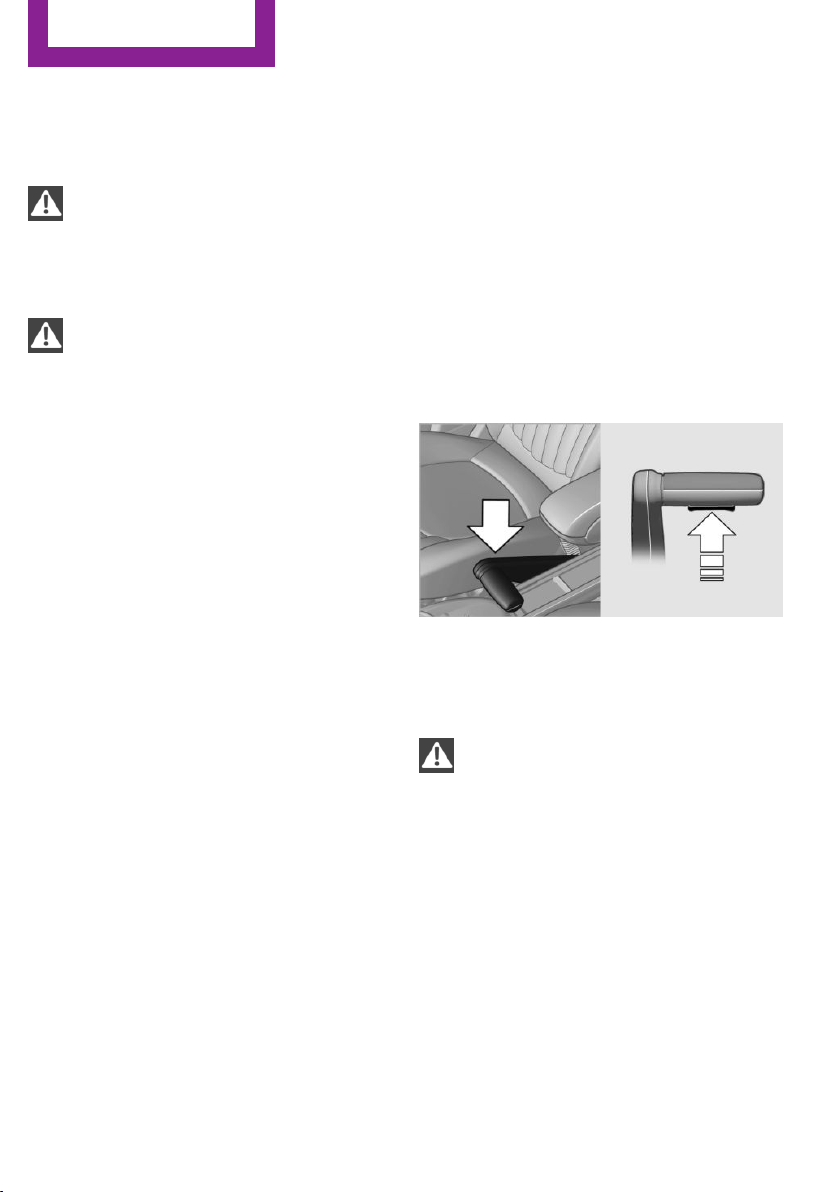
Engine stop
General information
Take the remote control with you
Take the remote control with you when
leaving the vehicle so that children, for exam‐
ple, cannot operate the windows and injure
themselves.◀
Set the handbrake and further secure the
vehicle as required
Set the handbrake firmly when parking; other‐
wise, the vehicle may roll. On steep upward
and downward inclines, further secure the ve‐
hicle, for example, by turning the steering
wheel in the direction of the curb.◀
Before driving into a car wash
To make it possible for the vehicle to roll in an
automatic car wash, follow the information on
Washing in automatic car washes, refer to
page 254.
Switching off the engine
Manual transmission
1.
With the vehicle at a standstill, press the
Start/Stop button.
2. Shift into first gear or reverse.
3. Set the handbrake firmly.
4. Remove the remote control from the igni‐
tion lock.
Automatic transmission
1.
Engage transmission position P with the ve‐
hicle stopped.
2. Press the Start/Stop button.
3. Set the handbrake firmly.
4. Remove the remote control from the igni‐
tion lock.
Handbrake
The concept
The handbrake is primarily intended to prevent
the vehicle from rolling while parked; it brakes
the rear wheels.
Also follow the instructions under Switching off
the engine, refer to page 60.
Setting
The lever engages automatically.
Releasing
Pull up slightly, press the button, and lower the
lever.
Notes
Using the handbrake while driving
If it should become necessary to use the
handbrake while driving, do not pull the hand‐
brake too forcefully. Keep the button on the
handbrake lever pressed at all times.
Excessive application of the handbrake can
block the rear wheels and lead to fishtailing of
the vehicle.◀
The brake lamps do not light up when the
handbrake is pulled.
Seite 60
Controls
Driving
60
Online Edition for Part no. 01 40 2 911 544 - VI/13
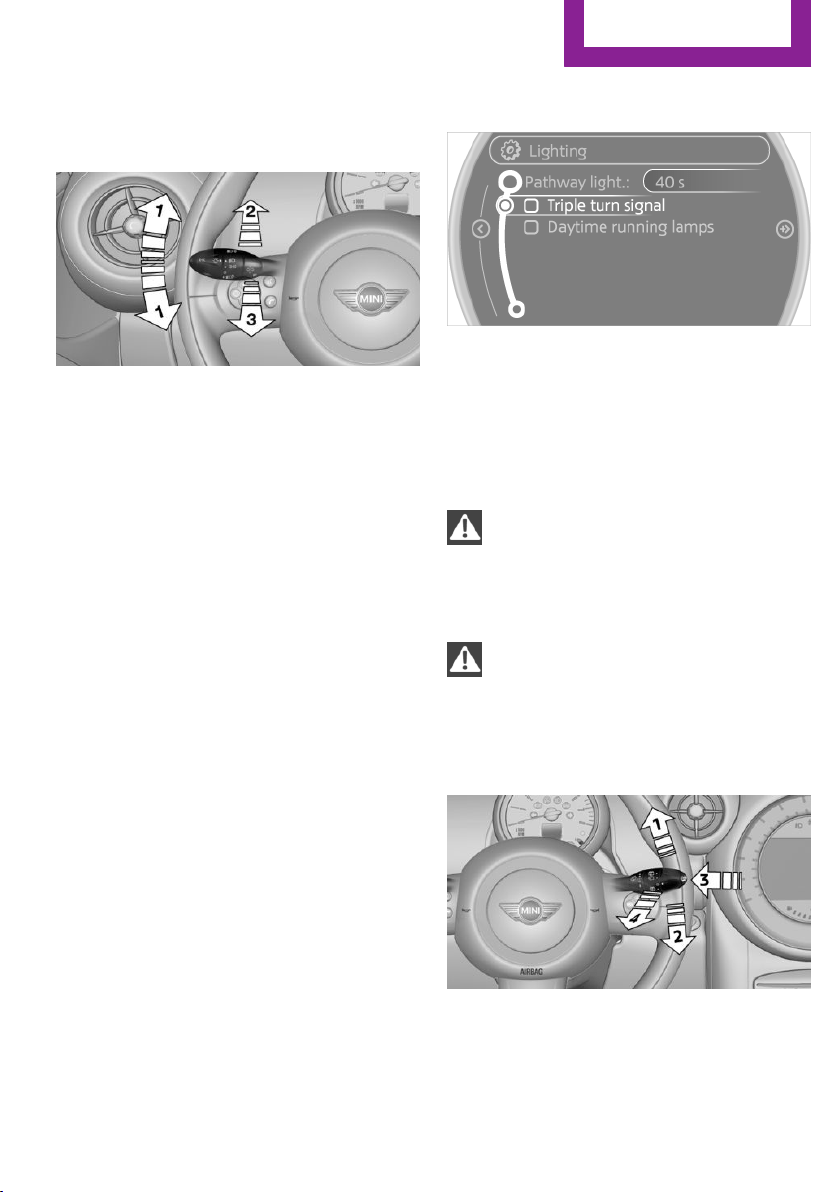
Turn signal, high beams,
headlamp flasher
1 Turn signal
2 Switching on the high beams
3 Switching off the high beams/headlamp
flasher
Turn signal
Press the lever beyond the resistance point.
To switch off manually, press the lever to the
resistance point.
Unusually rapid flashing of the indicator lamp
indicates that a turn signal bulb has failed.
Signaling a turn briefly
Press the lever to the resistance point and hold
it there for as long as you want the turn signal
to flash.
Triple turn signal activation
Press the lever to the resistance point.
The turn signal flashes three times.
This function can be activated or deactivated:
1.
"Settings"
2. "Lighting"
3. "Triple turn signal"
The setting is stored for the remote control cur‐
rently in use.
Washer/wiper system
Notes
Do not switch on the wipers if frozen
Do not switch on the wipers if they are
frozen onto the windshield; otherwise, the
wiper blades and the windshield wiper motor
may be damaged.◀
Do not use the wipers on a dry windshield
Do not use the wipers on a dry wind‐
shield; otherwise, the wiper blades may wear
more rapidly or become damaged.◀
At a glance
1 Switching on wipers
2 Switching off wipers or brief wipe
Seite 61
Driving
Controls
61
Online Edition for Part no. 01 40 2 911 544 - VI/13
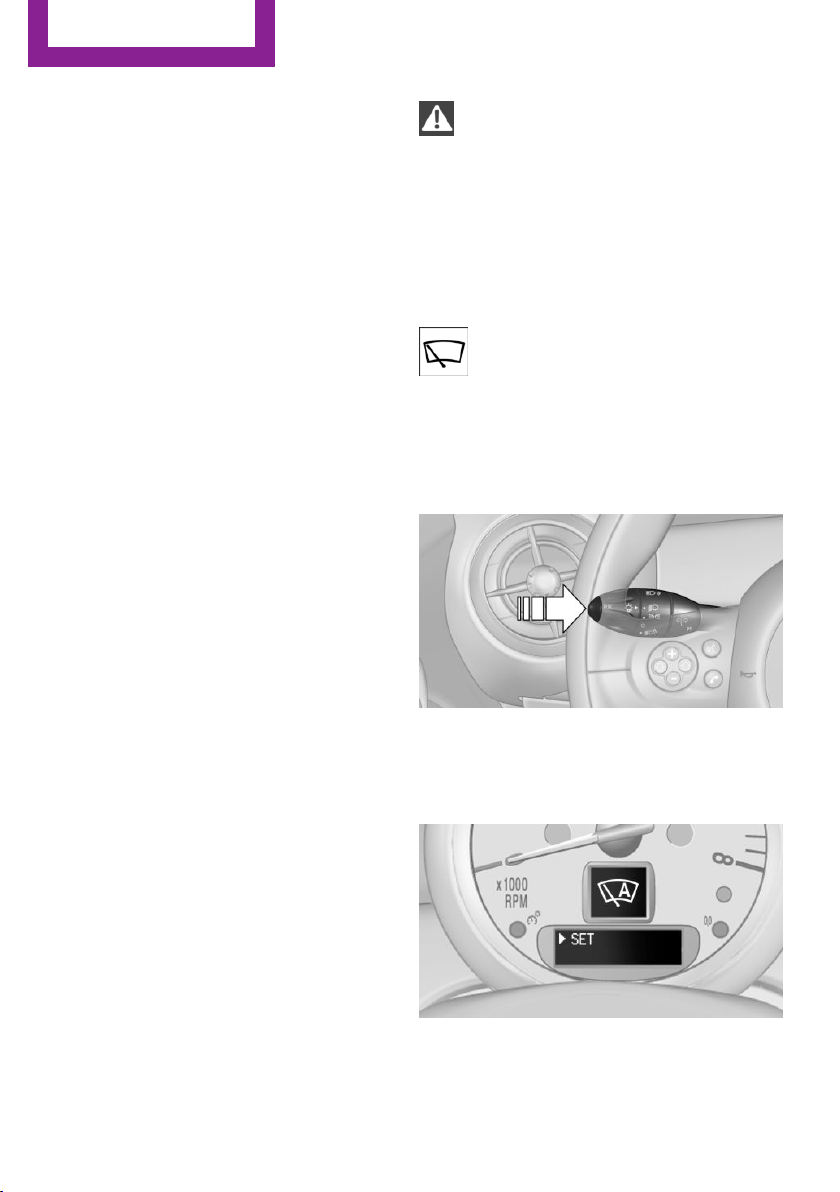
3 Activating/deactivating intermittent wipe or
the rain sensor
4 Cleaning the windshield and headlamps
Switching on wipers
Press the wiper lever upward, arrow 1.
The lever automatically returns to its initial po‐
sition when released.
Normal wiper speed
Press up once.
The system switches to operation in the inter‐
mittent mode when the vehicle is stationary.
Fast wiper speed
Press up twice or press once beyond the resist‐
ance point.
The system switches to normal speed when the
vehicle is stationary.
Switching off wipers or brief wipe
Press the wiper lever down, arrow 2.
The lever automatically returns to its initial po‐
sition when released.
▷ Brief wipe: press down once.
▷ To switch off normal wipe: press down
once.
▷ To switch off fast wipe: press down twice.
Intermittent wipe or rain sensor
If the car is not equipped with a rain sensor, the
intermittent-wipe time is a preset.
If the car is equipped with a rain sensor, the
time between wipes is controlled automatically
and depends on the intensity of the rainfall.
The rain sensor is mounted on the windshield,
directly in front of the interior rearview mirror.
Deactivate the rain sensor in car washes
Deactivate the rain sensor when passing
through an automatic car wash; otherwise,
damage could be caused by undesired wiper
activation.◀
Activating intermittent wipe or rain
sensor
Press the button, arrow 3.
The symbol is shown in the tachometer.
Setting the sensitivity of the rain sensor
1.
Switch on the ignition, refer to page 58.
2. Press the button on the turn indicator lever
repeatedly until "SET/INFO" is displayed.
3. Press and hold the button until the display
changes.
4. Press the button repeatedly until the sym‐
bol and "SET" are displayed.
Seite 62
Controls
Driving
62
Online Edition for Part no. 01 40 2 911 544 - VI/13
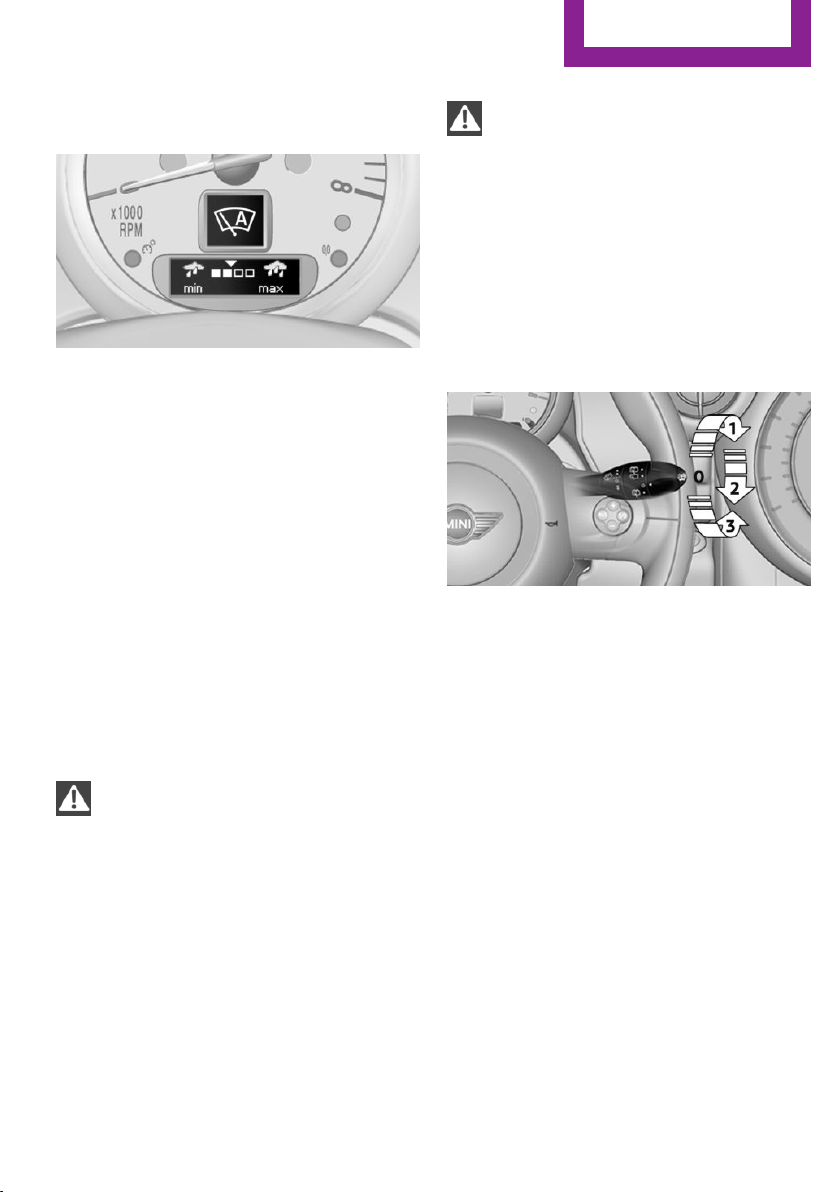
5. Press and hold the button until the display
changes.
6. Press the button to select the desired sensi‐
tivity.
7. Wait or hold the button until the display
changes.
The settings were stored.
Deactivating intermittent wipe or rain
sensor
Press the button again, arrow 3.
Cleaning the windshield and headlamps
Pull the lever, arrow 4.
The system sprays washer fluid on the wind‐
shield and activates the wipers briefly.
When the vehicle lighting system is switched
on, the headlamps are cleaned at regular and
appropriate intervals.
Do not use the washer system at freezing
temperatures
Do not use the washers if there is any danger
that the fluid will freeze on the windshield; oth‐
erwise, your vision could be obscured. For this
reason, use antifreeze.
Avoid using the washer when the reservoir is
empty; otherwise, you could damage the
pump.◀
Do not use the washing facilities when
the hood is open
Only use the washing facilities when the hood
is fully locked; otherwise, the headlamp washer
system may become damaged.◀
Windshield washer nozzles
The windshield washer nozzles are heated au‐
tomatically while the engine is running or the
ignition is switched on.
Rear window wiper
0 Resting position
1 Switching on intermittent wipe
Turn the cap to level 1.
When reverse gear is engaged, the system
switches to continuous operation.
2 Cleaning the rear window with intermittent
wipe
Turn the cap further to level 2 and hold.
3 Cleaning the rear window in the resting po‐
sition
Turn the cap to level 3 and hold.
The rear window wiper does not move if the
cap is in position 1 before the ignition is
switched on.
To switch on the rear window wiper:
1.
Move the cap to its basic position.
2. Select the required position again.
Seite 63
Driving
Controls
63
Online Edition for Part no. 01 40 2 911 544 - VI/13
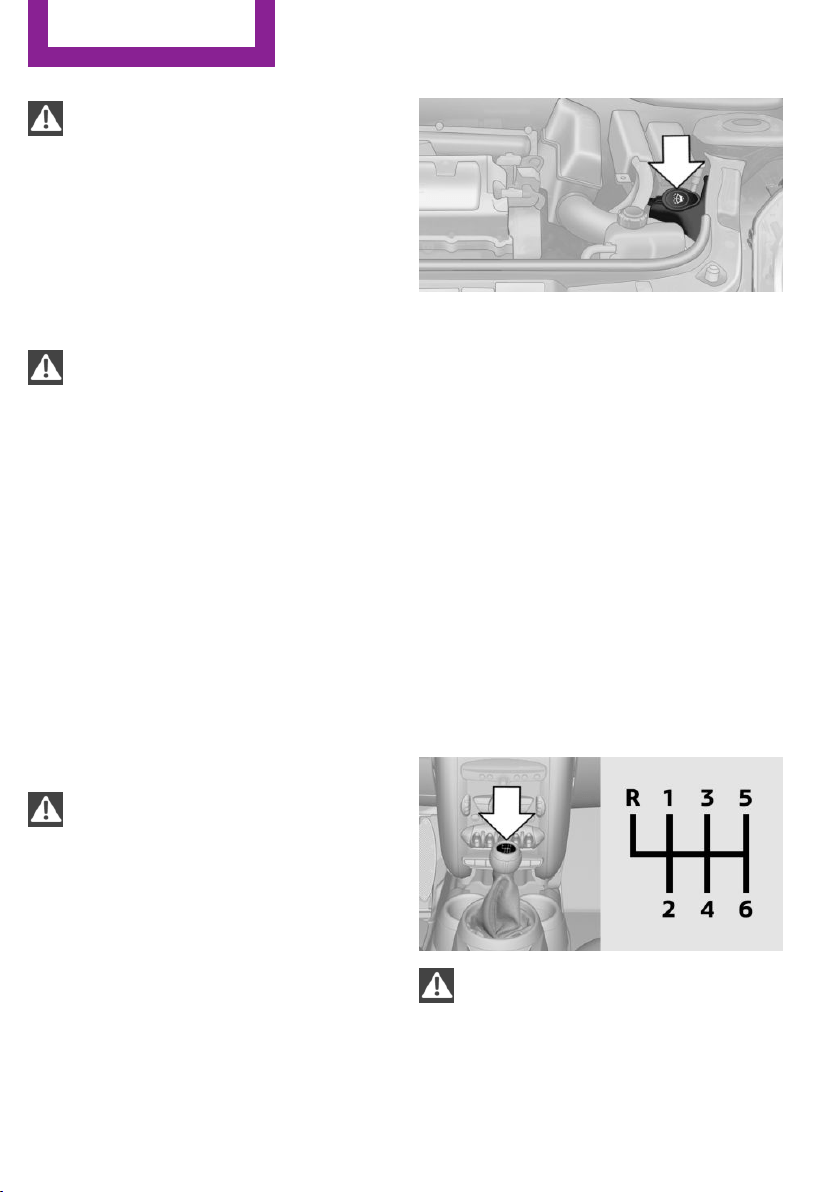
Do not use the washing mechanisms
when the washer fluid reservoir is empty
Do not use washing mechanisms when the
washer fluid reservoir is empty, otherwise you
will damage the washer pump.◀
Washer fluid
General information
Antifreeze for washer fluid
Antifreeze is flammable and can cause in‐
juries if used improperly.
Therefore, keep it away from sources of igni‐
tion.
Only keep it in the closed original container and
inaccessible to children.
Follow the notes and instructions on the con‐
tainer.
United States: The washer fluid mixture ratio is
regulated by the U.S. EPA and many individual
states; do not exceed the allowable washer
fluid dilution ratios limits that apply. Follow the
usage instructions on the washer fluid con‐
tainer. Use BMW's Windshield Washer Concen‐
trate or the equivalent.◀
Washer fluid reservoir
Adding washer fluid
Only add washer fluid when the engine is
cool, and then close the cover completely to
avoid contact between the washer fluid and
hot engine parts.
Otherwise, there is the danger of fire and a risk
to personal safety if the fluid is spilled.◀
All washer nozzles are supplied from one reser‐
voir.
The recommended minimum filling quantity is
0.2 US gal/1 liter.
Fill with a mixture of window washing concen‐
trate and water; if needed, add antifreeze ac‐
cording to the manufacturer instructions.
Mix the washer fluid before adding to maintain
the correct mixing ratio.
Do not fill in undiluted window washing con‐
centrate and do not fill in pure water; this could
damage the washer system.
Do not mix window washing concentrate from
different manufacturers; this could cause the
washer nozzles to clog.
Manual transmission
Pay attention to the shift plane
When shifting into 5th or 6th gear, push
the gearshift lever to the right; otherwise inad‐
vertent shifting into the 3rd or 4th gear could
lead to engine damage.◀
Seite 64
Controls
Driving
64
Online Edition for Part no. 01 40 2 911 544 - VI/13
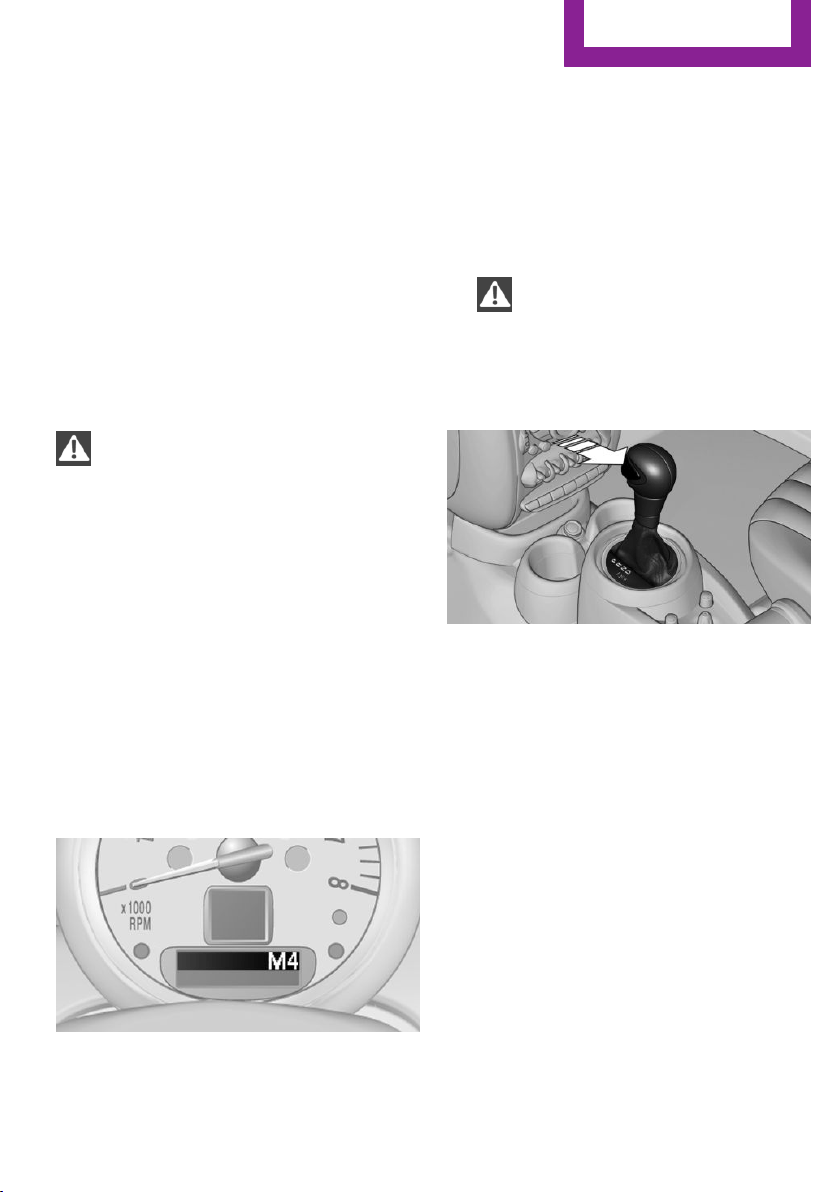
Reverse gear
Select only when the vehicle is stationary. When
the gearshift lever is pressed to the left, a slight
resistance needs to be overcome.
Automatic transmission
with Steptronic
In addition to the fully automatic mode, gears
can also be shifted manually using Steptronic,
refer to page 66.
Parking the vehicle
Secure the vehicle
Before leaving the vehicle with the en‐
gine running, move the selector lever to posi‐
tion P and set the handbrake; otherwise, the
vehicle will begin moving.◀
Disengaging the remote control
To remove the remote control from the ignition
lock, first move the selector lever to position P
and switch off the engine: interlock. Remove
the remote control from the ignition lock, refer
to page 58.
Selector lever positions
P R N D M/S + –
Displays in the tachometer
The selector lever position is displayed and the
engaged gear, such as M4, is displayed in
manual mode.
Changing selector lever positions
▷ With the ignition switched on or the engine
running, the selector lever can be moved
out of position P.
▷ When the vehicle is stationary, step on the
brake before shifting out of P or N; other‐
wise, the selector lever is locked: shiftlock.
Press on the brake pedal until you
start driving
To prevent the vehicle from creeping after
you select a driving position, maintain pres‐
sure on the brake pedal until you are ready
to start.◀
A lock prevents accidental shifting into selector
lever positions R and P.
To override the lock, press the button on the
front of the selector lever, see arrow.
P Park
Select only when the vehicle is stationary. The
front wheels are blocked.
R is Reverse
Select only when the vehicle is stationary.
N is Neutral
For example, engage this position in a car
wash. The vehicle can roll.
D Drive, automatic position
Position for normal vehicle operation. All for‐
ward gears are selected automatically.
Seite 65
Driving
Controls
65
Online Edition for Part no. 01 40 2 911 544 - VI/13
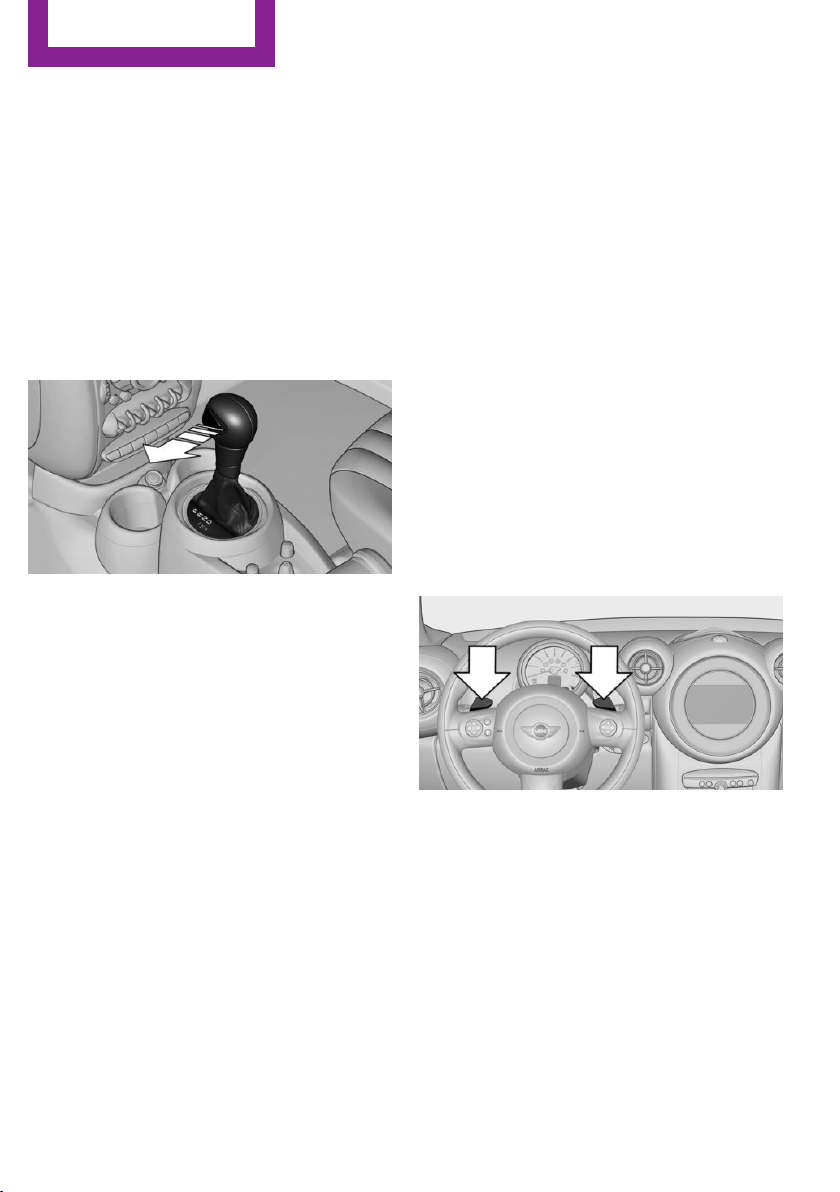
Under normal operating conditions, fuel con‐
sumption is lowest when you are driving in po‐
sition D.
Kickdown
Kickdown is used to achieve maximum driving
performance. Press on the accelerator beyond
the resistance point at the full throttle position.
Sport program and manual mode M/S
Activating the Sport program
Move the selector lever from position D toward
the left into the M/S shifting slot.
The Sport program is activated and DS is dis‐
played. This position is recommended for a per‐
formance-oriented driving style.
To deactivate the Sport program or manual
mode M/S, move the selector lever to the right
into position D.
Activating the M/S manual mode
Move the selector lever from position D toward
the left into the M/S shifting slot.
Push the selector lever forward or backward.
Manual mode becomes active and the gear is
changed.
The tachometer displays the engaged gear,
e. g. M1.
▷ To shift up: press the selector lever back‐
ward.
▷ To shift down: press the selector lever for‐
ward.
The vehicle only shifts up or down at appropri‐
ate engine and road speeds, e.g., it does not
shift down if the engine speed is too high. The
selected gear is briefly displayed in the instru‐
ment panel, followed by the current gear.
Shifting gears using the shift paddles
on the steering wheel
The shift paddles on the steering wheel allow
you to shift gears quickly while keeping both
hands on the steering wheel.
▷ When the shift paddles on the steering
wheel are used to shift gears while in auto‐
matic mode, the transmission switches to
manual mode.
▷ If the shift paddles are not used to acceler‐
ate or shift gears for a certain amount of
time, the transmission switches back to au‐
tomatic mode.
If the selector lever is in the M/S gear plane,
manual mode remains active.
▷ Pull one of the two shift paddles:
The transmission shifts up.
▷ Press one of the two shift paddles:
The transmission shifts down.
The vehicle only shifts up or down at appropri‐
ate engine and road speeds, e.g., it does not
shift down if the engine speed is too high. The
selected gear is briefly displayed in the instru‐
ment panel, followed by the current gear.
Seite 66
Controls
Driving
66
Online Edition for Part no. 01 40 2 911 544 - VI/13

Manually unlocking the selector lever
lock
If the selector lever is locked in position P al‐
though the ignition is switched on, the brake is
depressed, and the button on the selector lever
is pressed, the selector lever lock can be over‐
ridden:
1. Switch off the ignition.
2. Unclip the sleeve of the selector lever.
3. Pull the sleeve up over the selector lever
until the sleeve is inside out.
Pull off the plug-in cable connector if nec‐
essary.
4. Insert the pulling hook 1 into the loop on
the passenger side.
The pulling hook is found in the vehicle
document portfolio or in the pouch of the
wheel change set, refer to page 245.
5. Pull the loop upward.
6. Move the selector lever into the desired po‐
sition, pressing the button on the front of
the selector lever.
Set the handbrake
Before manually unlocking the selector
lever lock, pull the handbrake firmly; otherwise,
the vehicle may roll away and cause personal
injury or property damage.◀
Seite 67
Driving
Controls
67
Online Edition for Part no. 01 40 2 911 544 - VI/13
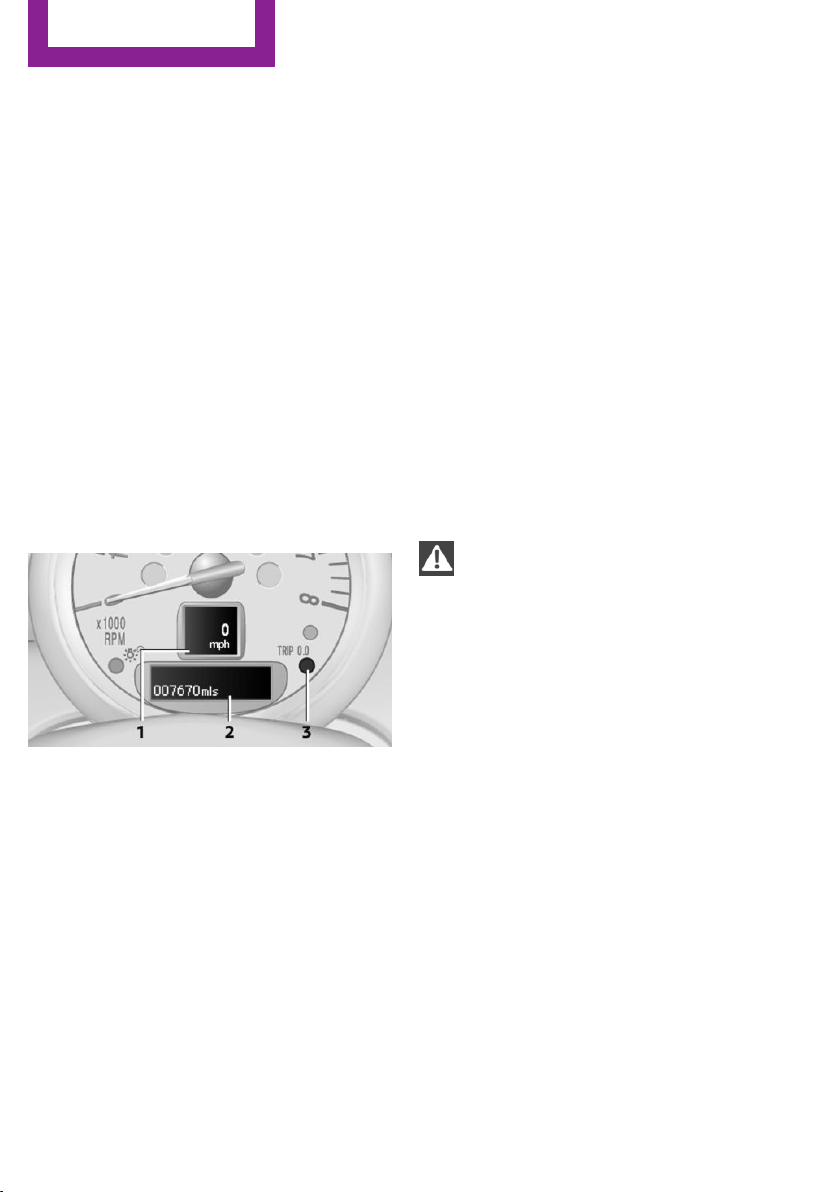
Displays
Vehicle equipment
This chapter describes all series equipment as
well as country-specific and special equipment
offered for this model series.Therefore, it also
describes equipment that may not be found in
your vehicle, for instance due to the selected
special equipment or the country version. This
also applies to safety-related functions and sys‐
tems.
Odometer, external tem‐
perature display, clock
At a glance
1 Current speed
2 Odometer, trip odometer, external temper‐
ature, time
3 Resetting the trip odometer
Press the button on the turn indicator lever to
open information in display area 2.
The following information is displayed consecu‐
tively:
▷ Trip odometer
▷ Time
▷ External temperature
Trip odometer
To display the trip odometer: briefly press
knob 3.
To reset the trip odometer: press knob 3 while
the trip odometer is being displayed and the ig‐
nition is switched on.
Time
Set the time, refer to page 72.
External temperature, external
temperature warning
If the display drops to +37 ℉/+3 ℃, a signal
sounds and a warning lamp lights up. There is
the increased danger of ice.
Ice on roads
Even at temperatures above
+37 ℉/+3 ℃, there can be a risk of ice on
roads.
Therefore, drive carefully on bridges and shady
roads, for example, to avoid the increased dan‐
ger of an accident.◀
Units of measure
To set the respective units of measure, miles or
km for the odometer and ℃ or ℉ for the exter‐
nal temperature, refer to page 72.
Seite 68
Controls
Displays
68
Online Edition for Part no. 01 40 2 911 544 - VI/13
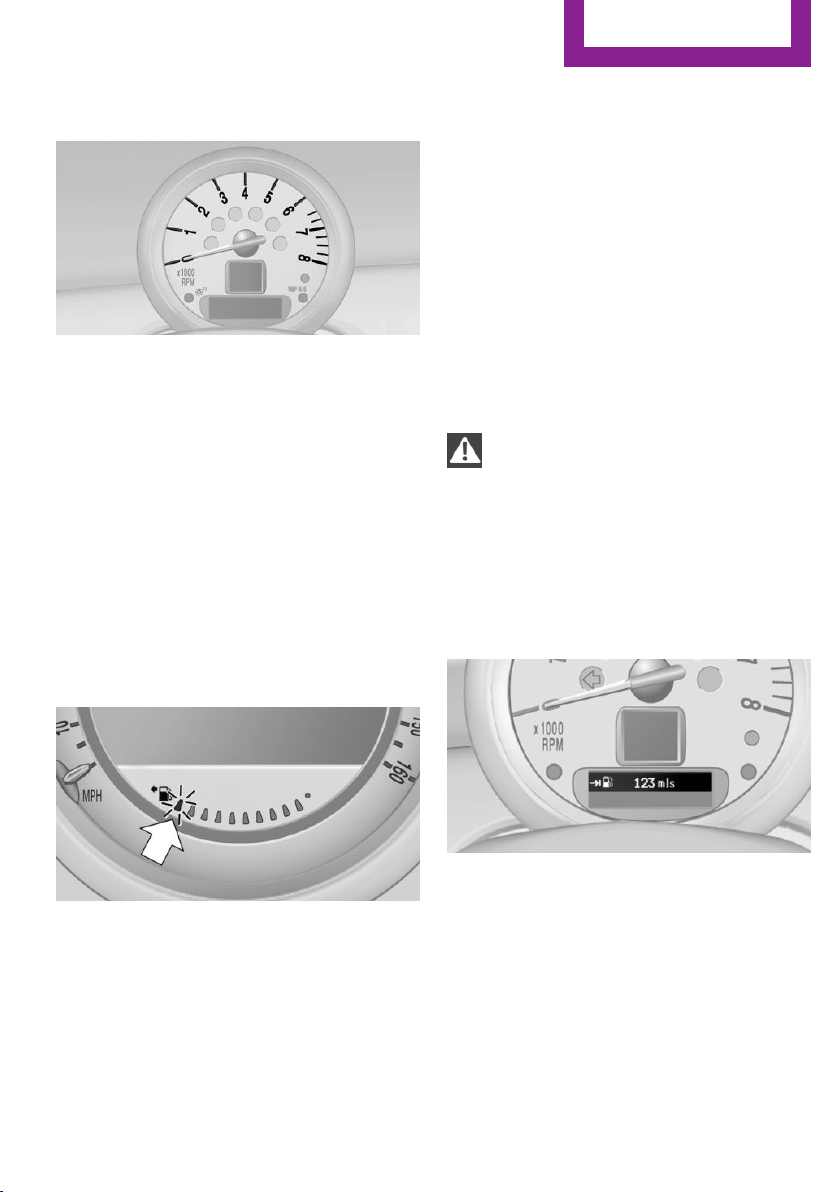
Tachometer
It is imperative that you avoid engine speeds in
the red warning field. In this range, the fuel
supply is interrupted to protect the engine.
Coolant temperature
A warning lamp will come on if the coolant, and
therefore the engine, becomes too hot. In addi‐
tion, a message will appear on the Control Dis‐
play.
Check the coolant level, refer to page 236.
Fuel gauge
The arrow next to the fuel pump symbol on the
fuel gauge indicates the side of the vehicle with
the fuel filler flap.
The vehicle inclination may cause the display to
vary.
Notes on refueling, refer to page 216.
Filling capacities, refer to page 263.
Range
After the reserve range is reached:
▷ The remaining LEDs change from orange to
red, arrow.
▷ A message is briefly displayed on the Con‐
trol Display.
▷ The remaining range is shown on the tach‐
ometer.
▷ When a dynamic driving style is used, such
as when corners are taken rapidly, engine
functions are not ensured.
The message appears continuously below a
range of approx. 30 miles/50 km.
Refuel promptly
At the latest, refuel at a range below
30 miles/50 km; otherwise, the engine function
is not ensured and damage may occur.◀
Computer
Opening information in the tachometer
Press the button on the turn indicator lever.
Overview of the information
The following information is displayed consecu‐
tively by repeatedly pressing the button on the
turn indicator lever:
▷ Range.
▷ Average fuel consumption.
▷ Current fuel consumption.
▷ Average speed.
Seite 69
Displays
Controls
69
Online Edition for Part no. 01 40 2 911 544 - VI/13
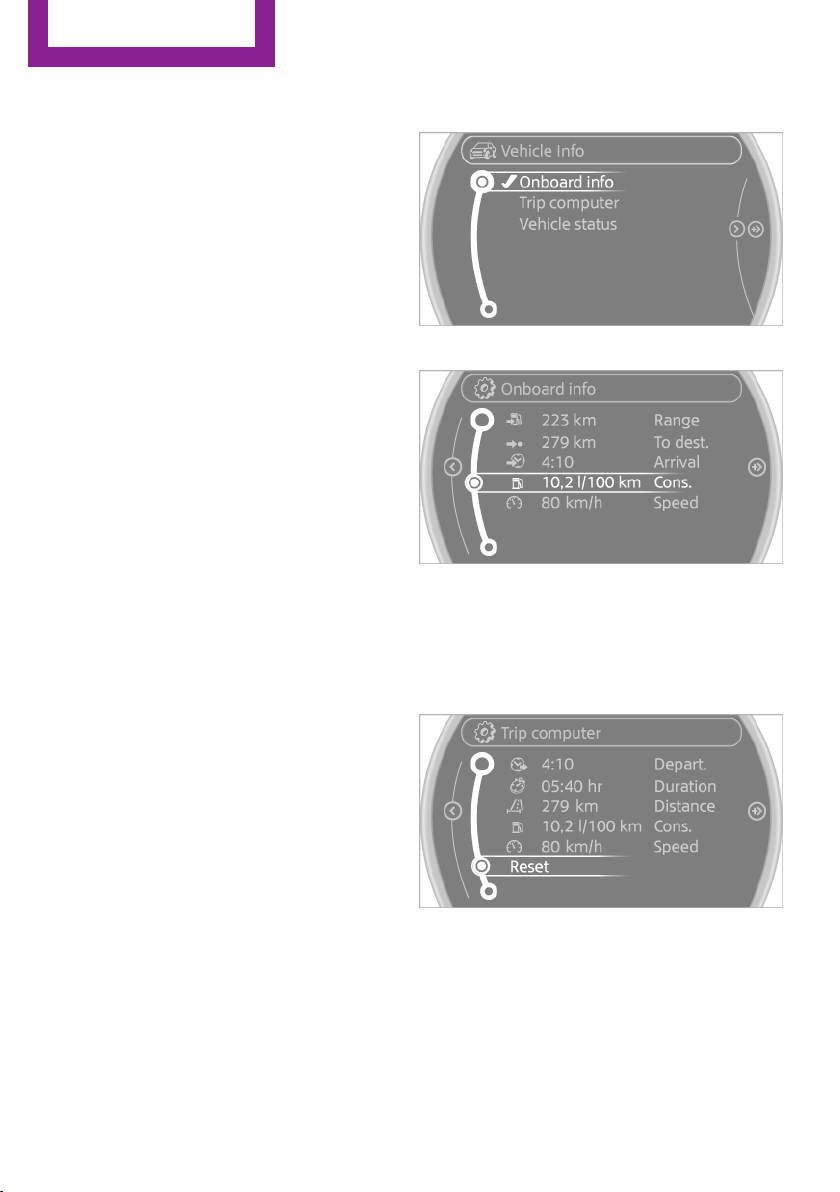
To set the corresponding units of measure, re‐
fer to page 72.
Information in detail
Range
Displays the estimated cruising range available
with the remaining fuel.
It is calculated based on your driving style over
the last 18 miles/30 km.
Average fuel consumption
This is calculated for the period during which
the engine is running.
With the trip computer, refer to page 70, the
average consumption can be displayed for an
additional distance.
To reset the average consumption: press the
button on the turn indicator lever for ap‐
prox. 2 seconds.
Current fuel consumption
Displays the current fuel consumption. You can
check whether you are currently driving in an
efficient and environmentally-friendly manner.
Average speed
Periods in which the vehicle was parked and
the engine was switched off manually are not
included in the average speed calculations.
With the trip computer, refer to page 70, the
average speed can be displayed for an addi‐
tional distance.
To reset the average speed: press the button
on the turn indicator lever for approx. 2 sec‐
onds.
Displays on the Control Display
Display the computer or trip computer on the
Control Display.
1.
"Vehicle Info"
2. "Onboard info" or "Trip computer"
Displays on the "Onboard info":
▷ Range.
▷ Distance to destination.
▷ Estimated time of arrival if a destination
was entered in the navigation system.
Displays on the "Trip computer":
▷ Departure time.
▷ Trip duration.
▷ Trip distance.
Both displays show:
▷ Average fuel consumption.
▷ Average speed.
Seite 70
Controls
Displays
70
Online Edition for Part no. 01 40 2 911 544 - VI/13

Resetting the fuel consumption and
speed
Resetting the values for average speed and
average fuel consumption:
1. Select the respective menu item and press
the MINI joystick.
2. Press the MINI joystick again to confirm
your selection.
Resetting the trip computer
Resetting all values:
1. "Vehicle Info"
2. "Trip computer"
3. "Reset"
Settings and information
Operating concept
Some settings and information can only be cre‐
ated or opened while the ignition is switched
on, the vehicle is standing, and the doors are
closed.
1 Button for:
▷ Selecting the display.
▷ Setting values.
▷ Confirming the selected display or set
values.
▷ Calling up computer information 69.
Symbol Function
Set the rain sensor, refer to
page 62.
Open Check-Control, refer to
page 75.
Exit the menu.
Exiting displays
1.
Press the button on the turn indicator lever
repeatedly until "HOME" is displayed.
2. Hold the button down.
The current speed is displayed again.
Displays are also exited if no entries are made
within approx. 8 seconds.
Seite 71
Displays
Controls
71
Online Edition for Part no. 01 40 2 911 544 - VI/13
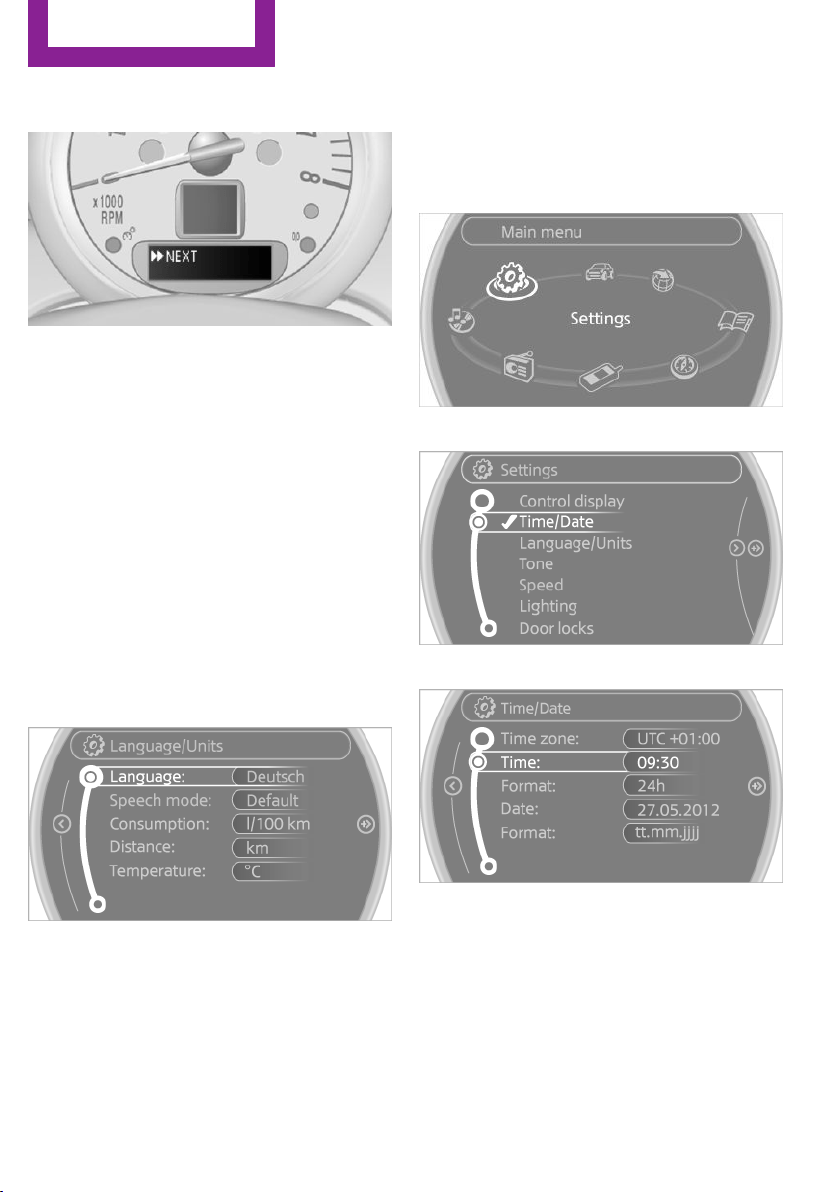
Next setting or information
1. Within a setting or information display,
press the button on the turn indicator lever
repeatedly until "NEXT" is displayed.
2. Hold the button down.
Direct change to the next setting or piece of in‐
formation.
Units of measure
The units of measure, such as for fuel consump‐
tion, route/distance, and temperature, can be
changed. The settings are stored for the remote
control currently in use.
1.
"Settings"
2. "Language/Units"
3. Select the desired menu item.
4. Select the desired unit.
Clock
Setting the time
1. "Settings"
2. "Time/Date"
3. "Time:"
4. Turn the MINI joystick to set the hours and
press the MINI joystick.
5. Turn the MINI joystick to set the minutes
and press the MINI joystick.
The time is stored.
Setting the time format
1.
"Settings"
2. "Time/Date"
Seite 72
Controls
Displays
72
Online Edition for Part no. 01 40 2 911 544 - VI/13

3. "Format:"
4. Select the desired format.
The time format is stored.
The settings are stored for the remote control
currently in use.
Setting the time zone
1. "Settings"
2. "Time/Date"
3. "Time zone:"
4. Turn the MINI joystick until the desired time
zone is displayed and press the MINI joy‐
stick.
The time zone is stored.
Date
Setting the date
1.
"Settings"
2. "Time/Date"
3. "Date:"
4. Turn the MINI joystick until the desired day
is displayed and press the MINI joystick.
5. Make the necessary settings for the month
and year.
The date is stored.
Setting the date format
1.
"Settings"
2. "Time/Date"
3. "Format:"
4. Select the desired format.
The settings are stored for the remote control
currently in use.
Settings on the Control
Display
Language
Setting the language
1.
"Settings"
2. "Language/Units"
3. "Language:"
4. Select the desired language.
The setting is stored for the remote control cur‐
rently in use.
Setting the voice dialog
Voice dialog for the voice activation system, re‐
fer to page 27.
Seite 73
Displays
Controls
73
Online Edition for Part no. 01 40 2 911 544 - VI/13
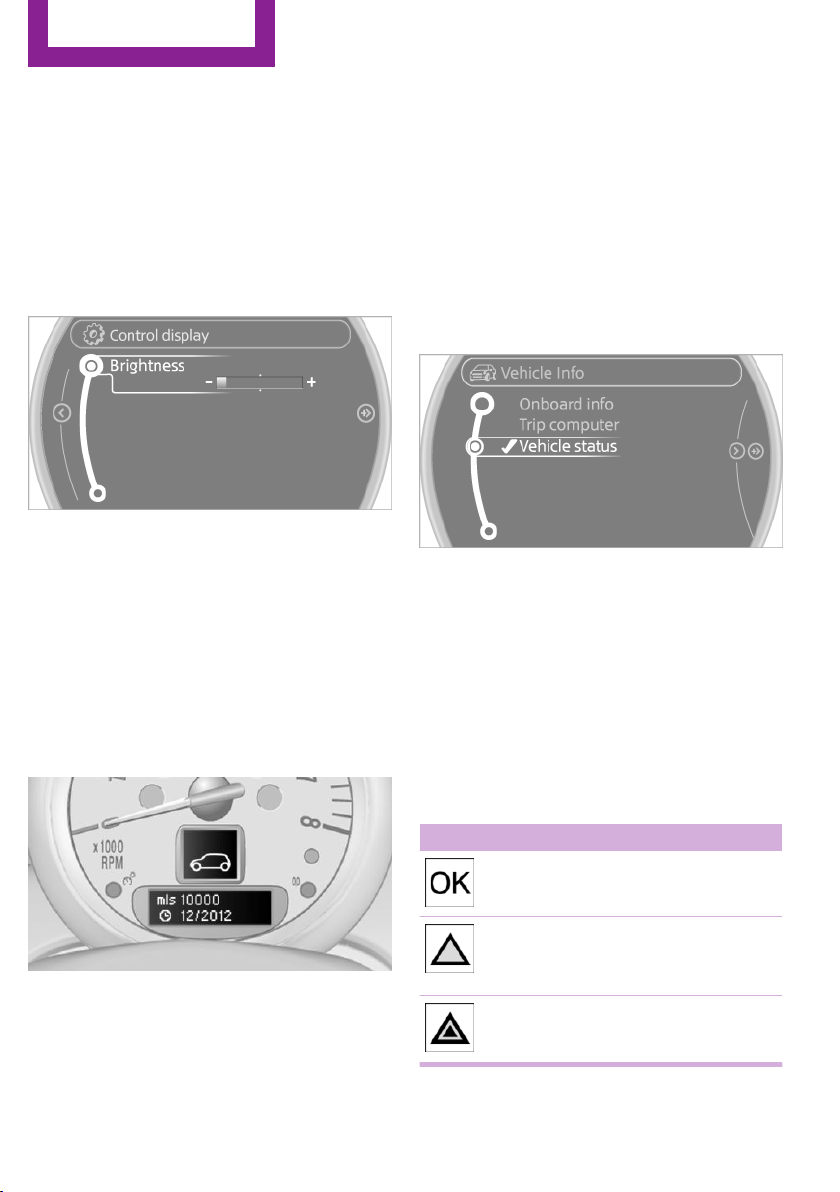
Brightness
The brightness is automatically adapted to the
ambient lighting conditions. However, the basic
setting can be changed when the low beams
are switched on.
1. "Settings"
2. "Control display"
3. "Brightness"
4. Turn the MINI joystick until the desired set‐
ting is selected.
5. Press the MINI joystick.
The setting is stored for the remote control cur‐
rently in use.
Depending on the light conditions, the bright‐
ness control may not be clearly visible.
Service requirements
The remaining driving distance and the date of
the next scheduled service are displayed briefly
immediately after you start the engine or
switch on the ignition.
The current service requirements can be read
out from the remote control by the service spe‐
cialist.
Detailed information on service
requirements
More information on the scope of service re‐
quired can be displayed on the Control Display.
1. "Vehicle Info"
2. "Vehicle status"
3. "Service required"
Required maintenance procedures and legally
mandated inspections are displayed.
Additional information can be displayed on
each entry:
Select the entry and press the MINI joystick.
To exit from the menu:
Move the MINI joystick to the left.
Symbols
Symbols Description
No service is currently required.
The deadline for service or a le‐
gally mandated inspection is
approaching.
The service deadline has al‐
ready passed.
Seite 74
Controls
Displays
74
Online Edition for Part no. 01 40 2 911 544 - VI/13
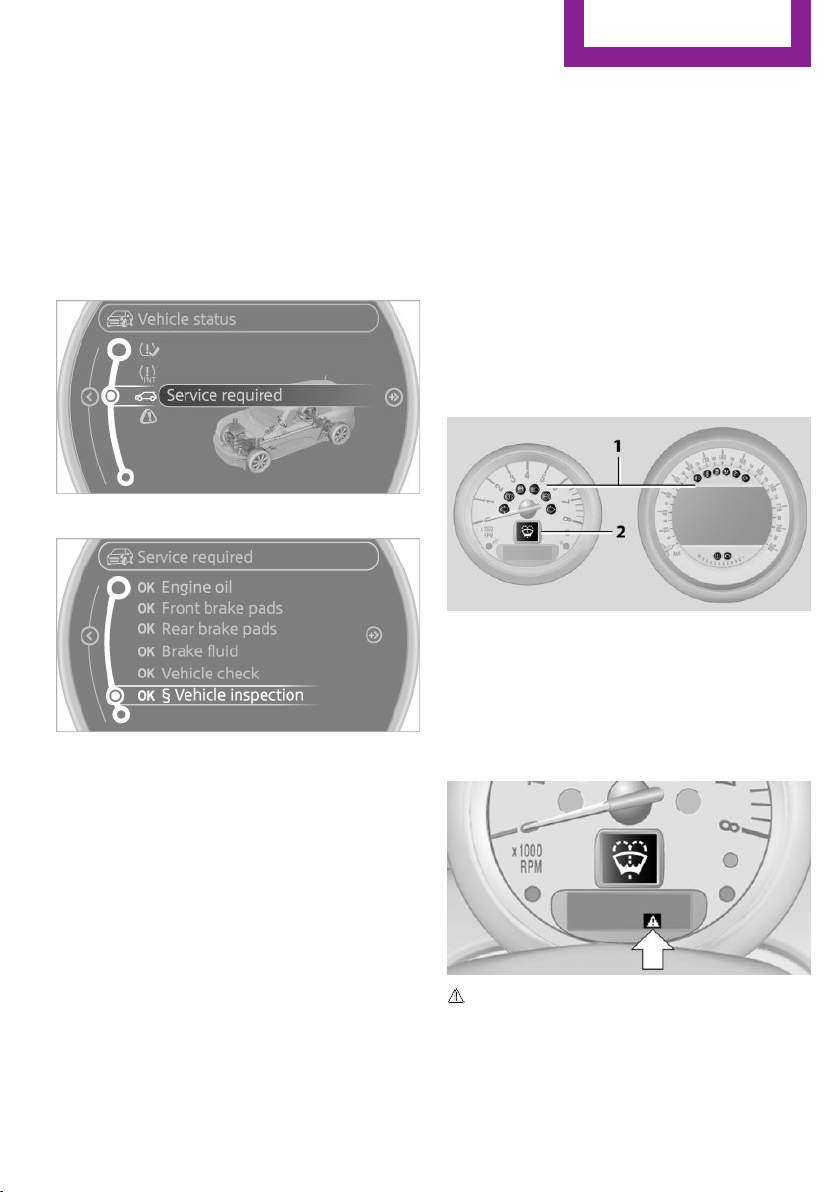
Entering appointment dates
Enter the dates for the required inspections.
Make sure the date on the Control Display is set
correctly.
1. "Vehicle Info"
2. "Vehicle status"
3. "Service required"
4. "§ Vehicle inspection"
5. Open the menu for entering the deadline.
6. "Date:"
7. Create the settings.
8. Press the MINI joystick to apply the setting.
The year is highlighted.
9. Turn the MINI joystick to create the setting.
10. Press the MINI joystick to apply the setting.
The date entry is stored.
To exit from the menu:
Move the MINI joystick to the left.
Check Control
The concept
The Check Control monitors vehicle functions
and alerts you to any malfunctions in the sys‐
tems being monitored.
A Check Control message consists of indicator
and warning lamps in the instrument cluster
and, in some circumstances, an acoustic signal
and text messages at the top of the Control Dis‐
play.
Indicator/warning lamps
The indicator and warning lamps can light up in
a variety of combinations and colors in display
area 1 or 2.
Several of the lamps are checked for proper
functioning and light up temporarily when the
engine is started or the ignition is switched on.
The symbol indicates that Check Control
messages have been stored. The Check Control
messages can be displayed later.
Seite 75
Displays
Controls
75
Online Edition for Part no. 01 40 2 911 544 - VI/13
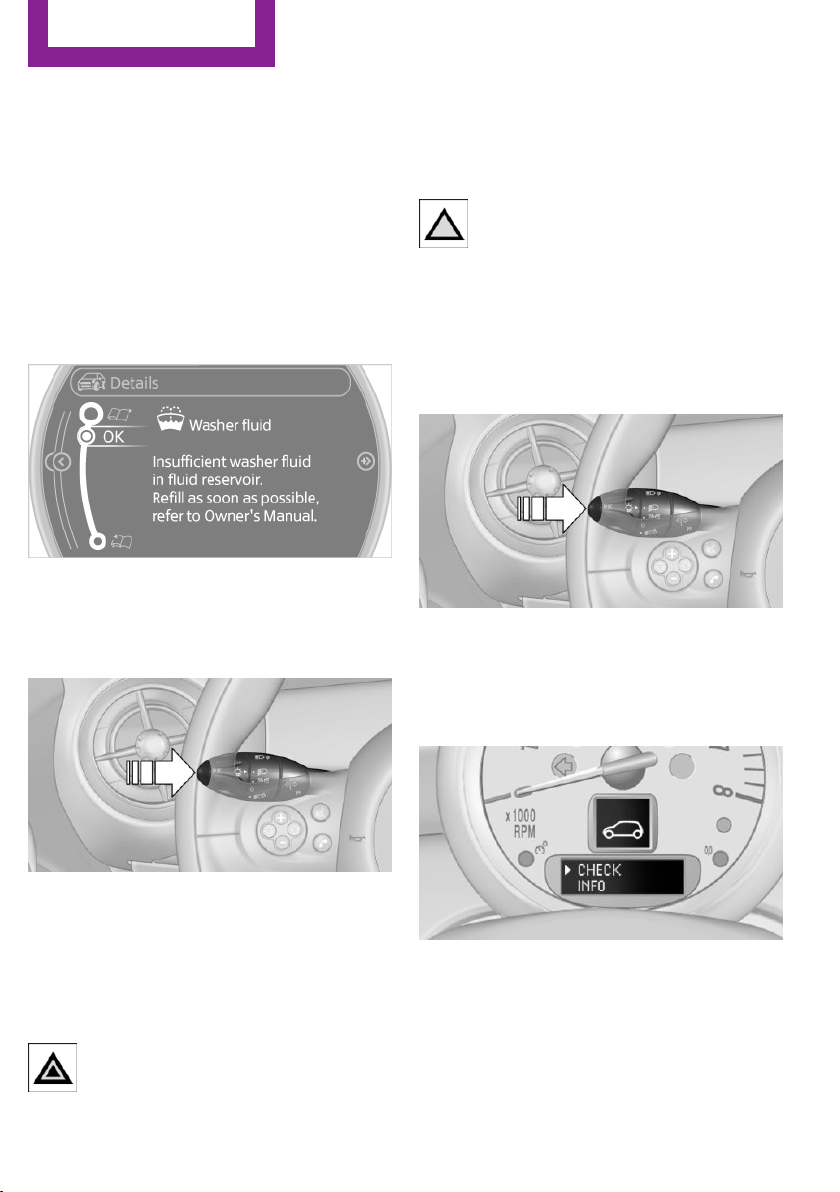
Text messages
Text messages at the upper edge of the Control
Display in combination with a symbol in the in‐
strument cluster explain a Check Control mes‐
sage and the meaning of the indicator and
warning lamps.
Supplementary text messages
Additional information, such as on the cause of
a fault or the required action, can be called up
via Check Control.
In urgent cases, this information will be shown
as soon as the corresponding lamp comes on.
Hiding Check Control messages
Press the button on the turn indicator lever.
Some Check Control messages are displayed
continuously and are not cleared until the mal‐
function is eliminated. If several malfunctions
occur at once, the messages are displayed con‐
secutively.
They are marked with the symbol
shown here.
Other Check Control messages are hidden au‐
tomatically after approx. 20 seconds. However,
they are stored and can be displayed again
later.
They are marked with the symbol
shown here.
Viewing stored Check Control messages
The stored Check Control messages can only be
displayed while the driver's door is closed.
1. Press the button on the turn indicator lever
repeatedly until "SET/INFO" is displayed.
2. Press and hold the button until the display
changes.
3. Press the button repeatedly until the corre‐
sponding symbol and "CHECK INFO" ap‐
pear on the display.
4. Press and hold the button.
If there is no Check Control message, this is
indicated by "CHECK OK“.
If a Check Control message has been
stored, the corresponding message is dis‐
played.
Seite 76
Controls
Displays
76
Online Edition for Part no. 01 40 2 911 544 - VI/13
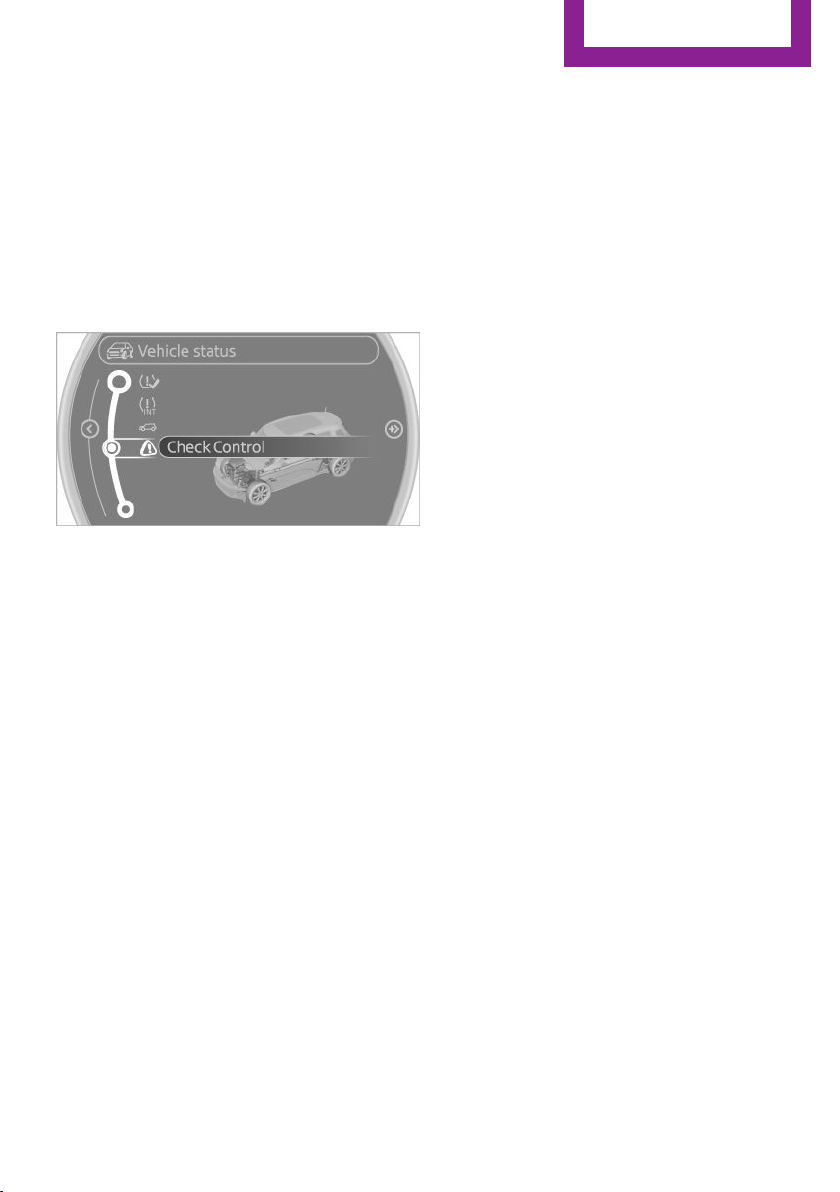
The text message is also displayed on the
Control Display.
5. Press the button to check for other mes‐
sages.
Displaying on the Control Display
1. "Vehicle Info"
2. "Vehicle status"
3. "Check Control"
4. Select the text message.
Seite 77
Displays
Controls
77
Online Edition for Part no. 01 40 2 911 544 - VI/13
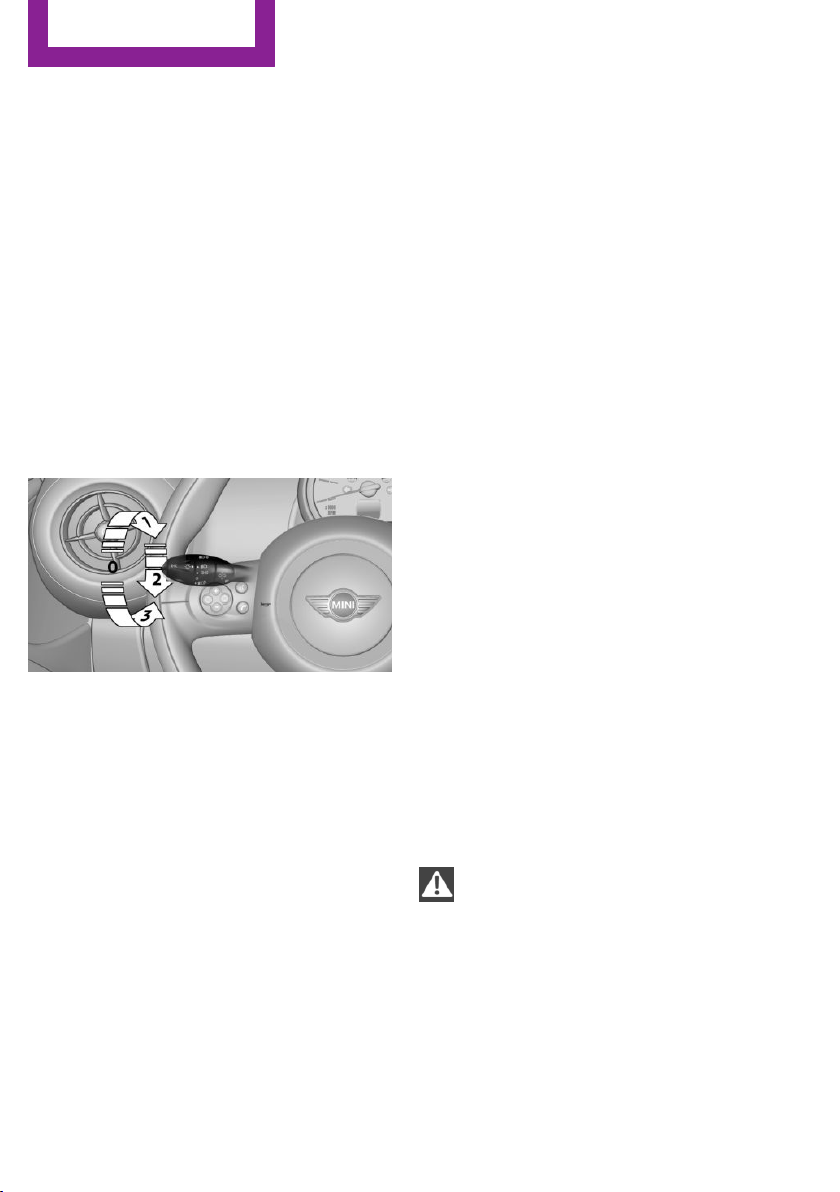
Lamps
Vehicle equipment
This chapter describes all series equipment as
well as country-specific and special equipment
offered for this model series.Therefore, it also
describes equipment that may not be found in
your vehicle, for instance due to the selected
special equipment or the country version. This
also applies to safety-related functions and sys‐
tems.
At a glance
0 Lamps off / daytime running lights
1 Parking lamps and daytime running lights
2 Low-beam headlamps and welcome lamps
3 Automatic headlamp control, Adaptive
Light Control, daytime running lights, and
welcome lamps
Parking lamps/low
beams, headlamp con‐
trol
General information
When the driver's door is opened with the igni‐
tion switched off, the exterior lighting is auto‐
matically switched off when the light switch is
in position 0, 2, or 3.
Switch on the parking lamps if necessary,
switch position 1.
Parking lamps
Switch position 1: the vehicle lamps light up on
all sides.
Do not use the parking lamps for extended pe‐
riods; otherwise, the battery may become dis‐
charged and it would then be impossible to
start the engine.
When parking, it is preferable to switch on the
one-sided roadside parking lamps, refer to
page 79.
Low beams
Switch position 2: the low beams are lit when
the ignition is switched on.
Automatic headlamp control
Switch position 3: the low beams are switched
on and off automatically depending on the am‐
bient light, e.g., in tunnels, in twilight, or if
there is precipitation. Adaptive Light Control is
active.
A blue sky with the sun low on the horizon can
cause the lights to be switched on.
The low beams remain switched on independ‐
ent of the ambient lighting conditions when
you switch on the front fog lamps.
Personal responsibility
The automatic headlamp control cannot
serve as a substitute for your personal judg‐
ment in determining when the lamps should be
switched on in response to ambient lighting
conditions.
For example, the sensors are unable to detect
fog or hazy weather. To avoid safety risks, you
should always switch on the lamps manually
under these conditions.◀
Seite 78
Controls
Lamps
78
Online Edition for Part no. 01 40 2 911 544 - VI/13
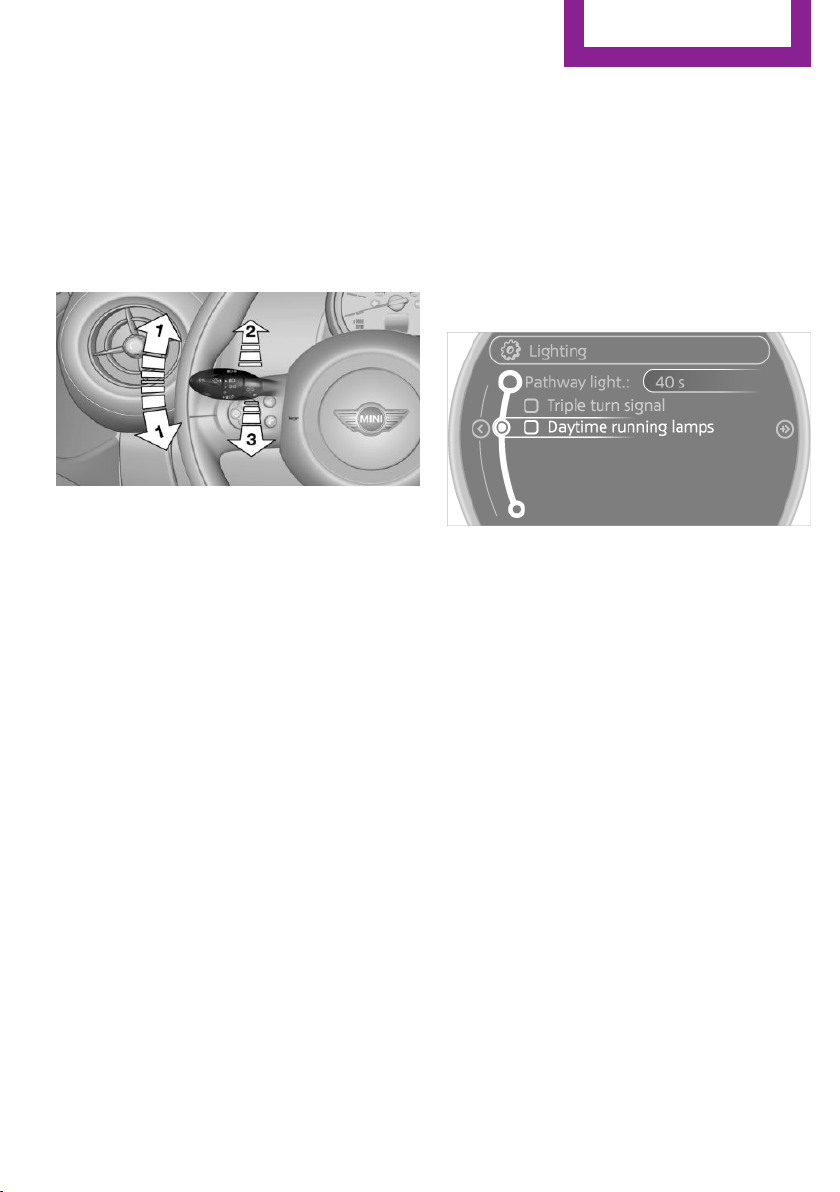
When the daytime running lights are activated,
the low beams are always switched on in
switch position 3 when the ignition is switched
on.
The exterior lighting goes out automatically af‐
ter the vehicle is switched off.
High beams/roadside parking lamps
1 Turn signal/roadside parking lamp
2 Switching on the high beams
3 Switching off the high beams/headlamp
flasher
To assist in parking, the vehicle can be illumi‐
nated on one side; note the country-specific
regulations.
The roadside parking lamps drain the battery.
Therefore, do not leave them on for unduly
long periods of time; otherwise, the battery
might not have enough power to start the en‐
gine.
Switching on the roadside parking lamp
To switch on the roadside parking lamp on the
left or right, press the turn indicator lever up or
down after switching off the vehicle, arrow 1.
Switching off the roadside parking lamp
Press the lever up or down to the resistance
point.
Daytime running lights
The daytime running lights light up in switch
position 0, 1, or 3 when the ignition is switched
on.
The exterior lighting goes out automatically af‐
ter the vehicle is switched off.
In switch position 1, the parking lamps light up
after the ignition is switched off.
Activating/deactivating
1. "Settings"
2. "Lighting"
3. "Daytime running lamps"
The setting is stored for the remote control cur‐
rently in use.
Welcome lamps
If the light switch stays in switch position 2 or 3
after the vehicle is switched off, the parking
lamps and the interior lamps light up for a cer‐
tain period when the vehicle is unlocked.
Headlamp courtesy delay feature
The low beams stay lit for a short while after
the ignition is switched off, if the lamps are
switched off and the headlamp flasher is
switched on.
Setting the duration
1.
"Settings"
2. "Lighting"
Seite 79
Lamps
Controls
79
Online Edition for Part no. 01 40 2 911 544 - VI/13
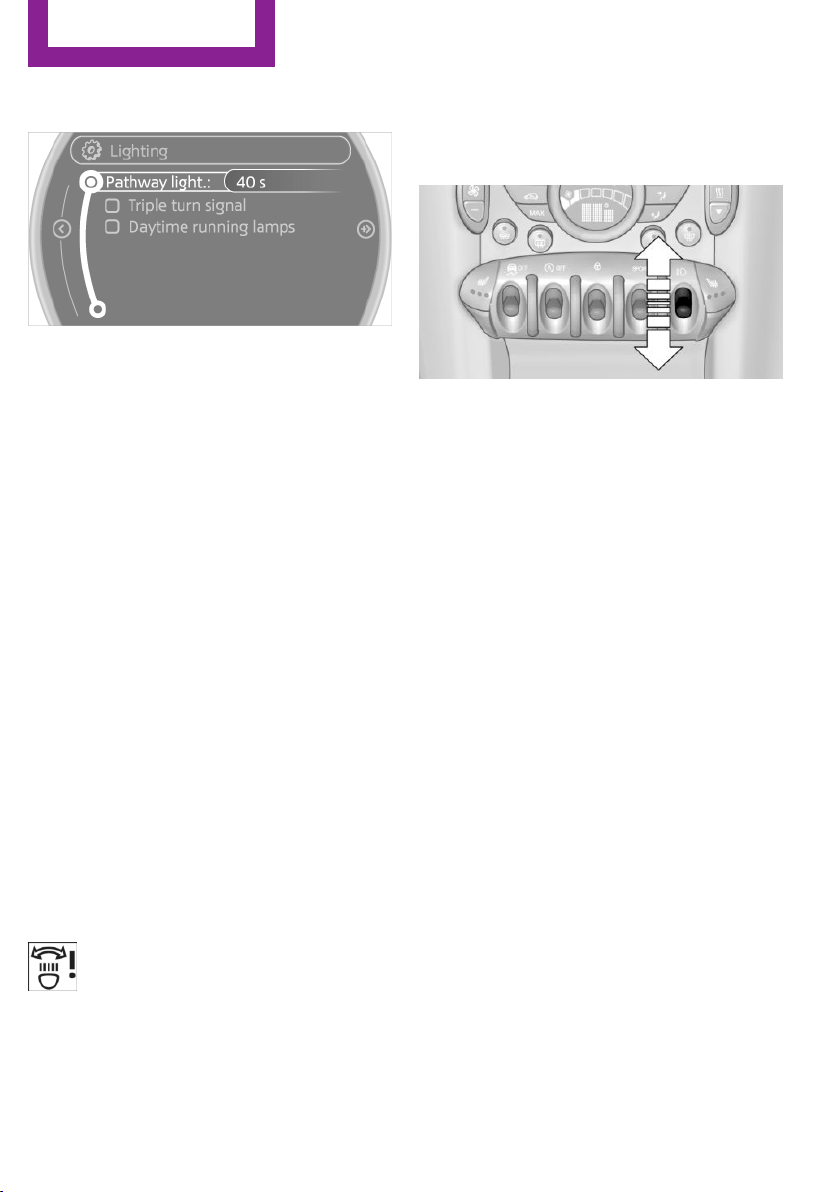
3. "Pathway light.: s"
4. Set the duration.
The setting is stored for the remote control cur‐
rently in use.
Adaptive Light Control
The concept
Adaptive Light Control is a variable headlamp
control system that enables dynamic illumina‐
tion of the road surface.
Depending on the steering angle and other pa‐
rameters, the light from the headlamp follows
the course of the road.
Activating
With the ignition switch on, turn the light switch
to position 3, refer to page 78.
To avoid blinding oncoming traffic, the Adap‐
tive Light Control does not swivel to the driver's
side when the vehicle is at a standstill.
When driving in reverse, Adaptive Light Control
is not active.
Malfunction
The warning lamp lights up. A message
appears on the Control Display. Adap‐
tive Light Control is malfunctioning or
has failed. Have the system checked as soon as
possible.
Fog lamps
At a glance
To switch on the front fog lamps: press the
switch.
To switch off, press the respective switch up‐
ward or downward again.
Fog lamps
The parking lamps or low beams must be
switched on. The green indicator lamp lights up
when the front fog lamps are switched on.
Depending on the vehicle equipment, the front
fog lamps are switched off when the headlamp
flasher or the high beams are activated.
If the automatic headlamp control is activated,
refer to page 78, the low beams are switched
on automatically when the front fog lamps are
switched on.
Instrument lighting
The parking lamps or low beams must be
switched on to adjust the brightness. The
brightness is increased to a certain limit and is
then reduced again.
Seite 80
Controls
Lamps
80
Online Edition for Part no. 01 40 2 911 544 - VI/13
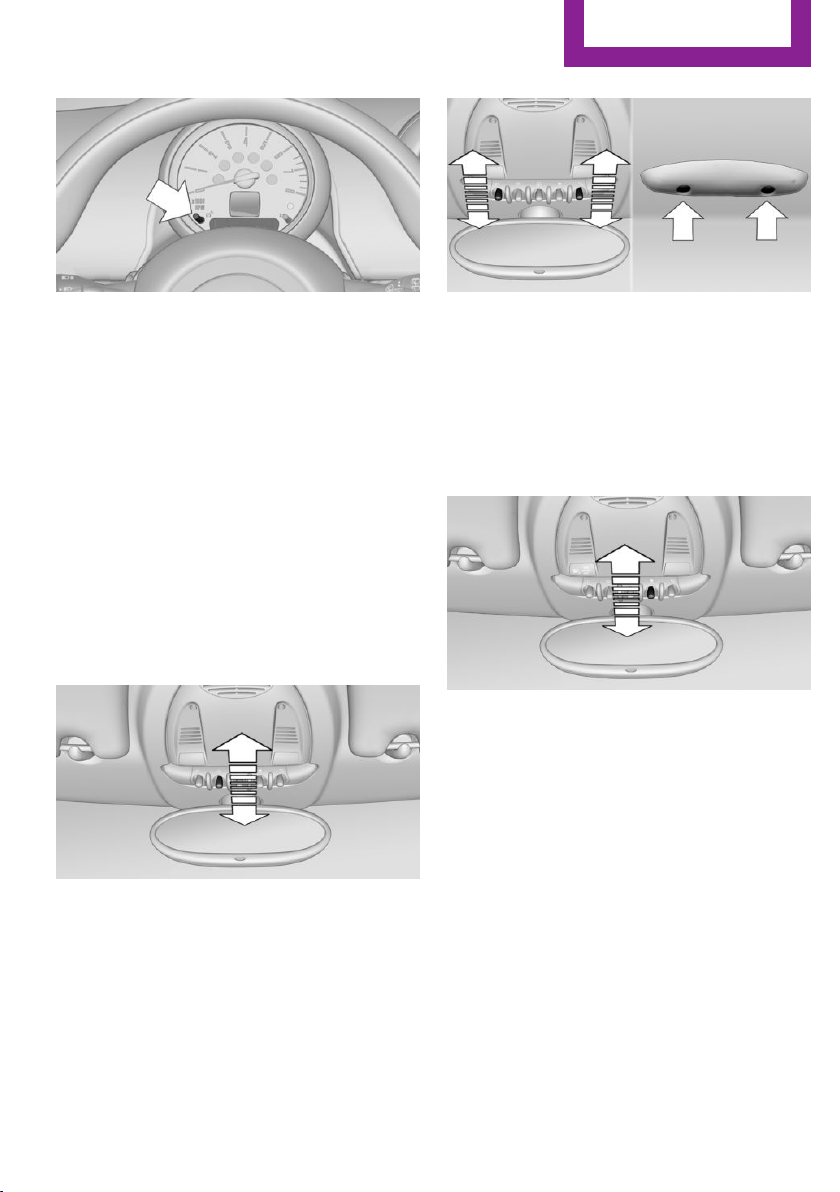
▷ Press the button briefly: the brightness
changes in stages.
▷ Press and hold the button: the brightness
changes continuously.
Interior lamps
The interior lamps, the footwell lamps and the
cargo area lamp are controlled automatically.
To avoid draining the battery, all lamps inside
the vehicle are switched off some time after the
ignition is switched off.
Switching interior lamps on/off
manually
To switch the interior lamps on/off: press the
switch.
If the interior lamps are to remain switched off,
press the switch for approx. 3 seconds.
Reading lamps
Reading lamps are located in the front next to
the interior lamp and in the rear.
Switching the reading lamps on/off
Front: press the switch.
Rear: press the button.
Ambient lighting
The color and brightness of the ambient light‐
ing can be changed.
Press the switch forward: the color changes in
steps.
Press the switch back: the brightness changes
in steps.
Intermediate settings and intermediate colors
are possible.
For continuously changing colors of the ambi‐
ent lighting, press the switch forward for more
than 10 seconds.
Seite 81
Lamps
Controls
81
Online Edition for Part no. 01 40 2 911 544 - VI/13
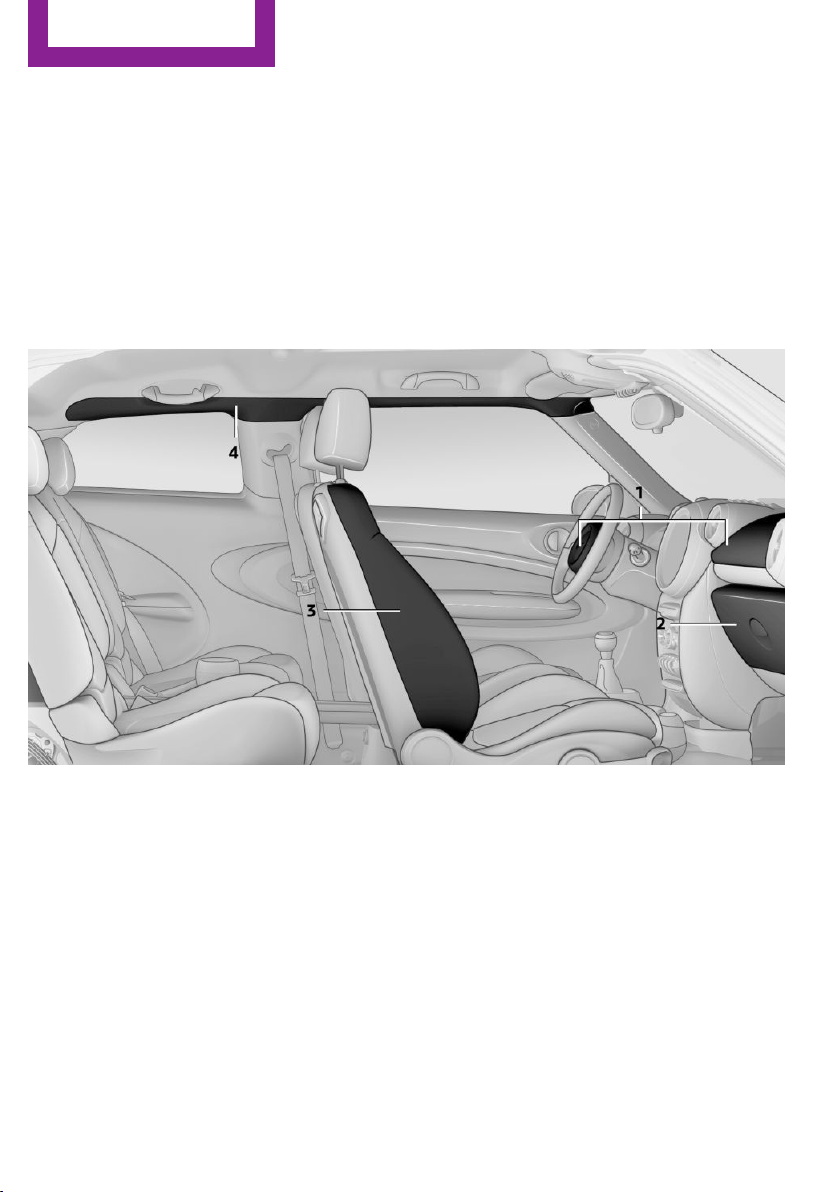
Safety
Vehicle equipment
This chapter describes all series equipment as
well as country-specific and special equipment
offered for this model series.Therefore, it also
describes equipment that may not be found in
your vehicle, for instance due to the selected
special equipment or the country version. This
also applies to safety-related functions and sys‐
tems.
Airbags
The graphic shows the MINI Paceman as an ex‐
ample.
1 Front airbags
2 Knee airbag
3 Side airbag
4 Head airbags
Front airbags
Front airbags help protect the driver and front
passenger by responding to frontal impacts in
which safety belts alone cannot provide ade‐
quate restraint.
Side airbags
In a lateral impact, the side airbag supports the
side of the body in the chest and lap area.
Head airbags
In a lateral impact, the head airbag supports
the head.
Knee airbag
The knee airbag supports the legs in a frontal
impact.
Seite 82
Controls
Safety
82
Online Edition for Part no. 01 40 2 911 544 - VI/13

Protective action
Airbags are not triggered in every impact situa‐
tion, e.g., in less severe accidents or rear-end
collisions.
Information on how to ensure the opti‐
mal protective effect of the airbags
▷ Keep at a distance from the airbags.
▷ Always grasp the steering wheel on the
steering wheel rim, holding your hands at
the 3 o'clock and 9 o'clock positions, to
keep the danger of injury to your hands or
arms as low as possible if the airbag is trig‐
gered.
▷ There should be no people, animals, or ob‐
jects between an airbag and a person.
▷ Do not use the cover of the front airbag on
the front passenger side as a storage area.
▷ Keep the dashboard and window on the
front passenger side clear, i.e., do not cover
with adhesive labels or coverings, and do
not attach holders such as for navigation in‐
struments and mobile phones.
▷ Make sure that the front passenger is sitting
correctly, i.e., keeps his or her feet and legs
in the footwell; otherwise, leg injuries can
occur if the front airbag is triggered.
▷ Do not place slip covers, seat cushions or
other objects on the front passenger seat
that are not approved specifically for seats
with integrated side airbags.
▷ Do not hang pieces of clothing, such as
jackets, over the backrests.
▷ Make sure that occupants keep their heads
away from the side airbag and do not rest
against the head airbag; otherwise, injuries
can occur if the airbags are triggered.
▷ Do not remove the airbag restraint system.
▷ Do not remove the steering wheel.
▷ Do not apply adhesive materials to the air‐
bag cover panels, cover them or modify
them in any way.
▷ Never modify either the individual compo‐
nents or the wiring in the airbag system.
This also applies to steering wheel covers,
the dashboard, the seats, the roof pillars
and the sides of the headliner.◀
Even when all instructions are followed closely,
injury from contact with the airbags cannot be
ruled out in certain situations.
The ignition and inflation noise may lead to
short-term and, in most cases, temporary hear‐
ing impairment in sensitive individuals.
In the case of a malfunction, deactivation
and after triggering of the airbags
Do not touch the individual components imme‐
diately after the system has been triggered;
otherwise, there is the danger of burns.
Only have the airbags checked, repaired or dis‐
mantled and the airbag generator scrapped by
your service center or a workshop that has the
necessary authorization for handling explo‐
sives.
Non-professional attempts to service the sys‐
tem could lead to failure in an emergency or
undesired triggering of the airbag, either of
which could result in injury.◀
Warning notices and information about the air‐
bags can also be found on the sun visors.
Automatic deactivation of the front
passenger airbags
The system determines whether the front pas‐
senger seat is occupied by measuring the elec‐
trical resistance of the human body.
The front, side, and knee airbags on the front
passenger side are activated or deactivated ac‐
cordingly by the system.
The indicator lamp above the interior rearview
mirror, refer to page 84, shows the current
status of the front passenger airbags, deacti‐
vated or activated.
Seite 83
Safety
Controls
83
Online Edition for Part no. 01 40 2 911 544 - VI/13
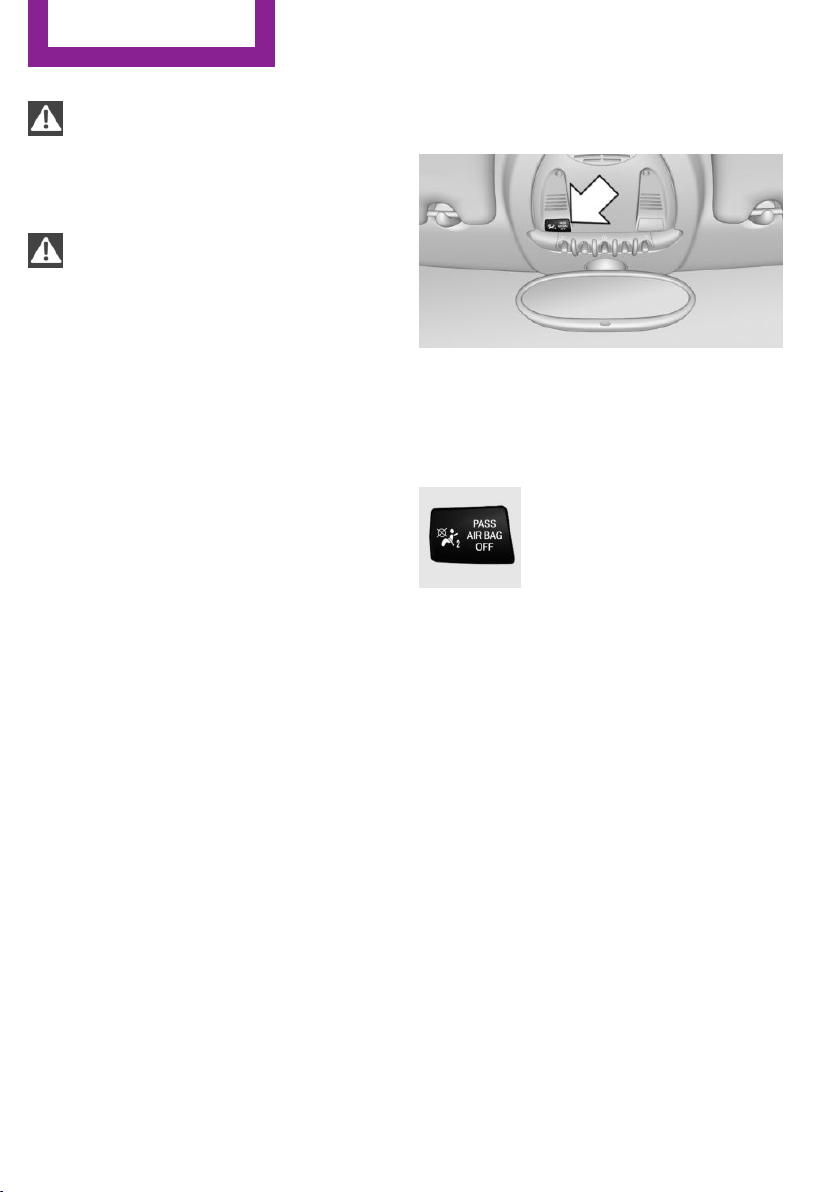
Leave feet in the footwell
Make sure that the front passenger keeps
his or her feet in the footwell; otherwise, the
front passenger airbags may not function prop‐
erly.◀
Child restraint fixing system in the front
passenger seat
Before transporting a child on the front passen‐
ger seat, read the safety and operating instruc‐
tions under Transporting children safely, refer
to page 53.◀
Malfunction of the automatic
deactivation system
When transporting older children and adults,
the front passenger airbags may be deactivated
in certain sitting positions. In this case, the indi‐
cator lamp for the front passenger airbags
lights up.
In this case, change the sitting position so that
the front passenger airbags are activated and
the indicator lamp goes out.
If it is not possible to activate the airbags, have
the person sit in the rear.
To make sure that occupation of the seat cush‐
ion can be detected correctly:
▷ Do not attach seat covers, seat cushion
padding, ball mats, or other items to the
front passenger seat unless they are specifi‐
cally recommended by the manufacturer of
your MINI.
▷ Do not place electronic devices on the pas‐
senger seat if a child restraint fixing system
is mounted on the seat.
▷ Do not place objects under the seat that
could press against the seat from below.
Indicator lamp for the front passenger
airbags
The indicator lamp for the front passenger air‐
bags indicates the operating state of the front
passenger airbags.
The lamp indicates whether the airbags are ac‐
tivated or deactivated.
▷ The indicator lamp lights up
when a child who is properly
seated in a child restraint fix‐
ing system intended for that
purpose is detected on the
seat or the seat is empty. The
airbags on the front passen‐
ger side are not activated.
▷ The indicator lamp does not light up when,
for example, a correctly seated person of
sufficient size is detected on the seat. The
airbags on the front passenger side are ac‐
tivated.
Most child seats are detected by the system,
Especially the child seats required by NHTSA at
the time that the vehicle was manufactured.
After installing a child seat, make sure that the
indicator lamp for the front passenger airbags
lights up. This indicates that the child seat has
been detected and the front passenger airbags
are not activated.
Seite 84
Controls
Safety
84
Online Edition for Part no. 01 40 2 911 544 - VI/13
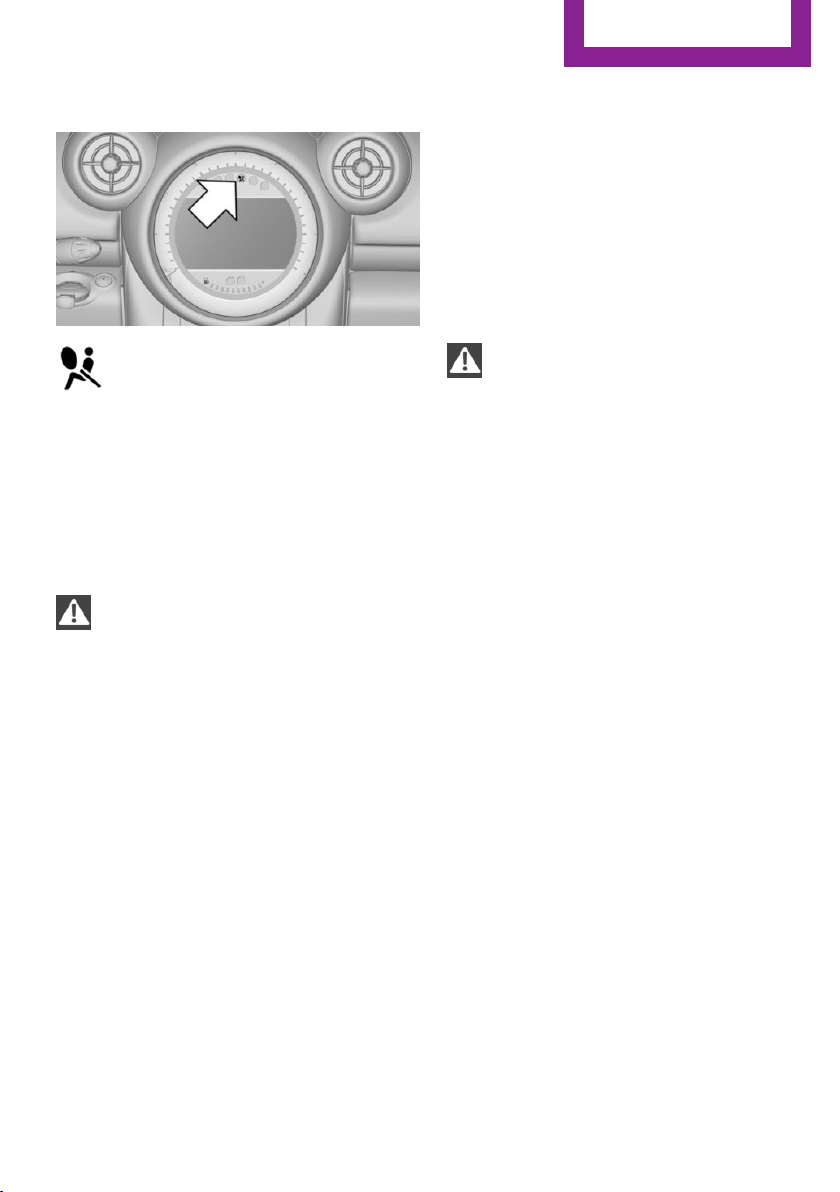
Operational readiness of airbag system
In the radio ready state and beyond, re‐
fer to page 58, the warning lamp lights
up briefly to indicate that the entire air‐
bag system and the belt tensioners are opera‐
tional.
Airbag system malfunction
▷ Warning lamp does not light up in the radio
ready state.
▷ Warning lamp remains permanently on.
Have the airbag system checked without
delay if there is a malfunction
In the event of a malfunction in the airbag sys‐
tem, have it checked without delay; otherwise,
there is the risk that the system will not func‐
tion as intended even if a sufficiently severe ac‐
cident occurs.◀
FTM Flat Tire Monitor
The concept
The system does not measure the actual infla‐
tion pressure in the tires.
The system detects a pressure loss in a tire by
comparing the rotational speeds of the individ‐
ual wheels while moving.
In the event of a pressure loss, the diameter
and therefore the rotational speed of the corre‐
sponding wheel change. This is detected and
reported as a flat tire.
Functional requirements
The system must have been initialized when
the tire inflation pressure was correct; other‐
wise, reliable signaling of a flat tire is not en‐
sured.
Initialize the system after each correction of the
tire inflation pressure and after every tire or
wheel change.
System limits
Sudden tire damage
Sudden serious tire damage caused by
external influences cannot be indicated in ad‐
vance.◀
A natural, even pressure loss in all four tires
cannot be detected. Therefore, check the tire
inflation pressure regularly.
The system could be delayed or malfunction in
the following situations:
▷ When the system has not been initialized.
▷ When driving on a snowy or slippery road
surface.
▷ Sporty driving style: slip in the drive wheels,
high lateral acceleration.
▷ When driving with snow chains.
Status display
The current status of the Flat Tire Monitor can
be displayed on the Control Display, e.g.,
whether or not the FTM is active.
1.
"Vehicle Info"
2. "Vehicle status"
Seite 85
Safety
Controls
85
Online Edition for Part no. 01 40 2 911 544 - VI/13
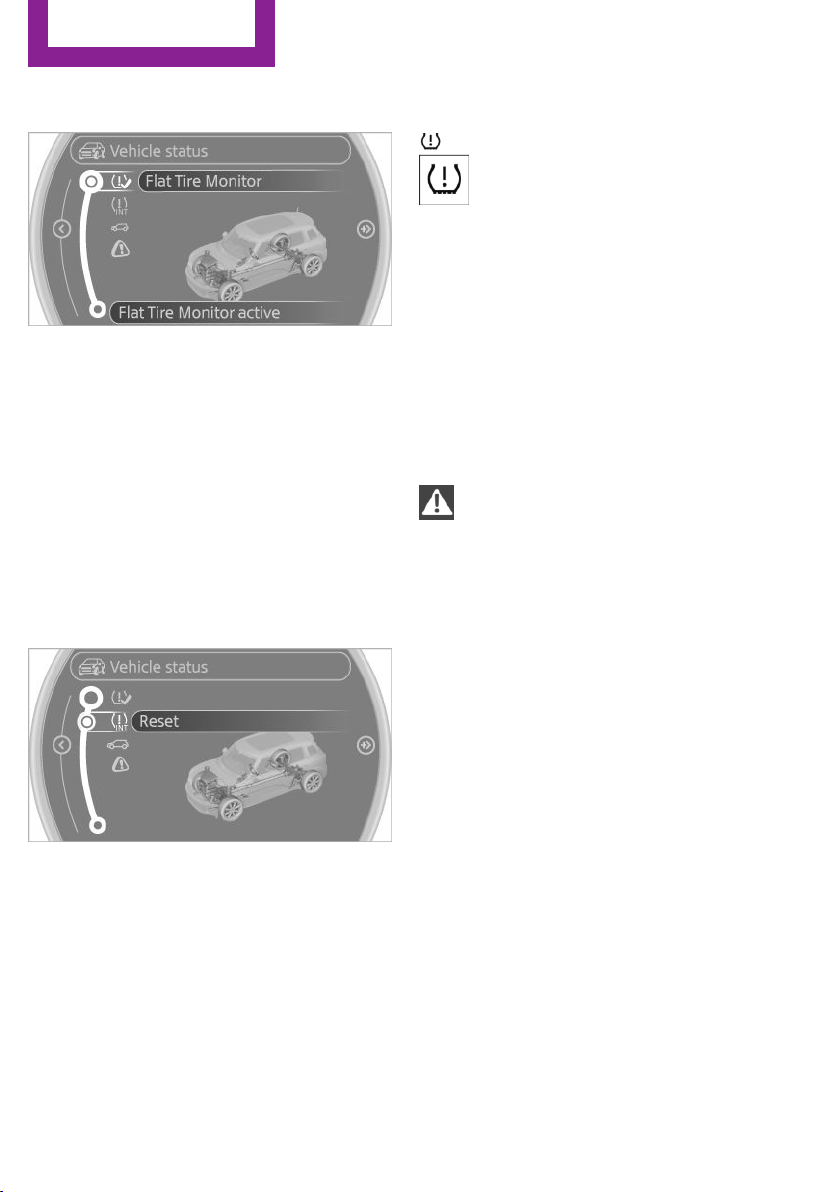
3. "Flat Tire Monitor"
The status is displayed.
Initialization
The initialization process adopts the set infla‐
tion tire pressures as reference values for the
detection of a flat tire. Initialization is started by
confirming the inflation pressures.
Do not initialize the system when driving with
snow chains.
1.
"Vehicle Info"
2. "Vehicle status"
3. "Reset"
4. Start the engine, but do not start driving.
5. Start the initialization with "Reset".
6. Drive away.
The initialization is completed while driving,
which can be interrupted at any time. The initi‐
alization automatically continues when driving
resumes.
Indication of a flat tire
The warning lamps come on in yellow
and red. A message appears on the
Control Display. In addition, a signal
sounds.
There is a flat tire or a major loss in tire inflation
pressure.
1. Reduce your speed and stop cautiously.
Avoid sudden braking and steering maneu‐
vers.
2. Check whether the vehicle is fitted with
regular tires or run-flat tires.
Run-flat tires, refer to page 228, are la‐
beled with a circular symbol containing the
letters RSC marked on the tire sidewall.
Do not continue driving without run-flat
tires
Do not continue driving if the vehicle is not
equipped with run-flat tires; continued driving
may result in serious accidents.◀
When a flat tire is indicated, DSC Dynamic Sta‐
bility Control is switched on if necessary.
Actions in the event of a flat tire
Normal tires
1.
Identify the damaged tire.
Do this by checking the inflation pressure in
all four tires.
The tire pressure gauge of the Mobility Sys‐
tem, refer to page 229, can be used for this
purpose.
If the tire inflation pressure in all four tires is
correct, the Flat Tire Monitor may not have
been initialized. In this case, initialize the
system.
If an identification is not possible, please
contact the service center.
2.
Rectify the flat tire using the Mobility Sys‐
tem, refer to page 229.
Seite 86
Controls
Safety
86
Online Edition for Part no. 01 40 2 911 544 - VI/13

Run-flat tires
You can continue driving with a damaged tire
at speeds up to 50 mph/80 km/h.
Continued driving with a flat tire
If continuing to drive with a damaged tire:
1. Avoid sudden braking and steering maneu‐
vers.
2. Do not exceed a speed of 50 mph/80 km/h.
3. At the next opportunity, check the inflation
pressure in all four tires.
If the tire inflation pressure in all four tires is
correct, the Flat Tire Monitor may not have
been initialized. In this case, initialize the
system.
Possible driving distance with complete loss of
tire inflation pressure:
The possible driving distance after a loss of tire
inflation pressure depends on the cargo load
and the driving style and conditions.
For a vehicle containing an average load, the
possible driving distance is ap‐
prox. 50 miles/80 km.
When the vehicle is driven with a damaged tire,
its handling characteristics change, e.g., re‐
duced lane stability during braking, a longer
braking distance, and altered self-steering
properties. Adjust your driving style accord‐
ingly. Avoid abrupt steering maneuvers or driv‐
ing over obstacles, e. g., curbs, potholes, etc.
Because the possible driving distance depends
on how the vehicle is used during the trip, the
actual distance may be smaller or greater de‐
pending on the driving speed, road conditions,
external temperature, cargo load, etc.
Continued driving with a flat tire
Drive moderately and do not exceed a
speed of 50 mph/80 km/h.
A loss of tire inflation pressure results in a
change in the handling characteristics, e.g., re‐
duced lane stability during braking, a longer
braking distance and altered self-steering prop‐
erties.◀
Final tire failure
Vibrations or loud noises while driving
can indicate the final failure of the tire. Reduce
speed and stop; otherwise, pieces of the tire
could come loose and cause an accident. Do
not continue driving, and contact your service
center.◀
Tire Pressure Monitor
TPM
The concept
The tire inflation pressure is measured in the
four mounted tires. The system notifies you if
there is a significant loss of pressure in one or
more tires.
Functional requirements
The system must have been reset while the in‐
flation pressure was correct; otherwise, reliable
signaling of a flat tire is not ensured.
Always use wheels with TPM electronics to en‐
sure that the system will operate properly.
Reset the system after each correction of the
tire inflation pressure and after every tire or
wheel change.
System limits
Sudden tire damage
Sudden serious tire damage caused by
external influences cannot be indicated in ad‐
vance.◀
The system does not operate correctly if it has
not been reset. For example, a flat tire may be
indicated despite correct tire inflation pres‐
sures.
Seite 87
Safety
Controls
87
Online Edition for Part no. 01 40 2 911 544 - VI/13
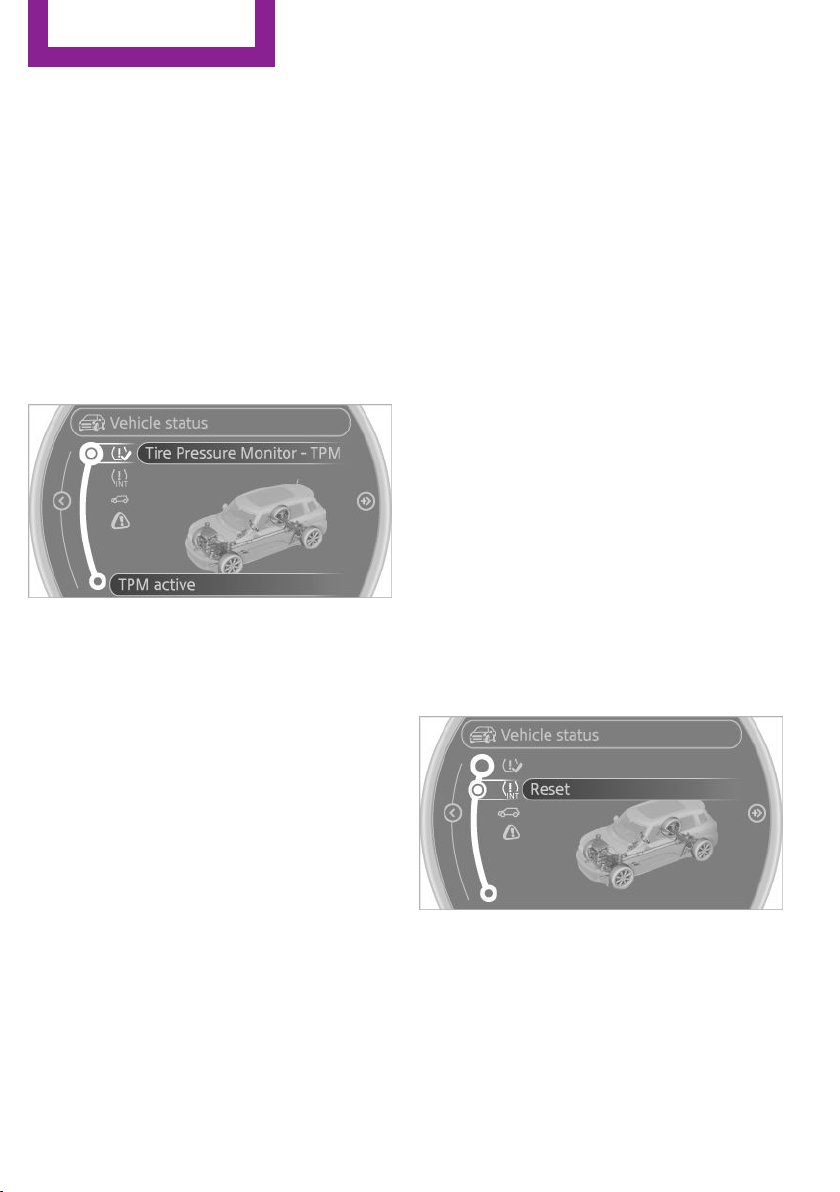
The system is inactive and cannot indicate a flat
tire:
▷ For a mounted wheel without TPM elec‐
tronics.
▷ When the TPM is disturbed by other sys‐
tems or devices with the same radio fre‐
quency.
Status display
1. "Vehicle Info"
2. "Vehicle status"
3. "Tire Pressure Monitor - TPM"
The status is displayed.
Status indicator on the Control Display
The tire and system status is indicated by the
color of the tires.
A change in the tire inflation pressure during
driving is taken into account.
A correction is only necessary if this is indicated
by the TPM
Wheels, green
The tire inflation pressure is equal to the target
state.
"TPM active" is displayed on the onboard moni‐
tor.
One wheel is yellow
A flat tire or major drop in inflation pressure in
the indicated tire.
All wheels are yellow
▷ A flat tire or major drop in inflation pressure
in several tires.
▷ The system was not reset after a wheel
change and thus issues a warning based on
the inflation pressures initialized last.
▷ A flat tire in one or more tires while the sys‐
tem is being reset.
Wheels, gray
The system cannot detect a flat tire.
Reasons for this may be:
▷ TPM is being reset.
▷ Disturbance by systems or devices with the
same radio frequency.
▷ Malfunction.
Resetting the system
Reset the system after each correction of the
tire inflation pressure and after every tire or
wheel change.
1.
"Vehicle Info"
2. "Vehicle status"
3. "Reset"
4. Start the engine - do not drive away.
5. Start the initialization with "Reset".
6. Drive away.
The tires are shown in gray and "Resetting
TPM..." is displayed.
After driving a few minutes, the set inflation
pressures in the tires are accepted as the target
values to be monitored. The resetting process is
Seite 88
Controls
Safety
88
Online Edition for Part no. 01 40 2 911 544 - VI/13
completed automatically as you drive. On the
Control Display, the tires are shown in green
and "Status: TPM active" is displayed again.
The trip can be interrupted at any time. If you
drive away again, the process resumes auto‐
matically.
If a flat tire is detected while the system is re‐
setting, all tires on the Control Display are dis‐
played in yellow. The message "Low tire!" is
shown.
Low tire pressure message
The warning lamps come on in yellow
and red. A message is displayed on the
onboard monitor. In addition, a signal
sounds.
▷ There is a flat tire or substantial loss of infla‐
tion pressure on the indicated wheel.
▷ The system was not reset after a wheel
change and thus issues warnings based on
the inflation pressures initialized last.
1. Reduce your speed and stop cautiously.
Avoid sudden braking and steering maneu‐
vers.
2. Check whether the vehicle is fitted with
regular tires or run-flat tires.
Run-flat tires, refer to page 228, are la‐
beled with a circular symbol containing the
letters RSC marked on the tire sidewall.
Do not continue driving without run-flat
tires
Do not continue driving if the vehicle is not
equipped with run-flat tires; continued driving
may result in serious accidents.◀
When a low inflation pressure is indicated, DSC
Dynamic Stability Control is switched on if nec‐
essary.
Actions in the event of a flat tire
Normal tires
1.
Identify the damaged tire.
Do this by checking the air pressure in all
four tires. The tire pressure gauge of the
Mobility System, refer to page 229, can be
used for this purpose.
If the tire inflation pressure in all four tires is
correct, the Tire Pressure Monitor may not
have been reset. Reset the system.
If an identification is not possible, please
contact the service center.
2. Rectify the flat tire using the Mobility Sys‐
tem, refer to page 229.
Use of tire sealant, e.g., the Mobility Sys‐
tem, may damage the TPM wheel electron‐
ics. In this case, have the electronics
checked at the next opportunity and have
them replaced if necessary.
Run-flat tires
You can continue driving with a damaged tire
at speeds up to 50 mph/80 km/h.
Do not continue driving without run-flat
tires
Do not continue driving if the vehicle is not
equipped with run-flat tires; continued driving
may result in serious accidents.◀
Continued driving with a flat tire
If continuing to drive with a damaged tire:
1.
Avoid sudden braking and steering maneu‐
vers.
2. Do not exceed a speed of 50 mph/80 km/h.
3. Check the air pressure in all four tires at the
next opportunity.
If the tire inflation pressure in all four tires is
correct, the Tire Pressure Monitor may not
have been reset. Reset the system.
Possible driving distance with complete loss of
tire inflation pressure:
The possible driving distance after a loss of tire
inflation pressure depends on the cargo load
and the driving style and conditions.
Seite 89
Safety
Controls
89
Online Edition for Part no. 01 40 2 911 544 - VI/13
For a vehicle containing an average load, the
possible driving distance is ap‐
prox. 50 miles/80 km.
When the vehicle is driven with a damaged tire,
its handling characteristics change, e.g., re‐
duced lane stability during braking, a longer
braking distance, and altered self-steering
properties. Adjust your driving style accord‐
ingly. Avoid abrupt steering maneuvers or driv‐
ing over obstacles, e. g., curbs, potholes, etc.
Because the possible driving distance depends
on how the vehicle is used during the trip, the
actual distance may be smaller or greater de‐
pending on the driving speed, road conditions,
external temperature, cargo load, etc.
Continued driving with a flat tire
Drive moderately and do not exceed a
speed of 50 mph/80 km/h.
A loss of tire inflation pressure results in a
change in the handling characteristics, e.g., re‐
duced lane stability during braking, a longer
braking distance and altered self-steering prop‐
erties.◀
Final tire failure
Vibrations or loud noises while driving
can indicate the final failure of the tire. Reduce
speed and stop; otherwise, pieces of the tire
could come loose and cause an accident. Do
not continue driving, and contact your service
center.◀
Message when not reset
The yellow warning lamp lights up. A
message is displayed on the onboard
monitor.
The system detected a wheel change but was
not yet reset. Warnings regarding the current
tire inflation pressure are not reliable.
Check the tire inflation pressure and reset the
system, refer to page 88.
Malfunction
The small warning lamp flashes in yel‐
low and then lights up continuously; the
larger warning lamp comes on in yel‐
low.
On the onboard monitor, the tires are shown in
gray and a message appears.
No flat tire can be detected.
Display in the following situations:
▷ A wheel without TPM electronics is
mounted:
Have the system checked by the service
center if necessary.
▷ Malfunction:
Have the system checked.
▷ TPM could not be fully reset; reset the sys‐
tem again.
The small warning lamp flashes in yel‐
low and then lights up continuously; the
larger warning lamp comes on in yel‐
low.
On the onboard monitor, the tires are shown in
gray and a message appears.
No flat tire can be detected.
Display in the following situation:
▷ Disturbance by other systems or devices
with the same radio frequency
After leaving the area of the disturbance,
the system automatically becomes active
again.
Declaration according to NHTSA/FMVSS
138 Tire Pressure Monitoring Systems
Each tire, including the spare (if provided)
should be checked monthly when cold and in‐
flated to the inflation pressure recommended
by the vehicle manufacturer on the vehicle
placard or tire inflation pressure label (If your
vehicle has tires of a different size than the size
indicated on the vehicle placard or tire inflation
Seite 90
Controls
Safety
90
Online Edition for Part no. 01 40 2 911 544 - VI/13
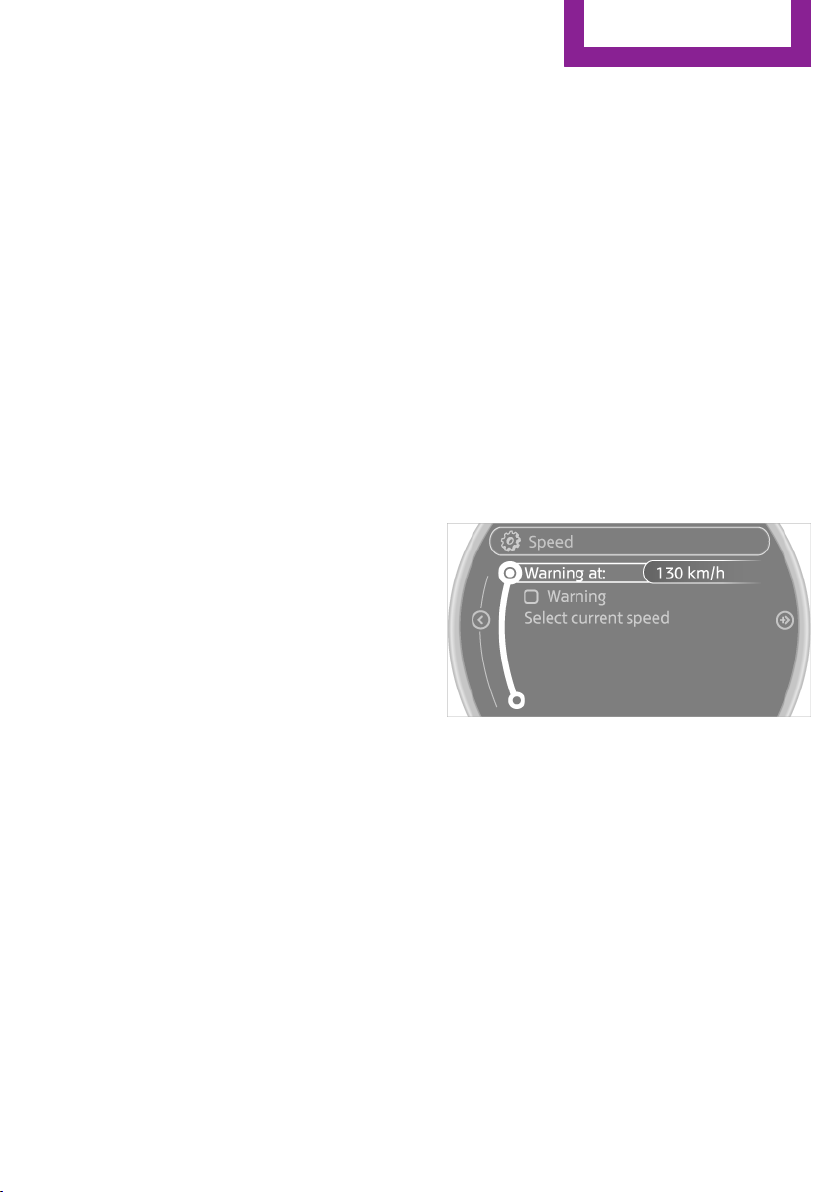
pressure label, you should determine the
proper tire inflation pressure for those tires.).
As an added safety feature, your vehicle has
been equipped with a tire pressure monitoring
system (TPMS) that illuminates a low tire pres‐
sure telltale when one or more of your tires is
significantly under-inflated. Accordingly, when
the low tire pressure telltale illuminates, you
should stop and check your tires as soon as
possible, and inflate them to the proper pres‐
sure. Driving on a significantly under-inflated
tire causes the tire to overheat and can lead to
tire failure. Under-inflation also reduces fuel ef‐
ficiency and tire tread life, and may affect the
vehicle's handling and stopping ability.
Please note that the TPMS is not a substitute for
proper tire maintenance, and it is the driver's
responsibility to maintain correct tire pressure,
even if under-inflation has not reached the
level to trigger illumination of the TPMS low tire
pressure telltale.
Your vehicle has also been equipped with a
TPMS malfunction indicator to indicate when
the system is not operating properly. The TPMS
malfunction indicator is combined with the low
tire pressure telltale. When the system detects
a malfunction, the telltale will flash for approxi‐
mately one minute and then remain continu‐
ously illuminated. This sequence will continue
upon subsequent vehicle startups as long as
the malfunction exists. When the malfunction
indicator is illuminated, the system may not be
able to detect or signal low tire pressure as in‐
tended. TPMS malfunctions may occur for a va‐
riety of reasons, including the installation of re‐
placement or alternate tires or wheels on the
vehicle that prevent the TPMS from functioning
properly. Always check the TPMS malfunction
telltale after replacing one or more tires or
wheels on your vehicle to ensure that the re‐
placement or alternate tires and wheels allow
the TPMS to continue to function properly.
Speed limit
The concept
Enter a speed for which a Check Control mes‐
sage will be displayed when the speed is
reached. This enables you to receive warnings if
you exceed a speed limit in an urban area, for
example.
You are only warned of reaching this speed a
second time if your vehicle speed falls below it
again by at least 3 mph/5 km/h.
Displaying, setting or changing the
limit
1.
"Settings"
2. "Speed"
3. "Warning at:"
4. Turn the MINI joystick to accept the setting.
5. Press the MINI joystick to apply the setting.
The limit is stored.
Applying your current speed as the limit
1.
"Settings"
2. "Speed"
Seite 91
Safety
Controls
91
Online Edition for Part no. 01 40 2 911 544 - VI/13

3. "Select current speed"
4. Press the MINI joystick.
The system adopts your current speed as the
limit.
Activating/deactivating the limit
1.
"Settings"
2. "Speed"
3. "Warning"
4. Press the MINI joystick.
Seite 92
Controls
Safety
92
Online Edition for Part no. 01 40 2 911 544 - VI/13
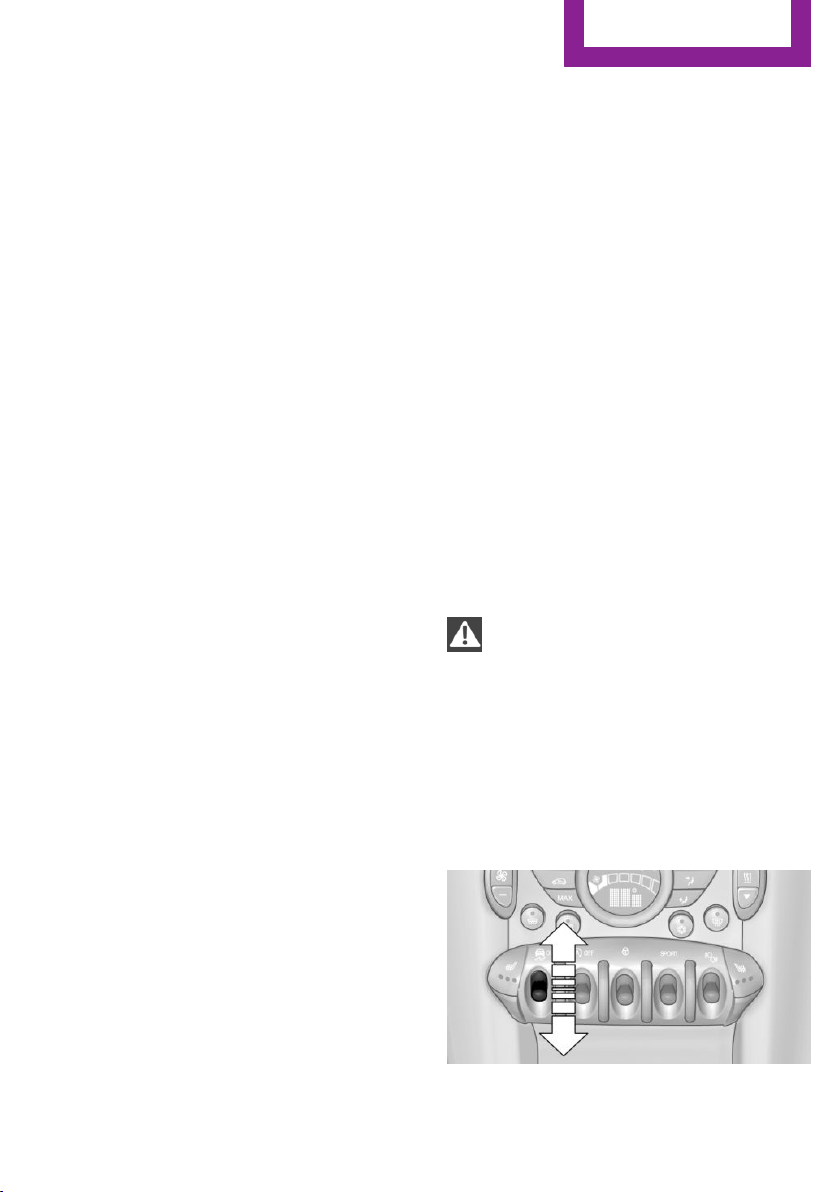
Driving stability control systems
Vehicle equipment
This chapter describes all series equipment as
well as country-specific and special equipment
offered for this model series.Therefore, it also
describes equipment that may not be found in
your vehicle, for instance due to the selected
special equipment or the country version. This
also applies to safety-related functions and sys‐
tems.
Antilock Brake System
ABS
ABS prevents locking of the wheels during
braking.
Steerability is maintained even during full brak‐
ing. This increases active driving safety.
ABS is operational every time you start the en‐
gine.
Electronic brake-force distribution EBV
The system controls the brake pressure in the
rear wheels to ensure stable braking behavior.
CBC Cornering Brake Control
When braking in curves or during a lane
change, driving stability and steering response
are improved further.
Brake assistant
When the brakes are applied rapidly, this sys‐
tem automatically produces the maximum
braking force boost. In this way, the system
helps keep the braking distance as short as
possible. This system utilizes all of the benefits
provided by ABS.
Do not reduce the pressure on the brake pedal
for the duration of full braking.
Dynamic Stability Con‐
trol DSC
The concept
DSC prevents traction loss in the driving wheels
when driving away and accelerating.
DSC also recognizes unstable vehicle condi‐
tions, such as fishtailing or nose-diving. Subject
to physical limits, DSC helps to keep the vehicle
on a steady course by reducing engine speed
and by applying brakes to the individual
wheels.
DSC is operational every time you start the en‐
gine.
Adjust your driving style to the situation
An appropriate driving style is always the
responsibility of the driver.
The laws of physics cannot be repealed, even
with DSC.
Do not reduce the additional safety margin
with a risky driving style, as otherwise there is a
risk of an accident.◀
Deactivating DSC
Press the switch until the DSC OFF indicator
lamp lights up in the speedometer and DSC OFF
Seite 93
Driving stability control systems
Controls
93
Online Edition for Part no. 01 40 2 911 544 - VI/13
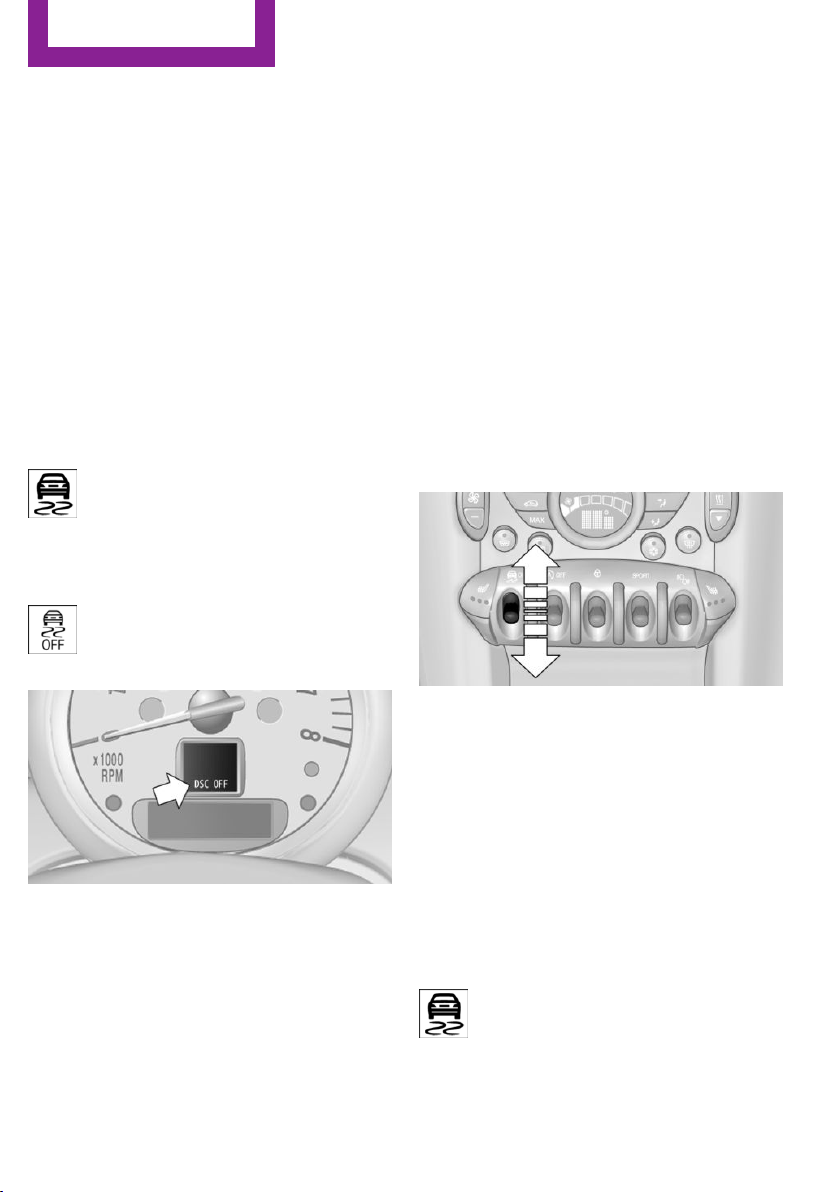
appears in the tachometer. DSC is deactivated.
Intervening measures to stabilize the vehicle
and give it forward momentum are no longer
executed.
When driving with snow chains or to rock the
vehicle free of snow, it may be useful to deacti‐
vate DSC temporarily.
To increase vehicle stability, activate DSC again
as soon as possible.
Activating DSC
Press the switch again; the DSC indicator lamps
in the display elements go out.
Indicator/warning lamps
The indicator lamp in the tachometer
flashes: DSC is controlling the drive
forces and brake forces.
The indicator lamp lights up: DSC and DTC has
failed.
The indicator lamp in the speedometer
lights up and DSC OFF appears in the
tachometer.
DSC and DTC deactivated.
Dynamic Traction Con‐
trol DTC
The concept
The DTC system is a version of the DSC in which
forward momentum is optimized.
The system ensures maximum forward mo‐
mentum on special road conditions, e.g., unp‐
lowed snowy roads, but driving stability is lim‐
ited.
It is therefore necessary to drive with appropri‐
ate caution.
You may find it useful to briefly activate DTC
under the following special circumstances:
▷ When driving in sand, on snowy inclines, in
slush, or on unplowed, snow-covered road
surfaces
▷ When rocking a vehicle free or starting off
in deep snow, sand, or on loose ground
▷ When driving with snow chains.
Activating DTC
Press the switch; the DSC OFF indicator lamp
lights up in the speedometer and TRACTION
appears in the tachometer. Dynamic Stability
Control DSC is deactivated, Dynamic Traction
Control DTC is activated.
Deactivating DTC
Press the switch again; the DSC OFF indicator
lamp in the speedometer and TRACTION in the
tachometer go out.
Indicator/warning lamps
The indicator lamp in the tachometer
flashes: DTC is controlling the drive
forces and brake forces.
The indicator lamp lights up: DSC and DTC has
failed.
Seite 94
Controls
Driving stability control systems
94
Online Edition for Part no. 01 40 2 911 544 - VI/13
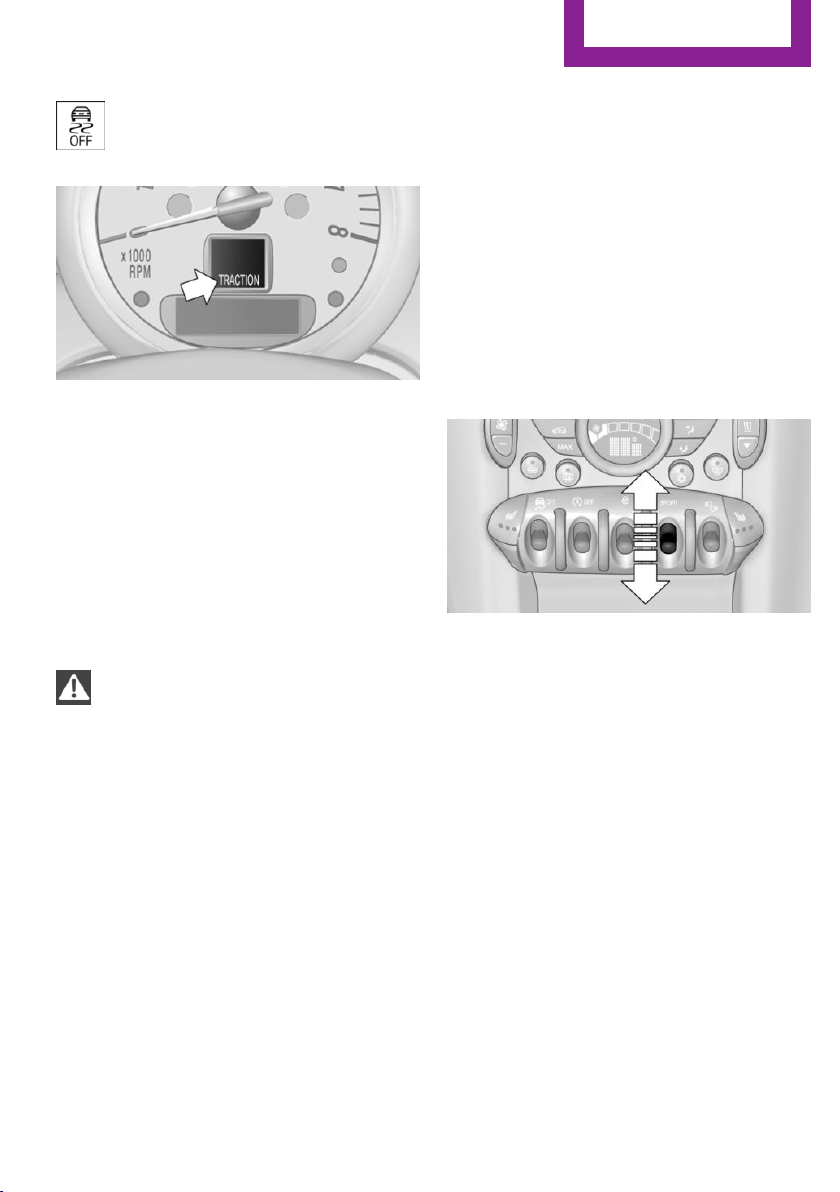
The indicator lamp in the speedometer
lights up and TRACTION appears in the
tachometer.
DTC is activated.
Hill drive-off assistant
This system supports driving away on gradients.
The handbrake is not required.
1.
Hold the vehicle in place with the foot
brake.
2. Release the foot brake and drive away
without delay.
Driving off without delay
After releasing the foot brake, start driv‐
ing without delay, since the drive-off assistant
will not hold the vehicle in place for more than
approx. 2 seconds and the vehicle will begin
rolling back.◀
ALL4 all-wheel system
ALL4 is the all-wheel system of your MINI. The
combined effects of ALL4 and DSC further opti‐
mize the traction and dynamic driving charac‐
teristics. The ALL4 all-wheel system variably
distributes the drive forces to the front and rear
axles depending on the driving situation and
prevailing road conditions.
Sport button
When this button is pressed, the vehicle re‐
sponds in an even sportier manner.
▷ The engine responds more spontaneously
to accelerator movements.
▷ The steering responds more directly.
▷ Cooper S, John Cooper Works: the engine
sounds sportier when coasting.
▷ For automatic transmissions: more rapid
gear changes in the Sport program.
Activating the system
Press the switch; the LED in the button lights up
and SPORT is displayed briefly in the tachome‐
ter.
Deactivating the system
▷ Press the switch again.
▷ Switch the engine off.
Seite 95
Driving stability control systems
Controls
95
Online Edition for Part no. 01 40 2 911 544 - VI/13
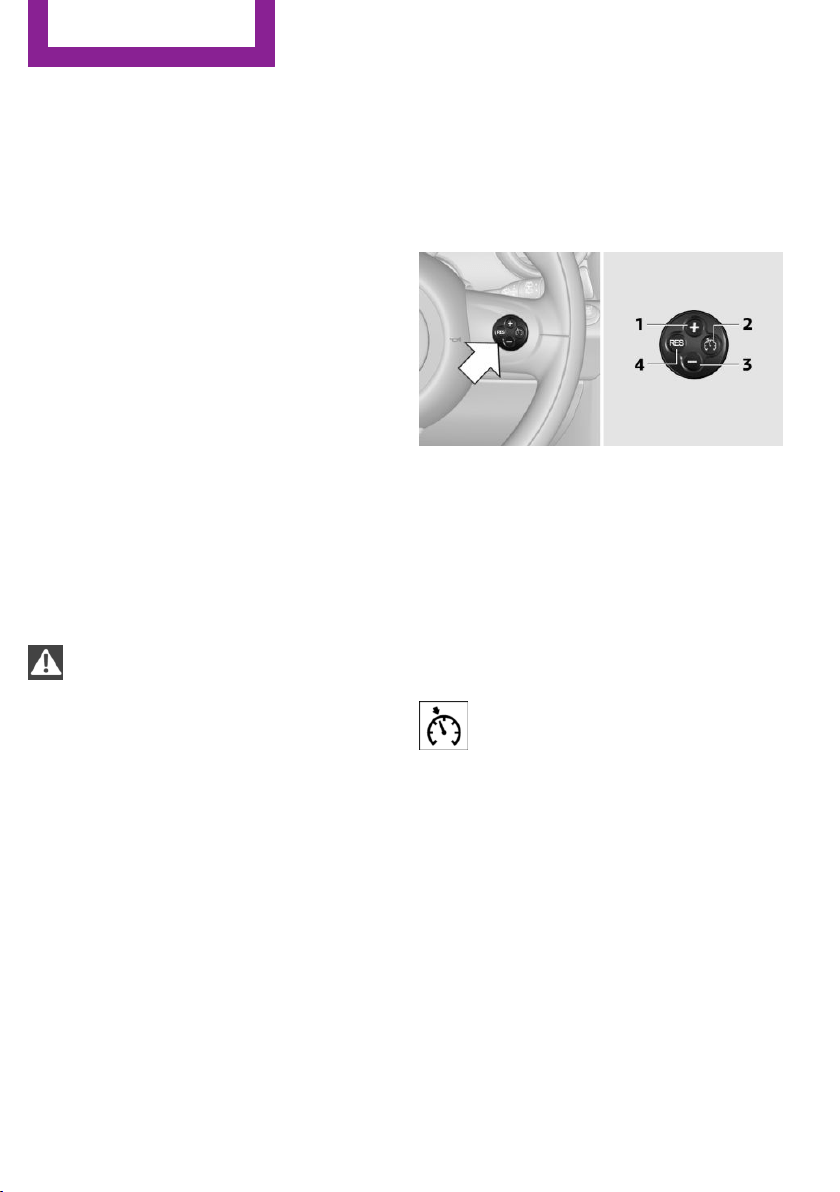
Driving comfort
Vehicle equipment
This chapter describes all series equipment as
well as country-specific and special equipment
offered for this model series.Therefore, it also
describes equipment that may not be found in
your vehicle, for instance due to the selected
special equipment or the country version. This
also applies to safety-related functions and sys‐
tems.
Cruise control
The concept
The system is functional at speeds beginning at
approx. 20 mph/30 km/h.
The vehicle stores and maintains the speed
specified using the controls on the steering
wheel.
Do not use cruise control
Do not use the system if unfavorable con‐
ditions make it impossible to drive at a constant
speed, for instance:
▷ On curvy roads.
▷ In heavy traffic.
▷ On slippery roads, in fog, snow or rain, or
on a loose road surface.
Otherwise, you could lose control of the vehicle
and cause an accident.◀
Controls
At a glance
1 Maintaining, storing, and increasing the
speed
2 Activating/deactivating cruise control
3 Maintaining, storing, and reducing the
speed
4 Resuming cruise control
Switching on
Press button 2.
The indicator lamp lights up in the
speedometer. Cruise control is ready to
operate and can be activated.
Switching off
Press button 2.
▷ When activated: press twice.
▷ When interrupted: press once.
The displays go out. The stored target speed is
cleared.
Interrupting
Press button 2.
The system is interrupted automatically if
▷ The brakes are applied.
▷ The clutch pedal is depressed.
Seite 96
Controls
Driving comfort
96
Online Edition for Part no. 01 40 2 911 544 - VI/13
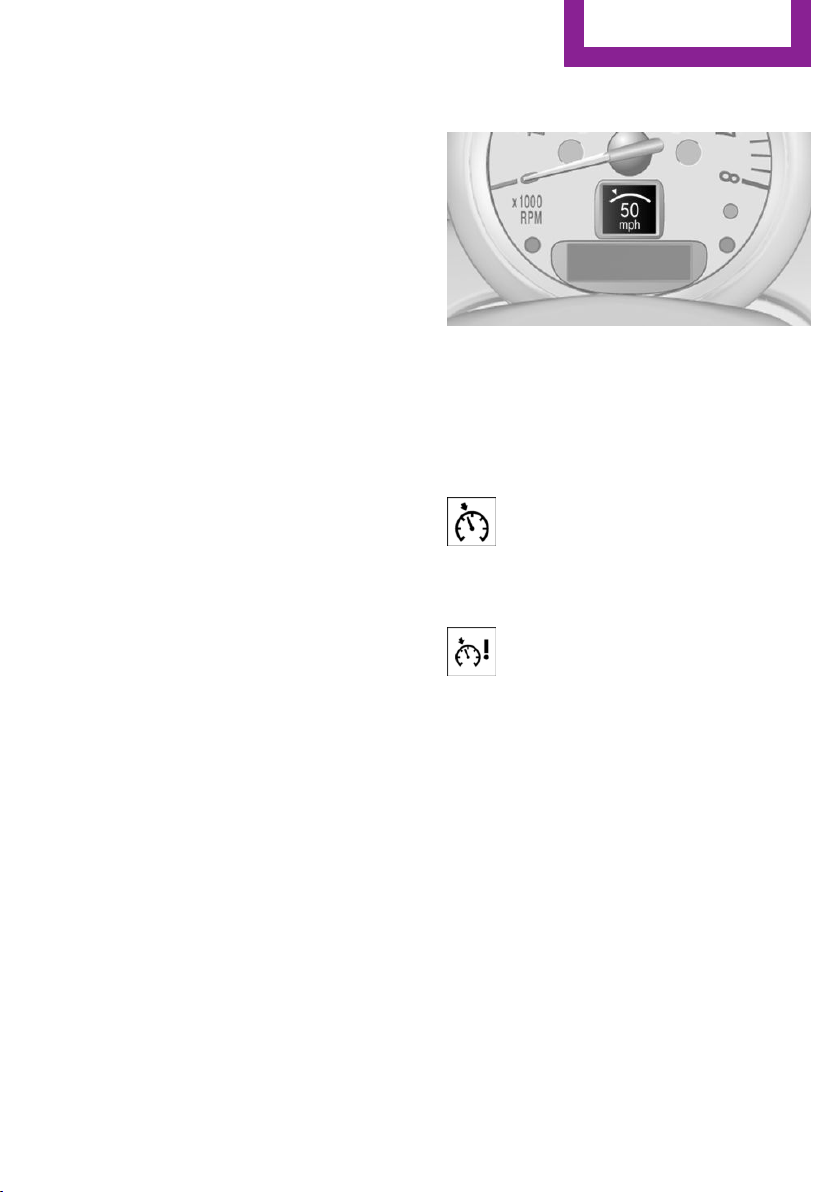
▷ The transmission position D is disengaged.
▷ DSC intervenes.
Maintaining, storing the current speed
Press button 1 or button 3.
The current speed is maintained and stored. It
is displayed briefly in the tachometer.
On downhill gradients, it may prove impossible
to maintain the set speed if the engine braking
power is insufficient. On uphill gradients, it may
prove impossible to maintain the set speed if
the engine power output is insufficient.
Increasing speed
▷ Press button 1 repeatedly until the desired
speed is reached.
Each time the button is pressed, the speed
increases by approx. 1 mph/1 km/h.
▷ Press and hold button 1 until the desired
speed is reached.
The vehicle accelerates without pressure on
the accelerator pedal. After the button is
released, the achieved speed is maintained
and stored.
Decreasing speed
Press button 3 repeatedly or hold it until the
desired speed is reached.
The functions are the same those when the
speed is increased, only that the speed is re‐
duced.
Resuming a speed stored beforehand
Press button 4.
The last stored speed is resumed and main‐
tained.
The stored speed is cleared when the ignition is
switched off.
Display in the tachometer
The selected speed is displayed briefly.
If the display --- mph or --- km/h appears
briefly, conditions may not be adequate to op‐
erate the system.
For better control
The indicator lamp lights up in the
speedometer. Cruise control is ready to
operate and can be activated.
Malfunction
The warning lamp in the tachometer
lights up. A message appears on the
Control Display. The system is malfunc‐
tioning or has failed.
Park Distance Control
PDC
The concept
PDC provides support when parking in reverse.
Signal tones and a visual display indicate that
the vehicle is approaching an object behind it.
Measurements are made by four ultrasound
sensors in the bumpers.
The range of these sensors is approx. 6 ft/2 m.
An acoustic warning is first given:
▷ By the two corner sensors at ap‐
prox. 24 in/60 cm.
Seite 97
Driving comfort
Controls
97
Online Edition for Part no. 01 40 2 911 544 - VI/13

▷ By the rear middle sensors at approx.
5 ft/1.50 m.
Avoid driving quickly with PDC
PDC is a parking aid that can display ob‐
jects when the vehicle approaches them slowly,
as is the case during parking maneuvers. Avoid
driving toward an object quickly as the system
may then be too late in issuing a warning for
technical reasons.◀
Automatic operation
The system is activated after approx. one sec‐
ond when reverse gear or selector lever posi‐
tion R is engaged while the engine is running or
the ignition is switched on. Await this short pe‐
riod before setting the vehicle into motion.
Signal tones
The closer the vehicle is to the object, the
shorter the intervals become. If the distance to
a detected object is less than approx.
12 in/30 cm, a continuous tone is sounded.
If the distance remains constant, for example
when driving parallel to a wall, the signal tone
is stopped after approx. 3 seconds.
PDC with visual warning
Displaying the approach to an object on the
Control Display. The contours of distant objects
are displayed on the Control Display before a
signal tone is output. The display is shown on
the Control Display as soon as reverse gear or
selector lever position R is engaged.
System limits
Check the traffic situation as well
PDC cannot serve as a substitute for the
driver's personal judgment of the traffic situa‐
tion. Check the traffic situation around the ve‐
hicle with your own eyes. Otherwise, an acci‐
dent could result from road users or objects
located outside of the PDC detection range.
Loud noises from outside and inside the vehicle
may prevent you from hearing the PDC's signal
tone.◀
Malfunction
The warning lamp lights up. A message
appears on the Control Display. PDC is
malfunctioning or has failed. Have the
system checked.
To ensure full functionality of the sensors, keep
the sensors clean and free of ice. When using
high-pressure washers, do not spray the sen‐
sors for long periods and maintain a distance of
at least 12 in/30 cm.
Seite 98
Controls
Driving comfort
98
Online Edition for Part no. 01 40 2 911 544 - VI/13
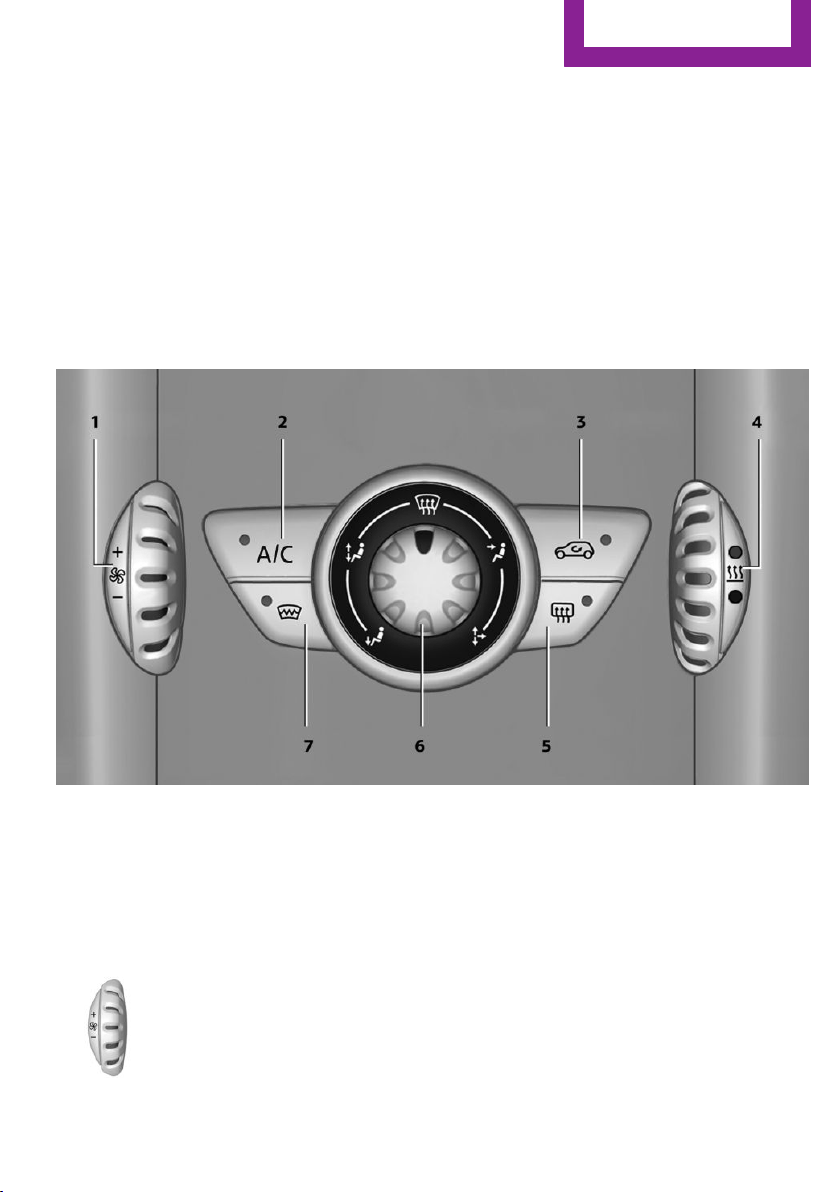
Climate
Vehicle equipment
This chapter describes all series equipment as
well as country-specific and special equipment
offered for this model series.Therefore, it also
describes equipment that may not be found in
your vehicle, for instance due to the selected
special equipment or the country version. This
also applies to safety-related functions and sys‐
tems.
Air conditioning
1 Air volume
2 Cooling function
3 Recirculated air mode
4 Temperature
5 Rear window defroster
6 Vent settings
7 Windshield heating
Air volume
Vary the air volume. The higher
the rate, the more effective the
heating or cooling will be.
The air flow rate may be reduced
or the blower may be switched
off entirely to save on battery power.
Switching the system on/off
Turn the rotary switch for the air volume to 0.
The blower and air conditioner are completely
switched off and the air supply is cut off.
Set any air volume to switch on the air condi‐
tioning.
Seite 99
Climate
Controls
99
Online Edition for Part no. 01 40 2 911 544 - VI/13
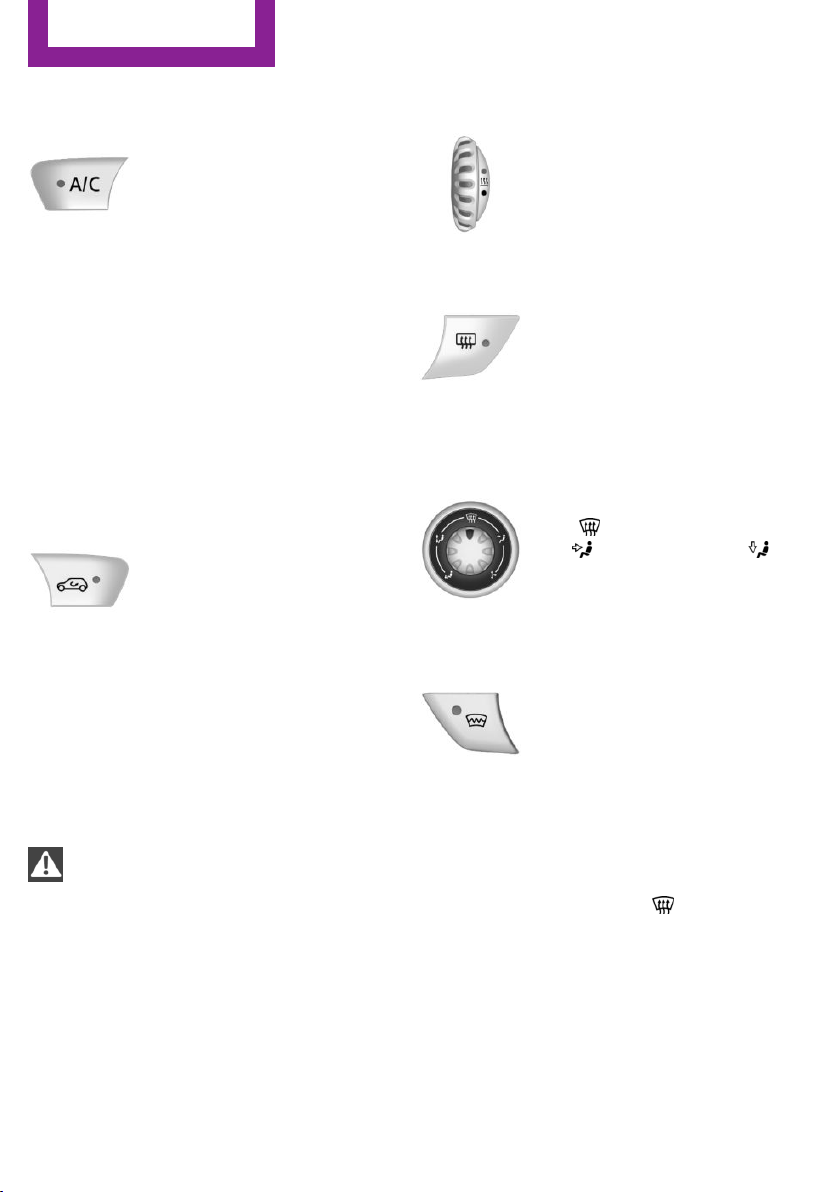
Cooling function
The passenger compartment can
only be cooled with the engine
running.
The cooling function cools and
dehumidifies the incoming air
before reheating it as required, according to
the temperature setting.
The cooling function helps to prevent conden‐
sation on the windows or to remove it quickly.
Depending on the weather, the windshield may
fog up briefly when the engine is started.
To cool the air faster and more intensively
when external temperatures are high, switch
on the recirculated air mode.
Recirculated air mode
If the air outside the car has an
unpleasant odor or contains pol‐
lutants, shut off the supply to the
interior of the car temporarily.
The system then recirculates the
air currently within the vehicle.
Should the windows fog up in the recirculated-
air mode, press the AUTO button or switch off
the recirculated-air mode and increase the air
volume if necessary. Make sure that air can
flow onto the windshield.
Recirculated air mode is automatically deacti‐
vated at low external temperatures.
Only use recirculated air mode for a lim‐
ited period
The recirculated air mode should not be used
continuously for lengthy periods; otherwise, the
quality of the air inside the car will gradually
deteriorate.◀
Temperature
Turn upward, red, to raise the
temperature.
Turn downward, blue, to lower
the temperature.
Rear window defroster
The rear window defroster
switches off automatically after a
certain period of time.
The rear window defroster
power may be lowered or even
switched off entirely to save on battery power.
Vent settings
Direct the flow of air to the win‐
dows
, to the upper body
area , or to the footwell .
Intermediate positions are possi‐
ble.
Windshield heating
The windshield heating switches
off automatically after some
time.
The windshield heating may be
reduced or even switched off en‐
tirely to save on battery power.
Defrosting and defogging windows
1.
Set the maximum air volume.
2. Air distribution in position .
By switching on the cooling function, the
windows are defogged more rapidly.
3. Set the highest temperature, red.
4. Deactivate recirculated air mode.
5. Switch on the windshield heating if neces‐
sary.
6. Switch on the rear window defroster if nec‐
essary.
Seite 100
Controls
Climate
100
Online Edition for Part no. 01 40 2 911 544 - VI/13
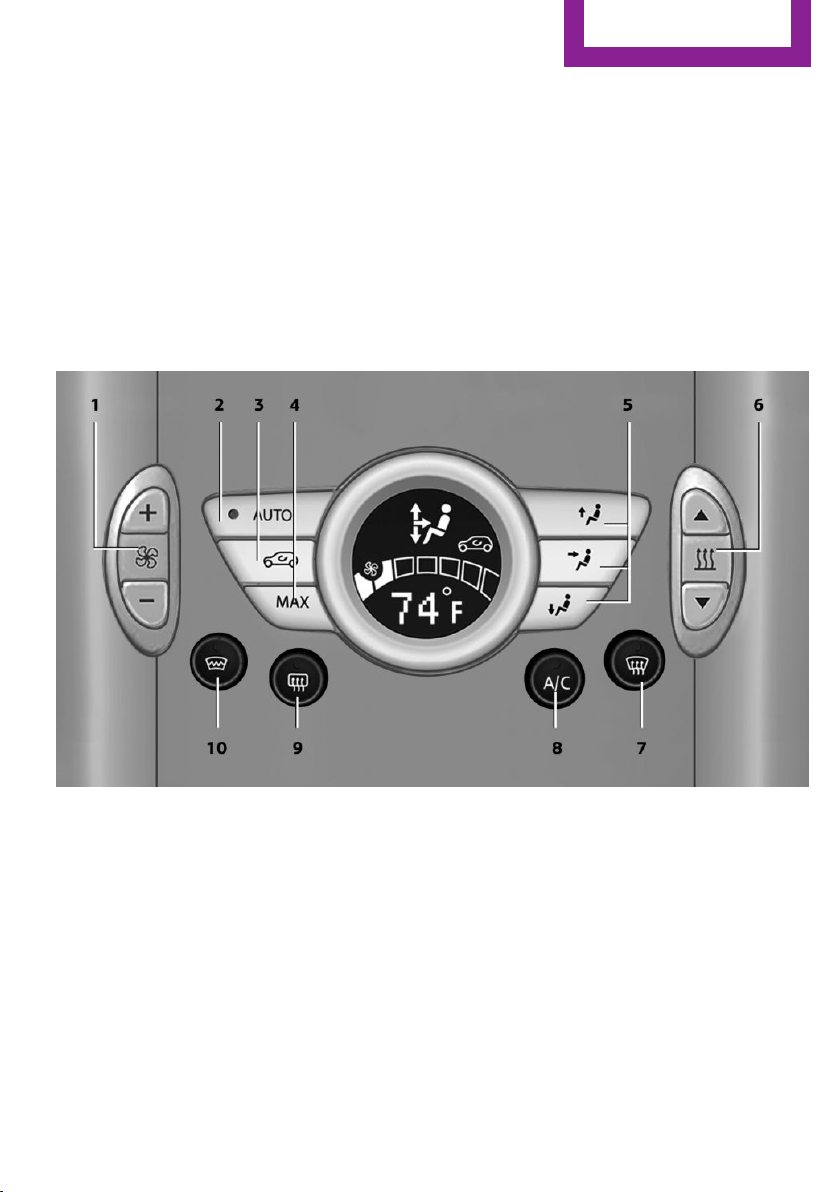
Microfilter
The microfilter traps dust and pollen. The mi‐
crofilter is changed by the service center during
routine maintenance work.
Microfilter/activated-charcoal filter
The microfilter traps dust and pollen. The acti‐
vated-charcoal filter provides additional protec‐
tion by filtering gaseous pollutants from the
outside air. The service center replaces this
combined filter during routine maintenance.
Automatic climate control
1 Air volume, manual
2 AUTO program
3 Recirculated air mode
4 Maximum cooling
5 Manual air distribution
6 Temperature
7 Defrosting windows and removing conden‐
sation
8 Cooling function
9 Rear window defroster
10 Windshield heating
Comfortable interior climate
The AUTO program offers the optimum air dis‐
tribution and air volume for virtually all condi‐
tions, refer to AUTO program below. Select a
comfortable interior temperature only.
The following sections contain more detailed
information on the available setting options.
Most of these settings are stored for the remote
control in use, Personal Profile settings, refer to
page 33.
Seite 101
Climate
Controls
101
Online Edition for Part no. 01 40 2 911 544 - VI/13
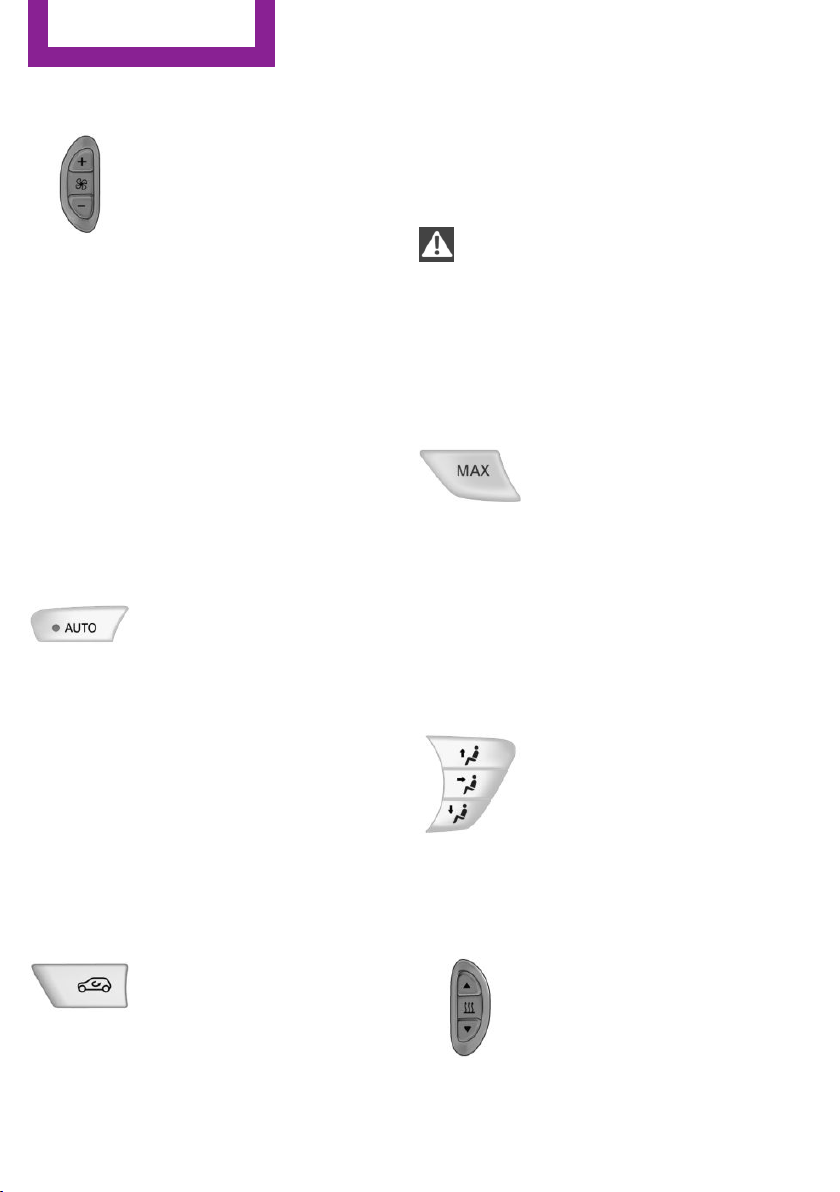
Air volume, manual
Press the – button to reduce the
air volume. Press the + button to
increase the air volume.
The automatic mode for the air
volume can be switched on
again using the AUTO button.
The air flow rate may be reduced or the blower
may be switched off entirely to save on battery
power. The display remains the same.
Switching the system on/off
Reduce the air volume by pressing the – button
until the system is switched off. All displays go
out.
Press the AUTO button to switch the automatic
climate control back on.
AUTO program
The AUTO program automati‐
cally adjusts the air distribution
to the windshield and side win‐
dows, toward the upper body
area, and into the footwell. The
air volume and your specifications for the tem‐
perature are adjusted to outside influences due
to the seasons, e. g., solar radiation.
The cooling function is switched on automati‐
cally with the AUTO program.
The program is switched off if the air distribu‐
tion is manually adjusted or the button is
pressed again.
Recirculated air mode
If the air outside the car has an
unpleasant odor or contains pol‐
lutants, shut off the supply to the
interior of the car temporarily.
The system then recirculates the
air currently within the vehicle.
Should the windows fog up in the recirculated-
air mode, press the AUTO button or switch off
the recirculated-air mode and increase the air
volume if necessary. Make sure that air can
flow onto the windshield.
Recirculated air mode is automatically deacti‐
vated at low external temperatures.
Only use recirculated air mode for a lim‐
ited period
The recirculated air mode should not be used
continuously for lengthy periods; otherwise, the
quality of the air inside the car will gradually
deteriorate.◀
Maximum cooling
Automatic climate control
switches to the lowest tempera‐
ture, a high air volume, and re‐
circulated air mode.
For maximum cooling, open the
vents for the upper body area.
The air is cooled as quickly as possible:
▷ At an external temperature above
32 ℉/0 ℃.
▷ When the engine is running.
Manual air distribution
The flow of air is directed, as se‐
lected, to the windows, to the
upper body area, or to the foot‐
well.
The automatic mode for the air
distribution can be switched back on using the
AUTO button.
Temperature
Set the desired temperature in‐
dividually.
The automatic climate control
achieves this temperature as
quickly as possible regardless of
the season, using maximum cooling or heating
power if necessary, and then maintains it.
Seite 102
Controls
Climate
102
Online Edition for Part no. 01 40 2 911 544 - VI/13
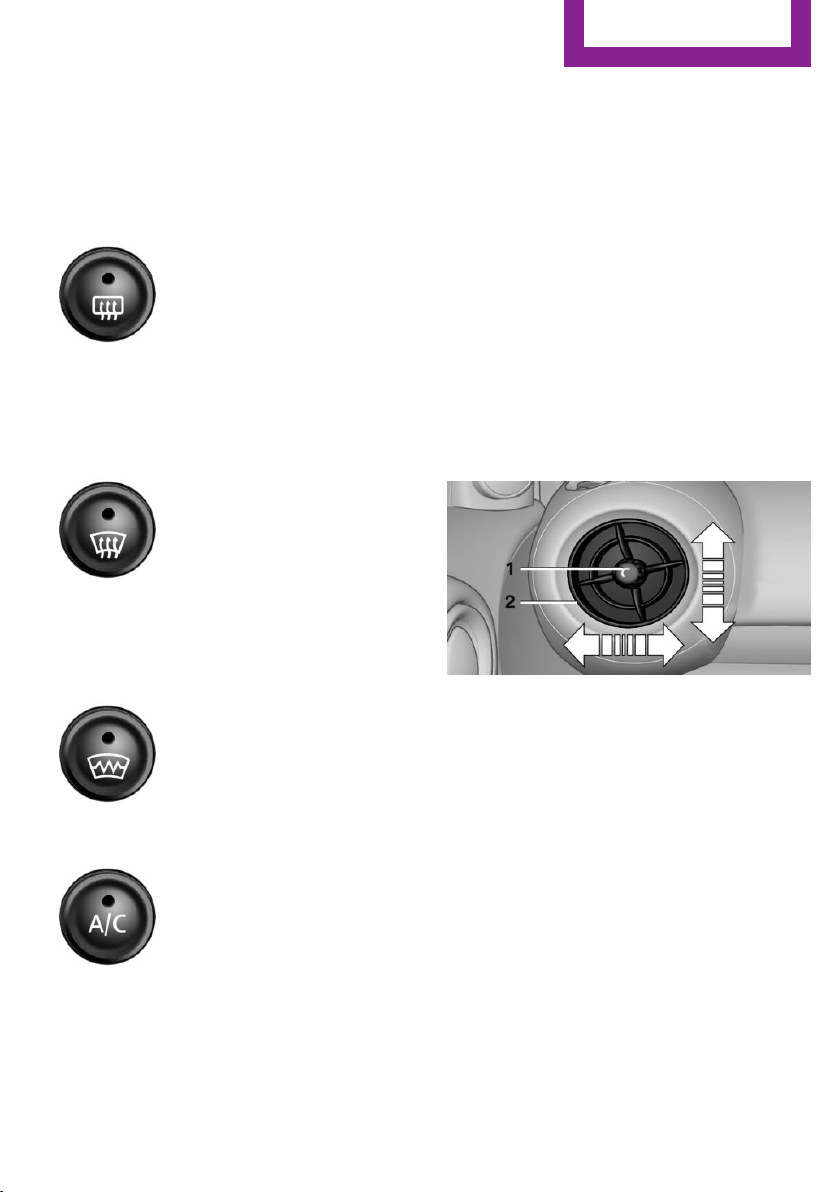
When switching between different temperature
settings in rapid succession, the automatic cli‐
mate control does not have sufficient time to
adjust the set temperature.
Rear window defroster
The rear window defroster
switches off automatically after a
certain period of time.
Depending on the vehicle equipment, upper
wires are used as an antenna and are not part
of the rear window defroster.
Defrosting and defogging windows
Quickly removes ice and con‐
densation from the windshield
and front side windows. For this
purpose, also switch on the cool‐
ing function.
The windshield heating switches on automati‐
cally.
Windshield heating
The windshield heating switches
off automatically after some
time.
Cooling function
The cooling function cools and
dehumidifies the incoming air
before reheating it as required,
according to the temperature
setting. The passenger compart‐
ment can only be cooled with the engine run‐
ning.
The cooling function helps to prevent conden‐
sation on the windows or to remove it quickly.
Depending on the weather, the windshield may
fog up briefly when the engine is started. Recir‐
culated air mode is switched on automatically if
necessary.
The cooling function is switched on automati‐
cally when the AUTO button is pressed.
Microfilter/activated-charcoal filter
The microfilter traps dust and pollen. The acti‐
vated-charcoal filter provides additional protec‐
tion by filtering gaseous pollutants from the
outside air. The service center replaces this
combined filter during routine maintenance.
Ventilation
1 Knob for continuous opening and closing
2 Nozzle for direction of air flow
Opening/closing
Turn the knob.
Direction of air flow
Pivot the entire nozzle.
Seite 103
Climate
Controls
103
Online Edition for Part no. 01 40 2 911 544 - VI/13
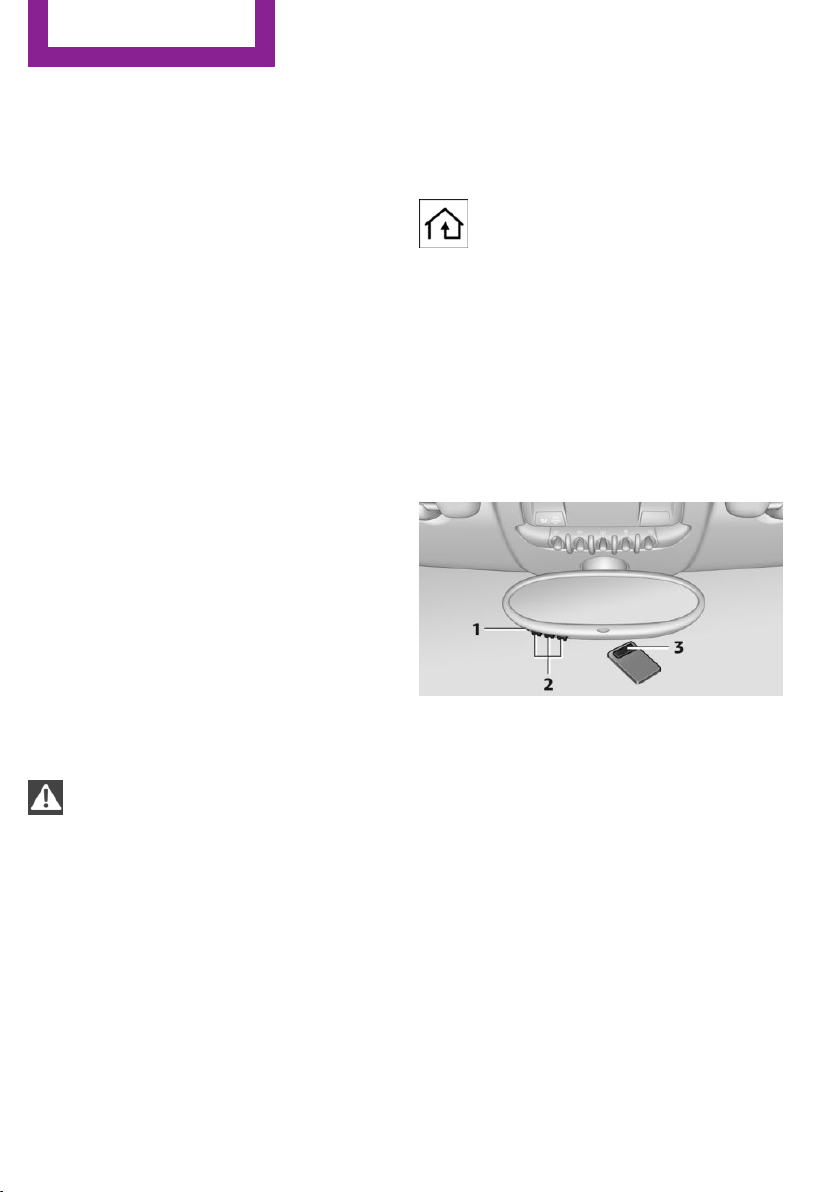
Interior equipment
Vehicle equipment
This chapter describes all series equipment as
well as country-specific and special equipment
offered for this model series.Therefore, it also
describes equipment that may not be found in
your vehicle, for instance due to the selected
special equipment or the country version. This
also applies to safety-related functions and sys‐
tems.
Universal garage door
opener
The concept
The universal garage door opener can be used
to operate up to 3 functions in remote-control‐
led systems, such as garage door drives or
lighting systems. The universal garage door
opener replaces up to 3 different hand-held
transmitters. To operate it, the buttons on the
interior rearview mirror must be programmed
for the desired functions. The hand-held trans‐
mitter for the system is needed for the pro‐
gramming procedure.
During programming
During programming and before activat‐
ing a device using the Universal Garage Door
Opener, ensure that there are no people, ani‐
mals, or objects in the range of movement of
the remote-controlled device; otherwise, there
is a risk of injury or damage.
Also follow the safety instructions of the hand-
held transmitter.◀
Before selling the vehicle, delete the stored
functions for security reasons.
Compatibility
If this symbol is printed on the packag‐
ing or in the operating instructions of
the system being operated, the system
is generally compatible with the universal ga‐
rage door opener.
If you have any questions, please contact:
▷ Your service center.
▷ www.homelink.com on the Internet.
HomeLink is a registered trademark of Johnson
Controls, Inc.
Controls on the interior rearview mirror
1 LED
2 Buttons
3 Hand-held transmitter, required for pro‐
gramming.
Programming
General information
1.
Switch on the ignition.
2. Initial setup:
Press the right and left buttons on the inte‐
rior rearview mirror simultaneously for ap‐
prox. 20 seconds until the LED on the inte‐
rior rearview mirror begins to flash. All
programmed settings of the buttons on the
interior rearview mirror are deleted.
Seite 104
Controls
Interior equipment
104
Online Edition for Part no. 01 40 2 911 544 - VI/13

3. Hold the hand-held transmitter of the sys‐
tem to be operated a distance of approx. 1
to 3 in/2.5 to 8 cm away from the buttons
on the interior rearview mirror. The re‐
quired distance depends on the particular
hand-held transmitter.
4. Press the button of the desired function on
the hand-held transmitter and the button
being programmed on the interior rearview
mirror simultaneously and hold. The LED on
the interior rearview mirror flashes slowly at
first.
5. When the LED flashes more rapidly, release
both buttons. Rapid flashing indicates that
the button on the interior rearview mirror
has been programmed.
If the LED does not flash faster after 60 sec‐
onds, change the distance between the in‐
terior rearview mirror and the hand-held
transmitter and repeat the step. Multiple
trials at different distances may be neces‐
sary. Wait at least 15 seconds between tri‐
als.
6. To program additional functions on other
buttons, repeat steps 3 to 5.
The systems can be operated with the buttons
on the interior rearview mirror.
Special characteristics of alternating-
code radio systems
If the system cannot be operated after re‐
peated programming, check whether the sys‐
tem to be operated uses an alternating-code
system.
Read the operating instructions of the system
or press and hold the programmed button on
the interior rearview mirror. If the LED on the
interior rearview mirror flashes rapidly at first
and then lights up continuously for 2 seconds,
the system is equipped with an alternating-
code system. This flashing LED pattern repeats
itself for approx. 20 seconds.
In systems with an alternating-code system, the
universal garage door opener and the system
must be additionally synchronized.
Please obtain additional information on syn‐
chronization in the operating instructions of the
system being set up.
The systems will be easier to synchronize with
the aid of a second person.
Synchronization:
1. Park the vehicle within range of the re‐
mote-controlled system.
2. Program the corresponding button on the
interior rearview mirror as described.
3. Identify and press the synchronization but‐
ton on the system being set up. You have
approx. 30 seconds for the next step.
4. Press and hold the button on the interior
rearview mirror for approx. 3 seconds and
then release it. Repeat this step up to three
times if necessary to complete the synchro‐
nization procedure. When synchronization
is completed, the programmed function is
executed.
Reprogramming individual buttons
1.
Switch on the ignition.
2. Hold the hand-held transmitter at a dis‐
tance of approx. 1 to 3 in/2.5 to 8 cm from
the memory buttons.
The required distance depends on the par‐
ticular hand-held transmitter.
3. Press the memory button of the universal
garage door opener.
4. If the LED flashes slowly after approx.
20 seconds, press the transmit button on
the hand-held transmitter.
5. Release both buttons when the LED flashes
rapidly.
If the LED does not flash rapidly after ap‐
prox. 60 seconds, change the distance and
repeat the step.
Seite 105
Interior equipment
Controls
105
Online Edition for Part no. 01 40 2 911 544 - VI/13
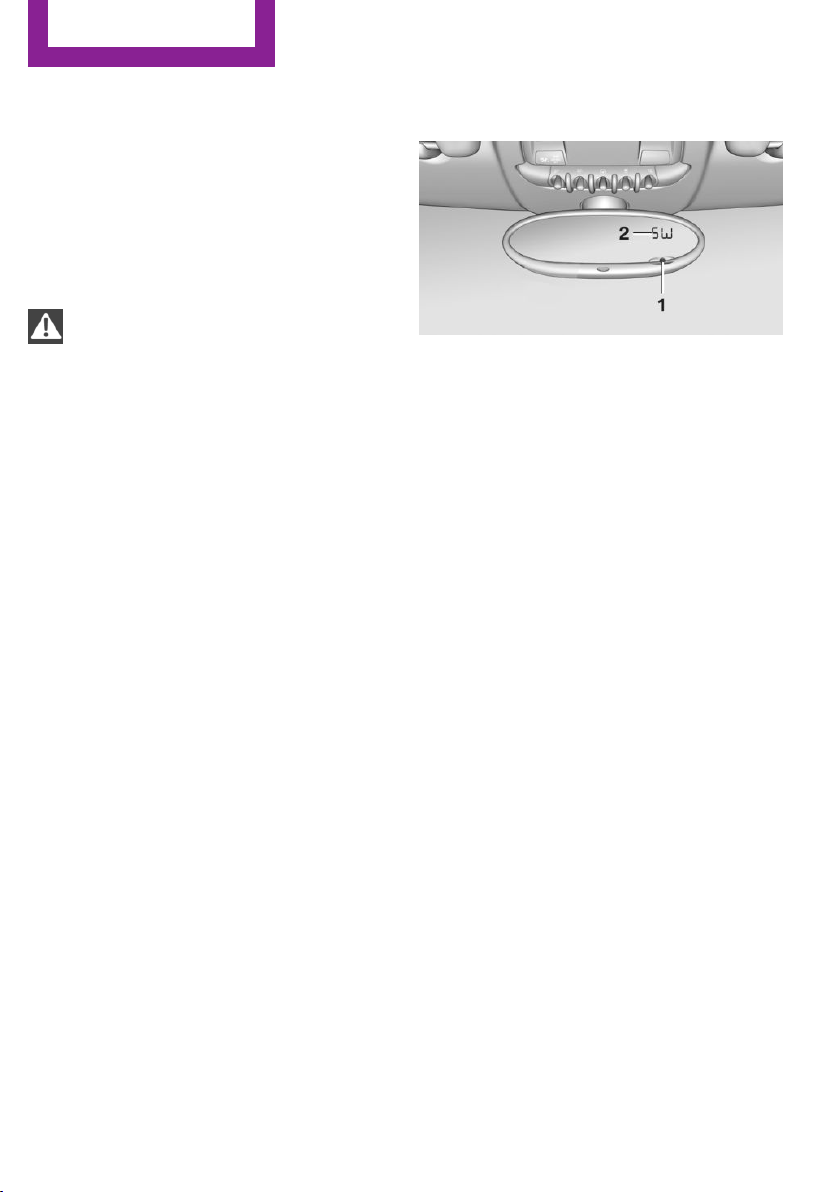
Canada: if the LED does not flash rapidly af‐
ter approx. 60 seconds, change the dis‐
tance and repeat the step. If programming
was aborted by the hand-held transmitter,
hold down the memory button and press
and release the button on the hand-held
transmitter several times for 2 seconds.
Controls
Prior to operation
Before operating a unit with the Universal
Garage Door Opener, ensure that there are no
people, animals, or objects in the range of
movement of the system; otherwise, there is a
risk of injury or damage.
Also follow the safety instructions of the hand-
held transmitter.◀
The system, such as the garage door, can be
operated using the button on the interior rear‐
view mirror with the engine running or the igni‐
tion switched on. When you are within the re‐
ception range of the system, press and hold the
button until the function is initiated. The LED on
the interior rearview mirror lights up continu‐
ously while the radio signal is being transmit‐
ted.
Deleting stored functions
Press the right and left buttons on the interior
rearview mirror simultaneously for approx.
20 seconds until the LED flashes rapidly. All
stored functions are deleted. The functions can‐
not be deleted individually.
Digital compass
1 Adjustment button on the back of the mir‐
ror
2 Display
The display shows the main or secondary com‐
pass direction in which the vehicle is traveling.
Operating concept
Various functions can be called up by pressing
the adjustment button with a pointed object
such as a pen. The following adjustment op‐
tions are displayed one after the other, de‐
pending on how long the adjustment button is
pressed:
▷ Press briefly: switch the display on/off.
▷ 3 to 6 seconds: set the compass zone.
▷ 6 to 9 seconds: calibrate the compass.
▷ 9 to 12 seconds: set left-hand/right hand
steering.
▷ 12 to 15 seconds: set the language.
Setting compass zones
Set the compass zone corresponding to the ve‐
hicle's geographic location so that the compass
can function correctly; refer to the world map
with compass zones.
Seite 106
Controls
Interior equipment
106
Online Edition for Part no. 01 40 2 911 544 - VI/13
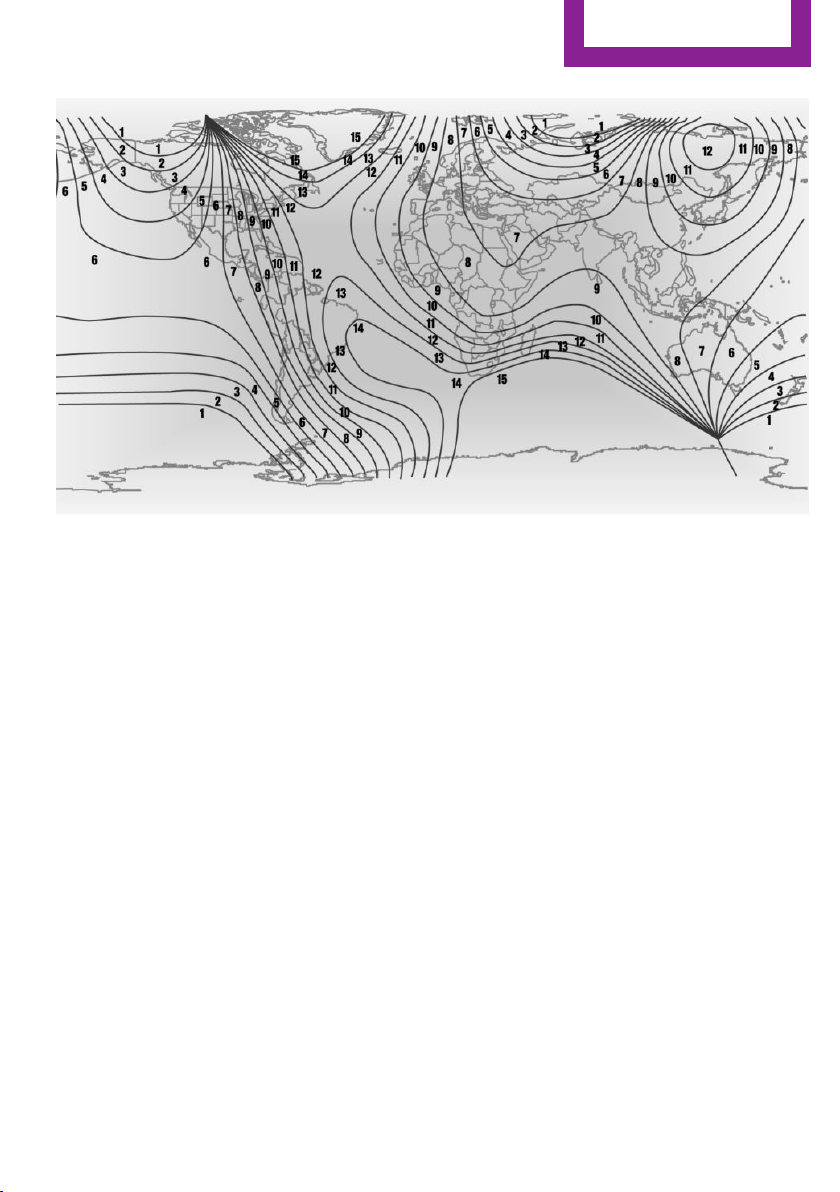
Press the adjustment button for 3‑4 seconds.
The number of the compass zone set is shown
in the display.
To change the zone setting, briefly press the
adjustment button repeatedly until the display
shows the number of the compass zone corre‐
sponding to the current location.
The compass is operational again after approx.
10 seconds.
Calibrating the digital compass
The digital compass must be calibrated in the
following situations:
▷ An incorrect compass direction is shown.
▷ The cardinal direction displayed does not
change even if the direction of travel
changes.
▷ Not all compass directions are shown.
Procedure
1.
Make sure that there are no large metal ob‐
jects or overhead power lines in the vicinity
of the vehicle and that there is enough
space to drive in a circle.
2. Set the currently valid compass zone.
3. Press the adjustment button for 6‑7 sec‐
onds to call up C. Then drive at least one full
circle at a maximum speed of
4 mph/7 km/h. When the system is cali‐
brated, the C is replaced by the compass di‐
rections.
Right-hand/left-hand steering
The digital compass is set for right-hand or left-
hand steering at the factory.
Setting the language
Press the adjustment button for 12‑13 seconds.
Briefly press the adjustment button again to
switch between English "E" and German "O".
The setting is automatically saved after approx.
10 seconds.
Seite 107
Interior equipment
Controls
107
Online Edition for Part no. 01 40 2 911 544 - VI/13
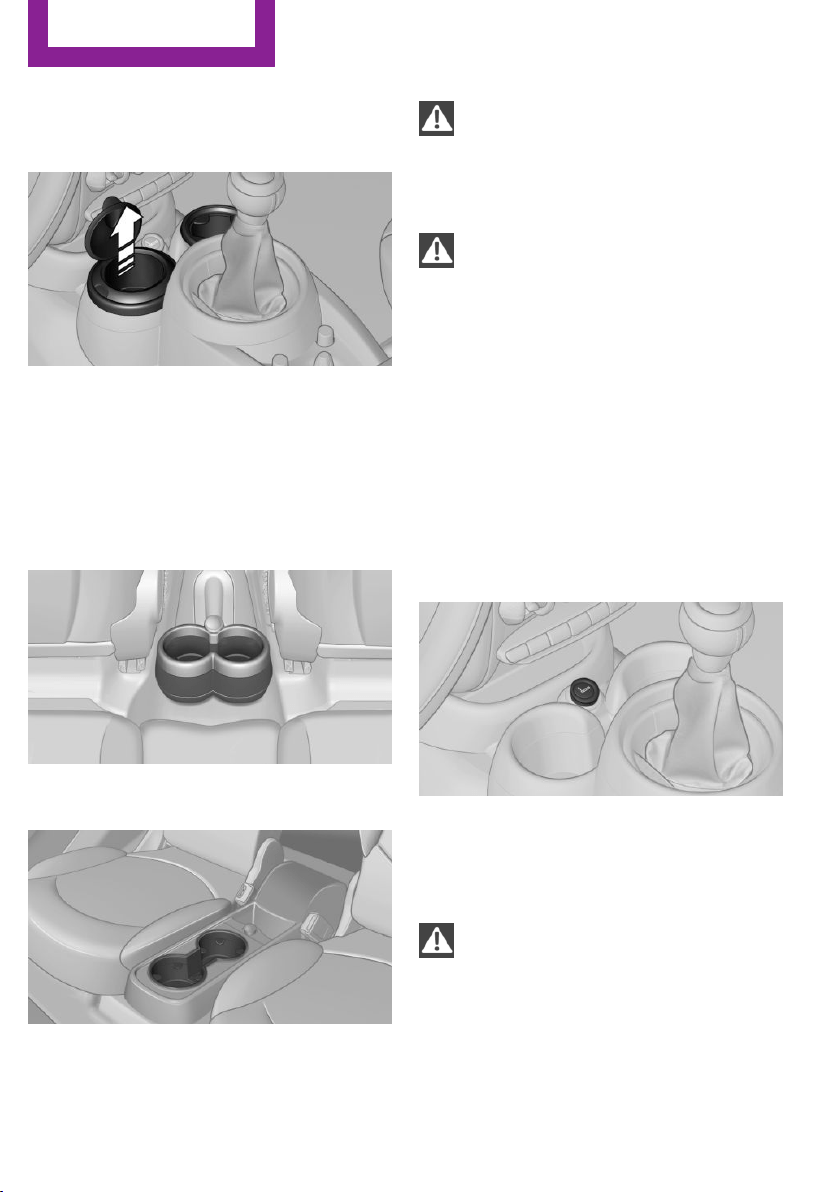
Cupholders and ashtray/
lighter
Cupholders
Two cupholders are located in the center con‐
sole in the front.
MINI Countryman: two additional cupholders
are located at the end of the center console in
the rear. Additional cupholders can be installed
on the center rail.
MINI Paceman: additional cupholders are lo‐
cated in the console between the rear seats.
Depending on the equipment, additional cu‐
pholders can be installed on the center rail.
Shatter-proof containers and no hot
drinks
Use light and shatter-proof containers and do
not transport hot drinks. Otherwise, there is the
increased danger of injury in an accident.◀
Unsuitable containers
Do not forcefully push unsuitable contain‐
ers into the cupholders. This may result in dam‐
age.◀
Ashtray
The ashtray is located in one of the cupholders
in the center console at the front.
Emptying
Take out the entire ashtray, arrow.
When installing, ensure that the ashtray is in‐
serted in the cupholder with the adapter.
Lighter
With the engine running or the ignition
switched on, press in the cigarette lighter.
The lighter can be removed as soon as it pops
back out.
Danger of burns
Only hold the hot lighter by its head; oth‐
erwise, there is the danger of getting burned.
Switch off the ignition and take the remote
control with you when leaving the vehicle so
that children cannot use the lighter and burn
themselves.◀
Seite 108
Controls
Interior equipment
108
Online Edition for Part no. 01 40 2 911 544 - VI/13
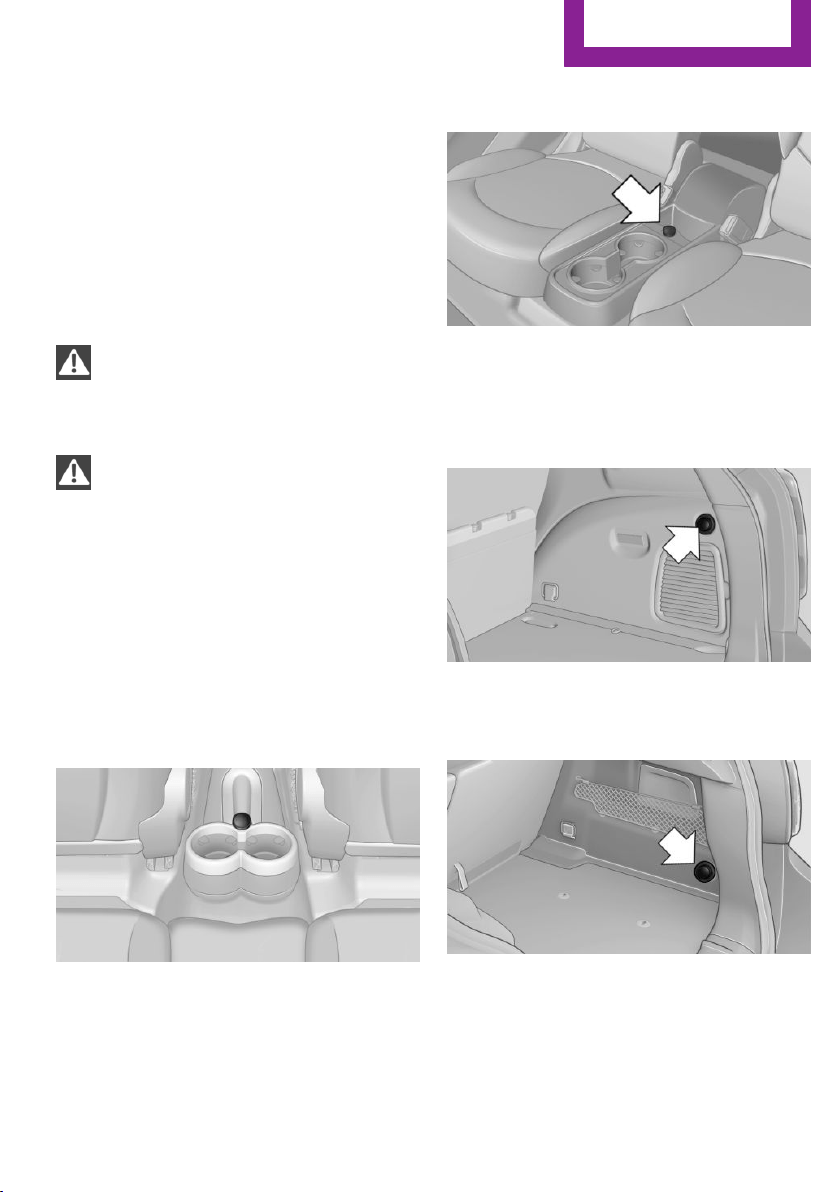
Connecting electrical de‐
vices
The lighter socket can be used as a socket for
electrical equipment while the engine is run‐
ning or when the ignition is switched on. The
total load of all sockets must not exceed
140 watts at 12 volt.
Avoid damaging the sockets by attempting to
insert plugs of unsuitable shape or size.
Do not connect the charger to the socket
Do not connect the battery charger to the
socket installed in the vehicle at the factory as
this could damage the battery.◀
Replace the cover after use
Replace the lighter or socket cover after
use; otherwise, objects that fall into the lighter
socket or power socket could cause a short cir‐
cuit.◀
Socket in the center console
Remove the cover or lighter, refer to page 108,
from the socket.
Socket in the rear
MINI Countryman
Take out the cover.
MINI Paceman
Take out the cover.
Socket in the cargo area
MINI Countryman
Take out the cover.
MINI Paceman
Take out the cover.
Seite 109
Interior equipment
Controls
109
Online Edition for Part no. 01 40 2 911 544 - VI/13
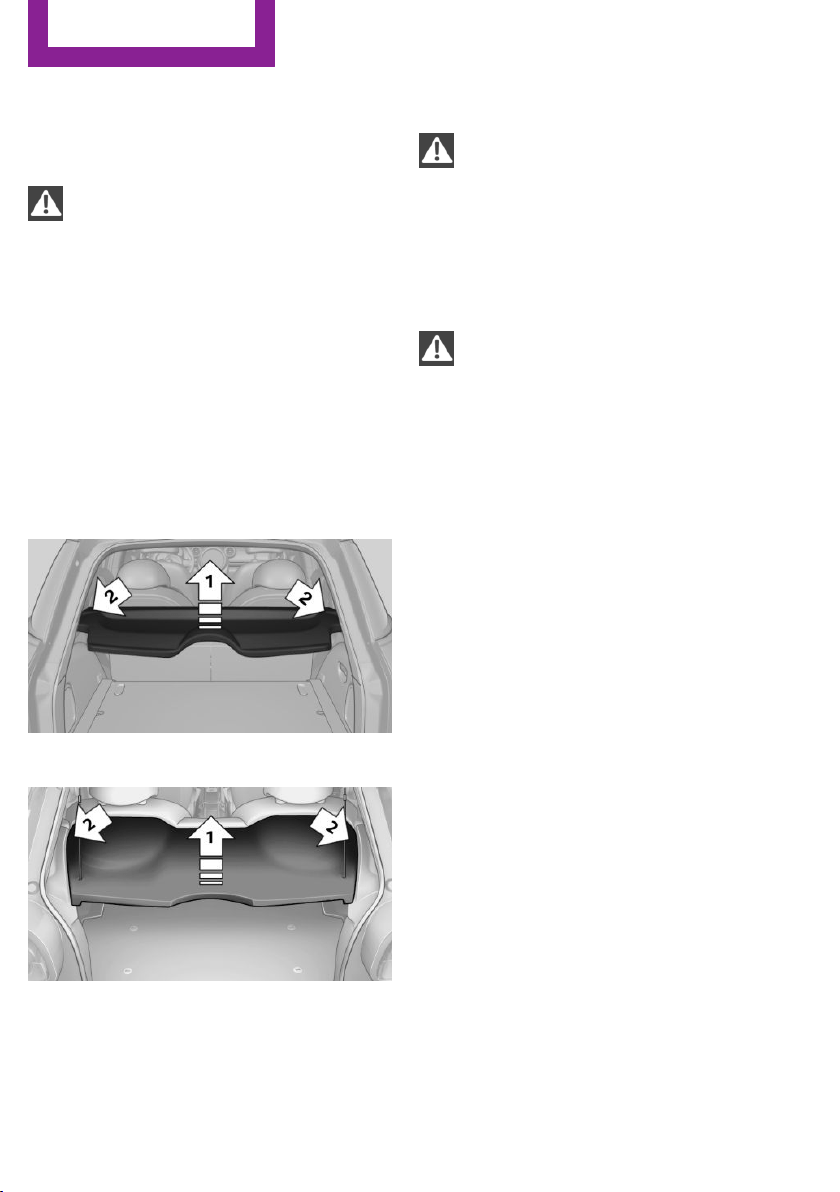
Cargo area
Cargo cover
Do not place objects on the covers
Do not place objects on the cover; if you
do so, they may pose a danger to vehicle occu‐
pants during braking or evasive maneuvers or
damage the cover.◀
When the tailgate is opened, the cargo cover is
raised.
To load bulky luggage, the cover can be re‐
moved.
1.
Detach the securing straps from the tail‐
gate.
2. Lift the cover slightly, arrow 1, and pull it
back and out of the bracket, arrow 2.
MINI Countryman:
MINI Paceman:
MINI Countryman: rear seat backrests
Danger of pinching
Before folding down the rear seat back‐
rests, ensure that path of movement of the
backrests is clear. Especially when the middle
section is folded down, ensure that no one is
located in or reaches into the path of move‐
ment of the rear seat backrests. Otherwise, in‐
juries or damage may result.◀
Observe the instructions concerning the
safety belt
Observe the instructions concerning the safety
belt, refer to page 47. Otherwise, personal pro‐
tection may be compromised.◀
The rear seat backrest is divided at a ratio of
40-20-40.
When the outer rear seat backrests are folded
down, it is not permissible for a person to travel
on the center seat.
Remove the third head restraint, refer to
page 50, if necessary.
Open the center safety belt and insert it in the
belt holder on the headliner, refer to page 48.
Enlarge the cargo area by adjusting the rear
seat backrests to a more upright position.
The backrests can be adjusted to 10 different
positions between the comfort and transport
positions and they can be folded down.
In the comfort position, the backrests are tilted
back to the greatest possible angle and in the
transport position they are nearly vertical.
Seite 110
Controls
Interior equipment
110
Online Edition for Part no. 01 40 2 911 544 - VI/13
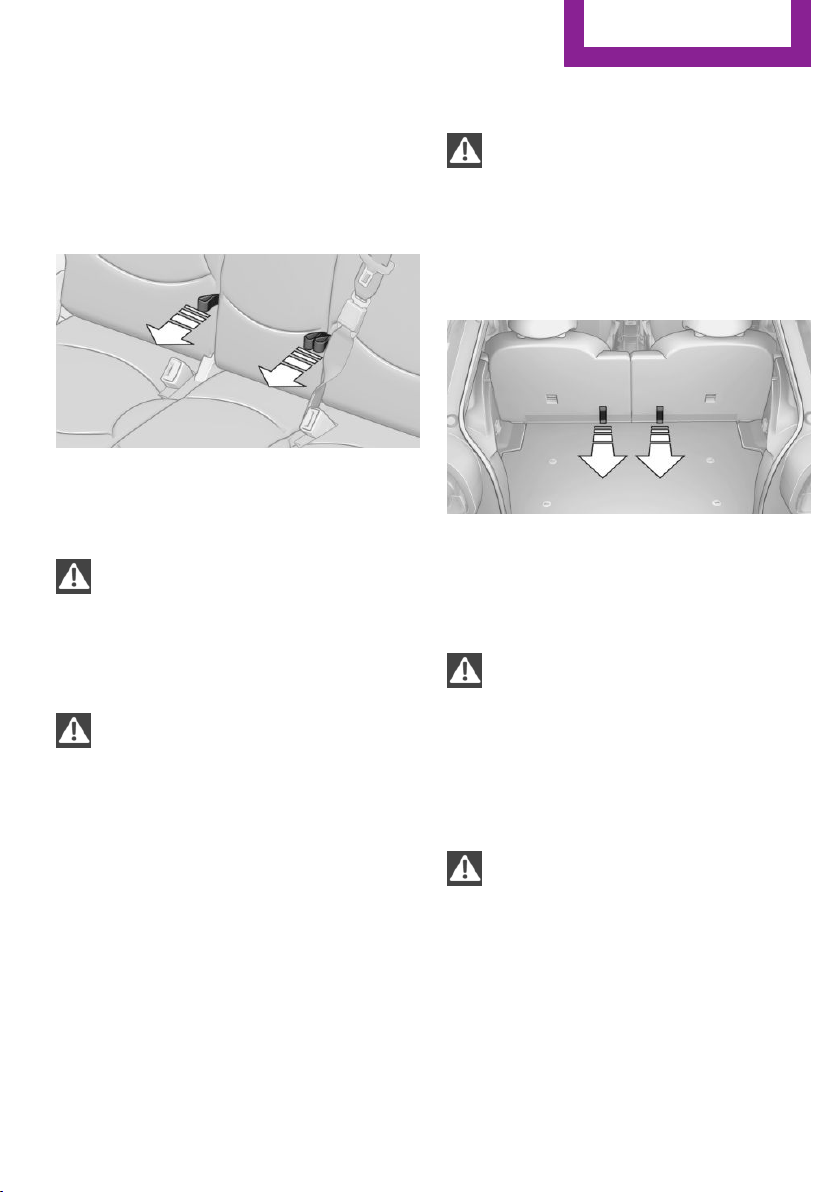
Before beginning with the mounting of a child
restraint fixing system, note the instructions,
refer to page 53.
1. Hold the top of the backrest, for example
the head restraint, and pull on the loop, ar‐
row.
2. Engage the backrest in the desired position
or fold it down.
Folding the backrests back up
Locking the backrest
When folding back, ensure that the locks
engage properly; otherwise, cargo could be
catapulted forward into the passenger com‐
partment during braking maneuvers and
swerving, endangering the occupants.◀
No child restraint fixing systems
Do not mount child restraint fixing sys‐
tems in the rear when the rear seat backrests
are adjusted to a more vertical position; other‐
wise, the protection provided by these systems
may be reduced.◀
When the backrests are folded back up, they
engage in the transport position.
To set the desired backrest inclination or com‐
fort position, hold the backrest, pull the loop
forward, and adjust the backrest.
MINI Paceman: rear seat backrests
Danger of pinching
Before folding down the rear seat back‐
rests, ensure that path of movement of the
backrests is clear; otherwise, injuries or damage
may result.◀
1. Pull on the respective loop, arrow.
The backrest is unlocked.
2. Fold the backrest forward.
Folding the backrests back up
Hold the top of the backrest, for example the
head restraint, and fold it back.
Locking the backrest
When folding back, ensure that the locks
engage properly; otherwise, cargo could be
catapulted forward into the passenger com‐
partment during braking maneuvers and
swerving, endangering the occupants.◀
Flat loading floor
Maximum load
Do not exceed the maximum load of
330 lbs, 150 kg, on the loading floor; otherwise,
damage may result.◀
Access to storage area
A storage area for items like the partition net is
found under the loading floor.
1.
Reach into the recess, arrow 1, on the rear
edge of the loading floor.
Seite 111
Interior equipment
Controls
111
Online Edition for Part no. 01 40 2 911 544 - VI/13
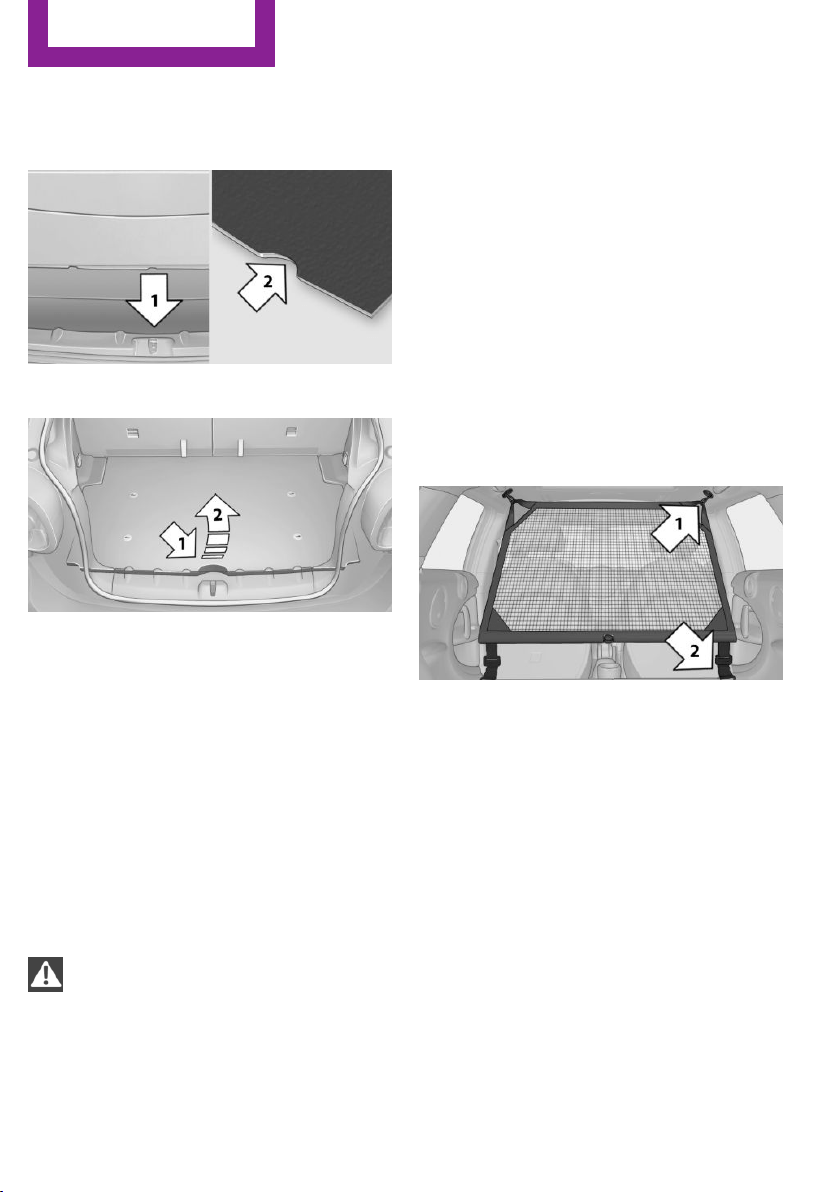
2. Lift the loading floor at the rear, arrow 1,
and fold it forward, arrow 2.
MINI Countryman:
MINI Paceman:
Before closing the tailgate, lower the loading
floor back onto the cargo area floor.
Removing
The loading floor can be removed if necessary.
1.
Fold up the loading floor.
2. Pull it back slightly and out of the holders.
3. Then remove it upward.
The folded loading floor can be stored in the
cargo area.
MINI Countryman: partition net
Firmly attach the partition net
Make sure that the partition net is firmly
attached; otherwise, injuries may result.◀
Before installing
1. Remove the pouch with the partition net
from the storage compartment under the
loading floor in the cargo area.
2. Take the partition net out of the pouch, un‐
roll it, and unfold it.
After use, fold and roll up the partition net
in the same manner and place it in the
pouch so that it can be stowed back under
the cargo floor panel. Ensure that hooks
and tensioning buckles do not rest on the
rod elements.
3. Unfold the partition net to the point where
the rod elements engage.
Installation behind the front seats
1.
Take out the cargo cover if necessary.
2. Fold down the rear seat backrests, refer to
Enlarging the cargo area.
3. Insert the retaining pins of the partition net
all the way into the front holders in the
headliner, arrow 1, and push forward.
4. Attach the hooks, arrow 2, at the bottom of
the retaining straps on both sides to the
eyelets on the vehicle floor.
5. Lash the partition net tightly. To do this,
tighten the retaining straps using the ten‐
sioning buckles.
Removing
To remove and stow the partition net, proceed
in reverse order.
Seite 112
Controls
Interior equipment
112
Online Edition for Part no. 01 40 2 911 544 - VI/13
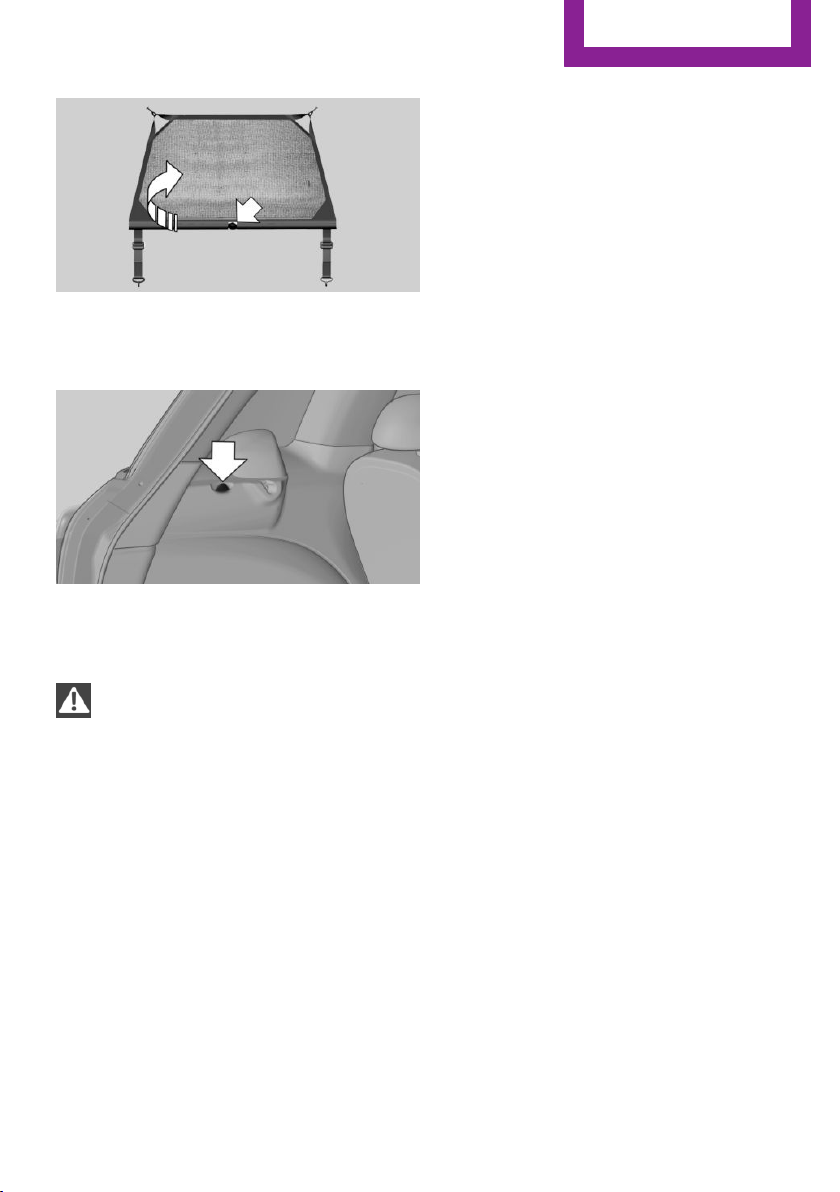
To fold up, press the release button, arrow.
MINI Countryman: multi-function hook
Hooks designed for hanging shopping bags and
totes, for example, are located on the left and
right sides of the cargo cover support, arrow.
Do not hang heavy items from the hooks
Only hang light bags or suitable objects
from the holders. Otherwise, there is a danger
of objects flying about during braking and eva‐
sive maneuvers.
Only transport heavy luggage in the trunk if it
has been appropriately secured.◀
Seite 113
Interior equipment
Controls
113
Online Edition for Part no. 01 40 2 911 544 - VI/13
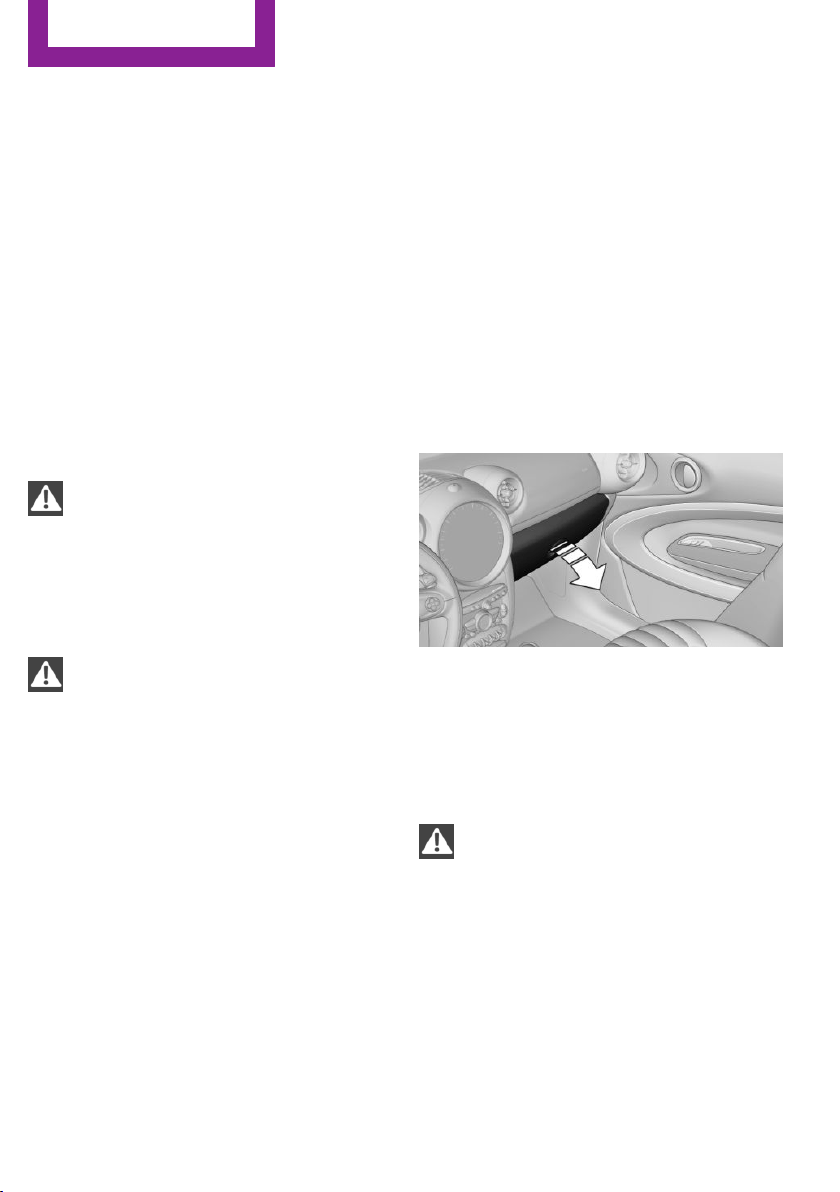
Storage compartments
Vehicle equipment
This chapter describes all series equipment as
well as country-specific and special equipment
offered for this model series.Therefore, it also
describes equipment that may not be found in
your vehicle, for instance due to the selected
special equipment or the country version. This
also applies to safety-related functions and sys‐
tems.
Notes
No loose objects in the passenger com‐
partment
Do not stow any objects in the passenger com‐
partment without securing them; otherwise,
they may present a danger to occupants for in‐
stance during braking and avoidance maneu‐
vers.◀
No non-slip mats on the dashboard
Do not use non-slip materials, such as
non-slip mats, on the dashboard, or it could be
damaged by the substances in the materials.◀
Storage compartments
Interior
▷ Glove compartment, refer to page 114.
▷ Center armrest, refer to page 115.
▷ Center rail, refer to page 116.
▷ Compartments in the center console.
▷ Compartments in the doors.
▷ Pockets on the back of the front seat back‐
rests.
▷ Cupholder, refer to page 108.
▷ Clothes hooks, refer to page 117.
Cargo area
▷ Lashing eyes, refer to page 127.
▷ Storage compartment under the flat load‐
ing floor, refer to page 111.
▷ Multi-function hook on the cargo cover
support, refer to page 113.
Glove compartment
Opening
Pull the handle to open the lid.
The light in the glove compartment switches
on.
Closing
Fold up the cover.
Close the glove compartment again im‐
mediately
Close the glove compartment immediately after
use while driving; otherwise, injury may occur
during accidents.◀
Ventilation
Depending on the vehicle's equipment, the
glove compartment can be ventilated and, if
the cooling function is switched on, cooled.
Seite 114
Controls
Storage compartments
114
Online Edition for Part no. 01 40 2 911 544 - VI/13
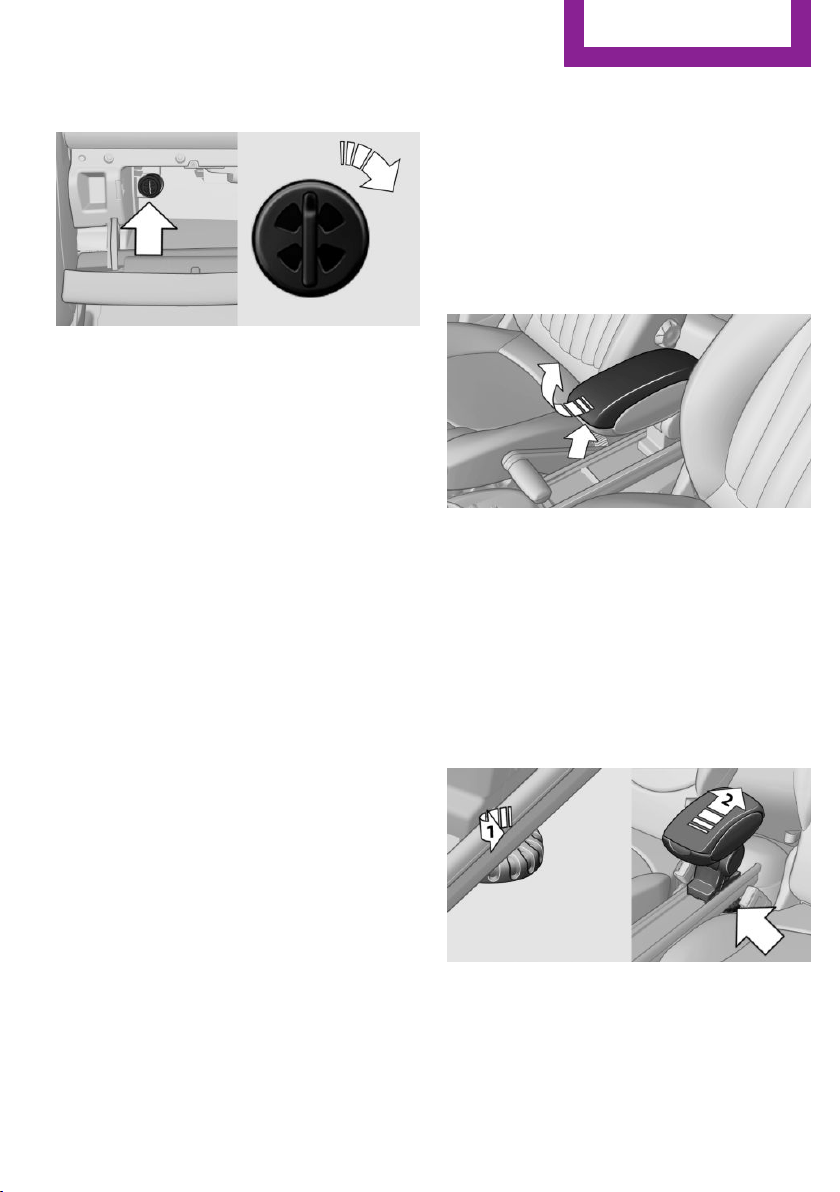
Opening
Turn the switch in the direction of the arrow.
Closing
Move the switch to the vertical position by
turning it in the opposite direction of the arrow.
Depending on the temperature setting of the
air conditioning or automatic climate control,
high temperatures may occur in the glove com‐
partment.
USB interface for data transfer
Updating the navigation data, refer to
page 134, from the USB medium via the USB
interface in the glove compartment.
Observe the following when connecting:
▷ Do not use force when plugging the con‐
nector into the USB interface.
▷ Do not connect devices such as fans or
lamps to the USB interface.
▷ Do not connect USB hard drives.
▷ Do not use the USB interface to recharge
external devices.
Center armrest
The center armrest between the front seats
contains a storage compartment or a cover for
the snap-in adapter, refer to page 200, de‐
pending on the equipment.
The center armrest between the rear seats con‐
tains a storage compartment.
Do not position tall accessory parts directly on
the center rail of the center armrest; otherwise,
they may be damaged when the center arm‐
rest is opened or closed.
Center armrest front
Opening
Press the button, arrow, and pull up the lid.
MINI Paceman: center armrest, rear
Removing
The rear center armrest can be removed to en‐
large the loading area.
1.
Turn the handwheel counterclockwise all
the way to open it, arrow 1.
2. Push the center armrest back slightly in the
base plate, arrow 2.
3. Lift the center armrest at the front and
pivot it out.
Seite 115
Storage compartments
Controls
115
Online Edition for Part no. 01 40 2 911 544 - VI/13
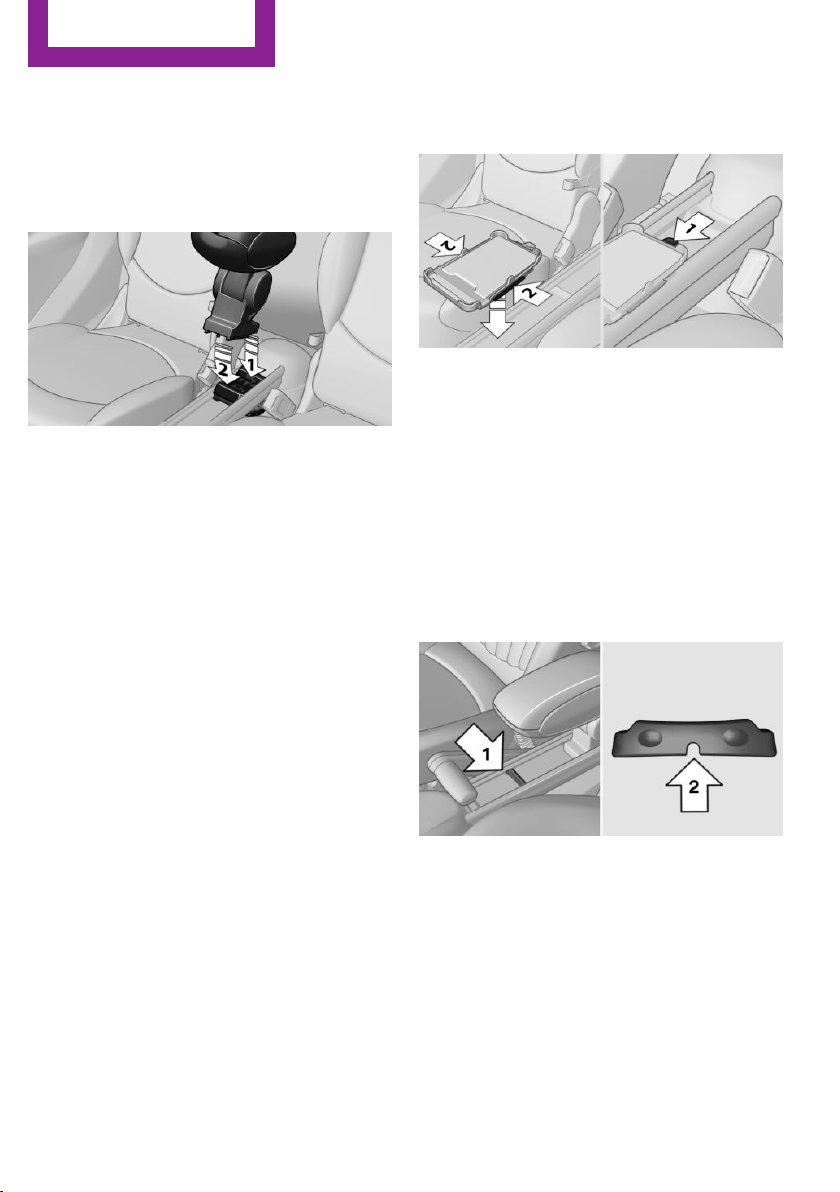
Installing
1. Insert the center armrest into the rear re‐
cess of the base plate, arrow 1.
2. Push it back and pivot it down at the front,
arrow 2.
3. Push the center armrest forward in the base
plate.
4. Tighten the handwheel by turning it clock‐
wise.
Ensure that the center armrest engages prop‐
erly when installed; otherwise, it could become
damaged during braking maneuvers, for exam‐
ple.
Center rail
Various accessory parts can be mounted on the
center rail and moved to different positions.
Do not use accessory parts in the area of the
handbrake; otherwise, they may become dam‐
aged when the handbrake lever is activated.
Smartphone cradle
The upper part of the smartphone cradle can
be rotated by 360°.
When installing it at the front of the rail, ensure
that it is surrounded by adequate clearance,
such as toward the seat; otherwise, damage
may result when it is rotated.
1.
Pull up the lever 1 to unlock the holders.
2. Insert the smartphone cradle into the cen‐
ter rail with the holders 2 first.
3. To fix, push the lever 1 downward. Ensure
that the lever is properly engaged.
When connecting a smartphone to the USB au‐
dio interface, refer to page 170, pass the con‐
nection cable under the smartphone cradle.
In addition, the connection cable can be at‐
tached inside the rail.
1.
Twist the rail segment, arrow 1, to remove
it.
2. Insert the connection cable centrally into
the recess, arrow 2.
3. Fix the rail segment in the rail.
Base plate
Various accessory parts such as cupholders,
eyeglass holders, and mobile phone cradles can
be mounted on the base plate.
Inserting the base plate
The lever 3 can be engaged in three positions.
Seite 116
Controls
Storage compartments
116
Online Edition for Part no. 01 40 2 911 544 - VI/13
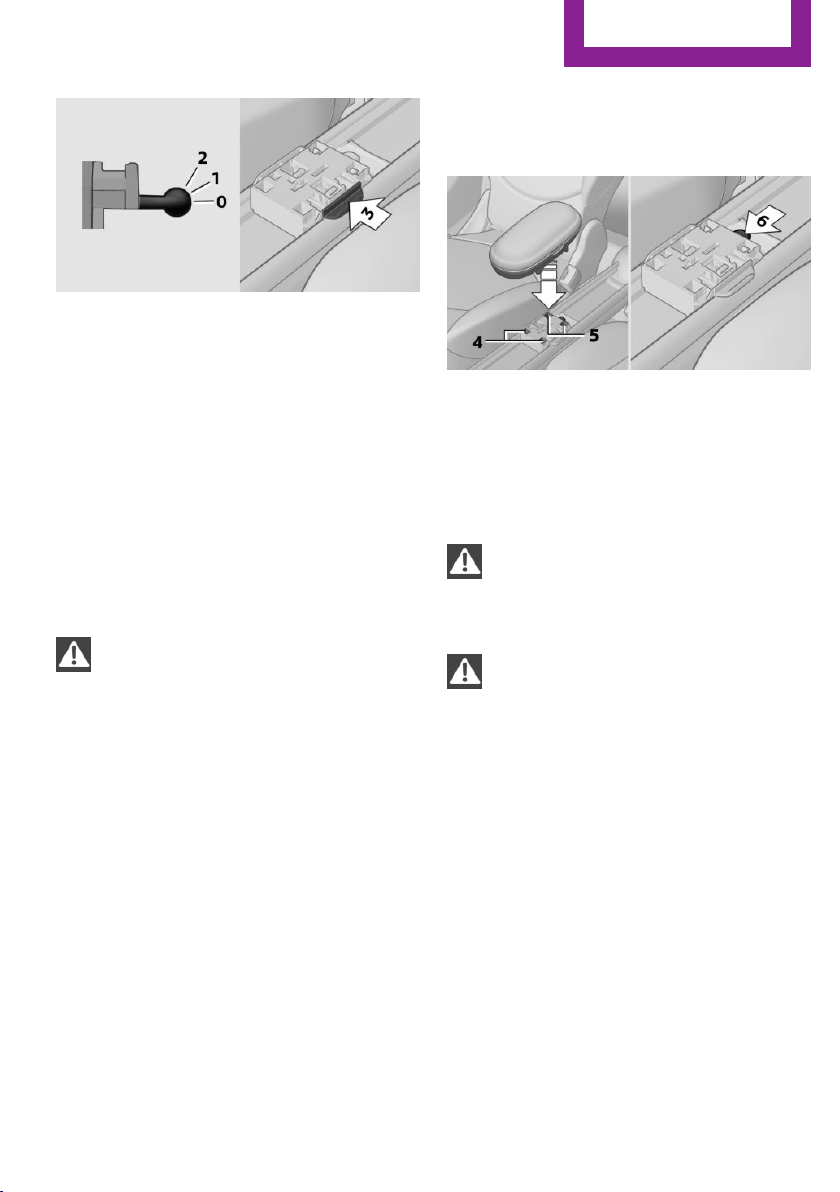
0 Setting
1 Adjusting the position on the rail
2 Inserting the base plate
To insert, move the lever to position 2.
Adjusting the position and fixing
1.
Push lever 3 into position 1.
2. Adjust the position of the base plate.
3. Push lever 3 downward into position 0.
Do not apply excessive pressure to the
lever.
The base plate is fixed.
Fix the base plate
Fix the base plate before driving away;
otherwise, injuries may result during an acci‐
dent.◀
An example: eyeglass holder
Attach the eyeglass holder and adjust the posi‐
tion.
Mounting the eyeglass holder
1.
If necessary, fix the base plate, refer to Ad‐
justing the position and fixing.
2. Pull up lever 6 to unlock the holders.
3. First engage the eyeglass holder in the
front holders 4 and then in the rear hold‐
ers 5.
Ensure that lever 6 is across from holder 4.
Clothes hooks
Clothes hooks are located on the grab handles
in the rear.
Do not obstruct view
When suspending clothing from the
hooks, ensure that it will not obstruct the driv‐
er's vision.◀
No heavy objects
Do not hang heavy objects from the
hooks; otherwise, they may present a danger
to passengers during braking and evasive ma‐
neuvers.◀
Seite 117
Storage compartments
Controls
117
Online Edition for Part no. 01 40 2 911 544 - VI/13
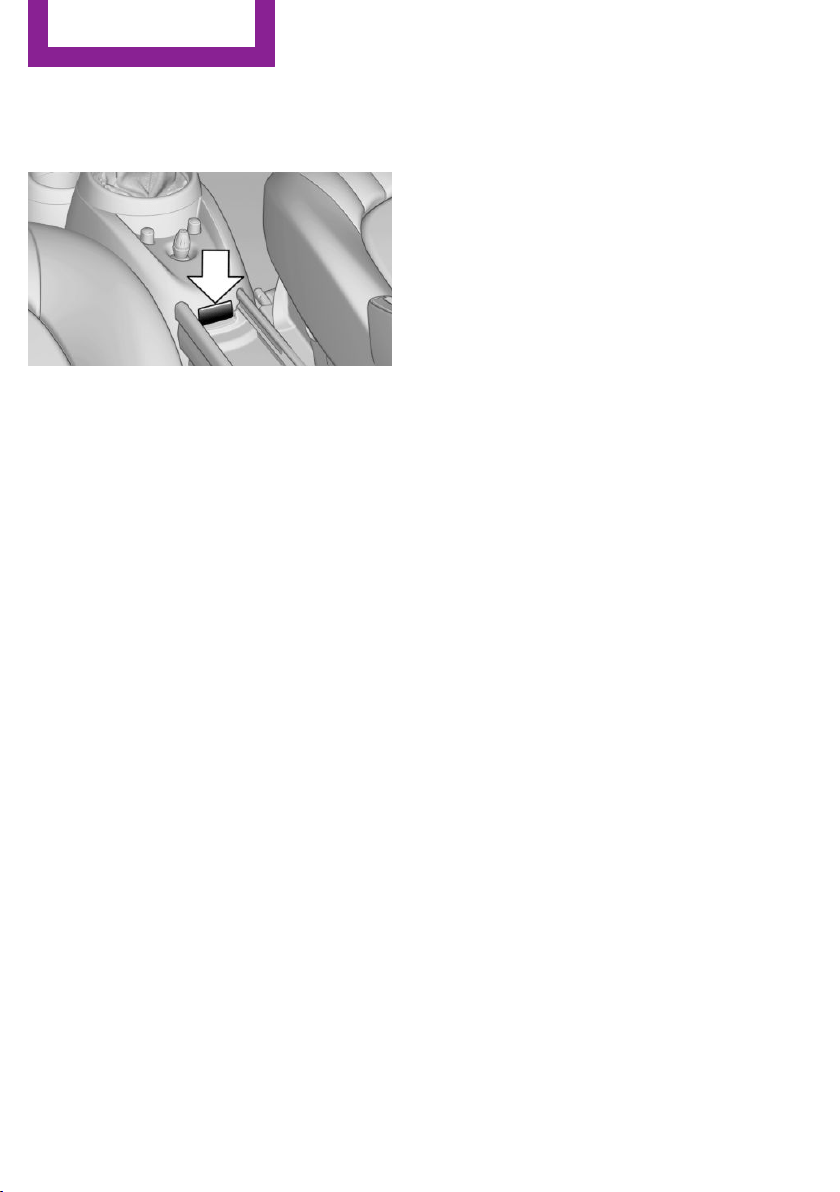

Seite 119
Storage compartments
Controls
119
Online Edition for Part no. 01 40 2 911 544 - VI/13

DRIVE ME.
Online Edition for Part no. 01 40 2 911 544 - VI/13

At a glance
Controls
Driving tips
Navigation
Entertainment
Communication
Mobility
Reference
Online Edition for Part no. 01 40 2 911 544 - VI/13

Things to remember when driving
Vehicle equipment
This chapter describes all series equipment as
well as country-specific and special equipment
offered for this model series.Therefore, it also
describes equipment that may not be found in
your vehicle, for instance due to the selected
special equipment or the country version. This
also applies to safety-related functions and sys‐
tems.
Breaking-in period
General information
Moving parts need to be broken in to adjust to
each other.
The following instructions will help achieve a
long vehicle life and good economy.
Engine and differential
Always obey all official speed limits.
Up to 1,200 miles/2,000 km
Drive at various engine and vehicle speeds, but
do not exceed:
▷ For a gasoline engine, 4,500 rpm and
100 mph/160 km/h.
Avoid full-throttle operation and use of the
transmission's kickdown mode for the initial
miles.
From 1,200 miles/2,000 km
The engine and vehicle speed can gradually be
increased.
Tires
Due to technical factors associated with their
manufacture, tires do not achieve their full trac‐
tion potential until after an initial breaking-in
period.
Drive conservatively for the first
200 miles/300 km.
Brake system
Brakes require an initial break-in period of ap‐
prox. 300 miles/500 km to achieve optimized
contact and wear patterns between brake pads
and discs. Drive cautiously during this break-in
period.
Clutch
The clutch requires an initial break-in period of
approx. 300 miles/500 km to function at an op‐
timal level.
During this break-in period, engage the clutch
gently.
Following part replacement
The same breaking in procedures should be ob‐
served if any of the components mentioned
above have to be renewed in the course of the
vehicle's operating life.
General driving notes
Ground clearance
Ensure adequate ground clearance
Ensure adequate ground clearance, e.g.,
when driving into underground garages, when
driving over curbs, or when driving in winter;
otherwise, damage may occur to the vehicle.◀
Seite 122
Driving tips
Things to remember when driving
122
Online Edition for Part no. 01 40 2 911 544 - VI/13

Closing the tailgate
Drive with the tailgate closed
Only drive with the tailgate closed; other‐
wise, passengers and other road users may be
endangered or the vehicle may be damaged if
an accident occurs or during braking or swerv‐
ing. In addition, exhaust fumes may enter the
passenger compartment.◀
If, despite this, the vehicle must be driven with
the tailgate open:
▷ Drive moderately.
▷ Close all windows and the glass sunroof.
▷ Switch off recirculated air mode and greatly
increase the blower speed.
Hot exhaust system
Hot exhaust system
High temperatures are generated in the
exhaust system.
Do not remove the heat shields installed and
never apply undercoating to them. Make sure
that flammable materials, e. g. hay, leaves,
grass, etc. do not come in contact with the hot
exhaust system during driving, while in idle po‐
sition mode, or when parked. Such contact
could lead to a fire, and with it the risk of seri‐
ous personal injury as well as property damage.
Do not touch hot exhaust pipes; otherwise,
there is the danger of getting burned.◀
Mobile communication devices in the
vehicle
Mobile communication devices in the ve‐
hicle
It is not recommended to use mobile phones,
such as mobile phones without a direct con‐
nection to an external aerial in the vehicle's
passenger compartment. Otherwise, the vehi‐
cle electronics and mobile communication de‐
vices can interfere with each other. In addition,
there is no assurance that the radiation gener‐
ated during transmission will be discharged
from the vehicle interior.◀
Hydroplaning
On wet or slushy roads, a wedge of water can
form between the tires and road surface.
This phenomenon is referred to as hydroplan‐
ing. It is characterized by a partial or complete
loss of contact between the tires and the road
surface, ultimately undermining your ability to
steer and brake the vehicle.
Hydroplaning
When driving on wet or slushy roads, re‐
duce your speed to prevent hydroplaning.◀
The risk of hydroplaning increases as the tire
tread depth decreases. Minimum tread depth,
refer to page 226.
Driving through water
Drive though calm water only if it is not deeper
than 12 inches/30 cm and at this height, no
faster than walking speed, up to
6 mph/10 km/h.
Using the handbrake on inclines
Using the handbrake
On inclines, do not hold the vehicle sta‐
tionary with a slipping clutch for extended pe‐
riod; use the handbrake instead. Otherwise, the
clutch will be subject to increased wear.◀
Support from the hill drive-off assistant, refer to
page 95.
Braking safely
The vehicle is equipped with ABS as a standard
feature.
Applying the brakes fully is the most effective
way of braking in situations when this is neces‐
sary.
The vehicle maintains steering responsiveness.
You can still avoid any obstacles with a mini‐
mum of steering effort.
Seite 123
Things to remember when driving
Driving tips
123
Online Edition for Part no. 01 40 2 911 544 - VI/13

Pulsation of the brake pedal and sounds from
the hydraulic circuits indicate that ABS is in its
active mode.
Do not let your foot rest on the brake
pedal
Do not drive with your foot resting on the brake
pedal. Even light but consistent pedal pressure
can lead to high temperatures, brake wear and
possibly even brake failure.◀
Objects in the area around the pedals
No objects in the area around the pedals
Keep floor mats, carpets, and any other
objects out of the area of motion of the pedals;
otherwise, the function of the pedals could be
impeded while driving
Do not place additional floor mats over existing
mats or other objects.
Only use floor mats that have been approved
for the vehicle and can be properly fixed in
place.
Ensure that the floor mats are securely fastened
again when they are returned after being re‐
moved, such as for cleaning.◀
Driving in wet conditions
When roads are wet or there is heavy rain,
briefly exert gentle pressure on the brake pedal
every few miles.
Ensure that this action does not endanger other
road users.
The heat generated in this process helps dry
the brake discs and pads.
In this way braking efficiency will be available
when you need it.
Hills
Drive long or steep downhill gradients in the
gear in which the least braking is required. Oth‐
erwise, the brake system may overheat, result‐
ing in a reduction in the brake system effi‐
ciency.
You can increase the engine's braking effect by
shifting down, going all the way to first gear, if
necessary.
Downshifting in manual mode of the automatic
transmission, refer to page 66.
Avoid load on the brakes
Avoid placing excessive load on the brake
system. Light but consistent brake pressure can
lead to high temperatures, brake wear and
possibly even brake failure.◀
Do not drive in neutral
Never drive with the transmission in neu‐
tral, with the engine switched off or with the
clutch depressed; otherwise, you will have nei‐
ther the braking action of the engine or nor its
power assistance when braking or steering.◀
Brake disc corrosion
Corrosion on the brake discs and contamina‐
tion on the brake pads are furthered by:
▷ Low mileage.
▷ Extended periods when the vehicle is not
used at all.
▷ Infrequent use of the brakes.
Corrosion occurs when the minimum pressure
that must be exerted by the pads during brake
applications to clean the discs is not reached.
Should corrosion form on the brake discs, the
brakes will tend to respond with a pulsating ef‐
fect that generally cannot be corrected.
When the vehicle is parked
When using the automatic climate control, con‐
densation water develops that exits under‐
neath the vehicle.
Therefore, traces of condensed water under the
vehicle are normal.
After the engine is switched off, the coolant
pump may continue running for some time in
the MINI Cooper S. This causes noises in the en‐
gine compartment.
Seite 124
Driving tips
Things to remember when driving
124
Online Edition for Part no. 01 40 2 911 544 - VI/13

Driving on poor roads
Your MINI with ALL4 all-wheel drive feels com‐
fortable on all streets and roads. It combines an
all-wheel drive system with the advantages of a
normal passenger car.
Do not drive on unpaved terrain
Do not drive on unpaved terrain, as oth‐
erwise the vehicle may be damaged.◀
For your own safety and the safety of passen‐
gers and the vehicle, adhere to the following
points:
▷ Familiarize yourself with the vehicle before
driving; never take risks.
▷ Adjust speeds according to road conditions.
The steeper and rougher the road surface
is, the lower the speed should be.
▷ When driving on steep uphill and downhill
grades: the engine oil and coolant should
be filled nearly to the MAX mark.
▷ Watch for stones, holes, and other obsta‐
cles and drive around these where possible.
▷ On bumps and rough roads, avoid contact
between the vehicle body and the ground.
The maximum ground clearance is 6 in‐
ches/15 cm and may vary with the loaded
cargo.
▷ When driving through water, do not exceed
the maximum water height of 12 in‐
ches/30 cm and drive at walking speed.
▷ After driving through water, press on the
brake pedal several times at low speeds to
dry the brakes.
▷ Depending on the prevailing terrain, acti‐
vate Dynamic Traction Control DTC briefly,
refer to page 94.
▷ When the wheels spin, accelerate to enable
the driving stability control systems to dis‐
tribute the drive force to the individual
wheels.
After driving on poor roads
Adhere to the following points to ensure vehi‐
cle safety:
▷ Remove excessive accumulations of dirt
and mud from the vehicle body.
▷ Clear mud, snow, ice, etc., from the wheels
and tires and check for damage.
Seite 125
Things to remember when driving
Driving tips
125
Online Edition for Part no. 01 40 2 911 544 - VI/13
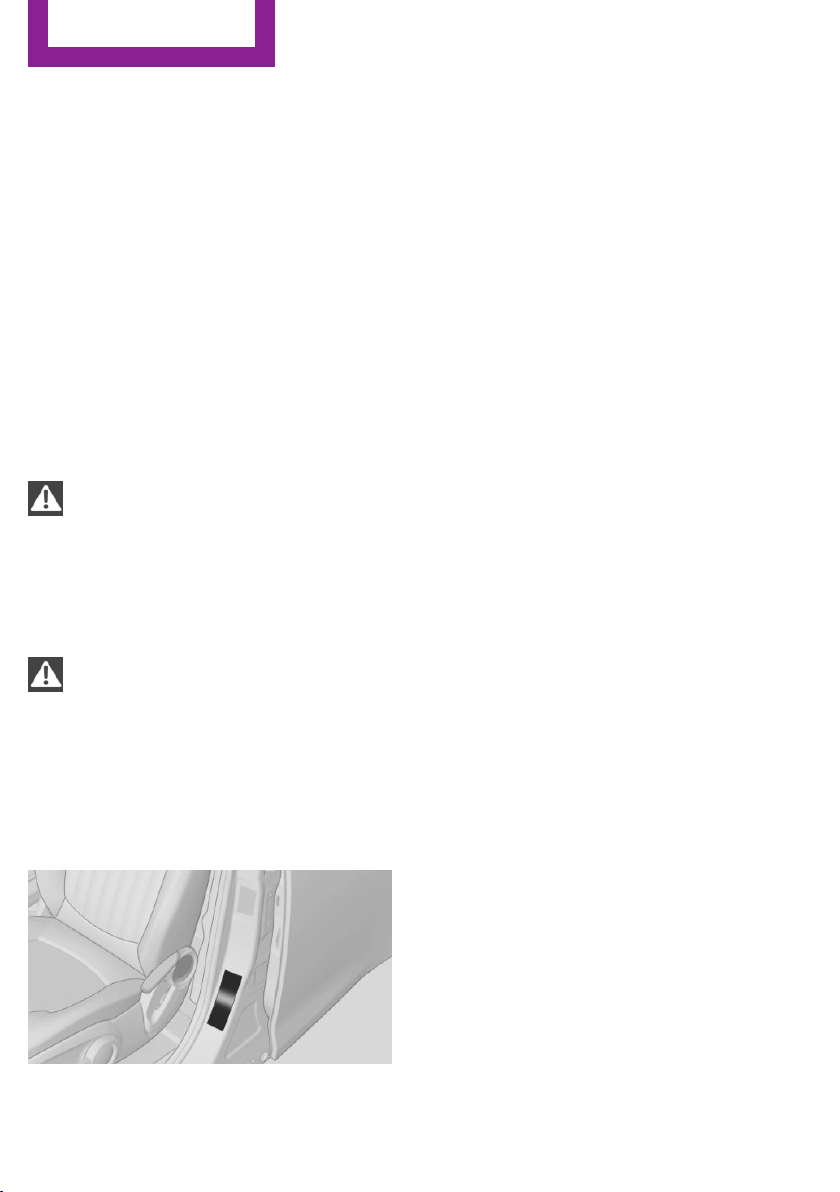
Loading
Vehicle equipment
This chapter describes all series equipment as
well as country-specific and special equipment
offered for this model series.Therefore, it also
describes equipment that may not be found in
your vehicle, for instance due to the selected
special equipment or the country version. This
also applies to safety-related functions and sys‐
tems.
General information
Overloading the vehicle
To avoid exceeding the approved carry‐
ing capacity of the tires, never overload the ve‐
hicle. Overloading can lead to overheating and
increases the rate at which damage develops
inside the tires. This could result in a sudden
loss of tire inflation pressure.◀
No fluids in the cargo area
Make sure that fluids do not leak into the
cargo area; otherwise, the vehicle may be dam‐
aged.◀
Determining the load
limit
1.
Locate the following statement on your ve‐
hicle’s placard:
▷ The combined weight of occupants and
cargo should never exceed XXX kg or
YYY lbs. Otherwise, damage to the ve‐
hicle and unstable driving situations
may result.
2. Determine the combined weight of the
driver and passengers that will be riding in
your vehicle.
3. Subtract the combined weight of the driver
and passengers from XXX kilograms or YYY
pounds.
4. The resulting figure equals the available
amount of cargo and luggage load ca‐
pacity.
For example, if the YYY amount equals
1,000 lbs and there will be four 150 lbs pas‐
sengers in your vehicle, the amount of
available cargo and luggage load capacity
is 400 lbs: 1,000 lbs minus 600 lbs =
400 lbs.
5. Determine the combined weight of luggage
and cargo being loaded on the vehicle.
That weight may not safely exceed the
available cargo and luggage load capacity
calculated in Step 4.
6. If your vehicle will be towing a trailer, load
from your trailer will be transfered to your
vehicle. Consult the manual for transporting
a trailer to determine how this may reduce
the available cargo and luggage load ca‐
pacity of your vehicle.
Load
4-seater:
Seite 126
Driving tips
Loading
126
Online Edition for Part no. 01 40 2 911 544 - VI/13
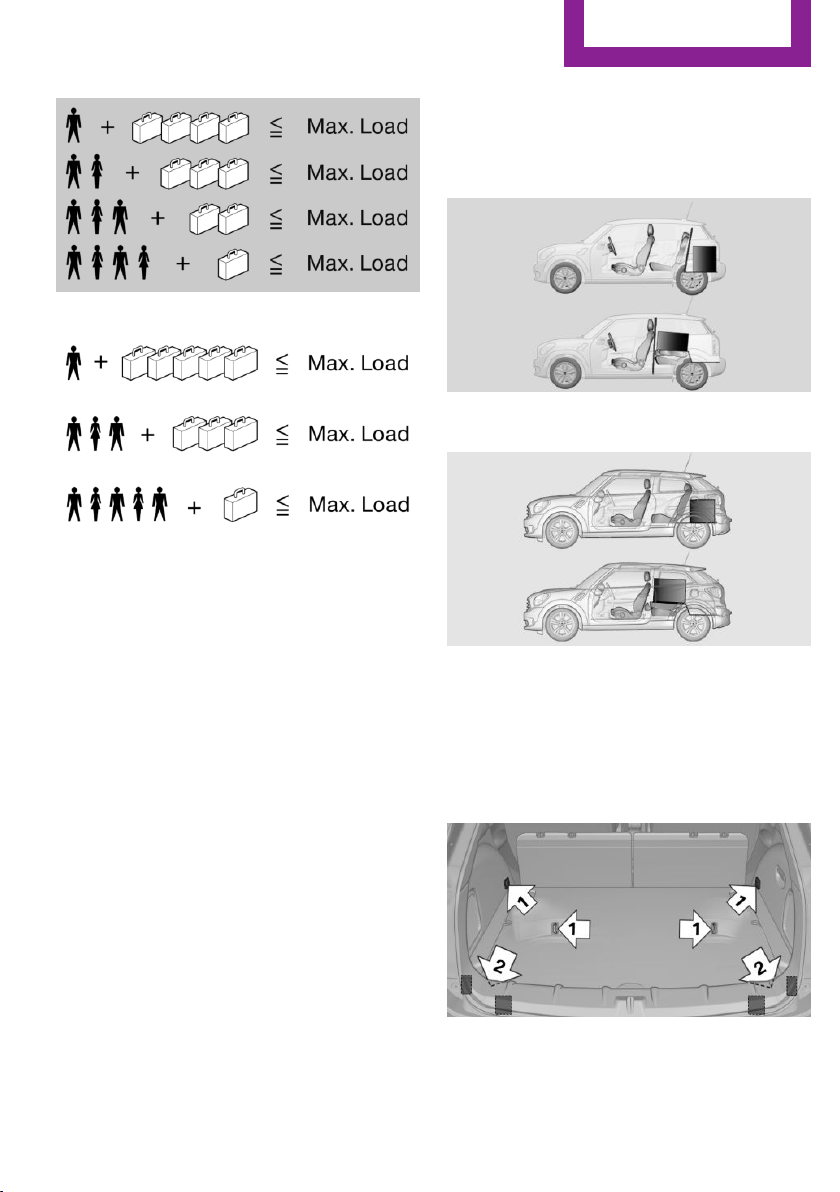
5-seater:
The maximum load is the sum of the weight of
the occupants and the cargo.
The greater the weight of the occupants, the
less cargo that can be transported.
Stowing cargo
▷ Very heavy cargo: when the rear seat is not
occupied, secure each of the outer safety
belts in the opposite buckle.
▷ Heavy cargo: stow as far forward and as
low as possible, ideally directly behind the
backrests.
▷ Cover sharp edges and corners.
▷ Do not pile cargo higher than the top edge
of the backrests.
▷ If necessary, fold down the rear backrests
to stow cargo.
▷ Use the partition net, refer to page 112, to
protect passengers. Make sure that objects
cannot penetrate the partition net.
▷ Place protective material around any sharp-
edged or pointed objects that could bump
against the rear window while the vehicle is
in motion.
MINI Countryman
MINI Paceman
Securing cargo
Lashing eyes in the cargo area
MINI Countryman
Seite 127
Loading
Driving tips
127
Online Edition for Part no. 01 40 2 911 544 - VI/13
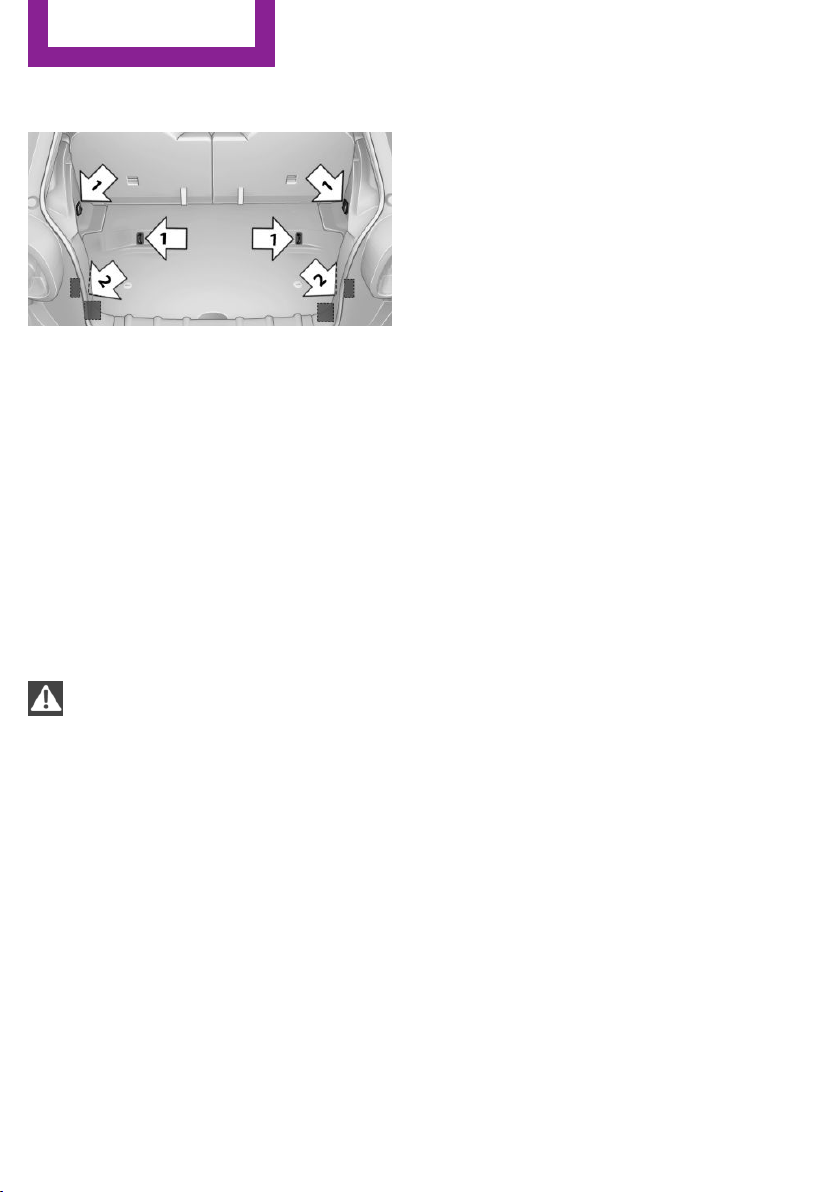
MINI Paceman
Securing cargo
▷ Secure smaller and lighter pieces with tight‐
ening belts or straps.
▷ Secure larger and heavier pieces with cargo
straps.
Adhere to the information included with
the cargo straps.
▷ Eight mounting eyes are available for fas‐
tening the cargo straps.
Two of them are located on the side wall of
the cargo area, arrows 1, and two are lo‐
cated on the rear wall of the cargo area, ar‐
rows 2.
Securing cargo
Stow and secure the cargo as described
above; otherwise it may present a danger to
the occupants, for instance during braking and
avoidance maneuvers.
Do not stow any heavy and hard objects in the
passenger compartment without securing
them; otherwise, they may present a danger to
occupants, for instance during braking and
avoidance maneuvers.
Never exceed either the approved gross vehicle
weight or either of the approved axle loads, as
excessive loads can pose a safety hazard, and
may also place you in violation of traffic safety
laws.
Do not secure cargo using the upper LATCH
mounting points, refer to page 55; otherwise,
these may become damaged.◀
Roof-mounted luggage
rack
Notes
A special rack system is available as an optional
accessory.
Attachment
Follow the installation instructions for the roof-
mounted luggage rack.
Ensure that adequate clearance is available for
the movement of the glass sunroof.
Loading
Because roof racks raise the vehicle's center of
gravity when loaded, they have a major effect
on vehicle handling and steering response.
Therefore, note the following when loading and
driving:
▷ Do not exceed the approved roof/axle
loads and the approved gross vehicle
weight.
▷ Distribute the roof load uniformly.
▷ The roof load should not be too large in
area.
▷ Always load the heaviest pieces on the bot‐
tom.
▷ Fasten the roof-mounted luggage securely,
for instance using lashing straps.
▷ Do not let objects project into the opening
path of the tailgate.
▷ Drive smoothly. Avoid sudden acceleration
and braking maneuvers. Take corners gen‐
tly.
Rear luggage rack
Notes
A special rear rack is available as an optional
accessory. It does not require a trailer hitch.
Seite 128
Driving tips
Loading
128
Online Edition for Part no. 01 40 2 911 544 - VI/13
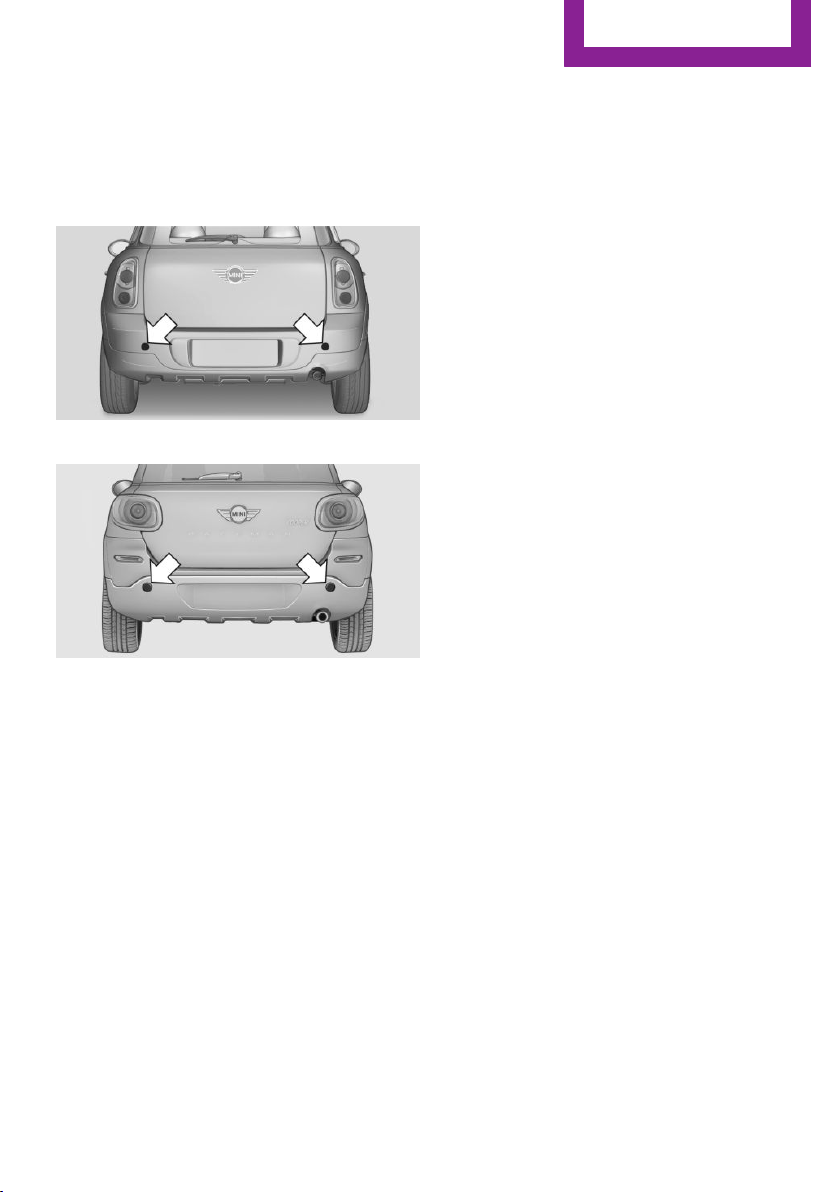
Follow the installation instructions for the rear
rack.
Anchorage points
MINI Countryman:
MINI Paceman:
The anchorage points are under the covers in
the bumper.
Push out the covers on the corresponding cut‐
outs.
Loading
When loading the vehicle, ensure that the ap‐
proved gross vehicle weight and the axle loads
are not exceeded. Adhere to the weight specifi‐
cations in the technical data.
Seite 129
Loading
Driving tips
129
Online Edition for Part no. 01 40 2 911 544 - VI/13

Saving fuel
Vehicle equipment
This chapter describes all series equipment as
well as country-specific and special equipment
offered for this model series.Therefore, it also
describes equipment that may not be found in
your vehicle, for instance due to the selected
special equipment or the country version. This
also applies to safety-related functions and sys‐
tems.
General information
Your vehicle contains advanced technology for
the reduction of fuel consumption and emis‐
sions.
Fuel consumption depends on a number of dif‐
ferent factors. The implementation of certain
measures, driving style and regular mainte‐
nance can have an influence on fuel consump‐
tion and on the environmental impact.
Remove unnecessary cargo
Additional weight increases fuel consumption.
Remove attached parts following use
Remove unneeded auxiliary mirrors, roof or
rear luggage racks after use.
Attached parts on the vehicle impair the aero‐
dynamics and increase the fuel consumption.
Close both windows
Open windows causes higher air resistance and
thus increases fuel consumption.
Check the tire inflation pressure
regularly
Check and, if necessary, correct the tire infla‐
tion pressure, refer to page 220, at least twice
a month and before starting on a long trip.
Low tire inflation pressure increases rolling re‐
sistance and thus raises fuel consumption and
tire wear.
Drive away without delay
Do not wait for the engine to warm-up while
the vehicle remains stationary. Start driving
right away, but at moderate engine speeds.
This is the fastest way for the cold engine to
reach its operating temperature.
Look well ahead when driving
Avoid unnecessary acceleration and braking. To
achieve this, maintain a suitable distance to the
vehicle driving ahead of you.
Driving smoothly and looking ahead reduces
fuel consumption.
Avoid high engine speeds
Use 1st gear to get the vehicle in motion. Be‐
ginning with 2nd gear, accelerate rapidly. When
accelerating, shift up before reaching high en‐
gine speeds.
When you reach the desired speed, shift into
the highest applicable gear and drive with the
engine speed as low as possible and at a con‐
stant speed.
As a rule: driving at low engine speeds lowers
fuel consumption and reduces wear.
Use coasting conditions
When approaching a red light, take your foot
off the accelerator and coast to a halt in the
highest applicable gear.
On a downhill slope, take your foot off the ac‐
celerator and coast in a suitable gear.
The flow of fuel is interrupted while coasting.
Seite 130
Driving tips
Saving fuel
130
Online Edition for Part no. 01 40 2 911 544 - VI/13

Switch off the engine during longer
stops
Switch off the engine during longer stops, e.g.,
at traffic lights, railroad crossings or in traffic
congestion.
Fuel savings are already achieved after the en‐
gine is turned off for as little as 4 seconds.
Automatic Engine Start/Stop Function
The Automatic Engine Start/Stop Function auto‐
matically switches the engine off during a stop.
If the engine is stopped and then started again,
fuel consumption and emissions drop com‐
pared to an engine that runs permanently.
Stopping the engine even for just a few sec‐
onds can result in savings.
In addition, fuel consumption depends on other
factors as well, such as driving style, road con‐
ditions, maintenance, and environmental fac‐
tors.
Switch off any functions that are not
currently needed
Functions such as seat heating and the rear
window defroster require a lot of energy and
consume additional fuel, especially in city and
stop-and-go traffic.
Therefore, switch off these functions if they are
not actually needed.
Have maintenance carried out
Have vehicles maintained regularly to achieve
optimal vehicle economy and operating life.
Have the maintenance carried out by the serv‐
ice center.
Please also note the MINI maintenance system,
refer to page 237.
Seite 131
Saving fuel
Driving tips
131
Online Edition for Part no. 01 40 2 911 544 - VI/13

FOLLOW ME.
Online Edition for Part no. 01 40 2 911 544 - VI/13

At a glance
Controls
Driving tips
Navigation
Entertainment
Communication
Mobility
Reference
Online Edition for Part no. 01 40 2 911 544 - VI/13
Navigation system
Vehicle equipment
This chapter describes all series equipment as
well as country-specific and special equipment
offered for this model series.Therefore, it also
describes equipment that may not be found in
your vehicle, for instance due to the selected
special equipment or the country version. This
also applies to safety-related functions and sys‐
tems.
General information
The navigation system can determine the pre‐
cise position of the vehicle, with the aid of sat‐
ellites and vehicle sensors, and can reliably
guide you to every entered destination.
Entries in stationary vehicle
Enter data only when the vehicle is sta‐
tionary, and always give priority to the applica‐
ble traffic regulations in the event of any con‐
tradiction between traffic and road conditions
and the instructions issued by the navigation
system. Failure to take to this precaution can
place you in violation of the law and put vehicle
occupants and other road users in danger.◀
Opening the navigation system
1.
"Navigation"
During destination guidance, the arrow or map
view appears on the Control Display.
Navigation data
Information on navigation data
1. "Navigation"
2. Open "Options".
3. "Navigation system version"
Information is displayed on the data ver‐
sion.
Updating the navigation data
General information
Navigation data are stored in the vehicle and
can be updated.
Current navigation data and the authorization
code are available from your service center.
▷ Depending on the data volume, a data up‐
date may take several hours.
▷ Update during the trip to preserve battery.
▷ The status of the update can be viewed.
▷ The data are stored in the vehicle.
▷ After the updating process is complete, the
system restarts.
▷ Remove the medium with the navigation
data after the update.
Performing the update
1.
Depending on the equipment: insert the
USB device with the navigation data into
the USB interface in the glove compartment
or in the USB audio interface.
2. Follow the instructions on the Control Dis‐
play.
3. Enter the authorization code of the USB de‐
vice with the navigation data.
4. Drive off.
The update starts after the authorization code
is entered.
Seite 134
Navigation
Navigation system
134
Online Edition for Part no. 01 40 2 911 544 - VI/13

When the update is completed, the system re‐
starts.
Seite 135
Navigation system
Navigation
135
Online Edition for Part no. 01 40 2 911 544 - VI/13
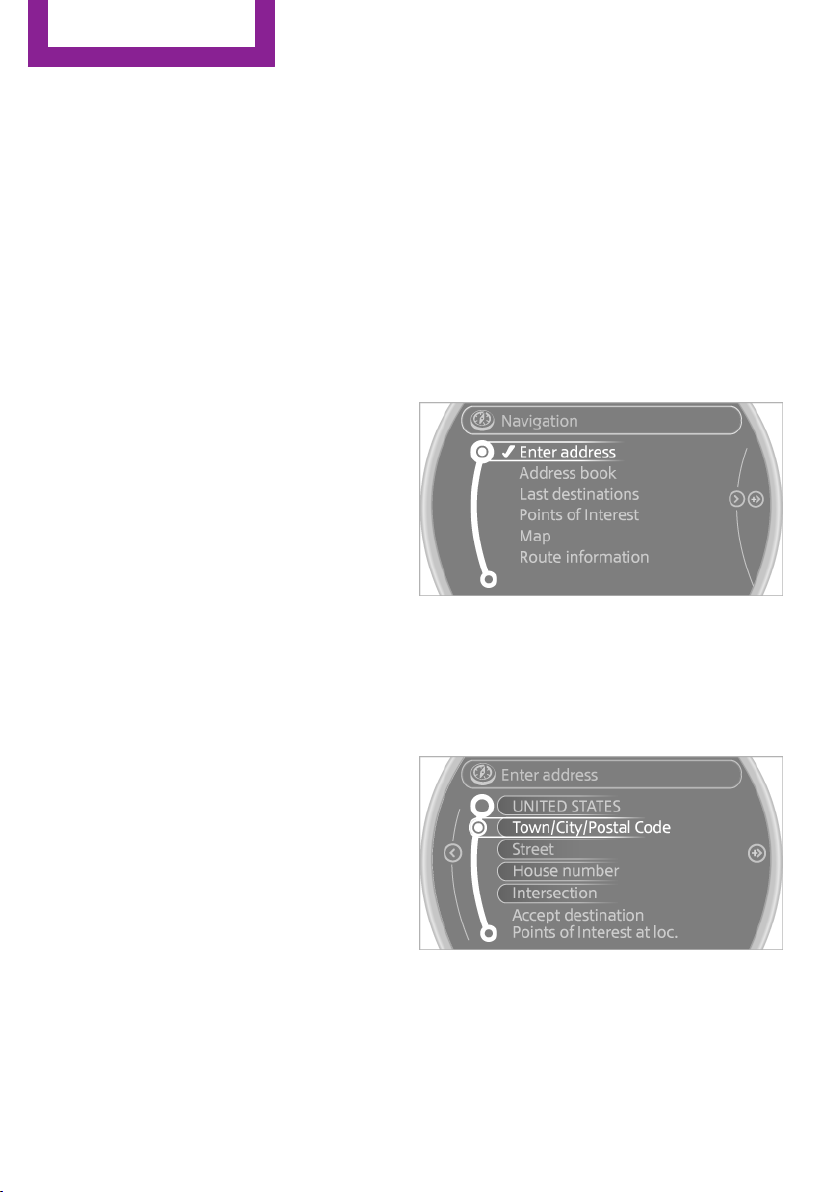
Destination entry
Vehicle equipment
This chapter describes all series equipment as
well as country-specific and special equipment
offered for this model series.Therefore, it also
describes equipment that may not be found in
your vehicle, for instance due to the selected
special equipment or the country version. This
also applies to safety-related functions and sys‐
tems.
At a glance
In entering your destination, it is possible to se‐
lect from the following options:
▷ Enter the destination manually, see below.
▷ Select the destination from the address
book, refer to page 138.
▷ Last destinations, refer to page 139.
▷ Special destinations, refer to page 140.
▷ Destination entry via map, refer to
page 141.
▷ Using the home address as the destination,
refer to page 139.
▷ Destination entry by voice, refer to
page 142.
Manual destination en‐
try
General information
The system supports you in entering street
names and house numbers by automatically
completing the entry and providing entry com‐
parisons, refer to page 25.
Stored town/city and street names can be
called up quickly.
▷ If the existing entries should not be
changed, the entries for the state/province
and town/city can be skipped.
▷ Destination guidance is started to the town/
city center if no street is entered.
Entering a state/province
1. "Navigation"
2. "Enter address"
3. Select "State/Province" or the displayed
state/province.
Entering a town/city
1.
Select "Town/City/Postal Code" or the dis‐
played town/city.
2. Select letters, if necessary.
The list is narrowed down further with each
entry.
3. Move the MINI joystick to the right.
4. Select the name of the town/city from the
list.
Seite 136
Navigation
Destination entry
136
Online Edition for Part no. 01 40 2 911 544 - VI/13
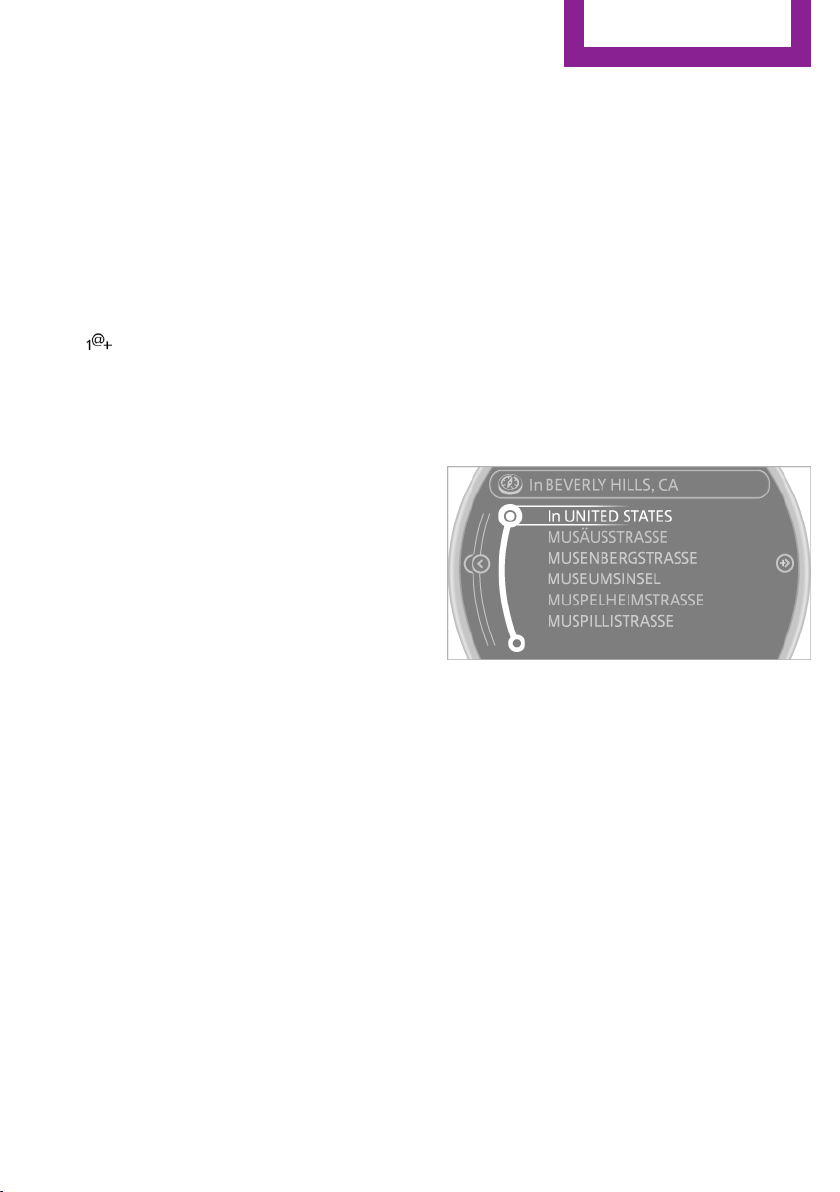
If there are several towns/cities with the same
name:
1. Change to the list of town/city names.
2. Highlight the town/city.
3. Select the town/city.
Entering the postal code
1. Select "Town/City/Postal Code" or the dis‐
played town/city.
2. Select the symbol.
3. Select the digits individually.
4. Change to the list of postal codes and
towns/cities.
5. Highlight the entry.
6. Selecting an entry.
The associated destination town/city is dis‐
played.
Entering a street and intersection
1.
Select "Street" or the displayed street.
2. Enter a street and intersection in the same
way as you would enter a town/city.
If there are several streets with the same name:
1.
Change to the list of street names.
2. Highlight the street.
3. Select the street.
Alternative: enter the street address
and house number
1.
Select "Street" or the displayed street.
2. Enter the street as you would the town/city.
3. "House number"
4. Select the numbers.
5. Change to the list of house numbers.
6. Select a house number or range of house
numbers.
Street does not exist in the destination
city/town
The desired street does not exist in the speci‐
fied city/town because it belongs to another
part of the city/town.
1. "Navigation"
2. "Enter address"
3. Select "Street" or the displayed street.
4. Change to the list of street names.
5. Select "In" with the state/province currently
displayed.
All streets of the selected state/province are
offered. The associated town/city is dis‐
played after the street name.
6. Select the letters.
7. Change to the list of street names.
8. Highlight the street.
9. Select the street.
Starting destination guidance after
entering the destination
1.
"Accept destination"
2. "Start guidance" or "Add as another
destination"
Seite 137
Destination entry
Navigation
137
Online Edition for Part no. 01 40 2 911 544 - VI/13
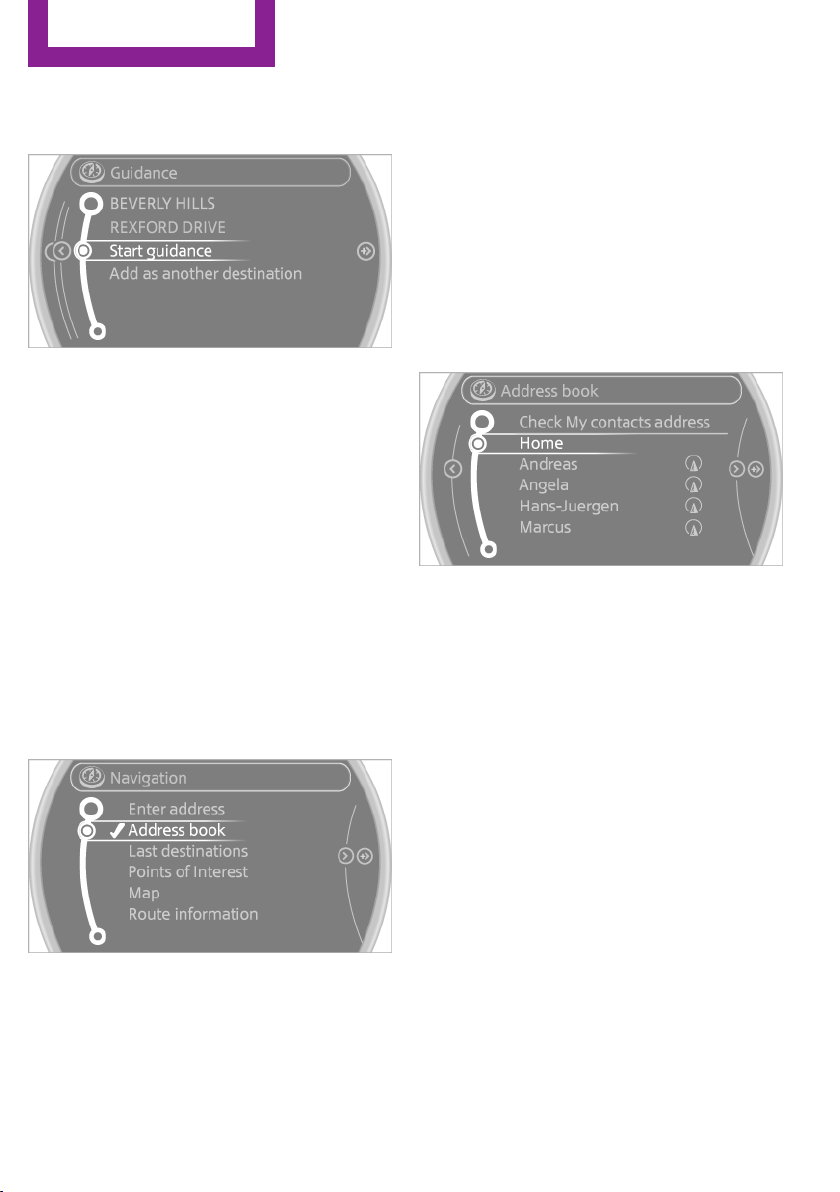
Add a destination as a further destination,
refer to page 144.
Address book
Create contacts, refer to page 187.
Selecting a destination from the
address book
1.
"Navigation"
2. "Address book"
Contacts with addresses are displayed if
these addresses have been checked as des‐
tinations in the contacts.
If the contacts with addresses from the mo‐
bile phone are not displayed, they first
need to be checked as destinations, refer to
page 189.
3. Select a contact in the list or, if desired, with
"A-Z search".
4. "Business address" or "Home address"
Storing the destination in the address
book
After entering the destination, store the desti‐
nation in the address book.
1. "Navigation"
2. "Map"
3. "Guidance"
4. Open "Options".
5. "Store as new contact" or "Add to existing
contact"
6. Select an existing contact, if available.
7. "Business address" or "Home address"
8. Enter "Last name" and, if necessary, "First
name".
9. "Store in vehicle"
Storing the position
The current position can be stored in the ad‐
dress book.
1.
"Navigation"
2. Open "Options".
Seite 138
Navigation
Destination entry
138
Online Edition for Part no. 01 40 2 911 544 - VI/13

3. "Store position as contact" or "Add position
to contact"
4. Depending on the selection, choose an ex‐
isting contact from the list. Select the type
of address and enter the first and last
name.
5. "Store in vehicle"
Editing or deleting an address
1.
"Navigation"
2. "Address book"
3. Highlight the entry.
4. Open "Options".
5. "Edit in Contacts" or "Delete entry"
Using the home address as the
destination
The home address must be stored. Specify the
home address, refer to page 188.
1.
"Navigation"
2. "Address book"
3. "Home"
4. "Start guidance"
Last destinations
At a glance
The destinations previously entered are stored
automatically. These destinations can be called
up and used as a destination for destination
guidance.
Calling up the last destination
1.
"Navigation"
2. "Last destinations"
Starting destination guidance
1.
"Navigation"
2. "Last destinations"
3. Select the destination.
4. "Start guidance"
Seite 139
Destination entry
Navigation
139
Online Edition for Part no. 01 40 2 911 544 - VI/13

Editing the destination
Destinations can be edited, for example to
change the house number of an existing entry.
1. "Navigation"
2. "Last destinations"
3. Highlight the destination.
4. Open "Options".
5. "Edit destination"
Deleting the last destinations
1. "Navigation"
2. "Last destinations"
3. Highlight the destination.
4. Open "Options".
5. "Delete entry" or "Delete all last
destinations"
Special destinations
General information
Even with the latest navigation data, informa‐
tion on individual special destinations may
have changed; for example, gas stations might
not be in operation.
Opening the search for special
destinations
Selection of special destinations, such as hotels
or tourist attractions.
1.
"Navigation"
2. "Points of Interest"
3. Select the search function.
A-Z search
1.
"A-Z search"
2. "Town/City"
3. Select or enter the town/city.
4. "Category"
5. Select the category.
6. "Category details"
For some special destinations, it may be
possible to select multiple category details.
Move the MINI joystick to the left to leave
the category details.
7. "Keyword"
8. Enter the keyword.
A list of the special destinations is dis‐
played.
9. Select a special destination.
Details are displayed.
If multiple details are stored, you can leaf
through the pages.
If a phone number is available, a connec‐
tion can be established if necessary.
10. Select the symbol.
11. "Start guidance" or "Add as another
destination"
Add a destination as a further destination,
refer to page 144.
Category search
1.
"Category search"
2. "Search destination"
3. Select or enter the town/city.
4. "Category"
5. Select the category.
6. "Category details"
For some special destinations, it may be
possible to select multiple category details.
Move the MINI joystick to the left to leave
the category details.
7. "Start search"
A list of the special destinations is dis‐
played.
8. Select a special destination.
Details are displayed.
If multiple details are stored, you can leaf
through the pages.
Seite 140
Navigation
Destination entry
140
Online Edition for Part no. 01 40 2 911 544 - VI/13
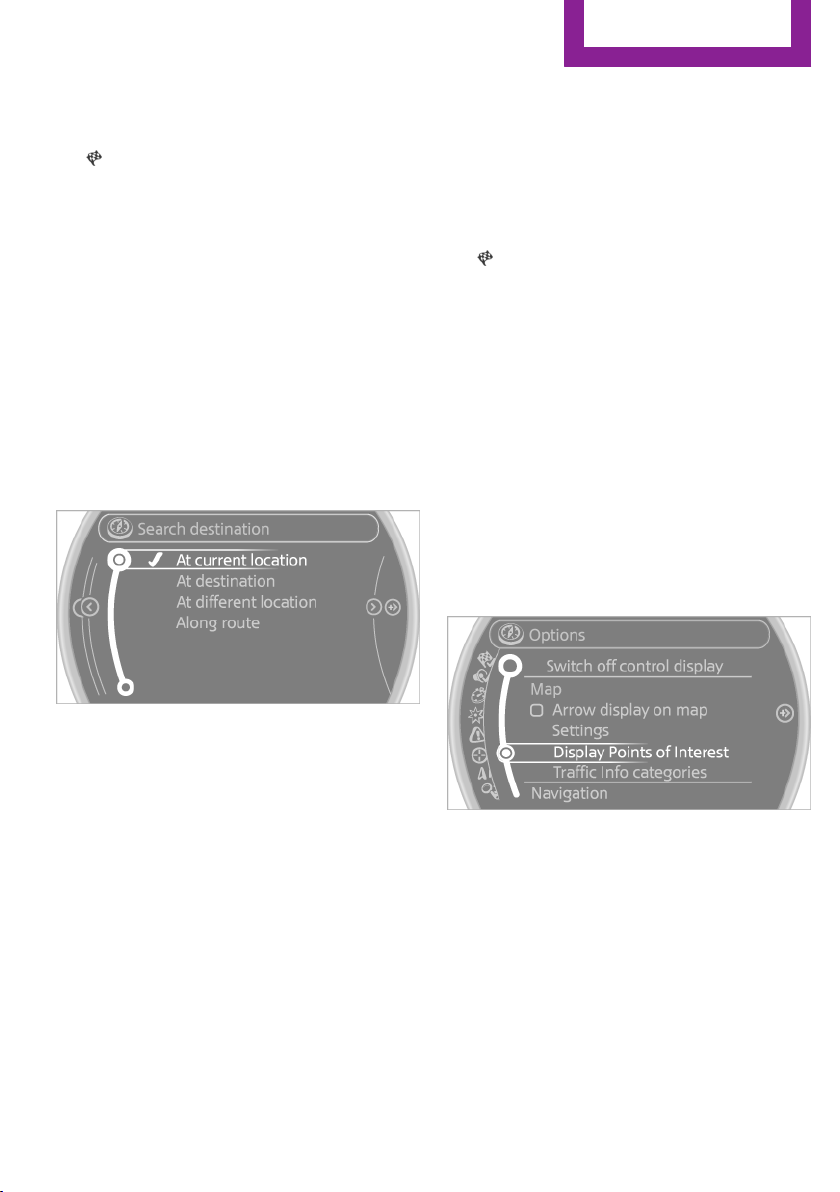
If a phone number is available, a connec‐
tion can be established if necessary.
9. Select the symbol.
10. "Start guidance" or "Add as another
destination"
Add a destination as a further destination,
refer to page 144.
Position of special destinations
When entering the search location, various op‐
tions can be selected.
▷ "At current location"
▷ "At destination"
▷ "At different location"
▷ If destination guidance is active: "Along
route"
Starting the search for special
destinations
1.
"Start search"
2. A list of the special destinations is dis‐
played.
▷ "At current location"
The special destinations are listed ac‐
cording to their distance and are dis‐
played with a directional arrow pointing
to the destination.
▷ "At destination", "At different location",
"Along route"
Special destinations are listed according
to their distance from the location
where the search is being performed.
▷ Destinations of the selected category
are displayed in the map view as sym‐
bols. The display depends on the map
scale and the category.
3. Highlight the special destination.
4. Select a special destination.
5. Select the symbol.
6. "Start guidance" or "Add as another
destination"
The direct distance to destination is dis‐
played.
Displaying special destinations in the
map
To display symbols of the special destinations in
the map view:
1.
"Navigation"
2. "Map"
3. Open "Options".
4. "Display Points of Interest"
5. Select the setting.
Destination entry by map
General information
If only the location of the destination town/city
or street is known, the destination can be en‐
tered using the map.
Seite 141
Destination entry
Navigation
141
Online Edition for Part no. 01 40 2 911 544 - VI/13
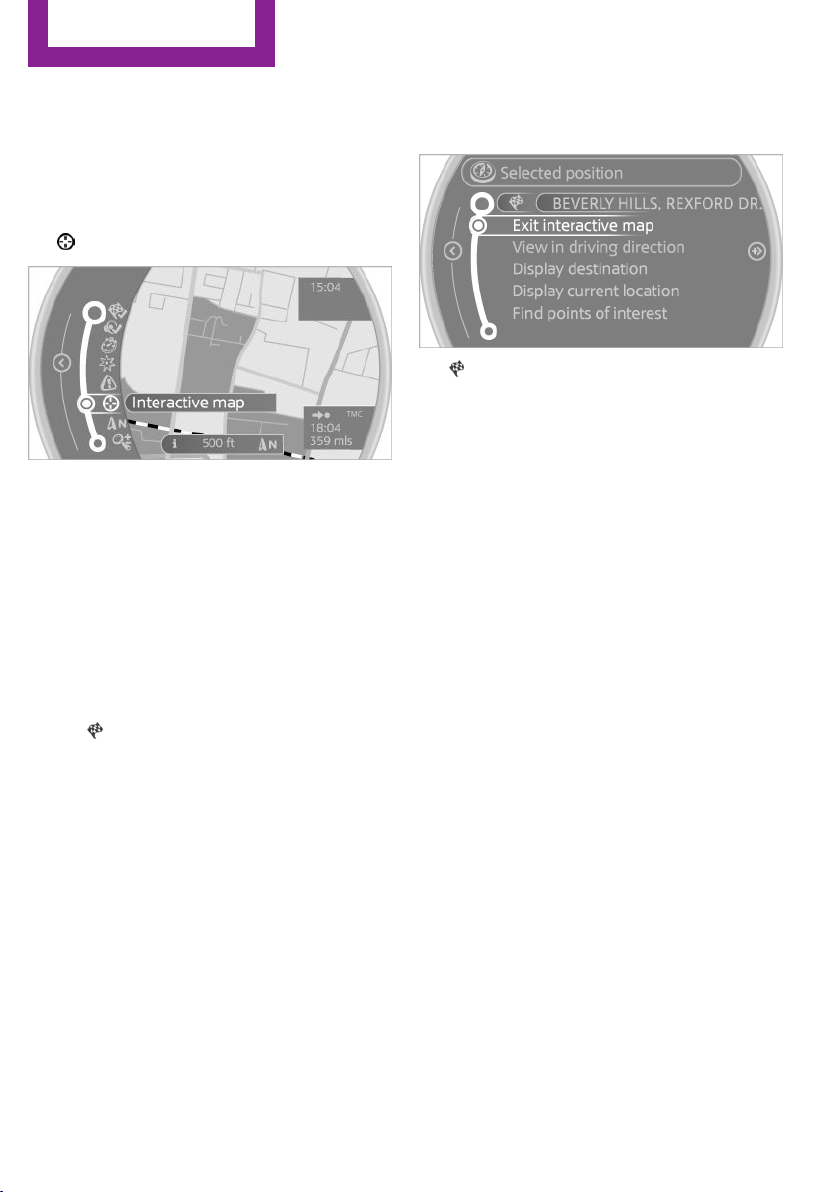
Selecting the destination
1. "Navigation"
2. "Map"
The current position of the vehicle is dis‐
played on the map.
3. "Interactive map"
4. Select the destination with crosshairs.
▷ To change the scale: turn the MINI joy‐
stick.
▷ To shift the map: move the MINI joy‐
stick in the required direction.
▷ To shift the map diagonally: move the
MINI joystick in the required direction
and turn the MINI joystick.
5. Press the MINI joystick to display additional
menu items.
▷ Select the symbol: "Start guidance"
or "Add as another destination".
▷ "Find points of interest": the search for
special destinations is started.
Specifying the street
If the system does not recognize the street, one
of the following pieces of information is dis‐
played:
▷ A street name in the vicinity.
▷ The coordinates of the destination.
Additional functions
On the interactive map, the scale can be ad‐
justed and the map section can be shifted.
Pressing the MINI joysticks makes additional
functions available:
▷ Select the symbol.
"Start guidance" or "Add as another
destination"
▷ "Exit interactive map": return to the map
view.
▷ Map view
▷ "Display destination": the map section
around the destination is displayed.
▷ "Display current location": the map section
around your current location is displayed.
▷ "Find points of interest": the search for spe‐
cial destinations is started.
Destination entry by
voice
General information
▷ Instructions for voice activation system, re‐
fer to page 26.
▷ When making a destination entry by voice,
you can change between voice activation
and the onboard monitor.
▷ To have the available spoken instructions
read out loud: ›Voice commands‹.
Saying the entries
▷ Countries, towns and cities, streets, and in‐
tersections can be said as whole words or
spelled in the language of the system, refer
to page 73.
Seite 142
Navigation
Destination entry
142
Online Edition for Part no. 01 40 2 911 544 - VI/13

Example: to enter a town/city in a US states
as a whole word, the language of the sys‐
tem must be English.
▷ Spell the entry if the spoken language and
the language of the system differ.
▷ Say the letters smoothly, and avoid exag‐
gerating the pronunciation and inserting
lengthy pauses between the letters.
▷ The methods of entry depend on the navi‐
gation data in use and the country and lan‐
guage settings.
Entering a town/city separately
The town/city can be said as a complete word.
1. Press the button on the steering
wheel.
2. ›City‹ or ›Spell city‹
3. Wait for the system to prompt you for the
town/city.
4. Say the name of the town/city, or name at
least the first three letters.
5. Select a location:
▷ Select a recommended town/city: ›Yes‹.
▷ Select a different town/city: ›New
entry‹.
▷ Select an entry: ›Entry ...‹, for instance,
entry 2.
▷ Spell an entry: ›Spell city‹.
6. Continue making the entry as prompted by
the system.
If there are several towns/cities with the same
name:
Towns/cities of the same name are grouped in
a list and displayed as one location followed by
an ellipsis.
1.
Select an entry: ›Yes‹ or ›Entry ...‹, e. g., En‐
try 2.
2. Select the desired town/city.
The town/city can also be selected from the
list on the onboard monitor:
Turn the MINI joystick until the destination
town/city is selected and press the
MINI joystick.
Entering a street or intersection
separately
Enter a street and intersection in the same way
as you would enter a town/city.
Entering a house number separately
Depending on the data in the navigation sys‐
tem, house numbers up to number 2,000 can
be entered.
1.
›House number‹
2. Say the house number.
3. ›Yes‹ to confirm the house number.
4. ›Accept destination‹
Starting destination guidance
›Start guidance‹
Adding further intermediate
destinations
›Add as another destination‹
Further intermediate destinations can be
added.
Storing a destination
The destination is automatically added to the
list of last destinations.
Planning a trip with in‐
termediate destinations
New trip
Various intermediate destinations can be en‐
tered for a trip. The trip destination needs to be
entered first, destination entry, refer to
page 136.
Seite 143
Destination entry
Navigation
143
Online Edition for Part no. 01 40 2 911 544 - VI/13
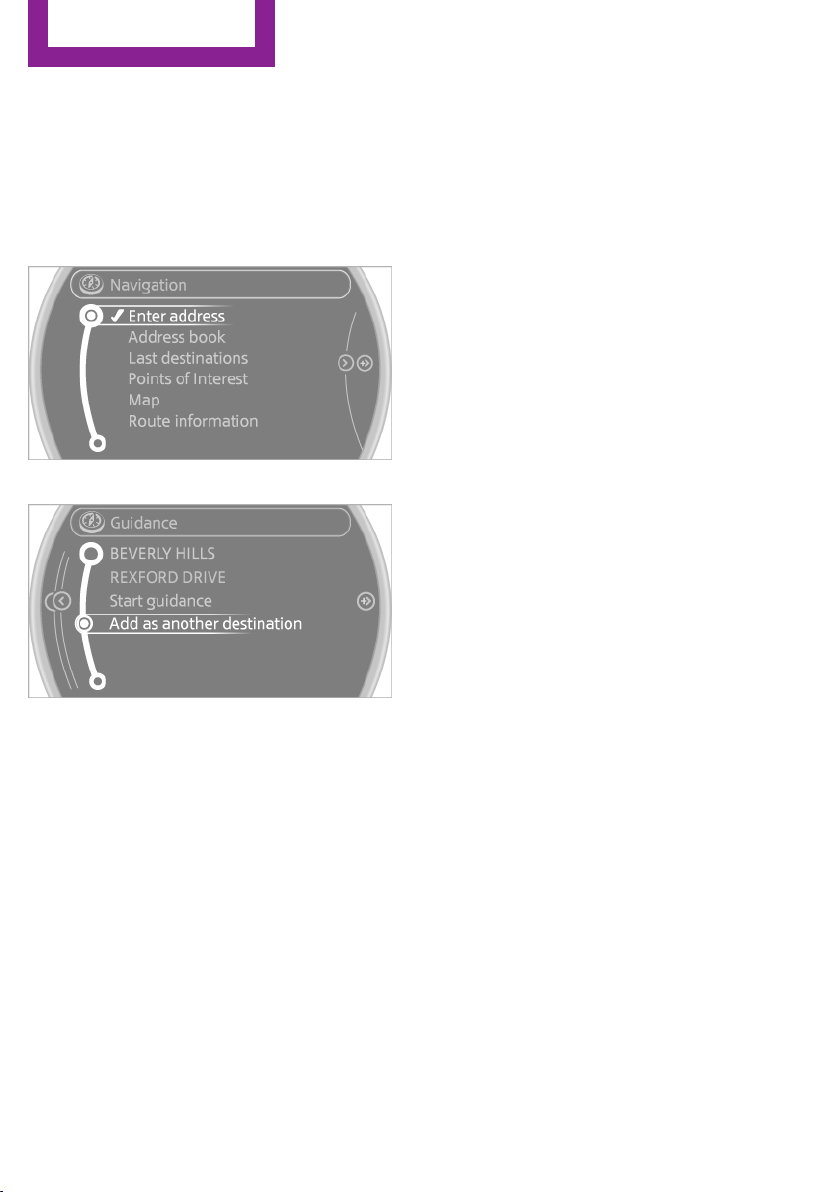
Entering intermediate destinations
A maximum of 30 intermediate destinations
can be entered for a trip.
1. "Navigation"
2. Select the type of destination entry and en‐
ter the intermediate destination.
3. "Add as another destination"
4. Select the position where the intermediate
destination is to be inserted.
Starting the trip
After all intermediate destinations have been
entered:
"Start guidance"
Seite 144
Navigation
Destination entry
144
Online Edition for Part no. 01 40 2 911 544 - VI/13

Destination guidance
Vehicle equipment
This chapter describes all series equipment as
well as country-specific and special equipment
offered for this model series.Therefore, it also
describes equipment that may not be found in
your vehicle, for instance due to the selected
special equipment or the country version. This
also applies to safety-related functions and sys‐
tems.
Starting destination
guidance
1.
"Navigation"
2. Make a destination entry, refer to
page 136.
3. "Accept destination"
4. "Start guidance"
The route is shown on the Control Display.
The distance to the destination/intermediate
destination and the estimated time of arrival
are displayed in the map view.
The arrow view may appear on the Control Dis‐
play.
Terminating destination
guidance
1.
"Navigation"
2. "Map"
3. Select the symbol.
4. "Stop guidance"
Continuing destination
guidance
If the destination was not reached during the
last trip, destination guidance can be resumed.
"Resume guidance"
Route criteria
General information
▷ The route calculated can be influenced by
selecting certain criteria.
▷ The route criteria can be changed when the
destination is entered and during destina‐
tion guidance.
▷ Road types are part of the navigation data
and are taken into consideration when
planning a route, e.g., avoid highways.
▷ The recommended route may differ from
the route you would take based on per‐
sonal experience.
▷ The settings are stored for the remote con‐
trol currently in use.
▷ Destination guidance with traffic bulletins,
refer to page 151.
Changing the route criteria
1.
"Navigation"
2. "Map"
3. "Route preference"
4. Select the criterion:
▷ "Fast route": time-optimized route,
being a combination of the shortest
possible route and the fastest roads.
▷ "Efficient route": optimized combi‐
nation of the fastest and shortest route.
Seite 145
Destination guidance
Navigation
145
Online Edition for Part no. 01 40 2 911 544 - VI/13
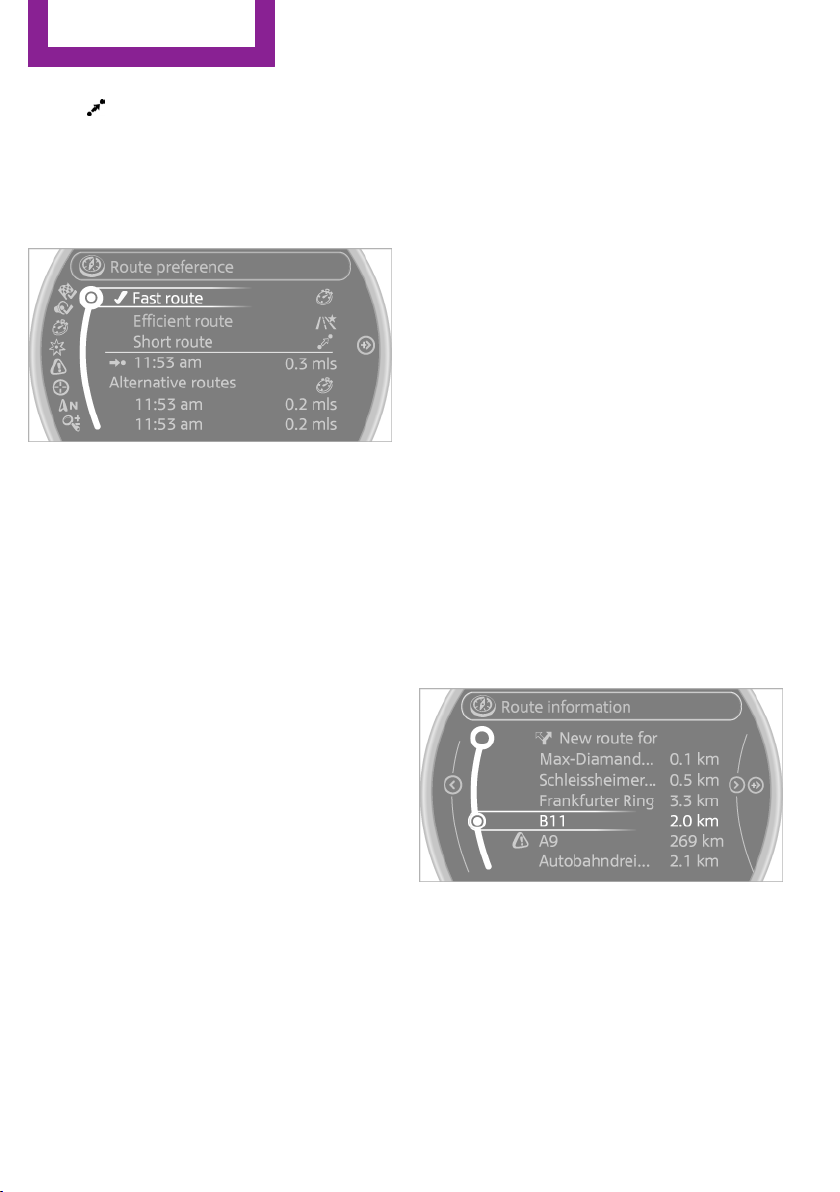
▷ "Short route": short distance, irre‐
spective of how fast or slow progress
will be.
▷ "Alternative routes": if available, alter‐
native routes are suggested during ac‐
tive destination guidance.
5. Select additional criteria for the route, if
necessary. Where possible, the selected cri‐
teria are avoided on the route.
▷ "Avoid highways": highways are
avoided wherever possible.
▷ "Avoid toll roads": toll roads are
avoided wherever possible.
▷ "Avoid ferries": ferries are avoided
where possible.
Route
Different views of the route are available during
destination guidance:
▷ Arrow view.
▷ List of route sections.
▷ Map view, refer to page 148.
Arrow view
The following information is displayed during
destination guidance:
▷ Large arrow: indicates the current direction
of travel.
▷ Street name of the road currently being
driven on.
▷ Small arrow: indicates the next change in
direction.
▷ Intersection view.
▷ Lane information.
▷ Traffic bulletins.
▷ Distance to the next change in direction.
▷ Street name at the next change in direc‐
tion.
Lane information
On multi-lane roads, the recommended lanes
are marked in the arrow view by a triangle.
▷ Solid triangle: best lane.
▷ Empty triangle: possible lane. However, an‐
other lane change may be needed shortly.
Displaying a list of route sections
When destination guidance is active, a list of
the route sections can be displayed. The driving
distance and traffic bulletins are displayed for
each route section.
1.
"Navigation"
2. "Route information"
3. Highlight a route section.
Bypassing a section of
the route
Calculate a new route for a route section.
1.
"Navigation"
2. "Route information"
Seite 146
Navigation
Destination guidance
146
Online Edition for Part no. 01 40 2 911 544 - VI/13
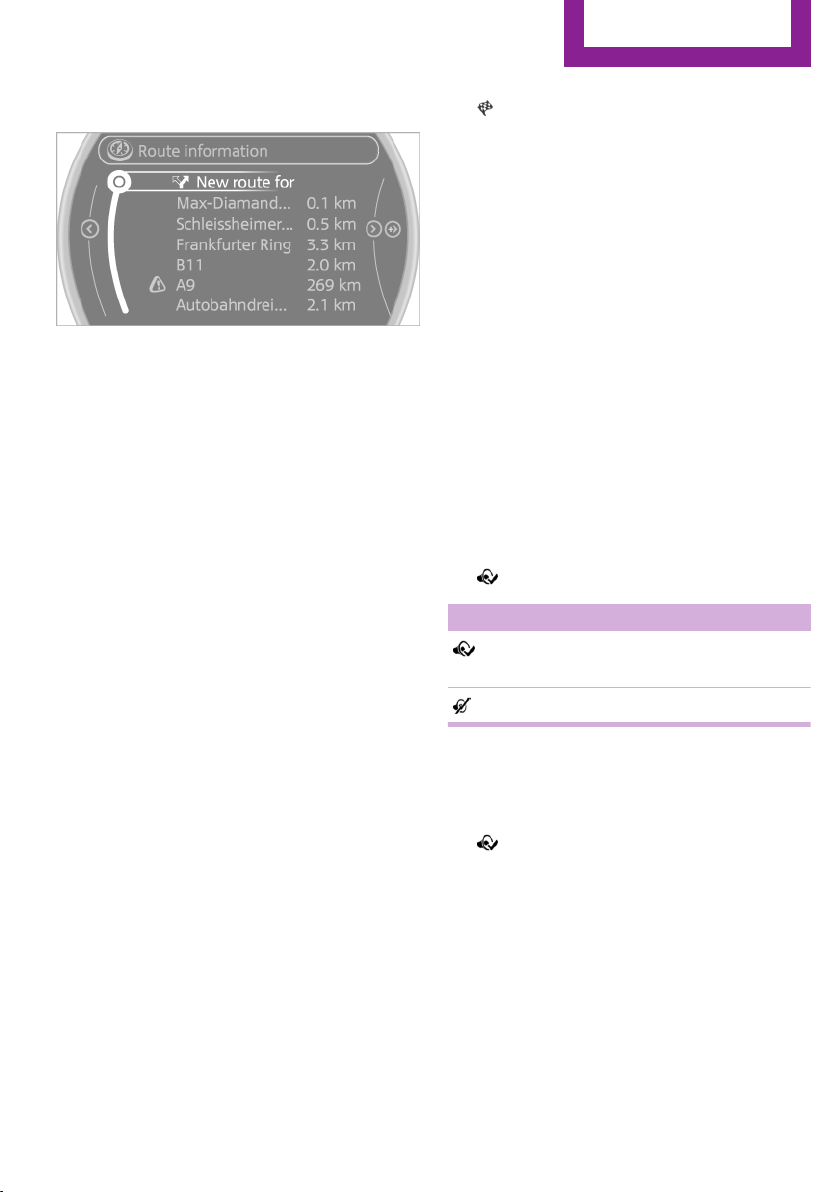
3. "New route for"
4. Turn the MINI joystick. Enter the number of
kilometers within which you would like to
return to the original route.
5. Press the MINI joystick.
Resuming the original route
If the route section should no longer be by‐
passed:
1.
"Navigation"
2. "Route information"
3. "New route for:"
4. "Remove blocking"
Gas station recommenda‐
tion
The remaining range is calculated and gas sta‐
tions along the route are displayed if needed.
Even with the latest navigation data, informa‐
tion on individual special destinations may
have changed; for example, gas stations might
not be in operation.
1.
"Navigation"
2. "Route information"
3. "Recommended refuel"
A list of the gas stations is displayed.
4. Highlight a gas station.
5. Select the gas station.
6. Select the symbol.
7. "Start guidance": destination guidance to
the selected gas station is started.
"Add as another destination": the gas sta‐
tion is added to the route.
Destination guidance
through voice instruc‐
tions
Switching spoken instructions on/off
The spoken instructions can be switched on or
off during destination guidance.
The setting is stored for the remote control cur‐
rently in use.
1.
"Navigation"
2. "Map"
3. Select the symbol.
Symbol Function
The spoken instructions are switched
on.
Spoken instructions are switched off.
Repeating a spoken instruction
1.
"Navigation"
2. "Map"
3. Highlight the symbol.
4. Press the MINI joystick twice.
Volume of spoken instructions
Turn the volume knob while giving an instruc‐
tion until the desired volume is set.
Seite 147
Destination guidance
Navigation
147
Online Edition for Part no. 01 40 2 911 544 - VI/13
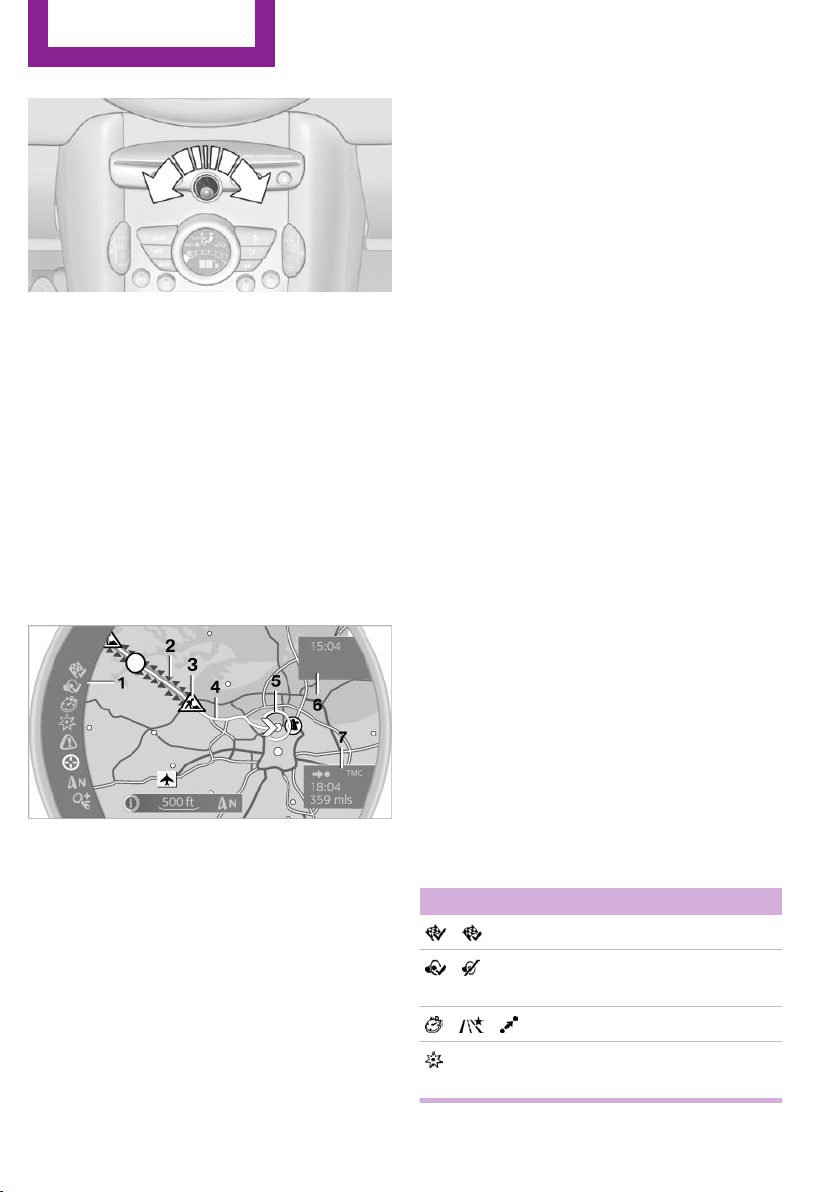
This volume is independent of the volume of
the audio sources.
The setting is stored for the remote control cur‐
rently in use.
Map view
Selecting the map view
1.
"Navigation"
2. "Map"
At a glance
1 Function bar
2 Route section with traffic obstruction
3 Traffic sign for traffic obstruction
4 Planned route
5 Current location
6 Upper status field
7 Lower status field
Lines in the map
Streets and routes are displayed in different
colors and styles depending on their classifica‐
tion. Dashed lines represent railways and ferry
connections. Country borders are indicated by
thin lines.
Traffic obstructions
Small triangles along the planned route indicate
route sections with traffic obstructions, de‐
pending on the map scale. The direction of the
triangles indicates the direction of the obstruc‐
tion.
The traffic signs indicate the significance of the
obstruction.
▷ Red traffic sign: the obstruction affects the
planned route or direction.
▷ Grey traffic sign: the obstruction does not
affect the planned route or direction.
Traffic bulletins, refer to page 149.
Planned route
After destination guidance is started, the plan‐
ned route is displayed on the map.
Status fields
To show/hide: press the MINI joystick.
▷ Upper status field: time, telephone, and en‐
tertainment details.
▷ Lower status field: symbol for active desti‐
nation guidance, status of traffic bulletins,
time of arrival, and distance to destination.
Function bar
The following functions are available in the
function bar:
Symbol Function
Start/end destination guidance.
Switch spoken instructions on/
off.
Change the route criteria.
Search for a special destina‐
tion.
Seite 148
Navigation
Destination guidance
148
Online Edition for Part no. 01 40 2 911 544 - VI/13
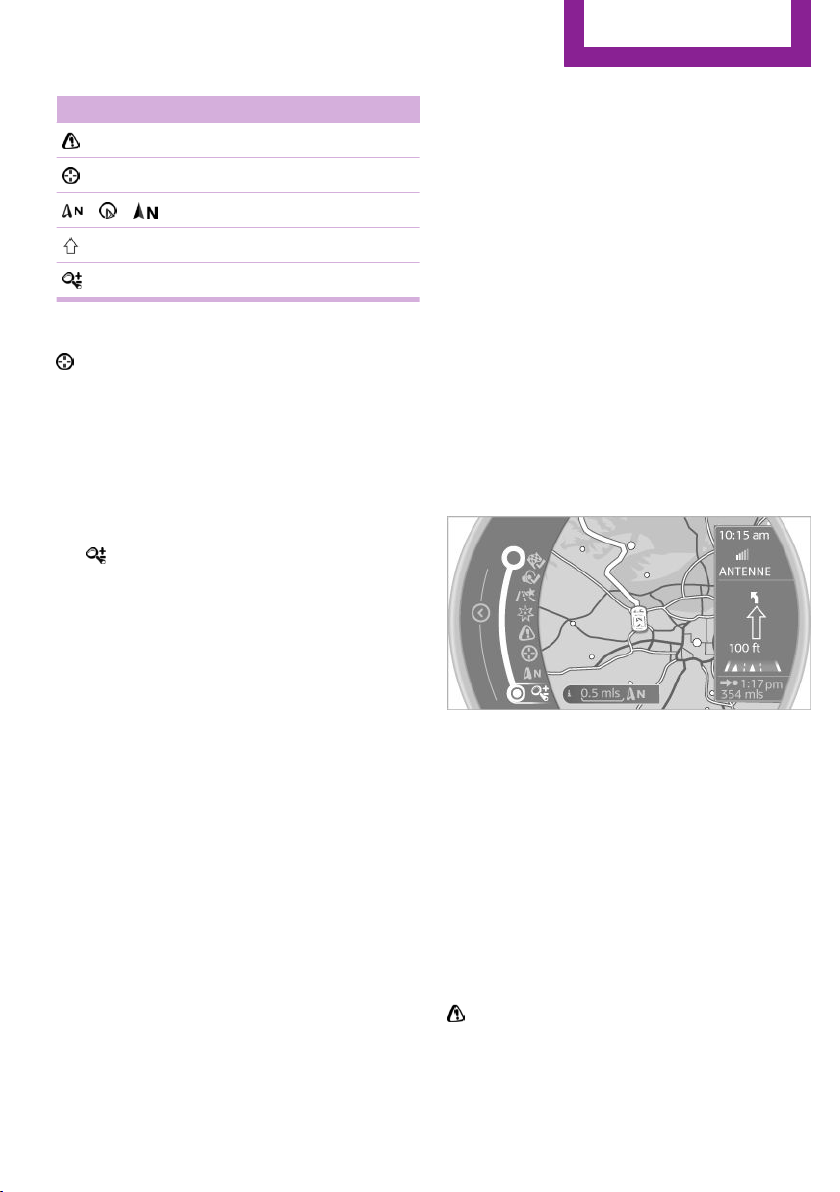
Symbol Function
Display traffic bulletins.
Open the interactive map.
Adjust the map views.
Adjust the arrow view.
Change the scale.
Changing the map section
"Interactive map"
▷ To shift the map: move the MINI joystick in
the required direction.
▷ To shift the map diagonally: move the
MINI joystick in the required direction and
turn the MINI joystick.
Changing the scale
1.
Select the symbol.
2. To change the scale: turn the MINI joystick.
Automatically scaled map scale
In the map view facing north, turn the MINI joy‐
stick in any direction until the AUTO is dis‐
played for the scale. The entire route between
the current location and the destination is dis‐
played on the map.
Settings for the map view
The settings are stored for the remote control
currently in use.
1.
"Navigation"
2. "Map"
3. Open "Options".
4. "Settings"
5. To set the map view:
▷ "Day/night mode"
Select and create the necessary settings
depending on the light conditions.
"Traffic conditions/gray map" active:
the setting is disregarded.
▷ "Traffic conditions/gray map"
The map is optimized for displaying
traffic bulletins.
Symbols for the special destinations are
no longer displayed.
Arrow view
When destination guidance is activated, the ar‐
row view can additionally be displayed in the
map view on the right side of the display.
1.
"Navigation"
2. Open "Options".
3. "Arrow display on map"
The arrow view is shown on the map.
Traffic bulletins
At a glance
▷ Display the traffic bulletins from radio sta‐
tions that broadcast the TI Traffic Informa‐
tion of a traffic information service. Infor‐
mation on traffic obstructions and hazards
is updated continuously.
▷ The traffic bulletins are indicated on the
map by symbols.
The symbol in the function bar of the map
view turns red if there are traffic bulletins that
affect the calculated route.
Seite 149
Destination guidance
Navigation
149
Online Edition for Part no. 01 40 2 911 544 - VI/13

Real Time Traffic Information End-User
Provisions
Certain MINI models equipped with navigation
have the capability to display real-time traffic
information. If your system has this capability
the following additional terms and conditions
apply:
An End-User shall no longer have the right to
use the Traffic Data in the event that the End-
User is in material breach of the terms and con‐
ditions contained herein.
A. Total Traffic Network, a division of Clear
Channel Broadcasting, Inc. (“Total Traffic Net‐
work”) holds the rights to the traffic incident
data and RDS-TMC network through which it is
delivered. You may not modify, copy, scan or
use any other method to reproduce, duplicate,
republish, transmit or distribute in any way any
portion of traffic incident data. You agree to in‐
demnify, defend and hold harmless MINI of
North America, LLC. (“MINI NA”) and Total Traf‐
fic Network, Inrix, Inc (and their affiliates)
against any and all claims, damages, costs or
other expenses that arise directly or indirectly
out of (a) your unauthorized use of the traffic
incident data or the RDS-TMC network, (b) your
violation of this directive and/or (c) any unau‐
thorized or unlawful activities by you in con‐
nection herewith.
B. Total Traffic Network traffic data is informa‐
tional only. User assumes all risk of use. Total
Traffic Network, MINI NA, and their suppliers
make no representations about content, traffic
and road conditions, route usability, or speed.
C. The licensed material is provided to license
“as is,” and “where is”. Total Traffic Network,
including, but not limited to, any and all third
party providers of any of the licensed material,
expressly disclaims, to the fullest extent permit‐
ted by law, all warranties or representations
with respect to the licensed material (including,
without limitation, that the licensed material
will be error-free, will operate without interrup‐
tion or that the traffic data will be accurate), ex‐
press, implied or statutory, including, without
limitation, the implied warranties of merchant‐
ability, non-infringement fitness for a particular
purpose, or those arising from a course of deal‐
ing or usage of trade.
D. Neither Total Traffic Network, Inrix, Inc. or
MINI NA will be liable to you for any indirect,
special, consequential, exemplary, or incidental
damages (including, without limitation, lost
revenues, anticipated revenues, or profits relat‐
ing to the same) arising from any claim relating
directly or indirectly to use of the traffic data,
and even if Total Traffic Network, Inrix, Inc., or
MINI NA are aware of the possibility of such
damages. These limitations apply to all claims,
including, without limitation, claims in contract
and tort (such as negligence, product liability
and strict liability). Some states do not allow the
exclusion or limitation of incidental or conse‐
quential damages, so those particular limita‐
tions may not apply to you.
Switching the reception on/off
1.
"Navigation"
2. Open "Options".
3. "Receive Traffic Info"
Open the traffic bulletins
1.
"Navigation"
2. "Map"
3. "Traffic Info"
First, traffic bulletins for the calculated
route are displayed.
The traffic bulletins are sorted by their dis‐
tance from the current position of the vehi‐
cle.
4. Select a traffic bulletin.
"More information": display additional
information.
5. Scroll to the next or previous traffic bulletin
if required.
Traffic bulletins on the map
"Traffic conditions/gray map" active:
Seite 150
Navigation
Destination guidance
150
Online Edition for Part no. 01 40 2 911 544 - VI/13

The Control Display changes to a black and
white display. This enables a better view of the
traffic bulletins. The day/night mode is disre‐
garded in this setting. Symbols and special des‐
tinations are not displayed.
1. "Navigation"
2. "Map"
3. Open "Options".
4. "Settings"
5. "Traffic conditions/gray map"
Symbols in the map view
Depending on the scale of the map and the lo‐
cation of the traffic obstruction along the route,
the symbols for the traffic obstructions are dis‐
played.
Additional information in the map view
Depending on the map scale, a traffic obstruc‐
tion's length, direction, and impact are dis‐
played in the map using triangles or gray bars
along the calculated route.
▷ Red: traffic congestion.
▷ Orange: stop-and-go traffic.
▷ Yellow: heavy traffic.
▷ Green: clear roads.
▷ Gray: general traffic bulletins such as road
construction.
The displayed information depends on the par‐
ticular traffic information service.
Filtering traffic bulletins
You can set which traffic bulletins appear on
the map.
1.
"Navigation"
2. "Map"
3. Open "Options".
4. "Traffic Info categories"
5. Select the desired category.
Traffic bulletins of the selected category are
displayed on the map.
▷ Traffic bulletins that are relevant to the
route are always shown.
▷ For your own safety, traffic bulletins that
notify you of potentially dangerous situa‐
tions cannot be hidden.
Destination guidance with traffic
bulletins
General information
Detour suggestions from the navigation system
can be manually accepted when using semi-dy‐
namic destination guidance. When using dy‐
namic destination guidance, they are automati‐
cally accepted for route guidance.
Semi-dynamic destination guidance
When traffic bulletin reception is switched on,
semi-dynamic destination guidance is active.
The destination guidance system takes the
available traffic bulletins into account. A mes‐
sage is displayed depending on the route, the
traffic bulletins, and the possible detour routes.
If possible, a detour is offered in case of traffic
obstructions. In addition, distance and time dif‐
ferences between the original route and the
detour are displayed.
Accepting the detour
"Detour"
Seite 151
Destination guidance
Navigation
151
Online Edition for Part no. 01 40 2 911 544 - VI/13

In the event of special hazards, e. g., objects on
the road, a message is displayed without a de‐
tour suggestion.
Detours can also be accepted if the traffic mes‐
sages are called up in the list.
1. "Navigation"
2. "Map"
3. "Traffic Info"
4. "Detour information"
5. "Detour"
Dynamic destination guidance
The route is automatically changed in the event
of traffic obstructions.
▷ The system does not point out traffic ob‐
structions along the original route.
▷ Traffic bulletins continue to be displayed on
the map.
▷ Depending on road type and the kind and
extent of the traffic obstruction, the calcu‐
lated route may lead through the traffic ob‐
struction.
▷ Dangerous situations are displayed regard‐
less of the setting.
Activating dynamic destination guidance
1.
"Navigation"
2. Open "Options".
3. "Dynamic guidance"
Seite 152
Navigation
Destination guidance
152
Online Edition for Part no. 01 40 2 911 544 - VI/13

What to do if...
Vehicle equipment
This chapter describes all series equipment as
well as country-specific and special equipment
offered for this model series.Therefore, it also
describes equipment that may not be found in
your vehicle, for instance due to the selected
special equipment or the country version. This
also applies to safety-related functions and sys‐
tems.
What to do if...
▷ The current transmission position cannot be
displayed?
The vehicle is located in an unrecognized
region, is in a poor reception area, or the
system is currently determining the posi‐
tion. Reception is usually best when you
have an unobstructed view of the sky.
▷ The destination without street information
is not used for route guidance?
When city has been input, no downtown
can be determined. Input any street in the
selected city and start destination guid‐
ance.
▷ The destination is not used for route guid‐
ance?
The destination data are not contained in
the navigation data. Select a destination
that is as close as possible to the original.
▷ Letters for destination input cannot be se‐
lected?
The stored data do not contain the data of
the destination. Select a goal that is as close
as possible to the original.
▷ Is the map displayed in shades of gray?
"Traffic conditions/gray map" active:
The Control Display changes to a black and
white display. This enables a better view of
the traffic bulletins.
▷ Spoken instructions are no longer output
during route guidance in front of intersec‐
tions?
The area has not yet been fully recorded, or
you have left the recommended route and
the system requires a few seconds to calcu‐
late a new route suggestion.
▷ Does the navigation system fail to react to
entries?
If the battery was disconnected, it takes up
to 10 minutes for the system to becoming
functional again.
Seite 153
What to do if...
Navigation
153
Online Edition for Part no. 01 40 2 911 544 - VI/13

ROCK ME.
Online Edition for Part no. 01 40 2 911 544 - VI/13

At a glance
Controls
Driving tips
Navigation
Entertainment
Communication
Mobility
Reference
Online Edition for Part no. 01 40 2 911 544 - VI/13
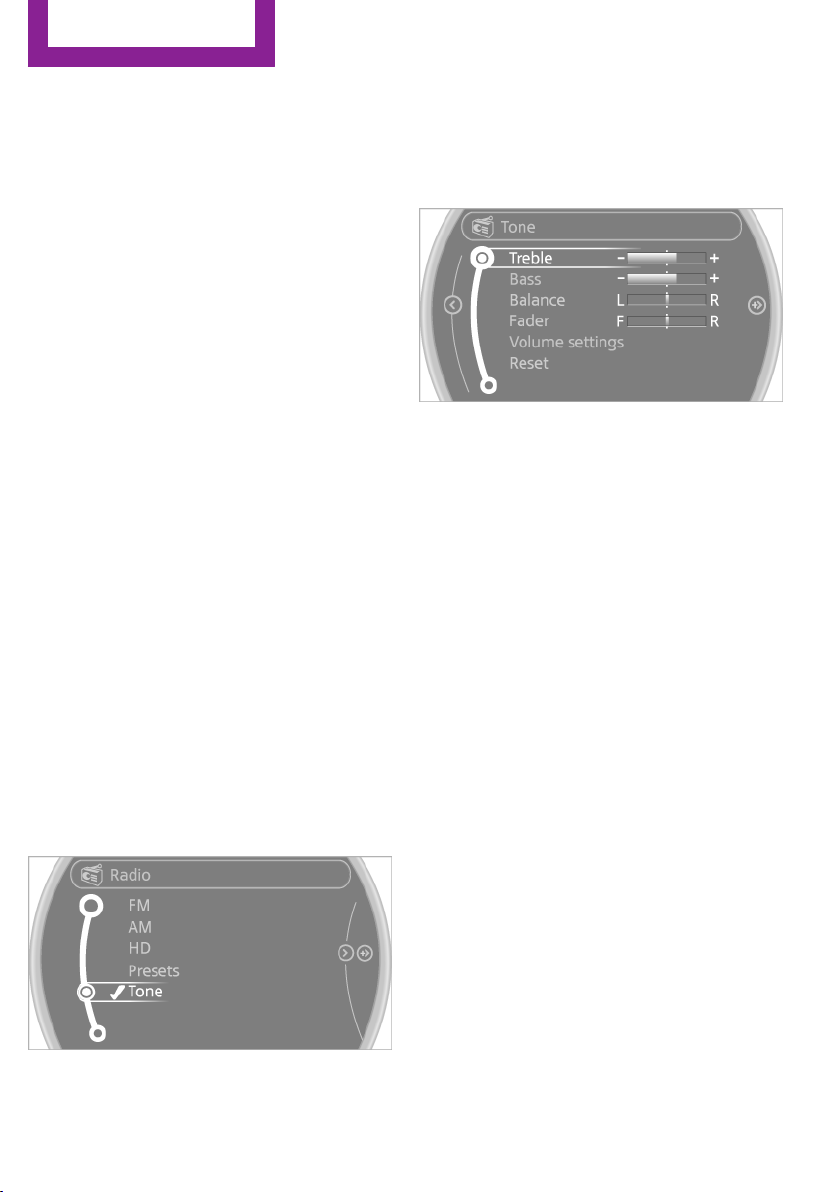
Tone
Vehicle equipment
This chapter describes all series equipment as
well as country-specific and special equipment
offered for this model series.Therefore, it also
describes equipment that may not be found in
your vehicle, for instance due to the selected
special equipment or the country version. This
also applies to safety-related functions and sys‐
tems.
General information
The sound settings are stored for the remote
control currently in use.
Treble, bass, balance,
and fader
▷ "Treble": treble adjustment.
▷ "Bass": depth adjustment.
▷ "Balance": left/right volume distribution.
▷ "Fader": front/rear volume distribution.
Setting treble, bass, balance, and fader
1.
"CD/Multimedia", "Radio" or "Settings"
2. "Tone"
3. Select the desired tone settings.
4. To set: turn the MINI joystick.
5. To save: press the MINI joystick.
Volume
▷ "Speed volume": speed-dependent volume
control.
▷ "PDC": volume of the PDC signal compared
to the entertainment sound output.
▷ "Gong": volume of the signal, such as the
safety belt reminder, compared to the en‐
tertainment sound output.
Bluetooth mobile phone preparation package
▷ "Microphone": volume of the microphone
during a phone call.
▷ "Loudspeak.": volume of the loudspeakers
during a phone call.
The following volumes are only stored for the
respective paired telephone: "Microphone",
"Loudspeak.".
Adjusting the volume
1.
"CD/Multimedia", "Radio" or "Settings"
2. "Tone"
3. "Volume settings"
Seite 156
Entertainment
Tone
156
Online Edition for Part no. 01 40 2 911 544 - VI/13

4. Select the desired volume setting.
5. To set: turn the MINI joystick.
6. To save: press the MINI joystick.
Resetting the tone set‐
tings
All tone settings can be reset to the default set‐
ting.
1.
"CD/Multimedia", "Radio" or "Settings"
2. "Tone"
3. "Reset"
Seite 157
Tone
Entertainment
157
Online Edition for Part no. 01 40 2 911 544 - VI/13
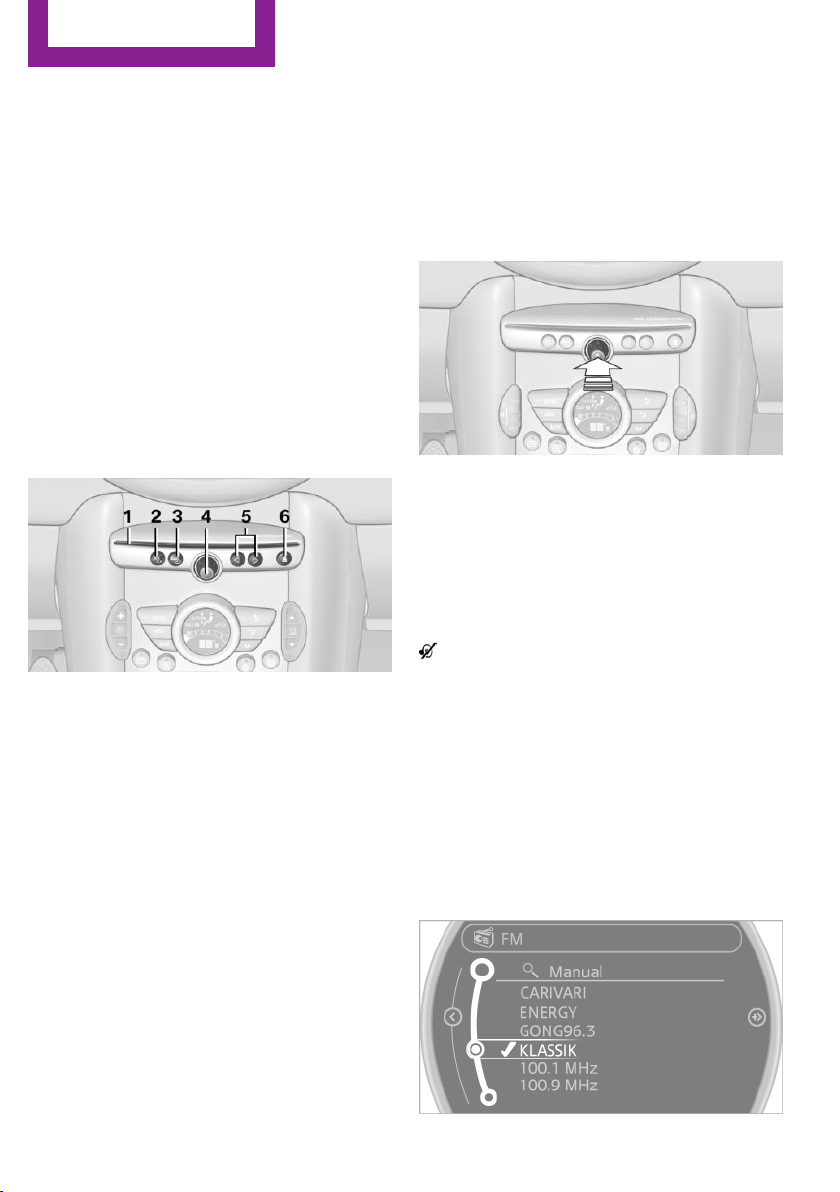
Radio
Vehicle equipment
This chapter describes all series equipment as
well as country-specific and special equipment
offered for this model series.Therefore, it also
describes equipment that may not be found in
your vehicle, for instance due to the selected
special equipment or the country version. This
also applies to safety-related functions and sys‐
tems.
Controls
1 CD drive
2 Changing the waveband
3 Changing the audio source
4 Volume, on/off
5 Change station/track
6 Ejecting the CD
Sound output
Switching on/off
When the ignition is switched off: press ON/OFF
button on the radio.
Muting
When the ignition is switched on or the engine
is running: press the ON/OFF button on the
radio.
This symbol at the upper edge of the Con‐
trol Display indicates that the sound is switched
off.
AM/FM station
Selecting a station
1.
"Radio"
2. "FM" or "AM"
3. Select the desired station.
Seite 158
Entertainment
Radio
158
Online Edition for Part no. 01 40 2 911 544 - VI/13
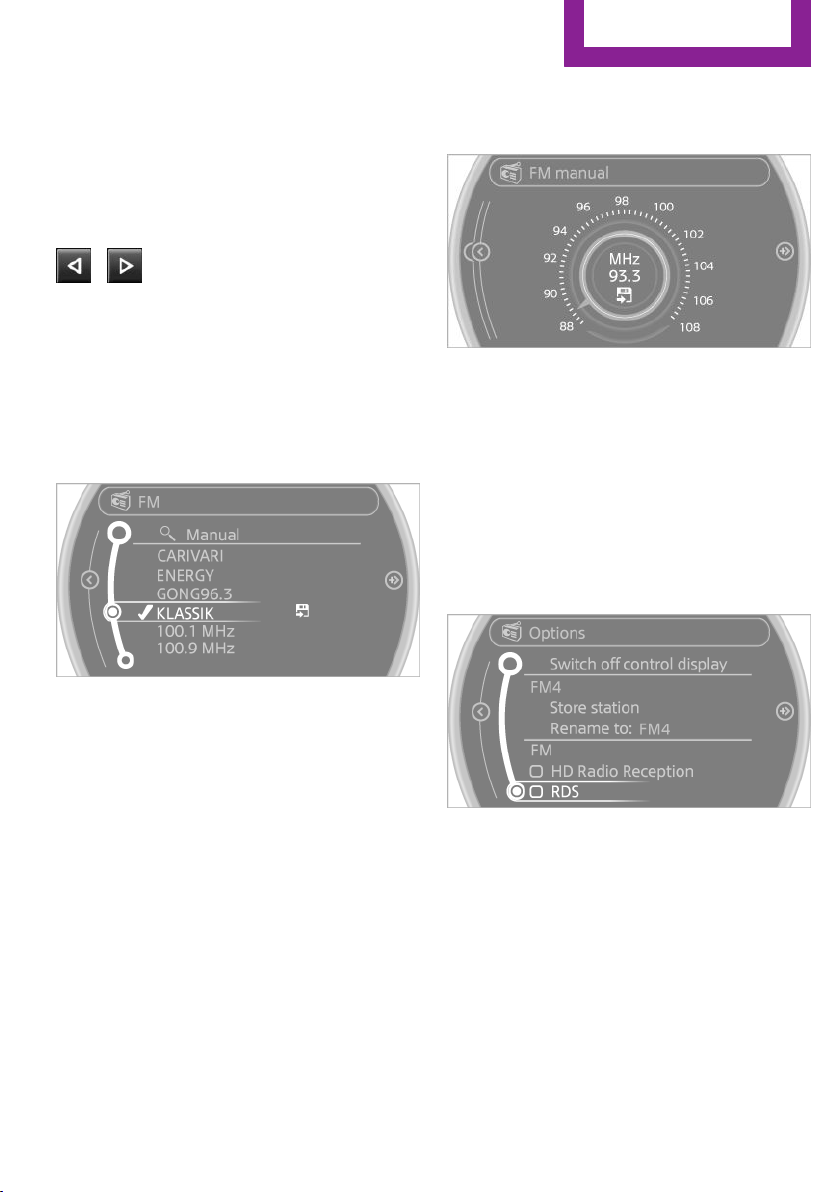
All saved stations are stored for the remote
control currently in use.
Changing the station
Turn and press the MINI joystick.
or
Press the button
or
Press the buttons on the steering wheel.
Storing a station
1.
"Radio"
2. "FM" or "AM"
3. Highlight the desired station.
4. Press the MINI joystick.
5. Select the desired memory location.
Press and hold the MINI joystick to store a sta‐
tion that is displayed in the station list but is not
being played.
The stations are stored for the remote control
currently in use.
Selecting a station manually
Station selection via the frequency.
1.
"Radio"
2. "FM" or "AM"
3. "Manual"
4. To select a frequency: turn the MINI joy‐
stick.
To save a station: press and hold the
MINI joystick.
RDS
RDS broadcasts additional information, such as
the station name, in the FM wave band.
Switching the RDS on/off
1.
"Radio"
2. "FM"
3. Open "Options".
4. "RDS"
The setting is stored for the remote control cur‐
rently in use.
HD Radio™ reception
Many stations broadcast both analog and digi‐
tal signals.
License conditions
HD Radio Technology manufactured under li‐
cense from iBiquity Digital Corporation. U.S.
and Foreign Patents. HD Radio™ and the HD,
HD Radio, and Arc logos are proprietary trade‐
marks of iBiquity Digital Corp.
Seite 159
Radio
Entertainment
159
Online Edition for Part no. 01 40 2 911 544 - VI/13
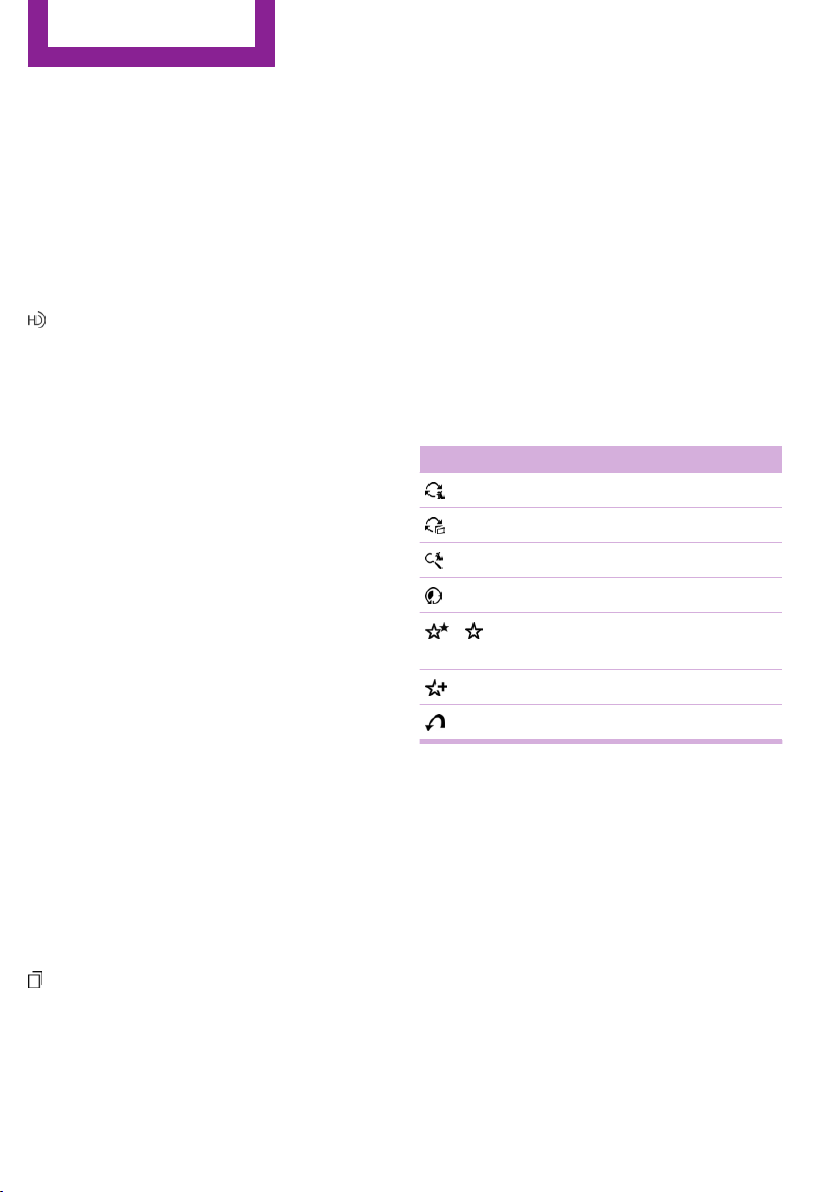
Activating/deactivating digital radio
reception
1. "Radio"
2. "FM" or "AM"
3. Open "Options".
4. "HD Radio Reception"
The setting is stored for the remote control cur‐
rently in use.
This symbol is displayed in the status line
when the audio signal is digital.
When tuning to a station with a digital signal, it
may take several seconds for the station to be
played back in digital quality.
Note on HD stations whose station name ends
in ...HD or HD1:
In areas in which the station is not continuously
received in digital mode, the playback switches
between analog and digital reception. In this
case, switch off digital radio reception.
Note on HD multicast stations whose station
name ends in ...HD2, ...HD3, ...:
In areas in which the station is not continuously
received in digital mode, the audible signal
may be interrupted for several seconds. This is
reception related.
Displaying additional information
Some stations broadcast additional information
on the current track, such as the name of the
artist.
1.
Select the desired station.
2. Open "Options".
3. "Station info"
Selecting a substation
This symbol indicates that a main station
also broadcasts additional substations. The sta‐
tion name of the main station ends in HD1. Sta‐
tion names of the substations end in HD2, HD3,
etc.
1.
Select the desired station.
2. Press the controller.
3. Select the substation.
When reception is poor, the substation is
muted.
Satellite radio
General information
The channels are offered in predefined pack‐
ages. The packages must be enabled by tele‐
phone.
Navigation bar overview
Symbol Function
Change the list view.
Select the category.
Direct channel entry
Timeshift
Open the My Favorites category/
open a favorite.
Manage the favorites.
Traffic Jump
Managing a subscription
To be able to enable or unsubscribe from the
channels, you must have reception. It is usually
at its best when you have an unobstructed view
of the sky. The channel name is displayed in the
status line.
Enabling channels
The Unsubscribed Channels category contains
all disabled channels.
1.
"Radio"
2. "Satellite radio"
Seite 160
Entertainment
Radio
160
Online Edition for Part no. 01 40 2 911 544 - VI/13
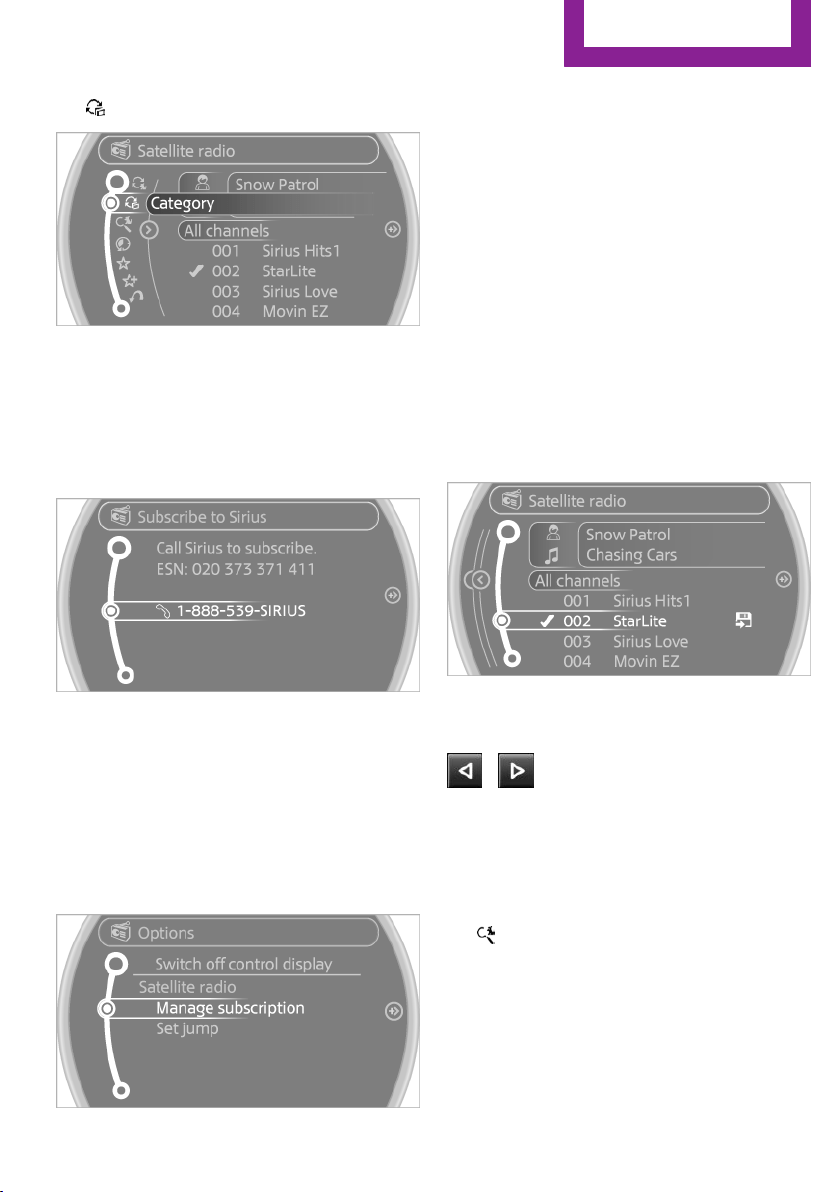
3. "Category"
4. Select the Unsubscribed Channels category.
5. Select the desired channel.
The phone number and an electronic serial
number, ESN, are displayed.
6. Select the phone number to have the chan‐
nel enabled.
You can unsubscribe from the channels again
via this phone number.
Unsubscribing from channels
1.
"Radio"
2. "Satellite radio"
3. Open "Options".
4. "Manage subscription"
5. The phone number and an electronic serial
number, ESN, are displayed.
6. Call Sirius to unsubscribe from the channels.
Selecting channels
You can only listen to enabled channels.
The selected channel is stored for the remote
control currently in use.
Via the onboard monitor
1. "Radio"
2. "Satellite radio"
3. Select "All channels" or the desired cate‐
gory.
4. Select the desired channel.
Via the buttons in the area of the CD
player
Press the button.
The next channel is selected.
Via direct channel entry
1.
"Radio"
2. "Satellite radio"
3. "Set channel"
4. Turn the MINI joystick until the desired
channel is reached and press the MINI joy‐
stick.
Seite 161
Radio
Entertainment
161
Online Edition for Part no. 01 40 2 911 544 - VI/13
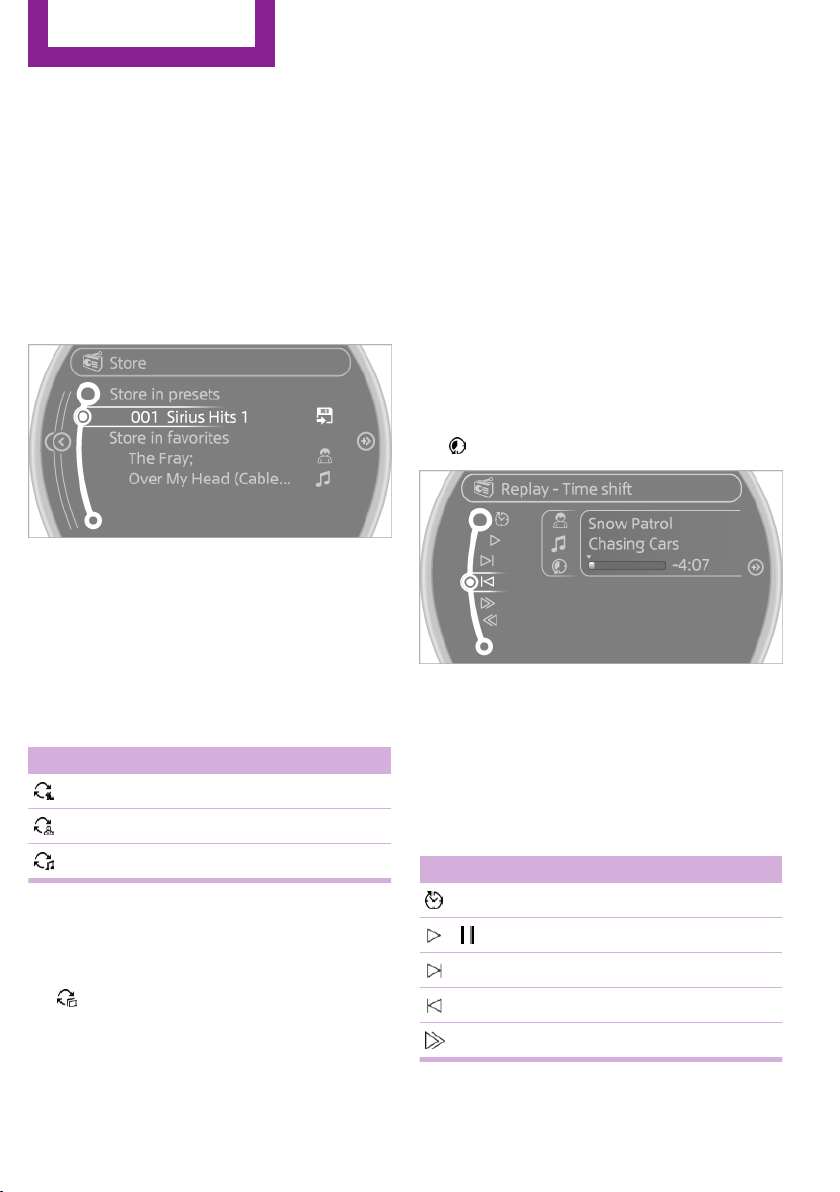
Storing a channel
1. "Radio"
2. "Satellite radio"
3. If necessary, open "All channels" or the de‐
sired category.
4. Select the desired channel.
5. Press the MINI joystick again.
6. Press the MINI joystick again to confirm the
highlighted channel.
7. Select the desired memory location.
The channels are stored for the remote control
currently in use.
Changing the list view
The list view changes every time the first sym‐
bol on the navigation bar is pressed.
Information on the channel is displayed.
Symbol Meaning
Channel name
Artist
Track
Selecting a category
1.
"Radio"
2. "Satellite radio"
3. "Category"
4. Select the desired category.
Timeshift
Approx. one hour of the program being broad‐
cast on the channel currently being listened to
is stored in a buffer. Prerequisite: the signal
must be available.
The stored audio track can be played with a de‐
lay following the live broadcast. When the buf‐
fer is full, the older tracks are overwritten. The
buffer is cleared when a new channel is se‐
lected.
Opening the timeshift function
1. "Radio"
2. "Satellite radio"
3. "Replay - Time shift"
▷ The red arrow shows the current playback
position.
▷ The time difference to the live broadcast is
displayed next to the buffer bar.
▷ For live transmissions "live".
Timeshift menu
Symbol Function
Go to the live broadcast
Playback/pause
Next track
Previous track
Fast forward
Seite 162
Entertainment
Radio
162
Online Edition for Part no. 01 40 2 911 544 - VI/13

Symbol Function
Reverse
Automatic timeshift deactivated/
activated
Automatic timeshift
When the function is activated, audio playback
is stopped automatically in the event of:
▷ Incoming and outgoing telephone calls.
▷ Activation of the voice activation system.
▷ Muting.
The audio playback then continues with a time
delay.
Activating
1.
"Radio"
2. "Satellite radio"
3. "Replay - Time shift"
4. "Automatic time shift"
Deactivating
"Automatic time shift"
Storing favorites
Up to 30 favorites can be stored in the favorites
list. Available favorites are artist, track, game,
league, and team.
Storing the artist, track, or game
It is only possible to store favorites that are cur‐
rently being broadcast. The channel informa‐
tion must be available.
1.
"Radio"
2. "Satellite radio"
3. If necessary, open "All channels" or the de‐
sired category.
4. Select the desired channel.
5. Press the MINI joystick again.
6. Select the artist, track, or game.
Storing the league or team
Leagues or teams can be added to the favorites
from a selection list.
1. "Radio"
2. "Satellite radio"
3. "Manage favorites"
4. "Add sports information"
5. Select the league.
6. Select "Add all teams" or the desired team.
Opening the favorites
If an activated favorite is played back, the fol‐
lowing message appears for approx. 20 sec‐
onds "Favorite alert!".
"Favorites"
Select the symbol while the message is shown.
The displayed favorite is played.
If there is no message, the system changes to
the My Favorites category. All favorites cur‐
rently being broadcast can be selected from a
list.
Seite 163
Radio
Entertainment
163
Online Edition for Part no. 01 40 2 911 544 - VI/13

Managing the favorites
Activating/deactivating the favorites
Favorites can be activated and deactivated
globally and individually.
1. "Satellite radio"
2. "Manage favorites"
3. Select "Activate alert" or the desired favor‐
ites.
The setting is stored for the remote control cur‐
rently in use.
Deleting favorites
1.
"Satellite radio"
2. "Manage favorites"
3. Highlight the desired favorite.
4. Open "Options".
5. "Delete entry"
Traffic Jump
Traffic and weather information for a selected
region is broadcast every few minutes.
Selecting a region
1.
"Radio"
2. "Satellite radio"
3. Open "Options".
4. "Set jump"
5. Select the desired region.
The region is stored for the remote control cur‐
rently in use.
Activating/deactivating the jump
1.
"Radio"
2. "Satellite radio"
3. "Jump to:"
Information for the selected region is broadcast
as soon as it is available.
A new panel opens.
Canceling the Traffic Jump: "Cancel".
Symbol Meaning
Information will be broadcast shortly.
Information is currently being broad‐
cast.
Select one of the symbols to deactivate Traffic
Jump.
Automatic update
About twice a year, Sirius performs an update
of the channel names and positions. The up‐
date takes place automatically and may take
several minutes.
Notes
▷ Reception may not be available in some sit‐
uations, such as under certain environmen‐
tal or topographic conditions. The satellite
radio has no influence on this.
▷ The signal may not be available in tunnels
or underground garages; next to tall build‐
ings; or near trees, mountains or other
powerful sources of radio interference.
Stored stations
General information
It is possible to store up to 40 stations.
Calling up a station
1.
"Radio"
2. "Presets"
3. Select the desired station.
Storing a station
The station currently selected is stored.
1.
"Radio"
2. "Presets"
Seite 164
Entertainment
Radio
164
Online Edition for Part no. 01 40 2 911 544 - VI/13

3. "Store station"
4. Select the desired memory location.
The list of stored stations is stored for the re‐
mote control currently in use.
Deleting a station
1.
"Radio"
2. "Presets"
3. Select the desired station.
4. Open "Options".
5. "Delete entry"
Seite 165
Radio
Entertainment
165
Online Edition for Part no. 01 40 2 911 544 - VI/13
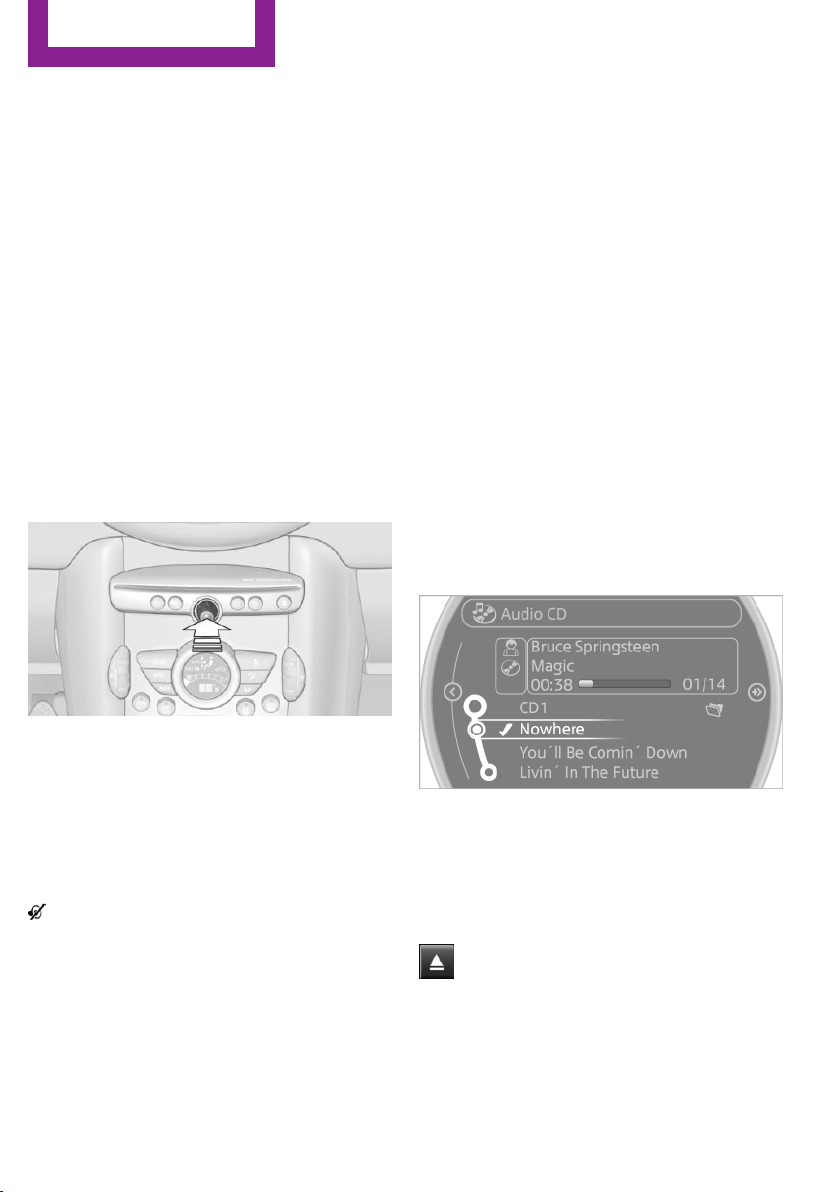
CD/multimedia
Vehicle equipment
This chapter describes all series equipment as
well as country-specific and special equipment
offered for this model series.Therefore, it also
describes equipment that may not be found in
your vehicle, for instance due to the selected
special equipment or the country version. This
also applies to safety-related functions and sys‐
tems.
Sound output
Switching on/off
When the ignition is switched off: press ON/OFF
button on the radio.
Muting
When the ignition is switched on or the engine
is running: press the ON/OFF button on the
radio.
This symbol at the upper edge of the Con‐
trol Display indicates that the sound is switched
off.
CD player
Playback
Inserting the CD
Insert the CD with the printed side facing up.
Playback begins automatically.
Reading can take a few minutes with com‐
pressed audio files.
Starting playback
A CD is contained in the CD player.
1.
"CD/Multimedia"
2. "CD"
3. Select the desired track. Press the MINI joy‐
stick to start playback.
Playable formats
▷ CD: CD-ROM, CD-R, CD-RW, CD-DA.
▷ Compressed audio files: MP3, WMA, AAC.
Ejecting the CD
Press the button on the CD player.
The CD emerges slightly from the drive.
Seite 166
Entertainment
CD/multimedia
166
Online Edition for Part no. 01 40 2 911 544 - VI/13
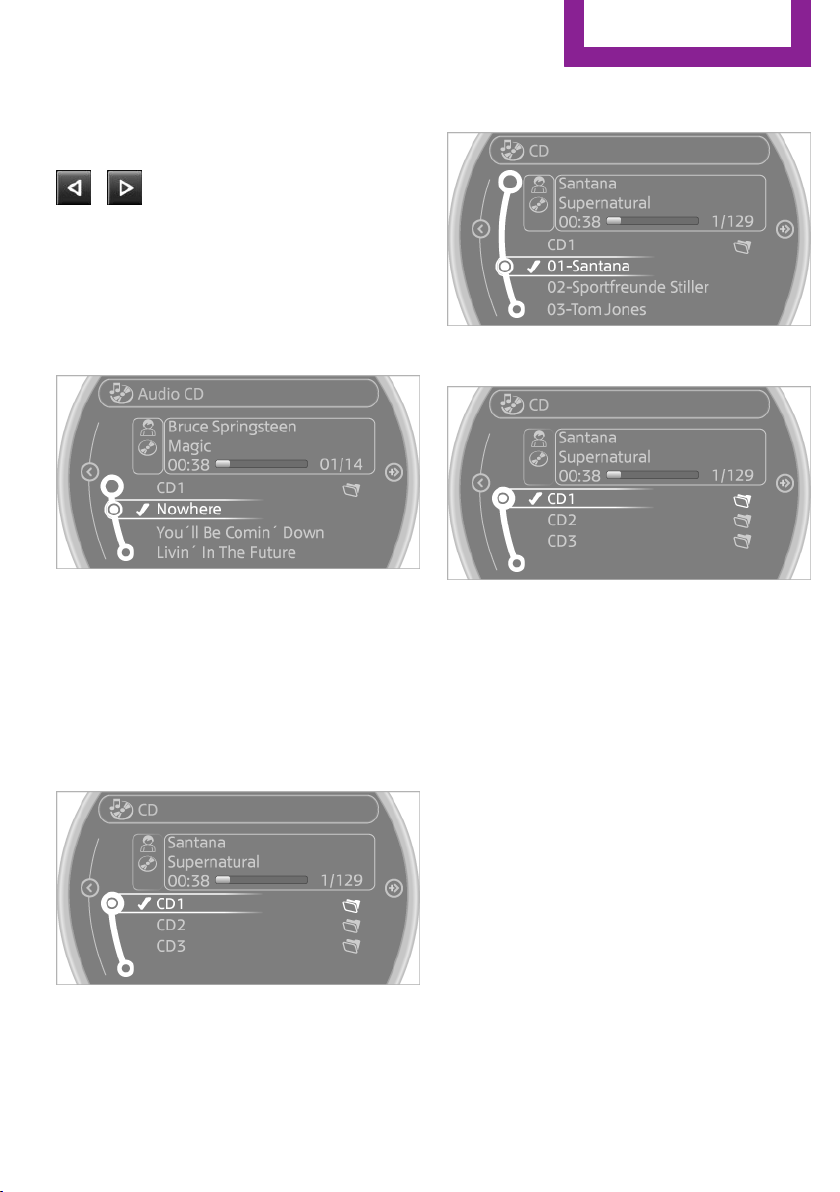
Audio playback
Selecting the track using the button
Press the button for the appropri‐
ate direction as often as necessary until the de‐
sired track is played back.
Selecting the track on the onboard
monitor
Audio CDs
Select the desired track to begin playback.
CDs with compressed audio files
Depending on the data, some letters and num‐
bers of the CD may not be displayed correctly.
1.
Select the directory if necessary.
To change to a higher level directory: move
the MINI joystick to the left.
2. Select the desired track to begin playback.
Displaying information on the track
If information about a track has been stored, it
is displayed automatically:
▷ Artist.
▷ Album track.
▷ Number of tracks on the CD.
▷ File name of track.
Random playback
1.
"CD/Multimedia"
2. "CD"
3. Select the desired CD.
Seite 167
CD/multimedia
Entertainment
167
Online Edition for Part no. 01 40 2 911 544 - VI/13
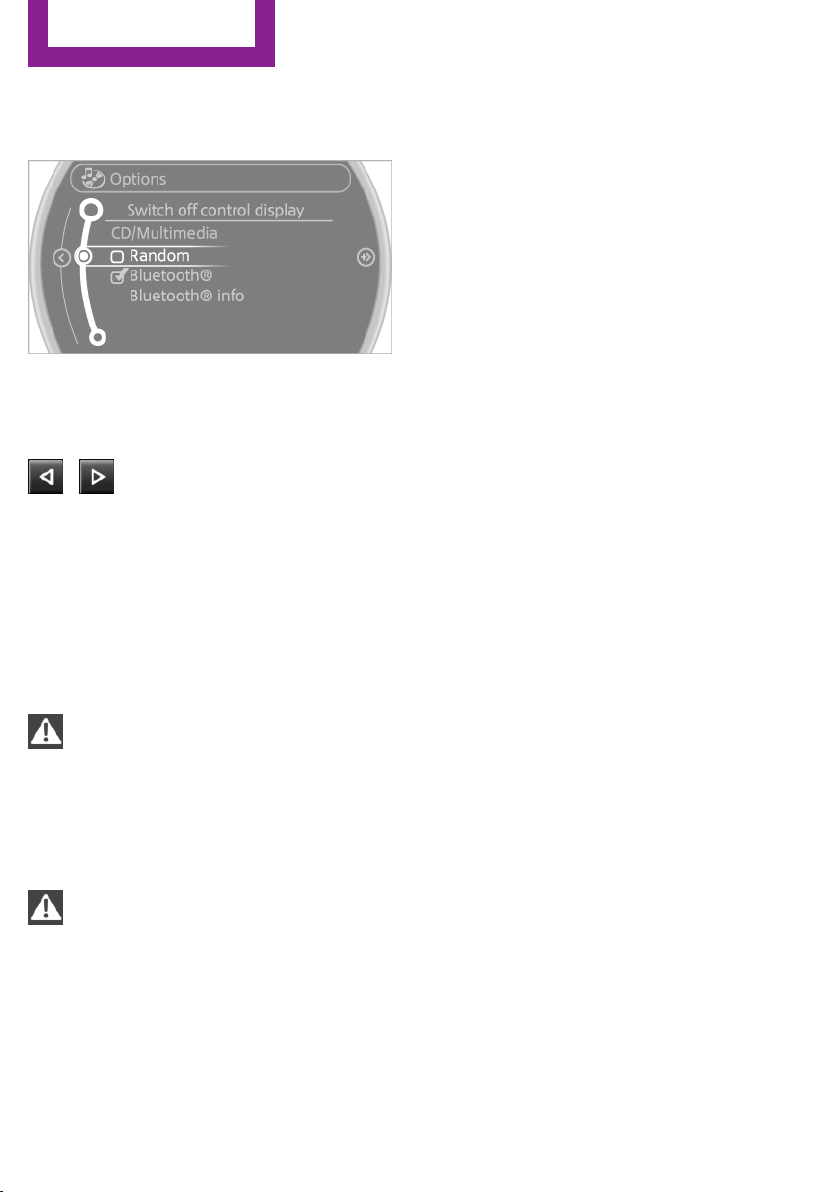
4. Open "Options".
5. "Random"
To switch off random playback: press the
MINI joystick.
Fast forward/reverse
Press and hold the button for the
corresponding direction.
Automatic repeat
The selected track, directories, or CDs are re‐
peated automatically.
Notes
CD player
Do not remove the cover
The CD players are officially designated
Class 1 laser products. Do not operate if the
cover is damaged; otherwise, severe eye dam‐
age can result.◀
CDs
Using CDs
▷ Do not use self-recorded CDs with la‐
bels applied, as these can become
detached during playback due to
heat buildup and can cause irrepara‐
ble damage to the device.
▷ Only use round CDs with a standard diame‐
ter of 4.7 in/12 cm and do not play CDs
with an adapter, e.g., single CDs; otherwise,
the CDs or the adapter may jam and no lon‐
ger eject.◀
General malfunctions
▷ The CD players have been optimized for
performance in vehicles. In some instances
they may be more sensitive to faulty CDs
than stationary devices would be.
▷ If a CD cannot be played, first check if it has
been inserted correctly.
Humidity
High levels of humidity can lead to condensa‐
tion on the CD or the laser's scan lens, and tem‐
porarily prevent playback.
Malfunctions with particular CDs
If malfunctions occur only with particular CDs,
this can be due to one of the following causes:
Self-recorded CDs
▷ Possible reasons for malfunctions with self-
recorded CDs are inconsistent data creation
or recording processes, or poor quality or
old age of the blank CD.
▷ Only label CDs on the upper side with a pen
intended for this purpose.
Damage
▷ Avoid fingerprints, dust, scratches and
moisture.
▷ Store CDs in a sleeve.
▷ Do not subject CDs to temperatures over
50 ℃/122 ℉, high humidity, or direct sun‐
light.
CDs with copy protection
CDs are often provided with a copy protection
feature by the manufacturer. This can mean
Seite 168
Entertainment
CD/multimedia
168
Online Edition for Part no. 01 40 2 911 544 - VI/13
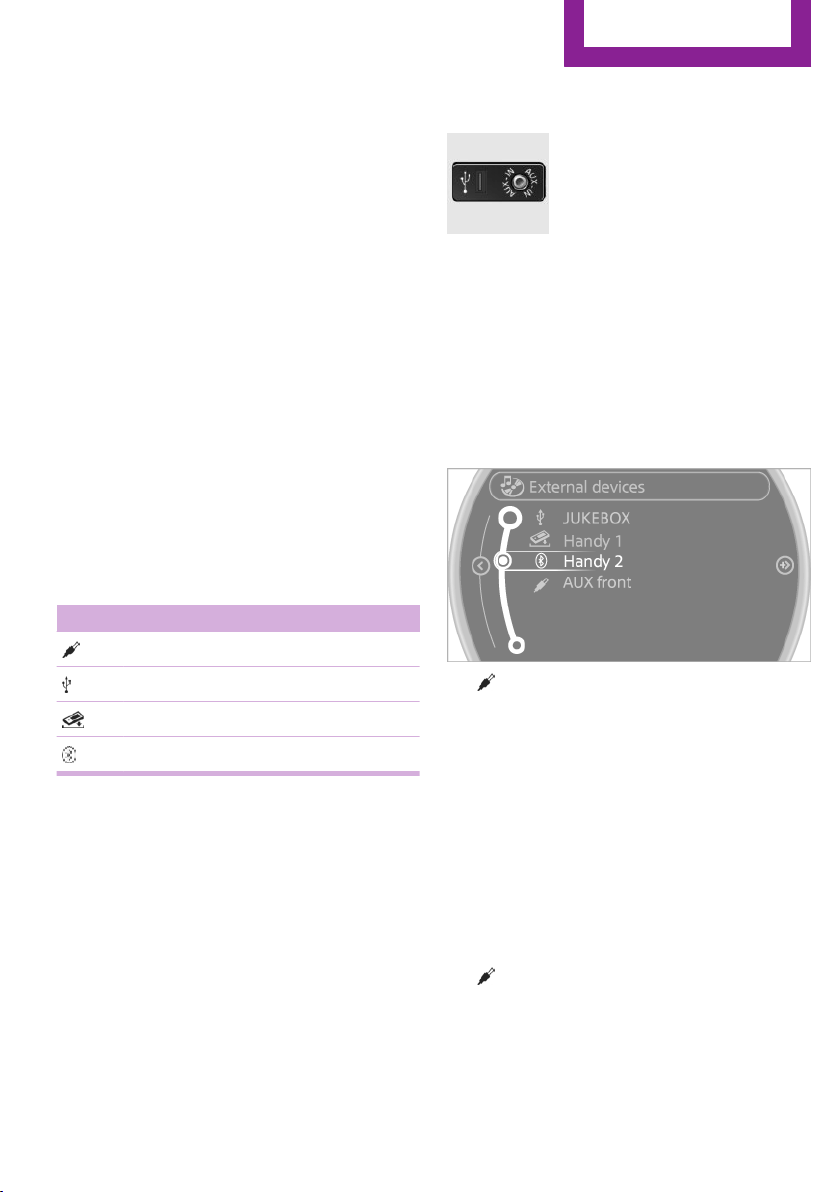
that some CDs cannot be played or can only be
played to a limited extent.
MACROVISION
This product contains copyrighted technology
that is based on multiple registered US patents
and the intellectual property of the Macrovision
Corporation and other manufacturers. The use
of this copy protection must be approved by
Macrovision. Media protected by this product -
unless otherwise agreed with Macrovision -
may only be used for private purposes. Copying
of this technology is prohibited.
External devices
At a glance
Various external devices can be connected with
the vehicle. Depending on how the device is
connected to the vehicle, it may be possible to
operate it using the MINI joystick.
Symbol Meaning
AUX-IN port
USB audio interface
Music interface for smartphones
Bluetooth audio
AUX-IN port
At a glance
▷ For connecting audio devices, e.g., MP3
player. The sound is output on the vehicle
loudspeakers.
▷ Recommendation: use medium tone and
volume settings on the audio device. The
tone depends on the quality of the audio
files.
Connecting
The AUX-IN port is in the center
console.
Connect the headphone connec‐
tor or line-out connector of the
device to the AUX-IN port.
Ensure that the connector is inserted all the
way into the AUX-IN port.
Playback
1. Connect the audio device, switch it on and
select a track on the audio device.
2. "CD/Multimedia"
3. If necessary, "External devices"
4. "AUX front"
Sound is output on the vehicle loudspeakers.
Volume
The volume of the sound output is dependent
on the audio device. If this volume differs
markedly from the volume of the other audio
sources, it is advisable to adjust the volumes.
Adjusting the volume
1.
"CD/Multimedia"
2. If necessary, "External devices"
3. "AUX front"
Seite 169
CD/multimedia
Entertainment
169
Online Edition for Part no. 01 40 2 911 544 - VI/13
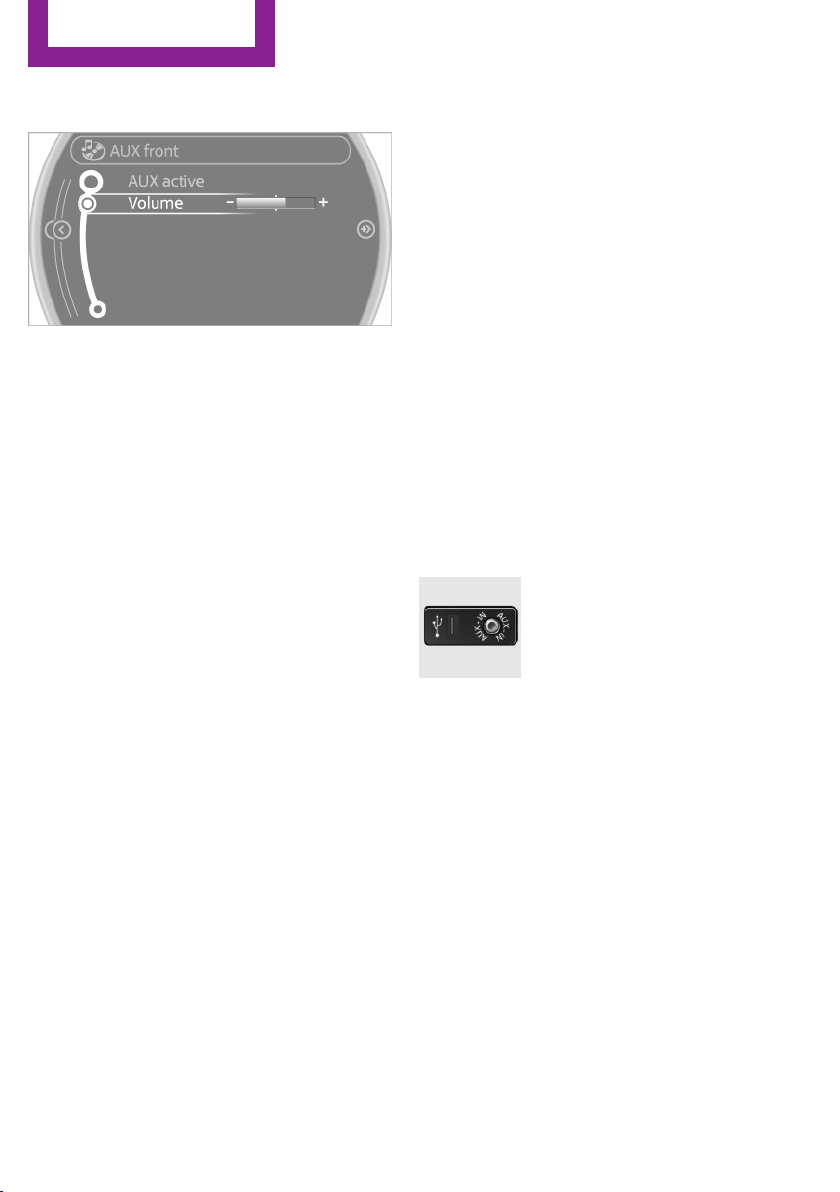
4. "Volume"
5. Turn the MINI joystick until the desired vol‐
ume is set and press the MINI joystick.
USB audio interface/music interface for
smartphones
At a glance
It is possible to connect external audio devices.
They are operated via the onboard monitor.
The sound is output on the vehicle loudspeak‐
ers.
Connectors for external devices
▷ Connection via USB audio interface: Apple
iPod/iPhone, USB devices, e.g., MP3 play‐
ers, USB flash drives, or mobile phones that
are supported by the USB audio interface.
▷ Connection via snap-in adapter, when
equipped with the music interface for
smartphones: Apple iPhone or mobile
phones.
Playback is only possible if no audio device
is connected to the analog AUX-IN port.
Due to the large number of different audio de‐
vices available on the market, it cannot be en‐
sured that every audio device/mobile phone is
operable on the vehicle.
Ask your service center about suitable audio
devices/mobile phones.
Audio files
Standard audio files can be played back:
▷ MP3.
▷ WMA.
▷ WAV (PCM).
▷ AAC, M4A.
▷ Without the voice activation system: play‐
back lists: M3U
▷ With the voice activation system: playback
lists: M3U, WPL, PLS
Video files
Standard video files can be played back with a
compatible Apple device:
▷ MPEG4
▷ H.264
File system
Standard file systems for USB devices are sup‐
ported. The FAT 32 format is recommended.
Connecting
The USB audio interface is in the
center console.
Connection of Apple iPod/iPhone via USB
audio interface
To connect the iPod, use the special cable
adapter for the Apple iPod. Additional informa‐
tion can be obtained from the service center or
on the Internet: www.mini.com/connectivity.
Connect the Apple iPod/iPhone with the AUX-
IN port and USB interface.
The Apple iPod/iPhone menu structure is sup‐
ported by the USB audio interface.
Connection of a USB device via the USB
audio interface
Connect using a flexible adapter cable to pro‐
tect the USB audio interface and the USB device
against physical damage.
Connect the USB device to the USB interface.
Seite 170
Entertainment
CD/multimedia
170
Online Edition for Part no. 01 40 2 911 544 - VI/13
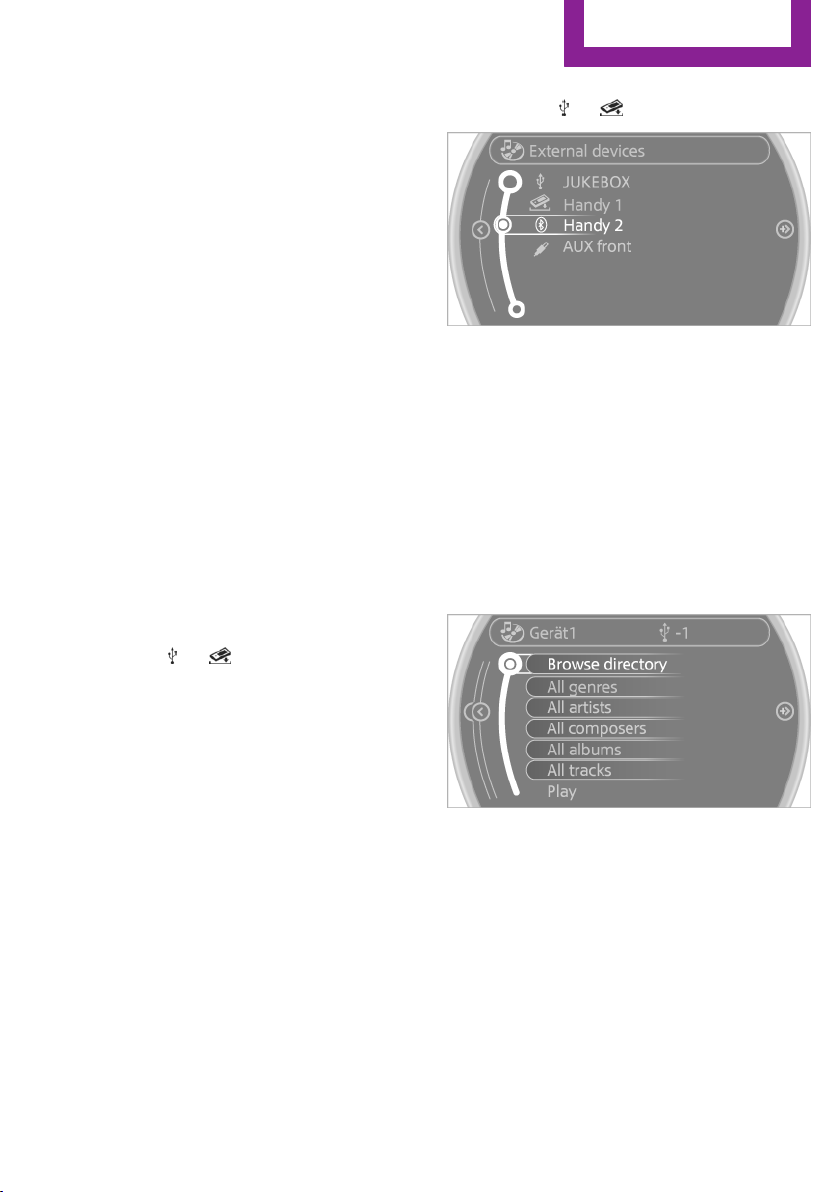
After connecting for the first time
Information on all music tracks, e.g. artist or
type of music, as well as playback lists are
transmitted into the vehicle. This may take
some time, depending on the USB device and
the number of tracks.
During transmission, the tracks can be called up
via the file directory.
Number of tracks
Information from up to four USB devices or for
approx. 26,000 tracks can be stored in the ve‐
hicle. If a fifth device is connected or if more
than 26,000 tracks are stored, information on
existing tracks may be deleted.
Copy protection
Music tracks with integrated Digital Rights Man‐
agement (DRM) cannot be played.
Audio playback
1.
"CD/Multimedia"
2. "External devices"
3. Select the or symbol.
The playback starts with the first track.
The CD cover belonging to the track may ap‐
pear on the Control Display after several sec‐
onds.
Track search
Selection is possible via:
▷ Playback lists.
▷ Information: type of music, artist, and, if
available, composer, album, track.
▷ Additionally for USB devices: file directory,
composer.
Tracks are displayed if they have been saved in
the Latin alphabet.
Starting the track search
1.
"CD/Multimedia"
2. "External devices"
3. Select the or symbol.
4. "Search"
5. Select the desired category, e.g., "Genre" or
"Artist".
All entries are displayed in a list.
▷ Open "A-Z search" and input the de‐
sired entry. When a letter is entered,
the results are filtered using this letter
as the first letter. If multiple letters are
entered, all results that contain that se‐
quence are displayed.
▷ Select the desired entry from the list.
6. Select other categories if you wish.
Not all categories need to be selected. For
example, if all of the tracks by a certain ar‐
tist are to be displayed, call up that artist
only. All of the tracks by that artist are then
displayed.
7. "Play"
Restarting a track search
"New search"
Seite 171
CD/multimedia
Entertainment
171
Online Edition for Part no. 01 40 2 911 544 - VI/13
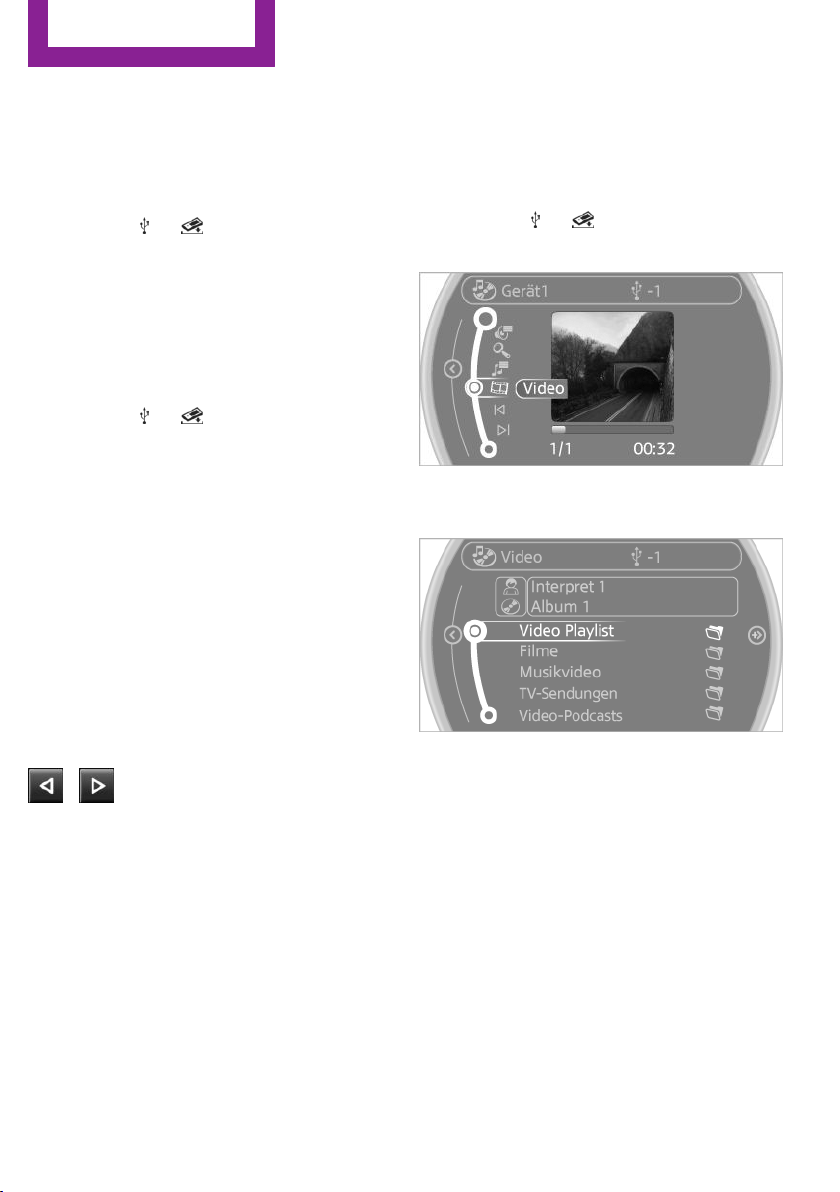
Playback lists
Calling up playback lists.
1. "CD/Multimedia"
2. "External devices"
3. Select the or symbol.
4. "Playlists"
Current playback
List of tracks currently being played.
1. "CD/Multimedia"
2. "External devices"
3. Select the or symbol.
4. "Current playback"
Random playback
The current list of tracks is played back in ran‐
dom order.
1.
"CD/Multimedia"
2. "External devices"
3. Open "Options".
4. "Random"
Fast forward/reverse
Buttons on the steering wheel or on the CD
player:
Press and hold the button for the
corresponding direction.
Video playback
At a glance
Video playback is only possible with a compati‐
ble iPod/iPhone. Connect using a video-capable
adapter cable or, if applicable, a snap-in
adapter.
Playback
The video image on the Control Display is dis‐
played while the vehicle is stationary; in some
countries, the handbrake must be set or P must
be engaged.
1. "CD/Multimedia"
2. "External devices"
3. Select the or symbol.
4. "Video"
5. Select the desired file.
Select the category in the file directory.
6. Press the MINI joystick.
Playback of the selected video file starts.
Notes
Do not expose the audio device to extreme en‐
vironmental conditions, such as very high tem‐
peratures; refer to the audio device operating
instructions.
Depending on the configuration of the audio
files, e.g., bit rates greater than 256 kbit/s, the
files may not play back correctly in each case.
Audio and video playback from the snap-in
adapter is only possible if no cable is connected
to the AV-IN port.
Seite 172
Entertainment
CD/multimedia
172
Online Edition for Part no. 01 40 2 911 544 - VI/13
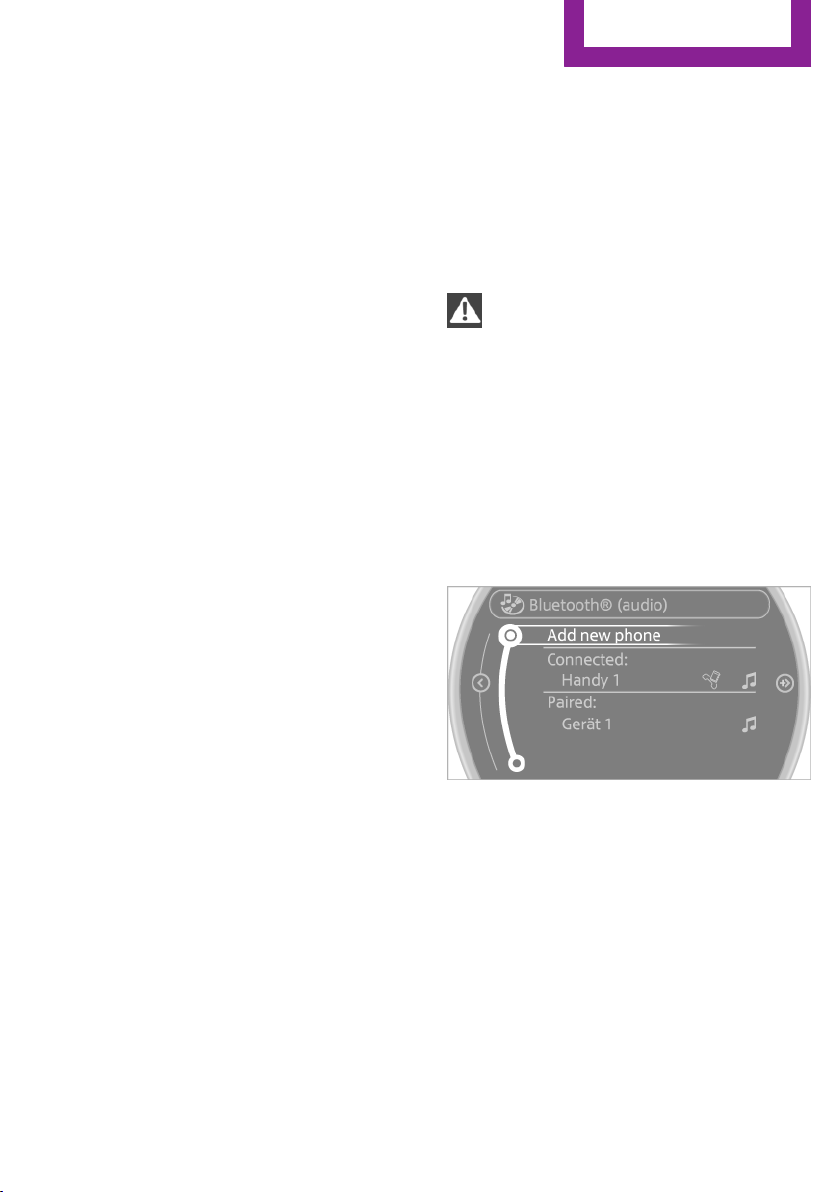
Information on connection
▷ The connected audio device is supplied
with a max. power of 500 mA if supported
by the device. Therefore, do not addition‐
ally connect the device to a socket in the
vehicle; otherwise, playback may be com‐
promised.
▷ Do not use force when plugging the con‐
nector into the USB interface.
▷ Do not connect devices such as fans or
lamps to the USB audio interface.
▷ Do not connect USB hard drives.
▷ Do not use the USB audio interface to re‐
charge external devices.
Bluetooth audio
At a glance
▷ Music files on external devices such as au‐
dio devices or mobile phones can be played
back via Bluetooth.
Use of a mobile phone as an audio source,
refer to page 192.
▷ Bluetooth® is a registered trademark of
Bluetooth® SIG, Inc.
▷ The sound is output on the vehicle loud‐
speakers.
▷ The volume of the sound output is depend‐
ent on the device. If necessary, adjust the
volume on the device.
▷ Up to four external devices can be paired
with the vehicle.
Requirements
▷ The device is suitable. Information under
www.mini.com/connectivity.
▷ The device is ready for operation.
▷ The ignition is switched on.
▷ Bluetooth is activated on the vehicle, refer
to page 191, and on the device.
▷ Bluetooth presettings must be made on the
device, such as for a connection without
confirmation or visibility; refer to the device
operating instructions.
▷ A number with at least four and a maxi‐
mum of 16 digits is defined as the Blue‐
tooth passkey. It is only required once for
pairing.
Pairing and connecting
Pairing a device
To avoid becoming distracted and posing
an unnecessary hazard both to your own vehi‐
cle's occupants and to other road users, only
pair the device while the vehicle is stationary.◀
1.
"CD/Multimedia"
2. "Bluetooth® (audio)"
3. If necessary, "Bluetooth® audio".
4. "Add new phone"
The Bluetooth name of the vehicle is dis‐
played.
5. Perform additional steps on the device, re‐
fer to the device operating instructions: for
instance, search for or connect the Blue‐
tooth device or a new device.
The Bluetooth name of the vehicle appears
on the device display.
6. Select the Bluetooth name of the vehicle on
the device display.
You are prompted by the onboard monitor
or device to enter the same Bluetooth pass‐
key.
7. Enter the passkey and confirm.
or
Seite 173
CD/multimedia
Entertainment
173
Online Edition for Part no. 01 40 2 911 544 - VI/13
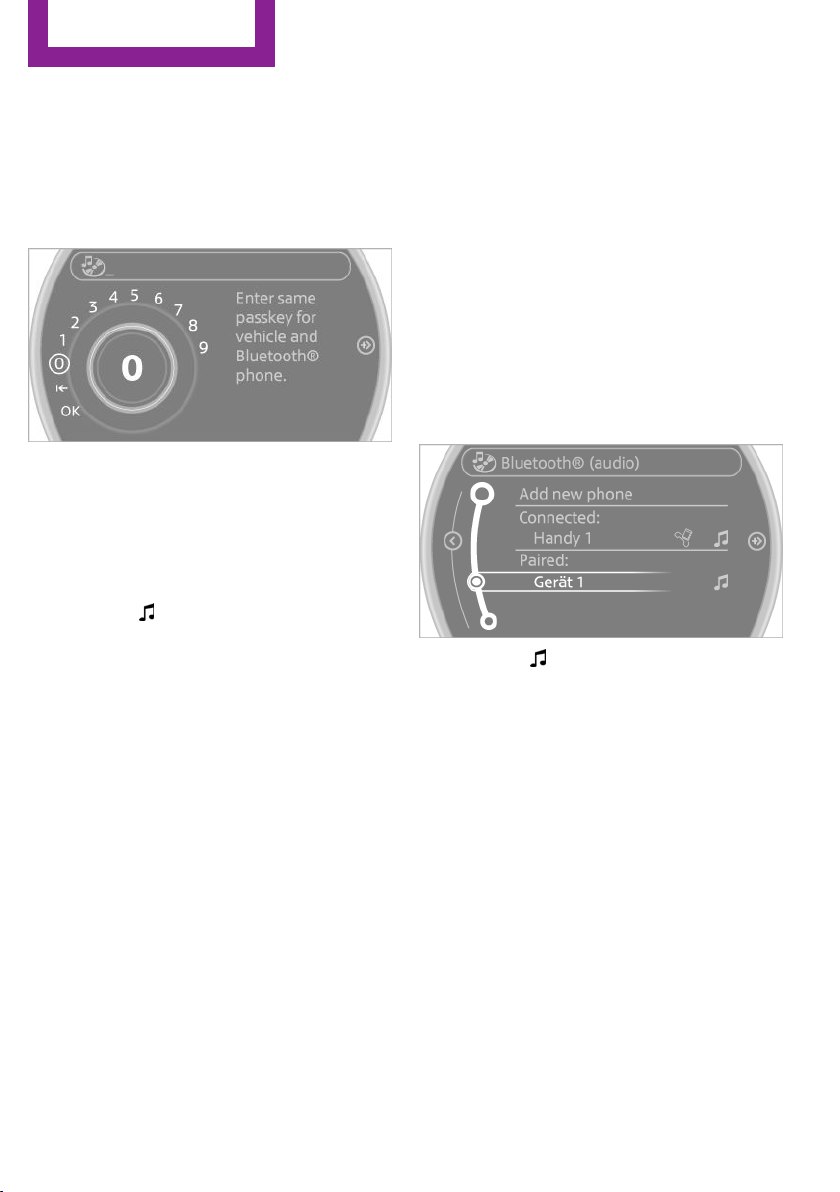
Compare the control number on the vehicle
display with the control number on the mo‐
bile phone display. Confirm the control
number on the mobile phone and in the
vehicle.
"OK"
8. Select the desired functions with which the
device is to be connected, for instance
"Audio".
9. "OK"
If pairing was successful, the device is displayed
as connected.
White symbol : the device is active as an au‐
dio source.
If pairing was unsuccessful: What to do if..., re‐
fer to page 175.
Connecting a specific device
A device that has already been paired can be
connected as an active audio source.
Connecting is not possible when data is ex‐
changed via a mobile phone connected via
Bluetooth.
Requirements
If necessary, activate the audio connection of
the desired device from the list of paired devi‐
ces.
1.
"CD/Multimedia"
2. "Bluetooth® (audio)"
3. If necessary, "Bluetooth® audio".
4. Select the desired device from the list of
paired devices.
5. Open "Options".
6. "Configure phone"
7. Activate "Audio".
8. "OK"
Connecting the device
1. "CD/Multimedia"
2. "Bluetooth® (audio)"
3. If necessary, "Bluetooth® audio".
4. Select the desired device from the list of
paired devices.
White symbol : the device is active as an au‐
dio source.
Playback
General information
▷ The display of music track information de‐
pends on the device.
▷ Operation can takes place on the device or
onboard monitor.
▷ Playback is interrupted when data is ex‐
changed via a mobile phone connected via
Bluetooth.
Starting playback
1.
Connect the device.
2. "CD/Multimedia"
3. "External devices"
Seite 174
Entertainment
CD/multimedia
174
Online Edition for Part no. 01 40 2 911 544 - VI/13
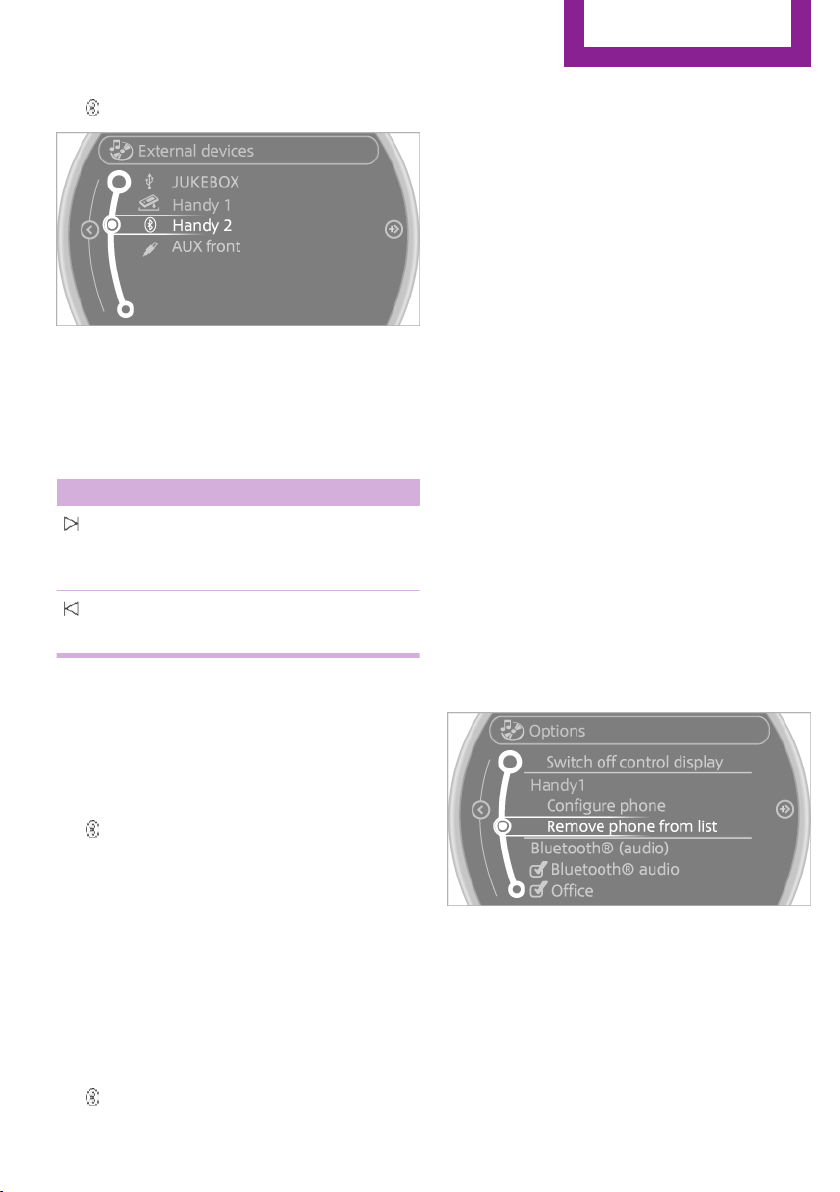
4. Select the symbol.
5. Select the desired track from the list, if nec‐
essary.
Playback menu
Depending on the particular device, some of
the functions may not be available.
Symbol Function
Next track
Fast forward: press and hold the sym‐
bol.
Previous music track
Reverse: press and hold the symbol.
Track search
Music track search is possible depending on the
device.
1.
"CD/Multimedia"
2. "External devices"
3. Select the symbol.
4. "Search device content"
5. "A-Z search"
6. Select the desired entry or directory.
Playback mode
Depending on the device, different programs
for playing back music files might be available.
1.
"CD/Multimedia"
2. "External devices"
3. Select the symbol.
4. Open "Options".
5. Open "Select player".
6. Select the desired channel.
Disconnecting the audio connection
1. "CD/Multimedia"
2. "Bluetooth® (audio)"
3. Highlight the desired device.
4. Open "Options".
5. "Configure phone"
6. "Audio"
7. "OK"
In the case of a mobile phone, only the audio
connection is disconnected. All other connec‐
tions are retained.
Unpairing a device
1.
"CD/Multimedia"
2. "Bluetooth® (audio)"
3. If necessary, "Bluetooth® audio".
4. Highlight the device that is to be unpaired.
5. Open "Options".
6. "Remove phone from list"
What to do if...
Information on suitable devices can be found at
www.mini.com/connectivity.
Suitable mobile phones, refer to page 190.
The device is not supported by the vehicle.
▷ Perform a software update, refer to
page 176, if needed.
Seite 175
CD/multimedia
Entertainment
175
Online Edition for Part no. 01 40 2 911 544 - VI/13

The device could not be paired or connected.
▷ Do the Bluetooth passkeys on the device
and the vehicle match? Enter the same
passkey on the device and via the onboard
monitor.
▷ A multi-character passkey may be needed.
▷ Did it take longer than 30 seconds to enter
the passkey? Repeat the pairing procedure.
▷ Are too many Bluetooth devices connected
to the device or vehicle? Delete connec‐
tions with other devices if necessary.
▷ Is the mobile phone in power-save mode or
does it have only a limited remaining bat‐
tery life? Charge the mobile phone in the
snap-in adapter or via a charging cable.
▷ Depending on the mobile phone, it is possi‐
ble that only one device can be connected
to the vehicle. Unpair the connected device
from the vehicle and pair and connect only
one device.
▷ The device no longer reacts? Switch the de‐
vice off and on again.
▷ Repeat the pairing procedure.
Music cannot be played back.
▷ Start the program for playing back music
data on the device and select a track on the
device if necessary.
▷ Switch the radio on and off again.
Music files can only be played back softly.
▷ Adjust the volume settings on the device.
Videos can only be played back without audio
or with delayed audio.
▷ Check the compatibility of the devices. In‐
formation under www.mini.com/connectiv‐
ity.
Playback is disturbed when buttons are pressed
or by other messages on the device.
▷ Switch off the button tones and other signal
tones on the device.
Playback is interrupted by a telephone call or
traffic bulletin and is not resumed automati‐
cally.
▷ Switch the radio on and off again.
Playback is not possible if the mobile phone is
connected via Bluetooth Audio while it is also
connected via the music interface for smart‐
phones in the snap-in adapter.
▷ Disconnect one of the two connections; for
example, disconnect the audio connection,
refer to page 175, and restart playback.
If all points in this list have been checked and
the required function is still not available,
please contact the hotline or service center.
Software Update
The vehicle supports various external devices
depending on the current software version.
With a software update, the vehicle can support
new mobile phones or new external device, for
example.
Software updates and related current informa‐
tion is available at www.mini.com/connectivity.
Displaying the current version
The currently installed software is displayed.
1.
"Settings"
2. "Software update"
3. "Show current version"
Updating the software
The software may only be updated when the
vehicle is stationary.
1.
Store the file for the software-update in the
main director of a USB flash drive.
2. Insert the USB flash drive into the USB au‐
dio interface in the center console. An up‐
date via the USB interface in the glove com‐
partment is not possible.
3. "Settings"
4. "Software update"
Seite 176
Entertainment
CD/multimedia
176
Online Edition for Part no. 01 40 2 911 544 - VI/13

5. "Update software"
6. "Start update"
7. "OK"
All listed software updates are installed.
Restoring the previous version
The software version prior to the last software
update can be restored.
The previous version can only be restored when
the vehicle is stationary.
1.
"Settings"
2. "Software update"
3. "Restore previous version"
4. "OK" Double-click.
All listed software updates are removed.
Note
While the software is being updated or a previ‐
ous version is being restored, MINI Connected,
Office functions, and the connected devices are
temporarily unavailable. Wait several minutes
for the functions to become available again.
Seite 177
CD/multimedia
Entertainment
177
Online Edition for Part no. 01 40 2 911 544 - VI/13

CONNECT ME.
Online Edition for Part no. 01 40 2 911 544 - VI/13

At a glance
Controls
Driving tips
Navigation
Entertainment
Communication
Mobility
Reference
Online Edition for Part no. 01 40 2 911 544 - VI/13

Bluetooth hands-free system
Vehicle equipment
This chapter describes all series equipment as
well as country-specific and special equipment
offered for this model series.Therefore, it also
describes equipment that may not be found in
your vehicle, for instance due to the selected
special equipment or the country version. This
also applies to safety-related functions and sys‐
tems.
At a glance
The concept
Mobile phones can be connected with the vehi‐
cle via Bluetooth.
Bluetooth® is a registered trademark of Blue‐
tooth® SIG, Inc.
After these devices are paired once, they are
recognized automatically when the ignition is
switched on as soon as they are in the vehicle
and can then be operated via the onboard
monitor, the buttons on the steering wheel,
and voice activation.
Up to four external devices can be paired.
Certain functions may need to be enabled by
the mobile phone provider or service provider.
Using the mobile phone while driving
Make entries only when traffic and road
conditions allow. Do not hold the mobile phone
in your hand while you are driving; use the
hands-free system instead. If you do not ob‐
serve this precaution, you can endanger the ve‐
hicle occupants and other road users.◀
Approved mobile phones
Details on which mobile phones are supported
by the hands-free system can be obtained at
www.mini.com/connectivity.
Displaying the vehicle identification
number and software part number
The vehicle identification number and software
part number are needed to determine which
mobile phones are supported by the mobile
phone preparation package. The software ver‐
sion of the mobile phone may also be required.
1. "Telephone"
2. Open "Options".
3. "Bluetooth® info"
4. "Display system information"
These approved mobile phones with a certain
software version, support the vehicle functions
described below.
Malfunctions may occur with other mobile
phones or software versions.
Do not operate a mobile phone that is con‐
nected to the vehicle on the mobile phone key‐
pad, as this may lead to a malfunction.
Notes
At high temperatures, the charging function of
the mobile phone may be limited and functions
may not be executed.
When using the mobile phone via the vehicle,
note the operating instructions of the mobile
phone.
Pairing/unpairing the
mobile phone
Requirements
▷ The mobile phone is suitable, refer to
page 180.
▷ The mobile phone is ready for operation.
▷ Bluetooth is activated in the vehicle and on
the mobile phone.
Seite 180
Communication
Bluetooth hands-free system
180
Online Edition for Part no. 01 40 2 911 544 - VI/13
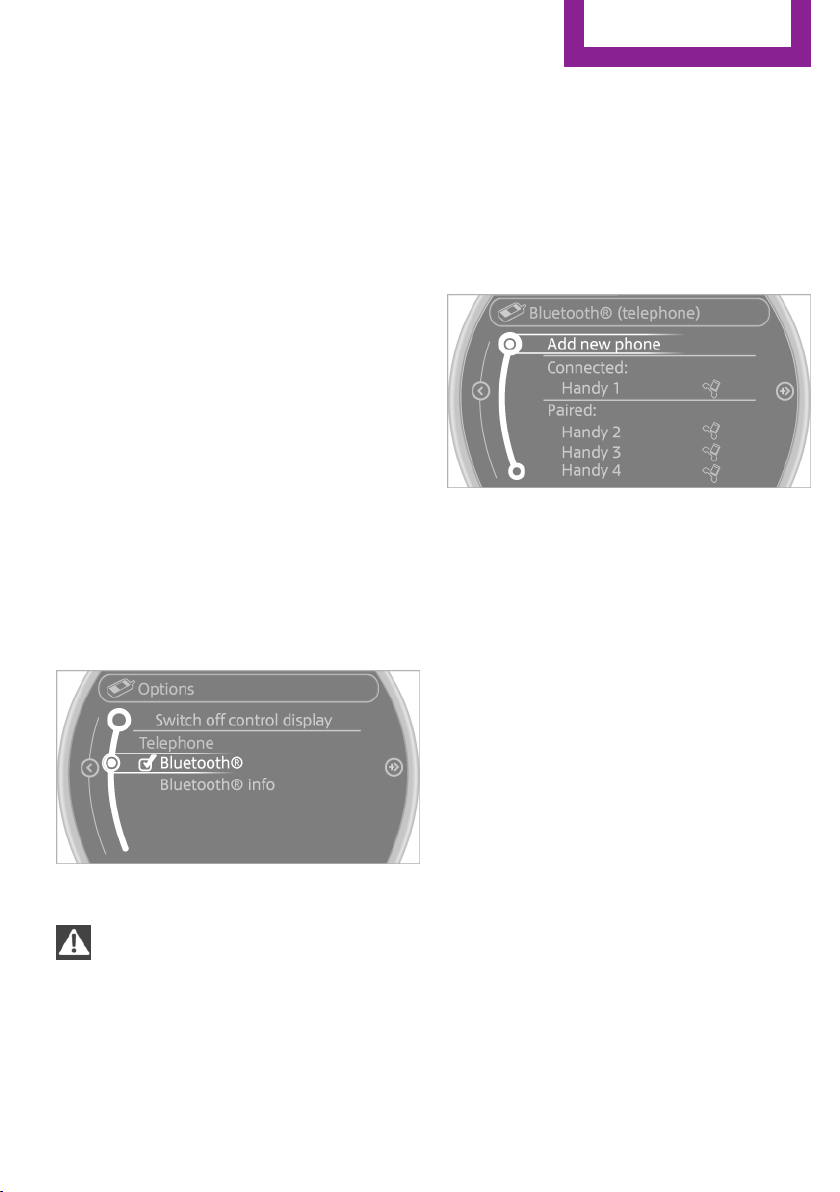
▷ Bluetooth presettings may need to be
made on the mobile phone, e.g., for a con‐
nection without confirmation or visibility,
refer to the mobile phone operating in‐
structions.
▷ Deactivate Bluetooth audio if necessary.
▷ A number with at least four and a maxi‐
mum of 16 digits was defined as the Blue‐
tooth passkey. It is only required once for
pairing.
▷ Compare the control number on the Control
Display with the control number on the mo‐
bile phone display. Confirm the control
number on the mobile phone and in the
vehicle.
▷ The radio ready state is switched on.
Activating/deactivating Bluetooth
Bluetooth is not permitted everywhere. Comply
with all safety guidelines and regulations.
1.
"Telephone"
2. Open "Options".
3. "Bluetooth®"
Pairing and connecting a mobile phone
Pairing the mobile phone
To avoid becoming distracted and posing
an unnecessary hazard both to your own vehi‐
cle's occupants and to other road users, only
pair the mobile phone while the vehicle is sta‐
tionary.◀
1. "Telephone"
2. "Bluetooth® (phone)"
3. "Add new phone"
The Bluetooth name of the vehicle is dis‐
played.
4. To perform additional steps on the mobile
phone, refer to the mobile phone operating
instructions: for instance, search for or con‐
nect the Bluetooth device or a new device.
The Bluetooth name of the vehicle appears
on the mobile phone display.
5. Select the Bluetooth name of the vehicle on
the mobile phone display.
6. You are prompted by the onboard monitor
or mobile phone to enter the same Blue‐
tooth passkey. Enter the passkey and con‐
firm.
or
Compare the control number on the vehicle
display with the control number on the mo‐
bile phone display. Confirm the control
number on the mobile phone and in the
vehicle.
Seite 181
Bluetooth hands-free system
Communication
181
Online Edition for Part no. 01 40 2 911 544 - VI/13
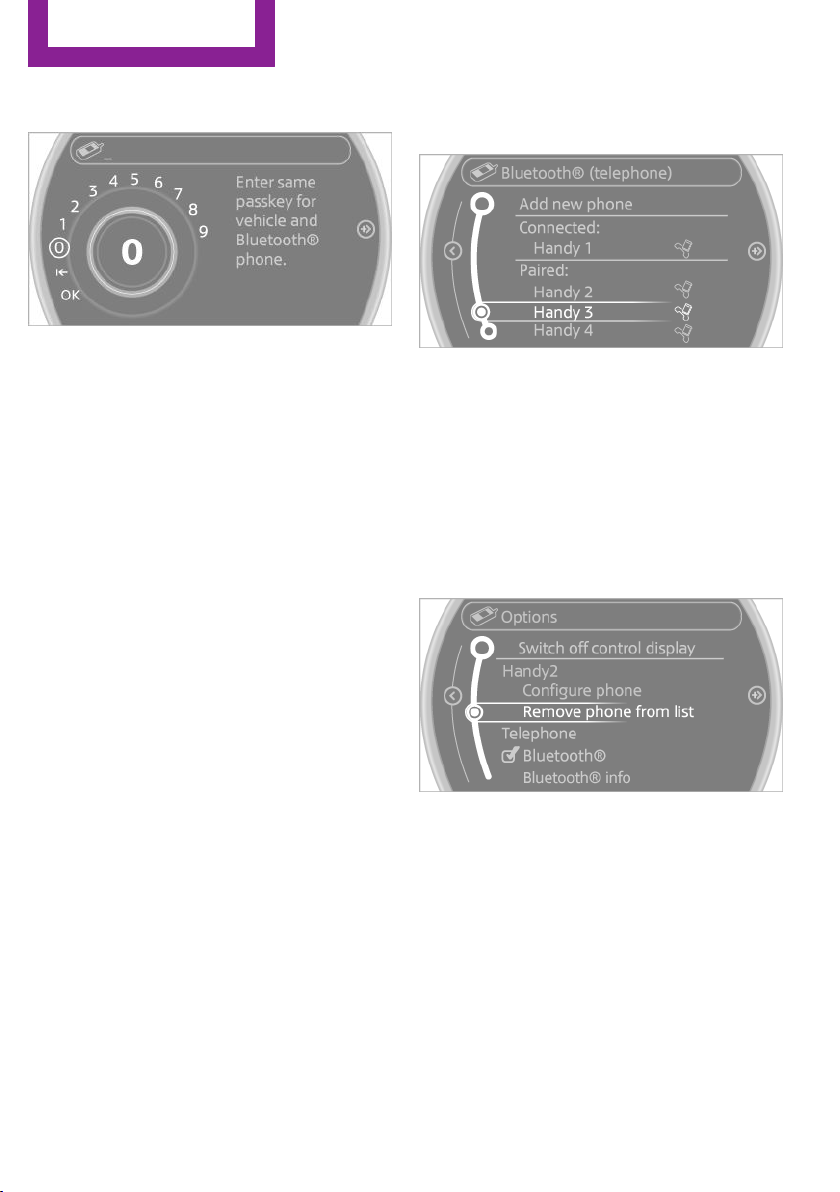
"OK"
7. Select the functions for which the mobile
phone is to be used.
8. "OK"
9. Move the MINI joystick to the left.
If the pairing was successful, the mobile phone
appears at the top of the list of mobile phones.
If pairing was unsuccessful: What to do if..., re‐
fer to page 182.
Following the initial pairing
▷ The mobile phone is detected/connected in
the vehicle within a short period of time
when the engine is running or the ignition
is switched on.
▷ The phone book entries of the telephone
stored on the SIM card or mobile phone are
transmitted to the vehicle after detection,
depending on the mobile phone.
▷ Four mobile phones can be paired.
▷ Specific settings may be necessary in some
mobile phones, e.g., authorization or a se‐
cure connection; refer to the mobile phone
operating instructions.
Connecting a particular mobile phone
1.
"Telephone"
2. "Bluetooth® (phone)"
All paired mobile phones are listed.
3. Select the mobile phone that is to be con‐
nected.
Unpairing the mobile phone
1.
"Telephone"
2. "Bluetooth® (phone)"
All paired mobile phones are listed.
3. Highlight the mobile phone that is to be
unpaired.
4. Open "Options".
5. "Remove phone from list"
What to do if...
Information on suitable mobile phones, refer to
page 180.
The mobile phone could not be paired or con‐
nected.
▷ Is Bluetooth activated in the vehicle and on
the mobile phone? Activate Bluetooth in
the vehicle and on the mobile phone.
▷ Do the Bluetooth passkeys on the mobile
phone and the vehicle match? Enter the
same passkey on the mobile phone and via
the onboard monitor.
Seite 182
Communication
Bluetooth hands-free system
182
Online Edition for Part no. 01 40 2 911 544 - VI/13
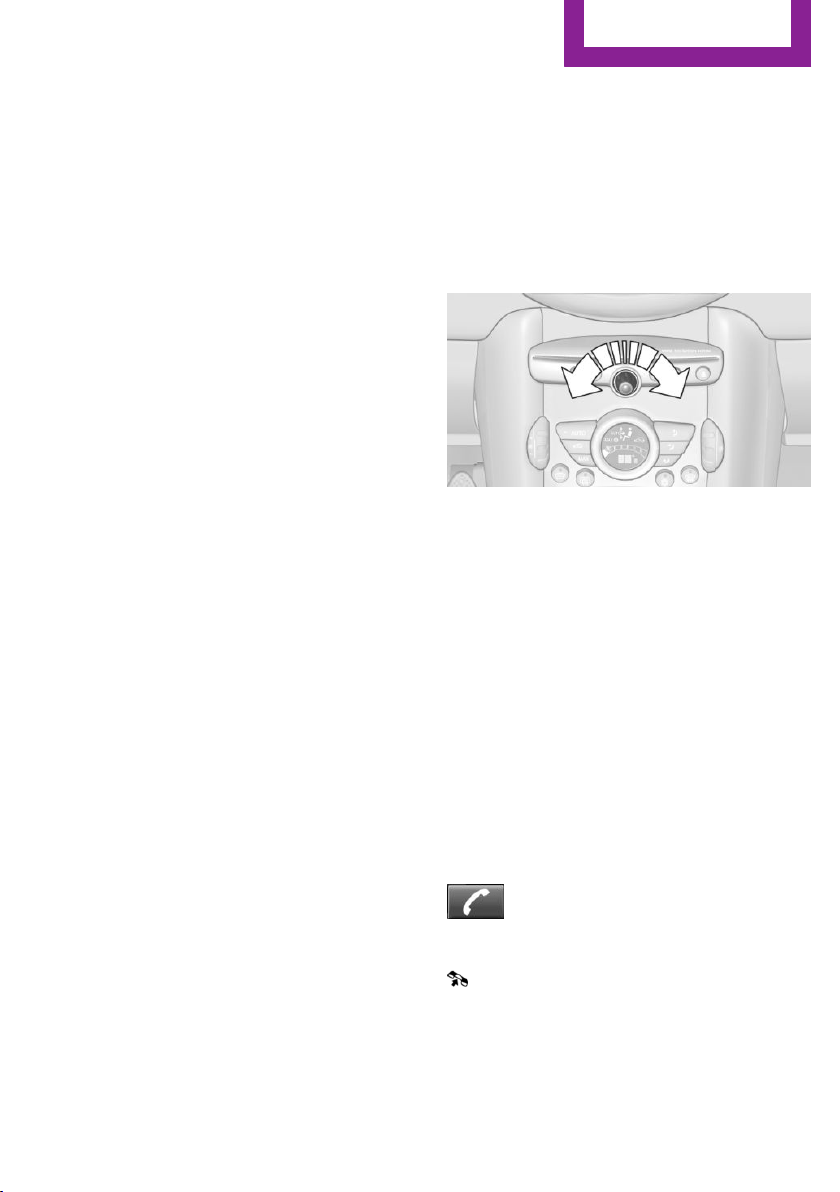
▷ A multi-character passkey may be needed.
▷ Did it take longer than 30 seconds to enter
the passkey? Repeat the pairing procedure.
▷ Are too many Bluetooth devices connected
to the mobile phone or vehicle? Delete con‐
nections with other devices if necessary.
▷ The mobile phone is in power-save mode
or has only a limited remaining battery life.
Charge the mobile phone via the charging
cable.
▷ Depending on the mobile phone, it is possi‐
ble that only one mobile phone can be con‐
nected to the vehicle. Unpair the connected
mobile phone from the vehicle and pair
and connect only one mobile phone.
The mobile phone no longer reacts.
▷ Switch the mobile phone off and on again.
▷ Is the ambient temperature too high or
low? Do not expose the mobile phone to
extreme environmental conditions.
No phone book entries or only some phone
book entries are displayed, or they are incom‐
plete.
▷ Transmission of the phone book entries is
not yet complete.
▷ It is possible that only the phone book en‐
tries of the mobile phone or the SIM card
are transmitted.
▷ It may not be possible to display phone
book entries with special characters.
▷ The number of phone book entries to be
stored is too high.
▷ Is the data volume of the contact too large,
e. g., due to stored information such as
notes? Reduce the data volume of the con‐
tact.
The phone connection quality is poor.
▷ The strength of the Bluetooth signal on the
mobile phone can be adjusted, depending
on the mobile phone.
▷ Place the mobile phone in the area of the
center console.
If all points in this list have been checked and
the required function is still not available, con‐
tact Customer Relations or the service center.
Controls
Adjusting the volume
Turn the knob until the desired volume is se‐
lected. The setting is stored for the remote con‐
trol currently in use.
Incoming call
Receiving calls
If the number of the caller is stored in the
phone book and is transmitted by the network,
the name of the contact is displayed. Other‐
wise, only the phone number is displayed.
If more than one phone number is assigned to
a contact, only the name of the contact is dis‐
played.
Accepting a call
Press the button on the steering
wheel.
or
"Accept"
Seite 183
Bluetooth hands-free system
Communication
183
Online Edition for Part no. 01 40 2 911 544 - VI/13
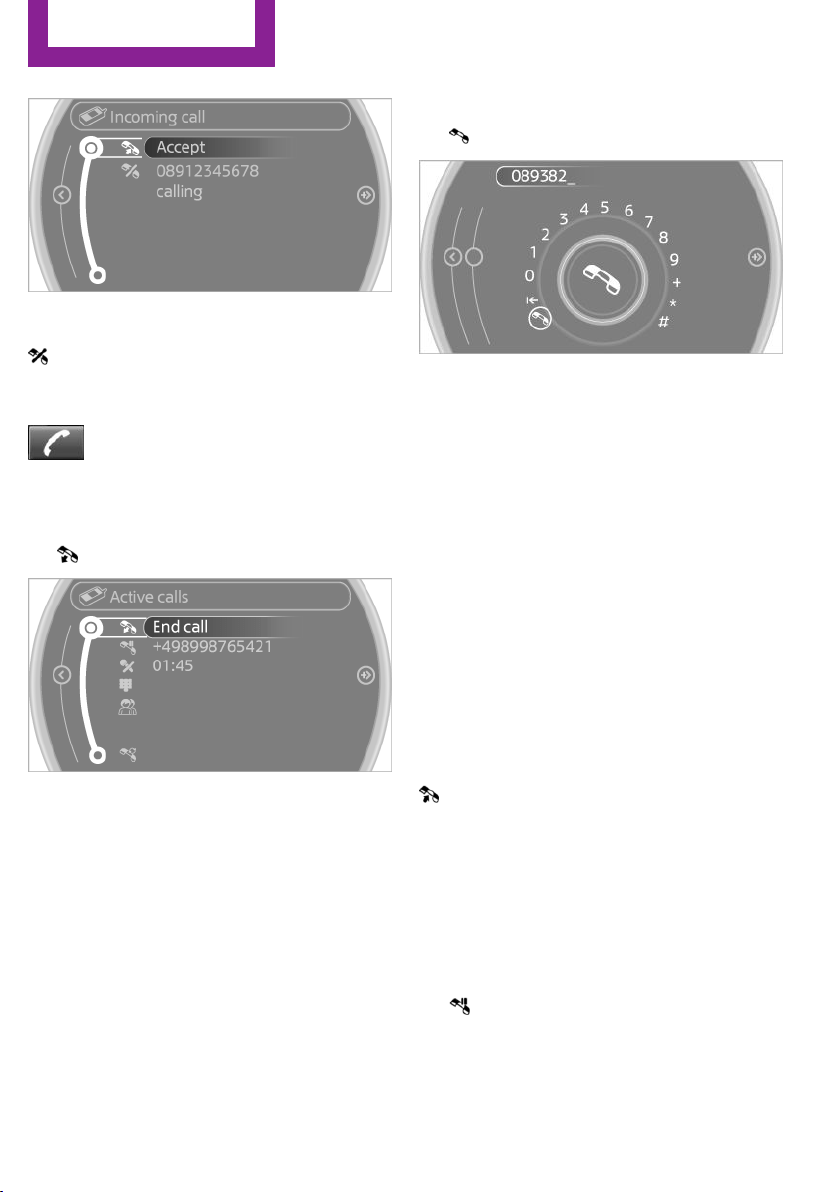
Rejecting a call
"Reject"
Ending a call
Press the button on the steering
wheel.
or
1.
"Telephone"
2. "End call"
Entering a phone number
Dialing a number
1.
"Telephone"
2. "Dial number"
3. Select the digits individually.
4. Select the symbol.
The phone number can also be entered by
voice.
Calls with multiple parties
General information
You can switch between calls or connect two
calls to a single conference call. These functions
must be supported by the mobile phone and
service provider.
Accepting a call while speaking to
another party
This function might have to be activated by the
service provider and the mobile phone must be
adjusted accordingly.
If a second call comes in during an ongoing call,
a call waiting signal is sounded.
"Accept"
The call is accepted and the existing call is put
on hold.
Establishing a second call
Establish an additional call during an active call.
1.
"Telephone"
2. "Active calls"
3. "Hold"
Seite 184
Communication
Bluetooth hands-free system
184
Online Edition for Part no. 01 40 2 911 544 - VI/13
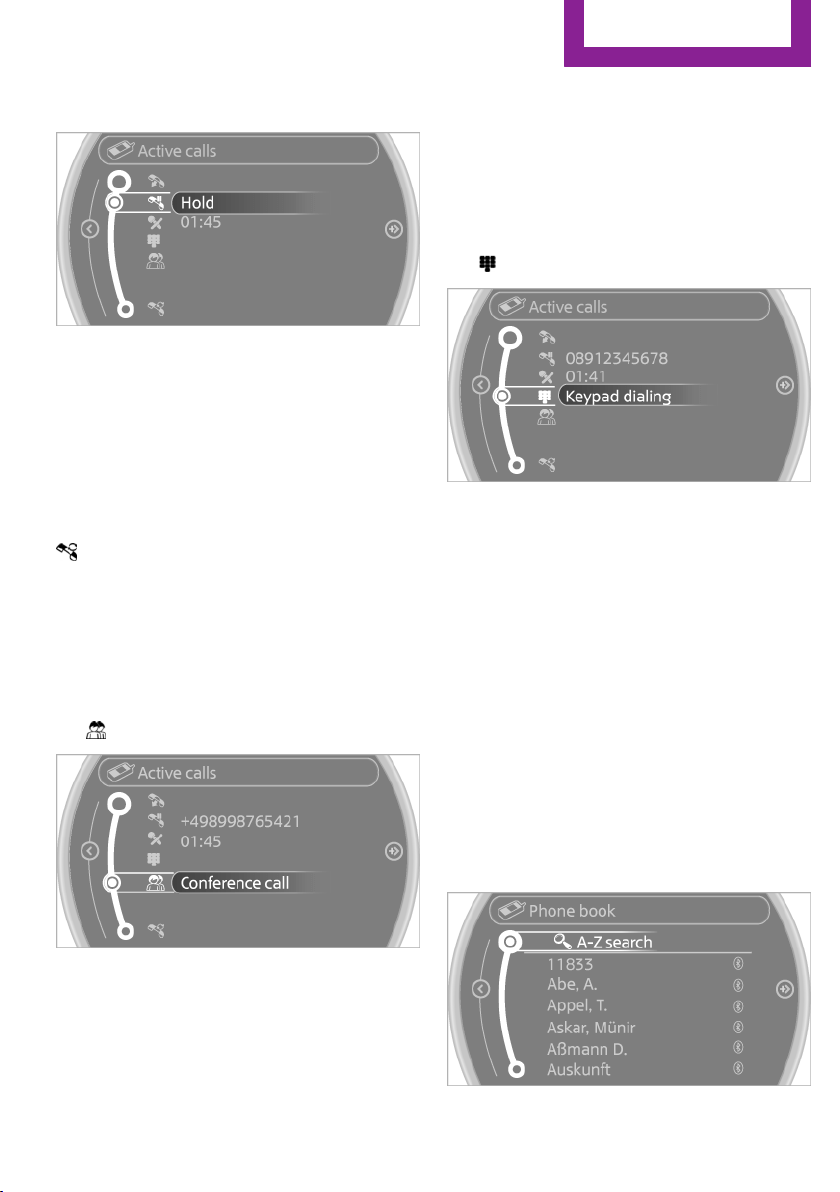
The existing call is put on hold.
4. Dial the new phone number or select it
from a list.
"Return"
The call on hold is resumed.
Switching between two calls, hold call
Active call: highlighted.
Call on hold identified by: "on hold...".
Select the symbol to change to the call on
hold.
Establishing a conference call
Two calls can be connected to a single tele‐
phone conference call.
1.
Establish two calls.
2. "Conference call"
When terminating a conference call, both calls
are ended. If one call is terminated by another
party, the other call can be continued.
DTMF suffix dialing
DTMF suffix dialing can be used for gaining ac‐
cess to network services or for controlling devi‐
ces, e.g., to make a remote inquiry of an an‐
swering machine. The DTMF code is needed for
this purpose.
1. "Telephone"
2. Select the contact from a list or "Dial
number".
3. "Keypad dialing"
4. Enter the DTMF code on the onboard moni‐
tor.
DTMF suffix dialing is not possible during con‐
ference calls.
Phone book
Displays
The phone book accesses the contacts and
shows all contacts for which a phone number
has been stored. The entries can be selected to
make a call.
1.
"Telephone"
2. "Phone book"
A symbol indicates the storage location of the
contacts.
Seite 185
Bluetooth hands-free system
Communication
185
Online Edition for Part no. 01 40 2 911 544 - VI/13
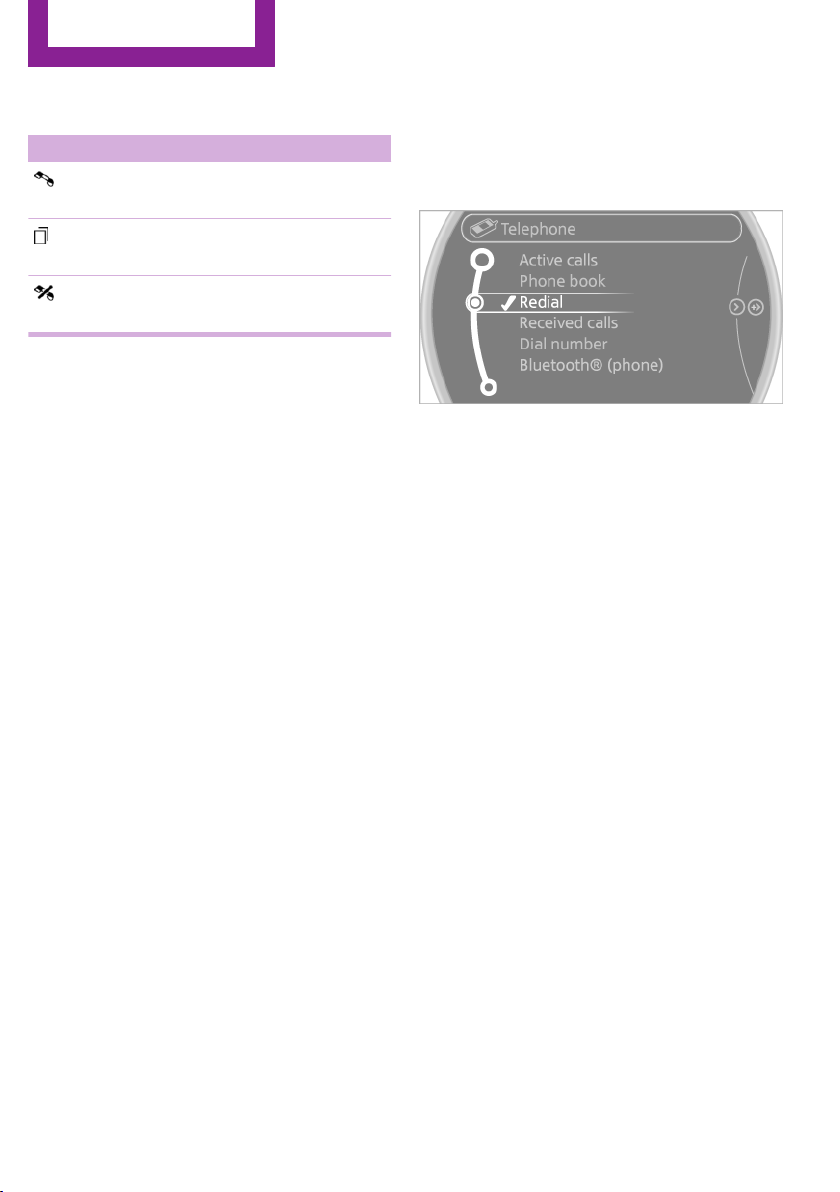
Calling a contact
Symbol Meaning
Contact with one stored phone num‐
ber.
Contact with more than one stored
phone number.
Call not possible; mobile phone with‐
out reception or network.
For contacts with one stored phone number:
select the required contact. The connection is
being established.
For contacts with more than one stored phone
number: select the required contact and the
phone number. The connection is being estab‐
lished.
Editing a contact
Changing the entries in "Contacts". When a
contact is changed, the changes are not stored
on the mobile phone. A copy of the entry is
stored in the vehicle.
1.
Highlight the contact.
2. Open "Options".
3. "Edit entry"
The contact can be edited.
Redialing
General information
The list of dialed numbers in the mobile phone
is transmitted to the vehicle depending on the
mobile phone. Possibly only those numbers are
displayed that were dialed from the vehicle.
The 20 phone numbers dialed last are dis‐
played. The sorting order of the phone num‐
bers depends on the particular mobile phone.
Dialing a number on the onboard
monitor
1. "Telephone"
2. "Redial"
3. Select the desired entry and the phone
number if necessary.
The connection is established.
Deleting a single entry or all entries
The deletion of entries depends on your partic‐
ular mobile phone.
1.
Highlight the entry.
2. Open "Options".
3. "Delete entry" or "Delete list"
Saving an entry in the contacts
1.
Highlight the entry.
2. Open "Options".
3. "Store as new contact" or "Add to existing
contact"
4. Select the contact if necessary.
5. Select the type of number: "Home",
"Business", "Mobile" or "Other"
6. Complete the entries if necessary.
7. "Store contact"
Received calls
Displaying calls
The list of received calls on the mobile phone is
transmitted to the vehicle, depending on the
particular mobile phone. It is possible that only
Seite 186
Communication
Bluetooth hands-free system
186
Online Edition for Part no. 01 40 2 911 544 - VI/13
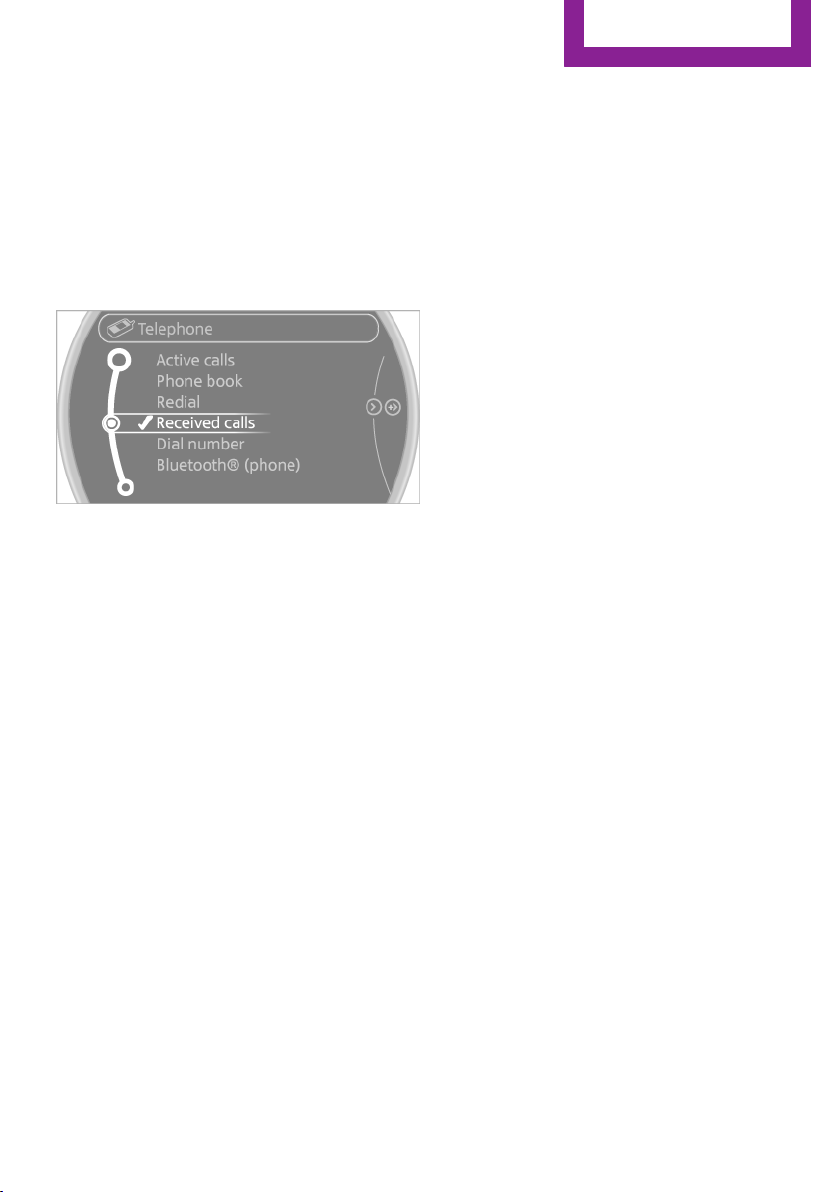
those calls are displayed that were received in
the vehicle.
The 20 telephone calls that were last received
are displayed. The sorting order and display of
the phone numbers depends on the particular
mobile phone.
1. "Telephone"
2. "Received calls"
Calling a number from the list
Selecting an entry.
The connection is established.
Deleting a single entry or all entries
The deletion of entries depends on your partic‐
ular mobile phone.
1.
Highlight the entry.
2. Open "Options".
3. "Delete entry" or "Delete list"
Saving an entry in the contacts
1.
Highlight the entry.
2. Open "Options".
3. "Store as new contact" or "Add to existing
contact"
4. Select the contact if necessary.
5. Select the type of number: "Home",
"Business", "Mobile" or "Other"
6. Complete the entries if necessary.
7. "Store contact"
Hands-free system
General information
Calls that are being made on the hands-free
system can be continued on the mobile phone
and vice versa.
From the mobile phone to the hands-
free system
Calls that were begun outside of the Bluetooth
range of the vehicle can be continued on the
hands-free system with the ignition switched
on.
Depending on the mobile phone, the system
automatically switches to the hands-free sys‐
tem.
If the system does not switch over automati‐
cally, follow the instructions on the mobile
phone display; refer also to the mobile phone
operating instructions.
From the hands-free system to the
mobile phone
Calls that are made on the hands-free system
can in some cases be continued on the mobile
phone; this depends on the mobile phone.
Follow the instructions on the mobile phone
display; refer also to the mobile phone operat‐
ing instructions.
Contacts
General information
Contacts can be created and edited and the ad‐
dresses can be adopted as destinations for nav‐
igation.
Seite 187
Bluetooth hands-free system
Communication
187
Online Edition for Part no. 01 40 2 911 544 - VI/13
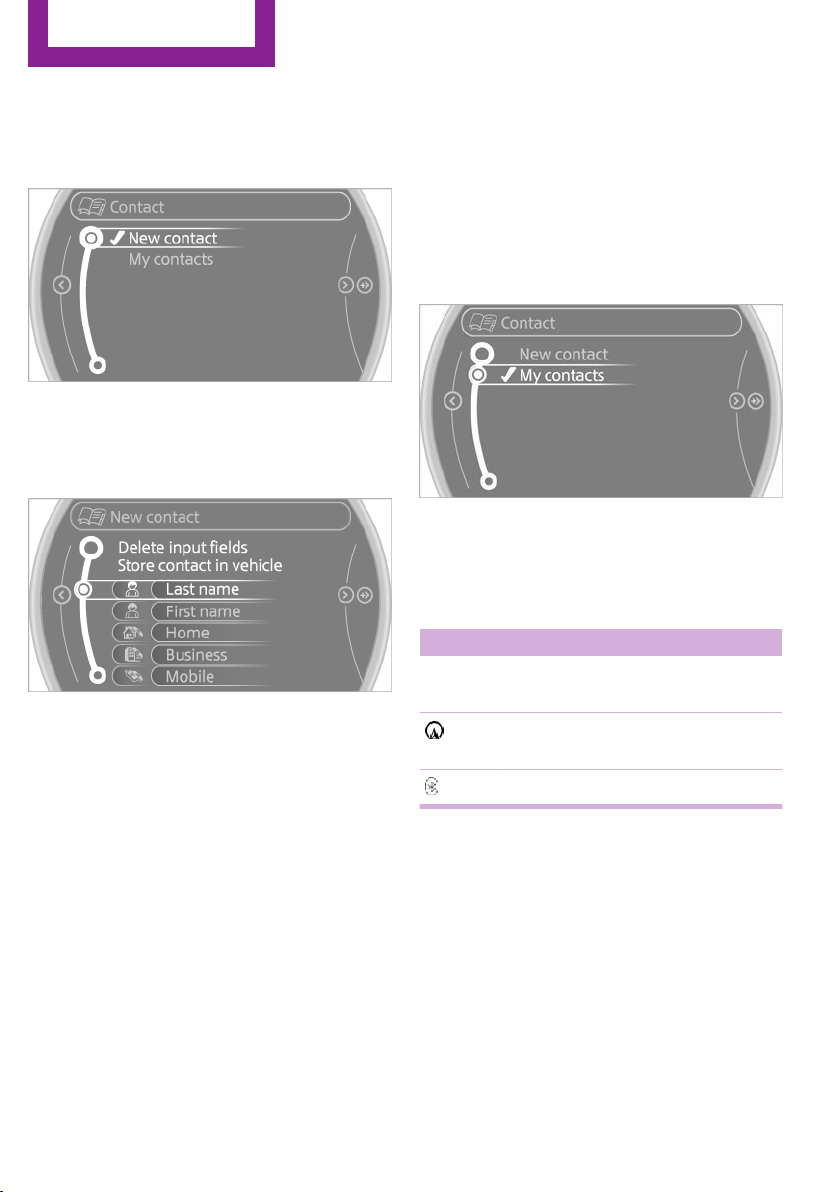
New contact
1. "Contacts"
2. "New contact"
3. The entry fields are still filled with the previ‐
ous entries: "Delete input fields"
4. Fill in the entry fields: select the symbol
next to the entry field.
5. Enter the text, refer to page 24.
If the vehicle is equipped with a navigation
system: enter the address. Only addresses
contained in the navigation data in the ve‐
hicle can be entered. This ensures that des‐
tination guidance is possible for all ad‐
dresses.
6. If necessary, "Store".
7. "Store contact in vehicle"
Specifying the home address
A home address can be stored. It appears at
the top of the contact list.
1.
"Home"
2. Create a contact.
3. "Store contact in vehicle"
My contacts
General information
List of all contacts stored in the vehicle.
Displaying contacts
1. "Contacts"
2. "My contacts"
All contacts are listed in alphabetical order. De‐
pending on the number of contacts, an A-Z
search is offered.
A symbol indicates the storage location of the
contacts:
Symbol Storage location
No sym‐
bol
In the vehicle; the address has not
been checked as a destination.
In the vehicle; the address has
been checked as a destination.
Mobile phone
Seite 188
Communication
Bluetooth hands-free system
188
Online Edition for Part no. 01 40 2 911 544 - VI/13
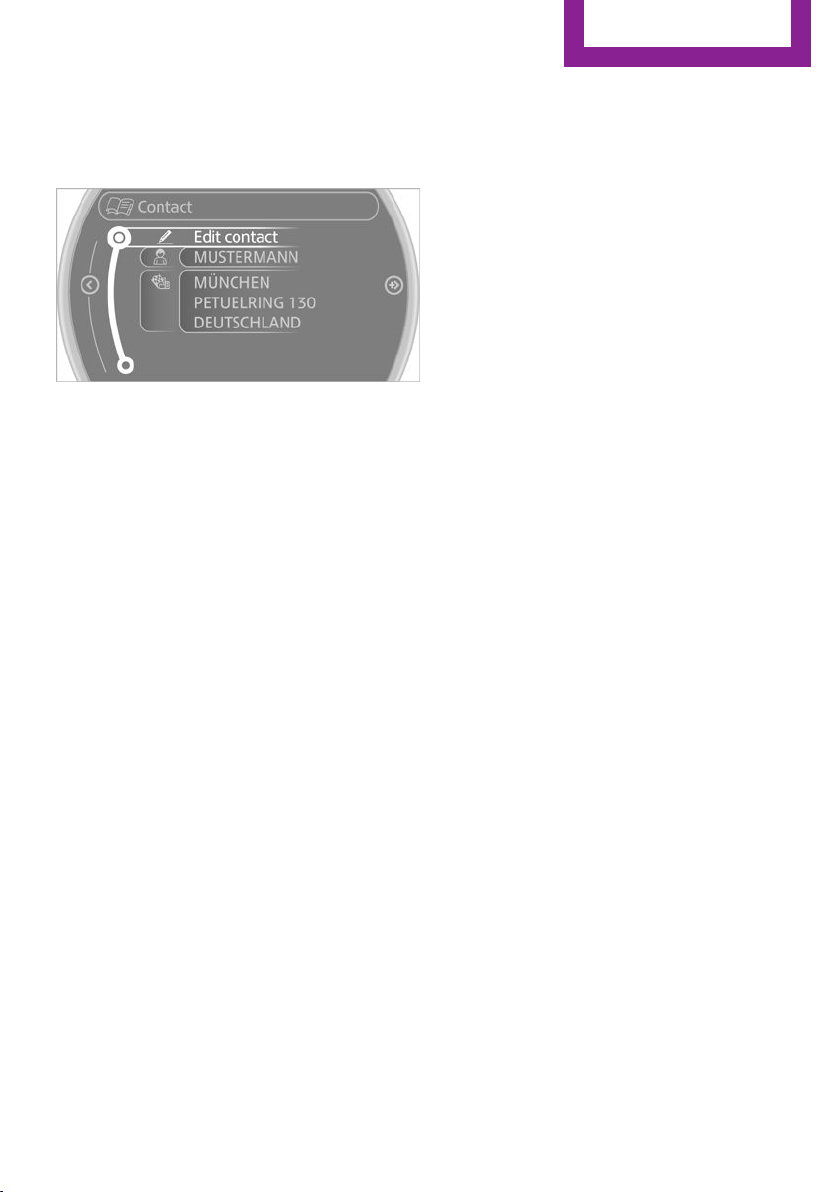
Editing a contact
1. Select the desired contact.
2. "Edit contact"
3. Change the entries.
4. Move the MINI joystick to the left.
5. "Yes"
If a contact from the mobile phone is edited,
the changes are not stored on the mobile
phone. A copy of the entry is stored in the vehi‐
cle, and only this copy is displayed. Under cer‐
tain circumstances, a contact entry with the
same name is created.
Selecting the contact as a navigation
destination
1.
Select the desired contact.
2. Select the address.
3. "Start guidance" or "Add as another
destination"
Checking the address as a destination
An address that is to be used for destination
guidance must match the navigation data con‐
tained in the vehicle. The address can be
checked for this purpose.
1.
Select the desired contact and highlight the
address.
2. Open "Options".
3. "Check as destination"
4. Correct and store the address if necessary.
Selecting the sorting order of the
names
Names can be displayed in a different order.
1. "My contacts"
2. Open "Options".
3. "Display: last, first name" or "Display: first,
last name"
Depending on how the contacts are stored on
the mobile phone, the sorting order of the
names may differ from the selected sorting or‐
der.
Deleting contacts
1.
"My contacts"
2. Highlight the contact.
3. Open "Options".
4. "Delete contact" or "Delete all contacts"
Seite 189
Bluetooth hands-free system
Communication
189
Online Edition for Part no. 01 40 2 911 544 - VI/13

Bluetooth mobile phone
preparation package
Vehicle equipment
This chapter describes all series equipment as
well as country-specific and special equipment
offered for this model series.Therefore, it also
describes equipment that may not be found in
your vehicle, for instance due to the selected
special equipment or the country version. This
also applies to safety-related functions and sys‐
tems.
At a glance
The concept
Mobile phones or other external devices such
as audio players can be connected to the vehi‐
cle via Bluetooth.
Bluetooth® is a registered trademark of Blue‐
tooth® SIG, Inc.
After these devices are paired once, they are
recognized automatically when the ignition is
switched on as soon as they are in the vehicle
and can then be operated via the onboard
monitor, using the buttons on the steering
wheel, and via voice activation.
Depending on their functionality, external devi‐
ces can be used via the vehicle as a telephone
or as an audio source. The telephone functions
are described in the following. Operating the
audio functions, refer to page 173.
Up to four external devices can be paired.
Certain functions may need to be enabled by
the mobile phone provider or service provider.
Using the mobile phone while driving
Make entries only when traffic and road
conditions allow. Do not hold the mobile phone
in your hand while you are driving; use the
hands-free system instead. If you do not ob‐
serve this precaution, you can endanger the ve‐
hicle occupants and other road users.◀
Snap-in adapter
The snap-in adapter is used to:
▷ Hold the mobile phone.
▷ Recharge the battery.
▷ Connect the mobile phone to an outside
antenna of the vehicle.
This provides for better network reception
and consistent sound quality.
Approved mobile phones
Displaying the vehicle identification
number and software part number
The vehicle identification number and software
part number are needed to determine which
mobile phones are supported by the mobile
phone preparation package. The software ver‐
sion of the mobile phone may also be required.
1.
"Telephone"
2. Open "Options".
3. "Bluetooth® info"
4. "Display system information"
These approved mobile phones with a certain
software version, support the vehicle functions
described below.
Malfunctions may occur with other mobile
phones or software versions.
Do not operate a mobile phone that is con‐
nected to the vehicle on the mobile phone key‐
pad, as this may lead to a malfunction.
Seite 190
Communication
Bluetooth mobile phone preparation package
190
Online Edition for Part no. 01 40 2 911 544 - VI/13
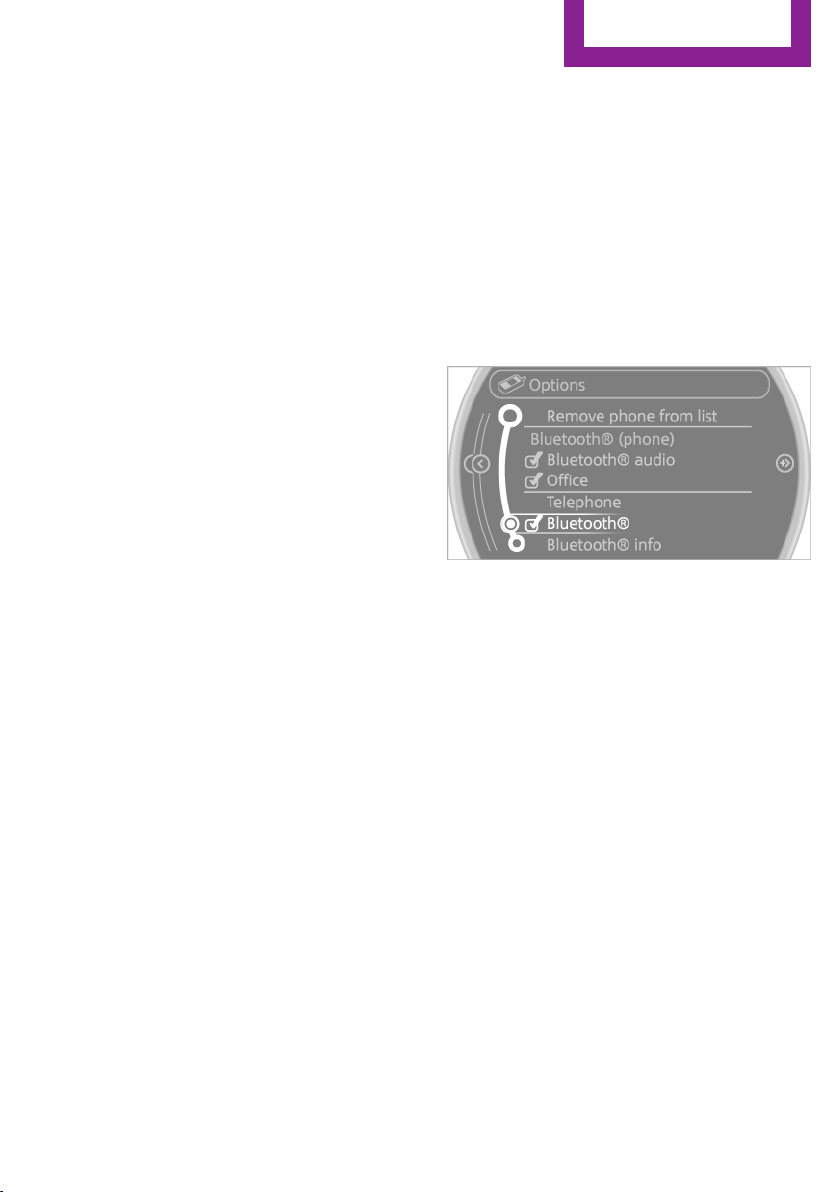
Notes
At high temperatures, the charging function of
the mobile phone may be limited and functions
may not be executed.
When using the mobile phone via the vehicle,
note the operating instructions of the mobile
phone.
Pairing/unpairing the
mobile phone
General information
The following functions are available:
▷ Use of a mobile phone as a telephone.
▷ Use of a mobile phone as an additional te‐
lephone.
▷ Use of a mobile phone as an audio source.
▷ Use of an audio device as an audio source,
refer to page 173.
Requirements
▷ The mobile phone is suitable, refer to
page 190.
▷ The mobile phone is ready for operation.
▷ Bluetooth is activated in the vehicle and on
the mobile phone.
▷ Bluetooth presettings may need to be
made on the mobile phone, e.g., for a con‐
nection without confirmation or visibility,
refer to the mobile phone operating in‐
structions.
▷ Deactivate Bluetooth audio if necessary.
▷ Compare the control number on the Control
Display with the control number on the mo‐
bile phone display. Confirm the control
number on the mobile phone and in the
vehicle.
▷ A number with at least four and a maxi‐
mum of 16 digits was defined as the Blue‐
tooth passkey. It is only required once for
pairing.
▷ The radio ready state is switched on.
Activating/deactivating Bluetooth
Bluetooth is not permitted everywhere. Comply
with all safety guidelines and regulations.
1. "Telephone"
2. Open "Options".
3. "Bluetooth®"
Additional functions
Activating/deactivating the additional
functions
Activate the functions before pairing to be able
to use them in the vehicle. Information on suit‐
able mobile phones, refer to page 190, that
support this function.
1.
"Telephone"
2. "Bluetooth® (phone)"
3. Open "Options".
4. "Configure Bluetooth®"
5. Select the desired additional function.
▷ "Additional telephone"
▷ "Office"
▷ "Bluetooth® audio"
6. "OK"
An additional function cannot be assigned to a
telephone while it is deactivated.
Seite 191
Bluetooth mobile phone preparation package
Communication
191
Online Edition for Part no. 01 40 2 911 544 - VI/13

Additional telephone
A mobile phone can be used as an additional
telephone.
The additional telephone can be used to accept
incoming calls, refer to page 195. While a call is
active on the additional telephone, received
calls are displayed on the Control Display.
Office
Contacts, appointments, tasks, notes, text mes‐
sages, and e-mails from the mobile phone are
transferred to the vehicle.
Bluetooth audio
A mobile phone can be used as an audio
source.
"Bluetooth® audio"
To use a mobile phone in the vehicle as a tele‐
phone only, deactivate the function and recon‐
nect the mobile phone.
Pairing and connecting a mobile phone
Pairing the mobile phone
To avoid becoming distracted and posing
an unnecessary hazard both to your own vehi‐
cle's occupants and to other road users, only
pair the mobile phone while the vehicle is sta‐
tionary.◀
1.
"Telephone"
2. "Bluetooth® (phone)"
3. "Add new phone"
The Bluetooth name of the vehicle is dis‐
played.
4. To perform additional steps on the mobile
phone, refer to the mobile phone operating
instructions: for instance, search for or con‐
nect the Bluetooth device or a new device.
The Bluetooth name of the vehicle appears
on the mobile phone display.
5. Select the Bluetooth name of the vehicle on
the mobile phone display.
6. You are prompted by the onboard monitor
or mobile phone to enter the same Blue‐
tooth passkey.
Enter the passkey and confirm.
or
Compare the control number on the vehicle
display with the control number on the mo‐
bile phone display. Confirm the control
number on the mobile phone and in the
vehicle.
"OK"
7. Select the functions for which the mobile
phone is to be used.
8. "OK"
9. Move the MINI joystick to the left.
Seite 192
Communication
Bluetooth mobile phone preparation package
192
Online Edition for Part no. 01 40 2 911 544 - VI/13
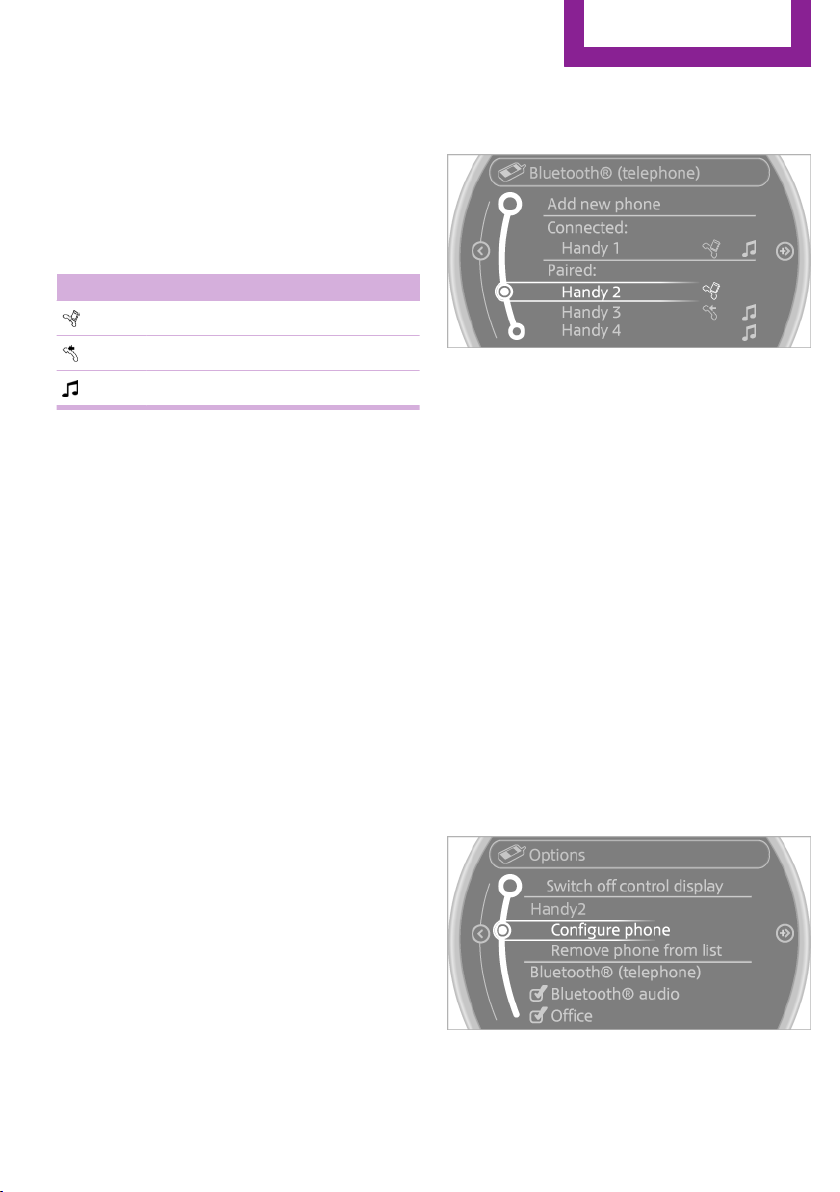
If the pairing was successful, the mobile phone
appears at the top of the list of mobile phones.
The functions supported by the mobile phone
and audio device are displayed as symbols
when paired.
White symbol: the function is active.
Gray symbol: the function is inactive.
Symbol Function
Telephone.
Additional telephone.
Audio source.
Four mobile phones can be paired with the ve‐
hicle at once. Three mobile phones can be con‐
nected with the vehicle at once.
If pairing was unsuccessful: What to do if..., re‐
fer to page 194.
Following the initial pairing
▷ The mobile phone is detected/connected in
the vehicle within a short period of time
when the engine is running or the ignition
is switched on.
▷ The phone book entries of the telephone
stored on the SIM card or mobile phone are
transmitted to the vehicle after detection,
depending on the mobile phone.
▷ Specific settings may be necessary in some
mobile phones, e.g., authorization or a se‐
cure connection; refer to the mobile phone
operating instructions.
Connecting a particular mobile phone
1.
"Telephone"
2. "Bluetooth® (phone)"
All paired mobile phones are listed.
3. Select the mobile phone that is to be con‐
nected.
The functions assigned to the mobile phone
before unpairing are assigned to the mobile
phone when it is reconnected. These functions
are deactivated in a mobile phone that is al‐
ready connected.
Device options
Device options can be activated or deactivated
for paired and connected devices.
Configuring the mobile phone
Additional functions can be activated or deacti‐
vated for paired and connected mobile phones.
1.
"Telephone"
2. "Bluetooth® (phone)"
3. Highlight the mobile phone to be config‐
ured.
4. Open "Options".
5. "Configure phone"
6. At least one function must be selected.
▷ "Telephone"
Seite 193
Bluetooth mobile phone preparation package
Communication
193
Online Edition for Part no. 01 40 2 911 544 - VI/13
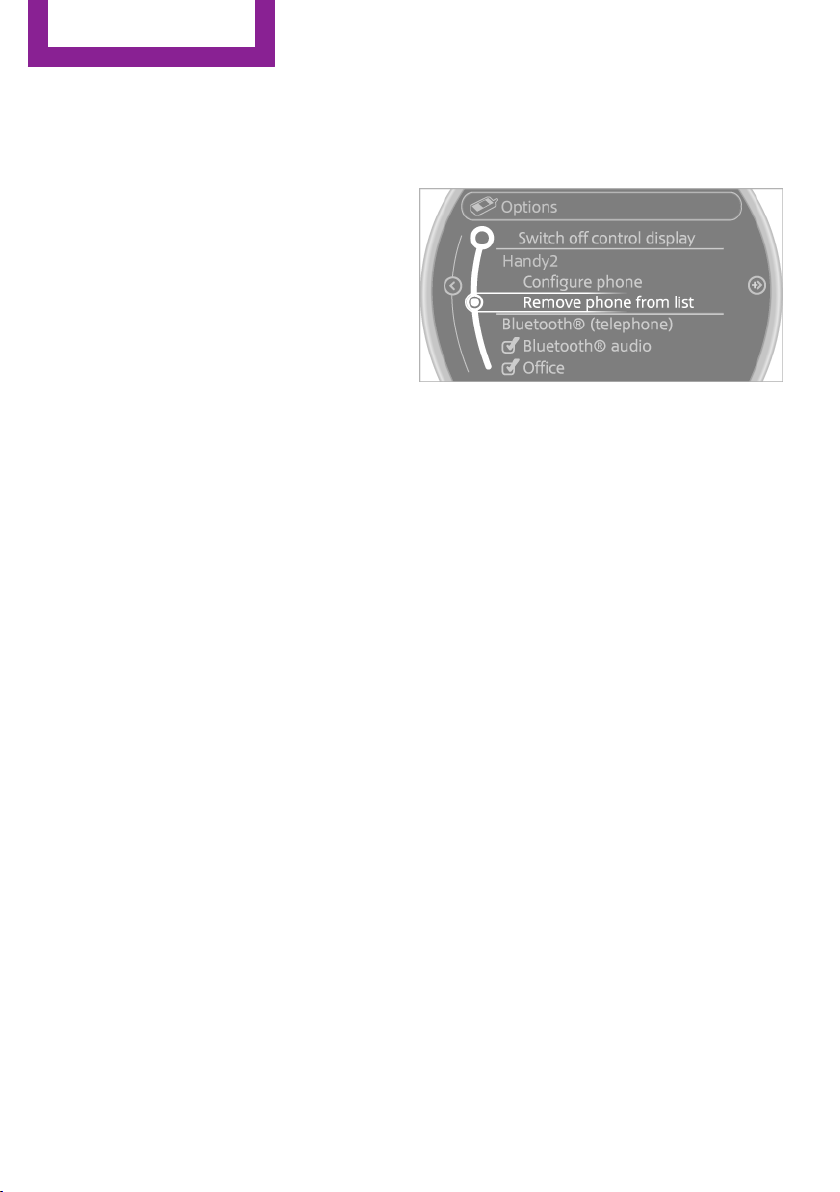
▷ "Additional telephone"
▷ "Audio"
7. "OK"
If a function has already been assigned to an‐
other connected mobile phone, the function is
deactivated in that mobile phone and the mo‐
bile phone is unpaired when the function is as‐
signed to a new mobile phone.
Swapping the telephone and additional
telephone
If a phone and additional phone are connected
to the vehicle, the function can be swapped be‐
tween the two devices.
1.
"Telephone"
2. "Bluetooth® (phone)"
3. "Swap phone/addit. phone"
Using a mobile phone as an audio
source
An audio-capable mobile phone can be used as
an audio source. Activate Bluetooth audio, refer
to page 192.
Pair the mobile phone with the vehicle and
connect it, refer to page 192.
The mobile phone is used as the audio source,
provided that another device has not been con‐
nected as the audio source.
If another device has already been connected
as the audio source:
1.
Pair the mobile phone with the vehicle and
connect it, refer to page 192.
2. "Use for audio"
The mobile phone is connected as an audio
source. The previous audio source is no lon‐
ger connected to the vehicle.
Unpairing a device
1.
"Telephone"
2. "Bluetooth® (phone)"
All paired devices are listed.
3. Highlight the device that is to be unpaired.
4. Open "Options".
5. "Remove phone from list"
What to do if...
Information on suitable mobile phones, refer to
page 190.
The mobile phone could not be paired or con‐
nected.
▷ Is Bluetooth activated in the vehicle and on
the mobile phone? Activate Bluetooth in
the vehicle and on the mobile phone.
▷ Do the Bluetooth passkeys on the mobile
phone and the vehicle match? Enter the
same passkey on the mobile phone and via
the onboard monitor.
▷ A multi-character passkey may be needed.
▷ Did it take longer than 30 seconds to enter
the passkey? Repeat the pairing procedure.
▷ Are too many Bluetooth devices connected
to the mobile phone or vehicle? Delete con‐
nections with other devices if necessary.
▷ Is the audio connection activated? Deacti‐
vate the audio connection.
▷ Is the mobile phone in power-save mode or
does it have only a limited remaining bat‐
tery life? Charge the mobile phone in the
snap-in adapter or via the charging cable.
▷ Depending on the mobile phone, it is possi‐
ble that only one mobile phone can be con‐
nected to the vehicle. Unpair the connected
mobile phone from the vehicle and pair
and connect only one mobile phone.
Seite 194
Communication
Bluetooth mobile phone preparation package
194
Online Edition for Part no. 01 40 2 911 544 - VI/13
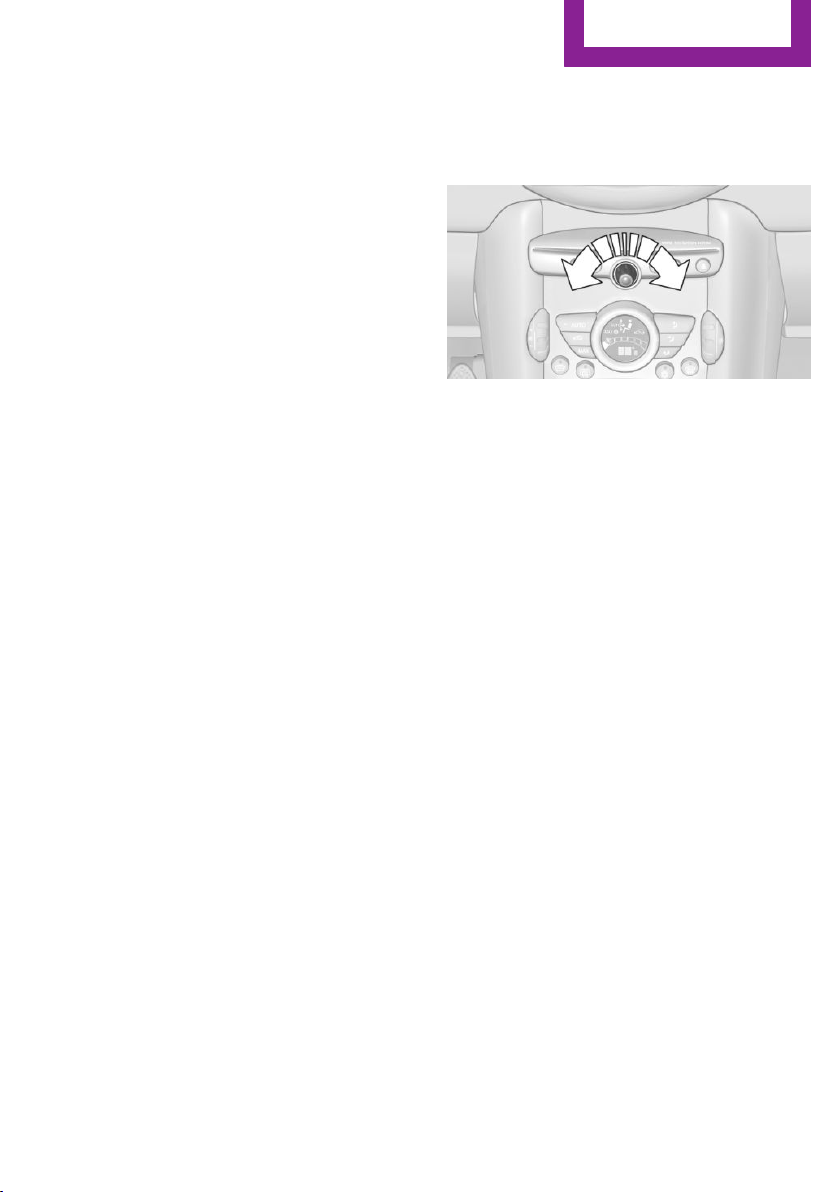
The mobile phone no longer reacts.
▷ Switch the mobile phone off and on again.
▷ Is the ambient temperature too high or
low? Do not expose the mobile phone to
extreme environmental conditions.
The telephone functions are not available.
▷ Is the mobile phone paired as an additional
telephone and is the additional telephone
function deactivated? Activate the function.
▷ Is an outgoing call not possible? Connect
the mobile phone as a telephone.
No phone book entries or only some phone
book entries are displayed, or they are incom‐
plete.
▷ Transmission of the phone book entries is
not yet complete.
▷ It is possible that only the phone book en‐
tries of the mobile phone or the SIM card
are transmitted.
▷ It may not be possible to display phone
book entries with special characters.
▷ The number of phone book entries to be
stored is too high.
▷ Is the data volume of the contact too large,
e. g., due to stored information such as
notes? Reduce the data volume of the con‐
tact.
▷ Is the mobile phone connected as an audio
source or additional telephone? The mobile
phone must be connected as a telephone.
The phone connection quality is poor.
▷ The strength of the Bluetooth signal on the
mobile phone can be adjusted, depending
on the mobile phone.
▷ Insert the mobile phone into the snap-in
adapter or place it in the area of the center
console.
▷ Adjust the volume of the microphone and
loudspeakers separately.
If all points in this list have been checked and
the required function is still not available, con‐
tact Customer Relations or the service center.
Controls
Adjusting the volume
Turn the knob until the desired volume is se‐
lected. The setting is stored for the remote con‐
trol currently in use.
The vehicle automatically adjusts the volume of
the microphone on the telephone and the vol‐
ume of the called party. Depending on the mo‐
bile phone, the volumes may need to be ad‐
justed.
The settings can only be created during a call
and must be adjusted separately for each tele‐
phone. The settings are deleted when the tele‐
phone is unpaired.
1.
"Settings"
2. "Tone"
3. "Volume settings"
4. Select the desired setting: "Microphone" or
"Loudspeak."
5. To set: turn the MINI joystick.
6. To save: press the MINI joystick.
Incoming call
Receiving calls
If the number of the caller is stored in the
phone book and is transmitted by the network,
the name of the contact is displayed. Other‐
wise, only the phone number is displayed.
Seite 195
Bluetooth mobile phone preparation package
Communication
195
Online Edition for Part no. 01 40 2 911 544 - VI/13
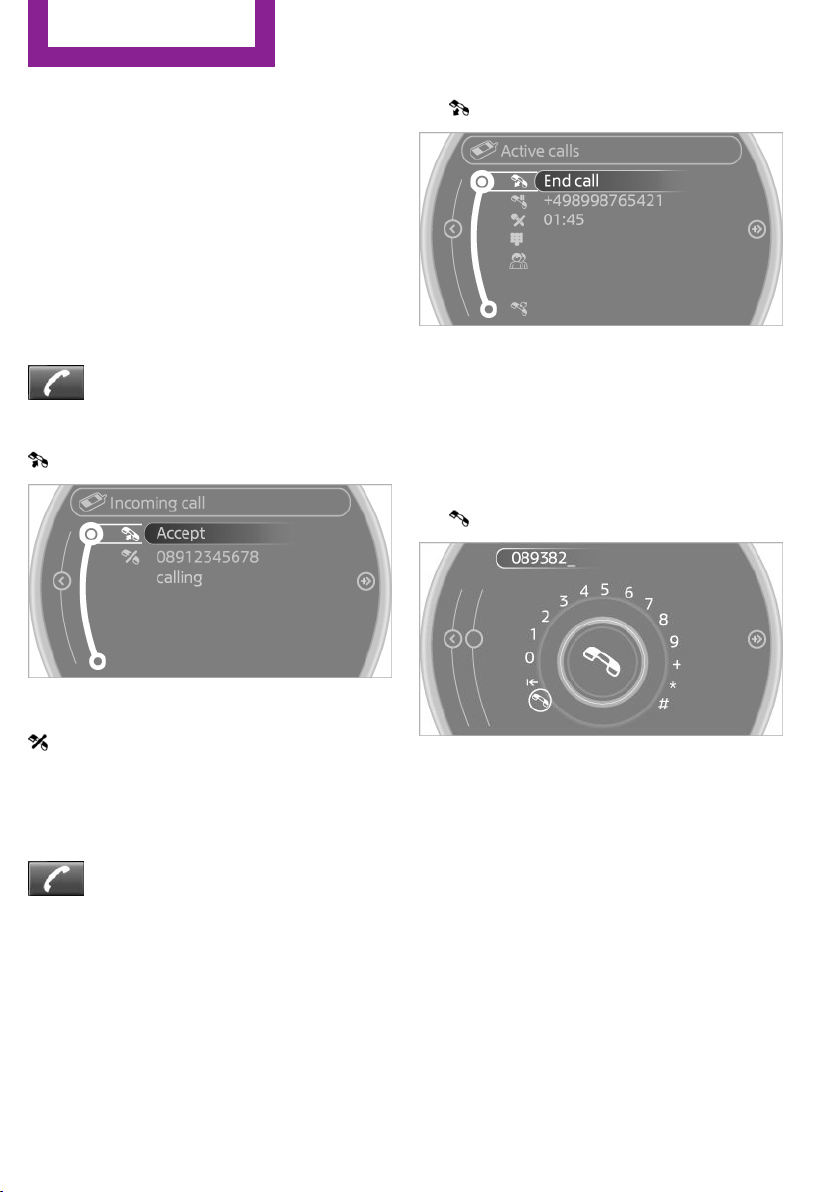
If more than one phone number is assigned to
a contact, only the name of the contact is dis‐
played.
For calls on the additional telephone, the num‐
ber is only displayed if it is transmitted by the
network.
An incoming call to one of the telephones is au‐
tomatically rejected if there is an active call on
the other telephone.
Accepting a call
Press the button on the steering
wheel.
or
"Accept"
Rejecting a call
"Reject"
The caller is redirected to the mailbox if the
mailbox was activated
Ending a call
Press the button on the steering
wheel.
or
1.
"Telephone"
2. "End call"
Entering a phone number
Dialing a number
1.
"Telephone"
2. "Dial number"
3. Select the digits individually.
4. Select the symbol.
The phone number can also be entered by
voice.
Calls with multiple parties
General information
You can switch between calls or connect two
calls to a single conference call. These functions
must be supported by the mobile phone and
service provider.
Accepting a call while speaking to
another party
This function might have to be activated by the
service provider and the mobile phone must be
adjusted accordingly.
Seite 196
Communication
Bluetooth mobile phone preparation package
196
Online Edition for Part no. 01 40 2 911 544 - VI/13
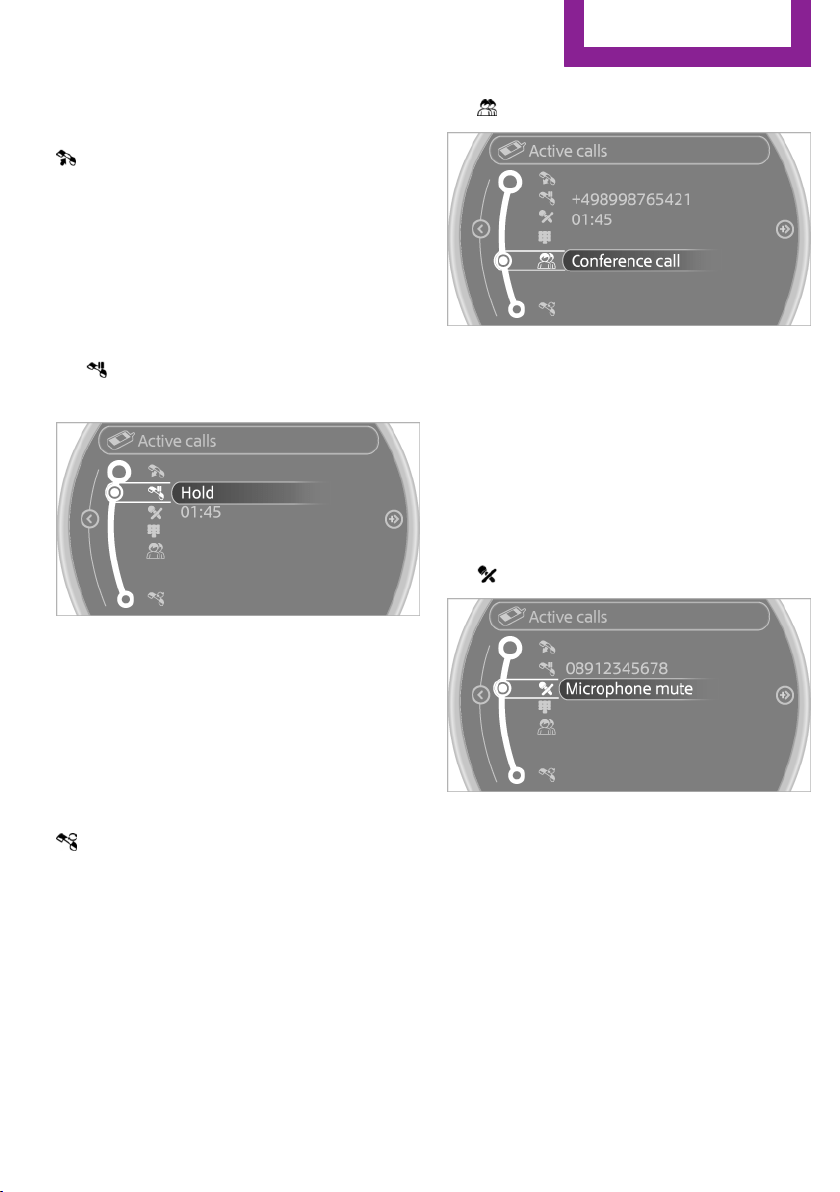
If a second call comes in during an ongoing call,
a call waiting signal is sounded.
"Accept"
The call is accepted and the existing call is put
on hold.
Establishing a second call
Establish an additional call during an active call.
1. "Telephone"
2. "Active calls"
3. "Hold"
The existing call is put on hold.
4. Dial the new phone number or select it
from a list.
"Return"
The call on hold is resumed.
Switching between two calls, hold call
Active call: highlighted.
Call on hold identified by: "on hold...".
Select the symbol to change to the call on
hold.
Establishing a conference call
Two calls can be connected to a single tele‐
phone conference call.
1.
Establish two calls.
2. "Conference call"
When terminating a conference call, both calls
are ended. If one call is terminated by another
party, the other call can be continued.
Switching the microphone to mute
When a call is active, the microphone can be
muted.
1.
"Telephone"
2. "Active calls"
3. "Microphone mute"
A microphone that has been switched to mute
is automatically reactivated:
▷ When a new connection is established.
▷ When switching between call parties.
DTMF suffix dialing
DTMF suffix dialing can be used for gaining ac‐
cess to network services or for controlling devi‐
ces, e.g., to make a remote inquiry of an an‐
Seite 197
Bluetooth mobile phone preparation package
Communication
197
Online Edition for Part no. 01 40 2 911 544 - VI/13
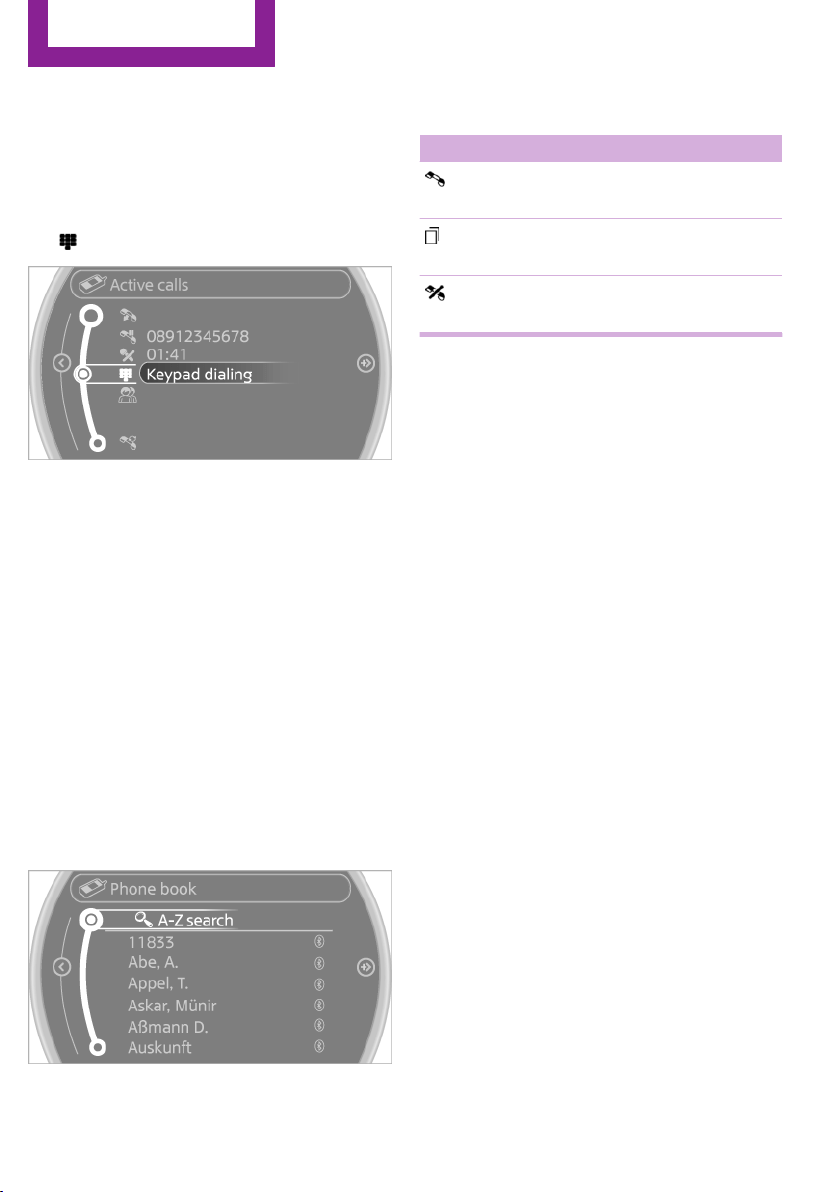
swering machine. The DTMF code is needed for
this purpose.
1. "Telephone"
2. Select the contact from a list or "Dial
number".
3. "Keypad dialing"
4. Enter the DTMF code on the onboard moni‐
tor.
DTMF suffix dialing is not possible during con‐
ference calls.
Phone book
Displays
The phone book accesses the contacts and
shows all contacts for which a phone number
has been stored. The entries can be selected to
make a call.
1.
"Telephone"
2. "Phone book"
A symbol indicates the storage location of the
contacts.
Calling a contact
Symbol Meaning
Contact with one stored phone num‐
ber.
Contact with more than one stored
phone number.
Call not possible; mobile phone with‐
out reception or network.
For contacts with one stored phone number:
select the required contact. The connection is
being established.
For contacts with more than one stored phone
number: select the required contact and the
phone number. The connection is being estab‐
lished.
Editing a contact
Changing the entries in "Contacts". When a
contact is changed, the changes are not stored
on the mobile phone. A copy of the entry is
stored in the vehicle.
1.
Highlight the contact.
2. Open "Options".
3. "Edit entry"
The contact can be edited.
Redialing
General information
The list of dialed numbers in the mobile phone
is transmitted to the vehicle depending on the
mobile phone. Possibly only those numbers are
displayed that were dialed from the vehicle.
The 20 phone numbers dialed last are dis‐
played. The sorting order of the phone num‐
bers depends on the particular mobile phone.
Seite 198
Communication
Bluetooth mobile phone preparation package
198
Online Edition for Part no. 01 40 2 911 544 - VI/13
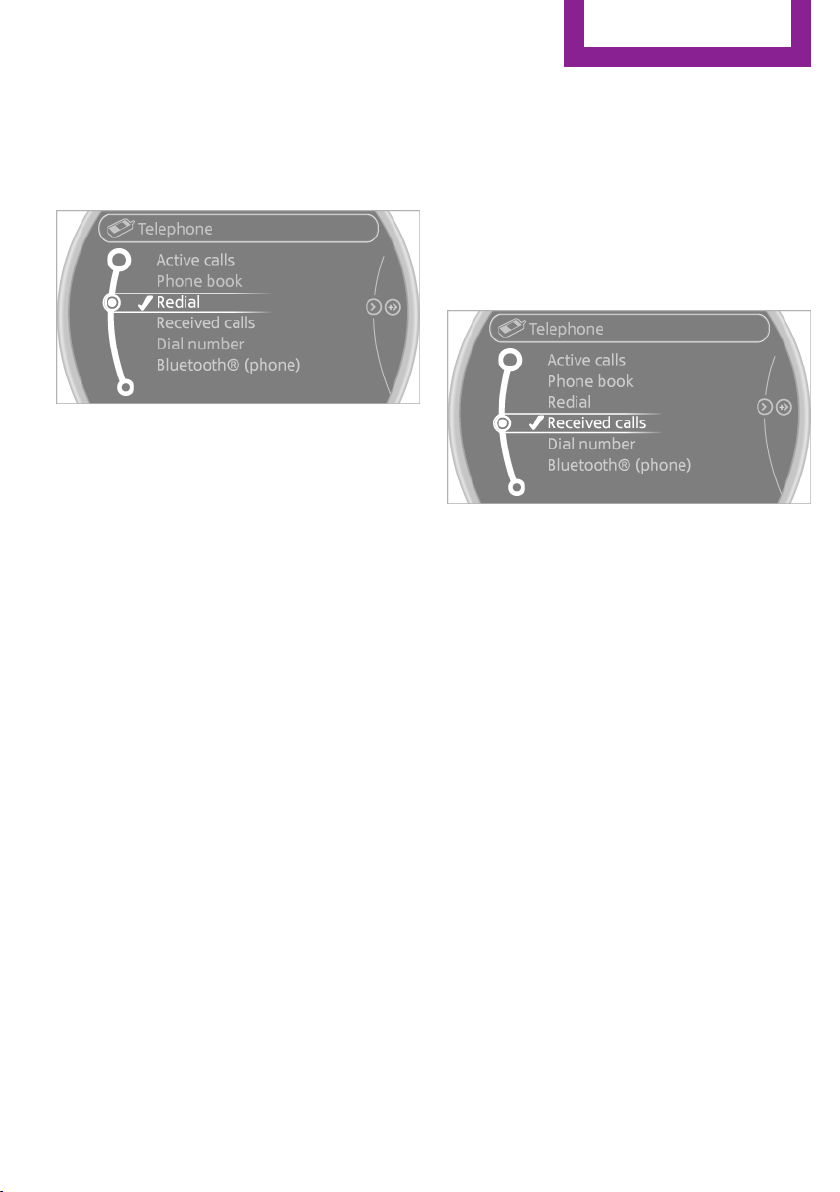
Dialing a number on the onboard
monitor
1. "Telephone"
2. "Redial"
3. Select the desired entry and the phone
number if necessary.
The connection is established.
Deleting a single entry or all entries
The deletion of entries depends on your partic‐
ular mobile phone.
1.
Highlight the entry.
2. Open "Options".
3. "Delete entry" or "Delete list"
Saving an entry in the contacts
1.
Highlight the entry.
2. Open "Options".
3. "Store as new contact" or "Add to existing
contact"
4. Select the contact if necessary.
5. Select the type of number: "Home",
"Business", "Mobile" or "Other"
6. Complete the entries if necessary.
7. "Store contact"
Received calls
Displaying calls
The list of received calls on the mobile phone is
transmitted to the vehicle, depending on the
particular mobile phone. It is possible that only
those calls are displayed that were received in
the vehicle.
The 20 telephone calls that were last received
are displayed. The sorting order and display of
the phone numbers depends on the particular
mobile phone.
1. "Telephone"
2. "Received calls"
Calling a number from the list
Selecting an entry.
The connection is established.
Deleting a single entry or all entries
The deletion of entries depends on your partic‐
ular mobile phone.
1.
Highlight the entry.
2. Open "Options".
3. "Delete entry" or "Delete list"
Saving an entry in the contacts
1.
Highlight the entry.
2. Open "Options".
3. "Store as new contact" or "Add to existing
contact"
4. Select the contact if necessary.
5. Select the type of number: "Home",
"Business", "Mobile" or "Other"
6. Complete the entries if necessary.
7. "Store contact"
Seite 199
Bluetooth mobile phone preparation package
Communication
199
Online Edition for Part no. 01 40 2 911 544 - VI/13
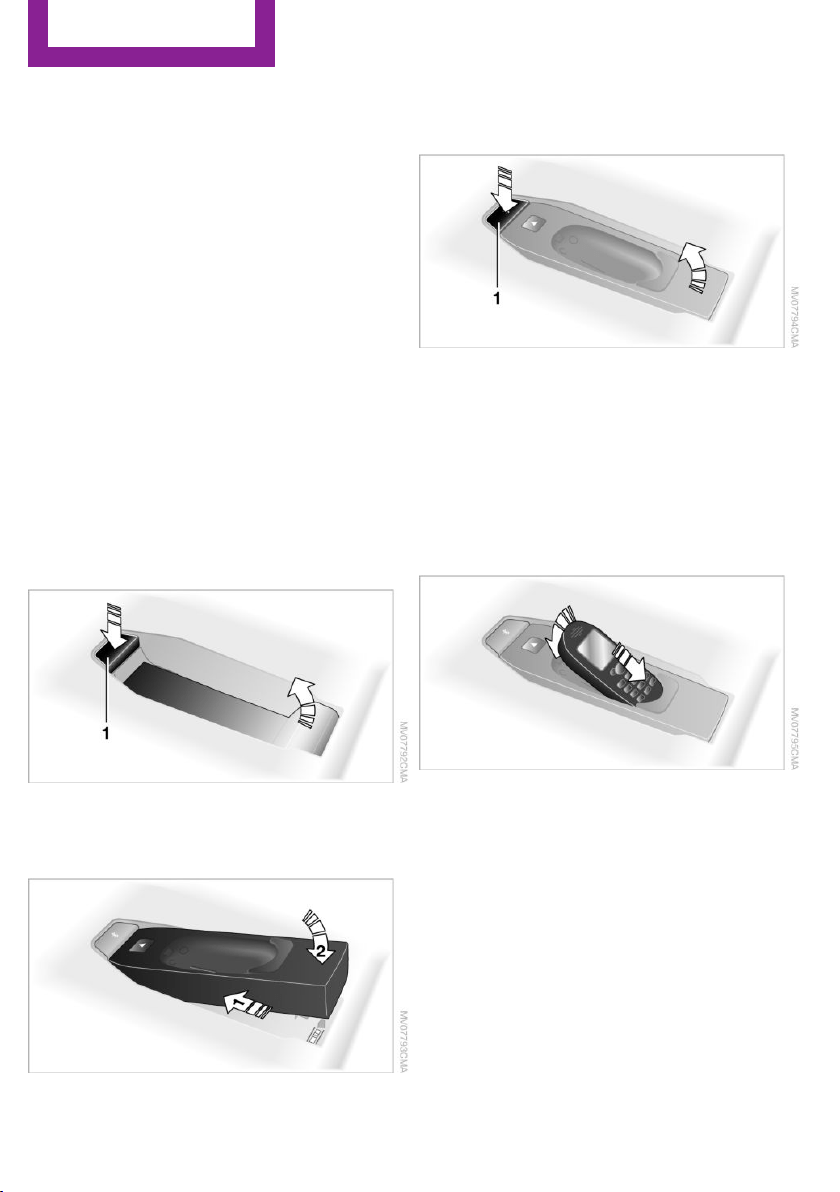
Snap-in adapter
General information
More information on compatible snap-in
adapters that support the functions of the mo‐
bile phone is available at the service center.
Notes
At high temperatures, the charging function of
the mobile phone may be limited and functions
may not be executed.
When using the mobile phone via the vehicle,
note the operating instructions of the mobile
phone.
Installation position
In the center armrest.
Inserting/removing the snap-in adapter
1.
Press button 1 and remove the cover.
2. Insert the snap-in adapter at the front, ar‐
row 1, and press down, arrow 2, until it en‐
gages.
3. To remove the snap-in adapter: press but‐
ton 1.
Inserting the mobile phone
1.
Depending on the mobile phone, remove
the protective cap from the antenna con‐
nector and from the USB connection of the
mobile phone.
2. With the buttons facing up, slide the mobile
phone up toward the electrical contacts
and press it down until it engages.
The battery is charged beginning with the radio
ready state of the vehicle.
Seite 200
Communication
Bluetooth mobile phone preparation package
200
Online Edition for Part no. 01 40 2 911 544 - VI/13
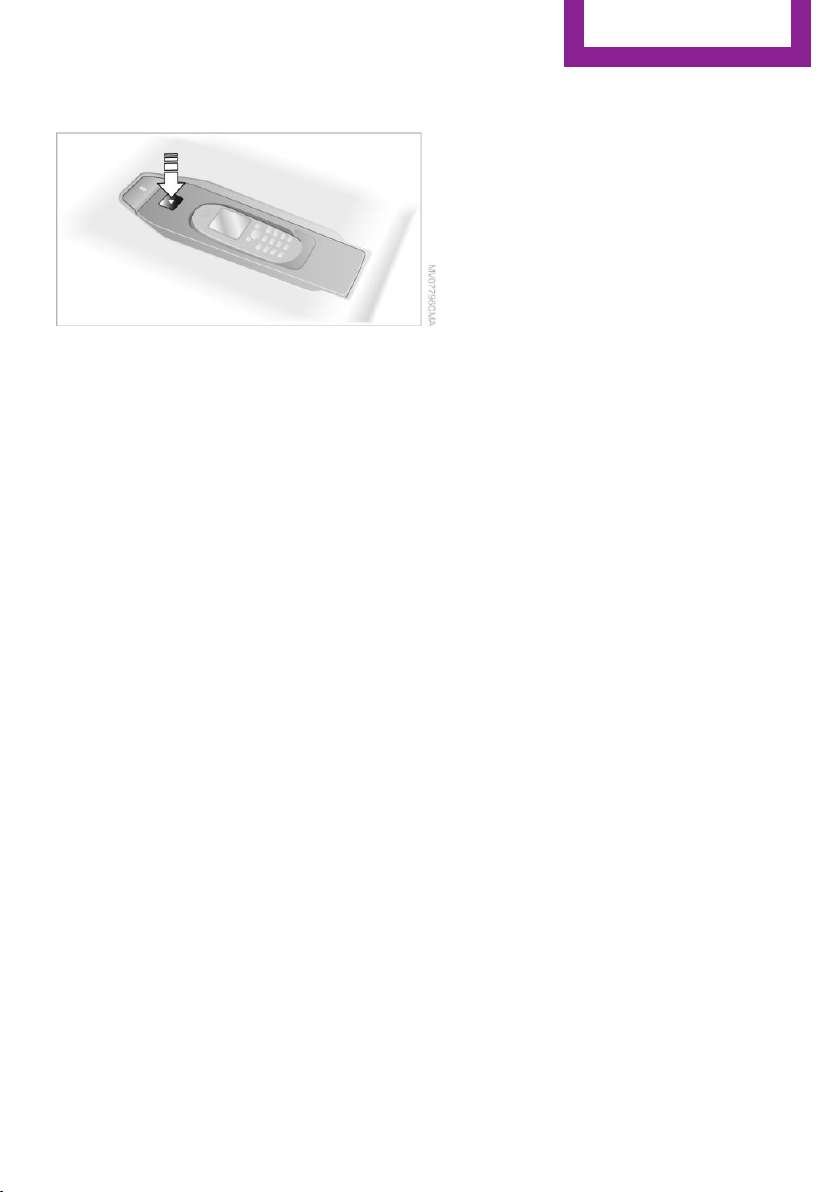
Removing the mobile phone
Press the button and remove the mobile
phone.
Seite 201
Bluetooth mobile phone preparation package
Communication
201
Online Edition for Part no. 01 40 2 911 544 - VI/13
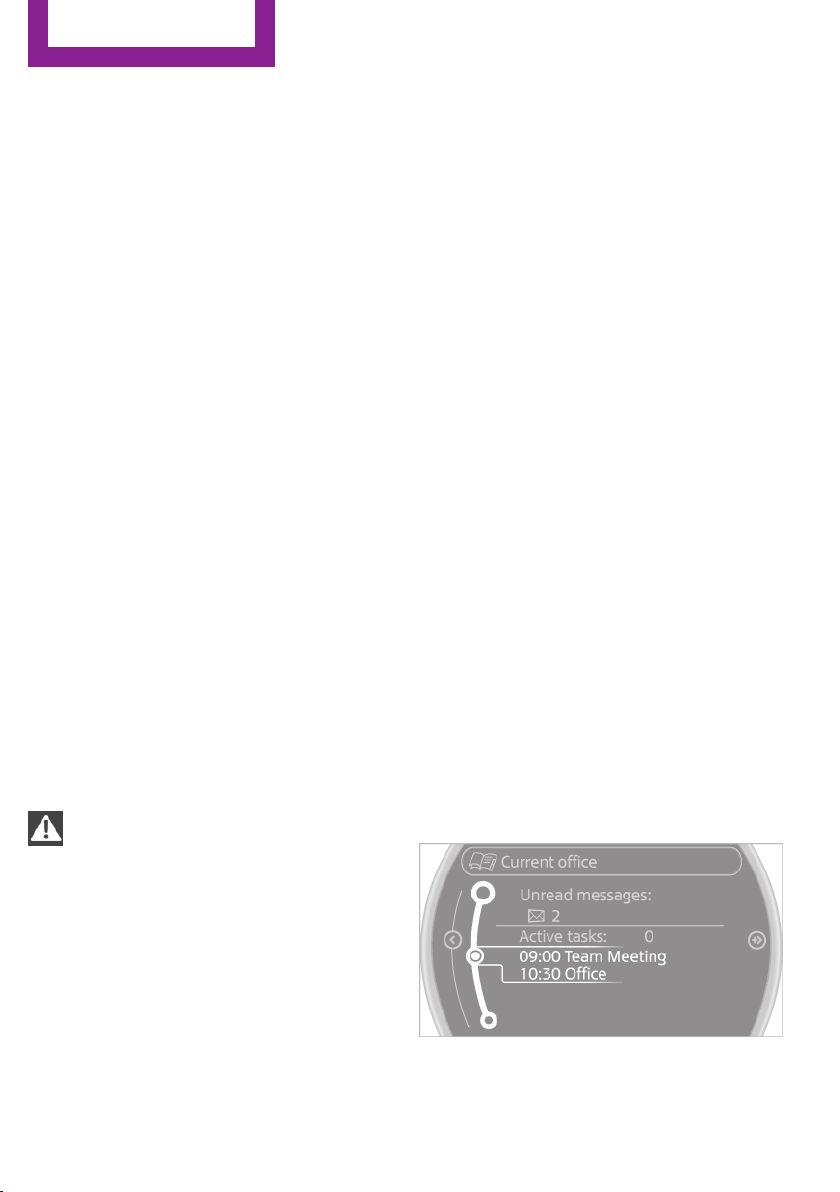
Office
Vehicle equipment
This chapter describes all series equipment as
well as country-specific and special equipment
offered for this model series.Therefore, it also
describes equipment that may not be found in
your vehicle, for instance due to the selected
special equipment or the country version. This
also applies to safety-related functions and sys‐
tems.
At a glance
General information
Contacts, appointments, tasks, notes, text mes‐
sages, and e-mails from the mobile phone can
be displayed on the Control Display if the mo‐
bile phone provides compatible support of
these functions and the necessary Bluetooth
standards.
Information about which mobile phones and
functions are available can be found at
www.mini.com/connectivity.
Contents are only displayed in full length when
the vehicle is stationary.
The mobile phone has read-access only.
Do not use Office while driving
To avoid becoming distracted and posing
an unnecessary hazard to your vehicle's occu‐
pants and to other road users, never attempt to
use the controls or enter information unless
traffic and road conditions allow this.◀
Requirements
▷ A suitable mobile phone is paired with the
vehicle and connected. In some mobile
phones, data access must be confirmed on
the mobile phone.
▷ The time, time zone, and date, refer to
page 72, are correctly set on the Control
Display and on the mobile phone, for in‐
stance to correctly display appointments.
Updating
Data are updated every time the mobile phone
is connected to the vehicle. Appointment en‐
tries, tasks, notes and reminders can be up‐
dated separately.
1. "Office"
2. "Current office", "Calendar", "Tasks",
"Notes" or "Reminders"
3. Open "Options".
4. "Update data"
Mobile phone data are transmitted again to
the vehicle.
Office information
The number of unread messages and active
tasks as well as the upcoming appointments
are displayed.
1.
"Office"
2. "Current office"
3. Select the desired entry to display details.
Seite 202
Communication
Office
202
Online Edition for Part no. 01 40 2 911 544 - VI/13
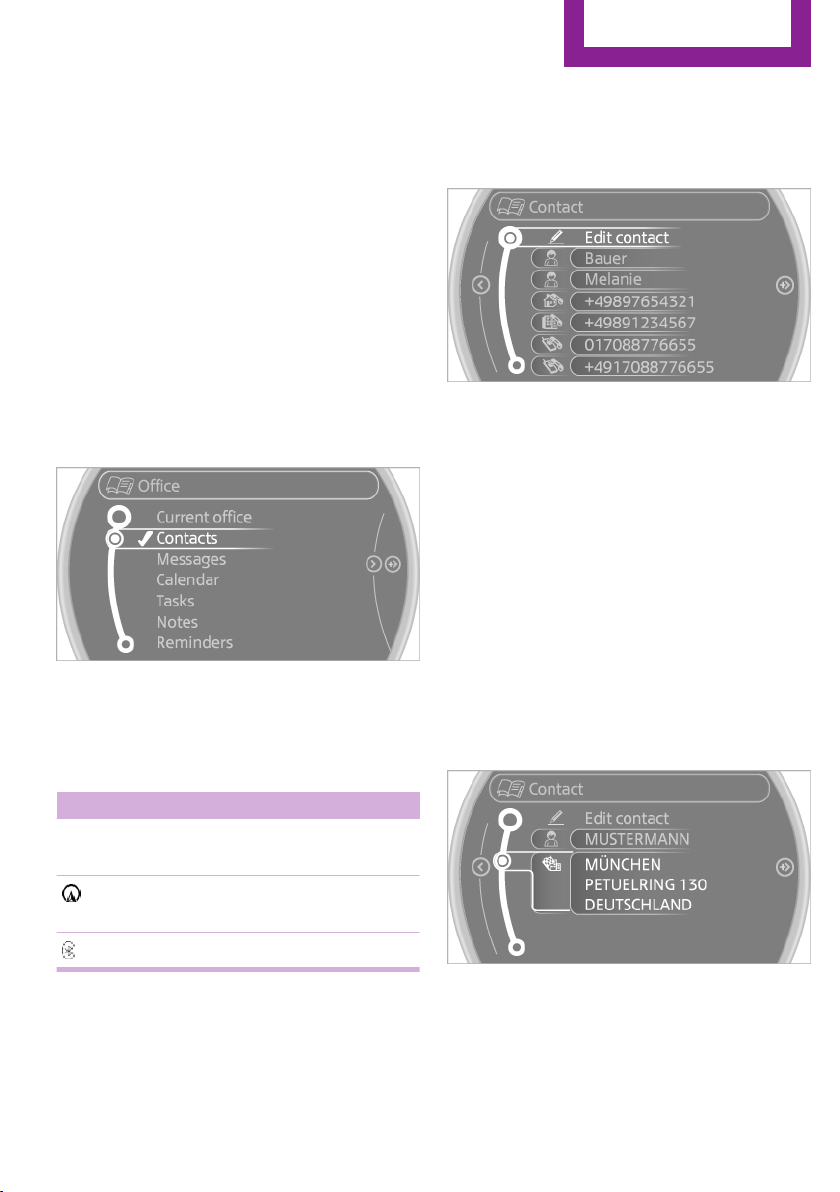
Contacts
At a glance
Contacts can be created and edited. The con‐
tacts from the mobile phone are displayed as
well if this function is supported by the mobile
phone. The addresses can be adopted as desti‐
nations for navigation and the phone numbers
can be dialed.
Displaying contacts
General information
1.
"Office"
2. "Contacts"
All contacts are listed in alphabetical order. De‐
pending on the number of contacts, an A-Z
search is offered.
A symbol indicates the storage location of the
contacts.
Symbol Storage location
No sym‐
bol
In the vehicle; the address has not
been checked as a destination.
In the vehicle; the address has
been checked as a destination.
Mobile phone.
Dialing a phone number
1.
Select the desired contact.
2. Select the phone number.
The connection is established.
Editing a contact
1. Select the desired contact.
2. "Edit contact"
3. Change the entries.
4. "Store contact in vehicle"
When a contact is edited, the changes are not
stored on the mobile phone. A copy of the en‐
try is stored in the vehicle.
Selecting the contact as a navigation
destination
1.
Select the desired contact.
2. Select the address.
When contacts from the mobile phone are
used, the address may need to be matched
to the navigation data contained in the ve‐
hicle. In this case:
Correct the address.
3. "Start guidance" or "Add as another
destination"
Checking the address as a destination
An address that is to be used for destination
guidance must match the navigation data con‐
Seite 203
Office
Communication
203
Online Edition for Part no. 01 40 2 911 544 - VI/13
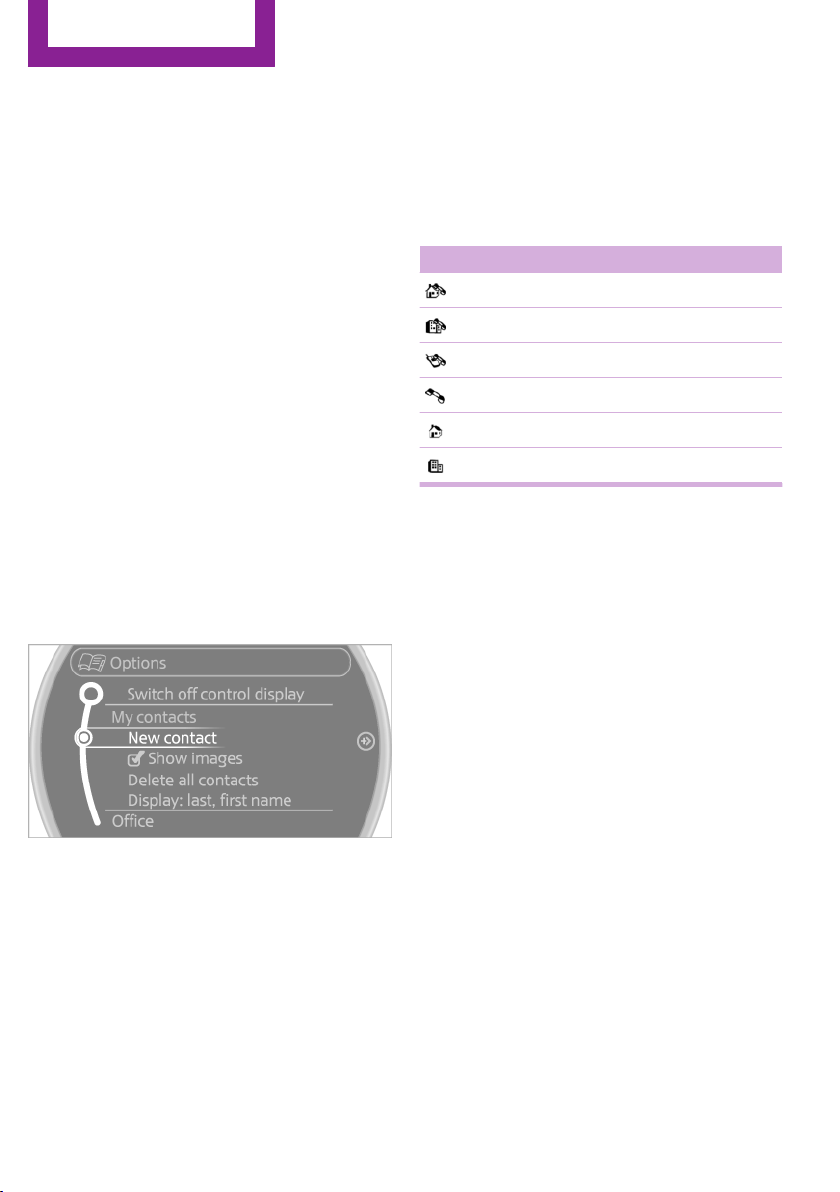
tained in the vehicle. The address can be
checked for this purpose.
1. Select the desired contact and highlight the
address.
2. Open "Options".
3. "Check as destination"
4. Correct and store the address if necessary.
If the address is corrected and stored, a copy of
it is stored in the vehicle. The address is not
changed on the mobile phone.
New contact
General information
A contact can have up to 8 phone numbers,
2 addresses, 3 e-mail addresses and one Inter‐
net address.
1.
"Office"
2. "Contacts"
3. Open "Options".
4. "New contact"
5. The entry fields are still filled with the previ‐
ous entries: "Delete input fields"
6. Fill in the entry fields: select the symbol
next to the entry field.
7. Enter the text and assign the contact type.
8. If the vehicle is equipped with a navigation
system: enter the address. Only addresses
contained in the navigation data in the ve‐
hicle can be entered. This ensures that des‐
tination guidance is possible for all ad‐
dresses.
If necessary, "Accept address".
9. "Store contact in vehicle"
Contact types
Various contact types can be assigned to phone
numbers and addresses.
Symbol Meaning
Home phone number.
Business phone number.
Mobile phone number.
Other phone number.
Home address.
Business address.
Specifying the home address
A home address can be stored. It appears at
the top of the contact list.
1.
"Office"
2. "Contacts"
3. "Home"
4. Create a contact.
5. "Store contact in vehicle"
Selecting the sorting order of the
names
Names can be displayed in a different order.
1.
"Office"
2. "Contacts"
3. Open "Options".
4. "Display: last, first name" or "Display: first,
last name"
Depending on how the contacts were stored on
the mobile phone, the sorting order of the
names may differ from the selected sorting or‐
der.
Seite 204
Communication
Office
204
Online Edition for Part no. 01 40 2 911 544 - VI/13

Show contact pictures
Pictures stored with the contacts are stored in
the vehicle when the mobile phone is con‐
nected to the vehicle. The number of transmit‐
ted pictures depends on the mobile phone. The
mobile phone must support this function.
1. "Office"
2. "Contacts"
3. Open "Options".
4. "Configure Bluetooth®"
5. "Show images"
Display of all contact pictures is activated or de‐
activated.
Deleting contacts
Only contacts that are stored in the vehicle are
deleted. The contacts on the mobile phone
cannot be deleted.
1.
"Office"
2. "Contacts"
3. Highlight the contact.
4. Open "Options".
5. "Delete contact" or "Delete all contacts"
Messages
General information
Whether or not text messages and e-mails from
the mobile phone are displayed depends on
whether transmission from the mobile phone
to the vehicle is supported. Text messages and
e-mails may not be supported by the service
provider, or the function may need to be ena‐
bled separately. After the mobile phone is first
paired, transmission may take several minutes.
Messages are only displayed in full length when
the vehicle is stationary. Messages from the ad‐
ditional telephone are not transmitted.
Displaying messages
1. "Office"
2. "Messages"
A symbol identifies the type of message.
Symbol Message type
Text messages.
E-mail from mobile phone.
Filtering the message list
The message list can be filtered if more than
one type of message exists.
1.
"Filter:"
2. Select the type of message.
▷ "All"
All messages are displayed.
▷ "Text message"
Only text messages from the mobile
phone are displayed.
▷ "E-mail"
Only e-mails from the mobile phone
are displayed.
Text messages
Calling the sender of a text message
1.
Select the desired message.
2. Select the symbol.
Saving the sender in the contacts
1.
Highlight the desired message.
2. Open "Options".
3. "Store as new contact" or "Add to existing
contact"
Using contact data
Contact data from appointments, tasks, text
messages, e-mails, and notes can be stored or
selected, refer to page 208.
Seite 205
Office
Communication
205
Online Edition for Part no. 01 40 2 911 544 - VI/13
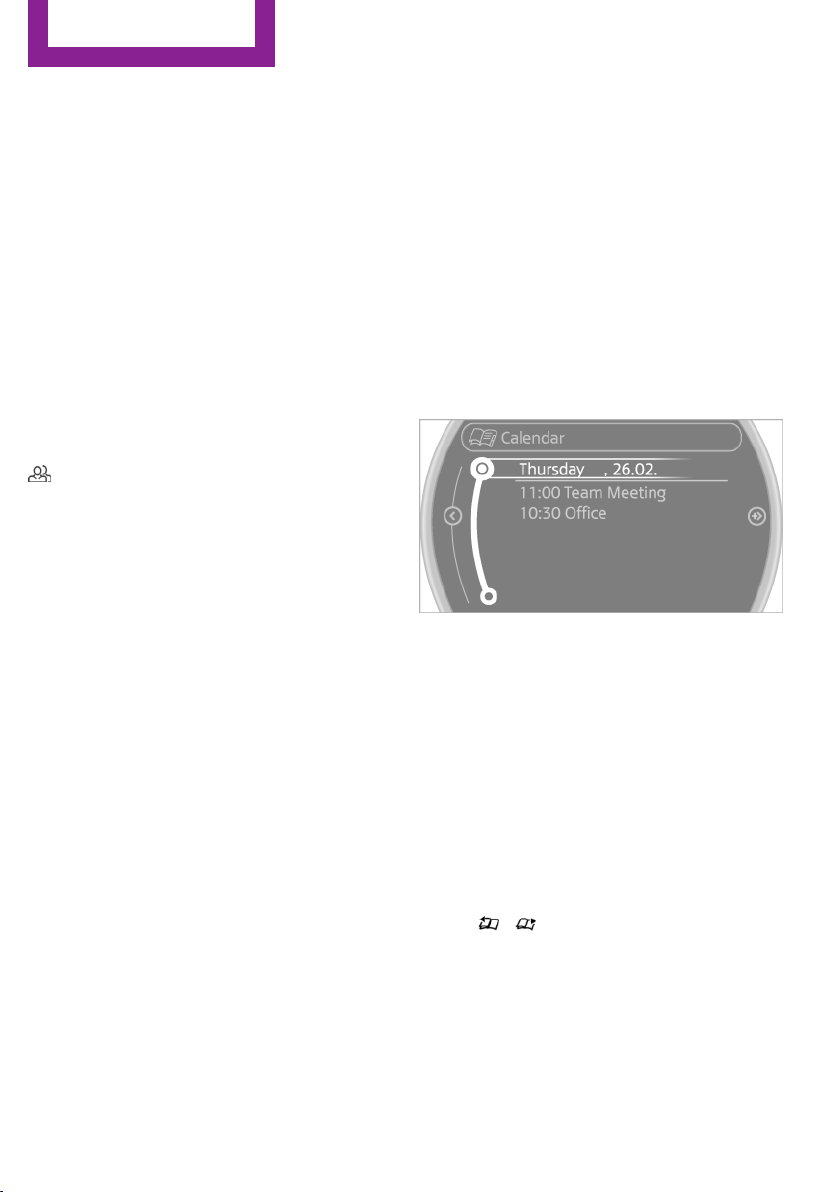
Reading the text message out loud
Read the text message out loud, refer to
page 208.
E-mail
Displaying e-mails
1. "Office"
2. "Messages"
3. Select the desired e-mail.
Displaying e-mail contacts
If the sender and recipient of an e-mail are
transmitted by the mobile phone, this informa‐
tion is displayed in the e-mail.
"Sender/Recipient"
If the e-mail addresses are stored in the con‐
tacts, the contact is displayed. Select the con‐
tact to display details.
If the e-mail addresses are not stored in the
contacts, only the e-mail address is displayed.
Using contact data
Contact data from appointments, tasks, text
messages, e-mails, and notes can be stored or
selected, refer to page 208.
Deactivating the full display
When an e-mail is opened in the vehicle, the e-
mail is fully transmitted to the vehicle. This may
result in charges.
1.
"Office"
2. "Messages"
3. Open "Options".
4. "Fully download e-mails"
Only a part of the e-mail from the mobile
phone is loaded into the vehicle.
Reading the e-mail out loud
Read the e-mail out loud, refer to page 208.
Calendar
Display the calendar
Appointments during the last 20 days and the
next 50 days can be displayed.
1. "Office"
2. "Calendar"
The appointments on the current day are
displayed.
Selecting the calendar day
1.
Select the date.
2. Select the desired day or date.
▷ "Next day"
▷ "Date:"
▷ "Previous day"
▷ "Today"
Display the appointment
1.
Select the desired appointment.
2. Scroll through the appointment if neces‐
sary:
▷ Turn the MINI joystick.
▷ Select the symbol.
Using contact data
Contact data from appointments, tasks, text
messages, e-mails, and notes can be stored or
selected, refer to page 208.
Seite 206
Communication
Office
206
Online Edition for Part no. 01 40 2 911 544 - VI/13
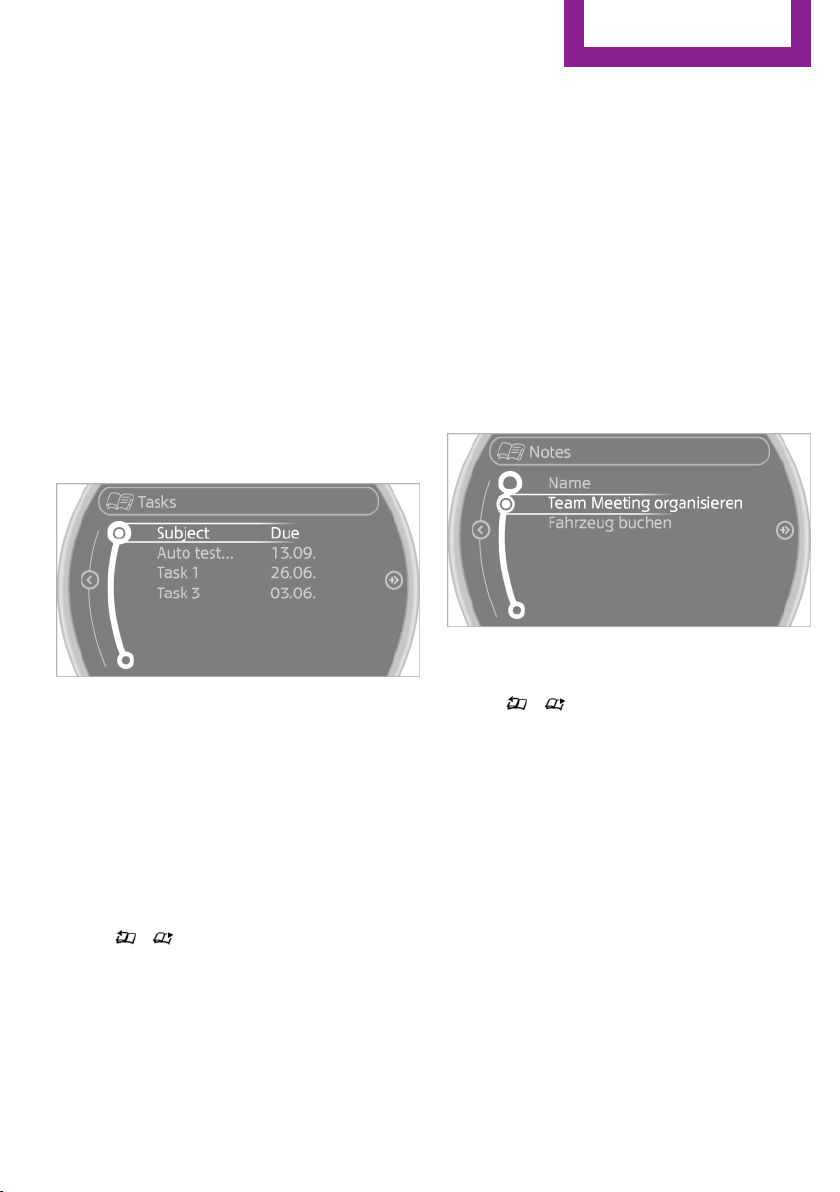
Reading the appointment out loud
Read the appointment out loud, refer to
page 208.
Tasks
Displaying the task list
Display tasks that are due within the next
90 days.
1. "Office"
2. "Tasks"
Sorting the task list
1.
Select the header in the task list.
2. Select the sorting criterion:
▷ "Priority (!)"
▷ "Subject"
▷ "Due date"
Displaying the task
1.
Select the desired task.
2. Scroll in the task if necessary:
▷ Turn the MINI joystick.
▷ Select the symbol.
Using contact data
Contact data from appointments, tasks, text
messages, e-mails, and notes can be stored or
selected, refer to page 208.
Reading the task out loud
Read the task out loud, refer to page 208.
Notes
Displaying notes
1. "Office"
2. "Notes"
All notes are displayed.
Displaying the note
1.
Select the desired note.
2. Scroll in the note if necessary:
▷ Turn the MINI joystick.
▷ Select the symbol.
Using contact data
Contact data from appointments, tasks, text
messages, e-mails, and notes can be stored or
selected, refer to page 208.
Reading the note out loud
Read the note out loud, refer to page 208.
Seite 207
Office
Communication
207
Online Edition for Part no. 01 40 2 911 544 - VI/13
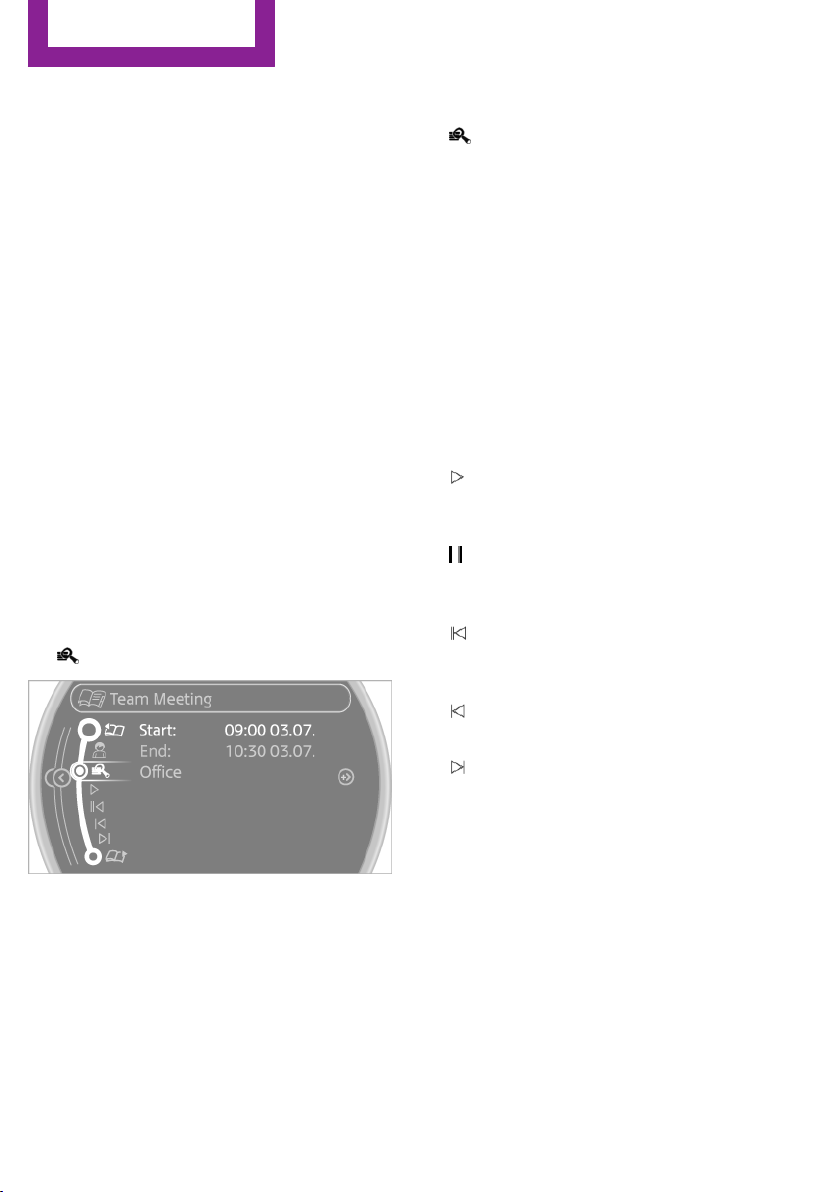
Reminders
Displaying reminders
Reminders of pending appointments and tasks
are displayed. After an appointment or after a
task is due, the reminder is no longer displayed.
1. "Office"
2. "Reminders"
3. Select the desired reminder.
The corresponding appointment or the task are
displayed.
Using contact data
At a glance
Contact data from appointments, tasks, text
messages, e-mails, and notes can be stored or
selected.
Displaying contact or selecting phone
number
1.
"Use contact data"
2. Display the contact or select the phone
number:
▷ Select the contact to display contact de‐
tails.
▷ Select the phone number to establish a
connection directly.
Storing contact data
1. "Use contact data"
2. Highlight the phone number or e-mail ad‐
dress.
3. Open "Options".
4. "Add to existing contact" or "Store as new
contact"
Reading out loud
Text messages, e-mails, appointment entries,
tasks, and notes can be read out loud.
1.
Select the desired message, appointment,
task, or note.
2. Select the symbol.
The following options are available during
reading:
▷ "Pause"
Interrupt reading. Select again to restart
reading.
▷ "Back to beginning"
Start reading the message again from the
beginning.
▷ Select the symbol.
Go back one paragraph.
▷ Select the symbol.
Skip a paragraph.
▷ To end reading, move the MINI joystick to
the left.
What to do if...
Information on suitable mobile phones, refer to
page 190.
Appointments, tasks, notes, text messages, or
e-mails from the mobile phone are not dis‐
played.
Seite 208
Communication
Office
208
Online Edition for Part no. 01 40 2 911 544 - VI/13

▷ The mobile phone is not capable of the
missing function or is not connected cor‐
rectly.
▷ The Office function is deactivated.
▷ The mobile phone is connected as an addi‐
tional phone.
▷ Appointments are older than 20 days or are
more than 50 days in the future.
▷ The tasks have been marked as completed
or have a due date that lies more than
90 days in the future.
▷ Depending on the number of stored ap‐
pointments, task notes, and messages in
the mobile phone, not all are displayed in
the vehicle.
Not all appointments and tasks from the mobile
phone are displayed at the right time?
▷ The time zone, time, or date is incorrectly
set on the Control Display and mobile
phone.
Entries are not displayed in full length.
▷ Text were already transmitted from the
mobile phone in a shortened form.
▷ Synchronization between the mobile phone
and vehicle may take several minutes.
The contact pictures are not being displayed?
▷ Up to 200 contact pictures can be stored in
the vehicle.
If all points in this list have been checked and
the required function is still not available,
please contact the hotline or service center.
Seite 209
Office
Communication
209
Online Edition for Part no. 01 40 2 911 544 - VI/13
MINI Connected
Vehicle equipment
This chapter describes all series equipment as
well as country-specific and special equipment
offered for this model series.Therefore, it also
describes equipment that may not be found in
your vehicle, for instance due to the selected
special equipment or the country version. This
also applies to safety-related functions and sys‐
tems.
At a glance
The concept
Certain software applications of a suitable mo‐
bile phone can be integrated in the vehicle.
These software applications are displayed on
the Control Display.
They are operated via the onboard monitor.
The scope of the software applications may
vary by country.
Requirements
▷ The mobile phone is suitable.
▷ The mobile phone operating system sup‐
ports the software applications of MINI
Connected.
▷ Software applications are installed on the
mobile phone and ready to use.
▷ Corresponding mobile wireless contract.
Any additionally incurred costs are not a
part of MINI Connected.
Information about suitable mobile phones,
available software applications, and their instal‐
lation can be obtained at www.mini.com/
connectivity or from the service center.
Create the entries.
Make entries only when traffic and road
conditions allow. Otherwise, the vehicle occu‐
pants and other road users may be put in dan‐
ger because of the distraction from driving.
For reasons of safety, some software applica‐
tions are usable only while the vehicle is sta‐
tionary.◀
Software applications
Use only software applications approved
by the manufacturer of your MINI; otherwise,
malfunctions may occur.◀
Connecting the mobile
phone
Connection via the USB audio interface
The USB audio interface is in the
center console.
Connect the mobile phone to the
USB interface and the AV-IN port
using a special adapter cable
available from the service center.
To perform additional steps on the mobile
phone, refer to the mobile phone operating in‐
structions: for instance, selecting and activating
software applications.
Connection via the snap-in adapter
The mobile phone can also be connected, refer
to page 200, via the snap-in adapter.
Operating MINI Connected
After the mobile phone is successfully con‐
nected with the vehicle and MINI Connected is
started, the applications are displayed on the
Seite 210
Communication
MINI Connected
210
Online Edition for Part no. 01 40 2 911 544 - VI/13
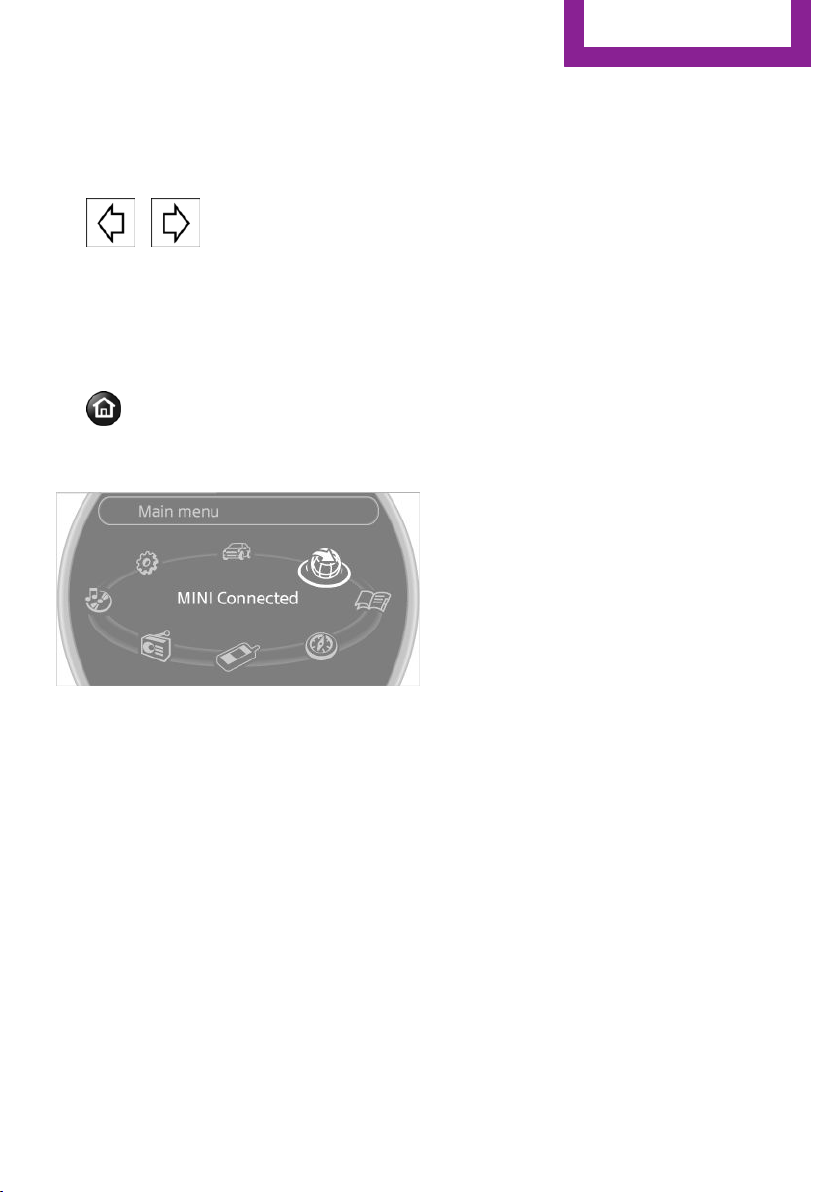
Control Display and can be operated using the
MINI joystick.
The volume can be set using the following con‐
trols:
▷ Buttons on the steering
wheel or
▷ Volume button on the radio, refer to
page 158
1. Connect the mobile phone via the snap-in
adapter or via the USB audio interface.
2.
Press the button. The main menu is
opened.
3. "MINI Connected"
4. Select the desired software application.
Notes
▷ The scope of MINI Connected that can be
displayed on the Control Display depends
on the range of software applications in‐
stalled on the mobile phone.
▷ The data transmission of the software ap‐
plications from the mobile phone to the ve‐
hicle can last some time. Some software
applications depend on the speed of the
available Internet connection of the mobile
phone.
▷ Some mobile phones cannot simultane‐
ously use MINI Connected and the Blue‐
tooth hands-free system.
If necessary, restart the software applica‐
tion on the mobile phone after a phone
conversation.
▷ Audio and video playback from the snap-in
adapter is only possible if no cable is con‐
nected to the AV-IN port.
PlugIn
The concept
Selected functions of a compatible Apple de‐
vice can be displayed on the Control Display via
a video connection. They are operated using
the MINI joystick and the button on the
MINI joystick.
Functional requirement
▷ Suitable iPhone or iPod: as of iPhone 3GS or
iPod with software version iOS 4.1 and
higher.
▷ The MINI Connected app is not required.
Information on compatible adapters and inter‐
faces can be obtained from the service center.
Activating
1.
Connect the Apple device.
Operation takes place via the MINI joystick
with its buttons.
2. "MINI Connected"
3. "PlugIn"
4. Select the connection type: "Activate via
AUX connection" or"Activate via Snap-In
adapter"
5. "Activate PlugIn"
6. Use the MINI joystick to navigate among
the displayed functions and select, for ex‐
ample, a desired category or track.
Controls
The PlugIn is activated to display the graphic
output of the connected device on the Control
Seite 211
MINI Connected
Communication
211
Online Edition for Part no. 01 40 2 911 544 - VI/13

Display. This changes the operating functions of
the MINI joystick and the MINI buttons until the
PlugIn is deactivated again.
The operation of the PlugIn depends on the iOS
version in use, e.g., iOS 4.1.
Home button
Press the button to select the following
functions:
▷ Press 1x: opens the display menu bar.
▷ Press 2x: opens the main menu.
▷ Press 1x and move the MINI joystick to the
left 1x: opens the MINI Connected menu.
▷ Press 1x and move the MINI joystick to the
left 2x: opens the main menu.
Toggle button
Press the button to select the following
functions.
▷ Press 1x: return to the next higher menu
level of the iPhones/iPods.
MINI joystick
▷ Press: selection/play/pause.
▷ Turn: navigate through the lists.
▷ Move to the left: jump to the beginning of
the current music track or to the previous
music track in the playback list.
▷ Move the left and hold: reverse.
▷ Move to the right: jump to the next music
track in the playback list.
▷ Move to the right and hold: fast forward.
Deactivating
There are several methods of deactivating the
PlugIn and returning to the MINI operating
level.
Via the home button
▷ Press 1x: returns to activating the PlugIn.
▷ Press 2x: opens the main menu.
▷ Press 1x and move the MINI joystick to the
left 1x: opens the MINI Connected menu.
▷ Press 1x and move the MINI joystick to the
left 2x. Opens the main menu.
Via the audio source button
Press 1x: changes to the audio source
selected last.
Seite 212
Communication
MINI Connected
212
Online Edition for Part no. 01 40 2 911 544 - VI/13

Seite 213
MINI Connected
Communication
213
Online Edition for Part no. 01 40 2 911 544 - VI/13

MOVE ME.
Online Edition for Part no. 01 40 2 911 544 - VI/13

At a glance
Controls
Driving tips
Navigation
Entertainment
Communication
Mobility
Reference
Online Edition for Part no. 01 40 2 911 544 - VI/13
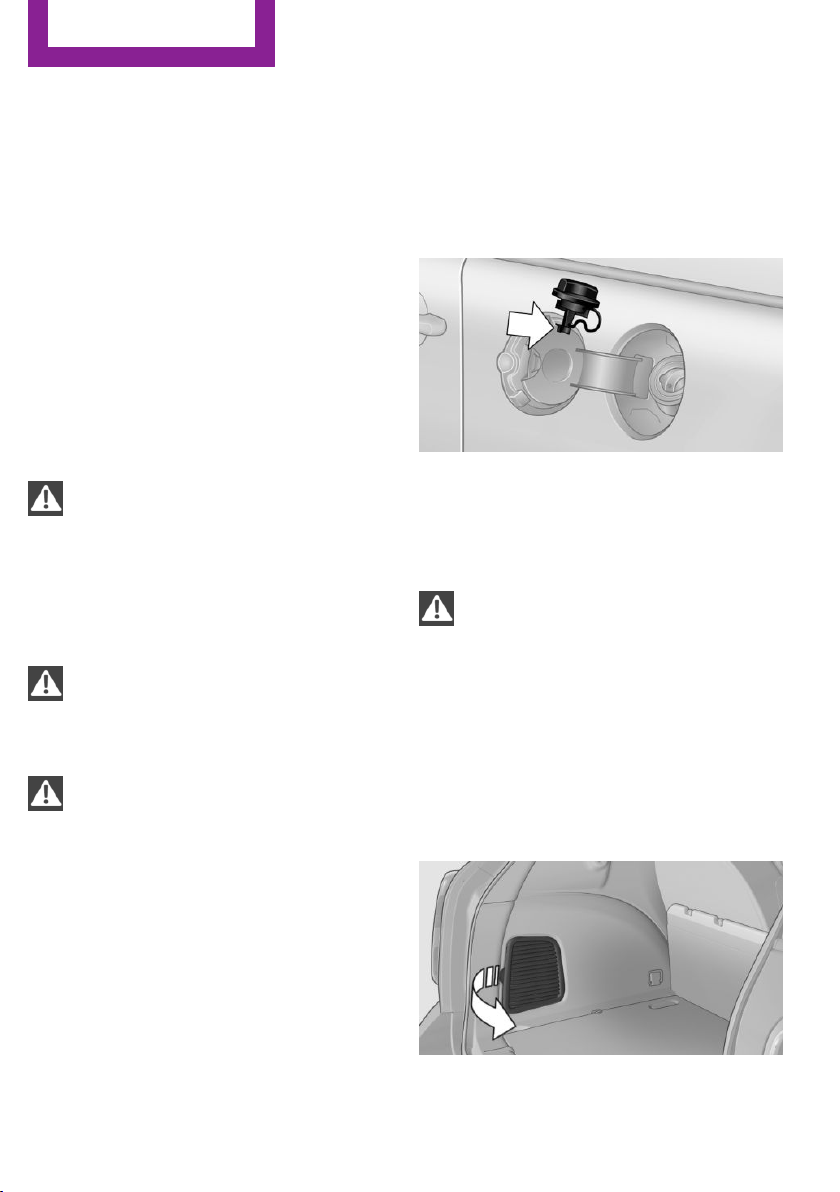
Refueling
Vehicle equipment
This chapter describes all series equipment as
well as country-specific and special equipment
offered for this model series.Therefore, it also
describes equipment that may not be found in
your vehicle, for instance due to the selected
special equipment or the country version. This
also applies to safety-related functions and sys‐
tems.
General information
Refuel promptly
At the latest, refuel at a range below
30 miles/50 km; otherwise, the engine function
is not ensured and damage may occur.◀
Notes
Switch off the engine before refueling
Always switch off the engine before refu‐
eling; otherwise, fuel cannot be added to the
tank and a message will be displayed.◀
Observe when handling fuel
▷ Take all precautionary measures and
observe all applicable regulations
when handling fuel.
▷ Do not carry any spare fuel containers in
your vehicle. They can develop a leak and
cause an explosion or cause a fire in the
event of an accident.◀
Fuel cap
Opening
1.
Open fuel filler flap.
2. Turn the fuel cap counterclockwise.
3. Place the fuel cap in the bracket attached
to the fuel filler flap.
Closing
1.
Fit the fuel cap and turn it clockwise until
you clearly hear a click.
2. Close the fuel filler flap.
Do not pinch the retaining strap
Do not pinch the retaining strap attached
to the cap; otherwise, the cap cannot be closed
properly and fuel vapors can escape.◀
A message is displayed if the cap is loose or
missing.
Manually unlocking fuel filler flap
In the event of a malfunction, the fuel filler flap
can be released manually:
MINI Countryman:
Seite 216
Mobility
Refueling
216
Online Edition for Part no. 01 40 2 911 544 - VI/13
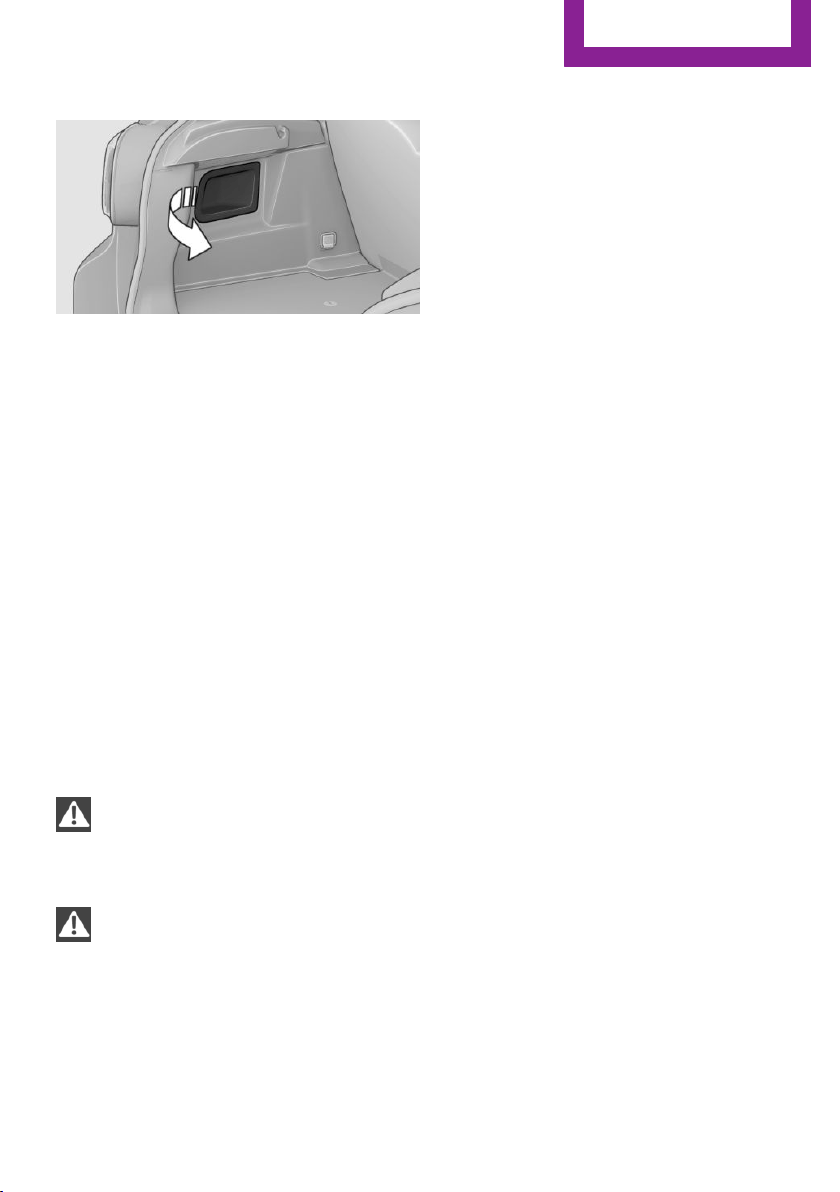
MINI Paceman:
1. Open the cargo area trim, arrow.
2. Pull the green knob with the gas pump
symbol.
This opens the fuel filler flap.
Observe the following
when refueling
When refueling, insert the filler nozzle com‐
pletely into the filler pipe. Lifting up the fuel
pump nozzle during refueling causes:
▷ Premature pump shutoff.
▷ Reduced efficiency in the fuel-vapor recov‐
ery system.
The fuel tank is full after refueling is resumed
twice after the filler nozzle switches off for the
first time.
Do not overfill the fuel tank
Do not overfill the fuel tank; otherwise,
escaping fuel may harm the environment or
damage the vehicle.◀
Handling fuels
Follow the safety instructions provided at
gas stations; otherwise, there is a danger of
personal injury and property damage.◀
Fuel tank capacity
Approx. 12.3 US gal/47 liters, including a re‐
serve capacity of 2.1 US gal/8 liters.
Seite 217
Refueling
Mobility
217
Online Edition for Part no. 01 40 2 911 544 - VI/13

Fuel
Vehicle equipment
This chapter describes all series equipment as
well as country-specific and special equipment
offered for this model series.Therefore, it also
describes equipment that may not be found in
your vehicle, for instance due to the selected
special equipment or the country version. This
also applies to safety-related functions and sys‐
tems.
Fuel recommendation
Gasoline
For the best fuel economy, the gasoline should
be sulfur-free or very low in sulfur content.
Do not use fuels that are labeled at the fuel
pump as containing metals.
Only refuel with lead-free gasoline with‐
out metal additives
Do not refuel with leaded gasoline or gasoline
with metal additives, e. g., manganese or iron;
otherwise, the catalytic converter and other
components will be permanently damaged.◀
Fuels with a maximum ethanol content of
10 %, i.e., E10, may be used for refueling.
The ethanol should fulfill the following quality
standards:
US: ASTM 4806–xx
CAN: CGSB-3.511–xx
xx: always adhere to the currently applicable
standard.
Do not refuel with ethanol E85
Do not refuel with E85, i.e., fuel with an
ethanol content of 85 %, or with Flex Fuel, as
this would damage the engine and fuel supply
system.◀
The engine is knock controlled. Therefore, you
can refuel with different gasoline qualities.
Gasoline quality
The manufacturer of your MINI recommends:
▷ AKI 91.
▷ John Cooper Works AKI 93.
Minimum fuel grade
The manufacturer of your MINI recommends
AKI 89.
Minimum fuel grade
Do not fill up with fuel below the speci‐
fied minimum quality; otherwise, the engine
may not run properly.◀
If you use gasoline with this minimum AKI rat‐
ing, the engine may produce knocking sounds
when starting at high outside temperatures.
This has no effect on the engine life.
Minimum fuel grade
The use of poor-quality fuels may result in
harmful engine deposits or damage. Addition‐
ally, problems relating to drivability, starting
and stalling, especially under certain environ‐
mental conditions such as high ambient tem‐
perature and high altitude, may occur.
If drivability problems are encountered, we rec‐
ommend switching to a high quality gasoline
brand and a higher octane grade — AKI num‐
ber — for a few tank fills. To avoid harmful en‐
gine deposits, it is highly recommended to pur‐
chase gasoline from BP or Top Tier retailers.
Failure to comply with these recommendations
may result in the need for unscheduled mainte‐
nance.◀
Seite 218
Mobility
Fuel
218
Online Edition for Part no. 01 40 2 911 544 - VI/13

Seite 219
Fuel
Mobility
219
Online Edition for Part no. 01 40 2 911 544 - VI/13

Wheels and tires
Vehicle equipment
This chapter describes all series equipment as
well as country-specific and special equipment
offered for this model series.Therefore, it also
describes equipment that may not be found in
your vehicle, for instance due to the selected
special equipment or the country version. This
also applies to safety-related functions and sys‐
tems.
Tire inflation pressure
Safety information
It is not merely the tires' service life, but also
driving comfort and, to a great extent, driving
safety that depend on the condition of the tires
and the maintenance of the specified tire pres‐
sure.
Checking the pressure
Check the tire inflation pressure regularly
Regularly check the tire inflation pressure
and correct it as needed: at least twice a month
and before a long trip. If you fail to observe this
precaution, you may be driving on tires with in‐
correct tire pressures, a condition that may not
only compromise your vehicle's driving stabil‐
ity, but also lead to tire damage and the risk of
an accident.
Do not drive with depressurized or flat tires, ex‐
cept for run-flat tires. A flat tire will seriously
impair your vehicle's handling and braking re‐
sponse. Attempts to drive on a flat tire can lead
to a loss of control over the vehicle.◀
Only check the tire inflation pressure when the
tires are cold. This means after a maximum of
1.25 miles/2 km driving or when the vehicle
has been parked for at least 2 hours. When the
tires are warm, the tire inflation pressure is
higher.
After correcting the tire inflation pressure, reset
the Tire Pressure Monitor, refer to page 88
or reinitialize the Flat Tire Monitor, refer to
page 86.
To check the inflation pressure, there is a valve
extension behind the bumper.
Pressure specifications
The tables below provide all the correct infla‐
tion pressures for the specified tire sizes at am‐
bient temperature.
The inflation pressures apply to the tire sizes
approved and tire brands recommended by the
manufacturer of the MINI; a list of these is
available from the service center.
For correct identification of the right tire infla‐
tion pressures, observe the following:
▷ Tire sizes of your vehicle
▷ Maximum allowable driving speed
Tire inflation pressures for driving up to
100 mph or 160 km/h
For normal driving up to 100 mph/160 km/h,
adjust pressures to the respective tire inflation
pressures listed on the following pages in the
column for traveling speeds up to 100 mph/
160 km/h to achieve optimum driving comfort.
These tire inflation pressures can also be found
on the driver's side door pillar when the driver's
door is open.
Seite 220
Mobility
Wheels and tires
220
Online Edition for Part no. 01 40 2 911 544 - VI/13
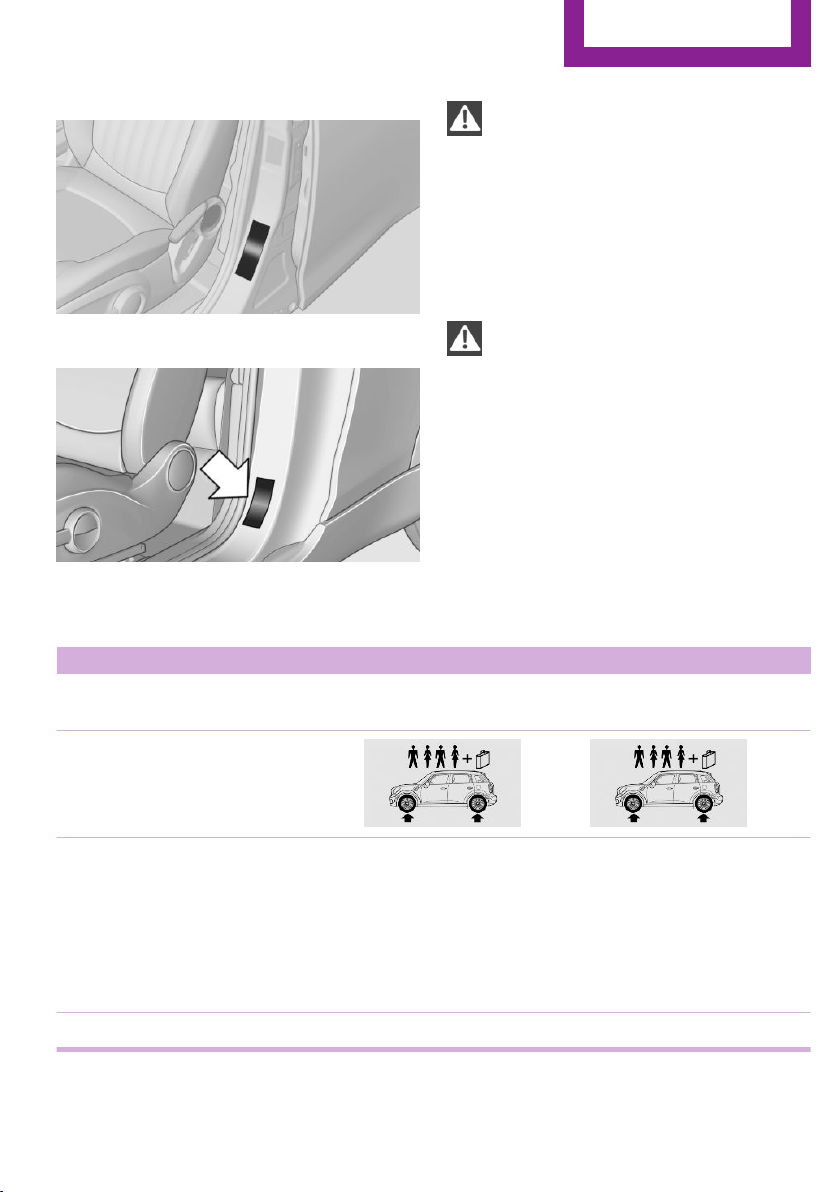
MINI Countryman:
MINI Paceman:
Do not exceed the maximum permissible
speed
The maximum permissible speed for these tire
pressures is 100 mph/160 km/h. Do not exceed
this speed; otherwise, tire damage and acci‐
dents may occur.◀
Tire inflation pressures for driving
above 100 mph or 160 km/h
Adjust the tire inflation pressures
To drive at maximum speeds in excess of
100 mph/160 km/h, adjust pressures to the re‐
spective tire inflation pressures listed on the
following pages in the column for traveling
speeds including those exceeding 100 mph or
160 km/h. Otherwise, tire damage and acci‐
dents could occur.◀
Observe all national and local maximum speed
limits; otherwise, violations of the laws could
occur.
Tire inflation pressures for MINI Countryman Cooper
Tire size Pressure specifications in bar/PSI
Traveling speeds of up to
100 mph/160 km/h
Traveling speeds above
100 mph/160 km/
All pressure specifications in the table
are indicated in bar/PSI with cold
tires.
Cold = ambient temperature
195/60 R 16 89 H M+S Std
205/55 R 17 91 H M+S RSC
205/55 R 17 91 H M+S A/S RSC
205/55 R 17 91 V RSC
225/45 R 18 91 V RSC
225/40 R 19 89 V RSC
2.2/32 2.2/32 2.4/35 2.4/35
More details on the permissible load and weights, refer to page 261.
Seite 221
Wheels and tires
Mobility
221
Online Edition for Part no. 01 40 2 911 544 - VI/13
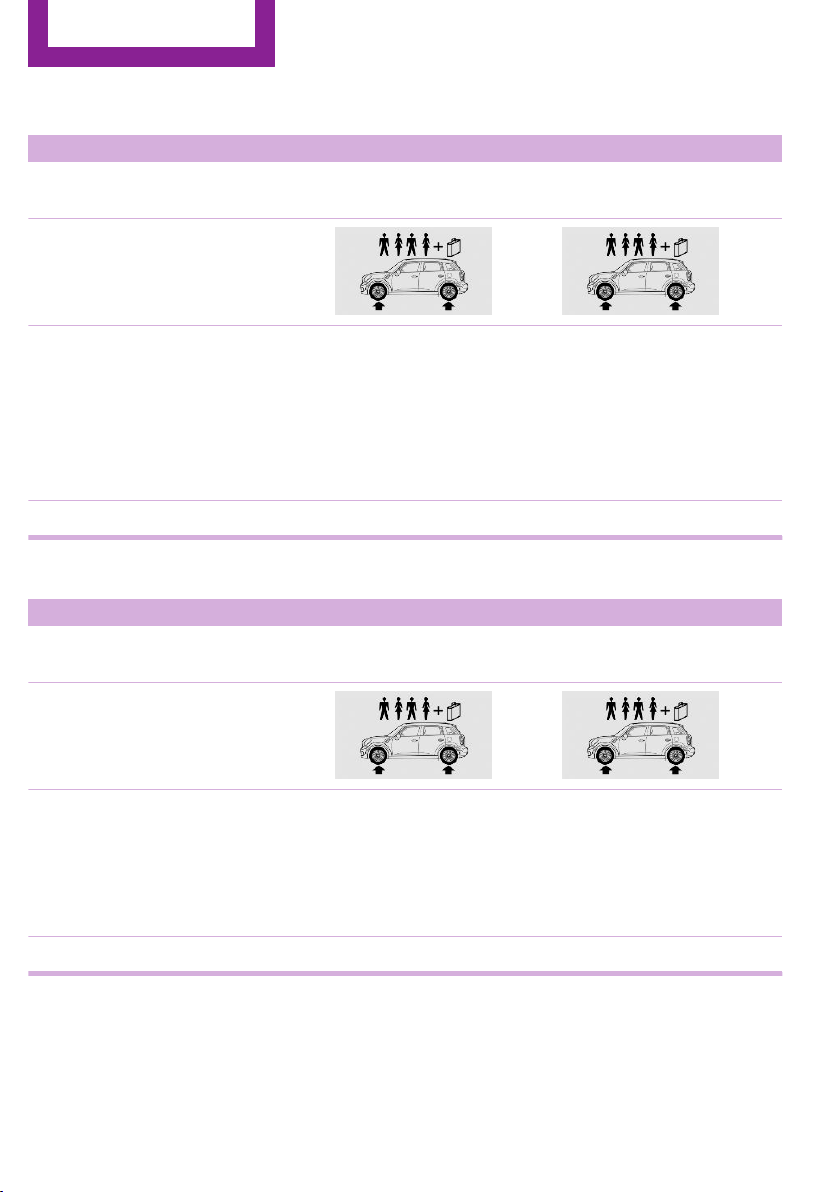
Tire inflation pressures for MINI Countryman Cooper S/Countryman Cooper S ALL4
Tire size Pressure specifications in bar/PSI
Traveling speeds of up to
100 mph/160 km/h
Traveling speeds above
100 mph/160 km/
All pressure specifications in the table
are indicated in bar/PSI with cold
tires.
Cold = ambient temperature
195/60 R 16 89 H M+S Std
205/55 R 17 91 H M+S RSC
205/55 R 17 91 H M+S A/S RSC
205/55 R 17 91 V RSC
225/45 R 18 91 V RSC
225/40 R 19 89 V RSC
2.2/32 2.2/32 2.6/38 2.6/38
More details on the permissible load and weights, refer to page 261.
Tire inflation pressures for MINI Countryman John Cooper Works
Tire size Pressure specifications in bar/PSI
Traveling speeds of up to
100 mph/160 km/h
Traveling speeds above
100 mph/160 km/
All pressure specifications in the table
are indicated in bar/PSI with cold
tires.
Cold = ambient temperature
195/60 R 16 89 H M+S Std
205/55 R 17 91 H M+S RSC
205/55 R 17 91 H M+S A/S RSC
225/45 R 18 91 V RSC
225/40 R 19 89 V RSC
2.4/35 2.4/35 2.6/38 2.6/38
More details on the permissible load and weights, refer to page 261.
Seite 222
Mobility
Wheels and tires
222
Online Edition for Part no. 01 40 2 911 544 - VI/13
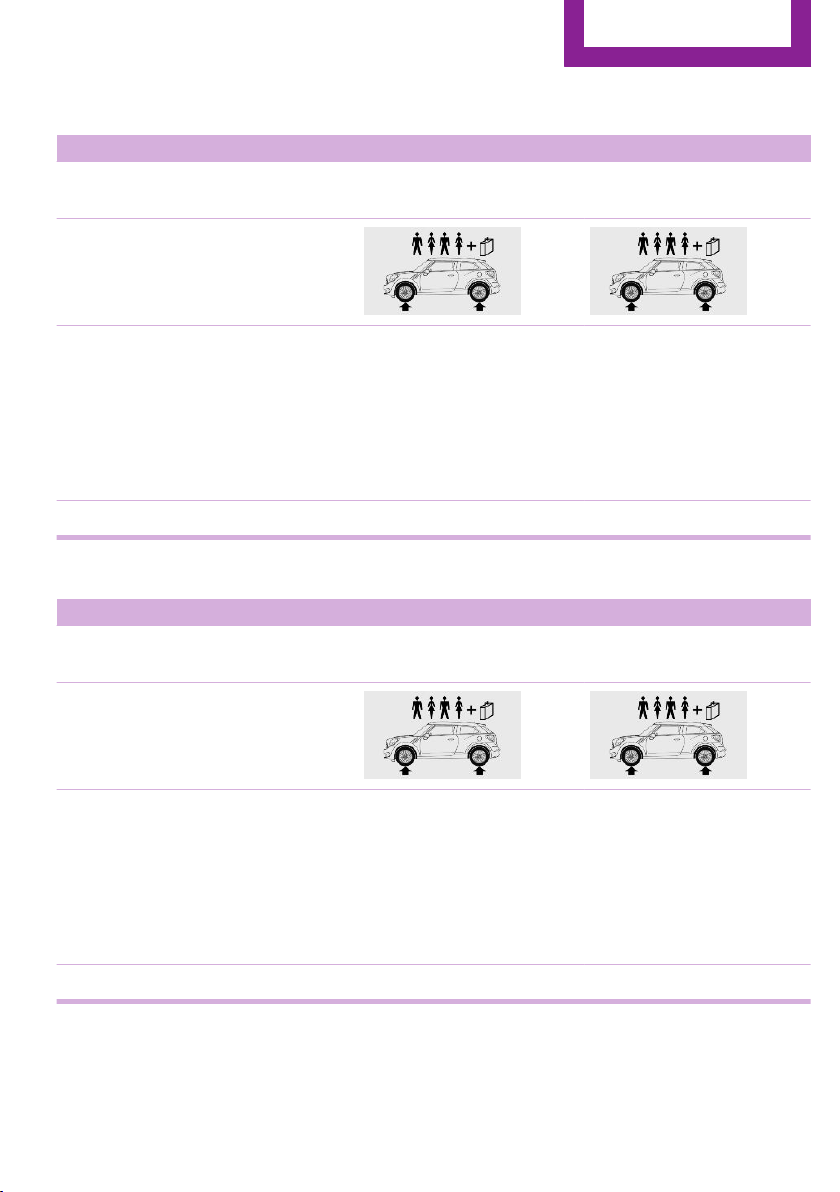
Tire inflation pressures for MINI Paceman Cooper
Tire size Pressure specifications in bar/PSI
Traveling speeds of up to
100 mph/160 km/h
Traveling speeds above
100 mph/160 km/
All pressure specifications in the table
are indicated in bar/PSI with cold
tires.
Cold = ambient temperature
195/60 R 16 89 H M+S Std
205/55 R 17 91 H M+S RSC
205/55 R 17 91 H M+S A/S RSC
205/55 R 17 91 V RSC
225/45 R 18 91 V RSC
225/40 R 19 89 V RSC
2.2/32 2.2/32 2.4/35 2.4/35
More details on the permissible load and weights, refer to page 262.
Tire inflation pressures for MINI Paceman Cooper S / Paceman Cooper S ALL4
Tire size Pressure specifications in bar/PSI
Traveling speeds of up to
100 mph/160 km/h
Traveling speeds above
100 mph/160 km/
All pressure specifications in the table
are indicated in bar/PSI with cold
tires.
Cold = ambient temperature
195/60 R 16 89 H M+S Std
205/55 R 17 91 H M+S RSC
205/55 R 17 91 H M+S A/S RSC
205/55 R 17 91 V RSC
225/45 R 18 91 V RSC
225/40 R 19 89 V RSC
2.2/32 2.2/32 2.6/38 2.6/38
More details on the permissible load and weights, refer to page 262.
Seite 223
Wheels and tires
Mobility
223
Online Edition for Part no. 01 40 2 911 544 - VI/13
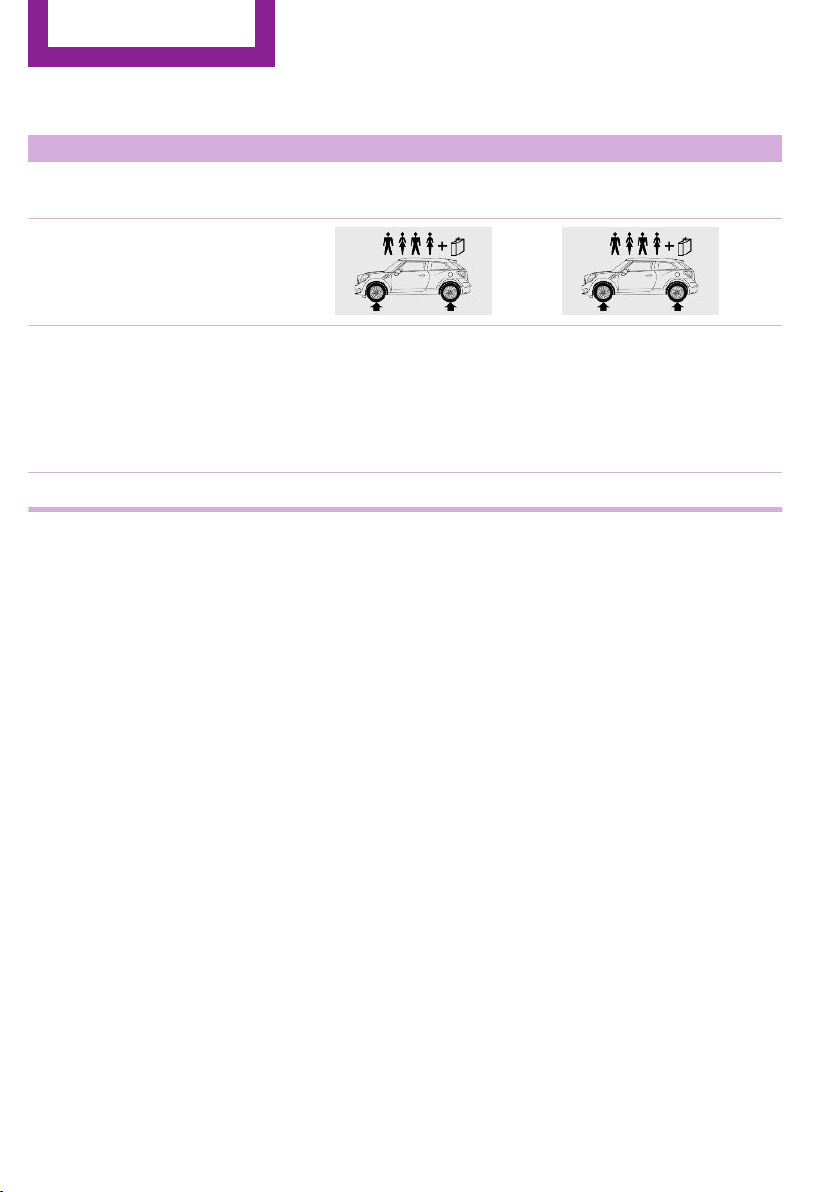
Tire inflation pressures for MINI Paceman John Cooper Works
Tire size Pressure specifications in bar/PSI
Traveling speeds of up to
100 mph/160 km/h
Traveling speeds above
100 mph/160 km/
All pressure specifications in the table
are indicated in bar/PSI with cold
tires.
Cold = ambient temperature
195/60 R 16 89 H M+S Std
205/55 R 17 91 H M+S RSC
205/55 R 17 91 H M+S A/S RSC
225/45 R 18 91 V RSC
225/40 R 19 89 V RSC
2.4/35 2.4/35 2.7/39 2.7/39
More details on the permissible load and weights, refer to page 262.
Tire identification marks
Knowledge of the labeling on the side of the
tire makes it easier to identify and choose the
right tires.
Tire size
Example: 225/45 R 17 91 V
225: nominal width in mm
45: aspect ratio in %
R: radial tire code
17: rim diameter in inches
91: load rating, not for ZR tires
Speed letter
Q = up to 100 mph/160 km/h
T = up to 118 mph/190 km/h
H = up to 131 mph/210 km/h
V = up to 150 mph/240 km/h
W = up to 167 mph/270 km/h
Y = up to 186 mph/300 km/h
Tire Identification Number
Tires with DOT codes meet the guidelines of
the U.S. Department of Transportation.
DOT code:
DOT xxxx xxx 1012
xxxx: manufacturer code for the tire brand
xxx: tire size and tire design
1012: tire age
Uniform Tire Quality Grading
Quality grades can be found where applicable
on the tire sidewall between tread shoulder
and maximum section width. For example:
Treadwear 200 Traction AA
Temperature A
DOT Quality Grades
Treadwear
Traction AA A B C
Temperature A B C
Seite 224
Mobility
Wheels and tires
224
Online Edition for Part no. 01 40 2 911 544 - VI/13

Conform to Federal Safety Requirements
All passenger car tires must conform to
Federal Safety Requirements in addition to
these grades.◀
Treadwear
The treadwear grade is a comparative rating
based on the wear rate of the tire when tested
under controlled conditions on a specified gov‐
ernment test course. For example, a tire graded
150 would wear one and one-half (1 1/2) times
as well on the government course as a tire
graded 100. The relative performance of tires
depends upon the actual conditions of their
use, however, and may depart significantly
from the norm due to variations in driving hab‐
its, service practices and differences in road
characteristics and climate.
Traction
The traction grades, from highest to lowest, are
AA, A, B, and C.
Those grades represent the tire’s ability to stop
on wet pavement as measured under control‐
led conditions on specified government test
surfaces of asphalt and concrete. A tire marked
C may have poor traction performance.
The traction grade assigned to this tire is based
on straight-ahead braking traction tests, and
does not include acceleration, cornering, hy‐
droplaning, or peak traction characteristics.
Temperature
The temperature grades are A, the highest, B,
and C, representing the tire’s resistance to the
generation of heat and its ability to dissipate
heat when tested under controlled conditions
on a specified indoor laboratory test wheel.
Sustained high temperature can cause the ma‐
terial of the tire to degenerate and reduce tire
life, and excessive temperature can lead to
sudden tire failure. The grade C corresponds to
a level of performance which all passenger car
tires must meet under the Federal Motor Vehi‐
cle Safety Standard No. 109. Grades B and A
represent higher levels of performance on the
laboratory test wheel than the minimum re‐
quired by law.
Temperature grade for this tire
The temperature grade for this tire is es‐
tablished for a tire that is properly inflated and
not overloaded. Excessive speed, underinfla‐
tion, or excessive loading, either separately or
in combination, can cause heat buildup and
possible tire failure.◀
RSC – Run-flat tires
The symbol identifying run-flat tires is a circle
with the letters RSC on the sidewall, refer to
page 228.
M+S
Winter and all-season tires.
These have better winter properties than
summer tires.
XL
Designation for specially reinforced tires.
Tire tread
Summer tires
The tread depth should not be less than
0.12 in/3 mm, although European legislation,
for example, requires a minimum tread depth
of only 0.063 in/1.6 mm. At tread depths less
than 0.12 in/3 mm, there is a great danger of
hydroplaning even in low water depths and at
raised speeds.
Winter tires
The suitability of winter tires for winter driving
is reduced noticeably when their tread depth
becomes less than 0.16 in/4 mm.
Seite 225
Wheels and tires
Mobility
225
Online Edition for Part no. 01 40 2 911 544 - VI/13
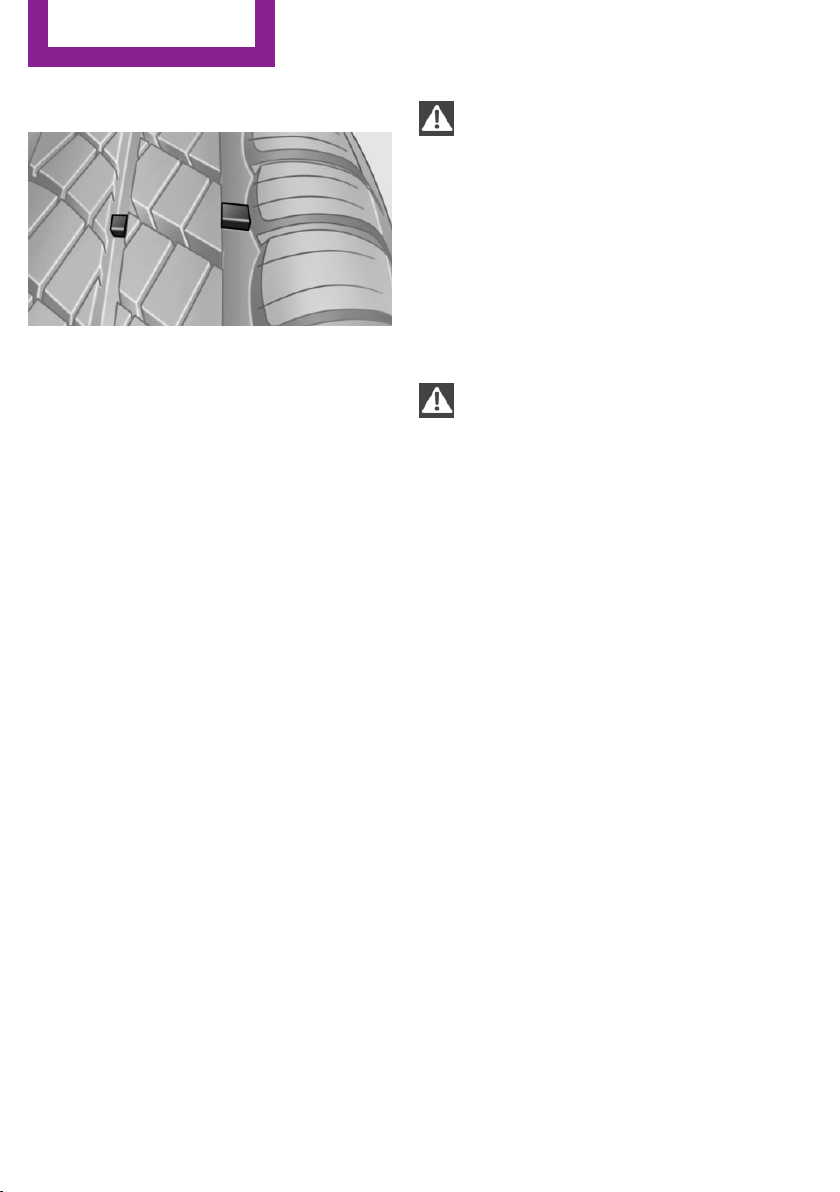
Minimum tread depth
Wear indicators in the tread base are distrib‐
uted around the circumference of the tire and
are marked on the tire sidewall with TWI, Tread
Wear Indicator. When the tire tread has been
worn down to the wear indicators, a tread has
reached a depth of 0.063 in/1.6 mm.
Tire damage
General information
Inspect your tires often for damage, foreign ob‐
jects lodged in the tread, and tread wear.
Notes
Driving over rough or damaged road surfaces,
as well as debris, curbs and other obstacles can
cause serious damage to wheels, tires and sus‐
pension parts. This is more likely to occur with
low-profile tires, which provide less cushioning
between the wheel and the road. Be careful to
avoid road hazards and reduce your speed, es‐
pecially if your vehicle is equipped with low-
profile tires.
Indications of tire damage or other vehicle de‐
fects:
▷ Unusual vibrations during driving.
▷ Unusual handling such as a strong ten‐
dency to pull to the left or right.
Damage can be caused by driving over curbs,
road damage and similar situations.
In case of tire damage
If there are indications of tire damage, re‐
duce your speed immediately and have the
wheels and tires checked right away; other‐
wise, there is the increased risk of an accident.
Drive carefully to the next service center or tire
shop.
If necessary, have the vehicle towed.
Otherwise, tire damage can present a life-
threatening hazard to vehicle occupants and
other road users.◀
Repair of tire damage
For safety reasons, the manufacturer of
your vehicle recommends that you do not have
damaged tires repaired; they should be re‐
placed. Otherwise, damage can occur as a re‐
sult.◀
Tire age
Recommendation
For several reasons, among other things be‐
cause of beginning brittleness, the manufac‐
turer of your MINI recommends mounting new
tires at the latest after six years, regardless of
the actual wear.
Manufacture date
The date of manufacture of the tires is specified
in the tire label:
DOT … 2313: the tire was manufactured in
week 23 of 2013.
Seite 226
Mobility
Wheels and tires
226
Online Edition for Part no. 01 40 2 911 544 - VI/13
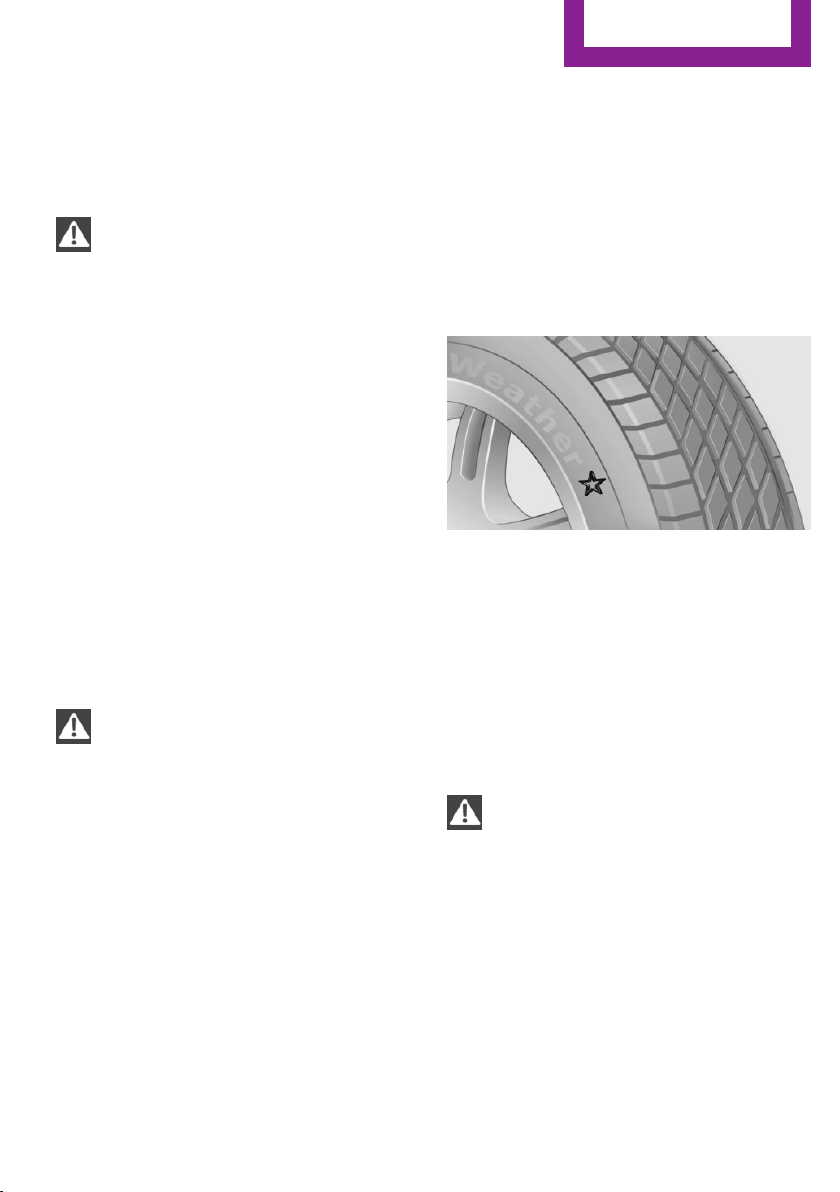
Changing wheels and
tires
Mounting
Information on mounting tires
Have mounting and balancing performed
only by a service center or tire specialist.
If this work is not carried out properly, there is
the danger of subsequent damage and related
safety hazards.◀
Wheel and tire combination
Information on the right wheel and tire combi‐
nation and rim version for your vehicle can be
obtained from the service center.
Incorrect wheel and tire combinations impair
the function of a variety of systems such as ABS
or DSC.
To maintain good handling and vehicle re‐
sponse, use only tires with a single tread con‐
figuration from a single manufacturer.
Following tire damage, have the original wheel
and tire combination remounted on the vehicle
as soon as possible.
Approved wheels and tires
The manufacturer of your vehicle recom‐
mends that you use only wheels and tires that
have been approved for your particular vehicle
model.
For example, despite having the same official
size ratings, variations can lead to body contact
and with it, the risk of severe accidents.
The manufacturer of your vehicle cannot evalu‐
ate non-approved wheels and tires to deter‐
mine if they are suited for use, and therefore
cannot ensure the operating safety of the vehi‐
cle if they are mounted.◀
Wheels with electronics for TPM Tire
Pressure Monitor
When mounting new tires or changing from
summer to winter tires or vice versa, only use
wheels with TPM electronics; otherwise, the
Tire Pressure Monitor will not be able to detect
a flat tire, refer to page 87. Your service center
will be glad to advise you.
Recommended tire brands
For each tire size, the manufacturer of your ve‐
hicle recommends certain tire brands. These
are indicated by the clearly visible marking on
the tire sidewall.
With proper use, these tires meet the highest
standards for safety and handling.
Retreaded tires
The manufacturer of your vehicle does not rec‐
ommend the use of retreaded tires.
Retreaded tires
Possibly substantial variations in the de‐
sign and age of the tire casing structures can
limit service life and have a negative impact on
road safety.◀
Winter tires
The manufacturer of your vehicle recommends
winter tires for winter roads or at temperatures
below +45 ℉/+7 ℃.
Although so-called all-season M+S tires do pro‐
vide better winter traction than summer tires,
they do not provide the same level of perform‐
ance as winter tires.
Seite 227
Wheels and tires
Mobility
227
Online Edition for Part no. 01 40 2 911 544 - VI/13
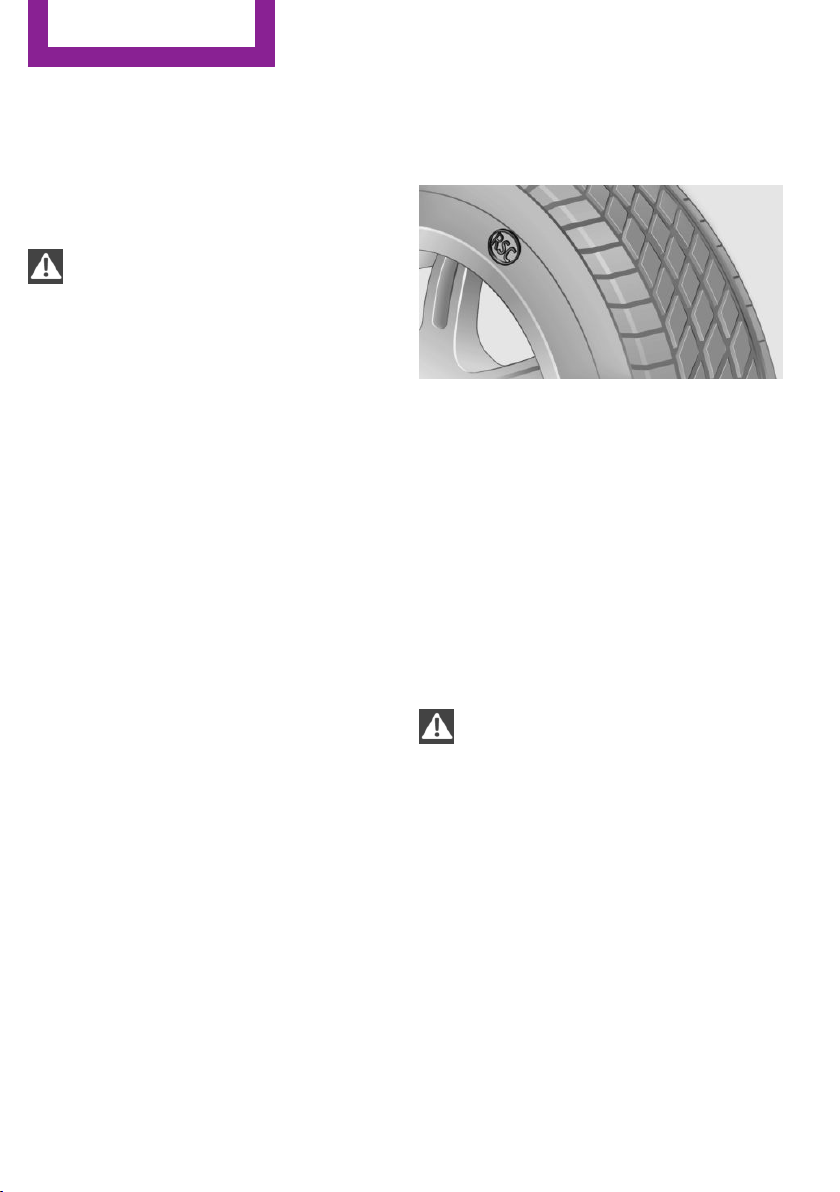
Maximum speed of winter tires
If the maximum speed of the vehicle is higher
than the permissible speed for the winter tires,
then display a corresponding sign in the field of
vision. You can obtain this sign from the tire
specialist or from your service center.
Maximum speed for winter tires
Do not exceed the maximum speed for
the winter tires; otherwise, tire damage and ac‐
cidents can occur.◀
Run-flat tires
When mounting new tires or changing from
summer to winter tires or vice versa, use run-
flat tires for your own safety. Also, a compact
wheel is not available in case of a flat tire. Your
service center will be glad to advise you.
Rotating wheels between axles
Different wear patterns occur on the front and
rear axles, depending on the individual condi‐
tions of use.
To ensure even wear on the tires, the wheels
can be rotated between the axles. Your service
center will be glad to advise you.
After changing the tires, check the tire inflation
pressure and correct it if necessary.
Storage
Store wheels and tires in a cool, dry place with
as little exposure to light as possible.
Always protect tires against all contact with oil,
grease and fuels.
Do not exceed the maximum tire inflation pres‐
sure indicated on the side wall of the tire.
Run-flat tires
Label
The symbol identifying run-flat tires is a circle
with the letters RSC on the sidewall.
Run-flat tires are tires with special rims that
support themselves for a limited period of time.
The sidewall reinforcement ensures that the
tire can continue to be used to a limited extent
if it has lost pressure and even if it has become
completely depressurized.
For continued driving in the event of a flat tire,
refer to page 86.
Correcting a flat tire
Safety measures in case of a breakdown
▷ Park the vehicle as far as possible
from passing traffic and on solid
ground. Switch on the hazard warn‐
ing system.
▷ Let the steering wheel lock engage with the
wheels in the straight-ahead position, set
the handbrake, and engage first gear or re‐
verse, or engage selector lever position P.
▷ Have all vehicle occupants get out of the
vehicle and ensure that they remain out‐
side the immediate area in a safe place,
such as behind a guardrail.
Seite 228
Mobility
Wheels and tires
228
Online Edition for Part no. 01 40 2 911 544 - VI/13
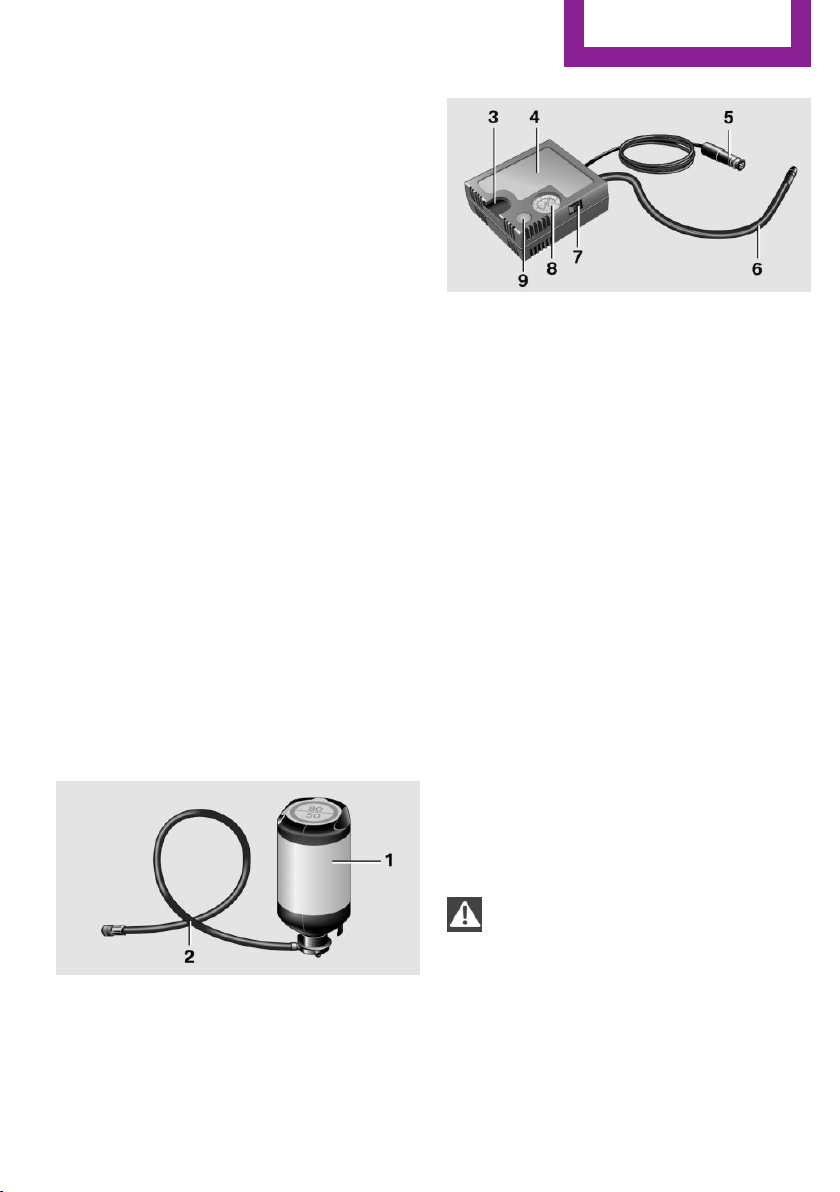
▷ If a warning triangle or portable hazard
warning lamp is required, set it up on the
roadside at an appropriate distance from
the rear of the vehicle. Comply with all
safety guidelines and regulations.◀
The procedure to correct a flat tire depends on
the equipment in the vehicle:
▷ Run-flat tires, refer to page 228.
▷ MINI Mobility System, refer to page 229.
MINI Mobility System
Notes
▷ Follow the instructions on using the Mobi‐
lity System found on the compressor and
sealant bottle.
▷ Use of the Mobility System may be ineffec‐
tive if tire damage is greater than approx.
1/8 in/4 mm in size.
▷ Contact the nearest service center if the tire
cannot be made drivable.
▷ If possible, do not remove foreign bodies
that have penetrated the tire.
▷ Pull the speed limit sticker off the sealant
bottle and apply it to the steering wheel.
Sealant and compressor
1 Sealant bottle and speed limit sticker
2 Filling hose
Note the use-by date on the sealant bottle.
3 Holder for the sealant bottle
4 Compressor
5 Connector and cable for the lighter socket/
socket in passenger compartment 109.
6 Connection hose for connecting the com‐
pressor and sealant bottle or the compres‐
sor and wheel
7 On/off switch
8 Pressure gauge for displaying the tire infla‐
tion pressure
9 Release button for reducing the tire infla‐
tion pressure
The connector, cable, and connecting hose are
stowed in the compressor housing.
Using the Mobility System
To repair a flat tire with the Mobility System,
proceed as follows:
▷ Filling the tire with sealant
▷ Distributing the sealant
▷ Correcting the tire inflation pressure
Filling the tire with sealant
Adhere to the specified sequence
Adhere to the specified sequence of the
steps; otherwise, sealant may escape under
high pressure.◀
1.
Shake the sealant bottle.
2. Pull the connection hose 6 fully out of the
compressor housing and screw it onto the
sealant bottle connection. Ensure that the
connection hose is not kinked.
Seite 229
Wheels and tires
Mobility
229
Online Edition for Part no. 01 40 2 911 544 - VI/13
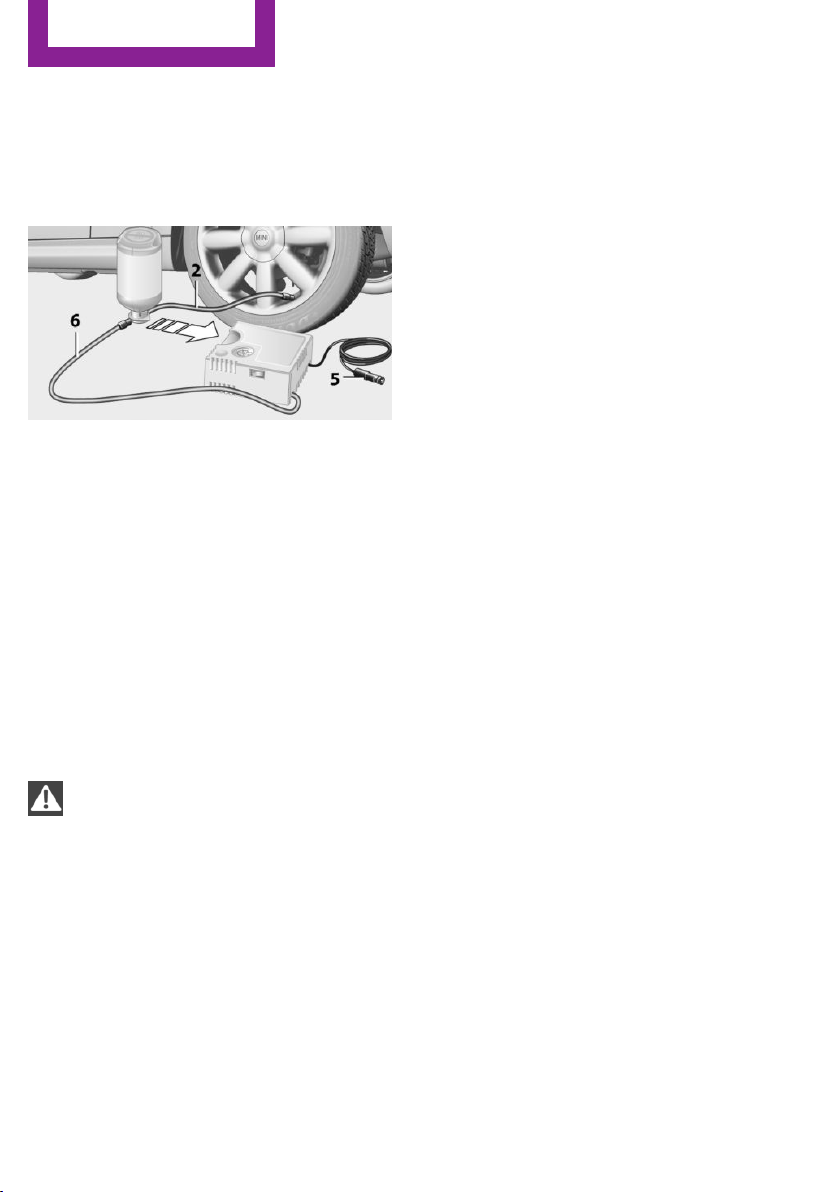
3. Insert the sealant bottle into the compres‐
sor housing in a vertical position.
4. Unscrew the dust cap off of the valve of the
defective wheel and screw the filling hose 2
of the sealant bottle onto the valve.
5. Ensure that the compressor is switched off.
6. Insert connector 5 into the lighter socket/
socket in the passenger compartment, refer
to page 109.
7. When the engine is running:
Switch on the compressor and let it run for
approx. 3 to 8 minutes to fill sealant into
the tire and achieve a tire inflation pressure
of approx. 1.8 bar/26 psi.
While sealant is being filled, the inflation
pressure may intermittently rise to approx.
5 bar/73 psi. Do not switch off the com‐
pressor in this phase.
8. Switch off the compressor.
Do not allow the compressor to run too
long
Do not allow the compressor to run longer than
10 minutes; otherwise, the device will overheat
and may be damaged.◀
If an air pressure of 1.8 bar/26 psi is not
reached:
1.
Unscrew the filling hose 2 from the wheel
and drive forward and back approx.
33 ft/10 m to evenly distribute the sealant
in the tire.
2. Inflate the tire again using the compressor.
If the inflation pressure of 1.8 bar/26 psi is still
not reached, the tire is too heavily damaged.
Contact the nearest service center.
Stowing the Mobility System
1. Unscrew the filling hose 2 of the sealant
bottle from the wheel.
2. Unscrew the compressor connection hose 6
from the sealant bottle.
3. Connect the filling hose 2 of the sealant
bottle with the free connector on the seal‐
ant bottle.
This prevents left-over sealant from escap‐
ing from the bottle.
4. Wrap the empty sealant bottle in suitable
material to avoid dirtying the cargo area.
5. Stow the Mobility System back in the vehi‐
cle.
Distributing the sealant
Drive approx. 3.1 miles/5 km to evenly distrib‐
ute the sealant.
Do not exceed a speed of 50 mph/80 km/h. If
possible, do not drop below a speed of
10 mph/20 km/h.
Correcting the tire inflation pressure
1.
After driving approx. 3.1 miles/5 km, or
about 10 minutes, stop in a suitable loca‐
tion.
2. Screw the connection hose 6 of the com‐
pressor directly onto the tire valve.
3. Insert the connector 5 into the power
socket in the passenger compartment.
4. Correct the tire inflation pressure to
1.8 bar/26 psi. When the engine is running:
▷ To increase the inflation pressure:
switch on the compressor. To check the
currently set inflation pressure, switch
off the compressor.
▷ To reduce the inflation pressure: press
the release button 9.
Seite 230
Mobility
Wheels and tires
230
Online Edition for Part no. 01 40 2 911 544 - VI/13

Do not allow the compressor to run too
long
Do not allow the compressor to run longer than
10 minutes; otherwise, the device will overheat
and may be damaged.◀
If the inflation pressure is not maintained, take
the vehicle on another drive, distributing the
sealant, refer to page 230. Then repeat steps
1 to 4 once.
If the inflation pressure of 1.8 bar/26 psi is still
not reached, the tire is too heavily damaged.
Contact the nearest service center.
Continuing the trip
Note the maximum speed
Do not exceed the maximum speed of
50 mph/80 km/h; otherwise, accidents can oc‐
cur.◀
Replace the defective tire as soon as possible
and have the wheel balanced.
Have the Mobility System refilled.
Snow chains
Only certain fine-link snow chains have been
tested by MINI, classified as safe for use, and
recommended. Consult your service center for
more information.
Use only in pairs on the front wheels, equipped
with tires of the following size:
195/60 R 16 M+S
With ALL4 all-wheel drive: only mount snow
chains on the front wheels.
Observe the manufacturer's instructions when
mounting snow chains. Do not exceed a speed
of 30 mph or 50 km/h when using snow chains.
Do not initialize the Flat Tire Monitor if snow
chains are mounted; otherwise, the instrument
might issue an incorrect reading. When driving
with snow chains, it may be useful to tempora‐
rily deactivate DSC or activate DTC, refer to
page 93.
Seite 231
Wheels and tires
Mobility
231
Online Edition for Part no. 01 40 2 911 544 - VI/13
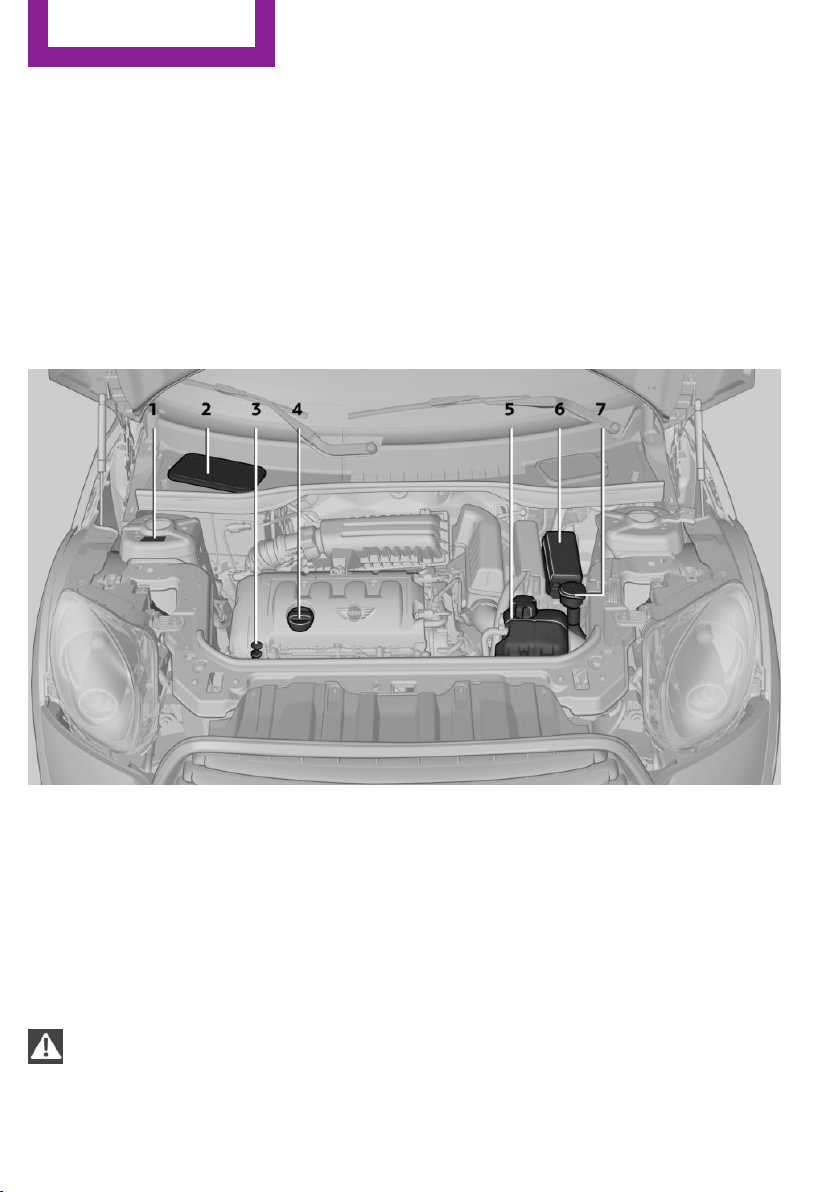
Engine compartment
Vehicle equipment
This chapter describes all series equipment as
well as country-specific and special equipment
offered for this model series.Therefore, it also
describes equipment that may not be found in
your vehicle, for instance due to the selected
special equipment or the country version. This
also applies to safety-related functions and sys‐
tems.
Important features in the engine compartment
1 Vehicle identification number
2 Battery, under the cover 246
3 Dip stick for engine oil 234
4 Engine oil filler neck 234
5 Coolant expansion tank 236
6 Engine compartment fuse box 247
7 Reservoir for washer fluid for the headlamp
and window washer system 64
Hood
Notes
Working in the engine compartment
Never attempt to perform any service or
repair operations on your vehicle without the
necessary professional technical training.
If you are unfamiliar with the statutory guide‐
lines, have any work on the vehicle performed
only by a service center.
If this work is not carried out properly, there is
the danger of subsequent damage and related
safety hazards.◀
Seite 232
Mobility
Engine compartment
232
Online Edition for Part no. 01 40 2 911 544 - VI/13
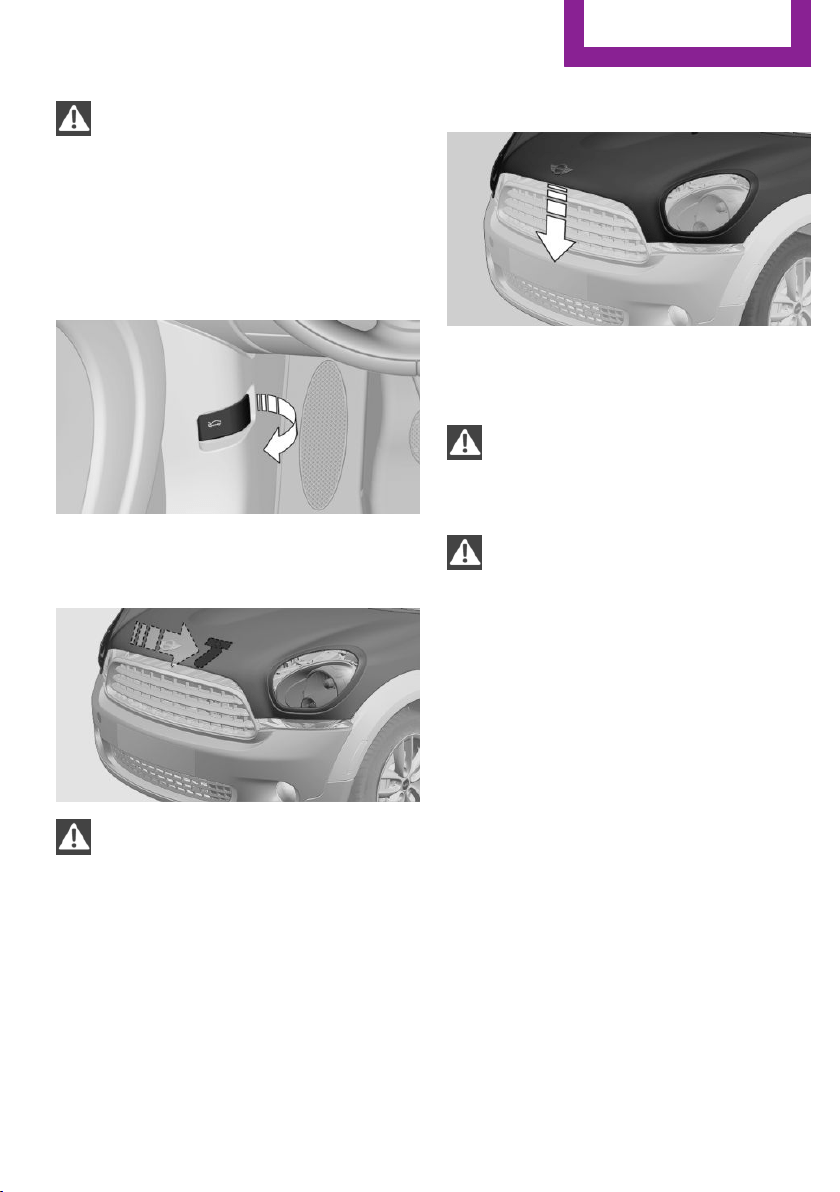
To avoid damage, make sure that the
wiper arms are resting against the wind‐
shield before you open the engine compart‐
ment. Do not open the engine hood before the
engine has cooled down; otherwise, injuries
may result.◀
Unlocking and opening the hood
1. Pull the lever.
2. Lift the hood all the way.
3. Press the release handle and open the
hood.
Danger of injury when the hood is open
There is a danger of injury from protrud‐
ing parts when the hood is open.◀
Closing the hood
Close the hood from a height of ap‐
prox. 16 in/40 cm with momentum. It must be
clearly heard to engage.
Hood open when driving
If you see any signs that the hood is not
completely closed while driving, pull over im‐
mediately and close it securely.◀
Danger of pinching
Make sure that the closing path of the
hood is clear; otherwise, injuries may result.◀
Seite 233
Engine compartment
Mobility
233
Online Edition for Part no. 01 40 2 911 544 - VI/13
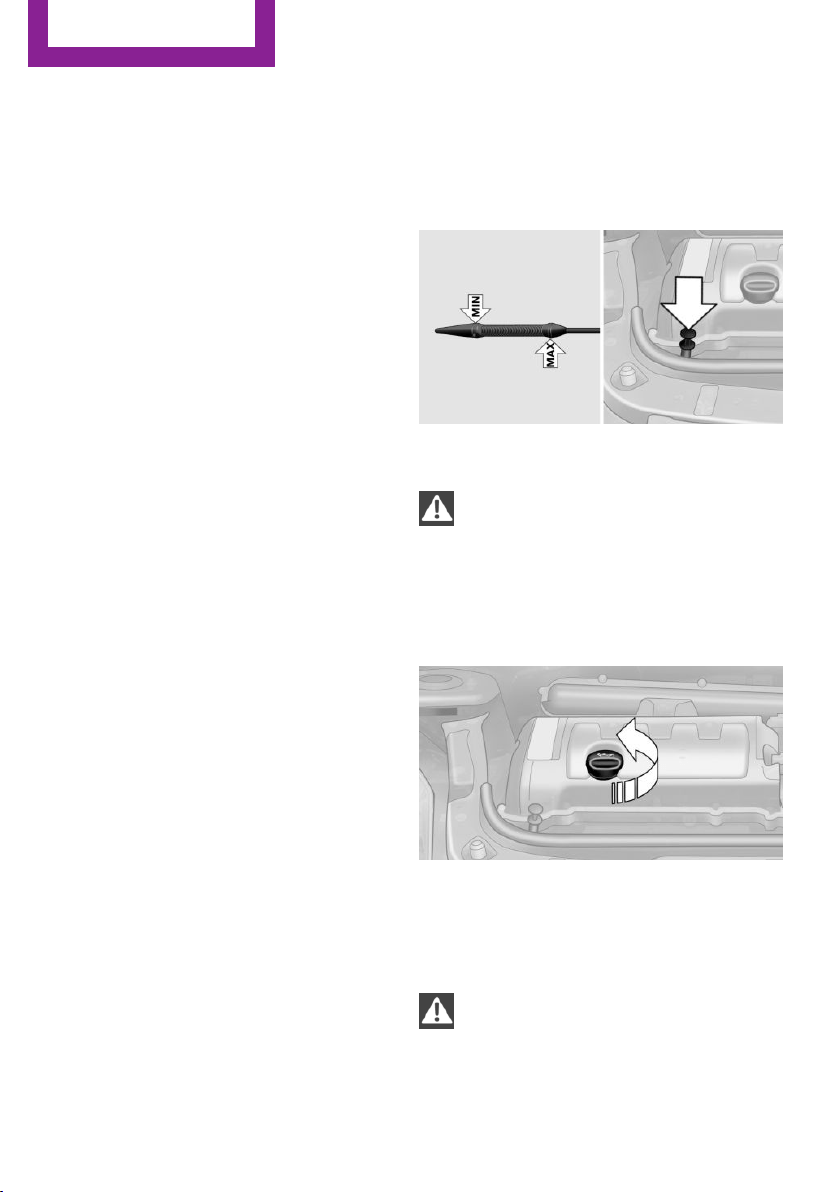
Engine oil
Vehicle equipment
This chapter describes all series equipment as
well as country-specific and special equipment
offered for this model series.Therefore, it also
describes equipment that may not be found in
your vehicle, for instance due to the selected
special equipment or the country version. This
also applies to safety-related functions and sys‐
tems.
Engine oil
General information
Engine oil consumption depends on the driving
style and the conditions of use. A highly sporty
driving style, for example, results in considera‐
bly higher engine oil consumption.
Therefore, regularly check the engine oil level
after refueling.
Checking the oil level with a dip stick
1.
Park the vehicle on level ground when the
engine is at operating temperature, i.e., af‐
ter driving continuously for at least
6 2 miles/10 km.
2. Switch the engine off.
3. After approx. 5 minutes, pull out the dip
stick and wipe it off with a lint-free cloth,
paper towel, etc.
4. Carefully insert the dip stick all the way into
the measuring tube and pull it out again.
The oil level must be between the two
marks on the dip stick.
The oil quantity between the two marks on the
dip stick equals approx. 1 US quart/1 liter.
Do not exceed the high mark.
Do not exceed the high mark of the dip
stick. Overfilling oil damages the engine.◀
Adding engine oil
Filler neck
Add a maximum quantity of 1 US quart/1 liter
of oil only after the corresponding message ap‐
pears on the Control Display or, in diesel en‐
gines, after the oil level is just above the low
mark of the dip stick, refer to page 234.
Add oil promptly
Add oil within the next 30 miles/50 km;
otherwise, engine damage could result.◀
Seite 234
Mobility
Engine oil
234
Online Edition for Part no. 01 40 2 911 544 - VI/13
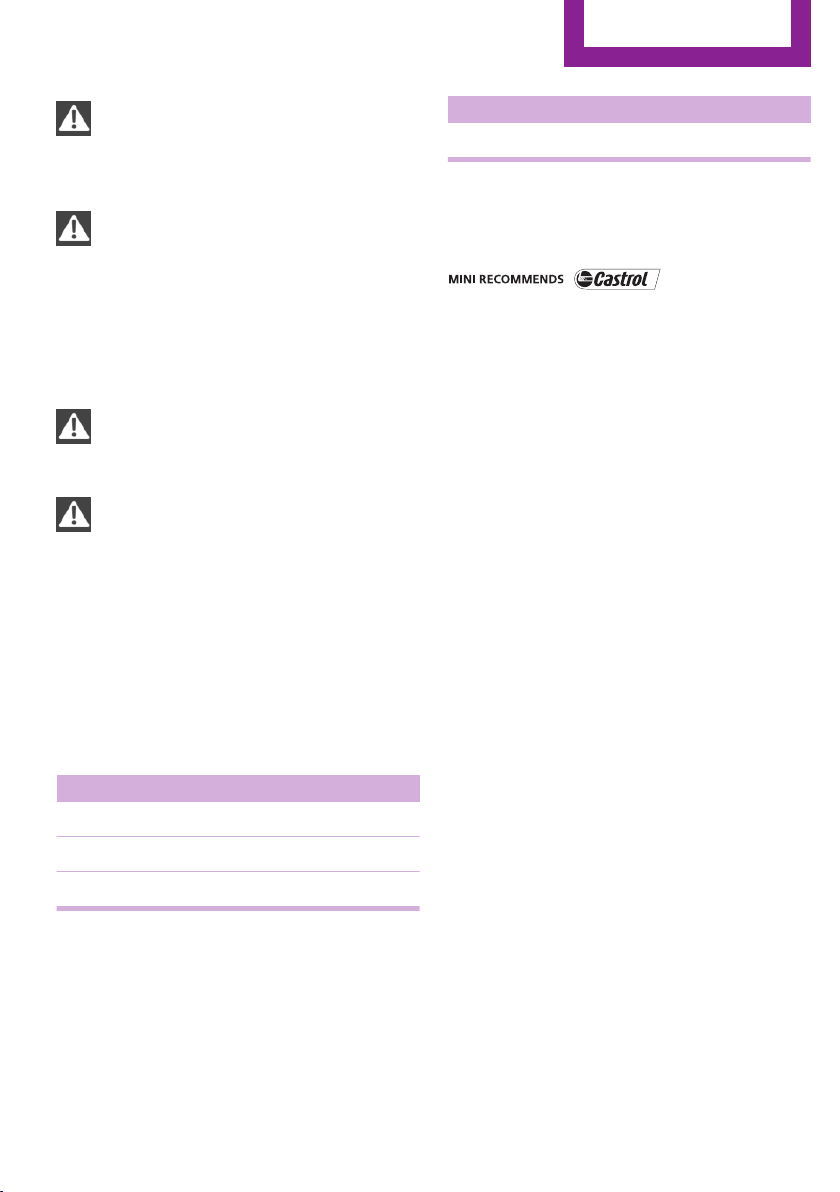
Too much engine oil
Have the vehicle checked immediately;
otherwise, surplus oil can lead to engine dam‐
age.◀
Protect children
Keep oil, grease, etc., out of reach of chil‐
dren and heed the warnings on the containers
to prevent health risks.◀
Oil types for refilling
Notes
No oil additives
Do not use oil additives as these may
cause engine damage.◀
Viscosity classes of engine oils
When selecting an engine oil, ensure that
the engine oil belongs to one of the SAE viscos‐
ity classes 0W-40, 0W-30, 5W-40, or 5W-30, or
malfunctions or engine damage may occur.◀
The engine oil quality is critical for the life of the
engine.
Due to national regulations, some oil types are
not available in every country.
Approved oil types
Gasoline engine
BMW High Performance SAE 5W-30
BMW Longlife-01
BMW Longlife-01 FE
Further information on approved oil types can
be obtained from the service center.
Alternative oil types
If the approved engine oils are not available, up
to 1 US quart/1 liter of an oil with the following
specification can be used:
Gasoline engine
API SM or a higher quality standard
Oil change
An oil change should be carried out by the serv‐
ice center only.
Seite 235
Engine oil
Mobility
235
Online Edition for Part no. 01 40 2 911 544 - VI/13
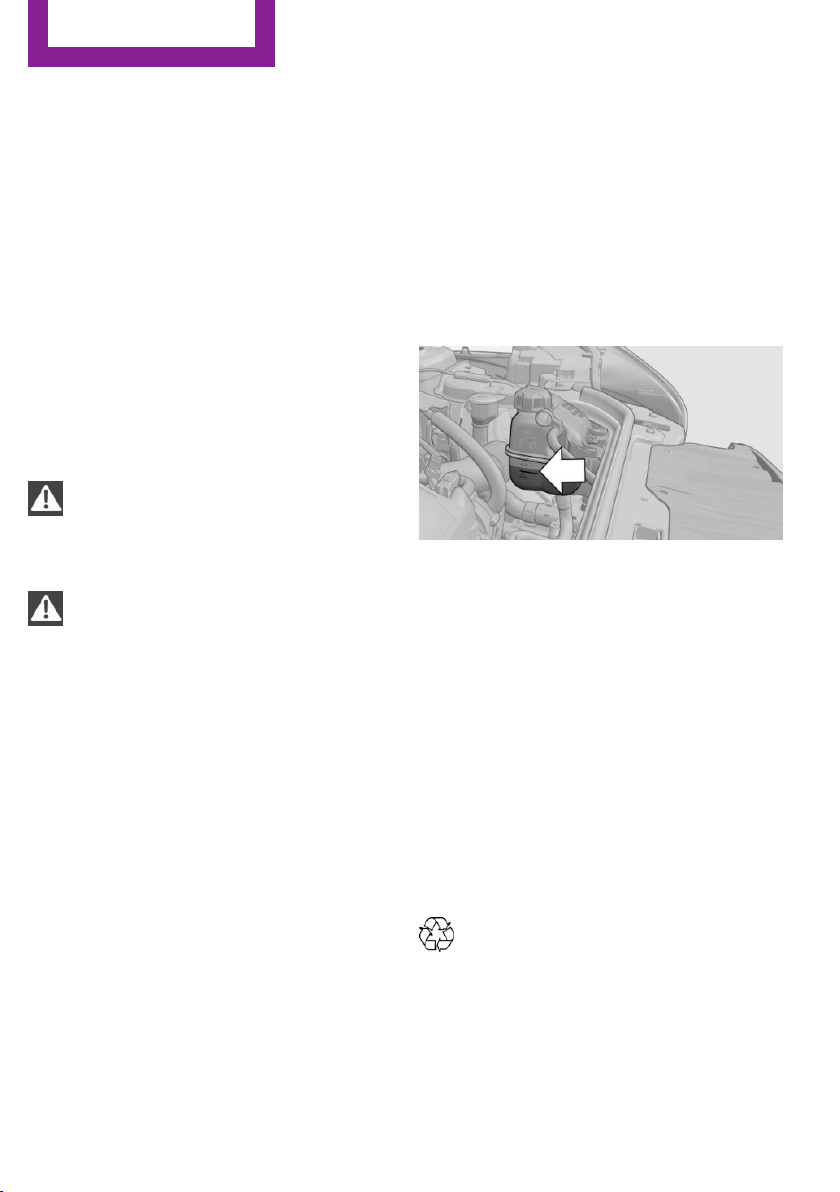
Coolant
Vehicle equipment
This chapter describes all series equipment as
well as country-specific and special equipment
offered for this model series.Therefore, it also
describes equipment that may not be found in
your vehicle, for instance due to the selected
special equipment or the country version. This
also applies to safety-related functions and sys‐
tems.
General information
Danger of burns from hot engine
Do not open the cooling system while the
engine is hot; otherwise, escaping coolant may
cause burns.◀
Suitable additives
Only use suitable additives; otherwise,
engine damage may occur. The additives are
harmful to your health.◀
Coolant consists of water and additives.
Not all commercially available additives are
suitable for your MINI vehicle. Ask your service
center for suitable additives.
Coolant temperature
If the coolant and therefore the engine over‐
heat, a warning lamp lights up. A message ap‐
pears on the Control Display.
Coolant level
Checking
1.
Do not open the hood until the engine has
cooled down.
2. Turn the expansion tank cap counterclock‐
wise slightly to allow any accumulated
pressure to escape; then continue turning
to open.
3. The coolant level is correct if it is between
the markings. The markings are located on
the side of the coolant reservoir.
Refilling
1.
Do not open the hood until the engine has
cooled down.
2. Turn the expansion tank cap counterclock‐
wise slightly to allow any accumulated
pressure to escape, then continue turning
to open.
3. If the coolant level is low, slowly add cool‐
ant up to the specified level; do not overfill.
4. Twist the cap closed.
5. Have the cause of the coolant loss elimi‐
nated as soon as possible.
Disposal
Comply with the appropriate environ‐
mental protection regulations when dis‐
posing of coolant additives.
Seite 236
Mobility
Coolant
236
Online Edition for Part no. 01 40 2 911 544 - VI/13
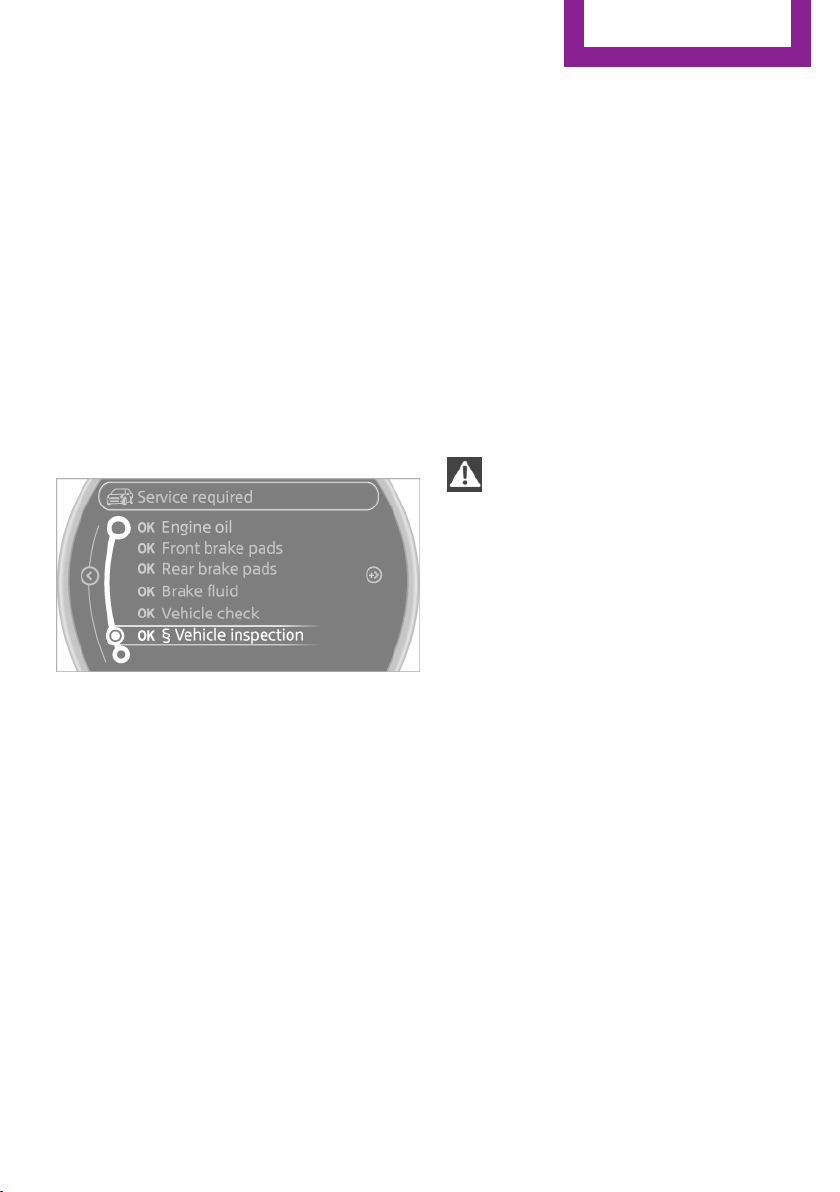
Maintenance
Vehicle equipment
This chapter describes all series equipment as
well as country-specific and special equipment
offered for this model series.Therefore, it also
describes equipment that may not be found in
your vehicle, for instance due to the selected
special equipment or the country version. This
also applies to safety-related functions and sys‐
tems.
MINI maintenance system
The MINI maintenance system provides infor‐
mation on required maintenance measures and
thus provides support in maintaining road
safety and the operational reliability of the ve‐
hicle.
Condition Based Service
CBS
Sensors and special algorithms take into ac‐
count the various driving conditions of your
MINI. Based on this, Condition Based Service
determines the current and future mainte‐
nance requirements.
The system makes it possible to adapt the
amount of maintenance you need to your user
profile.
Detailed information on service requirements
can be displayed on the Control Display, refer
to page 74.
Service data in the remote control
Information on the required maintenance is
continuously stored in the remote control. Your
service center will read out this data and sug‐
gest the right array of service procedures for
your vehicle. Therefore, hand your service spe‐
cialist the remote control that you used most
recently.
Setting the correct date
Make sure the date is set correctly; other‐
wise, the effectiveness of CBS Condition Based
Service is not ensured.◀
Service and Warranty In‐
formation Booklet for
US models and Warranty
and Service Guide Book‐
let for Canadian models
Please consult your Service and Warranty Infor‐
mation Booklet for US models and Warranty
and Service Guide Booklet for Canadian models
for additional information on service require‐
ments.
Maintenance and repair should be performed
by your service center. Make sure to have regu‐
lar maintenance procedures recorded in the ve‐
hicle's Service and Warranty Information Book‐
let for US models, and in the Warranty and
Service Guide Booklet for Canadian models.
These entries are proof of regular maintenance.
Seite 237
Maintenance
Mobility
237
Online Edition for Part no. 01 40 2 911 544 - VI/13
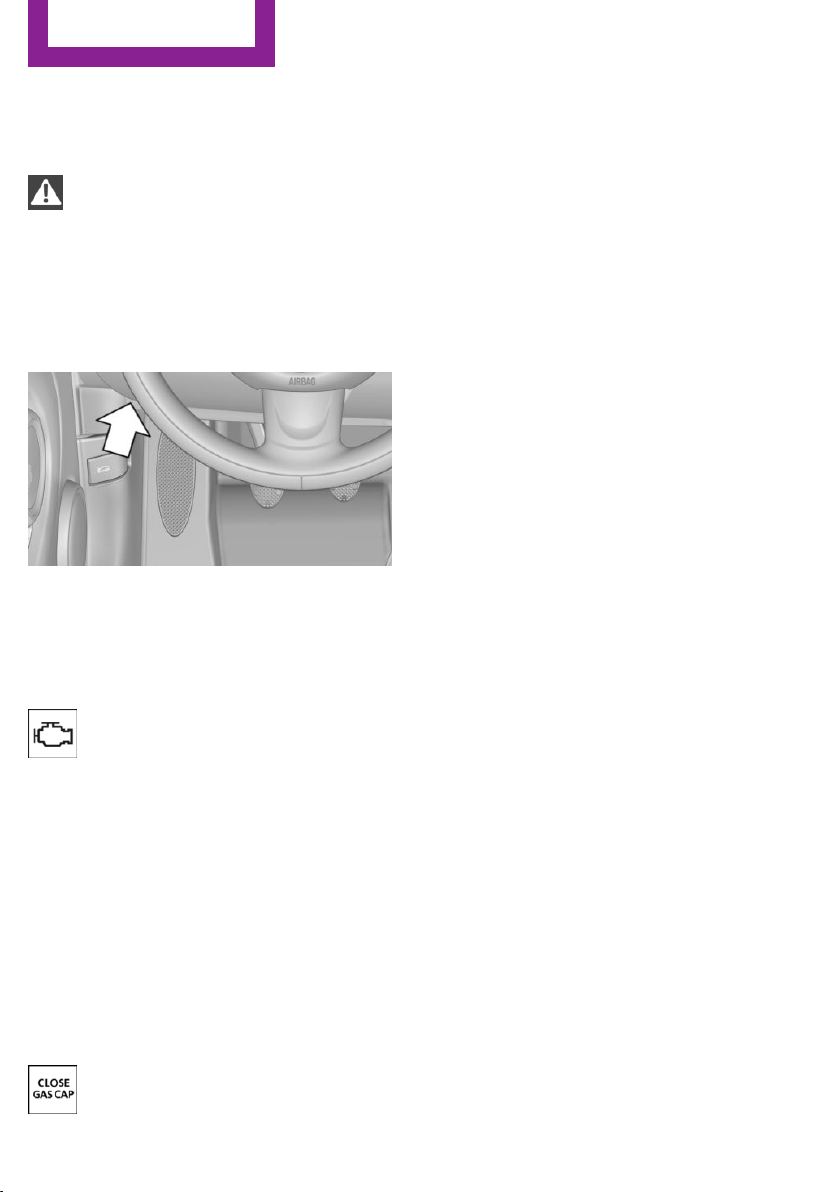
Socket for OBD Onboard
Diagnosis
Socket for Onboard Diagnosis
The socket for Onboard Diagnosis may
only be used by the service center, by work‐
shops that operate according to the specifica‐
tions of the vehicle manufacturer with appro‐
priately trained personnel, and by other
authorized persons. Otherwise, its use may
lead to vehicle malfunctions.◀
Primary components in the vehicle emissions
can be checked via the OBD socket using a de‐
vice.
Emissions
The warning lamps light up. The vehicle
is producing higher emissions. You can
continue your journey, but moderate
your speed and exercise due caution. Have the
vehicle checked as soon as possible.
Under certain circumstances, one of the lamps
flashes or lights up continuously. This indicates
that there is excessive misfiring or a malfunc‐
tion in the engine. If this happens, reduce the
vehicle speed and drive to the next service cen‐
ter promptly. Serious engine misfiring within a
brief period can seriously damage emission
control components, in particular the catalytic
converter. In addition, the mechanical engine
components may become damaged.
If the fuel filler cap is not properly tight‐
ened, the OBD system may conclude
that fuel vapor is escaping; this will cause a dis‐
play to light up. If the filler cap is then tight‐
ened, the display should go out in a few days.
Seite 238
Mobility
Maintenance
238
Online Edition for Part no. 01 40 2 911 544 - VI/13
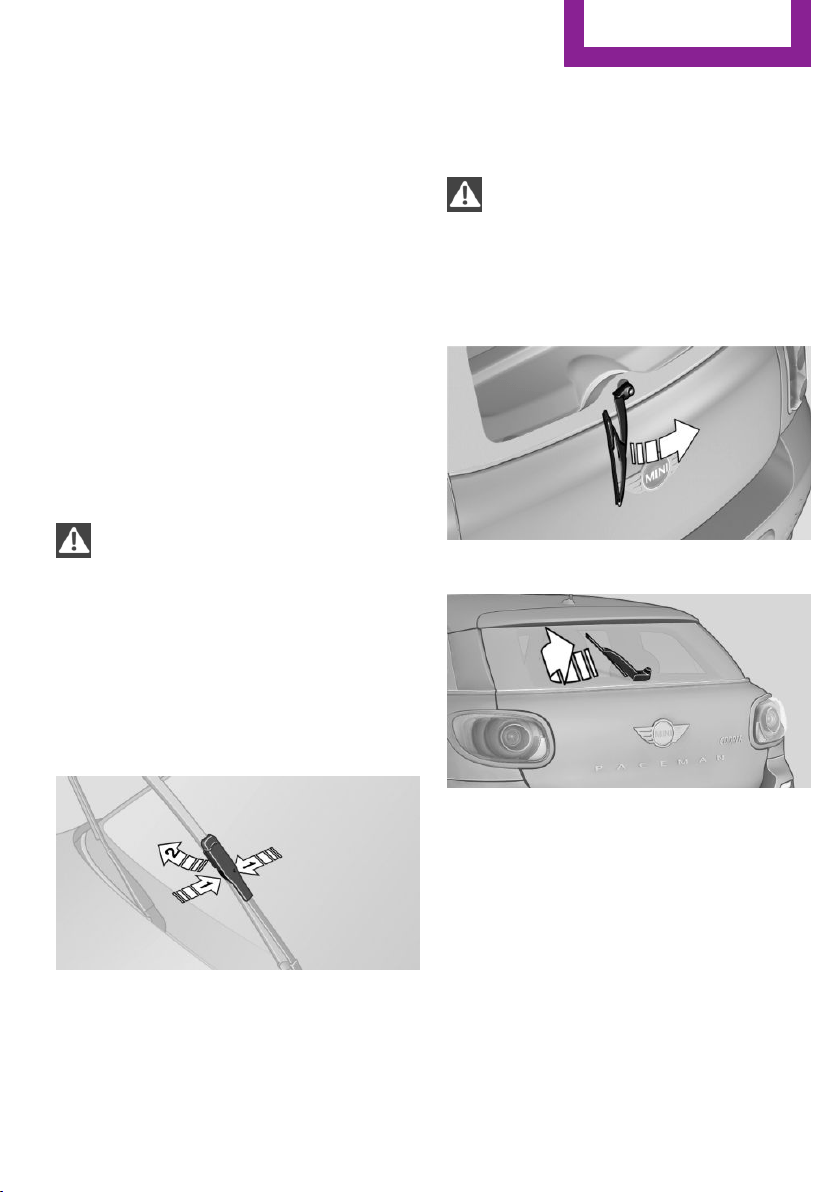
Replacing components
Vehicle equipment
This chapter describes all series equipment as
well as country-specific and special equipment
offered for this model series.Therefore, it also
describes equipment that may not be found in
your vehicle, for instance due to the selected
special equipment or the country version. This
also applies to safety-related functions and sys‐
tems.
Wiper blade replacement
General information
Do not fold down the wipers without
wiper blades
Do not fold down the wipers if wiper blades
have not been installed; this may damage the
windshield.◀
Replacing the front wiper blades
1.
Fold up and hold the wiper arm.
2. Squeeze the locking spring, arrows 1, and
fold out the wiper blade, arrow 2.
3. Take the wiper blade out of the catch
mechanism toward the front.
4. Press the new wiper blade into the fixation
until it engages audibly.
5. Fold down the wiper arm.
Risk of damage
Before opening the hood, ensure that the
wiper arms with wiper blades are folded onto
the window; otherwise, damage may occur.◀
Replacing the rear wiper blade
MINI Countryman:
MINI Paceman:
1.
Fold up and hold the wiper arm.
2. Turn the wiper blade all the way back, ar‐
row.
3. Press the wiper blade against the stop to
push it out of the fixation.
4. Press the new wiper blade into the fixation
until it engages audibly.
5. Fold down the wiper arm.
Seite 239
Replacing components
Mobility
239
Online Edition for Part no. 01 40 2 911 544 - VI/13

Lamp and bulb replace‐
ment
Notes
Lamps and bulbs
Lamps and bulbs make an essential contribu‐
tion to vehicle safety. Therefore, exercise cau‐
tion when handling lamps and bulbs.
The manufacturer of the vehicle recommends
that you entrust corresponding procedures to
the service center if you are unfamiliar with
them or they are not described here.
You can obtain a selection of replacement
bulbs at the service center.
Danger of burns
Only change bulbs when they are cool;
otherwise, there is the danger of getting
burned.◀
Working on the lighting system
When working on the lighting system,
you should always switch off the lights affected
to prevent short circuits.
To avoid possible injury or equipment damage
when replacing bulbs, observe any instructions
provided by the bulb manufacturer.◀
Do not touch the bulbs
Do not touch the glass of new bulbs with
your bare hands, as even minute amounts of
contamination will burn into the bulb's surface
and reduce its service life.
Use a clean tissue, cloth or something similar,
or hold the bulb by its base.◀
Caring for the headlamps, refer to page 255.
For bulb replacement that is not described
here, please contact the service center or a
workshop that works according to the repair
procedures of the manufacturer with corre‐
spondingly trained personnel.
For checking and adjusting headlamp aim,
please contact your MINI dealer.
Light-emitting diodes LEDs
Light-emitting diodes installed behind translu‐
cent lenses serve as the light source for many
of the controls and displays in the vehicle.
These light-emitting diodes, which operate us‐
ing a concept similar to that applied in conven‐
tional lasers, are officially designated as Class 1
light-emitting diodes.
Do not remove the covers
Do not remove the covers, and never
stare into the unfiltered light for several hours;
otherwise, irritation of the retina could result.◀
Headlamp glass
Condensation can form on the inside of the
headlamps in cool or humid weather. When the
light is switched on, the condensation evapo‐
rates after a short time. The headlamps do not
need to be changed.
If the condensation in the headlamps does not
evaporate after trips with the lights switched
on, and the amount of moisture in the head‐
lamps increases, for example if water droplets
form, have them checked by your service cen‐
ter.
Bi-xenon headlamps
These bulbs have a very long life and the likeli‐
hood of failure is very low, provided that they
are not switched on and off excessively. If a
bulb should nevertheless fail, you can continue
driving cautiously with the front fog lamps, pro‐
vided this is permitted by local laws.
Do not perform work/bulb replacement
on xenon headlamps
Have any work on the xenon lighting system,
including bulb replacement, performed only by
a service center.
Seite 240
Mobility
Replacing components
240
Online Edition for Part no. 01 40 2 911 544 - VI/13
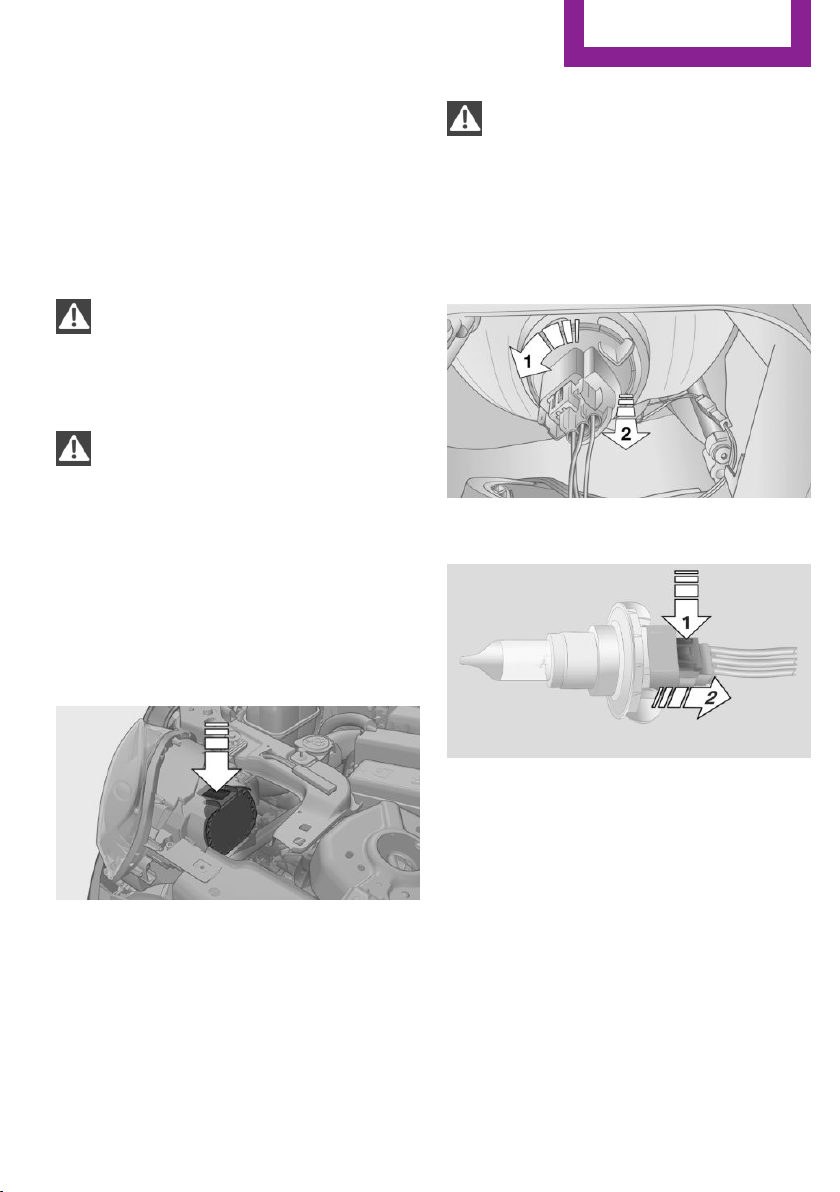
Due to the high voltage present in the system,
there is the danger of fatal injuries if work is
carried out improperly.◀
Front lamps, bulb replacement
Halogen low beams and high beams
Bulb H13, 60/55 watt
Wear protective goggles and gloves
Halogen bulbs are pressurized. Therefore,
wear protective goggles and gloves. Otherwise,
there is a danger of injuries if the bulb is acci‐
dentally damaged during replacement.◀
Attach the cover carefully
When attaching the cover, proceed care‐
fully; otherwise, leaks may occur, causing dam‐
age to the headlamp system.◀
Access to the bulbs through the engine
compartment
Follow the general instructions on lamps and
bulbs, refer to page 240.
Low beam/high beam bulbs can be changed
from the engine compartment.
To remove the cover:
1.
Press the tab.
2. Fold away the cover and take it out of the
holder.
Proceed in reverse order to attach the cover.
Attach the cover carefully
When attaching the cover, proceed care‐
fully; otherwise, leaks may occur, causing dam‐
age to the headlamp system.◀
Replacing the bulb
1. Turn the bulb counterclockwise, arrow 1,
and remove it, arrow 2.
2. Press the release, arrow 1, and pull off the
connector, arrow 2.
3. Insert the new bulb and attach the cover in
reverse order.
Turn signal, parking lamp, roadside
parking lamp, and front fog lamp
Access to the bulbs via the wheel housing
Follow the general instructions on lamps and
bulbs, refer to page 240.
Seite 241
Replacing components
Mobility
241
Online Edition for Part no. 01 40 2 911 544 - VI/13
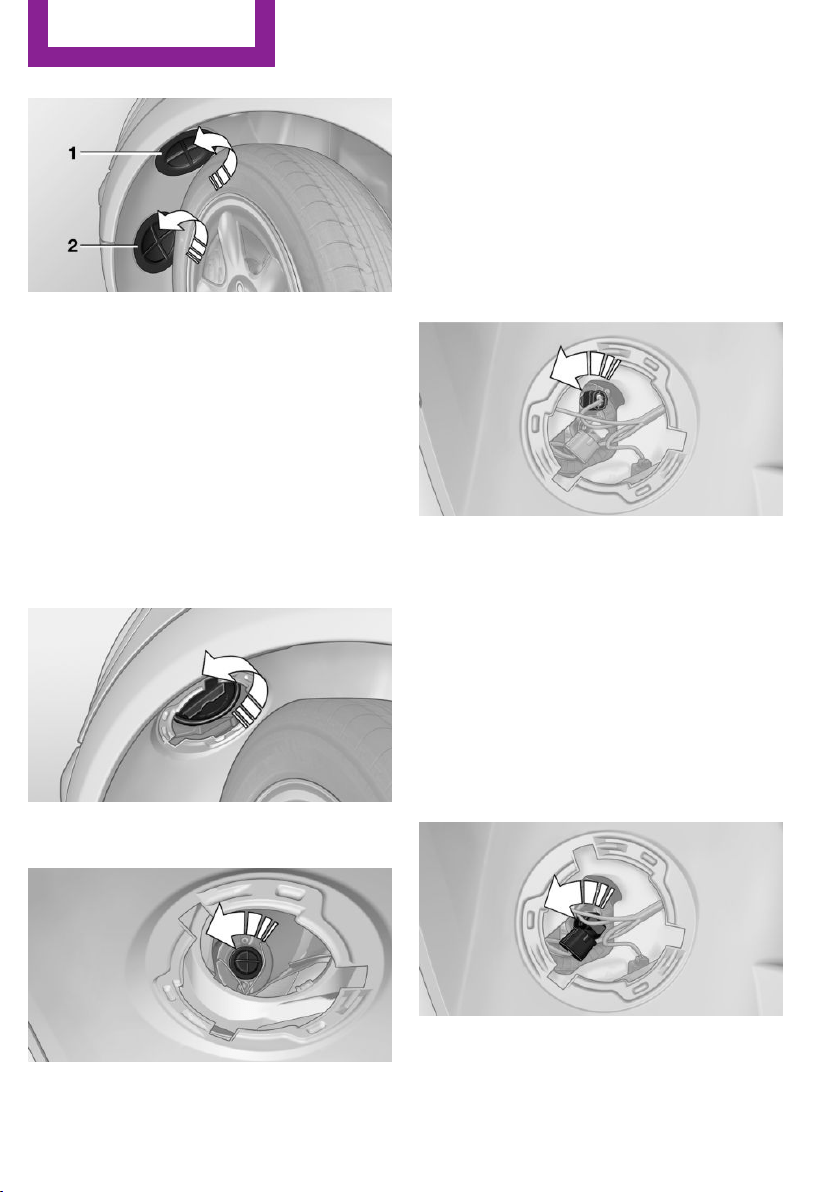
1 Turn signal
2 Parking lamp/roadside parking lamp/fog
lamp
Replacing the turn signal bulb
21-watt bulb, P 21 W, or PY 21 W
1.
Turn the wheel.
2. Remove cover 1.
To do this, turn the cover counterclockwise.
3. Remove the inside cover. To do this, turn
the cover counterclockwise.
4. Turn the bulb counterclockwise and re‐
move it.
5. Insert the new bulb and attach the covers
in reverse order.
Replacing the parking lamp bulb and
roadside parking lamp bulb
5-watt bulb, W 5 W
1. Turn the wheel.
2. Remove cover 2.
To do this, turn the cover counterclockwise.
3. Turn the upper bulb counterclockwise and
remove it.
4. Insert the new bulb and attach the cover in
reverse order.
Replacing the front fog lamp bulb
H8 bulb, 35 watt
1.
Turn the wheel.
2. Remove cover 2.
To do this, turn the cover counterclockwise.
3. Pull off the plug-in cable connector.
4. Turn the lower bulb counterclockwise and
remove it.
5. Insert the new bulb and attach the cover in
reverse order.
Seite 242
Mobility
Replacing components
242
Online Edition for Part no. 01 40 2 911 544 - VI/13
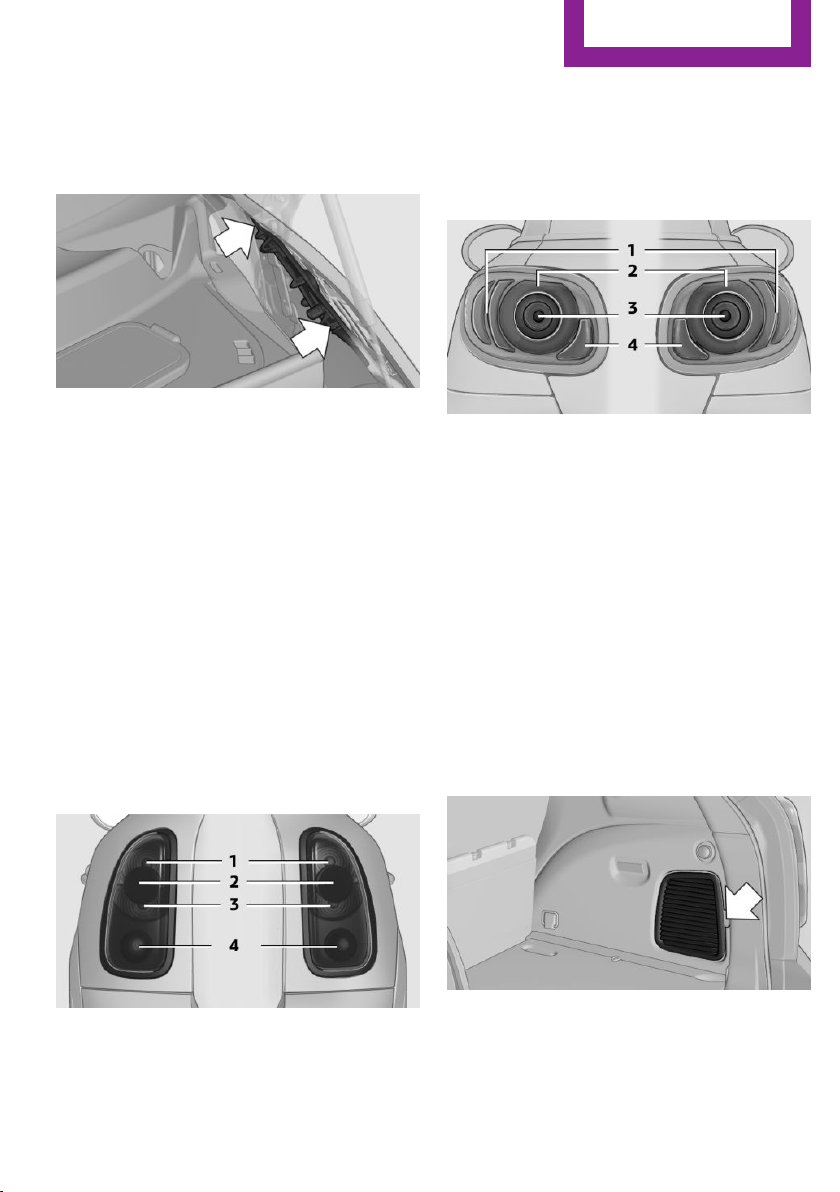
Lateral turn signals
5-watt bulb, W 5 W
1. Open the hood.
2. Squeeze the clip, arrows, and remove the
bulb holder.
3. Remove the bulb by turning it to the left
and replace it.
4. Insert the new bulb and attach the cover in
reverse order.
Side marker lamps
To replace these bulbs, contact the service cen‐
ter.
Tail lamps, bulb replacement
Follow the general instructions on lamps and
bulbs, refer to page 240.
Turn signal: 21-watt bulb, PY 21 W
MINI Countryman
1 Brake/tail lamp
2 Turn signal
3 Brake/tail lamp
4 Backup lamp
MINI Paceman
1 Brake lamp
2 Tail lamp
3 Turn signal
4 Backup lamp
Replacing
All bulbs are integrated in a central bulb holder.
MINI Countryman
1.
Switch off the lamps and take the remote
control out of the ignition lock.
2. Open the tailgate.
3. Press the cover out of the cargo area side
panel at the rear and remove it.
4. Detach the emergency release of the fuel
filler flap, refer to page 216, and push it
aside with the foam insert.
Ensure that the emergency release is not
damaged.
Seite 243
Replacing components
Mobility
243
Online Edition for Part no. 01 40 2 911 544 - VI/13
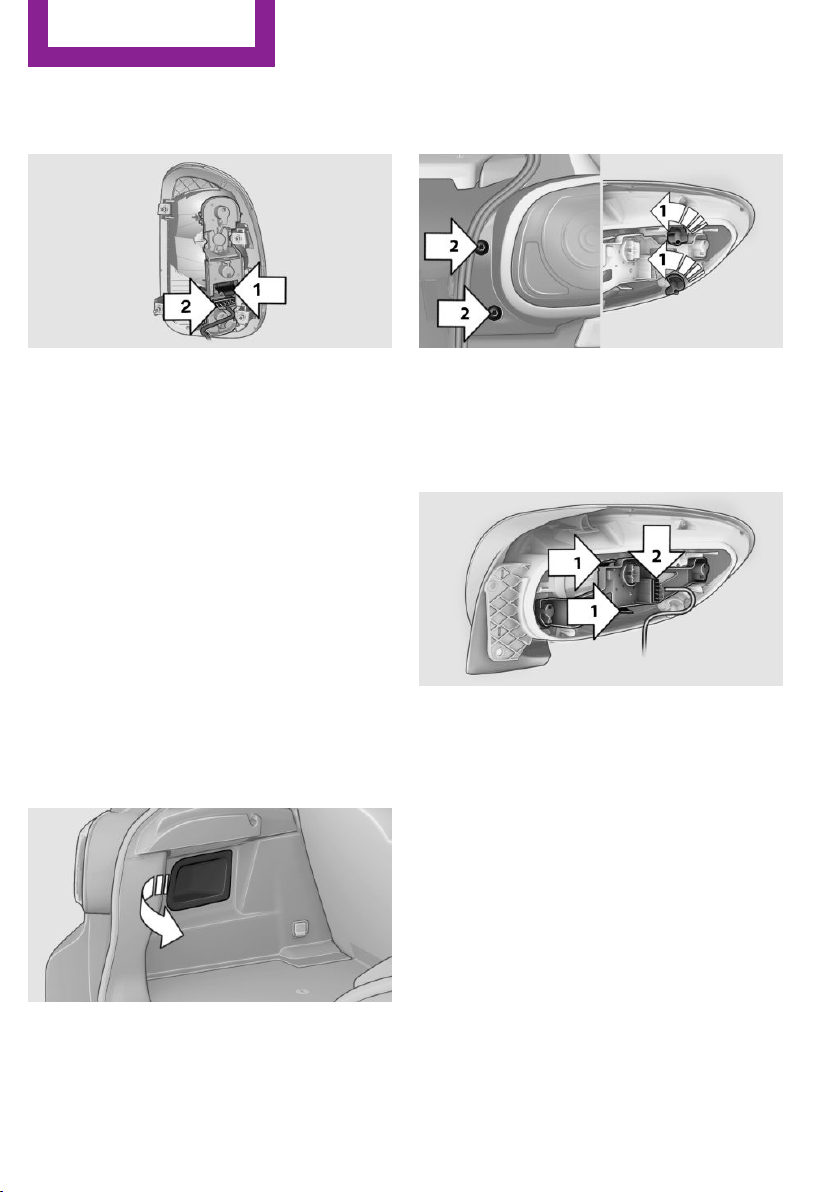
5. Disengage the bulb holder by pushing
down the clip, arrow 1.
6. Take out the bulb holder and detach the
cable, arrow 2.
7. Apply gentle pressure to the bulb while
turning it to the left and remove it.
8. Insert the new bulb and mount the bulb
holder in reverse order. Ensure that the
bulb holder engages in all fasteners.
9. Return the foam insert to its original posi‐
tion and reattach the emergency release of
the fuel filler flap.
10. Reattach the cover.
MINI Paceman
1.
Switch off the lamps and take the remote
control out of the ignition lock.
2. Open the tailgate.
3. Remove the cover from the cargo area side
trim.
4. Unlock the fastening elements, arrows 1, by
turning.
5. Remove the screws, arrows 2, using the hex
key from the vehicle document portfolio.
6. Remove the tail lamp.
7. Disengage the bulb holder by pushing
down the clip, arrows 1.
8. Take out the bulb holder and detach the
cable, arrow 2.
9. Apply gentle pressure to the bulb while
turning it to the left and remove it.
10. Insert the new bulb and mount the bulb
holder in reverse order. Ensure that the
bulb holder engages in all fasteners.
License plate lamps
5-watt bulb, C 5 W
Seite 244
Mobility
Replacing components
244
Online Edition for Part no. 01 40 2 911 544 - VI/13
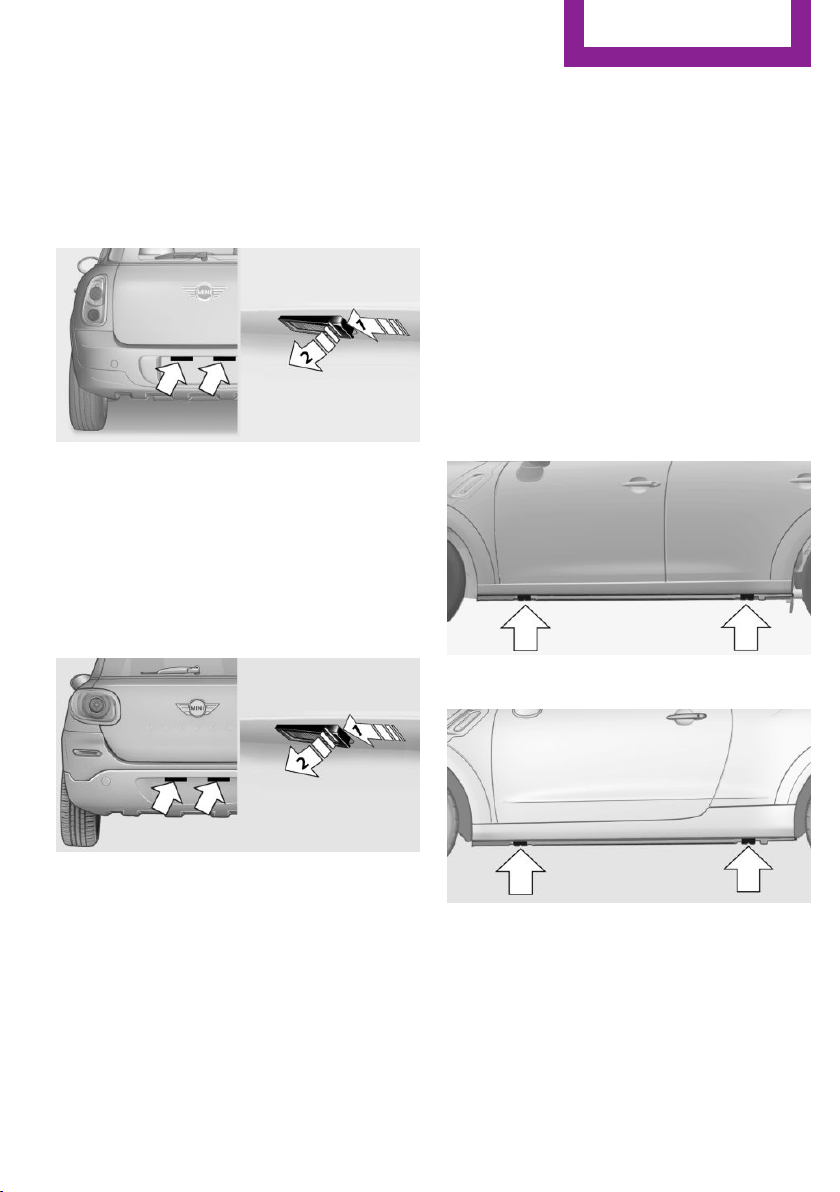
Replacing
MINI Countryman
1. Push the lamp to the left in the catch of the
lamp housing using the screwdriver, ar‐
row 1.
2. Take out the lamp, arrow 2.
3. Replace the bulb.
4. Insert the lamp.
MINI Paceman
1.
Push the lamp to the left in the catch of the
lamp housing using the screwdriver, ar‐
row 1.
2. Take out the lamp, arrow 2.
3. Replace the bulb.
4. Insert the lamp.
Center brake lamp
This lamp uses LED technology for operation. In
case of a defect, please contact your service
center or a workshop that works according to
the repair procedures of the manufacturer of
your MINI with correspondingly trained person‐
nel.
Changing wheels
Notes
The vehicle may be equipped with conven‐
tional tires with the Mobility System, refer to
page 229, or with run-flat tires, refer to
page 228.
No spare tire is available in the case of a flat
tire.
Suitable tools for changing the wheels are
available from the service center as an acces‐
sory.
Jacking points for the vehicle jack
MINI Countryman:
MINI Paceman:
The jacking points for the vehicle jack are lo‐
cated in the positions shown.
Seite 245
Replacing components
Mobility
245
Online Edition for Part no. 01 40 2 911 544 - VI/13
Vehicle battery
Maintenance
The battery is maintenance-free, i.e., the elec‐
trolyte will last for the life of the battery in tem‐
perate climate conditions.
The service center will be happy to answer any
questions on the battery.
Battery replacement
Use approved vehicle batteries
Only use vehicle batteries that have been
approved for your vehicle by the manufacturer;
otherwise, the vehicle could be damaged and
systems or functions may not be fully availa‐
ble.◀
Have the vehicle battery registered by the serv‐
ice center after it is replaced to ensure that all
comfort functions are available without restric‐
tions and that any associated Check Control
messages are no longer displayed.
Charging the battery
Note
Do not connect the charger to the socket
Do not connect the battery charger to the
socket installed in the vehicle at the factory as
this could damage the battery.◀
Only charge the battery in the vehicle when the
engine is switched off. Connections, refer to
page 248.
General information
Ensure that the battery is sufficiently charged to
achieve the full battery life.
It may be necessary to charge the battery in
the following cases:
▷ When the vehicle is frequently used to
travel short distances.
▷ When the vehicle has not been driven for
more than one month.
Power failure
After a temporary power failure, some equip‐
ment will be restricted in its use and will need
to be reinitialized. In addition, certain individual
settings will be lost and must be updated:
▷ Time and date: the values must be up‐
dated, refer to page 72.
▷ Radio: the stations need to be stored again,
refer to page 159.
▷ Onboard monitor: full functionality will be
restored after some time.
▷ Glass sunroof, electrical: it may only be pos‐
sible to tilt the roof. The system needs to be
initialized. Contact the service center.
Indicator/warning lamps
Lights up red: the vehicle battery is no
longer being charged. Alternator mal‐
function.
Switch off all unnecessary electrical consumers.
Have the battery checked immediately.
Lights up yellow: the battery charge
level is very low, the battery is old, or it
is not securely connected.
Charge the battery by taking a long drive or us‐
ing an external charger. If the indicators appear
again, have the battery checked as soon as
possible.
Disposing of old batteries
Have used batteries disposed of by the
service center after they are replaced or
take them to a recycling center.
Maintain the battery in an upright position for
transport and storage. Secure the battery so
that it does not tip over during transport.
Seite 246
Mobility
Replacing components
246
Online Edition for Part no. 01 40 2 911 544 - VI/13
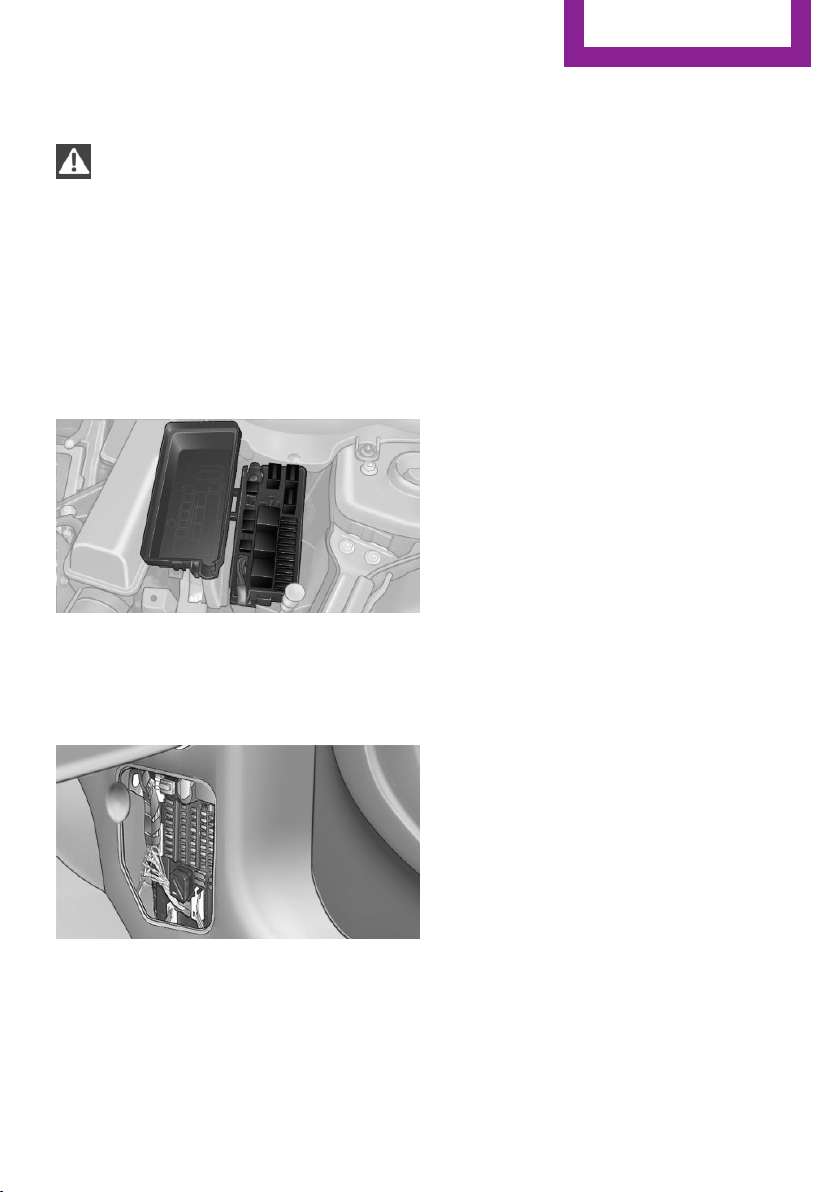
Fuses
Replacing fuses
Never attempt to repair a blown fuse and
do not replace a defective fuse with a substi‐
tute of another color or amperage rating; this
could lead to a circuit overload, ultimately re‐
sulting in a fire in the vehicle.◀
Fuses should be replaced by the service center.
Information on the fuses can be found on the
inside of the covers.
In the engine compartment
Opening the cover
Press the snap lock.
In interior
On the right side of the footwell.
Opening the cover
Push out at the recess.
Seite 247
Replacing components
Mobility
247
Online Edition for Part no. 01 40 2 911 544 - VI/13
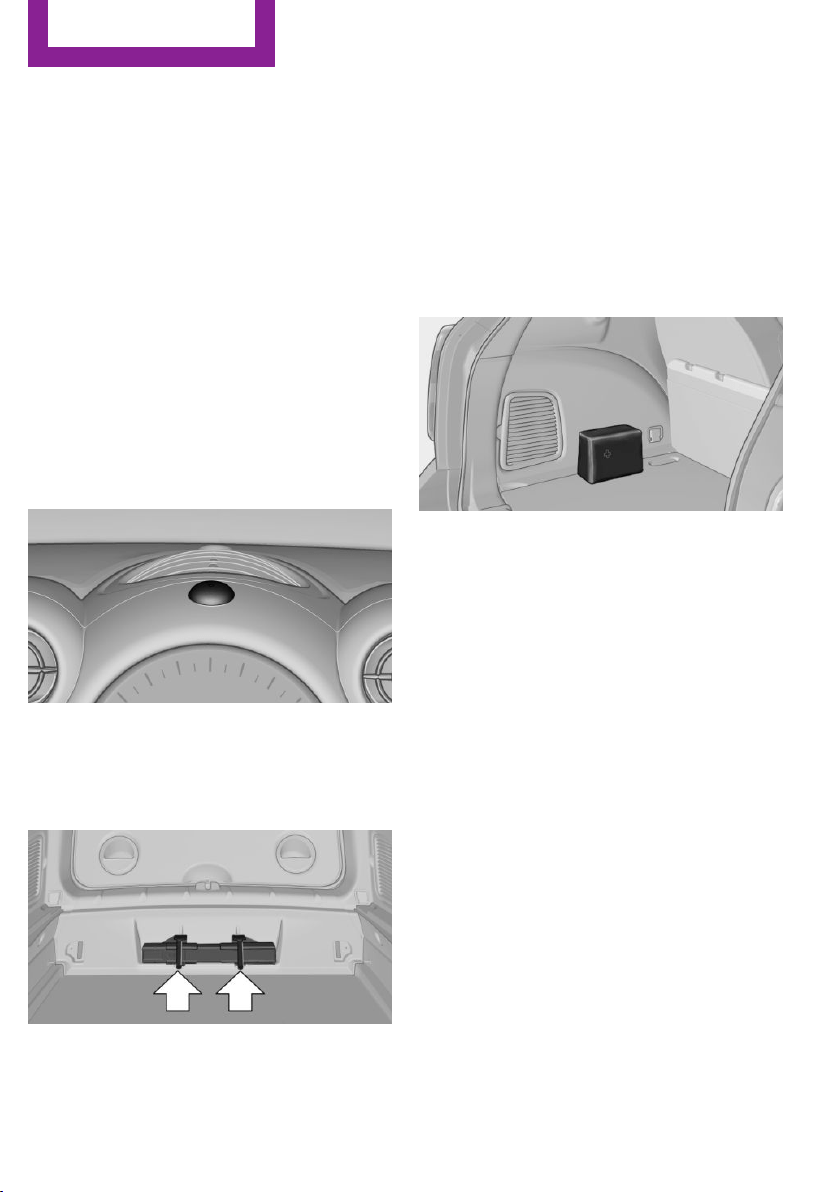
Breakdown assistance
Vehicle equipment
This chapter describes all series equipment as
well as country-specific and special equipment
offered for this model series.Therefore, it also
describes equipment that may not be found in
your vehicle, for instance due to the selected
special equipment or the country version. This
also applies to safety-related functions and sys‐
tems.
Hazard warning flash‐
ers
The button is located on the speedometer.
Warning triangle
Under the loading edge in the cargo area.
To remove, open the two fasteners.
First aid kit
Some of the articles contained in the first aid kit
have a limited service life. Therefore, check the
use-by dates of the contents regularly and re‐
place the items before they expire.
The first aid kit is located in the left side trim on
the cargo area floor or under the loading floor.
Roadside Assistance
Service availability
Roadside Assistance can be reached around the
clock in many countries. You can obtain assis‐
tance there in the event of a vehicle break‐
down.
Jump-starting
Notes
If the battery is discharged, the engine can be
started using the battery of another vehicle and
two jumper cables. In the same way, you can
help jump-start another vehicle. Only use
jumper cables with fully insulated clamp han‐
dles.
To prevent personal injury or damage to both
vehicles, adhere strictly to the following proce‐
dure.
Seite 248
Mobility
Breakdown assistance
248
Online Edition for Part no. 01 40 2 911 544 - VI/13
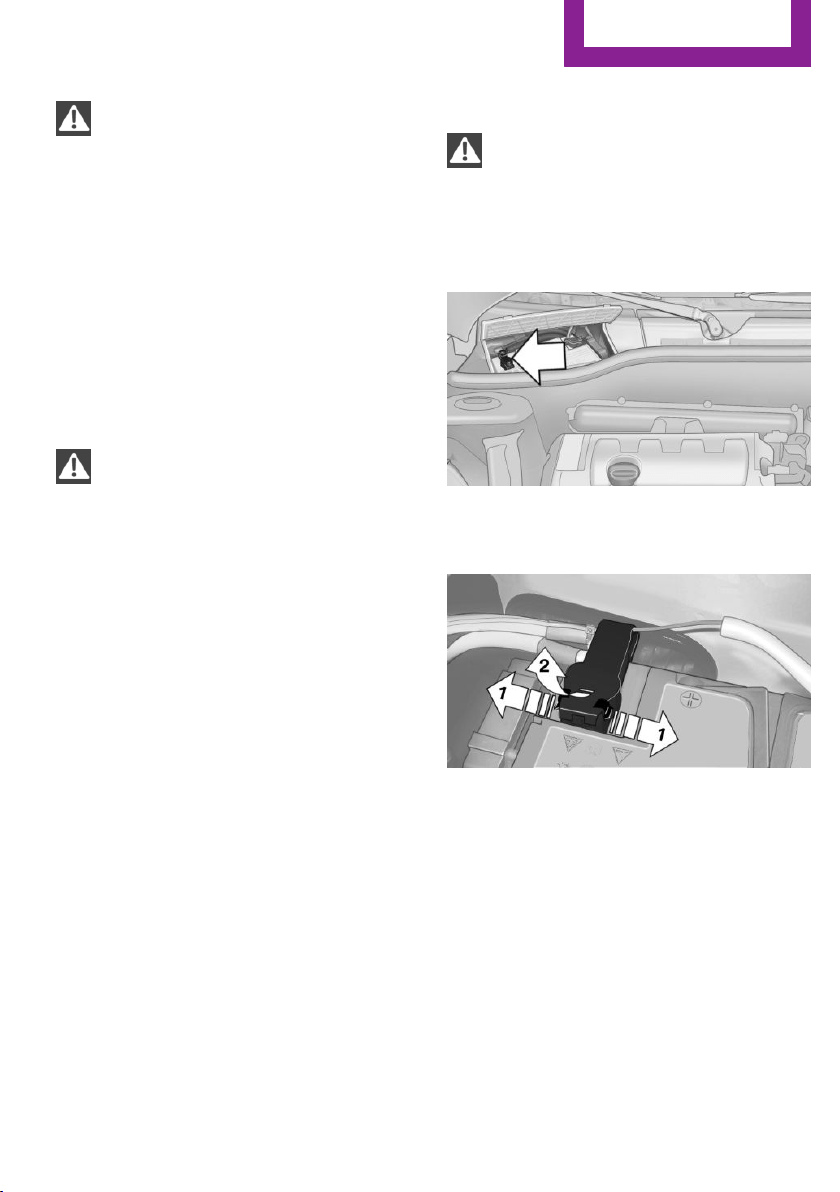
Do not touch live parts
To avoid the risk of potentially fatal injury,
always avoid all contact with electrical compo‐
nents while the engine is running.◀
Preparation
1. Check whether the battery of the other ve‐
hicle has a voltage of 12 volts and approxi‐
mately the same capacitance in Ah. This in‐
formation can be found on the battery.
2. Switch off the engine of the assisting vehi‐
cle.
3. Switch off any electronic systems/power
consumers in both vehicles.
Bodywork contact between vehicles
There must not be any contact between
the bodies of the two vehicles, otherwise there
is a danger of shorting.◀
Connecting jumper cables
Connecting order
Connect the jumper cables in the correct
order; otherwise, there is the danger of injury
from sparking.◀
1. Open the battery cover in the engine com‐
partment to access the positive terminal.
2. Unlock the tabs of the positive terminal
cover on the left and right, arrows 1, and
raise the cover, arrow 2.
3. Attach one terminal clamp of the positive
jumper cable to the positive terminal of the
battery or to a starting aid terminal of the
vehicle providing assistance.
4. Attach the second clamp of the positive
jumper cable to the positive terminal of the
battery of the vehicle to be started.
5. Attach one terminal clamp of the negative
jumper cable to the negative terminal of
the battery, or to the corresponding engine
or body ground of the vehicle providing as‐
sistance.
6. Attach the second clamp of the negative
jumper cable to the negative terminal of
Seite 249
Breakdown assistance
Mobility
249
Online Edition for Part no. 01 40 2 911 544 - VI/13
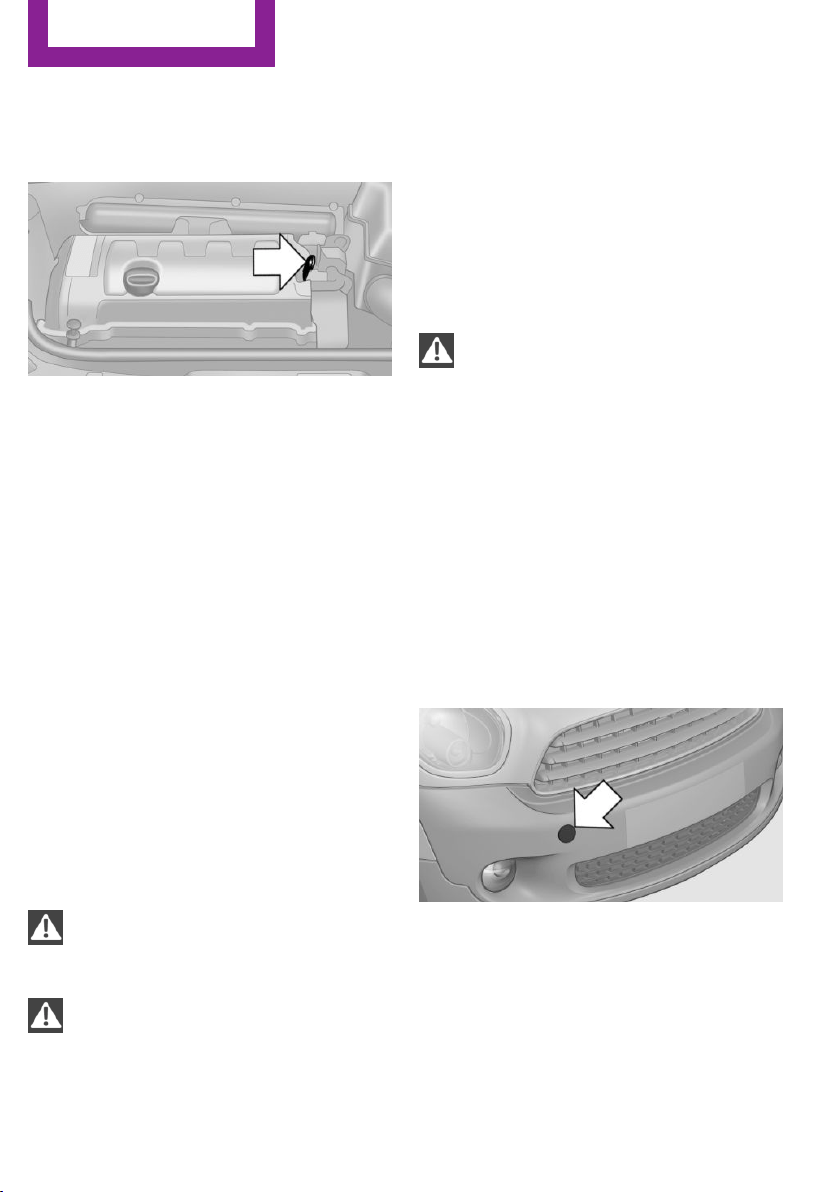
the battery, or to the engine or body
ground of the vehicle to be started.
Body ground:
Starting the engine
Never use spray fluids to start the engine.
1.
Start the engine of the assisting vehicle and
let it run for several minutes at a slightly in‐
creased idle speed.
2. Start the engine of the vehicle being started
in the usual way.
If the first starting attempt is not successful,
wait a few minutes before making another
attempt in order to allow the discharged
battery to recharge.
3. Let both engines run for several minutes.
4. Disconnect the jumper cables in the reverse
order.
Check the battery and recharge if necessary.
Tow-starting and towing
Notes
Observe applicable laws and regulations
Observe applicable laws and regulations
for tow-starting and towing.◀
No additional passengers
Do not transport any passengers other
than the driver in a vehicle that is being
towed.◀
Using a tow fitting
The screw-in tow fitting must always be carried
in the vehicle. It can be screwed in at the front
or rear of the MINI.
The tow fitting is stowed in the following loca‐
tion, depending on the equipment:
▷ Under the right or left front seat.
▷ In the pouch of the wheel change set in the
cargo area.
Tow fitting, information on use
▷ Use only the tow fitting provided with
the vehicle and screw it all the way in.
▷ Use the tow fitting for towing on paved
roads only.
▷ Avoid lateral loading of the tow fitting, e.g.,
do not lift the vehicle by the tow fitting.
Otherwise, damage to the tow fitting and the
vehicle can occur.◀
Access to the screw thread
Push out the tow fitting cover at the appropri‐
ate recess in the bumper.
Front
Seite 250
Mobility
Breakdown assistance
250
Online Edition for Part no. 01 40 2 911 544 - VI/13
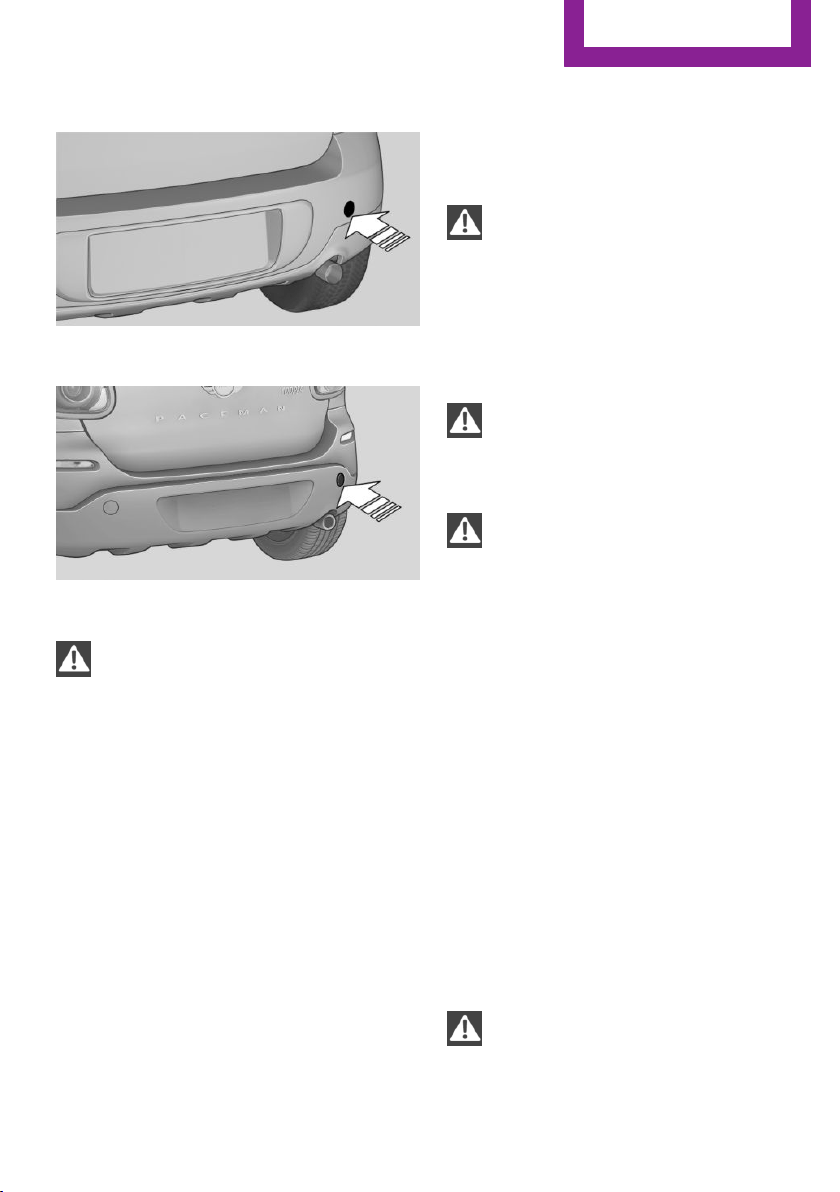
MINI Countryman: rear
MINI Paceman: rear
Being towed
Follow the towing instructions
Follow all towing instructions, or vehicle
damage or accidents may occur.◀
▷ Make sure that the ignition is switched on;
otherwise, the low beams, tail lamps, turn
signals, and windshield wipers may be un‐
available.
▷ Do not tow the vehicle with the rear axle
tilted, as the front wheels could turn.
▷ When the engine is stopped, there is no
power assist. Consequently, more force
needs to be applied when braking and
steering.
▷ Larger steering wheel movements are re‐
quired.
▷ Switch on the hazard warning system, de‐
pending on local regulations.
Manual transmission
Gearshift lever in neutral position.
Automatic transmission
Towing vehicles with an automatic trans‐
mission
Only transport vehicles with an automatic
transmission on tow trucks or with raised front
wheels; otherwise, the transmission may be
damaged.◀
Towing with a tow bar
Light towing vehicle
The towing vehicle must not be lighter
than your vehicle, or it will not be possible to
control vehicle response.◀
Correctly attach the tow bar
Only secure the tow bar on the tow fit‐
tings; damage can occur when it is secured on
other parts of the vehicle.◀
The tow fittings used should be on the same
side on both vehicles.
Should it prove impossible to avoid mounting
the tow bar at an offset angle, please observe
the following:
▷ Clearance and maneuvering capability will
be sharply limited during cornering.
▷ The tow bar will generate lateral forces if it
is attached offset.
Towing with a tow rope
When starting to tow the vehicle, make sure
that the tow rope is taut.
To avoid jerking and the associated stresses on
the vehicle components when towing, always
use nylon ropes or nylon straps.
Attaching the tow rope correctly
Only secure the tow rope on the tow fit‐
ting; otherwise, damage can occur when it is
secured on other parts of the vehicle.◀
Seite 251
Breakdown assistance
Mobility
251
Online Edition for Part no. 01 40 2 911 544 - VI/13
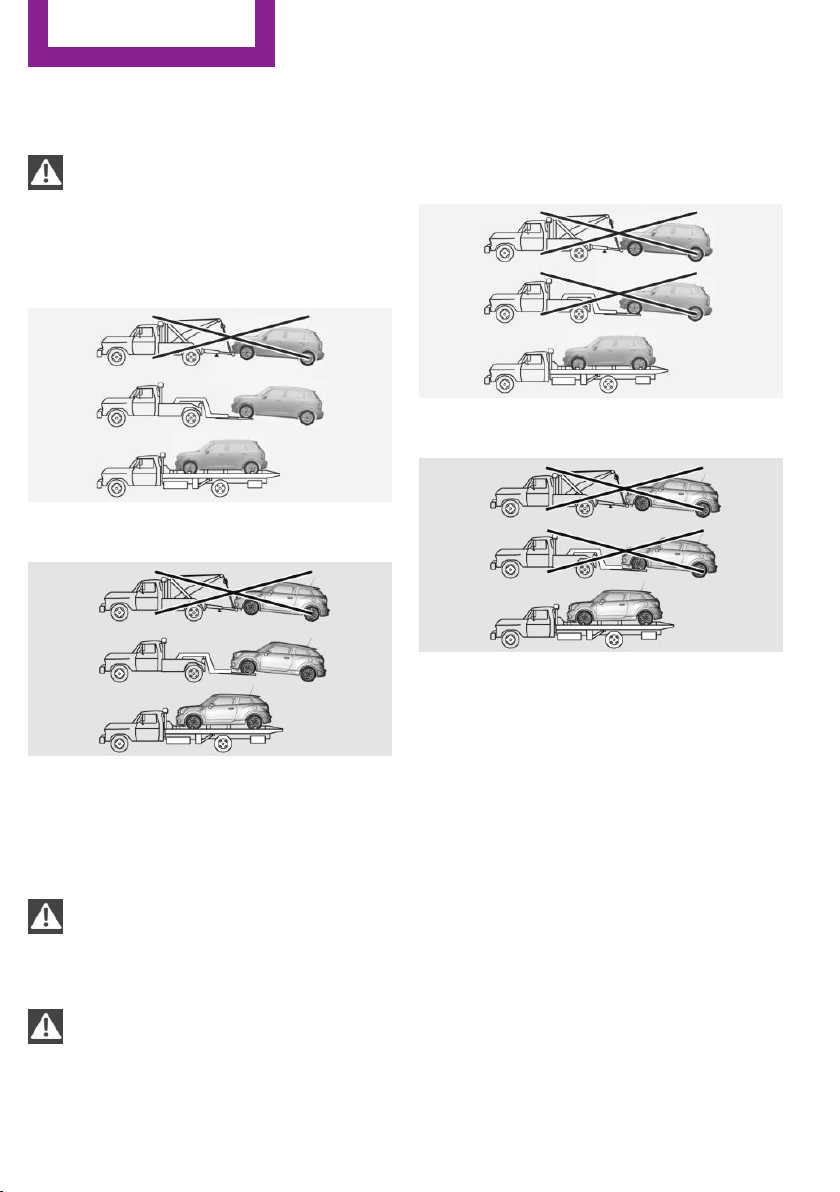
With a tow truck: vehicles without ALL4
all-wheel drive
Do not lift the vehicle
Do not lift the vehicle by the tow fitting or
body and chassis parts; otherwise, damage
may result.◀
MINI Countryman:
MINI Paceman:
Have the vehicle transported with a tow truck
with a so-called lift bar or on a flat bed.
With a tow truck: vehicle with ALL4 all-
wheel drive
Do not lift the vehicle
Do not lift the vehicle by the tow fitting or
body and chassis parts; otherwise, damage
may result.◀
Note for vehicles with ALL4 all-wheel
drive
Do not tow a vehicle with ALL4 all-wheel drive
with just the front or rear axle raised; other‐
wise, the wheels could lock up and the transfer
case could be damaged.◀
MINI Countryman:
MINI Paceman:
Only transport the vehicle on a flat-bed.
Tow-starting
If possible, do not tow-start the vehicle but
start the engine by jump-starting, refer to
page 248. Vehicles with a catalytic converter
should only be tow-started when the engine is
cold; vehicles with an automatic transmission
cannot be tow-started.
1.
Switch on the hazard warning system and
comply with local regulations.
2. Switch on the ignition, refer to page 58.
3. Shift into 3rd gear.
4. Have the vehicle tow-started with the
clutch is depressed and then slowly release
the clutch. After the engine starts, immedi‐
ately depress the clutch completely again.
Seite 252
Mobility
Breakdown assistance
252
Online Edition for Part no. 01 40 2 911 544 - VI/13

5. Stop at a suitable location, remove the tow
bar or rope, and switch off the hazard
warning system.
6. Have the vehicle checked.
Seite 253
Breakdown assistance
Mobility
253
Online Edition for Part no. 01 40 2 911 544 - VI/13

Care
Vehicle equipment
This chapter describes all series equipment as
well as country-specific and special equipment
offered for this model series.Therefore, it also
describes equipment that may not be found in
your vehicle, for instance due to the selected
special equipment or the country version. This
also applies to safety-related functions and sys‐
tems.
Car washes
Notes
Steam jets or high-pressure washers
When using steam jets or high-pressure
washers, hold them a sufficient distance away
and use a maximum temperature of
140 ℉/60 ℃.
Holding them too close or using excessively
high pressures or temperatures can cause dam‐
age or preliminary damage that may then lead
to long-term damage.
Follow the operating instructions for the high-
pressure washer.◀
Do not direct steam or high-pressure washers
toward the labels applied by the manufacturer;
otherwise, damage may result.
Cleaning sensors/cameras with high-pres‐
sure washers
When using high-pressure washers, do not
spray the seals of the retractable hardtop and
the exterior sensors and cameras, for Park Dis‐
tance Control, for instance, for extended peri‐
ods of time and only from a distance of at least
12 in/30 cm.◀
During the winter months
Ensure that the vehicle is washed more
frequently in winter. Intense soiling and road
salt can damage the vehicle.◀
After washing the vehicle, apply the brakes
briefly to dry them; otherwise, braking action
can be reduced and corrosion of the brake
discs can occur.
Regularly remove foreign bodies, such as
leaves, from the area of the windshield when
the hood is open.
Washing in automatic car washes
Give preference to cloth car washes or those
that use soft brushes in order to avoid paint
damage.
Do not use automatic high-pressure washers;
otherwise, water may drip into the interior in
the area of the windows.
Before driving into the car wash, check whether
the system is suitable for your MINI. Note the
following points:
▷ Vehicle dimensions, refer to page 260.
▷ If necessary: fold in the exterior mirrors, re‐
fer to page 51.
▷ Maximum permissible tire width.
Guide rails in car washes
Avoid car washes with guide rails higher
than 4 in/10 cm; otherwise, the vehicle chassis
could be damaged.◀
Preparations before driving into the car wash:
▷ Unscrew the road antenna.
▷ Deactivate the rain sensor to avoid unin‐
tentional wiper activation.
▷ Deactivate the rear window wiper and pro‐
tect it from damage. Ask the car wash oper‐
ator about any necessary protective meas‐
ures.
Seite 254
Mobility
Care
254
Online Edition for Part no. 01 40 2 911 544 - VI/13

▷ Remove additional attachments, for in‐
stance a spoiler or telephone antenna, if
there is a risk that these may be damaged.
▷ Insert the remote control into the ignition
lock.
Automatic transmission
Before driving into the car wash, note the fol‐
lowing to ensure that the vehicle can roll:
1. Insert the remote control into the ignition
lock, even with Comfort Access.
2. Move the selector lever to position N.
3. Release the handbrake.
4. Switch the engine off.
5. Leave the remote control in the ignition
lock so that the vehicle can roll.
Hand car wash
If washing the vehicle by hand, use copious
quantities of water and car shampoo if neces‐
sary. Clean the vehicle with a sponge or a
washing brush by applying gentle pressure.
Before cleaning the windshield, deactivate the
rain sensor to avoid unintentional wiper activa‐
tion or switch off the ignition.
Adhere to the local regulations regarding
washing cars by hand.
Headlamps
Do not rub dry and do not use abrasive or caus‐
tic cleansers. Soak areas that have been soiled,
e.g., due to insects, with shampoo and rinse off
with copious quantities of water.
Thaw ice with a window deicer; do not use an
ice scraper.
Windows
Clean the outside and inside surfaces of the
windows and the mirror glasses with window
cleaner.
Do not clean mirror glass with cleaners contain‐
ing quartz.
Wiper blades
Clean with soapy water and replace regularly to
avoid streaking.
Wax and preservative residue and soiling on
the windows cause streaking during window
wiping and lead to premature wear on the
wiper blades and malfunctions of the rain sen‐
sor.
Vehicle care
Car care products
Regular cleaning and care contributes signifi‐
cantly to vehicle value retention.
The manufacturer recommends using cleaning
and care products from MINI, since these have
been tested and approved.
Original MINI CareProducts have been tested
on materials, in the laboratory, and in the field,
and offer optimum care and protection for MINI
vehicles.
Do not use cleansers that contain alcohol
or solvents
Do not use cleansers that contain alcohol or
solvents, such as lacquer thinners, heavy-duty
grease removers, fuel, or such; this could lead
to surface damage.◀
Car care and cleaning products
Follow the instructions on the container.
When cleaning the interior, open the doors or
windows.
Only use products intended for cleaning vehi‐
cles.
Cleansers can contain substances that are dan‐
gerous and harmful to your health.◀
Seite 255
Care
Mobility
255
Online Edition for Part no. 01 40 2 911 544 - VI/13

Vehicle paint
Regular care contributes to vehicle value reten‐
tion and protects the paintwork against the
long-term effects of paint-damaging substan‐
ces.
Environmental influences in areas with higher
air pollution or natural contaminants, such as
tree resin or pollen, can have an impact on the
vehicle paint. Therefore, it is important to tailor
the frequency and extent of your car care to
these influences.
Immediately remove especially aggressive sub‐
stances, such as spilled fuel, oil, grease, or bird
droppings, to prevent damage to the paint‐
work.
Correcting paint damage
Depending on the severity of the damage, re‐
pair stone impact damage or scratches imme‐
diately to prevent rust formation.
The manufacturer recommends having paint
damage corrected with a professional repair
paint job according to factory specifications us‐
ing original MINI paint materials.
Preservation
Preservation is needed when water no longer
beads off of the clean paint surfaces. Only use
paint preservation products that contain car‐
nauba or synthetic waxes.
Leather care
The leather processed by the manufacturer is a
high quality natural product. Light graininess is
a typical feature of natural leather.
Particles of dust and road grime chafe in pores
and folds, and lead to increased wear and pre‐
mature degradation of the leather surface.
Therefore, remove dust from the leather regu‐
larly, using a cloth or vacuum cleaner.
Make especially sure that light-colored leather
is cleaned regularly as it is more susceptible to
soiling.
Twice a year, treat the leather with a leather lo‐
tion as dirt and grease will attack the protective
layer of the leather.
Upholstery material care
Vacuum regularly with a vacuum cleaner to re‐
move superficial soiling.
In case of heavy soiling, e.g., beverage stains,
use a soft sponge or lint-free microfiber cloth in
combination with a suitable interior cleaner.
Follow the instructions on the container.
Clean the upholstery material down to the
seams using large sweeping motions. Avoid
rubbing the material vigorously.
Damage from Velcro® fasteners
Open Velcro® fasteners on pants or other
articles of clothing can damage the seat covers.
Ensure that any Velcro® fasteners are closed.◀
Caring for special components
Interior plastic parts
These include:
▷ Imitation leather surfaces
▷ Lamp lenses
▷ Indicator covers
▷ Matte components
Clean with water and a solvent-free plastic
cleaner if necessary.
Do not use cleansers that contain alcohol
or solvents
Do not use cleansers that contain alcohol or
solvents, such as lacquer thinners, heavy-duty
grease removers, fuel, or such; this could lead
to surface damage.◀
Rubber seals
Only treat with water or a rubber care product.
When cleaning rubber seals, do not use silicone
sprays or other care products containing sili‐
cone; otherwise, noise and damage may result.
Seite 256
Mobility
Care
256
Online Edition for Part no. 01 40 2 911 544 - VI/13

Chrome surfaces
Carefully clean components such as the radia‐
tor grille or door handles with an ample supply
of water, possibly with shampoo added, partic‐
ularly when they have been exposed to road
salt. For additional treatment, use a chrome
polish.
Light-alloy wheels
When cleaning the wheels on the vehicle, only
use a neutral wheel rim cleaner with a pH value
of 5 to 9.
Do not use abrasive cleaners or a steam jet hot‐
ter than 140 ℉/60 ℃; otherwise, damage may
result. Adhere to the manufacturer instructions.
Aggressive, acidic, or alkaline cleaners may de‐
stroy the protective coating of neighboring
components such as the brake disc.
Exterior sensors
The sensors on the outside of the vehicle, such
as for Park Distance Control, must be kept clean
and free of ice to ensure that they remain fully
functional.
Decorative trim
Clean decorative trims and fine wood compo‐
nents with a moist cloth only. Then dry with a
soft cloth.
Safety belts
Dirty belt straps impede the reeling action and
thus have a negative impact on safety.
No chemical cleaning
Do not clean chemically; this can destroy
the webbing.◀
Carpets/floor mats
No objects in the area around the pedals
Keep floor mats, carpets, and any other
objects out of the area of motion of the pedals;
otherwise, the function of the pedals could be
impeded while driving
Do not place additional floor mats over existing
mats or other objects.
Only use floor mats that have been approved
for the vehicle and can be properly fixed in
place.
Ensure that the floor mats are securely fastened
again when they are returned after being re‐
moved, such as for cleaning.◀
Floor mats can be removed for cleaning.
If they are very dirty, clean with a microfiber
cloth and water or an interior cleaner. To pre‐
vent matting of the carpet, rub back and forth
in the direction of travel only.
Displays
To clean the displays, such as the radio or dis‐
play elements, use an antistatic microfiber
cloth.
Cleaning displays
Do not use chemical or household cleans‐
ers.
Keep all fluids and moisture away from the
unit.
Otherwise, they could affect or damage surfa‐
ces or electrical components.
Avoid pressing too hard when cleaning and do
not use abrasive materials; otherwise, damage
can result.◀
CD/DVD drives
No cleaning CD
Do not use cleaning CDs; otherwise, parts
of the drive may become damaged.◀
Long-term vehicle storage
Your service center can advise you on what to
consider when storing the vehicle for longer
than three months.
Seite 257
Care
Mobility
257
Online Edition for Part no. 01 40 2 911 544 - VI/13

FIND ME.
Online Edition for Part no. 01 40 2 911 544 - VI/13

At a glance
Controls
Driving tips
Navigation
Entertainment
Communication
Mobility
Reference
Online Edition for Part no. 01 40 2 911 544 - VI/13

Technical data
Vehicle equipment
This chapter describes all series equipment as
well as country-specific and special equipment
offered for this model series.Therefore, it also
describes equipment that may not be found in
your vehicle, for instance due to the selected
special equipment or the country version. This
also applies to safety-related functions and sys‐
tems.
Engine specifications
Cooper Cooper S John Cooper Works
Displacement cu in/cm³ 97.5/1,598 97.5/1,598 97.5/1,598
No. of cylinders 4 4 4
Maximum output hp 121 181 208
at engine speed rpm 6,000 5,500 6,000
Maximum torque lb ft/Nm 114/155 177/240 207/280
with overboost – 192/260 221/300
at engine speed rpm 4,250 1,600-5,000 1,900-5,500
with overboost – 1,700-4,500 2,100-4,500
Overboost briefly increases the highest torque during rapid acceleration, for example when pass‐
ing another vehicle.
Dimensions
MINI Countryman
MINI Countryman Cooper Cooper S John Cooper Works
Width with mirrors inches/mm 78.5/1,995 78.5/1,995 78.6/1,996
Width without mirrors inches/mm 70.4/1,789 70.4/1,789 70.4/1,789
Height without roof antenna inches/mm 61.5/1,561 61.5/1,561 61.5/1,561
Length inches/mm 161.7/4,108 161.8/4,110 163.2/4,144
Seite 260
Reference
Technical data
260
Online Edition for Part no. 01 40 2 911 544 - VI/13

MINI Countryman Cooper Cooper S John Cooper Works
Wheelbase inches/mm 102.2/2,595 102.2/2,595 102.2/2,596
Smallest turning circle dia. ft/m 38.1/11.6 38.1/11.6 38.1/11.6
MINI Paceman
MINI Paceman Cooper Cooper S John Cooper Works
Width with mirrors inches/mm 78.6/1,996 78.6/1,996 78.6/1,996
Width without mirrors inches/mm 70.3/1,786 70.3/1,786 70.3/1,786
Height without roof antenna inches/mm 59.8/1,518 59.9/1,522 60.1/1,527
Length inches/mm 162.2/4,120 162.2/4,120 162.8/4,134
Wheelbase inches/mm 102.2/2,596 102.2/2,596 102.2/2,596
Smallest turning circle dia. ft/m 38.1/11.6 38.1/11.6 38.1/11.6
Weights
Never exceed either the approved axle loads or
the gross vehicle weight.
MINI Countryman
Cooper Cooper S
Curb weight, road ready, with maximum special equipment
Manual transmission lbs/kg 2,954/1,340 3,053/1,385
Automatic transmission lbs/kg 3,020/1,370 3,097/1,405
Approved gross vehicle weight
Manual transmission lbs/kg 3,858/1,750 3,990/1,810
Automatic transmission lbs/kg 3,924/1,780 4,034/1,830
Load lbs/kg 860/390 860/390
Approved front axle load
Manual transmission lbs/kg 2,050/930 2,127/965
Automatic transmission lbs/kg 2,116/960 2,172/985
Approved rear axle load lbs/kg 1,918/870 1,918/870
Seite 261
Technical data
Reference
261
Online Edition for Part no. 01 40 2 911 544 - VI/13

Cooper Cooper S
Approved roof load capacity lbs/kg 165/75 165/75
Cargo area capacity cu ft/liter 12.4–41.3/ 350–1,170 12.4–41.3/ 350–1,170
Cooper S ALL4 John Cooper Works
Curb weight, road ready, with maximum special equipment
Manual transmission lbs/kg 3,208/1,455 3,263/1,480
Automatic transmission lbs/kg 3,252/1,475 3,307/1,500
Approved gross vehicle weight
Manual transmission lbs/kg 4,101/1,860 4,156/1,885
Automatic transmission lbs/kg 4,145/1,880 4,200/1,905
Load lbs/kg 860/390 860/390
Approved front axle load
Manual transmission lbs/kg 2,183/990 2,183/990
Automatic transmission lbs/kg 2,227/1,010 2,227/1,010
Approved rear axle load lbs/kg 2,017/915 2,072/940
Approved roof load capacity lbs/kg 165/75 165/75
Cargo area capacity cu ft/liter 12.4–41.3/ 350–1,170 12.4–41.3/ 350–1,170
MINI Paceman
Cooper Cooper S Cooper S ALL4 John Cooper Wor
ks
Curb weight, road ready, with maximum special equipment
Manual transmission lbs/kg 2,940/1,334 3,070/1,393 3,210/1,456 3,260/1,479
Automatic transmis‐
sion
lbs/kg 3,010/1,365 3,110/1,411 3,260/1,479 3,310/1,501
Approved gross vehicle weight
Manual transmission lbs/kg 3,850/1,746 3,960/1,796 4,100/1,860 4,150/1,882
Automatic transmis‐
sion
lbs/kg 3,920/1,778 4,010/1,819 4,140/1,878 4,200/1,905
Load lbs/kg 850/386 850/386 850/386 850/386
Seite 262
Reference
Technical data
262
Online Edition for Part no. 01 40 2 911 544 - VI/13

Cooper Cooper S Cooper S ALL4 John Cooper Wor
ks
Approved front axle load
Manual transmission lbs/kg 2,050/930 2,120/962 2,180/989 2,200/998
Automatic transmis‐
sion
lbs/kg 2,120/962 2,170/984 2,220/1,007 2,240/1,016
Approved rear axle
load
lbs/kg 1,910/866 1,910/866 2,020/916 2,060/934
Approved roof load ca‐
pacity
lbs/kg 165/75 165/75 165/75 165/75
Cargo area capacity cu ft/
liter
11.6–38.1/
330–1,080
11.6–38.1/
330–1,080
11.6–38.1/
330–1,080
11.6–38.1/
330–1,080
Capacities
Notes
Fuel tank US gal/liters Approx. 12.4/
approx. 47
Fuel quality, refer to
page 218
Including reserve of US gal/liters Approx. 2.1/
approx. 8
Seite 263
Technical data
Reference
263
Online Edition for Part no. 01 40 2 911 544 - VI/13

Short commands for voice
activation system
Vehicle equipment
This chapter describes all series equipment as
well as country-specific and special equipment
offered for this model series.Therefore, it also
describes equipment that may not be found in
your vehicle, for instance due to the selected
special equipment or the country version. This
also applies to safety-related functions and sys‐
tems.
General information
Instructions for voice activation system, refer to
page 26.
To have the available spoken instructions read
out loud: ›Voice commands‹
The following short commands apply to vehi‐
cles equipped with a voice activation system.
They have no function in vehicles in which only
the mobile phone is operated using the voice.
Adjusting
Vehicle
Function Command
Opens the main menu. ›Main menu‹
Open the options. ›Options‹
Open the settings. ›Settings‹
Settings on the Control Display. ›Control display‹
Open the time and date. ›Time and date‹
Open the language and units. ›Language and units‹
Open the speed limit. ›Speed‹
Open the light. ›Lighting‹
Open the door lock. ›Door locks‹
Seite 264
Reference
Short commands for voice activation system
264
Online Edition for Part no. 01 40 2 911 544 - VI/13

Vehicle information
Computer
Function Command
Open the computer. ›Onboard info‹
Open the trip computer. ›Trip computer‹
Vehicle
Function Command
Open the vehicle information. ›Vehicle info‹
Open the vehicle status. ›Vehicle status‹
Navigation
General information
Function Command
Navigation menu. ›Navigation‹
Open the destination entry. ›Enter address‹
Enter the address. ›Enter address‹
Enter the town/city. ›City‹
Enter the country. ›State‹
Enter the postal code. ›Postal Code‹
Open destination guidance. ›Guidance‹
Start destination guidance. ›Start guidance‹
Terminate destination guidance. ›Stop guidance‹
Open the home address. ›Home address‹
Open the route criteria. ›Route preference‹
Open the route. ›Route information‹
Switch on the spoken instruction. ›Switch on voice instructions‹
Repeat the spoken instruction. ›Repeat voice instructions‹
Seite 265
Short commands for voice activation system
Reference
265
Online Edition for Part no. 01 40 2 911 544 - VI/13

Function Command
Switch off the spoken instruction. ›Switch off voice instructions‹
Display the address book. ›Address book‹
Display the most recent destinations. ›Last destinations‹
Open the traffic bulletins. ›Traffic Info‹
Special destinations. ›Points of interest‹
Map
Function Command
Display the map. ›Map‹
Map facing north. ›Map facing north‹
Map facing the direction of travel. ›Map in direction of travel‹
Perspective map. ›Map perspective view‹
Automatic scaling of the map. ›Map with automatic scaling‹
Scale...feet. ›Map scale ... feet‹
Scale...meters. ›Map scale ... meters‹ e.g., map scale
100 meters
Scale...kilometers. ›Map scale ... kilometers‹ e.g., map
scale 5 kilometers
Scale...miles. ›Map scale ... miles‹ e.g., map scale
5 miles
Destination guidance with intermediate destinations
Function Command
Enter a new destination. ›Enter address‹
Seite 266
Reference
Short commands for voice activation system
266
Online Edition for Part no. 01 40 2 911 544 - VI/13

Radio
FM
Function Command
Open a frequency. ›Frequency ... megahertz‹ e.g.,
93.5 megahertz or frequency 93.5
Open the radio. ›Radio‹
Open the FM stations. ›F M‹
Open the manual search. ›Manual‹
Select a frequency range. ›Select frequency‹
Open a station. ›Select station‹
AM
Function Command
Open a frequency. ›Frequency ... Kilohertz‹ e.g., fre‐
quency 753 or 753 kilohertz
Open the AM stations. ›A M‹
Open the manual search. ›Manual‹
Satellite radio
Function Command
Open the satellite radio. ›Satellite radio‹
Switch on the satellite radio. ›Satellite radio on‹
Select a satellite radio channel. ›Select satellite radio‹ e.g., satellite
radio channel 2
Stored stations
Function Command
Open the stored stations. ›Presets‹
Choose a stored station. ›Select preset‹
Select a stored station. ›Preset ...‹ e.g., stored station 2
Seite 267
Short commands for voice activation system
Reference
267
Online Edition for Part no. 01 40 2 911 544 - VI/13

CD/multimedia
CD drive
Function Command
Select a track. ›Track ...‹ e.g., track 5
or
›C D track ...‹ e. g., CD track 5
Play back a CD. ›C D on‹
Select a CD. ›Select C D‹
Select a CD and track. ›C D ... track ...‹ e.g., CD 3 track 5
Open the CD and Multimedia menu. ›C D and multimedia‹
CD. ›C D‹
External devices
Function Command
Open the external devices. ›External devices‹
Open the Bluetooth devices. ›Bluetooth‹
Tone
Function Command
Open the tone settings. ›Tone‹
Telephone
Function Command
Dial a phone number. ›Dial number‹
Open the Telephone menu. ›Telephone‹
Display the phone book. ›Phonebook‹
Redialing. ›Redial‹
Display received calls. ›Received calls‹
Seite 268
Reference
Short commands for voice activation system
268
Online Edition for Part no. 01 40 2 911 544 - VI/13

Function Command
List of messages. ›Messages‹
Open the Bluetooth devices. ›Bluetooth‹
Office
Function Command
Open the Office menu. ›Office‹
Display Office Today. ›Current office‹
Display the contacts. ›Contacts‹
Display the messages. ›Messages‹
Display the calendar. ›Calendar‹
Display the tasks. ›Tasks‹
Display the reminders. ›Reminders‹
Contacts
Function Command
Select a name. ›Choose name‹
My contacts. ›My contacts‹
Open the contacts. ›Contacts‹
New contact. ›New contact‹
Seite 269
Short commands for voice activation system
Reference
269
Online Edition for Part no. 01 40 2 911 544 - VI/13

Everything from A to Z
Index
A
ABS, Antilock Brake Sys‐
tem 93
Acoustic signal, refer to Check
Control 75
Activated charcoal filter with
automatic climate con‐
trol 103
Adaptive Light Control 80
Additional telephone 190
Additives, engine oil 235
Airbags 82
Airbags, indicator/warning
light 85
Air circulation, refer to Recir‐
culated air mode 100, 102
Air conditioner 99
Air conditioning 99
Air conditioning mode
–
Air conditioner 99
– Automatic climate con‐
trol 101
Air distribution
–
Automatic 102
– Individual 100
– Manual 100, 102
Air drying, refer to Cooling
function 103
Air flow rate 99, 102
Air pressure, refer to Tire infla‐
tion pressure 220
Air supply
–
Air conditioner 99
– Automatic climate con‐
trol 101
Alarm system 41
Alarm system
–
Avoiding unintentional
alarms 41
– Interior motion sensor 41
– Tilt alarm sensor 41
ALL4 all-wheel system 95
All-wheel drive, refer to
ALL4 95
Alternating-code hand-held
transmitter 105
AM/FM station 158
Ambient lighting 81
Announcement, navigation,
refer to Spoken instruc‐
tions 147
Antifreeze, washer fluid 64
Antilock Brake System,
ABS 93
Anti-slip control, refer to Dy‐
namic Stability Control
DSC 93
Anti-theft protection 33
Appointments 206
Approved engine oils 235
Ashtray 108
Assistance, roadside 248
Assistance when driving off,
refer to Hill drive-off assis‐
tant 95
Assistance with starting en‐
gine, refer to Jump-start‐
ing 248
Audio playback 167
Audio playback, Blue‐
tooth 173
Automatic
–
Air distribution 102
– Air flow rate 102
Automatic car wash 254
Automatic climate control
–
Automatic air distribu‐
tion 102
Automatic, cruise control 96
Automatic headlamp con‐
trol 78
Automatic transmission with
Steptronic
– Kickdown 66
– Overriding selector lever
lock 67
AUTO program with auto‐
matic climate control 102
AUX-IN port 169
Average fuel consumption 70
Average fuel consumption
– Setting the units 72
Average speed 70
Average speed, refer to Com‐
puter 69
B
Backrest curvature, refer to
Lumbar support 46
Backrests, refer to Seats 45
Backup lamps, bulb replace‐
ment 243
Balance 156
Bass 156
Battery
–
Disposal 41
– Remote control 32
Battery, refer to Vehicle bat‐
tery 246
Battery replacement
–
Remote control 41
Belts, refer to Safety belts 47
Belt tensioners, refer to Safety
belts 47
Bi-xenon headlamps 240
Black and white map dis‐
play 150
Blower, refer to Air flow
rate 99, 102
Bluetooth audio 173
Seite 270
Reference
Everything from A to Z
270
Online Edition for Part no. 01 40 2 911 544 - VI/13

Bluetooth connection, activat‐
ing/deactivating 181, 191
Bluetooth hands-free sys‐
tem 180
Brake assistant 93
Brake discs, breaking in 122
Brake fluid, refer to Service re‐
quirements 74
Brake force distribution, elec‐
tronic 93
Brake pads, breaking in 122
Brakes
– Handbrake 60
Brakes, MINI maintenance
system 237
Brakes, service require‐
ments 74
Brake system, MINI mainte‐
nance system 237
Braking, notes 123
Breakdown assistance, Road‐
side Assistance 248
Breaking in 122
Brightness on the Control Dis‐
play 74
Buckle tongue, rear
–
Height adjustment 48
Button for starting the engine,
refer to Start/Stop button 58
C
Calendar 206
California Proposition 65
Warning 7
Car battery, refer to Vehicle
battery 246
Car care products 255
Care, displays 257
Care, vehicle 255
Cargo area
–
Comfort Access 39
– Flat loading floor 111
– Multi-function hook 113
– Opening from the out‐
side 37
– Partition net 112
Cargo area, enlarging
– Cargo cover 110
Cargo area lamp, refer to Inte‐
rior lamps 81
Cargo area tailgate, refer to
Tailgate 37
Car horn, refer to Horn 14
Carpet, care 257
Car phone, refer to Tele‐
phone 180, 190
Car wash 254
CBC, Cornering Brake Con‐
trol 93
CBS Condition Based Serv‐
ice 237
CD 166
CD/DVD drives, care 257
CD player 166
Center armrest 115
Center console, refer to
Around the center con‐
sole 18
Center rail 116
Center rail, refer to Storage
compartments 116
Central locking
–
Comfort Access 38
– From the inside 36
– From the outside 34
Central locking system
–
Concept 33
– From the outside 33
Central screen, see Control
Display 20
Changes, technical, refer to
Safety 7
Changing wheels/tires 227
Check Control 75
Children, transporting 53
Child restraint fixing system
LATCH 54
Child restraint fixing sys‐
tems 53
Child restraint fixing systems,
mounting 53
Child seat, mounting 53
Child seats, refer to Transport‐
ing children safely 53
Chrome parts, care 257
Circulation of air, refer to Re‐
circulated air
mode 100, 102
Cleaning, displays 257
Cleaning, refer to Care 254
Climate 99
Climate mode
– Ventilation 103
Clock 68
Clock
–
12h/24h format 72
– Setting the time and date 72
Closing
–
From the inside 36
– From the outside 34
Clutch, breaking in 122
Cockpit 14
Cold start, refer to Starting the
engine 59
Combination instrument, refer
to Displays 16
Combination switch, refer to
Turn signal/high beams/
headlamp flasher 61
Combination switch, refer to
Washer/wiper system 61
Comfort Access
–
In the car wash 40
– Replacing the battery 41
Comfort area, refer to Around
the center console 18
Compartment for remote con‐
trol, refer to Ignition lock 58
Compass, digital 106
Computer 69
Computer, displaying informa‐
tion 69
Condition Based Service
CBS 237
Confirmation signals for vehi‐
cle locking/unlocking 35
Connecting, mobile phone, re‐
fer to Pairing the mobile
phone 180, 191
Seite 271
Everything from A to Z
Reference
271
Online Edition for Part no. 01 40 2 911 544 - VI/13

Consumption, refer to Aver‐
age fuel consumption 70
Contacts 187, 203
Control Display 20
Control Display, care 257
Control Display, settings 73
Controls and displays 14
Control systems, driving stabil‐
ity 93
Convenient operation
– Windows 34
Coolant temperature 69
Cooling function, switching on
and off 103
Cooling, maximum 102
Cornering Brake Control,
CBC 93
Corrosion on brake discs 124
Cradle for telephone or mobile
phone, refer to Snap-in
adapter 200
Cruise control 96
Cupholders 108
Current fuel consumption 70
Current location, storing 138
Curve lights, refer to Adaptive
Light Control 80
Cylinders, number of, refer to
Engine data 260
D
Dashboard lighting, refer to
Instrument lighting 80
Dashboard, refer to Cock‐
pit 14
Dashboard, refer to Dis‐
plays 16
Data, technical 260
Date
–
Date format 73
– Setting 73
Daytime running lights 79
Decorative trim, care 257
Defogging windows 100
Defroster
–
Rear window 100, 103
Defrosting windows 100
Defrost setting, refer to De‐
frosting windows 100
Destination entry via the ad‐
dress book 138
Destination guidance with in‐
termediate destinations 143
Destination input, naviga‐
tion 136
Digital compass 106
Digital radio 159
Dip stick, engine oil 234
Directional indicators, refer to
Turn signals 61
Displacement, refer to Engine
data 260
Display lighting, refer to In‐
strument lighting 80
Displays 16
Displays and controls 14
Displays, care 257
Displays, cleaning 257
Displays, refer to Instrument
cluster 16
Disposal
–
Remote control battery 41
Distance warning, refer to
Park Distance Control
PDC 97
Door key, refer to Remote
control with integrated
key 32
Door lock 35
Door lock, confirmation sig‐
nals 35
Doors, manual operation 36
Doors, unlocking and locking
–
Confirmation signals 35
– From the inside 36
– From the outside 34
DOT Quality Grades 224
Drive-off assistant, refer to Hill
drive-off assistant 95
Driving notes, breaking
in 122
Driving off on hills, refer to Hill
drive-off assistant 95
Driving on poor roads 125
Driving stability control sys‐
tems 93
Driving tips, refer to Driving
notes 122
Dry air, refer to Cooling func‐
tion 103
DSC Dynamic Stability Con‐
trol 93
DTC Dynamic Traction Con‐
trol 94
DTMF suffix dialing 185, 197
Dynamic destination guid‐
ance 152
Dynamic Stability Control
DSC 93
Dynamic Traction Control
DTC 94
E
Electrical malfunction
–
Door lock 36
– Fuel filler flap 216
Electronic brake-force distri‐
bution 93
Electronic Stability Program
ESP, refer to Dynamic Stabil‐
ity Control DSC 93
Emergency activation
–
Automatic transmission, re‐
fer to Overriding selector
lever lock 67
Emergency operation, fuel
filler flap, unlocking man‐
ually 216
Emergency operation, refer to
Manual operation
–
Door lock 36
Energy, saving, refer to Saving
fuel 130
Engine, breaking in 122
Engine compartment 232
Engine oil, adding 234
Engine oil, additives, refer to
Approved engine oils 235
Seite 272
Reference
Everything from A to Z
272
Online Edition for Part no. 01 40 2 911 544 - VI/13

Engine oil, alternative oil
types 235
Engine oil change intervals,
refer to Service require‐
ments 74
Engine oil, dip stick 234
Engine oil, filling capacity 263
Engine oil, MINI maintenance
system 237
Engine oil types, alterna‐
tive 235
Engine oil types, ap‐
proved 235
Engine, overheating, refer to
Coolant temperature 69
Engine power, refer to Engine
data 260
Engine, RPM 260
Engine start, assistance 248
Engine, starting 59
Engine, starting
–
Comfort Access 38
Engine, starting, Start/Stop
button 58
Engine, stopping, Start/Stop
button 58
Engine, switching off 60
Equipment, interior 104
ESP Electronic Stability Pro‐
gram, refer to Dynamic Sta‐
bility Control DSC 93
Exchanging wheels/tires 227
Exterior mirrors 51
Exterior mirrors, adjusting 51
Exterior mirrors, folding in and
out 51
Exterior sensors, care 257
External devices 169
External temperature dis‐
play 68
External temperature display
–
Changing the unit of meas‐
ure 72
– On computer 72
External temperature warn‐
ing 68
Externel temperature dis‐
play 68
F
Fader 156
Failure messages, refer to
Check Control 75
False alarm, refer to Avoiding
unintentional alarms 41
Fastening safety belts, refer to
Safety belts 47
Fault messages, refer to Check
Control 75
Filling capacities 263
Filter
–
Refer to Activated-charcoal
filter 101
– Refer to Microfilter 101
– Refer to Microfilter/acti‐
vated-charcoal filter with
automatic climate con‐
trol 103
First aid kit 248
First aid, refer to First aid
kit 248
Flashing when locking/unlock‐
ing 35
Flat tire
–
Flat Tire Monitor 86
– Indicator/warning lamp 86
– Run-flat tire 87
– Tire Pressure Monitor
TPM 87
Flat Tire Monitor FTM 85
Flat Tire Monitor FTM
–
Flat tire message 86
– Initializing the system 86
– Limits of the system 85
– Snow chains 85
Flat tire, wheel change 245
Floor mats, care 257
FM/AM station 158
Fog lamps 80
Foot brake 123
Footwell lamps, refer to Inte‐
rior lamps 81
Four-wheel drive, refer to
ALL4 95
Front airbags 82
Front fog lamp, bulb replace‐
ment 241
Front fog lamps 80
Front lamps, bulb replace‐
ment 241
Front passenger airbags, de‐
activating 83
FTM Flat Tire Monitor 85
Fuel 218
Fuel
–
Refer to Average fuel con‐
sumption 70
Fuel, additives 218
Fuel, average consump‐
tion 70
Fuel cap, closing 216
Fuel consumption display
–
Average fuel consump‐
tion 70
Fuel filler flap, closing 216
Fuel filler flap, opening 216
Fuel filler flap, unlocking in
case of an electrical malfunc‐
tion 216
Fuel gauge 69
Fuel, saving 130
Fuel tank capacity, refer to
Filling capacities 263
Fuel tank contents, refer to
Filling capacities 263
Fuel tank, refer to Filling ca‐
pacities 263
Fuse 247
G
Garage door opener, refer to
Universal garage door
opener 104
Gasoline 218
Gasoline gauge, refer to Fuel
gauge 69
Gasoline quality 218
Seite 273
Everything from A to Z
Reference
273
Online Edition for Part no. 01 40 2 911 544 - VI/13

Gas station recommenda‐
tion 147
Gear change
– Automatic transmission with
Steptronic 65
Gear display, automatic trans‐
mission with Steptronic 65
Glass sunroof, electrical 41
Glass sunroof, electrical
– Convenient operation 34
– Opening, closing 42
– Raising 42
– Remote control 34
GPS navigation, refer to Navi‐
gation system 134
H
Halogen headlamps, bulb re‐
placement 241
Hand car wash, care 255
Hand-held transmitter, alter‐
nating code 105
Hands-free microphone 18
Hazard warning system 18
HD Radio 159
Head airbags 82
Headlamp control, auto‐
matic 78
Headlamp courtesy delay fea‐
ture 79
Headlamp flasher 61, 79
Headlamp flasher, indicator
lamp 17
Headlamps 78
Headlamps, care 255
Headlamps, cleaning, washer
fluid 64
Head restraints 50
Head restraints
–
Adjusting the height 50
– Removing 50
Heatable
–
Windshield 103
Heating
– Rear window 100, 103
– Seats 47
– Windshield 103
Height adjustment
– Seats 45
High beams 79
High beams, bulb replace‐
ment 241
High beams, indicator
lamp 17
Hill drive-off assistant 95
Hills 124
Holder for remote control, re‐
fer to Ignition lock 58
Homepage 6
Hood 232
Hood, closing 233
Hood, opening 233
Hood, unlocking 233
Horn 14
House number, entering for
navigation 137
Hydraulic brake assistant 93
I
Ice warning, refer to External
temperature warning 68
Icy roads, refer to External
temperature warning 68
Identification marks, run-flat
tires 228
Identification marks, tires 224
iDrive
–
Changing settings 73
– Changing the date and
time 72
– Changing the language 73
– Changing the units of meas‐
ure and display format 72
– Setting the brightness 74
Ignition 58
Ignition key position 1, refer
to Radio ready state 58
Ignition key position 2, refer
to Ignition on 58
Ignition key, refer to Remote
control with integrated
key 32
Ignition lock 58
Ignition, switched off 59
Ignition, switched on 58
Indicator and warning
lamps 17
Indicator and warning lamps
– Tire Pressure Monitor
TPM 89
Individual air distribution 100
Inflation pressure monitor, re‐
fer to Flat Tire Monitor 85
Inflation pressure monitor, re‐
fer to Tire Pressure Monitor
TPM 87
Inflation pressure, refer to Tire
inflation pressure 220
Information on the navigation
data 134
Initializing
–
Compass, refer to Calibrat‐
ing 107
– Glass sunroof, electrical 42
– Refer to Setting the time and
date 72
Initializing, Flat Tire Monitor
FTM 86
Instrument cluster, refer to
Displays 16
Instrument lighting 80
Instruments, refer to Cock‐
pit 14
Integrated key 32
Interactive map 141
Interior equipment 104
Interior lamps 81
Interior lamps
–
Remote control 35
Interior mirror 52
Interior rearview mirror, com‐
pass 106
Interior temperature, setting
–
Air conditioner 99
– Automatic climate con‐
trol 101
Seite 274
Reference
Everything from A to Z
274
Online Edition for Part no. 01 40 2 911 544 - VI/13

Internet page 6
Intersection, entering for navi‐
gation 137
J
Jump-starting 248
K
Keyless Go, refer to Comfort
Access 38
Keyless opening and closing,
refer to Comfort Access 38
Key Memory, refer to Personal
Profile 32
Key, refer to Remote control
with integrated key 32
Kickdown
–
Automatic transmission with
Steptronic 66
Knee airbag 82
Knocking control 218
L
Lamp and bulb replacement,
bulb replacement 240
Lamp, replacing, refer to
Lamp and bulb replace‐
ment 240
Lamps 78
Lamps, automatic headlamp
control 78
Lamps, parking lamps/low
beams 78
Language, changing on the
Control Display 73
Lap-and-shoulder belt, refer
to Safety belts 47
LATCH child restraint fixing
system 54
Leather, care 256
Leather care 256
LEDs, light-emitting di‐
odes 240
Letters and numbers, enter‐
ing 24
License plate lamp, bulb re‐
placement 243
Light-alloy wheels, care 257
Light-emitting diodes,
LEDs 240
Lighter
– Socket 108
Lighting
– Instruments 80
Lighting, lamp and bulb re‐
placement 240
Lighting, vehicle, refer to
Lamps 78
Light switch 78
Limit, refer to Speed limit 91
Lock buttons on doors, refer
to Locking 37
Locking
–
From the inside 37
– From the outside 34
– Setting the confirmation sig‐
nal 35
– Without remote control, re‐
fer to Comfort Access 38
Locking, vehicle
–
From the inside 36
– From the outside 34
Longlife oils, alternative oil
types 235
Longlife oils, refer to Ap‐
proved engine oils 235
Low beams 78
Low beams
–
Automatic 78
Low beams, automatic 78
Low beams, bulb replace‐
ment 241
Lower back support, refer to
Lumbar support 46
Lumbar support 46
M
Main inspection, refer to Serv‐
ice requirements 74
Maintenance, refer to Service
booklet
Maintenance, refer to Service
requirements 74
Maintenance require‐
ments 237
Maintenance system
MINI 237
Malfunction
– Automatic transmission with
Steptronic 67
– Door lock 36
– Fuel filler flap 216
Malfunction warnings, refer to
Check Control 75
Manual air distribu‐
tion 100, 102
Manual mode, automatic
transmission with Step‐
tronic 66
Manual operation
–
Door lock 36
– Selector lever lock, auto‐
matic transmission 67
Manual operation, fuel filler
flap 216
Manual transmission 64
Map, destination entry 141
Map display in black and
white 150
Map view 148
Marking on approved
tires 227
Maximum cooling 102
Maximum speed, winter
tires 228
Menu operation, onboard
monitor 20
Menus, refer to Onboard
monitor operating con‐
cept 21
Message list, traffic bulle‐
tins 149
Messages 205
Microfilter 101
Seite 275
Everything from A to Z
Reference
275
Online Edition for Part no. 01 40 2 911 544 - VI/13

Microfilter
– With automatic climate con‐
trol 103
MINI Connected 210
MINI Homepage 6
MINI Internet page 6
MINI maintenance sys‐
tem 237
MINI Mobility System 229
Minimum tread, tires 226
Mirrors 51
Mirrors, folding in and out 51
Mirrors, interior mirror 52
Mobile communication devi‐
ces in the vehicle 123
Mobile phone, refer to Tele‐
phone 180, 190
Mobility System 229
Modifications, technical, refer
to Safety 7
Monitor, see Control Dis‐
play 20
Mounting of child restraint fix‐
ing systems 53
MP3 player 169
N
Navigation 134
Navigation data 134
Navigation data, updat‐
ing 134
Navigation system
–
Destination entry by
voice 142
Neck restraints, refer to Head
restraints 50
New wheels and tires 227
Notes 6, 207
Nozzles, refer to Ventila‐
tion 103
O
OBD Onboard Diagnos‐
tics 238
OBD socket, refer to Socket
for OBD Onboard Diagno‐
sis 238
Octane number, refer to Fuel
quality 218
Octane rating, refer to Gaso‐
line quality 218
Odometer 68
Office 202
Oil additives 235
Oil level 234
Oil types, alternative 235
Oil types, approved 235
Onboard Diagnostics
OBD 238
Onboard monitor 20
Opening and closing
–
Comfort Access 38
– From the inside 36
– From the outside 34
– Using the door lock 35
– Via the remote control 34
Opening and unlocking
–
From the inside 37
Operating concept of the on‐
board monitor 20
Outside air mode
–
Automatic climate con‐
trol 102
Outside air, refer to Recircu‐
lated air mode 100, 102
Overheating of engine, refer
to Coolant temperature 69
P
Pairing, mobile
phone 180, 191
Park Distance Control PDC 97
Parking aid, refer to Park Dis‐
tance Control PDC 97
Parking assistant, refer to Park
Distance Control PDC 97
Parking brake, refer to Hand‐
brake 60
Parking lamp, bulb replace‐
ment 241
Parking lamps 78
Parking lamps/low beams 78
PDC Park Distance Control 97
Personal information 202
Personal Profile 32
Pinch protection
– Windows 43
Plastic, care 256
Pollen
– Refer to Microfilter 101
– Refer to Microfilter/acti‐
vated-charcoal filter 101
– Refer to Microfilter/acti‐
vated-charcoal filter with
automatic climate con‐
trol 103
Poor road operation 125
Position, storing 138
Postal code, entering in navi‐
gation 137
Power, refer to Engine
data 260
Power windows 43
Power windows, refer to Win‐
dows 42
Prescribed engine oils, refer to
Approved engine oils 235
Pressure monitoring of tires,
refer to Tire Pressure Monitor
TPM 87
Pressure, tires 220
Pressure warning, tires 85
Profile depth, refer to Mini‐
mum tread depth 226
Profile, tires 225
Protective function, refer to
Pinch protection
–
Windows 43
R
Radio 158
Radio-operated key, refer to
Remote control with
integrated key 32
Radio ready state 58
Seite 276
Reference
Everything from A to Z
276
Online Edition for Part no. 01 40 2 911 544 - VI/13

Radio ready state, switched
off 59
Radio ready state, switched
on 58
Radio setting, refer to Radio
ready state 58
Rain sensor 62
Random 167
Random playback 167
Range 70
RDS 159
Reading out loud 208
Rear 46
Rear fog lamp, bulb replace‐
ment 243
Rear fog lamps, indicator
lamp 17
Rear lamps, refer to Tail
lamps 243
Rear seat backrests, folda‐
ble 110, 111
Rearview mirror, refer to Mir‐
rors 51
Rear window de‐
froster 100, 103
Rear window, washing 63
Rear window wiper 63
Recirculated air
mode 100, 102
Recommended tire
brands 227
Redialing 186, 198
Releasing, refer to Unlock‐
ing 39
Remaining range for service,
refer to Service require‐
ments 74
Remaining range, refer to
Range 70
Reminders 208
Remote control
–
Battery replacement 41
– Comfort Access 38
– Malfunctions 35, 40
Remote control, removing
from the ignition lock 58
Remote control, service
data 237
Remote control, univer‐
sal 104
Remote inquiry 185, 197
Replacement remote con‐
trol 32
Replacing wheels/tires 227
Reporting safety defects 9
Reserve warning, refer to Fuel
gauge 69
Reservoir for washer fluid, re‐
fer to Washer fluid reser‐
voir 64
Restraining systems
–
Refer to Safety belts 47
Restraint systems for chil‐
dren 53
Retreaded tires 227
Reverse gear, manual trans‐
mission 65
Road, avoiding 145
Road detour 145
Roadside Assistance 248
Roadside parking lamp, bulb
replacement 241
Roadside parking lamps 79
RON gasoline quality 218
RON, refer to Fuel quality 218
Route 146
Route criteria, route 145
Route, displaying 146
Route section, bypassing 146
RPM, refer to Engine data 260
Rubber seals, care 256
Run-flat tires 228
Run-flat tires
–
Flat tire 86
Run-flat tires, tire inflation
pressure 220
Running lights, refer to Park‐
ing lamps/low beams 78
S
Safe braking 123
Safety 7
Safety belts 47
Safety belts
– Damage 50
– Rear center safety belt 48
Safety belts, care 257
Safety belts, indicator/warning
lamp 50
Safety belts, reminder 50
Safety systems
– Safety belts 47
Safety systems, airbags 82
Satellite radio 160
Saving fuel 130
Scale, changing during navi‐
gation 149
Screen, see Control Display 20
Seat adjustment 46
Seat adjustment
–
Manual 45
Seat belts
–
Refer to Safety belts 47
Seat heating 47
Seats
–
Adjusting 45
– Heating 47
– Sitting safely 45
Selector lever, automatic
transmission with Step‐
tronic 65
Selector lever lock, overrid‐
ing 67
Selector lever lock, refer to
Changing selector lever posi‐
tions, Shiftlock 65
Selector lever positions, auto‐
matic transmission with
Steptronic 65
Service and warranty 8
Service data in the remote
control 237
Service interval display, refer
to Condition Based Service
CBS 237
Service interval display, refer
to Service requirements 74
Service requirements 74
Seite 277
Everything from A to Z
Reference
277
Online Edition for Part no. 01 40 2 911 544 - VI/13

Service requirements, CBS
Condition Based Service 237
Settings
– Changing on the Control Dis‐
play 73
– Language 73
Settings and information 71
Settings, configuring, refer to
Personal Profile 32
Setting the clock, 12h/24h for‐
mat 72
Shifting
– Automatic transmission with
Steptronic 66
Shifting, manual transmis‐
sion 64
Shift lever
–
Automatic transmission with
Steptronic 65
Shift paddles on the steering
wheel 66
Short commands, voice acti‐
vation 264
Side airbags 82
Side windows, refer to Win‐
dows 42
Sliding/tilting sunroof
–
Refer to Glass sunroof, elec‐
trical 41
Slot for remote control 58
Snap-in adapter, mobile
phone 200
Socket, OBD Onboard Diagno‐
sis 238
Software applications,
iPhone 210
Software part num‐
ber 180, 190
Software update 176
Special destinations, naviga‐
tion 140
Special equipment, series
equipment 6
Speed, average 70
Speed limit 91
Speed limit
–
Setting 91
Speedometer 16
Speed, with winter tires 228
Spoken instructions, naviga‐
tion 147
Sport button 95
Sport program, automatic
transmission with Step‐
tronic 66
Stability control systems 93
Start/Stop button 58
Start/Stop button, starting the
engine 59
Start/Stop button, switching
off the engine 60
Starting the engine 59
Start problems, refer to Jump-
starting 248
State/province, selecting for
navigation 136
Stations, stored 164
Station, storing 159
Status information, onboard
monitor 23
Steering wheel 52
Steering wheel
–
Shift paddles 66
Steering wheel, adjusting 52
Steering wheel lock 58
Stopping, engine 60
Storage, tires 228
Storing the vehicle 257
Street, entering for naviga‐
tion 137
Summer tires, refer to Wheels
and tires 220
Summer tires, tread 225
Switches, refer to Cockpit 14
Switching off, engine 60
Switching off, vehicle 60
Symbols 6
T
Tachometer 69
Tailgate 37
Tailgate
– Comfort Access 39
– Opening/closing 37
– Opening from the out‐
side 37
Tail lamps 243
Tank gauge, refer to Fuel
gauge 69
Tasks 207
Technical changes, refer to
Safety 7
Technical data 260
Telephone 180, 190
Telephone, adjusting the vol‐
ume 183, 195
Temperature
–
Air conditioner 100
– Automatic climate con‐
trol 102
– Changing the unit of meas‐
ure 72
Temperature, coolant, refer to
Coolant temperature 69
Temperature display
–
External temperature 68
– External temperature warn‐
ing 68
– Setting the unit 72
Temperature warning 68
Text messages 205
Theft alarm system, refer to
Alarm system 41
Time
–
Setting the time 72
– Setting the time zone 73
Tire age 226
Tire identification marks 224
Tire inflation pressure 220
Tire inflation pressure
–
Pressure loss 86, 88
Tire pressure monitor, refer to
Flat Tire Monitor 85
Tire Pressure Monitor TPM
–
System limits 87
– System reset 88
– Warning lamp 89
Tire Quality Grading 224
Seite 278
Reference
Everything from A to Z
278
Online Edition for Part no. 01 40 2 911 544 - VI/13

Tires
– Flat tire 86
– Inflation pressure 220
– Inflation pressure loss 89
– Pressure monitoring, refer to
Tire Pressure Monitor
TPM 87
Tires, breaking in 122
Tires, changing 227
Tires, condition 225
Tires, damage 226
Tire size 224
Tires, minimum tread 226
Tires, retreaded tires 227
Tires, storage 228
Tire tread 225
Toll roads, route 145
Tone 156
Torque, refer to Engine
data 260
Towing another vehicle 250
Towing, being towed 250
Town/city, navigation 136
Tow-starting 250
TPM, refer to Tire Pressure
Monitor 87
Traction control 94
Traffic bulletins, naviga‐
tion 149
Transmission
–
Overriding selector lever
lock in case of automatic
transmission with Step‐
tronic 67
Transmission lock
–
Refer to Changing selector
lever positions 65
Transmission, manual 64
Transporting children
safely 53
Treble, tone 156
Trip-distance counter, refer to
Trip odometer 68
Triple turn signal activa‐
tion 61
Trip odometer 68
Trips, planning 143
Trunk lid, refer to Tailgate 37
Trunk, refer to Cargo area 37
Turning lamps, refer to Adap‐
tive Light Control 80
Turn signal
– Indicator lamp 16
Turn signal, bulb replace‐
ment 241
Turn signals 61
Turn signals, triple turn signal
activation 61
U
Uniform Tire Quality Grading/
UTQG 224
Unintentional alarms, avoid‐
ing 41
Units
–
Average fuel consump‐
tion 72
– Temperature 72
Units of measure, changing on
Control Display 72
Universal remote control 104
Unlocking
–
From the inside 37
– From the outside 34
– Tailgate 39
– Without remote control, re‐
fer to Comfort Access 38
Update, software 176
Upholstery care 256
Upholstery material care 256
V
Vehicle
–
Identification num‐
ber 180, 190
Vehicle battery 246
Vehicle, breaking in 122
Vehicle care 255
Vehicle care, refer to
Care 254
Vehicle equipment 6
Vehicle paintwork, care 256
Vehicle storage 257
Vehicle, switching off 60
Vehicle wash 254
Ventilation
– Air conditioning 103
Version of the navigation
data 134
Video playback, iPhone 172
Video playback, snap-in
adapter 172
Voice activation
– Navigation 142
Voice activation, short com‐
mands 264
Voice activation system 26
Volume, setting 156
W
Warning and indicator
lamps 17
Warning messages, refer to
Check Control 75
Warning signal volumes 156
Warning triangle 248
Washer/wiper system 61
Washer/wiper system, rain
sensor 62
Washer/wiper system, washer
fluid 64
Washer fluid 64
Washer fluid reservoir 64
Washing, vehicle 254
Welcome lamps 79
Wheel change 245
Wheels and tires 220
Wheels, changing 227
Wheels, Flat Tire Monitor
FTM 85
Windows
–
Closing 43
– Convenient operation 34
– Opening 43
Windows, care 255
Windows, defrosting and de‐
fogging 100
Windows, pinch protection 43
Seite 279
Everything from A to Z
Reference
279
Online Edition for Part no. 01 40 2 911 544 - VI/13

Windshield
– Defrosting and defog‐
ging 100
Windshield, defrosting, refer
to Defrosting windows 100
Windshield wash 61
Windshield washer fluid 64
Windshield wash, rear win‐
dow 63
Windshield wash, reservoir for
washer fluid 64
Windshield wash, washer
fluid 64
Windshield wiper blades,
changing 239
Windshield wiper, refer to
Washer/wiper system 61
Winter storage, care 257
Winter tires 227
Winter tires
–
Setting the speed limit 91
Winter tires, tread 225
Wiper blades, care 255
Wiper blades, changing 239
Wiper fluid 64
Word match concept, naviga‐
tion 25
Y
Your individual vehicle
–
Settings, refer to Personal
Profile 32
Seite 280
Reference
Everything from A to Z
280
Online Edition for Part no. 01 40 2 911 544 - VI/13


01 40 2 911 544 ue
*BL291154400W*
DRIVE ME.
Online Edition for Part no. 01 40 2 911 544 - VI/13