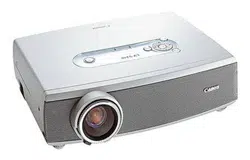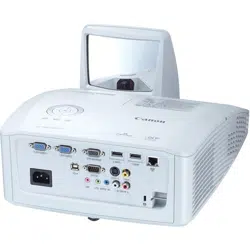
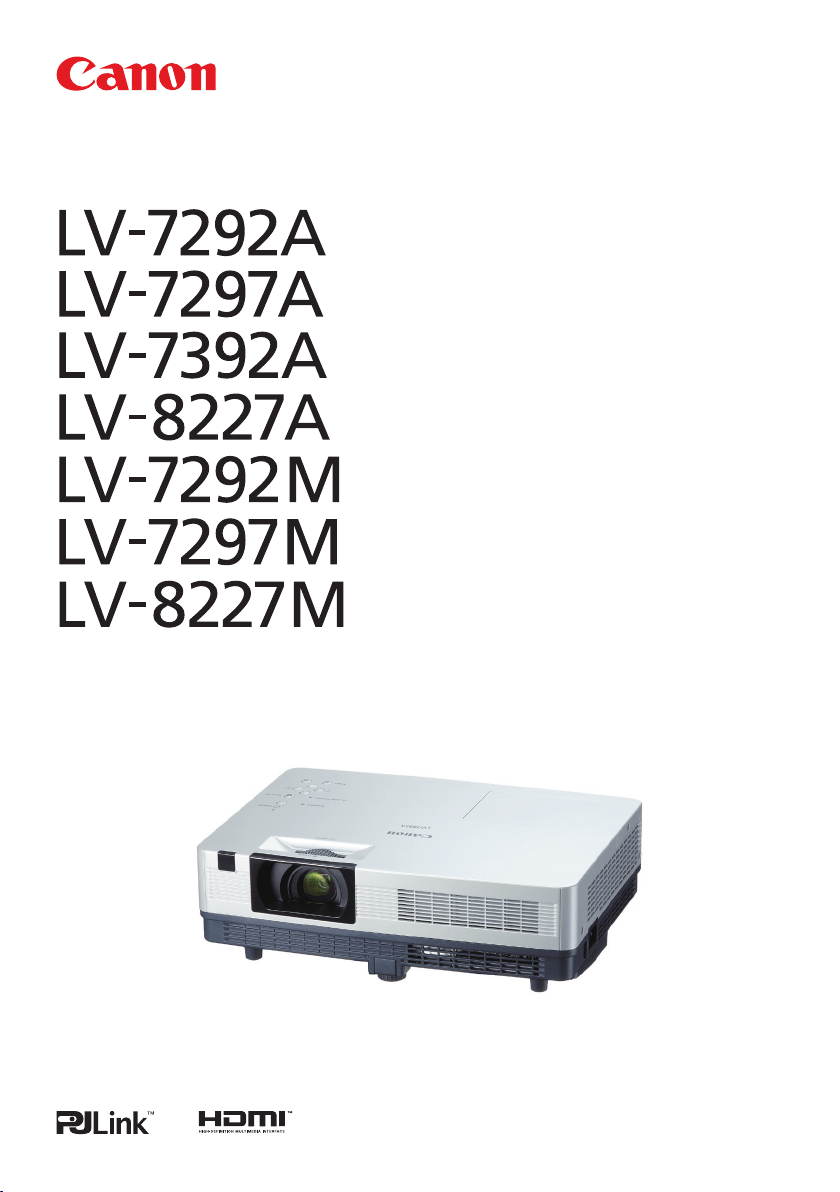
MULTIMEDIA PROJECTOR
User’s Manual
Loading page 2...

3
Each name of corporations or products in this book is either a registered trademark or a trademark of
its respective corporation.
Features and Design ..............2
.................3
.....................4
................5
Air Circulation 8
Installing the Projector in Proper Position 8
Moving the Projector 8
......................9
........10
Front 10
Back 10
Bottom 10
Rear Terminal 11
Top Control 12
Remote Control Unit 13
Remote Control Unit Battery Installation 14
Remote Control Unit Operating Range 14
Remote Control Code 14
......................15
Positioning the Projector 15
Project vertically to the screen 16
Adjust of the Height and the
Incline angle of the projected image 16
Connecting to a Computer 17
Connecting to VIDEO Equipment 18
Connecting to COMPONENT VIDEO
and SCART Equipment 19
Using the ferrite core 20
Connecting the AC Power Cord 20
.................21
Turning On the Projector 21
Turning Off the Projector 23
How to Operate the On-Screen Menu 24
Main Menu 25
Zoom and Focus Adjustment 26
Auto Setup Function 26
Keystone Correction 26
Sound Adjustment 27
Remote control unit Operation 28
.................30
Input Source Selection (ANALOG PC:
COMPUTER) 30
Computer System Selection 31
Auto PC Adjustment 32
Manual PC Adjustment 33
Image Mode Selection 35
Image Adjustment 36
Aspect Setting
(For LV-7292A, LV-7297A, LV-7392A,
LV-7292M, LV-7297M) 37
Aspect Setting
(For LV-8227A, LV-8227M) 39
.....................41
Input Source Selection (VIDEO, S-VIDEO)
41
Input Source Selection
(COMPONENT, SCART, HDMI) 42
VIDEO System Selection 43
Image Mode Selection 44
Image Adjustment 45
Aspect Setting
(For LV-7292A, LV-7297A, LV-7392A,
LV-7292M, LV-7297M) 47
Aspect Setting
(For LV-8227A, LV-8227M) 49
.........................51
Setting 51
.....................64
Input Source Information Display 64
........65
WARNING indicator 65
Replacing the Filter 66
Resetting the Filter Counter 66
Attaching the Lens Cap 67
Cleaning the Projection Lens 67
Cleaning the Projector Cabinet 67
Lamp Replacement 68
.......................70
Troubleshooting 70
Menu Tree 73
Indicators and Projector Condition 75
Compatible Computer Specifications 76
Technical Specifications 78
Optional Parts 79
PJ Link Notice (Only for LV-7292A,
LV-7297A, LV-7392A, LV-8227A) 80
Attaching the Filter Cover to the Projector
80
Configurations of Terminals 81
PIN Code Protection 82
Dimensions 83
4
Before installing and operating this projector, read
this manual thoroughly.
This projector provides many convenient features
and functions.
Operating the projector properly enables you to
manage those features and maintains it in good
condition for many years to come. Improper
operation may result in not only shortening the
product-life, but also malfunctions, fire hazard, or
other accidents.
If your projector seems to operate improperly,
read this manual again, check operations and
cable connections and try the solutions in the
“Troubleshooting” section on pages 70-72 of this
manual. If the problem still persists, contact the
dealer where you purchased the projector or the
service center.
bECOME DETERIORATED.
– This projector produces intense light from the
projection lens. Do not stare directly into the
lens, otherwise eye damage could result. Be
especially careful that children do not stare
directly into the beam.
– Install the projector in a proper position.
Improper positioning may reduce the lamp life
and result in severe accident or fire hazard.
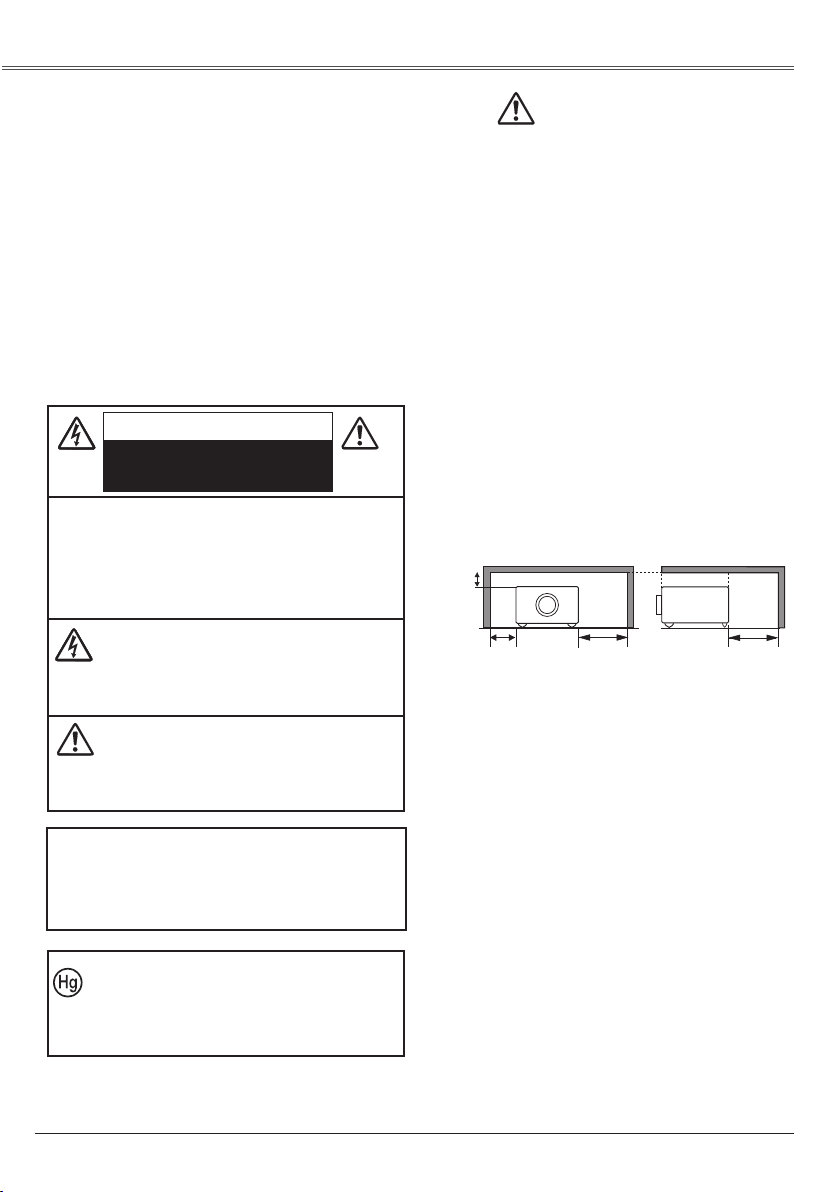
– Allowing the proper amount of space on the
top, sides, and rear of the projector cabinet is
critical for proper air circulation and cooling of
the unit. The dimension shown here indicate the
minimum space required.
If the projector is to be built into a compartment
or similarly enclosed, these minimum distances
must be maintained.
– Do not cover the ventilation slot on the projector.
Heat build-up can reduce the service life of your
projector, and can also be dangerous.
– If the projector is unused for an extended time,
unplug the projector from the power outlet.
– Do not project the same image for a long time.
The afterimage may remain on the LCD panels
by the characteristic of panel.
SIDE and TOP REAR
1.5'(50cm)
3'(1m)
3'(1m)
0.7’(20cm)
1.5’(50cm) 3’(1m) 3’(1m)
20cm
50cm 1m 1m
Not for use in a computer room as defined in
the Standard for the Protection of Electronic
Computer/Data Processing Equipment, ANSI/
NFPA 75.
LAMP(S) INSIDE THIS PRODUCT
CONTAIN MERCURY AND MUST BE
RECYCLED OR DISPOSED OF ACCORDING
TO LOCAL, STATE OR FEDERAL LAWS.

5
All the safety and operating instructions should
be read before the product is operated.
Read all of the instructions given here and retain
them for later use. Unplug this projector from
AC power supply before cleaning. Do not use
liquid or aerosol cleaners. Use a damp cloth for
cleaning.
Follow all warnings and instructions marked on
the projector.
For added protection to the projector during a
lightning storm, or when it is left unattended and
unused for long periods of time, unplug it from
the wall outlet. This will prevent damage due to
lightning and power line surges.
Do not expose this unit to rain or use near
water... for example, in a wet basement, near a
swimming pool, etc...
Do not use attachments not recommended by
the manufacturer as they may cause hazards.
Do not place this projector on an unstable cart,
stand, or table. The projector may fall, causing
serious injury to a child or adult, and serious
damage to the projector. Use only with a cart
or stand recommended by the manufacturer, or
sold with the projector. Wall or shelf mounting
should follow the manufacturer’s instructions,
and should use a mounting kit approved by the
manufacturers.
A n a p p l i a n c e a n d c a r t
combination should be moved
with care. Quick stops, excessive
force, and uneven surfaces may
cause the appliance and cart
combination to overturn.
Slots and openings in the back and bottom
of the cabinet are provided for ventilation, to
ensure reliable operation of the equipment and
to protect it from overheating.
The openings should never be covered with
cloth or other materials, and the bottom opening
should not be blocked by placing the projector
on a bed, sofa, rug, or other similar surface. This
projector should never be placed near or over a
radiator or heat register.
This projector should not be placed in a built-in
installation such as a book case unless proper
ventilation is provided.
Never push objects of any kind into this projector
through cabinet slots as they may touch
dangerous voltage points or short out parts that
could result in a fire or electric shock. Never spill
liquid of any kind on the projector.
Do not install the projector near the ventilation
duct of air-conditioning equipment.
This projector should be operated only from the
type of power source indicated on the marking
label. If you are not sure of the type of power
supplied, consult your authorized dealer or local
power company.
Do not overload wall outlets and extension cords
as this can result in fire or electric shock. Do not
allow anything to rest on the power cord. Do
not locate this projector where the cord may be
damaged by persons walking on it.
Do not attempt to service this projector yourself
as opening or removing Covers may expose you
to dangerous voltage or other hazards. Refer all
servicing to qualified service personnel.
Unplug this projector from wall outlet and refer
servicing to qualified service personnel under
the following conditions:
a. When the power cord or plug is damaged or
frayed.
b. If liquid has been spilled into the projector.
c. If the projector has been exposed to rain or
water.
d. If the projector does not operate normally by
following the operating instructions. Adjust
only those controls that are covered by the
operating instructions as improper adjustment
of other controls may result in damage and
will often require extensive work by a qualified
technician to restore the projector to normal
operation.
e. If the projector has been dropped or the
cabinet has been damaged.
f. When the projector exhibits a distinct change
in performance-this indicates a need for
service.
When replacement parts are required, be sure
the service technician has used replacement
parts specified by the manufacturer that have
the same characteristics as the original part.
Unauthorized substitutions may result in fire,
electric shock, or injury to persons.
Upon completion of any service or repairs to this
projector, ask the service technician to perform
routine safety checks to determine that the
projector is in safe operating condition.
Loading page 6...
Loading page 7...
Loading page 8...
Loading page 9...
Loading page 10...
11
② ③①
⑥
⑤
⑧
④
④
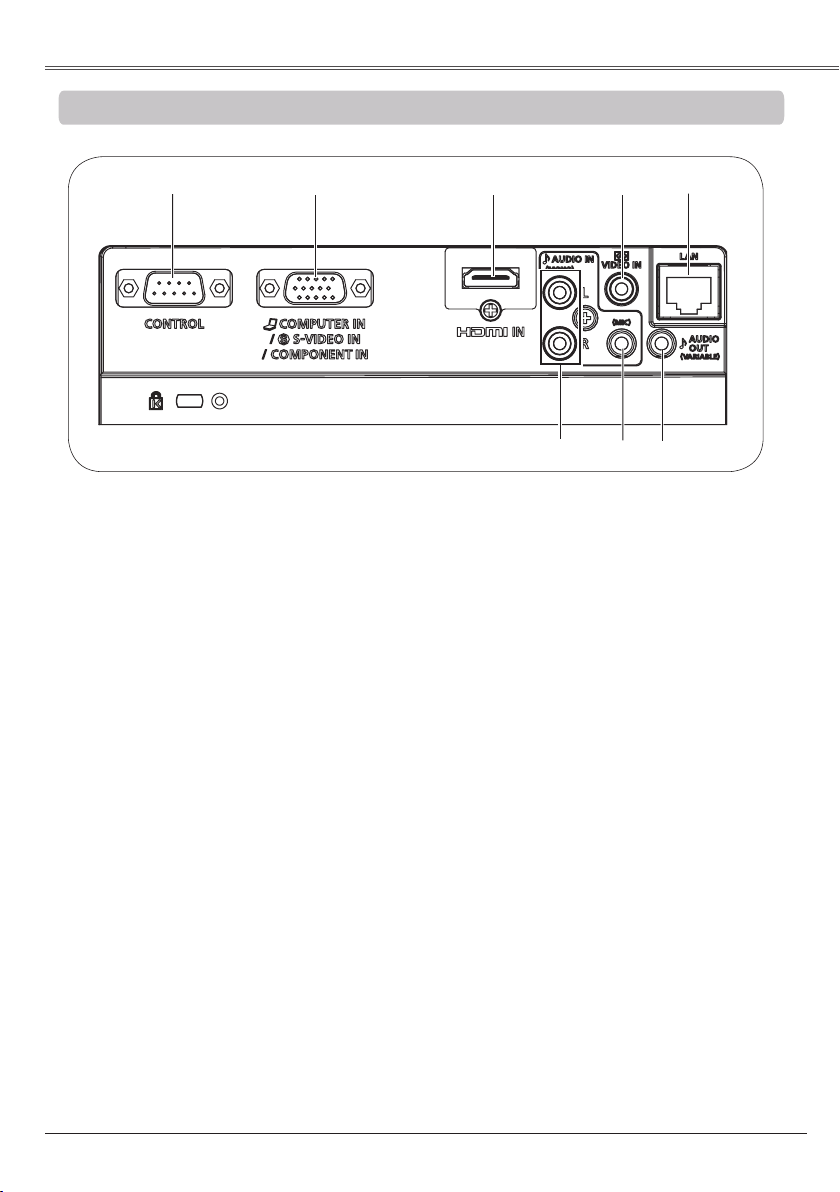
Connect the composite video output signal
to this jack (p.18).
②
Connect output signal from a computer,
component video output, RGB scart 21-
pin video output or S-VIDEO output to this
terminal (pp.17-19).
⑥
Connect an external audio amplifier to this
jack (pp.17-19).
This terminal outputs sound from AUDIO
IN terminal ⑦ or ⑧, or HDMI terminal ③
(digital audio).
Never plug headphones and earphones into
AUDIO OUT jack.
①
When the projector is controlled by a
computer, connect to this jack with serial
control cable.
③
Connect the HDMI signal (including sound
signal) from video equipment or from
computer to this terminal (p.17-18).
HDMI, the HDMI logo and High Definition
Multimedia Interface are trademarks or
registered trademarks of HDMI Licensing,
LLC.
⑦
⑦
Connect the audio output signal from
computer or video equipment connected to
② to this jack. Or connect the MIC to this
jack (pp.17-19).
⑧
Connect the audio output signal from video
equipment connected to ④ to this jack. For
a mono audio signal (a single audio jack),
connect it to L(MONO) jack (p.18).
⑤
Connect the LAN cable (refer to the user’s
manual of “Network Set-up and Operation”).
(LAN Connection Terminal is only for
LV-7292A, LV-7297A, LV-7392A, LV-8227A.)
When using AUDIO IN(PC/MIC) terminal
as MIC input, these terminals can be used
for PC audio input.
Loading page 12...
13
LV-RC06
To ensure safe operation, please observe the
following precautions:
– Do not bend, drop or expose the remote control
unit to moisture or heat.
– For cleaning, use a soft dry cloth. Do not apply
benzene, thinner, spray, or any chemical material.
⑦
⑭
⑩
⑳
④
⑱
②
⑧
⑨
⑬
⑯
⑤
⑥
⑪
⑫
⑲
⑮
③
②
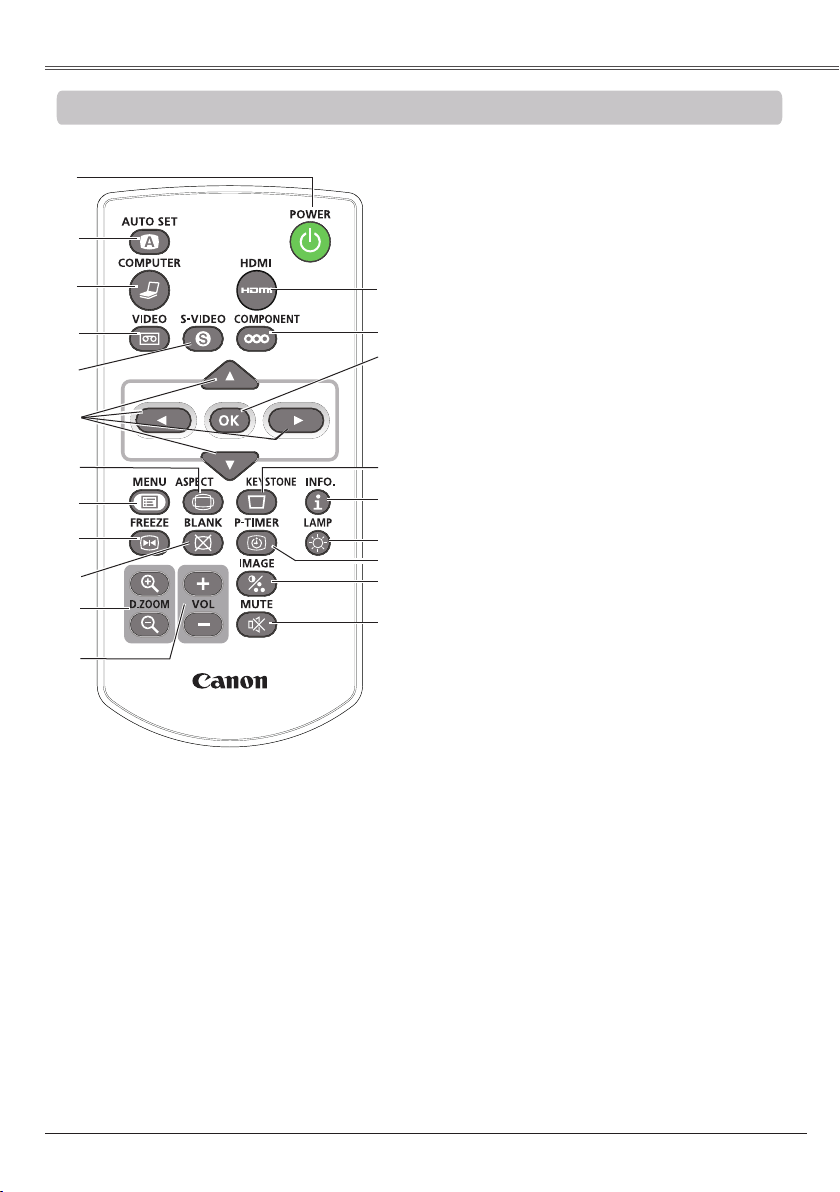
Execute the setting of Auto setup (includes
Auto input, Auto PC and Auto Keystone
functions) in the setting menu. (pp.26, 52)
⑤
Select the S-VIDEO input source. (p.41)
⑥ ▲▼◄►
buttons
– Select an item or adjust the value in the
On-Screen Menu. (p.24)
– Pan the image in the Digital zoom +/-
mode. (pp.38, 40)
⑬
Mute the sound. (p.27)
⑦
Select a screen mode. (pp.29,37-40,47-50)
⑮
Operate the P-timer function. (pp.29, 57)
⑩
Temporarily turn off the image on the screen.
(p.29)
⑯
Select a lamp mode. (pp.28, 59)
⑱
Correct keystone distortion. (p.26)
⑲
– Execute the selected item. (p.24)
– Zoom in or out the image in Digital zoom
mode. (pp.38, 40)
⑧
Open or close the On-Screen Menu. (p.24)
⑨
Freeze the picture on the screen. (p.28)
⑫
Adjust the volume level. (p.27)
①
Turn the projector on or off. (pp.21-23)
③
Select the COMPUTER input source.
(pp.30, 42)
⑪ D.ZOOM +/-
Zoom in and out the images. (pp.28, 38, 40)
⑭
Select the image mode. (pp.29, 35, 44)
⑳
Select the COMPONENT input source. (p.42)
④
Select the VIDEO input source. (p.41)
⑰
⑰
Operate the information function. (p.64)
①
㉑
㉑
Select the HDMI input source. (p.42)
Loading page 14...
15
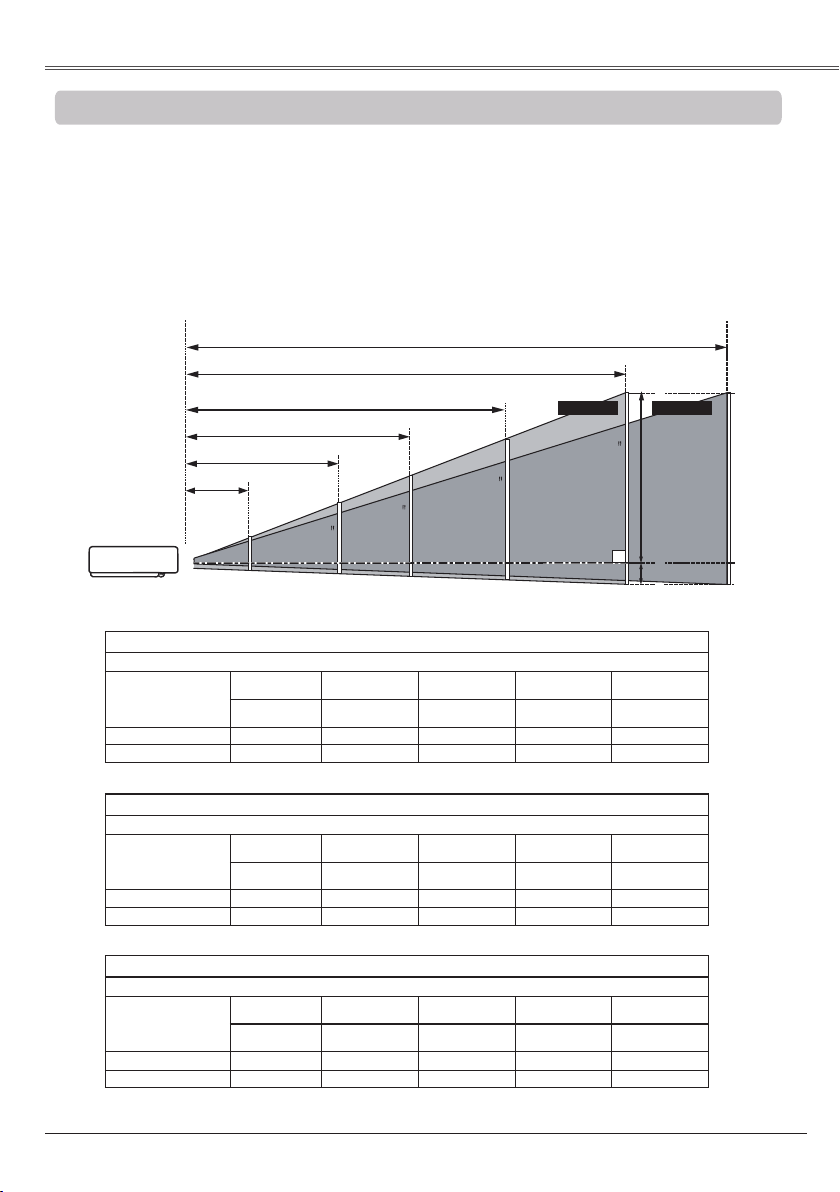
For projector positioning, see the figures below. The projector should be set perpendicularly to the
plane of the screen.
• The brightness in the room has a great influence on picture quality. It is recommended to limit ambient lighting
in order to obtain the best image.
• All measurements are approximate and may vary from the actual sizes.
A
B
100"
150"
200"
250
167
125
83
300"(wide)
40"
300"(tele )
Max. Zoom Min. Zoom
(Inch Diagonal)
(Center)
For LV-8227A, LV-8227M
A:B = 13:1
Screen Size
(W x H) mm
16:10 aspect ratio
40” 100” 150” 200” 300”
862 x 538 2154 x 1346 3231 x 2019 4308 x 2692 6462 x 4039
Zoom (max) 4.0’(1.2m) 10.1’(3.1m) 15.1’(4.6m) 20.2’(6.2m) 30.3’(9.3m)
Zoom (min) 4.8’(1.5m) 12.1’(3.7m) 18.2’(5.5m) 24.3’(7.4m) 36.4’(11.1m)
For LV-7392A
A:B = 6:1
Screen Size
(W x H) mm
4:3 aspect ratio
40” 100” 150” 200” 300”
813 x 610 2032 x 1524 3048 x 2286 4064 x 3048 6096 x 4572
Zoom (max) 3.6’(1.1m) 9.5’(2.9m) 14.3’(4.4m) 19.1’(5.8m) 28.6’(8.7m)
Zoom (min) 4.5’(1.4m) 11.4’(3.5m) 17.1’(5.2m) 22.9’(7.0m) 34.4’(10.5m)
For LV-7292A, LV-7297A, LV-7292M, LV-7297M
A:B = 6:1
Screen Size
(W x H) mm
4:3 aspect ratio
40” 100” 150” 200” 300”
813 x 610 2032 x 1524 3048 x 2286 4064 x 3048 6096 x 4572
Zoom (max) 4.3’(1.30m) 10.7’(3.26m) 16.1’(4.90m) 21.5’(6.55m) 32.3’(9.84m)
Zoom (min) 5.1’(1.55m) 12.9’(3.92m) 19.4’(5.90m) 25.8’(7.87m) 38.7’(11.80m)
Loading page 16...
17
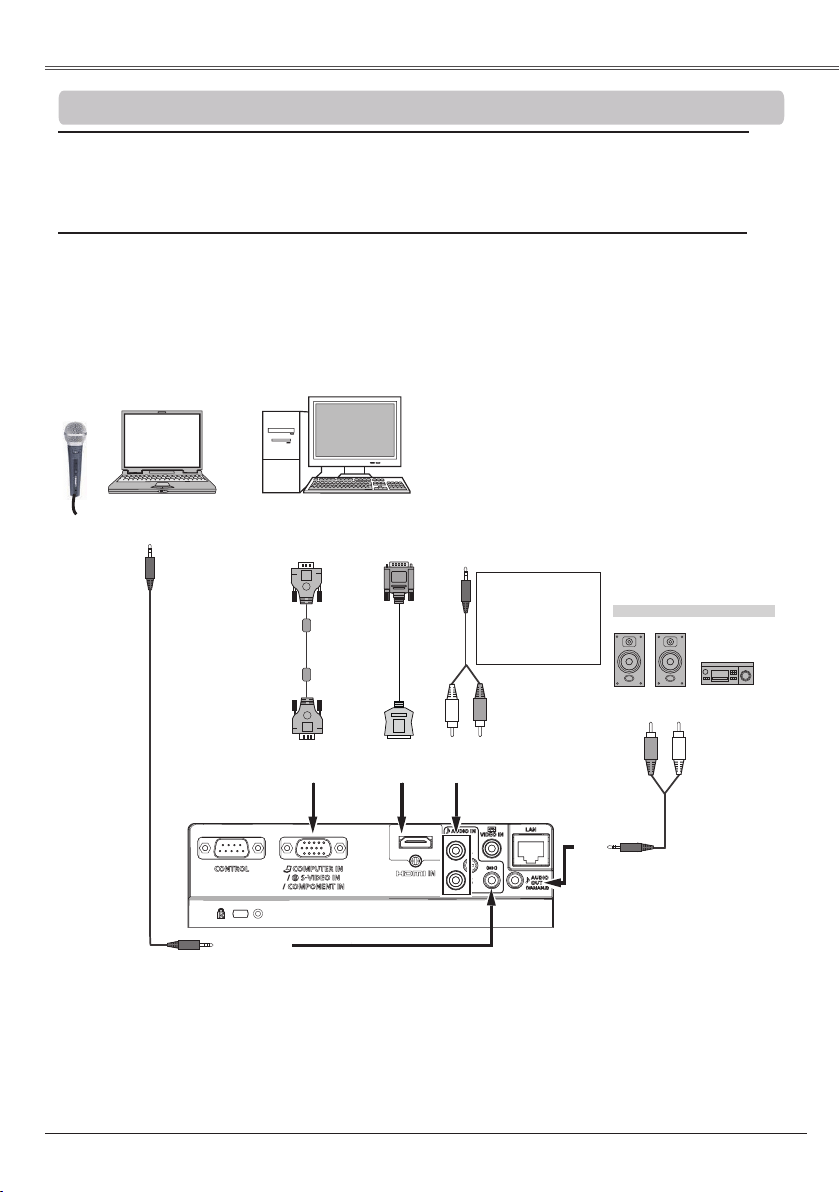
Unplug the power cords of both the projector and external equipment
from the AC outlet before connecting cables.
•When the MIC function is set to in the Sound menu, the MIC function is disabled.
•When MIC is set to On in Sound Menu, AUDIO IN (PC/MIC) and AUDIO IN(L/R) terminals can be connected
at the same time. At this time, AUDIO IN (PC/MIC) termianl as MIC input, AUDIO IN(L/R) terminal as
COMPUTER or VIDEO audio input.
• When the AUDIO OUT is plugged-in, the projector's built-in speaker is not available.
• VGA Cables (Mini D-sub 15 pin) *(Only one cable is supplied.)
• Audio Cables
• HDMI-DVI Cable
(*One cable is supplied; other cables are not supplied with the projector.)
External Audio Equipment
Audio
cable
(stereo)
Audio cable
(stereo)
Audio Output
AUDIO IN (PC or MIC)
AUDIO OUT
(stereo)
Audio Input
Monitor
Output
HDMI
IN
VGA
cable
COMPUTER IN/
S-VIDEO IN
/COMPONENT IN
HDMI-
DVI
cable
Monitor
Output
PC AUDIO IN
Audio
Output
When using AUDIO
IN(PC/MIC) terminal
as MIC input,
connect to this
terminals for PC
audio input.
MIC

18
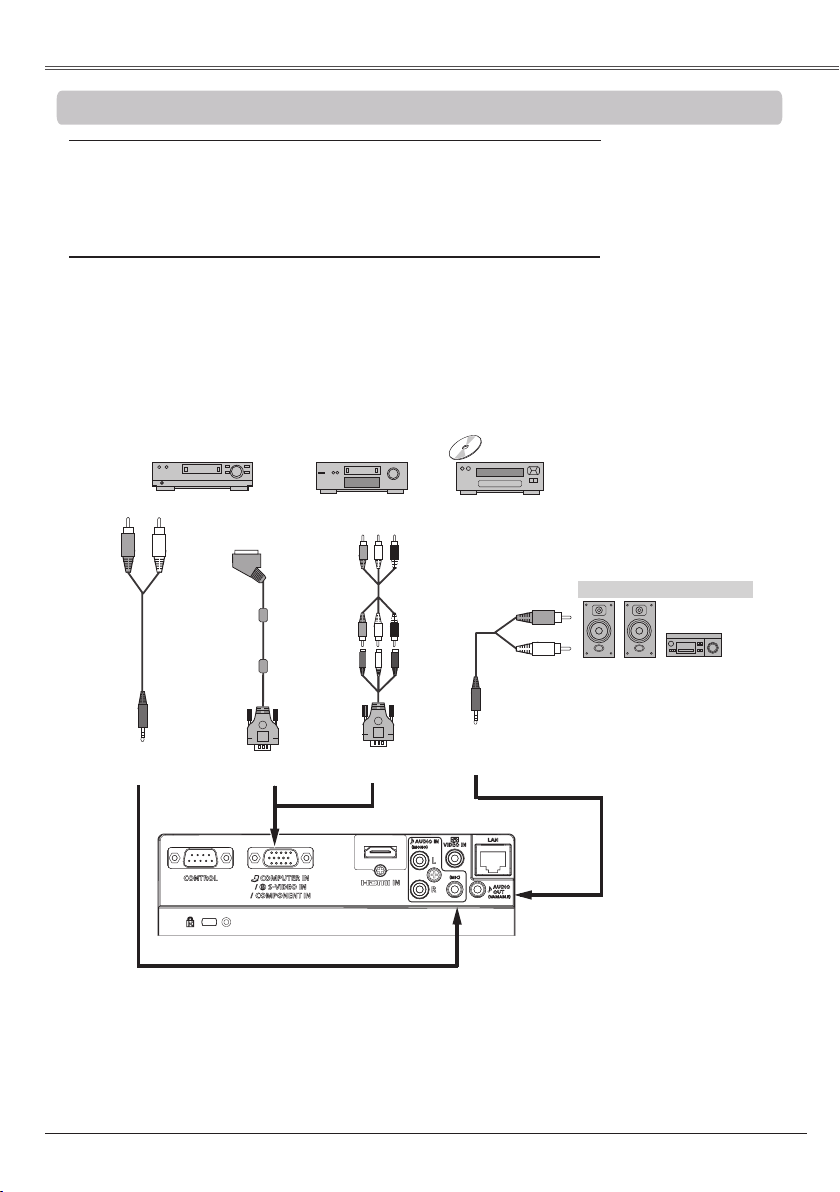
External Audio Equipment
Audio cable
(stereo)
S-VIDEO
cable
Audio Output
S-VIDEO
Output
Audio Input
AUDIO IN
(PC or MIC)
S-VIDEO-
VGA cable
VIDEO
cable
COMPUTER IN
/ S-VIDEO IN
/COMPONENT IN
VIDEO IN
Audio
cable
(stereo)
AUDIO OUT
(stereo)
AUDIO IN
Audio
cable
(stereo)
• VIDEO Cable
• S-VIDEO Cable
• S-VIDEO-VGA Cable
• Audio Cables
• HDMI Cable
(Cables are not supplied with the projector. )
• When the MIC function is set to in the Sound menu, the MIC function is disabled.
• When the AUDIO OUT is plugged-in, the projector's built-in speaker is not available.
• See page 79 for ordering optional cables.
Audio
cable
(stereo)
Composite VIDEO
Audio output
MIC
output
HDMI
Output
HDMI
IN
HDMI
cable
Unplug the power cords of both the projector and external equipment
from the AC outlet before connecting cables.
When using
AUDIO
IN(PC/MIC)
terminal as MIC
input, connect to
this terminals for
PC audio input.
(p.17)
Video, DVD player, etc.
Video, DVD player, etc.
19
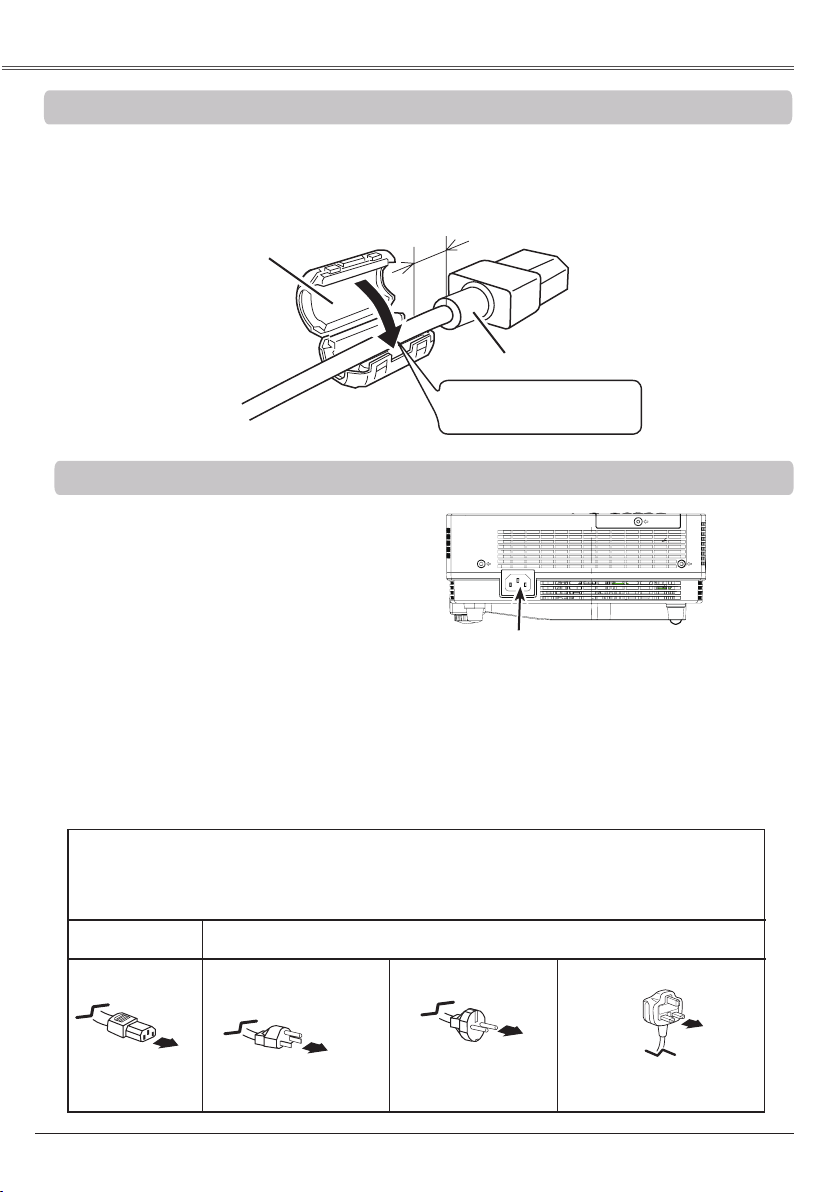
External Audio Equipment
PC AUDIO
IN
Audio
cable
(stereo)
Audio Input
COMPONENT VIDEO Output
(Y, Pb/Cb, Pr/Cr)
Audio Output
RGB Scart 21-
pin Output
Scart-
VGA
cable
COMPONENT-
VGA cable
AUDIO OUT
(stereo)
COMPONENT
cable
COMPUTER IN/ S-VIDEO IN /
COMPONENT IN
• Audio Cables
• Scart-VGA Cable
• COMPONENT Cable
• COMPONENT-VGA Cable
(Cables are not supplied with this projector.)
Audio
cable
(stereo)
• When using MIC function, see pages 17-18 for detail about connection.
• When the AUDIO OUT is plugged-in, the projector's built-in speaker is not available.
• See page 79 for ordering optional cables.
Unplug the power cords of both the projector and external equipment
from the AC outlet before connecting cables.
Video, DVD player, etc.
20
This projector uses nominal input voltages of 100-
240 V AC and it automatically selects the correct
input voltage. It is designed to work with single-
phase power systems having a grounded neutral
conductor. To reduce the risk of electrical shock,
do not plug into any other type of power system.
If you are not sure of the type of power being
supplied, consult your authorized dealer or service
center.
Connect the projector with all peripheral
equipment before turning the projector on.
:
Unplug the AC power cord when the projector is not in use. When this projector is connected to an outlet with
the AC power cord, it is in Stand-by mode and consumes a little electric power.
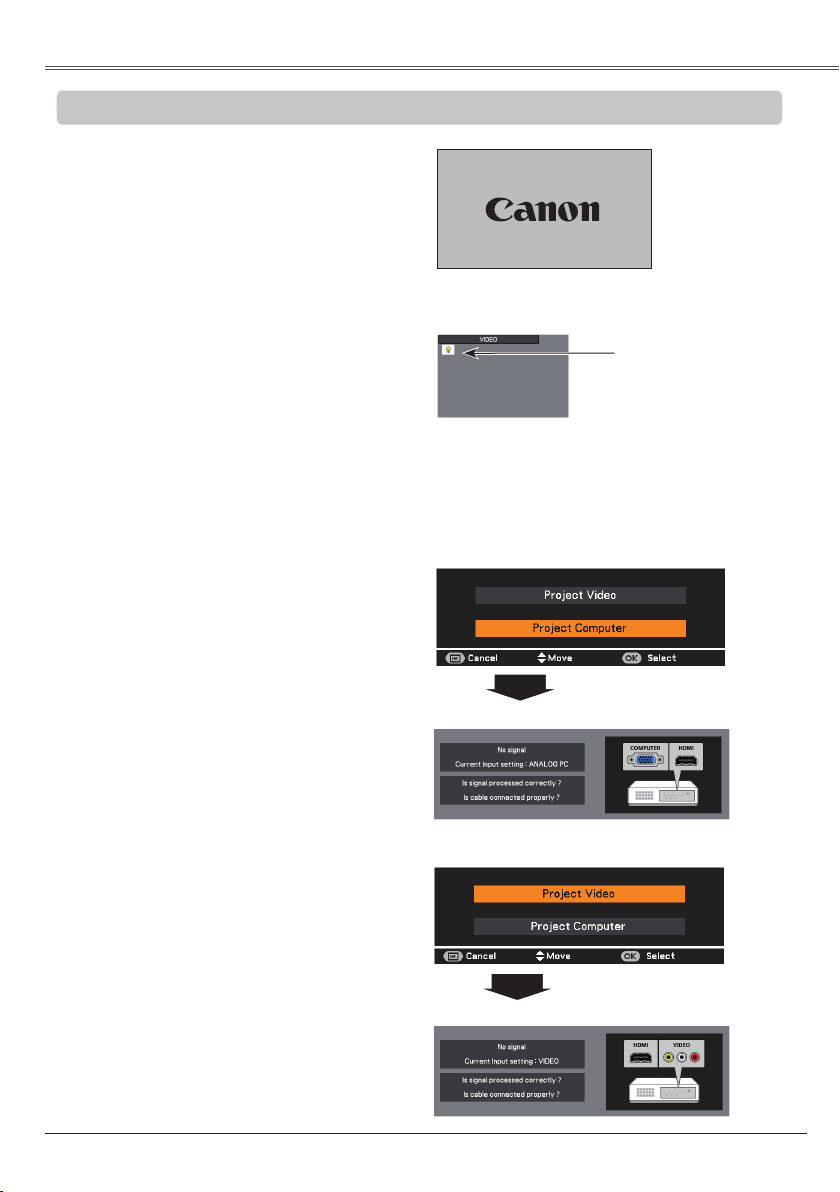
Connect the AC power cord
(supplied) to the projector.
To the AC outlet.
To power cord
connector on your
projector.
To the AC outlet.
To the AC outlet.
Ground
AC power cord must meet requirement of the country where you use the projector.
Confirm the AC plug type with the chart below and proper AC power cord must be used.
If supplied AC power cord does not match your AC outlet, contact your sales dealer.
Ground
The AC outlet must be near this equipment
and must be easily accessible.
Before using the AC Power Cord, attach the ferrite core (supplied) as shown below. (See below for
mounting location.)
The Power Cord with ferrite core must be used for RF interference suppression.
0.39" (10 mm)
AC Power Cord
Ferrite Core
Keep closing until it makes
a clicking sound.
21
The preparation display will disappear after 30 seconds.
(See page 59 for Lamp mode status.)
Connect the projector’s AC power cord into
an AC outlet. The POWER indicator lights
red. Open the lens cap.
Press the POWER button on the top control
or on the remote control unit. The POWER
indicator lights green and the cooling fans
start to operate. The preparation display
appears on the screen and the countdown
starts.
2
3
1
Complete peripheral connections (with a
computer, VCR, etc.) before turning on the
projector.
The Filter warning and Lamp replacement icons
may appear on the screen depending on the
usage state of the projector.
4
After the countdown, the input source that
was selected the last time and the Lamp
mode status icon (p. 59) appear on the
screen for about 4 seconds.
• When the Logo select function is set to , the
logo will not be shown on the screen (p.53).
• When or is selected in the
Display function, the preparation display will not
be shown on the screen (p.53).
• When the Auto input function is set to On 2, the
input signal will be searched automatically (p.52).
• When is selected in the Display function, the
VIDEO/PC selection window and the input signal
guidance window are not shown on the screen
(p.53).
5
If there is no signal input when start on the
projector, or the current signal is missed
while operating the projector, the VIDEO/
PC selection window will be displayed on
the screen, please move the pointer to input
source desired by pressing the Point ▲▼
buttons and press the OK button. And then
follow the input signal guidance window to
correct the signal and connection.
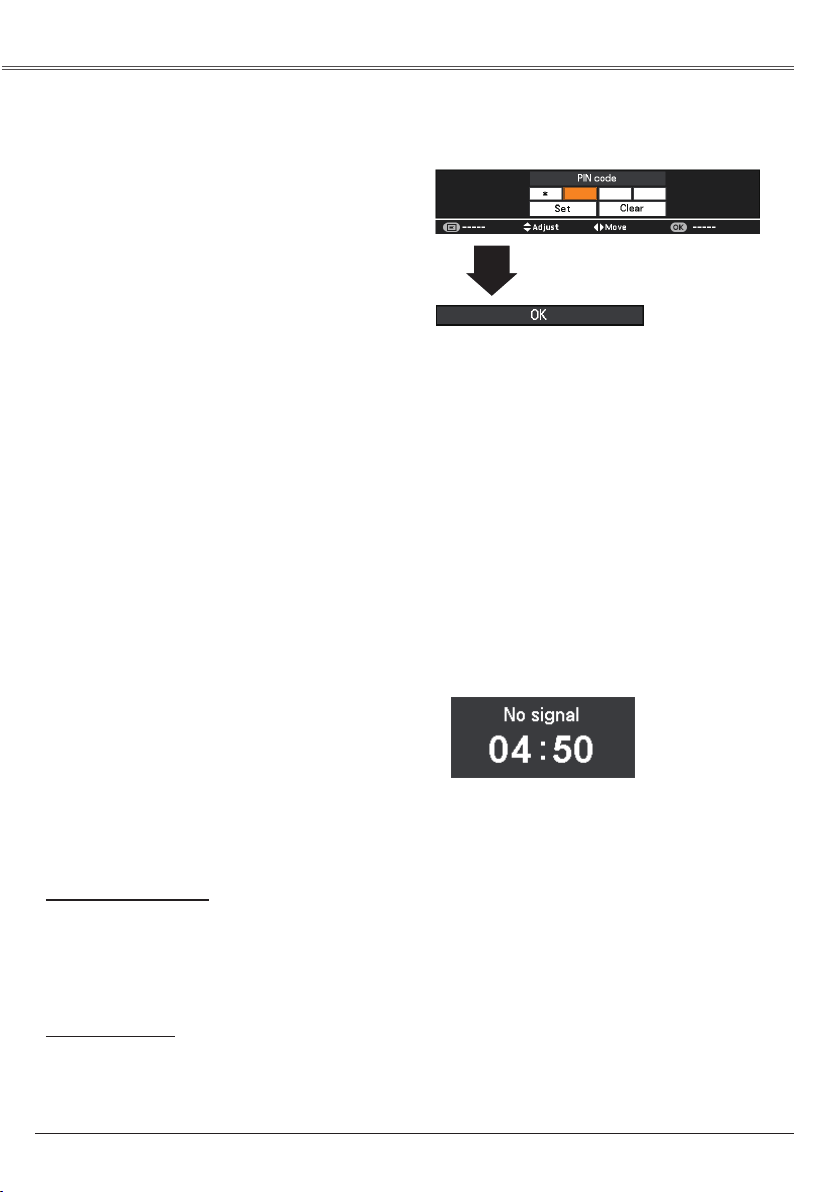
If the projector is locked with a PIN code,
PIN code input dialog box will appear. Enter
the PIN code as instructed on the next
page.
Lamp mode status
16
22
PIN (Personal Identification Number) code is a
security code that allows the person who knows
it to operate the projector. Setting a PIN code
prevents unauthorized use of the projector.
A PIN code consists of a four-digit number. Refer
to the PIN code lock function in the Setting Menu
on pages 60-61 for locking operation of the
projector with your PIN code.
Use the Point ▲▼ buttons to enter a number.
Press the Point ► button to fix the number and
move the red frame pointer to the next box. The
number changes to . If you fixed an incorrect
number, use the Point ◄ button to move the
pointer to the number you want to correct, and
then enter the correct number.
Repeat this step to complete entering a four-digit
number.
After entering the four-digit number, move the
pointer to “Set”. Press the OK button so that you
can start to operate the projector.
If you entered an incorrect PIN code,
and the number () will turn red for
a moment. Enter the correct PIN code all over
again.
If you forget your PIN code, the projector can no
longer be started. Take special care in setting
a new PIN code. Write down the number as a
reminder. Should the PIN code be missing or
forgotten, consult your dealer or service center.
After the OK icon disappears,
you can operate the projector.
•If the PIN code number is not entered or wrong PIN
code number is entered within three minutes after the
PIN code dialog box appeared, the projector will be
turned off automatically.
•The “1234” is set as the initial PIN code at the factory.
Remaining Time until the lamp is off.
This projector has the Power Management mode
function. When there is no signal input for more
than 30 seconds and also there is no operation to
the projector, the image appears and
the countdown begins. After the countdown, the
lamp will be off. This function helps to save power
consumption and extend the lamp life. (p. 56)
The cooling starts when the countdown is finished and the lamp is off. During the cooling, the POWER
indicator blinks red, and do not do any operation to the projector.
The POWER indicator blinks green when the cooling is completed and it goes to the Power Management
mode. In this condition, the projection lamp will be turned on and image will be projected if the input signal
is reconnected or any button on the top control or remote control unit is pressed.
The cooling starts when the countdown is finished and the lamp is off. During the cooling, the POWER
indicator blinks red, and do not do any operation to the projector.
The power will be turned off and the projector goes to Standby mode when the cooling is completed.
Loading page 23...
24
OK
P O WER
AUTO S E T
MENU
LAMP REPLACE
WARNING
VOLVOL
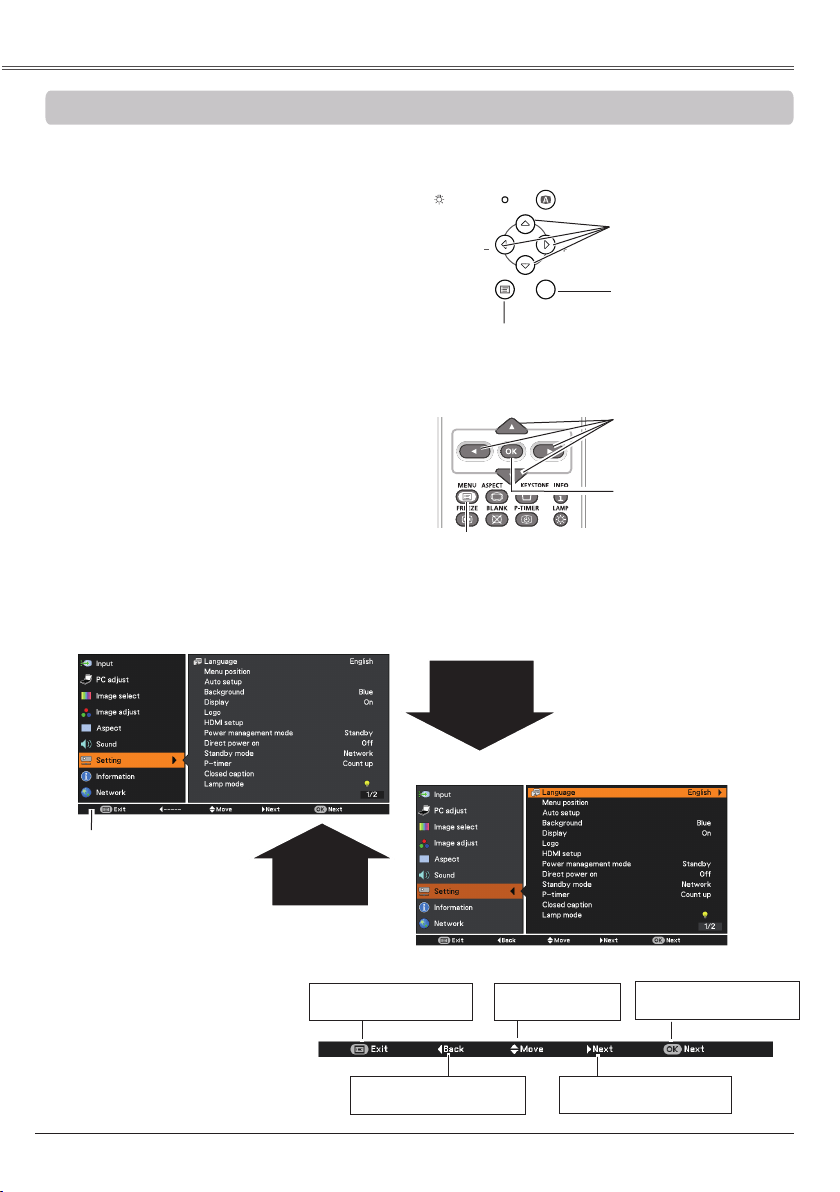
The projector can be adjusted or set via
the On-Screen Menu. The menus have a
hierarchical structure, with a main menu that is
divided into submenus, which are further divided
into other submenus. For each adjustment and
setting procedure, refer to respective sections in
this manual.
Use the Point ▲▼ buttons to highlight or
select a main menu item. Press the Point
► or the OK button to access the submenu
items. (The selected item is highlighted in
orange.)
Use the Point ▲▼ buttons to select the
desired submenu item and press the OK
button to set or access the selected item.
Press the MENU button on the top control
or the remote control unit to display the
On-Screen Menu.
1
2
3
LV -RC06
Use the Point ▲▼◄► buttons to adjust the
setting or switch between each option and
press the OK button to activate it and return
to the submenu.
4
Press the Point ◄ button to return to the
main menu. Press the MENU button to exit
the On-Screen Menu.
5
►
*
*
Display the Select and Excute
buttons.
The right picture shows the Sub
menu guide bar.
MENU button
Close the menu screen
Point ◄ button
Go back to Main menu
Point ▲▼ buttons
Select items
Point ► button
Adjust and select items
OK button
Execute selected items
25
Main Menu
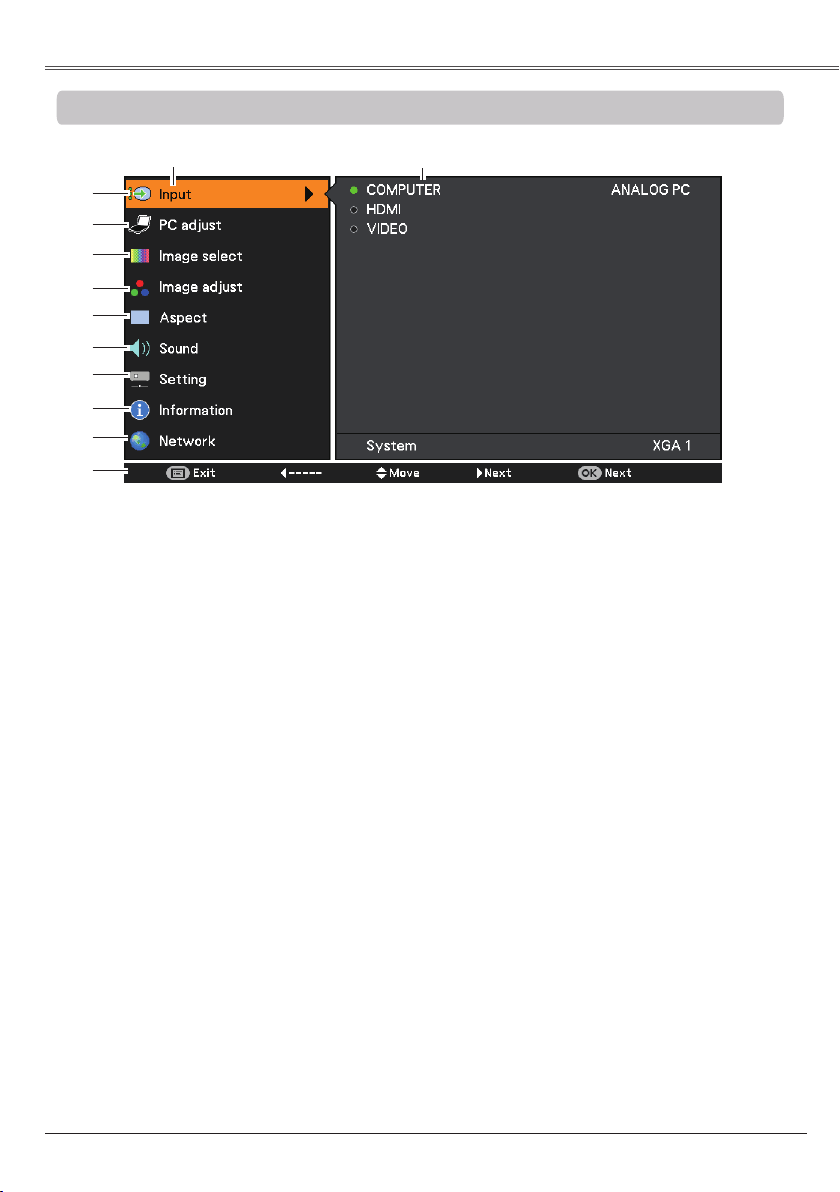
For detailed functions of each menu, see “Menu Tree” on pages 73-74.
Main Menu
③
Used to select an image mode from among , , ,
, and . (pp.35, 44)
④
For Computer source, used to adjust computer image [, , *,
, , , ,
Reset and
]. (p.36)
For VIDEO or HDMI source, used to adjust picture image [, , , Tint,
*, , , , , ,
,
Reset and
]. (pp.45-46)
*
Auto iris is only for
LV-7292A, LV-7297A,
LV-7392A, LV-8227A.
②
Select , , , , ,
, , Reset, and to adjust the parameters
to match with the PC input signal format. (pp.32-33)
⑤
For Computer source, used to adjust size of the image [
,
Full,
, , True,
,
., , , Ceiling, Rear
and Reset]
.
(pp.37-38)
For VIDEO or HDMI source, used to set size of image [,
Full,
, , ,
., , Ceiling, Rear
and Reset
]. (pp.47-48)
For COMPUTER source, used to adjust size of the image [
,
Full
,
,
,
True
,
,
,
,
,
Ceiling
,
Rear
,
and Reset]
.
(pp.39-40)
For VIDEO or HDMI source, used to set size of image [, Full, ,,,
, ,, Ceiling, Rear,and Reset]. (pp.49-50)
①
Used to select an input source from or VIDEO. (pp.30, 41-42)
⑥
Used to adjust the volume or mute the sound or set configurations to the MIC functions (p.27).
⑧
Display the input source information. (p.64)
⑩
The key operation is displayed.
⑦
Used to set the projector’s operating configurations. (pp.51-63)
⑨
See user’s manual of “Network Set-up and Operation”.
(Network function is only for LV-7292A, LV-7297A, LV-7392A, LV-8227A.
①
②
③
④
⑤
⑥
⑦
⑧
⑨
⑩
Sub-Menu
26
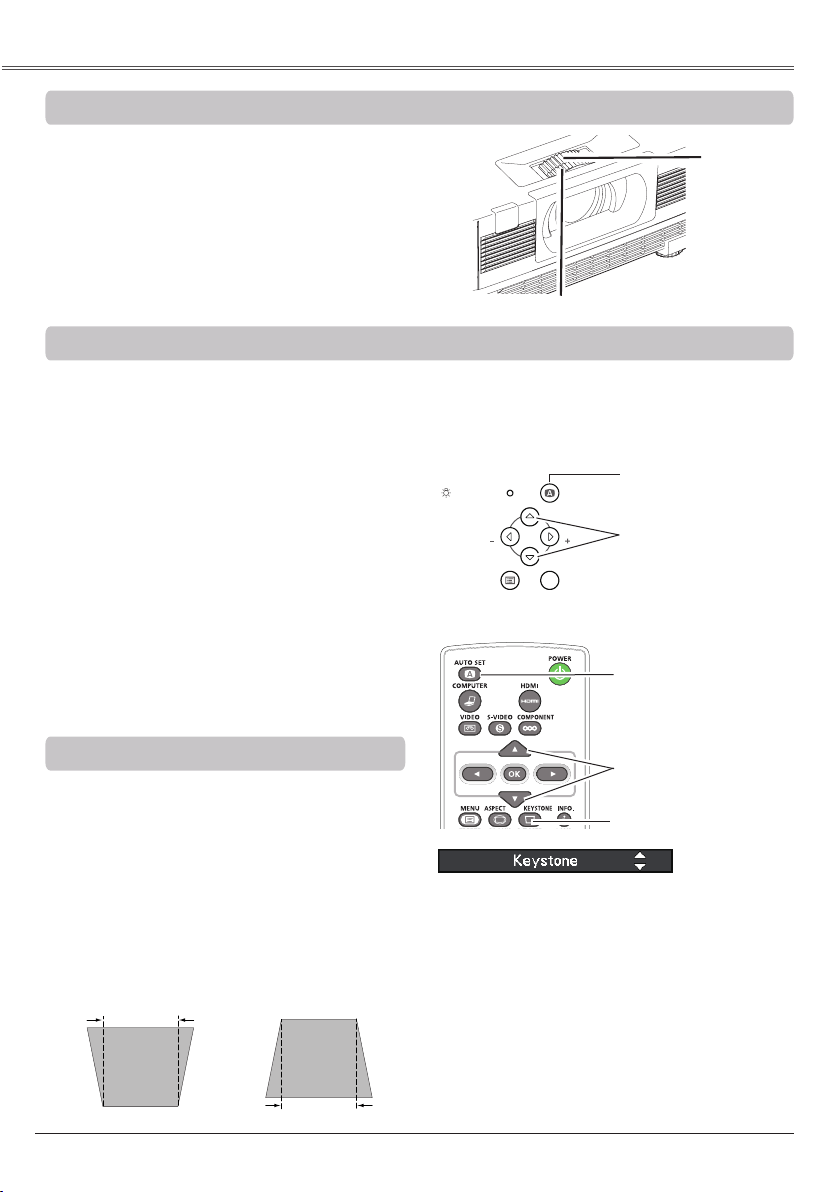
Rotate the Zoom Ring to zoom in and out.
Rotate the Focus Ring to adjust the focus of the
image.
If a projected picture still has keystone distortion
after pressing the AUTO SET button on the top
control or the remote control unit, correct the
image manually as follows:
Press the KEYSTONE button on the remote
control unit. The Keystone dialog box appears.
Use the Point ▲▼ buttons to correct keystone
distortion. The keystone adjustment can be
stored (pp.38, 40, 48, 50).
Reduce the upper
width with the Point ▲
button.
Reduce the lower
width with the Point
▼ button.
•The white arrows indicate that there is no
correction.
•A blue arrow indicates the direction of
correction.
•An arrow disappears at the maximum
correction.
•If you press the KEYSTONE button on the
remote control unit once more while the
keystone dialog box is being displayed, the
keystone adjustment will be canceled.
•The adjustable range is limited depending on
the input signal.
LV -RC06
Auto setup function is provided to automatically execute the setting of Auto setup (includes Auto input,
Auto PC and Auto Keystone functions) in the setting menu by just pressing the AUTO SET button on
the top control or the remote control unit. Refer to page 52 for the setting of the Auto setup function.
• Auto Keystone corrects vertical distortion only; it
does not correct horizontal distortion.
• Auto Keystone cannot work when Ceiling feature is
set to On in the Setting menu (pp.38, 40, 48, 50).
• Perfect correction of the image distortion cannot
be ensured with the Auto setup function. If the
distortion cannot be corrected properly by pressing
the AUTO SET button, adjust manually by pressing
the KEYSTONE button on the remote control unit or
selecting Keystone in the Aspect menu (pp.38, 40,
48, 50).
• , , and
position of some computers
cannot be fully adjusted with the Auto PC
Adjustment function. When the image is not
provided properly with this operation, manual
adjustments are required (pp.33-34).
Zoom Ring
Focus Ring
OK
P O WER
AUTO S E T
MENU
LAMP REPLACE
WARNING
VOLVOL
Loading page 27...
Loading page 28...
29
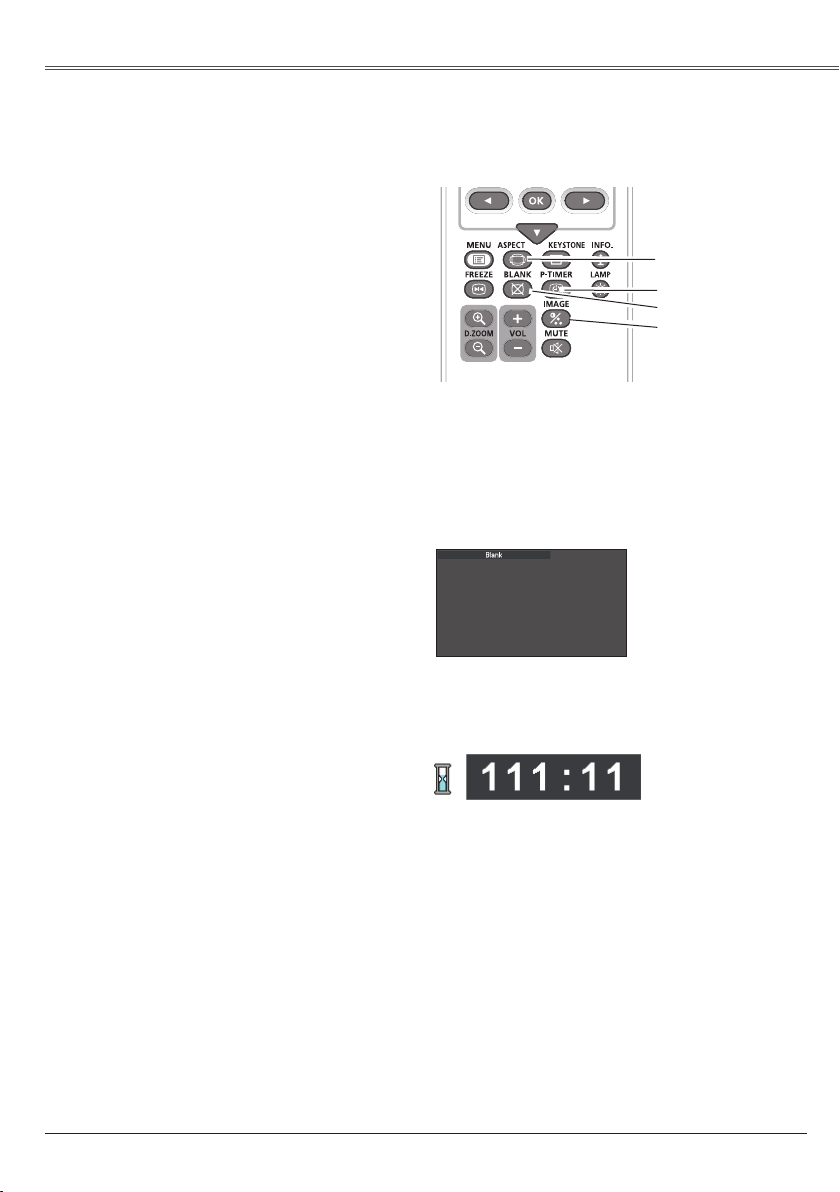
Press the P-TIMER button on the remote
control unit to operate the Count up/Count
down function. Refer to p.57 for detail of
Setting for the P-timer function.
To stop the count time, press the P-TIMER
button.
To restart the P-timer, press the P-TIMER
button again.
To cancel the P-timer function, press and hold
the P-TIMER button.
Press the IMAGE button on the remote control
unit to select a desired image mode of the
screen. See pages 35, 44 for details.
disappears after 4 seconds.
See the previous page for the description of
other buttons.
Select the screen size (See pages 37-40,
47-50 for details).
black out→ the captured image → normal
→
• • • • •
Press the BLANK button on the remote
control unit to black out the image. To restore
to normal, press the BLANK button again or
press any button. When the projected image
is captured and is set as User in the Logo
selection (p. 53), the screen changes each time
you press the BLANK button as follows.
When use the MUTE button to release the Blank
function, the mute function can not be operated at
the same time.
LV -RC06
30
LV -RC06
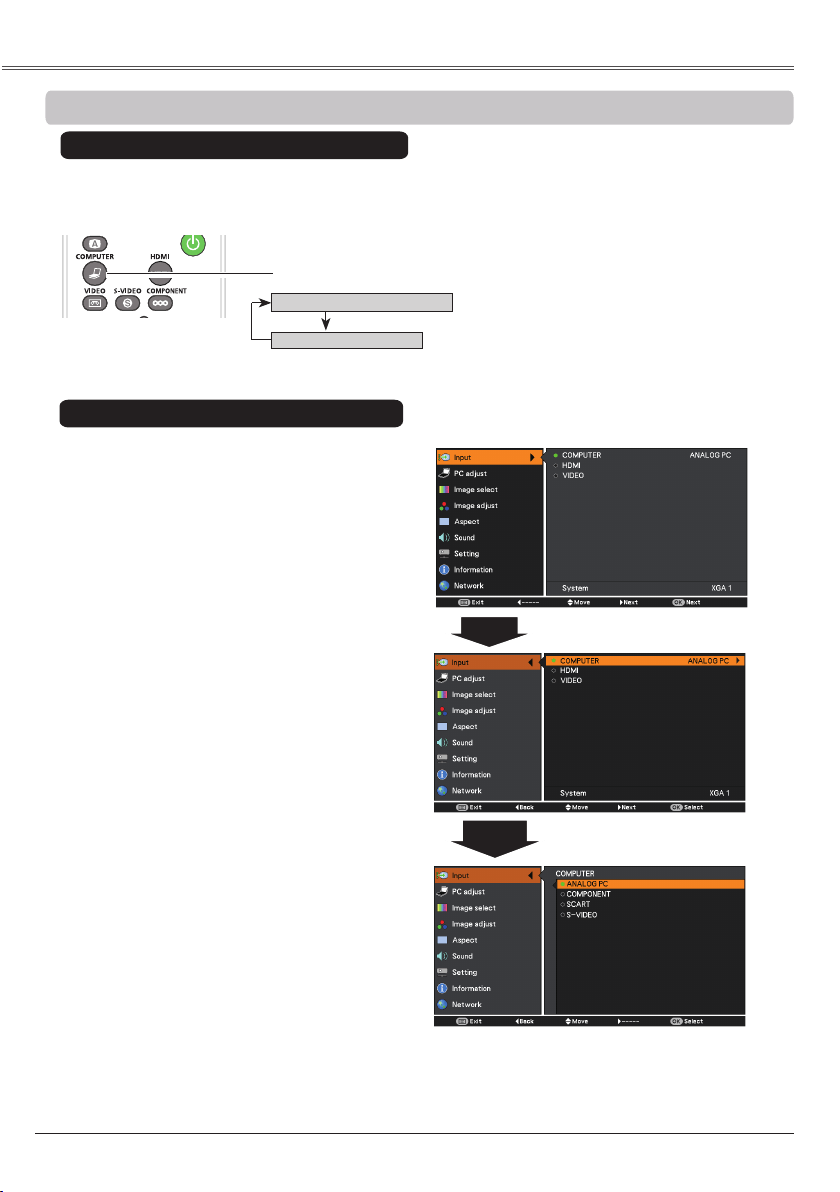
Choose by pressing the COMPUTER button on the remote control unit.
1
2
3
When the Auto input function is set to On 1 or On
2 in the Auto setup function, the input signal will be
searched automatically (p.52).
COMPUTER
Press the MENU button to display the
On-Screen Menu. Use the Point ▲▼
buttons to select and then press the
Point ► or the OK button.
Use the Point ▲▼ buttons to select
COMPUTER and then press the OK button.
When COMPUTER is selected, press the
Point ► button to access the submenu
items. Use the Point ▲▼ buttons to select
the input source and then
press the OK button.
Direct Operation
Menu Operation
31
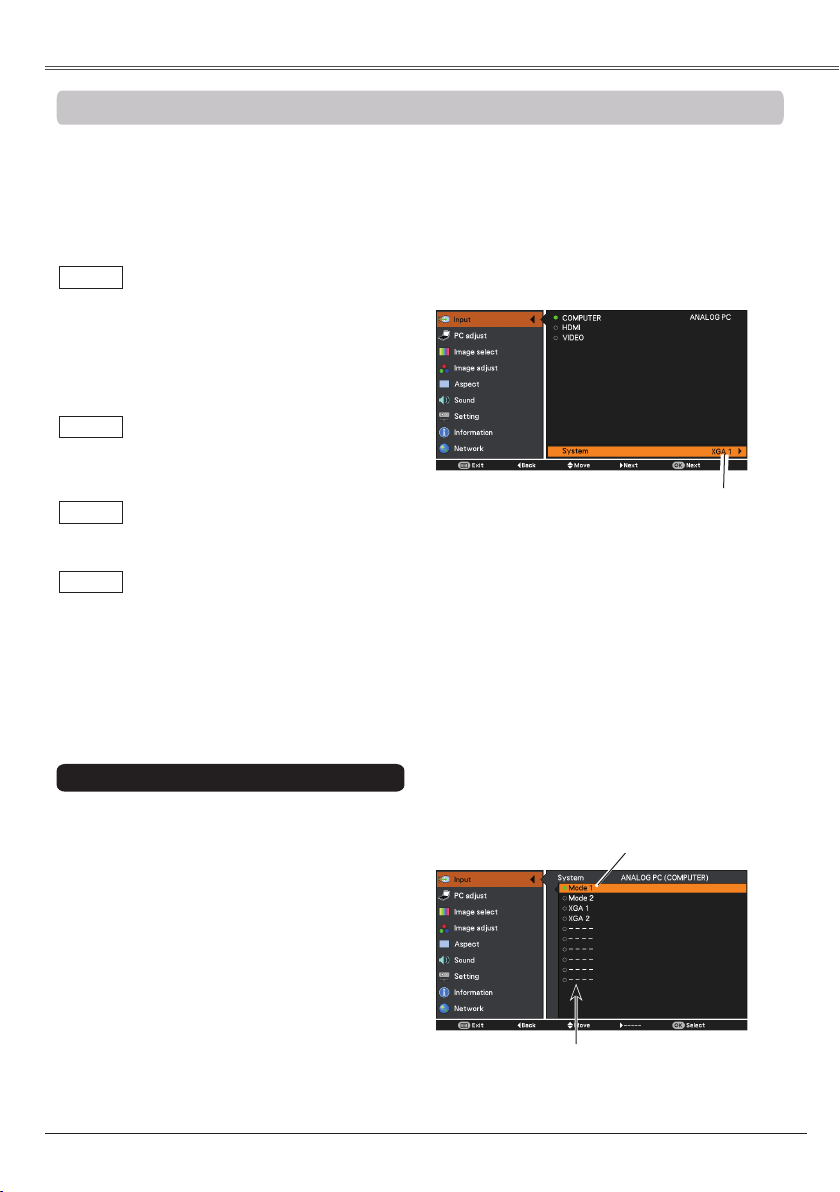
This projector automatically tunes to various types of computers with its Multi-scan system and Auto
PC Adjustment. If a computer is selected as a signal source, this projector automatically detects the
signal format and tunes to project a proper image without any additional settings. (Signal formats
provided in this projector are shown on pages 76-77.)
One of the following messages may appear when:
When the projector cannot recognize
the connected signal conforming to
the provided PC systems, is
displayed on the System Menu box
and the Auto PC Adjustment function
works to display proper images. If
the image is not projected properly,
a manual adjustment is required (pp.
33-34).
There is no signal input from the
computer. Check the connection
between your computer and the
projector. (See “Troubleshooting” on
p. 71.)
The preset system is manually
adjusted in the PC adjust Menu. The
adjusted data can be stored in
(pp. 33-34).
PC Systems provided in this projector
is chosen. The projector chooses
a proper system provided in the
projector and displays it.
* and are examples.
1
2
PC system can also be selected manually.
Selecting Computer System Manually
Press the MENU button to display the
On-Screen Menu. Use the Point ▲▼ buttons
to select and then press the Point ► or
the OK button.
Use the Point ▲▼ buttons to select
and then press the Point ► or the OK button.
Use the Point ▲▼ buttons to select the
desired system and then press the OK
button.
3
Selected system in
the PC System Menu
is displayed.
Systems in this dialog box
can be selected.
Customized
set in the PC
adjust Menu (pp.
33-34).
32
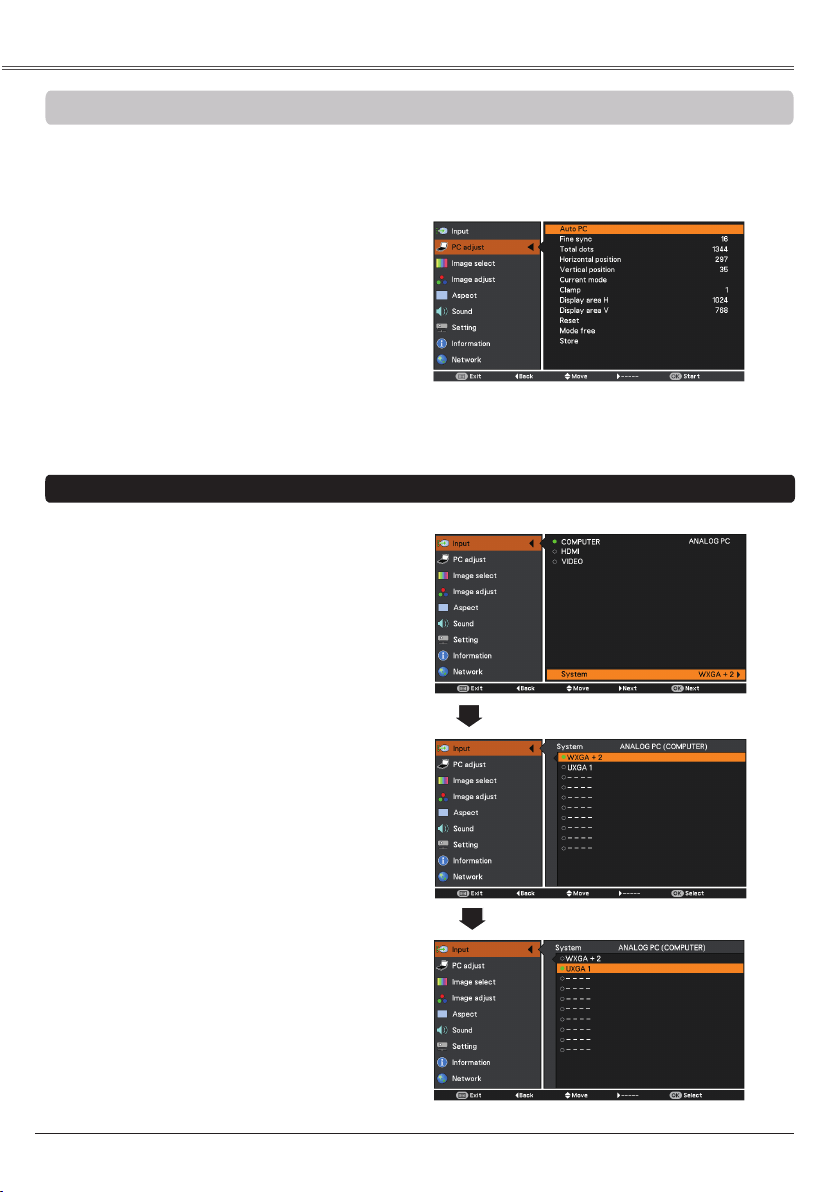
When the image is not stable or flicker, or when the image is not in right position as inputing ANALOG
PC signal, press the AUTO SET button on the remote control unit to adjust the , ,
and to obtain best display.
• Refer to page 76 for the Compatible Computer
Specifications.
• Some signal formats may not be able to display
correctly.
• Only when input computer signal to the projector, PC
will become available.
Press the MENU button to display the
On-Screen Menu. Use the Point ▲▼
buttons to select and then press
the Point ► or the OK button.
1
2
Use the Point ▲▼ buttons to select
PC and then press the OK button.
• The adjusted parameters from the Auto PC
Adjustment can be stored in the projector. Once the
parameters are stored, the setting can be done just
by selecting a Mode (1–10) in the PC System Menu
(p.31). See also “Store” on page 34.
• The Auto PC Adjustment cannot be operated when
, 575i, , , , 1035i or is
selected in the PC System Menu (p. 31), or when
the signal is coming from the HDMI terminal.
When the image is not provided properly with Auto
PC, operate as bellows:
• Use menu to adjust the System mode to
match to the computer resolution. Refer to page
31 for details.
See operation example below.
• Use menu to adjust the System
mode manually and store the adjusted
parameters in the Custom Mode. See page 34.
Resolution :1600 x 1200, Vertical Frequency: 60 Hz
Press the MENU button to display the
On-Screen Menu. Press the Point ▲▼ buttons
to select .
1
2
Press the Point ► button to access to
COMPUTER and then press the OK button.
3
Confirm the System mode displayed. If the
input signal is different from the computer
signal, operate the following steps.
4
Use the Point ▲▼ buttons to select
and and press the OK button or the Point ►
button.
5
Use the Point ▲▼ buttons to select the input
computer signal and press the OK button.
6
Press the MENU button to exit the
On-Screen
Menu and confirm the image.
Confirm System mode
Change System mode
33
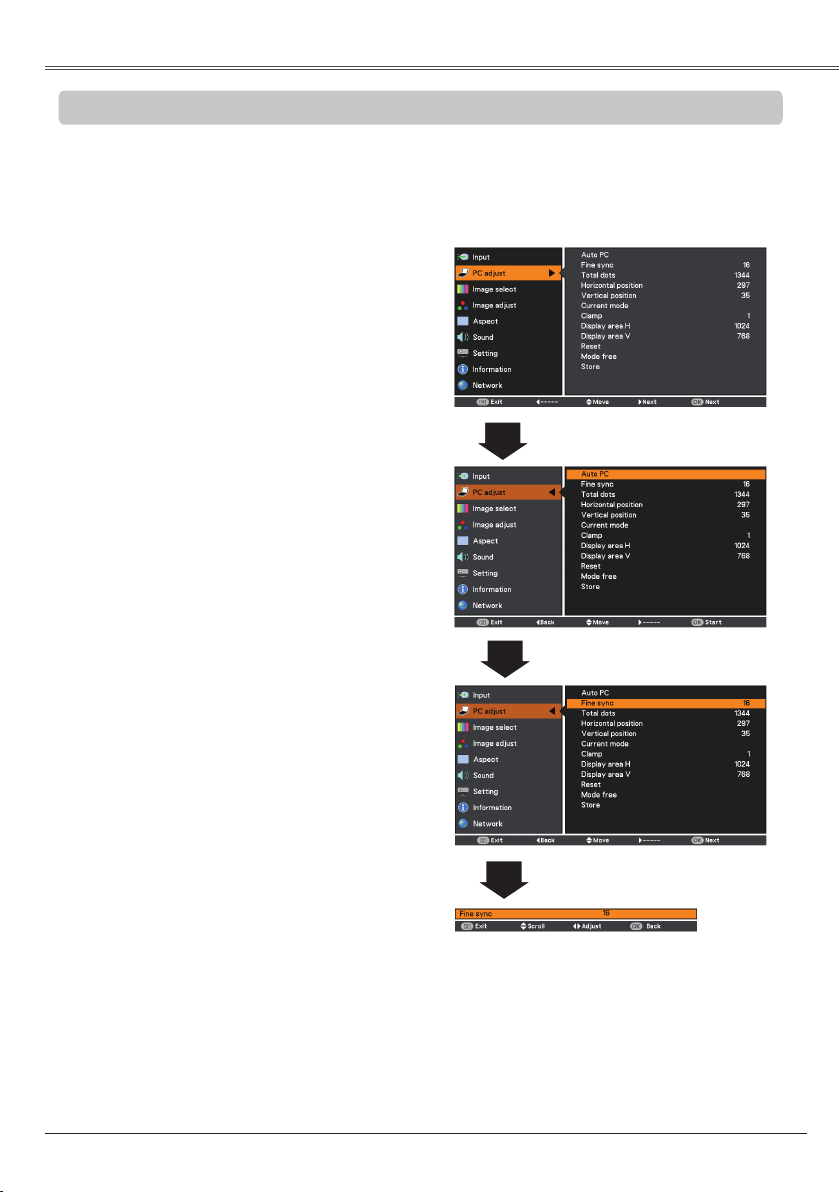
Some computers employ special signal formats which may not be tuned by Multi-scan system of this
projector. Manual PC Adjustment enables you to precisely adjust several parameters to match those
signal formats. The projector has 10 independent memory areas to store those parameters manually
adjusted. It allows you to recall the setting for a specific computer.
1
2
Use the Point ◄► buttons to adjust the value,
eliminating a flicker from the image displayed
(from 0 to 31).
Use the Point ◄► buttons to adjust the
number of total dots in one horizontal period to
match your PC image.
Use the Point ◄► buttons to adjust the
horizontal picture position.
Use the Point ◄► buttons to adjust the
vertical picture position.
Use the Point ◄► buttons to adjust the clamp
level. When the image has dark bars, try this
adjustment.
Press the MENU button to display the
On-Screen Menu. Use the Point ▲▼
buttons to select and then
press the Point ► or the OK button.
Use the Point ▲▼ buttons to select the
desired item and then press the OK button
to display the adjustment dialog box. Use
the Point ◄► buttons to adjust the setting
value.
Use the Point ◄► buttons to adjust the vertical
area displayed by this projector.
Use the Point ◄► buttons to adjust the
horizontal area displayed by this projector.
Press the OK button to show and
of the connected computer.
• cannot be selected when , 575i, , , , 1035i or is selected in the
PC System Menu (p.31).
Loading page 34...
35
LV -RC06
User 1
User 2
User 3
User 4
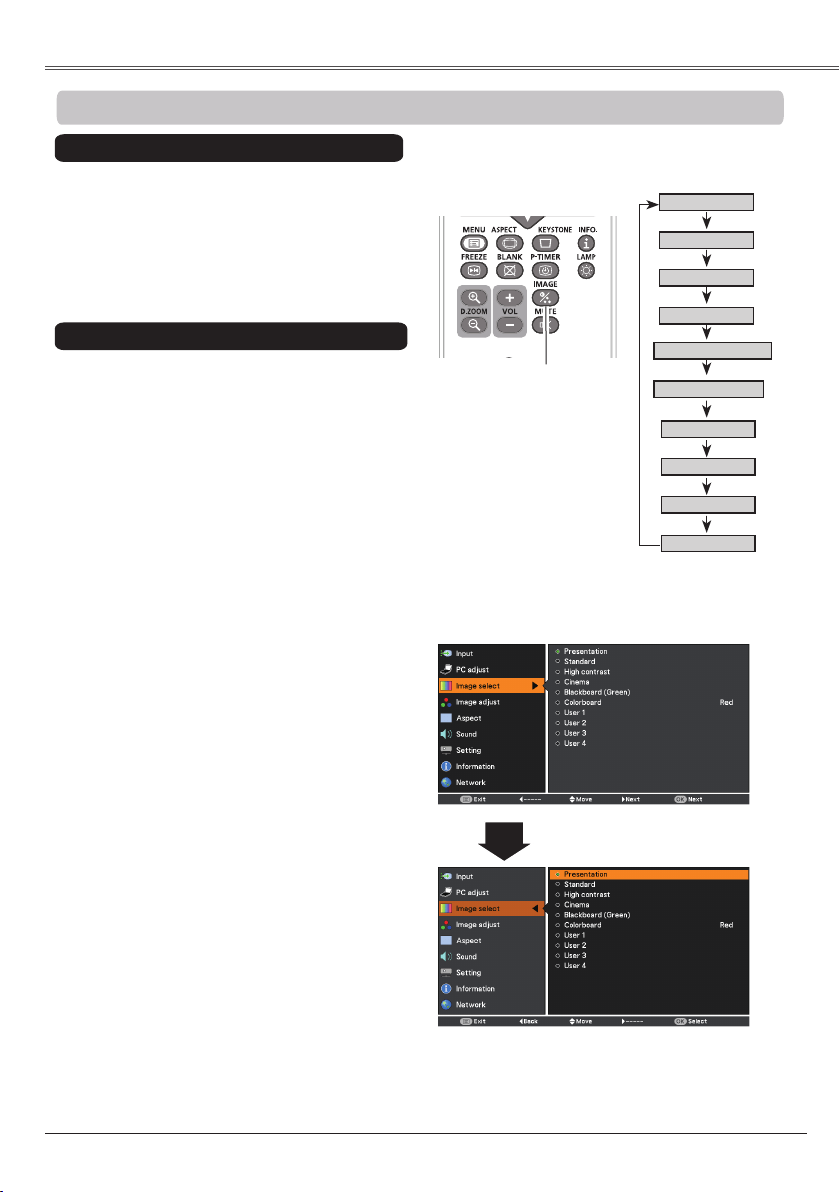
Select the desired image mode among
, , ,
, , ,
User 1, User 2, User 3 and User 4 by pressing
the IMAGE button on the remote control unit.
Picture mode with improved halftone for
graphics.
For the image projected on a blackboard.
This mode helps enhance the image projected
on a blackboard. This is mainly effective on a
green colored board, not truly effective on a
black colored board.
Direct Operation
For viewing pictures in a bright room.
Normal picture mode preset on the
projector.
For viewing with the user preset image mode
in the Image Adjust Menu (see page 36).
1
2
Menu Operation
At the time of simple projection on the colored
wall, you can get the close color image to the
color image projected on a white screen by
selecting the similar color to the wall color from
the preset four colors.
Press the MENU button to display the
On-Screen Menu. Use the Point ▲▼
buttons to selectand then
press the Point ► or the OK button.
Use the Point ▲▼ buttons to select the
desired item and then press the OK button.
Picture mode adjusted with fine tone.
Use the Point ▲▼ buttons to select
and then press the Point ► or the
OK button to access the submenu. Press the
Point ▲▼ buttons to select items among Red,
Blue, Yellow and Green.
36
Reset
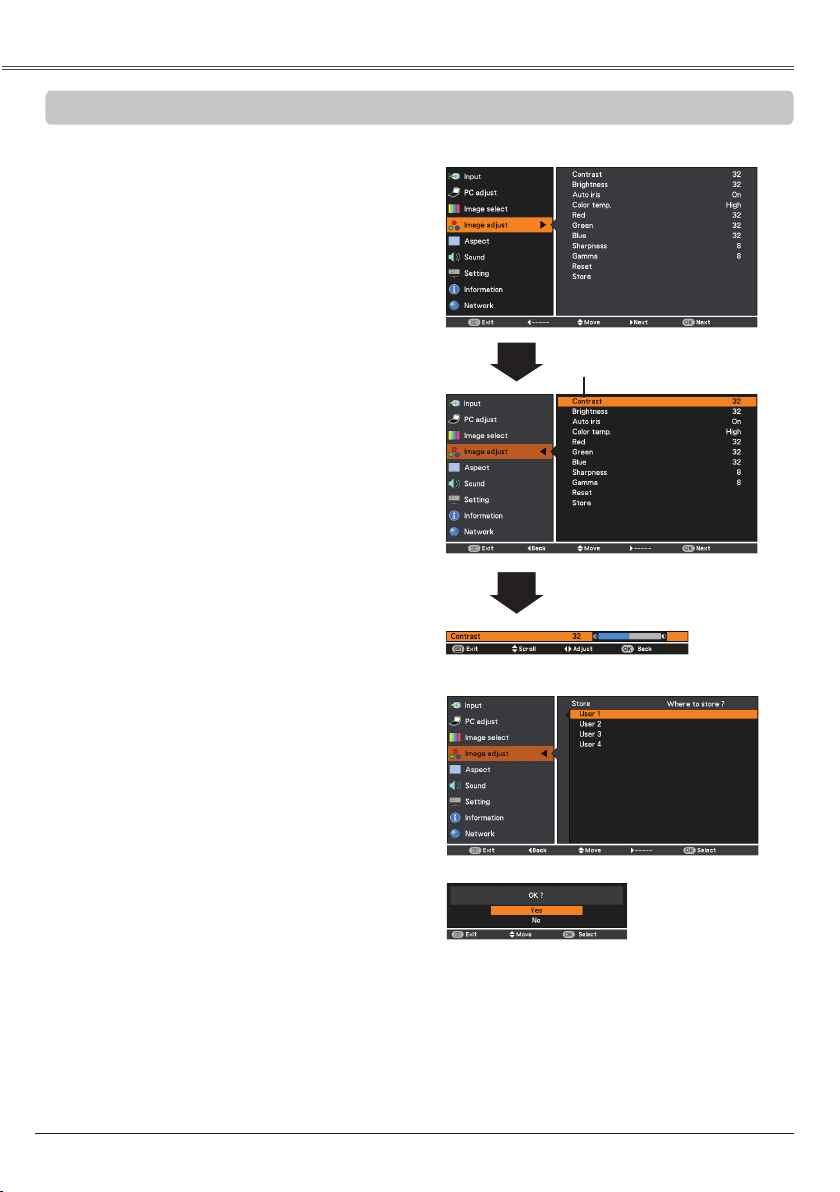
Press the MENU button to display the
On-Screen Menu. Use the Point ▲▼
buttons to select and then
press the Point ► or the OK button.
1
2
Use the Point ▲▼ buttons to select the
desired item and then press the OK button
to display the adjustment dialog box. Use
the Point ◄► buttons to adjust the setting
value.
• When White balance Red, or blue is
adjusted, will change to User.
• When or
is selected in Image select, will
change to or .
Press the Point ◄ button to decrease the
contrast; press the Point ►button to increase the
contrast (from 0 to 63).
Press the Point ◄ button to decrease the
brightness; press the Point ►button to increase
the brightness (from 0 to 63).
Press the Point ◄ button to lighten R/G/B tone;
press the Point ► button to deepen R/G/B tone
(from 0 to 63).
Use the Point ◄► buttons to select the desired
Color temp. level (, , Mid, or ).
Use the Point ◄► buttons to adjust the gamma
value to obtain a better balance of contrast (from
0 to 15).
Press the Point ◄ button to decrease the
sharpness of the image; press the Point ►
button to increase the sharpness of the image
(from 0 to 15).
To reset the adjusted data, select Reset and
press the OK button. A confirmation box appears
and then select . All adjustments will return to
their previous figures.
Use the Point ◄►
buttons to adjust the
setting value.
Selected Image mode
To store the adjusted data, select and
press the Point ► or the OK button. Use the
Point ▲▼ buttons to select one from User 1 to
User 4 and press the OK button.
A confirmation box appears and then select .
Stored data can be called up by selecting an
in the Image Mode Selection on page
35.
A confirmation box appears
and then select .
Press the Point ◄► buttons to select or On.
...... Disabled.
On ...... The iris function is activated.
*
*
Auto iris is only for
LV-7292A, LV-7297A,
LV-7392A,
LV-8227A.
Loading page 37...
Loading page 38...
Loading page 39...
40
Select . The On-Screen Menu
disappears and appears. Press the OK
button to expand the image size. Use the Point
▲▼◄► buttons to pan the image. The Panning
function can work only when the image is larger
than the screen size. A projected image can be
also expanded by pressing the D.ZOOM + or the
OK button on the remote control unit.
To exit the Digital zoom +/- mode, press any
button except the D.ZOOM +/- buttons, OK and
Point buttons.
Select . The On-Screen Menu
disappears and appears. Press the OK
button to compress image size.
The projected image can be also compressed by
pressing the D.ZOOM or the OK button on the
remote control unit.
To return to the previous screen size, select a
screen size from the Screen Size Adjustment
Menu or select an input source from the Input
Source Selection Menu (see page 30) again,
or adjust the screen size with the D.ZOOM +/-
buttons.
• The minimum compression ratio is limited
depending on the input signal, when the Keystone
function is working or when the custom is selected
for the screen size.
• True and are disabled and cannot
be displayed when , 575i, , ,
1035i or is selected in the PC System Menu
(p.31).
• cannot be selected when True is
selected.
• The minimum compression ratio is limited at Normal
screen size.
• cannot be selected when ,
1035i, or is selected on AV System
Menu (p.43).
• When the 16:9 function is selected on Screen
aspect menu, is not available in the PC and AV
screen (pp.39, 49).
• When the 4:3 function is selected on Screen aspect
menu, is not available in the AV
screen (p.49).
When this function is set to On, the picture will be
top/ bottom and left/right reversed. This function is
used to project the image from a ceiling-mounted
projector.
Ceiling
When this function is set to On, the picture will be
left/right reversed. This function is used to project
the image from rear of the screen.
Rear
To reset the adjusted data, select Reset and press
the OK button. A confirmation box appears and
then select Yes. All adjustments will return to their
previous figures.
Reset
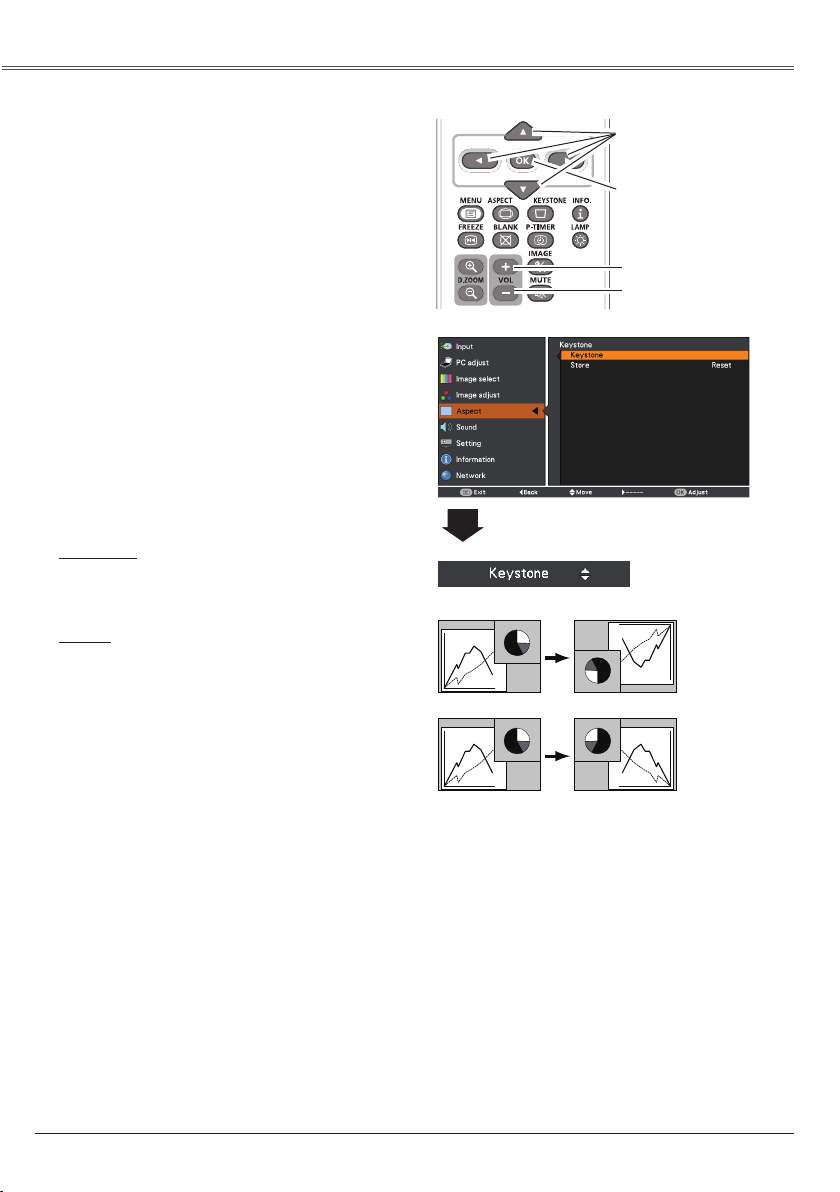
This function is used to adjust keystone distortion
of the projected image. Use the Point ▲▼
buttons to choose the item you want to adjust.
To correct keystone distortion, press the OK
button.
Keystone appears on the screen. Use the Point
▲▼ buttons to correct keystone distortion
(p.26).
To store or reset the keystone correction, press
the Point ► button.
........... Keep the keystone correction
even when the AC power cord
is plugged out or turned off the
projector.
Reset ........... Release the keystone correction
when the AC power cord is
plugged out.
Ceiling
Rear
This function is used to project the image to a 4:3
or 16:9 projection screen.
....
16:10 is the aspect of the LCD
panel.
The original Screen Menu
is available.
..... Set to a 16:9 projection screen.
..... Set to a 4:3 projection screen.
LV -RC06
Press the OK button.
41
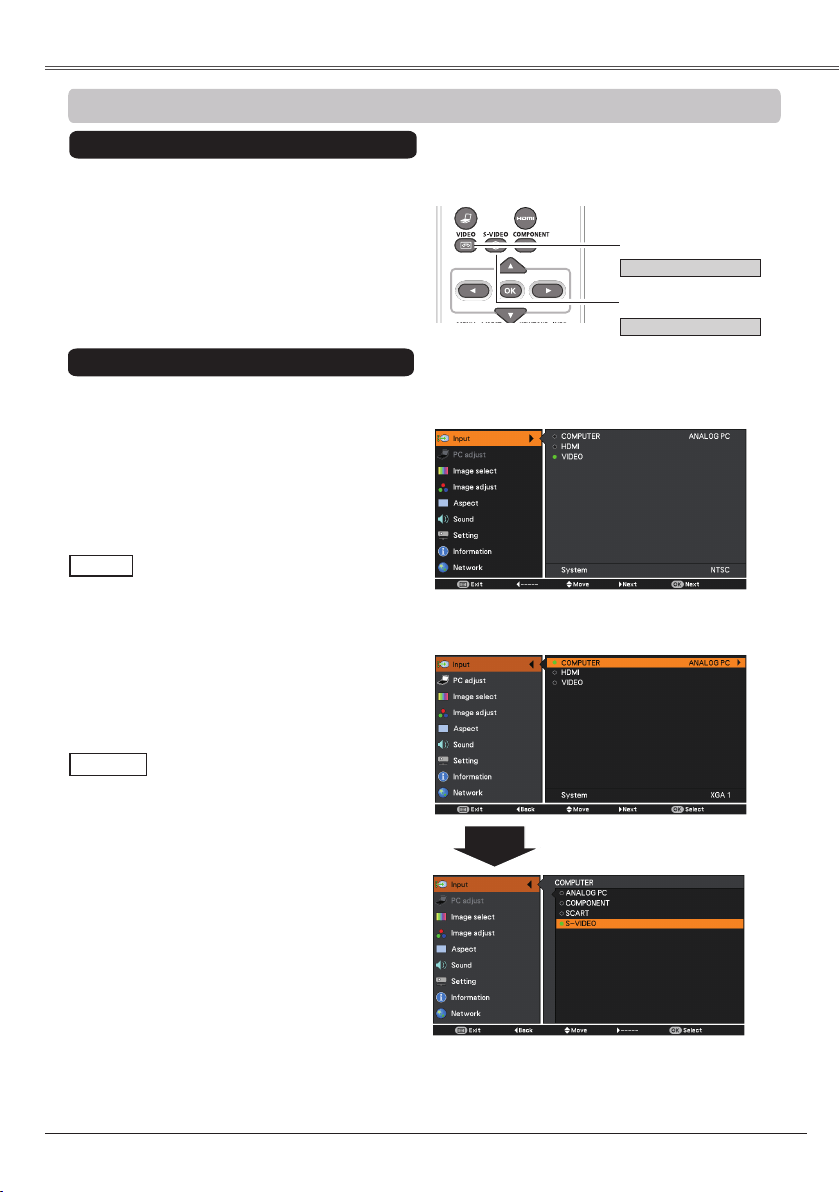
Choose VIDEO or by pressing the
VIDEO or the S-VIDEO button on the remote
control unit.
1
2
VIDEO
Direct Operation
Wh e n v i d eo i n p u t s ig n a l i s
connected to the VIDEO jack, select
VIDEO.
VIDEO
When the input source is coming
from video equipment connected
to the COMPUTER IN/S-VIDEO
IN/COMPONENT IN terminal
with a S-VIDEO-VGA cable,
select .
When the Auto input function is set to On 1 or On
2 in the Auto setup function, the input signal will be
searched automatically (p.52).
LV -RC06
Press the MENU button to display the
On-Screen Menu. Use the Point ▲▼
buttons to select and then press the
Point ► or the OK button.
Use the Point ▲▼ buttons to select
VIDEO and then press the OK button.
VIDEO
Use the Point ▲▼ buttons to select
COMPUTER. And then press the Point ►
button to access the submenu items. Use the
Point ▲▼ buttons to select the and
then press the OK button.
Menu Operation
Press the Point ▲▼ buttons
to select .
Loading page 42...
43
1
2
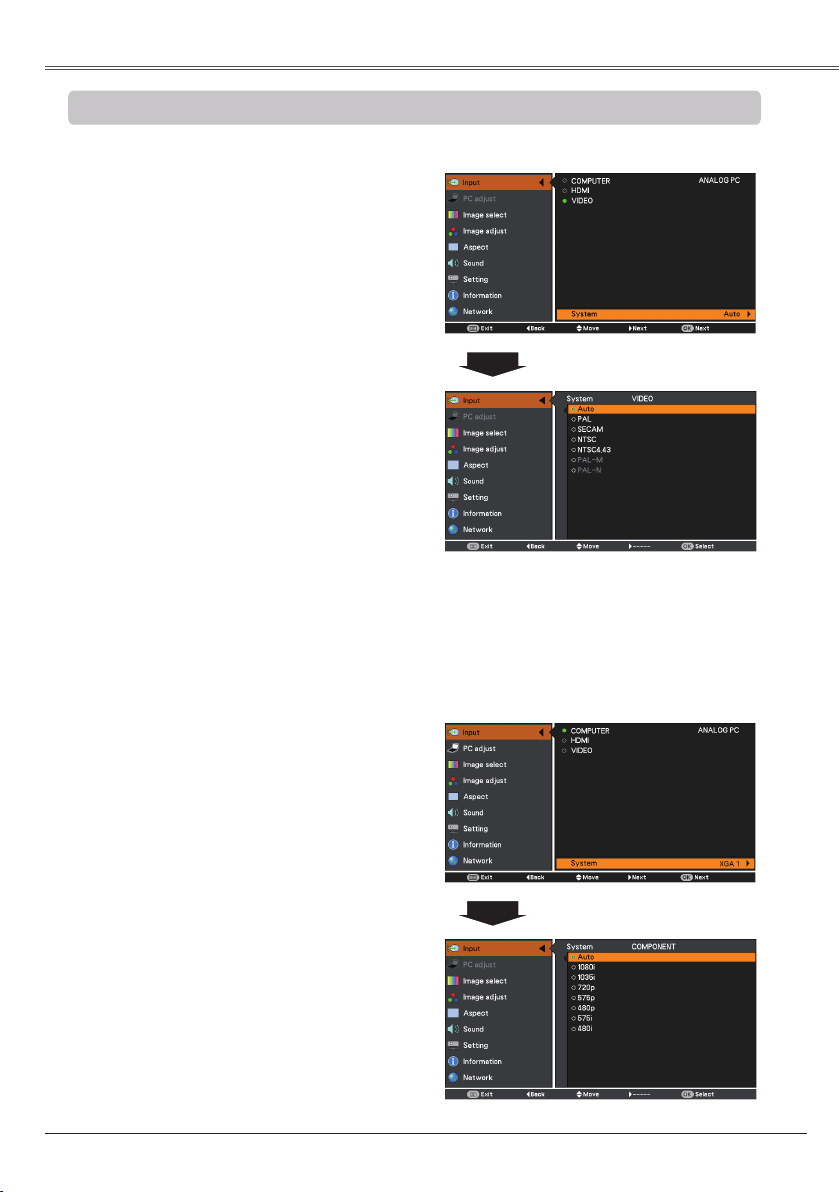
If the projector cannot reproduce proper video
image, select a specific broadcast signal format
from among PAL, , , ,
and .
The projector automatically detects an
incoming video signal, and adjusts itself to
optimize its performance.
If the projector cannot reproduce proper video
image, select a specific component video signal
format from among , 575i, , ,
, 1035i and .
The projector automatically detects an
incoming video system, and adjusts itself
to optimize its performance. When VIDEO
System is or , select the system
manually.
The AV System Menu cannot be selected when
selecting .
Press the MENU button to display the
On-Screen Menu. Use the Point ▲▼
buttons to select and then press the
Point ► or the OK button.
Select VIDEO,
or input
source. (pp. 41-42)
3
Use the Point ▲▼ buttons to select
and then press the Point ► or
the OK button. Use the Point ▲▼ buttons
to select the desired system and then
press the OK button.
Loading page 44...
45
1
2
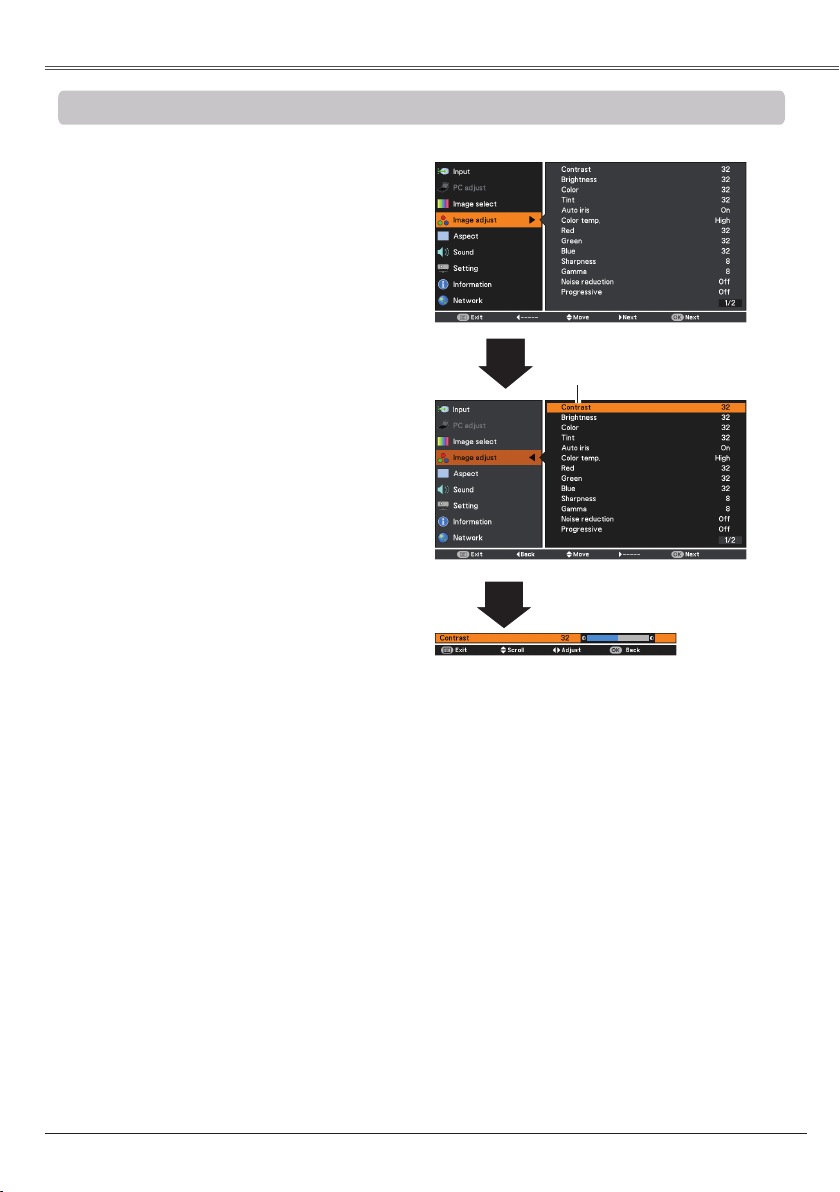
Press the Point ◄ button to decrease the
contrast; press the Point ► button to increase
the contrast (from 0 to 63).
Press the Point ◄ button to decrease the
brightness; press the Point ► button to
increase the brightness (from 0 to 63).
Press the Point ◄ button to lighten R/G/B
tone; press the Point ► button to deepen
R/G/B tone (from 0 to 63).
Use the Point ◄► buttons to select the
desired Color temp. level (, , Mid or
).
Press the Point ◄ button decrease the intensity
of the color; press the Point ► button increase
the intensity of the color (from 0 to 63).
Press the Point ◄► buttons to adjust the tint
value to get a proper color balance (from 0 to
63).
Tint
• When the , or blue is adjusted, the Color temp. level will change to User.
• Tint cannot be selected when the video system is PAL, , or (p. 43).
• When or is selected in Image select, will change to
or .
Press the MENU button to display the
On-Screen Menu. Use the Point ▲▼
buttons to select and then
press the Point ► or the OK button.
Use the Point ▲▼ buttons select the
desired item and then press the OK button
to display the adjustment dialog box. Use
the Point ◄► buttons to adjust the setting
value.
Selected Image mode
Use the Point ◄► buttons
to adjust the setting value.
Press the Point ◄► buttons to select or On.
...... Disabled.
On ...... The Auto iris function is activated.
*
Press the Point ◄ button to decrease the
sharpness of the image; press the Point ►
button to increase the sharpness of the image
(from 0 to 15).
Use the Point ◄► buttons to adjust the
gamma value to obtain a better balance of
contrast (from 0 to 15).
*
Auto iris is only for
LV-7292A, LV-7297A,
LV-7392A,
LV-8227A.
46
An interlaced video signal can be displayed in
progressive mode. Select one of the following
options.
........ Disabled.
L 1 ........ For an active picture.
L 2 ........ For a still picture.
..... For watching a lm. With this function,
the projector reproduces pictures
faithful to the original film quality.
Noise interference on the screen can be
reduced. Select one of the following options to
get smoother images.
........ Disabled.
L 1 ........ Lower reduction
L 2 ........ Higher reduction
and can not be
selected when the input signal is , , ,
1035i or (p.43).
To reset the adjusted data, select Reset and
press the OK button. A confirmation box appears
and then select . All adjustments will return
to their previous figures.
Reset
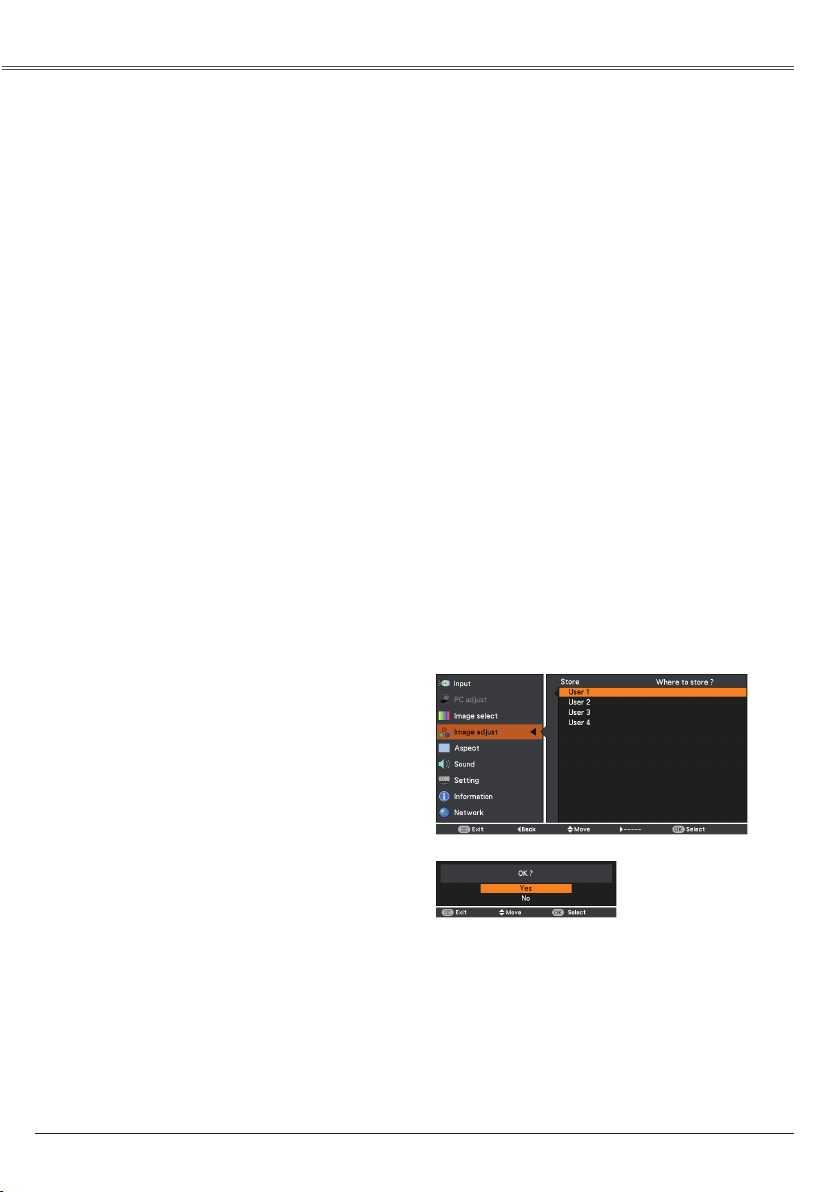
To store the adjusted data, select and
press the Point ► or the OK button. Use the
Point ▲▼ buttons to select one from User 1 to
User 4 and press the OK button.
A confirmation box appears and then select
. Stored data can be called up by selecting
an in the Image Mode Selection on
page 44.
A confirmation box appears
and then select .
47
This projector has the picture screen resize function, which enables you to customize the image size.
1
2
Provide the image to fit the screen size while
maintaining the aspect ratio of the input signal.
• When no signal is detected, is set
automatically and the Aspect adjustment menu
disappears.
• The adjustable range for and
is limited depending on the input
signal.
Full
Provide the full screen image.
Press the MENU button to display the
On-Screen Menu. Use the Point ▲▼
buttons to select and then press
the Point ► or the OK button.
Use the Point ▲▼ buttons select the
desired item and then press the OK
button.
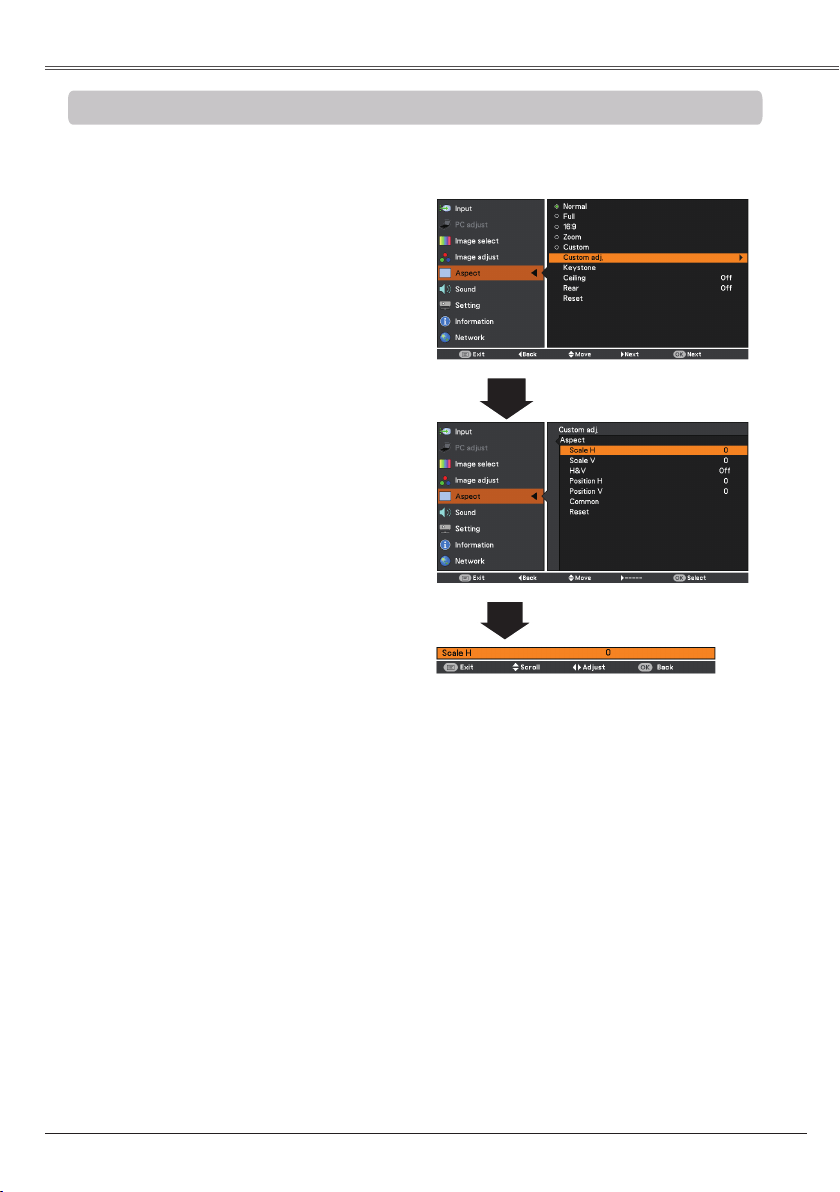
Adjust the screen scale and position manually
with this function.
Press the Point ► button at and
the Custom adjustment menu is displayed on
the screen, you can use the Point ▲▼ buttons
to choose the item you want to adjust.
...... Adjust the Horizontal/Vertical
screen scale.
H&V ............... When set to On, the aspect
ratio is fixed. The
V appears dimmed and
becomes unavailable.
Adjust , then the
screen scale is automatically
modified based on the aspect
ratio.
.. Adjust the Horizontal/Vertical
screen position.
....... Save the adjusted scale or
position to all the inputs.
Press the OK button at
to display a
confirmation box. To save
the scale or position, press
the OK button at . When
is selected, the
saved scale or position is
used.
Reset ............. Reset the all adjusted values.
Press the OK button at Reset
to display a confirmation box.
To reset, press the OK button
at .
Provide the last stored aspect screen image.
Provide the image at the 16:9 wide screen ratio.
Pan the horizontal direction of the image and
cut the vertical direction of the image to fit the
screen size (16:9). Only for 4:3 video aspect
ratio signals.
48
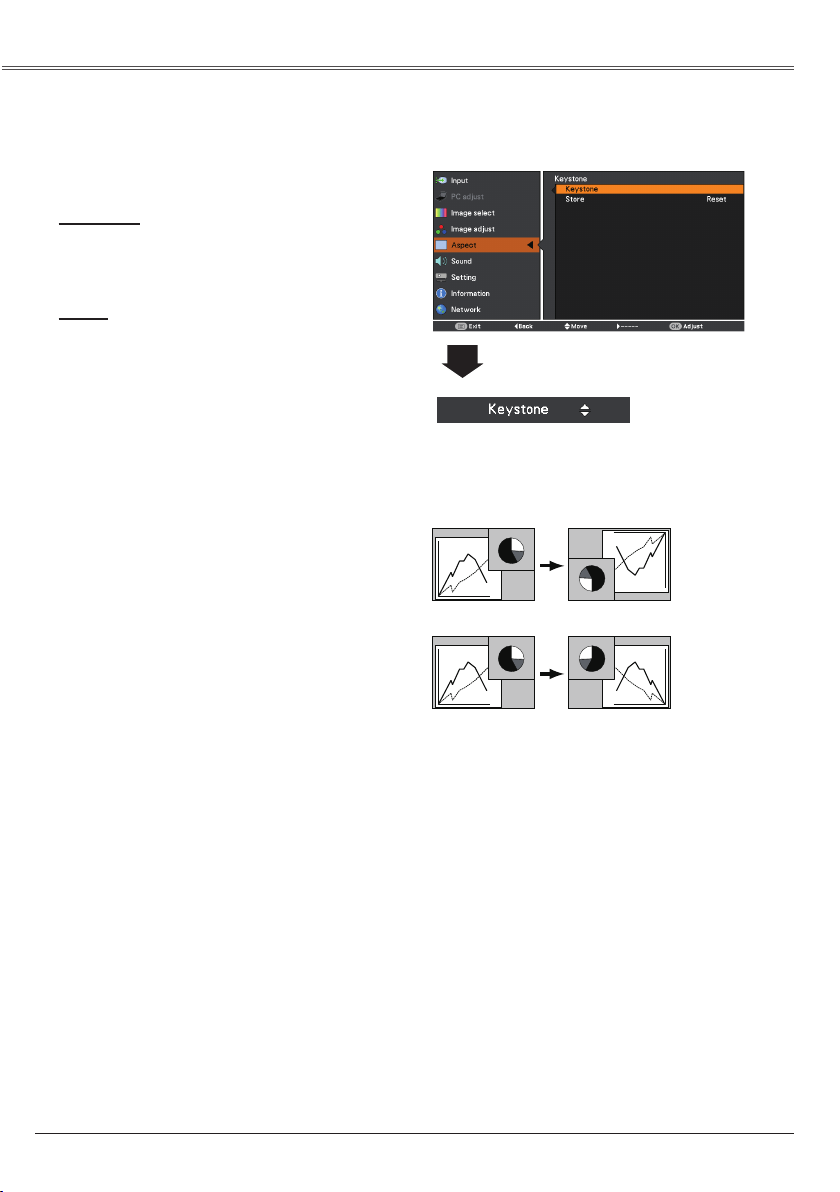
This function is used to adjust keystone
distortion of the projected image. Use the Point
▲▼ buttons to choose the item you want to
adjust.
To correct keystone distortion, press the OK
button.
Keystone appears on the screen. Use the
Point ▲▼ buttons to correct keystone
distortion (p. 26).
To store or reset the keystone correction,
press the Point ► button.
.......... Keep the keystone correction
even when the AC power cord
is plugged out or turned off the
projector.
Reset .......... Release the keystone correction
when the AC power cord is
plugged out.
Ceiling
Rear
When this function is set to On, the picture
will be top/bottom and left/right reversed. This
function is used to project the image from a
ceiling-mounted projector.
Ceiling
When this function is set to On, the picture will
be left/right reversed. This function is used to
project the image from rear of the screen.
Rear
To reset the adjusted data, select Reset and
press the
OK button. A confirmation box appears and then
select Yes. All adjustments will return to their
previous figures.
Reset
Press the OK button.
Loading page 49...
50
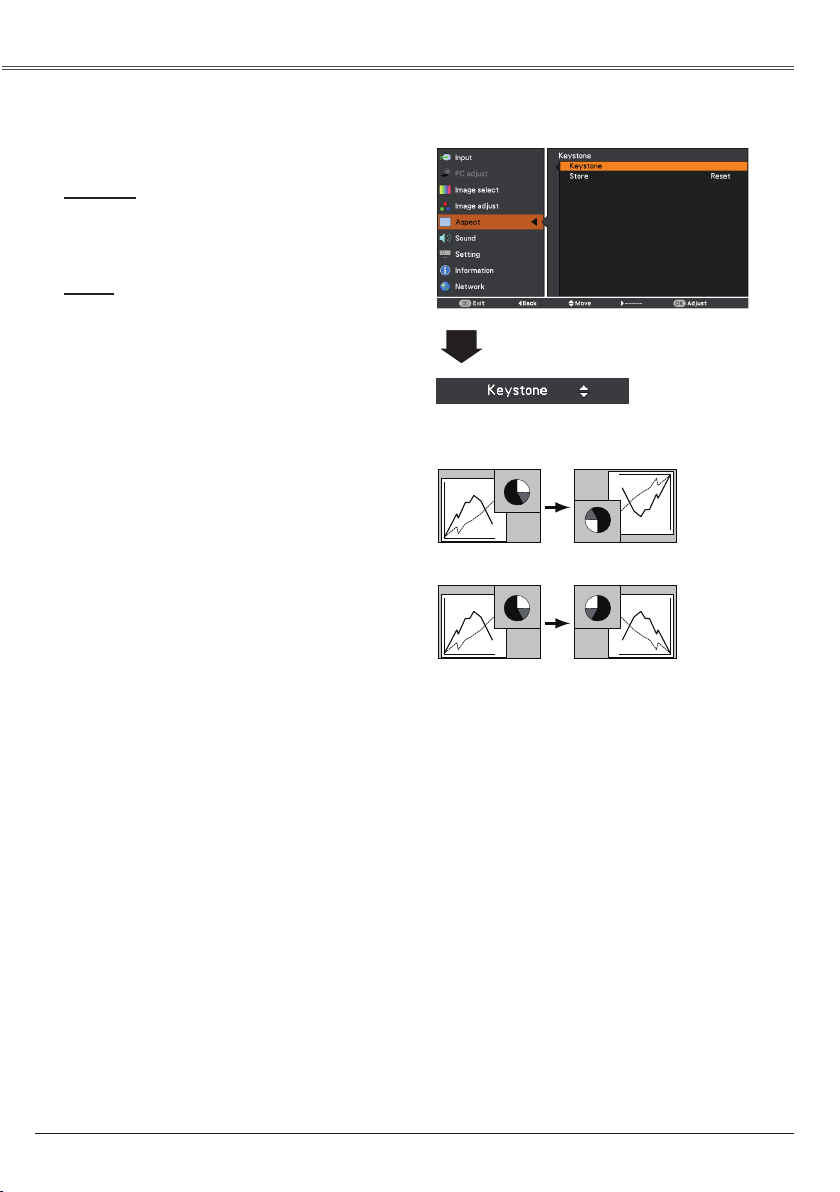
This function is used to adjust keystone
distortion of the projected image. Use the Point
▲▼ buttons to choose the item you want to
adjust.
To correct keystone distortion, press the OK
button.
Keystone appears on the screen. Use the
Point ▲▼ buttons to correct keystone
distortion (p. 26).
To store or reset the keystone correction,
press the Point ► button.
.......... Keep the keystone correction
even when the AC power cord
is plugged out or turned off the
projector.
Reset .......... Release the keystone correction
when the AC power cord is
plugged out.
Ceiling
Rear
When this function is set to On, the picture
will be top/bottom and left/right reversed. This
function is used to project the image from a
ceiling-mounted projector.
Ceiling
When this function is set to On, the picture will
be left/right reversed. This function is used to
project the image from rear of the screen.
Rear
To reset the adjusted data, select Reset and
press the OK button. A confirmation box appears
and then select “Yes”. All adjustments will return
to their previous figures.
Reset
This function is used to project the image to a 4:3
or 16:9 projection screen.
.... 16:10 is the aspect of the
LCD panel. The original
Screen Menu is available.
.............
........
.Set to a 16:9 projection screen.
..............
..........
Set to a 4:3 projection screen.
• When the 16:9 function is selected on Screen
aspect menu, is not available in the PC and
AV screen (pp.39, 49).
• When the 4:3 function is selected on Screen
aspect menu, is not available in the
AV screen (p.49).
Press the OK button.

51
Press the MENU button to display the
On-Screen Menu. Press the Point ▲▼
buttons to select and press the
Point ► or the OK button to access the
submenu items.
1
2
Use the Point ▲▼ buttons to select the
desired item and then press the Point ► or
the OK button to access the selected item.
This projector has a Setting menu that allows you to set up the other various functions described
below.
Language
This function is used to change the position of
the On-Screen Menu. Select
and press the OK button.
The Menu position changes each time you
press OK button as follows.
the center → the bottom left → the bottom right
→ the top left → the top right→.....
3
Use the Point ▲▼ buttons to select
the desired item and then press the OK
button.
Language
The language used in the On-Screen Menu
is available in English, German, French,
Italian, Spanish, Portuguese, Dutch, Swedish,
Finnish, Polish, Hungarian, Romanian,
Russian, Turkish, Kazakh, Vietnamese,
Chinese, Korean, Japanese and Thai.
52
• During is in progress, If the MENU
button or the POWER button is pressed,
will stop. If the COMPUTER button or
VIDEO or COMPONENT or S-VIDEO or HDMI
button is pressed, will stop and go
back to the button's input signal.
• , and can
not be set at the same time.
• corrects vertical distortion only,
not correct horizontal distortion.
• The Auto Keystone function can not work when
the Ceiling feature is set On in the Screen menu
(pp. 38, 40, 48, 50).
• Perfect correction of the image distortion can not
be ensured with the Auto setup function. If the
distortion is not corrected properly by pressing the
AUTO SET button, adjust manually by pressing
the KEYSTONE button on the remote control unit
or selecting in the Setting menu (pp.
26, 38, 40, 48, 50).
• , , and
of some computers cannot
be fully adjusted with the Auto PC Adjustment
function. When the image is not provided properly
with this operation, manual adjustments are
required (pp. 33-34).
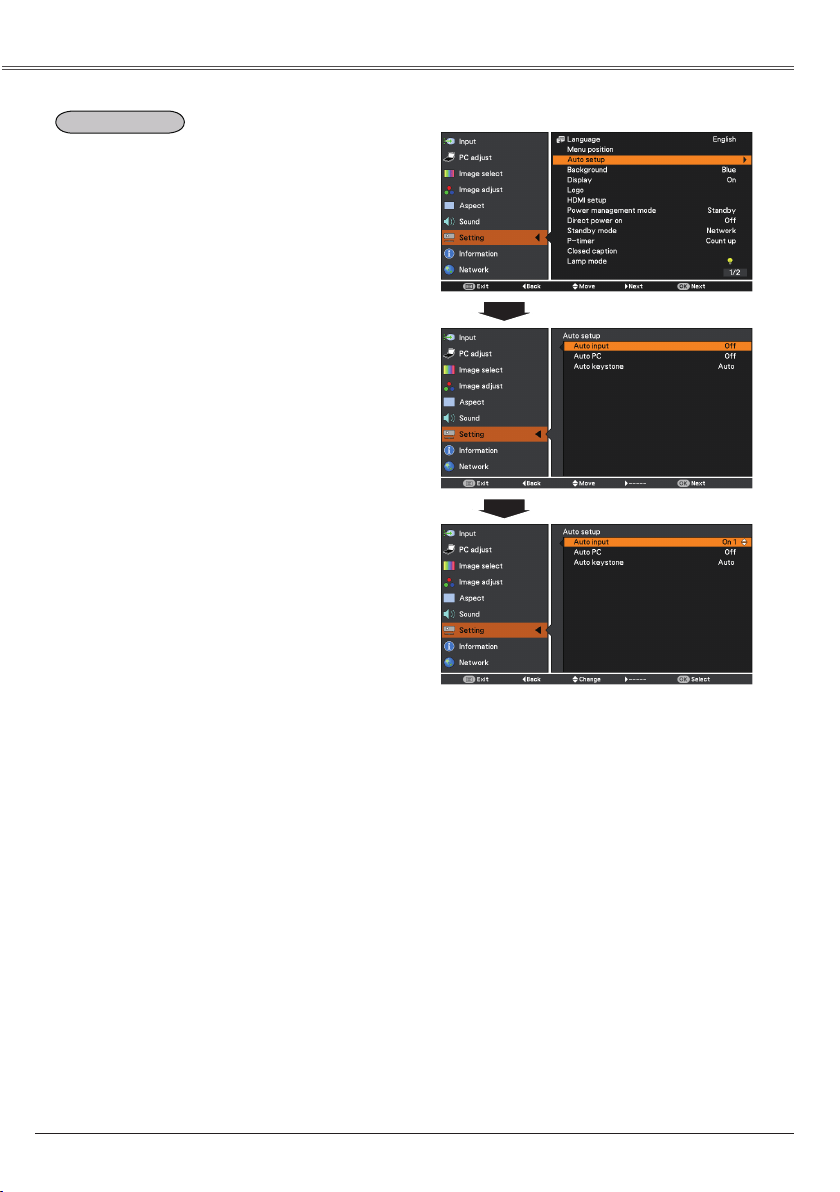
This function detects the input signal
automatically. When a signal is found, the search
will stop. Use the Point ▲▼ buttons to select
one of the following options.
....... Auto input does not work.
On 1..... Auto input works under the following
situation.
– When pressing the AUTO SET button
on the top control or the remote
control unit.
On 2..... Auto input works under the following
situation.
– When turning on the projector by
pressing the POWER button on the
top control or the remote control unit.
– When pressing the AUTO SET button
on the remote control unit or the top
control.
– When the current input signal is cut
off.*
* If the Blank or Freeze function is active,
cancel it to activate the Auto input. It is
also unavailable when On-Screen menu is
displayed.
On..........Enables Auto PC Adjustment when
pressing the AUTO SET button on
the remote control unit or the top
control.
...........Disables Auto PC Adjustment.
.......
Always works and corrects keystone
distortion according to the projector's
tilt.
Manual...Works only when pressing the AUTO
SET button on the top control or the
remote control unit.
.......... Disables Auto Keystone.
• While is set to On 1 or On 2, the
status of Input and Lamp are displayed every time
the signal is switched.
• Only the last selected input source can be
detected.
This function enables Auto input, Auto Keystone
correction and Auto PC adjustment by pressing
the AUTO SET button on the top control or the
remote control unit. Settings for those functions
can be altered as follows:
53
This function decides whether to display
On-Screen Displays.
On ........................ Show all the On-Screen
displays. Use this function
when you want to project
images after the lamp
becomes bright enough.
The factory default setting
is in this option.
... Show the input image
instead of the countdown
when turning on the
projector. Use this function
when you want to project
the image as early as
possible even when the
lamp is not bright enough.
........................ Hide the On-Screen
Displays except;
● On-Screen Menu.
● (p. 23)
● P-Timer display. (p. 29)
● for Power
management (p. 56)
●
● Arrows for the True
function in the Aspect
Menu. (p. 39)
Select the background screen for when no
input signal is detected. Press the Point ▲▼
buttons to switch between each option.
blue........Project a blue background.
User
........
Project an image captured in the
Logo setting.
......
Project a black background.
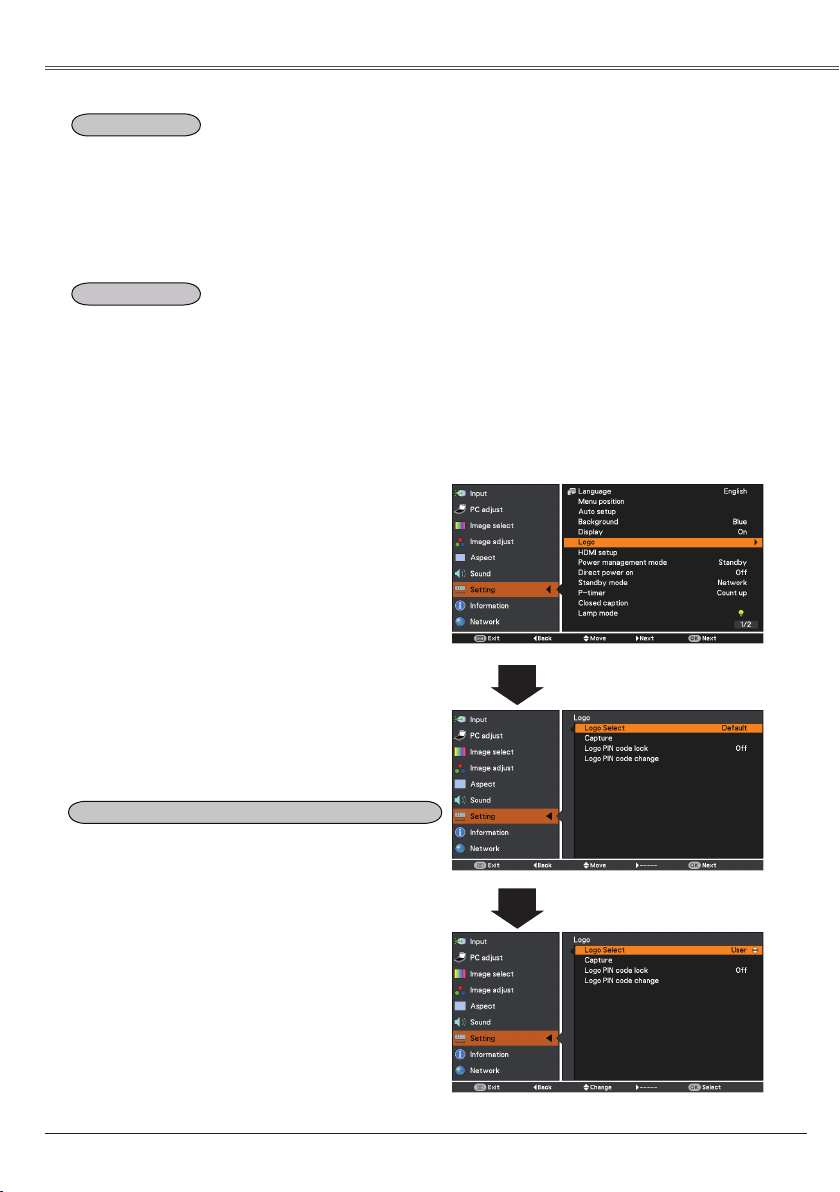
This function allows you to customize the
screen logo with , ,
and
functions.
When On is selected in the Logo PIN code lock
function, and functions
cannot be selected.
This function decides on the starting-up
display from among following options.
User ....... Show the image you captured.
... Show the factory-set logo.
.......... Show the countdown display only.
54
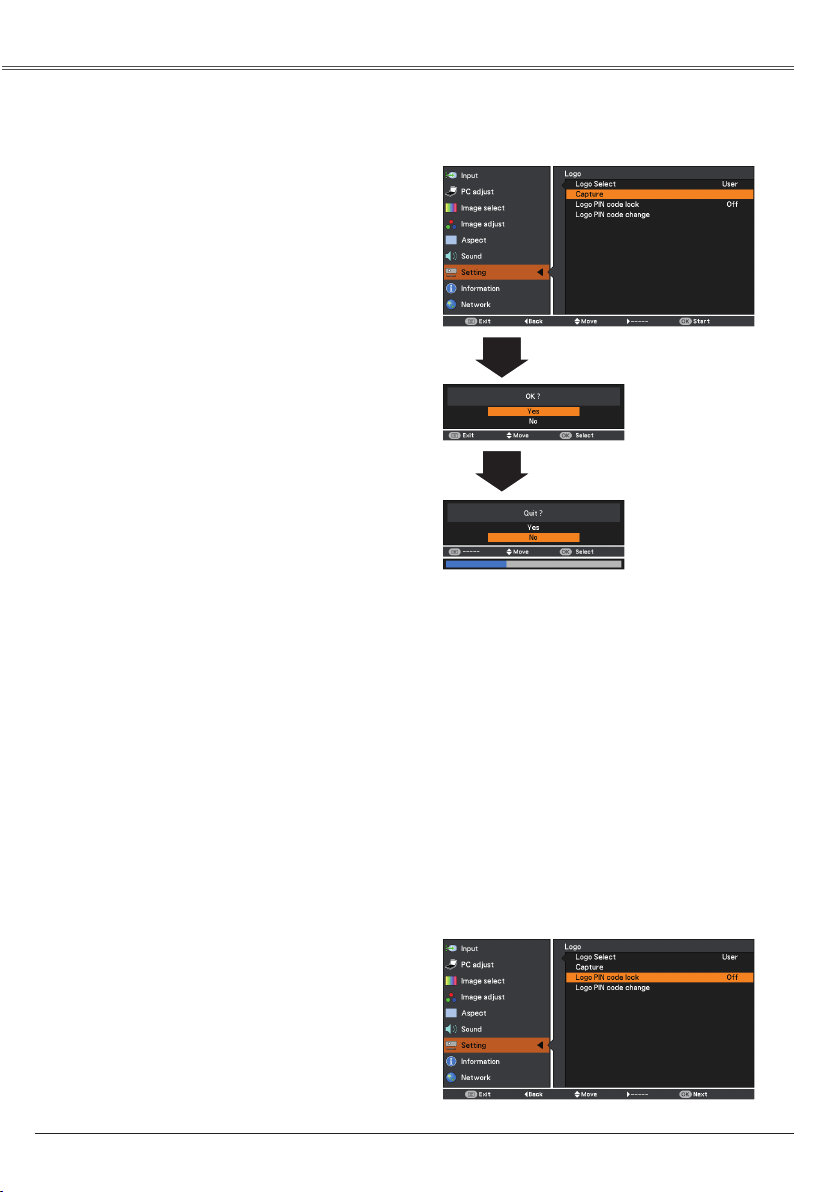
This function enables you to capture an image
being projected to use it for a starting-up display
or interval of presentations.
Select and press the OK button.
A confirmation box appears and select to
capture the projected image.
After capturing the projected image, go to the
Logo select function and set it to User. Then the
captured image will be displayed the next time
you turn on the projector or when you press the
BLANK button (p 29).
To cancel the capture function, select in the
"Quit?" confirmation box.
• Before capturing an image, select in the
Image select Menu to capture a proper image (pp.
35,44).
• A signal from a computer can be captured up
to panel size (1024 x 768). (Only for LV-7292A,
LV-7297A, LV-7392A, LV-7292M, LV-7297M)
• A signal from a computer can be captured up to
panel size WXGA (1280 x 800). A signal from video
equipment can be captured except for 1035i and
. (Only for LV-8227A, LV-8227M)
• When capturing the image that has been adjusted
by the Keystone function, the adjusted data is
automatically reset and the projector captures an
image without keystone correction.
• When Logo PIN code lock function is set to On,
and can not be selected.
• When starting to capture a new image, the
previously stored image is cleared even if you
cancel the capturing.
• When there is no captured image or it is interrupted
while capturing an image, User can not be selected,
you can only switch between and .
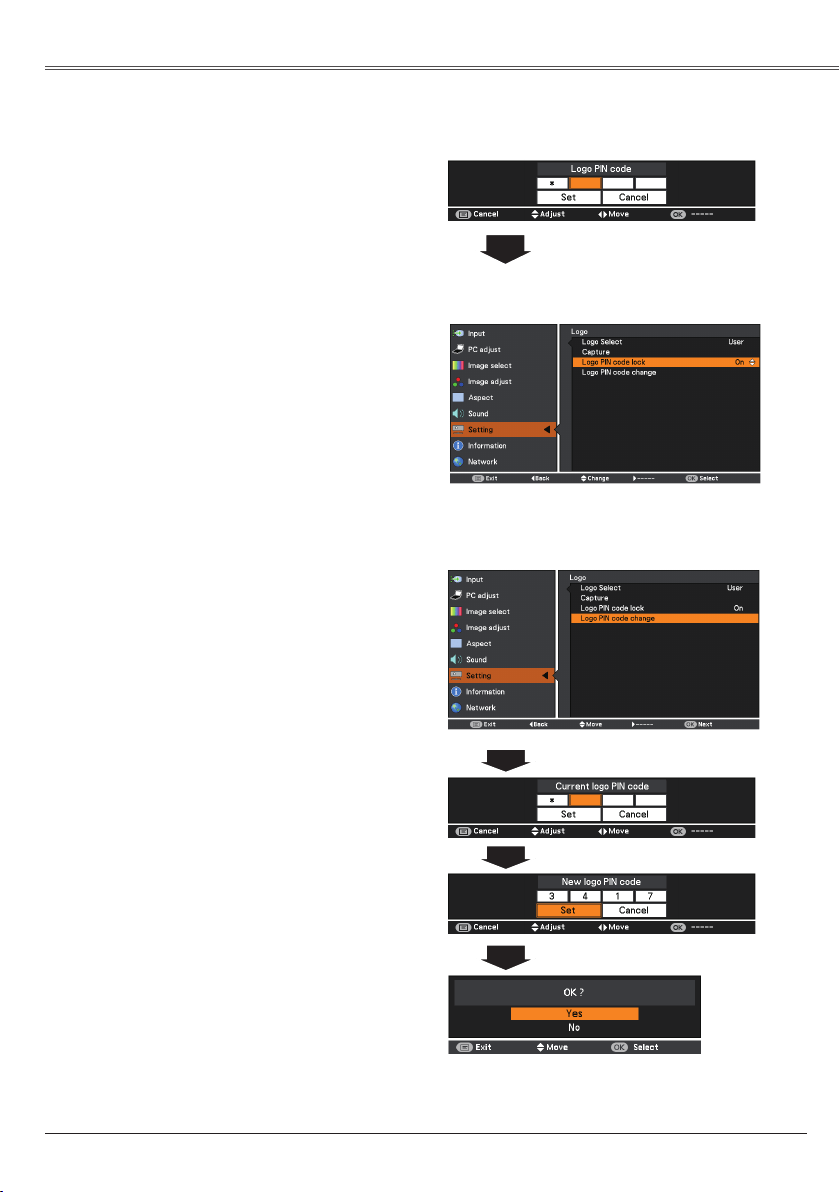
This function prevents an unauthorized person
from changing the screen logo.
.......... The screen logo can be changed
freely from the Logo Menu (p. 53).
On .......... The screen logo cannot be changed
without a Logo PIN code.
If you want to change the
setting, press the OK button and the Logo PIN
code dialog box appears. Enter a Logo PIN code
by following the steps below. The initial
is set to “4321” at the factory.
55
Use the Point ▲▼ buttons to enter a number.
Press the Point ◄► buttons to fix the number
and move the red frame pointer to the next
box. The number changes to . If you fixed an
incorrect number, use the Point ◄► buttons
to move the pointer to the number you want to
correct, and then enter the correct number.
Repeat this step to complete entering a four-
digit number.
After entering the four-digit number, move the
pointer to . Press the OK button so that you
can start to operate the projector.
If you entered an incorrect Logo PIN code,
and the number () will
turn red for a moment. Enter the correct Logo
PIN code all over again.
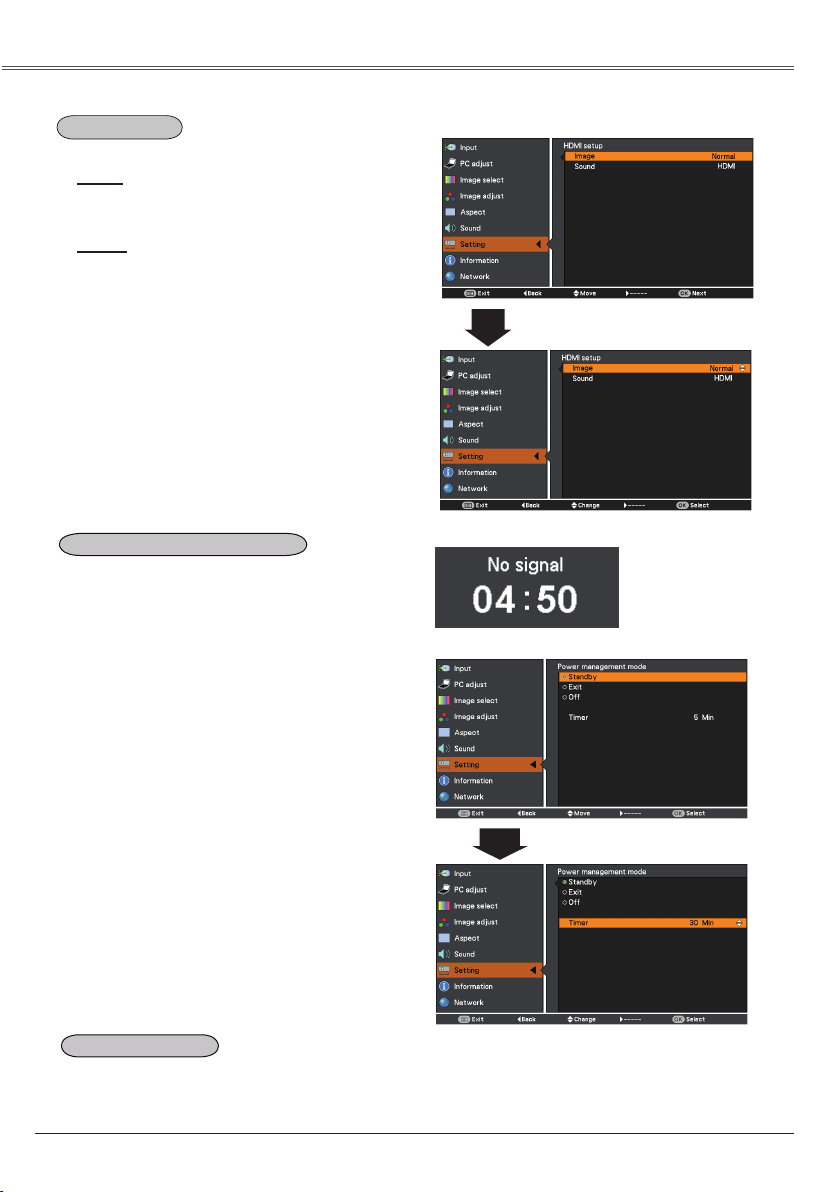
Logo PIN code can be changed to your desired
four-digit number. Press the OK button to
select . Current
dialog box appears, use the Point
▲▼buttons to enter the correct code. The New
Logo PIN code input dialog box appears. Set a
new Logo PIN code, confirmation box appears,
choose to set the new Logo PIN code.
Be sure to note the new Logo PIN code and
keep it on hand. If you lost the number, you
could no longer change the Logo PIN code
setting.
Use the Point ▲▼ buttons to switch On or
, and then press the OK button to make a
choice.
After a correct Logo PIN code
is entered, the following dialog
box appears.
If you forget your Logo PIN code and unable to
change it, the Logo PIN code can be reset to the
factory default setting (4321) according to the
following procedures.
When you reset the Logo PIN code, the PIN code and
Key lock will be reset, as well.
1. Unplug the AC Power Cord from the AC outlet.
2. Hold down the OK button on the projector and
connect the AC Power Cord into the outlet
again. Keep holding down the OK button until
the POWER indicator lights. The Logo PIN code
returns to the factory default setting while the Logo
PIN code lock state will remain the same as the
previous set state.
56
Time left before Lamp is off.
For reducing power consumption as well
as maintaining the lamp life, the Power
management mode function turns off the
projection lamp when the projector is not
operated for a certain period.
Select one of the following options:
........ When the lamp has been fully
cooled down, the POWER
indicator changes to green
blinking. In this condition,
the projection lamp will be
turned on if the input signal
is reconnected or any button
on the top control or remote
control unit is pressed.
............... When the lamp has been fully
cooled down, the power will
be turned off.
................. Power management mode
function is off.
............ If the input signal is
interrupted and no button
is pressed for more than 30
seconds, the timer display
with appears. It
starts the countdown until the
lamp is turned off. Use the
Point ▲▼ buttons to set the
Timer (1~30min).
Factory default is .
When this function is set to On, the projector will
be automatically turned on just by connecting
the AC power cord to a wall outlet.
Be sure to turn off the projector properly (see
“Turning Off the Projector” on page 23). If
the projector is turned off in the incorrect
sequence, the Direct power on function will
not work properly.
This function is only used for HDMI input source.
Select or to match the
video range setting of your HDMI Digital
RGB equipment.
HDMI: When using the HDMI cable,
select HDMI.
Both video and audio are
transferred and you need
not to connect any additional
cables for audio.
COMPUTER : When using the DVI-HDMI
cable, select COMPUTER
and connect the audio cable
to COMPUTER IN termimal.
The names for the output setting of Digital RGB
vary from equipment to equipment. For details,
refer to the user’s manual of your Digital RGB
equipment.
When the black parts of the image are
destroyed or stand out, please switch to
or , and then switch the
output type of the HDMI Digital RGB output
equipment.
57
This function is available when operating the
projector via network.
.. Supply the power to the network
function even after turning off the
projector by pressing the POWER
button on the remote control unit.
......... Select when you do not use
the projector via network. The
projector’s network function will
stop when turning off the projector,
you can not turn on the projector
via network.
Refer to the user’s manual of “Network Set-up
and Operation”.
...... Does not restrict functionality even
in standby mode.
......... Restricts some functions in
standby mode to reduce power
consumption.
• When selecting , the cooling fans may be
running depending on the temperature inside the
projector even if the projector is turned off.
• When is selected and the projector is in
Standby mode, the communication of RS-232C
serial port is not available.
• N is only for LV-7292A, LV-7297A,
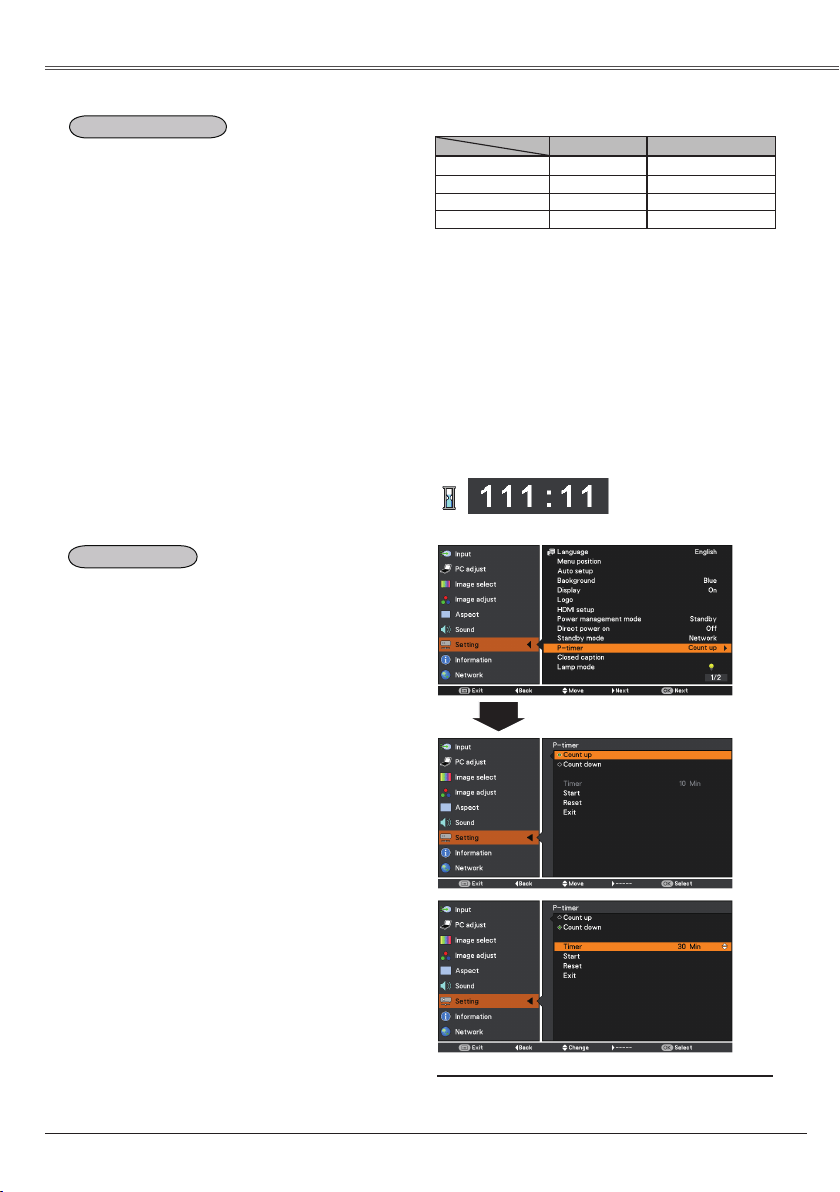
LV-7392A, LV-8227A.
This function allows you to change the setting of
the P-timer and execute it.
Select one of the following options:
....... The P-timer display
appears on the screen and the
count up starts ()
.. The time set in the Timer setting
appears on the screen and the
countdown starts.
............. Use the Point ▲▼ buttons to set
the Timer (). is
available in Count down only.
Factory default velue is 10 Min.
............... It executes the count up or count
down function. Press the OK
button at and the indication
changes into Stop. To stop
or , press
the OK button at on the
screen menu, then the indication
changes into Restart. Press the
OK button at Restart to resume
or .
Reset ............. Reset the P-timer values.
Press the OK button at Reset to
return to the following value;
... "000:00"
... Timer that
you set
................ To exit the P-timer operation.
P-timer display
To stop the P-timer function, press the P-TIMER button.
To cancel the P-timer, press and hold the P-TIMER
button for a few seconds.
X: disabled O: enabled
*1 When switch the STANDBY MIC OUT function On in
Standby mode status, only MIC volume can be output.
*2 is only for LV-7292A, LV-7297A, LV-7392A,
LV-8227A.
Serial command X O
Network*2 X O
Audio Out X X *1
Direct power on
O O
Loading page 58...
59
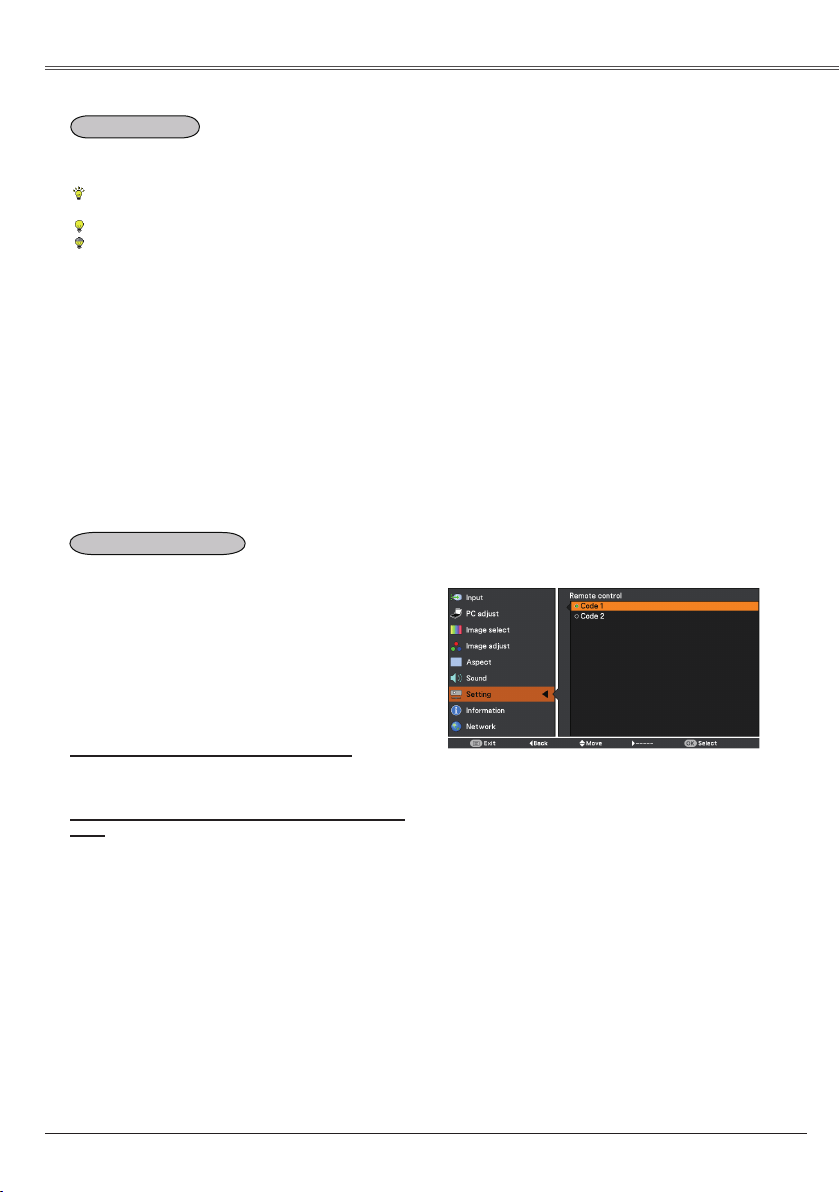
This projector provides two different remote
control codes: the factory-set initial code
() and the secondary code ().
This switching function prevents remote control
unit interference when operating several
projectors or video equipment at the same
time.
When operating the projector in , both
the projector and the remote control unit must
be switched to .
Select either or in this Setting
Menu.
Press and hold both the MENU and IMAGE
buttons together for 5 seconds or more. After
changing the code, make sure the remote
control unit operates properly.
• When different codes are set on the projector
and on the remote control unit, any operation
cannot be made. In that case, switch the code
on the remote control unit to fit the code on the
projector.
• If the batteries are removed from the remote
control unit for a long period of time, the remote
control code will be reset.
This function allows you to change brightness
of the screen.
• Lamp mode can not be changed for a
while after turning on the projector. Lamp
needs some time to stabilize after the
power is turned on. Stored lamp mode will
be active after the lamp is stabilized.
High ........... Brighter than the Normal
mode.
Normal ...... Normal brightness
Eco ............ Lower brightness reduces the
lamp power consumption and
extends the lamp life.
Loading page 60...
Loading page 61...
Loading page 62...
Loading page 63...
Loading page 64...
Loading page 65...
Loading page 66...
Loading page 67...
Loading page 68...
Loading page 69...
Loading page 70...
Loading page 71...
Loading page 72...
Loading page 73...
Loading page 74...
Loading page 75...
Loading page 76...
Loading page 77...
Loading page 78...
Loading page 79...
Loading page 80...
Loading page 81...
Loading page 82...
Loading page 83...
Loading page 84...