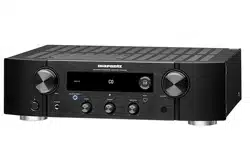

Network Integrated Amplier
PM7000N
Quick Start Guide
Read Me First....
Guide de démarrage rapide /
Guía de inicio rápido
Lisez-moi en premier.... /
Lea esto primero....
ENGLISH
FRANÇAIS
ESPAÑOL
1.PM7000NU_ENG_QSG_190808.indd 1 2019/08/23 13:56:27
PrintingColor:Black
1
Thank you for choosing a Marantz network
integrated amplifi er. This guide provides step-
by-step instructions for setting up your network
integrated amplifi er.
Please do not return this unit to the store –
call for assistance.
If you need help… :
If you need additional help in solving problems,
contact Marantz customer service in your area.
1-855-ONE-Marantz
1-855-663-6272
Call for Assistance:
Monday – Friday 10:00AM to 10:00PM E.S.T,
Saturday 12:00PM to 8:00PM E.S.T
For frequently asked questions please visit
http://marantz.custhelp.com/app/answers/list
For US and Canada only
Welcome Before You Begin
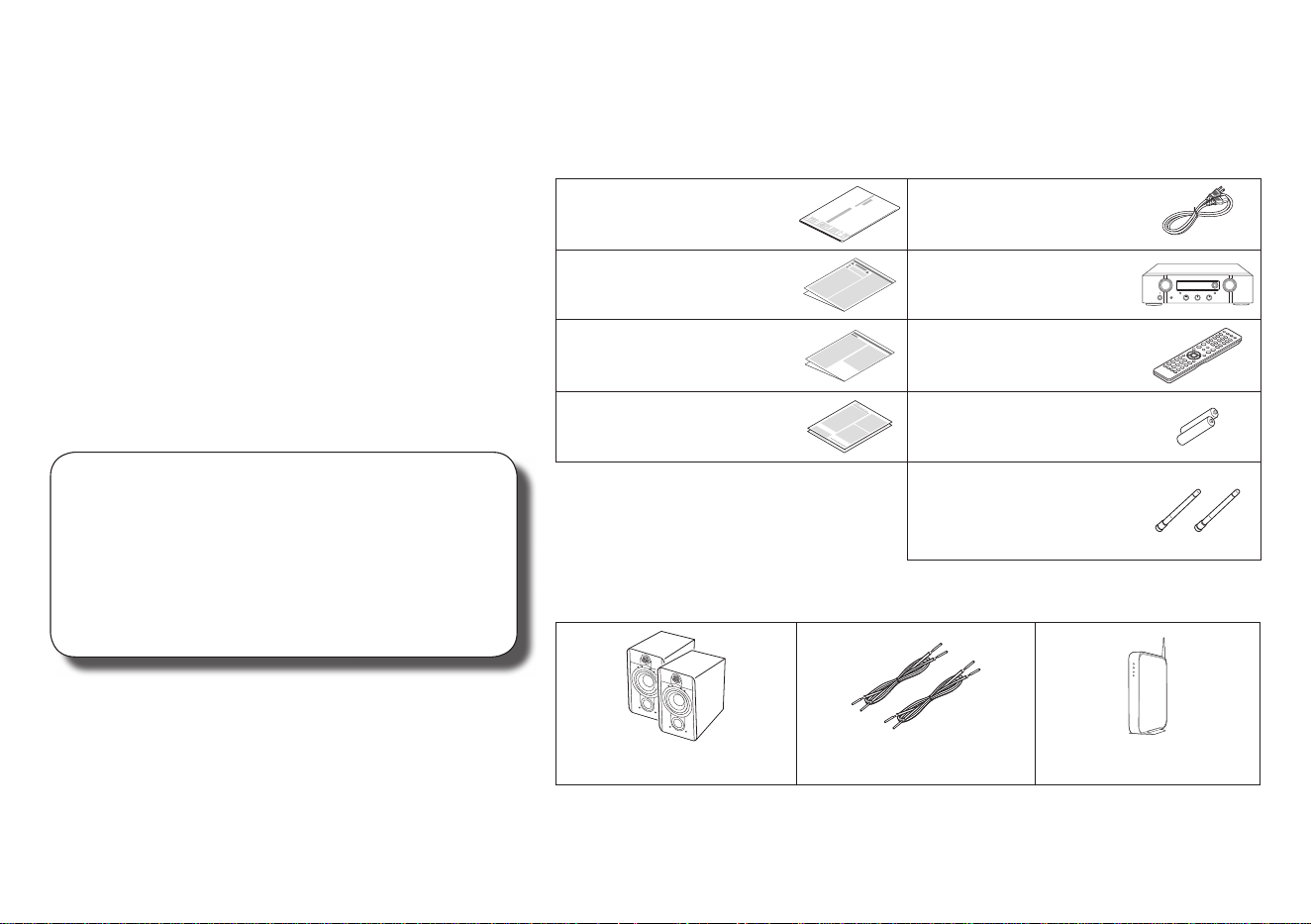
What’s In the Box
Quick Start Guide Power cord
Safety Instructions Network Integrated
Amplifi er
Notes on radio Remote control unit
(RC004PM)
Warranty
(for USA/for CANADA)
R03/AAA batteries
External antennas for
Bluetooth/wireless
connectivity
Required for Setup
Speaker systems Speaker cables Router
1.PM7000NU_ENG_QSG_190808.indd 1 2019/08/23 13:56:28
PrintingColor:Black
2
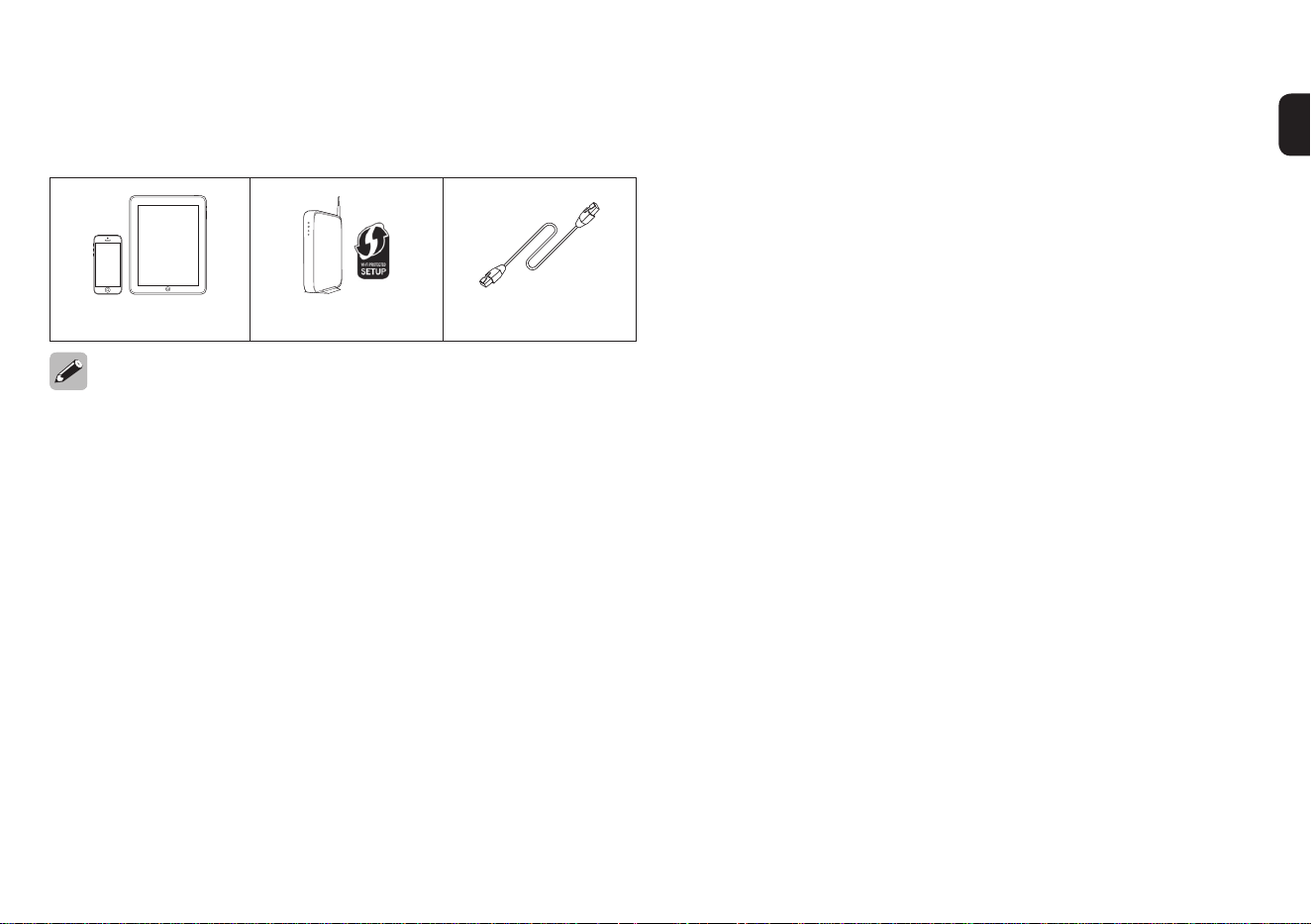
Optional
iOS device Router with WPS LAN cable
• These drawings are for illustrative purposes only and may not represent
the actual product(s).
1.PM7000NU_ENG_QSG_190808.indd 2 2019/08/23 13:56:29
PrintingColor:Black

3
Important: External Antennas
The removable external antennas are required for both
Bluetooth and Wireless network connectivity. Please make
sure to connect the antennas before attempting to use the
Bluetooth or Wi-Fi features of the PM7000N.
n Connecting the external antennas for
Bluetooth / Wireless connectivity
For each of the two antennas:
q Place the antenna evenly over the antenna terminal
located at the upper left or right corner of the rear panel.
w Turn the antenna clockwise until it is fully connected. Do
not over tighten.
e Rotate the antenna upwards for the best possible
reception.
COAXIAL OPTICAL
DIGITAL AUDIO IN
AUDIO IN
CD AUX
RECORDER
PHONO
SIGNAL
GND
AC IN
AUDIO OUT PRE OUT
RECORDER
SUBWOOFER
q w e
1.PM7000NU_ENG_QSG_190808.indd 3 2019/08/23 13:56:29
PrintingColor:Black
4
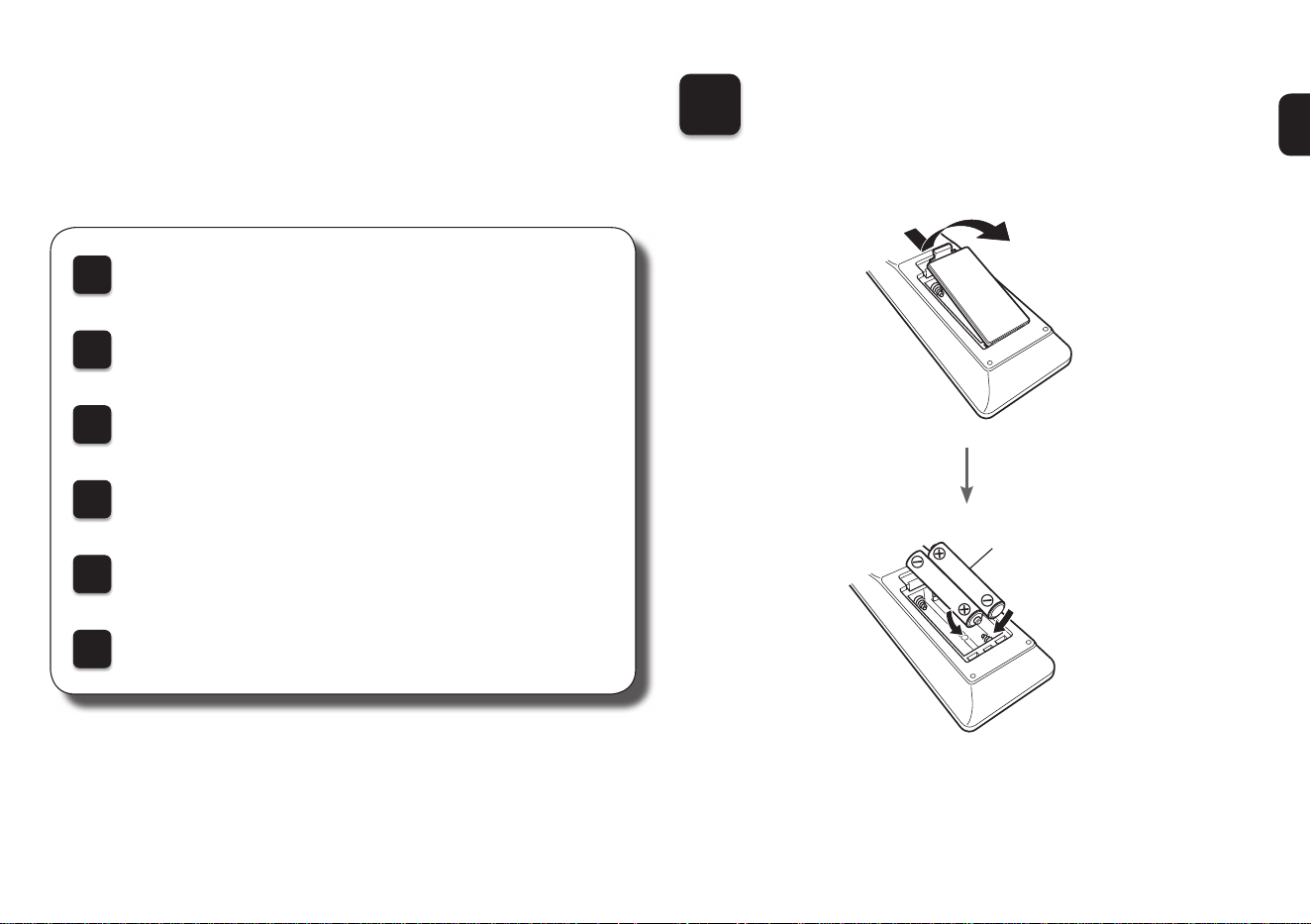
There are six steps to the setup
process.
1
Installing batteries in the remote control unit
2
Connect the speakers to the amplifi er
3
Plug the power cord into a power outlet
4
Connect to the network
5
Enjoying your music!
6
Download the HEOS App
Setup
1
Installing batteries in the
remote control unit
Batteries
1.PM7000NU_ENG_QSG_190808.indd 4 2019/08/23 13:56:29
PrintingColor:Black

5
2
Connect the speakers to the amplifi er
AUDIO IN
CD AUX
RECORDER
PHONO
SIGNAL
GND
AC IN
COAXIAL OPTICAL
DIGITAL AUDIO IN
AUDIO OUT PRE OUT
RECORDER
SUBWOOFER
(R)
w q
(L)
w q
Connecting the speaker cables
q Peel o about 3/8 inch (10 mm)
of sheathing from the tip of the
speaker cable, then either twist
the core wire tightly or apply
solder to it.
w Turn the speaker terminal
counterclockwise to loosen it.
e Insert the speaker cable’s core
wire to all the way into the
speaker terminal.
r Turn the speaker terminal
clockwise to tighten it.
1.PM7000NU_ENG_QSG_190808.indd 5 2019/08/23 13:56:29
PrintingColor:Black

6
3
Plug the power cord into a power outlet
AUDIO IN
CD AUX
RECORDER
PHONO
SIGNAL
GND
AC IN
COAXIAL OPTICAL
DIGITAL AUDIO IN
AUDIO OUT PRE OUT
RECORDER
SUBWOOFER
Power cord
(supplied)
Connect to household
power outlet
(AC 120 V, 60 Hz)
1.PM7000NU_ENG_QSG_190808.indd 6 2019/08/23 13:56:30
PrintingColor:Black

7
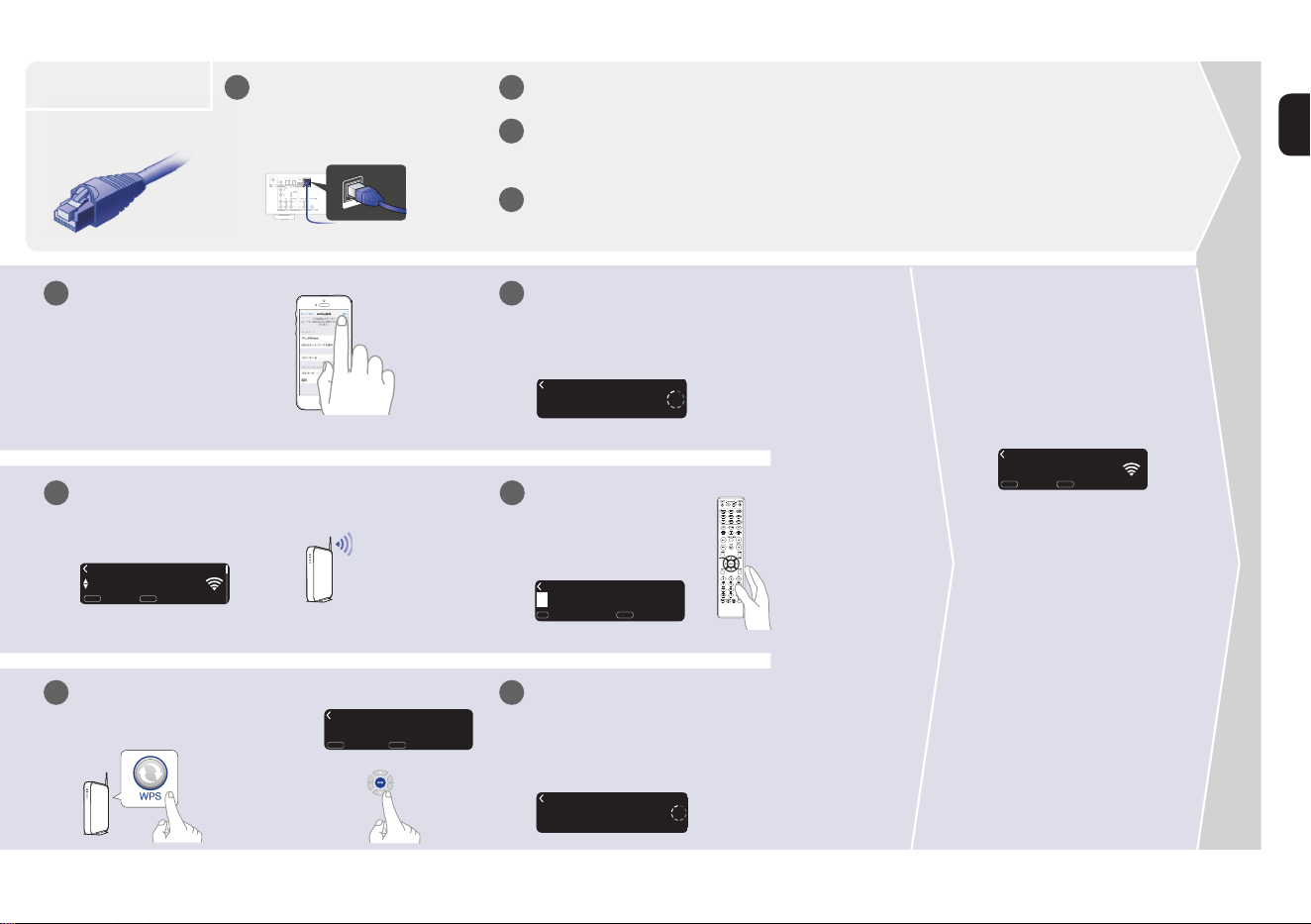
Wired
Choose from one of the following options.
4
Connect to the network
Wireless
Select “WPS Router”.
WPS router
Wi-Fi router
Select “Wi-Fi - scan” and wait as
your PM7000N looks for available
networks.
Router without
WPS button
Wi-Fi router
Power on. Select language.
(After selecting a language, please
be patient while the network
settings initialize. Expect to wait a
few minutes.)
WPS
iOS
English
Select Language
:
enter
ENTER
Wi-Fi - scan
Select Connection Method
:
cancel
:
enter
ENTER
BACK
iOS device
iOS version 7
or later
WPS
iOS
Make sure your iOS device is
connected to your Wi-Fi Network.
Select the network named “Marantz
PM7000N” from the Settings/Wi-Fi
screen on your device.
Marantz PM7000N
Marantz PM7000N
1
1 2 3
3
3
WPS
iOS
WPS Router
Select Connection Method
:
cancel
:
enter
ENTER
BACK
WAC - use your Apple
Select Connection Method
:
cancel
BACK
:
enter
ENTER
Power on. Select language.
(After selecting a language, please
be patient while the network
settings initialize. Expect to wait a
few minutes.)
WPS
iOS
English
Select Language
:
enter
ENTER
1
1 2
Power on. Select language.
(After selecting a language, please
be patient while the network
settings initialize. Expect to wait a
few minutes.)
WPS
iOS
English
Select Language
:
enter
ENTER
1
1 2
1.PM7000NU_ENG_QSG_190808.indd 7 2019/08/23 13:56:32
PrintingColor:Black
8
Select language.
Please wait as completing
the connection can take a
few minutes.
(The front panel of the PM7000N will
show the status of the connection.)
Press the WPS button on
your router. Within 2 minutes,
press the ENTER button.
Connect a network cable
between your PM7000N and
your router.
(cable not included)
Power on.
Please wait while your PM7000N
connects to your wired network.
Select your network name.
(If your network name is not listed,
select “Rescan”.)
Enter your network
password using the
number keys on the
remote control.
Network name
Select Network
:
back
:
enter
ENTER
BACK
Enter Wi-Fi Password
:
a
:
character type
+10
1~9
Please wait as completing...
Quick Setup
Wired
Follow the instructions
and tap Next.
Please wait as completing the connection
can take a few minutes.
(The front panel of the PM7000N will show the status of
the connection.)
Sharing the network...
Quick Setup
3
21
4
4
4
4
5
5
5
WPS
iOS
Press the WPS button...
Quick Setup
:
back
:
connect
ENTER
BACK
Press the ENTER button.
Access Point 1
Wi-Fi Connected
:
back
:
next
ENTER
BACK
If the signal strength
of your wireless
network is weak, to
improve reception,
please turn the
antenna on the back
of your PM7000N or
move your router to
the PM7000N.
Wi-Fi
Connected!
Connected!
AUDIO IN
CD AUX
RECORDER
PHONO
SIGNAL
GND
AC IN
COAXIAL OPTICAL
DIGITAL AUDIO IN
AUDIO OUT PRE OUT
RECORDER
SUBWOOFER
NETWORK
Marantz PM7000N
Marantz PM7000N
1.PM7000NU_ENG_QSG_190808.indd 8 2019/08/23 13:56:33
PrintingColor:Black
9
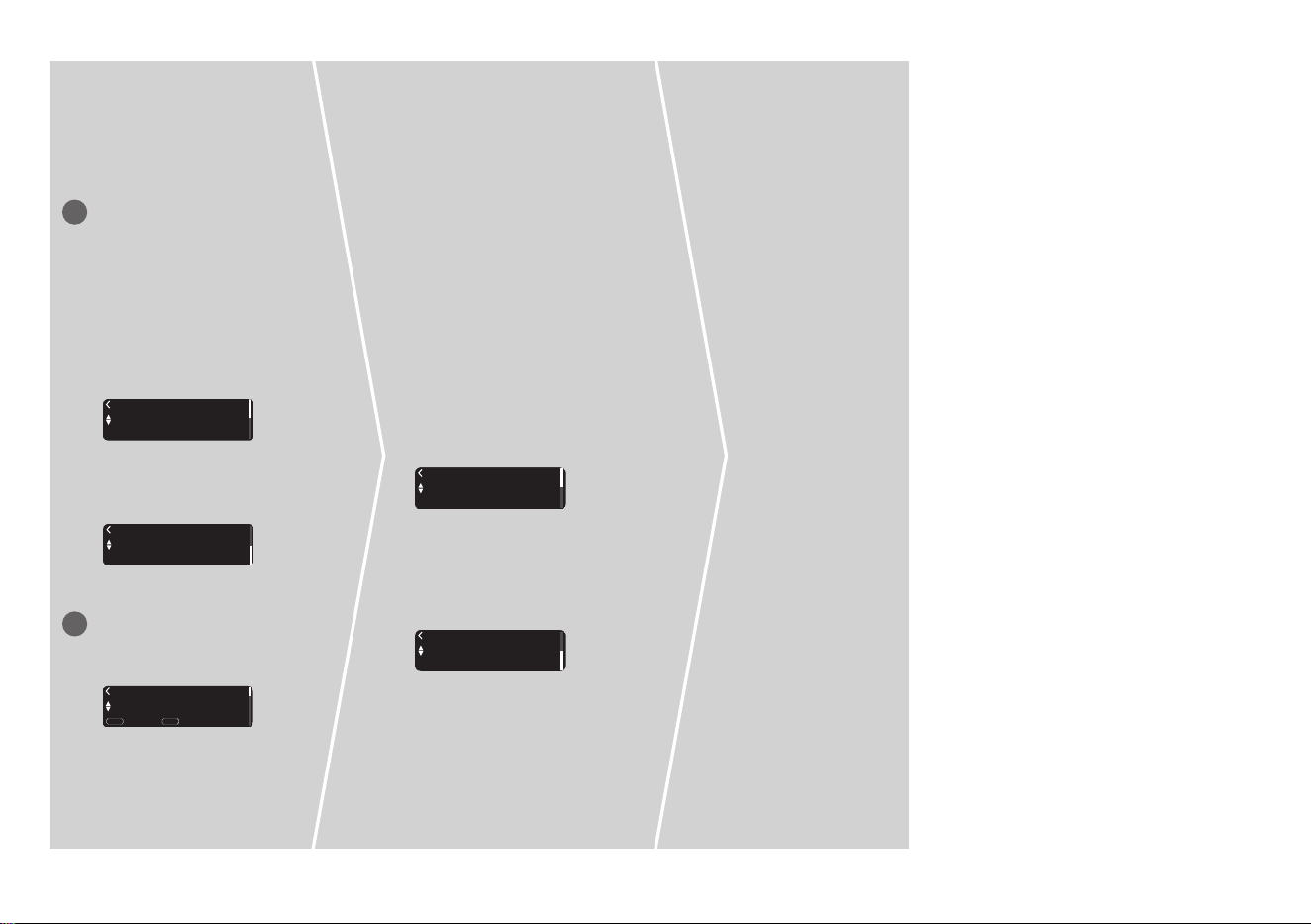
Auto-Update
Setting
Usage Data
Setting
Setup
Complete!
Turns on Auto-Update
so that future updates
are automatically
downloaded and installed
when your PM7000N is
in standby mode.
On
Auto-Update
Feature updates are automatically do...
1
Select “On” to turn on
Auto-Update.
Off
Auto-Update
Feature updates are not automatically...
Select “O” to turn o
Auto-Update.
Sets the time zone that
matches the area where
you live.
2
To help us improve our
products and customer service,
Marantz collects anonymous
information about how you use
your PM7000N. Marantz will
never provide any information
we collect to third parties.
Yes
Send usage data
To help us improve our products and...
Select “Yes” to provide
information on the operating
status of this unit.
No
Send usage data
To help us improve our products and...
Select “No” to not provide
information on the operating
status of this unit.
Eastern Standard Tim...
Select your time zone
:
back
:
enter
ENTER
BACK
1.PM7000NU_ENG_QSG_190808.indd 9 2019/08/23 13:56:33
PrintingColor:Black
10
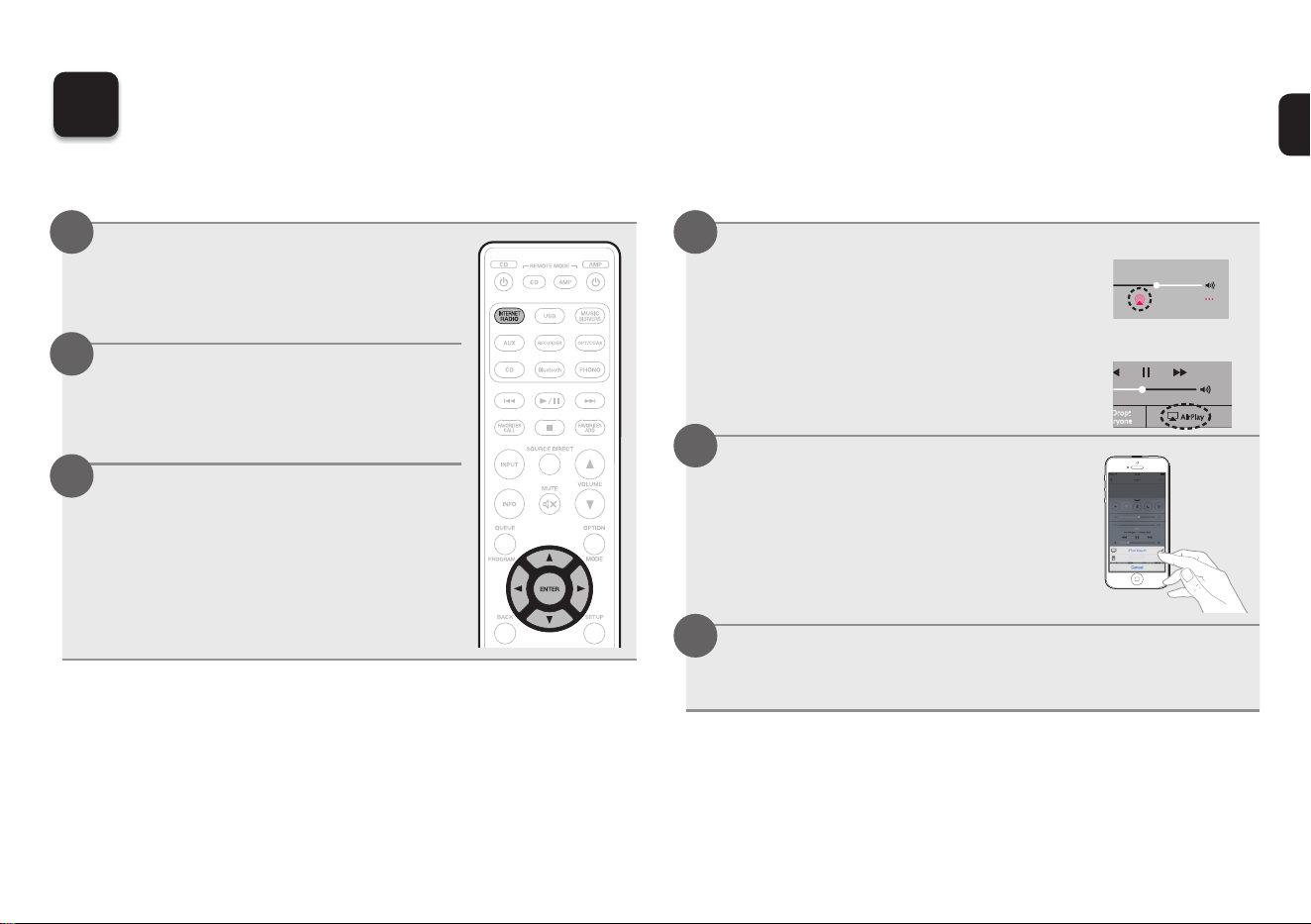
n Enjoying Internet Radio
Press INTERNET
RADIO.
Select the station you
want to play, then
press ENTER.
Select “Play Now”,
then press ENTER.
1
2
3
n Enjoying music using Apple AirPlay
Open Control Center
(iOS 7 and later) by
swiping up from the
bottom of your screen,
then tap AirPlay.
【Example】iOS 12
【Example】iOS 9
AirPlay
D
rop:
ryon
e
Select the “Marantz
PM7000N” from the
AirPlay Device list.
Marantz PM7000N
Play the song on your iPhone, iPod
touch or iPad.
1
2
5
Enjoying your music!
3
1.PM7000NU_ENG_QSG_190808.indd 10 2019/08/23 13:56:34
PrintingColor:Black
11
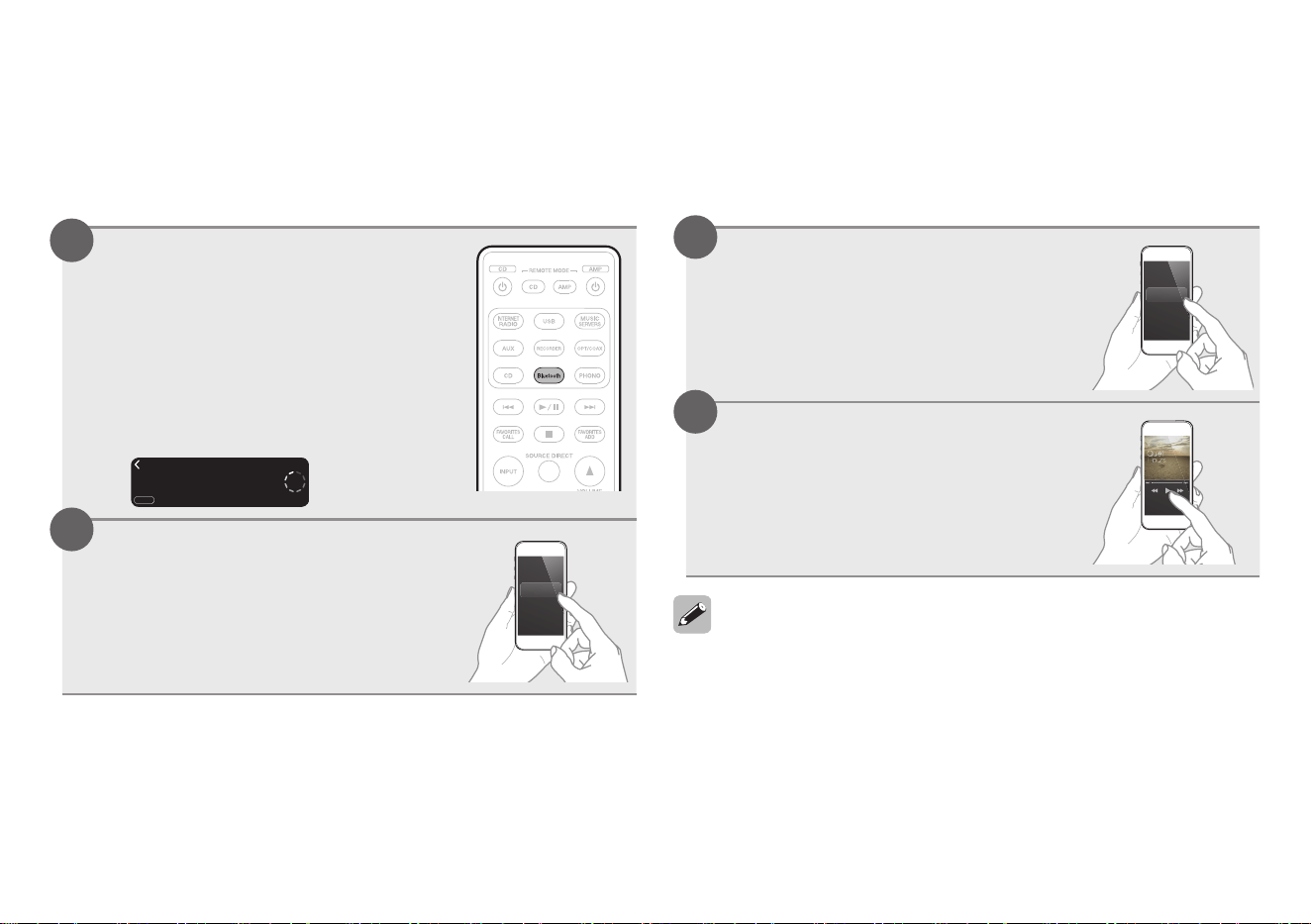
n Enjoying music using Bluetooth
Press Bluetooth to
select Bluetooth.
When using for the fi rst time,
the unit will go into the pairing
mode automatically and
“Bluetooth Pairing Mode” will
appear on the display of the unit.
Turn on Bluetooth fr...
Bluetooth Pairing Mode
:
cancel
BACK
Activate Bluetooth on
your mobile device.
Bluetooth ON
Marantz NA6005
Bluetooth
1
2
Select “Marantz
PM7000N” from the
Bluetooth device list on
your mobile device.
Bluetooth ON
Marantz PM7000N
Bluetooth
Play music using any
app on your device.
Bluetooth ON
Marantz NA6005
Bluetooth
• To pair with other Bluetooth devices, press and hold Bluetooth on the
remote control until “Bluetooth Pairing Mode” is displayed on the unit.
3
4
1.PM7000NU_ENG_QSG_190808.indd 11 2019/08/23 13:56:38
PrintingColor:Black
12
6
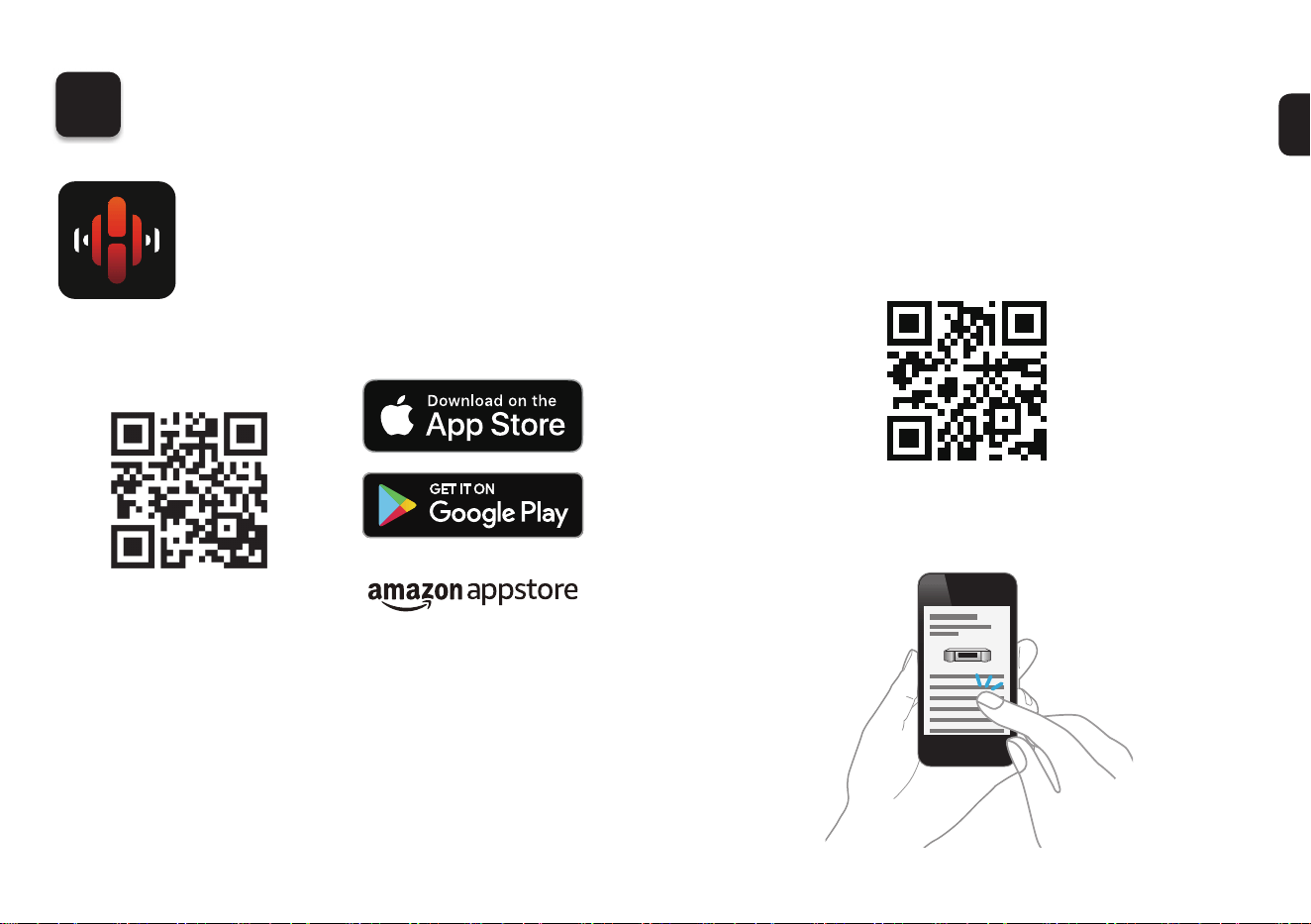
Download the HEOS App
The HEOS App lets you control your
PM7000N from anywhere in your home.
Use HEOS to explore, browse, and play
music from many online streaming services
or from your own music library.
Owner’s Manual
• For more information, visit www.marantz.com
• Refer to the Online Manual for other functions
information and operation procedure details.
manuals.marantz.com/PM7000N/NA/EN/
Online Manual
1.PM7000NU_ENG_QSG_190808.indd 12 2019/08/23 13:56:38
PrintingColor:Black

Printed in Vietnam 5411 11776 00AM
Copyright © 2019 D&M Holdings Inc. All Rights Reserved.
4. PM7000NU_QSG_BackPage_190808.indd 3 2019/08/23 14:11:04
PrintingColor:Black