Operating Instructions
Mode d'emploi
Manual de instrucciones
PLASMA DISPLAY SYSTEM
SYSTEME D'ÉCRAN PLASMA
SISTEMA DE PANTALLA DE PLASMA
PDP-5030HD
PDP-4330HD
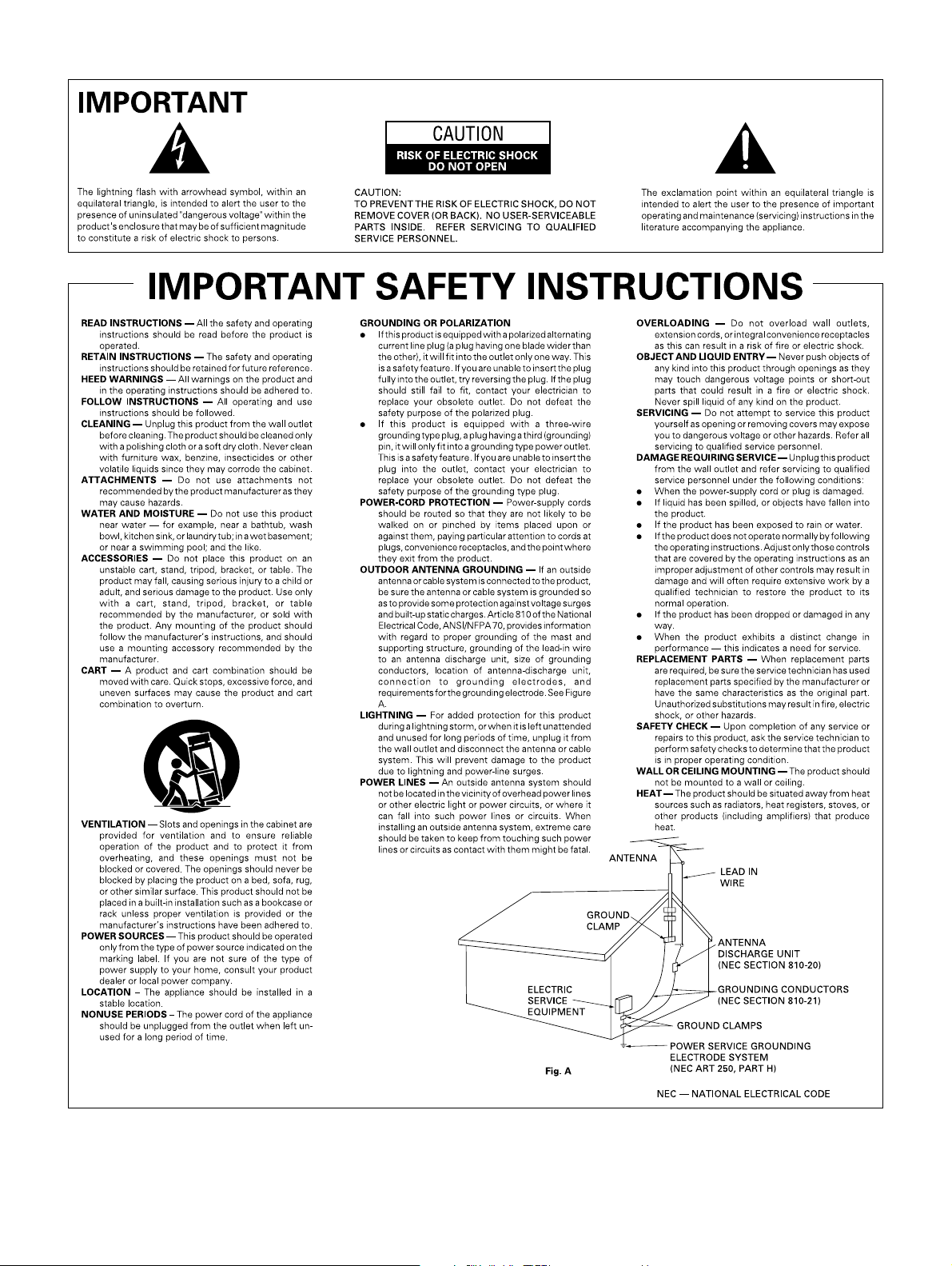
Note to CATV system installer.
This reminder is provided to call the CATV system installer’s attention to Article 820-40 of the NEC that provides
guidelines for proper grounding and, in particular, specifies that the cable ground–shall be connected to the
grounding system of the building, as close to the point of cable entry as practical.
WARNING: THE APPARATUS IS NOT WATERPROOFS, TO PREVENT FIRE OR SHOCK HAZARD, DO NOT
EXPOSE THIS APPLIANCE TO RAIN OR MOISTURE AND DO NOT PUT ANY WATER SOURCE NEAR THIS
APPARATUS, SUCH AS VASE, FLOWER POT, COSMETICS CONTAINER AND MEDICINE BOTTLE ETC.
NOTE:
This equipment has been tested and found to comply with the limits for a class B digital device, pursuant to Part
15 of the FCC Rules. These limits are designed to provide reasonable protection against harmful interference in a
residential installation. This equipment generates, uses, and can radiate radio frequency energy and, if not installed
and used in accordance with the instructions, may cause harmful interference to radio communications. However, there
is no guarantee that interference will not occur in a particular installation. If this equipment does cause harmful interference
to radio or television reception, which can be determined by turning the equipment off and on, the user is encouraged
to try to correct the interference by one or more of the following measures:
— Reorient or relocate the receiving antenna.
— Increase the separation between the equipment and receiver.
— Connect the equipment into an outlet on a circuit different from that to which the receiver is connected.
— Consult the dealer or an experienced radio/TV technician for help.
Information to User
Alteration or modifications carried out without appropriate authorization may invalidate the user’s right to operate the
equipment.
[For Canadian model]
This Class B digital apparatus complies with Canadian ICES-003.
CAUTION:
This product satisfies FCC regulations when shielded cables and connectors are used to connect the unit to other
equipment. To prevent electromagnetic interference with electric appliances such as radios and televisions, use shielded
cables and connectors for connections.
FEDERAL COMMUNICATIONS COMMISSION
DECLARATION OF CONFORMITY
This device complies with part 15 of the FCC Rules. Operation is subject to the following two conditions: (1)
This device may not cause harmful interference, and (2) this device must accept any interference received,
including interference that may cause undesired operation.
Product Name: Plasma Display System
(Plasma Display)
(Media Receiver)
Model Number: PDP-5030HD PDP-4330HD
(PDP-503PU) (PDP-433PU)
(PDP-R03U) (PDP-R03U)
Product Category: Class B Personal Computers & Peripherals
Responsible Party Name: PIONEER ELECTRONICS (USA), INC., Customer Support Div.
Address: P.O. BOX 1760, LONG BEACH, CA., 90801-1760 U.S.A.
Phone: (800) 421-1625
For Business Customer URL http://www.PioneerUSA.com
IMPORTANT NOTICE: The serial number for this equipment is located on the rear panel. Please write this
serial number on your enclosed warranty card and keep it in a secure area. This is for your security.

E-1
Dear customer
Thank you for your purchase of the PIONEER product. To ensure safety and many years of trouble-free operation
of your product, please read the IMPORTANT SAFETY INSTRUCTIONS carefully before using this product.
Contents
Dear customer ……………………………………… 1
Contents ……………………………………………… 1
Important User Guidance Information ……………2
Features ……………………………………………… 3
Supplied accessories ……………………………… 4
Plasma Display ……………………………………4
Media Receiver ……………………………………4
Preparation ……………………………………………5
Installing the Plasma Display ……………………5
Setting the system ……………………………… 6
How to route cables ……………………………… 7
Using the remote control unit …………………… 8
Cautions regarding remote control unit …… 8
Inserting the batteries ……………………… 8
Cautions regarding batteries ………………8
Part names ……………………………………………9
Plasma Display ……………………………………9
Media Receiver ………………………………… 10
Remote control unit …………………………… 11
Watching TV ……………………………………… 12
Basic connection ……………………………… 12
Turning on the power ………………………… 14
Turning off the power ………………………… 14
Initial auto installation ………………………… 15
Simple button operations for changing
channels …………………………………… 16
Simple button operations for changing
volume/sound ……………………………… 17
Using FRONT SURR(SURROUND) on the
remote control unit ………………………… 18
Setting MTS/SAP stereo mode ……………… 19
Basic adjustment settings ……………………… 20
AV mode menu items ………………………… 20
PC mode menu items ………………………… 21
Moving the picture on the screen …………… 22
Auto installation ………………………………… 23
Channel setup ………………………………… 24
Language setting ……………………………… 26
Picture adjustments …………………………… 27
Color temperature ………………………… 28
Black ……………………………………… 28
3D-Y/C ……………………………………… 29
Black & White ……………………………… 29
PureCinema………………………………… 30
Sound adjustment ……………………………… 31
Power control …………………………………… 32
Power control for AV source ……………… 32
Power control for PC source ……………… 33
Using external equipment ……………………… 34
Watching a DVD image ……………………… 35
Connecting a DVD player ………………… 35
Displaying a DVD image ………………… 35
Watching a VCR image ……………………… 36
Connecting a VCR ………………………… 36
Displaying a VCR image ………………… 36
Watching broadcasts via a Digital tuner …… 37
Connecting a Digital tuner ……………… 37
Displaying broadcasts via a Digital tuner 37
Enjoying a game console or viewing camcorder
images ……………………………………… 38
Connecting a game console or
camcorder …………………………… 38
Displaying an image of the game console
or camcorder images ………………… 38
Viewing an image from a computer ………… 39
Connecting a computer ………………… 39
Displaying an image from a computer … 39
Control cord connection ……………………… 40
Useful adjustment settings ……………………… 41
Image position (AV mode only) ……………… 41
Auto Sync. adjustment (PC mode only) …… 42
Fine Sync. adjustment (PC mode only) ……… 42
Input signal source …………………………… 43
AV SELECTION ………………………………… 44
Wide Mode ……………………………………… 45
Audio out ……………………………………… 46
Sleep timer ……………………………………… 46
Closed caption ………………………………… 47
Parental control (setting V-CHIP level) ……… 48
Secret number setting for parental control
(AV mode only) …………………………… 52
How to temporarily release
the V-CHIP BLOCK ……………………… 54
Reactivating the temporarily released
V-CHIP BLOCK …………………………… 54
Useful features …………………………………… 55
Multiscreen functions ………………………… 55
Learning remote control function …………… 56
Using the TV remote control unit to
control other device ……………………… 58
Appendix ………………………………………… 64
Troubleshooting ………………………………… 64
Computer compatibility chart ………………… 65
Specifications ………………………………… 66

E-2
Important User Guidance Information
In order to obtain maximum enjoyment from this Pioneer PureVision PDP-5030HD/PDP-4330HD Plasma Display System, please first read
this information carefully.
With the Pioneer PureVision PDP-5030HD/PDP-4330HD, you can be assured of a high quality Plasma Display System with long-life and
high reliability. To achieve images of exceptional quality, this Pioneer Plasma Display System incorporates state-of-the-art design and
construction, as well as very precise and highly advanced technology. On a total of nearly 3 million light cells, more than 99.999 percent
of the cells remain active.
Over the course of its lifetime, the luminosity of the Pioneer PDP-5030HD/PDP-4330HD Plasma Display System will diminish very slowly,
such as with all phosphor-based screens (for example, a traditional tube-type television). To enjoy beautiful and bright images on your
Pioneer Plasma Display System for many years to come, please carefully read and follow the usage guidelines below.
Usage guidelines
All phosphor-based screens (including conventional tube-type televisions) can be affected by displaying static images for a prolonged
period. Plasma Display Systems are no exception to this rule. After-image and permanent effects on the screen can be avoided by taking
some basic precautions. By following the recommendations listed below, you can ensure longer and satisfactory results from your plasma:
• Whenever possible, avoid frequently displaying the same image or virtually still moving pictures (e.g. closed-captioned images or
video game images which have static portions).
• Avoid viewing the On Screen Display for extended periods, from a Digital tuner, DVD player, VCR and all other components.
• Do not leave the same picture freeze-framed or paused continuously over a long period of time, when using the still picture mode
from a TV, VCR, DVD player or any other component.
• Images which have both very bright areas and very dark areas side by side should not be displayed for a prolonged period of time.
• When playing a game, the “GAME” mode setting within “AV SELECTION” is strongly recommended. However, please limit its use to
less than 2 hours at a time.
• After playing a game, or displaying a PC image or any still image, it is best to view a normal moving picture in the “WIDE” or “FULL”
screen setting for over 3 times longer than the previous still/moving image.
• After using the Plasma Display System, always switch the display to “STAND BY” mode.
Installation guidelines
The Pioneer PureVision PDP-5030HD/PDP-4330HD Plasma Display System incorporates a very thin design. To ensure safety, please take
the proper measures to mount or install the Plasma Display, in order to prevent the unit from tipping over in the event of vibration or
accidental movement.
This product should be installed by using only parts and accessories designed by PIONEER. Use of accessories other than the PIONEER
stand or installation bracket may result in instability, and could cause injury. For custom installation, please consult the dealer where the
unit was purchased. To ensure correct installation, experienced and qualified experts must install the unit. PIONEER will not be held
responsible for accident or damage caused by the use of parts and accessories manufactured by other companies.
To avoid malfunction and overheating when installing, make sure that the vents on the main unit are not blocked. To ensure proper heat
emission:
• Distance the unit slightly from other equipment, walls, etc. more than 10 cm(3
15
/16 inch)
• Do not fit the unit inside narrow spaces where ventilation is poor.
• Do not cover with a cloth, etc.
• Clean the vents on the sides and rear of the unit to remove dust build-up by using a vacuum cleaner set to its lowest
suction setting.
Using the unit without proper ventilation may cause the internal temperature to rise, and could result in possible malfunction. When the
surrounding or internal temperature exceeds a certain degree, the display will automatically power off in order to cool the internal electronics
and prevent a hazardous occurrence.
Malfunction can be caused by many factors: inappropriate installation site, improper assembly/installation/mounting, improper operation
of or modifications made to this product. However, PIONEER cannot be held responsible for accidents or malfunction caused by the
above.
A
Typical effects and characteristics of a phosphor-based matrix display such as permanent residual images upon the phosphors of the
panel and the existence of a minute number of inactive light cells in the screen are not covered by local warranties.
About the Plasma Panel’s protection function
The brightness of this display will deteriorate slightly when an image with little movement such as a photograph or computer image is
continuously displayed. This is caused by the Plasma Panel's protection function which detects images with slight movement and
automatically adjusts brightness to protect the display, and is not a malfunction.
This function begins operating when the display detects no or little screen movement for a period of about three minutes.
L
Panel sticking and after-image lag
• Displaying the same images such as still images for a long time may cause after-image lagging. This may occur in the following two
cases.
1. After-image lagging due to remaining electrical load
When image patterns with very high peak luminance are displayed for more than 1 minute, after-image lagging may occur due to the
remaining electric load. The after-images remaining on the screen will disappear when moving images are displayed. The time for the
after-images to disappear depends on the luminance of the still images and the time they had been displayed.
2. After-image (lag image) due to burning
Avoid displaying the same image on the Plasma Display continuously over a long period of time. If the same image is displayed
continuously for several hours, or for shorter periods of time over several days, a permanent after-image may remain on the screen due
to burning of the fluorescent materials. Such images may become less noticeable if moving images are later displayed, but they will not
disappear completely.
• The Energy save function can be set to help prevent damage from screen burning (See page 32-33).
E-3
Features
• New WIDE XGA Plasma Panel
(H:1280 m V:768 pixels, PDP-5030HD)
(H:1024 m V:768 pixels, PDP-4330HD)
• Wide Viewing Angle
• SRS and FOCUS Sound System*
1
• Dual TV Tuner
• Picture and Picture, Still Image Function
• 3-Language On Screen Display
• 4 Video Input and PC (XGA) Input
• Component Video Input and RGB Video Input
• Parental Control System (V-CHIP)
• Power-Saving Design
E-4
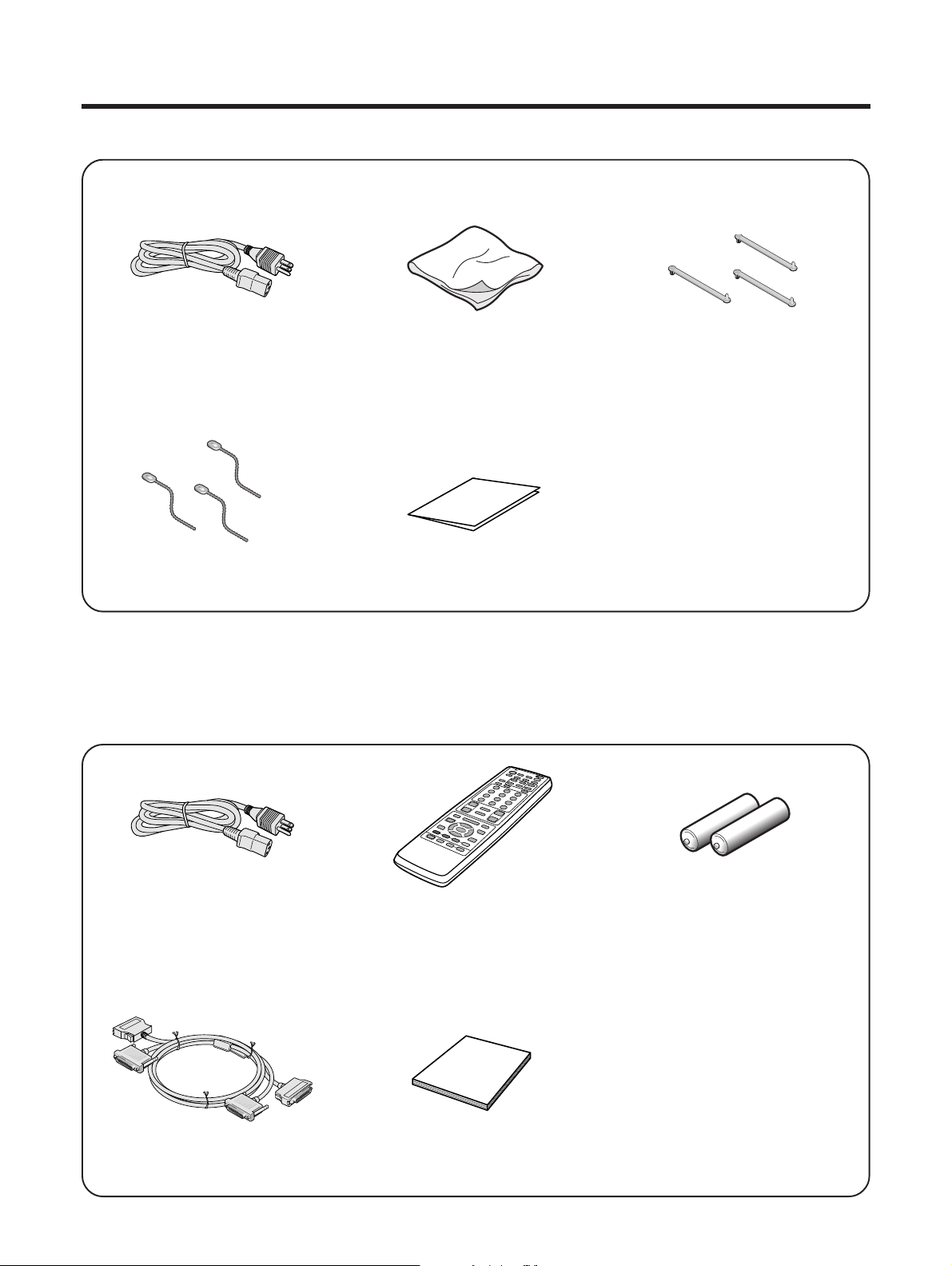
Supplied accessories
Plasma Display
Power cord
Cleaning cloth
Three speed clamps
Three bead bands
Warranty card
Media Receiver
Power cord Remote control unit
Two AA size batteries
(Alkaline battery)
System cable Operating instruction
A
• Always use the power cord supplied with the Plasma Display and the one supplied with the Media Receiver for each
respective unit.
E-5
Preparation
Installing the Plasma Display
Locating
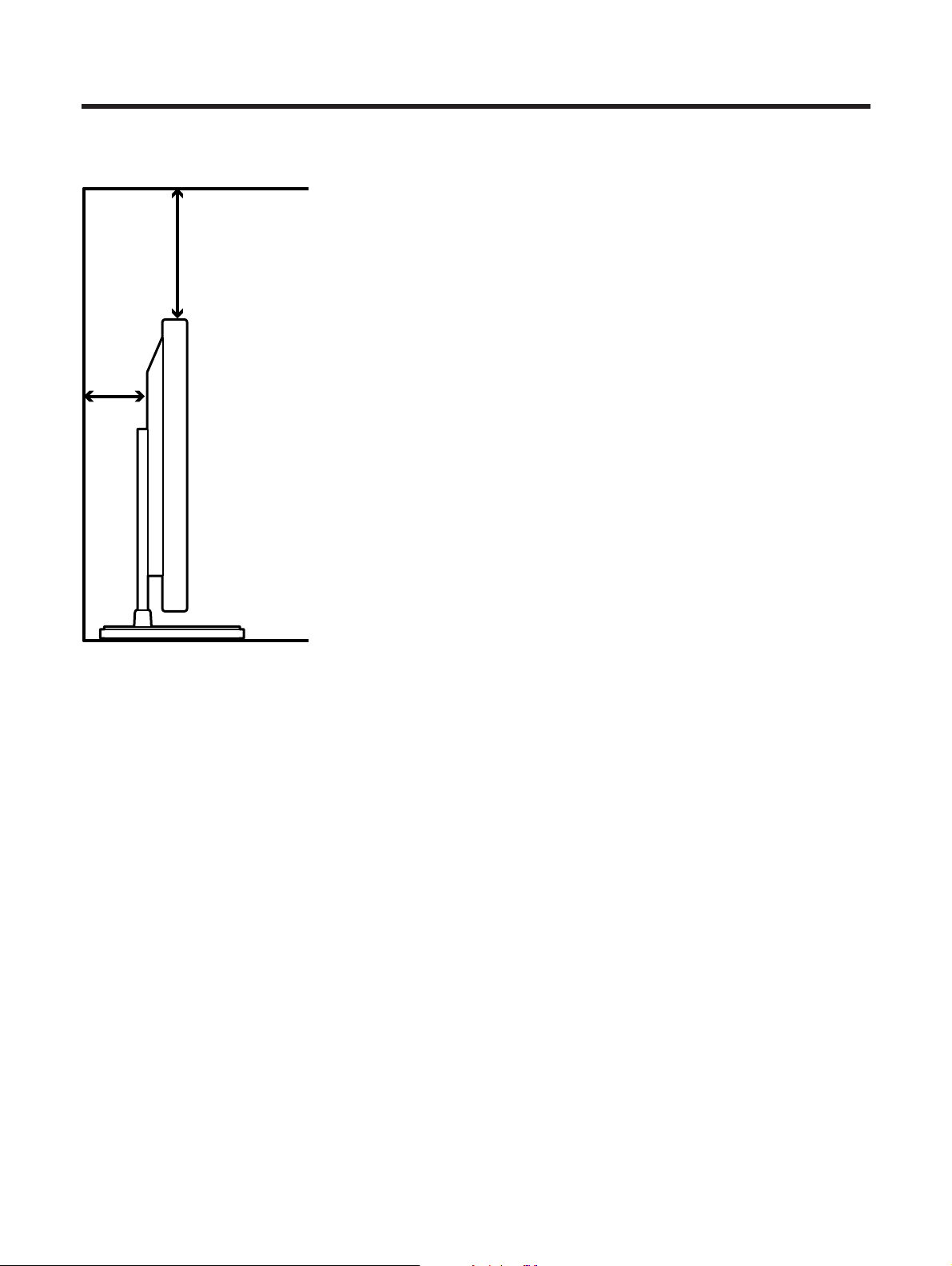
• Avoid the direct sunlight. Keep enough ventilation.
• The length of the system cable used to connect the
Plasma Display and the Media Receiver is about 3
m (118 inch).
• Because the Plasma Display is heavy, be sure to
move it by more than two persons.
L
• If you place anything on top of the Media Receiver it will
not receive enough ventilation and not operate properly.
A
• Keep enough space around the upper and back parts
when installing in order to ensure ventilation around the
backside.
Using the optional PIONEER stand
• For details on installation refer to the instruction
manual provided with the stand.
L
• This product may be used only with model PDK-TS01
stand, use with other stands may result in instability
causing possible injury.
Using the optional PIONEER speakers
• For details on installation refer to the instruction
manual provided with the speaker.
L
Operating Environment
Operating environment temperature and humidity: e0°C to
e40°C (e32F to e104F); less than 20 % to 80% RH (cooling
vents not blocked)
Avoid installing in the following locations:
• Under direct exposure to sunlight,
• Under strong artificial light,
• In high humidity,
• Poorly ventilated.
Over
10 cm
(3
15
/16
inch )
Over 50 cm
(19
11
/16 inch)
E-6
Preparation
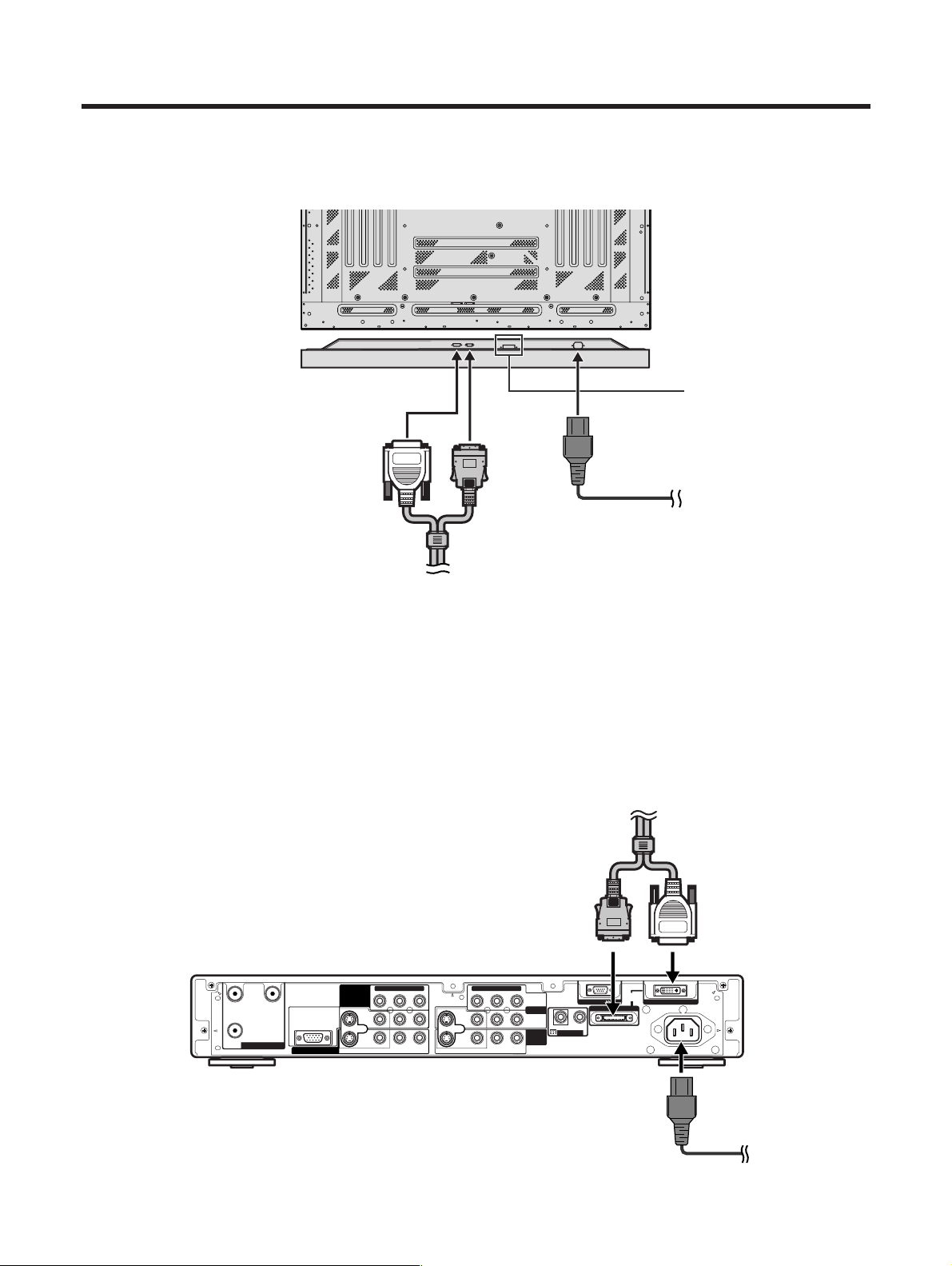
System cable
Media Receiver (rear view)
Power cord
Plasma Display (rear view)
Power cord
System cable
(bottom view)
For details on optional
PIONEER speaker
installation refer to the
speaker instruction
manual provided.
(GRAY)(WHITE)
(GRAY) (WHITE)
Setting the system
1. Connecting the system cable and the power cord to the Plasma Display
2. Connecting the system cable and the power cord to the Media Receiver
L
• THESE SPEAKER TERMINALS CAN BE UNDER HAZARDOUS VOLTAGE WHEN YOU CONNECT OR DISCONNECT
THE SPEAKER CABLES. TO PREVENT THE RISK OF ELECTRIC SHOCK, DO NOT TOUCH UNINSULATED PARTS
BEFORE DISCONNECTING THE POWER CORD.
(GRAY)
RS-232C
IN
OUT
CONTROL
AC INLET
SYSTEM
CABLE
(WHITE)
YP
B
P
R
S-VIDEO VIDEO R-AUDIO-L
YP
B
P
R
S-VIDEO
ANT/CABLE 75ΩOUT
COMPONENT VIDEO COMPONENT VIDEO
VIDEO R-AUDIO-L
AB
INPUT 1
INPUT 2
RGB INPUT
INPUT 3
MONITOR OUTPUT
E-7
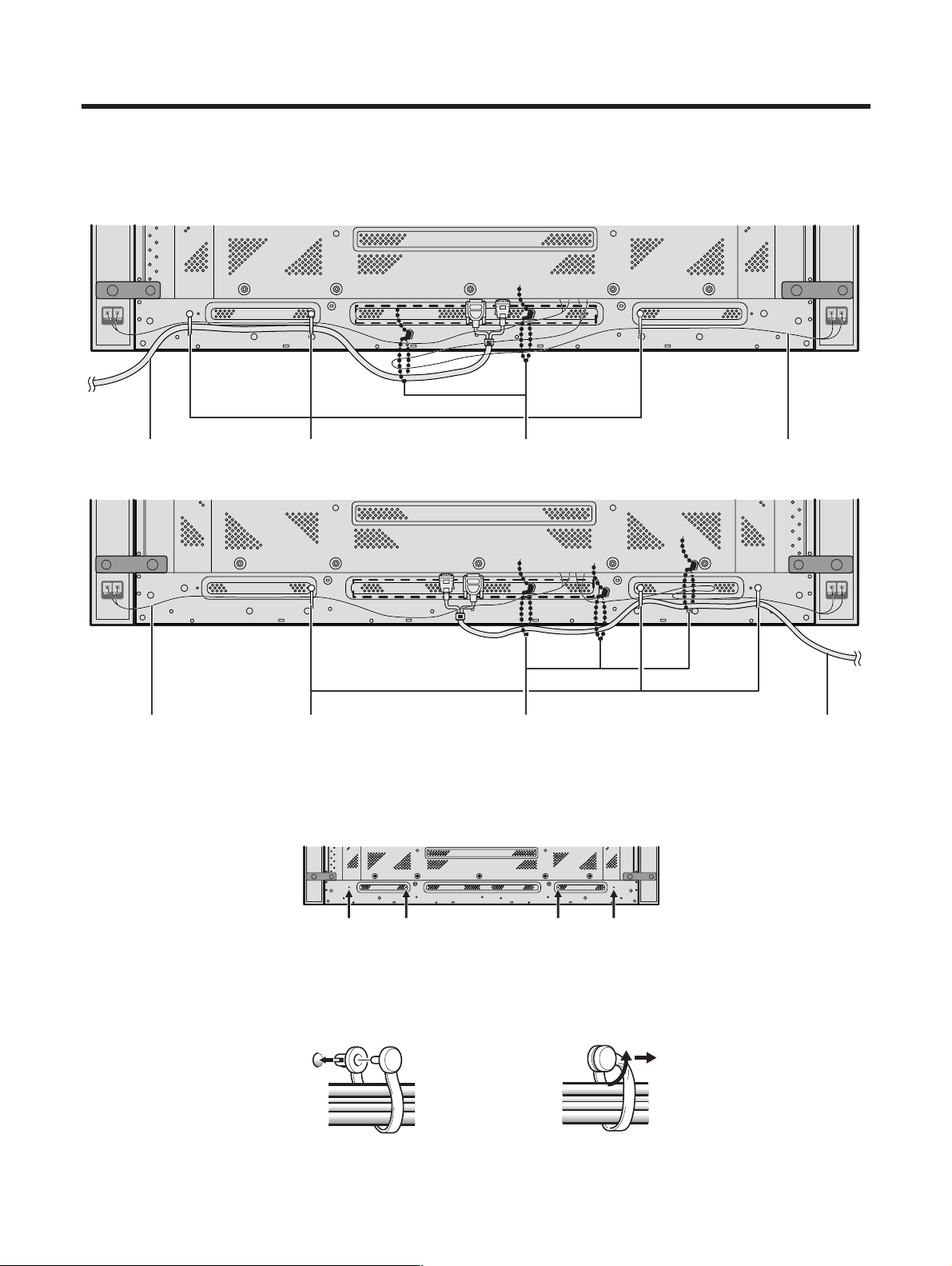
Bunch cables using provided speed clamps
Attaching speed clamps to the main unit
Connect the speed clamps using the 4 holes marked with • below, depending on your routing system.
Attaching and removing speed clamps
Insert 1 into an appropriate hole on the rear of the Plasma Display and snap 2 into the back of 1 to fix the
clamp.
Speed clamps are designed to be difficult to undo once in place. Please attach carefully.
Use pliers to twist the clamp 90°, pulling outward. The clamp may deteriorate over time and become damaged
if removed.
Gather cables into a bunch, secure with provided bead bands
A
• Cables can be routed to the right or left.
Preparation
How to route cables
Speed clamps and bead bands are included with this System for bunching cables. Once properly bunched,
follow the steps below to route the cables.
As viewed from the rear of the display.
1
2
System cable Speed clamps Bead bands Speaker cable
System cableSpeaker cable Speed clamps Bead bands
To the left
To the right
E-8
Preparation
+
+
_
_
Using the remote control unit
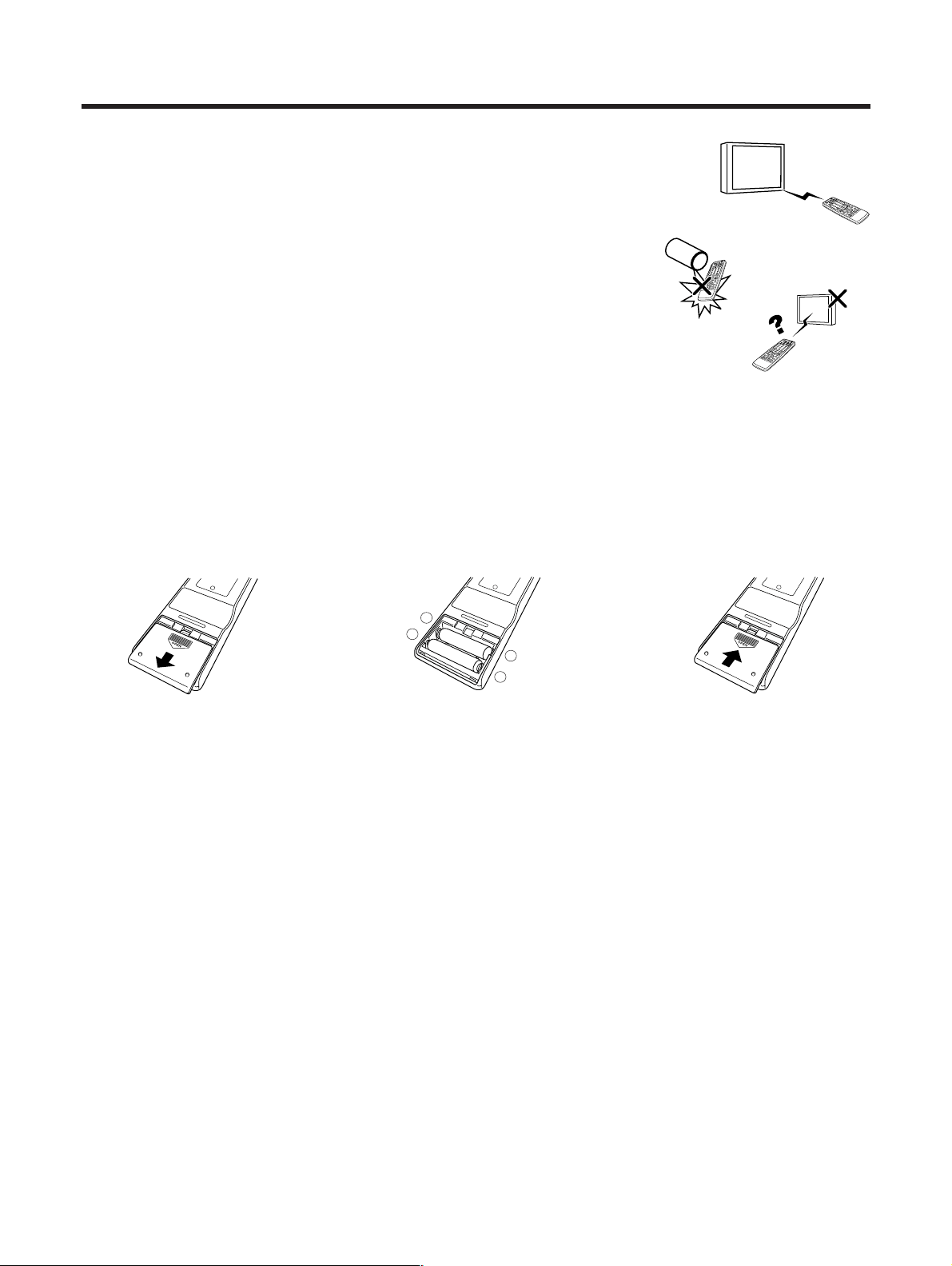
Use the remote control unit by pointing it towards the remote sensor window.
Objects between the remote control unit and sensor window may prevent proper
operation.
Cautions regarding remote control unit
• Do not expose the remote control unit to shock. In addition, do not expose the
remote control unit to liquids, and do not place in an area with high humidity.
• Do not install or place the remote control unit under direct sunlight. The heat
may cause deformation of the unit.
• The remote control unit may not work properly if the remote sensor window of
the Plasma Display is under direct sunlight or strong lighting. In such case,
change the angle of the lighting or Plasma Display set, or operate the remote
control unit closer to the remote sensor window.
Inserting the batteries
If the remote control unit fails to operate Plasma Display System functions,
replace the batteries in the remote control unit.
1 Open the battery cover. 2 Insert batteries (two AA size
batteries supplied with product).
• Place batteries with their terminals
corresponding to the (e) and (f)
indicators in the battery compartment.
3 Close the battery cover.
Cautions regarding batteries
Improper use of batteries can result in chemical leakage or explosion. Be sure to follow the instructions below.
• Do not use manganese batteries. When you replace the batteries, use alkaline ones.
• Place the batteries with their terminals corresponding to the (e) and (f) indicators.
• Do not mix batteries of different types. Different types of batteries have different characteristics.
• Do not mix old and new batteries. Mixing old and new batteries can shorten the life of new batteries or cause
chemical leakage in old batteries.
• Remove batteries as soon as they have worn out. Chemicals that leak from batteries can cause a rash. If you
find any chemical leakage, wipe thoroughly with a cloth.
• The batteries supplied with this product may have a shorter life expectancy due to storage conditions.
• If you do not plan to use the remote control unit for an extended period of time, remove the batteries from it.
L
• WHEN DISPOSING OF USED BATTERIES, BE SURE TO COMPLY WITH GOVERNMENT REGULATIONS AND
ENVIRONMENTAL PROTECTION GUIDELINES THAT APPLY IN YOUR COUNTRY OR AREA.
E-9
Part names
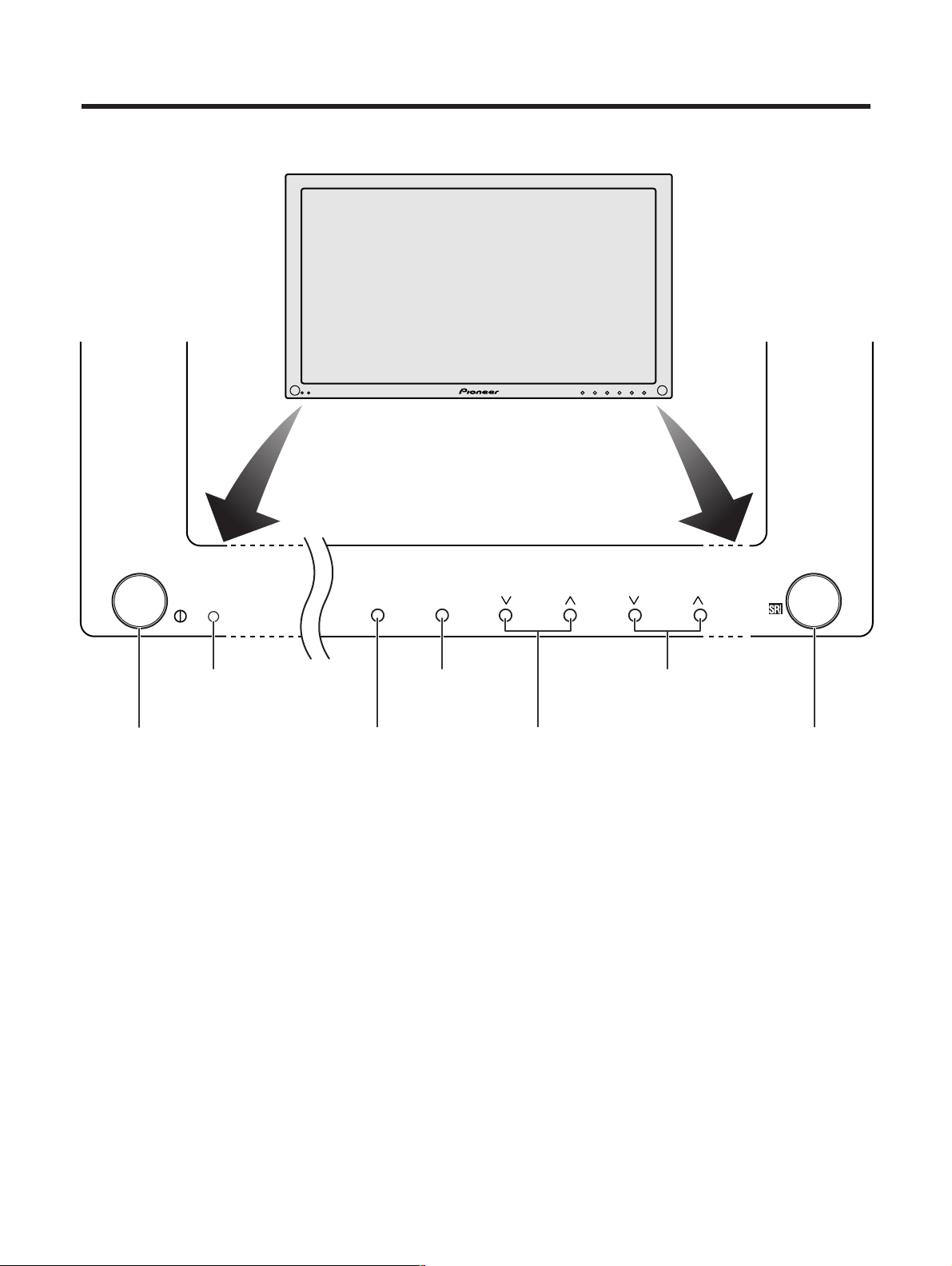
STANDBY/ON
INPUTSTANDBY/ON VOLUMECHANNEL
MAIN POWER button
Power indicator
STANDBY/ON button
INPUT button VOLUME s/r buttons
CHANNEL s/r buttons Remote control sensor
Plasma Display
E-10
Part names
(GRAY)
RS-232C
IN
OUT
CONTROL
AC INLET
SYSTEM
CABLE
(WHITE)
YP
B
P
R
S-VIDEO VIDEO R-AUDIO-L
YP
B
P
R
S-VIDEO
ANT/CABLE 75ΩOUT
COMPONENT VIDEO COMPONENT VIDEO
VIDEO R-AUDIO-L
AB
INPUT 1
INPUT 2
RGB INPUT
INPUT 3
MONITOR OUTPUT
POWER
STANDBY/ON
MEDIA RECEIVER
PDP-R03U
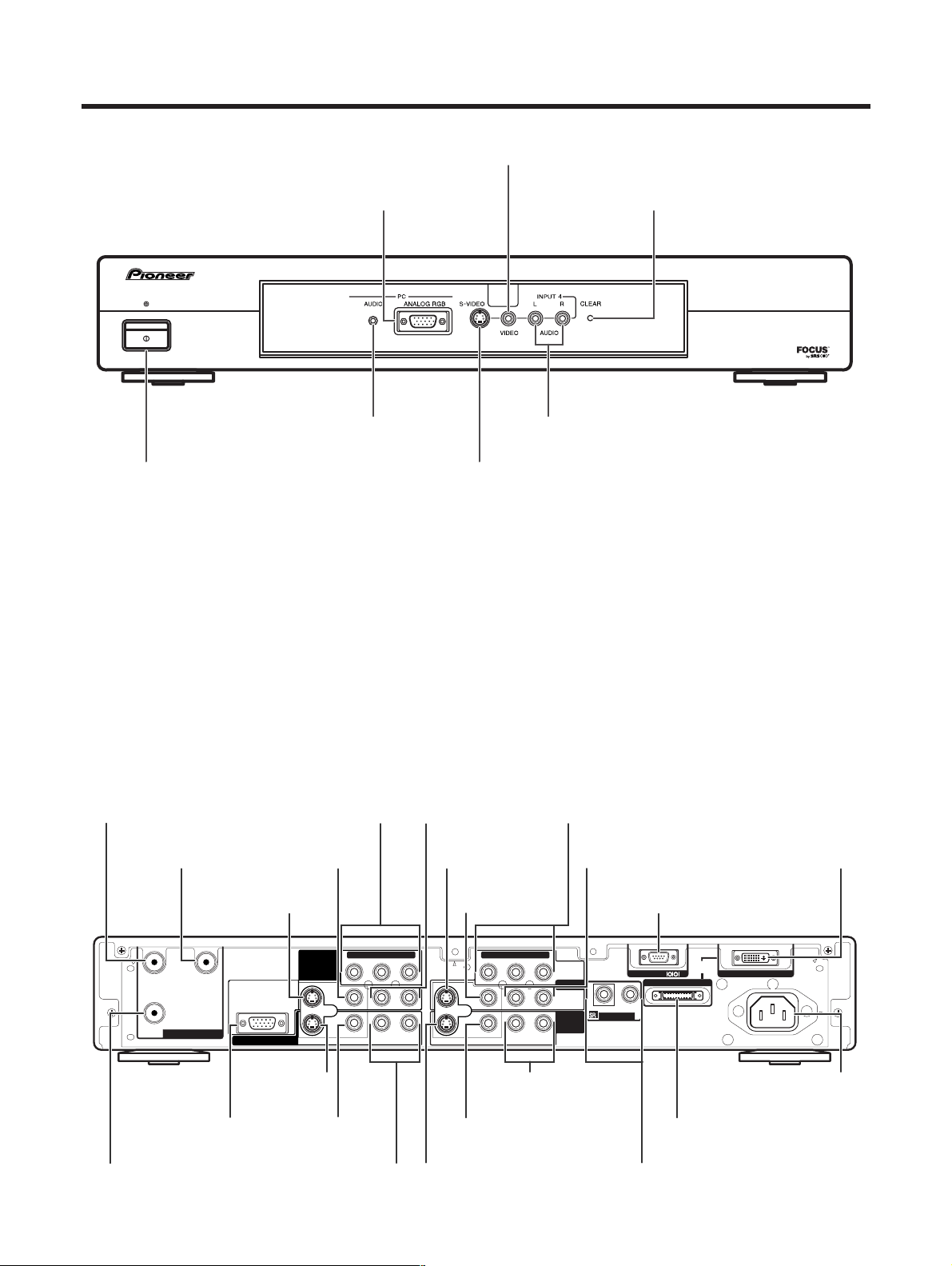
Front view
CLEAR*
POWER button
INPUT 4 terminal (S-VIDEO)
INPUT 4 terminal (VIDEO)
PC INPUT terminal (AUDIO) INPUT 4 terminals (AUDIO)
PC INPUT terminal (ANALOG RGB)
Media Receiver
* If you’re having problems operating the Media Receiver and want to return to normal screen, even when it
stays on (the indicator lights green), press CLEAR on the Media Receiver. Pressing CLEAR resets the System
as shown below.
• AV SELECTION resets to STANDARD
• TV channel returns to initial channel setting(Air:2ch, Cable:1 or 2ch)
• Multiscreen resets to normal
• Audio setting initializes
• SRS resets to Off.
• Image position initializes
A
• Pressing CLEAR will not work if the System is in standby mode but the indicator lights red.
• Pressing CLEAR will not delete channel preset or secret number. See Page 53 for initializing factory preset settings when
you know your secret number. See Page 67 for initializing factory preset values when you have forgotten your secret
number.
Rear view
INPUT 1 COMPONENT VIDEO
terminals (Y, P
B, PR)
INPUT 3 COMPONENT
VIDEO terminals (Y, P
B, PR)
MONITOR OUTPUT
terminal (S-VIDEO)
SYSTEM CABLE terminal
(GRAY)
SYSTEM CABLE
terminal (WHITE)
AC INLET terminal
RS-232C terminal
(used in the factory setup)
MONITOR OUTPUT
terminal (VIDEO)
MONITOR OUTPUT
terminals (AUDIO)
CONTROL terminals
(IN/OUT)
Antenna input
terminal (A)
Antenna input
terminal (B)
Antenna output
terminal
INPUT 3
RGB INPUT
terminal
INPUT 3 terminal
(S-VIDEO)
INPUT 3 terminal
(VIDEO)
INPUT 3 terminals
(AUDIO)
INPUT 1 terminal
(S-VIDEO)
INPUT 1 terminal
(VIDEO)
INPUT 1 terminals
(AUDIO)
INPUT 2 terminal
(S-VIDEO)
INPUT 2 terminal
(VIDEO)
INPUT 2 terminals
(AUDIO)
Push CLEAR lightly with the tip
of a pointed object like a
ballpoint pen.
E-11
Part names
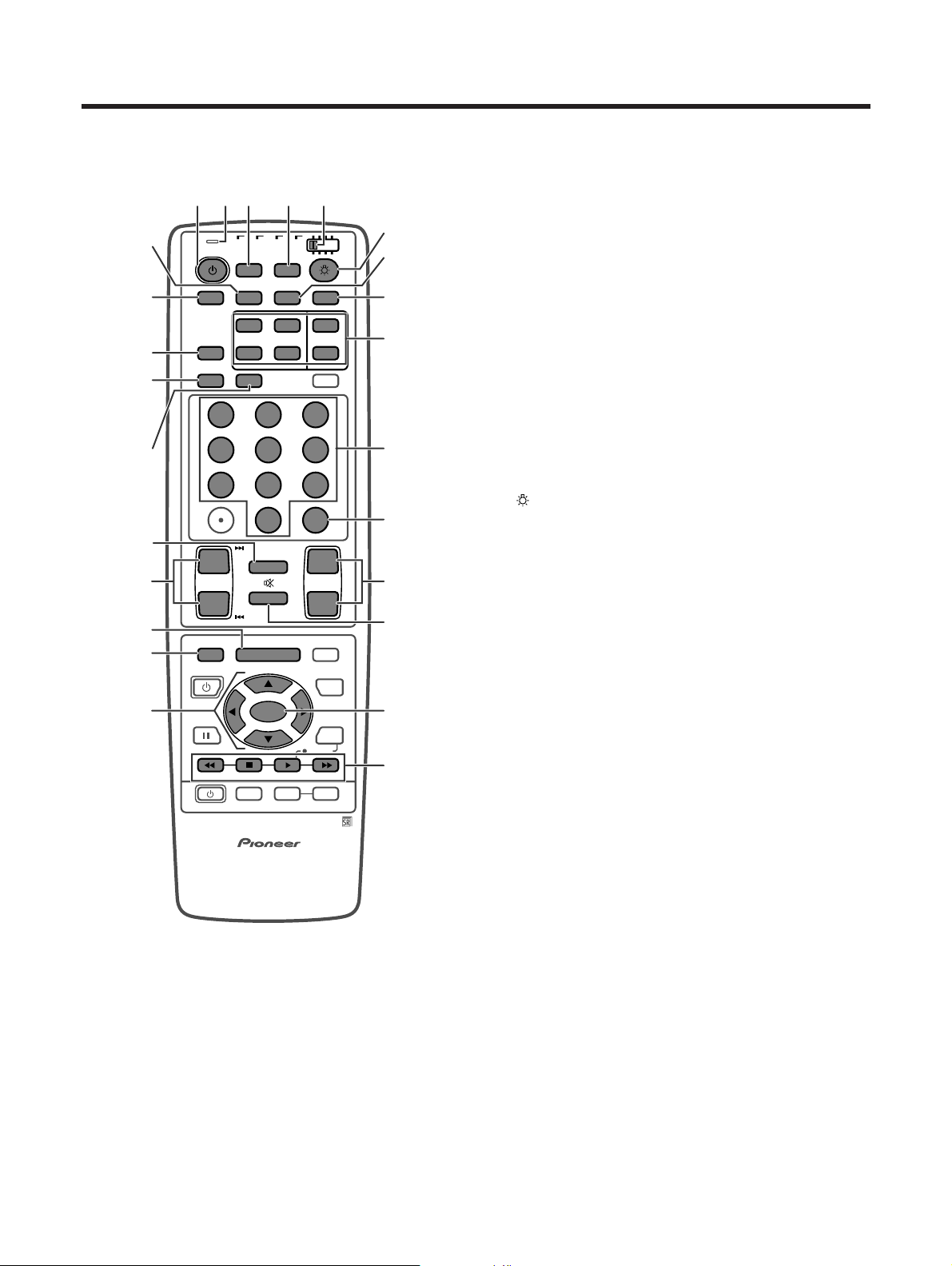
Remote control unit
A
• When using the remote control unit, point it at the Plasma
Display.
• See pages 56 to 63 for operating buttons not listed on
this page.
Set the mode switch to TV.
1TV a: Switch the Plasma Display power on or off.
2 FRONT SURR: Set SRS and FOCUS Sound System.
3 AV SELECTION: Select an audio or video setting.
(AV mode: STANDARD, DYNAMIC,
MOVIE, GAME, USER.
PC mode: STANDARD, USER.)
4 SCREEN MODE: Select the screen size.
5 DISPLAY: Display the channel information.
6 SLEEP: Set the SLEEP timer.
7 CH RETURN: Return to the previous channel.
8CH k/l: Select the channel.
9 MENU: Display the menu screen.
10 MENU RETURN: Return to the previous menu screen.
11 a/b/c/d: Select a desired item on the setting screen.
12 ANT: Select the antenna. (A, B) (See page 12 for details)
13 INPUT: Select an input source of the Plasma Display.
(TV, INPUT 1, INPUT 2, INPUT 3, INPUT 4, PC)
14
: When pressed all buttons on the remote control unit
will light. The lighting will turn off if no operations
are performed within about 5 seconds. This button
is used for performing operations in dark places.
15 MTS: Select the MTS/SAP.
16 CC: Display captions during closed-caption source.
17 Dual picture mode select buttons
SPLIT: Set the dual picture mode. Press again to return
to normal screen.
FREEZE: Set the still image. Press again to return to
normal screen.
SELECT: Select the active screen.
SUB INPUT: Select an input source of sub screen.
SUB CH k/l: Select the channel of sub screen.
18 0 – 9: Set the channel.
19 CH ENTER: Execute a channel number.
20 VOL k/l: Set the volume.
21 e MUTING: Mute the sound.
22 SET/ENTER: Execute a command.
23 FAVORITE CH
A, B, C, D: Select any of four preset channels. (See
page 25 for ditails to set the FAVORITE CH.)
While watching you can toggle the set channels by
pressing A, B, C and D.
24 LED for transmission confirmation
TV
ANT INPUT
SURR
FRONT
AV
SELECTION
MTS CC
SPLIT
SELECT
SUB SUB CH
ⴐ
ⴐ
ⴑ
ⴐ
ⴑ
FREEZE
MODE
CH VOL
RETURN
CH
MUTING
MENU TV/SAT/DVD
FAVORITE CH
RECEIVER
DTV/DVD TOP
SOURCE DTV/SAT
DTV/SAT
VCR REC
ABCD
RETURN
MENU
PLASMA DISPLAY
SET/
ENTER
MENU
GUIDE
INPUT VOL
ⴑ
VOL
ⴐ
INFO
SCREEN
SLEEP LEARNEDIT/
DISPLAY
INPUT ⴑ
TV VCRCBL
/SAT
/DTV
DVD
/LD
123
456
789
0
CH
ENTER
11224 13
15
16
14
17
18
19
4
3
2
5
6
7
20
21
22
23
8
9
10
11
Mode switch
E-12
Watching TV
Simple operations for watching a TV program
Basic connection
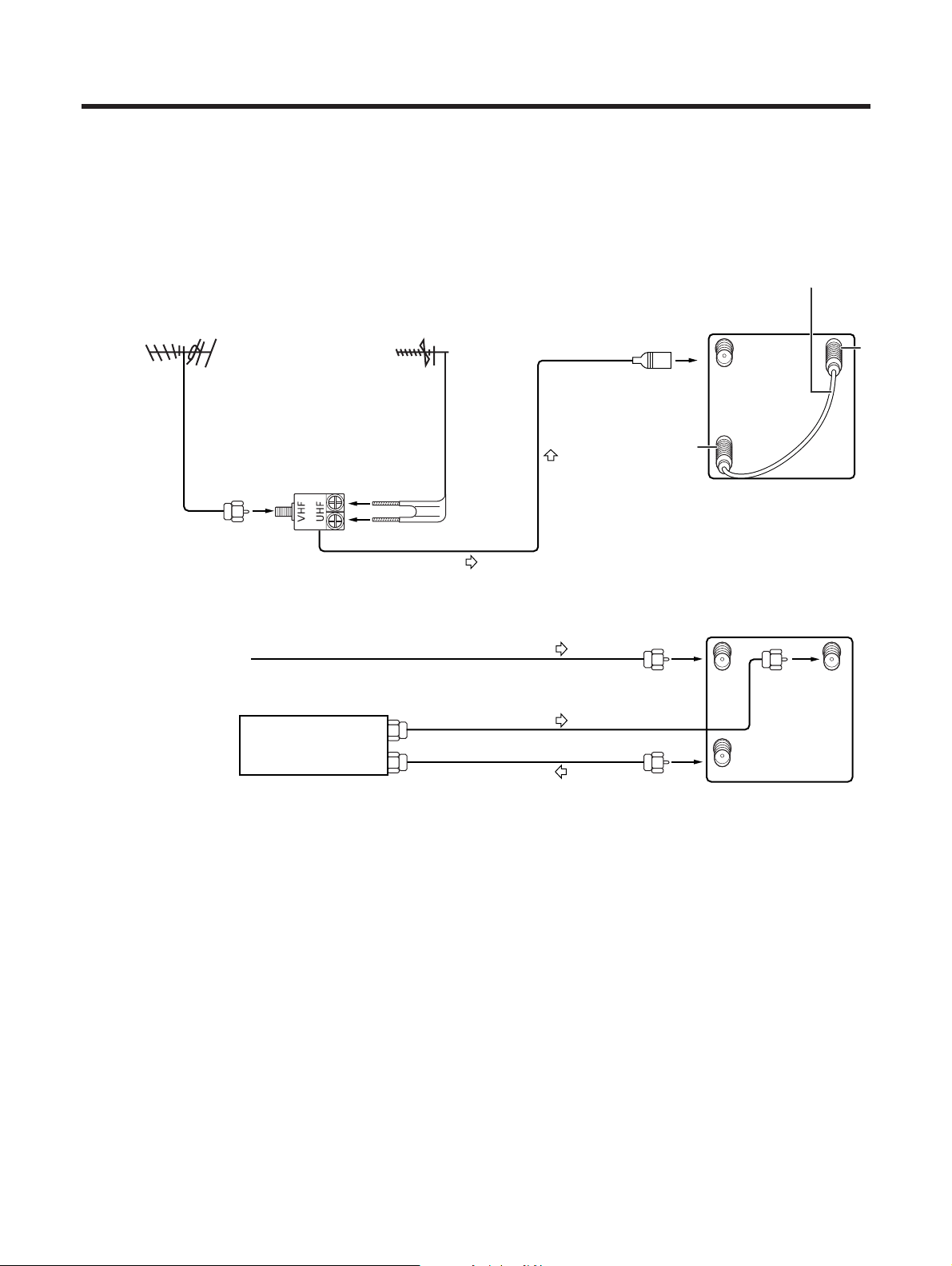
To enjoy a clearer picture, use an outdoor antenna. The following is a brief explanation of the types of connections
that are used for a coaxial cable. If your outdoor antenna uses a 75-ohm coaxial cable with an F-type connector,
plug it into the antenna terminal at the rear of the Media Receiver.
A
• The Antenna and CABLE Converter cannot be connected at the same time.
A
OUT
B
A
OUT
B
Connecting VHF/UHF antenna
Connecting the CABLE Converter
VHF antenna UHF antenna
U/V mixer
Media Receiver (rear)
Media Receiver (rear)
CABLE TV
CABLE Converter
A
• Be sure connect the Antenna or the CABLE Converter as explained above. Signal reception may fail if not properly
connected.
• Be sure that the CABLE Converter output signal is assigned to the ANT-B input on the Media Receiver.
• How to change channels when the CABLE Converter output signal is connected to the ANT-B input on the Media Receiver.
•Press ANT on the remote control unit to switch to ANT-B.
•You can view an image right after selecting the output channel on the CABLE Converter.
Switching between Tuner A and Tuner B
To watch broadcasts via the two tuners, you can select it by pressing ANT on the remote control unit.
• While watching a broadcast press ANT to view the image received from the other tuner.
• Pressing ANT while viewing in Dual Screen mode (TV image and video image) with TV selected will display the TV image
of the other tuner.
• Pressing ANT while viewing Dual Screen with video selected will not change the image displayed.
• Pressing ANT while viewing Dual Screen with two TV images displayed will not have any effect.
• Pressing ANT while viewing Dual Screen with two video images displayed will switch the selected screen to a TV image.
The coaxial cable is already
connected at the time of
purchase.
E-13
AC INLET
(GRAY)
RS-232C
IN
OUT
CONTROL
AC INLET
SYSTEM
CABLE
(WHITE)
YP
B
P
R
S-VIDEO VIDEO R-AUDIO-L
YP
B
P
R
S-VIDEO
ANT/CABLE 75ΩOUT
COMPONENT VIDEO COMPONENT VIDEO
VIDEO R-AUDIO-L
AB
INPUT 1
INPUT 2
RGB INPUT
INPUT 3
MONITOR OUTPUT
AC INLET
Power cord
Power cord
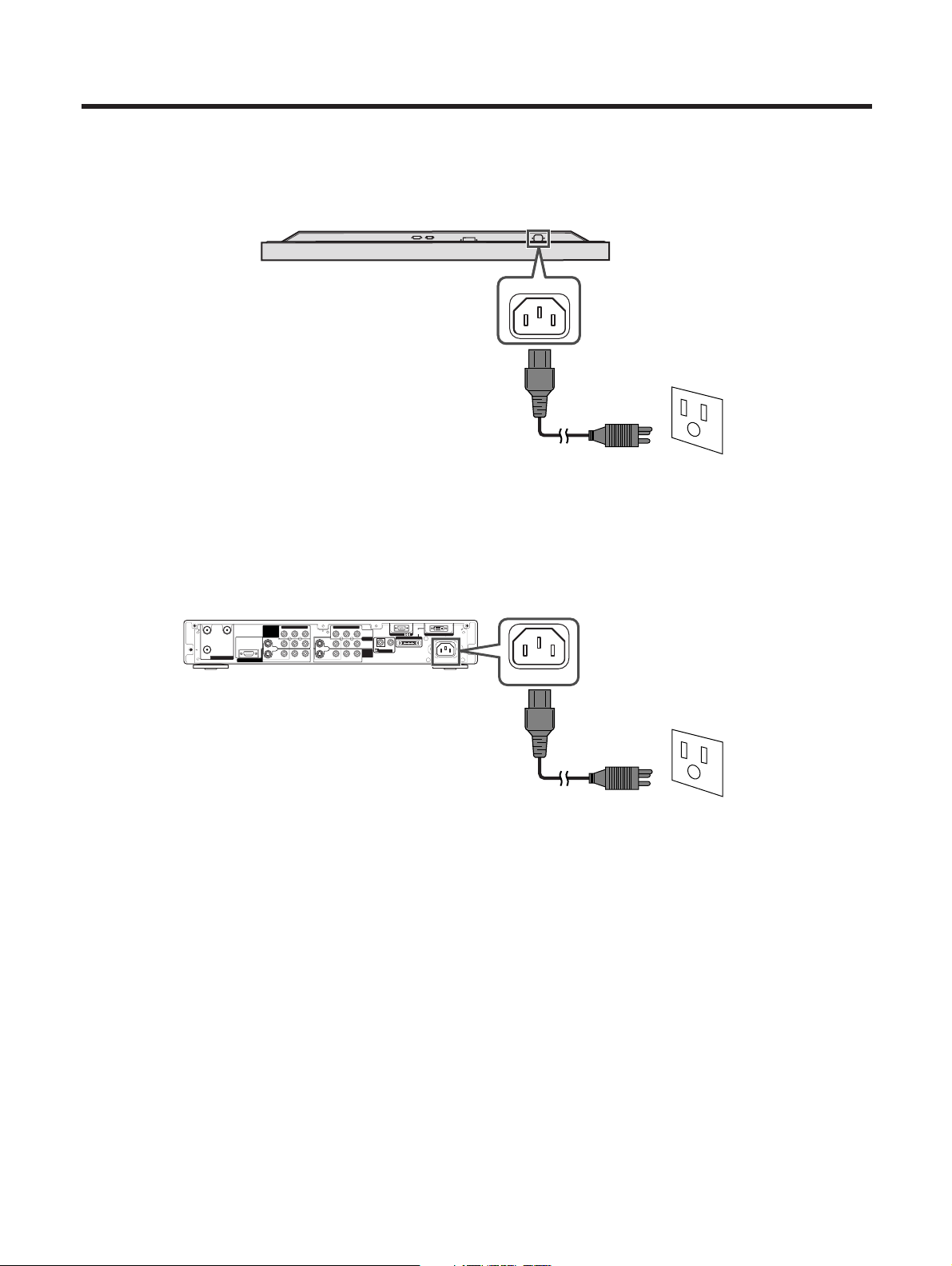
Connecting the power cord
Connect the power cord after all component connections have been completed.
Watching TV
Plasma Display (bottom view)
Media Receiver (rear view)
L
• Use only the power cord provided.
• Do not use a power supply voltage other than that indicated (AC 120 V, 60 Hz) as this may cause fire or electric shock.
• For the Plasma Display System, a three-core power cord with a ground terminal is used for efficiency protection. Always
be sure to connect the power cord to a three-pronged outlet and make sure that the cord is properly grounded. If you use
a power source converter plug, use an outlet with a ground terminal and screw down the ground line.
A
• Always turn off the main power of Plasma Display and Media Receiver when connecting the power cords.
• Disconnect the power cord from the power outlet when the Plasma Display System is not going to be used for a long
period of time.
E-14
Watching TV
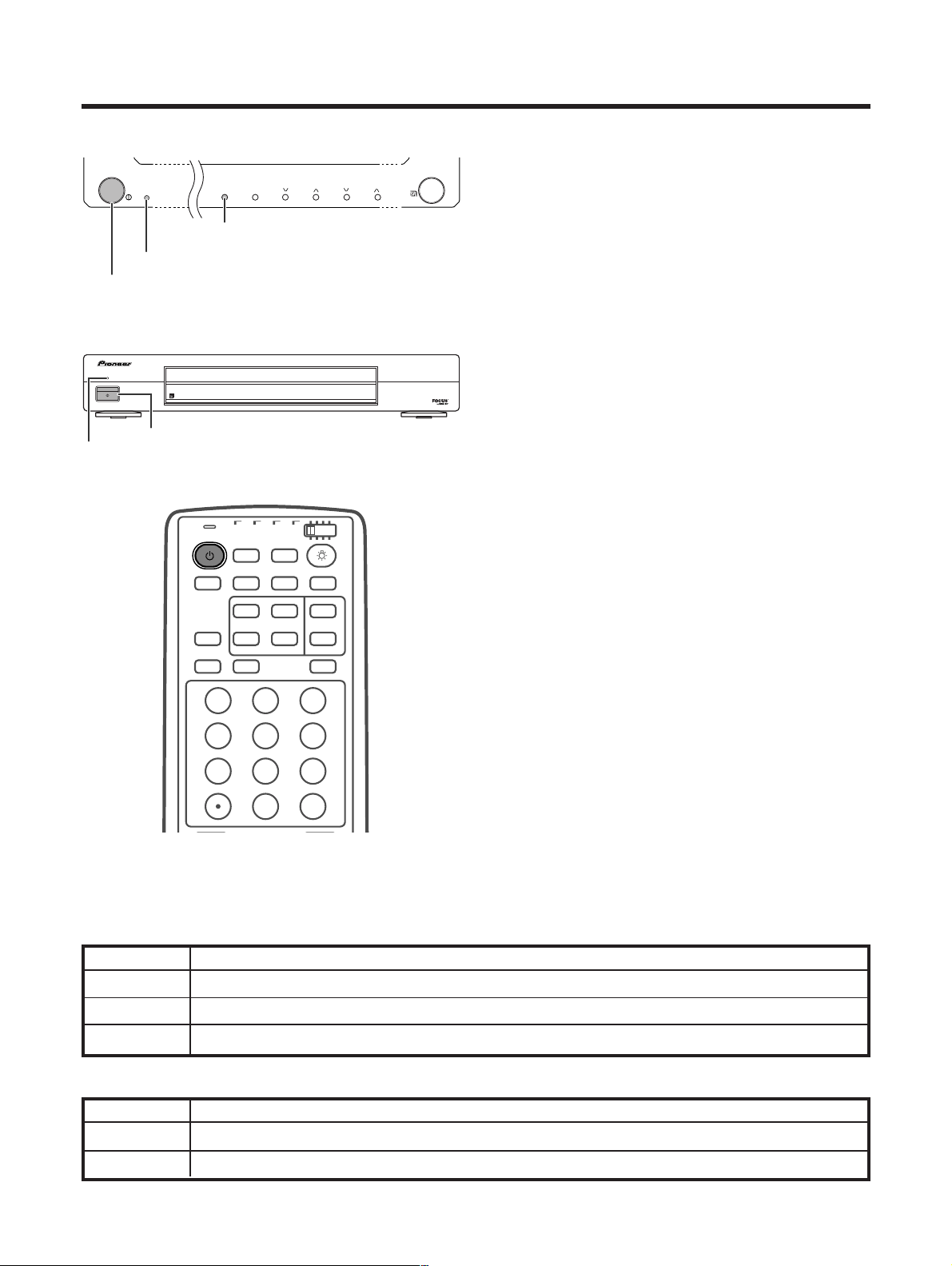
Plasma Display
Media Receiver
Off
Flashing red
Red
Green
Plasma Display status indicators
Power off
Media Receiver does not turn on or its power cord is disconnected.
The Plasma Display System is in standby mode.
The Plasma Display System turns the power on.
Media Receiver status indicators
Power off
Only the Media Receiver is in standby mode or the Plasma Display System is in standby mode.
The Plasma Display System turns the power on.
STANDBY/ON
MAIN POWER
STANDBY/ON
INPUTSTANDBY/ON VOLUMECHANNEL
Power indicator
POWER
STANDBY/ON
MEDIA RECEIVER
PDP-R03U
PUSH
PLASMA DISPLAY SYSTEM
POWER
Power indicator
TV
ANT INPUT
SURR
FRONT
AV
SELECTION
MTS CC
SPLIT
SELECT
SUB SUB CH
ⴐ
FREEZE
MODE
SCREEN
SLEEP LEARNEDIT/
DISPLAY
INPUT ⴑ
TV VCRCBL
/SAT
/DTV
DVD
/LD
123
456
789
0
CH
ENTER
Turning on the power
1 Press MAIN POWER on the Plasma Display.
• The power indicator on the Plasma Display flashes red.
2 Press POWER on the Media Receiver.
• The System turns the power on.
• The power indicators on the Plasma Display and Media
Receiver lights up green.
• If the power indicators still light up red, press TV a on
the remote control unit or STANDBY/ON on the Plasma
Display to turn the System on.
First time turning on Media Receiver
1 Press POWER on the Media Receiver.
• The power indicator on the Media Receiver lights up
red.
2 Press MAIN POWER on the Plasma Display.
• The System turns the power on.
• The power indicators on the Plasma Display and Media
Receiver lights up green.
• If the power indicators still light up red, press TV a on
the remote control unit or STANDBY/ON on the Plasma
Display to turn the System on.
A
• In this manual, “System” mean the Plasma Display Panel and
Media Receiver.
Turning off the power
1 Press TV a on the remote control unit or STANDBY/
ON on the Plasma Display.
• The System enters standby mode and the image on
the screen disappears.
• Both power indicators change from green to red.
2 Press POWER on the Media Receiver.
• The power indicator on the Media Receiver turns off
and the one on the Plasma Display flashes red.
3 Press MAIN POWER on the Plasma Display.
• The power indicator on the Plasma Display turns off
after approximately 5 seconds.
A
• If you are not going to use this System for a long time, be sure to
remove the Power cord from the power outlet.
Off
Red
Green
E-15
Watching TV
Language menu
Antenna menu
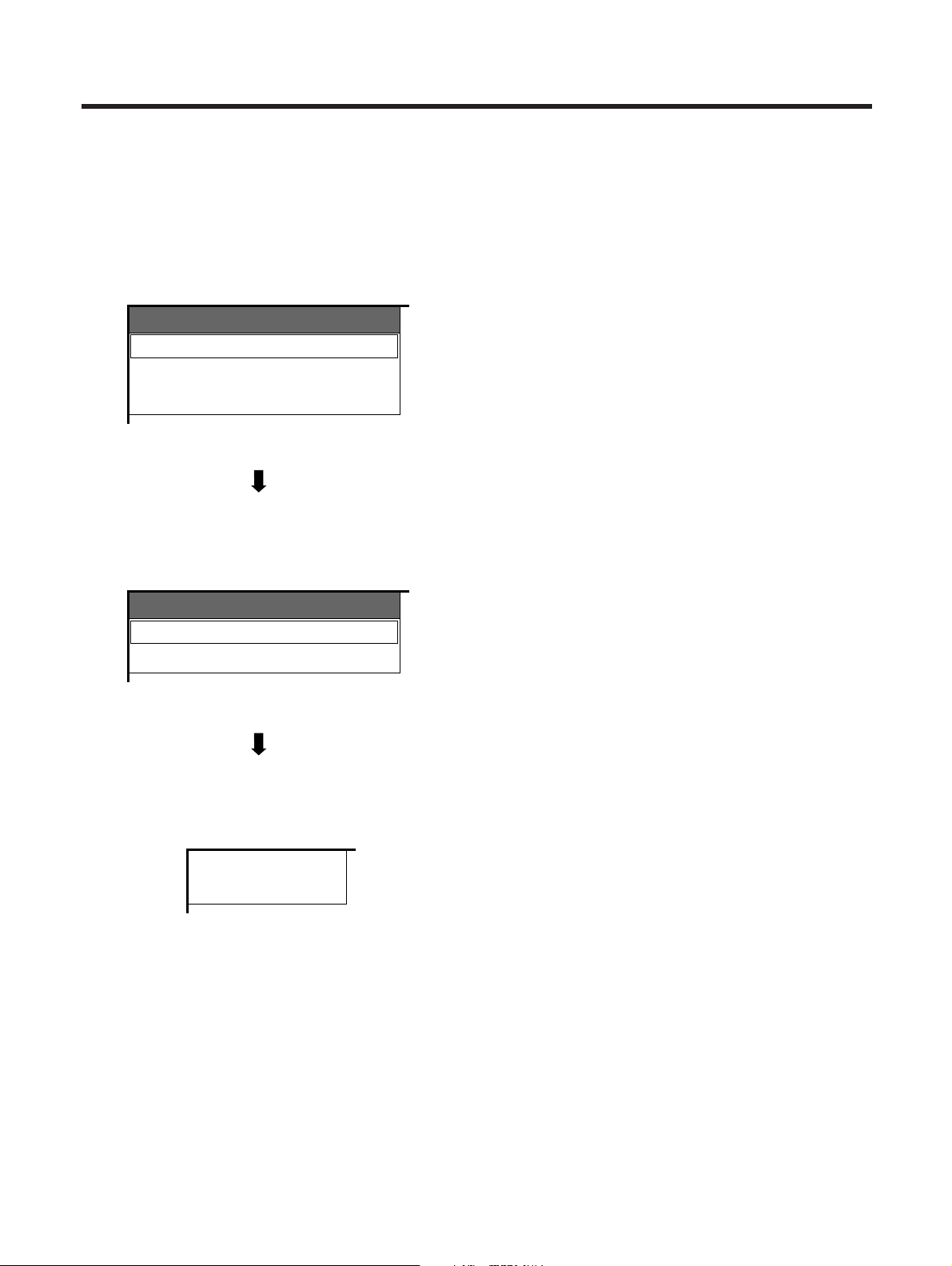
1. Setting a language
1 Press a/b to select the desired language listed
on the screen.
2 Press SET/ENTER to enter the setting.
2. Setting the antenna mode
1 Press a/b to select “Air” or “Cable” on the screen.
2 Press SET/ENTER to enter the setting.
Searching TV channels
CH Search
Air 2
Initial auto installation
When you turn on the Plasma Display System for the first time, it will automatically memorize the broadcasting
channels where you live. Perform the following steps before you press TV a.
1. Insert the batteries into the remote control unit. (See page 8.)
2. Connect the antenna cable to the Media Receiver. (See page 12.)
3. Plug in the power cord to the wall outlet. (See page 13.)
3. Automatic channel searching
Channel auto search makes the Plasma Display System
look for all channels viewable in the set area.
A
• If no channel is found, “No program found. Is antenna
connected properly?” displays. And the auto channel
search finishes.
• If you want to try auto installation again, see page 23.
• Channel search function is available for ANT-A only.
• ANT-B cannot perform channel search.
• You may need to manually add the CABLE Converter
output channel setting (fixed), when connecting the CABLE
Converter output signal to the B terminal (ANT/CABLE
75q) on the Media Receiver (Rear).(See page 25.)
Language
English
Français
Español
Air/Cable
Air
Cable
E-16
Watching TV
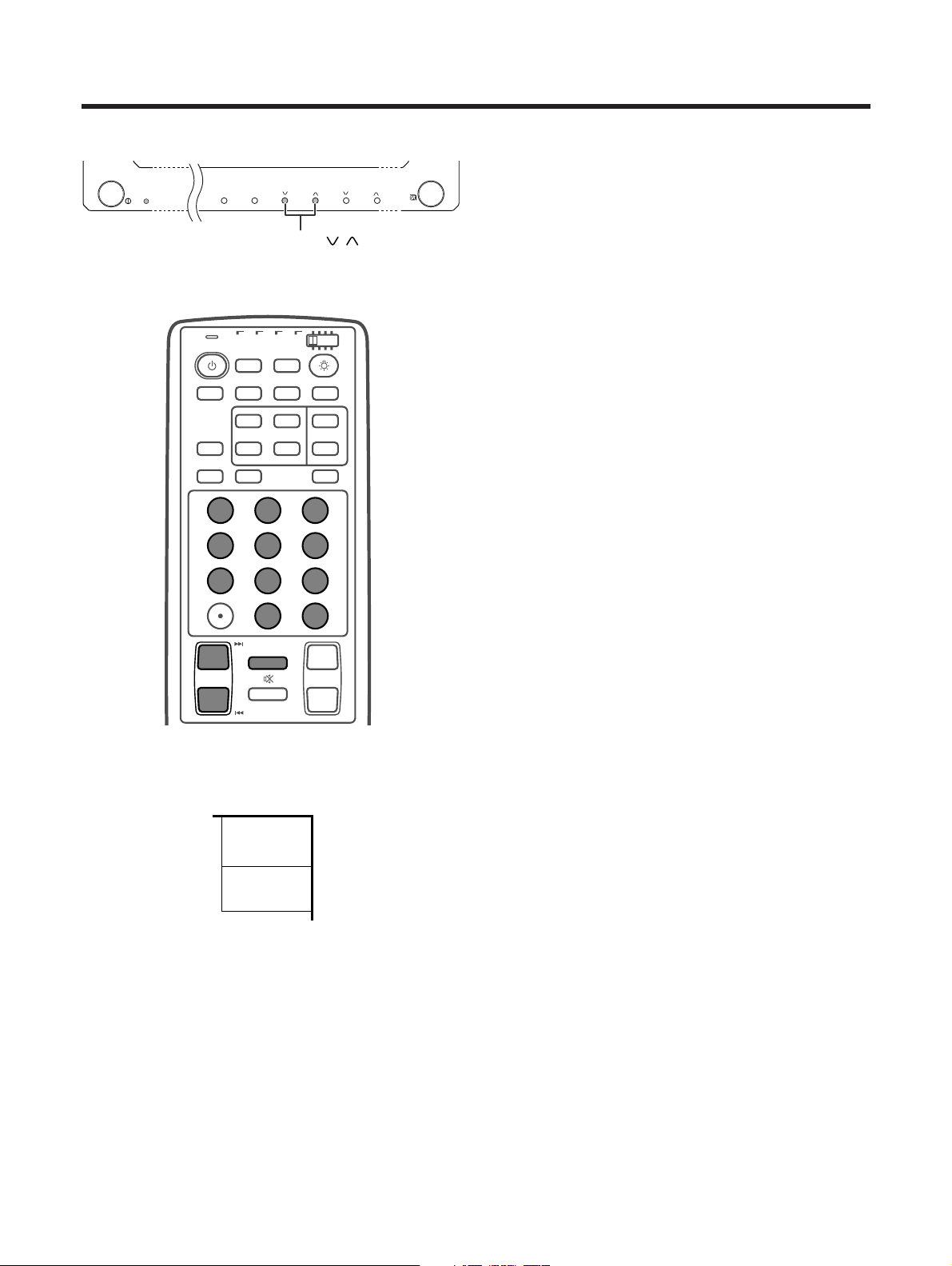
Simple button operations for changing
channels
Using CH
kk
kk
k/
ll
ll
l on the remote control unit
• Press CH
kk
kk
k to increase channel number.
• Press CH
ll
ll
l to decrease channel number.
A
• CHANNEL s/r on the Plasma Display operates the
same as CH
ll
ll
l/
kk
kk
k.
Plasma Display
Channel display
STANDBY/ON
INPUTSTANDBY/ON VOLUMECHANNEL
CHANNEL /
38
ANT-A
STEREO
Using 0 – 9 on the remote control unit
Select the channels directly by pressing buttons 0 to
9.
a
• To select channel 8, a 1-digit channel, press 8.
• To select channel 38, a 2-digit channel, press 3,
followed by 8.
• To select channel 138, a 3-digit channel, press 1,
then 3, followed by 8.
• You can tune in channels more quickly if you press
CH ENTER after pressing 0 to 9.
TV
ANT INPUT
SURR
FRONT
AV
SELECTION
MTS CC
SPLIT
SELECT
SUB SUB CH
ⴐ
ⴐ
ⴑ
ⴐ
ⴑ
FREEZE
MODE
CH VOL
RETURN
CH
MUTING
SCREEN
SLEEP LEARNEDIT/
DISPLAY
INPUT ⴑ
TV VCRCBL
/SAT
/DTV
DVD
/LD
123
456
789
0
CH
ENTER
Using CH RETURN on the remote control
unit
Press CH RETURN to switch the currently tuned
channel to the previously tuned channel.
Press CH RETURN again to switch back to the
currently tuned channel.
E-17
Plasma Display
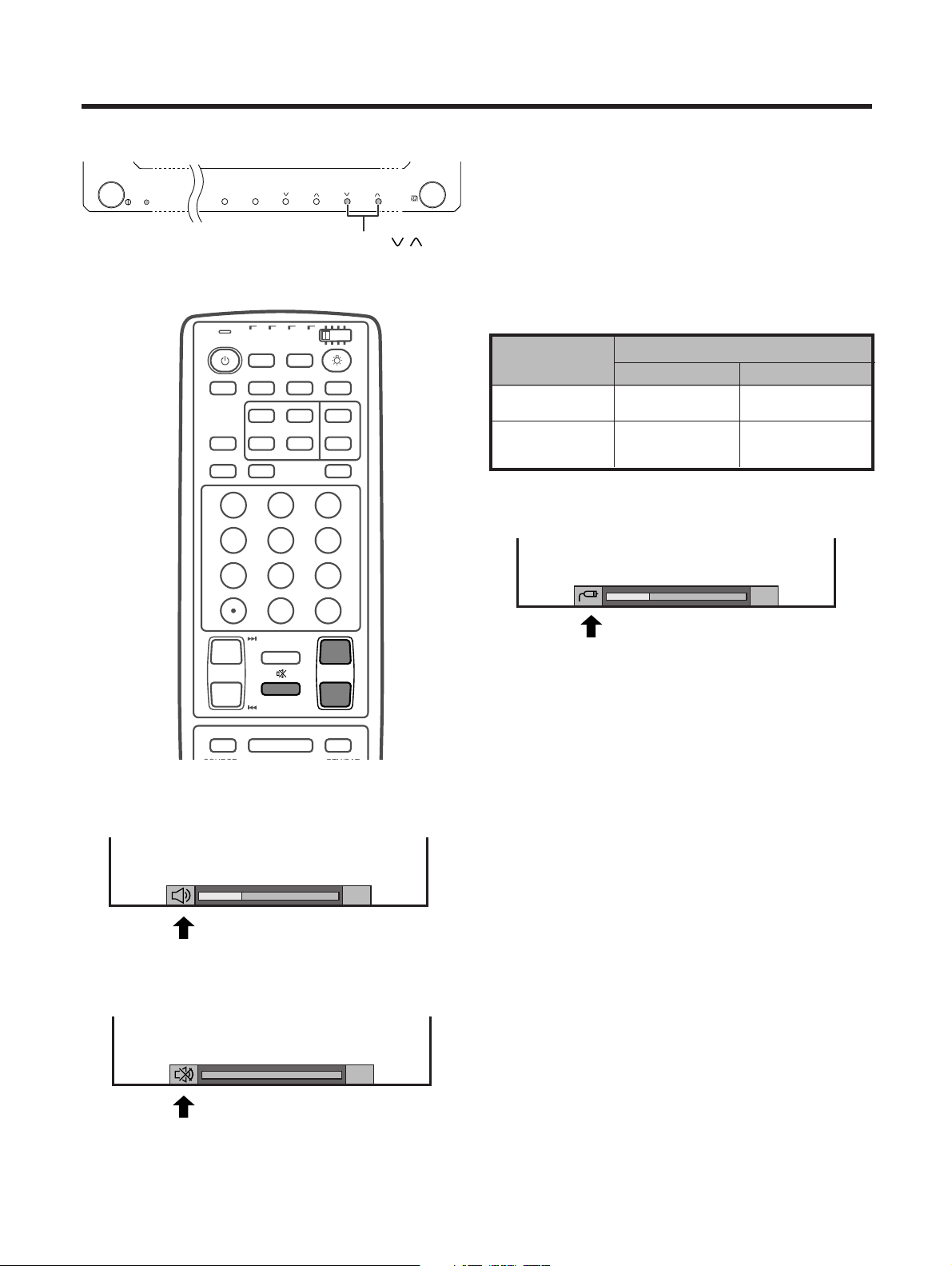
Volume adjustment
Mute
* When “Audio Out” is set to “Variable”, the indicator on the
screen changes as shown below.
Output device
Variable sound
Audio out
VariableFixed
Variable sound
Constant as
specified
Mute
A
• See page 46 for details on the audio out function.
Using e MUTING on the remote control unit
e mutes the current sound output.
1 Press e MUTING.
•“M” displays on the screen for 8 minutes, muting the
sound.
• When mute mode finishes, the volume level is set to 0,
preventing the system from suddenly outputting a loud
sound.
2 Press e MUTING again to cancel the mute.
• Pressing VOL
kk
kk
k/
ll
ll
l and MTS (TV mode only) can also
cancel the mute.
STANDBY/ON
INPUTSTANDBY/ON VOLUMECHANNEL
VOLUME /
20
20
Speaker
MONITOR OUT
Simple button operations for changing
volume/sound
Using VOL
kk
kk
k/
ll
ll
l on the remote control unit
• To increase the volume, press VOL
kk
kk
k.
• To decrease the volume, press VOL
ll
ll
l.
A
• VOLUME s/r on the Plasma Display operates the same
as VOL
ll
ll
l/
kk
kk
k.
Audio status
Watching TV
TV
ANT INPUT
SURR
FRONT
AV
SELECTION
MTS CC
SPLIT
SELECT
SUB SUB CH
ⴐ
ⴐ
ⴑ
ⴐ
ⴑ
FREEZE
MODE
CH VOL
RETURN
CH
MUTING
MENU TV/SAT/DVD
DTV/DVD TOP
SOURCE DTV/SAT
RETURN
MENU
MENU
SCREEN
SLEEP LEARNEDIT/
DISPLAY
INPUT ⴑ
TV VCRCBL
/SAT
/DTV
DVD
/LD
123
456
789
0
CH
ENTER
E-18
Watching TV
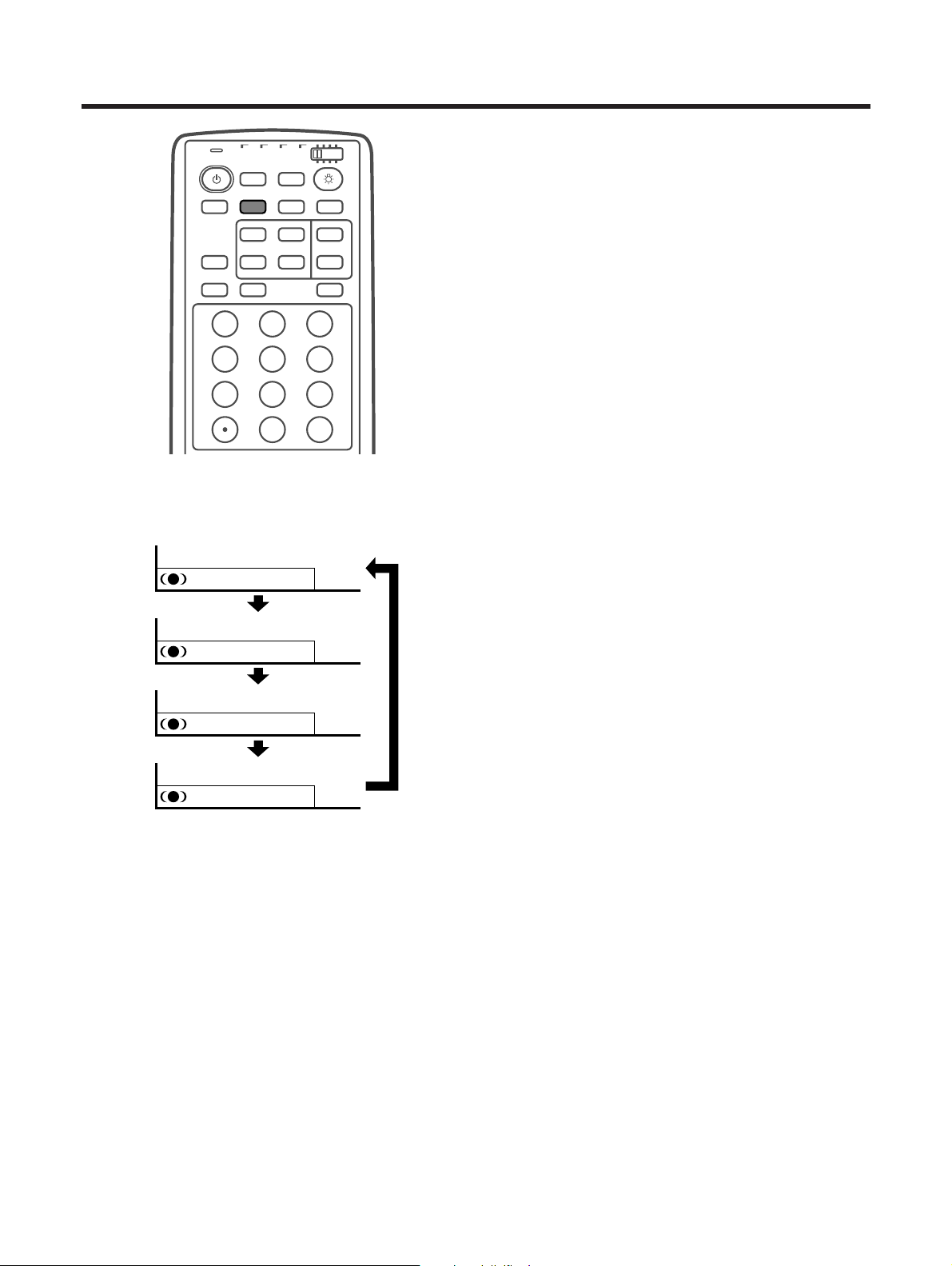
: Off
: SRS
: FOCUS
: FOCUSⴐSRS
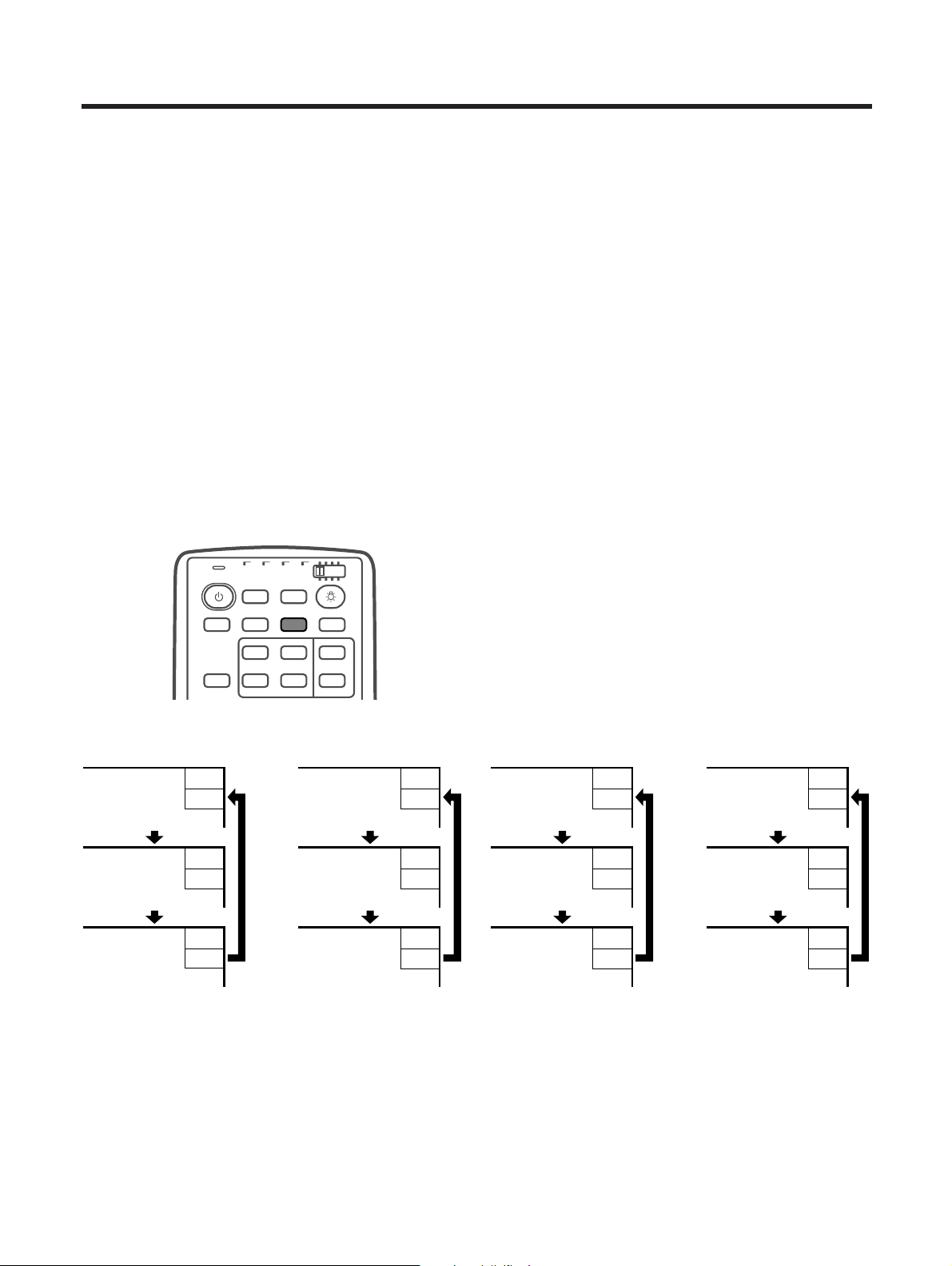
Using FRONT SURR (SURROUND) on
the remote control unit
h produces SRS and FOCUS effect from the
speakers. Each time you press FRONT SURR
(SURROUND), the mode changes among SRS,
FOCUS, FOCUS e SRS and Off.
SRS sound options
• SRS (Sound Retrieval System): Creates a more
natural sound, retrieving the spatial information
from any stereo recording and restoring the
original three-dimensional sound field.
• FOCUS: Repositions a sound image from two
speakers to a more optimal listening position or
height without moving them.
• FOCUS e SRS: Produces both SRS and FOCUS
effects.
• Off: Outputs the normal sound.
TV
ANT INPUT
SURR
FRONT
AV
SELECTION
MTS CC
SPLIT
SELECT
SUB SUB CH
ⴐ
FREEZE
MODE
SCREEN
SLEEP LEARNEDIT/
DISPLAY
INPUT ⴑ
TV VCRCBL
/SAT
/DTV
DVD
/LD
123
456
789
0
CH
ENTER
E-19
Watching TV
Setting MTS/SAP stereo mode
The Plasma Display System has a feature that allows reception of sound other than the main audio for the
program. This feature is called Multi-channel Television Sound(MTS). The Plasma Display System with MTS can
receive mono sound, stereo sound and Secondary Audio Programs (SAP). The SAP feature allows a TV station
to broadcast other information, witch could be audio in another language or something completely different like
weather information.
TV
ANT INPUT
SURR
FRONT
AV
SELECTION
MTS CC
SPLIT
SELECT
SUB SUB CH
ⴐ
FREEZE
MODE
SCREEN
INPUT ⴑ
TV VCRCBL
/SAT
/DTV
DVD
/LD
You can enjoy Hi-Fi stereo sound or SAP broadcasts where available.
• Stereo broadcasts
View programs like live sporting events, shows and concerts in dynamic stereo sound.
• SAP broadcasts
Receive TV broadcasts in either MAIN or SAP sound.
MAIN sound: The normal program soundtrack (either in mono or stereo).
SAP sound: Listen to second language, supplementary commentary and other information. (SAP is mono sound.)
If stereo sound is difficult to hear.
• Obtain a clearer sound by manually switching to fixed mono-sound mode.
A
• Once “MONO” mode is selected, the Plasma Display System sound remains mono even if the System receives a stereo
broadcast. You must switch the mode back to “STEREO” if you want to hear stereo sound again.
• Selecting MTS while in the input mode does not change the type of sound. In this case, sound is determined by the video
source.
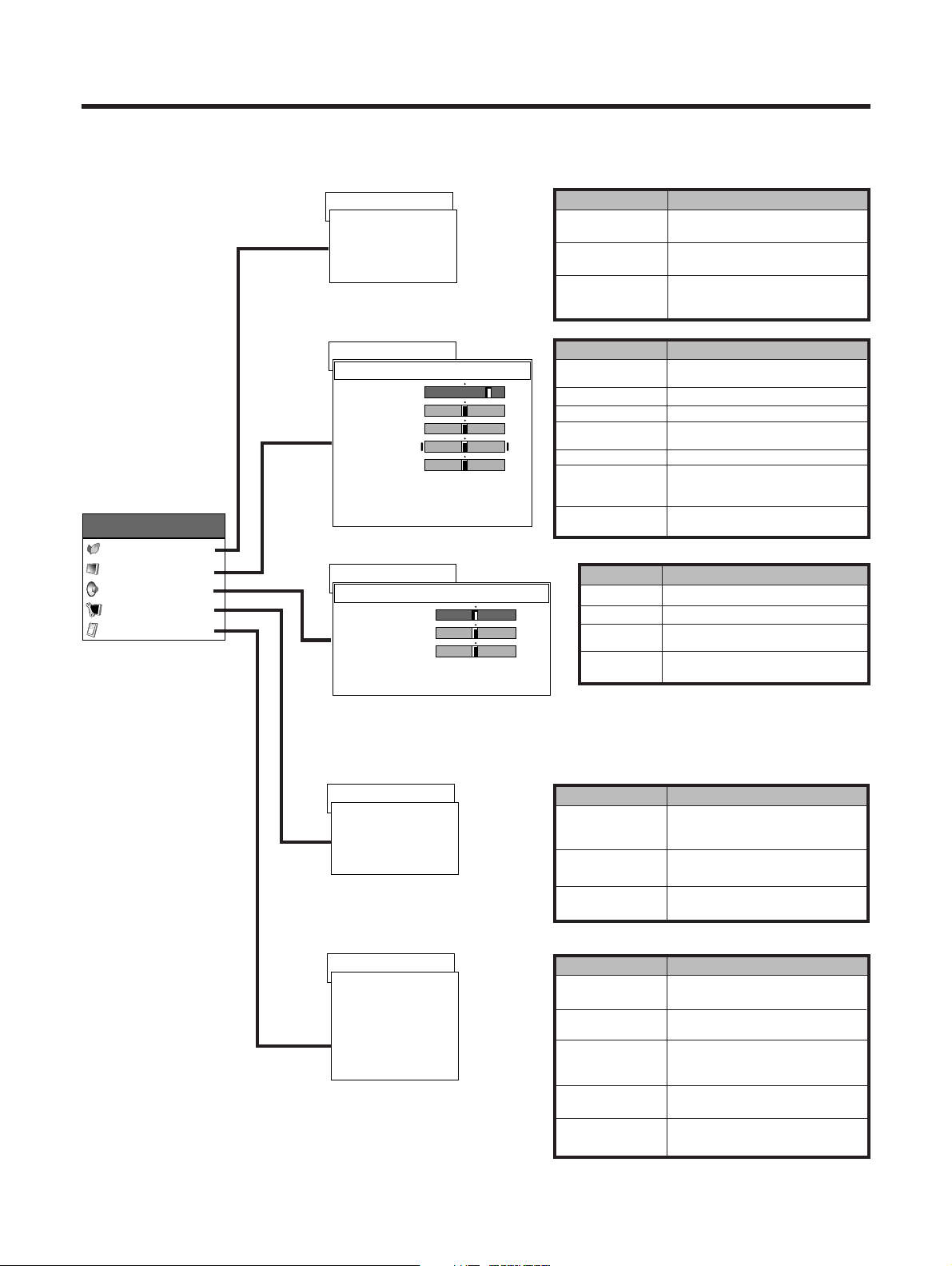
Each time you press MTS, MTS toggles as shown
below.
38
ANT-A
STEREO
38
ANT-A
STEREO
38
ANT-A
MONO
STEREO mode MAINkSAP mode STEREOkSAP mode MONO mode
38
ANT-A
MAIN
38
ANT-A
SAP
38
ANT-A
MONO
38
ANT-A
ST(SAP)
38
ANT-A
SAP(ST)
38
ANT-A
MONO
38
ANT-A
MONO
38
ANT-A
MONO
38
ANT-A
MONO
E-20
MENU
Contrast
Bright
Color
Tint
Sharp
Advanced
Reset
Basic adjustment settings
Page 32
MENU
Energy Save
No Signal off
No Operation off
Description
Save power by decreasing picture
brightness.
System automatically shuts down if
no signal inputs for 15 minutes.
System automatically shuts down if
you do not operate the System for 3
hours.
Description
Adjusts the picture between light and
shade.
Adjusts picture brightness.
Adjusts color intensity.
Adjusts skin color to a more natural
tone.
Adjusts picture sharpness.
Adjusts color temperature, black,
3D-Y/C and black & white and
PureCinema.
All image adjustment settings return
to the factory preset values.
MENU
Treble
Bass
Balance
Reset
Description
Adjusts the treble weaker or stronger.
Adjusts the bass weaker or stronger.
Adjusts audio output between left
and right speakers.
All audio adjustment settings return
to the factory preset values.
MENU
Auto Installation
CH Setup
Parental CTRL
Description
Automatically memorizes the
broadcasting channels where you
live.
Sets the channel preset.
Sets a secret number to restrict
operations.
MENU
Input Select
Position
Audio Out
Demo
Language
Description
Select the kind of input signal of each
input source.
Adjusts the horizontal/vertical
position of the image displayed.
Select the type of monitor output. You
can adjust volume for the main
speaker or monitor output.
Demonstration setting for storefront
displays.
Select the on screen display
language.
First MENU
MENU
Power Control
Picture
Audio
Setup
Option
Power Control
Energy Save [Standard]
No Signal off [Disable]
No Operation off
RETURN
[Disable]
Picture
USER
Contrast
Bright
Color
Tint
Sharp
Advanced
Reset
RETURN
[+30]
[0]
[0]
[0]
[0]
0
–30
–30
–30
–7
+40
+30
+30
+30
+7
Audio
USER
Treble
Bass
Balance
Reset
RETURN
[0]
[0]
[0]
–15
–15
Left
+15
+15
Right
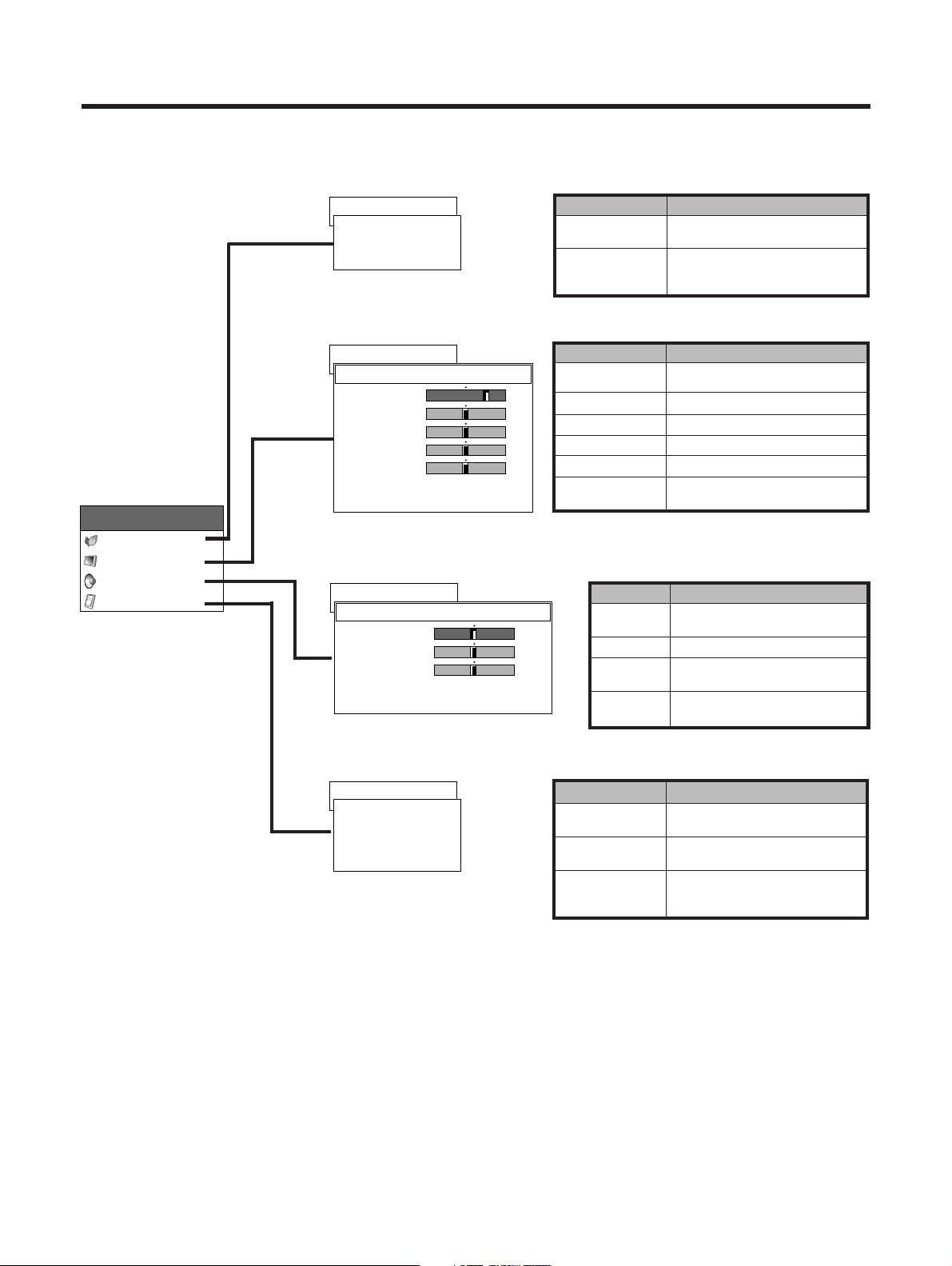
AV mode menu items
List of AV menu items to help you with operations.
Page 27–30
Page 31
Page 23–25, 48–54
Page 26, 41, 43, 46
Setup
Auto Installation
CH Setup
Parental CTRL
RETURN
Option
Position
Audio Out
Demo
[Fixed]
[Off]
Input Select
Language
RETURN
[English]
E-21
Basic adjustment settings
Page 33
First MENU
MENU
Energy Save
Power
Management
Description
Save power by decreasing picture
brightness.
System automatically shuts down if
you set the time. Select Mode1 or
Mode2.
MENU
Contrast
Bright
Red
Green
Blue
Reset
Description
Adjusts the picture between light and
shade.
Adjusts picture brightness.
Adjusts red color intensity.
Adjusts green color intensity.
Adjusts blue color intensity.
All image adjustment settings return
to the factory preset values.
MENU
Treble
Bass
Balance
Reset
Description
Adjusts the treble weaker or
stronger.
Adjusts the bass weaker or stronger.
Adjusts audio output between left
and right speakers.
All audio adjustment settings return
to the factory preset values.
MENU
Auto Sync.
Fine Sync.
Audio Out
Description
Provides a clear input image.
Adjusts image H-Pos, V-Pos, clock
and phase.
After selecting type of monitor output,
adjusts the volume of the main
speaker or monitor output.
MENU
Power Control
Picture
Audio
Option
Power Control
Energy Save [Standard]
Power Management
RETURN
[Off]
Picture
USER
Contrast
Bright
Red
Green
Blue
Reset
RETURN
[+30]
[0]
[0]
[0]
[0]
0
–30
–30
–30
–30
+40
+30
+30
+30
+30
Audio
USER
Treble
Bass
Balance
Reset
RETURN
[0]
[0]
[0]
–15
–15
Left
+15
+15
Right
Option
Fine Sync.
Audio Out
RETURN
[Fixed]
Auto Sync.
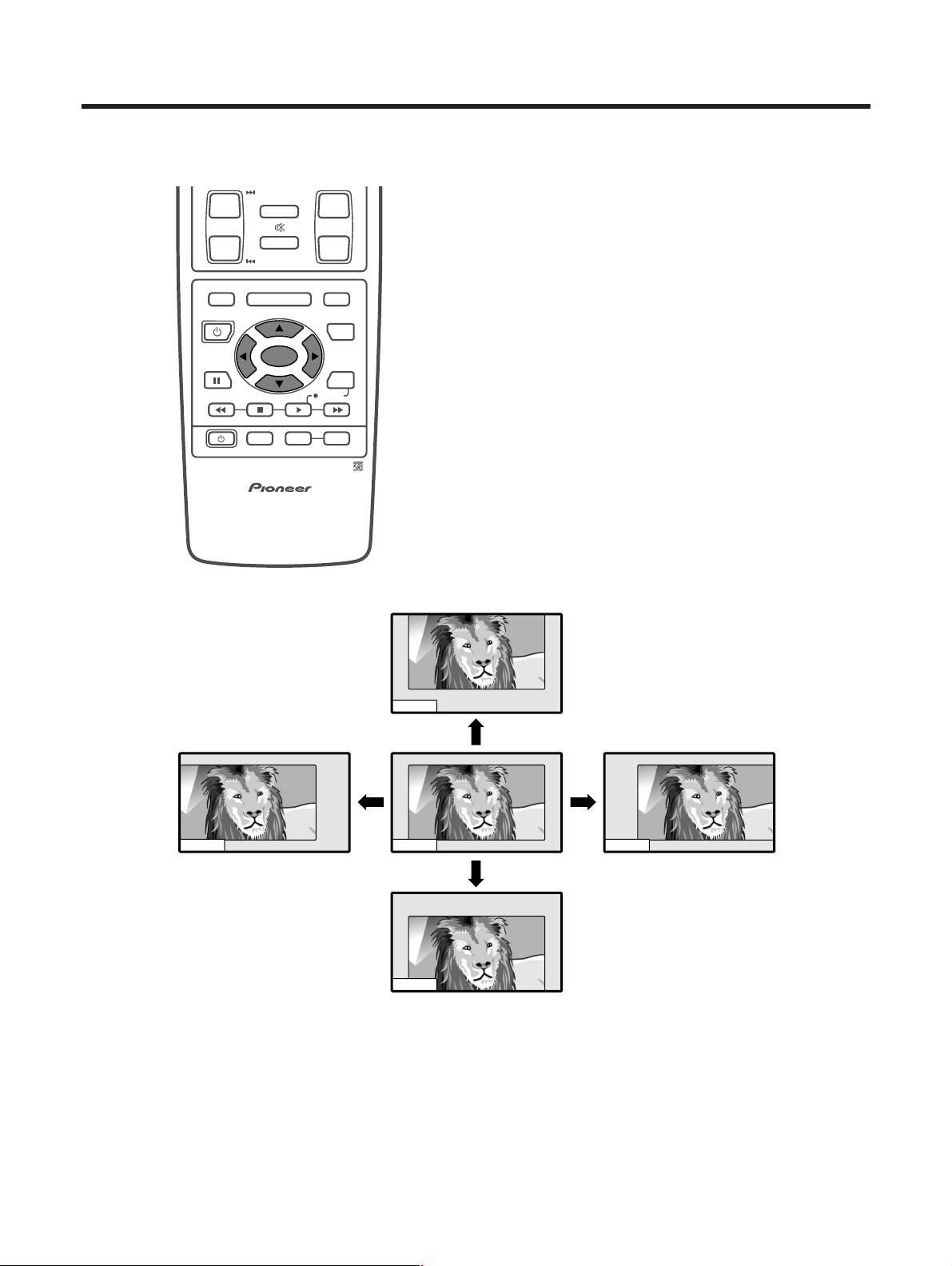
PC mode menu items
List of PC menu items to help you with operations.
Page 27
Page 31
Page 42, 46
E-22
Basic adjustment settings
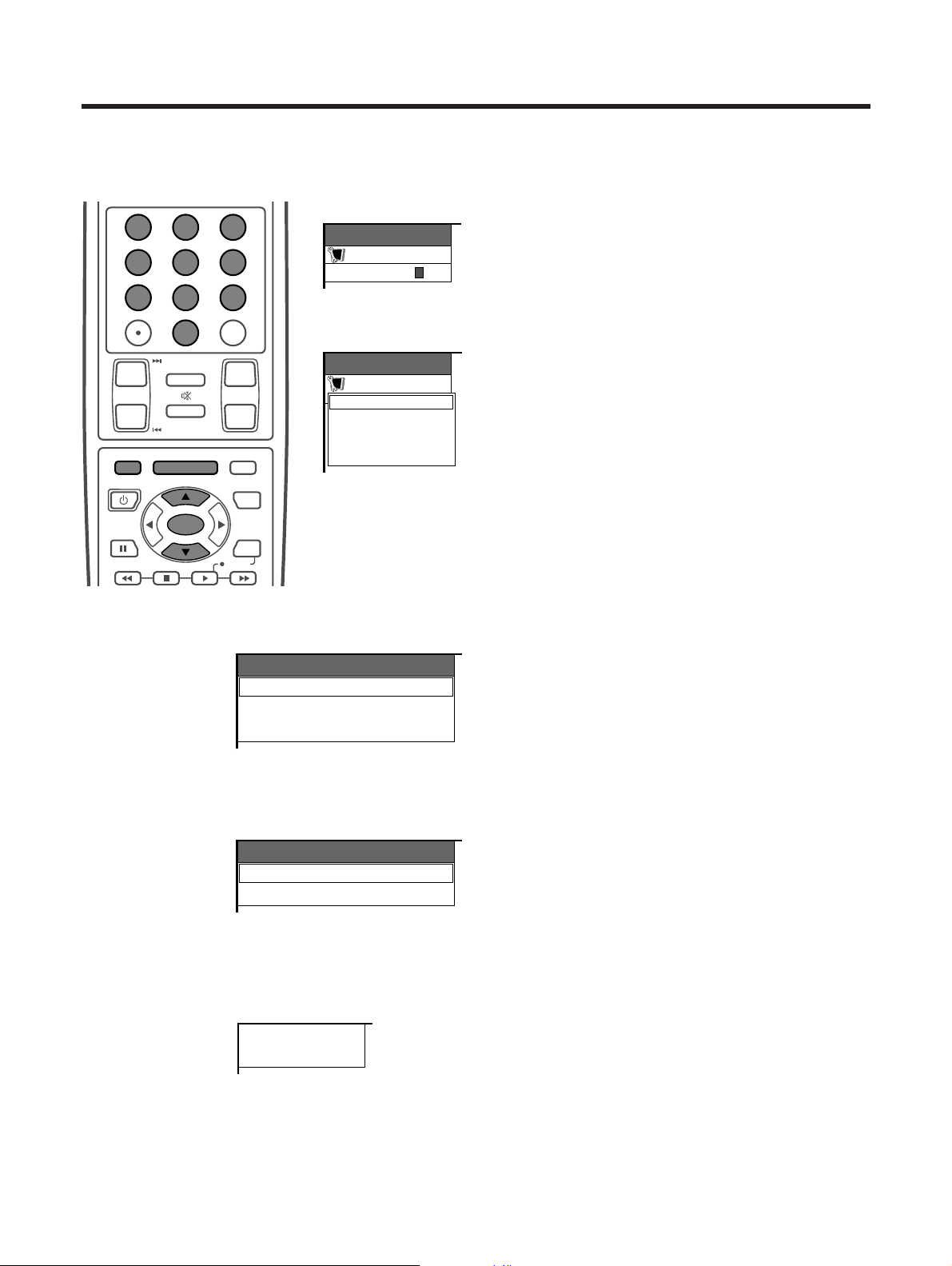
Moving the picture on the screen
You can move the picture around on the screen.
Press a/b/c/d to move an image on the screen to
the desired position.
A
• While pressing a/b/c/d, an on-screen image,
“Adjusting Position” displays to the desired position.
• This setting cannot be stored. Once the System shuts
down or enters standby mode, the setting is erased. To
move the picture around the screen again, you must
perform the above procedure again.
• An on-screen image from a PC source cannot be moved
around.
• Initialize the image position by pressing SET/ENTER.
ⴐ
ⴑ
ⴐ
ⴑ
CH VOL
RETURN
CH
MUTING
MENU TV/SAT/DVD
FAVORITE CH
RECEIVER
DTV/DVD TOP
SOURCE DTV/SAT
DTV/SAT
VCR REC
ABCD
RETURN
MENU
PLASMA DISPLAY
SET/
ENTER
MENU
GUIDE
INPUT VOL
ⴑ
VOL
ⴐ
INFO
E-23
Basic adjustment settings
Language
English
Français
Español
Secret number
setting menu
Setup
MENU
Secret No.
–––
–
Setup menu
Setup
MENU
Auto Installation
CH Setup
Parental CTRL
RETURN
Language menu
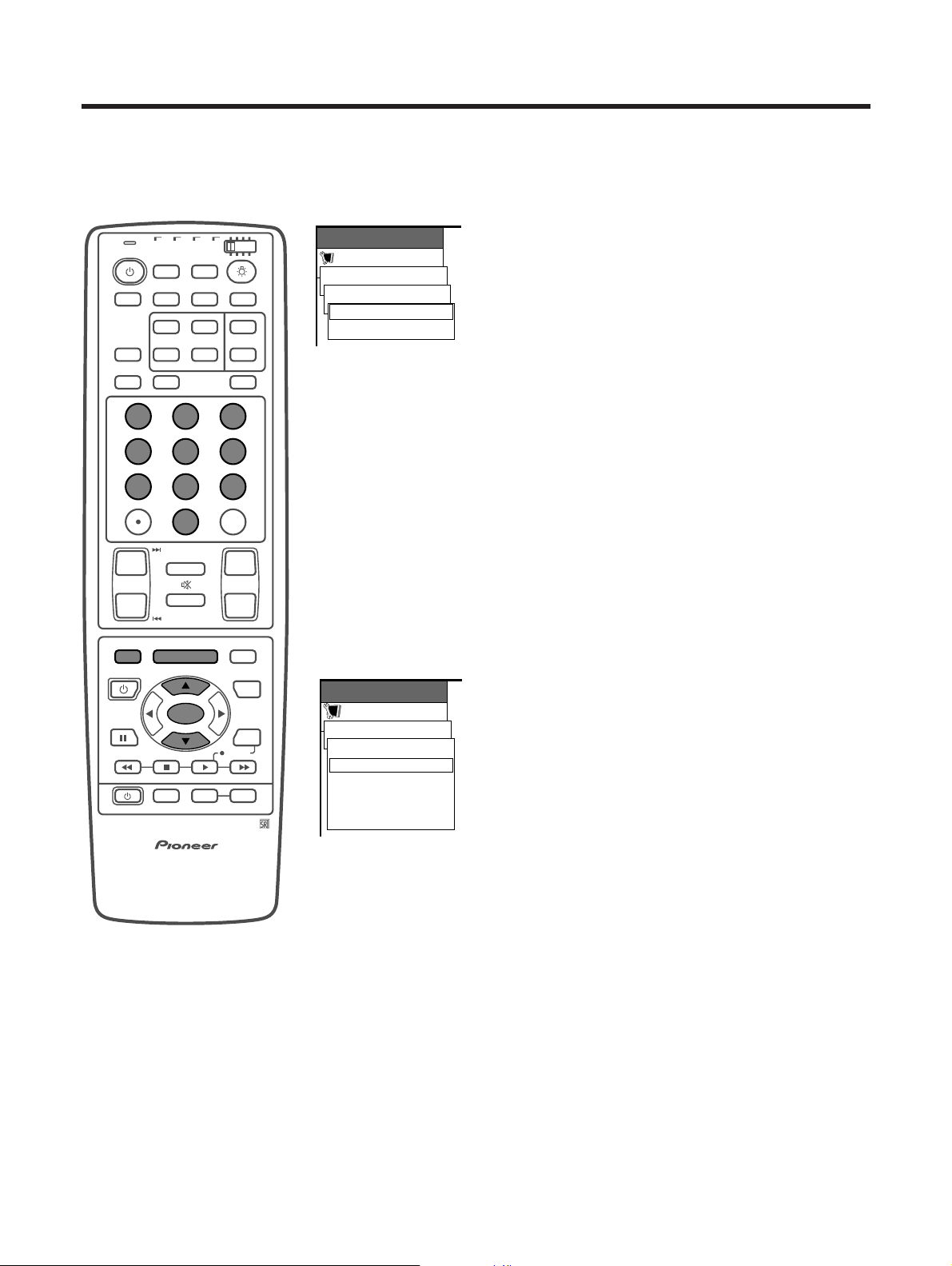
Auto installation
You can run auto installation again, even after setting up the preset channels.
Language setting
Select from among 3 languages: English, French and
Spanish.
1 Press MENU.
2 Press a/b to select “Setup”, and then press SET/
ENTER.
• Secret number setting menu displays only when
“Secret No.” is set. (See page 52.)
• Setup menu displays when the “Secret No.” is not set.
Skip step 3.
3 Enter your 4-digit secret number with 0 – 9 to cancel
the “Secret No.” when you set it.
4 Press a/b to select “Auto Installation”, and then
press SET/ENTER.
• Language menu displays.
5 Press a/b to select the desired language listed
on the screen, and then press SET/ENTER.
• Antenna menu displays.
A
• Return to the previous menu by pressing MENU RETURN.
ⴐ
ⴑ
ⴐ
ⴑ
CH VOL
RETURN
CH
MUTING
MENU TV/SAT/DVD
FAVORITE CH
DTV/DVD TOP
SOURCE DTV/SAT
DTV/SAT
VCR REC
RETURN
MENU
SET/
ENTER
MENU
GUIDE
INFO
123
456
789
0
CH
ENTER
Antenna menu
Searching TV channels
Air/Cable
Air
Cable
CH Search
Air 2
Antenna setting
After setting the language, perform settings for the
Antenna connected.
Press a/b to select the desired item, and then press
SET/ENTER.
• After setting the Antenna, channel search starts.
A
• Return to the previous menu by pressing MENU RETURN.
Channel search
After performing language and Antenna settings, the
Plasma Display System's channel auto search
automatically looks for all viewable channels in the set
area.
E-24
Basic adjustment settings
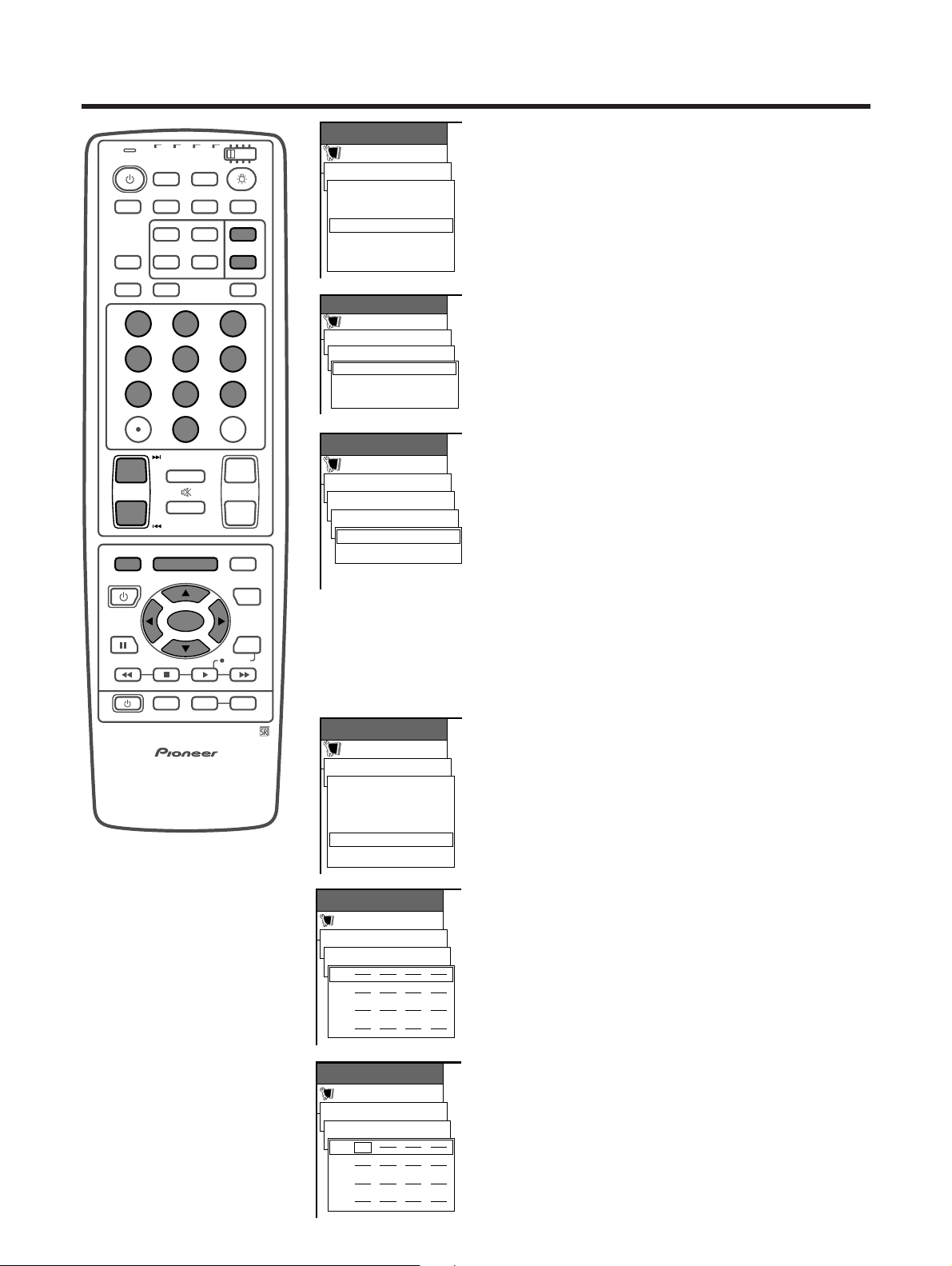
Setting the Air/Cable
1 Press MENU.
2 Press a/b to select “Setup”, and then press SET/
ENTER.
• Secret number setting menu displays only when
“Secret No.” is set. (See page 52.)
• Setup menu displays when the “Secret No.” is not set.
Skip step 3.
3 Enter your 4-digit secret number with 0 – 9 to cancel
the “Secret No.” when you set it.
4 Press a/b to select “CH Setup”, and then press
SET/ENTER.
5 Press a/b to select “Air/Cable”, and then press
SET/ENTER.
6 Press a/b to select the desired item, and then
press SET/ENTER.
7 Press MENU to exit the menu.
A
• Return to the previous menu by pressing MENU RETURN.
Automatic channel searching
Channel auto search makes the Plasma Display
System look for all channels viewable in the set area.
1 Press MENU.
2 Press a/b to select “Setup”, and then press SET/
ENTER.
• Secret number setting menu displays only when
“Secret No.” is set. (See page 52.)
• Setup menu displays when the “Secret No.” is not set.
Skip step 3.
3 Enter your 4-digit secret number with 0 – 9 to cancel
the “Secret No.” when you set it.
4 Press a/b to select “CH Setup”, and then press
SET/ENTER.
5 Press a/b to select “CH Search”, and then press
SET/ENTER.
• Channel search automatically starts.
6 Press MENU to exit the menu.
A
• Return to the previous menu by pressing MENU RETURN.
• Channel search function is available for ANT-A only.
• ANT-B cannot perform channel search.
• You may need to manually add the Cable Converter
output channel setting (fixed), when the Cable
Converter using.(See page 25.)
Channel setup
If initial auto installation does not memorize all the channels in your region, follow the instructions below to
manually memorize the channels.
Setup
Air
[Air]
MENU
CH Setup
Air/Cable
Cable
Setup
MENU
CH Setup
Air/Cable [Air]
CH Search
Favorites
RETURN
CH Memory
TV
ANT INPUT
SURR
FRONT
AV
SELECTION
MTS CC
SPLIT
SELECT
SUB SUB CH
ⴐ
ⴐ
ⴑ
ⴐ
ⴑ
FREEZE
MODE
CH VOL
RETURN
CH
MUTING
MENU TV/SAT/DVD
FAVORITE CH
RECEIVER
DTV/DVD TOP
SOURCE DTV/SAT
DTV/SAT
VCR REC
ABCD
RETURN
MENU
PLASMA DISPLAY
SET/
ENTER
MENU
GUIDE
INPUT VOL
ⴑ
VOL
ⴐ
INFO
SCREEN
SLEEP LEARNEDIT/
DISPLAY
INPUT ⴑ
TV VCRCBL
/SAT
/DTV
DVD
/LD
123
456
789
0
CH
ENTER
E-25
Basic adjustment settings
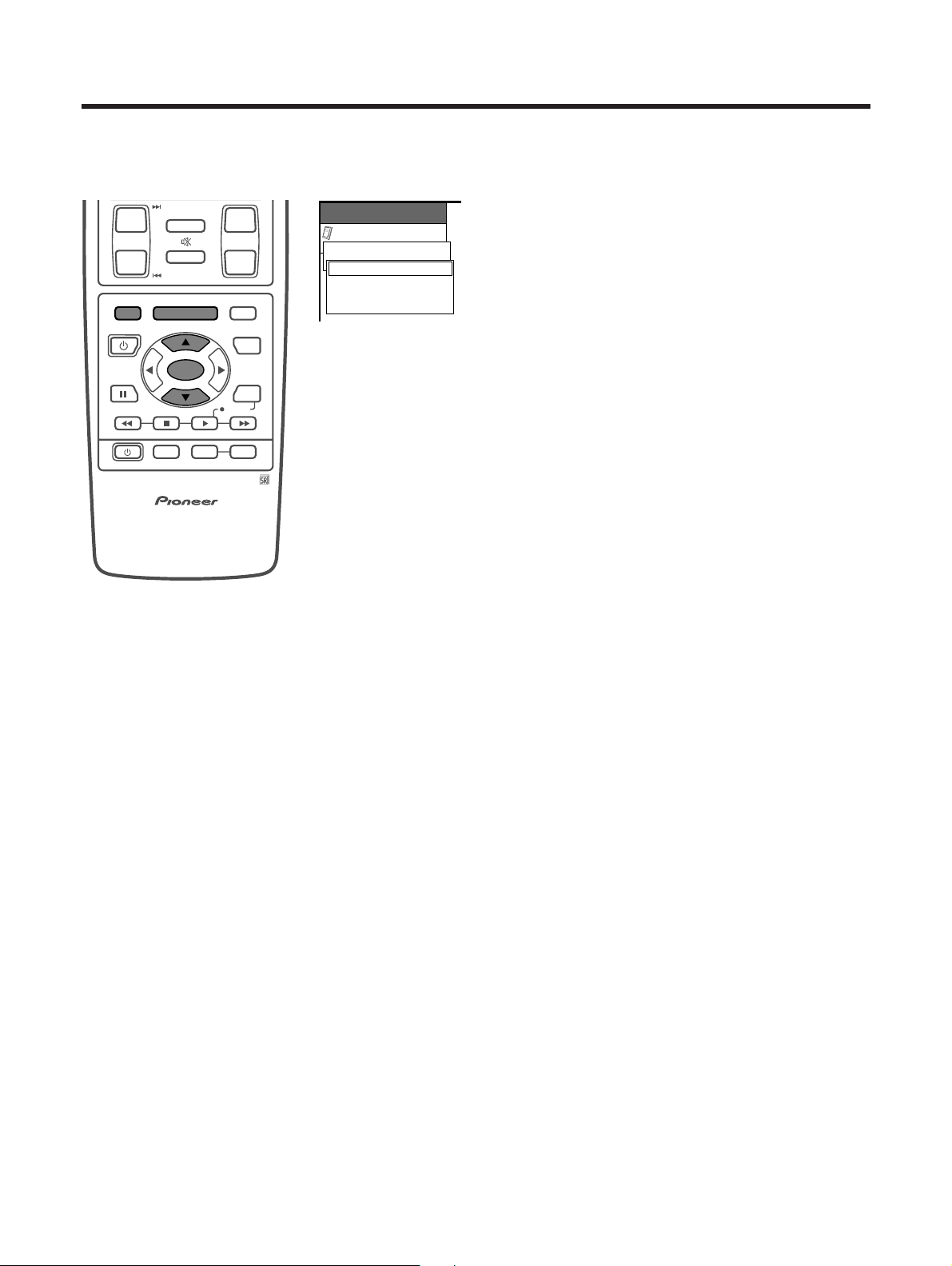
Saving broadcast TV channels to memory
1 Press MENU.
2 Press a/b to select “Setup”, and then press SET/
ENTER.
• Secret number setting menu displays only when
“Secret No.” is set. (See page 52.)
• Setup menu displays when the “Secret No.” is not set.
Skip step 3.
3 Enter your 4-digit secret number with 0 – 9 to cancel
the “Secret No.” when you set it.
4 Press a/b to select “CH Setup”, and press SET/
ENTER.
5 Press a/b to select “CH Memory”, and press SET/
ENTER.
6 Press a/b to select “Air[2]”.
7 Press c/d to select the channel you want to skip
or not.
8 Press a/b to select “Skip”, and press SET/ENTER.
9 Press a/b to select “On” or “Off” , and press SET/
ENTER.Repeat the same steps for other channels.
• On: Skips channels. (Channel selection disabled using
CH
kk
kk
k/
ll
ll
l and SUB CH
kk
kk
k/
ll
ll
l.)
• Off: Does not skip channels. ( Channel selection enabled
using CH
kk
kk
k/
ll
ll
l and SUB CH
kk
kk
k/
ll
ll
l.)
A
• Return to the previous menu by pressing MENU RETURN.
• Channel memory function is available for ANT-A only.
• ANT-B cannot perform channel search.
• You may need to manually add the CABLE Converter
output channel setting (fixed), when the CABLE Converter
using. (See page 25.)
Setup
MENU
CH Setup
Air/Cable [Air]
CH Search
Favorites
RETURN
CH Memory
Setup
MENU
CH Setup
Air/Cable [Air]
CH Search
Favorites
RETURN
CH Memory
TV
ANT INPUT
SURR
FRONT
AV
SELECTION
MTS CC
SPLIT
SELECT
SUB SUB CH
ⴐ
ⴐ
ⴑ
ⴐ
ⴑ
FREEZE
MODE
CH VOL
RETURN
CH
MUTING
MENU TV/SAT/DVD
FAVORITE CH
RECEIVER
DTV/DVD TOP
SOURCE DTV/SAT
DTV/SAT
VCR REC
ABCD
RETURN
MENU
PLASMA DISPLAY
SET/
ENTER
MENU
GUIDE
INPUT VOL
ⴑ
VOL
ⴐ
INFO
SCREEN
SLEEP LEARNEDIT/
DISPLAY
INPUT ⴑ
TV VCRCBL
/SAT
/DTV
DVD
/LD
123
456
789
0
CH
ENTER
Setup
MENU
CH Setup
CH Memory
Air
Skip
[ 2]
[Off]
RETURN
Setup
MENU
CH Setup
CH Memory
Skip
Off
On
[Off]
Setup
A
MENU
CH Setup
Favorites
B
C
D
Setup
A
MENU
CH Setup
Favorites
B
C
D
002
Setting the favorite channels
This function allows you to program 4 favorite channels,
in 4 different categories. (A total of 16 channels.) By
setting the favorite channels in advance, you can select
your favorite channels easily.
1 Press MENU.
2 Press a/b to select “Setup”, and then press SET/
ENTER.
• Secret number setting menu displays only when
“Secret No.” is set. (See page 52.)
• Setup menu displays when the “Secret No.” is not set.
Skip step 3.
3 Enter your 4-digit secret number with 0 – 9 to cancel
the “Secret No.” when you set it.
4 Press a/b to select “CH Setup”, and press SET/
ENTER.
5 Press a/b to select “Favorites”, and press SET/
ENTER.
6 Press a/b to select the desired memory area(A to
D), and press SET/ENTER.
7 Press c/d to select the position in the area, and
then press a/b to select the desired channel and
press SET/ENTER to fix the channels. Repeat the
same steps to set for other area.
8 Press MENU to exit the menu.
A
• Return to the previous menu by pressing MENU RETURN.
E-26
Basic adjustment settings
Language setting
You can also select a language from the option menu. Select from among 3 languages: English, French and
Spanish.
1 Press MENU.
2 Press a/b to select “Option”, and then press SET/
ENTER.
• Option menu displays.
3 Press a/b to select “Language”, and then press
SET/ENTER.
• Language menu displays.
4 Press a/b to select the desired language listed
on the screen, and then press SET/ENTER.
5 Press MENU to exit the menu.
A
• Return to the previous menu by pressing MENU RETURN.
ⴐ
ⴑ
ⴐ
ⴑ
CH VOL
RETURN
CH
MUTING
MENU TV/SAT/DVD
FAVORITE CH
RECEIVER
DTV/DVD TOP
SOURCE DTV/SAT
DTV/SAT
VCR REC
ABCD
RETURN
MENU
PLASMA DISPLAY
SET/
ENTER
MENU
GUIDE
INPUT VOL
ⴑ
VOL
ⴐ
INFO
Language [English]
Français
Español
Option
MENU
English
E-27
Adjustments items for PC source
Basic adjustment settings
cbutton
For less contrast
For less brightness
For less color
intensity
Skin tones become
purplish
For less sharpness
Selected item
Contrast
Bright
Color
Tint
Sharp
Adjustments items for AV source
MENU
Picture
USER
Contrast
Bright
Red
Green
Blue
Reset
RETURN
[+30]
[0]
[0]
[0]
[0]
0
–30
–30
–30
–30
+60
+30
+30
+30
+30
MENU
Picture
USER
Contrast
Bright
Color
Tint
Sharp
Advanced
Reset
RETURN
[+30]
[0]
[0]
[0]
[0]
0
–30
–30
–30
–7
+40
+30
+30
+30
+7
A
• Select “Advanced” and then press SET/ENTER to set
“Color Temp”, “Black”, “3D-Y/C”, “Black & White” or
“PureCinema” settings. See pages 28, 29 and 30.
dbutton
For more contrast
For more brightness
For more color
intensity
Skin tones become
greenish
For more sharpness
cbutton
For less contrast
For less brightness
For weaker red
For weaker green
For weaker blue
Selected item
Contrast
Bright
Red
Green
Blue
dbutton
For more contrast
For more brightness
For stronger red
For stronger green
For stronger blue
Picture adjustments
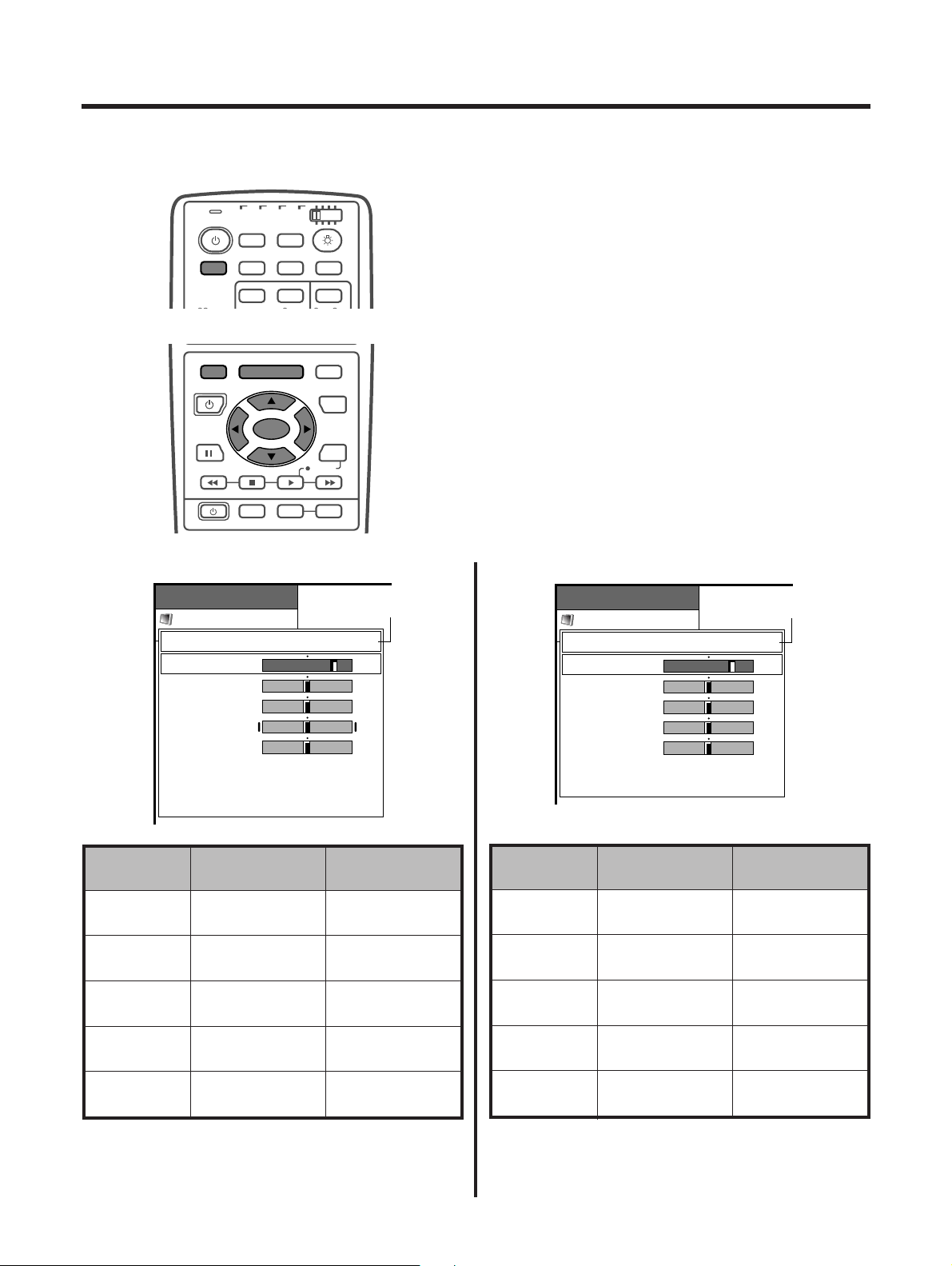
Adjust the picture to your preference with the following picture settings.
1 Press MENU.
2 Press a/b to select “Picture”, and then press SET/
ENTER.
• Picture menu displays.
3 Press a/b to select a specific adjustment item.
4 Press c/d to adjust the item to your desired
position.
5 Press MENU to exit the menu.
A
• When all adjustments are set to factory preset values,
1 Press a/b to select “Reset”, and then press SET/
ENTER.
2 Press a/b to select “Yes”, and then press SET/
ENTER.
• Return to the previous menu by pressing MENU RETURN.
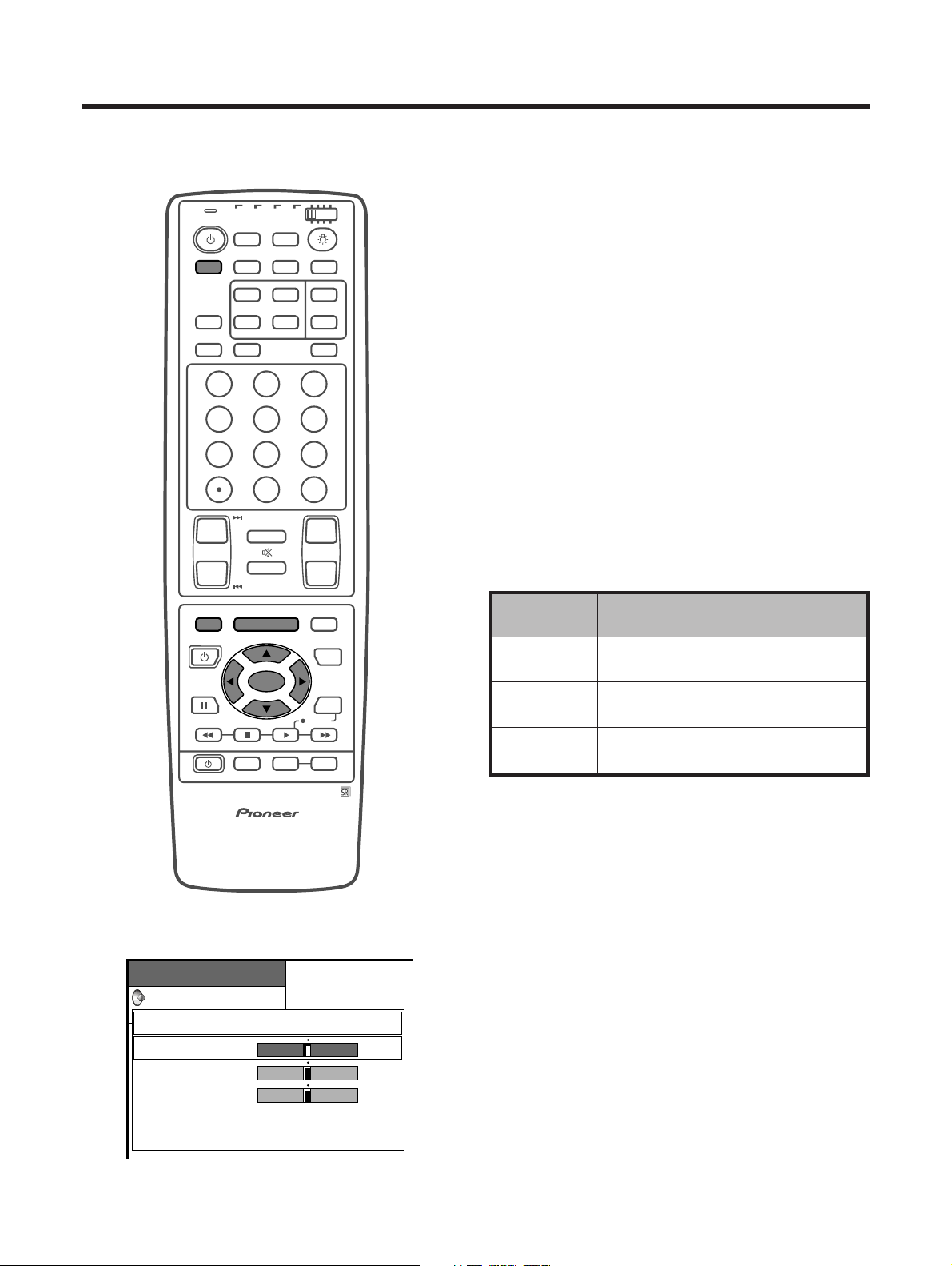
• If you select “STANDARD” with AV SELECTION on the
remote control unit, these items will display in gray
and not be selectable. See page 44.
Currently selected AV
SELECTION mode
TV
ANT INPUT
SURR
FRONT
AV
SELECTION
MTS CC
SPLIT
SELECT
SSC
ⴐ
SC
TV VCRCBL
/SAT
/DTV
DVD
/LD
MENU TV/SAT/DVD
FAVORITE CH
RECEIVER
DTV/DVD TOP
SOURCE DTV/SAT
DTV/SAT
VCR REC
ABCD
RETURN
MENU
SET/
ENTER
MENU
GUIDE
INPUT VOL
ⴑ
VOL
ⴐ
INFO
Currently selected AV
SELECTION mode
E-28
MENU
Picture
USER
Advanced
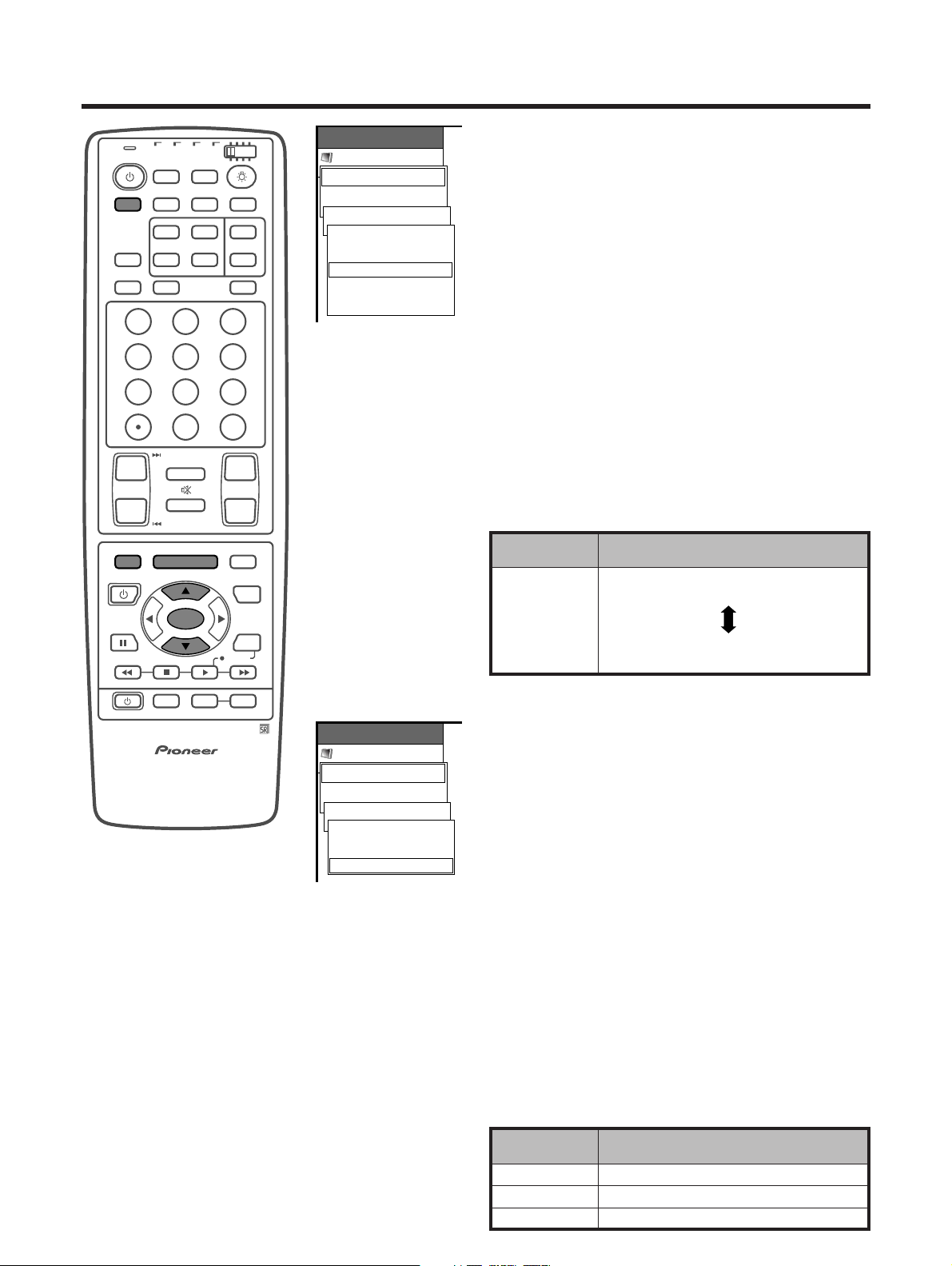
Black [Low]
Off
High
Low
Basic adjustment settings
Black
Select a level for automatically adjusting blackish tone
to suit viewing conditions.
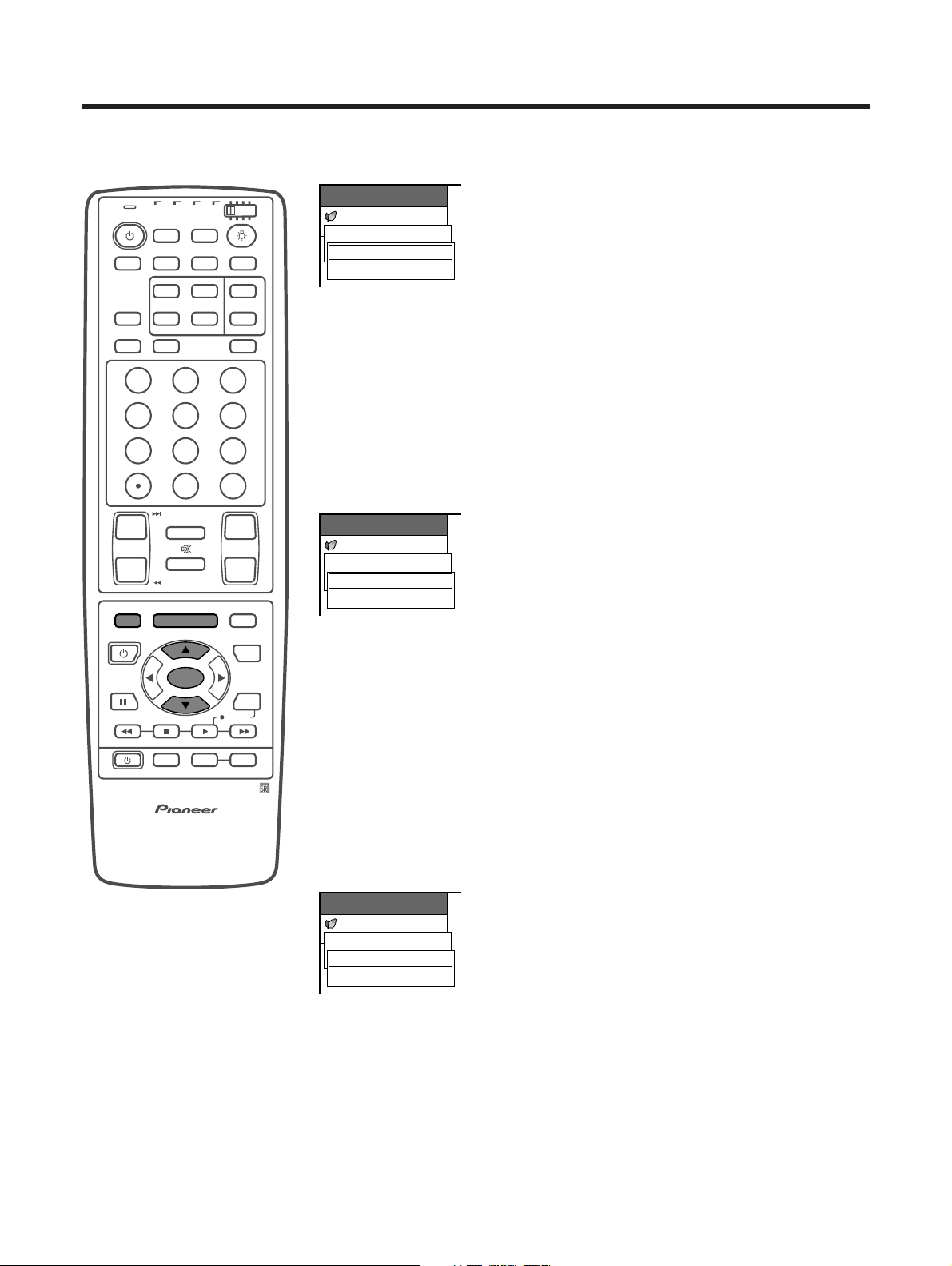
1 Press MENU.
2 Press a/b to select “Picture”, and then press SET/
ENTER.
3 Press a/b to select “Advanced”, and then press
SET/ENTER.
4 Press a/b to select “Black”, and then press SET/
ENTER.
5 Press a/b to select the desired level, and then
press SET/ENTER.
6 Press MENU to exit the menu.
A
• Return to the previous menu by pressing MENU RETURN.
• If you select “STANDARD” with AV SELECTION on the
remote control unit, this item will display in gray and
not be selectable. See page 44.
Description
White with Bluish tone
White with Reddish tone
Selected item
High
Mid-High
Mid
Mid-Low
Low
MENU
Picture
USER
Advanced
Color Temp [Mid]
High
Mid-High
Mid
Mid-Low
Low
Color temperature
Adjust the color temperature to give a better white
balance.
1 Press MENU.
2 Press a/b to select “Picture”, and then press SET/
ENTER.
3 Press a/b to select “Advanced”, and then press
SET/ENTER.
4 Press a/b to select “Color Temp”, and then press
SET/ENTER.
5 Press a/b to select the desired level, and then
press SET/ENTER.
6 Press MENU to exit the menu.
A
• Return to the previous menu by pressing MENU RETURN.
• If you select “STANDARD” with AV SELECTION on the
remote control unit, this item will display in gray and
not be selectable. See page 44.
Description
No adjustment
For high detail in black portions
For low detail in black portions
Selected item
Off
High
Low
TV
ANT INPUT
SURR
FRONT
AV
SELECTION
MTS CC
SPLIT
SELECT
SUB SUB CH
ⴐ
ⴐ
ⴑ
ⴐ
ⴑ
FREEZE
MODE
CH VOL
RETURN
CH
MUTING
MENU TV/SAT/DVD
FAVORITE CH
RECEIVER
DTV/DVD TOP
SOURCE DTV/SAT
DTV/SAT
VCR REC
ABCD
RETURN
MENU
PLASMA DISPLAY
SET/
ENTER
MENU
GUIDE
INPUT VOL
ⴑ
VOL
ⴐ
INFO
SCREEN
SLEEP LEARNEDIT/
DISPLAY
INPUT ⴑ
TV VCRCBL
/SAT
/DTV
DVD
/LD
123
456
789
0
CH
ENTER
E-29
MENU
Picture
USER
Advanced
Black & White [Off]
Off
On
Basic adjustment settings
3D-Y/C
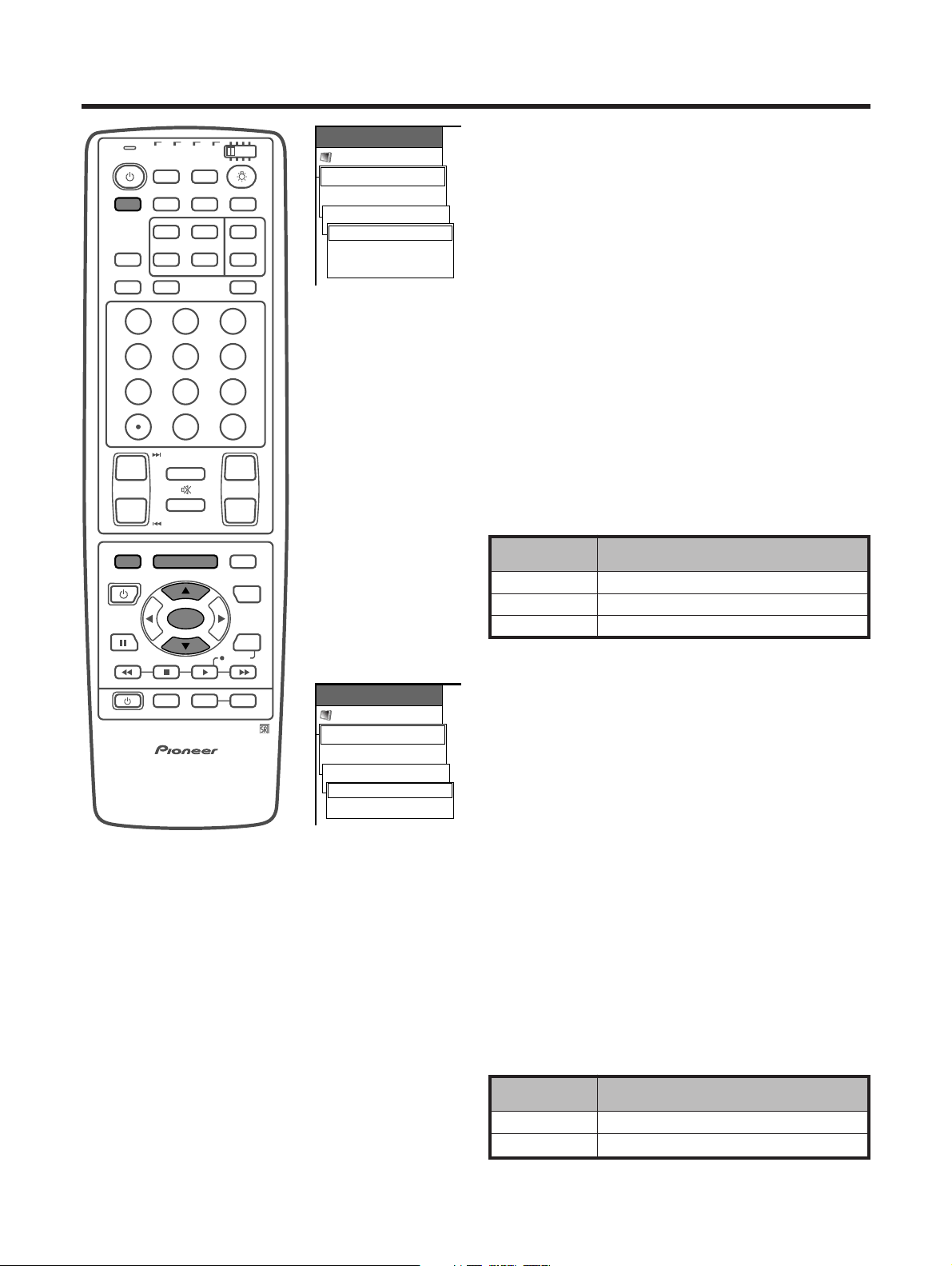
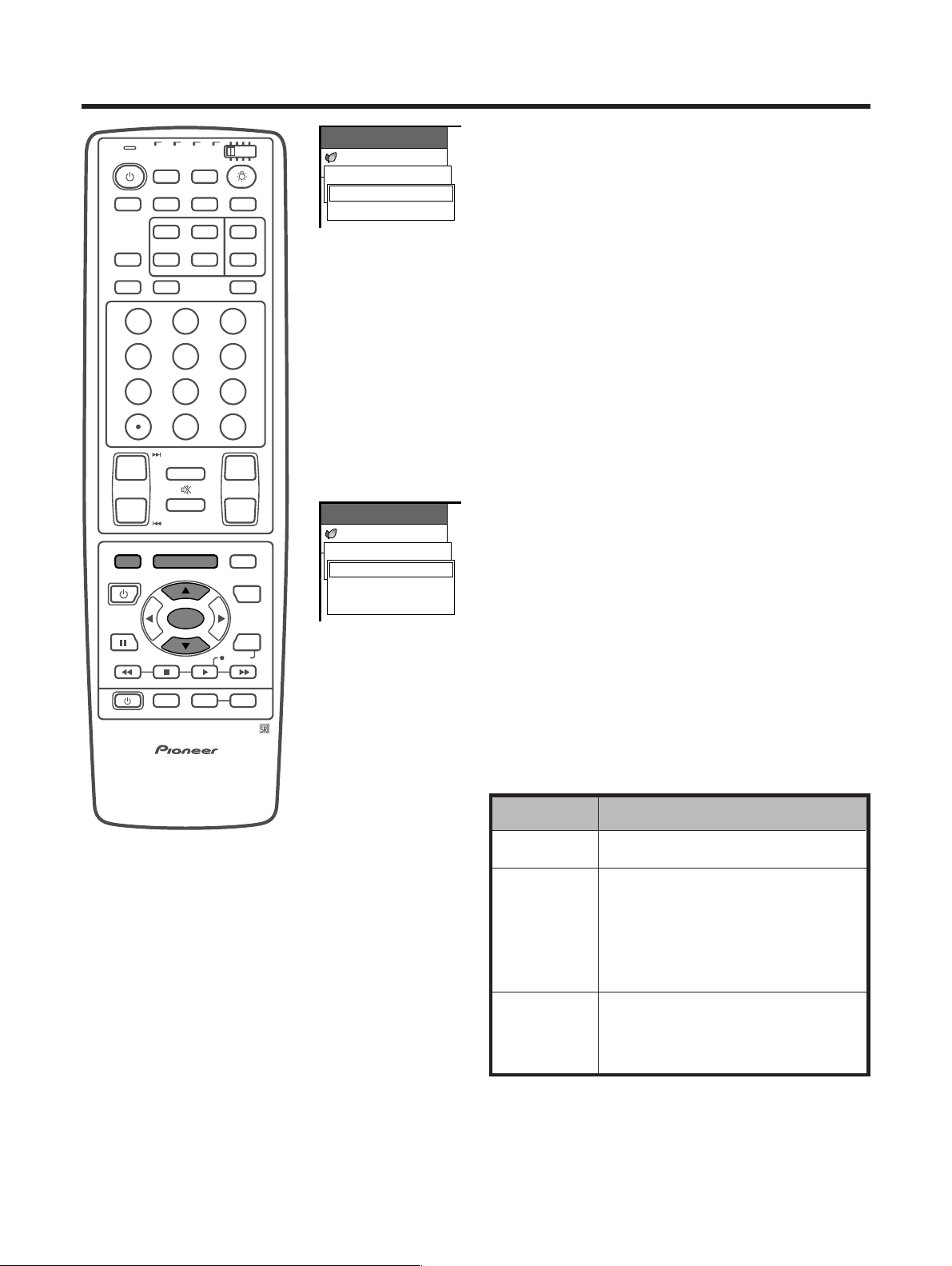
Provides high quality images with minimal dot crawl
and cross color noise.
1 Press MENU.
2 Press a/b to select “Picture”, and then press SET/
ENTER.
3 Press a/b to select “Advanced”, and then press
SET/ENTER.
4 Press a/b to select “3D-Y/C”, and then press SET/
ENTER.
5 Press a/b to select the desired item, and then
press SET/ENTER.
6 Press MENU to exit the menu.
A
• Return to the previous menu by pressing MENU RETURN.
• If you select “STANDARD” with AV SELECTION on the
remote control unit, this item will display in gray and
not be selectable. See page 44.
Black & White
For viewing a video in monochrome.
1 Press MENU.
2 Press a/b to select “Picture”, and then press SET/
ENTER.
3 Press a/b to select “Advanced”, and then press
SET/ENTER.
4 Press a/b to select “Black & White”, and then
press SET/ENTER.
5 Press a/b to select “On”, and then press SET/
ENTER.
6 Press MENU to exit the menu.
A
• Return to the previous menu by pressing MENU RETURN.
• If you select “STANDARD” with AV SELECTION on the
remote control unit, this item will display in gray and
not be selectable. See page 44.
MENU
Picture
USER
Advanced
3D-Y/C [Standard]
Standard
Fast
Slow
Description
Normal adjustment
For moving image
For still image
Selected item
Standard
Fast
Slow
Description
Normal color
For viewing in monochrome
Selected item
Off
On
TV
ANT INPUT
SURR
FRONT
AV
SELECTION
MTS CC
SPLIT
SELECT
SUB SUB CH
ⴐ
ⴐ
ⴑ
ⴐ
ⴑ
FREEZE
MODE
CH VOL
RETURN
CH
MUTING
MENU TV/SAT/DVD
FAVORITE CH
RECEIVER
DTV/DVD TOP
SOURCE DTV/SAT
DTV/SAT
VCR REC
ABCD
RETURN
MENU
PLASMA DISPLAY
SET/
ENTER
MENU
GUIDE
INPUT VOL
ⴑ
VOL
ⴐ
INFO
SCREEN
SLEEP LEARNEDIT/
DISPLAY
INPUT ⴑ
TV VCRCBL
/SAT
/DTV
DVD
/LD
123
456
789
0
CH
ENTER
E-30
MENU
Picture
USER
Advanced
PureCinema [On]
Off
On
Basic adjustment settings
PureCinema
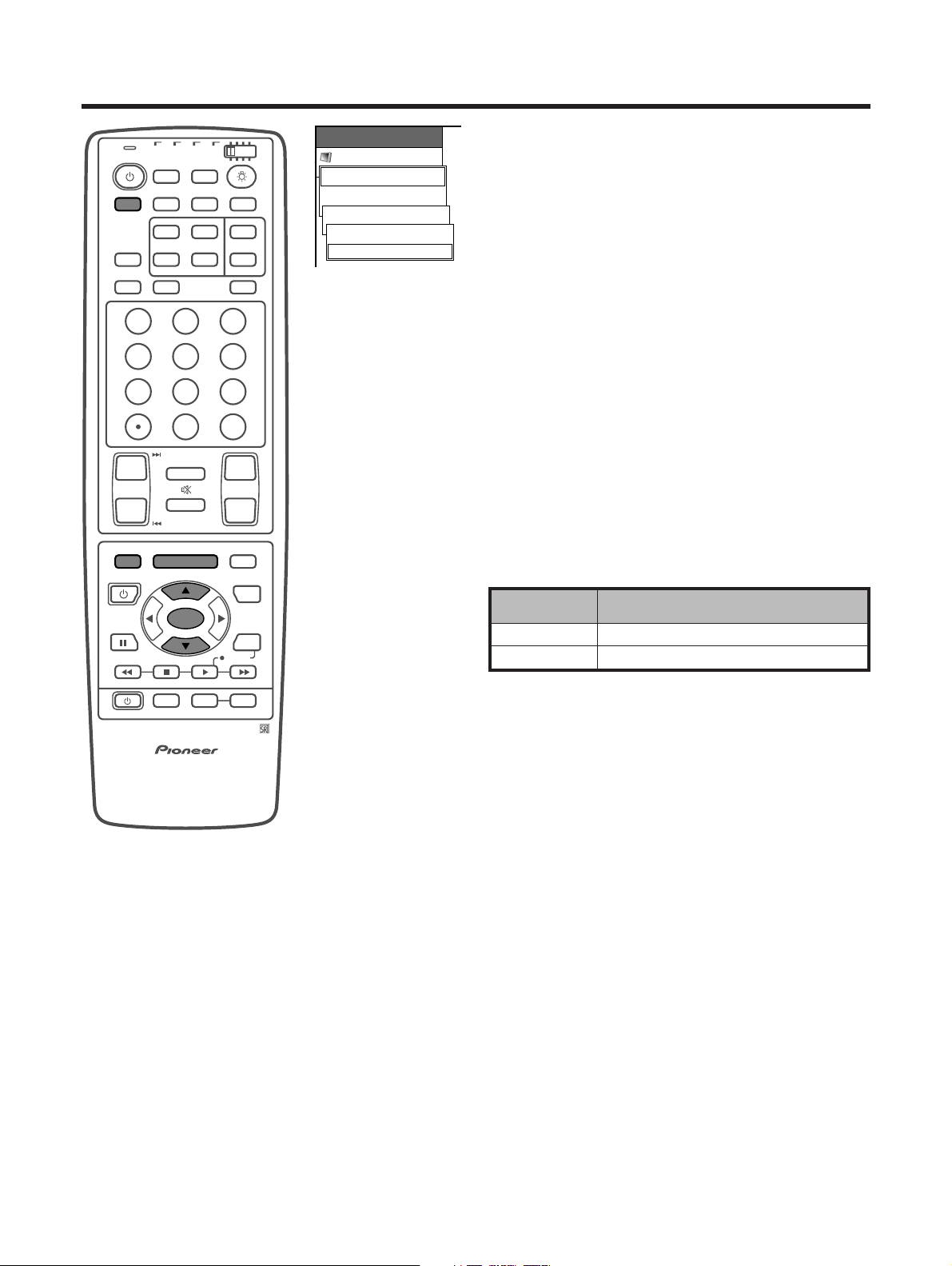
Automatically detects a film-based source (originally
encoded at 24 frames/second), analyzes it then
recreates each still film frame for high-definition picture
quality.
1 Press MENU.
2 Press a/b to select “Picture”, and then press SET/
ENTER.
3 Press a/b to select “Advanced”, and then press
SET/ENTER.
4 Press a/b to select “PureCinema”, and then press
SET/ENTER.
5 Press a/b to select “On”, and then press SET/
ENTER.
6 Press MENU to exit the menu.
A
• Return to the previous menu by pressing MENU RETURN.
• If you select “STANDARD” with AV SELECTION on the
remote control unit, or input sources with 1080I, 720P
or 480P component signals, this item will display in
gray and not be selectable. See page 44.
Description
Normal viewing mode
Detects, analyzes, converts film source
Selected item
Off
On
TV
ANT INPUT
SURR
FRONT
AV
SELECTION
MTS CC
SPLIT
SELECT
SUB SUB CH
ⴐ
ⴐ
ⴑ
ⴐ
ⴑ
FREEZE
MODE
CH VOL
RETURN
CH
MUTING
MENU TV/SAT/DVD
FAVORITE CH
RECEIVER
DTV/DVD TOP
SOURCE DTV/SAT
DTV/SAT
VCR REC
ABCD
RETURN
MENU
PLASMA DISPLAY
SET/
ENTER
MENU
GUIDE
INPUT VOL
ⴑ
VOL
ⴐ
INFO
SCREEN
SLEEP LEARNEDIT/
DISPLAY
INPUT ⴑ
TV VCRCBL
/SAT
/DTV
DVD
/LD
123
456
789
0
CH
ENTER
E-31
Basic adjustment settings
Sound adjustment
You can adjust the sound quality to your preference with the following settings.
Adjustment items for AV source
cbutton
For weaker treble
For weaker bass
Decrease audio from
the right speaker
Selected item
Treble
Bass
Balance
dbutton
For stronger treble
For stronger bass
Decrease audio from
the left speaker
MENU
Audio
USER
Treble
Bass
Balance
Reset
RETURN
[0]
[0]
[0]
–15
–15
Left
+15
+15
Right
1 Press MENU.
2 Press a/b to select “Audio”, and then press SET/
ENTER.
• Audio menu displays.
3 Press a/b to select a specific adjustment item.
4 Press c/d to adjust the item to your desired
position.
5 Press MENU to exit the menu.
A
• When all adjustments are set to factory preset values,
1 Press a/b to select “Reset”, and then press SET/
ENTER.
2 Press a/b to select “Yes”, and then press SET/
ENTER.
• Return to the previous menu by pressing MENU RETURN.
• If you select “STANDARD” with AV SELECTION on the
remote control unit, these items will display in gray
and not be selectable. See page 44.
TV
ANT INPUT
SURR
FRONT
AV
SELECTION
MTS CC
SPLIT
SELECT
SUB SUB CH
ⴐ
ⴐ
ⴑ
ⴐ
ⴑ
FREEZE
MODE
CH VOL
RETURN
CH
MUTING
MENU TV/SAT/DVD
FAVORITE CH
RECEIVER
DTV/DVD TOP
SOURCE DTV/SAT
DTV/SAT
VCR REC
ABCD
RETURN
MENU
PLASMA DISPLAY
SET/
ENTER
MENU
GUIDE
INPUT VOL
ⴑ
VOL
ⴐ
INFO
SCREEN
SLEEP LEARNEDIT/
DISPLAY
INPUT ⴑ
TV VCRCBL
/SAT
/DTV
DVD
/LD
123
456
789
0
CH
ENTER
E-32
Basic adjustment settings
MENU
Power Control
No Signal off [Disable]
Disable
Enable
MENU
Power Control
No Operation off [Disable]
Disable
Enable
Power Control
Power Control setting allows you to reduce the display brightness to save energy.
No Signal off
When set to “Enable”, the power will automatically shut
down if no signal inputs for 15 minutes.
1 Press MENU.
2 Press a/b to select “Power Control”, and then
press SET/ENTER.
3 Press a/b to select “No Signal off”, and then press
SET/ENTER.
4 Press a/b to select “Enable”, and then press SET/
ENTER.
5 Press MENU to exit the menu.
• Five minutes before the power shuts down, a hazard
warning displays every minute.
A
•“Disable” is factory preset value.
• Return to the previous menu by pressing MENU RETURN.
• When a TV program finishes, and the Media Receiver
should receives a signal input, but this may not occur.
No Operation off
When set to “Enable”, the power will automatically shut
down if no operation for 3 hours.
1 Press MENU.
2 Press a/b to select “Power Control”, and then
press SET/ENTER.
3 Press a/b to select “No Operation off”, and then
press SET/ENTER.
4 Press a/b to select “Enable”, and then press SET/
ENTER.
5 Press MENU to exit the menu.
• Five minutes before the power shuts down, hazard
warning displays every minute.
A
•“Disable” is factory preset value.
• Return to the previous menu by pressing MENU RETURN.
MENU
Power Control
Energy Save [Standard]
Standard
Save
Power Control for AV source
Energy Save
When set to “Save”, the power consumption is saved
by decreasing picture brightness.
1 Press MENU.
2 Press a/b to select “Power Control”, and then
press SET/ENTER.
3 Press a/b to select “Energy Save”, and then press
SET/ENTER.
4 Press a/b to select “Save”, and then press SET/
ENTER.
5 Press MENU to exit the menu.
A
•“Standard” is factory preset value.
• Return to the previous menu by pressing MENU RETURN.
TV
ANT INPUT
SURR
FRONT
AV
SELECTION
MTS CC
SPLIT
SELECT
SUB SUB CH
ⴐ
ⴐ
ⴑ
ⴐ
ⴑ
FREEZE
MODE
CH VOL
RETURN
CH
MUTING
MENU TV/SAT/DVD
FAVORITE CH
RECEIVER
DTV/DVD TOP
SOURCE DTV/SAT
DTV/SAT
VCR REC
ABCD
RETURN
MENU
PLASMA DISPLAY
SET/
ENTER
MENU
GUIDE
INPUT VOL
ⴑ
VOL
ⴐ
INFO
SCREEN
SLEEP LEARNEDIT/
DISPLAY
INPUT ⴑ
TV VCRCBL
/SAT
/DTV
DVD
/LD
123
456
789
0
CH
ENTER
E-33
MENU
Power Control
Power Management [Off]
Off
Mode2
Mode1
MENU
Power Control
Energy Save [Standard]
Standard
Save
Basic adjustment settings
Power Management
When set, the power will automatically shut down.
1 Press MENU.
2 Press a/b to select “Power Control”, and then
press SET/ENTER.
3 Press a/b to select “Power Management”, and
then press SET/ENTER.
4 Press a/b to select “Mode1” or “Mode2”, and then
press SET/ENTER.
5 Press MENU to exit the menu.
A
• Return to the previous menu by pressing MENU RETURN.
Description
• No power management
• Factory preset value.
• If no signal inputs for 8 minutes, the power
shuts down.
• Even if you start using the computer and
the signal inputs again, the System stays
off.
• The System turns on again by pressing
STANDBY/ON on the Plasma Display or
TV
aa
aa
a on the remote control unit.
• If no signal inputs for 8 seconds, the power
shuts down.
• When you start using the computer and
the signal inputs again, the System turns
on.
Selected item
Off
Mode1
Mode2
Power Control for PC source
Power control allows you to reduce display brightness
and save energy.
Energy Save
1 Press MENU.
2 Press a/b to select “Power Control”, and then
press SET/ENTER.
3 Press a/b to select “Energy Save”, and then press
SET/ENTER.
4 Press a/b to select “Save”, and then press SET/
ENTER.
5 Press MENU to exit the menu.
A
•“Standard” is factory preset value.
• Return to the previous menu by pressing MENU RETURN.
TV
ANT INPUT
SURR
FRONT
AV
SELECTION
MTS CC
SPLIT
SELECT
SUB SUB CH
ⴐ
ⴐ
ⴑ
ⴐ
ⴑ
FREEZE
MODE
CH VOL
RETURN
CH
MUTING
MENU TV/SAT/DVD
FAVORITE CH
RECEIVER
DTV/DVD TOP
SOURCE DTV/SAT
DTV/SAT
VCR REC
ABCD
RETURN
MENU
PLASMA DISPLAY
SET/
ENTER
MENU
GUIDE
INPUT VOL
ⴑ
VOL
ⴐ
INFO
SCREEN
SLEEP LEARNEDIT/
DISPLAY
INPUT ⴑ
TV VCRCBL
/SAT
/DTV
DVD
/LD
123
456
789
0
CH
ENTER
E-34
Using external equipment
(GRAY)
RS-232C
IN
OUT
CONTROL
AC INLET
SYSTEM
CABLE
(WHITE)
YP
B
P
R
S-VIDEO VIDEO R-AUDIO-L
YP
B
P
R
S-VIDEO
ANT/CABLE 75ΩOUT
COMPONENT VIDEO COMPONENT VIDEO
VIDEO R-AUDIO-L
AB
INPUT 1
INPUT 2
RGB INPUT
INPUT 3
MONITOR OUTPUT
POWER
STANDBY/ON
MEDIA RECEIVER
PDP-R03U
DVD player
Media Receiver
(rear view)
Media Receiver
(front view)
AV Receiver
(Built-in Tuner Amp)
VCR
Digital tuner
Game console/
Camcorder
Computer
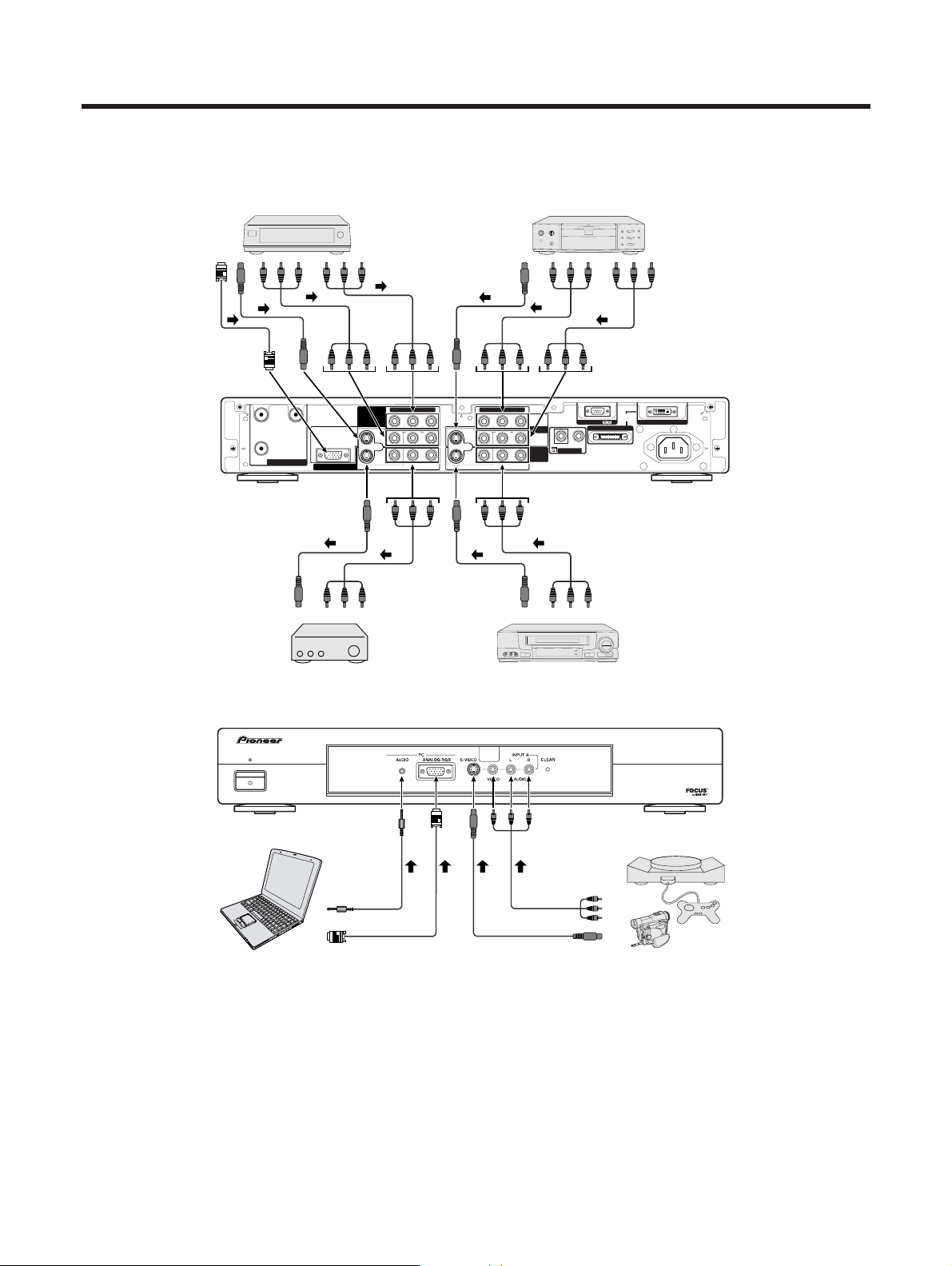
You can connect many types of external equipment to your Plasma Display System, like a DVD player, VCR,
Digital tuner, computer, game console and camcorder. To view external source images, select the input source
from INPUT on the remote control unit or on the Plasma Display.
L
• To protect all equipment, always turn off the Media Receiver before connecting to a DVD player, VCR, Digital tuner,
computer, game console, camcorder or other external equipment.
A
• Please refer to the relevant operation manual (DVD player, computer, etc.) carefully before making connections.
RGB
S-VIDEO
AV
S-VIDEO
Y/PB/PR
AV
Y/PB/PR
AV
S-VIDEO
AV
S-VIDEO
PC-AUDIO
ANALOG RGB
AV
S-VIDEO
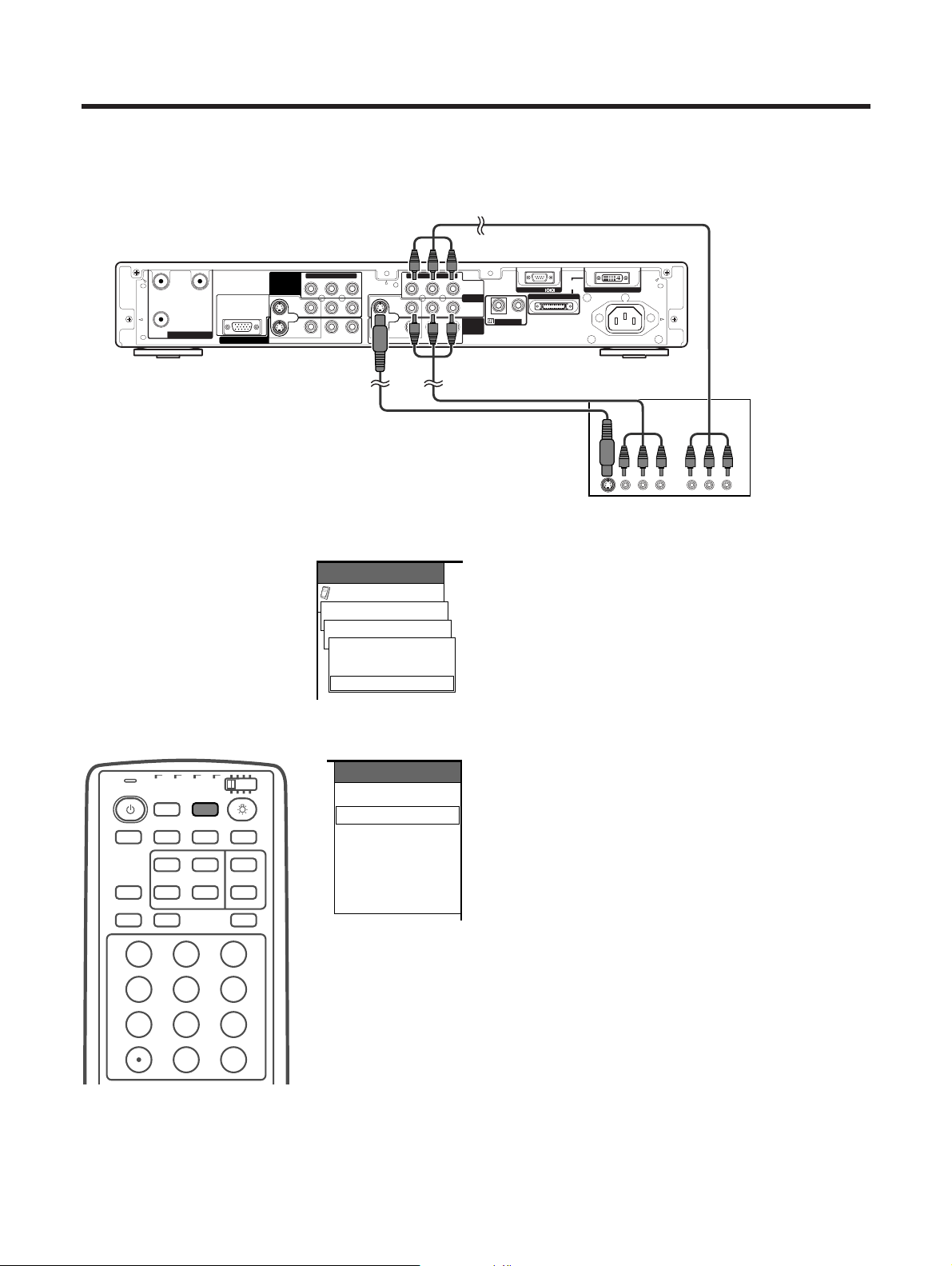
E-35
Using external equipment
Option
MENU
Input Select
INPUT1 [AUTO]
AV-Y/C
AUTO
COMPONENT
(GRAY)
RS-232C
IN
OUT
CONTROL
AC INLET
SYSTEM
CABLE
(WHITE)
YP
B
P
R
S-VIDEO VIDEO R-AUDIO-L
YP
B
P
R
S-VIDEO
ANT/CABLE 75ΩOUT
COMPONENT VIDEO COMPONENT VIDEO
VIDEO R-AUDIO-L
AB
INPUT 1
INPUT 2
RGB INPUT
INPUT 3
MONITOR OUTPUT
Media Receiver (rear view)
DVD player
Component video cable
(commercially available)
INPUT SOURCE
TV
INPUT1
INPUT2
INPUT3
INPUT4
PC
When using component
video cable, select
“COMPONENT” for
“Input Select” in the
menu.
Watching a DVD image
Connecting a DVD player
You can use the INPUT 1 terminal when connecting to a DVD player and other audiovisual equipment.
Displaying a DVD image
When connecting to the INPUT 1 terminal, select
“INPUT1” and set the correct input signal type on “Input
Select” in the menu. (See page 43.)
The setting is stored and can be selected on the
“INPUT SOURCE” menu.
To watch a DVD image, select “INPUT1” from “INPUT
SOURCE” menu using INPUT on the remote control
unit or on the Plasma Display. (See page 43.)
A
• Each time INPUT is pressed, the input source toggles.
• If the DVD image does not come in clearly, you may need
to change the input signal type setting on the “Input Select”
menu.
• Refer to your DVD player operation manual for the signal
type.
TV
ANT INPUT
SURR
FRONT
AV
SELECTION
MTS CC
SPLIT
SELECT
SUB SUB CH
ⴐ
FREEZE
MODE
SCREEN
SLEEP LEARNEDIT/
DISPLAY
INPUT ⴑ
TV VCRCBL
/SAT
/DTV
DVD
/LD
123
456
789
0
CH
ENTER
AV cable
(commercially available)
S-video cable
(commercially available)
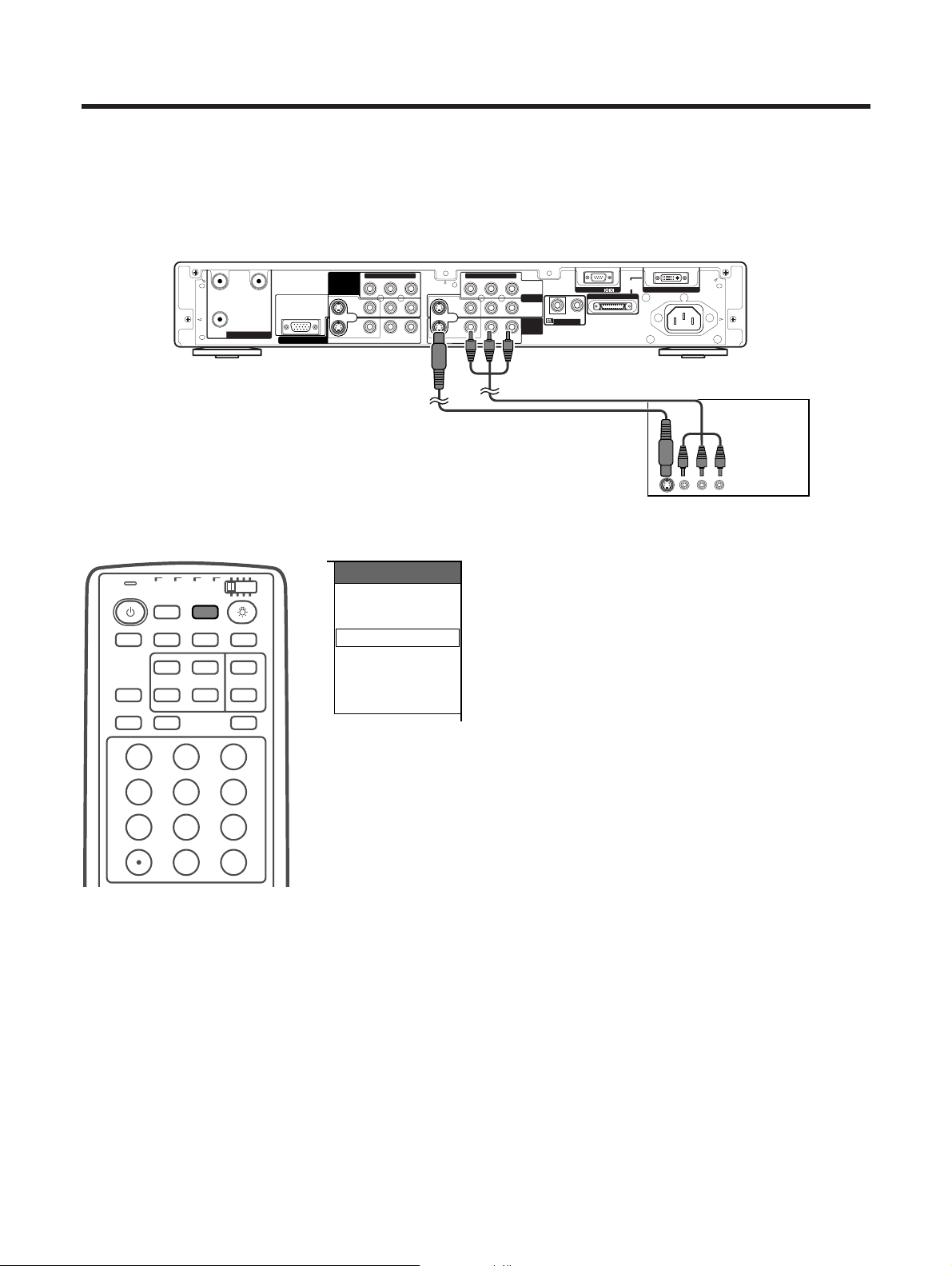
E-36
Using external equipment
(GRAY)
RS-232C
IN
OUT
CONTROL
AC INLET
SYSTEM
CABLE
(WHITE)
YP
B
P
R
S-VIDEO VIDEO R-AUDIO-L
YP
B
P
R
S-VIDEO
ANT/CABLE 75ΩOUT
COMPONENT VIDEO COMPONENT VIDEO
VIDEO R-AUDIO-L
AB
INPUT 1
INPUT 2
RGB INPUT
INPUT 3
MONITOR OUTPUT
Media Receiver (rear view)
VCR
INPUT SOURCE
TV
INPUT1
INPUT2
INPUT3
INPUT4
PC
AV cable
(commercially available)
Watching a VCR image
Connecting a VCR
You can use the INPUT 2 terminal when connecting a VCR and other audiovisual equipment.
Displaying a VCR image
When connecting to the INPUT 2 terminals, select
“INPUT2”.
You only need to select the input source on the “INPUT
SOURCE” menu.
To watch a VCR image, select “INPUT2” from the
“INPUT SOURCE” menu using INPUT on the remote
control unit or on the Plasma Display. (See page 43.)
A
• Each time INPUT is pressed, the input source toggles.
• Refer to your VCR operation manual for the signal type.
S-VIDEO cable
(commercially available)
TV
ANT INPUT
SURR
FRONT
AV
SELECTION
MTS CC
SPLIT
SELECT
SUB SUB CH
ⴐ
FREEZE
MODE
SCREEN
SLEEP LEARNEDIT/
DISPLAY
INPUT ⴑ
TV VCRCBL
/SAT
/DTV
DVD
/LD
123
456
789
0
CH
ENTER
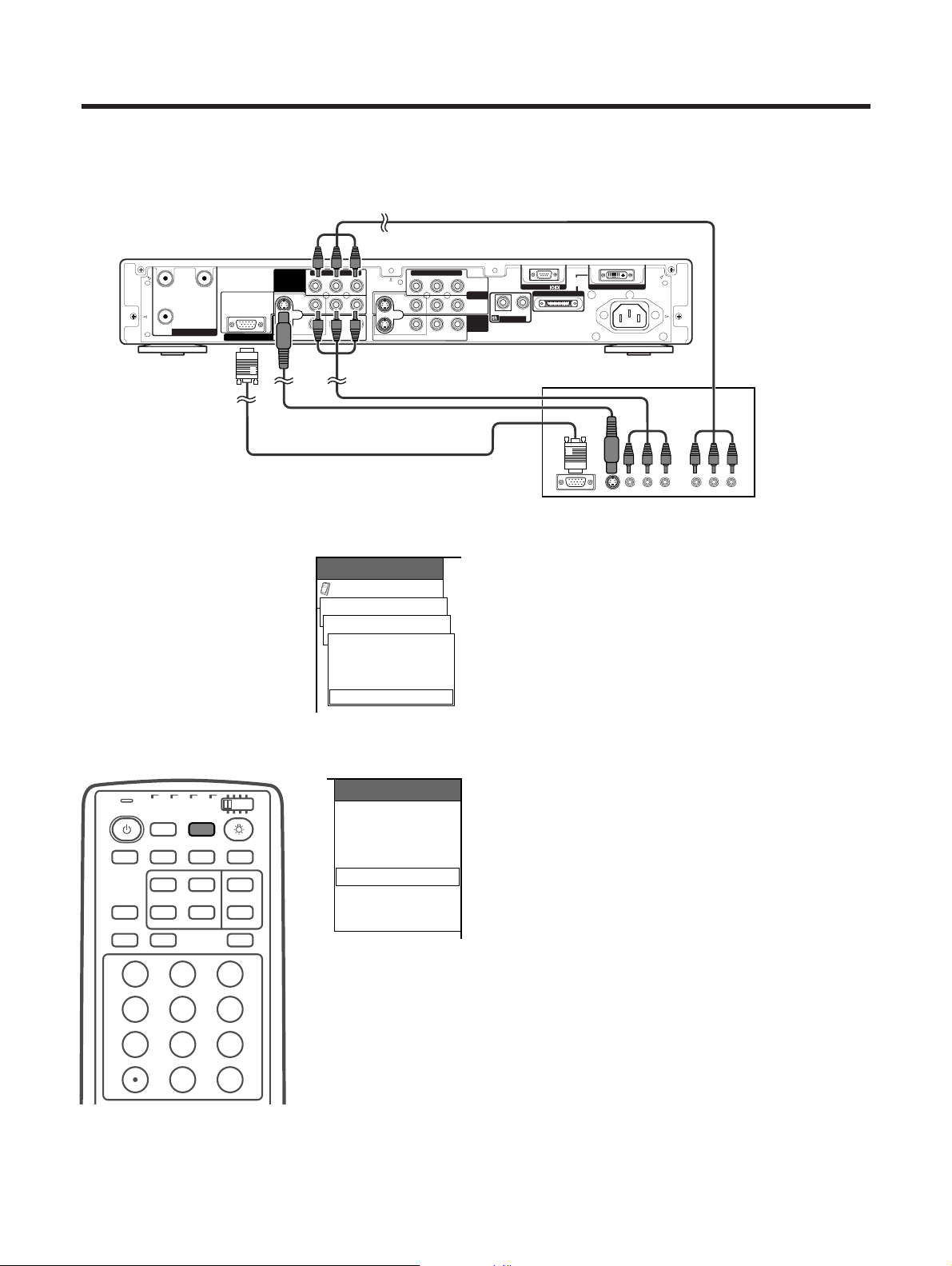
E-37
Using external equipment
Option
MENU
Input Select
INPUT3 [AUTO]
AV-Y/C
RGB
AUTO
COMPONENT
INPUT SOURCE
TV
INPUT1
INPUT2
INPUT3
INPUT4
PC
(GRAY)
RS-232C
IN
OUT
CONTROL
AC INLET
SYSTEM
CABLE
(WHITE)
YP
B
P
R
S-VIDEO VIDEO R-AUDIO-L
YP
B
P
R
S-VIDEO
ANT/CABLE 75ΩOUT
COMPONENT VIDEO COMPONENT VIDEO
VIDEO R-AUDIO-L
AB
INPUT 1
INPUT 2
RGB INPUT
INPUT 3
MONITOR OUTPUT
Media Receiver (rear view)
Digital tuner
Watching broadcasts via a Digital tuner
Connecting a Digital tuner
You can use the INPUT 3 terminal when connecting a Digital tuner and other audiovisual equipment.
Displaying broadcasts via a Digital tuner
When connecting to the INPUT 3 terminal, select
“INPUT3” and set the correct input signal type on “Input
Select” in the menu. (See page 43.)
The setting is stored and can be selected on the
“INPUT SOURCE” menu.
To watch a Digital tuner image, select “INPUT3” from
the “INPUT SOURCE” menu using INPUT on the
remote control unit or on the Plasma Display. (See page
43.)
A
• Each time INPUT is pressed, the input source toggles.
• If the Digital tuner image does not come in clearly, you
may need to change the input signal type setting on the
“Input Select” menu.
• Refer to your Digital tuner operation manual for the signal
type.
• RGB INPUT cannot connect to a PC. (Input resolution is
compatible with 1080I and 540P.)
• Use the PC INPUT terminals on the front of the Media
Receiver when connecting a computer.(See page 39.)
Component video cable
(commercially available)
TV
ANT INPUT
SURR
FRONT
AV
SELECTION
MTS CC
SPLIT
SELECT
SUB SUB CH
ⴐ
FREEZE
MODE
SCREEN
SLEEP LEARNEDIT/
DISPLAY
INPUT ⴑ
TV VCRCBL
/SAT
/DTV
DVD
/LD
123
456
789
0
CH
ENTER
AV cable
(commercially available)
S-video cable
(commercially available)
RGB cable (commercially available)
When using RGB cable, select
"RGB" for "Input Select" in the menu.
When using component
video cable, select
“COMPONENT” for
“Input Select” in the
menu.
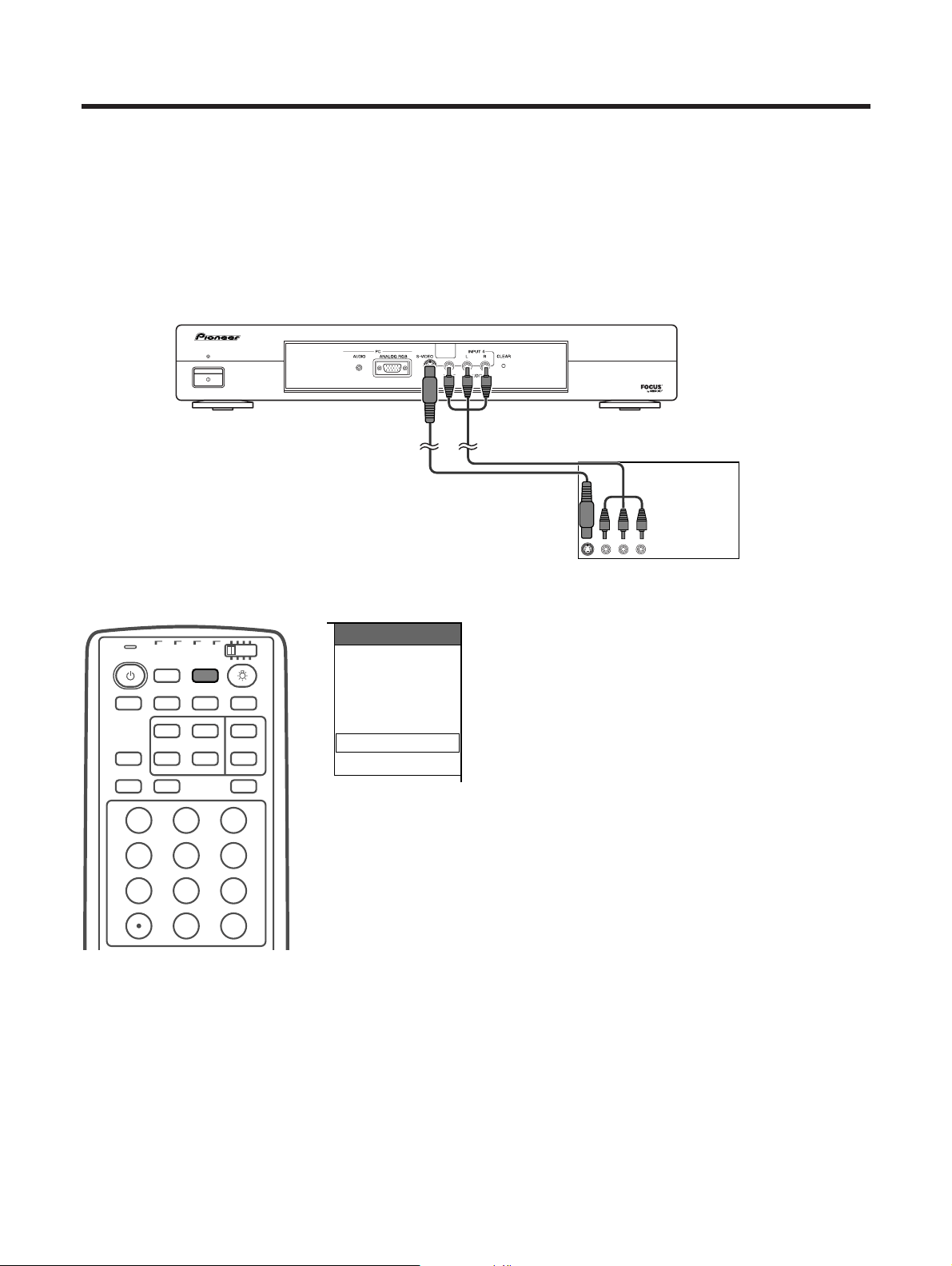
E-38
Using external equipment
POWER
STANDBY/ON
MEDIA RECEIVER
PDP-R03U
Media Receiver (front view)
Game console/Camcorder
AV cable
(commercially available)
S-video cable
(commercially available)
INPUT SOURCE
TV
INPUT1
INPUT2
INPUT3
INPUT4
PC
Enjoying a game console or viewing camcorder images
Connecting a game console or camcorder
A game console, camcorder and some other audiovisual equipment are conveniently connected using the
INPUT 4 terminals.
A
• The S-video terminal has priority over the video terminals.
Displaying an image of the game console or
camcorder
When connecting to the INPUT 4 terminals, select
“INPUT4”.
You only need to select the input source on the “INPUT
SOURCE” menu.
To connect a game console or view a camcorder, select
“INPUT4” from the “INPUT SOURCE” menu using
INPUT on the remote control unit or on the Plasma
Display. (See page 43.)
A
• Each time INPUT is pressed, the input source toggles.
TV
ANT INPUT
SURR
FRONT
AV
SELECTION
MTS CC
SPLIT
SELECT
SUB SUB CH
ⴐ
FREEZE
MODE
SCREEN
SLEEP LEARNEDIT/
DISPLAY
INPUT ⴑ
TV VCRCBL
/SAT
/DTV
DVD
/LD
123
456
789
0
CH
ENTER
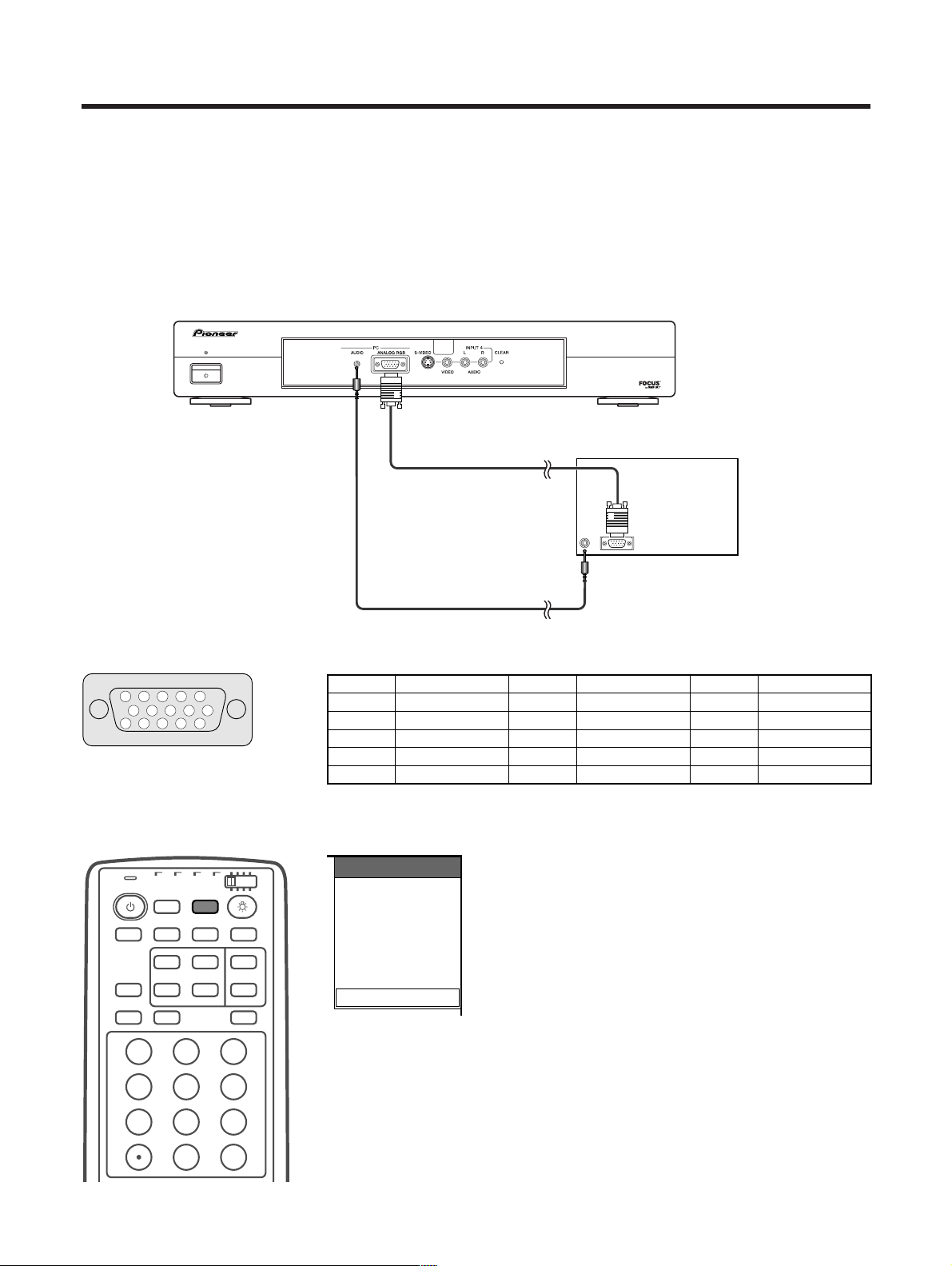
E-39
Using external equipment
POWER
STANDBY/ON
MEDIA RECEIVER
PDP-R03U
RGB cable
(commercially available)
Media Receiver (front view)
ø 3.5 mm stereo minijack cable
(commercially available)
Computer
15
14
13
12
9
11
10
8
7
6
5
4 3
2
1
INPUT SOURCE
TV
INPUT1
INPUT2
INPUT3
INPUT4
PC
Pin No. Signal name Pin No. Signal name Pin No. Signal name
1 R 6 GND (Ground) q Not connected
2 G 7 GND (Ground) w SDA
3 B 8 GND (Ground) e HD
4 Not connected 9 Ⳮ5V r VD
5 CSYNC 0 GND (Ground) t SCL
Viewing an image from a computer
Connecting a computer
Use the PC terminals to connect a computer.
A
• The PC input terminals are DDC1/2B-compatible.
• Refer to page 65 for a list of computer signals compatible with the Plasma Display System.
Signal names for 15-pin mini D-sub connecter
A
• Macintosh adaptor may be required for use for some Macintosh computers.
Displaying an image from a computer
When connecting to a computer, the correct input
signal type is automatically detected. If the computer
image does not come in clearly, you may need to set
the Auto Sync. adjustment on the “Auto Sync.” in the
menu. (See page 42.)
You only need to select the input source on the “INPUT
SOURCE” menu.
To view an image from a computer, select “PC” from
the “INPUT SOURCE” menu using INPUT on the
remote control unit or on the Plasma Display. (See page
43.)
A
• Each time INPUT is pressed, the input source toggles.
• PC INPUT terminals cannot be used for audiovisual
equipment. Use the INPUT 3 (RGB) terminal on the rear
of the Media Receiver when connecting audiovisual
equipment with an RGB signal.(See page 37.)
TV
ANT INPUT
SURR
FRONT
AV
SELECTION
MTS CC
SPLIT
SELECT
SUB SUB CH
ⴐ
FREEZE
MODE
SCREEN
SLEEP LEARNEDIT/
DISPLAY
INPUT ⴑ
TV VCRCBL
/SAT
/DTV
DVD
/LD
123
456
789
0
CH
ENTER
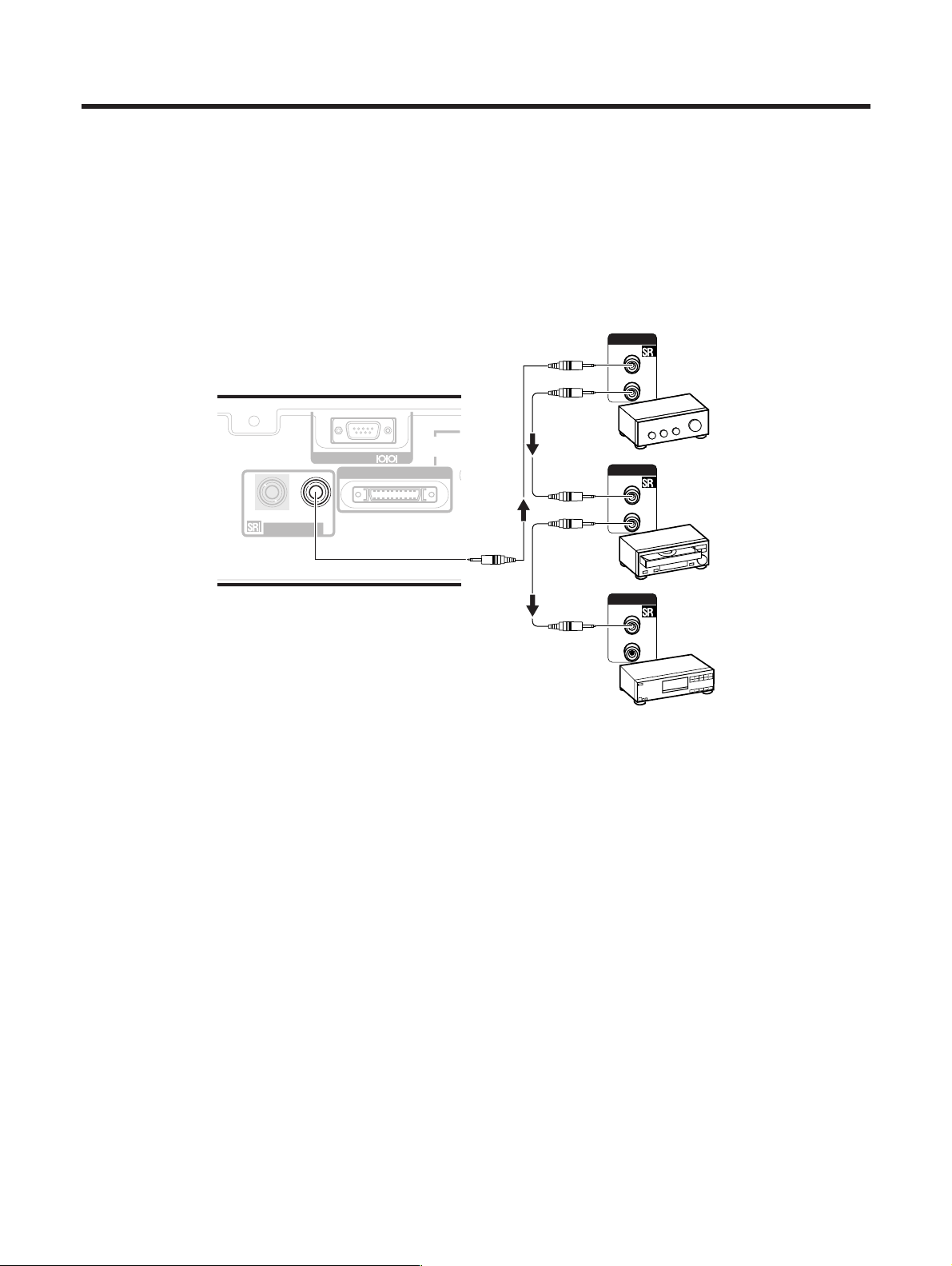
E-40
Using external equipment
Media Receiver (rear view)
Control cord connection
When connecting control cords to the Media Receiver form other remote controlled PIONEER components
bearing the t logo, remote control operations are performed through the sensor on the System side.
After connecting to a CONTROL IN jack on another component, its sensor will no longer receive signals. To
operate a component remotely, point the remote control unit of the connected component at the remote control
sensor on the System.
A
• Make sure the power is turned off when making connections.
• Please complete all component connections before making control cord connections.
The control cables (not supplied) are mono sound
cables with mini plugs (no resistance).
(GRAY)
RS-232C
IN
OUT
CONTROL
SYSTEM
CABLE
CONTROL
IN
OUT
CONTROL
IN
OUT
CONTROL
IN
OUT
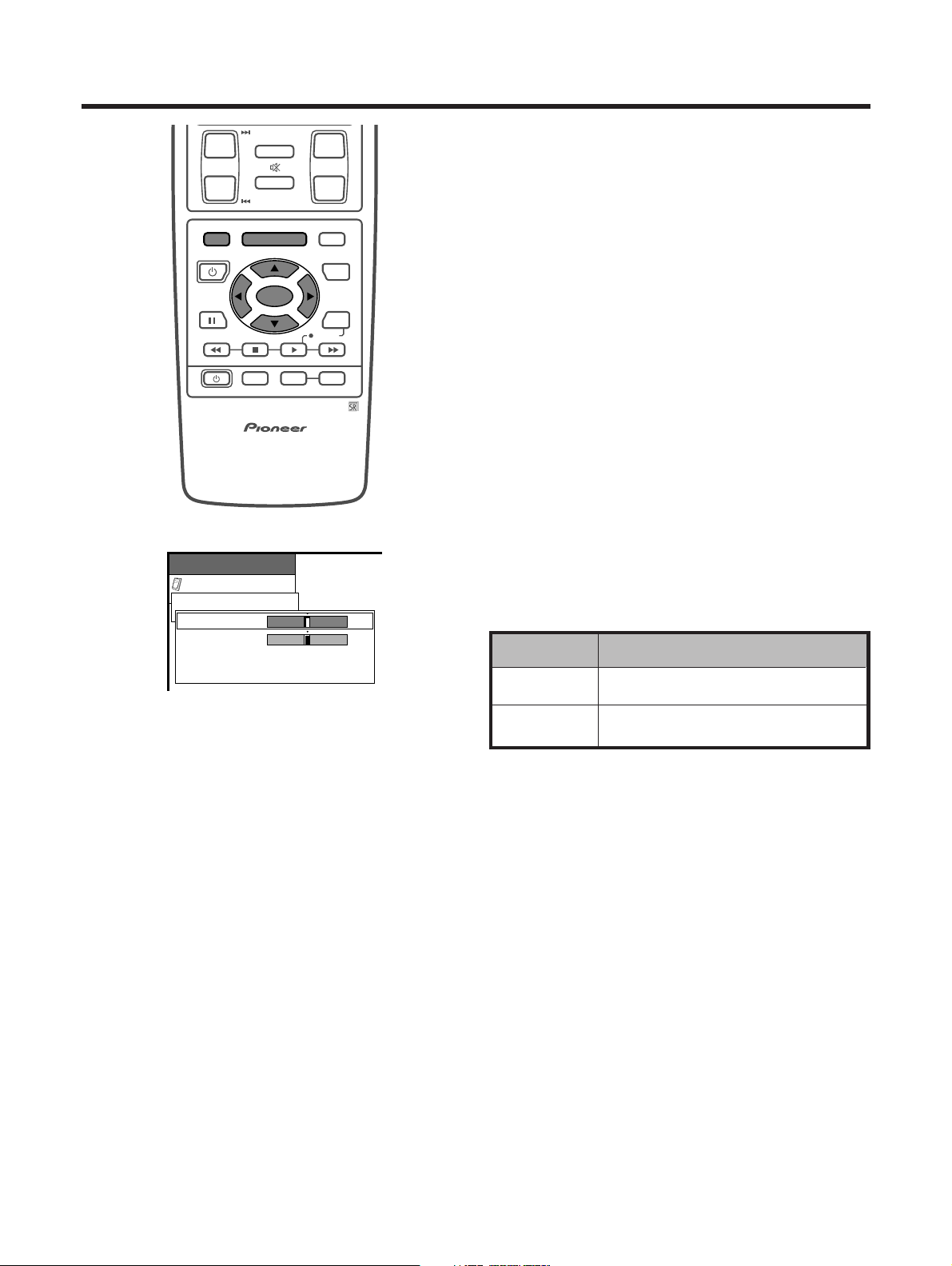
E-41
Option
MENU
Position
H-Pos.
V-Pos.
Reset
RETURN
[0]
[0]
–15
–30
+15
+30
Useful adjustment settings
Description
Centers the image by moving it to the left
or right.
Centers the image by moving it up or
down.
Selected item
H-Pos.
V-Pos.
Image position (AV mode only)
For adjusting a picture’s horizontal and vertical
position.
1 Press MENU.
2 Press a/b to select “Option”, and then press SET/
ENTER.
3 Press a/b to select “Position”, and then press SET/
ENTER.
4 Press a/b to select “H-Pos.” or “V-Pos.”.
5 Press c/d to adjust the item to your desired
position.
6 Press MENU to exit the menu.
A
• For resetting all adjustment items set to the factory preset
values,
1 Press a/b to select “Reset”, and then press SET/
ENTER.
2 Press a/b to select “Yes”, and then press SET/
ENTER.
• Return to the previous menu by pressing MENU RETURN.
• Adjustments are stored separately according to input
source.
• You can easily move the image position as shown on page
22, but when the power is switched off the image will return
to the previously memorised position.
ⴐ
ⴑ
ⴐ
ⴑ
CH VOL
RETURN
CH
MUTING
MENU TV/SAT/DVD
FAVORITE CH
RECEIVER
DTV/DVD TOP
SOURCE DTV/SAT
DTV/SAT
VCR REC
ABCD
RETURN
MENU
PLASMA DISPLAY
SET/
ENTER
MENU
GUIDE
INPUT VOL
ⴑ
VOL
ⴐ
INFO
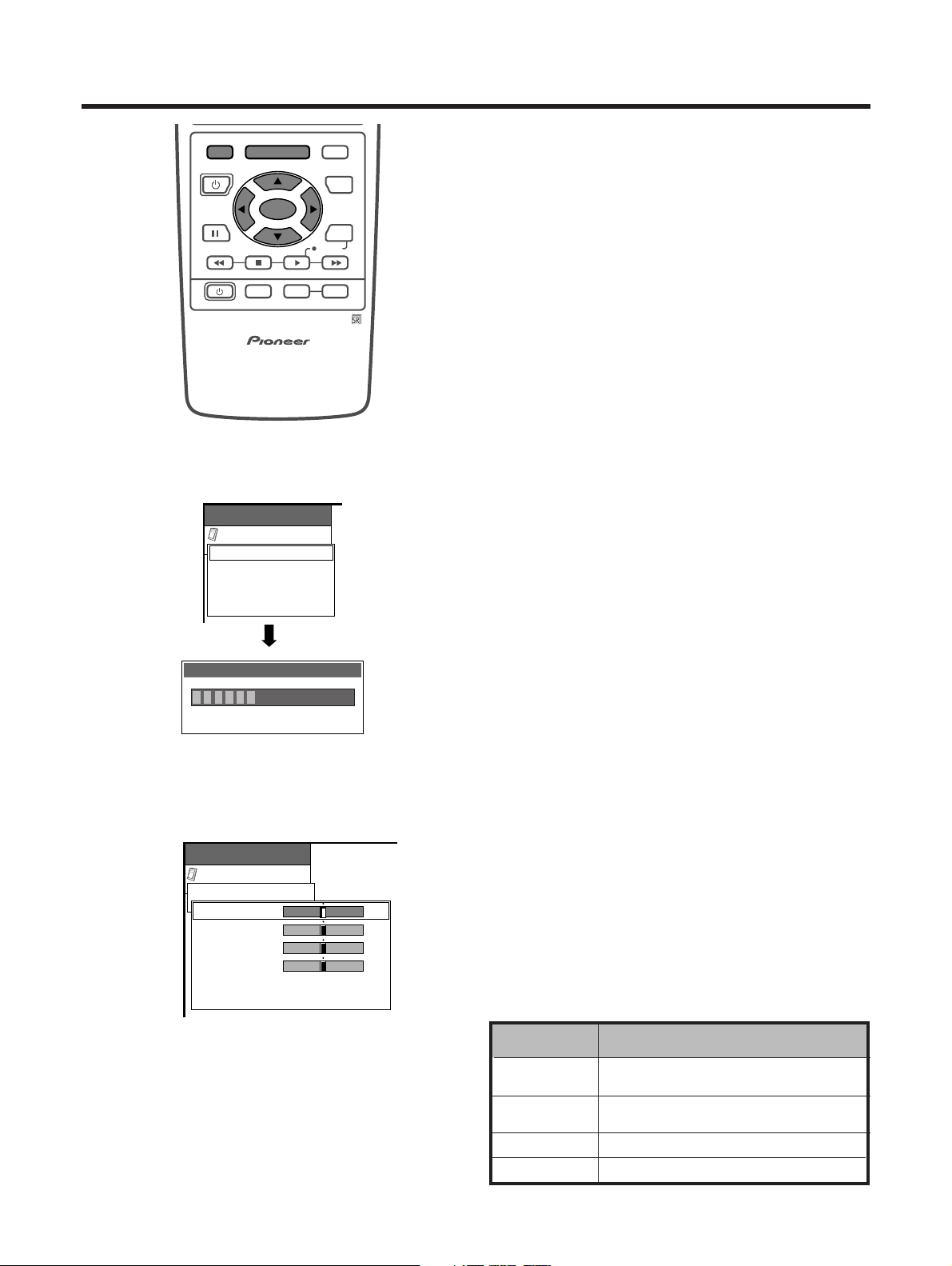
E-42
Useful adjustment settings
Option
MENU
Fine Sync.
Audio Out
RETURN
[Fixed]
Auto Sync.
Auto Sync.
Adjusting the image 32%
Option
MENU
Fine Sync.
H-Pos.
V-Pos.
Clock
Phase
Reset
RETURN
[0]
[0]
[0]
[0]
–90
–60
–90
–20
+90
+60
+90
+20
Fine Sync. adjustment (PC mode only)
Ordinarily you can easily adjust the picture as
necessary to change image position using Auto Sync.
In some cases, however, manual adjustment is needed
to optimize the image.
1 Press MENU.
2 Press a/b to select “Option”, and then press SET/
ENTER.
3 Press a/b to select “Fine Sync.”, and then press
SET/ENTER.
4 Press a/b to select the specific adjustment item.
5 Press c/d to adjust the item to your desired
position.
6 Press MENU to exit the menu.
A
• When all adjustments are set to factory preset values,
1 Press a/b to select “Reset”, and then press SET/
ENTER.
2 Press a/b to select “Yes”, and then press SET/
ENTER.
• Return to the previous menu by pressing MENU RETURN.
Description
Centers the image by moving it to the left
or right.
Centers the image by moving it up or
down.
Adjusts the clock frequency.
Adjusts the clock phase.
Selected item
H-Pos.
V-Pos.
Clock
Phase
Auto Sync. adjustment (PC mode only)
For automatically adjusting the computer image.
1 Press MENU.
2 Press a/b to select “Option”, and then press SET/
ENTER.
3 Press a/b to select “Auto Sync.”, and then press
SET/ENTER.
• Auto Sync. starts and “Adjusting the image.” displays.
A
• Return to the previous menu by pressing MENU RETURN.
• When Auto Sync. is successful, “Auto Sync completed
successfully” displays. If not, Auto Sync. failed.
• Auto Sync. may fail even if “Auto Sync completed
successfully” displays.
• Auto Sync. may fail with a PC image composed of similar
patterns or monochrome. If not successful, change the
PC image and try again.
• Be sure to connect the computer to the Media Receiver
and switch it on before starting Auto Sync.
MENU TV/SAT/DVD
FAVORITE CH
RECEIVER
DTV/DVD TOP
SOURCE DTV/SAT
DTV/SAT
VCR REC
ABCD
RETURN
MENU
PLASMA DISPLAY
SET/
ENTER
MENU
GUIDE
INPUT VOL
ⴑ
VOL
ⴐ
INFO
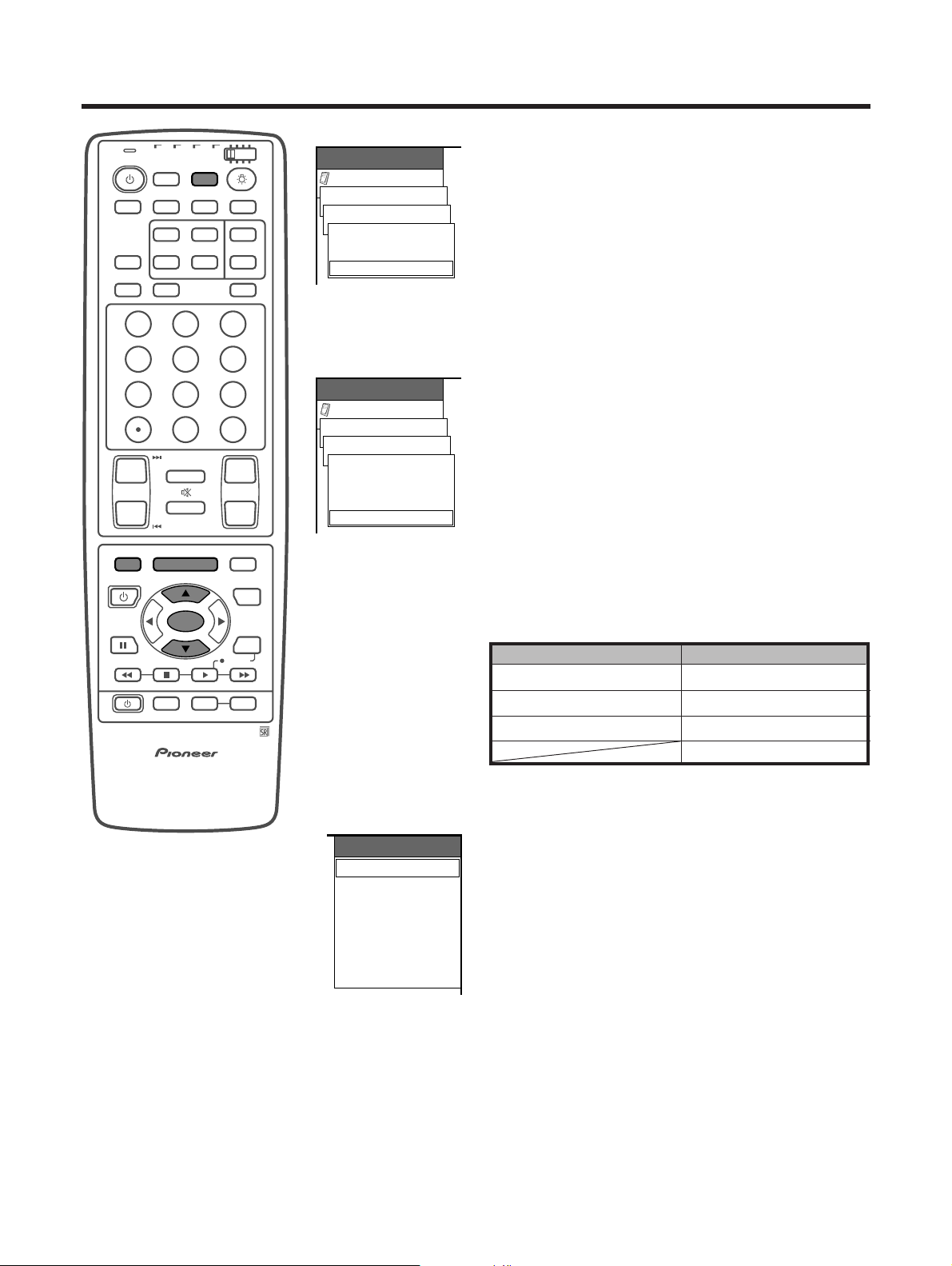
E-43
INPUT SOURCE
TV
INPUT1
INPUT2
INPUT3
INPUT4
PC
Useful adjustment settings
Option
MENU
Input Select
INPUT1 [AUTO]
AV-Y/C
AUTO
COMPONENT
Option
MENU
Input Select
INPUT3 [AUTO]
AV-Y/C
RGB
AUTO
COMPONENT
INPUT 1 signal menu
INPUT 3 signal menu
Input selection
Can use for selecting the input source.
1 Press INPUT on the remote control unit or on the
Plasma Display.
• INPUT SOURCE menu displays.
2 Hold down INPUT on the remote control unit or on
the Plasma Display to select the input source.
• An image from the selected source automatically
displays.
• You can also select the input source by pressing a/
b.
A
• Items grayed out are not selectable.
Input signal source
Input signal setting
For setting the signal type of external equipment.
1 Press MENU.
2 Press a/b to select “Option”, and then press SET/
ENTER.
3 Press a/b to select “Input Select”, and then press
SET/ENTER.
4 Press a/b to select an input source you want to
set, and then press SET/ENTER.
5 Press a/b to select a signal type, and then press
SET/ENTER.
• If the selected signal type is incorrect, an image does
not display or no color image displays.
6 Press MENU to exit the menu.
A
• Return to the previous menu by pressing MENU RETURN.
• The System automatically sets input signals from
“INPUT2”, “INPUT4” and “PC”.
• If no image displays, try to change the signal type.
• Check the operation manual of the external equipment
for the signal type.
• Setting INPUT 1 and INPUT 3 signal selection to “AUTO”
when other equipment is connected will result in the
following connectivity priority.
TV
ANT INPUT
SURR
FRONT
AV
SELECTION
MTS CC
SPLIT
SELECT
SUB SUB CH
ⴐ
ⴐ
ⴑ
ⴐ
ⴑ
FREEZE
MODE
CH VOL
RETURN
CH
MUTING
MENU TV/SAT/DVD
FAVORITE CH
RECEIVER
DTV/DVD TOP
SOURCE DTV/SAT
DTV/SAT
VCR REC
ABCD
RETURN
MENU
PLASMA DISPLAY
SET/
ENTER
MENU
GUIDE
INPUT VOL
ⴑ
VOL
ⴐ
INFO
SCREEN
SLEEP LEARNEDIT/
DISPLAY
INPUT ⴑ
TV VCRCBL
/SAT
/DTV
DVD
/LD
123
456
789
0
CH
ENTER
INPUT 1
1. COMPONENT VIDEO
2. S-VIDEO
3. VIDEO
INPUT 3
1. COMPONENT VIDEO
2. S-VIDEO
3. VIDEO
4. RGB INPUT
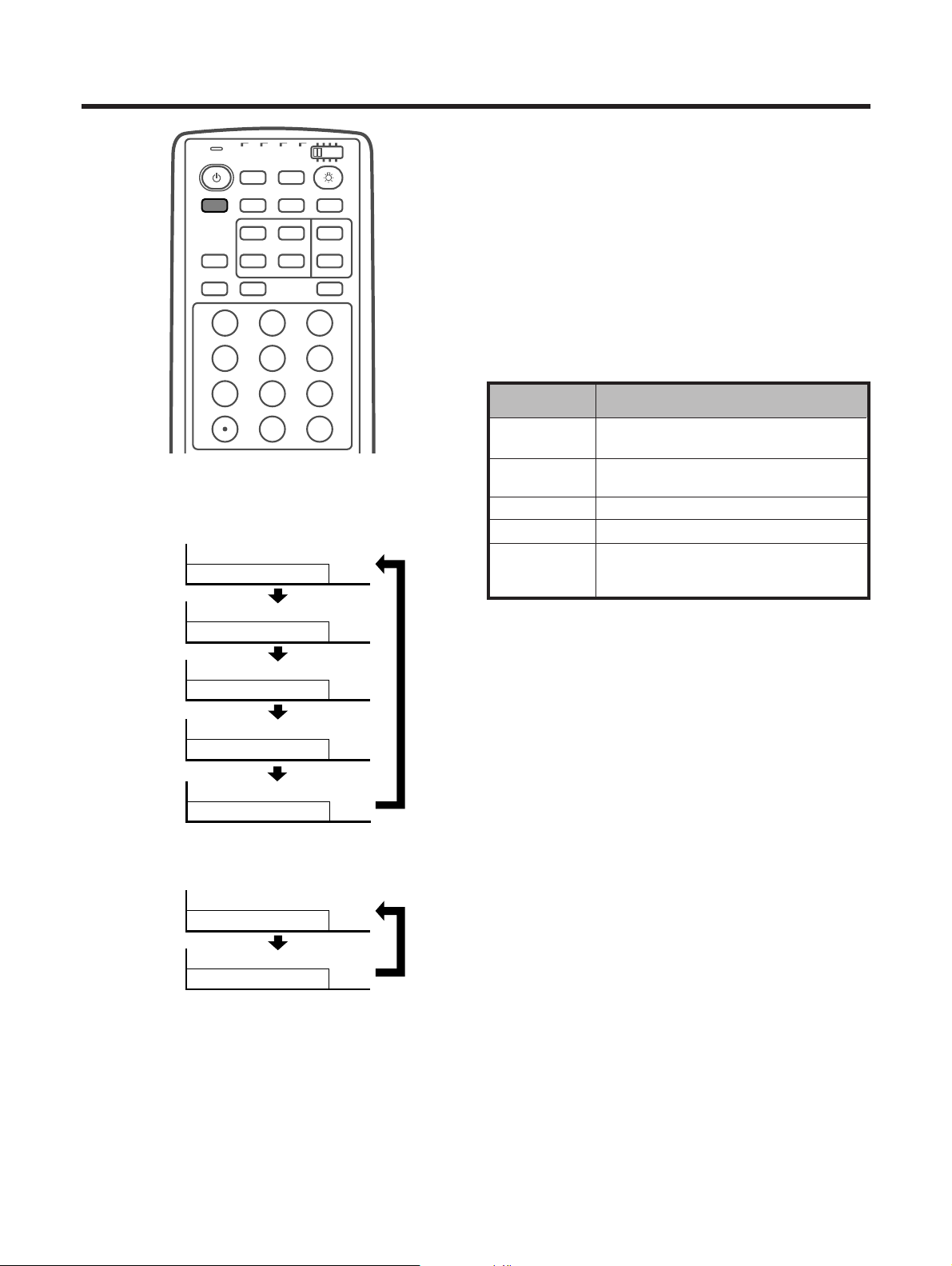
E-44
Useful adjustment settings
AV SELECTION: STANDARD
AV SELECTION: DYNAMIC
AV SELECTION: MOVIE
AV SELECTION: GAME
AV SELECTION: USER
AV SELECTION: STANDARD
AV SELECTION: USER
Mode selection for INPUT 1 to 4 terminals
Mode selection for the PC terminal
Description
For a highly defined image in a normally
bright room
For a clear-cut image emphasizing high
contrast for sports viewing.
For a movie
Lowers image brightness for easier viewing
Allows the user to customize settings as
desired. You can set the mode for each
input source.
Selected item
STANDARD
DYNAMIC
MOVIE
GAME
USER
AV SELECTION
AV SELECTION gives you five viewing options to
choose from to best match the Plasma Display System
environment, which can vary due to factors like room
brightness, type of program watched or the type of
image input from external equipment.
1 Press AV SELECTION.
• Present AV SELECTION mode displays.
2 Press AV SELECTION again before the mode
displayed on the screen disappears.
• The mode changes as shown left.
TV
ANT INPUT
SURR
FRONT
AV
SELECTION
MTS CC
SPLIT
SELECT
SUB SUB CH
ⴐ
FREEZE
MODE
SCREEN
SLEEP LEARNEDIT/
DISPLAY
INPUT ⴑ
TV VCRCBL
/SAT
/DTV
DVD
/LD
123
456
789
0
CH
ENTER
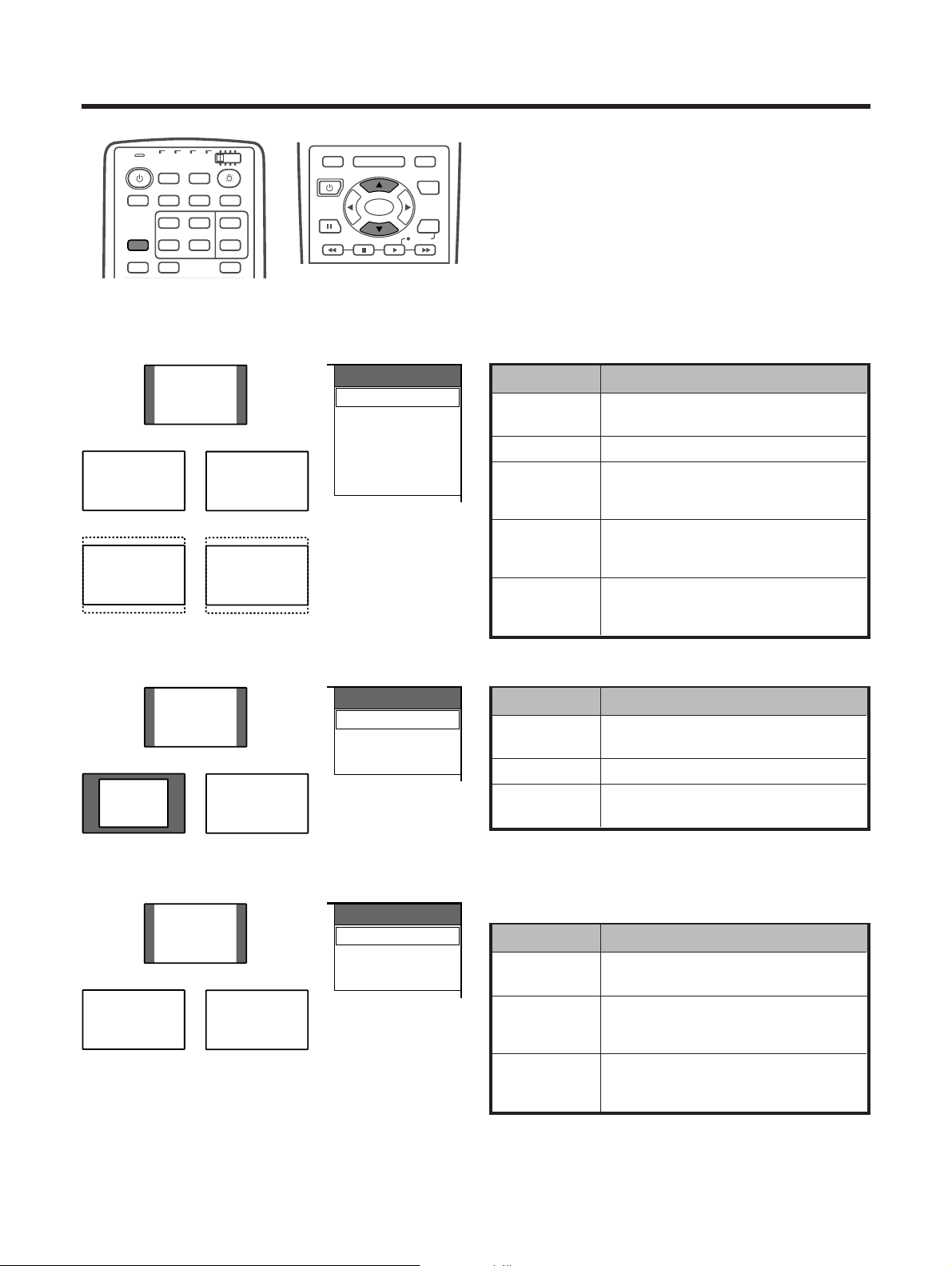
E-45
Useful adjustment settings
Wide Mode
1 Press SCREEN MODE.
• The Wide Mode menu displays.
• The menu lists the Wide Mode options selectable for
the type of video signal currently received.
2 Press SCREEN MODE or a/b while the Wide
Mode menu is still on the screen.
• You can sequentially select a Wide Mode that has its
own aspect ratio.
Description
For 4:3 “standard” pictures. A side
bar appears on each side.
For 16:9 squeeze pictures.
For 16:9 letterbox pictures. Bars may
appear on the top and bottom with
some programs.
For 14:9 letterbox pictures. Bars may
appear on the top and bottom on
some programs.
In this mode the picture is
progressively stretched toward each
side of the screen.
Selected item
4:3
Full
Zoom
Cinema
Wide
TV
ANT INPUT
SURR
FRONT
AV
SELECTION
MTS CC
SPLIT
SELECT
SUB SUB CH
ⴐ
FREEZE
MODE
SCREEN
SLEEP LEARNEDIT/
DISPLAY
INPUT ⴑ
TV VCRCBL
/SAT
/DTV
DVD
/LD
MENU TV/SAT/DVD
FAVORITE CH
DTV/DVD TOP
SOURCE DTV/SAT
DTV/SAT
VCR REC
ABCD
RETURN
MENU
SET/
ENTER
MENU
GUIDE
INFO
Wide Mode
4:3
Full
Zoom
Cinema
Wide
AV mode
PC mode except for XGA signal
Wide Mode
4:3
Full
Dot by Dot
Wide Mode
4:3
Full1
Full2
AV mode
Description
Fills the screen without altering the
input signal aspect ratio.
Full 16:9 screen display.
Matches input signal with same
number of screen pixels.
Selected item
4:3
Full
Dot by Dot
PC mode except for XGA signal
Description
Full 16:9 screen display.
Optimized for 1024g768 display.
Matches input signal with same
number of screen pixels.
Optimized for 1024g768 display.
For wide signal display.
Use when displaying 1280g768
signal resolution.
Selected item
Full1
4:3
Full2
PC mode for XGA signal
(Ex. 1024g768 input at PDP-5030HD)
PC mode for XGA signal
4:3
Full
Zoom
Cinema
Wide
Dot by Dot
4:3
Full
4:3
Full1 Full2
A
• The PC mode above is for the PDP-5030HD. For the PDP-
4330HD the number of panel pixels is different, so signal
processing and actual viewing conditions will vary slightly.
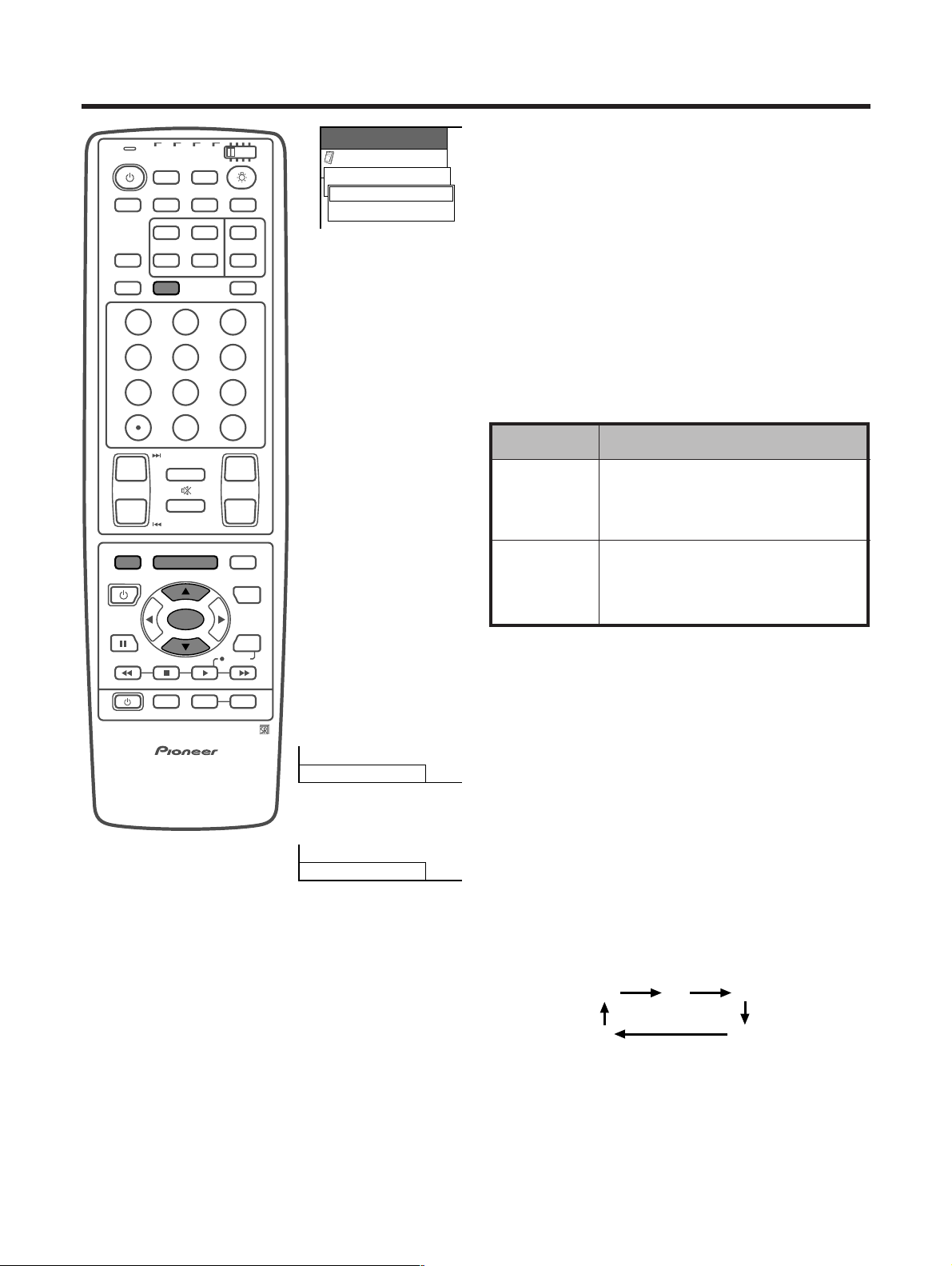
E-46
Sleep timer
Allows you to set a time when the TV automatically
switches to standby.
1 Press SLEEP.
• Remaining time displays when sleep timer has been
set.
2 Each time you press SLEEP, the remaining time
switches as shown below.
• When set the time automatically starts counting down.
• If you want adjust the Sleep timer, you can press
“SLEEP” twice then change the time setting.
• Five minutes before time expires, the remaining time
displays each minute.
A
• Select “0” by pressing SLEEP to cancel the sleep timer.
Option
MENU
Audio Out [Fixed]
Fixed
Variable
Useful adjustment settings
Description
• Sound via optional speakers is adjusted
with VOL k/l on the remote control unit
or VOLUME s/r on the Plasma Display.
• Sound via the MONITOR OUTPUT terminal
is not adjustable and constantly outputs.
• Sound via the MONITOR OUTPUT terminal
is adjusted with VOL k/l on the remote
control unit or VOLUME s/r on the
Plasma Display.
• Sound via optional speakers is muted.
Selected item
Fixed
Variable
30 60 90
120
0
Audio out
Allows you to select what controls the audio output.
1 Press MENU.
2 Press a/b to select “Option”, and then press SET/
ENTER.
3 Press a/b to select “Audio Out”, and then press
SET/ENTER.
4 Press a/b to select “Fixed” or “Variable”, and then
press SET/ENTER.
5 Press MENU to exit the menu.
A
• Return to the previous menu by pressing MENU RETURN.
(minutes)
TV
ANT INPUT
SURR
FRONT
AV
SELECTION
MTS CC
SPLIT
SELECT
SUB SUB CH
ⴐ
ⴐ
ⴑ
ⴐ
ⴑ
FREEZE
MODE
CH VOL
RETURN
CH
MUTING
MENU TV/SAT/DVD
FAVORITE CH
RECEIVER
DTV/DVD TOP
SOURCE DTV/SAT
DTV/SAT
VCR REC
ABCD
RETURN
MENU
PLASMA DISPLAY
SET/
ENTER
MENU
GUIDE
INPUT VOL
ⴑ
VOL
ⴐ
INFO
SCREEN
SLEEP LEARNEDIT/
DISPLAY
INPUT ⴑ
TV VCRCBL
/SAT
/DTV
DVD
/LD
123
456
789
0
CH
ENTER
Sleep Timer: Remain 30
(cancel)
Sleep Timer: 30
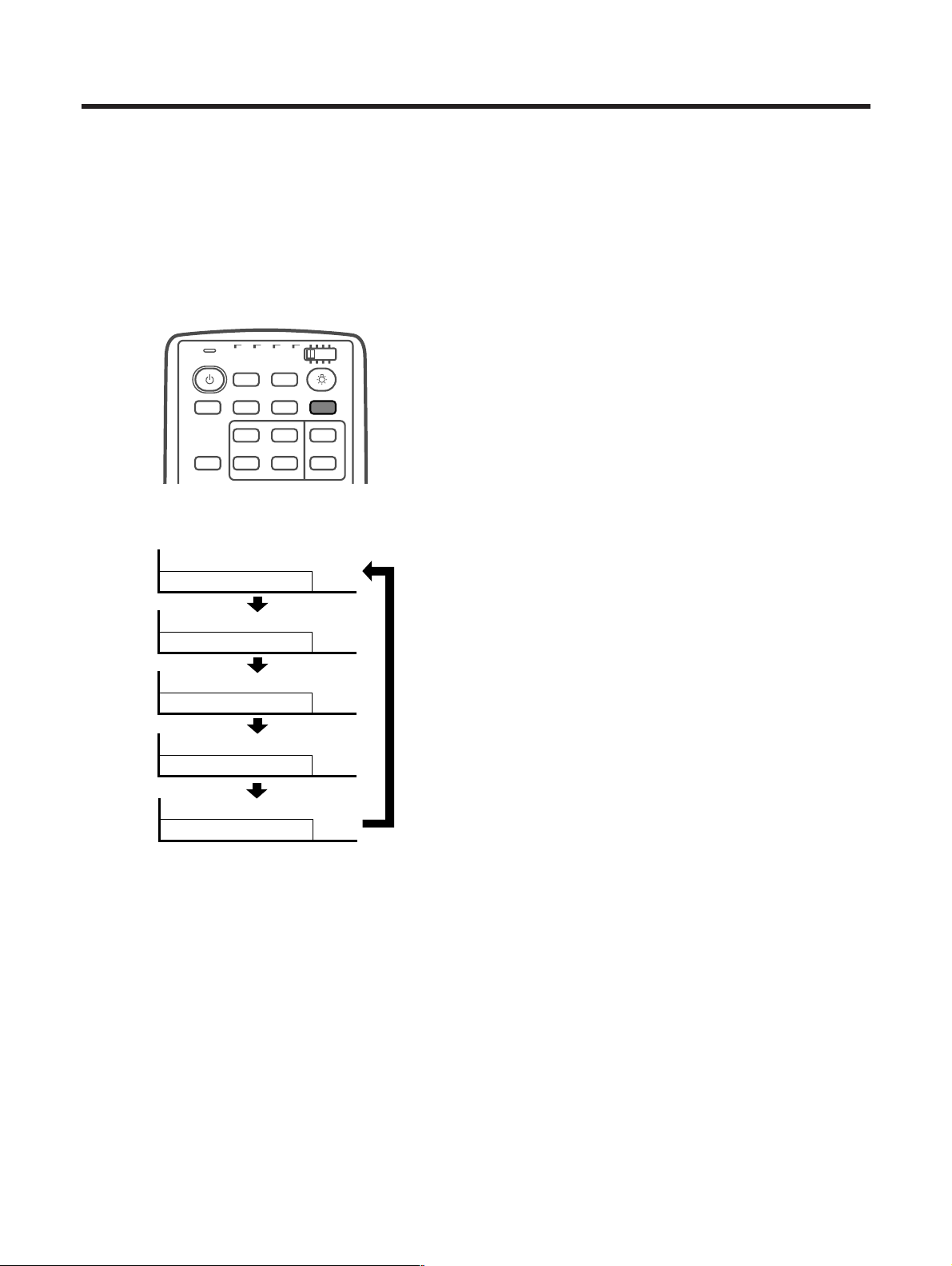
E-47
Useful adjustment settings
Closed caption
• Your Plasma Display System is equipped with an internal closed caption decoder. Closed caption is a system
which allows you to view conversations, narration, and sound effects in TV programs and home videos as
subtitles on your Plasma Display screen.
• Not all programs and videos offer closed caption. Please look for the “N” symbol to ensure that captions will
be shown.
•“CC1” or “CC2” displays subtitles of TV dramas and news programs while allowing a full view of the picture.
•“T1” or “T2” superimposes on the picture other information (e.g. TV guide, weather) that is independent of the
TV in progress.
TV
ANT INPUT
SURR
FRONT
AV
SELECTION
MTS CC
SPLIT
SELECT
SUB SUB CH
ⴐ
FREEZE
MODE
SCREEN
INPUT ⴑ
TV VCRCBL
/SAT
/DTV
DVD
/LD
CC/TEXT: Off
CC/TEXT: CC1
CC/TEXT: CC2
CC/TEXT: T1
CC/TEXT: T2
Each time you press CC, the closed caption toggles
as shown below.
A
• When using Dual Screen (See page 55.) and Still Image
(See page 55.) functions, the right screen cannot display
Closed Caption data.
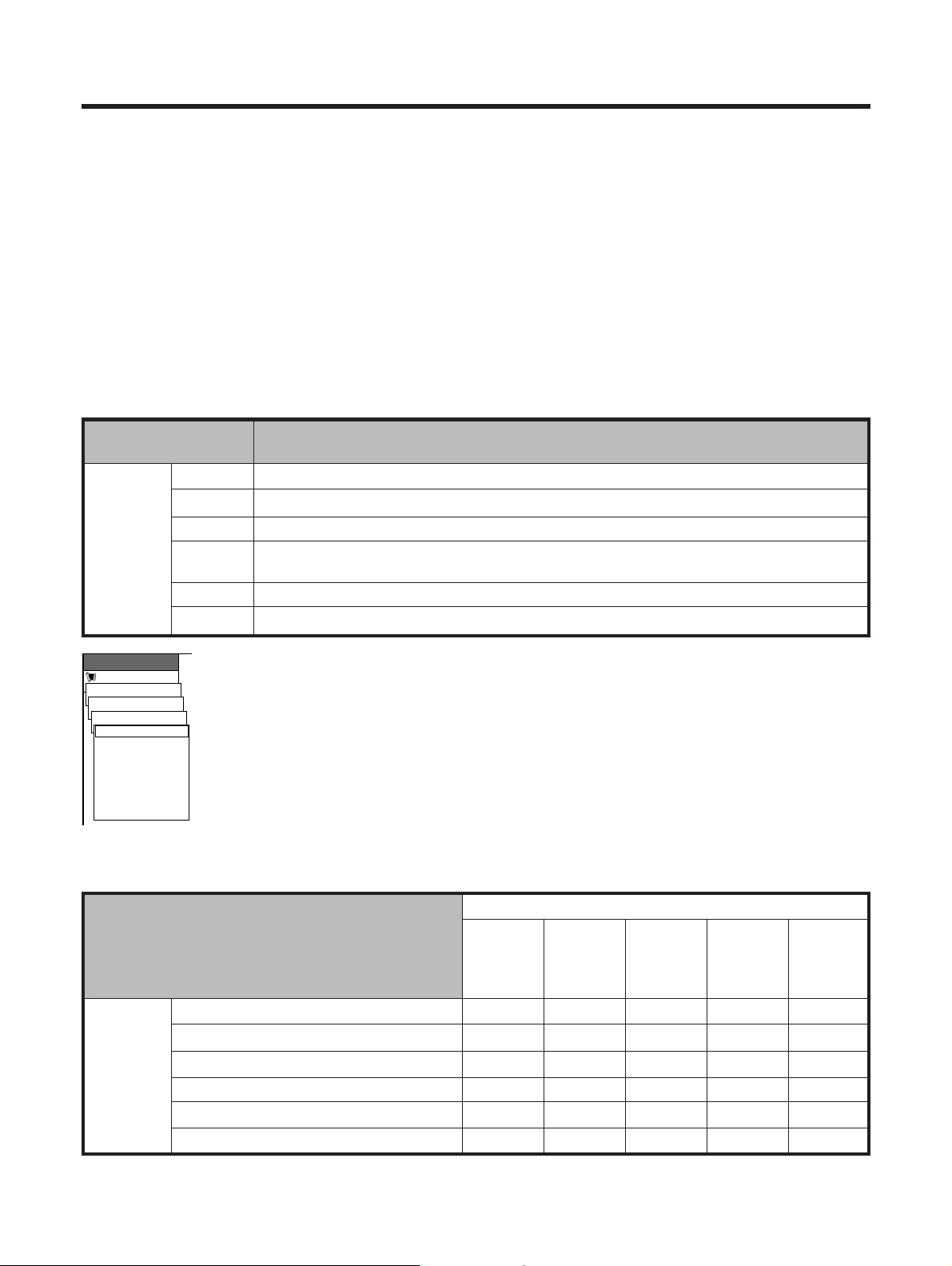
E-48
Useful adjustment settings
Parental control (setting V-CHIP level)
V-CHIP is an electronic filtering device built into your System. This tool gives parents a great degree of control
over broadcasts accessed by their children. It allows parents to select programs judged suitable for child
viewing while blocking ones judged not suitable. It does so automatically once you activate the V-CHIP feature
in your Plasma Display.
V-CHIP and Status will not be selectable from the menu if you do not first configure your secret number.(See
page 52 for Secret number setting for parental control.)
• The U.S. has two rating systems for viewing content: TV Parental Guidelines and movie ratings.
• The TV Parental Guidelines work in conjunction with the V-CHIP to help parents screen out inappropriate
television shows from their children.
• Movie ratings are used for original movies rated by the Motion Picture Association of America (MPAA) as
watched on cable TV and not edited for television. The V-CHIP can also be set to block MPAA-rated movies
Voluntary movie rating system (MPAA)
Rating
Age
G
PG
PG-13
R
NC-17
X
General audiences. All ages admitted.
Parental guidance suggested. Some material may not be suitable for children.
Parents strongly cautioned. Some material may be inappropriate for children under 13.
Restricted. Under 17 requires accompanying parent or adult guardian (age varies in some
jurisdictions).
No one 17 and under admitted.
A rating that has now been superseded by NC-17.
Description
X: Content rating can be set.
TV Parental Guidelines
TV-Y (All children)
TV-Y7 (Directed to older children)
TV-G (General audience)
TV-PG (Parental guidance suggested)
TV-14 (Parents strongly cautioned)
TV-MA (Mature audience only)
Rating
Suggested
age
Content
FV
(Fantasy
violence)
V
(Violence)
S
(Sexual
situation)
L
(Adult
language)
D
(Sexually
suggestive
dialog)
X
X
X
X
X
X
X
X
X
X
X
X
Setup
MPAA
MENU
Parental CTRL
V-Chip
G
PG
PG-13
R
NC-17
X
RETURN
[ ———]
[ ———]
[ ———]
[ ———]
[ ———]
[ ———]
a
• If you select “PG-13”, this will automatically block the higher ratings “R”, “NC-17” and “X”.
A
• Voluntary movie rating system only uses an age-based rating.
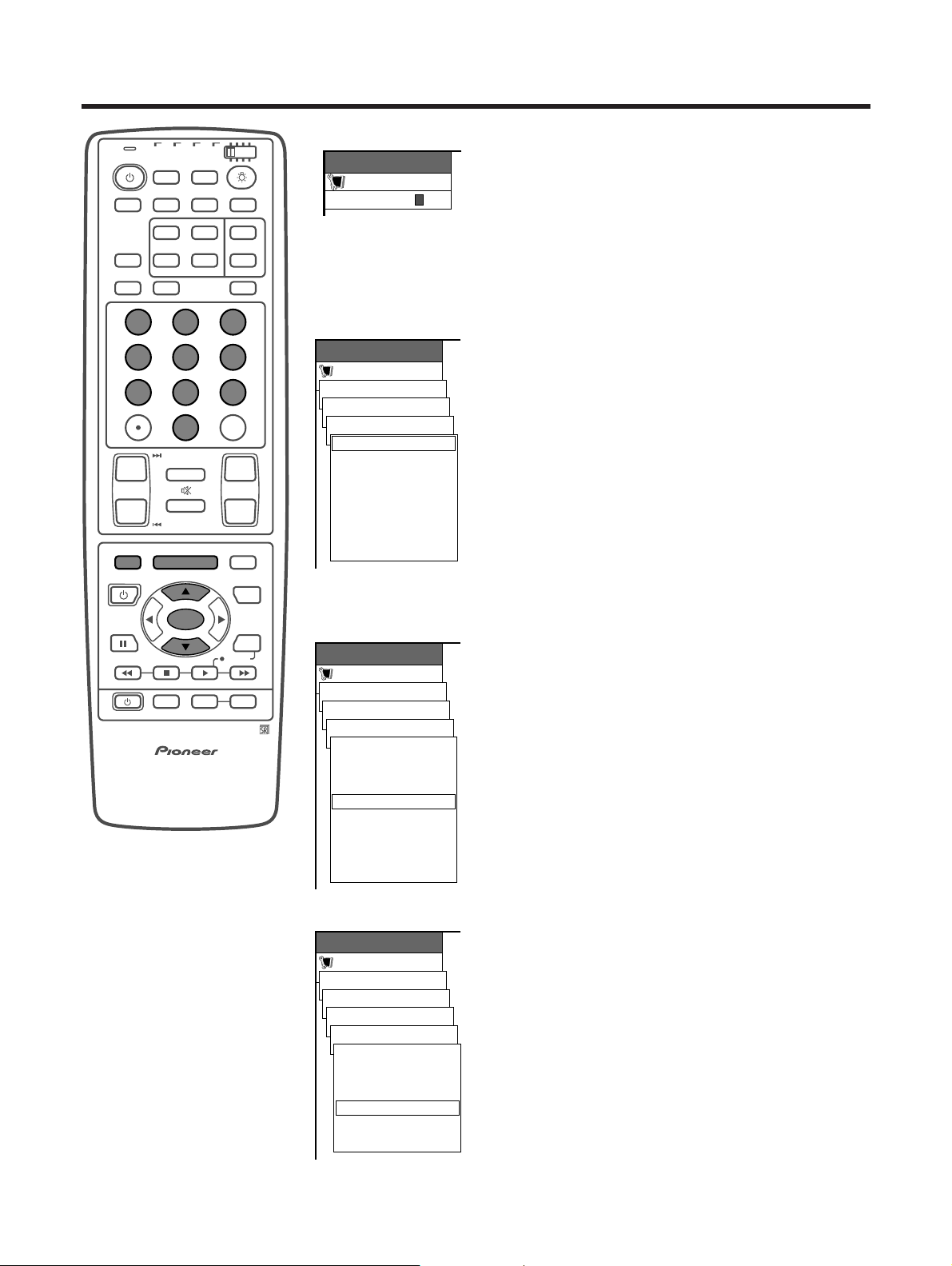
E-49
Useful adjustment settings
Voluntary movie rating system (MPAA)
1 Press MENU.
2 Press a/b to select “Setup”, and then press SET/
ENTER.
• Secret number setting menu displays only when
“Secret No.” is set. (See page 52.)
• V-CHIP and Status will not be selectable from the menu
if you do not first configure your secret number.
(See page 52.)
3 Enter your 4-digit secret number with 0 – 9 to cancel
the “Secret No.” when you set it.
4 Press a/b to select “Parental CTRL”, and then
press SET/ENTER.
5 Press a/b to select “V-Chip”, and then press SET/
ENTER.
6 Press a/b to select “MPAA”, and then press SET/
ENTER.
7 Press a/b to select the desired item, and then
press SET/ENTER to select “BLOCK”.
• The setting automatically enters “BLOCK” for any
ratings below your selection.
• If Status is not set to “On” the configuration settings
will not work. (See page 53.)
8 Press MENU to exit the menu.
A
• Return to the previous menu by pressing MENU RETURN.
TV Parental Guidelines (TV Guidelines)
1 Press MENU.
2 Press a/b to select “Setup”, and then press SET/
ENTER.
• Secret number setting menu displays only when
“Secret No.” is set. (See page 52.)
• V-CHIP and Status will not be selectable from the menu
if you do not first configure your secret number.
(See page 52.)
3 Enter your 4-digit secret number with 0 – 9 to cancel
the “Secret No.” when you set it.
4 Press a/b to select “Parental CTRL”, and then
press SET/ENTER.
5 Press a/b to select “V-Chip”, and then press SET/
ENTER.
6 Press a/b to select “TV Guidelines”, and then
press SET/ENTER.
7 Press a/b to select the desired item, and then
press SET/ENTER to select “BLOCK”.
• The setting automatically enters “BLOCK” for any
ratings below your selection.
• When “Block Content” is selected, its menu displays
as shown left.
• If Status is not set to “On” the configuration settings
will not work. (See page 53.)
8 Press MENU to exit the menu.
A
• Return to the previous menu by pressing MENU RETURN.
Setup
TV Guidelines
MENU
Parental CTRL
V-Chip
TV-Y
TV-Y7
TV-G
TV-PG
TV-14
TV-MA
Block Content
RETURN
[ ———]
[ ———]
[ ———]
[BLOCK]
[BLOCK]
[BLOCK]
TV
ANT INPUT
SURR
FRONT
AV
SELECTION
MTS CC
SPLIT
SELECT
SUB SUB CH
ⴐ
ⴐ
ⴑ
ⴐ
ⴑ
FREEZE
MODE
CH VOL
RETURN
CH
MUTING
MENU TV/SAT/DVD
FAVORITE CH
RECEIVER
DTV/DVD TOP
SOURCE DTV/SAT
DTV/SAT
VCR REC
ABCD
RETURN
MENU
PLASMA DISPLAY
SET/
ENTER
MENU
GUIDE
INPUT VOL
ⴑ
VOL
ⴐ
INFO
SCREEN
SLEEP LEARNEDIT/
DISPLAY
INPUT ⴑ
TV VCRCBL
/SAT
/DTV
DVD
/LD
123
456
789
0
CH
ENTER
Setup
TV Guidelines [TV-PG]
MENU
Parental CTRL
V-Chip
Block Content
D
L
S
V
FV
RETURN
[BLOCK]
[ ———]
[ ———]
[ ———]
[ ———]
Setup
MENU
Secret No.
–––
–
Setup
MPAA
MENU
Parental CTRL
V-Chip
G
PG
PG-13
R
NC-17
X
RETURN
[ ———]
[ ———]
[ ———]
[ ———]
[ ———]
[ ———]
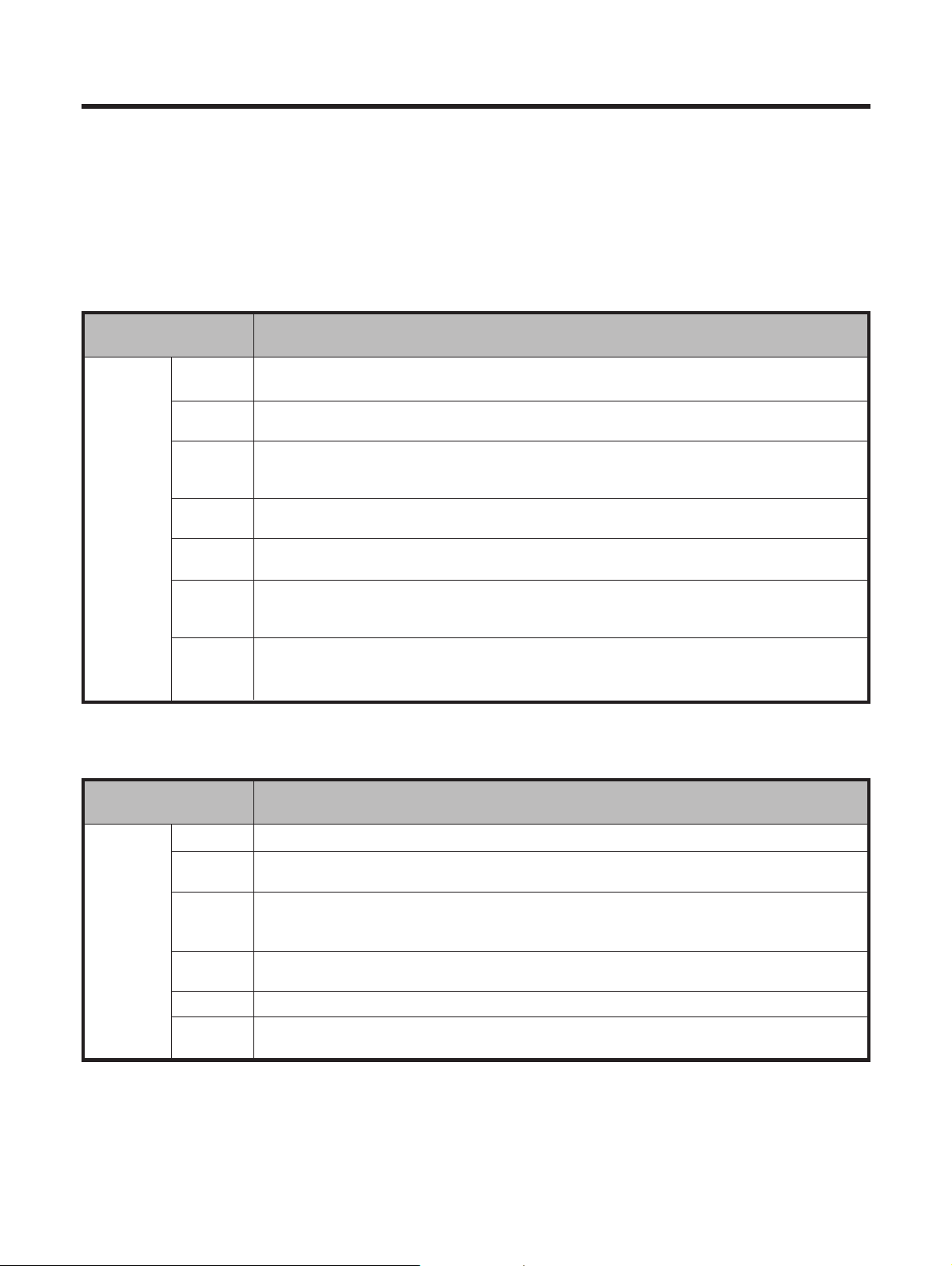
E-50
Useful adjustment settings
Canadian Rating Systems
• The TV rating systems in Canada are based on the Canadian Radio-Television and Telecommunications
Commission (CRTC) policy on violence in television programming.
• While violence is the most important content element to be rated, the structure developed takes into
consideration other program content like language, nudity, sexuality and mature themes.
• When setting the V-CHIP on the Canadian system you can chose either the Canadian English ratings or the
Canadian French ratings.
Rating
Age
E
C
C8e
G
PG
14e
18e
Exempt: Includes news, sports, documentaries and other information programming; talk
shows, music videos, and variety programming.
Children: Intended for younger children under the age of 8 years. Pays careful attention to
themes that could threaten their sense of security and well-being.
Children over 8 years old: Contains no portrayal of violence as the preferred, acceptable,
or only way to resolve conflict; nor encourage children to imitate dangerous acts which
they may see on the screen.
General: Considered acceptable for all age groups. Appropriate viewing for the entire
family, contains very little violence, physical, verbal or emotional.
Parental Guidance: Intended for a general audience, but may not be suitable for younger
children (under the age of 8) because it could contain controversial themes or issues.
Over 14 Years: Could contain themes where violence is one of the dominant elements of
the storyline, but it must be integral to the development of plot or character. Language
usage could be profane and nudity present within the context of the theme.
Adults: Intended for viewers 18 years and older and might contain depictions of violence,
which while related to the development of plot, character or themes, are intended for adult
viewing. Could contain graphic language and portrayals of sex and nudity.
Description
Canadian English ratings
Rating
Age
E
G
8anse
13anse
16anse
18anse
Exempt programming.
General: All ages and children, contains minimal direct violence, but may be integrated
into the plot in a humorous or unrealistic manner.
General but inadvisable for young children: May be viewed by a wide public audience, but
could contain scenes disturbing to children under eight who cannot distinguish between
imaginary and real situations. Recommended for viewing with parent.
Over 13 years: Could contain scenes of frequent violent scenes and therefore
recommended for viewing with parent.
Over 16 years: Could contain frequent violent scenes and intense violence.
Over 18 years: Only for adult viewing. Could contain frequent violent scenes and extreme
violence.
Description
Canadian French ratings
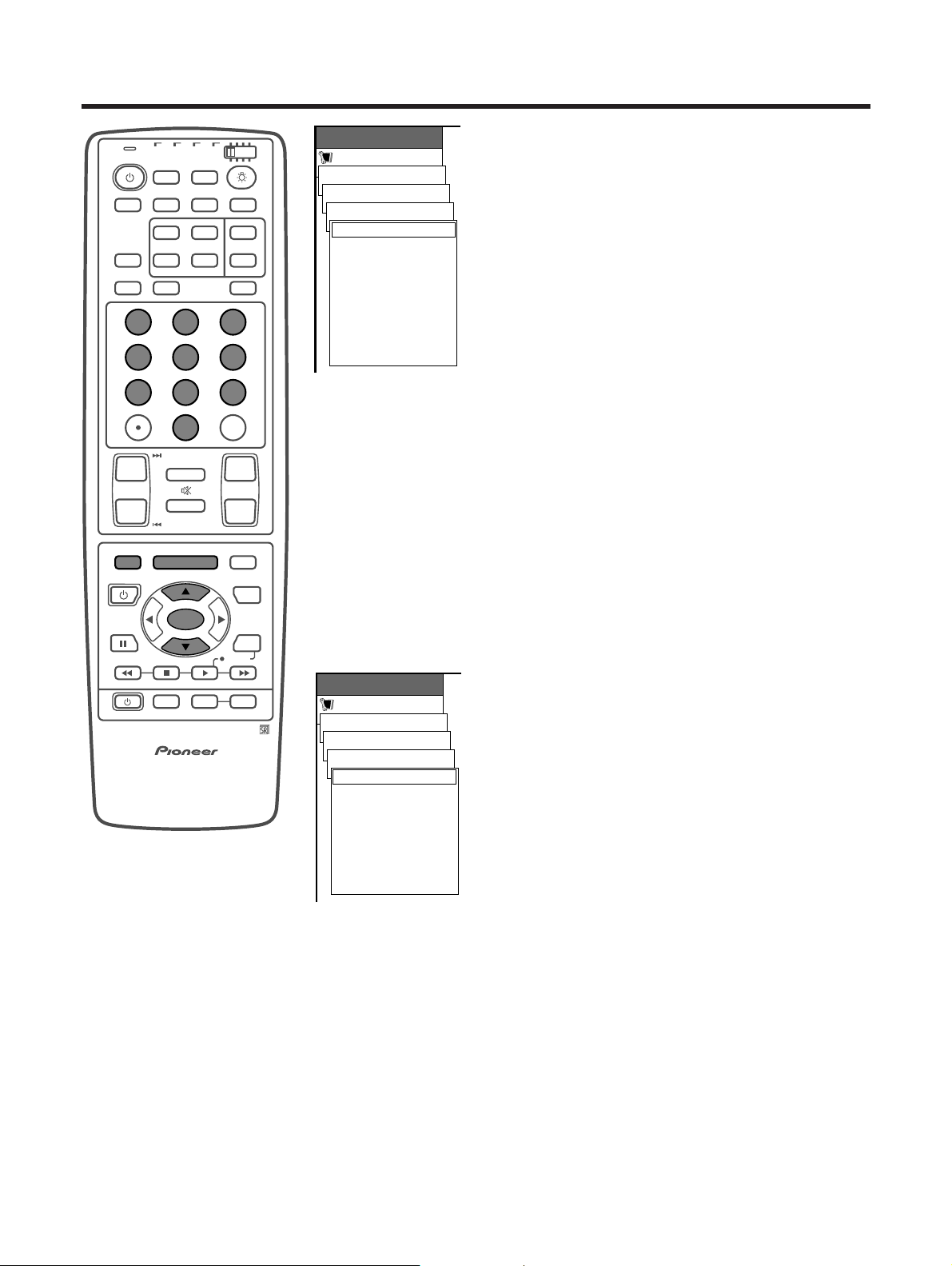
E-51
Useful adjustment settings
Canadian English ratings
1 Press MENU.
2 Press a/b to select “Setup”, and then press SET/
ENTER.
• Secret number setting menu displays only when
“Secret No.” is set. (See page 52.)
• V-CHIP and Status will not be selectable from the menu
if you do not first configure your secret number.
(See page 52.)
3 Enter your 4-digit secret number with 0 – 9 to cancel
the “Secret No.” when you set it.
4 Press a/b to select “Parental CTRL”, and then
press SET/ENTER.
5 Press a/b to select “V-Chip”, and then press SET/
ENTER.
6 Press a/b to select “Canadian English Ratings”,
and then press SET/ENTER.
7 Press a/b to select the desired item, and then
press SET/ENTER to select “BLOCK”.
• The setting automatically enters “BLOCK” for any
ratings below your selection.
• If Status is not set to “On” the configuration settings
will not work. (See page 53.)
8 Press MENU to exit the menu.
A
• Return to the previous menu by pressing MENU RETURN.
Canadian French ratings
1 Press MENU.
2 Press a/b to select “Setup”, and then press SET/
ENTER.
• Secret number setting menu displays only when
“Secret No.” is set. (See page 52.)
• V-Chip and Status will not be selectable from the menu
if you do not first configure your secret number.
(See page 52.)
3 Enter your 4-digit secret number with 0 – 9 to cancel
the “Secret No.” when you set it.
4 Press a/b to select “Parental CTRL”, and then
press SET/ENTER.
5 Press a/b to select “V-Chip”, and then press SET/
ENTER.
6 Press a/b to select “Canadian French Ratings”,
and then press SET/ENTER.
7 Press a/b to select the desired item, and then
press SET/ENTER to select “BLOCK”.
• The setting automatically enters “BLOCK” for any
ratings below your selection.
• If Status is not set to “On” the configuration settings
will not work. (See page 53.)
8 Press MENU to exit the menu.
A
• Return to the previous menu by pressing MENU RETURN.
Setup
Canadian English Ratings
MENU
Parental CTRL
V-Chip
E
C
C8 +
G
PG
RETURN
14 +
18 +
[ ———]
[ ———]
[ ———]
[ ———]
[ ———]
[ ———]
[ ———]
Setup
Canadian French Ratings
MENU
Parental CTRL
V-Chip
E
G
RETURN
8ans+
13ans+
16ans+
18ans+
[ ———]
[ ———]
[ ———]
[ ———]
[ ———]
[ ———]
TV
ANT INPUT
SURR
FRONT
AV
SELECTION
MTS CC
SPLIT
SELECT
SUB SUB CH
ⴐ
ⴐ
ⴑ
ⴐ
ⴑ
FREEZE
MODE
CH VOL
RETURN
CH
MUTING
MENU TV/SAT/DVD
FAVORITE CH
RECEIVER
DTV/DVD TOP
SOURCE DTV/SAT
DTV/SAT
VCR REC
ABCD
RETURN
MENU
PLASMA DISPLAY
SET/
ENTER
MENU
GUIDE
INPUT VOL
ⴑ
VOL
ⴐ
INFO
SCREEN
SLEEP LEARNEDIT/
DISPLAY
INPUT ⴑ
TV VCRCBL
/SAT
/DTV
DVD
/LD
123
456
789
0
CH
ENTER
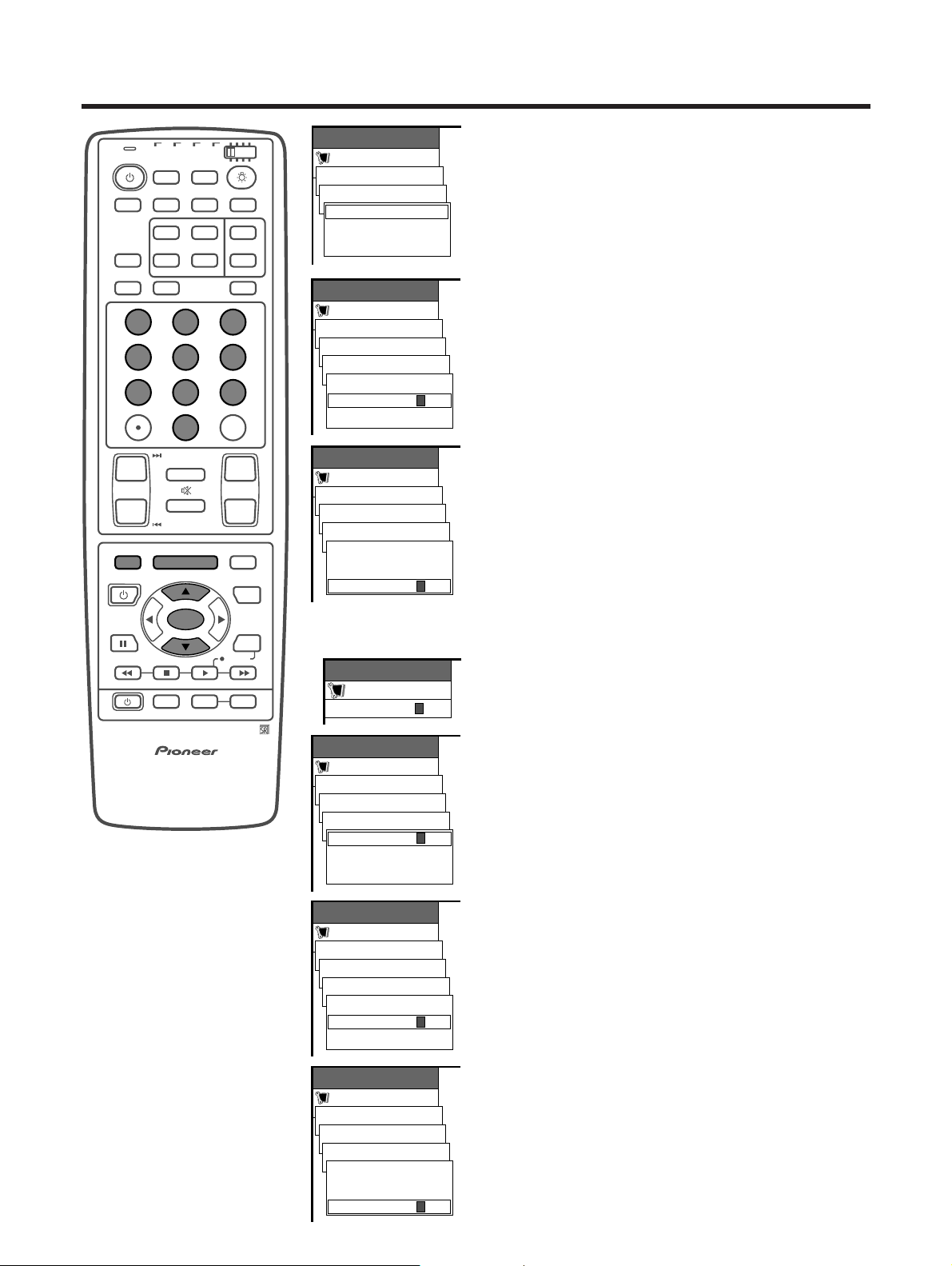
E-52
Setup
Secret No.
MENU
Parental CTRL
Secret No.
Clear Secret No.
RETURN
Useful adjustment settings
Secret number setting for parental
control (AV mode only)
Allows you to use a secret number to protect certain
settings from being accidentally changed.
Setting a secret number
1 Press MENU.
2 Press a/b to select “Setup”, and then press SET/
ENTER.
3 Press a/b to select “Parental CTRL”, and then
press SET/ENTER.
4 Press a/b to select “Secret No.”, and then press
SET/ENTER.
5 Repeat step 4 again.
6 Enter the 4-digit number as a secret number using
0 – 9.
7 And enter the same 4-digit number on the
“Reconfirm” screen as in step 6 to confirm.
•“New Secret No. is registered.” displays.
8 Press MENU to exit the menu.
A
• Return to the previous menu by pressing MENU RETURN.
TV
ANT INPUT
SURR
FRONT
AV
SELECTION
MTS CC
SPLIT
SELECT
SUB SUB CH
ⴐ
ⴐ
ⴑ
ⴐ
ⴑ
FREEZE
MODE
CH VOL
RETURN
CH
MUTING
MENU TV/SAT/DVD
FAVORITE CH
RECEIVER
DTV/DVD TOP
SOURCE DTV/SAT
DTV/SAT
VCR REC
ABCD
RETURN
MENU
PLASMA DISPLAY
SET/
ENTER
MENU
GUIDE
INPUT VOL
ⴑ
VOL
ⴐ
INFO
SCREEN
SLEEP LEARNEDIT/
DISPLAY
INPUT ⴑ
TV VCRCBL
/SAT
/DTV
DVD
/LD
123
456
789
0
CH
ENTER
Setup
MENU
Parental CTRL
Secret No.
Secret No.
Input Secret No.
New Secret No.
Reconfirm
––––
–––
–
––––
Setup
MENU
Parental CTRL
Secret No.
Secret No.
Input Secret No.
New Secret No.
Reconfirm
–––
––––
*
***
*
Secret number
setting menu
Setup
MENU
Secret No.
–––
–
Setup
MENU
Parental CTRL
Secret No.
Secret No.
Input Secret No.
New Secret No.
Reconfirm
–––
–––
*
*
***
*
Setup
MENU
Parental CTRL
Secret No.
Secret No.
Input Secret No.
New Secret No.
Reconfirm
–––
––––
*
***
*
Setup
MENU
Parental CTRL
Secret No.
Secret No.
Input Secret No.
New Secret No.
Reconfirm
–––
*
***
*
***
*
Changing the secret number
Allows you to change your current secret number.
1 Press MENU.
2 Press a/b to select “Setup”, and then press SET/
ENTER.
• Secret number setting menu displays.
3 Enter your 4-digit secret number with 0 – 9 to cancel
the “Secret No.” when you set it.
4 Press a/b to select “Parental CTRL”, and then
press SET/ENTER.
5 Press a/b to select “Secret No.”, and then press
SET/ENTER.
6 Repeat step 5 again.
7 Enter the Old 4-digit number you have set using
0 – 9.
8 Enter the New 4-digit number you have set using
0 – 9.
9 And enter the same 4-digit number on the
“Reconfirm” screen as in step 8 to confirm.
•“New Secret No. is registered.” displays.
10 Press MENU to exit the menu.
A
• Return to the previous menu by pressing MENU RETURN.
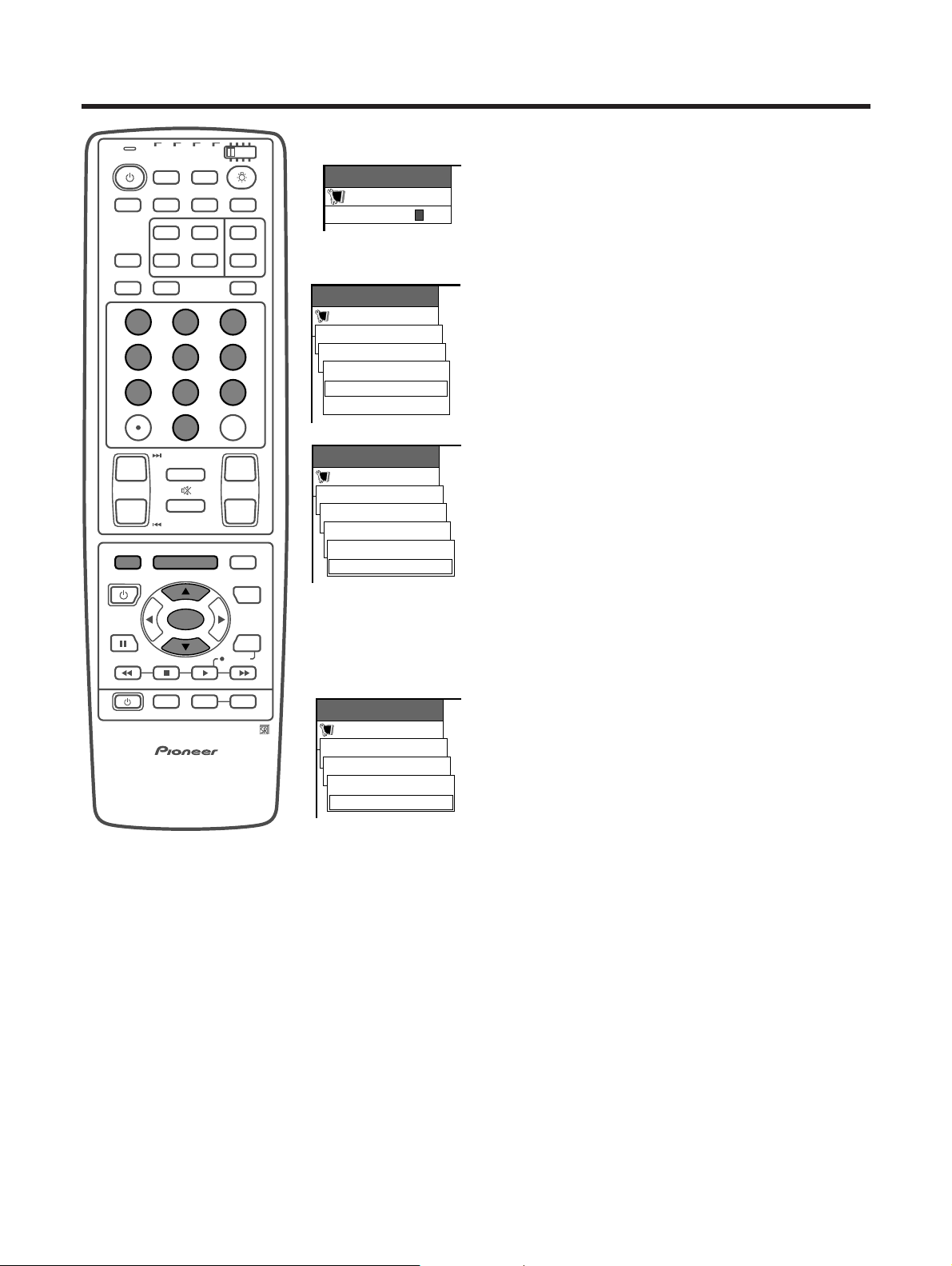
E-53
Useful adjustment settings
Clearing the secret number
Allows you to clear your secret number.
1 Press MENU.
2 Press a/b to select “Setup”, and then press SET/
ENTER.
• Secret number setting menu displays.
3 Enter your 4-digit secret number with 0 – 9 to cancel
the “Secret No.” when you set it.
• Setup menu displays.
4 Press a/b to select “Parental CTRL”, and then
press SET/ENTER.
5 Press a/b to select “Secret No.”, and then press
SET/ENTER.
6 Press a/b to select “Secret No. Clear”, and the
press SET/ENTER.
7 Press a/b to select “Yes”, and the press SET/
ENTER.
• Your secret number is cleared.
8 Press MENU to exit the menu.
A
• See page 52 for re-registering with a new secret number.
after being cleared.
• Return to the previous menu by pressing MENU RETURN.
• As a precautionary measure, make a note of your
secret number and keep it in a familiar place. If you
lose or forget your secret number, initialize the Plasma
Display System to return all settings except for the TV
channel settings to factory preset values. (See page
67.)
Setup
Off
MENU
Parental CTRL
Status [On]
On
TV
ANT INPUT
SURR
FRONT
AV
SELECTION
MTS CC
SPLIT
SELECT
SUB SUB CH
ⴐ
ⴐ
ⴑ
ⴐ
ⴑ
FREEZE
MODE
CH VOL
RETURN
CH
MUTING
MENU TV/SAT/DVD
FAVORITE CH
RECEIVER
DTV/DVD TOP
SOURCE DTV/SAT
DTV/SAT
VCR REC
ABCD
RETURN
MENU
PLASMA DISPLAY
SET/
ENTER
MENU
GUIDE
INPUT VOL
ⴑ
VOL
ⴐ
INFO
SCREEN
SLEEP LEARNEDIT/
DISPLAY
INPUT ⴑ
TV VCRCBL
/SAT
/DTV
DVD
/LD
123
456
789
0
CH
ENTER
Setup
Secret No. Clear
MENU
Parental CTRL
Secret No.
No
Yes
Setting parental control status
Used to enable or disable the parental control function.
1 Press MENU.
2 Press a/b to select “Setup”, and then press SET/
ENTER.
• Secret number setting menu displays only when
“Secret No.” is set. (See page 52.)
• V-CHIP and Status will not be selectable from the menu
if you do not first configure your secret number.
(See page 52.)
3 Enter your 4-digit secret number with 0 – 9 to cancel
the “Secret No.” when you set it.
4 Press a/b to select “Parental CTRL”, and then
press SET/ENTER.
5 Press a/b to select “Status”, and then press SET/
ENTER.
6 Press a/b to select “On” or “Off” , and then press
SET/ENTER.
• Select “On” to enable and “Off” to disable Parental
CTRL.
7 Press MENU to exit the menu.
A
• If the secret number is cleared the Status setting
automatically sets to “Off”. V-CHIP and Status will not
be selectable from the menu.
• Return to the previous menu by pressing MENU RETURN.
Setup
Secret No.
MENU
Parental CTRL
Secret No.
Secret No. Clear
RETURN
Secret number
setting menu
Setup
MENU
Secret No.
–––
–
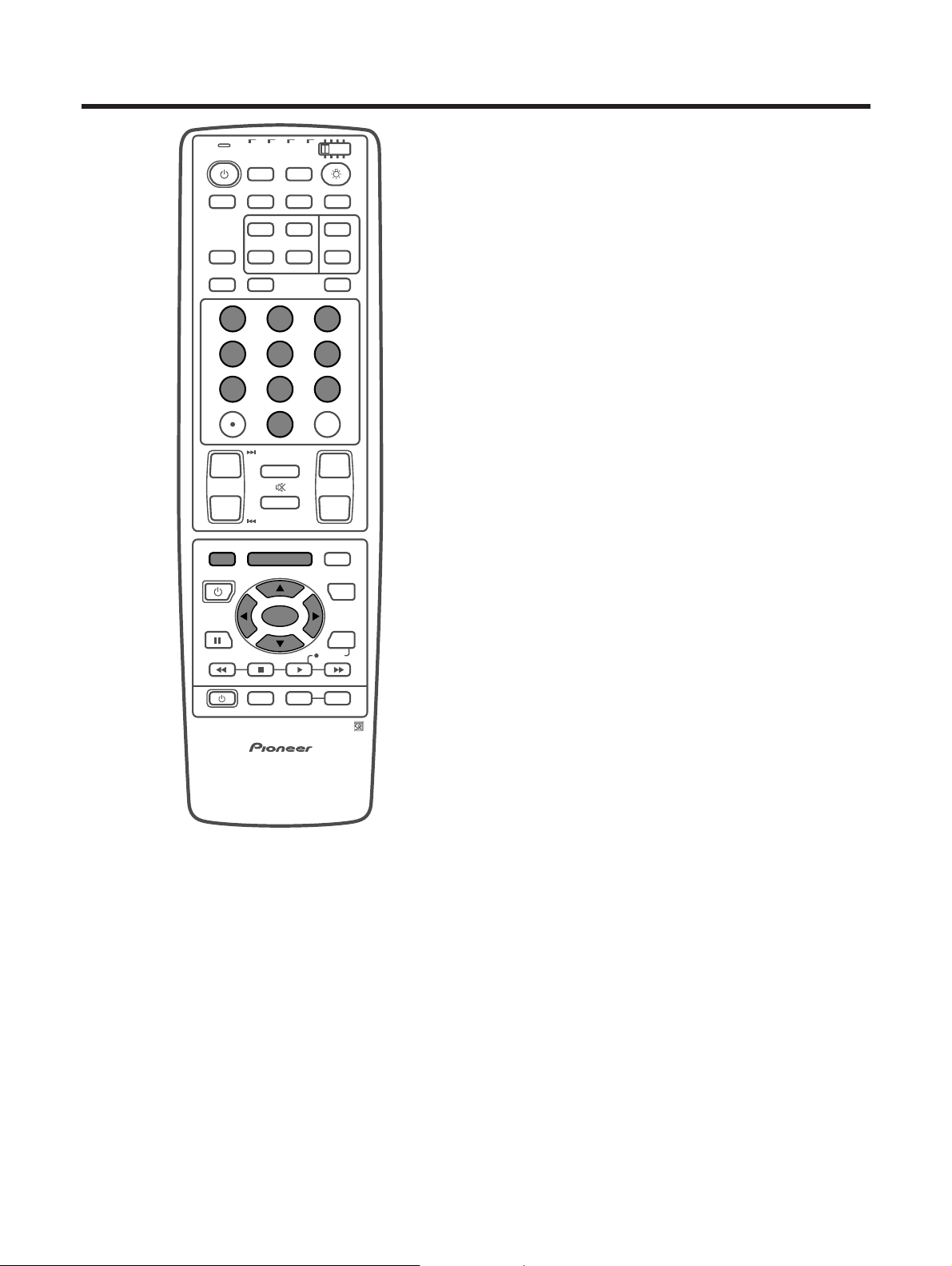
E-54
Useful adjustment settings
How to temporarily release the V-CHIP
BLOCK
• The V-CHIP BLOCK is working and censors a
broadcast, “V-CHIP HAS BEEN ACTIVATED.”
displays.
1 Press SET/ENTER while the V-CHIP is working and
then the secret number. setting menu displays.
2 Enter your 4-digit secret number with 0 – 9 and
then press SET/ENTER. At this time V-CHIP BLOCK
temporarily releases.
Reactivating the temporarily released V-CHIP
BLOCK
• You can reactivate the temporarily released V-CHIP
BLOCK as shown below.
Method 1:
Select Status setting (“On” or “Off”) from the
Parental CTRL menu to reactivate BLOCK.
Method 2:
Select V-CHIP setting (“MPAA”, “TV Guidelines”,
“Canadian English Ratings” or “Canadian French
Ratings” ) from the Parental CTRL to reactivate
BLOCK.
Method 3:
Switch off the Media Receiver power.
A
• Performing any of the three above will activate the V-CHIP
BLOCK.
TV
ANT INPUT
SURR
FRONT
AV
SELECTION
MTS CC
SPLIT
SELECT
SUB SUB CH
ⴐ
ⴐ
ⴑ
ⴐ
ⴑ
FREEZE
MODE
CH VOL
RETURN
CH
MUTING
MENU TV/SAT/DVD
FAVORITE CH
RECEIVER
DTV/DVD TOP
SOURCE DTV/SAT
DTV/SAT
VCR REC
ABCD
RETURN
MENU
PLASMA DISPLAY
SET/
ENTER
MENU
GUIDE
INPUT VOL
ⴑ
VOL
ⴐ
INFO
SCREEN
SLEEP LEARNEDIT/
DISPLAY
INPUT ⴑ
TV VCRCBL
/SAT
/DTV
DVD
/LD
123
456
789
0
CH
ENTER
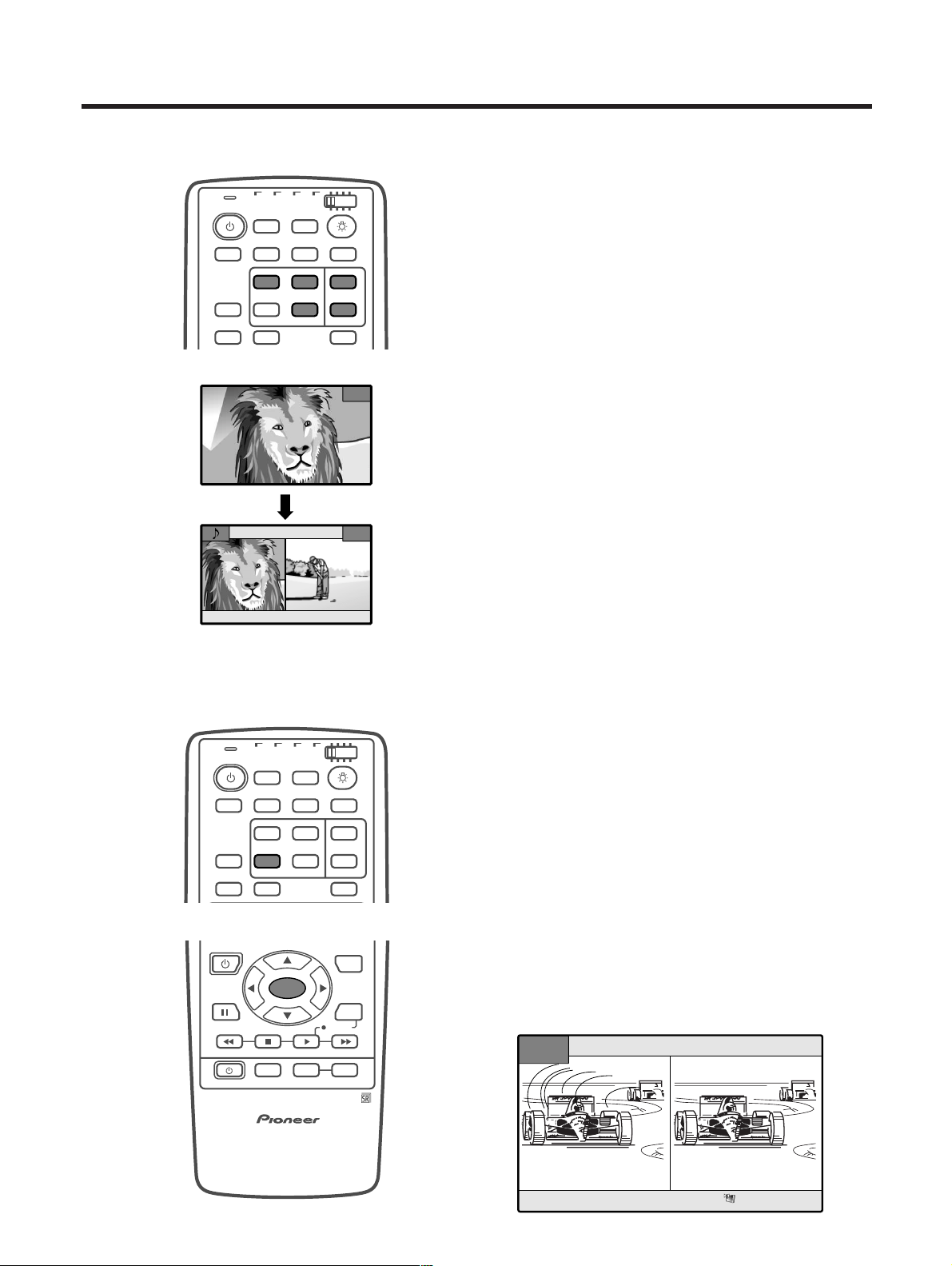
E-55
FREEZE
Picture and still image
You can display two same-sized pictures when
inputting from a AV source.
1 Press FREEZE.
• A moving image displays on the left screen and a still
image displays on the right screen. The still image is
one frame captured from a moving image at the
moment you press FREEZE.
2 Update the still image by pressing SET/ENTER.
• Each time you press SET/ENTER, the image on the
right screen updates.
3 Press FREEZE to exit still image.
A
• This function does not work under the following input
conditions:
1PC INPUT mode,
2Images from a high frequency signal source.
• When this function is not available, “No still image display
available.” will display.
TV
ANT INPUT
SURR
FRONT
AV
SELECTION
MTS CC
SPLIT
SELECT
SUB SUB CH
ⴐ
FREEZE
MODE
SCREEN
SLEEP LEARNEDIT/
DISPLAY
INPUT ⴑ
TV VCRCBL
/SAT
/DTV
DVD
/LD
FAVORITE CH
RECEIVER
SOURCE DTV/SAT
DTV/SAT
VCR REC
ABCD
PLASMA DISPLAY
SET/
ENTER
GUIDE
INPUT VOL
ⴑ
VOL
ⴐ
INFO
Useful features
Multiscreen functions
Allows you to display two pictures on the screen at one time.
Dual screen
You can display two same-sized pictures except when
inputting from a PC INPUT terminal.
1 Press SPLIT.
• Dual screen displays and a selected input source
image displays.
2 Press SELECT to set either screen to be active.
•“z” displays on the active screen, which has sound
output.
3 Press SUB CH
ee
ee
e/
ff
ff
f to select another channel on
the inactive screen.
4 Press SUB INPUT to select another input source
on the inactive screen.
• A selected image displays.
5 Press SPLIT to exit dual screen.
A
• This function does not work under the following input
conditions:
1PC INPUT mode,
2Two pictures from the same source (e.g. INPUT 1 and
INPUT 1),
3Images from a high frequency signal source.
• When this function is not available, “No dual screen display
available” will display.
TV
ANT INPUT
SURR
FRONT
AV
SELECTION
MTS CC
SPLIT
SELECT
SUB SUB CH
ⴐ
FREEZE
MODE
SCREEN
SLEEP LEARNEDIT/
DISPLAY
INPUT ⴑ
TV VCRCBL
/SAT
/DTV
DVD
/LD
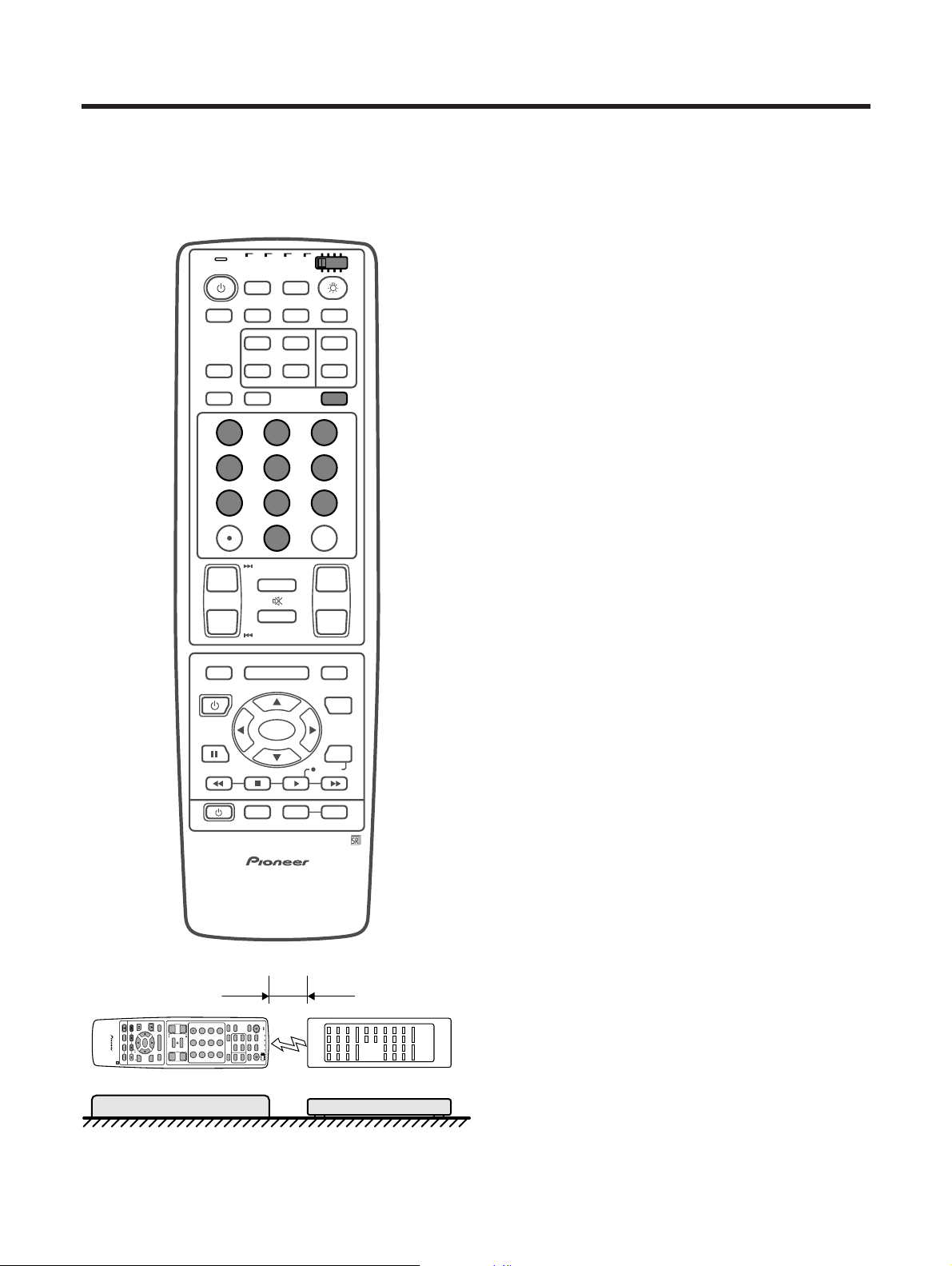
E-56
Useful features
Learning remote control function
You can operate the connected AV products (AV Receiver, Cable Box, SAT tuner, DTV, VCR, DVD, LD) using the
learning function for your remote control unit. This remote control unit has a function that can memorize each
remote control code.
Presetting manufacture codes
1 Slide the Mode switch to match the device to which
you want to preset the remote control signal.
2 Press EDIT/LEARN and 1 at the same time.
• LED flashes continuously.
3 Press 0 – 9 to enter the manufacture code. (See
page 57.)
• Preset mode is finished once the LED no longer lights
up.
A
• To stop the EDIT mode in the middle, press EDIT/LEARN
once more.
• If Mode switch is switched while in EDIT mode, EDIT mode
will be canceled.
• If there is no operation for over 1 minute running, exit this
mode.
• When you enter a code that is not listed, LED flashes
quickly.
• If the table on page 57 does not include your desired
manufacturer or the remote control does not work, you
can make the memory learn its signal by the learn mode.
• The initial mode is “00” (PIONEER).
Learning the remote control
1 Be sure to slide the Mode switch to match the
device whose remote control signal you want to be
learned.
2 Press EDIT/LEARN and 2 at the same time.
• LED flashes continuously.
3 Press a button for you want to learn.
• Refer to the assigning buttons to functions on each
page.(See page 58 to 63.)
• The LED changes from lit up to flashing state.
• When the learn mode is finished, LED lights up once
and returns to the learn mode (LED flashes
continuously).
4 To exit learn mode, press EDIT/LEARN.
A
• To stop the EDIT mode in the middle, press EDIT/LEARN
once more.
• If Mode switch is switched while in EDIT mode, EDIT mode
will be canceled.
• If there is no operation for over 1 minute running, exit this
mode.
• If TV a is pressed over 2 seconds running (LED flashes
continuously, step 2 above), the learning codes of the
current Mode switch position clear, changing back to
preset manufacturer codes. In this case, the LED turns
off after 2 seconds exiting learning mode.
TV
ANT INPUT
SURR
FRONT
AV
SELECTION
MTS CC
SPLIT
SELECT
SUB SUB CH
ⴐ
ⴐ
ⴑ
ⴐ
ⴑ
FREEZE
MODE
CH VOL
RETURN
CH
MUTING
MENU TV/SAT/DVD
FAVORITE CH
RECEIVER
DTV/DVD TOP
SOURCE DTV/SAT
DTV/SAT
VCR REC
ABCD
RETURN
MENU
PLASMA DISPLAY
SET/
ENTER
MENU
GUIDE
INPUT VOL
ⴑ
VOL
ⴐ
INFO
SCREEN
SLEEP LEARNEDIT/
DISPLAY
INPUT ⴑ
TV VCRCBL
/SAT
/DTV
DVD
/LD
123
456
789
0
CH
ENTER
TV
ANT INPUT
SURR
FRONT
AV
SELECTION
MTS CC
SPLIT
SELECT
SUB SUB CH
ⴐ
ⴐ
ⴑ
ⴐ
ⴑ
FREEZE
MODE
CH VOL
RETURN
CH
MUTING
MENU TV/SAT/DVD
FAVORITE CH
RECEIVER
DTV/DVD TOP
SOURCE DTV/SAT
DTV/SAT
VCR REC
ABCD
RETURN
MENU
PLASMA DISPLAY
SET/
ENTER
MENU
GUIDE
INPUT VOL
ⴑ
VOL
ⴐ
INFO
SCREEN
SLEEP LEARNEDIT/
DISPLAY
INPUT ⴑ
TV VCRCBL
/SAT
/DTV
DVD
/LD
123
456
789
0
CH
ENTER
2 to 5 cm (0.8 to 2.0 inch)
Remote control
(Supplied accessory)
Remote control of
AV product
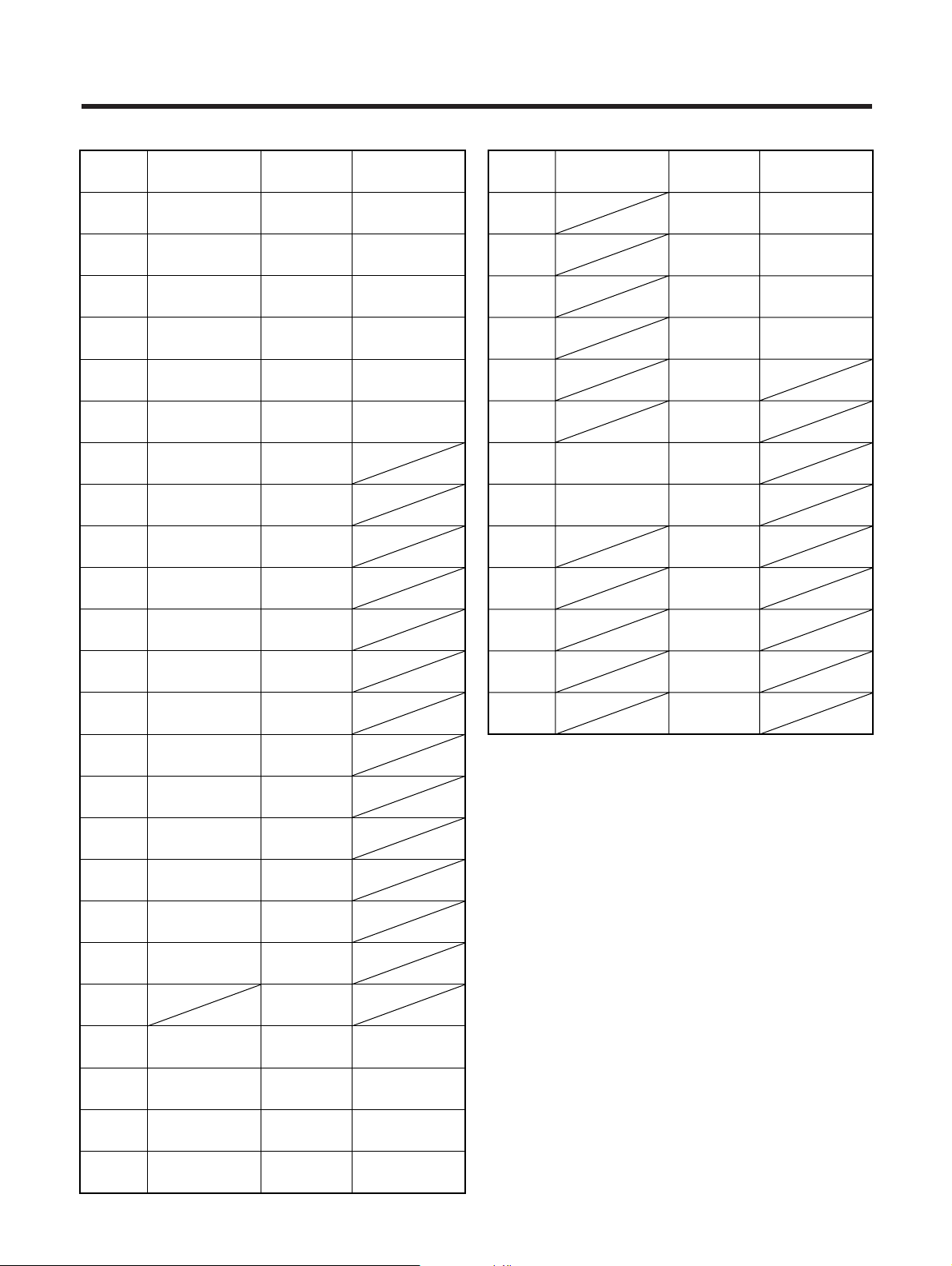
E-57
Useful features
Manufacture codes
00
01
02
03
04
05
06
07
08
09
10
11
12
13
14
15
16
17
18
19
20
21
22
23
PIONEER
VCR
FISHER
FISHER
FISHER
GOLDSTAR
HITACHI
HITACHI2
HITACHI3
MAGNAVOX2
MITSUBISHI
MITSUBISHI2
MITSUBISHI3
MITSUBISHI4
MITSUBISHI5
MITSUBISHI6
Panasonic
Panasonic2
Panasonic3
RCA
RCA2
RCA3
SANYO
SANYO2
SANYO3
PIONEER (DVD)
DVD/LD
Panasonic (DVD)
SAMSUNG (DVD)
SONY (DVD)
TOSHIBA (DVD)
JVC (DVD)
PIONEER (LD)
KENWOOD (LD)
PANASONIC1 (LD)
PANASONIC2 (LD)
PIONEER1 (CABLE)
CABLE/SAT/
DTV
PIONEER2 (CABLE)
JERROLD1 (CABLE)
JERROLD2 (CABLE)
JERROLD3 (CABLE)
JERROLD4 (CABLE)
JERROLD5 (CABLE)
JERROLD6 (CABLE)
JERROLD7 (CABLE)
JERROLD8 (CABLE)
JERROLD9 (CABLE)
JERROLD10 (CABLE)
S. A. 1 (CABLE)
S. A. 2 (CABLE)
S. A. 3 (CABLE)
S. A. 4 (CABLE)
ZENITH1 (CABLE)
ZENITH2 (CABLE)
ZENITH3 (CABLE)
PIONEER (SAT)
RCA1 (SAT)
RCA2 (SAT)
SONY (SAT)
24
25
26
27
28
29
30
31
32
33
34
35
36
SHARP
VCR
SHARP2
SHARP3
SONY (BETA)
SONY (VHS)
SONY (8 mm)
TOSHIBA
JVC
JVC2
JVC3
JVC4
JVC5
ZENITH
PHILIPS (LD)
DVD/LD
RCA (LD)
SONY (MDP)
SONY (LD)
CABLE/SAT/
DTV
PIONEER (DTV)
SHARP (DTV)
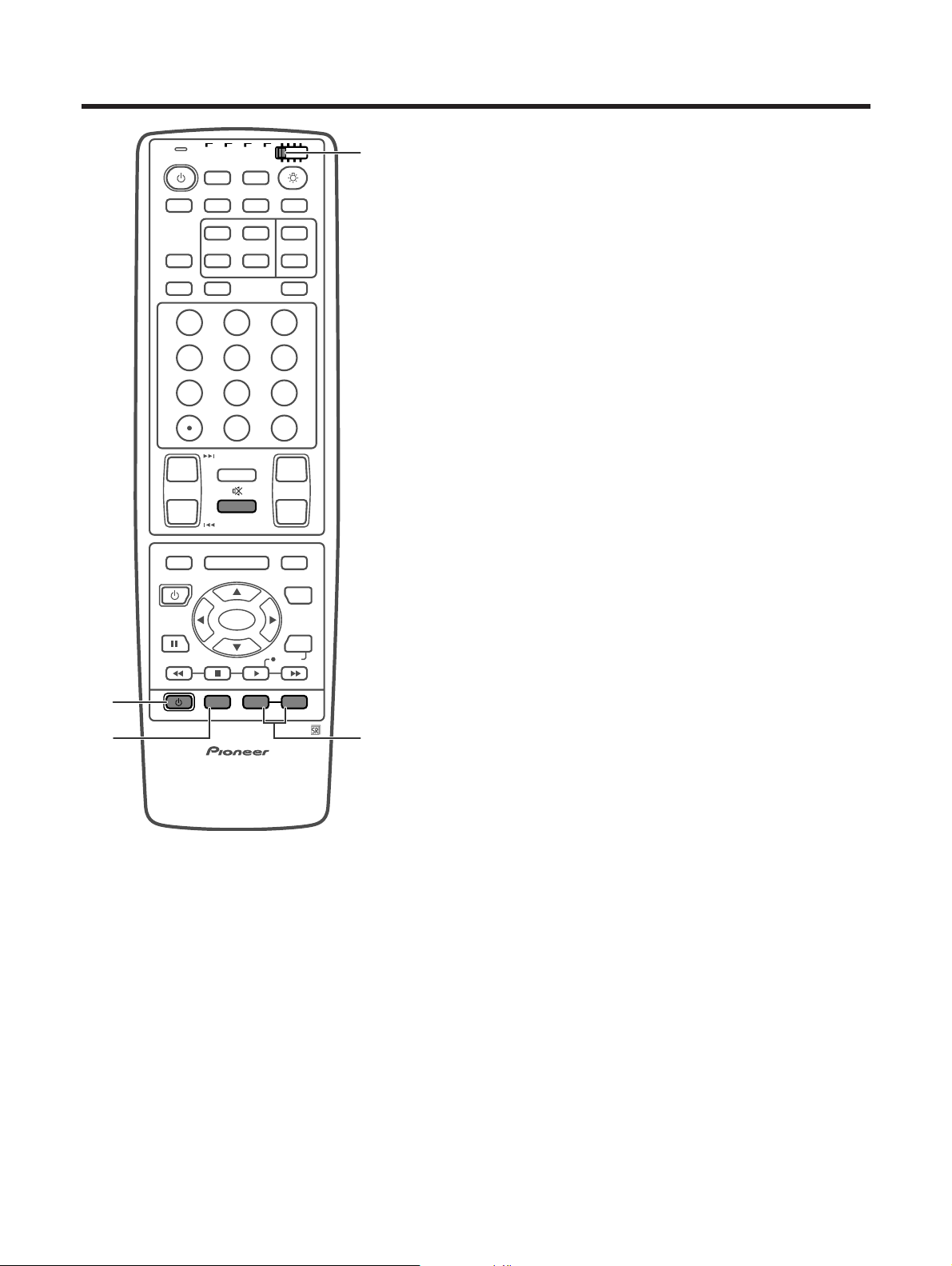
E-58
Useful features
Using the TV remote control unit to
control other device
Receiver control buttons
When a Pioneer receiver is connected to the display,
the receiver can operate using buttons 1 to 3.
When another non-Pioneer receiver is connected to
the display, the signals for 1 to 3 must first be learned
before operating. (See page 56.)
1 RECEIVER a (STANDBY/ON)
Turns receiver power on and off.
2 RECEIVER INPUT
Selects the input source connected to the receiver.
3 RECEIVER VOL k/l
Adjusts receiver volume level. Press VOL k to increase
the volume and VOL l to decrease it.
A
• (RECEIVER) eMUTING
Allows remote unit to learn receiver’s mute signal. Use
this button when the mode switch is set to something
other than TV.
• The color-highlighted buttons on the remote control can
learn the control signal from another device’s remote
control.
TV
ANT INPUT
SURR
FRONT
AV
SELECTION
MTS CC
SPLIT
SELECT
SUB SUB CH
ⴐ
ⴐ
ⴑ
ⴐ
ⴑ
FREEZE
MODE
CH VOL
RETURN
CH
MUTING
MENU TV/SAT/DVD
FAVORITE CH
RECEIVER
DTV/DVD TOP
SOURCE DTV/SAT
DTV/SAT
VCR REC
ABCD
RETURN
MENU
PLASMA DISPLAY
SET/
ENTER
MENU
GUIDE
INPUT VOL
ⴑ
VOL
ⴐ
INFO
SCREEN
SLEEP LEARNEDIT/
DISPLAY
INPUT ⴑ
TV VCRCBL
/SAT
/DTV
DVD
/LD
123
456
789
0
CH
ENTER
1
3
2
Mode switch
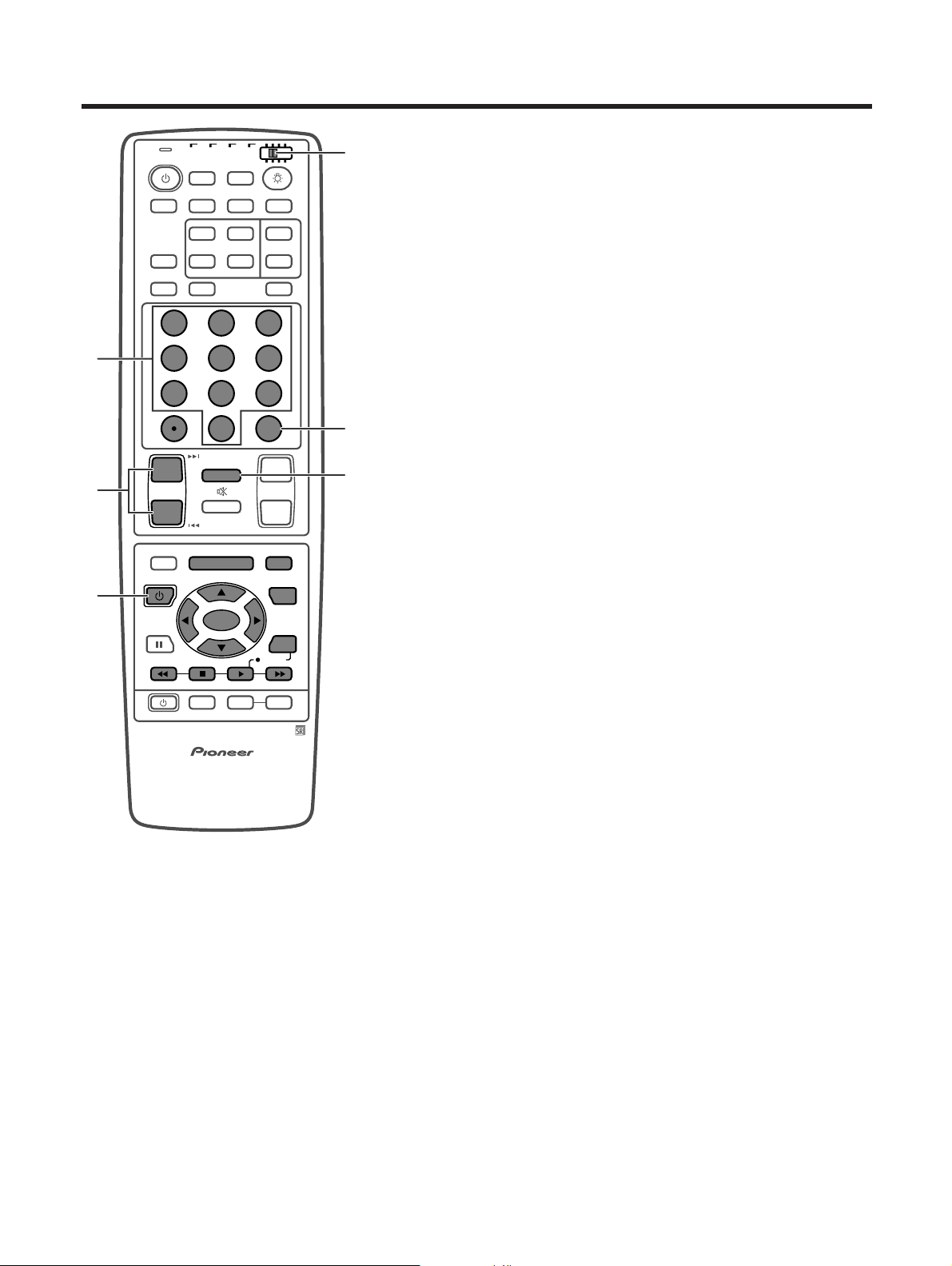
E-59
Useful features
Cable control buttons
When the Mode switch is set to CBL/SAT/DTV the
cable converter connected to the display can operate
using 1 to 5.
Cable converters made by other manufacturers and
not preset can also operate using the remote control
unit if 1 to 5 have learned the functions. (See page
56.)
10 – 9
Press a button (or buttons) that corresponds to the
channel that you want to watch.
2 CH k/l
Press CH k or CHl to tune in a higher or lower channel.
3 SOURCE a
Turns the cable converter power on and off.
4 CH ENTER *
Fix the selected channel with the direct channel
selection buttons.
5 CH RETURN *
Press to switch between the current channel and the
channel you were watching immediately before.
* Some manufacturers do not preset CH ENTER and CH
RETURN. Use these buttons to learn if necessary.
A
• CABLE, SAT and DTV cannot be selected at the same
time.
• The color-highlighted buttons on the remote control can
learn the control signal from another device’s remote
control.
TV
ANT INPUT
SURR
FRONT
AV
SELECTION
MTS CC
SPLIT
SELECT
SUB SUB CH
ⴐ
ⴐ
ⴑ
ⴐ
ⴑ
FREEZE
MODE
CH VOL
RETURN
CH
MUTING
MENU TV/SAT/DVD
FAVORITE CH
RECEIVER
DTV/DVD TOP
SOURCE DTV/SAT
DTV/SAT
VCR REC
ABCD
RETURN
MENU
PLASMA DISPLAY
SET/
ENTER
MENU
GUIDE
INPUT VOL
ⴑ
VOL
ⴐ
INFO
SCREEN
SLEEP LEARNEDIT/
DISPLAY
INPUT ⴑ
TV VCRCBL
/SAT
/DTV
DVD
/LD
123
456
789
0
CH
ENTER
5
3
2
4
1
Mode switch
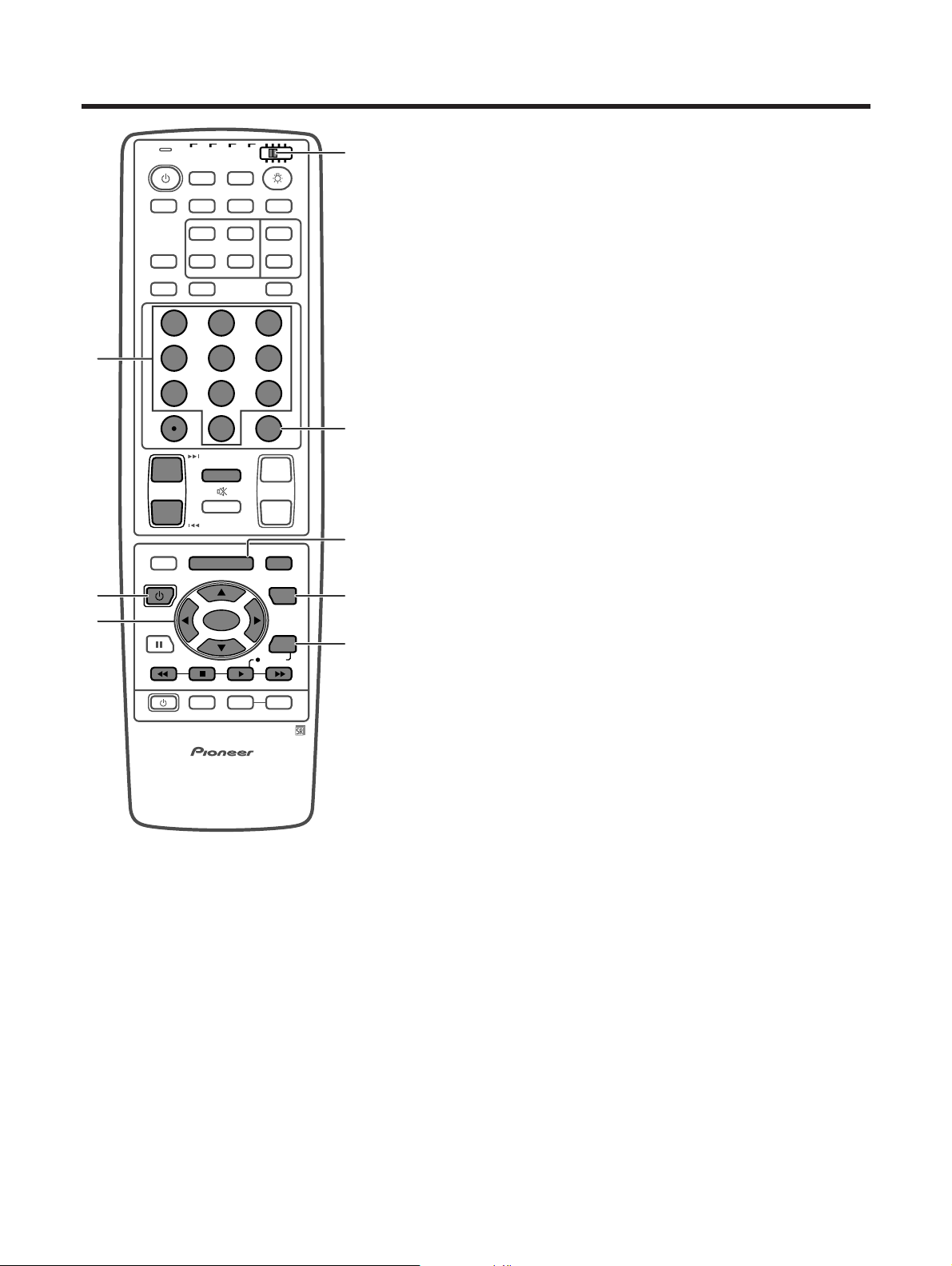
E-60
Useful features
SAT control buttons
When the SAT is preset by the learning remote control
function, the remote control unit buttons will function
as shown below.
• When the Mode switch is set to CBL/SAT/DTV,
satellite broadcast tuners made by other
manufacturers and not preset can also operate
with the remote control unit if 1 to 7 have learned
the functions. (See page 56.)
10 – 9
Press a button (or buttons) that corresponds to the
channel that you wish to watch.
2 SOURCE a
Turns the Satellite broadcast tuner power on and off.
3 SET/ENTER, a/b/c/d
SET/ENTER: Press to activate the selected function.
a/b/c/d: Press the button to select items on the SAT
GUIDE screen or SAT MENU screen.
4 CH ENTER
Fix the selected channel with the direct channel
selection buttons.
• Use this button to learn if necessary.
5 SAT MENU
When this button is pressed, the satellite broadcasting
menu screen will display.
6 SAT GUIDE
When this button is pressed, the satellite broadcasting
guide screen will display.
7 SAT INFO
When this button is pressed, information on satellite
broadcasting will display.
• Use this button to learn if necessary.
A
• CABLE, SAT and DTV cannot be selected at the same
time.
• The color-highlighted buttons shown in the figure at left
can learn the control signal from another device’s remote
control.
TV
ANT INPUT
SURR
FRONT
AV
SELECTION
MTS CC
SPLIT
SELECT
SUB SUB CH
ⴐ
ⴐ
ⴑ
ⴐ
ⴑ
FREEZE
MODE
CH VOL
RETURN
CH
MUTING
MENU TV/SAT/DVD
FAVORITE CH
RECEIVER
DTV/DVD TOP
SOURCE DTV/SAT
DTV/SAT
VCR REC
ABCD
RETURN
MENU
PLASMA DISPLAY
SET/
ENTER
MENU
GUIDE
INPUT VOL
ⴑ
VOL
ⴐ
INFO
SCREEN
SLEEP LEARNEDIT/
DISPLAY
INPUT ⴑ
TV VCRCBL
/SAT
/DTV
DVD
/LD
123
456
789
0
CH
ENTER
5
6
7
2
3
4
1
Mode switch
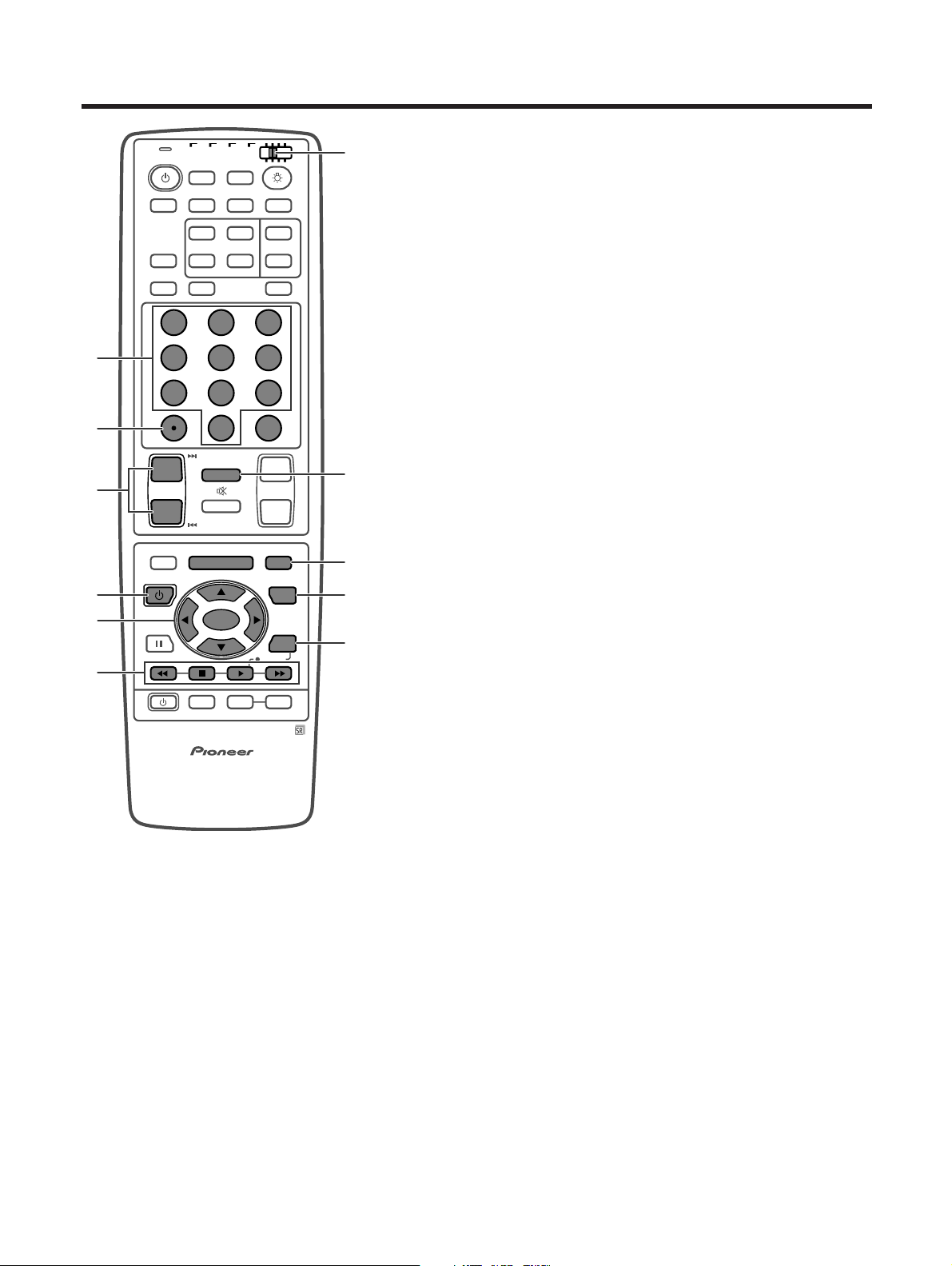
E-61
Useful features
DTV control buttons
For viewing DTV broadcasts, a digital tuner
(commercially available) is necessary.
When the Mode switch is set to CBL/SAT/DTV, the
remote control unit buttons will function as shown
below.
• Operate the tuner using 1 to 10.
10 – 9
Press a button (or buttons) that corresponds to the
channel that you want to watch.
2
• (DOT)
Used for channel selection.
3 CH k/l
Press CH k or CHl to tune in a higher or lower channel.
4 SOURCE a
Turns the digital tuner on and off.
5 SET/ENTER, a/b/c/d
SET/ENTER: Press to activate the selected function.
a/b/c/d: Press the button to select items on the DTV
MENU screen.
6 FAVORITE CH/Colored (blue/green/red/yellow)
FAVORITE CH: Used for making FAVORITE CH settings
with the digital tuner.
Blue/green/red/yellow: Used to make selections from
the digital tuner menu.
7 CH RETURN
Press to switch between the current channel and the
channel you were watching immediately before.
8 DTV MENU
When this button is pressed, the DTV menu screen will
display.
9 DTV GUIDE
When this button is pressed, the DTV guide screen will
display.
10 DTV INFO
When this button is pressed, information on DTV will
display.
A
• CABLE, SAT and DTV cannot be selected at the same
time.
• The color-highlighted buttons on the remote control can
learn the control signal from another device’s remote
control.
TV
ANT INPUT
SURR
FRONT
AV
SELECTION
MTS CC
SPLIT
SELECT
SUB SUB CH
ⴐ
ⴐ
ⴑ
ⴐ
ⴑ
FREEZE
MODE
CH VOL
RETURN
CH
MUTING
MENU TV/SAT/DVD
FAVORITE CH
RECEIVER
DTV/DVD TOP
SOURCE DTV/SAT
DTV/SAT
VCR REC
ABCD
RETURN
MENU
PLASMA DISPLAY
SET/
ENTER
MENU
GUIDE
INPUT VOL
ⴑ
VOL
ⴐ
INFO
SCREEN
SLEEP LEARNEDIT/
DISPLAY
INPUT ⴑ
TV VCRCBL
/SAT
/DTV
DVD
/LD
123
456
789
0
CH
ENTER
9
8
5
4
10
2
3
1
7
6
Mode switch
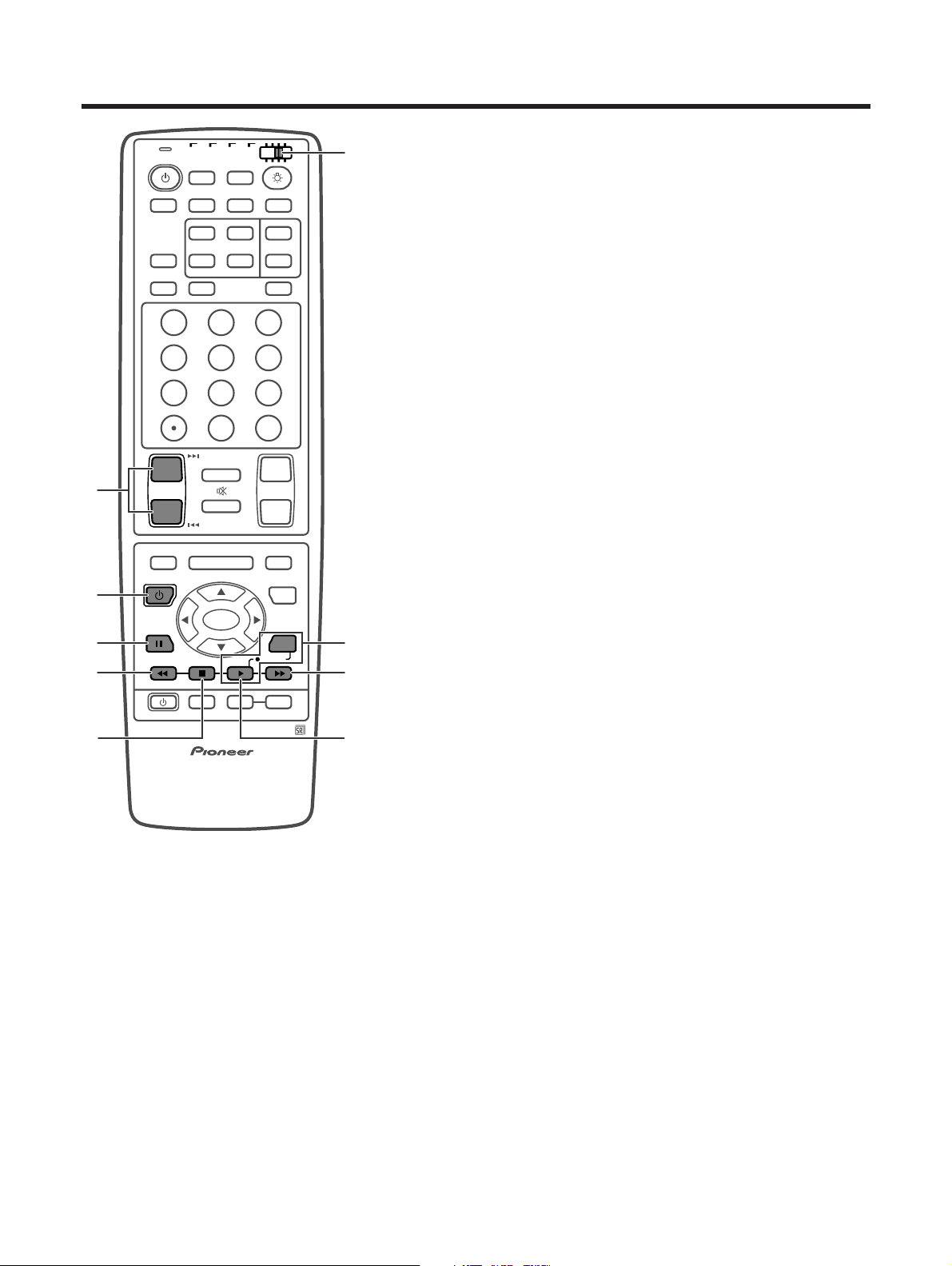
E-62
Useful features
VCR control buttons
When the VCR is preset by the learning remote control
function, the remote control unit button will function as
follows when the Mode switch of the remote control
unit is set to VCR.
• When the input selector button having the same
number as the input terminal connecting the VCR is
pressed, the VCR can operate using 1 to 8.
• VCR made by other manufacturers and not preset
can also operate using the remote control unit if 1 to
8 have learned the functions. (See page 56.)
1 CH k/l
Press to select the channel of the TV tuner on the VCR.
2 SOURCE a
Turns the power of the VCR on and off.
3 F
Set pauses and still pictures.
4 S
Rewinds the tape and allows picture search.
5 H
Stop the tape transport.
6, 8 VCR REC
Press both buttons at the same time to start recording.
7 V
Rapidly advances the tape and allows picture search.
8 I
Selects playback.
A
• The color-highlighted buttons on the remote control can
learn the control signal from another device’s remote
control.
TV
ANT INPUT
SURR
FRONT
AV
SELECTION
MTS CC
SPLIT
SELECT
SUB SUB CH
ⴐ
ⴐ
ⴑ
ⴐ
ⴑ
FREEZE
MODE
CH VOL
RETURN
CH
MUTING
MENU TV/SAT/DVD
FAVORITE CH
RECEIVER
DTV/DVD TOP
SOURCE DTV/SAT
DTV/SAT
VCR REC
ABCD
RETURN
MENU
PLASMA DISPLAY
SET/
ENTER
MENU
GUIDE
INPUT VOL
ⴑ
VOL
ⴐ
INFO
SCREEN
SLEEP LEARNEDIT/
DISPLAY
INPUT ⴑ
TV VCRCBL
/SAT
/DTV
DVD
/LD
123
456
789
0
CH
ENTER
2
3
1
6, 8
7
8
4
5
Mode switch
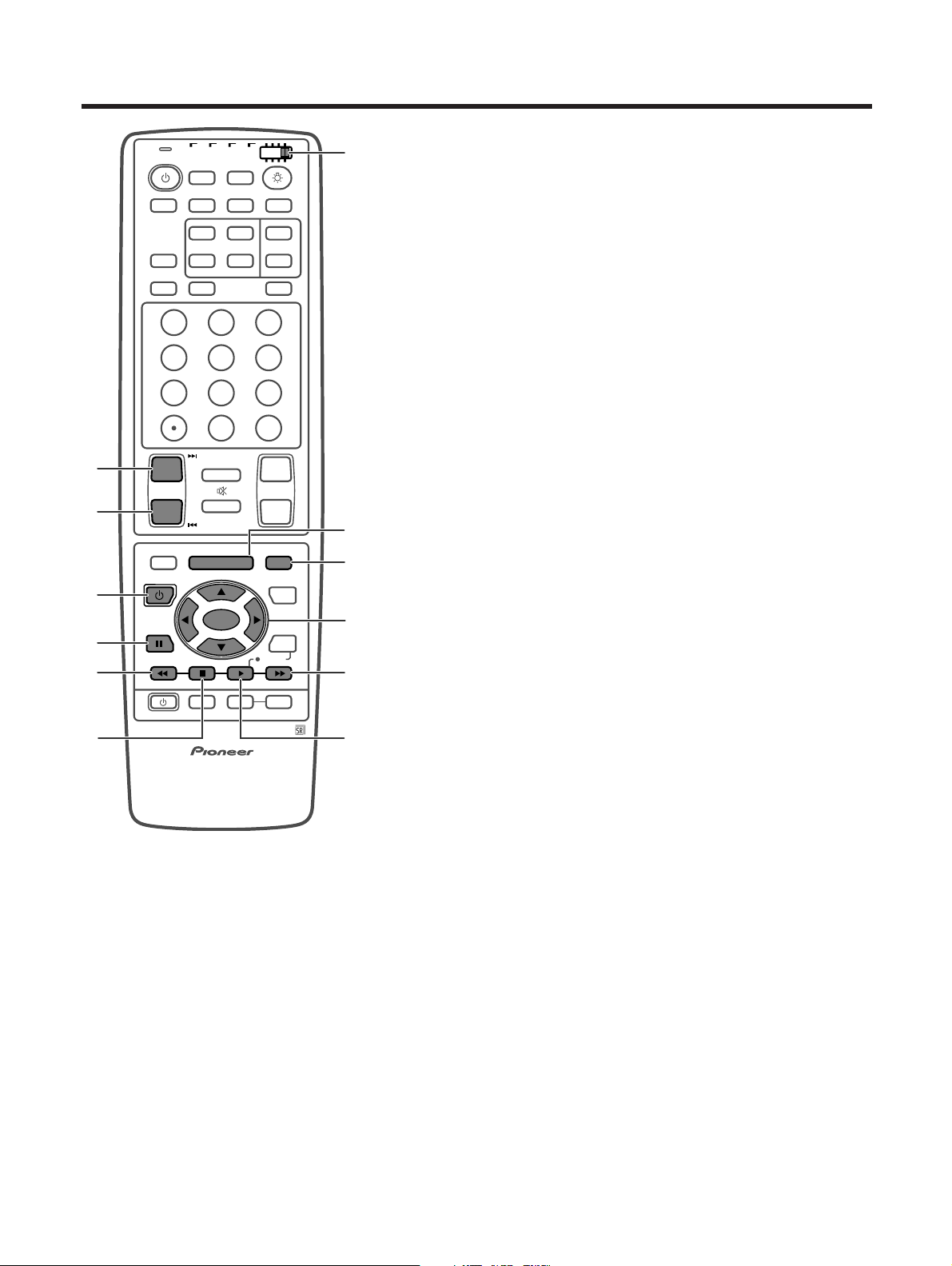
E-63
Useful features
DVD/LD control buttons
When the DVD/LD is preset by the learning remote
control function, the remote control unit button will
function as follows when the Mode switch of the
remote control unit is set to DVD/LD.
• When the input selector button having the same
number as the input terminal connecting a DVD
player or LD player is pressed, these players can
operate using 1 to 11. (7 to 9 are for DVD players
only.)
• DVD/LD players made by other manufacturers and
not preset can also operate using the remote control
unit if 1 to 11 have learned the functions. (See page
56.)
1 U
Pressing quickly once takes you to the start of the next
chapter. Each time you press it, you move ahead to the
start of the next chapter.
2 T
Pressing quickly once takes you to the start of the
chapter currently playing. Each time you press it, you
move back to the start of the previous chapter.
3 SOURCE a
Turns the power of the DVD/LD player on and off.
4 F
Set pauses and still pictures.
5 S
Continue pressing to go backward.
6 H
Playback stops when pressing once.
With some DVD/LD players, pressing the button twice
may open the disc tray.
7 DVD MENU (DVD only)
When this button is pressed, the DVD menu will display.
8 DVD TOP MENU (DVD only)
When this button is pressed, the DVD top menu will
display.
9 SET/ENTER, a/b/c/d (DVD only)
SET/ENTER: Press to activate the selected function.
a/b/c/d: Press the button to select items on the DVD
MENU screen.
10 V
Continue pressing for fast forward.
11 I
Selects playback.
A
• DVD and LD cannot be selected at the same time.
• The color-highlighted buttons on the remote control can
learn the control signal from another device’s remote
control.
Mode switch
TV
ANT INPUT
SURR
FRONT
AV
SELECTION
MTS CC
SPLIT
SELECT
SUB SUB CH
ⴐ
ⴐ
ⴑ
ⴐ
ⴑ
FREEZE
MODE
CH VOL
RETURN
CH
MUTING
MENU TV/SAT/DVD
FAVORITE CH
RECEIVER
DTV/DVD TOP
SOURCE DTV/SAT
DTV/SAT
VCR REC
ABCD
RETURN
MENU
PLASMA DISPLAY
SET/
ENTER
MENU
GUIDE
INPUT VOL
ⴑ
VOL
ⴐ
INFO
SCREEN
SLEEP LEARNEDIT/
DISPLAY
INPUT ⴑ
TV VCRCBL
/SAT
/DTV
DVD
/LD
123
456
789
0
CH
ENTER
3
1
2
4
10
9
8
7
11
5
6
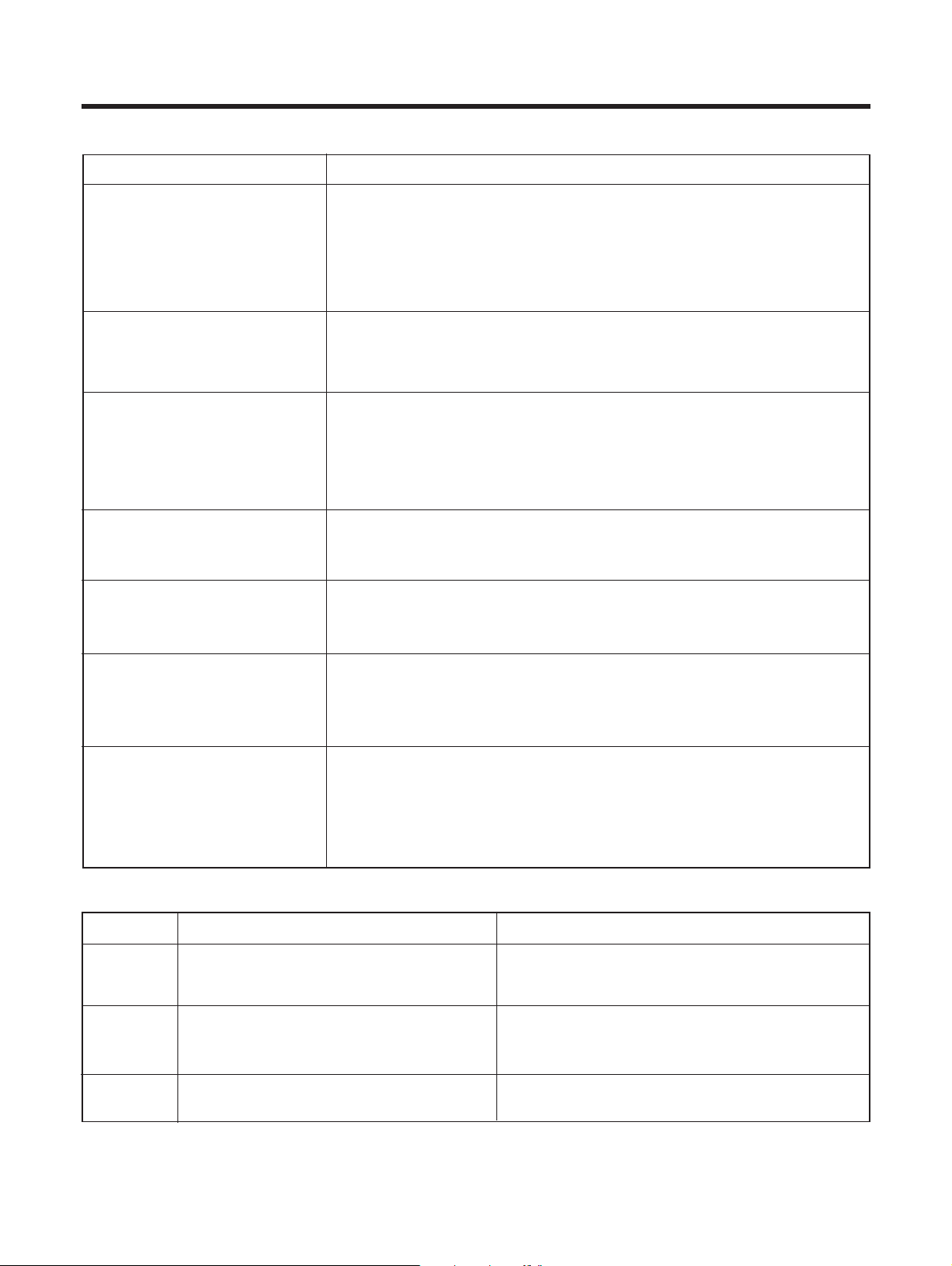
E-64
Appendix
• No power.
• Unit cannot be operated.
• Remote control unit does not
operate.
• Picture is cut off/with sidebar
screen.
• Strange color, light color, dark or
color misalignment.
• Power is suddenly turned off.
• No picture.
Problem Possible Solution
• Make sure the Plasma Display and the Media Receiver are connected correctly.
(See page 6.)
• Check if you pressed TV a on the remote control unit. (See page 14.)
If the indicator on the Plasma Display lights up red, press TV a.
• Is the power cord disconnected? (See page 13.)
• Has the main power been turned on? (See page 14.)
• External influences such as lightning, static electricity, may cause improper
operation. In this case, operate the unit after first turning on the power of the
Plasma Display and the Media Receiver, or unplugging the power cord and
replugging it in after 1 or 2 minutes.
• Is the Mode switch set correctly? Slide it to the TV setting position.
• Are batteries inserted with polarity (e, f) aligned? (See page 8.)
• Are batteries worn out? (Replace with new batteries.)
• Are you using it under strong or fluorescent lighting?
• Is a fluorescent light illuminated near the remote control sensor?
• Is the image position correct? (See pages 22 and 41.)
• Are screen mode adjustments such as picture size made correctly? (See page
45.)
• Adjust the picture tone. (See pages 27 to 30.)
• Is the room too bright? The picture may look dark in a room that is too bright.
• Check the input signal setting. (See page 43.)
• Is the sleep timer set? (See page 46.)
• Check the power control setting. (See pages 32 and 33.)
• The unit’s internal temperature has increased.
Remove any objects blocking vent or clean. (See page 5.)
• Is connection to other components correct? (See pages 34 to 39.)
• Has setup been done correctly after connection? (See page 43.)
• Is the correct input selected? (See page 43.)
• Is a non-compatible signal being input? (See page 65.)
• Is picture adjustment correct? (See pages 27 to 30.)
Problem with Plasma Display System
Warning
Possible Solution
• System cable connection
• Abnormal internal temperature
• Abnormal internal signaling or circuit
operation of the Plasma Display
• System cables are not properly connected. Check that
all system cables are connected properly. (See page
6.)
• The internal temperature of the Plasma Display is
abnormally high. Check the location the System is
installed. (See page 5.)
• Turn off the power once and turn it on again. (See page
14.)
E01
E04
E06
Please check to see if a warning is displayed on the screen. If the problem still cannot be solved please consult the dealer
where this unit was purchased.
Troubleshooting
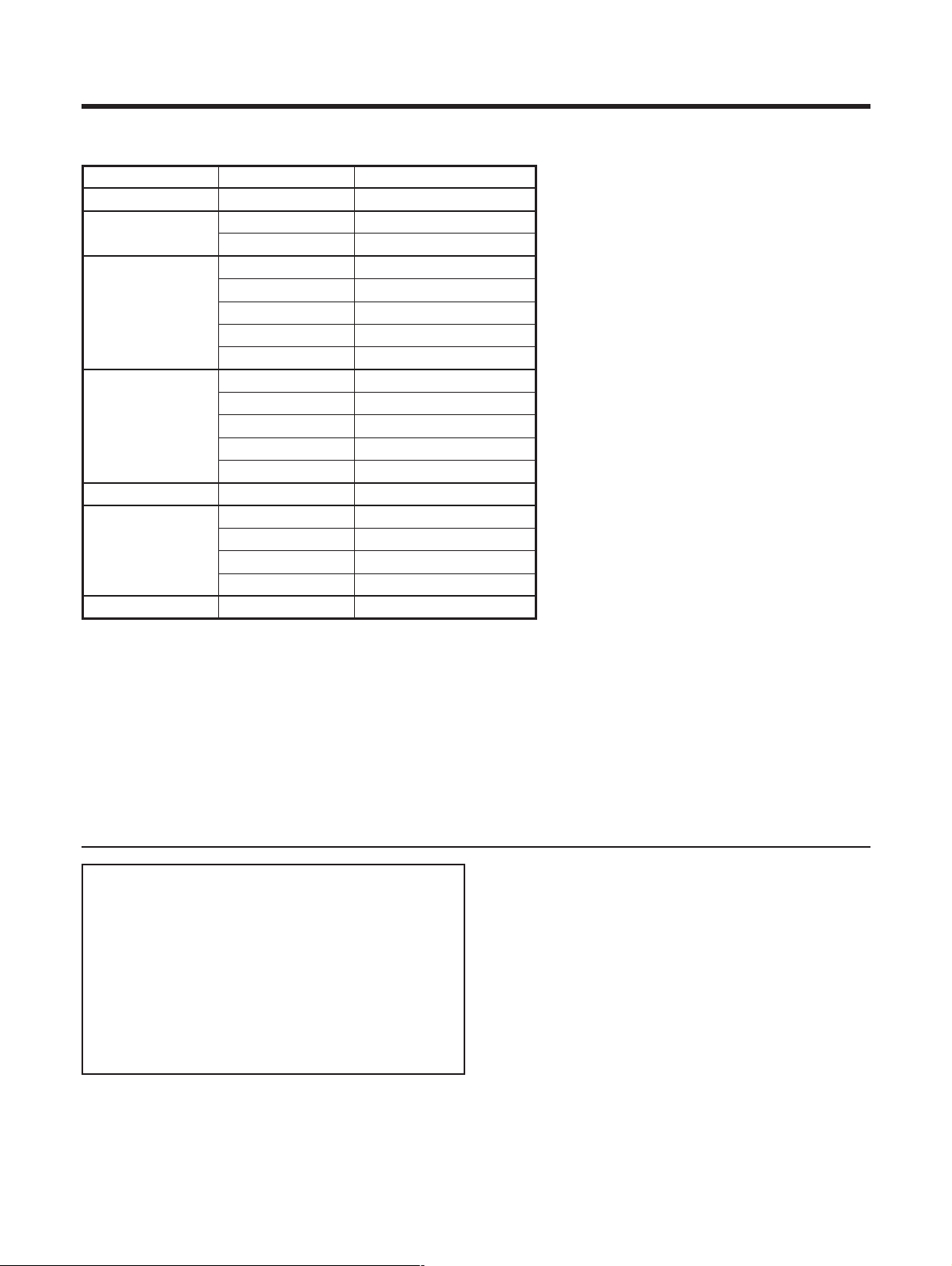
E-65
Appendix
640400
720400
640480
800600
832624
1024768
1280768
85 Hz
70 Hz
85 Hz
60 Hz
65 Hz
72 Hz
75 Hz
85 Hz
56 Hz
60 Hz
72 Hz
75 Hz
85 Hz
74.5 Hz
60 Hz
70 Hz
75 Hz
85 Hz
60 Hz
Computer compatibility chart
Apple and Macintosh are registered trademarks
of Apple Computer, Inc.
Microsoft is a registered trademark of Microsoft
Corporation.
DDC is a registered trademark of Video Electronics
Standards Association.
Power Management is a registered trademark of
Sun Microsystems, Inc.
VGA and XGA are registered trademarks of
International Business Machines Co., Inc.
Remarks
Macintosh 13 (67 Hz)
Macintosh 16
Macintosh 19
Resolution
Frequency
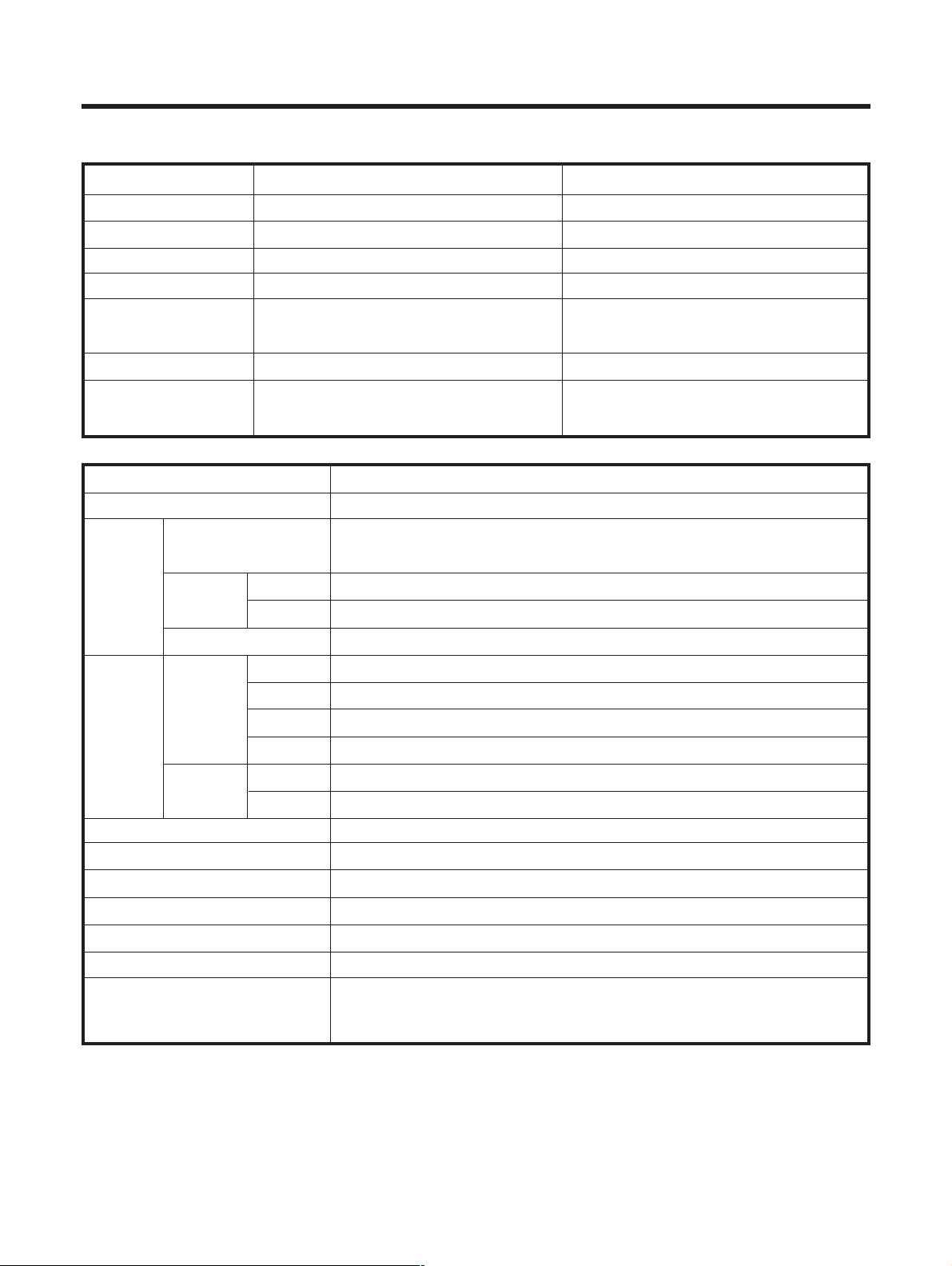
E-66
Appendix
Item
50o Plasma Display, Model: PDP-503PU
Number of Pixels
1280g768 pixels
Audio Amplifier
12 We12 W (1 kHz, 10 %, 8 q)
Power Requirement
120 V AC, 60 Hz, 370 W (0.6 W Standby)
Dimensions
1218 (W) g 714 (H) g 98 (D) mm
(47
31
/32 (W) g 28
1
/8 (H) g 3
7
/8 (D) inch)
Weight
38.9 kg (85.8 lbs.)
Accessories
Power cord, Cleaning cloth, Three speed
clamps, Three bead bands, Warranty card
Item
Media Receiver, Model: PDP-R03U
Reception System American TV standard NTSC system
TV
Function
Video signal detection PLL full synchronous detection,
VHF/UHF
VHF 2–13ch, UHF 14–69ch
CATV
1–125ch
Audio multiplex
BTSC system
Terminals
S-VIDEO in, AV in, COMPONENT in
INPUT 2
S-VIDEO in, AV in
INPUT 3
S-VIDEO in, AV in, COMPONENT in, RGB in
Antenna
75 q UNBAL, F Type for VHF/UHF/CATV in
INPUT 4 S-VIDEO, AV in
PC
15 Pin mini D-Sub, Audio in
Monitor Out Terminal
S-VIDEO out, AV out, Audio (Variable, Fixed)
Power Requirement
120 V AC, 60 Hz, 40 W (0.2 W Standby)
Dimensions
420 (W) g 70 (H) g 330 (D) mm (16
9
/16 (W) g 2
25
/32 (H) g 13 (D) inch)
Weight 4.4 kg (9.7 lbs.)
Accessories
Power cord, Remote control unit, Two AA size batteries, System cable,
Operating instruction
Circuit type
Tuner
Rear
INPUT 1
Front
Rear
• Design and specifications are subject to change without notice.
Specifications
Surround System
SRS/FOCUS/SRSeFOCUS
Other Features
OSD Language
English/French/Spanish
Picture & Picture, Still image, Dual Tuner System
43o Plasma Display, Model: PDP-433PU
1024 g 768 pixels
12 We12 W (1 kHz, 10 %, 8 q)
120 V AC, 60 Hz, 318 W (0.6 W Standby)
1070 (W) g 630 (H) g 98 (D) mm
(42
1
/8 (W) g 24
13
/16 (H) g 3
7
/8 (D) inch)
31.5 kg (69.4 lbs.)
Power cord, Cleaning cloth, Three speed
clamps, Three bead bands, Warranty card
SRS/FOCUS/SRSeFOCUS
PLL digital synthesizer system

E-67
HOW TO SET THE FACTORY PRESETTINGS
Press and hold down CLEAR on the Media Receiver while it is in standby mode. Then press STANDBY/ON
on the Plasma Display or TV a on the remote control unit to turn the Plasma Display System on.
All setting items (except TV channel) return to the factory presetting.
A
• Running the factory presetting operation also clears the secret number.
You can run the Auto Installation again by using the following steps.
1 Turn on the power of the Plasma Display and the Media Receiver.
2 Press MENU. (Make sure the menu screen displays.)
3 Press a/b to select “Setup”.
4 Press SET/ENTER.
A
• If the secret number setting screen displays, you need to enter your secret number.
• If you forget your secret number, refer to HOW TO SET THE FACTORY PRESETTINGS above.
5 Press a/b to select “Auto Installation”.
6 Press SET/ENTER.
“Auto Installation completed” displays. After that, the screen changes to the TV mode.
*
1
SRS and the symbol are trademarks of SRS Labs, Inc.
SRS technology is incorporated under license from SRS Labs, Inc.
*
1
FOCUS and the symbol are trademarks of SRS Labs, Inc.
FOCUS technology is incorporated under license from SRS Labs, Inc.
A
• Products above are a trademark or registered trademark of corporation.
A
• As a precautionary measure, make a note of your secret number above, scissor it from this manual, and keep it in a
familiar place.
The secret number is .
PIONEER CORPORATION 4-1, Meguro 1-Chome, Meguro-ku, Tokyo 153-8654, Japan
PIONEER ELECTRONICS [USA] INC.
P.O. BOX 1540, Long Beach, California 90801-1540, U.S.A.
PIONEER ELECTRONICS OF CANADA, INC.
300 Allstate Parkway, Markham, Ontario L3R OP2, Canada
PIONEER EUROPE NV
Haven 1087, Keetberglaan 1, B-9120 Melsele, Belgium TEL: 03/570.05.11
PIONEER ELECTRONICS AUSTRALIA PTY. LTD.
178-184 Boundary Road, Braeside, Victoria 3195, Australia, TEL: [03] 9586-6300
PIONEER ELECTRONICS DE MEXICO S.A. DE C.V.
San Lorenzo 1009 3er Piso Desp. 302 Col. Del Valle Mexico D.F. C.P. 03100 TEL: 5-688-52-90
Printed in Japan/Imprimé au Japon/Impreso en Japón
TINS-7552CEZZ