
2
ENGLISH
CONTENTS
ON CLEANING .......................................3
LICENSE ...............................................4
OPEN SOURCE SOFTWARE NOTICE
INFORMATION ......................................4
ASSEMBLY AND PREPARING ...................5
USER SETTINGS ..................................14
TROUBLESHOOTING ............................27
PRODUCT SPECIFICATIONS ...................29
EXTERNAL CONTROLLER SETUP .............35
3
ENGLISH
Please note that this information is for proper use and safety of the equipment. The following symbols may
indicate a hazardous situation in which, if not heeded, may result in serious injury or even death to the user or
others, or damage to the equipment.
WARNING
• Indicates warning and safety instructions. If not adhered to, it could result in death or serious injury to the
user or others.
CAUTION
• Indicates a hazardous situation which, if not heeded, may result in minor or moderate injury to the user or
others, or damage to the equipment.
ON CLEANING
Recommended Cleaning Chemicals
• Isopropanol 70 %
• Ethanol 70 %
• 0.9 % NaCl solution
How to Use Cleaner
• Prior to cleaning, turn off the monitor and remove the power cable.
• Soak a soft cloth in a recommended cleaner, then lightly rub the screen with no more than 1 N of force.
• The cleaner could cause serious damage if it leaks inside the monitor while cleaning.
• The display could be damaged, so only clean the parts of the monitor other than the screen's LCD panel.
• Do not use benzene, thinner, acids or alkaline cleaners or other such solvents.
• Cleaning guidelines for displays must only be carried out by medical professionals (Doctors or Nurses),
cleaners must not be handled by patients.
4
ENGLISH
LICENSE
Each model has different licenses. Visit
www.lg.com
for more information on the license.
The terms HDMI, HDMI High-Definition Multimedia Interface, and the HDMI Logo are trademarks or
registered trademarks of HDMI Licensing Administrator, Inc.
OPEN SOURCE SOFTWARE NOTICE
INFORMATION
To obtain the source code under GPL, LGPL, MPL, and other open source licenses, that is contained in this
product, please visit
http://opensource.lge.com.
In addition to the source code, all referred license terms,
warranty disclaimers and copyright notices are available for download. LG Electronics will also provide open
source code to you on CD-ROM for a charge covering the cost of performing such distribution (such as the
cost of media, shipping, and handling) upon email request to
This offer is valid for
a period of three years after our last shipment of this product. This offer is valid to anyone in receipt of this
information.
5
ENGLISH
ASSEMBLY AND PREPARING
Product Composition
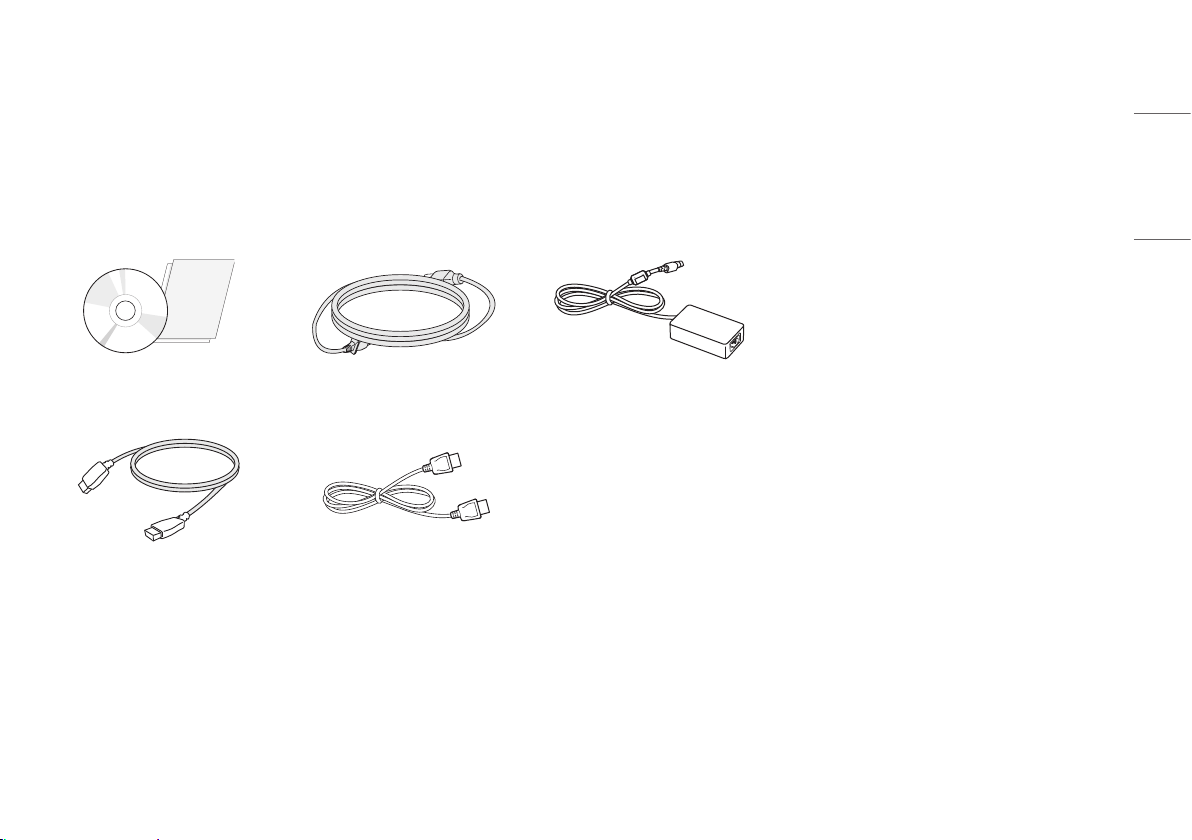
Please check whether all the components are included in the box before using the product. If there are any missing components, contact the retailer where you purchased the product.
Note that the product and related components may look different from those shown here.
CD (Owner's Manual / Software) /
Regulatory Manual / Cards
Power Cord AC/DC Adaptor
HDMI Cable
DisplayPort Cable

6
ENGLISH
CAUTION
• Always use genuine LG components to ensure safety and product performance.
• The product warranty will not cover damage or injury caused by the use of unauthorized components.
• It is recommended to use the supplied components.
• If you use generic cables not certified by LG, the screen may not display or there may be image noises.
• Only use components listed below that meet the listed standard. Unauthorized components may cause
damage to and malfunction of the product.
Component Standard
HDMI Cable UL, Impedance 100 ohm
DisplayPort Cable UL, Impedance 100 ohm
Power Cord US – Approved Medical grade regulation
Others – Approved country safety regulation
• Except for the components listed above, only use AC/DC adaptors and components supplied by the
manufacturer.
NOTE
• The components may look different from those illustrated here.
• Without prior notice, all product information and specifications contained in this manual are subject to
change to improve the performance of the product.
• To purchase optional accessories, visit an electronics store or an online shopping site, or contact the retailer
from which you purchased the product.
• The power cord provided may differ depending upon the region.
Supported Software
Check the drivers and software supported by your product and refer to the manuals on the CD enclosed in the
product package.
Drivers and Software Installation Priority
True Color Pro Recommended
• Required and Recommended: You can download and install the latest version from the enclosed CD or from
the LGE website (
www.lg.com
).
7
ENGLISH
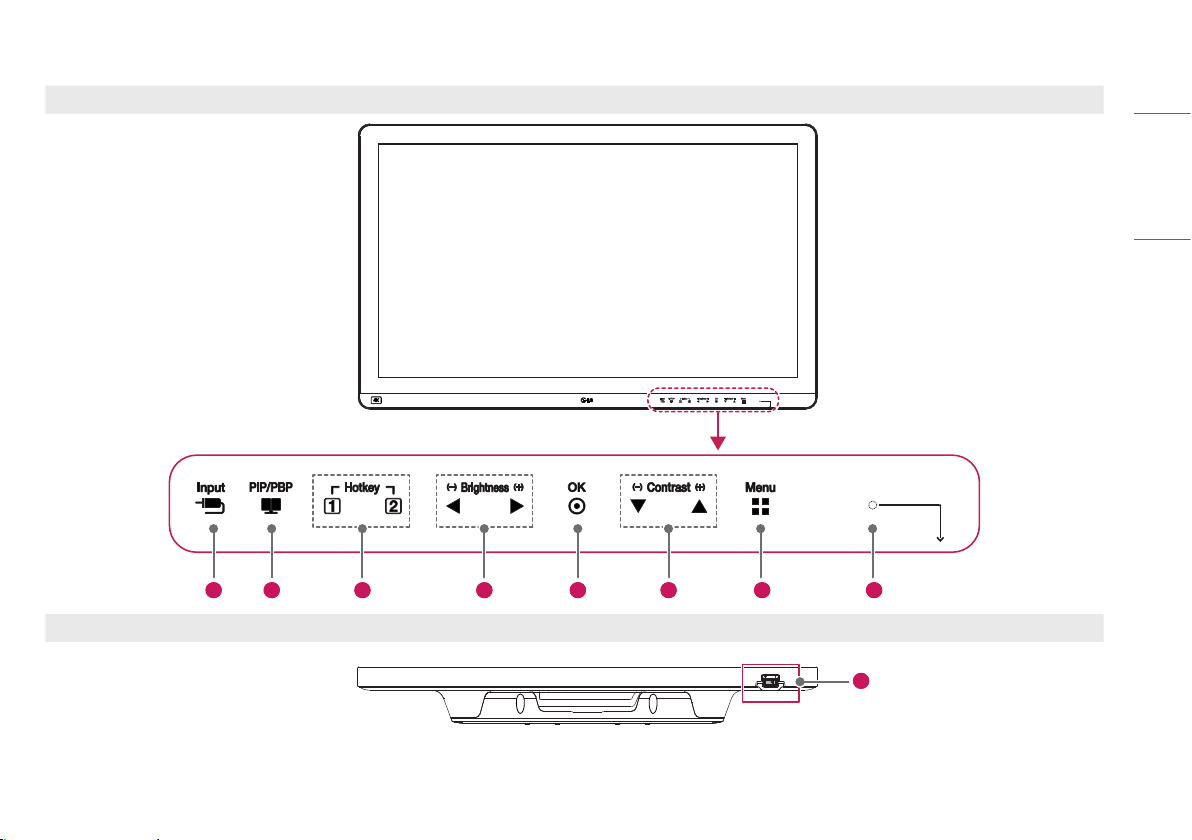
Product and LED Control buttons
Front
1 2 3 4 5 6 7 8
Bottom
9
8
ENGLISH
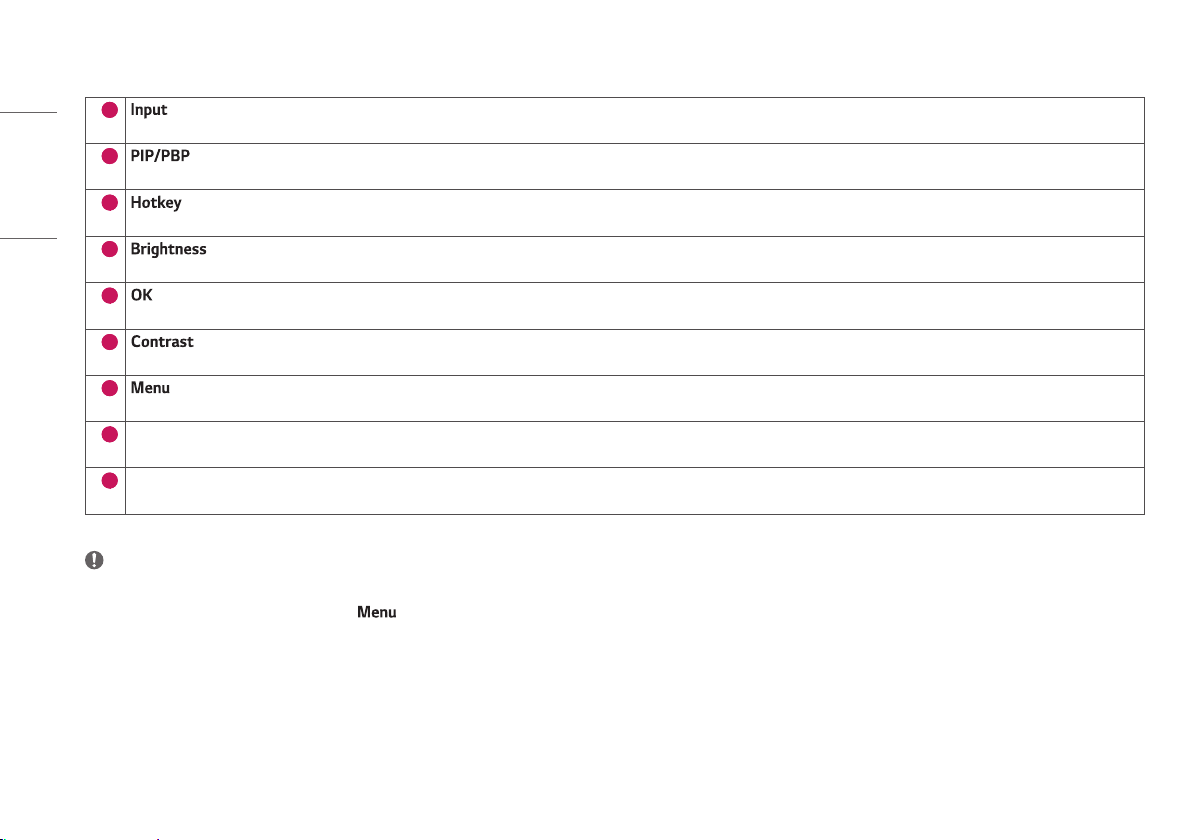
LED Control button Functions
1
• Selects the input mode.
2
• Adjusts display mode for 2 or more screens.
3
• Opens the [Hot key Settings] menu.
4
• Adjusts the screen brightness.
5
• Selects and confirms menus or options
6
• Adjusts the screen contrast.
7
• Displays LED Control buttons on the front panel and opens the menu mode.
8
Power indicator
• The green indicator illuminates if the power is on. The arrow indicates the position of the power switch.
9
Power switch
• Turns the power on/off.
NOTE
• The Power button is located at the bottom right on the front of the monitor.
• If the Control Key LED is turned off, press the Control Key button to turn the Control button LED on. When the Control Key LED is turned on, you can control the Control Key functions.
9
ENGLISH
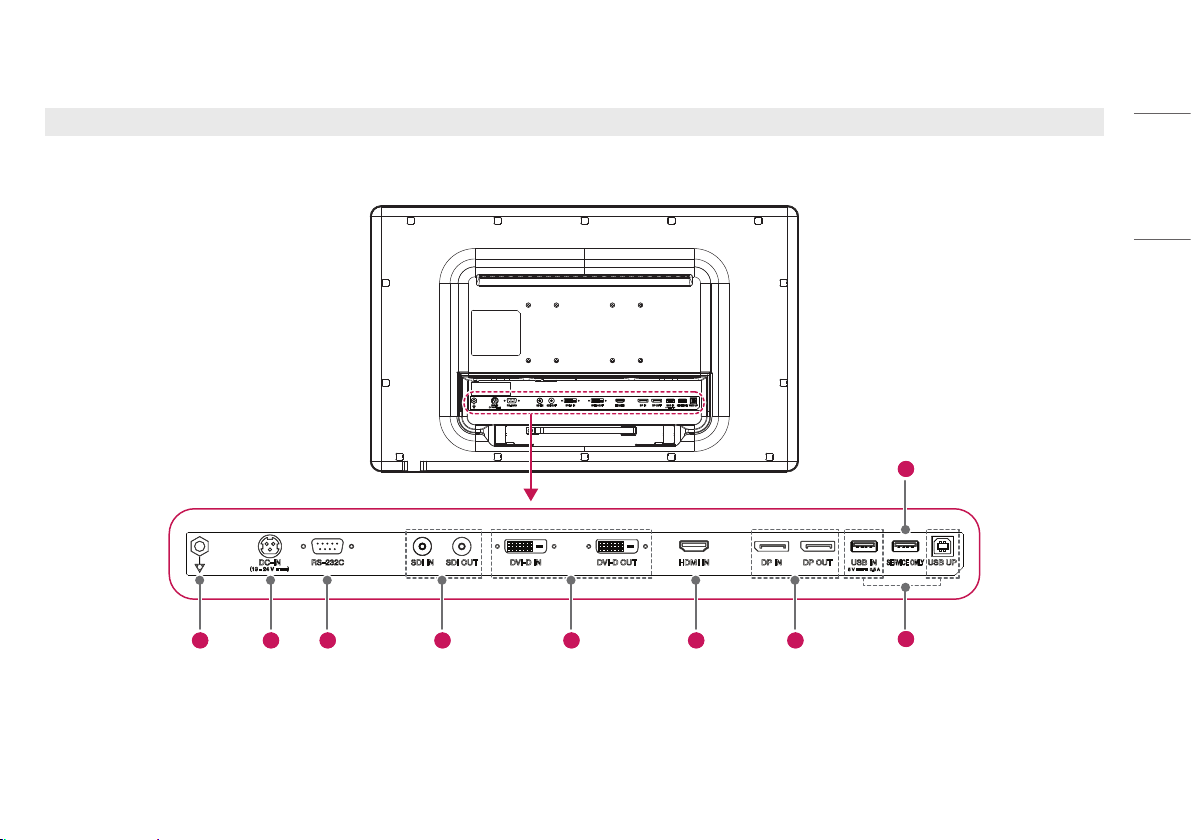
Connectors
Back
1 2 3 4 5 6 7
8
9
10
ENGLISH
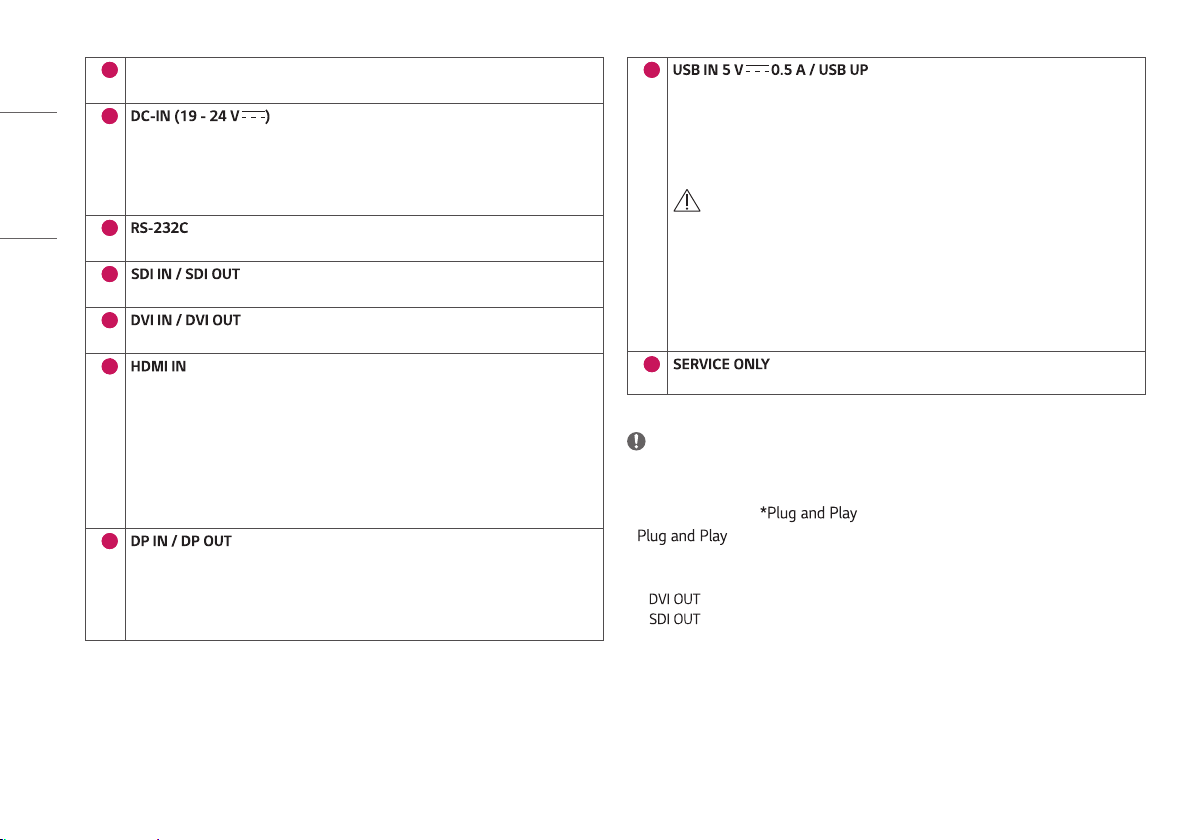
1
Potential Equalization Conductor
• Connect an equipotential plug.
2
• Connect an AC/DC adapter.
• The output of the enclosed adaptor is 19 V.
• The product is designed to be used with adaptors that have an output ranging between 19-24 V.
Please use the adaptors of medical standards.
3
• Connect the RS-232C terminal with an external device to control the monitor.
4
• Receives or transmits digital video signals.
5
• Receives or transmits digital video signals.
6
• Input digital video signal.
• Using a DVI to HDMI / DisplayPort to HDMI cable may cause compatibility issues.
• Use a certified cable that displays the HDMI logo. The screen may not appear or a connection error
could occur if a non-certified cable is used.
• Recommended HDMI cable types
- High-speed HDMI
®
/™ cable
- High-speed HDMI
®
/™ Ethernet cable
7
• Receives or transmits digital video signals.
• There may be no video output depending on the DisplayPort version of your PC.
• A cable with DisplayPort 1.2 specifications is recommended when using a Mini DisplayPort to
DisplayPort cable.
8
• Used for HW Calibrator (Optional Accessory) connection.
• Connect peripheral device to the USB input port.
• A keyboard, mouse, or USB storage device can be connected.
• To use USB 2.0, connect the A-B type USB 2.0 cable to the PC.
CAUTION
Cautions When Using a USB Storage Device
• A USB storage device which has a built-in automatic recognition program or uses its own driver
might not be recognizable.
• Some USB storage devices may not be supported or may not work properly.
• It is recommended to use a USB hub or hard disk drive with power supplied. (If the power supplied
is not enough, the USB device may not be detected properly.)
9
- This USB port is used only for service.
NOTE
• All signal out terminals (SDI, DVI, etc.) output a signal when the power switch of the monitor is on. When the
power switch is off, no signal is outputted.
• This monitor supports the feature.
* : A feature that allows you to add a device to your computer without the need for physical
device configuration or user intervention.
• The standard of the DVI and the SDI output terminals for transmitting a screen
- : Connect a 5-meter (16.4 ft) cable to transmit a duplicated screen to a monitor.
- : Connect a 100-meter (328.0 ft) cable (BELDEN 1694) to transmit a duplicated screen to a
monitor.
11
ENGLISH
Installing the Monitor
Cable connection and organize
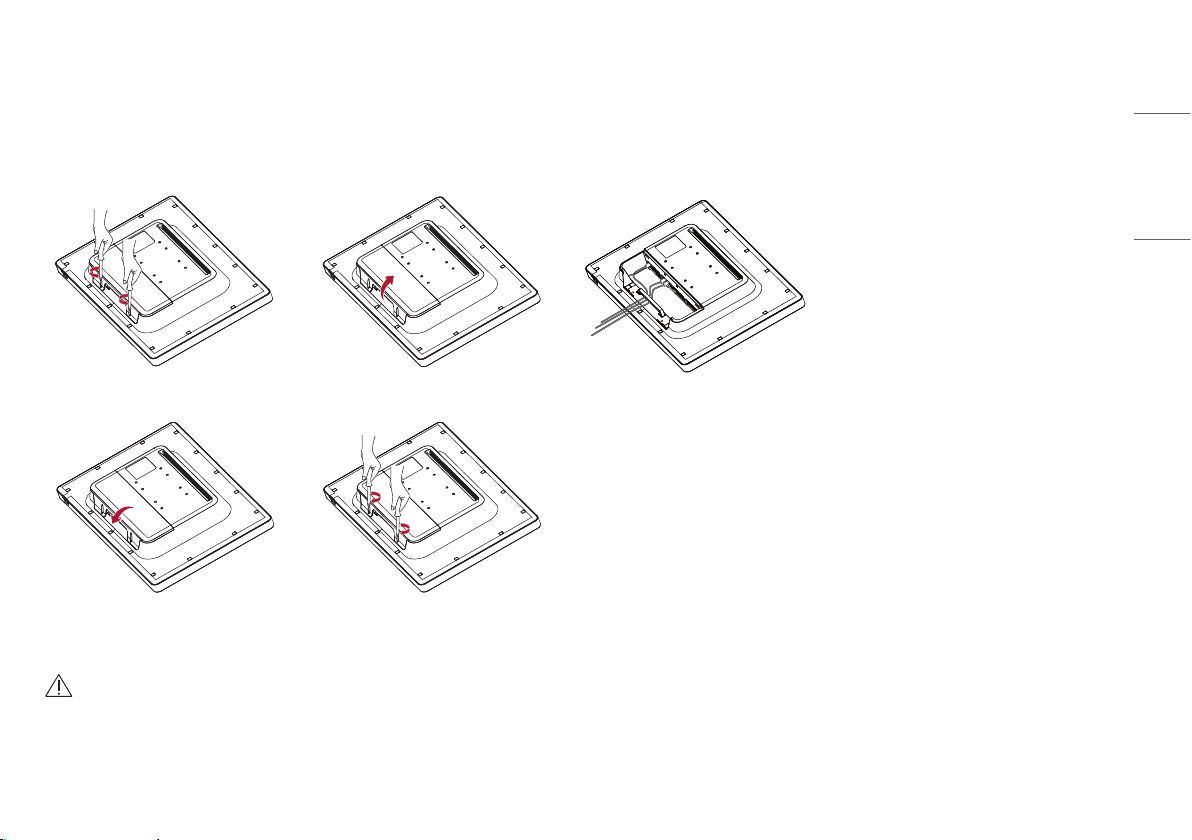
Before connecting the connectors, remove the back door as shown below.
1 2 3
4 5
CAUTION
• When the back door is attached to the monitor, the monitor meets water resistance standards. Do not use the monitor with the back door detached, as the water resistance capability is not guaranteed without the door.
12
ENGLISH
Installing on the Wall
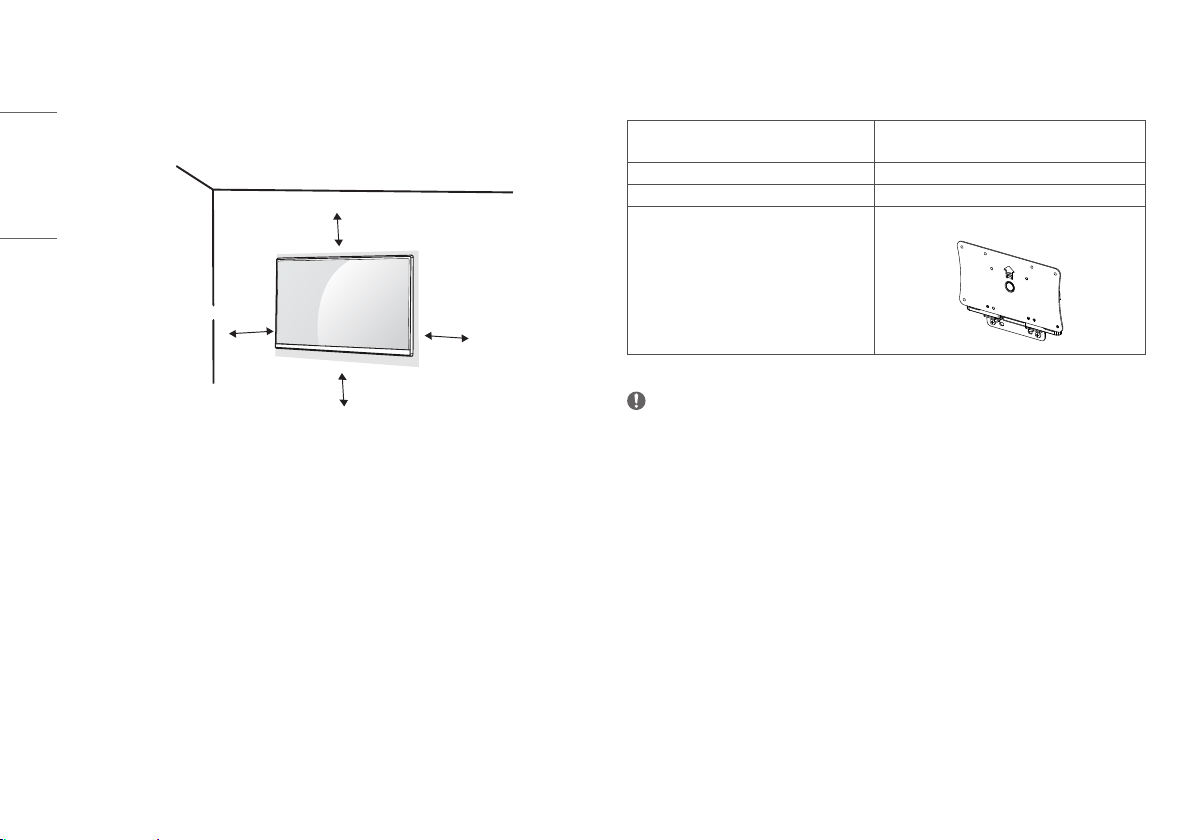
Install the monitor at least 100 mm (3.9inches) away from the wall on each side of the monitor to ensure
sufficient ventilation. Detailed installation instructions can be obtained from your local dealer. Please refer to
the manual to install and set up a tilting wall mounting bracket.
100 mm
(3.9inches)
100 mm
100 mm
100 mm
To install the monitor to a wall, attach a wall mount plate (optional) to the back of the monitor.
Make sure that the wall mount plate (optional) is securely fixed to the monitor and to the wall.
Installing the Wall Mount Plate
This monitor meets the specifications for the wall mount plate or other compatible devices.
Wall Mount 100 mm x 100 mm
(3.9inches x 3.9inches)
Standard screw
M4 x L10
Required screws
4
Wall mount plate (optional)
LSW140
NOTE
• A non-VESA standard screw may damage the product and cause the monitor to fall. LG Electronics is not
liable for any accidents relating to the use of non-standard screws.
• The wall mount kit includes the installation guide and all necessary parts.
• The wall mounting bracket is optional. You can obtain optional accessories from your local dealer.
• The length of the screw may differ for each wall mounting bracket. If you use screws longer than the standard
length, it may damage the inside of the product.
• For more information, please refer to the user manual for the wall mounting bracket.
• Be careful not to apply too much force while mounting the wall mount plate as it may cause damage to the
screen.
• Remove the stand before installing the monitor on a wall mount by performing the stand attachment in
reverse.
13
ENGLISH
CAUTION
• Disconnect the power cord before moving or installing the monitor. There is risk of electric shock.
• Installing the monitor on the ceiling or on a slanted wall may result in the monitor falling off, which could
lead to injury. Use an authorized LG wall mount and contact the local dealer or qualified personnel.
• Applying excessive force when tightening screws may damage the monitor. Such damage is not covered by
the product warranty.
• Use the wall mounting bracket and screws that confirm to VESA standards. Damage caused by the use or
misuse of inappropriate components is not covered by the product warranty.
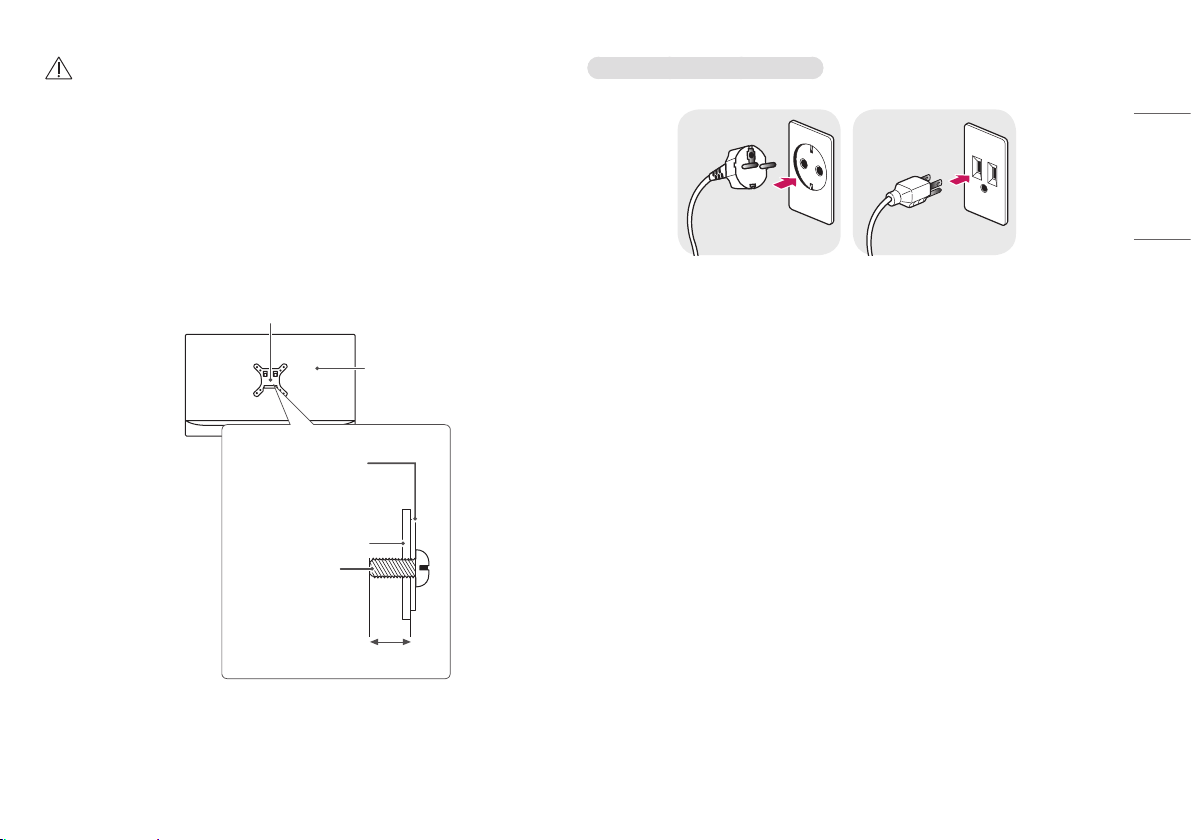
• When measured from the back of the monitor, the length of each installed screw must be 8 mm (0.3inches)
or less.
Wall mount plate
Back of the monitor
Screw specifications
: M4 x L10
Wall mount plate
Back of the monitor
Max. 8 mm (0.3inches)
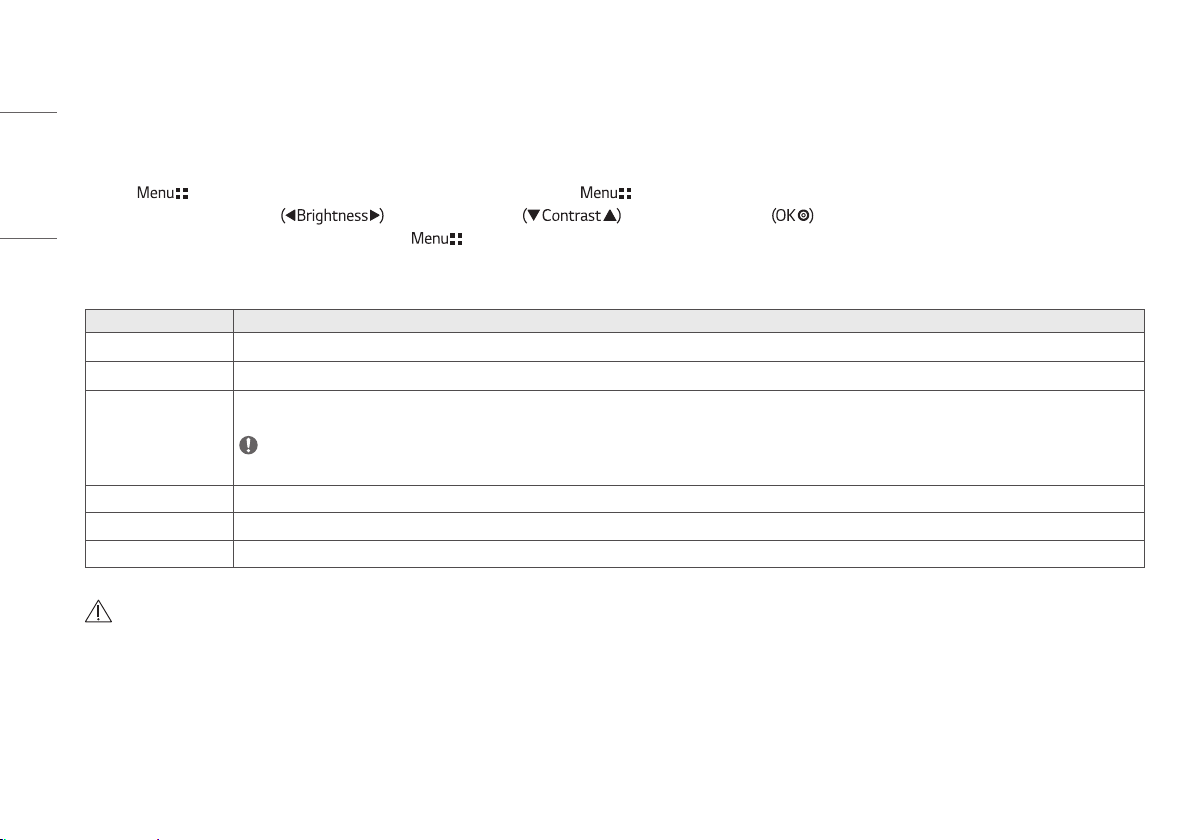
Precautions for Connecting the Power Cord
100-240 V ~
• Make sure to use the power cord that is provided in the product package. Connect the cord to a grounded
power outlet.
• If you need another power cord, please contact your local dealer or the nearest retail store.
14
ENGLISH
USER SETTINGS
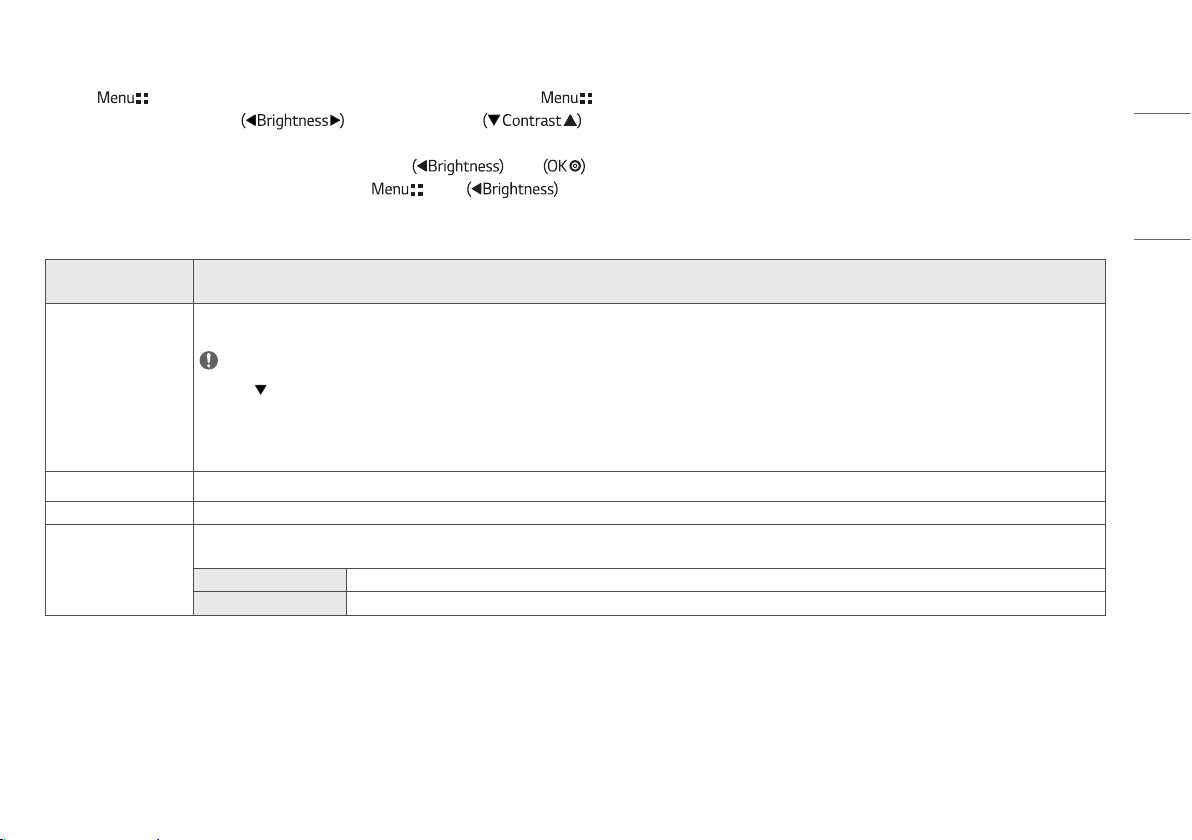
Activating the Quick Menu
1 Press ( ) to activate the LED Control Button. When the LED Control button is activated, press ( ) to show the OSD Quick Menu.
2 Among the LED Control Button, press to move to the left or right or to move to the bottom or top or to set options.
3 In order to exit from the OSD Menu, press the LED Control Button ( ) or select [Exit].
The applicable setting options are as shown below.
Quick Menu Settings Explanation
[Exit]
Closes the Quick Menu.
[Input]
Selects the applicable input mode.
[Picture Mode] Selects the [Picture Mode].
NOTE
• If the [Picture Mode] is not the [Custom] mode, [Gamma] and [Color Temp] will be deactivated.
[Gamma] Selects the screen's [Gamma].
[Color Temp] Selects the screen's [Color Temp].
[All Settings] Enters the All Settings menu.
CAUTION
• The Monitor OSD (On Screen Display) may differ from the description in the User Manual.
15
ENGLISH
Quick Settings
1 Press ( ) to activate the LED Control Button. When the LED Control Button is activated, press ( ) and select [All Settings] to show the complete OSD Menu.
2 Among the LED Control Button, press to move to the left or right or to move to the bottom or top to go to the [Quick Settings].
3 Configure the options following the instructions that appear in the bottom right corner.
4 To configure an upper menu or another item, press the LED Control Button or press to move to the settings.
5 In order to exit from the OSD Menu, press the LED Control Button ( ) or press .
The applicable setting options are as shown below.
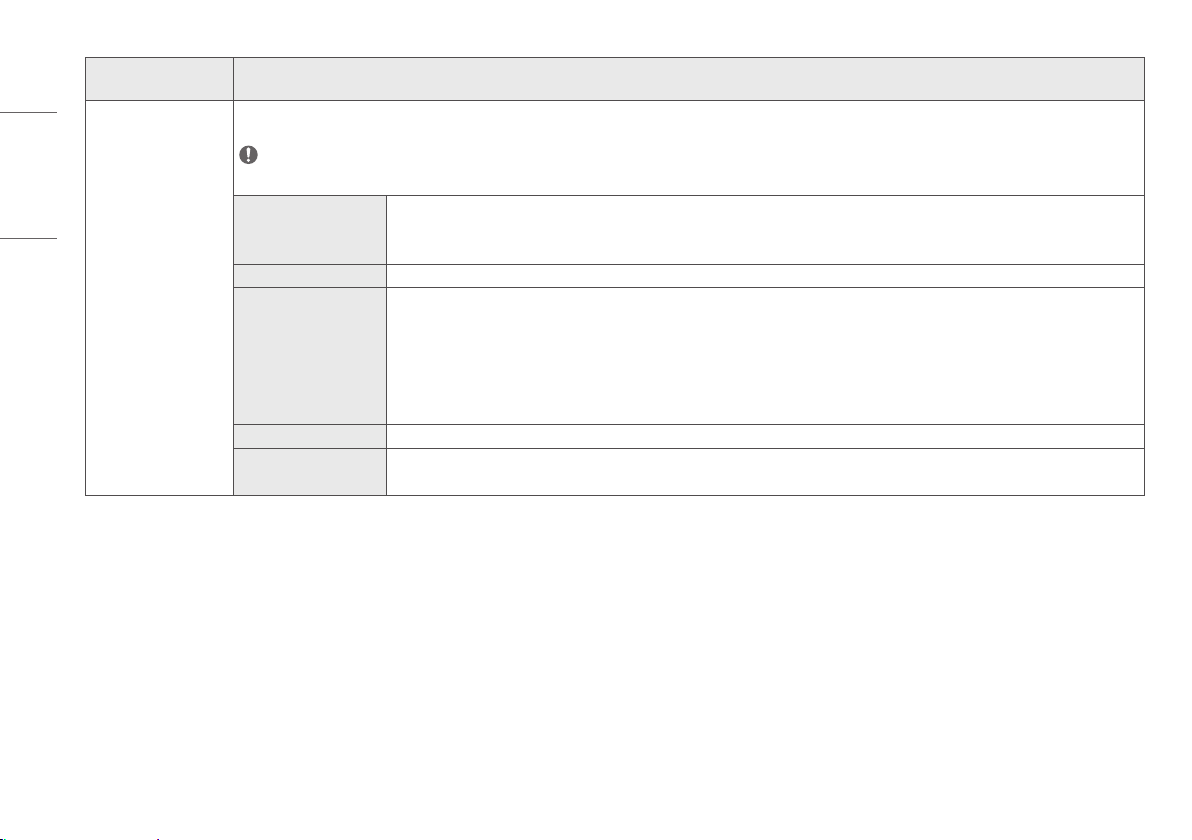
[All Settings] > [Quick
Settings]
Explanation
[Brightness]
Adjusts screen brightness.
NOTE
• Press the button to toggle between [Turn on 'Brightness Stabilization']/[Turn off 'Brightness Stabilization'].
• When [Brightness Stabilization] is [On], the [Brightness] adjustment function is deactivated.
• When [Brightness Stabilization] is [On], [SMART ENERGY SAVING] and [DFC] functions are deactivated.
• When [Picture Mode] is set as [DICOM], or [Gamma] is set as [DICOM Gamma Curve] Setting, the [Brightness] adjustment function is deactivated.
[Contrast]
Adjusts the color contrast of the screen.
[Color Temp] Set your own color temperature. ([Custom], [6500K], [7500K], [9300K], [Manual])
[Hot key Settings] Designate a hotkey for screen image settings. After setting the hotkey, use the hotkey in the LED Control Button to enable the set menu. ([PIP Size], [Gamma], [Mono], [Color Temp], [Black
Stabilizer], [Screen Zoom], [Off])
[Hotkey 1] Select a function to use with [Hotkey 1].
[Hotkey 2] Select a function to use with [Hotkey 2].
16
ENGLISH
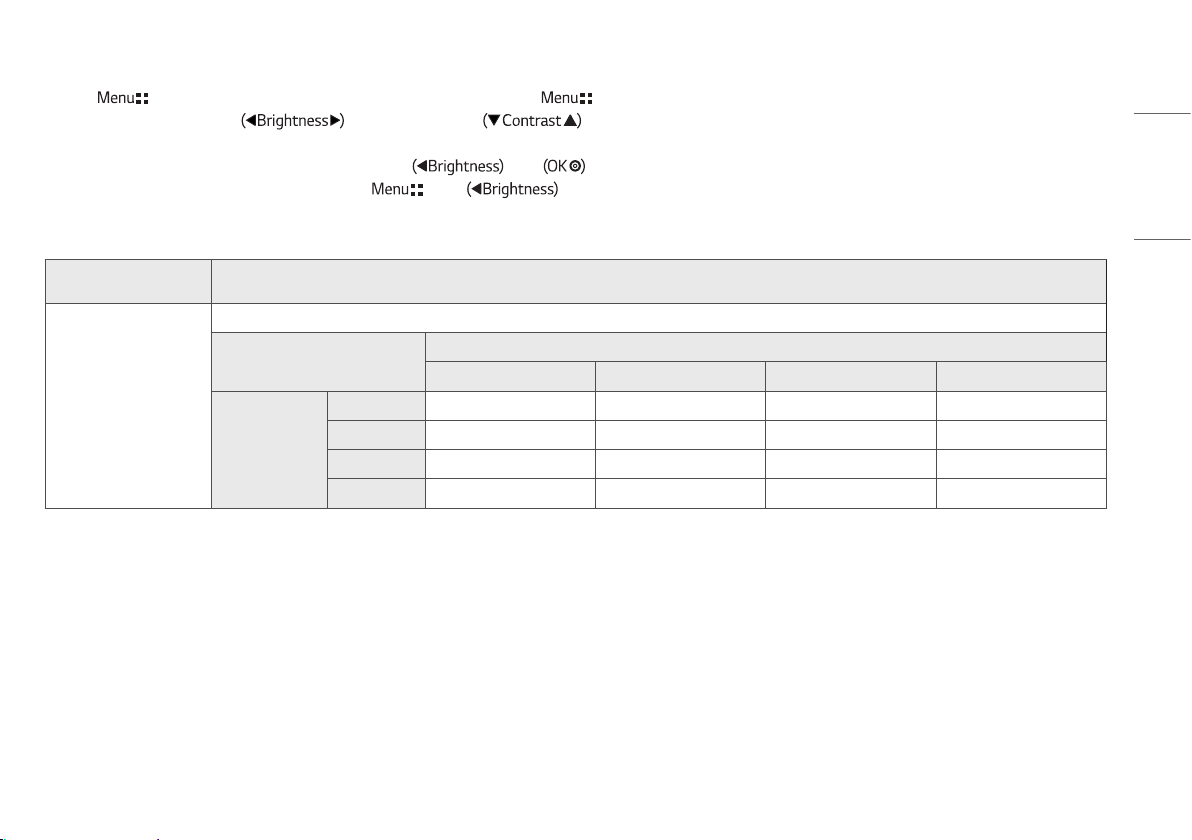
[All Settings] > [Quick
Settings]
Explanation
[User Preset] User Preset allows the user to save or load up to 10 picture quality settings for multiple connected devices in each preset.
NOTE
• You can use User Preset to import or save items in [Picture Adjust] and [Color Adjust] of the [Picture] menu.
[User Name] Allows the user to change and register a user name (Preset 1 ~ Preset 3, User 1 ~ User 7) as the user wants.
The user can enter a user name to be registered by using the screen keyboard.
Preset 1 ~ Preset 3 are factory-set user names as samples and the user can change the names.
[Load User Settings] Allows the user to change the picture quality settings by loading the User Preset settings.
[Save User Settings] Saves the current picture quality settings in the corresponding User Preset.
Preset 1 ~ Preset 3 are factory-set values as samples and the user can change the values.
• Preset 1: Use this preset for bluish color.
• Preset 2: Use this preset for greenish color and brighter low-gradation.
• Preset 3: Use this preset to soften the red tone.
• User 1 ~ User 7: Initial values are the same as the factory settings.
[Default User Settings] Loads the initial basic picture settings.
[User Preset Reset] Initializes User Preset settings.
• Initializes the existing user name and user settings to be restored to factory settings (Preset 1 ~ Preset 3, User 1 ~ User 7).
17
ENGLISH
Input
1 Press ( ) to activate the LED Control Button. When the LED Control Button is activated, press ( ) and select [All Settings] to show the complete OSD Menu.
2 Among the LED Control Button, press to move to the left or right or to move to the bottom or top to go to the [Input].
3 Configure the options following the instructions that appear in the bottom right corner.
4 To configure an upper menu or another item, press the LED Control Button or press to move to the settings.
5 In order to exit from the OSD Menu, press the LED Control Button ( ) or press .
The applicable setting options are as shown below.
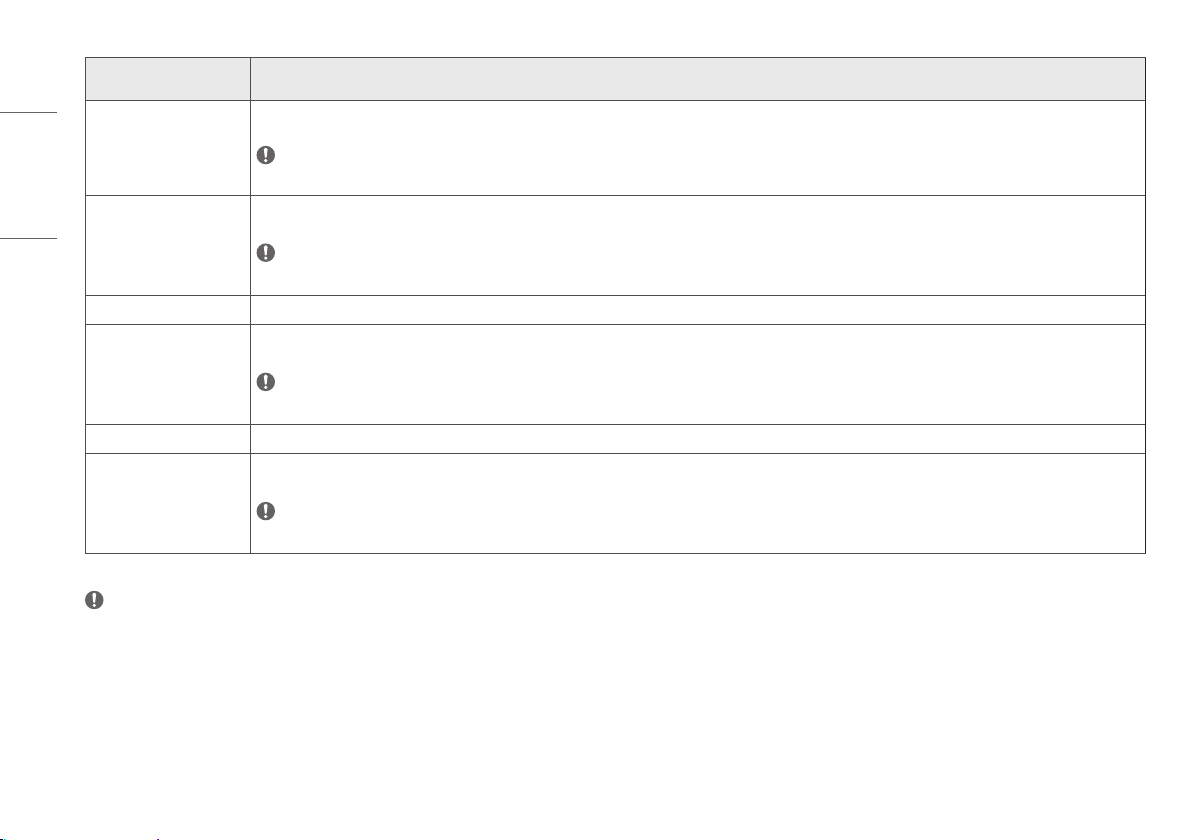
[All Settings] > [Input] Explanation
[Input List]
Selects the input mode.
PBP / PIP Connection
[Sub]
SDI DVI HDMI DisplayPort
[Main]
SDI - O O O
DVI O - O O
HDMI O O - O
DisplayPort O O O -
18
ENGLISH
[All Settings] > [Input] Explanation
[Aspect Ratio] Adjusts the aspect ratio of the screen. ([Full Wide], [Original], [Just Scan])
NOTE
• The display may look the same for [Full Wide], [Original] and [Just Scan] options at the 3840 x 2160 resolution.
[Screen Flip]
Adjusts the screen image rotation. ([Rotation], [Mirror], [Off])
NOTE
• The function is deactivated at the 3PBP / 4PBP Mode.
[PBP / PIP]
Adjusts display mode for 2 or more screens.
[PIP Size]
Adjusts the size of PIP. ([Small], [Medium], [Large])
NOTE
• The screen is zoomed on [Small] Mode.
[Main/Sub Screen Change]
Converts between the Main and the Sub in the [PBP / PIP] mode.
[Failover]
Current input is changed to [Failover]'s input when there is no signal at the current input.
NOTE
• This function is deactivated at [PBP / PIP] mode.
NOTE
• If not using the [PBP / PIP] feature, [PIP Size], [Main/Sub Screen Change] are deactivated.
19
ENGLISH
Picture
1 Press ( ) to activate the LED Control Button. When the LED Control Button is activated, press ( ) and select [All Settings] to show the complete OSD Menu.
2 Among the LED Control Button, press to move to the left or right or to move to the bottom or top to go to the [Picture].
3 Configure the options following the instructions that appear in the bottom right corner.
4 To configure an upper menu or another item, press the LED Control Button or press to move to the settings.
5 In order to exit from the OSD Menu, press the LED Control Button ( ) or press .
The applicable setting options are as shown below.
NOTE
• The [Picture Mode] that can be set depends on the Input signal.
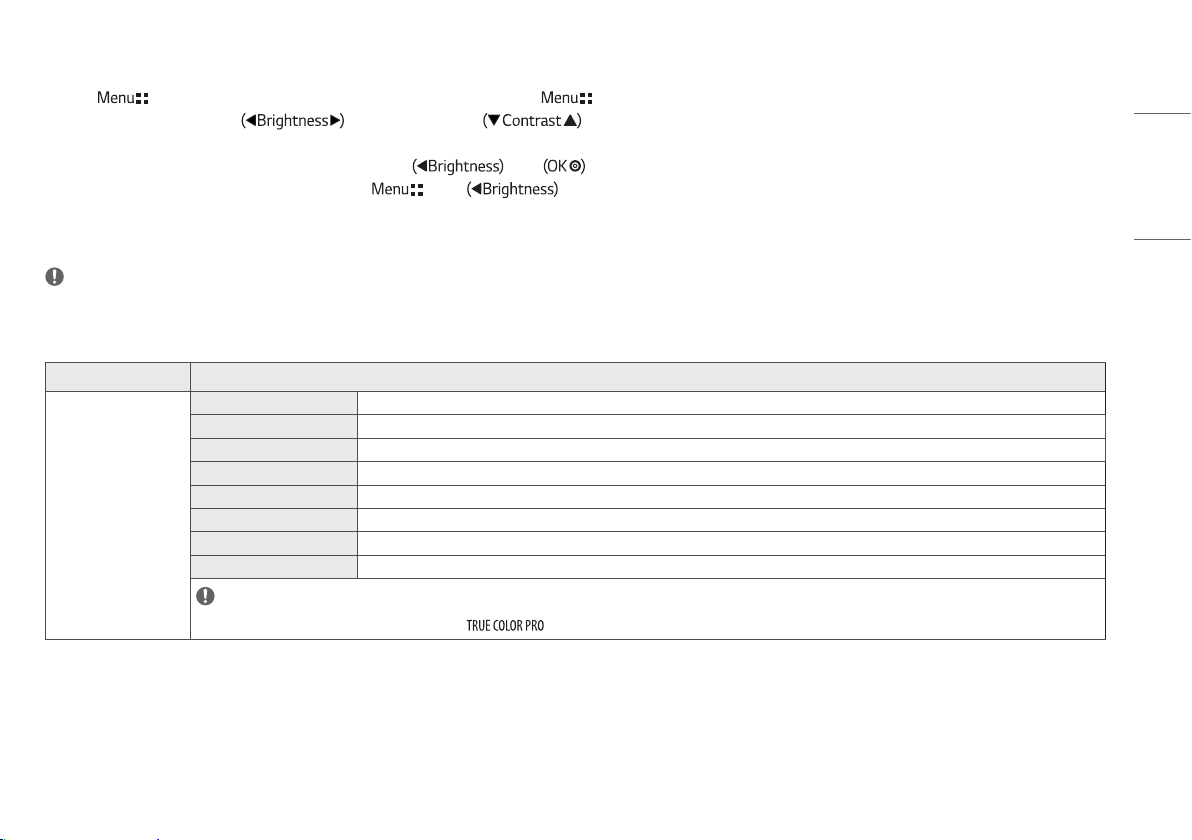
[Picture Mode] on SDR (Non HDR) signal
[All Settings] > [Picture]
Explanation
[Picture Mode]
[Custom] Allows the user to adjust each element. The color mode of the main menu can be adjusted.
[Vivid] Heightens contrast, brightness and sharpness to display vivid images.
[HDR Effect] Optimizes the screen for high dynamic range.
[Mono] Mono (black and white) color mode.
[REC2020] Optimizes the screen for REC2020
[DICOM] A mode that optimizes the screen settings so you can view images for medical use.
[Calibration 1] Configures to the last calibrated (corrected) screen.
[Calibration 2] Configures to a previously calibrated (corrected) screen.
NOTE
• [Calibration 2]: If you use Calibration after installing the program, the applicable menu will be activated.
20
ENGLISH
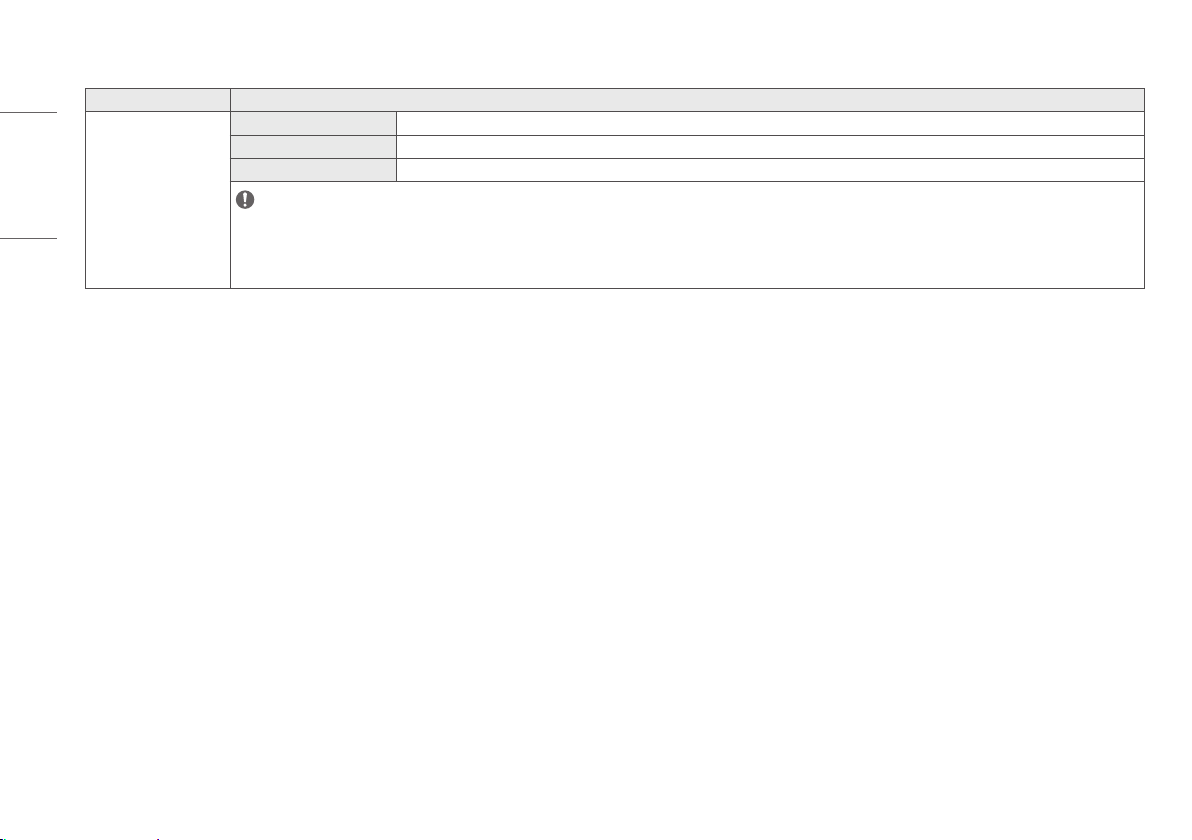
[Picture Mode] on HDR signal (HDMI Only)
[All Settings] > [Picture] Explanation
[Picture Mode]
[Custom] Allows the user to adjust each element.
[Vivid] Optimized the screen for HDR vivid colors.
[Standard] Optimized the screen for HDR standard.
NOTE
• HDR content may not display correctly depending on Windows 10 OS settings, please check HDR On/Off settings in Windows.
• When the HDR function is turned on, the characters or picture quality may be poor according to Graphic card performance.
• While the HDR function is on, screen flickering or cracking may occur when changing the monitor input or power on/off according to Graphic card performance.
21
ENGLISH
[All Settings] > [Picture] Explanation
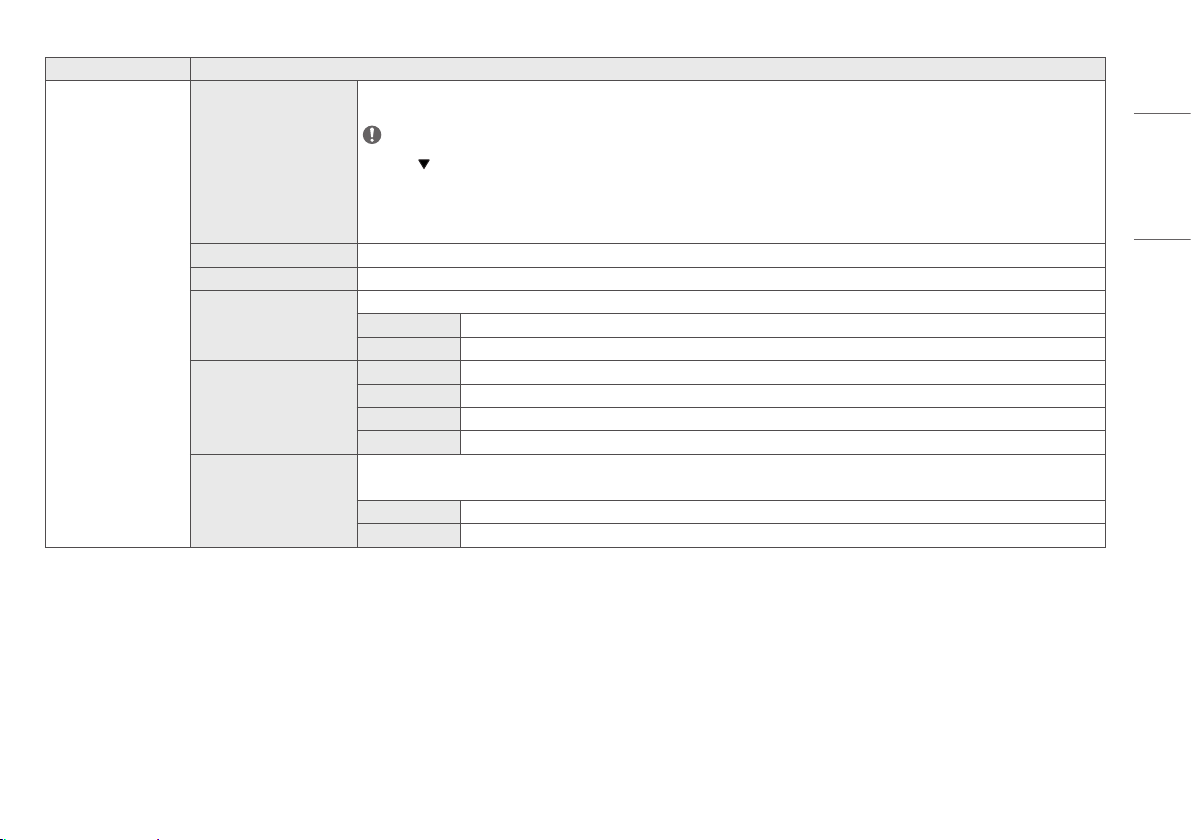
[Picture Adjust] [Brightness] Adjusts screen brightness.
NOTE
• Press the button to toggle between [Turn on 'Brightness Stabilization']/[Turn off 'Brightness Stabilization'].
• When [Brightness Stabilization] is [On], the [Brightness] adjustment function is deactivated.
• When [Brightness Stabilization] is [On], [SMART ENERGY SAVING] and [DFC] functions are deactivated.
• When [Picture Mode] is set as [DICOM], or [Gamma] is set as [DICOM Gamma Curve] Setting, the [Brightness] adjustment function is deactivated.
[Contrast]
Adjusts the color contrast of the screen.
[Sharpness] Adjusts the sharpness of the screen.
[Brightness Stabilization] Maintains the brightness configured of the screen.
[On] Automatically adjusts brightness.
[Off] Deactivates the applicable function and the user can adjust the brightness.
[SUPER RESOLUTION+] [High] Select this option for crystal clear images.
[Middle] The optimized picture quality is displayed when a user wants images between low and high modes for comfortable viewing.
[Low] The optimized picture quality is displayed when a user wants smooth and natural images.
[Off] Select this option for the normal user experience. Deactivates the [SUPER RESOLUTION+] function.
[Black Level] Sets up the offset level. (HDMI only)
• Offset: as a reference for a video signal, this is the darkest color the monitor can display.
[High] Maintains the current screen contrast range.
[Low] Reduces the black levels and increases the white levels of the current screen contrast range.
22
ENGLISH
[All Settings] > [Picture] Explanation
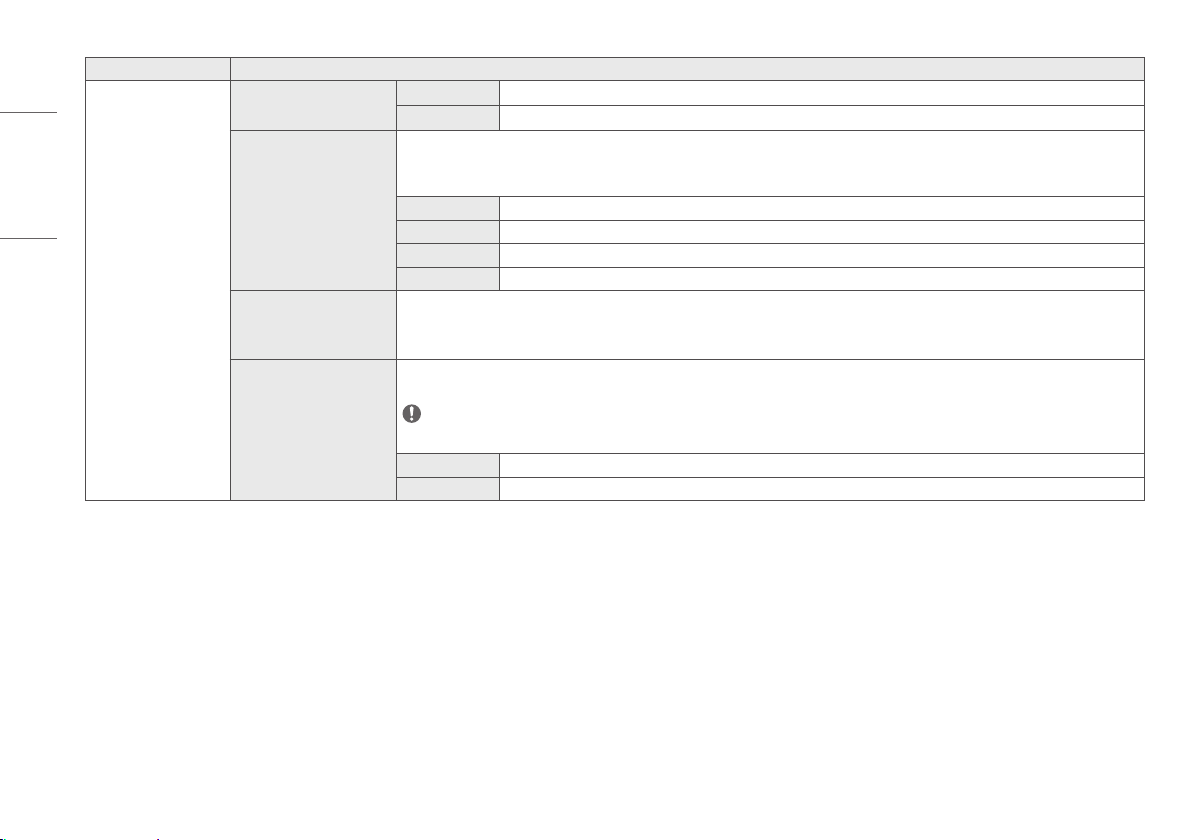
[Picture Adjust] [DFC] [On] Automatically adjusts brightness depending on the screen.
[Off] Deactivates the [DFC] function.
[Response Time] Sets a response time for displayed pictures based on the movement of the picture on the screen.
In a normal environment, it is recommended that you set [Fast]. For images with a lot of motion, it is recommended that you set [Faster]. But, when [Faster] is
set, it may cause an afterimage.
[Faster] Sets the response time to Faster.
[Fast] Sets the response time to Fast.
[Normal] Sets the response time to Normal.
[Off] Does not use the response time improvement feature.
[Black Stabilizer] Adjusts the black level to clearly see objects on a dark screen.
Increasing the [Black Stabilizer] value brightens the low grey levels on the screen. (You can easily distinguish objects on a dark game screen.)
Reducing the [Black Stabilizer] value darkens the low grey levels and increases the dynamic contrast on the screen.
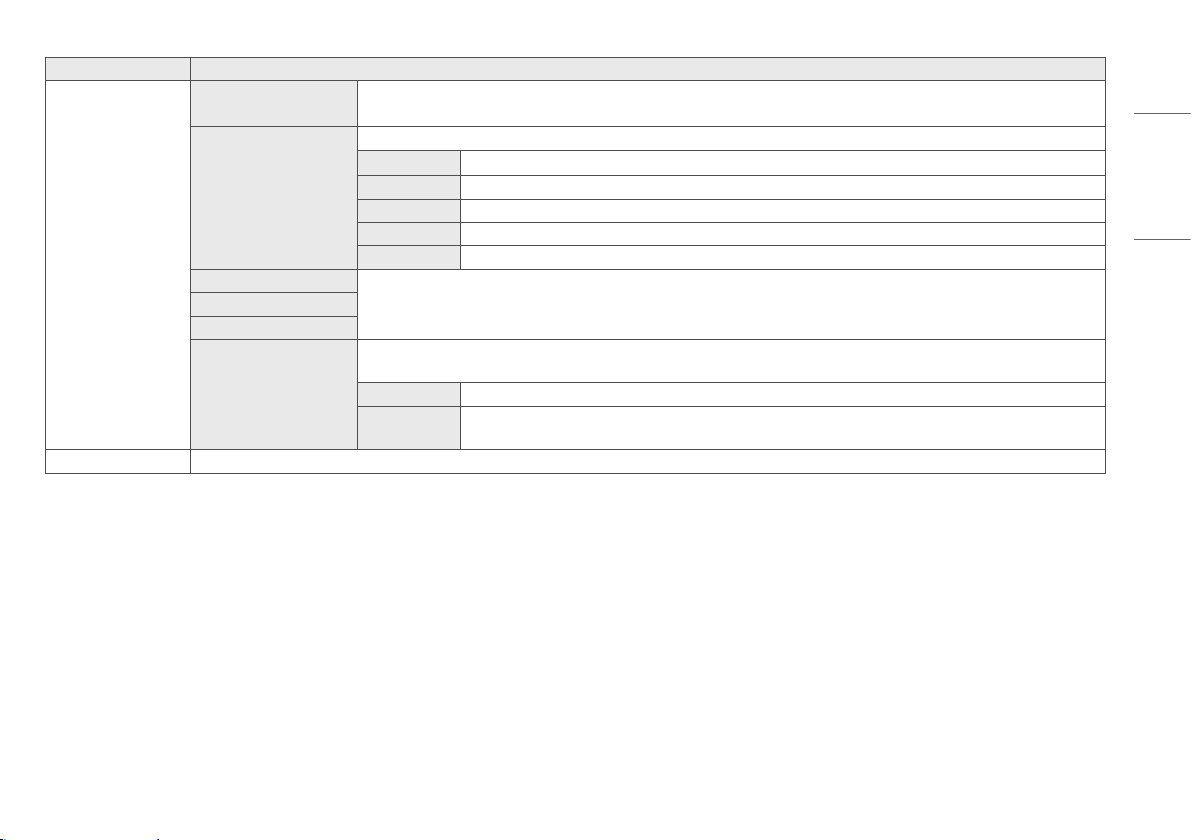
[Uniformity] Automatically adjusts the brightness uniformity of the screen.
NOTE
• If [Uniformity] is activated, the screen may become darker.
[On] Activates the [Uniformity] function.
[Off] Deactivates the [Uniformity] function.
23
ENGLISH
[All Settings] > [Picture] Explanation
[Color Adjust] [Gamma] Set your own gamma value. ([Gamma 1.8], [Gamma 2.0], [Gamma 2.2], [Gamma 2.4], [Gamma 2.6], [DICOM Gamma Curve])
Higher gamma settings mean a darker image is displayed or vice versa.
[Color Temp] Set your own color temperature. ([Custom], [6500K], [7500K], [9300K], [Manual])
[Custom] Users can customize the red, green and blue colors.
[6500K] Indicates the screen color with a 6500K red color temperature.
[7500K] Sets the screen color between red and blue with a 7500K color temperature.
[9300K] Indicates the screen color with 9300K blue color temperature.
[Manual] Adjusts the color temperature in 500K increments. (However, supports 9300K instead of 9500K)
[Red]
You can customize the picture color using red, green and blue colors.[Green]
[Blue]
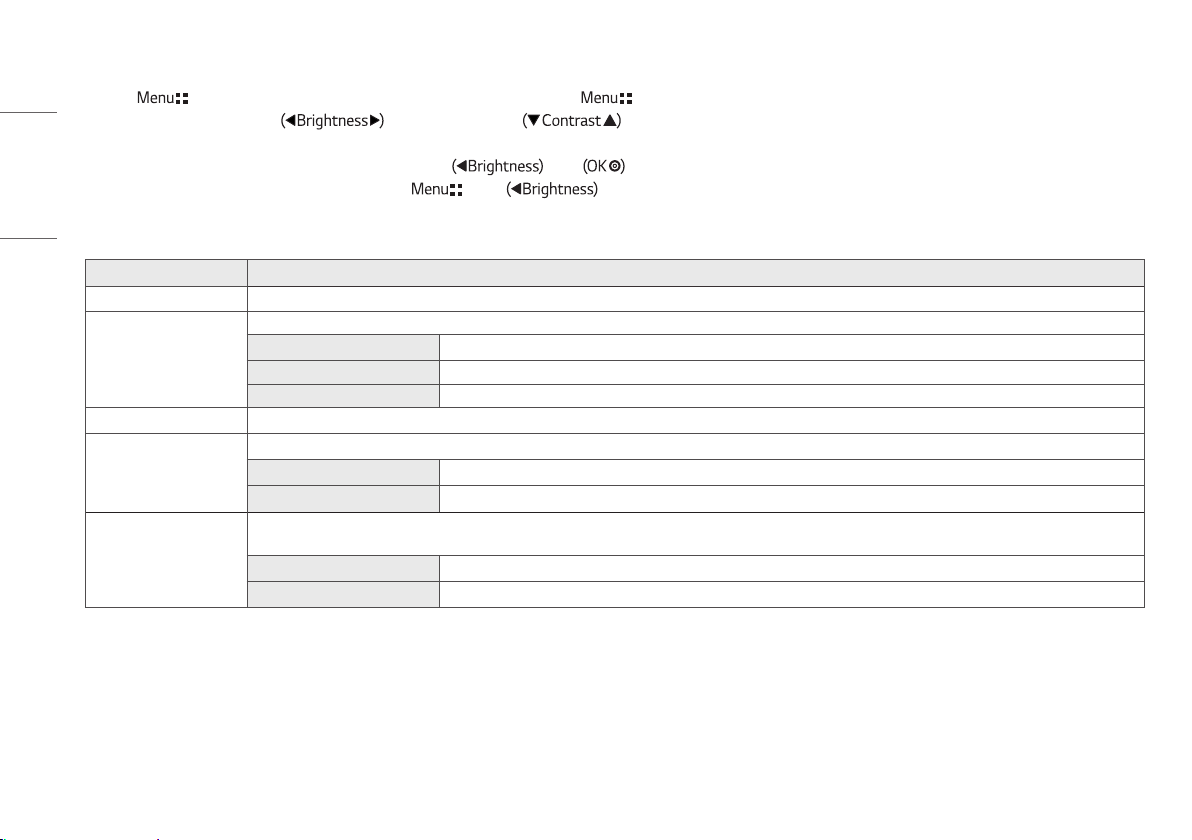
[Six Color] Meets the user requirements for colors by adjusting the hue and saturation of the six colors (red, green, blue, cyan, magenta and yellow) and then saving the
settings.
Hue Adjusts the tint of the screen colors.
Saturation The lower the screen's color sharpness value, the less sharper and brighter the colors become. The higher the value, the sharper and
darker the colors become.
[Picture Reset] Returns color to the default settings.
24
ENGLISH
General
1 Press ( ) to activate the LED Control Button. When the LED Control Button is activated, press ( ) and select [All Settings] to show the complete OSD Menu.
2 Among the LED Control Button, press to move to the left or right or to move to the bottom or top to go to the [General].
3 Configure the options following the instructions that appear in the bottom right corner.
4 To configure an upper menu or another item, press the LED Control Button or press to move to the settings.
5 In order to exit from the OSD Menu, press the LED Control Button ( ) or press .
The applicable setting options are as shown below.
[All Settings] > [General]
Explanation
[Language] Sets the menu screen to the desired language.
[SMART ENERGY SAVING] Conserve energy by using luminance compensation algorithm.
[High] Saves energy using the high-efficiency [SMART ENERGY SAVING] feature.
[Low] Saves energy using the low-efficiency [SMART ENERGY SAVING] feature.
[Off] Disables the [SMART ENERGY SAVING] function.
[LED Control Button] Adjusts the ON time of the Control Button. ([Always On], [20Sec Time Out], [10Sec Time Out], [5Sec Time Out])
[DVI Power Supply] Supplies power to a device used by connecting to a DVI input terminal in the form of dongle without power. (Max. 0.5 A)
[On] Activates the [DVI Power Supply] function.
[Off] Deactivates the [DVI Power Supply] function.
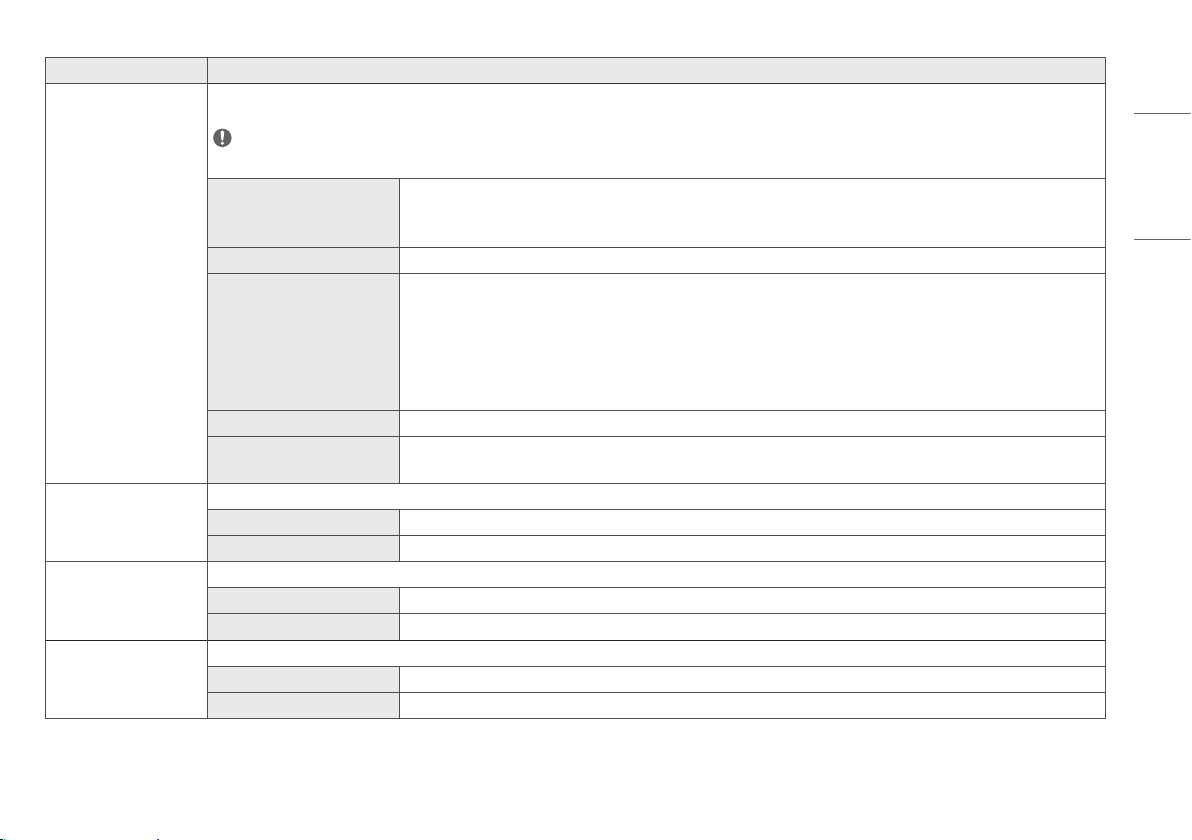
[Hot key Settings] Designate a hotkey for screen image settings. After setting the hotkey, use the hotkey in the LED Control Button to enable the set menu. ([PIP Size], [Mono], [Color Temp], [Gamma], [Black
Stabilizer], [Screen Zoom], [Off])
[Hotkey 1] Select a function to use with [Hotkey 1].
[Hotkey 2] Select a function to use with [Hotkey 2].
25
ENGLISH
[All Settings] > [General]
Explanation
[User Preset] User Preset allows the user to save or load up to 10 picture quality settings for multiple connected devices in each preset.
NOTE
• You can use User Preset to import or save items in [Picture Adjust] and [Color Adjust] of the [Picture] menu.
[User Name] Allows the user to change and register a user name (Preset 1 ~ Preset 3, User 1 ~ User 7) as the user wants.
The user can enter a user name to be registered by using the screen keyboard.
Preset 1 ~ Preset 3 are factory-set user names as samples and the user can change the names.
[Load User Settings] Allows the user to change the picture quality settings by loading the User Preset settings.
[Save User Settings] Saves the current picture quality settings in the corresponding User Preset.
Preset 1 ~ Preset 3 are factory-set values as samples and the user can change the values.
• Preset 1: Use this preset for bluish color.
• Preset 2: Use this preset for greenish color and brighter low-gradation.
• Preset 3: Use this preset to soften the red tone.
• User 1 ~ User 7: Initial values are the same as the factory settings.
[Default User Settings] Loads the initial basic picture settings.
[User Preset Reset] Initializes User Preset settings.
• Initializes the existing user name and user settings to be restored to factory settings (Preset 1 ~ Preset 3, User 1 ~ User 7).
[Auto Screen Off] Automatically turns off the screen when there is no monitor signal for a set time period.
[On] Activates [Auto Screen Off] function.
[Off] Deactivates [Auto Screen Off] function.
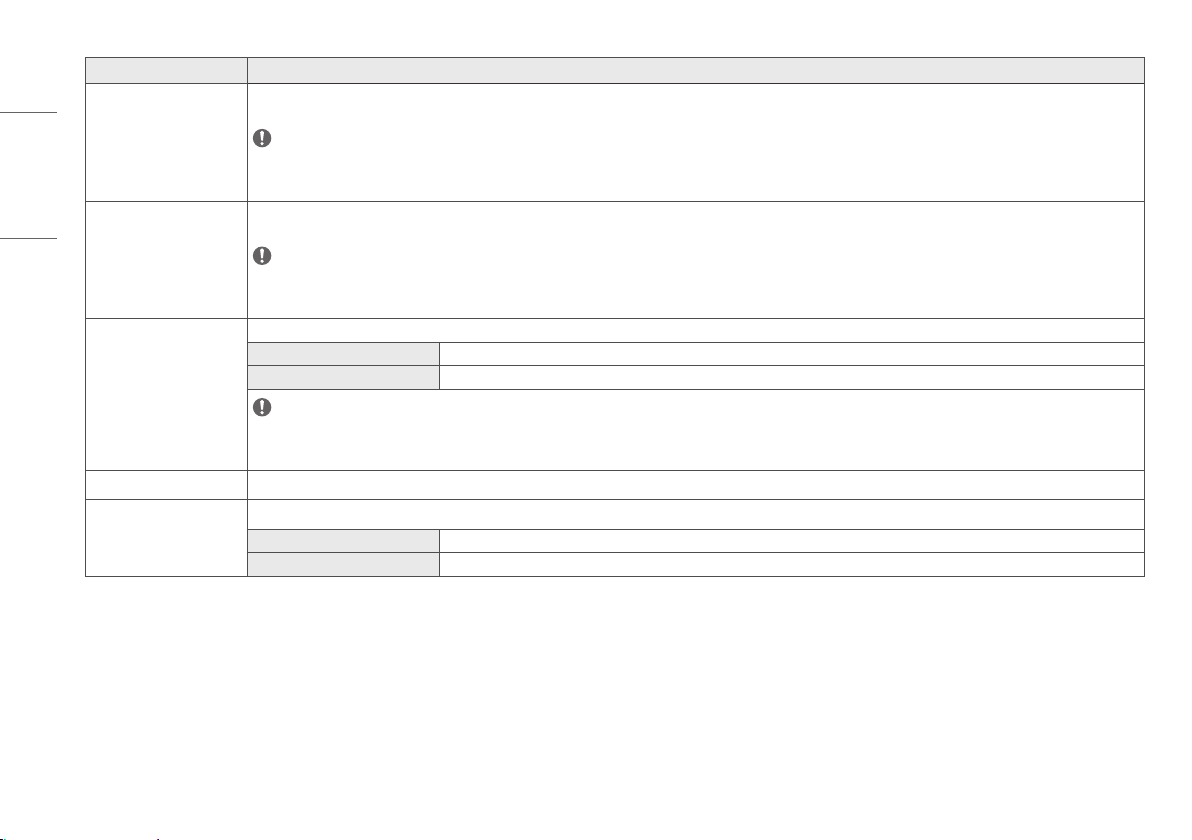
[HW Calibration] [RS-232C] and the [HW Calibration] cannot be used at the same time.
[On] The HW Calibration function will operate.
[Off] The HW Calibration function will be turned off.
[RS-232C] [RS-232C] and the [HW Calibration] cannot be used at the same time.
[RS-232C] The [RS-232C] function will be operated or turned off.
[Set ID] Adjusts [Set ID]. (The scope of adjustment: 1-10)
26
ENGLISH
[All Settings] > [General]
Explanation
[DisplayPort 1.2] Enables or disables DisplayPort 1.2.
NOTE
• Be sure to configure this option according to the DisplayPort version supported by your graphics card. If the graphics card is not compatible set to [Disable].
• The graphics card's 10 bit display cannot be used when [DisplayPort 1.2] is disabled.
[HDMI ULTRA HD Deep Color] Provides sharper images when connected to a device supporting ULTRA HD Deep Color.
NOTE
• If the connected device does not support Deep Color, the screen or sound may not work properly. In this case, set this function to off.
• To use [HDMI ULTRA HD Deep Color], turn this function on.
[OSD Lock]
A function for restricting menu configuration and adjustment.
[On] Turns on [OSD Lock].
[Off] Turns off [OSD Lock].
NOTE
• Deactivates all functions except the [Quick Settings] menu and [Input] menu's [Input List], [Aspect Ratio], [PBP / PIP], [Screen Flip] functions, [Failover], and the [General] menu's [OSD Lock]
and [Information] functions.
[Information] Displays the total power on time, serial number and resolution information.
[Reset to Initial Settings] [Do you want to reset your settings?]
[Yes] Restores the screen settings to the default settings when your monitor was first purchased.
[No] Cancels the selection.
27
ENGLISH
TROUBLESHOOTING
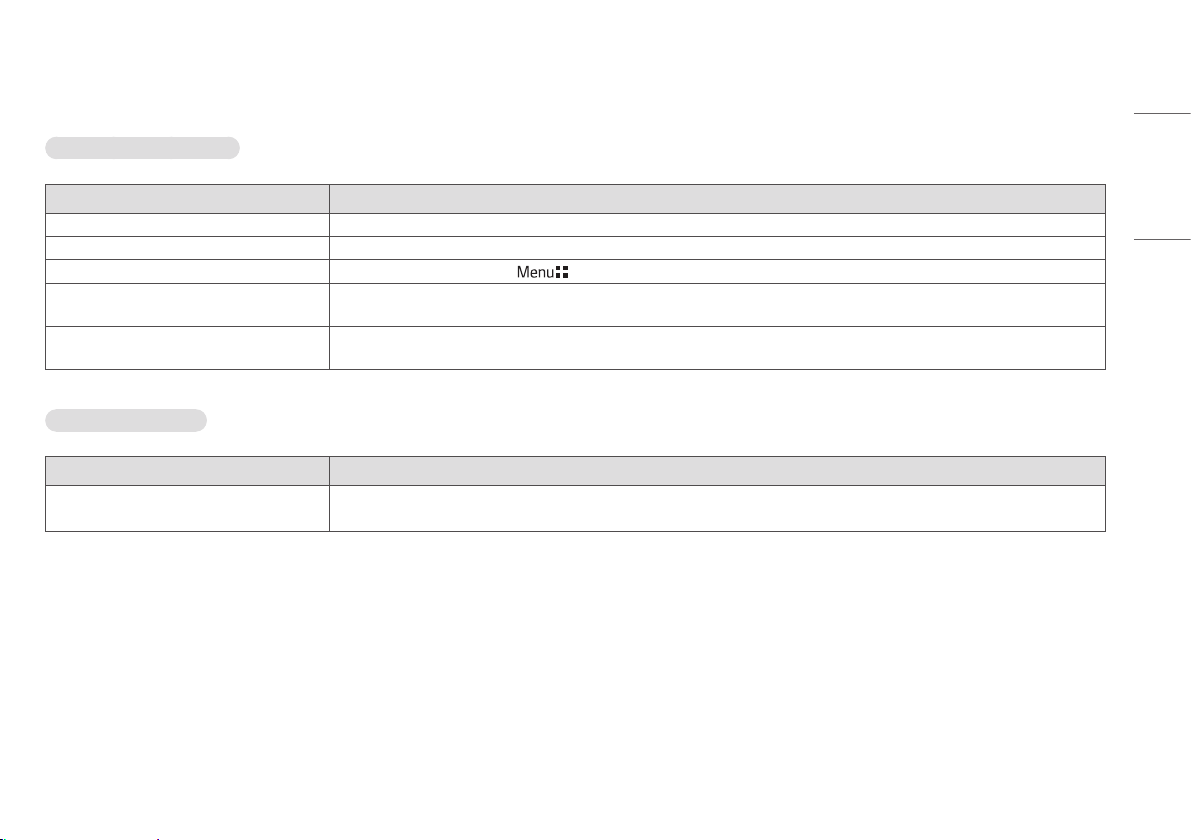
Nothing is displayed on the screen.
Problem Action
Is the monitor's power cord plugged in? • Check if the power cord is correctly plugged into the power outlet.
Is the power indicator on? • Check the power cable connection and turn on the power switch.
Is the power indicator displaying as green? • Check if the input setting is correct. ( > [All Settings] > [Input])
Is the [Out of Range] message being displayed? • This occurs when signals transferred from the PC (graphics card) are out of the horizontal or vertical frequency range of the monitor. Please see the <PRODUCT
SPECIFICATIONS> section of this manual to set the appropriate frequency.
Is the [No Signal] message displayed? • This is displayed when the signal cable between the PC and the monitor is missing or disconnected. Check the cable and reconnect it.
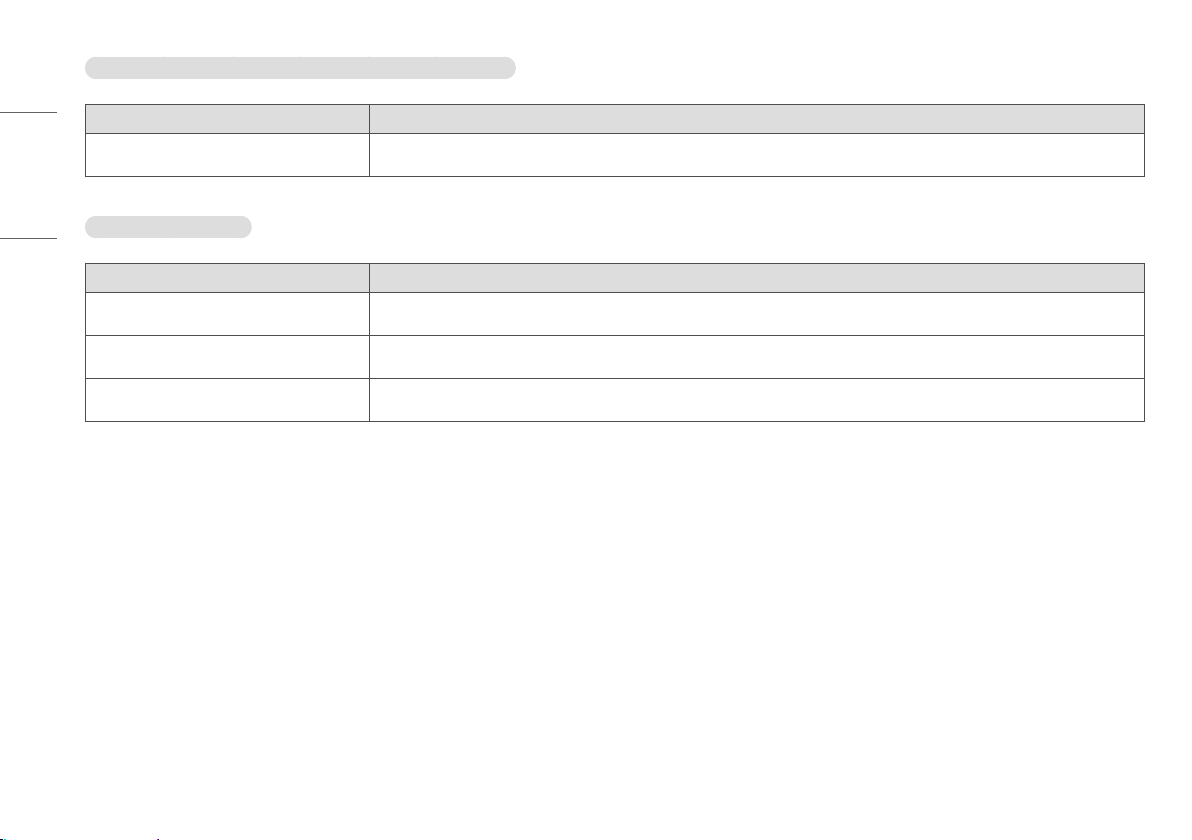
The screen retains an image.
Problem Action
Does image sticking occur even when the monitor is
turned off?
• Displaying a still image for a prolonged time may cause damage to the screen, resulting in the retention of the image.
• To extend the lifetime of the monitor, use a screensaver.
28
ENGLISH
The screen is unstable and shakes. / There are shadowy traces left on the screen.
Problem Action
Did you select the appropriate resolution? • If the selected resolution is HDMI 1080i 60/50 Hz (interlaced), the screen may be flickering. Change the resolution to 1080p or the recommended resolution.
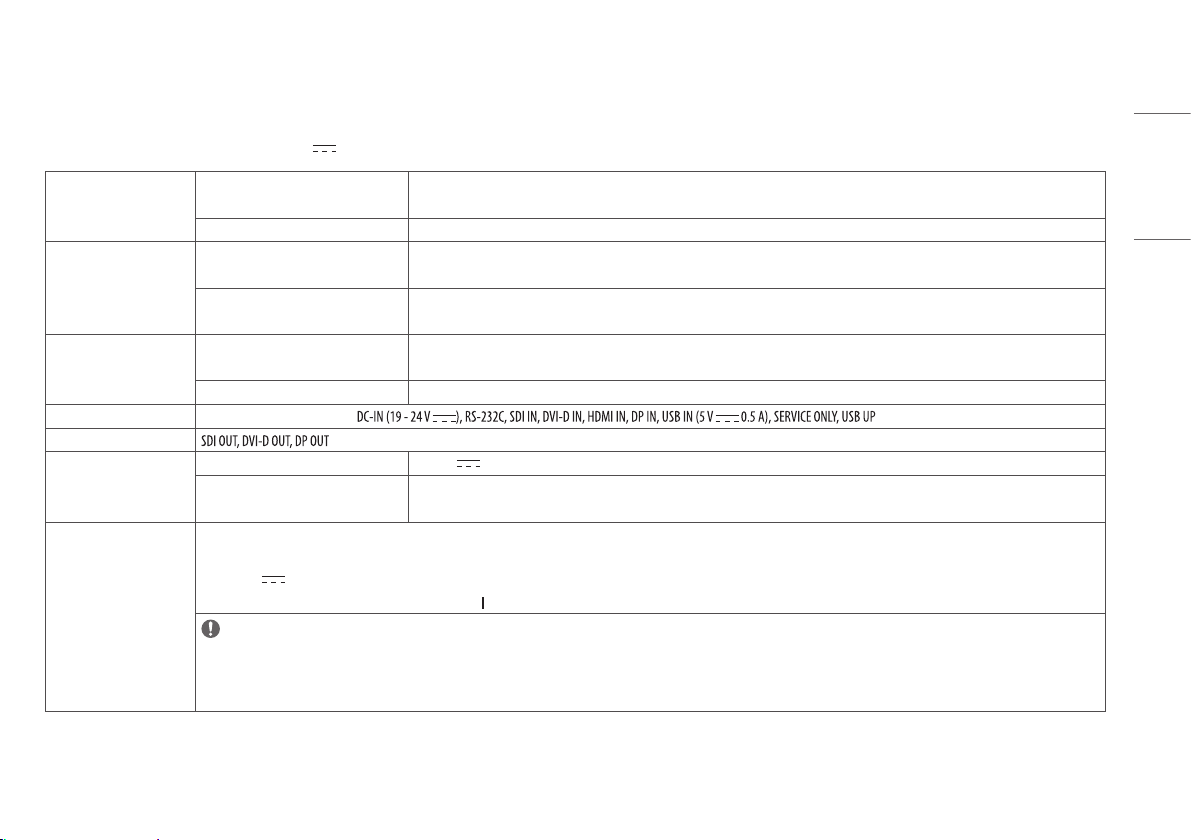
The display color is abnormal.
Problem Action
Does the display appear discolored (16 colors)? • Set the number of colors to 24 bit (true colors) or higher: In Windows Control Panel > Display > Settings > Color Quality (May differ depending on your operating
system.)
Does the display color appear unstable or monochrome? • Check if the signal cable is connected properly. Reconnect the cable or reinsert the PC's graphics card.
Are there spots on the screen? • When using the monitor, pixilated spots (red, green, blue, white or black) may appear on the screen. This is normal for an LCD screen. It is not an error, nor is it
related to the monitor's performance.
29
ENGLISH
PRODUCT SPECIFICATIONS
In order to improve the product, specifications may change without notice.
The ~ symbol means alternating current, and the symbol means direct current.
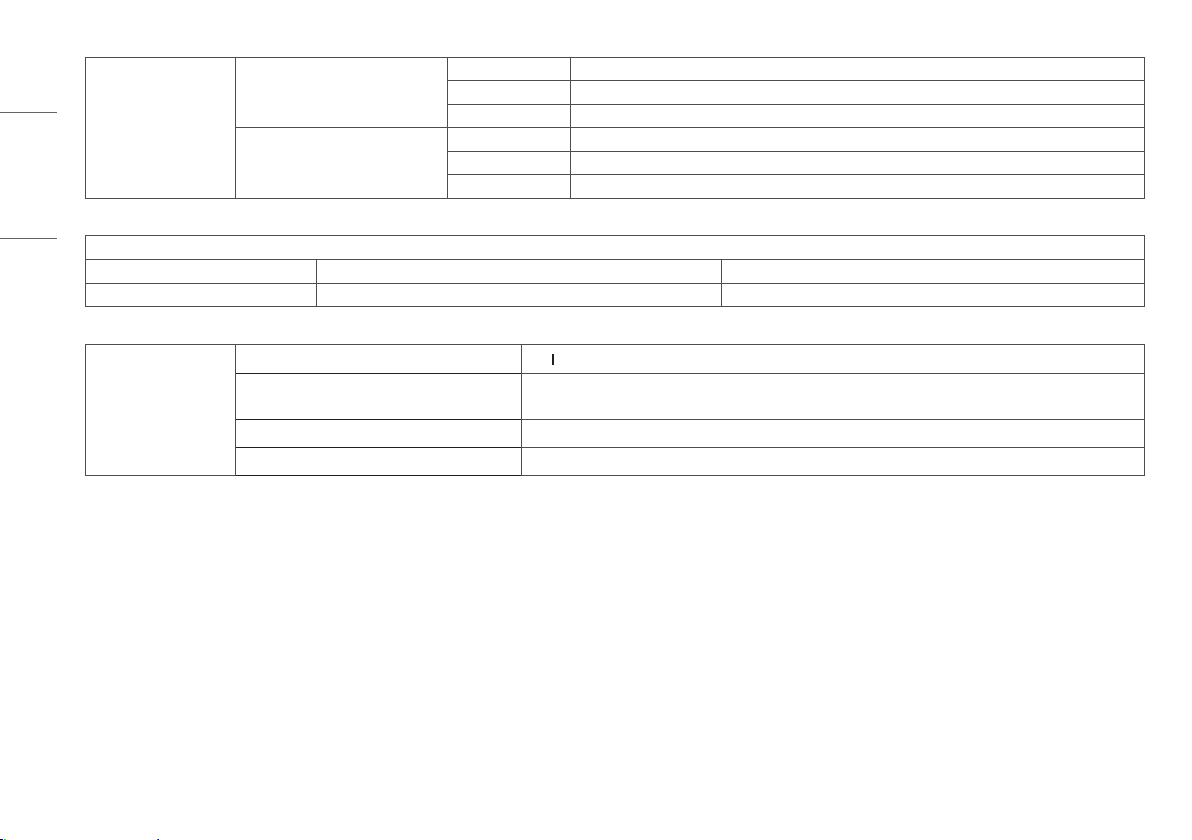
LCD Screen Type TFT (Thin Film Transistor)
LCD (Liquid Crystal Display) Screen
Pixel Pitch 0.18159 mm x 0.18159 mm
Resolution Max Resolution SDI / DVI-D: 1920 x 1080 @ 60 Hz
HDMI / DisplayPort: 3840 x 2160 @ 60 Hz
Recommended Resolution SDI / DVI-D: 1920 x 1080 @ 60 Hz
HDMI / DisplayPort: 3840 x 2160 @ 60 Hz
Video Signal Horizontal Frequency DVI-D: 30 kHz to 83 kHz
HDMI / DisplayPort: 30 kHz to 135 kHz
Vertical Frequency 56 Hz to 61 Hz
Input Connector Potential Equalization Conductor,
Output Connector
Power Sources Power Rating 19 - 24 V 6.32 - 5.0 A
Power Consumption Max. 120 W*
Off Mode: ≤ 0.3 W
AC-DC Adaptor DA-120D19 type, manufactured by Asian Power Devices Inc. (APD)
Input: 100-240 V~ 50-60 Hz, 1.8-0.7 A
Output: 19 V 6.32 A
Classification by protection type against Electric Shock: Class equipment
NOTE
- Connect an AC/DC adapter.
- The output of the enclosed adaptor is 19 V.
- The product is designed to be used with adaptors that have an output ranging between 19-24 V. Please use the adaptors of medical standards.
30
ENGLISH
Environmental Conditions Operating Conditions Temperature 0 °C to 40 °C (32 °F to 104 °F)
Humidity 0 % to 80 %
Pressure 700 hPa to 1060 hPa
Storage / Transport Conditions Temperature -20 °C to 60 °C (-4 °F to 140 °F)
Humidity 0 % to 85 %
Pressure 500 hPa to 1060 hPa
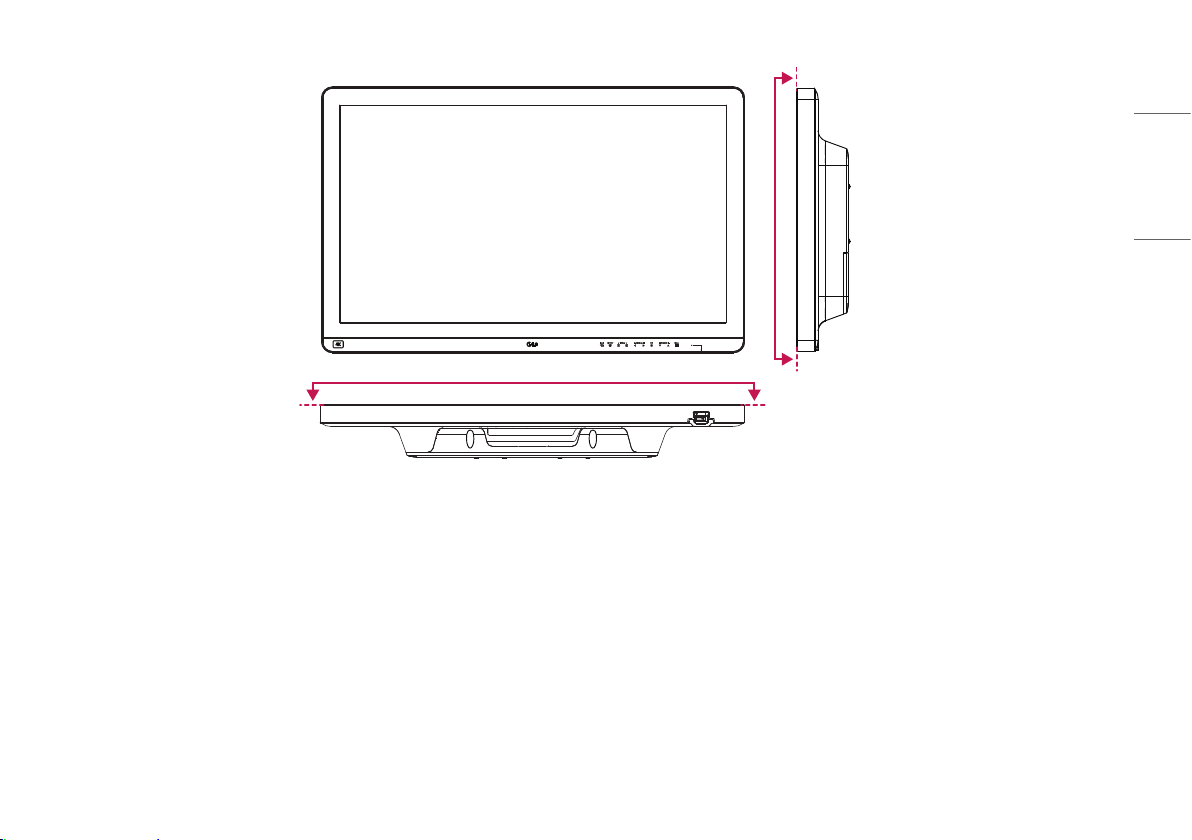
Monitor Size
Dimensions (Width x Height x Depth) 764.6 x 480.8 x 94.4 (mm) 30.1 x 18.9 x 3.7 (inches)
Weight (Without Packaging) 12.4 (kg) 27.3 (lbs)
Medical Specifications
Classification by protection type against Electric Shock Class equipment
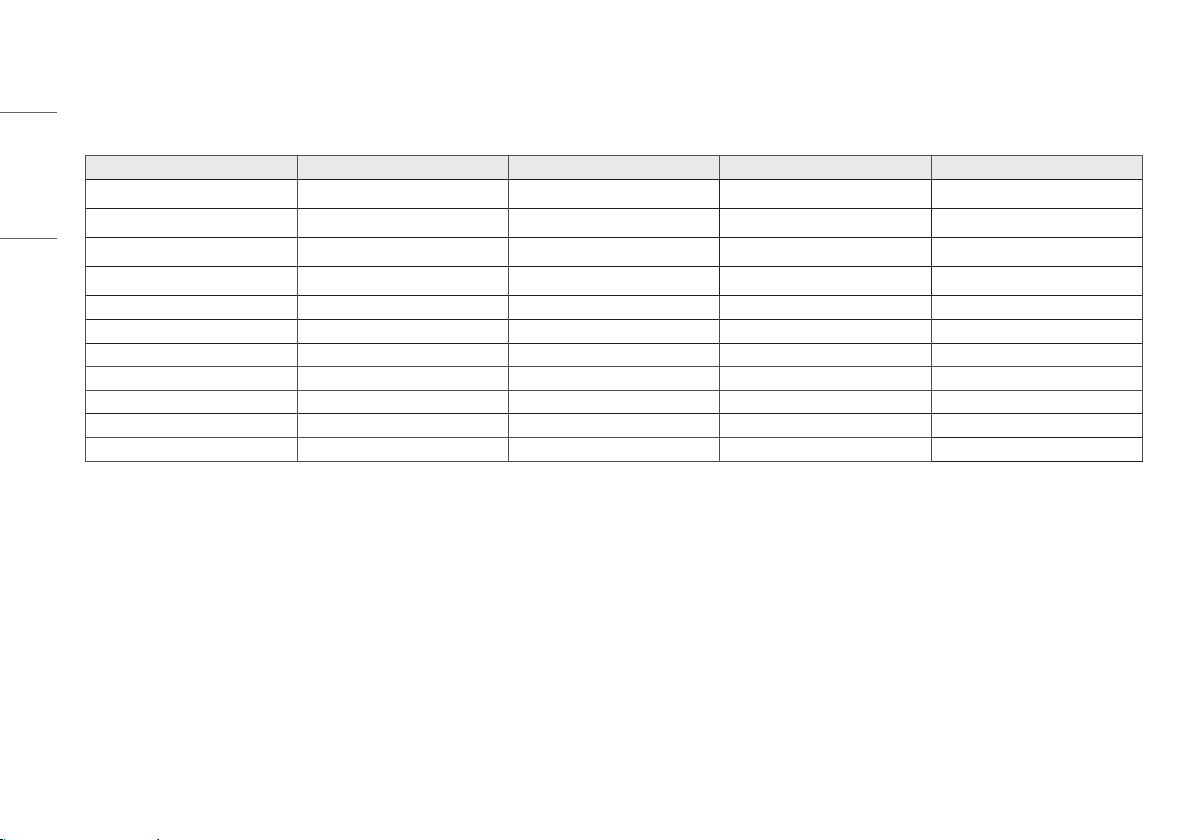
Classification according to the degree of protection against
ingress of water or particulate matter
Front: IP35
Except for Front: IP32
Mode of operation Continuous Operation
Environment of Use This equipment is not suitable for use in the presence of flammable anesthetic or oxygen.
* The Operating Mode of Power Consumption is measured with LGE test standard. (Full White pattern, Maximum resolution)
* The Power Consumption level can be different by operating condition and monitor setting.
31
ENGLISH
IP35
IP35
32
ENGLISH
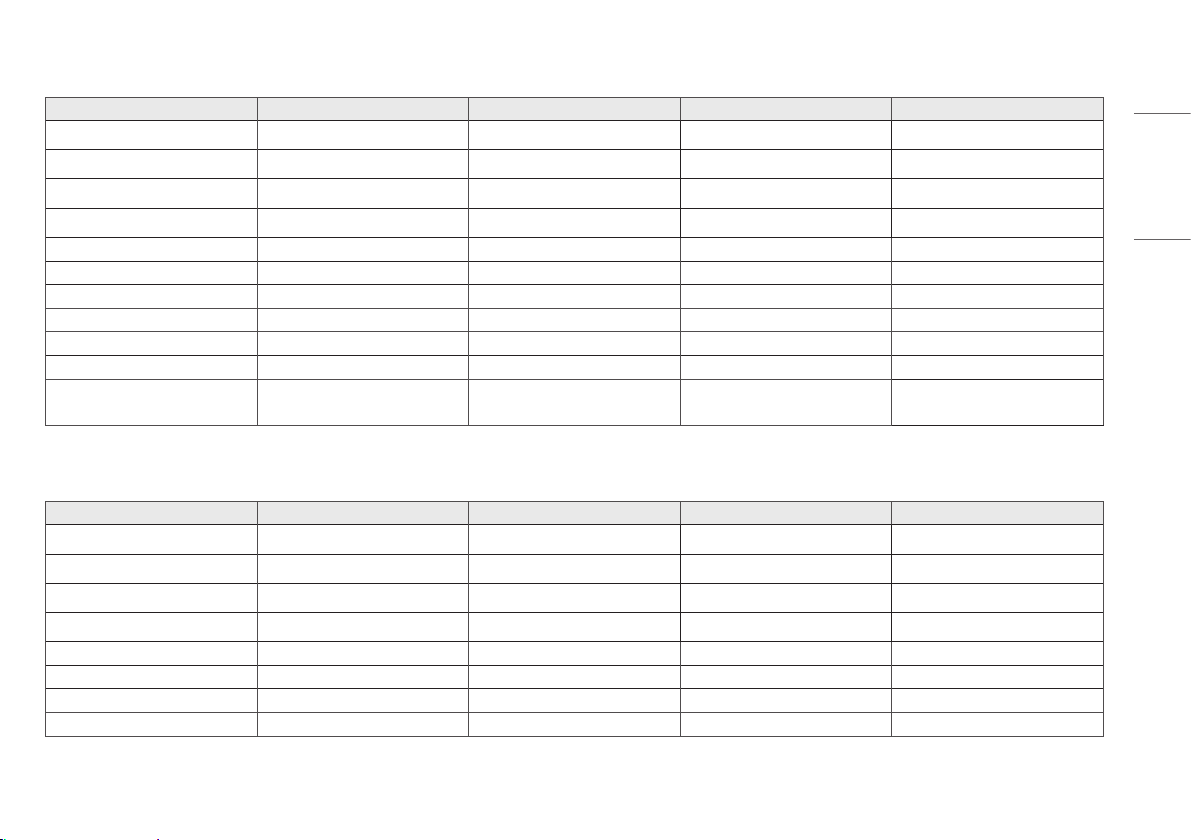
Support Mode (Preset Mode - PC)
DisplayPort
Resolution Horizontal Frequency (kHz) Vertical Frequency (Hz) Polarity (H/V) Remarks
640 x 480 31.469 59.94 -/-
800 x 600 37.879 60.317 +/+
1024 x 768 48.363 60 -/-
1152 x 864 54.347 60.05 +/+
1280 x 720 45 60 +/+
1280 x 1024 63.981 60.02 +/+
1600 x 900 60 60 +/+
1920 x 1080 67.5 60 +/-
2560 x 1440 88.79 59.95 +/-
3840 x 2160 66.66 30 +/-
3840 x 2160 133.32 60 +/- Recommended
33
ENGLISH
HDMI
Resolution Horizontal Frequency (kHz) Vertical Frequency (Hz) Polarity (H/V) Remarks
640 x 480 31.469 59.94 -/-
800 x 600 37.879 60.317 +/+
1024 x 768 48.363 60 -/-
1152 x 864 54.347 60.05 +/+
1280 x 720 45 60 +/+
1280 x 1024 63.981 60.02 +/+
1600 x 900 60 60 +/+
1920 x 1080 67.5 60 +/-
2560 x 1440 88.79 59.95 +/-
3840 x 2160 67.5 30 +/-
3840 x 2160 135 60 +/-
for [HDMI ULTRA HD Deep Color]: [On]
Recommended
DVI-D
Resolution Horizontal Frequency (kHz) Vertical Frequency (Hz) Polarity (H/V) Remarks
640 x 480 31.469 59.94 -/-
800 x 600 37.879 60.317 +/+
1024 x 768 48.363 60 -/-
1152 x 864 54.347 60.05 +/+
1280 x 720 45 60 +/+
1280 x 1024 63.981 60.02 +/+
1600 x 900 60 60 +/+
1920 x 1080 67.5 60 +/- Recommended
34
ENGLISH
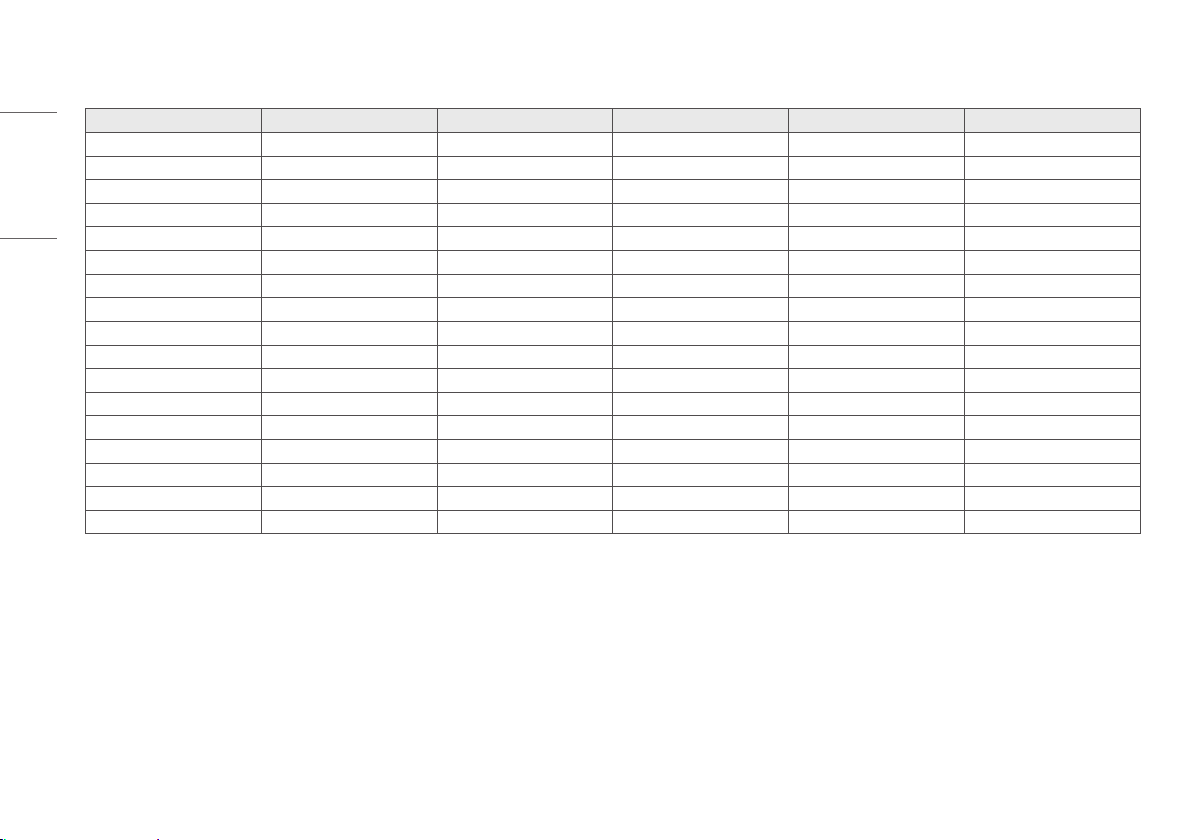
Support Mode (Video)
Vertical dimensions Vertical Frequency (Hz) DVI-D HDMI DisplayPort SDI
480i 59.94/60 - - - O
480p 59.94/60 O O O -
576p 50 O O - -
576i 50 - - - O
720p 59.94/60 O O O O
720p 50 O O - O
1080i 59.94/60 O O - O
1080p 59.94/60 O O O O
1080i 50 O O - O
1080p 50 O O - O
1080p 23.98/24 - O - -
1080p 29.97/30 - O - O
2160p 23.98/24 - O - -
2160p 25 - O - -
2160p 29.97/30 - O - -
2160p 50 - O - -
2160p 59.94/60 - O - -
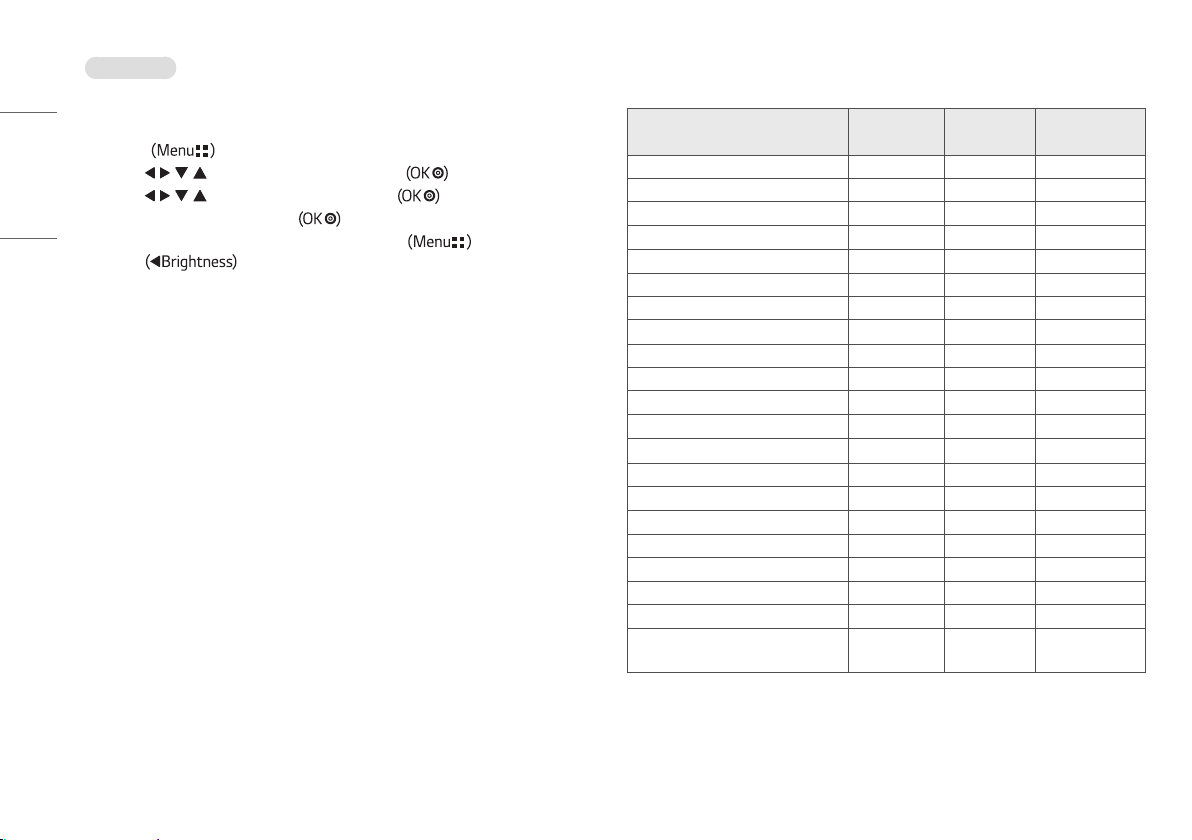
35
ENGLISH
Power indicator
Mode LED Color
On Mode Green
NOTE
• Vertical Frequency: In order to display an image, the screen must be refreshed dozens of times per second,
like a fluorescent lamp. The number of times the screen is refreshed per second is called vertical frequency, or
refresh rate, and is represented by Hz.
• Horizontal Frequency: The time it takes to display one horizontal line is called the horizontal cycle. If 1 is
divided by the horizontal interval, the result is the number of horizontal lines displayed per second. This is
called horizontal frequency and is represented by kHz.
• Check if the graphics card's resolution or frequency is within the range allowed by the monitor and in
Windows set it to the recommended (optimal) resolution in Control Panel > Display > Settings. (May differ
depending on your operating system (OS).)
• Not setting the video card to the recommended (optimal) resolution may result in blurred text, a dimmed
screen, a truncated display area or misalignment of the display.
• The setting methods may be different depending on the computer or operating system, and some resolutions
may not be available depending on the performance of the graphics card. If this is the case, contact the
manufacturer of the computer or graphics card for assistance.
• Normal graphics cards do not support 3840 x 2160 resolution. If the resolution cannot be displayed, contact
the manufacturer of your graphics card.
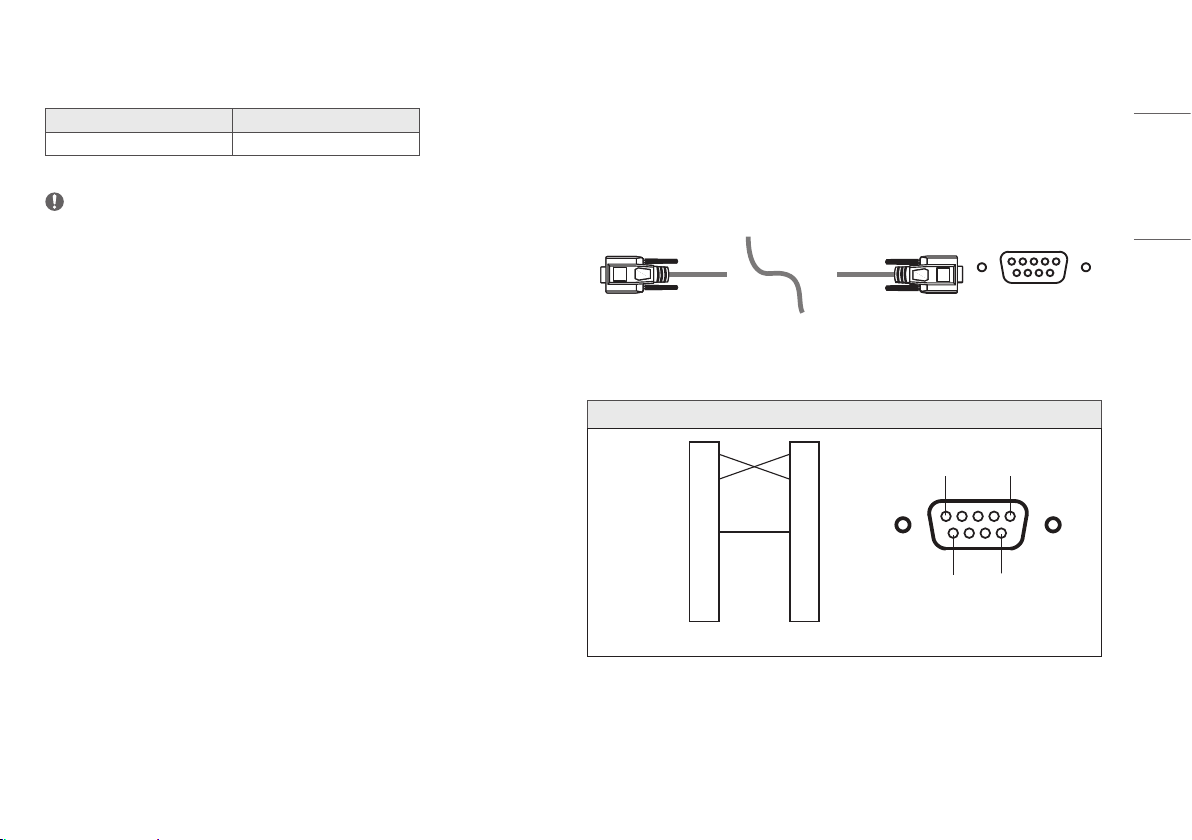
EXTERNAL CONTROLLER SETUP
The actual product may differ from the picture shown.
Connect the RS-232C (serial connector) of the PC to the RS-232C IN connector at the back of the monitor.
Purchase a cable to connect the RS-232C connectors, as the cable is not provided as an accessory.
Use an RS-232C cable to remotely control the monitor (see Figure 1).
RS-232C
(PC) (Monitor)
Figure 1: RS-232C Connection Diagram
PC Monitor
5 1
9
6
2
3
4
5
6
7
8
2
3
4
5
6
7
8
RXD
TXD
DTR
GND
DSR
RTS
CTS
RXD
TXD
DTR
GND
DSR
RTS
CTS
* There are no connections to Pin 1 and Pin 9.
36
ENGLISH
Set ID Function
This function allows you to assign a unique ID to the monitor to control it remotely from your PC.
Please refer to the "Transmission/Reception Protocol".
1 Press the button.
2 Use the , , , buttons to select [General]. Then press the button.
3 Use the , , , buttons to select [Set ID]. Then press the button.
4 Select a [Set ID] to assign. Then press the button. The [Set ID] can be a value from 1 to 10.
5 In order to exit from the OSD Menu, press the LED Control Button
or press .
Communication Parameters
• Baud rate: 9600 bps (UART)
• Data length: 8 bits
• Parity bit: None
• Stop bit: 1 bit
• Communication code: ASCII code
• Crossed (reverse) cable used.
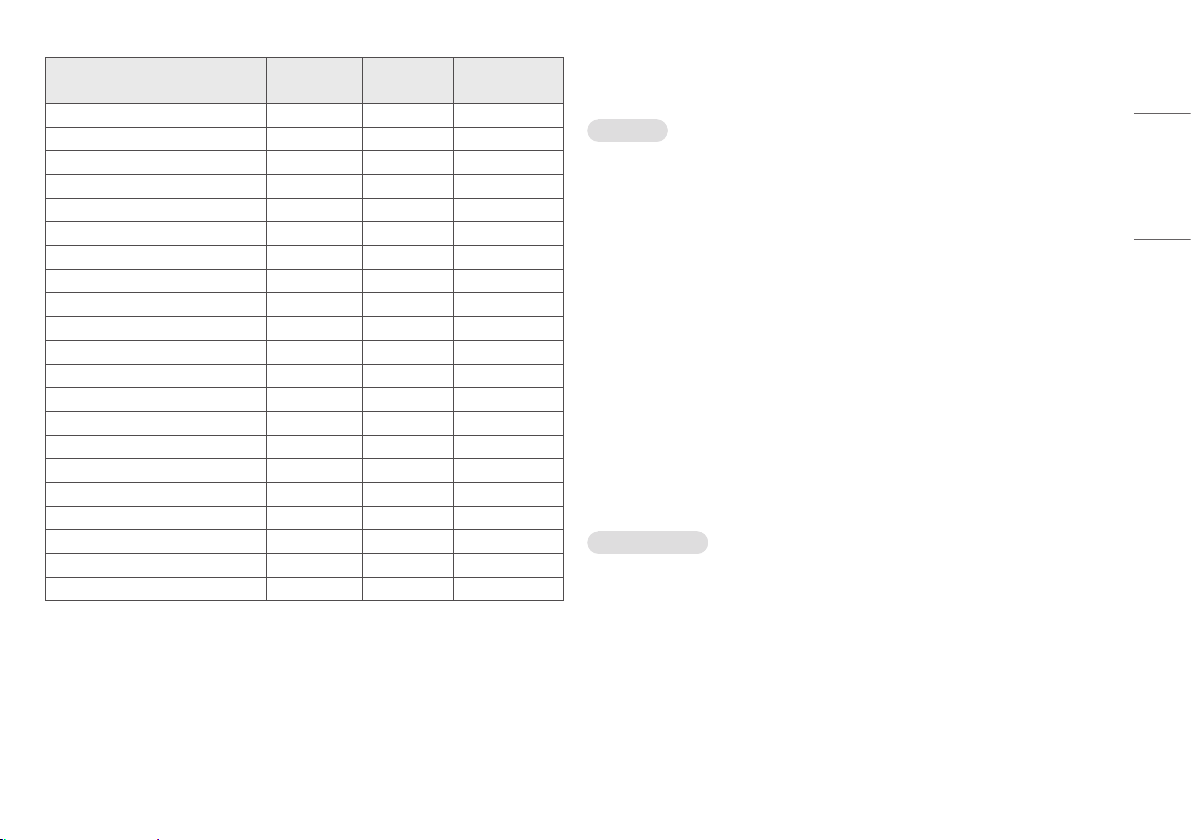
Command Reference List
Command Command1 Command2
Data
(Hexadecimal)
01. Power k a 00 ~ 01
02. Screen Mute k d 00 ~ 01
03. [Input List] (Main) x b 00 ~ FF
[Input List] (Sub) x c 00 ~ FF
[Input List] (Sub 2) x d 00 ~ FF
[Input List] (Sub 3) x e 00 ~ FF
04. [Aspect Ratio] (Main) x f 00 ~ 02
[Aspect Ratio] (Sub) x g 00 ~ 01
[Aspect Ratio] (Sub 2) x h 00 ~ 01
[Aspect Ratio] (Sub 3) x i 00 ~ 01
05. [PBP / PIP] k n 00 ~ 0C
06. [PIP Size] k p 00 ~ 02
07. [Main/Sub Screen Change] m a 01
08. [Picture Mode] d x 00 ~ 14
09. [Brightness] k h 00 ~ 64
10. [Contrast] k g 00 ~ 64
11. [Sharpness] k k 00 ~ 64
12. [Brightness Stabilization] m b 00 ~ 01
13. [SUPER RESOLUTION+] m c 00 ~ 03
14. [Black Level] m d 00 ~ 01
15. [HDMI ULTRA HD Deep Color] m e 00 ~ 01
37
ENGLISH
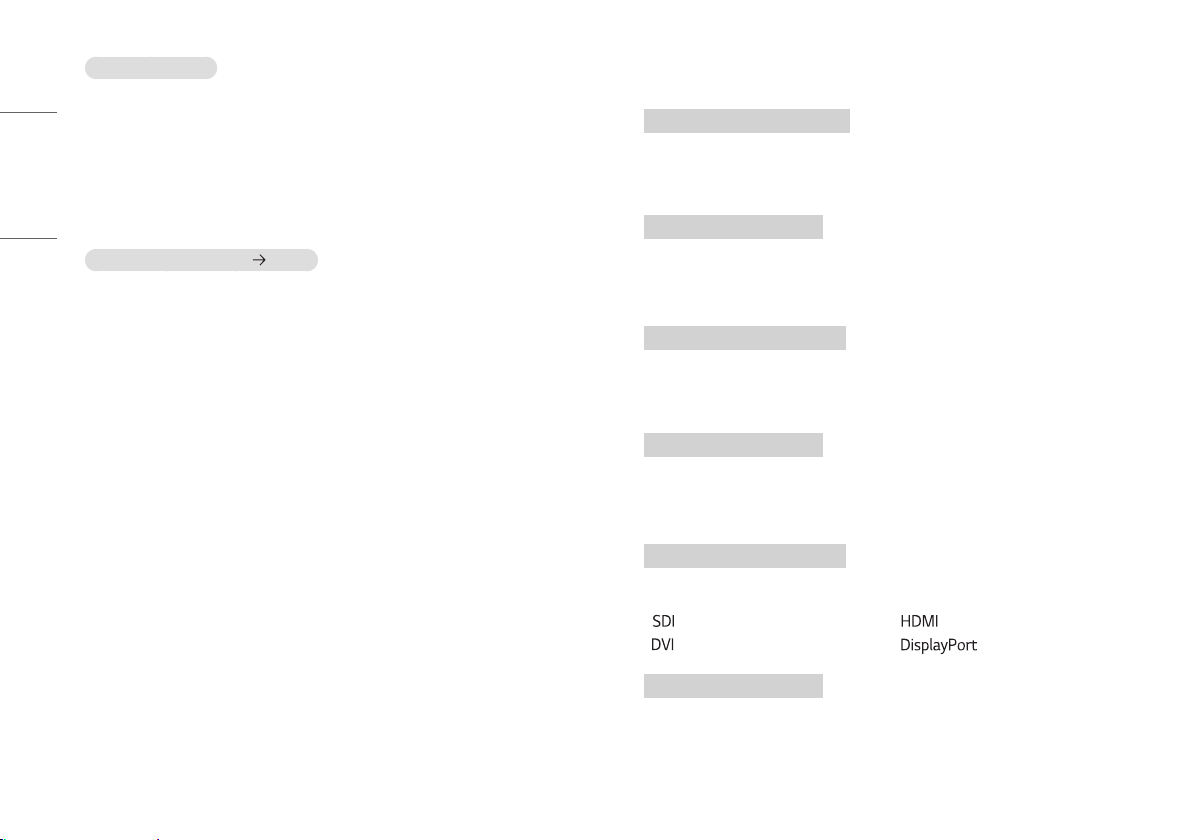
Command Command1 Command2
Data
(Hexadecimal)
16. [DFC] m f 00 ~ 01
17. [Response Time] m g 00 ~ 03
18. [Black Stabilizer] m h 00 ~ 64
19. [Uniformity] m i 00 ~ 01
20. [Gamma] m j 04 ~ 09
21. [Color Temp] k u 00 ~ 04
22. [Red] j w 00 ~ 64
23. [Green] j y 00 ~ 64
24. [Blue] j z 00 ~ 64
25. [Language] f i 00 ~ 10
26. [SMART ENERGY SAVING] m k 00 ~ 02
27. [LED Control Button] m l 00 ~ 03
28. [DVI Power Supply] m m 00 ~ 01
29. [Auto Screen Off] m n 00 ~ 01
30. [DisplayPort 1.2] m o 00 ~ 01
31. [OSD Lock] k m 00 ~ 01
32. [Reset] f k 00 ~ 02
33. [Screen Flip] (Main) t h 00 ~ 02
[Screen Flip] (SUB) t i 00 ~ 02
34. [Failover Input 1] k v 00 ~ 04
35. [Failover Input 2] k w 00 ~ 04
Transmission/Reception Protocol
Transmission
(Command1)(Command2)( )(Set ID)( )(Data)(Cr)
(Command 1): j, k, m, x, t, f, d
(Command 2): This command is used to control the monitor.
(Set ID): Used to identify the monitor being controlled. (Set ID) can be assigned to each monitor under [General]
in the Settings Menu.
A value from 1 to 10 can be assigned. By selecting '0' for the (Set ID) value in the protocol format,
you can control all connected monitors.
* The value is displayed as base 10 on the OSD menu and used as base 16 (0x00 - 0x63) in the
transmission/reception protocol for remote control.
(Data): Transmits a setting value (Data) required for the command described previously. (base 16)
When the Data ‘FF’ is sent, the setting value corresponding to the specific command is read (Data
read mode).
(Cr): Carriage return, which is ‘0x0D’ in ASCII code.
( ): Space, which is ‘0x20’ in ASCII code.
OK Acknowledgment
(Command2)( )(Set ID)( )(OK)(Data)(x)
When the Data has been successfully received, the monitor sends an ACK response signal in the above format.
The Data showing the current state is received in the Data read mode. The Data from the PC is simply returned
in the Data write mode.
38
ENGLISH
Error Acknowledgment
(Command2)( )(Set ID)( )(NG)(Data)(x)
When the set receives an abnormal piece of Data for an unsupported function or there is a communication error,
it returns ACK in the format above.
Data 00 : Illegal code
Actual Data Structure (Base 16 Base 10)
• See the table below when inserting a base-16 value in (Data).
* Commands may work differently depending on the model and signal.
01. Power (Command: k a)
▶ Controls the On/Off of the power supply to the monitor.
Transmission (k)(a)( )(Set ID)( )(Data)(Cr)
Data
00: Power Off 01: Power On
Ack (a)( )(Set ID)( )(OK/NG)(Data)(x)
02. Screen Mute (Command: k d)
▶ Controls the On/Off of the screen of the monitor.
Transmission (k)(d)( )(Set ID)( )(Data)(Cr)
Data
00: Power Off 01: Power On
Ack (d)( )(Set ID)( )(OK/NG)(Data)(x)
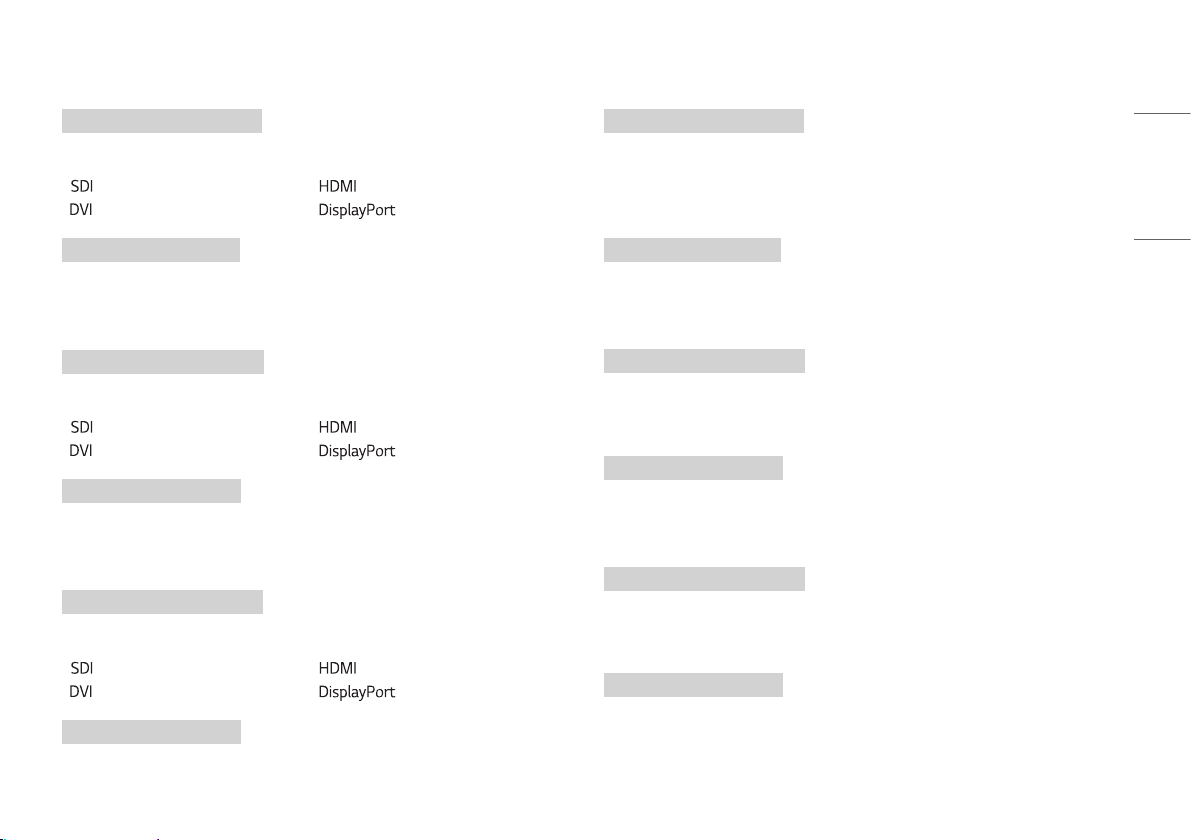
03. [Input List] (Main) (Command: x b)
▶ Controls the input mode of the Main.
Transmission (x)(b)( )(Set ID)( )(Data)(Cr)
Data
D0: 90:
80:
C0:
Ack (b)( )(Set ID)( )(OK/NG)(Data)(x)
39
ENGLISH
[Input List] (Sub) (Command: x c)
▶ Controls the input mode of the Sub.
Transmission (x)(c)( )(Set ID)( )(Data)(Cr)
Data
D0: 90:
80:
C0:
Ack (c)( )(Set ID)( )(OK/NG)(Data)(x)
[Input List] (Sub 2) (Command: x d)
▶ Controls the input mode of the Sub 2.
Transmission (x)(d)( )(Set ID)( )(Data)(Cr)
Data
D0: 90:
80:
C0:
Ack (d)( )(Set ID)( )(OK/NG)(Data)(x)
[Input List] (Sub 3) (Command: x e)
▶ Controls the input mode of the Sub 3.
Transmission (x)(e)( )(Set ID)( )(Data)(Cr)
Data
D0: 90:
80:
C0:
Ack (e)( )(Set ID)( )(OK/NG)(Data)(x)
04. [Aspect Ratio] (Main) (Command: x f)
▶ Adjusts the Aspect Ratio of the Main.
Transmission (x)(f)( )(Set ID)( )(Data)(Cr)
Data
00: [Full Wide] 01: [Original]
02: [Just Scan]
Ack (f)( )(Set ID)( )(OK/NG)(Data)(x)
[Aspect Ratio] (Sub) (Command: x g)
▶ Adjusts the Aspect Ratio of the Sub.
Transmission (x)(g)( )(Set ID)( )(Data)(Cr)
Data
00: [Full Wide] 01: [Original]
Ack (g)( )(Set ID)( )(OK/NG)(Data)(x)
[Aspect Ratio] (Sub 2) (Command: x h)
▶ Adjusts the Aspect Ratio of the Sub 2.
Transmission (x)(h)( )(Set ID)( )(Data)(Cr)
Data
00: [Full Wide] 01: [Original]
Ack (h)( )(Set ID)( )(OK/NG)(Data)(x)

40
ENGLISH
[Aspect Ratio] (Sub 3) (Command: x i)
▶ Adjusts the Aspect Ratio of the Sub 3.
Transmission (x)(i)( )(Set ID)( )(Data)(Cr)
Data
00: [Full Wide] 01: [Original]
Ack (i)( )(Set ID)( )(OK/NG)(Data)(x)
05. [PBP / PIP] (Command: k n)
▶ Controls the PBP / PIP mode.
Transmission (k)(n)( )(Set ID)( )(Data)(Cr)
Data
00: Off 01: 2PBP
09: 3PBP 0C: 4PBP
05: PIP_LT 06: PIP_RT
07: PIP_LB 08: PIP_RB
Ack (n)( )(Set ID)( )(OK/NG)(Data)(x)
06. [PIP Size] (Command: k p)
▶ Adjusts the size of PIP.
Transmission (k)(p)( )(Set ID)( )(Data)(Cr)
Data
00: [Small] 01: [Medium]
02: [Large]
Ack (p)( )(Set ID)( )(OK/NG)(Data)(x)
07. [Main/Sub Screen Change] (Command: m a)
▶ Controls the Swap in the PBP mode.
Transmission (m)(a)( )(Set ID)( )(Data)(Cr)
Data
01: [Main/Sub Screen Change]
Ack (a)( )(Set ID)( )(OK/NG)(Data)(x)
41
ENGLISH
08. [Picture Mode] (Command: d x)
▶ Controls the Picture Mode.
Transmission (d)(x)( )(Set ID)( )(Data)(Cr)
Data
00: [Custom] 01: [Vivid]
07: [REC2020] 0F: [HDR Effect]
11: [Mono] 12: [DICOM]
13: [Calibration 1] 14: [Calibration 2]
Ack (x)( )(Set ID)( )(OK/NG)(Data)(x)
09. [Brightness] (Command: k h)
▶ Adjusts screen brightness.
Transmission (k)(h)( )(Set ID)( )(Data)(Cr)
Data
Min: 00 - Max: 64
Ack (h)( )(Set ID)( )(OK/NG)(Data)(x)
10. [Contrast] (Command: k g)
▶ Adjusts the color contrast of the screen.
Transmission (k)(g)( )(Set ID)( )(Data)(Cr)
Data
Min: 00 - Max: 64
Ack (g)( )(Set ID)( )(OK/NG)(Data)(x)
11. [Sharpness] (Command: k k)
▶ Adjusts the sharpness of the screen.
Transmission (k)(k)( )(Set ID)( )(Data)(Cr)
Data
Min: 00 - Max: 64
Ack (k)( )(Set ID)( )(OK/NG)(Data)(x)
12. [Brightness Stabilization] (Command: m b)
▶ Controls the Brightness Stabilization function.
Transmission (m)(b)( )(Set ID)( )(Data)(Cr)
Data
00: [On] 01: [Off]
Ack (b)( )(Set ID)( )(OK/NG)(Data)(x)

42
ENGLISH
13. [SUPER RESOLUTION+] (Command: m c)
▶ Controls the SUPER RESOLUTION+ function.
Transmission (m)(c)( )(Set ID)( )(Data)(Cr)
Data
00: [High] 01: [Middle]
02: [Low] 03: [Off]
Ack (c)( )(Set ID)( )(OK/NG)(Data)(x)
14. [Black Level] (Command: m d)
▶ Controls the Offset level. (HDMI only)
Transmission (m)(d)( )(Set ID)( )(Data)(Cr)
Data
00: [High] 01: [Low]
Ack (d)( )(Set ID)( )(OK/NG)(Data)(x)
15. [HDMI ULTRA HD Deep Color] (Command: m e)
▶ Controls the HDMI ULTRA HD Deep Color. (HDMI only)
Transmission (m)(e)( )(Set ID)( )(Data)(Cr)
Data
00: [On] 01: [Off]
Ack (e)( )(Set ID)( )(OK/NG)(Data)(x)
16. [DFC] (Command: m f)
▶ Controls the DFC function.
Transmission (m)(f)( )(Set ID)( )(Data)(Cr)
Data
00: [On] 01: [Off]
Ack (f)( )(Set ID)( )(OK/NG)(Data)(x)
17. [Response Time] (Command: m g)
▶ Controls the Response Time.
Transmission (m)(g)( )(Set ID)( )(Data)(Cr)
Data
00: [Faster] 01: [Fast]
02: [Normal] 03: [Off]
Ack (g)( )(Set ID)( )(OK/NG)(Data)(x)
18. [Black Stabilizer] (Command: m h)
▶ Controls the Black Sharpness Optimization function.
Transmission (m)(h)( )(Set ID)( )(Data)(Cr)
Data
Min: 00 - Max: 64
Ack (h)( )(Set ID)( )(OK/NG)(Data)(x)
43
ENGLISH
19. [Uniformity] (Command: m i)
▶ Controls the Uniformity function.
Transmission (m)(i)( )(Set ID)( )(Data)(Cr)
Data
00: [On] 01: [Off]
Ack (i)( )(Set ID)( )(OK/NG)(Data)(x)
20. [Gamma] (Command: m j)
▶ Adjusts the Gamma settings.
Transmission (m)(j)( )(Set ID)( )(Data)(Cr)
Data
04: [Gamma 1.8] 05: [Gamma 2.0]
06: [Gamma 2.2] 07: [Gamma 2.4]
08: [Gamma 2.6] 09: [DICOM Gamma Curve]
Ack (j)( )(Set ID)( )(OK/NG)(Data)(x)
21. [Color Temp] (Command: k u)
▶ Adjusts the color Temp.
Transmission (k)(u)( )(Set ID)( )(Data)(Cr)
Data
00: [Manual] 01: [Custom]
02: [6500K] 03: [7500K]
04: [9300K]
Ack (u)( )(Set ID)( )(OK/NG)(Data)(x)
22. [Red] (Command: j w)
▶ Adjusts the red.
Transmission (j)(w)( )(Set ID)( )(Data)(Cr)
Data
Min: 00 - Max: 64
Ack (w)( )(Set ID)( )(OK/NG)(Data)(x)
23. [Green] (Command: j y)
▶ Adjusts the green.
Transmission (j)(y)( )(Set ID)( )(Data)(Cr)
Data
Min: 00 - Max: 64
Ack (y)( )(Set ID)( )(OK/NG)(Data)(x)
24. [Blue] (Command: j z)
▶ Adjusts the blue.
Transmission (j)(z)( )(Set ID)( )(Data)(Cr)
Data
Min: 00 - Max: 64
Ack (z)( )(Set ID)( )(OK/NG)(Data)(x)

44
ENGLISH
25. [Language] (Command: f i)
▶ Adjusts the language of the Menu screen.
Transmission (f)(i)( )(Set ID)( )(Data)(Cr)
00 - 10: English - Korean (17 languages)
Ack (i)( )(Set ID)( )(OK/NG)(Data)(x)
26. [SMART ENERGY SAVING] (Command: m k)
▶ Adjusts the SMART ENERGY SAVING.
Transmission (m)(k)( )(Set ID)( )(Data)(Cr)
Data
00: [High] 01: [Low]
02: [Off]
Ack (k)( )(Set ID)( )(OK/NG)(Data)(x)
27. [LED Control Button] (Command: m l)
▶ Adjusts the LED ON time of the Control Button.
Transmission (m)(l)( )(Set ID)( )(Data)(Cr)
Data
00: [Always On] 01: [20Sec Time Out]
02: [10Sec Time Out] 03: [5Sec Time Out]
Ack (l)( )(Set ID)( )(OK/NG)(Data)(x)
28. [DVI Power Supply] (Command: m m)
▶ Controls the DVI Power Supply function.
Transmission (m)(m)( )(Set ID)( )(Data)(Cr)
Data
00: [On] 01: [Off]
Ack (m)( )(Set ID)( )(OK/NG)(Data)(x)
29. [Auto Screen Off] (Command: m n)
▶ Adjusts the time to automatically turn the screen off when there is no monitor signal for a set period of
time.
Transmission (m)(n)( )(Set ID)( )(Data)(Cr)
Data
00: [On] 01: [Off]
Ack (n)( )(Set ID)( )(OK/NG)(Data)(x)
30. [DisplayPort 1.2] (Command: m o)
▶ Enables or disables DisplayPort 1.2.
Transmission (m)(o)( )(Set ID)( )(Data)(Cr)
Data
00: [Off] 01: [On]
Ack (o)( )(Set ID)( )(OK/NG)(Data)(x)
45
ENGLISH
31. [OSD Lock] (Command: k m)
▶ Controls the OSD Lock function.
Transmission (k)(m)( )(Set ID)( )(Data)(Cr)
Data
00: [Off] 01: [On]
Ack (m)( )(Set ID)( )(OK/NG)(Data)(x)
32. [Reset] (Command: f k)
▶ Controls the Reset operation.
Transmission (f)(k)( )(Set ID)( )(Data)(Cr)
Data
00: [Picture Reset] 01: Factory Reset
02: [User Preset Reset]
Ack (k)( )(Set ID)( )(OK/NG)(Data)(x)
33. [Screen Flip] (Main) (Command: t h)
▶ Adjusts the screen image rotation of Main screen.
Transmission (t)(h)( )(Set ID)( )(Data)(Cr)
Data
00: [Off] 01: [Mirror]
02: [Rotation]
Ack (h)( )(Set ID)( )(OK/NG)(Data)(x)
[Screen Flip] (Sub) (Command: t i)
▶ Adjusts the screen image rotation of Sub screen.
Transmission (t)(i)( )(Set ID)( )(Data)(Cr)
Data
00: [Off] 01: [Mirror]
02: [Rotation]
Ack (i)( )(Set ID)( )(OK/NG)(Data)(x)
46
ENGLISH
34. [Failover Input 1] (Command: k v)
▶ Controls the input of the Failover Input 1.
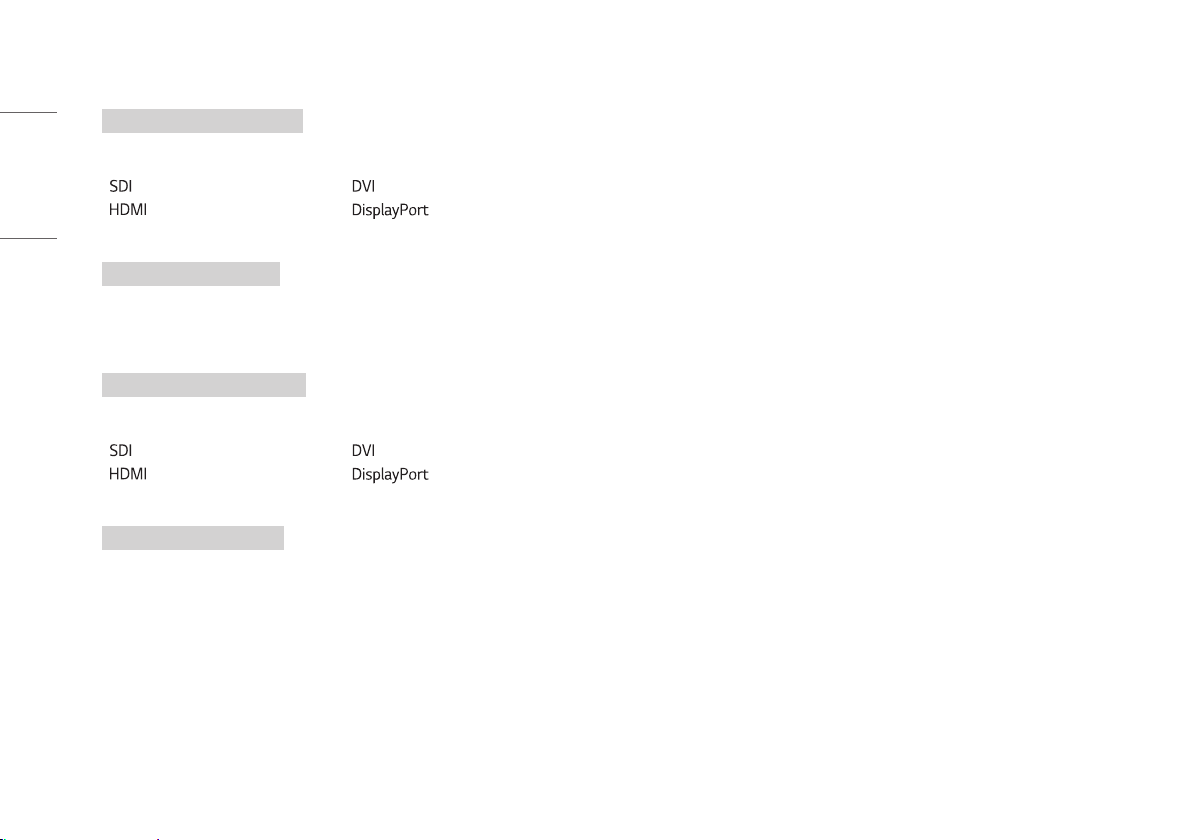
Transmission (k)(v)( )(Set ID)( )(Data)(Cr)
Data
00: 01:
02:
03:
04: Off
Ack (v)( )(Set ID)( )(OK/NG)(Data)(x)
35. [Failover Input 2] (Command: k w)
▶ Controls the input of the Failover Input 2.
Transmission (k)(w)( )(Set ID)( )(Data)(Cr)
Data
00: 01:
02:
03:
04: Off
Ack (w)( )(Set ID)( )(OK/NG)(Data)(x)
WARNING: This equipment is compliant with Class A of CISPR 32. In a residential environment this
equipment may cause radio interference.
Read the user manual (CD) carefully and keep it at hand. The product label contains necessary
information for after-service.
MODEL
SERIAL NO.
Supplier's Declaration of Conformity
Trade Name: LG
Responsible Party: LG Electronics USA, Inc.
Address: 1000 Sylvan Ave Englewood Cliffs, NJ 07632
Telephone: (201) 266-2215






