DCS-8000LH
User Manual
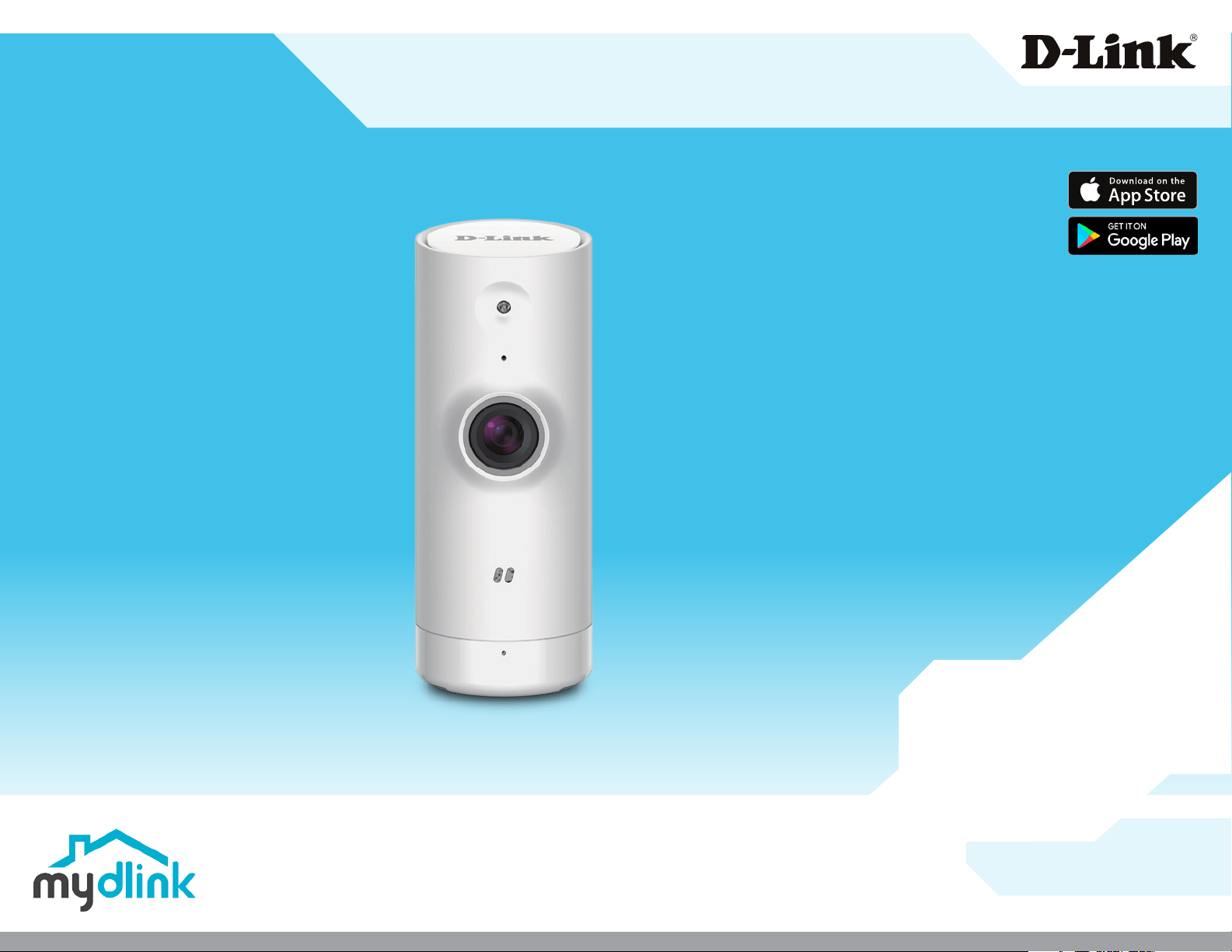
Mini HD Wi-Fi Camera
Hardware: A1
Manual Version: 1.00
09/07/2017
2D-Link DCS-8000LH User Manual
Manual Overview
D-Link reserves the right to revise this publication and to make changes in the content hereof without obligation to notify any person or organization
of such revisions or changes. Information in this document may become obsolete as our services and websites develop and change. Please refer
to the www.mydlink.com website for the most current information.
Manual Revision
Trademarks
D-Link and the D-Link logo are trademarks or registered trademarks of D-Link Corporation or its subsidiaries in the United States or other countries.
All other company or product names mentioned herein are trademarks or registered trademarks of their respective companies.
Copyright ©2017 by D-Link Corporation.
All rights reserved. This publication may not be reproduced, in whole or in part, without prior expressed written permission from D-Link Corporation.
Revision Date Description
1.00 09/07/2017 Initial release A1 with rmware version 1.00

3D-Link DCS-8000LH User Manual
Table of Contents
Table of Contents
Product Overview .............................................................. 4
Package Contents .........................................................................4
System Requirements ................................................................. 5
Introduction ................................................................................... 6
Features ............................................................................................ 6
Hardware Overview ..................................................................... 7
Installation ......................................................................... 8
Wireless Installation Considerations ......................................8
Mobile App Setup ........................................................................ 9
mydlink ...........................................................................................14
Using the Mobile App ......................................................15
mydlink Lite ..................................................................................15
Live View ........................................................................................17
Camera Options ..........................................................................18
Device Settings .................................................................... 19
Push Notication ................................................................24
Firmware Version ................................................................25
Remove Device ....................................................................26
Troubleshooting ..............................................................27
Technical Specications ..................................................29
Regulatory Statements ...................................................31
4D-Link DCS-8000LH User Manual
Section 1 - Product Overview
Product Overview
Package Contents
DCS-8000LH Mini HD Wi-Fi Camera
Micro-USB Power Adapter
Quick Install Guide
If any of the above items are missing, please contact your reseller.
Note: Using a power supply with a dierent voltage than the one included with your product will cause damage and void the warranty for this
product.
5D-Link DCS-8000LH User Manual
Section 1 - Product Overview
System Requirements
Network Requirements
• 802.11n/g/b wireless network
• An Internet connection
• A router connected to your broadband modem
mydlink App Requirements
• iPhone, iPad, iPod touch, or Android smartphone or tablet (please refer to
the mobile app’s store page to check whether your device is compatible)

6D-Link DCS-8000LH User Manual
Section 1 - Product Overview
Introduction
The DCS-8000LH Mini HD Wi-Fi Camera boasts a 120° lens that easily captures your entire room in high-resolution 720p. The built-in night vision,
motion and sound detection, and handy mobile app empower you with knowing exactly what is happening anywhere, anytime.
Wide Angle Lens
The DCS-8000LH provides large area coverage with a wide angle lens, eliminating the need for multiple cameras to cover a single room.
720p HD Video
The 720p HD sensor provides crisp detail and clarity for high-quality snapshots and video.
Comprehensive Day/Night Surveillance
The built-in infrared LEDs enable night time viewing of up to 16 feet (5 meters), giving you all-day surveillance.
Wireless N
The DCS-8000LH uses high-speed Wireless N on the 2.4 GHz band to connect to your wireless router, and is backwards compatible with 802.11g.
Remote Access via the mydlink Lite App
With today’s high-speed Internet services, the DCS-8000LH can provide the ideal solution for delivering live video images over the Intranet and
Internet for remote monitoring. The camera allows remote access using the mydlink Lite app for live image viewing, and allows you to manage and
control it anytime from anywhere with Internet access.
Features
7D-Link DCS-8000LH User Manual
Section 1 - Product Overview
Hardware Overview
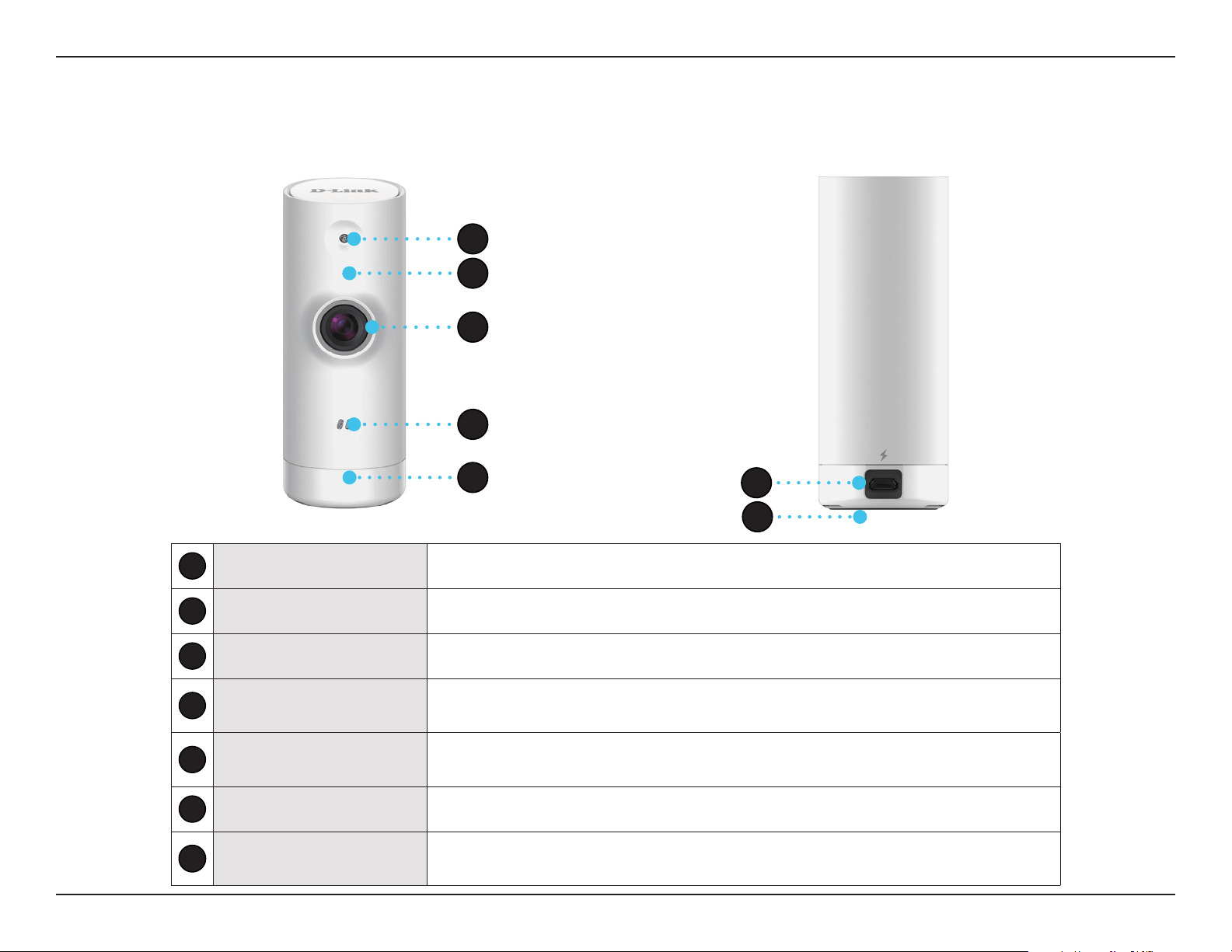
1
Infrared LEDs Illuminate the camera’s eld of view in low light environments.
2
Microphone Records audio from the surrounding area.
3
720p Camera Lens Records video of the surrounding area.
4
Light Sensor
The IR-Cut Removable sensor monitors lighting conditions and switches between
color and infrared accordingly.
5
Status LED
Red: The camera is not connected to the network. Flashing Orange: The camera
is waiting for a connection. Green: The camera is connected and working properly.
6
Micro-USB Port Connect a power adapter or a 5 V Micro-USB power supply to power on the camera.
7
Reset Button
Hold this button down with an unfolded paperclip until the status LED starts
ashing to reset the camera to factory default settings.
Front View Back View
1
2
3
4
5
6
7

8D-Link DCS-8000LH User Manual
Section 2 - Installation
Installation
Wireless Installation Considerations
The DCS-8000LH lets you access your network using a wireless connection from anywhere within the operating range of your wireless network.
However, the number, thickness and location of walls, ceilings, or other objects that the wireless signals must pass through, may limit the range.
Typical ranges vary depending on the types of materials and background RF (radio frequency) noise in your home or business. The key to maximizing
wireless range is to follow these basic guidelines:
1. Minimize the number of walls and ceilings between your adapter and other network devices (such as your Network Camera) - each
wall or ceiling can reduce your adapter’s range from 3-90 feet (1-30 meters).
2. Be aware of the direct line between network devices. A wall that is 1.5 feet thick (.5 meters), at a 45-degree angle appears to be
almost 3 feet (1 meter) thick. At a 2-degree angle, it looks over 42 feet (14 meters) thick. Position your devices so that the signal
will travel straight through a wall or ceiling (instead of at an angle) for better reception.
3. Building Materials make a dierence. A solid metal door or aluminum studs may weaken the wireless signal. Try to position your
access points, wireless routers, and other networking devices where the signal passes through drywall or open doorways. Materials
and objects such as glass, steel, metal, walls with insulation, water (sh tanks), mirrors, le cabinets, brick, and concrete will degrade
your wireless signal.
4. Keep your product at least 3-6 feet or 1-2 meters away from electrical devices or appliances that generate RF noise.
5. If you are using 2.4 GHz cordless phones or other radio frequency sources (such as microwave ovens), your wireless connection
may degrade dramatically or drop completely. Make sure your 2.4 GHz phone base is as far away from your wireless devices as
possible. The base transmits a signal even if the phone in not in use.
9D-Link DCS-8000LH User Manual
Section 2 - Installation
Mobile App Setup
You can congure your DCS-8000LH through the mydlink Lite mobile app. On your mobile device, download the app by searching for mydlink
Lite in the App Store or Google Play.
Note: The app’s user interface may be dierent depending on your mobile device.
Launch the mydlink Lite app and go to the next section for more details on how to set up your DCS-8000LH.
Note: Be sure to connect to your wireless network using the 2.4 GHz band.
10D-Link DCS-8000LH User Manual
Section 2 - Installation
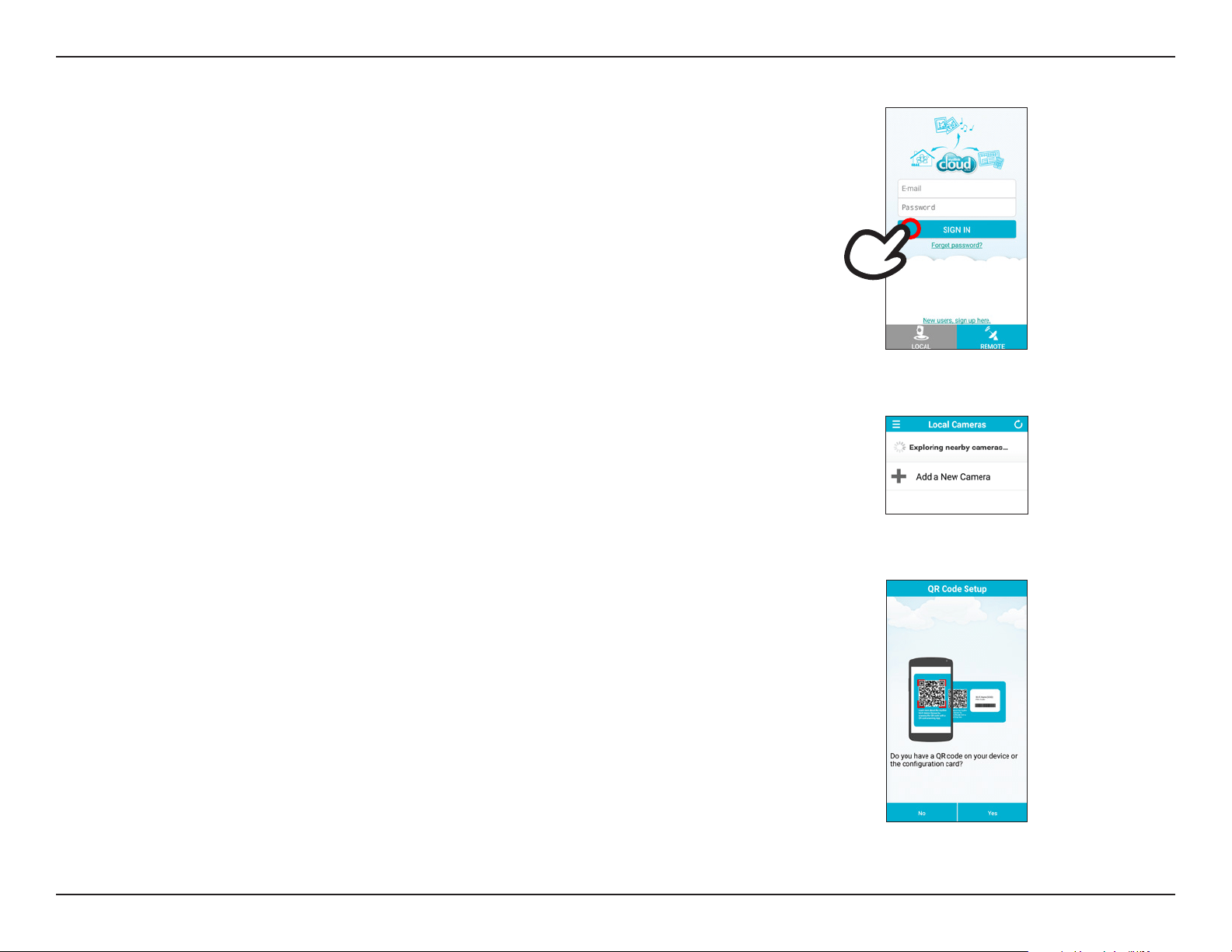
Step 2:
Tap Add a New Camera on the next screen.
To install your DCS-8000LH, follow the instructions below:
Step 1:
New users: Tap New users, sign up here to create an account.
Existing users: Sign in to your mydlink account.
Step 3:
When asked to scan the QR code, tap Yes to use the code found on the bottom of the DCS-8000LH.
11D-Link DCS-8000LH User Manual
Section 2 - Installation
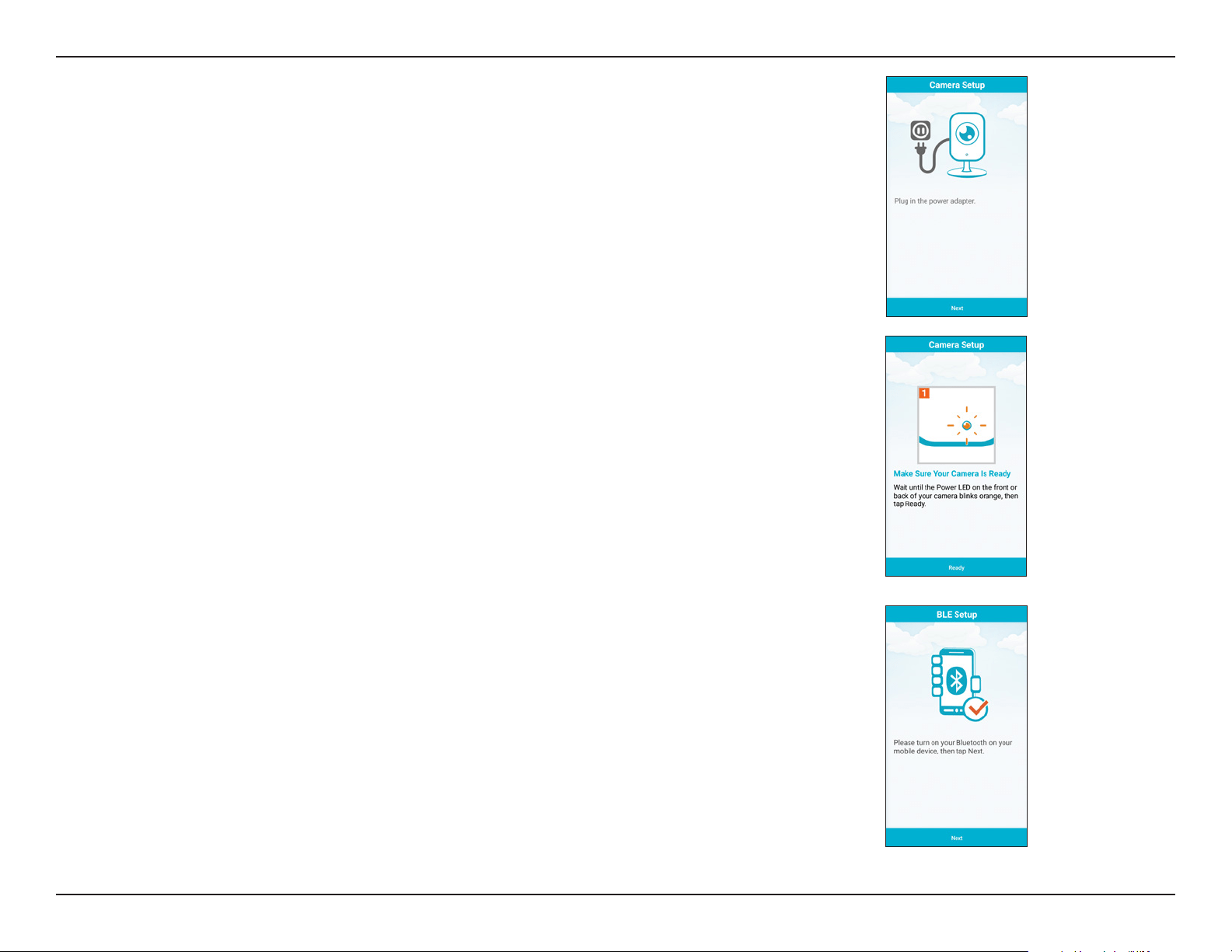
Step 4:
Using the included Micro-USB adapter, connect the DCS-8000LH to a power outlet then tap Next.
Step 5:
Wait until the LED on your DCS-8000LH ashes orange, then tap Ready.
Step 6:
Exit the app to enable bluetooth on your mobile device then return to the app and tap Next.
12D-Link DCS-8000LH User Manual
Section 2 - Installation
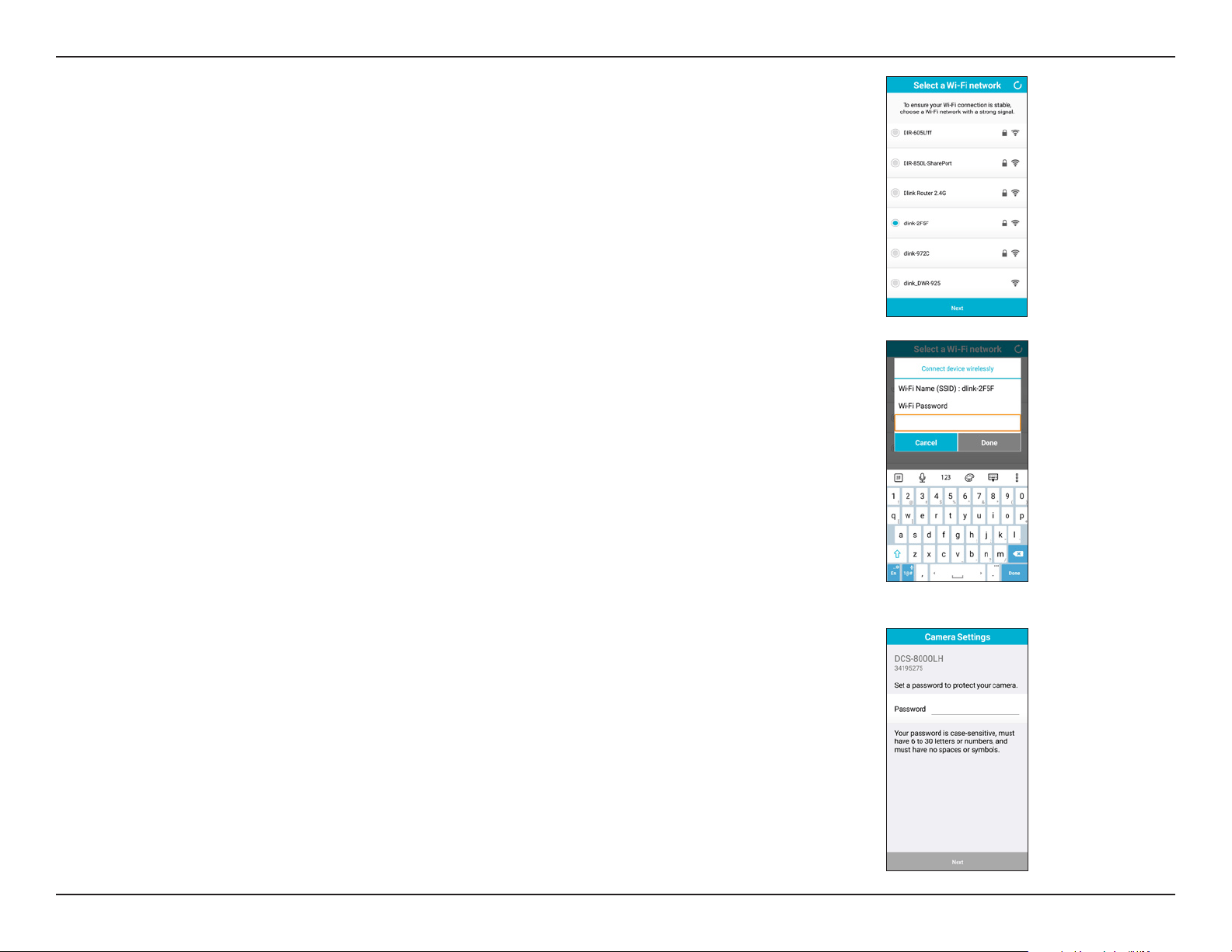
Step 7:
The DCS-8000LH will scan for your wireless network. When it appears in the list, select your network
and tap Next.
Step 8:
Enter the Wi-Fi password for your wireless network and tap Done.
Step 9:
Once your wireless settings have been veried, you will be asked to enter a password to protect your
camera.
13D-Link DCS-8000LH User Manual
Section 2 - Installation
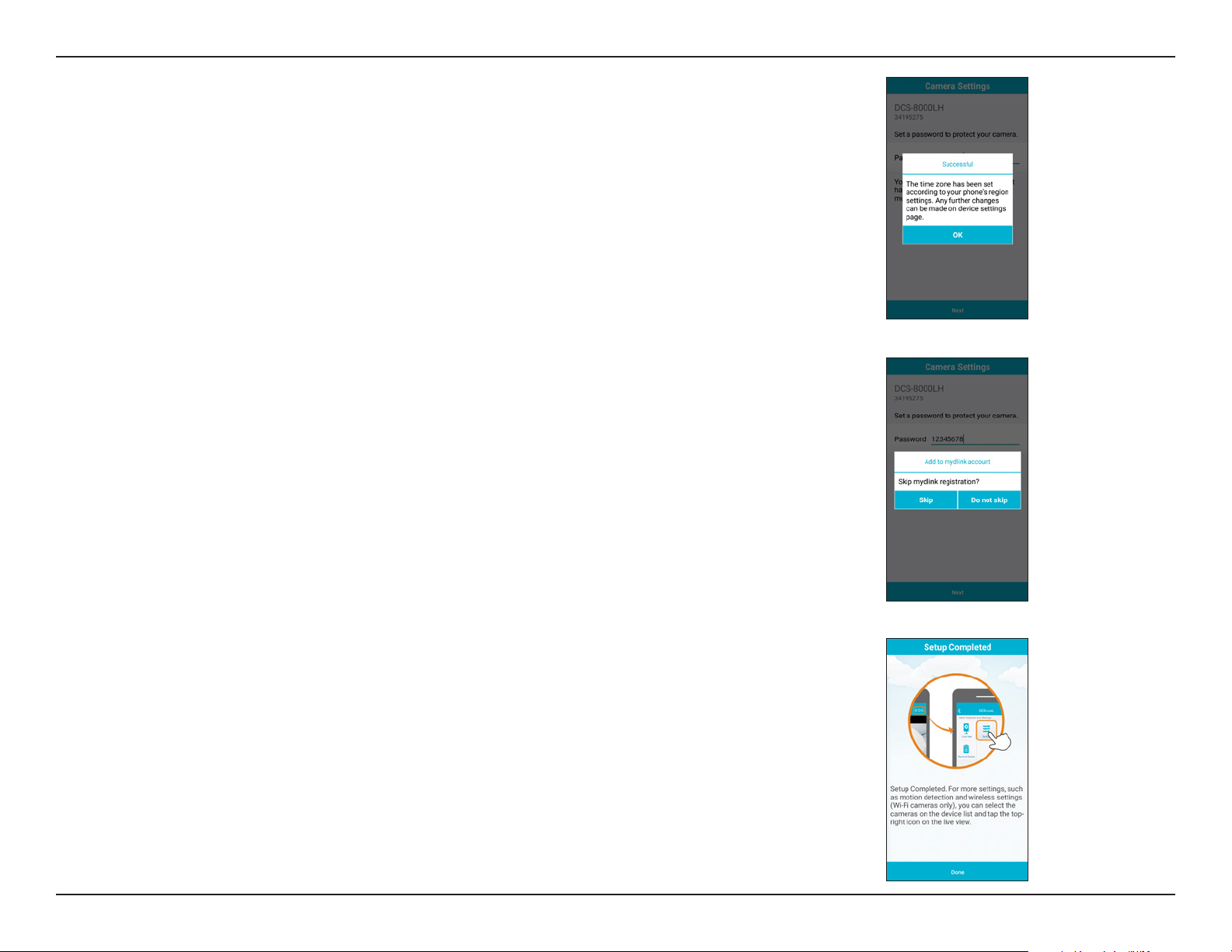
Step 12:
Your DCS-8000LH should now be connected to your network and you have completed setup. Tap
Done to nish.
Step 10:
The time zone for your DCS-8000LH will be automatically set to that of your mobile device. Tap OK.
Step 11:
If you are logged in with a mydlink account, you will be asked to add this device under that account.
If you do not have a mydlink account, you can choose to register for one or to skip this step.
14D-Link DCS-8000LH User Manual
Section 2 - Installation
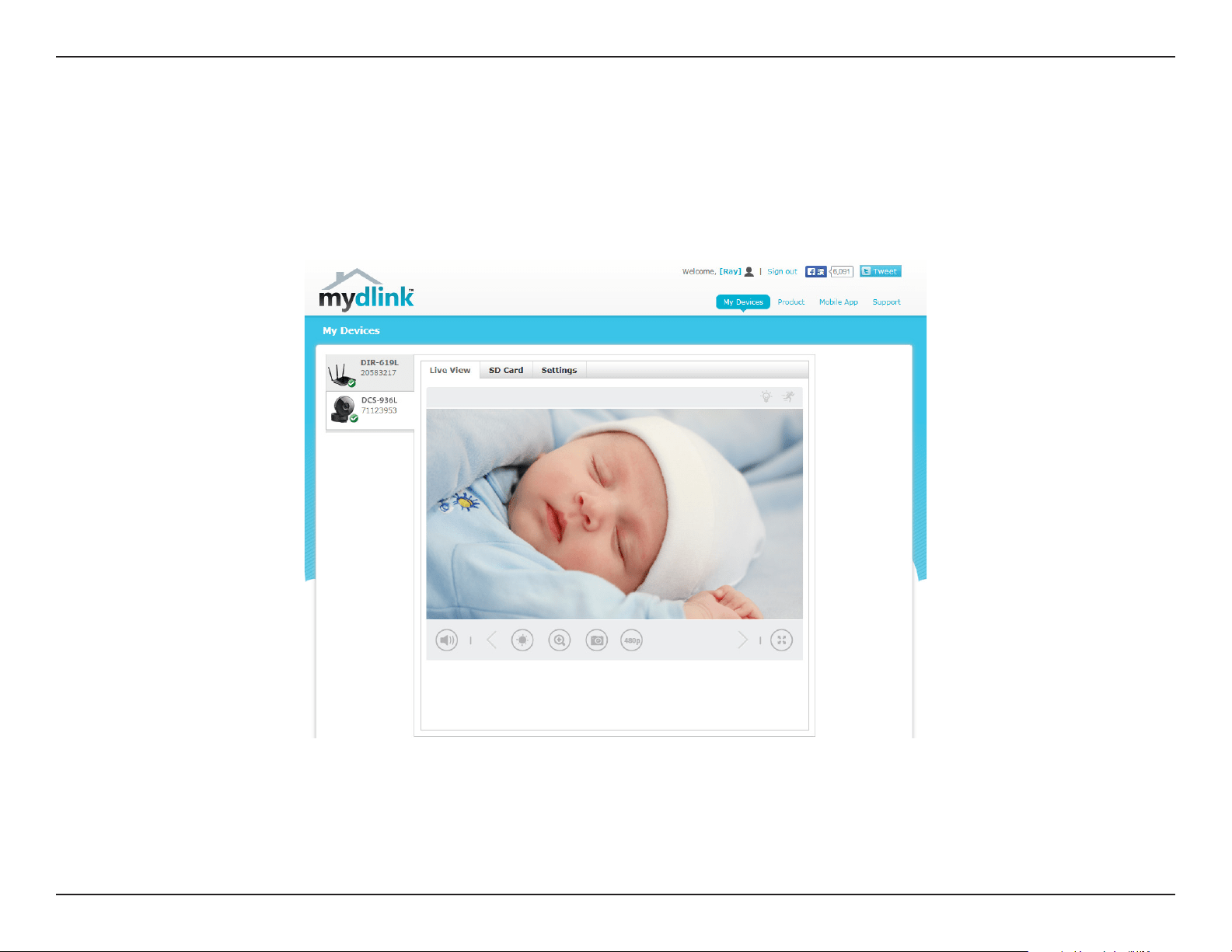
mydlink
After registering your camera with a mydlink account, you will be able to remotely access your camera from the www.mydlink.com website. After
signing in to your mydlink account, you will see a screen similar to the following:
For more details on using your camera with mydlink, go to the Support section of the mydlink website and check the User Manual section for
your product to nd the latest instruction guide for your camera’s mydlink features.
15D-Link DCS-8000LH User Manual
Section 3 - Using the Mobile App
Using the Mobile App
mydlink Lite
Once you have installed your camera through the mydlink Lite mobile app. You can automate recording and use features such as motion detection
and push notications when events are triggered.
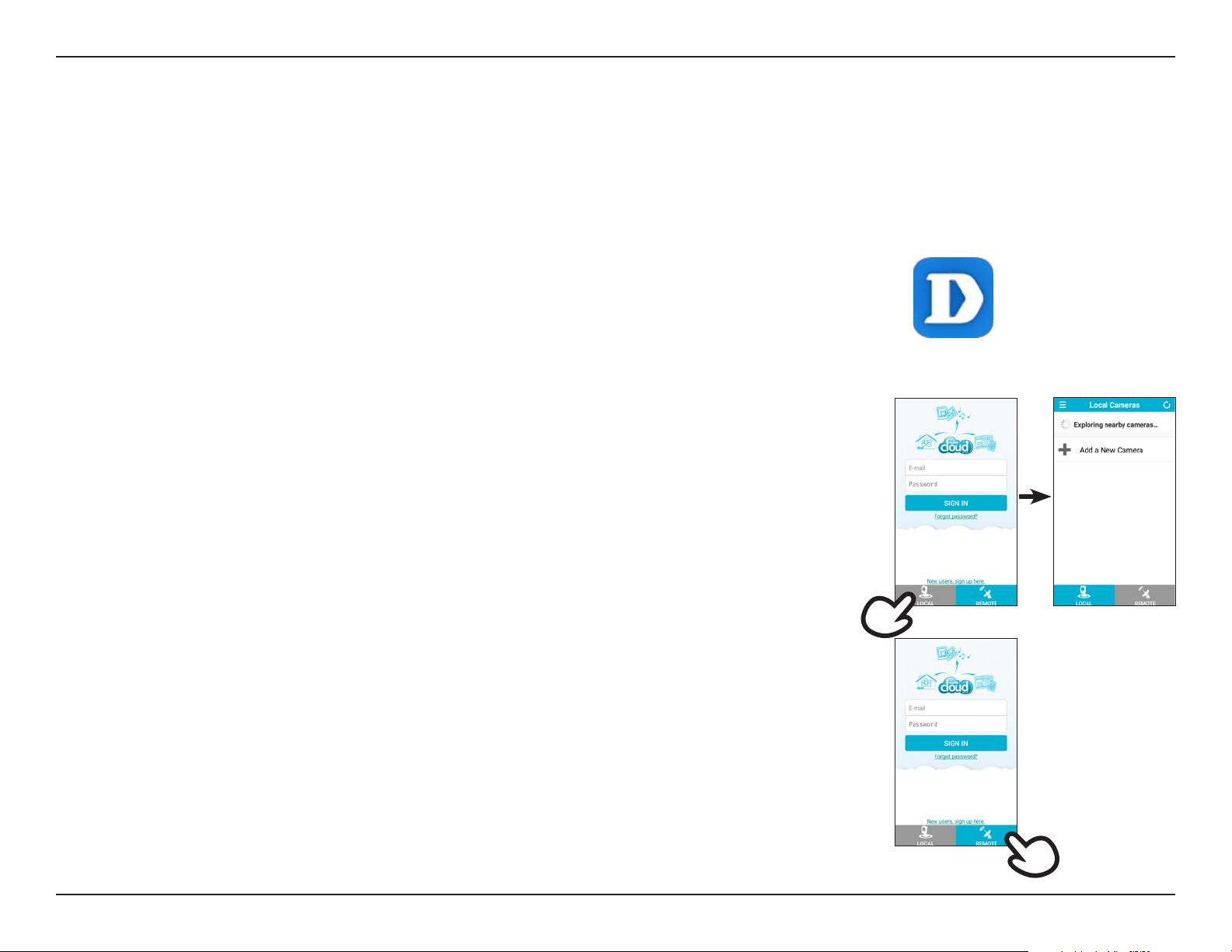
1. Using your mobile, connect to the same wireless network as your camera.
2. On the login page, tap Local. The app will automatically discover any D-Link
cameras in your network.
3. Tap the DCS-8000LH icon to go to the live view screen.
You can monitor your camera using the mydlink Lite app either from your local network (same as
the camera’s) or remotely from anywhere with an Internet connection. To use either method, follow
the steps below:
1. To enable remote monitoring, you will need to use mydlink services. Start the
mydlink Lite app on your mobile device.
2. If you already have an account, you can tap Remote then enter your account
e-mail and password and tap Sign In. If you don’t have a mydlink account and
want to register for one, you can tap the New users, sign up here. link to start
the registration process.
To view your camera feed remotely:
To view your camera feed on a local network:
mydlink Lite
16D-Link DCS-8000LH User Manual
Section 3 - Using the Mobile App
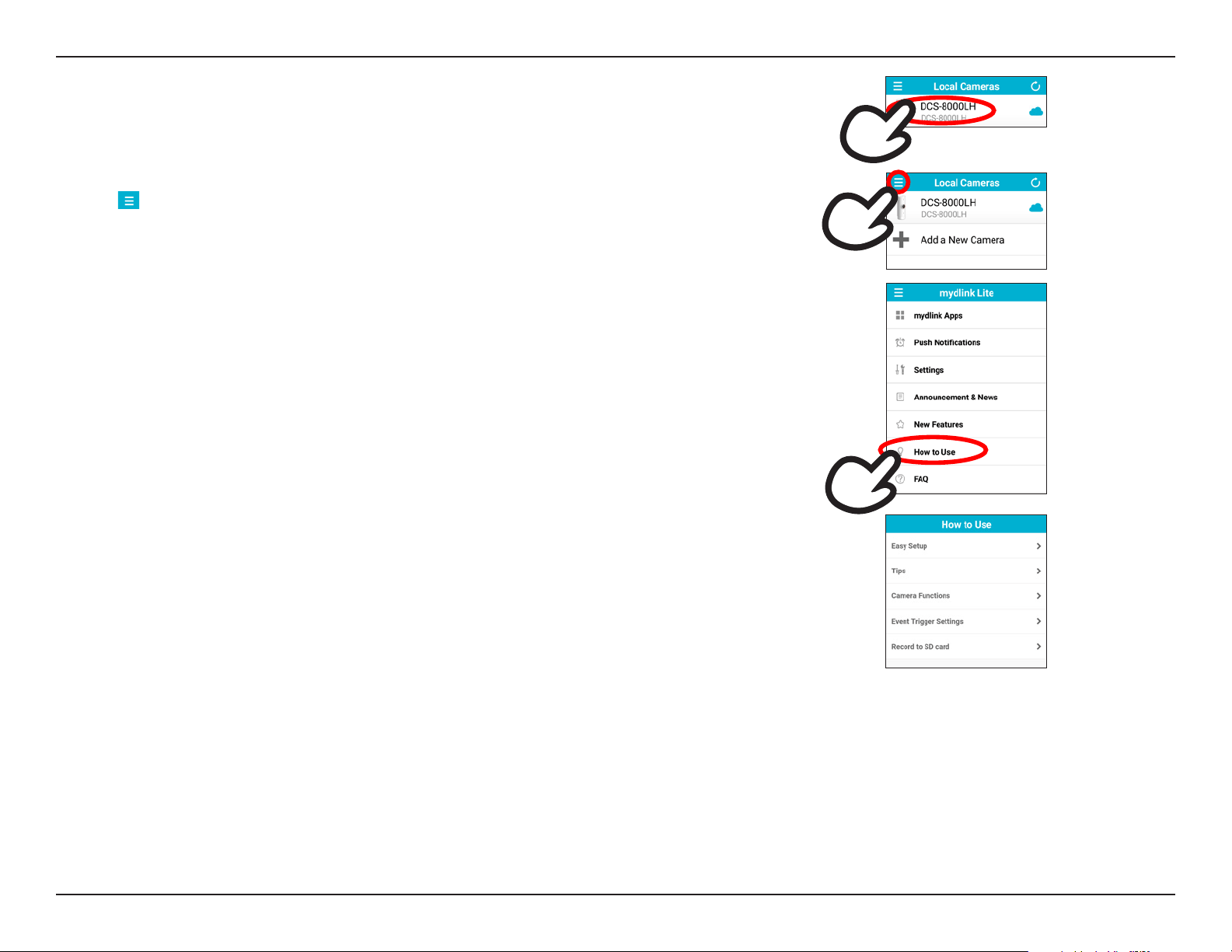
Step 1:
Tap the icon to bring up the menu.
Step 2:
Tap How to Use to see a list of topics you need help on.
If you tap on your device name, you will be taken to the Live View page, where you can view a live
stream from your camera. There are also short how-to guides built into the app that you can access
at any time if you need help.
Step 3:
The list of topics include:
• Easy Setup: For details on how to set up your new camera.
• Tips: For details on local and remote connection to your camera, push notications, and custom
naming for your device.
• Camera Functions: For details on live view, PTZ, audio and other features supported by your
camera.
• Event Trigger Settings: For details on motion and sound detection.
Tap on a topic to view a description of the feature and how to access or use it.
17D-Link DCS-8000LH User Manual
Section 3 - Using the Mobile App
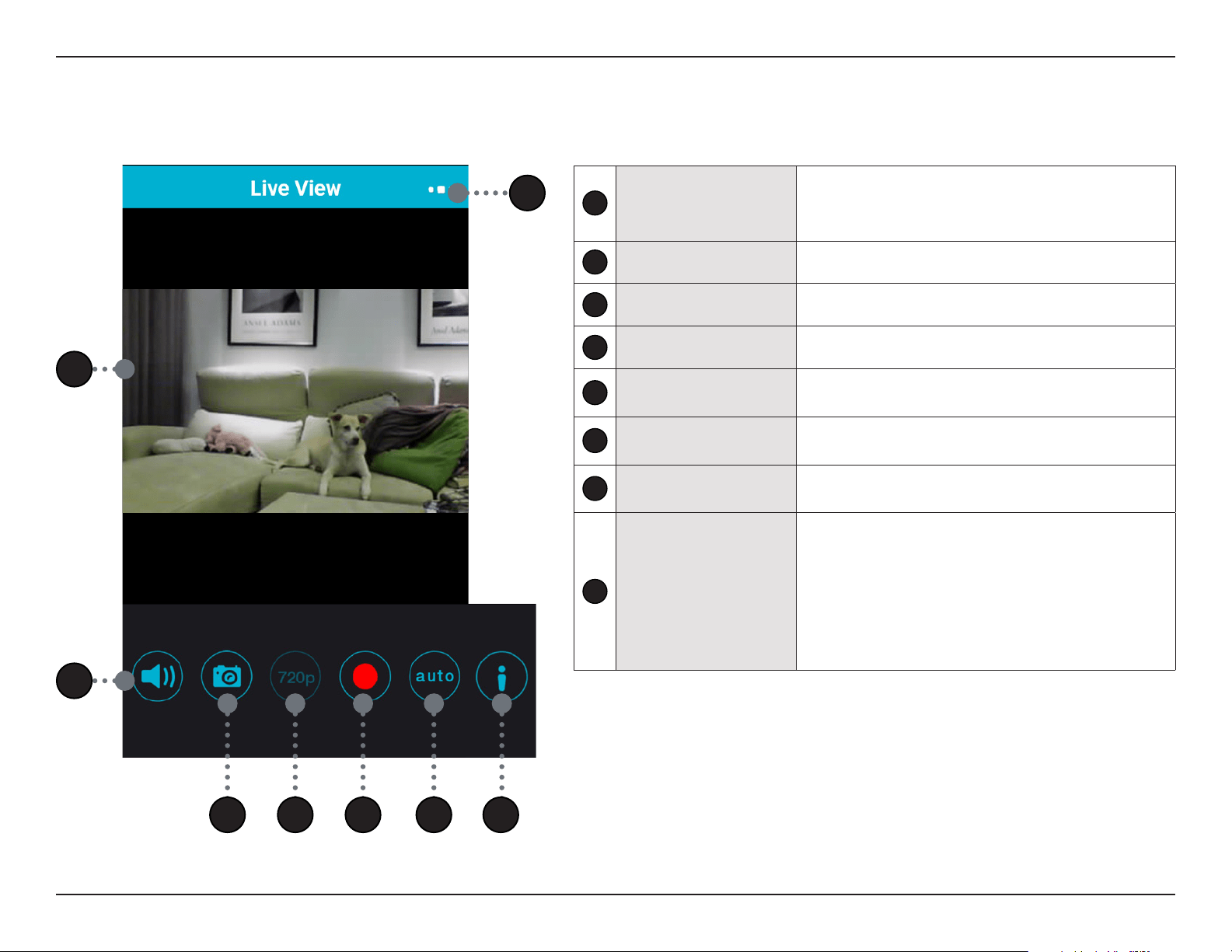
Live View
1
Live View
• Rotate your device to landscape orientation for full
screen viewing.
• Pinch to zoom.
2
Sound On/O Button Tap this button to enable or disable live audio.
3
Snapshot Tap this button to take a snapshot.
4
Viewing Resolution Displays the current resolution.
5
Manual Record Button
Tap this button to manually start recording video. The clip
will be saved to your mobile device.
6
View Mode Button
Tap this button to toggle between Day, Night (IR LED on),
or Auto modes.
7
Information Button
Tap this button to enable or disable the on-screen display
information.
8
Camera Options
Tap this button to open a menu for access to:
• Live View
• Settings
• Push Notication
• Firmware Version
• Remove Device
1
2
3 4 5 7
8
6
18D-Link DCS-8000LH User Manual
Section 3 - Using the Mobile App
Camera Options
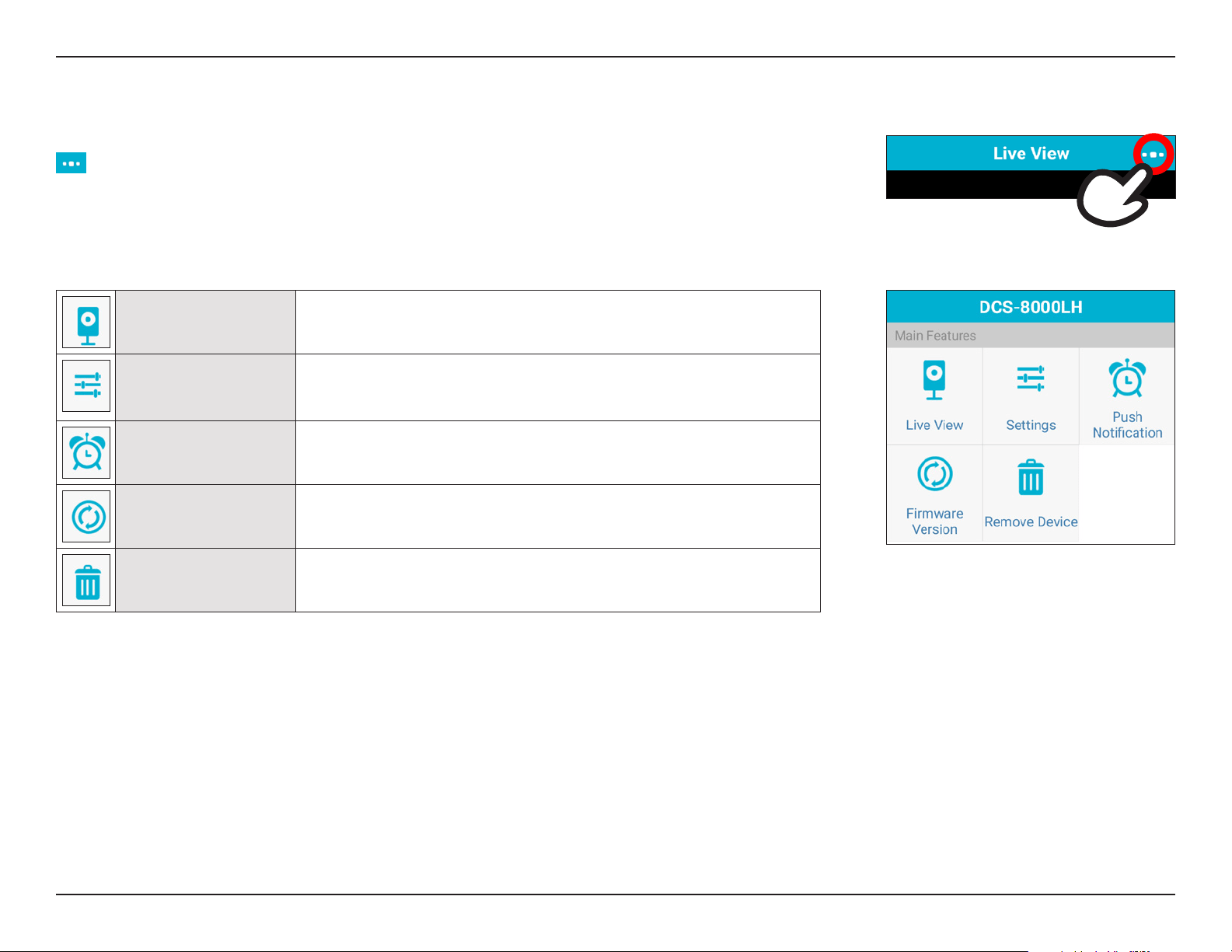
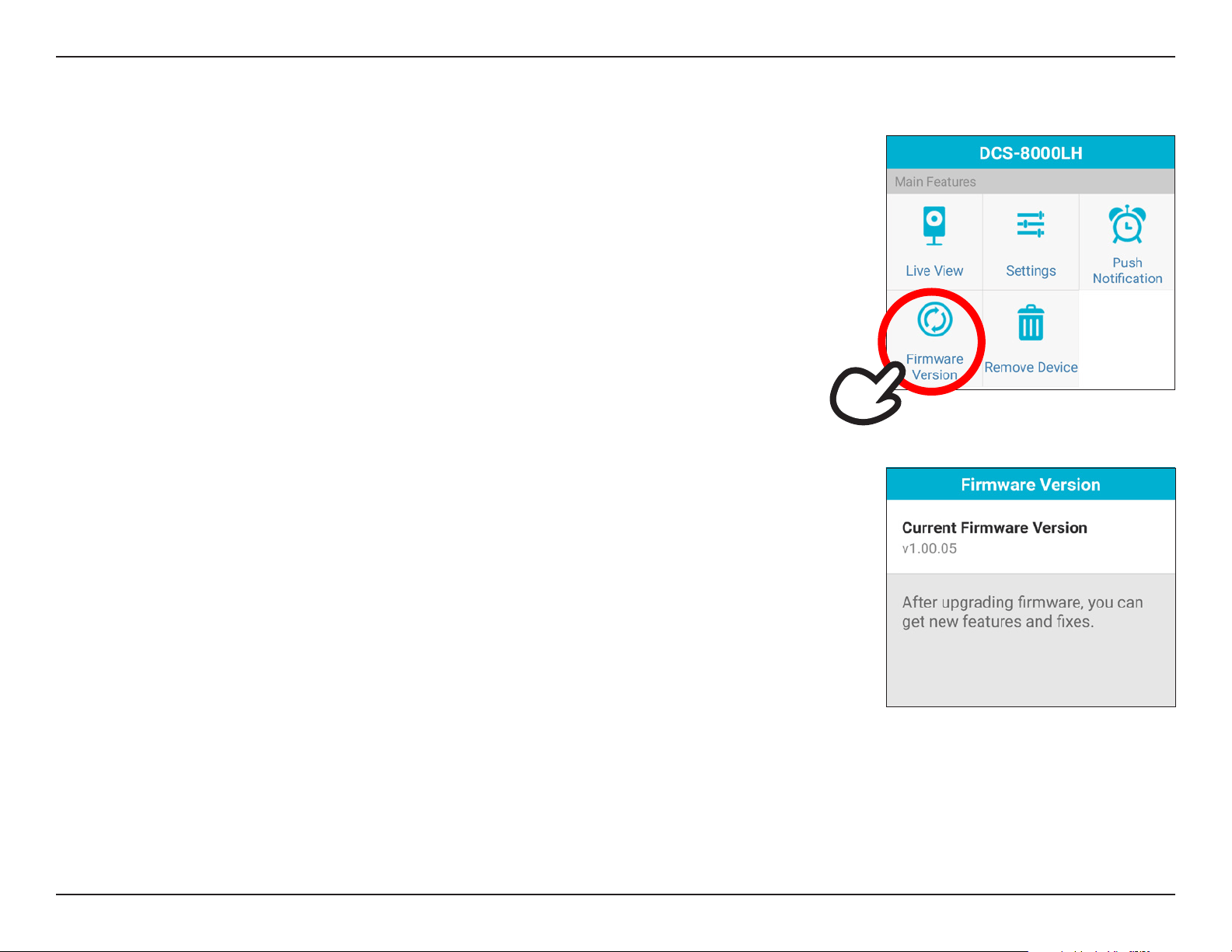
The Camera Options page lets you access the camera’s settings. To congure settings, simply tap the
icon from the Live View page to access the Main Features menu.
Live View Tap this icon to return to the live monitoring page.
Settings
Tap this icon to access the Device Settings page, where you can congure motion
and sound detection and other camera settings.
Push Notication Tap this button to access the Push Notication page.
Firmware Version Tap this button to view the current Firmware Version page.
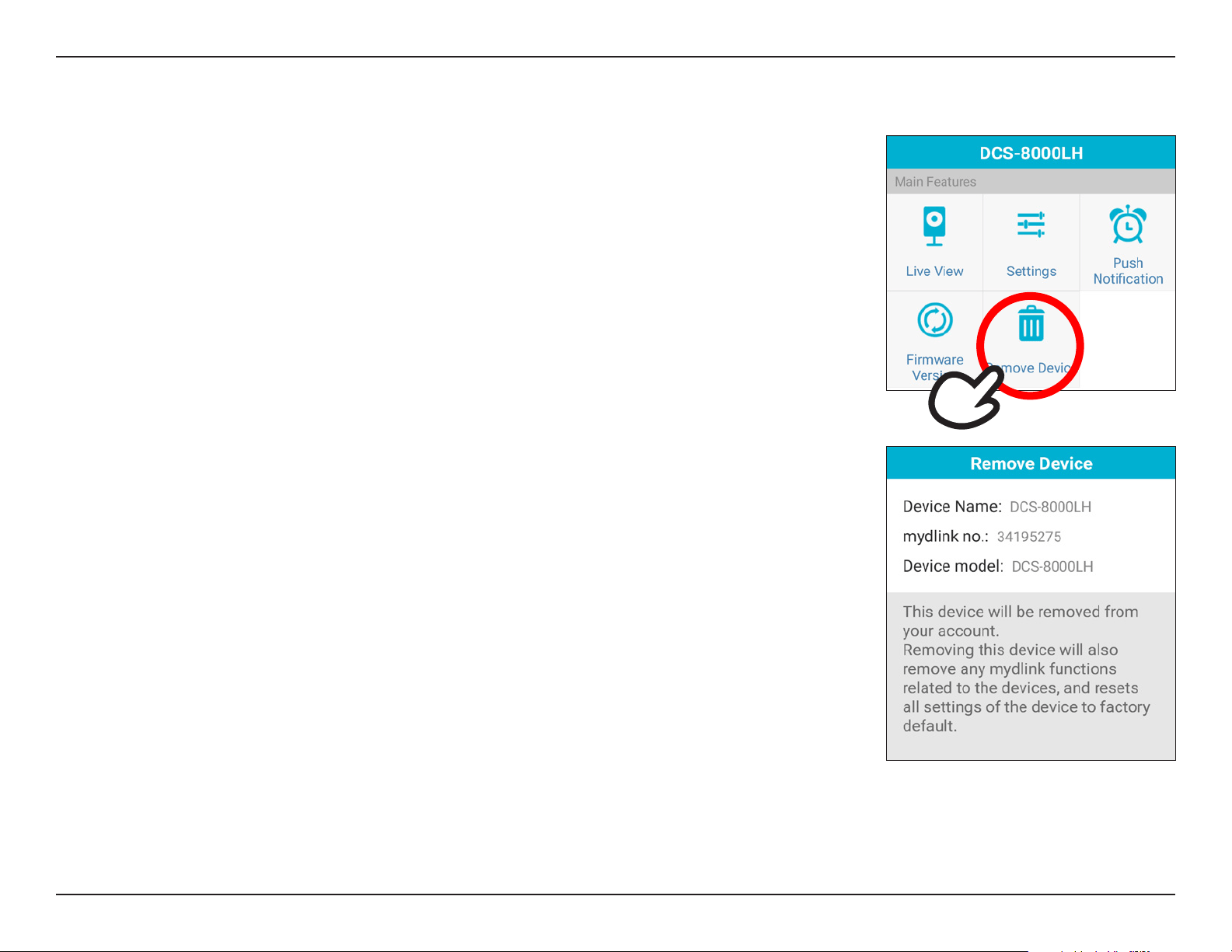
Remove Device
Tap this button to access the page to remove the device from your mydlink
account and also reset the device to factory default settings.
19D-Link DCS-8000LH User Manual
Section 3 - Using the Mobile App
Device Settings
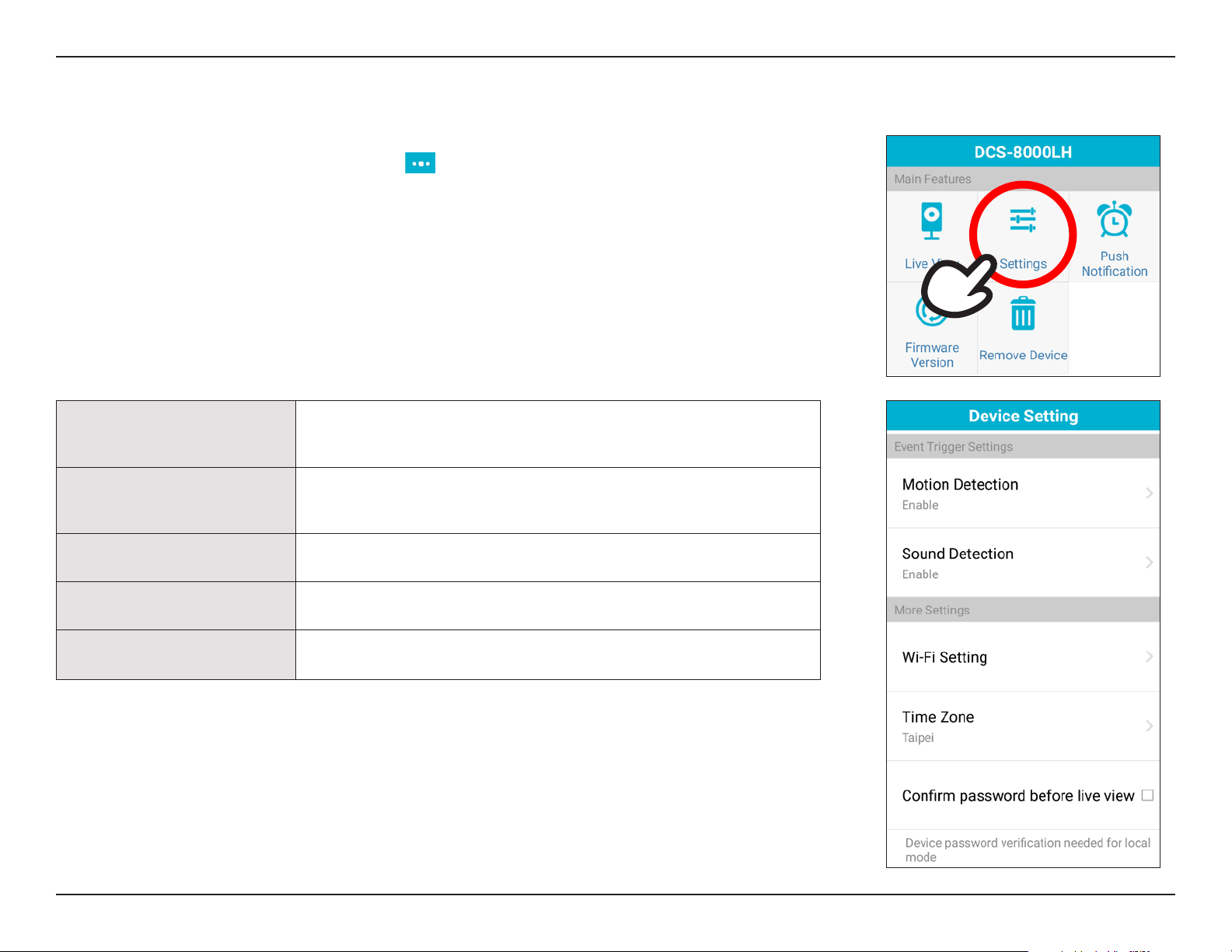
The Device Settings page lets you congure your camera’s system settings as well as automate event
triggers. To congure settings, simply tap the icon to access the camera options menu, then tap
Settings to congure motion and sound detection and other camera settings.
Motion Detection
This shows if Motion Detection is on or o. Tap this to go to the detailed settings
page for customizing your motion detection requirements. For more information,
go to Motion Detection on page 20.
Sound Detection
This shows if Sound Detection is on or o. Tap this to go to the detailed settings
page for customizing your sound detection requirements. For more information,
go to Sound Detection on page 21.
Wi-Fi Setting
If you need to manually change your camera’s wireless network settings, you can
tap here. For more information, go to Wi-Fi Setting on page 22.
Time Zone
This shows the current Time Zone of the camera’s location.
Tap to change it. For more information, go to Time Zone on page 23.
Confirm password before live
view
Check this box to ask for a password when attempting to view live streams.
20D-Link DCS-8000LH User Manual
Section 3 - Using the Mobile App
Motion Detection
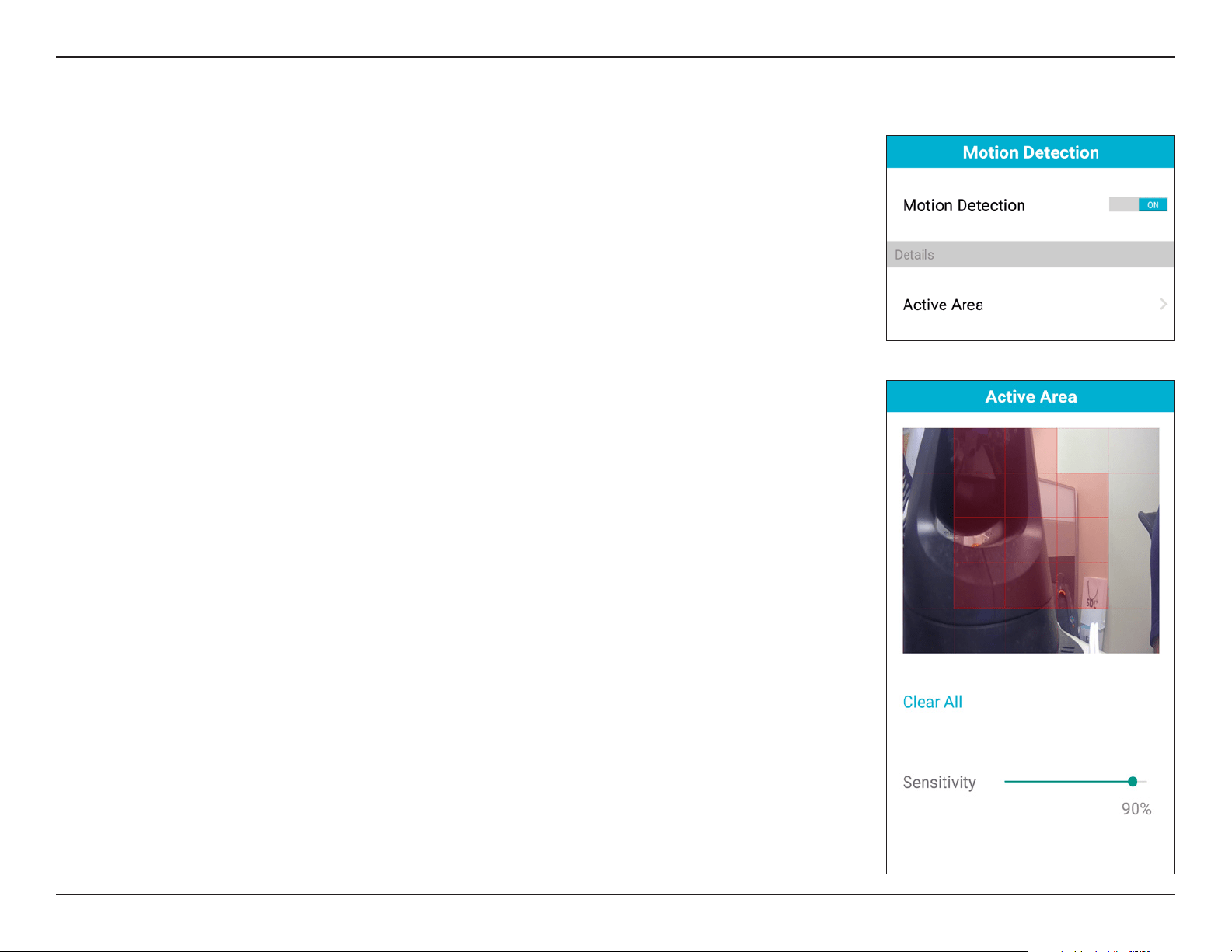
On this page you can tap Motion Detection to enable or disable it.
To customize your motion detection, tap Active Area to enter the conguration screen. You can tap
on the image to activate red squares for areas you wish to detect motion in.
Tap Clear All to remove all motion detection areas.
Adjust the Sensitivity percentage until your desired motion detection results are achieved. Higher
sensitivity will trigger smaller movements. Then tap the back button on your mobile and tap Apply
to save your settings.
21D-Link DCS-8000LH User Manual
Section 3 - Using the Mobile App
Sound Detection
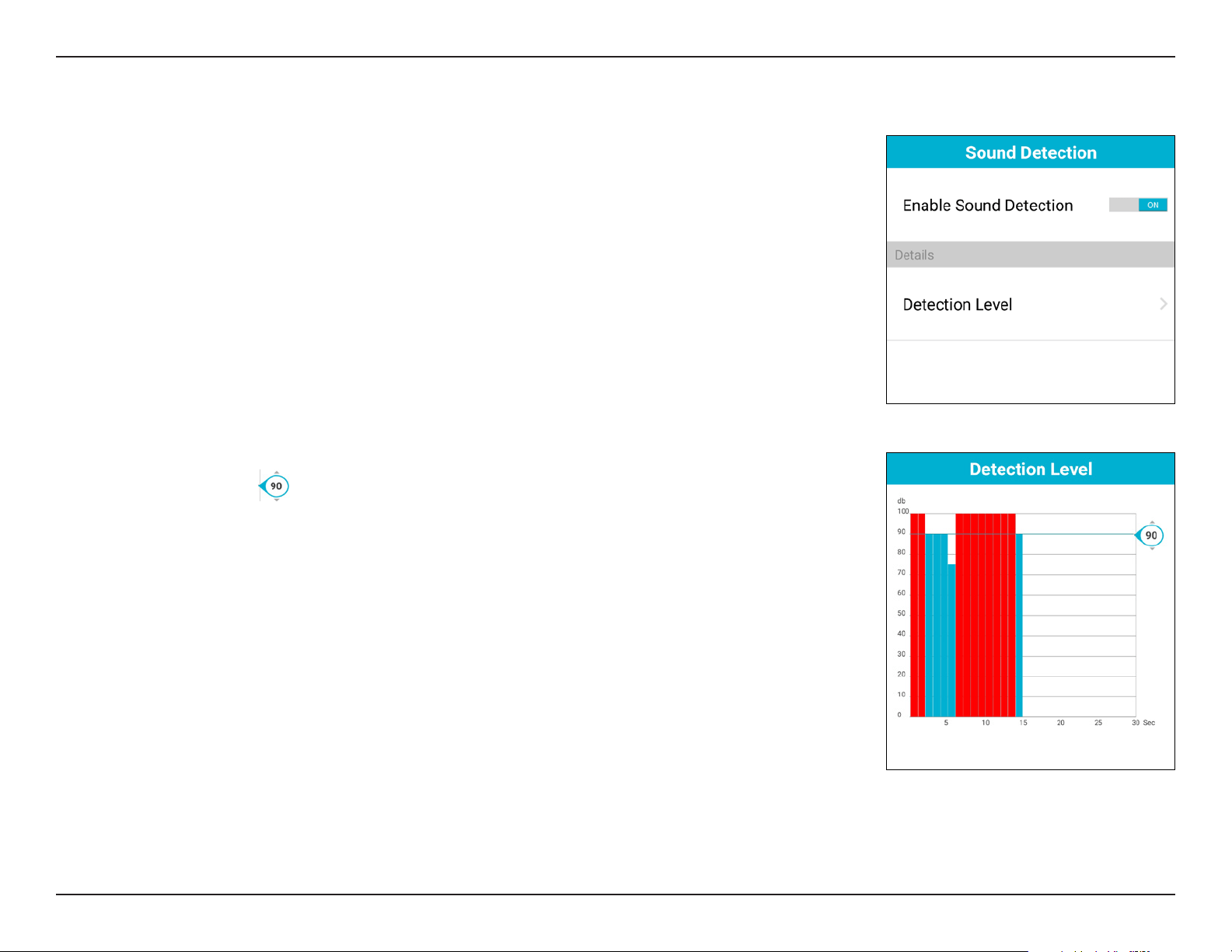
On this page you can tap Sound Detection to enable or disable it.
To customize your sound detection, tap Detection Level to enter the conguration screen.
You can tap and hold the icon to change the threshold of the audio level you wish to register
detection on. You can select from 50 to 90 decibels for the detection level limit.
The red bars indicate triggering and the blue bars are under the threshold.
Adjust the slider until your desired motion detection results are achieved. Then tap the back button
on your mobile and tap Apply to save your settings.
22D-Link DCS-8000LH User Manual
Section 3 - Using the Mobile App
Wi-Fi Setting
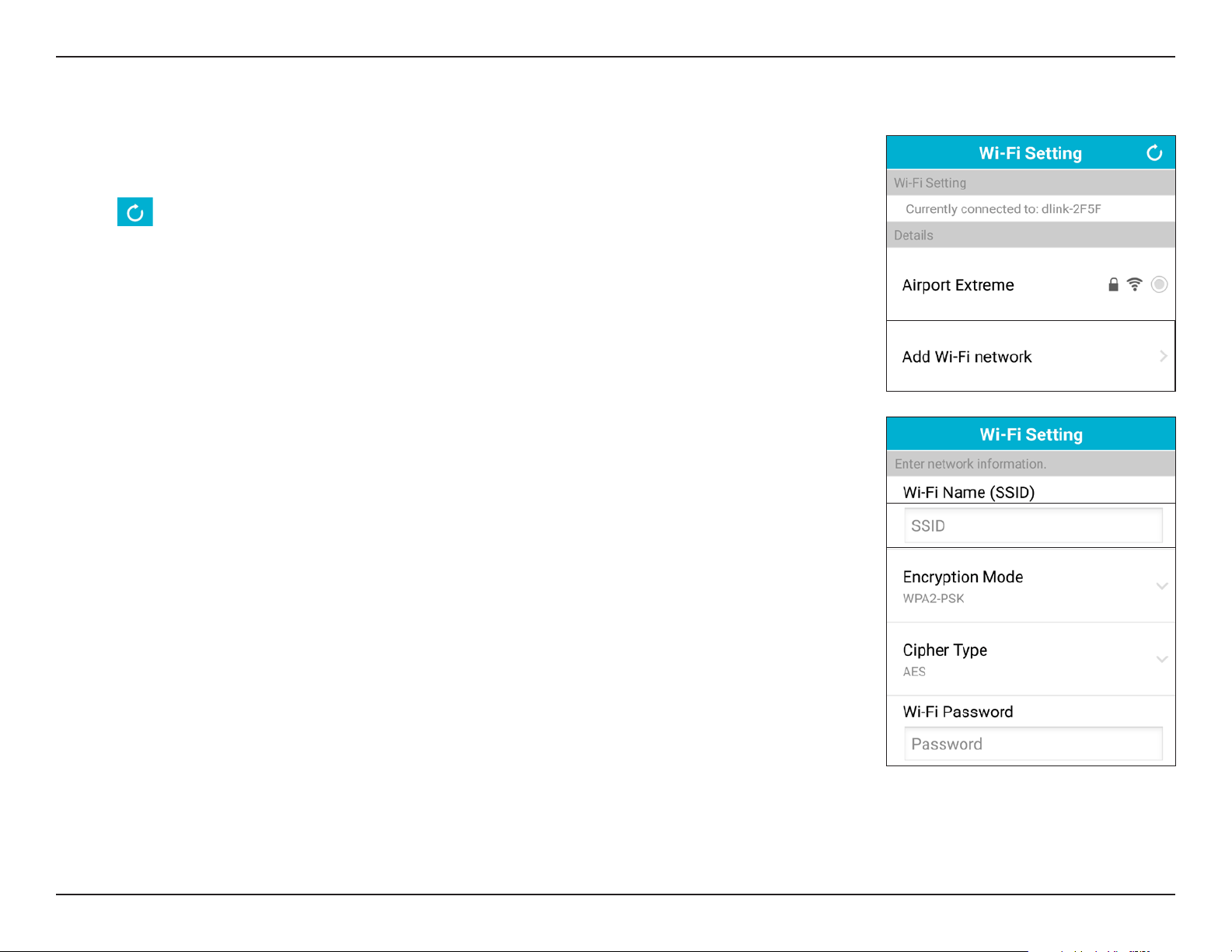
If you need to change the network settings for your device, go to Wi-Fi Setting to scan for or manually
add a Wi-Fi network.
Tap the icon to perform a rescan, or select from one of the SSIDs below.
If necessary, you can tap Add Wi-Fi network to manually add an SSID.
After entering the Wi-Fi network name (SSID) of your preferred network, you need to select the type
of encryption being used for the network you’re connecting to. The options are WEP, WPA-PSK, or
WPA2-PSK.
You will need to select the Cipher Type (TKIP or AES) being used as well.
Then enter the Wi-Fi password for the wireless network.
Tap Done when you have nished to apply the settings.
23D-Link DCS-8000LH User Manual
Section 3 - Using the Mobile App
Time Zone
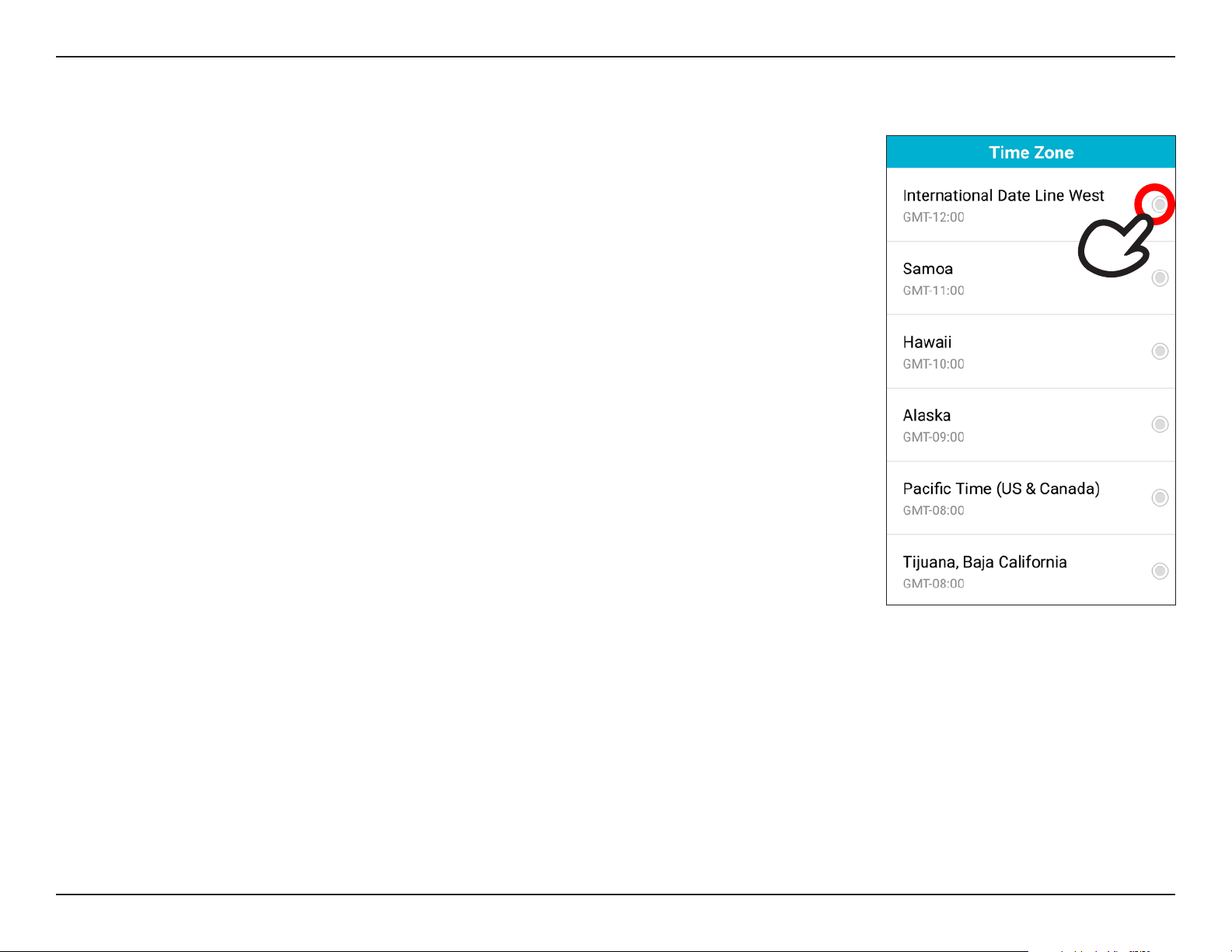
On this page you can change the time zone of your device by simply scrolling to it and tapping it.
Then tap Apply for it to take eect.
24D-Link DCS-8000LH User Manual
Section 3 - Using the Mobile App
Push Notication
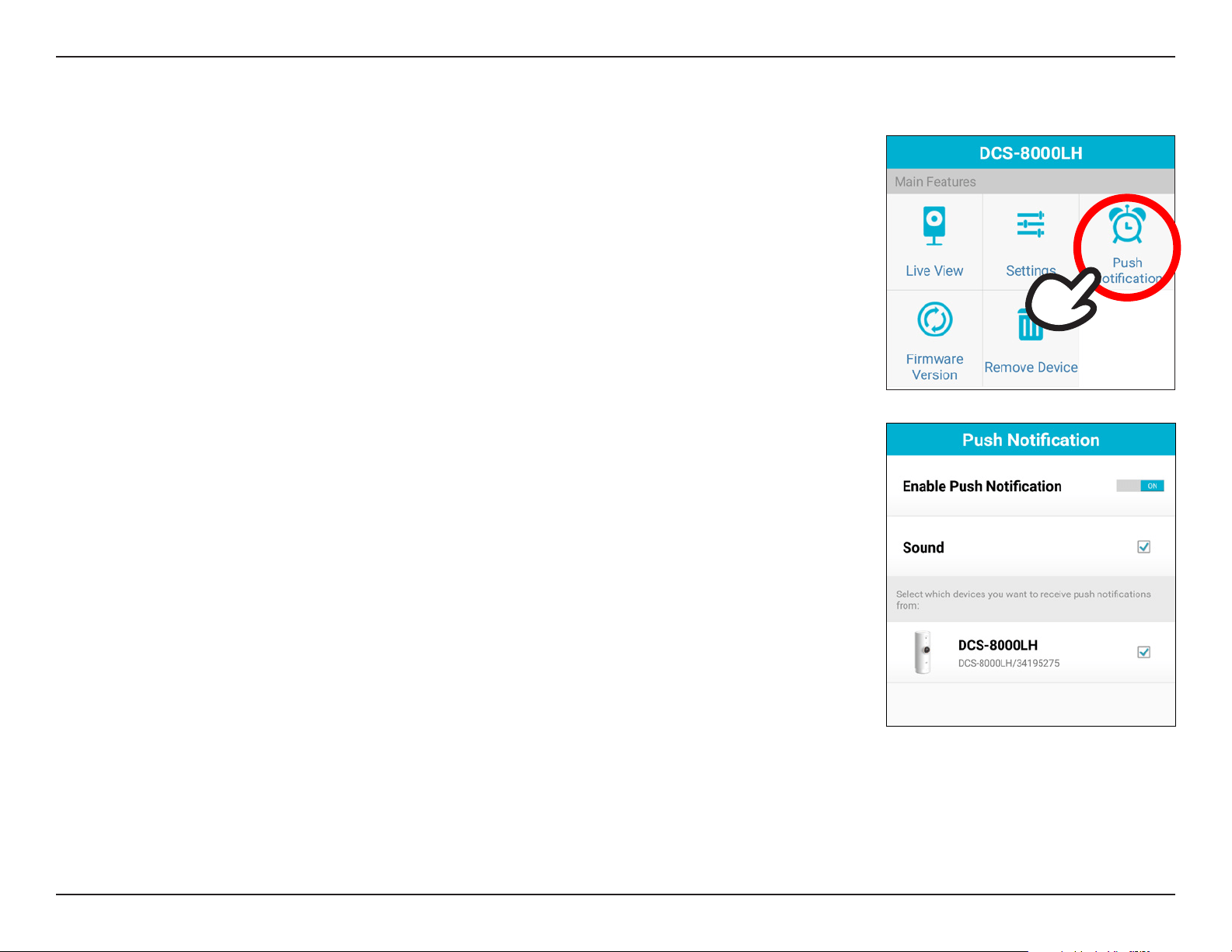
On this page you can enable or disable notications to be pushed to your mobile device in the event
that motion or sound has been detected by the camera.
To enable push notications:
Step 1:
Tap the Enable Push Notication On/O button.
Step 2:
If you are using Android, check the Sound box to play a sound if a notication is sent to your device.
Make sure your notication volume is set on your device. iOS devices do not have this option.
Step 3:
Check the box next to the device you want to send notications (Android)
or slide the button to the right next to the device to turn on (iOS).
You will now receive push notications anytime an event is triggered. This will include
motion detection, sound detection, or if your device is disconnected from the network.
25D-Link DCS-8000LH User Manual
Section 3 - Using the Mobile App
Firmware Version
On this page you can view the currently installed rmware version of your device.
26D-Link DCS-8000LH User Manual
Section 3 - Using the Mobile App
Remove Device
On this page you can remove your device from your mydlink account and reset the rmware to factory
default settings. Simply tap Remove to reset your device to factory default settings and remove it
from your mydlink account.

27D-Link DCS-8000LH User Manual
Section 4 - Troubleshooting
Troubleshooting
1. What can I do if I forget the password for my camera?
If you forget your password, you will need to perform a factory reset of your camera. This process will change all your settings
back to the factory defaults. It is therefore recommended that you make a record of the password for future reference.
To reset your camera, please use an unfolded paperclip to press and hold the RESET button for at least 10 seconds while your
camera is plugged in.
2. Why is the camera view hazy or bright when using night vision mode?
The IR night vision lights on your camera may be reecting o a nearby surface or window. Try repositioning your camera to
avoid reections or glare.
3. What can I do if my camera is not working correctly?
First, check the camera LED status.
If the LED light shows that the camera is working, please make sure that:
• Your router has an active Internet connection.
• Both your mobile device and camera have a working Internet connection.
• If your camera is still not working, you may need to reset the camera and run the setup wizard.
To reset your camera, please use an unfolded paperclip to press and hold the RESET button for at least 10 seconds while your
camera is plugged in. If your camera is still not working, check your router and make sure it has the latest rmware.
4. Can I save video clips from my DCS-8000LH to an SD card?
No, the DCS-8000LH does not support recording to an SD card. However, you can download recorded video clips to your mobile
device by pressing the manual record button on the Live View page in the app. After you press stop, a pop-up will notify you
of where it was saved to.
5. How do I send e-mail notications from my DCS-8000LH when sound or motion is detected?
You will need to log into the mydlink web portal at www.mydlink.com to access the management page for your device. Select
your DCS-8000LH from the device list and go to the Settings tab. Check the box next to Enable e-mail notications to allow
the service to send them to the e-mail address you used to register your mydlink account (the e-mail address) is shown next

28D-Link DCS-8000LH User Manual
Section 4 - Troubleshooting
to this option. Under Event Trigger settings, check the boxes for Motion Detection and/or Sound Detection to receive each
type of notication.
6. How can I access my DCS-8000LH remotely through the Internet?
In order to use your DCS-8000LH remotely through the Internet using the mydlink Lite app, you must register your camera
with a mydlink account. You can do this using the free mydlink Lite app. Please go to 9Mobile App Setup on page 20 for
more information.
7. How do I update the rmware of my camera?
You can update your camera’s rmware by using the mydlink Lite app. You will receive a notication in your app when a new
rmware is available. Simply tap Upgrade in the pop-up to proceed with updating your rmware.
8. What can I do if I can’t receive the verication e-mail for my mydlink account?
First, check your Spam or Junk Mail folder. It’s possible that your e-mail host may be sending the verication e-mail to your
Spam folder or may be blocking the e-mail. Spam lters used by some e-mail providers may block or blacklist e-mails they
perceive to be spam.
Note: If you are using a business e-mail address, your company’s e-mail system may be using a spam rule to lter incoming
e-mails, and may block mydlink e-mails; you may need to contact your network administrator for more information.
Second, try resending the verication e-mail:
1. Go to mydlink portal www.mydlink.com and log in to your mydlink account.
2. Click on your account name at the top of the page.
3. Click on the Resend Verication E-Mail link.
If you still did not receive the e-mail, try using a dierent e-mail address or e-mail host.
29D-Link DCS-8000LH User Manual
Appendix A - Technical Specications
Technical Specications
Camera
Hardware Profile • 1/4” progressive CMOS sensor
• Minimum illumination: 0 lux with IR LEDs on
• Minimum object distance: 50 cm
• Lens focal length: 2.45 mm ± 3%
• Aperture: F2.4
• Digital zoom (4x)
• 16 feet IR illumination distance
• Angle of view:
• Horizontal: 112°
• Vertical: 54°
• Diagonal: 120°
• Built-in Infrared-Cut Removable (ICR) Filter
• Built-in microphone
Image Features • Time stamp and text overlays
• Configurable sound detection level
• Configurable motion detection windows
• Configurable brightness
Video Compression • Simultaneous H.264 format compression • JPEG for still images
Video Resolution • 1280 x 720 at up to 30 fps
Audio Support • PCM
Network
Connectivity • 2.4 GHz: 802.11n/g wireless with WPA/WPA2 encryption
Network Protocols • IPv4, ARP, TCP, UDP, ICMP
• NTP client (D-Link)
• DNS client
• RTP/RTSP/RTCP
• Bonjour
System Integration
Event Management • Motion detection
• Sound detection
• Manually taken snapshots & video clips are saved to
mobile device
Mobile Support • mydlink Lite and mydlink Plus apps for iOS and Android
devices
3
System requirements for mydlink Portal Web
Management
• Please check your regional www.mydlink.com website
for the most up-to-date requirements
30D-Link DCS-8000LH User Manual
Appendix A - Technical Specications
Physical
Environment • For indoor use only
Weight • 57.7 grams (2.04 ounces) ± 5%
Power Adapter • Input: 100 to 240 V AC, 50/60 Hz • Output: 5 V DC 1 A (Micro-USB)
Power Consumption • Maximum: 4 watts ± 5%
Temperature • Operating: 32 to 104 °F (0 to 40 °C) • Storage: -4 to 158 °F (-20 to 70 °C)
Humidity • Operating: 20% to 80% non-condensing
Certifications • CE
• CE LVD
• ICES
• FCC
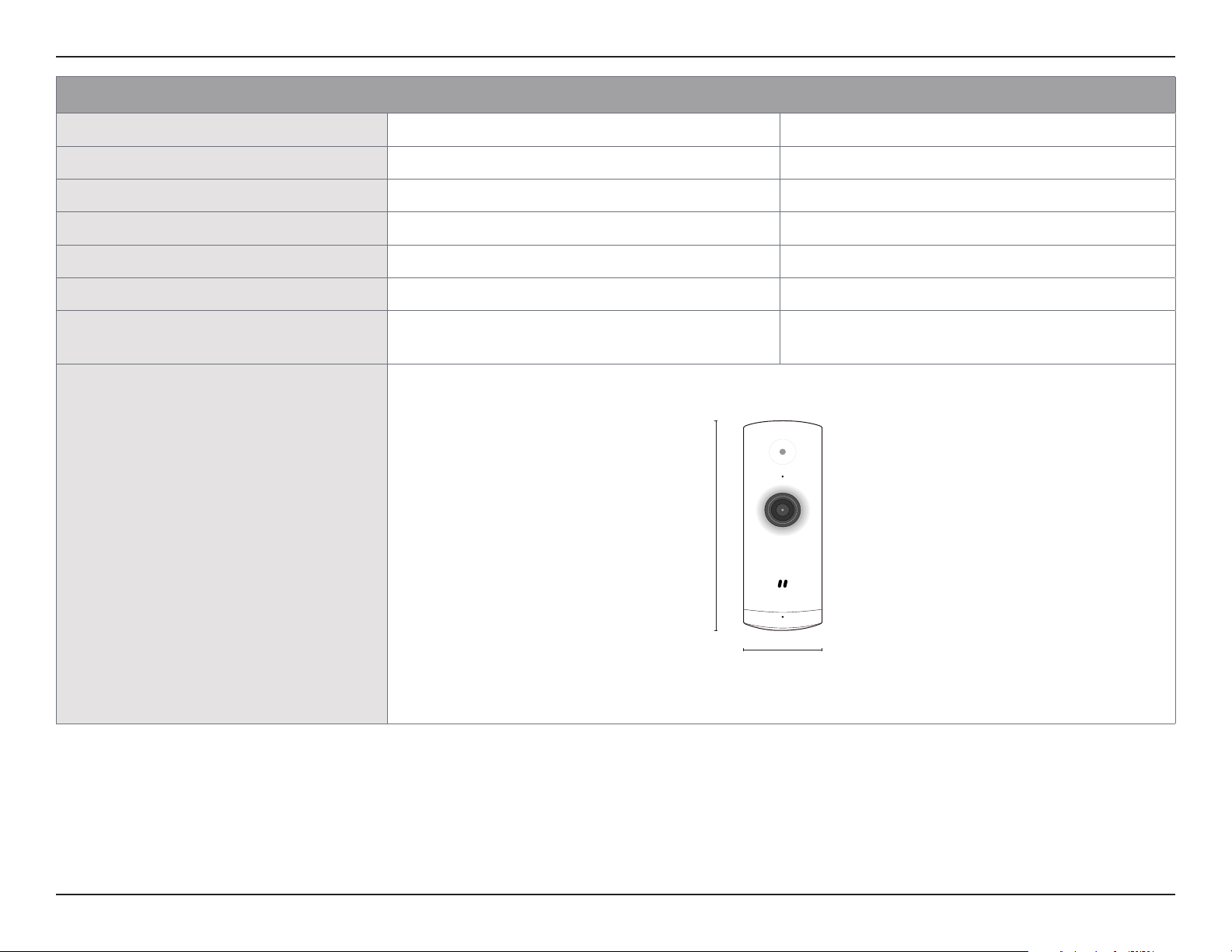
Dimensions Diagram
Footnotes:
• Use of audio or video equipment for recording the image or audio of a person without their knowledge and consent is prohibited in certain states or jurisdictions. The end-user assumes all liability for compliance with applicable state, local and federal laws.
• The DCS-8000LH is not supported by the mydlink Home app and is not compatible with D-Link’s Connected Home Series.
• Check device app store for OS requirements.
3.62 inches
1.50 inches

31D-Link DCS-8000LH User Manual
Appendix B - Regulatory Statements
Regulatory Statements
Federal Communication Commission Interference Statement
This equipment has been tested and found to comply with the limits for a Class A digital device, pursuant to part 15 of the FCC Rules. These limits
are designed to provide reasonable protection against harmful interference when the equipment is operated in a commercial environment. This
equipment generates, uses, and can radiate radio frequency energy and, if not installed and used in accordance with the instruction manual,
may cause harmful interference to radio communications. Operation of this equipment in a residential area is likely to cause harmful interference
in which case the user will be required to correct the interference at his own expense.
Non-modication Statement
Any changes or modications not expressly approved by the party responsible for compliance could void the user's authority to operate the
equipment.
Caution
This device complies with Part 15 of the FCC Rules. Operation is subject to the following two conditions:
(1) This device may not cause harmful interference, and (2) this device must accept any interference received, including interference that may
cause undesired operation.
This device and its antenna(s) must not be co-located or operating in conjunction with any other antenna or transmitter except in accordance
with FCC multi-transmitter product procedures. For product available in the USA/Canada market, only channel 1~11 can be operated. Selection
of other channels is not possible.
Note
The country code selection is for non-USA models only and is not available to all USA models. Per FCC regulations, all WiFi product marketed in
the USA must be xed to USA operational channels only.
IMPORTANT NOTICE:
FCC Radiation Exposure Statement
This equipment complies with FCC radiation exposure limits set forth for an uncontrolled environment. This equipment should be installed and
operated with minimum distance 20 cm between the radiator and your body.
32D-Link DCS-8000LH User Manual
Appendix B - Regulatory Statements
Frequency Band(s)
Frequenzband
Fréquence bande(s)
Bandas de Frecuencia
Frequenza/e
Frequentie(s)
Max. Output Power (EIRP)
Max. Output Power
Consommation d’énergie max.
Potencia máxima de Salida
Potenza max. Output
Max. Output Power
2.4 G 2.4 – 2.4835 GHz 100 mW
Warning Statement:
The power outlet should be near the device and easily accessible.

33D-Link DCS-8000LH User Manual
Appendix B - Regulatory Statements
NOTICE OF WIRELESS RADIO LAN USAGE IN THE EUROPEAN COMMUNITY FOR WIRELESS PRODUCT ONLY:
• This device is restricted to indoor use when operated in the European Community using channels in the 5.15-5.35 GHz band to reduce the
potential for interference.
• This device is a 2.4 GHz wideband transmission system (transceiver), intended for use in all EU member states and EFTA countries. This
equipment may be operated in AL, AD, BE, BG, DK, DE, FI, FR, GR, GW, IS, IT, HR, LI, LU, MT, MK, MD, MC, NL, NO, AT, PL, PT, RO, SM, SE, RS, SK, ES,
CI, HU, and CY.
Usage Notes:
• To remain in conformance with European National spectrum usage regulations, frequency and channel limitations will be applied on the
products according to the country where the equipment will be deployed.
• This device is restricted from functioning in Ad-hoc mode while operating in 5 GHz. Ad-hoc mode is direct peer-to-peer communication
between two client devices without an Access Point.
• Access points will support DFS (Dynamic Frequency Selection) and TPC (Transmit Power Control) functionality as required when operating in
5 GHz band within the EU.
• Please refer to the product manual or datasheet to check whether your product uses 2.4 GHz and/or 5 GHz wireless.
SAFETY INSTRUCTIONS
The following general safety guidelines are provided to help ensure your own personal safety and protect your product from potential damage.
Remember to consult the product user instructions for more details.
• Static electricity can be harmful to electronic components. Discharge static electricity from your body (i.e. touching grounded bare metal)
before touching the product.
• Do not attempt to service the product and never disassemble the product. For some products with a user replaceable battery, please read
and follow the instructions in the user manual.
• Do not spill food or liquid on your product and never push any objects into the openings of your product.
• Do not use this product near water, areas with high humidity, or condensation unless the product is specically rated for outdoor application.
• Keep the product away from radiators and other heat sources.
• Always unplug the product from mains power before cleaning and use a dry lint free cloth only.
34D-Link DCS-8000LH User Manual
Appendix B - Regulatory Statements
Disposing and Recycling Your Product
ENGLISH EN
This symbol on the product or packaging means that according to local laws and regulations this product should be not be disposed
of in household waste but sent for recycling. Please take it to a collection point designated by your local authorities once it has
reached the end of its life, some will accept products for free. By recycling the product and its packaging in this manner you help to
conserve the environment and protect human health.
D-Link and the Environment
At D-Link, we understand and are committed to reducing any impact our operations and products may have on the environment. To minimise
this impact D-Link designs and builds its products to be as environmentally friendly as possible, by using recyclable, low toxic materials in both
products and packaging.
D-Link recommends that you always switch o or unplug your D-Link products when they are not in use. By doing so you will help to save energy
and reduce CO2 emissions.
To learn more about our environmentally responsible products and packaging please visit www.dlinkgreen.com.