User Manual
Version 1.03 | November 22, 2017
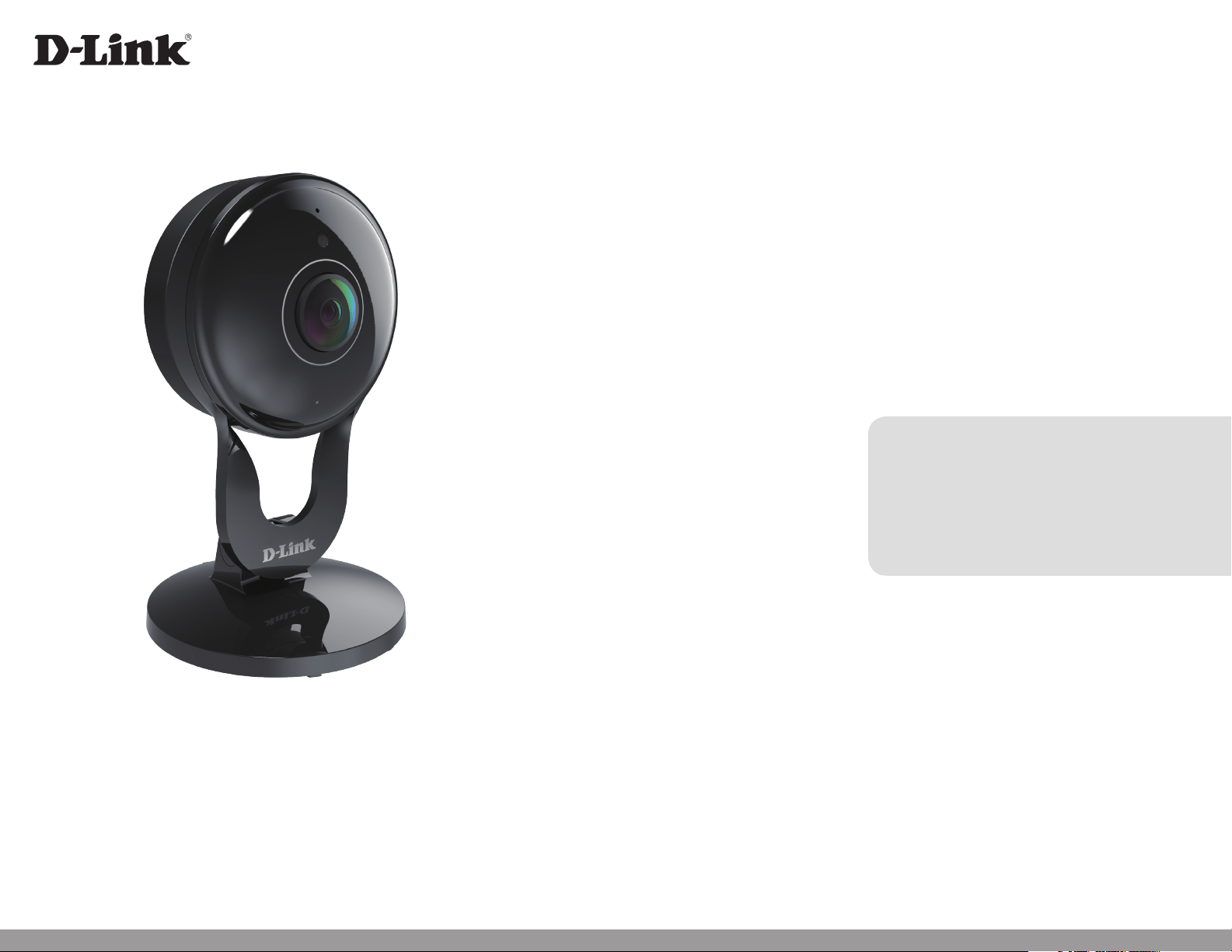
DCS-2530L
Full HD 180-Degree Wi-Fi Network Camera
2D-Link DCS-2530L User Manual
D-Link reserves the right to revise this publication and to make changes in the content hereof without obligation to notify any person or
organization of such revisions or changes. Information in this document may become obsolete as our services and websites develop and
change.
Manual Revisions
Revision Date Description
1.00 04/22/2016 DCS-2530L Revision A1 with rmware version 1.00
1.01 09/23/2016 Update technical specications
1.02 11/08/2016 Updated for rmware 1.00.21
1.03 11/22/2017 Updated for rmware v1.03 with privacy mode
Trademarks
D-Link and the D-Link logo are trademarks or registered trademarks of D-Link Corporation or its subsidiaries in the United States or other
countries. All other company or product names mentioned herein are trademarks or registered trademarks of their respective companies.
Copyright © 2017 D-Link Corporation.
All rights reserved. This publication may not be reproduced, in whole or in part, without prior expressed written permission from D-Link Corporation.
Preface

3D-Link DCS-2530L User Manual
Table of Contents
Product Overview .............................................................. 4
Package Contents .........................................................................4
System Requirements ................................................................. 4
Introduction ................................................................................... 5
Features ............................................................................................ 5
Hardware Overview ..................................................................... 6
Front View ................................................................................ 6
Rear View .................................................................................7
Installation ......................................................................... 8
Wireless Installation Considerations ......................................9
Mobile App Setup ......................................................................10
Zero Conguration Setup ........................................................11
Mounting the Camera...............................................................14
mydlink ...........................................................................................16
Using the DCS-2530L with Google Home .........................17
Conguration ...................................................................20
Accessing the Web Conguration Utility ...........................20
Live Video ......................................................................................21
Setup ...............................................................................................23
Setup Wizard ........................................................................23
Network Setup ..................................................................... 28
Wireless Setup ......................................................................31
Dynamic DNS .......................................................................32
Image Setup .........................................................................33
Audio and Video ..................................................................35
Motion Detection ...............................................................36
Sound Detection ................................................................. 37
Time and Date ...................................................................... 38
Event Setup ........................................................................... 39
SD Card ...................................................................................47
Advanced ......................................................................................48
ICR and IR ...............................................................................48
HTTPS ...................................................................................... 49
Access List..............................................................................50
Maintenance ................................................................................51
Admin .....................................................................................51
System ....................................................................................52
Firmware Upgrade ..............................................................53
Status ..............................................................................................54
Device Info ............................................................................54
Log ...........................................................................................55
Help .................................................................................................56
Technical Specications ..................................................57
Contacting Technical Support ........................................59
Warranty ...........................................................................60
Registration .....................................................................65

4D-Link DCS-2530L User Manual
Section 1: Product Overview
Product Overview
Package Contents
System Requirements
• 802.11n/g Wi-Fi router
• A broadband Internet connection
• iPhone, iPad, Android, or smartphone or tablet (please refer to the mobile app’s store page to check whether your device is
compatible)
• DCS-2530L Full HD 180-Degree Wi-Fi Network Camera
• Power Adapter
• Mounting Kit
• Quick Installation Guide
• Quick Install Card
Note: Using a power supply with a dierent voltage than the one included with your product
will cause damage and void the warranty for this product.
If any of the above items are missing, please contact your reseller.

5D-Link DCS-2530L User Manual
Section 1: Product Overview
Introduction
The DCS-2530L Full HD 180-Degree Wi-Fi Network Camera boasts an ultra-wide 180° horizontal lens that easily captures your entire room, wall-to-
wall, in high-quality 1080p. Its rotatable head makes ceiling installations easy, and the built-in night vision and handy mobile app empower you
with knowing exactly what is happening, day or night.
180° Wide Angle Lens
The DCS-2530L provides whole-room coverage with a 180° wide angle lens, eliminating the need for multiple cameras to cover a single room.
Built-in dewarping technology automatically corrects the image for you.
1080p Full HD Video
The 1080p Full HD sensor provides crisp detail and clarity for high-quality snapshots and video.
Comprehensive Day/Night Surveillance
The infrared LEDs enable night time viewing of up to 16 feet (5 meters), while the motion sensor and built-in microphone detects nearby motion
and sound anytime day or night. The microSD card slot allows the camera to record snapshots and video directly to onboard storage for a complete
surveillance solution.
Wireless N Connectivity
The DCS-2530L uses high-speed Wireless N to connect to your wireless router, and is compatible with 802.11n/g.
Web Conguration
In addition to the mydlink mobile app, you can use a standard web browser to congure and manage the DCS-2530L through the mydlink website,
and access your DCS-2530L anytime, anywhere in the world from virtually any device.
Features
6D-Link DCS-2530L User Manual
Section 1: Product Overview
Hardware Overview
Front View
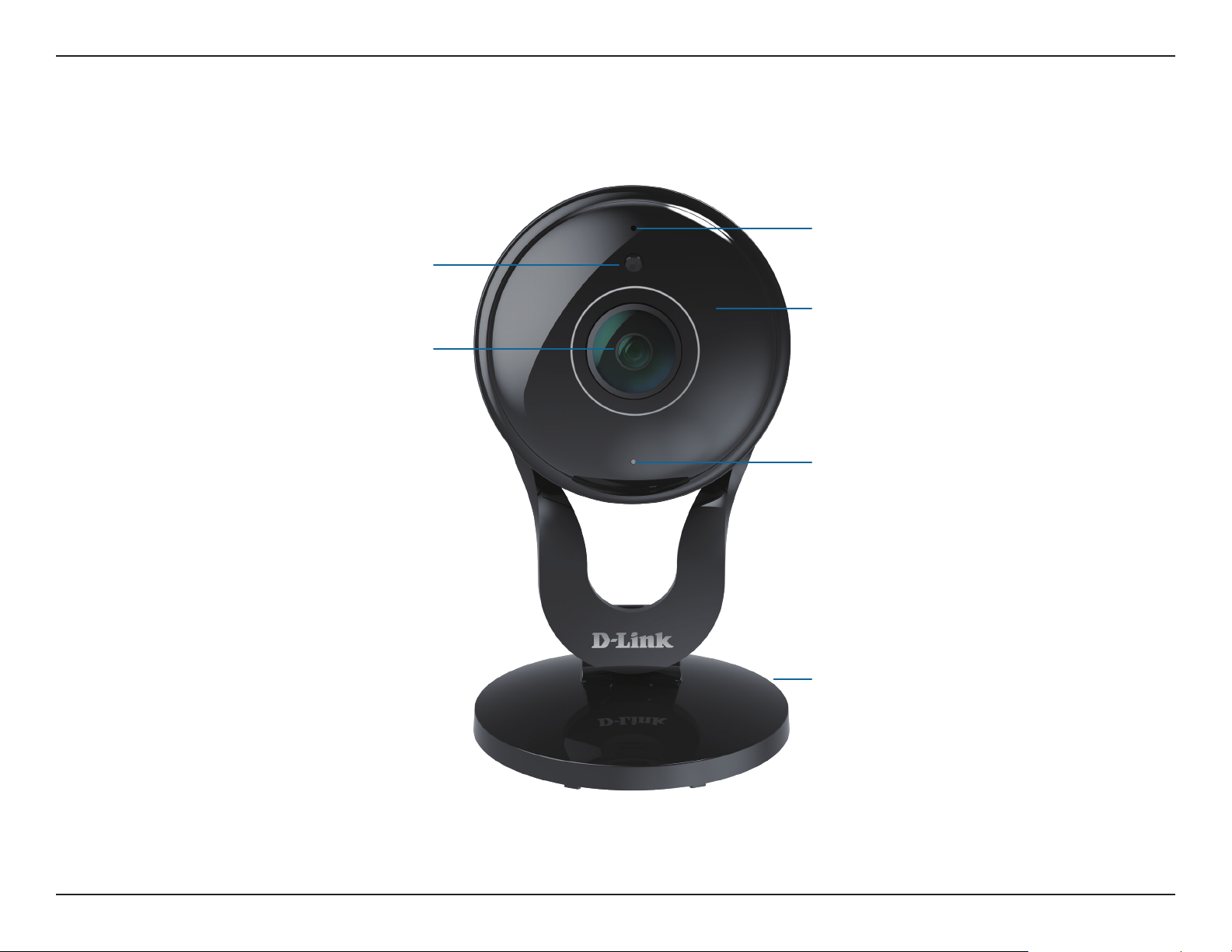
Camera Lens
Microphone
IR LEDs (behind cover)
Light Sensor
Camera Stand
Signal Locator LED
Solid Green: Best wireless signal
Solid Orange: Good wireless signal
Blinking Orange: Poor wireless signal
7D-Link DCS-2530L User Manual
Section 1: Product Overview
Rear View
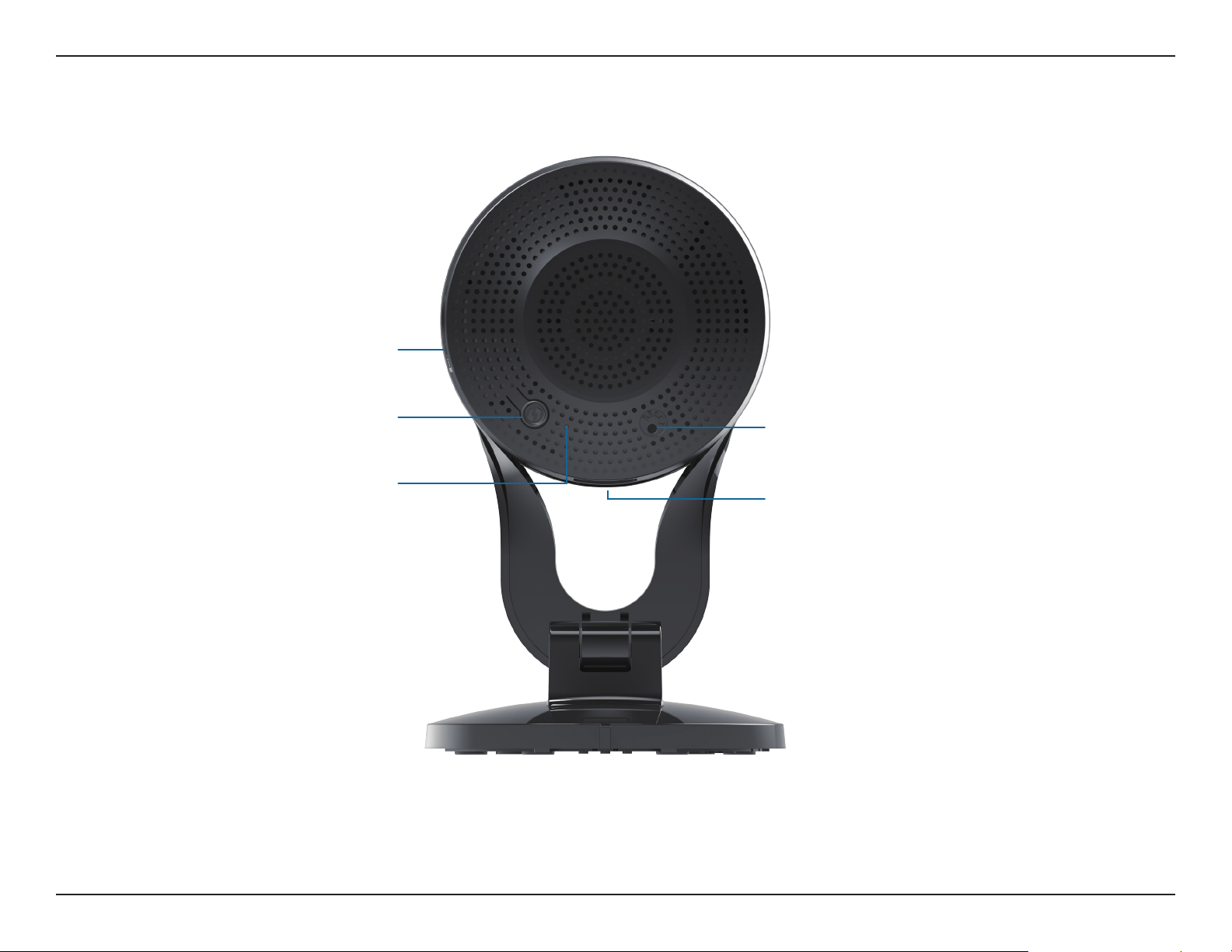
microSD Slot
MicroUSB Connector
(for power)
Reset Button
WPS Button
Power/Status LED
Solid Green: Successfully connected
Blinking Green: WPS process in progress
Solid Red: Camera is booting, or rmware
upgrade is in progress

8D-Link DCS-2530L User Manual
Section 2: Installation
Installation
There are two ways to set up your camera:
mydlink Lite Mobile App: You can use the mydlink Lite mobile app to guide you through setup and initial conguration of your
camera. Refer to "Mobile App Setup" on page 10.
Zero Conguration Setup: If you have a mydlink-enabled router (D-Link Wi-Fi router), this is the easiest way to set up your camera.
Refer to "Zero Conguration Setup" on page 11.
Note: To ensure your product has the latest security updates and operates at optimal performance, it is recommended you update your product to
the latest rmware after installation and to periodically check for new rmware releases. Updates can be found by searching your model name at
http://support.dlink.com or through the mydlink mobile apps for mydlink registered devices.

9D-Link DCS-2530L User Manual
Section 2: Installation
Wireless Installation Considerations
The DCS-2530L connects to your network using a wireless connection from anywhere within the operating range of your wireless network. However,
the number, thickness and location of walls, ceilings, or other objects that the wireless signals must pass through, may limit the range. Typical ranges
vary depending on the types of materials and background RF (radio frequency) noise in your home or business. The key to maximizing wireless
range is to follow these basic guidelines:
1. Minimize the number of walls and ceilings between your adapter and other network devices (such as your Network Camera) - each
wall or ceiling can reduce your adapter’s range from 3-90 feet (1-30 meters).
2. Be aware of the direct line between network devices. A wall that is 1.5 feet thick (.5 meters), at a 45-degree angle appears to be
almost 3 feet (1 meter) thick. At a 2-degree angle, it looks over 42 feet (14 meters) thick. Position your devices so that the signal
will travel straight through a wall or ceiling (instead of at an angle) for better reception.
3. Building materials make a dierence. A solid metal door or aluminum studs may weaken the wireless signal. Try to position your
access points, wireless routers, and other networking devices where the signal passes through drywall or open doorways. Materials
and objects such as glass, steel, metal, walls with insulation, water (sh tanks), mirrors, le cabinets, brick, and concrete will degrade
your wireless signal.
4. Keep your product at least 3-6 feet or 1-2 meters away from electrical devices or appliances that generate RF noise.
5. If you are using 2.4 GHz cordless phones or other radio frequency sources (such as microwave ovens), your wireless connection
may degrade dramatically or drop completely. Make sure your 2.4 GHz phone base is as far away from your wireless devices as
possible. The base transmits a signal even if the phone in not in use.
10D-Link DCS-2530L User Manual
Section 2: Installation
Mobile App Setup
You can congure your camera through the mydlink Lite mobile app. On your mobile device, download mydlink Lite by searching for mydlink Lite
in the iTunes App Store, Google Play, or the Windows Store.
Launch the mydlink Lite app and create a new account or sign in to your existing account. Follow the onscreen instructions to set up your camera.
When you are asked to scan a QR code, use the code on the Quick Install Card in your package, or on the label attached to your device.
Congratulations, your DCS-2530L is now ready to use! Be sure to accept any rmware update to keep your product secure and up to date with the
latest features.
11D-Link DCS-2530L User Manual
Section 2: Installation
Zero Conguration Setup
If you have a mydlink-enabled Wi-FI Router, you can take advantage of Zero Conguration Setup. Zero Conguration automatically congures
your camera’s settings for you, and adds the camera to your mydlink account automatically. This type of setup allows you to set up your camera by
simply plugging it in and connecting it to your router.
Connect your camera to your mydlink-enabled Wi-Fi router and Zero Configuration will automatically configure your DCS-2530L and
add the camera to your mydlink account. After the short time it takes to do this you can remotely access your camera from the website
(http://www.mydlink.com) or the mydlink app to manage and monitor your DCS-2530L.
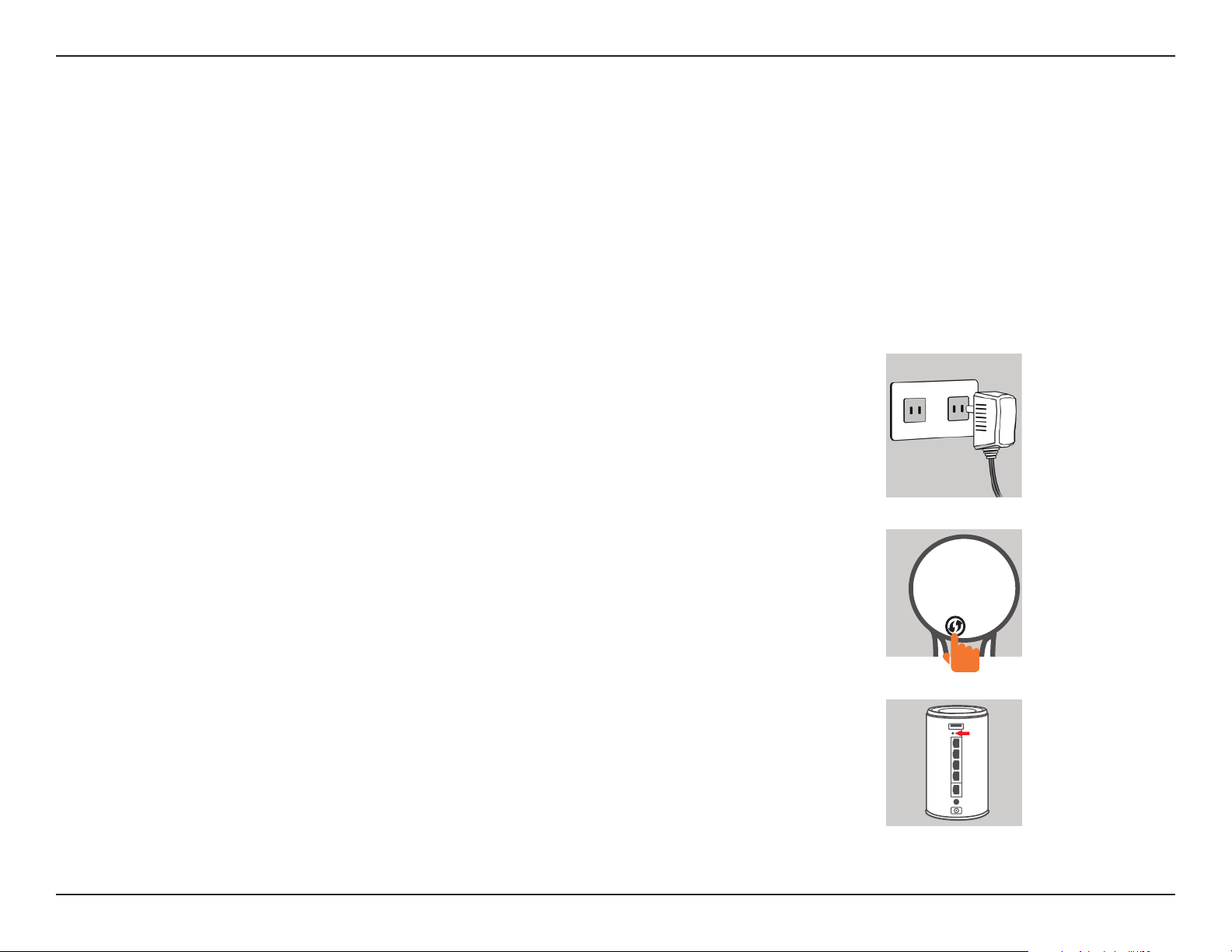
Plug in the External Power Adapter
Connect the power adapter to the microUSB port on the back of the camera. Plug the power
adapter in to a wall outlet.
Press the WPS button on your camera
Press and hold the WPS button for three seconds. The blue WPS status LED will start blinking.
Press the WPS button on your Wi-Fi Router
Press the WPS button on your router within 60 seconds. The WPS button is usually on the
side or back of your Wi-Fi router. The DCS-2530L will automatically create a secure wireless
connection to your router and reboot. When it has successfully connected, the Power LED will
be lit green and the Direct LED will be turned o.
12D-Link DCS-2530L User Manual
Section 2: Installation
DCS-2530L
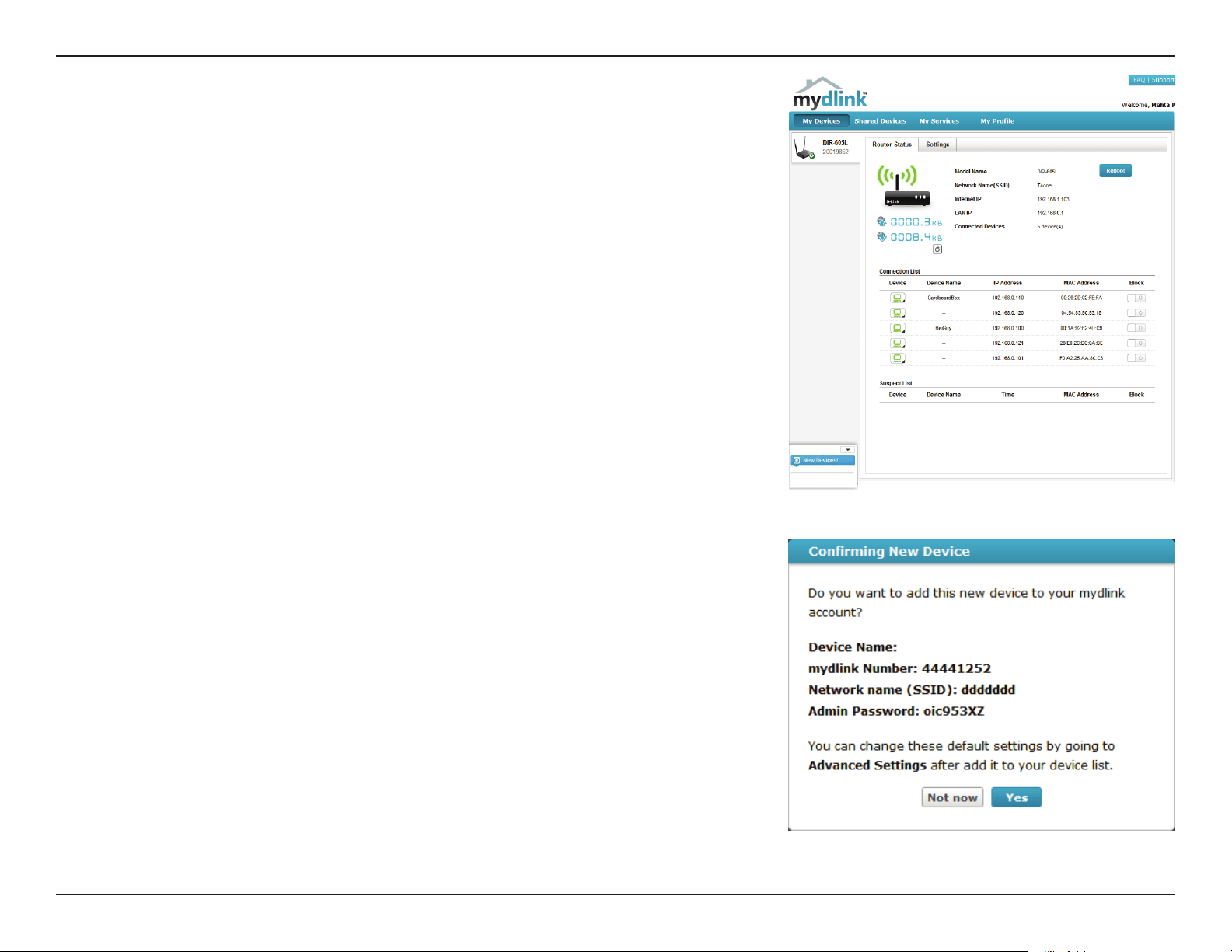
Check Your mydlink Account
From any computer with an Internet connection, open a web browser and login to your mydlink
account. The mydlink page will check for new devices and display a New device Found! pop-
up notication in the bottom left corner. Click the notication to continue.
A summary and conrmation notication will appear with the automatically congured details.
Make a note of the details and click Yes to add the camera to your account.
DCS-2530L
13D-Link DCS-2530L User Manual
Section 2: Installation
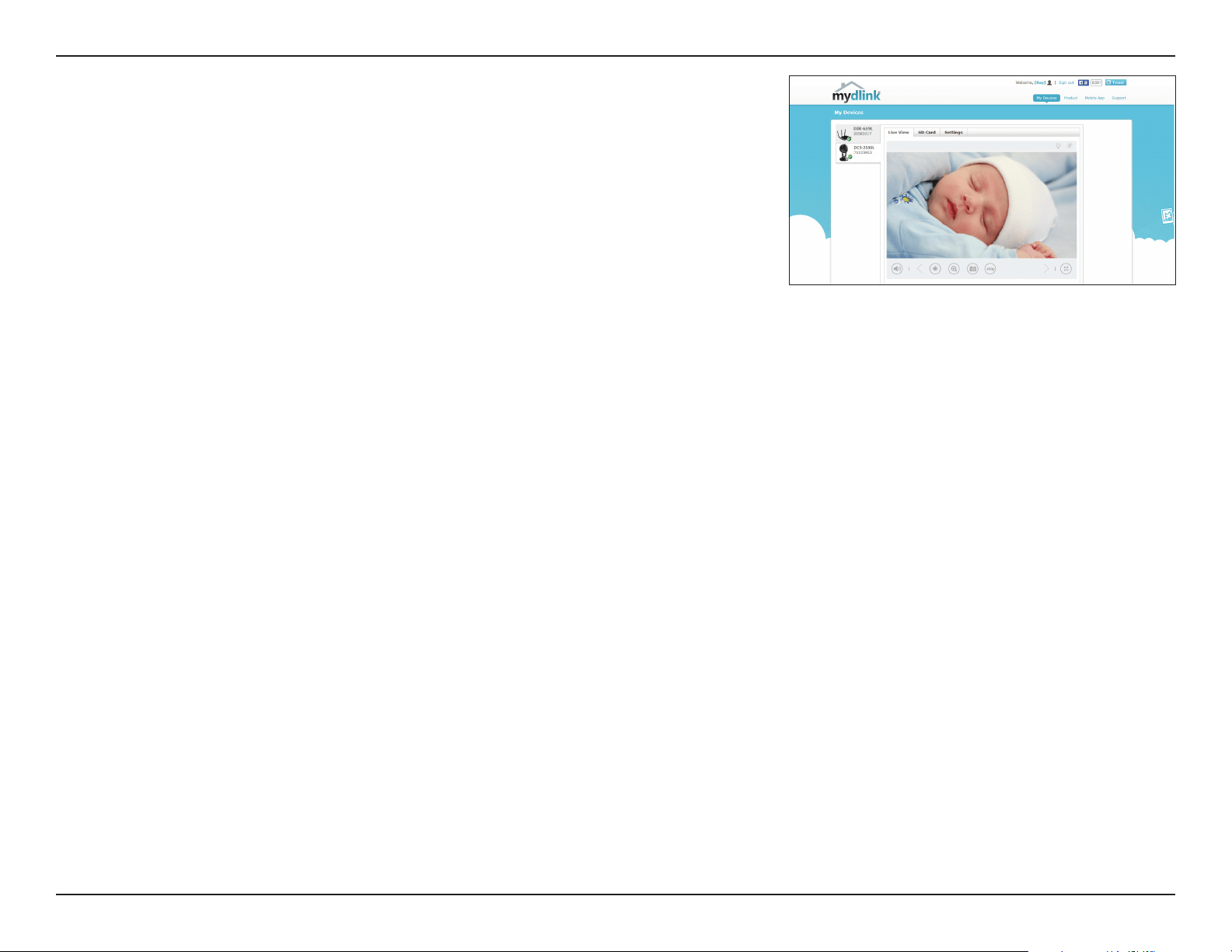
Zero Conguration will navigate to the mydlink Live View tab for your camera where you will see
a screen similar to the following.
Your camera is now set up, and you can skip to "mydlink" on page 16 to learn more about the
mydlink features of this camera, or to "Conguration" on page 20 for advanced conguration
of your camera.
Note: If you see a white haze when viewing in night vision mode, the night vision light on the
camera may be reecting o a nearby surface. Try repositioning and aiming the camera.
14D-Link DCS-2530L User Manual
Section 2: Installation
Mounting the Camera
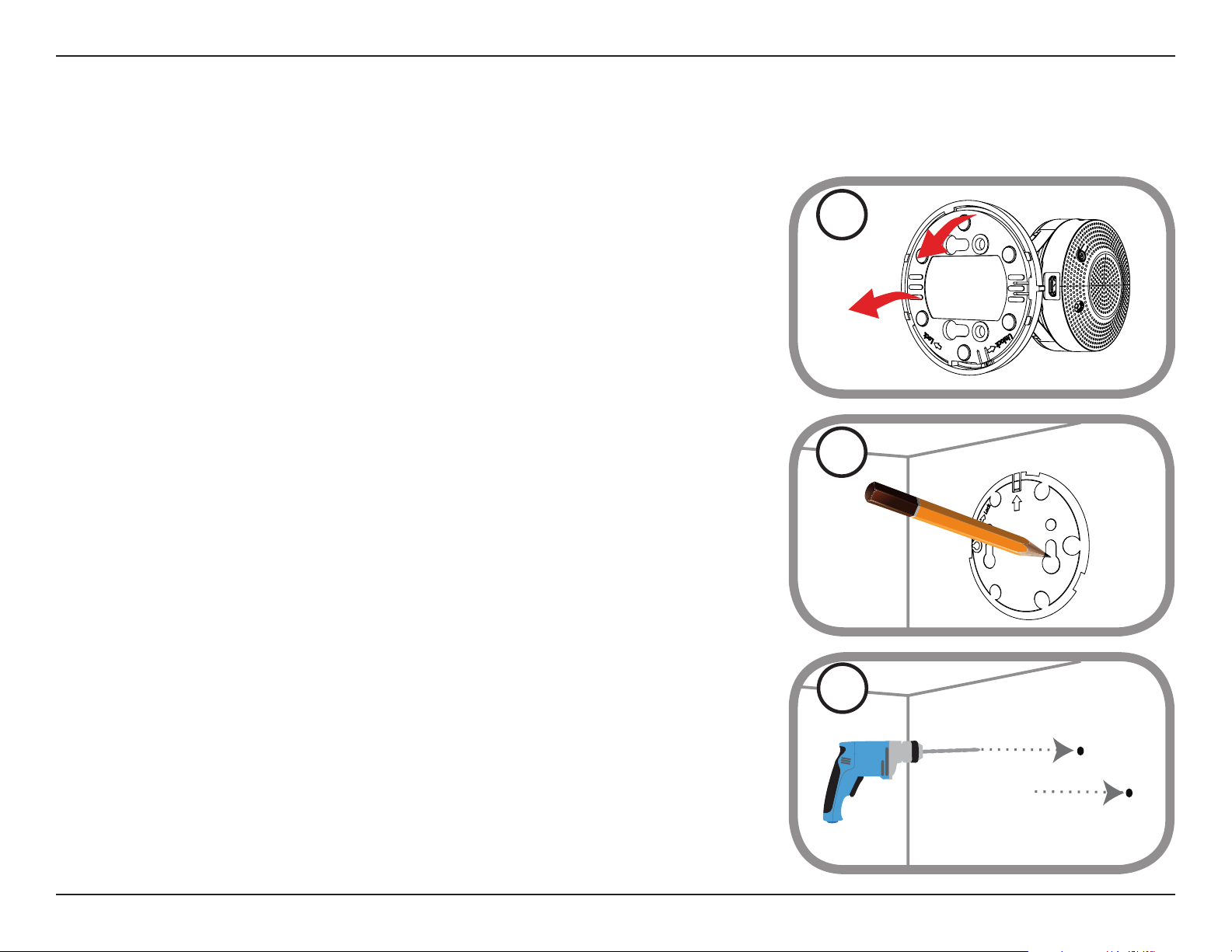
To mount your camera on a wall or ceiling, please follow the steps below. It is recommended that you congure the camera before mounting.
Step 1
Rotate the baseplate counter-clockwise and remove it.
1
Step 2
Place the baseplate where you want to position the camera and use a pencil to mark the holes.
You can use the lower holes for a removable installation, or the top holes for a xed one. Make
sure that the arrow on the baseplate is pointing up.
2
Step 3
Depending on the material of the wall or ceiling, use proper tools to drill holes 25 mm deep
with a 6 mm drill bit where you marked. If the wall is made out of concrete, drill the holes rst,
then insert the plastic anchors to support the screws.
3
15D-Link DCS-2530L User Manual
Section 2: Installation
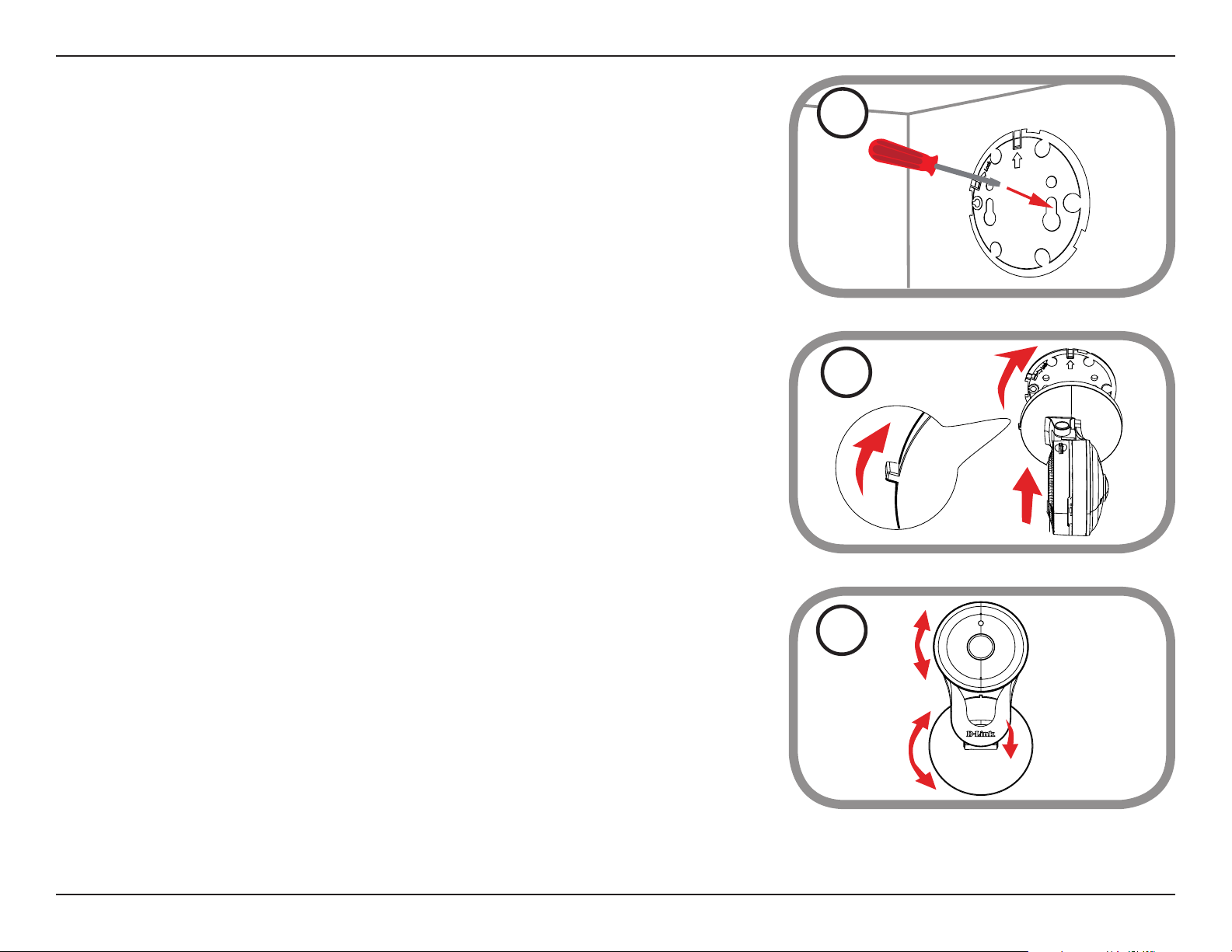
Step 4
Place the baseplate over the holes that are in the wall. Make sure to align the baseplate holes
with the holes in the wall. Use the supplied screws to attach the baseplate to the surface of
the wall.
4
Step 6
Adjust the angle and rotation of the camera as desired. You can also rotate the camera on the
baseplate about 45° to the right or left.
6
Step 5
Place the camera over the baseplate with the alignment nub pointing left, then attach the
camera by rotating it until the alignment nub points up.
5
16D-Link DCS-2530L User Manual
Section 2: Installation
mydlink
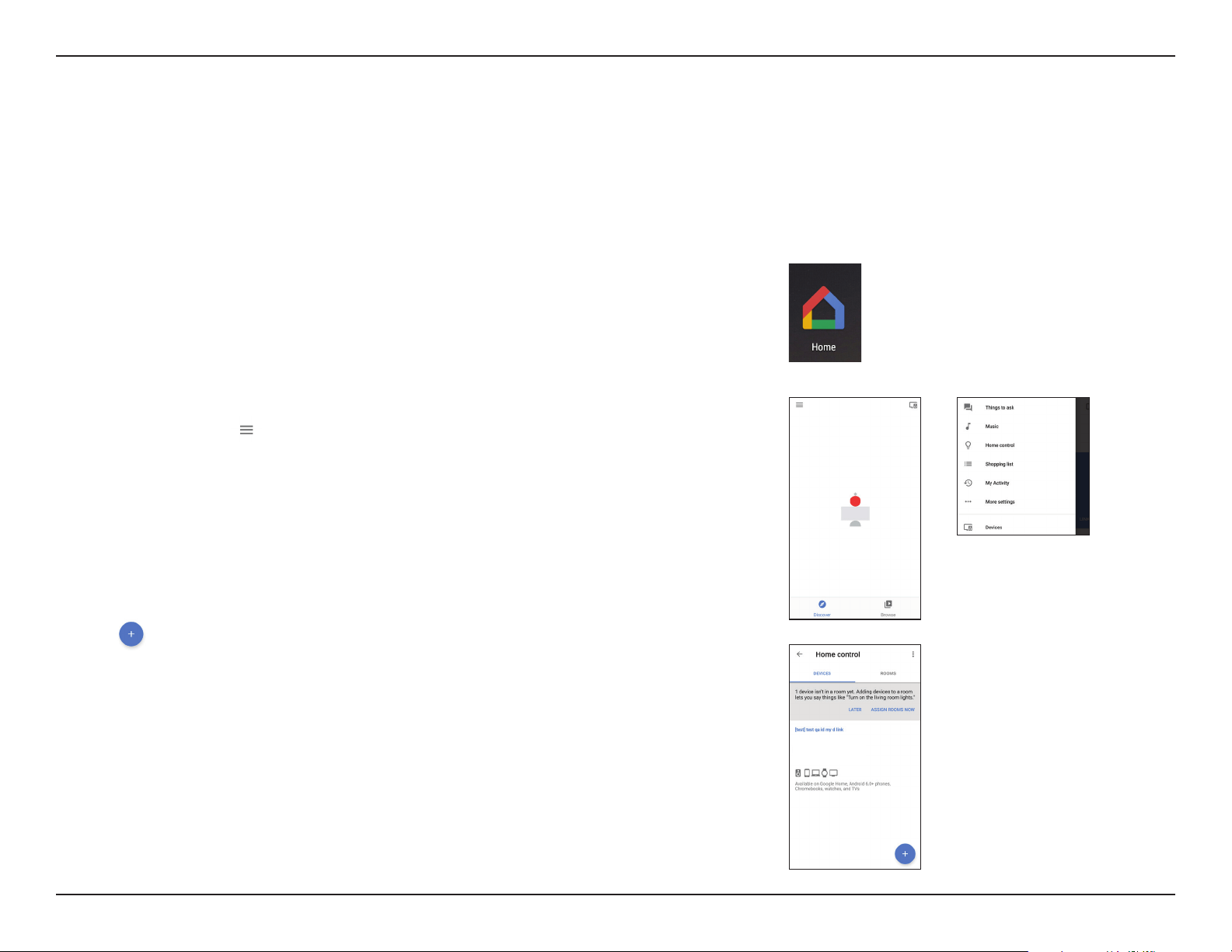
After registering your camera with a mydlink account, you will be able to remotely access your camera from the www.mydlink.com website. After
signing in to your mydlink account, you will see a screen similar to the following:
17D-Link DCS-2530L User Manual
Section 2: Installation
Using the DCS-2530L with Google Home
You can use your voice to control your DCS-2530L with your Google Home Smart Speaker and Google Assistant.
Before proceeding, make sure you have:
1. Installed your DCS-2530L and registered for a mydlink account using mydlink Lite. For more details, please see Mobile App Setup on page 10.
2. Make sure your mobile device, DCS-2530L, and Google Home Smart Speaker are all connected to the same wireless network.
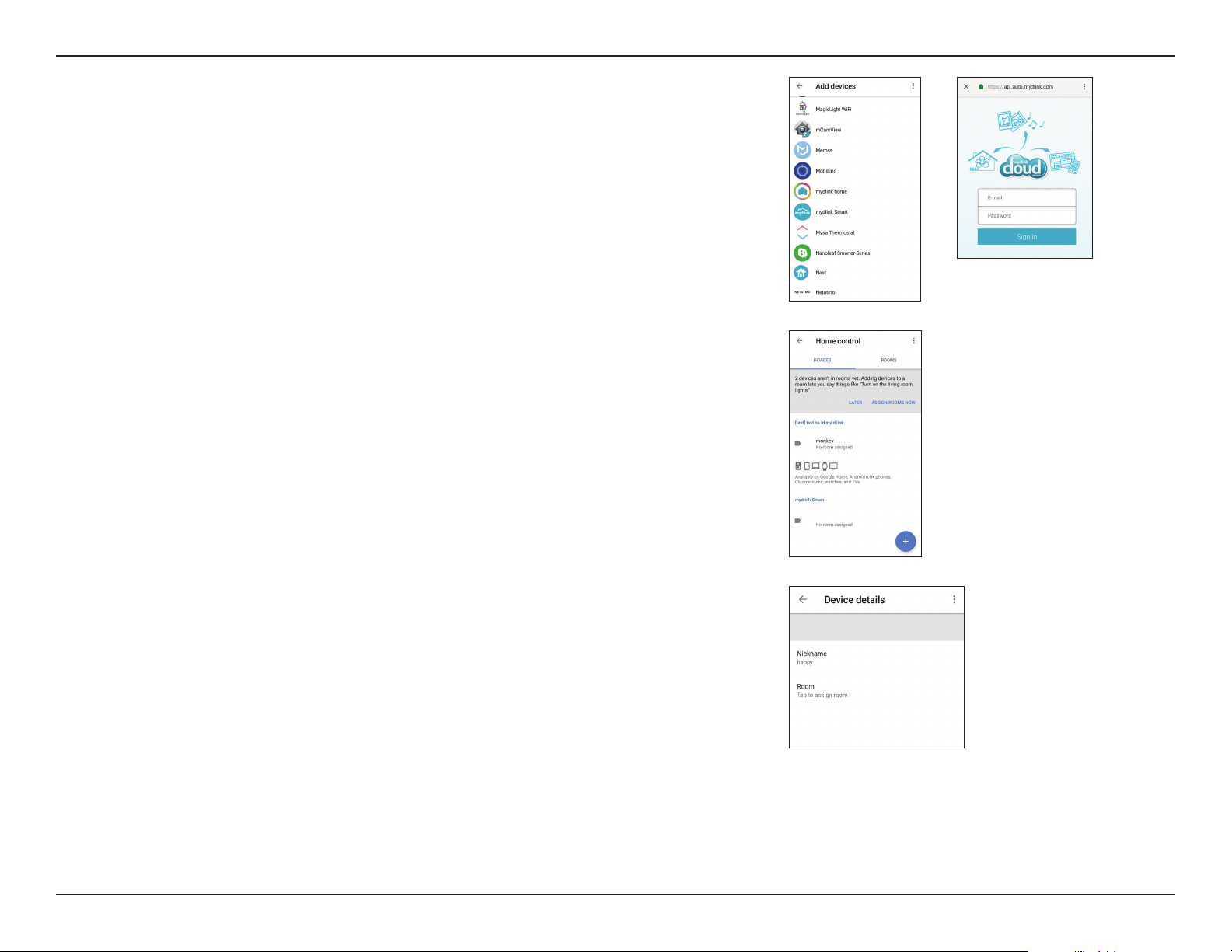
1. From your mobile, download the Google Home app from Google Play
or the App Store.
2. Start the app and follow the instructions to discover and add your
DCS-2530L, or tap
to bring up the menu and tap Home control.
3. Tap
to add a device.
To activate your device for use with Google home:
18D-Link DCS-2530L User Manual
Section 2: Installation
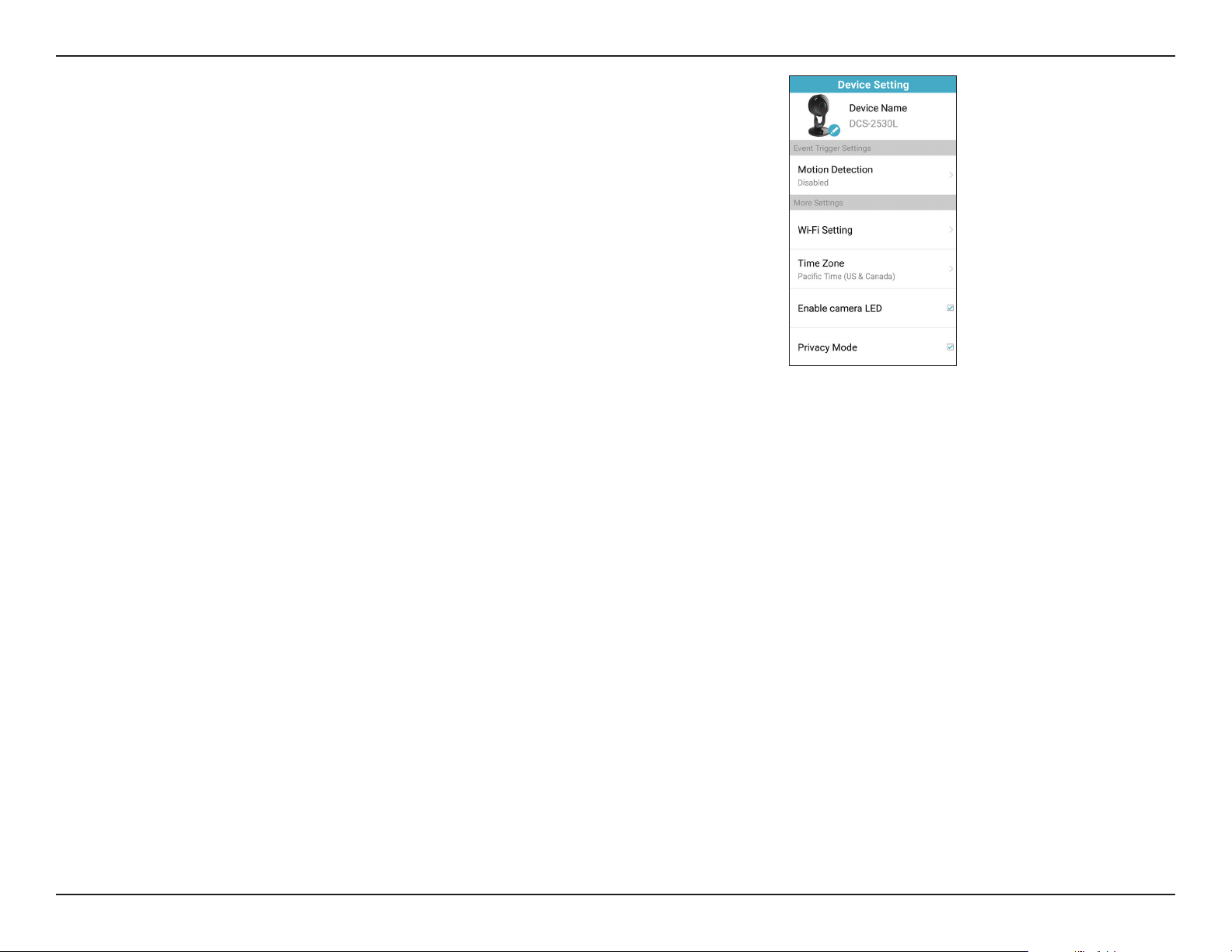
5. After logging in, your DCS-2530L will show up in the Devices tab
under Home control.
6. You can also give your DCS-2530L a friendly name for use with voice
commands under device details.
4. On the Add devices page, tap mydlink Smart to bring up the mydlink
sign in page. Enter your account E-mail and Password and tap Sign in.
DCS-2530L
DCS-2530L
19D-Link DCS-2530L User Manual
Section 2: Installation
Note: When live streaming is On, the Privacy Mode setting will be O.
Conversely when live streaming is O, the Privacy Mode setting will be On.
Using voice commands to control your DCS-2530L:
To enable live video streaming, you can give the voice command “Hey
Google, turn [nickname of camera] On”.
To disable live streaming, open the mydlink Lite app and check Privacy Mode.
20D-Link DCS-2530L User Manual
Section 3: Conguration
Conguration
Accessing the Web Conguration Utility
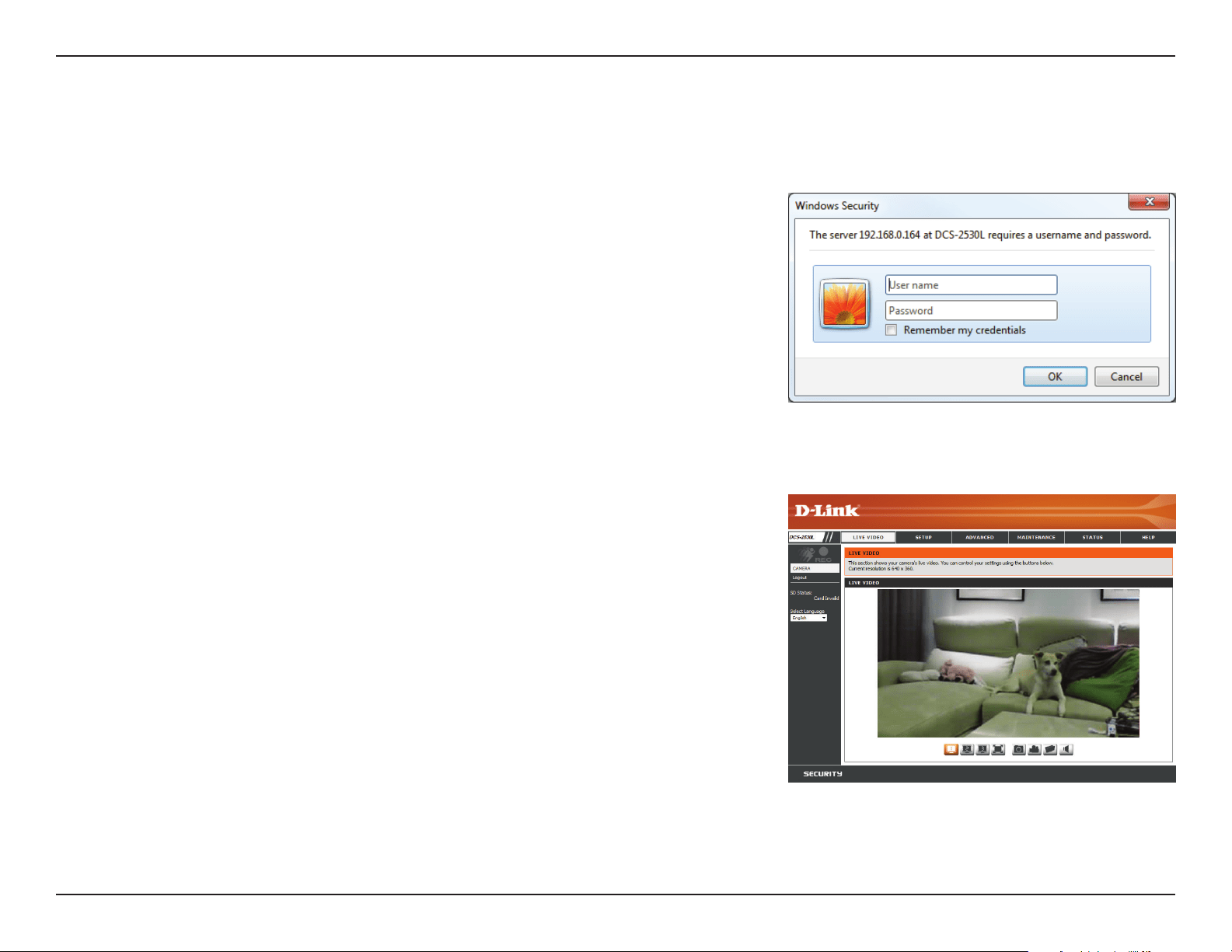
After completing the Camera Installation Wizard, you are ready to use your camera. The camera’s
built-in Web conguration utility is designed to allow you to easily access and congure your
DCS-2530L. At the end of the wizard, click Go To Camera, or enter the IP address of your camera
into a web browser, such as Internet Explorer
®
. To log in, use the user name admin and the
password you created in the Installation Wizard. If you did not create a password, the default
password is blank. After entering your password, click OK.
Note: If you are directly connecting your PC to the camera, or if you are using the camera on
a closed network, the default IP is 192.168.0.20.
Please make sure that you have the latest version of Java application installed on your computer
to ensure proper operation when viewing the video in Java mode. The Java application can
be downloaded at http://www.java.com.
When you connect to the home page of your camera, you may be prompted to download
ActiveX. If you want to use ActiveX to view your video images instead of Java, then you must
download ActiveX.
21D-Link DCS-2530L User Manual
Section 3: Conguration
Live Video
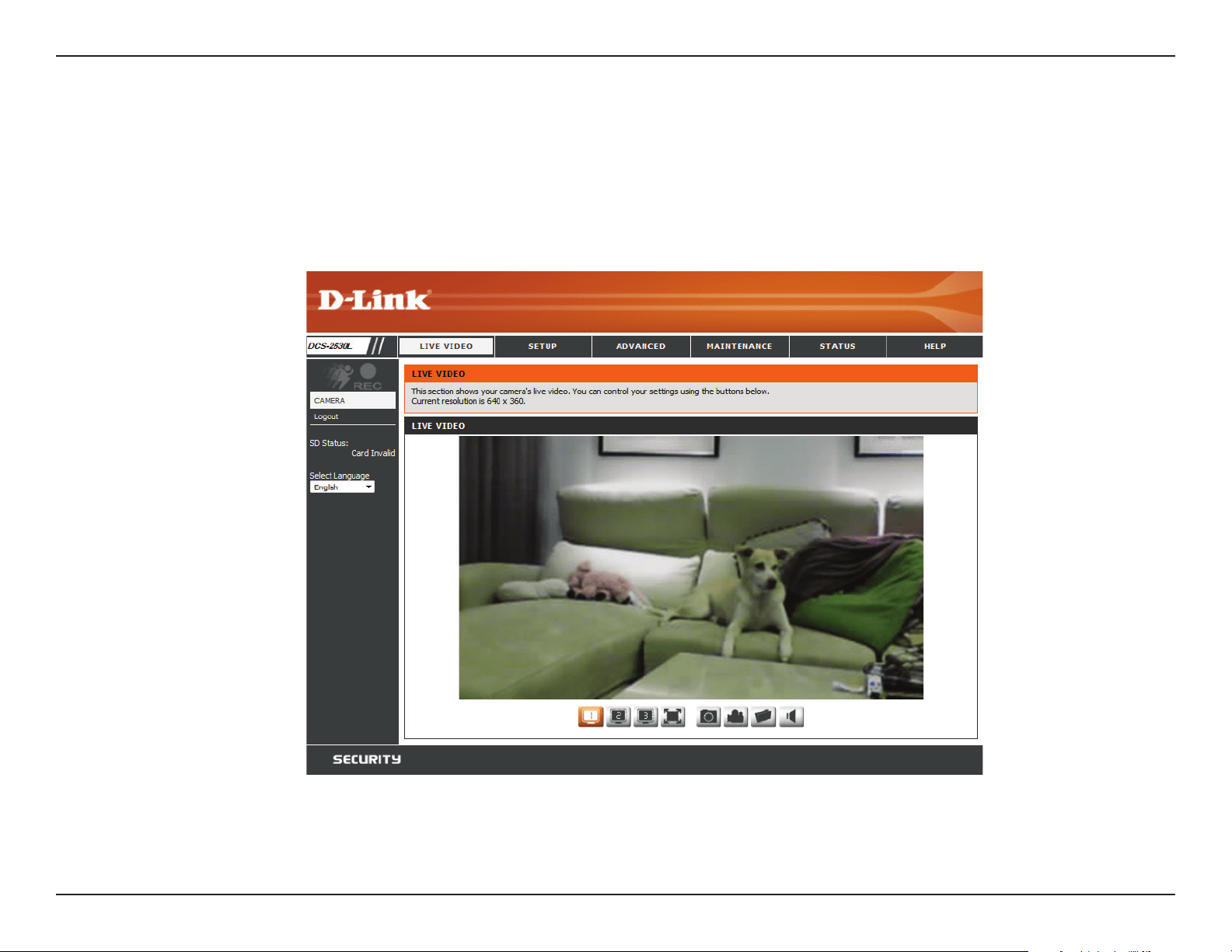
The Live Video page lets you view the live video stream from your camera.
Please make sure that you have the latest version of Java installed on your computer to ensure proper operation when viewing the video in Java mode.
The Java application can be downloaded free from http://www.java.com.
22D-Link DCS-2530L User Manual
Section 3: Conguration
Icon Button Name Function
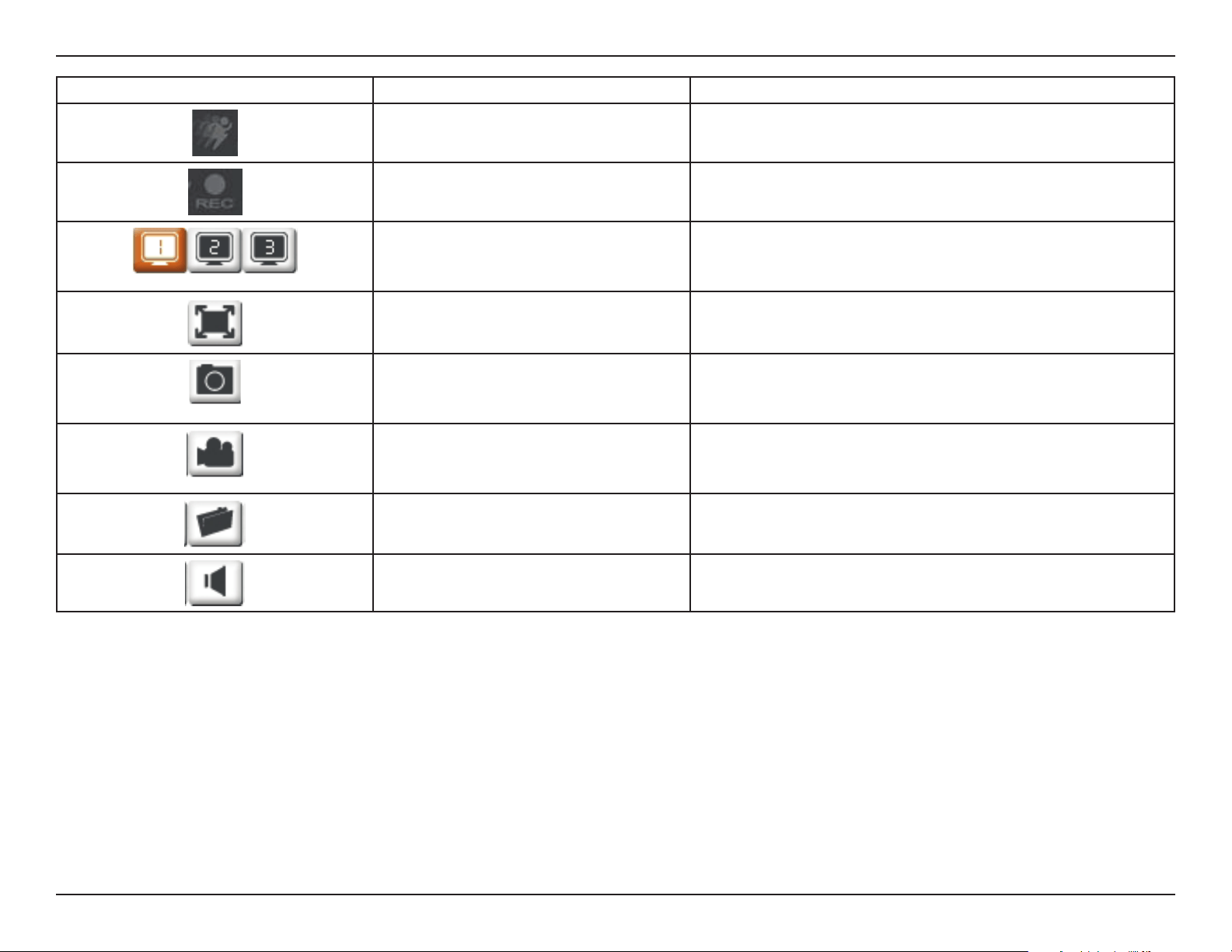
Event Trigger Indicator
This indicator will change color when a trigger event occurs,
such as when motion or sound is detected.
Recording Indicator
When a recording is in progress, this indicator will change
color.
Prole buttons
Use these buttons to switch between video proles. Refer to
"Audio and Video" on page 35 for more information on
setting up proles.
Full Screen button Switches to a full screen view of the camera video.
Snapshot button
Takes a snapshot of the image currently displayed on the
screen and saves it to the hard drive in the folder specied
using the Storage folder button.
Video recording button
Triggers the camera’s recording function. This will record the
video displayed on the screen and saves it to the hard drive in
the folder specied using the Storage folder button.
Storage folder button Sets the storage folder for snapshots and video recordings.
Listen button
Sends the audio received from the camera’s microphone
through to the PC’s speakers.
23D-Link DCS-2530L User Manual
Section 3: Conguration
Setup
Setup Wizard
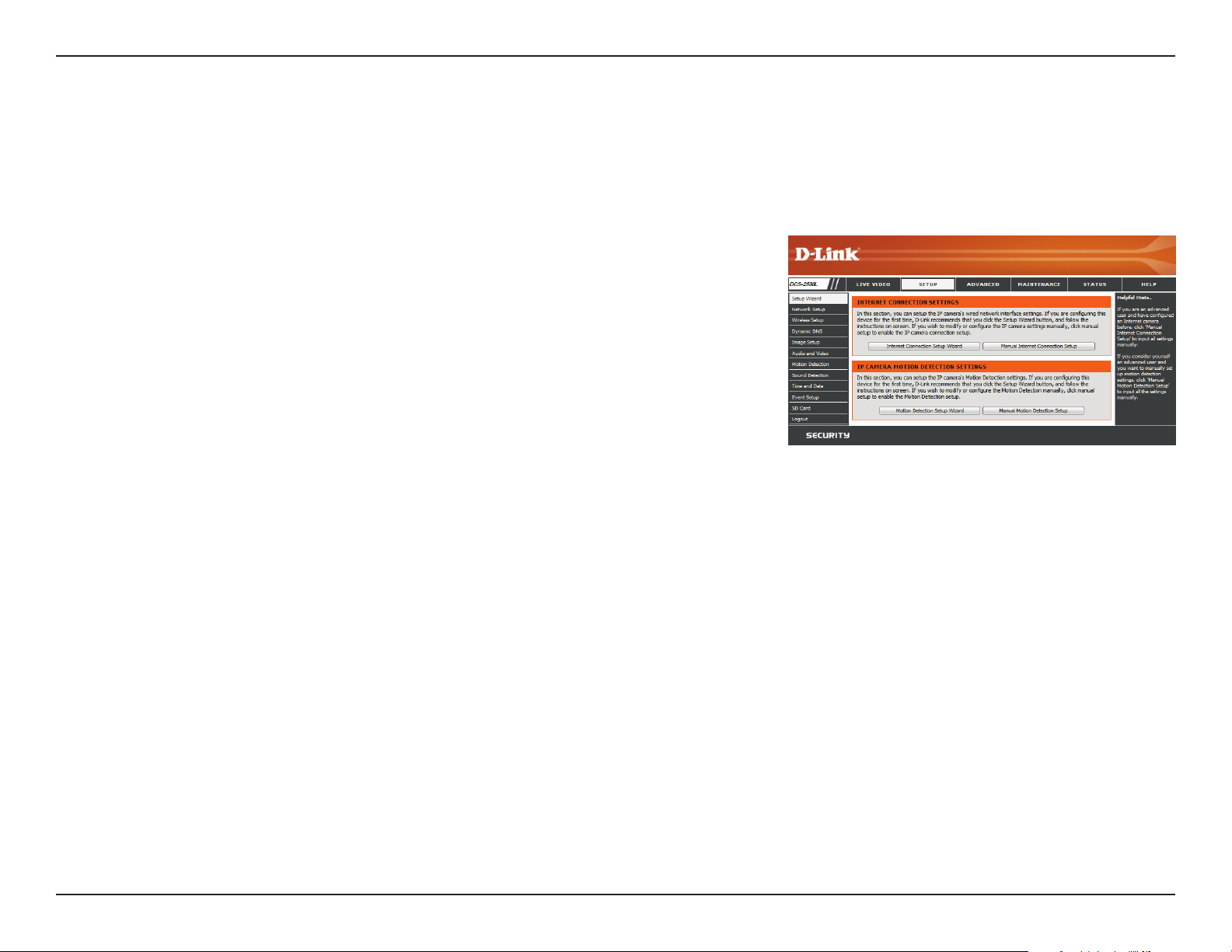
You may choose to congure your camera's Internet connection by
using the Internet Connection Setup Wizard that includes step-by-step
instructions. Please refer to "Internet Connection Setup Wizard" on
page 24 for more details.
If you would rather manually set up the camera's Internet connection,
you can refer to "Network Setup" on page 28 which provides more
details on the information required.
You may choose to congure motion detection by using the Motion
Detection Setup Wizard that includes step-by-step instructions. Please
refer to "Motion Detection Setup Wizard" on page 26 for more
details.
If you would rather manually set up the camera’s motion detection
features, you can refer to "Motion Detection" on page 36 which
provides more details on the information required.
Internet
Connection Setup
Wizard:
Manual Internet
Connection Setup:
Motion Detection
Setup Wizard:
Manual Motion
Detection Setup:
This section allows you to begin setup wizards which will guide you through the process of getting your camera’s various functions congured. If
you comfortable with adjusting the settings manually, you may skip the wizards and adjust settings manually as needed.
24D-Link DCS-2530L User Manual
Section 3: Conguration
Internet Connection Setup Wizard
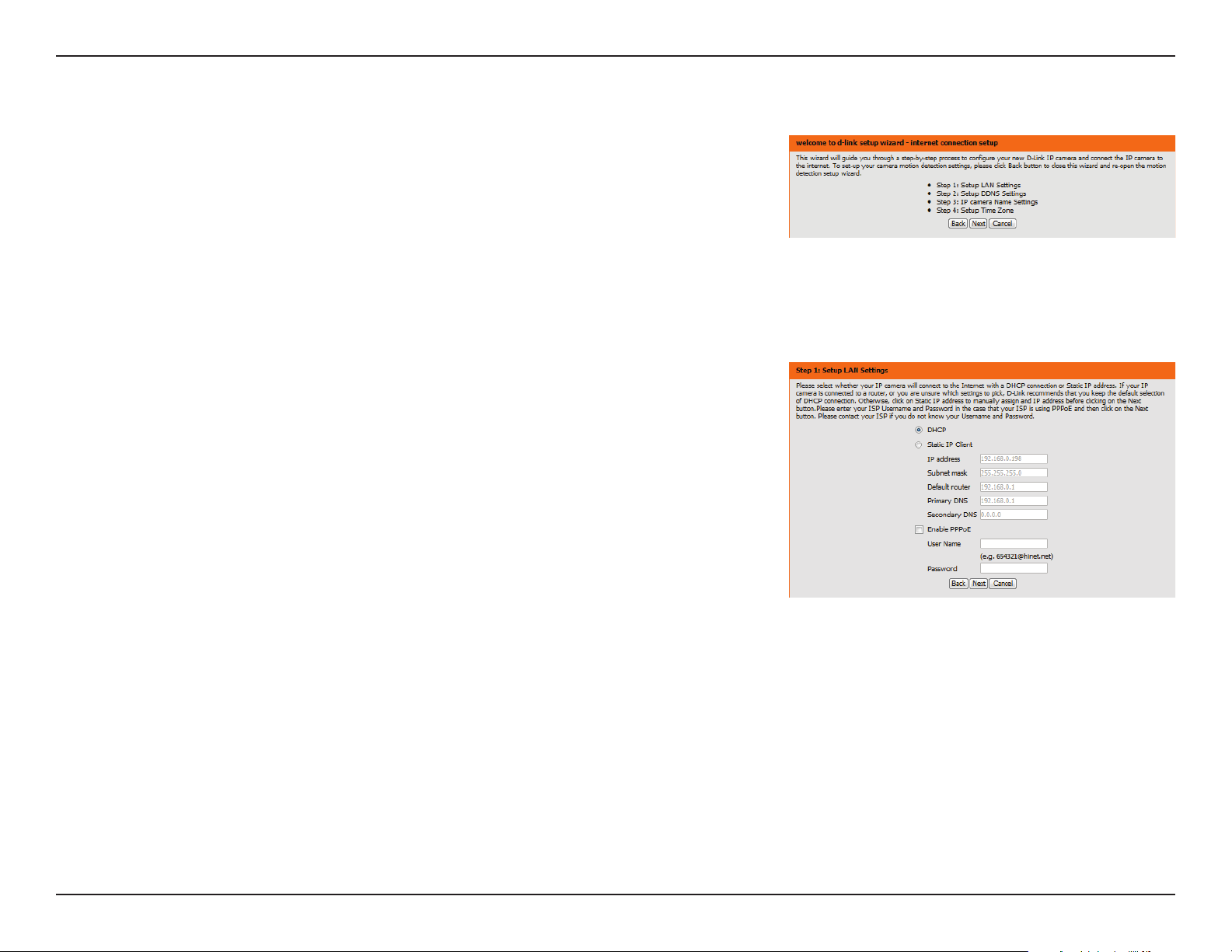
This wizard will guide you through a step-by-step process to congure your new D-Link
Camera and connect the camera to the Internet. Click Next to continue.
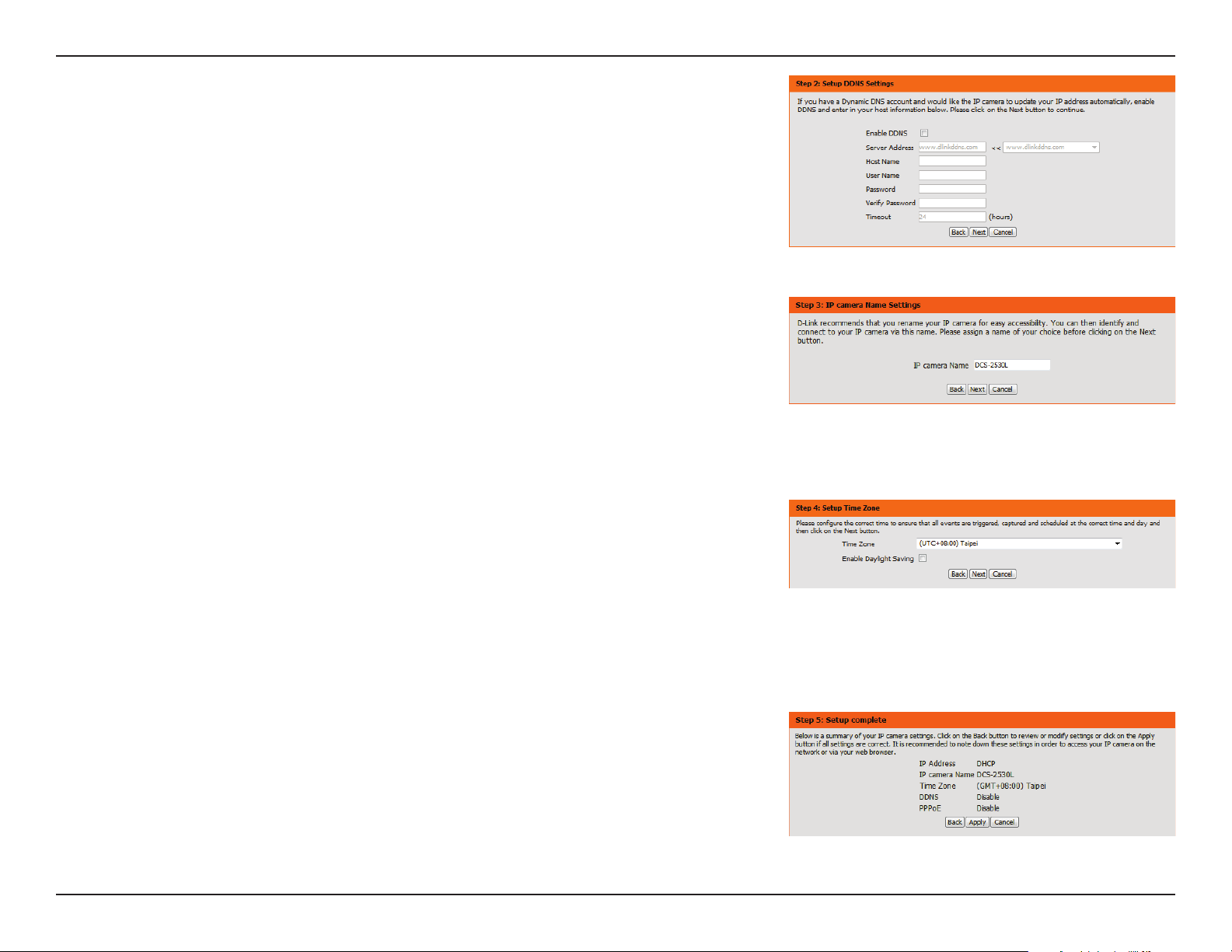
Select how the camera will connect to the Internet.
If your camera is connected to a router, or you are unsure how your camera will connect to
the Internet, select DHCP.
Select Static IP Client if your Internet Service Provider has provided you with connection
settings, or if you wish to set a static address within your home network. Enter the correct
conguration information and click Next to continue.
If you are using PPPoE, select Enable PPPoE and enter your user name and password.
Click Next to continue.
25D-Link DCS-2530L User Manual
Section 3: Conguration
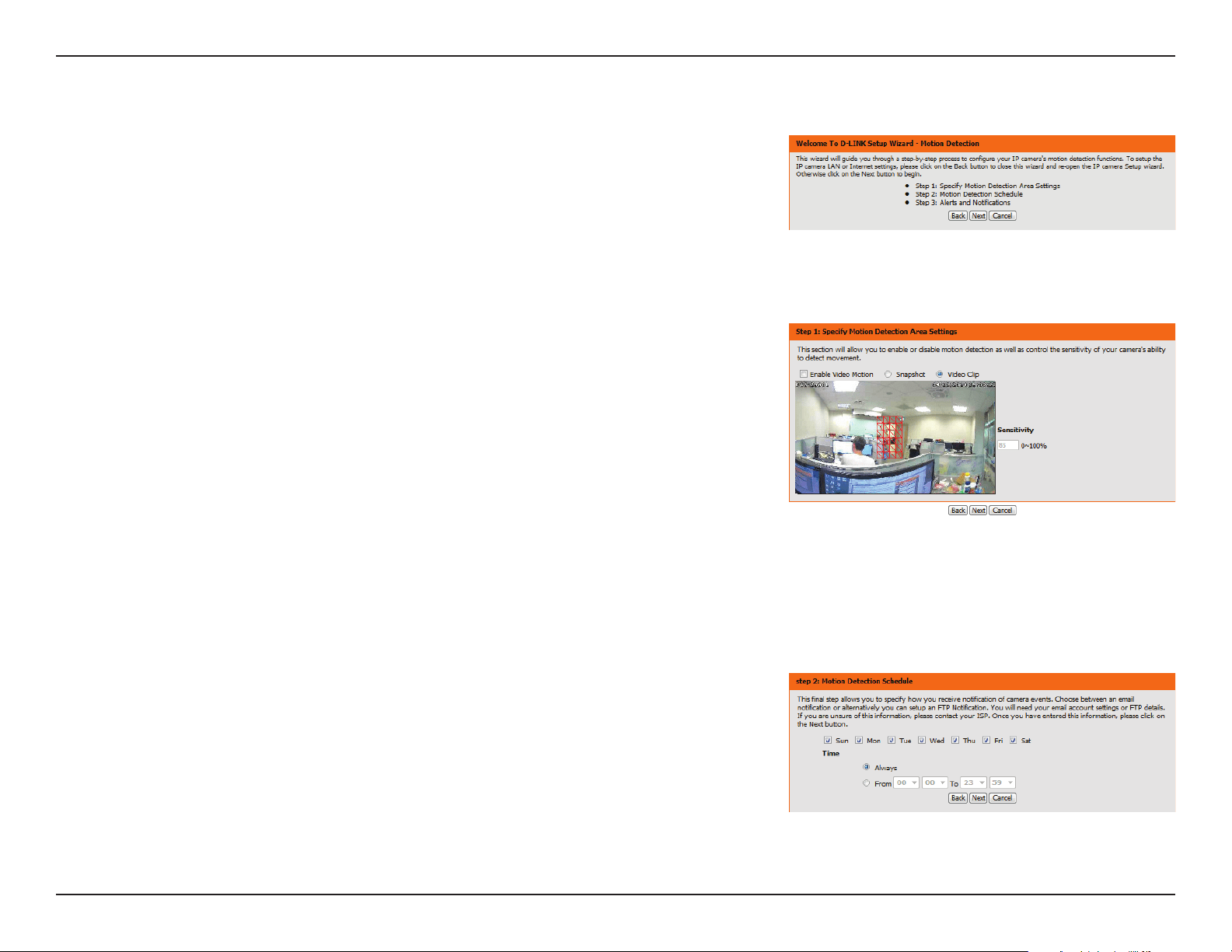
If you have a Dynamic DNS account and would like the camera to update your IP address
automatically, Select Enable DDNS and enter your host information. Click Next to continue.
Enter a name for your camera and click Next to continue.
Congure the correct time to ensure that all events will be triggered as scheduled. Click Next
to continue.
If you have selected DHCP, you will see a summary of your settings, including the camera's IP
address. Please write down all of this information as you will need it in order to access your
camera.
Click Apply to save your settings.
26D-Link DCS-2530L User Manual
Section 3: Conguration
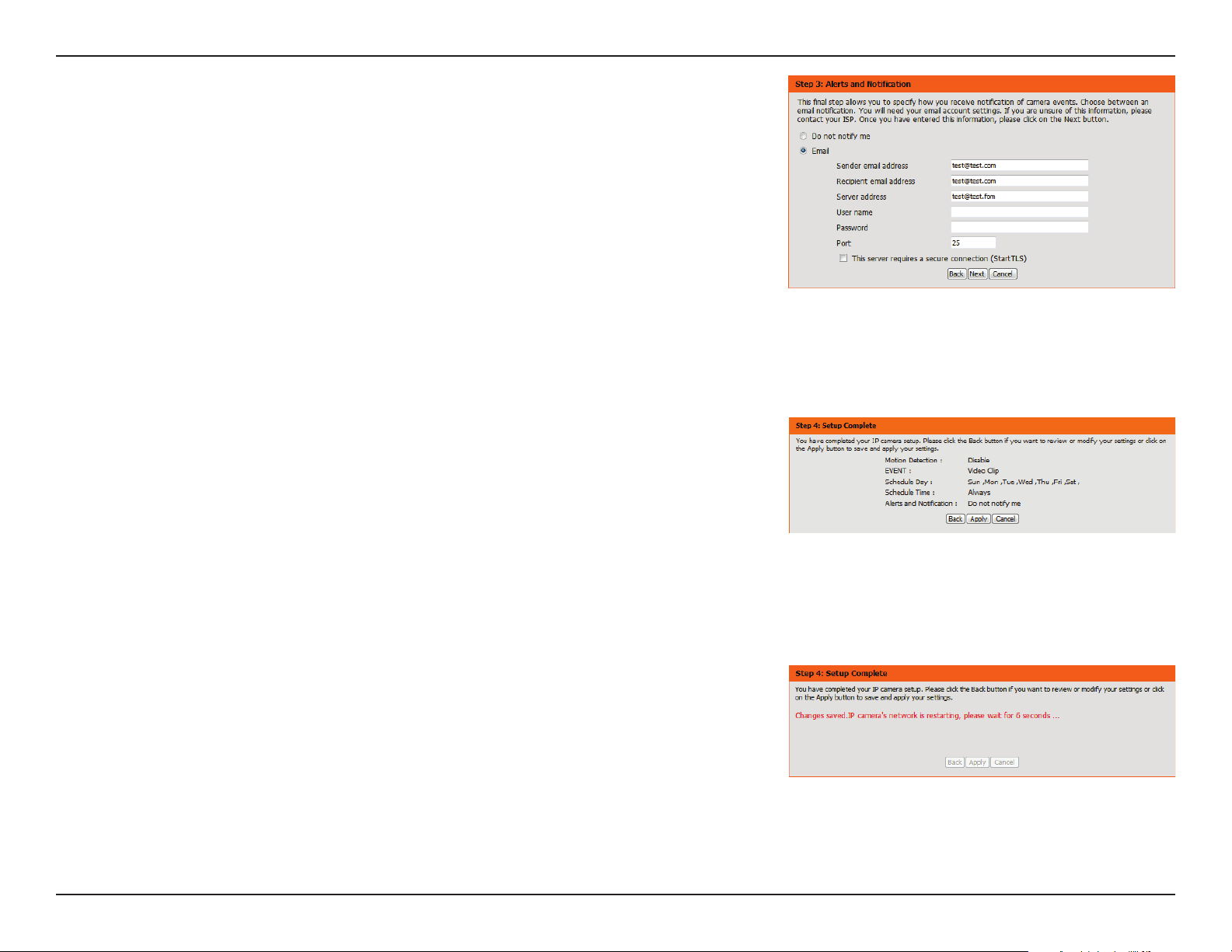
This wizard will guide you through a step-by-step process to congure your camera's
motion detection functions.
Click Next to continue.
Motion Detection Setup Wizard
Step 1
This step will allow you to enable or disable motion detection, specify the detection sensitivity,
and adjust the camera’s ability to detect movement.
You may specify whether the camera should capture a snapshot or a video clip when motion
is detected.
Refer to "Motion Detection" on page 36 for information about how to congure motion
detection.
Step 2
This step allows you to enable motion detection based on a customized schedule. Specify the
days and hours to enable motion detection. You may also choose to always record whenever
motion is detected.
27D-Link DCS-2530L User Manual
Section 3: Conguration
Step 3
This step allows you to specify how you will receive event notications from your camera. You
may choose not to receive notications, or to receive notications via e-mail.
Please enter the relevant information for your e-mail account.
Click Next to continue.
Step 4
You have completed the Motion Detection Wizard.
Please verify your settings and click Apply to save them.
Please wait a few moments while the camera saves your settings and restarts.
28D-Link DCS-2530L User Manual
Section 3: Conguration
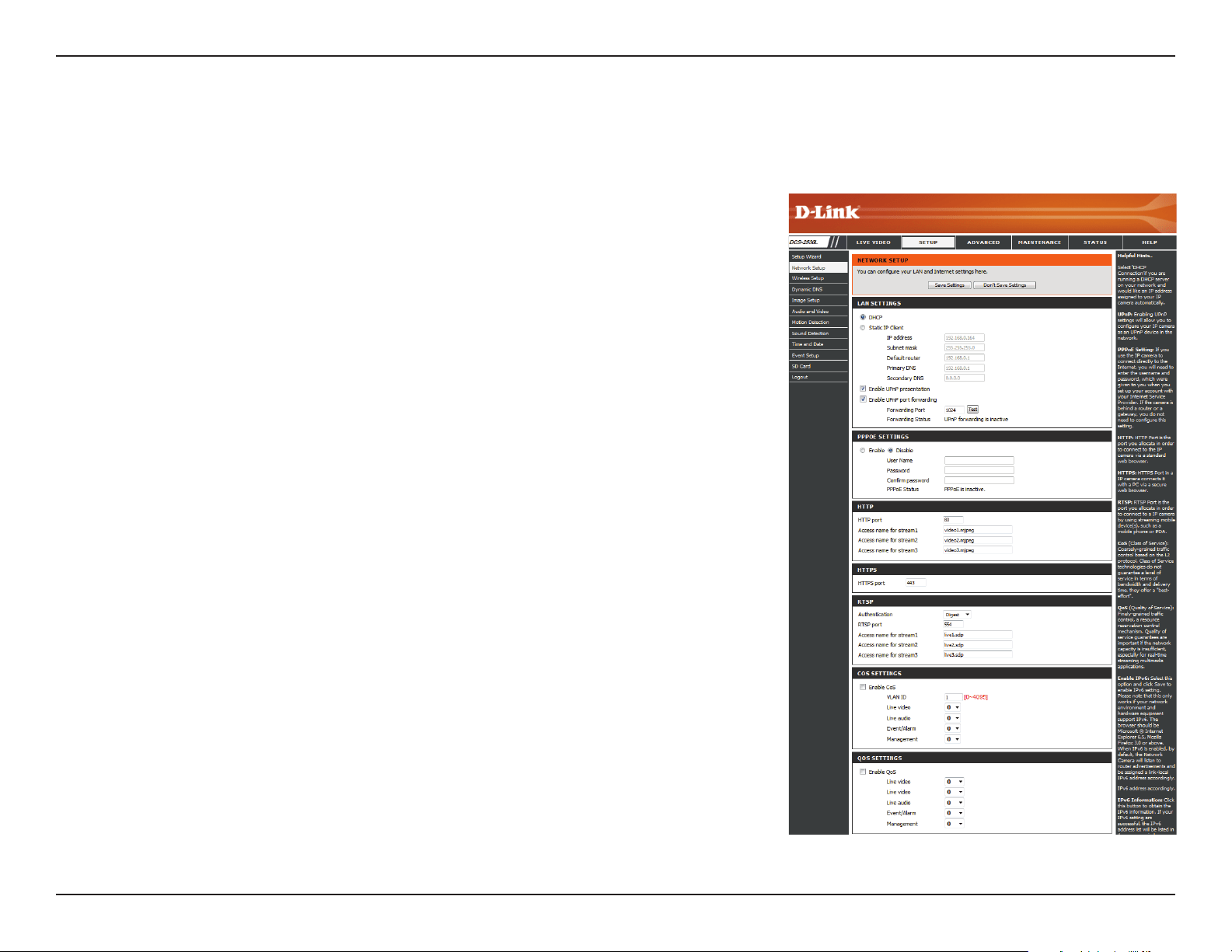
Network Setup
Use this section to congure the network connections for your camera. All relevant information must be entered accurately. After making any changes,
click the Save Settings button to save your changes.
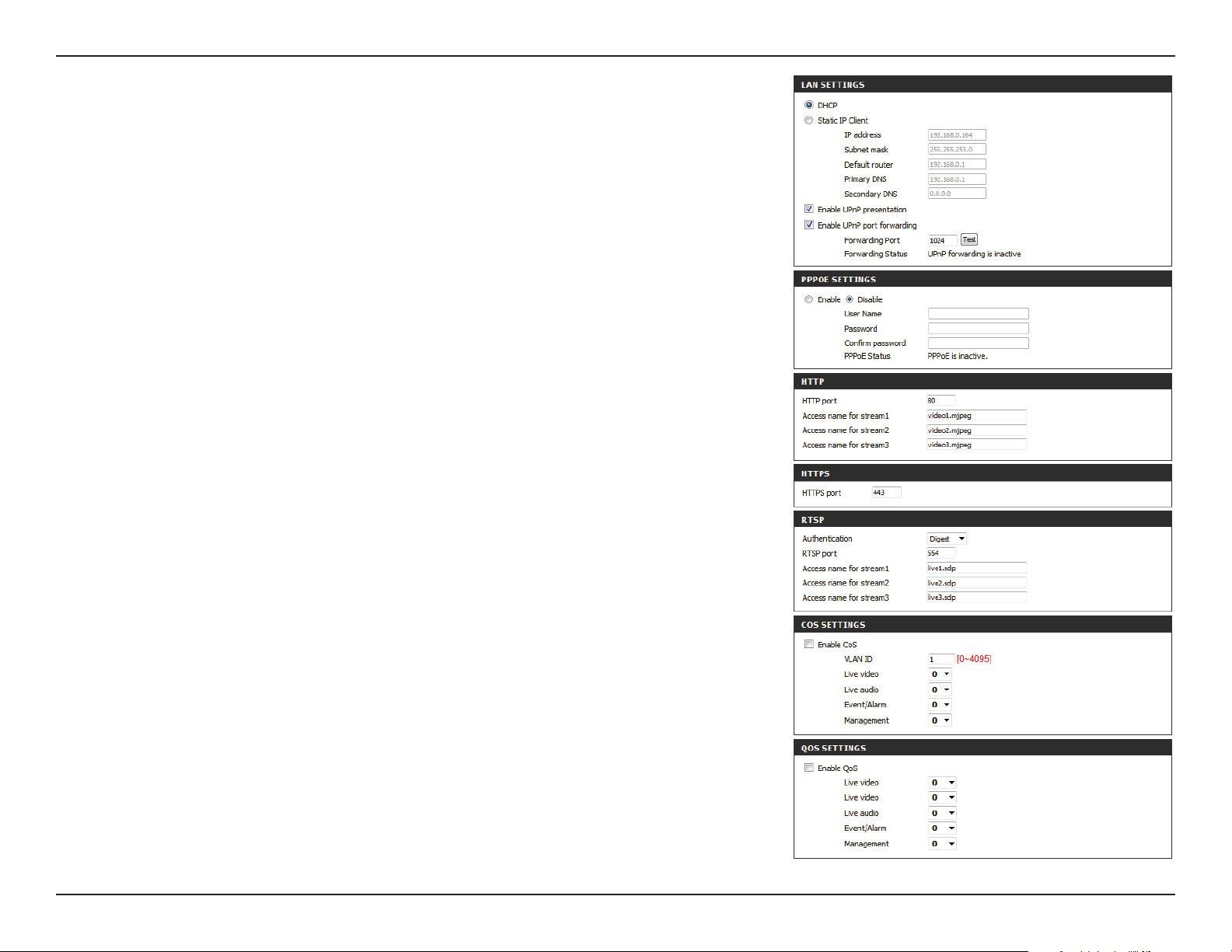
LAN Settings:
DHCP:
Static IP Client:
IP Address:
Subnet Mask:
Default Router:
Primary DNS:
Secondary DNS:
This section lets you congure settings for your local area network.
Select this connection if you have a DHCP server running on your network
and would like your camera to obtain an IP address automatically.
If you choose DHCP, you do not need to ll out the IP address settings.
You may obtain a static or xed IP address and other network information
from your network administrator for your camera. A static IP address may
simplify access to your camera in the future.
Enter the IP address that the camera will use on your network. You may
need to get this information from your ISP or network administrator.
Enter the subnet mask that your camera will use on the network. The
default value is “255.255.255.0.” This is used to determine if the destination
is part of the same subnet.
Enter the address of the router or gateway your camera will use on the
network. The gateway is used to forward frames to destinations in a
dierent subnet. Invalid gateway settings may cause transmissions to a
dierent subnet to fail.
Enter the primary domain name server that translates names to IP
addresses.
Enter the secondary domain name server used to back up the Primary
DNS.
29D-Link DCS-2530L User Manual
Section 3: Conguration
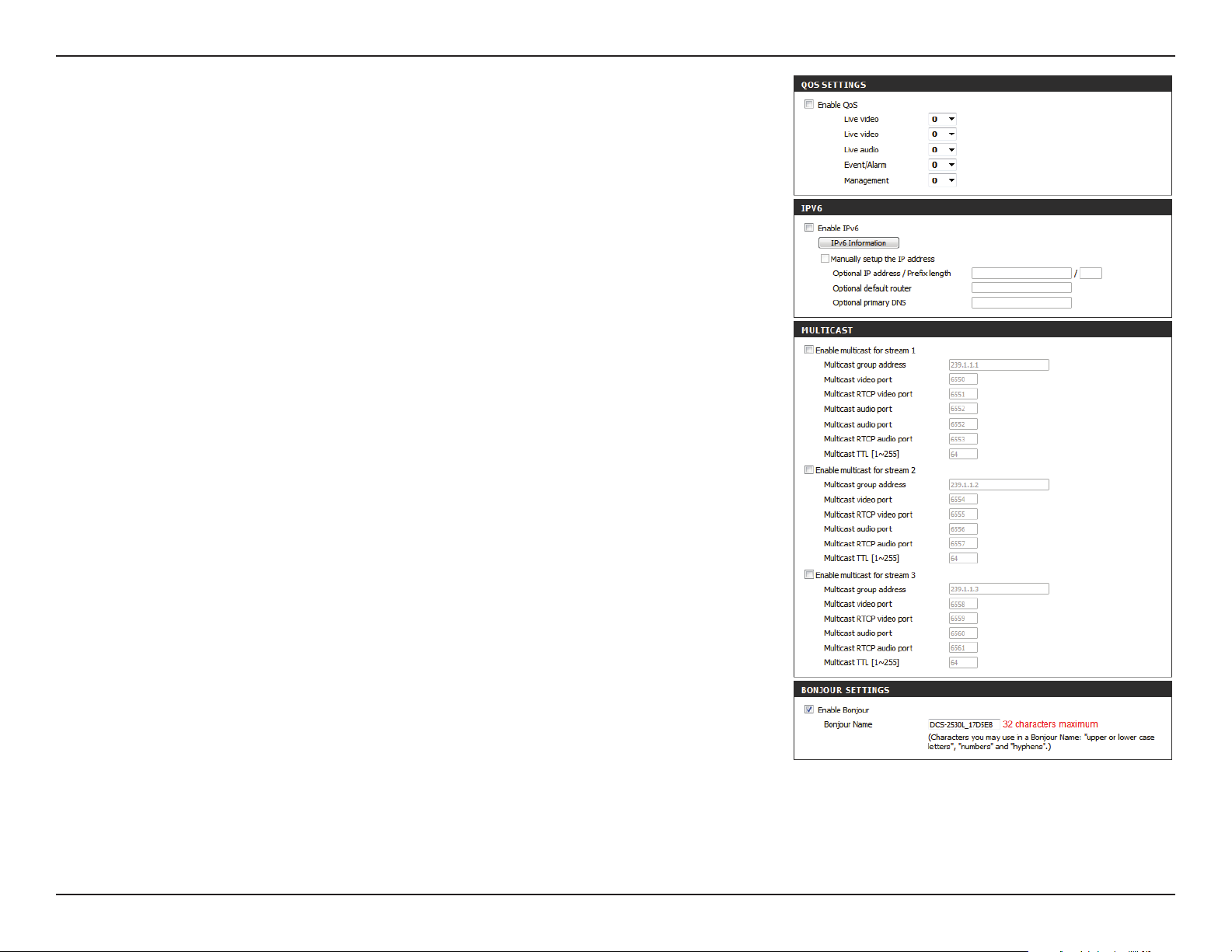
Enable UPnP
Presentation:
Enable UPnP Port
Forwarding:
Enable PPPoE:
User Name /
Password:
HTTP Port:
Access Name for
Stream 1~3:
HTTPS Port:
RTSP Port:
Enable CoS:
Enabling this setting allows your camera to be congured as a UPnP
device on your network.
Enabling this setting allows the camera to add port forwarding entries
into the router automatically on a UPnP capable network.
Enable this setting if your network uses PPPoE.
Enter the username and password for your PPPoE account. Re-enter your
password in the Conrm Password eld. You may obtain this information
from your ISP.
Enter the port to use for HTTP access to the camera. The default port
number is 80.
Enter a name to use for HTTP streaming access. The default name is
video#.mjpeg, where # is the number of the stream.
Enter the port to use for HTTPS access to the camera. You may use a PC
with a secure browser to connect to the HTTPS port of the camera. The
default port number is 443.
Enter the port number to use for RTSP streaming to mobile devices.
The default port number is 554. You may specify the address of
a particular stream. For instance, live1.sdp can be accessed at
rtsp://x.x.x.x/live1.sdp where the x.x.x.x represents the IP address of your
camera.
Enabling CoS allows you to specify the Class of Service for dierent types
of trac so you can prioritize their transmission on your network. CoS
helps provide prioritization for Layer 2 trac.
30D-Link DCS-2530L User Manual
Section 3: Conguration
Enable QoS:
Enable IPv6:
Enable Multicast for
stream:
Enable Bonjour:
Bonjour Name:
Enabling QoS allows you to specify the Quality of Service for dierent
types of trac so you can prioritize their transmission on your network.
QoS helps provide prioritization for Layer 3 trac. If the camera is
connected to a router that itself implements QoS, the router's settings
will override the QoS settings of the camera.
Select Enable IPv6 to automatically get an IPv6 address from your
router. If you have a static or xed IP from your network administrator,
select Static IP address and enter the information provided by your ISP
or network administrator.
The DCS-2530L allows you to multicast each of the available streams via
a group address and lets you specify the TTL value for each stream. Enter
the ports and TTL settings you wish to use if you do not want to use the
defaults.
Enable this to allow other network devices to connect to this camera
using Bonjour.
Enter a name to use to identify this camera through Bonjour.

31D-Link DCS-2530L User Manual
Section 3: Conguration
Wireless Setup
This section allows you to set up and congure the wireless settings on your camera.
Site Survey:
SSID:
Wireless Mode:
Channel:
Authentication:
Encryption:
Key:
The drop-down menu lists all the wireless networks that the camera was
able to detect. Click Rescan to scan for wireless networks again.
Type in an SSID name to connect the camera to a wireless network.
This shows the current wireless mode being used by the camera.
In Ad-Hoc wireless mode, you can the wireless channel you wish the
camera to operate on.
For security, you can choose Open, Shared, or WPA-PSK / WPA2-PSK.
Select the same encryption method that is being used by your wireless
device/router.
If you chose WPA-PSK or WPA2-PSK, choose whether to use TKIP or
AES.
Enter the key (password) for your wireless network.
Click the Save Settings button to save your changes.
32D-Link DCS-2530L User Manual
Section 3: Conguration
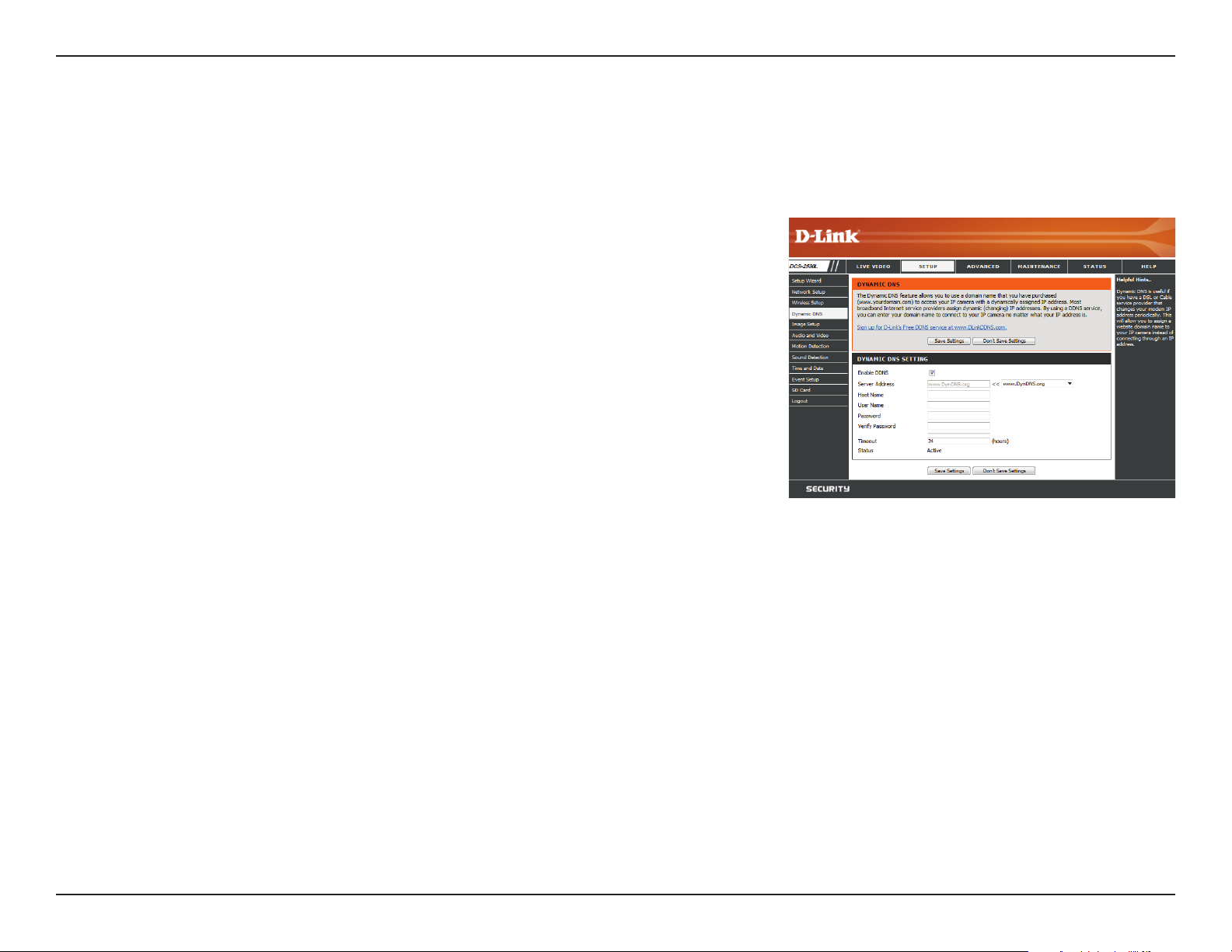
Dynamic DNS
DDNS allows you to access your camera using a domain name instead of an IP address. To do this, you will need to have an account with one of the
DDNS services listed in the drop-down box on this page.
Enable DDNS:
Server Address:
Host Name:
User Name:
Password:
Timeout:
Status:
Select this checkbox to enable the DDNS function.
Select your Dynamic DNS provider from the drop-down menu or enter
the server address manually.
Enter the host name of the DDNS server.
Enter the user name or e-mail used to connect to your DDNS account.
Enter the password used to connect to your DDNS account. Enter it
again in the Verify Password eld.
Enter the DNS timeout values you wish to use.
This indicates the connection status, which is automatically determined
by the system.
33D-Link DCS-2530L User Manual
Section 3: Conguration
Image Setup
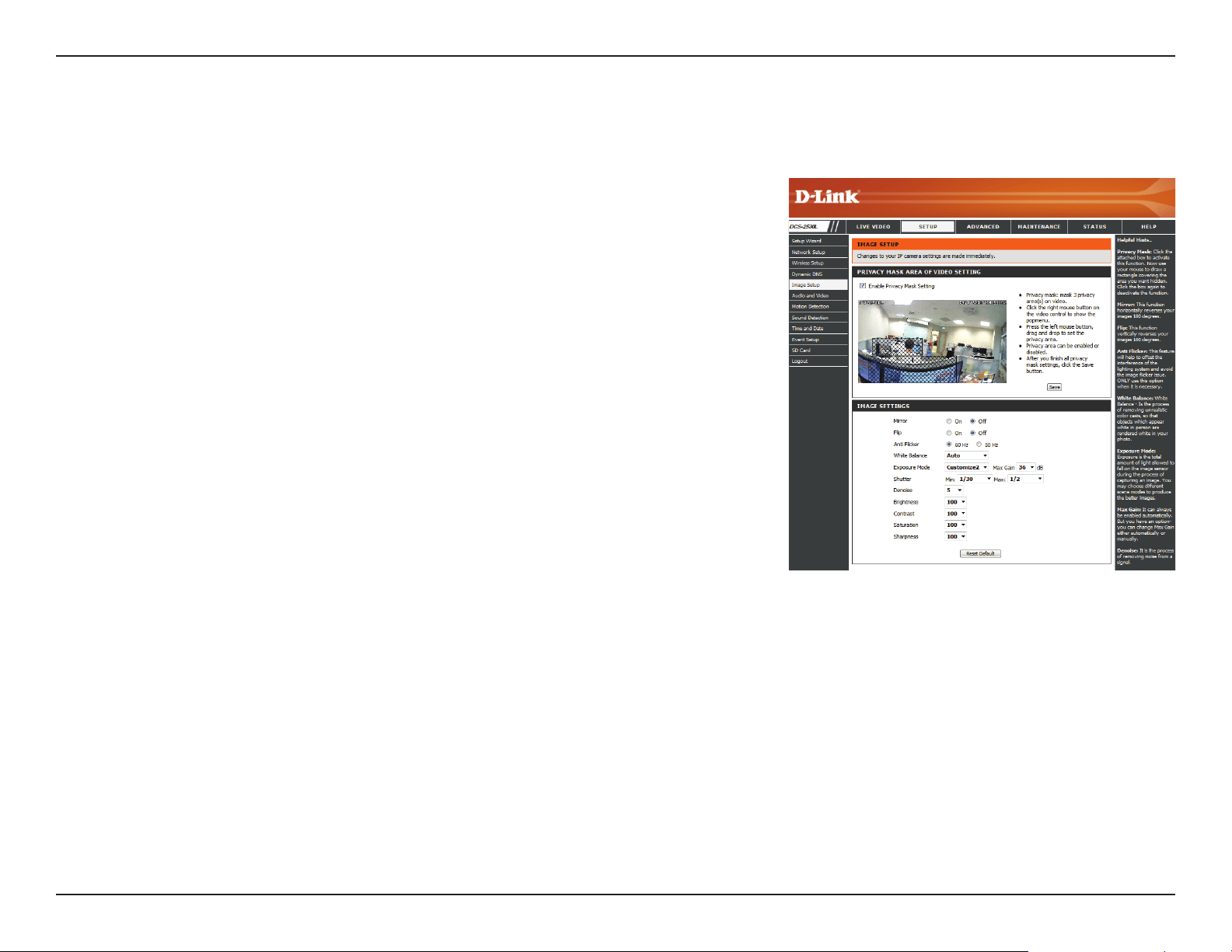
In this section, you can congure the video image settings for your camera.
Enable Privacy Mask
Setting:
Mirror:
Flip:
Anti Flicker:
White Balance:
Exposure Mode:
The Privacy Mask setting allows you to specify up to 3 rectangular areas
on the camera's image to be blocked/excluded from recordings and
snapshots.
You may click and drag the mouse cursor over the camera image to draw
a mask area. Right-clicking on the camera image brings up the following
menu options:
Disable All: Disables all mask areas
Enable All: Enables all mask areas
Reset All: Clears all mask areas.
This will mirror the image horizontally.
This will ip the image vertically. If the camera is installed upside down,
Flip and Mirror should both be checked.
Select the frequency used by your power lines to avoid interference or
distortion.
Use the drop-down box to change white balance settings to help balance
colors for dierent environments. You can choose from Auto, Outdoor,
Indoor, and Fluorescent.
Changes the exposure mode. Use the drop-down menu to set the
camera for Outdoor, Indoor, or Night environments, or to Moving to
capture moving objects. The Low Noise option will focus on creating
a high-quality picture with reduced noise when monitoring low-light
environments. You can also create three dierent custom exposure
modes that let you set the minimum and maximum shutter speeds. The
Max Gain setting will allow you to control the maximum amount of gain
to apply to brighten the picture.
34D-Link DCS-2530L User Manual
Section 3: Conguration
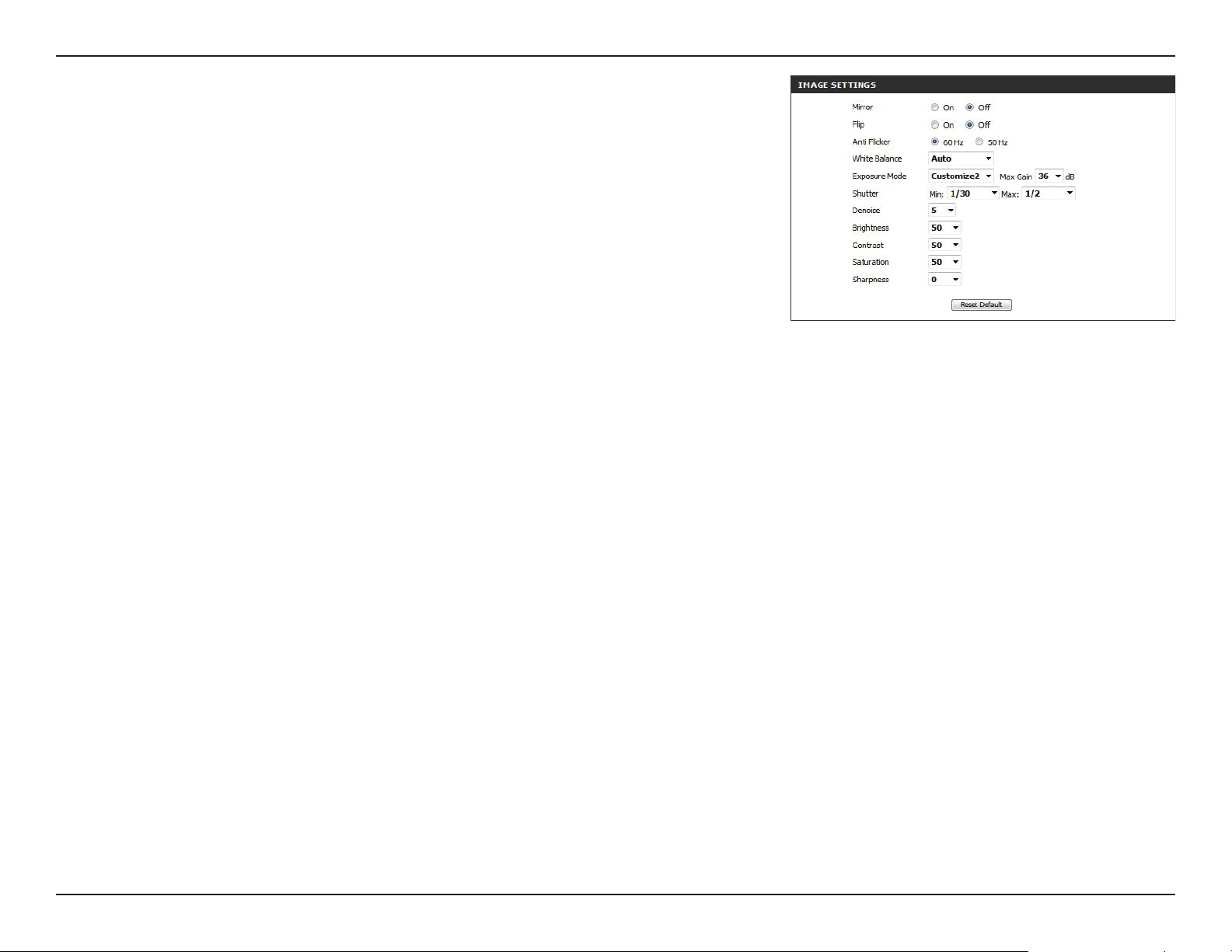
Shutter:
Denoise:
Brightness:
Contrast:
Saturation:
Sharpness:
Reset Default:
If you selected a custom exposure mode, this setting will appear. You
can set the minimum and maximum shutter speed (in seconds). Lower
shutter speeds will provide brighter images and are suitable for low-
light conditions, but moving objects will appear blurry. Higher shutter
speeds will provide a clearer picture, but will require more available light.
Additionally, if you are using uorescent lighting, high shutter speeds
may cause the video to icker.
This setting controls the amount of noise reduction that will be applied
to the picture.
Adjust this setting to compensate for backlit subjects.
Adjust this setting to alter the color intensity/strength.
This setting controls the amount of coloration, from grayscale to fully
saturated.
Specify how much sharpening to apply to the image.
Click this button to reset the image settings to the factory defaults.
35D-Link DCS-2530L User Manual
Section 3: Conguration
Audio and Video
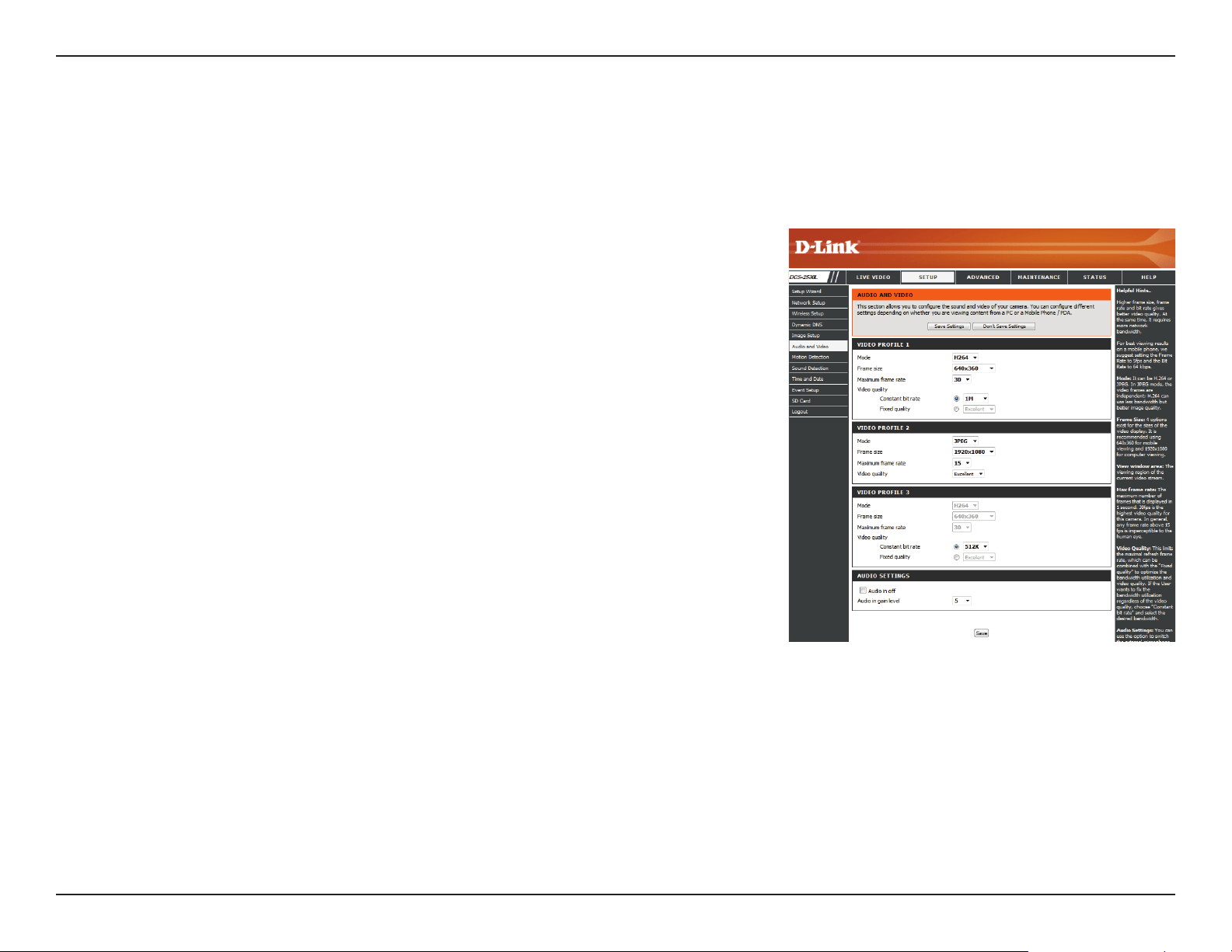
You may congure up to three video proles with dierent settings for your camera. Hence, you may set up dierent proles for your computer
and mobile display. After making any changes, click the Save Settings button to save your changes.
Mode:
Frame size:
Maximum frame
rate:
Video Quality:
Constant bit rate:
Fixed quality:
Audio in o:
Audio in gain level:
Set the video codec to be used to JPEG or H.264.
Frame size determines the total capture resolution the camera will use
when viewing and recording video. Higher resolutions provide better
video quality, but will require more bandwidth.
A higher frame rate provides smoother motion for videos, and requires
more bandwidth. Lower frame rates will result in stuttering motion, and
require less bandwidth. Please note that if 1920 x 1080 is selected as your
frame size, your maximum frame rate will be 15 frames a second at most.
This limits the maximum frame rate, which can be combined with the
"Fixed quality" option to optimize the bandwidth utilization and video
quality. If xed bandwidth utilization is desired regardless of the video
quality, choose "Constant bit rate" and select the desired bandwidth.
The bps will aect the bit rate of the video recorded by the camera.
Higher bit rates result in higher video quality.
Select the image quality level for the camera to try to maintain. High
quality levels will result in increased bit rates.
Checking this will mute audio picked up by a microphone connected to
the audio in jack.
Specify how much gain to add to audio picked up by a microphone
connected to the audio in jack.
36D-Link DCS-2530L User Manual
Section 3: Conguration
Motion Detection
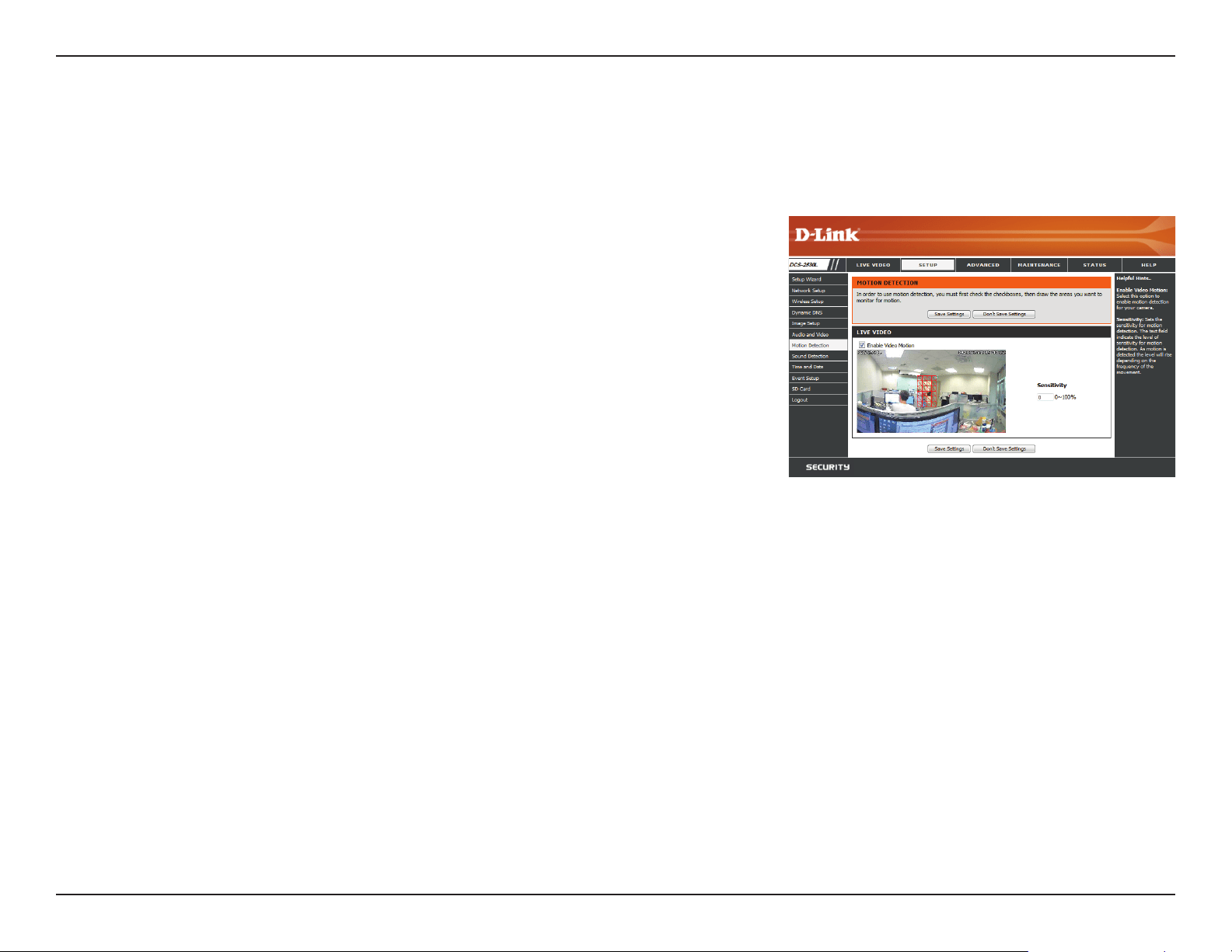
Motion detection enables the camera to monitor the video feed for movement. Here, you can specify what part of the image to monitor for motion
and adjust the sensitivity settings that determine whether motion is detected by the camera or not. After making any changes, click the Save
Settings button to save your changes.
Enable Video Motion:
Sensitivity:
Draw Motion Area:
Erase Motion Area:
Select this box to enable the motion detection feature of your camera.
Note: If you do not draw an area to monitor for motion, motion will not
be detected by the camera.
Species how sensitive motion detection will be from 0% to 100%. A
low sensitivity setting means that there must be large changes between
two images in order to detect motion, and a high sensitivity setting
means that even small changes will cause motion to be detected.
Use your mouse to click and drag on the areas that you would like to
monitor for motion.
To erase a motion detection area, simply click on the red square that you
wish to remove.
Right-click on the camera image to bring up the following menu
options:
Select All: Draws a motion detection area over the entire screen.
Clear All: Clears any motion detection areas that have been drawn.
Restore: Restores the previously specied motion detection areas.
37D-Link DCS-2530L User Manual
Section 3: Conguration
Sound Detection
Sound detection enables the camera to monitor the environment for loud sounds. You may set the volume threshold used to determine whether
sound was detected or not. If this option is selected, the trigger by option under Video Clip, Snapshot, or SD Recording should also be selected.
For more details, refer to "Event Setup" on page 39.
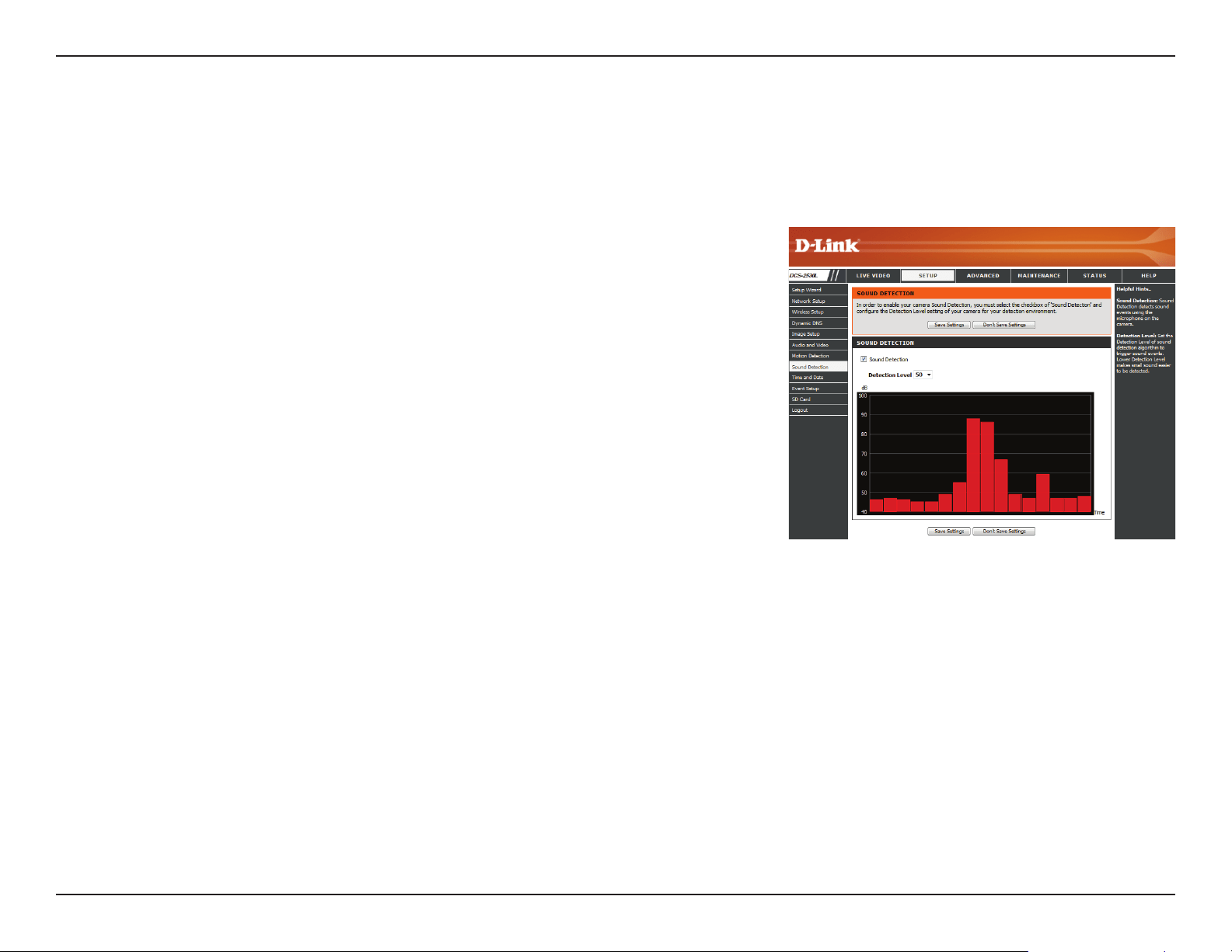
Sound Detection:
Detection Level:
Select this box to enable the sound detection feature of your camera.
Specify the volume level that a sound must exceed in order to trigger
the sound detection feature. The lower the number, the more sensitive
the camera will be to sound.
Click Save Settings to save your changes.
38D-Link DCS-2530L User Manual
Section 3: Conguration
Time and Date
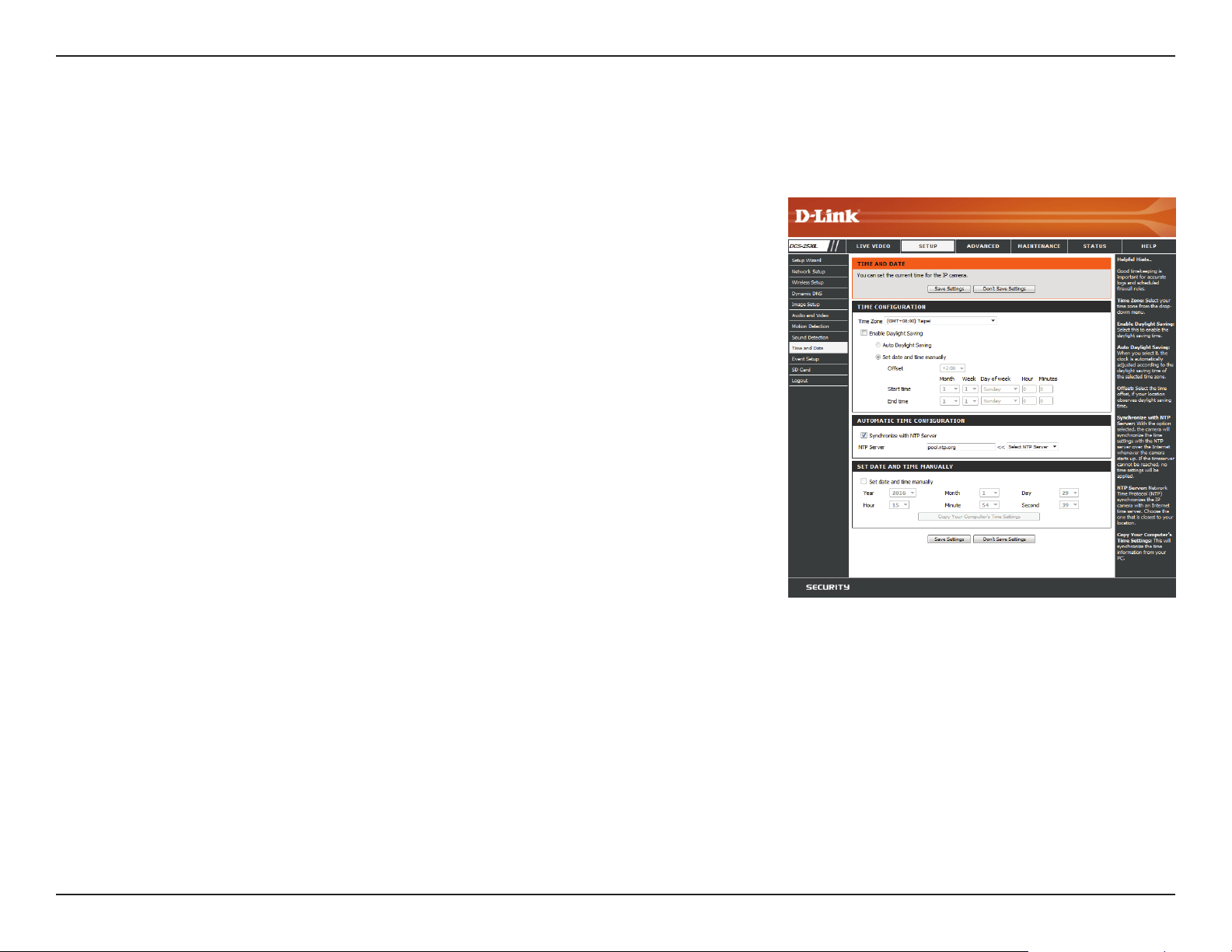
This section allows you to automatically or manually congure, update, and maintain the internal system clock for your camera. After making any
changes, click the Save Settings button to save your changes.
Time Zone:
Enable Daylight
Saving:
Auto Daylight
Saving:
Set Date and Time
Manually:
Oset:
Start Time / End
Time:
Synchronize with
NTP Server:
NTP Server:
Set Date and Time
Manually:
Copy Your
Computer's Time
Settings:
Select your time zone from the drop-down menu.
Select this to enable Daylight Saving Time.
Select this option to allow your camera to congure the Daylight Saving
settings automatically.
Selecting this option allows you to congure the Daylight Saving date
and time manually.
Sets the amount of time to be added or removed when Daylight Saving
is enabled.
Set the date and time to start using and stop using daylight saving.
Enable this feature to obtain time automatically from an NTP server.
Network Time Protocol (NTP) synchronizes the DCS-2530L with an
Internet time server. Choose the one that is closest to your location.
This option allows you to set the time and date manually.
This will synchronize the time information from your PC.
39D-Link DCS-2530L User Manual
Section 3: Conguration
Event Setup
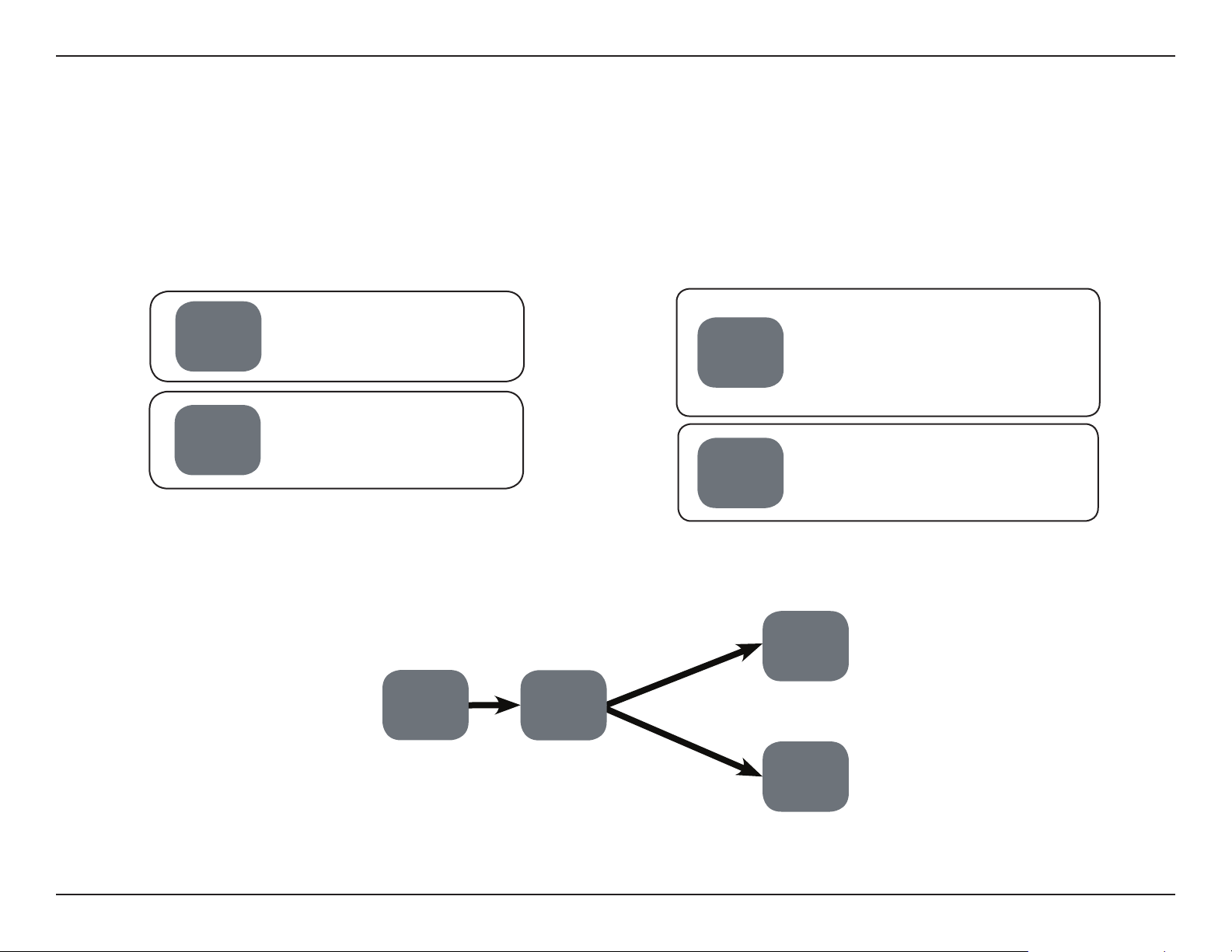
The DCS-2530L has a comprehensive Event system that lets you congure the camera to perform certain actions when an event occurs. For
example, when motion is detected, you can have snapshots sent to an e-mail address. You can also congure the camera to take regular video
recordings according to a schedule you dene. Detailed information for the following steps can be found at Add Server on page 38, Add Media
on page 39, and Add Event on page 41.
Action
Step 1: Select your destination Server and Media type Step 2: Select your Trigger event and Action
Server
• E-mail
• SD Card
Media
• Snapshot
• Video Clip
• System Log
• Video motion detection
• Periodic
• System boot
• Network lost
• Sound detection
• Event schedule
Event
• Server (can be any pre-selected
media such as snapshot, video
clip, or system log)
Event
Server 1:
E-mail
Server 2:
SD Card
Action
Media 1:
Snapshot
Media 2:
Video Clip
When an event is triggered:
40D-Link DCS-2530L User Manual
Section 3: Conguration
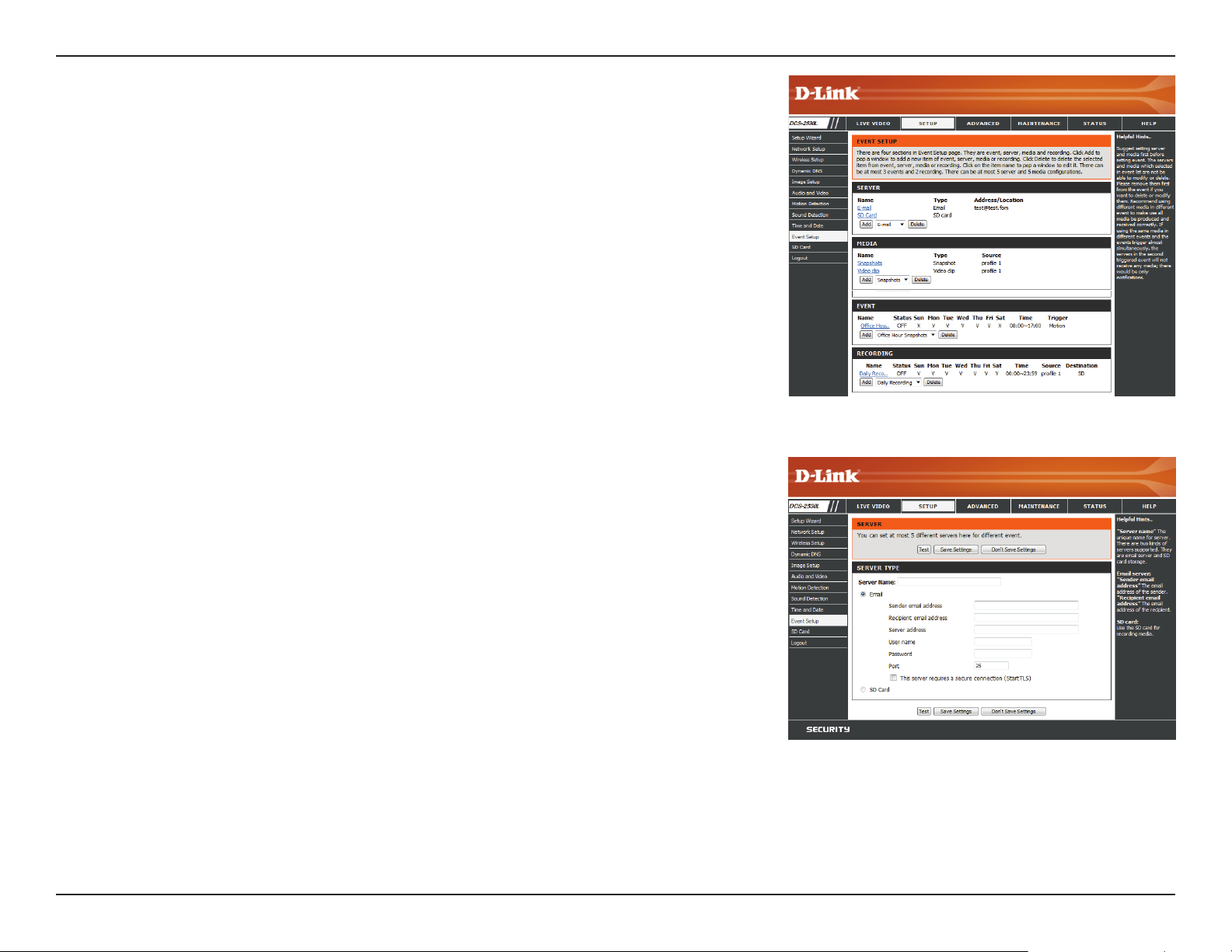
The Event Setup page includes four dierent sections.
• Server
• Media
• Event
• Recording
1. To add a new server, media, event, or recording item, click Add. A screen will appear and
allow you to update the elds accordingly.
2. To delete the selected item from the server, media, event, or recording drop-down menus,
click the Delete button next to it.
3. Click on an item to edit it.
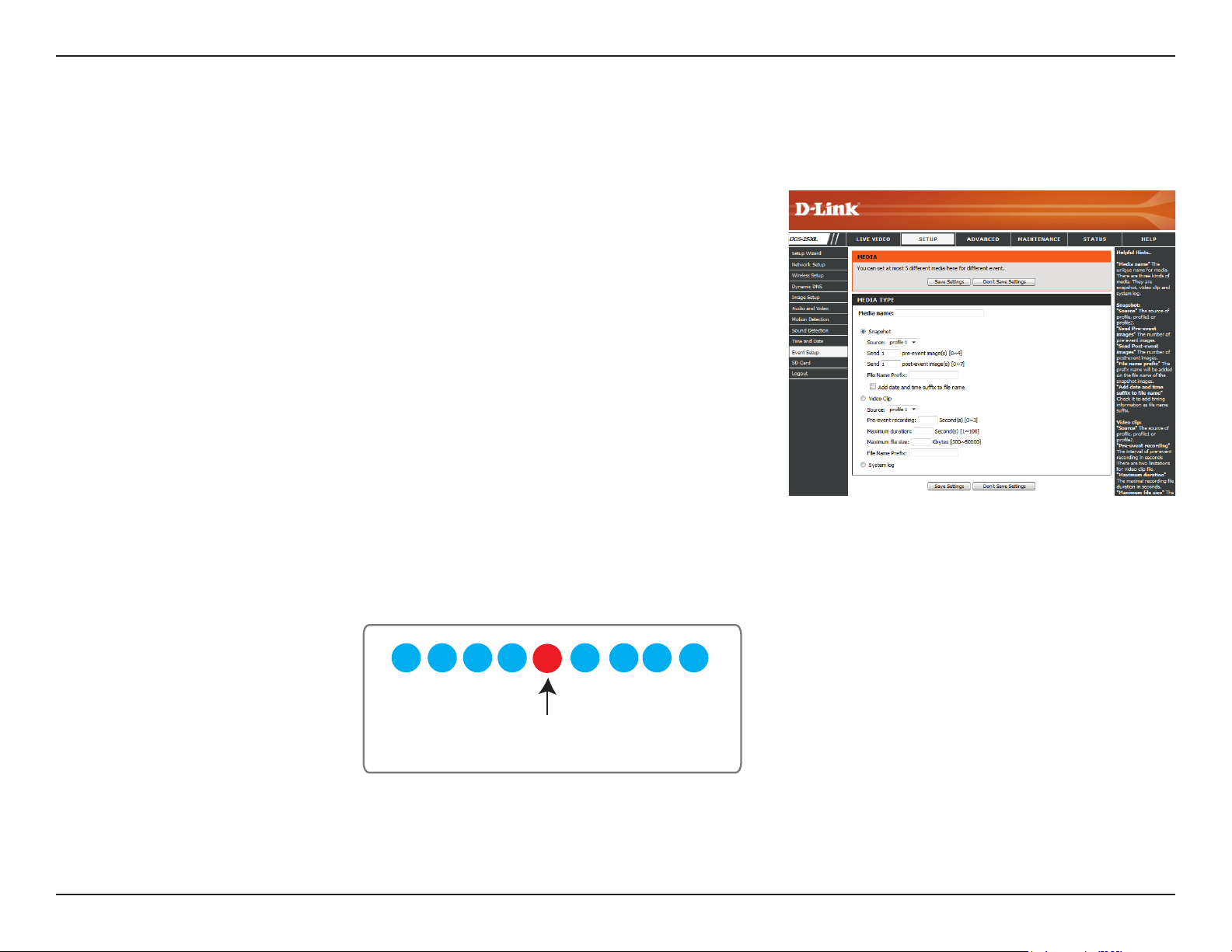
Add Server
Server Name:
E-mail:
SD Card:
Enter the name for the server.
If you want to use an e-mail address for your server, select this and
enter the settings for your target e-mail account.
Select this to use an inserted microSD card as your server.
You can congure up to ve servers (destinations) to save snapshots and/or video to. After
making any changes, click the Save Settings button to save your changes.
41D-Link DCS-2530L User Manual
Section 3: Conguration
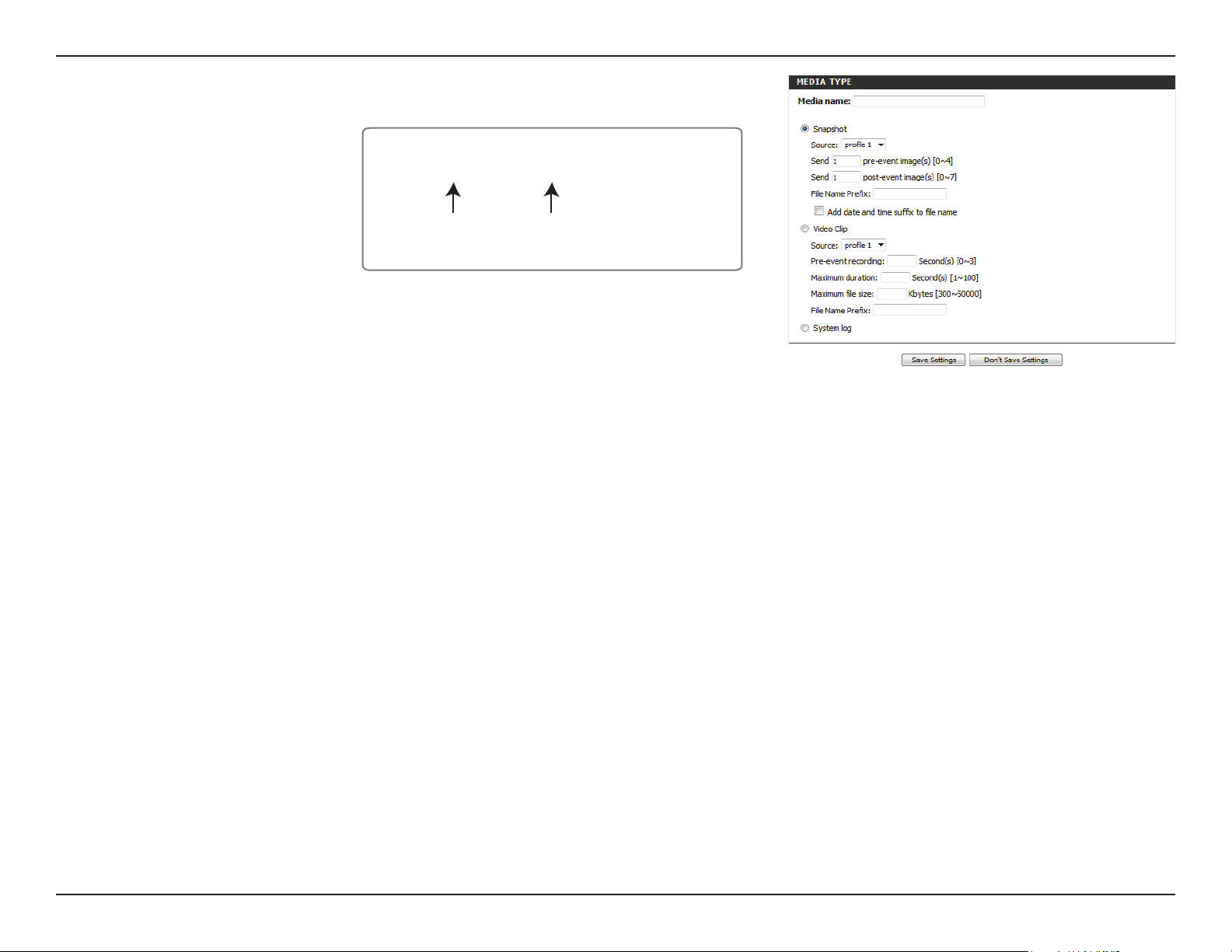
Add Media
Media Name:
Snapshot:
Source:
Send pre-event
image(s) [0~4]:
Send post-event
image(s) [0~7]:
Enter a unique name for the media you want to create.
Select this option to set the media type to snapshots.
Set the video prole to use as the media source. Refer to "Audio and
Video" on page 35 for more information on video proles.
Set the number of pre-event images to take. Pre-event images are
images taken before the main event snapshot is taken.
Set the number of post-event images to take. Post-event images are
images taken after the main event snapshot is taken. You can set up to
seven post-event images to be taken.
For example:
If both the Send pre-event images and Send post-event images
are set to four, a total of 9 images are generated after a trigger
is activated.
There are three types of media: Snapshot, Video Clip, and System Log. After making any changes, click the Save Settings button to save your
changes.
1 pic. 2 pic. 3 pic. 4 pic. 5 pic. 6 pic. 7 pic. 8 pic. 9 pic.
The moment the
trigger is activated.
42D-Link DCS-2530L User Manual
Section 3: Conguration
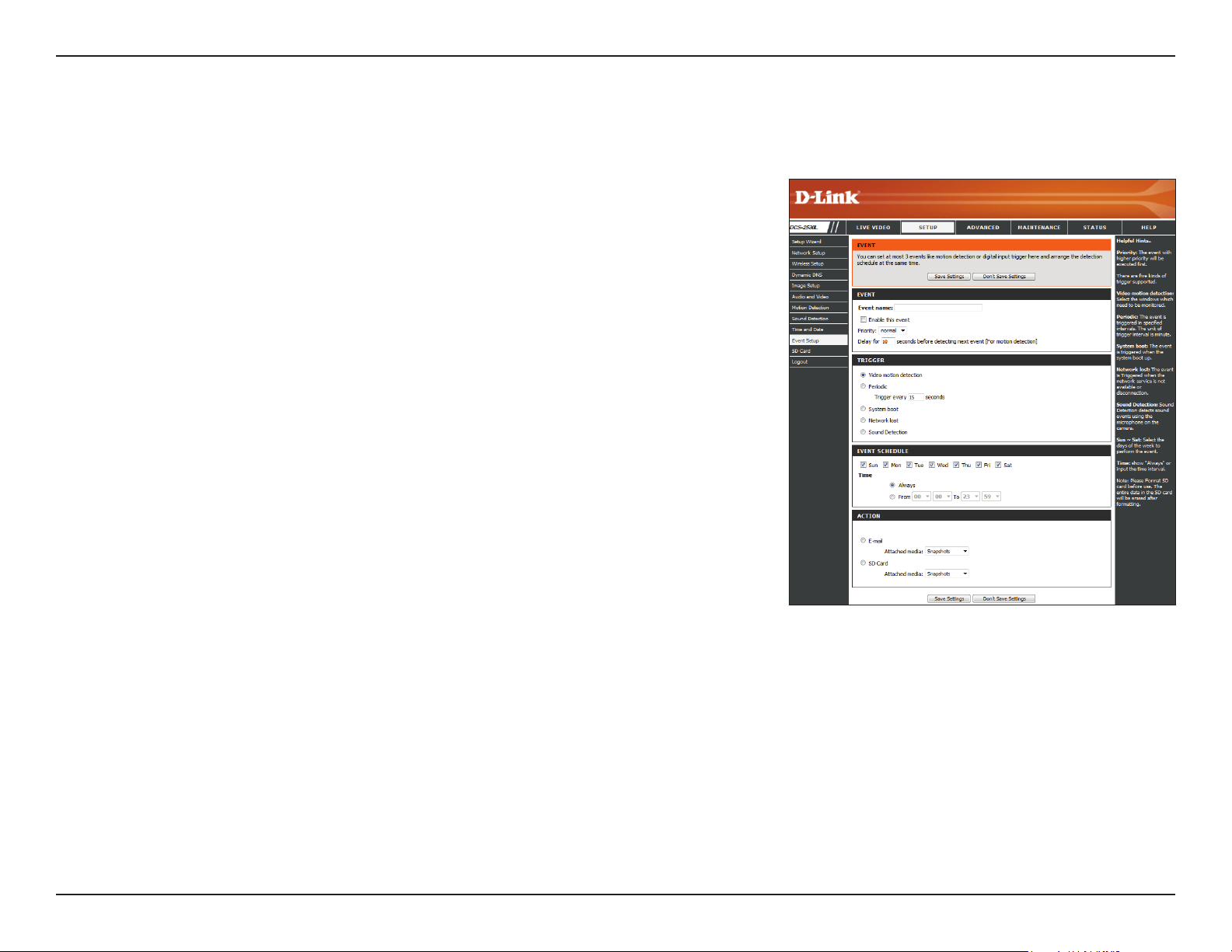
File name prex: Enter the prex to add to the saved le name.
SNAPSHOTS20080104_100341
Date and time suffix
The format is: YYYYMMDD_HHMMSS
File name prefix
Add date and time
sux to le name:
Video clip:
Source:
Pre-event
recording:
Maximum duration:
Maximum le size:
File Name Prex:
System log:
Check this to add the date and time the snapshot was recorded as a le
name sux.
Select this option to set the media type to video clips.
Set the video prole to use as the media source. Refer to "Audio and
Video" on page 35 for more information on video proles.
This sets how many seconds to record before the main event video clip
starts. You can record up to 4 seconds of pre-event video.
Set the maximum length of video to record for your video clips.
Set the maximum le size to record for your video clips.
This is the prex that will be added to the lename of saved video clips.
Select this option to set the media type to system logs. This will send the
system log, but will not record any snapshots or video.
43D-Link DCS-2530L User Manual
Section 3: Conguration
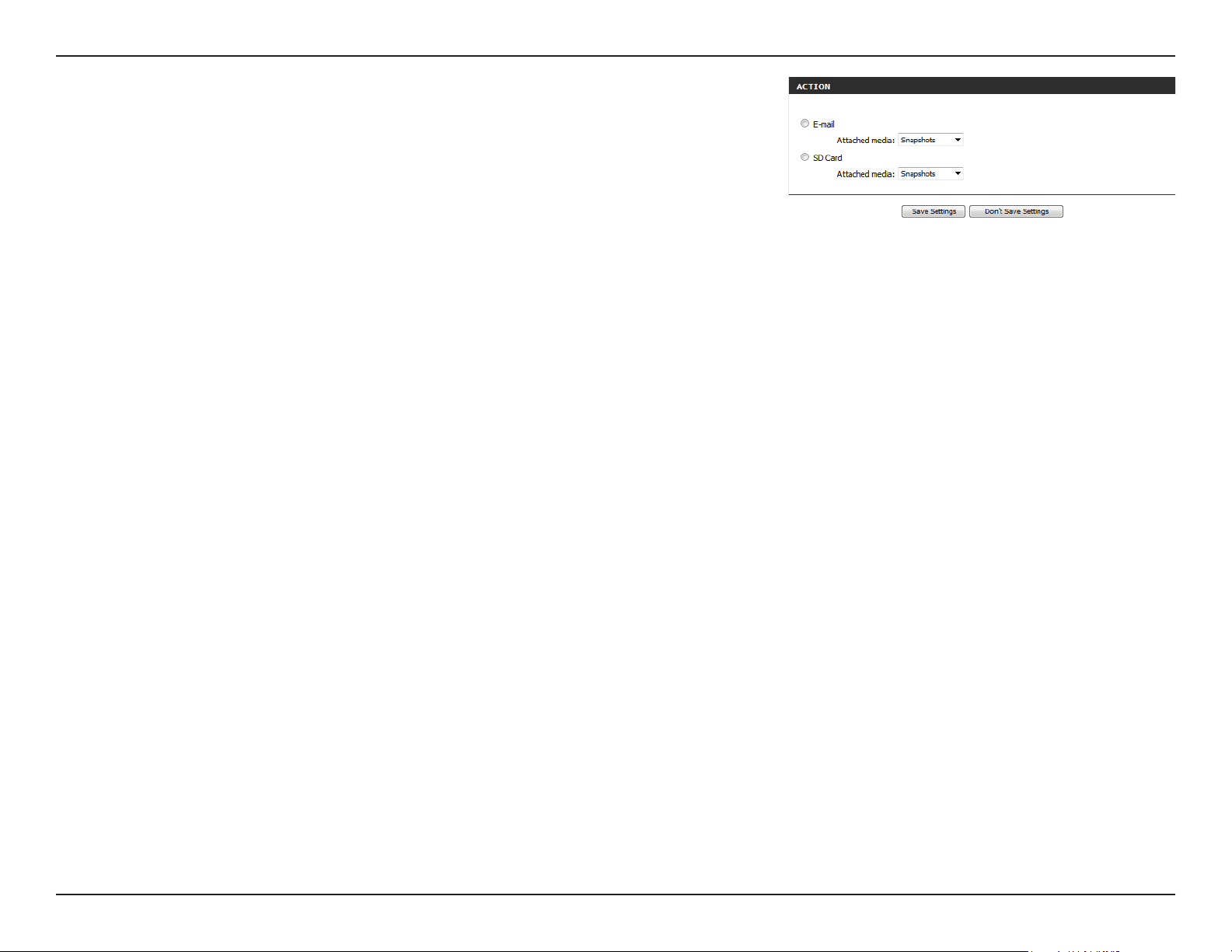
Add Event
Create and schedule up to three events with their own settings here. After making any changes, click the Save Settings button to save your changes.
Event name:
Enable this event:
Priority:
Delay:
Trigger:
Video Motion
Detection:
Periodic:
System Boot:
Network Lost:
Event Schedule:
Enter a name for the event.
Select this box to activate this event.
Set the priority for this event. The event with higher priority will be
executed rst.
Specify the delay time before allowing this event to be triggered again.
This is used for both motion detection events and digital input triggers.
Specify the input type that triggers the event.
Selecting this will trigger the event when motion is detected during live
video monitoring. Make sure you have enabled motion detection and
specied what part of the image to monitor for motion. For more details,
refer to "Motion Detection" on page 36.
Selecting this will trigger the event in specied intervals. The trigger
interval unit is in minutes.
Selecting this will trigger an event when the system boots up.
Selecting this will trigger an event when the camera's connection to the
network is lost.
Specify when you want to monitor for this event. Select which days to
monitor for this event, then select Always or enter the time interval to
monitor for the specied event.
44D-Link DCS-2530L User Manual
Section 3: Conguration
Action: If you have created Server and Media entries, you will see them appear
here. Select which Server you want to send to and which Media you
want the camera to send.
45D-Link DCS-2530L User Manual
Section 3: Conguration
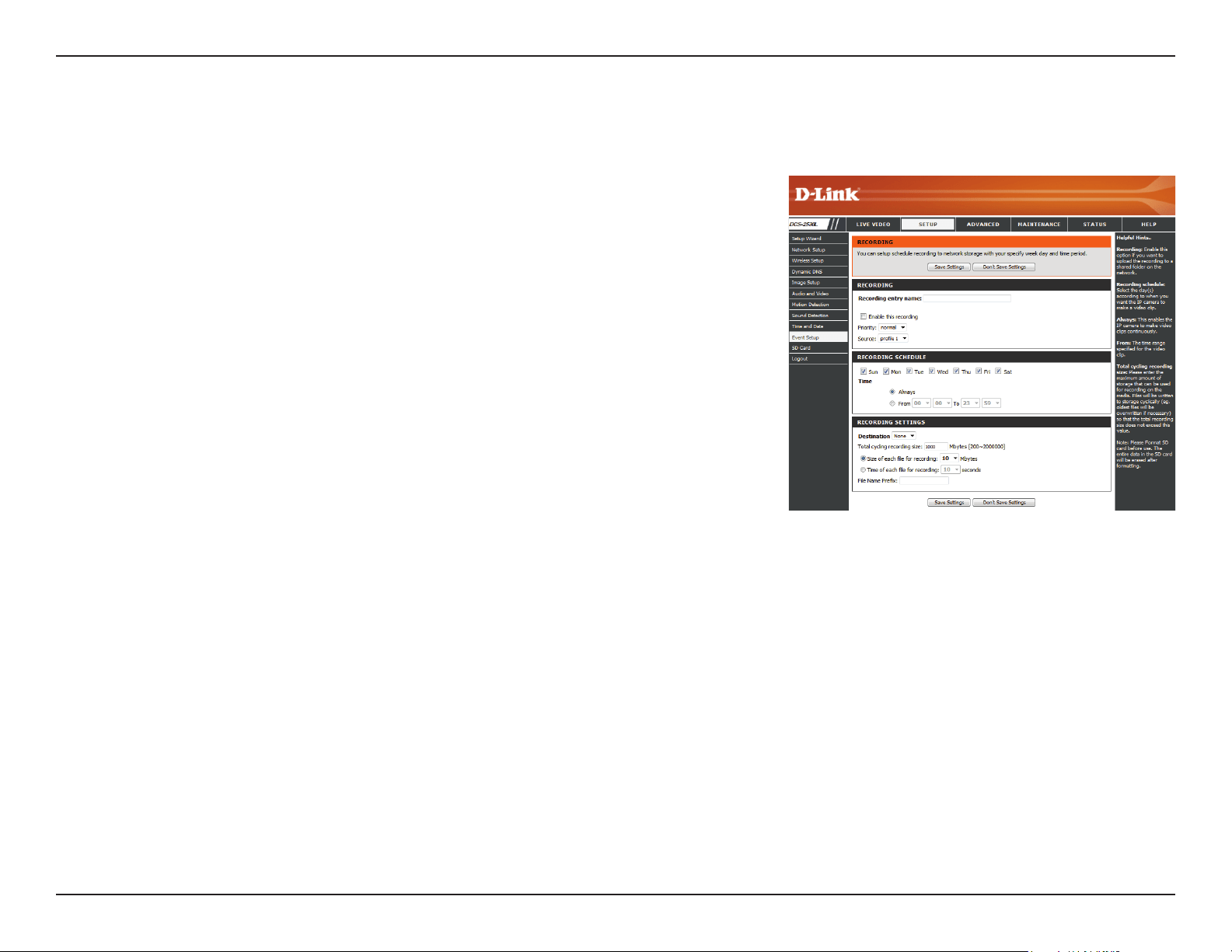
Add Recording
Recording entry
name:
Enable this
recording:
Priority:
Source:
Recording
schedule:
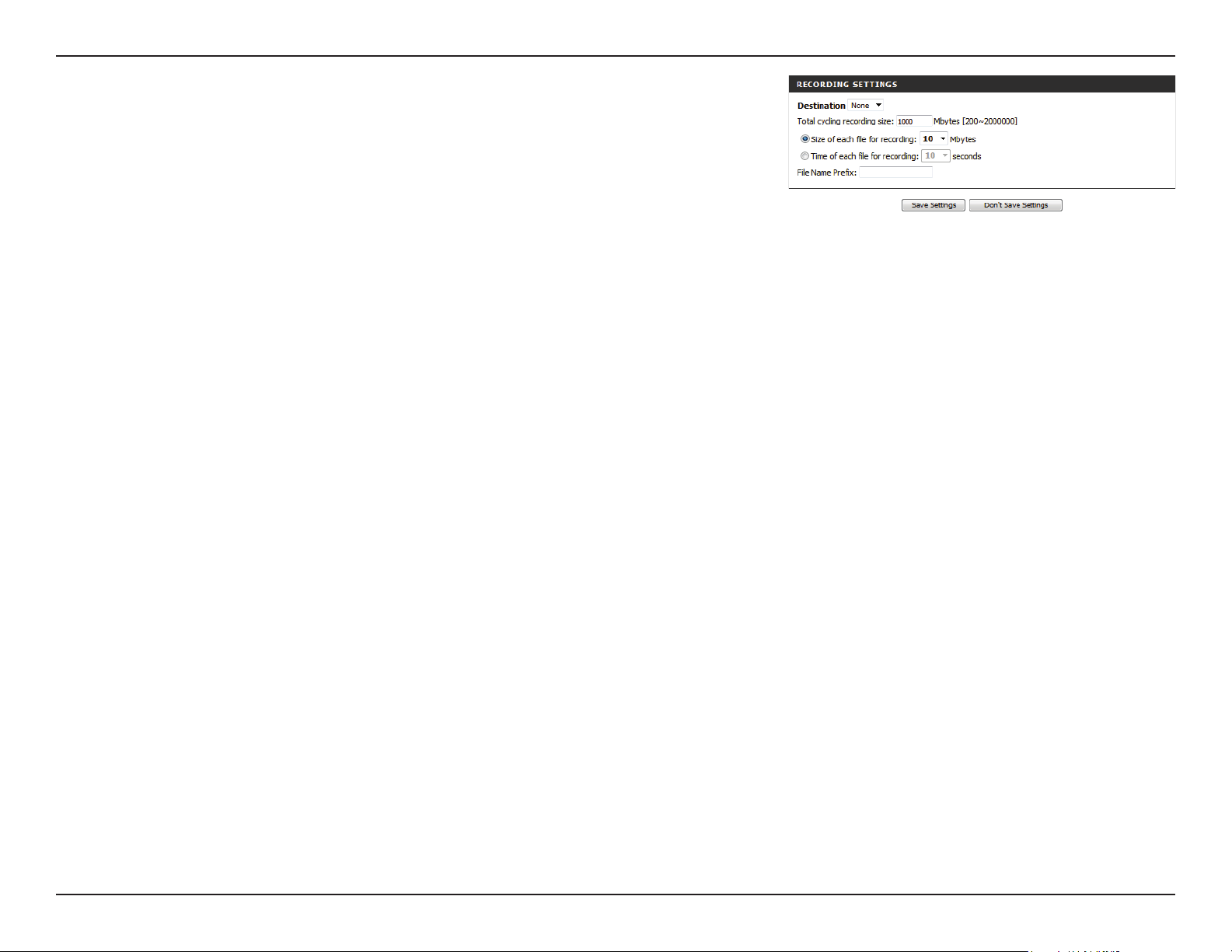
Destination:
Total cycling
recording size:
Enter a name for the recording.
Select this to enable this recording.
Set the priority for this recording. A recording with a higher priority
will be the one used if two recordings will happen at the same time.
Select the video prole to use as the recording source.
Use the checkboxes to set which days to record video on. Select
Always to record for the entire day, or select From and specify the
period of time you want to record using the drop-down menus.
Select the Server to save the recording le to. If you created a server
entry for the microSD card slot, you can select SD to save to it.
Specify the amount of disk space to use for this recording (between
200 MB and 2 TB). When this space is full, the oldest recordings will
be deleted to make room for new recordings. For example, if each
recording le is 6 MB, and the total cycling recording size is 600 MB,
then the camera will record 100 les in the specied destination. After
that, the oldest le will be deleted to make space for new ones.
Please note that if the amount of free disk space is not enough, the
recording will stop. Before you set up this option, please make sure
your storage drive has enough free space. Also, it is recommended that
you do not save other les in the same folder as your recording les.
Here you can congure and schedule a regular video recording. After making any changes, click the Save Settings button to save your changes.
46D-Link DCS-2530L User Manual
Section 3: Conguration
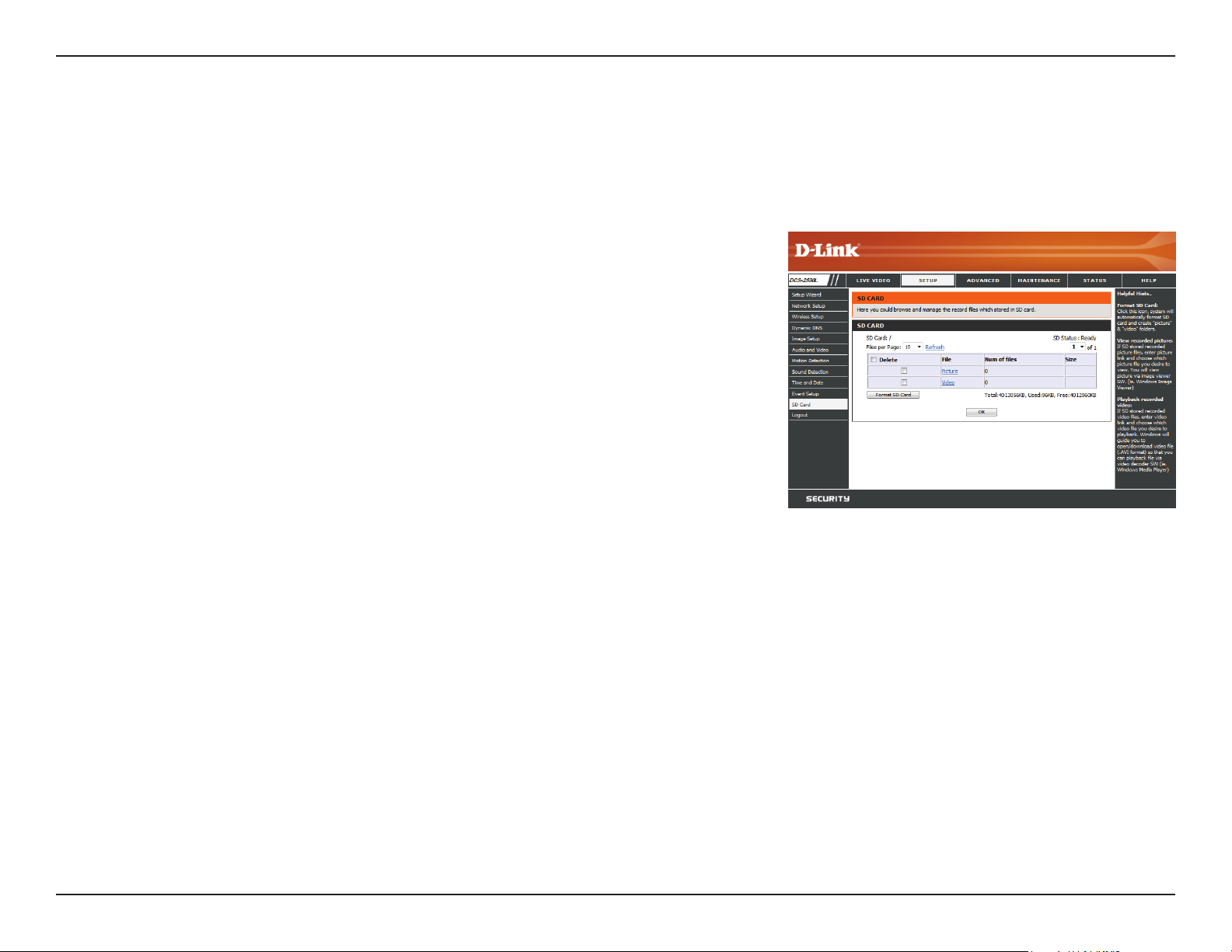
Size of each le for
recording:
Time of each le for
recording:
File Name Prex:
If this is selected, les will be separated based on the le size you specify.
If this is selected, les will be separated based on the maximum length
you specify.
The prex name will be added to the le name of the recording le(s).
47D-Link DCS-2530L User Manual
Section 3: Conguration
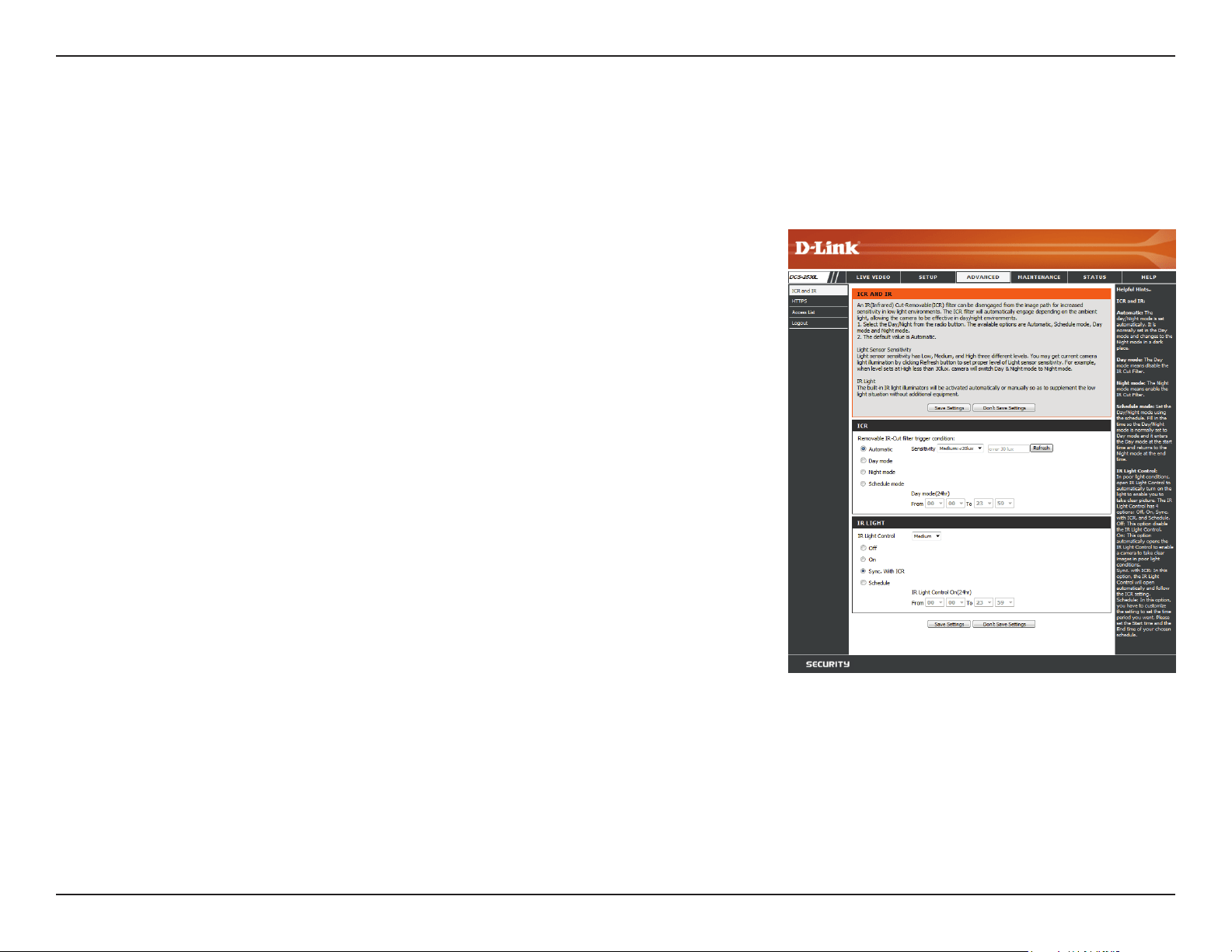
SD Card
Here you may browse and manage the recorded les which are stored on the microSD card. Video is stored in the Video folder, and snapshots are
stored in the Picture folder. You can playback video and view snapshots by clicking on the appropriate folder, then clicking on the le you want to view.
Files Per Page:
Refresh:
Format SD Card:
Deleting Files and
Folders:
Use the drop-down menu to specify how many les to show per page.
To change pages, use the drop-down menu on the right.
Click this to refresh the le and folder information from the microSD
card.
Click this icon to automatically format the microSD card and create the
Video and Picture folders.
To delete les and folders, click on the checkbox next to the les or
folders you want to delete, then click the OK button.
48D-Link DCS-2530L User Manual
Section 3: Conguration
Advanced
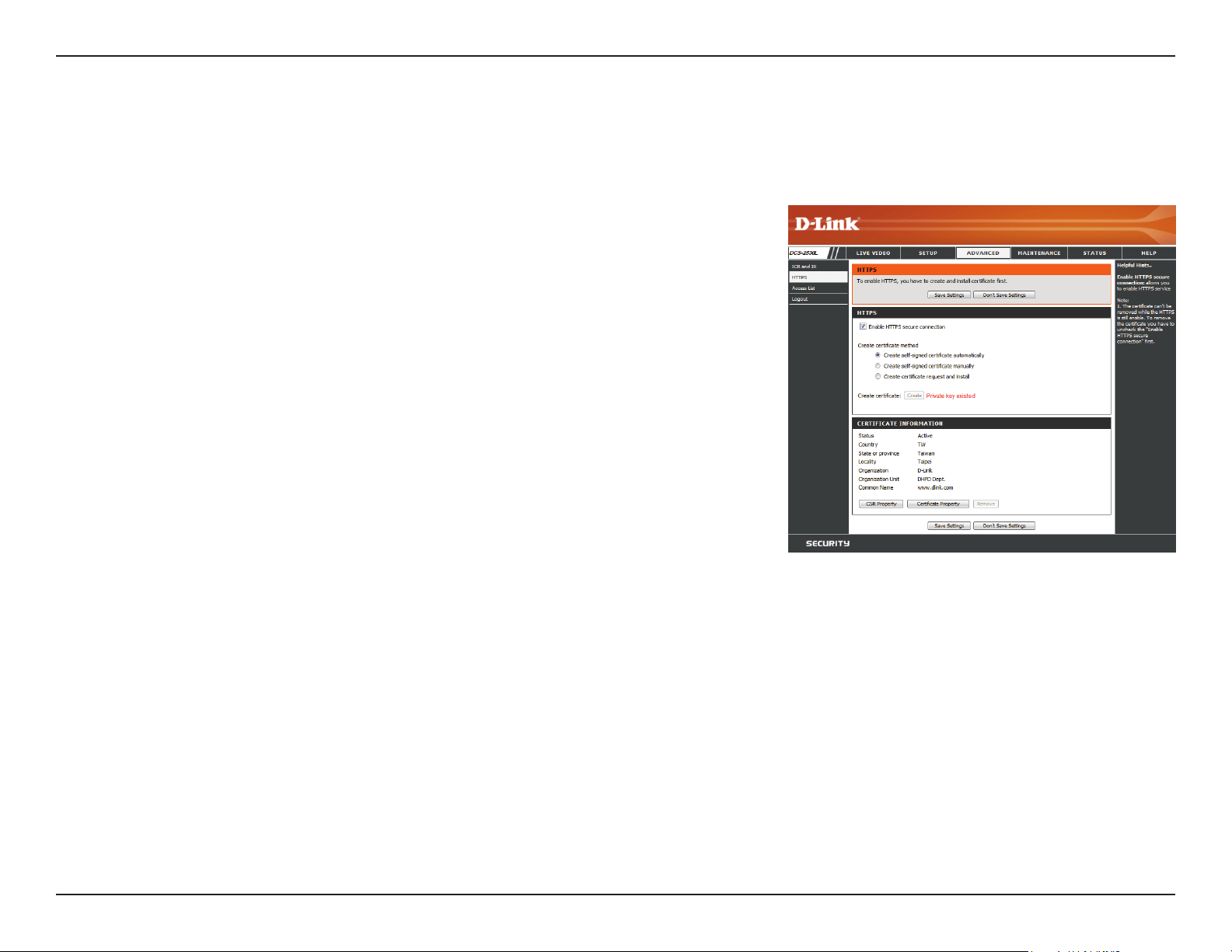
ICR and IR
Here you can congure the ICR and IR settings. The IR (Infrared) Cut-Removable (ICR) lter can be disengaged for increased sensitivity in low light
environments.
Automatic:
Day Mode:
Night Mode:
Schedule Mode:
IR Light Control:
O:
On:
Sync with ICR:
Schedule:
The Day/Night mode is set automatically. You can use the Sensitivity
drop-down box to set when the camera will switch to Night mode.
The text box to the right shows what lighting conditions are currently
being detected by the camera for reference. You can refresh this status
by clicking the Refresh button.
Day mode enables the IR Cut Filter.
Night mode disables the IR Cut Filter.
Set up the Day/Night mode using a schedule. The camera will enter
Day mode at the starting time and return to Night mode at the ending
time.
The camera can enable or disable the IR (infrared) light according to
your preferences. This setting provides additional controls depending on
your specic application.
The IR light will always be o.
The IR light will always be on.
The IR light will turn on when the ICR lter is disabled (night mode).
The IR light will turn on or o according to the schedule that you specify
below.
49D-Link DCS-2530L User Manual
Section 3: Conguration
HTTPS
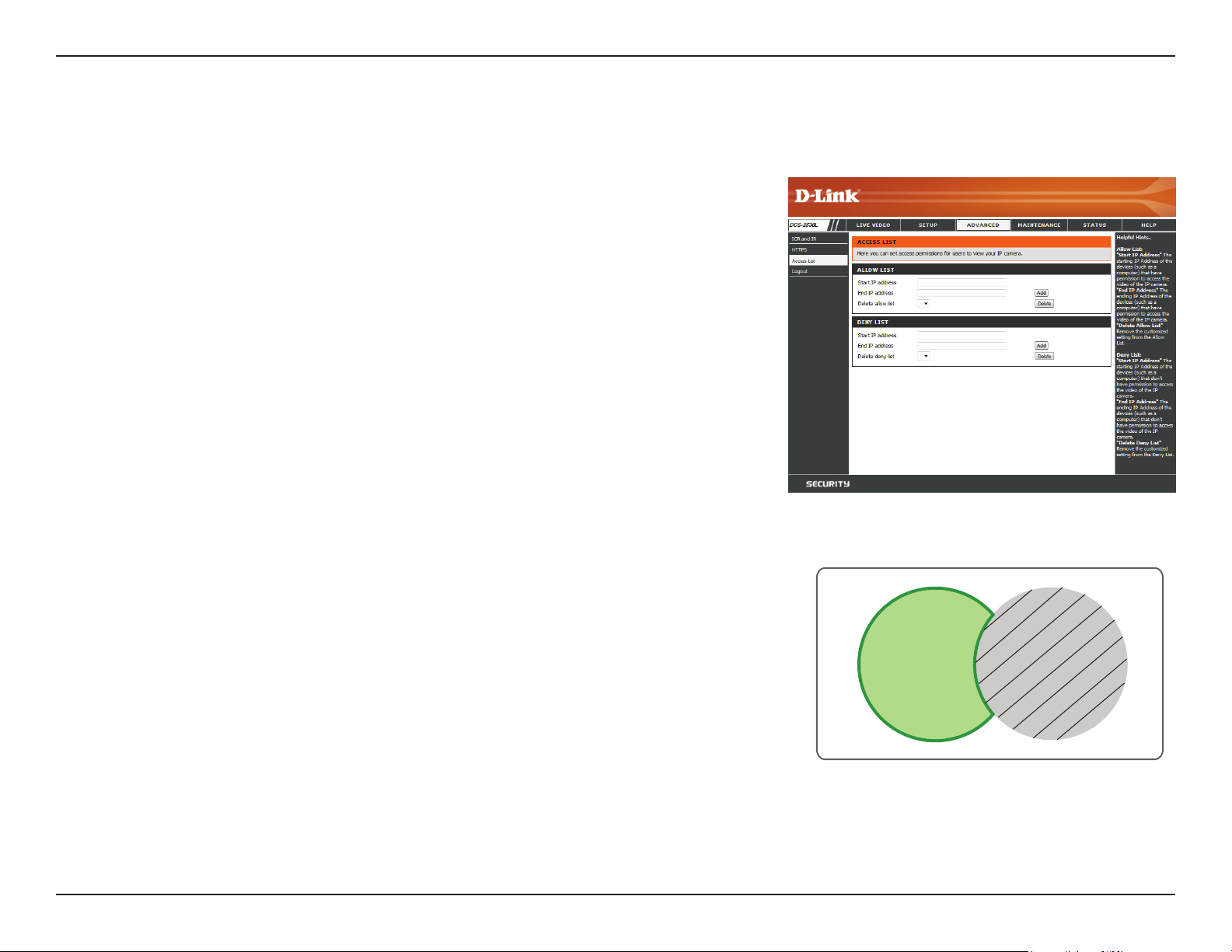
This page allows you to install and activate an HTTPS certicate for secure access to your camera. After making any changes, click the Save Settings
button to save your changes.
Enable HTTPS
Secure Connection:
Create Certicate
Method:
Status:
Note:
Enable HTTPS connections. You will need to create a certicate using
the settings below.
Choose the way the certicate should be created. Three options are
available:
Create a self-signed certicate automatically
Create a self-signed certicate manually
Create a certicate request and install
Displays the status of the certicate.
The certicate cannot be removed while HTTPS is still enabled. To
remove the certicate, you must rst uncheck Enable HTTPS secure
connection.
50D-Link DCS-2530L User Manual
Section 3: Conguration
Access List
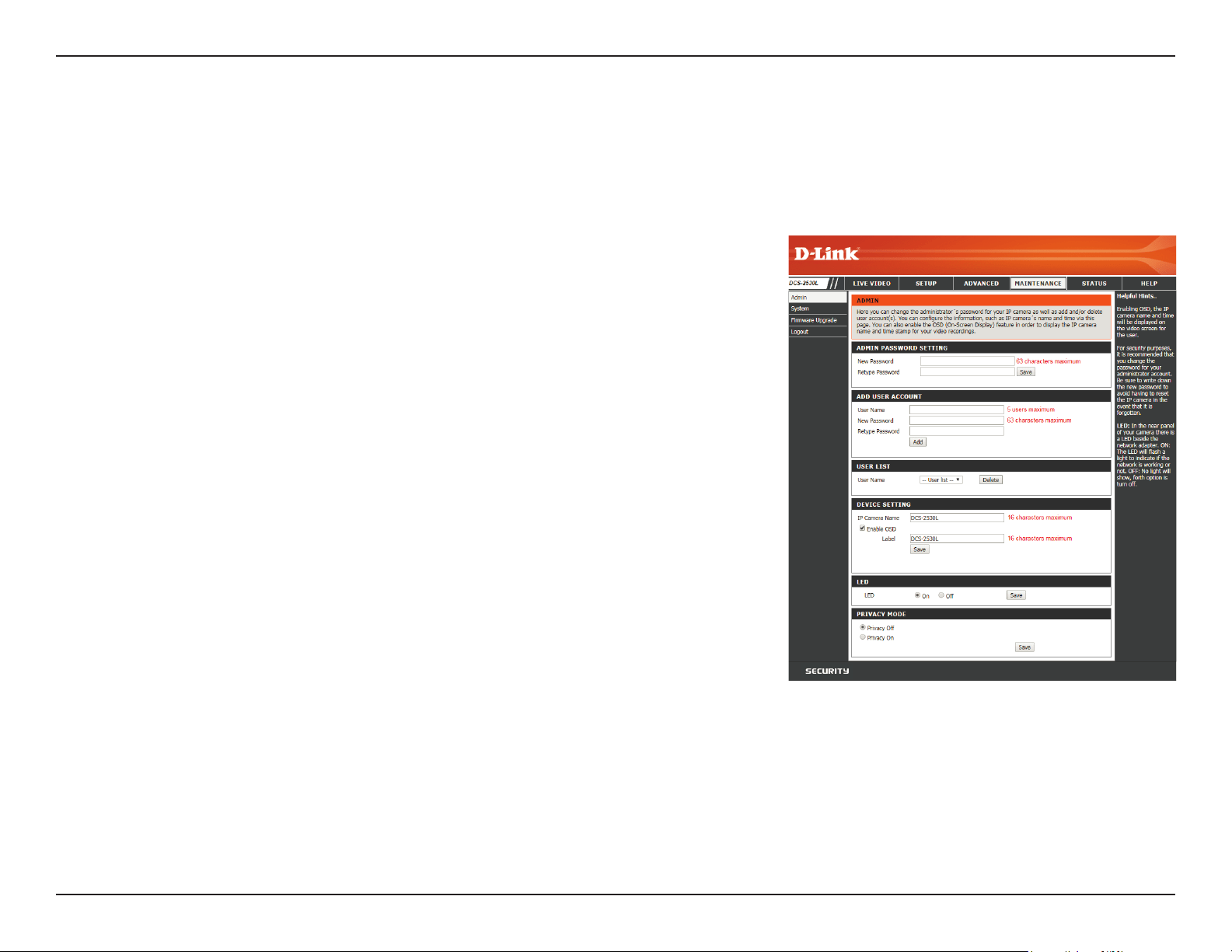
Here you can set access permissions for users to view your DCS-2530L.
Allow list:
Start IP address:
End IP address:
Delete allow list:
Deny list:
Delete deny list:
The list of IP addresses that have access rights to the camera.
Note: When adding entries to the Allow list, make sure the rst entry
includes the IP address of the computer or device you are using to
access the camera. Otherwise, you may be blocked from accessing the
camera after adding the entry to the Allow list.
The starting IP address of the IP address range for the devices (such as a
computer) that have permission to access the video of the camera.
The ending IP address of the IP address range for the devices (such as a
computer) that have permission to access the video of the camera.
Click Add to save your changes.
Note: You can create seven entries for both the Allow list and the Deny
list.
Select an entry to remove from the Allow List, then click Delete.
The list of IP addresses that have no access rights to the camera.
Select an entry to remove from the Deny List, then click Delete.
Note: All addresses in the Deny List will be denied access, even if they
are also in the Allow List.
Alowed
List
Denied
List
51D-Link DCS-2530L User Manual
Section 3: Conguration
Maintenance
Admin
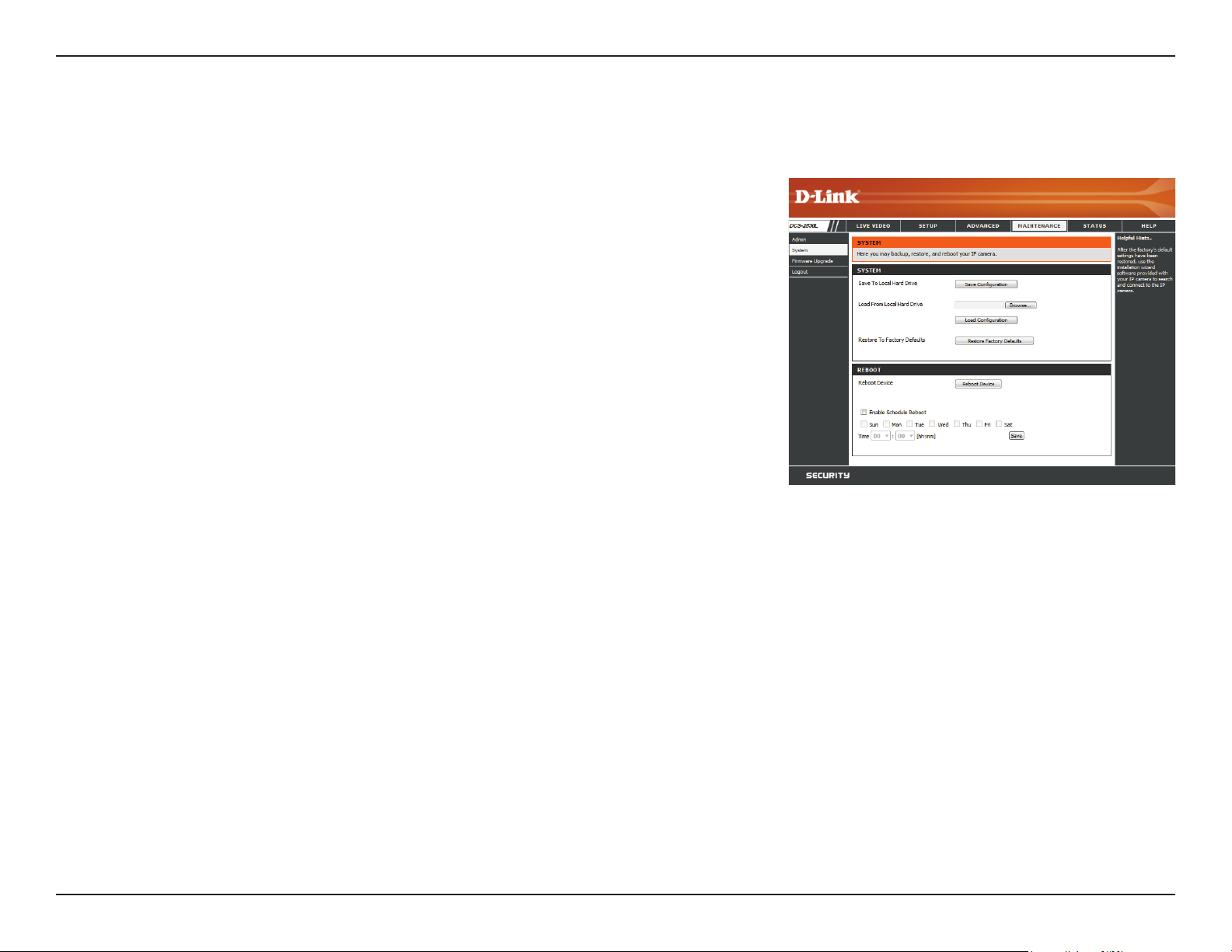
You may modify the name and administrator’s password of your camera, as well as add and manage the user accounts for accessing the camera.
You may also use this section to create a unique name and congure the OSD settings for your camera.
Admin Password
Setting:
Add User Account:
User Name:
New Password:
User List:
IP Camera Name:
Enable OSD:
Label:
LED:
Privacy O:
Privacy On:
Set a new password for the administrator’s account.
Add a new user account.
Enter the user name for the new account.
Enter the password for the new account.
All the existing user accounts will be displayed here. You may delete
accounts included in the list, but you may want to reserve at least one as a
guest account.
Create a unique name for your camera that will be added to the le name
prex when creating a snapshot or a video clip.
Select this option to enable the On-Screen Display feature for your camera,
which shows the camera name, date, and time on the camera's video.
Enter a label for the camera, which will be shown on the OSD when it is
enabled.
You may specify whether or not to illuminate the status LED on the camera.
Privacy mode is turned o (enabled by default).
When selected, the camera live video and audio streaming, event
notications, and motion and sound detection settings will all be disabled.
52D-Link DCS-2530L User Manual
Section 3: Conguration
System
In this section, you may backup, restore and reset the camera conguration, or reboot the camera.
Save To Local Hard
Drive:
Load From Local
Hard Drive:
Restore to Factory
Defaults:
Reboot Device:
Enable Schedule
Reboot:
You may save your current camera conguration as a le on your
computer.
Locate a pre-saved conguration by clicking Browse and then restore
the pre-dened settings to your camera by clicking Load Conguration.
You may reset your camera and restore the factory settings by clicking
Restore Factory Defaults.
This will restart your camera.
If you want your camera to reboot on a regular schedule, check the
Enable Schedule Reboot checkbox, then select the days and time you
want the camera to reboot on.
53D-Link DCS-2530L User Manual
Section 3: Conguration
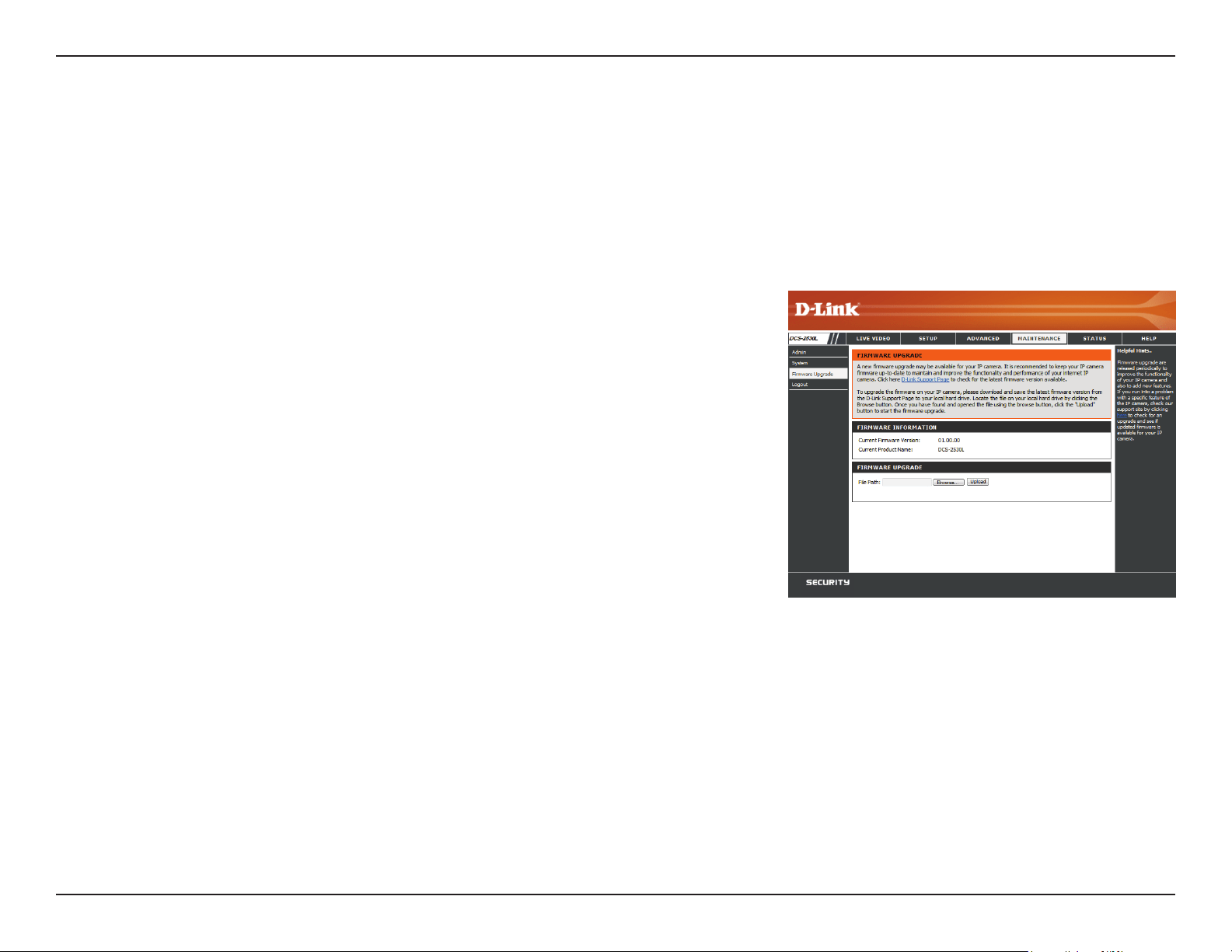
Firmware Upgrade
The camera's current rmware version will be displayed on this screen. You may visit the D-Link Support Website to check for the latest available
rmware version.
To upgrade the rmware on your DCS-2530L, please download and save the latest rmware version from the D-Link Support Page to your local
hard drive. Locate the le on your local hard drive by clicking the Browse button. Select the le and click the Upload button to start upgrading
the rmware.
Current Firmware
Version:
Current Product
Name:
File Path:
Upload:
Displays the detected rmware version.
Displays the camera model name.
Locate the le (upgraded rmware) on your hard drive by clicking
Browse.
Uploads the new rmware to your camera.
54D-Link DCS-2530L User Manual
Section 3: Conguration
Status
Device Info
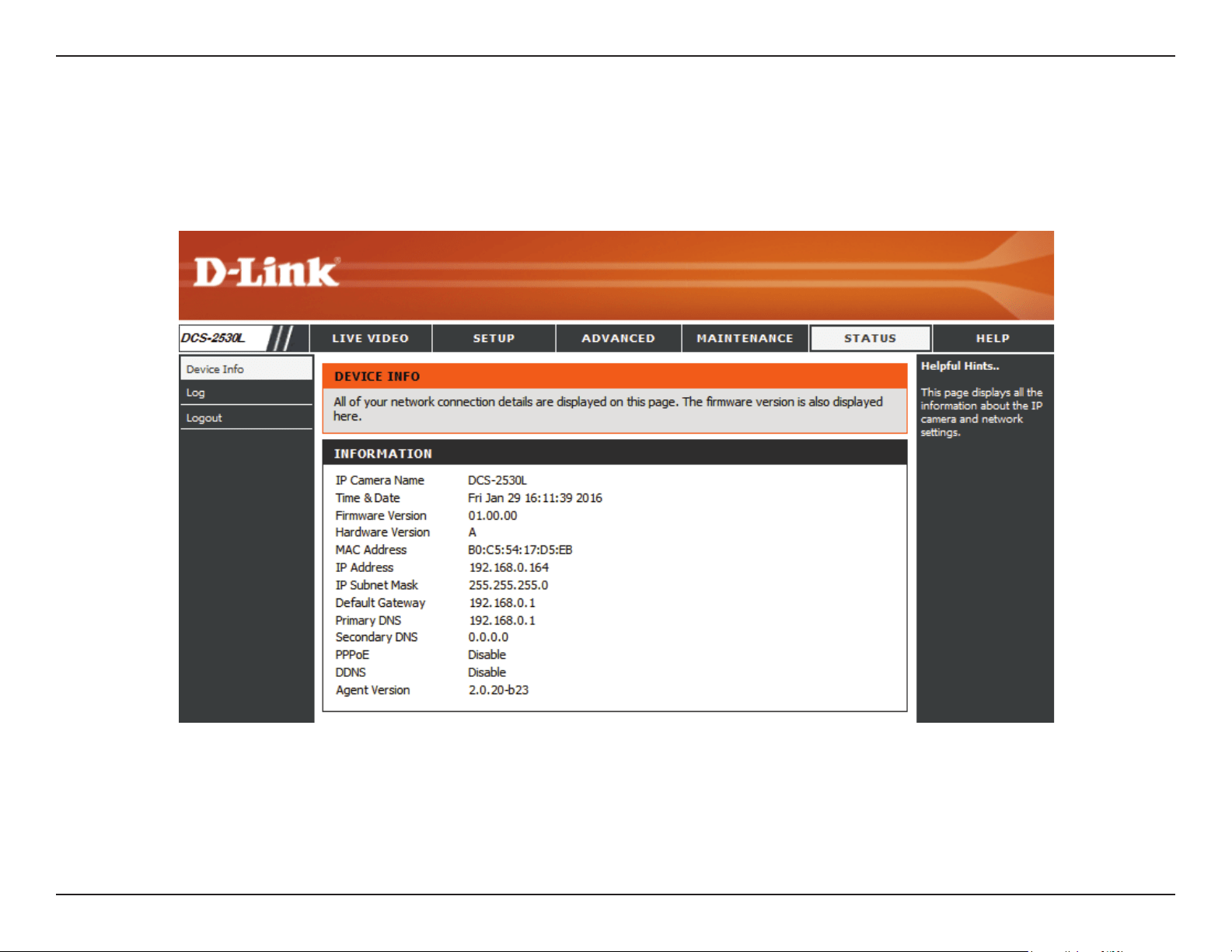
This page displays detailed information about your device and network connection.
55D-Link DCS-2530L User Manual
Section 3: Conguration
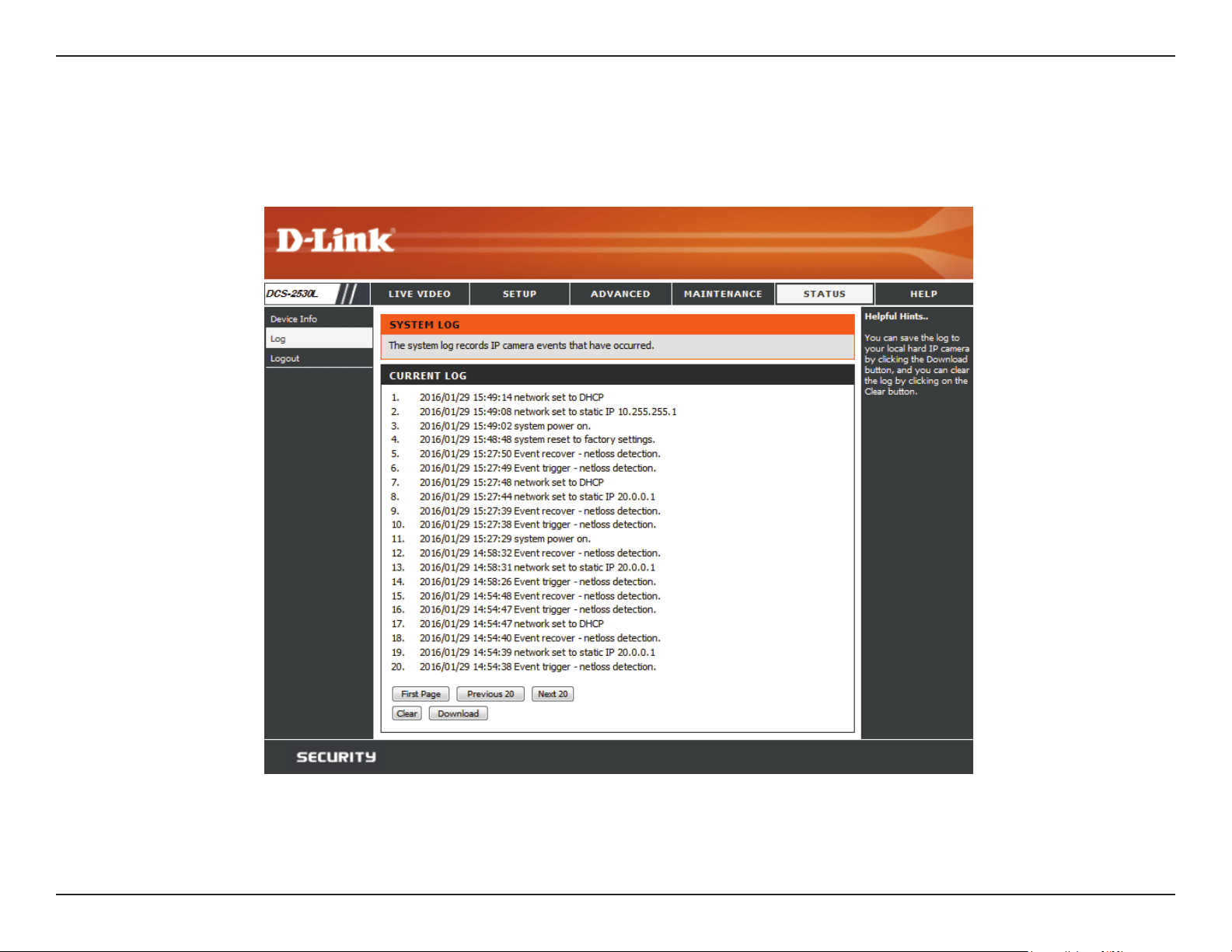
This page displays the log information of your camera. You may download the information by clicking Download. You may also click Clear to
delete the saved log information.
Log
56D-Link DCS-2530L User Manual
Section 3: Conguration
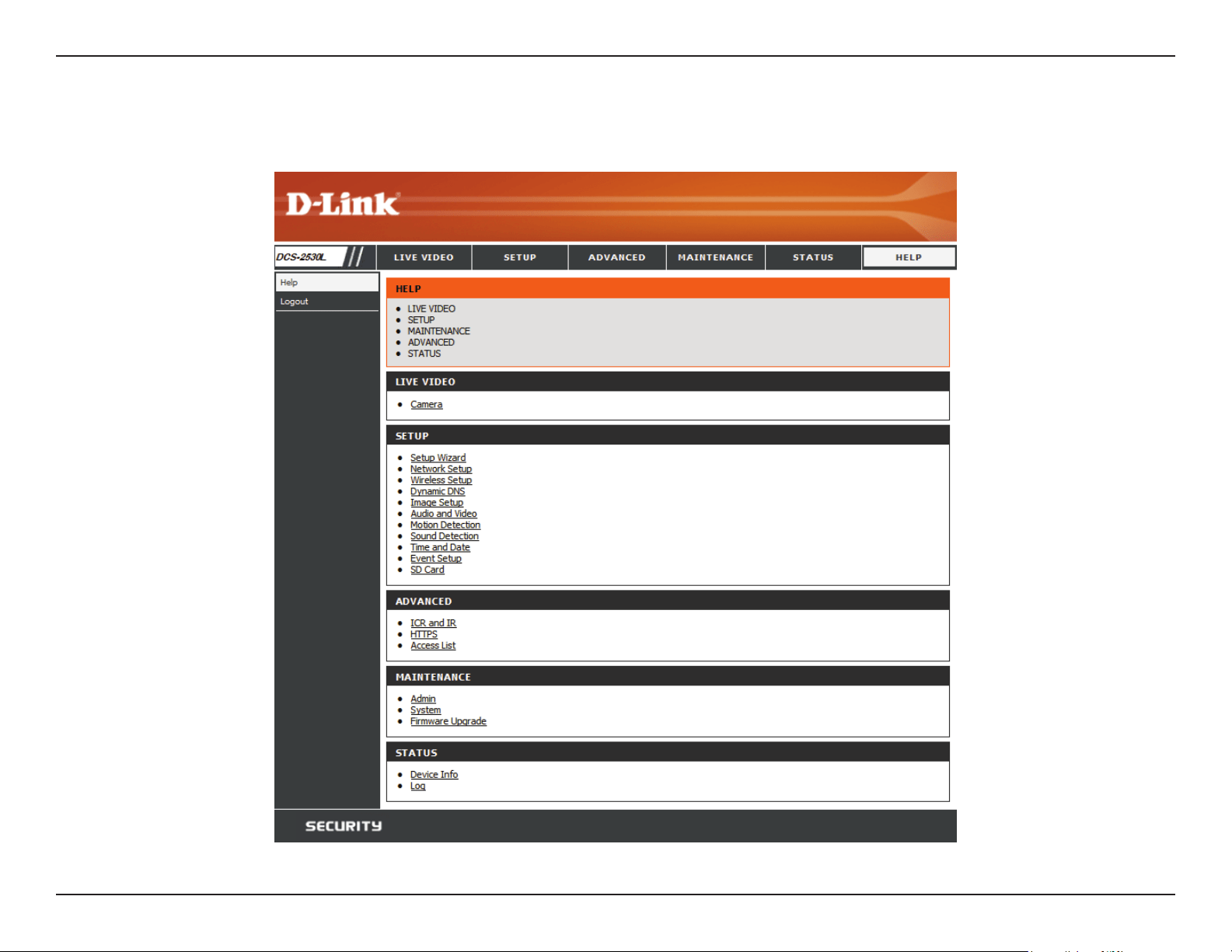
This page provides helpful information regarding camera operation.
Help
57D-Link DCS-2530L User Manual
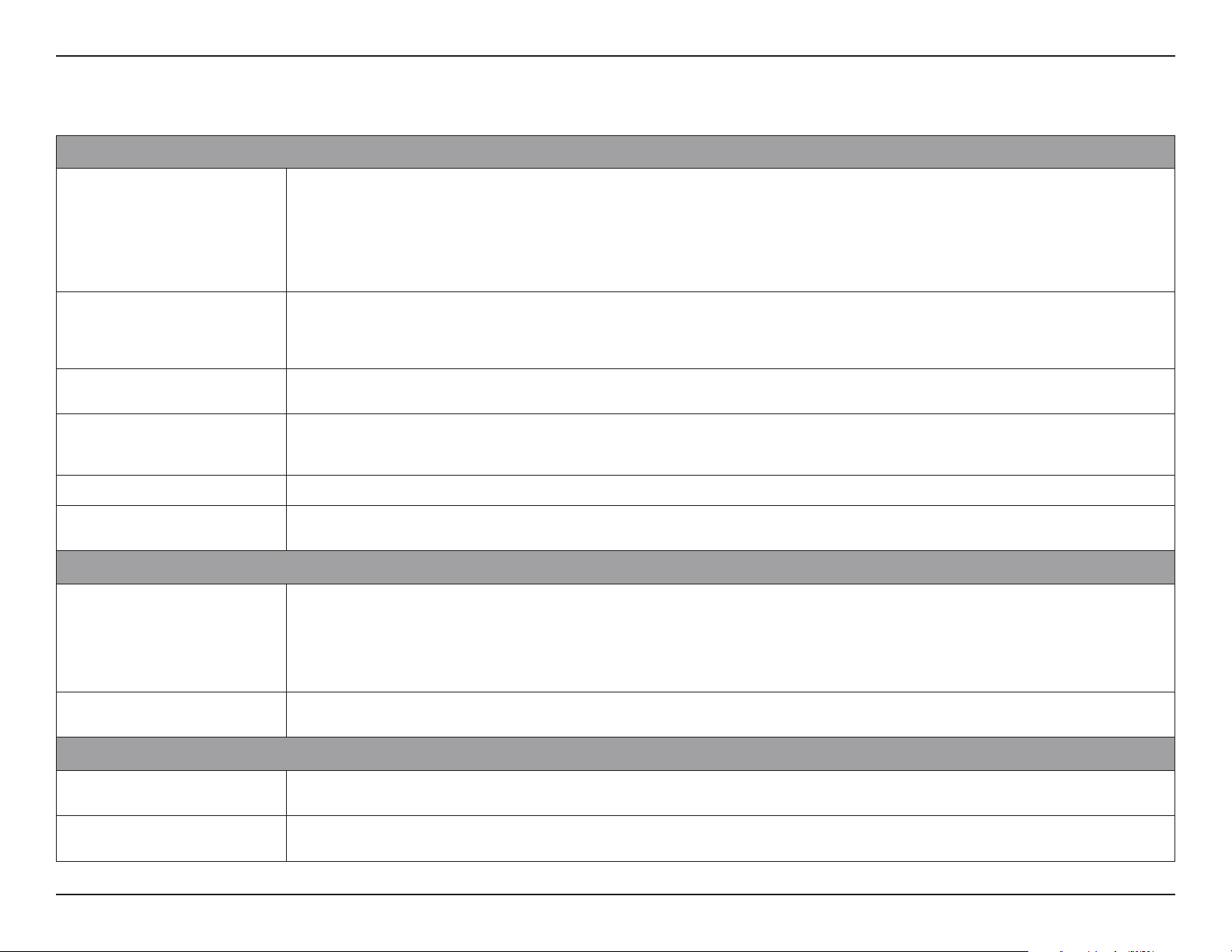
Appendix A: Technical Specications
Technical Specications
Camera
Camera Hardware Profile • 1/3” Megapixel progressive CMOS sensor
• Minimum illumination:
• Color mode: 0.5 lux
• B/W mode (LEDs off): 0.1 lux
• B/W mode (LEDs on): 0 lux
• Minimum object distance 30 cm
• Lens focal length: 1.7 mm
• Aperture: F2.5
• Angle of view (16:9):
• (H) 180°
• (V) 86°
• (D) 180°
• Stand angle: -15° to 90°
Image Features • Configurable image size, quality, frame rate, and bit rate
• Wide Dynamic Range (WDR)
• 3D filtering
• Time stamp and text overlays
• Configurable motion detection windows
• Configurable privacy mask zones
• Configurable exposure time, brightness, saturation, contrast, sharpness.
Video Compression • Simultaneous H.264/MJPEG format compression
• H.264 multicast streaming
• JPEG for still images
Video Resolution • 16:9
• 1920 x 1080 at up to 15 fps
• 1280 x 720, 800 x 448, 640 x 360 at up to 30 fps
Audio Support • G.711 128 Kbps • AAC 32 Kbps
Connectivity • 802.11n/g/b wireless with WPA/WPA2 encryption
• Operates on 2.4 GHz band
• Maximum data rate of 300 MBps (PHY rate)
1
• microSD/SDHC/SDXC card Slot, accepts cards up to 128 GB
Network
Network Protocols • IPv6, IPv4, ARP, TCP, UDP, ICMP
• DHCP client
• NTP client (D-Link)
• DNS client
• DDNS client (D-Link)
• SMTP client
• HTTP server
• UPnP port forwarding
• RTP/RTSP/RTCP
• HTTPS (for configuration)
• ONVIF
• Bonjour
Security • Administrator and user group protection
• Password authentication
• HTTP and RTSP digest encryption
System Integration
System Requirements for Web Interface • Operating System: Windows 10/8/7 or Mac OS X 10.9 or higher
3
• Browser: Internet Explorer 9 and higher (on Windows), Firefox 12-51, 52 ESR,
Chrome 42 and higher, or Safari 9 and higher (on Mac OS X)
Event Management • Motion detection
• Sound level detection
• Event notification and uploading of snapshots/video clips via e-mail
• Scheduled recording
58D-Link DCS-2530L User Manual
Appendix A: Technical Specications
Remote Management • Configuration interface accessible via web browser
Mobile Support • mydlink Lite app for iPhone, iPad or Android smartphone or tablet
General
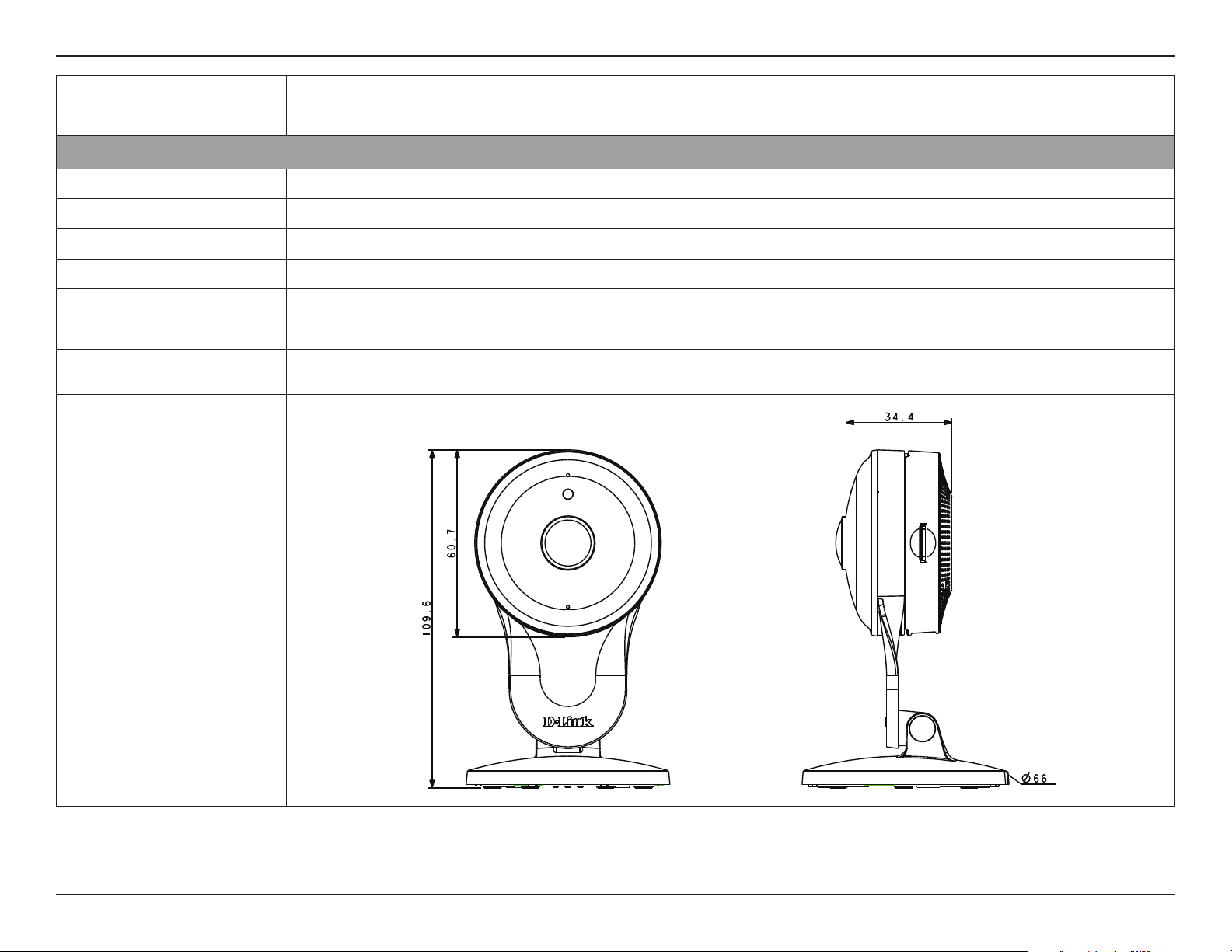
Dimensions • 109.6 x 66.0 x 66.0 mm (4.3 x 2.4 x 2.4 inches) ± 5%
Weight • 105 grams (3.7 ounces) ± 5%
Power Adapter • Input: 100 to 240 V AC, 50/60 Hz • Output: 5 V DC 1.2 A
Power Consumption • 4.5 watts ± 5%
Temperature • Operating: 0 to 40 °C (32 to 104 °F) • Storage: -20 to 70 °C (-4 to 158 °F)
Humidity • Operating: 20% to 80% non-condensing • Storage: 5% to 95% non-condensing
Certifications • CE
• CE LVD
• FCC
• ICES
Dimensions Diagram
1
Maximum wireless signal rate derived from IEEE standard 802.11n specications. Actual data throughput will vary. Network conditions and environmental factors, including volume of network trac, building
materials and construction, and network overhead, lower actual data throughput rate. Environmental factors will adversely aect wireless signal range.
2
Chrome for conguration only.
3
Go to www.mydlink.com to see the latest supported OS and browser versions at Support > FAQ > mydlink Basic > System Requirement.

59D-Link DCS-2530L User Manual
Appendix B: Technical Support
Contacting Technical Support
U.S. and Canadian customers can contact D-Link technical support through our web site or by phone.
Before you contact technical support, please have the following ready:
• Model number of the product (e.g. DCS-2530L)
• Hardware Revision (located on the label on the bottom of the camera (e.g. rev A1))
• Serial Number (s/n number located on the label on the bottom of the camera).
You can nd software updates and user documentation on the D-Link website as well as frequently asked questions and
answers to technical issues.
For customers within the United States:
Phone Support:
(877) 453-5465
Internet Support:
http://support.dlink.com
For customers within Canada:
Phone Support:
(800) 361-5265
Internet Support:
http://support.dlink.ca

60D-Link DCS-2530L User Manual
Appendix C: Warranty
Warranty
Subject to the terms and conditions set forth herein, D-Link Systems, Inc. (“D-Link”) provides this Limited Warranty:
• Only to the person or entity that originally purchased the product from D-Link or its authorized reseller or distributor, and
• Only for products purchased and delivered within the fty states of the United States, the District of Columbia, U.S. Possessions
or Protectorates, U.S. Military Installations, or addresses with an APO or FPO.
Limited Warranty:
D-Link warrants that the hardware portion of the D-Link product described below (“Hardware”) will be free from material defects in workmanship
and materials under normal use from the date of original retail purchase of the product, for the period set forth below (“Warranty Period”), except
as otherwise stated herein.
• Hardware (excluding power supplies and fans): One (1) year
• Power supplies and fans: One (1) year
• Spare parts and spare kits: Ninety (90) days
The customer’s sole and exclusive remedy and the entire liability of D-Link and its suppliers under this Limited Warranty will be, at
D-Link’s option, to repair or replace the defective Hardware during the Warranty Period at no charge to the original owner or to refund the actual
purchase price paid. Any repair or replacement will be rendered by D-Link at an Authorized D-Link Service Oce. The replacement hardware
need not be new or have an identical make, model or part. D-Link may, at its option, replace the defective Hardware or any part thereof with any
reconditioned product that D-Link reasonably determines is substantially equivalent (or superior) in all material respects to the defective Hardware.
Repaired or replacement hardware will be warranted for the remainder of the original Warranty Period or ninety (90) days, whichever is longer,
and is subject to the same limitations and exclusions. If a material defect is incapable of correction, or if D-Link determines that it is not practical
to repair or replace the defective Hardware, the actual price paid by the original purchaser for the defective Hardware will be refunded by D-Link
upon return to D-Link of the defective Hardware. All Hardware or part thereof that is replaced by D-Link, or for which the purchase price is refunded,
shall become the property of D-Link upon replacement or refund.

61D-Link DCS-2530L User Manual
Appendix C: Warranty
Limited Software Warranty:
D-Link warrants that the software portion of the product (“Software”) will substantially conform to D-Link’s then current functional specications
for the Software, as set forth in the applicable documentation, from the date of original retail purchase of the Software for a period of ninety (90)
days (“Software Warranty Period”), provided that the Software is properly installed on approved hardware and operated as contemplated in its
documentation. D-Link further warrants that, during the Software Warranty Period, the magnetic media on which D-Link delivers the Software will be
free of physical defects. The customer’s sole and exclusive remedy and the entire liability of D-Link and its suppliers under this Limited Warranty will
be, at D-Link’s option, to replace the non-conforming Software (or defective media) with software that substantially conforms to D-Link’s functional
specications for the Software or to refund the portion of the actual purchase price paid that is attributable to the Software. Except as otherwise
agreed by D-Link in writing, the replacement Software is provided only to the original licensee, and is subject to the terms and conditions of the
license granted by D-Link for the Software. Replacement Software will be warranted for the remainder of the original Warranty Period and is subject
to the same limitations and exclusions. If a material non-conformance is incapable of correction, or if D-Link determines in its sole discretion that it
is not practical to replace the non-conforming Software, the price paid by the original licensee for the non-conforming Software will be refunded by
D-Link; provided that the non-conforming Software (and all copies thereof) is rst returned to D-Link. The license granted respecting any Software
for which a refund is given automatically terminates.
Non-Applicability of Warranty:
The Limited Warranty provided hereunder for Hardware and Software portions of D-Link’s products will not be applied to and does not cover any
refurbished product and any product purchased through the inventory clearance or liquidation sale or other sales in which D-Link, the sellers, or
the liquidators expressly disclaim their warranty obligation pertaining to the product and in that case, the product is being sold “As-Is” without any
warranty whatsoever including, without limitation, the Limited Warranty as described herein, notwithstanding anything stated herein to the contrary.
Submitting A Claim (USA):
The customer shall return the product to the original purchase point based on its return policy. In case the return policy period has expired and
the product is within warranty, the customer shall submit a claim to D-Link as outlined below:
• The customer must submit with the product as part of the claim a written description of the Hardware defect or Software
nonconformance in sucient detail to allow D-Link to conrm the same, along with proof of purchase of the product (such as a
copy of the dated purchase invoice for the product) if the product is not registered.
• The customer must obtain a Case ID Number from D-Link Technical Support at 1-877-354-6555, who will attempt to assist the
customer in resolving any suspected defects with the product. If the product is considered defective, the customer must obtain
a Return Material Authorization (“RMA”) number by completing the RMA form and entering the assigned Case ID Number at
https://rma.dlink.com/.

62D-Link DCS-2530L User Manual
Appendix C: Warranty
• After an RMA number is issued, the defective product must be packaged securely in the original or other suitable shipping package
to ensure that it will not be damaged in transit, and the RMA number must be prominently marked on the outside of the package.
Do not include any manuals or accessories in the shipping package. D-Link will only replace the defective portion of the product
and will not ship back any accessories.
• The customer is responsible for all in-bound shipping charges to D-Link. No Cash on Delivery (“COD”) is allowed. Products sent COD
will either be rejected by D-Link or become the property of D-Link. Products shall be fully insured by the customer and shipped
to D-Link Systems, Inc., 17595 Mt. Herrmann, Fountain Valley, CA 92708. D-Link will not be held responsible for any packages that
are lost in transit to D-Link. The repaired or replaced packages will be shipped to the customer via UPS Ground or any common
carrier selected by D-Link. Return shipping charges shall be prepaid by D-Link if you use an address in the United States, otherwise
we will ship the product to you freight collect. Expedited shipping is available upon request and provided shipping charges are
prepaid by the customer. D-Link may reject or return any product that is not packaged and shipped in strict compliance with the
foregoing requirements, or for which an RMA number is not visible from the outside of the package. The product owner agrees to
pay D-Link’s reasonable handling and return shipping charges for any product that is not packaged and shipped in accordance
with the foregoing requirements, or that is determined by D-Link not to be defective or non-conforming.
What Is Not Covered:
The Limited Warranty provided herein by D-Link does not cover:
Products that, in D-Link’s judgment, have been subjected to abuse, accident, alteration, modication, tampering, negligence, misuse, faulty installation,
lack of reasonable care, repair or service in any way that is not contemplated in the documentation for the product, or if the model or serial number
has been altered, tampered with, defaced or removed; Initial installation, installation and removal of the product for repair, and shipping costs;
Operational adjustments covered in the operating manual for the product, and normal maintenance; Damage that occurs in shipment, due to act
of God, failures due to power surge, and cosmetic damage; Any hardware, software, rmware or other products or services provided by anyone
other than D-Link; and Products that have been purchased from inventory clearance or liquidation sales or other sales in which D-Link, the sellers,
or the liquidators expressly disclaim their warranty obligation pertaining to the product.
While necessary maintenance or repairs on your Product can be performed by any company, we recommend that you use only an Authorized D-Link
Service Oce. Improper or incorrectly performed maintenance or repair voids this Limited Warranty.
Disclaimer of Other Warranties:
EXCEPT FOR THE LIMITED WARRANTY SPECIFIED HEREIN, THE PRODUCT IS PROVIDED “AS-IS” WITHOUT ANY WARRANTY OF ANY KIND WHATSOEVER
INCLUDING, WITHOUT LIMITATION, ANY WARRANTY OF MERCHANTABILITY, FITNESS FOR A PARTICULAR PURPOSE AND NONINFRINGEMENT.

63D-Link DCS-2530L User Manual
Appendix C: Warranty
IF ANY IMPLIED WARRANTY CANNOT BE DISCLAIMED IN ANY TERRITORY WHERE A PRODUCT IS SOLD, THE DURATION OF SUCH IMPLIED WARRANTY
SHALL BE LIMITED TO THE DURATION OF THE APPLICABLE WARRANTY PERIOD SET FORTH ABOVE. EXCEPT AS EXPRESSLY COVERED UNDER THE
LIMITED WARRANTY PROVIDED HEREIN, THE ENTIRE RISK AS TO THE QUALITY, SELECTION AND PERFORMANCE OF THE PRODUCT IS WITH THE
PURCHASER OF THE PRODUCT.
Limitation of Liability:
TO THE MAXIMUM EXTENT PERMITTED BY LAW, D-LINK IS NOT LIABLE UNDER ANY CONTRACT, NEGLIGENCE, STRICT LIABILITY OR OTHER LEGAL
OR EQUITABLE THEORY FOR ANY LOSS OF USE OF THE PRODUCT, INCONVENIENCE OR DAMAGES OF ANY CHARACTER, WHETHER DIRECT, SPECIAL,
INCIDENTAL OR CONSEQUENTIAL (INCLUDING, BUT NOT LIMITED TO, DAMAGES FOR LOSS OF GOODWILL, LOSS OF REVENUE OR PROFIT, WORK
STOPPAGE, COMPUTER FAILURE OR MALFUNCTION, FAILURE OF OTHER EQUIPMENT OR COMPUTER PROGRAMS TO WHICH D-LINK’S PRODUCT
IS CONNECTED WITH, LOSS OF INFORMATION OR DATA CONTAINED IN, STORED ON, OR INTEGRATED WITH ANY PRODUCT RETURNED TO D-LINK
FOR WARRANTY SERVICE) RESULTING FROM THE USE OF THE PRODUCT, RELATING TO WARRANTY SERVICE, OR ARISING OUT OF ANY BREACH OF
THIS LIMITED WARRANTY, EVEN IF D-LINK HAS BEEN ADVISED OF THE POSSIBILITY OF SUCH DAMAGES. THE SOLE REMEDY FOR A BREACH OF
THE FOREGOING LIMITED WARRANTY IS REPAIR, REPLACEMENT OR REFUND OF THE DEFECTIVE OR NONCONFORMING PRODUCT. THE MAXIMUM
LIABILITY OF D-LINK UNDER THIS WARRANTY IS LIMITED TO THE PURCHASE PRICE OF THE PRODUCT COVERED BY THE WARRANTY. THE FOREGOING
EXPRESS WRITTEN WARRANTIES AND REMEDIES ARE EXCLUSIVE AND ARE IN LIEU OF ANY OTHER WARRANTIES OR REMEDIES, EXPRESS, IMPLIED
OR STATUTORY.
Governing Law:
This Limited Warranty shall be governed by the laws of the State of California. Some states do not allow exclusion or limitation of incidental or
consequential damages, or limitations on how long an implied warranty lasts, so the foregoing limitations and exclusions may not apply. This
Limited Warranty provides specic legal rights and you may also have other rights which vary from state to state.
Trademarks:
D-Link is a registered trademark of D-Link Corporation/D-Link Systems, Inc. Other trademarks or registered trademarks are the property of their
respective owners.
Copyright Statement:
No part of this publication or documentation accompanying this product may be reproduced in any form or by any means or used to make any
derivative such as translation, transformation, or adaptation without permission from D-Link Corporation/D-Link Systems, Inc., as stipulated by the
United States Copyright Act of 1976 and any amendments thereto. Contents are subject to change without prior notice.
Copyright ©2017 by D-Link Corporation/D-Link Systems, Inc. All rights reserved.

64D-Link DCS-2530L User Manual
Appendix C: Warranty
FCC Statement:
This equipment has been tested and found to comply with the limits for a Class B digital device, pursuant to part 15 of the FCC Rules. These limits are
designed to provide reasonable protection against harmful interference in a residential installation. This equipment generates, uses, and can radiate
radio frequency energy and, if not installed and used in accordance with the instructions, may cause harmful interference to radio communication.
However, there is no guarantee that interference will not occur in a particular installation. If this equipment does cause harmful interference to radio
or television reception, which can be determined by turning the equipment o and on, the user is encouraged to try to correct the interference by
one or more of the following measures:
• Reorient or relocate the receiving antenna.
• Increase the separation between the equipment and receiver.
• Connect the equipment into an outlet on a circuit dierent from that to which the receiver is connected.
• Consult the dealer or an experienced radio/TV technician for help.
FCC Caution:
Any changes or modications not expressly approved by the party responsible for compliance could void the user’s authority to operate this
equipment.
This device complies with Part 15 of the FCC Rules. Operation is subject to the following two conditions:
(1) This device may not cause harmful interference, and
(2) this device must accept any interference received, including interference that may cause undesired operation.
If this device is going to be operated in 5.15 ~ 5.25GHz frequency range, then it is restricted in indoor environment only.
IMPORTANT NOTICE:
FCC Radiation Exposure Statement:
This equipment complies with FCC radiation exposure limits set forth for an uncontrolled environment. This equipment should be installed and
operated with minimum distance 20cm between the radiator & your body. This transmitter must not be co-located or operating in conjunction
with any other antenna or transmitter.
The availability of some specic channels and/or operational frequency bands are country dependent and are rmware programmed at the factory
to match the intended destination. The rmware setting is not accessible by the end user.
For detailed warranty information applicable to products purchased outside the United States, please contact the corresponding local D-Link
oce.
65D-Link DCS-2530L User Manual
Appendix D: Registration
Version 1.03 (US)
November 22, 2017
Product registration is entirely voluntary and failure to complete or return this form will not diminish your warranty rights.
Registration