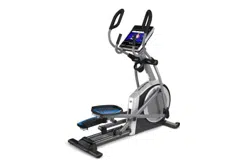
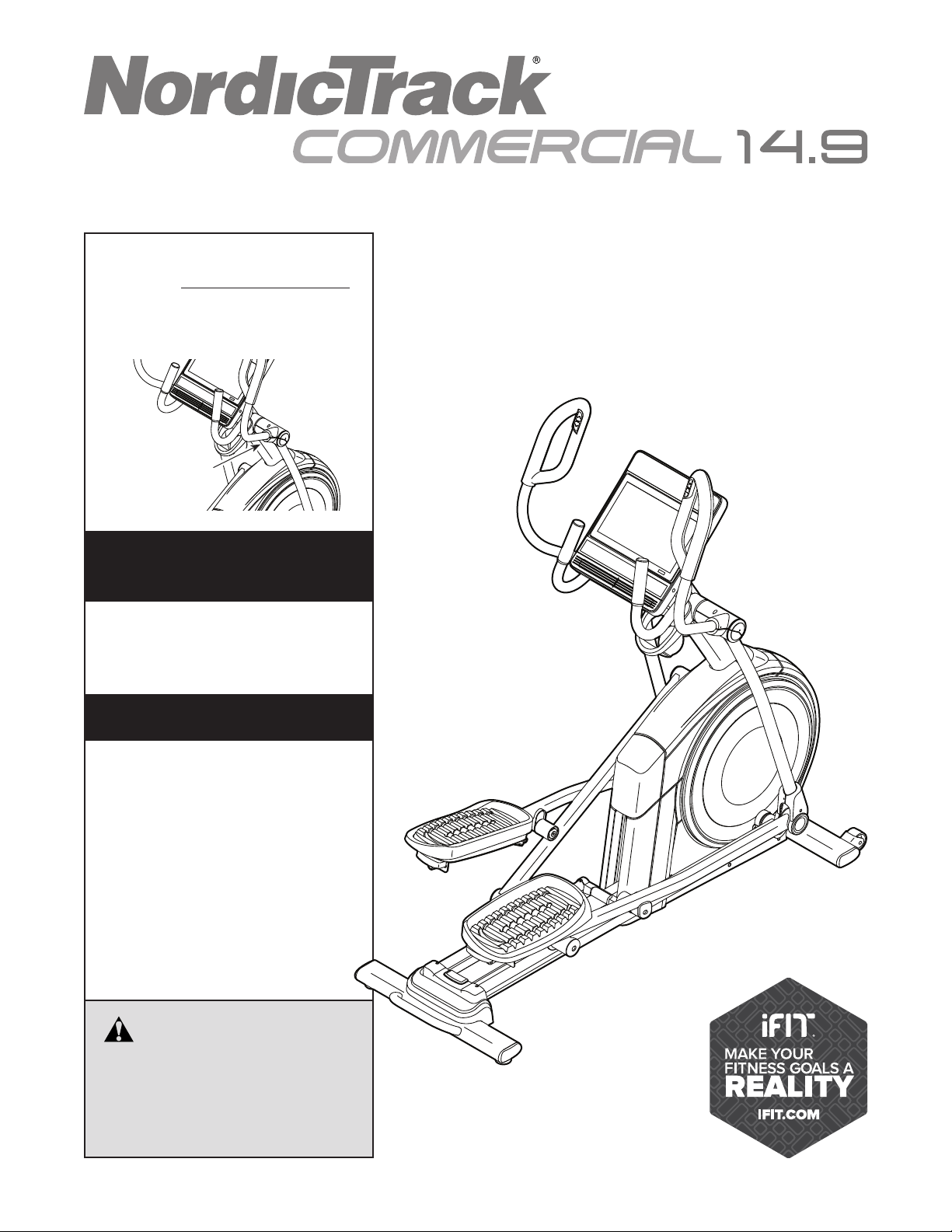
USER’S MANUAL
Serial Number
Decal
CAUTION
Read all precautions and
instructions in this manual before
using this equipment. Keep this
manual for future reference.
Model No. NTEL71420.1
Serial No.
Write the serial number in the space
above for reference.
nordictrack.com
To register your product and
activate your warranty today,
go to my.nordictrack.com.
For service at any time, go to
support.nordictrack.com.
Or call 1-800-TO-BE-FIT
(1-800-862-3348)
Mon.–Fri. 6 a.m.–6 p.m. MT
Sat. 8 a.m.–12 p.m. MT
Please do not contact the store.
ACTIVATE YOUR
WARRANTY
CUSTOMER CARE
2
TABLE OF CONTENTS
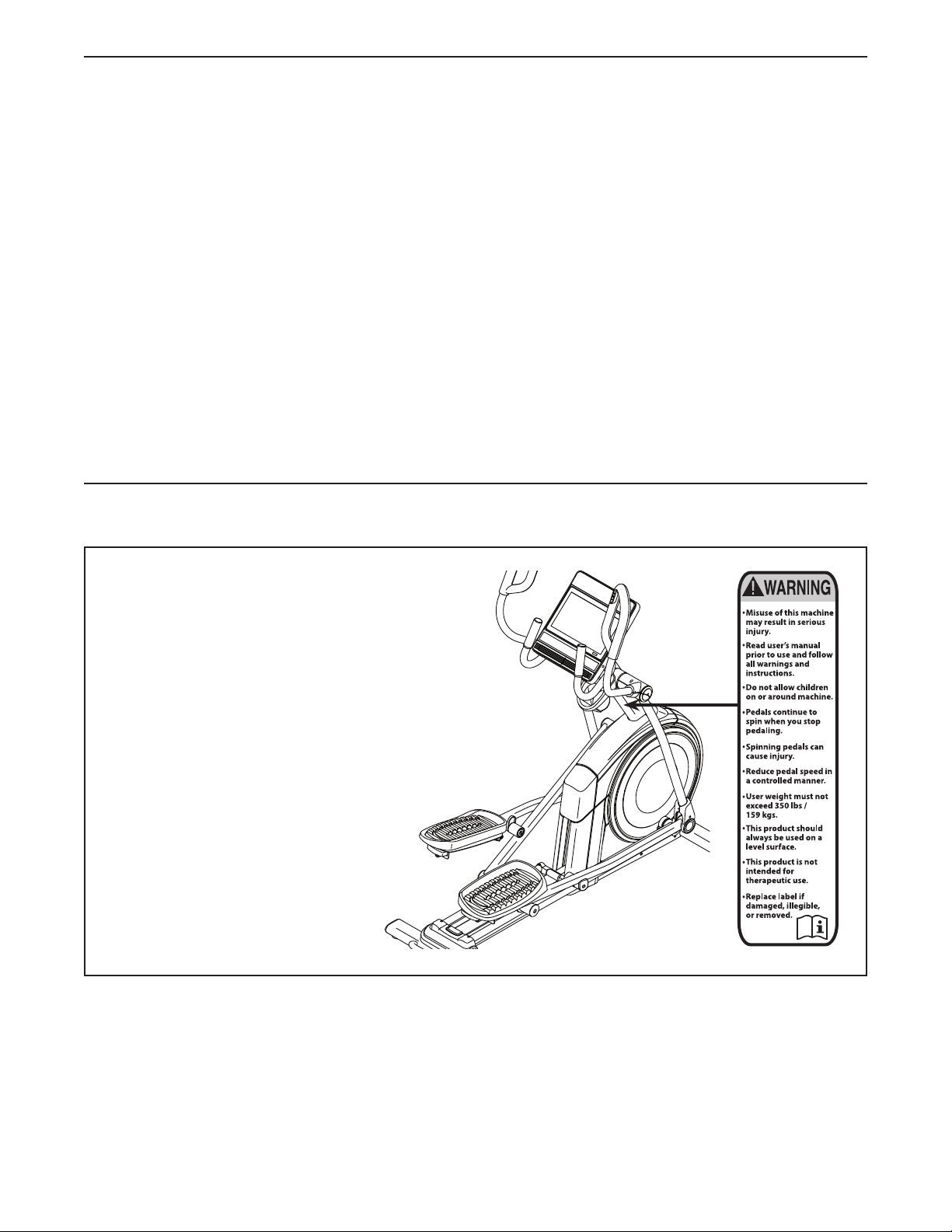
WARNING DECAL PLACEMENT
This drawing shows the location(s) of the warning
decal(s). If a decal is missing or illegible, see
the front cover of this manual and request a
free replacement decal. Apply the decal in the
location shown. Note: The decal(s) may not be
shown at actual size.
WARNING DECAL PLACEMENT . . . . . . . . . . . . . . . . . . . . . . . . . . . . . . . . . . . . . . . . . . . . . . . . . . . . . . . . . . . . . . .2
IMPORTANT PRECAUTIONS ..................................................................3
BEFORE YOU BEGIN. . . . . . . . . . . . . . . . . . . . . . . . . . . . . . . . . . . . . . . . . . . . . . . . . . . . . . . . . . . . . . . . . . . . . . . .6
PART IDENTIFICATION CHART. . . . . . . . . . . . . . . . . . . . . . . . . . . . . . . . . . . . . . . . . . . . . . . . . . . . . . . . . . . . . . . .7
ASSEMBLY . . . . . . . . . . . . . . . . . . . . . . . . . . . . . . . . . . . . . . . . . . . . . . . . . . . . . . . . . . . . . . . . . . . . . . . . . . . . . . . .8
HOW TO USE THE ELLIPTICAL ..............................................................16
HOW TO USE THE CONSOLE. . . . . . . . . . . . . . . . . . . . . . . . . . . . . . . . . . . . . . . . . . . . . . . . . . . . . . . . . . . . . . . .19
FCC INFORMATION . . . . . . . . . . . . . . . . . . . . . . . . . . . . . . . . . . . . . . . . . . . . . . . . . . . . . . . . . . . . . . . . . . . . . . . .30
MAINTENANCE AND TROUBLESHOOTING .....................................................31
EXERCISE GUIDELINES ....................................................................33
PART LIST. . . . . . . . . . . . . . . . . . . . . . . . . . . . . . . . . . . . . . . . . . . . . . . . . . . . . . . . . . . . . . . . . . . . . . . . . . . . . . . .35
EXPLODED DRAWING. . . . . . . . . . . . . . . . . . . . . . . . . . . . . . . . . . . . . . . . . . . . . . . . . . . . . . . . . . . . . . . . . . . . . .37
ORDERING REPLACEMENT PARTS .................................................. Back Cover
LIMITED WARRANTY. . . . . . . . . . . . . . . . . . . . . . . . . . . . . . . . . . . . . . . . . . . . . . . . . . . . . . . . . . . . . . . Back Cover
NORDICTRACK and IFIT are registered trademarks of ICON Health & Fitness, Inc. Google Maps is a trademark
of Google LLC. The Bluetooth
®
word mark and logos are registered trademarks of Bluetooth SIG, Inc. and are
used under license. Wi-Fi is a registered trademark of Wi-Fi Alliance. WPA and WPA2 are trademarks of Wi-Fi
Alliance.

3
IMPORTANT PRECAUTIONS
WARNING: To reduce the risk of burns, fire, electric shock, or injury to persons, read
all important precautions and instructions in this manual and all warnings on your elliptical before
using your elliptical. ICON assumes no responsibility for personal injury or property damage sus-
tained by or through the use of this product.
1. It is the responsibility of the owner to ensure
that all users of the elliptical are adequately
informed of all precautions.
2. Before beginning any exercise program,
consult your physician. This is especially
important for persons over age 35 or persons
with pre-existing health problems.
3. The elliptical is not intended for use by
persons with reduced physical, sensory, or
mental capabilities or lack of experience and
knowledge, unless they are given supervi-
sion or instruction about use of the elliptical
by someone responsible for their safety.
4. Use the elliptical only as described in this
manual.
5. The elliptical is intended for home use only.
Do not use the elliptical in a commercial,
rental, or institutional setting.
6. Keep the elliptical indoors, away from mois-
ture and dust. Do not put the elliptical in a
garage or covered patio, or near water.
7. Place the elliptical on a level surface, with at
least 3 ft. (0.9 m) of clearance in the front and
rear of the elliptical and 2 ft. (0.6 m) on each
side. To protect the floor or carpet from dam-
age, place a mat under the elliptical.
8. Inspect and properly tighten all parts each
time the elliptical is used. Replace any worn
parts immediately.
9. When connecting the power cord, plug the
power cord into a grounded circuit.
10. Do not modify the power cord or use an
adapter to connect the power cord to an
improper receptacle. Keep the power cord
away from heated surfaces. Do not use an
extension cord.
11. Do not operate the elliptical if the power cord
or plug is damaged, or if the elliptical is not
working properly.
12. DANGER: Always unplug the power
cord and switch the power switch to the off
position when the elliptical is not in use and
before cleaning the elliptical. Servicing other
than the procedures in this manual should be
performed by an authorized service repre-
sentative only.
13. Keep children under age 16 and pets away
from the elliptical at all times.
14. The elliptical should not be used by persons
weighing more than 350 lbs. (159 kg).
15. Wear appropriate clothes while exercising;
do not wear loose clothes that could become
caught on the elliptical. Always wear athletic
shoes for foot protection while exercising.
16. Hold the handlebars or the upper body arms
when mounting, dismounting, or using the
elliptical. Before mounting or dismounting,
bring the pedals to a stop with the pedal
on the mounting or dismounting side in its
lowest position.

4
SAVE THESE INSTRUCTIONS
17. The elliptical does not have a freewheel; the
pedals will continue to move until the fly-
wheel stops. Reduce your pedaling speed in
a controlled way.
18. Keep your back straight while using the
elliptical; do not arch your back.
19. Over exercising may result in serious injury
or death. If you feel faint, if you become short
of breath, or if you experience pain while
exercising, stop immediately and cool down.
5
all
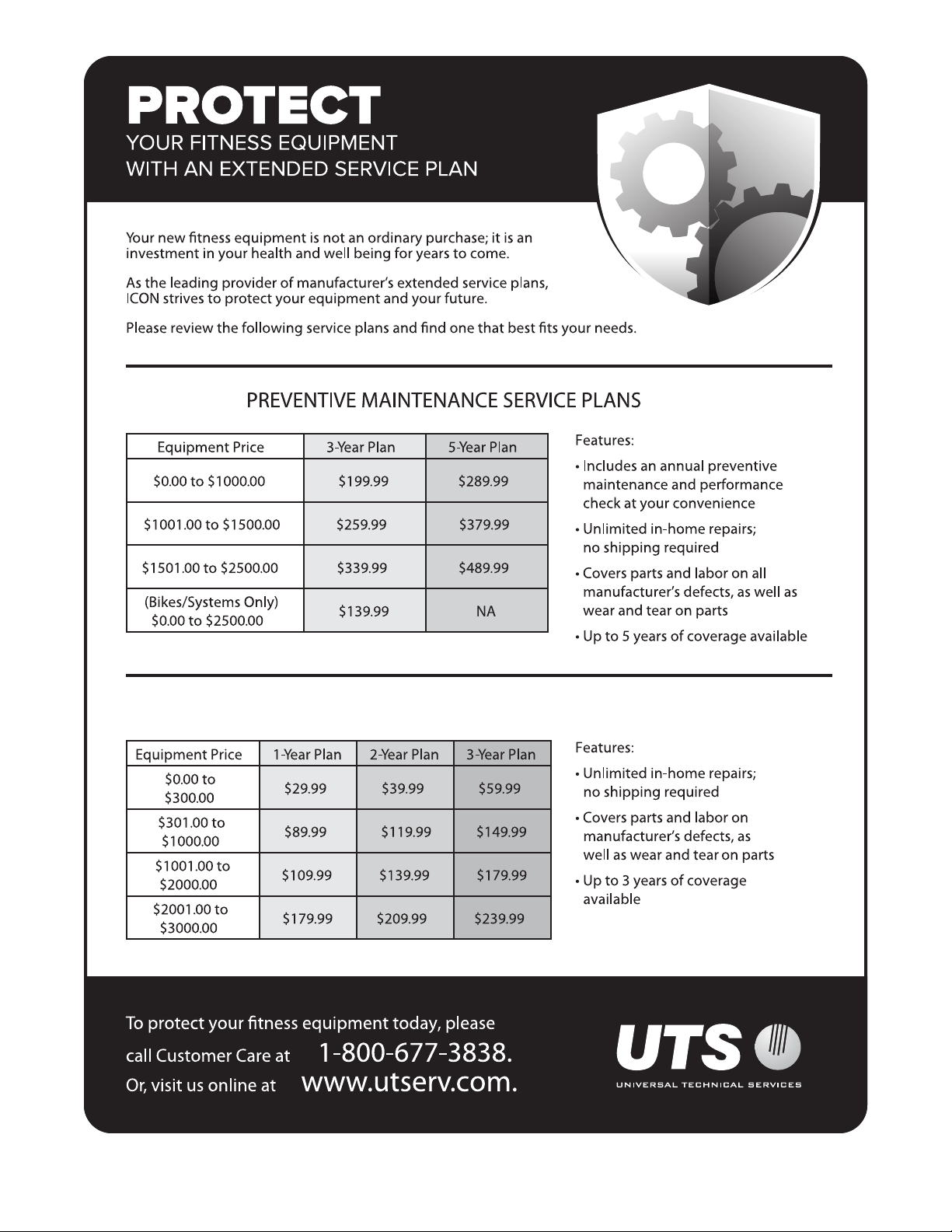
STANDARD SERVICE PLANS
6
Thank you for selecting the revolutionary
NORDICTRACK
®
COMMERCIAL 14.9 elliptical. The
COMMERCIAL 14.9 elliptical provides an impressive
selection of features designed to make your workouts
at home more effective and enjoyable.
For your benefit, read this manual carefully before
you use the elliptical. If you have questions after
reading this manual, please see the front cover of this
manual. To help us assist you, note the product model
number and serial number before contacting us. The
model number and the location of the serial number
decal are shown on the front cover of this manual.
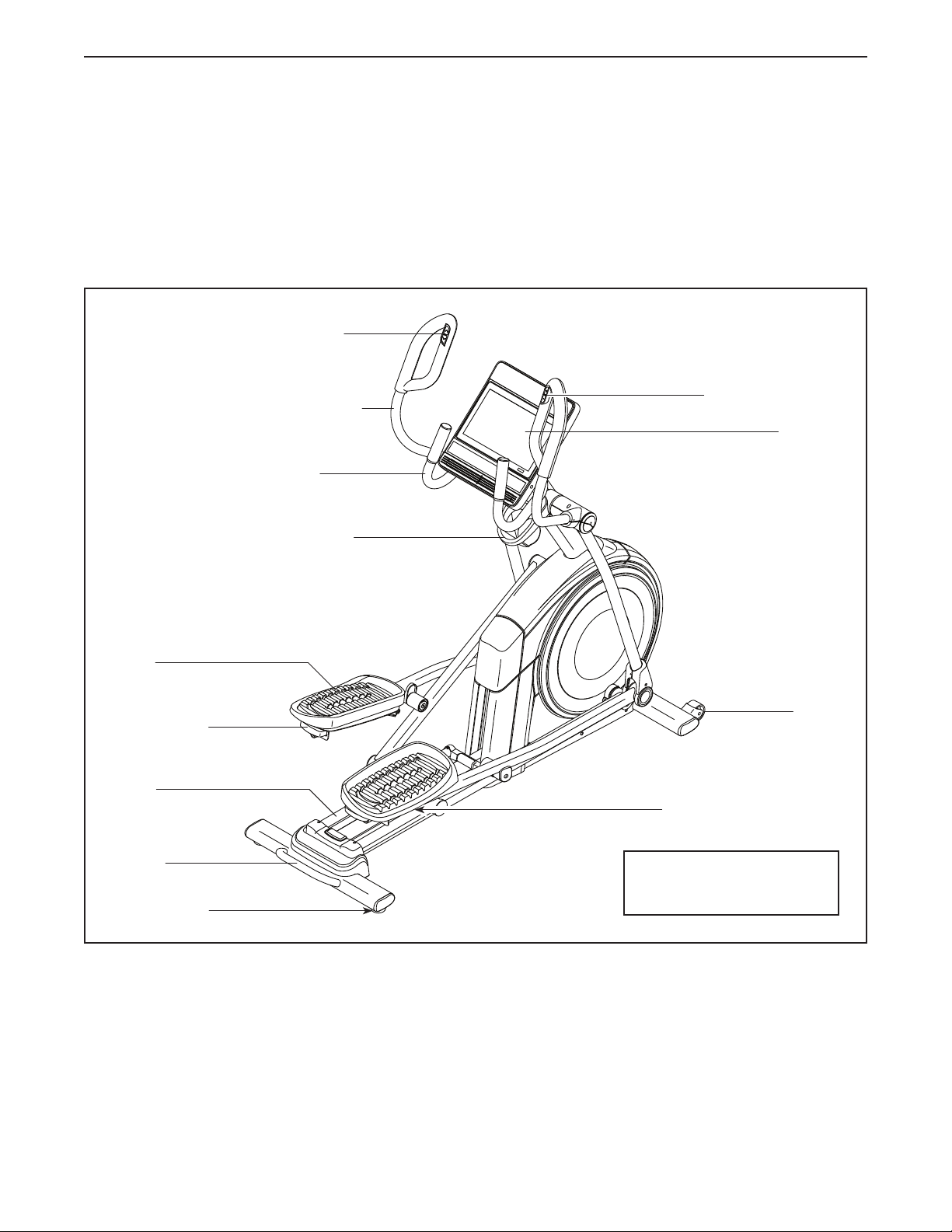
Before reading further, please familiarize yourself with
the parts that are labeled in the drawing below.
Accessory Tray
Handlebar
Upper Body Arm
Ramp Control
Pedal
Pedal Handle
Roller
Handle
Ramp
Console
Resistance Control
BEFORE YOU BEGIN
Wheel
Leveling Foot
Length: 5 ft. 7 in. (170 cm)
Width: 2 ft. 4 in. (74 cm)
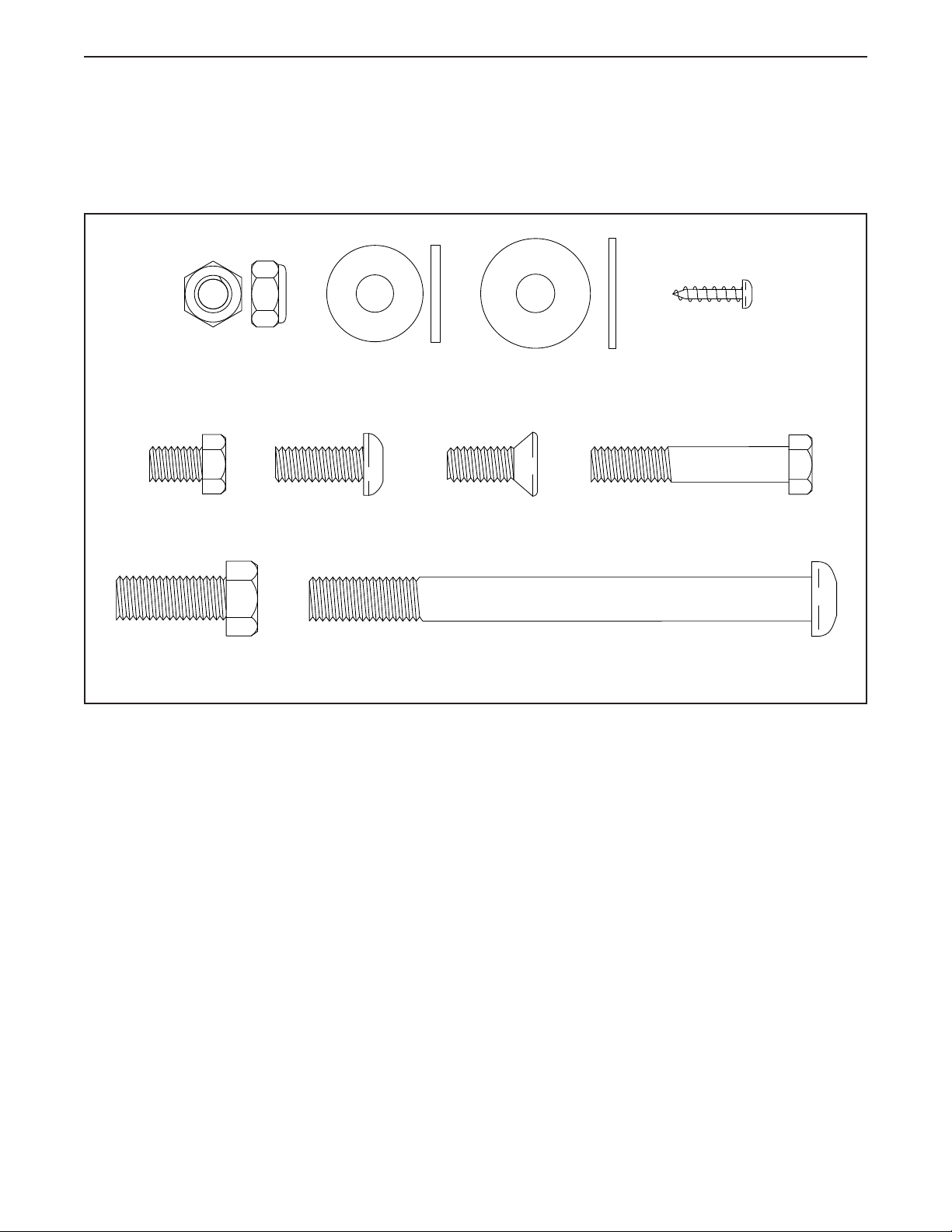
7
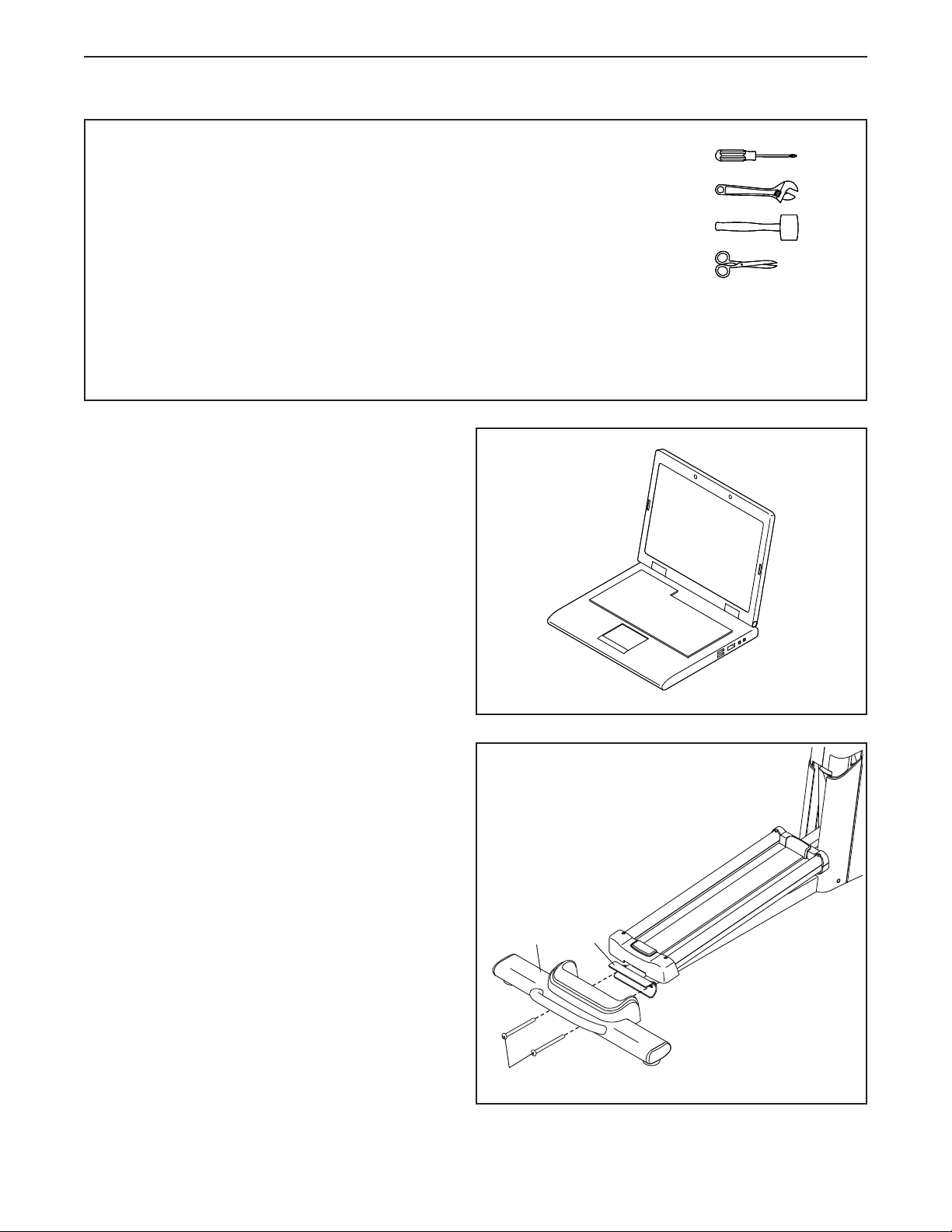
PART IDENTIFICATION CHART
Use the drawings below to identify the small parts needed for assembly. The number in parentheses below each
drawing is the key number of the part, from the PART LIST near the end of this manual. The number following the
key number is the quantity needed for assembly. Note: If a part is not in the hardware kit, check to see if it
has been preassembled. Extra parts may be included.
M8 x 12mm
Screw (82)–6
M8 x 45mm Bolt
(96)–4
M8 x 20mm Flat
Head Screw (120)–2
M8 x 20mm
Screw (95)–2
M8 Locknut
(102)–4
M4 x 16mm
Screw (101)–22
M10 x 114mm Screw
(104)–4
M10 x 25mm
Screw (92)–2
M8 x 22mm
Washer (129)–2
M8 x 25mm
Washer (97)–2
8
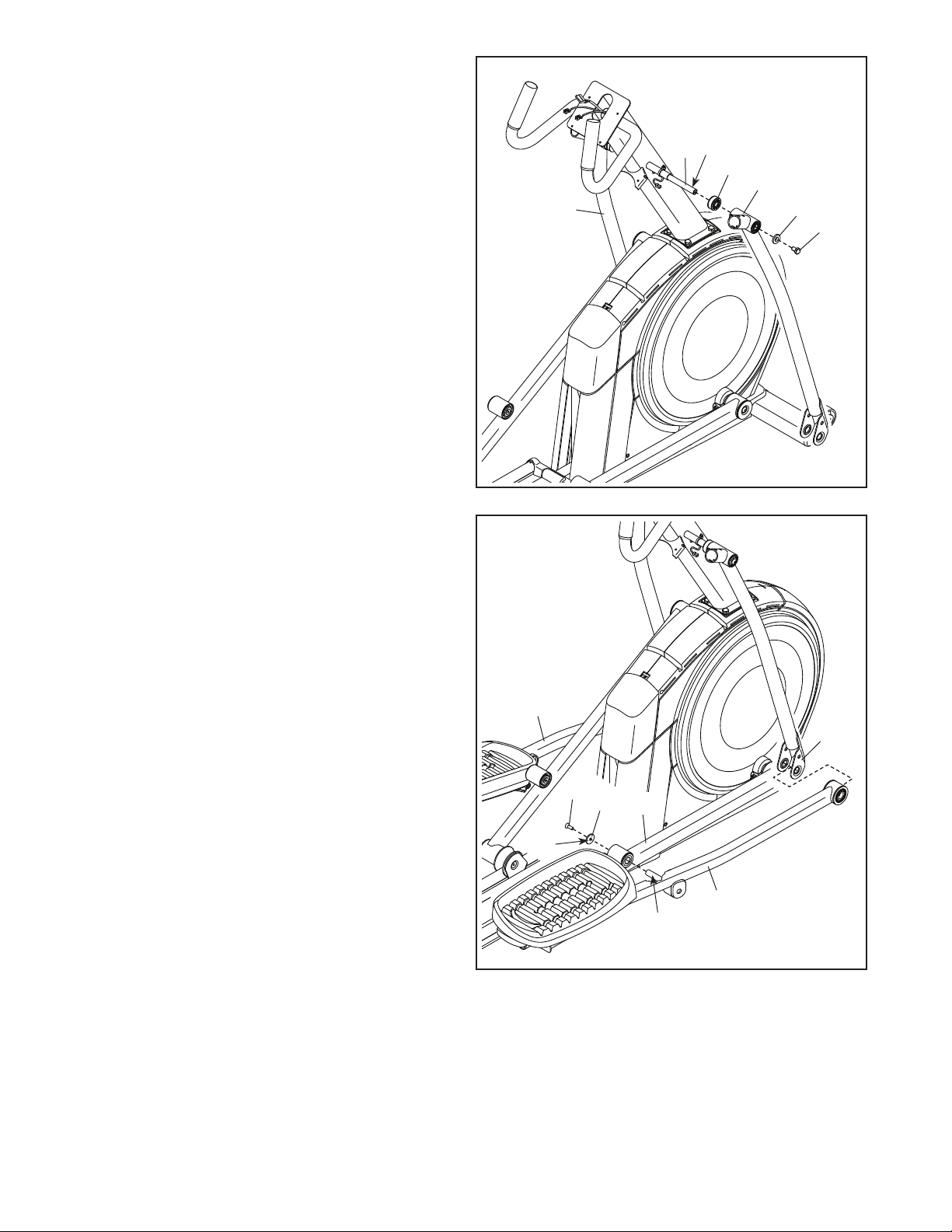
2. With the help of a second person, place some of
the packing materials (not shown) under the rear
of the Frame (1). Have the second person hold
the Frame to prevent it from tipping while you
complete this step.
If there are shipping supports attached to the
rear of the Frame (1), remove the screws from
the shipping supports, and discard the screws
and the shipping supports.
Next, attach the Rear Stabilizer (2) to the Frame
(1) with two M10 x 114mm Screws (104).
Then, remove the packing materials from under
the rear of the Frame (1).
2
1
2
104
• Assembly requires two persons.
• Place all parts in a cleared area and remove the
packing materials. Do not dispose of the packing
materials until you nish all assembly steps.
• Left parts are marked “L” or “Left” and right parts
are marked “R” or “Right.”
• To identify small parts, see page 7.
• In addition to the included tool(s), assembly
requires the following tools:
one Phillips screwdriver
two adjustable wrenches
one rubber mallet
one pair of scissors
Assembly may be easier if you have a set of
wrenches. To avoid damaging parts, do not use
power tools.
ASSEMBLY
1
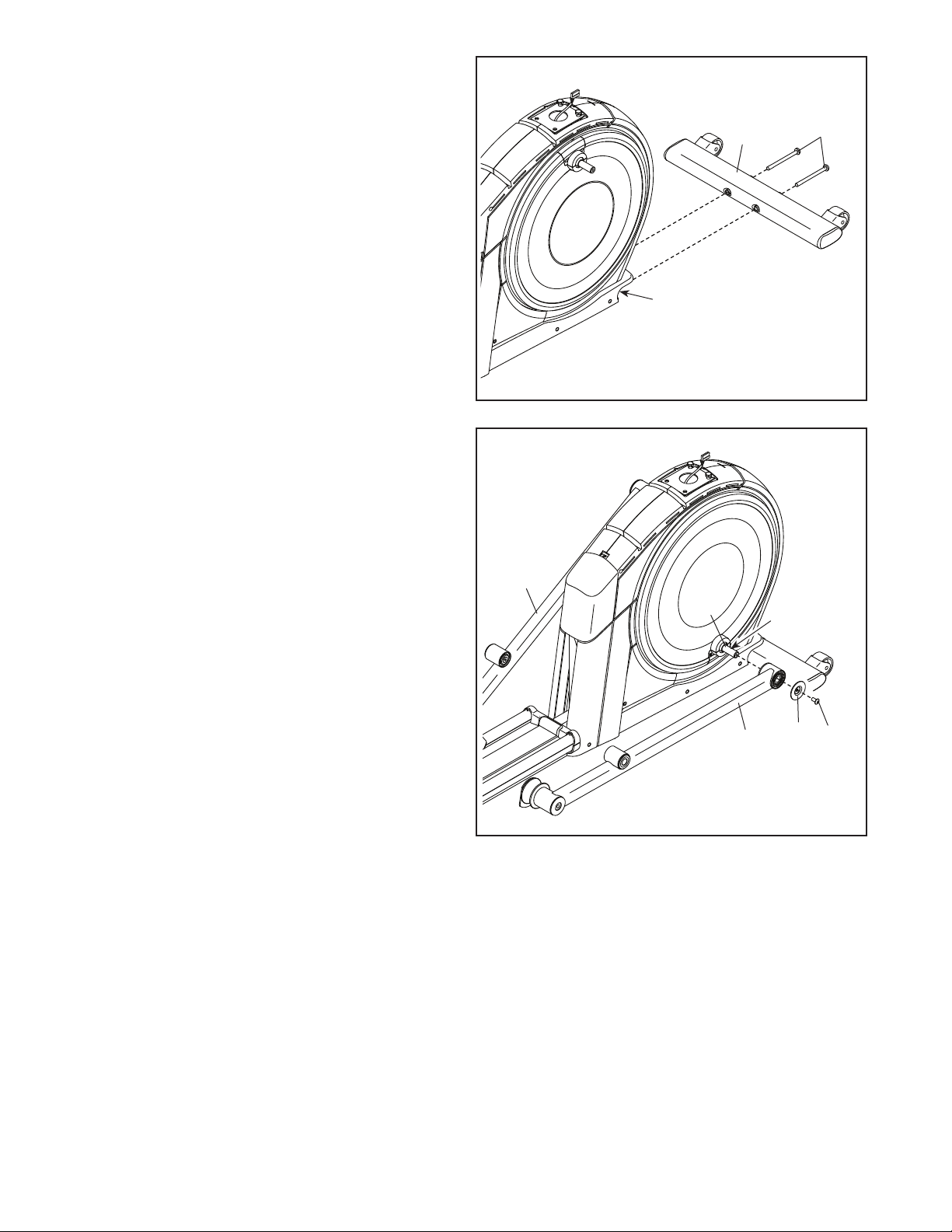
1. Go to my.nordictrack.com on your computer
and register your product.
• documents your ownership
• activates your warranty
• ensures priority customer support if assistance
is ever needed
Note: If you do not have internet access, call
Customer Care (see the front cover of this
manual) and register your product.
9
3
6
4
3. With the help of a second person, place some
of the packing materials (not shown) under the
front of the Frame (1). Have the second per-
son hold the Frame to prevent it from tipping
while you complete this step.
If there are shipping supports attached to the
front of the Frame (1), remove the screws from
the shipping supports, and discard the screws
and the shipping supports.
Next, attach the Front Stabilizer (6) to the Frame
(1) with two M10 x 114mm Screws (104).
Then, remove the packing materials from under
the front of the Frame (1).
1
104
77
59
45
95
4. Using a plastic bag to keep your fingers clean,
apply some of the included grease to the right
Crank Arm (20).
Next, identify the Right Roller Arm (59), orient
it as shown, and slide it onto the right Crank
Arm (20).
Attach the Right Roller Arm (59) with an
M8 x 20mm Screw (95) and a Crank Cover (77).
Repeat this step for the Left Roller Arm (45).
20
Grease

10
Avoid pinching the
Main Wire (110)
5
4
110
A
1
6
4
1
92
92
110
A
5. Orient the Upright (4) as shown. Have a second
person hold the Upright near the Frame (1).
Next, locate the wire tie (A) in the lower end of
the Upright (4). Tie the wire tie to the Main Wire
(110) as shown. Then, pull the upper end of the
wire tie until the Main Wire is routed through the
Upright.
Tip: To prevent the Main Wire (110) from
falling into the Upright (4), secure the Main
Wire with the wire tie (A).
6. Tip: Avoid pinching the Main Wire (110). Have
a second person hold the Upright (4) on the
Frame (1).
Tip: Two M10 x 25mm Screws (92) are
preattached to the Frame (1).
Attach the Upright (4) with two additional
M10 x 25mm Screws (92); do not fully tighten
the Screws yet.
11
7
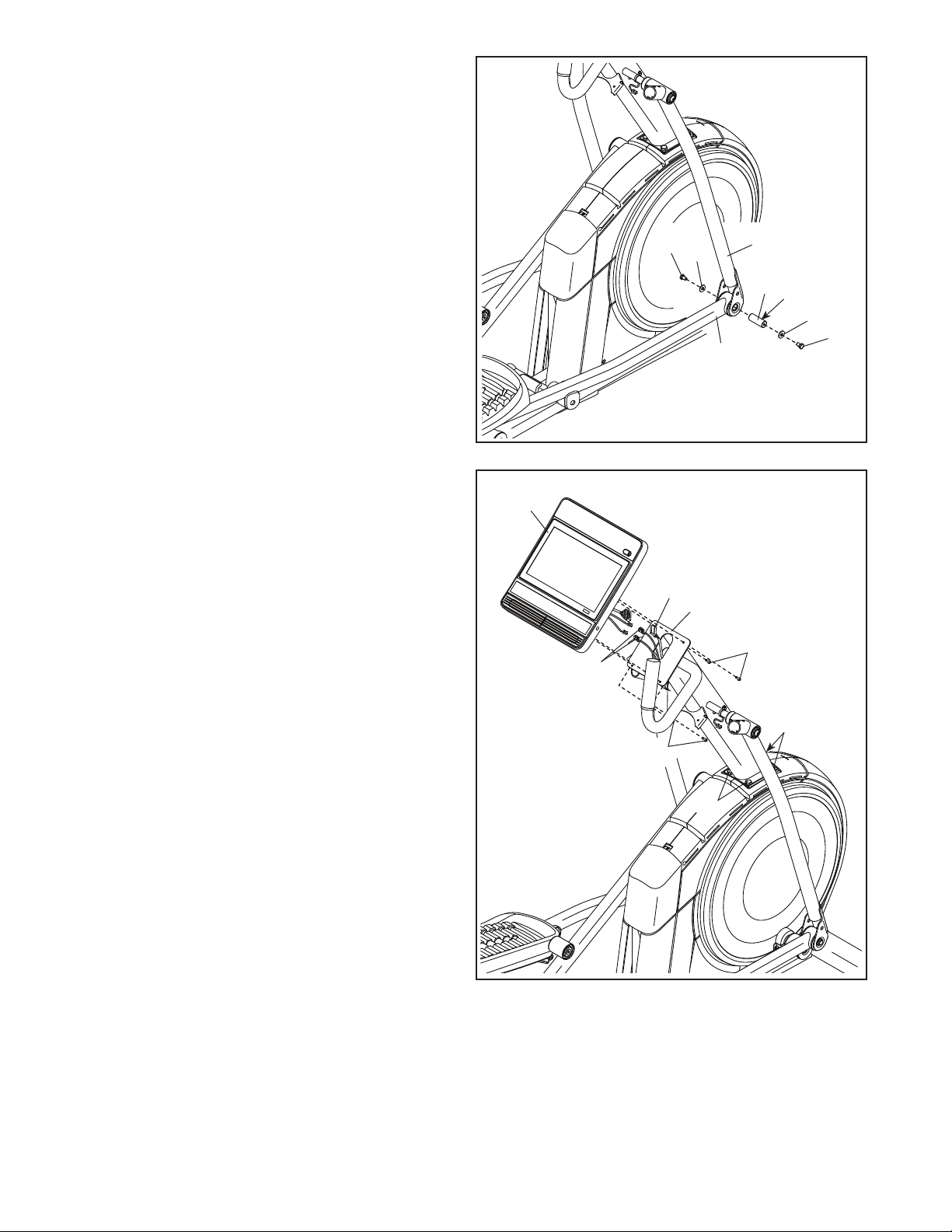
7. Apply grease to the axle on the right side of the
Upright (4).
Next, slide a Pivot Spacer (54) onto the right
side of the Upright (4).
Then, identify the Right Upper Body Leg (60),
orient it as shown, and slide it onto the right side
of the Upright (4).
Attach the Right Upper Body Leg (60) with an
M8 x 12mm Screw (82) and an M8 x 25mm
Washer (97).
Repeat this step for the Left Upper Body
Leg (46).
46
4
Grease
8
60
60
54
82
97
8. Orient the Right Pedal Arm (58) as shown, and
apply grease to the axle.
Insert the Right Pedal Arm (58) into the Right
Upper Body Leg (60) and into the Right Roller
Arm (59).
Attach the Right Pedal Arm (58) to the Right
Roller Arm (59) with an M8 x 20mm Flat Head
Screw (120) and a Retainer (55); make sure
that the flat side (B) of the Retainer is facing
the Right Roller Arm.
Repeat this step for the Left Pedal Arm (44).
Grease
55
B
58
44
120
59
12
9
10
Avoid pinching
the wires
7
101
82
129
60
64
Grease
58
4
110
101
111, 146
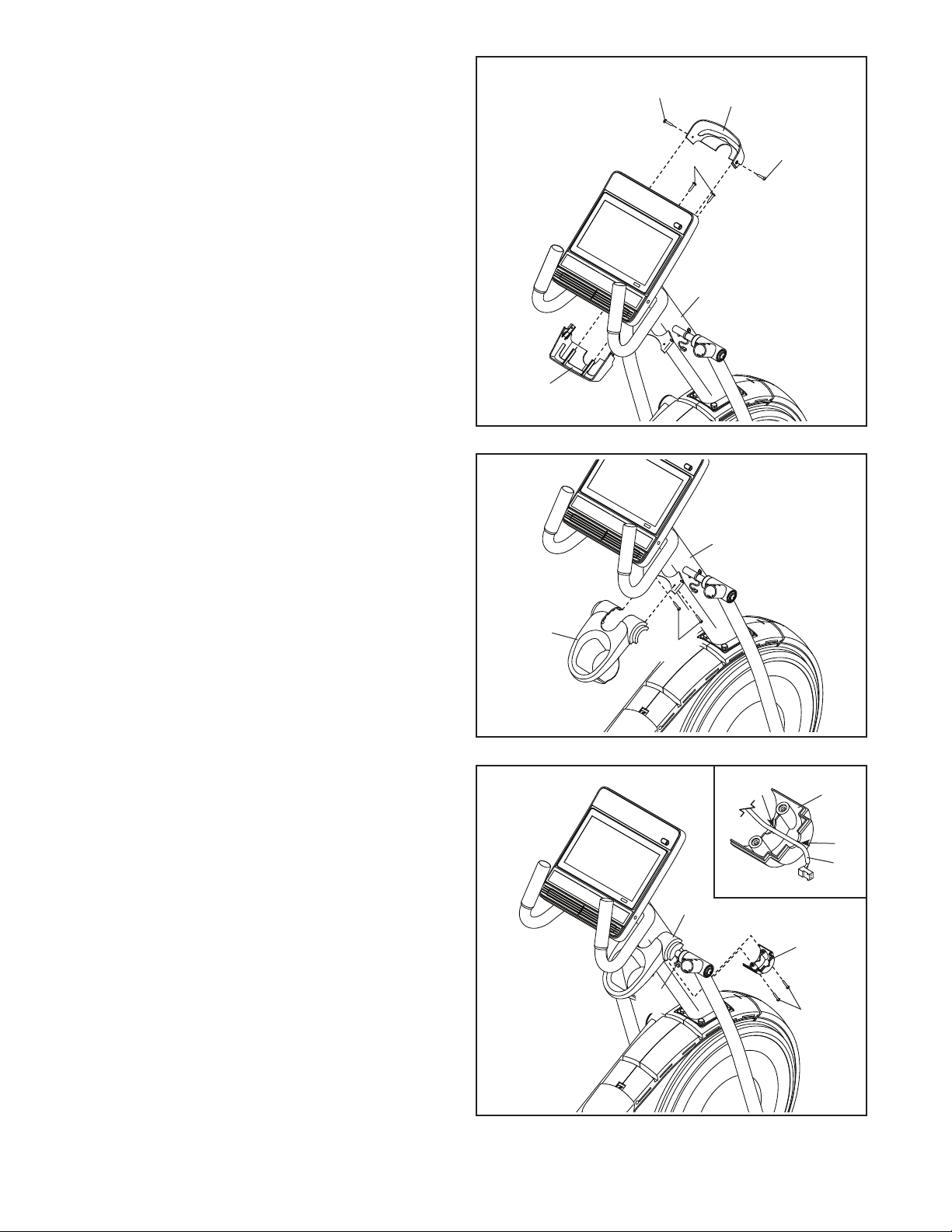
10. See step 6. Tighten the four M10 x 25mm
Screws (92).
Untie and discard the wire tie on the Main
Wire (110).
While a second person holds the Console (7)
near the Upright (4), connect the wires on the
Console to the Main Wire (110) and to the
Extension Wires (111, 146).
Insert the excess wire into the Upright (4).
Tip: Avoid pinching the wires. Attach the
Console (7) to the Upright (4) with four
M4 x 16mm Screws (101); start all the Screws,
and then tighten them.
92
92
82
129
9. Apply grease to one of the Pedal Arm Axles (64).
Next, slide an M8 x 22mm Washer (129) onto an
M8 x 12mm Screw (82), and tighten the Screw a
few turns into the Pedal Arm Axle (64).
While a second person holds the front end of the
Right Pedal Arm (58) inside the bracket on the
Right Upper Body Leg (60), insert the Pedal Arm
Axle (64) into both parts.
Next, slide an M8 x 22mm Washer (129) onto
another M8 x 12mm Screw (82), and tighten the
Screw a few turns into the Pedal Arm Axle (64).
Then, tighten both Screws at the same time.
Repeat this step on the other side of the
elliptical.
13
11
12
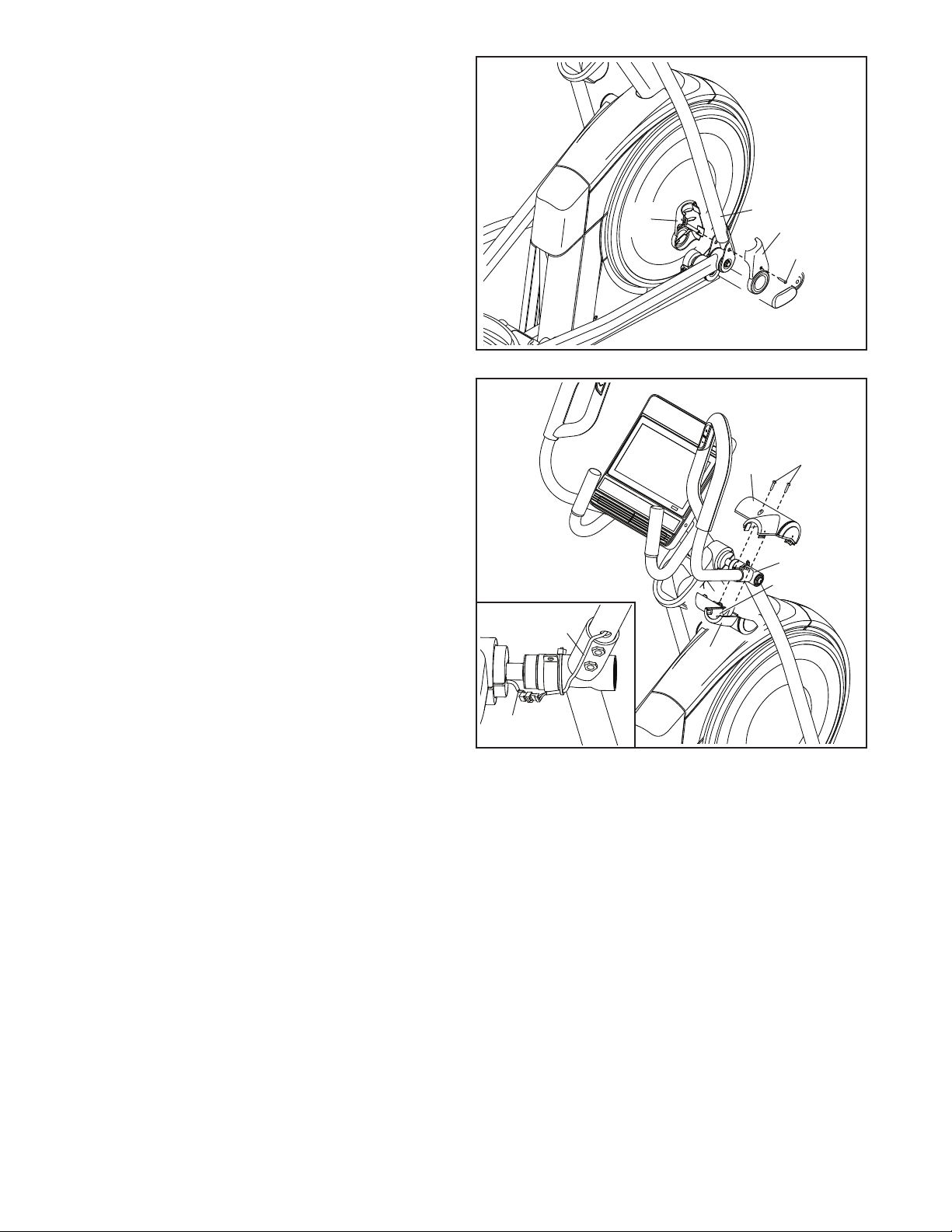
12. Orient the Accessory Tray (37) as shown, and
attach it to the Upright (4) with two M4 x 16mm
Screws (101).
11. Orient the Rear Console Cover (80) as shown,
and attach it to the Upright (4) with two
M4 x 16mm Screws (101).
Then, orient the Front Console Cover (79) as
shown, and attach it to the Rear Console Cover
(80) with two M4 x 16mm Screws (101).
79
4
4
80
101
101
101
101
37
13
101
81
37
13. Make sure that the Right Control Wire (C) is
in the location shown.
Orient a Lower Tray Cover (81) as shown, and
hold it near the Right Control Wire (C). Then,
insert the Right Control Wire into the notches
(D) in the Lower Tray Cover (see the inset
drawing).
Tip: Avoid pinching the Right Control Wire
(C). Attach the Lower Tray Cover (81) to the
right side of the Accessory Tray (37) with two
M4 x 16mm Screws (101).
Repeat this step on the other side of the
elliptical.
Avoid
pinching
the Right
Control
Wire (C)
C
D
C
D
81

14
75
4
117
101
73, 74
15. Orient the Front Shield Cover (117) and the
Center Shield Cover (75) around the Upright (4)
as shown. Attach them to each other with two
M4 x 16mm Screws (101).
Tip: Avoid pinching the wires. Press the Front
Shield Cover (117) and the Center Shield Cover
(75) onto the Left and Right Shields (73, 74).
15
Avoid pinching
the wires
14
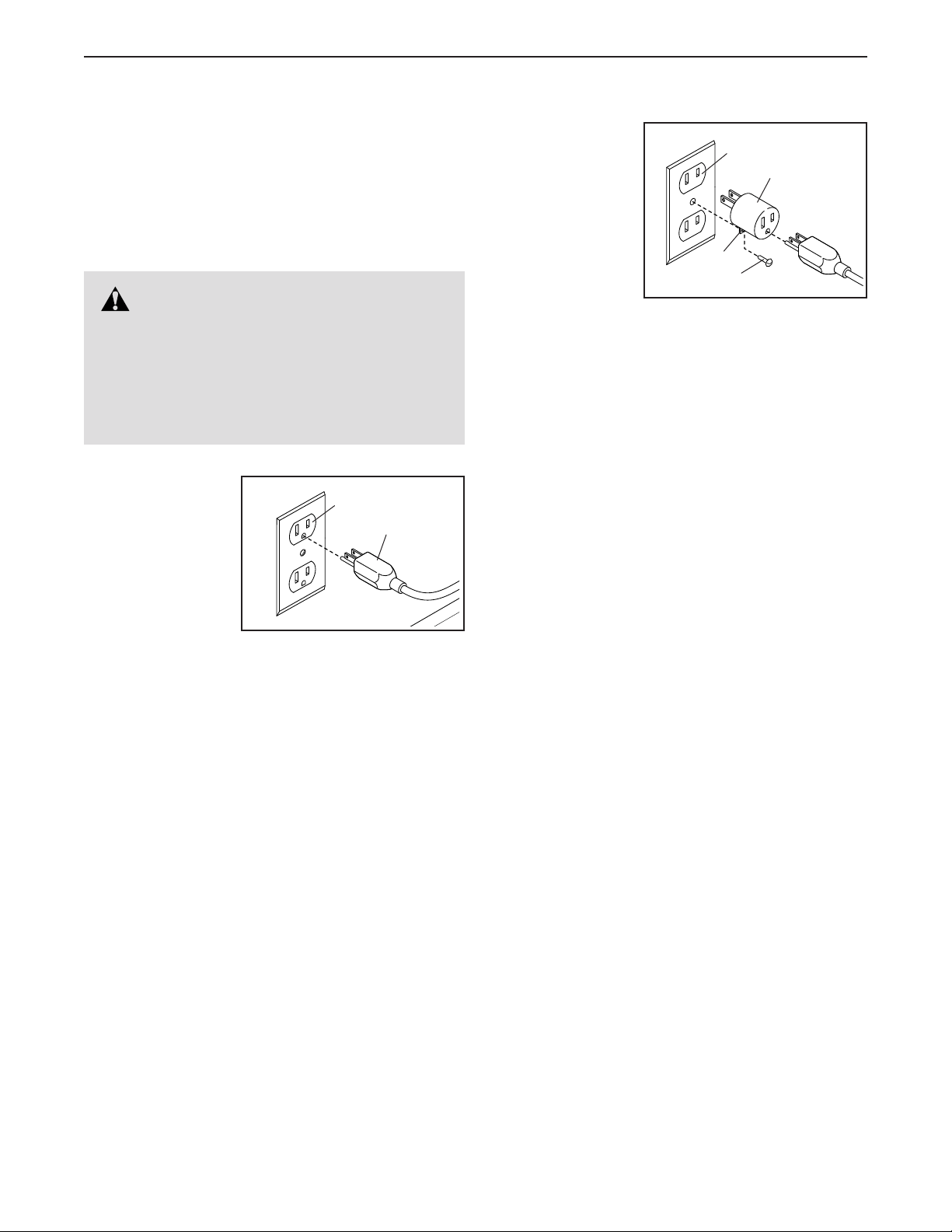
14. Identify the Right Upper Body Arm (61), orient it
as shown, and hold it near the Right Upper Body
Leg (60).
See the left inset drawing. Insert the Right
Extension Wire (146) into the Right Upper
Body Leg (60) and route it out of the indicated
hole (E).
Tip: Avoid pinching the Right Extension Wire
(146). Insert the Right Upper Body Arm (61) into
the Right Upper Body Leg (60). Attach the Right
Upper Body Arm with two M8 x 45mm Bolts (96)
and two M8 Locknuts (102); make sure that the
Locknuts are in the hexagonal holes (F).
See the right inset drawing. Connect the Right
Extension Wire (146) to the Right Control Wire
(C), and insert the excess wire into the Right
Upper Body Arm (61). Next, orient the Wires
exactly as shown, and attach a zip tie (148)
around the Right Upper Body Leg (60) in the
location shown. Then, cut off the excess zip tie.
Repeat this step for the Left Upper Body
Arm (47).
60
61
47
96
102
F
Avoid pinching
the wires
E
146
60
146
C
146
148
61
60
15
17
65
60
101
66
17. See the inset drawing. Make sure that
the Right Control Wire (C) and the Right
Extension Wire (146) are in the exact
positions shown.
Tip: Avoid pinching the wires. Orient the Right
Arm Front and Rear Covers (65, 66) around the
Right Upper Body Leg (60) as shown, and attach
them with two M4 x 16mm Screws (101). Make
sure to place the Extension Wire (146) in
the indicated area (G) of the Right Arm Rear
Cover.
Repeat this step on the other side of the
elliptical.
16. Identify the Right Leg Inner Cover (83), orient it
as shown, and insert it through the Right Upper
Body Leg (60).
Next, identify the Right Leg Outer Cover (69),
orient it as shown, and press it onto the Right
Leg Inner Cover (83).
Attach the Right Leg Outer and Inner Covers
(69, 83) to each other with an M4 x 16mm
Screw (101).
Repeat this step on the other side of the
elliptical.
60
101
69
16
83
18. Make sure that all parts are properly tightened. Extra parts may be included. Place a mat beneath the
elliptical to protect the floor.
Avoid pinching
the wires
C
146
G
16
HOW TO USE THE ELLIPTICAL
HOW TO PLUG IN THE POWER CORD
This product must be grounded. If it should mal-
function or break down, grounding provides a path of
least resistance for electric current to reduce the risk
of electric shock. The power cord has a plug with a
grounding pin.
Plug the power
cord (A) into
an appropriate
outlet (B) that is
properly installed
and grounded in
accordance with
all local codes and
ordinances. The
outlet must be
on a nominal 120-volt circuit.
A temporary
adapter (C) may
be used to con-
nect the power
cord to a 2-pole
receptacle (D)
as shown at the
right if a properly
grounded outlet is
not available.
The lug (E) or wire extending from the adapter must
be connected with a metal screw (F) to a permanent
ground such as a properly grounded outlet box cover.
Some 2-pole receptacle outlet box covers are not
grounded. Before using an adapter, contact a
qualied electrician to determine whether the out-
let box cover is grounded before using an adapter.
The temporary adapter should be used only until
a properly grounded outlet can be installed by a
qualied electrician.
B
A
DANGER: Improper connection of
the power cord increases the risk of electric
shock. Do not modify the plug—if it will not fit
an outlet, have a proper outlet installed by a
qualified electrician. If you are unsure whether
the product is properly grounded, contact a
qualified electrician.
D
C
E
F
17
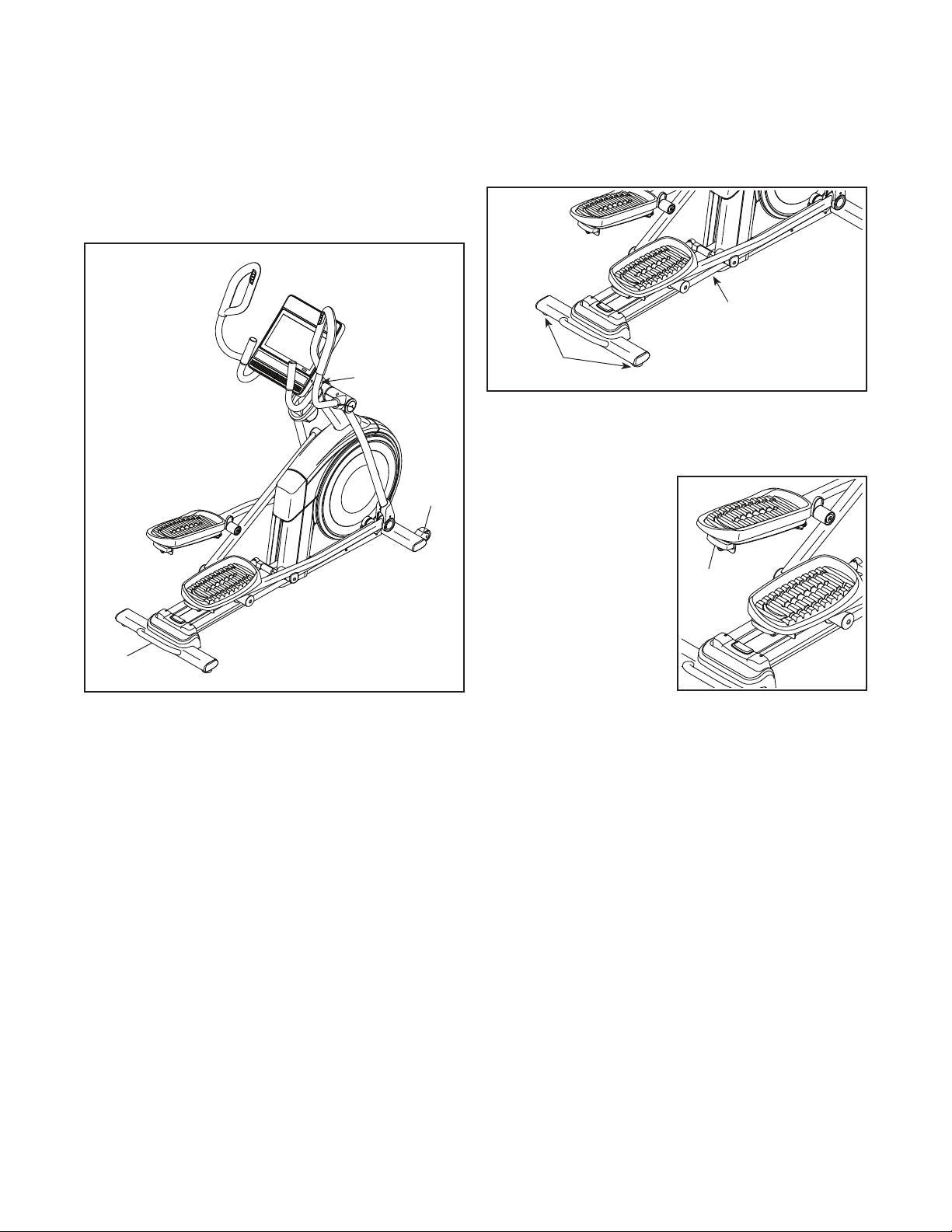
HOW TO MOVE THE ELLIPTICAL
Due to the size and weight of the elliptical, moving
it requires two persons. Stand in front of the elliptical,
hold the upright (G), and place one foot against one
of the wheels (H). Next, pull on the upright and have a
second person lift the handle (I) until the elliptical will
roll on the wheels. Carefully move the elliptical to the
desired location, and then lower it to the floor.
HOW TO LEVEL THE ELLIPTICAL
If the elliptical rocks slightly on your floor during use,
turn one or both of the leveling feet (J) beneath the rear
stabilizer or turn the leveling foot (K) under the center
of the frame until the rocking motion is eliminated.
HOW TO ADJUST THE POSITIONS OF THE
PEDALS
Each pedal can be
adjusted to several
positions. To adjust
each pedal, simply
pull the pedal handle
(L) outward, move the
pedal to the desired
position, and then
release the pedal
handle into an adjust-
ment hole beneath the
pedal. Make sure to
adjust both pedals to
the same position.
G
I
H
J
K
L
18
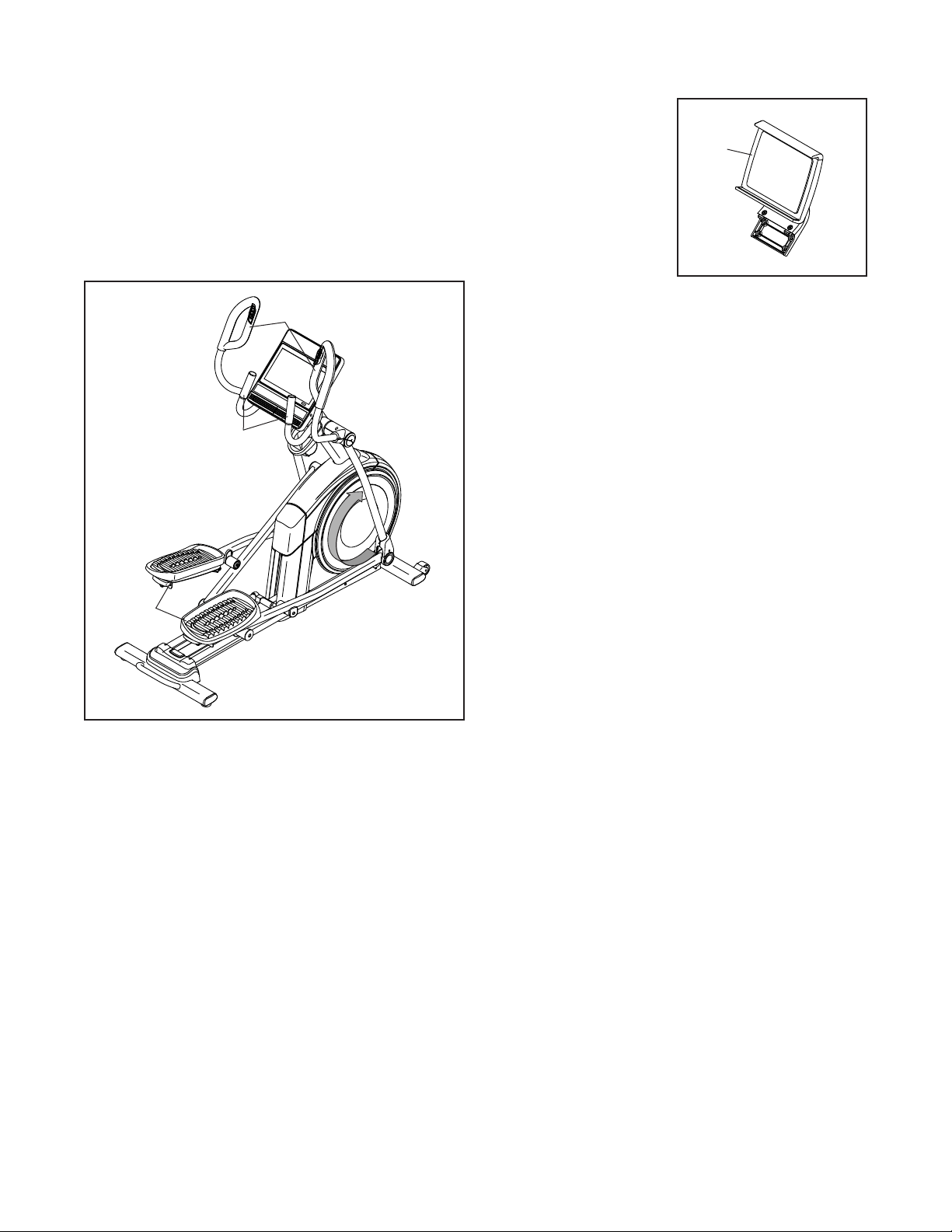
HOW TO EXERCISE ON THE ELLIPTICAL
To mount the elliptical, hold the handlebars (M) or
the upper body arms (N) and step onto the pedal (O)
that is in the lower position. Then, step onto the other
pedal. Push the pedals until they begin to move with
a continuous motion. Note: The pedals can turn in
either direction. It is recommended that you turn
the pedals in the direction shown by the arrow;
however, for variety, you can turn the pedals in the
opposite direction.
To dismount the elliptical, wait until the pedals (O)
come to a complete stop. Note: The elliptical does
not have a free wheel; the pedals will continue to
move until the flywheel stops. When the pedals are
stationary, step off the higher pedal first. Then, step off
the lower pedal.
THE OPTIONAL TABLET HOLDER
The optional tablet
holder (P) will hold
your tablet securely
in place and enable
you to use your tablet
while you exercise. The
optional tablet holder is
designed for use with
most full-size tablets.
To purchase a tablet
holder, please see
the front cover of this
manual.
M
N
O
P
19
Rat
ELNT71420
NTEL71420
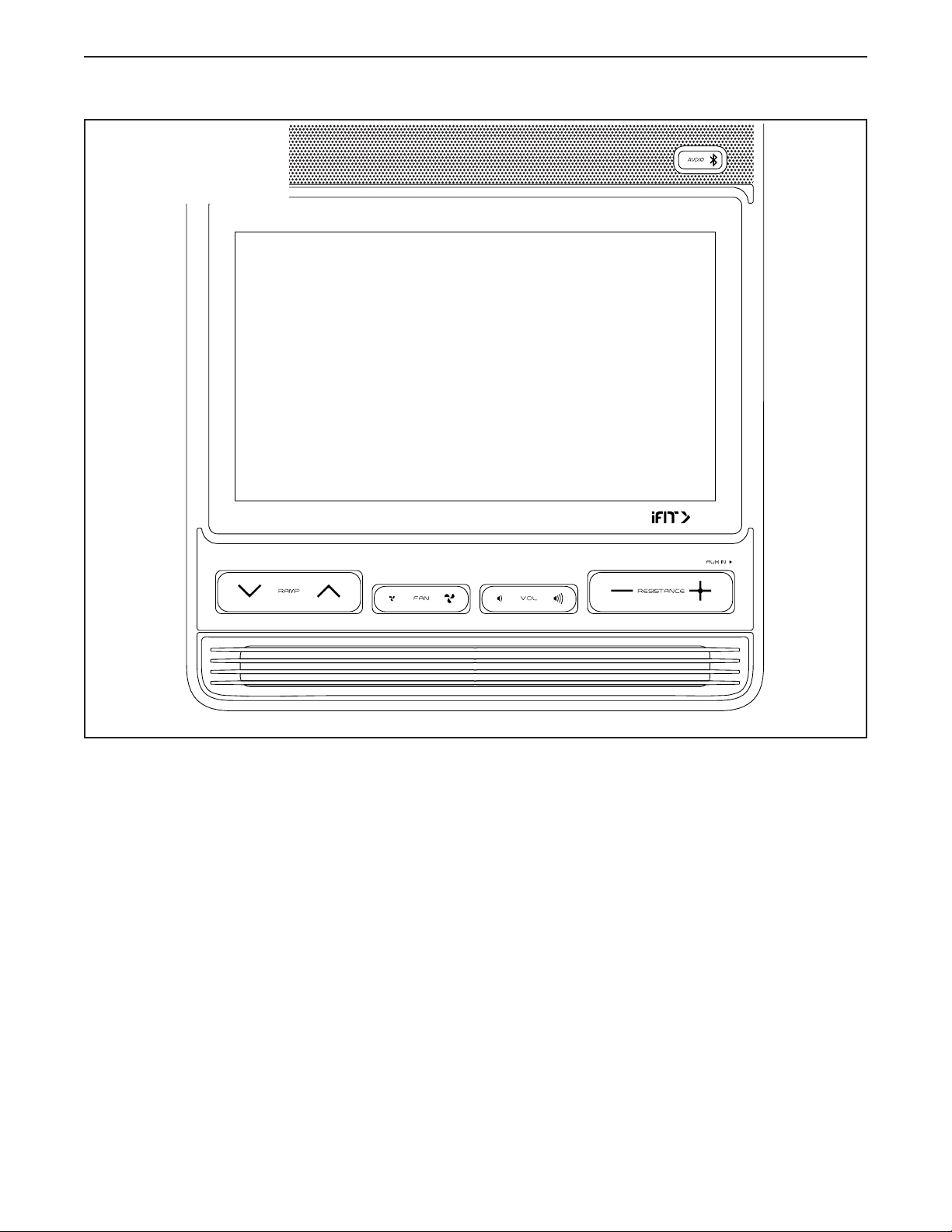
FEATURES OF THE CONSOLE
The advanced console offers an array of features
designed to make your workouts more effective and
enjoyable.
The console features wireless technology that enables
the console to connect to iFit. With iFit, you can access
a large and varied workout library, create your own
workouts, track your workout results, and access many
other features.
In addition, the console features a selection of onboard
workouts. Each workout automatically controls the
resistance of the pedals and the incline of the ramp as
it guides you through an effective exercise session.
When you use the manual mode of the console, you
can change the resistance of the pedals and the incline
of the ramp with the touch of a button.
While you exercise, the console will display continuous
exercise feedback. You can even measure your heart
rate using a compatible heart rate monitor.
You can also listen to your favorite workout music or
audio books with the console sound system while you
exercise.
To turn on the power, see page 20. To learn how
to use the touch screen, see page 20. To set up
the console, see page 20.
HOW TO USE THE CONSOLE
CONSOLE DIAGRAM
20
HOW TO TURN ON THE POWER
IMPORTANT: If the elliptical has been exposed to
cold temperatures, allow it to warm to room tem-
perature before you turn on the power. If you do
not do this, you may damage the console or other
electrical components.
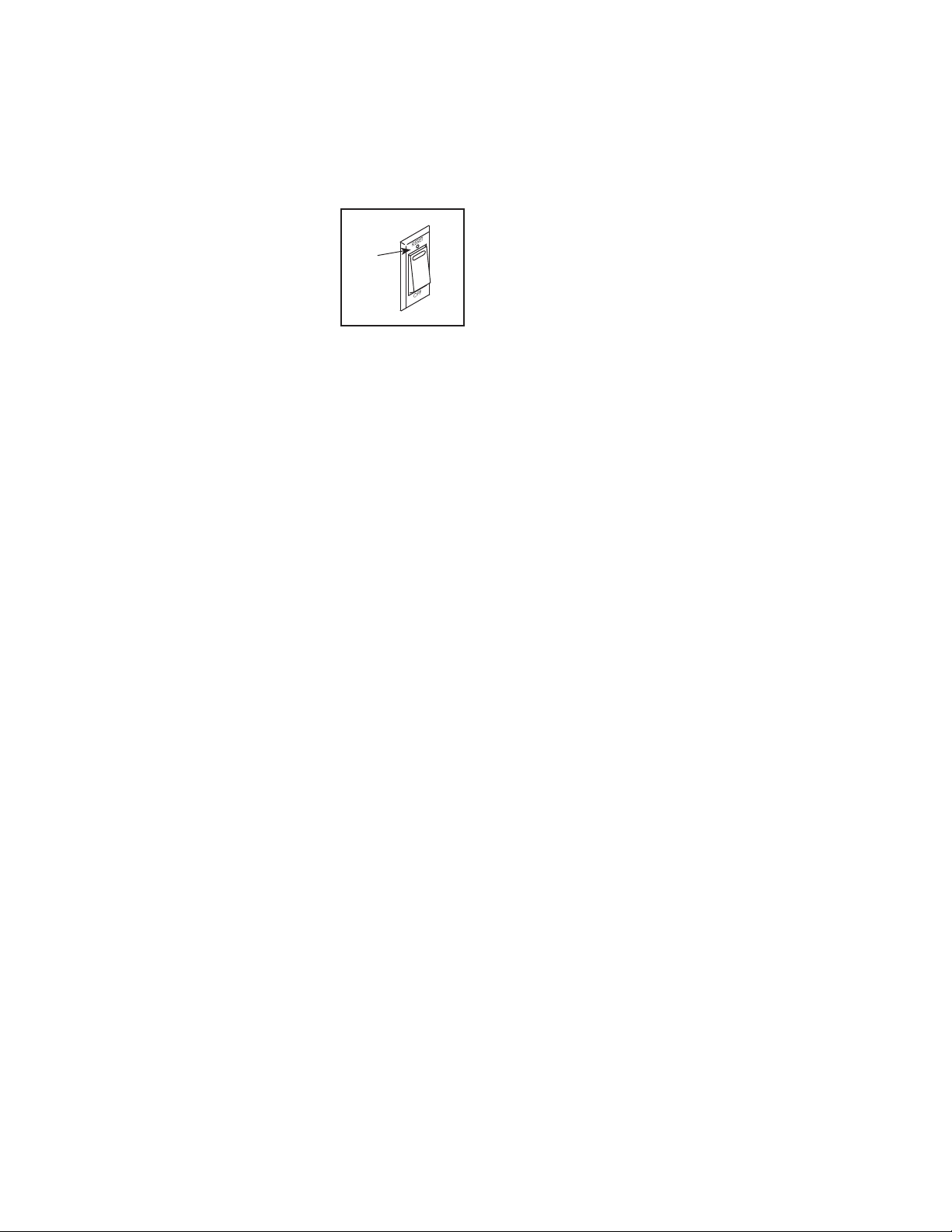
Plug in the power cord (see
HOW TO PLUG IN THE POWER
CORD on page 16). Next,
locate the power switch on the
frame near the power cord.
Press the power switch to the
reset position (A).
The console will then turn on and be ready for use.
Note: When you turn on the power for the rst time,
the incline system may calibrate automatically. The
ramp will move upward and downward as it calibrates.
When the ramp stops moving, the incline system is
calibrated.
IMPORTANT: If the incline system does not
calibrate automatically, see step 6 on page 20
and manually calibrate the incline system.
HOW TO USE THE TOUCH SCREEN
The console features a tablet with a full-color touch
screen. The following information will help you use the
touch screen:
• The console functions similarly to other tablets. You
can slide or flick your finger against the screen to
move certain images on the screen, such as the
displays in a workout.
• To type information into a text box, first touch the text
box to view the keyboard. To use numbers or other
characters on the keyboard, touch ?123. To view
more characters, touch ~[<. Touch ?123 again to
return to the number keyboard. To return to the letter
keyboard, touch ABC. To use a capital character,
touch the shift button (upward-facing arrow symbol).
To use multiple capital characters, touch the shift
button again. To return to the lowercase keyboard,
touch the shift button a third time. To clear the last
character, touch the clear button (backward-facing
arrow with an X symbol).
HOW TO SET UP THE CONSOLE
Before you use the elliptical for the first time, set up the
console.
1. Connect to your wireless network.
To use iFit workouts and to use several other
features of the console, the console must be con-
nected to a wireless network. Follow the prompts
on the screen to connect the console to your wire-
less network.
2. Customize settings.
Follow the prompts on the screen to set the desired
unit of measurement and your time zone.
Note: To change these settings later, see HOW TO
CHANGE CONSOLE SETTINGS on page 27.
3. Log into or create an iFit account.
Follow the prompts on the screen to log into your
iFit account or to create an iFit account.
4. Tour the console.
The first time you use the console, a tour
presentation will guide you through the features of
the console.
5. Check for firmware updates.
First, touch the menu button (three horizontal lines
symbol), touch Settings, touch Maintenance, and
then touch Update. The console will check for firm-
ware updates. For more information, see HOW TO
CHANGE CONSOLE SETTINGS on page 27.
6. Calibrate the incline system.
First, touch the menu button (three horizontal lines
symbol), touch Settings, touch Maintenance, and
then touch Calibrate Incline. The ramp will rise
and lower as it calibrates. For more information,
see HOW TO CHANGE CONSOLE SETTINGS on
page 27.
A

21
The console is now ready for you to begin working out.
The following pages explain the workouts and other
features that the console offers.
To use the manual mode, see page 21. To use
a featured workout or an onboard workout, see
page 23. To create a draw-your-own-map work-
out, see page 25. To use an iFit workout, see
page 26.
To change console settings, see page 27. To
connect to a wireless network, see page 28. To
use the sound system, see page 29.
Note: If there is a sheet of plastic on the screen,
remove the plastic.
HOW TO USE THE MANUAL MODE
1. Touch the screen or press any button on the
console to turn on the console.
See HOW TO TURN ON THE POWER on
page 20. Note: It may take a few moments for
the console to be ready for use.
2. Select the main menu.
When you turn on the console, the main menu will
appear on the screen after the console boots up.
If you are in a workout, touch the screen and follow
the prompts to end the workout and return to the
main menu. If you are in the settings menus, touch
the back button (arrow symbol) and then touch the
close button (x symbol) to return to the main menu.
3. Change the resistance of the pedals and the
incline of the ramp as desired.
Touch Manual Start and begin pedaling.
You can change the resistance of the pedals by
pressing one of the numbered Quick Resistance
buttons on the console, by pressing the Resistance
increase and decrease buttons on the console, or
by pressing the Resistance increase and decrease
buttons on the right grip.
To vary the motion of the pedals, you can change
the incline of the ramp by pressing one of the
numbered Quick Ramp buttons on the console, by
pressing the Ramp increase and decrease buttons
on the console, or by pressing the Ramp increase
and decrease buttons on the left grip.
Note: After you press a button, it will take a
moment for the pedals to reach the selected resis-
tance level or for the ramp to reach the selected
incline level.
4. Follow your progress.
The console offers several display modes. The
display mode that you select will determine which
workout information is shown.
Drag upward on the screen to enter the fullscreen
display mode. Drag downward on the screen to
view the workout information displays.
Touch the various workout information displays
to view more options. Touch the more button
(+ symbol) to view statistics or charts. Touch the
center of the screen to view even more display
mode options.

22
If desired, adjust the
volume level by pressing
the volume increase and
decrease buttons on the
console.
To pause the workout, simply touch the screen
or stop pedaling. To continue the workout, simply
resume pedaling.
To end the workout session, touch the screen to
pause the workout, and then follow the prompts
on the screen to end the workout and return to the
main menu.
5. Wear a compatible heart rate monitor and
measure your heart rate if desired.
You can wear a compatible heart rate monitor to
measure your heart rate. Note: The console is
compatible with all Bluetooth
®
Smart heart rate
monitors.
A compatible chest heart rate monitor is included
with some models. If a chest heart rate monitor
is included, see THE CHEST HEART RATE
MONITOR in this manual to learn how to use it.
If this model does not include a compatible heart
rate monitor, see page 29 for information about
ordering one.
The console will connect to your compatible heart
rate monitor automatically. When your heartbeat is
detected, your heart rate will be shown.
6. Turn on the fan if desired.
The fan has several speed
settings, including an auto
mode. While the auto mode
is selected, the speed of
the fan will automatically
increase or decrease as your pedaling speed
increases or decreases. Press the fan increase and
decrease buttons repeatedly to select a fan speed
or to turn off the fan.
Note: If the pedals are not moved for a while when
the main menu is selected, the fan will turn off
automatically.
7. When you are finished exercising, unplug the
power cord.
When you are finished exercising, press the power
switch to the off position and unplug the power
cord. IMPORTANT: If you do not do this, the
electrical components of the elliptical may wear
prematurely.

23
HOW TO USE A FEATURED WORKOUT OR AN
ONBOARD WORKOUT
1. Touch the screen or press any button on the
console to turn on the console.
See HOW TO TURN ON THE POWER on
page 20. Note: It may take a few moments for
the console to be ready for use.
2. Select the main menu or the workout library.
When you turn on the console, the main menu will
appear on the screen after the console boots up.
If you are in a workout, touch the screen and follow
the prompts to end the workout and return to the
main menu. If you are in the settings menus, touch
the back button (arrow symbol) and then touch the
close button (x symbol) to return to the main menu.
Touch the buttons at the bottom of the screen to
select either the main menu (Home button) or the
workout library (Browse button).
3. Select a workout.
To select a workout from the main menu or the
workout library, simply touch the desired workout
button on the screen. Slide or flick the screen to
scroll upward or downward if necessary.
Note: To use a featured workout, the console must
be connected to a wireless network (see HOW
TO CONNECT TO A WIRELESS NETWORK on
page 28).
The featured workouts on your console will change
periodically. To save one of the featured workouts
for future use, you can add it as a favorite by touch-
ing the favorites button (heart symbol). You must
be logged into your iFit account to save a featured
workout (see step 3 on page 26).
To draw your own map for a workout, see HOW TO
CREATE A DRAW-YOUR-OWN-MAP WORKOUT
on page 25.
When you select a workout, the screen will show
an overview of the workout that includes details
such as the duration and distance of the workout
and the approximate number of calories you will
burn during the workout.
4. Start the workout.
Touch Start Workout to start the workout.
The workout will function in the same way as the
manual mode (see page 21).
During some workouts, the screen will show a map
of the route and a marker indicating your prog-
ress. Touch the buttons on the screen to select the
desired map options.
During some workouts, the screen may show a
target speed. As you exercise, keep your pedaling
speed near the target speed shown on the screen.
A message may appear prompting you to increase,
decrease, or maintain your pedaling speed.
IMPORTANT: The target speed is intended only
to provide motivation. Your actual pedaling
speed may be slower than the target speed.
Make sure to pedal at a speed that is comfort-
able for you.

24
If the resistance level and/or incline level is too high
or too low, you can manually override the setting
by pressing the Resistance buttons or the Ramp
buttons. If you press a Resistance button, you
can then manually control the resistance level
(see step 3 on page 21). If you press a Ramp
button, you can then manually control the incline
level (see step 3 on page 21). To return to the
programmed resistance and/or incline settings
of the workout, touch Follow Workout.
Note: The calorie goal shown in the workout
description is an estimate of the number of
calories that you will burn during the workout.
The actual number of calories that you burn
will depend on various factors, such as your
weight. In addition, if you manually change the
resistance level or incline level of the ramp
during the workout, the number of calories you
burn will be affected.
To pause the workout, simply touch the screen
or stop pedaling. To continue the workout, simply
resume pedaling.
To end the workout, touch the screen to pause the
workout, and then follow the prompts on the screen
to end the workout and return to the main menu.
When the workout ends, a workout summary will
appear on the screen. If desired, you can select
options such as adding the workout to your sched-
ule (see HOW TO USE AN IFIT WORKOUT on
page 26) or adding the workout to your favorites
list. Then, touch Save Workout to return to the main
menu.
5. Follow your progress.
See step 4 on page 21.
6. Wear a compatible heart rate monitor and
measure your heart rate if desired.
See step 5 on page 22.
7. Turn on the fan if desired.
See step 6 on page 22.
8. When you are finished exercising, unplug the
power cord.
See step 7 on page 22.

25
HOW TO CREATE A DRAW-YOUR-OWN-MAP
WORKOUT
1. Touch the screen or press any button on the
console to turn on the console.
See HOW TO TURN ON THE POWER on
page 20. Note: It may take a few moments for
the console to be ready for use.
2. Select a draw-your-own-map workout.
When you turn on the console, the main menu will
appear on the screen after the console boots up.
If you are in a workout, touch the screen and follow
the prompts to end the workout and return to the
main menu. If you are in the settings menus, touch
the back button (arrow symbol) and then touch the
close button (x symbol) to return to the main menu.
To select a draw-your-own-map workout, touch the
Create button at the bottom of the screen.
3. Draw your map.
Navigate to the area on the map where you want
to draw your workout by typing in the search box
or by sliding your fingers on the screen. Touch
the screen to add the start point for your workout.
Then, touch the screen to add the end point for
your workout.
If you want to start and end your workout at the
same point, touch Close Loop or Out & Back in the
map options. You can also select whether you want
your workout to snap to the road.
If you make a mistake, touch Undo in the map
options.
The screen will display the elevation and distance
statistics for your workout.
4. Save your workout.
Touch Save New Workout to save your workout. If
desired, enter a title and description for your work-
out. Then, touch the continue button (> symbol).
5. Start the workout.
Touch Start Workout to start the workout. The
workout will function in the same way as a featured
workout or an onboard workout (see page 23).
6. Follow your progress.
See step 4 on page 21.
7. Wear a compatible heart rate monitor and
measure your heart rate if desired.
See step 5 on page 22.
8. Turn on the fan if desired.
See step 6 on page 22.
9. When you are finished exercising, unplug the
power cord.
See step 7 on page 22.

26
HOW TO USE AN IFIT WORKOUT
To use an iFit workout, the console must be connected
to a wireless network (see HOW TO CONNECT TO A
WIRELESS NETWORK on page 28). An iFit account
is also required.
1. Add workouts to your schedule on iFit.com.
On your computer, smartphone, tablet, or other
device, open an internet browser, go to iFit.com,
and log in to your iFit account.
Next, navigate to Menu > Library on the website.
Browse the workout programs in the library and join
the desired workouts.
Then, navigate to Menu > Schedule to view your
schedule. All of the workouts that you have joined
will appear on your schedule; you can arrange or
delete the workouts on your schedule as desired.
Take time to explore the iFit.com website before
you log out.
2. Select the main menu.
When you turn on the console, the main menu will
appear on the screen after the console boots up.
If you are in a workout, touch the screen and follow
the prompts to end the workout and return to the
main menu. If you are in the settings menus, touch
the back button (arrow symbol) and then touch the
close button (x symbol) to return to the main menu.
3. Log in to your iFit account.
If you have not already done so, touch the menu
button (three horizontal lines symbol) on the screen
and then touch Log in to log in to your iFit account.
Follow the prompts on the screen to enter your
username and password.
To switch users within your iFit account, touch
the menu button, touch Settings, and then touch
Manage Accounts. If more than one user is associ-
ated with the account, a list of users will appear.
Touch the name of the desired user.
4. Select an iFit workout that you have previously
added to your schedule on iFit.com.
IMPORTANT: Before iFit workouts will load, you
must add them to your schedule on iFit.com
(see step 1).
To load an iFit workout from iFit.com to the
console, touch the calendar button (calendar
symbol) at the bottom of the screen.
When you load a workout, the screen will show an
overview of the workout that includes details such
as the duration and distance of the workout and
the approximate number of calories you will burn
during the workout.
5. Start the workout.
Touch Start Workout to start the workout. The
workout will function in the same way as a featured
workout or an onboard workout (see page 23).
6. Follow your progress.
See step 4 on page 21.
7. Wear a compatible heart rate monitor and
measure your heart rate if desired.
See step 5 on page 22.
8. Turn on the fan if desired.
See step 6 on page 22.
9. When you are finished exercising, unplug the
power cord.
See step 7 on page 22.
For more information about iFit, go to iFit.com.

27
HOW TO CHANGE CONSOLE SETTINGS
IMPORTANT: Some of the settings and features
described may not be enabled. Occasionally, a
firmware update may cause your console to function
slightly differently.
1. Select the settings main menu.
First, turn on the power (see HOW TO TURN ON
THE POWER on page 20). Note: It may take a
few moments for the console to be ready for use.
Next, select the main menu (Home button). When
you turn on the console, the main menu will appear
on the screen after the console boots up. If you
are in a workout, touch the screen and follow the
prompts to end the workout and return to the main
menu. If you are in the settings menus, touch the
back button (arrow symbol) and then touch the
close button (x symbol) to return to the main menu.
Then, touch the menu button (three horizontal lines
symbol) on the screen, and then touch Settings.
The settings menu will appear on the screen.
2. Navigate the settings menus and change
settings as desired.
Slide or flick the screen to scroll upward or down-
ward if necessary. To view a settings menu, simply
touch the menu name. To exit a menu, touch the
back button (arrow symbol). You may be able to
view and change settings in the following settings
menus:
Account
• My Prole
• In Workout
• Manage Accounts
Equipment
• Equipment Info
• Equipment Settings
• Maintenance
• Wi-Fi
About
• Legal
3. Customize the unit of measurement and other
settings.
To customize the unit of measurement, the time
zone, or other settings, touch Equipment Info or
Equipment Settings, and then touch the desired
settings.
The console can display speed and distance in
either standard or metric units of measurement.
4. View machine information or console app
information.
Touch Equipment Info, and then touch Machine
Info or App Info to view information about your
elliptical or about the console app.
5. Update the console firmware.
For the best results, regularly check for
firmware updates. Touch Maintenance, and
then touch Update to check for firmware updates
using your wireless network. The update will begin
automatically. IMPORTANT: To avoid damaging
the elliptical, do not turn off the power while the
firmware is being updated.
The screen will show the progress of the update.
When the update is complete, the elliptical will turn
off and then turn back on. If it does not, press the
power switch into the off position. Wait for several
seconds, and then press the power switch into the
reset position. Note: It may take a few minutes for
the console to be ready for use.
Note: Occasionally, a firmware update may cause
the console to function slightly differently. These
updates are always designed to improve your
exercise experience.

28
6. Calibrate the incline system.
To calibrate the incline system, touch Maintenance,
touch Calibrate Incline, and then touch Begin. The
ramp will automatically rise to the maximum incline
level, lower to the minimum incline level, and then
return to the starting position. This will calibrate
the incline system. When the incline system is
calibrated, touch Finish.
IMPORTANT: Keep pets, feet, and other objects
away from the elliptical while the incline system
is calibrating.
7. Exit the settings main menu.
If you are in a settings menu, touch the back
button. Then, touch the close button (x symbol) to
exit the settings main menu.
HOW TO CONNECT TO A WIRELESS NETWORK
To use iFit workouts and to use several other features
of the console, the console must be connected to a
wireless network.
1. Select the main menu.
First, turn on the power (see HOW TO TURN ON
THE POWER on page 20). Note: It may take a
few moments for the console to be ready for use.
Next, select the main menu (Home button). When
you turn on the console, the main menu will appear
on the screen after the console boots up. If you
are in a workout, touch the screen and follow the
prompts to end the workout and return to the main
menu. If you are in the settings menus, touch the
back button (arrow symbol) and then touch the
close button (x symbol) to return to the main menu.
2. Select the wireless network menu.
Touch the menu button (three horizontal lines
symbol), and then touch Wi-Fi to select the wire-
less network menu.
3. Enable Wi-Fi.
Make sure that Wi-Fi
®
is enabled. If it is not
enabled, touch the Wi-Fi toggle to enable it.
4. Set up and manage a wireless network
connection.
When Wi-Fi is enabled, the screen will show a
list of available networks. Note: It may take a few
moments for the list of wireless networks to appear.
Note: You must have your own wireless network
and an 802.11b/g/n router with SSID broadcast
enabled (hidden networks are not supported).
When a list of networks appears, touch the desired
network. Note: You will need to know your network
name (SSID). If your network has a password, you
will also need to know the password.
Follow the prompts on the screen to enter your
password and connect to the selected wireless
network. (To use the keyboard, see HOW TO USE
THE TOUCH SCREEN on page 20.)
When the console is connected to your wireless
network, a checkmark will appear next to the
wireless network name.
If you are having problems connecting to an
encrypted network, make sure that your password
is correct. Note: Passwords are case-sensitive.
Note: The console supports unsecured and
secured (WEP, WPA™, and WPA2™) encryption.
A broadband connection is recommended; perfor-
mance depends on connection speed.
Note: If you have questions after following
these instructions, go to support.iFit.com for
assistance.
5. Exit the wireless network menu.
To exit the wireless network menu, touch the back
button (arrow symbol).
29
HOW TO USE THE SOUND SYSTEM
Connect with an Audio Cable
To play music or audio books through the console
sound system while you exercise, plug a 3.5 mm male
to 3.5 mm male audio cable (not included) into the
jack on the console and into a jack on your personal
audio player; make sure that the audio cable is fully
plugged in. Note: To purchase an audio cable, see
your local electronics store.
Next, press the play but-
ton on your personal audio
player. Adjust the volume level
using the volume increase
and decrease buttons on the
console or the volume control on your personal audio
player.
Connect Your Device with Bluetooth
If the console has a Bluetooth Audio button, you can
connect your Bluetooth-compatible device to play
audio through the console sound system.
1. Place or hold your Bluetooth-compatible device
near the console.
2. Enable the Bluetooth setting on your device.
3. Pair your device to the console.
Press and hold the Bluetooth Audio button on the
console for 3 seconds. The Bluetooth Audio button
will begin flashing and the console will enter pair-
ing mode. When your device and the console pair
successfully, the audio from your device will play
through the console sound system.
Note: The console can save 8 devices in its
memory. If you have previously paired your device
to the console, you can simply press the Bluetooth
Audio button to connect your device to the console.
4. Erase the console device memory if necessary.
If you need to erase all the Bluetooth-compatible
devices saved in the console memory, press and
hold the Bluetooth Audio button for 10 seconds.
Connect Your Headphones
If the console has a headphones jack, you can plug
your headphones into the headphones jack to listen to
audio from the console through your headphones.
Connect Your Headphones with Bluetooth
If the console is enabled with this feature, you can
connect your Bluetooth-compatible headphones
to listen to audio from the console through your
headphones.
To connect your headphones to the console, first turn
on your headphones and place them near the console.
Next, select a featured workout (see page 23) or
an iFit workout (see page 26). Then, touch Connect
Bluetooth Headphones when this option appears on
the screen.
To pair your headphones to the console, select
your headphones from the list on the screen. When
your headphones and the console pair successfully,
the audio from the console will play through your
headphones.
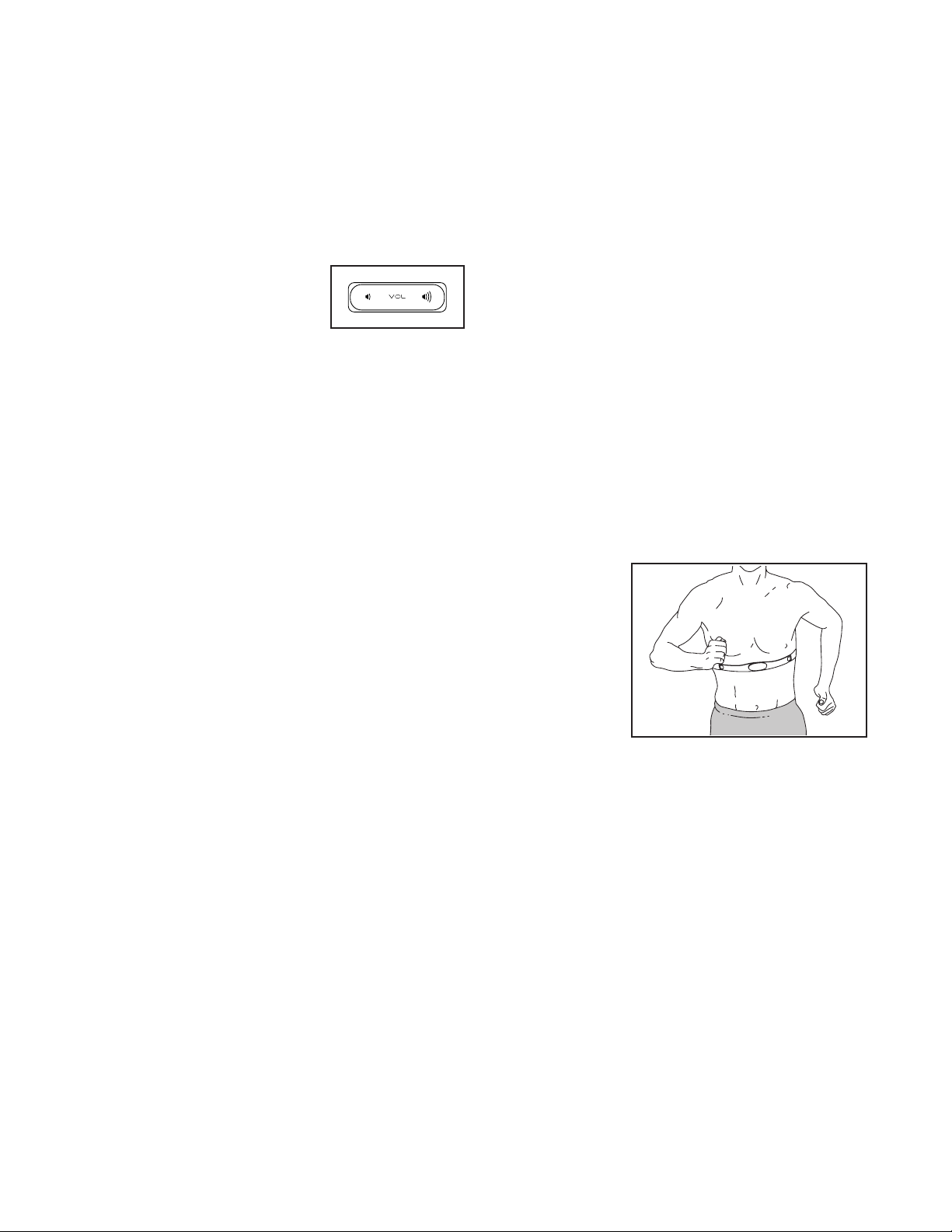
THE OPTIONAL CHEST HEART RATE MONITOR
Whether your
goal is to
burn fat or to
strengthen your
cardiovascular
system, the key
to achieving the
best results is
to maintain the
proper heart
rate during your
workouts. The optional chest heart rate monitor will
enable you to continuously monitor your heart rate
while you exercise, helping you to reach your personal
fitness goals. To purchase a chest heart rate moni-
tor, please see the front cover of this manual.
Note: The console is compatible with all Bluetooth
Smart heart rate monitors.

30
FCC INFORMATION
This equipment has been tested and found to comply with the limits for a Class B digital device, pursuant to part
15 of the FCC Rules. These limits are designed to provide reasonable protection against harmful interference
in a residential installation. This equipment generates, uses, and can radiate radio frequency energy and, if not
installed and used in accordance with the instructions, may cause harmful interference to radio communications.
However, there is no guarantee that interference will not occur in a particular installation. If this equipment does
cause harmful interference to radio or television reception, which can be determined by turning the equipment off
and on, try to correct the interference by one or more of the following measures:
• Reorient or relocate the receiving antenna.
• Increase the separation between the equipment and the receiver.
• Connect the equipment into an outlet on a circuit different from that to which the receiver is connected.
• Consult the dealer or an experienced radio/TV technician for help.
FCC CAUTION: To assure continued compliance, use only shielded interface cables when connecting to
computer or peripheral devices. Changes or modifications not expressly approved by the party respon-
sible for compliance could void the user’s authority to operate this equipment.
IMPORTANT: To satisfy exposure compliance requirements, the antenna and transmitter in the console
must be at least 8 in. (20 cm) from all persons and must not be near or connected to any other antenna or
transmitter.
Note: The console contains FCC ID: OMC415321.

31
MAINTENANCE
Regular maintenance is important for optimal
performance and to reduce wear. Inspect and properly
tighten all parts each time the elliptical is used.
Replace any worn parts immediately.
To clean the elliptical, use a damp cloth and a small
amount of mild soap. IMPORTANT: To avoid damage
to the console, keep liquids away from the console
and keep the console out of direct sunlight.
CONSOLE TROUBLESHOOTING
If the console does not turn on, make sure that the
power cord is fully plugged in and that the power
switch is in the reset position. If there are exterior wires
on the console, make sure that the connectors on the
wires are oriented correctly and are connected firmly.
If you are having problems connecting the console
to a wireless network or if you are having problems
with your iFit account or iFit workouts, go to
support.iFit.com.
If the console does not boot
up properly, or if the con-
sole freezes and does not
respond, reset the console
to the factory default set-
tings. IMPORTANT: Doing
this will erase all custom settings you have made
to the console. Resetting the console requires two
people. First, press the power switch and unplug the
power cord. Next, locate the small reset opening (A)
on the back or the side of the console. Using a bent
paper clip, press and hold the reset button inside the
opening, and have a second person plug in the power
cord and press the power switch. Continue holding the
reset button until the console turns on. When the reset
operation is complete, the console will turn off and then
turn back on. If it does not, press the power switch off
and then on again. Once the console turns on, check
for rmware updates (see step 5 on page 27). Note:
It may take a few minutes for the console to be ready
for use.
INCLINE SYSTEM TROUBLESHOOTING
If the ramp does not move to the correct incline level,
see step HOW TO CHANGE CONSOLE SETTINGS
on page 27 and calibrate the incline system.
MAINTENANCE AND TROUBLESHOOTING
A
32
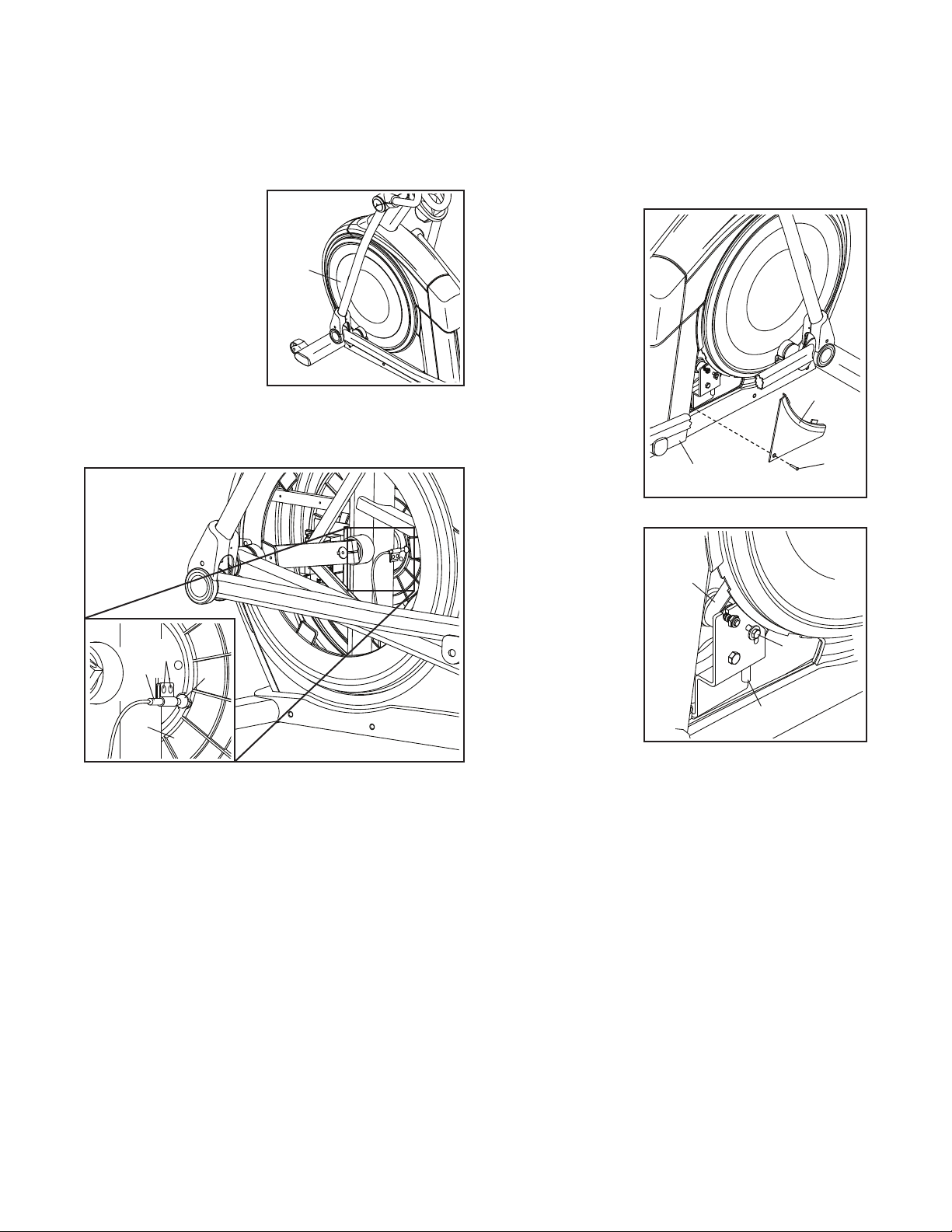
HOW TO ADJUST THE REED SWITCH
If the console does not display correct feedback,
the reed switch should be adjusted. To adjust the
reed switch, first press the power switch to the off
position and unplug the power cord.
Next, using a stan-
dard screwdriver,
carefully pry off the
left Disc (71).
Then, locate the Reed Switch (38). Turn the Pulley (19)
until a Magnet (43) is aligned with the Reed Switch.
Next, slightly loosen the indicated two M4 x 12mm
Self-tapping Screws (50). Slide the Reed Switch (38)
slightly closer to or away from the Magnet (43), and
then retighten the Self-tapping Screws.
Then, plug in the power cord, press the power switch,
and rock the Pulley (19) forward and backward just
enough that the Magnet (43) passes the Reed Switch
(38) repeatedly. Repeat these actions until the console
displays correct feedback.
When the reed switch is correctly adjusted, reattach
the left disc, plug in the power cord, and press the
power switch.
HOW TO ADJUST THE DRIVE BELT
If the pedals slip while you are pedaling, even while
the resistance is adjusted to the highest level, the drive
belt may need to be adjusted. To adjust the drive belt,
first press the power switch to the off position and
unplug the power cord.
Next, locate the
Access Cover
(3) on the Right
Shield (74).
Remove the
M4 x 16mm
Screw (101) and
then remove the
Access Cover.
Next, locate
and loosen the
Idler Screw (89).
Tighten the Drive
Belt Adjustment
Screw (91) until
the Drive Belt
(113) is tight. Then,
retighten the Idler
Screw.
Reattach the parts that you removed. Then, plug in the
power cord and press the power switch.
71
19
43
50
38
74
3
101
113
91
89
33
EXERCISE GUIDELINES
These guidelines will help you to plan your exercise
program. For detailed exercise information, obtain a
reputable book or consult your physician. Remember,
proper nutrition and adequate rest are essential for
successful results.
EXERCISE INTENSITY
Whether your goal is to burn fat or to strengthen your
cardiovascular system, exercising at the proper inten-
sity is the key to achieving results. You can use your
heart rate as a guide to find the proper intensity level.
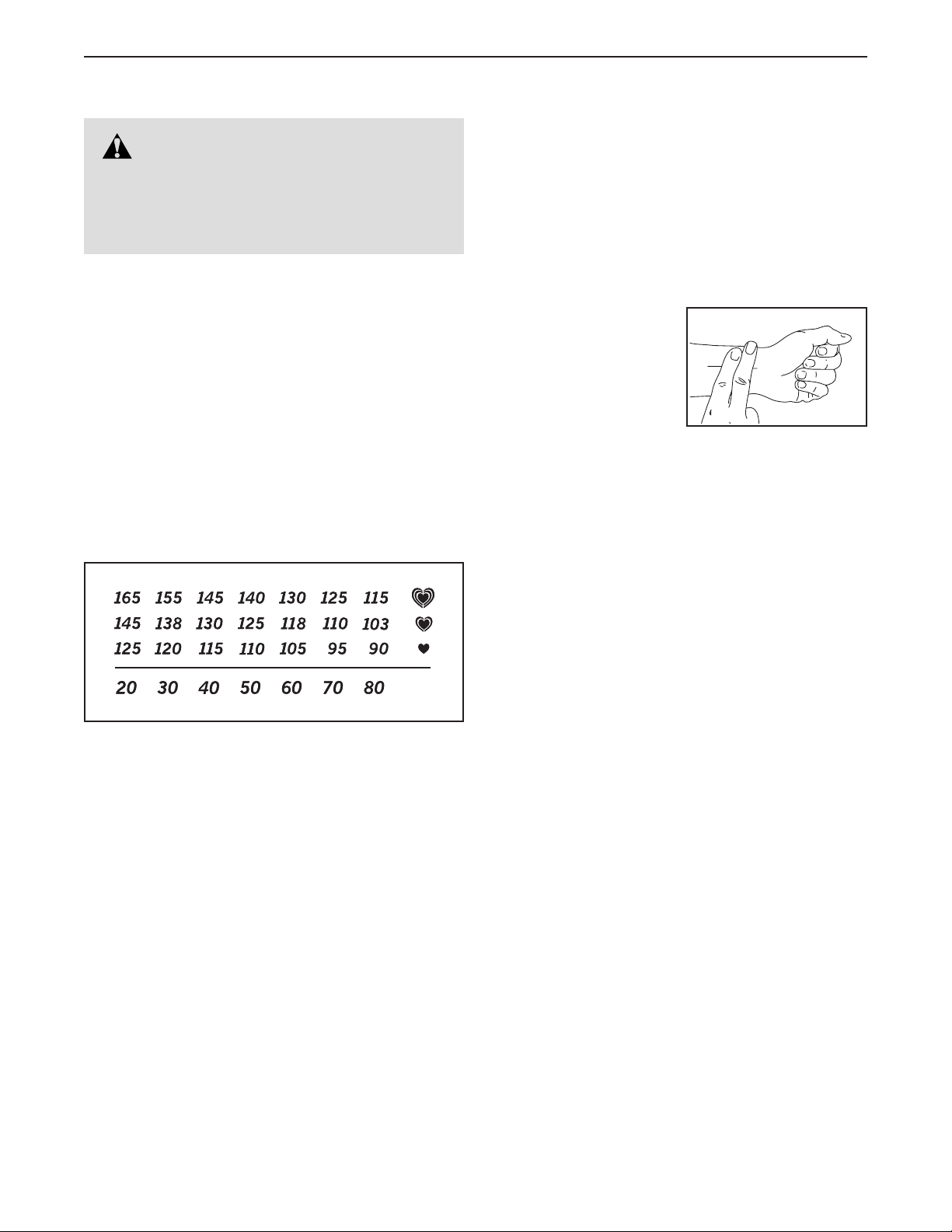
The chart below shows recommended heart rates for
fat burning and aerobic exercise.
To find the proper intensity level, find your age at the
bottom of the chart (ages are rounded off to the near-
est ten years). The three numbers listed above your
age define your “training zone.” The lowest number is
the heart rate for fat burning, the middle number is the
heart rate for maximum fat burning, and the highest
number is the heart rate for aerobic exercise.
Burning Fat—To burn fat effectively, you must exer-
cise at a low intensity level for a sustained period of
time. During the first few minutes of exercise, your
body uses carbohydrate calories for energy. Only
after the first few minutes of exercise does your body
begin to use stored fat calories for energy. If your
goal is to burn fat, adjust the intensity of your exer-
cise until your heart rate is near the lowest number in
your training zone. For maximum fat burning, exercise
with your heart rate near the middle number in your
training zone.
Aerobic Exercise—If your goal is to strengthen your
cardiovascular system, you must perform aerobic
exercise, which is activity that requires large amounts
of oxygen for prolonged periods of time. For aerobic
exercise, adjust the intensity of your exercise until
your heart rate is near the highest number in your
training zone.
HOW TO MEASURE YOUR HEART RATE
To measure your heart
rate, exercise for at least
four minutes. Then, stop
exercising and place
two fingers on your
wrist as shown. Take a
six-second heartbeat
count, and multiply the
result by 10 to find your heart rate. For example, if your
six-second heartbeat count is 14, your heart rate is 140
beats per minute.
WORKOUT GUIDELINES
Warming Up—Start with 5 to 10 minutes of stretch-
ing and light exercise. A warm-up increases your body
temperature, heart rate, and circulation in preparation
for exercise.
Training Zone Exercise—Exercise for 20 to 30 min-
utes with your heart rate in your training zone. (During
the first few weeks of your exercise program, do not
keep your heart rate in your training zone for longer
than 20 minutes.) Breathe regularly and deeply as you
exercise —never hold your breath.
Cooling Down—Finish with 5 to 10 minutes of stretch-
ing. Stretching increases the flexibility of your muscles
and helps to prevent post-exercise problems.
EXERCISE FREQUENCY
To maintain or improve your condition, complete
three workouts each week, with at least one day of
rest between workouts. After a few months of regular
exercise, you may complete up to five workouts each
week, if desired. Remember, the key to success is to
make exercise a regular and enjoyable part of your
everyday life.
WARNING: Before beginning this
or any exercise program, consult your physi-
cian. This is especially important for persons
over age 35 or persons with pre-existing
health problems.
34
SUGGESTED STRETCHES
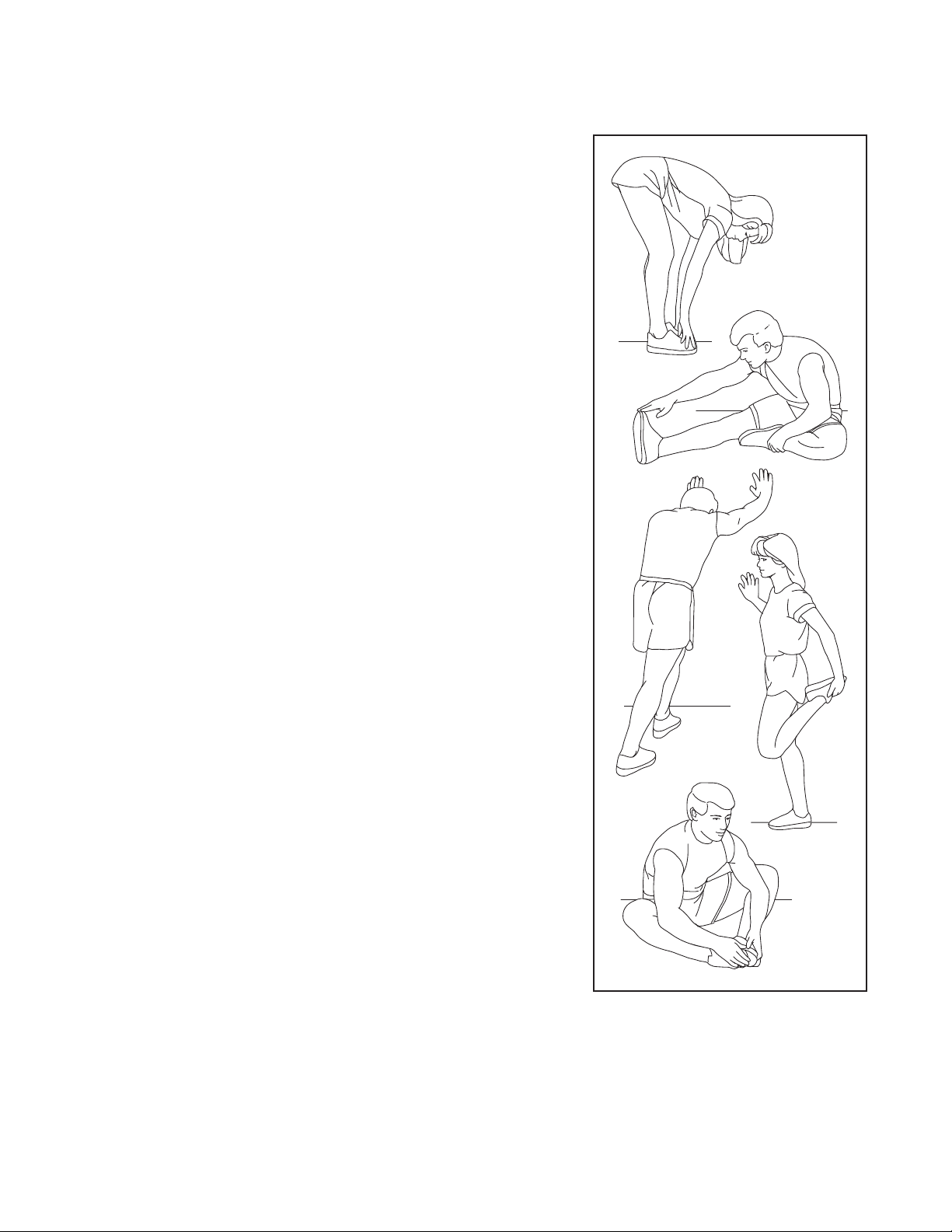
The correct form for several basic stretches is shown at the right. Move slowly as you stretch; never bounce.
1. Toe Touch Stretch
Stand with your knees bent slightly and slowly bend forward from
your hips. Allow your back and shoulders to relax as you reach down
toward your toes as far as possible. Hold for 15 counts, then relax.
Repeat 3 times. Stretches: Hamstrings, back of knees and back.
2. Hamstring Stretch
Sit with one leg extended. Bring the sole of the opposite foot toward
you and rest it against the inner thigh of your extended leg. Reach
toward your toes as far as possible. Hold for 15 counts, then relax.
Repeat 3 times for each leg. Stretches: Hamstrings, lower back and
groin.
3. Calf/Achilles Stretch
With one leg in front of the other, reach forward and place your hands
against a wall. Keep your back leg straight and your back foot flat on
the floor. Bend your front leg, lean forward and move your hips toward
the wall. Hold for 15 counts, then relax. Repeat 3 times for each leg.
To cause further stretching of the achilles tendons, bend your back
leg as well. Stretches: Calves, achilles tendons and ankles.
4. Quadriceps Stretch
With one hand against a wall for balance, reach back and grasp one
foot with your other hand. Bring your heel as close to your buttocks as
possible. Hold for 15 counts, then relax. Repeat 3 times for each leg.
Stretches: Quadriceps and hip muscles.
5. Inner Thigh Stretch
Sit with the soles of your feet together and your knees outward.
Pull your feet toward your groin area as far as possible. Hold for 15
counts, then relax. Repeat 3 times. Stretches: Quadriceps and hip
muscles.
1
2
3
4
5

35
PART LIST
Model No. NTEL71420.1 R0620A
1 1 Frame/Ramp
2 1 Rear Stabilizer
3 1 Access Cover
4 1 Upright
5 6 M4 x 19mm Screw
6 1 Front Stabilizer
7 1 Console
8 2 Roller Guide
9 1 Crank Bearing Spacer
10 1 Rear Ramp Cover
11 1 Incline Motor
12 1 Incline Motor Arm
13 1 Ramp Arm
14 2 Ramp Arm Spacer
15 1 Rear Stabilizer Cover
16 2 Track
17 1 Power Switch
18 1 Crank
19 1 Pulley
20 2 Crank Arm
21 1 Left Lower Grip
22 1 Idler
23 2 Short Bumper
24 1 Small Leveling Foot
25 1 Resistance Motor
26 7 M10 Locknut
27 2 M10 Washer
28 1 Eddy Mechanism
29 1 Right Pedal
30 4 Stabilizer Cap
31 3 M10 x 19mm Screw
32 2 Roller Arm Bearing Spacer
33 2 Large Leveling Foot
34 2 Wheel
35 2 Clip
36 1 Idler Washer
37 1 Accessory Tray
38 1 Reed Switch/Wire
39 1 Reed Switch Clamp
40 2 Frame Bearing
41 1 Upper Ramp Cover
42 1 Sleeve
43 2 Magnet
44 1 Left Pedal Arm
45 1 Left Roller Arm
46 1 Left Upper Body Leg
47 1 Left Upper Body Arm
48 1 Strain-Relief Bushing
49 1 Left Pedal
50 6 M4 x 12mm Self-tapping Screw
51 2 Roller
52 1 Left Pedal Handle
53 2 Axle Cover
54 2 Pivot Spacer
55 2 Retainer
56 4 Roller Arm Bushing
57 6 Large Arm Bearing
58 1 Right Pedal Arm
59 1 Right Roller Arm
60 1 Right Upper Body Leg
61 1 Right Upper Body Arm
62 1 Left Upper Grip/Control Wire
63 2 Handlebar Grip
64 2 Pedal Arm Axle
65 1 Right Arm Front Cover
66 1 Right Arm Rear Cover
67 1 Left Arm Front Cover
68 1 Left Arm Rear Cover
69 1 Right Leg Outer Cover
70 1 Left Leg Outer Cover
71 2 Disc
72 1 Left Leg Inner Cover
73 1 Left Shield
74 1 Right Shield
75 1 Center Shield Cover
76 1 Left Pedal Arm Side Cap
77 2 Crank Cover
78 2 Key
79 1 Front Console Cover
80 1 Rear Console Cover
81 2 Lower Tray Cover
82 10 M8 x 12mm Screw
83 1 Right Leg Inner Cover
84 1 M4 x 12mm Ground Screw
85 2 M10 Split Washer
86 2 M10 x 58mm Hex Bolt
87 1 Right Pedal Arm Side Cap
88 1 Idler Pivot Screw
89 1 Idler Screw
90 3 M6 x 19mm Washer
91 1 Drive Belt Adjustment Screw
92 4 M10 x 25mm Screw
93 4 M4 x 12mm Flange Screw
94 1 Left Control Pad
95 8 M8 x 20mm Screw
96 4 M8 x 45mm Bolt
97 2 M8 x 25mm Washer
98 2 M8 x 18mm Washer
99 1 Crank Pulley Spacer
100 4 Leg Bearing
Key No. Qty. Description Key No. Qty. Description

36
Key No. Qty. Description Key No. Qty. Description
101 53 M4 x 16mm Screw
102 6 M8 Locknut
103 11 M6 x 12mm Screw
104 4 M10 x 114mm Screw
105 1 M4 x 25mm Flange Screw
106 1 Lower Ramp Cover
107 1 Crank Spacer
108 2 M6 x 13mm Screw
109 2 M10 x 58mm Bolt
110 1 Main Wire
111 1 Left Extension Wire
112 2 M4 x 19mm Self-tapping Screw
113 1 Drive Belt
114 1 Controller
115 4 Standoff
116 2 Disc Ring
117 1 Front Shield Cover
118 1 Rear Shield Cover
119 1 Power Cord
120 2 M8 x 20mm Flat Head Screw
121 8 Frame Bushing
122 1 M10 x 47mm Bolt
123 2 Small Arm Bearing
124 2 M4 x 16mm Machine Screw
125 1 Right Upper Grip/Control Wire
126 2 M4 x 25mm Screw
127 2 Disc Bracket
128 1 Long Bumper
129 4 M8 x 22mm Washer
130 4 M4 x 12mm Screw
131 2 Adhesive Tape
132 1 Right Control Pad
133 2 Zip Tie
134 1 Right Lower Grip
135 2 M6 x 26mm Washer
136 1 M10 x 28mm Washer
137 1 Right Pedal Handle
138 2 Pedal Pin
139 2 Pedal Spring
140 2 M6 Acorn Nut
141 4 M6 Washer
142 1 Right Pedal Plate
143 1 Left Pedal Plate
144 2 M10 x 158mm Bolt
145 1 Motor Arm Spacer
146 1 Right Extension Wire
* – Assembly Tool
* – Grease Packet
* – User’s Manual
Note: Specifications are subject to change without notice. For information about ordering replacement parts, see
the back cover of this manual. *These parts are not illustrated.
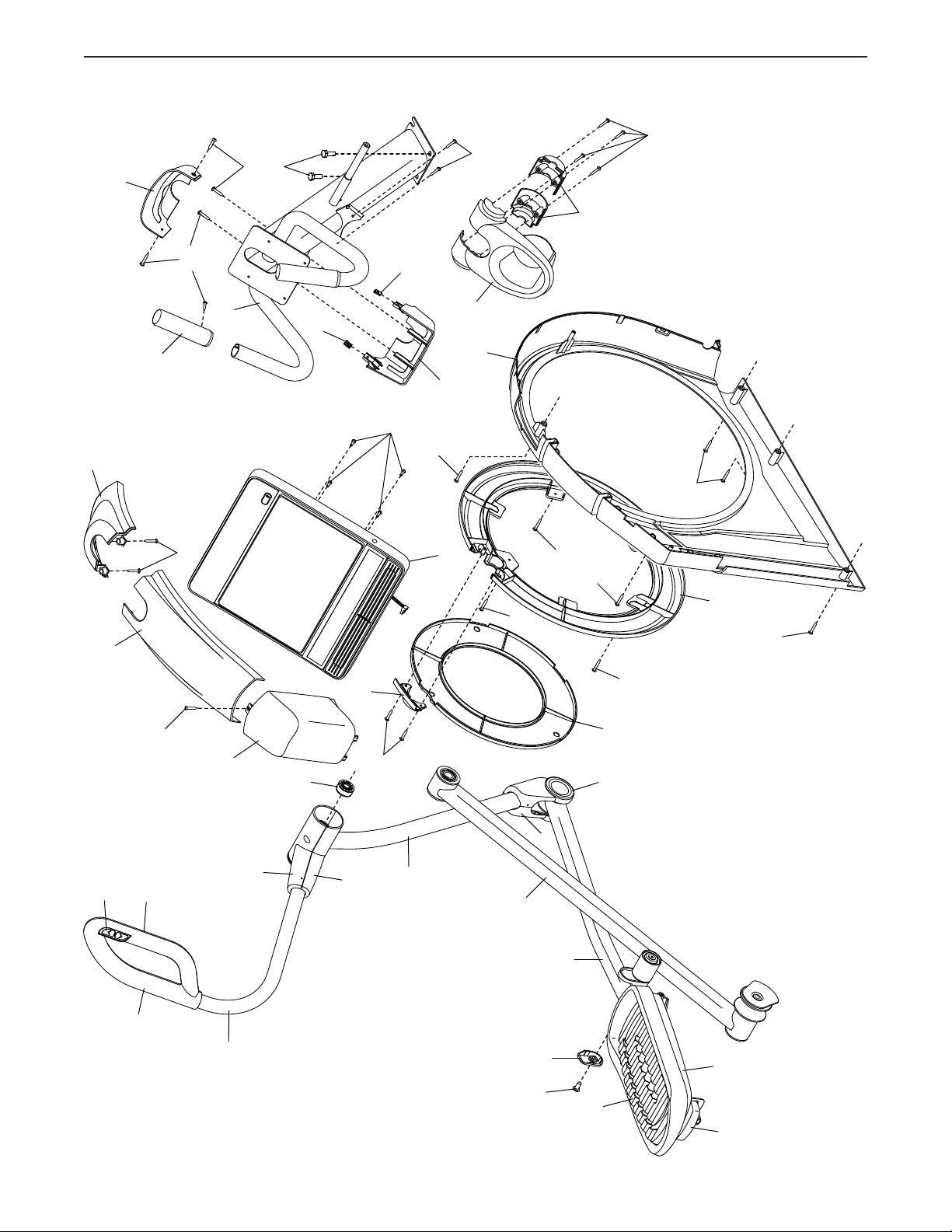
37
EXPLODED DRAWING A
4
35
35
37
81
54
63
71
79
73
75
80
101
101
101
101
92
124
5
101
50
101
101
117
116
118
101
101
101
5
50
46
52
45
44
47
49
68
62
21
67
70
72
76
95
127
7
143
94
Model No. NTEL71420.1 R0620A
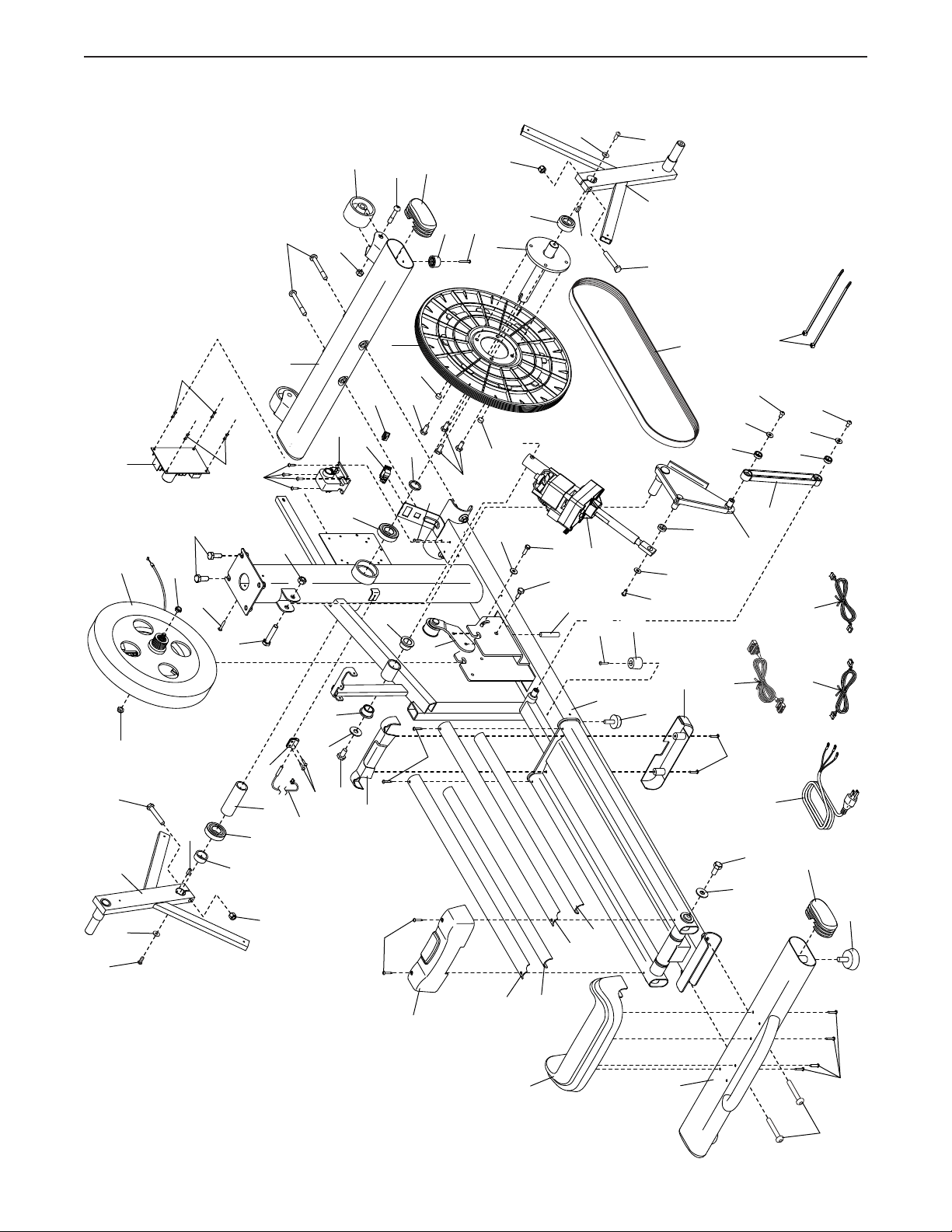
38
EXPLODED DRAWING B
26
26
107
9
121
121
110
119
111
146
133
6
10
2
16
18
15
17
25
20
130
28
30
22
33
40
43
43
48
42
88
93
31
31
89
135
90
91
27
136
108
103
145
113
84
102
101
102
30
131
131
16
122
36
20
34
104
26
109
112
23
40
82
82
99
78
86
78
86
92
135
108
26
105
128
104
1
24
12
11
19
101
115
115
114
106
130
101
41
39
38
50
14
14
13
90
90
103
103
Model No. NTEL71420.1 R0620A
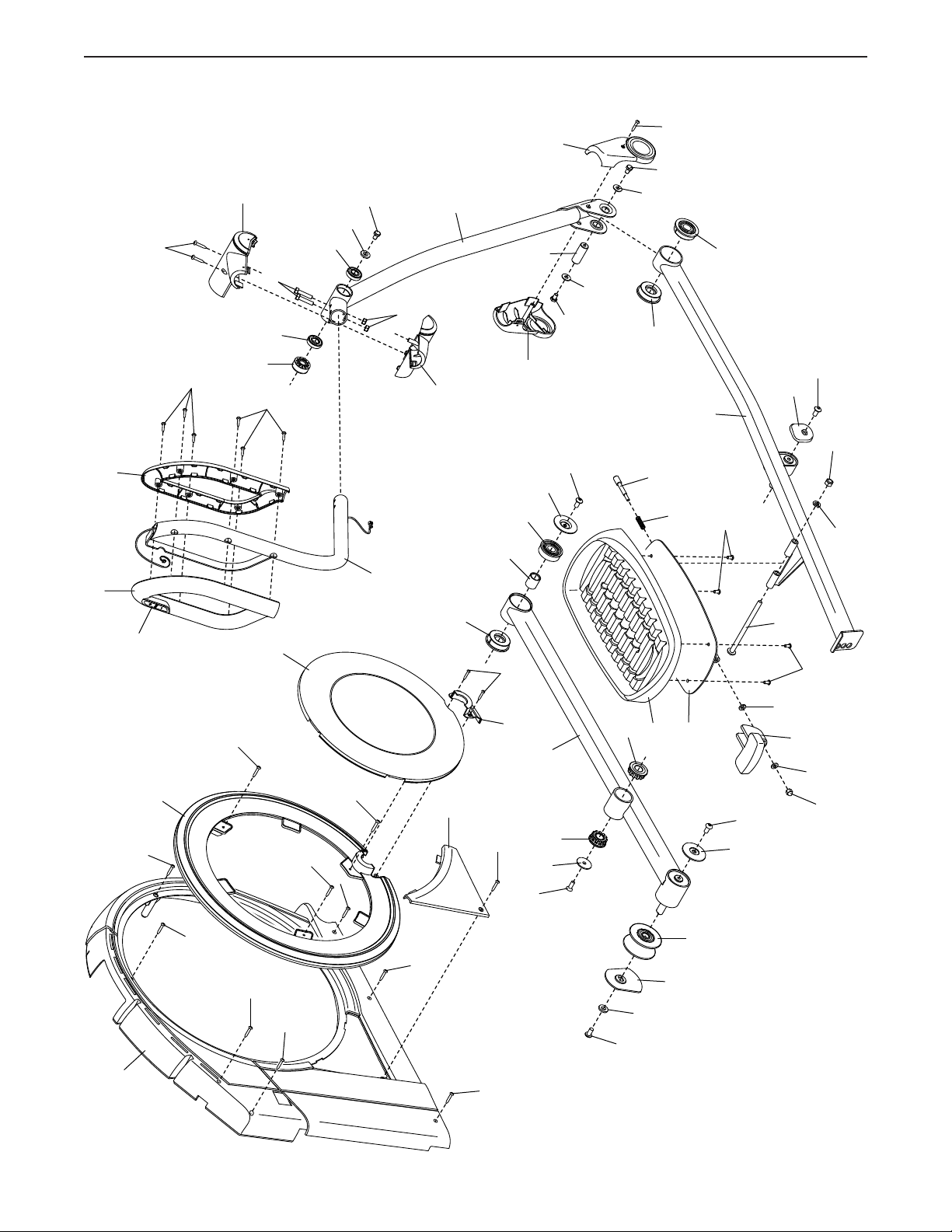
39
EXPLODED DRAWING C
74
124
50
50
5
5
116
5
101
32
95
127
137
138
139
140
141
141
142
58
57
57
103
103
87
59
57
123
77
95
56
55
120
56
51
53
95
98
95
8
71
60
101
61
66
65
69
83
101
126
126
101
101
101
3
96
102
82
97
100
100
54
101
101
134
125
132
85
144
26
29
64
82
82
129
129
Model No. NTEL71420.1 R0620A
Part No. 420983 R0620A Printed in China © 2020 ICON Health & Fitness, Inc.
To order replacement parts, please see the front cover of this manual. To help us assist you, be prepared to
provide the following information when contacting us:
• the model number and serial number of the product (see the front cover of this manual)
• the name of the product (see the front cover of this manual)
• the key number and description of the replacement part(s) (see the PART LIST and the EXPLODED DRAWING
near the end of this manual)
ORDERING REPLACEMENT PARTS
ICON Health & Fitness, Inc. (ICON) warrants this product to be free from defects in workmanship and
material, under normal use and service conditions. The frame is warranted for ten (10) years from the date
of purchase. Parts are warranted for two (2) years from the date of purchase. Labor is warranted for one
(1) year from the date of purchase.
This warranty extends only to the original purchaser (customer) and is not transferrable. ICON’s obliga-
tion under this warranty is limited to repairing or replacing, at ICON’s option, the product through one of
its authorized service providers. All repairs for which warranty claims are made must be preauthorized by
ICON. If replacement parts are shipped while the product is under warranty, the customer will be respon-
sible for a minimal handling charge. For in-home service, the customer may be responsible for a minimal
trip charge. This warranty does not extend to freight damage to the product. This warranty will automati-
cally be voided by the following conditions: (1) if the product is used as a store display model, (2) if the
product is purchased or transported outside the USA, (3) if all instructions and warnings in this manual are
not followed, (4) if the product is abused or improperly or abnormally used, or (5) if the product is used for
commercial or rental purposes. No other warranty beyond that specically set forth above is authorized
by ICON.
ICON is not responsible or liable for the following damages: (1) indirect, special, or consequential dam-
ages arising out of or in connection with the use or performance of the product; (2) damages with respect
to any economic loss, loss of property, loss of revenues or prots, loss of enjoyment or use, or costs of
removal or installation; or (3) other consequential damages of any kind. Some states do not allow the
exclusion or limitation of incidental or consequential damages. Accordingly, the above limitation may not
apply to the customer.
The warranty extended hereunder is in lieu of any and all other warranties, and any implied warranties of
merchantability or tness for a particular purpose are limited in their scope and duration to the terms set
forth herein. Some states do not allow limitations on how long an implied warranty lasts. Accordingly, the
above limitation may not apply to the customer. This warranty provides specic legal rights; the customer
may have other rights that vary from state to state.
For warranty service, please call the telephone number on the front cover of this manual. Please be pre-
pared to provide the model number and serial number of the product (see the front cover of this manual).
ICON Health & Fitness, Inc., 1500 S. 1000 W., Logan, UT 84321-9813
LIMITED WARRANTY
IMPORTANT: To protect your fitness equipment with an extended service plan, see page 5.