
i
VAIO MicroTower
User Guide
®
®

Notice to Users
© 1998 Sony Electronics Inc. Reproduction
in whole or in part without written
permission is prohibited. All rights
reserved. This manual and the software
described herein, in whole or in part, may
not be reproduced, translated, or reduced
to any machine-readable form without
prior written approval.
SONY ELECTRONICS INC. PROVIDES
NO WARRANTY WITH REGARD TO
THIS MANUAL, THE SOFTWARE, OR
OTHER INFORMATION CONTAINED
HEREIN AND HEREBY EXPRESSLY
DISCLAIMS ANY IMPLIED
WARRANTIES OF MERCHANTABILITY
OR FITNESS FOR ANY PARTICULAR
PURPOSE WITH REGARD TO THIS
MANUAL, THE SOFTWARE, OR SUCH
OTHER INFORMATION. IN NO EVENT
SHALL SONY ELECTRONICS INC. BE
LIABLE FOR ANY INCIDENTAL,
CONSEQUENTIAL, OR SPECIAL
DAMAGES, WHETHER BASED ON
TORT, CONTRACT, OR OTHERWISE,
ARISING OUT OF OR IN CONNECTION
WITH THIS MANUAL, THE SOFTWARE,
OR OTHER INFORMATION
CONTAINED HEREIN OR THE USE
THEREOF.
Sony Electronics Inc. reserves the right to
make any modification to this manual or
the information contained herein at any
time without notice. The software
described herein may also be governed by
the terms of a separate user license
agreement.
Sony, VAIO, VAIO Smart, i.LINK, S-Link,
and the VAIO logo are trademarks of Sony.
Windows and the Windows logo are
registered trademarks of Microsoft
Corporation. Intel and Pentium are
trademarks of Intel Corporation. K56flex is
a trademark of Lucent Technologies Inc.
and Rockwell International. All other
trademarks are trademarks of their
respective owners.
Safety Information
Owners Record
The model number and serial number are
located on the back of your Sony computer.
Record the model and serial numbers in
the space provided here. Refer to the model
and serial number when you call your
Sony Service Center.
Model Number:________________________
Serial Number:________________________
WARNING
❑
To prevent fire or shock hazard, do
not expose your Sony computer to
rain or moisture.
❑
Never install modem or telephone
wiring during a lightning storm.
❑
Never install telephone jacks in wet
locations unless the jack is specifically
designed for wet locations
❑
Never touch uninsulated telephone
wire or terminals unless the telephone
line has been disconnected at the
network interface.
❑
Use caution when installing or
modifying telephone lines.
❑
Avoid using the modem during an
electrical storm.
❑
Do not use the modem or a telephone
to report a gas leak in the vicinity of
the leak.
!
The use of optical instruments
with this product will increase eye
hazard.
WARNING
Sony VAIO User’s Guide

Regulatory Information
This equipment has been tested and found
to comply with the limits for a Class B
digital device, pursuant to Part 15 of the
FCC rules. These limits are designed to
provide reasonable protection against
harmful interference in a residential
installation. This equipment generates,
uses, and can radiate radio frequency
energy and, if not installed and used in
accordance with the instructions, may
cause harmful interference to radio
communications. However, there is no
guarantee that interference will not occur
in a particular installation. If this
equipment does cause harmful interference
to radio or television reception, which can
be determined by turning the equipment
off and on, the user is encouraged to try to
correct the interference by one or more of
the following measures:
❑
Reorient or relocate the receiving
antenna.
❑
Increase the separation between the
equipment and the receiver.
❑
Connect the equipment into an outlet
on a circuit different from that to
which the receiver is connected.
❑
Consult the dealer or an experienced
radio/TV technician for help.
You are cautioned that any changes or
modifications not expressly approved in
this manual could void your authority to
operate this equipment.
Only peripherals (computer input/output
devices, terminals, printers, etc.) that
comply with FCC Class B limits may be
attached to this computer product.
Operation with non-compliant peripherals
is likely to result in interference to radio
and television reception.
All cables used to connect peripherals must
be shielded and grounded. Operation with
cables, connected to peripherals, that are
not shielded and grounded, may result in
interference to radio and television
reception.
FCC Part 68
This equipment complies with Part 68 of
the FCC rules. The ringer equivalence
number (REN) and the FCC registration
number are printed on the modem board. If
requested, this information must be
supplied to the telephone company.
The REN is used to determine the quantity
of devices which may be connected to the
phone line. Excessive REN's on the
telephone line may result in the devices not
ringing in response to an incoming call. In
most, but not all areas, the sum of the
REN's should not exceed five (5.0). To be
certain of the number of devices that may
be connected to the line, as determined by
the total REN's, contact the telephone
company to determine the maximum REN
for the calling area.
This modem uses the USOC RJ-11
telephone jack.
If this equipment causes harm to the
telephone network, the telephone company
will, when practical, notify you in advance
that temporary discontinuance of service
may be required. If advance notice isn't
practical, the telephone company will
notify you as soon as possible. Also, you
will be advised of your right to file a
complaint with the FCC if you believe it is
necessary.
The telephone company may make
changes in its facilities, equipment,
operations or procedures that could affect
the operations of the equipment. If this
happens, the telephone company will
notify you in advance, in order for you to
make the necessary modifications
in order to maintain uninterrupted service.
If trouble is experienced with this modem,
for repair or warranty information, please
contact 1-888-4SONY-PC, or write to the
Sony Customer Information Center, One
Sony Drive, Park Ridge, NJ 07656.

This equipment cannot be used on
telephone-company-provided coin service.
Connection to Party Line Service is subject
to state tariffs.
Repair of the modem should be made only
by a Sony Service Center or Sony
authorized agent. For the Sony Service
Center nearest you, call
1-888-4SONY-PC (1-888-476-6972).
Telephone Consumer
Protection Act of 1991
The Telephone Consumer Protection Act of
1991 makes it unlawful for any person to
use a computer or other electronic device to
send any message via a telephone facsimile
machine unless such message clearly
contains, in a margin at the top or bottom
of each transmitted page or on the first
page of the transmission, the date and time
it is sent and an identification of the
business, other entity, or individual
sending the message, and the telephone
number of the sending machine or such
business, other entity, or individual.
In order to program this information into
your facsimile, see your fax software
documentation.
✍
You are cautioned that any changes or
modifications not expressly approved in
this manual could void your authority to
operate this equipment.

v
Contents
Welcome...............................................................................1
About the User Guide.....................................................................1
Setting Up Your VAIO MicroTower ....................................3
Choosing a Location for Your Computer.....................................3
Connecting the Sony Multimedia Computer Display................5
Connecting a Display, Speakers, and a Microphone..................6
Connecting the Optional Palmrest................................................7
Connecting the Keyboard and Mouse..........................................8
Connecting the Phone Line and Phone ........................................9
Connecting the Power Cords.......................................................10
Connecting Peripherals.................................................................11
Connecting a Television (Audio/Video Out)
................................. 12
Connecting a Printer
............................................................................. 15
Connecting a Joystick or MIDI Instrument
...................................... 16
Connecting an i.LINK™ (IEEE-1394) Equipped Device
............... 17
Connecting an S/PDIF Equipped Digital Audio Device
.............. 18
Connecting an S-Link™ (Control A1) Equipped Device
.............. 19
Connecting a Universal Serial Bus Device
....................................... 20
Connecting a Digital Still Camera or Other Serial Peripheral
..... 21
Starting Your Computer ...............................................................22
Registering Windows® 98............................................................23
Registering Your Computer.........................................................24
Using the Standby Function.........................................................25
Standby Mode Indicators
.................................................................... 25
Shutting Down Your Computer..................................................26

VAIO MicroTower User Guide
vi
Getting Started With
VAIO Space......................................................................... 27
Starting VAIO Space......................................................................27
VAIO Space Centers.......................................................................28
Navigating through VAIO Space.................................................29
VAIO Space Controls
............................................................................30
Using the Software Center............................................................31
Using the Audio-Video Center.....................................................32
Using the Online Center................................................................33
Using the Tool Center....................................................................34
Using Tool Center Tools
......................................................................34
Using the Help Center...................................................................35
Exiting VAIO Space .......................................................................35
Getting Help ...................................................................... 37
Calling SOS......................................................................................39
Troubleshooting .............................................................................41
Using the System Recovery CD(s)...............................................47
Using the Application Recovery CD(s).......................................49
Upgrading and Maintaining Your VAIO MicroTower ..... 51
Inserting an Add-in Board............................................................52
Adding Memory.............................................................................54
Replacing the Lithium Battery......................................................56
Installing an Internal Hard Disk Drive .......................................58
Removing the Left-Side Panel......................................................63
Removing the Bottom Panel.........................................................64
Removing the Front Panel.............................................................65
Detaching the Diskette Drive........................................................66
Replacing the Diskette Drive........................................................67
Replacing the Bottom Panel..........................................................68
Replacing the Front Panel.............................................................69
Replacing the Left-Side Panel.......................................................70

Contents
vii
Computer Basics .................................................................71
Using the Keyboard.......................................................................71
Changing the Function of the Programmable Buttons
................. 73
Using the Mouse............................................................................74
Setting Up the Mouse for Left-Hand Use
........................................ 75
Using the DVD-ROM Drive.........................................................76
Using the Diskette Drive...............................................................77
Other Information ............................................................. 79
Notes on Use...................................................................................79
On the Power Source
............................................................................ 79
On Disposal of the Lithium Battery
.................................................. 80
On Handling
........................................................................................... 81
On Installation
....................................................................................... 81
On Moisture Condensation
................................................................. 82
On Upgrading the System
................................................................... 82
On Using the Hard Disk Drive
........................................................... 83
On Handling Diskettes
......................................................................... 83
On Handling CD-ROM and DVD-ROM Discs
............................... 83
On Cleaning CD-ROM and DVD-ROM Discs
................................ 83
Limited Warranty Statement............................................. 85
Index ...................................................................................87

viii

1
Welcome
Congratulations on your purchase of the Sony VAIO
®
MicroTower
Computer. Sony has combined leading-edge technology in audio, video,
computing, and communications to provide you with state-of-the-art
personal computing.
About the User Guide
The User Guide offers a quick introduction and reference to your
Sony computer.
❑
Setting Up Your VAIO MicroTower
shows you how to connect the
standard components of your system—generally in under 15
minutes. This section also explains how to connect additional
components, such as a printer, MIDI instrument, joystick, digital
camera, and more.
❑
Getting Started With VAIO Space
describes how to use VAIO Space
and the audio and video applications on your VAIO MicroTower.
❑
Getting Help
explains the support options available to you, shows
you how to use the Sony Online Support service, and offers basic
troubleshooting tips.
❑
Upgrading and Maintaining Your VAIO MicroTower
illustrates how
to install an add-in card, add memory, install an internal hard disk
drive, and replace the lithium battery.
❑
Computer Basics
shows new computer users how to use a mouse,
keyboard, DVD-ROM, and diskette drive.
❑
Other Information
provides facts and advice about using your
computer.
❑
Limited Warranty Statement
provides your product warranty
statement and explains how to extend your warranty for an
additional nine months.
Sony VAIO User’s Guide

2

3
Setting Up Your
VAIO MicroTower
Your VAIO MicroTower comes with the software titles preinstalled on
your hard disk drive. Just follow these simple steps to connect the cables
and turn on the computer, and your VAIO MicroTower is ready to use.
Choosing a Location for Your Computer
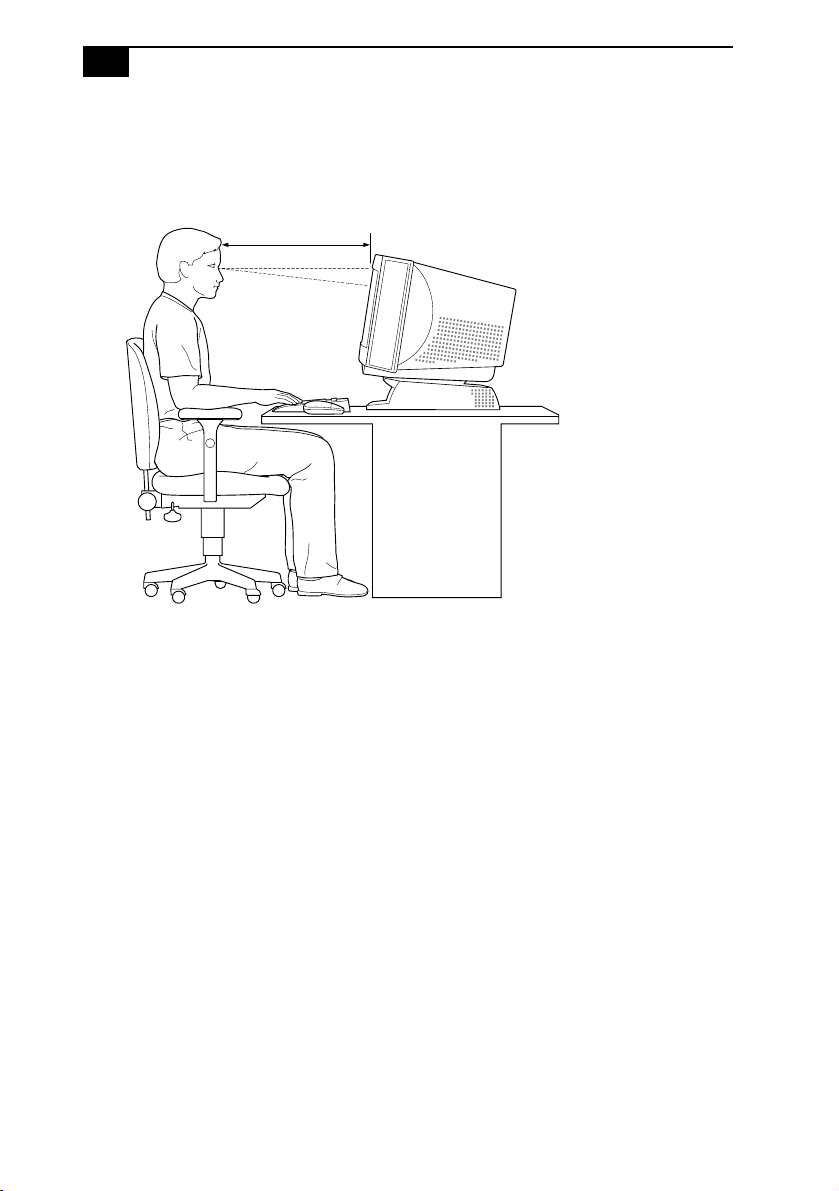
Before you get started, find the best location for your new computer. Here
are some things to consider when planning your workspace:
❑
Stable work surface—Use a stable work surface large enough to
support the computer, the display, and other equipment.
❑
Ventilation—Leave at least eight inches of space on the left and back
sides of your computer to enable proper ventilation.
❑
Placement of the keyboard, mouse, and other input devices—Place
your keyboard, mouse, and other input devices so that your arms and
hands are in a relaxed, comfortable position. The keyboard should be
directly in front of you. Adjust the level of the keyboard so that your
lower arms are parallel to the floor. Keep your wrists in a relaxed
position when you’re using the keyboard—not angled up or down.
Use the palmrest only briefly, for resting. While typing, never use the
palmrest or rest your hands on the table. Position the mouse at the
same level as the keyboard. Hold the mouse with a relaxed hand, and
use your whole arm to move it. Take breaks during sessions with
your computer. Excessive use of the mouse or a joystick may strain
muscles or tendons.
Sony VAIO User’s Guide
VAIO MicroTower User Guide
4
❑
Furniture and posture—Sit in a chair with good back support and
armrests. Adjust the level of the chair so your feet are flat on the floor.
A footrest may make you more comfortable. Sit in a relaxed, upright
posture—avoid slouching forward or leaning far backward.
❑
Viewing angle of the display—Position the display 18 to 26 inches
directly in front of you, with the top of the screen at or a little below
eye level. Use the display’s tilting feature to find the best position.
You can reduce eye strain and muscle fatigue by placing the display
in the proper position.
❑
Lighting—Choose a location where windows and lights do not create
glare and reflection on the display. Use indirect lighting to avoid
bright spots on the display. You can also purchase accessories for
your display that help reduce glare. Proper lighting adds to your
comfort and work effectiveness.
Setting Up Your VAIO MicroTower
5
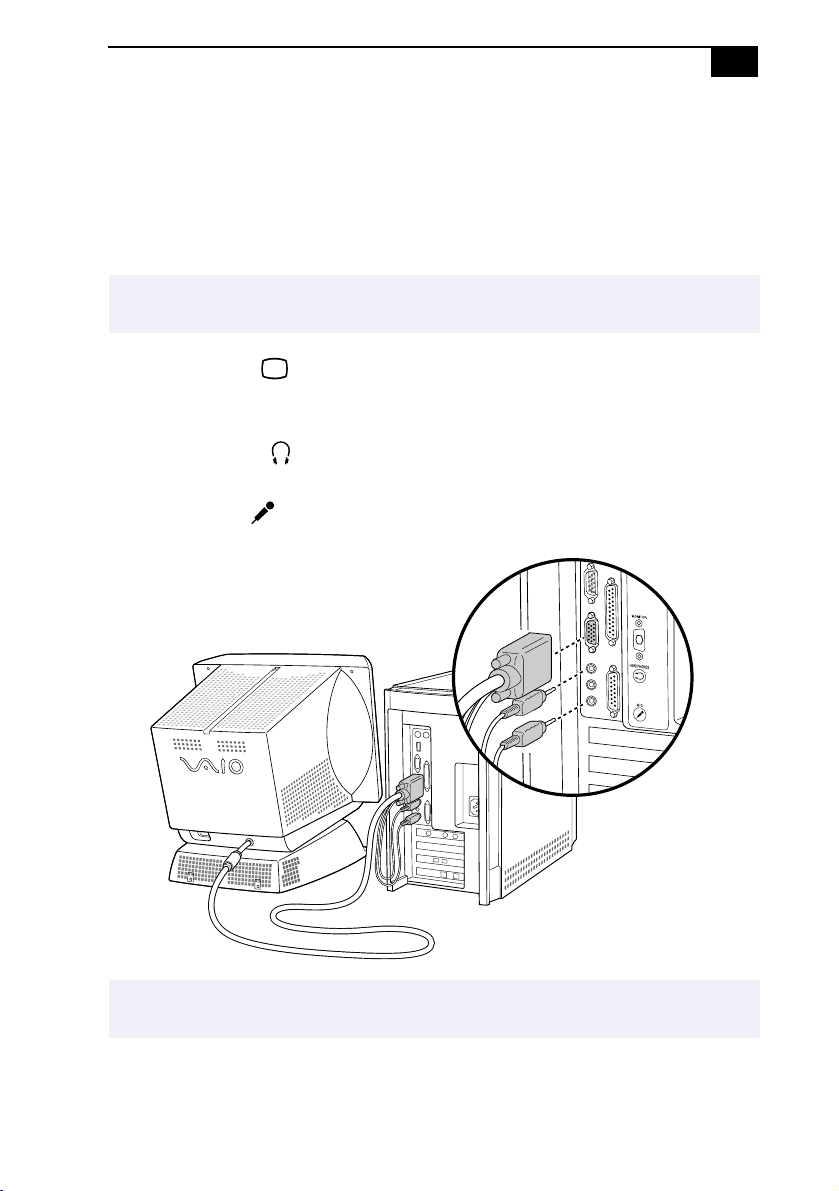
Connecting the Sony
Multimedia Computer Display
The Sony Multimedia Computer Display (sold separately) is an
integrated audio/video unit with built-in speakers and a microphone.
Follow these steps to connect it to your computer.
1
Use the blue symbol to locate the
MONITOR
(display) connector.
Plug the blue display cable into this connector, and then tighten the
two screws to secure the cable.
2
Use the green symbol to locate the
HEADPHONES
connector. Plug the
green speaker cable into this connector.
3
Use the red symbol to locate the
MIC
(microphone) connector. Plug
the red microphone cable into this connector.
✍
If youre connecting the computer to a TV or other video component, see Connecting a
Television (Audio/Video Out) on page 12.
✍
See the manual that came with your Sony Multimedia Computer Display for more information
on setting up and using the display.
VAIO MicroTower User Guide
6
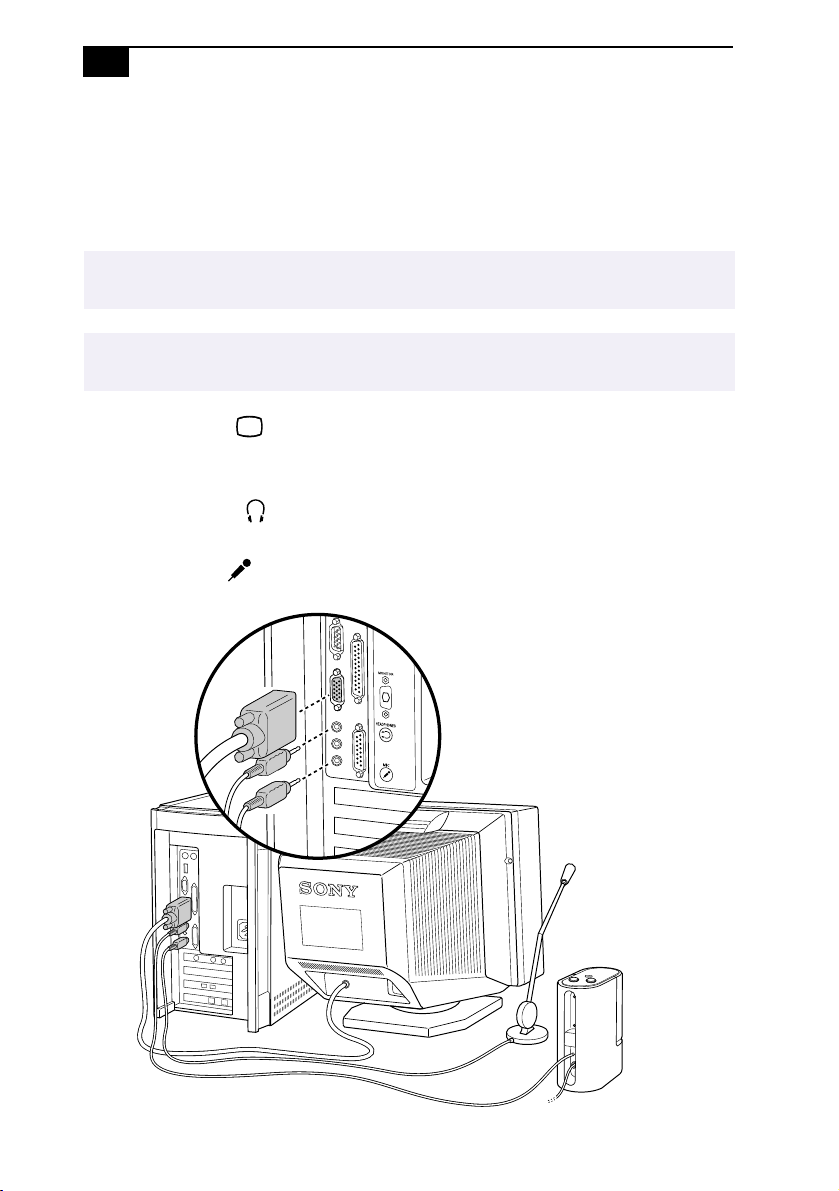
Connecting a Display, Speakers,
and a Microphone
If you did not purchase the Sony Multimedia Computer Display, you
need speakers and a microphone to use the computer’s audio features.
1
Use the blue symbol to locate the
MONITOR
(display) connector.
Plug the display cable into this connector, and then tighten the two
screws to secure the cable.
2
Use the green symbol to locate the
HEADPHONES
connector. Plug the
speaker cable into this connector.
3
Use the red to locate the
MIC
(microphone) connector. Plug the
microphone cable into this connector.
✍
If youre connecting the computer to a TV or other video component, see Connecting a
Television (Audio/Video Out) on page 12.
✍
Make sure your speakers are designed for computer use. See the manuals that came with your
display, speakers, and microphone for more information on setting them up and using them.
Setting Up Your VAIO MicroTower
7
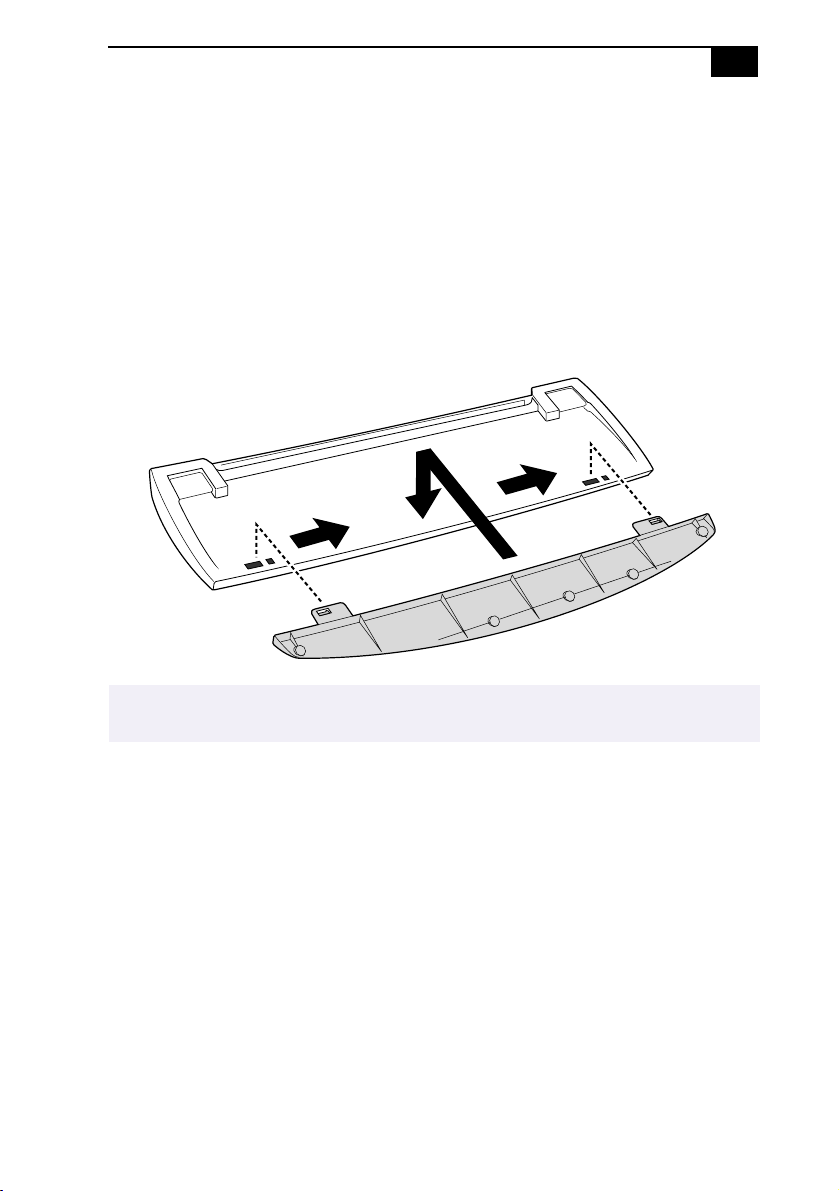
Connecting the Optional Palmrest
The keyboard that comes with your computer is equipped with an
optional palmrest that you can attach to your keyboard. Follow these
steps to connect the palmrest.
1
Place the keyboard and palmrest upside down on a flat surface.
2
Insert the latching posts on the palmrest into the openings on
the keyboard.
3
Move the palmrest to the right until you feel it snap into place.
To remove the palmrest
1
Turn the keyboard and palmrest upside down.
2
Push down on the palmrest, and then move it to the left.
3
Lift the palmrest away from the keyboard.
✍
Do not keep your wrists on the palmrest while typing; use the palmrest briefly only
when resting.
VAIO MicroTower User Guide
8
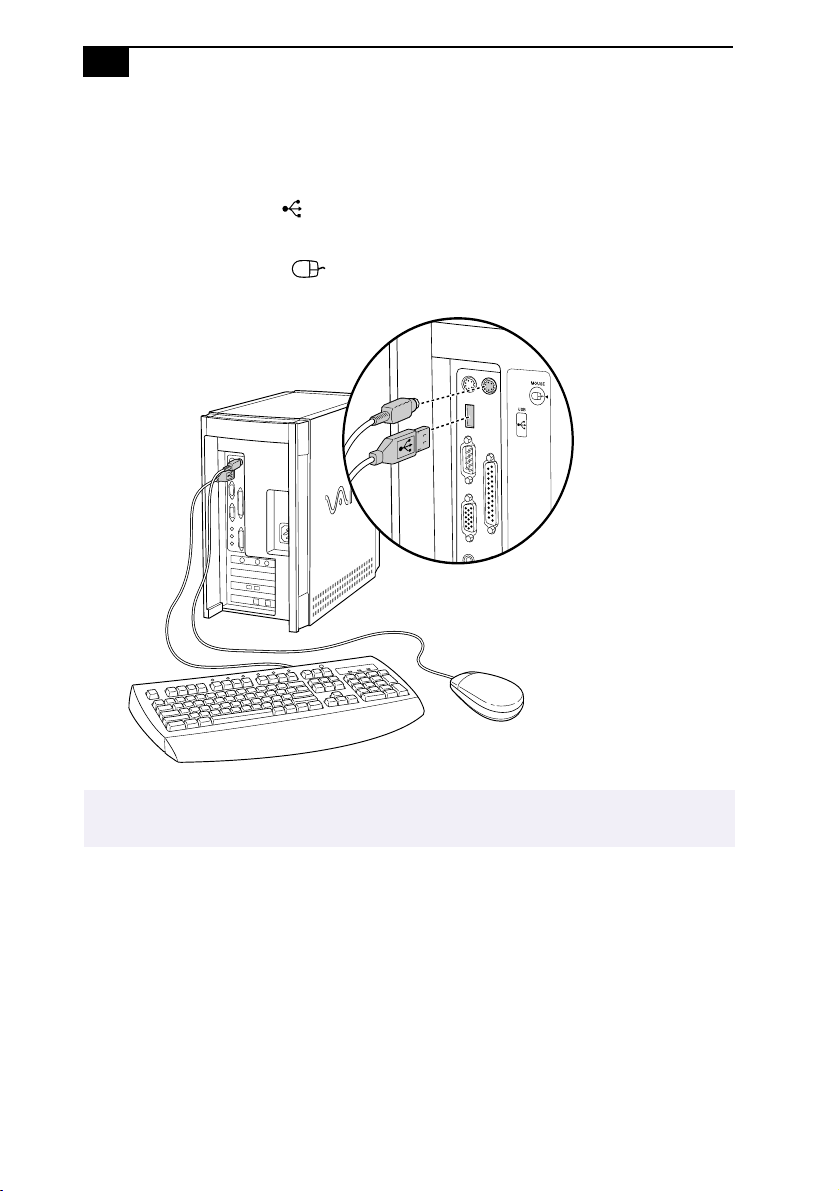
Connecting the Keyboard and Mouse
Follow these steps to connect the keyboard and mouse.
1
Use the dark grey symbol to locate the
USB
connector. Plug the
purple keyboard cable into this connector.
2
Use the blue-green symbol to locate the
MOUSE
connector and
insert the blue-green mouse cable into this connector.
✍
See Computer Basics on page 71 for more information on setting up and using the
keyboard and mouse.
Setting Up Your VAIO MicroTower
9
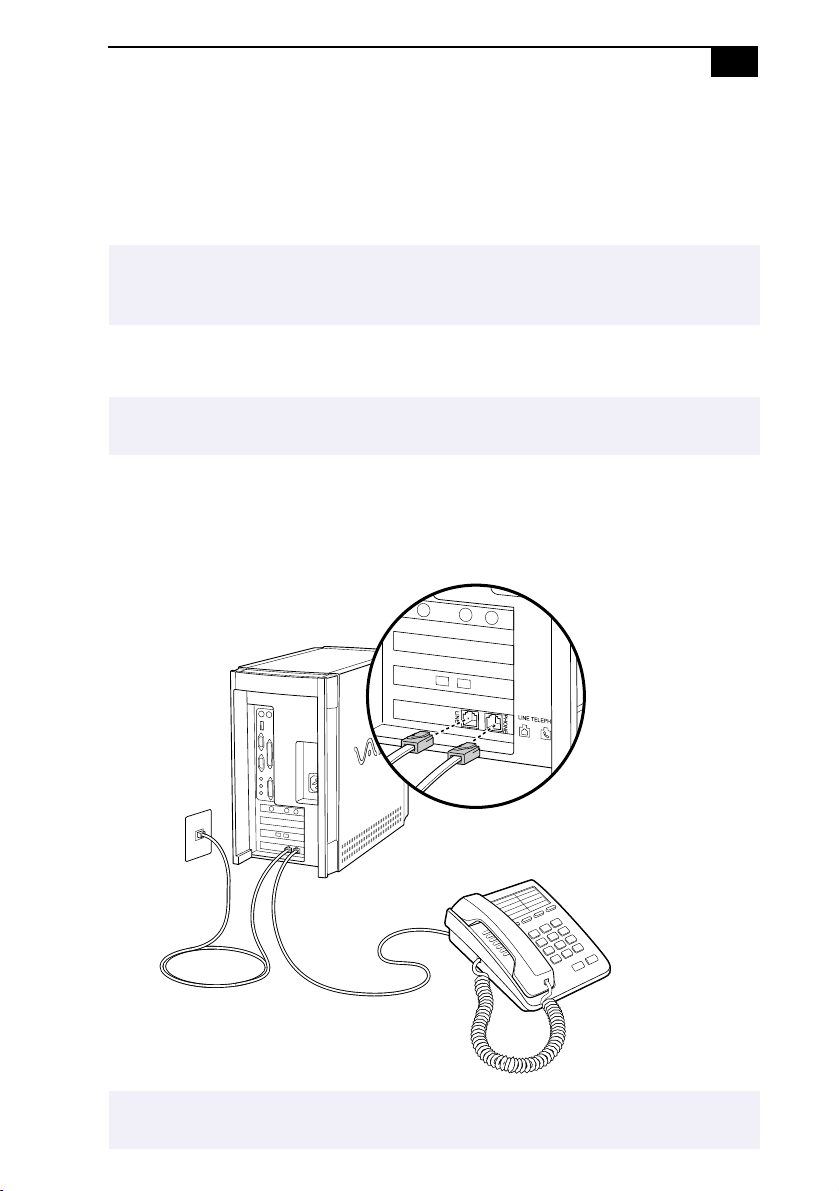
Connecting the Phone Line and Phone
You need to connect a phone line to take advantage of online services, the
Internet, and faxing. To use Sony Online Support (SOS), you must also
connect a phone.
There are two phone jacks on the back panel. Follow these steps to
connect your phone line and phone.
1
Unplug your phone from the wall jack and plug it into the
TELEPHONE
jack on the computer.
2
Plug one end of the phone cable that came with your system into the
LINE
jack and the other end into the wall jack.
✍
In order to register your Sony VAIO MicroTower, register your software online, and use Sony
Online Support, you must connect your computer to a phone line. Also, you must register your
computer to receive the extended warranty.
✍
The location of the Line and Telephone jacks on your computer may vary from those shown in
the illustration .
✍
Your computer does not work with party lines, cannot be connected to a coin-operated
telephone, and may not work with multiple phone lines or a private branch exchange (PBX).
VAIO MicroTower User Guide
10
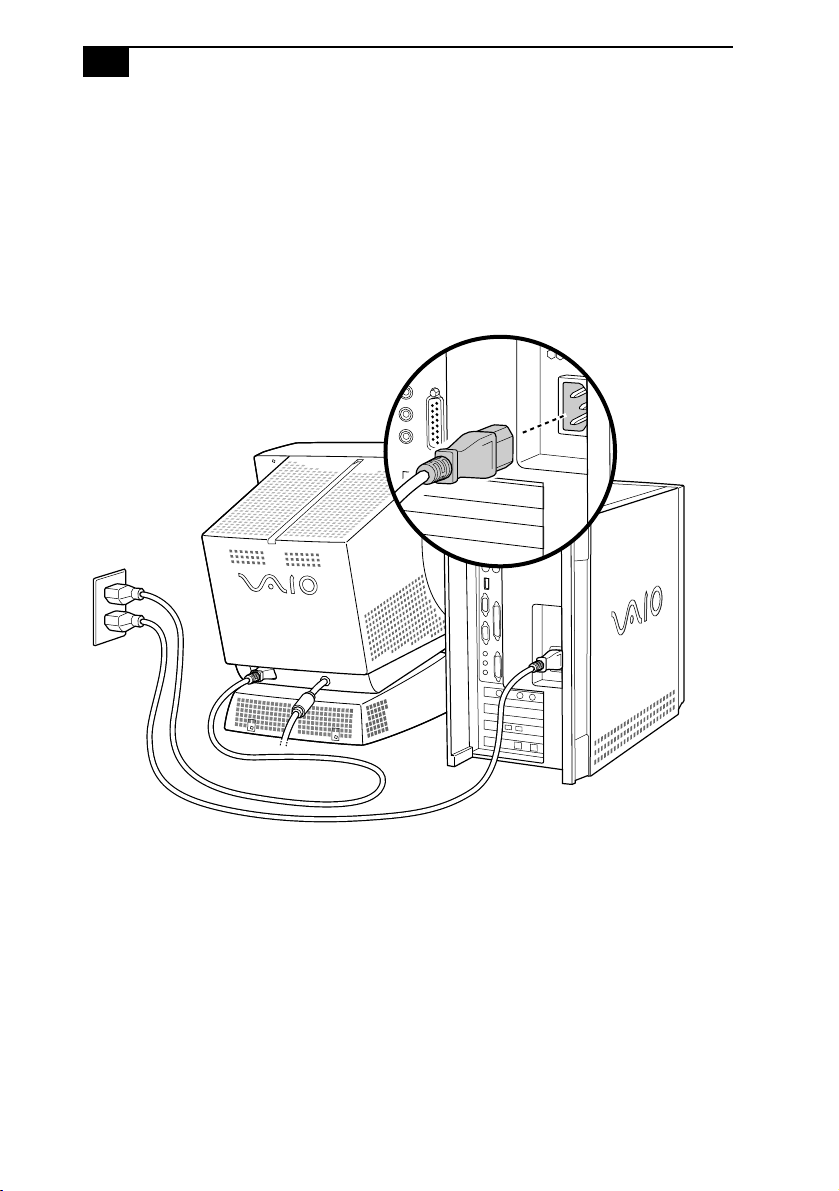
Connecting the Power Cords
Follow these steps to connect the power cords.
1
Plug the power cord into the connector on the computer.
2
If necessary, plug the display power cord into the display.
3
Plug both the display and power cords into a grounded AC wall
outlet, power strip, or Uninterruptible Power Supply.
Setting Up Your VAIO MicroTower
11
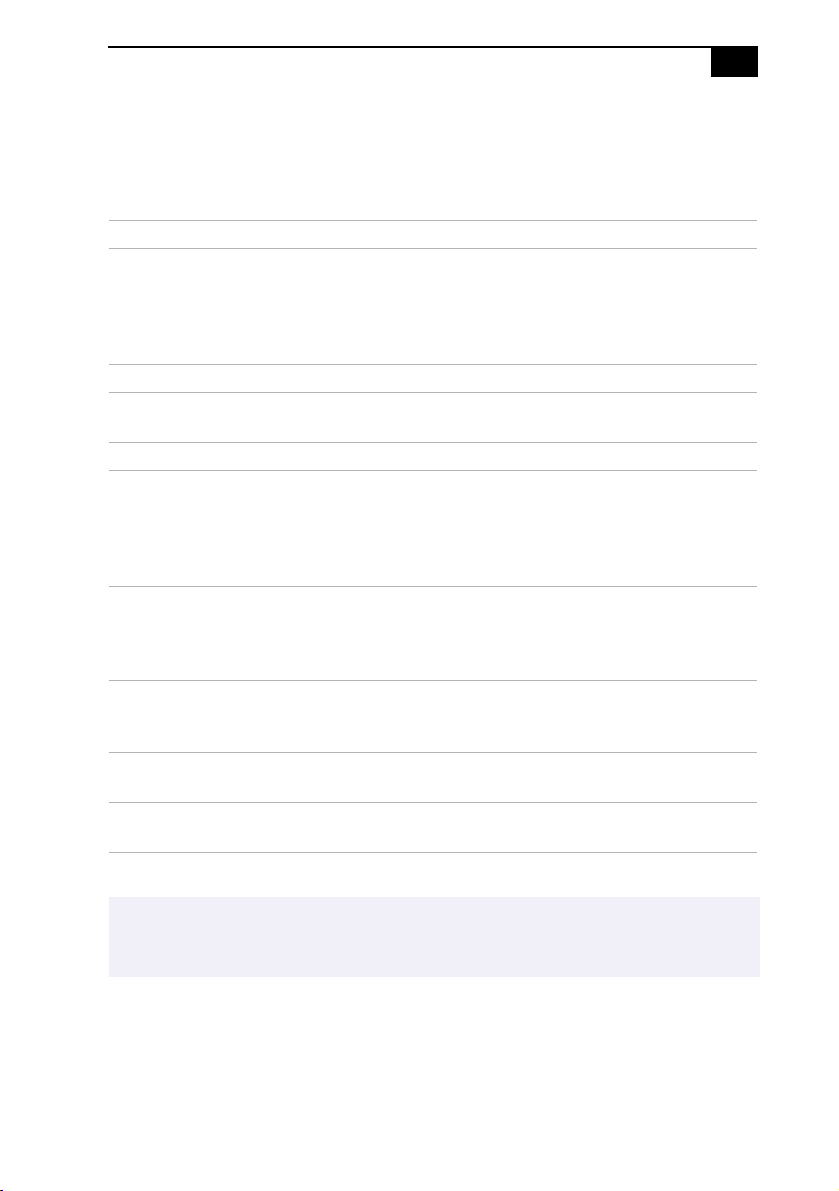
Connecting Peripherals
You can add functionality to your computer by connecting any of the
following peripherals.
* Some models of the VAIO MicroTower may not include this feature.
Connecting Enables You To For Details
Television Send audio and video from the
computer to the TV. Allows you to play
games and watch movies on a large
screen. Also useful for business
presentations.
See page12
Printer Print documents from the computer. See page15
Joystick Connect a joystick, which enhances
game playing.
See page16
MIDI device Connect MIDI instruments. See page16
i.LINK
(IEEE-1394)
equipped device*
Connect a digital video camera
without shutting down your computer.
Enhance still pictures or edit your
videos with easy-to-use, preloaded
software applications.
See page17
S/PDIF
equipped device*
Record digital audio directly from your
computer to audio recording devices
such as a digital receiver or minidisc
player/recorder.
See page18
S-Link
(Control A1)
equipped device*
Connect a minidisc player or CD
changer and create libraries of your
favorite music on your computer.
See page19
Universal Serial
Bus (USB) device
Connect USB devices. See page20
Serial device Connect serial devices, such as a digital
camera.
See page21
✍
Turn off the computer before connecting peripherals. In normal use, you should turn on the
peripherals before turning on the computer. You can connect USB devices while the computer
is on.

VAIO MicroTower User Guide
12
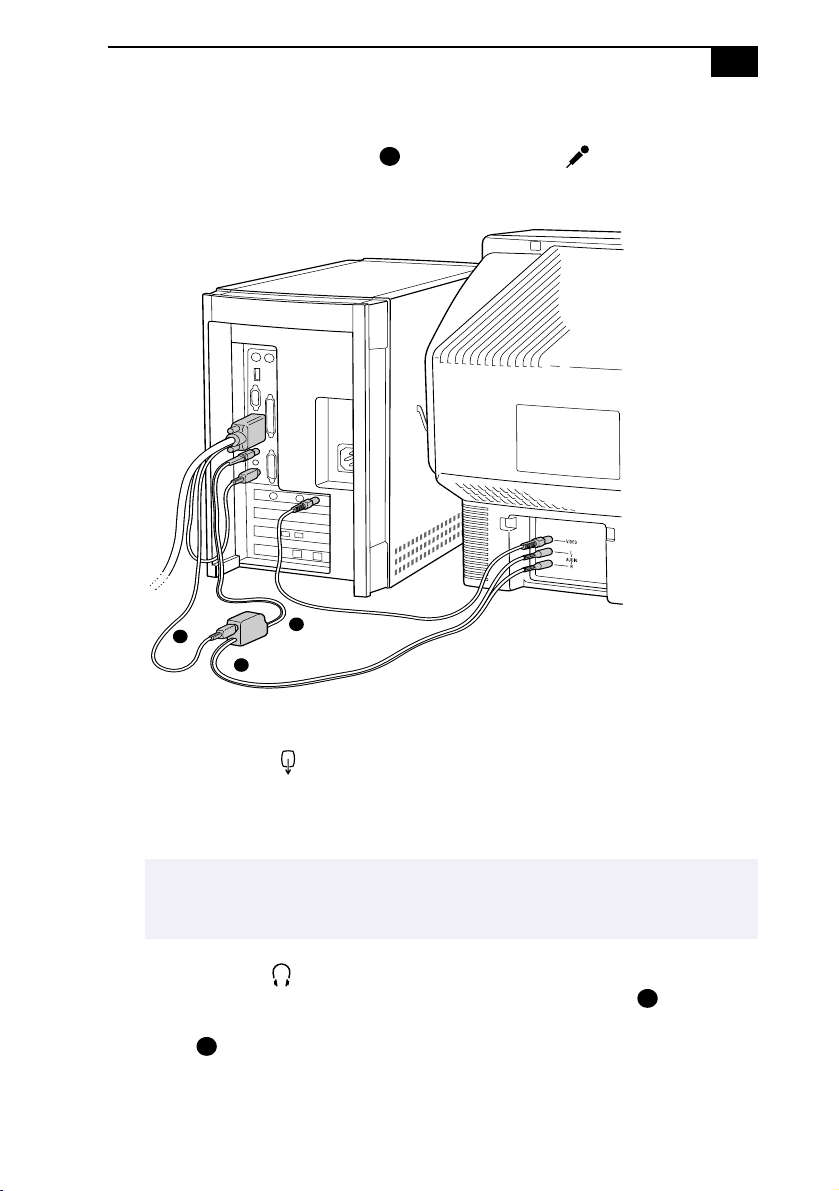
Connecting a Television (Audio/Video Out)
Connecting a television to your computer enables you to send audio and
video from the computer to the television. (You will be able to watch
video and hear audio on both the computer and the television.)
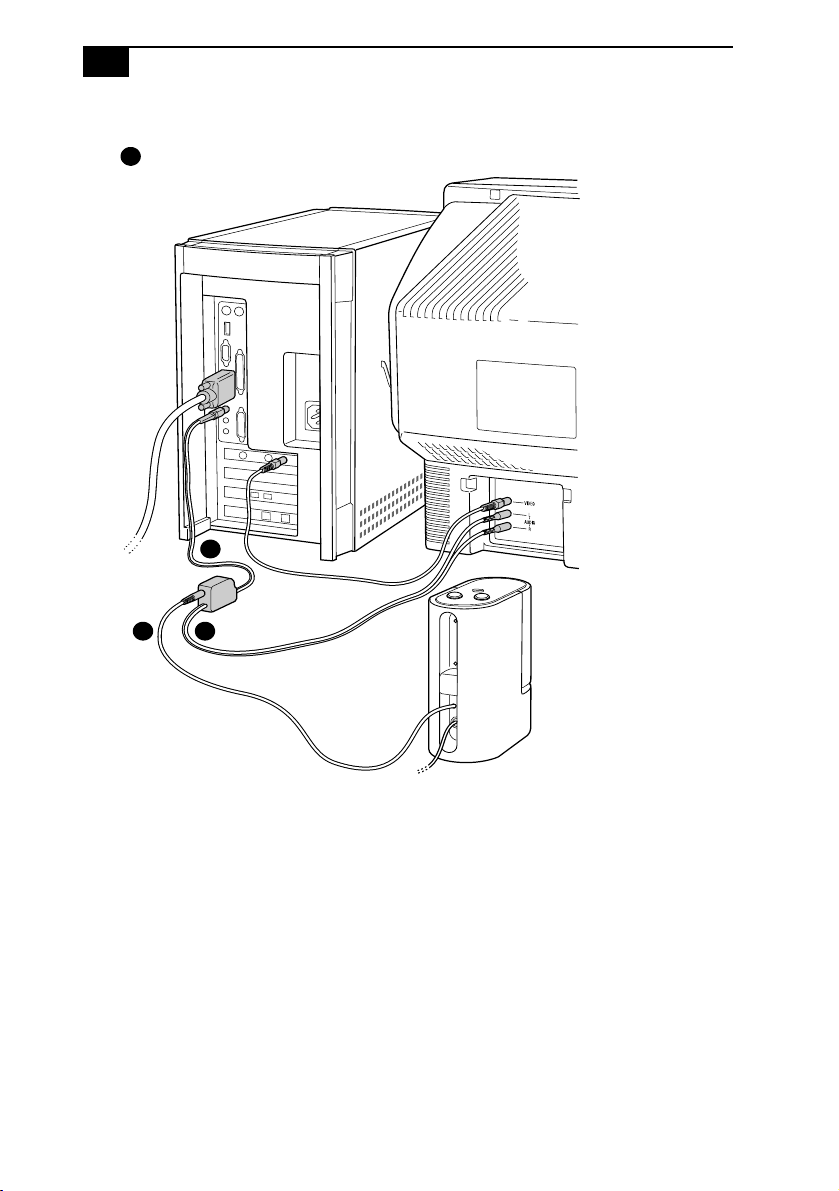
If your system includes the Sony Multimedia Computer Display:
1
Use the yellow symbol to locate the composite
VIDEO
OUT
connector
on the computer. Plug either end of the yellow video cable into this
connector. Then plug the other end of the cable into the TV’s
VIDEO
IN
connector.
2
Use the green symbol to locate the
HEADPHONES
connector on the
computer. Plug the black end of the audio splitter cable into this
connector. Then plug the red and white ends of the audio splitter
cable into the TV’s
AUDIO
IN
connectors. (This enables you to hear
audio on the multimedia monitor as well as on your TV.)
✍
You can also connect the computer to a camcorder, VCR, or other video component that has a
VIDEO IN or S VIDEO IN connector.
✍
If your TV has an S VIDEO IN connector, use the S VIDEO cable to connect the
computers S VIDEO OUT jack to the TVs S VIDEO IN jack. S VIDEO provides a better
picture than a conventional video connection.
A
B
Setting Up Your VAIO MicroTower
13
3
Plug the green audio plug from the display cable into the connector
on the audio splitter cable . Then use the red symbol to locate
the
MIC
connector on the computer. Plug the red microphone cable
from the display cable into this connector.
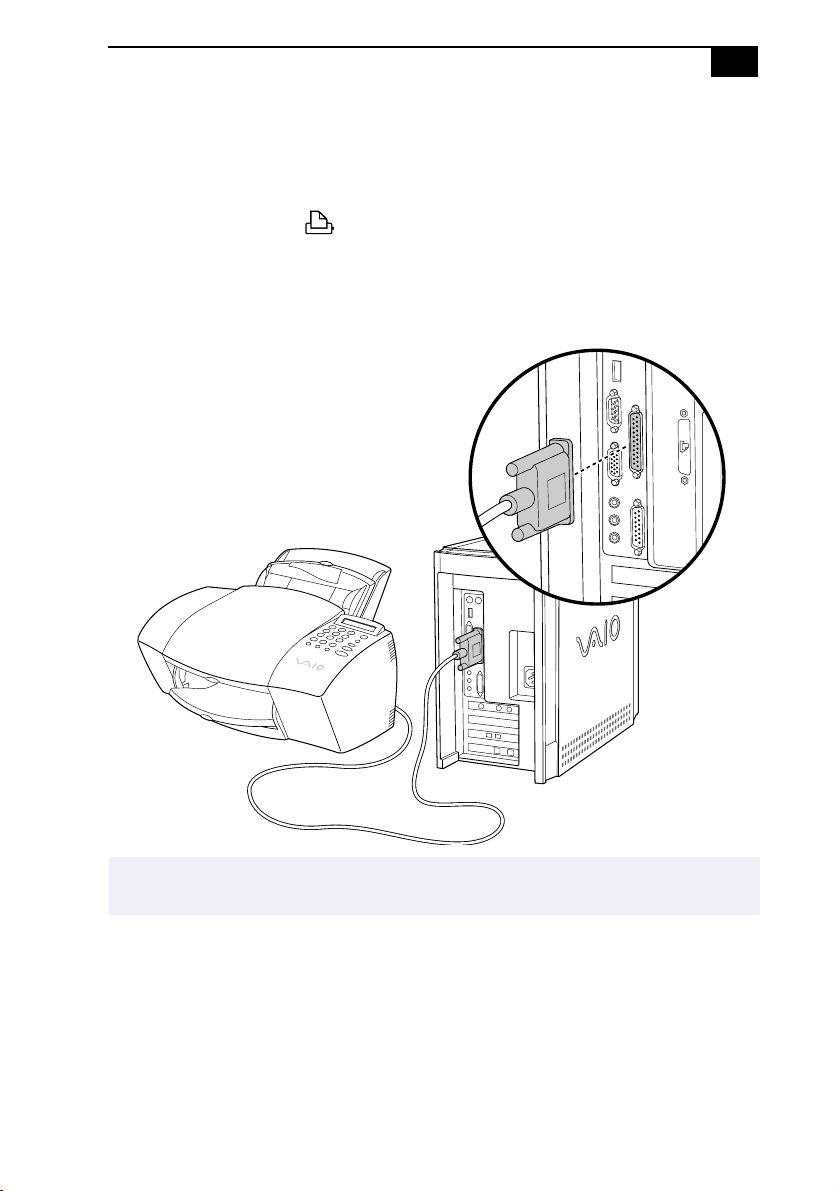
If your system does not include the Sony Multimedia Computer Display:
1
Use the yellow symbol to locate the composite
VIDEO
OUT
connector
on the computer. Plug either end of the yellow video cable into this
connector. Then plug the other end of the cable into the TV’s
VIDEO
IN
connector.
2
Use the green symbol to locate the
PHONES
connector on the
computer. Plug the black end of the audio splitter cable into this
connector. Then plug the red and white ends of the audio splitter
cable into the TV’s
AUDIO
IN
connectors.
✍
If your TV has an S VIDEO in connector, use the S VIDEO cable to connect the computers
S VIDEO OUT jack to the TVs S VIDEO IN jack. S VIDEO provides a better picture than a
conventional video connection.
C
A
B
C
Back of TV
Cable
from Display
Audio splitter not included
A
B
VAIO MicroTower User Guide
14
3
Plug the speaker cable into the connector on the audio splitter cable
.
C
A
BC
Back of TV
Cable
from Display
Audio splitter not included
Setting Up Your VAIO MicroTower
15
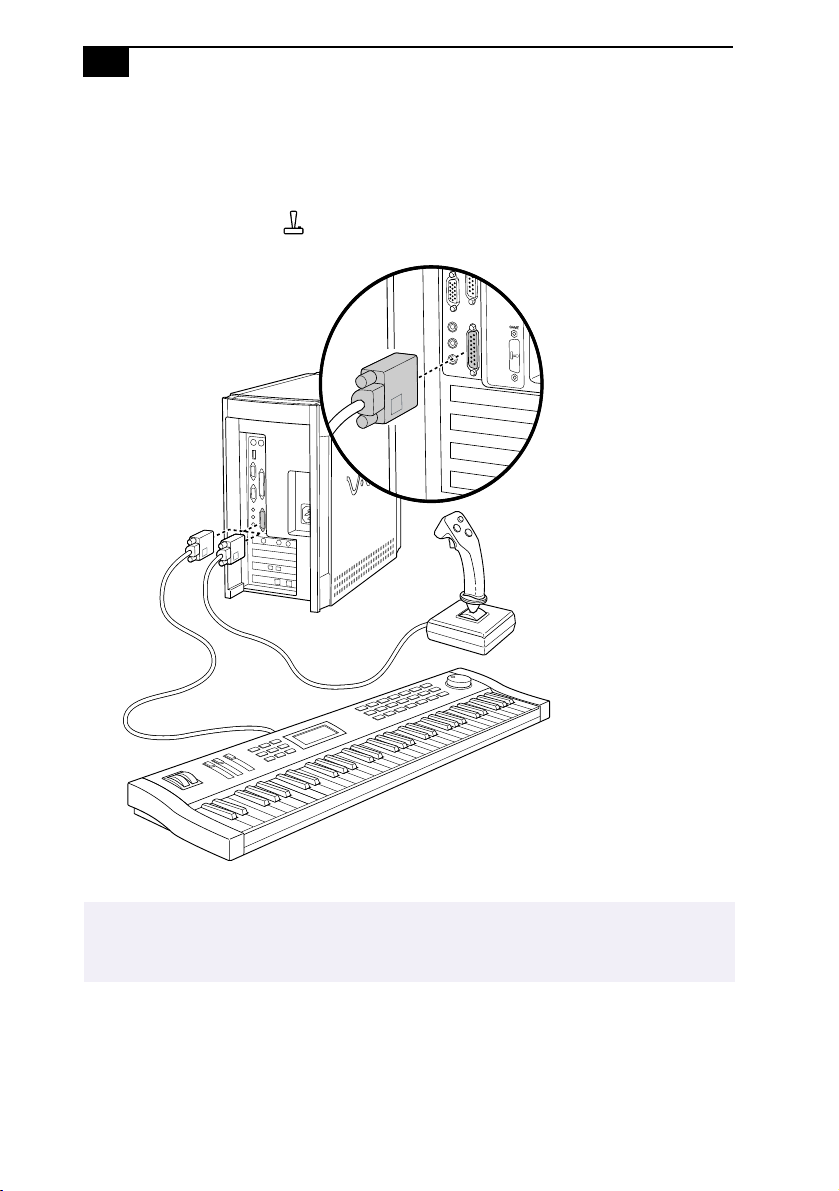
Connecting a Printer
You can connect a printer to your computer to print documents from your
computer.
1
Use the dark grey symbol to locate the
PRINTER
connector. Plug the
printer cable into this connector.
2
If necessary, plug one end of the printer power cord into the
printer, and the other end into a grounded AC wall outlet, power
strip, or Uninterrupted Power Supply.
✍
See the manual that came with your printer for more information on setting it up
and using it.
VAIO MicroTower User Guide
16
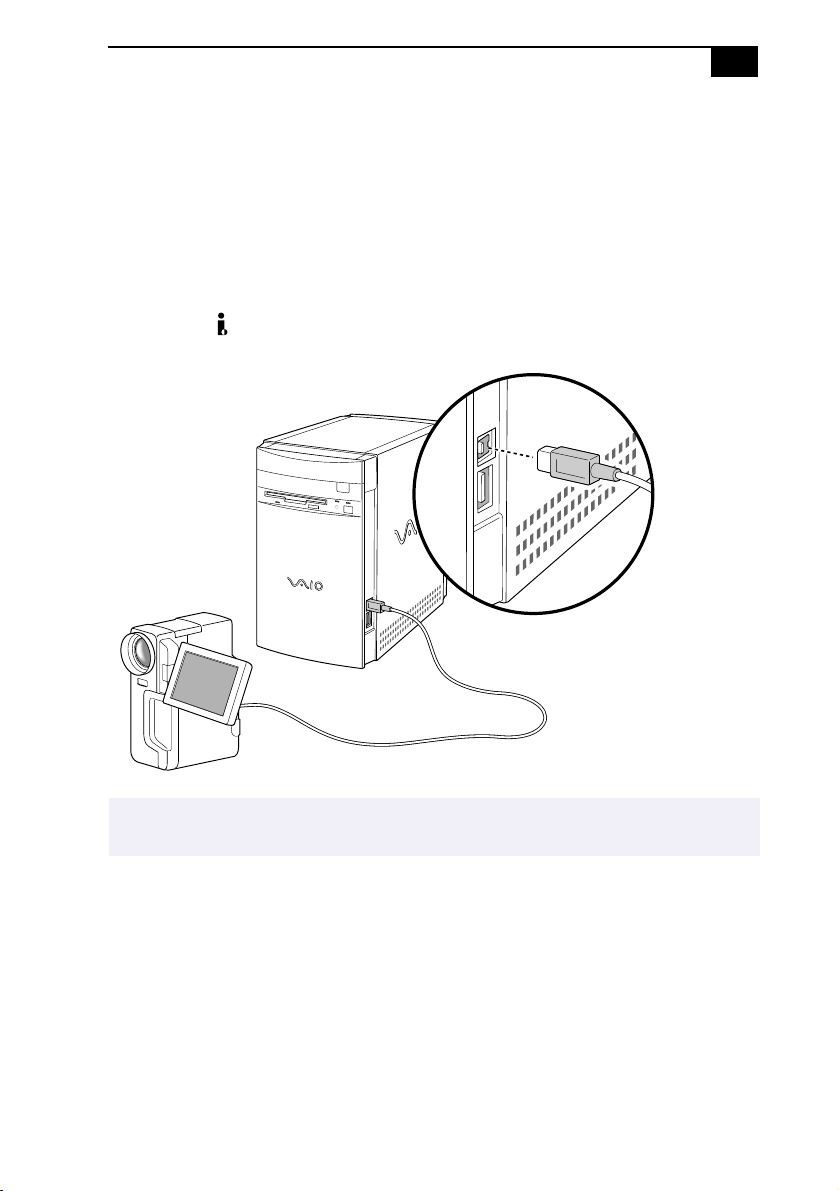
Connecting a Joystick or MIDI Instrument
You can connect a joystick or MIDI instrument to your computer. You can
also purchase an adapter to connect additional devices.
❑
Use the dark grey symbol to locate the
GAME
connector. Plug
the joystick or MIDI cable into this connector.
✍
Your MIDI instrument may have a different type of cable which requires an adapter. See the
manual that came with your joystick or MIDI instrument for more information on setting it up
and using it.
Setting Up Your VAIO MicroTower
17
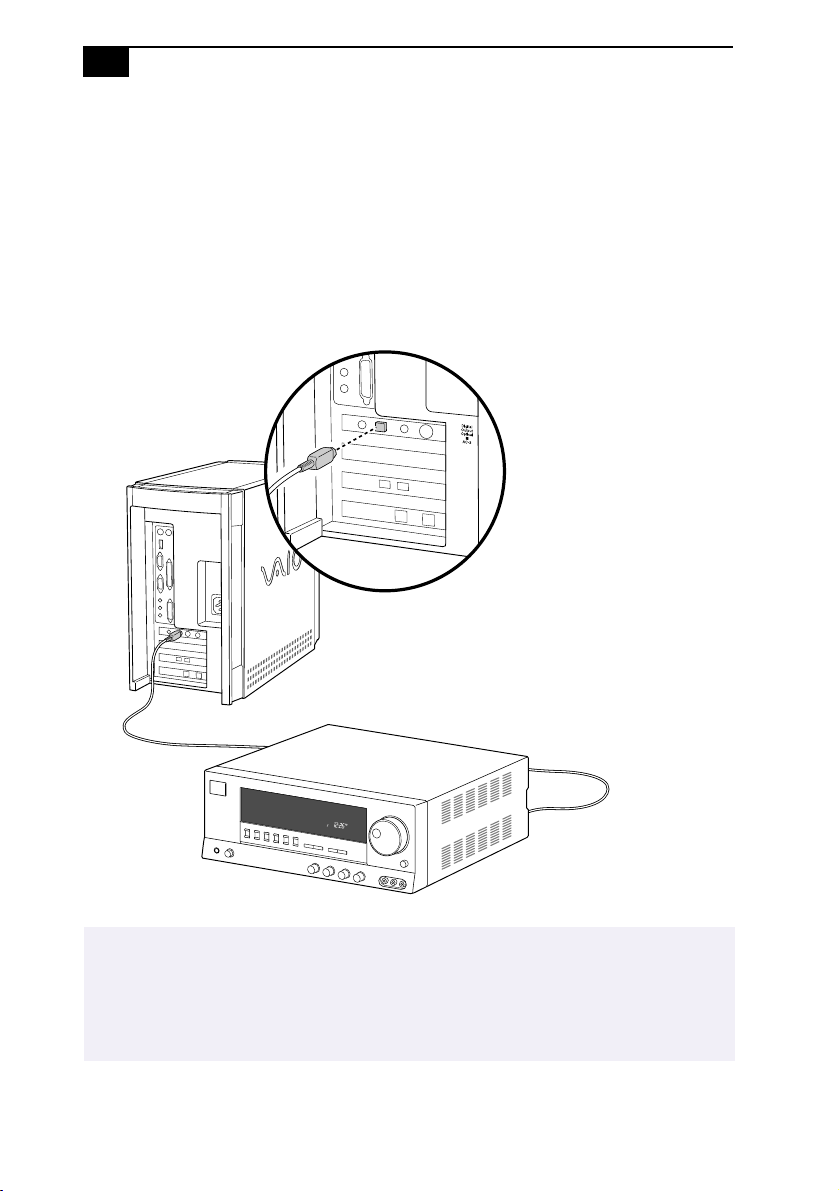
Connecting an i.LINK
(IEEE-1394) Equipped Device
Some models of the VAIO MicroTower include i.LINK (IEEE-1394)
connectors. See Read Me First for information on your specific model.
i.LINK connectors may be located on the front, back, or both the front and
back of your system.
To connect an i.LINK (IEEE-1394) device
❑
Use the symbol to locate the
i.
LINK
connector. Plug
the i.LINK device into this connector.
✍
See the manual that came with your i.LINK (IEEE-1394) equipped device for more information
on setting it up and using it.
VAIO MicroTower User Guide
18
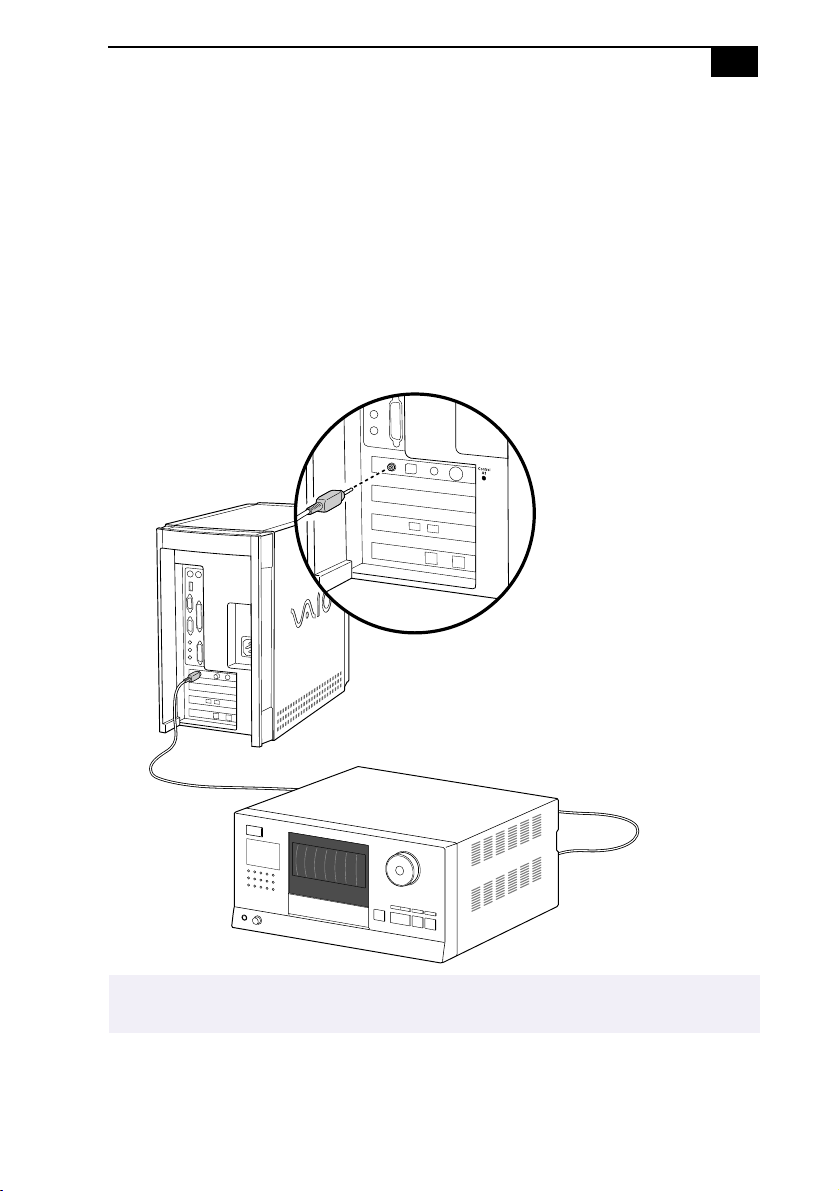
Connecting an S
/
PDIF Equipped Digital Audio Device
Some models of the VAIO MicroTower include an S
/
PDIF (Sony
/
Phillips
Digital Interface) Optical Digital Audio Output connector. See Read Me
First for information on your specific model.
To connect an S
/
PDIF device
❑
Locate the S
/
PDIF (Optical Digital Audio Output) connector. Plug
the S
/
PDIF device into this connector.
✍
See the manual that came with your digital audio device for more information on setting it up
and using it.
Your VAIO computer incorporates Serial Copy Management System, which will not prevent
you from making a direct digital-to-digital copy from a digital source, but from such copies
will prevent a second digital-to-digital copy from being made.
Setting Up Your VAIO MicroTower
19
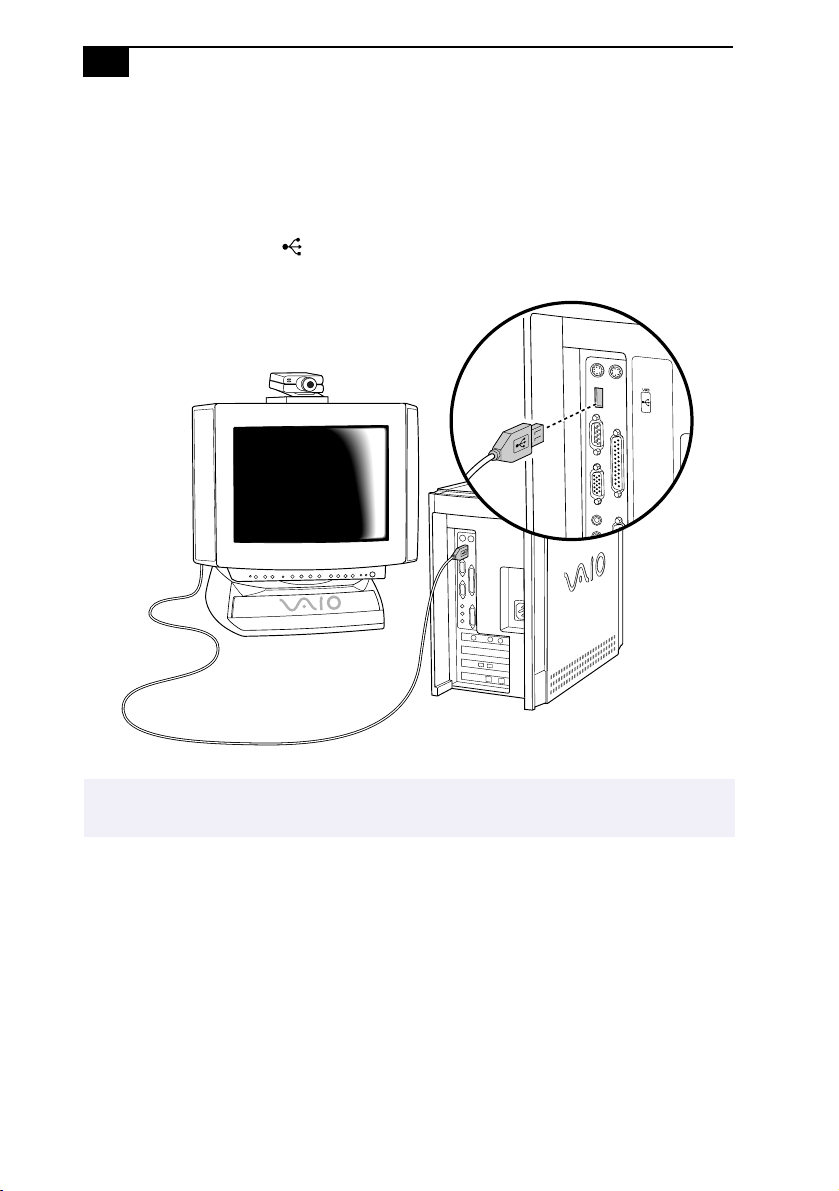
Connecting an S-Link (Control A1) Equipped Device
Some models of the VAIO MicroTower include an S-Link (Control A1)
connector. Control A1 connections provide a path for the transmission of
control signals, thus enabling automatic operation and control features
that are usually associated with integrated audio systems. See Read Me
First for information on your specific model.
To connect an S-Link (Control A1) device
❑
Locate the S-Link (Control A1) connector. Plug the S-Link
(Control A1) device into this connector.
✍
See the manual that came with your S-Link equipped device for more information on setting it
up and using it.
VAIO MicroTower User Guide
20
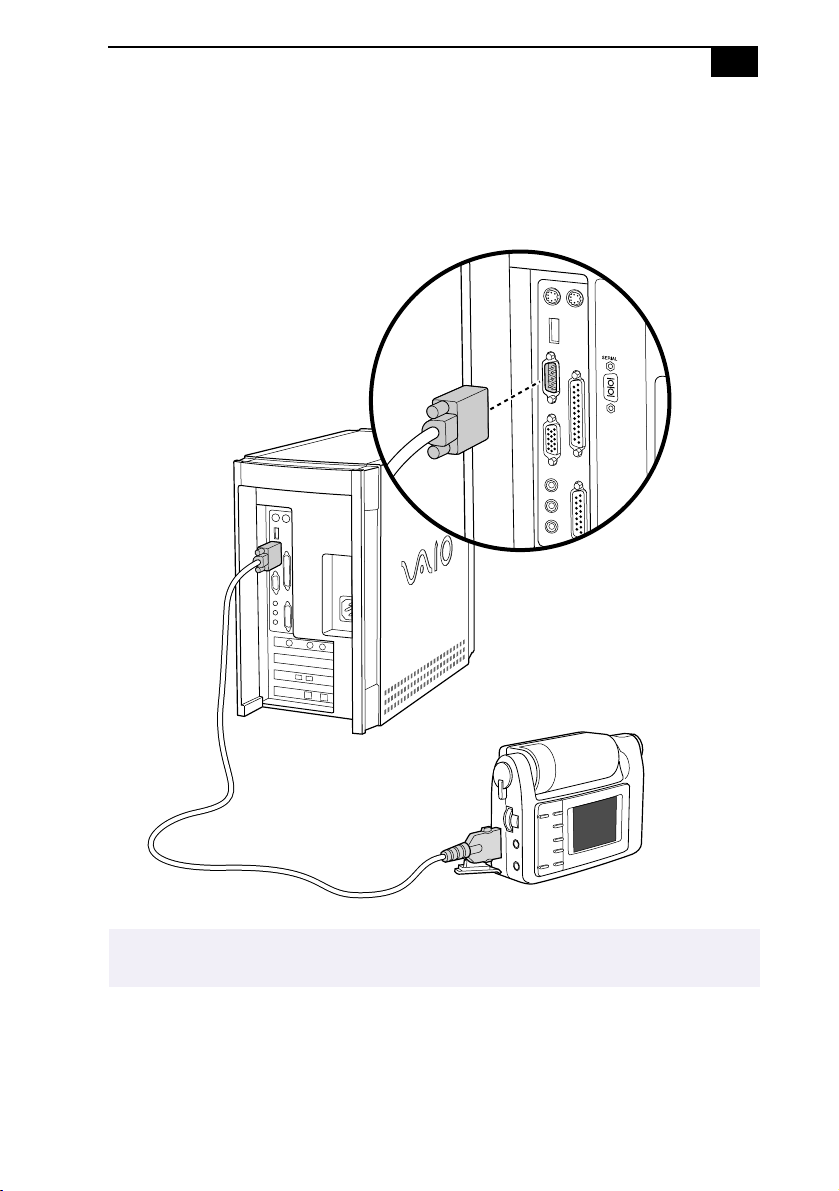
Connecting a Universal Serial Bus Device
You can connect Universal Serial Bus (USB) devices to your computer.
There is one USB connection on the front of your computer and another
one on the back.
❑
Use the dark grey symbol to locate the
USB
connector. Plug
the USB cable into this connector.
✍
See the manuals that came with your USB devices for more information on setting up and
using them.
Setting Up Your VAIO MicroTower
21
Connecting a Digital Still Camera or Other Serial Peripheral
You can connect other computer peripherals, such as Sony’s digital still
camera, to the computer’s serial port.
❑
Plug the serial cable from the digital camera into the serial port.
✍
See the manual that came with your digital camera for more information on setting it up and
using it.
VAIO MicroTower User Guide
22
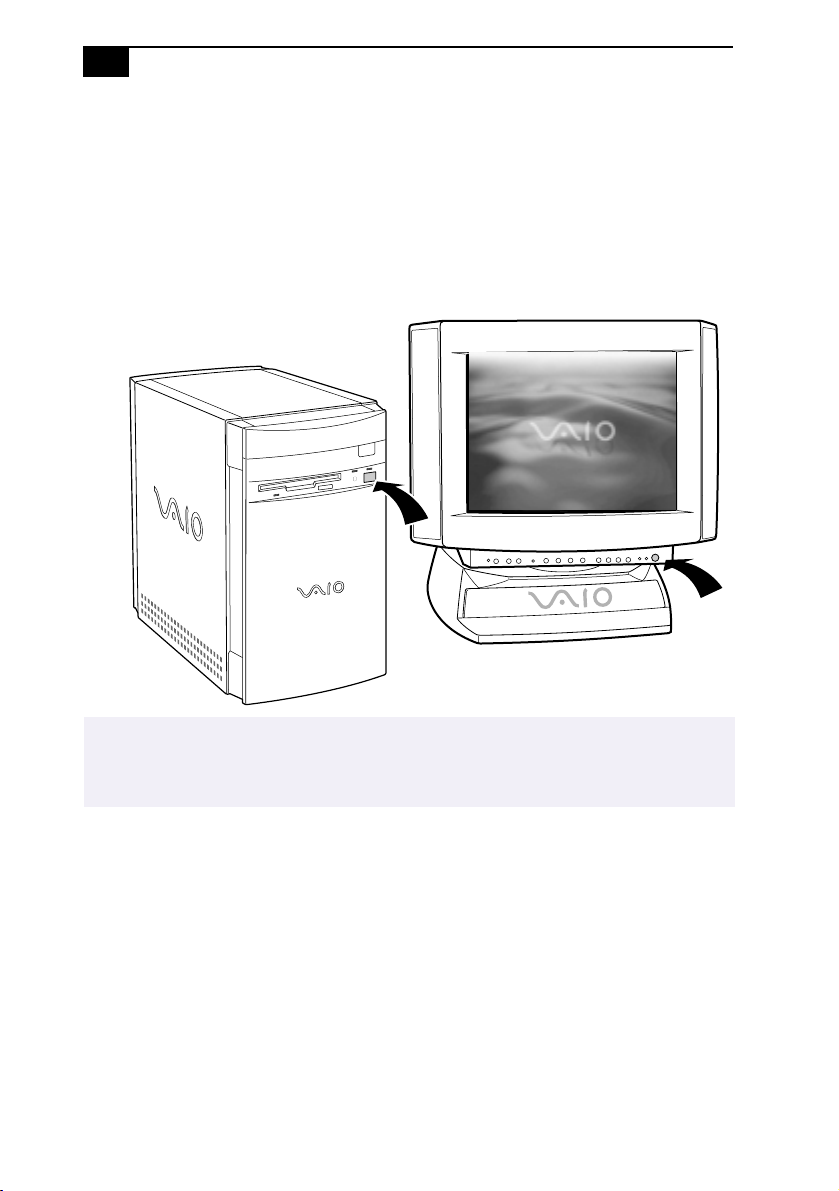
Starting Your Computer
After you connect all the cables and accessories to your computer, you are
ready to turn on the computer.
1
Press the power switch on the display to turn on the power.
2
Press the power switch on the front panel of the computer to turn on
the power.
✍
See Using the Standby Mode on page 25 and Shutting Down Your Computer on page 26
for instructions on turning off your computer.
After shutting down your computer, wait 10 seconds before turning the computer on again.

Setting Up Your VAIO MicroTower
23
Registering Windows
®
98
The first time you turn on your computer, you need to complete a few
steps to register and configure the Windows software that is already
installed on your computer. You do not need to repeat these steps each
time you turn on your computer.
The on-screen instructions guide you through the registration and
configuration process. The following is an overview of the process.
1
Gathering information:
❑
Enter your name.
❑
Read and accept the License Agreement.
❑
Enter your Certificate of Authenticity number located on the
cover of the Windows Getting Started manual.
2
Windows setup:
❑
Click the Finish button on the Windows Setup Wizard screen.
3
Selecting your computer settings:
❑
If necessary, change the Time Zone, Date and Time on the Date/
Time Properties screen.
4
Learning about Windows:
❑
If you want, take the tour of Windows.
✍
You must register Windows before you can use your computer.

VAIO MicroTower User Guide
24
Registering Your Computer
Take advantage of Sony’s commitment to quality customer support and
receive these benefits by registering your computer:
❑
Sony Online Support—Talk to a Support Representative to
troubleshoot problems you may be having with your computer.
❑
Limited warranty—Protect your investment. See “Limited Warranty
Statement” on page 85 for details.
❑
On-site service—Provides convenient resolution of problems.
Follow these steps to use the computer online registration service.
1
Click the Sony VAIO Registration icon on the VAIO desktop.
2
Enter the information requested on the first online registration form.
Press the TAB key to move from box to box.
3
Click the Next button to advance to the next form.
4
Complete the remaining forms by clicking the Next button each time
you complete a form.
The computer automatically transfers your registration information
using your built-in modem and a toll-free telephone number.
✍
You must register your VAIO MicroTower to extend the warranty for an additional nine
months beyond the initial 90-day warranty period.
Setting Up Your VAIO MicroTower
25
Using the Standby Mode
When you are done using your computer, you can put it in standby mode
rather than turn it off completely. Putting the computer in standby mode
allows you to return quickly to normal computer use.
To put the computer in standby mode
1
Save your work and close any applications that are running. (You can
leave Microsoft Windows running.)
2
Press the (Standby) button on the top of the keyboard.
The computer goes into standby mode.
See Read Me First for additional information on using the standby
mode.
To change the length of time before the computer goes into standby mode
The computer automatically goes into standby mode when there is no
activity on the computer for a specified amount of time. You can select
this length of time from the Windows Control Panel.
To take the computer out of standby mode
❑
Press any key on the keyboard, move the mouse, or press the power
switch on the front panel again.
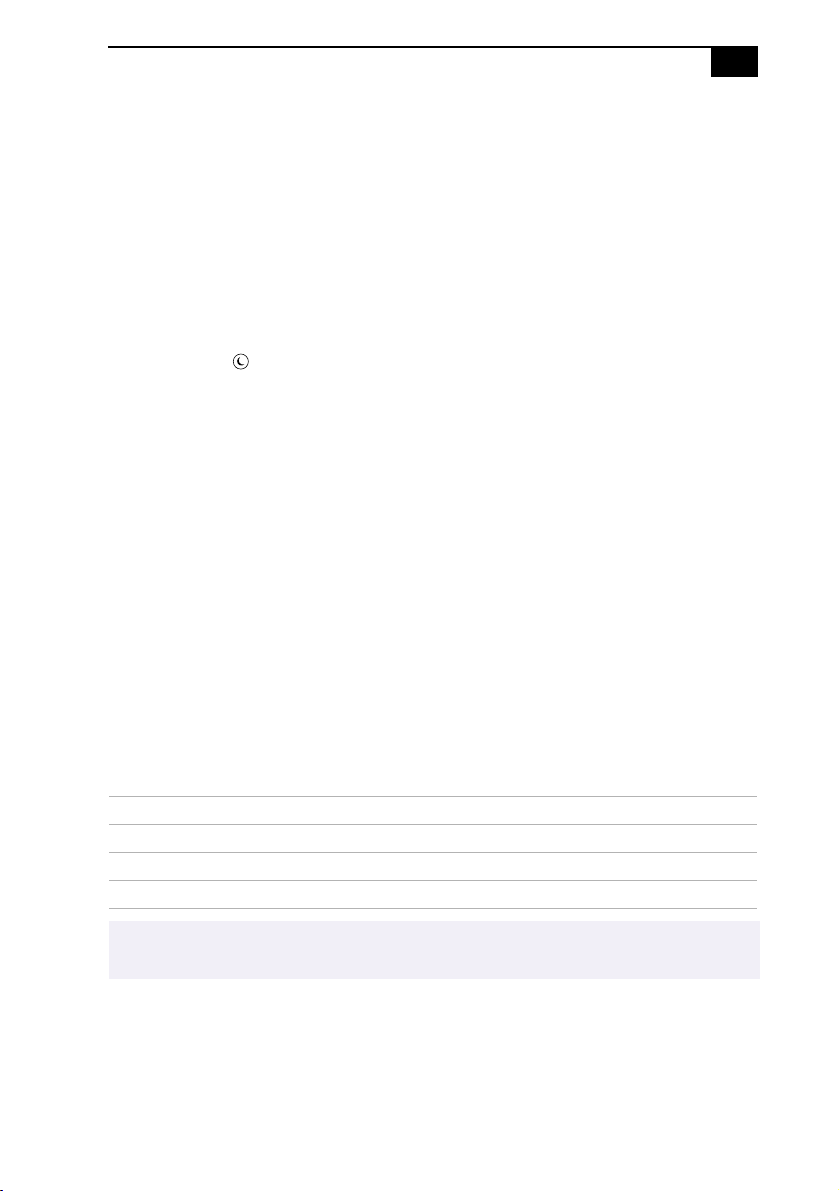
Standby Mode Indicators
You can tell which mode the computer is in by the color of the power
indicator light.
Color Mode
Amber Computer is in standby mode.
Green Computer is out of standby mode, ready to use.
No color Computer is turned off.
✍
In standby mode you may periodically hear the computers fan turn on and off, depending on
the rooms temperature. This is normal functioning in standby mode.

VAIO MicroTower User Guide
26
Shutting Down Your Computer
When you’re ready to turn off your computer for an extended period of
time, use the following procedure to shut down the computer.
To shut down your computer
1
Click the Start button on the Windows taskbar to open the Start
menu.
2
Click Shut Down to display the Shut Down Windows dialog box.
3
Select Shut down to shut down the computer.
4
Click OK to complete the shutdown process.
5
Wait for your computer to turn off automatically — the power
indicator light turns off.
6
Turn off the display and any other peripherals connected to your
computer.
!
To avoid the potential loss of data, do not press the power switch before you
shut down the computer.
✍
If you plan to shut down your computer for a short period of time, you may want to use
standby mode instead. See Using the Standby Mode on page 25.
✍
Respond to any prompts about saving documents.
27
Getting Started With
VAIO Space
VAIO Space is Sony’s original utility that organizes the preinstalled
applications on your VAIO MicroTower, making it easier for you to find
and launch the applications on your computer, use the Sony audio and
video players, connect to the Internet, and more.
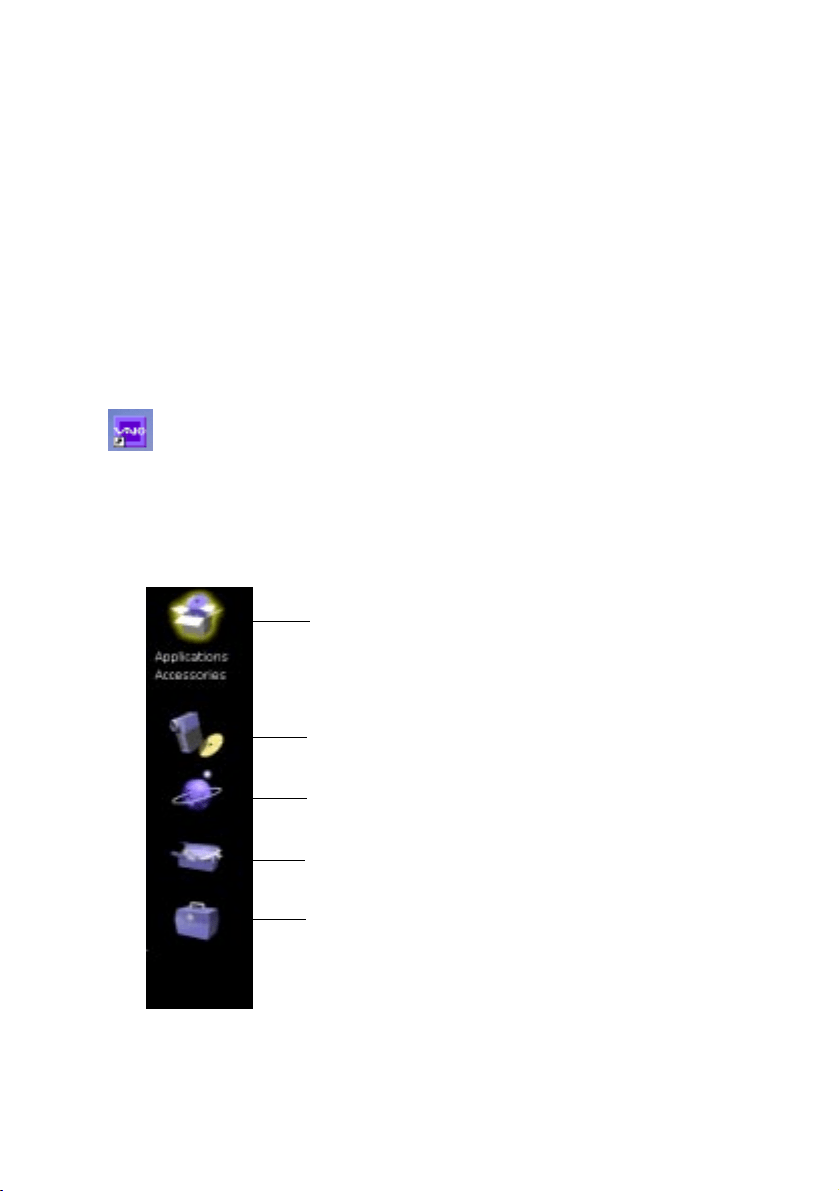
Starting VAIO Space
To start VAIO Space
❑
Click the VAIO Space icon on the Windows desktop.
The VAIO Launcher appears, which includes icons for the five
VAIO Space centers:
Software Center
Audio-Video Center
Online Center
Tool Center
Help Center
VAIO MicroTower User Guide
28
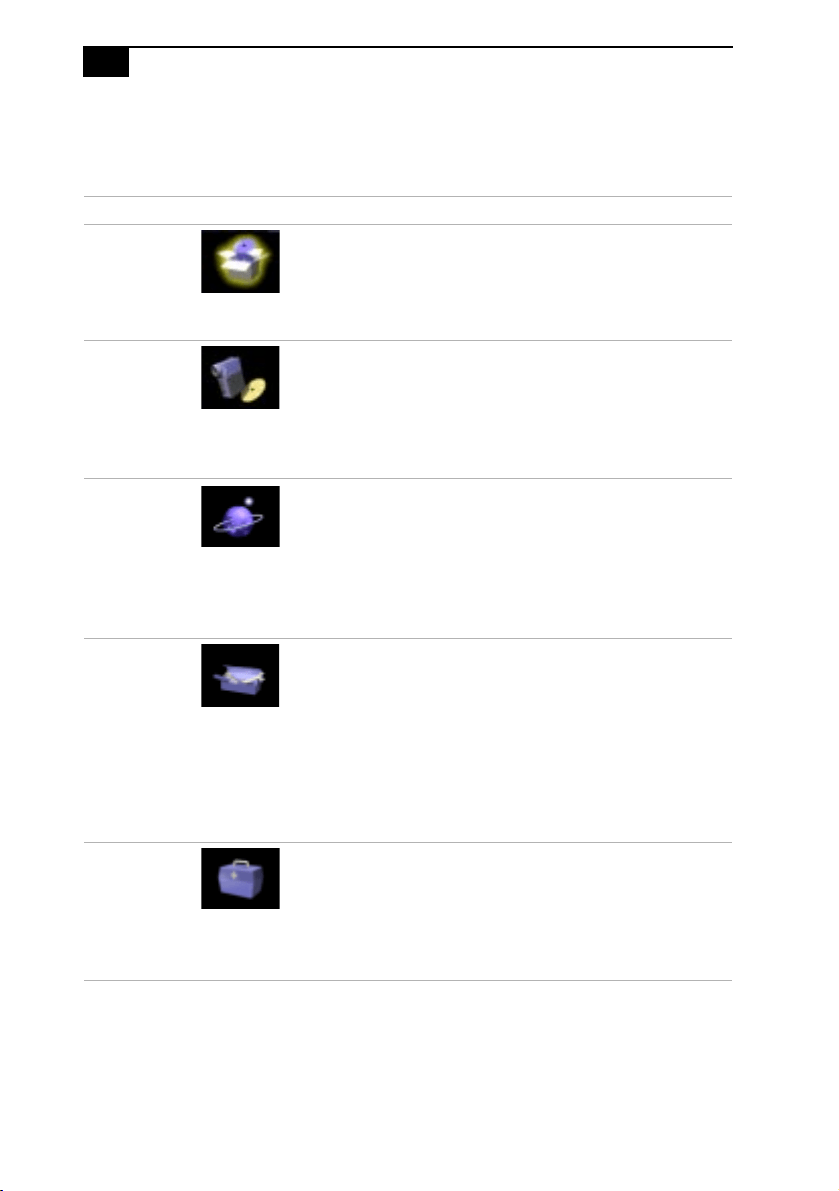
VAIO Space Centers
There are five centers within VAIO Space, as follows:
Center Name and Icon Contains Description
Software
Center
Applications
Accessories
Contains icons for preinstalled
applications and accessories.
See“Using the Software Center”
on page 31 for details.
Audio-
Video
Center
Video
Audio
Still Imaging
DV Editing
Adv. Audio
DVD
Launches the video and audio
applications included with your
computer.
See “Using the Audio-Video
Center” on page 32 for details.
Online
Center
Easy Internet
VAIO Direct
Club VAIO
ImageStation
Internet
VAIO Links
Allows you to connect to the
Internet, go to selected Sony
web sites, and manage
bookmarks.
See “Using the Online Center”
on page 33 for details.
Tool
Center
VAIO Find
Desktop
Tools
Options
Provides tools that help you
find specific application files,
change your desktop
configuration, analyze and fix
system-related problems, and
customize VAIO Space.
See “Using the Tool Center” on
page 34 for details.
Help
Center
Help Center Contains links to various
sources of help for your VAIO
MicroTower computer.
See “Using the Help Center” on
page 35 for details.
Getting Started With VAIO Space
29
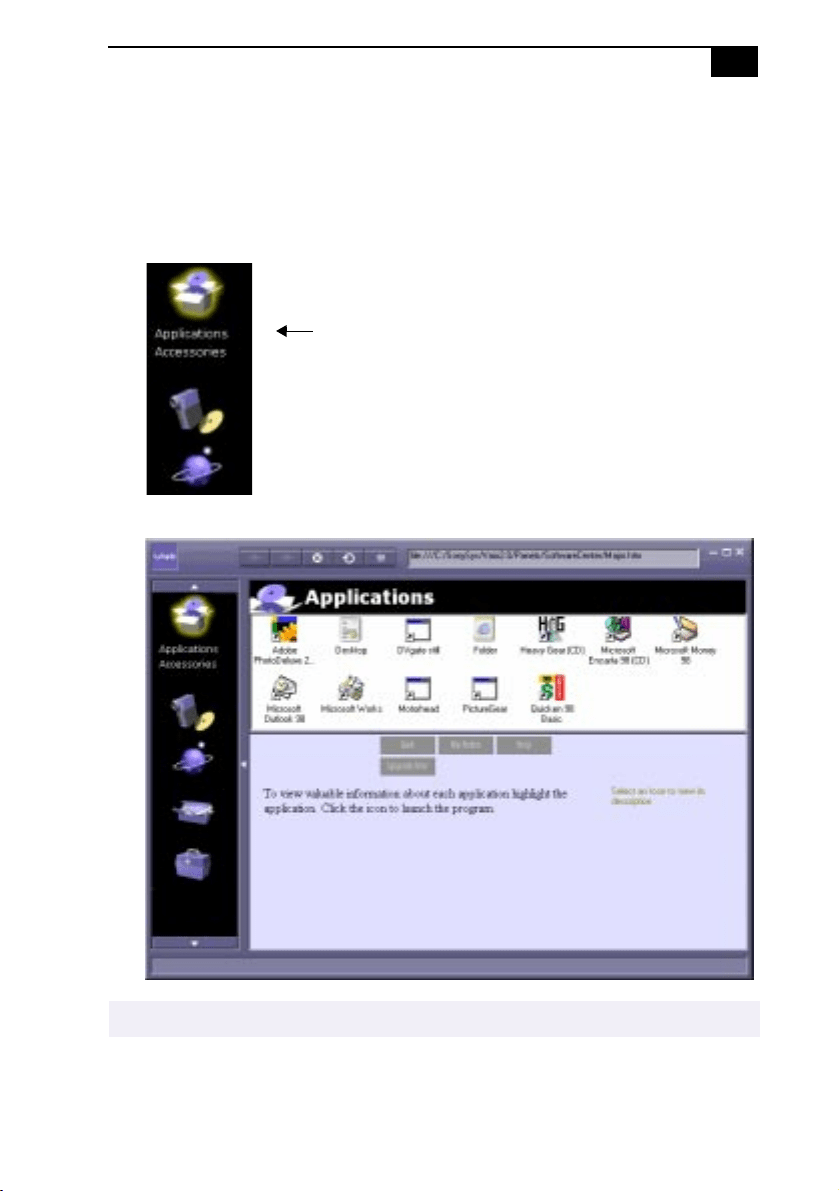
Navigating through VAIO Space
To go to a center within VAIO Space
1
Move the mouse pointer over an icon on the VAIO Launcher.
Categories for each center appear.
2
Click the category text (such as
Applications
) to open the VAIO screen.
✍
Your application screen may appear different from the one shown here.
Moving the mouse over
the icon displays the
categories of programs
for that icon
VAIO MicroTower User Guide
30
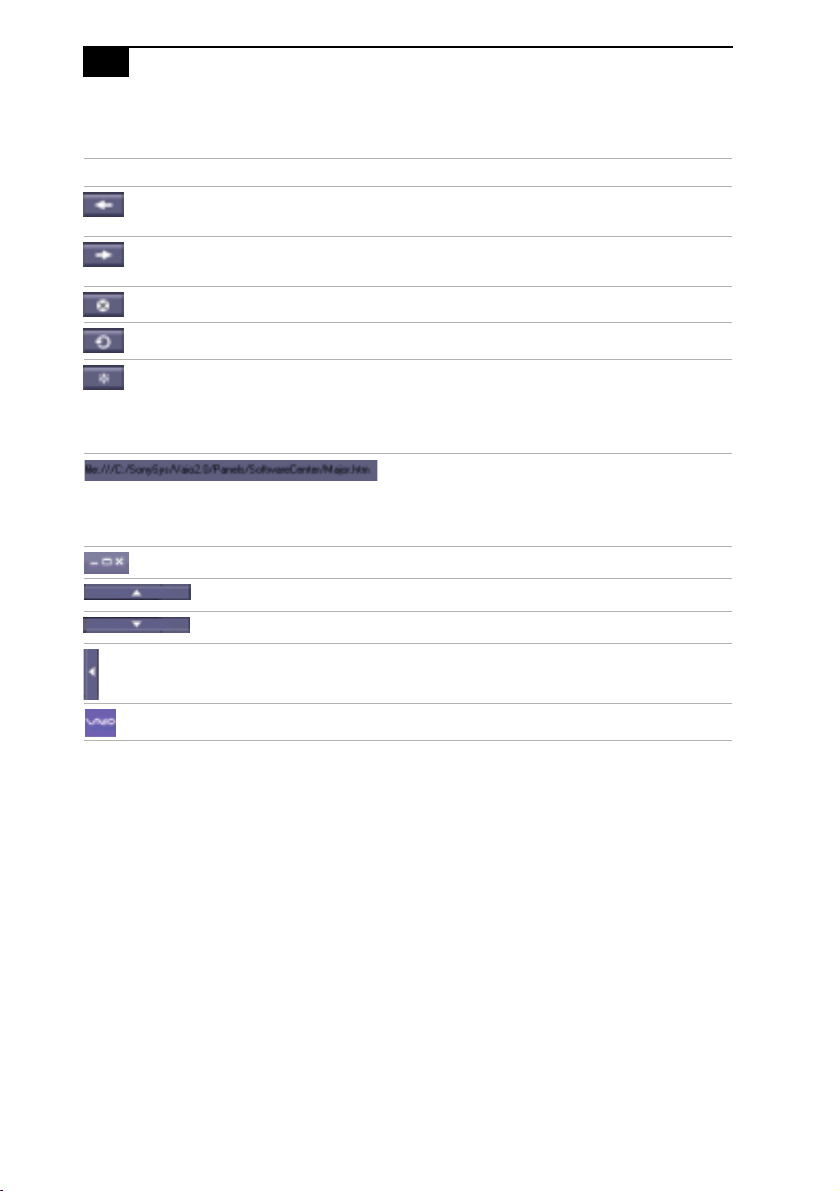
VAIO Space Controls
Button Function
Goes to the previous screen or page in a sequence.
Unavailable until you go to another screen.
Goes to the next screen or page in a sequence. Unavailable
on the last screen in a sequence.
Stops loading the current page (used for web pages).
Refreshes the current page (used for web pages).
Adds the currently displayed page to the list of bookmarks
under the Online Center’s VAIO Links (see “Using the
Online Center” on page 33). VAIO Links are also accessible
through the Internet Explorer Favorites list.
Displays the current website address (URL) or file name
path. You can also type an address or path in this box.
Minimizes, maximizes/restores, and closes VAIO Space.
Scrolls up to show the contents of the VAIO Launcher.
Scrolls down to show the contents of the VAIO Launcher.
Closes the VAIO Launcher. Click again to open the VAIO
Launcher.
Animates when a web page is loading.
Getting Started With VAIO Space
31
Using the Software Center
To launch the Software Center
1
Move the mouse pointer over the Software Center icon on the VAIO
Launcher.
2
Click the text of the category (
Applications
or
Accessories
) to open the
VAIO screen.
3
To start an application, click the icon.
Other Software Center Functions
Action Procedure
Display information about a program. Move the mouse pointer over the
program icon.
Display questions and answers about the
highlighted program.
Click
(grayed out when unavailable)
Create and save notes about the
highlighted program.
Click
Display a help or readme file about the
highlighted program.
Click
(grayed out when unavailable)
Displays the application’s upgrade web
page.
Click
(grayed out when unavailable)
Add an application icon to the Software
Center.
Drag and drop an application icon
from anywhere within Windows
onto the VAIO screen.
Remove an application icon from the
Software Center.
Drag and drop an application icon
from the Software Center to the
Windows Recycle Bin.

VAIO MicroTower User Guide
32
Using the Audio-Video Center
The Audio-Video Center includes the following programs:
For details on using the application, see the application’s on-line help.
Program Description
Video Plays MPEG (.mpg), MPEG2 (.vob, .mpg) and AVI (.avi)
video files.
Audio Includes the following players:
❏
Mixer, which controls the volume and balance for
sound files, videos, audio tracks, etc.
❏
Media player, which plays WAV (.wav), MIDI (.mid),
and the audio portion of MPEG (.mpg) files.
❏
DVD player, which plays DVD and CD audio tracks
from your DVD-ROM drive.
Still Imaging DVgate Still and Picture Gear
❏
DVgate Still allows you to capture frames from video
and save them as still images.
❏
Picture Gear allows you to organize, create a slide
show, and make a screen saver from your still images.
DV Editing DVgate Motion
Create your own movie by bringing video into your
VAIO computer from your digital video camera;
divide your captured video into precise video clips;
and reassemble video clips into a full-motion action
movie.
Advanced
Audio
Digital Media Park
❏
Media Bar plays video files and audio files from
multi-disc CD players.
❏
Library allows you to create and organize multiple-
named playlists.
❏
Showcase library components allow you to organize
all kinds of digital media.
Minidisc Editor combines music and sounds from
multiple sources into a minidisc.
DVD Plays DVDs (Digital Versatile Discs).
Getting Started With VAIO Space
33
Using the Online Center
To launch the Online Center
1
Move the mouse pointer over the Online Center icon on the VAIO
Launcher.
2
Click the text of the category as described below.
Category Description
Easy Internet Provides an intuitive interface to do almost
everything on the Internet: browsing, e-mail,
navigating to the best sites on the web, and
interacting with multimedia content. Includes 50
free hours of Internet access from GTE
Internetworking. (No credit card needed.)
VAIO Direct Save money by ordering products direct from
Sony Online.
Club VAIO Find out the latest developments in the world of
VAIO; interact with other VAIO users.
ImageStation The easy way to share your photos with friends
and family online.
Internet Shortcuts to all your Internet applications.
VAIO Links A convenient tool for organizing all your
bookmarks to local or Internet pages.
VAIO MicroTower User Guide
34
Using the Tool Center
Using Tool Center Tools
1
Move the mouse pointer over the Tool Center icon on the VAIO
Launcher.
2
Click the text of the category as described below.
Category Description
VAIO Find One-button searches for picture files, movies,
sound files, text documents, or Microsoft Works
files.
Desktop Displays the Windows Display Properties box,
which lets you change the wallpaper, screen
saver, and display resolution.
Tools Displays applications that provide tools to help
you analyze and fix system-related problems.
(This screen also functions similarly to the
Software Center screen. For details, see “Other
Software Center Functions” on page 31.)
Options Lets you customize the way VAIO Space works.

Getting Started With VAIO Space
35
Using the Help Center
To launch the Help Center:
1
Move the mouse pointer over the Help Center icon on the VAIO
Launcher.
2
Click
Help Center
to open the VAIO screen.
3
Follow the on-screen instructions to find the appropriate source of
help for the problem you are having.
Exiting VAIO Space
To exit VAIO Space
❑
Click the (Close) button.

36

37
Getting Help
Sony provides several support options for your Sony computer. When
you have questions about your computer and the preinstalled software,
check these sources for answers, in the following sequence:
1
VAIO MicroTower
Read Me First
Contains a complete list of the items that ship with
your computer, product specifications, software
support information, and the most up-to-date
information on using your computer.
2
VAIO MicroTower
User Guide
Explains how to set up and upgrade your computer.
3
Online
User Guide
This electronic document contains additional
information on the preinstalled software titles. You can
access this guide from the Help Center on the
Windows Start menu.
4
VAIO MicroTower
Reference Manual
Provides detailed technical information about the
hardware in your VAIO MicroTower. This electronic
document is available from Sony’s website at
http://www. sony.com/pcsupport
5
Manuals and online
help files that may
accompany your
preinstalled software
Most of the manuals for preinstalled software are
located on your hard disk drive as online help files.
You can access the online help files from the Help
menu in the specific application. A printed manual is
available for some applications.
6
Knowledge Database
Provides instant access to information on commonly
encountered problems. Enter a description of your
problem and the Knowledge Database searches for the
corresponding solutions online. You can access the
Sony Knowledge Database at:
http://www. sony.com/pcsupport
Sony VAIO User’s Guide

VAIO MicroTower User Guide
38
7
Sony Fax-on-
Demand
This service provides you with answers to commonly
asked questions. You can use this automated service to
request a list of available topics and then select the
topics that you want to receive. To contact the Sony
fax-on-demand service, call 1-888-4SONYPC (1-888-
476-6972). (Requires a fax machine or your fax
software. Fax software is included on your system as
part of Microsoft Outlook.)
8
Sony SOS software This preinstalled program connects you to a Customer
Support Representative. SOS is available seven days a
week for 90 days after the original date of purchase.
Connect a phone line and phone before you call, so the
representative can access your system if necessary.
“Calling SOS” on page 39 describes how to use the
SOS software.
9
Calling SOS You can call and speak with a Sony Customer Support
Representative without using your computer by
calling 1-888-4SONYPC (1-888-476-6972). Software
support is available 24 hours a day, seven days a week
for 90 days at no charge after the original date of
purchase.
Getting Help
39
Calling SOS
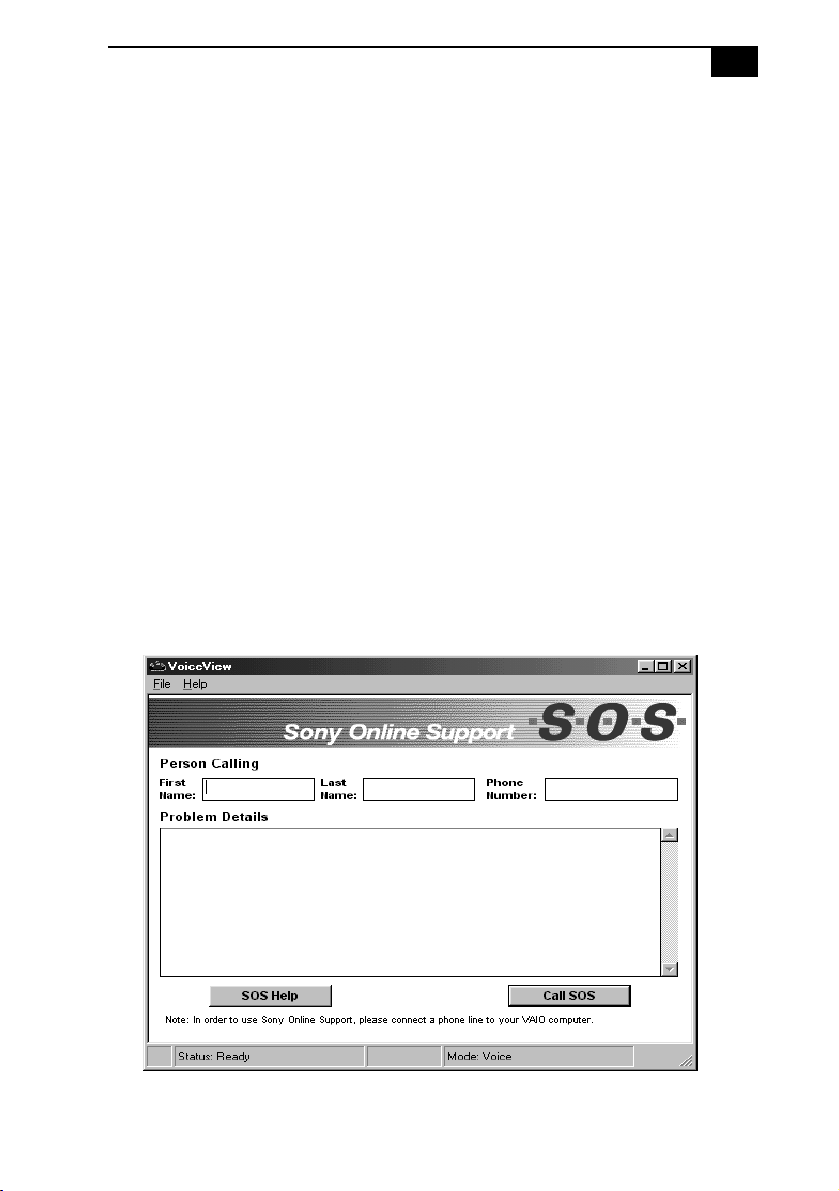
The SOS application enables you to exchange information with a Sony
Customer Support Representative (CSR). Here’s how it works:
❑
Type your name, phone number, and the problem details in the SOS
window.
❑
Dial the SOS hotline with a single click of the mouse.
❑
Specify the access level for the CSR.
❑
The CSR resolves the problem.
Before using SOS, make sure the computer is connected to a phone line
and telephone as described in “Connecting the Phone Line and Phone”
on page 9. If you do not have a phone line connected to your computer,
you can place a voice call to SOS by dialing 1-888-4SONYPC (1-888-476-
6972). SOS support is available at no charge for 90 days from the original
date of purchase.
To place a call to SOS
1
Click the Start button on the Windows 98 taskbar.
2
Point to Programs, point to VoiceView, and then click VoiceView. The
SOS window appears.
3
In the SOS window, type your name, phone number, and a
description of the problem. This information cannot be seen by the

VAIO MicroTower User Guide
40
customer support representative until you give the CSR access to
your computer.
4
Click the Call SOS button. The confirmation screen appears.
5
Click the OK button. The Dialer screen appears.
6
Pick up the handset and click the Dial button as instructed. Your
modem dials the toll-free number and connects you to the Sony
support center.
7
You are asked whether you wish to test your system or talk to a
support representative. You are then prompted to indicate the type of
computer you are using.
8
Discuss the problem with the CSR and follow the CSR's instructions
to resolve the problem. Only if the CSR needs to access your
computer are you prompted to select a security option, as described
in the next step.
9
Select an access level in the Remote Command Security dialog box by
clicking one of these options:
10
To end a call, click the Hang Up button.
11
Click the Close box at the top right corner of the SOS window or
select Exit from the File menu to close the SOS window.
Options Descriptions
Full access Allows the CSR to fully interact with your computer.
The CSR can access all the files on your hard disk drive
and can copy files to and from your computer to solve
your problem.
Limited access Lets the CSR view your system, but you must approve
every action the CSR takes. If the CSR wants to copy a
file, for example, the Remote Command Permission
dialog box prompts you to approve this action.
No access Prevents the CSR from accessing your system. You must
perform all the operations as described to you by the
CSR.
✍
You can change the access level during your call to SOS.
If you experience difficulty hearing the CSR, adjust the speaker volume.
When a file is transferred between your computer and SOS, a status box displays the
progress of the file transfer.

Getting Help
41
Troubleshooting
This section describes how to solve common problems you may
encounter when using your computer. Many problems have simple
solutions, so try these suggestions before you call Sony Online Support.
For more advanced troubleshooting information, see the VA I O
MicroTower Reference Manual. You can download this electronic document
from Sony’s website at
http://www. sony.com/pcsupport.
My computer wont start
❑
Check that the computer is plugged into a power source and that it is
turned on. Check that the power light is lit on the front panel of the
computer.
❑
Make sure a diskette is not in the diskette drive.
❑
Confirm that the power cord and all cables are connected firmly, as
described in the “Setting Up Your VAIO MicroTower” chapter.
❑
If you plugged the computer into a power strip or UPS, make sure the
power strip or UPS is turned on and working.
❑
Check that the display is plugged into a power source and turned on.
Check that the brightness and contrast controls are adjusted correctly.
See the manual that came with your display for details.
❑
Check that the computer is not in standby mode (see “Using the
Standby Mode” on page 25).
My computer locks up
❑
Close the application that is currently locked up by pressing ALT+F4.
❑
Try restarting the computer. On the Windows taskbar, click the Start
button, click Shut Down, click Restart, and then click OK.
❑
If you cannot restart as described in the preceding step, you can
restart the computer by pressing CTRL+ALT+DELETE or press the
power switch for more than six seconds.
My software program locks up or crashes
❑
Close the application that is currently locked up by pressing ALT+F4.
❑
Contact the software publisher or designated provider for technical
support. See the online User Guide for a complete list of phone
numbers.
!
Pressing CTRL+ ALT+DELETE may result in losing changes made to files that
are currently open.

VAIO MicroTower User Guide
42
My DVD-ROM drive tray wont open
❑
Make sure the computer is turned on.
❑
Press the Eject button on the drive.
❑
Double-click the My Computer icon on the Windows desktop. Right-
click the CD-ROM icon. Select the Eject option from the pop-up
menu.
❑
If the Eject button does not work, you can open the tray by inserting a
straightened heavy-weight paper clip into the emergency eject hole.
I cannot play a CD-ROM disc
❑
Make sure you place the disc in the tray with the label side facing up.
❑
Make sure the software is installed according to the program’s
instructions.
I cannot play a DVD-ROM disc
❑
If a region code warning appears when you are using the DVD
player, it could be that the DVD-ROM disc you are trying to play is
incompatible with the DVD-ROM drive in your VAIO MicroTower.
The region code is listed on the disc’s packaging. Region code
indicators such as “1” or “ALL” are labeled on some DVDs to
indicate what type of player can play the disc. If a number or “ALL”
does not appear on the DVD, you cannot play the disc on this
computer.
❑
If you hear audio but cannot see video, your computer’s video
resolution may be set too high. For best results, change the Windows
Control Panel/Display/Settings to 800 x 600 using 16-bit color.
❑
If you see video but cannot hear audio, check all of the following:
Make sure the mute setting is off in your DVD player. Check the
master volume setting in the audio Mixer. Check the volume settings
in your computer speakers. Check the connections between your
speakers and the computer. Check the Windows Control Panel/
System/Device Manager to see that the drivers are installed properly.
❑
A dirty or damaged disc may cause the computer to “hang” while it
tries to read the disc. If necessary, reboot the computer, remove the
disc, and then check that it is not dirty or damaged. For cleaning
instructions, see “On Cleaning CD-ROM and DVD-ROM Discs” on
page 83.

Getting Help
43
When I double-click an application icon, a message such as You must insert
the application CD into your CD-ROM drive appears and the software does
not start
❑
Some titles require specific files that are located on the application’s
CD-ROM disc. Insert the disc and try starting the program again.
❑
Check to make sure you inserted the CD-ROM disc with the label
side facing up.
My speakers have no sound
❑
Check that the speakers are plugged into the
HEADPHONES
connector.
See “Connecting the Sony Multimedia Computer Display” on page 5
or “Connecting a Display, Speakers, and a Microphone” on page 6 for
details.
❑
If the speakers have a mute button, make sure it is off.
❑
If the speakers are powered by batteries, check that the batteries are
inserted properly and that they are charged.
❑
If the speakers use an external power source, make sure that the
power cord is plugged into a grounded wall outlet or power strip.
❑
If the speakers have their own volume control, check the volume
level.
❑
If the program you are using has its own volume control, check that
the volume is turned up.
❑
Check the volume controls in the application, in the audio Mixer, and
in Windows.
❑
If you connected headphones to the computer, you will not hear
sound from the speakers.

VAIO MicroTower User Guide
44
My modem connection is slow
The computer’s modem uses K56flex™ technology/V.90. Many factors
influence modem connection speed, including telephone line noise or
compatibility with telephone equipment (such as fax machines or other
modems). If you think your modem is not connecting properly to other
PC-based modems, fax machines or your Internet Service Provider, check
the following:
❑
Have your phone company check that your phone line is free from
any line noise.
❑
If your problem is fax-related, check that there are no problems with
the fax machine you are calling and that it is compatible with fax
modems.
❑
If you are having a problem connecting with your Internet Service
Provider, check that the ISP is not experiencing technical problems.
❑
If you have a second phone line available, try connecting the modem
to this line.
My modem doesnt work
❑
Check that the phone line is plugged into the
LINE
jack. See
“Connecting the Phone Line and Phone” on page 9 for details.
❑
Check that the phone line is working. You can check the line by
plugging in an ordinary phone and listening for a dial tone.
❑
Check that the phone number the program is dialing is correct.
❑
Check that the software you are using is compatible with the Sony
computer modem. (All preinstalled programs are compatible.) Call
the software publisher or Sony Online Support.
My microphone doesnt work
Check that the microphone is plugged into the
MIC
connector. See
“Connecting the Sony Multimedia Computer Display” on page 5
or “Connecting a Display, Speakers, and a Microphone” on page 6
for details.

Getting Help
45
My microphone is too sensitive to background noise
If you find there is too much background noise when you record sound,
you should adjust the microphone gain by following these steps:
1
Right-click the speaker icon (Volume) in the lower right Windows
task tray.
2
Click Open Volume Controls. The Volume Control screen appears.
3
In the Options menu, select Properties. The Properties screen
appears.
4
Change the setting for "Adjust volume for" from Playback to
Recording, then click OK.
5
Click the Advanced button under Microphone Balance. The
Advanced Controls for Microphone screen appears.
6
Deselect the checkbox for 1 Mic Gain (+20dB), then click the Close
button.
7
Close the Recording Control window.
My mouse doesnt work
❑
Check that the mouse is plugged into the
MOUSE
connector. See
“Connecting the Keyboard and Mouse” on page 8 for details.
❑
There may be dust or dirt inside the mouse mechanism. To clean the
mouse, follow these steps:
❑
Turn off your computer. See “Shutting Down Your Computer” on
page 26 for details.
❑
Remove the mouse ball cover on the back side of the mouse.
❑
Turn the mouse upright, and drop the mouse ball into your hand.
❑
Using a piece of tape, remove any dust or dirt on the mouse ball
and inside the mouse ball socket.
❑
Return the mouse ball to the socket, and replace the mouse ball
cover.

VAIO MicroTower User Guide
46
My keyboard doesnt work
Check that the keyboard is plugged into the
USB
connector. See
“Connecting the Keyboard and Mouse” on page 8 for details.
I cant find the Windows taskbar
❑
Check that the taskbar is not hidden or shrunken.
❑
Use the mouse to point to the left, right, top, and bottom edges of the
screen.
✍
See the VAIO MicroTower Read Me First for additional information on using your Sony
computer.

Getting Help
47
Using the System Recovery CD(s)
You can reinstall software titles that shipped with your computer if they
are corrupted or accidentally erased. You may not need to recover the
entire contents of your hard drive. If you experience a problem with your
computer, reinstalling an individual device driver or software title may
correct the problem.
Use the Application Recovery CD(s) to reinstall individual applications
or device drivers. See “Using the Application Recovery CD(s)” on
page 49.
The System Recovery CD(s) contains a backup copy of the all the
software originally installed on your hard disk drive. It can be used only
to recover the hard disk of the Sony computer you purchased.
The System Recovery utility gives you three options:
❑
Full Restore without Format restores all the software titles that
originally came with your computer without formatting the hard
disk.
❑
Full Restore with Format formats the hard disk drive and then
restores all the original software.
❑
Operating System Only formats the hard disk drive and restores the
Windows operating system and the device drivers that shipped with
your computer. This option is recommended for advanced users only.
!
If you choose the Full Restore with Format or Operating System Only option,
your hard disk will be formatted, which removes all the information on the hard
disk drive. You will lose any software you have installed and any other files you
have created since you started to use your computer. This means you will have
to reinstall any applications that were not included with the computer when you
purchased it. If you choose to the Full Restore without Format option, you may
need to reinstall applications that were not included with the computer when
you purchased it. If you have any questions on using the System Recovery CD(s),
contact Sony Online Support (SOS).

VAIO MicroTower User Guide
48
To use the System Recovery CD(s)
1
Insert the Sony System Recovery CD in the DVD-ROM drive.
2
Shut down your computer as described on “Shutting Down Your
Computer” on page 26.
3
Wait 30 seconds and turn on your computer.
4
Click OK to signify you have read and accept the Microsoft End-User
License Agreement.
5
When the System Recovery menu appears, follow the on-screen
instructions to complete the recovery process.
✍
You need to complete the Windows registration process when you use the System Recovery
CD(s). Make sure you have the product ID number located on the cover of your Microsoft
Windows manual. You will need this number to complete the recovery process.
✍
The System Recovery utility boots from the DVD-ROM drive. It must be in the DVD-ROM
drive when you turn on the computer.
✍
Your system may include one or two System Recovery CDs. If you have two System Recovery
CDs, insert the first CD to run the System Recovery program. You are prompted to insert the
second CD once the information from the first CD has been installed.
The recovery process takes between 30 to 60 minutes to complete.

Getting Help
49
Using the Application Recovery CD(s)
The Application Recovery CD(s) allows you to reinstall individual
applications and device drivers if they are corrupted or accidentally
erased. Reinstalling an individual device driver or software title may
correct a problem you are experiencing with your computer, and you may
not need to recover the entire contents of your hard drive. If you do need
to reinstall all the software titles that shipped with your computer, use the
System Recovery CD(s). See “Using the System Recovery CD(s)” on
page 47.
You must be in Windows to run the Application Recovery CD(s). The
application will not run from DOS. If you have any questions on using
the Application Recovery CD(s), contact Sony Online Support (SOS).
To use the Application Recovery CD(s)
1
Turn on your computer. If your computer is already on, close all
applications.
2
When the Windows desktop appears, insert the Sony Application
Recovery CD in the DVD-ROM drive. The Application Recovery
utility loads automatically.
3
When the Application Recovery menu appears, follow the on-screen
instructions to complete the recovery process.
✍
Your system may include one or two Application Recovery CDs. If you have two Application
Recovery CDs, insert the first CD to run the Application Recovery program. You may be
prompted to insert the second CD, depending on the application you wish to restore.

50

51
Upgrading and Maintaining
Your VAIO MicroTower
In the future you may want to install additional boards to expand the
functionality of your computer. This section describes how to open your
computer and insert add-in boards, add memory, replace the lithium
battery, and install an additional hard disk drive. For more information
on upgrading your Sony computer, see the VAIO MicroTower Reference
Manual. You can download this electronic document from the Sony
website at
http://www. sony.com/pcsupport.
The procedures in this section assume you are familiar with the general
terminology associated with personal computers and with the safety
practices and regulatory compliance required for using and modifying
electronic equipment. Read “Notes on Use” on page 79 before upgrading
your Sony computer.
!
Always switch the power off before you open the system or connect your
computer to peripheral equipment; otherwise, damage may occur to the
integrated circuits in your computer.
Electrostatic discharge (ESD) can damage disk drives, add-in cards, and other
components. Do the procedures described here only at an ESD workstation. If
such a station is not available, do not work in a carpeted area and do not
handle materials that produce or hold static electricity (cellophane wrappers,
for example). Ground yourself by maintaining continuous contact with an
unpainted metal portion of the chassis while performing the procedure.
VAIO MicroTower User Guide
52
Inserting an Add-in Board
You can add up to two additional PCI boards to the system.
To insert an add-in board
1
Shut down your computer and turn off all peripheral devices, such as
your printer, display, and speakers.
2
Unplug your computer and any peripheral devices.
3
Remove the left-side panel as described on page 63.
4
Identify the expansion slot where you want to insert the add-in
board.
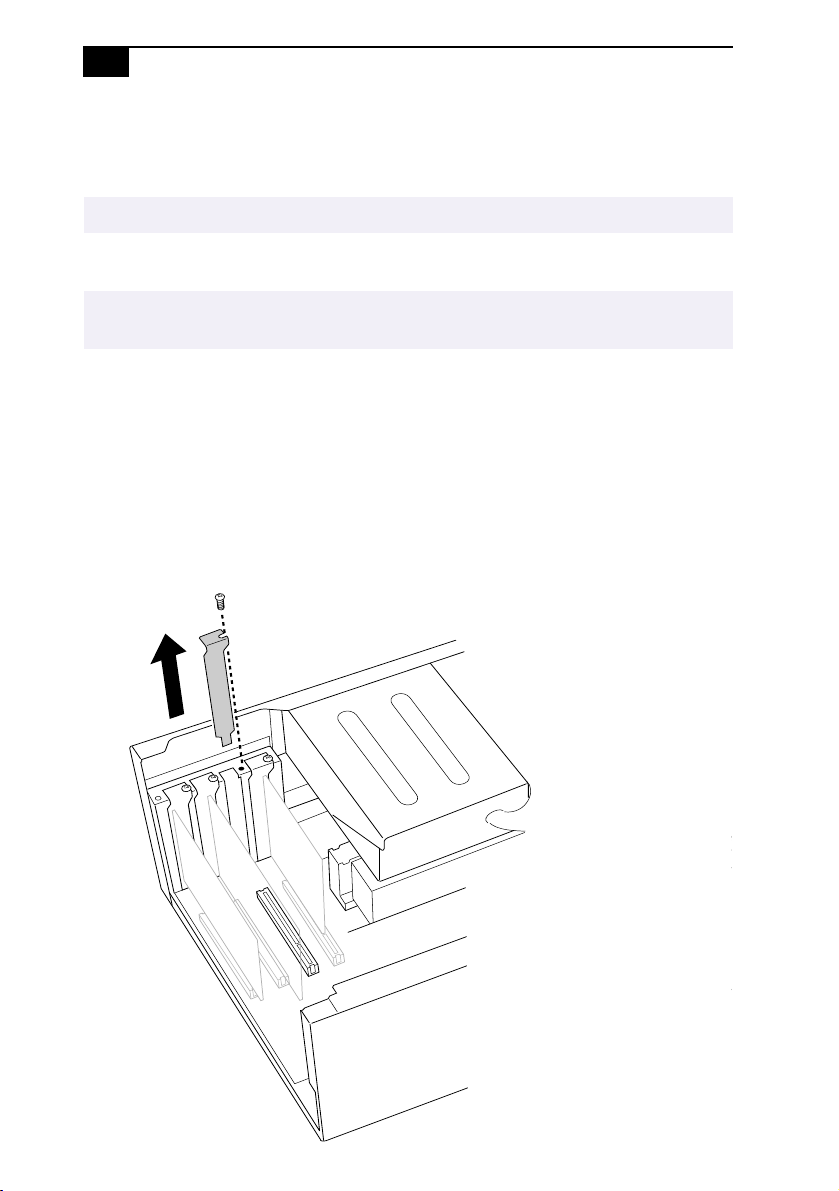
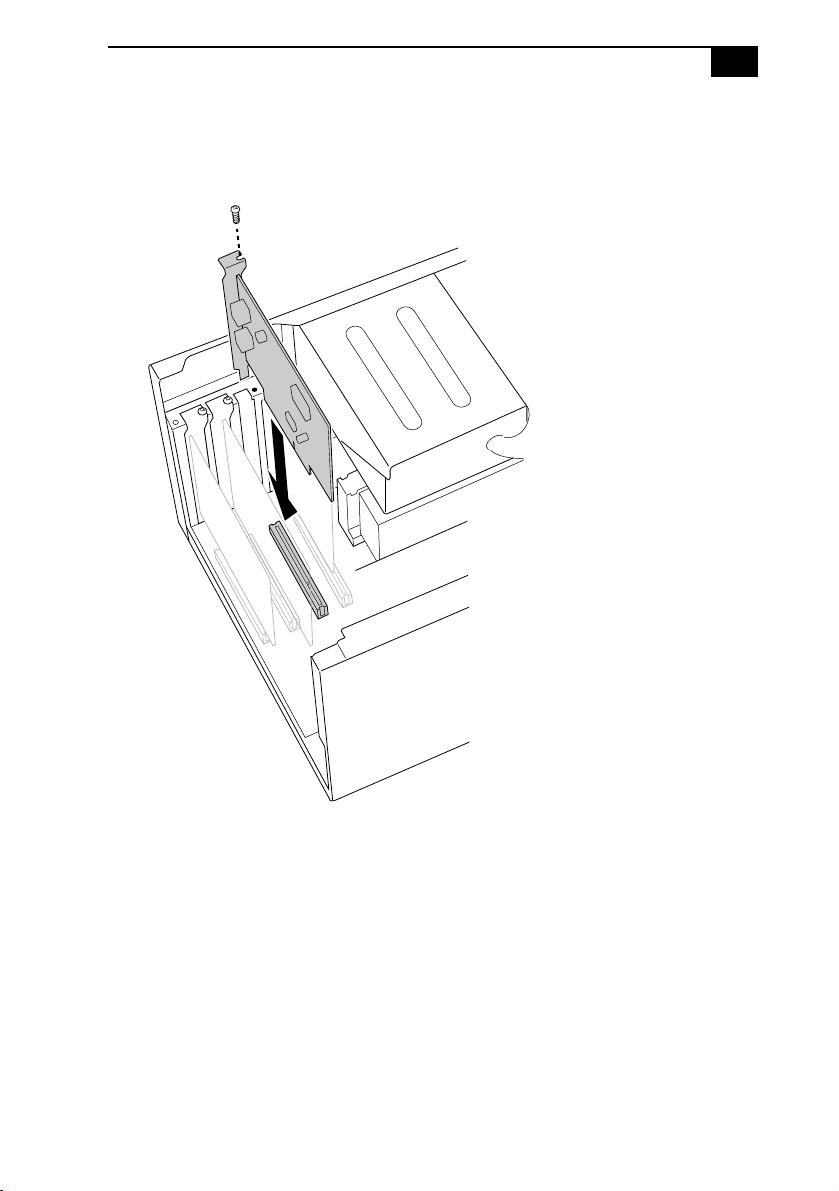
5
Remove the slot cover for the slot you have chosen.
✍
Your VAIO MicroTower cannot accommodate PCI add-in boards exceeding 7.7" in length.
!
Make sure you observe the proper safety precautions when you add boards to
your Sony computer. See page 79.

VAIO MicroTower User Guide
54
Adding Memory
In order to increase your computer's memory, you may need to remove
one of the factory-installed DIMMs and replace it with one of greater
capacity. For details, see the VAIO MicroTower Reference Manual, which is
available at Sony’s website at http://www.sony.com/pcsupport.
For memory upgrades, use only 3.3V unbuffered 4-clock 64-bit 66 MHz
SDRAM DIMM module Rev1.0 or 3.3V unbuffered 4-clock 72-bit 66 MHz
SDRAM DIMM module Rev1.0. For more information on MicroTower
compatible memory, call Sony at 1-888-4SONYPC (1-888-476-6972).
To install memory
1
Shut down your computer and turn off all peripheral devices, such as
your printer, display, and speakers.
2
Unplug your computer and any peripheral devices.
3
Remove the left-side panel, bottom panel, and front panel, as
described on pages 63 to 65. Then detach the diskette drive, as
described on page 66.
4
If necessary, remove any cables, add-in cards or other components to
access the DIMM sockets.
5
Remove either (or both) of the factory-installed DIMMs.
6
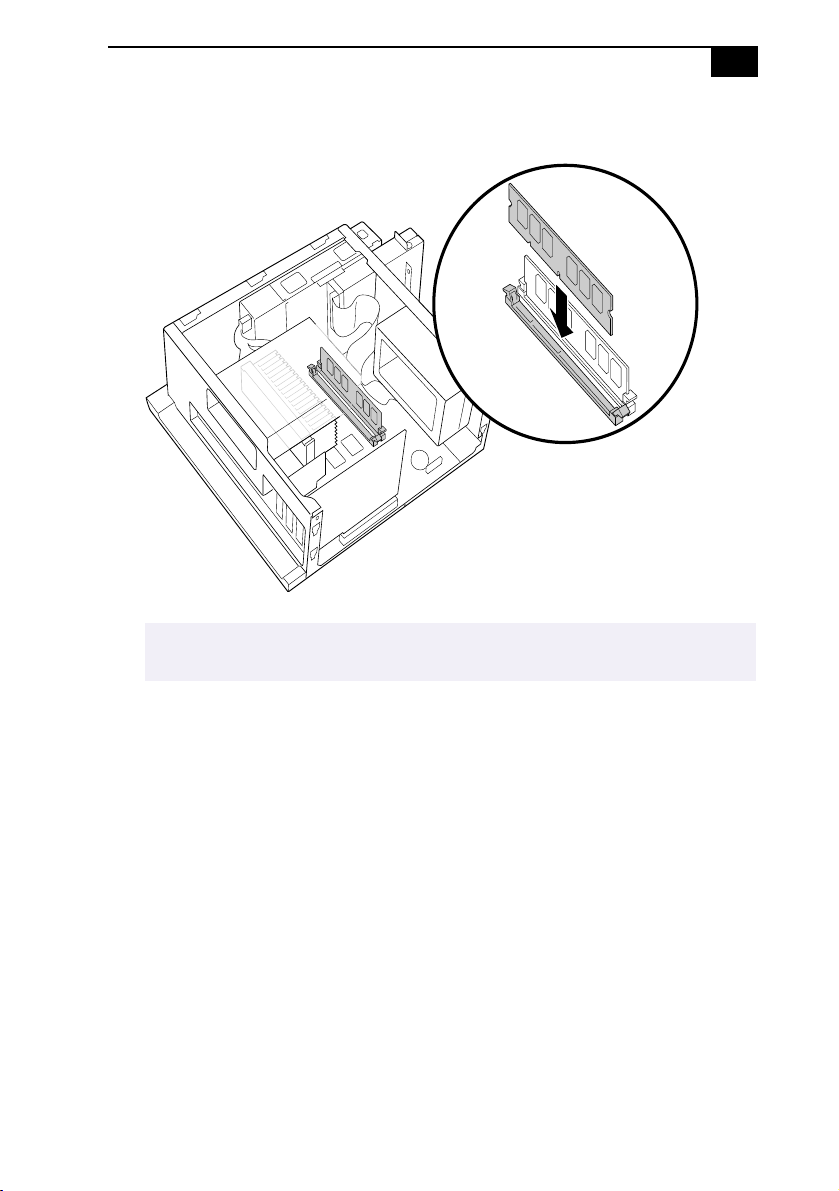
Handle the DIMM only by the edges, and remove it from its anti-
static package.
7
Locate the keys on the bottom edge of the DIMM.
!
Make sure you observe the proper safety precautions when you add DIMMs to
your Sony computer. See Notes on Use on page 79.
✍
You do not need to completely remove the diskette drive in order to access the DIMM
sockets.
Upgrading and Maintaining Your VAIO MicroTower
55
8
Align the DIMM over the socket.
9
Firmly insert the bottom edge of the DIMM into the socket.
10
Press evenly against the DIMM’s upper corners. The end latches snap
into position automatically.
11
Reinstall any add-in cards or components you removed.
12
Replace the diskette drive and cover panels, as described on page 67
to 70.
!
To avoid damaging the DIMM socket, move the DIMM socket tabs slightly
outward to relieve pressure. The DIMM should then click easily into place.
VAIO MicroTower User Guide
56
Replacing the Lithium Battery
After several years, when the lithium battery starts to weaken, the system
settings stored in CMOS RAM, such as the date and time, may be wrong.
When this occurs, you need to replace the lithium battery.
To replace the lithium battery
1
To run the Setup utility, press F3 when your computer is starting up.
Then press F1 to run the BIOS setup utility.
2
Write down the current BIOS Setup options.
3
Shut down your computer and turn off all peripheral devices, such as
your printer, display, and speakers. Unplug your computer.
4
Remove the left-side and bottom panels, as described on pages 63
through 64, respectively.
5
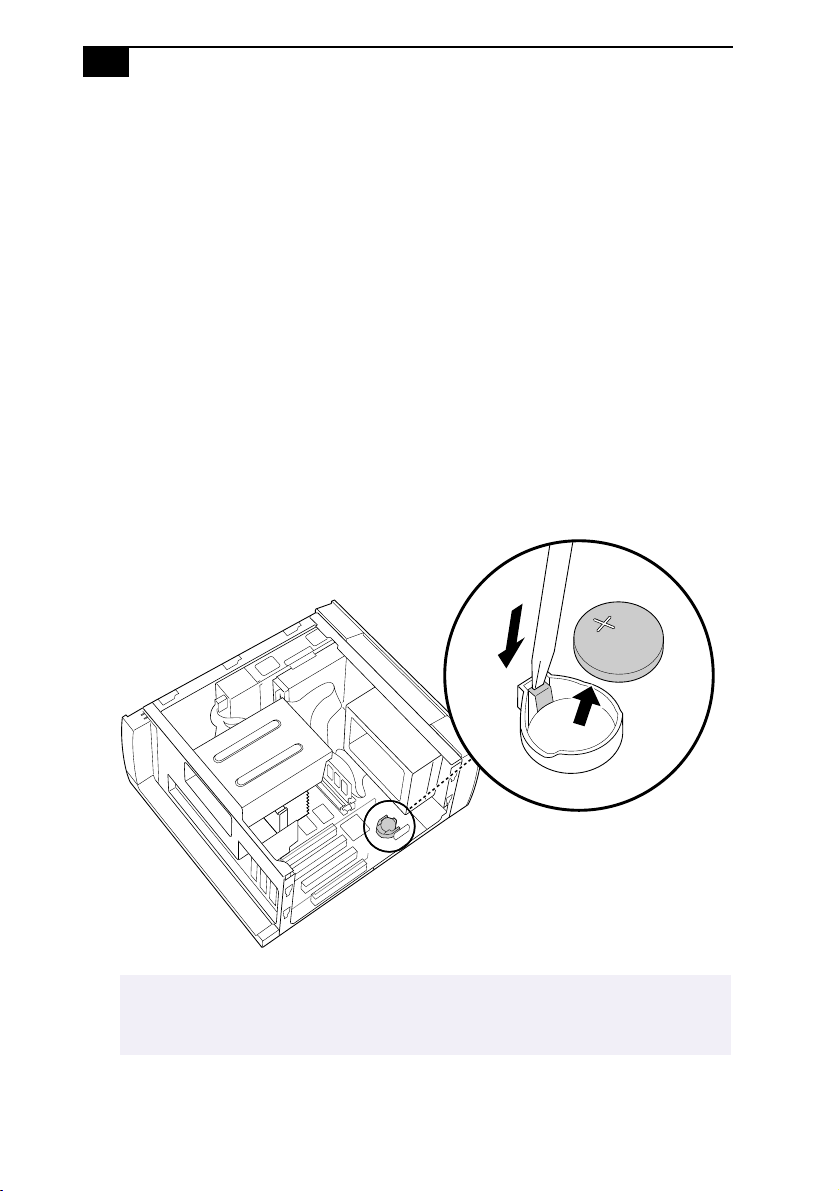
Install the new battery with the plus (+) side up.
!
There is danger of explosion if you replace the battery incorrectly. You must
replace the battery only with a CR2032 type lithium battery. Discard used
batteries according to the instructions on page 80.

Upgrading and Maintaining Your VAIO MicroTower
57
6
Replace the bottom and left-side panels, as described on pages 68 and
70, respectively.
7
To run the Setup utility, press F3 when your computer is starting up.
Then press F1 to run the BIOS setup utility.
8
Change the default values to the values you wrote down in step 2.
9
Save your Setup changes, and then exit the Setup utility.
✍
The values stored in the CMOS memory are now reset to the factory default values. You
must run the Setup utility to reset the date, time, passwords, and other options. See the
VAIO MicroTower Reference Manual for details.
VAIO MicroTower User Guide
58
Installing an Internal Hard Disk Drive
Your VAIO MicroTower comes with an available bay to hold an
additional hard disk drive. The drive you install must not require front
panel access. The hard disk drive access light blinks when either internal
drive is active.
1
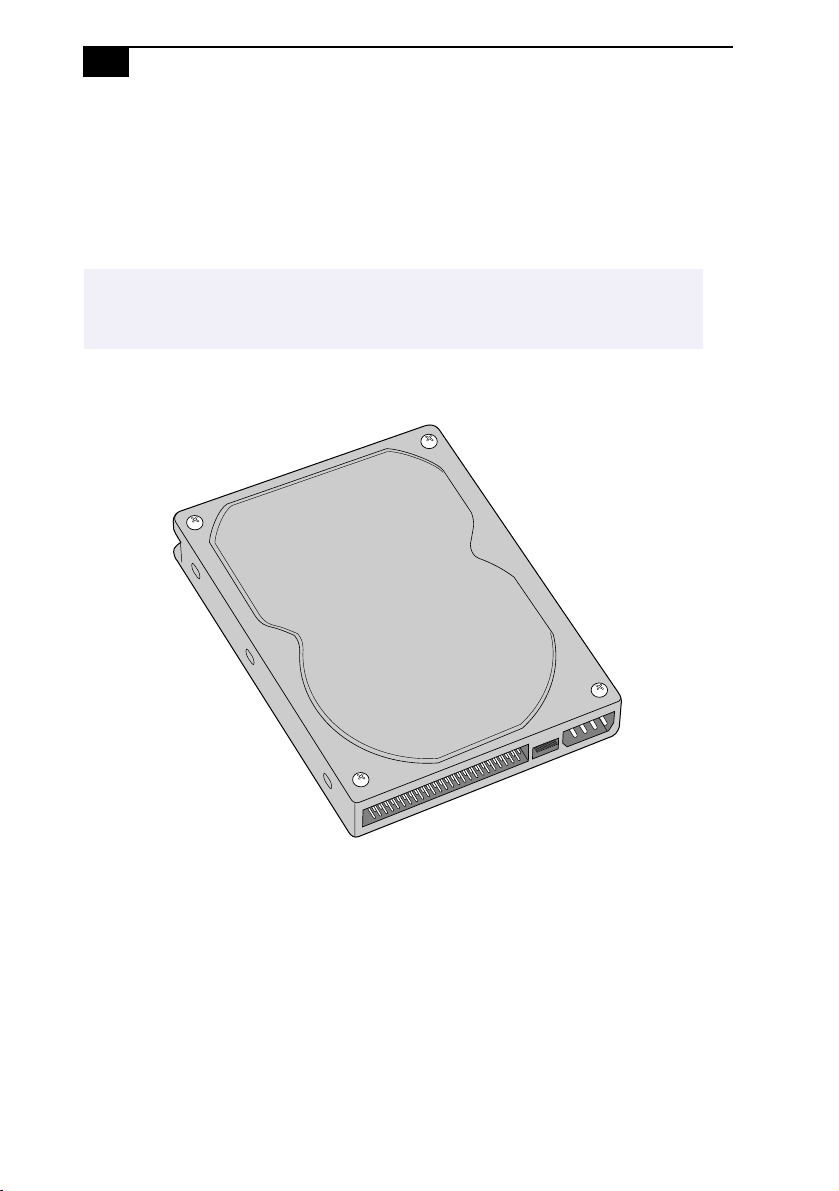
Configure the jumpers on the new drive as a secondary master (see
your drive’s documentation for configuration instructions).
2
Remove the left-side panel, as described on page 63.
3
Remove the front panel, as described on page 65.
4
Remove the bottom panel, as described on page 64.
5
Lay the system on its right side (left side faces up–see diagram that
follows).
6
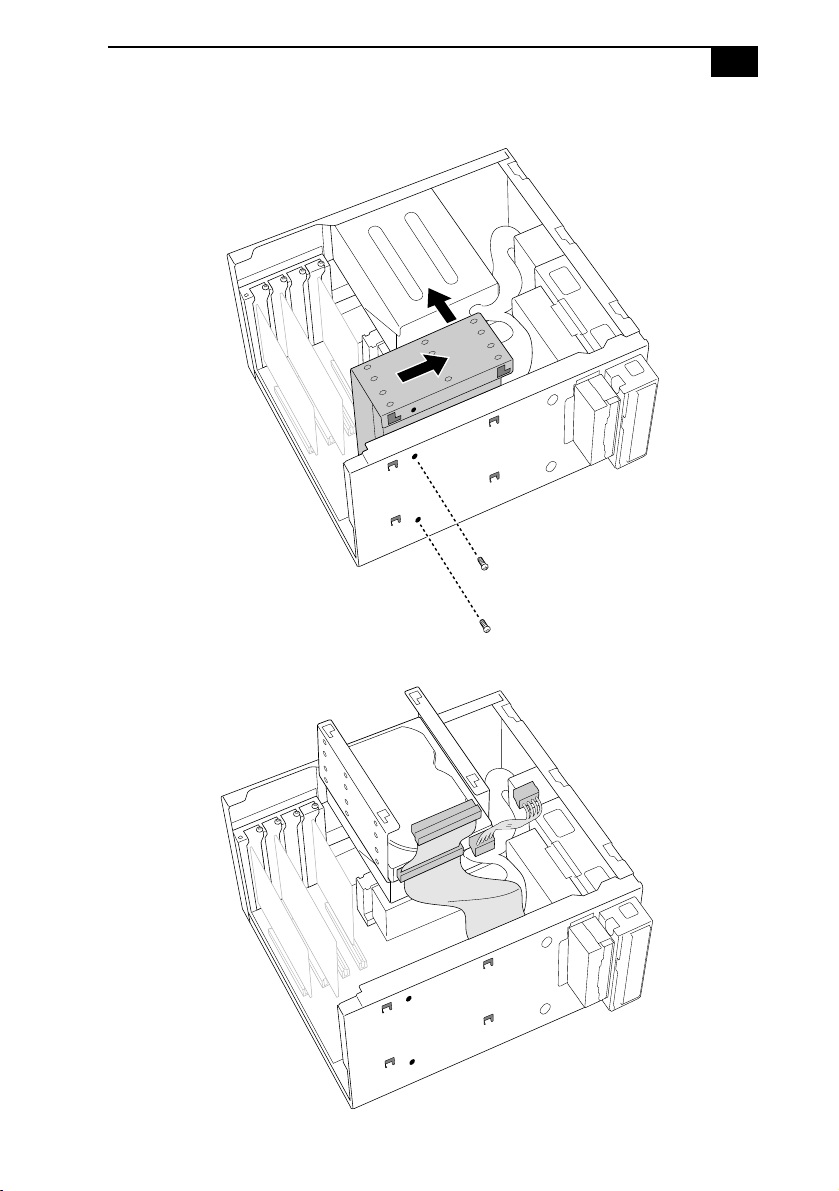
Remove the two screws that secure the drive holder.
!
Before opening the system unit, save any open files, exit Windows, turn off
the power of the computer and all attached peripherals, and then unplug the
power cord.
Upgrading and Maintaining Your VAIO MicroTower
59
7
Slide the drive holder forward and then out.
8
Place the drive holder upside down on top of the power supply.
VAIO MicroTower User Guide
60
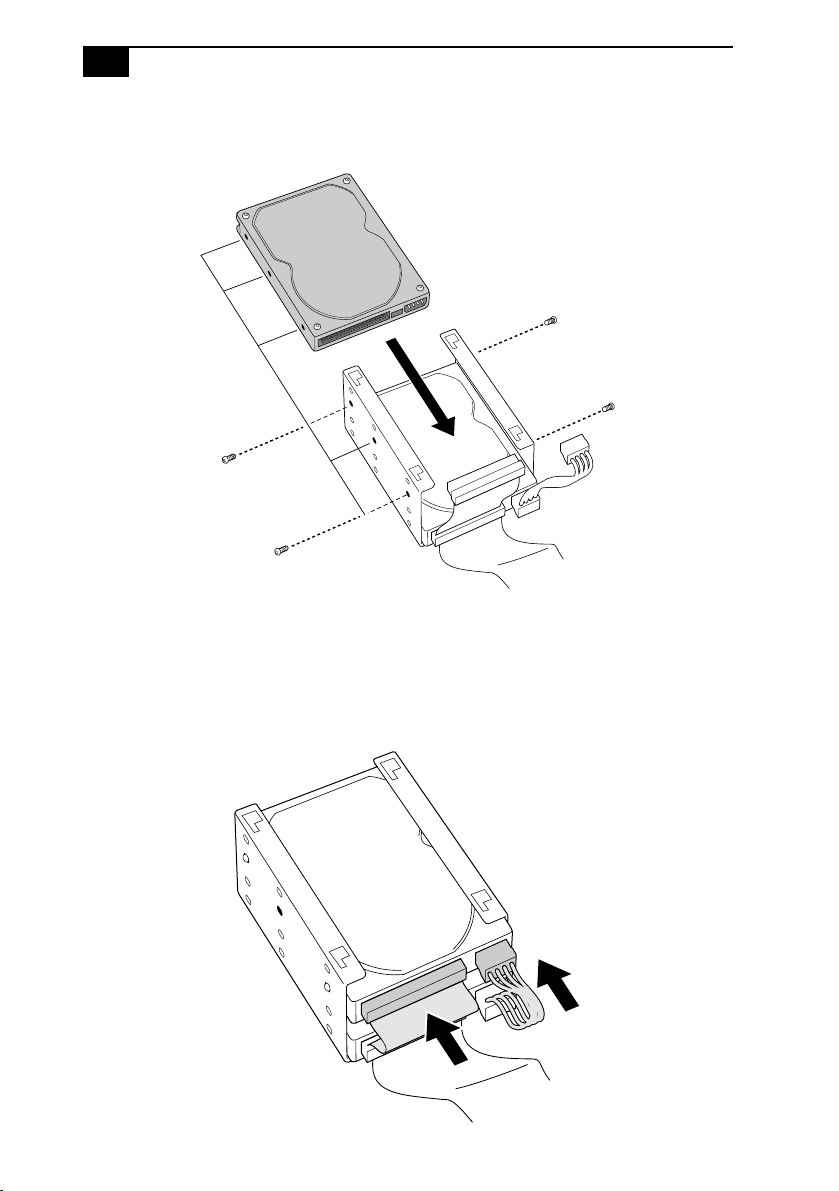
9
Slide the new drive into the drive holder and align the holes on each
side of the drive bay.
10
Secure the drive to the drive holder using any two of the three holes
on each side of the drive holder (screws are provided with the new
drive). Do not overtighten the screws.
11
Connect the second drive connector to the new drive.
12
Connect the second power connector to the new drive.
Upgrading and Maintaining Your VAIO MicroTower
61
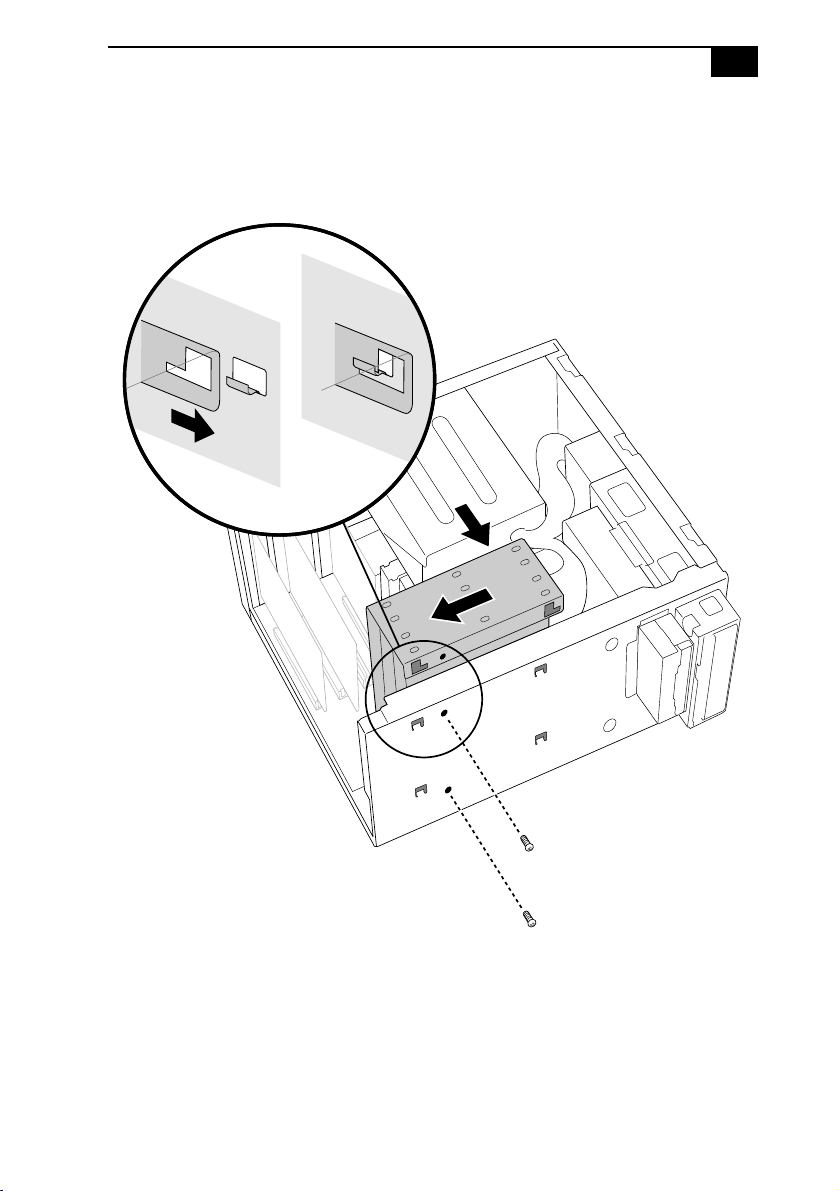
13
Place the drive holder against the inside of the front chassis and slide
it back. Be sure to align the slots on the drive holder with the tabs on
the inside of the chassis. Be sure to slide the drive holder back so that
the tabs slip into the notch at the bottom of the slot.
14
Replace the two screws that secure the holder to the chassis.
15
Replace the bottom panel, as described on page 68.
16
Replace the front panel, as described on page 69.
17
Replace the left-side panel, as described on page 70.
18
Reconnect the power cord and then turn on your computer.

VAIO MicroTower User Guide
62
Your computer automatically recognizes the new drive and configures
itself accordingly when you turn it on. Format and partition the new
drive following the instructions provided with the drive.
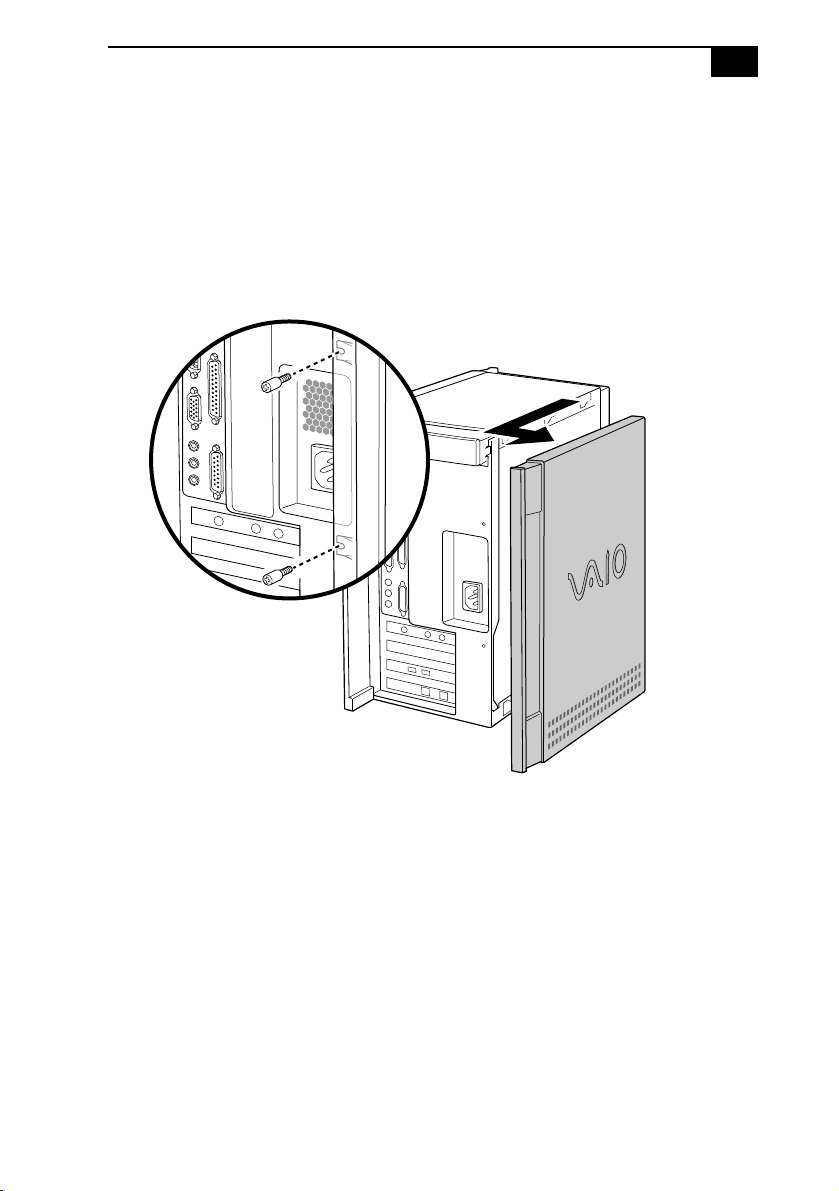
Upgrading and Maintaining Your VAIO MicroTower
63
Removing the Left-Side Panel
To remove the left-side panel
1
Remove the two screws that secure the panel to the chassis.
2
Slide the panel back until it stops.
3
Pull the panel straight out to remove it.
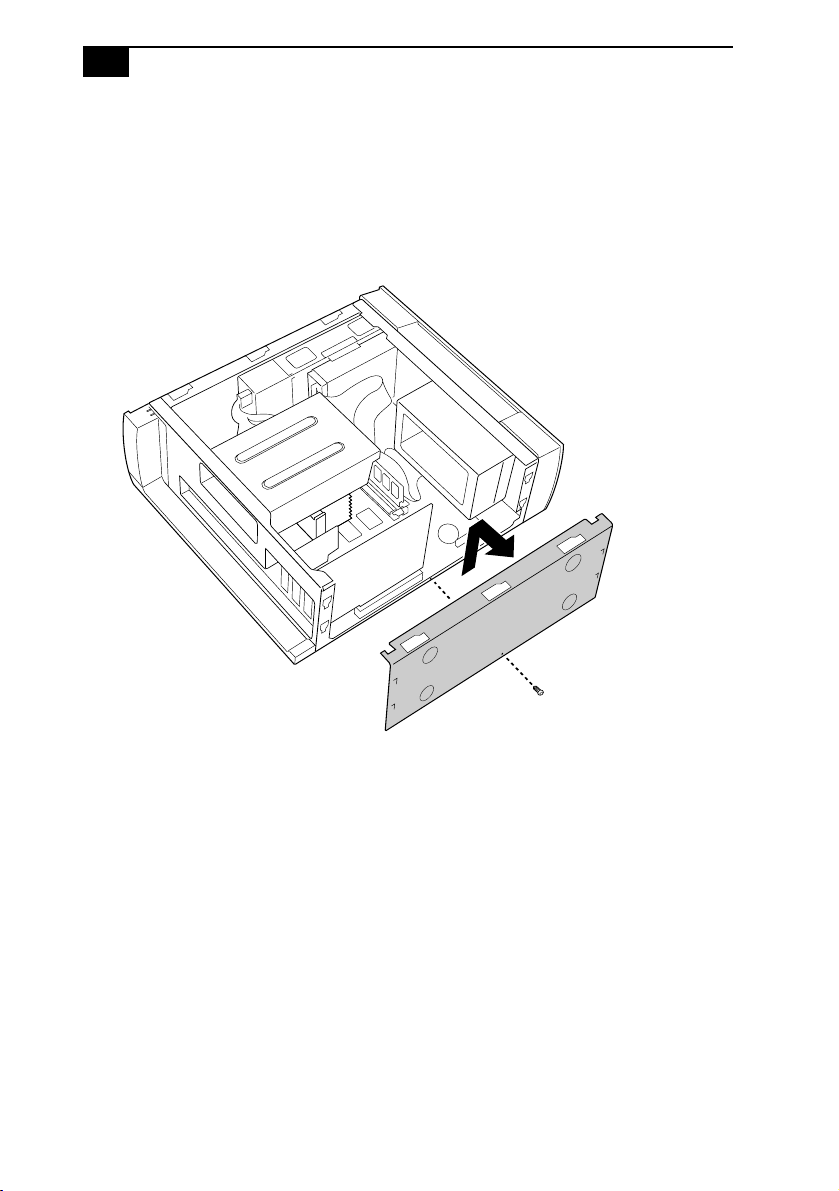
VAIO MicroTower User Guide
64
Removing the Bottom Panel
To remove the bottom panel
1
Remove the screw that secures the bottom panel to the chassis.
2
Pull the bottom panel straight out to remove it.
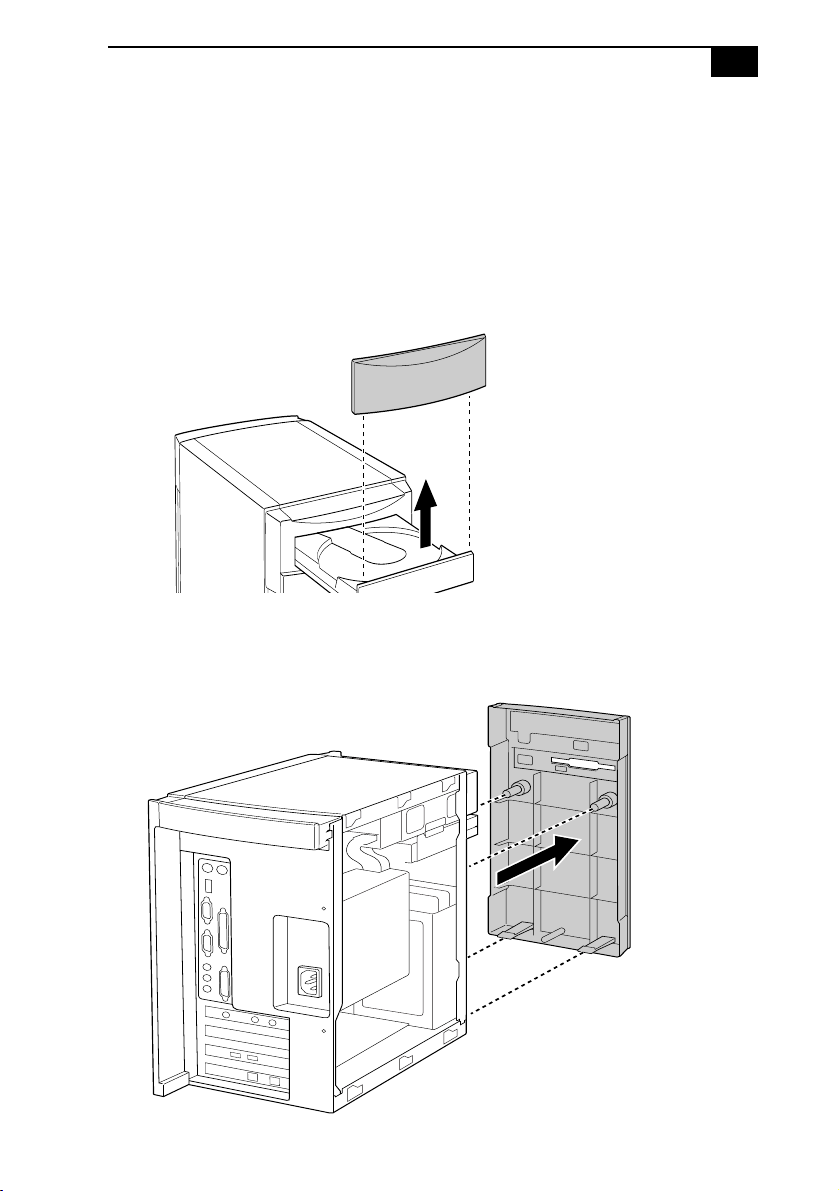
Upgrading and Maintaining Your VAIO MicroTower
65
Removing the Front Panel
To remove the front panel
1
Open the CD tray by inserting a thin, pointed object into the
emergency eject opening.
2
Slide the CD tray forward.
3
Remove the front cover of the CD tray by lifting it upwards.
4
Press down on each of the two tabs on the bottom of the front panel to
release the panel.
5
Pull the front panel forward to remove it.
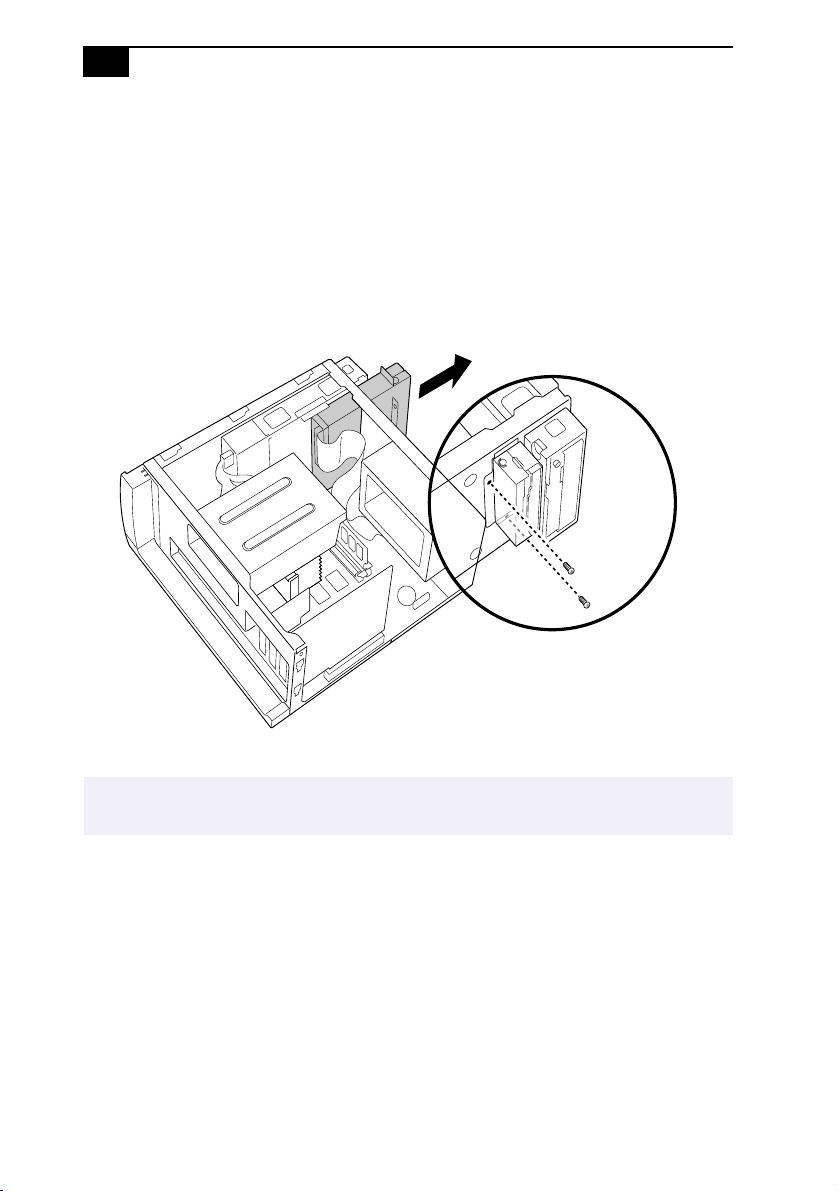
VAIO MicroTower User Guide
66
Detaching the Diskette Drive
To detach the diskette drive
1
Remove the front panel, as described on page 65.
2
Remove the two screws that secure the diskette drive to the front of
the chassis.
3
Pull the diskette drive forward.
✍
If you are adding memory, you do not need to completely remove the diskette drive or
disconnect the cable.
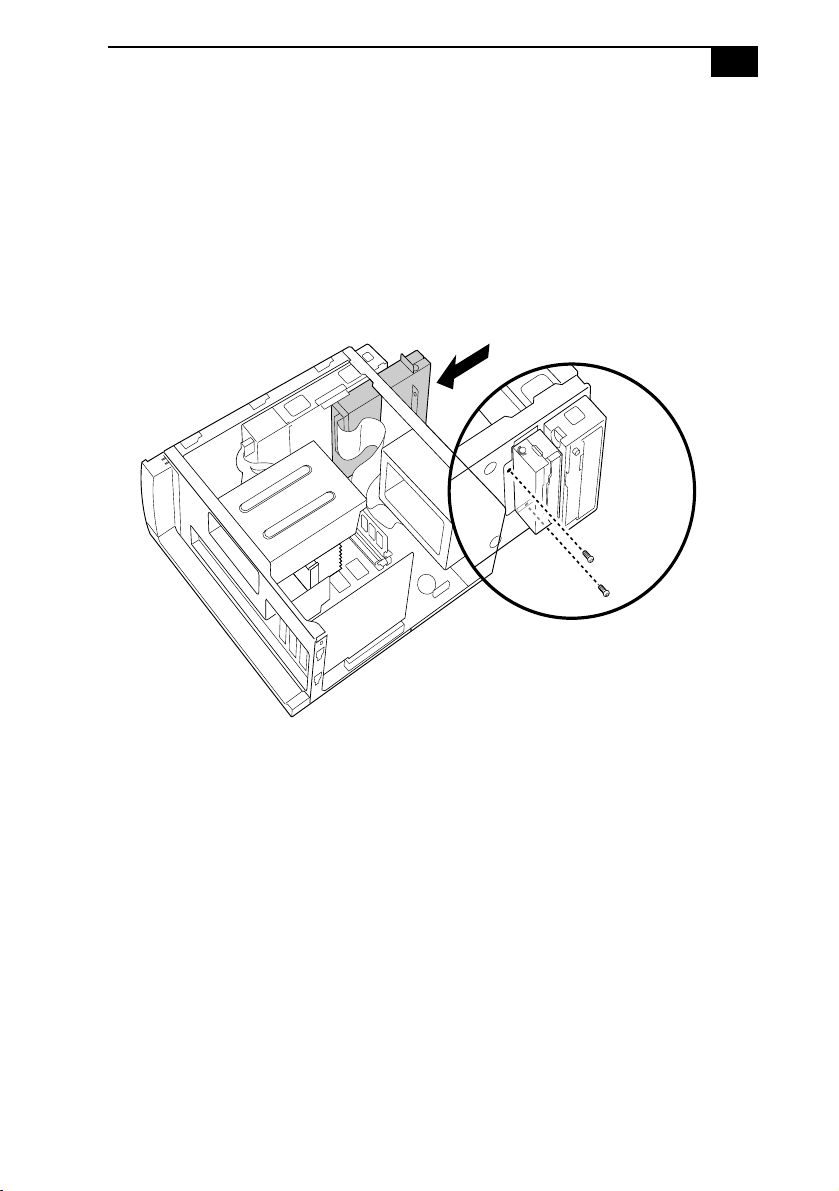
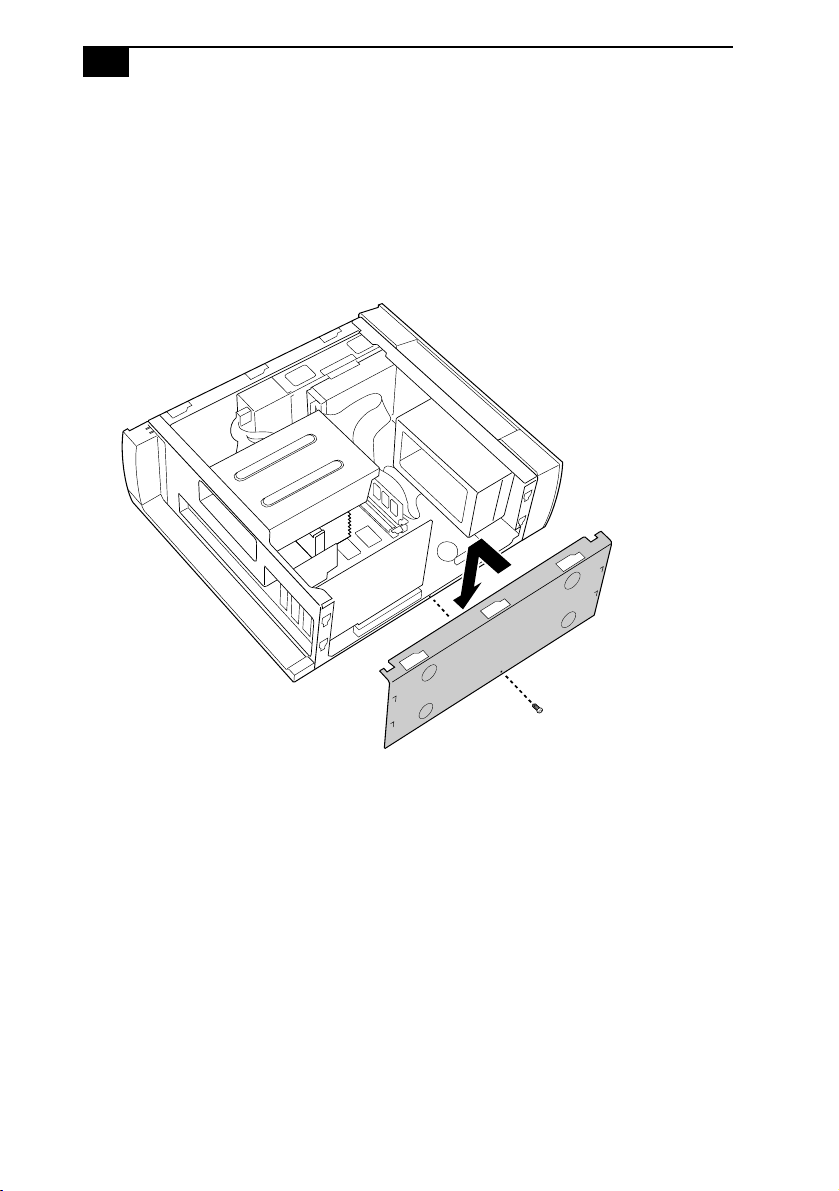
VAIO MicroTower User Guide
68
Replacing the Bottom Panel
To replace the bottom panel
1
Align the bottom panel with the screw hole on the bottom of the
chassis.
2
Replace the screw that secures the bottom panel to the chassis.
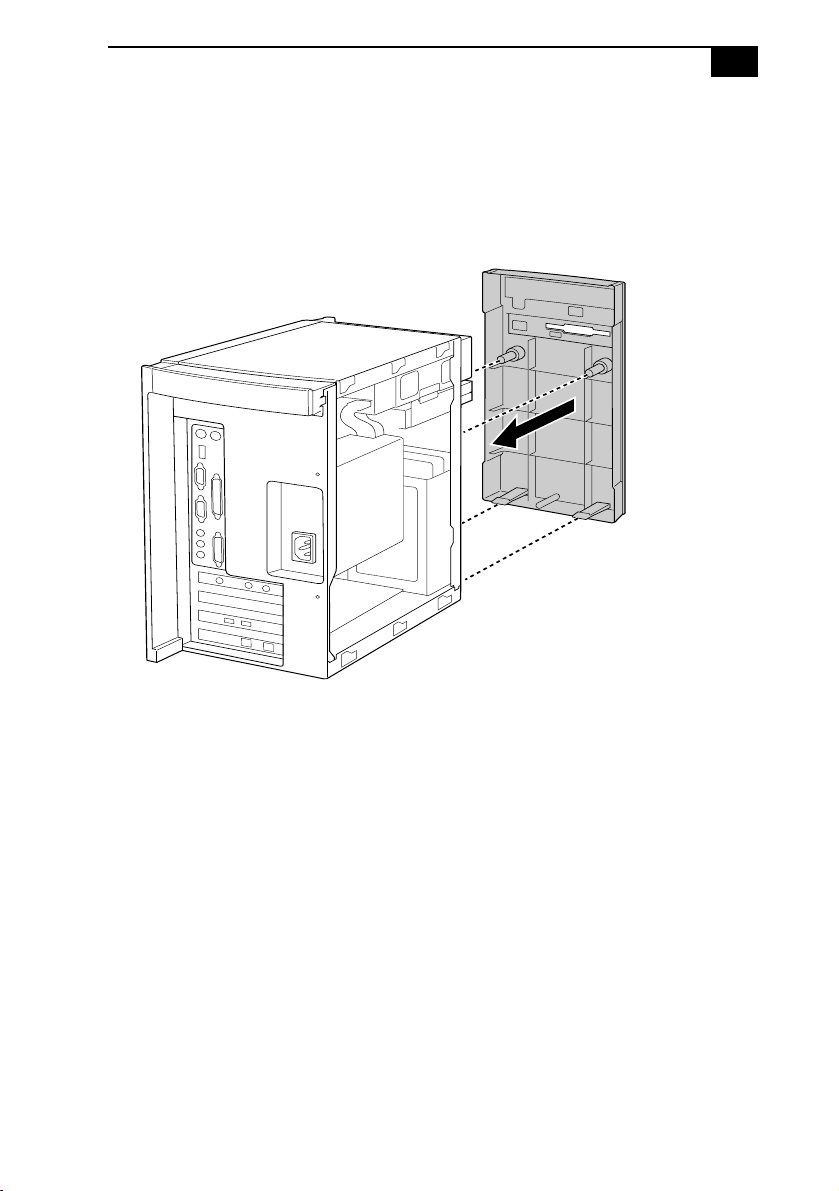
Upgrading and Maintaining Your VAIO MicroTower
69
Replacing the Front Panel
To replace the front panel
1
Push the front panel straight onto the front of the chassis until it clicks
into place.
2
Replace the front cover of the CD tray by sliding it down onto the
front of the open tray.
3
Close the CD tray.
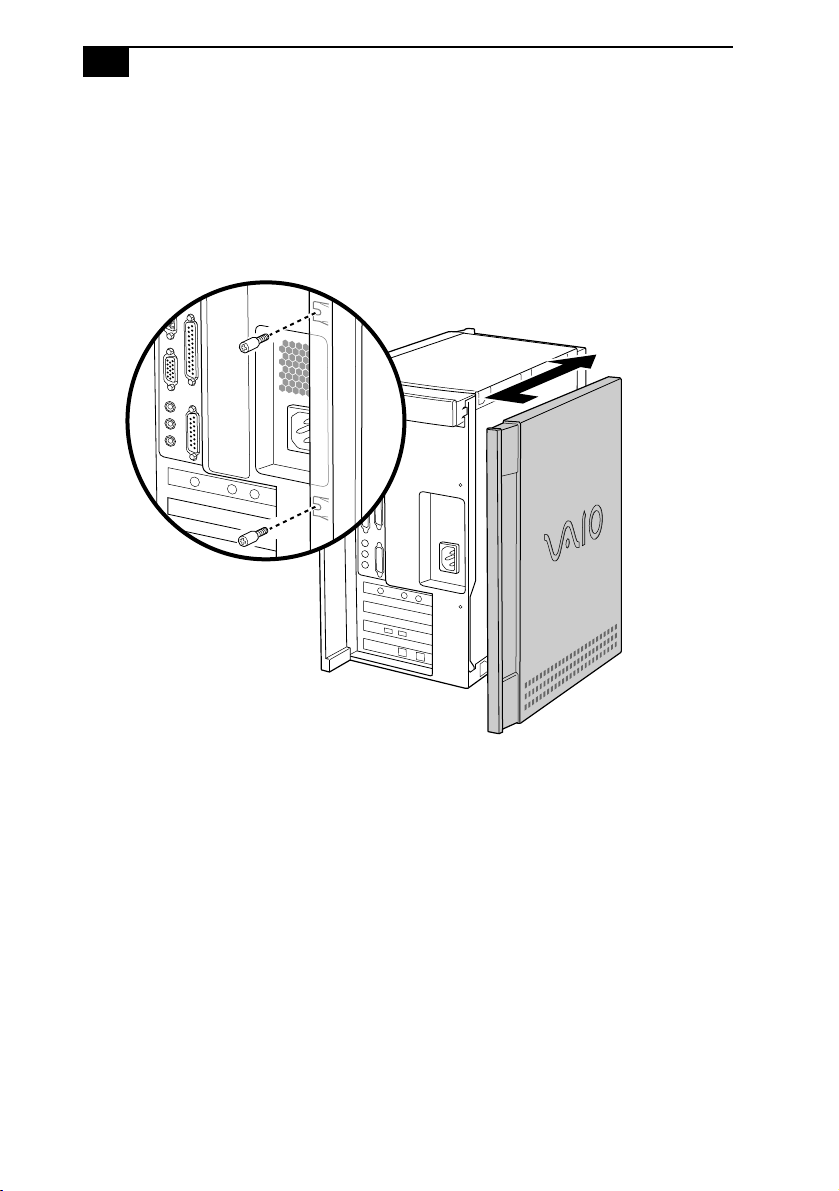
VAIO MicroTower User Guide
70
Replacing the Left-Side Panel
To replace the left-side panel
1
Slide the panel forward until it stops.
2
Replace the two screws that secure the panel to the chassis.
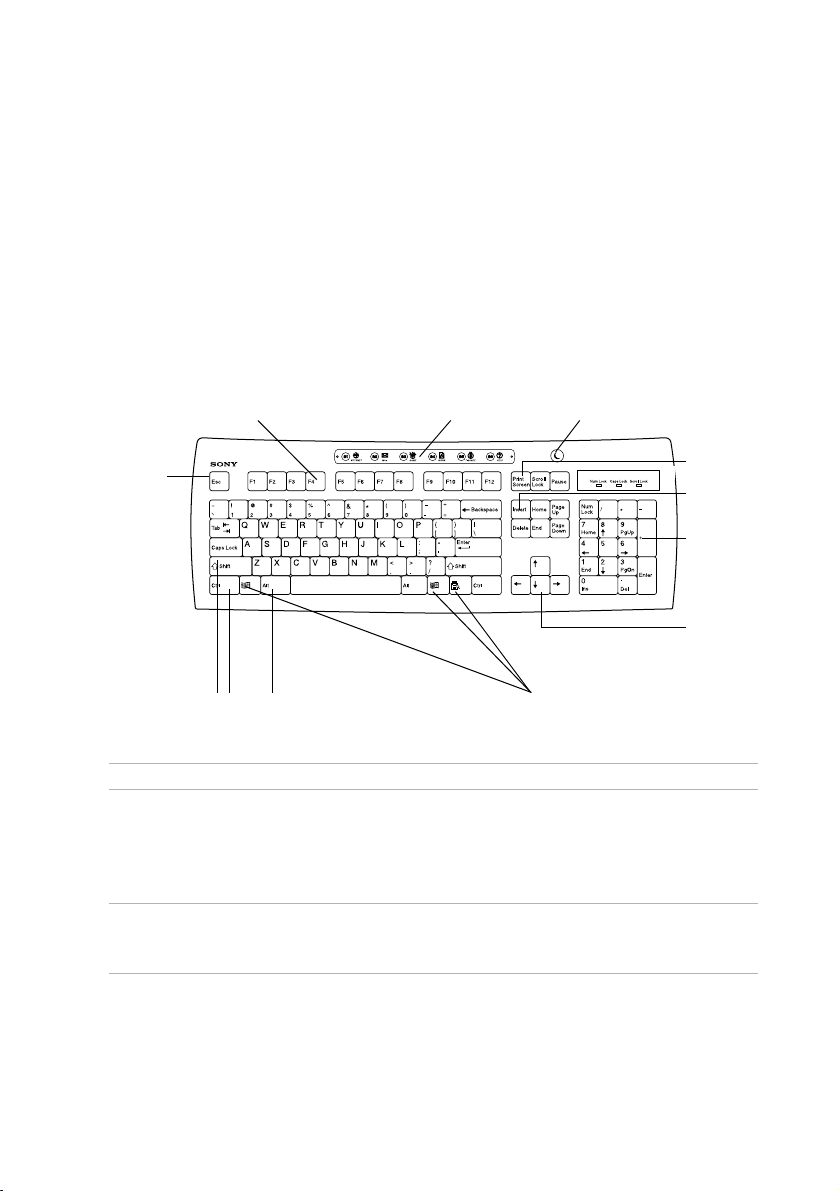
71
Computer Basics
Using the Keyboard
Your keyboard is very similar to a typewriter’s, but the keyboard has
additional buttons that perform specific computer-related tasks.
Key Description
Programmable
buttons
The six programmable buttons along the top of the
keyboard are preprogrammed to perform specific
functions. To change the function of these buttons, see
“Changing the Function of the Programmable Buttons”
on page 73.
Standby button The Standby button switches the computer to standby
mode. For details, see “Using the Standby Mode” on
page 25.
Numeric
keypad
Navigation
keys
Escape
key
Windows keys
Operator keys
Print Screen
key
Function keys (F1 - F12)
Correction
keys
Standby buttonProgrammable buttons (S1 - S6)

VAIO MicroTower User Guide
72
Numeric keypad Contains the keys found on a typical calculator. Use
the numeric keypad to type numbers or to perform
mathematical calculations such as addition and
subtraction. Note that you must press NUM LOCK to
activate the numeric keypad. (When you do so, the
Num Lock light will be on.)
Navigation keys Several keys are devoted to moving the cursor on the
screen (the four arrow keys and the HOME, END, PAGE
UP, and PAGE DOWN keys). These keys are also
available on the numeric keypad when Num Lock is
turned off.
Correction keys The INSERT and DELETE keys enable you to make
corrections in your documents. These keys are also
available on the numeric keypad when Num Lock
is turned off.
Function keys The twelve function keys along the top of the keyboard
are used to perform designated tasks. For example, in
many applications, F1 is the Help key. The task
associated with each function key may vary from one
application to the next.
Escape keys The ESC (Escape) key is used to cancel commands.
Print Screen keys The PRINT SCREEN key takes an electronic snapshot of
the screen and places it in the Windows Clipboard. You
can then paste the screen shot into a document and print
it.
Operator keys Several keys are always used with at least one other key:
CTRL, ALT, and SHIFT. When held down with another
keys, the CTRL (Control) and ALT (Alternate) keys offer
another way to give commands. For example, in many
applications, instead of choosing the Save command
from a menu, you can hold down CTRL and press S
(referred to as CTRL+S). The SHIFT key operates the
same way as on a typewriter; it is used to produce capital
letters or special symbols such as @ and $.
Windows keys The keys with the Windows logo display the Windows
Start menu; it is the equivalent of clicking the Start key
on the taskbar. The Applications key displays a shortcut
menu of context-sensitive choices; pressing this key is the
equivalent of clicking the right mouse button.
Key Description

Computer Basics
73
The keyboard also has three lights:
Changing the Function of the Programmable Buttons
You can change the function of the programmable buttons as follows:
1
Click the Start button on the Windows taskbar to open the Start
menu.
2
Point to Programs and click VAIO Smart
Keyboard.
3
Click the on-screen button that represents the button on the keyboard
(S1 to S6) that you want to program.
4
Complete the Customization dialog box to specify the function and
label you want to assign to the button. Then click OK.
5
Close the Customization dialog box.
Light On Off
Num Lock The number keys on the
numeric keypad
are active.
The arrow keys, navigation
keys, and correction keys on
the keypad are active.
Cap Lock Letters appear in
uppercase as you type.
The SHIFT key lowers
the case of typed letters
when Cap Lock is on.
Letters appear in lower case
as you type (unless you hold
down the SHIFT key).
Scroll Lock The screen scrolls
differently. (Exactly
how it scrolls depends on
the specific application. It
has no effect in many
applications.)
Information moves across the
display normally.
✍
Alternatively, you can click the VAIO Smart Keyboard icon in the Windows task tray.
✍
Alternatively, you can drag and drop any Windows icon that represents the function you
want to assign onto the on-screen button. However, you cannot drag and drop icons
that are specific to the Windows operating system, such as My Computer.
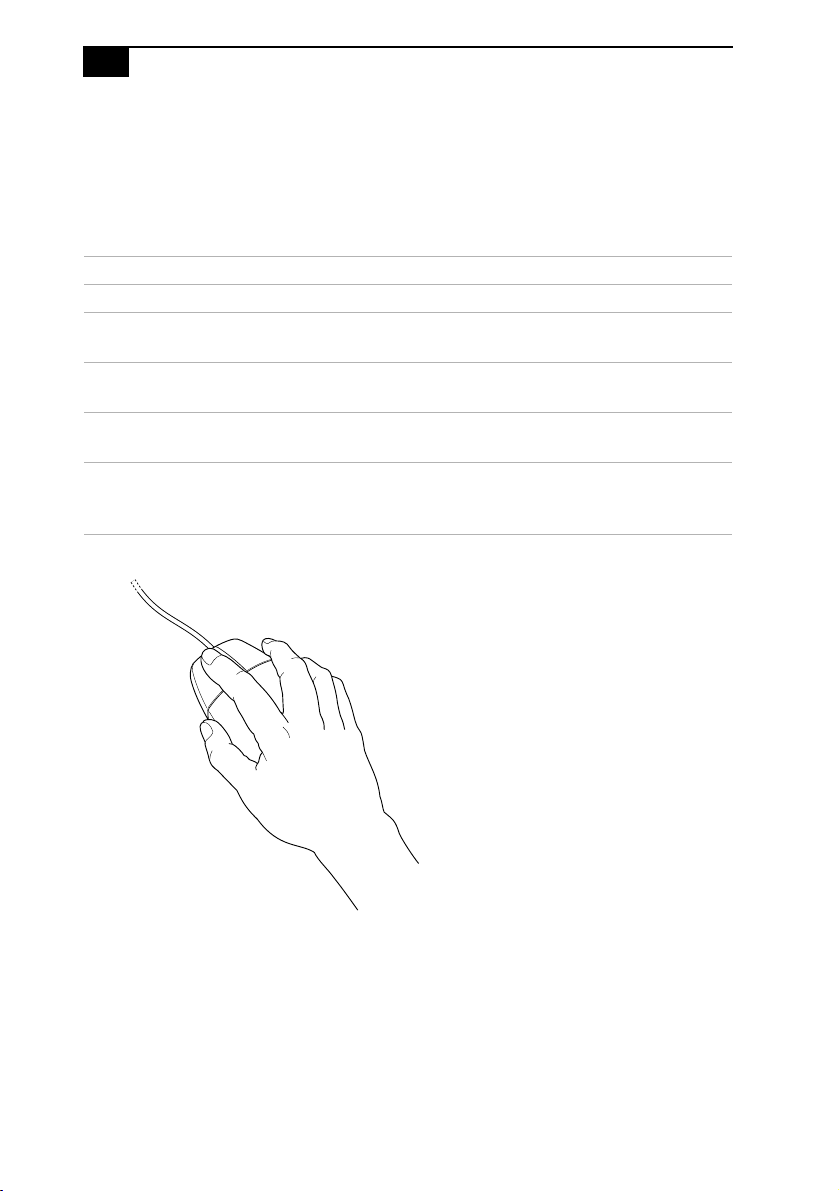
VAIO MicroTower User Guide
74
Using the Mouse
Using a mouse may be difficult at first, but after you become comfortable
using it, you can save a lot of time. The following terms are commonly
used to describe actions you perform with a mouse.
Term Description
Point Place the mouse pointer on an item or object.
Click Press and release the left mouse button, without moving the
mouse.
Double-click Press the left mouse button two consecutive times, without
moving the mouse.
Right-click Press the right mouse button. In many applications, this
action displays a shortcut menu of context-sensitive choices.
Drag Hold down the left mouse button and then move the mouse
in the desired direction. This action is used to select text and
move objects.

Computer Basics
75
Setting Up the Mouse for Left-Hand Use
You can control the mouse with your right or left hand. When you use the
mouse with your left-hand, you may find it easier to reverse the button
functions. When the functions are reversed, the right mouse button is
used for normal clicking and dragging, and the left button is for
displaying shortcut menus (right-clicking).
To set up the mouse for left-hand use
1
Click the Start button to display the Start menu.
2
Point to Settings.
3
Click Control Panel.
4
Double-click the Mouse icon.
5
Click the Buttons tab.
6
Under Buttons, select Left-handed.
7
Click the OK button to close the Mouse Properties dialog box.
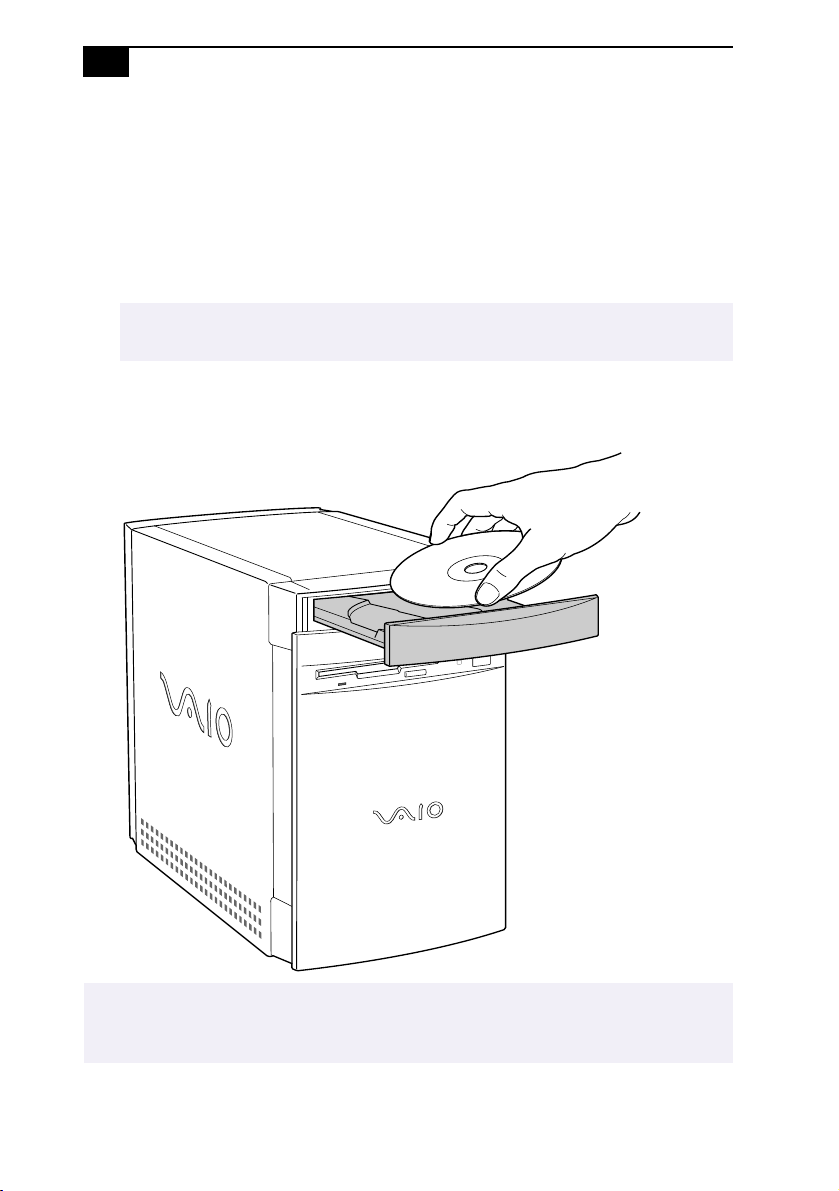
VAIO MicroTower User Guide
76
Using the DVD-ROM Drive
To use the drive
1
Press the Eject button on the front panel of the computer. The tray
slides out.
2
Place the disc in the tray.
3
Close the tray by pushing it gently or by pressing the Eject button on
the front panel.
✍
Place CD-ROM discs in the tray with the label side facing up. For DVD discs, which can
be played on both sides, the side of the disc facing up is the side that plays.
✍
To open the drive tray after playing a DVD disc, use the Eject button in the DVD Player
application. Alternatively, you can click the My Computer icon on the Windows desktop,
right-click the icon of the disc, and then click Eject.
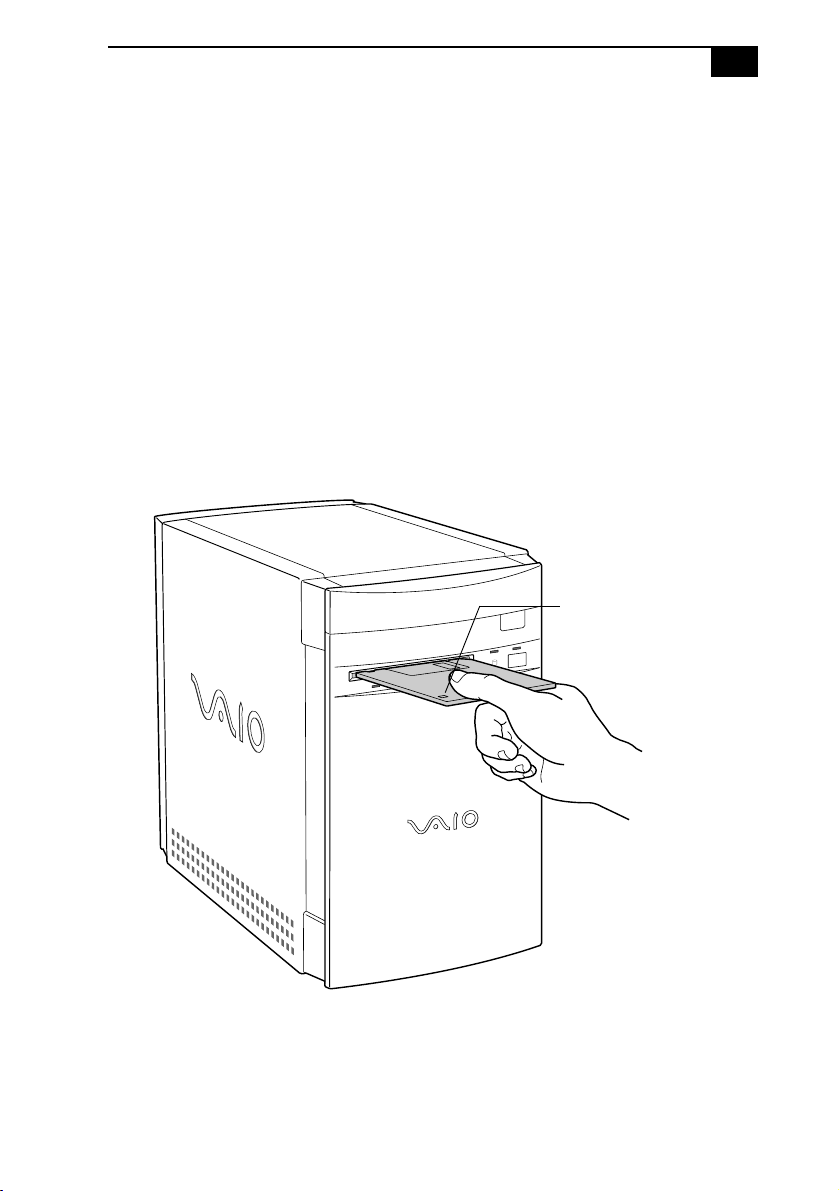
Computer Basics
77
Using the Diskette Drive
Most diskettes contain a write-protect tab. The write-protect tab prevents
accidental changes to a diskette. When the hole is open, the diskette is
write-protected—you can’t delete, copy, or save information on the
diskette. When the hole is closed, you may write to or modify the diskette
contents. Just slide the write-protect tab to open and close the hole.
To use the diskette drive
1
Hold the diskette with the label side facing up.
2
Gently push the diskette into the drive until you hear it click
into place.
3
After you finish using the diskette, press the Eject button on the
diskette drive to remove the diskette.
Write-protect tab

78

79
Other Information
Notes on Use
On the Power Source
❑
Your computer operates on 100–120 V AC 50/60 Hz for North
American countries.
❑
The total power draw of installed add-in cards must not exceed the
specifications for the power supply. Do not overload the system by
installing add-in cards that draw excessive current. The system is
designed to provide 2 amps (average) of 5V power for each card in
the system not to exceed a total of 12 amps. The total from +5V
current draw in a fully-loaded system (with all the add-in card slots
filled) must not exceed 12 amps. If you add components to the system
that draw current from the power supply, the maximum combined
+3.3V and +5V output must not exceed 80 watts.
❑
Plug all the power cords for your computer and its peripheral
equipment into the same AC supply line. AC derived from different
supply lines may result in voltage differences that can cause unstable
operation or unwanted weak currents at the time of connection.
❑
Do not share the AC outlet with any other power-consuming
equipment, such as copying machines or shredders.
❑
You can purchase a power strip with a surge protector. This device
prevents damage to your computer caused by sudden power surges
such as those that may occur during an electrical storm.

VAIO MicroTower User Guide
80
❑
If you live in an area that experiences frequent power fluctuations,
you may want to purchase a UPS (Uninterrupted Power Supply).
This device contains both a surge protector and a battery backup. The
surge protector prevents damage to your computer caused by power
surges. The battery backup safeguards your data during a brief
period of power loss.
❑
Do not place heavy objects on the power cord.
❑
Do not operate the system with the cover removed. Always
reinstall the cover before turning on the system.
❑
To disconnect the cord, pull it out by the plug. Never pull the
cord itself.
❑
Unplug your computer from the wall outlet if you will not be using
the computer for a long time.
❑
The power control button on the front panel does not turn off the
system AC power. To remove power from the system, you must shut
down the computer as described in this manual and then unplug the
AC power cord from the wall outlet or power strip.
❑
Before touching anything inside the computer, turn the system off
and let it cool for ten minutes. This will ensure that the processor heat
sink will not be hot.
❑
Do not attempt to open the power supply. There are no user-
serviceable parts in the power supply. To avoid personal injury or
damage to your equipment, refer the repair or replacement of the
power supply to qualified personnel only.
On Disposal of the Lithium Battery
Dispose of the lithium battery properly. In some areas, the disposal of
lithium batteries in household or business trash may be prohibited. You
can return your unwanted lithium batteries to your nearest Sony Service
Center or Factory Service Center. For the Sony Service Center nearest you,
call 1-888-4SONY-PC (1-888-476-6972).
!
Do not handle damaged or leaking lithium batteries.
!
The lithium battery may explode if mistreated. Do not disassemble it or
dispose of it in fire.
Replace the battery with a Sony CR2032 lithium battery. Using a type of
battery other than a CR2032 may present a risk of fire or explosion.

Other Information
81
On Handling
❑
Clean the cabinet with a soft, dry cloth or a soft cloth lightly
moistened with a mild detergent solution. Do not use any type of
abrasive pad, scouring powder, or solvent such as alcohol or benzine,
as it may damage the finish of your Sony computer.
❑
Should any solid object or liquid fall into the cabinet, keyboard, or
mouse, shut down your computer and then unplug it. You may want
to have the computer checked by qualified personnel before
operating it any further.
On Installation
❑
Do not place your Sony computer in a location subject to:
❑
Heat sources, such as radiators or air ducts
❑
Direct sunlight
❑
Excessive dust
❑
Mechanical vibration or shock
❑
Strong magnets or speakers that are not magnetically shielded
❑
Ambient temperature of more than 95ºF (35ºC) or less than
50ºF (10ºC)
❑
High humidity, moisture, or rain
❑
Do not place electronic equipment near your computer. The
computer’s electromagnetic field may cause a malfunction.
❑
Provide adequate air circulation to prevent internal heat
build-up. Do not place your computer on loose surfaces (such as rugs
or blankets) or near materials (such as curtains or draperies) that may
block its ventilation slots. Leave a space of at least 8 inches from the
back panel of your computer.
❑
The computer uses high-frequency radio signals and may cause
interference to radio or TV reception. Should this occur, relocate the
computer a suitable distance away from the set.
❑
Use only specified peripheral equipment and interface cables;
otherwise, problems may result.
❑
Do not use cut or damaged connection cables.
❑
Always switch the power off before connecting your computer to
peripheral equipment; otherwise, damage may occur to the
integrated circuits in your computer.

VAIO MicroTower User Guide
82
❑
Your computer, keyboard, and mouse consist of high-precision
electronic parts. Do not drop them or bump them against other
objects.
❑
Your Sony computer will not work with party lines, cannot be
connected to a coin-operated telephone, and may not work with
multiple phone lines or a private branch exchange (PBX).
❑
If the telephone company makes a service call to your home or
office and determines that your computer is responsible for the
problem, the telephone company may bill you for the service call.
Also, if you do not disconnect your computer when it is adversely
affecting the telephone line, the telephone company has the right to
disconnect your service until you correct the problem.
On Moisture Condensation
If your computer is brought directly from a cold location to a warm one,
moisture may condense inside your computer. In this case, allow at least
an hour before turning on your computer. If any problem occurs, unplug
your computer, and contact your Sony Service Center.
On Upgrading the System
❑
The procedures described in the “Upgrading and Maintaining Your
VAIO MicroTower” chapter of this manual assume familiarity with
the general terminology associated with personal computers and
with the safety practices and regulatory compliance required for
using and modifying electronic equipment.
❑
Disconnect the system from its power source and from any
telecommunications links, networks, or modems before you open the
system or do any of the procedures described in the “Upgrading and
Maintaining Your VAIO MicroTower” section in this manual. Failure
to do so may result in personal injury or equipment damage.
❑
Electrostatic discharge (ESD) can damage disk drives, add-in
cards, and other components. Do the procedures described in the
“Upgrading and Maintaining Your VAIO MicroTower” chapter only
at an ESD workstation. If such a station is not available, do not work
in a carpeted area, and do not handle materials that produce or hold
static electricity (cellophane wrappers, for example). Ground yourself
by maintaining contact with an unpainted metal portion of the
chassis while performing the procedure.

Other Information
83
❑
When removing a slot cover, be careful not to damage components on
the system board or add-in cards. You may need to temporarily
remove add-in cards that are next to the slot cover you want to
remove.
On Using the Hard Disk Drive
❑
Do not place the computer in a location that is subject to vibration
or shock.
❑
Do not move the computer during operation.
❑
Do not subject the computer to sudden changes in temperature.
❑
Do not turn off the power while the computer is accessing the hard
disk drive.
On Handling Diskettes
❑
Do not open the shutter manually and touch the surface
of the diskette.
❑
Keep diskettes away from magnets.
❑
Keep diskettes away from direct sunlight and other heat sources.
On Handling CD-ROM and DVD-ROM Discs
❑
Do not touch the surface of the disc.
❑
Do not drop or bend the disc.
On Cleaning CD-ROM and DVD-ROM Discs
❑
Fingerprints and dust on the surface of a disc may cause read
errors. Proper care of the disc is essential to maintain its reliability. Do
not use solvents such as benzine, thinner, commercially available
cleaners or anti-static spray, as they may cause damage to the disc.
❑
For normal cleaning, hold the disc by its edge and use a soft cloth
to wipe the surface from the center out.
❑
If the disc is badly soiled, moisten a soft cloth with water, wring it out
well, and use it to wipe the surface of the disc from the center out.
Wipe off any remaining moisture with a dry soft cloth.

84

85
Limited Warranty Statement
The limited warranty on your VAIO MicroTower covers parts and labor
against defects in material or workmanship for a period of three months
from the original date of purchase. You can extend the warranty period
for an additional nine months by registering your computer. See
“Registering Your Computer” on page 24. Once you register your
computer, the limited warranty period is twelve months from the original
date of purchase.
SONY ELECTRONICS INC. (“SONY”) warrants this computer hardware product (“the Product”) against
defects in material or workmanship as follows:
Labor: For a period of ninety (90) calendar days from the original date of purchase from SONY or a SONY
authorized reseller, SONY will repair defects in the Product at no charge, or pay the associated labor
charges to a SONY authorized personal computer service facility. The ninety (90) day warranty period is
extendible only to the original purchaser, for an additional period of nine (9) months, for a total of twelve
(12) months from date of purchase when the Product is registered electronically. After the applicable
period you must pay for all labor charges.
Parts: For a period of ninety (90) calendar days from the original date of purchase from SONY or a SONY
authorized reseller, SONY will supply, at no charge, new or rebuilt, at SONY’s option, replacement parts
in exchange for defective parts. Any replacement parts will be warranted for the remainder of the original
warranty period or ninety (90) calendar days from installation by SONY’s authorized personal computer
service facility, whichever is longer. The ninety (90) day warranty period is extendible only to the original
purchaser, for an additional period of nine (9) months, for a total of twelve (12) months from date of
purchase when the Product is registered electronically. All defective parts replaced under this Limited
Warranty will become the property of SONY.
This Limited Warranty covers only the hardware components packaged with the Product. It does not
cover technical assistance for hardware or software usage and it does not cover any software products
whether or not contained in the Product; any such software is provided “AS IS” unless expressly
provided for in any enclosed software limited warranty. Please refer to the End User License Agreements
included with the Product for your obligations with respect to the software.
This Limited Warranty is non-transferable.
Proof of purchase in the form of a bill of sale (which is evidence that the Product is within the warranty
period) must be presented to obtain warranty service. In addition, if replacement parts are required and
you wish to receive the most expedient service available, you will be required to provide SONY with a
credit card authorization to bill your credit card in the event you fail to return the original parts in the
postage-paid envelope we provide. The credit card will only be charged for SONY’s list price for the part
if the part has not been returned within thirty days.
If you purchased the Product in the United States and the Product is located in the United States, you
may be entitled to on-site repair service during the warranty period, subject to certain restrictions. In all
instances, however, prior to an on-site service call being provided, you must communicate with Sony
sufficiently to allow it to perform initial diagnostics of your Product. Please contact SONY as set forth
below for further information.
Sony VAIO User’s Guide

VAIO MicroTower User Guide
86
If you do not qualify for on-site warranty service or choose not to take advantage of any applicable on-
site warranty service, you must take the Product, or deliver the Product freight prepaid, in either its
original package or packaging providing the Product with a degree of protection equivalent to that of the
original packaging, to any SONY authorized personal computer service facility. Please contact SONY as
set forth below for further information.
With respect to all service provided, it is your responsibility to backup the contents of your hard drive,
including any data you have stored or software you have installed on the hard drive. It is likely that the
contents of your hard drive will be lost or reformatted in the course of service and SONY will not be
responsible for any damage to or loss of any programs, data or other information stored on any media or
any part of any Product serviced hereunder.
IF DURING THE REPAIR OF THE PRODUCT THE CONTENTS OF THE HARD DRIVE ARE ALTERED,
DELETED, OR IN ANY WAY MODIFIED, SONY IS NOT RESPONSBILE WHATSOEVER. YOUR
PRODUCT WILL BE RETURNED TO YOU CONFIGURED AS ORIGINALLY PURCHASED (SUBJECT
TO AVAILABILITY OF SOFTWARE).
Be sure to remove all third party hardware, software, features, parts, options, alterations, and attachments
not warranted by SONY prior to sending the product to SONY for service. SONY is not liable for any loss
or damage to these items.
This Limited Warranty does not cover any consumable items (such as batteries) supplied with this
Product; cosmetic damages; damage or loss to any software programs, data, or removable storage media;
or damage due to (1) acts of God, accident, misuse, abuse, negligence, commercial use or modifications of
this Product; (2) improper operation or maintenance of this Product; (3) connection to improper voltage
supply; or (4) attempted repair by any party other than a SONY authorized personal computer service
facility. This Limited Warranty does not apply when the malfunction results from the use of this Product
in conjunction with accessories, products or ancillary or peripheral equipment, or where it is determined
by SONY that there is no fault with this Product itself. This Limited Warranty is valid only in the United
States of America.
This Limited Warranty is invalid if the factory applied serial number has been altered or removed from
the Product.
Repair or replacement of defective parts or hardware as provided under this Limited Warranty is the
exclusive remedy of the consumer. SONY SHALL NOT BE LIABLE FOR ANY INCIDENTAL OR
CONSEQUENTIAL DAMAGES FOR BREACH OF ANY EXPRESS OR IMPLIED WARRANTY, BREACH
OF CONTRACT, NEGLIGENCE, STRICT LIABILITY OR ANY OTHER LEGAL THEORY RELATED TO
THIS PRODUCT. SUCH DAMAGES INCLUDE, BUT ARE NOT LIMITED TO, LOSS OF PROFITS, LOSS
OF REVENUE, LOSS OF DATA, LOSS OF USE OF THE PRODUCT OR ANY ASSOCIATED
EQUIPMENT, DOWN TIME AND PURCHASER’S TIME. EXCEPT TO THE EXTENT PROHIBITED BY
APPLICABLE LAW, ANY IMPLIED WARRANTY OF MERCHANTABILITY OR FITNESS FOR A
PARTICULAR PURPOSE ON THIS PRODUCT IS LIMITED IN DURATION TO THE DURATION OF
THIS WARRANTY.
Some states do not allow the exclusion or limitation of incidental or consequential damages, or allow
limitations on how long an implied warranty lasts, so the above limitations or exclusions may not apply
to you. This Limited Warranty gives you specific legal rights, and you may have other rights which vary
from state to state.
Technical Support: Although technical support is not provided free of charge under this Limited
Warranty, SONY has established a telephone number for technical support. Charges may apply for
technical support, unless and to the extent that free technical support for a limited period is provided in
writing as a feature of your Product. Prior to placing your call, please have available the model and serial
number for your Product, date of purchase, a list of all options installed in your Product and a detailed
description of the problem.
For Product support, on-line knowledge base, frequently asked questions, and free updates via the
Internet: http://www.sony.com/pcsupport.
For Product information, service assistance, resolution of a service problem, or technical assistance, call:
1-888-4SONYPC

87
Index
A
accessing online support
24
add-in boards
52
53
adding additional hardware
11
21
add-in boards
52
53
precaution
80
adding additional software
problems with
41
adding memory
54
55
adding printers
11
adjusting speaker volume
43
adjusting voltage settings
79
air circulation
81
Alt keys
72
Application Recovery CD
49
applications
launching
problems with
43
audio splitter cable, connecting
13
Audio-Video Center,using
32
B
battery
disposing
80
replacing
56
57
caution
56
bottom panel
removing
64
replacing
68
buttons
Call SOS
40
C
cables
81
Call SOS button
40
cameras, digital
21
canceling commands
72
CD tray
opening
problems with
42
CD-ROM drives
cleaning
83
troubleshooting
42
CDs
handling
83
playing
42
choosing locations
3
,
81
cleaning
CD-ROM discs
83
computer
81
DVD-ROM discs
83
mouse
45
click (defined)
74
computer
adding functionality
11
adjusting voltage settings
79
cleaning
81
condensation and
82
disposing of battery
80
locking up
41
protecting your investment
24
registering
24
removing cover
51
,
80
removing left-side cover
63
replacing battery
56
57
caution
56
replacing left-side cover
70
safety information
ii
setting up
precautions
81

VAIO MicroTower User Guide
88
shutting down
26
,
80
starting
22
problems with
41
upgrading
51
,
82
connectors
additional components
11
21
keyboard
8
mouse
8
Multimedia Computer Display
5
nonstandard equipment
6
phone
9
power cords
79
precautions
81
Control A1 devices, connecting
19
correction keys (described)
72
Ctrl keys
72
cursor-movement keys (described)
72
customer assistance
24
support options
37
D
data
preventing loss
26
saving
77
DELETE key
72
digital still camera, connecting
21
disconnecting power cords
80
diskette drive
77
detaching
66
replacing
67
diskettes
handling
83
inserting into drive
77
writing to
77
displaying the taskbar
problems with
46
displays
connecting
6
setting up
4
turning on
22
problems with
41
double-click (defined)
74
drag (defined)
74
drives
77
DVD-ROM drive, troubleshooting
42
DVD-ROM drives
cleaning discs
83
DVDs
handling
83
E
electronic
documentation
37
equipment
81
registration
24
electrostatic discharge
51
Esc key
72
European power settings
79
F
floppy disk drive. See diskette drive.
front panel
removing
65
replacing
69
function keys (described)
72
G
GAME connector
16
glare
4
grounding
51
H
handling CDs
83
handling diskettes
83
handling DVDs
83
hard disk
83
hardware
adding additional
11
21
,
52
53
precaution
80
electrostatic discharge and
51
installing memory boards
54
55
nonstandard
6
regulatory information
iii
iv
troubleshooting
41
,
43
,
46
help
37
Help Center,using
35
Help key
72
help, getting
35
I
IEEE-1394 devices, connecting
17
iLINK devices, connecting
17

Index
89
indicator lights
keyboard
73
input devices
iii
setting up
3
INSERT key
72
inserting diskettes into drive
77
installing additional hardware
11
21
add-in boards
52
53
precaution
80
installing additional memory
54
55
installing an internal hard disk
drive
58
62
installing additional software
problems with
41
interference
iii
,
81
Internet
33
J
joystick
16
joysticks
11
connecting
16
K
keyboard
3
,
71
73
connecting
8
indicator lights
73
programmable keys
71
programming
73
troubleshooting
46
L
launching applications
problems with
43
left-side panel
replacing
70
LINE connector
9
locations, choosing
3
,
81
losing data (caution)
26
losing power
79
M
memory, adding
54
55
menus
74
canceling commands
72
MIC connector
5
,
6
,
13
microphones
connecting
5
,
6
troubleshooting
44
MIDI devices
11
connecting
16
minimizing glare
4
model numbers
ii
modems
troubleshooting
44
MONITOR connector
5
,
6
,
12
mouse
3
,
74
75
cleaning
45
connecting
8
troubleshooting
45
mouse buttons
reassigning
75
MOUSE connector
8
moving
objects
74
N
navigation keys (described)
72
nonstandard equipment
6
NUM LOCK key
72
numeric keypad (described)
72
O
objects, moving
74
online
help
37
registration service
24
support
24
options
37
Online Center, using
33
opening
applications
problems with
43
CD tray
problems with
42
operator keys (described)
72
output devices
iii
adding
11
21
P
palmrest
3
connecting
7
phones
6
,
13

VAIO MicroTower User Guide
90
connecting
9
service precautions
82
playing
CDs
42
point (defined)
74
power cords
79
disconnecting
80
power fluctuations or loss
79
power source, precautions
79
80
power switch
22
Print Screen key
72
PRINTER connector
15
printer, connecting
15
printers
11
problem solving
41
problems, analyzing and fixing
34
programmable keys
71
,
73
protecting your investment
24
R
radio interference
iii
,
81
reassigning mouse buttons
75
rebooting system
41
recording serial numbers
ii
reducing glare
4
reference manual
37
registering Windows 98
23
registering your computer
24
regulatory information
iii
iv
removing computer cover
51
,
63
,
80
removing diskettes
77
replacing battery
56
57
caution
56
replacing computer cover
70
right-click (defined)
74
S
S/PDIF devices, connecting
18
safety information
ii
saving data
77
screens, reducing glare
4
selecting
locations
81
text
74
serial numbers
ii
serial peripherals
21
setting up Windows 98
23
setting up your computer
precautions
81
Shift keys
72
shutting down your computer
26
,
80
S-Link devices, connecting
19
software
adding
problems with
41
Software Center, using
31
Sony Fax-on-Demand service
38
Sony Multimedia Computer Display
connecting
5
setting up
4
turning on
22
problems with
41
Sony Online Support
24
call instructions
39
Call SOS button
40
options
37
SOS
See Sony Online Support
speakerphones
6
connecting
9
speakers
adjusting volume
43
connecting
5
,
6
precaution
81
troubleshooting
43
standby mode
25
starting your computer
22
problems with
41
surge protectors
79
system
rebooting
41
troubleshooting
41
system problems, fixing
34
System Recovery CD
47
T
taskbar
problems viewing
46
technical support
24
support options
37
television, connecting
12
14
text, selecting
74

Index
91
Tool Center,using
34
troubleshooting
41
turning off your computer
26
,
80
turning on your computer
22
problems with
41
TV interference
iii
,
81
U
Universal Serial Bus devices,
connecting
20
upgrading your computer
51
,
82
UPS (Uninterrupted Power Supply)
80
V
VAIO MicroTower online registration
24
VAIO MicroTower Reference Manual
37
VAIO Space
Audio-Video Center
32
exiting
35
Help Center
35
Online Center
33
Software Center
31
starting
27
Tool Center
34
using
27
35
using the Launcher
27
,
29
VAIO Smart Keyboard
73
ventilation
3
,
81
viewing the taskbar
problems with
46
voltage settings
79
volume, adjusting
43
W
warranty
24
warranty statement
85
Windows
keyboard access
72
taskbar
problems viewing
46
Windows 98
setting up
23
shutting down
26
work surfaces
3

92