

ii
Notice to Users
© 2001 Sony Electronics Inc. Reproduction in
whole or in part without written permission
is prohibited. All rights reserved. This
manual and the software described herein, in
whole or in part, may not be reproduced,
translated, or reduced to any
machine-readable form without prior written
approval.
SONY ELECTRONICS INC. PROVIDES NO
WARRANTY WITH REGARD TO THIS
MANUAL, THE SOFTWARE, OR OTHER
INFORMATION CONTAINED HEREIN
AND HEREBY EXPRESSLY DISCLAIMS
ANY IMPLIED WARRANTIES OF
MERCHANTABILITY OR FITNESS FOR
ANY PARTICULAR PURPOSE WITH
REGARD TO THIS MANUAL, THE
SOFTWARE, OR SUCH OTHER
INFORMATION. IN NO EVENT SHALL
SONY ELECTRONICS INC. BE LIABLE
FOR ANY INCIDENTAL,
CONSEQUENTIAL, OR SPECIAL
DAMAGES, WHETHER BASED ON TORT,
CONTRACT, OR OTHERWISE, ARISING
OUT OF OR IN CONNECTION WITH THIS
MANUAL, THE SOFTWARE, OR OTHER
INFORMATION CONTAINED HEREIN OR
THE USE THEREOF.
Sony Electronics Inc. reserves the right to
make any modification to this manual or the
information contained herein at any time
without notice. The software described
herein is governed by the terms of a separate
user license agreement.
This product contains software owned by
Sony and licensed by third parties. Use of
such software is subject to the terms and
conditions of license agreements enclosed
with this product. Some of the software may
not be transported or used outside the
United States. Software specifications are
subject to change without notice and may not
necessarily be identical to current retail
versions.
Updates and additions to software may
require an additional charge. Subscriptions to
online service providers may require a fee
and credit card information. Financial
services may require prior arrangements
with participating financial institutions.
Sony, VAIO, the VAIO logo, VAIO Digital
Studio, and i.LINK are trademarks of Sony.
Intel, and Pentium are trademarks of Intel
Corporation. Microsoft, Windows, and the
Windows Me logo are registered trademarks
of Microsoft Corporation. PS/2 is a registered
trademark of IBM Corporation. RIMM is a
trademark of Rambus Incorporated.
All other trademarks are trademarks or
registered trademarks of their respective
owners.
Owner’s Record
The model number and serial number are
located on the back of your VAIO®
computer. Record the serial number in the
space provided here. Refer to the model and
serial number when you call your Sony
Service Center.
Model Numbers: PCV-RX462DS/
PCV-RX463DS/PCV-RX465DS/
PCV-RX470DS/PCV-RX480DS/
PCV-RX490TV
Serial Number:________________________
iii
Safety Information and
Caution
❑ To prevent fire or shock hazard, do
not expose your desktop to rain or
moisture.To avoid electrical shock,
do not open the cabinet. Refer
servicing to qualified personnel
only.
❑ Never install modem or telephone
wiring during a lightning storm.
❑ Never install telephone jacks in wet
locations unless the jack is
specifically designed for wet
locations.
❑ Never touch uninsulated telephone
wire or terminals unless the
telephone line has been
disconnected at the network
interface.
❑ Use caution when installing or
modifying telephone lines.
❑ Avoid using the modem during an
electrical storm.
❑ Do not use the modem or a
telephone to report a gas leak in the
vicinity of the leak.
❑ The socket outlet shall be installed
near the equipment and shall be
easily accessible.
DVD-ROM Laser Diode Properties
(PCV-RX462DS/PCV-RX463DS/
PCV-RX465DS/PCV-RX470DS/
PCV-RX480DS)
Laser output 0.4 mW (DVD)
0.14 mW (CD)
Wave Length 650-655 nm (DVD)
785 nm (CD)
CD-RW Laser Diode Properties
(PCV-RX462DS/PCV-RX463DS/
PCV-RX465DS/PCV-RX470DS/
PCV-RX480DS)
Laser output 1.0 mW (Read)
43.5 mW (Write)
Wave Length 780–787 nm
DVD-RW Laser Diode Properties
(PCV-RX490TV)
Laser output 1.3 mW (CD-read)
1.1 mW (DVD-read)
21.9 mW (DVD-write)
42.8 mW (CD-write)
Wave Length 650-660 nm (DVD)
773-797 nm (CD)
CD-ROM Laser Diode Properties
(PCV-RX490TV)
Laser output 0.2 mW
Wave Length 760-810 nm

iv
❑ Pour prévenir tout risque d’incendie
ou d’électrocution, garder cet appareil
à l’abri de la pluie et de l’humidité.
❑ Pour prévenir tout risque
d’électrocution, ne pas ouvrir le
châssis de cet appareil et ne confier
son entretien qu’à une personne
qualifiée.
❑ Ne jamais effectuer l’installation de fil
modem ou téléphone durant un orage
électrique.
❑ Ne jamais effectuer l’installation
d’une prise téléphonique dans un
endroit mouillé à moins que la prise
soit conçue à cet effet.
❑ Ne jamais toucher un fil téléphonique
à découvert ou un terminal à moins
que la ligne téléphonique n’ait été
débranché de l’interface réseau.
❑ Soyez très prudent lorsque vous
installez ou modifiez les lignes
téléphoniques.
❑ Évitez d’utiliser le modem durant un
orage électrique.
❑ N'utilisez pas le modem ni le
téléphone pour prévenir d'une fuite
degazvousêtesprèsdelafuite.
❑ L’appareil doit être le plus près
possible d’une prise murale pour en
faciliter l’accès.
! To change the backup battery,
contact your nearest Sony
Service Center.
! Caution - The use of optical
instruments with this product
will increase eye hazard. As the
laser beam used in this product is
harmful to the eyes, do not
attempt to disassemble the drive
cabinet. Refer servicing to
qualified personnel only.
! Danger - Visible and invisible
laser radiation when drive is
open. Avoid direct exposure to
beam.
! For CD-RW: Danger - Invisible
laser radiation when open. Avoid
direct exposure to beam.
! For DVD-RW: Danger - Invisible
laser radiation when open. Avoid
direct exposure to beam.
! Caution - For ADSL, HomePNA,
and V.90 modem models: to
reduce the risk of fire, use only
No. 26 AWG or larger
telecommunication line cord.
v
For questions regarding your product or
for the Sony Service Center nearest you,
call 1-888-476-6972 in the United States or
1-800-961-7669 in Canada.
Sony Customer Support can be reached at
http://www.sony.com/pcsupport.
Regulatory Information
Model No.: PCVA-IMB4A
This device complies with Part 15 of the
FCC rules. Operation is subject to the
following two conditions:
(1) This device may not cause harmful
interference, and
(2) this device must accept any
interference received, including
interference that may cause undesired
operation.
This equipment has been tested and found
to comply with the limits for a Class B
digital device, pursuant to Part 15 of the
Rules. These limits are designed to
provide reasonable protection against
harmful interference in a residential
installation. This equipment generates,
uses, and can radiate radio frequency
energy and, if not installed and used in
accordance with the instructions, may
cause harmful interference to radio
communications. However, there is no
guarantee that interference will not occur
in a particular installation. If this
equipment does cause harmful
! Pour changer la pile de rechange,
veuillez contacter votre centre de
service Sony le plus près.
! Avertissement : L'utilisation
d'instruments optiques avec ce
produit augmente les risques
pour les yeux. Puisque le faisceau
laser utilisé dans ce produit est
dommageable pour les yeux, ne
tentez pas de désassembler le
boîtier. Adressez-vous à un agent
de service qualifié.
! Danger : Radiation laser visible et
invisible si ouvert. Évitez
l’exposition directe au faisceau.
! Pour les CD-RW : Danger :
Radiation laser visible et invisible
si ouvert. Évitez l'exposition
directe au faisceau.
! Pour les DVD-RW : Danger :
Radiation laser visible et invisible
si ouvert. Évitez l'exposition
directe au faisceau.
! Attention : Pour ADSL, HomePNA,
et V.90 modele modem : afin de
réduire les risques d'incendie,
n'utilisez qu'un cordon de
communication N0. 26 AWG ou
plus gros.
Declaration of Conformity
Trade Name: SONY
Model No.: PCV-RX462DS
PCV-RX463DS
PCV-RX465DS
PCV-RX470DS
PCV-RX480DS
PCV-RX490TV
Responsible Party: Sony Electronics Inc.
Address: 680 Kinderkamack Rd
Oradell, NJ 07649
Telephone: 201-930-6972
This phone number is for FCC-related matters
only.
This device complies with Part 15 of FCC Rules.
Operation is subject to the two following
conditions:
(1) This device may not cause harmful
interference, and
(2) this device must accept any interference
received, including interference that may cause
undesired operation.

vi
interference to radio or television reception,
which can be determined by turning the
equipment off and on, the user is encouraged
to try to correct the interference by one or
more of the following measures: :
❑ Reorient or relocate the receiving
antenna.
❑ Increase the separation between the
equipment and the receiver.
❑ Connect the equipment into an outlet
on a circuit different from that to
which the receiver is connected.
❑ Consult the dealer or an experienced
radio/TV technician for help.
You are cautioned that any changes or
modifications not expressly approved in this
manual could void your authority to operate
this equipment.
Only peripherals (such as computer input/
output devices, terminals, and printers) that
comply with FCC Class B limits may be
attached to this computer product. Operation
with noncompliant peripherals is likely to
result in interference to radio and television
reception.
All cables used to connect peripherals must
be shielded and grounded. Operation with
cables, connected to peripherals, that are not
shielded and grounded, may result in
interference to radio and television reception.
FCC Part 68
This equipment complies with Part 68 of the
FCC rules. The FCC Ringer Equivalence
Number (REN) for this equipment is 0.79 B
(for Lucent modem), or 0.0 B (for HomePNA
modem). If requested, this information must
be provided to the telephone company.
This modem uses the USOC RJ-11 telephone
jack.
The REN is used to determine the quantity of
devices which may be connected to the
telephone line. Excessive RENs on the
telephone line may result in the devices not
ringing in response to an incoming call. In
most, but not all areas, the sum of the RENs
should not exceed five (5.0). To be certain of
the number of devices that may be connected
to the line, as determined by the total RENs,
contact the telephone company to determine
the maximum REN for the calling area.
Iftheterminalequipmentcausesharmtothe
telephone network, the telephone company
will notify you in advance that temporary
discontinuance of service may be required.
But if advance notice is not practical, the
telephone company will notify the customer
as soon as possible. Also, you will be advised
of your right to file a complaint with the FCC
if you believe it is necessary.
The telephone company may make changes
in its facilities, equipment, operations or
procedures that could affect the operations of
the equipment. If this happens, the telephone
company will provide advance notice in
order for you to make the necessary
modifications in order to maintain
uninterrupted service.

vii
If trouble is experienced with this modem,
forrepairorwarrantyinformation,please
contact 1-888-4SONY-PC, or write to the
Sony Customer Information Center, 12451
GatewayBlvd.,FortMyers,FL33913.If
the trouble is causing harm to the
telephone network, the telephone
company may request that you remove
the equipment from the network until the
problem is resolved.
Repair of this equipment should be made
only by a Sony Service Center or Sony
authorized agent. For the Sony Service
Center nearest you, call 1-888-4SONYPC
(1-888-476-6972).
This equipment cannot be used on public
coin service provided by the telephone
company. Connection to Party Line Service
is subject to state and possible provincial
tariffs. (Contact the state or provincial utility
service commission, public service
commission, or corporation commission for
information.)
Telephone Consumer
Protection Act of 1991
(United States)
The Telephone Consumer Protection Act
of 1991 makes it unlawful for any person
to use a computer or other electronic
device to send any message via a
telephone facsimile machine unless such
message clearly contains, in a margin at
the top or bottom of each transmitted page
or on the first page of the transmission, the
date and time it is sent and an
identification of the business, other entity,
or individual sending the message, and
the telephone number of the sending
machine or such business, other entity, or
individual.
In order to program this information into
your facsimile, see your fax software
documentation
Telephone Consumer
Guidelines (Canada)
Pleaserefertoyourtelephonedirectory
under‘PrivacyIssues’and/or‘Termsof
Service.’ For more detailed information,
please contact:
CRTC
Terrasses de la Chaudiére, Tour centrale
1 promenade du Portage, 5 étage Hull PQ
K1A 0N2.
This Class B digital apparatus complies with
Canadian ICES-003.
Cet àppareil numérique de la classe B est
conforme à la norme NMB-003 du Canada.
Disposal of Lithium Battery
You can return your unwanted lithium
batteries to your nearest Sony Service
Center or Factory Service Center.
✍ In some areas the disposal of lithium
ion batteries in household or business
trash may be prohibited.

viii
For the Sony Service Center nearest you, call
1-888-476-6972 in the United States or
1-800-961-7669 in Canada.
! Do not handle damaged or
leaking lithium batteries.
! Danger of explosion if battery is
incorrectly replaced. Replace
only with the same or
equivalent type recommended
by the manufacturer. Discard
used batteries according to the
manufacturer’s instructions.
! The battery pack used in this
device may present a fire or
chemical burn hazard if
mistreated. Do not disassemble,
heat above 212°F (100°C) or
incinerate.
Dispose of used battery
promptly.
Keep away from children.
! Ne pas manipuler les batteries
au lithium qui fuient ou sont
endommagées.
! Une batterie non conforme
présente un danger d'explosion.
La remplacer seulement par une
batterie identique ou de type
équivalent recommandé par le
fabricant. Évacuer les batteries
usées selon les directives du
fabricant.
! La manutention incorrecte du
module de batterie de cet
appareil présente un risque
d'incendie ou de brûlures
chimiques. Ne pas démonter,
incinérer ou exposer à une
température de plus de 100°C.
Évacuer promptement la
batterie usée. Garder hors de
portée des enfants.

ix
Industry Canada Notice
NOTICE: The Industry Canada label
identifies certified equipment. This
certification means that the equipment
meets certain telecommunications
network protective, operational and safety
requirements as prescribed in the
appropriate Terminal Equipment
Technical Requirements document(s). The
Department does not guarantee the
equipment will operate to the userís
satisfaction.
Before installing this equipment, users
should ensure that it is permissible to be
connected to the facilities of the local
telecommunications company. The
equipment must also be installed using an
acceptable method of connection.
The customer should be aware that
compliance with the above conditions
may not prevent degradation of service in
some situations.
Repairs to certified equipment should be
coordinated by a representative
designated by the supplier. Equipment
malfunctions or any repairs or alterations
made by the user to this equipment may
give the telecommunications company
cause to request that the user disconnect
the equipment.
Users should ensure for their own
protection that the electrical ground
connections of the power utility, telephone
lines and internal metallic water pipe
system, if present, are connected together.
This precaution may be particularly
important in rural areas.
CAUTION: Users should not attempt to
make such connections themselves, but
should contact the appropriate electrical
inspection authority, or electrician, as
appropriate.
NOTICE: The Ringer Equivalence
Number (REN) assigned to each terminal
device provides an indication of the
maximum number of terminals allowed to
be connected to a telephone interface. The
termination on an interface may consist of
any combination of devices subject only to
the requirement that the sum of the Ringer
Equivalence Numbers of all the devices
does not exceed 5. The Ringer Equivalence
Number for this equipment is 0.79 B (for
Lucentmodem),or0.0B(forHomePNA
modem).
Avis de L’industrie Canada
AVIS: L’étiquette d’Industrie Canada
identifielematérielhomologué.
Cette étiquette certifie que le matériel est
conforme aux normes de protection,
d’exploitation et de sécurité des réseaux de
télécommunications, comme le
prescrivent les documents concernant les
exigences techniques relatives au matériel
terminal. Le Ministère n’assure toutefois
pas que le matériel fonctionnera à la
satisfaction de l’utilisateur.
Avant d’installer ce matériel, l’utilisateur
doit s’assurer qu’il est permis de le
raccorder aux installations de l’entreprise
locale de télécommunication. Le matériel
doit également être installé en suivant une
méthodeacceptéederaccordement.
L’abonné ne doit pas oublier qu’il est
possible que la conformité aux conditions
énoncées ci-dessus n’empêche pas la
dégradation du service dans certaines
situations.
Les réparations de matériel homologué
doivent être coordonnées par un
représentant désigné par le fournisseur.
L’entreprise de télécommunications peut
demander à l’utilisateur de débrancher un
appareil à la suite de réparations ou de
modifications effectuées par l’utilisateur
ou à cause de mauvais fonctionnement.
Pour sa propre protection, l’utilisateur doit
s’assurer que tous les fils de mise à la terre
de la source d’énergie électrique, des

x
lignes téléphoniques et des canalisations
d’eau métalliques, s’il y en a, sont raccordés
ensemble. Cette précaution est
particulièrement importante dans les régions
rurales.
Avertissement: L’utilisateur ne doit pas
tenter de faire ces raccordements lui-même; il
doit avoir recours à un service d’inspection
des installations électriques, ou à un
électricien, selon le cas.
AVIS: L’indice d’équivalence de la sonnerie
(IES) assigné à chaque dispositif terminal
indiquelenombremaximaldeterminauxqui
peuvent être raccordés à une interface.
La terminaison d’une interface téléphonique
peut consister en une combination de
quelques dispositifs, à la seule condition que
la somme d’indices d’équivalence de la
sonnerie de tous les dispositifs n’excède pas
5.L’indiced’équivalencedelasonneriedece
matériel est de 0.79 B (pour Lucent modem),
ou 0.0 B (pour HomePNA modem).

xi
Contents
Notice to Users .................................................................................... ii
Owner’s Record................................................................................... ii
Safety Information and Caution ................................................... iii
Regulatory Information.......................................................................v
FCC Part 68 ......................................................................................... vi
Telephone Consumer Protection Act of 1991 (United States) .... vii
Telephone Consumer Guidelines (Canada).................................. vii
Disposal of Lithium Battery ............................................................ vii
Industry Canada Notice.....................................................................ix
Avis de L’industrie Canada...............................................................ix
Chapter 1 — Identifying Components................................1
Front View....................................................................................................2
Drives.....................................................................................................3
Buttons and Switches ..........................................................................6
Indicators...............................................................................................7
Connectors ............................................................................................8
Rear View ...................................................................................................10
Icons .....................................................................................................11
I/O Connectors ..................................................................................13
Expansion Slots ..................................................................................18
Remote Control..........................................................................................19
PCV-RX490TV ....................................................................................19
Chapter 2 — Configuring Your System ............................21
Accessing the BIOS Setup Utility............................................................22
Changing the Display's Power Management Settings.........................23

VAIO Digital Studio™ System Reference Manual
xii
Chapter 3 — Removing, Installing, and Replacing
Components....................................................................... 27
Removing the Side Cover .......................................................................28
Replacing the Side Cover ........................................................................29
Installing a PCI Add-In Card .................................................................30
Removing a PCI Add-in Card ................................................................32
Replacing the Lithium Battery ...............................................................34
Installing System Memory ......................................................................37
Removing a Memory Module ................................................................41
Removing a Slot Cover.............................................................................43
Covering an Open I/O Slot ....................................................................44
Installing a 3.5-inch Internal Hard Disk Drive......................................45
To prepare a startup disk (PCV-RX490TV model only)...............45
To install a 3.5-inch internal hard disk drive (all models)...........46
To set up the new hard drive with the startup disk
(PCV-RX490TV model only).............................................................49
To identify the additional hard disk space for Giga Pocket use
(PCV-RX490TV model only).............................................................49
Removing the Power Supply...................................................................50
Replacing the Power Supply ...................................................................51
Chapter 4 — System Board ............................................... 53
Connectors and Headers..........................................................................54
Front Panel Header............................................................................54
Floppy Disk Drive Header ..............................................................55
Memory Module (RIMM) Slots .......................................................56
PCI Slots ..............................................................................................57
AGP Slot ..............................................................................................58
IDE Headers........................................................................................59
Power Supply and Aux Power Headers ........................................60
Keyboard and Mouse Ports .............................................................62
USB Ports and USB Header..............................................................63
Ethernet Port ......................................................................................65
Serial , Printer, and i.LINK Ports.....................................................65
Fan Headers .......................................................................................69
Game Port ...........................................................................................70
Headphones, Line In, Mic Jacks.......................................................71
i.LINK Headers ..................................................................................72
CD-IN Header ....................................................................................73
AUX-IN Header .................................................................................74
Video Header......................................................................................75
xiii
CLR CMOS Jumper ...........................................................................76
Chapter 5 — Fax/Modem Card..........................................77
HomePNA Modem...................................................................................78
Connectors .........................................................................................78
Lucent 1648 Modem..................................................................................79
Connectors .........................................................................................79
Chapter 6 — Giga Pocket Card..........................................81
Chapter 7 — Video Card....................................................83
Connectors .................................................................................................84
Chapter 8 — CMOS Setup Options ...................................85
Main Screen ...............................................................................................87
Advanced Screen ......................................................................................89
Power Screen..............................................................................................92
Boot Screen ................................................................................................93
Exit Screen ..................................................................................................94
Chapter 9 — Miscellaneous Technical Information .........95
User and Supervisor Passwords ............................................................96
Beep Code Error Messages .....................................................................97
PCI Configuration Status and Error Messages ....................................98
DMA Channel Assignments .................................................................100
System I/O Address Map .....................................................................101
Memory Map .........................................................................................105
IRQ Summary ..........................................................................................107
Chapter 10 — Specifications............................................109
Processors .............................................................................................109
Chipset ....................................................................................................109
AGP Bus ...................................................................................................109
PCI Bus ....................................................................................................110
Memory Modules ..................................................................................110
Memory Configurations .......................................................................110
L2 Cache ..................................................................................................110
Graphics ..................................................................................................110

VAIO Digital Studio™ System Reference Manual
xiv
Audio .......................................................................................................111
Communications ...................................................................................112
Giga Pocket I/O (PCV-RX490TV only)................................................112
I/O and Expansion Slots .......................................................................112
Floppy Disk Drive and Controller ......................................................113
Hard Drives and Controllers ...............................................................113
Optical Drives..........................................................................................114
System BIOS ...........................................................................................116
Index................................................................................. 117

1
Chapter 1
Identifying Components
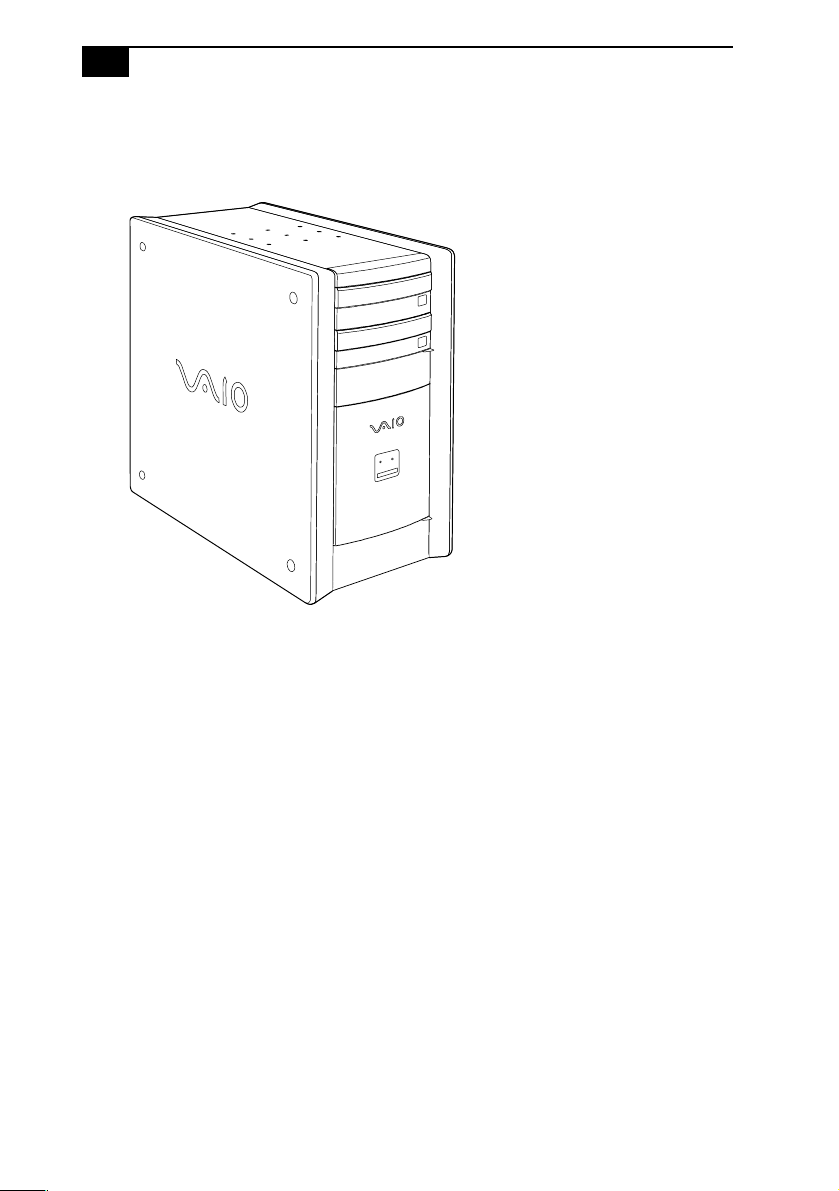
The following sections identify and describe each component that is
visible from the exterior of the VAIO Digital Studio™ computer. Internal
components are identified in the appropriate section of this manual.
VAIO Digital Studio™ System Reference Manual
2
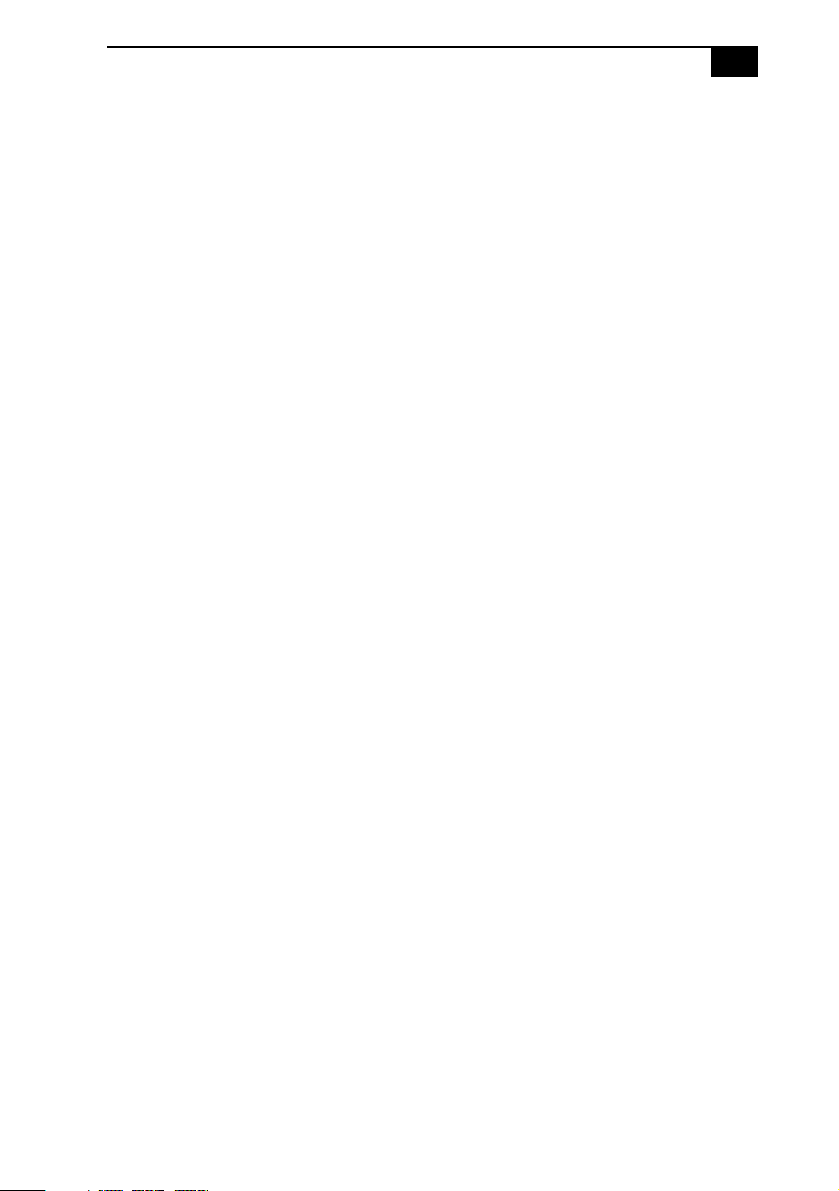
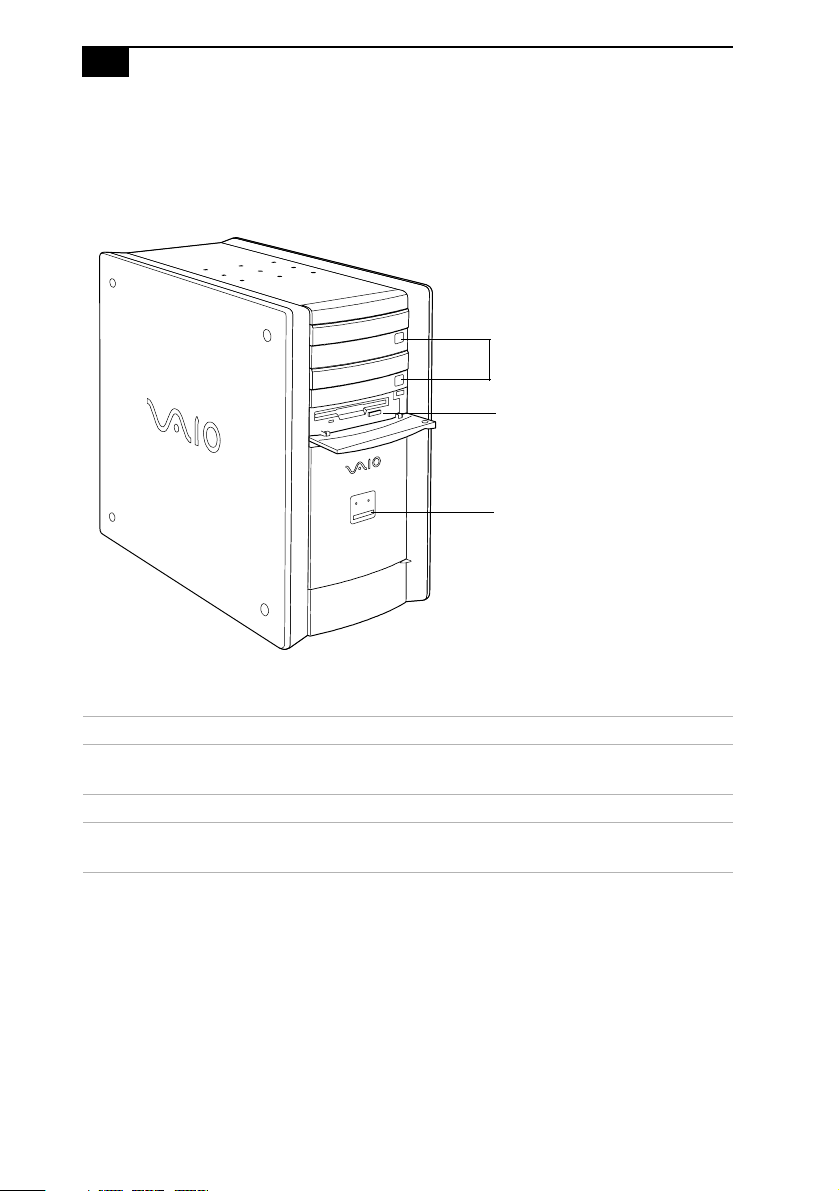
Front View
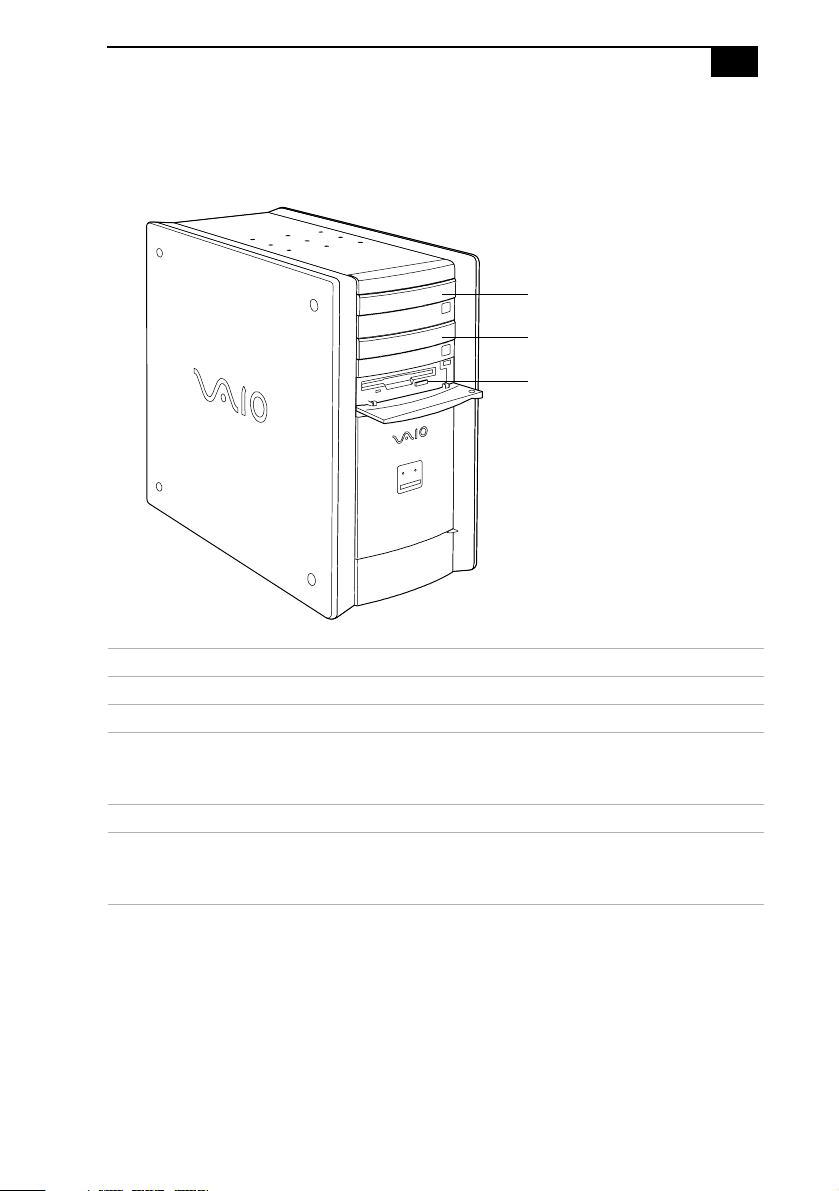
All Models
Identifying Components
3
Drives
PCV-RX462DS/PCV-RX463DS/PCV-RX465DS/PCV-RX470DS/PCV-RX480DS
Drive Description
Floppy disk drive 3.5-inch, 1.44 MB.
DVD-ROM drive
*
* The DVD-ROM data transfer standard 1X rate is 1350 KBps.
CD-RW read
†
DVD-ROM read
‡
CD-R/CD-ROM read
**
† Data on a CD-RW is read at a variable transfer rate, ranging from 13X at the innermost track to 32X at
the outermost track. The average data transfer rate is 22.5X (3375 KBps).
‡ Data on a DVD-ROM is read at a variable transfer rate, ranging from 6.6X at the innermost track to 16X
at the outermost track. The average data transfer rate is 11.3X (15255 KBps).
** Data on a CD-R/CD-ROM is read at a variable transfer rate, ranging from 17.5X at the innermost track to
40X at the outermost track. The average data transfer rate is 28.6X (4293 KBps).
32X maximum performance
16X maximum performance
40X maximum performance
CD-RW drive
††
†† The CD-RW/CD-R/CD-ROM data transfer standard 1X rate is 150 KB per second (KBps).
CD-RW read
‡‡
CD-R/CD-RW write
***
CD-R/CD-ROM read
†††
‡‡ Data on a CD-RW is read at a variable transfer rate, ranging from 8X at the innermost track to 20X at the
outermost track. The average data transfer rate is 14X (2100 KBps).
20X maximum performance
8X maximum performance
32X maximum performance
DVD-ROM drive
CD-RW drive
Floppy disk drive
VAIO Digital Studio™ System Reference Manual
4
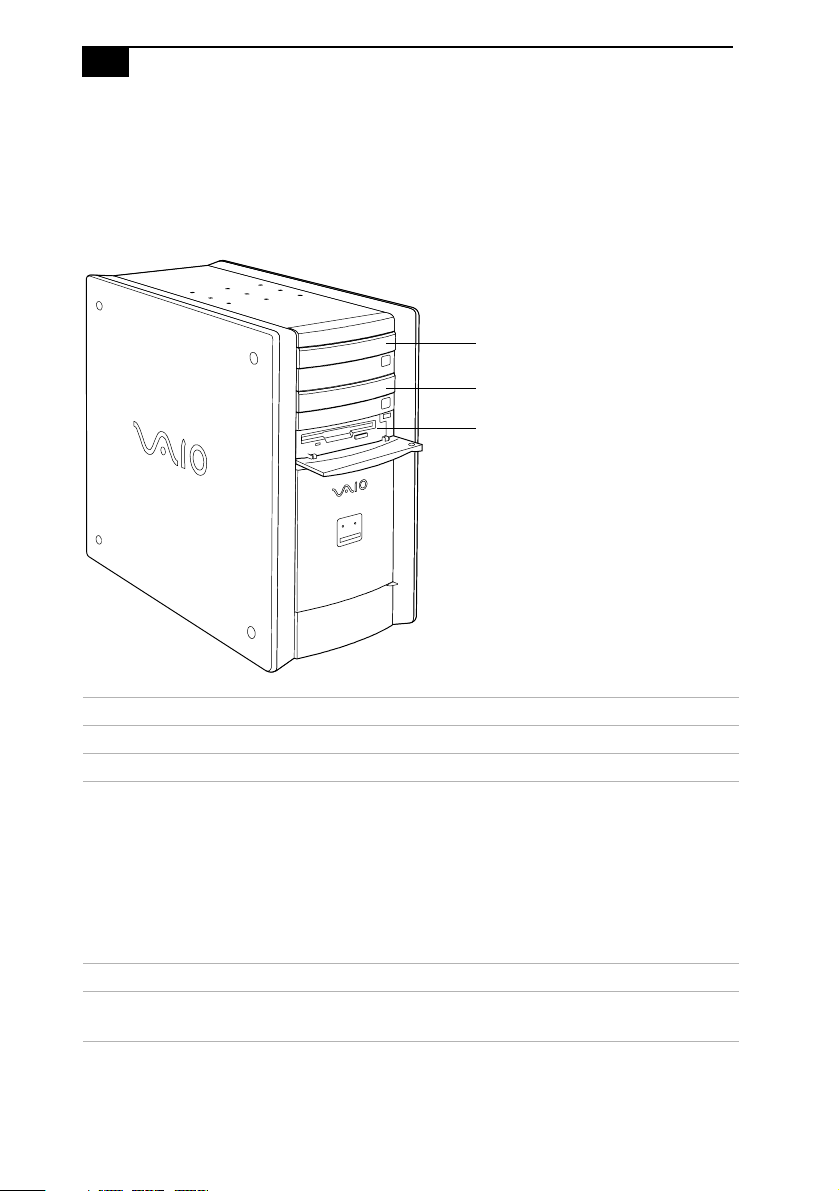
PCV-RX490TV
***Data on a CD-R/CD-RW is written at a constant transfer rate of 2X, 4X, 8X (max. for CD-RW), or 12X,
depending on the speed you select.
†††Data on a CD-R/CD-ROM is read at a variable transfer rate, ranging from 13X at the innermost track to
32X at the outermost track. The average data transfer rate is 22.5X (3375 KBps).
Drive Description
Floppy disk drive 3.5-inch, 1.44 MB.
DVD-RW drive
*
* The DVD-ROM data transfer standard 1X rate is 1350 KBps. The CD-RW/CD-R/CD-ROM data transfer
standard rate is 150 KBps.
DVD-ROM read
†
DVD-RW/DVD-R read
‡
CD-ROM read
**
CD-RW/CD-R read
††
CD-R write
CD-RW write
‡‡
DVD-R write
***
DVD-RW write
4X maximum performance
2X maximum performance
24X maximum performance
16X maximum performance
8X maximum performance
4X maximum performance
2X maximum performance
1X maximum performance
CD-ROM drive
CD-R/CD-ROM
†††
CD-RW
‡‡‡
40X maximum performance
28X maximum performance
DVD-RW drive
CD-ROM drive
Floppy disk drive
Identifying Components
5
† Data on a DVD-ROM is read at a variable transfer rate, ranging from 2X at the innermost track to 4X at
the outermost track. The average data transfer rate is 3.3X (4455 KBps).
‡ Data on a DVD-RW/DVD-R is read at a constant transfer rate of 2X.
** Data on a CD-ROM is read at a variable transfer rate, ranging from 10.3X at the innermost track to 24X
at the outermost track. The average data transfer rate is 17.2X (2580 KBps).
†† Data on a CD-RW/CD-R is read at a variable transfer rate, ranging from 6.9X at the innermost track to 16X
at the outermost track. The average data transfer rate is 11.5X (1725 KBps).
‡‡ Data on a CD-RW/CD-R is written at a constant transfer rate of 4X (max for CD-RW), or 8X depending on
the speed you select. High-speed writing to a CD-RW disc is not supported.
***Data on a DVD-RW/DVD-R is written at a constant transfer rate of 1X (max. for DVD-RW), or 2X,
depending on the speed you select.
†††Data on a CD-R/CD-ROM is read at a variable transfer rate, ranging from 17X at the innermost track to
40X at the outermost track. The average data transfer rate is 28.5X (4275 KBps).
‡‡‡Data on a CD-RW is read at a variable transfer rate, ranging from 12X at the innermost track to 28X at
the outermost track. The average data transfer rate is 20X (3000 KBps).
VAIO Digital Studio™ System Reference Manual
6
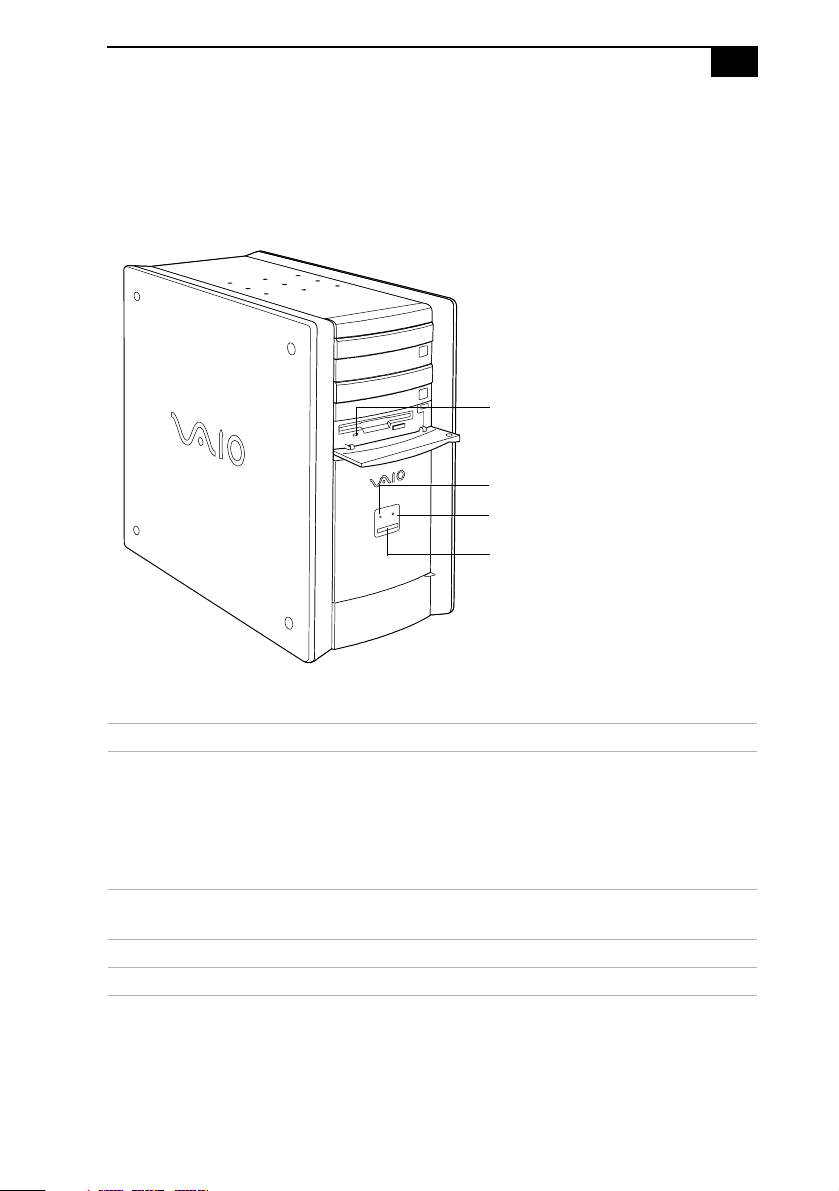
Buttons and Switches
All Models
Button or switch Description
Power/Stand by switch Turns system power on, off, or into Stand by
mode.
Floppy disk eject button Ejects a floppy disk.
Optical disc eject button Automatically opens and closes the optical drive
tray.
Optical disc eject
Floppy disk eject
Power/Stand by
Identifying Components
7
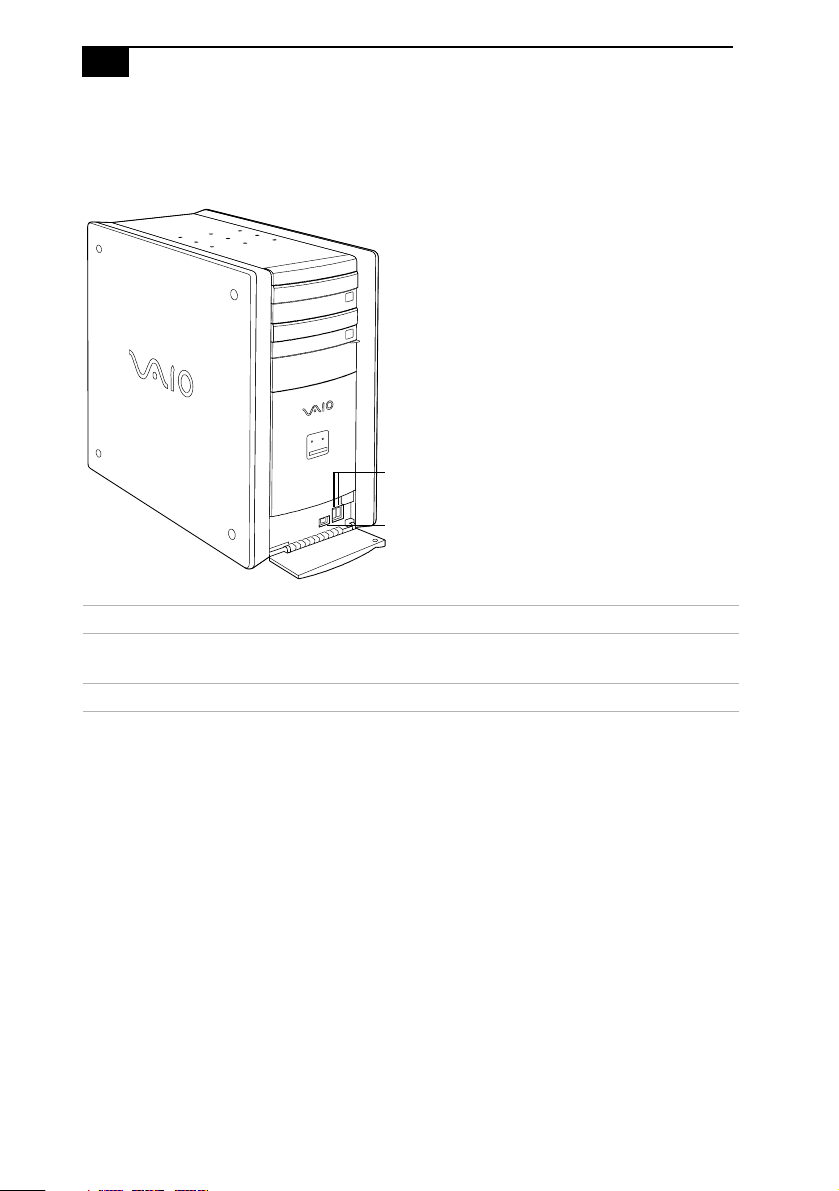
Indicators
All Models
Indicator Description
Power/Stand by indicator Stand by (red) indicates the computer is in
Stand by mode.
On (blue) indicates the computer is out of
Stand by mode, ready to use.
Off (no color) indicates the computer is
turned off, or in hibernation mode.
Floppy disk drive access
indicator
On (green) indicates floppy disk drive
activity.
Optical drive access indicator On (red) indicates optical drive activity.
Hard disk drive access indicator On (red) indicates hard disk drive activity.
Floppy disk drive access
Hard disk drive access
Optical disc drive access
Power/Stand by
VAIO Digital Studio™ System Reference Manual
8
Connectors
PCV-RX462DS/PCV-RX463DS/PCV-RX465DS/PCV-RX470DS/PCV-RX480DS
Connector Description
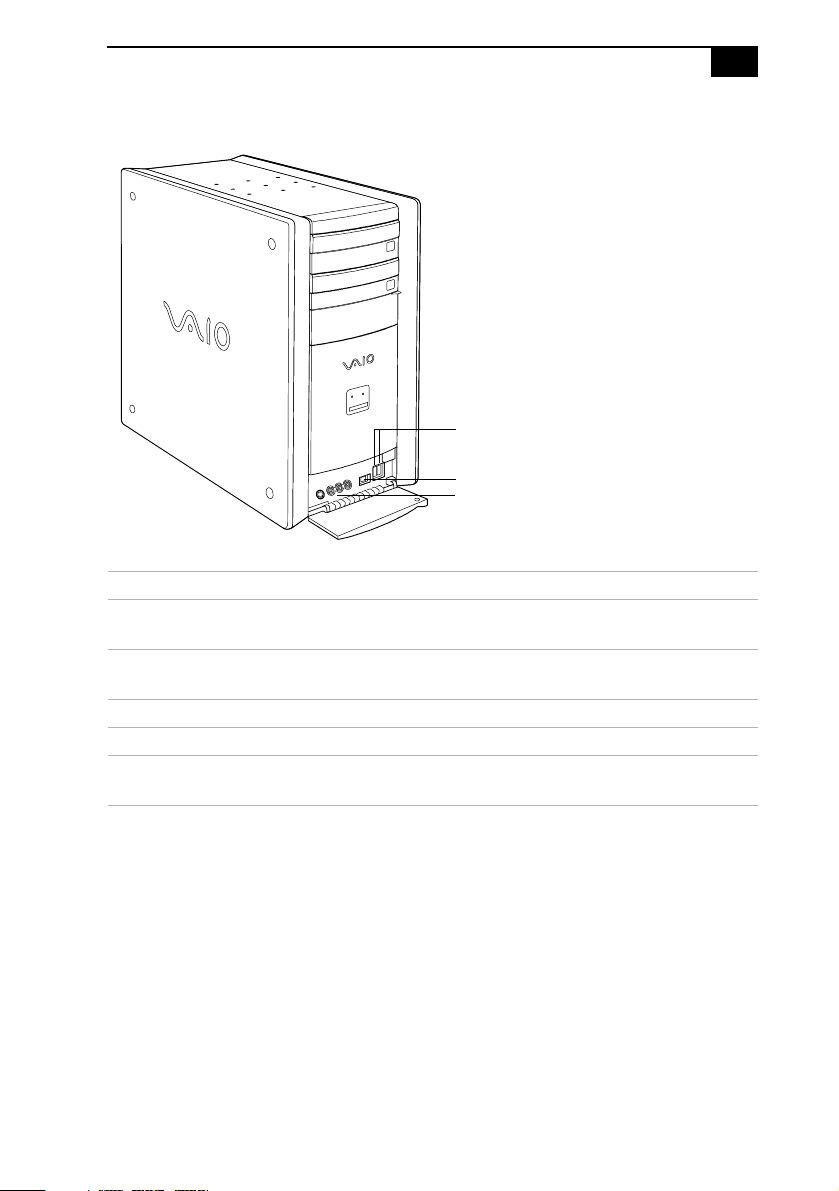
i.LINK® (IEEE1394)
*
* To connect to a 6-pin i.LINK device, use the i.LINK header on the back of the system. A 6-pin i.LINK header
can supply power from the computer to the device if the device also has a 6-pin i.LINK header. A 4-pin
i.LINK header cannot supply power to the device.
Connects to a digital device that has a 4-pin i.LINK
header.
USB3, USB4 Connects to USB devices.
USB3, USB4
i.LINK
Identifying Components
9
PCV-RX490TV
Connector Description
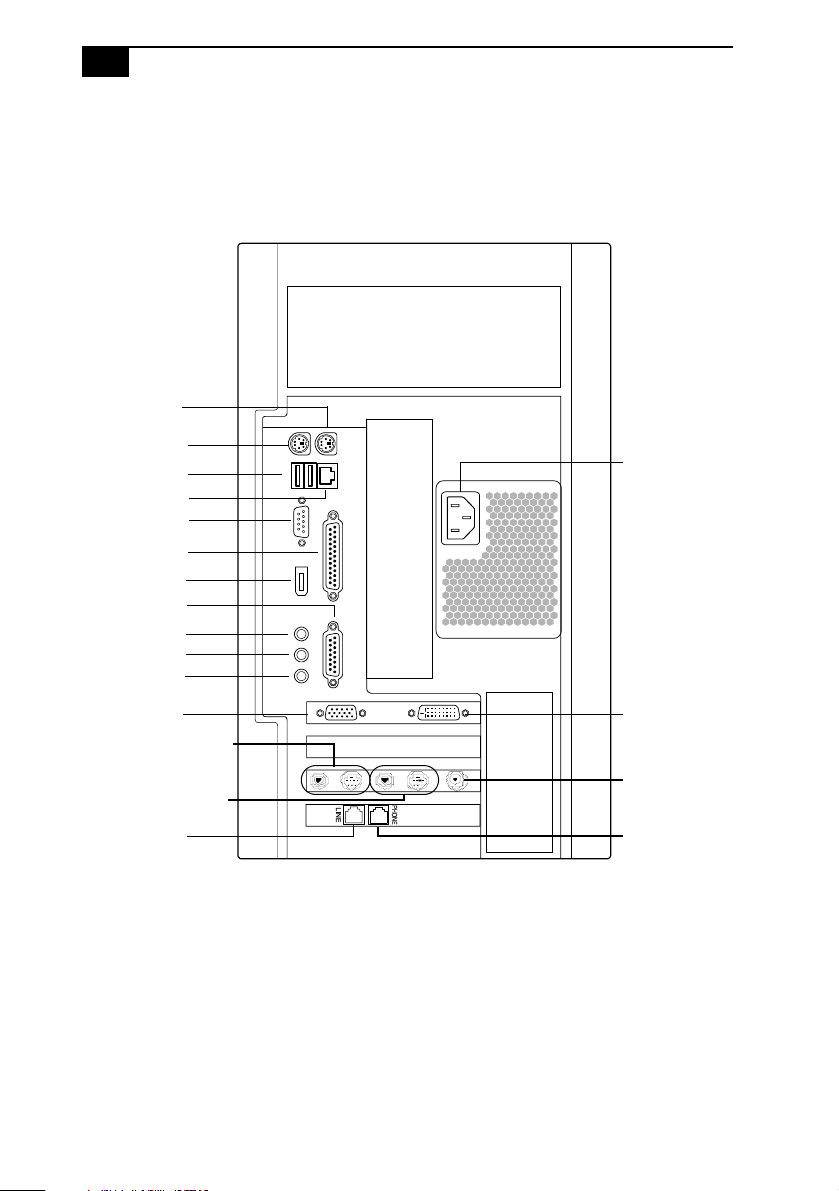
Universal Serial Bus
(USB) ports (2)
Connects to USB devices.
i.LINK (4-pin) port
(IEEE1394)
Connects to a digital device that has a 4-pin i.LINK
connector.
S-VideoInport ConnectstoanS-videocable(optional).
VideoInjack Connectstoavideocable(supplied).
Audio L In jack/
Audio R In jack
Connects to an audio cable (supplied).
USB
i.LINK
Video/Audio Inputs
VAIO Digital Studio™ System Reference Manual
10
Rear View
All Models
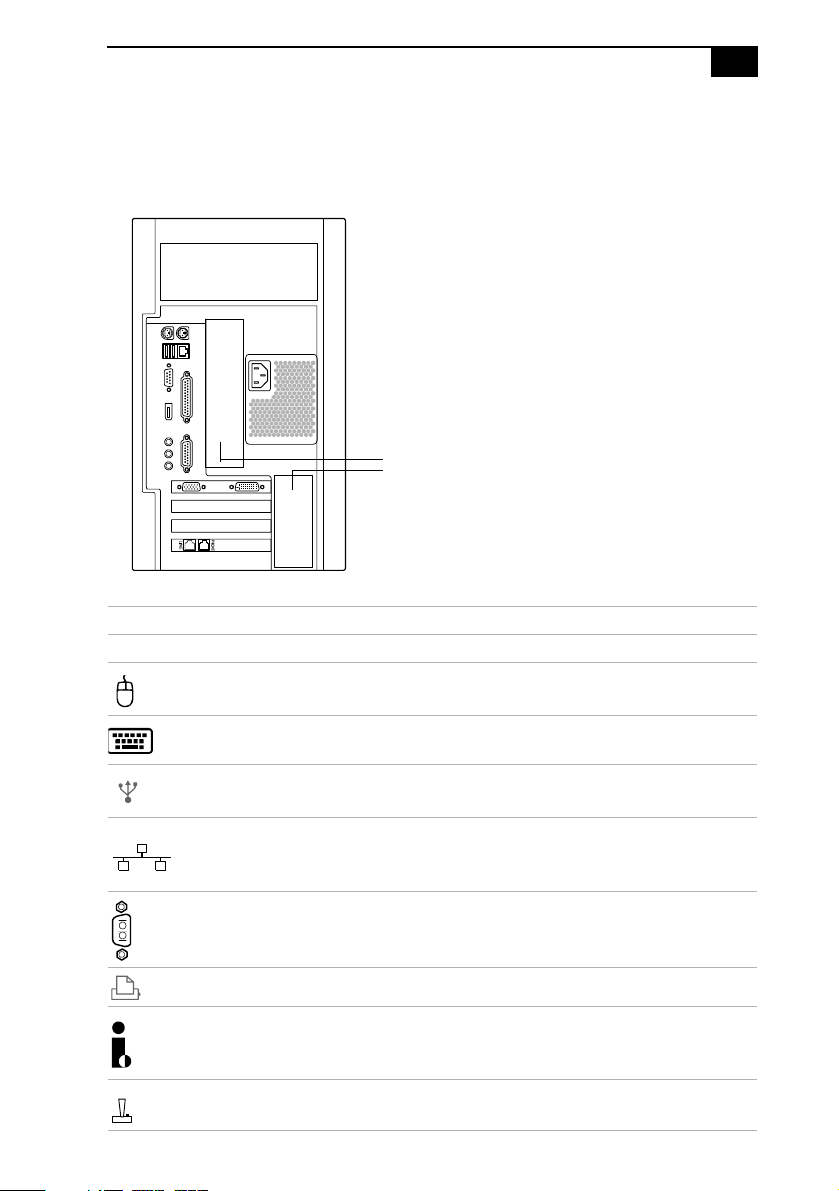
Mouse
Keyboard
USB1, USB2
Ethernet
Serial
Printer
/Parallel
Headphones
Line In
Microphone
Monitor
Line
Power
DVI
Telephone**
i.LINK
Game/MIDI
Audio Out
Video/S-video Out*
Audio In
Video/S-Video In*
VHF/UHF*
*Only in PCV-RX490TV Model
**
In models with an HPNA modem, the telephone line jack
(
IEEE394
)
does not exist.
Identifying Components
11
Icons
All Models
All Models
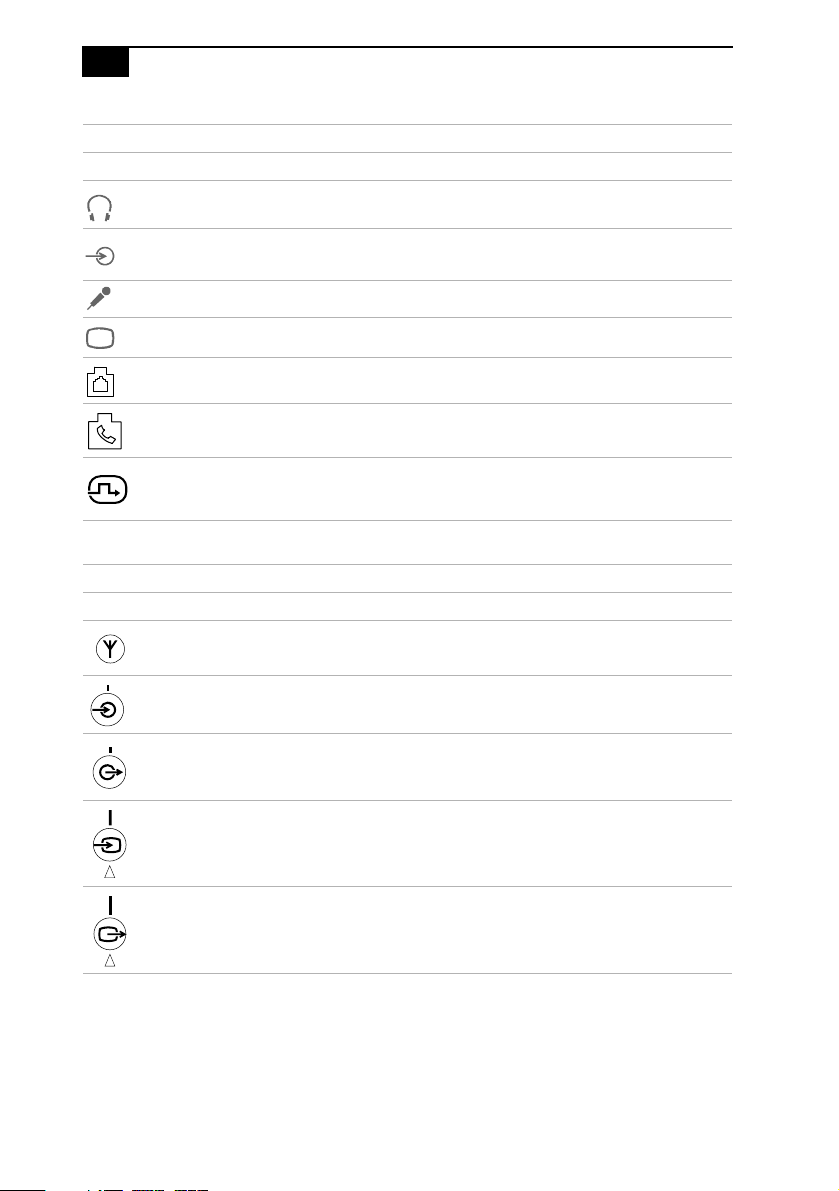
Icon Description
Mouse port
Keyboard port
Universal Serial Bus (USB) port
Ethernet port (for LAN connection only)
Serial port
Printer port
i.LINK (IEEE1394) port
Game/MIDI port
Icon Label Area
VAIO Digital Studio™ System Reference Manual
12
Headphones
LINE IN jack (audio)
Microphone jack
Monitor port
Line jack (for telephone line from primary service jack)
Telephone jack (for phone)
*
DVI (LCD) Monitor port
* In models with an HPNA modem, the telephone jack does not exist.
PCV-RX490TV Only
Icon Description
VHF/UHF port
Audio In jack
Audio Out jack
Video/S-video In port
Video/S-video Out port
All Models
Icon Description
Identifying Components
13
I/O Connectors
The following section identifies the various I/O connectors.
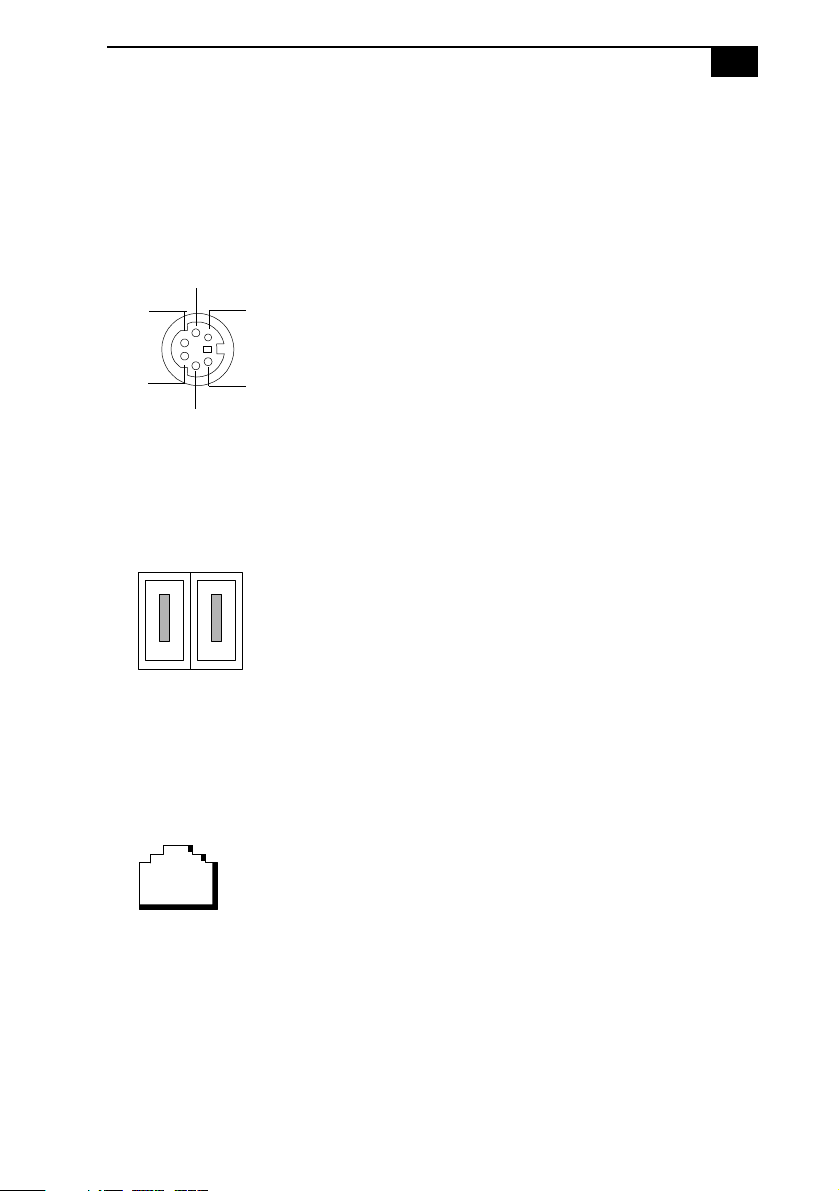
Keyboard and Mouse Ports
The keyboard and mouse ports are physically identical and have the
same pinout. They are standard 6-pin PS/2®-type female ports.
USB Ports
The USB ports are standard 4-pin USB ports. Two USB ports are located at
the front, and two at the rear of the system.
Ethernet Port
The Ethernet port at the rear of the system is used to connect to a
10Base-T/100Base-TX Ethernet network.
2
3
1
4
5
6
Ethernet
VAIO Digital Studio™ System Reference Manual
14
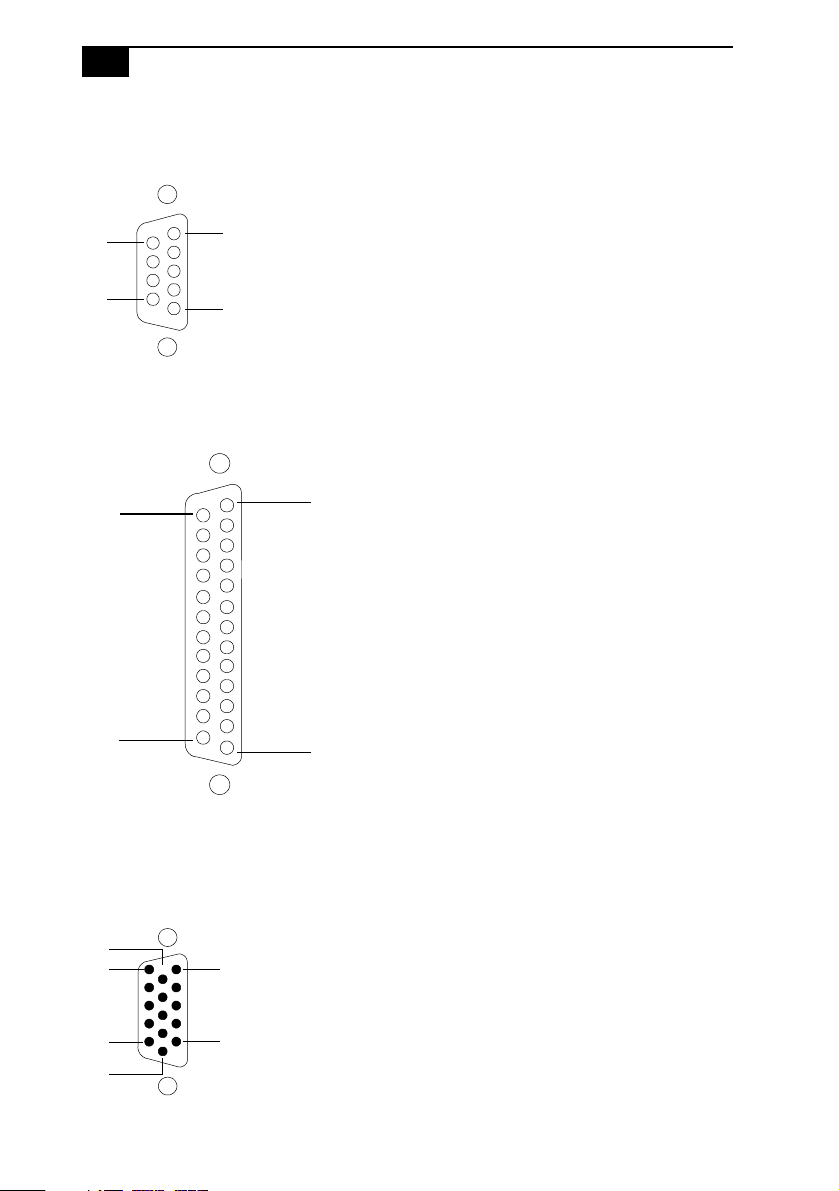
Serial Port
The serial port is a standard 9-pin DB-9 male port.
Printer/Parallel Port
The printer/parallel port is a standard 25-pin DB-25 female port.
Monitor Port
The monitor port is a standard 15-pin female high-density VGA-type port
located on the AGP plug-in card.
6
9
1
5
25
14
13
1
5
1
10
15
11
6
Identifying Components
15
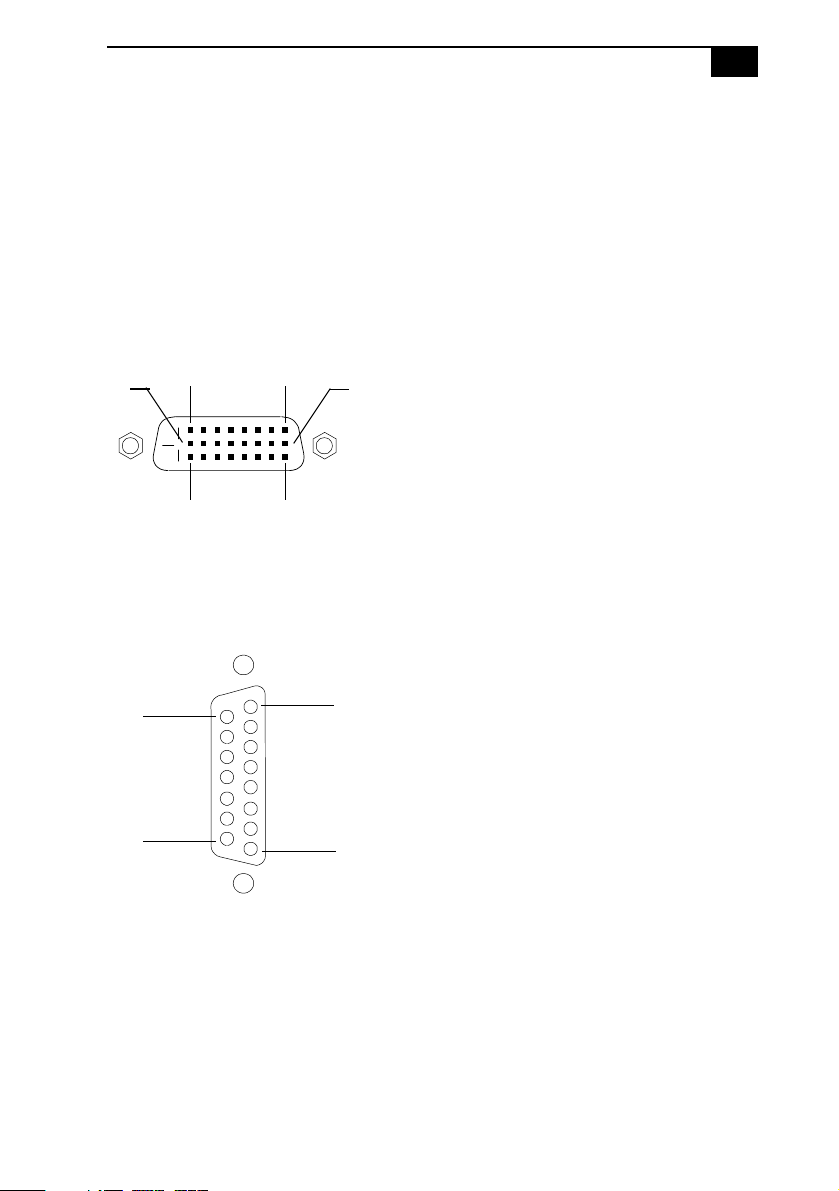
DVI Port
The DVI port is a 24-pin DVI port that can be attached to a Sony XGA
LCD panel (PCVA-15XD2), which uses a DVI connector cable (sold
separately). The DVI port is located on the AGP plug-in card.
You can physically connect both a VGA and an LCD monitor at the same
time. However, you cannot use both monitors at the same time. If you
operate only one monitor to the system, the system automatically detects
which monitor is connected. If you connect both monitors, you must
choose one monitor from the Display settings.
Game Port
The game port is a standard 15-pin DB-15 female port. This port can be
used to connect MIDI devices.
16
DVI
24
17
9
18
15
9
8
1
VAIO Digital Studio™ System Reference Manual
16
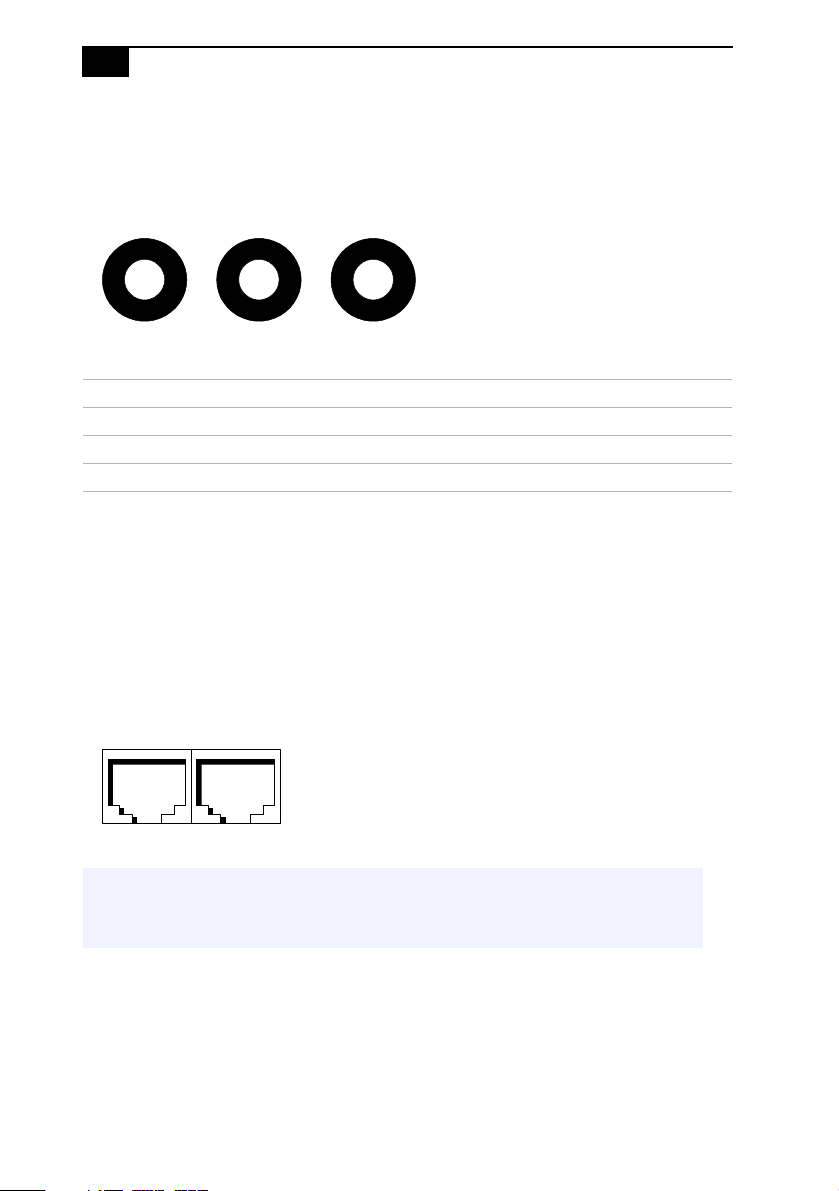
Mic, Line In, and Headphones Jacks
The mic, line in, and headphones jacks are physically identical, but have
different connections. They are standard 3.5 mm stereo mini-jacks.
Telephone and Line Jacks
The telephone and line jacks are physically identical and have identical
connections. they are standard rj-11 female phone jacks. however, the line
jack is for connecting to a telephone line that comes from the wall, and the
telephone jack is for connecting the computer to a telephone.
Your computer will only have one RJ-11 female phone jack if you have a
HomePNA modem installed. The modem installed on your computer
may differ depending on the configuration you purchased.
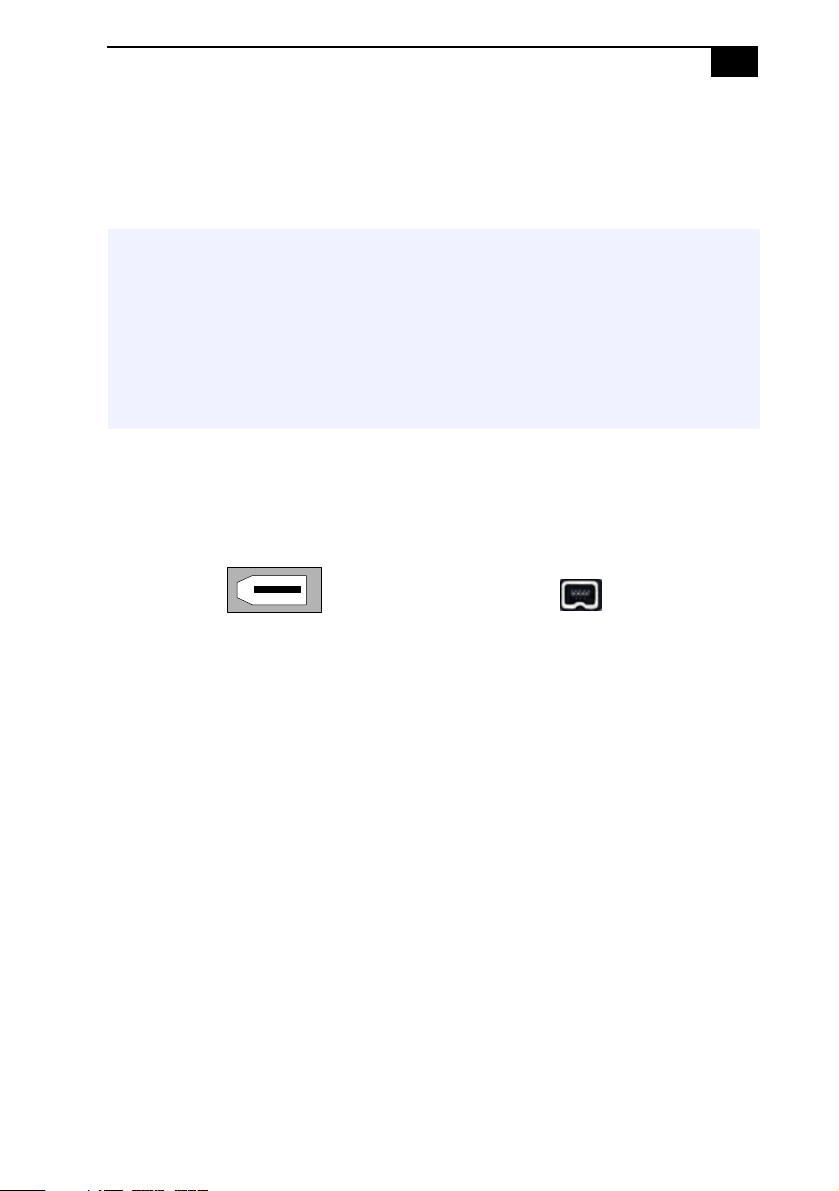
Connector Description
Headphones 1.0 Vrms (typical).
Mic Electret condenser microphone input.
Line In 1.0 Vrms (typical), 10 Kohm impedance.
✍ Accidentally plugging a phone line from the wall into the modem’s telephone jack, and a
telephone into the line jack, will not damage the modem card or telephone equipment.
However, the modem will not work correctly.
Headphones Line In Mic
Line Phone
Identifying Components
17
i.LINK® (IEEE1394) Ports
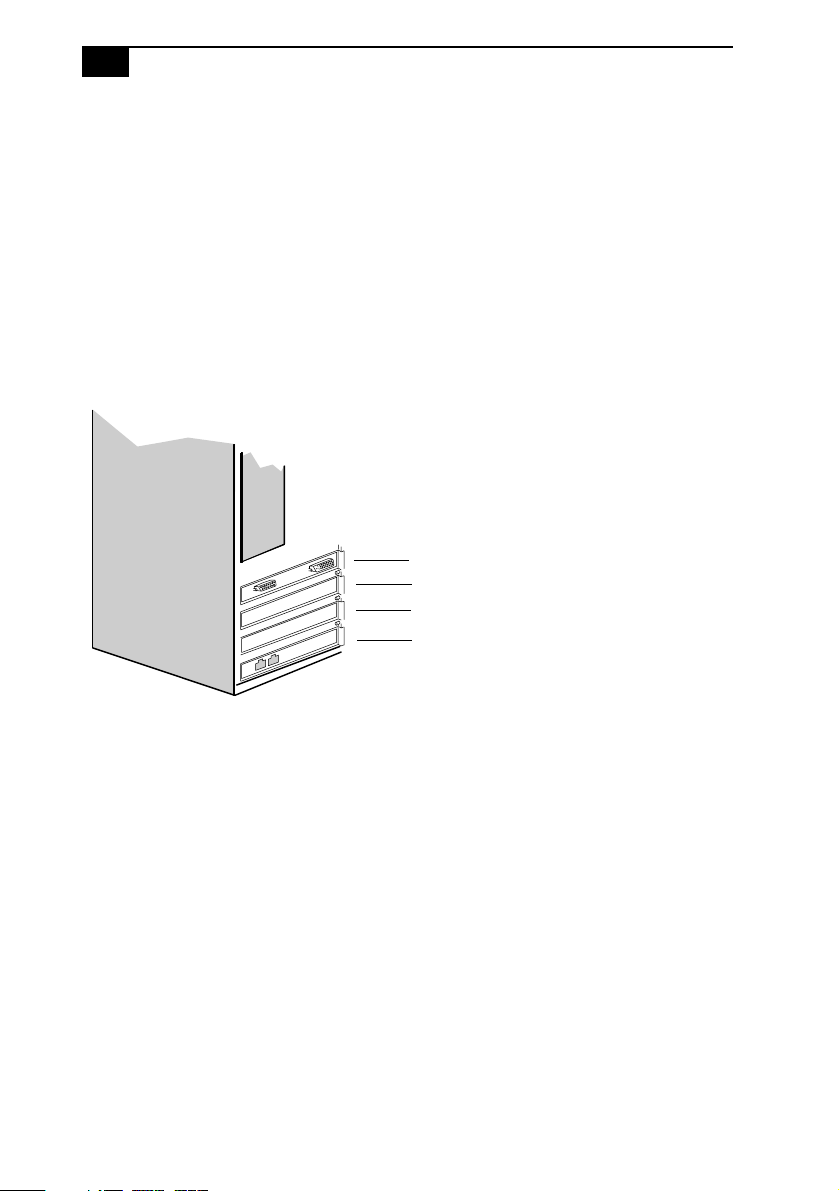
The 6-pin i.LINK port on the back of the system can supply power from
the computer to a device if the device also has a 6-pin i.LINK port. The
6-pin port supplies 10 V to 12 V and a maximum power of 6 watts.
The 4-pin i.LINK port at the bottom of the front panel does not supply
power.
✍ i.LINK is a trademark of Sony used only to designate that a product contains an IEEE1394
connection. The i.LINK connection may vary, depending on the software applications,
operating system and compatible i.LINK devices. All products with an i.LINK connection may
not communicate with each other.
✍ Refer to the documentation that came with your compatible i.LINK device for information on
operating conditions and proper connections. Before connecting compatible i.LINK PC
peripherals to your system, such as an optical disc or hard disk drive, confirm their operating
system compatibility and required operating conditions.
6-pin i.LINK
(IEEE1394)
On back of
system
4-pin i.LINK
(IEEE1394)
At bottom of
front panel
VAIO Digital Studio™ System Reference Manual
18
Expansion Slots
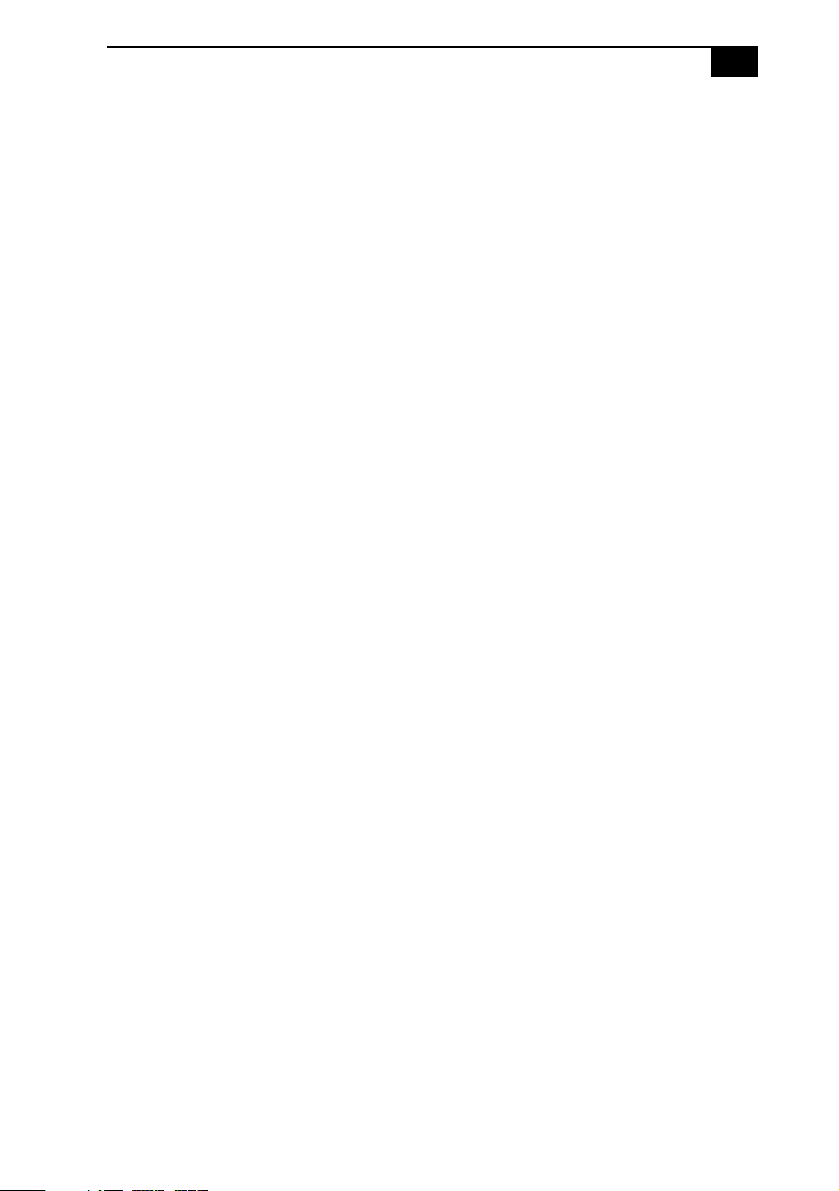
TherearethreePCIslots,twoofwhichareavailableforexpansion(slot
No. 2 and slot No. 3), in the PCV-RX462DS/PCV-RX463DS/
PCV-RX465DS/PCV-RX470DS/PCV-RX480DS models. In the
PCV-RX490TVmodel,slotNo.3isavailableforexpansion;aGigaPocket
card occupies slot No. 2.
PCI slot No. 1 is occupied by the fax/modem card. A Lucent modem will
have two jacks (Line In and Phone), while an HPNA modem has one jack
(Line In).
ThereisoneAGPslot(No.4),whichisoccupiedbyanAGPcard.
Slot No. 4 (AGP)
Slot No. 3 (PCI)
Slot No. 2 (PCI)*
Slot No. 1 (PCI)
*Slot No. 2 is occupied by a Giga Pocket card in the PCV-RX490TV model.
Identifying Components
19
Remote Control
PCV-RX490TV
The features of the Giga Pocket Personal Video Recorder system can be
controlled using the remote control (supplied). The remote control can
start and stop video recording and playback, select channels, and set
viewing preferences. For more details about the remote control, see the
“Remote Control Overview” section of your VAIO Digital Studio™
Computer User Guide that came with your computer.

VAIO Digital Studio™ System Reference Manual
20

21
Chapter 2
Configuring Your System
This chapter contains information on configuring your system.
Configuring your system can consist of the following:
❑ Making changes to the BIOS settings.
❑ Making changes to the display's power management settings.
VAIO Digital Studio™ System Reference Manual
22
Accessing the BIOS Setup Utility
You must access the BIOS Setup Utility to make changes to the BIOS
settings (see “CMOS Setup Options” on page 85 for information on BIOS
settings).
1 Reboot your computer by selecting Shut Down... from the Start menu, then
selecting Restart.
2 When the Sony logo appears, press F3. The following message appears at the
bottom of the screen.
Press <F2> for setup.
3 Press F2.
Each menu presents options for modifying the system configuration.
Use the left and right arrow keys to select a menu from the menu bar.
Use the up and down arrow keys to select items within a menu. Once
an item is highlighted, use the plus/minus (+/-) keys to modify a
setting.
If an item has a triangle ( ) to its left, this indicates that a sub-menu
ofoptionsisavailable.PressENTERtoaccessasub-menu.Ifasub-
menu contains items with a triangle, there is another layer of options
from which to select.
4 Once you select an option, press ESC to back out of each menu until you
reachthetoplevel,wherethemenubarappears.
5 To exit the BIOS setup utility, press ESC from any top-level screen and
follow the prompts.
! Before rebooting the system, save and close all open files, and exit open
applications.
Configuring Your System
23
Changing the Display's Power Management
Settings
A display that has power management capability is designed to operate
on reduced power or shut itself off after the system has been idle for a
specified period of time.
1 From the Start menu, point to Settings, click Control Panel, then click
Display.
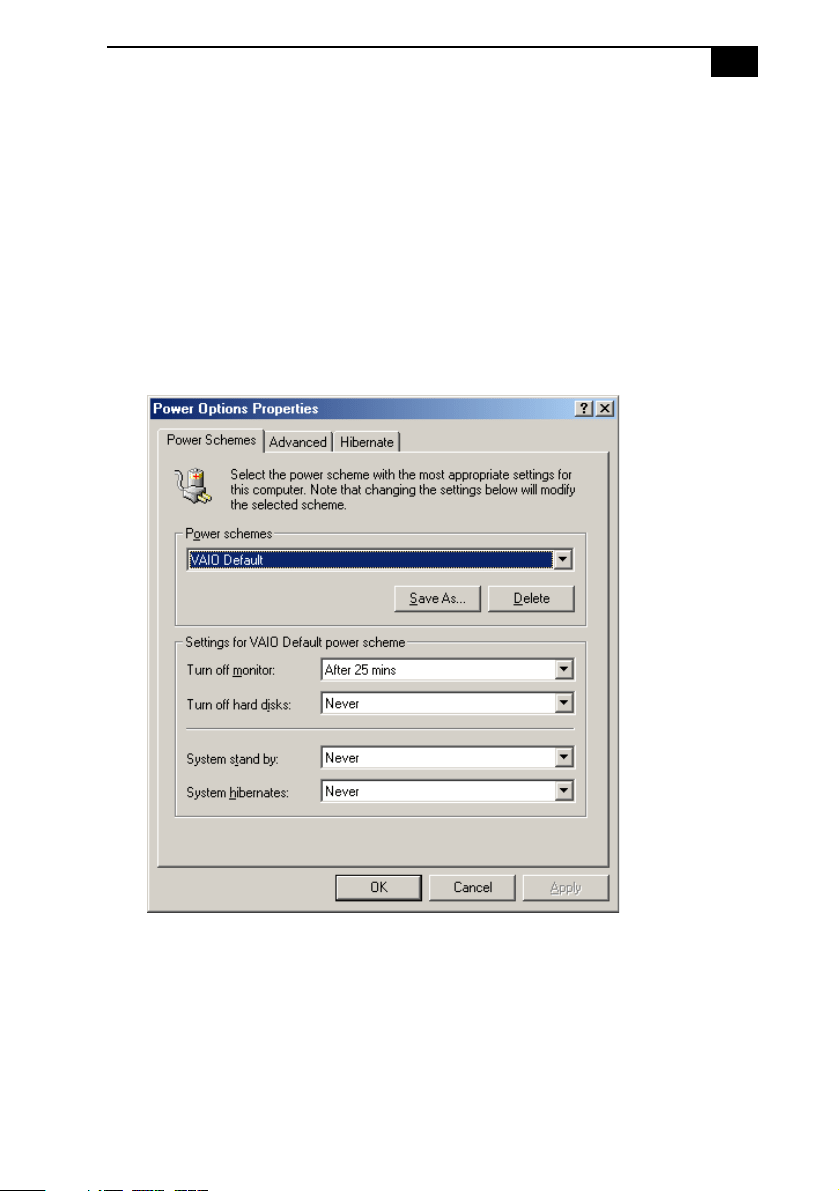
The Power Options Properties dialog box opens, with the Power
Schemes tab displayed.
2 Select the power scheme that is most appropriate for the way you use
your computer.
To change a power scheme, change the settings for Turn off monitor,
and Turn off hard disks, System stand by, and System hibernates.
VAIO Digital Studio™ System Reference Manual
24
The Turn off monitor option allows you to specify the period of
inactivity (in minutes) that you want to elapse before your monitor
turns off when your computer is running on AC power. The display
reactivates when you move the mouse or press a key.
The Turn off hard disks option allows you to specify the period of
inactivity (in minutes) that you want to elapse before your hard disks
turn off when your computer is running on AC power.
The System stand by option allows you to specify the period of
inactivity (in minutes) that you want to elapse before your computer
goes on Stand by when your computer is running on AC power.
Power is reactivated when you click the left mouse button or press
spacebar on the keyboard.
The System hibernates option allows you to specify the period of
inactivity (in minutes) before your computer goes in the hibernate
state. Power is reactivated when you push the power button.
3 To save a new power scheme, first modify the settings, click Save As,
type a descriptive name, and then click OK.
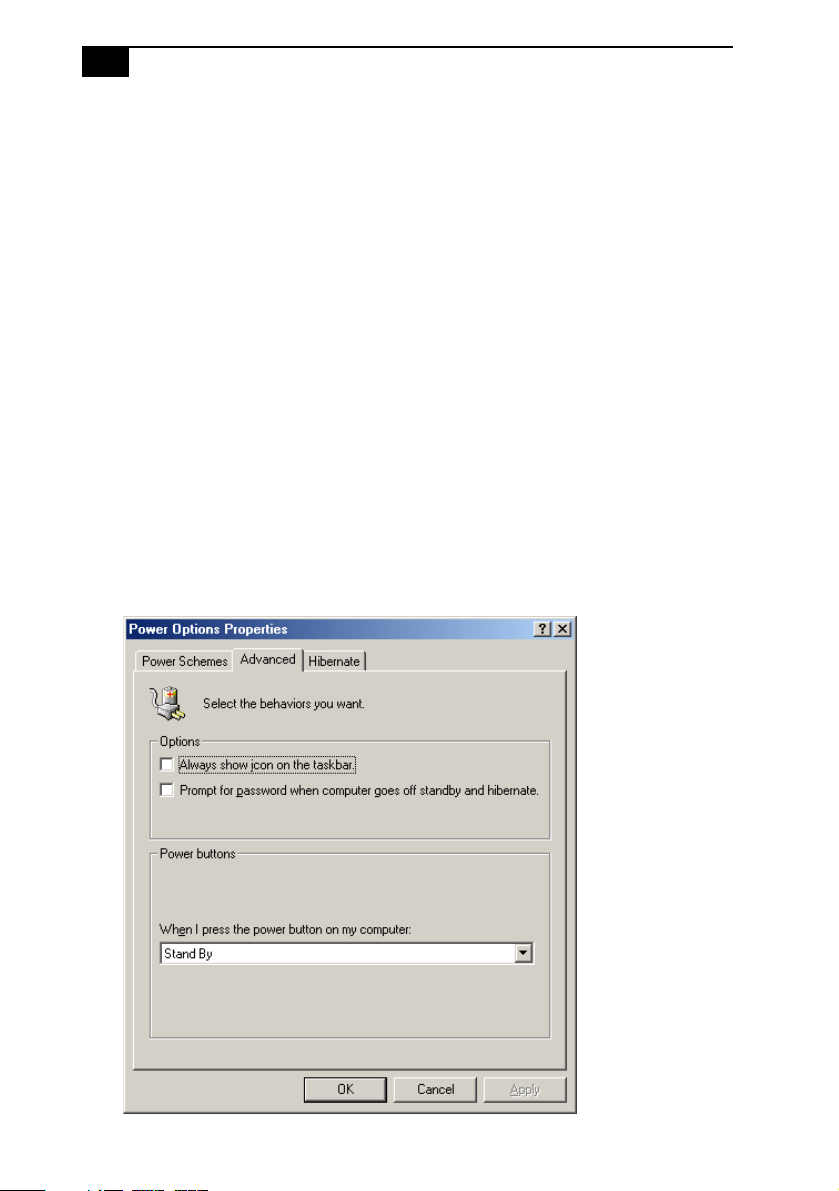
4 Click the Advanced tab.
Configuring Your System
25
5 Select the desired settings.
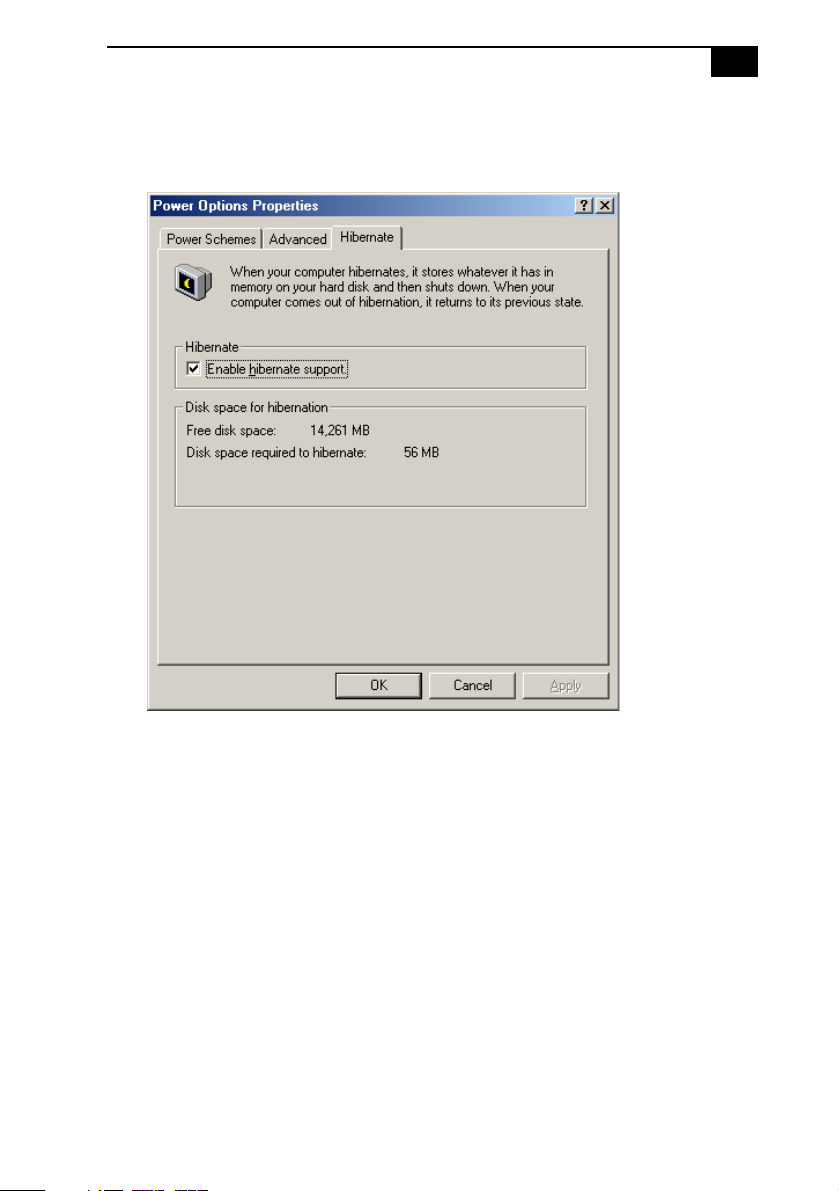
6 Click the Hibernate tab.
7 Select the desired settings, and then click OK.

VAIO Digital Studio™ System Reference Manual
26

27
Chapter 3
Removing, Installing, and
Replacing Components
This chapter describes removing, installing, and replacing major
components for upgrading, reconfiguring, and troubleshooting the
components.
! Before opening the system unit, save and close all open files, exit all open
applications, turn off the power to all attached peripheral devices, shut
down the computer, and unplug the power cord.
✍ Systems differ by model, so your system may appear different from the illustrations in this
chapter.
VAIO Digital Studio™ System Reference Manual
28
Removing the Side Cover
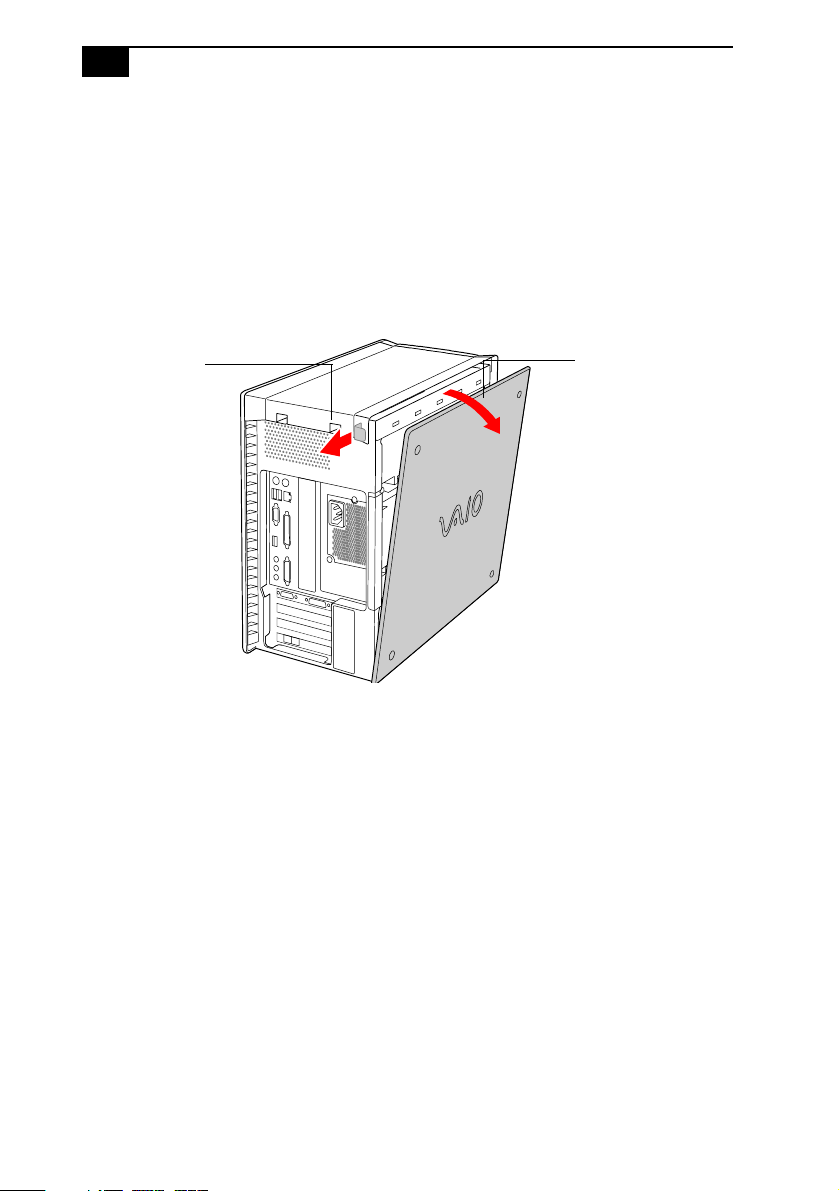
You must remove the side cover to access the system board, add-in cards,
power supply, battery, memory, and internal drives.
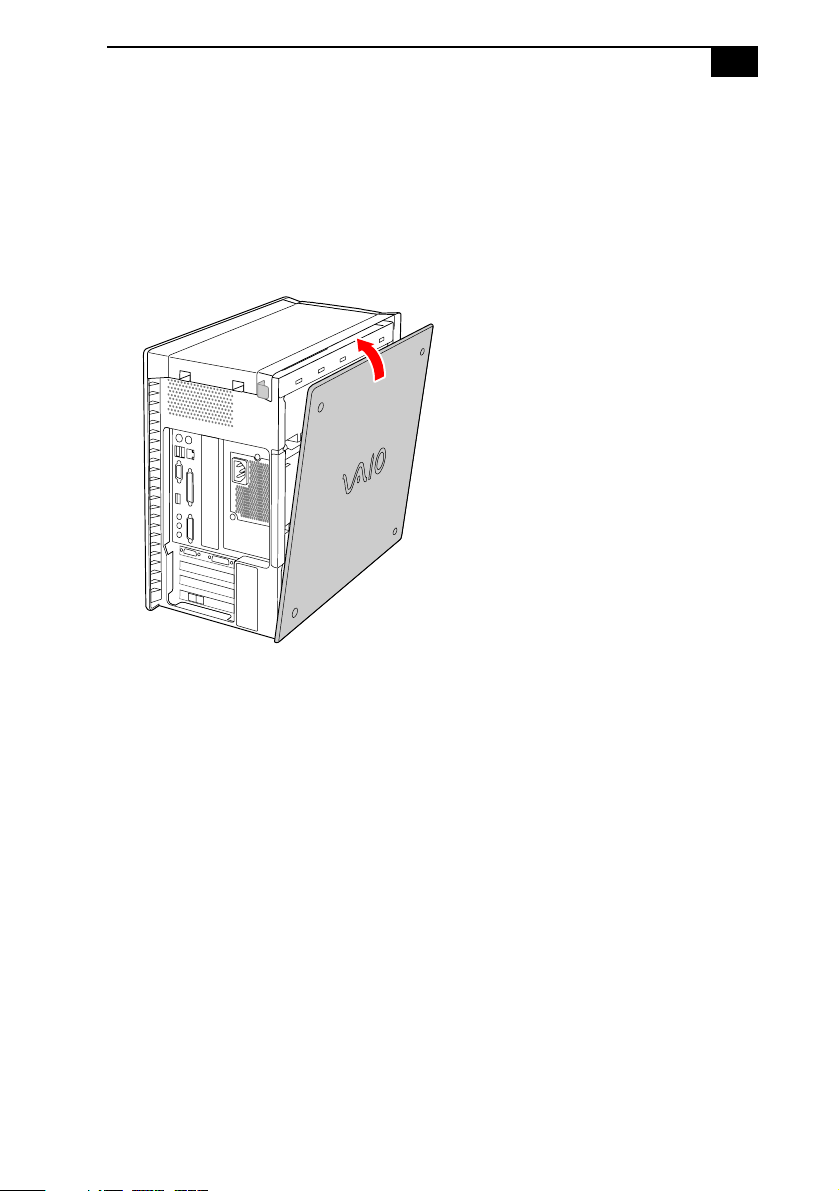
1 From the rear of the unit, pull the metal tab shown in the next
diagram.
2 Pull the top of the cover away from the unit about two inches, then
gently lift out the cover.
Pull out top a few
inches, then lift out
Pull out tab to
release front
panel
Removing, Installing, and Replacing Components
29
Replacing the Side Cover
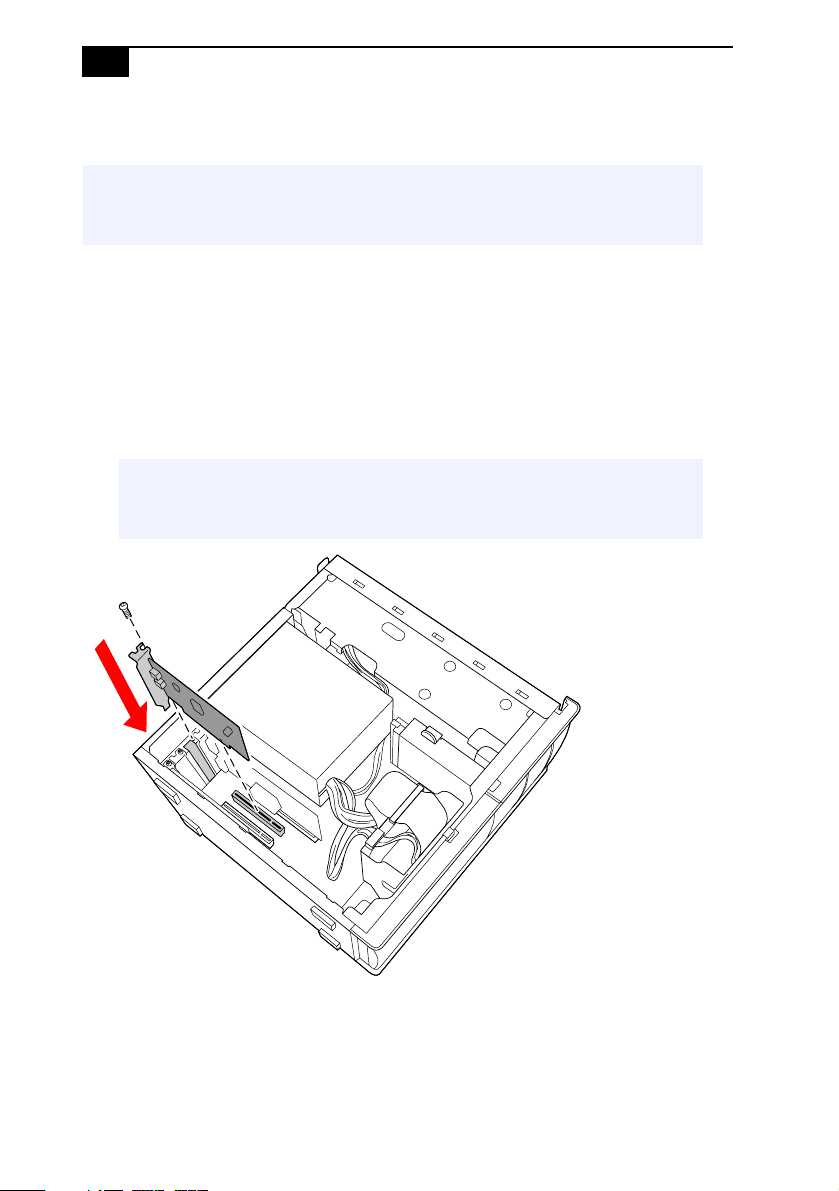
1 From the rear of the unit, align the bottom of the cover so that it slips
into the lip on the bottom of the unit.
2 Push the top of the cover up against the top of the unit until the cover
snaps into position.
VAIO Digital Studio™ System Reference Manual
30
Installing a PCI Add-In Card
1 Remove the side cover (see “Removing the Side Cover” on page 28).
2 Locate an available expansion slot.
3 Remove the slot cover adjacent to the selected slot (see “Removing a
Slot Cover” on page 43).
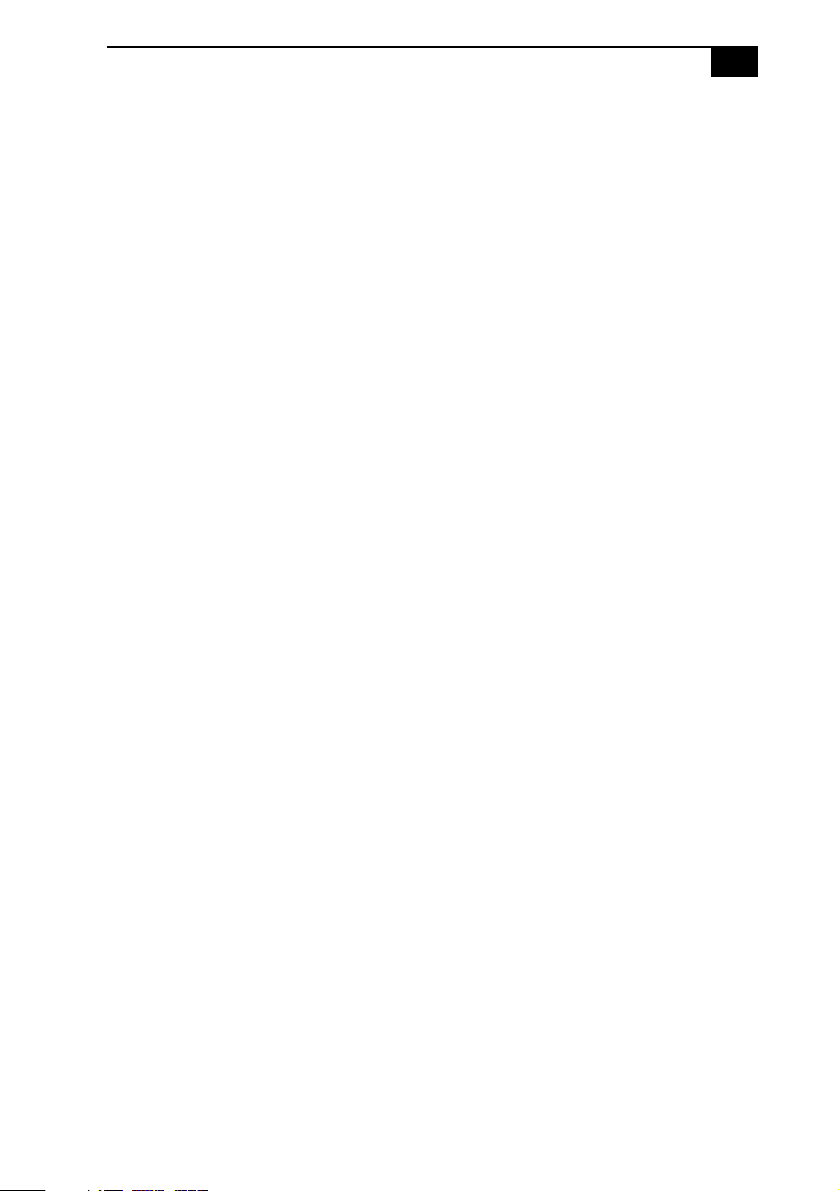
4 Insert the add-in card into the PCI slot. Use a gentle rocking motion,
pressing down until the card is fully seated.
5 Replace the screw that secures the card.
! Before opening the system unit, save and close all open files, exit all open
applications, turn off the power to all attached peripheral devices, shut
down the computer, and unplug the power cord.
✍ Align the card's bracket so that the bottom of the bracket fits into the slot at the
bottom of the chassis. Assure that the top of the bracket fits snugly against the
chassis lip after the card is fully inserted.
VAIO Digital Studio™ System Reference Manual
32
Removing a PCI Add-in Card
1 Remove the side cover (see “Removing the Side Cover” on page 28).
2 Disconnect any cables attached to the add-in card you want to
remove.
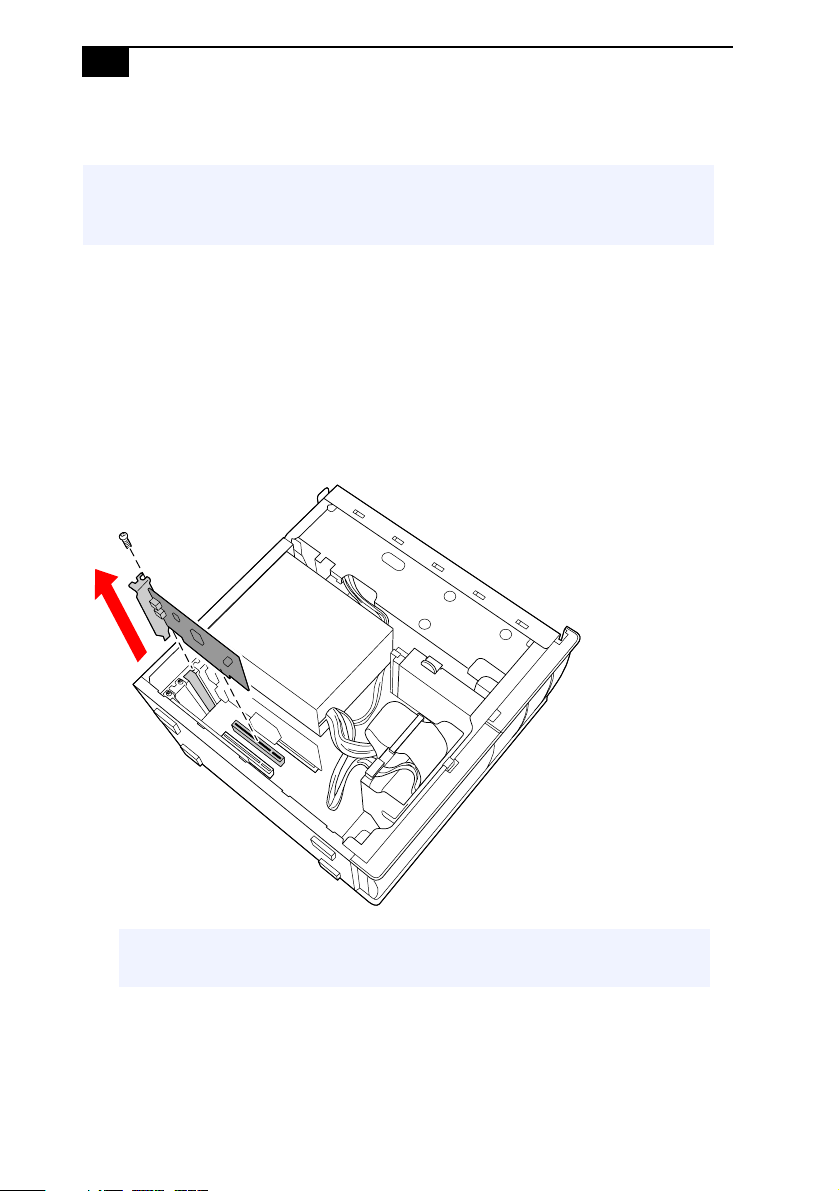
3 Remove the screw that secures the add-in card to the chassis.
4 Remove the add-in card from the PCI slot and store the card in an
anti-static wrapper for future use.
! Before opening the system unit, save and close all open files, exit all open
applications, turn off the power to all attached peripheral devices, shut down
the computer, and unplug the power cord.
✍ Grasp the card with one hand on each end, and gently pull up as you rock the card
from side to side.
Removing, Installing, and Replacing Components
33
5 If you do not replace the card or install another add-in card, install a
slot cover over the vacant slot at the rear of the chassis (see “Covering
an Open I/O Slot” on page 44).
6 Replace the side cover (see “ReplacingtheSideCover”on page 29).
! Hold the add-in card by its edges and do not touch any components or
contacts on the card. Static electricity in your body may damage
sensitive components on the card. As a precaution, touch any exposed
metal part on the metal chassis (preferably the metal part on the power
supply) before handling an add-in card to discharge any static electricity
in your body.
VAIO Digital Studio™ System Reference Manual
34
Replacing the Lithium Battery
You may need to replace the lithium battery if your computer consistently
loses the date or time settings after turning it off. The lithium battery has
a typical life of three years, after which the battery may be too weak to
power the CMOS memory.
1 Reboot your computer by selecting Shut Down... from the Start
menu, and then selecting Restart.
2 If the error message “Error: Check date and time settings”appears
during the reboot sequence, press F2 during the reboot process to
access the BIOS Setup Utility. Otherwise it is not necessary to replace
the battery at this time, and you can skip all remaining steps.
3 Compare all the BIOS options to their default settings (see “CMOS
Setup Options” on page 85). Make a list of all the BIOS options that
are different from their default values. You will refer to this list when
you restore the BIOS settings later.
4 Select Exit Discarding Changes from the main menu using the right
arrow key.
5 Press Enter, type Y when prompted to discard changes, then press
Enter to exit the BIOS Setup Utility.
6 Turn off the computer and unplug the power cord.
7 Removethesidecover(see“Removing the Side Cover” on page 28).
! Before opening the system unit, save and close all open files, exit all open
applications, turn off the power to all attached peripheral devices, shut
down the computer, and unplug the power cord.
! When you remove the lithium battery, all values stored in the CMOS memory
(BIOS setup values and Plug and Play values) may be lost. Although the
computer can hold the charge for a short time while replacing the battery, it
is safer to assume that the settings will be lost. When the values are lost, the
BIOS values revert to their factory-default settings (see “Accessing the BIOS
Setup Utility” on page 22).
Do not handle damaged or leaking batteries.
The lithium battery may explode if mistreated. Do not disassemble it or
dispose of it in fire.
Removing, Installing, and Replacing Components
35
8 If necessary, remove any add-in cards (see “Removing a PCI Add-in
Card” onpage32)togainaccesstothebattery.Youmayalsoneedto
disconnect some cables.
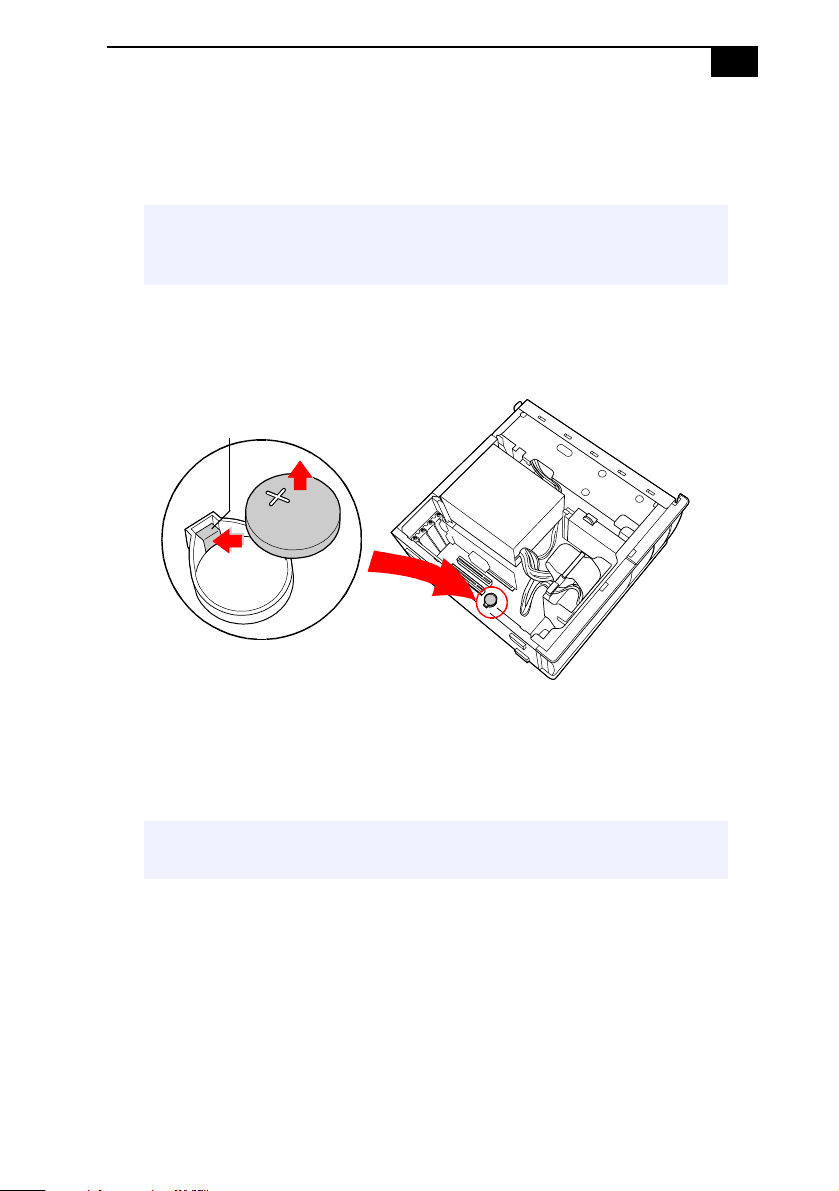
9 Use a small flathead screwdriver or your finger to push in (not down)
against the small tab at one end of the battery holder to pop out the
battery.
10 Gently lift out the battery and dispose of it according to the
instructions that came with the new battery.
11 Insert the new battery into the battery holder, with the plus (+) side
up, and press down until the battery is secure.
12 Replace any add-in cards that were removed.
13 Reconnect any cables that were disconnected.
14 Replace the side cover (see “ReplacingtheSideCover”on page 29).
15 Reconnect the power cord and turn on the computer.
! Touch any exposed metal part of chassis to discharge static electricity in
your body before handling an add-in card or other sensitive electronic
component.
✍ The Sony CR2032 battery is recommended. Using a type of battery other than a
CR2032 may present a risk of fire or explosion.
Push in (not down) to
pop out battery

VAIO Digital Studio™ System Reference Manual
36
16 If the error message “Error: Check date and time settings.” appears
during the reboot sequence, press F2 during the reboot process to
access the BIOS Setup Utility. If no error message displays, the
computer’s BIOS settings were retained during the battery
replacement and you can skip the remaining steps.
17 Refer to the list you made in step 3 and restore any non-default BIOS
settings (see “CMOS Setup Options” on page 85).
18 Select Exit Saving Changes from the main menu using the right arrow
key.
19 Press Enter, type Y when prompted to discard changes, then press
Enter to exit the BIOS Setup Utility.
The computer’s BIOS settings are now restored.
Removing, Installing, and Replacing Components
37
Installing System Memory
1 Choose the size of the memory module and configuration as shown
in the following table. Memory modules can vary in size and speed
between sockets. The minimum memory size is 8 MB. The maximum
memory size is 512 MB. The BIOS automatically detects the type, size
and speed of the memory modules.
2 Ifnecessary,removethememorymoduleyouwishtoreplace(see
“Removing a Memory Module” on page 41).
3 Remove the new memory module(s) from its anti-static package.
Hold the memory module only by its edges to prevent static-
electricity damage.
4 Removethesidecover(see“Removing the Side Cover” on page 28).
5 Remove the power supply (see “Removing the Power Supply” on
page 50).
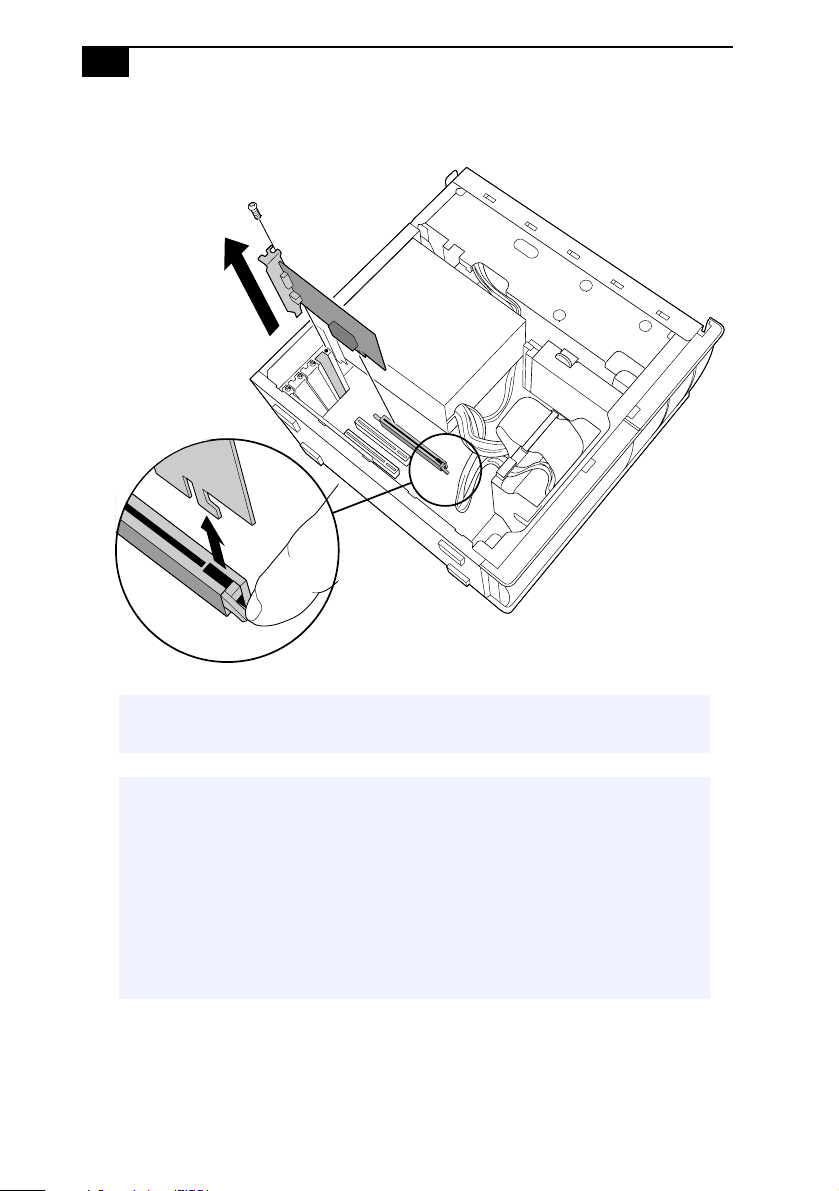
6 Remove the screw that secures the AGP add-in card to the chassis.
7 Press down on the handle at the edge of the AGP slot.
! Before opening the system unit, save and close all open files, exit all open
applications, turn off the power to all attached peripheral devices, shut
down the computer, and unplug the power cord.
Memory module configurations (MB)
*
* All models ship with at least 128 MB of RIMM
™
memory. RIMM
memory is expandable to 512 MB. Your model may ship with more than
128 MB of RIMM™ memory if you purchased it through the VAIO Direct
Web site.
RIMM1 RIMM2
0, 8, 16, 32, 64, 128, 256 0, 8, 16, 32, 64, 128, 256
✍ Use only PC-800 Rambus RIMM memory modules. Direct Rambus RIMMS must be
upgraded in pairs. Do not leave the second slot of either bank empty. The second slot
must be filled with either RIMM or CRIMM modules.
! Touch any exposed metal part of the chassis to discharge static
electricity in your body before handling a memory module.
VAIO Digital Studio™ System Reference Manual
38
8 Remove the AGP add-in card.
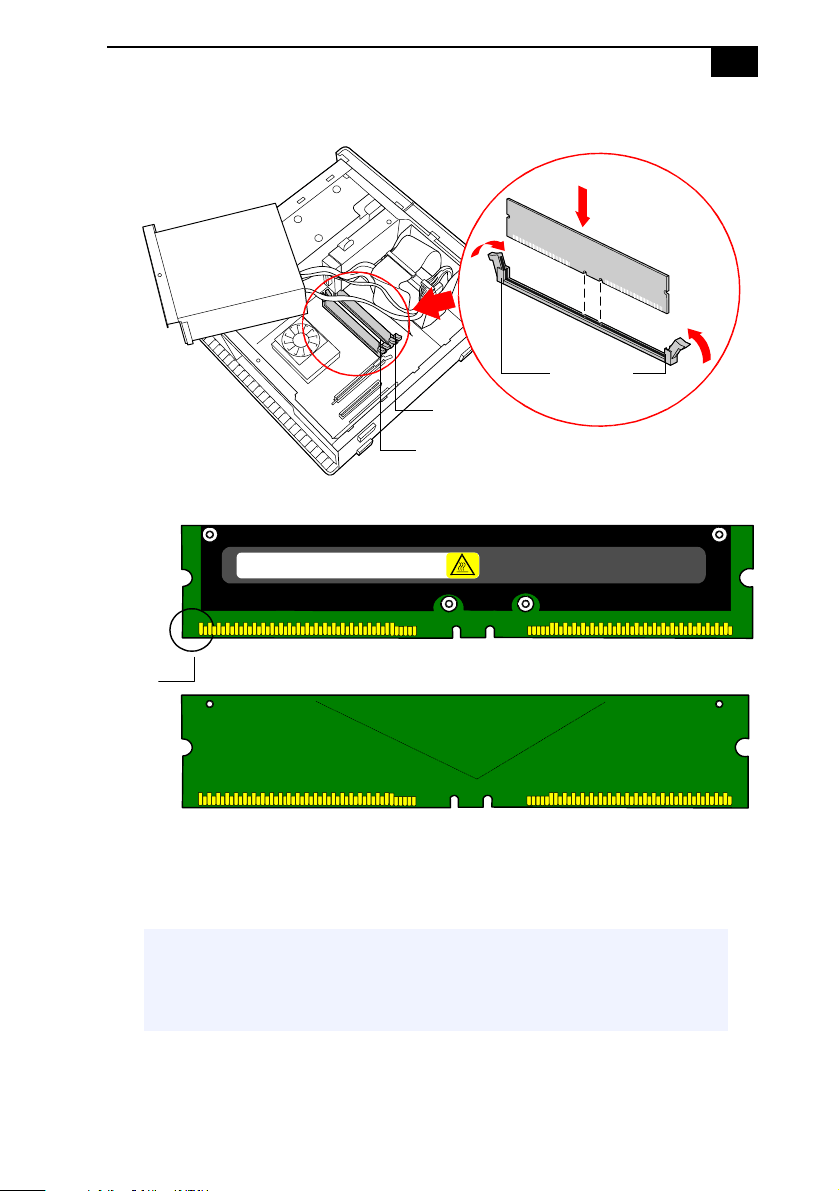
9 Align the module over the appropriate socket, noting the location of
pin1onthemoduleandpin1onthesocket.
✍ Grasp the card with one hand on each end, and gently pull up as you rock the card
from side to side.
! Hold the add-in card by its edges and do not touch any components or
contacts on the card. Static electricity in your body may damage
sensitive components on the card. As a precaution, touch any exposed
metal part on the metal chassis (preferably the metal part on the power
supply) before handling an add-in card to discharge any static electricity
in your body.
! Do not remove the Giga Pocket card (located in PCI slot No. 2) unless
directed by a service technician. The Giga Pocket card is a fragile
hardware component, standard in the PCV-RX490TV model.
Removing, Installing, and Replacing Components
39
10 Carefully but firmly insert the edge of the module into the socket.
11 Press down firmly and evenly at both corners until the module is
fully seated.
✍ When the module is fully seated, the handles on each side are straight up and
locked into the slot on each side of the module. If the handles are not totally
straight upright, continue to press down on each side of the module until the
handles lock into place.
A1
A1
A4
6
A4
7
A9
2
WARNING HOT
A1
A4
6
A4
7
A9
2
Blank memory module (CRIMM)
Pin 1
Handles
RIMMB 1
RIMMB 2
RIMMA 1
RIMMA 2
Memory module (in RIMM A1/B1)
side
VAIO Digital Studio™ System Reference Manual
40
12 Replace the AGP card and secure using the screw removed earlier.
13 Replace the power supply (see “Replacing the Power Supply” on
page 51).
14 Replace the side cover (see “ReplacingtheSideCover”on page 29).
15 Reconnect the power cord and turn on the computer.
Your computer automatically recognizes the extra memory and will
configure itself accordingly when you turn on the computer. No further
action is required.
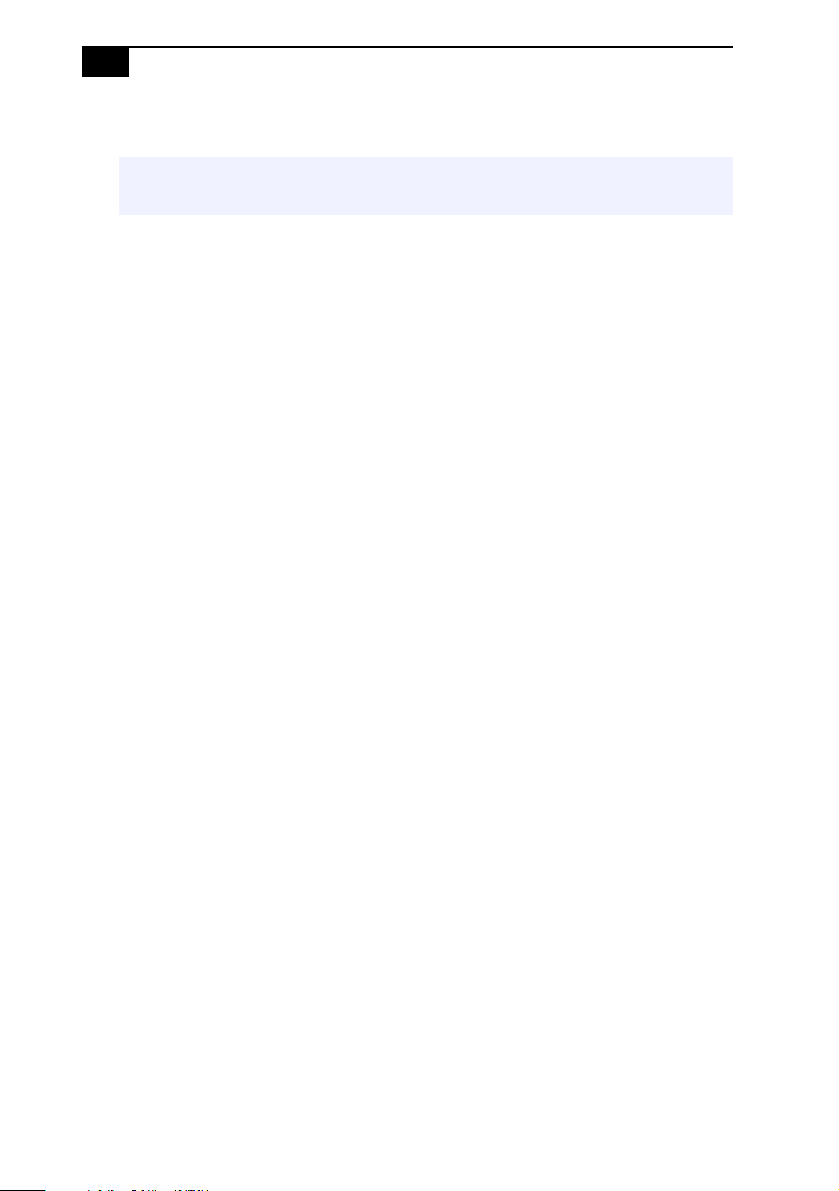
✍ Be sure to press down firmly until the handle on the AGP slot is straight up and locked
into the slot on the AGP card.
Removing, Installing, and Replacing Components
41
Removing a Memory Module
You may need to remove a memory module if you change the memory
configuration or replace a bad module. The computer ships with no
empty sockets. It comes with a pair of RIMM modules and a pair of
CRIMM modules.
1 Removethesidecover(see“Removing the Side Cover” on page 28).
2 Remove the power supply (see “Removing the Power Supply” on
page 50).
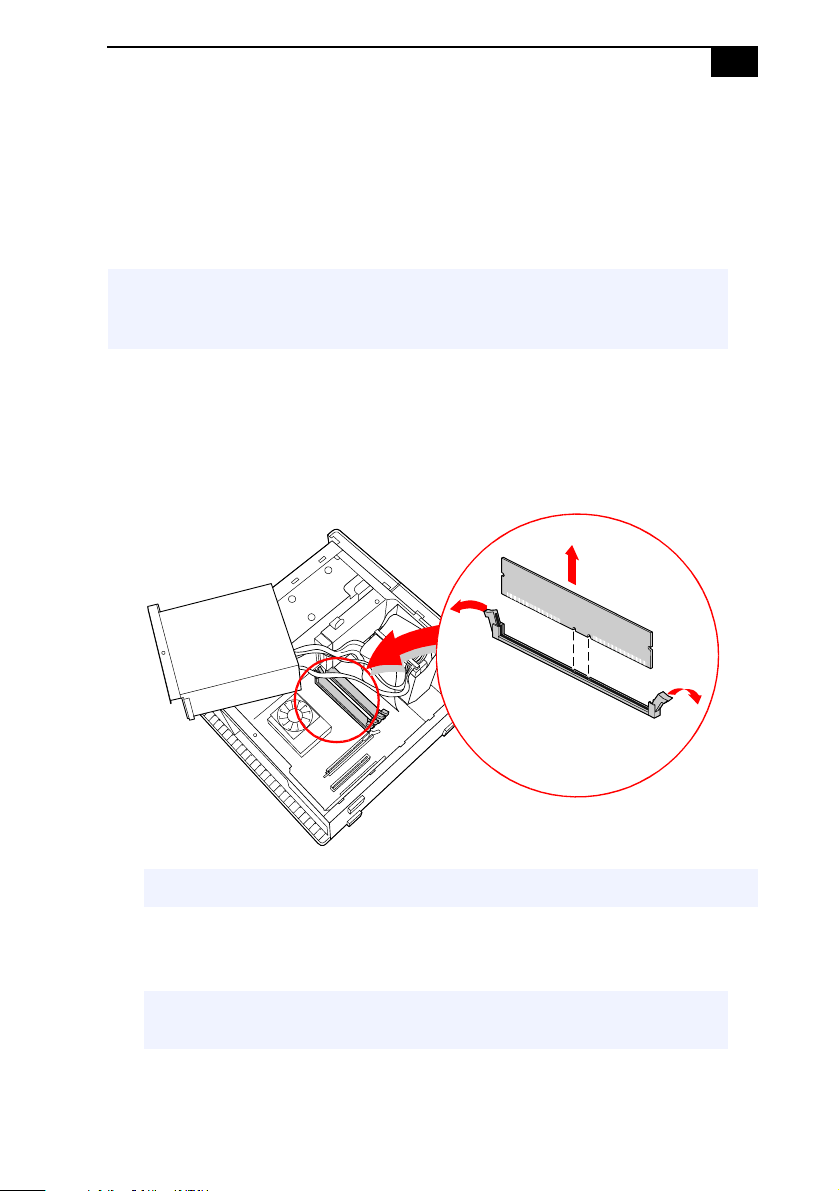
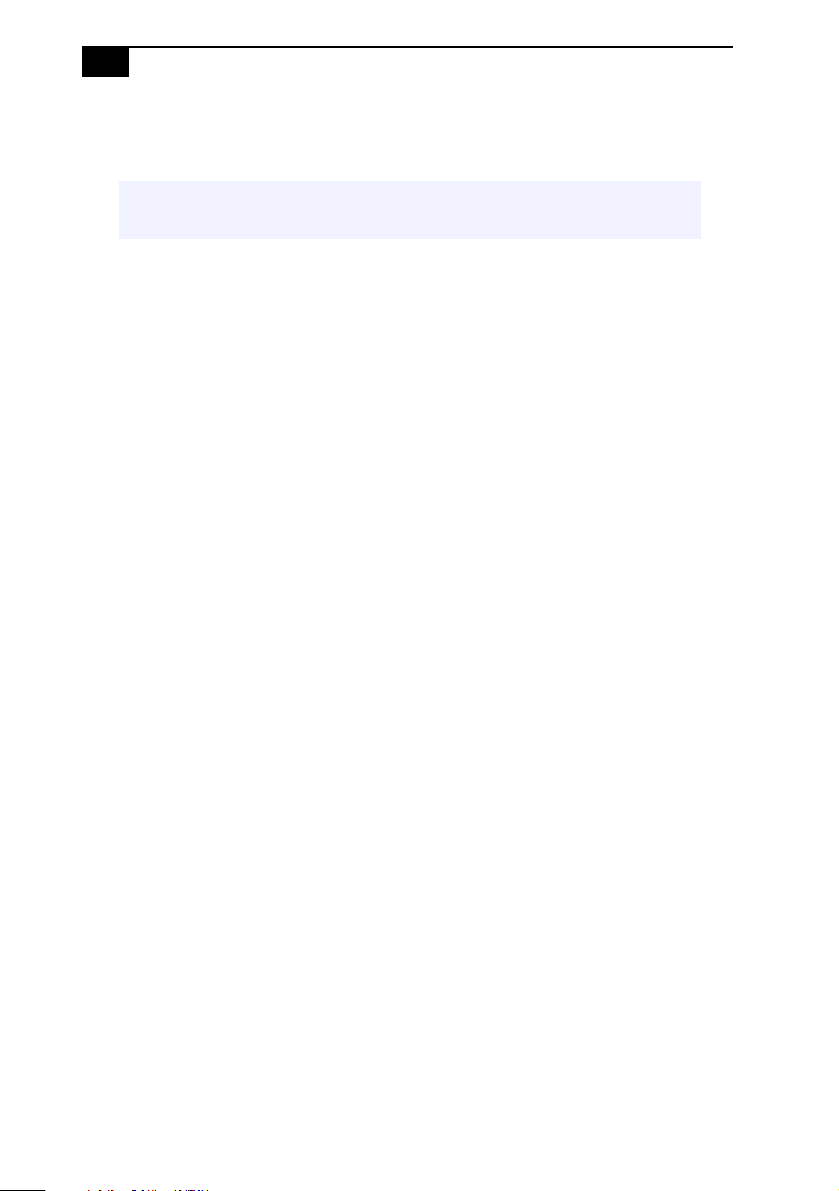
3 Locate the memory module you wish to remove.
4 Push down the handle on each side of the memory module to eject
themodulefromitssocket.
! Before opening the system unit, save and close all open files, exit all open
applications, turn off the power to all attached peripheral devices, shut
down the computer, and unplug the power cord.
✍ The memory modules are located beneath the power supply.
! Touch any exposed metal part of the chassis to discharge static
electricity in your body before handling the memory module.
VAIO Digital Studio™ System Reference Manual
42
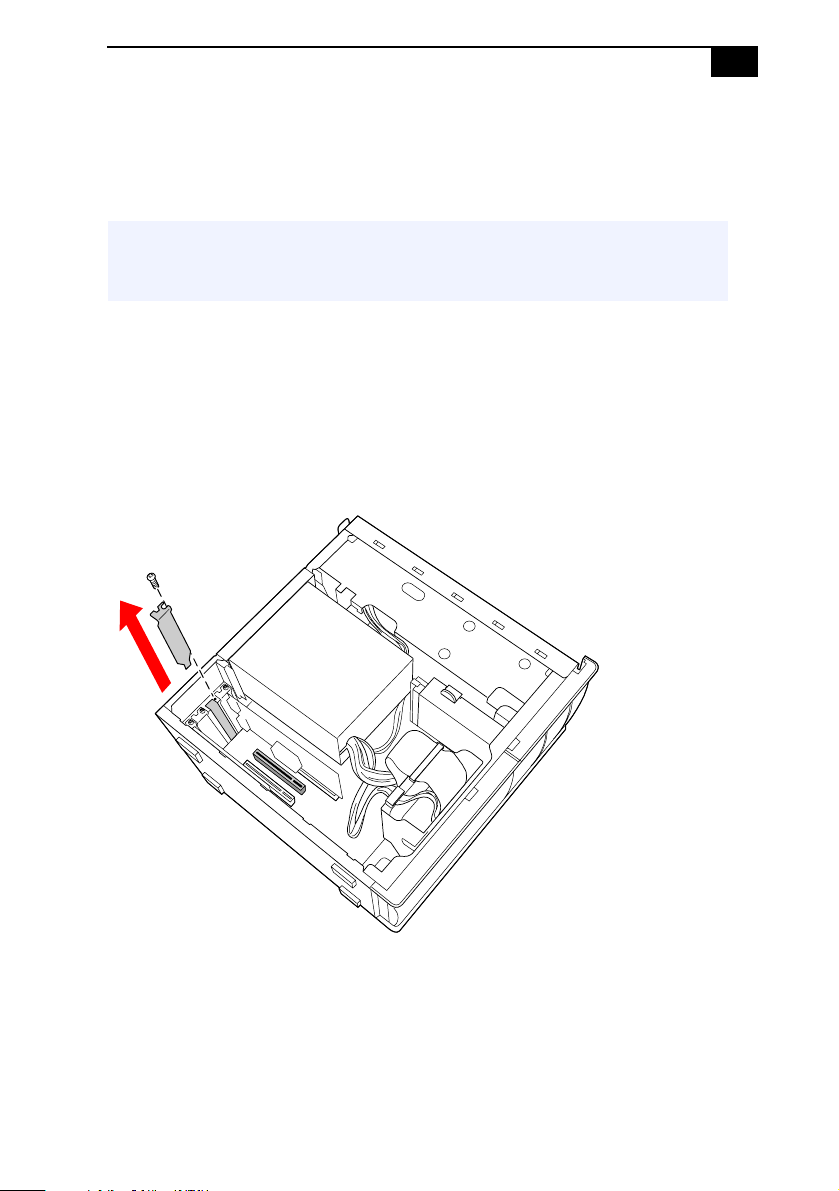
5 Grasp one edge of the memory module and lift out. Store the module
in a static-free bag.
! Empty sockets must be filled with either RIMM or CRIMM modules in
pairs.
Removing, Installing, and Replacing Components
43
Removing a Slot Cover
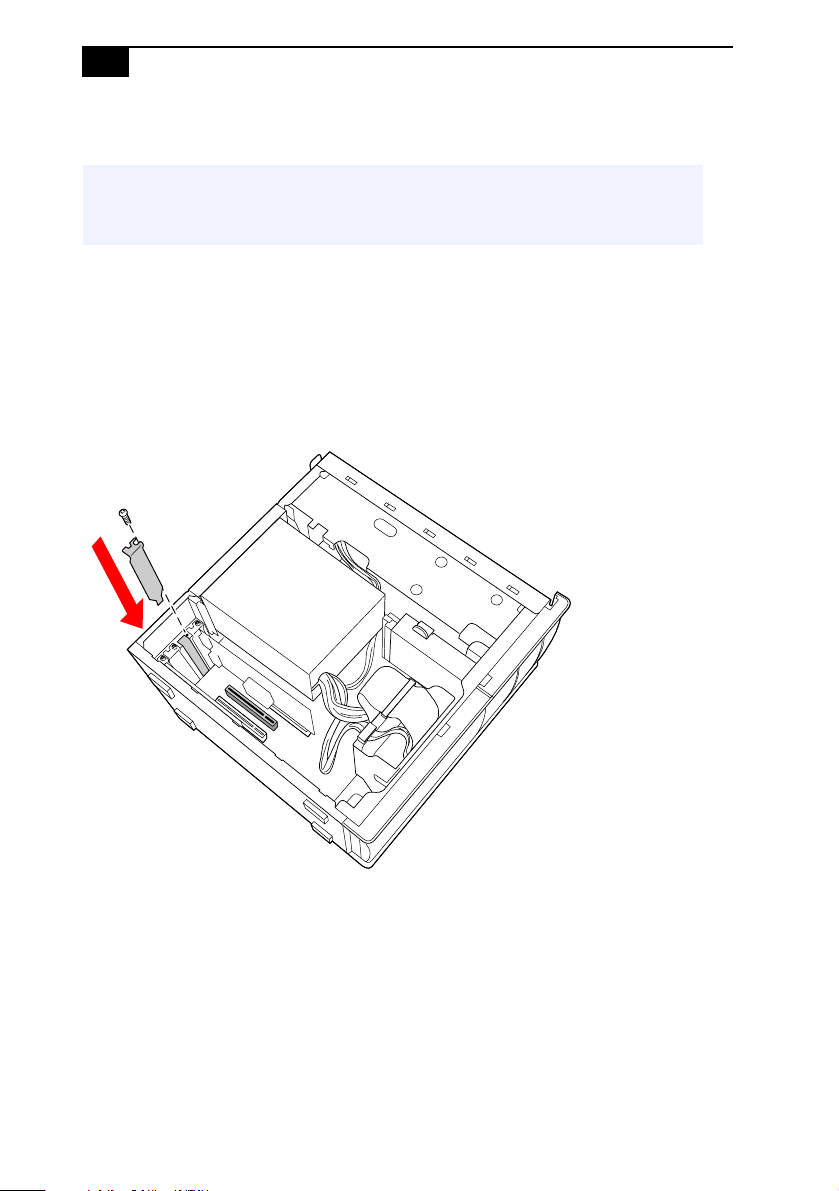
Youremoveaslotcoverwhenyouinstallanadd-incardthatoccupiesa
previously-empty slot.
1 Removethesidecover(see“Removing the Side Cover” on page 28).
2 Locate the slot whose cover you want to remove.
3 Lay the system on its side.
4 Remove the screw from the slot cover.
5 Remove the loose slot cover and retain it for future use.
! Before opening the system unit, save and close all open files, exit all open
applications, turn off the power to all attached peripheral devices, shut
down the computer, and unplug the power cord.
VAIO Digital Studio™ System Reference Manual
44
Covering an Open I/O Slot
Slot covers prevent air from escaping through the empty hole. If air
escapes, the components inside the computer cannot be properly cooled.
This may damage some components, especially the main processor
(which generates the most heat).
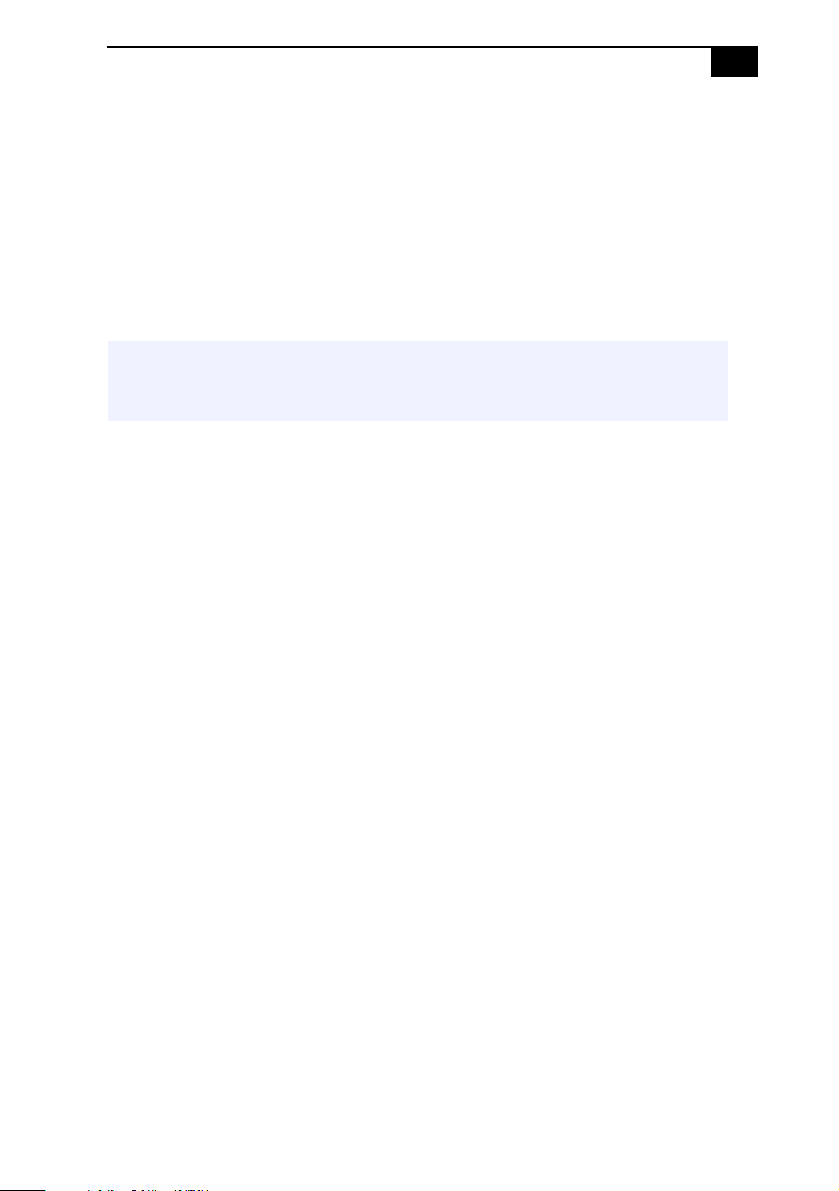
1 Slide the tip of the slot cover (removed earlier) between the chassis
and system board.
2 Push the slot cover down until it rests firmly on the lip in the chassis.
All add-in card brackets and slot covers rest on this lip.
3 Replace the screw (removed earlier) to secure the I/O slot cover.
! Before opening the system unit, save and close all open files, exit all open
applications, turn off the power to all attached peripheral devices, shut
down the computer, and unplug the power cord.
Removing, Installing, and Replacing Components
45
Installing a 3.5-inch Internal Hard Disk Drive
Models that have only one hard disk drive have an available bay to hold
an additional 3.5-inch hard disk drive. The drive you install must not
require front panel access. Your system can support ATA-33, ATA-66 or
ATA-100 hard disk drives. For the PCV-RX490TV, Sony recommends an
ATA-100 hard disk drive to take full advantage of the system's features.
The hard disk drive access light blinks when either internal drive is
active.
To prepare a startup disk (PCV-RX490TV model only)
Before you add a second hard disk drive to your computer, Sony
recommends creating a startup floppy disk to help support Giga Pocket
functions in your new hard disk drive. To create a startup disk, insert a
blank, formatted floppy disk into your computer’s floppy disk drive and
follow these steps:
1 From the Start menu, point to Settings, point to Control Panel, and
then click Add/Remove Programs.
2 Select the Startup Disk tab and then click Create Disk...
3 Click OK. Wait until the system completes the startup disk and click
OK to close the dialog box.
4 From the Start menu, select Shutdown and choose the Shutdown
option.
! Before opening the system unit, save and close all open files, exit all open
applications, turn off the power to all attached peripheral devices, shut
down the computer, and unplug the power cord.
VAIO Digital Studio™ System Reference Manual
46
To install a 3.5-inch internal hard disk drive (all models)
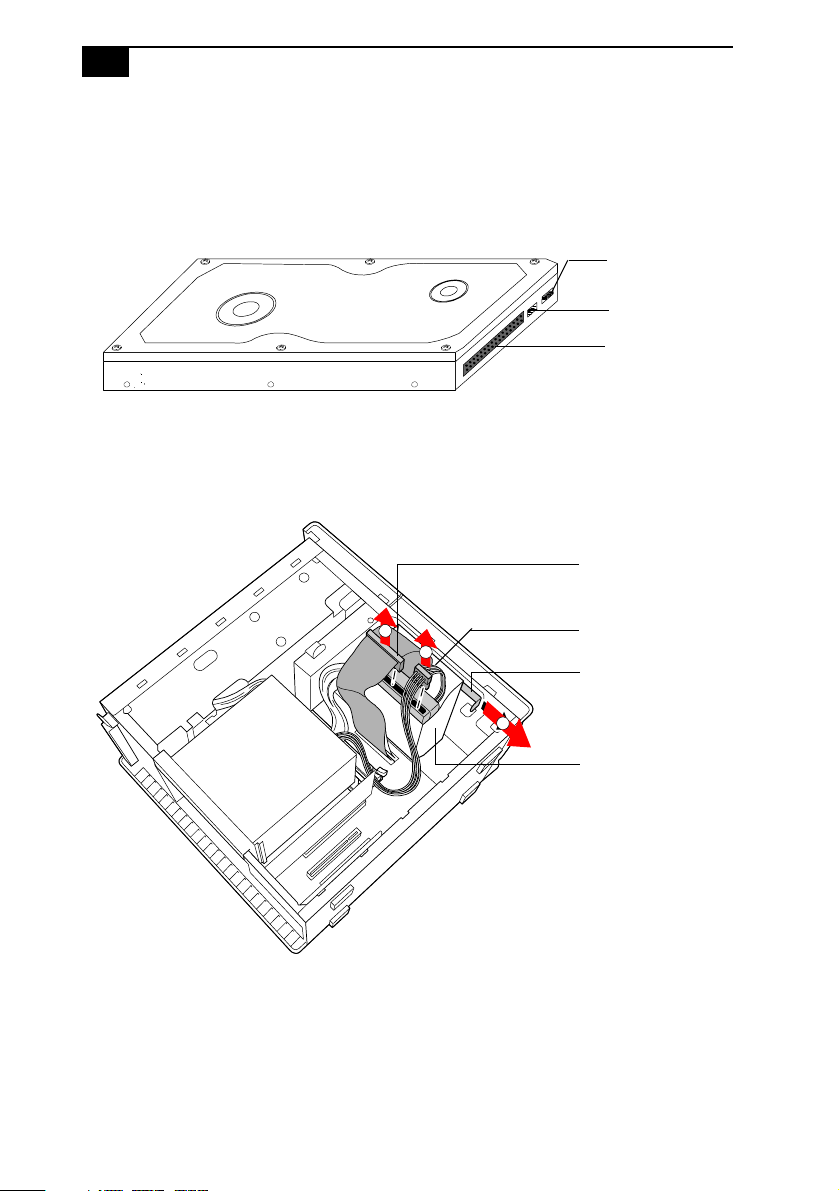
1 Configure the jumpers on the new drive as a slave device (see your
drive’s documentation for configuration instructions).
2 Remove the side cover (see “Removing the Side Cover” on page 28).
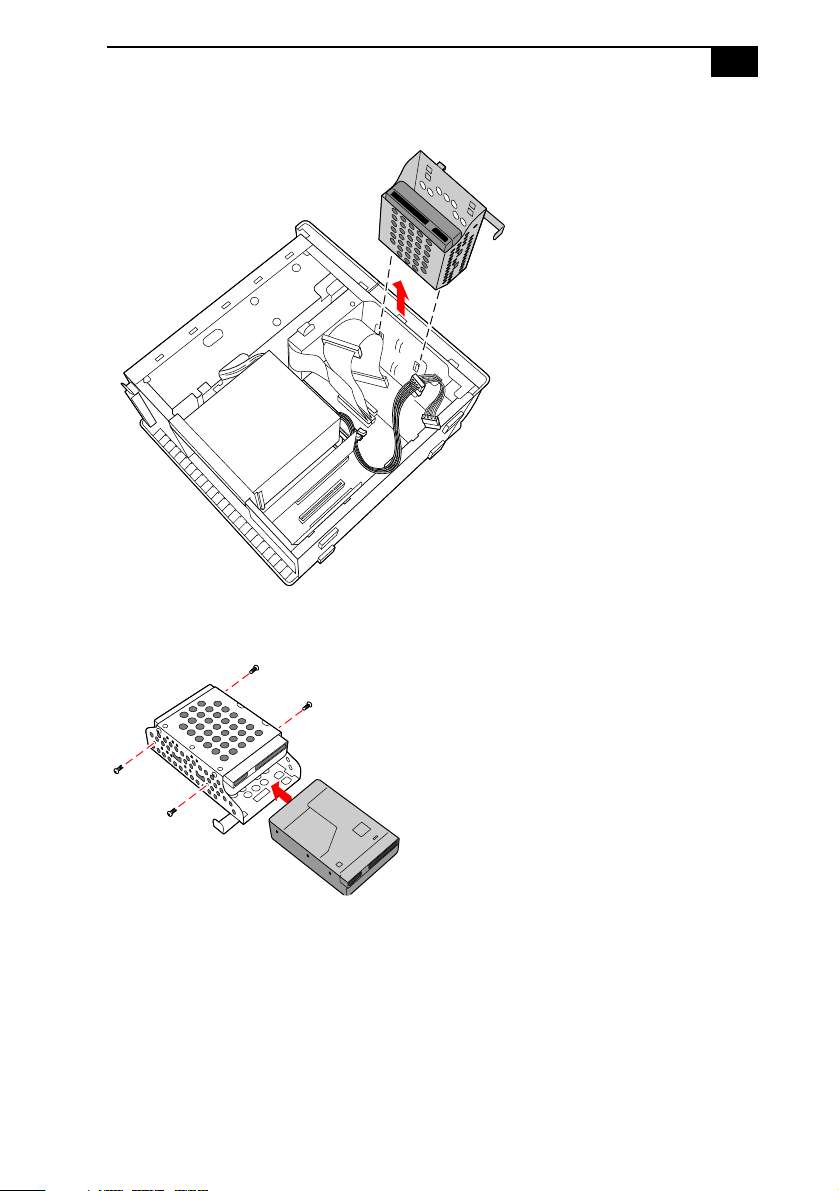
3 Disconnect the drive connector (A in diagram).
4 Disconnect the power connector (B in diagram).
5 Pull out on the tab (C) that secures the drive holder to the chassis.
Power
connector
Jumpers
Drive
connector
A
B
C
Disk drive holder
Tab
Power supply
connector
Drive connector
Removing, Installing, and Replacing Components
47
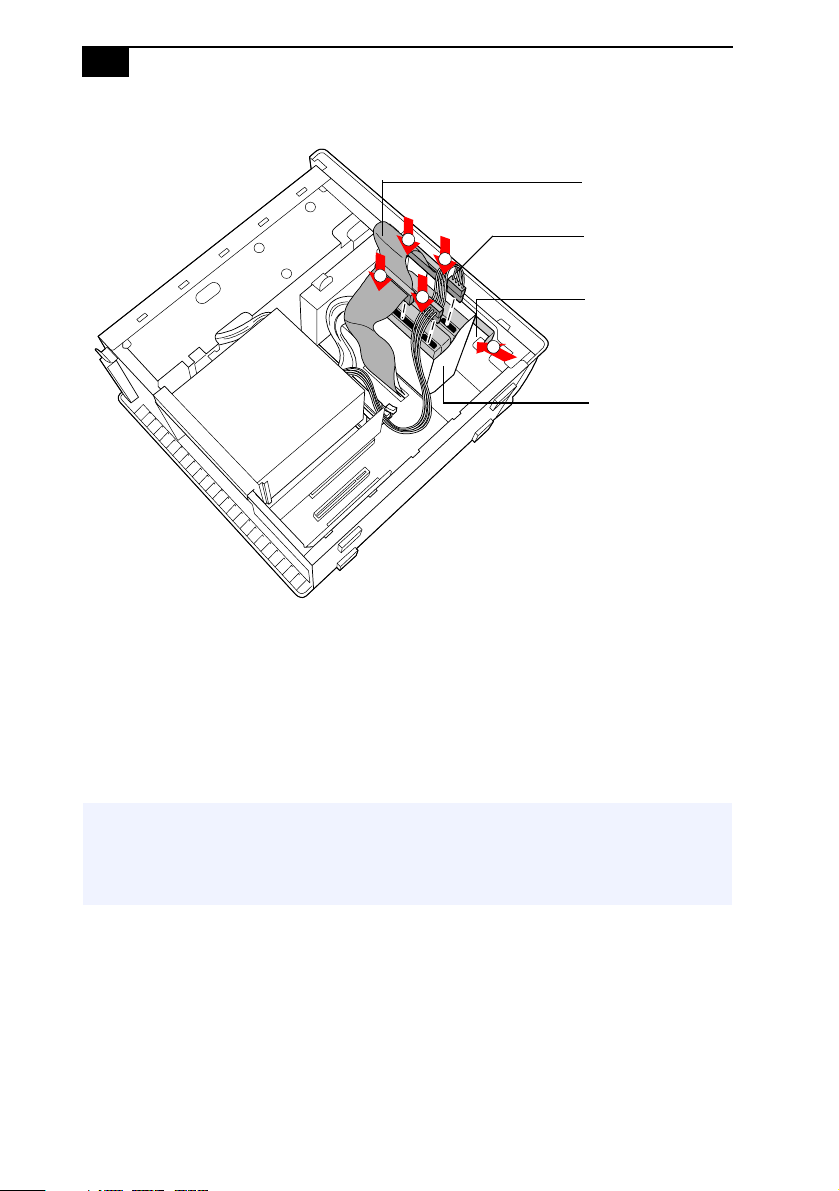
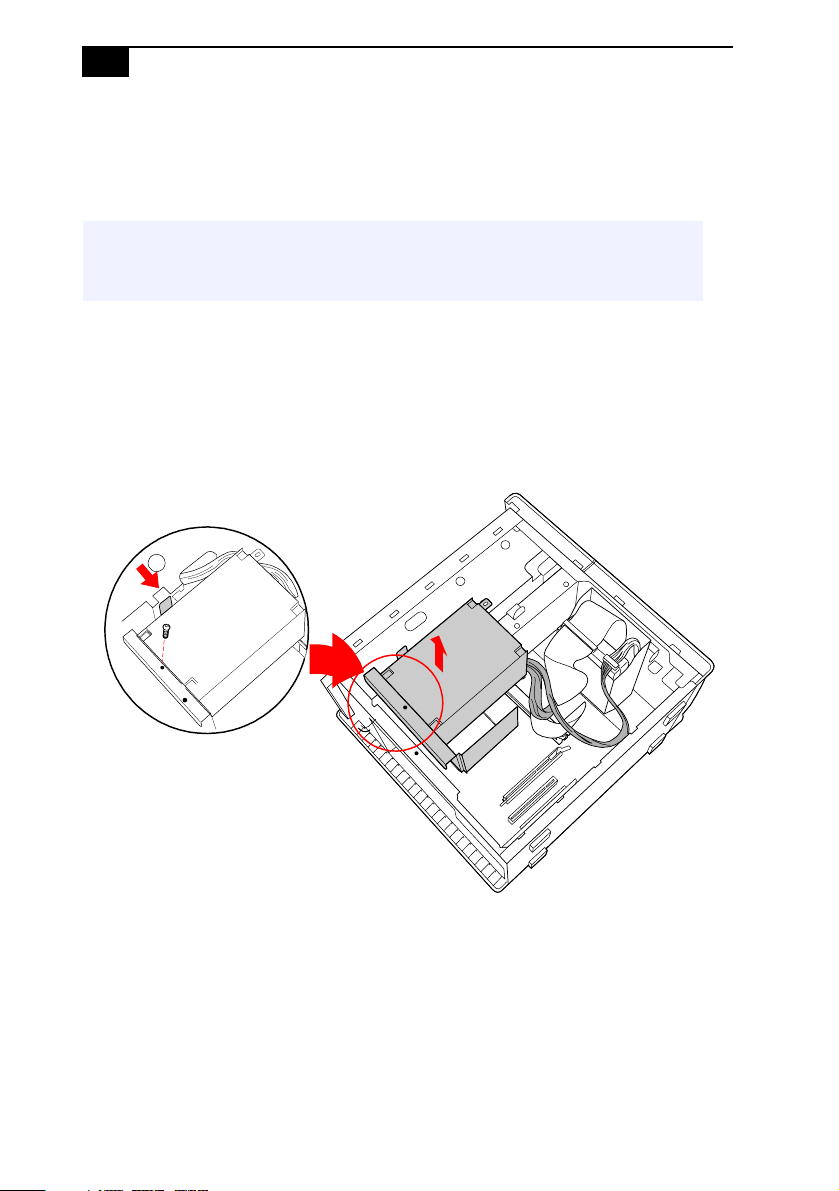
6 Slidethedriveholderupandout.
7 Slide the new drive into the bottom part of the drive holder and align
the holes on each side of the drive holder.
8 Secure the drive to the drive holder using screws in each of the two
holesoneachsideofthedriveholder(screwsareprovidedwiththe
new drive). Do not overtighten the screws.
9 Slide the drive holder back into the chassis so that the edge of the
holder is flush with the chassis.
VAIO Digital Studio™ System Reference Manual
48
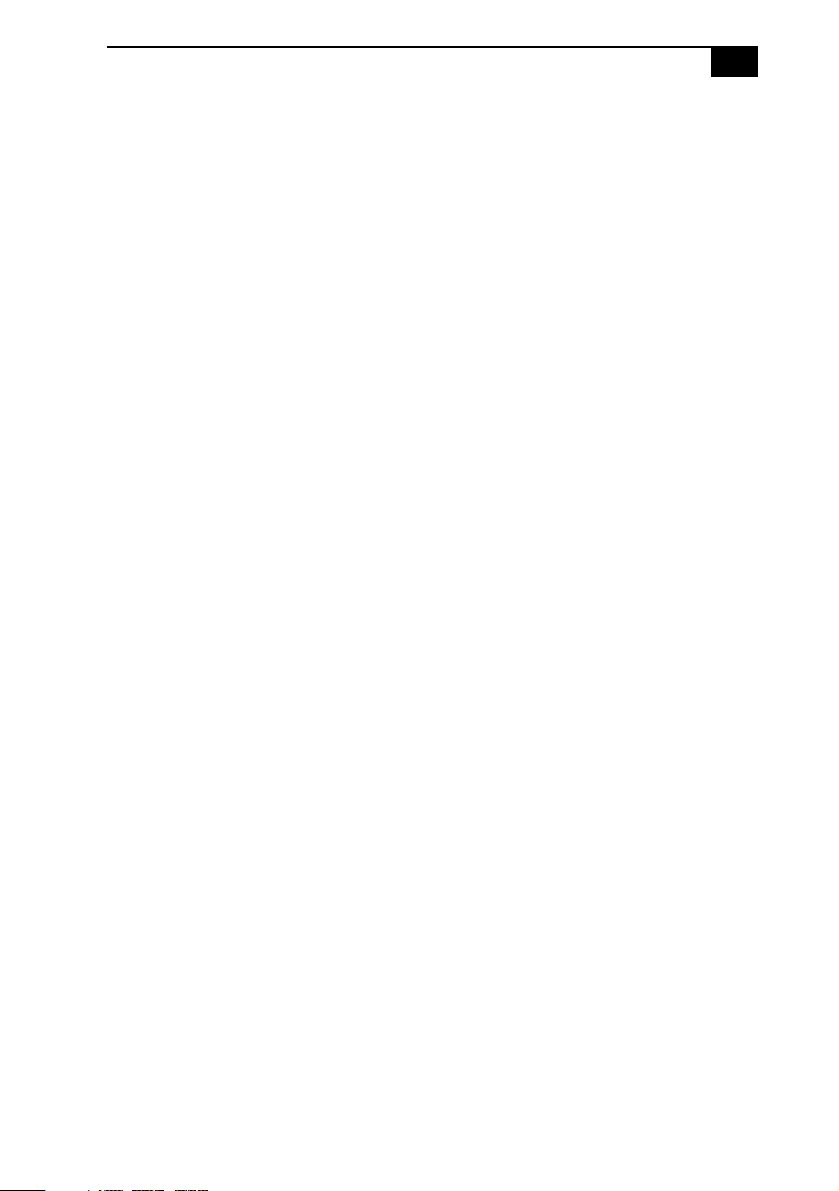
10 Push in on the tab (A) to securely latch the holder to the chassis.
11 Connect the inner drive cable connector (B) to the first drive.
12 Connect the outer drive cable connector (C) to the second drive.
13 Connect the first power connector (D) to the first drive.
14 Connect the second power connector (E) to the second drive.
15 Replace the side cover (see “ReplacingtheSideCover”on page 29).
16 Reconnect the power cord to the system and then turn on your
computer.
All models except the PCV-RX490TV will automatically recognize the
new drive and configure itself accordingly when you turn it on. Format
and partition the new drive following the instructions provided with the
drive.
! ForthePCV-RX490TVmodel,refertotheinstructionsonthe
following page to finish installing your new hard drive. Do not
complete step 16 of this procedure; it will cause functionality
problems to the Giga Pocket card.
C
E
A
B
D
Drive connectors
Power connectors
Tab
Disk drive holder
Removing, Installing, and Replacing Components
49
To set up the new hard drive with the startup disk
(PCV-RX490TV model only)
Follow these steps to help support Giga Pocket functions in your new
hard disk drive.
1 Insert the startup floppy disk into the floppy disk drive. Press the
power button and turn your computer on. A startup menu appears.
2 Select the option “4. Minimal Boot” to start your system. Wait until
the system completes startup.
3 Type in “fdisk” and press Enter.
4 Select the option “5. Change current fixed disk drive”.
5 Select the second hard disk drive by typing in “2” and press Enter.
6 Select the option “1. Create DOS partition or Logical DOS Drive” and
press Enter.
7 Select the option “2. Create Extended DOS Partition” and press Enter.
8 Select “3. Create logical DOS Drive(s) in the Extended DOS Partition”
and press Enter.
9 Specify the maximum size for the partition and press Enter.
10 Remove the startup floppy disk from the floppy disk drive and
restart your computer.
11 From the Desktop, click on My Computer.
12 Right-click the icon for the new drive, Local Disk (E:). From the
shortcut menu, click Format. The Local Disk (E:) window appears.
13 Click Start. Wait until the system completes formatting of the new
drive.
14 Turn off and then restart your computer.
To identify the additional hard disk space for Giga Pocket use
(PCV-RX490TV model only)
1 From the Start menu, point to Programs, point to Giga Pocket, and
then click Video Explorer. The Video Explorer window appears.
2 Click Video Capsules from the menu bar and click Settings.
3 Select the “Set default Drive for saving” tab.
4 Move the E: drive to Saving destination and click OK.
VAIO Digital Studio™ System Reference Manual
50
Removing the Power Supply
You remove the power supply when you insert a memory module (see
“Installing System Memory” on page 37).
1 Remove the screw that secures the power supply to the rear of the
chassis.
2 Pull the tab (A) that latches the power supply to the chassis.
3 Slide the power supply up until the power supply clears the chassis.
4 Rotate the power supply upside down and rest it on top of the chassis
where the hard drive is located.
! Before opening the system unit, save and close all open files, exit all open
applications, turn off the power to all attached peripheral devices, shut
down the computer, and unplug the power cord.
A
Removing, Installing, and Replacing Components
51
Replacing the Power Supply
1 Rotate the power supply down and slide it down along the rails on
each side of the chassis opening.
2 Replace the screw that secures the power supply to the rear of the
chassis.

VAIO Digital Studio™ System Reference Manual
52
53
Chapter 4
System Board
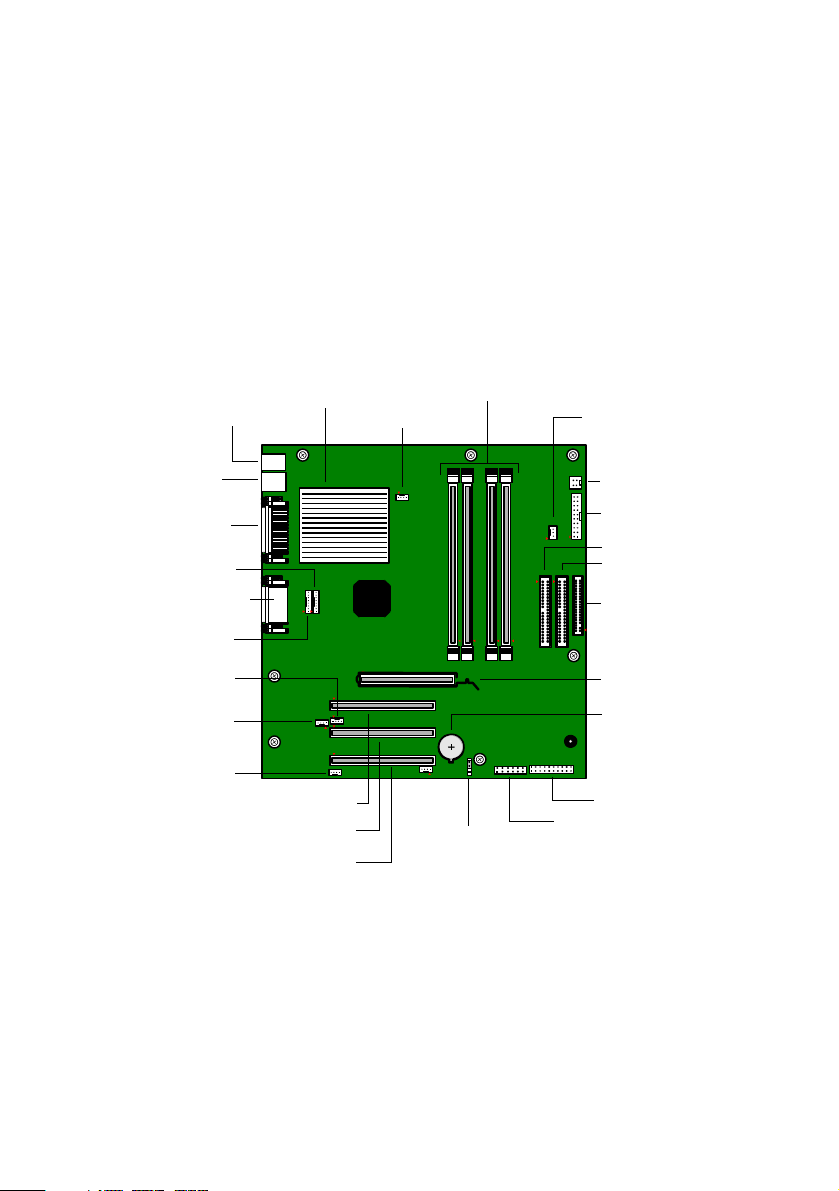
This chapter identifies each component on the system board and provides
a detailed description of each header, connector, and jumper on the
system board.
Processor
CPU Fan
Memory
Power Supply Fan
Aux Power Supply
Power Supply
Secondary IDE
Primary IDE
Diskette
Slot 4 (AGP)
Battery
Front Panel Header
USB23 Header
CMOS Clear
Slot No. 3 (PCI)
Slot No. 2 (PCI)
Slot No. 1 (PCI)
Keyboard, Mouse
USB1, USB2,
Serial, Printer,
1394 Header 2
Game, Mic In,
Line In, Line Out
1394 Header 3
Aux-In
Video
CD-In
iLink
Ethernet
VAIO Digital Studio™ System Reference Manual
54
Connectors and Headers
Front Panel Header
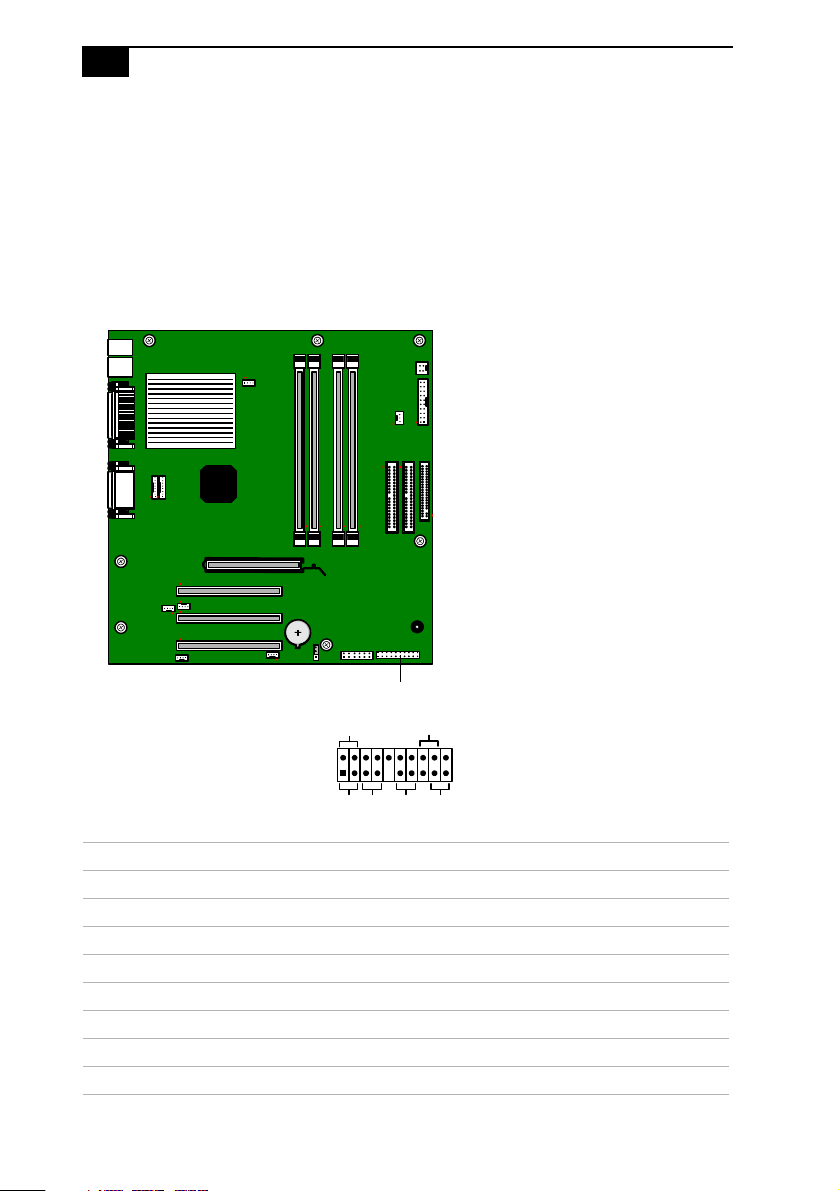
Thefrontpanelheaderisa20-pinheader(onepinisremovedforthekey)
that provides connections to various front panel functions. A 20-pin
header with only 10 wires is used to interface the system board to the
front panel.
Front Panel header
Name Description
CD-LED Connects to the CD/DVD drive access light on the front panel
PWR LED Connects to the power-on indicator light on the front panel
HD LED Connects to the hard disk drive access light on the front panel
SLEEP (not used)
PWR Connects to the power-on switch on the front panel
RESET (not used)
MSG LED Connects to the Stand by indicator light on the front panel
Front Panel header
MSG
LED
CD LED
PWR HD
LED
PWR
LED
RESET
System Board
55
Floppy Disk Drive Header
Floppy Disk Drive header
Pin Signal Name Pin Signal Name
1Ground 2HDsel
3Ground 4N.C.
5 Ground 6 DRIVE_SELECT_#3
7Ground 8INDEX
9 Ground 10 DRIVE_SELECT_#0
11 Ground 12 DRIVE_SELECT_#1
13 Ground 14 DRIVE_SELECT_#2
15 Ground 16 N.C.
17 Ground 18 DIRECTION#
19 Ground 20 STEP#
21 Ground 22 WRITE_DATA#
23 Ground 24 WRITE_GATE#
25 Ground 26 TRACK_00#
27 Ground 28 WRITE_PROTECT#
29 N.C. 30 READ_DATA#
31 Ground 32 SIDE_1_SELECT#
33 N.C. 34 DSKCHG#
33
Key (pin 5)
2
34
1
VAIO Digital Studio™ System Reference Manual
56
Memory Module (RIMM) Slots
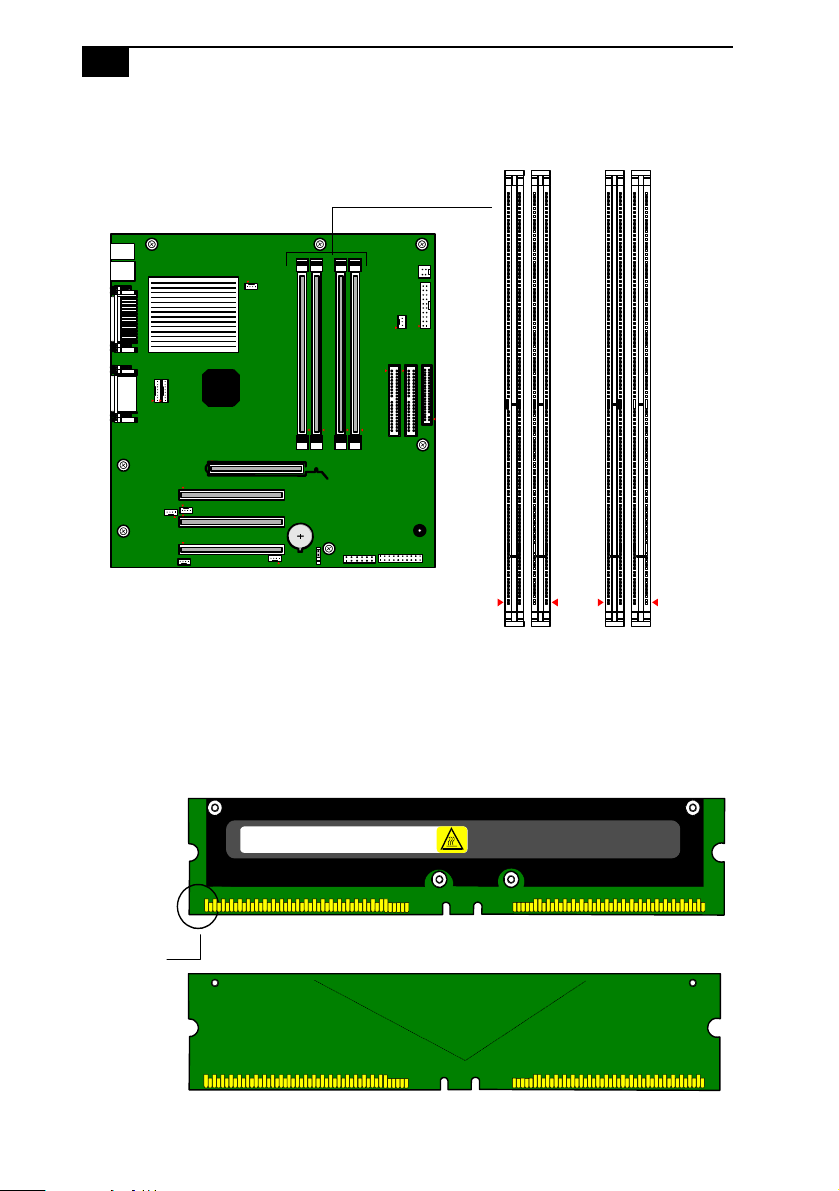
Be sure to orient a RIMM module such that pin 1 of the RIMM module is
onthesamesideaspin1oftheslot.TheRIMMmoduleshows"A1"on
the pin 1 end, and the system board shows “Pin 1” next to the pin 1 end of
the slot.
RIMMA1
RIMMA2
RIMMB1
RIMMB2
A1
A4
6
A4
7
A9
2
WARNING HOT
A1
A4
6
A4
7
A9
2
Memory module (RIMM A1/B1)
Blank memory module (CRIMM A2/B2)
Pin 1 side
System Board
57
PCI Slots
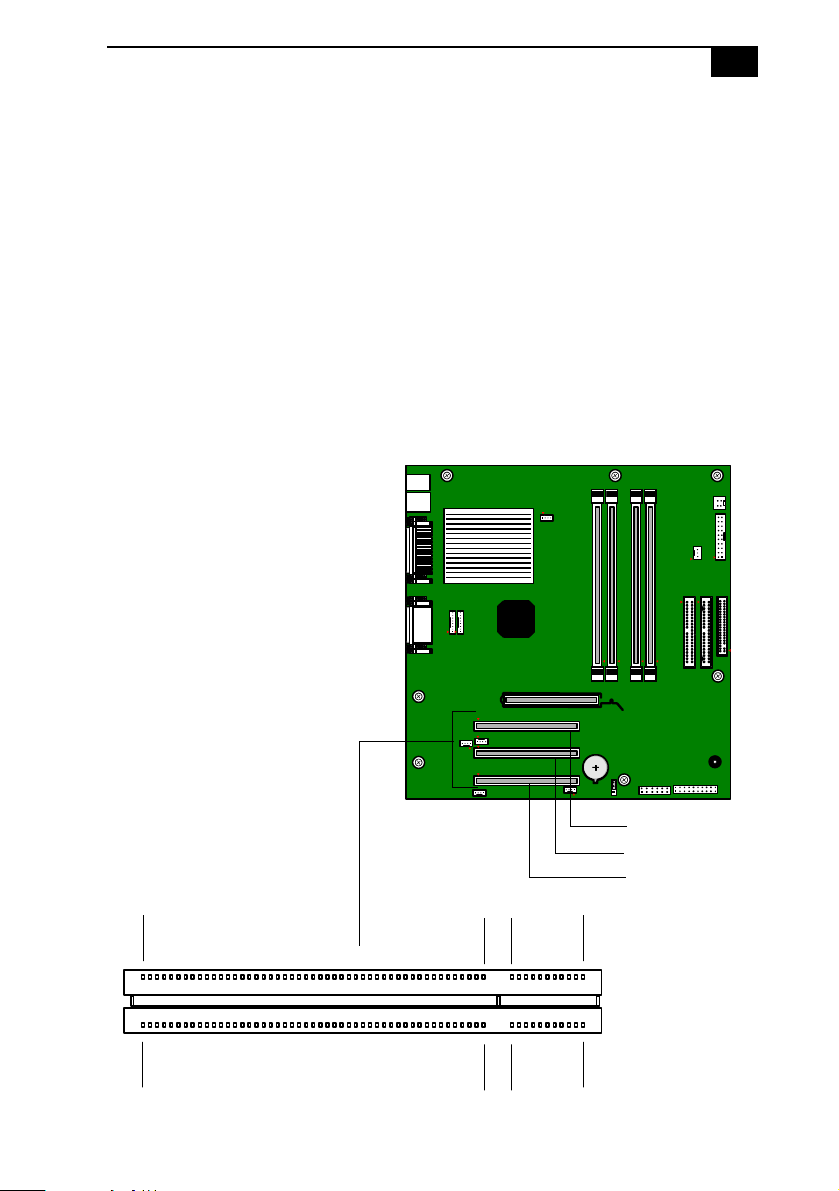
There are a total of three PCI slots (slot No. 1 to No. 3).
In all models, PCI slot No. 1 is occupied by the fax/modem card. Your
modem may look different depending on whether it is a Lucent modem
or an HPNA modem.
In models PCV-RX462DS/PCV-RX463DS/PCV-RX465DS/
PCV-RX470DS/PCV-RX480DS, PCI slot No. 2 and No. 3 are available for
expansion.
In model PCV-RX490TV, PCI slot No. 3 is available for expansion; a Giga
Pocket card occupies PCI slot No. 2.
The PCI slots support 32-bit 5 V and Universal (3.3/5 V) PCI add-in cards.
Slot No. 3 (PCI)
Slot No. 2 (PCI)
Slot No. 1 (PCI)
A1
B1
A49 A52 A62
B49
B52
B62
VAIO Digital Studio™ System Reference Manual
58
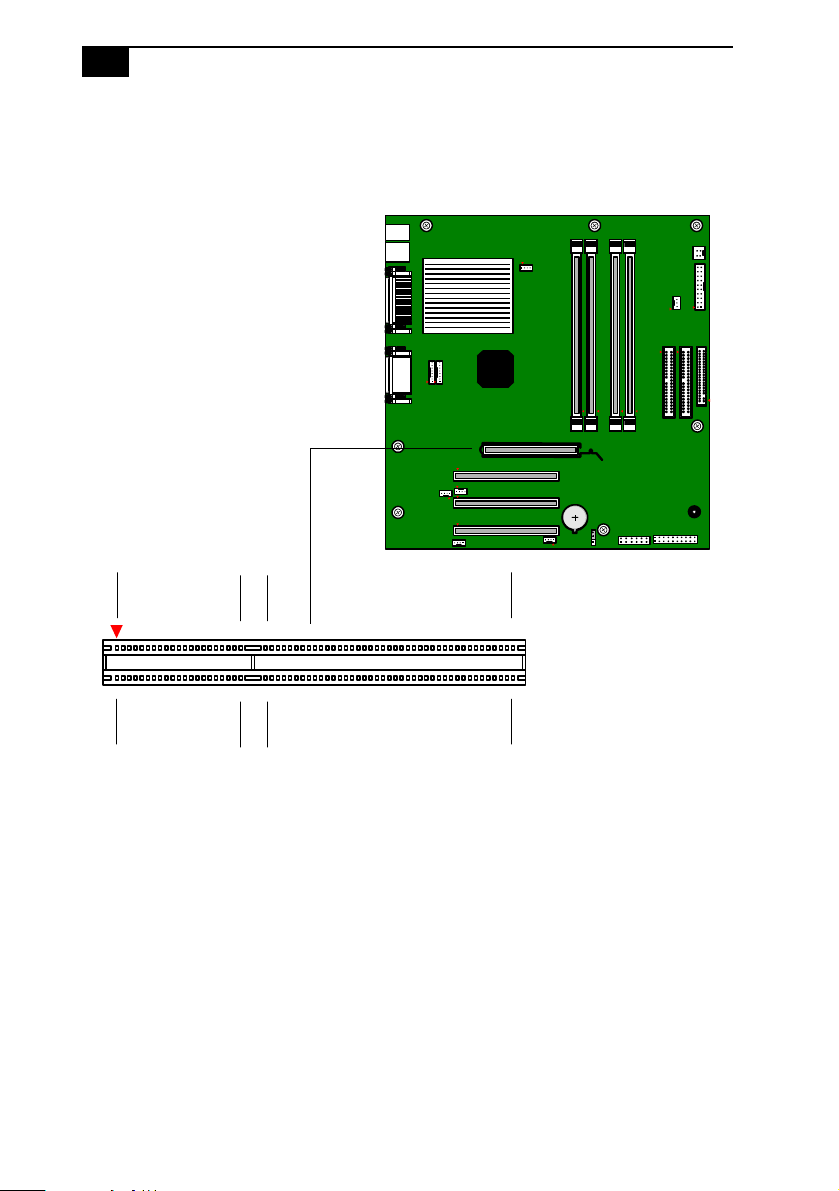
AGP Slot
There is one AGP slot (slot No. 4) that supports a 2x/4x AGP graphics
card and an AGP retention module.
A1
A21
A26
A66
B1
B21
B26
B66
System Board
59
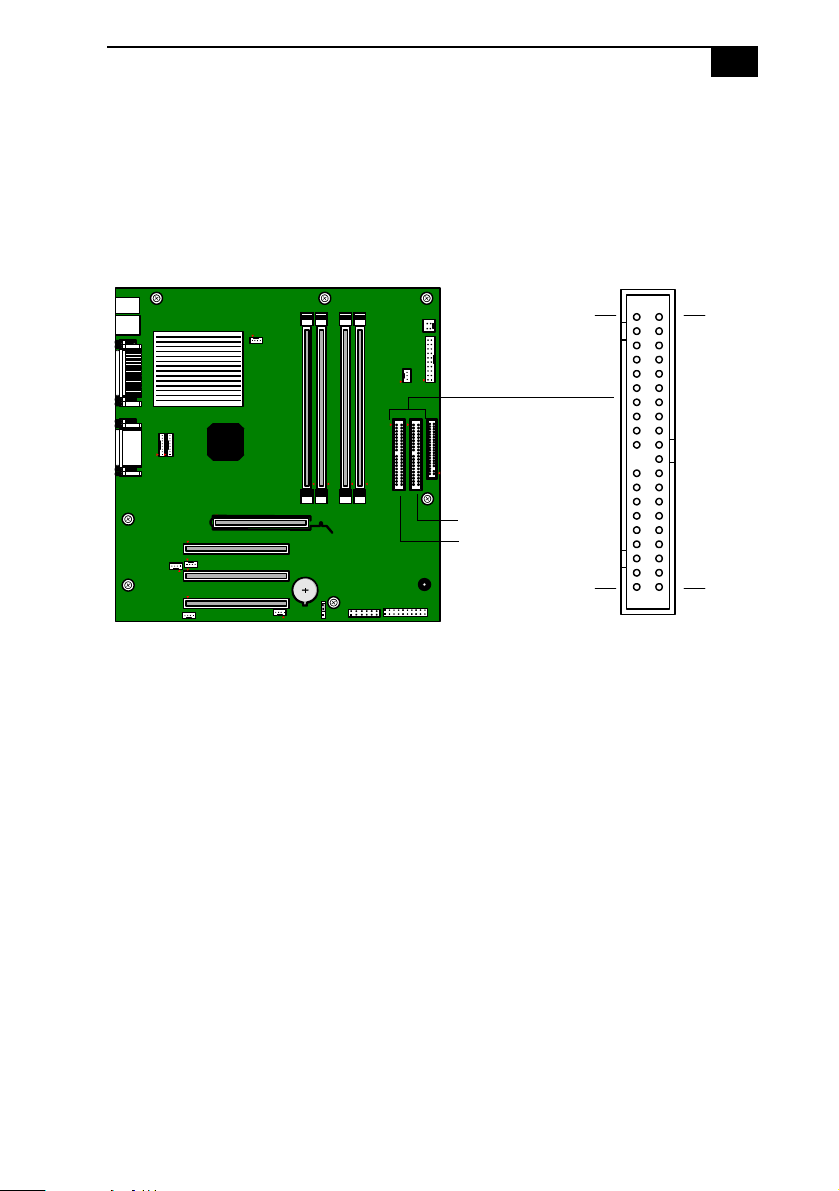
IDE Headers
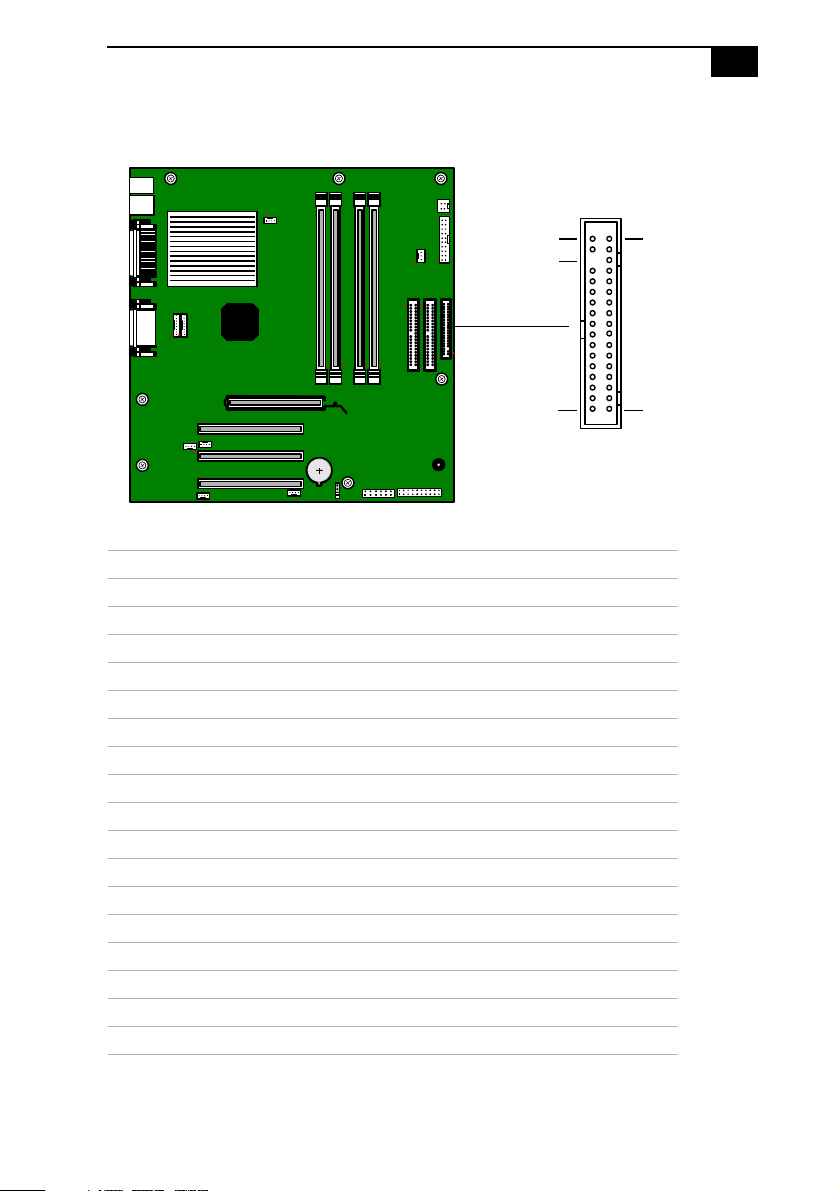
There are two IDE (Integrated Drive Electronics) headers on the system
board: a Primary IDE and a Secondary IDE header.
Each 40-pin IDE header supports up to two IDE drives using a ribbon
cable with two connectors.
Primary IDE
Secondary IDE
40
39
2
1

VAIO Digital Studio™ System Reference Manual
60
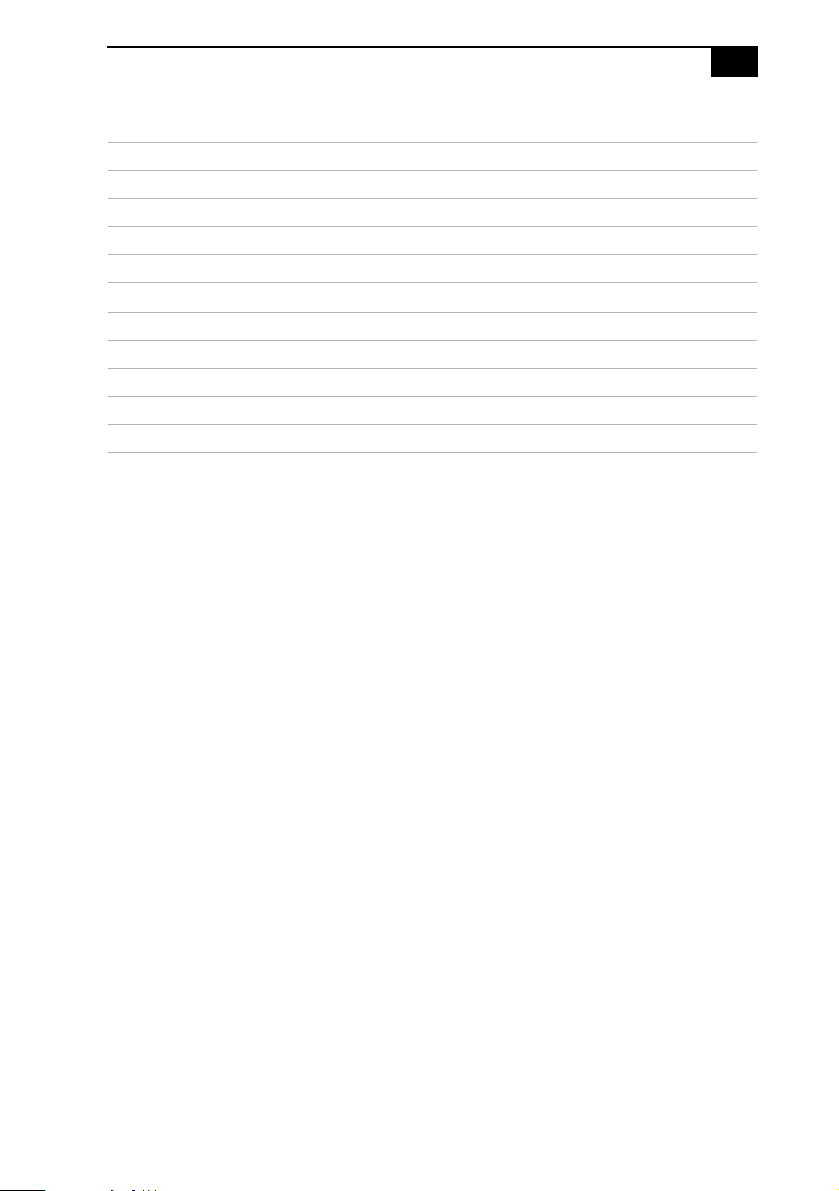
Power Supply and Aux Power Headers
The power supply header on the system board connects to the power
supply header labelled P1.
Power Supply header
Pin Signal Name
1+3.3V
2+3.3V
3Ground
4+5V
5Ground
6+5V
7Ground
8 PWRGD (Power Good)
9+5VSB
10 +12 V
11 +3.3 V
12 -12 V
13 Ground
14 PS-ON# (power supply remote on/off control)
15 Ground
16 Ground
10
1 11
20
1
2
3
4
System Board
61
17 Ground
18 No Connection
19 +5 V
20 +5 V
Aux Power header
Pin Signal Name
1Ground
2Ground
3+12V
4+12V
Power Supply header (cont.)
Pin Signal Name
VAIO Digital Studio™ System Reference Manual
62
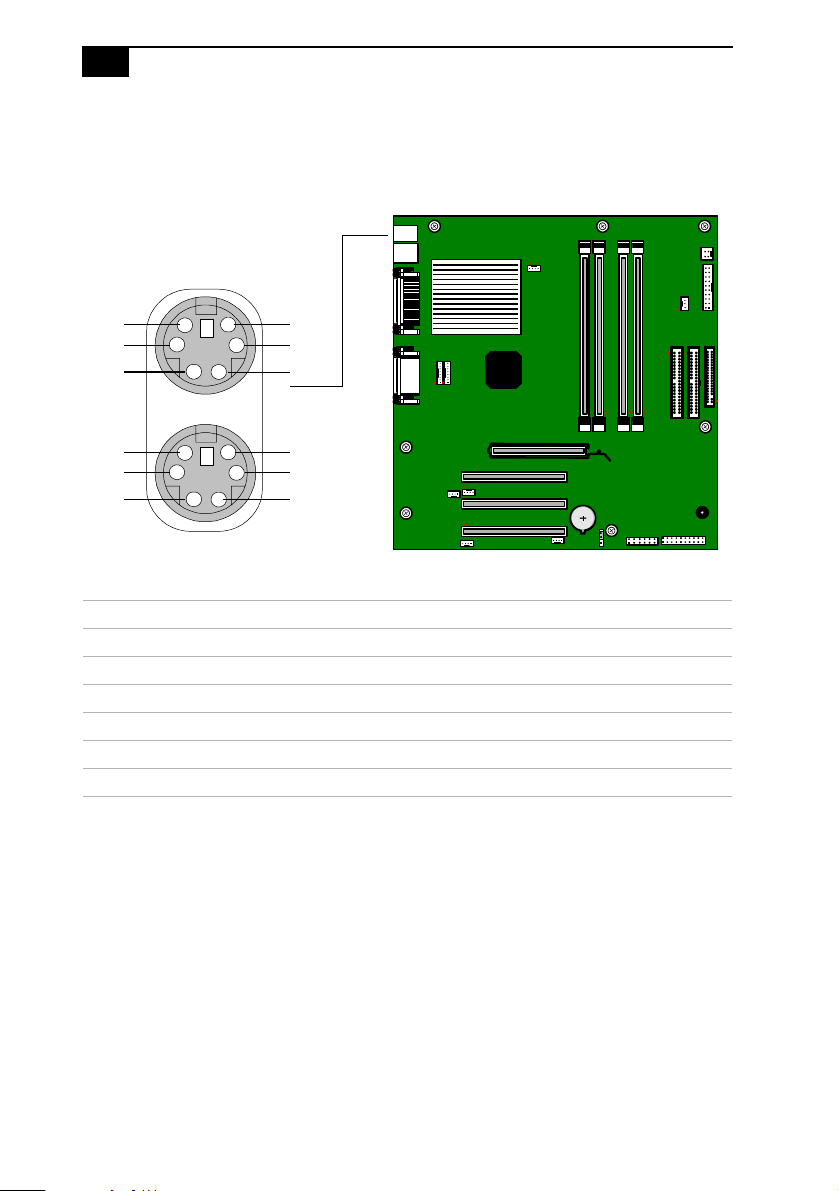
Keyboard and Mouse Ports
Thekeyboardportandthemouseportare6-pinfemale
PS/2-type (mini-DIN) ports. They have identical pinouts.
Keyboard and Mouse connectors
Pin Signal Name
1Data
2NC
3Ground
4PS2VCC
5Clock
6NC
Keyboard
Mouse
1
2
3
4
5
6
1
2
3
4
5
6
System Board
63
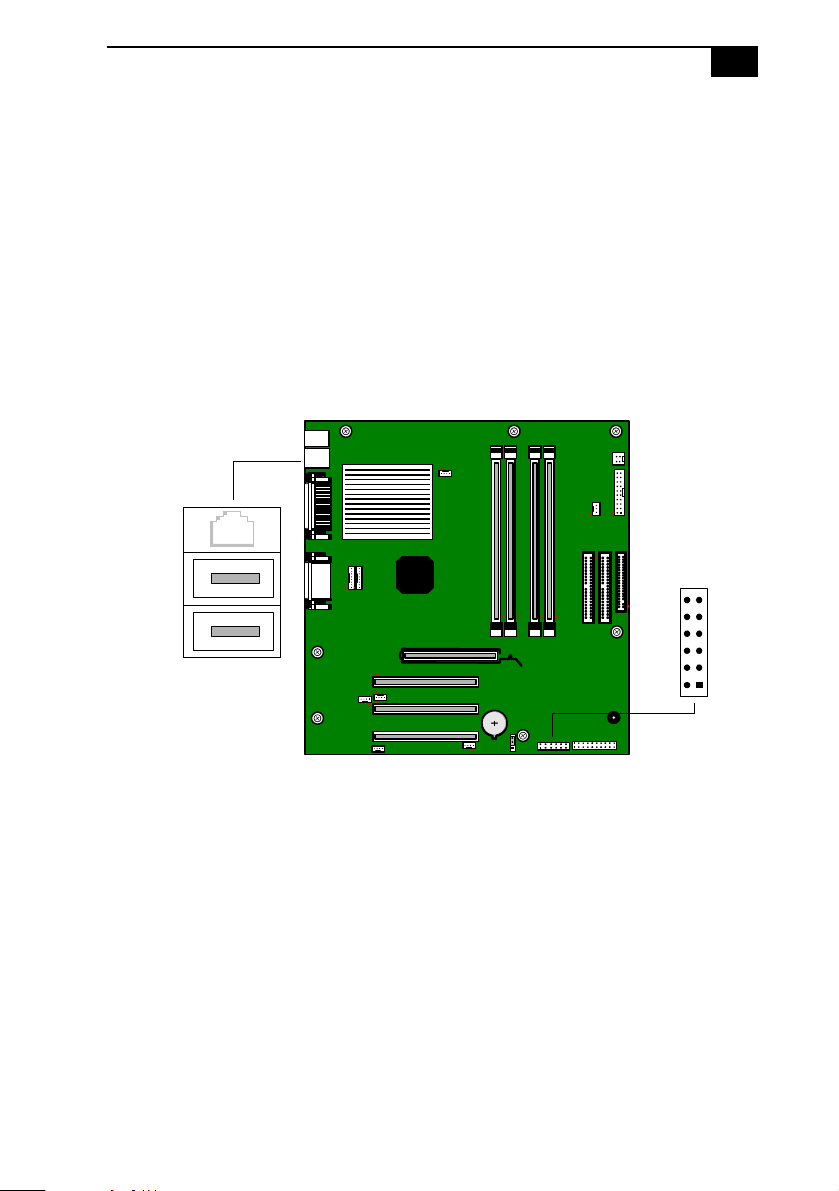
USB Ports and USB Header
There are four USB ports: two USB ports at the rear panel, and two USB
ports at the front panel. Each permits connection of USB peripheral
devices directly to the system without having to use an external hub.
USB1 and USB2 are standard USB ports accessible from the rear panel.
An internal cable connects the 12-pin USB23 header to an interface board
behind the front panel. The interface board provides two standard USB
ports (USB3 and USB4) that are accessible from the bottom of the front
panel.
If more USB devices are needed, connect an external hub to any USB port.
USB1
USB2
USB23 header
12
34
56
78
910
1112
VAIO Digital Studio™ System Reference Manual
64
USB23 header (connects to USB1 on front panel)
Pin Signal Name
1+3VDual
2NP1
3NP3
4NC(Key)
5USBVCC1
6USBVCC2
7LP2+
8LP3+
9LP2-
10 LP3-
11 GND
12 GND
USB1, USB2 ports
Pin Signal Name
1 USBVCC1
*
2USBP0#
3USBP0
4Ground
5 USBVCC2
*
6USBP1#
7USBP1
8Ground
USB3, USB4 ports
Pin Signal Name
1 USBVCC3
*
2USBP2#
3USBP2
4Ground
5 USBVCC4
*
6USBP3#
7USBP3
8Ground
* Uses over-current protector.
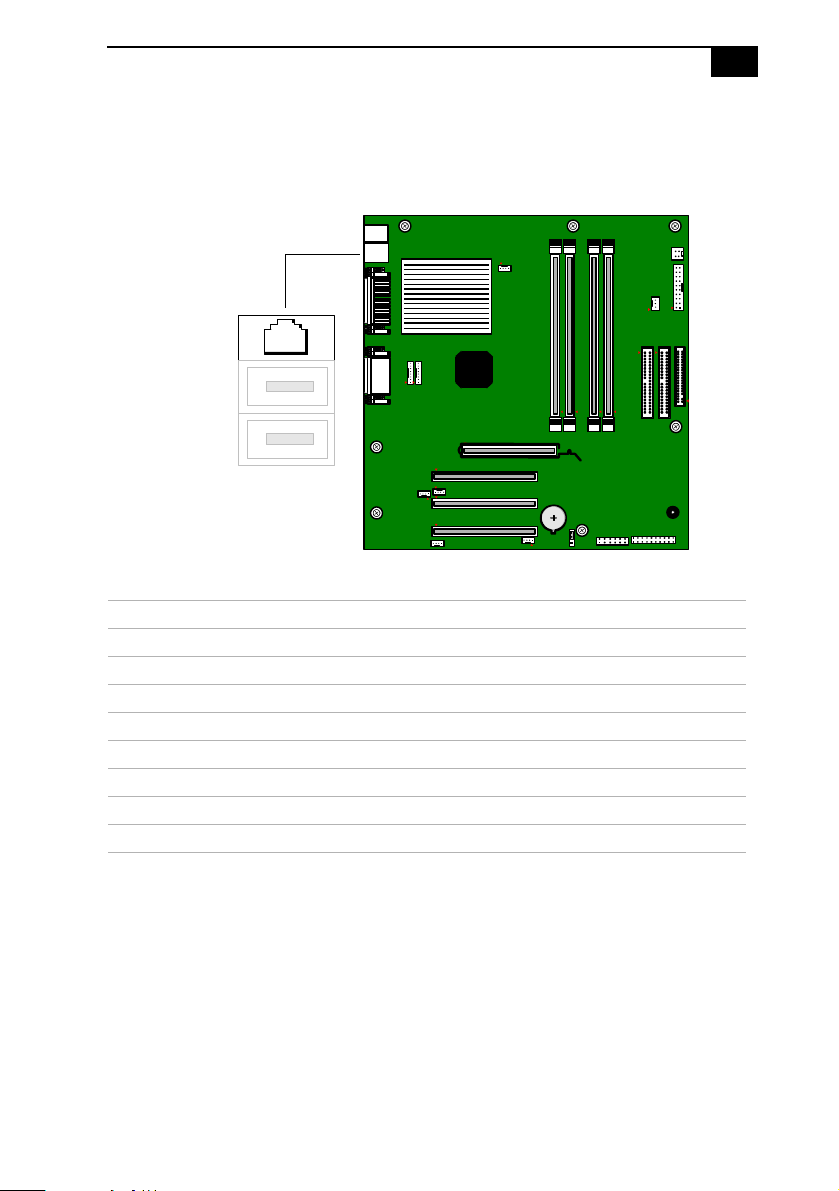
System Board
65
Ethernet Port
There is one Ethernet port at the rear panel, which permits connection to
a 10Base-T/100Base-TX Ethernet network.
Serial , Printer, and i.LINK Ports
The serial, printer, and i.LINK ports are mounted in a single bracket on
the system board. The Serial port is a DB-9 male connector. The printer
port is a DB-25 female port. The i.LINK connector is a 6-pin standard
IEEE1394 port.
Ethernet port
Pin Signal Name
1Tx+
2Tx-
3Rx+
4N/C
5N/C
6Rx-
7N/C
8N/C
Ethernet
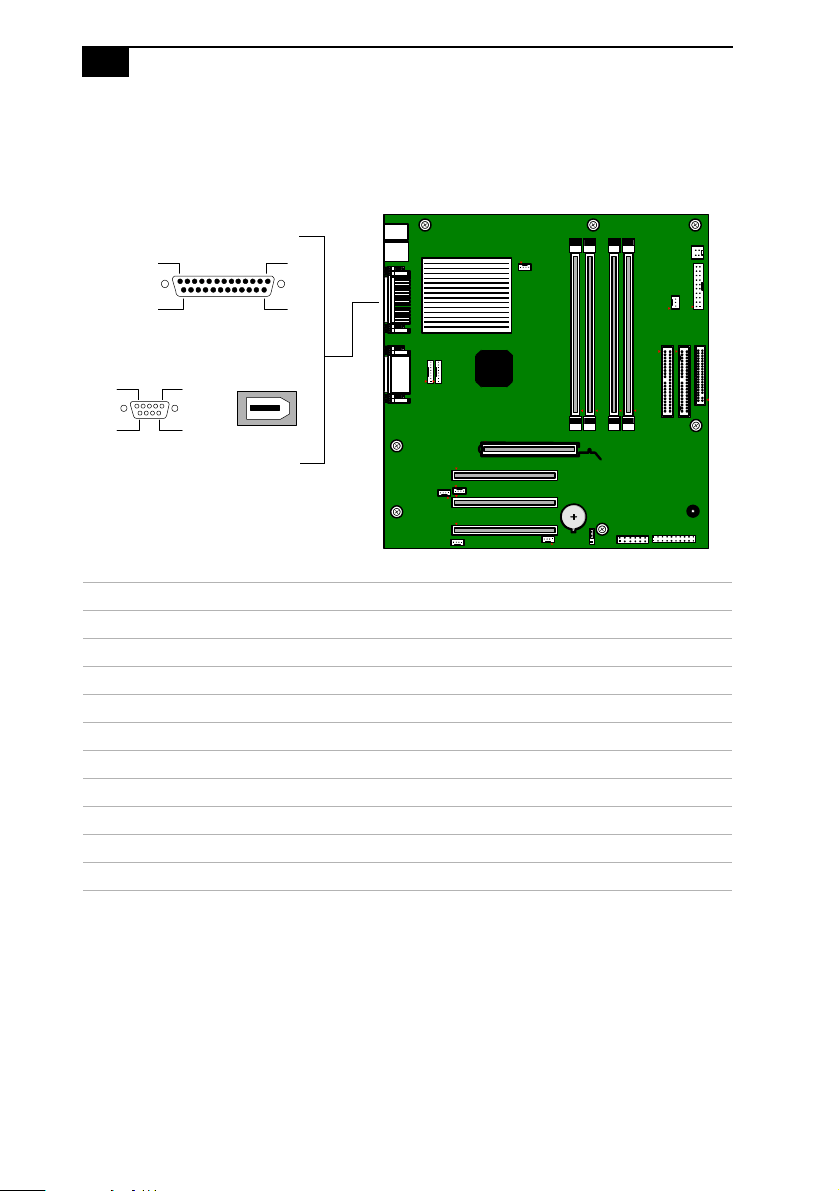
VAIO Digital Studio™ System Reference Manual
66
The 6-pin i.LINK port on the back of the system can supply power from
the computer to a device if the device also has a 6-pin port. The 6-pin
port supplies 10 V to 12 V and a maximum power of 6 watts.
Serial port
Pin Signal Name
1DCD
2RXD
3TXD
4DTR
5LOGICGND
6DSR
7RTS
8CTS
9RI
Printer
13
25
1
14
1
6
5
9
Serial
i.LINK
System Board
67
Printer port
Pin Signal Name
1STROBE-
2DATABIT0
3DATABIT1
4DATABIT2
5DATABIT3
6DATABIT4
7DATABIT5
8DATABIT6
9DATABIT7
10 ACK -
11 BUSY
12 ERROR
13 SELECT
14 AUTO-FEED -
15 FAULT -
16 INIT -
17 SELECT-IN -
18 LOGIC GND
19 LOGIC GND
20 LOGIC GND
21 LOGIC GND
22 LOGIC GND
23 LOGIC GND
24 LOGIC GND
25 LOGIC GND

VAIO Digital Studio™ System Reference Manual
68
i.LINK port
Pin Signal Name
1GroundVP(Power)
*
2Ground
3TPB
4TPB
5TPA
6TPA
* Uses over-current protector.
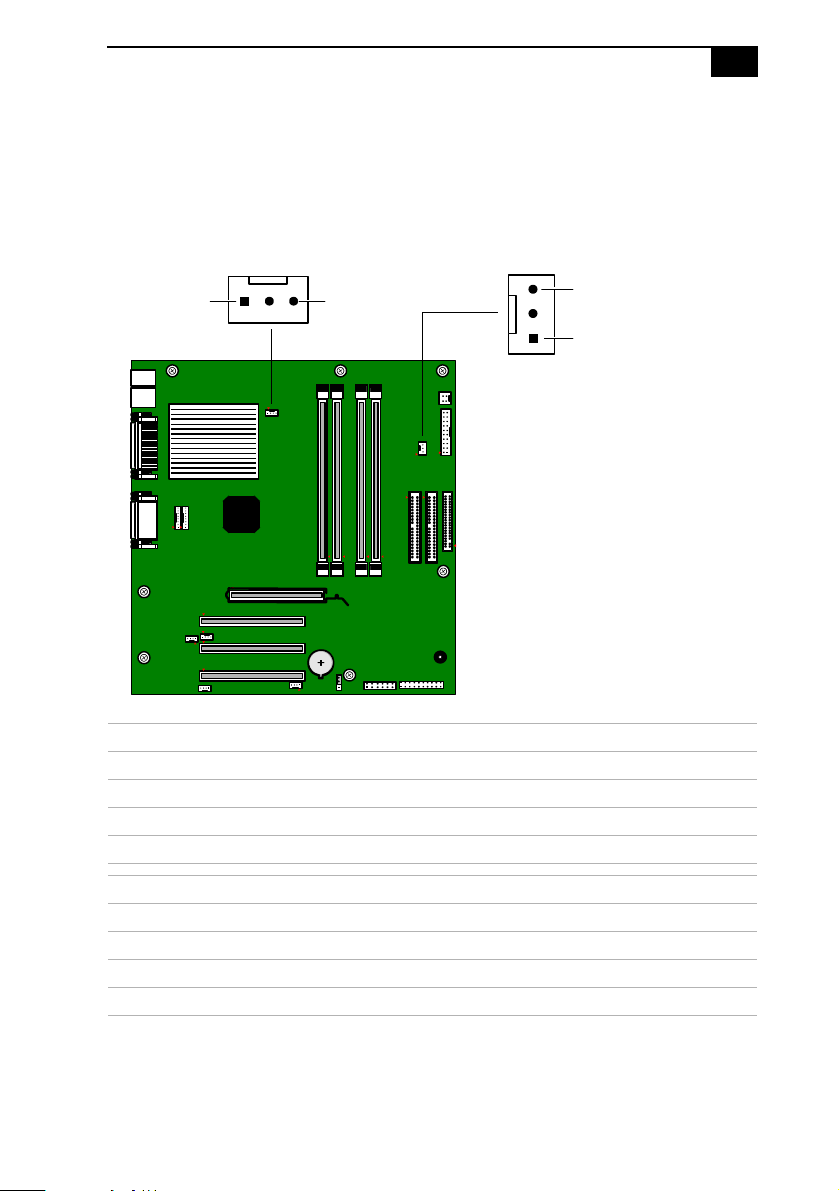
System Board
69
Fan Headers
The CPU-FAN and PWR-FAN headers are 1 x 3-pin straight headers.
CPU-FAN controls the cooling fan on the CPU. PWR-FAN controls the
cooling fan in the power supply.
CPU-FAN header
Pin Signal Name
1Ground
2 FAN_CTRL (+12V)
3FAN_SEN
PWR-FAN header
Pin Signal Name
1Ground
2 FAN_CTRL [0 V(S3) , 2 V(S1), 12 V(S0)]
3FAN_SEN
CPU-FAN
PWR-FAN
1
1
3
3
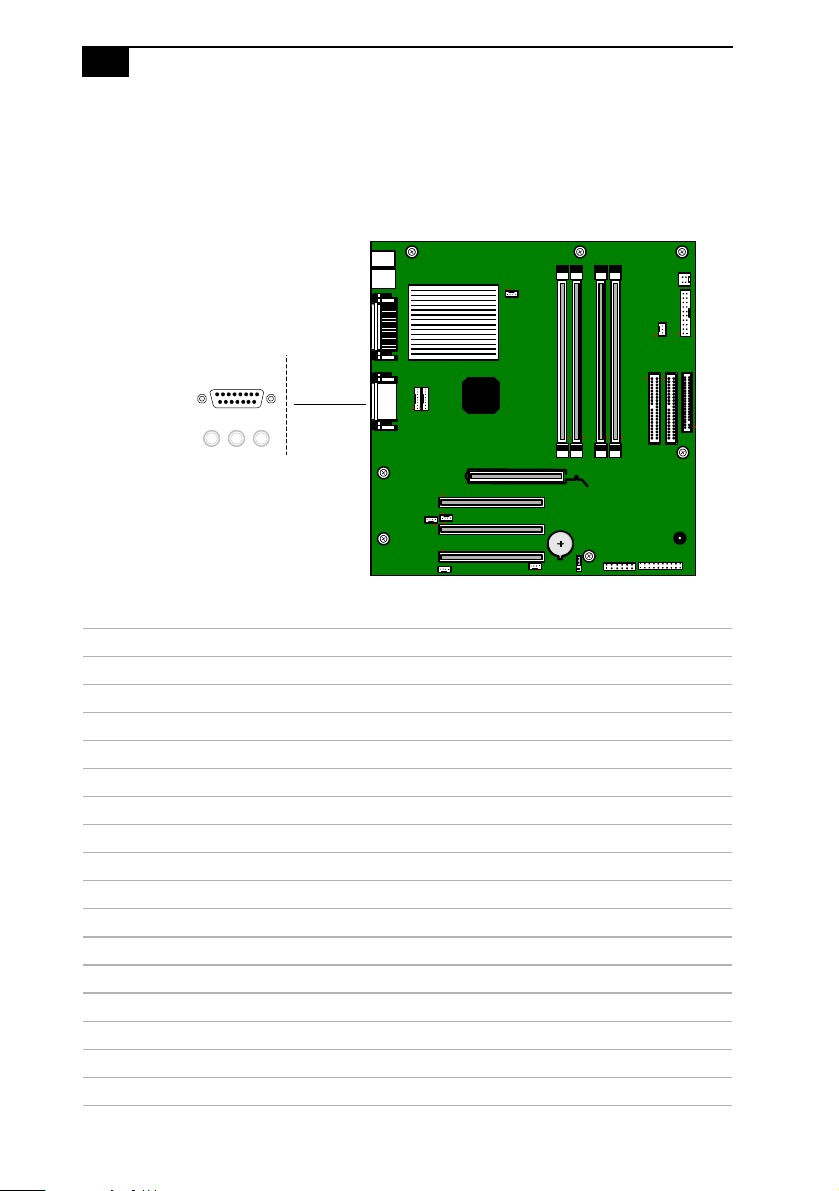
VAIO Digital Studio™ System Reference Manual
70
Game Port
The game port is a female DB-15 port for connecting to a game
controller/joystick or MIDI device.
Game port
Pin Signal Name
1GAMEVCC
*
* Uses over-current protector.
2JPYB0
3JOYA0
4GND
5GND
6JOYA1
7JOYB1
8 GAMEVCC*
9 GAMEVCC*
10 JOYB2
11 JOYA2
12 MIDI_TxD
13 JOYA3
14 JOYB3
15 MIDI_RxD
Game
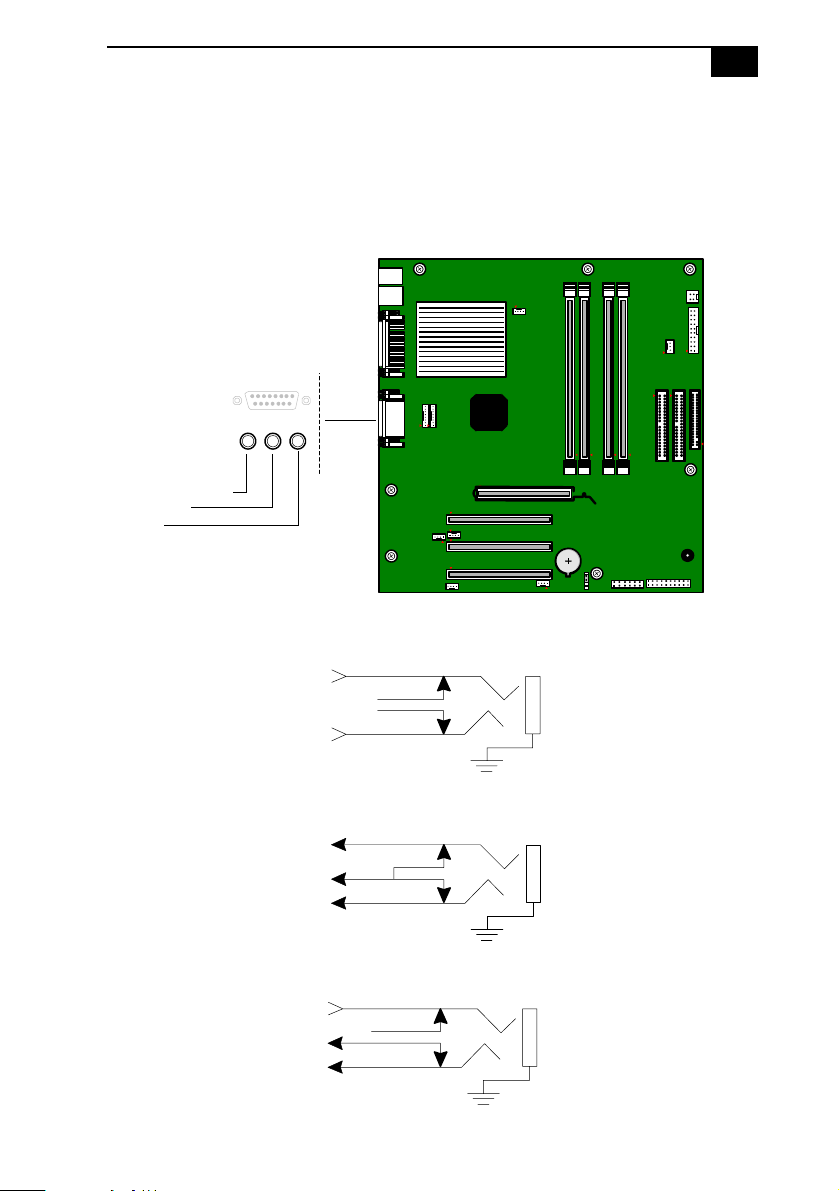
System Board
71
Headphones, Line In, Mic Jacks
The headphones jack is a stereo mini-jack (3.5 mm) that connects to
headphones. The line in jack is a stereo mini-jack (3.5 mm) that connects
to a stereo audio source (not an audio source from a video device). The
mic in jack is a stereo mini-jack (3.5 mm) that connects to a microphone.
Headphones
Line In
Mic
Headphones
Line In
Mic
Audio Right Out
Audio Left Out
Audio Right In
Ground
Audio Left In
Electret Bias Voltage
Ground
Mic Mono In
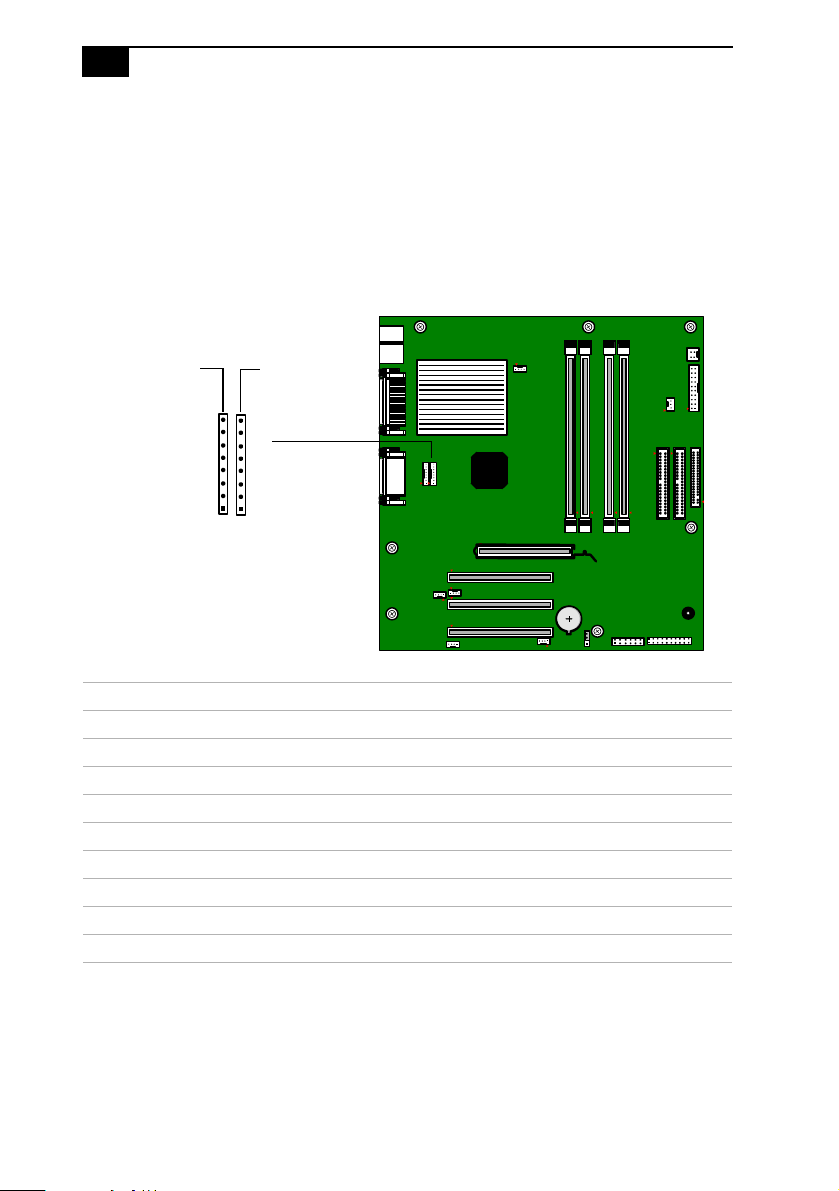
VAIO Digital Studio™ System Reference Manual
72
i.LINK Headers
The system board has two i.LINK headers: 1394HEAD2 and 1394HEAD3.
An internal cable connects the 8-pin header (1394HEAD3) to an interface
unit mounted behind the front of the chassis. The interface unit connects
to the 4-pin i.LINK (IEEE1394) header at the bottom of the front panel.
The other 8-pin header (1394HEAD2) is not used.
i.LINK headers (1394HEAD2 and 1394HEAD3)
Pin Signal Name
1ShellGround
2Ground
3TPA
4TPA
5TPB
6TPB
7Ground
8VP(Power)
*
* Uses over-current protection.
1394HEAD3
1394HEAD2
8
8
1
1
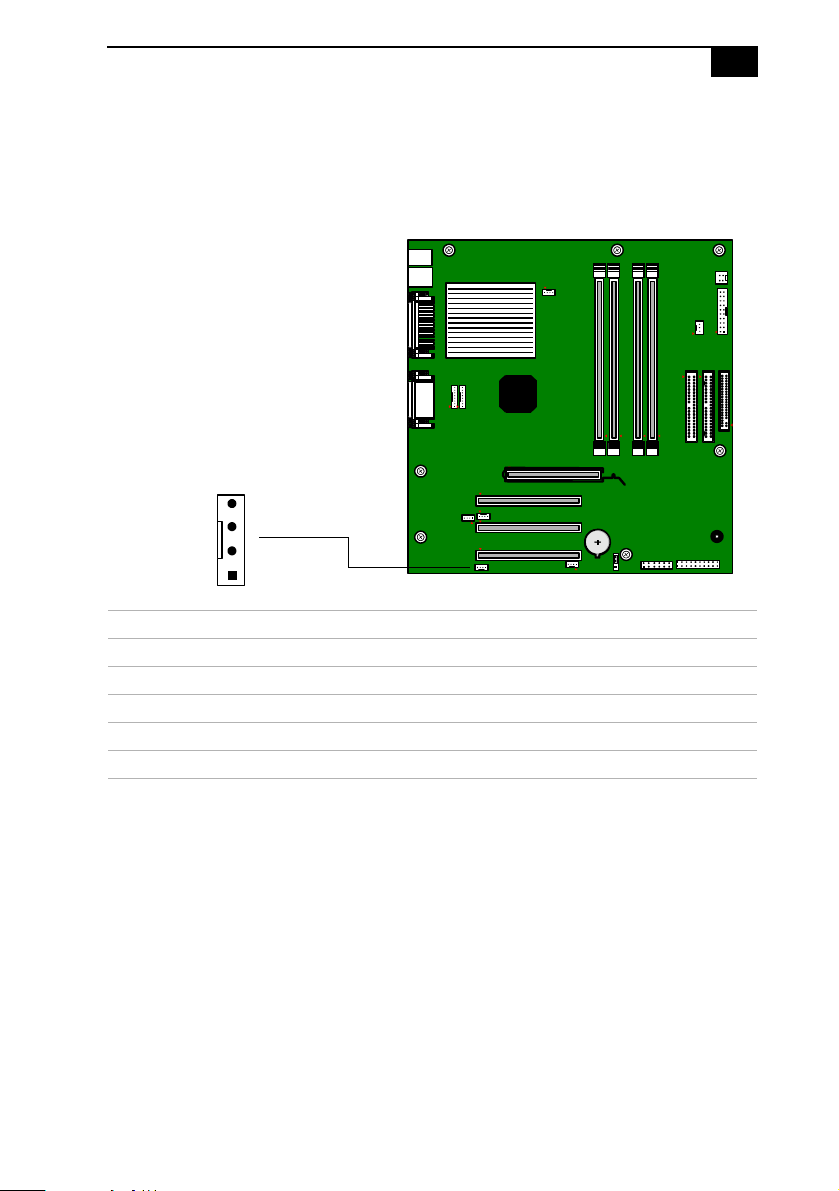
System Board
73
CD-IN Header
The CD-IN header on the system board is a 1 x 4-pin header that connects
to the DVD-ROM drive’s audio output connector (not used in the
PCV-RX490TV).
CD-IN header
Pin Signal Name
1LeftLineIn
2Ground
3Ground
4RightLineIn
CD-IN
1
4
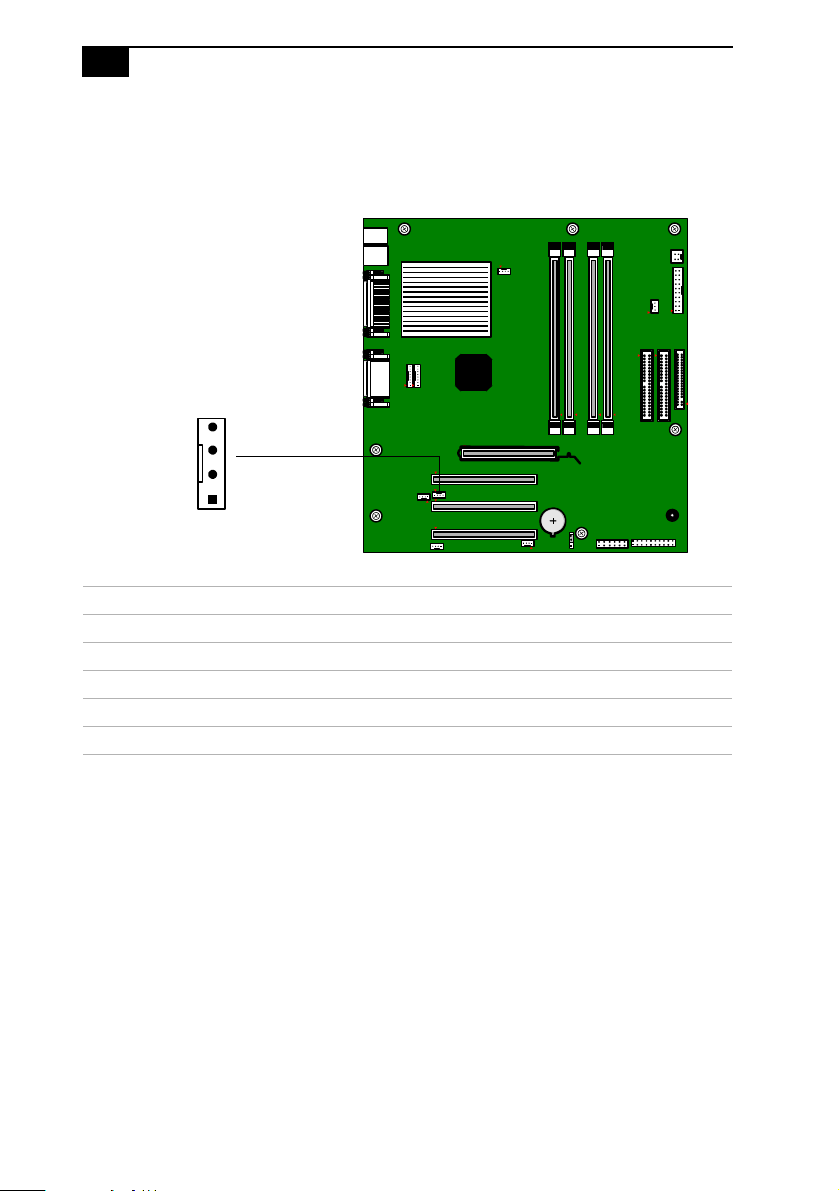
VAIO Digital Studio™ System Reference Manual
74
AUX-IN Header
The AUX-IN header on the system board is a 1 x 4-pin 2mm inline header.
It is only used by the Giga Pocket card in the PCV-RX490TV.
AUX-IN header
Pin Signal Name
1LeftLineIn
2Ground
3Ground
4 Right Line In
AUX-IN
4
1
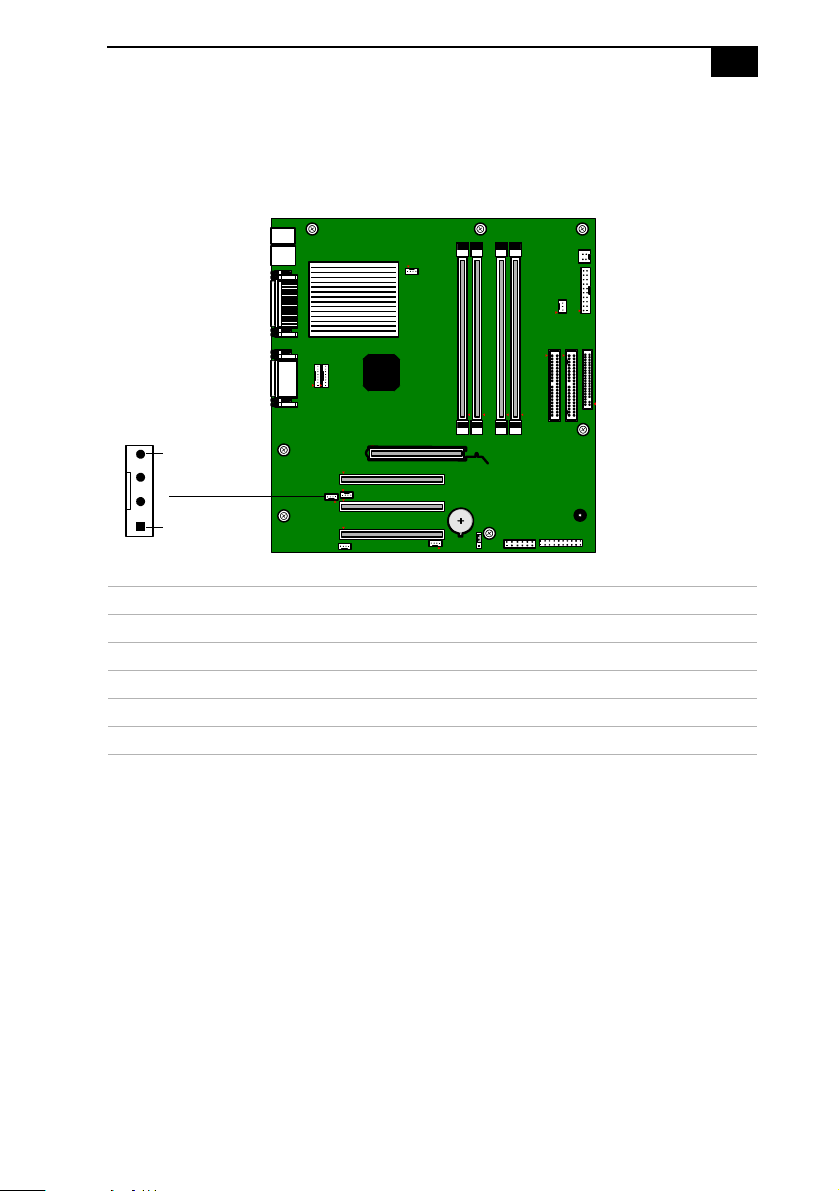
System Board
75
Video Header
The Video header on the system board is a 1 x 4-pin 2mm inline header. It
is not used.
VIDEO header
Pin Signal Name
1VideoL
2Ground
3Ground
4VideoR
Video
4
1
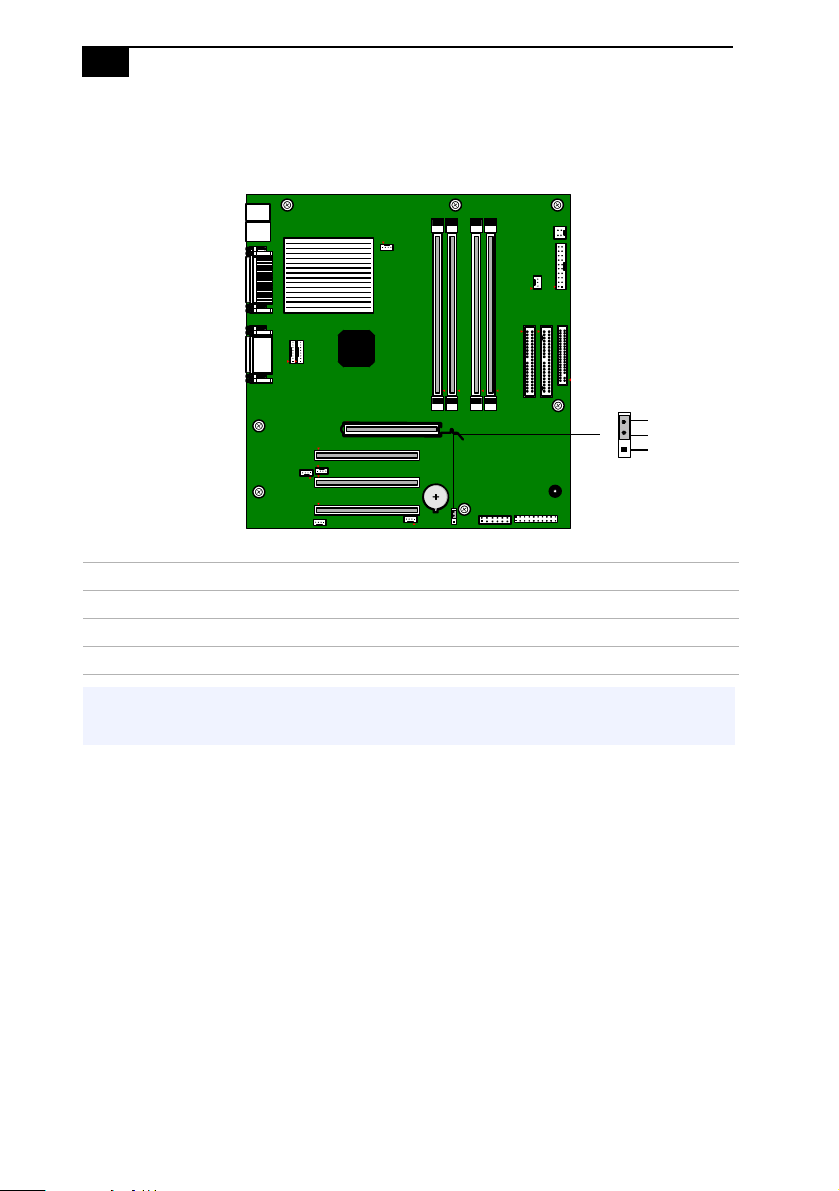
VAIO Digital Studio™ System Reference Manual
76
CLR CMOS Jumper
The CLR CMOS Jumper clears the BIOS password setting.
CLR CMOS Jumper settings
Jumper Plug Position Function
2-3 Normal
1-2 Clear CMOS Password
✍ The configuration jumpers should never need changing unless otherwise directed by a
technical support of service technician.
1
2
3
CLR CMOS

77
Chapter 5
Fax/Modem Card
The fax/modem card occupies PCI slot No. 1. Your computer is either
installed with a HomePNA modem or Lucent 1648 modem depending on
the configuration you purchased.
To determine the modem installed on your computer, locate the RJ-11
jacks on the back of your system. If one RJ-11 jack exists, you have a
HomePNA modem; if two RJ-11 jacks exist, you have a Lucent 1648
modem.
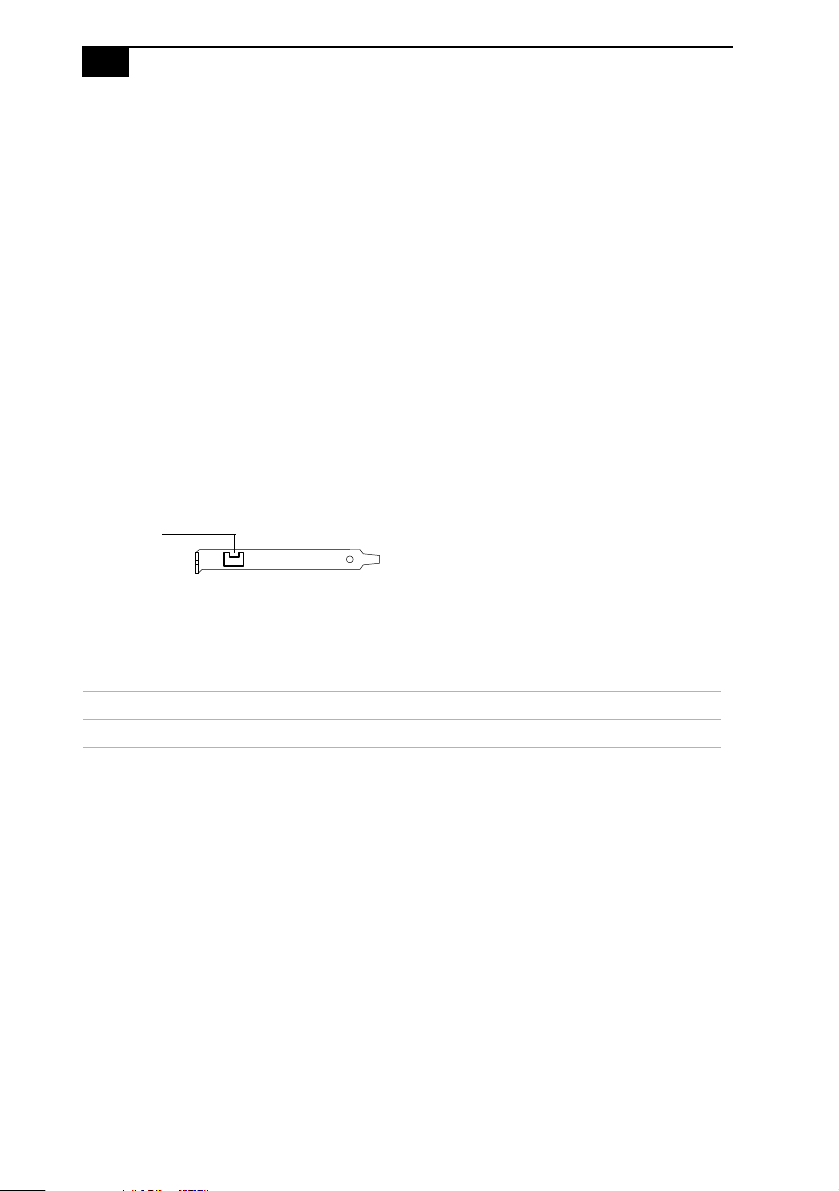
VAIO Digital Studio™ System Reference Manual
78
HomePNA Modem
The HomePNA standard uses frequency division multiplexing (FDM) to
usethesamephonelineforvoiceanddatatransmission.Thisenables
network access for any compatible HomePNA device that can be plugged
into a phone jack (RJ-11) in your home.
The HomePNA modem installed in your VAIO computer has a single
jack (RJ-11). If you want to use a single wall jack for your computer’s
Internet access and for a standard telephone, you can use an optional
1-to-2 jack adapter (splitter) in the telephone wall jack to accommodate
both lines.
Refer to the Home Networking Solutions: Using the HomePNA Modem with
Sony VAIO Computers documentation that accompanied your computer(s)
and the installation instructions that accompanied the HomePNA
device(s) for further information on the HomePNA modem.
Connectors
Name Connector Type Description
Line RJ-11 Connects to telephone line
Line
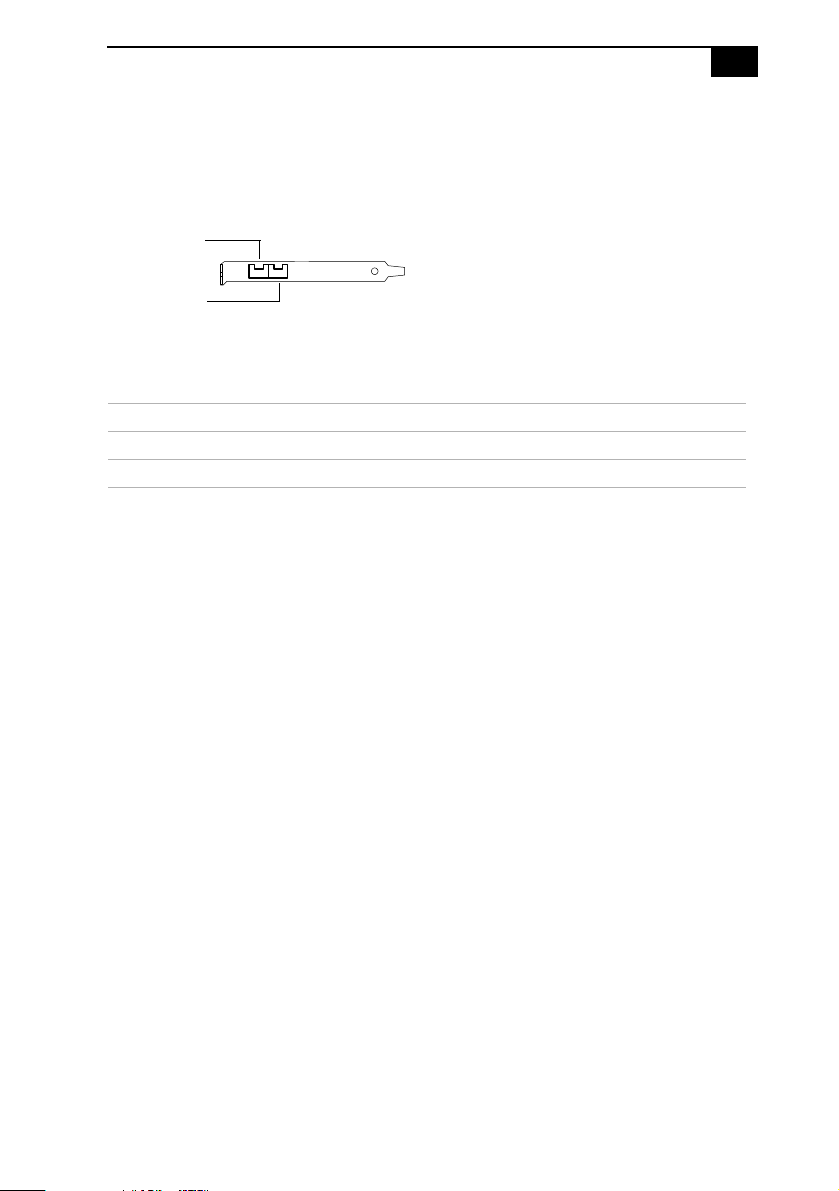
Fax/Modem Card
79
Lucent 1648 Modem
There are two RJ-11 jacks: one to connect a telephone line, and one to
connect a phone.
Connectors
Name Connector Type Description
Telephone RJ-11 Connects to phone
Line RJ-11 Connects to telephone line
Telephone
Line

VAIO Digital Studio™ System Reference Manual
80
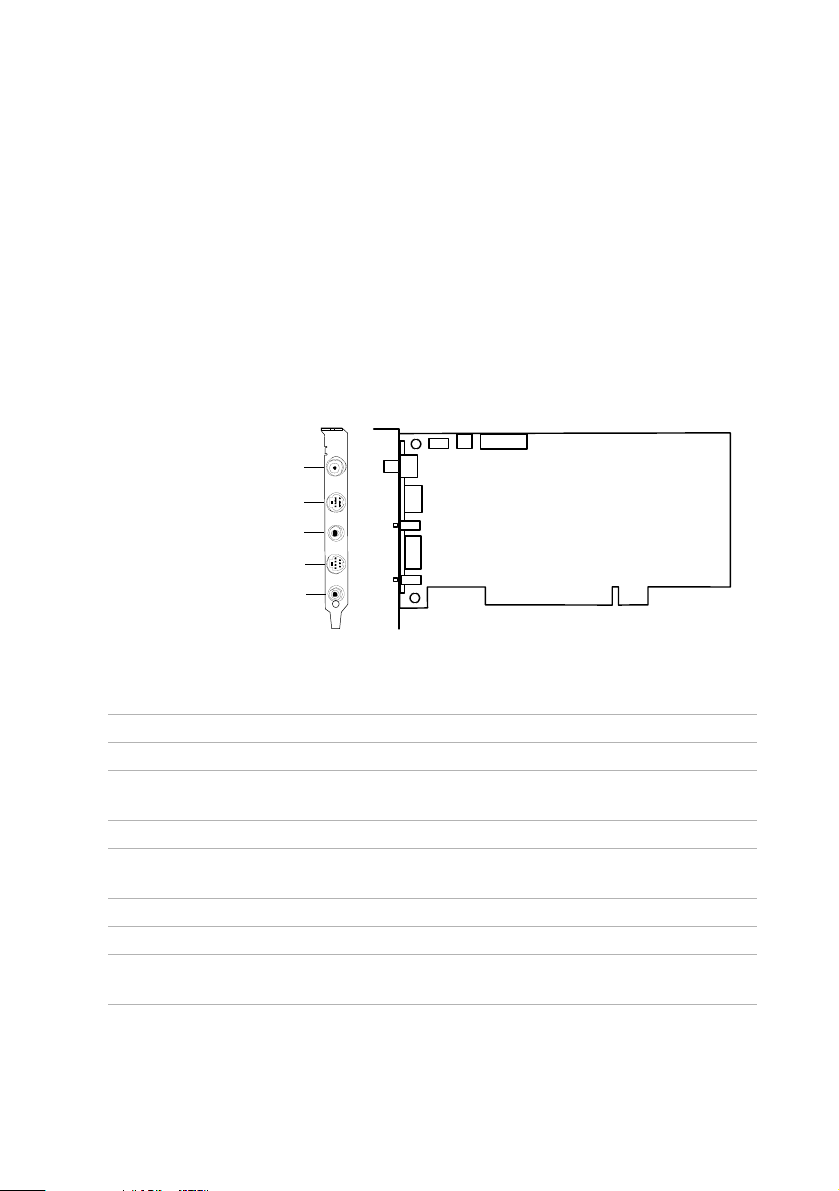
81
Chapter 6
Giga Pocket Card
The Giga Pocket card occupies PCI slot No. 2 in the PCV-RX490TV model.
The Giga Pocket card has seven connectors and ten pins.
Connector Description
Pin1 Pin2 Pin3 Pin4 Pin5
CN1 Ground L-Out R-Out
CN2 Ground Ground Y-Out C-Out Reserved
(ID)
CN3 Ground L-In R-In
CN4GroundGroundY-In C-In Reserved
(ID)
CN5 L-Out L-Out Ground R-Out
CN8 L-Out L-Out Ground R-Out
CN9 Reserved
(ID)
Reserved
(ID2)
Y-In (Front) C-In
(Front)
Ground
Audio Out Jack
Video/S-video Out Port
Audio In Jack
Video/S-video In Port
VHF/UHF Port
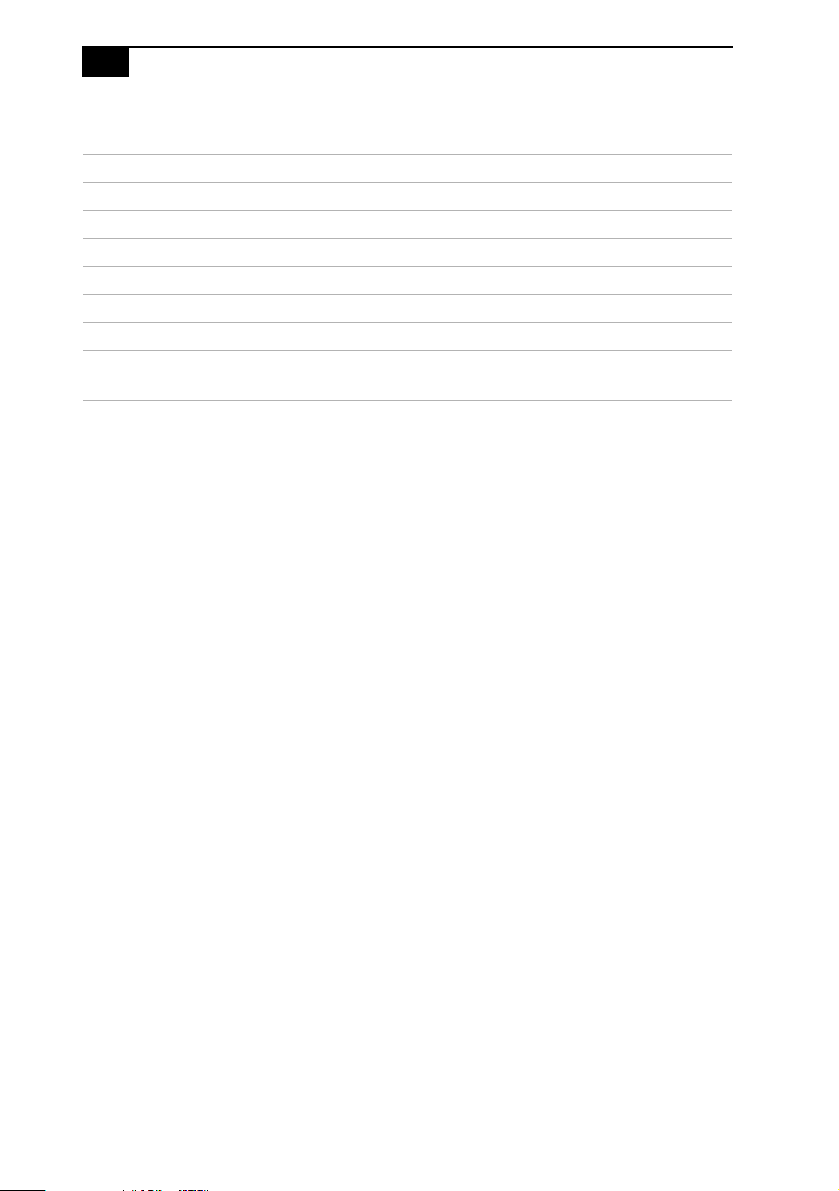
VAIO Digital Studio™ System Reference Manual
82
Connector Description
Pin6 Pin7 Pin8 Pin9 Pin10
CN1
CN2 Ground Video-Out
CN3
CN4 Ground Video-In
CN5
CN8
CN9 Video- In
(Front)
Ground L-In (Front) R-In
(Front)
Ground
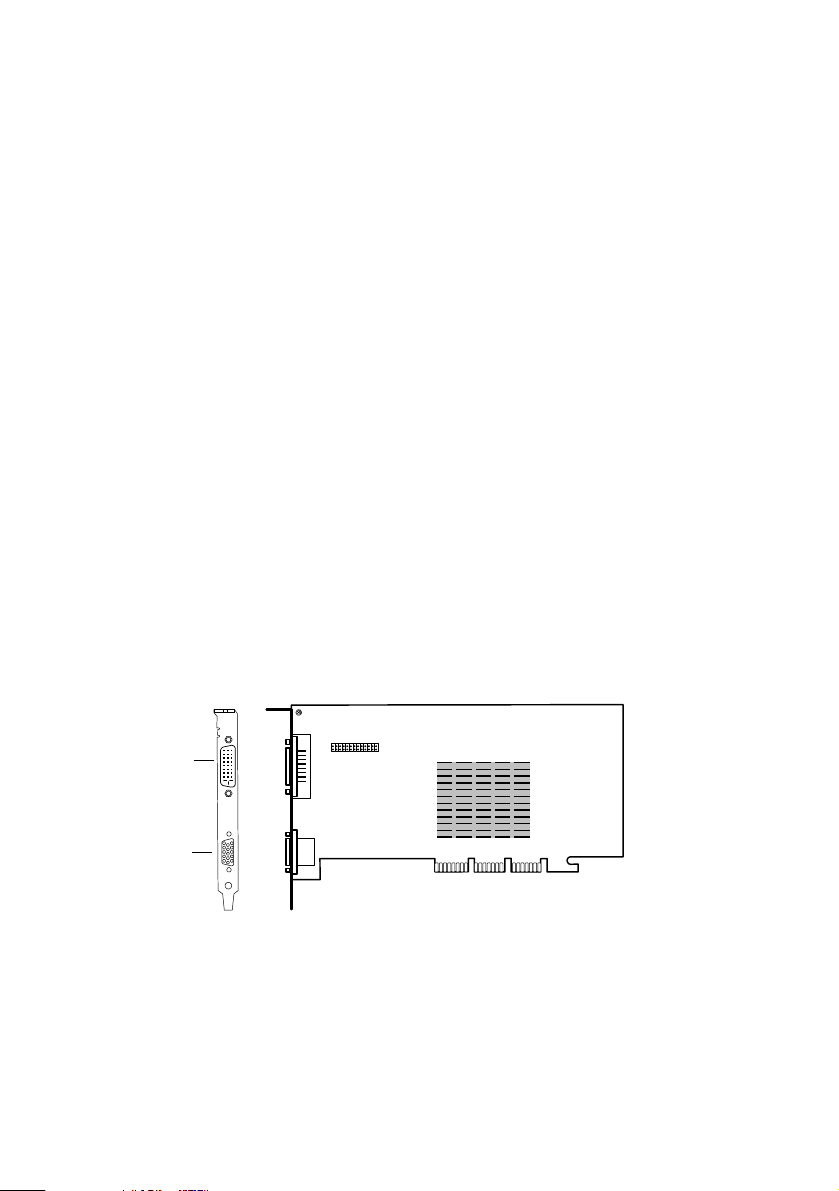
83
Chapter 7
Video Card
The video card occupies slot No. 4 (AGP slot). The video card has two
ports:astandardVGA-styleport,andaDVIport.
The VGA-style port is a standard 15-pin high-density VGA-style port on
the rear bracket.
The DVI port is a 24-pin DVI port that can be attached to a Sony XGA
LCD panel (PCVA-15XD2), which uses a DVI connector cable (sold
separately). The DVI port can also be connected to any other DVI-
equipped LCD/VGA monitor.
You can physically connect both a VGA and an LCD monitor at the same
time. However, you cannot use both monitors at the same time. If you
operate only one monitor to the system, the system automatically detects
which monitor is connected. If you connect both monitors, you must
choose one monitor from the Display settings.
The video card has 32 MB of SDRAM and has a 128-bit wide bus.
DVI LCD
Monitor
VGA
Monitor
VAIO Digital Studio™ System Reference Manual
84
Connectors
DVI port
Pin Signal
1 TMDS data2-
2 TMDS data2+
3 TMDS data2/4 shield
4 TMDA data4-
5 TMDA data4+
6DDCclock
7 DDC data
8NC
9 TMDS data1-
10 TMDS data1+
11 TMDS data1/3 shield
12 TMDS data3-
13 TMDS data3+
14 +5V
15 Ground for +5V
16 Hot-plug detect
17 TMDS data0-
18 TMDS data0+
19 TMDS data0/5 shield
20 TMDS data5-
21 TMDS data5+
22 TMDS clock shield
23 TMDS clock+
24 TMDS clock-

85
Chapter 8
CMOS Setup Options
This chapter describes each screen in the Award BIOS Setup Utility (see
“Accessing the BIOS Setup Utility” on page 22).
The Award BIOS setup has five menu items on the menu bar. These are:
❑ Main
❑ Advanced
❑ Power
❑ Boot
❑ Exit
Options that you can change are enclosed in brackets. Text that is not
enclosed in brackets cannot be changed.
A small triangle ( ) indicates that there is a sub-menu with additional
information and options. Press Enter to display the sub-menu. The
information and options in a sub-menu are context-sensitive (they appear
or disappear, depending on which options you select).
The item shown in [brackets] in this guide is the default option. The
option shown in [brackets] on the screen is the option currently set for
your system.
The other available options for each item are shown without brackets
directly below the default option in this guide. The available options are
listed in the order they occur when you press the + key.
Use the left and right arrow keys to choose a menu item. Use the up and
down arrow keys to select an option. Press Enter to display a list of
options, or press the + or - key to cycle through the other options.
If you display the list of options, use the up and down arrow keys to
select an option in the list, then press Enter to choose the selection.
Press Esc to go back to the main menu.

VAIO Digital Studio™ System Reference Manual
86
Press F10 to save the changes and exit, or press Esc to discard the
changes.
Follow the on-screen prompts for other choices. The bottom of the screen
presents a summary of the keys to use for navigation and control.
CMOS Setup Options
87
Main Screen
System Time [00:00:00]
System Date [01/01/2001]
Primary Master (see
“IDE Sub-Menus”
on page 88)
Primary Slave (see
“IDE Sub-Menus”
on page 88)
Secondary Master (see
“IDE Sub-Menus”
on page 88)
Secondary Slave (see
“IDE Sub-Menus”
on page 88)
Supervisor Password [Disabled]
User Password [Disabled]
Installed Memory 128 MB
BIOS Revision/Version 1002 (depends on model)
VAIO Digital Studio™ System Reference Manual
88
IDE Sub-Menus
Type [Auto]
User Type HDD
CD-ROM
LS-120
ZIP-100
MO
Other ATAPI
None
Translation Method
*
[LBA]
Large
Normal
Match Partition Table
Manual
Cylinders
†
[ 1024]
Heads
†
[255]
Sectors
‡
[63]
CHS Capacity
*
8422 MB
Maximum LBA Capacity
*
40992 MB (depends on model)
Multi-Sector Transfers
*
[Maximum]
Disabled
2Sectors
4Sectors
8Sectors
16 Sectors
32 Sectors
PIO Mode
**
[4]
ULTRA DMA Mode
†
[4]
Set Device As
††
[Auto]
Floppy
Hard Disk
* This option appears when Type is set to User Type HDD.
† This option appears when Type is set to Auto or User Type HDD.
‡ This option appears when Type is set to Auto or User Type HDD.
** This option appears when Type is not set to None.
†† This option appears when Type is set to ZIP-100 or MO.
VAIO Digital Studio™ System Reference Manual
90
I/O Device Configuration Sub-Menu
Onboard AC97 Audio Controller [Enabled]
Disabled
Onboard 1394 Controller [Enabled]
Disabled
Onboard Lan Controller [Enabled]
Disabled
Onboard Serial Port 1 [3F8H/IRQ4]
2F8H/IRQ3
3E8H/IRQ4
2E8H/IRQ10
Disabled
Onboard Parallel Port [378H/IRQ7]
278H/IRQ5
Disabled
3BCH/IRQ7
Parallel Port Mode [Normal]
EPP
ECP
ECP+EPP
Onboard Game Port [200H-207H]
208H-20FH
Disabled
Onboard MIDI I/O [330H-331H]
300H-301H
Disabled
Onboard MIDI IRQ [10]
3
4
5
6
7
9
11
12
14
15
CMOS Setup Options
91
PCI Configuration Sub-Menu
Slot 1 IRQ [Auto]
to NA
Slot 3 IRQ 3
4
5
7
9
10
11
12
14
15
VGA BIOS Sequence [PCI/AGP]
AGP/PCI
Onboard LAN Boot ROM [Disabled]
Enabled
VAIO Digital Studio™ System Reference Manual
92
Power Screen
Power Up Control
AC PWR Loss Restart [Disabled]
Enabled
PWR Up On Modem Act [Disabled]
Enabled
Wake On LAN [Disabled]
Enabled
Hardware Monitor
MB Temperature [(displays actual temperature)]
Ignore
CPU Temperature [(displays actual temperature)]
Ignore
CPU Fan Speed [Ignore]
(displays actual RPM)
Power Fan Speed [(displays actual RPM)]
Ignore
VCORE Voltage [(displays actual voltage)]
Ignore
+3.3V Voltage [(displays actual voltage)]
Ignore
+5V Voltage [(displays actual voltage)]
Ignore
+12V Voltage [(displays actual voltage)]
Ignore
-12V Voltage [(displays actual voltage)]
Ignore
-5V Voltage [Ignore]
(displays actual voltage)
CMOS Setup Options
93
Boot Screen
1. ATAPI CD-ROM [(displays installed drive)]
Disabled
2. Removable Device [Legacy Floppy]
LS120
ZIP-100
ATAPI MO
Disabled
3. IDE Hard Drive [(displays installed drive)]
Disabled
4. Other Boot Device [Disabled]
INT18 Device (Network)
SCSI Boot Device
Silent Boot [Enabled]
Disabled

VAIO Digital Studio™ System Reference Manual
94
Exit Screen
Exit Saving Changes
Exit Discarding Changes
Load Setup Defaults
Discard Changes
Save Changes

95
Chapter 9
Miscellaneous Technical
Information
This chapter contains information on the following subjects:
❑ User and Supervisor password
❑ Beep code error messages
❑ PCI configuration status and error messages
❑ DMA channel assignments
❑ System I/O address map
❑ Memory map
❑ IRQ summary
VAIO Digital Studio™ System Reference Manual
96
User and Supervisor Passwords
The system allows you to specify up to two passwords (a User password
and a Supervisor password) in the CMOS Setup Utility. The User
password is required; the Supervisor password is optional.
Access to the CMOS Setup Utility depends on which passwords were
previously set, as indicated next.
If you set these passwords... ...the following passwords are required:
User password only User password is required at bootup.
Supervisor password only No password is required at bootup.
Supervisor password is required by most
setup options.
Both passwords User password is required at bootup.
Supervisor password is required by most
setup options.
Miscellaneous Technical Information
97
Beep Code Error Messages
During a normal bootup, a single short beep signifies that the system is
OK. Other beep patterns signify errors. The number of beeps indicates the
specific error that occurred.
TheSonyOnlineSupporttechnicalrepresentativewillneedtoknowhow
many beeps your system produces if there is an error, so be sure to count
the number of beeps before calling for support.
VAIO Digital Studio™ System Reference Manual
98
PCI Configuration Status and Error Messages
The following is a list of status and error messages that may appear on
your system from time to time.
Message Meaning
Floppy Disk Controller
Resource Conflict
The floppy disk controller has requested a
resource that is already in use.
NVRAM Checksum Error,
NVRAM Cleared
The NVRAM data was reinitialized due to
an NVRAM checksum error.
NVRAM Cleared By Jumper The Clear CMOS jumper block has been
changed to the clear position.
NVRAM Data Invalid,
NVRAM Cleared
Invalid entry in the NVRAM.
Parallel Port Resource Conflict The parallel port has requested a resource
that is already in use.
PCI Error Log is Full This message is displayed when more than
15 PCI conflict errors are detected. No
additional PCI errors can be logged.
PCI I/O Port Conflict Two devices requested the same resource,
resulting in a conflict.
PCI IRQ Conflict Two devices requested the same resource,
resulting in a conflict.
PCI Memory Conflict Two devices requested the same resource,
resulting in a conflict.
Primary Boot Device Not
Found
The designated primary boot device (hard
disk drive, floppy disk drive, CD-ROM
drive, or network drive) could not be
found.
Primary IDE Controller
Resource Conflict
The primary IDE controller has requested a
resource that is already in use.
Primary Input Device Not
Found
The designated primary input device
(keyboard, mouse, or other, if input is
redirected) could not be found.
Primary Output Device Not
Found
The designated primary output device
(display, serial port, or other, if input is
redirected) could not be found.
Secondary IDE Controller
Resource Conflict
The secondary IDE controller has requested
a resource that is already in use.
Serial Port 1 Resource Conflict Serial port 1 has requested a resource that is
already in use.
Miscellaneous Technical Information
99
Static Device Resource Conflict A non-Plug and Play ISA card has
requested a resource that is already in use.
System Board Device Resource
Conflict
A non-Plug and-Play ISA card has
requested a resource that is already in use.

VAIO Digital Studio™ System Reference Manual
100
DMA Channel Assignments
This shows the factory default values. Windows reassigns resources to
best meet the needs of a particular configuration.
DMA
Channel
Default
Assignment
02 Standard floppy disk controller.
04 Direct memory access (DMA) controller.
Miscellaneous Technical Information
101
System I/O Address Map
PCV-RX462DS/PCV-RX463DS/PCV-RX465DS/PCV-RX470DS/PCV-RX480DS
Address Range
(hex)
Description
0x0000-0x000F Direct memory access controller
0x0010-0x001F Motherboard resources
0x0020-0x0021 Programmable interrupt controller
0x0022-0x002D Motherboard resources
0x002E-0x002F Motherboard resources
0x0030-0x003F Motherboard resources
0x0040-0x0043 System timer
0x0044-0x005F Motherboard resources
0x0060-0x0060 Standard 101/102-Key or Microsoft Natural Keyboard
0x0061-0x0061 System speaker
0x0062-0x0063 Motherboard resources
0x0064-0x0064 Standard 101/102-Key or Microsoft Natural Keyboard
0x0065-0x006F Motherboard resources
0x0070-0x0073 System CMOS/real time clock
0x0074-0x007F Motherboard resources
0x0080-0x0090 Direct memory access controller
0x0091-0x0093 Motherboard resources
0x0094-0x009F Direct memory access controller
0x00A0-0x00A1 Programmable interrupt controller
0x00A2-0x00BF Motherboard resources
0x00C0-0x00DF Direct memory access controller
0x00E0-0x00EF Motherboard resources
0x00F0-0x00FF Numeric data processor
0x0170-0x0177 Intel® 82801BA Ultra ATA storage controller
0x0170-0x0177 Secondary IDE controller (dual FIFO)
0x01F0-0x01F7 Intel 82801BA Ultra ATA storage controller
0x01F0-0x01F7 Primary IDE controller (dual FIFO)
0x0200-0x0207 Gameport joystick
0x0295-0x0296 Motherboard resources
0x0330-0x0331 MPU-401-compatible MIDI device
0x0370-0x0372 Motherboard resources
VAIO Digital Studio™ System Reference Manual
102
0x0376-0x0376 Secondary IDE controller (dual FIFO)
0x0376-0x0376 Intel 82801BA Ultra ATA storage controller
0x0378-0x037F Printer port (LPT1)
0x03B0-0x03BB NVIDIA GeForce2 MX (Sony)
0x03C0-0x03DF NVIDIA GeForce2 MX (Sony)
0x03F0-0x03F1 Motherboard resources
0x03F2-0x03F5 Standard floppy disk controller
0x03F6-0x03F6 Primary IDE controller (dual FIFO)
0x03F6-0x03F6 Intel® 82801BA Ultra ATA storage controller
0x03F7-0x03F7 Standard floppy disk controller
0x03F8-0x03FF Communications port (COM1)
0x04D0-0x04D1 Motherboard resources
0x0CF8-0x0CFF PCI bus
0xB000-0xB01F Intel 82801BA/BAM USB universal host controller
No. 2
0xB400-0xB41F Intel 82801BA/BAM USB universal host controller
No. 1
0xB800-0xB80F Primary IDE controller (dual FIFO)
0xB800-0xB80F Intel 82801BA Ultra ATA storage controller
0xB808-0xB80F Secondary IDE controller (dual FIFO)
0xC000-0xDFFF Intel 82801BA PCI bridge - 244E
0xD000-0xD0FF WDM communication device
0xD400-0xD407 WDM communication device
0xD800-0xD8FF Realtek RTL8139(A/B/C/8130) PCI Fast Ethernet NIC
0xE000-0xE0FF SoundMAX integrated digital audio
0xE100-0xE13F SoundMAX integrated digital audio
0xE400-0xE47F Motherboard resources
0xE800-0xE80F Intel 82801BA/BAM SMBus controller
0xEC00-0xEC3F Motherboard resources
PCV-RX462DS/PCV-RX463DS/PCV-RX465DS/PCV-RX470DS/PCV-RX480DS
Address Range
(hex)
Description
Miscellaneous Technical Information
103
PCV-RX490TV
Address Range
(hex)
Description
0x0000-0x000F Direct memory access controller
0x0010-0x001F Motherboard resources
0x0020-0x0021 Programmable interrupt controller
0x0022-0x002D Motherboard resources
0x002E-0x002F Motherboard resources
0x0030-0x003F Motherboard resources
0x0040-0x0043 System timer
0x0044-0x005F Motherboard resources
0x0060-0x0060 Standard 101/102-Key or Microsoft Natural Keyboard
0x0061-0x0061 System speaker
0x0062-0x0063 Motherboard resources
0x0064-0x0064 Standard 101/102-Key or Microsoft Natural Keyboard
0x0065-0x006F Motherboard resources
0x0070-0x0073 System CMOS/real time clock
0x0074-0x007F Motherboard resources
0x0080-0x0090 Direct memory access controller
0x0091-0x0093 Motherboard resources
0x0094-0x009F Direct memory access controller
0x00A0-0x00A1 Programmable interrupt controller
0x00A2-0x00BF Motherboard resources
0x00C0-0x00DF Direct memory access controller
0x00E0-0x00EF Motherboard resources
0x00F0-0x00FF Numeric data processor
0x0170-0x0177 Intel® 82801BA Ultra ATA Storage Controller
0x0170-0x0177 Secondary IDE controller (dual fifo)
0x01F0-0x01F7 Intel® 82801BA Ultra ATA Storage Controller
0x01F0-0x01F7 Primary IDE controller (dual fifo)
0x0200-0x0207 Gameport Joystick
0x0295-0x0296 Motherboard resources
0x0330-0x0331 MPU-401 Compatible MIDI Device
0x0370-0x0372 Motherboard resources
0x0376-0x0376 Intel® 82801BA Ultra ATA Storage Controller
0x0376-0x0376 Secondary IDE controller (dual fifo)
VAIO Digital Studio™ System Reference Manual
104
0x0378-0x037F Printer Port (LPT1)
0x03B0-0x03BB NVIDIA GeForce2 MX (Sony)
0x03C0-0x03DF NVIDIA GeForce2 MX (Sony)
0x03F0-0x03F1 Motherboard resources
0x03F2-0x03F5 Standard Floppy Disk Controller
0x03F6-0x03F6 Intel® 82801BA Ultra ATA Storage Controller
0x03F6-0x03F6 Primary IDE controller (dual fifo)
0x03F7-0x03F7 Standard Floppy Disk Controller
0x03F8-0x03FF Communications Port (COM1)
0x04D0-0x04D1 Motherboard resources
0x0CF8-0x0CFF PCI bus
0xA000-0xA01F Intel® 82801BA/BAM USB Universal Host Controller 2
0xA400-0xA41F Intel® 82801BA/BAM USB Universal Host Controller 1
0xA800-0xA80F Intel® 82801BA Ultra ATA Storage Controller
0xA800-0xA80F Primary IDE controller (dual fifo)
0xA808-0xA80F Secondary IDE controller (dual fifo)
0xB000-0xDFFF Intel® 82801BA PCI Bridge - 244E
0xB800-0xB8FF WDM Communication Device
0xD000-0xD007 WDM Communication Device
0xD400-0xD4FF Sony MPEG2 Encoder Board (WDM)
0xD800-0xD8FF Realtek RTL8139 Family PCI Fast Ethernet NIC
0xE000-0xE0FF SoundMAX Integrated Digital Audio
0xE100-0xE13F SoundMAX Integrated Digital Audio
0xE400-0xE47F Motherboard resources
0xE800-0xE80F Intel® 82801BA/BAM SMBus Controller - 2443
PCV-RX490TV
Address Range
(hex)
Description
Miscellaneous Technical Information
105
Memory Map
PCV-RX462DS/PCV-RX463DS/PCV-RX465DS/PCV-RX470DS/PCV-RX480DS
Address range Default configuration
0x0000-0x9FFFF System board extension for ACPI BIOS
0xFFF80000-0xFFFFFFFF System board extension for ACPI BIOS
0xF8000000-0xFBFFFFFF Intel® 82850 Processor to I/O Controller - 2530
0xEE000000-0xEFEFFFFF Intel® 82850/82860 Processor to AGP
Controller - 2532
0xEE000000-0xEFEFFFFF NVIDIA GeForce2 MX (Sony)
0xEFF00000-0xF7FFFFFF Intel® 82850/82860 Processor to AGP
Controller - 2532
0xF0000000-0xF7FFFFFF NVIDIA GeForce2 MX (Sony)
0xEF000000-0xEF00FFFF NVIDIA GeForce2 MX (Sony)
0xEC000000-0xEDFFFFFF Intel® 82801BA PCI Bridge - 244E
0xEC000000-0xEDFFFFFF WDM Communication Device
0xED800000-0xED8000FF Realtek RTL8139(A/B/C/8130) PCI Fast
Ethernet NIC
0xEC000800-0xEC000FFF Texas Instruments OHCI Compliant IEEE 1394
Host Controller
0xEC004000-0xEC007FFF Texas Instruments OHCI Compliant IEEE 1394
Host Controller
0xA0000-0xAFFFF NVIDIA GeForce2 MX (Sony)
0xB0000-0xBFFFF NVIDIA GeForce2 MX (Sony)
0xC0000-0xCBFFF NVIDIA GeForce2 MX (Sony)
0xF0000-0xFFFFF System board extension for ACPI BIOS
0x100000-0x7FFFFFF System board extension for ACPI BIOS
PCV-RX490TV
Address range Default configuration
0x0000-0x9FFFF System board extension for ACPI BIOS
0xFFF80000-0xFFFFFFFF System board extension for ACPI BIOS
0xF8000000-0xFBFFFFFF Intel® 82850 Processor to I/O Controller - 2530
0xEE000000-0xEFEFFFFF Intel® 82850/82860 Processor to AGP Controller
- 2532
0xEE000000-0xEFEFFFFF NVIDIA GeForce2 MX (Sony)
0xEFF00000-0xF7FFFFFF Intel® 82850/82860 Processor to AGP Controller
- 2532
VAIO Digital Studio™ System Reference Manual
106
0xF0000000-0xF7FFFFFF NVIDIA GeForce2 MX (Sony)
0xEF000000-0xEF00FFFF NVIDIA GeForce2 MX (Sony)
0xEB800000-0xEDFFFFFF Intel® 82801BA PCI Bridge - 244E
0xEB800000-0xEDFFFFFF WDM Communication Device
0xED800000-0xED8000FF Realtek RTL8139 Family PCI Fast Ethernet NIC
0xEB800800-0xEB800FFF Texas Instruments OHCI Compliant IEEE 1394
Host Controller
0xEB804000-0xEB807FFF Texas Instruments OHCI Compliant IEEE 1394
Host Controller
0xEC000000-0xEC00FFFF Sony MPEG2 Encoder Board (WDM)
0xA0000-0xAFFFF NVIDIA GeForce2 MX (Sony)
0xB0000-0xBFFFF NVIDIA GeForce2 MX (Sony)
0xC0000-0xCBFFF NVIDIA GeForce2 MX (Sony)
0xF0000-0xFFFFF System board extension for ACPI BIOS
0x100000-0x7FFFFFF System board extension for ACPI BIOS
✍ I/O addresses that may be used by add-in cards are not listed.
PCV-RX490TV
Address range Default configuration
Miscellaneous Technical Information
107
IRQ Summary
PCV-RX462DS/PCV-RX463DS/PCV-RX465DS/PCV-RX470DS/PCV-RX480DS
IRQ Description
0 System timer
1 Standard 101/102-Key or Microsoft Natural Keyboard
2 Programmable interrupt controller
3 ACPI IRQ Holder for PCI IRQ Steering
3 Intel® 82801BA/BAM SMBus Controller - 2443
3 SoundMAX Integrated Digital Audio
4 Communications Port (COM1)
6 Standard Floppy Disk Controller
7 Printer Port (LPT1)
8SystemCMOS/realtimeclock
9 SCI IRQ used by ACPI bus
9 ACPI IRQ Holder for PCI IRQ Steering
9 ACPI IRQ Holder for PCI IRQ Steering
9 ACPI IRQ Holder for PCI IRQ Steering
9 ACPI IRQ Holder for PCI IRQ Steering
9 Realtek RTL8139(A/B/C/8130) PCI Fast Ethernet NIC
9 Texas Instruments OHCI Compliant IEEE 1394 Host Controller
9 WDM Communication Device
9 Intel® 82801BA/BAM USB Universal Host Controller 1
9 Intel® 82801BA/BAM USB Universal Host Controller 2
10 MPU-401 Compatible MIDI Device
11 ACPI IRQ Holder for PCI IRQ Steering
11 NVIDIA GeForce2 MX (Sony)
12 PS/2 Compatible Mouse Port
13 Numeric data processor
14 Intel® 82801BA Ultra ATA Storage Controller
14 Primary IDE controller (dual fifo)
15 Intel® 82801BA Ultra ATA Storage Controller
15 Secondary IDE controller (dual fifo)
VAIO Digital Studio™ System Reference Manual
108
PCV-RX462DS/PCV-RX463DS/PCV-RX465DS/PCV-RX470DS/PCV-RX480DS
IRQ Description
0 System timer
0 System timer
1 Standard 101/102-Key or Microsoft Natural Keyboard
2 Programmable interrupt controller
3 ACPI IRQ Holder for PCI IRQ Steering
3 Intel® 82801BA/BAM SMBus Controller - 2443
3 SoundMAX Integrated Digital Audio
4 Communications Port (COM1)
6 Standard Floppy Disk Controller
7PrinterPort(LPT1)
8 System CMOS/real time clock
9 SCI IRQ used by ACPI bus
9 ACPI IRQ Holder for PCI IRQ Steering
9 ACPI IRQ Holder for PCI IRQ Steering
9 ACPI IRQ Holder for PCI IRQ Steering
9 ACPI IRQ Holder for PCI IRQ Steering
9 ACPI IRQ Holder for PCI IRQ Steering
9 Realtek RTL8139 Family PCI Fast Ethernet NIC
9 Texas Instruments OHCI Compliant IEEE 1394 Host Controller
9 Sony MPEG2 Encoder Board (WDM)
9 WDM Communication Device
9 Intel® 82801BA/BAM USB Universal Host Controller 1
9 Intel® 82801BA/BAM USB Universal Host Controller 2
10 MPU-401 Compatible MIDI Device
11 ACPI IRQ Holder for PCI IRQ Steering
11 NVIDIA GeForce2 MX (Sony)
12 PS/2 Compatible Mouse Port
13 Numeric data processor
14 Intel® 82801BA Ultra ATA Storage Controller
14 Primary IDE controller (dual fifo)
15 Intel® 82801BA Ultra ATA Storage Controller
15 Secondary IDE controller (dual fifo)
109
Chapter 10
Specifications
This chapter describes the technical specifications for the Sony
PCV-RX462DS/PCV-RX463DS/PCV-RX465DS/PCV-RX470DS/
PCV-RX480DS/PCV-RX490TV computers.
Processors
Chipset
AGP Bus
PCV-RX462DS
1.3 GHz Intel® Pentium® 4 processor
PCV-RX463DS/PCV-RX465TV
1.4 GHz Intel® Pentium® 4 processor
PCV-RX470DS
1.50 GHz Intel® Pentium® 4 processor
PCV-RX480DS/PCV-RX490TV
1.70 GHz Intel® Pentium® 4 processor
Intel 850 chipset
AGP interface specification, version 2.0 (supports 2x/4x)
1AGPslot
VAIO Digital Studio™ System Reference Manual
110
PCI Bus
Memory Modules
Memory Configurations
L2 Cache
Graphics
PCI Level 2.2, 33 MHz zero wait state
3 PCI slots (2 open in the PCV-RX462DS/PCV-RX463DS/PCV-RX465DS/
PCV-RX470DS/PCV-RX480DS models, 1 open in the PCV-RX490TV model)
Installed memory 128 MB (may be more if purchased through the VAIO
Direct Web site)
Maximum memory 512 MB (256 MB in each socket)
Voltage 2.5V memory only
Pins 184-pins with gold-plated contacts
Memory type Non-ECC 40ns/45ns PC800 Direct Rambus RIMM
module
RIMMA1/RIMMA2
*
* Your VAIO computer is shipped with at least 128 MB. RIMM is expandable to 512 MB.
Your computer may
ship with more than 128 MB of RIMM™ memory if you purchased it through the VAIO Direct Web site.
System memory is 2.5 V non-ECC 40ns/45ns PC800 Direct Rambus RIMM modules. Your computer does
not support EDO memory or buffered DIMM memory. Memory must be installed in pairs. Memory size can
vary between sockets. RIMM modules can be single- or double-sided.
RIMMB1/RIMMB2
*
0, 8, 16, 32, 64, 128 0, 8, 16, 32, 64, 128
Installed 256 KB of Advanced Transfer cache
AGP Controller
*
* Supports DDC-1 and DDC-2b standards for Plug and Play displays.
nVIDIA® GeForce2 MX (AGP 4x) graphics
acceleration
Video memory 32 MB SDRAM @ 166 MHz
Resolution (displayed resolution depends on the graphics display you use)
True color (32 bits) Up to 1600 x 1200 at 85 Hz non-interlaced
High color (16 bits) Up to 1600 x 1200 at 100 Hz non-interlaced
256 colors (8 bits) Up to 1600 x 1200 at 100 Hz non-interlaced
Specifications
111
Audio
Sound chip Analog Devices SoundMAX integrated digital
audio
Wave synthesis Software synthesis
Sound effects DirectX®
Audio sampling rate Up to 48 kHz at 16 bits
Rear panel connectors Mic (for microphone)
Line In (from stereo audio source)
Headphones (for stereo headphone)
VAIO Digital Studio™ System Reference Manual
112
Communications
Giga Pocket I/O (PCV-RX490TV only)
I/O and Expansion Slots
Modem Lucent 1648 technology V.90-compatible data/fax
modem (REN 0.79B)
*
* This modem is capable of downloading at 56 Kbps using K56flex™ technology/V.90. Your phone service,
online service, or Internet Service Provider may not support this technology or operate at this speed.
BROADCOM® BCM4211 TECHNOLOGY/V.90
COMPATIBLE DATA/FAX MODEM (REN = 0.0B)
†
10 Mbps/1 Mbps data transfer rate
HomePNA 2.0 compatible
† This modem is capable of transfering data at 10 Mbps (HomePNA) and downloading at 56 Kbps / 14.4
Kbps (Modem) using V.90 technology. Your phone service, online service, or Internet Service Provider,
however, may not support this technology or operate at this speed.
Fax 14.4 Kbps maximum
i.LINK (IEEE1394) 400 Mbps, OHCI chip set
Rear Audio In L/R
S-Video/Video In
Audio In L/R
VHF/UHF
Front S-Video In
Video In
Audio L In
Audio R In
Serial port One high-speed NS16C550-compatible port
Parallel port One high-speed bi-directional
Centronics-compatible port with ECP and EPP
modes
MIDI/game port One (supports MIDI in/out or two joysticks —
adapter cable not supplied)
Modem ports Two RJ-11 ports (for line and phone)
USB ports USB1 and USB2 (rear panel)
USB3 and USB4 (front panel)
Specifications
113
Floppy Disk Drive and Controller
Hard Drives and Controllers
PCI slots Two available slots in PCV-RX462DS/
PCV-RX463DS/PCV-RX465DS/PCV-RX470DS/
PCV-RX480DS models. One available slot in
PCV-RX490TV. Maximum length for add-in cards
is 9.05 inches
IDE headers Primary and secondary (each supports two IDE
drives)
Drive Description
Floppy disk controller 82077-compatible (supports up to 2.88 MB)
Floppy disk drive 3.5-inch, 1.44 MB.
Drive Description
PCV-RX462DS
PCV-RX463DS
PCV-RX465DS
PCV-RX470DS
PCV-RX480DS PCV-RX490TV
IDE hard
drive
*
* Bus-mastering EIDE driver installed.
40 GB
C=16GB
D=24GB
60 GB
C=16GB
D=44GB
80 GB
C=16GB
D=64GB
80 GB
C=12GB
D=68GB
EIDE
controller
Supports up to four EIDE drives (supports PIO Mode 4 EIDE drives
and Ultra DMA/100 Mode drives)
VAIO Digital Studio™ System Reference Manual
114
Optical Drives
PCV-RX462DS/PCV-RX463DS/PCV-RX465DS/PCV-RX470DS/PCV-RX480DS
Drive Description
DVD-ROM drive
*
* The DVD-ROM data transfer standard 1X rate is 1350 KBps.
CD-RW read
†
DVD-ROM read
‡
CD-R/CD-ROM read
**
† Data on a CD-RW is read at a variable transfer rate, ranging from 13X at the innermost track to 32X at
the outermost track. The average data transfer rate is 22.5X (3375 KBps).
‡ Data on a DVD-ROM is read at a variable transfer rate, ranging from 6.6X at the innermost track to 16X
at the outermost track. The average data transfer rate is 11.3X (15255 KBps).
** Data on a CD-R/CD-ROM is read at a variable transfer rate, ranging from 17.5X at the innermost track to
40X at the outermost track. The average data transfer rate is 28.6X (4293 KBps).
32X maximum performance
16X maximum performance
40X maximum performance
CD-RW drive
††
†† The CD-RW/CD-R/CD-ROM data transfer standard 1X rate is 150 KB per second (KBps).
CD-RW read
‡‡
CD-R/CD-RW write
***
CD-R/CD-ROM read
†††
‡‡ Data on a CD-RW is read at a variable transfer rate, ranging from 8X at the innermost track to 20X at the
outermost track. The average data transfer rate is 14X (2100 KBps).
***Data on a CD-R/CD-RW is written at a constant transfer rate of 2X, 4X, 8X (max. for CD-RW), or 12X,
depending on the speed you select.
†††Data on a CD-R/CD-ROM is read at a variable transfer rate, ranging from 13X at the innermost track to
32X at the outermost track. The average data transfer rate is 22.5X (3375 KBps).
20X maximum performance
8X maximum performance
32X maximum performance
Specifications
115
PCV-RX490TV
Drive Description
DVD-RW drive
*
* The DVD-ROM data transfer standard 1X rate is 1350 KBps. The CD-RW/CD-R/CD-ROM data transfer
standard rate is 150 KBps.
DVD-ROM read
†
DVD-RW/DVD-R read
‡
CD-ROM read
**
CD-RW/CD-R read
††
CD-R write
CD-RW write
‡‡
DVD-R write
***
DVD-RW write
† Data on a DVD-ROM is read at a variable transfer rate, ranging from 2X at the innermost track to 4X at
the outermost track. The average data transfer rate is 3.3X (4455 KBps).
‡ Data on a DVD-RW/DVD-R is read at a constant transfer rate of 2X.
** Data on a CD-ROM is read at a variable transfer rate, ranging from 10.3X at the innermost track to 24X
at the outermost track. The average data transfer rate is 17.2X (2580 KBps).
†† Data on a CD-RW/CD-R is read at a variable transfer rate, ranging from 6.9X at the innermost track to 16X
at the outermost track. The average data transfer rate is 11.5X (1725 KBps).
‡‡ Data on a CD-RW/CD-R is written at a constant transfer rate of 4X (max for CD-RW), or 8X depending on
the speed you select. High-speed writing to a CD-RW disc is not supported.
***Data on a DVD-RW/DVD-R is written at a constant transfer rate of 1X (max. for DVD-RW), or 2X,
depending on the speed you select.
4X maximum performance
2X maximum performance
24X maximum performance
16X maximum performance
8X maximum performance
4X maximum performance
2X maximum performance
1X maximum performance
CD-ROM drive
CD-R/CD-ROM
†††
CD-RW
‡‡‡
†††Data on a CD-R/CD-ROM is read at a variable transfer rate, ranging from 17X at the innermost track to
40X at the outermost track. The average data transfer rate is 28.5X (4275 KBps).
‡‡‡Data on a CD-RW is read at a variable transfer rate, ranging from 12X at the innermost track to 28X at
the outermost track. The average data transfer rate is 20X (3000 KBps).
40X maximum performance
28X maximum performance
VAIO Digital Studio™ System Reference Manual
116
System BIOS
Make and model Award-based
ROM 2Mbit flash-ROM
*
* Flash-ROM update utility is available from Sony’s web site at http://www.sony.com/pcsupport.
Passwords User and supervisor passwords supported
Power management APM 1.2
Advanced features ACPI-1.0 compliant hardware for use with APM and
PNP BIOS APIs
Plug and Play devices Supported with steerable DMA channels and
interrupts
Special features PC-99 compliant, multi-boot, PCI add-in card
auto-configure

117
Index
A
address map, system 101
AGP bus specifications 109
audio specifications 111
AUX-IN connector 74
B
battery - See lithium battery
beep codes
97
BIOS Setup Utility
See CMOS Setup Utility
BIOS setup utility
advanced screen
89
boot screen 93
exit screen 94
main screen 87
options 85
power screen 92
screens 85
BIOS specifications 116
C
card, modem 79, 83
CD-IN connector 73
CD-RW drive
location of
4
performance of discs 3, 4, 114, 115
chipset specifications 109
CLR CMOS Jumper 76
CMOS - See Also BIOS
CMOS Setup Utility
22
codes, beeps 97
COM1 port - See Serial
communications, specifications
112
computer
lithium ion battery
vii
computer safety information ii
configuring
power management
23
connectors
4-pin on modem card
78, 79
AUX-IN 74
CD-IN 73
fan 69
game 70
headphones, line in, mic 71
i.LINK 8, 65, 72
IDE 59
keyboard 62
line 78, 79
modem card 78, 79
monitor 14
mouse 62
power 60
printer 65
telephone 78, 79
USB 8, 63, 65
cover 29
removing 28
cover, slot 43
covering I/O slot 44
CPU - See processor
D
display, power management 23
disposal of lithium ion battery vii
DMA channel assignments 100
drive
IDE connectors
59

VAIO Digital Studio™ System Reference Manual
118
installing additional 3.5 drive 45
DVD-ROM drive
performance of discs
3, 4, 114, 115
E
error messages
beep codes
97
PCI configuration 98
expansion slots 18
specifications for 112
expansion slots - See Also slots
F
fan connectors 69
CPU-FAN 69
PWR-FAN 69
fax card - See modem card
fax/modem - See modem card
FCC Part 68
vi
floppy disk drive
connector
55
specifications 113
front panel header 54
front view 2
buttons and switches 6
connectors 7, 8
drives 4
indicators 7
G
Game connector 70
Giga Pocket specifications 112
graphics controller - See graphics
graphics specifications
110
H
hard drive specifications 113
header - See front panel header
headphones, line in, mic connectors
71
I
i.LINK connector 8, 65
i.LINK header connectors 72
I/O address map 101
I/O connectors
game port
15
i.LINK 17
keyboard and mouse 13
mic, line in, headphones 16
monitor 14
NETWORK (D-Link) port 65
printer port 14
serial port 1 14
telephone and line 16
USB ports 13, 63
I/O slot covering 44
I/O slot specifications 112
icons, description of 11, 12
IDE
connectors
59
IEEE1394 - See i.LINK
installing
3.5 hard disk drive 45
PCI add-in card 30
system memory 37
interference vi
K
keyboard connector 13, 62
L
L2 cache specifications 110
lithium battery, replacing 34
lithium ion battery
disposal
vii
safety precautions vii
M
map - See I/O address map and
memory map
memory - See Also system memory
memory configuration specifications
110
memory module
connector
56
removing 41
specifications 110
messages
error
97
status and error 98
119
microprocessor - See processor
model numbers
ii
modem - See Also communications
modem card
connectors
78, 79
view of 78, 79, 83
monitor - See display
monitor connector
14
mouse connector 13, 62
N
NETWORK (D-Link) connector 65
notice to users ii
O
optical drive specifications 114
P
passwords, user and supervisor 96
PCI
slot connectors
57
PCI add-in card
installing
30
removing 32
PCI bus specifications 110
power connector 60
power management, configuring 23
printer connector 65
processor specifications 109, 110
R
radio interference vi
RAM - See system memory
rear view
10
I/O connectors 13
icons 11
recording ii
regulatory information v
removing
cover
28
memory module 41
PCI add-in card 32
slot cover 43
replacing 29
cover 29
replacing lithium battery 34
resolution - See graphics
RIMM - See memory module
S
safety information ii
See Also communications
Serial connector
65
serial numbers ii
serial port - See Serial
slot - See I/O slot
slot cover, removing
43
specifications
AGP bus
109
audio 111
BIOS 116
chipset 109
communications 112
floppy disk drive and controller
113
Giga Pocket 112
graphics 110
hard drives and controllers 113
I/O and expansion slots 112
L2 cache 110
memory configurations 110
memory module 110
optical drives 114
PCI bus 110
processor 109, 110
status and error messages 98
supervisor password 96
system board
AUX-IN connector
74
CD-IN connector 73
CLR CMOS Jumper 76
fan connectors 69
front panel header 54
game connector 70
headphones, line in, mic
connectors
71
i.LINK connector 65
i.LINK header connectors 72
IDE connectors 59
keyboard connector 62
memory module connector 56
mouse connector 62
PCI slot connectors 57
power connector 60