www.philips.com/welcome
User manual
Always there to help you
Register your product and get support at
OR2200
Question?
Contact
Philips
Question?
Contact
Philips


1EN
Contents
1 Safety 2
2 Your clock radio 3
Introduction 3
What's in the box 3
Overview of the product 4
Know about the LCD display 5
3 Forthersttimeuse 6
Assemble the AC power adaptor 6
Connect power 6
Power on 6
Adjust brightness 6
4 Settimeanddate 7
5 Usethealarmtimer 8
Set an alarm 8
Deactivate a preset alarm 8
Snooze the alarm 8
Stop the alarm 8
6 Listen to FM radio stations 9
Switch to FM mode 9
Search for a radio station automatically 9
Search for a radio station manually 9
Store radio stations automatically 9
Program radio stations manually 9
Display RDS information 10
Adjust FM settings 10
7 Listen to DAB radio stations 11
Switch to DAB mode 11
For the rst time use 11
Tune to a stored radio station 11
Program radio stations 11
Display DAB information 12
Use DAB menus 12
8 Listen to an external device 14
9 Usesystemmenus 15
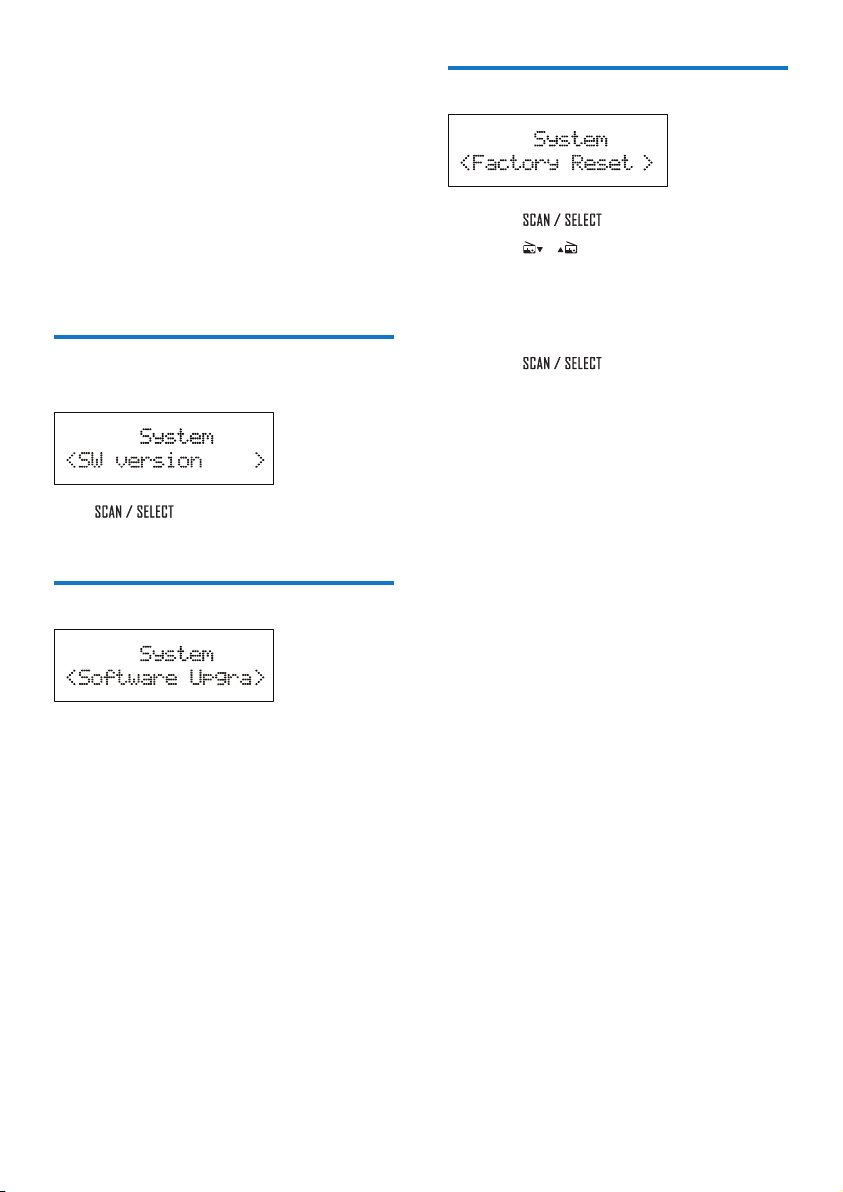
Check the current software version 15
Upgrade the software 15
Reset the product 15
10 Adjustvolume 16
11 Usethesleeptimer 17
12 Usethecountdowntimer 18
13 Troubleshooting 19
14 Productinformation 20
General information 20
Tuner 20
Speakers 20
Amplier 20
15 Notice 21
Compliance 21
Care of the environment 21
Copyright 21
2 EN
1 Safety
Read and understand all instructions before you
use this product. If damage is caused by failure
to follow the instructions, the warranty does
not apply.
Riskofelectricshockorre!
• Never remove the casing of the product.
• Never expose the product and accessories
to rain or water. Never place liquid
containers, such as vases, near the product.
If liquids are spilt on or into the product,
disconnect it from the power outlet
immediately. Contact the Consumer Care
to have the product checked before use.
• Never place the product and accessories
near naked ames or other heat sources,
including direct sunlight.
• Never insert objects into the ventilation
slots or other openings on the product.
• Where the mains plug or an appliance
coupler is used as the disconnect device,
the disconnect device shall remain readily
operable.
• Disconnect the product from the power
outlet before lightning storms.
• When you disconnect the power cord,
hold the plug securely, never the cable.
Riskofshortcircuitorre!
• Use only power supplies listed in the user
manual
• Before you connect the product to the
power outlet, make sure that the power
voltage matches the value printed on the
back of the product. Never connect the
product to the power outlet if the voltage
is different.
• Never expose the product to rain, water,
sunshine, or excessive heat.
• Avoid force coming onto power plugs.
Loose power plugs can cause arcing or re.
Riskofinjuryordamagetotheproduct!
• This product shall not be exposed to
dripping or splashing!
• Do not place any sources of danger on this
product (e.g. liquid lled objects, lighted
candles).
• Never place the product or any objects
on power cords or on other electrical
equipment.
• If the product is transported in
temperatures below 5°C, unpack the
product and wait until its temperature
matches room temperature before
connecting it to the power outlet.
Riskofoverheating!
• Never install this product in a conned
space. Always leave a space of at least four
inches around the product for ventilation.
• Make sure that curtains or other objects
never cover the ventilation slots on the
product.
Note
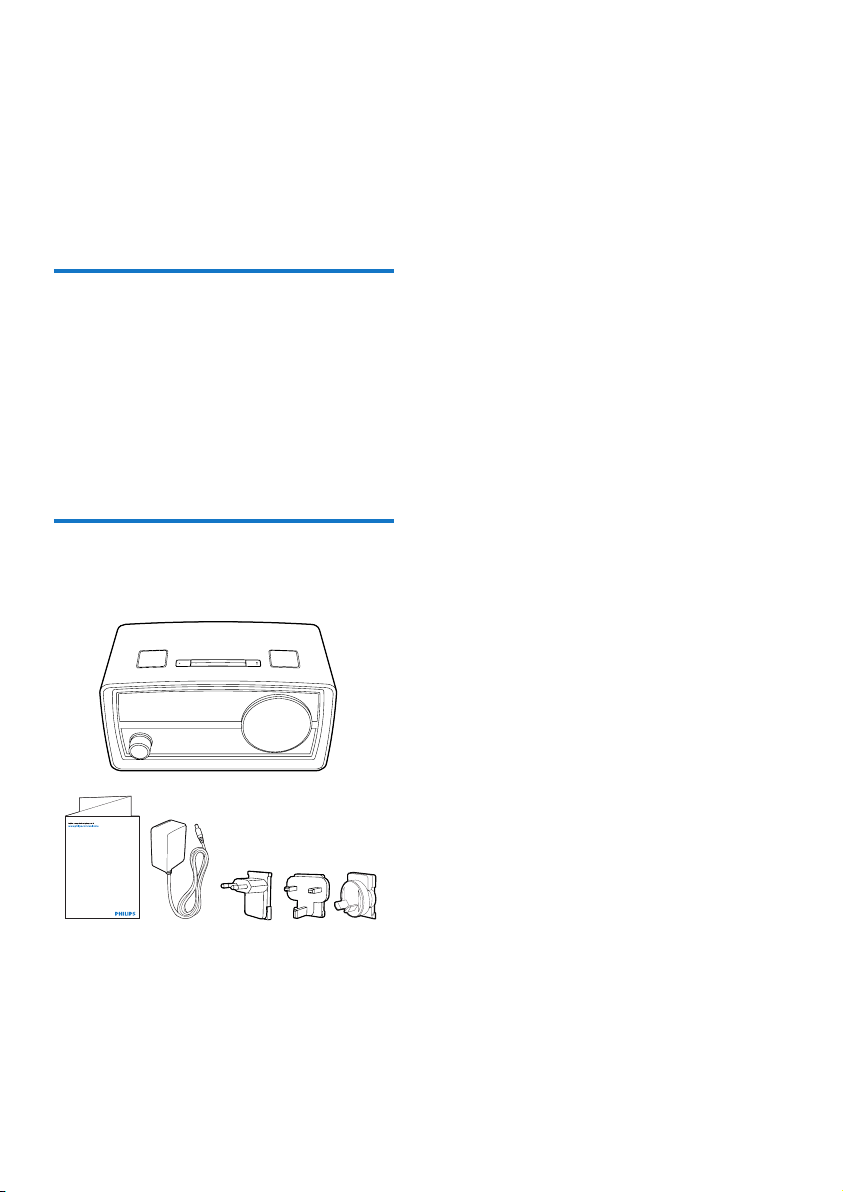
• The rated power voltage is printed on the back of the
product. The model number and serial number are
printed on the bottom.
3EN
2 Your clock radio
Congratulations on your purchase, and
welcome to Philips! To fully benet from the
support that Philips offers, register your product
at www.philips.com/welcome.
Introduction
With this product, you can:
• listen to FM radio stations (RDS
supported),
• listen to DAB radio stations,
• listen to an external device through the
AUDIO IN socket, and
• wake up to alarms.
What's in the box
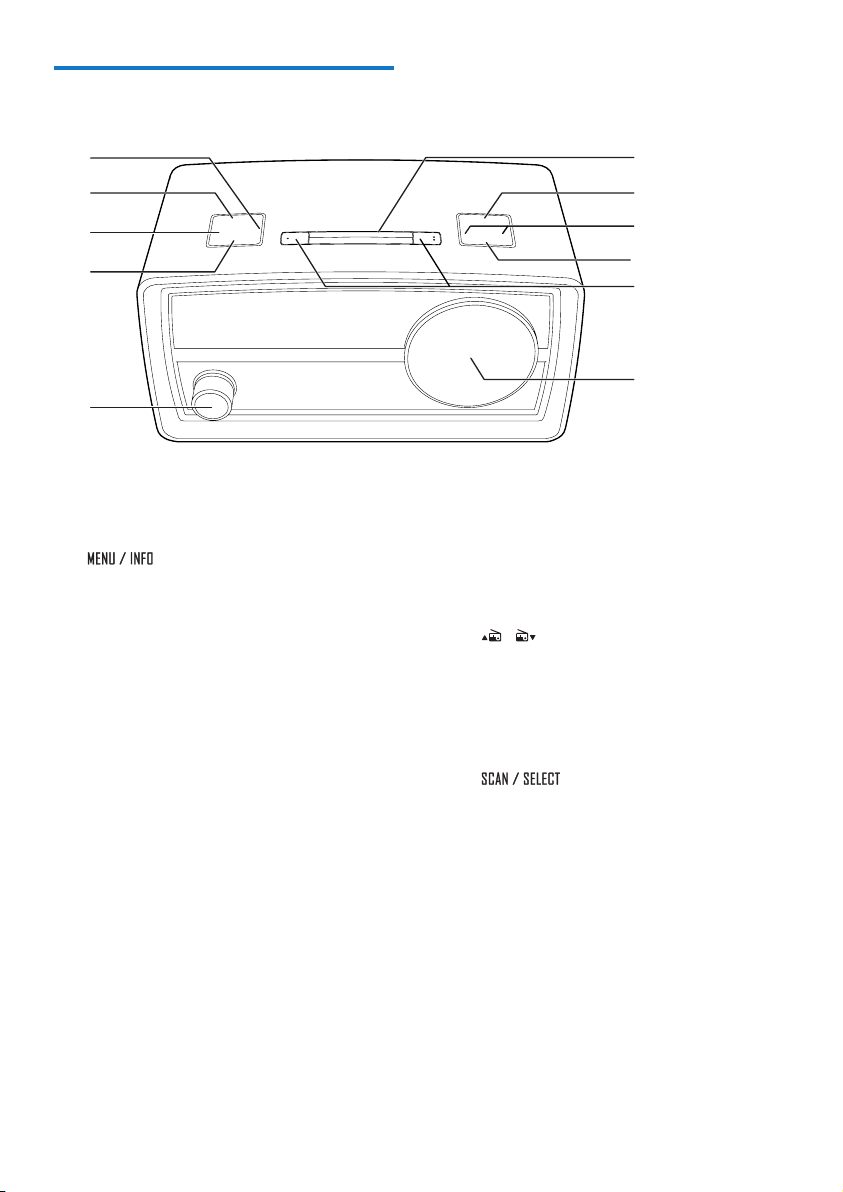
Check and identify the contents of the package:
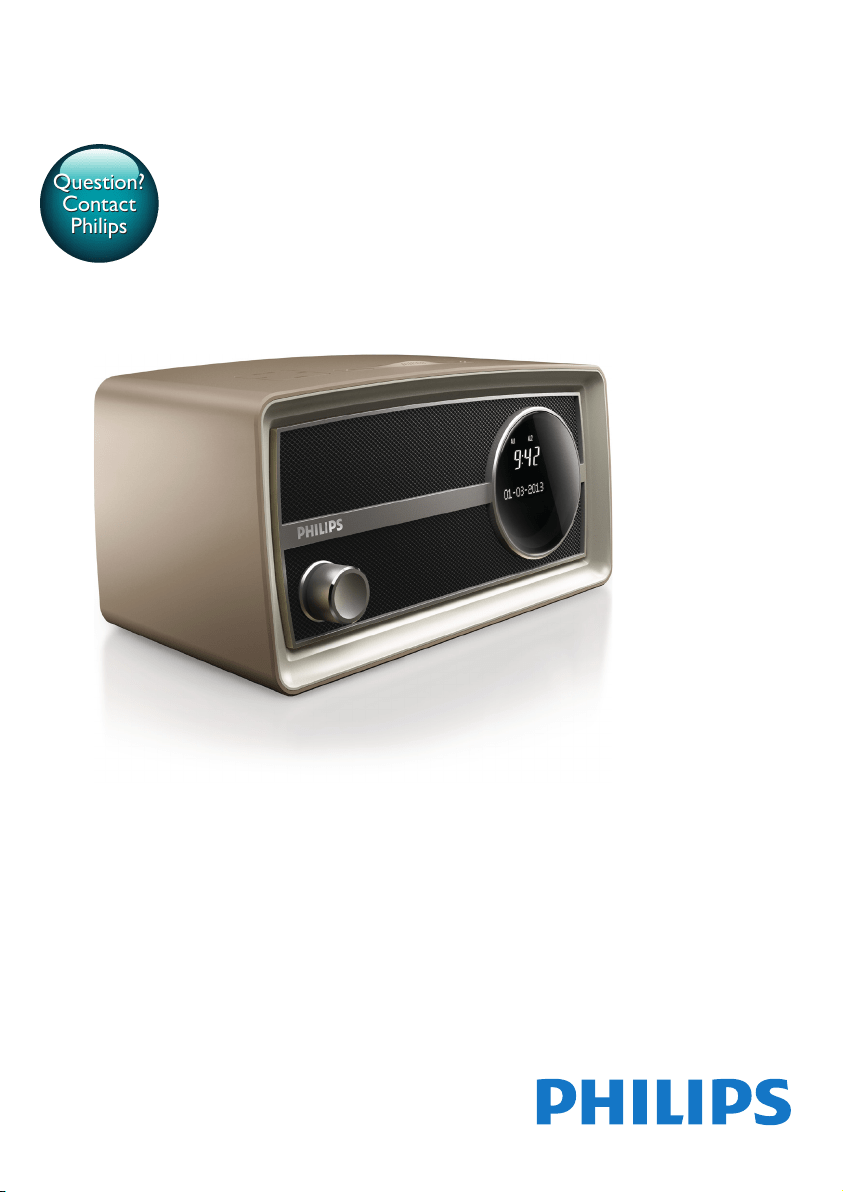
a Digital radio
b Usermanual
c AC power adaptor
d Plug converter for AC power adaptor X 3
User Manual
ORD2105
4 EN
Overview of the product
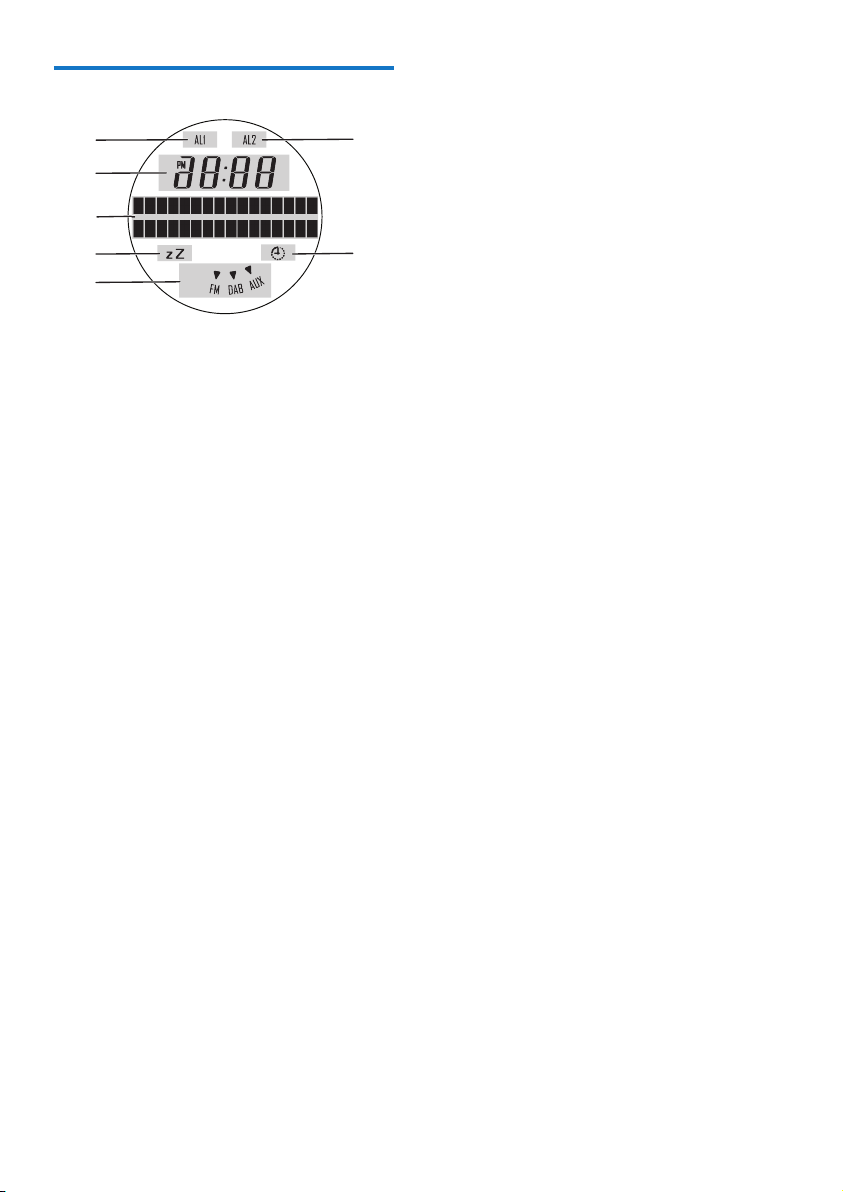
a TIMER
• Press and hold to start setting
countdown timer.
b
• In standby mode, press and hold to
start setting time and date.
• In FM or DAB mode, press and hold to
access the menus.
• When listening to an RDS or DAB
station, press repeatedly to display
available information.
c SLEEP
• Press repeatedly to set the sleep timer.
d SOURCE
• Press repeatedly to select a source.
e Powerandvolumeknob
• Press to power on or off the product.
• Rotate to adjust volume.
f LCD display
g AL1/AL2
• Press and hold to start setting an alarm
timer.
• When an alarm rings, press to stop the
alarm.
a
b
c
d
e
k
j
i
h
g
f
• Press to view the alarm settings.
• Press repeatedly to deactivate or
activate the alarm timer.
h PRESET
• Press to access the list of stored radio
stations.
i /
• Press repeatedly to tune to a station.
• Press and hold to tune to the previous
or next strong station automatically.
• Press to toggle through menus or
options.
j
• Press and hold to start storing available
radio stations automatically.
• Press to conrm an option.
k SNOOZE/BRIGHTNESS
• Press to adjust the brightness of LCD
display.
• When an alarm rings, press to snooze
the alarm.
5EN
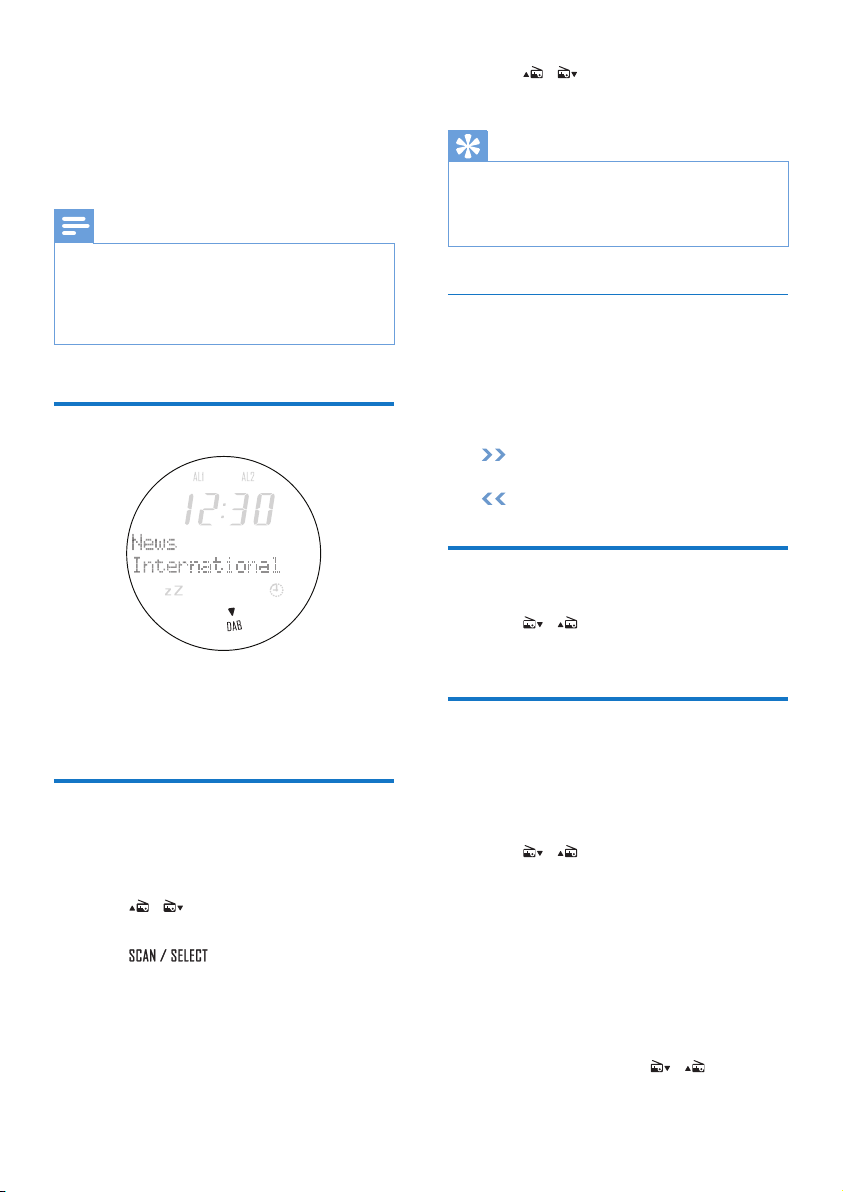
Know about the LCD display
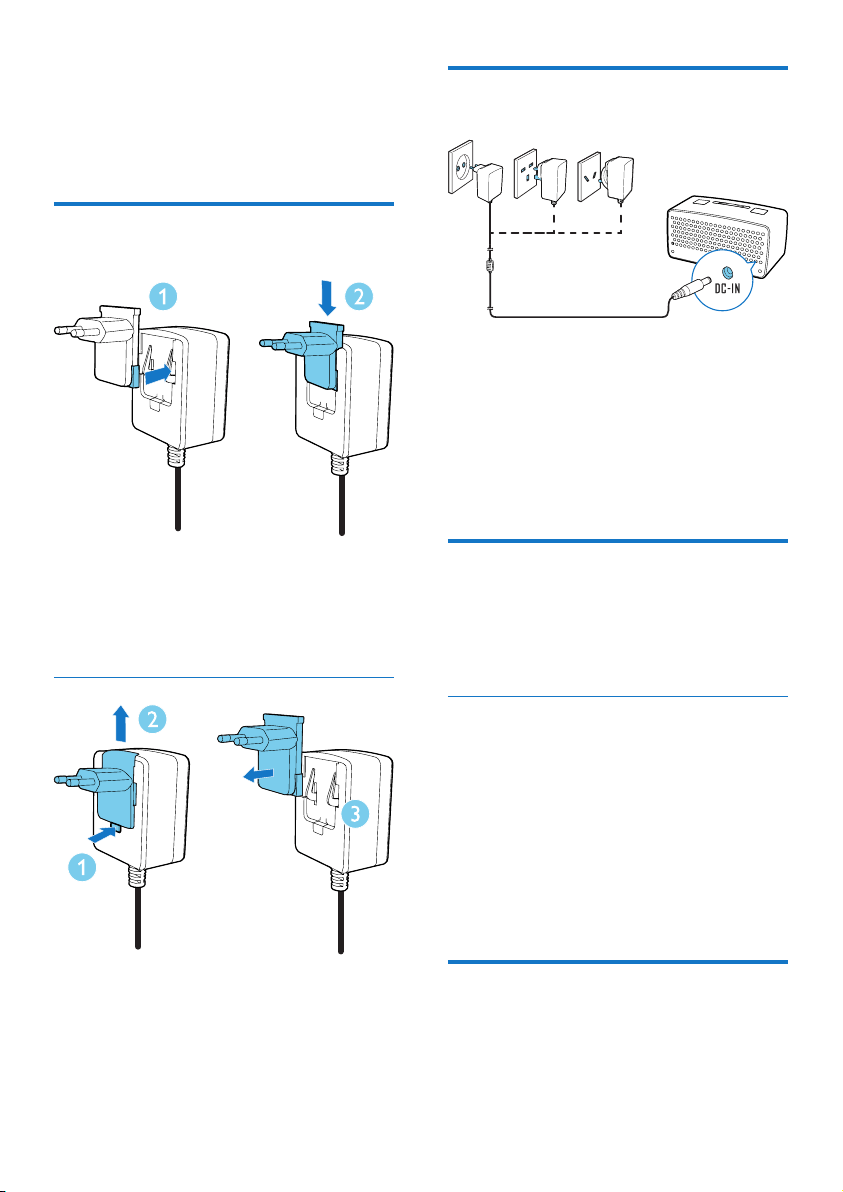
a Therstalarmisactivated.
b Thesecondalarmisactivated.
c The clock
d Textinformation
e Thesleeptimerisactivated.
f Thecountdowntimerisactivated.
g The current source
a
c
d
e
g
f
b
6 EN
3 For the first
timeuse
AssembletheACpower
adaptor
1 Align the plug converter to the holes on
the power adaptor.
2 Push the plug converter downwards until
you hear a "click".
Replace a plug converter
1 Press down the clip.
2 Slide the plug converter outwards.
3 Pull the plug converter out.
4 Fix another plug converter to the power
adaptor.
Connect power
Connect the AC power adaptor between
• the DC-IN socket on the back panel,
and
• the AC power outlet.
» The product switches to standby mode.
» [0:00] blinks.
Power on
Press the power and volume knob.
» The product is powered on and
switches to the last mode.
Switchtostandbymode
Press the power and volume knob again.
» If the clock is neither manually set nor
automatically synchronized with a DAB
radio station, [0:00] blinks.
» If the clock is manually set or
automatically synchronized with a
DAB radio station, the time and date is
displayed.
Adjust brightness
Press BRIGHTNESS repeatedly to adjust the
brightness of the LCD display.
7EN
4 Settimeand
date
Note
• To manually set the clock, switch the product to
standby mode rst.
1 In standby mode, press and hold
until [Settime] is displayed.
» The hour digits blink.
2 Press / to set the hour, and then
press to conrm.
» The minute digits blink.
3 Press / to set the minute, and then
press to conrm.
» The date is displayed with the day
digits blink.
4 Press / to set the day, and then
press to conrm.
» The month digits blink.
5 Press / to set the month, and then
press to conrm.
» The year digits blink.
6 Press / to set the year, and then
press to conrm.
» [Timesaved] ashes, and then the set
clock and date are displayed.
Tip
• When a DAB radio station that transmits time signals is
broadcast, the product synchronizes its clock with the
DAB radio station automatically.
8 EN
5 Usethealarm
timer
Note
• Make sure that you have set the clock correctly.
Setanalarm
You can set two alarms.
1 Press and hold AL1 (or AL2) for two
seconds.
» [Alarm1] (or [Alarm2]) is displayed
with AL1 (or AL2) blinking.
» The current alarm time is displayed
with hour digits blinking.
2 Press / to set the hour, and then
press to conrm.
» The minute digits begin to blink.
3 Press / to set the minute, and then
press to conrm.
» The alarm source name begins to
blinks: [DAB], [FM], or [Buzzer].
4 Press / to select an alarm source,
and then press to conrm.
• If [DAB] or [Buzzer] is selected as
the alarm source, press to
select a preset radio station or the last
listened station.
» The alarm frequency blinks: [Daily]
(daily), [Weekdays] (weekdays),
[Weekends] (weekends), or [Once]
(once).
5 Press / to select a frequency, and
then press to conrm.
» The alarm volume level blinks.
6 Press / to select the volume level,
and then press to conrm.
» [AlarmSaved] ashes.
Deactivateapresetalarm
1 Press AL1 (or AL2) to view alarm settings.
2 Press AL1 (or AL2) again.
» [Alarm1] (or [Alarm2]) and [On] is
displayed.
3 Press AL1 (or AL2) repeatedly to select
[On] or [Off].
• [On]: The preset alarm is activated.
• [Off]: The preset alarm is deactivated.
» AL1 (or AL2) is displayed when the
preset alarm is activated.
» AL1 (or AL2) disappears when the
preset alarm is deactivated.
Snoozethealarm
When an alarm sounds, press SNOOZE.
» The alarm repeats after 9 minutes.
Stopthealarm
When the rst (or second) alarm sounds, press
AL1 (or AL2).
» The alarm stops and then repeats at
the set time.
9EN
6 Listen to FM
radio stations
Note
• For optimal reception, fully extend the antenna and
adjust its position.
• You can store a maximum of 20 FM radio stations.
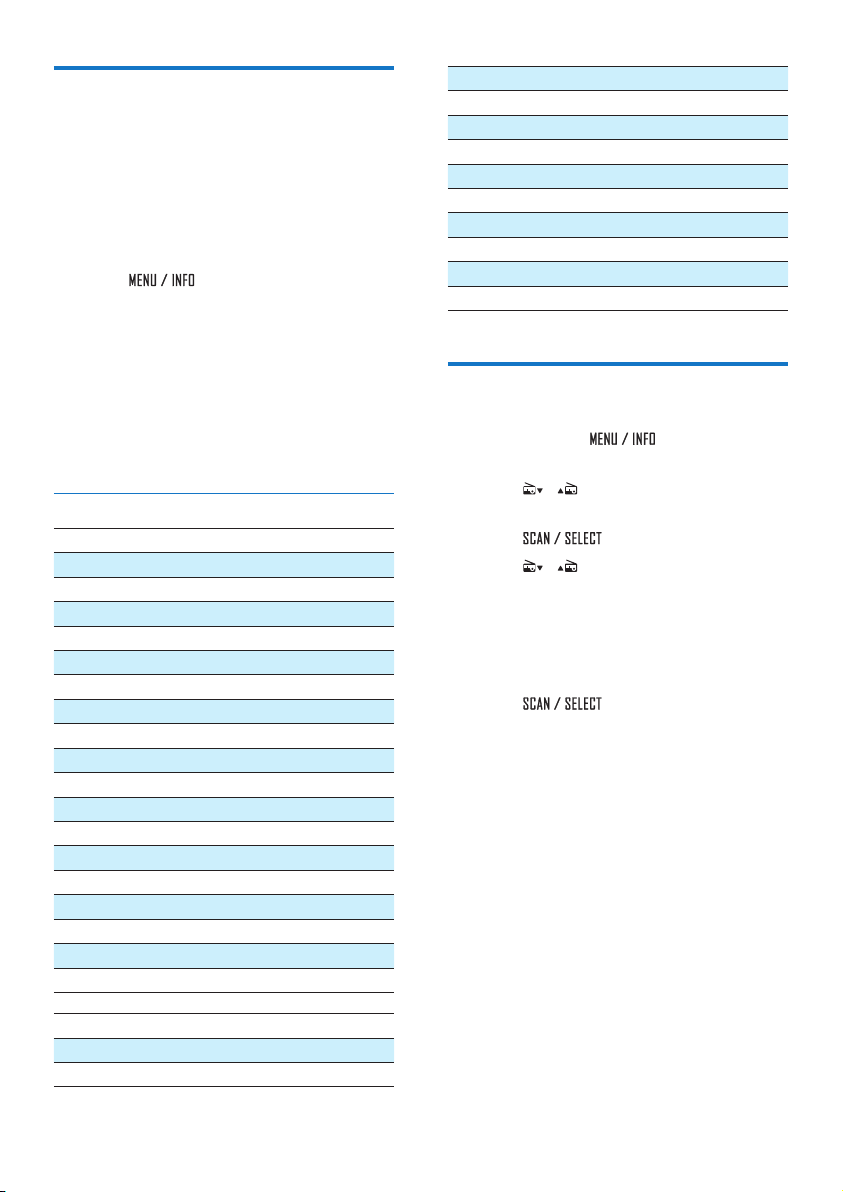
SwitchtoFMmode
Press SOURCE repeatedly until [FM Mode] is
displayed.
» FM is highlighted.
» The current frequency is displayed.
Search for a radio station
automatically
Press and hold / until [Scanning...] is
displayed.
» After a strong radio station is detected,
the search stops and the radio station
is broadcast.
Search for a radio station
manually
Press / repeatedly until the frequency of
target radio station is displayed.
Store radio stations
automatically
Press and hold until [Auto] is
displayed.
» After the search is complete, the rst
stored radio station is broadcast.
• To tune to a stored radio station, press
PRESET to access the list of stored radio
stations, and then press / repeatedly.
Programradiostations
manually
1 Tune to a radio station.
2 Press and hold PRESET until [Preset
store] is displayed.
3 Press / repeatedly to select a preset
sequence number.
4 Press PRESET to conrm.
» The radio station is stored with the
selected sequence number.
5 Repeat steps 1-4 to program more radio
stations.
• To tune to a stored radio station, press
PRESET to access the list of stored radio
stations, and then press / repeatedly.
Note
• If you store a radio station with the sequence number
of another one, the earlier one is overwritten.
10 EN
DisplayRDSinformation
Radio Data System (RDS) is a service that
allows FM stations to transmit additional
information. When you tune to an FM radio
station that transmits RDS signals, the station
name is displayed.
1 Tune to an RDS station.
2 Press repeatedly to scroll
through the following information (if
available):
• Station name
• Radio text
• Program type such as [NEWS] (news),
[SPORT] (sport), [POP M] (pop
music)...
• Stereo/Mono
RDSprogramtypes
NO TYPE No RDS programme type
NEWS News services
AFFAIRS Politics and current affairs
INFO Special information programs
SPORT Sports
EDUCATE Education and advanced training
DRAMA Radio plays and literature
CULTURE Culture, religion and society
SCIENCE Science
VARIED Entertainment programs
POP M Pop music
ROCK M Rock music
MOR M Light music
LIGHT M Light classical music
CLASSICS Classical music
OTHER M Special music programs
WEATHER Weather
FINANCE Finance
CHILDREN Children’s programs
SOCIAL Social Affairs
RELIGION Religion
PHONE IN Phone In
TRAVEL Tr avel
LEISURE Leisure
JAZZ Jazz Music
COUNTRY Country Music
NATION M National Music
OLDIES Oldies Music
FOLK M Folk Music
DOCUMENT Documentary
TES Alarm Test
ALARM Alarm
Adjust FM settings
1 Press and hold to access the FM
menu.
2 Press / to display the [Scan setting]
menu.
3 Press to access sub-menus.
4 Press / to select an option.
• [Strong stations]: Search for strong
stations only.
• [All stations]: Search for all stations no
matter whether the signal strength of a
station is strong or weak.
5 Press to conrm the option.
11EN
7 Listen to DAB
radio stations
Note
• For optimal reception, fully extend the antenna and
adjust its position.
• You can program a maximum of 20 DAB radio stations.
• Check with local retailer or go to www.WorldDAB.org
for applicable DAB radio frequencies in your area.
SwitchtoDABmode
Press SOURCE repeatedly until [DAB Mode]
is displayed.
» DAB is highlighted.
Forthersttimeuse
1 Press SOURCE repeatedly to switch the
product to DAB mode.
2 Press / repeatedly until the [Full
scan] menu is displayed.
3 Press to activate the automatic
search.
» This product automatically stores radio
stations with sufcient signal strength.
» After the search is complete, the
rst stored radio station is broadcast
automatically.
4 Press / repeatedly to select a station,
and then press PRESET to start listening.
Tip
• You can re-scan to update the list of stored stations
(see 'Re-scan for stations' on page 13).
• You can tune to a station manually (see 'Tune to a
station manually' on page 13).
Aboutspecialsymbols
Some symbol may be displayed before the
name of a station.
• H: The station is one of your 10 favorite
stations.
• ?: The station is unavailable or inactive.
• : The station is a primary station with
secondary service.
• : The station is a secondary station.
Tune to a stored radio station
1 Press / repeatedly to select a station.
2 Press PRESET to start listening.
Programradiostations
1 Tune to a DAB radio station.
2 Press and hold PRESET to activate the
programming.
3 Press / repeatedly to select a preset
sequence number.
4 Press PRESET to conrm.
» The radio station is stored with the
selected sequence number.
5 Repeat steps 1-4 to program more radio
stations.
• To tune to a stored radio station, press
PRESET to access the list of stored radio
stations, and then press / repeatedly.
12 EN
Note
• If you store a radio station with the sequence number
of another one, the earlier one is overwritten.
DisplayDABinformation
The name of current DAB station is displayed.
You can also view the other information.
To cycle through available information, press
repeatedly.
• Dynamic label segment (DLS)
• Signal strength
• Program type (PTY)
• Ensemble name
• Frequency
• Signal error rate
• Bitrate codec
UseDABmenus
1 Press and hold to access the
DAB menus.
2 Press / repeatedly to toggle through
the menus.
Re-scan for stations
Full scan is used to perform a wide range
search for DAB radio stations.
Press to start scanning for available
DAB stations.
» After the scanning is complete, the rst
stored station is broadcast.
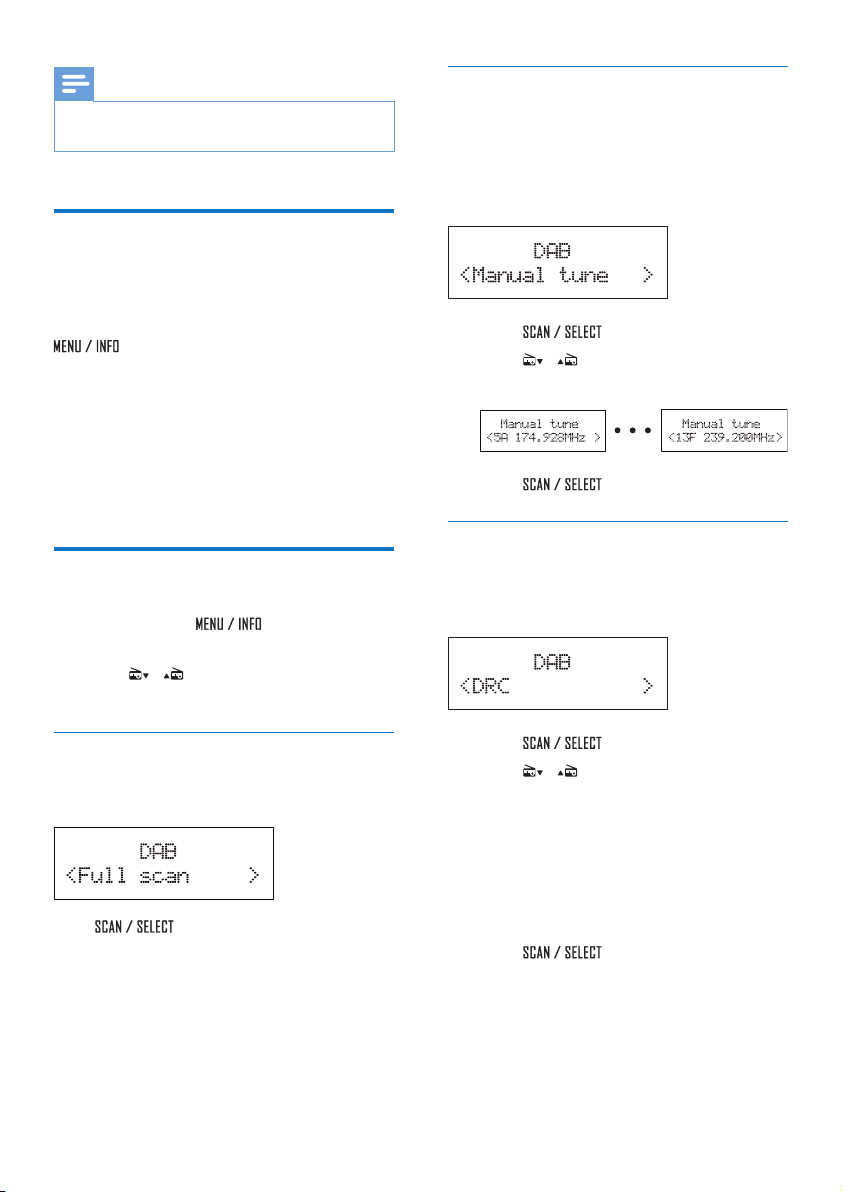
Tunetoastationmanually
With this feature, you can tune to a specic
channel/frequency manually. In addition to
antenna orientation for better radio reception,
the optimal reception can also be obtained with
this feature.
1 Press to access the station list.
2 Press / repeatedly to select a station
from 5A to 13F.
3 Press to conrm the option.
DRC(DynamicRangeControl)
DRC adds or removes a degree of
compensation for the differences in the dynamic
range between radio stations.
1 Press to access the sub-menus.
2 Press / repeatedly to select an
option. (The asterisk behind the option
indicates the current setting.)
• [DRC off]: No compensation applied.
• [DRC low]: Medium compensation
applied.
• [DRC high]: Maximum compensation
applied.
3 Press to conrm the option.
13EN
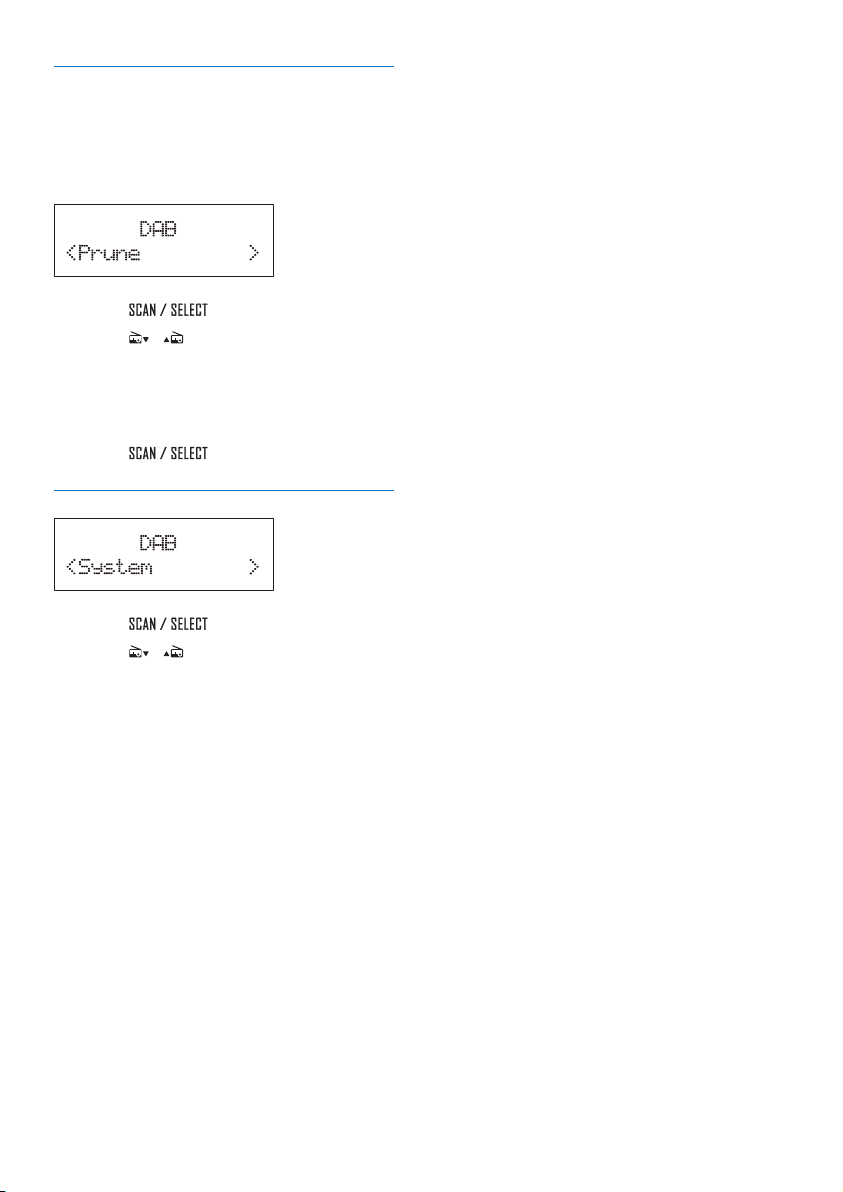
Removeinvalidstations
Some stations in the list have no service when
you travel to another area. In front of the
station name of an invalid station, a question
mark (?) is displayed.
1 Press to access the sub-menus.
2 Press / repeatedly to select an
option.
• [No]: Return to the previous menu.
• [Yes]: Remove invalid stations from the
station list.
3 Press to conrm the option.
Systemmenus
1 Press to access system menus.
2 Press / repeatedly to select a sub-
menu.
• For details, refer to the section 'Use
systemmenus'.
14 EN
8 Listen to an
external device
You can also listen to an external audio device,
for example, MP3 player, through this product.
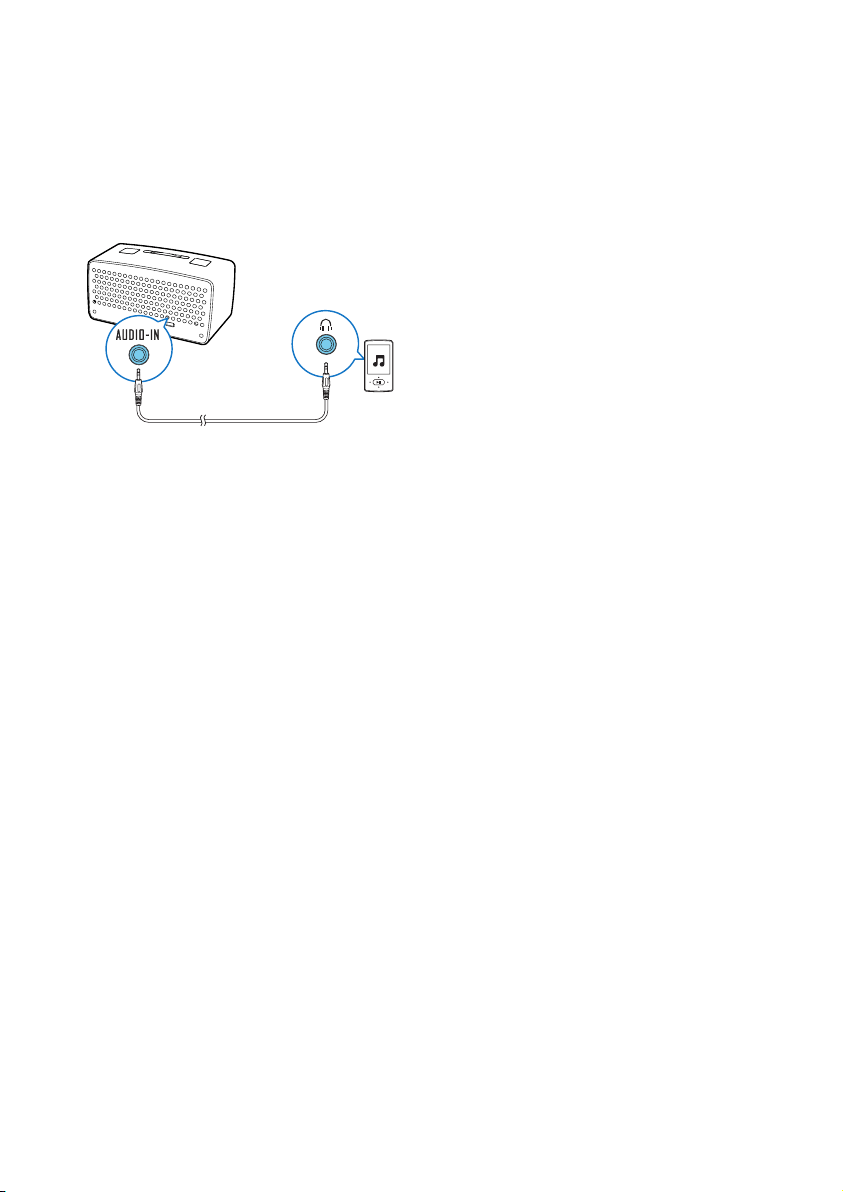
1 Press SOURCE repeatedly to switch the
source to [AUX IN].
» AUX is highlighted.
2 Connect an audio input cable with a 3.5
mm connector on both ends to
• the AUDIO-IN socket on the back
panel of this product, and
• the headphone socket on the external
device.
3 Play audio on the external device (refer to
its user manual).
15EN
9 Usesystem
menus
Use the system menus to
• check the version of current software of
this product,
• upgrade the software, and
• reset the product to factory default status.
Check the current software
version
Press to display the version of
current software.
Upgrade the software
1 Go to www.philips.com/support.
2 Search for support information about
this product with “OR2200/10” /
“OR2200M/10” as the keyword.
» When an upgrade packet is available,
the link of “Installation instructions”
under “Software & drivers” is
accessible. The exact wording of link
names may vary in different languages.
3 Click the link of “Installation instructions”.
4 Read and understand the instructions on
software upgrade.
5 Follow the instructions to complete the
upgrade.
Reset the product
1 Press to display the options.
2 Press / repeatedly to select an
option.
• [No]: Return to the previous menu.
• [Yes]: Reset the product to factory
default status.
3 Press to conrm the option.

16 EN
10Adjustvolume
• To increase the volume, turn the power
and volume knob clockwise.
• To decrease the volume, turn the power
and volume knob anti-clockwise.
17EN
11 Use the sleep
timer
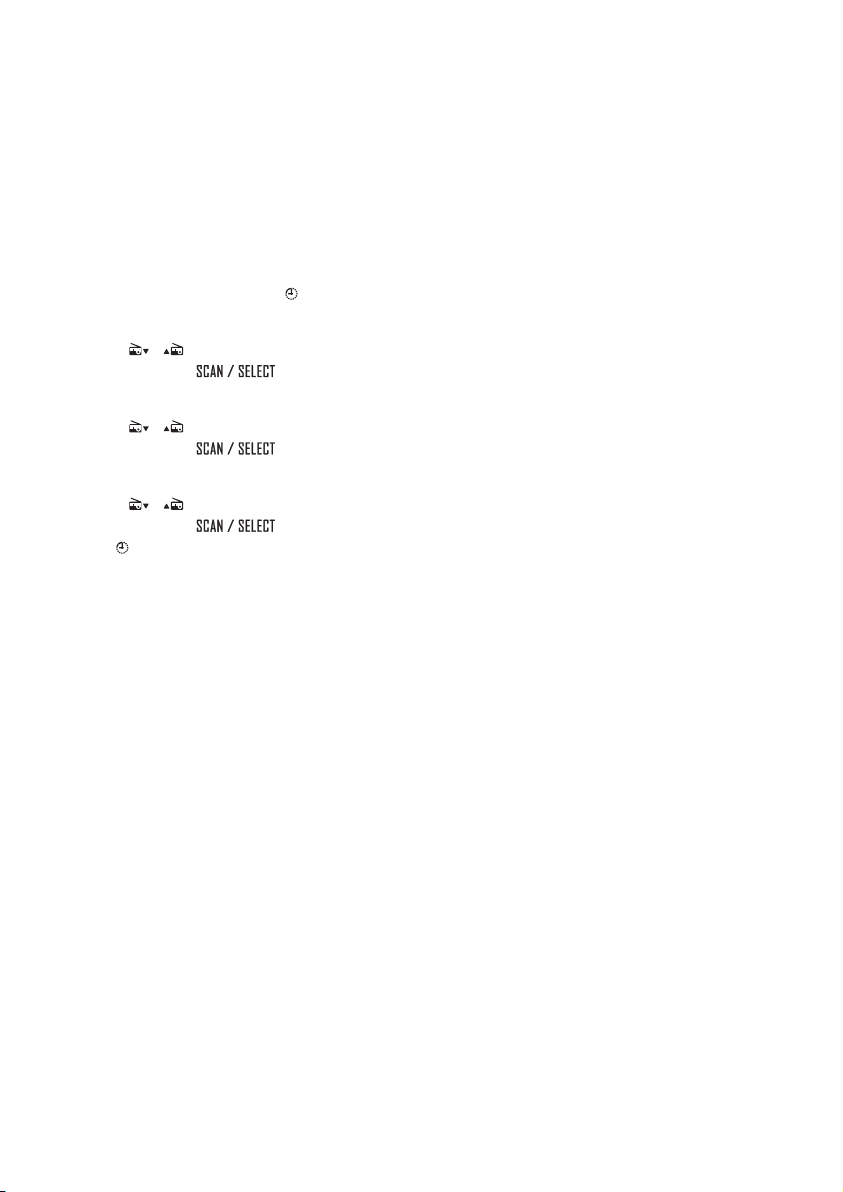
You can set a time period after which
the product switches to standby mode
automatically.
Press SLEEP repeatedly to select a time period
(in minutes).
» When the sleep timer is activated,
appears.
» After the set period, the product
switches to standby mode.
• To deactivate the sleep timer, press
SLEEP repeatedly until [Sleep off]
appears.
18 EN
12 Use the
countdown
timer
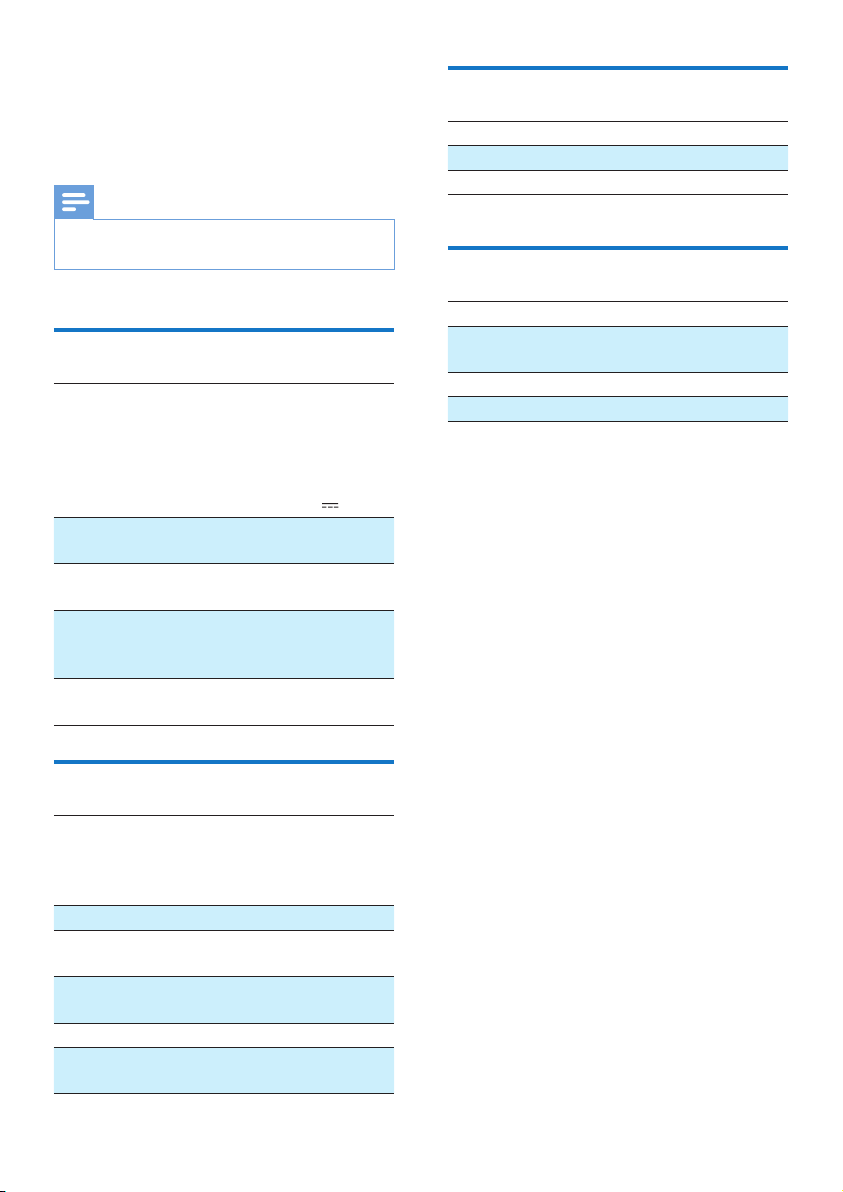
You can set a time period after which the
product buzzes.
1 Press and hold TIMER until blinks.
» The hour digits blink.
2 Press / repeatedly to set the hour,
and then press to conrm.
» The minute digits blink.
3 Press / repeatedly to set the minute,
and then press to conrm.
» The second digits blink.
4 Press / repeatedly to set the second,
and then press to conrm.
» stops blink.
• To stop the buzzer, press TIMER or the
power and volume knob.

19EN
13 Troubleshooting
Warning
• Never remove the casing of this product.
To keep the warranty valid, never try to repair
the product yourself.
If you encounter problems when using this
product, check the following points before
requesting service. If the problem remains
unsolved, go to the Philips Web page (www.
philips.com/support). When you contact the
Consumer Care, make sure that the product
is nearby and the model number and serial
number are available.
No power
• Make sure that the AC power cord is
properly connected.
• Make sure that there is power at the AC
power outlet.
No sound
• Adjust the volume.
• When listening to an external device, make
sure that the external device is not muted.
Noresponsefromtheproduct
• Make sure that the power is available.
• Turn off the product, and then turn it on
again.
Poor radio reception
• Due to the interference from other
electrics or building obstacles, the signals
become weak. Move the product to a
place free of interference.
• Make sure that the antenna is fully extended.
Adjust the position of the antenna.
Clock/alarmsettingiserased.
• Power has been interrupted, or the AC
power adaptor has been disconnected.
• Set the clock/alarm again.
20 EN
14 Product
information
Note
• Product information is subject to change without prior
notice.
Generalinformation
AC power adaptor Model No.: OH-
1015E0591500U1
Brand name: Philips
Input: 100-240 V~,
50/60Hz, 350 mA;
Output: 5.9 V 1.5 A
Operation power
consumption
2 W
Standby power
consumption
< 1 W
Dimensions:
- Main unit
(W x H x D)
245 x 123 x 122 mm
Weight:
- Main unit
1.1 kg
Tuner
Tuning Range FM: 87.50 - 108.00
MHz;
DAB: 174.928-239.200
MHz
Tuning grid 50 kHz
DAB sensitivity
(EN50248)
< -95 dbm
Total Harmonic
Distortion
< 2%
Signal to Noise Ratio > 50 dBA
Number of preset
radio stations
20 (FM), 20 (DAB)
Speakers
Speaker Impedance 4 Ohm
Speaker Driver 3" full range
Sensitivity > 82x dB/m/W
Amplier
Output Power 3 W RMS
Frequency Response 60 Hz - 16 kHz,
±3 dB
Signal to Noise Ratio > 65 dBA
Audio Input 0.5 V RMS 20 kOhm
21EN
15 Notice
Any changes or modications made to this
device that are not expressly approved by
WOOX Innovations may void the user’s
authority to operate the equipment.
Compliance
This product complies with the radio
interference requirements of the European
Community.
This is CLASS II apparatus with double
insulation, and no protective earth provided.
Careoftheenvironment
Your product is designed and manufactured
with high quality materials and components,
which can be recycled and reused.
When this crossed-out wheeled bin symbol is
attached to a product it means that the product
is covered by the European Directive 2002/96/
EC. Please inform yourself about the local
separate collection system for electrical and
electronic products.
Please act according to your local rules and
do not dispose of your old products with your
normal household waste.
Correct disposal of your old product helps to
prevent potential negative consequences for the
environment and human health.
Environmentalinformation
All unnecessary packaging has been omitted.
We have tried to make the packaging easy to
separate into three materials: cardboard (box),
polystyrene foam (buffer) and polyethylene
(bags, protective foam sheet.)
Your system consists of materials which can
be recycled and reused if disassembled by
a specialized company. Please observe the
local regulations regarding the disposal of
packaging materials, exhausted batteries and old
equipment.
Copyright
2014 © WOOX Innovations Limited. All rights
reserved.
Philips and the Philips’ Shield Emblem are
registered trademarks of Koninklijke Philips N.V.
and are used by WOOX Innovations Limited
under license from Koninklijke Philips N.V.”
Specications are subject to change without
notice. WOOX reserves the right to change
products at any time without being obliged to
adjust earlier supplies accordingly.

Specificationsaresubjecttochangewithoutnotice.
2014©WOOXInnovationsLimited.Allrightsreserved.
PhilipsandthePhilips’ShieldEmblemareregistered
trademarksofKoninklijkePhilipsN.V.andareusedbyWOOX
InnovationsLimitedunderlicensefromKoninklijkePhilipsN.V.
OR2200_10_UM_V2.0