
9
40
Operation of Function Menu
10-39
7-8
Wall Mounting
41
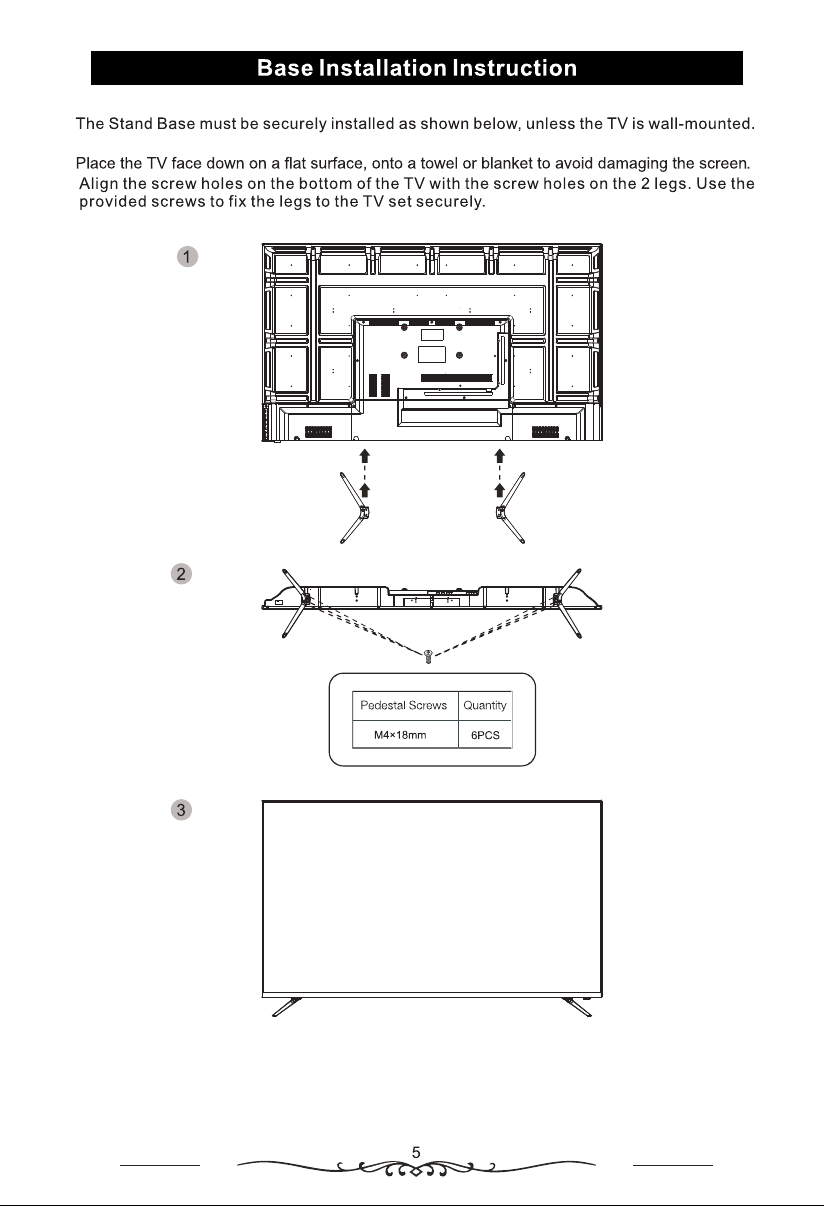
1
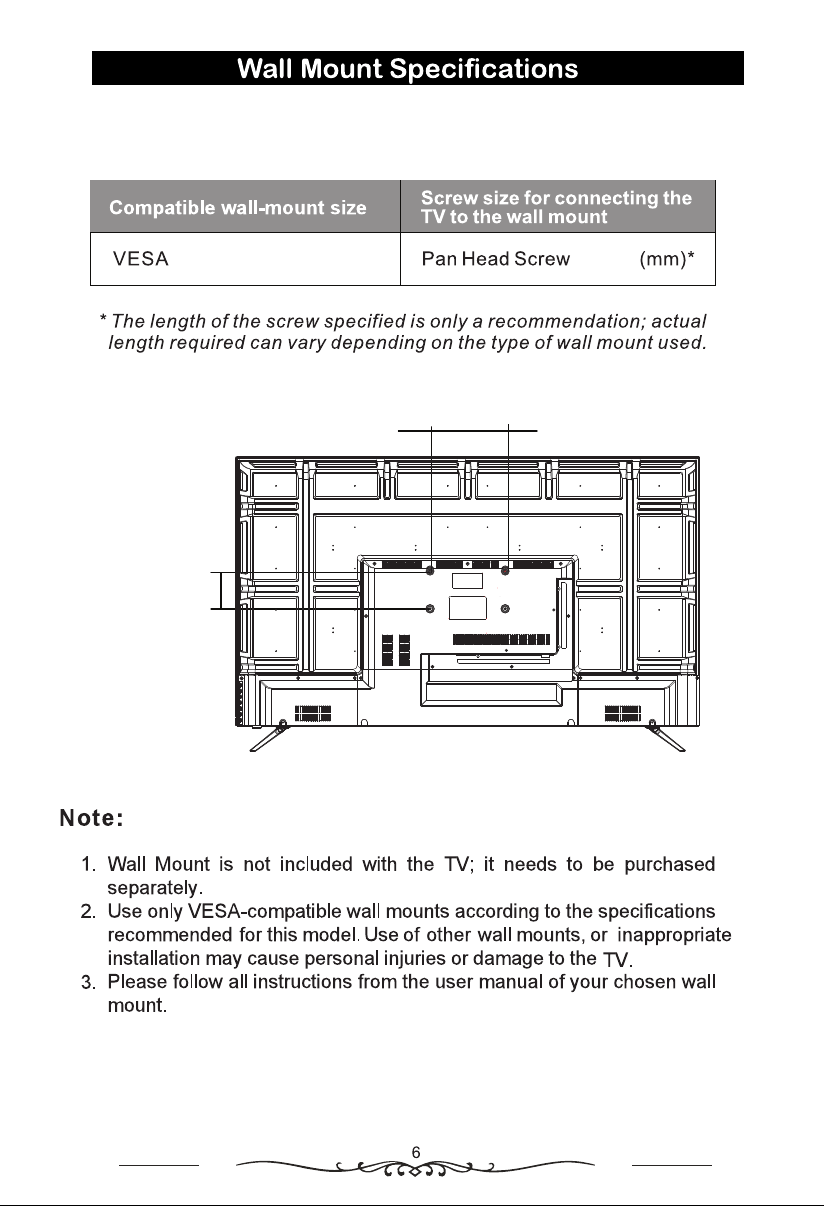
100mm
200mm
M5x25
200x100
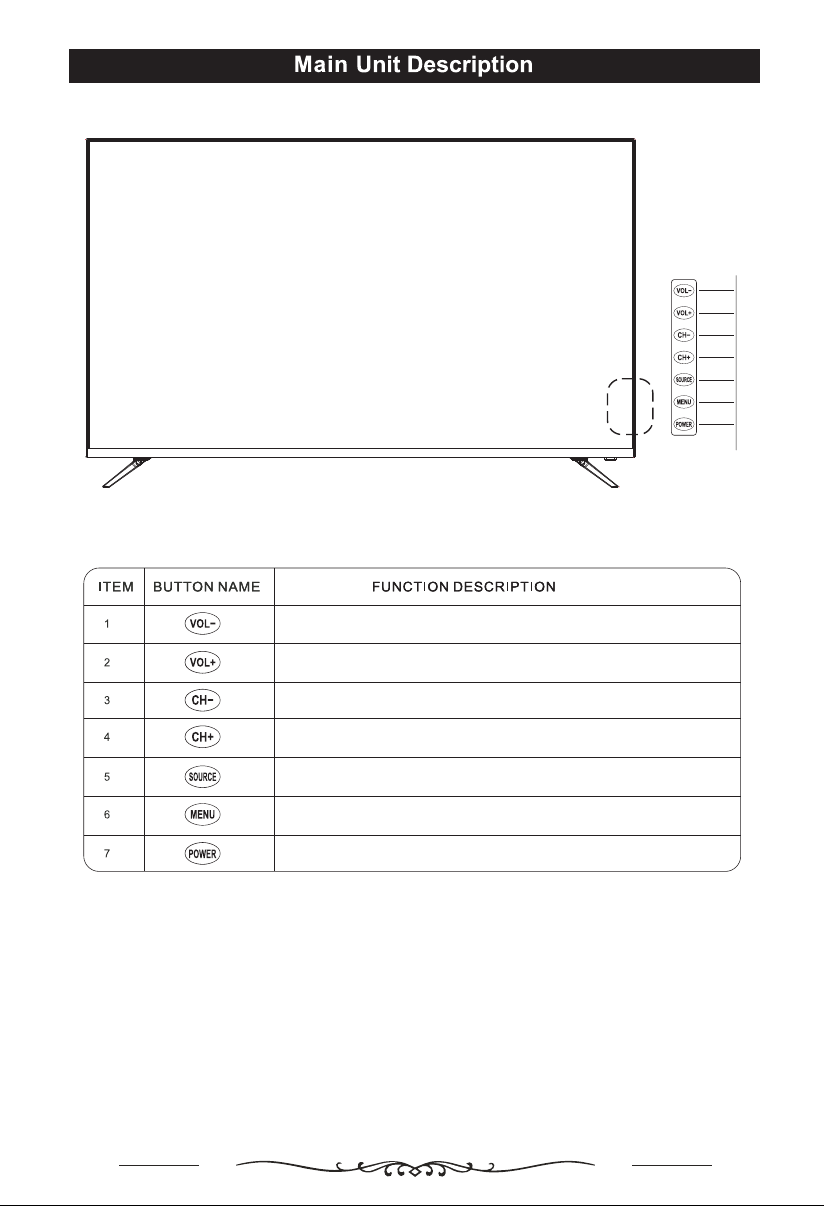
Press this button to display the SOURCE Menu.
Press this button to increase the volume.
Press this button to decrease the volume.
Press this button to select the next channel.
Press this button to select the previous channel.
Press this button to turn on the TV or switch to Standby mode.
Press this button to select MENU.
1
2
3
4
5
6
7
7
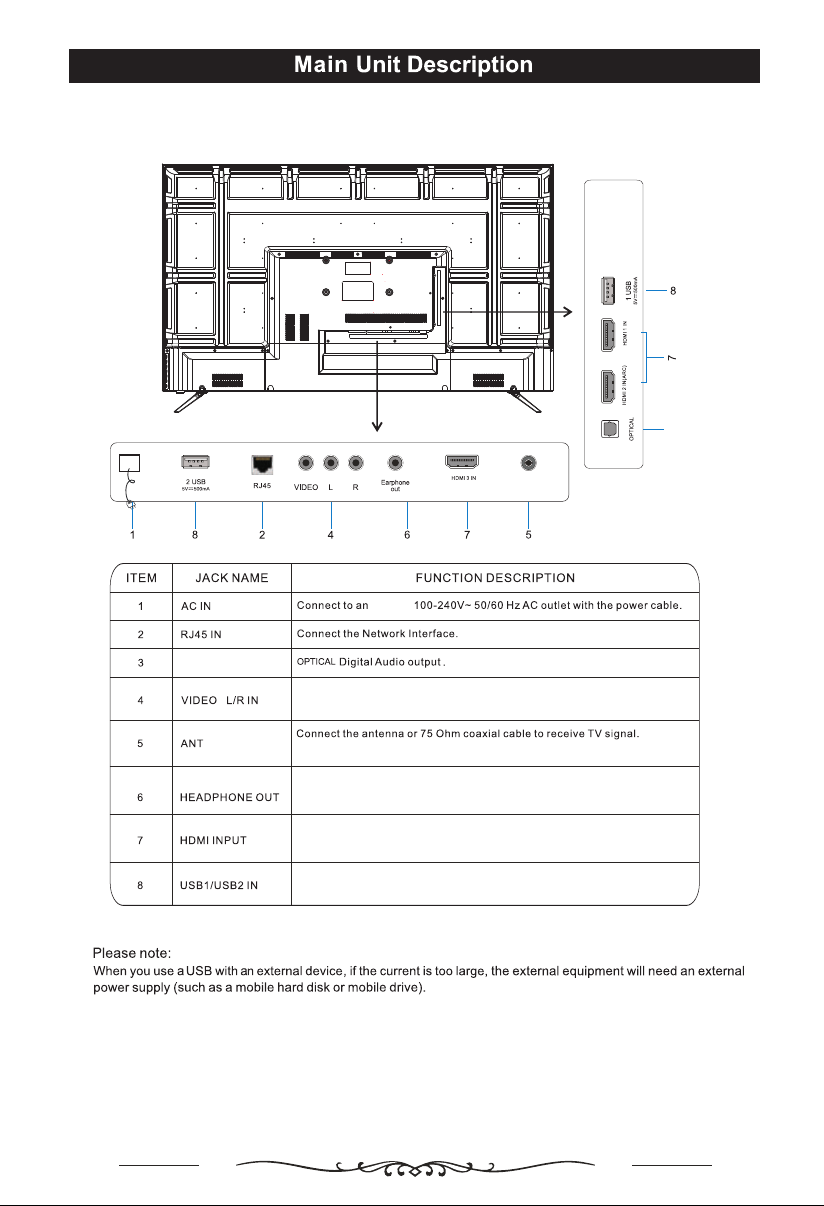
(HDMI2.0 4Kx2K)
ANT. IN
(HDMI2.0 4Kx2K)
(HDMI2.0 4Kx2K)
3
OPTICAL OUT
8
earthed
Connect to the video and audio (L/R) output of your external video source device
(like a DVD player).
Note: We recommend connection to a good-quality outdoor antenna.
Connect headphones here. Note that connecting headphones will mute the sound
from the TVs built-in speakers.
Connect to the HDMI output jack of up to 3 extenal video sources (eg. DVD player
/ games console / bluray player)
Plug in your USB memory device (eg. USB stick) to play compatible files stored in
it or for PVR recording.
9
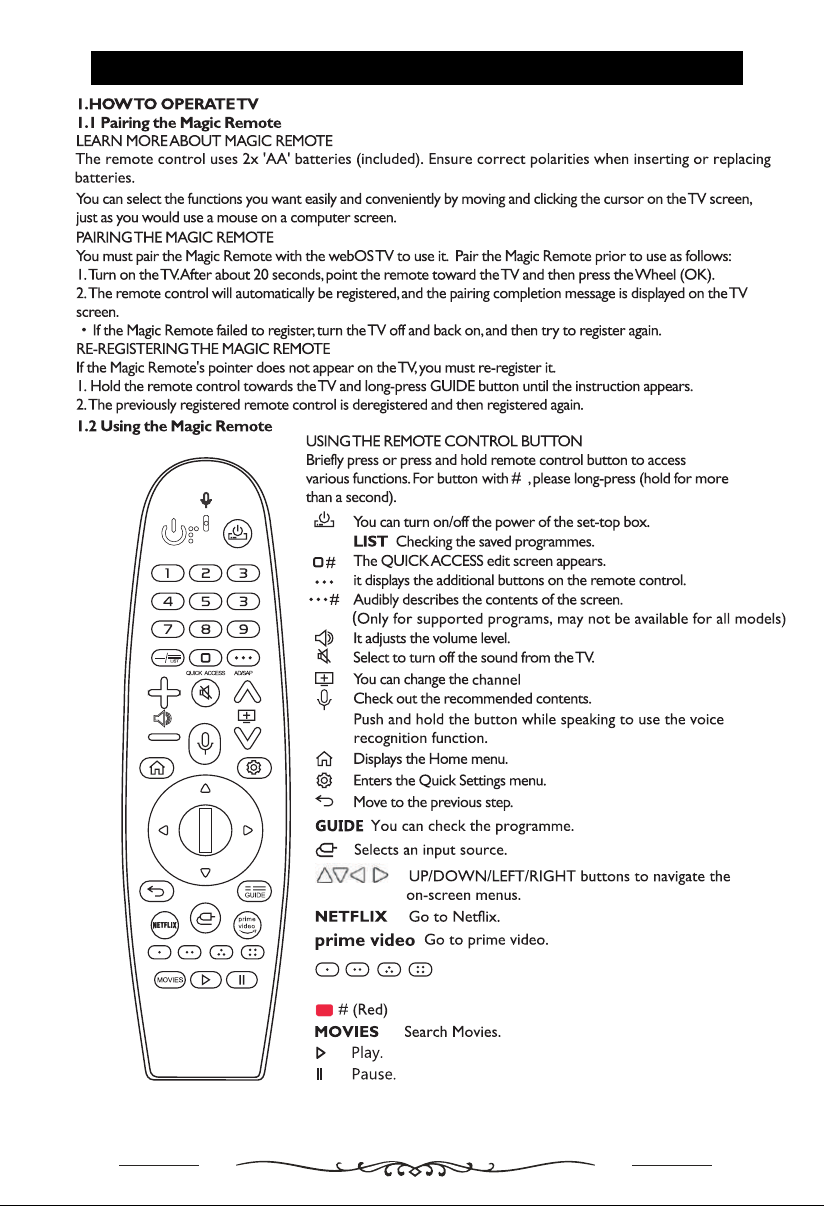
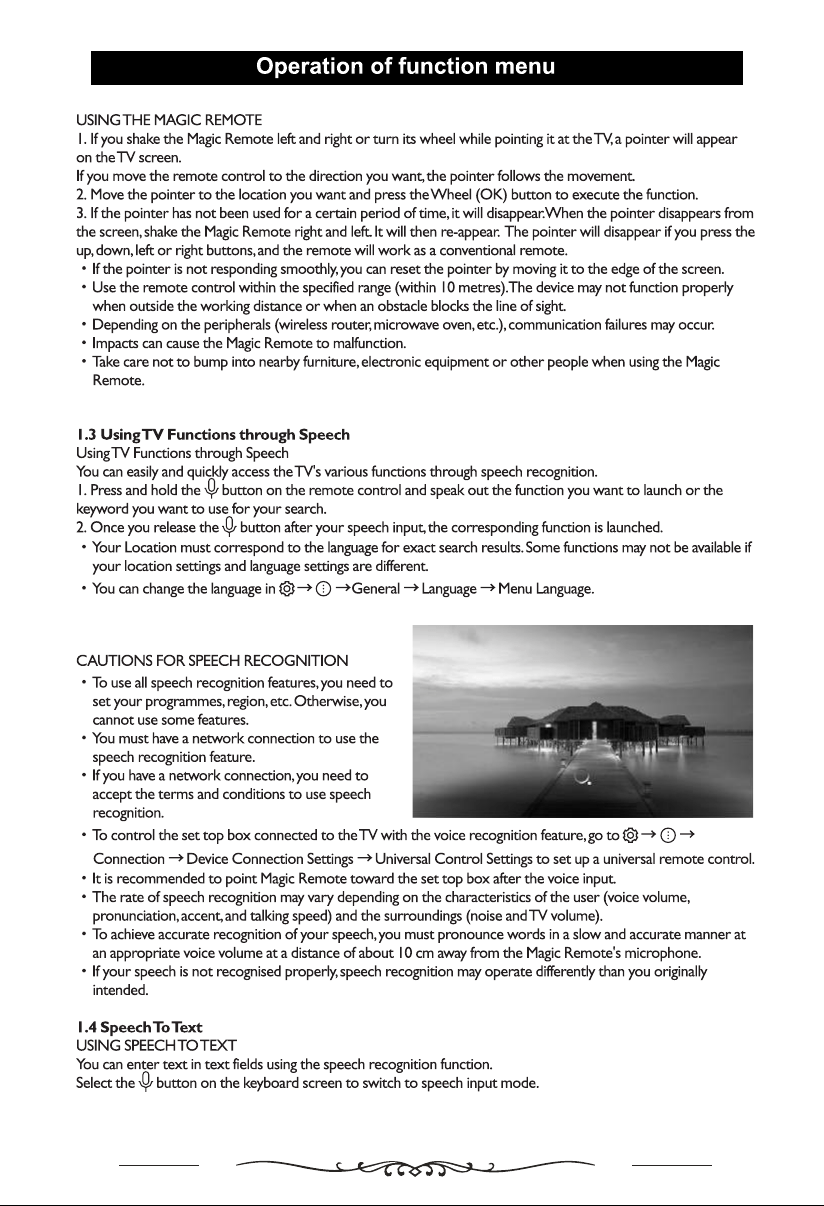
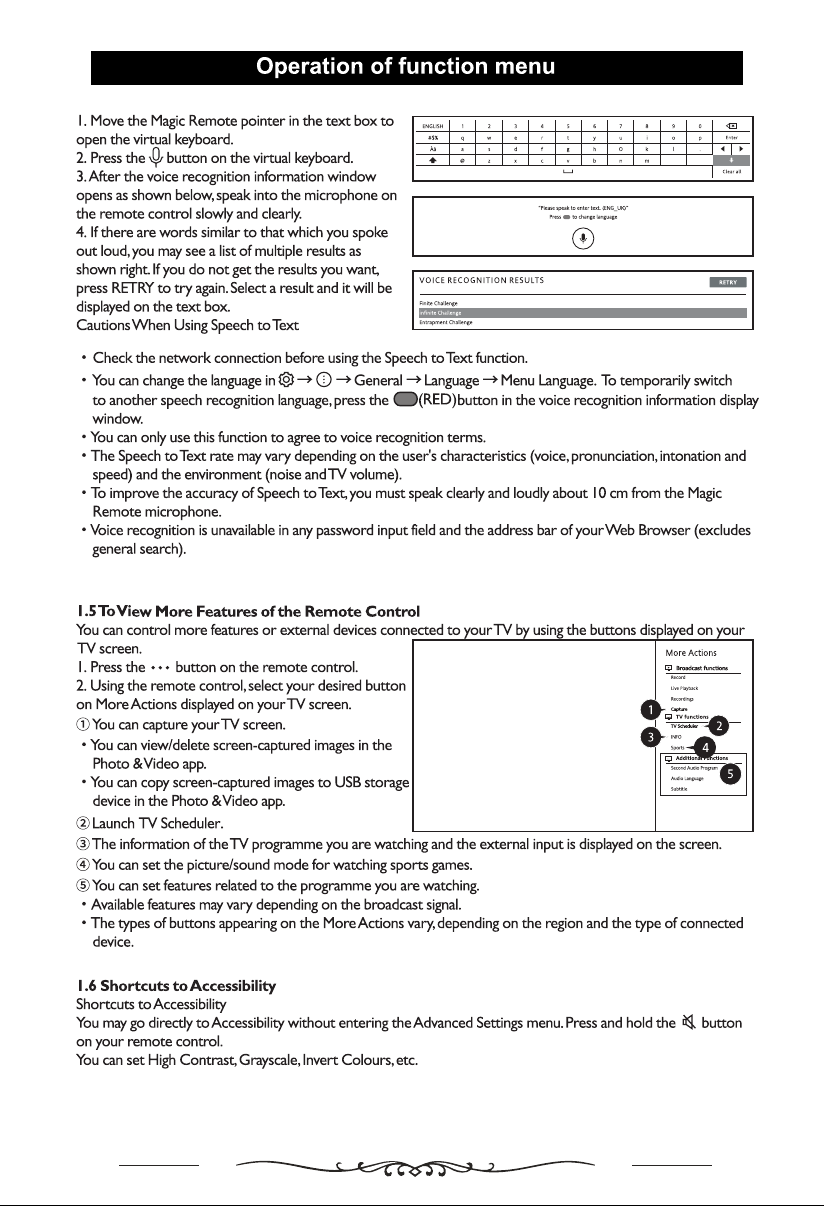
Remote Control
Note: For S ubtitles, press and h ol d the Mute Butto n t o go t o Accessibil ity Settings.
Here you ca n t urn on or turn of f S ubtitles.
(Red, Green, Yellow, Blue)Use as per on-screen
instructions.
Recording Function
10
11
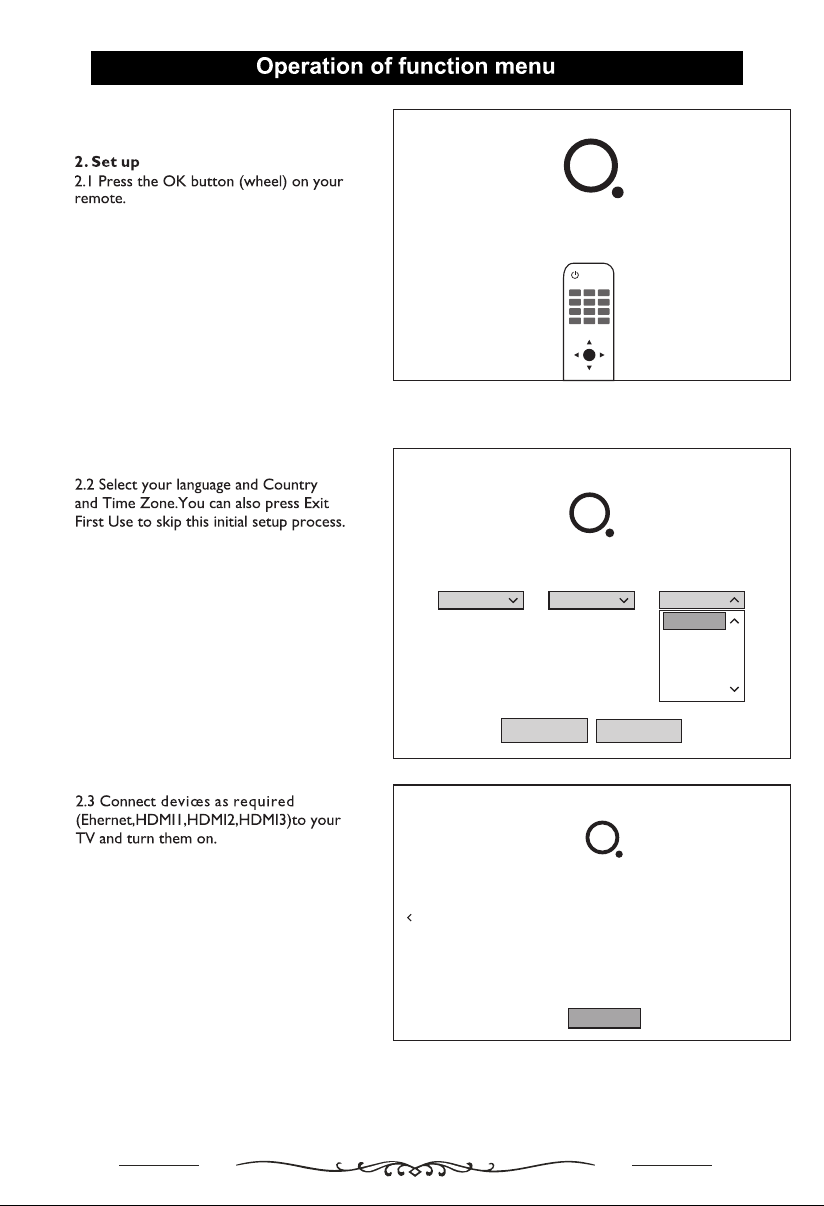
Press t he OK button(w heel) on your re mote.
12
Wizard.
Languag e and l ocation Se tti ngs
Comfirm your location and language setting s
1
Language
Country
Time Z one
English
Australia
WA-Western...
WA-Western
SA - South ...
NT - Northe...
TAS - Tasma...
VIC - Victori...
Next
Exit First Use
Intern et a nd D ev ic e Comnectio n
Conn ec t all the usi ng d ev ices to y ou r TV and turn t he m on.Chec k th e connect io n with TV,a nd p ress th e be lo w butto n.
1
Ether net
Next
HDMI 1
HDMI 2
HDMI 3
Not Con nected Not Con nected Not Con nected Not Conne cted
13
14
15

16
3
17
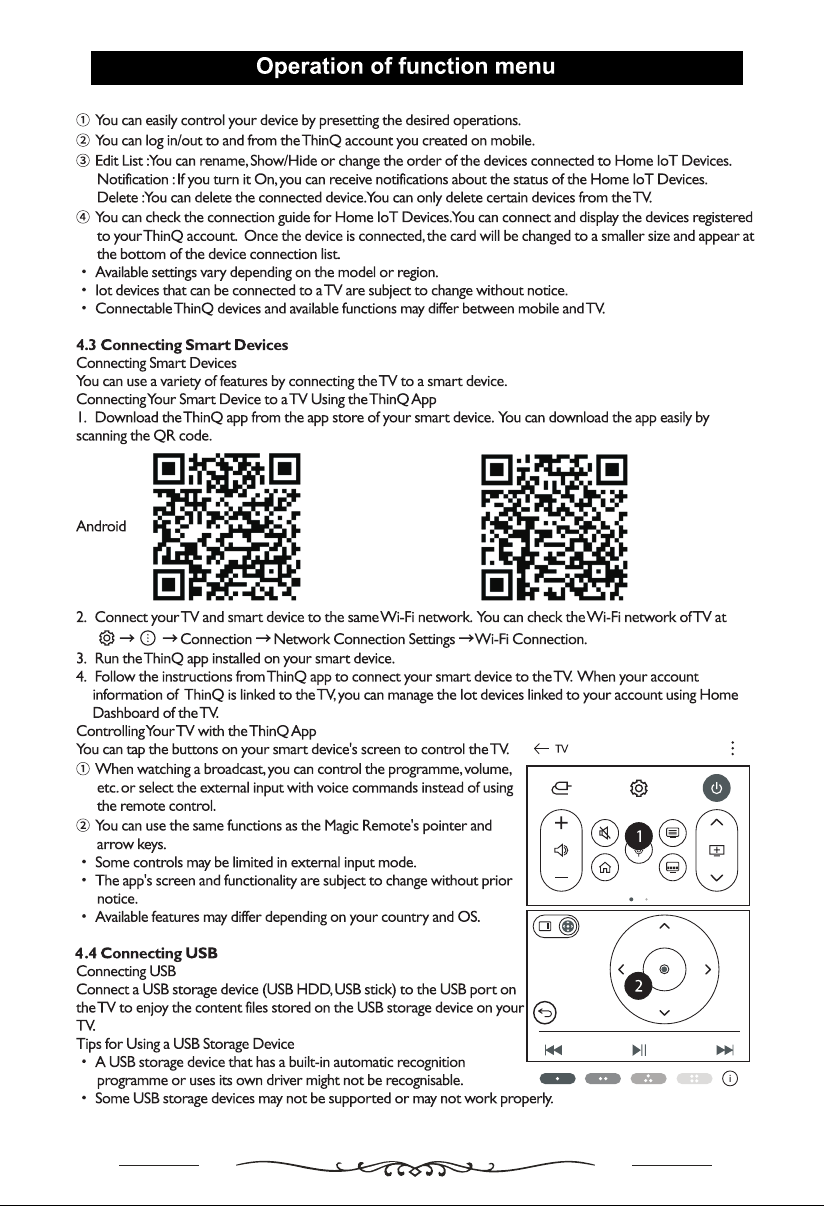
iOS
18
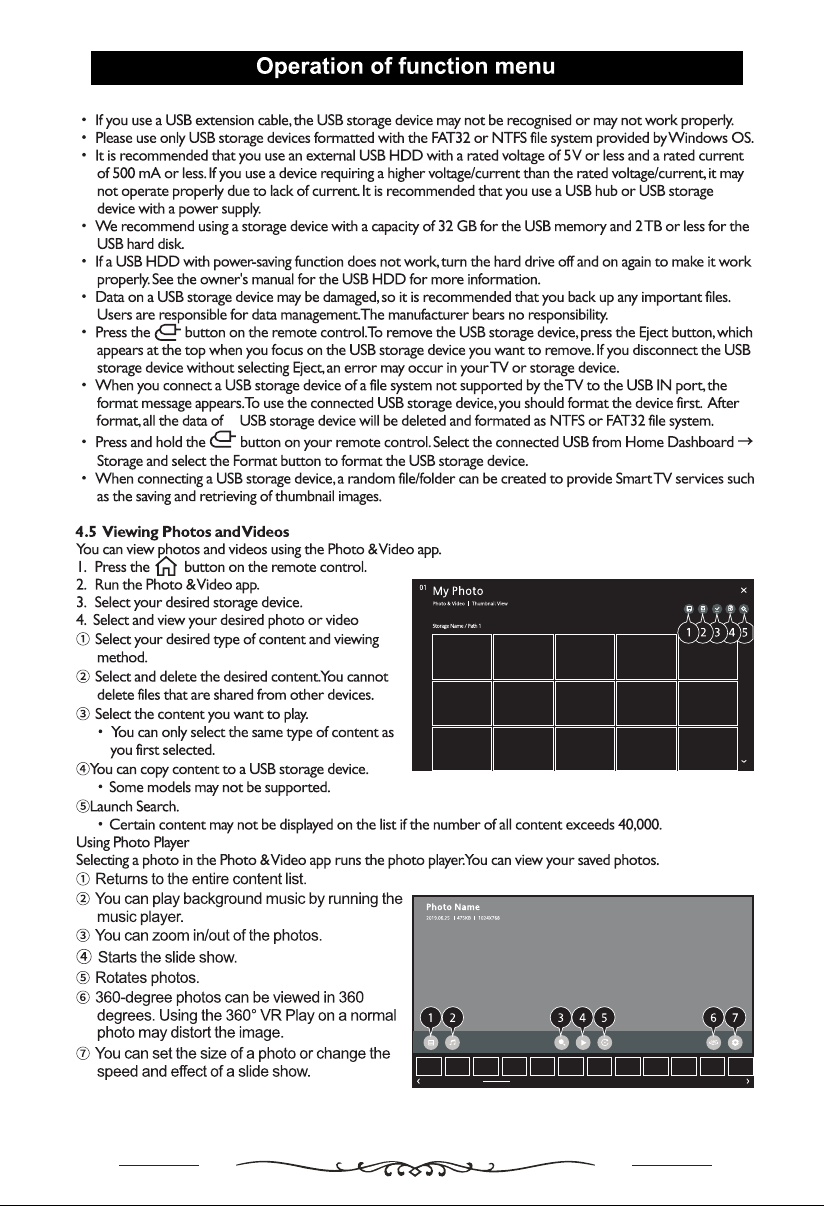
19
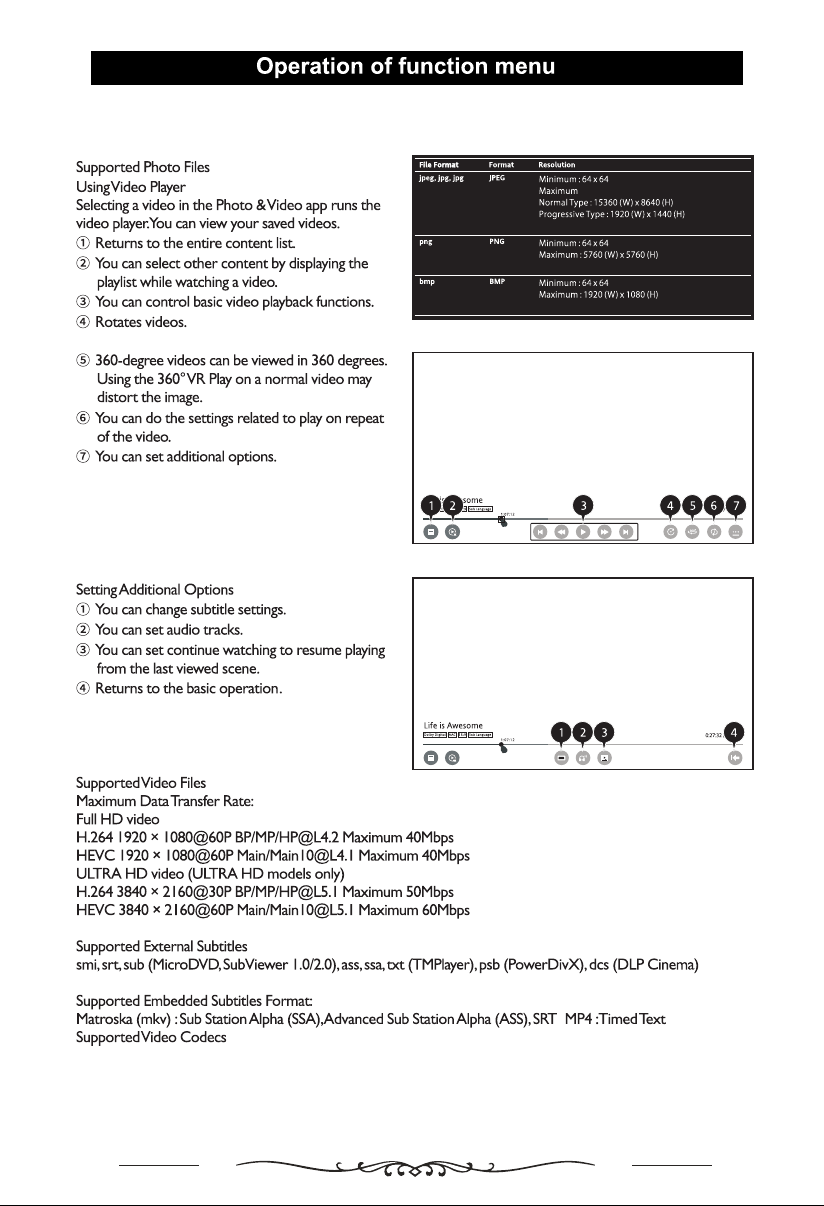
20
(for supported videos only)
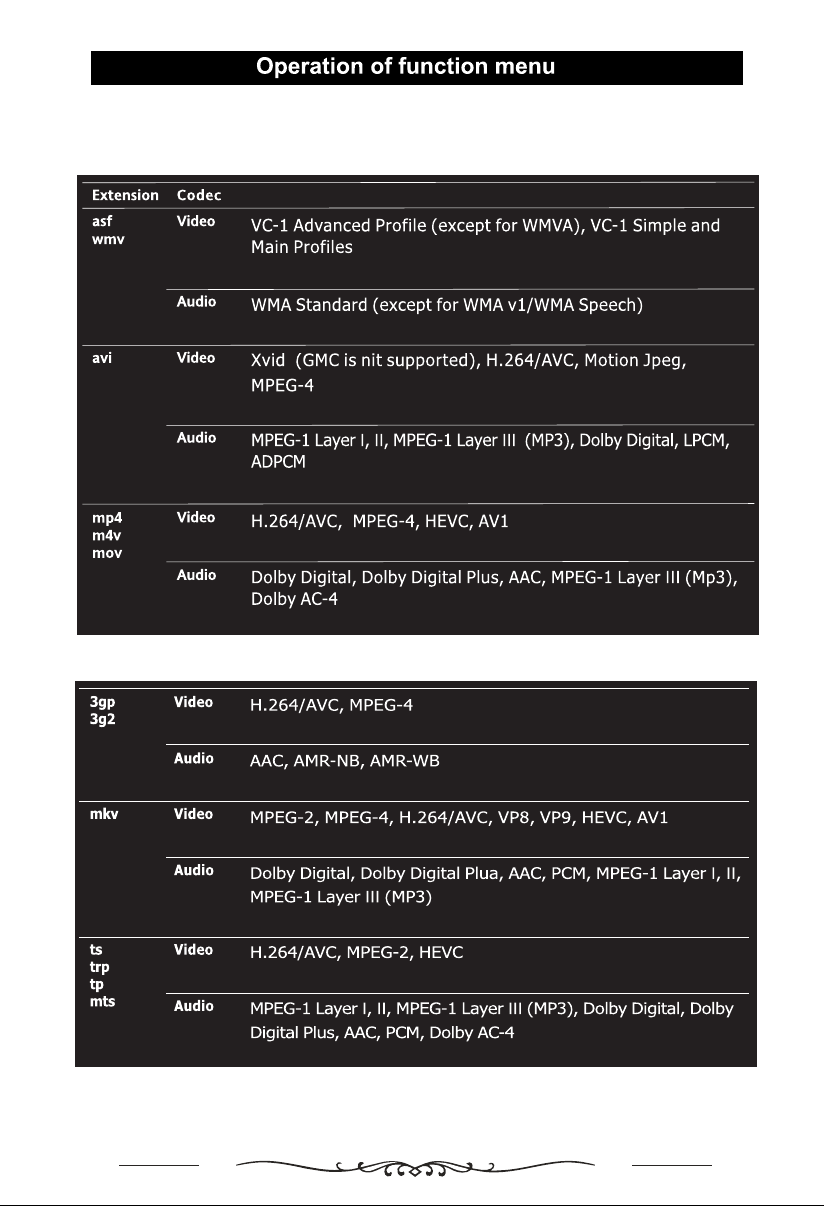
21

22
23
24
5.0 Accessing Internet on TV
Using the Web Browser
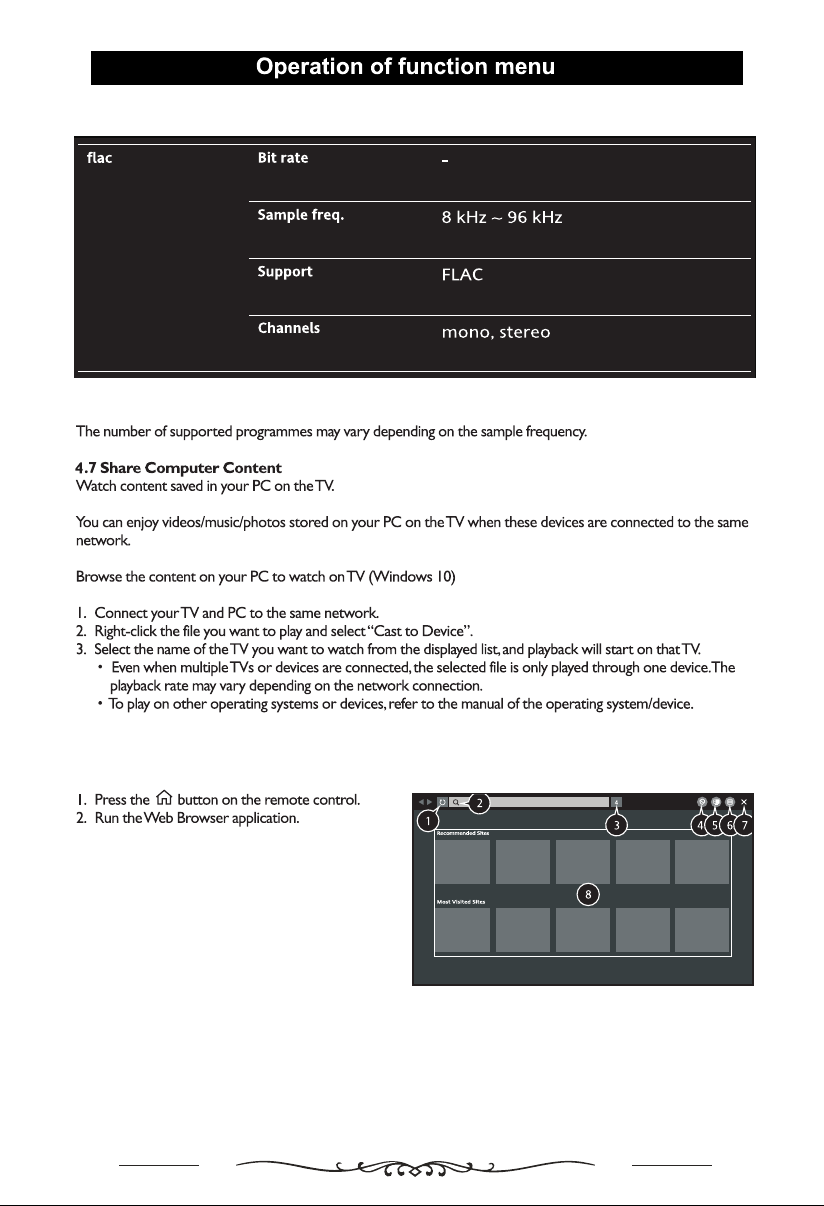
①. Click to refresh the current page.
② Click to search the content of the address
bar automatically.
③. Click to jump to the page specified in the
address bar.
④. Turn on/off the Block Ads function.
⑤. Turn on/off the TV View function.
⑥. Enter the browser settings page.
⑦. Click to close the page.
25
Note: Choose the for all settings.
26
may differ.
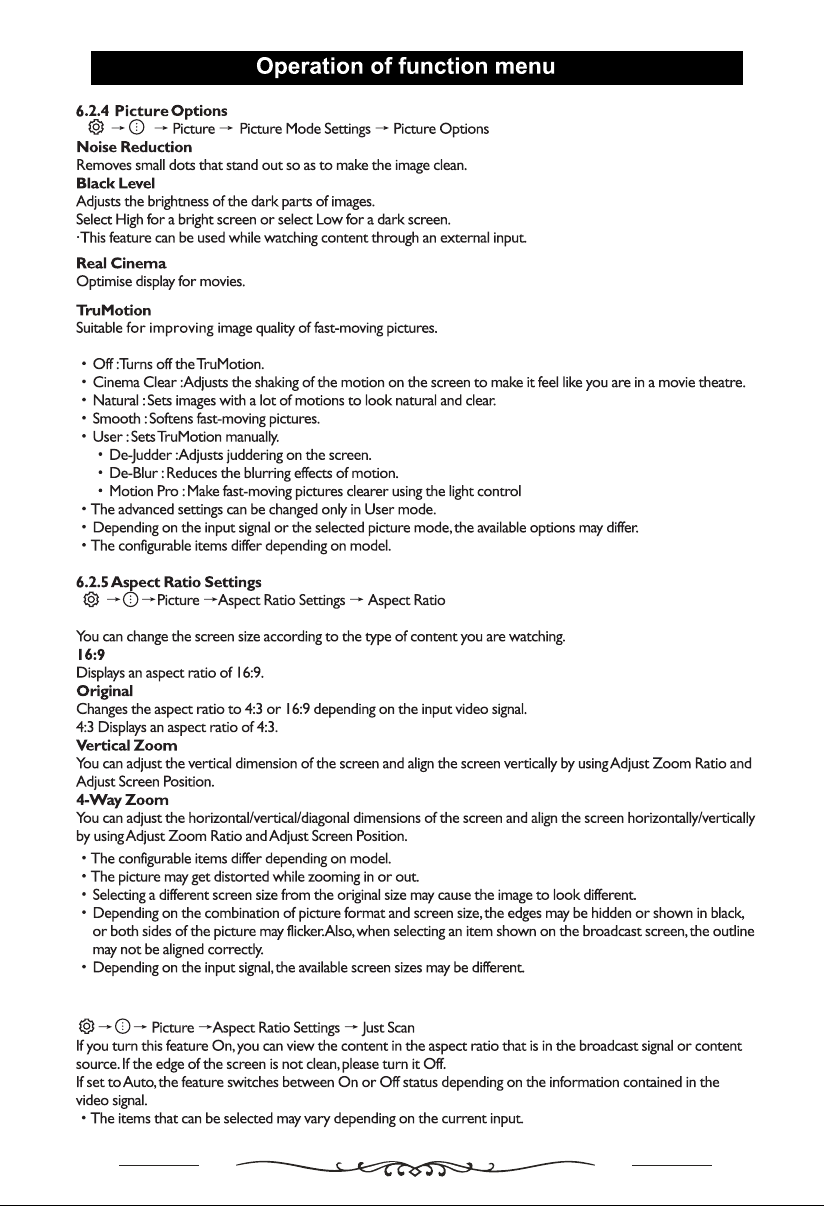
27
6.2.6 View Screen with Just Scan
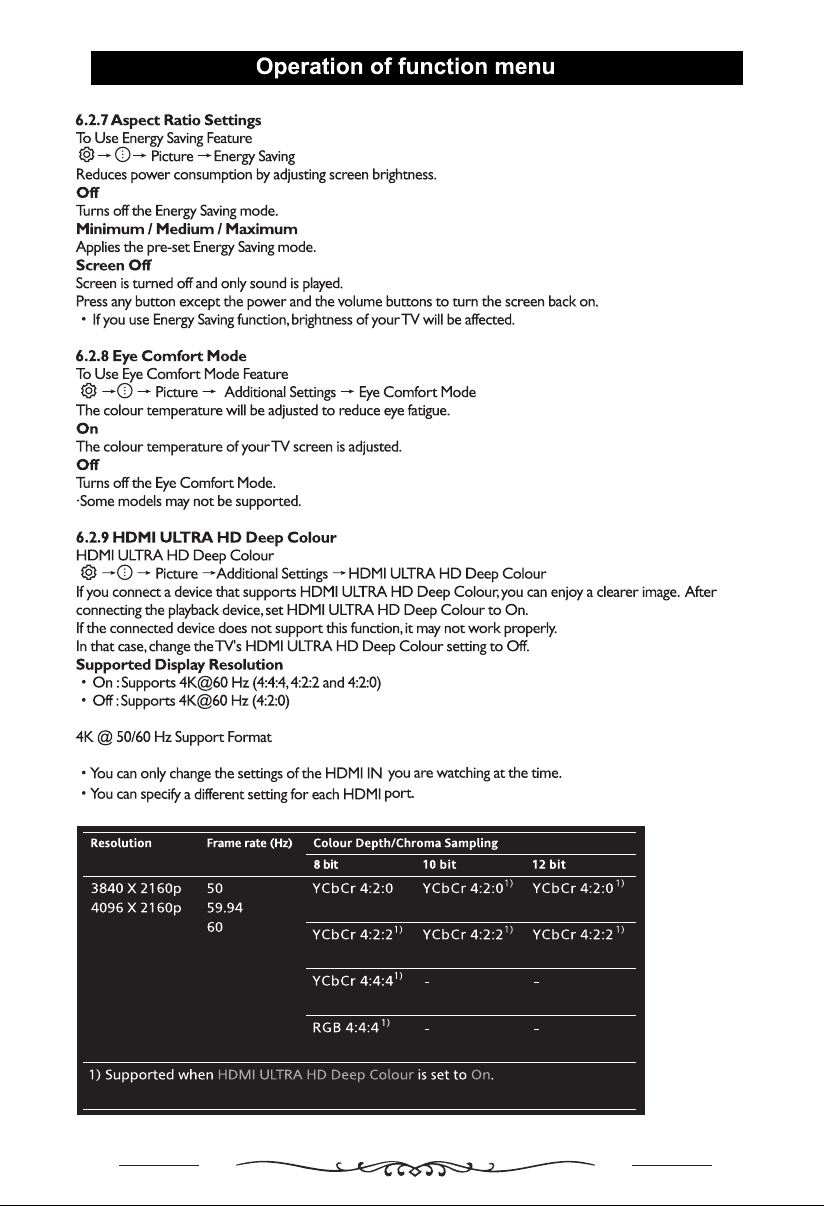
28

29
6.2.10
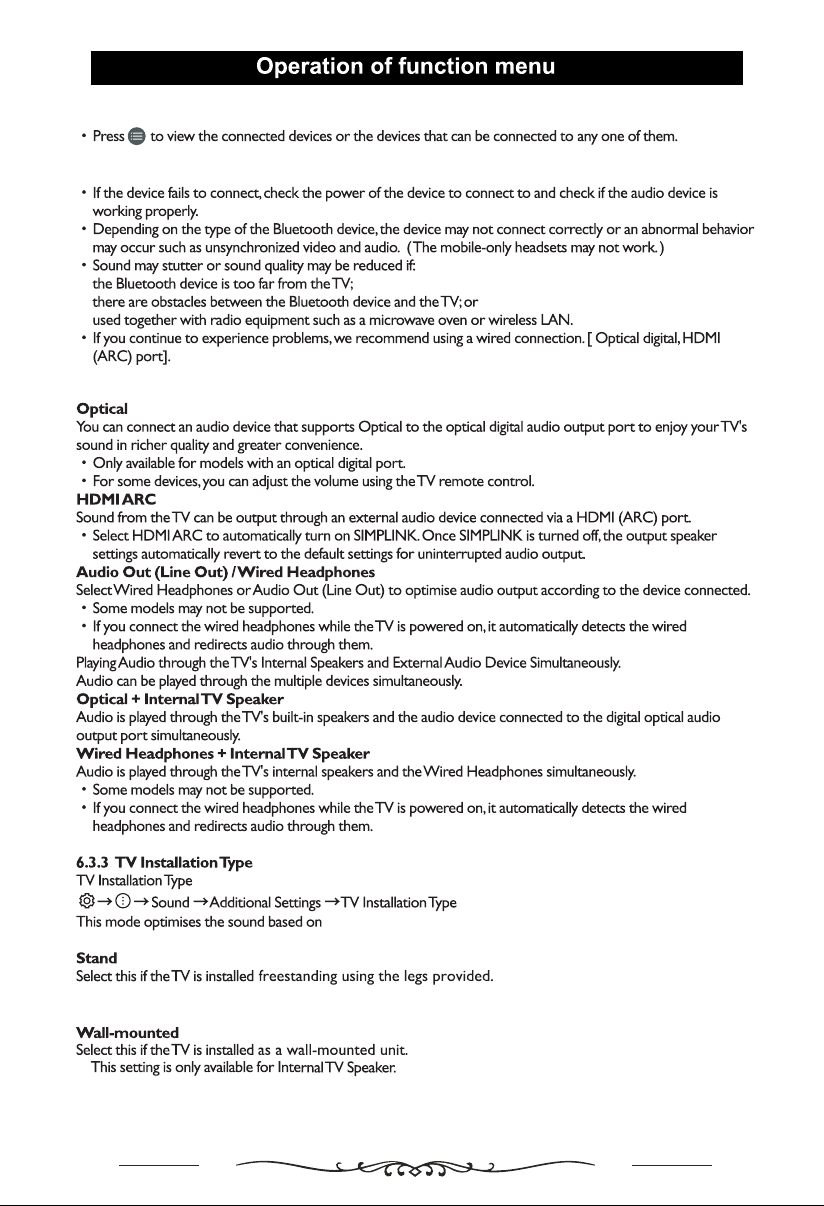
30
how TV is installed.
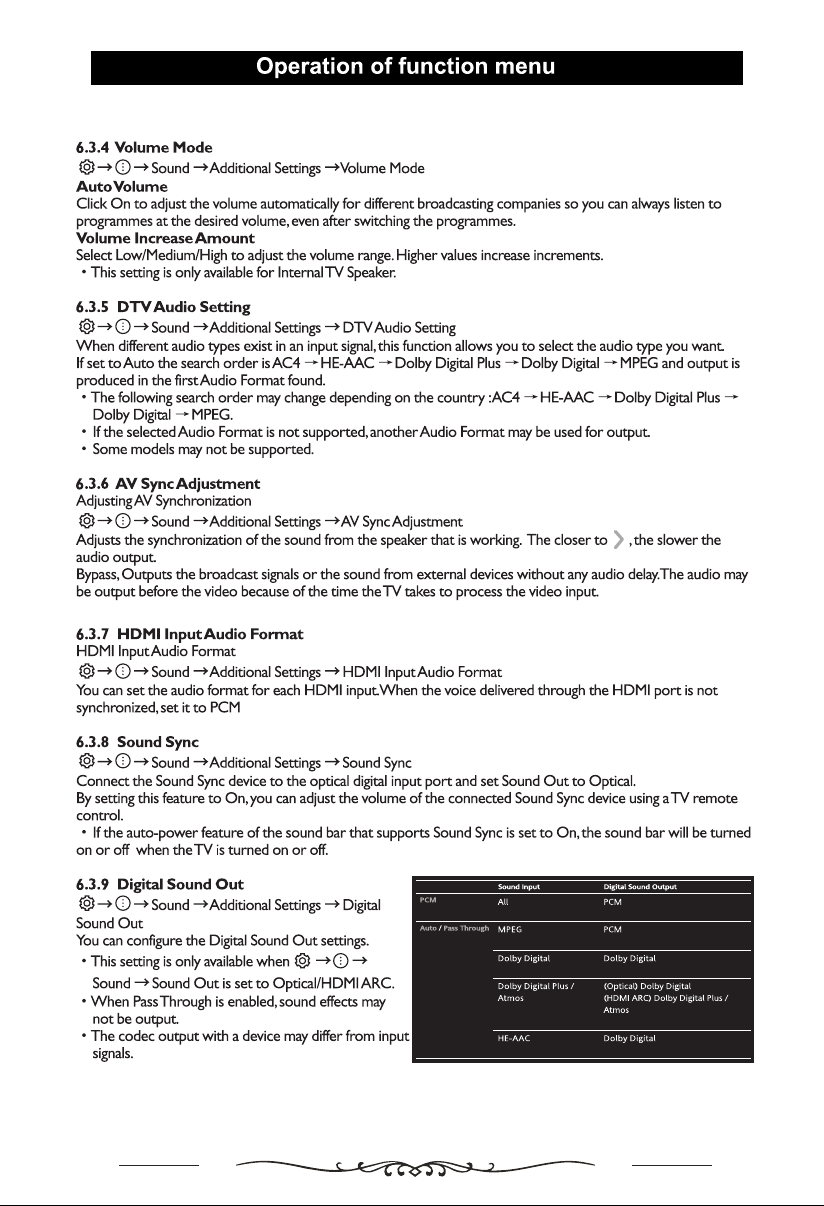
31
32
33
34
Note: Teletext functions are not available in Australia.
35
36
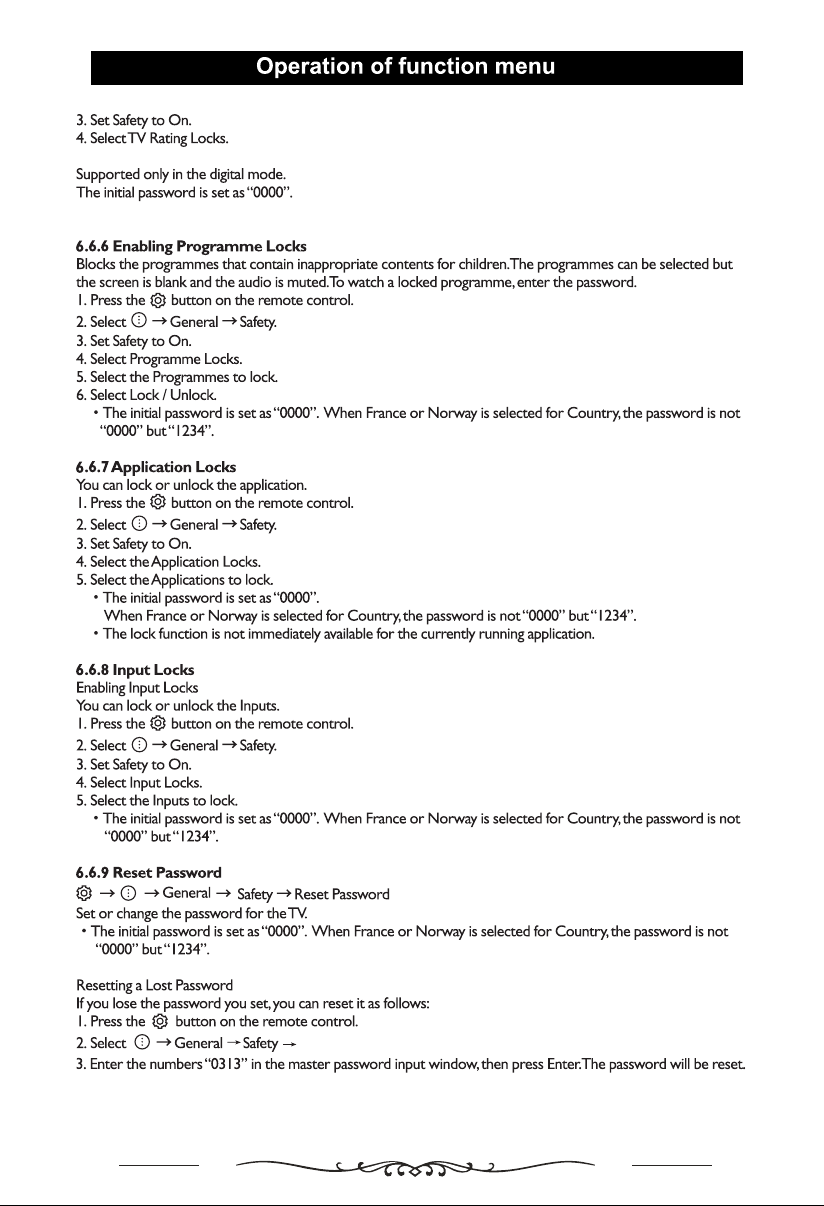
Reset Password.
37
38
39
using
40
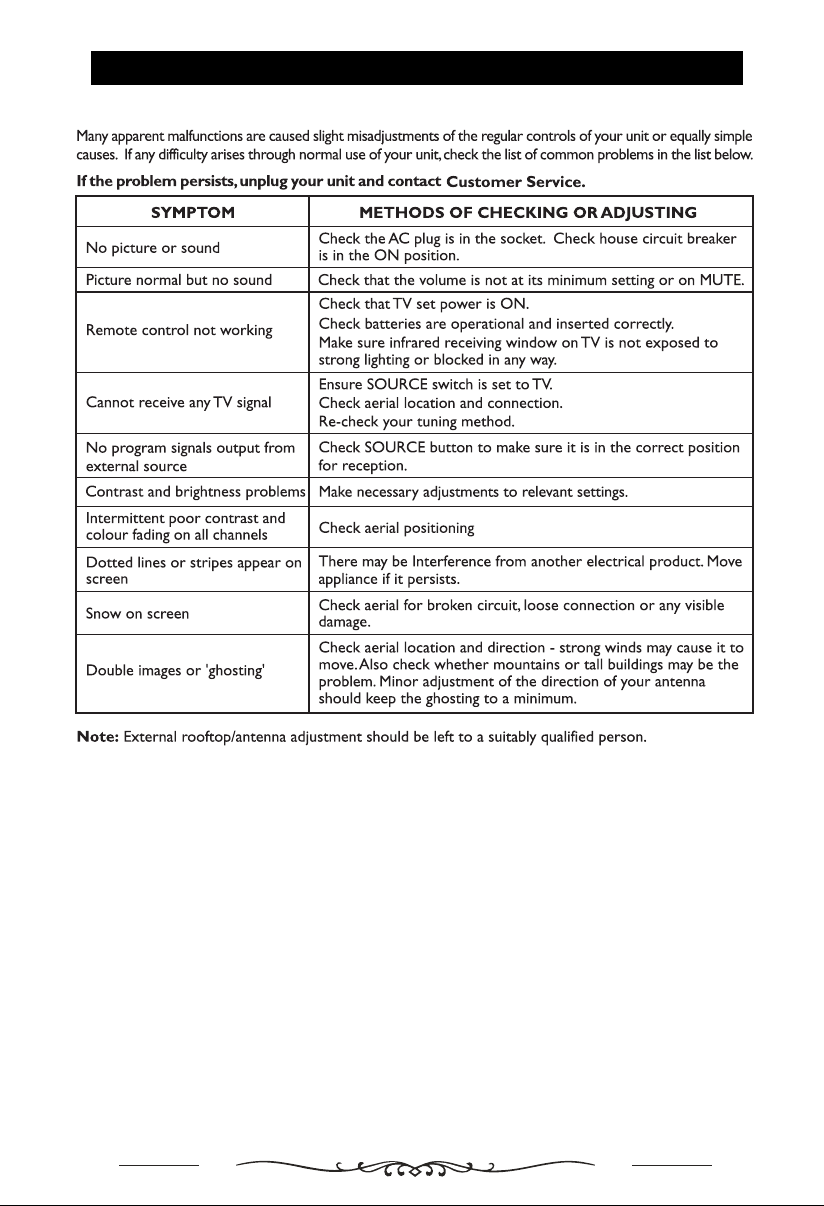
Troubleshooting
41
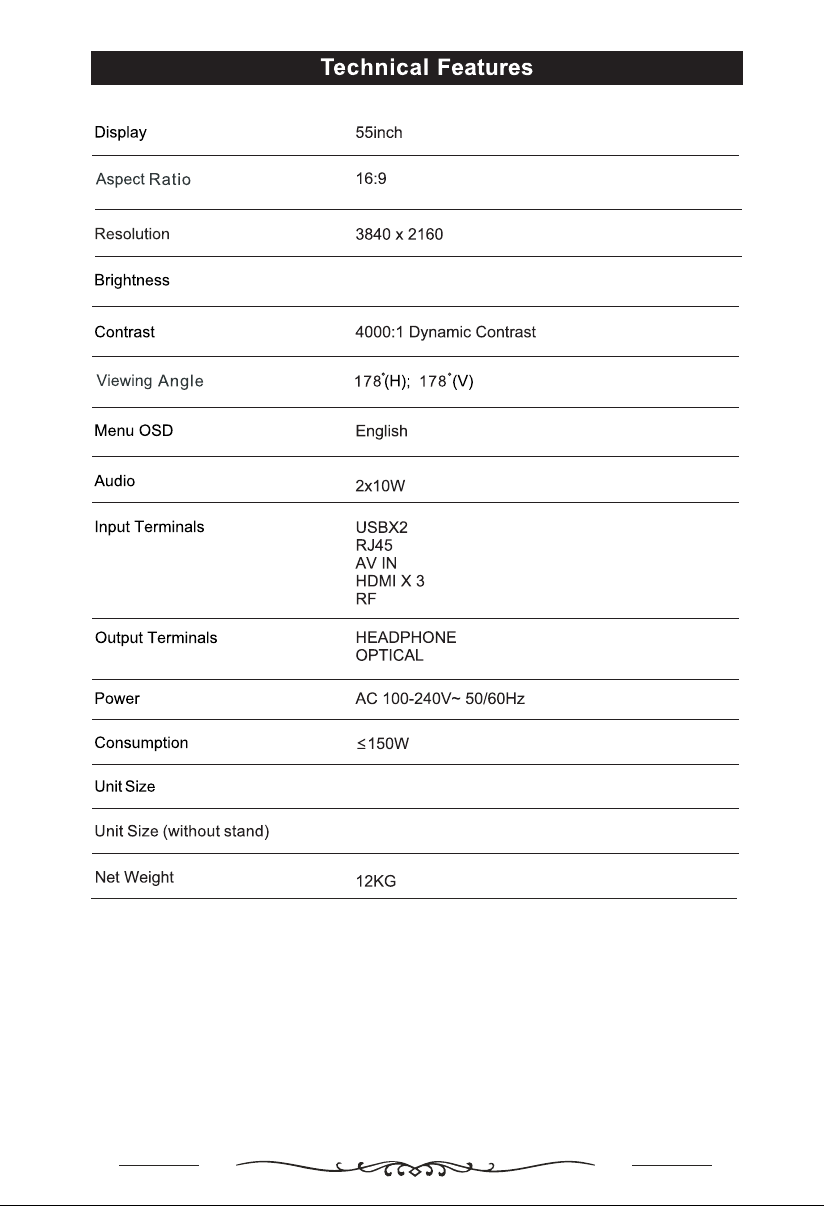
1235 x 83.8 x 722.5 mm(WxLxH)
1235 x 254 x 783.1 mm(WxLxH)
2
270 cd/m