4-241-068-12(1)
© 2002 Sony Corporation
DAV-C770
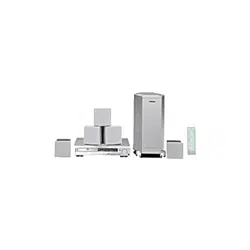
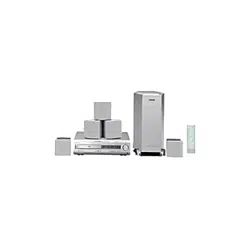
Compact AV
System
Operating Instructions
2
GB
WARNING
To prevent fire or shock
hazard, do not expose the unit
to rain or moisture.
Do not install the appliance in a
confined space, such as a bookcase
or built-in cabinet.
To prevent fire, do not cover the
ventilation of the apparatus with
news papers, table-cloths, curtains,
etc. And don’t place lighted candles
on the apparatus.
To prevent fire or shock hazard, do
not place objects filled with liquids,
such as vases, on the apparatus.
This appliance is classified as a
CLASS 1 LASER product. The label
is located on the bottom exterior.
For the customers in the
U.S.A
This symbol is intended to
alert the user to the
presence of uninsulated
“dangerous voltage”
within the product’s enclosure that
may be of sufficient magnitude to
constitute a risk of electric shock to
persons.
This symbol is intended to
alert the user to the
presence of important
operating and
maintenance (servicing) instructions
in the literature accompanying the
appliance.
Owner’s Record
The model and serial numbers are
located at the bottom of the unit.
Record the serial number in the
space provided below. Refer to them
whenever you call upon your Sony
dealer regarding this product.
Model No. DAV-C770
Serial No.______________
CAUTION
As the laser beam used in this CD/
DVD player is harmful to eyes, do
not attempt to disassemble the
cabinet. Refer servicing to qualified
personnel only.
This label is located on the bottom
exterior.
WARNING
This equipment has been tested and
found to comply with the limits for a
Class B digital device, pursuant to
Part 15 of the FCC Rules. These
limits are designed to provide
reasonable protection against
harmful interference in a residential
installation. This equipment
generates, uses, and can radiate radio
frequency energy and, if not
installed and used in accordance
with the instructions, may cause
harmful interference to radio
communications. However, there is
no guarantee that interference will
not occur in a particular installation.
If this equipment does cause harmful
interference to radio or television
reception, which can be determined
by turning the equipment off and on,
the user is encouraged to try to
correct the interference by one or
more of the following measures:
- Reorient or relocate the receiving
antenna.
- Increase the separation between
the equipment and system.
- Connect the equipment into an
outlet on a circuit different from
that to which the system is
connected.
- Consult the dealer or an
experienced radio/TV technician
for help.
CAUTION
You are cautioned that any changes
or modifications not expressly
approved in this manual could void
your authority to operate this
equipment.
Note to CATV system installer:
This reminder is provided to call the
CATV system installer’s attention to
Article 820-40 of the NEC that
provides guidelines for proper
grounding and, in particular,
specifies that the cable ground shall
be connected to the grounding
system of the building, as close to
the point of cable entry as practical.
Don’t throw
away the battery
with general
house waste,
dispose of it
correctly as
chemical waste.
3
GB
Welcome!
Thank you for purchasing this Sony
Compact AV System. Before
operating this system, please read
this manual thoroughly and retain it
for future reference.
For customers in Canada
CAUTION
TO PREVENT ELECTRIC SHOCK,
DO NOT USE THIS POLARIZED
AC PLUG WITH AN EXTENSION
CORD, RECEPTACLE OR OTHER
OUTLET UNLESS THE BLADES
CAN BE FULLY INSERTED TO
PREVENT BLADE EXPOSURE.
Except for European models
Precautions
Safety
• If anything falls into the cabinet,
unplug the unit and have it
checked by qualified personnel
before operating it any further.
• The unit is not disconnected from
the mains as long as it is
connected to the mains outlet,
even if the unit itself has been
turned off.
• Unplug the unit from the wall
outlet if you do not intend to use it
for an extended period of time. To
disconnect the cord, pull it out by
the plug, never by the cord.
Installing
• Do not install the appliance in a
confined space, such as a bookcase
or built-in cabinet.
• Allow adequate air circulation to
prevent internal heat buildup.
• Do not place the unit on surfaces
(rugs, blankets, etc.) or near
materials (curtains, draperies) that
may block the ventilation slots.
• Do not install the unit near heat
sources such as radiators, or air
ducts, or in a place subject to
direct sunlight, excessive dust,
mechanical vibration, or shock.
• Do not install the unit in an
inclined position. It is designed to
be operated in a horizontal
position only.
• Keep the unit and discs away from
equipment with strong magnets,
such as microwave ovens, or large
loudspeakers.
• Do not place heavy objects on the
unit.
• If the unit is brought directly from
a cold to a warm location,
moisture may condense inside the
Compact AV System and cause
damage to the lenses. When you
first install the unit, or when you
move it from a cold to a warm
location, wait for about 30 minutes
before operating the unit.
ENERGY STAR
®
is a U.S.
registered mark.
As an ENERGY STAR
®
partner,
Sony Corporation has
determined that this product
meets the
ENERGY STAR
®
guidelines for energy efficiency.

4
GB
On adjusting volume
Do not turn up the volume while listening to a
section with very low level inputs or no audio
signals. If you do, the speakers may be damaged
when a peak level section is played.
On cleaning
Clean the cabinet, panel, and controls with a soft
cloth slightly moistened with a mild detergent
solution. Do not use any type of abrasive pad,
scouring powder or solvent such as alcohol or
benzine.
If you have any questions or problems concerning
your system, please consult your nearest Sony
dealer.
On cleaning discs
Do not use a commercially available CD/DVD
cleaning disc. It may cause a malfunction.
On your TV’s color
If the speakers should cause the TV screen to have
color irregularity, turn off the TV at once then
turn it on after 15 to 30 minutes. If color
irregularity should persist, place the speakers
further away from the set.
The nameplate is located on the bottom exterior.
IMPORTANT NOTICE
Caution: This system is capable of holding a
still video image or on-screen display image on
your television screen indefinitely. If you leave
the still video image or on-screen display image
displayed on your TV for an extended period of
time you risk permanent damage to your
television screen. Projection televisions are
especially susceptible to this.
On carrying the system
When you carry the system, use the following
procedure to protect the inner mechanism.
Remove the disc, and then press and hold the x
button on the system. After “MECHA LOCK” is
displayed on the front panel display, turn off the
system.
Precautions
On safety
• Caution – The use of optical instruments with
this product will increase eye hazard.
• Should any solid object or liquid fall into the
cabinet, unplug the system and have it checked
by qualified personnel before operating it any
further.
On power sources
AC power cord must be changed only at the
qualified service shop.
On placement
• Place the system in a location with adequate
ventilation to prevent heat build-up in the
system.
• At high volume, over long periods of time, the
cabinet becomes hot to the touch. This is not a
malfunction. However, touching the cabinet
should be avoided. Do not place the unit in a
confined space where ventilation is poor as this
may cause overheating.
• Do not block the ventilation slots by putting
anything on the system. The system is equipped
with a high power amplifier. If the ventilation
slots on the top surface are blocked, the unit can
overheat and malfunction.
• Do not place the system on a soft surface such
as a rug that might block the ventilation holes
on the bottom.
• Do not place the system in a location near heat
sources, or in a place subject to direct sunlight,
excessive dust, or mechanical shock.
On operation
• If the system is brought directly from a cold to a
warm location, or is placed in a very damp
room, moisture may condense on the lenses
inside the system. Should this occur, the system
may not operate properly. In this case, remove
the disc and leave the system turned on for
about half an hour until the moisture evaporates.
• When you move the system, take out any discs.
If you don’t, the disc may be damaged.
• For power saving purposes, the system can be
completely turned off by the POWER button on
the main unit. Though the LED remains lit for a
while, the system is completely off.

5
GB
continued
Table of Contents
WARNING.......................................................................................................... 2
Welcome!........................................................................................................... 3
Precautions........................................................................................................ 4
About this Manual .............................................................................................. 7
This system Can Play the Following Discs ........................................................ 7
Notes about the Discs........................................................................................ 9
Note on DVD 5-disc changer ........................................................................... 10
Index to Parts and Controls ............................................................................. 11
Guide to the Control Menu Display .................................................................. 15
Getting Started ................................................................ 17
Quick Overview................................................................................................ 17
Unpacking........................................................................................................ 17
Inserting Batteries into the Remote ................................................................. 18
Step 1: Speaker System Hookup..................................................................... 18
Step 2: Antenna Hookups ................................................................................ 21
Step 3: TV and Video Component Hookups .................................................... 23
Speaker Setup ................................................................................................. 25
Presetting Radio Stations ................................................................................ 30
Playing Discs .................................................................. 32
Playing Discs ................................................................................................... 32
Resuming Playback from the Point Where You Stopped the Disc
(Resume Play) ........................................................................................... 34
Using the DVD’s Menu..................................................................................... 35
Playing VIDEO CDs with PBC Functions (PBC Playback) .............................. 35
Playing an MP3 Audio Track ............................................................................ 36
Selecting the Play Mode (All Discs, One Disc, or Album)................................ 38
Creating Your Own Program (Program Play) ................................................... 39
Playing in random order (Shuffle Play) ............................................................ 41
Playing repeatedly (Repeat Play) .................................................................... 42
Searching for a Scene ....................................................... 43
Searching for a Particular Point on a Disc (Scan, Slow-motion Play) .............. 43
Searching for a Title/Chapter/Track/Index/Album............................................. 44
Viewing Information About the Disc ....................................... 46
Viewing the Playing Time and Remaining Time on the Front Panel Display.... 46
Checking the Playing Time and Remaining Time ............................................ 47

6
GB
Sound Adjustments ........................................................... 49
Changing the Sound ........................................................................................ 49
Automatically decoding the input audio signal (Auto Decoding) ...................... 51
Enjoying Surround Sound ................................................................................ 51
Using only the front speakers and Subwoofer (2 Channel Stereo).................. 54
Adjusting the level parameters......................................................................... 54
Enjoying Movies .............................................................. 55
Changing the Angles ....................................................................................... 55
Displaying the Subtitles ................................................................................... 56
Using Various Additional Functions ....................................... 57
Locking Discs (CUSTOM PARENTAL CONTROL, PARENTAL CONTROL) ... 57
Other Operations ............................................................. 62
Controlling the TV with the Supplied Remote .................................................. 62
Watching the Video or other Unit ..................................................................... 63
Listening to the Radio ...................................................................................... 64
Using the Radio Data System (RDS) (Only for the European models) ........... 65
Naming Preset Stations ................................................................................... 65
Settings and Adjustments ................................................... 67
Using the Setup Display .................................................................................. 67
Setting the Display or Sound Track Language (LANGUAGE SETUP)............. 68
Settings for the Display (SCREEN SETUP)..................................................... 69
Custom Settings (CUSTOM SETUP)............................................................... 71
Settings for the Speakers (SPEAKER SETUP) ............................................... 72
Additional Information ....................................................... 75
Troubleshooting ............................................................................................... 75
Self-diagnosis Function (When letters/numbers appear in the display)........... 79
Glossary .......................................................................................................... 79
Specifications................................................................................................... 82
Language Code List......................................................................................... 84
DVD Setup Menu List ...................................................................................... 85
Index ................................................................................................................ 86
Quick reference for Remote Commander ...........................................Back cover
7
GB
About this Manual
• The instructions in this manual describe
the controls on the remote. You can also
use the controls on the system if they have
the same or similar names as those on the
remote.
• The icons used in this manual are
explained below:
• In this manual, the European model is used
for illustration and on-screen display
(OSD) purposes.
* MP3 (MPEG1 Audio Layer 3) is a standard format
defined by ISO/MPEG which compress audio data.
This system Can Play the
Following Discs
z
Icon Meaning Icon Meaning
Functions
available in
DVD video
mode
Functions
available in
VIDEO
CD mode
Functions
available in
CD mode
Functions
available in
Super Audio
CD and
Audio CD
mode
Functions
available for
MP3* audio
tracks
More
convenient
features
The “DVD VIDEO” logo is a trademark.
Format of discs
DVD VIDEO
VIDEO CD
Music CD
Super Audio CD
Terms for discs
• Title
The longest sections of a picture or music
feature on a DVD, movie, etc., in video
software, or the entire album in audio
software.
• Chapter
Sections of a picture or a music piece that
are smaller than titles. A title is composed
of several chapters. Depending on the disc,
no chapters may be recorded.
• Album
Section of a music piece on a data CD
containing MP3 audio tracks.
• Track
Sections of a picture or a music piece on a
VIDEO CD, Super Audio CD, CD, or
MP3.
• Index (Super Audio CD, CD) / Video
Index (VIDEO CD)
A number that divides a track into sections
to easily locate the point you want on a
VIDEO CD, Super Audio CD, or CD.
Depending on the disc, no indexes may be
recorded.
• Scene
On a VIDEO CD with PBC functions
(page 35), the menu screens, moving
pictures and still pictures are divided into
sections called “scenes.”
continued

8
GB
You can
Enjoy video playback
(moving pictures) as well
as music.
Play interactive software
using menu screens
displayed on the TV screen
(PBC Playback), in
addition to the video
playback functions of Ver
1.1 discs. Moreover, you
can play high-resolution
still pictures, if they are
included on the disc.
Note on PBC (Playback Control)
(VIDEO CDs)
This system conforms to Ver. 1.1 and Ver.
2.0 of VIDEO CD standards. You can enjoy
two kinds of playback depending on the disc
type.
Disc type
VIDEO CDs
without PBC
functions
(Ver. 1.1 discs)
VIDEO CDs
with PBC
functions
(Ver. 2.0 discs)
Region code
Your system has a region code printed on
the back of the unit and will only play
DVDs labelled with the same region code.
DVDs labelled
ALL
will also play on this
system.
If you try to play any other DVD, the
message “Playback prohibited by area
limitations.” will appear on the TV screen.
Depending on the DVD, no region code
indication may be labelled even though
playing the DVD is prohibited by area
restrictions.
Examples of discs that the system
cannot play
The system cannot play the following discs:
• CD-ROMs (PHOTO CDs included)
• CD-Rs/CD-RWs other than those recorded
in the following formats:
– music CD format
– video CD format
– MP3 format that conforms to ISO9660*
Level 1/Level 2, or its extended format,
Joliet
• Data part of CD-Extras
• DVD-ROMs
• DVD Audio discs
* A logical format of files and folders on CD-ROMs,
defined by ISO (International Standard
Organization)
Do not load the following discs:
• A DVD with a different region code (page
8, 81).
• A disc that is neither standard nor circular
(e.g., card, heart, or star shape).
• A disc with paper or stickers on it.
• A disc that has the adhesive, cellophane
tape, or a sticker still left on it.
Note
Some CD-Rs or CD-RWs cannot be played on this
system depending upon the recording quality or
physical condition of the disc, or the characteristics
of the recording device.
Furthermore, the disc will not play if it has not been
correctly finalized. For more information, see the
operating instructions for the recording device.
DVD
structure
VIDEO CD,
Super
Audio CD,
or CD
structure
Title
Disc
Index
Track
Chapter
Disc
MP3
structure
Track
Album
Disc
9
GB
Note on playback operations of
DVDs and VIDEO CDs
Some playback operations of DVDs and
VIDEO CDs may be intentionally set by
software producers. Since this system plays
DVDs and VIDEO CDs according to the
disc contents the software producers
designed, some playback features may not
be available. Also, refer to the instructions
supplied with the DVDs or VIDEO CDs.
Copyrights
This product incorporates copyright
protection technology that is protected by
method claims of certain U.S. patents, other
intellectual property rights owned by
Macrovision Corporation, and other rights
owners. Use of this copyright protection
technology must be authorized by
Macrovision Corporation, and is intended
for home and other limited viewing uses
only unless otherwise authorized by
Macrovision Corporation. Reverse
engineering or disassembly is prohibited.
Notes about the Discs
On handling discs
• To keep the disc clean, handle the disc by
its edge. Do not touch the surface.
• Do not stick paper or tape on the disc.
• Do not expose the disc to direct sunlight or
heat sources such as hot air ducts, or leave
it in a car parked in direct sunlight as the
temperature may rise considerably inside
the car.
• After playing, store the disc in its case.
On cleaning
• Before playing, clean the disc with a
cleaning cloth.
Wipe the disc from the center out.
• Do not use solvents such as benzine,
thinner, commercially available cleaners,
or anti-static spray intended for vinyl LPs.
This system can only play back a standard
circle disc. Using neither standard nor
circular discs (e.g., card, heart, or star shape)
may cause a malfunction.
Do not use a disc that has a commercially
available accessory attached, such as a label
or ring.
This system incorporates with Dolby*
Digital and Dolby Pro Logic (II) adaptive
matrix surround decoder and the DTS**
Digital Surround System.
* Manufactured under license from Dolby
Laboratories.
“Dolby”, “Pro Logic” and the double-D symbol
are trademarks of Dolby Laboratories.
**Manufactured under license from Digital Theater
Systems, Inc.
“DTS” and “DTS Digital Surround” are
trademarks of Digital Theater Systems, Inc.
10
GB
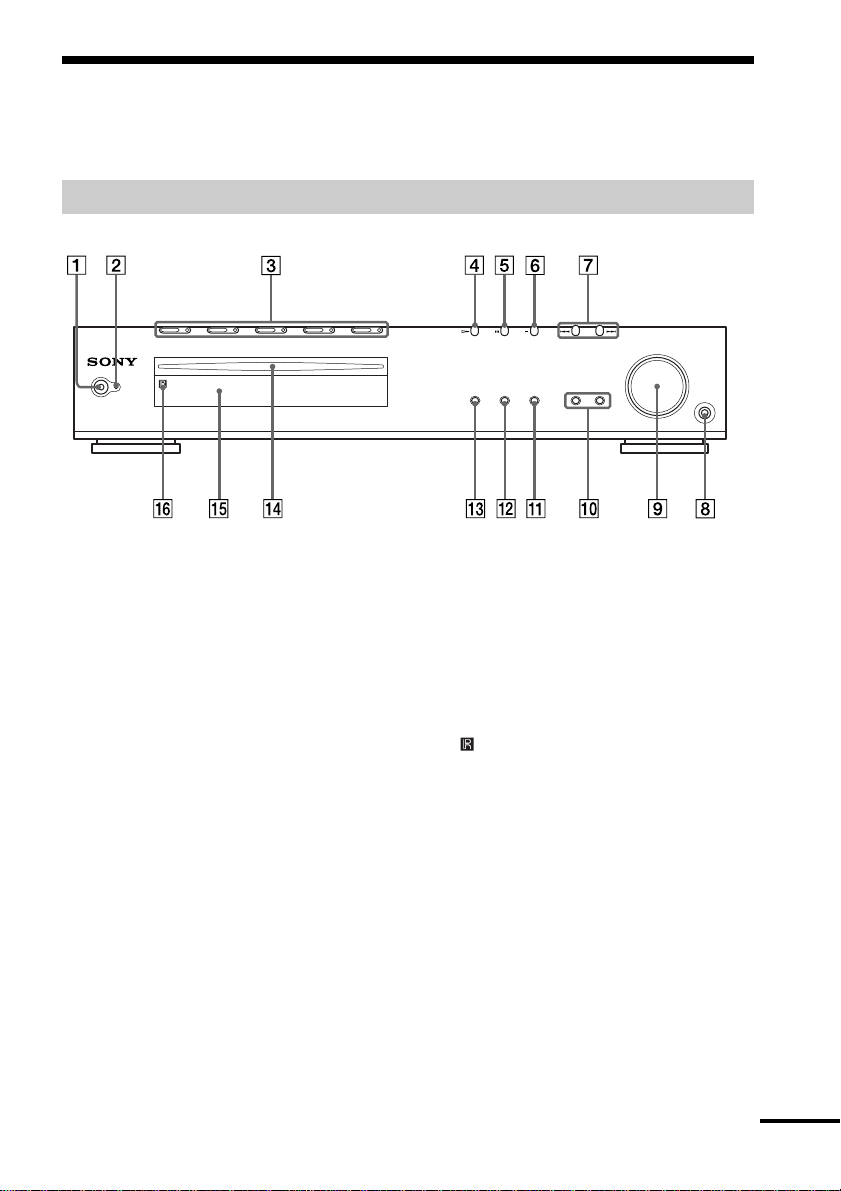
Stocker
Note on DVD 5-disc
changer
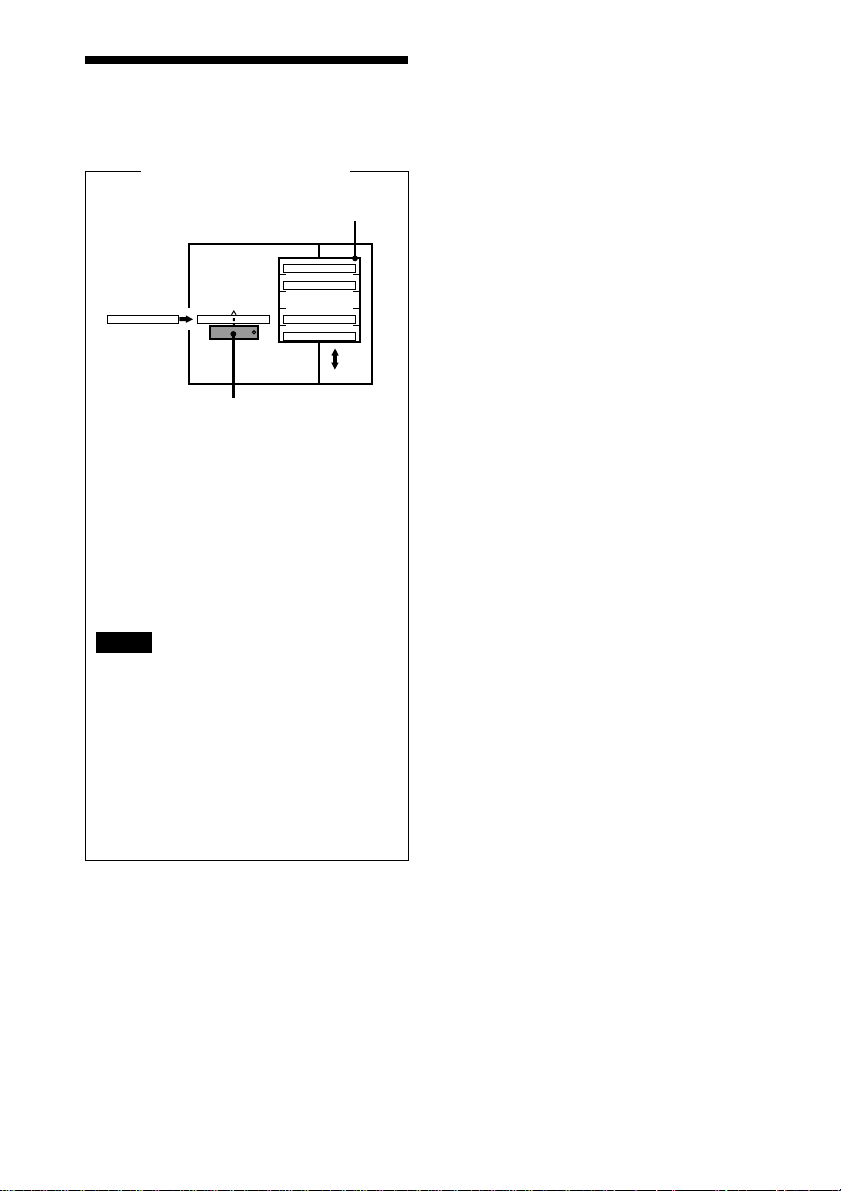
The disc changer consists of a playing
unit and a stocker which transports the
discs to the disc slot and the playing
unit.
For example, if you press DISC 3, the
stocker moves until the DISC 3 comes to
the position of the playing unit and then
moves the DISC 3 over the playing unit.
Notes
• Do not insert or eject discs while playing.
• Noise may come from the disc changer when
changing discs or turning the system on and off.
However, this is just noise produced by the
operation of the internal mechanisms and does
not indicate a malfunction.
• 8 cm (3-inch) CDs or DVDs cannot be stored in
the stocker.
• Do not insert an 8 cm (3-inch) CD with an 8 cm
(3-inch) adapter. It may damage the system and
disc.
Disc changer system
DISC 1
DISC 2
DISC 3 DISC 4
DISC 5
Disc
Playing unit
11
GB
Index to Parts and Controls
For more information, refer to the pages indicated in parentheses.
Front Panel
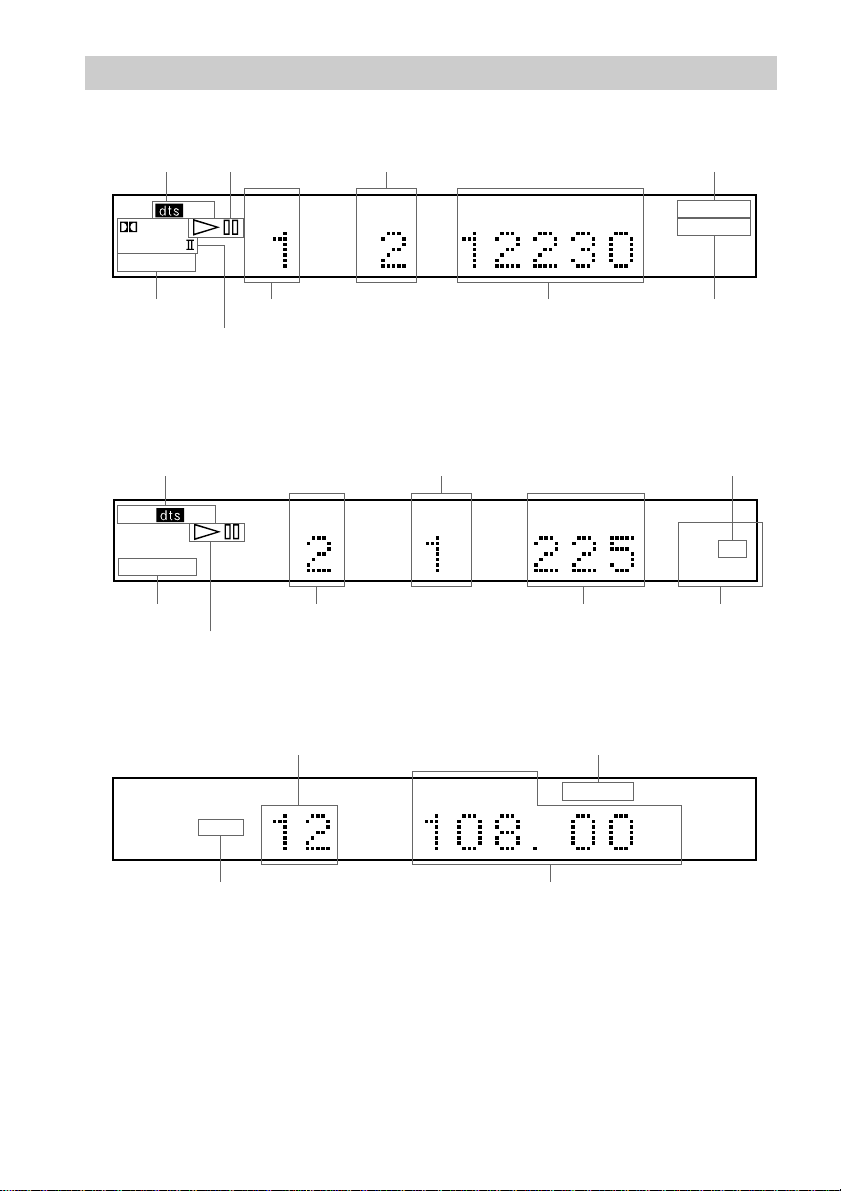
1 POWER switch (32)
2 STANDBY indicator (32)
3 DISC 1 (play) /A (Eject)/indicator –
DISC 5 (play) /A (Eject)/indicator (32)
4 H (play) (32)
5 X (pause) (33)
6 x (stop) (33)
7 ./> PREV/NEXT, PRESET –/+
(33)
FUNCTION BAND DISPLAY SOUND FIELD
PHONES
STANDBY
8 PHONES jack (32)
9 VOLUME control (32)
0 SOUND FIELD –/+ (51)
qa DISPLAY (64)
qs BAND (30)
qd FUNCTION (63)
qf Disc slot (32)
qg Front panel display (12)
qh
(remote sensor) (18)
continued
12
GB
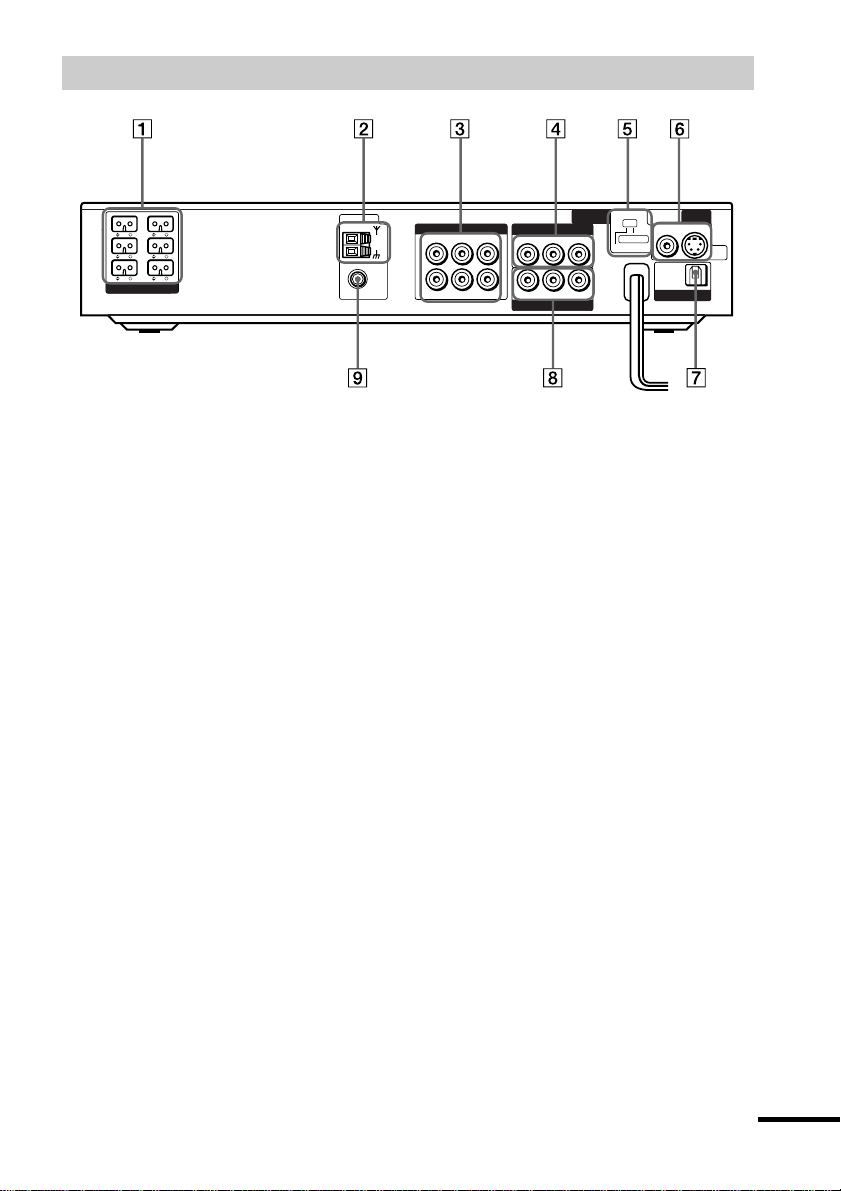
ALL1
DISCS
TRACK INDEX M S
SHUFFLE
PROG PBC
REPEAT 1
DIGITAL
SACD
PCM
DIGITAL
PCM
PRO
ALL1
DISCS
LOGIC
TITLE CHAPTER H M S
REPEAT 1
ANGLE
When playing back a Super Audio CD, CD, VIDEO CD, or MP3
When listening to the radio
FM AM
TUNED MONO ST
MHz
Current band
Preset number Monaural/Stereo effect
Current station
Playing status
Current track number
Current play mode
Lights up during
PBC playback
(VIDEO CD only)
Playing time
Current index number
(The index indicator does not appear during Super
Audio CD or MP3 playback.)
Playing status
Current title number Playing time
Current sound
Current repeat
mode
Current chapter number
Current surround format
Front Panel Display
When playing back a DVD
Play mode
Play mode
Current sound
Lights up when you can
change the angle
13
GB
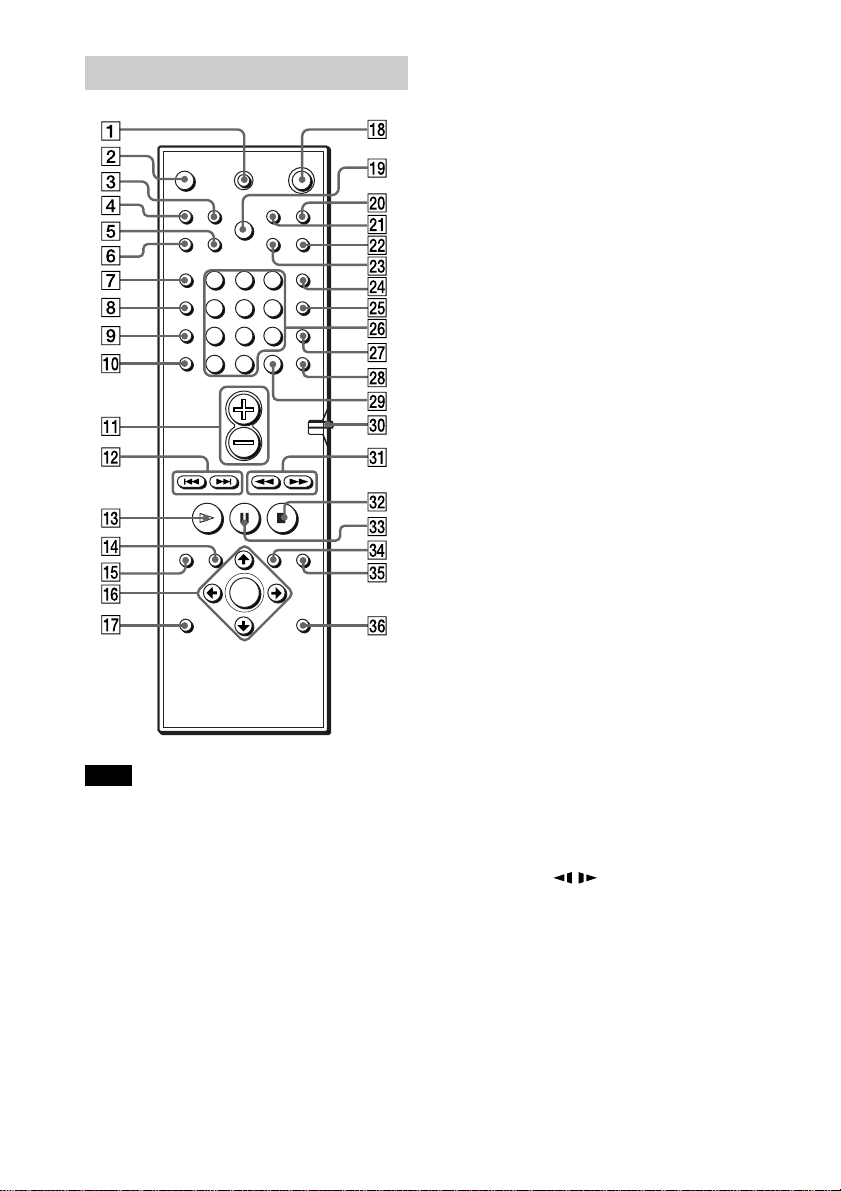
1 SPEAKER jacks (19)
2 AM antenna (21)
3 VIDEO 1 jacks (23)
4 VIDEO 2 jacks (23)
5 COMPONENT VIDEO OUT/SCAN
SELECT switch (75)
6 MONITOR OUT (VIDEO/S VIDEO)
jacks (24)
7 VIDEO 2 (OPTICAL DIGITAL IN)
jack (24)
8 COMPONENT VIDEO OUT jacks (23)
9 FM 75Ω COAXIAL antenna jack (21)
Rear Panel
WOOFER 3Ω
IMPEDANCE
USE
EXCEPT
WOOFER 3Ω
VIDEO 1
COMPONENT VIDEO OUT
VIDEO 2
VIDEO 2
MONITOR
OUT
FRONT
R
FRONT
L
REAR
R
REAR
L
CENTER WOOFER
COAXIAL
AUDIO OUT
AUDIO IN
LR
LR
LR
VIDEO OUT
VIDEO IN
VIDEO INAUDIO IN
YP
B
/C
B
P
R
/C
R
AM
FM
75Ω
OPTICAL
DIGITAL
IN
S VIDEOVIDEO
DVD
ONLY
SPEAKER
INTERLACE
SELECTABLE
SCAN SELECT
COMPONENT
VIDEO OUT
continued
14
GB
Remote
123
456
7
>
10
10/0
89
1 TV [/1 (on/standby) (62)
2 Z (EJECT) (33)
3 NAME (66)
4 STEREO/MONO (64)
5 MEMORY (30)
6 CLEAR (40)
7 PLAY MODE (39)
8 AUDIO (49)
9 ANGLE (55)
q; SUBTITLE (56)
qa VOL +/– (63)
qs ./> PREV/NEXT, TV CH –/+,
PRESET –/+ (30, 33, 63)
qd H PLAY/SELECT (32)
qf DVD TOP MENU (35)
qg DVD DISPLAY (42)
qh C/X/x/c/ENTER (26)
qj DVD SETUP (59)
qk 1 (standby) (33)
ql DISC SKIP (32)
w; TV/VIDEO (63)
wa REPEAT (42)
ws MUTING (33)
wd TIME (46)
wf FUNCTION (63)
wg BAND (30)
wh Number buttons (35)
wj SOUND FIELD (51)
wk DISPLAY (64)
wl ENTER (62)
e; COMMAND MODE DVD TV switch
(63)
ea m/M/
/ SLOW, TUNING –/+
(30, 43)
es x STOP (33)
ed X PAUSE (33)
ef DVD MENU (35)
eg O RETURN (36)
eh AMP MENU (26)
Note
This remote control glows in the dark. However,
before glowing, the remote must be exposed to light
for awhile.
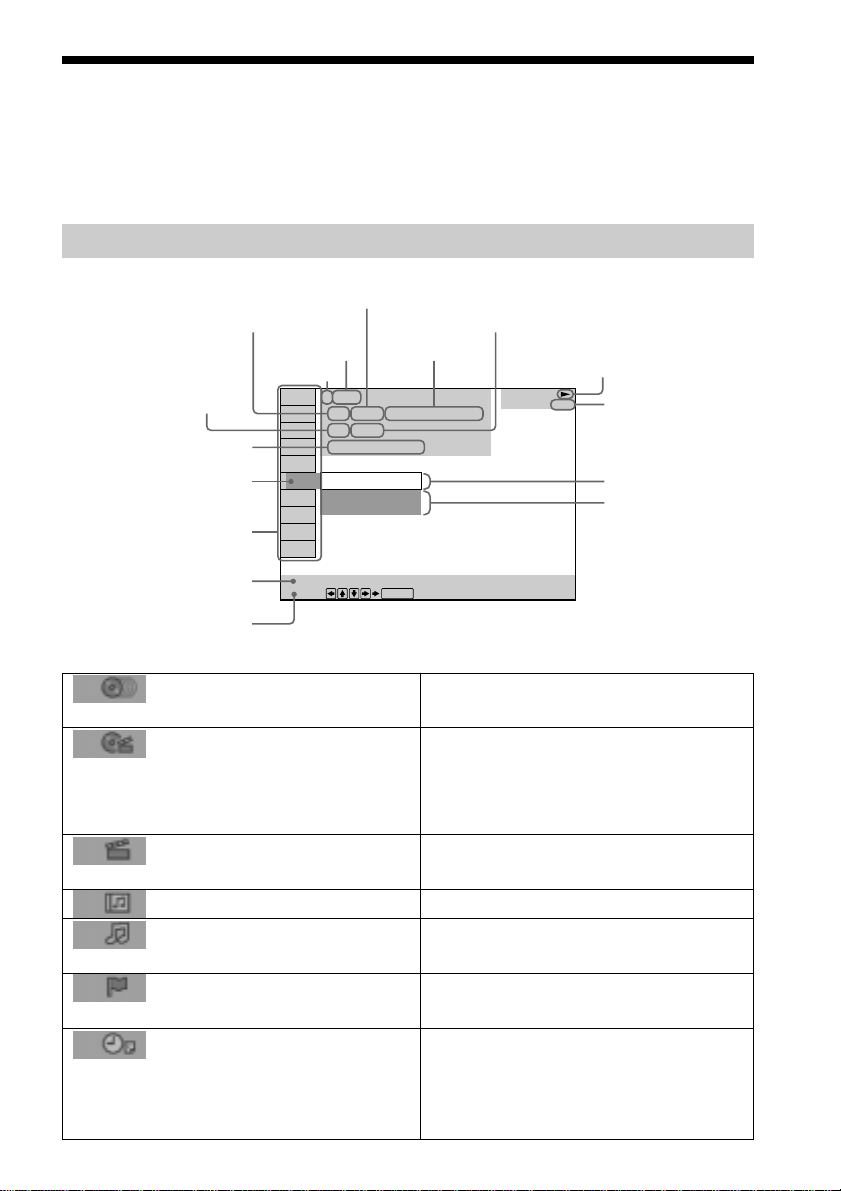
15
GB
Guide to the Control Menu Display
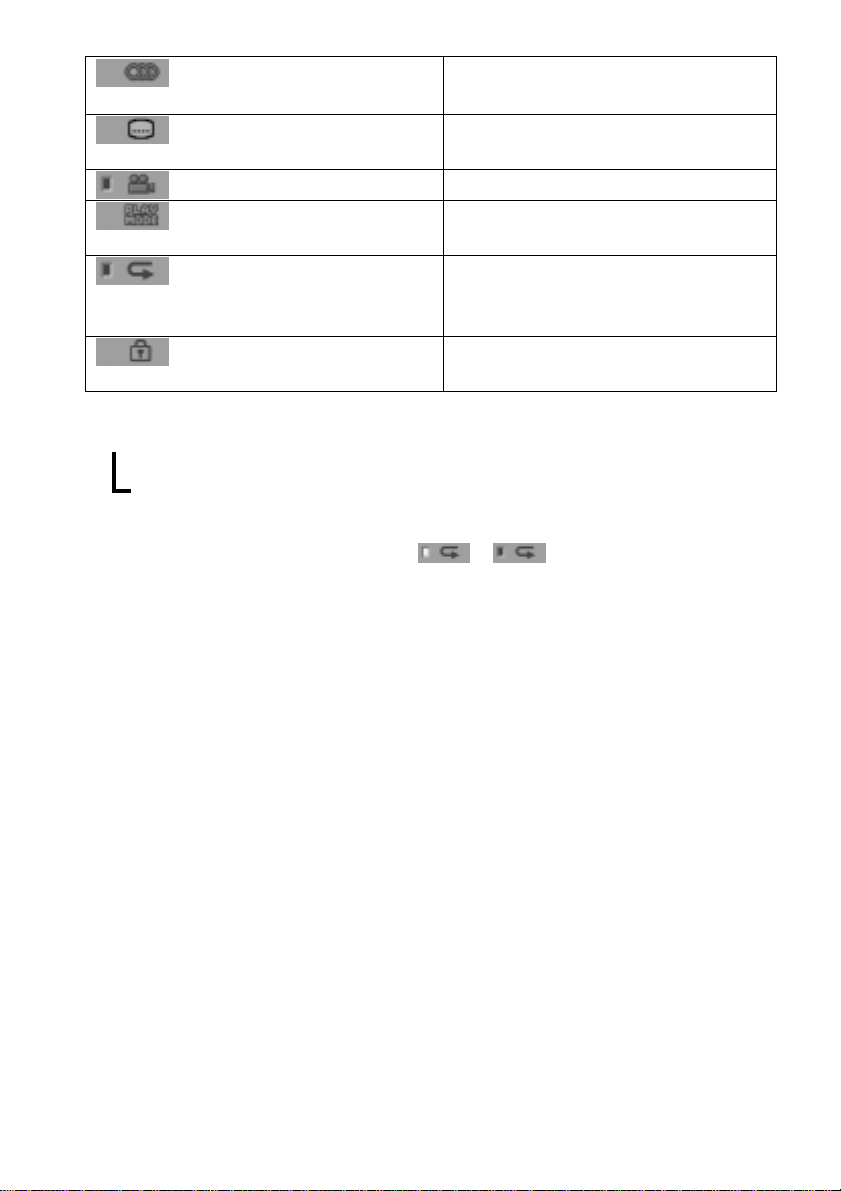
Use the Control Menu to select a function that you’d like to use. The Control Menu display
appears when the DVD DISPLAY button is pressed. For details, refer to the page in
parentheses.
Control Menu
List of Control Menu Items
DISC
TITLE (DVD only) (page 44)/
SCENE (only VIDEO CD in PBC
playback)/TRACK (VIDEO CD only)
(page 44)
CHAPTER (DVD only) (page
45)/INDEX (VIDEO CD only) (page 45)
ALBUM (MP3 only) (page 44)
TRACK (Super Audio CD/CD/
MP3 only) (page 44)
INDEX (Super Audio CD/CD only)
(page 45)
TIME (page 45)
Displays the disc name or the disc type
inserted into the system.
Selects the title (DVD), the scene (VIDEO
CD in PBC playback), or the track
(VIDEO CD) to be played.
Selects the chapter (DVD) or the index
(VIDEO CD) to be played.
Selects the album (MP3) to be played.
Selects the track (Super Audio CD/CD/
MP3) to be played.
Displays the index and selects the index
(Super Audio CD) to be played.
Checks the elapsed time and the remaining
playback time.
Inputs the time code for picture and music
searching.
2: FRENCH
3: SPANISH
1: ENGLISH
Select:
SUBTITLE
DVD
1:DVD
1 2
(
2 7
)
MAKING SCENE
1 8
(
3 4
)
T
1 : 3 2 : 5 5
ENTER
Total number of titles
or tracks recorded
Current playing chapter
number (Video CD/Super
Audio CD/CD: index number)
Current playing title number (Video CD/
Super Audio CD/CD: track number)
Playing time
Icon of selected
Control Menu item
Control Menu items
Function name of selected
Control Menu item
Operation message
Total number of chapters or indexes recorded
Playback status
(NPlayback, XPause, xStop, etc.)
Type of disc being
played back
Current setting
Options
Current playing
title name
Disc number
Disc name
or disc type
16
GB
Control Menu display
m
Control Menu display off
AUDIO (DVD/VIDEO CD/
Super Audio CD/CD only) (page 49)
SUBTITLE (DVD only) (page
56)
ANGLE (DVD only) (page 55)
PLAYMODE (VIDEO CD/
Super Audio CD/CD/MP3 only) (page 38)
REPEAT (page 42)
CUSTOM PARENTAL
CONTROL (page 57)
Changes the audio setting.
Displays the subtitles.
Changes the subtitle language.
Changes the angle.
Selects the play mode.
Plays the entire disc (all titles/all tracks/
Album) repeatedly, or one title/chapter/
track/Album repeatedly.
Sets the disc to prohibit playing.
z Each time you press DVD DISPLAY, the Control Menu display changes as follows:
The Control Menu items are different depending on the disc.
z The Control Menu icon indicator lights up in green t unless you set the REPEAT setting to
“OFF.”
The “ANGLE” indicator lights up in green only when the angles can be changed.
,

Getting Started
17
GB
Quick Overview
This chapter presents a quick overview so you can begin enjoying your new system right away.
For selecting a language used in the on-screen display, refer to the page 68.
For selecting the aspect ratio of the TV to be connected, refer to the page 69.
Unpacking
Check that you have the following items:
• Speakers (5)
• Subwoofer (1)
• AM loop antenna (1)
• FM wire antenna (1)
• Speaker cords (5m × 4, 15m × 2) (17ft. × 4, 50ft. × 2)
• Video cord (1)
• Remote Commander (remote) RM-SS990 (1)
• R6 (size AA) batteries (2)
• Foot pads (20)
• Speakers-connection and Installation (card) (1)
• 21-pin Adapter (1) (Only for the European models)
Getting Started
18
GB
Notes
• Do not leave the remote in an extremely hot or humid place.
• Do not use a new battery with an old one.
• Do not drop any foreign object into the remote casing, particularly when replacing the batteries.
• Do not expose the remote sensor to direct light from the sun or lighting apparatus. Doing so may cause a
malfunction.
• If you do not use the remote for an extended period of time, remove the batteries to avoid possible damage from
battery leakage and corrosion.
Step 1: Speaker System Hookup
Connect the supplied speaker system using the supplied speaker cords by matching the colors
of the terminals to those of the cords. Do not connect any speakers other than those supplied
with this system.
To obtain the best possible surround sound, specify the speaker parameters (distance, level, etc.)
on page 26.
Required cords
Speaker cords
The connector and the color tube of the speaker cords are the same color as the label of the
terminals to be connected.
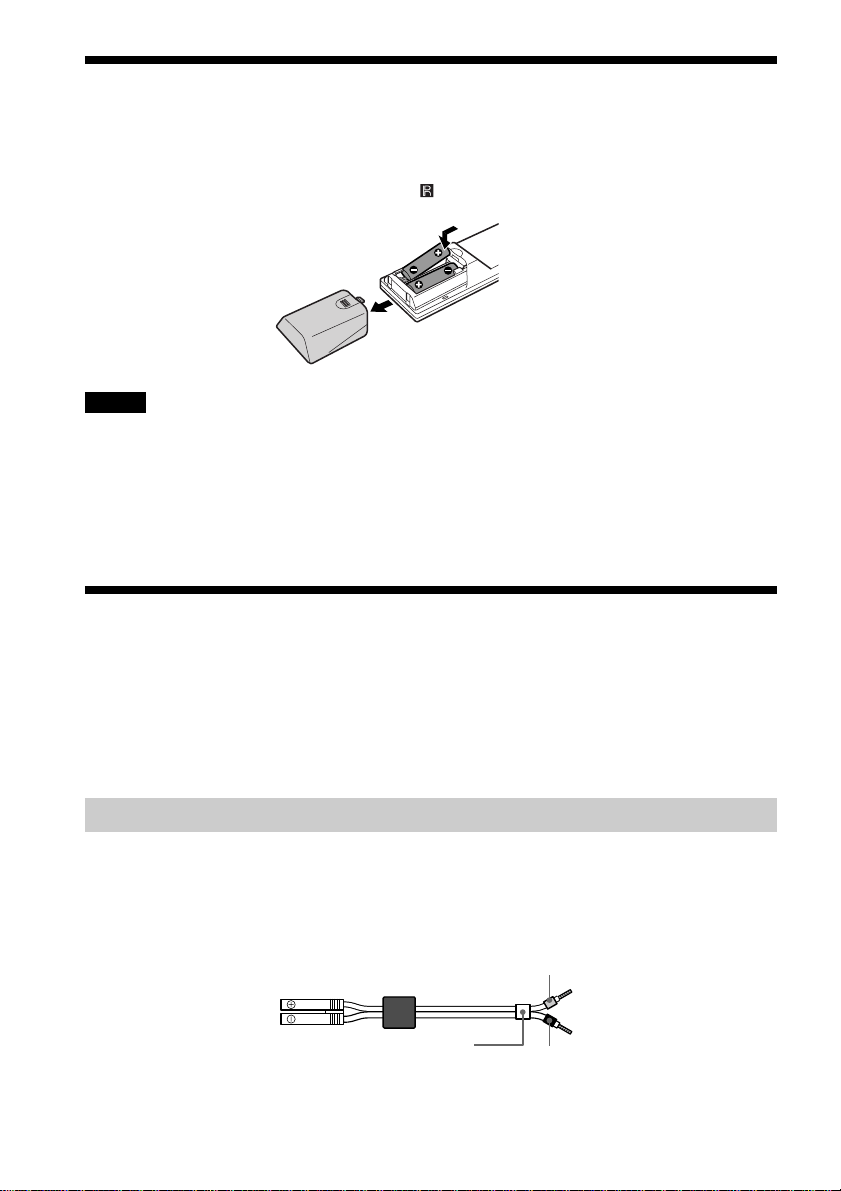
Inserting Batteries into the Remote
You can control the system using the supplied remote. Insert two R6 (size AA) batteries by
matching the 3 and # ends on the batteries to the markings inside the compartment. When
using the remote, point it at the remote sensor on the system.
Grey
(+)
(+)
(–)
Black
Color tube
(–)
Getting Started
19
GB
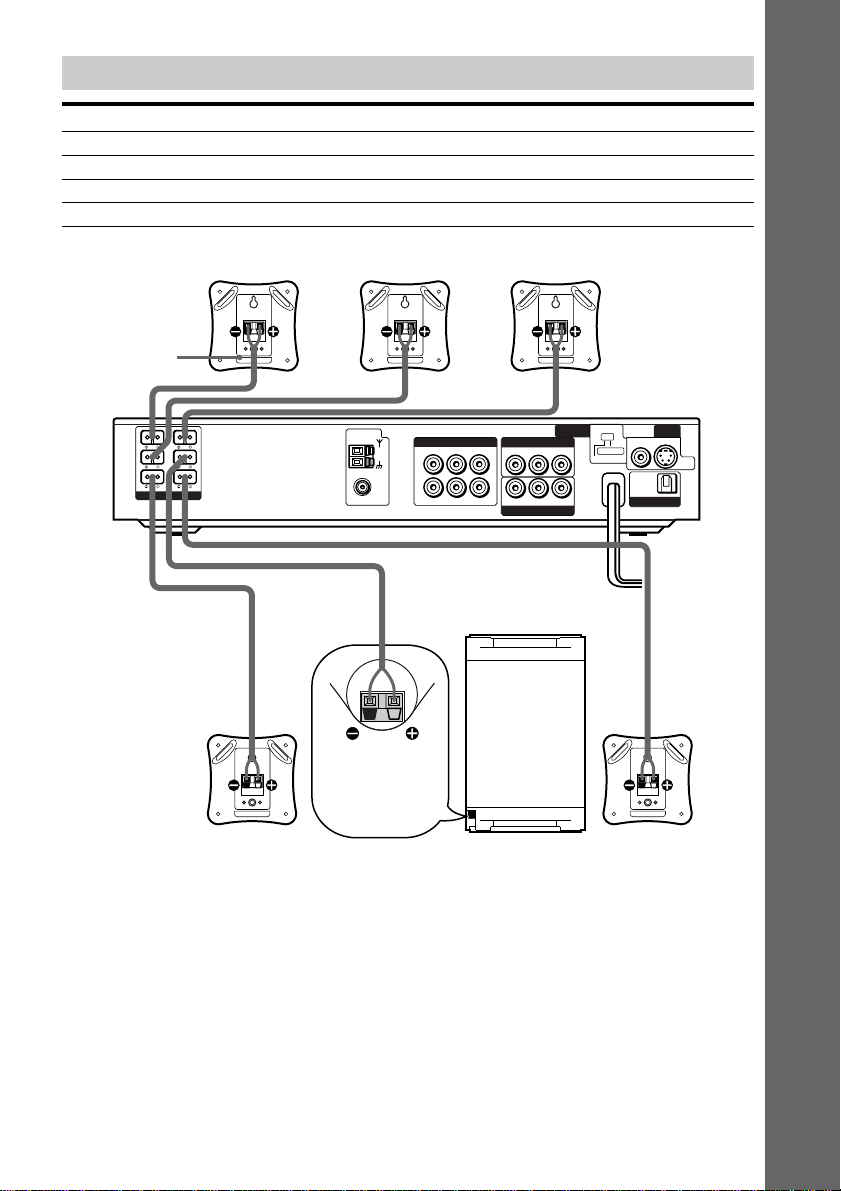
Terminals for connecting the speakers
Connect the To the
Front speakers SPEAKER FRONT L (white) and R (red) terminals
Rear speakers SPEAKER REAR L (blue) and R (grey) terminals
Center speaker SPEAKER CENTER (green) terminal
Subwoofer SPEAKER WOOFER (purple) terminal
WOOFER 3Ω
IMPEDANCE
USE
EXCEPT
WOOFER 3Ω
VIDEO 1
COMPONENT VIDEO OUT
VIDEO 2
VIDEO 2
MONITOR
OUT
FRONT
R
FRONT
L
REAR
R
REAR
L
CENTER WOOFER
COAXIAL
AUDIO OUT
AUDIO IN
LR
LR
LR
VIDEO OUT
VIDEO IN
VIDEO INAUDIO IN
YPB/CB PR/CR
AM
FM
75Ω
OPTICAL
DIGITAL
IN
S VIDEOVIDEO
DVD
ONLY
SPEAKER
INTERLACE
SELECTABLE
SCAN SELECT
COMPONENT
VIDEO OUT
Front speaker (R)
Rear speaker (L)Rear speaker (R)
Subwoofer
Center speaker Front speaker (L)
Color label
Turn over the
subwoofer to
connect the
speaker cord.
Note on placing speakers
Use caution when placing the subwoofer or a speaker stand (not supplied) that is attached with
the front/rear speakers on a specially treated (waxed, oiled, polished, etc.) floor, as staining or
discoloration may result.
20
GB
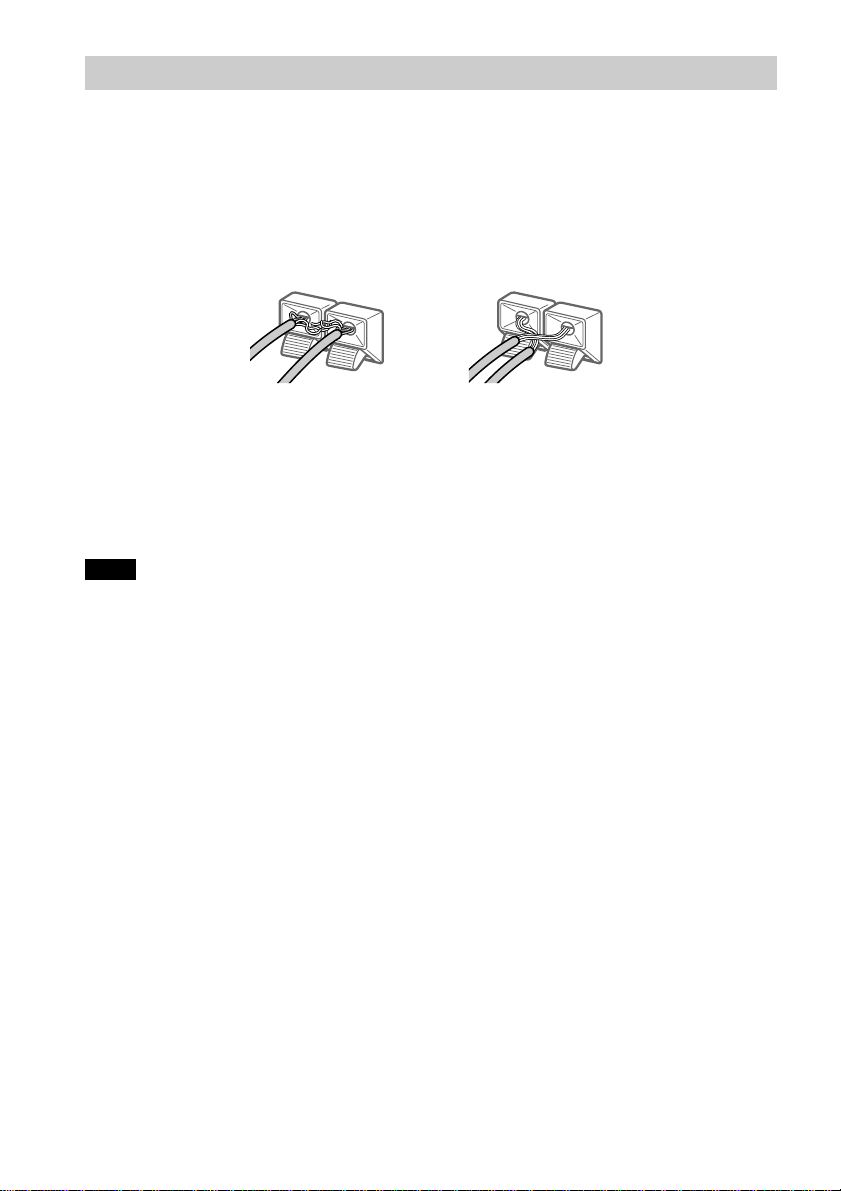
To avoid short-circuiting the speakers
Short-circuiting of the speakers may damage the system. To prevent this, be sure to follow these
precautions when connecting the speakers. Make sure the bare wire of each speaker cord does
not touch another speaker terminal or the bare wire of another speaker cord.
Examples of bad conditions of the speaker cord
After connecting all the components, speakers, and AC power cord (mains lead), output a test
tone to check that all the speakers are connected correctly. For details on outputting a test tone,
see page 28.
If no sound is heard from a speaker while outputting a test tone, or a test tone is output from a
speaker other than the one currently displayed on the front panel display, the speaker may be
short-circuited. If this happens, check the speaker connection again.
Note
Be sure to match the speaker cord to the appropriate terminal on the components: 3 to 3, and # to #. If the
cords are reversed, the sound will be distorted and will lack bass.
Exposed end cords are
touching each other due to
sloppy removal of insulation.
Exposed end speaker cord
is touching another speaker
terminal.
Getting Started
21
GB
Step 2: Antenna Hookups
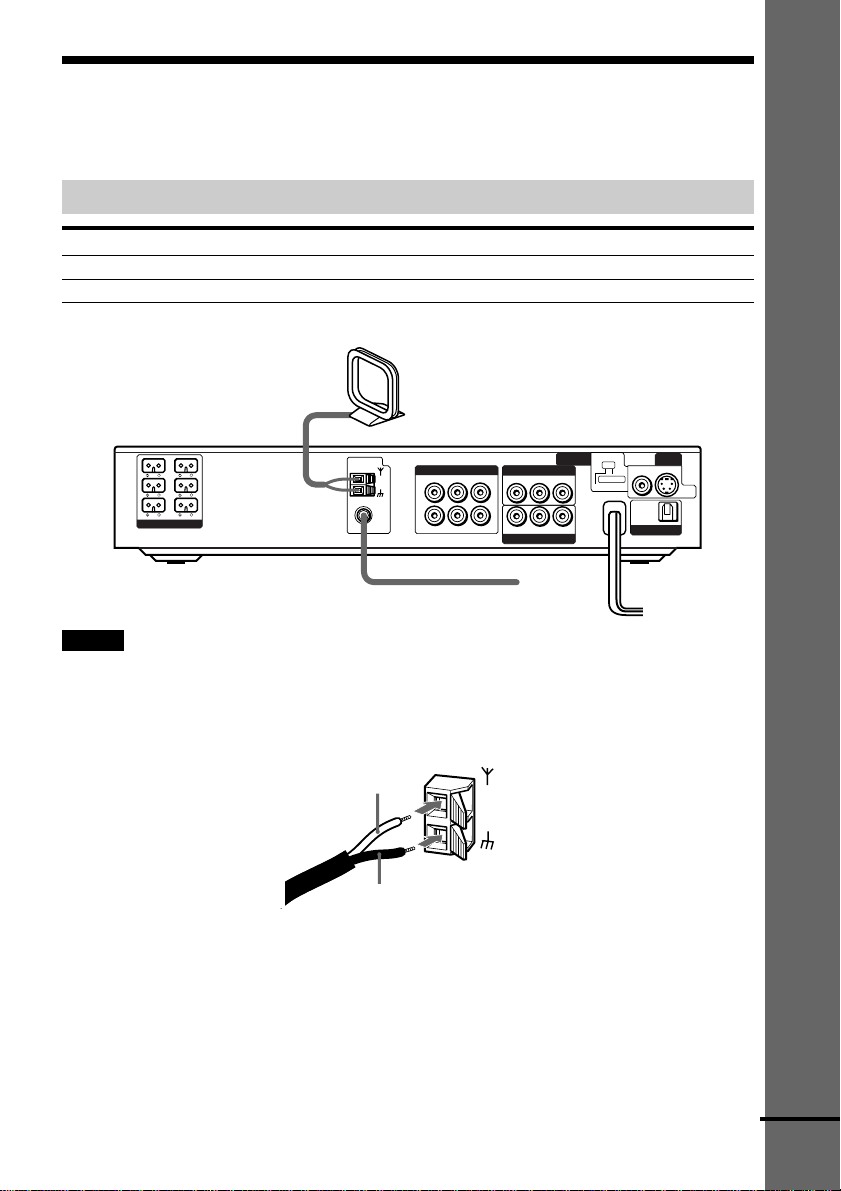
Connect the supplied AM/FM antennas for listening to the radio.
Terminals for connecting the antennas
Connect the To the
AM loop antenna AM terminals
FM wire antenna FM 75Ω COAXIAL terminal
Notes
• To prevent noise pickup, keep the AM loop antenna away from the system and other components.
• Be sure to fully extend the FM wire antenna.
• After connecting the FM wire antenna, keep it as horizontal as possible.
• When you connect the supplied AM loop antenna, connect the black cord (B) to the U terminal, and the white
cord (A) to the other terminal.
WOOFER 3Ω
IMPEDANCE
USE
EXCEPT
WOOFER 3Ω
VIDEO 1
COMPONENT VIDEO OUT
VIDEO 2
VIDEO 2
MONITOR
OUT
FRONT
R
FRONT
L
REAR
R
REAR
L
CENTER WOOFER
COAXIAL
AUDIO OUT
AUDIO IN
LR
LR
LR
VIDEO OUT
VIDEO IN
VIDEO INAUDIO IN
YP
B
/C
B
P
R
/C
R
AM
FM
75Ω
OPTICAL
DIGITAL
IN
S VIDEOVIDEO
DVD
ONLY
SPEAKER
INTERLACE
SELECTABLE
SCAN SELECT
COMPONENT
VIDEO OUT
AM loop antenna
FM wire antenna
A
B
AM
continued
22
GB
COAXIAL
AM
FM
75Ω
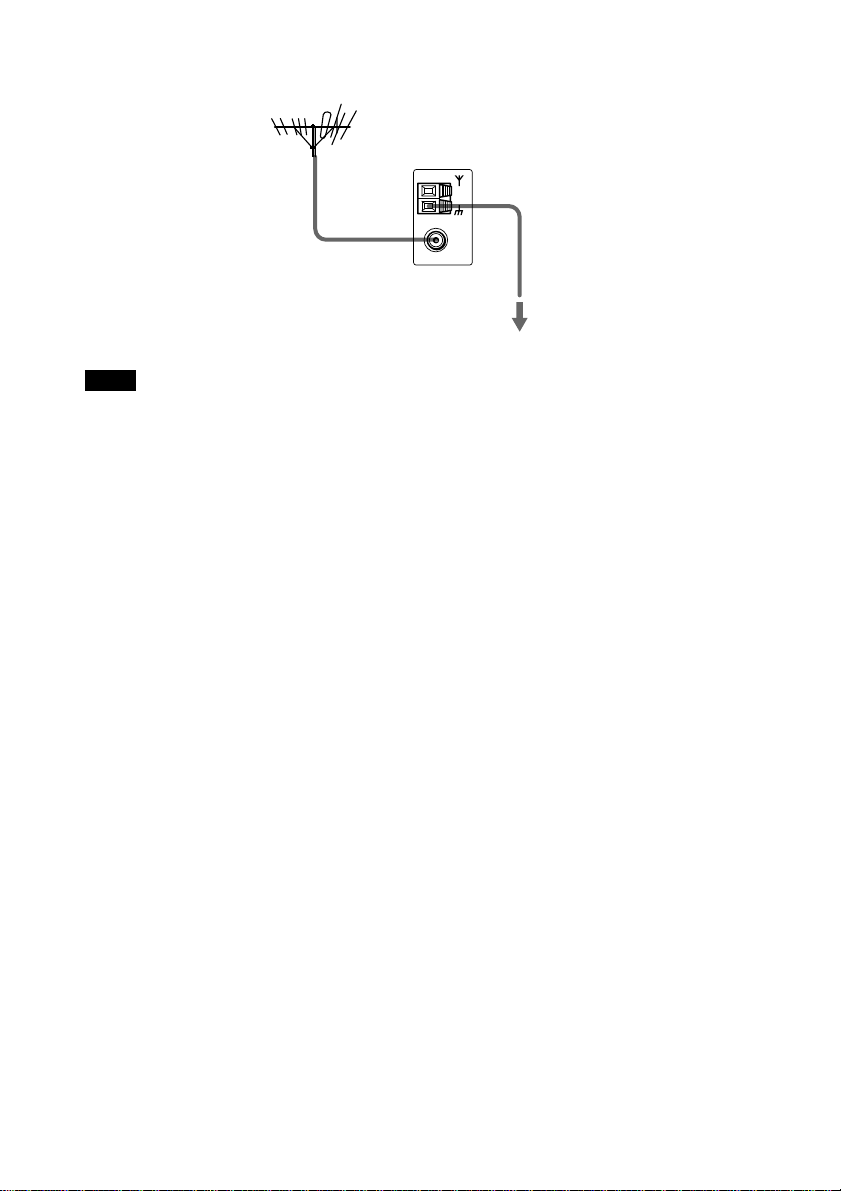
Outdoor FM antenna
System
z If you have poor FM reception
Use a 75-ohm coaxial cable (not supplied) to connect the system to an outdoor FM antenna as shown below.
Note
If you connect the system to an outdoor antenna, ground it to protect against lightning. To prevent a gas explosion,
do not connect the earth wire to a gas pipe.
Earth wire
(not supplied)
To earth
Getting Started
23
GB
Step 3: TV and Video Component Hookups
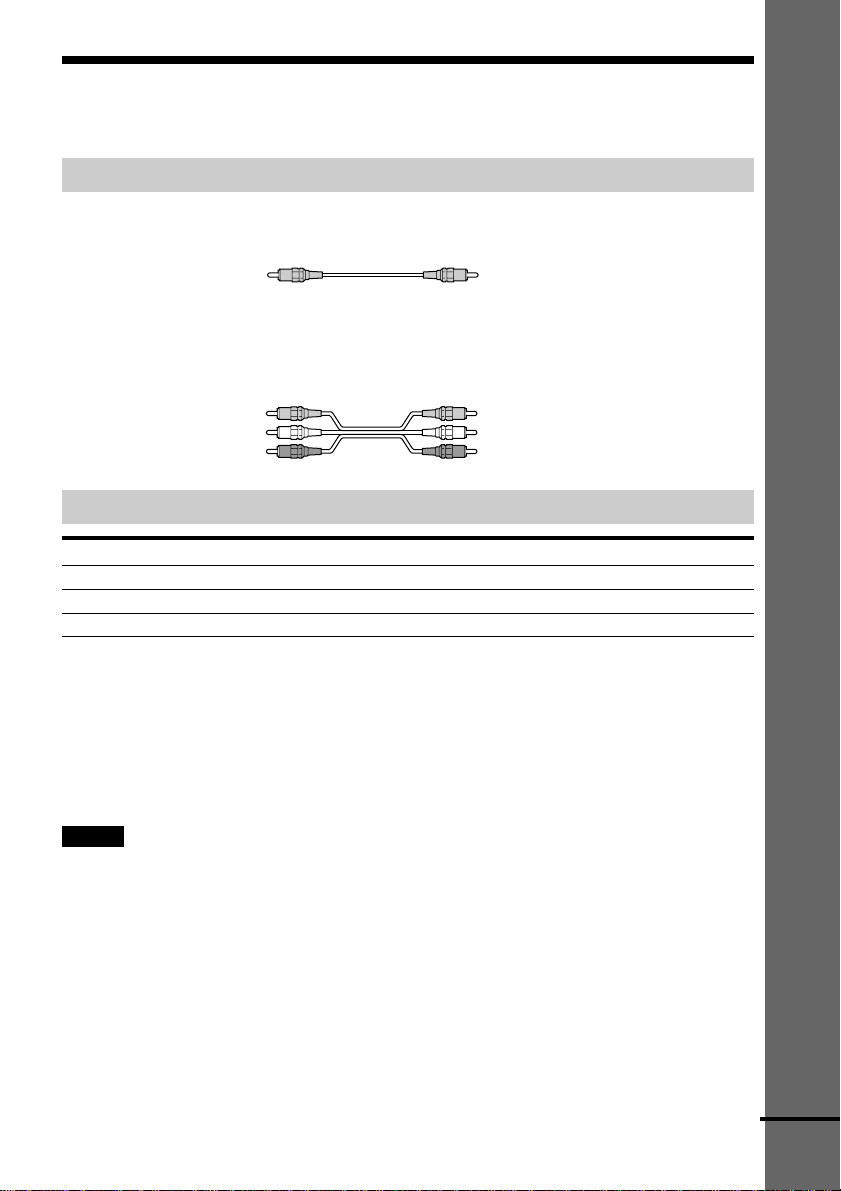
Required cords
Video cord for connecting a TV monitor
Audio/video cords (not supplied)
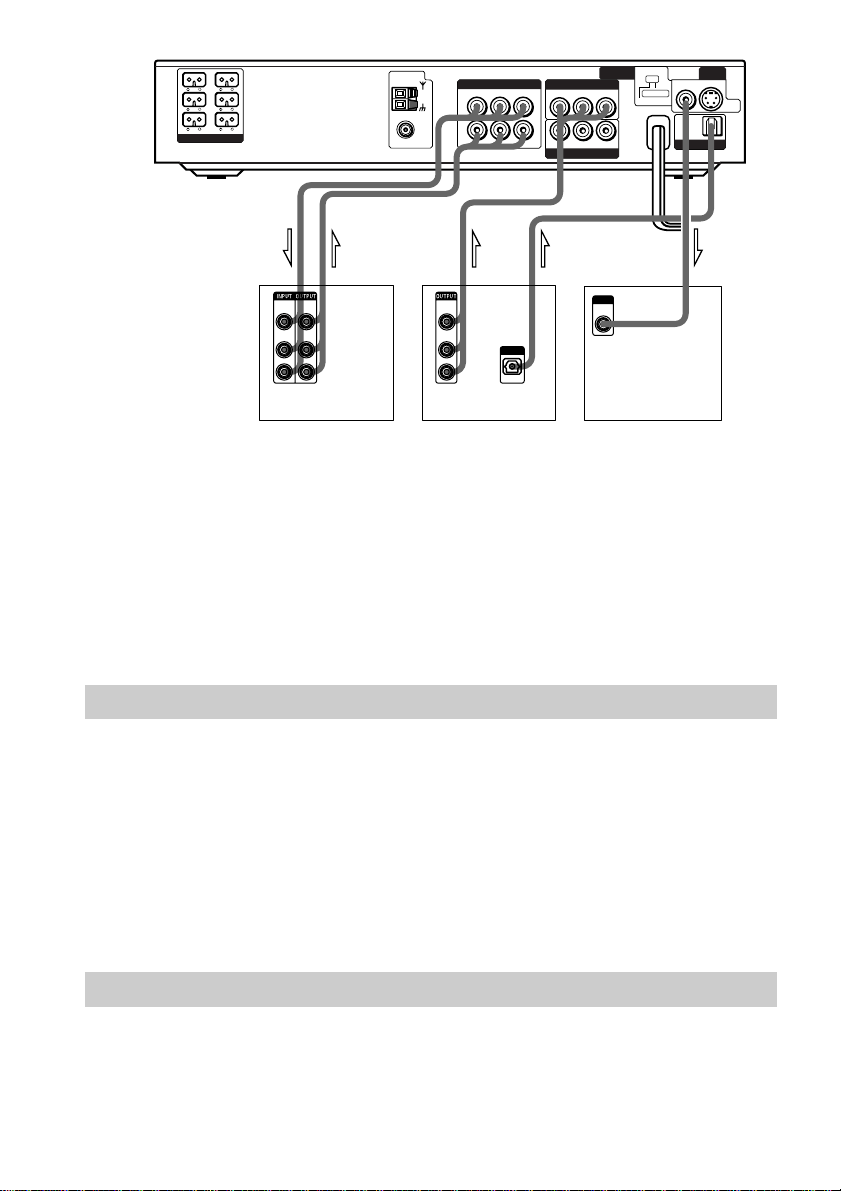
When connecting a cord, be sure to match the color-coded pins to the appropriate jacks on the
components.
Jacks for connecting video components
Connect a To the
TV monitor MONITOR OUT jack
VCR VIDEO 1 jacks
Digital satellite receiver VIDEO 2 jacks
z When using the S video jack instead of the video jacks
Your TV monitor must also be connected via an S video jack. S video signals are on a separate bus from the video
signals and will not be output through the video jacks.
z When using the COMPONENT VIDEO OUT jacks (Y, PB/CB, PR/CR) instead of the video jacks
Your TV monitor must also be connected via COMPONENT VIDEO OUT jacks (Y, PB/CB, PR/CR). If your TV
accept progressive format file signals, you must use this connection and set “COMPONENT OUT” to
“PROGRESSIVE” in “SCREEN SETUP” (page 70).
Notes
• When you select VIDEO 1 using the FUNCTION button, the signal is output from the front L/R speakers, but
not from the VIDEO 1 VIDEO OUT and AUDIO OUT L/R jacks.
• When you use the Video 1 line outputs, please set the unit to 2CH STEREO mode. If the unit is not in 2CH
STEREO mode, the line outputs may not function properly.
• When “PROGRESSIVE” is selected in “SCREEN SETUP,” no signal is output from the MONITOR OUT or S-
VIDEO OUT jacks.
• When the mode of the system is set to “DVD,” the signal is output from the S VIDEO OUT or COMPONENT
OUT jacks.
• When the mode of the system is set to “DVD” and “PROGRESSIVE” is selected in “SCREEN SETUP,” the
signal is output only from the COMPONENT OUT jacks.
Red (R/audio)
Yellow
Yellow
Yellow (Video)
White (L/audio)
Red (R/audio)
Yellow (Video)
White (L/audio)
continued
24
GB
WOOFER 3Ω
IMPEDANCE
USE
EXCEPT
WOOFER 3Ω
VIDEO 1
COMPONENT VIDEO OUT
VIDEO 2
VIDEO 2
MONITOR
OUT
FRONT
R
FRONT
L
REAR
R
REAR
L
CENTER WOOFER
COAXIAL
AUDIO OUT
AUDIO IN
LR
LR
LR
VIDEO OUT
VIDEO IN
VIDEO INAUDIO IN
YP
B
/C
B
P
R
/C
R
AM
FM
75Ω
OPTICAL
DIGITAL
IN
S VIDEOVIDEO
DVD
ONLY
SPEAKER
INTERLACE
SELECTABLE
SCAN SELECT
COMPONENT
VIDEO OUT
IN INOUT OUT OUT
VIDEO
OUT
R
VIDEO
IN
AUDIO
OUT
AUDIO
IN
L
VIDEO
OUT
R
AUDIO
OUT
L
OUTPUT
VIDEO
IN
INPUT
OPTICAL
If you connect a digital satellite receiver with the OPTICAL jack
The digital satellite receiver can be connected to the OPTICAL jack instead of the VIDEO IN
and AUDIO IN L/R jacks of the system.
The system can accept both the digital and analog signals. Digital signals have priority over
analog signals. If the digital signal ceases, the analog signal will be processed after 2 seconds.
If you connect a digital satellite receiver without the OPTICAL jack
Connect the digital satellite receiver to the VIDEO IN and AUDIO IN L/R jacks only of the
system.
Setup for the system (for Asian and Australian models)
Setup is necessary for the system, depending on the TV monitor to be connected.
The initial setting for Asian models is NTSC but Australian models is PAL.
If the color system of the TV is PAL*
To set the system to PAL, turn on the system by pressing 1 (power) on the remote while
pressing X (pause) button on the system. You need to hold the X button until DAV-C770
appears on the display. To reset to NTSC, turn off the system and then turn on again using the
remote while pressing the X button on the system.
*If the color system of the TV is NTSC, do the same operation above to set the system to
NTSC.
Connecting the AC Power Cord (mains lead)
Before connecting the AC power cord (mains lead) of this system to a wall outlet (mains),
connect the speakers to the system (see page 19).
Connect the AC power cord (mains lead) of your TV/video components to a wall outlet (mains).
VCR Digital satellite receiver TV monitor
Getting Started
25
GB
Speaker Setup
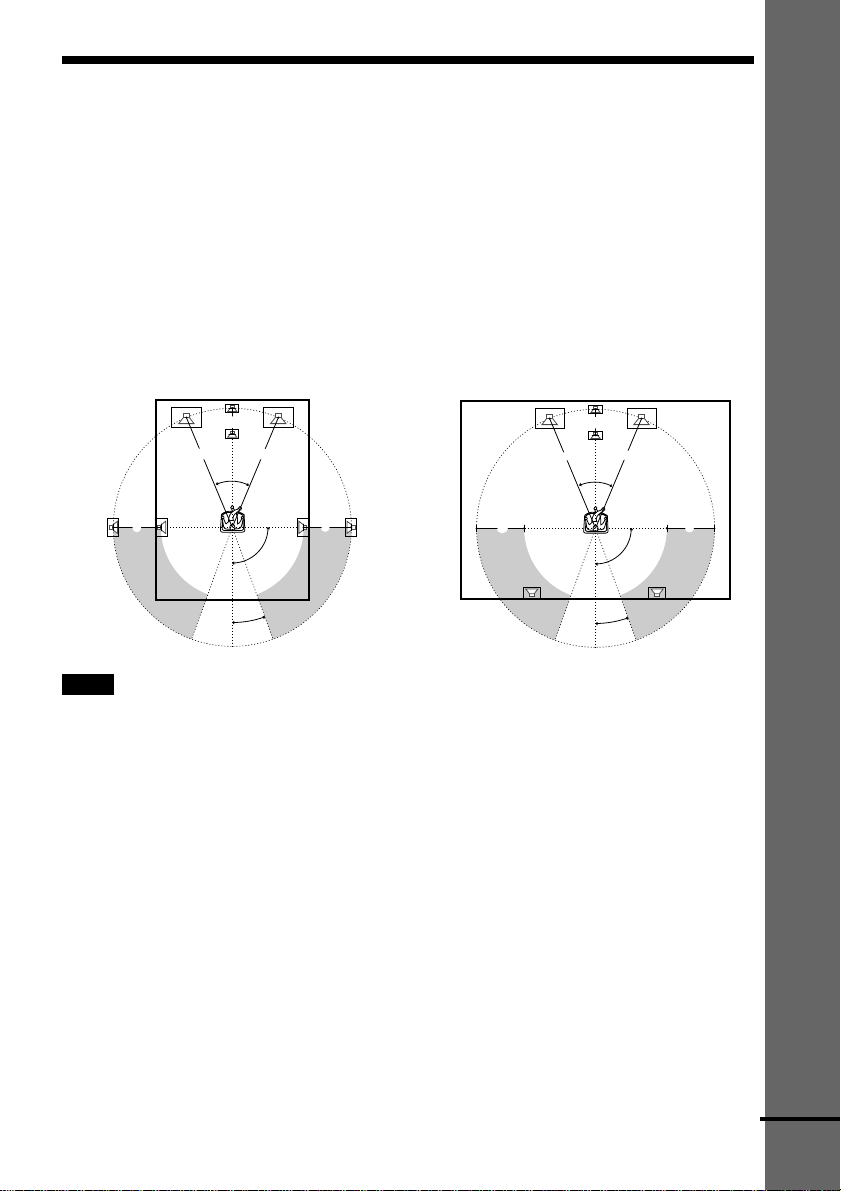
For the best possible surround sound, all the speakers other than the subwoofer should be the
same distance from the listening position (A).
However, this system allows you to place the center speaker up to 1.6 meters (5.0 feet) closer
(B) and the rear speakers up to 4.6 meters (15.0 feet) closer (C) to the listening position.
The front speakers can be placed from 1.0 to 15.0 meters (3.0 to 50.0 feet) (A) from the
listening position.
You can place the rear speakers either behind you or to the side, depending on the shape of your
room, etc.
Note
Do not place the center and rear speakers farther away from the listening position than the front speakers.
About magnetically shielded speaker (to prevent color irregularity occurring on
the TV screen)
The subwoofer in this system is magnetically shielded to prevent magnetic leakage. However,
some leakage may occur, as a high-strength magnet is employed. If the subwoofer is used with
a CRT-based TV or projector, install the subwoofer at least 0.3 meters (1.0 ft) from the TV set,
etc. If it is installed too close, color irregularity may occur on the screen.
If color irregularity occurs…
Turn off the TV set once, then turn it on after 15 to 30 minutes.
If color irregularity occurs again…
Place the subwoofer farther away from the TV set.
If color irregularity still occurs after performing the above…
Make sure that no magnetic object is nearby the subwoofer. Color irregularity may occur as a
result of interaction between the subwoofer and the magnetic object.
Examples of possible sources of magnetic interference include: magnetic latches on a TV stand,
etc., healthcare devices, toys, etc.
When the rear speakers are placed to the side
When the rear speakers are placed behind you
45°
90°
20°
A A
B
C
C
45°
90°
20°
A A
B
CC
continued
26
GB
C/X/x/c/ENTER
AMP MENU
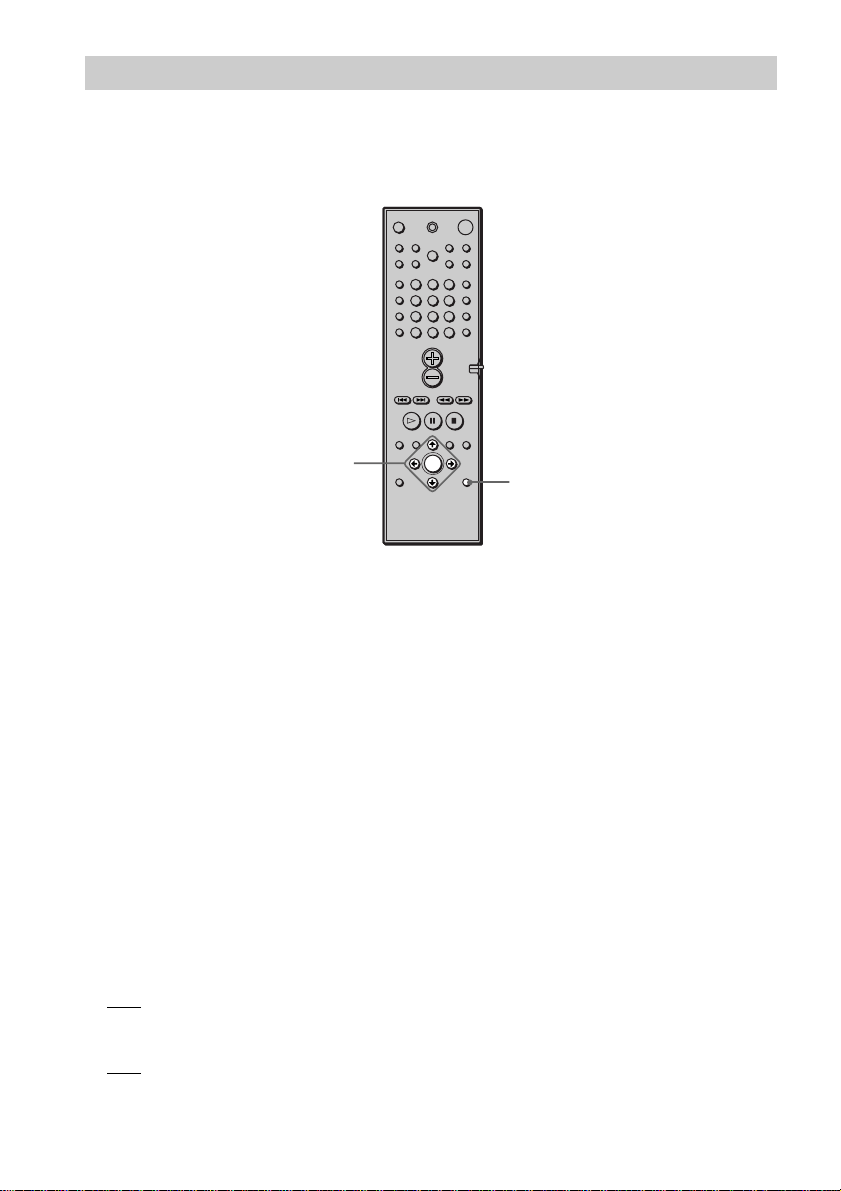
To specify the size, distance, position and height of the speakers
1 Press AMP MENU repeatedly to display 9 SP. SETUP on the front panel display.
2 Sit in your listening position and select the item to be set using X/x.
• Items set in 9 SP. SETUP
–Size of the rear and center speakers
–Distance of the front, rear, and center speakers
–Position and height of the rear speakers
3 Set the parameter using C/c.
The selected parameter will appear on the front panel display.
4 Repeat Steps 2 and 3 to set other parameters in 9 SP. SETUP.
If you do not operate the remote for a few seconds, the parameter disappears from the
display and is stored in the system.
xSIZE
When you do not connect center or rear speakers, or move the rear speakers, set the parameters
for CENTER and REAR. Since the front speaker and subwoofer settings are fixed, you cannot
change them. The default settings are underlined.
• CENTER (center speaker)
–
YES: Normally select this.
–NO: Select this if no center speaker is used.
• REAR (rear speakers)
–
YES: Normally select this. Specify the position and height to implement the Digital Cinema
Surround modes.
–NO: Select this if no rear speaker is used.
123
456
7
>
10
10/0
89
Specifying the speaker parameters
To obtain the best possible surround sound, first specify the distance of the speakers from your
listening position, then set the balance and level. Use the test tone to adjust the speaker volumes
to the same level.
You may adjust the speaker parameters using SPEAKER SETUP in the setup display (page 72).
Getting Started
27
GB
xDISTANCE
You can vary the distance of each speaker as follows. The default settings are underlined.
• F. D. 5 m (17 ft) (front speakers distance)
Front speaker distance can be set in 0.2 m (1.0 foot) steps from 1.0 to 15.0 m (3.0 to 50.0
feet).
• C. D.
5 m (17 ft) (center speaker distance)
Center speaker distance can be set in 0.2 m (1.0 foot) steps from a distance equal to the front
speaker distance to a distance 1.6 m (5.0 feet) closer to your listening position.
• R. D.
3.4 m (12 ft) (rear speakers distance)
Rear speaker distance can be set in 0.2 m (1.0 foot) steps from a distance equal to the front
speaker distance to a distance 4.6 m (15.0 feet) closer to your listening position.
Notes
• If each of the front or rear speakers are not placed an equal distance from your listening position, set the distance
of the closest speaker.
• In SPEAKER SETUP, the North American model’s OSD displays both metric and imperial measurements. The
other model's displays metric measurements only. The manual shows both.
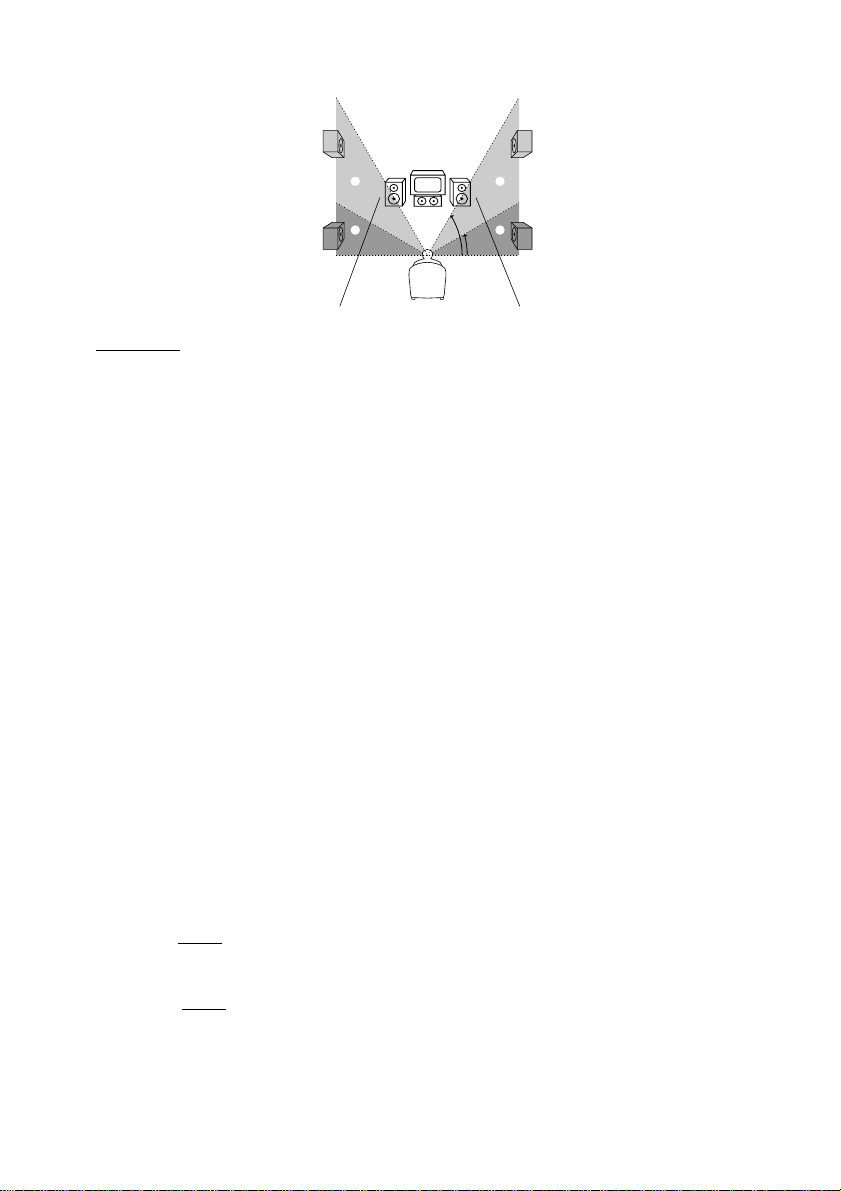
Specifying the rear speaker position and height
If you select anything other than “NO” in “REAR,” specify the position and height of the rear
speakers. The default settings are underlined.
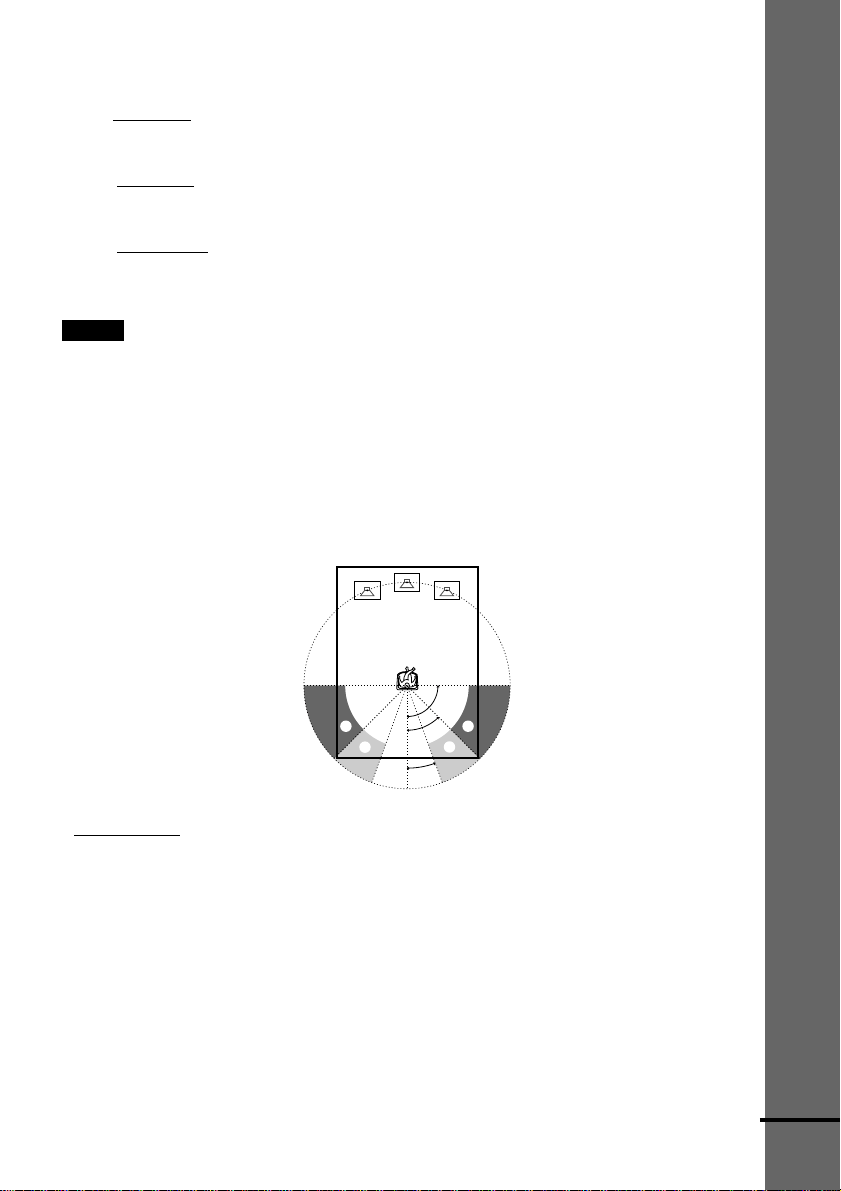
Position diagram
• R. P. BEHIND
Select this if the rear speakers are located in the section B.
• R. P. SIDE
Select this if the rear speakers are located in the section A.
90
20
45
AA
BB
continued
28
GB
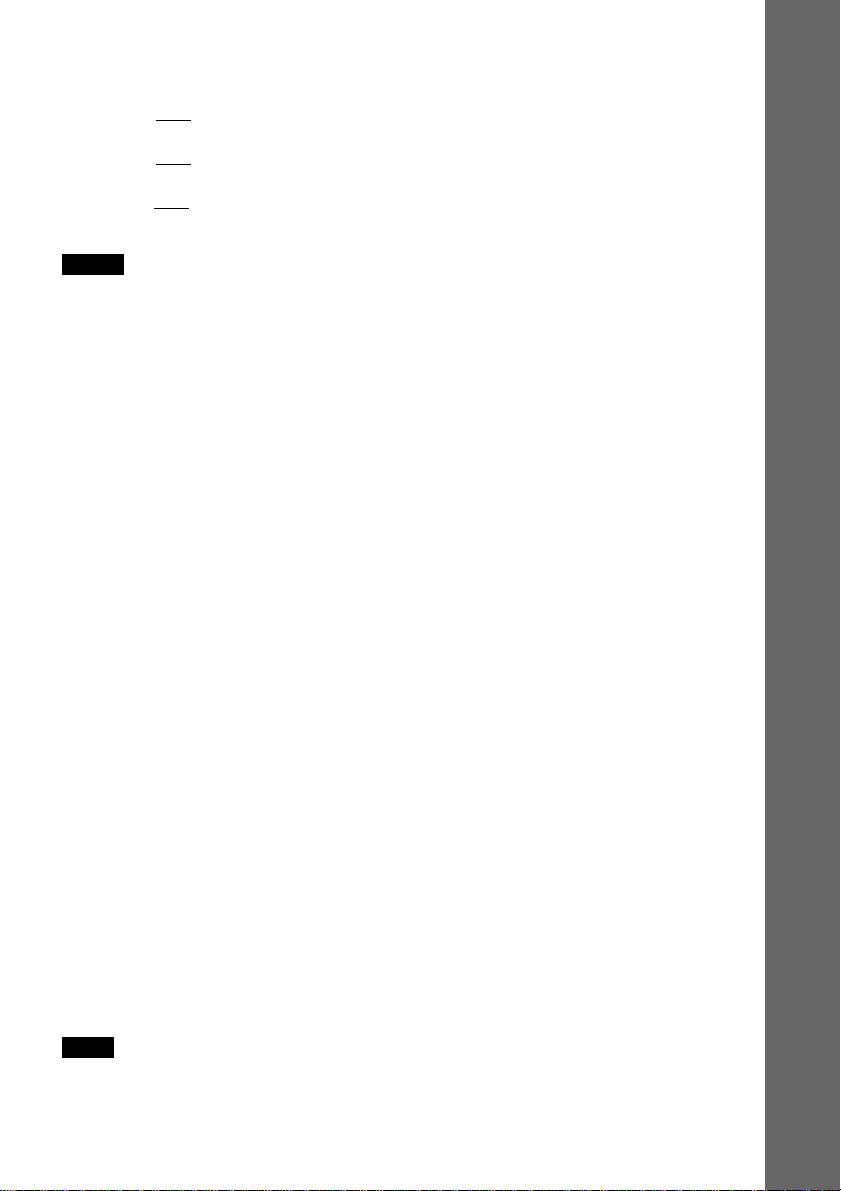
Height diagram
• R. H. LOW
Select this if the rear speakers are located in section D.
• R. H. HIGH
Select this if the rear speakers are located in section C.
These parameters are not available when “REAR” is set to “NO”.
To specify the balance and level of the speakers
1 Press AMP MENU repeatedly to display 9 LEVEL on the front panel display.
2 Use X/x to select T.TONE and use C/c to set T.TONE to ON.
You will hear the test tone from each speaker in sequence.
3 Sit in your listening position and select the item to be adjusted using X/x.
• Items adjusted in 9 LEVEL
–Balance of the front and rear speakers
–Volume level of the center and rear speakers and subwoofer
4 Adjust the volume level so that the volume of the test tone from each speaker sounds the
same using C/c.
The adjusted value will appear on the front panel display.
5 Repeat Steps 3 and 4 to adjust other parameters in 9 LEVEL.
If you do not operate the remote for a few seconds, the value disappears from the display
and is stored in the system.
6 Use X/x to select T.TONE and use C/c to set T.TONE to OFF.
xBALANCE
You can vary the balance of each speaker as follows. The default settings are underlined.
• F. ___I___
center (front speakers)
Adjust the balance between the front left and right speakers (You can adjust from center,
6 steps left or right).
• R. ___I___
center (rear speakers)
Adjust the balance between the rear left and right speakers (You can adjust from center,
6 steps left or right).
60
30
CC
DD
Getting Started
29
GB
xLEVEL
You can vary the level of each speaker as follows. The default settings are underlined.
• C. LEVEL 0 dB (center speaker level)
Adjust the level of the center speaker (–6 dB to +6 dB, 1 dB steps).
• R. LEVEL 0 dB (rear speakers level)
Adjust the level of the rear speakers (–6 dB to +6 dB, 1 dB steps).
• S.W. LEV.
0 dB (subwoofer level)
Adjust the level of the subwoofer (–6 dB to +6 dB, 1 dB steps).
Notes
• When you select an item, the sound cuts off for a moment.
• Depending on the settings of other speakers, the subwoofer may output excessive sound.
To adjust the volume of all the speakers at one time
Use the VOLUME control.
Other AMP MENU settings
You can control the brightness of the front panel display, clear the preset stations and the station
names, and set the speaker parameters back to the default setting. Press AMP MENU repeatedly
to display 9 CUSTOMIZE. Use X/x to select the following items.
xDIMMER
You can change the brightness of the front panel display by two steps.
xMEMO. CLR.
• N (No): Skip back to previous menu.
• Y (Yes): If you select Y by pressing ENTER, “Really? N” and “Really? Y” appears.
If you select “Really? Y,” by pressing ENTER, “ALL CLEAR!” is displayed and all settings
such as preset stations and station names will be cleared, and speaker parameters will be
defaulted.
This system incorporates with Dolby Pro Logic II which has movie mode and music mode, and
the system can reproduce the 2 channel sound in 5.1 channel through Dolby Pro Logic II.
When the Sound Field is set to “NORMAL SURROUND,” you can select the type of decoding
for 2 channel source. Press AMP MENU repeatedly to display 92CH MODE. Use X/x to select
the following items.
x2CH MODE
• PLII MOVIE (Pro Logic II Movie): Performs the Pro Logic II movie mode decoding. This
setting is ideal for the movies encoded in Dolby Surround. Besides, this mode can reproduce
the sound in 5.1 channel when watching the videos of old movies or in the dubbed language.
• PLII MUSIC (Pro Logic II Music): Performs the Pro Logic II music mode decoding. This
setting is ideal for the normal stereo sources, such as CDs.
• PRO LOGIC: Performs the Pro Logic decoding. The source recorded in 2 channel is decoded
into 4 channels.
Note
Dolby Pro Logic II does not function for DTS or MPEG format signals or Super Audio CD.
30
GB
Presetting Radio Stations
You can preset 20 stations for FM and 10 stations for AM.
Before tuning, make sure to turn down the volume to minimum.
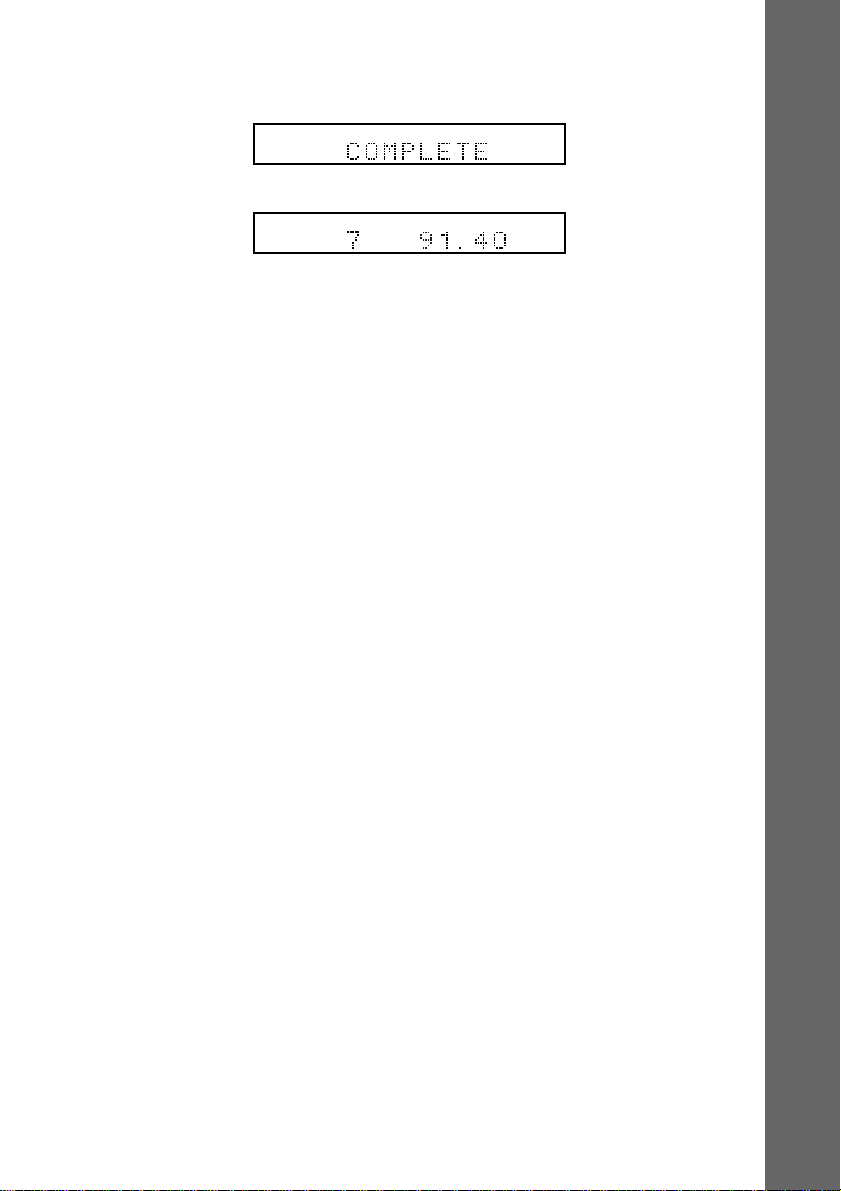
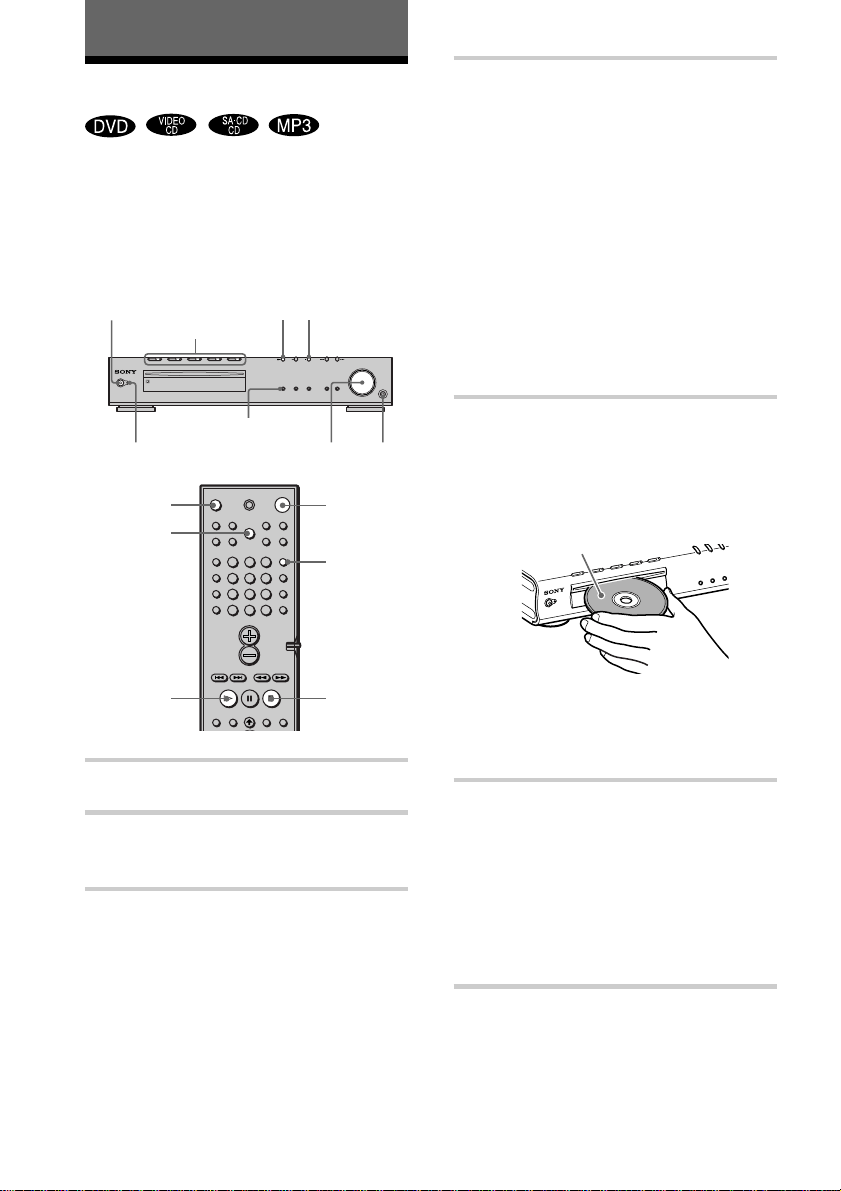
1 Press BAND repeatedly until the band you want appears on the front panel
display.
Every time you press BAND, the band changes to AM or FM alternately.
2 Press and hold TUNING + or – until the frequency indication starts to change,
then release.
Scanning stops when the system tunes in a station. “TUNED” and “ST” (for stereo
program) appear on the front panel display.
3 Press MEMORY.
A preset number appears on the front panel display.
4 Press PRESET + or – to select the preset number you want.
MEMORY
PRESET –/+
BAND
TUNING –/+
ENTER
123
456
7
>
10
10/0
89
PCM
AUTO
FM
TUNED ST
MHz
FM
TUNED ST
MHz
FM
TUNED ST
MHz
1
Getting Started
31
GB
5 Press ENTER.
The station is stored.
6 Repeat 1 to 5 to store other stations.
To tune in a station with a weak signal
Press TUNING + or – repeatedly in 2 to tune in the station manually.
To change the preset number
Start over from 1.
To change the AM tuning interval (except for European, Middle Eastern, and
Philippine models)
The AM tuning interval is factory set to 9 kHz (10 kHz in some areas).
To change the AM tuning interval, tune in any AM station first, then turn off the system by
pressing 1 on the remote. While holding down x (on the system), turn on the power using the
remote. When you change the interval, AM preset stations will be erased.
To reset the interval, repeat the same procedure.
ALL
PRO
LOGIC
DIGITAL
NTSCPBC ANGLE
TITLE TRACK CHAPTER INDEX TUNEDH MONOMSTS
dB
kHz
PROGRAM
MHz
SHUFFLE
REPEAT 1
FM AM
DISC1SAUTO
ALL
PRO
LOGIC
DIGITAL
NTSCPBC ANGLE
TITLE TRACK CHAPTER INDEX H TUNED M MONO ST S
dB
kHz
PROGRAM
MHz
SHUFFLE
REPEAT 1
FM AM
DISC1SAUTO
v
32
GB
FUNCTION BAND DISPLAY SOUND FIELD
PHONES
STANDBY
Playing Discs
Depending on the DVD or VIDEO CD,
some operations may be different or
restricted.
Refer to the operating instructions supplied
with your disc.
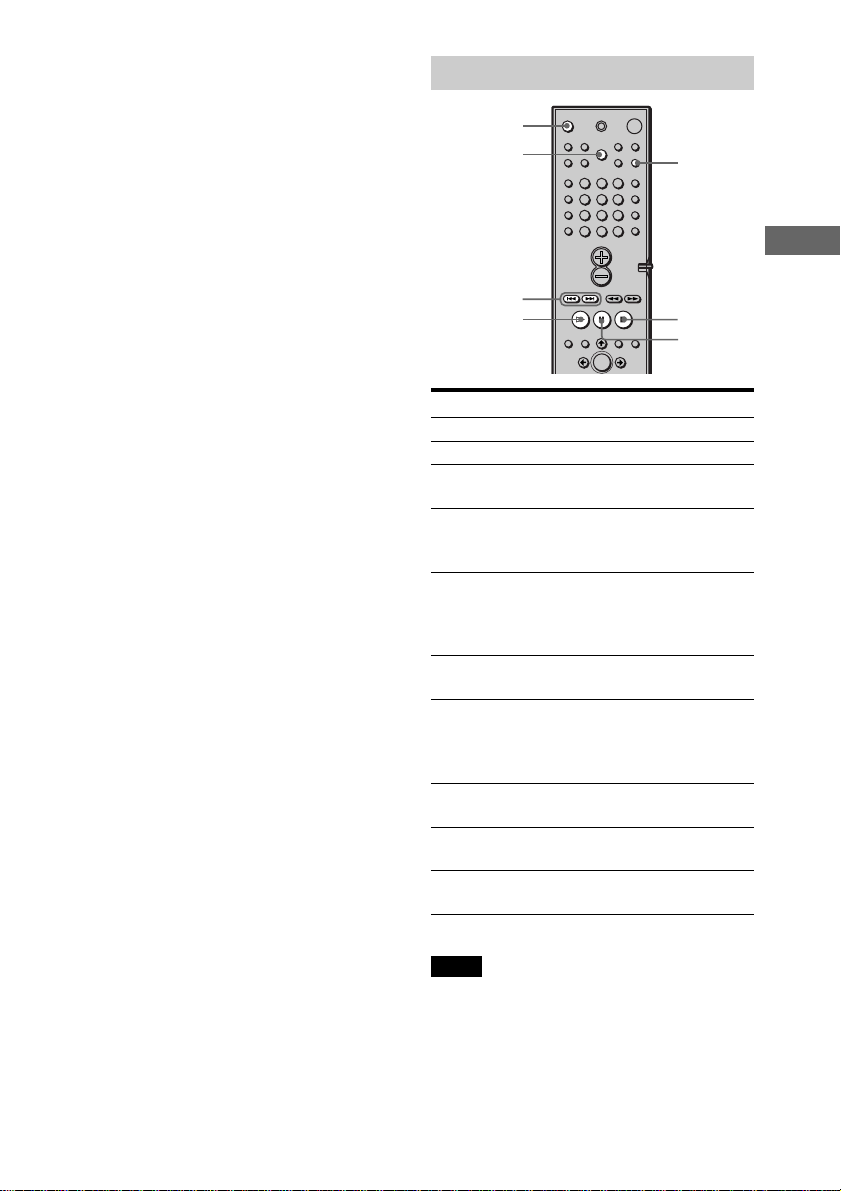
1 Turn on your TV.
2 Switch the input selector on the TV
to this system.
3 Press POWER on the system.
The system turns on.
Unless the mode of the system is set to
“DVD,” press FUNCTION to select
“DVD.”
Playing Discs
4 Press DISC 1–5 A.
Press the button of the disc number
you want.
“READY!” appears in the front panel
display and the system is ready for
loading the disc.
Example: When you want to load the
disc to the disc stocker 1, press DISC 1
A.
If there is a disc in the stocker that you
select, the disc is ejected, “READY!”
appears in the front panel display, then
the system is ready for loading the
disc.
5 Load a disc.
Push the disc into the disc slot until the
disc is pulled in automatically.
The disc is drawn into the selected disc
stocker automatically.
To load other discs, press DISC 1-5 A
(that is not loaded a disc) and load the
disc after “READY!” appears in the
front panel display.
6 Press H.
The system starts playback
(continuous play) of the disc whose
DISC indicator is green.
To playback other discs, press DISC
SKIP on the remote or DISC 1-DISC 5
of the system.
Adjust the volume on the system.
After following Step 6
Depending on the disc, a menu may appear
on the TV screen. You can play the disc
interactively by following the instructions
on the menu. DVD (page 35), VIDEO CD
(page 35).
POWER
STANDBY indicator
H
x
H
1
x
123
456
7
>
10
10/0
89
Z (EJECT)
Adjust the volume Connect
headphones
With the playback side facing down
DISC SKIP
DISC 1-5 /A/ indicators
FUNCTION
FUNCTION
Playing Discs
33
GB
Additional operations
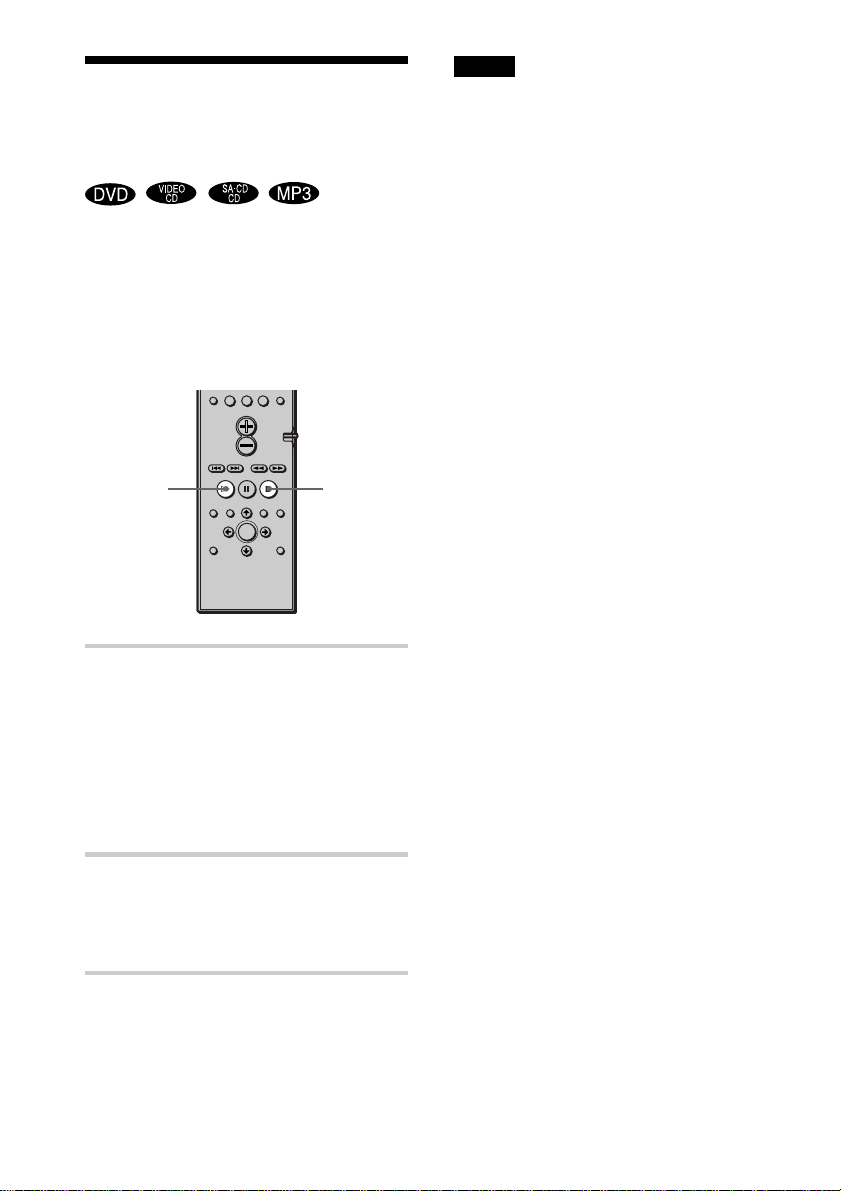
To Operation
Stop Press x.
Pause Press X.
Resume play after Press X or H.
pause
Go to the next chapter, Press >.
track, or scene in
continuous play mode
Go back to the Press ..
preceding chapter, track,
or scene in continuous
play mode
Stop play and remove Press Z.
the disc
Mute the sound Press MUTING. To
cancel muting, press it
again or turn up the
volume.
Change a disc while Press DISC SKIP.
playing another disc
Play the desired disc Press DISC 1-5 on
directly the system
Stop play and remove Press DISC 1-5 A on
the desired disc the system
Note
If there is no disc in any disc tray, “READY!”
appears on the front panel display.
./>
H
X
x
123
456
7
>
10
10/0
89
MUTING
To remove the disc
Press DISC 1-5 A on the system, or Z on
the remote. When you press Z on the
remote, the disc in the stocker whose DISC
indicator is green is ejected. Remove the
disc after it is ejected from the system.
“READY!” appears in the front panel
display.
To turn on the system
Press POWER on the system. The system
turns on. In standby mode, the system also
turns on by pressing A on the system or by
pressing H.
To turn off the system
Press 1 on the remote. The system enters
standby mode and the STANDBY indicator
lights up in red. To turn off the system
completely, press POWER on the system.
While playing a disc, do not turn off the
system by pressing POWER. Doing so may
cancel the menu settings. When you turn off
the system, first press x to stop playback
and then press 1 on the remote.
z
On Auto-Function
If a disc is already loaded to any disc stocker, you can
play it back simply by pressing the H or its
corresponding DISC 1-DISC 5, even if the previous
music source was not a DVD. The function changes
to DVD and playback starts (Auto-Function).
However, if Program Play is on, you can only start
playback by pressing the H.
z On the DISC 1-5 indicators
The DISC 1-5 indicators change their colors as
follows:
– green: the disc is chosen, or the disc is being play
backed.
– off: there is no disc.
– orange: a disc is loaded to the disc stocker,
however, the disc is not chosen.
Saving the power in standby mode
Press 1 on the remote once.
z
While the system is in standby mode, the
STANDBY indicator on the system lights up.
To cancel standby mode
Press 1 on the remote once.
DISC SKIP
Z (EJECT)
34
GB
Notes
• Depending on where you stopped the disc, the
system may not resume playback from exactly the
same point.
• The point where you stopped playing is cleared
when:
– you turn the power off by pressing POWER on
the system.
– you change the play mode.
– you change the setting on the Setup Menu.
Resuming Playback from
the Point Where You
Stopped the Disc
(Resume Play)
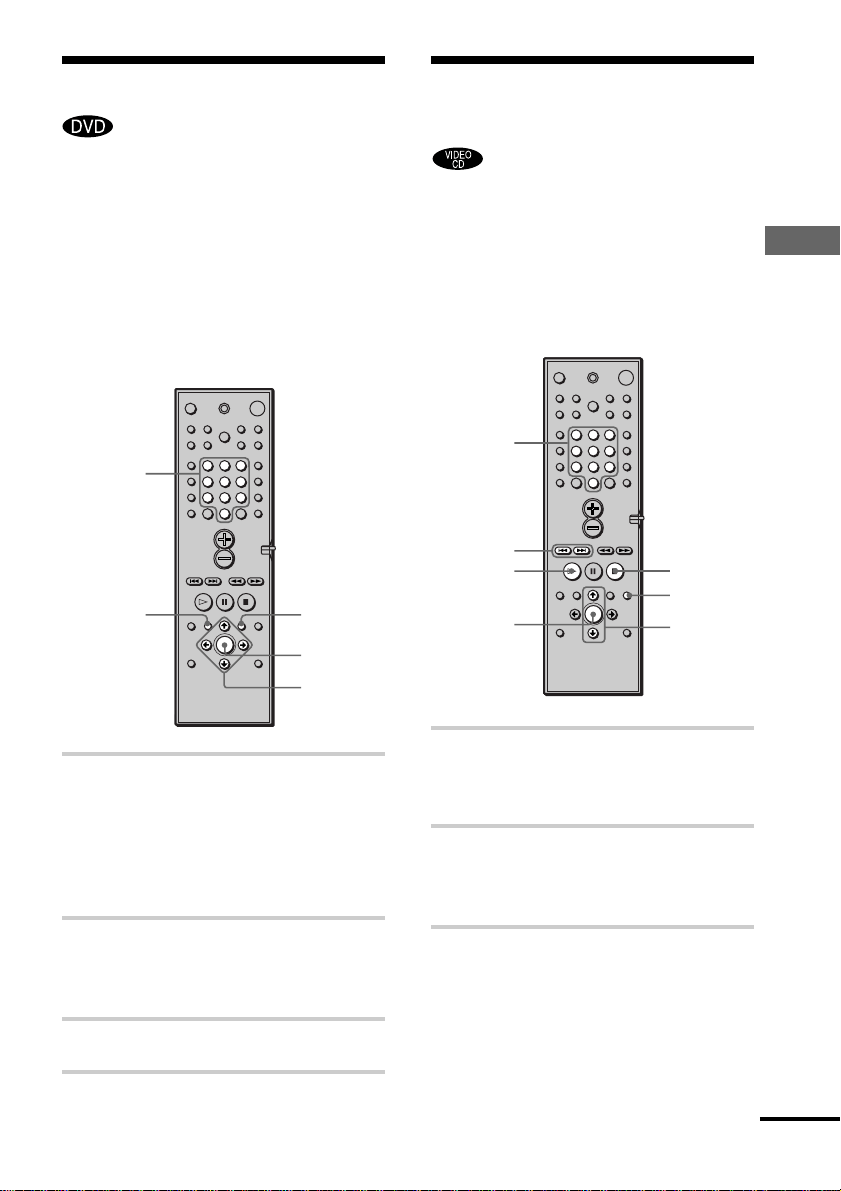
When you stop the disc, the system
remembers the point where you pressed x
and “RESUME” appears on the front panel
display. As long as you do not remove the
disc, Resume Play will work even if the
system enters standby mode by pressing 1.
1 While playing a disc, press x to
stop playback.
“RESUME” appears on the front panel
display, so you can restart the disc
from the point where you stopped the
disc.
If “RESUME” does not appear,
Resume Play is not available.
2 Press H.
The system starts playback from the
point where you stopped the disc in
Step 1.
z To play from the beginning of the disc, press x
twice, then press H.
H
x
>
10
10/0
Playing Discs
35
GB
Playing VIDEO CDs with
PBC Functions (PBC Playback)
With PBC (Playback Control) functions,
you can enjoy simple interactive operations,
search functions, and other such operations.
PBC playback allows you to play VIDEO
CDs interactively by following the menu on
the TV screen.
1 Start playing a VIDEO CD with PBC
functions.
The menu for your selection appears.
2 Select the item number you want
by pressing X/x or the number
buttons.
3 Press ENTER.
O RETURN
./>
H
x
X/x
ENTER
Number
buttons
123
456
7
>
10
10/0
89
C/X/x/c
DVD TOP
MENU
ENTER
Number
buttons
DVD MENU
Using the DVD’s Menu
A DVD is divided into long sections of a
picture or a music feature called “titles.”
When you play a DVD which contains
several titles, you can select the title you
want using DVD TOP MENU.
When you play DVDs that allow you to
select items such as the language for the
subtitles and the language for the sound,
select these items using DVD MENU.
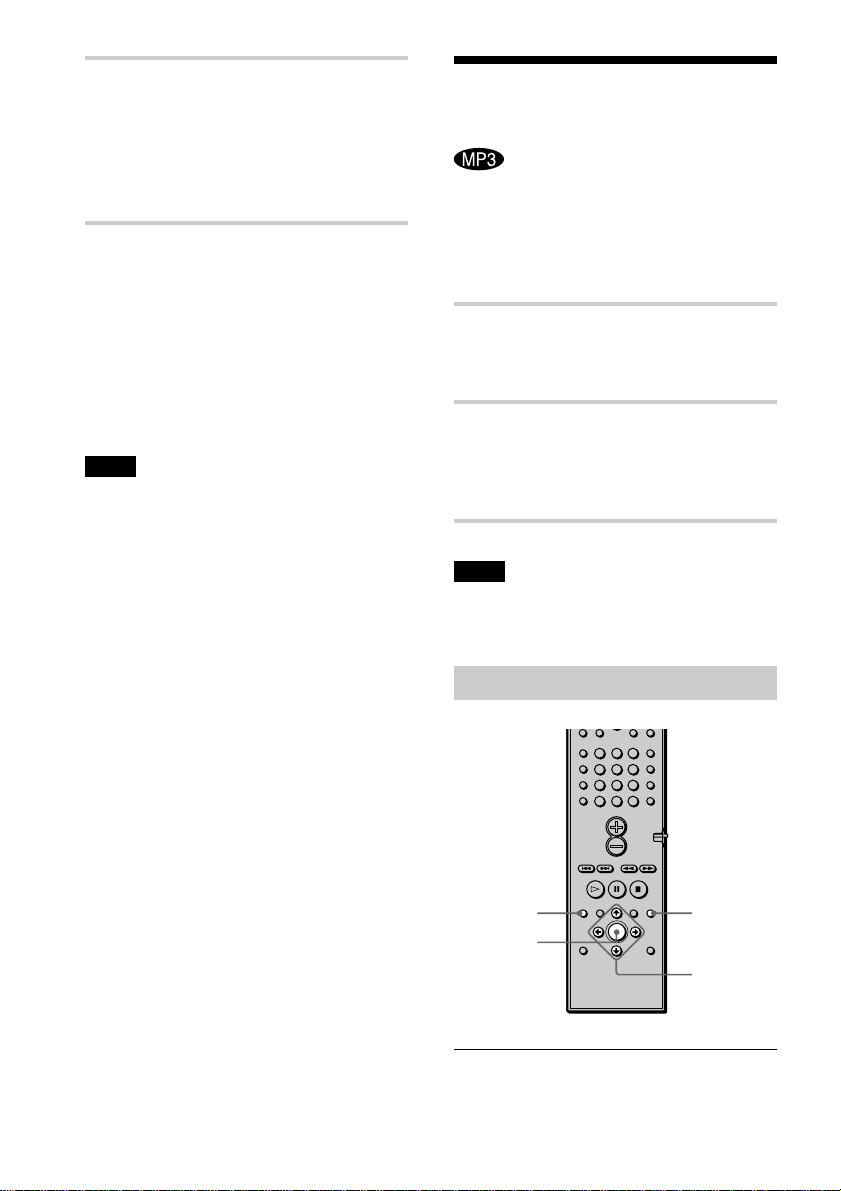
1 Press DVD TOP MENU or DVD
MENU.
The disc’s menu appears on the TV
screen.
The contents of the menu vary from disc
to disc.
2 Press C/X/x/c or the number
buttons to select the item you
want to play or change.
3 Press ENTER.
123
456
7
>
10
10/0
89
continued
36
GB
4 Follow the instructions in the
menu for interactive operations.
Refer to the instructions supplied with
the disc, as the operating procedure
may differ according to the VIDEO
CD.
To go back to the menu
Press O RETURN.
z To play without using PBC, press ./> or
the number buttons while the system is stopped to
select a track, then press H or ENTER.
“Play without PBC” appears on the TV screen and
the system starts continuous play. You cannot play
still pictures such as a menu. To return to PBC
playback, press x twice, then press H.
Note
Depending on the VIDEO CD, “Press ENTER” in
Step 3 may appear as “Press SELECT” in the
instructions supplied with the disc. In this case, press
H.
Playing an MP3 Audio
Track
You can play back data CDs (CD-ROMs/
CD-Rs/CD-RWs) recorded in MP3 (MPEG1
Audio Layer 3) format.
1 Load a data disc recorded in MP3
into the system.
2 Press H.
The system starts to play the first MP3
audio track in the first album on the
disc.
Note
The player can play MP3 audio tracks recorded in the
following sampling frequencies: 32 kHz, 44.1 kHz,
48 kHz.
Selecting an album and track
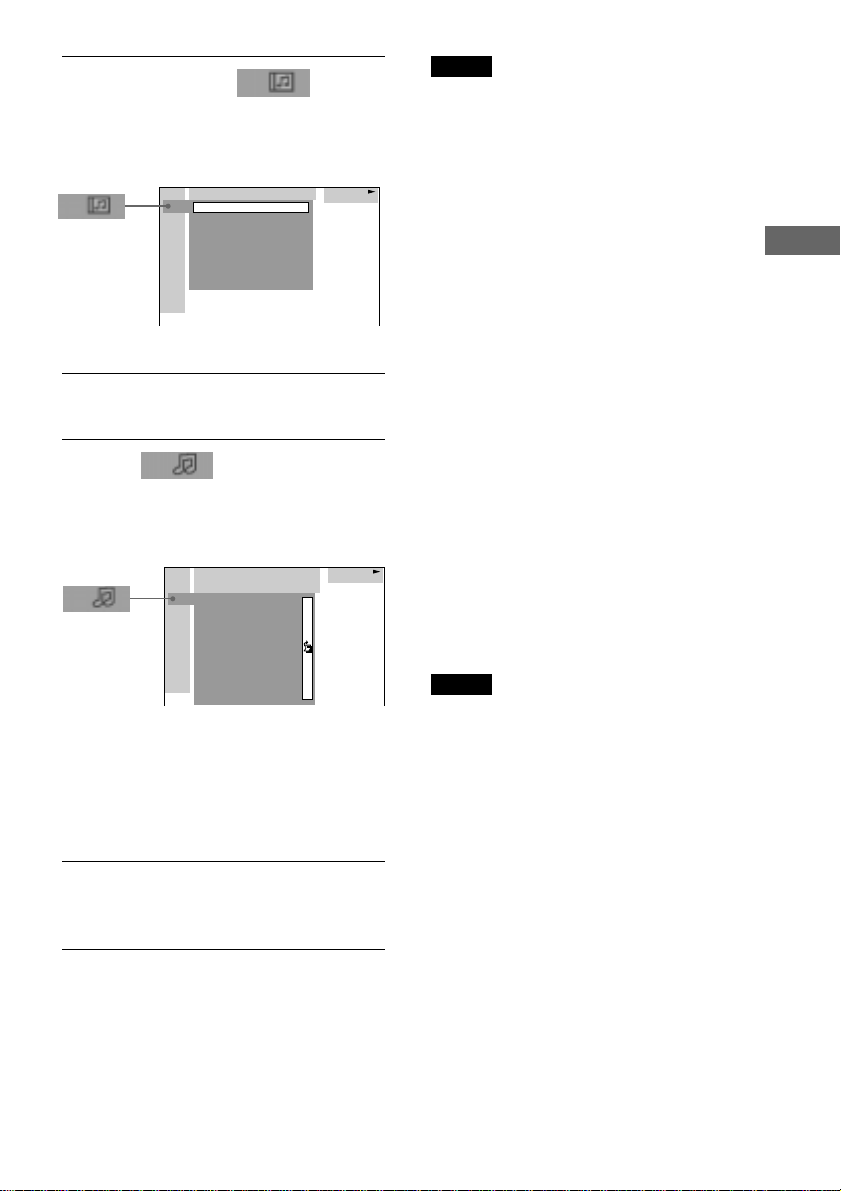
1 Press DVD DISPLAY.
The Control Menu and disc name of
MP3 data disc appear.
DVD DISPLAY
ENTER
X/x/C/c
123
456
7
>
10
10/0
89
O RETURN
Playing Discs
37
GB
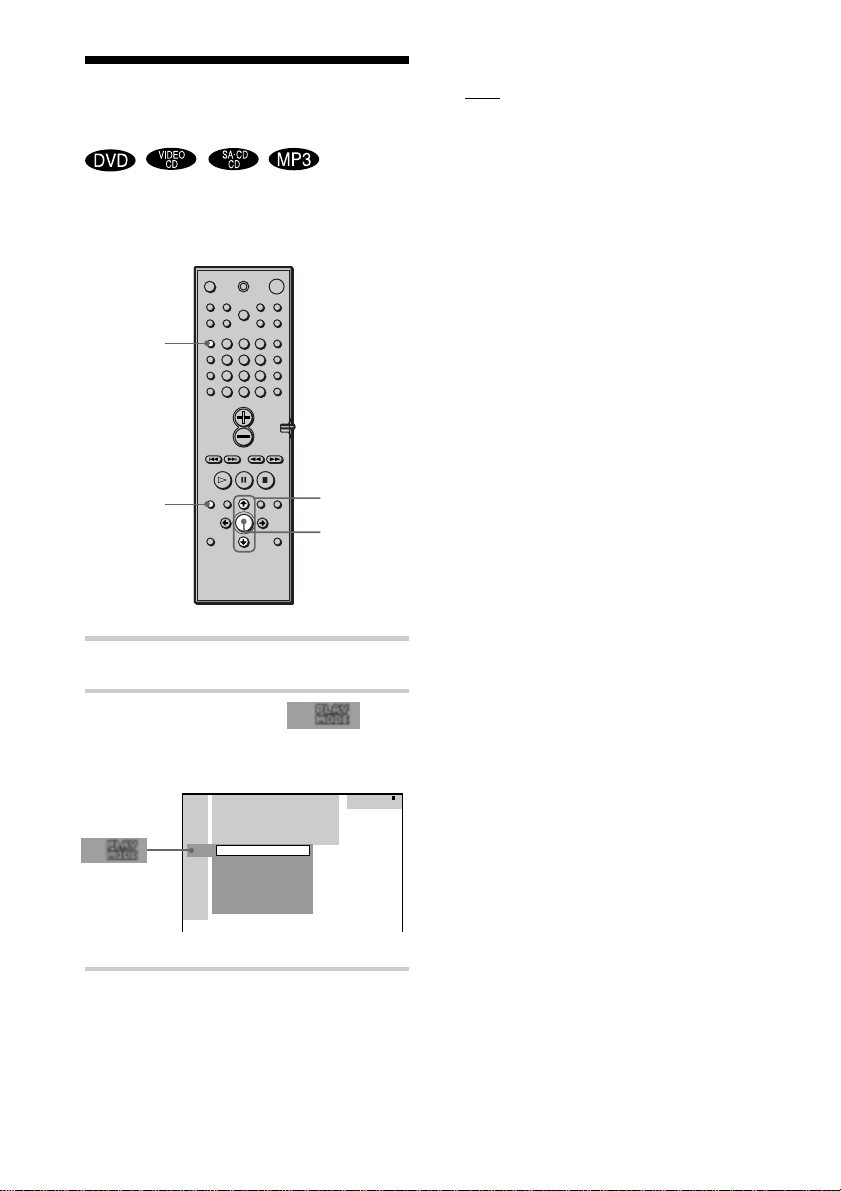
2 Press X/x to select (ALBUM)
then press ENTER or c.
The list of albums contained in the disc
appears.
3 Select an album you want to play using
X/x and press ENTER.
4 Select (TRACK) using X/x
and press ENTER.
The list of tracks contained in the
current album appears.
When the list of all tracks or albums
cannot be displayed on the window, the
jump bar appears. Press c to select the
jump bar icon, and then scroll the jump
bar to display the rest of the list using X/
x.
5 Select a track using X/x and press
ENTER.
The Selected track starts playing.
To return to the previous display
Press O RETURN or C.
To turn off the display
Press DVD DISPLAY.
2:MP3
ROCK BEST HIT
MP3
9.
2.
3.
4.
5.
6.
8.
10.
7.
HIGHWAY1.
TAKE IT EASY
VIEW POINT
MY CHILDREN
DANCING
GOOD TASTE
DESTINATION
PLACE-KICK
PORT TOWER
MARATHON
MP3
ROCK BEST HIT
KARAOKE
JAZZ
R&B
MY FAVORITE SONGS
CLASSICAL
SALSA OF CUBA
BOSSANOVA
2:MP3
Notes
• Only the letters in the alphabet and numbers can be
used for album or track names. Anything else is
displayed as “ ”.
• If the MP3 file you play back has an ID3 tag, the
ID3 tag information is displayed as a track name.
About MP3 audio tracks
You can play MP3 audio tracks on CD-
ROMs, CD-Rs, or CD-RWs. However, the
discs must be recorded according to
ISO9660 level 1, level 2, or Joliet format for
the system to recognize the tracks. You can
also play discs recorded in Multi Session.
See the instructions of the CD-R/RW device
or recording software (not supplied) for
details on the recording format.
To play a Multi Session CD
The system can play Multi Session CDs
when an MP3 audio track is located in the
first session. Any subsequent MP3 audio
tracks, recorded in the later sessions, can
also be played back.
When audio tracks and images in music CD
format or video CD format are recorded in
the first session, only the first session will be
played back.
Notes
• If you put the extension “.MP3” to data not in MP3
format, the system cannot recognize the data
properly and will generate a loud noise which could
damage your speaker system.
• The system cannot play audio tracks in MP3PRO
format.
38
GB
Selecting the Play Mode
(All Discs, One Disc, or Album)
You can select the play mode that plays all
discs continuously, one disc, or album.
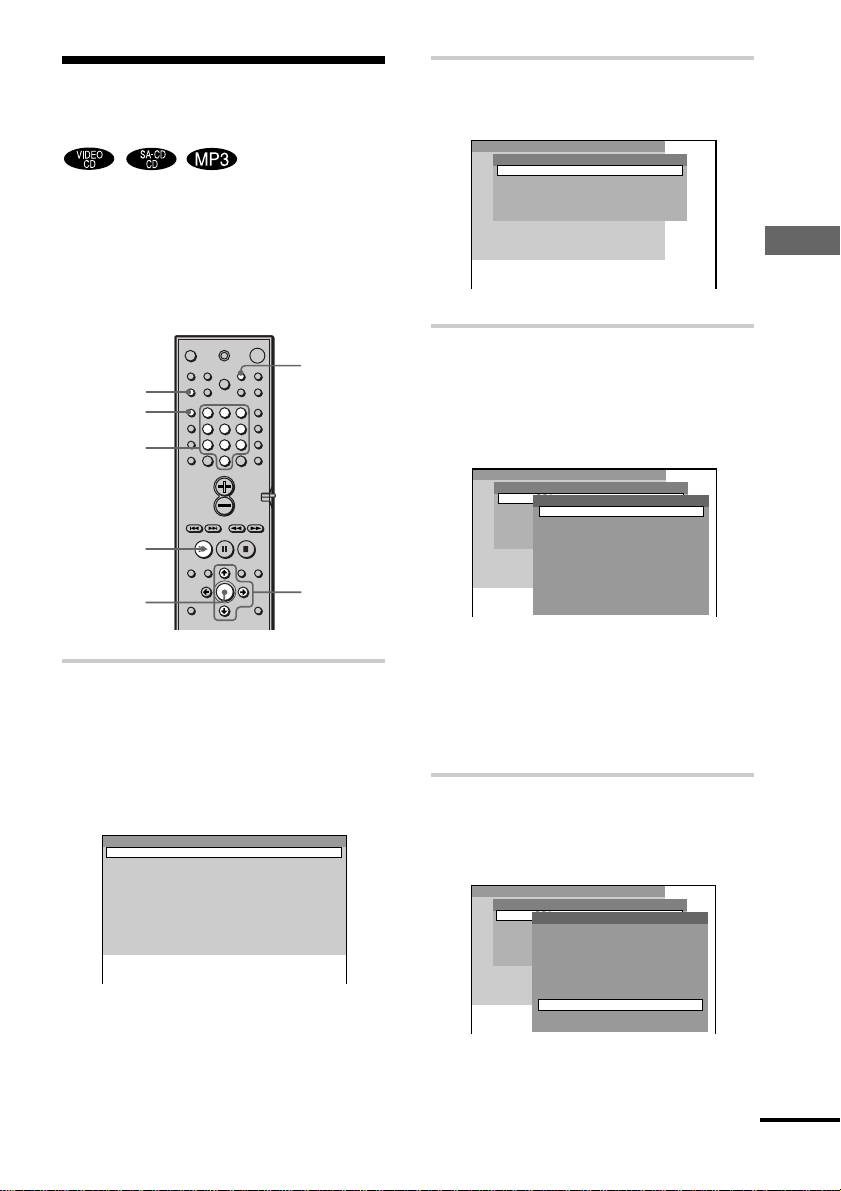
1 In stop mode, press DVD DISPLAY.
2 Press X/x to select
(PLAY MODE), then press ENTER
or c.
ENTER
X/x
DVD
DISPLAY
123
456
7
>
10
10/0
89
xALL/ONE/ALBUM
•
ALL: The system plays all discs in the
system consecutively in the order of the
disc slot number, and you can set Shuffle
Play or Repeat Play for all the discs.
• ONE: The system plays only the one disc
you have selected, and you can set Shuffle
Play or Repeat Play for 1 disc only.
• ALBUM (MP3 only): The system plays
tracks in the Album that is contained on a
MP3 disc, and you can set Shuffle Play or
Repeat Play for the Album. When the disc
except an MP3 disc is played, the system
plays the disc in ONE play mode.
To return to the previous display
Press ORETURN/EXIT or C.
To turn off the display
Press DVD DISPLAY.
z
You can select the play mode directly by pressing
PLAY MODE. Each time you press the button, the play
mode changes.
2:MP3
(
1 5
)
MP3
CONTINUE (ALL)
CONTINUE (ONE)
SHUFFLE (ALL)
SHUFFLE (ONE)
CONTINUE (ALBUM)
SHUFFLE (ALBUM)
PROGRAM
PLAY MODE
Playing Discs
39
GB
Program
2
3
4
5
6
7
8
9
10
1
Creating Your Own
Program (Program Play)
You can play the contents of a disc in the
order you want by arranging the order of the
tracks on the disc to create your own
program. You can program up to 25 tracks.
1 In stop mode, press PLAY MODE
repeatedly until “PROGRAM”
appears on the front panel
display.
The program menu appears on the TV
screen.
PLAY MODE
ENTER
H
X/x/c
Number
buttons
CLEAR
123
456
7
>
10
10/0
89
REPEAT
continued
Program
DISC2(CD)
Disc
DISC3(CD)
DISC4(CD)
DISC5(CD)
DISC1(CD)
2
3
4
5
6
7
8
9
10
1
Program
DISC2(CD)
Disc
DISC3(CD)
DISC4(CD)
DISC5(CD)
DISC1(CD)
2
3
4
5
6
7
8
9
10
1
1 TRACK1
Track
2 TRACK2
3 TRACK3
4 TRACK4
5 TRACK5
6 TRACK6
7 TRACK7
8 TRACK8
9 TRACK9
ALL TRACKS
Program
DISC2(CD)
Disc
DISC3(CD)
DISC4(CD)
DISC5(CD)
DISC1(CD)
2
3
4
5
6
7
8
9
10
1
1 TRACK1
Track
2 TRACK2
3 TRACK3
4 TRACK4
5 TRACK5
6 TRACK6
8 TRACK8
9 TRACK9
ALL TRACKS
7 TRACK7
2 Press ENTER, then press X/x to
select the disc.
3 Press c.
The cursor moves to the track (in this
case, “DISC1(CD)”). Before
programming the MP3 tracks, it is
required to select the album.
When the list of all tracks or albums
cannot be displayed on the window,
the jump bar appears. Press c to select
the jump bar icon, and then scroll the
jump bar to display the rest of the list
using X/x.
4 Select the track you want to
program.
For example, select track “7.”
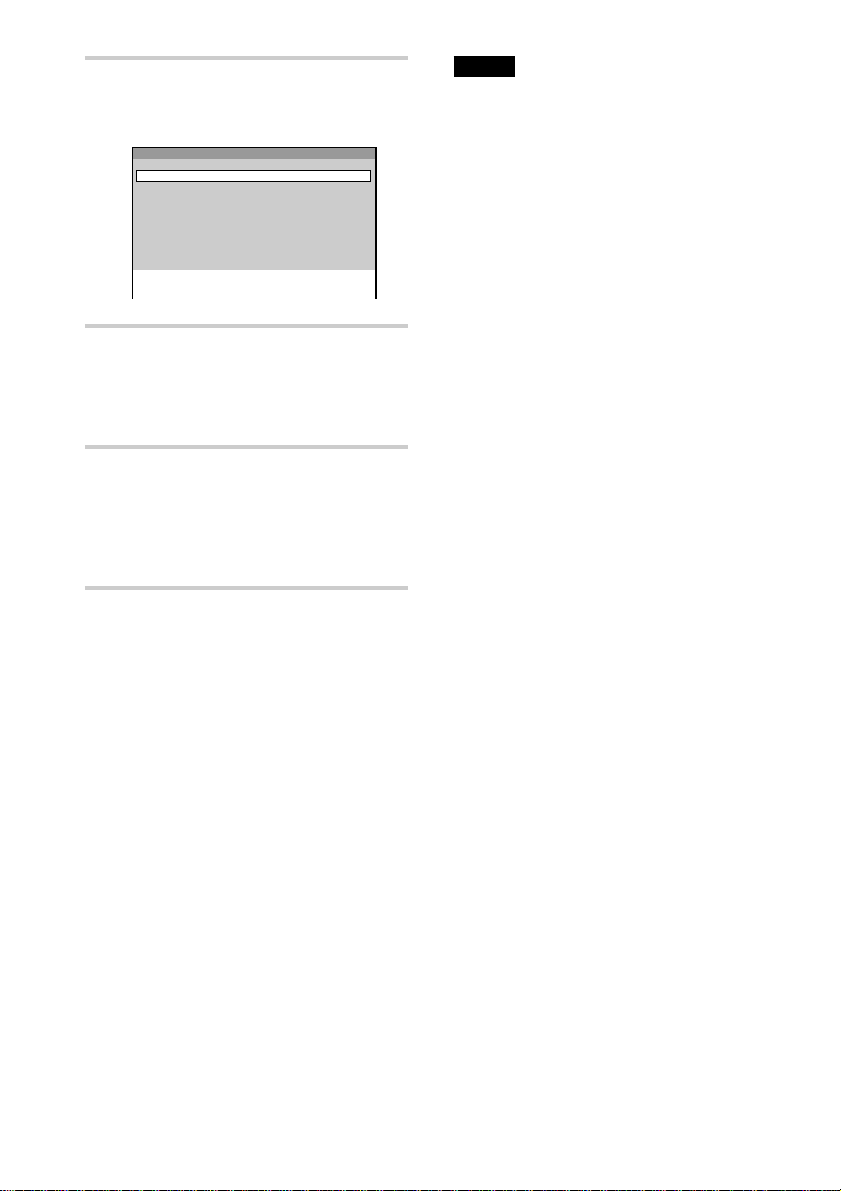
40
GB
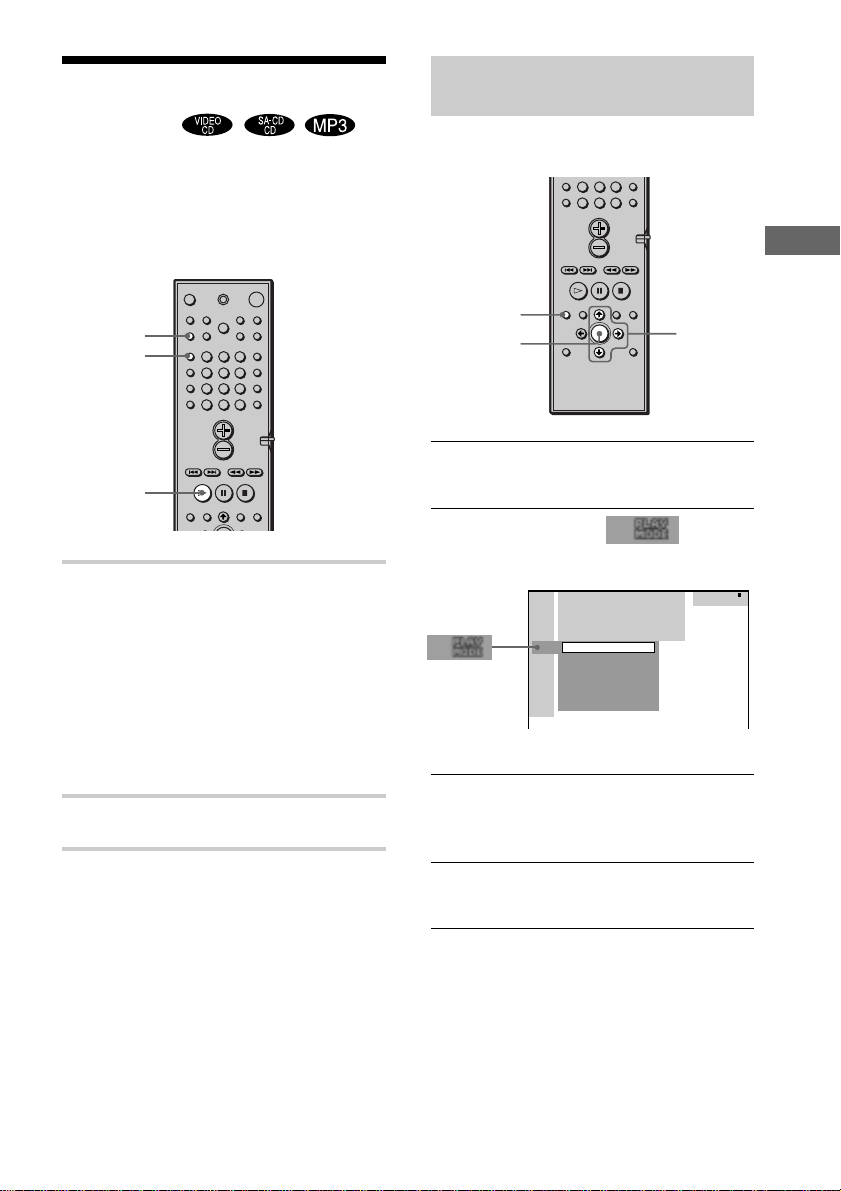
5 Press X/x or the number buttons
to select “7” then press ENTER.
6 To program other tracks, repeat
Steps 2 to 5.
The programmed tracks are displayed
in the selected order.
7 Press H to start Program Play.
Program Play begins.
When the program ends, you can
restart the same program again by
pressing H.
To return to normal play
Press CLEAR during playback.
To turn off the program menu
In stop mode, press PLAY MODE to turn
off the program menu.
To cancel the programmed order
Press CLEAR in Step 3, and the last
program is canceled one by one.
z
You can do Repeat Play of the programmed
tracks. Press REPEAT, or set “REPEAT” to “ALL” in
the Control Menu display during Program Play.
Program
3
4
5
6
7
8
9
10
2
1 DISC1(CD)–TRACK7
Notes
• The number and name of tracks displayed are the
same number and name of tracks recorded on a
disc.
• This Program Play function is not available for
DVDs.
Playing Discs
41
GB
Playing in random order
(Shuffle Play)
You can have the system “shuffle” tracks
and play them in random order. Subsequent
“shuffling” may produce a different playing
order.
1 In stop mode, press PLAY MODE
repeatedly until “SHUFFLE”
appears on the front panel
display.
You can play all tracks on all discs in a
random order, or all tracks on the
specific disc in a random order. When
you play an MP3 disc, you can play all
tracks in Albums in a random order.
2 Press H.
To return to normal play
In stop mode, press PLAY MODE
repeatedly until “SHUFFLE” disappears
from the front panel display, or during
playback, press CLEAR to return to normal
play.
PLAY MODE
CLEAR
H
123
456
7
>
10
10/0
89
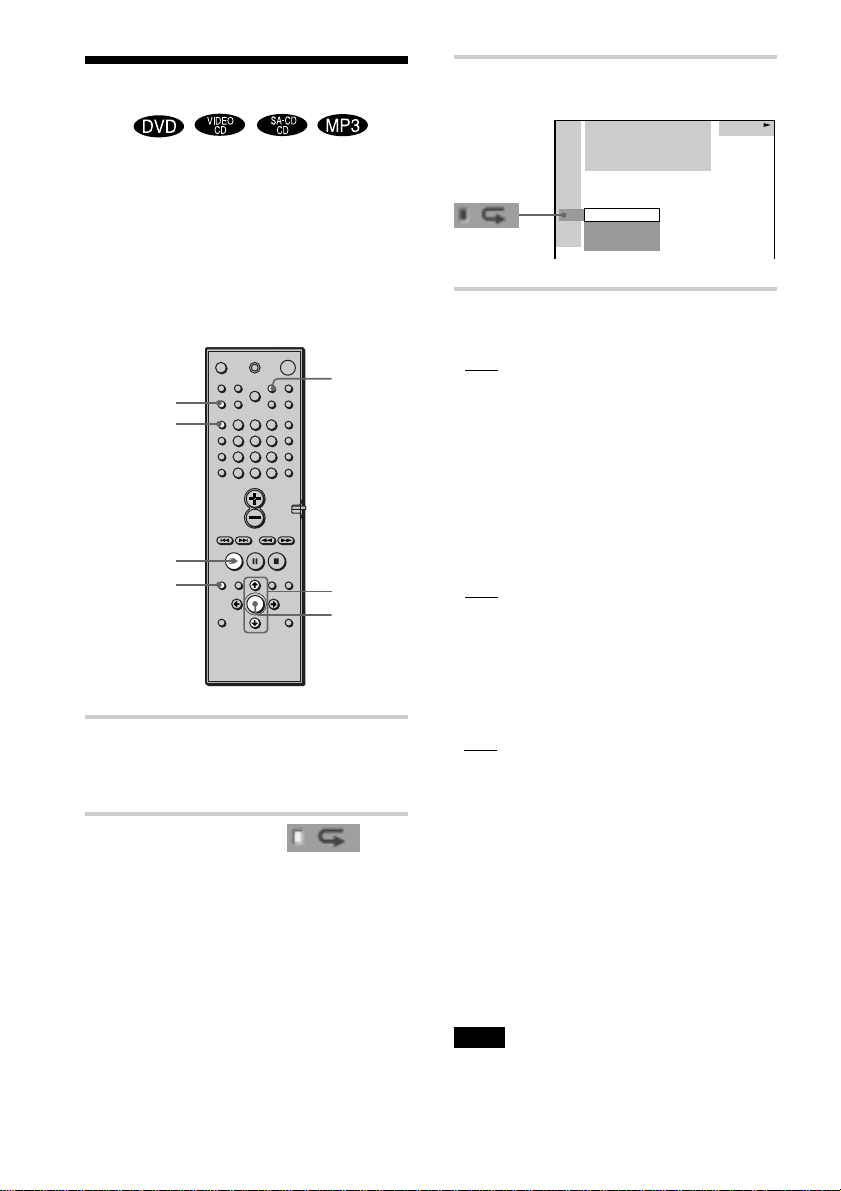
Setting the shuffle mode on the
Control Menu
You can select the normal shuffle and album
shuffle (MP3 only).
1 Press DVD DISPLAY.
The Control Menu appears.
2 Press X/x to select (PLAY
MODE), then press ENTER or c.
3 Select “SHUFFLE (ALL),” “SHUFFLE
(ONE),” or “SHUFFLE (ALBUM)” using
X/x and press ENTER.
4 Press H.
The selected shuffle play begins.
2:MP3
(
1 5
)
MP3
CONTINUE (ALL)
CONTINUE (ONE)
SHUFFLE (ALL)
SHUFFLE (ONE)
CONTINUE (ALBUM)
SHUFFLE (ALBUM)
PROGRAM
7
>
10
10/0
89
DVD DISPLAY
ENTER
X/x/c
42
GB
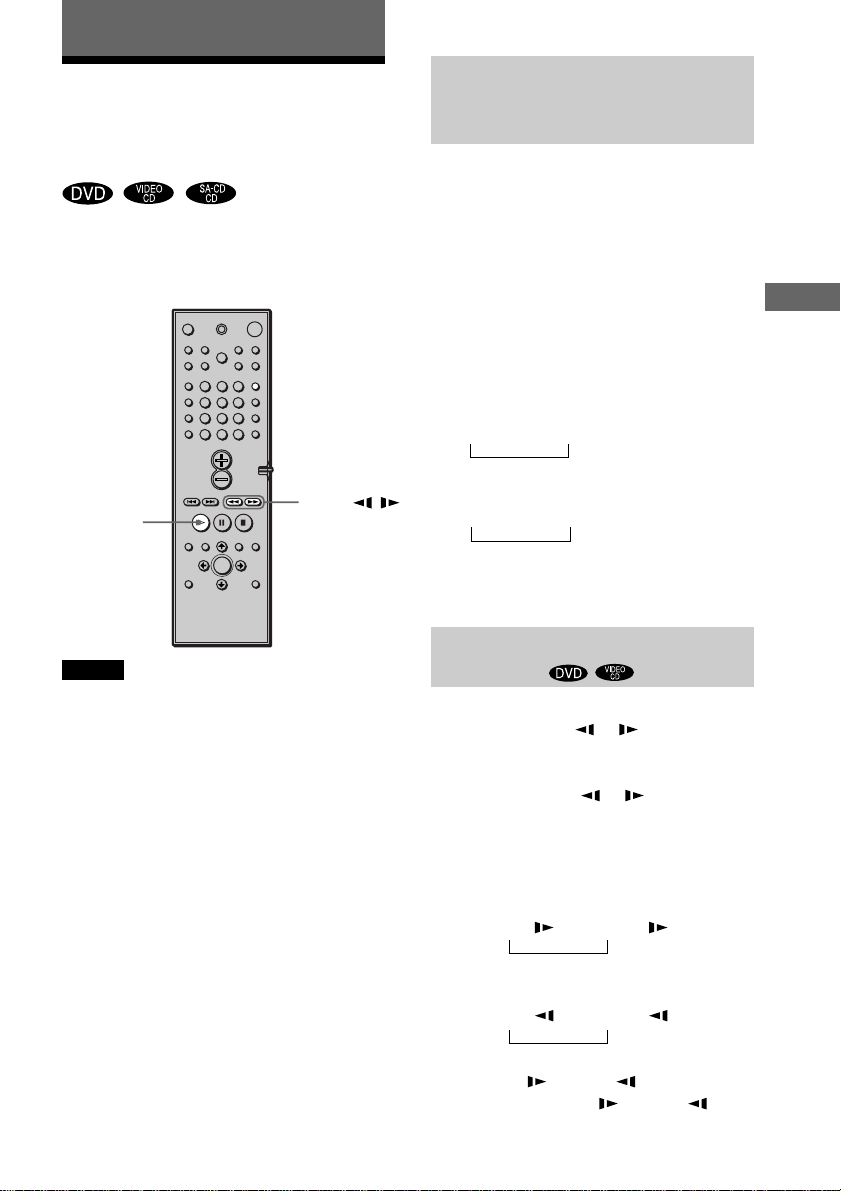
3 Select the Repeat Play setting.
When playing a DVD
•
OFF: does not play repeatedly.
• ALL: repeats all the titles (except
SHUFFLE (ALL)).
• TITLE: repeats the current title on a disc.
• CHAPTER: repeats the current chapter
(except SHUFFLE (ALL)).
When playing a VIDEO CD/Super
Audio CD/CD/MP3 and when Program
Play is set to OFF
• OFF: does not play repeatedly.
• ALL: repeats all the tracks on the disc, or
repeats the current album (MP3 only)
(except SHUFFLE (ALL)).
• TRACK: repeats the current track.
When Program Play is set to ON
•
OFF: does not play repeatedly.
• ALL: repeats Program Play.
To cancel Repeat Play
Press CLEAR.
z You can set Repeat Play during stop
mode
After selecting the “REPEAT” item, press H.
The system starts Repeat Play.
z You can quickly display the “REPEAT”
status
Press REPEAT on the remote.
Note
You can perform Repeat play for DVD titles that
contain chapters.
DVD
1:DVD
1 2
(
2 7
)
MAKING SCENE
1 8
(
3 4
)
T
1 : 3 2 : 5 5
ALL
TITLE
CHAPTER
OFF
Playing repeatedly (Repeat
Play)
You can play all the titles/tracks or a single
title/chapter/track on a disc.
In Shuffle or Program Play mode, the
system repeats tracks in the shuffled or
programmed order.
You cannot perform Repeat Play during
PBC playback of VIDEO CDs (page 35).
CLEAR
H
REPEAT
PLAY MODE
123
456
7
>
10
10/0
89
DVD DISPLAY
X/x
1 Press DVD DISPLAY.
The Control Menu appears.
2 Press X/x to select
(REPEAT), then press ENTER.
If you do not select “OFF,” the
indicator of the “REPEAT” lights in
green.
ENTER
Searching for a Scene
43
GB
t
t
Searching for a Scene
t
t
H
123
456
7
>
10
10/0
89
SLOW /
m/M
Searching for a Particular
Point on a Disc (Scan, Slow-
motion Play)
You can locate a particular point on a disc
quickly by monitoring the picture or playing
back slowly.
Notes
• Depending on the DVD/VIDEO CD, you may not
be able to do some of the operations described.
• This function does not work when you play an
MP3 disc.
Locating a point quickly by playing
a disc in fast forward or fast
reverse (Scan)
Press m or M while playing a disc.
When you find the point you want, press
H to return to normal speed.\
To change the scan speed (DVD/
VIDEO CD/Super Audio CD only)
Each time you press m or M during
scan, the playback speed changes. Two
speeds are available. With each press, the
indication changes as follows:
Playback direction
FF1M t FF2M
Opposite direction
FR1m t FR2m
The FF2M/FR2m playback speed is
faster than FF1M/FR1m.
Watching frame by frame (Slow-
motion play)
You can use this function only for DVDs or
VIDEO CDs. Press
or when the
system is in the pause mode. To return to
normal speed, press H.
Each time you press
or during Slow-
motion play, the playback speed changes.
Two speeds are available. With each press,
the indication changes as follows:
Playback direction
SLOW 2
t SLOW 1
Opposite direction (DVD only)
SLOW 2
t SLOW 1
The SLOW 2 /SLOW 2 playback speed
is slower than SLOW 1
/SLOW 1 .
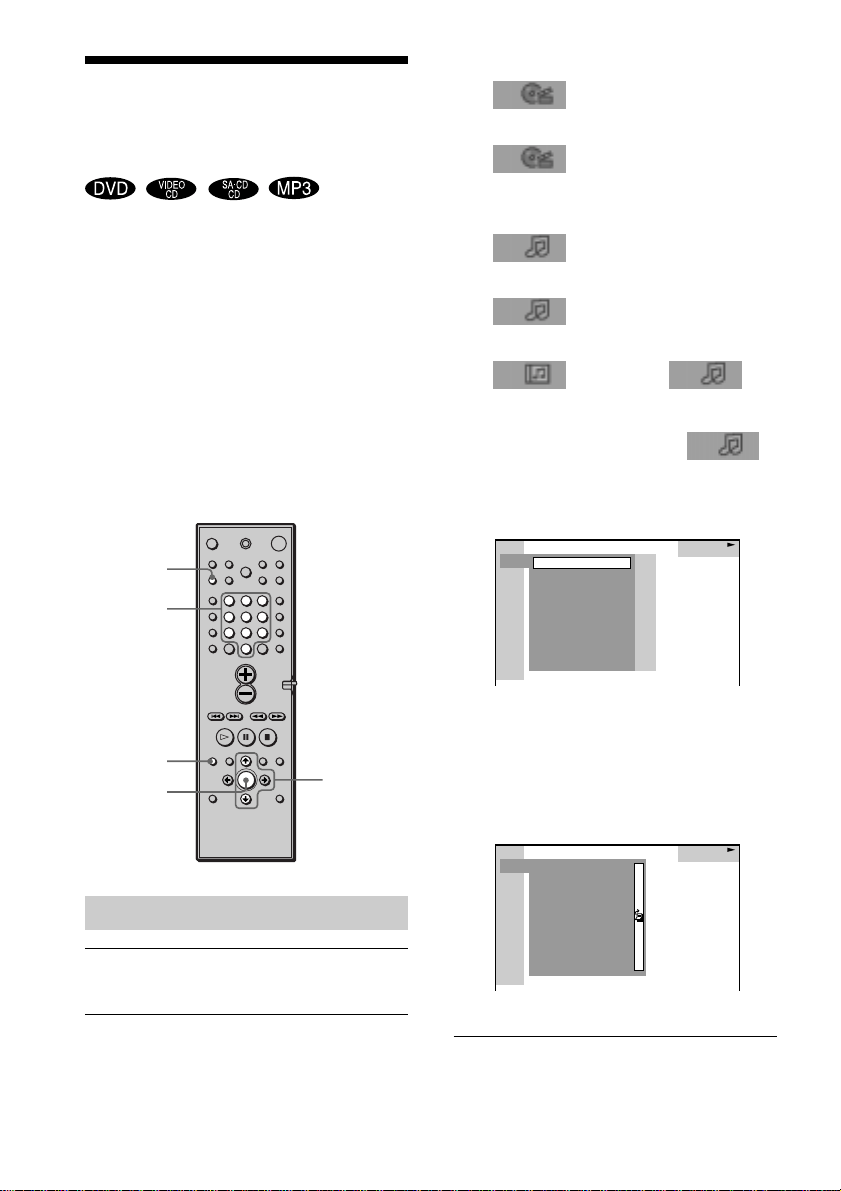
44
GB
xWhen playing a DVD
(TITLE)
xWhen playing a VIDEO CD
(TRACK)
xWhen playing a Super Audio
CD
(TRACK)
xWhen playing a CD
(TRACK)
xWhen playing an MP3
(ALBUM) or
(TRACK)
Example: when you select
(TRACK)
The list of tracks contained in the disc
appears.
When the list of all tracks or albums
cannot be displayed on the window,
the jump bar appears. Press c to select
the jump bar icon, and then scroll the
jump bar to display the rest of the list
using X/x.
3 Press X/x to select the desired track,
then press ENTER.
The system starts playback from the
selected track.
DVD
DISPLAY
ENTER
Number
buttons
CLEAR
123
456
7
>
10
10/0
89
Searching for a title/track/album
1 Press DVD DISPLAY.
The Control Menu appears.
2 Press X/x to select the search method,
then press ENTER.
Searching for a Title/
Chapter/Track/Index/
Album
You can search a title (DVD), chapter
(DVD), track (CD, VIDEO CD, Super
Audio CD, MP3), index (VIDEO CD, Super
Audio CD), and album (MP3). As titles,
tracks and albums are assigned unique
names on the disc, you can select the desired
one from the Control Menu. Also chapters
and indexes are assigned unique numbers on
the disc, so you select the desired one by
entering its number. Or you can search a
particular point using the time code. (TIME
SEARCH)
CD
9.
2.
3.
4.
5.
6.
8.
10.
7.
HIGHWAY1.
TAKE IT EASY
VIEW POINT
MY CHILDREN
DANCING
GOOD TASTE
DESTINATION
PLACE-KICK
PORT TOWER
MARATHON
CD
9.
2.
3.
4.
5.
6.
8.
10.
7.
TAKE IT EASY
VIEW POINT
MY CHILDREN
DANCING
GOOD TASTE
DESTINATION
PLACE-KICK
PORT TOWER
11.STANDARD
MARATHON
X/x/c
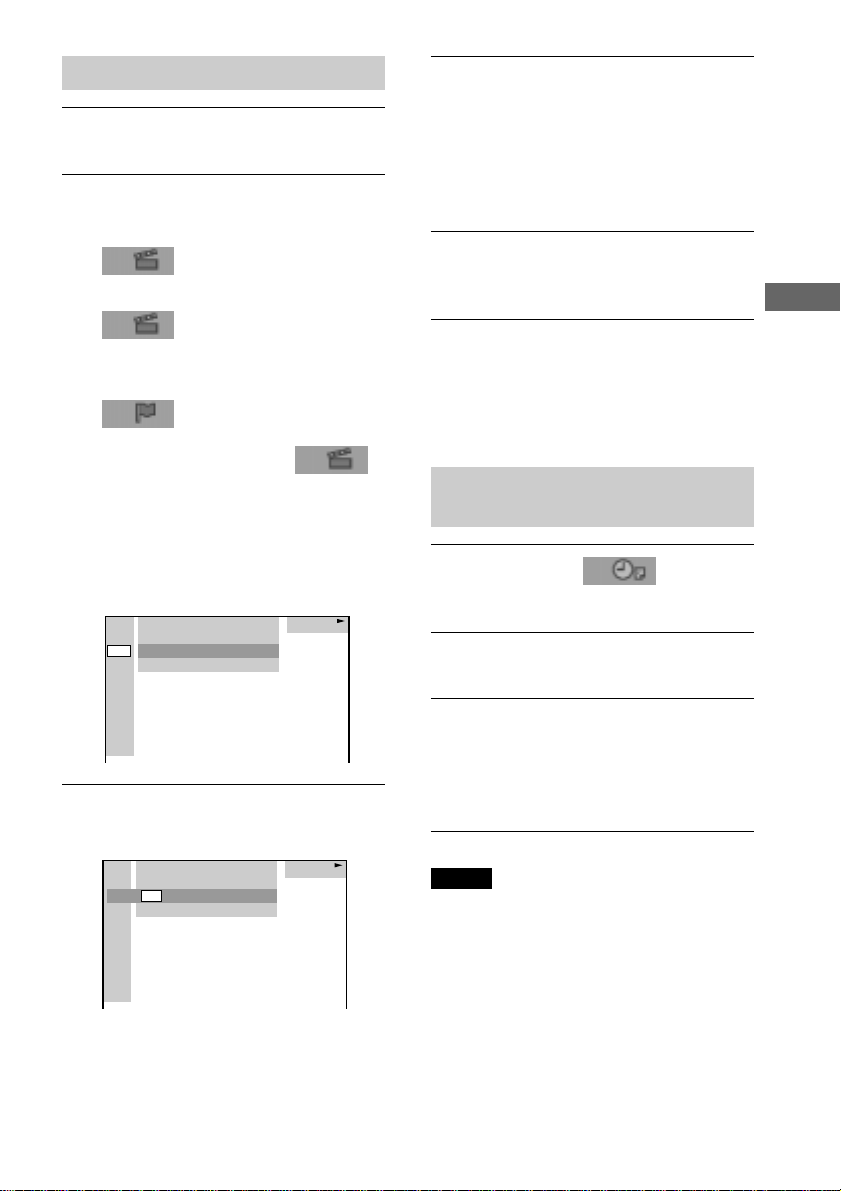
Searching for a Scene
45
GB
4 Press X/x or the number buttons to
select the chapter or index number you
want to search.
If you make a mistake
Cancel the number by pressing
CLEAR, then select another number.
5 Press ENTER.
The system starts playback from the
selected number.
To turn off the Control Menu
Press DVD DISPLAY repeatedly until the
Control Menu is turned off.
To search for a particular point
using the time code (TIME SEARCH)
1 In Step 2, select (TIME).
“T
**
:
**
:
**
” (playing time of the
current title or track) is selected.
2 Press ENTER.
“T
**
:
**
:
**
” changes to “T --:--:--.”
3 Input the time code using the number
buttons, then press ENTER.
For example, to find the desired point at
2 hours, 10 minutes, and 20 seconds
after the beginning, just enter “2:10:20.”
Notes
• The title, chapter or track number displayed is the
same number recorded on the disc.
• You cannot search a scene of a VIDEO CD.
Searching for a chapter/index
1 Press DVD DISPLAY.
The Control Menu appears.
2 Press X/x to select the search method.
xWhen playing a DVD
(CHAPTER)
xWhen playing a VIDEO CD
(INDEX)
xWhen playing a Super Audio
CD
(INDEX)
Example: when you select
(CHAPTER)
“
**
(
**
)” is selected (
**
refers to a
number).
The number in parentheses indicates
the total number of titles, chapters,
tracks, or indexes.
3 Press ENTER.
“** (**)” changes to “— (**)”.
DVD
DVD
1 2
(
2 7
)
MAKING SCENE
1 8
(
3 4
)
T
1 : 3 2 : 5 5
DVD
DVD
1 2
(
2 7
)
MAKING SCENE
T
1 : 3 2 : 5 5
– –
(
3 4
)
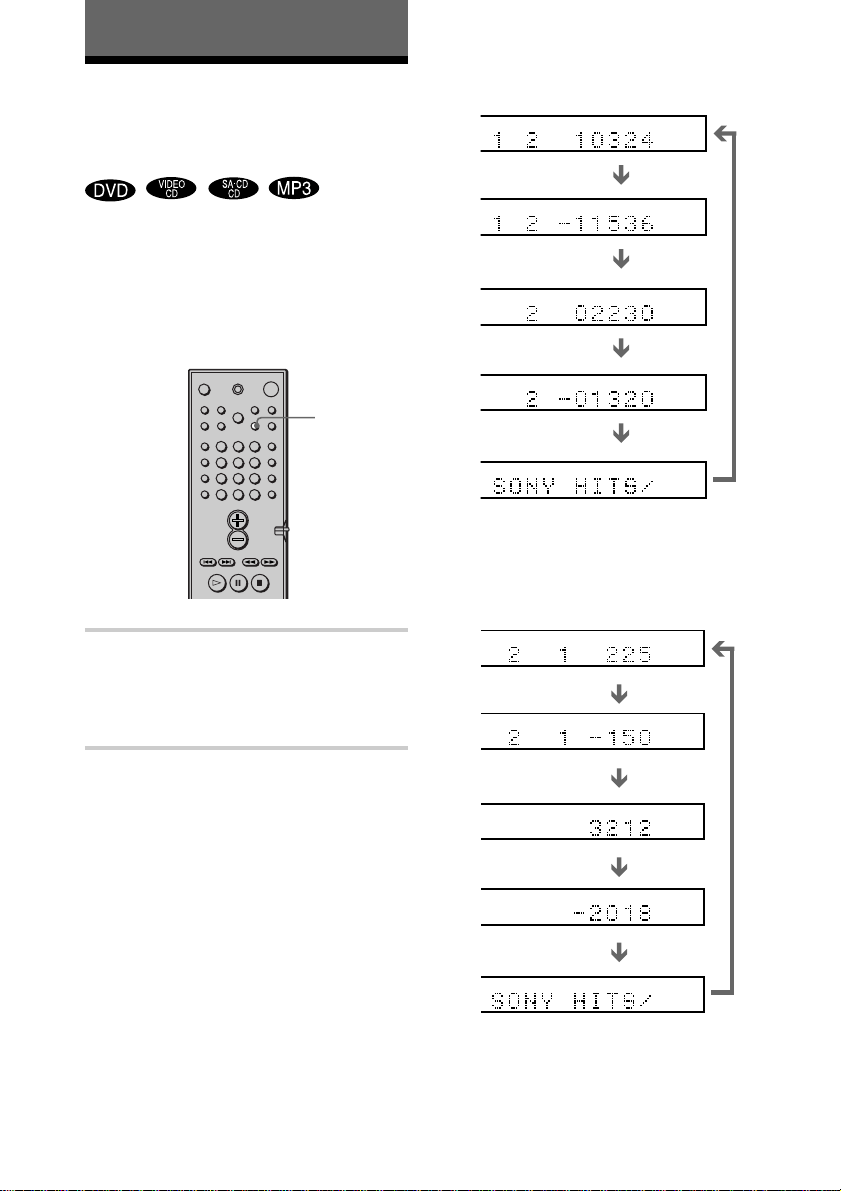
46
GB
TITLE TRACK CHAPTER INDEX TUNEDH MONOMSTS
dB
kHz
PROGRAM
MHz
SHUFFLE
REPEAT 1
TITLE TRACK CHAPTER INDEX TUNEDH MONOM ST S
dB
kHz
PROGRAM
MHz
SHUFFLE
REPEAT 1
TITLE TRACK CHAPTER INDEX TUNEDH MONOM ST S
dB
kHz
PROGRAM
MHz
SHUFFLE
REPEAT 1
TITLE TRACK CHAPTER INDEX TUNEDH MONOM ST S
dB
kHz
PROGRAM
MHz
SHUFFLE
REPEAT 1
TITLE TRACK CHAPTER INDEX TUNEDH MONOM ST S
dB
kHz
PROGRAM
MHz
SHUFFLE
REPEAT 1
TITLE TRACK CHAPTER INDEX TUNEDH MONOM ST S
dB
kHz
PROGRAM
MHz
SHUFFLE
REPEAT 1
TITLE TRACK CHAPTER INDEX TUNEDH MONOM ST S
dB
kHz
PROGRAM
MHz
SHUFFLE
REPEAT 1
TITLE TRACK CHAPTER INDEX TUNEDH MONOM ST S
dB
kHz
PROGRAM
MHz
SHUFFLE
REPEAT 1
TITLE TRACK CHAPTER INDEX TUNEDH MONOM ST S
dB
kHz
PROGRAM
MHz
SHUFFLE
REPEAT 1
TITLE TRACK CHAPTER INDEX TUNEDH MONOMSTS
dB
kHz
PROGRAM
MHz
SHUFFLE
REPEAT 1
Viewing Information About the Disc
When playing a DVD
Playing time and number of the current title
Remaining time of the
current title
Playing time and number
of the current chapter
Remaining time of the
current chapter
Title name
Playing time and current track number
Remaining time of the
current track
Playing time of the disc
Remaining time of the
disc
Track name
Viewing the Playing Time
and Remaining Time on
the Front Panel Display
You can check information about the disc,
such as the remaining time, total number of
titles of a DVD, or tracks of a Super Audio
CD, CD, VIDEO CD, or MP3 using the
front panel display (page 12).
Press TIME.
Each time you press TIME while playing the
disc, the display changes as shown in the
following charts.
When playing a VIDEO CD (without
PBC functions), Super Audio CD, or
CD,
TIME
123
456
7
>
10
10/0
89
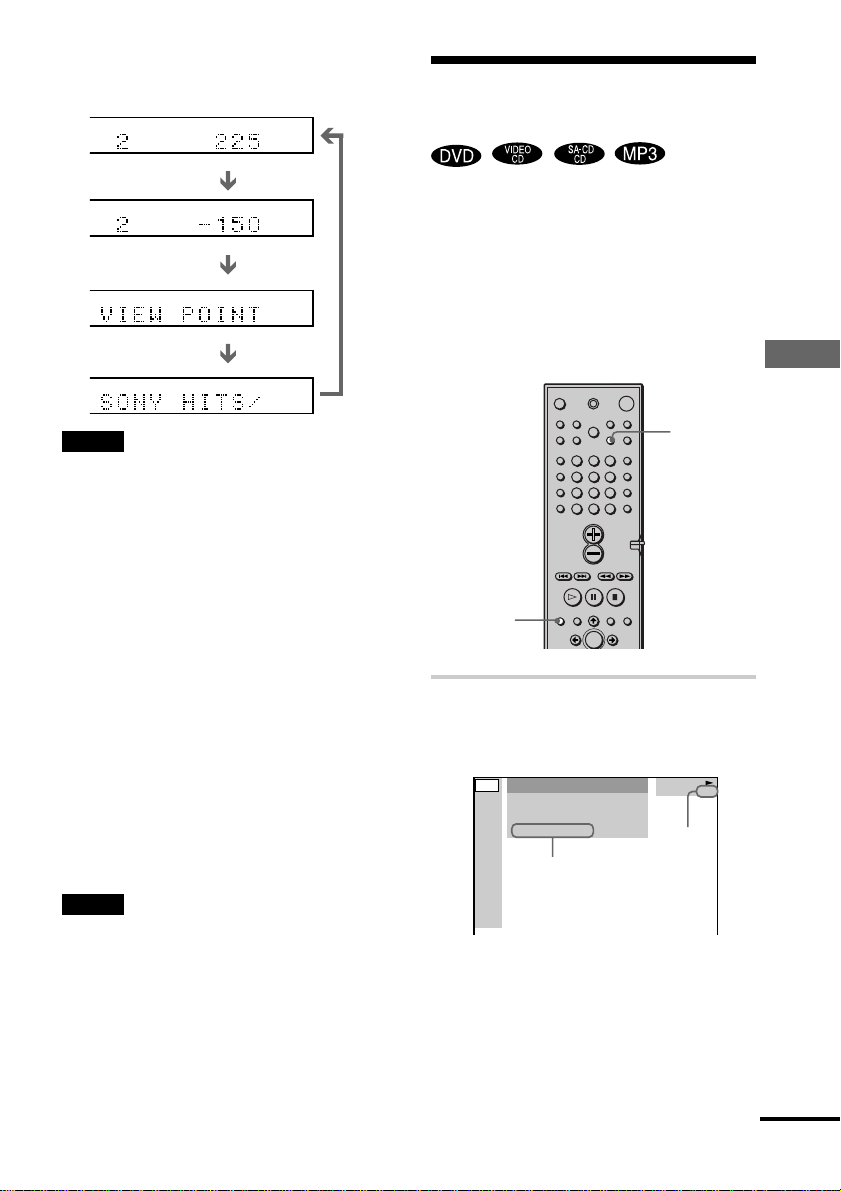
Viewing Information About the Disc
47
GB
1:DVD
1 2
(
2 7
)
MAKING SCENE
1 8
(
3 4
)
T
1 : 3 2 : 5 5
DVD
Checking the Playing
Time and Remaining Time
You can check the playing time and
remaining time of the current title, chapter,
or track, and the total playing time or
remaining time of the disc. You can also
check the DVD/CD/Super Audio CD text
and MP3 folder name/file name/ID3 tag
(only song title) recorded on the disc.
1 Press DVD DISPLAY during
playback.
The Control Menu appears.
TIME
DVD
DISPLAY
Time information
Disc type
123
456
7
>
10
10/0
89
continued
When playing an MP3
TITLE TRACK CHAPTER INDEX TUNEDH MONOMSTS
dB
kHz
PROGRAM
MHz
SHUFFLE
REPEAT 1
TITLE TRACK CHAPTER TUNEDH MONOM ST S
dB
kHz
PROGRAM
MHz
SHUFFLE
REPEAT 1
TITLE TRACK CHAPTER TUNEDH MONOM ST S
dB
kHz
PROGRAM
MHz
SHUFFLE
REPEAT 1
TITLE TRACK CHAPTER INDEX TUNEDH MONO ST
dB
kHz
PROGRAM
MHz
SHUFFLE
REPEAT 1
Playing time and current track number
Album (folder) name
Remaining time of the
current track
Track (file) name
Notes
• ID3 tag applies only to version 1.
• If the MP3 file you play back has an ID3 tag, the
ID3 tag information is displayed as a track (file)
name.
• The ID3 tag character codes comply with ASCII
and ISO standards. Joliet format discs can only be
displayed in ASCII. Incompatible characters will be
displayed as “ ”.
• In the following cases, elapsed playing time and
time of the track remaining may not be displayed
accurately.
– when an MP3 file of VBR (variable bit rate) is
played.
– during fast-forward/reverse.
z When playing VIDEO CDs with PBC functions,
the scene number and the playing time are displayed.
z The playing time and remaining time of the
current chapter, title, track, scene, or disc will also
appear on your TV screen. See the following section
“Checking the Playing Time and Remaining Time”
for instructions on how to read this information.
Notes
• While playing Super Audio CD, the index indicator
does not appear on the front panel display.
• Depending on the type of disc being played and the
playing mode, the disc information may not be
displayed.

48
GB
2 Press TIME repeatedly to change
the time information.
The display and the kinds of time that
you can change depend on the disc you
are playing.
xWhen playing a DVD
•T
**
:
**
:
**
Playing time of the current title
•T–
**
:
**
:
**
Remaining time of the current title
•C
**
:
**
:
**
Playing time of the current chapter
•C–
**
:
**
:
**
Remaining time of the current
chapter
xWhen playing a VIDEO CD
(with PBC functions)
•
**
:
**
Playing time of the current scene
xWhen playing a VIDEO CD
(without PBC functions), Super
Audio CD or CD
•T
**
:
**
Playing time of the current track
•T–
**
:
**
Remaining time of the current
track
•D
**
:
**
Playing time of the current disc
•D–
**
:
**
Remaining time of the current disc
xWhen playing an MP3
•T
**
:
**
Playing time of the current track
•T–
**
:
**
Remaining time of the current
track
To turn off the Control Menu
Press DVD DISPLAY repeatedly until the
Control Menu is turned off.
Notes
• Only letters of the alphabet can be displayed.
• Depending on the type of disc being played, the
system can only display a limited number of
characters. Also, depending on the disc, all text
characters are not displayed.
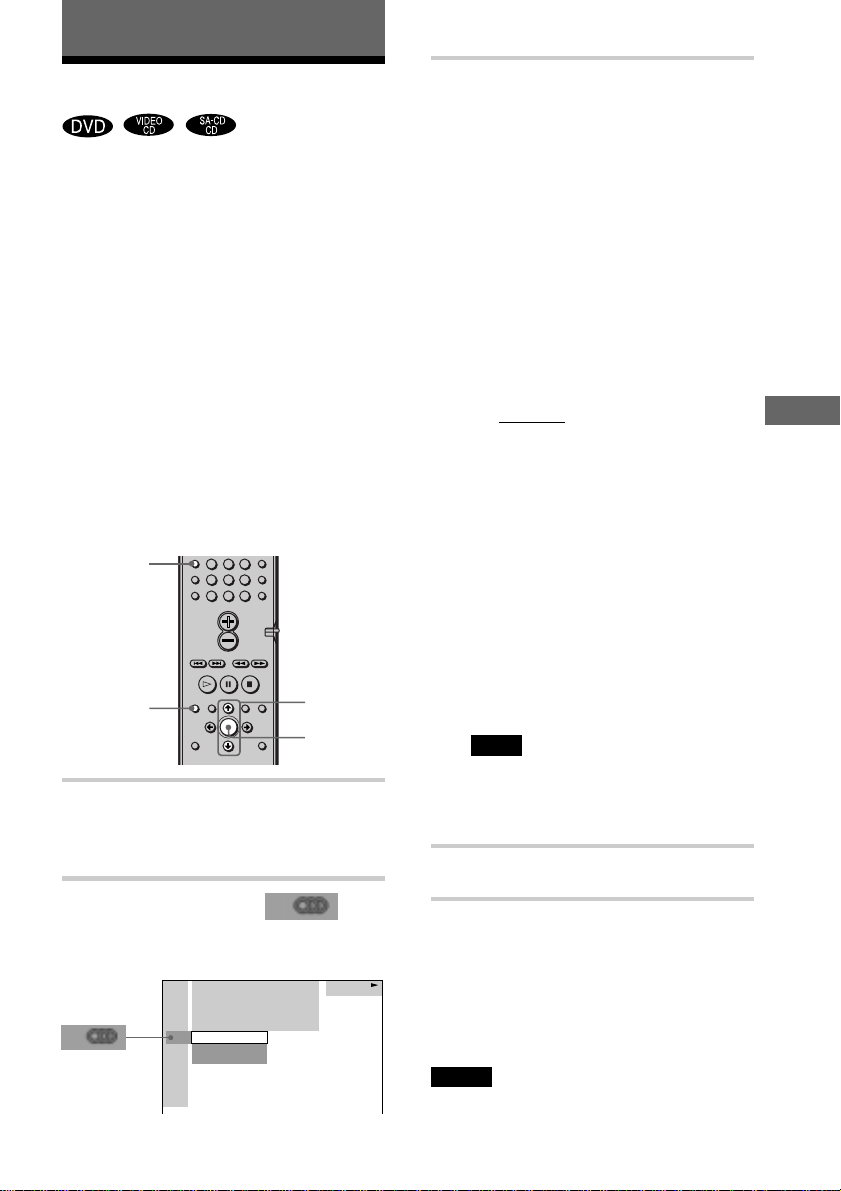
Sound Adjustments
49
GB
Sound Adjustments
Changing the Sound
If a DVD is recorded with multilingual
tracks, you can select the language you want
while playing the DVD.
If the DVD is recorded in multiple audio
formats (PCM, Dolby Digital, MPEG audio,
or DTS), you can select the audio format
you want while playing the DVD.
With stereo CDs or VIDEO CDs, you can
select the sound from the right or left channel
and listen to the sound of the selected channel
through both the right and left speakers. (In
this case, the sound loses its stereo effect.)
For example, when playing a disc containing
a song with the vocals on the right channel
and the instruments on the left channel, you
can select the left channel and hear only the
instruments from both speakers.
1 Press DVD DISPLAY during
playback.
The Control Menu is displayed.
2 Press X/x to select
(AUDIO), then press ENTER.
The options for AUDIO appear.
AUDIO
DVD
DISPLAY
ENTER
X/x
3 Press X/x to select the desired
audio signal.
xWhen playing a DVD
Depending on the DVD, the choice of
language varies.
When 4 digits are displayed, they
represent the language code. Refer to
the language code list on page 84 to
see which language the code
represents. When the same language is
displayed two or more times, the DVD
is recorded in multiple audio formats.
xWhen playing a VIDEO CD, or CD
The default setting is underlined.
•
STEREO: The standard stereo sound
• 1/L: The sound of the left channel
(monaural)
• 2/R: The sound of the right
channel (monaural)
x
When playing a Super Audio CD
In stop mode, depending on the Super
Audio CD, the choice of settings varies.
• MULTI: The disc has multi-
channel playback area
• 2CH: The disc has the 2 channel
playback area.
• CD: When you want to play the
disc as a conventional CD.
Note
Not all discs give you the three choices above
when in Super Audio CD playback. It all
depends on the layer configuration of the
Super Audio CD to be played.
4 Press ENTER.
To turn off the Control Menu
Press DVD DISPLAY repeatedly until the
Control Menu is turned off.
z
You can select AUDIO directly by pressing AUDIO.
Each time you press the button, the item changes.
Notes
• For discs not in multiple audio format, you cannot
change the sound.
• During DVD playback, the sound may change
456
7
>
10
10/0
89
1:DVD
1 2
(
2 7
)
MAKING SCENE
1 8
(
3 4
)
T
1 : 3 2 : 5 5
DVD
2: FRENCH
3: SPANISH
1: ENGLISH
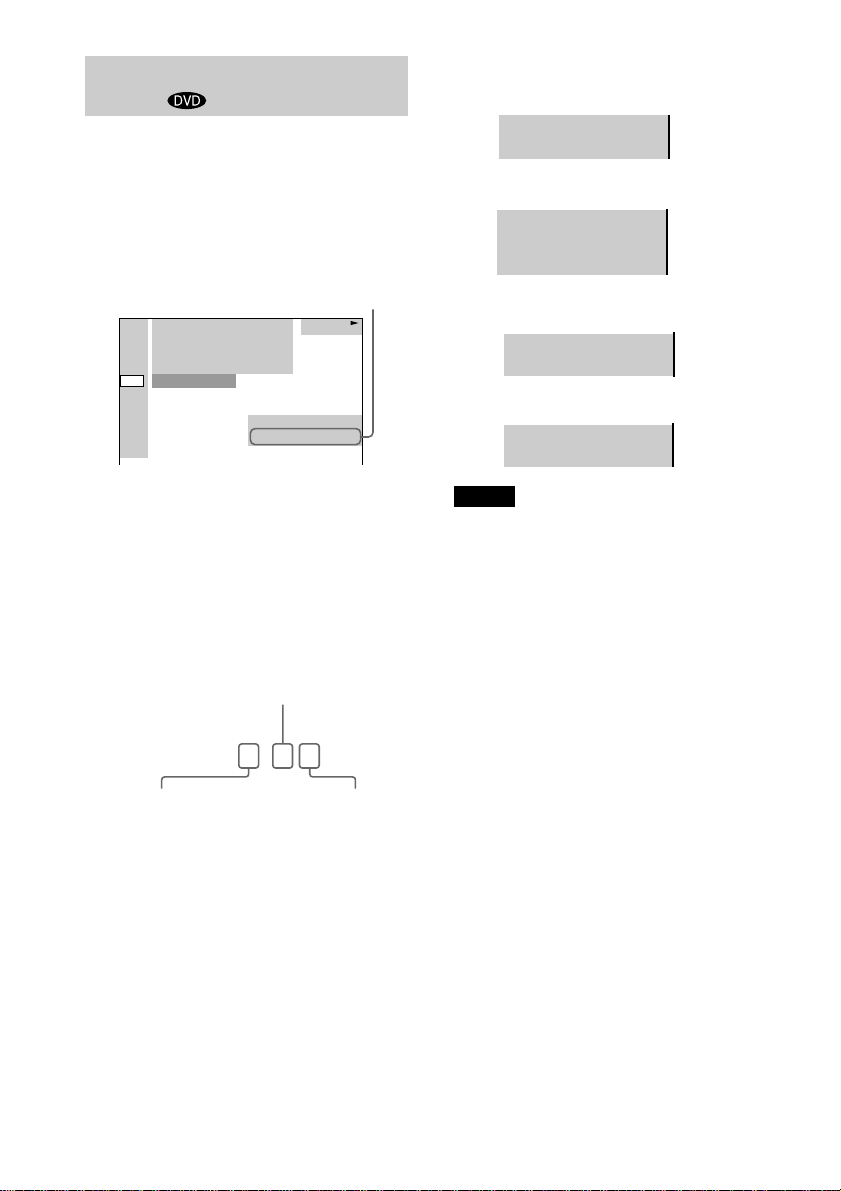
50
GB
1:DVD
1 2
(
2 7
)
MAKING SCENE
1 8
(
3 4
)
T
1 : 3 2 : 5 5
DOLBY DIGITAL 3/2.1
PROGRAM FORMAT
DVD
1: ENGLISH
Displaying the audio information of
the disc
When you select “AUDIO,” the channels
being played are displayed on the screen.
For example, in Dolby Digital format,
multiple signals ranging from monaural to
5.1 channel signals can be recorded on a
DVD. Depending on the DVD, the number
of recorded channels may differ.
*“PCM,” “MPEG,” “DTS,” or “DOLBY
DIGITAL” is displayed.
For “DOLBY DIGITAL,” the channels in
the playing track are displayed numerically
as follows:
For Dolby Digital 5.1 ch:
Current audio format*
Rear component 2
LFE (Low Frequency
Effect) component 1
Front component 2 +
Center component 1
• Dolby Digital 5.1ch
• DTS
Notes
• When the signal contains rear signal components
such as LS, RS, or S, the surround effect is
enhanced.
• If you play MPEG AUDIO sound tracks, the
system outputs PCM (stereo) signals.
DOLBY DIGITAL
3 / 2
.
1
PCM 48kHz 24bit
PROGRAM FORMAT
DOLBY SURROUND
DOLBY DIGITAL 2/0
PROGRAM FORMAT
DOLBY DIGITAL 3/2.1
PROGRAM FORMAT
DTS 3/2.1
PROGRAM FORMAT
The display examples are as follows:
• PCM (stereo)
• Dolby Surround
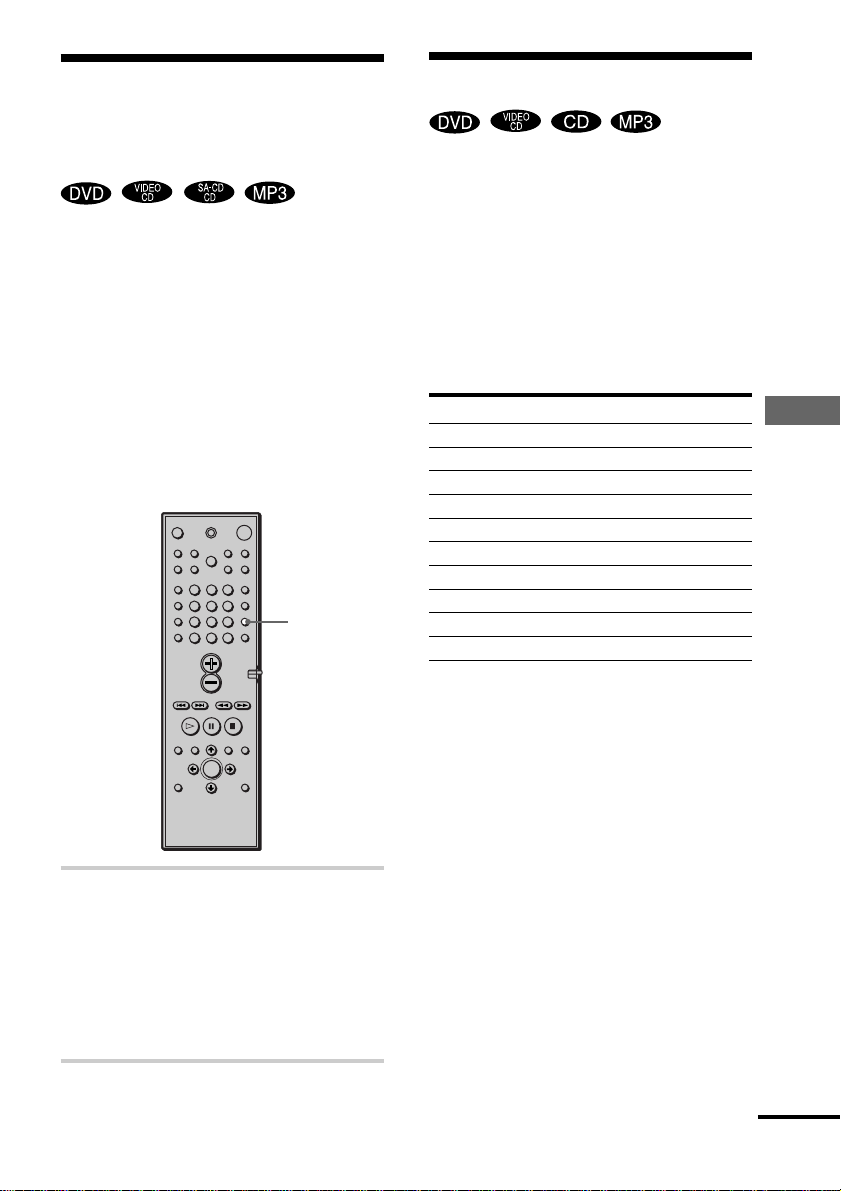
Sound Adjustments
51
GB
SOUND
FIELD
Automatically decoding
the input audio signal (Auto
Decoding)
The auto decoding function automatically
detects the type of audio signal being input
(Dolby Digital, DTS, or standard 2 channel
stereo) and performs the proper decoding if
necessary. This mode presents the sound as
it was recorded/encoded, without adding any
effects (e.g. reverberation).
However, if there are no low frequency
signals (Dolby Digital LFE, etc.), it will
generate a low frequency signal for output to
the subwoofer.
Press SOUND FIELD –/+ on the system
or SOUND FIELD on the remote
repeatedly until “AUTO DECO.(AUTO
DECODING)” appears on the front
panel display.
The auto format decode function is
activated.
Enjoying Surround Sound
You can take advantage of surround sound
simply by selecting one of the system’s pre-
programmed sound fields. They bring the
exciting and powerful sound of movie
theaters and concert halls into your home.
To select the sound field, press SOUND
FIELD –/+ on the system or SOUND
FIELD on the remote repeatedly until the
sound field you want appears on the front
panel display.
Sound field Display
Auto Decoding AUTO DECO.
Normal surround N.SURROUND
Cinema Studio EX A C.S.EX A*
Cinema Studio EX B C.S.EX B*
Cinema Studio EX C C.S.EX C*
Hall HALL
Jazz Club JAZZ CLUB
Live Concert L.CONCERT
Game GAME
2ch Stereo 2CH STEREO
* Use DCS Technology
About DCS (Digital Cinema Sound)
In the collaboration with Sony Pictures
Entertainment, Sony measured the sound
environment of their studios and integrated
the data of the measurement and Sony’s own
DSP (Digital Signal Processor) technology
to develop “Digital Cinema Sound”.
“Digital Cinema Sound” simulates in a
home theater an ideal movie theater sound
environment based on the preference of
movie director.
123
456
7
>
10
10/0
89
continued
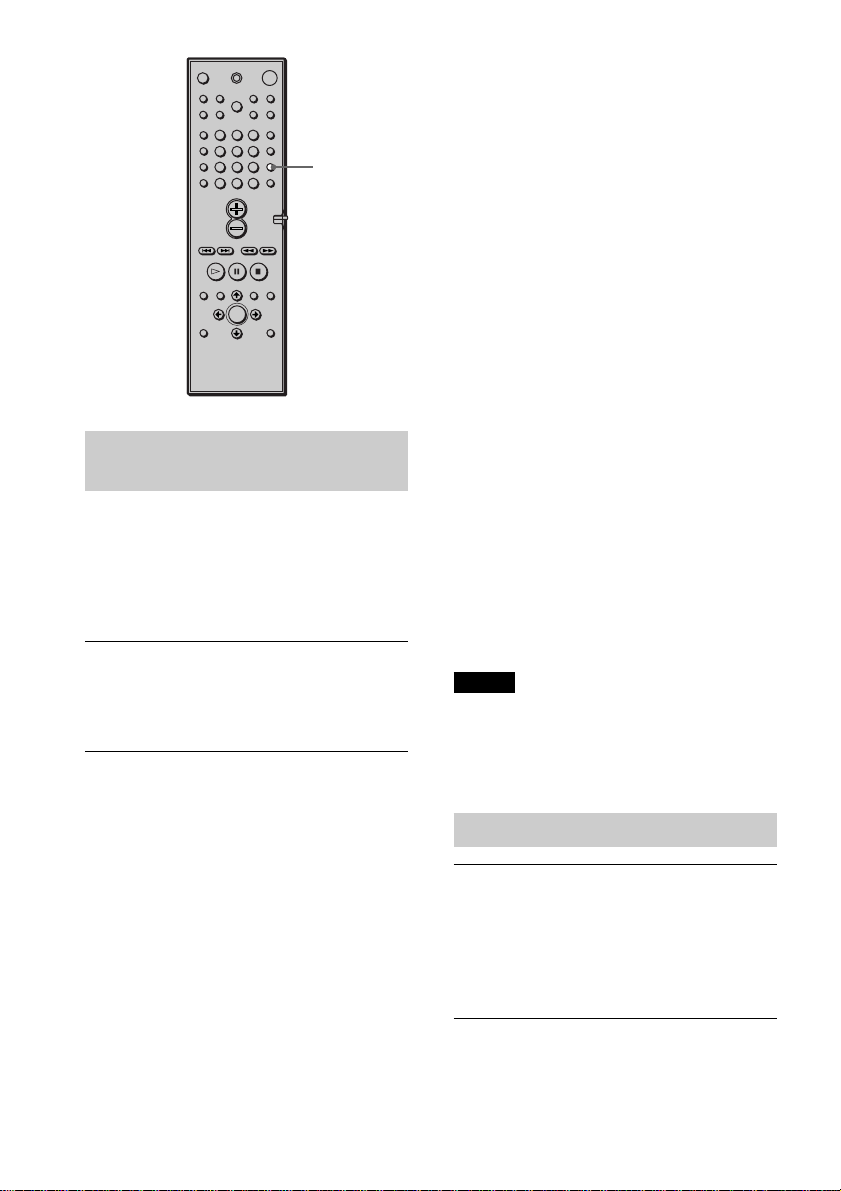
52
GB
Enjoying movies with Cinema Studio
EX
Cinema Studio EX is ideal for enjoying the
movie software encoded with multi channel
format, such as the Dolby Digital DVD.
This mode reproduces the sound
characteristics of Sony Pictures
Entertainment’s studios.
Press SOUND FIELD –/+ on the system or
SOUND FIELD on the remote repeatedly
until “C.S.EX A (or B, C)” appears on the
front panel display.
C.S.EX A (Cinema Studio EX A)
Reproduces the sound characteristics of the
Sony Pictures Entertainment “Cary Grant
Theater” cinema production studio. This is a
standard mode, great for watching most any
type of movie.
C.S.EX B (Cinema Studio EX B)
Reproduces the sound characteristics of the
Sony Pictures Entertainment “Kim Novak
Theater” cinema production studio. This
mode is ideal for watching science-fiction or
action movies with lots of sound effects.
C.S.EX C (Cinema Studio EX C)
Reproduces the sound characteristics of the
Sony Pictures Entertainment scoring stage.
This mode is ideal for watching musicals or
classic films where music is featured in the
soundtrack.
About Cinema Studio EX
Cinema Studio EX consists of the following
three elements.
• Virtual Multi Dimension
Creates 5 sets of virtual speakers
surrounding the listener from a single pair
of actual rear speakers.
• Screen Depth Matching
In a movie theater, sound seems to come
from inside the image reflected on the
movie screen. This element creates the
same sensation in your listening room by
shifting the sound of the front speakers
“into” the screen.
• Cinema Studio Reverberation
Reproduces the reverberations peculiar to a
movie theater.
Cinema Studio EX is the integrated mode
which operates these elements
simultaneously.
Notes
• The effects provided by the virtual speakers may
cause increased noise in the playback signal.
• When listening with sound fields that employ the
virtual speakers, you will not be able to hear any
sound coming directly from the rear speakers.
Selecting other sound fields
Press SOUND FIELD –/+ on the system or
SOUND FIELD on the remote repeatedly
until the sound field you want appears on
the front panel display.
The current sound field appears on the front
panel display.
SOUND
FIELD
123
456
7
>
10
10/0
89
Sound Adjustments
53
GB
N. SURROUND (Normal Surround)
Software with multi channel surround audio
signals is played back according to the way
it was recorded. Software with 2 channel
audio signals is decoded with Dolby Pro
Logic or Dolby Pro Logic II to create
surround effects (page 29).
HALL (Hall)
Reproduces the acoustics of a rectangular
concert hall.
JAZZ CLUB (Jazz Club)
Reproduces the acoustics of a jazz club.
L. CONCERT (Live Concert)
Reproduces the acoustics of a 300-seat live
concert.
GAME (Game)
Obtains maximum audio impact from video
game software.
HP. THEATER (Headphone Theater)
When you connect your headphone to the
PHONES jack of the system, the
HEADPHONE THEATER mode allows you
to experience a theater like environment
while listening through a pair of
headphones. This mode is very effective
with 5.1 ch discrete signal sources like
Dolby Digital and DTS. Selecting any
Sound Field selections (except AUTO
DECODING or 2 CH STEREO) enables the
mode.
To turn the surround effect off
Press SOUND FIELD –/+ on the system or
SOUND FIELD on the remote repeatedly
until “AUTO DECO.” or “2CH STEREO”
appears on the front panel display.
z
The system memorizes the last sound
field selected for each function mode (Sound
Field Link)
Whenever you select a function such as DVD or
TUNER, the sound field that was last applied to the
function is automatically applied again. For example,
if you listen to DVD with HALL as the sound field,
then change to another function, and then return to
DVD, HALL will be applied again. With the tuner,
sound fields are memorized separately for all preset
stations.
z You can identify the encoding format of
program software by looking at its packaging
– Dolby Digital discs are labelled with the logo.
– Dolby Surround encoded programs are labelled
with the logo.
– DTS Digital Surround discs are marked with DTS.
Note
When you play sound tracks with 96 kHz sampling
frequency, the output signals will be converted to
48 kHz (sampling frequency).
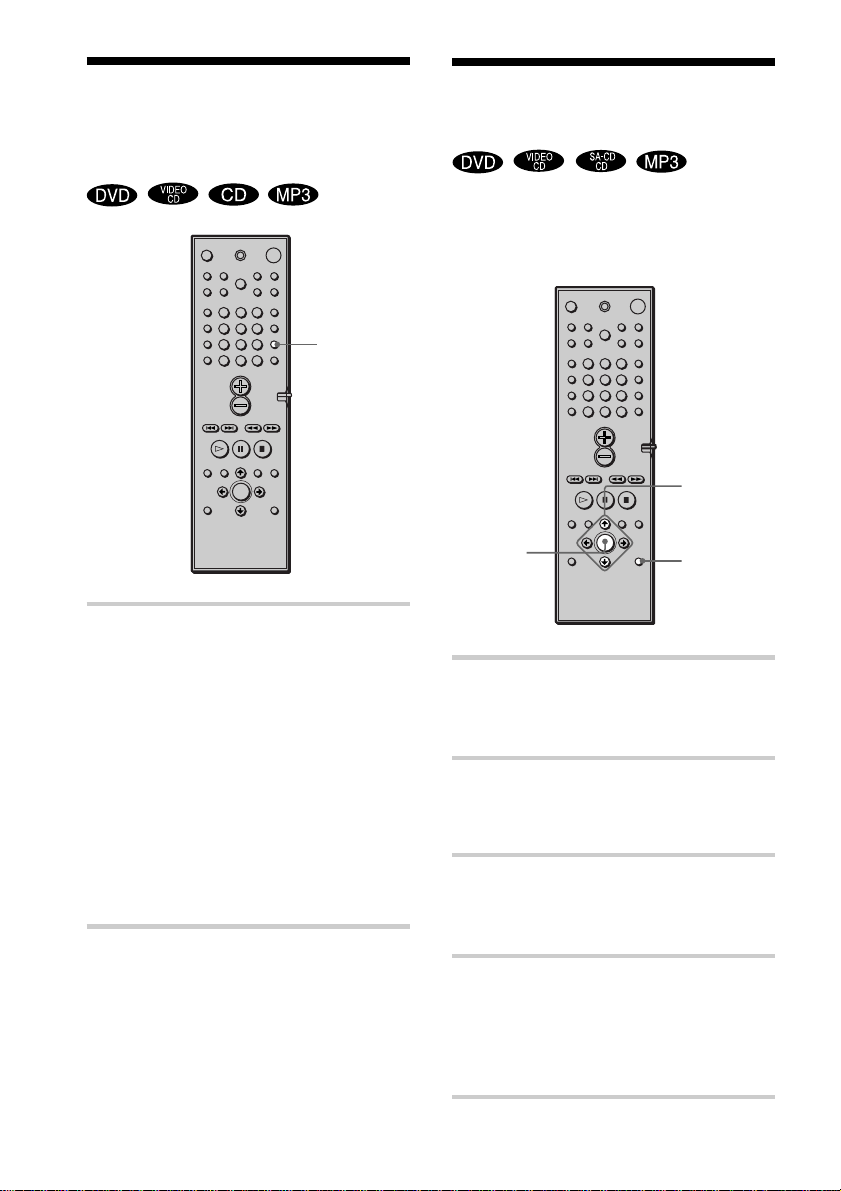
54
GB
Using only the front
speakers and subwoofer
(2 Channel Stereo)
Press SOUND FIELD –/+ on the system
or SOUND FIELD on the remote
repeatedly until “2CH STEREO”
appears on the front panel display.
This mode outputs the sound from the front
left and right speakers and subwoofer.
Standard two channel (stereo) sources
completely bypass the sound field
processing. Multi channel surround formats
are downmixed to two channels.
This allows you to play any source using
only the front left and right speakers and
subwoofer.
SOUND
FIELD
123
456
7
>
10
10/0
89
Adjusting the level
parameters
The level menu contains parameters that let
you adjust the balance and speaker volumes
of each speaker (page 28).
1 Start playing a program source
encoded with multichannel
surround sound.
2 Press AMP MENU repeatedly.
9 LEVEL appears on the front panel
display.
3 Sit in your listening position and
select the item to be adjusted
using X/x.
4 Adjust the volume level using C/c.
The adjusted value will appear on the
front panel display. If you do not operate
the remote for a few seconds, the value
turns off and is stored in the system.
ENTER
AMP MENU
C/X/x/c
123
456
7
>
10
10/0
89
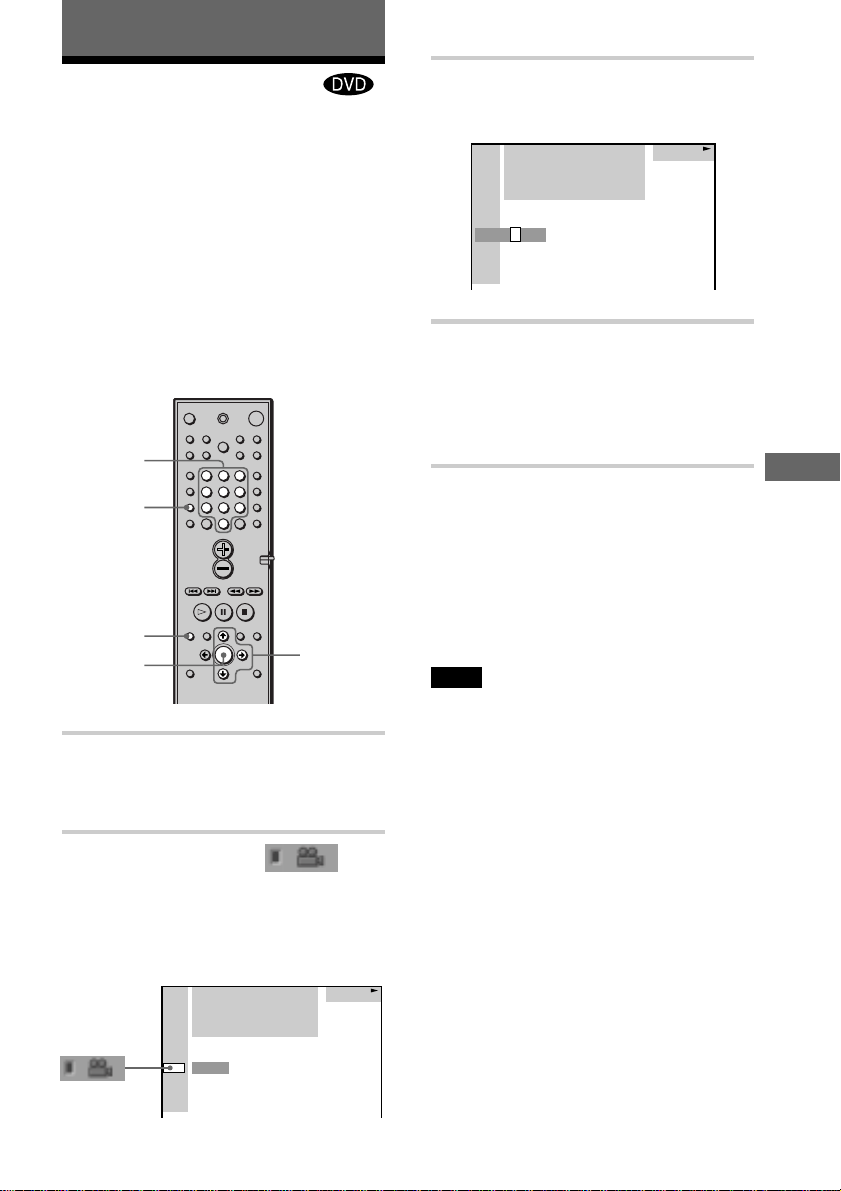
Enjoying Movies
55
GB
Enjoying Movies
Changing the Angles
If various angles (multi-angles) for a scene
are recorded on the DVD, “ANGLE”
appears in the front panel display. This
means that you can change the viewing
angle.
For example, while playing a scene of a
train in motion, you can display the view
from either the front of the train, the left
window of the train, or from the right
window without having the train’s
movement interrupted.
1 Press DVD DISPLAY during
playback.
The Control Menu appears.
2 Press X/x to select
(ANGLE).
The angle number appears.
The number in parentheses indicates
the total number of angles.
ANGLE
ENTER
DVD
DISPLAY
Number
Buttons
X/c/x
3 Press c or ENTER.
The angle number changes to “-.”
4 Select the angle number using the
number buttons or X/x, then
press ENTER.
The angle is changed to the selected
angle.
To turn off the Control Menu
Press DVD DISPLAY repeatedly until the
Control Menu is turned off.
z
You can select the angle directly by pressing
ANGLE. Each time you press the button, the angle
changes.
Note
Depending on the DVD, you may not be able to
change the angles, even if multi-angles are recorded
on the DVD.
123
456
7
>
10
10/0
89
1:DVD
1 2
(
2 7
)
MAKING SCENE
1 8
(
3 4
)
T
1 : 3 2 : 5 5
DVD
1
(
9
)
1:DVD
1 2
(
2 7
)
MAKING SCENE
1 8
(
3 4
)
T
1 : 3 2 : 5 5
DVD
–
(
9
)
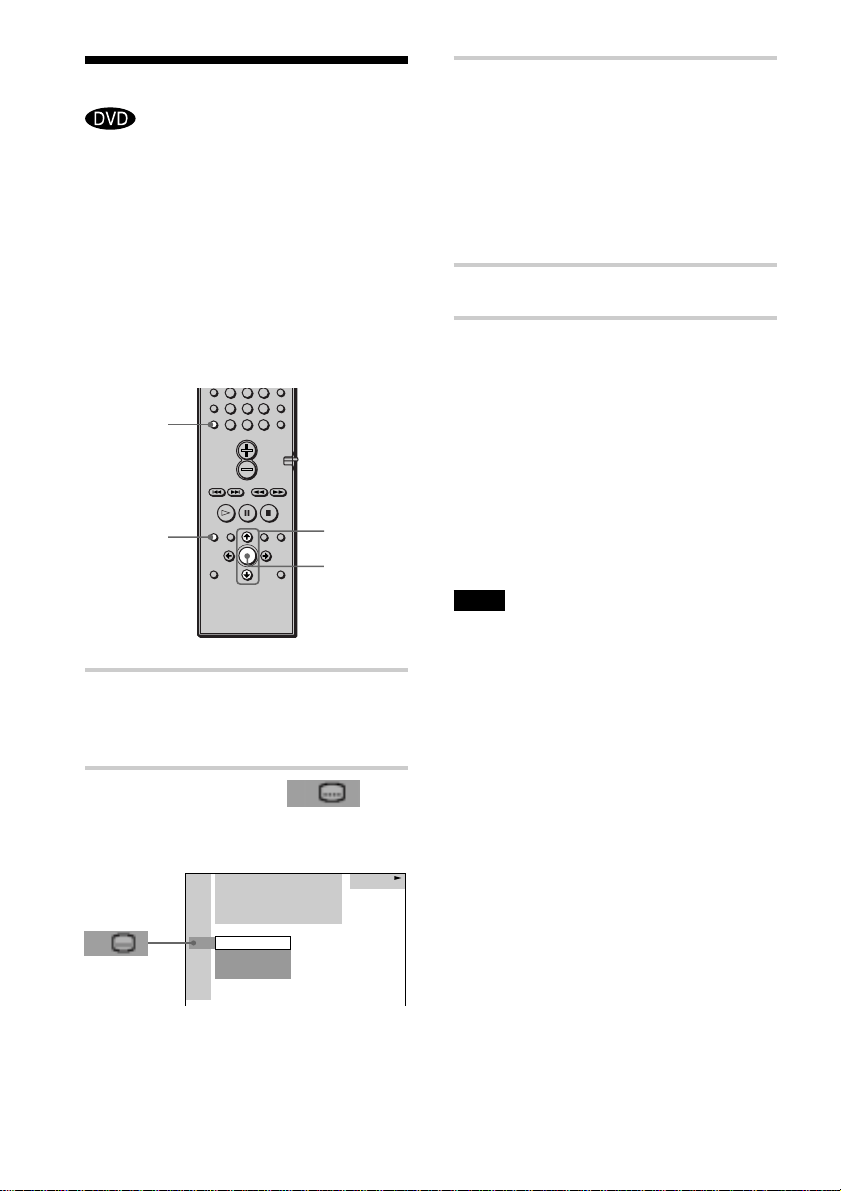
56
GB
Displaying the Subtitles
If subtitles are recorded on the discs, you
can turn the subtitles on and off while
playing. If multilingual subtitles are
recorded on the disc, you can change the
subtitle language while playing, or turn the
subtitles on or off whenever you want. For
example, you can select the language you
want to practice and turn the subtitles on for
better understanding.
1 Press DVD DISPLAY during
playback.
The Control Menu appears.
2 Press X/x to select
(SUBTITLE), then press ENTER.
The options for SUBTITLE appear.
SUBTITLE
ENTER
DVD
DISPLAY
X/x
3 Press X/x to select the language.
Depending on the DVD, the choice of
language varies.
When 4 digits are displayed, they
indicate the language code. Refer to
the language code list on page 84 to
see which language the code
represents.
4 Press ENTER.
To cancel the SUBTITLE setting
Select “OFF” in Step 3.
To turn off the Control Menu
Press DVD DISPLAY repeatedly until the
Control Menu is turned off.
z
You can select SUBTITLE directly by pressing
SUBTITLE. Each time you press the button, the item
changes.
Note
Depending on the DVD, you may not be able to
change the subtitles even if multilingual subtitles are
recorded on it.
456
7
>
10
10/0
89
1: ENGLISH
2: FRENCH
3: SPANISH
DVD
OFF
1:DVD
1 2
(
2 7
)
MAKING SCENE
1 8
(
3 4
)
T
1 : 3 2 : 5 5
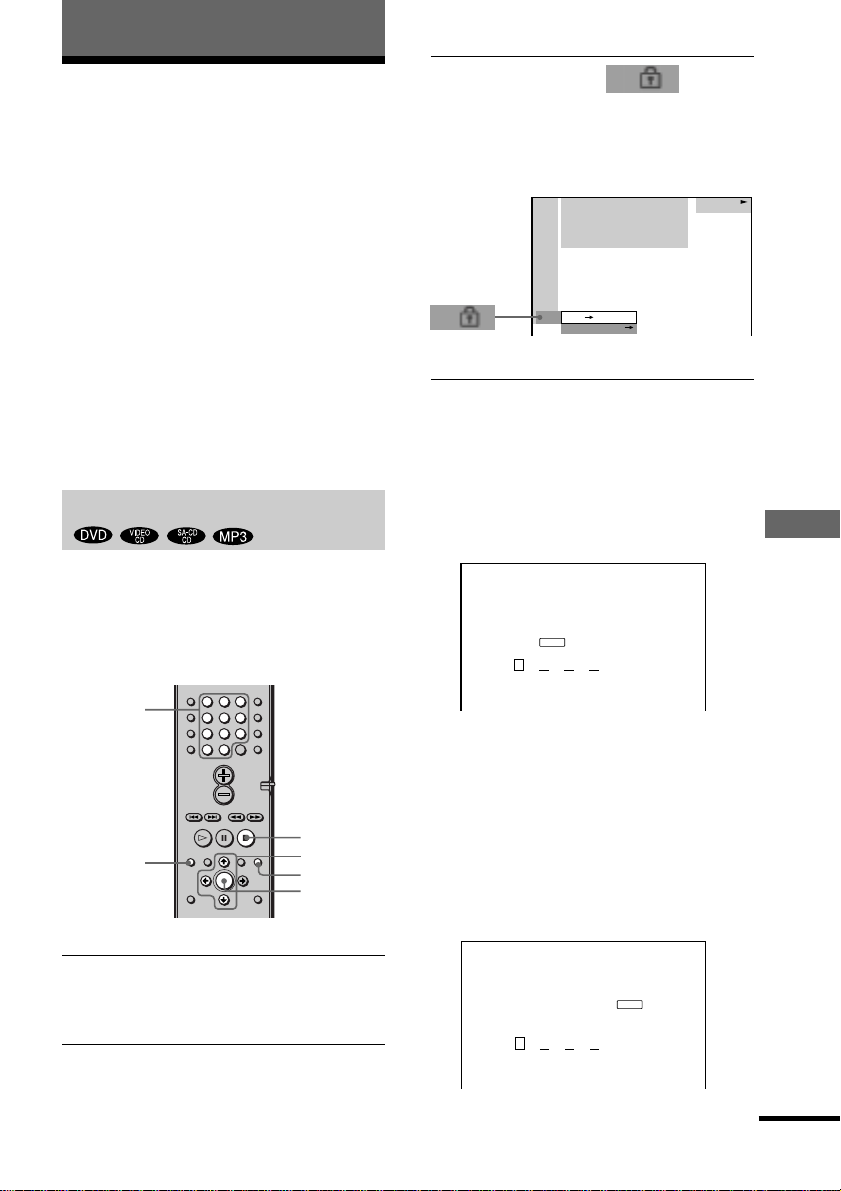
Using Various Additional Functions
57
GB
Locking Discs (CUSTOM
PARENTAL CONTROL, PARENTAL
CONTROL)
You can set two kinds of playback
restrictions for a disc.
• Custom Parental Control
You can set the playback restrictions so
that the system will not play inappropriate
discs.
• Parental Control
Playback of some DVDs can be limited
according to a predetermined level such as
the age of the users.
The same password is used for both Parental
Control and Custom Parental Control.
Custom Parental Control
You can set the same Custom Parental
Control password for up to 25 discs. When
you set the 26th disc, the playback
restriction of the disc for which you first set
the password is canceled.
1 Insert the disc you want to lock.
If the disc is playing, press x to stop
playback.
2 In stop mode, press DVD DISPLAY.
The Control Menu appears.
Using Various Additional Functions
DVD
DISPLAY
O RETURN
ENTER
C/X/x
x
Number
buttons
3 Press X/x to select (CUSTOM
PARENTAL CONTROL), then press
ENTER.
“CUSTOM PARENTAL CONTROL” is
selected.
4 Press X/x to select “ON t,” then
press ENTER.
xWhen you have not entered a
password
The display for registering a new
password appears.
Enter a 4-digit password by using the
number buttons, then press ENTER.
The display for confirming the password
appears.
xWhen you have already
registered a password
The display for entering the password
appears.
123
456
7
>
10
10/0
89
CUSTOM PARENTAL CONTROL
Enter a new 4-digit password,
then press
.
ENTER
CUSTOM PARENTAL CONTROL
Enter password, then press
.
ENTER
1:DVD
1 2
(
2 7
)
MAKING SCENE
1 8
(
3 4
)
T
1 : 3 2 : 5 5
DVD
ON
PASSWORD
continued
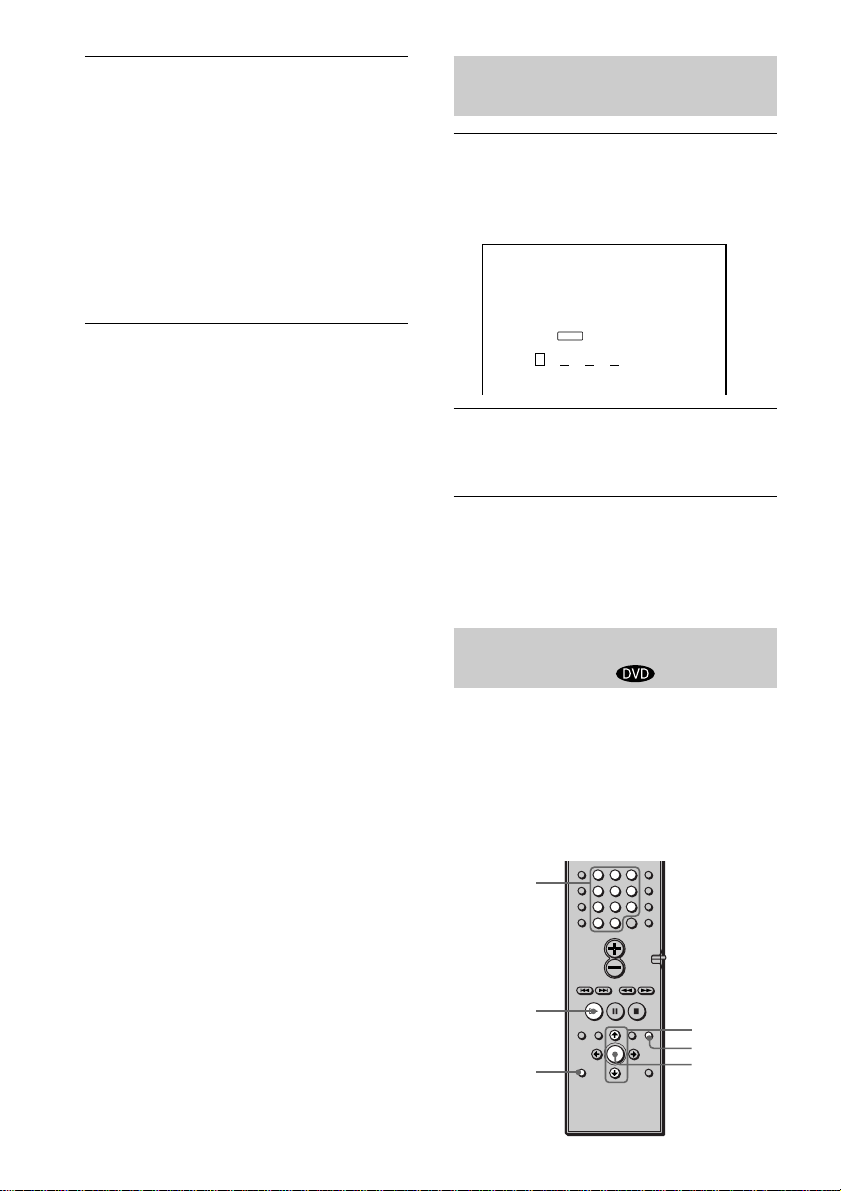
58
GB
CUSTOM PARENTAL CONTROL
Custom parental control is already
set. To play, enter your password
and press
.
ENTER
O RETURN
ENTER
X/x
H
Number
buttons
5 Enter or re-enter your 4-digit password
by using the number buttons, then
press ENTER.
“Custom parental control is set.” appears
and the screen returns to the Control
Menu display.
If you make a mistake entering
your password
Press C before you press ENTER and
input the correct number.
If you make a mistake
Press O RETURN, then start from Step 3
again.
To turn off the Control Menu
Press DVD DISPLAY repeatedly until the
Control Menu is turned off.
To turn off the Custom Parental
Control function
1 In Step 4, select “OFF t,” then press
ENTER.
2 Enter your 4-digit password using the
number buttons, then press ENTER.
To change the password
1 In Step 4, press X/x to select
“PASSWORD t,” then press ENTER.
The display for entering the password
appears.
2 Enter your 4-digit password using the
number buttons, then press ENTER.
3 Enter a new 4-digit password using the
number buttons, then press ENTER.
4 To confirm your password, re-enter it
using the number buttons, then press
ENTER.
Playing the disc for which Custom
Parental Control is set
1 Insert the disc for which Custom
Parental Control is set.
The CUSTOM PARENTAL CONTROL
display appears.
2 Enter your 4-digit password using the
number buttons, then press ENTER.
The system is ready for playback.
z If you forget your password, enter the 6-digit
number “199703” using the number buttons when the
CUSTOM PARENTAL CONTROL display asks you
for your password, then press ENTER. The display
will ask you to enter a new 4-digit password.
Limiting playback for children
(Parental Control)
Playback of some DVDs can be limited
according to a predetermined level such as
the age of the users. The “Parental Control”
function allows you to set a playback
limitation level.
A scene that is limited is not played, or it is
replaced by a different scene.
123
456
7
>
10
10/0
89
DVD
SETUP
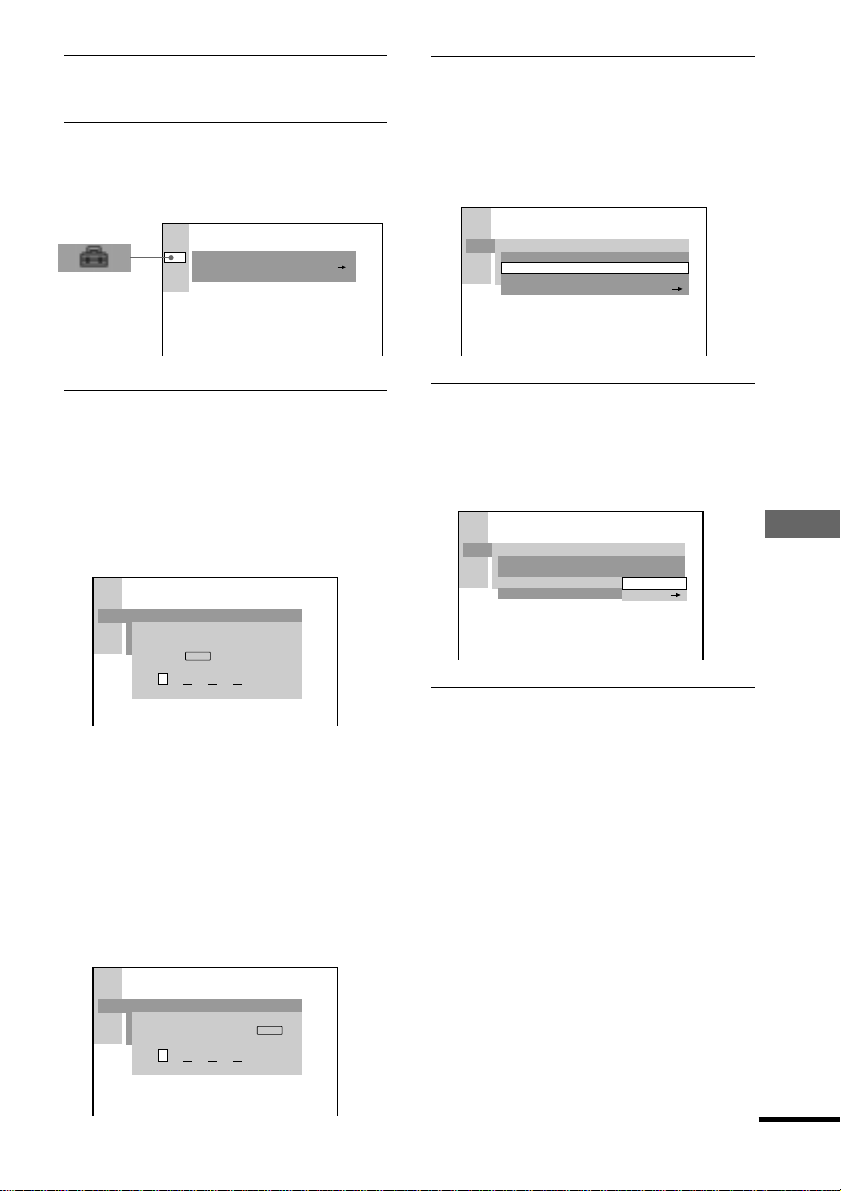
Using Various Additional Functions
59
GB
1 In stop mode, press DVD SETUP.
The Setup Display appears.
2 Press X/x to select “CUSTOM SETUP,”
then press ENTER.
“CUSTOM SETUP” is displayed.
3 Press X/x to select “PARENTAL
CONTROL t,” then press ENTER.
xIf you have not entered a
password
The display for registering a new
password appears.
Enter a 4-digit password using the
number buttons, then press ENTER.
The display for confirming the password
appears.
xWhen you have already
registered a password
The display for entering the password
appears.
4 Enter or re-enter your password using
the number buttons, then press ENTER.
The display for setting the playback
limitation level and changing the
password appears.
5 Press X/x to select “STANDARD,” then
press ENTER.
The selection items for “STANDARD”
are displayed.
6 Press X/x to select a geographic area
as the playback limitation level, then
press ENTER.
The area is selected.
If you select “OTHERS t,” select and
enter the standard code in the table on
page 61 using the number buttons.
CUSTOM SETUP
OFF
PARENTAL CONTROL
TRACK SELECTION
CUSTOM SETUP
PARENTAL CONTROL
Enter a new 4-digit password,
then press
.
ENTER
CUSTOM SETUP
PARENTAL CONTROL
Enter password, then press
.
ENTER
CUSTOM SETUP
PARENTAL CONTROL
STANDARD:
CHANGE PASSWORD
USA
LEVEL: OFF
CUSTOM SETUP
PARENTAL CONTROL
LEVEL:
STANDARD:
CHANGE PASSWORD
OFF
OTHERS
USA
continued
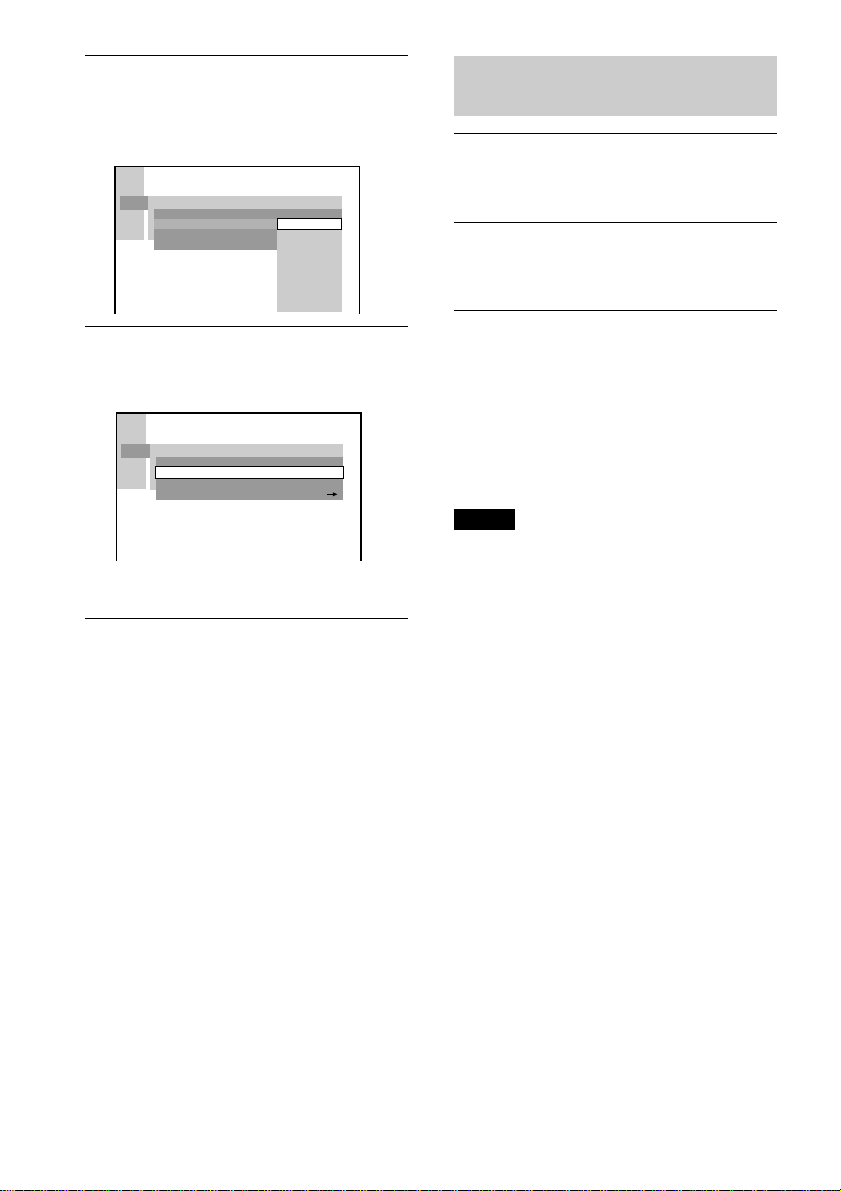
60
GB
7 Press X/x to select “LEVEL,” then
press ENTER.
The selection items for “LEVEL” are
displayed.
8 Select the level you want using X/x,
then press ENTER.
Parental Control setting is complete.
The lower the value, the more strict the
limitation.
If you make a mistake
Press O RETURN to go back to the
previous screen.
To turn off the Setup Display
Press DVD SETUP repeatedly until the
Setup Display is turned off.
To turn off the Parental Control
function and play the DVD after
entering your password
Set “LEVEL” to “OFF” in Step 8.
To change the password
1 In Step 5, select “CHANGE
PASSWORD t” using x, then press
ENTER.
The display for entering the password
appears.
2 Follow Step 3 to enter a new password.
Playing the disc for which Parental
Control is set
1 Insert the disc and press H.
The PARENTAL CONTROL display
appears.
2 Enter your 4-digit password using the
number buttons, then press ENTER.
The system starts playback.
z If you forget your password, remove the disc and
repeat Step 1 to 5 of “Limiting playback for
children.” When you are asked to enter your
password, enter “199703” using the number buttons,
then press ENTER. The display will ask you to enter
a new 4-digit password. After you enter a new 4-digit
password in Step 3, replace the disc in the system and
press H. When the PARENTAL CONTROL display
appears, enter your new password.
Notes
• When you play DVDs which do not have the
Parental Control function, playback cannot be
limited on this system.
• Depending on the DVD, you may be asked to
change the parental control level while playing the
disc. In this case, enter your password, then change
the level. If the Resume Play mode is cancelled, the
level returns to the original level.
CUSTOM SETUP
PARENTAL CONTROL
STANDARD:
CHANGE PASSWORD
OFFLEVEL:
NC17
R
8:
7:
6:
5:
PG
PG13
G
4:
3:
2:
1:
CUSTOM SETUP
PARENTAL CONTROL
STANDARD:
CHANGE PASSWORD
USA
PG134:LEVEL:
Using Various Additional Functions
61
GB
Standard Code
number
Argentina 2044
Australia 2047
Austria 2046
Belgium 2057
Brazil 2070
Canada 2079
Chile 2090
China 2092
Denmark 2115
Finland 2165
France 2174
Germany 2109
Hong Kong 2219
India 2248
Indonesia 2238
Italy 2254
Japan 2276
Standard Code
number
Korea 2304
Malaysia 2363
Mexico 2362
Netherlands 2376
New Zealand 2390
Norway 2379
Pakistan 2427
Philippines 2424
Portugal 2436
Russia 2489
Singapore 2501
Spain 2149
Sweden 2499
Switzerland 2086
Taiwan 2543
Thailand 2528
United Kingdom 2184
Area Code
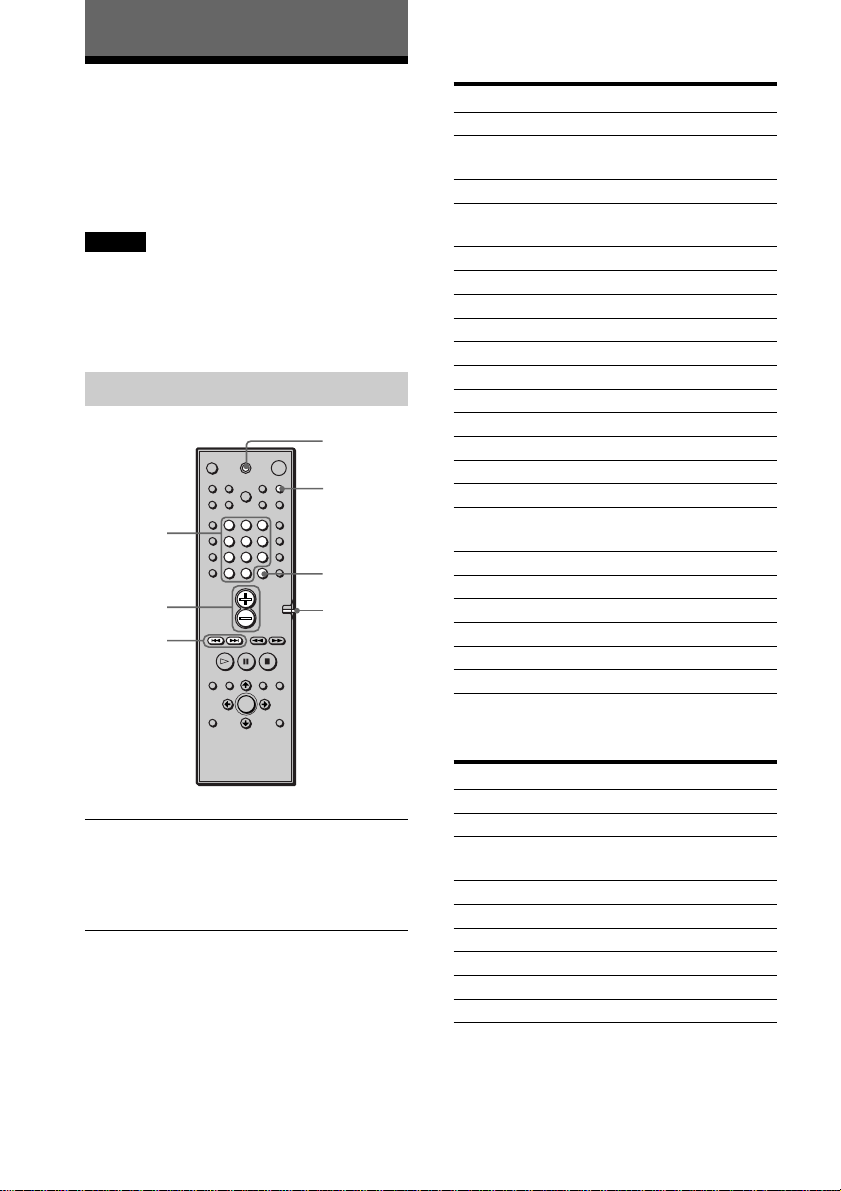
62
GB
TV
Manufacturer Code number
SONY 001
DAEWOO 002, 004, 005, 006, 007,
015
FISHER 008
GOLDSTAR 002, 003, 011, 012, 015,
034
GRUNDIG 017, 034
HITACHI 002, 013, 014, 015
ITT/NOKIA 021, 022
JVC 016
MAGNAVOX 002, 003, 018
MITSUBISHI/MGA 002, 003, 019
NEC 002, 003, 020
PANASONIC 009, 024
PHILIPS 015, 018
PIONEER 009, 025, 026, 040
RCA/PROSCAN 002, 010, 027, 028, 029
SAMSUNG 002, 003, 015, 031, 032,
033, 034
SANYO 008, 044, 045, 046
SHARP 035
TELEFUNKEN 023, 036, 037, 038
THOMSON 030, 037, 039
TOSHIBA 035, 040, 041
ZENITH 042, 043
CATV
Manufacturer Code number
SONY 101
HAMLIN/REGAL 123, 124, 125, 126, 127
JERROLD/GI 102, 103, 104, 105, 106,
107, 108, 109, 119, 131
OAK 128, 129, 130
PANASONIC 120, 121, 122
PIONEER 115, 116
SCIENTIFIC ATLANTA 110, 111, 112
TOCOM 117, 118, 131
ZENITH 113, 114
Controlling the TV with
the Supplied Remote
By adjusting the remote signal, you can
control your TV with the supplied remote.
Notes
• If you enter a new code number, the code number
previously entered will be erased.
• When you replace the batteries of the remote, the
code number may be reset to the default (SONY)
setting. Reset the appropriate code number.
Controlling TVs with the remote
Press and hold TV [/1 while entering your
TV’s manufacturer’s code (see the table)
using the number buttons and press ENTER.
Then release TV [/1.
Code numbers of controllable TVs
If more than one code number is listed, try
entering them one at a time until you find
the one that works with your TV.
TV ?/1
Number
buttons
Other Operations
COMMAND
MODE
DVD TV
switch
ENTER
123
456
7
>
10
10/0
89
TV/VIDEO
VOL +/–
./>
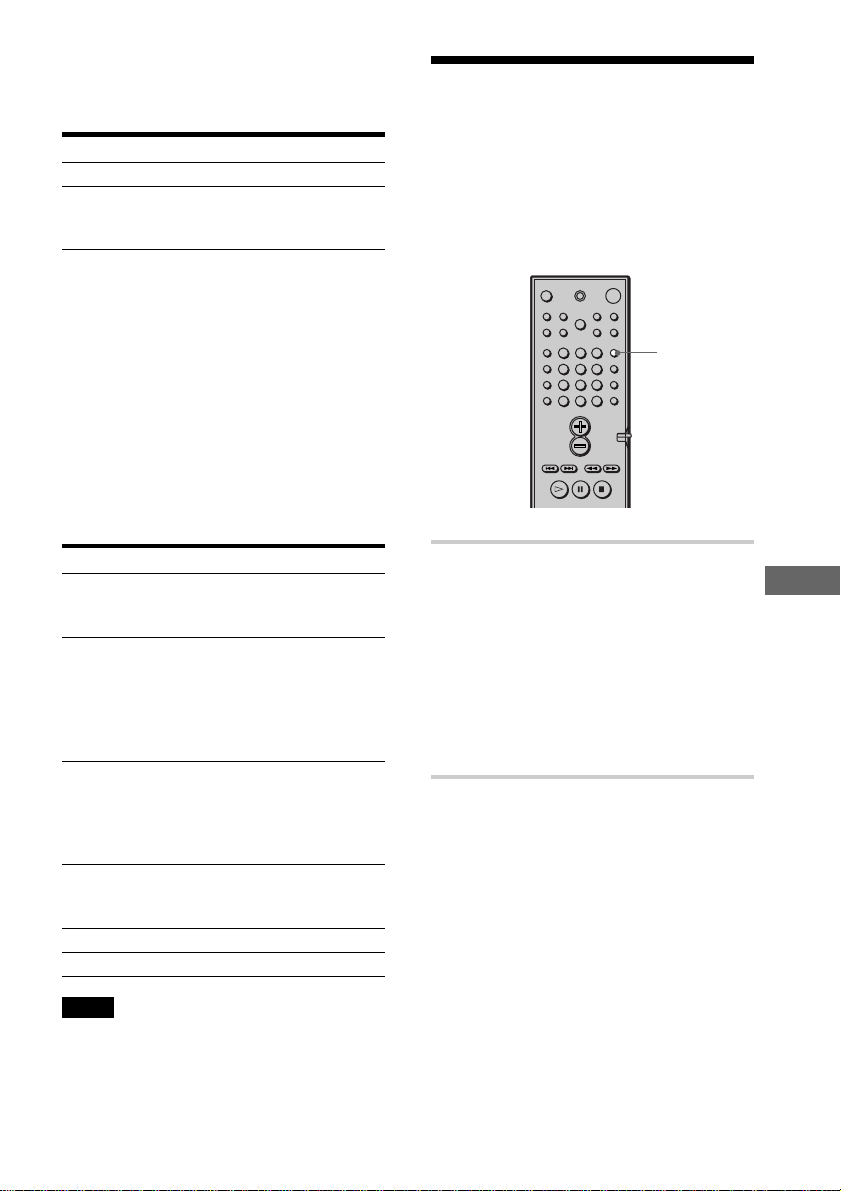
Other Operations
63
GB
Controlling the TV
You can control your TV using the buttons
below.
By pressing You can
TV [/1 Turn the TV on or off.
TV/VIDEO Switch the TV’s input source
between the TV and other input
sources.
Switching between TV and DVD
Using the COMMAND MODE DVD TV
switch, you can switch the remote signal
between control of the TV and control of the
DVD unit. When you watch the DVD,
ensure that you have the COMMAND
MODE DVD TV switch set to DVD.
The table below shows the buttons that are
affected by the COMMAND MODE DVD
TV switch.
Button DVD TV
1~9,* Standard number Selects the TV
>10, button function Channels.
10/0 for DVD.
ENTER Standard enter Confirms the
function for selected channel.
DVD. Occasionally you
may able to
select 12 channel
directly.
. Standard TV CH –
preceding title,
chapter skip
function for
DVD.
> Standard forward TV CH +
title, chapter
skip for DVD.
3 VOL + VOL +
# VOL – VOL –
Note
Depending on the TV, you may not be able to control
your TV or to use some of the buttons above.
* For double digit number, press >10, then the
number. (For example, press >10, then 2 and 5 for
entering 25.)
FUNCTION
Watching the Video or
other Unit
You can use VCRs or other units connected
to the VIDEO 1 or VIDEO 2 jacks. Refer to
the operation manual supplied with the unit
for further information on the operation.
Press FUNCTION repeatedly until
VIDEO 1 or VIDEO 2 that you connected
the unit to appears on the front panel
display.
Each time you press FUNCTION, the mode
of the system changes in the following
sequence.
DVD t VIDEO 1 t VIDEO 2 t
TUNER t DVD...
123
456
7
>
10
10/0
89
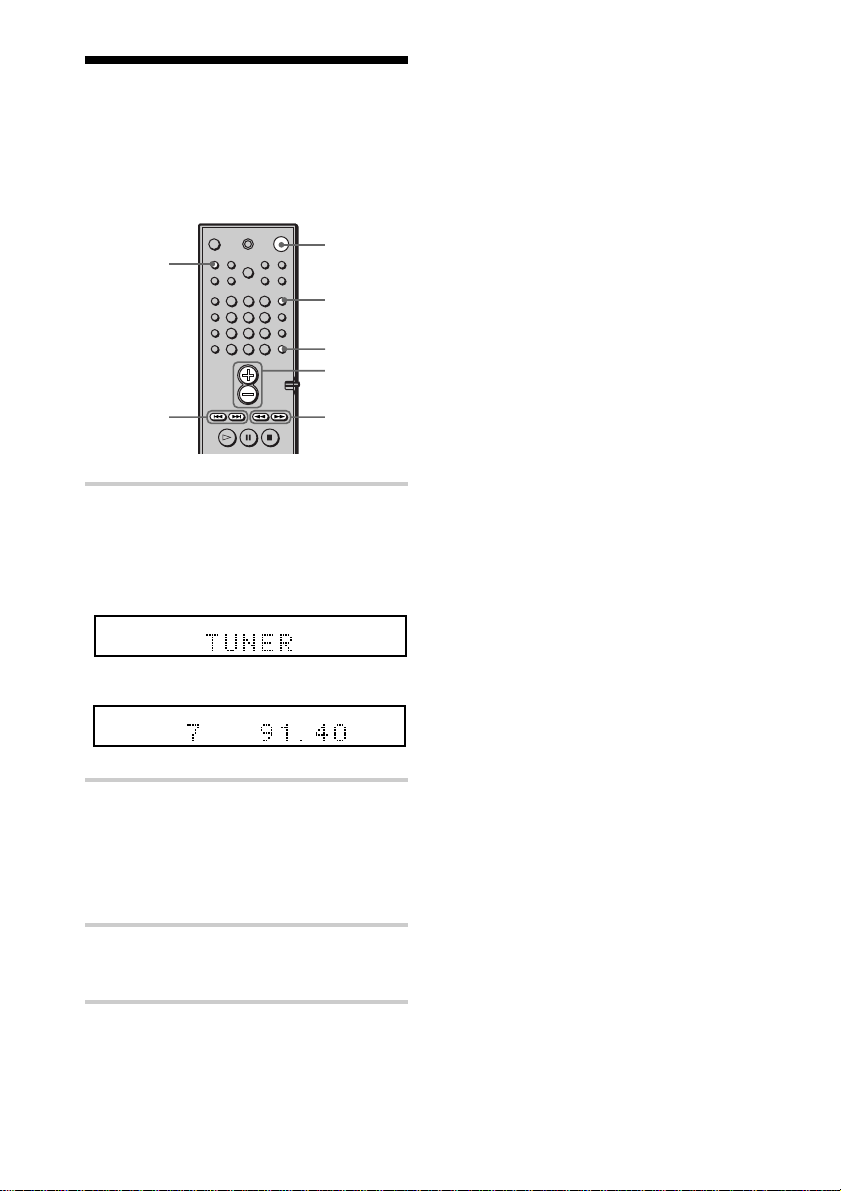
64
GB
Listening to the Radio
Preset radio stations in the system’s memory
first (see “Presetting Radio Stations” on
page 30).
1 Press FUNCTION repeatedly until
TUNER appears on the front panel
display.
The last received station is tuned in.
2 Press PRESET + or PRESET –
repeatedly to select the preset
station you want.
Each time you press the button, the
system tunes in one preset station.
3 Adjust the volume by pressing
VOL +/–.
To turn off the radio
Press 1.
To listen to non-preset radio stations
Use manual or automatic tuning in Step 2.
For manual tuning, press TUNING + or – on
the remote repeatedly.
For automatic tuning, press and hold
TUNING + or – on the remote.
z If an FM program is noisy
Press STEREO/MONO on the remote so that
“MONO” appears on the front panel display. There
will be no stereo effect, but the reception will
improve. Press the button again to restore the stereo
effect.
z To improve reception
Reorient the supplied antennas.
To check the frequency or sound field
Press DISPLAY repeatedly.
Each time you press DISPLAY, the front
panel display changes as follows:
index name of the station* t frequency t
sound field t index name of the station.
* This is displayed when you have entered a
name for preset stations (page 65).
FUNCTION
VOL +/–
PRESET
–/+
123
456
7
>
10
10/0
89
DISPLAY
TUNING
–/+
STEREO/
MONO
1
m
FM
TUNED ST
MHz
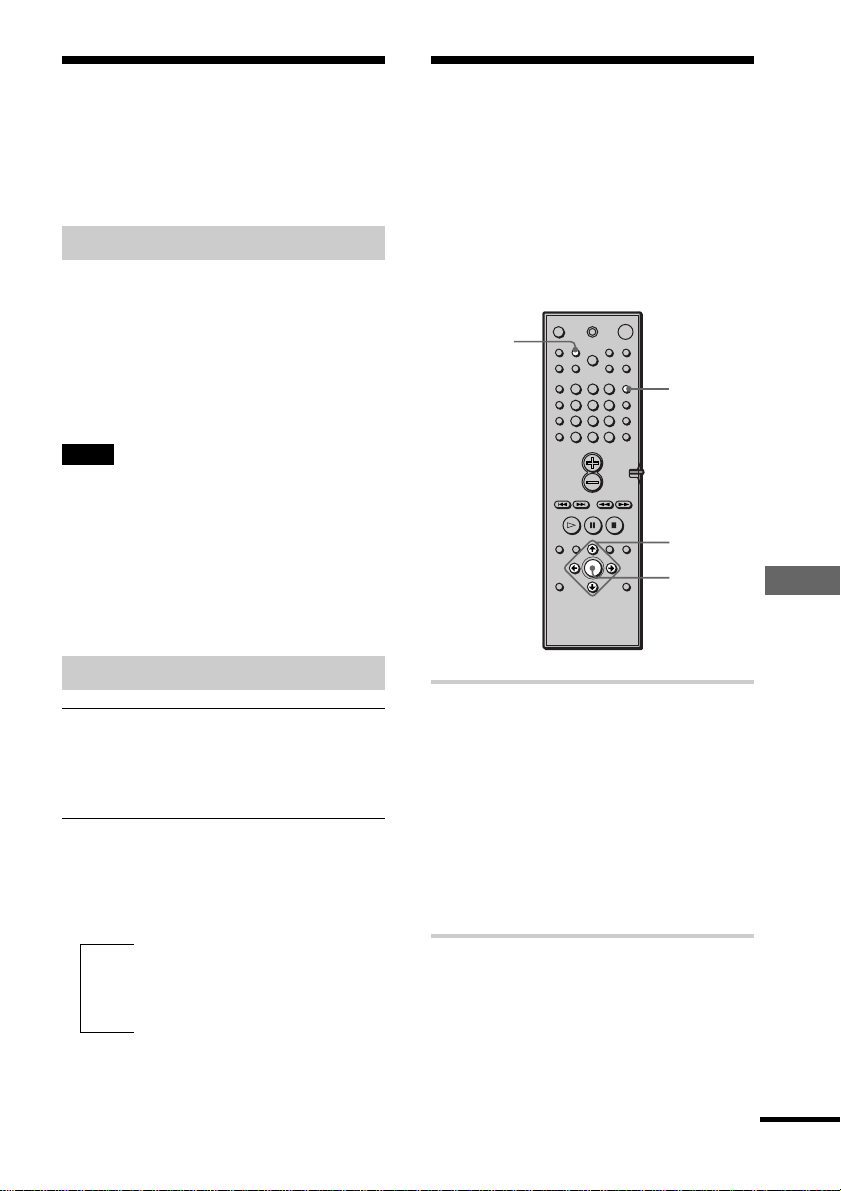
Other Operations
65
GB
Naming Preset Stations
You can enter a name of up to 8 characters
for preset stations. These names (for
example, “XYZ”) appear in the system’s
front panel display when a station is
selected.
Note that no more than one name can be
entered for each preset station.
1 Press FUNCTION repeatedly until
TUNER appears on the front panel
display.
The last station you received is tuned
in.
Each time you press FUNCTION, the
mode of the system changes in the
following sequence:
DVD t VIDEO 1 t VIDEO 2 t
TUNER t DVD...
2 Tune in the preset station you
want to create an index name for.
If you are not familiar with how to
tune in preset stations, see “Listening
to the Radio” on page 64.
NAME
C/X/x/c
ENTER
FUNCTION
123
456
7
>
10
10/0
89
Using the Radio Data
System (RDS)
(Only for the European models)
What is the Radio Data System?
Radio Data System (RDS) is a broadcasting
service that allows radio stations to send
additional information along with the
regular program signal. This tuner offers
convenient RDS features such as station
name display. RDS is available only for FM
stations.*
Note
RDS may not work properly if the station you are
tuned to is not transmitting the RDS signal properly,
or if the signal strength is weak.
* Not all FM stations provide RDS service, nor do
they provide the same type of services. If you are
not familiar with the RDS system, check with your
local radio stations for details on RDS services in
your area.
Receiving RDS broadcasts
Simply select a station from the FM band.
When you tune in a station that provides
RDS services, the station name appears in
the display.
To check the RDS information
Each time you press DISPLAY, the display
changes as follows:
Station name*
r
Frequency
r
SOUND FIELD
* If the RDS broadcast is not received, the station
name may not appear in the display.
t
continued

66
GB
3 Press NAME.
4 Create an index name by using the
cursor buttons:
Press x/X to select a character, then
press c to move the cursor to the next
position.
If you make a mistake
Press C or c repeatedly until the
character to be changed flashes, then
press x/X to select the right character.
5 Press ENTER.
To assign index names to other
stations
Repeat Steps 2 to 5.
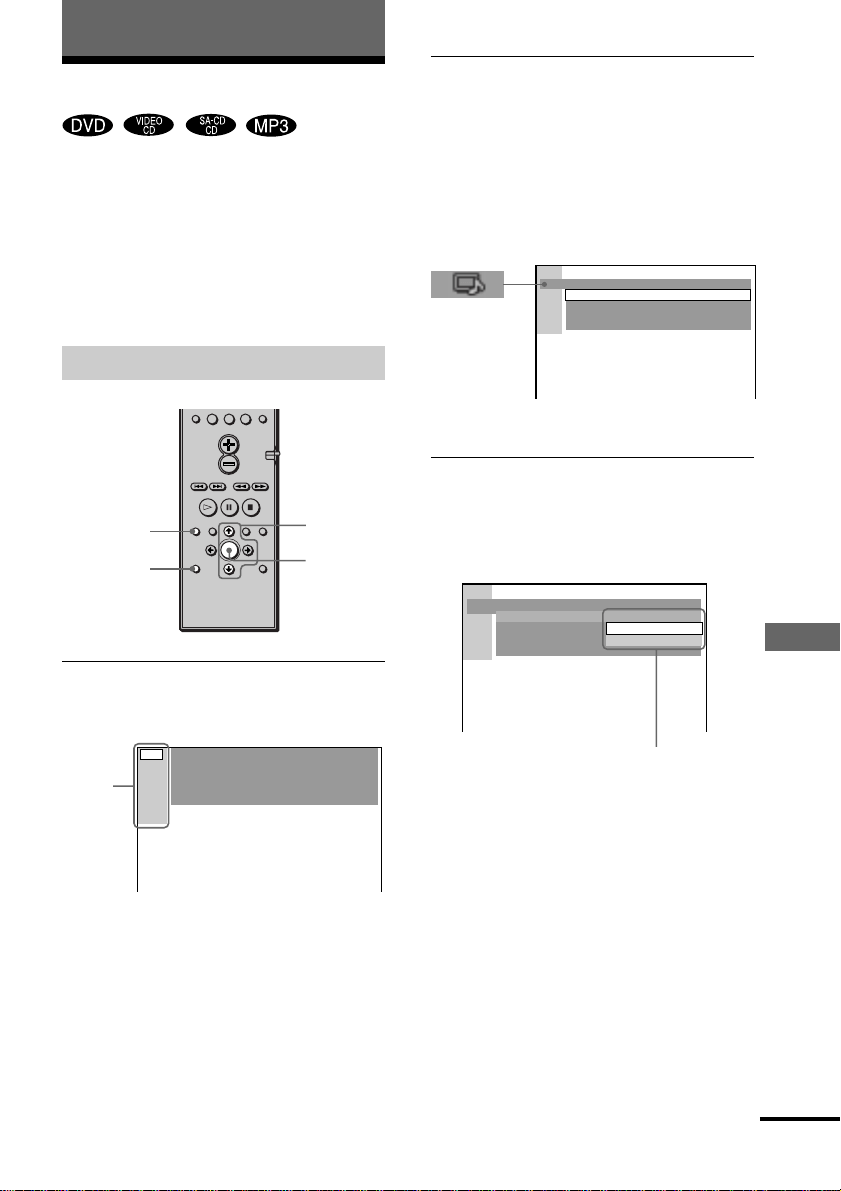
Settings and Adjustments
67
GB
LANGUAGE SETUP
OSD :
DVD MENU :
AUDIO :
SUBTITLE :
ENGLISH
ENGLISH
ENGLISH
ENGLISH
Using the Setup Display
By using the Setup Display, you can make
various adjustments to items such as picture
and sound. You can also set a language for
the subtitles and the Setup Display, among
other things. For details on each Setup
Display item, see page 68-74. For an overall
list of Setup Display items, see page 85.
How to use the Setup Display
1 In stop mode, press DVD SETUP.
The Setup Display appears.
Settings and Adjustments
ENTER
2 Press X/x to select the setup item from
the displayed list: “LANGUAGE SETUP,”
“SCREEN SETUP,” “CUSTOM SETUP,”
“SPEAKER SETUP,” and “RESET”. Then
press ENTER or c.
The selected Setup item appears.
Example: “SCREEN SETUP”
3 Select an item using X/x, then press
ENTER or c.
The options for the selected item appear.
Example: “TV TYPE”
>
10
10/0
SCREEN SETUP
SCREEN SAVER:
BACKGROUND:
COMPONENT OUT:
ON
JACKET PICTURE
INTERLACE
16:9TV TYPE:
Main
item
DVD
DISPLAY
DVD
SETUP
Options
SCREEN SETUP
SCREEN SAVER:
BACKGROUND:
COMPONENTOUT:
TV TYPE:
4:3 LETTER BOX
4:3 PAN SCAN
16:9
continued
X/x/c
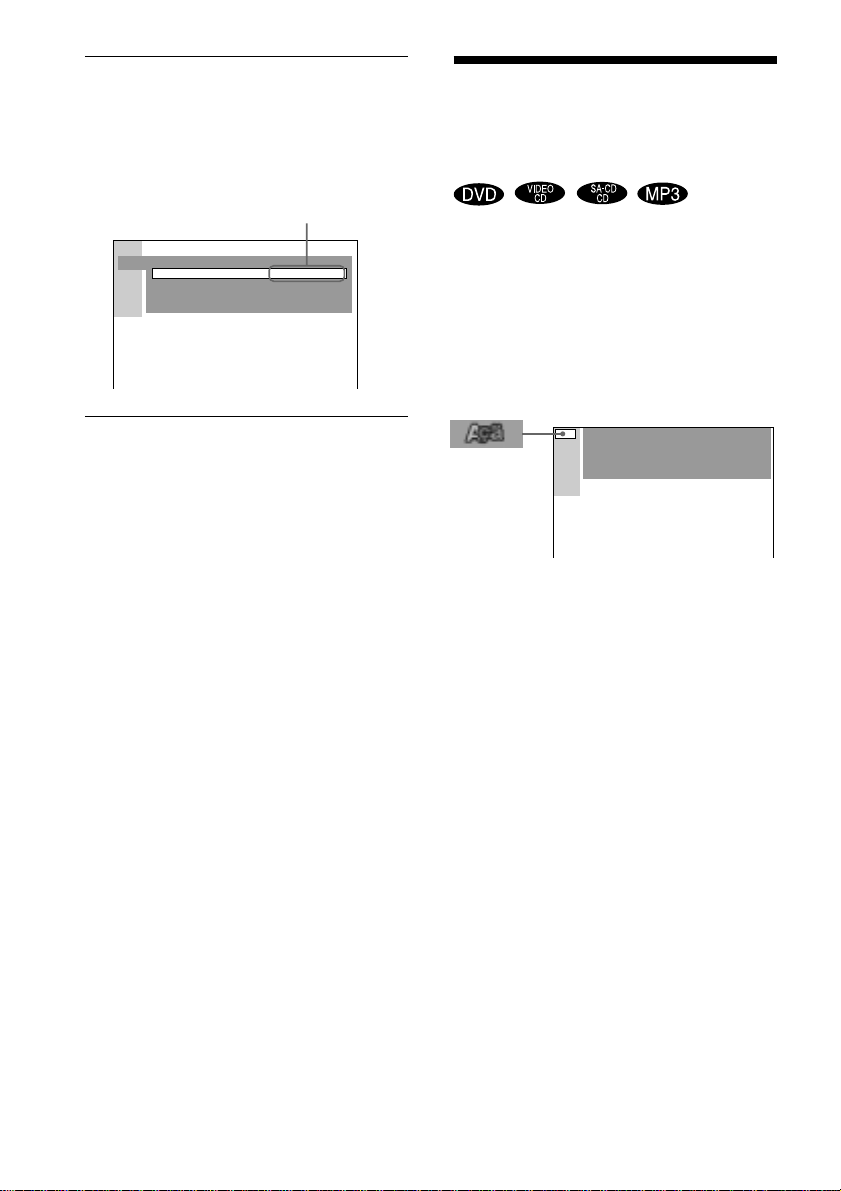
68
GB
Setting the Display or
Sound Track Language
(LANGUAGE SETUP)
“LANGUAGE SETUP” allows you to set
various languages for the on-screen display
or sound track.
Select “LANGUAGE SETUP” in the Setup
Display. For details on using the display, see
“Using the Setup Display” (page 67).
xOSD (On-Screen Display)
Switches the display language on the screen.
Selects the language from the displayed list.
xDVD MENU (DVD only)
Selects the desired language for the DVD
menu.
xAUDIO (DVD only)
Switches the language of the sound track.
Selects the language from the displayed list.
xSUBTITLE (DVD only)
Switches the language of the subtitle.
Selects the language from the displayed list.
4 Select a setting using X/x, then press
ENTER.
The setting is selected and setup is
complete.
Example: “4:3 PAN SCAN”
To turn off the Setup Display
Press DVD SETUP or DVD DISPLAY
repeatedly until the Setup Display is turned
off.
z If you select “RESET” in Step 2, you can reset all
of the “SETUP” settings on page 85 (except for
PARENTAL CONTROL) to the default settings.
After you select “RESET” and press ENTER, select
“YES” to reset the settings (it takes a few seconds to
complete), or select “NO” and press ENTER to
return to the Control Menu. Do not press POWER or
1 when resetting the system.
Selected setting
SCREEN SETUP
SCREEN SAVER:
BACKGROUND:
COMPONENTOUT:
ON
JACKET PICTURE
INTERLACE
TV TYPE: 4:3 PAN SCAN
LANGUAGE SETUP
OSD :
DVD MENU :
AUDIO :
SUBTITLE :
ENGLISH
ENGLISH
ENGLISH
ENGLISH
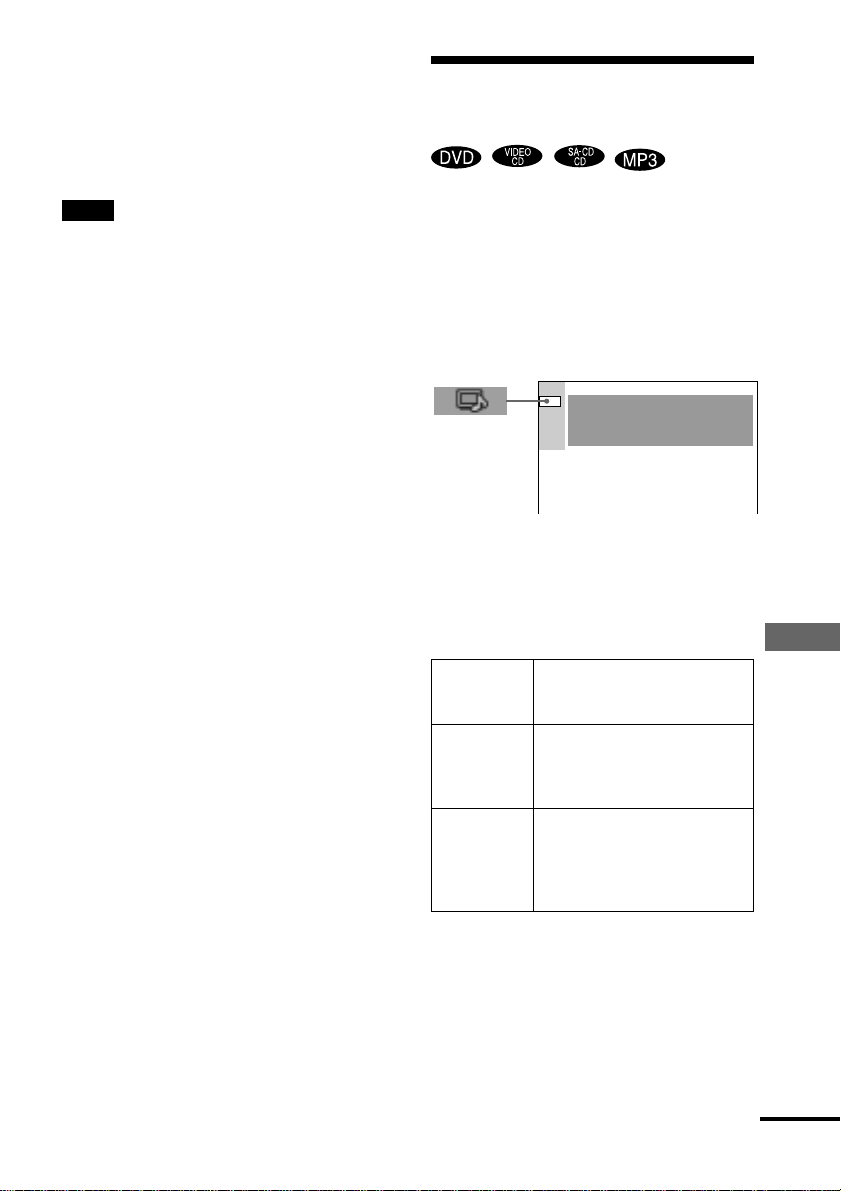
Settings and Adjustments
69
GB
zIf you select “OTHERS t” in “DVD MENU,”
“SUBTITLE,” or “AUDIO,” select and enter the
language code from the list using the number buttons
(page 84).
After you have made a selection, the language code
(4 digits) is displayed the next time you select
“OTHERS t.”
Note
If you select a language that is not recorded on the
DVD, one of the recorded languages will be
automatically selected (except for the “OSD”).
Settings for the Display
(SCREEN SETUP)
Choose settings according to the TV to be
connected.
Select “SCREEN SETUP” in the Setup
Display. For details on using the display, see
“Using the Setup Display” (page 67).
The default settings are underlined.
xTV TYPE (DVD only)
Selects the aspect ratio of the connected TV
(4:3 standard or wide).
The default settings vary, depending on the
country model.
16:9
4:3
LETTER
BOX
4:3
PAN SCAN
Select this when you connect a
wide-screen TV or a TV with a
wide mode function.
Select this when you connect a
4:3 screen TV. Displays a wide
picture with bands on the upper
and lower portions of the screen.
Select this when you connect a
4:3 screen TV. Automatically
displays the wide picture on the
entire screen and cuts off the
portions that do not fit.
SCREEN SETUP
SCREEN SAVER:
BACKGROUND:
COMPONENT OUT:
ON
JACKET PICTURE
INTERLACE
TV TYPE: 16:9
continued
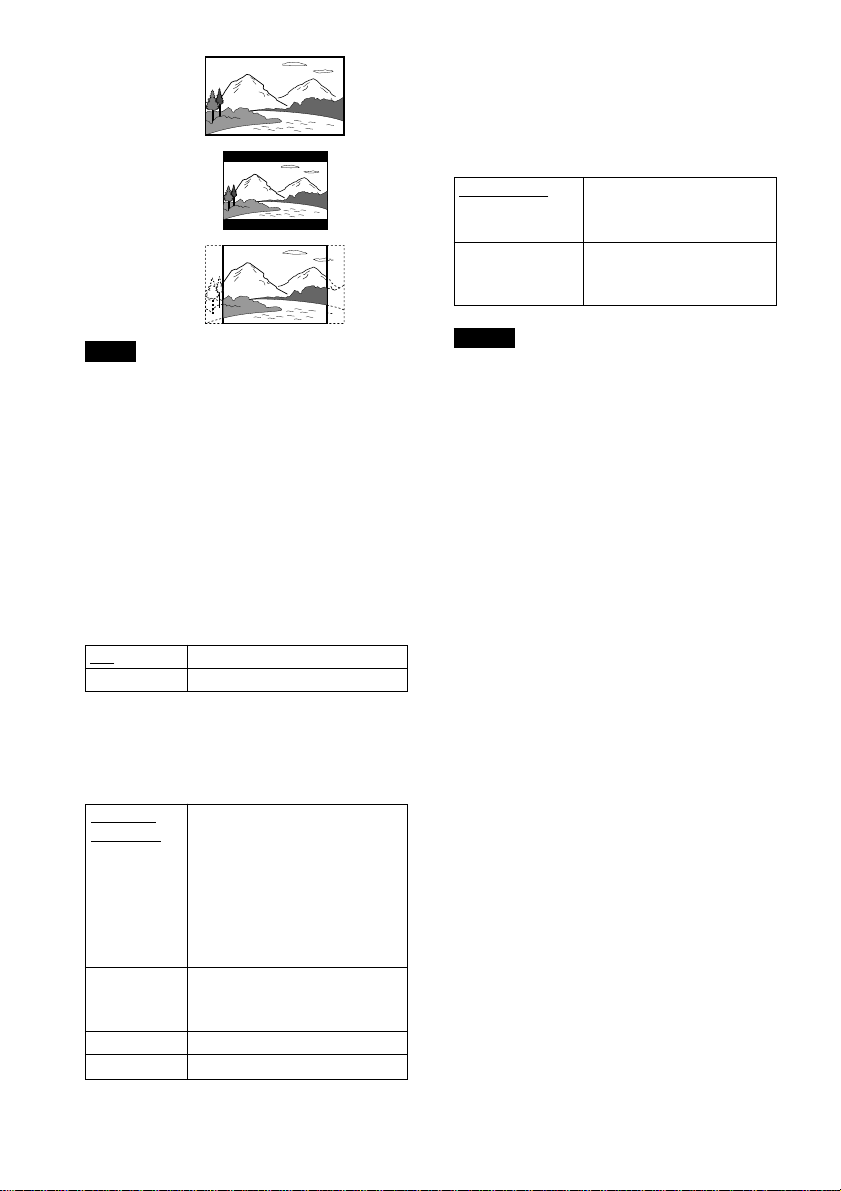
70
GB
4:3 LETTER BOX
Note
Depending on the DVD, “4:3 LETTER BOX” may
be selected automatically instead of “4:3 PAN
SCAN” or vice versa.
xSCREEN SAVER
Turns the screen saver on and off so that the
screen saver image appears when you leave
the system in pause or stop mode for
15 minutes, or when you playback a CD for
more than 15 minutes. The screen saver will
help prevent your display device from
becoming damaged (ghosting). Press H to
turn off the screen saver.
ON Turns on the screen saver.
OFF Turns off the screen saver.
xBACKGROUND
Selects the background color or picture on
the TV screen in stop mode or while playing
a CD.
JACKET
PICTURE
GRAPHICS
BLUE
BLACK
16:9
4:3 PAN SCAN
xCOMPONENT OUT
This will change the type of signal output
from the COMPONENT VIDEO OUT jacks
on the system. See pages 80, 81 for more
information about the different types.
INTERLACE
PROGRESSIVE
Notes
• Unless the COMPONENT VIDEO OUT/SCAN
SELECT switch on the back panel of the unit is set
to “SELECTABLE,” you cannot select the above
setting.
• When “PROGRESSIVE” is selected in “SCREEN
SETUP,” no signal is output from the MONITOR
OUT or S VIDEO OUT jacks.
• When “PROGRESSIVE” is selected in “SCREEN
SETUP” and the color system of the TV is PAL,
the signal is changed into the interlace format
signal automaticaly.
The jacket picture (still picture)
appears in the background, but
only when the jacket picture is
already recorded on the disc
(CD-EXTRA, etc.). If the disc
does not contain a jacket
picture, the “GRAPHICS”
picture appears.
A preset picture stored in the
system appears in the
background.
The background color is blue.
The background color is black.
Select this when you are
connected to a standard
(interlace format) TV.
Select this when you have a
TV that can accept
progressive signals.
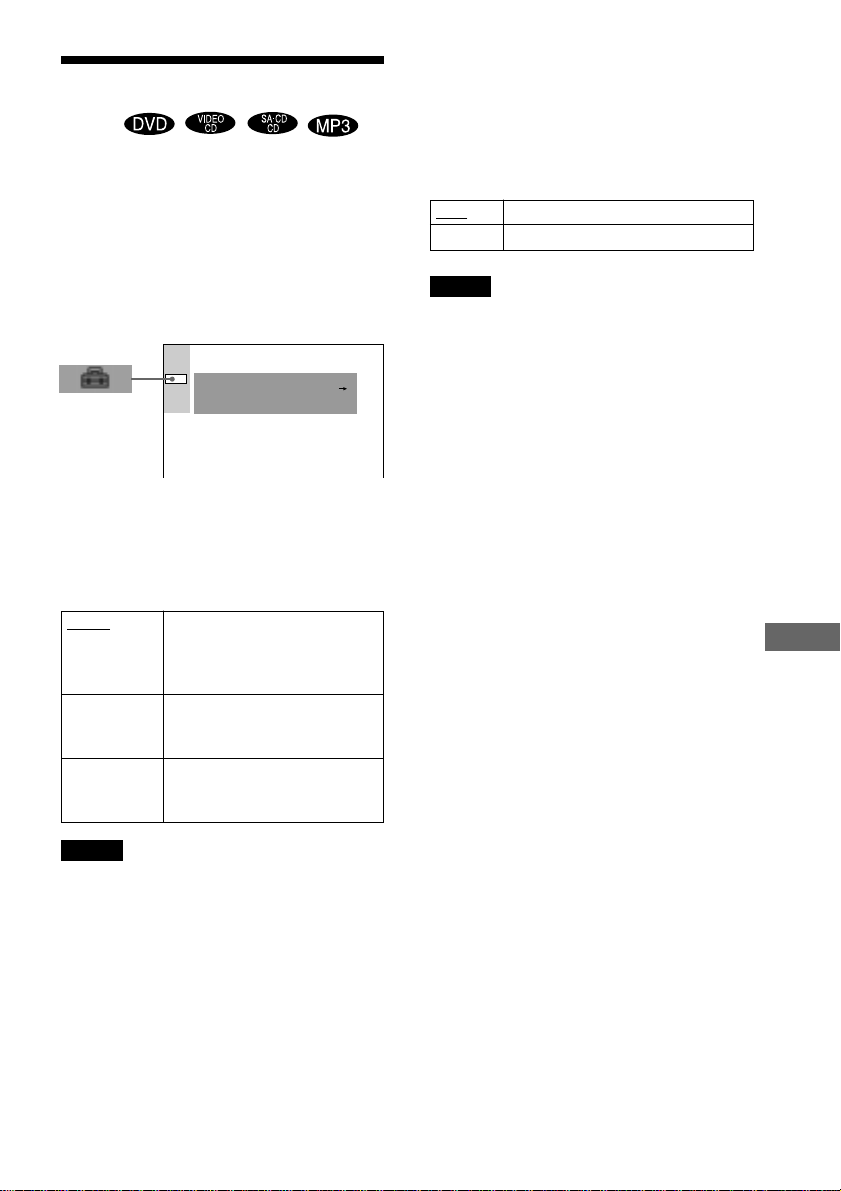
Settings and Adjustments
71
GB
Custom Settings (CUSTOM
SETUP)
Allows setting up Parental Control and other
settings.
Select “CUSTOM SETUP” in the Setup
Display. For details on using the display, see
“Using the Setup Display” (page 67).
The default settings are underlined.
xVCD COLOR SYSTEM (Asian
models and Australian models only)
Select the color system when you play a
VIDEO CD.
AUTO
PA L
NTSC
Notes
• You cannot change the color system of the disc
itself.
• On Asian models or Australian models, you can
change the color system of this unit according to
the connected TV. See page 24.
x
PARENTAL CONTROL t (DVD only)
Sets a password and playback limitation
level for DVDs with playback limitation for
children. For details, see “Limiting playback
for children (Parental Control)” (page 58).
Outputs the video signal in the
system of the disc, either PAL or
NTSC. If your TV uses a DUAL
system, select AUTO.
Changes the video signal of an
NTSC disc and output in the
PAL system.
Changes the video signal of a
PAL disc and outputs it in the
NTSC system.
xTRACK SELECTION (DVD only)
Gives the sound track having the highest
number of channels priority when you play
a DVD on which multiple audio formats
(PCM, MPEG audio, DTS, or Dolby Digital
format) are recorded.
OFF
AUTO
Notes
• When you set the item to “AUTO,” the language
may change. The “TRACK SELECTION” setting
has higher priority than the “AUDIO” settings in
“LANGUAGE SETUP” (page 68).
• If PCM, DTS, MPEG audio, and Dolby Digital
sound tracks have the same number of channels, the
system selects PCM, DTS, Dolby Digital, and
MPEG audio sound tracks in this order.
• Depending on the DVD, the audio channel with
priority may be predetermined. In this case, you
cannot give priority to the DTS, Dolby Digital, or
MPEG audio format by selecting “AUTO.”
No priority given.
Priority given.
CUSTOM SETUP
OFF
VCD COLOR SYSTEM
TRACK SELECTION
PARENTAL CONTROL
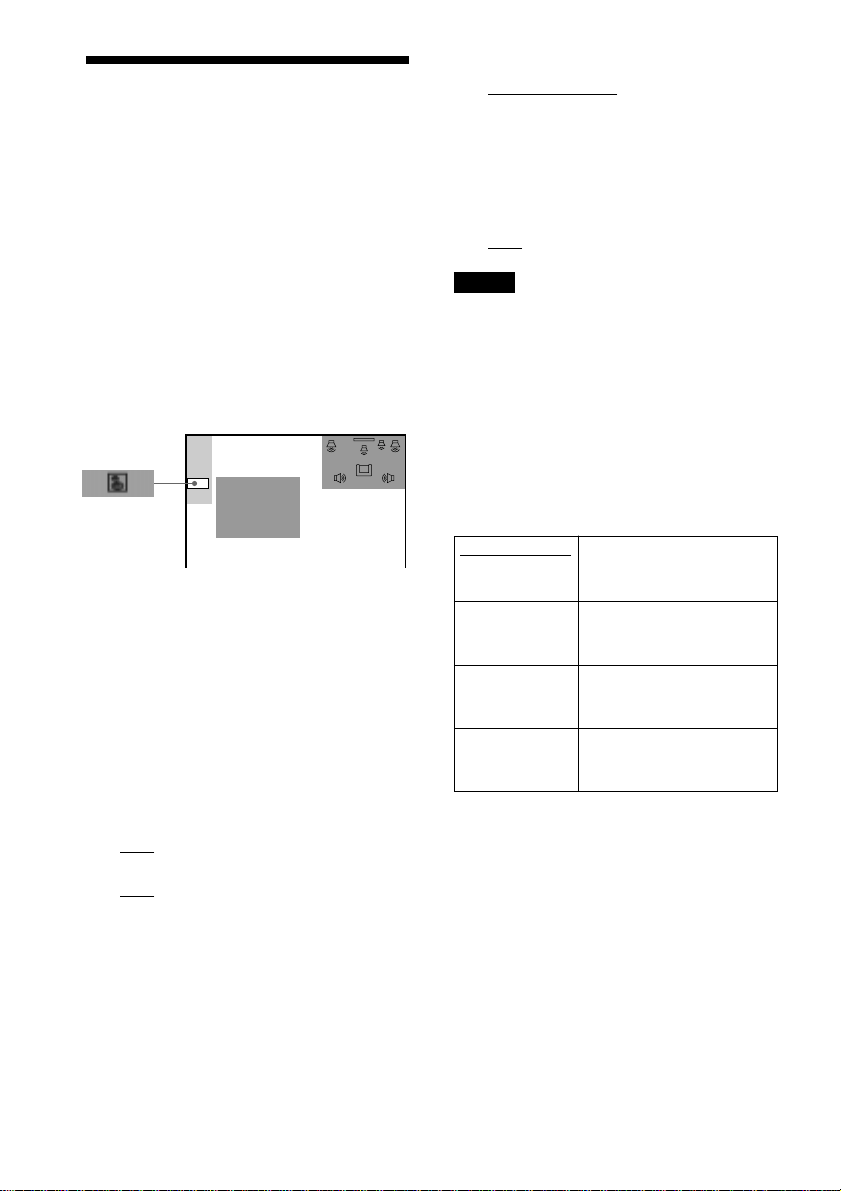
72
GB
Settings for the Speakers
(SPEAKER SETUP)
To obtain the best possible surround sound,
set the size of the speakers you have
connected and their distance from your
listening position. Then use the test tone to
adjust the volume and the balance of the
speakers to the same level.
Select “SPEAKER SETUP” in the setup
display. For details, see “Using the Setup
Display” (page 67).
The default settings are underlined.
To return to the default setting
Select the item, then press CLEAR.
xSIZE
When you do not connect center or rear
speakers, or move the rear speakers, set the
parameters for CENTER and REAR. Since
the front speaker and subwoofer settings are
fixed, you cannot change them. The default
settings are underlined.
• FRONT
—
YES
• CENTER
—
YES: Normally select this.
— NONE: Select this if no center speaker
is used.
SPEAKER SETUP
DISTANCE:
TEST TONE:
SIZE:
BALANCE:
LEVEL:
• REAR
—
BEHIND (LOW), BEHIND (HIGH),
SIDE (LOW), SIDE (HIGH): Specify
the position and height to implement
the Digital Cinema Surround modes.
— NONE: Select this if no rear speaker is
used.
• SUBWOOFER
—
YES
Notes
• When you select an item, the sound cuts off for a
moment.
• Depending on the settings of other speakers, the
subwoofer may output excessive sound.
Specifying the rear speaker position
and height
If you select anything other than “NONE” in
“REAR,” specify the position and height of
the rear speakers. The default setting is
underlined.
BEHIND (LOW)
BEHIND (HIGH)
SIDE (LOW)
SIDE (HIGH)
These parameters are not available when “REAR” is
set to “NONE.”
Select this if the rear
speakers are located in
section B and D.
Select this if the rear
speakers are located in
section B and C.
Select this if the rear
speakers are located in
section A and D.
Select this if the rear
speakers are located in
section A and C.
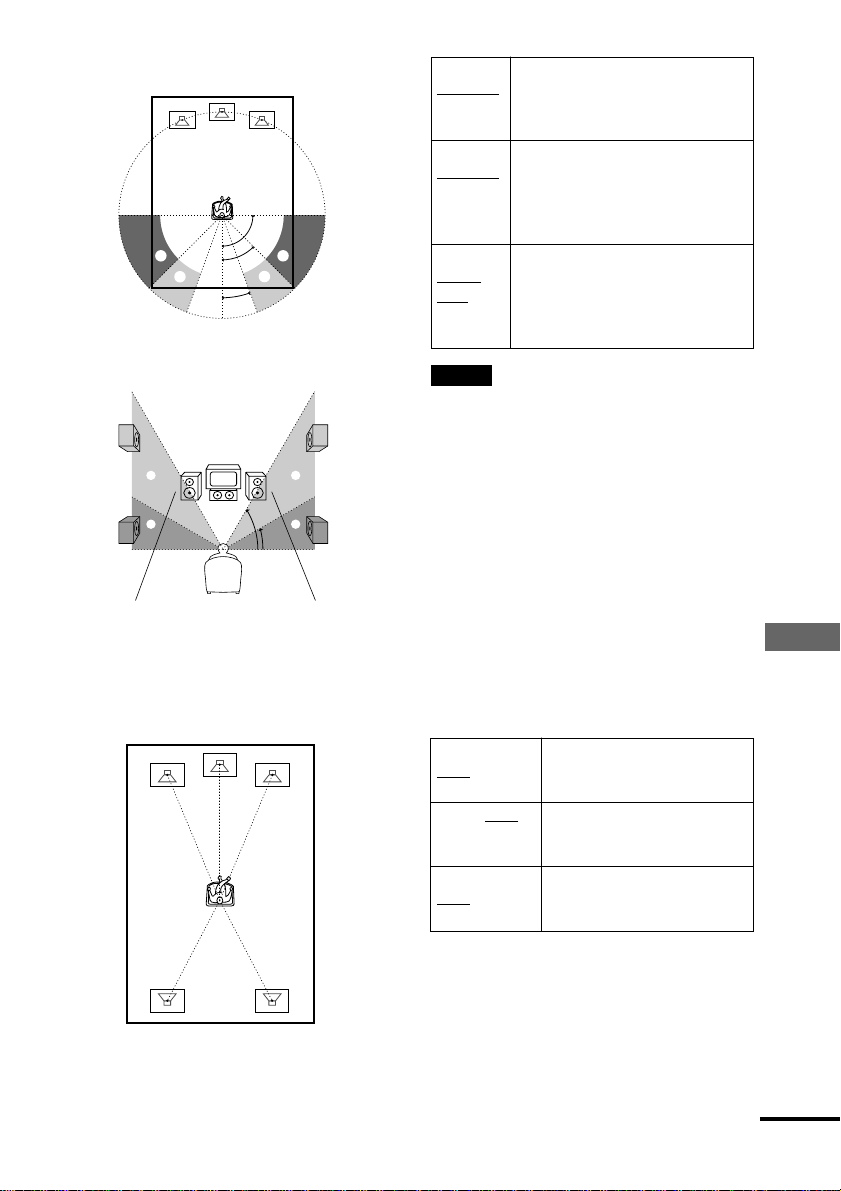
Settings and Adjustments
73
GB
FRONT
5 m/17 ft
CENTER
5 m/17 ft
REAR
3.4 m/
12 ft
Notes
• In SPEAKER SETUP, the North American model’s
OSD displays both metric and imperial
measurements. The other model’s displays metric
measurements only. The manual shows both.
• When you set the distance, the sound cuts off for a
moment.
• If each of the front or rear speakers are not placed
at an equal distance from your listening position,
set the distance according to the closest speaker.
• Do not place the rear speakers farther away from
your listening position than the front speakers.
xLEVEL
You can vary the level of each speaker as
follows. Be sure to set “TEST TONE” to
“ON” for easy adjustment.
The default settings are underlined.
CENTER
0 dB
REAR 0 dB
SUBWOOFER
0 dB
Front speaker distance from the
listening position can be set in
0.2 meter (1.0 ft) increments from
1.0 to 15.0 meters (3.0 to 50.0 ft).
Center speaker distance can be
moved up to 1.6 meters (5.0 ft)
forward closer to the listening
position, in 0.2 meter (1.0 ft)
increments.
Rear speaker distance can be moved
up to 4.6 meters (15.0 ft) closer to
your listening position from the
front speaker position, in 0.2 meter
(1.0 ft) increments.
Adjusts the level of the center
speaker (–6 dB to +6 dB, 1 dB
increments).
Adjusts the level of the rear
speakers (–6 dB to +6 dB, 1
dB increments).
Adjusts the level of the
subwoofer (– 6dB to +6 dB, 1
dB increments).
5m
(17ft)
5m
(17ft)
5m
(17ft)
3.4m
(12ft)
3.4m
(12ft)
Position diagram
Height diagram
xDISTANCE
The default distance setting for the speakers
in relation to the listening position is shown
below.
Be sure to change the value in the Setup
Display when you move the speakers. The
default settings are underlined.
60
30
CC
DD
90
20
45
AA
BB
continued
74
GB
Adjust the balance between the
front left and right speakers (You
can adjust from center 6 steps left
or right).
Adjust the balance between the rear
left and right speakers (You can
adjust from center 6 steps left or
right).
xBALANCE
You can vary the balance of the left and right
speakers as follows. Be sure to set “TEST
TONE” to “ON” for easy adjustment.
The default settings are underlined.
FRONT
CENTER
REAR
CENTER
To adjust the volume of all the
speakers at one time
Use the VOLUME control on the system or
press VOL +/–.
xTEST TONE
The speakers will emit a test tone to adjust
“BALANCE” and “LEVEL.”
OFF
ON
The test tone is not emitted from the
speakers.
The test tone is emitted from each
speaker in sequence while adjusting
balance or level.
When you select one of the
“SPEAKER SETUP” items, the test
tone is emitted from both left and
right speakers simultaneously.
Adjusting the speaker volume and
level
1 After you stop playback, select
“SPEAKER SETUP” after pressing DVD
SETUP in the Setup Display.
2 Select “TEST TONE” and set “TEST
TONE” to “ON.”
You will hear the test tone from each
speaker in sequence.
3 From your listening position, select
“BALANCE” or “LEVEL” and adjust the
value of “BALANCE” and “LEVEL” using
X/x.
The test tone is emitted from both left
and right speakers simultaneously.
4 Select “TEST TONE” and set “TEST
TONE” to “OFF” to turn off the test
tone.
Note
When you adjust the speaker settings, the sound cuts
off for a moment.
Additional Information
75
GB
Additional Information
Troubleshooting
If you experience any of the following
difficulties while using the system, use this
troubleshooting guide to help remedy the
problem before requesting repairs. Should
any problem persist, consult your nearest
Sony dealer.
Power
The power is not turned on.
, Check that the AC power cord (mains lead) is
connected securely.
Picture
There is no picture.
, The video connecting cords are not connected
securely.
, The video connecting cords are damaged.
, The system is not connected to the correct TV
input jack (page 24).
, The video input on the TV is not set so that
you can view pictures from the system.
, You have set “COMPONENT OUT” in
“SCREEN SETUP” to “PROGRESSIVE”
even though your TV cannot accept the signal
in progressive format. In this case, set the
COMPONENT VIDEO OUT/SCAN
SELECT switch on the back panel of the
player to INTERLACE. Then set “COMPO-
NENT OUT” to “INTERLACE” after you
can see the TV screen correctly, and reset the
COMPONENT VIDEO OUT/ SCAN
SELECT switch to SELECTABLE.
, Even if your TV is compatible with
progressive format (480p) signals, the image
may be affected when you set “COMPO-
NENT OUT” to “PROGRESSIVE.” In this
case, set “COMPONENT OUT” to “INTER-
LACE.”
, When “PROGRESSIVE” is selected in
“SCREEN SETUP,” no signal is output from
the MONITOR OUT or S VIDEO OUT
jacks.
Picture noise appears.
, The disc is dirty or flawed.
, If the picture output from your system goes
through your VCR to get to your TV, the
copy-protection signal applied to some DVD
programs could affect picture quality. If you
still experience problems even when you
connect your system directly to your TV, try
connecting your system to your TV’s S video
input (page 23).
Even though you set the aspect ratio
in “TV TYPE” of “SCREEN SETUP,”
the picture does not fill the screen.
, The aspect ratio of the disc is fixed on your
DVD.
The picture is black and white.
, Depending on the TV, the picture on the
screen becomes black and white when you
play a disc recorded in the NTSC color
system.
Sound
There is no sound.
, The audio connecting cord is not connected
securely.
, The audio connecting cord is damaged.
Replace it with a new one.
, Press MUTING on the remote if “MUTING
ON” is displayed on the front panel display.
, The protective device on the system has been
activated because of a short circuit. Turn off
the system, eliminate the short-circuit
problem and turn on the power again.
, The system is in pause mode or in Slow-
motion Play mode. Press H to return to
normal play mode.
, Fast forward or fast reverse is performed.
Press H to return to normal play mode.
, Check the speaker settings (pages 25, 72).
continued

76
GB
The left and right sounds are
unbalanced or reversed.
, Check that the speakers and components are
connected correctly and securely.
, Adjust the balance parameter in the
BALANCE menu (pages 28, 74).
Severe hum or noise is heard.
, Check that the speakers and components are
connected securely.
, Check that the connecting cords are away
from a transformer or motor, and at least
3 meters (10 feet) away from a TV set or
fluorescent light.
, Move your TV away from the audio
components.
, The plugs and jacks are dirty. Wipe them with
a cloth slightly moistened with alcohol.
, Clean the disc.
The sound loses stereo effect when
you play a VIDEO CD, or a CD.
, Set “AUDIO” to “STEREO” in the Control
Menu display (page 49).
, Make sure you connect the system
appropriately.
The surround effect is difficult to
hear when you are playing a Dolby
Digital sound track.
, Make sure the sound field function is on
(page 51).
, Check the speaker connections and settings
(pages 25, 72).
, Depending on the DVD, the output signal
may not be the entire 5.1 channel but
monaural or stereo even if the sound track is
recorded in Dolby Digital format.
The surround effect is difficult to
hear when you are playing a Dolby
Digital or MPEG audio sound track.
, Check the speaker connections and setting
(pages 25, 72).
, Depending on the DVD, the output signal
may not be the entire 5.1 channels. It may be
monaural or stereo even if the sound track is
recorded in Dolby Digital or MPEG audio
format.
The sound comes from the center
speaker only.
, Depending on the disc, the sound may come
from the center speaker only.
No sound is heard from the center
speaker.
, Check the speaker connections and settings.
, Make sure the sound field function is on
(page 51).
, Select a sound field containing the word
“cinema” (page 51).
No sound or only a very low-level
sound is heard from the rear
speakers.
, Check the speaker connections and settings.
, Make sure the sound field function is on
(page 51).
, Select a sound field containing the word
“cinema” (page 51).
Additional Information
77
GB
Operation
Radio stations cannot be tuned in.
, Check that the antennas are connected
securely. Adjust the antennas and connect an
external antenna if necessary.
, The signal strength of the stations is too weak
(when tuning in with automatic tuning). Use
direct tuning.
, No stations have been preset or the preset
stations have been cleared (when tuning by
scanning preset stations). Preset the stations
(page 30).
, Press DISPLAY so that the frequency appears
in the display.
The remote does not function.
, There are obstacles between the remote and
the system.
, The distance between the remote and the
system is too far.
, The remote is not pointed at the remote
sensor on the system.
, The batteries in the remote are weak.
The disc does not play.
, There is no disc inside.
, The disc is turned over.
Insert the disc with the playback side facing
down on the disc tray.
, The disc is skewed.
, The system cannot play CD-ROMs, etc.
(page 8).
, The region code on the DVD does not match
the system.
, Moisture has condensed inside the system.
Remove the disc and leave the system turned
on for about half an hour (page 4).
The MP3 audio track cannot be
played.
, The DATA CD is not recorded in the MP3
format that conforms to ISO9660 Level 1/
Level 2 or Joliet.
, The MP3 audio track does not have the
extension “.MP3.”
, The data is not formatted in MP3 even though
it has the extension “.MP3.”
, The player cannot play audio tracks in
MP3PRO format.
The title of the MP3 audio album or
track is not correctly displayed.
, The player can only display numbers and
alphabet. Other characters are displayed as
“ ”.
The disc does not start playing from
the beginning.
, Program Play, Shuffle Play, or Repeat Play
has been selected (pages 39, 41, 42).
Press CLEAR to cancel these functions
before playing a disc.
, Resume Play has been selected.
During stop, press x on the system or the
remote and then start playback (page 34).
, The title, DVD or PBC menu automatically
appears on the TV screen.
The system starts playing the disc
automatically.
, The DVD features an auto playback function.
Playback stops automatically.
, Some discs may contain an auto pause signal.
While playing such a disc, the system stops
playback at the auto pause signal.
continued
78
GB
You cannot perform some functions
such as Stop, Search, Slow-motion
Play, Repeat Play, Shuffle Play, or
Program Play.
, Depending on the disc, you may not be able
to do some of the operations above. See the
operating manual that comes with the disc.
Messages do not appear on the
screen in the language you want.
, In the Setup Display, select the desired
language for the on-screen display in “OSD”
under “LANGUAGE SETUP” (page 68).
The language for the sound track
cannot be changed.
, Multilingual tracks are not recorded on the
DVD being played.
, The DVD prohibits changing the language for
the sound track.
The subtitle language cannot be
changed.
, Multilingual subtitles are not recorded on the
DVD being played.
, The DVD prohibits changing the subtitles.
The subtitle cannot be turned off.
, The DVD prohibits turning off subtitles.
The angles cannot be changed.
, Multi-angles are not recorded on the DVD
being played. The angle can be changed only
when the “ANGLE” indicator lights up on the
front panel display.
, The DVD prohibits changing the angles.
The system does not operate
properly.
, If static electricity, etc., causes the system to
operate abnormally, press POWER on the
system to turn the system off and then on
again.
Nothing is displayed on the front
panel display.
, Change the DIMMER setting (page 29).
A 5-character service number is
displayed on the screen and on the
front panel display.
, The self-diagnosis function was activated.
(See the table on page 79.)
A disc cannot be ejected and
“LOCKED” appears on the front panel
display.
, Contact your Sony dealer or local authorized
Sony service facility.
“PROTECT” appears on the front
panel display.
, The speaker protection circuit is in function.
Check the speaker connections.
Additional Information
79
GB
Glossary
Album
Section of a music piece on a data CD
containing MP3 audio tracks.
Chapter
Sections of a picture or a music piece on a
DVD that are smaller than titles. A title is
composed of several chapters.
Digital Cinema Sound (DCS)
This is the generic name of the surround
sound produced by digital signal processing
technology developed by Sony. Unlike
previous surround sound fields mainly
directed at the reproduction of music,
Digital Cinema Sound is designed
specifically for the enjoyment of movies.
Dolby Digital
This sound format for movie theaters is
more advanced than Dolby Pro Logic
Surround. In this format, the rear speakers
output stereo sound with an expanded
frequency range and a subwoofer channel
for deep bass is independently provided.
This format is also called “5.1” because the
subwoofer channel is counted as 0.1 channel
(since it functions only when a deep bass
effect is needed). All six channels in this
format are recorded separately to realize
superior channel separation. Furthermore,
since all the signals are processed digitally,
less signal degradation occurs.
Dolby Pro Logic Surround
As one method of decoding Dolby
Surround, Dolby Pro Logic Surround
produces four channels from two-channel
sound. Compared with the former Dolby
Surround system, Dolby Pro Logic Surround
reproduces left-to-right panning more
naturally and localizes sounds more
precisely.
Self-diagnosis Function
(When letters/numbers appear in the
display)
When the self-diagnosis function is
activated to prevent the system from
malfunctioning. In this case a five-character
service number (e.g., C 13 00) with a
combination of a letter and digits appears on
the screen and the front panel display. Refer
to the following table.
First three
characters of
the service
number
C 13
C 31
E XX
(xx is a number)
Cause and/or Corrective
Action
The disc is dirty.
, Clean the disc with a soft
cloth (page 9).
The disc is not inserted
correctly.
, Re-insert the disc
correctly.
To prevent a malfunction, the
system has performed the self-
diagnosis function.
, Contact your nearest Sony
dealer or local authorized
Sony service facility and
give the 5-character
service number.
Example: E 61 10
C:13:00
continued

80
GB
To take full advantage of Dolby Pro Logic
Surround, you should have one pair of rear
speakers and a center speaker. The rear
speakers output monaural sound.
Dolby Pro Logic II
Dolby Pro Logic II creates five full-
bandwidth output channels from two-
channel sources. This is done using an
advanced, high-purity matrix surround
decoder that extracts the spatial properties of
the original recording without adding any
new sounds or tonal colorations.
Movie mode
The Movie mode is for use with stereo
television shows and all programs encoded
in Dolby Surround. The result is enhanced
soundfield directionality that approaches the
quality of discrete 5.1-channel sound.
Music mode
The Music mode is for use with any stereo
music recordings, and provides a wide and
deep sound space.
DTS
Digital audio compression technology that
the Digital Theater Systems, Inc. developed.
This technology conforms to 5.1-channel
surround. The rear channel is stereo and
there is discrete subwoofer channel in this
format. DTS provides the same 5.1 discrete
channels of high quality digital audio. The
good channel separation is realized because
the all channel data is recorded discrete and
processed in digital.
DVD
A disc that contains up to 8 hours of moving
pictures even though its diameter is the same
as a CD.
The data capacity of a single-layer and
single-sided DVD, at 4.7 GB (Giga Byte), is
7 times that of a CD. Furthermore, the data
capacity of a dual-layer and single-sided
DVD is 8.5 GB, a single-layer and double-
sided DVD 9.4 GB, and a dual-layer and
double-sided DVD 17 GB.
The picture data uses the MPEG 2 format,
one of the worldwide standards of digital
compression technology. The picture data is
compressed to about 1/40 of its original size.
The DVD also uses the variable rate coding
technology that changes the data to be
allocated according to the status of the
picture.
The audio data is recorded in Dolby Digital
as well as in PCM, allowing you to enjoy
more real audio presence.
Furthermore, various advanced functions
such as the multi-angle, multilingual, and
Parental Control functions are provided with
the DVD.
Film based software, Video based
software
DVDs can be classified as Film based or
Video based software. Film based DVDs
contain the same images (24 frames per
second) that are shown at movie theaters.
Video based DVDs, such as television
dramas or sit-coms, displays images at 30
frames (or 60 fields) per second.
Interlace format
Interlace format shows every other line of an
image as a single “field” and is the standard
method for displaying images on television.
The even number field shows the even
numbered lines of an image, and the odd
numbered field shows the odd numbered
lines of an image.
Multi-angle function
Various angles, or viewpoints of the video
camera, for a scene are recorded on some
DVDs.
Multilingual function
Several languages for the sound or subtitles
in a picture are recorded on some DVDs.
Parental Control
A function of the DVD to limit playback of
the disc by the age of the users according to
the limitation level in each country.
Additional Information
81
GB
The limitation varies from disc to disc; when
it is activated, playback is completely
prohibited, violent scenes are skipped or
replaced with other scenes and so on.
Playback Control (PBC)
Signals encoded on VIDEO CDs (Version
2.0) to control playback.
By using menu screens recorded on VIDEO
CDs with PBC functions, you can enjoy
playing simple interactive programs,
programs with search functions, and so on.
Progressive format
Compared to the Interlace format that
alternately shows every other line of an
image (field) to create one frame, the
Progressive format shows the entire image at
once as a single frame. This means that
while the Interlace format can show 30
frames (60 fields) in one second, the
Progressive format can show 60 frames in
one second. The overall picture quality
increases and still images, text, and
horizontal lines appear sharper. This player
is compatible with the 480 progressive
format.
Region Code
This system is used to protect copyrights. A
region number is allocated on each DVD
system or DVD disc according to the sales
region. Each region code is shown on the
system as well as on the disc packaging. The
system can play the discs that match its
region code. The system can also play discs
with the “
ALL
” mark. Even when the region
code is not shown on the DVD, the region
limit may still be activated.
Scene
On a VIDEO CD with PBC (playback
control) functions, the menu screens,
moving pictures and still pictures are
divided into sections called “scenes.”
Title
The longest sections of a picture or music
feature on a DVD, movie, etc., in video
software, or the entire album in audio
software.
Track
Sections of a picture or a music piece on a
Super Audio CD, CD, VIDEO CD or MP3.
An album is composed of several tracks
(MP3 only).
VIDEO CD
A compact disc that contains moving
pictures.
The picture data uses the MPEG 1 format,
one of the worldwide standards of digital
compression technology. The picture data is
compressed to about 1/140 of its original
size. Consequently, a 12 cm VIDEO CD can
contain up to 74 minutes of moving pictures.
VIDEO CDs also contain compact audio
data. Sounds outside the range of human
hearing are compressed while the sounds we
can hear are not compressed. VIDEO CDs
can hold 6 times the audio information of
conventional audio CDs.
There are 2 versions of VIDEO CDs.
• Version 1.1: You can play only moving
pictures and sounds.
• Version 2.0: You can play high-resolution
still pictures and enjoy PBC functions.
This system conforms to both versions.
Super Audio CD
This audio format is based upon the current
audio CD standards but includes a greater
amount of information which provides
higher quality sound. There are three types
of discs: single layer, double layer and
hybrid discs. The hybrid disc contains both
standard audio CD and Super Audio CD
information.

82
GB
Specifications
AUDIO POWER SPECIFICATIONS
POWER OUTPUT AND TOTAL HARMONIC DISTORTION:
With 3 ohm loads, both channels driven, from 150 – 10,000 Hz; rated
70 watts per channel minimum RMS power, with no more than 1 %
total harmonic distortion from 250 milliwatts to rated output.
Amplifier section
Stereo mode 90 W + 90 W (3 ohms at 1 kHz, THD 10 %)
Surround mode Front: 90 W + 90 W
Center*: 90 W
Rear*: 90 W + 90 W (3 ohms at 1 kHz, THD 10 %)
Subwoofer*: 100 W (3 ohms at 100 Hz, THD 10 %)
* Depending on the sound field settings and the source, there may be no sound output.
Inputs (Analog) VIDEO 1, 2:
Sensitivity: 150 mV
Impedance: 50 kilohms
Inputs (Digital) VIDEO 2 (optical):
Sensitivity: –
Outputs (Analog) VIDEO 1 (AUDIO OUT):
Voltage: 2 V
Impedance: 1 kilohms
PHONES:
Accepts low- and high-impedance headphones
Super Audio CD/DVD system
Laser Semiconductor laser
(Super Audio CD/DVD: λ = 650 nm)
(CD: λ = 780 nm)
Emission duration: continuous
Signal format system NTSC or NTSC/PAL
Frequency response (at 2 CH STEREO mode)
DVD (PCM): 2 Hz to 22 kHz (±1.0 dB)
CD: 2 Hz to 20 kHz (±1.0 dB)
Signal-to-noise ratio More than 80 dB (VIDEO 1 (AUDIO) connectors only)
Harmonic distortion Less than 0.03 %
FM tuner section
System PLL quartz-locked digital synthesizer system
Tuning range
North American model: 87.5 – 108.0 MHz (100 kHz step)
Other models: 87.5 – 108.0 MHz (50 kHz step)
Antenna FM wire antenna
Antenna terminals 75 ohms, unbalanced
Intermediate frequency 10.7 MHz

Additional Information
83
GB
AM tuner section
System PLL quartz-locked digital synthesizer system
Tuning range
North American model: 530 – 1,710 kHz (with the interval set at 10 kHz)
531 – 1,710 kHz (with the interval set at 9 kHz)
European model: 531 – 1,602 kHz (with the interval set at 9 kHz)
Other models: 531 – 1,602 kHz (with the interval set at 9 kHz)
530 – 1,710 kHz (with the interval set at 10 kHz)
Antenna Loop antenna
Intermediate frequency 450 kHz
Video section
Inputs Video: 1 Vp-p 75 ohms
Outputs Video: 1 Vp-p 75 ohms
S video:
Y: 1 Vp-p 75 ohms
C: 0.286 Vp-p 75 ohms
COMPONENT:
Y: 1 Vp-p 75 ohms
PB/CB, PR/CR: 0.7 Vp-p 75 ohms
Speakers
Front/Center/Rear
Speaker system Bass reflex
Speaker unit 77 mm (3
1
/8 inches) dia. cone type, 15 mm (
5
/8 inches) dia. balance
dome
Rated impedance 3 ohms
Dimensions (approx.) 97 × 97 × 112 mm (3
7
/8 × 3
7
/8 × 4
1
/2 inches) (w/h/d)
Mass (approx.) 0.795 kg (1 lb 13 oz)
Subwoofer
Speaker system Closed type
Speaker unit 160 mm (6
3
/8 inches) dia. cone type
Rated impedance 3 ohms
Dimensions (approx.) 217 × 302 × 217 mm (8
5
/8 × 12 × 8
5
/8 inches) (w/h/d)
Mass (approx.) 4.6 kg (10 lb 3 oz)
General
Power requirements
North American model: 120 V AC, 60 Hz
European model: 230 V AC, 50/60 Hz
Australian model: 220 – 240 V AC, 50/60 Hz
Power consumption 135 W (120 V AC) 135 W (230 V AC)
1 W (120 V AC) 2 W (230 V AC) (at the Power Saving Mode)
Dimensions (approx.) 355 × 70 × 335 mm (14 × 2
7
/8 × 13
1
/4 inches) (w/h/d) incl. projecting
parts
Mass (approx.) 4.4 kg (9 lb 12 oz)
Operating temperature 5˚C to 35˚C (41˚F to 95˚F)
Operating humidity 5 % to 90 %
Supplied accessories See page 17.
Design and specifications are subject to change without notice.

84
GB
Language Code List
For details, see pages 49, 56, 69.
The language spellings conform to the ISO 639: 1988 (E/F) standard.
Code Language Code Language Code Language Code Language
1027 Afar
1028 Abkhazian
1032 Afrikaans
1039 Amharic
1044 Arabic
1045 Assamese
1051 Aymara
1052 Azerbaijani
1053 Bashkir
1057 Byelorussian
1059 Bulgarian
1060 Bihari
1061 Bislama
1066 Bengali;
Bangla
1067 Tibetan
1070 Breton
1079 Catalan
1093 Corsican
1097 Czech
1103 Welsh
1105 Danish
1109 German
1130 Bhutani
1142 Greek
1144 English
1145 Esperanto
1149 Spanish
1150 Estonian
1151 Basque
1157 Persian
1165 Finnish
1166 Fiji
1171 Faroese
1174 French
1181 Frisian
1183 Irish
1186 Scots Gaelic
1194 Galician
1196 Guarani
1203 Gujarati
1209 Hausa
1217 Hindi
1226 Croatian
1229 Hungarian
1233 Armenian
1235 Interlingua
1239 Interlingue
1245 Inupiak
1248 Indonesian
1253 Icelandic
1254 Italian
1257 Hebrew
1261 Japanese
1269 Yiddish
1283 Javanese
1287 Georgian
1297 Kazakh
1298 Greenlandic
1299 Cambodian
1300 Kannada
1301 Korean
1305 Kashmiri
1307 Kurdish
1311 Kirghiz
1313 Latin
1326 Lingala
1327 Laothian
1332 Lithuanian
1334
Latvian; Lettish
1345 Malagasy
1347 Maori
1349 Macedonian
1350 Malayalam
1352 Mongolian
1353 Moldavian
1356 Marathi
1357 Malay
1358 Maltese
1363 Burmese
1365 Nauru
1369 Nepali
1376 Dutch
1379 Norwegian
1393 Occitan
1403 (Afan)Oromo
1408 Oriya
1417 Punjabi
1428 Polish
1435
Pashto; Pushto
1436 Portuguese
1463 Quechua
1481 Rhaeto-
Romance
1482 Kirundi
1483 Romanian
1489 Russian
1491 Kinyarwanda
1495 Sanskrit
1498 Sindhi
1501 Sangho
1502
Serbo-Croatian
1503 Singhalese
1505 Slovak
1506 Slovenian
1507 Samoan
1508 Shona
1509 Somali
1511 Albanian
1512 Serbian
1513 Siswati
1514 Sesotho
1515 Sundanese
1516 Swedish
1517 Swahili
1521 Tamil
1525 Telugu
1527 Tajik
1528 Thai
1529 Tigrinya
1531 Turkmen
1532 Tagalog
1534 Setswana
1535 Tonga
1538 Turkish
1539 Tsonga
1540 Tatar
1543 Twi
1557 Ukrainian
1564 Urdu
1572 Uzbek
1581 Vietnamese
1587 Volapük
1613 Wolof
1632 Xhosa
1665 Yoruba
1684 Chinese
1697 Zulu
1703 Not specified
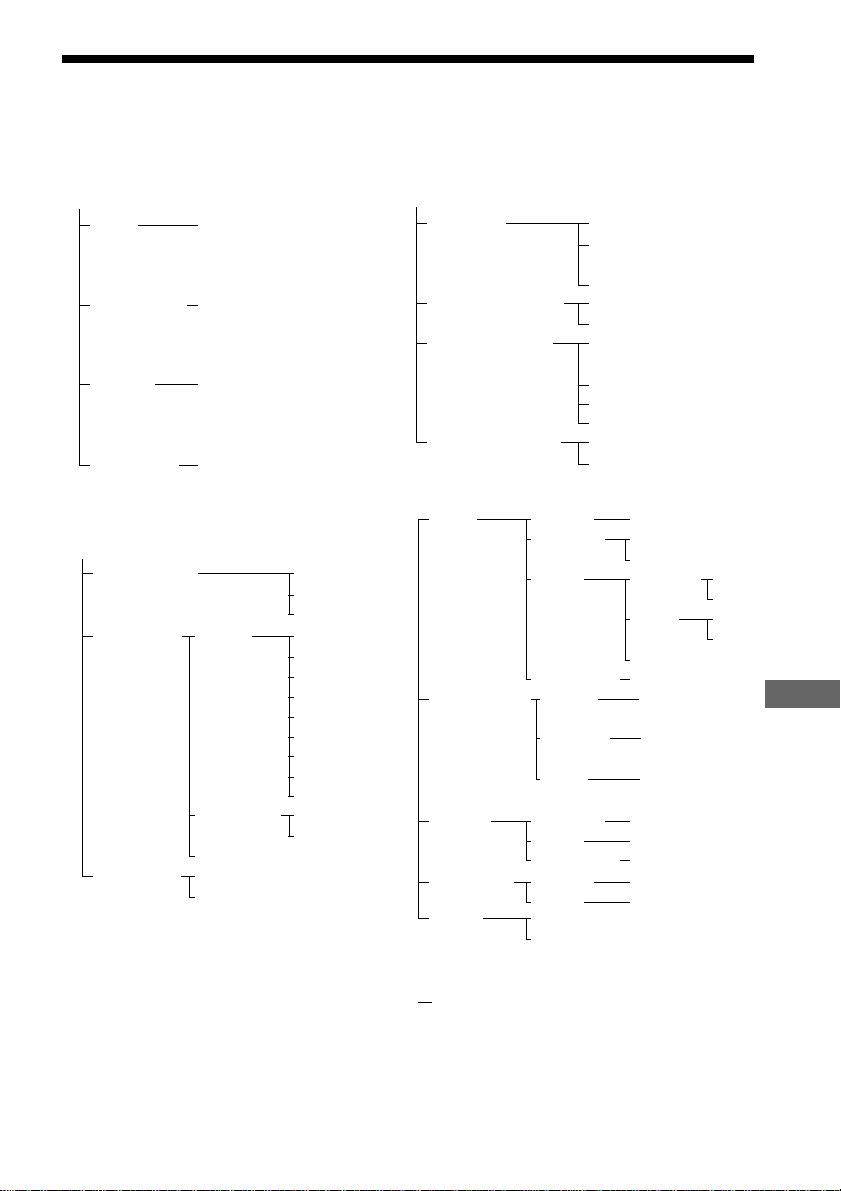
Additional Information
85
GB
DVD Setup Menu List
You can set the following items with the DVD setup menu.
The order of the displayed items may be different from the actual display.
LANGUAGE SETUP
OSD (Select the language you
want to use from the
displayed language list.)
DVD MENU (Select the language you
want to use from the
displayed language list.)
AUDIO (Select the language you
want to use from the
displayed language list.)
SUBTITLE (Select the language you
want to use from the
displayed language list.)
* Only for Asian models and Australian models.
** In SPEAKER SETUP, the North American
model's OSD displays both metric and imperial
measurements. The other model's displays metric
measurements only. The manual shows both.
LOW
HIGH
LOW
HIGH
6 steps left or right
6 steps left or right
CUSTOM SETUP
VCD COLOR AUTO
SYSTEM* PAL
NTSC
PARENTAL LEVEL OFF
CONTROL 8.
7. NC17
6. R
5.
4. PG13
3. PG
2.
1. G
STANDARD
USA
OTHERSt
CHANGE PASSWORD
TRACK
OFF
SELECTION
AUTO
SCREEN SETUP
TV TYPE 16:9
4:3 LETTER
BOX
4:3 PAN SCAN
SCREEN SAVER ON
OFF
BACKGROUND JACKET
PICTURE
GRAPHICS
BLUE
BLACK
COMPONENT OUT
INTERLACE
PROGRESSIVE
SPEAKER SETUP
SIZE FRONT YES
CENTER YES
NONE
REAR BEHIND
SIDE
NONE
SUBWOOFER
YES
DISTANCE
**
FRONT 1.0m ~15m/
3ft ~ 50ft
CENTER 0m ~15m/
0ft ~ 50ft
REAR 0m ~15m/
0ft ~ 50ft
LEVEL CENTER
–6 dB ~ +6 dB
REAR
–6 dB ~ +6 dB
SUBWOOFER
–6 dB ~ +6 dB
BALANCE FRONT
REAR
TEST OFF
TONE ON
RESET
YES

86
GB
Index
Numerics
16:9 69
4:3 LETTER BOX 69
4:3 PAN SCAN 69
A
Album 7, 79
ALBUM 37, 44
AMP MENU 26
ANGLE 55
Antenna Hookups 21
AUDIO 49, 68
B
BACKGROUND 70
BALANCE 28, 74
BAND 30
Batteries 18
C
CHAPTER 45
Chapter 7, 79
COMPONENT OUT 70
Continuous play
CD/VIDEO CD/Super Audio
CD/ DVD/MP3 32
Control Menu 15
CUSTOM PARENTAL
CONTROL 57
CUSTOM SETUP 71
D
DIMMER 29
DISC SKIP 32
DISTANCE 27, 73
Dolby Digital 79
Dolby Pro Logic Surround 79
DTS 80
DVD 35, 80
DVD MENU 35, 68
F
Fast forward 43
Fast reverse 43
Front Panel 11
Front panel display 12
H
Handling discs 9
I
INDEX 45
Index 7
L
LANGUAGE SETUP 68
LEVEL 29, 73
Locating
a specific point by watching
the TV screen 43
M
MEMORY 30
MP3 36
Multi-angle function 55
Multilingual function 49
MUTING 33
N
NAME 65
O
On-screen display
Control Menu display 15
Setup Display 67
OSD 68
P
PARENTAL CONTROL 58, 71,
80
PBC Playback 35, 81
PLAY MODE 38
Preset Station 30, 64
Program Play 39
Q
Quick Overview 17
R
Radio 64
RDS 65
Rear Panel 13
Region code 8, 81
Remote 14, 62
REPEAT 42
RESET 68
Resume Play 34
S
S VIDEO 23
Scan 43
SCENE 15
Scene 7, 81
SCREEN SAVER 70
SCREEN SETUP 69
SHUFFLE 41
Shuffle Play 41
SIZE 72
Slow-motion Play 43
Sound Field 51
SPEAKER SETUP 72
Speaker System Hookup 18
SUBTITLE 56, 68
Super Audio CD 81
T
TEST TONE 74
TIME 45, 46
TIME SEARCH 45
TITLE 44
Title 7, 81
TRACK 44
Track 7, 81
TRACK SELECTION 71
Troubleshooting 75
TV and Video Component
Hookups 23
TV TYPE 69
U
Usable discs 7
V
VCD COLOR SYSTEM 71
VIDEO CD 35, 81

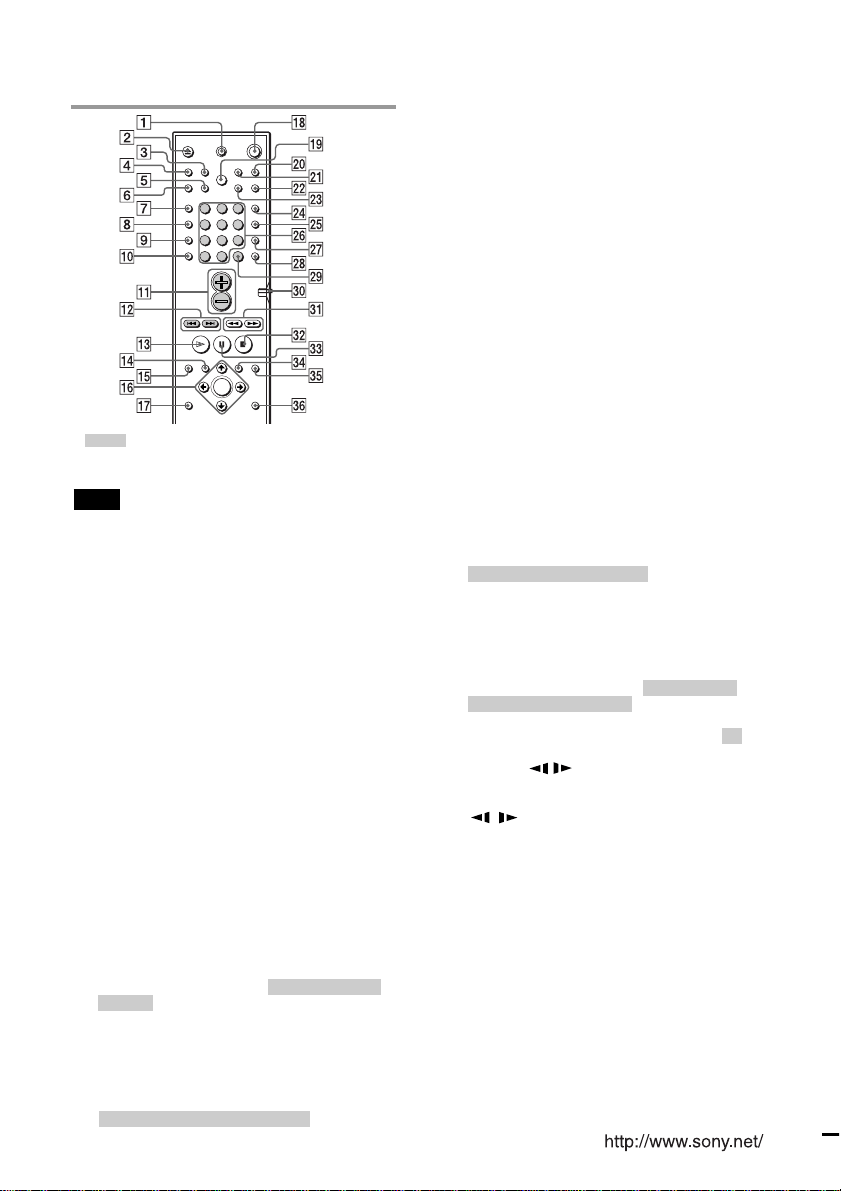
Quick reference for Remote
Commander
Sony Corporation Printed in Korea
zShaded parts buttons are affected by the COMMAND
MODE DVD TV switch. Shaded descriptions refer to TV
setting on the switch.
Note
• The remote control of the unit employs command signals in
common with other Sony DVD products.
Thus, depending on the button, other Sony DVD products
may respond.
qd H PLAY/SELECT
Plays a disc.
qf DVD TOP MENU
Displays the title menu on the TV screen.
qg DVD DISPLAY
Displays the Control Menu display on the TV
screen to set or adjust the items.
qh C/X/x/c/ENTER
Selects and executes the items or settings.
qj DVD SETUP
Displays the setup display on the TV screen to set
or adjust the items.
qk 1 (standby)
Turns on and off the power of the system.
ql DISC SKIP
Selects a disc for playback.
w; TV/VIDEO
Changes the input mode of the TV.
wa REPEAT
Displays the “REPEAT” display on the TV screen.
ws MUTING
Mutes the sound.
wd TIME
Displays the playing time of the disc, etc., on the
front panel display.
wf FUNCTION
Selects the component you want to use.
wg BAND
Selects AM or FM band.
wh Number buttons*
Selects the items of settings.
TV : Selects channel numbers.
wj SOUND FIELD
Selects the sound field.
wk DISPLAY
Switches the item displayed on the front panel
display.
wl ENTER
Executes the items or settings. TV : Press after
selecting a channel number
e; COMMAND MODE DVD TV switch
Switches the TV’s input source between the TV
and DVD.
ea m/M, / SLOW, TUNING –/+
m/M (SCAN) : Locate a point while
monitoring the picture while playing disc.
/ SLOW : Play a disc in slow motion in the
pause mode.
TUNING –/+ : Scan all available radio stations.
es x STOP
Stops playing a disc.
ed X PAUSE
Pauses playing a disc.
ef DVD MENU
Displays the DVD menu on the TV screen.
eg O RETURN
Press to return to the previously selected screen, etc.
eh AMP MENU
Displays the speaker set up parameters on the
front panel display.
* Depending on the TV set, you can also enter the number as
follows:
Press >10, then the number. (For example, press >10, then
2 and 5 for entering 25.)
1 TV [/1 (on/standby)
Turns the TV on and off.
2 Z (EJECT)
Ejects the disc.
3 NAME
Activates the name function.
4 STEREO/MONO
Switches monaural or stereo of FM stereo
reception.
5 MEMORY
Press to store a preset station.
6 CLEAR
Press to return to the Continuous play, etc.
7 PLAY MODE
Selects program or shuffle play mode.
8 AUDIO
Changes the sound while playing a DVD or
VIDEO CD.
9 ANGLE
Changes the angles when playing a DVD.
q; SUBTITLE
Displays the ”SUBTITLE“ menu in the Control
Menu display.
qa VOL +/–
Adjust the SYSTEM volume. TV : Adjust the TV
volume.
qs ./>, PREV/NEXT, TV CH –/+,
PRESET –/+
./> PREV/NEXT : Press to go to the next
chapter or track or to go back to the previous
chapter or track.
PRESET –/+ : Scan all preset stations.
TV CH –/+ : Select the TV Channel
123
456
7
>
10
10/0
89