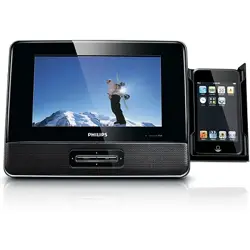
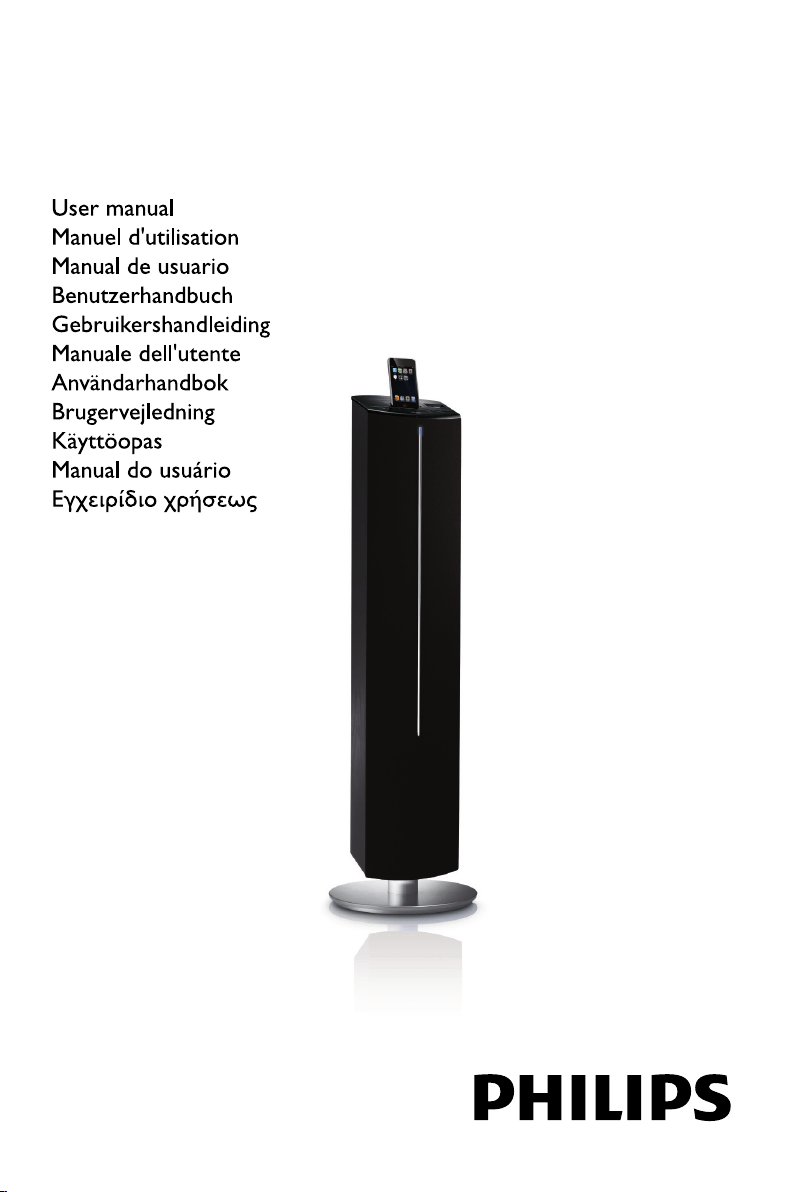
DC570
Docking Entertainment System
Register your product and get support at
www.philips.com/welcome
pg1-23-DC570_12_Eng 4/6/10, 16:331
3
DOCKING ENTERTAINMENT SYSTEM DC57 0
+
POWER
PRESET
VOLUME
SOURCE
+
DBB
DSC
AUX
FM
7
!
@
8
1
3
4
2
6
9
0
5
pg1-23-DC570_12_Eng 4/6/10, 16:333
4
SH U FFLE
ALBUM/
PRESET
REPEAT
SLEEP
MUTE
SET TIME
TIMER PROG
USB MENU AUX
POWER TUNER
VOL
DSC
DBB
TUNING
TUNING
+
2
3
5
6
8
7
1
9
0
!
#
@
$
%
^
4
pg1-23-DC570_12_Eng 4/6/10, 16:334
5
CAUTION
Visible and invisible laser radiation. If
the cover is open, do not look at the
beam.
Important notes for users in the
U.K.
Mains plug
This apparatus is fitted with an approved 13
Amp plug. To change a fuse in this type of plug
proceed as follows:
1 Remove fuse cover and fuse.
2 Fix new fuse which should be a BS1362 5 Amp,
A.S.T.A. or BSI approved type.
3 Refit the fuse cover.
If the fitted plug is not suitable for your socket
outlets, it should be cut off and an appropriate
plug fitted in its place.
If the mains plug contains a fuse, this should
have a value of 5 Amp. If a plug without a fuse
is used, the fuse at the distribution board
should not be greater than 5 Amp.
Note: The severed plug must be disposed of to
avoid a possible shock hazard should it be
inserted into a 13 Amp socket elsewhere.
How to connect a plug
The wires in the mains lead are coloured with
the following code: blue = neutral (N),
brown = live (L).
¶ As these colours may not correspond with the
colour markings identifying the terminals in
your plug, proceed as follows:
– Connect the blue wire to the terminal
marked N or coloured black.
– Connect the brown wire to the terminal
marked L or coloured red.
– Do not connect either wire to the earth
terminal in the plug, marked E (or e) or
coloured green (or green and yellow).
Before replacing the plug cover, make certain
that the cord grip is clamped over the sheath
of the lead - not simply over the two wires.
Copyright in the U.K.
Recording and playback of material may
require consent. See Copyright Act 1956 and
The Performer’s Protection Acts 1958 to 1972.
Norge
Typeskilt finnes på apparatens underside.
Observer: Nettbryteren er sekundert
innkoplet. Den innebygde netdelen er
derfor ikke frakoplet nettet så lenge
apparatet er tilsluttet nettkontakten.
For å redusere faren for brann eller elektrisk
støt, skal apparatet ikke utsettes for regn eller
fuktighet.
Italia
DICHIARAZIONE DI CONFORMITA’
Si dichiara che l’apparecchio DC570 Philips
risponde alle prescrizioni dell’art. 2 comma 1 del
D.M. 28 Agosto 1995 n. 548.
Fatto a Eindhoven
Philips Consumer Electronics
Philips, Glaslaan 2
5616 JB Eindhoven, The Netherlands
pg1-23-DC570_12_Eng 4/6/10, 16:335

6
DK
Advarsel: Usynlig laserstråling ved åbning
når sikkerhedsafbrydere er ude af funktion.
Undgå utsættelse for stråling.
Bemærk: Netafbryderen er sekundært
indkoblet og ofbryder ikke strømmen fra
nettet. Den indbyggede netdel er derfor
tilsluttet til lysnettet så længe netstikket
sidder i stikkontakten.
S
Klass 1 laseraparat
Varning! Om apparaten används på annat
sätt än i denna bruksanvisning specificerats,
kan användaren utsättas för osynlig
laserstrålning, som överskrider gränsen för
laserklass 1.
Observera! Stömbrytaren är sekundärt
kopplad och bryter inte strömmen från
nätet. Den inbyggda nätdelen är därför
ansluten till elnätet så länge stickproppen
sitter i vägguttaget.
SF
Luokan 1 laserlaite
Varoitus! Laitteen käyttäminen muulla
kuin tässä käyttöohjeessa mainitulla tavalla
saattaa altistaa käyttäjän
turvallisuusluokan 1 ylittävälle
näkymättömälle lasersäteilylle.
Oikeus muutoksiin varataan. Laite ei
saa olla alttiina tippu-ja roiskevedelle.
Huom. Toiminnanvalitsin on kytketty
toisiopuolelle, eikä se kytke laitetta irti
sähköverkosta. Sisäänrakennettu verkko-
osa on kytkettynä sähköverkkoon aina
silloin, kun pistoke on pistorasiassa.
pg1-23-DC570_12_Eng 4/6/10, 16:336

7
English
Français
Português
EspañolDeutschNederlandsItalianoSvenskaDanskSuomi
Index
English ------------------------------------------------ 8
Français -------------------------------------------- 24
Español --------------------------------------------- 40
Deutsch --------------------------------------------- 56
Nederlands ---------------------------------------- 73
Italiano ---------------------------------------------- 91
Svenska ------------------------------------------- 108
Dansk --------------------------------------------- 125
Suomi --------------------------------------------- 142
Português ---------------------------------------- 158
----------------------------------------- 175
pg1-23-DC570_12_Eng 4/6/10, 16:337

8
English
Contents
General Information
Environmental Information ................................ 9
Supplied accessories ............................................ 9
Safety Information ................................................ 9
Preparations
Rear connections ............................................... 10
Connecting a USB device........................................ 11
Connecting other equipment to your system ... 11
Before using the remote control .................... 11
Replacing the remote control battery ........... 11
Controls
Main unit .............................................................. 12
Remote Control ................................................. 13
Basic Functions
Switching the system on ................................... 14
Switching the system toEco Power standby
mode ..................................................................... 14
Switching the system to standby mode ........ 14
Power Saving Automatic Standby .................... 14
Adjusting volume and sound............................ 14
Sound control ..................................................... 15
USB playback functions
Different play modes: SHUFFLE and REPEAT ...
................................................................................ 16
Programming track numbers ........................... 16
Reviewing programmed tracks ........................ 16
Changing programmed tracks ......................... 16
Erasing the program .......................................... 16
Radio Reception
Tuning to radio stations .................................... 17
Programming radio stations ............................. 17
Automatic programming ......................................... 17
Manual programming ............................................... 17
Tuning to preset radio stations ....................... 17
External Sources
Using a non-USB device.................................... 18
Using a USB mass storage device ................... 18
Clock/Timer/Sleep
Clock setting ....................................................... 20
Setting the Alarm Time ...................................... 20
Stopping the alarm ...................................................20
Sleep timer setting ............................................. 20
iPod Dock
Compatible iPod players ................................... 21
Selecting the correct dock adaptor ............... 21
Using the dock adaptors................................... 21
Playing an iPod portable player ....................... 21
Charging iPod battery using the dock ........... 21
Specifications ............................................ 22
Tr oubleshooting ..................................... 23
pg1-23-DC570_12_Eng 4/6/10, 16:338

English
9
General Information
Congratulations on your purchase and welcome
to Philips!
To fully benefit from the support that Philips
offers, register your product at www.philips.com/
welcome.
Environmental Information
All unnecessary packaging has been omitted. We
have tried to make the packaging easy to
separate into three materials: cardboard (box),
polystyrene foam (buffer) and polyethylene (bags,
protective foam sheet).
Your system consists of materials which can be
recycled and reused if disassembled by a
specialized company. Please observe the local
regulations regarding the disposal of packaging
materials, exhausted batteries and old
equipment.
Supplied accessories
– remote control (with battery)
– FM antenna
–4 X iPod dock adaptors
– 3.5 mm line-in cable
Safety Information
● Before operating the system, check that the
operating voltage indicated on the typeplate of
your system is identical with the voltage of your
local power supply. If not, please consult your
dealer.
● Place the system on a flat, hard and stable
surface.
● Place the system in a location with adequate
ventilation to prevent internal heat build-up in
your system. Allow at least 10 cm (4 inches)
clearance from the rear and the top of the unit
and 5 cm (2 inches) from each side.
● The ventilation should not be impeded by
covering the ventilation openings with items,
such as newspapers, table-cloths, curtains, etc.
● Do not expose the system, batteries or discs to
excessive moisture, rain, sand or heat sources
caused by heating equipment or direct sunlight.
● No naked flame sources, such as lighted candles,
should be placed on the apparatus.
● No objects filled with liquids, such as vases, shall
be placed on the apparatus.
● Install this unit near the AC outlet and where the
AC power plug can be reached easily.
● Where the Mains plug is used as the disconnect
device, the disconnect device shall remain readily
operable.
● The apparatus shall not be exposed to dripping
or splashing.
● When the system is switched to Standby
mode, it is still consuming some power.
To disconnect the system from the
power supply completely, remove the AC
power plug from the wall socket.
Notes for battery disposal
Your product contains batteries covered
by the European Directive 2006/66/EC,
which cannot be disposed with normal
household waste. Please inform yourself
about the local rules on separate
collection of batteries because correct
disposal helps to prevent negative
consequences for the environmental and
human health.
pg1-23-DC570_12_Eng 4/6/10, 16:339
10
English
Preparations
Rear connections
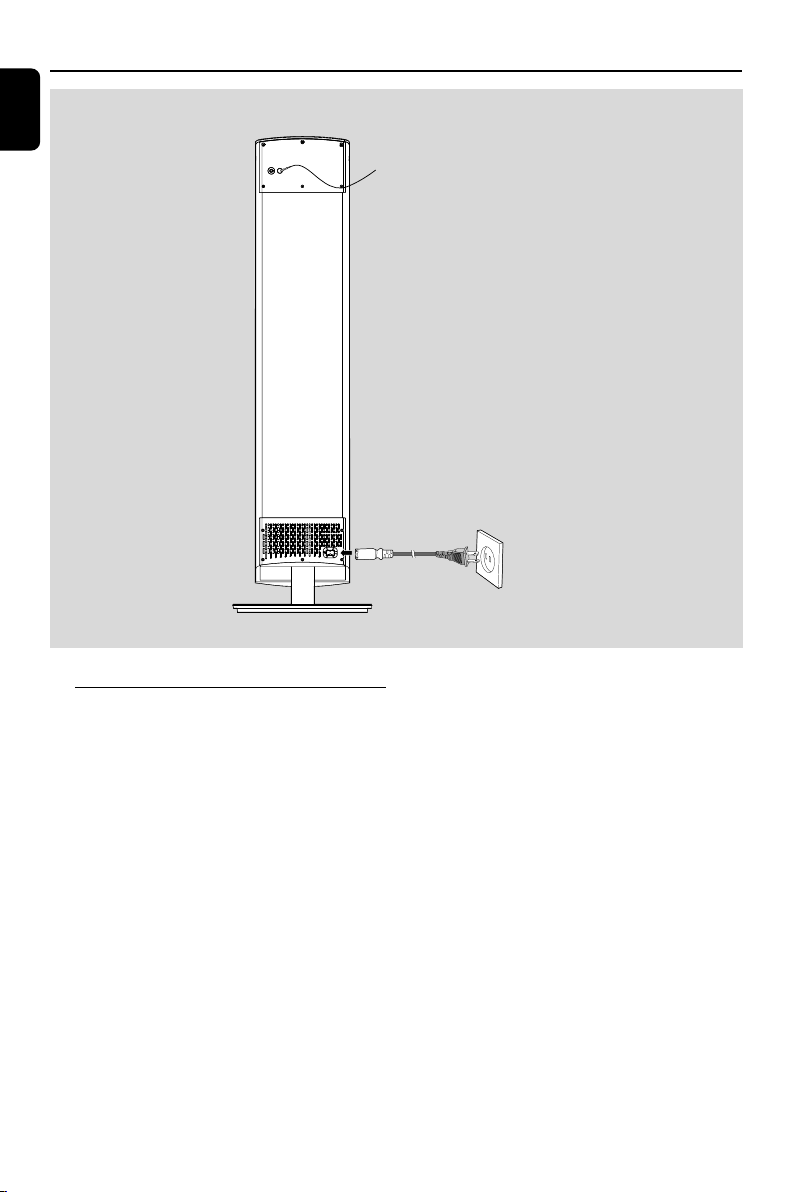
The type plate is located at the rear of the
system.
A Power
● Before connecting the power cord to the wall
outlet, ensure that all other connections have
been made.
WARNING!
–For optimal performance, use only the
original power cord.
–Never make or change connections with
the power switched on.
To avoid overheating of the system, a safety
circuit has been built in. Therefore, your
system may switch to Standby mode
automatically under extreme conditions. If
this happens, let the system cool down
before reusing it (not available for all versions).
B Antenna Connection
Connect the supplied FM antenna to the FM
terminal. Extend and position the FM antenna for
optimal reception.
Note:
–Position the FM antenna away from the speaker
wires to avoid electrical interference.
C Optional connections
The optional equipment and connecting cords are
not supplied. Refer to the operating instructions
of the connected equipment for details.
FM wire antenna
FM wire
antenna
pg1-23-DC570_12_Eng 4/6/10, 16:3310
English
11
Preparations
Connecting a USB device
By connecting a USB mass storage device
(including USB flash memory, USB flash players)
to the system, you can enjoy the device's stored
music through the powerful speakers of system.
● Insert the USB device's USB plug into the
socket on the set.
OR
for devices with USB cables:
1 Insert one plug of the USB cable (not supplied)
to the socket on the set.
2 Insert the other plug of the USB cable to the
USB port of the USB device.
Connecting other equipment to your
system
● Use a line-in-cable to connect AUX IN to the
analogue audio out terminals of an external
equipment (TV, VCR, Laser Disc player, DVD
player or CD Recorder).
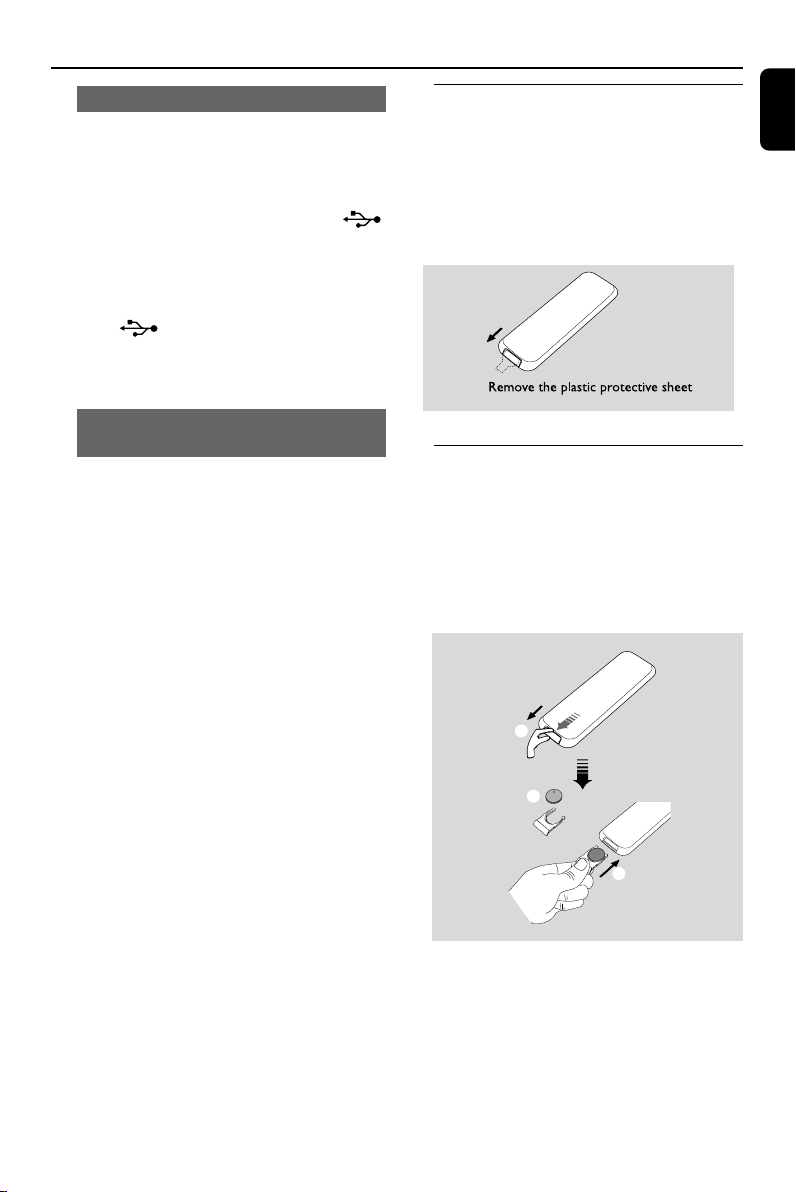
Before using the remote control
1 Pull out the plastic protective sheet.
2 Select the source you wish to control by
pressing one of the source select keys on the
remote control (for example USB, TUNER).
3 Then select the desired function (for example
ÉÅ ).
Replacing the remote control
battery (lithium CR2025)
1 Press the slot on the battery compartment.
2 Pull out the battery compartment.
3 Replace a new battery and fully inser t the
battery compartment back to the original
position.
1
2
3
CR2025
CAUTION!
– Batteries contain chemical substances, so
they should be disposed of properly.
pg1-23-DC570_12_Eng 4/6/10, 16:3311

12
English
Controls
Main unit
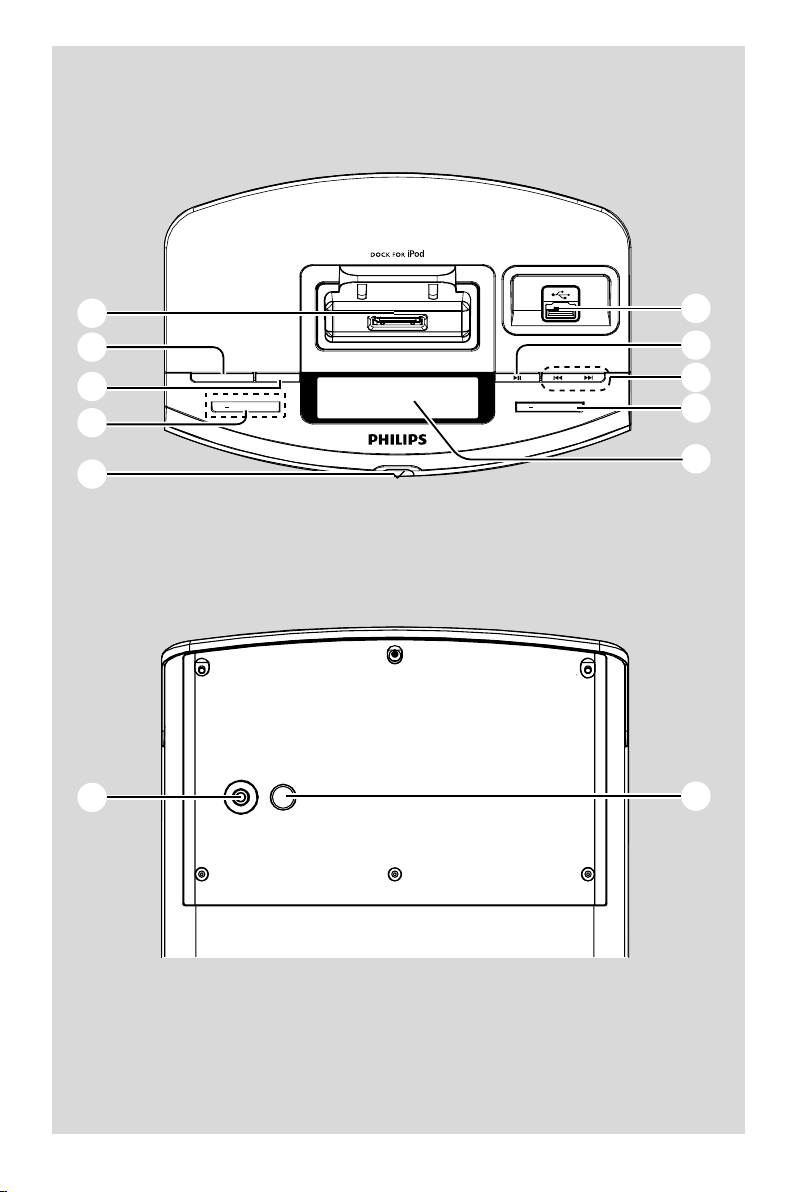
1 USB DIRECT
– jack for the connecting an external USB mass
storage device and MP3/ WMA players.
2 ÉÅ
– (iPod/USB) starts or interrupts playback.
3 S/ T
iPod/ USB .......... fast searches back and forward
within a track (press and hold).
................................. skips to the beginning of a
current/previous/next track.
CLOCK ............... adjusts the minutes for the clock/
alarm function.
TUNER ............... tunes to lower/ higher FM
frequency.
4 VOLUME -/+
– adjusts the volume level.
5 Display screen
– shows the status of the system.
6 FM antenna
– improves FM reception
7 DOCK for iPod
– cradle for docking adaptors used to dock your
iPod player for playback or recharging through
this system.
8 Power
– switches on the system to the last sound source
played.
– switches the system to standby mode.
9 Source
– to select the respective sound source: USB, iPod,
FM, or AUX.
0 PRESET -/+
– (USB) skips to the beginning of a previous/
subsequent album.
– adjusts the hours for the clock/alarm function.
– selects a preset radio station.
DBB
– enhances the bass
DSC
– selects different sound effects
! IR
– remote sensor
@ AUX
– connect an auxiliary device here.
pg1-23-DC570_12_Eng 4/6/10, 16:3312

English
13
Controls
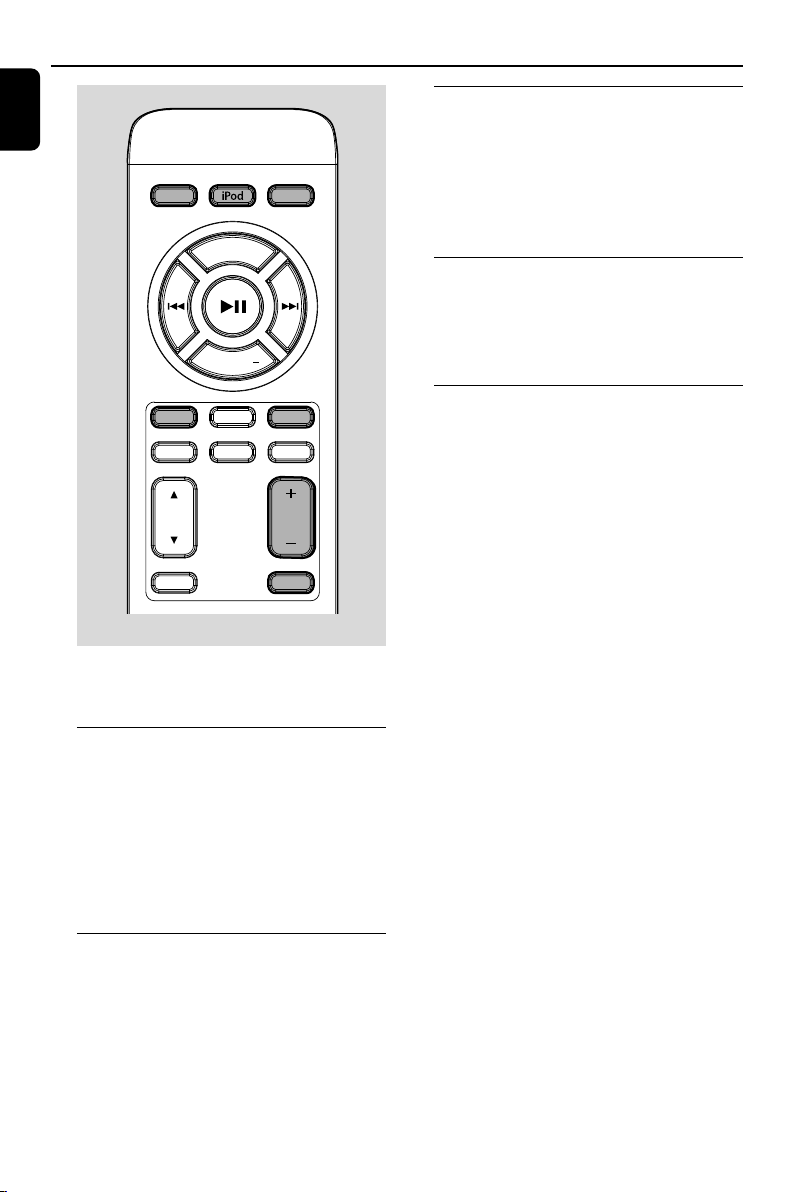
Remote Control
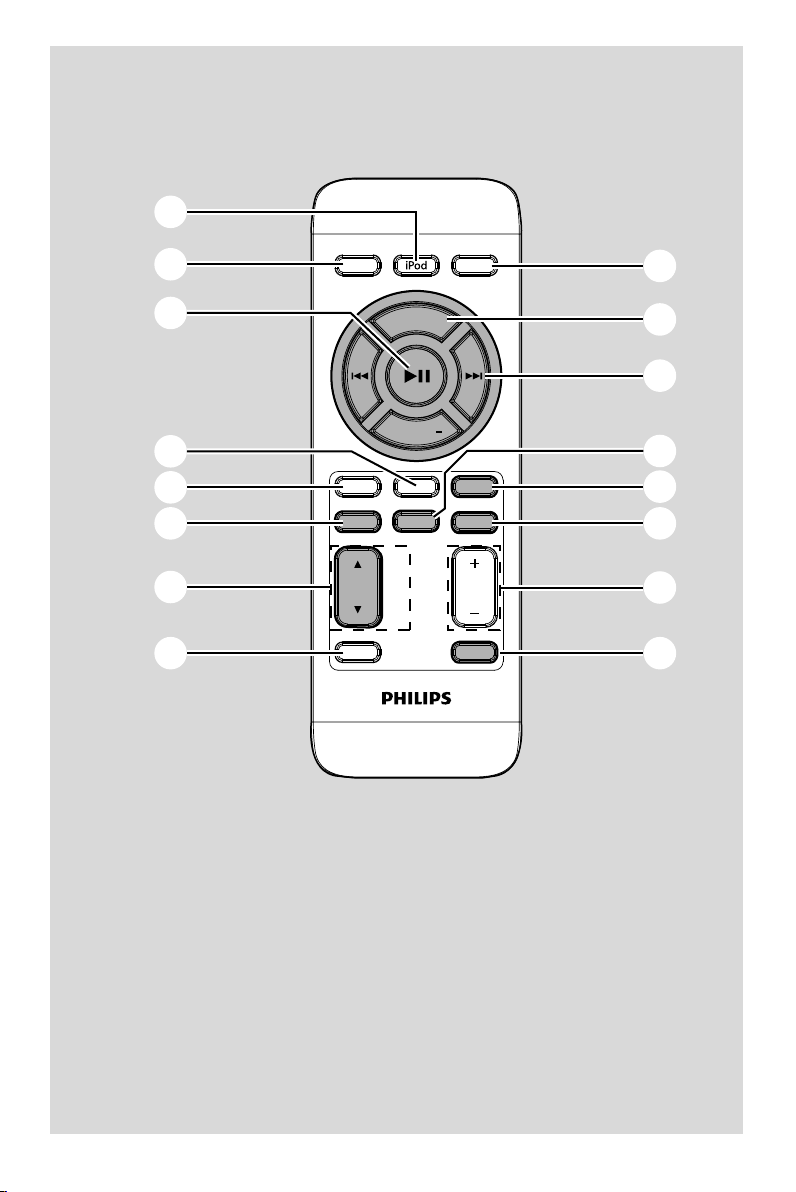
1 iPod
– selects the sound source for your iPod player.
2 Power
– switches the system to standby mode.
3 ÉÅ
– (iPod/USB) starts or interrupts playback.
4 Menu
– enters iPod menu
5 USB
– selects sound source for a USB audio player.
6 REPEAT/SHUFF
– (USB) toggles track/album playback options e.g.
repeat or random order mode.
7 ALBUM/PRESET3 / 4
– (USB) skips to the beginning of a previous/
subsequent album.
– selects a preset radio station.
DBB
– enhances the bass
DSC
– selects different sound effects
8 SLEEP
– selects the sleeper time.
9 TUNER
– selects the sound source for FM radio.
0 TUNING -/+
TUNER ............... tunes to lower/ higher FM
frequency.
CLOCK ............... adjusts the hour for the clock/
alarm function.
! S / T
iPod/USB.....fast searches back and forward within
a track (press and hold).
................................. skips to the beginning of a
current/previous/next track.
CLOCK ............... adjusts the minute for the clock/
alarm function.
@ Timer
– activates/deactivates alarm setting mode
– turns alarm on/off
# AUX
– selects sound source for other audio equipment.
$ PROG/SET TIME
– (TUNER) programs radio stations.
– sets the clock function.
– (USB) programs tracks.
% VOLUME -/+
– adjusts the volume level.
^ MUTE
– interrupts and resumes sound production.
Notes for remote control:
– First select the source you wish to control
by pressing one of the source select keys on
the remote control (for example USB/ AUX).
– Then select the desired function (for
example
ÉÅ
, S , T).
pg1-23-DC570_12_Eng 4/6/10, 16:3313
14
English
Basic Functions
Important!
Before you operate the system, complete
the preparation procedures.
Switching the system on
● Press Power on the set.
➜ The system will switch to the last selected
source.
● Press source on the set repeatedly or USB,
AUX, iPod or TUNER on the remote
control.
➜ The system will switch to the selected source.
Switching the system to Eco
Power Standby mode
● Press and hold POWER (or POWER on the
remote) in the active mode.
➜ The system enters Eco power standby mode.
● If the system is normal standby mode, press and
hold POWER on the front panel for 3 seconds
or more to switch to Eco power standby or vice
versa.
Switching the system to Standby
mode
● Press Power (or Power on the remote
control).
➜ The volume level (up to a maximum volume
of 12), last selected mode, source and tuner
presets will be retained in the system's memory.
Power Saving Automatic Standby
As a power-saving feature, the system
automatically switches to standby 15 minutes
after a USB connected device has reached the
end of the last track and no control is operated.
Adjusting volume and sound
1 Press VOLUME -/+ to decrease or increase the
volume.
➜ Display shows the volume level VoL and a
number 0-32.
2 Press MUTE on the remote control to
interrupt sound reproduction instantly.
➜ Playback will continue without sound and
MUTE appears.
● To activate sound reproduction you can:
– press MUTE again;
– adjust the volume controls;
– change source.
SH U FFLE
ALBUM/
PRESET
REPEAT
SLEEP
MUTE
SET TIME
TIMER PROG
USB MENU AUX
POWER TUNER
TUNING
VOL
TUNING
+
DSC
DBB
pg1-23-DC570_12_Eng 4/6/10, 16:3314

English
15
Sound Control
DBB and DSC sound features cannot be
activated at the same time.
DBB (Dynamic Bass Boost)
DBB enhances the bass response.
iPod/AUX
● Press ALBUM/PRESET 4 on the remote or
PRESET - on the pane to enable/disable DBB
feature.
USB/TUNER
● Press and hold ALBUM/PRESET 4 on the
remote or PRESET - on the panel for more
than 2 seconds to enable/disable DBB feature.
DSC (Digital Sound Control)
DSC provides a different type of preset sound
equalizer setting.
iPod/AUX
1 Press ALBUM/PRESET 3 or PRESET + on
the panel to enter DSC mode.
2 Press PRESET + repeatedly to select: CLASSIC,
JAZZ, POP or ROCK.
USB/TUNER
1 Press and hold ALBUM/PRESET 3 or
PRESET + on the panel for more than 2
seconds to enter DSC mode.
2 Press PRESET + repeatedly to select: CLASSIC,
JAZZ, POP or ROCK.
Basic Functions
pg1-23-DC570_12_Eng 4/6/10, 16:3315
16
English
USB playback functions
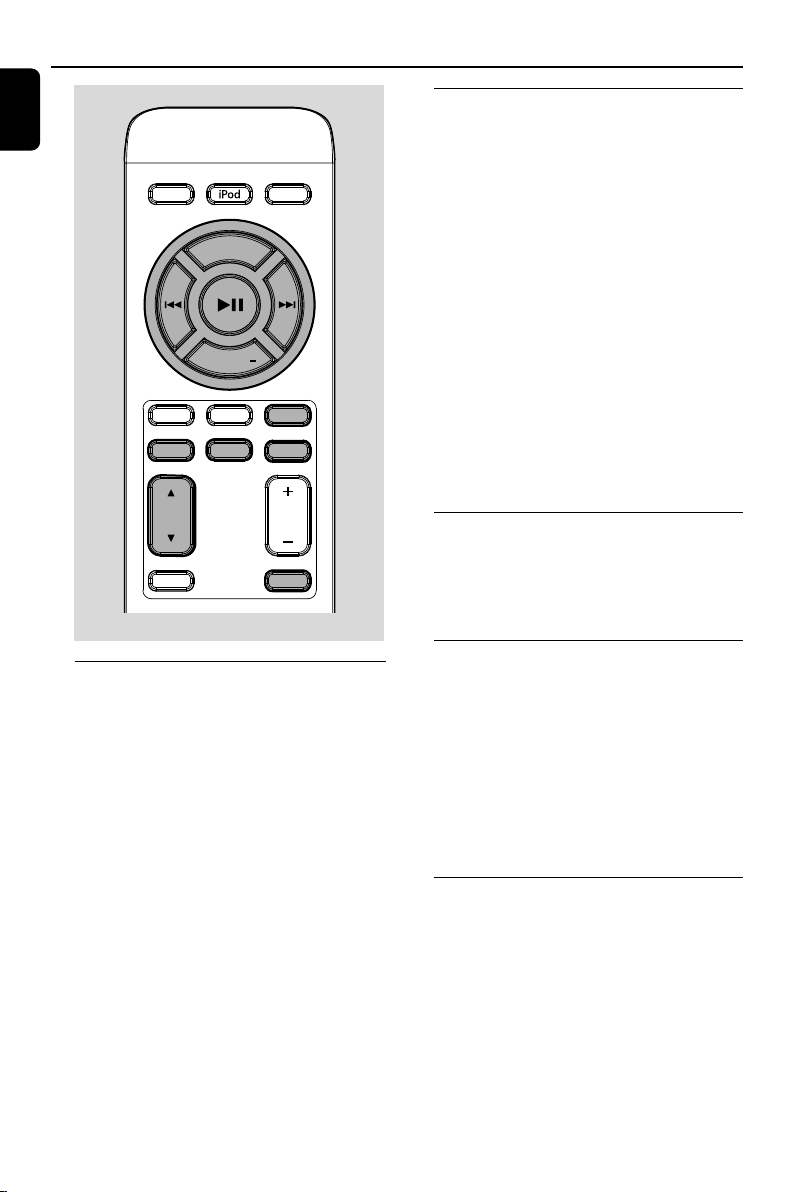
Different play modes: SHUFFLE
and REPEAT
You can select and change the various play
modes before or during playback. The REPEAT
modes can also be combined with PROGRAM.
1 To select your play mode, press REPEAT/
SHUFF before or during playback until the
display shows the desired function.
➜ If onE appears the current track will play
repeatedly.
➜ If ALb appears the current album will play
repeatedly.
➜ If ALL appears all tracks will be played
repeatedly.
➜ SHUFF appears if shuffle playback is
activated and disappears if deactivated.
2 To return to normal playback, press the
REPEAT/SHUFF until oFF displayed.
Note:
– The Repeat and Shuffle functions cannot be
combined.
Programming track numbers
Program in the STOP position to select and
store up to 20 tracks in the memory.
1 Press PROG/SET TIME on the remote
control to enter the programming mode.
➜ Pr 01 appears and PROG flashes.
2 Press S/T to select your desired track
number.
● For tracks in a different album, press ALBUM/
PRESET 3/4 to select a desired album
number.
3 Press PROG/SET TIME to confirm the track
number to be stored.
4 Repeat steps 2-3 to select and store all desired
tracks.
➜ FULL appears if you attempt to program
more than 20 tracks.
5 To start playback of your program, press ÉÅ.
Reviewing programmed tracks
You can review or change the programmed
tracks.
1 Press PROG/SET TIME repeatedly to review
each programmed track.
Changing programmed tracks
1 Press PROG/SET TIME repeatedly to your
desired programmed track.
2 Press S/T to select your desired track
number.
● For tracks in a different album, press ALBUM/
PRESET 3/4 to select a desired album
number.
3 Press PROG/SET TIME to confirm the track
number to be stored.
Erasing programmed tracks
1 To erase your program, press and hold PROG/
SET TIME for more than 2 seconds.
➜ CLR appears.
SH U FFLE
ALBUM/
PRESET
REPEAT
SLEEP
MUTE
SET TIME
TIMER PROG
USB MENU AUX
POWER TUNER
VOL
DSC
DBB
TUNING
TUNING
+
pg1-23-DC570_12_Eng 4/6/10, 16:3316
English
17
Radio Reception
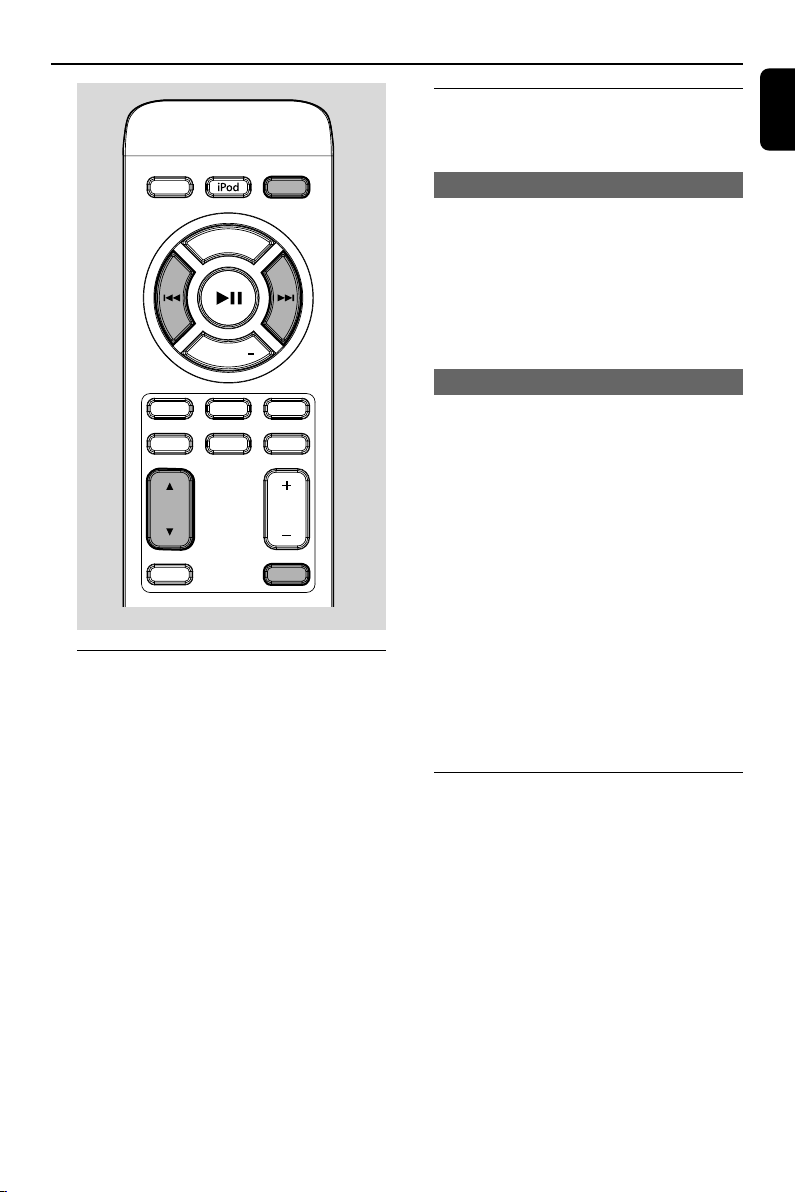
Tuning to radio stations
1 Press TUNER to select the tuner source.
2 Hold TUNING -/+ (or S/T on the set)
and then release the button.
➜ The system will start searching for a radio
station with sufficient signal strength.
3 Repeat step 2 if necessary until you find the
desired station.
● To tune to a weak station, press TUNING -/+
(or S/T on the set) briefly and repeatedly.
Programming radio stations
You can store up to a total of 20 radio stations
in the memory.
Automatic programming
Automatic programming will start at preset
number 1 and all your former presets will be
overridden.
● Press PROG/SET TIME for more than 3
seconds to activate programming.
➜ All available stations are programmed.
Manual programming
1 Tune to your desired station (refer to “Tuning to
radio stations”).
2 Press PROG/SET TIME to activate
programming.
➜ PROG flashes in the display.
3 Press ALBUM/PRESET 3 / 4 to allocate a
number from 1 to 20 to this station.
4 Press PROG/SET TIME again to confirm the
setting.
➜ PROG disappears, the preset number and
the frequency of the preset station are shown.
5 Repeat the above four steps to store other
stations.
● You can override a preset station by storing
another frequency in its place.
Tuning to preset radio stations
● Press ALBUM/PRESET 3 / 4 until the
desired preset station is displayed.
SH U FFLE
ALBUM/
PRESET
REPEAT
SLEEP
MUTE
SET TIME
TIMER PROG
USB MENU AUX
POWER TUNER
TUNING
VOL
TUNING
+
DSC
DBB
pg1-23-DC570_12_Eng 4/6/10, 16:3317
18
English
External Sources
INFORMATION REGARDING USB
DIRECT:
1. Compatibility of the USB connection on this
system:
a) This product supports most USB Mass storage
devices (MSD) that are compliant to the USB
MSD standards.
i) Most common Mass storage class devices are
flash drives, memory sticks, jump drives and etc.
ii) If you see a "Disc Drive" showing up on your
computer after you have plugged the mass
storage device into your computer, most likely it
is MSD compliant and it will work with this
system.
b) If your Mass storage device requires a battery/
power source please make sure you have a fresh
battery inserted or charge the USB device before
connecting to the system.
2. Supported Music type:
a) This device only supports unprotected music
with the following file extension:
.mp3
.wma
b) Music bought from on-line music stores are not
supported because they are secured by Digital
Rights Management protection (DRM).
c) File name extensions that end with the
following are not supported:
.wav; .m4a; .m4p; mp4; .aac and etc.
3. Playback of audio files through the system's
speakers is not possible if you connect directly from
your computer to the USB socket.
Using a non-USB device
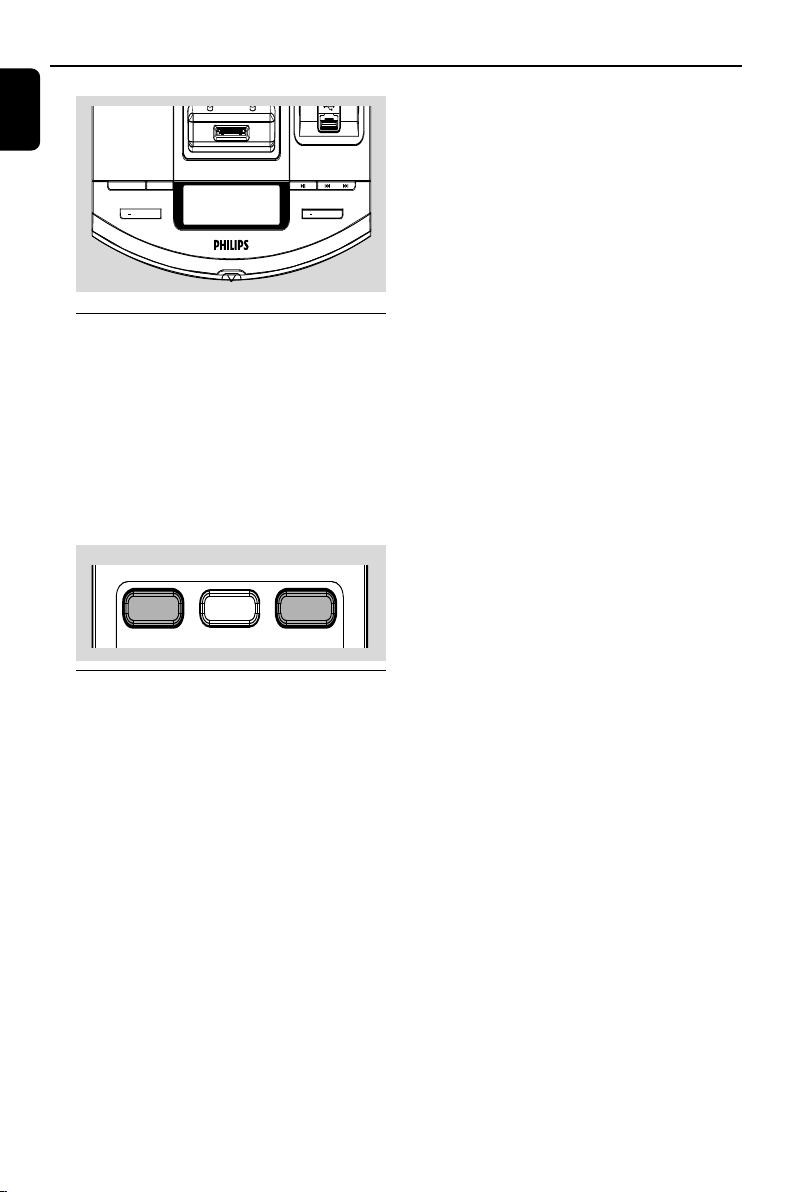
1 Connect the audio out terminals of the external
equipment (TV, VCR, Laser Disc player, DVD
player or CD Recorder) to the AUX socket of
your system.
2 Press AUX to select external equipment.
Note:
– Refer to the operating instructions of your
connected equipment for details.
USB MENU AUX
+
Using a USB mass storage device
By connecting a USB mass storage device to the
system, you can enjoy the device's stored music
through the system's powerful speakers.
1 Check the USB device has been properly
connected. (See Installation: Connecting an
additional appliance).
2 Press USB once or more to select USB.
– no AUdIO appears if no audio file is found
in the USB device.
3 Refer to the Quick Start Guide or the Controls
page of this manual for basic playback features.
Playing a USB mass storage device
Compatible USB mass storage devices
You can use:
– USB flash memory (USB 2.0 or USB1.1)
– USB flash players (USB 2.0 or USB1.1)
+
POWER
PRESET
VOLUME
SOURCE
+
DBB
DSC
pg1-23-DC570_12_Eng 4/6/10, 16:3318

English
19
External Sources
Supported formats:
– USB or memor y file format FAT12, FAT16,
FAT32 (sector size: 512-4096 bytes)
– MP3 bit rate (data rate): 32-320 Kbps and
variable bit rate
– WMA v9 or earlier
– Director y nesting up to a maximum of 8
levels
– Number of albums/ folders: maximum 99
– Number of tracks/titles: maximum 999
– ID3 tag v2.0 or later
– File name in Unicode UTF8 (maximum length:
128 bytes)
The system will not play or support the
following:
–Empty albums: an empty album is an album
that does not contain MP3/WMA files, and
will not be shown in the display.
– Non-suppor ted file formats are skipped. This
means that e.g.: Word documents .doc or
MP3 files with extension .dlf are ignored and
will not be played.
–AAC , WAV, PCM audio files
– DRM protected WMA files
– WMA files in Lossless format.
pg1-23-DC570_12_Eng 4/6/10, 16:3319
20
English
Clock/Timer/Sleep
Clock setting
The clock uses the 12-hour mode.
Important!
– To set clock in the Eco Power mode, press and
hold POWER on the set for 3 seconds or
more to switch to normal standby mode first
before proceeding with the procedures below.
1 In standby mode, press PROG/SET TIME for
more than two seconds.
➜ The clock digits flash.
2 Press S/T to set the minutes.
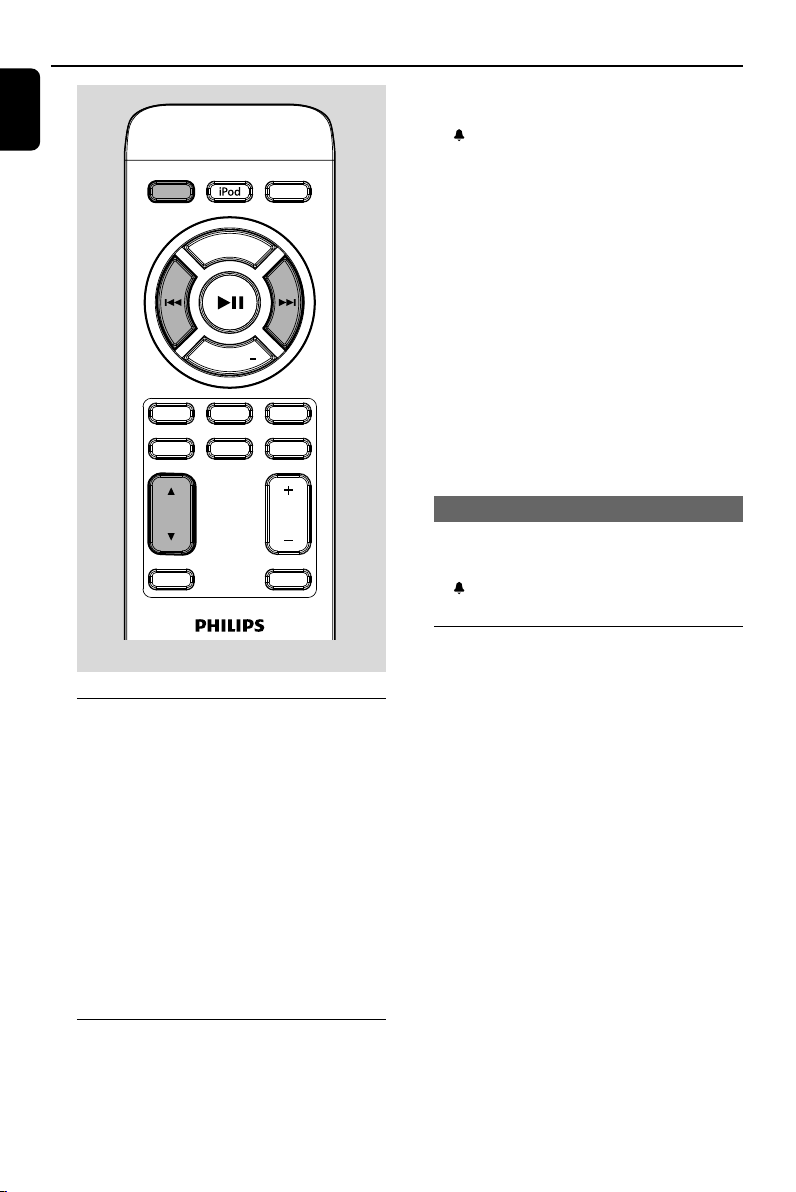
3 Press TUNING -/+ to set the hours.
4 Press PROG/SET TIME to confirm the time.
Setting the timer
You can only set timer in standby mode.
Wake up to FM radio or music from your USB
device or iPod. The clock time needs to be set
first before the alarm clock can be used.
1 Press TIMER for more than 3 seconds to enter
the alarm setting mode.
➜ appears.
➜ The alarm clock digits flash.
➜ "Err" appears briefly if you have not set the
clock time.
2 Press TUNING +/- to set the hours.
3 Press S/T to set the minutes.
4 Press iPod, TUNER or USB to select the
sound source.
5 Press TIMER to confirm your alarm setting.
➜ The display returns to the clock time.
Notes:
The TUNER mode is the default source if:
–Your USB device contains no MP3 or WMA files.
–You forgot to connect a USB device.
–You forgot to dock your iPod.
Stopping the alarm
● To cancel the alarm, press TIMER in standby or
playback mode.
➜ appears if activated, and disappears if
deactivated.
Sleep timer setting
The sleep timer enables the system to switch off
by itself after a set period of time.
1 Press SLEEP on the remote control repeatedly
to select a preset time.
➜ The selections are as follows (time in
minutes):
120 ™ 90 ™ 60 ™ 30™ 15 ™OFF…
➜SLEEP
is displayed.
2 To review the remaining sleep time, press
SLEEP .
Note:
– If you press SLEEP again, this will change your
sleep time period to the next shorter preset option.
To deactivate the sleep timer
● Press SLEEP repeatedly until "0FF" is displayed,
or press Power.
TUNING
TUNING
+
SH U FFLE
ALBUM/
PRESET
REPEAT
SLEEP
MUTE
SET TIME
TIMER PROG
USB MENU AUX
POWER TUNER
VOL
DSC
DBB
pg1-23-DC570_12_Eng 4/6/10, 16:3320
English
21
iPod Dock
Compatible iPod players
● The docking entertainment system is compatible
with all the existing Apple iPod models with 30-
pin connector.
Selecting the correct dock
adaptor
● Four adapters are included to fit different iPod
models including iPod touch (8GB, 16GB), iPod
classic (80GB, 160GB), iPod nano 3rd generation
(4GB, 8GB), iPod the 5th generation (30GB,
60GB, 80GB), iPod nano 2nd generation (2GB,
4GB, 8GB) and iPod nano 1st generation (1GB,
2GB, 4GB ).
Using the dock adaptors
● Before plugging your player in the dock, snap the
suitable dock adapter into the dock to provide a
snug fit for the player to be docked
Playing an iPod portable player
1 Correctly dock your iPod por table player in the
cradle. Make sure the dock adaptor is
compatible.
● Make sure that you have powered on your iPod
player before selecting iPod source.
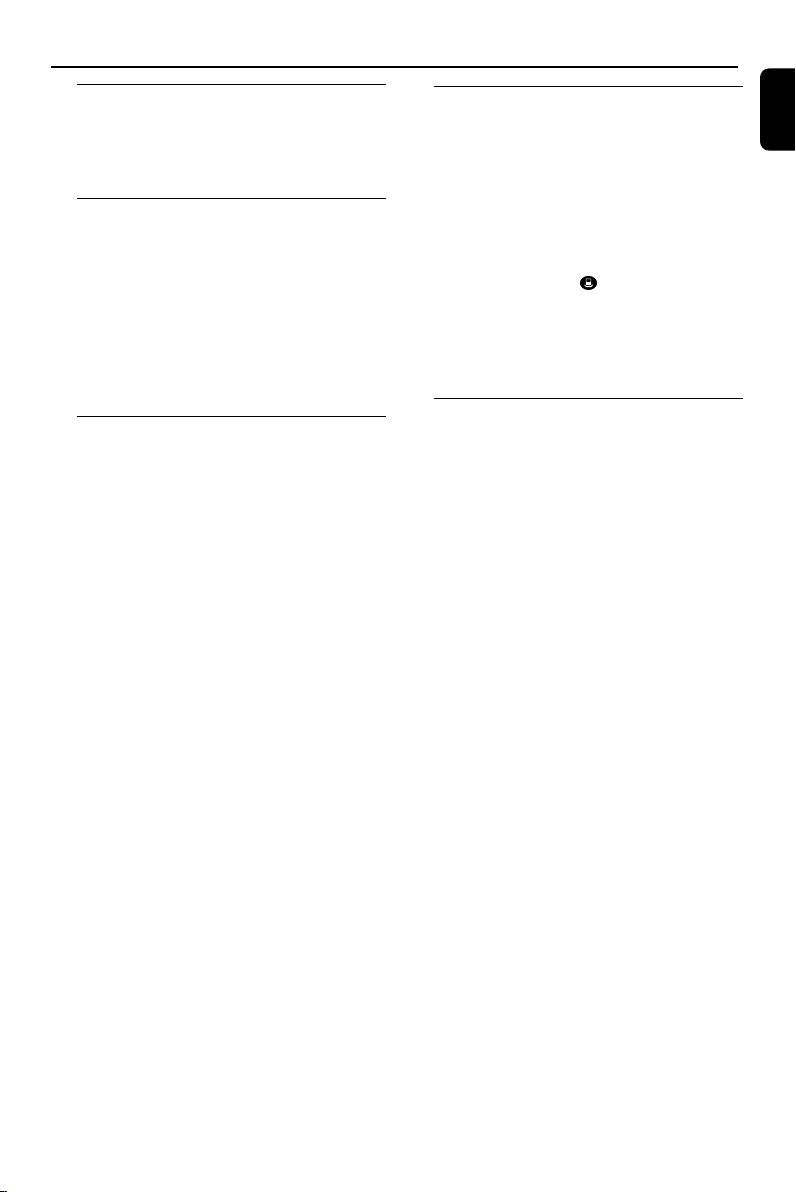
2 Press iPod on the remote control to select iPod
source.
➜ The iPod dock icon appears.
3 Playback starts automatically. Playback functions
play, skip, fast search and, pause are possible using
the controls on this system and its remote
control.
Charging iPod battery using the
dock
● In iPod mode, directly dock your iPod portable
player on the cradle for charging.
Note:
–For the purpose of saving power, recharging of
your USB device and iPod is Not Supported when
the main set is in Eco Power mode.
pg1-23-DC570_12_Eng 4/6/10, 16:3321

22
English
Specifications
AMPLIFIER
Output power ........................................................................
...................................................................... 50W+2 x 25W
Signal-to-noise ratio ....................................... ≥ 70 dBA
Frequency response ...... 50 Hz – 20 KHz, ± 3 dB
Input sensitivity AUX ....................... 0.5 V (max. 2 V)
SUBWOOFER
Frequency response ............................ 50 Hz – 1KHz
Impedance ........................................................................ 8 Ω
Rated power ................................................................ 50W
TWEETER
Frequency response ..................... 160 Hz – 16 KHz
Impedance ........................................................................ 4 Ω
Rated power ........................................................ 2 x 25W
TUNER
FM wave range ................................... 87.5 – 108 MHz
Sensitivity at 75 Ω
– FM ................................................................................ 20dBf
Total harmonic distortion ..................................... ≤ 1%
Frequency response
– FM .............................................................. 63 – 6000 Hz
Signal-to-noise-ratio
– FM ....................................................................... ≥ 50 dBA
USB PLAYER
USB ................................................................... 12Mb/s, V1.1
......................................... support MP3 and WMA files
Number of albums/folders ................. maximum 99
Number of tracks/titles ...................... maximum 999
GENERAL INFORMATION
AC Power ............................. 220 – 240 V / 50-60 Hz
Dimensions (w x h x d)300 x 300 x 1024 (mm)
Weight ......................................................................... 10.1 kg
Standby power consumption ............................ <7 W
Specifications are subject to change
without notice.
pg1-23-DC570_12_Eng 4/6/10, 16:3322

English
23
Tr oubleshooting
WARNING
Under no circumstances should you try to repair the system yourself, as this will invalidate the
warranty. Do not open the system as there is a risk of electric shock.
If a fault occurs, first check the points listed below before taking the system for repair. If you
are unable to remedy a problem by following these hints, consult your dealer or Philips for
help.
“NO USb” is displayed.
Radio reception is poor.
The system does not react when buttons
are pressed.
Sound cannot be heard or is of poor
quality.
The remote control does not function
properly.
The alarm function is not working.
The Clock setting is erased.
✔ Insert a a USB device.
✔ If the signal is too weak, adjust the antenna or
connect an external antenna for better
reception.
✔ Increase the distance between the unit and your
TV or VCR.
✔ Position the FM antenna away from the speaker
wires to avoid electrical interference.
✔ Remove and reconnect the AC power plug and
switch on the system again.
✔ Adjust the volume.
✔ Disconnect the headphone.
✔ Select the source (e.g. TUNER) before pressing
the function button (3/4, S/T).
✔ Reduce the distance between the remote
control and the system.
✔ Insert the battery with its polarities
(+/– signs) aligned as indicated.
✔ Replace the battery.
✔ Point the remote control directly toward
IR sensor on the front of the system.
✔ Set the clock time correctly.
✔ Switch on the alarm.
✔ Power has been interrupted or the power cord
has been disconnected. Reset the clock.
Problem
Solution
pg1-23-DC570_12_Eng 4/6/10, 16:3323
Español
Português
Português
Deutsch
Nederlands
Italiano
Svenska
Dansk
Suomi
Polski
English
Français
Português
Español
Deutsch
Nederlands
Italiano
Svenska
Dansk
Suomi
Polski
DC570
Meet Philips at the Internet
http://www.philips.com
© 2010 Koninklijke Philips Electronics N.V.
All rights reserved.
DC570_UM_12_V2.0
PageBack_DC570 4/1/10, 11:3894