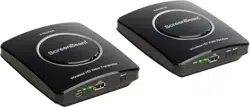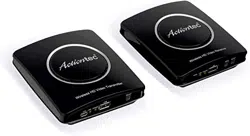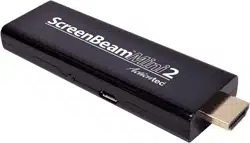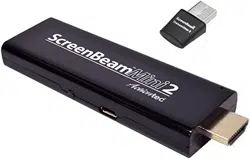

ScreenBeam
Mini2 Kit
User Manual
For Catalog # SBWD60KIT02

Table of Contents
Part I. Introduction .......................................................................................................................... 1
1.1. Features .......................................................................................................................... 1
1.2. System Requirements .................................................................................................. 1
1.3. Meeting ScreenBeam Wireless Display Kit ............................................................... 2
Part II. Connecting to the ScreenBeam Mini2 Receiver ............................................................ 3
2.1. Install ScreenBeam Wireless Display Software ........................................................ 3
2.2. Set up the ScreenBeam Mini2 Receiver .................................................................... 3
2.3. Pair the Transmitter and Receiver .............................................................................. 4
2.4. Selecting a Wireless Channel...................................................................................... 5
Part III. Setting Wireless Display Preferences ........................................................................ 8
3.1. Preferences Window ..................................................................................................... 8
Part IV. Updating the Software ................................................................................................ 10
Part V. Frequently Asked Questions .......................................................................................... 12

1
Part I. Introduction
The ScreenBeam Mini2 Kit wirelessly mirrors all your favorite content and productivity apps
from your mobile device screen onto a HDTV, without a Wi-Fi network or wireless router. The kit
contains everything users need to create a point-to-point connection between the device and the
room display. This dedicated connection means users don’t worry about crashing, lag times, and
choppy or freezing video. It saves time and money by eliminating the need to run cables and drill
holes.
With ScreenBeam Mini2 Kit, users beam their favorite videos, photos and movies to the best
high-definition display in the house. Connect the ScreenBeam Mini2 receiver to the HDTV and
wirelessly display content from a Windows device. The ScreenBeam Mini2 Kit includes a
ScreenBeam USB Transmitter 2 that plugs into a Windows 7/8 legacy device lacking native Miracast
to connect to a ScreenBeam Mini2 receiver and take advantage of wireless display. Sit back and
watch movies from Netflix, Hulu, Amazon, or YouTube. Share vacation photos and videos with the
entire family, without having to huddle around a tiny screen.
1.1. Features
• Mirror your compatible device screen onto HDTV or HD projector wirelessly
• Extend the laptop display to the HDTV while you work on the main desktop
• Works with legacy Windows 7/8 laptops, PCs, or tablets
• Support HDTV with HDMI input
• Does not require existing Wi-Fi router
• Easy setup, everything you need is included
1.2. System Requirements
(For the application software)
Laptop, tablet or PC with Windows 7 or 8 (32/64-Bit) and AMD A6 or Intel Gen 3 Core i3
equivalent with 2GB of memory, 150 MB of hard disk spaces and a USB 2.0 port.
2
1.3. Meeting ScreenBeam Wireless Display Kit
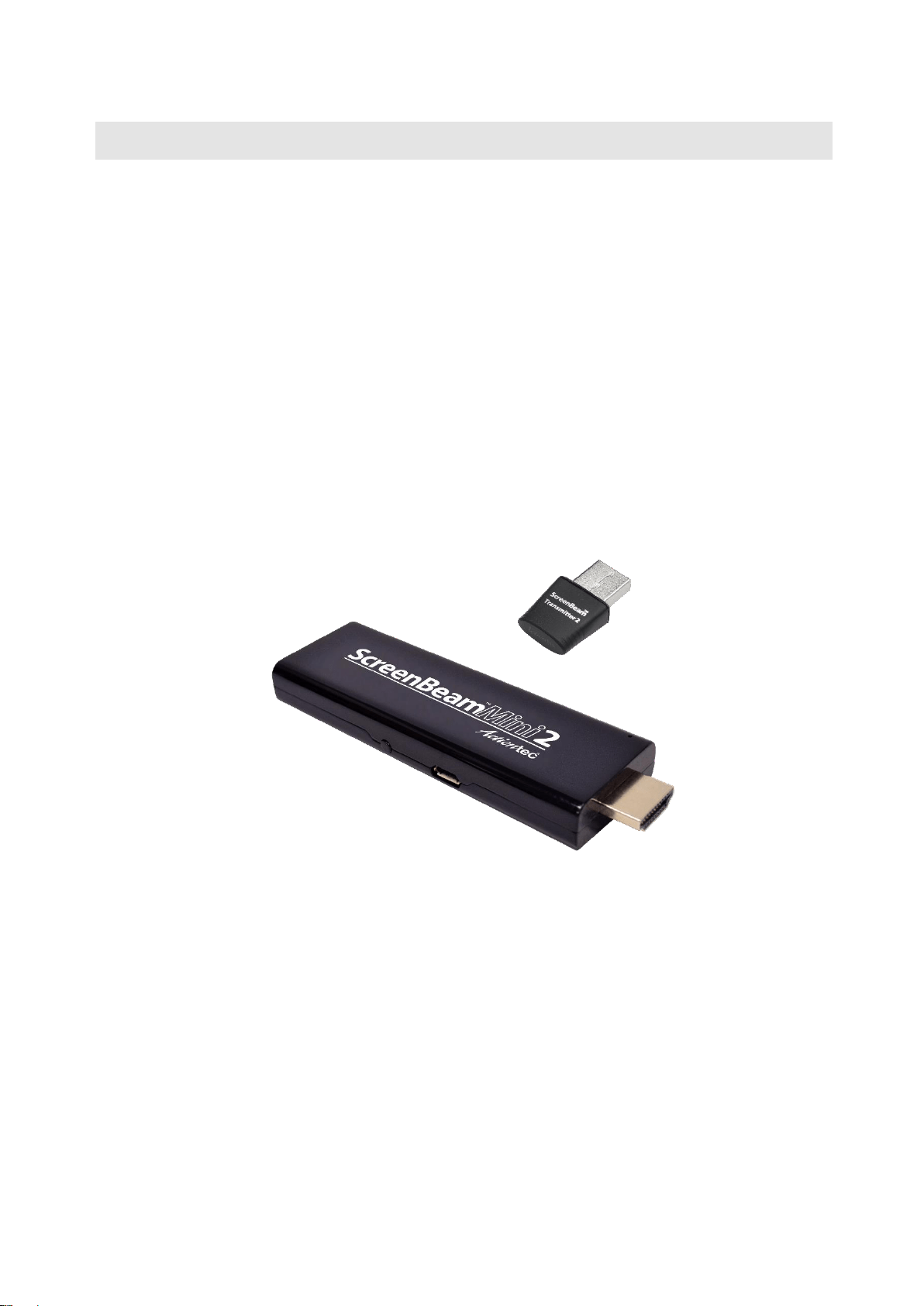
The ScreenBeam Mini2 Kit contains components:
- ScreenBeam Mini2 receiver
- ScreenBeam USB Transmitter 2
- ScreenBeam Wireless Display Software (download online)
- Energy-efficient power supply
- USB power cable
- HDMI extension cable
- Installation Guide
The ScreenBeam USB Transmitter 2 has a single USB connection, used to connect it to a USB port
on a Windows 7/8 laptop/PC without native Miracast support. The ScreenBeam Mini2 receiver
receives video transmissions from the laptop/PC through the ScreenBeam USB Transmitter 2, and
display on the HDTV. To use ScreenBeam in this manner, you must install the ScreenBeam Wireless
Display Software on the computer.

3
Part II. Connecting to the ScreenBeam
Mini2 Receiver
This chapter details the necessary steps to connect to the ScreenBeam Mini2 receiver. To prepare for
the wireless display connection.
2.1. Install ScreenBeam Wireless Display Software
Step 1 Download ScreenBeam Wireless Display Software to your PC or laptop from
www.actiontec.com/products/sbupdate.php
Step 2 Click ScreenBeam_setup.exe that you just downloaded.
Step 3 Follow the onscreen instructions, and complete the installation.
2.2. Set up the ScreenBeam Mini2 Receiver
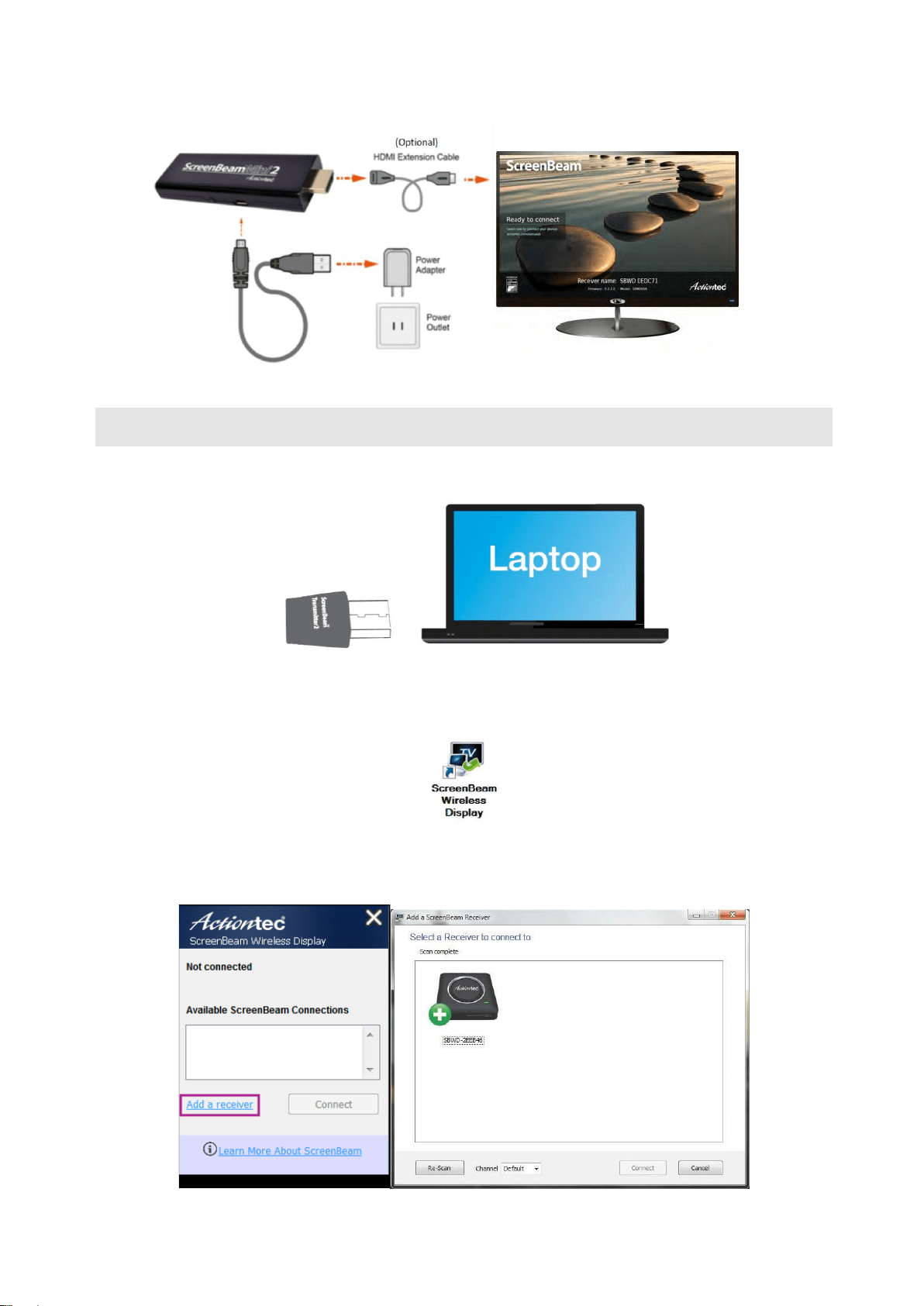
Step 1 Remove the receiver, power adapter, USB cable, and HDMI extension cable from the box.
Step 2 Plug the small male connector of the USB cable to the receiver’s micro USB port labeled
“Power”.
Step 3 Plug the receiver into an available HDMI port on your HDTV.
Note: If the receiver cannot reach the HDMI port on your TV, use the provided HDMI extension cable
to connect the receiver.
Step 4 Plug the large male connector of the USB cable to the power adapter and plug the power
adapter into a power outlet.
Step 5 Turn on your TV and switch the input source until you see the Ready to Connect screen.
4
2.3. Pair the Transmitter and Receiver
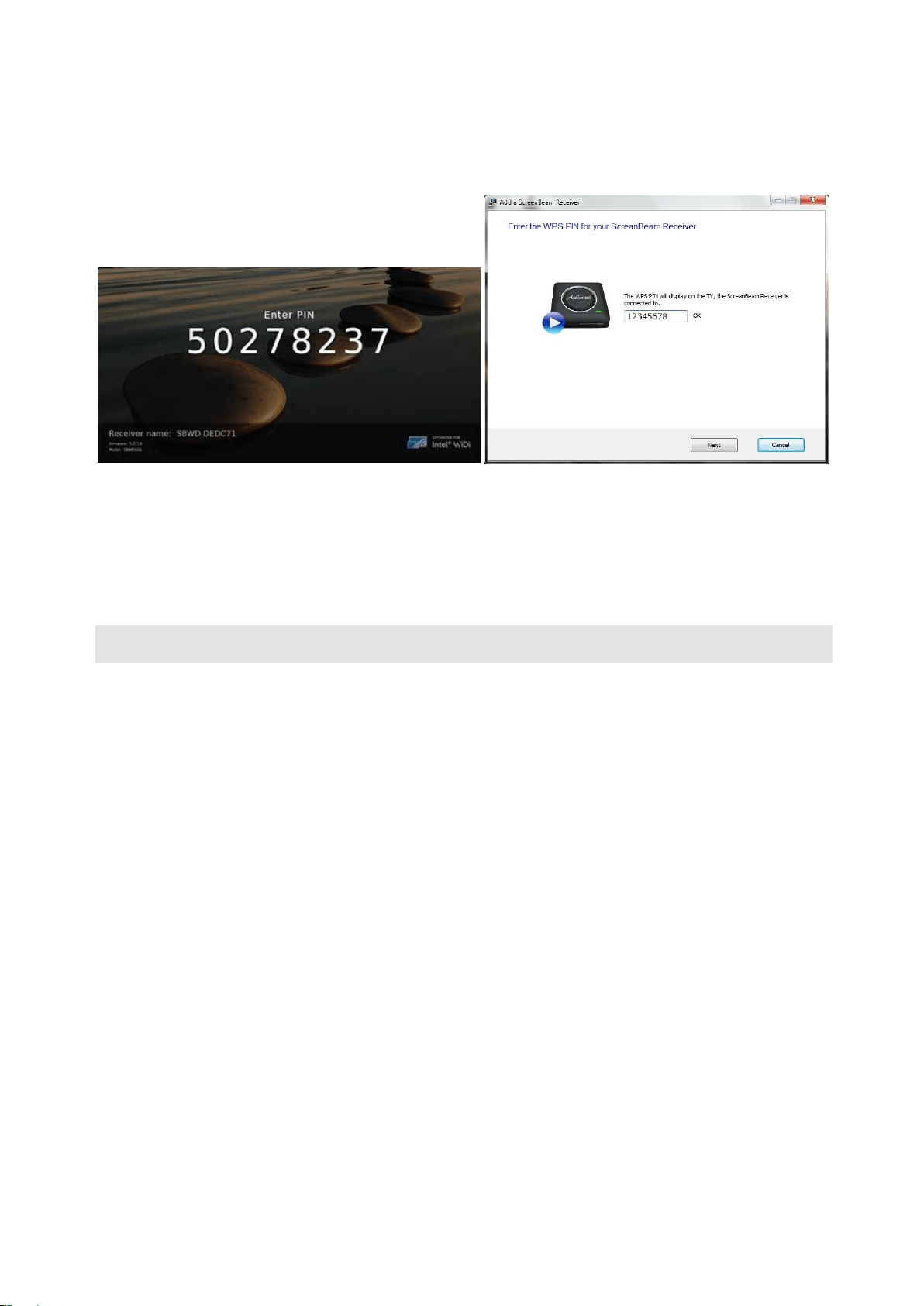
1. Plug the ScreenBeam transmitter 2 into a USB port on your laptop, tablet or PC.
2. Launch the ScreenBeam wireless display software by clicking the icon on the Windows
desktop.
3. Click Add a Receiver on the control panel of the software, and find your receiver name. This
is the same name that appears on the Ready to Connect screen on the monitor or projector.
5
4. A PIN will appear on the screen. Enter the PIN in the software, and click Next to pair your
transmitter and receiver.
The ScreenBeam Mini2 receiver and ScreenBeam USB Transmitter 2 are now paired. As a result, you
should see your laptop, tablet or PC’s screen on the HDTV monitor.
2.4. Selecting a Wireless Channel
The ScreenBeam Wireless Display Software scans your environment and selects the cleanest
channel (5GHz band) automatically for the wireless connection. You can also manually select a
preferred channel. To manually select a wireless channel:
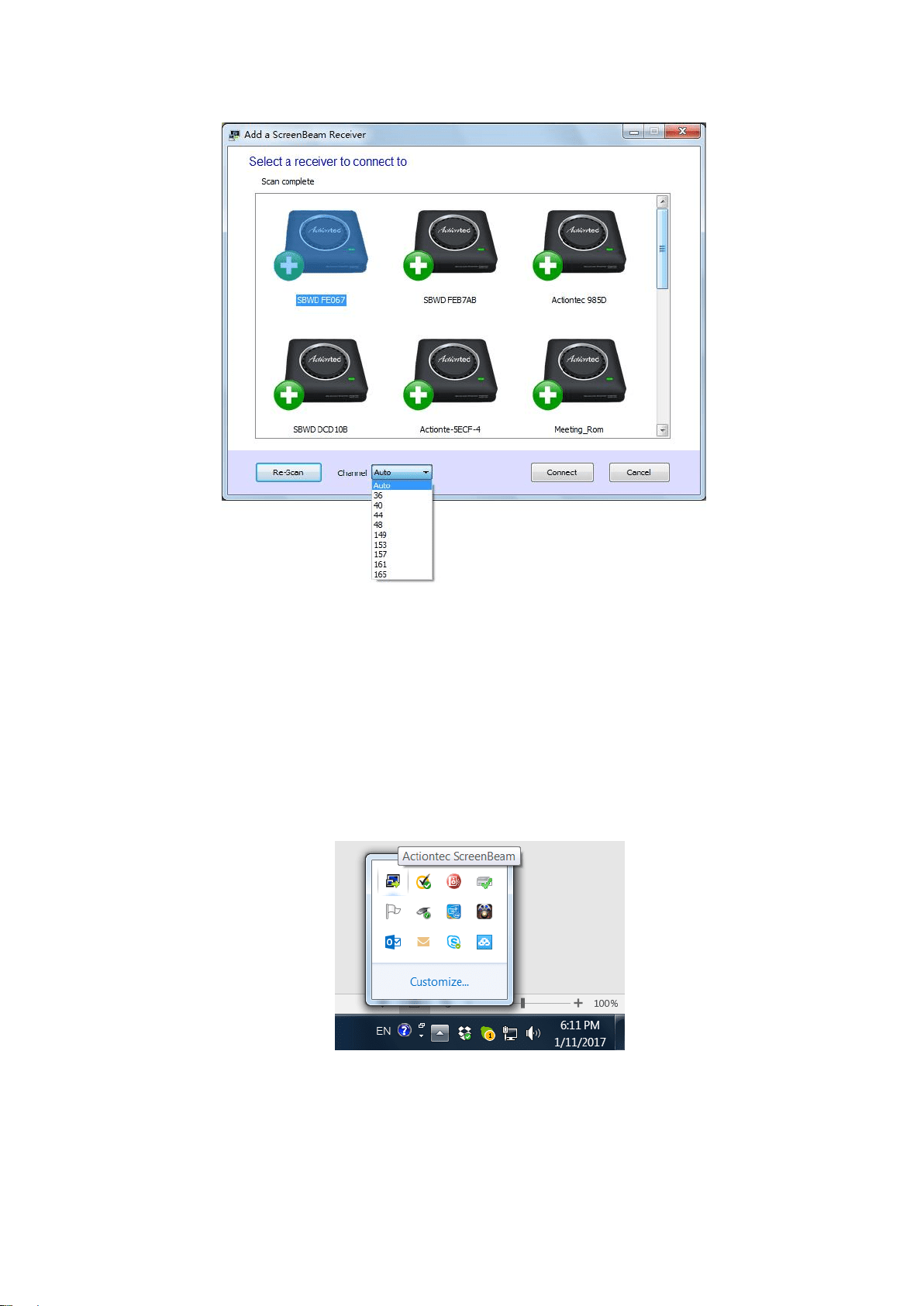
1. In the ScreenBeam Wireless Display Software, click Add a receiver on the main window.
2. In Add a ScreenBeam Receiver window, select a preferred channel in the Channel drop-down
list.
6
Note: “Auto” is recommended, which allows the software to automatically select the cleanest
channel available.
3. Select your receiver and then click Connect to connect to the receiver.
4. The selected channel will be used.
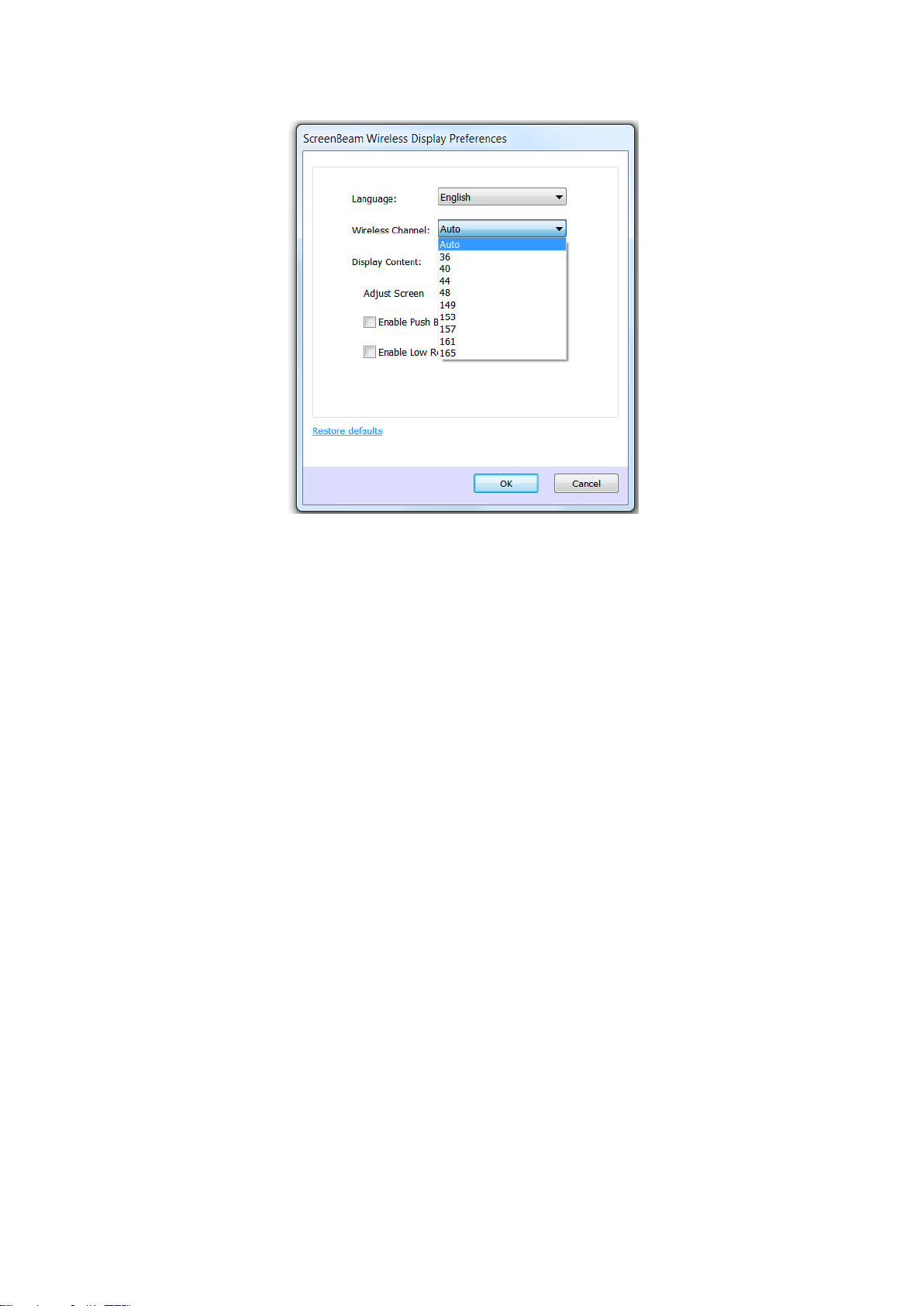
You can also define a wireless channel in the Preferences window:
1. Make sure the laptop, tablet or PC is disconnected from the receiver.
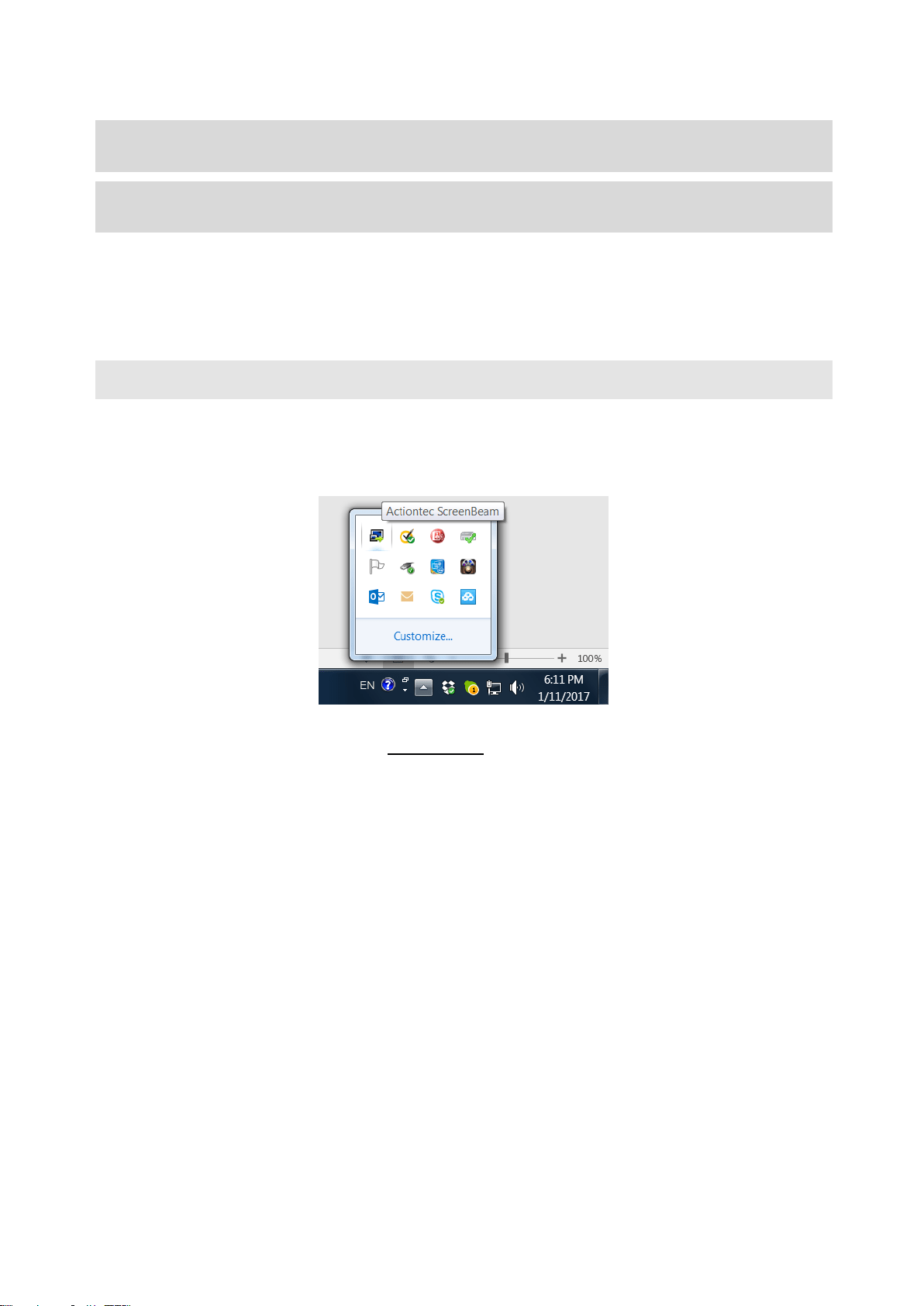
2. Right-click the icon in Notification Area of the laptop, tablet or PC’s desktop and select
Preferences.
3. Select a preferred channel in the Wireless Channel list, and click OK.
7
Note: The wireless channel configuration in the Preferences window is used for a persistent
connection. Generally, “Auto” is recommended.
4. Reconnect the laptop, tablet or PC to the receiver. The selected channel will be used.
8
Part III. Setting Wireless Display
Preferences
This chapter details how to adjust the options available to you when transmitting a device’s display to
an HDTV monitor. Most of these settings reside in the Preferences window.
3.1. Preferences Window
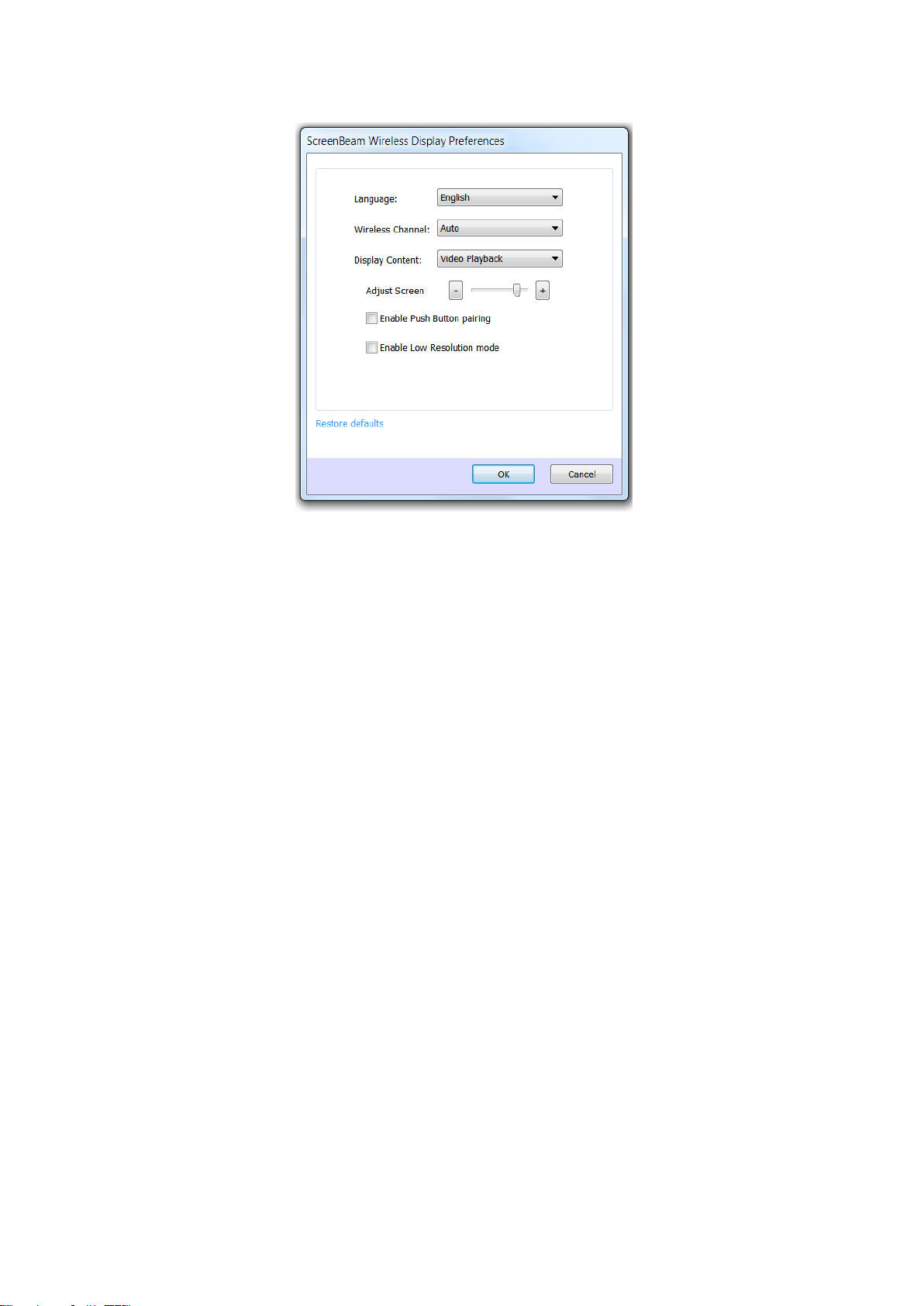
To open the Preferences window, right-click the ScreenBeam icon from the Notification Area of the
laptop, tablet or PC’s desktop. When the ScreenBeam options menu appears, click Preferences.
Note: Ensure the laptop, tablet or PC is disconnected from the receiver before making any of the
following changes.
9
• Language
Select the language used by the ScreenBeam wireless display software.
• Wireless Channel
“Auto” is the recommended setting since this setting will automatically select the cleanest
channel. If you are manually selecting a channel, the receiver will remain on that channel until it
is set to another channel or back to “Auto.”
• Display Content
The ScreenBeam receiver will adjust resolution based on content selected. Video Playback
adjusts to a lower resolution for an optimal video viewing experience whereas Slideshow adjusts
to a higher resolution when viewing pictures and text.
• Adjust Screen Size
The slider allows you to change the display size on the HDTV monitor. If the picture on the HDTV
screen is overscanned–that is, the picture looks too big to fit on the screen, adjust the size until
the display fits the HDTV screen.
• Enable Push Button pairing
Allow your laptop to connect with a ScreenBeam receiver without entering a Personal
Identification Number (PIN).
• Enable Low-Resolution mode
Transmit lower resolution images to the HDTV monitor for a seamless video experience.
• Restore defaults
Reset all settings to the factory default.
10
Part IV. Updating the Software
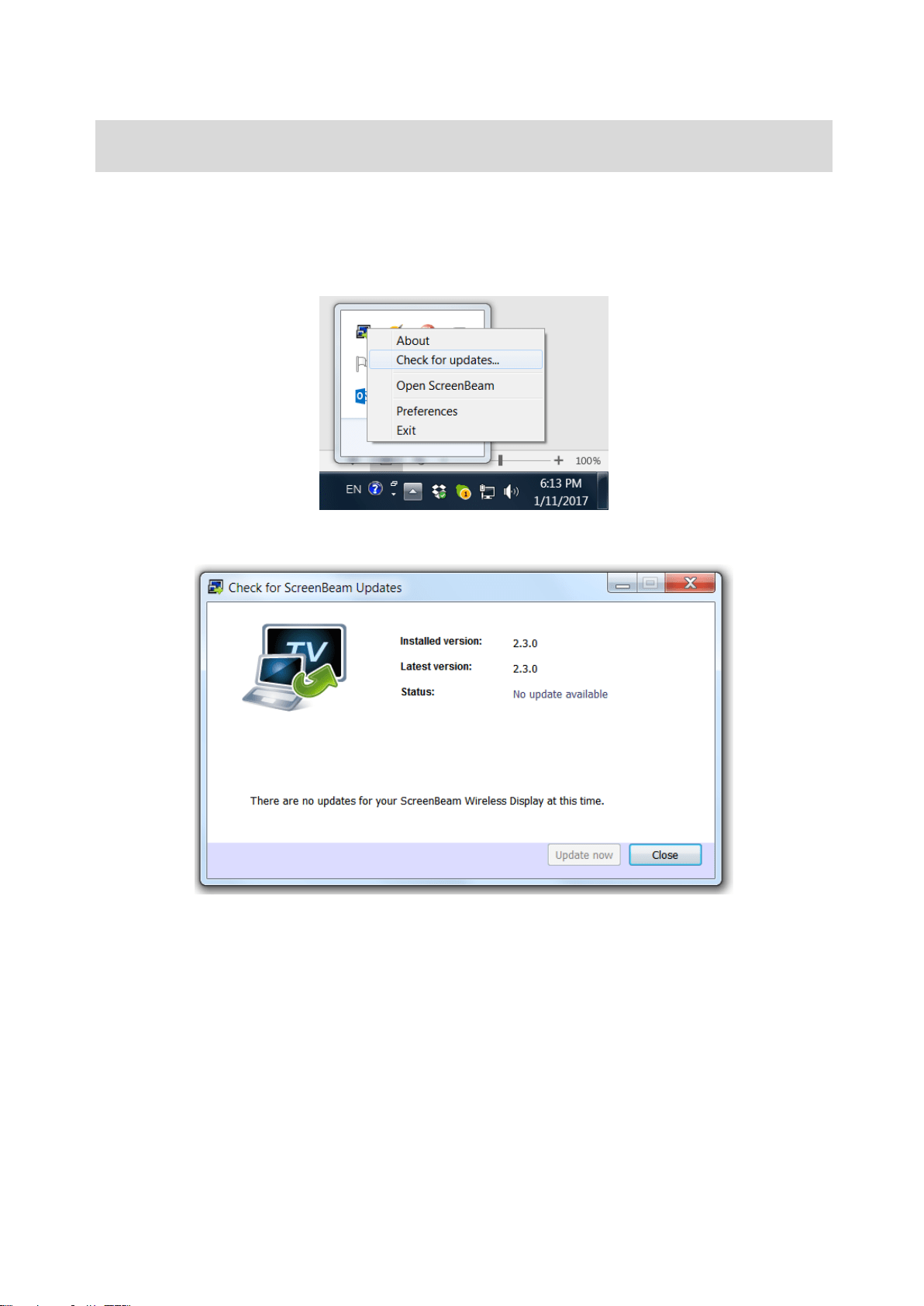
1. Make sure your laptop, tablet or PC is disconnected from the receiver. Right-click the
ScreenBeam icon from the Notification Area of the laptop, tablet or PC’s desktop and select
“Check for updates…”.
Note: Internet is required to update the software
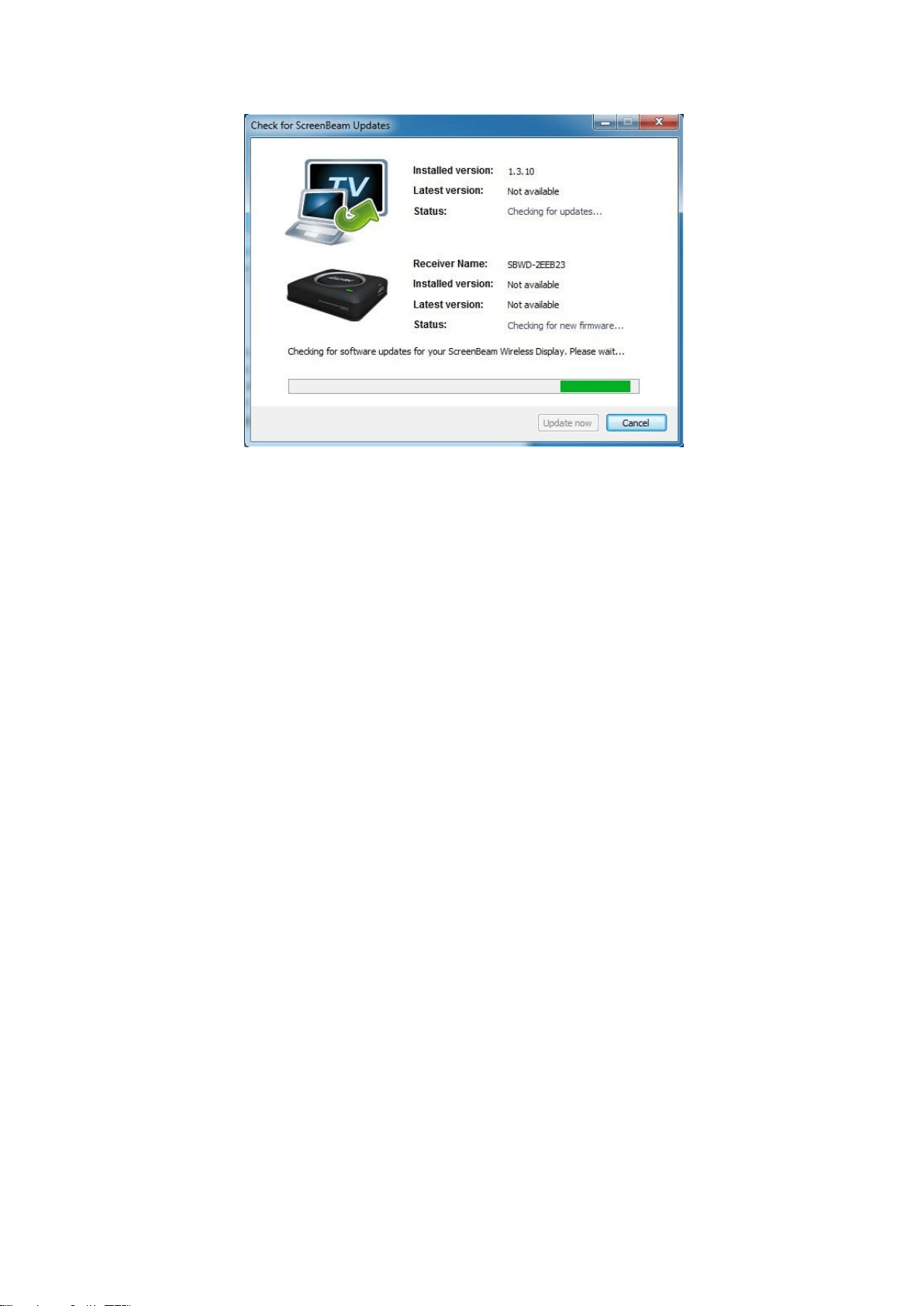
2. The software will check for the latest version automatically.
3. When the check is complete, it will indicate whether an update is available. If so, click Update now
to complete software update.
11

12
Part V. Frequently Asked Questions
This chapter lists a series of frequently asked questions concerning the operation of the ScreenBeam
devices.
Note: Go to https://actiontec.zendesk.com for more information
The ScreenBeam Wireless Display Software shows that it can’t find the transmitter.
Unplug and plug in the transmitter, wait about a minute for Windows driver installation. Then, launch
the software again. If the software still can’t find the transmitter, open the Windows Device Manager
and under Network, make sure the transmitter is NOT disabled.
My Windows’ firewall or anti-virus software generates a pop-up notification that ScreenBeam
is trying to open a port.
The transmitter requires Windows to temporarily open a port to stream content to your ScreenBeam
Receiver. Click Allow if the message appears. In some cases, the anti-virus software may not pop-up
the notification, so you will need to manually disable the anti-virus software.
My ScreenBeam Wireless Display Software doesn’t show any ScreenBeam receiver.
Make sure your ScreenBeam receiver and transmitter are completed set up and plugged in. Relaunch
the software and select “Add a receiver” to find your receiver.
My laptop, tablet or PC generates “Color scheme has been changed” pop-up notification. Is
this a problem?
No. Select “Keep the current color scheme and don’t show this message again.”
The image shown on my TV looks bigger/smaller than the size of the monitor. How can I adjust
the image size?
Right-click the ScreenBeam icon in Windows’ Notification Area at the bottom right of the desktop, and
select Preferences to adjust the screen size. Please make sure the laptop, tablet or PC is
disconnected from the receiver before making this change.
Why is my laptop, tablet or PC’s audio muted once I connect to the ScreenBeam Receiver?
Your laptop, tablet or PC is muted because the audio is now being broadcast on the TV.
I am experiencing choppy video or out-of-sync audio.
You can try three ways to improve the performance.
- When playing a video, ensure the ScreenBeam software is set for Video Playback under
Display Content in the Preferences Window.
- Make sure your ScreenBeam receiver is placed in an open space to avoid any radio
frequency interference.
- Make sure your laptop, tablet or PC power settings are set to “Maximum Performance.”

13
When watching a video, sometimes a horizontal line appears on the screen.
This may occur if you use Windows Media Player to play videos. Try another media player
application.
Can I play a DVD or Blu-ray video when using ScreenBeam Wireless display?
No, ScreenBeam USB Transmitter 2 and ScreenBeam wireless display software do not support
protected content of DVD/Blu-ray video streaming.
My ScreenBeam wireless display software cannot connect or pair with a ScreenBeam receiver.
Reboot your laptop, tablet or PC and ScreenBeam receiver. If that doesn’t work, select a different
wireless channel.
Appendix
Devices Supported/Compatibility
Windows 7/8 laptops, desktop PCs, tablets that lack native Miracast support.
System Requirements
HDTV with HDMI port
Laptops, desktop PCs, tablets with Windows 7 or 8 (32/64-bit); AMD A6 or Intel Gen 3 Core i3
equivalent; 2 GB of memory; 150 MB of hard disk spaces; and USB 2.0 port
Product Specifications
ScreenBeam Mini2 receiver
- Language: Multilanguage
- A/V Interface: HDMI, Type-A male connector
- Port: USB Host 2.0
- Video Output: Up to 720p with ScreenBeam USB Transmitter 2
- Audio Output: LPCM, 2 channel stereo
- Wireless: IEEE 802.11a/b/g/n dual-band 5GHz & 2.4GHz
- Wireless Security: WPA2, WPS PIN Pairing, AES 128bit
- Content Protection: HDCP 2.x
- Power Input: 5V / 1A
- Power Consumption: <4W
- Dimension: 3.86 x 1.18 x 0.47 inch
ScreenBeam USB Transmitter 2
- Wireless 802.11/a/b/g/n/ac Dual-band 2.4GHz and 5GHz
- I/O USB 2.0 type-A
Regulatory Compliance
FCC, IC, UL

14
Disclaimers
• Actual display resolution depends on many factors, including source signal quality and CPU
power
• Minimum system requirements apply
• Not compatible with iOS devices
Warranty
One year limited
GPL Info
For GNU General Public License (GPL) related information, go to
http://opensource.actiontec.com
Technical Support
Go to http://actiontec.zendesk.com for product support, updates, and more information
including:
- Software updates
- Troubleshooting
- Registration
- FAQs
Technical Support Phone Number
United States: 1-888-436-0657