CMT-DH7BT.GB.3-097-195-11(2)
Micro HI-FI
Component System
© 2007 Sony Corporation
CMT-DH7BT
3-097-195-11(2)
Operating Instructions
Owner’s Record
e model and serial numbers are located on the rear of the unit. Record these
numbers in the space provided below. Refer to them whenever you call upon your
Sony dealer regarding this product.
Model No. ______________ Serial No. ______________
CMT-DH7BT.GB.3-097-195-11(2)
2
GB
WARNING
To reduce the risk of re or
electric shock, do not expose
this apparatus to rain or
moisture.
CAUTION
e use of optical instruments with this
product will increase eye hazard.
Notice for the customers in the
U.S.A.
is symbol is intended
to alert the user to the
presence of uninsulated
“dangerous voltage”
within the product’s
enclosure that may be
of sucient magnitude
to constitute a risk
of electric shock to
persons.
is symbol is intended
to alert the user to the
presence of important
operating and
maintenance (servicing)
instructions in the
literature accompanying
the appliance.
Note to CATV system installer:
is reminder is provided to call the
CATV system installer’s attention to
Article 820-40 of the NEC that provides
guidelines for proper grounding and, in
particular, species that the cable ground
shall be connected to the grounding
system of the building, as close to the point
of cable entry as practical.
The following FCC statement applies
only to the version of this model
manufactured for sale in the U.S.A.
Other versions may not comply with
FCC technical regulations.
WARNING
is equipment has been tested and found
to comply with the limits for a Class B
digital device, pursuant to Part 15 of the
FCC Rules. ese limits are designed to
provide reasonable protection against
harmful interference in a residential
installation. is equipment generates,
uses and can radiate radio frequency
energy and, if not installed and used
in accordance with the instructions,
may cause harmful interference to
radio communications. However, there
is no guarantee that interference will
not occur in a particular installation.
If this equipment does cause harmful
interference to radio or television
reception, which can be determined
by turning the equipment o and on,
the user is encouraged to try to correct
the interference by one or more of the
following measures:
Reorient or relocate the receiving
antenna.
Increase the separation between the
equipment and receiver.
Connect the equipment into an outlet
on a circuit dierent from that to which
the receiver is connected.
Consult the dealer or an experienced
radio/TV technician for help.

CMT-DH7BT.GB.3-097-195-11(2)
3
GB
CAUTION
You are cautioned that any changes or
modications not expressly approved in
this manual could void your authority to
operate this equipment.
is equipment must not be co-located or
operated in conjunction with any other
antenna or transmitter.
is equipment complies with FCC
radiation exposure limits set forth for
uncontrolled equipment and meets the
FCC radio frequency (RF) Exposure
Guidelines in Supplement C to OET65.
is equipment has a very low RF energy
level that is deemed to comply with
FCC radio frequency (RF) Exposure
Guidelines in Supplement C to OET65
without maximum permissive exposure
evaluation (MPE). But it is desirable that
it should be installed and operated with at
least 20cm and more between the radiator
and person’s body (excluding extremities:
hands, wrists, feet and legs).
About this manual
Icons, such as , listed at the top
of each explanation indicate what kind
of media can be used with the function
being explained.
e English on-screen display is used
for illustration purposes only.
e Control Menu items may be
dierent depending on the disc.
e Setup Menu items may be dierent
depending on the area.

CMT-DH7BT.GB.3-097-195-11(2)
4
GB
Table of Contents
About this manual ...............................3
Playable discs ........................................ 5
Guide to parts and controls .............8
Getting Started
Hooking up the system....................14
Hooking up the TV.............................17
Setting the clock ................................19
Performing QUICK SETUP ...............20
Using the THEATRE SYNC
function .................................................21
Disc
Playing a disc .......................................23
Normal Play
Using play mode ................................27
Searching/selecting a disc ..............31
Playing MP3/JPEG discs ...................34
Adjusting the delay between the
picture and sound .............................39
A/V SYNC
Restricting playback of the disc ....39
CUSTOM PARENTAL CONTROL,
PARENTAL CONTROL
Using the DVD setup menu............43
Tuner
Listening to the radio .......................48
Bluetooth Device
Using the Bluetooth function ........52
Sound Adjustment
Adjusting the sound .........................58
Other Operations
Using the timer ...................................59
Changing the display .......................60
Viewing information about the
disc .........................................................61
Hooking up optional
components .........................................64
Additional Informa
tion
Troubleshooting .................................66
Precautions ...........................................75
Specications ......................................76
Guide to the Control Menu
display ....................................................79
Language code list ............................82
Bluetooth wireless technology .....84
Playable Bluetooth devices ............85
Glossary .................................................86
Index .......................................................89
CMT-DH7BT.GB.3-097-195-11(2)
5
GB
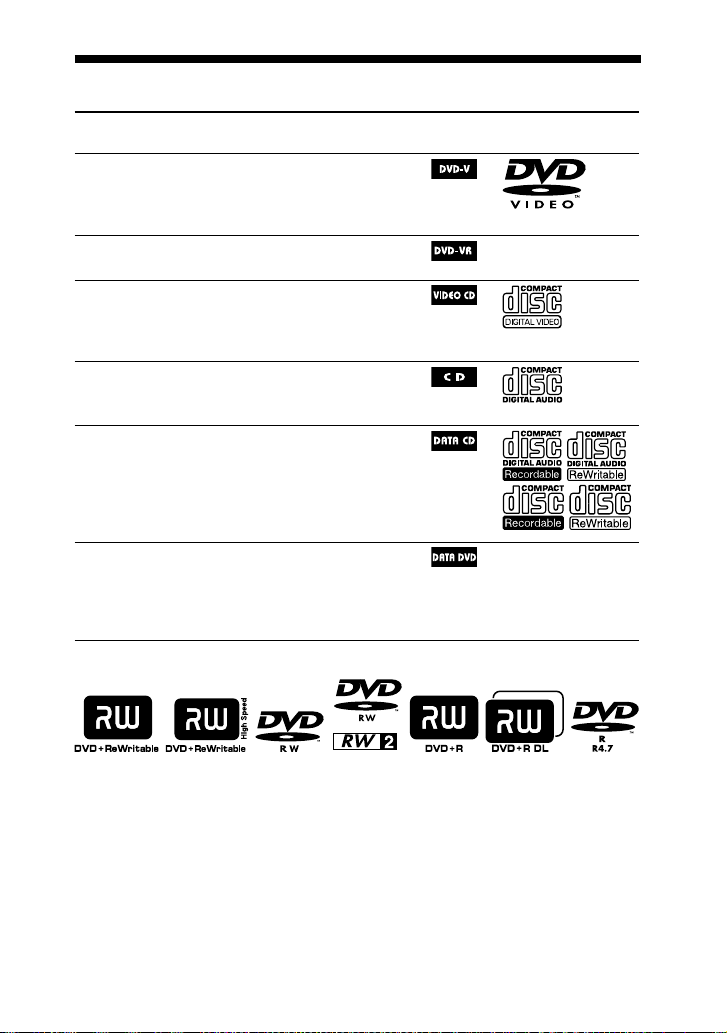
Playable discs
Type Characteristics
Icon used in
this manual
Logo
DVD VIDEO
DVD VIDEO
DVD-R*/-RW*/+R/+RW
in DVD VIDEO format
* also in video mode
VR mode
DVD-R/-RW
in VR (Video Recording) mode
VIDEO CD
VIDEO CD
Super VCD*
CD-ROM*/-R*/-RW*
* in VIDEO CD or Super VCD format
CD
AUDIO CD*
CD-R*/-RW*
* in AUDIO CD format
DATA CD
CD-ROM/-R/-RW
in DATA CD format, containing
MP3 audio tracks
1)
and/or JPEG
image les
2)
, and conforming to
ISO 9660
3)
Level 1 or Level 2, or
Joliet (expansion format).
DATA DVD
DVD-ROM/-R/-RW/+R/+RW
in DATA DVD format containing
MP3 audio tracks
1)
and/or JPEG
image les
2)
, and conforming to
UDF (Universal Disk Format).
is system can also play back discs with the following disc logos:
1)
MP3 (MPEG 1 Audio Layer 3) is a standard format dened by ISO/MPEG which compresses audio
data. MP3 audio tracks must be in MPEG 1 Audio Layer 3 format.
2)
JPEG image les must conform to the DCF image le format. (DCF “Design rule for Camera
File System”: Image standards for digital cameras regulated by Japan Electronics and Information
Technology Industries Association (JEITA)).
3)
A logical format of les and folders on CD-ROMs, dened by ISO (International Organization for
Standardization).
“DVD+RW,” “DVD-RW,” “DVD+R,” “DVD VIDEO,” and the “CD” logos are trademarks.
Continued

CMT-DH7BT.GB.3-097-195-11(2)
6
GB
Discs that cannot be played
CD-ROMs recorded in PHOTO CD
format
DATA CDs recorded in MP3 PRO
format
Data part of CD-Extras
1)
Data part of Mixed CDs
2)
Super Audio CDs
DVD Audio discs
DVD-RAMs
A DVD VIDEO with a dierent region
code.
A disc that has a non-standard shape
(e.g., heart, square, star).
A disc that has the adhesive cellophane
tape or a sticker still le on it.
1)
CD-Extra: is format records audio
(AUDIO CD data) on the tracks in session 1
and data on the tracks in session 2.
2)
Mixed CD: is format records data on the
rst track and audio (AUDIO CD data)
on the second and subsequent tracks of a
session.
Region code of DVD VIDEOs you
can play back on this system
Your system has a region code printed
on the back of the unit and will only
play back DVD VIDEOs labeled with
identical region code.
DVD VIDEOs labeled will also be
played back on this system.
If you try to play back any other region
code DVD VIDEO, the message
“Playback prohibited by area limitations.”
will appear on the TV screen. Depending
on the DVD VIDEO, no region code
indication may be labeled even though
playing the DVD VIDEO is prohibited by
area restrictions.
Note on DualDiscs
A DualDisc is a two sided disc product
which mates DVD recorded material on
one side with digital audio material on
the other side. However, since the audio
material side does not conform to the
Compact Disc (CD) standard, playback
on this product is not guaranteed.
Notes on CD-R/-RW and
DVD-R/-RW/+R/+RW
In some cases, CD-Rs/-RWs and
DVD-Rs/-RWs/+Rs/+RWs cannot be
played back on this system due to the
recording quality or physical condition
of the disc, or the characteristics of
the recording device and authoring
soware. e disc will not be played
back if it has not been correctly
nalized. For more information, see
the operation instructions for the
recording device.
Note that some playback functions
may not work with some DVD+Rs/
+RWs, even if they have been correctly
nalized. In this case, view the disc by
normal playback.
A disc created in Packet Write format
cannot be played back.
Note on playback operations of
DVD VIDEOs and VIDEO CDs
Some playback operations of DVD
VIDEOs and VIDEO CDs may be
intentionally set by soware producers.

CMT-DH7BT.GB.3-097-195-11(2)
7
GB
Since this system play back DVD
VIDEOs and VIDEO CDs according to
the disc contents the soware producers
designed, some playback features may
not be available. Also, refer to the
instructions supplied with the DVD
VIDEOs or VIDEO CDs.
Music discs encoded with
copyright protection technologies
is product is designed to play back
discs that conform to the Compact Disc
(CD) standard. Recently, various music
discs encoded with copyright protection
technologies are marketed by some
record companies. Please be aware that
among those discs, there are some that
do not conform to the CD standard and
may not be playable by this product.
Notes on Multi Session disc
is system can play back Multi
Session discs when an MP3 audio track
(or a JPEG image le) is contained in
the rst session. Any subsequent MP3
audio tracks (or JPEG image les)
recorded in later sessions can also be
played back.
If the rst session is recorded in
AUDIO CD or VIDEO CD format,
only the rst session will be played
back.
e system will recognize a Multi
Session disc as an AUDIO CD if there
is a session recorded in AUDIO CD
format on the disc. However, the
system will only play back the disc if
the rst session is recorded in AUDIO
CD format.
Copyrights
is product incorporates copyright
protection technology that is protected
by U.S. patents and other intellectual
property rights. Use of this copyright
protection technology must be
authorized by Macrovision, and is
intended for home and other limited
viewing uses only unless otherwise
authorized by Macrovision. Reverse
engineering or disassembly is prohibited.
is system incorporates Dolby*
Digital and the DTS** Digital
Surround System.
* Manufactured under license from Dolby
Laboratories.
“Dolby” and the double-D symbol are
trademarks of Dolby Laboratories.
** Manufactured under license from Digital
eater Systems, Inc.
“DTS” and “ DTS Digital Surround” are
registered trademarks of Digital eater
Systems, Inc.
e Bluetooth word mark and logos
are owned by the Bluetooth SIG, Inc.
and any use of such marks by Sony
Corporation is under license. Other
trademarks and trade names are those
of their respective owners.
MPEG Layer-3 audio coding
technology and patents licensed from
Fraunhofer IIS and omson.
e XM name and related logos are
registered trademarks of XM Satellite
Radio Inc.
(c) 2006 SIRIUS Satellite Radio Inc.
“SIRIUS” and the SIRIUS dog logo
are registered trademarks of SIRIUS
Satellite Radio Inc.
TM
and
®
marks are omitted in this
manual.
CMT-DH7BT.GB.3-097-195-11(2)
8
GB
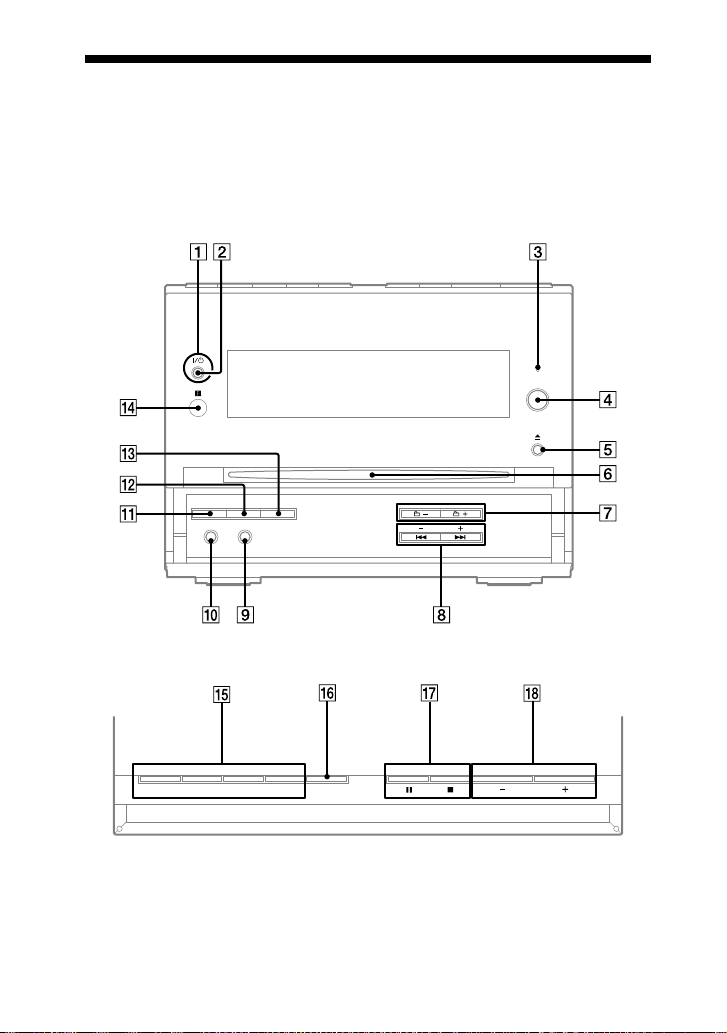
Guide to parts and controls
is manual mainly explains operations using the remote, but the same operations can
also be performed using the buttons on the unit having the same or similar names.
Unit (HCD-DH7BT/DVD Receiver)
Front panel
Top panel
CMT-DH7BT.GB.3-097-195-11(2)
9
GB
Guide to parts and controls
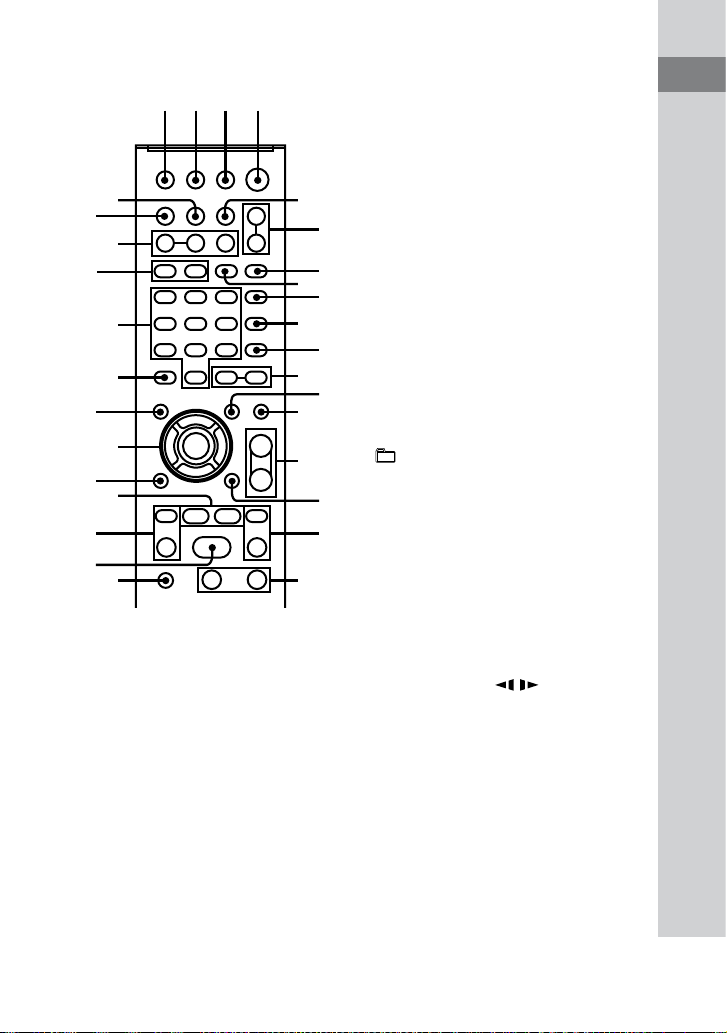
Remote control (RM-SCD30)
Unit: (on/standby) (19, 20,
48, 59, 72)
Remote: TV
1)
(on/standby)
(19)
Press to turn on the system.
Press to turn on the TV.
STANDBY indicator (66)
Lights up when the system is turned o.
BLUETOOTH indicator (56, 57)
Lights up when the Bluetooth function
is active.
BLUETOOTH OPR (55, 56, 57)
Press to make a connection,
disconnection, or pairing with a
Bluetooth device.
(eject) (24)
Press to eject the disc.
Disc slot
+/ (21, 23, 53)
Press to select an album.
PRESET +/ (49)
Press to select the preset station.
/ (go backward/
forward) (23, 35, 55)
Press to select a track or le.
Remote: TV CH +/
1)
(19)
Press to change the TV channels.
Remote: SLOW / (24)
Press to watch the slow-motion play.
Remote: TUNING +/ (48, 49)
Press to tune in the desired station.
/ (rewind/fast forward)
(23, 55)
Press to nd a point in a track or le.
Continued

CMT-DH7BT.GB.3-097-195-11(2)
10
GB
AUDIO IN jack (64)
Connect to an optional audio
component.
PHONES jack
Connect the headphones.
DISPLAY (60, 61)
Press to display the disc information or
clock in the front panel display.
PROGRESSIVE (18, 64)
Press to change the output video format
(Interlace or Progressive format).
DSGX (58)
Press to reinforce the bass.
IR Receptor
Unit: DVD (play) (18, 23)
Press to select the DVD function.
Press to start playback of a disc.
Unit: BLUETOOTH (53, 54)
Press to select the Bluetooth function.
Press to start playback of the music on
the Bluetooth device (Bluetooth mobile
phone, etc.).
Unit: TUNER/BAND (48)
Press to select the TUNER function.
Press to switch among FM, AM, XM and
SIRIUS band.
Unit: AUDIO IN
Press to select the AUDIO IN function.
FUNCTION +/ (18, 23, 48, 53, 54,
56, 57)
Press to select the function.
Unit: REPEAT/FM MODE (30, 48)
Remote: FM MODE (48)
Remote: REPEAT (30)
Press to select FM reception mode
(monaural or stereo).
Press to listen to a disc, a single track or
le repeatedly.
(stop) (23, 48, 55)
(pause) (23, 55)
Press to stop or pause playback.
Remote:
2)
(play) (23, 28, 35,
42, 54)
Press to start playback.
VOLUME +/
2)
(23, 49, 54, 57)
Press to adjust the volume.
TV VOL +/
1)2)
(19)
Press to adjust the TV volume.
DIMMER (60)
Press to adjust the brightness of the
display.
PICTURE NAVI (33)
Press to select the VIEWER format for
searching the chapters, titles and tracks.
Press to display the thumbnail pictures.

CMT-DH7BT.GB.3-097-195-11(2)
11
GB
Guide to parts and controls
AUDIO (25, 63)
Press to display the current audio signal
on the TV screen.
SUBTITLE (24)
Press to switch the language of the
subtitle (DVD VIDEO).
ANGLE (24)
Press to change the angle (DVD VIDEO
with multi-angles only).
DVD/TUNER MENU (31, 35, 37,
49, 50)
Press to display the MENU items on the
TV screen.
Press to preset the radio station.
EQ (58)
Press to select the sound eect.
DISPLAY (20, 27, 31, 37, 39, 43,
63)
Press to display the Control Menu on the
TV screen.
TV
1)
(19)
Press to operate the TV functions.
ADVANCE (24)
Press to advance the current scene during
playback.
REPLAY (24)
Press to replay the previous scene during
playback.
STEP/ STEP (24)
Press to play one frame at a time when
playback is paused.
RETURN (26)
Press to return to the previous menu on
the TV screen.
/// (20, 27, 31, 35, 50, 59)
Press to select the MENU items.
ENTER (19, 33, 49)
Press to enter the settings.
DVD TOP MENU (31)
Press to display the DVD title on the TV
screen.
CLEAR (28, 32, 50, 54, 56)
Press to delete a pre-programmed track
or le.
Press to delete a number entry.
Press to erase the pairing registration
information of the Bluetooth device.
-/--
1)
Press to enter a single digit or double
digit number.
Numeric buttons
2)
(19, 23, 26, 31,
40, 49, 50, 53)
Press to select a track, le or satellite
channel.
Press to enter a Parental Lock password.
Press to enter a Bluetooth passcode.
10/0
2)
Press to enter a double digit number.
Continued

CMT-DH7BT.GB.3-097-195-11(2)
12
GB
XM (48)
Press to select XM band.
SIRIUS (48, 50)
Press to select SIRIUS band.
CATEGORY +/ (49)
Press to select a satellite radio category.
CATEGORY MODE (49)
Press to select the tuning mode for XM
or SIRIUS band.
TIME/TEXT (61)
Press to change the information in the
front panel display.
TV/VIDEO
1)
(19)
Press to switch the input sources.
SLEEP (59)
Press to set the Sleep Timer.
TIMER MENU (19, 59)
Press to set the clock and the timers.
THEATRE SYNC (22)
Press to activate the THEATRE SYNC
function.
1)
is button is used to operate a Sony TV. For
details, see “Operating a Sony TV” (page 19).
2)
e numeric button 5, TV VOL +,
VOLUME +
and
buttons have a
tactile dot. Use the tactile dot as a reference
when operating the system.
CMT-DH7BT.GB.3-097-195-11(2)
13
GB
Guide to parts and controls
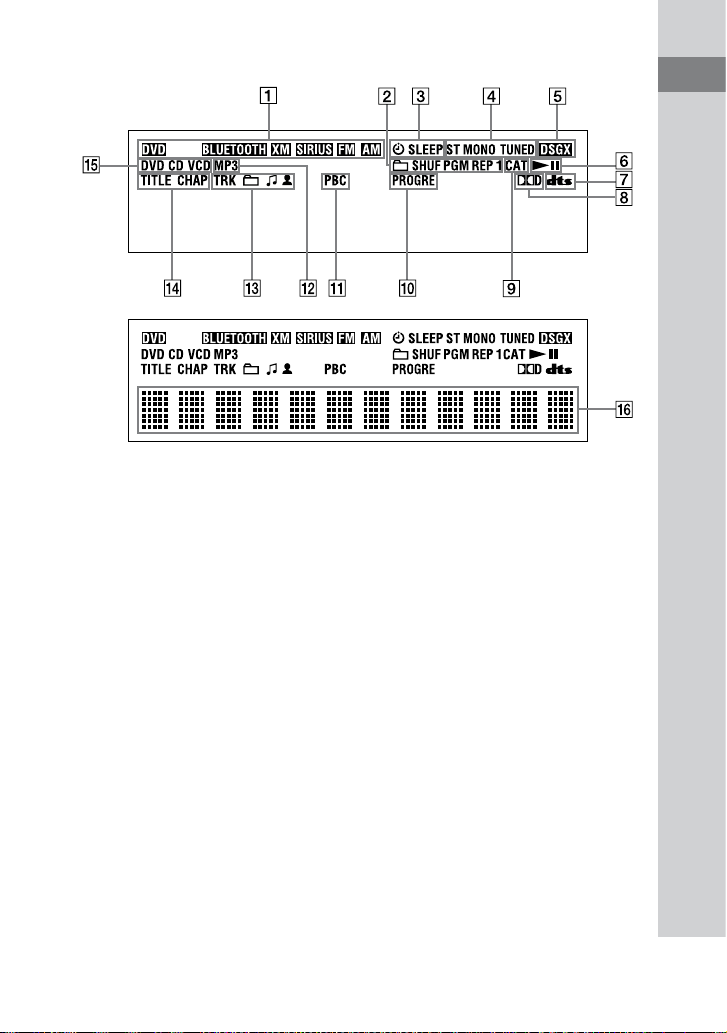
Display
Indicates the selected function.
Indicates the selected play mode. (27)
Lights up when timer is set. (59)
Lights up when a station is tuned in.
(48)
Lights up when DSGX is turned on.
(58)
Indicates the Playback status.
Lights up when DTS is selected. (47)
Lights up when Dolby Digital is
selected. (47)
Lights up when CATEGORY MODE
is selected. (49)
Lights up when “P AUTO” or
“P VIDEO” is selected. (18)
Lights up when playing VIDEO CD
with PBC. (26)
Lights up when playing an MP3 audio
track. (35)
Indicates the track/album
information.
Lights up when chapter or title
number is displayed.
Indicates the type of disc being played
back. (23)
Displays the text information.
CMT-DH7BT.GB.3-097-195-11(2)
14
GB
Getting Started
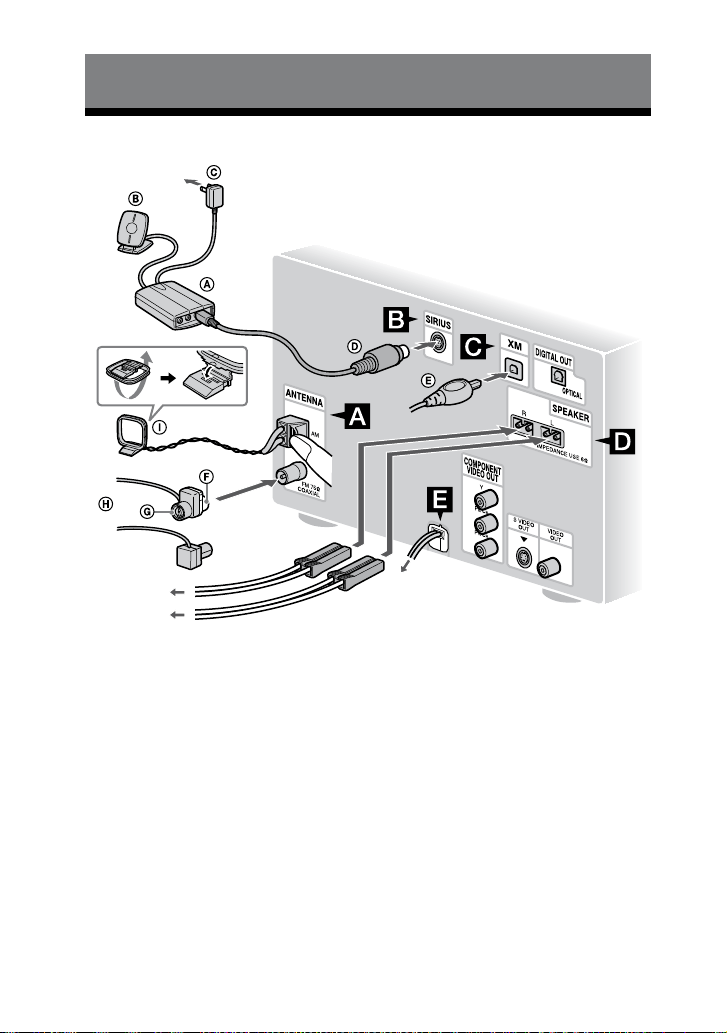
Hooking up the system
FM/AM antennas
Find a location and an orientation that
provide good reception, and then set up
the antenna.
Keep the antennas away from the speaker
cords and the power cord to avoid
picking up noise.
SiriusConnect Home tuner (not supplied)
Satellite Radio Home Antenna (not supplied)*
AC power adaptor (not supplied)*
DIN cable (not supplied)*
XM Mini-Tuner and Home Dock (not supplied)
White side for North American model
Brown side for other regions
FM lead antenna (Extend it horizontally.)
AM loop antenna
* Supplied with SiriusConnect Home tuner
Wall socket
Wall socket
Right speaker
Left speaker
or
CMT-DH7BT.GB.3-097-195-11(2)
15
GB
Getting Started
SIRIUS Tuner
Connect the SiriusConnect Home tuner.
When you use the SiriusConnect Home
tuner with this system, be sure to connect
the AC power adaptor supplied with
the tuner to a wall socket. For detail, see
“Receiving the SIRIUS Satellite Radio”
(page 17).
Keep the SiriusConnect Home tuner,
antenna, and AC power adaptor away
from the speaker cords and the power
cord to avoid picking up noise.
XM antenna
Connect the XM Mini-Tuner and Home
Dock. For details, see “Receiving the XM
Satellite Radio” (page 16)
Speakers
Power
Connect the power cord to a wall socket.
If the supplied adaptor on the plug does
not t your wall socket, detach it from
the plug (only for models equipped with
an adaptor).
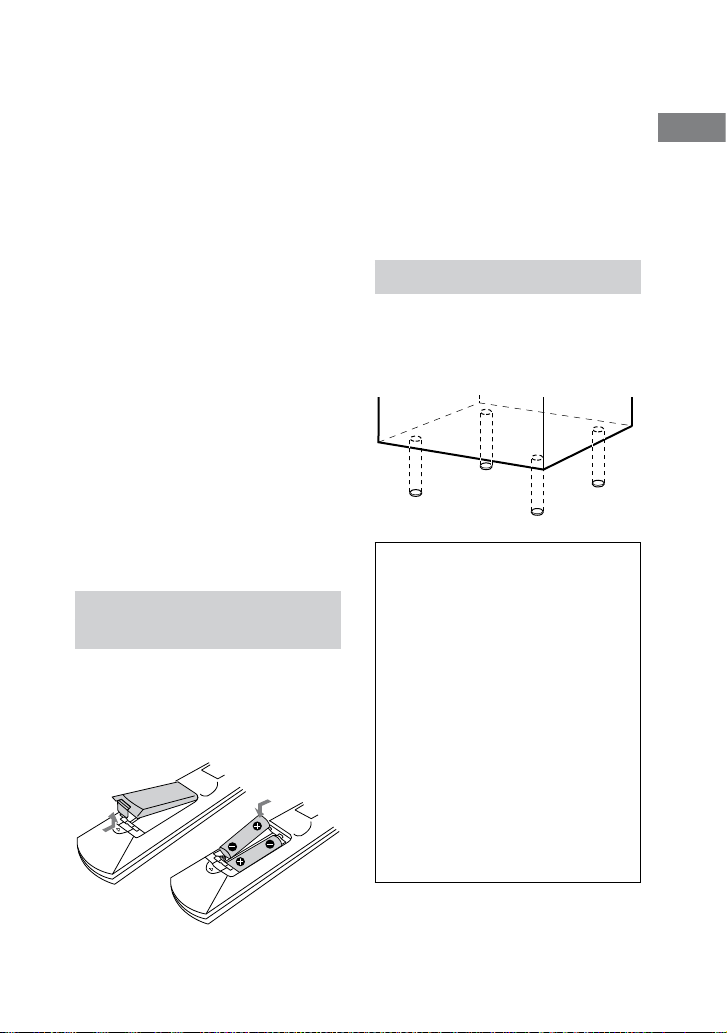
Inserting two R6 (size AA)
batteries into the remote
Slide and remove the battery
compartment lid, and insert the two
supplied R6 (size AA) batteries, side
rst, matching the polarities shown
below.
Note
If you do not use the remote for a long period
of time, remove the batteries to avoid possible
damage from battery leakage and corrosion.
Tip
With normal use, the batteries should last for
about six months. When the remote no longer
operates the system, replace both batteries with
new ones.
Attaching the speaker pads
Attach the supplied speaker pads at each
corner on the bottom of the speakers
to stabilize the speakers and to prevent
them from slipping.
When carrying this system
Perform the following procedure to
protect the DVD mechanism.
Use buttons on the unit for the
operation.
1
Press /
to turn on the
system, then press DVD
.
2
Make sure that no disc is loaded
in the system and check that “No
Disc” appears.
3
Press /
to turn o the
system and check that “STANDBY”
disappears.
4
Unplug the power cord.
Continued

CMT-DH7BT.GB.3-097-195-11(2)
16
GB
Receiving the XM Satellite
Radio
ABOUT XM SATELLITE RADIO
XM oers over 170 digital radio channels: the
most commercial-free music channels, premier
news, sports, talk, and trac and weather in
21 metro markets. XM’s on-air hosts broadcast
live from studios in Washington, D.C., New
York City and Nashville.
For more information or to subscribe in the
US, visit xmradio.com or call Listener Care at
1-800-XMRADIO (1-800-967-2346).
XM READY® LEGAL
XM monthly service subscription sold
separately. XM Mini-Tuner and Home Dock
required (each sold separately) to receive
XM service. Installation costs and other fees
and taxes, including a one-time activation
fee may apply. Subscription fee is consumer
only. All fees and programming subject to
change. Channels with frequent explicit
language are indicated with an XL. Channel
blocking is available for XM radio receivers by
calling 1-800-XMRADIO (1-800-967-2346).
For a full listing of the XM commercial-free
channels and advertising supported channels,
visit lineup.xmradio.com. Subscriptions
subject to Customer Agreement available at
xmradio.com. XM service only available in
the 48 contiguous United States. XM Satellite
Radio and XM Ready are trademarks of XM
Satellite Radio Inc. (C)2006 XM Satellite Radio
Inc. All rights reserved.
XM READY® SUBSCRIPTIONS
Once you have installed the XM Mini-Tuner
Dock, inserted the XM Mini-Tuner, connected
the XM Dock to your XM Ready
®
home audio
system, and installed the antenna, you are
ready to subscribe and begin receiving XM
programming.
ere are three places to nd your eight
character XM Radio ID: on the XM
Mini-Tuner, on the XM Mini-Tuner package,
and on XM Channel 0. Record the Radio ID in
the following eight squares for reference.
Note: e XM Radio ID does not use the
letters “I”, “O”, “S” or “F.” Activate your XM
Satellite Radio service in the U.S. online
at http://activate.xmradio.com or call
1-800-XM-RADIO (1-800-967-2346). You
will need a major credit card. XM will send
a signal from the satellites to activate the full
channel lineup. Activation normally takes 10
to 15 minutes, but during peak busy periods
you may need to keep your XM Ready home
audio system on for up to an hour. When you
can access the full channel lineup on your XM
Ready home audio system you are done.
CMT-DH7BT.GB.3-097-195-11(2)
17
GB
Getting Started
Receiving the SIRIUS Satellite
Radio
SIRIUS Satellite Radio: The Best Radio
On Radio
SIRIUS brings all your favorite entertainment
including 100% commercial-free music, plus
superior sports coverage, uncensored talk and
comedy, world-class entertainment, news,
weather and more for your car, home or oce.
Sirius is available in the US for subscribers with
addresses in the continental US and is available
in Canada for subscribers with a Canadian
address. Required subscription plus compatible
SiriusConnect Home Tuner with antenna
are required and sold separately. SIRIUS
Programming is subject to change. Visit sirius.
com or siriuscanada.ca for the most complete
and up-to-date channel lineup and product
information. “SIRIUS” and the SIRIUS dog
logo and related marks are trademarks of Sirius
Satellite Radio Inc. All rights reserved.
To Subscribe to SIRIUS Satellite Radio
Purchase and connect a SiriusConnect Home
Tuner to your Sirius Ready home audio system.
You are then ready to activate and subscribe to
Sirius by either calling 1.888.539.SIRIUS (7474)
or log on to sirius.com. It is that easy.
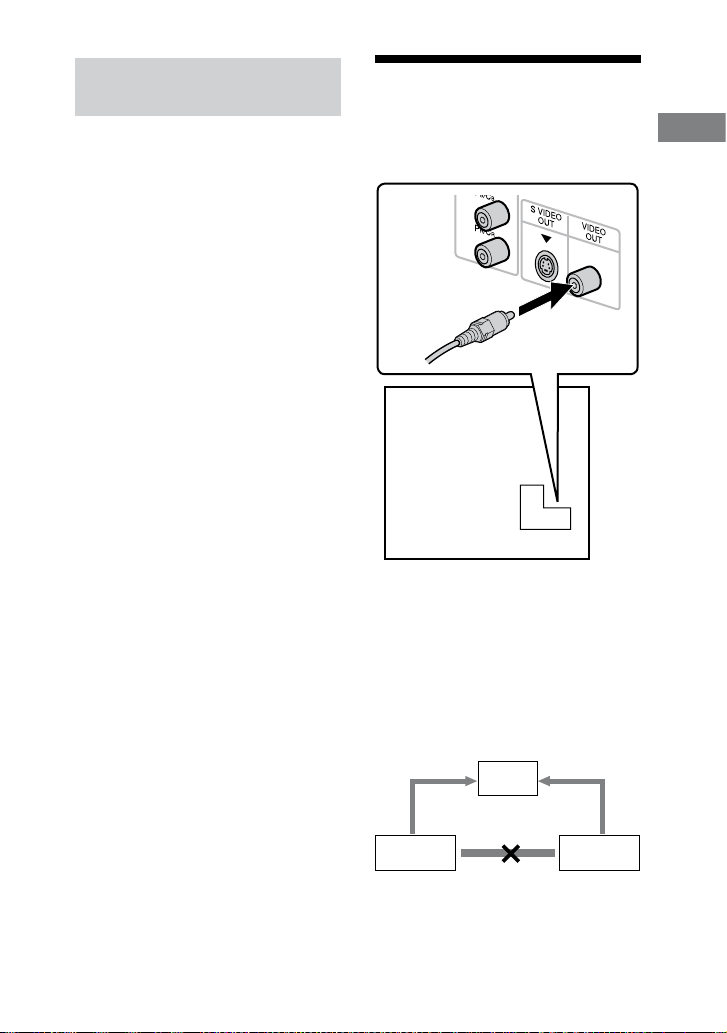
Hooking up the TV
Connect the video input jack of your
TV to the VIDEO OUT jack with the
supplied video cord.
When connecting a video deck
Connect the video deck to the TV using
a video cord (not supplied). However, do
not connect this unit to the TV through
the video deck. Otherwise, you may
experience video leakage when watching
video images from this system. Connect
this unit directly to the TV as shown
below.
TV
UnitVideo deck
Do not connect
directly
Continued

CMT-DH7BT.GB.3-097-195-11(2)
18
GB
Tip
For higher quality video images:
Use the optional component video cords to
connect the COMPONENT VIDEO input
jacks on your TV to the COMPONENT
VIDEO OUT jacks of this unit. If your
TV is compatible with progressive format
le signals, use this connection and press
PROGRESSIVE
on the unit repeatedly
until “P AUTO” or “P VIDEO” appears in
the display (see below).
You can use an optional S Video cord to
connect the S VIDEO input jack on your
TV to the S VIDEO OUT jack of this unit.
Changing the format of the
video signal output from
COMPONENT VIDEO OUT jacks
Progressive is a method for displaying
TV images that reduces ickering and
sharpens the image. To use this method,
you need to connect to a TV that can
accept progressive signals.
You can output video signals from
COMPONENT VIDEO OUT jacks in
Interlace or Progressive format.
1
Press FUNCTION +/
repeatedly to select “DVD” (or
press DVD
on the unit).
2
Press PROGRESSIVE
on the
unit repeatedly.
Select “P AUTO” or “P VIDEO” if
your TV accepts progressive signals
and the TV is connected to the
COMPONENT VIDEO OUT jacks.
Otherwise, select “INTERLACE.”
P AUTO (PROGRESSIVE AUTO):
e system automatically detects
the soware type and selects the
appropriate conversion method.
P VIDEO (PROGRESSIVE VIDEO):
e system xes the conversion
method to PROGRESSIVE VIDEO
for video-based soware.
Select this if the image is not clear
when you select “P AUTO.”
About DVD VIDEO software types and
the conversion method
e DVD VIDEO soware can be
divided into 2 types:
Film-based soware
Film-based soware is derived from
lm and displays the images at 24
frames per second.
Video-based soware
Video-based soware is derived from
TV, such as dramas and sitcoms and
displays images at 30 frames or 60
elds per second.
Some DVD VIDEO contains both types
of soware. In order for these images to
appear in your TV naturally when the
video output is in progressive format, the
progressive signals need to be converted
to match your DVD VIDEO soware.
Note
ere would be no image on your TV or the
image is not clear if your setting does not
match your TV or connection.
CMT-DH7BT.GB.3-097-195-11(2)
19
GB
Getting Started
When using a TV
Turn on the TV and select the video
input so that you can view the pictures
from this system.
Operating a Sony TV
You can use the following buttons to
operate a Sony TV. ese buttons have
been marked in orange.
To Press
Turn the TV on
or o
TV /
while
holding down
TV
.
Switch the TV’s
input source
between the TV
and other input
sources
TV/VIDEO
while holding down
TV
.
Select the TV
channels
TV CH +/
or numeric
buttons
* while
holding down
TV
.
Adjust the
volume of the TV
speaker(s)
TV VOL +/
while holding down
TV
.
* For double digit number, hold down TV
and press -/--
, then press the number.
(For example, hold down TV
,
press -/--
, then 2 and 5 for entering 25.)
Setting the clock
Use buttons on the remote to set the
clock.
1
Press /
to turn on the
system.
2
Press TIMER MENU
.
e hour indication ashes in the
display.
If “PLAY SET?” ashes in the
display, press
or
repeatedly
to select “CLOCK SET?,” then press
ENTER
.
3
Press
or
repeatedly to set
the hour.
4
Press ENTER
.
e minute indication ashes in the
display.
5
Press
or
repeatedly to set
the minutes.
6
Press ENTER
.
e clock starts functioning.
Note
e clock settings are canceled when you
disconnect the power cord or if a power failure
occurs.
To display the clock when the system
is o
Press DISPLAY
.
e clock is displayed for about
8 seconds.
CMT-DH7BT.GB.3-097-195-11(2)
20
GB
Performing QUICK
SETUP
Before using the system, you can make
the minimum basic adjustments in
QUICK SETUP. If you do not want
to perform QUICK SETUP, press
CLEAR
in step 3. e guide message
will disappear from the TV screen.
1
Turn on your TV and select the
video input.
2
Press /
to turn on the
system.
Note
Make sure there is no disc in the unit.
Otherwise, the guide message does not
appear. To perform QUICK SETUP, press
on the unit to remove the disc.
3
Press FUNCTION +/
repeatedly to select “DVD” (or
press DVD
on the unit).
e guide message appears at the
bottom of the TV screen.
4
Press ENTER
without
inserting a disc.
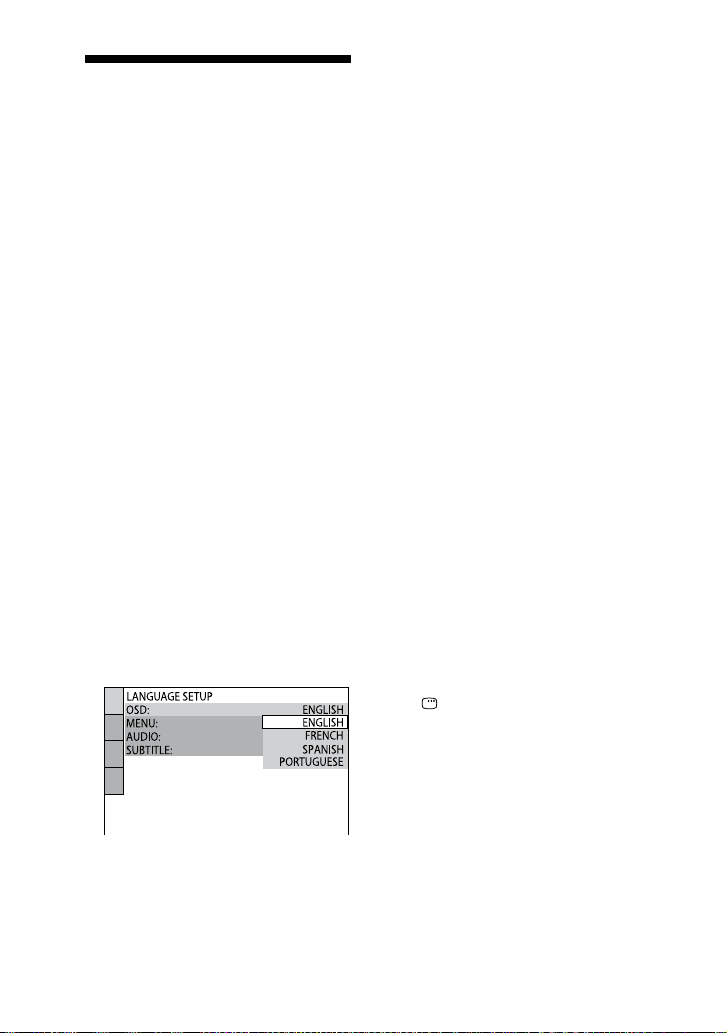
“LANGUAGE SETUP” appears on
the TV screen.
5
Press
or
repeatedly to
select a language, then press
ENTER
.
e setting is selected and “SCREEN
SETUP” appears on the TV screen.
Tips
e selected language is for “OSD,”
“MENU” and “SUBTITLE .”
e selectable language is dierent
depending on the area.
6
Press
or
repeatedly to
select the setting that matches
your TV type.
If you have a 4:3 standard TV:
Select “4:3 LETTER BOX” or “4:3
PAN SCAN” (page 45)
If you have a wide-screen TV or a
4:3 standard TV with wide-screen
mode:
Select “16:9” (page 45)
7
Press ENTER
.
e setting is selected and “QUICK
SETUP is complete.” appears on the
TV screen.
e system is ready for playback.
If you want to change each setting
individually, see “Using the DVD
setup menu” (page 43).
To quit QUICK SETUP
Press DISPLAY
.
CMT-DH7BT.GB.3-097-195-11(2)
21
GB
Getting Started
To recall QUICK SETUP display
1
Press DISPLAY
when playback
is stopped.
The Control Menu appears on the TV
screen.
2
Press or
repeatedly to
select (SETUP), then press
ENTER
.
3
Press or
repeatedly to select
“QUICK,” then press ENTER
.
Note
e guide message appears at the bottom of
the TV screen when you turn on the system
for the rst time or aer performing “RESET”
(page 72).
Using the THEATRE
SYNC function
THEATRE SYNC allows you to turn on
your Sony TV and this system, changes
the system’s function to “DVD” and then
switches the TV’s input source you have
set with just one button.
Preparing to use the THEATRE
SYNC function
Register the TV’s input source connected
to this system.
To select the TV’s input
Press the following buttons while holding
down SLEEP
.
Press TV’s input source
0 No input source
(Default)
1 to 8 VIDEO 1 to VIDEO 8
9 COMPONENT 1
CLEAR
COMPONENT 2
COMPONENT 3
+
COMPONENT 4
e selected TV’s input source is
memorized into the remote.
Continued

CMT-DH7BT.GB.3-097-195-11(2)
22
GB
Operating the THEATRE SYNC
function
Keep the remote pointed in the
direction of the TV until the TV is
turned on and the input source
is changed correctly, then press
THEATRE SYNC
.
If this function does not work, change the
transmission time. e transmission time
varies depending on the TV.
To change the transmission time
Press the following buttons while holding
down
.
Press Transmission time
1 0.5 (Default)
2 1
3 1.5
4 2
5 2.5
6 3
7 3.5
8 4
CMT-DH7BT.GB.3-097-195-11(2)
23
GB
Disc
Disc
Playing a disc
Normal Play
Depending on the DVD VIDEO or
VIDEO CD, some operations may
be dierent or restricted. Refer to the
operating instructions supplied with the
disc.
Example: When playing a DVD VIDEO
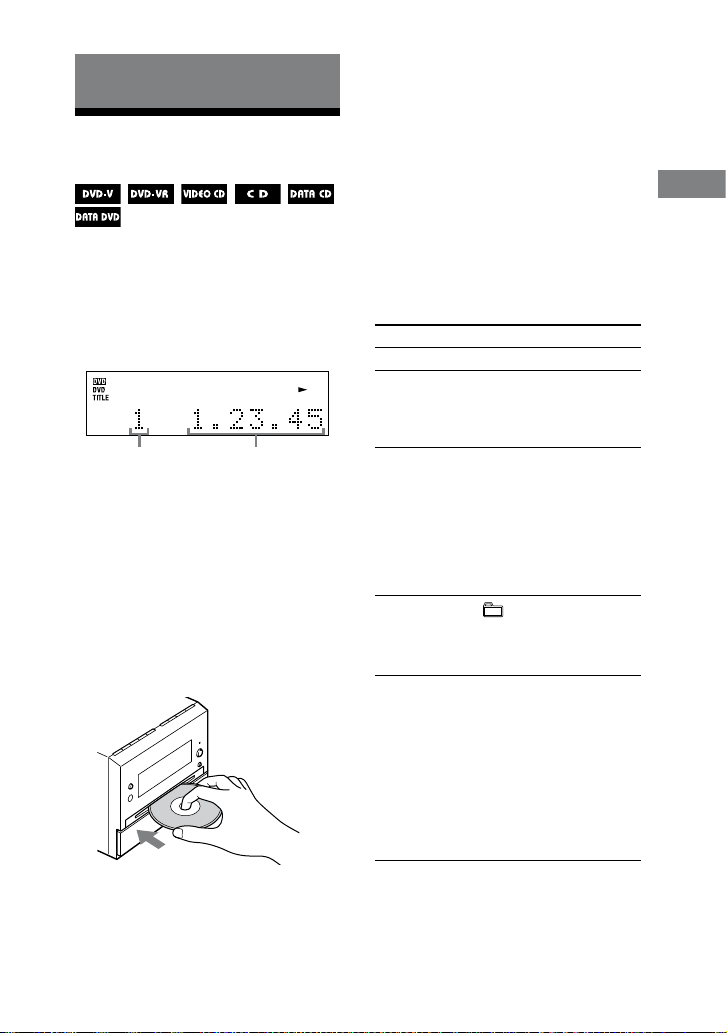
Elapsed playing timeTitle number
1
Press FUNCTION +/
repeatedly to select “DVD” (or
press DVD
on the unit).
2
Insert a disc in the disc slot
with the label side facing up.
If the playback does not start
automatically, press
(or DVD
on the unit).
3
Press VOLUME +/
to adjust
the volume.
Notes
Depending on the system status, the volume
level may not appear on the TV screen.
When you turn on the system, the disc is not
pulled into the disc slot
until “No Disc”
appears in the display. Do not attempt to
push in the disc until “No Disc” appears.
Do not load an 8 cm disc with an adaptor.
Doing so may cause the system to
malfunction.
When you remove a disc, handle the disc by
its edge and pull it straight out of the disc slot
. Do not touch the surface.
Other operations
To Press
Stop playback
.
Pause playback
. Press
again
or
(or DVD
on the unit) to
resume playback.
Select a track
1)
,
chapter or
video le
or
repeatedly during
playback.
Or, press the numeric
buttons
when
the Control Menu is
turned o, then press
ENTER
2)
.
Select an
album
3)
+/
repeatedly
during playback or
when playback is
paused.
Locate a point
quickly in fast
forward or fast
reverse (Lock
Search)
4)5)
or
during playback.
Each time you press
or
, the
playback speed changes
cyclically.
To return to normal
playback, press
(or DVD
on the
unit).
Continued
CMT-DH7BT.GB.3-097-195-11(2)
24
GB
To Press
Watch frame by
frame (Slow-
motion Play)
6)
SLOW or SLOW
when playback
is paused. Each time
you press SLOW
or SLOW
,
the playback speed
changes.
To return to normal
playback, press
(or DVD
on the
unit).
Play one
frame at a
time (Freeze
Frame)
6)
STEP
to go to
the next frame when
playback is paused.
Press STEP
7)
to go to the preceding
frame when playback is
paused.
To return to normal
playback, press
(or DVD
on the
unit).
Replay the
previous scene
REPLAY
during
playback. (Instant
Replay)
7)
Briey fast
forward the
current scene
ADVANCE
during playback.
(Instant Advance)
7)
Switch to DVD
function from
another source
FUNCTION +/
repeatedly (or press
DVD
on the
unit) (Automatic
Source Selection).
Remove the
disc
on the unit.
1)
You cannot select an audio track during
Lock Search operation of MP3 audio tracks.
2)
DVD VIDEO, DVD-R/-RW in VR mode,
VIDEO CD and AUDIO CD only.
3)
MP3 audio tracks and JPEG image les only.
4)
Except for JPEG image les.
5)
Depending on the disc, the actual speed may
dier.
6)
DVD VIDEO, DVD-R/-RW in VR mode,
and VIDEO CD only.
7)
DVD VIDEO and DVD-R/-RW in VR mode
only.
Notes
You cannot search for a still picture on a
DVD-R/-RW in VR mode.
You may not be able to use the Instant Replay
or Instant Advance function in Repeat Play
mode or with some scenes.
Displaying multi-angles and
subtitles
Changing the angles
(DVD VIDEO only)
You can change the viewing angle while
playing a DVD VIDEO on which various
angles (multi-angles) for a scene are
recorded.
Press ANGLE
repeatedly during
playback. Each time you press
ANGLE
, the angle changes.
Note
Depending on the DVD VIDEO, you may not
be able to change the angle, even if multi-angles
are recorded on the DVD VIDEO.
Displaying the subtitles
(DVD VIDEO and DVD-R/-RW in VR
mode only)
You can turn the subtitles on or o while
playing a DVD VIDEO or DVD-R/-RW
in VR mode on which subtitles are
recorded. You can also change the
language of the subtitles with DVD
VIDEO, DVD-R/-RW in VR mode on
which multilingual subtitles are recorded.
Press SUBTITLE
repeatedly
during playback. Each time you press
SUBTITLE
, the subtitle language
changes or turns o.

CMT-DH7BT.GB.3-097-195-11(2)
25
GB
Disc
Note
Depending on the DVD VIDEO, you may
not be able to change the subtitles even if
multilingual subtitles are recorded on the DVD
VIDEO. You also may not be able to turn the
subtitles o.
Other useful functions
Changing the sound
When playing a DVD VIDEO recorded
in multiple audio formats, you can select
the audio format you want. If the DVD
VIDEO is recorded with multilingual
tracks, you can also change the language.
When playing a VIDEO CD, AUDIO
CD or MP3 audio tracks, you can select
the sound from the right or le channel
and listen to the sound of the selected
channel through both the right and le
speakers. For example, when playing a
track with the vocals on the right channel
and the instruments on the le channel,
you can hear the instruments from both
speakers by selecting the le channel.
Press AUDIO
repeatedly during
playback to select the audio signal you
want.
e default settings are underlined.
When playing a DVD VIDEO:
Depending on the DVD VIDEO, the
option of language and audio format
varies.
When a 4-digit number is displayed, the
digits represent a language code (see
“Language code list” (page 82)). When
the same language is displayed two or
more times, the DVD VIDEO is recorded
in multiple audio formats. Note that the
sound changes automatically depending
on the disc.
When playing a DVD-R/-RW in VR
mode:
e number of audio tracks recorded on
a disc is displayed.
Example:
1: MAIN: the main sound of the audio
track 1.
1: SUB: the sub sound of the audio
track 1.
1: MAIN+SUB: the main and sub
sound of the audio track 1.
2: MAIN*: the main sound of the audio
track 2.
2: SUB*: the sub sound of the audio
track 2.
2: MAIN+SUB*: the main and sub
sound of the audio track 2.
* ese items do not appear if only one audio
stream is recorded on the disc being played
back.
When playing a VIDEO CD, AUDIO CD,
or MP3 audio track:
STEREO: the standard stereo sound.
1/L: the sound of the le channel
(monaural).
2/R: the sound of the right channel
(monaural).
When playing a Super VCD:
1: STEREO: the stereo sound of the
audio track 1.
1: 1/L: the sound of the le channel of
the audio track 1 (monaural).
1: 2/R: the sound of the right channel
of the audio track 1 (monaural).
2: STEREO: the stereo sound of the
audio track 2.
2: 1/L: the sound of the le channel of
the audio track 2 (monaural).
2: 2/R: the sound of the right channel
of the audio track 2 (monaural).
Continued

CMT-DH7BT.GB.3-097-195-11(2)
26
GB
Playing VIDEO CDs with PBC functions
(Version 2.0) PBC Playback
(VIDEO CD only)
You can use the PBC (Playback Control)
menus on your TV screen to enjoy
the disc’s interactive soware. e
menu format and structure may dier
depending on each disc.
1
Press
(or DVD
on the
unit) to start playing a VIDEO CD with
PBC functions (Version 2.0).
e PBC menu appears on the TV
screen. Depending on the VIDEO CD,
the menu may not appear.
2
Press the numeric buttons
to
select the item number you want.
3
Press ENTER
.
Depending on the VIDEO CD,
“Press ENTER” may appear as “Press
SELECT” in the operating instructions
supplied with the disc. In this case,
press
(or DVD
on the
unit).
4
Continue playback according to the
instructions on the menus.
Refer to the operating instructions
supplied with the VIDEO CD, as
the operating procedure may dier
depending on the VIDEO CD.
To return to the previous menu
Press
RETURN
.
Note
PBC playback is canceled when Shue Play,
Program Play or Repeat Play is activated.
To cancel playback with PBC
functions
1
Press or
repeatedly
or press the numeric buttons
to select a track when playback is
stopped.
2
Press
(or DVD
on the
unit) or ENTER
.
Playback starts from the selected track.
Still images, such as the menu screens,
will not be shown.
To return to PBC playback, press
twice, then press
(or DVD
on the unit).
Resuming playback from the point you
stopped the disc Resume Play
is system memorizes the point where
you stopped the disc so you can resume
playback from that point. Resume Play
is not canceled when you turn o the
system except for MP3 audio tracks and
JPEG image les.
1
While playing a disc, press
to
stop playback.
“Resume” appears in the display.
If “Resume” does not appear, Resume
Play is not available.
2
Press
(or DVD
on the
unit).
e system starts playback from the
point you stopped the disc in step 1.
Notes
You cannot perform Resume Play during
Shue Play or Program Play.
is function may not work properly with
some discs.
Resume Play is canceled when
you press
when playback is stopped.
you eject the disc.
you change the function.
you change the settings in the Setup
Menu.
CMT-DH7BT.GB.3-097-195-11(2)
27
GB
Disc
Depending on where you stopped the disc,
the system may not resume playback from
the exact same point.
If “MULTI-DISC RESUME” is set to “ON,”
Resume Play is not canceled for DVD
VIDEO and VIDEO CD when you eject the
disc or change the function.
Tip
To play back from the beginning of the disc,
press
twice, then press
(or DVD
on the unit).
Resuming playback of a disc that was
stopped Multi-disc Resume
(DVD VIDEO and VIDEO CD only)
is system can store the point where
you stopped the playback of the disc
for up to 40 discs and resumes playback
when you insert the same disc again. If
you store a playback resume point for the
41st disc, the playback resume point for
the rst disc will be deleted.
To activate this function, set “MULTI-
DISC RESUME” in “CUSTOM SETUP”
to “ON” (page 47).
Note
If “MULTI-DISC RESUME” in “CUSTOM
SETUP” is set to “ON” and you play back a
recorded disc such as DVD-R, the system may
play back other recorded disc from the same
playback resume point.
To start playback from the beginning of the
disc, press
twice and then
(or
DVD
on the unit).
Using play mode
Creating your own program
Program Play
You can make a program of up to 99
steps in the order you want them to be
played back.
1
Press DISPLAY
.
e Control Menu appears on the TV
screen.
2
Press
or
repeatedly to
select (PROGRAM), then
press ENTER
.
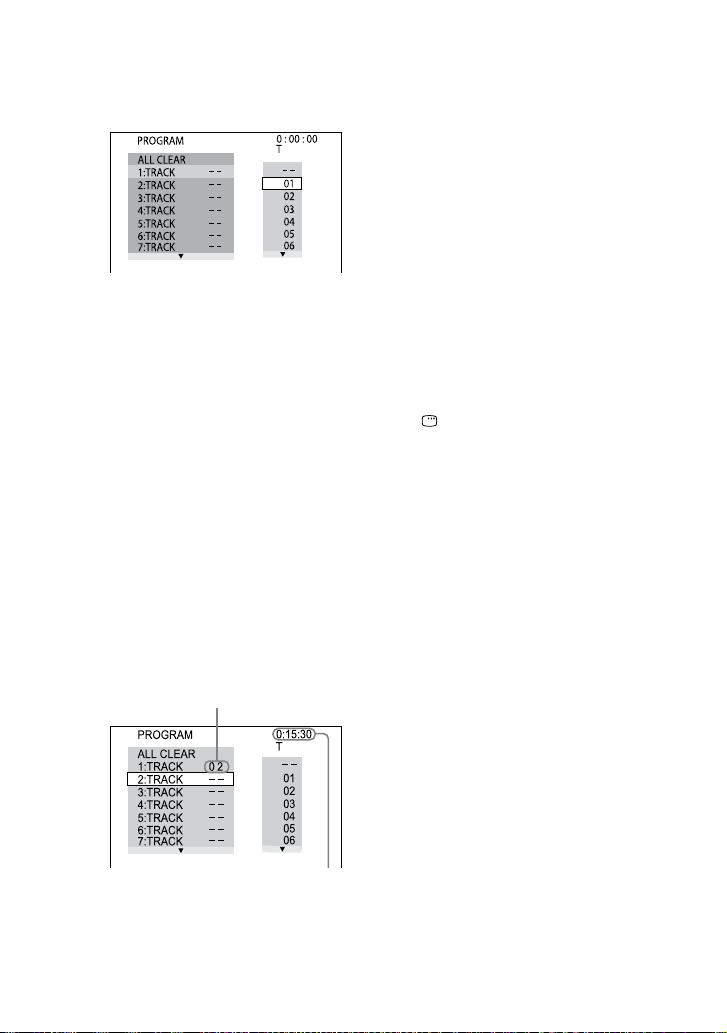
e options for “PROGRAM” appear
on the TV screen.
3
Press
or
repeatedly
to select “SET
,” then press
ENTER
.
Track number
Continued
CMT-DH7BT.GB.3-097-195-11(2)
28
GB
4
Press
.
e cursor moves to the track list “T”
(in this case, “01”).
To change a programmed step:
Press
or
repeatedly to select
the programmed step number you
want to change. en, press
.
To delete a programmed step:
Press
or
repeatedly to select
the programmed step number
you want to change. en, press
CLEAR
.
To delete all of the programmed
steps in the program list:
Press
to select “ALL CLEAR.”
en, press ENTER
.
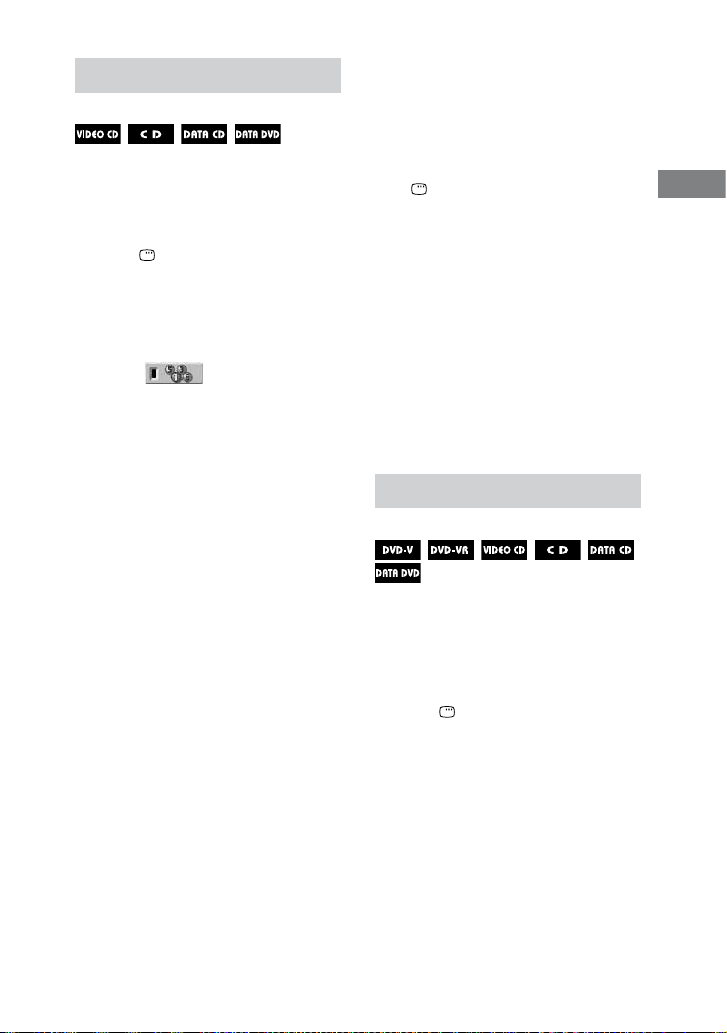
5
Select the track you want to
program.
For example, select track “02.”
Press
or
repeatedly to select
“02” under “T,” then press ENTER
.
Selected track
Total time of the programmed tracks
6
To program other tracks, repeat
steps 4 to 5.
7
Press
(or DVD
on
the unit).
Program Play starts.
When the Program Play ends, you
can restart the same program by
pressing
(or DVD
on
the unit).
To cancel Program Play
Press CLEAR
or select “OFF” in
step 3. To play back the same program
again, select “ON” in step 3 and press
ENTER
.
To turn o the Control Menu
Press DISPLAY
repeatedly until
the Control Menu disappears from the
TV screen.
Notes
When Program Play is activated, the
“REPEAT” setting is automatically changed
to “ON” if the current setting is “DISC” or
“TRACK.”
You cannot perform Program Play with
VIDEO CDs during PBC playback.
Tip
e Program Play is canceled and the program
list is cleared when
you eject the disc.
you turn o the system.
you change the function.
CMT-DH7BT.GB.3-097-195-11(2)
29
GB
Disc
Playing in random order
Shue Play
You can play back the tracks on the
current disc in random order. Each time
you perform Shue Play, the playing
order may dier.
1
Press DISPLAY
during
playback.
e Control Menu appears on the TV
screen.
2
Press
or
repeatedly to
select (SHUFFLE), then
press ENTER
.
e options for “SHUFFLE” appear
on the TV screen.
3
Press
or
repeatedly to
select the setting you want.
When playing a VIDEO CD or
AUDIO CD:
TRACK: all tracks on the disc is
played back randomly.
When Program Play is activated:
ON: all tracks in the program list is
played back randomly.
When playing a DATA CD/DVD:
ON: all MP3 audio tracks in the
selected album on the disc are
played back randomly.
When no album is selected, the rst
album is played back randomly.
4
Press ENTER
.
Shue Play starts.
To cancel Shue Play, press
CLEAR
or select “OFF” in step 3.
To turn o the Control Menu
Press DISPLAY
repeatedly until
the Control Menu disappears from the
TV screen.
Notes
Shue Play is canceled when
you eject the disc.
you turn o the system.
you change the function.
you perform Track/Index Search.
You cannot perform Shue Play with
VIDEO CDs during PBC playback.
e same song may be played back
repeatedly for MP3 audio tracks.
Playing repeatedly
Repeat Play
You can play back all the titles, tracks,
les or a single title, chapter, track or le
on a disc repeatedly.
You can select Shue Play and Program
Play at the same time.
1
Press DISPLAY
during
playback.
e Control Menu appears on the TV
screen.
Continued

CMT-DH7BT.GB.3-097-195-11(2)
30
GB
2
Press
or
repeatedly to
select (REPEAT), then
press ENTER
.
e options for “REPEAT” appear on
the TV screen.
3
Press
or
repeatedly to
select the setting you want.
e default setting is underlined.
When playing a DVD VIDEO or
DVD-R/DVD-RW in VR mode:
OFF: does not play back repeatedly.
DISC: repeats all the titles on the
disc.
TITLE: repeats the current title.
CHAPTER: repeats the current
chapter.
When playing a VIDEO CD or
AUDIO CD:
OFF: does not play back repeatedly.
DISC: repeats all the tracks on the
disc.
TRACK: repeats the current track.
When playing a DATA CD or DATA
DVD:
OFF: does not play back repeatedly.
DISC: repeats all the albums on the
disc.
ALBUM: repeats the current
album.
TRACK*: repeats the current track.
* MP3 audio tracks only.
When Program Play or Shue
Play is activated:
OFF: does not play back repeatedly.
ON: repeats the Program Play or
Shue Play.
4
Press ENTER
.
Repeat Play starts.
To cancel Repeat Play, press
CLEAR
or select “OFF” in step 3.
To turn o the Control Menu
Press DISPLAY
repeatedly until
the Control Menu disappears from the
TV screen.
Notes
You can also change the Repeat Play setting
by pressing REPEAT
repeatedly.
“REP” lights up in the display when Repeat
Play is set to “DISC,” “ALBUM” or “ON.”
“REP1” lights up in the display when
Repeat Play is set to “ TITLE,” “CHAPTER,”
“TRACK” or “FILE.”
Depending on the DVD VIDEO, you cannot
perform Repeat Play.
You cannot perform Repeat Play with
VIDEO CDs during PBC playback.
When playing a DATA CD/DVD which
contains MP3 audio tracks and JPEG image
les, the audio sound will not match the
image if their playing time are dierent.
You cannot select “TRACK” when “MODE
(MP3, JPEG)” is set to “IMAGE (JPEG)”
(page 37).
Repeat Play is canceled when
you eject the disc.
you turn o the system.
you change the function.
CMT-DH7BT.GB.3-097-195-11(2)
31
GB
Disc
Searching/selecting a
disc
Playing DVD VIDEOs using the
menu
Some DVD VIDEOs have menus to help
you enjoy the DVD VIDEOs. You can
play back DVD VIDEOs using these
menus on the TV screen.
Using DVD TOP MENU
A DVD VIDEO contains a lot of sections
of picture or music feature called “title.”
When you play back a DVD VIDEO
which contains several titles, you can
select the title you want using DVD TOP
MENU
.
Using DVD MENU
Some DVD VIDEOs allow you to select
the disc contents using a menu. When
you play back these DVD VIDEOs, you
can select items such as the language for
the subtitles and the language for the
sound using DVD/TUNER MENU
.
1
Press DVD TOP MENU
or
DVD/TUNER MENU
.
e menu appears on the TV screen.
e contents of the menu vary
depending on the disc.
2
Press
/
/
/
or the
numeric buttons
to select
the title or item you want to
play back.
3
Press ENTER
.
Selecting “ ORIGINAL” or “PLAY
LIST” on a DVD-R/-RW in VR
mode
is function is only available for DVD-
Rs/-RWs in VR mode with a playlist
created.
1
Press DISPLAY
when
playback is stopped.
e Control Menu appears on the TV
screen.
2
Press
or
repeatedly to
select (ORIGINAL/PLAY
LIST), then press ENTER
.
e options for “ORIGINAL/PLAY
LIST” appear on the TV screen.
3
Press
or
repeatedly to
select the setting you want.
PLAY LIST: play back according to
the playlist created on the disc.
ORIGINAL: play back according to
the originally recorded sequence.
4
Press ENTER
.
Continued
CMT-DH7BT.GB.3-097-195-11(2)
32
GB
Using the on-screen display
to search for a title/chapter/
scene/track/index/album/le
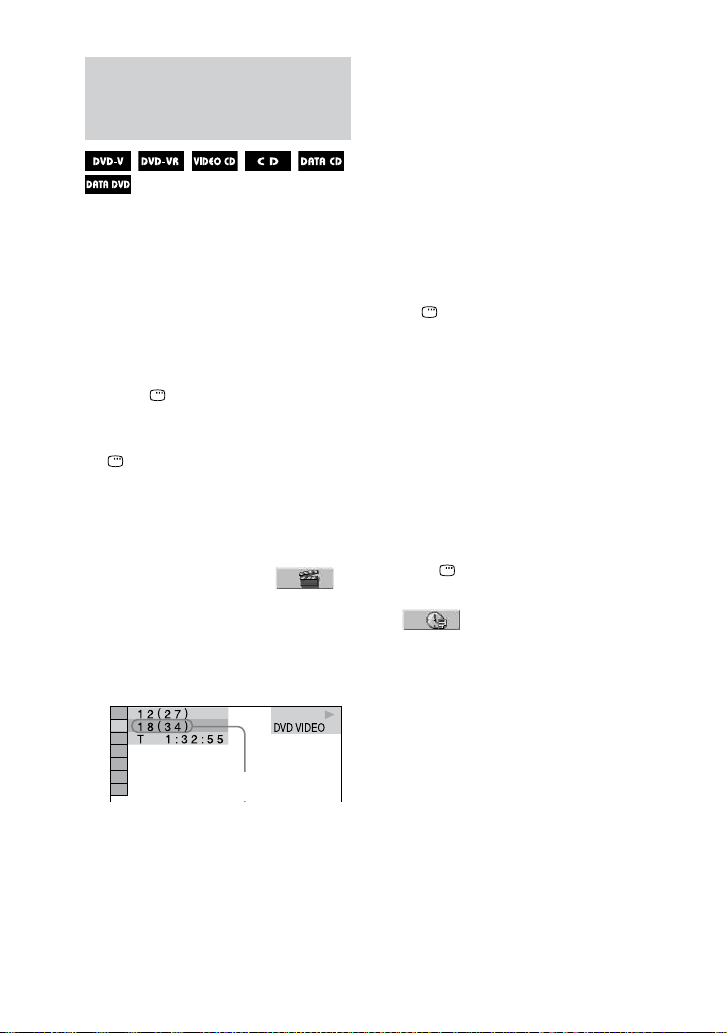
You can search by dierent information
recorded on a disc, such as title, track,
and album. Each item is assigned a
unique number on the disc, and you can
select the numbered item you want from
the Control Menu. You can also search
for a particular point using the time code
(Time Search) (DVD VIDEO and DVD-
R/-RW in VR mode only).
1
Press DISPLAY
. (When
playing a DATA CD/DVD
with JPEG image les, press
DISPLAY
twice.)
e Control Menu appears on the TV
screen.
2
Press
or
repeatedly to
select the search item.
Example: when you select
(CHAPTER)
“** (**)” is selected (** refers to a
number). e number in parentheses
indicates the total number of titles,
chapters, tracks, indexes, scenes,
albums or les.
Selected row
3
Press ENTER
.
“** (**)” change to “– – (**).”
4
Press
or
repeatedly
or the numeric buttons
to
select the title, track, album, etc.
or le number.
If you make a mistake, press
CLEAR
to cancel the number.
5
Press ENTER
.
e system starts playback from the
selected title, track, album, etc.
To turn o the Control Menu
Press DISPLAY
repeatedly until
the Control Menu disappears.
Tip
When the Control Menu display is turned o,
you can search for a chapter (DVD VIDEO and
DVD-R/-RW in VR mode) or track (AUDIO
CD and VIDEO CD) by pressing the numeric
buttons
and ENTER
.
To search for a particular point using
the time code Time Search
(DVD VIDEO and DVD-R/-RW in VR
mode only)
1
Press DISPLAY
.
2
Press
or
repeatedly to select
(TIME/TEXT).
“T **:**:**” (elapsed playing time of
the current title) is selected.
3
Press ENTER
.
“T **:**:**” changes to “T--:--:--.”
4
Input the time code using the
numeric buttons
, then press
ENTER
.
For example, to nd the scene at 2
hours, 10 minutes, and 20 seconds
aer the beginning, enter “2:10:20.”
If you make a mistake, press
CLEAR
to cancel the number.
Note
Depending on the disc, you cannot perform
Time Search.
CMT-DH7BT.GB.3-097-195-11(2)
33
GB
Disc
Searching by scene
Picture Navigation
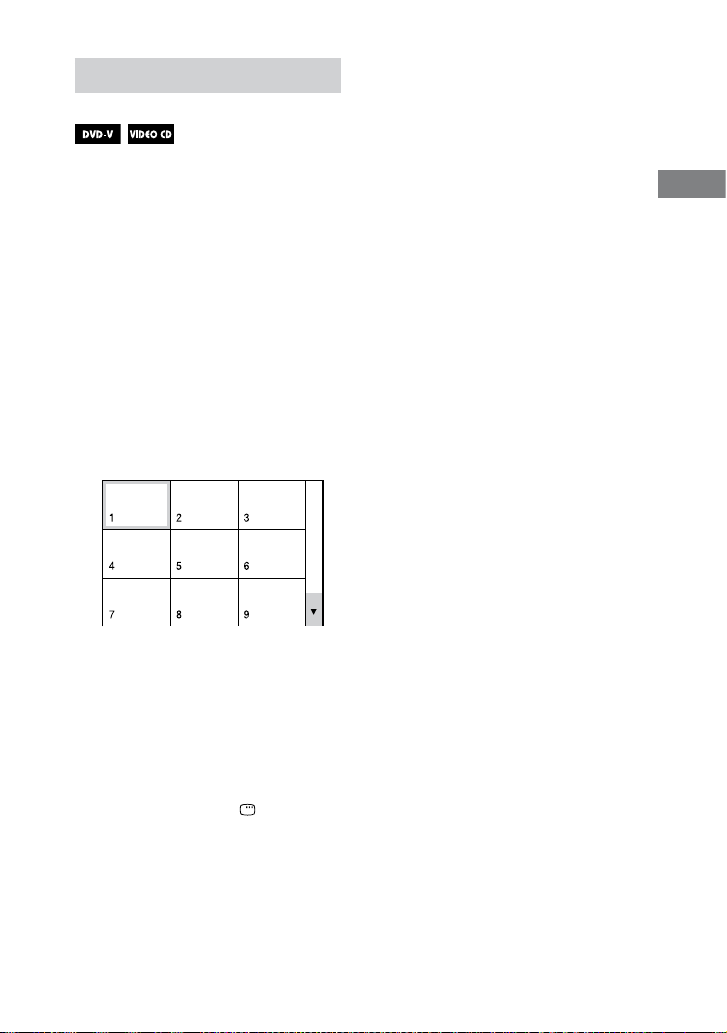
1
Press PICTURE NAVI
repeatedly to select the VIEWER
format you want to search in.
CHAPTER VIEWER (DVD
VIDEO)
TITLE VIEWER (DVD VIDEO)
TRACK VIEWER (VIDEO CD or
Super VCD)
2
Press ENTER
.
e rst scene of the rst 9 chapters,
titles or tracks appears. If there are
more than 9 chapters, titles, or tracks,
“” appears at the bottom right of
the screen.
3
Press ///
to select a
chapter, title or track, then press
ENTER
.
e system starts playing from the
selected scene.
To cancel searching
Press
RETURN
or DISPLAY
.
Note
Depending on the disc, you may not be able to
select some items.
Tip
To display the remaining chapters, titles, or
tracks, select a scene at the bottom row and
press
. To return to the previous scene,
select a scene at the top row and press
.

CMT-DH7BT.GB.3-097-195-11(2)
34
GB
Playing MP3/JPEG discs
Notes
Depending on the soware you use to create
the DATA CD or DATA DVD, the playback
order may dier.
e system can play back up to 200 albums,
including albums that do not contain MP3
audio tracks and JPEG image les. e
system will not play back any albums beyond
the 200th album.
e maximum number of MP3 audio tracks
or JPEG image les on an album which this
system can recognize is:
600 when “MODE (MP3, JPEG)” is set to
“AUDIO (MP3)” or “IMAGE (JPEG).”
300 when “MODE (MP3, JPEG)” is set to
“AUTO.”
e system can play back MP3 audio tracks
and JPEG image les. e system will play
back any data with the extension “.MP3”,
“.JPG” or “.JPEG” even if they are not in
MP3 or JPEG format. Playing this data may
generate a loud noise which could damage
your speaker system.
Depending on the encoding/writing soware,
recording device, or the recording media
used to record an MP3 audio track, you may
encounter problems such as cannot play
back, sound interruptions and noise.
e following discs/situations can increase
the time it takes to start playback:
a disc recorded with a complicated tree
structure.
a disc recorded in Multi Session.
a disc to which data can be added (non-
nalized disc).
when the tracks or les in another album
have just been played back.
Some CD-Rs/-RWs or DVD-Rs/-RWs/+Rs/
+RWs cannot be played back on the system
depending on the le format.
When playing a DATA CD or DATA DVD
containing both MP3 audio tracks and JPEG
image les, select “MODE (MP3, JPEG)”
from the Control Menu aer the disc’s TOC
reading is complete. If you want to play back
both MP3 audio tracks and JPEG image
les, set “MODE (MP3, JPEG)” to
“AUTO.”
MP3 audio tracks only, set “MODE (MP3,
JPEG)” to “AUDIO (MP3).”
JPEG image les only, set “MODE (MP3,
JPEG)” to “IMAGE (JPEG).”
e system can play back to a depth of 8
folders only.
CMT-DH7BT.GB.3-097-195-11(2)
35
GB
Disc
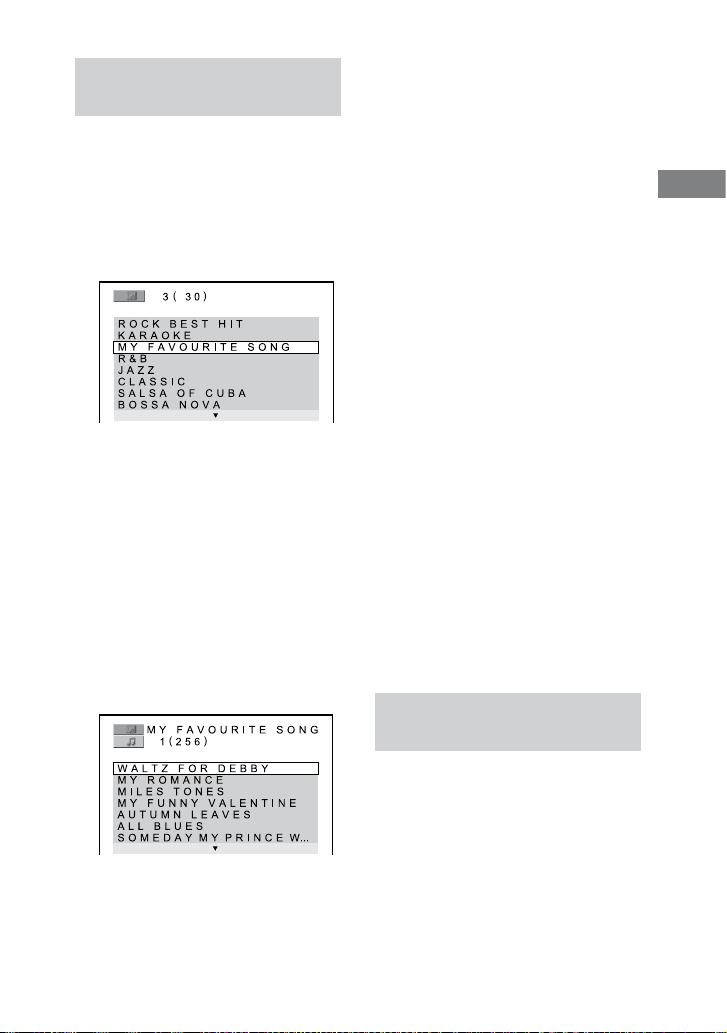
Selecting an MP3 audio track
or album
1
Insert a disc in the disc slot
.
e system starts playing the rst
album.
2
Press DVD/TUNER MENU
.
e album list appears on the TV
screen.
3
Press
or
repeatedly to
select an album.
Playing an album:
Press
(or DVD
on the
unit).
e system starts playback from the
rst track of the selected album.
To stop playback, press
.
Playing a track:
1
Press ENTER
.
e list of MP3 audio tracks of the
selected album appears.
2
Press
or
repeatedly to
select the MP3 audio track you
want, then press ENTER
.
e system starts playing the
selected MP3 audio track.
To stop playback, press
.
To display the next or previous page of
track list or album list
Press
or
repeatedly when the
track list or album list is displayed.
To play back the next album of MP3
audio tracks
You can select the next album by pressing
repeatedly until the last track of
the current album, then press
once. e rst track of the next album
is selected. However, you cannot select
the previous album by pressing
repeatedly. To select the previous album,
select the album from the album list.
To return to the album list when the
track list is displayed
Press
RETURN
.
To turn on or o the album list or track
list
Press DVD/TUNER MENU
repeatedly.
Selecting a JPEG image le or
album
1
Insert a disc in the disc slot
.
e system starts playing the rst
album.
2
Press DVD/TUNER MENU
.
e album list appears on the TV
screen.
Continued
CMT-DH7BT.GB.3-097-195-11(2)
36
GB
To display the next or previous page of
album list
Press
or
repeatedly when the
album list is displayed.
To display the next or previous JPEG
image le
Press
or
repeatedly during the
slide show.
To play back the next album of JPEG
image les
You can select the next album by pressing
repeatedly until the last le of the
current album, then press
once.
e rst le of the next album is selected.
However, you cannot select the previous
album by pressing
repeatedly. To
select the previous album, select the
album from the album list.
To turn on or o the display of album
list
Press DVD/TUNER MENU
repeatedly.
To rotate a JPEG image le
When a JPEG image le is displayed on
the TV screen, you can rotate the image
by 90 degrees.
Press
or
repeatedly while viewing
an image.
Press CLEAR
to return to the original
view.
Notes
e PICTURE NAVI
button does not
work when “MODE (MP3, JPEG)” is set to
“AUDIO (MP3).”
When you press
or
to select the next
or previous image, the image will return to
its original view even if you have rotated the
image previously.
e slide show stops when you press
or
.
3
Press
or
repeatedly to
select an album.
Playing an album:
Press
(or DVD
on the
unit).
e system starts a slide show from
the rst image le of the selected
album.
To stop playback, press
.
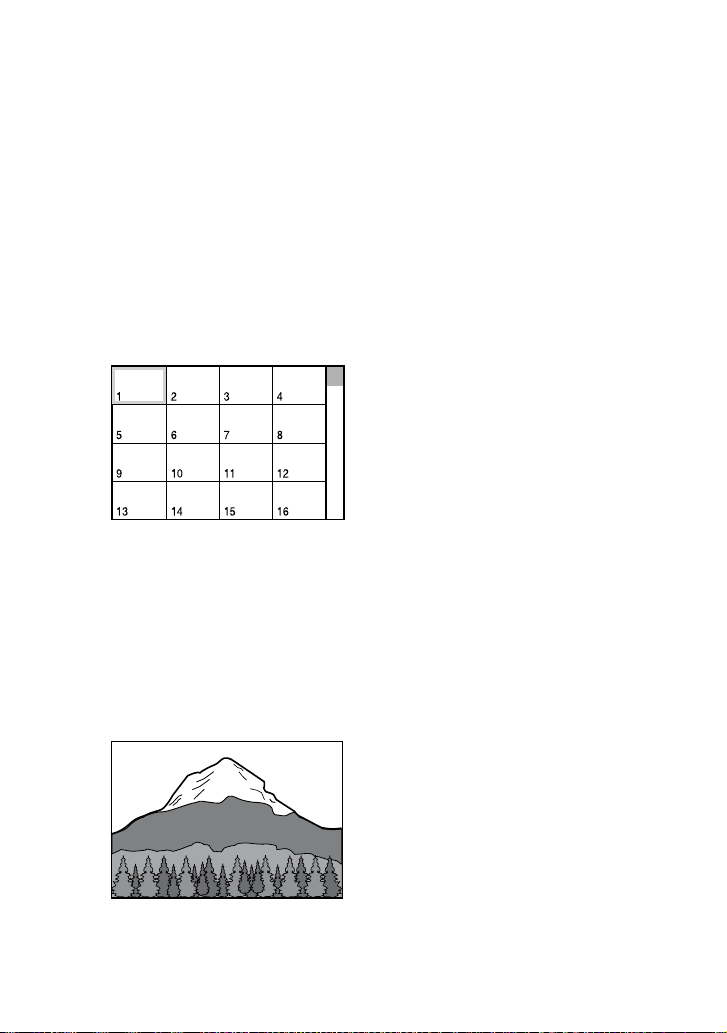
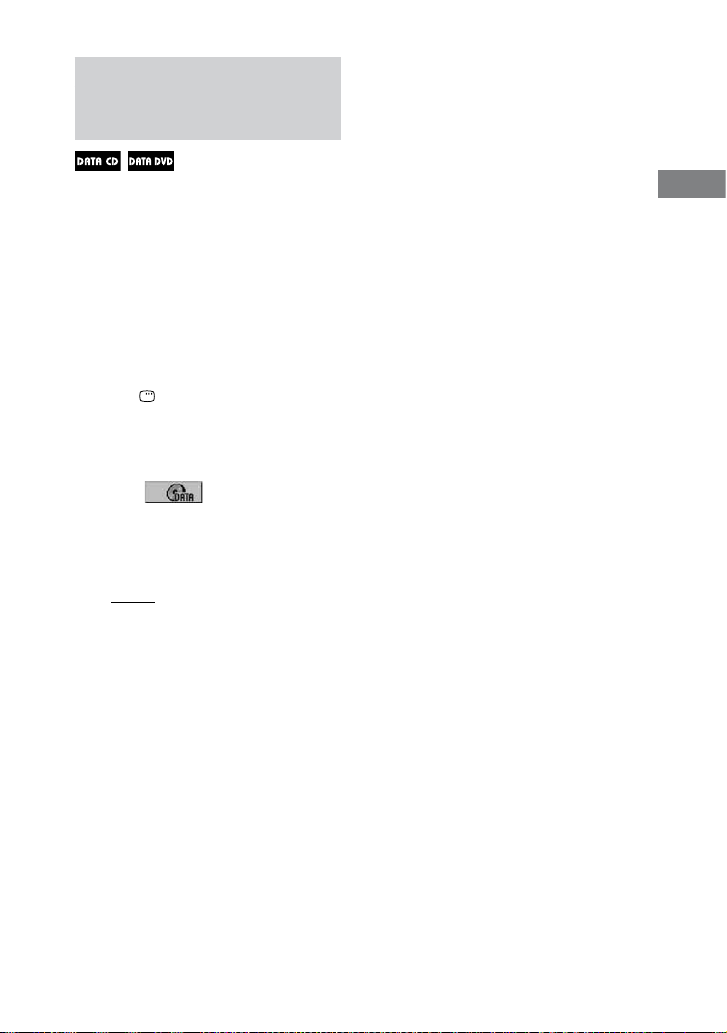
Playing an image le:
1
Press PICTURE NAVI
.
umbnail picture for the rst 16
JPEG image les in the selected
album is displayed.
If there are more than 16 image
les in the selected album, the
scroll bar appears at the right.
2
Press
/
/
/
to select the
image you want to view, then
press
(or DVD
on
the unit).
e slide show starts from the
selected image le.
To stop playback, press
.
CMT-DH7BT.GB.3-097-195-11(2)
37
GB
Disc
Playing MP3 audio tracks and
JPEG image les as a slide
show with sound
You can play back a slide show with
sound by rst placing both JPEG image
les and MP3 audio tracks in the same
album on a DATA CD/DVD.
1
Insert a disc in the disc slot
.
e system starts playing the rst
album.
2
Press
to stop playback.
3
Press DISPLAY
.
e Control Menu appears on the TV
screen.
4
Press
or
repeatedly to
select (MODE (MP3,
JPEG)), then press ENTER
.
e options for “MODE (MP3,
JPEG)” appear on the TV screen.
e default setting is underlined.
AUTO: Plays back both JPEG
image les and MP3 audio tracks
in the same album as a slide show
with sound.
AUDIO (MP3): Plays back MP3
audio tracks continuously.
IMAGE (JPEG): Plays back JPEG
image les as a slide show.
5
Press
or
repeatedly
to select “AUTO,” then press
ENTER
.
6
Press DVD/TUNER MENU
.
e album list appear on the TV
screen.
7
Press
or
repeatedly to
select the album you want, then
press
(or DVD
on
the unit).
e slide show with sound starts from
the selected album.
To stop playback, press
.
To turn on or o the display of album
list
Press DVD/TUNER MENU
repeatedly.
To cancel slide show with sound
Select “AUDIO (MP3)” or “IMAGE
(JPEG)” in step 4.
Notes
In some cases, you cannot change the
“MODE (MP3, JPEG)” setting when “MODE
(MP3, JPEG)” has been set to
“IMAGE (JPEG)” and the selected disc
only contains MP3 audio tracks.
“AUDIO (MP3)” and the selected disc
only contains JPEG image les.
If there are no MP3 audio tracks in the disc,
“No audio data” appears on the TV screen
and the disc cannot be played back.
If there are no JPEG image les in the disc,
“No image data” appears on the TV screen
and the disc cannot be played back.
If you play back a large data size of MP3
audio tracks and JPEG image les at the same
time, the sound may skip.
Continued

CMT-DH7BT.GB.3-097-195-11(2)
38
GB
Specifying the slide show speed
(JPEG image les only)
1
Press DISPLAY
repeatedly until
the Control Menu for JPEG image
les appears on the TV screen.
2
Press
or
repeatedly to select
(INTERVAL), then press
ENTER
.
e options for “INTERVAL” appear
on the TV screen.
3
Press
or
repeatedly to select
the transition interval you want.
e default setting is underlined.
NORMAL: Sets the duration to
about 6 to 9 seconds (Images that
are 4,000,000 pixels or more will
lengthen the duration).
FAST: Sets the duration shorter
than NORMAL.
SLOW 1: Sets the duration longer
than NORMAL.
SLOW 2: Sets the duration longer
than SLOW 1.
4
Press ENTER
.
e selected setting takes eect.
Note
Some JPEG image les (especially progressive
JPEG image les or JPEG image les with
3,000,000 pixels or more) may take a longer
time to display than others, which may make
the transitions seem longer than that of the
option you selected.
Selecting a transition eect for image
les in the slide show
(JPEG image les only)
1
Press DISPLAY
repeatedly until
the Control Menu for JPEG image
les appears on the TV screen.
2
Press
or
repeatedly to select
(EFFECT), then press
ENTER
.
e options for “EFFECT” appear on
the TV screen.
3
Press
or
repeatedly to select
the setting you want.
e default setting is underlined.
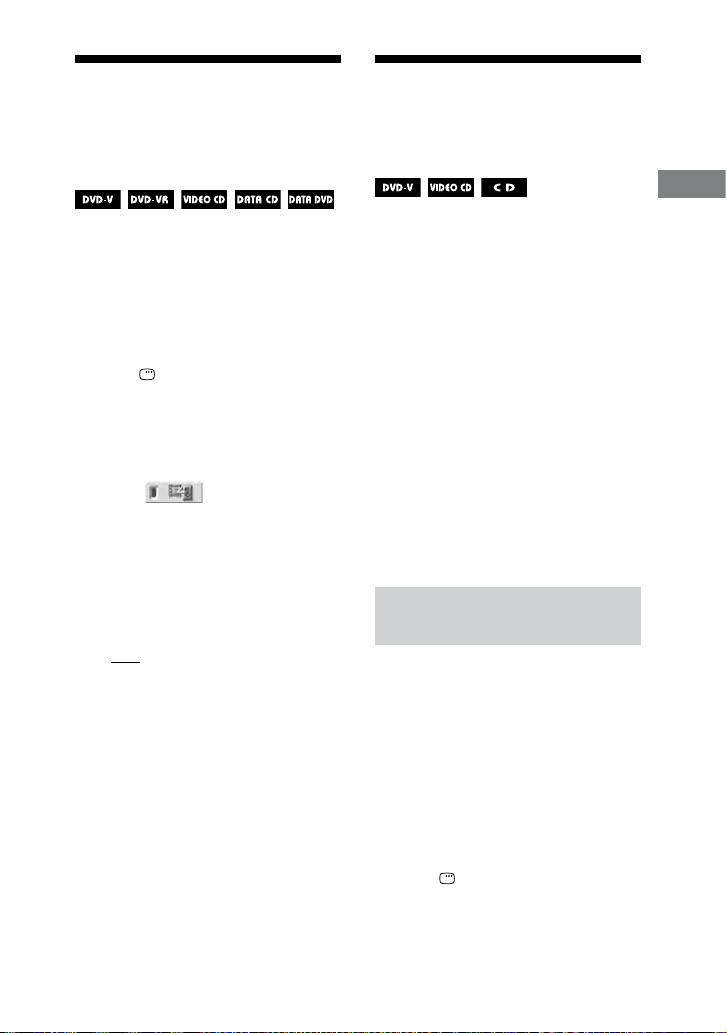
MODE 1: e image sweeps in
from top to bottom of the screen.
MODE 2: e image sweeps in
from le to right of the screen.
MODE 3: e image stretches out
from the center of the screen.
MODE 4: e images randomly
cycle through the eects.
MODE 5: e next image slides
over the current image.
OFF: Turns o this function.
4
Press ENTER
.
e selected setting takes eect.
CMT-DH7BT.GB.3-097-195-11(2)
39
GB
Disc
Adjusting the delay
between the picture
and sound
A/V SYNC
When the sound does not synchronize
with the pictures on the screen, you can
adjust the delay between the picture and
sound.
A/V SYNC does not work for MP3 audio
tracks and JPEG image les in DATA
CD/DVD.
1
Press DISPLAY
when
playback is stopped.
e Control Menu appears on the TV
screen.
2
Press
or
repeatedly to
select (A/V SYNC), then
press ENTER
.
e options for “A/V SYNC” appear
on the TV screen.
3
Press
or
repeatedly to
select the setting you want.
e default setting is underlined.
OFF: Does not adjust.
ON: Adjusts the dierence between
picture and sound.
4
Press ENTER
.
Note
Depending on the input stream, this function
may not be eective.
Restricting playback of
the disc
CUSTOM PARENTAL CONTROL,
PARENTAL CONTROL
You can set 2 kinds of playback
restrictions for the disc you want.
Custom Parental Control
You can set playback restrictions so
that the system will not play back
inappropriate discs.
Parental Control
You can limit the playback of some DVD
VIDEOs according to a predetermined
level such as the age of the users. When
a limited scene is played back, that scene
may be skipped or replaced with dierent
scenes.
e same password is used for both
Custom Parental Control and Parental
Control.
Preventing playback of specic
discs
CUSTOM PARENTAL CONTROL
You can set the same Custom Parental
Control password for up to 40 discs.
When you set the 41st-disc, the playback
restriction for the rst disc is canceled.
1
Insert the disc you want to set
the playback restriction.
If the disc is playing, press
to
stop playback.
2
Press DISPLAY
when
playback is stopped.
e Control Menu appears on the TV
screen.
Continued
CMT-DH7BT.GB.3-097-195-11(2)
40
GB
3
Press
or
repeatedly
to select (PARENTAL
CONTROL), then press ENTER
.
e options for “PARENTAL
CONTROL” appear on the TV screen.
4
Press
or
repeatedly
to select “ON
,” then press
ENTER
.
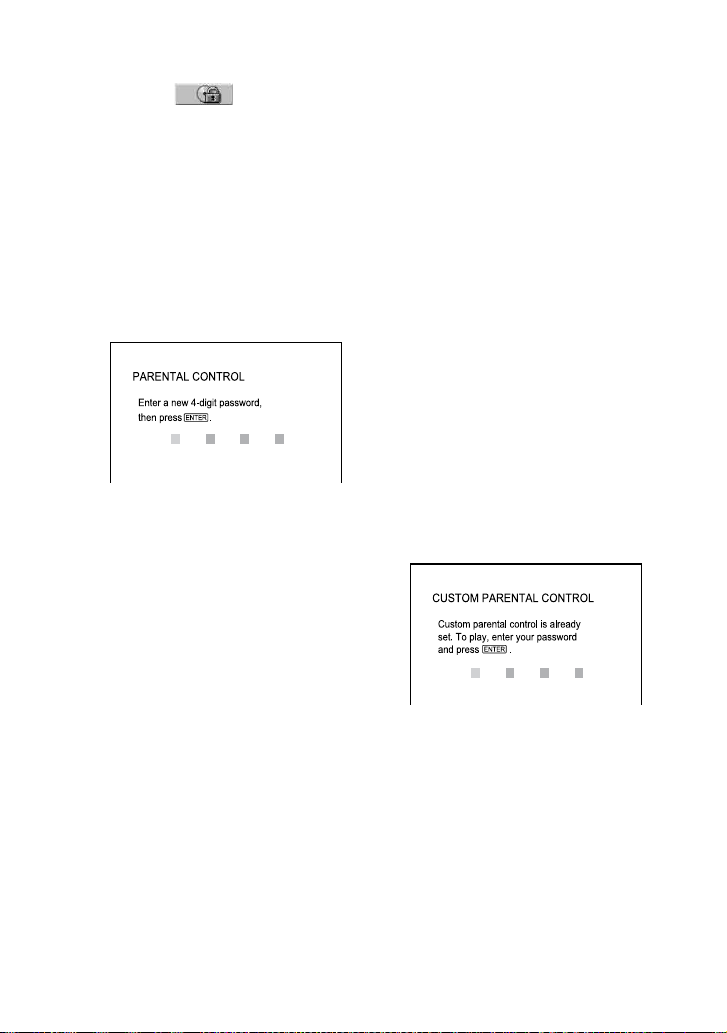
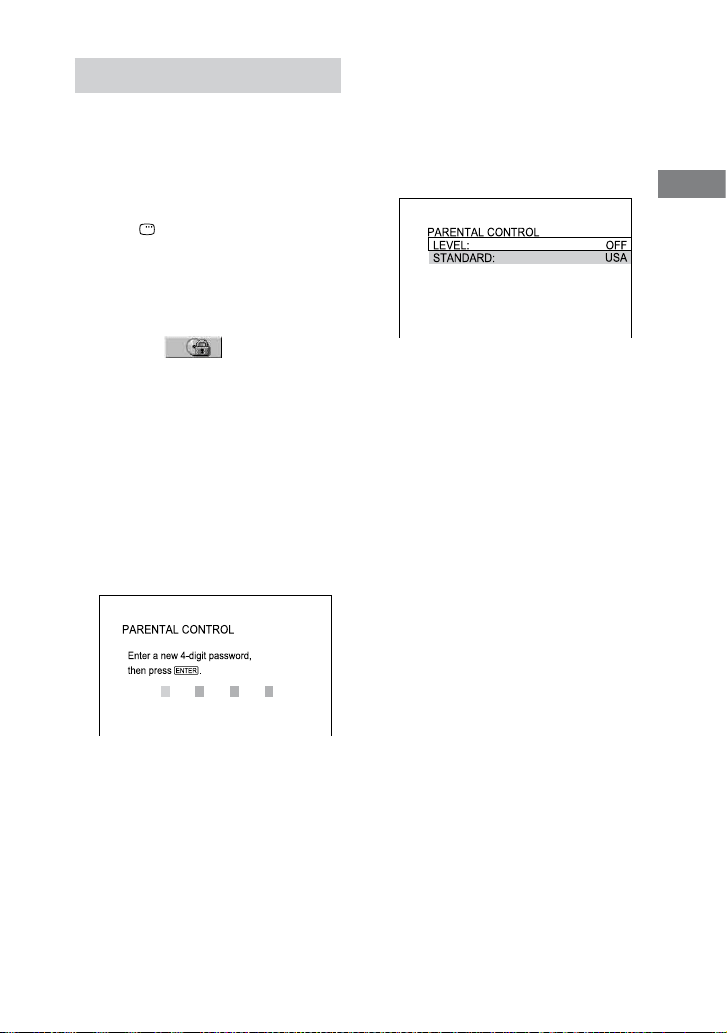
If you have not entered a
password:
e display for registering a new
password appears.
Enter a 4-digit password using the
numeric buttons
, then press
ENTER
.
e display for conrming the
password appears on the TV screen.
When you have already registered
a password:
e display for entering the password
appears on the TV screen.
5
Enter or re-enter your 4-digit
password using the numeric
buttons
, then press
ENTER
.
“Custom parental control is set.”
appears on the TV screen and the
screen returns to the Control Menu.
If you make a mistake when entering
your password
Press
repeatedly to delete the
number you have entered, then re-enter
your password again.
To turn o the Custom Parental
Control function
1
Follow steps 1 through 3 of
“Preventing playback of specic
discs” (page 39).
2
Press
or
repeatedly to select “OFF
,” then press ENTER
.
3
Enter your 4-digit password using
the numeric buttons
, then press
ENTER
.
To play back a disc for which Custom
Parental Control is set
1
Insert the disc for which Custom
Parental Control is set.
e “CUSTOM PARENTAL
CONTROL” display appears.
2
Enter your 4-digit password using
the numeric buttons
, then press
ENTER
.
e system is ready for playback.
Tip
If you forget your password, enter the 6-
digit number “199703” using the numeric
buttons
when the “CUSTOM PARENTAL
CONTROL” display asks you for your
password, then press ENTER
. e display
will ask you to enter a new 4-digit password.
CMT-DH7BT.GB.3-097-195-11(2)
41
GB
Disc
Limiting playback for children
PARENTAL CONTROL
(DVD VIDEO only)
You can limit the playback of some DVD
VIDEOs according to a predetermined
level such as the age of the users.
1
Press DISPLAY
when
playback is stopped.
e Control Menu appears on the TV
screen.
2
Press
or
repeatedly
to select (PARENTAL
CONTROL), then press ENTER
.
e options for “PARENTAL
CONTROL” appear on the TV screen.
3
Press
or
repeatedly to
select “PLAYER
,” then press
ENTER
.
If you have not entered a
password:
e display for registering a new
password appears.
Enter a 4-digit password using the
numeric buttons
, then press
ENTER
.
e display for conrming the
password appears on the TV screen.
When you have already registered
a password:
e display for entering the password
appears on the TV screen.
4
Enter or re-enter your 4-digit
password using the numeric
buttons
, then press
ENTER
.
e display for setting the playback
limitation level appears.
5
Press
or
repeatedly to
select “STANDARD,” then press
ENTER
.
e options for “STANDARD” appear
on the TV screen.
6
Press
or
repeatedly to
select a geographic area as the
playback limitation level, then
press ENTER
.
e area is selected.
When you select “OTHERS
,” enter
the area code for the geographic area
you want according to the “Parental
Control area code list” (page 83) by
using the numeric buttons
.
7
Press
or
repeatedly
to select “LEVEL,” then press
ENTER
.
e options for “LEVEL” appear on
the TV screen.
Continued
CMT-DH7BT.GB.3-097-195-11(2)
42
GB
8
Press
or
repeatedly to
select the level you want, then
press ENTER
.
Parental Control setting is completed.
e lower the value, the stricter the
limitation.
To turn o the Parental Control
function, set “LEVEL” to “OFF.”
If you make a mistake when entering
your password
Press
repeatedly to delete the
number you have entered, then re-enter
your password again.
To play back a disc for which Parental
Control is set
1
Insert the disc and press
(or
DVD
on the unit).
e display for entering your password
appears on the TV screen.
2
Enter your 4-digit password using
the numeric buttons
, then press
ENTER
.
e system starts playback.
Notes
e Control Menu display will show dierent
items depending on the disc type.
When you play back DVD VIDEOs which
do not have the Parental Control function,
playback cannot be limited on this system.
Depending on the DVD VIDEO, you may
be asked to change the parental control level
while playing the disc. In this case, enter your
password, then change the level. If Resume
Play is canceled, the level returns to the
original level.
Tip
If you forget your password, remove the disc
and repeat steps 1 to 3 of “Limiting playback
for children.” When you are asked to enter your
password, enter “199703” using the numeric
buttons
, then press ENTER
. e display
will ask you to enter a new 4-digit password.
Aer you enter a new 4-digit password, reinsert
the disc and press
. When the display
for entering your password appears, enter your
new password.
Changing the password
1
Press DISPLAY
when
playback is stopped.
e Control Menu appears on the TV
screen.
2
Press
or
repeatedly
to select (PARENTAL
CONTROL), then press ENTER
.
e options for “PARENTAL
CONTROL” appear on the TV screen.
3
Press
or
repeatedly to
select “PASSWORD
,” then
press ENTER
.
e display for entering the password
appears on the TV screen.
4
Enter your 4-digit password
using the numeric buttons
,
then press ENTER
.
CMT-DH7BT.GB.3-097-195-11(2)
43
GB
Disc
5
Enter a new 4-digit password
using the numeric buttons
,
then press ENTER
.
6
To conrm your password,
re-enter it using the numeric
buttons
, then press
ENTER
.
If you make a mistake when entering
your password
Press
repeatedly to delete the
number you have entered, then re-enter
your password again.
Using the DVD setup
menu
By using the DVD setup menu, you can
make various adjustments to items such
as picture and sound.
Note
Playback settings stored in the disc take
priority over the DVD setup menu settings.
erefore, some of the DVD setup menu
settings may not be performed.
1
Press DISPLAY
when
playback is stopped.
e Control Menu appears on the TV
screen.
2
Press
or
repeatedly to
select (SETUP), then
press ENTER
.
e options for “SETUP” appear on
the TV screen.
3
Press
or
repeatedly to
select “CUSTOM,” then press
ENTER
.
e Setup menu appears on the TV
screen.
Continued
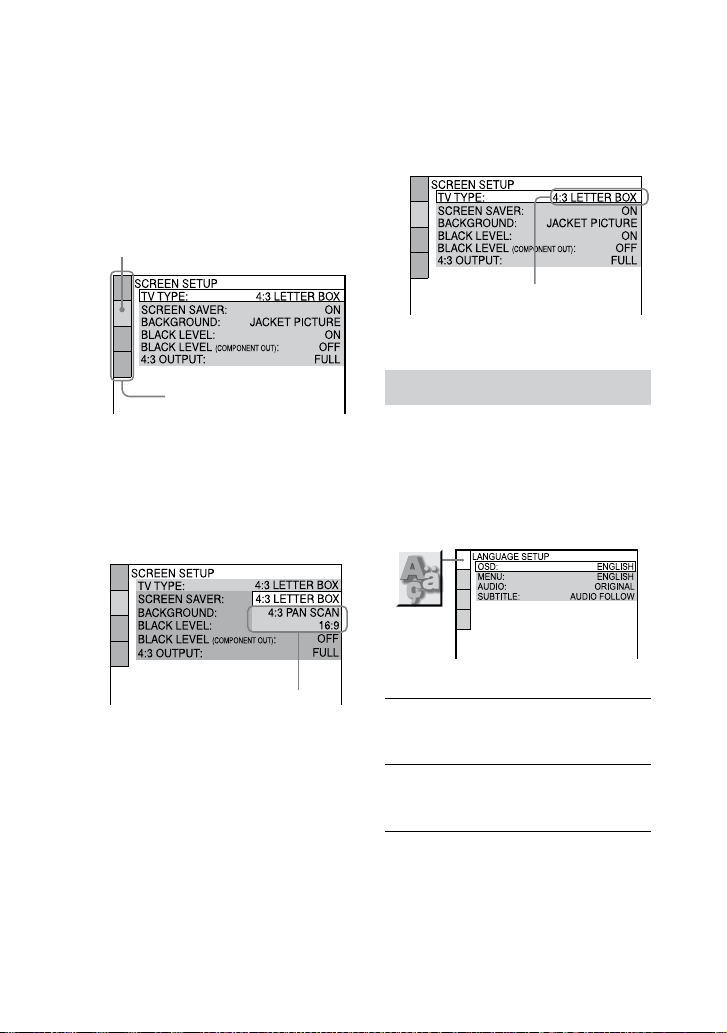
CMT-DH7BT.GB.3-097-195-11(2)
44
GB
4
Press
or
repeatedly
to select the setup item from
the displayed list: “LANGUAGE
SETUP,” “SCREEN SETUP” or
“CUSTOM SETUP.” Then press
ENTER
.
e setup item is selected.
Example: SCREEN SETUP
Selected item
Setup items
5
Press
or
repeatedly to
select the item you want, then
press ENTER
.
e options for the selected item
appear on the TV screen.
Example: TV TYPE
Options
6
Press
or
repeatedly to
select the setting you want,
then press ENTER
.
e setting is selected and setup is
completed.
Selected setting
DVD setup menu item list
e default settings are underlined.
Setting the language LANGUAGE
SETUP
Set various languages for the on-screen
display or sound track.
OSD
(On-Screen Display) Switches the
language of the on-screen display.
MENU*
(DVD VIDEO only)
Select the language
for the DVD menu.
AUDIO*
(DVD VIDEO only) Switches the
language of the sound track.
When you select “ORIGINAL,” the
language given priority in the disc is
selected.
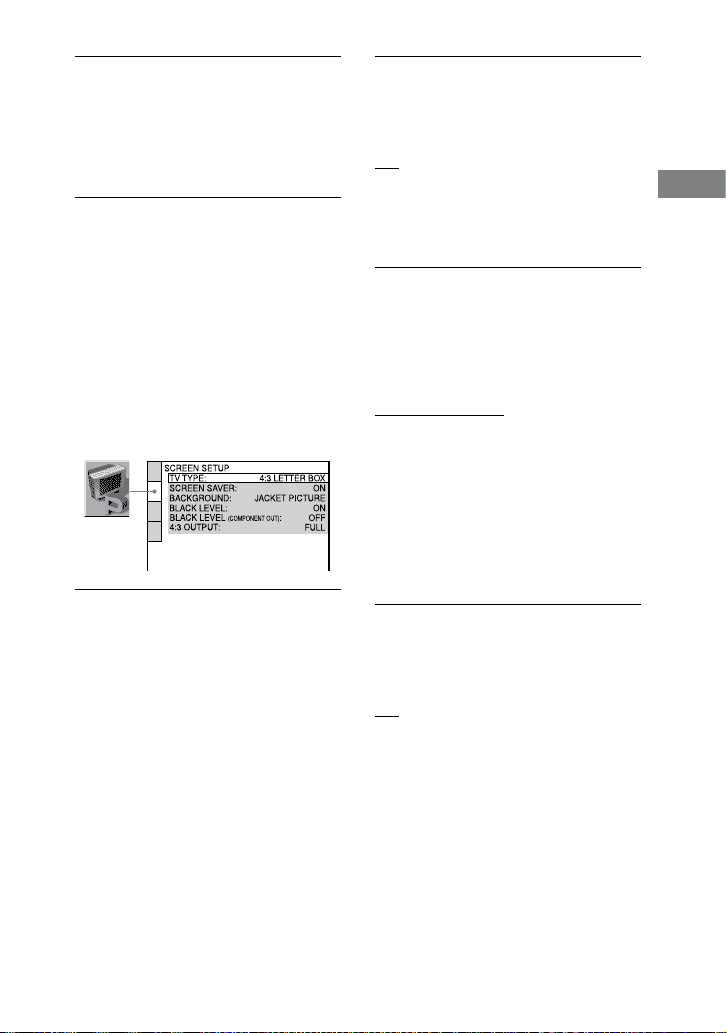
CMT-DH7BT.GB.3-097-195-11(2)
45
GB
Disc
SUBTITLE*
(DVD VIDEO only)
Switches the
language of the subtitle .
When you select “AUDIO FOLLOW,”
the language for the subtitles changes
according to the language you selected
for the sound track.
* When you select a language in “MENU,”
“SUBTITLE,” or “AUDIO” that is not
recorded on the DVD VIDEO, one of the
recorded language is automatically selected.
However, depending on the disc, the
language may not be selected automatically.
If you select “OTHERS
” in “MENU,”
“SUBTITLE,” and “AUDIO,” enter a language
code from the “Language code list” (page 82)
using the numeric buttons
.
Setting the TV screen SCREEN SETUP
Choose the settings according to the TV
you connected.
TV TYPE
1)
(DVD VIDEO only)
16:9: Select this when you connect a
wide-screen TV or a TV with a wide
mode function.
4:3 LETTER BOX: Select this when you
connect a 4:3 screen TV. is setting
displays a wide picture with bands on the
upper and lower portions of the screen.
4:3 PAN SCAN
2)
: Select this when you
connect a 4:3 screen TV. is setting
displays the wide picture on the entire
screen and cuts o the portions that do
not t.
SCREEN SAVER
e screen saver will help prevent your
display device from becoming damaged
(ghosting). Press
(or DVD
on the unit) to turn o the screen saver.
ON: e screen saver image appears
when playback is stopped or paused for
15 minutes or when you play back an
AUDIO CD or MP3 audio tracks for
more than 15 minutes.
OFF: e screen saver does not appear.
BACKGROUND
Selects the background color or picture
to be displayed on the TV screen. e
background color or picture is displayed
when playback is stopped or while
playing an AUDIO CD and MP3 audio
tracks.
JACKET PICTURE: e jacket picture
(still picture) appears in the background,
but only when the jacket picture is
already recorded on the disc (DVD
VIDEO, CD-EXTRA, etc.). If the disc
does not contain a jacket picture, the
“GRAPHICS” picture appears.
GRAPHICS: A preset picture stored in
the system appears in the background.
BLUE: e background color is blue.
BLACK: e background color is black.
BLACK LEVEL
Select the black level (setup level) for the
video signals output from the video jacks
other than COMPONENT VIDEO OUT
jacks.
ON: Standard level
OFF: Lower the standard black level. Use
this when the picture becomes too white.
Continued
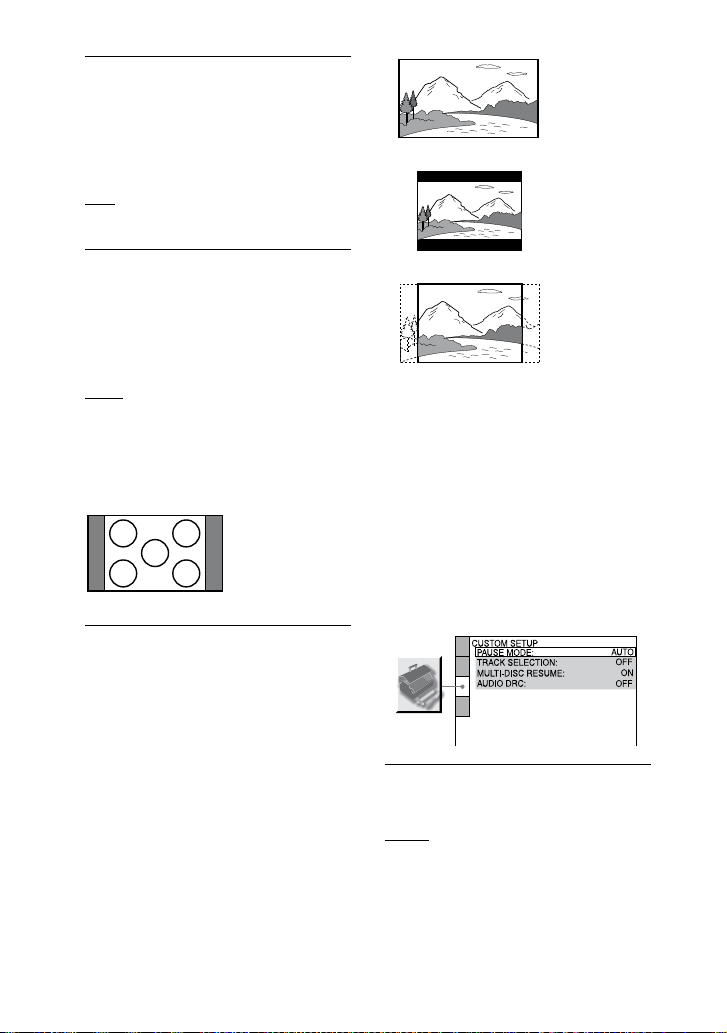
CMT-DH7BT.GB.3-097-195-11(2)
46
GB
BLACK LEVEL (COMPONENT OUT)
Select the black level (setup level)
for the video signals output from the
COMPONENT VIDEO OUT jacks.
You cannot select “BLACK LEVEL
(COMPONENT OUT)” when the system
outputs progressive signal.
OFF: Standard level
ON: Raise the standard black level. Use
this when the picture becomes too black.
4:3 OUTPUT
3)
Change this setting to watch 4:3
aspect ratio progressive signals. If
you can change the aspect ratio on
your progressive format (525p/625p)
compatible TV, change the setting on
your TV.
FULL: Select this when you can change
the aspect ratio on your TV.
NORMAL: Select this when you cannot
change the aspect ratio on your TV.
Shows a 16:9 aspect ratio signal with
black bands on le and right sides of the
image.
16:9 aspect ratio TV
1)
e default setting varies depending on the
country or region.
16:9
4:3 LETTER BOX
4:3 PAN SCAN
2)
Depending on the DVD VIDEO, “4:3
LETTER BOX” may be selected automatically
instead of “4:3 PAN SCAN” or vice versa.
3)
is setting is eective only when
you set “TV TYPE” in “SCREEN SETUP”
to “16:9.”
“P AUTO” or “P VIDEO” is selected
(page 18).
Setting playback options CUSTOM
SETUP
Set up playback related and other
settings.
PAUSE MODE
(DVD VIDEO and DVD-R/-RW in VR
mode only)
AUTO: e picture, including subjects
that move dynamically, is output with no
jitter. Normally select this position.
FRAME: e picture, including subjects
that do not move dynamically, is output
in high resolution.

CMT-DH7BT.GB.3-097-195-11(2)
47
GB
Disc
TRACK SELECTION
(DVD VIDEO only) Gives priority to the
sound track which contains the highest
number of channels when you play back
a DVD VIDEO on which multiple audio
(PCM, DTS, MPEG audio, or Dolby
Digital) formats
1)
are recorded.
OFF: No priority given.
AUTO
2)
: Priority given.
MULTI-DISC RESUME
(DVD VIDEO and VIDEO CD only)
ON: Stores the resume playback point in
the memory for up to 40 discs.
OFF: Does not store the resume playback
point in the memory. Playback starts at
the resume playback point only for the
current disc in the system.
AUDIO DRC
3)
(Dynamic Range
Compression)
(DVD VIDEO and DVD-R/-RW in VR
mode only)
OFF: No compression of dynamic range.
STANDARD: Reproduces the sound
track with the kind of dynamic range that
the recording engineer intended. Useful
for watching movies at low volume late
at night.
MAX: Narrows the dynamic range fully.
1)
If each audio sound track has the same
number of channels, the system selects the
audio sound tracks in the order from PCM,
DTS, Dolby Digital, to MPEG.
2)
When you set “TRACK SELECTION” to
“AUTO,” the language may change. e
“TRACK SELECTION” setting has higher
priority than the “AUDIO” settings in
“LANGUAGE SETUP”. However, depending
on the disc, this function may not be
performed.
3)
AUDIO DRC can only be performed with
Dolby Digital sources.
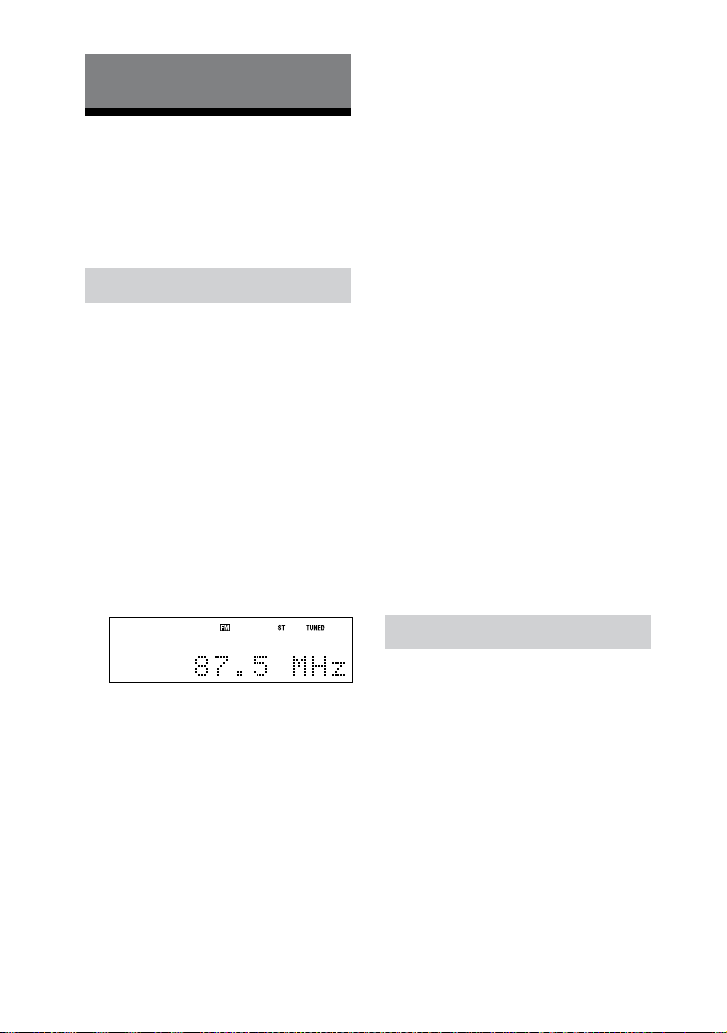
CMT-DH7BT.GB.3-097-195-11(2)
48
GB
Tuner
Listening to the radio
You can listen to a radio station either by
selecting a preset station, or by manually
tuning in the station.
Listening to FM or AM
1
Press FUNCTION +/
repeatedly to select “TUNER FM”
or “TUNER AM” (or press TUNER/
BAND
on the unit repeatedly
to select “FM” or “AM”).
2
Press and hold TUNING +/
until the frequency indication
changes and then release.
Scanning stops automatically when
a station is tuned in and “TUNED”
lights up in the display. When a FM
stereo program is tuned in, “ST”
lights up in the display.
If “TUNED” does not appear and
the scanning does not stop, press
TUNING +/
repeatedly to tune
in the station you want.
3
Adjust the volume.
Press VOLUME +/
.
To stop automatic scanning
Press
.
To change the AM tuning interval
e factory setting for AM tuning
interval is 9 kHz (or 10 kHz for same
areas).
Use buttons on the unit.
1
Press TUNER/BAND
on the unit
repeatedly to select “AM”.
2
Press /
to turn o the system.
3
Press DISPLAY
to display the clock.
4
While the clock is displayed, hold
down TUNER/BAND
and then
press /
to turn on the system.
“AM 9k Step” or “AM 10k Step”
appears in the display.
When you change the interval, all the
AM preset stations are erased.
Tips
To improve broadcast reception, adjust the
supplied antennas, or connect an external
antenna.
When an FM stereo program has static
noise, press FM MODE
repeatedly until
“MONO” lights up in the display. ere will
be no stereo eect, but the reception will
improve.
Listening to satellite radio
You can operate and listen to XM or
SIRIUS satellite radio by connecting an
optional antenna or tuner. Before using
the system, connect the XM Mini-Tuner
and Home Dock or the SiriusConnect
Home tuner to the system. See “Hooking
up the system” (page 14) for details about
connection.
1
Select “XM” or “SIRIUS.”
Press XM or SIRIUS
(or TUNER/
BAND
repeatedly).
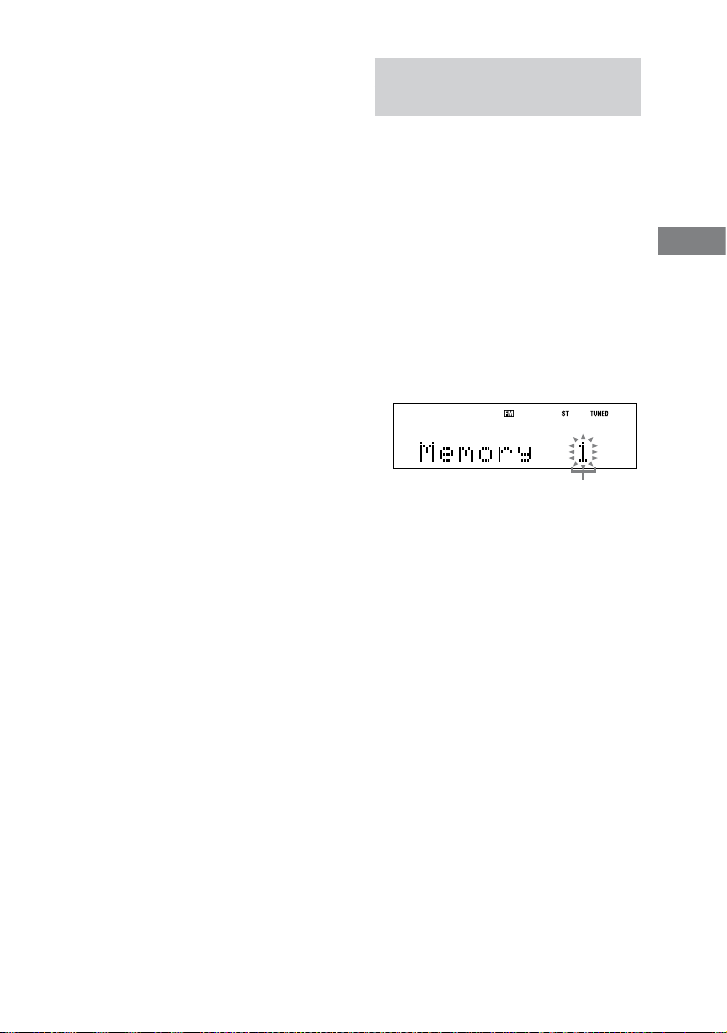
CMT-DH7BT.GB.3-097-195-11(2)
49
GB
Tuner
Continued
2
Select the All Channel mode.
Press CATEGORY MODE
repeatedly until “CAT” disappear.
3
Tune in the desired channel.
Press TUNING +/
repeatedly.
4
Adjust the volume.
Press VOLUME +/
.
To select a channel by Category mode
1
Press XM or SIRIUS
(or TUNER/
BAND
repeatedly).
2
Press CATEGORY MODE
repeatedly until “CAT” appears.
3
Press CATEGORY +/
repeatedly.
4
Press TUNING +/
repeatedly.
To select a channel using the numeric
buttons
Enter the 3 digits of the desired channel
using the numeric buttons
, then press
ENTER
.
To check your XM Radio ID or SIRIUS ID
number
Press the numeric button 0
, then press
ENTER
to select the channel 0.
To check XM or SIRIUS radio
information
Press DISPLAY
repeatedly when the
system is on. You can view XM or SIRIUS
radio information, such as the channel
name, song title and artist name.
Notes
If you select a channel using the numeric
buttons
in Category mode, the tuning
mode changes to automatically All Channel
mode.
You cannot select a SIRIUS channel using
TUNING +/
if the Parental Lock is set
for the channel.
Listening to preset radio
station
1
Tune in the desired station
(see “Listening to FM or AM”
or “Listening to satellite radio”
(page 48)).
2
Press DVD/TUNER MENU
.
“Memory?” ashes in the display.
3
Press ENTER
.
A preset number ashes in the
display.
e stations are stored from preset
number 1.
Preset number
4
Press PRESET +/
repeatedly
to select the preset number you
want.
5
Press ENTER
.
“Complete!” appears in the display.
e station is stored.
6
Repeat steps 1 to 6 to store
other stations.
You can preset up to 20 FM, 10 AM,
20 XM and 20 SIRIUS stations.
e preset stations are retained for
half a day even if you unplug the
power cord or if a power failure
occurs.

CMT-DH7BT.GB.3-097-195-11(2)
50
GB
7
To listen to a preset station,
press PRESET +/
repeatedly
to select the preset station you
want.
You can also press the numeric
buttons
, then press ENTER
to select a preset station (FM/AM
station only).
To cancel presetting
Press DVD/TUNER MENU
.
Notes on presetting XM or SIRIUS
stations
You cannot preset XM or SIRIUS stations
except when you receive the station.
You cannot operate CATEGORY +/
in
preset tuning mode.
If you select a channel using the numeric
buttons
in preset tuning mode, the tuning
mode changes automatically to All Channel
mode.
Restricting access to specic
channels (SIRIUS only)
Parental Lock
You can restrict access to certain
channels using your own password. e
password is set to “0000” as the default.
Change the password before you use
this function for the rst time (see “To
change the password”).
1
Select “SIRIUS.”
Press SIRIUS
(or TUNER/BAND
on the unit repeatedly).
2
Tune in the desired channel
(see “Listening to satellite radio”
(page 48).
3
Press DVD/TUNER MENU
.
4
Press
or
repeatedly until
“Lock?” appears, then press
ENTER
.
“Enter Code” appears.
5
Enter your 4-digit password
using the numeric buttons
.
“Complete!” appears and the Parental
Lock is set.
To delete the numbers you have
entered
Press CLEAR
repeatedly.
To change the password
1
Press SIRIUS
(or TUNER/BAND
on the unit repeatedly) to select
“SIRIUS.”
2
Press DVD/TUNER MENU
.
3
Press
or
repeatedly until “Edit
Code?” appears, then press ENTER
.
“Old Code” appears.
4
Enter your current 4-digit password
using the numeric buttons
.
“New Code” appears.
5
Enter a new 4-digit password using
the numeric buttons
.
6
To conrm your new password, re-
enter it using the numeric buttons
.
“Complete!” appears and the new
password is set.

CMT-DH7BT.GB.3-097-195-11(2)
51
GB
Tuner
To listen to the locked channels
1
Press SIRIUS
(or TUNER/BAND
on the unit repeatedly) to select
“SIRIUS.”
2
Select a locked channel you want to
listen to using the numeric buttons
.
“Enter Code” appears.
3
Enter your 4-digit password using
the numeric buttons
.
e channel is tuned in.
To remove the Parental Lock
1
When the locked channel is tuned
in, press DVD/TUNER MENU
, and
then press
or
repeatedly until
“Unlock?” appears.
2
Press ENTER
.
“Complete!” appears and the channel
is unlocked.
Notes
When you select a channel using
TUNING +/
in All Channel mode or
Category mode, locked channels are skipped.
e display will return to the original
indication if you press
or if no entry is
made for a set period of time aer you have
been prompted to enter the password.
When the system is reset to the factory
settings, the Parental Lock password returns
to the default (“0000”), but Parental Lock
settings are not removed.
You cannot preset locked channels.
If you set the Parental Lock for a preset
channel, the preset information for that
channel returns to the default.
You cannot set the Parental Lock for channels
0 or 184.
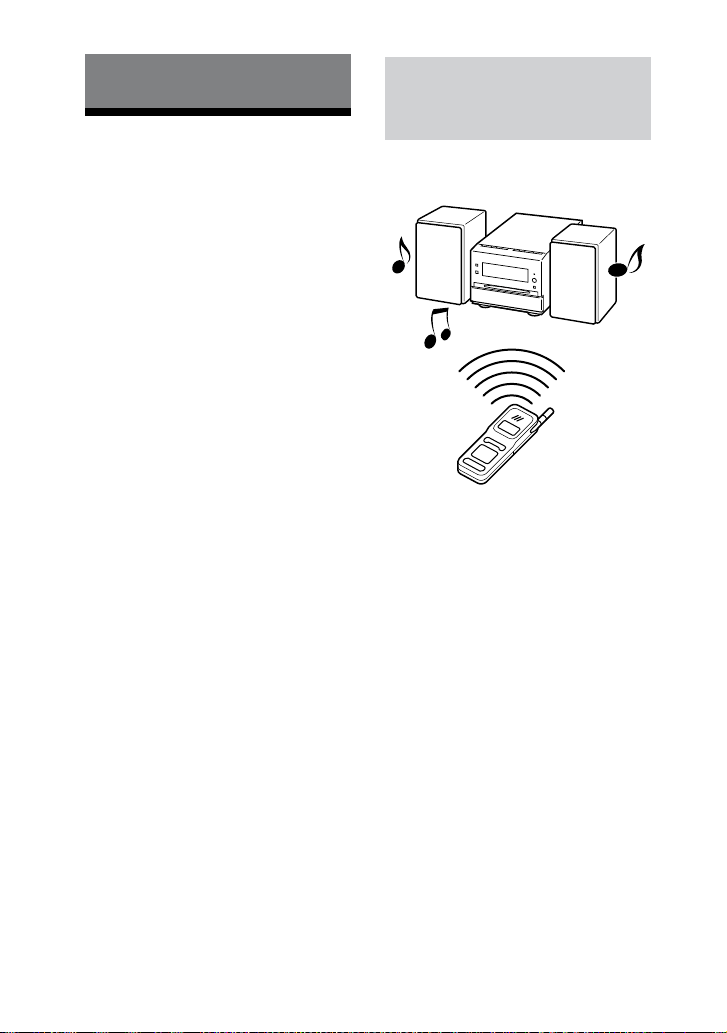
CMT-DH7BT.GB.3-097-195-11(2)
52
GB
Bluetooth Device
Using the Bluetooth
function
is system supports Bluetooth A2DP
and AVRCP proles. For details on
Bluetooth wireless technology, see
“Bluetooth wireless technology” (page
84).
Check the websites below for the latest
information about compatible devices.
For customers in the U.S.A.:
<http://www.sony.com/shelfsupport>
For customers in Canada:
English <http://www.sony.ca/
ElectronicsSupport/>
French <http://fr.sony.ca/
ElectronicsSupport/>
For customers in Europe:
<http://sonydigital-link.com/dna>
For customers in Latin America:
<http://www.sony-latin.com/pa/info>
For customers in Asia and Oceania:
<http://www.css.ap.sony.com/>
Listening to music of a
Bluetooth mobile phone or
Bluetooth device
You can listen to music from your
Bluetooth mobile phone or Bluetooth
device over a wireless connection.
Follow the procedure below to listen to
music from Bluetooth devices with this
system.
Pairing this system with a Bluetooth
device
Connecting to registered devices
Playing music of a Bluetooth device
For details about the operations of
the Bluetooth device, also refer to the
operation manual supplied with your
Bluetooth device.
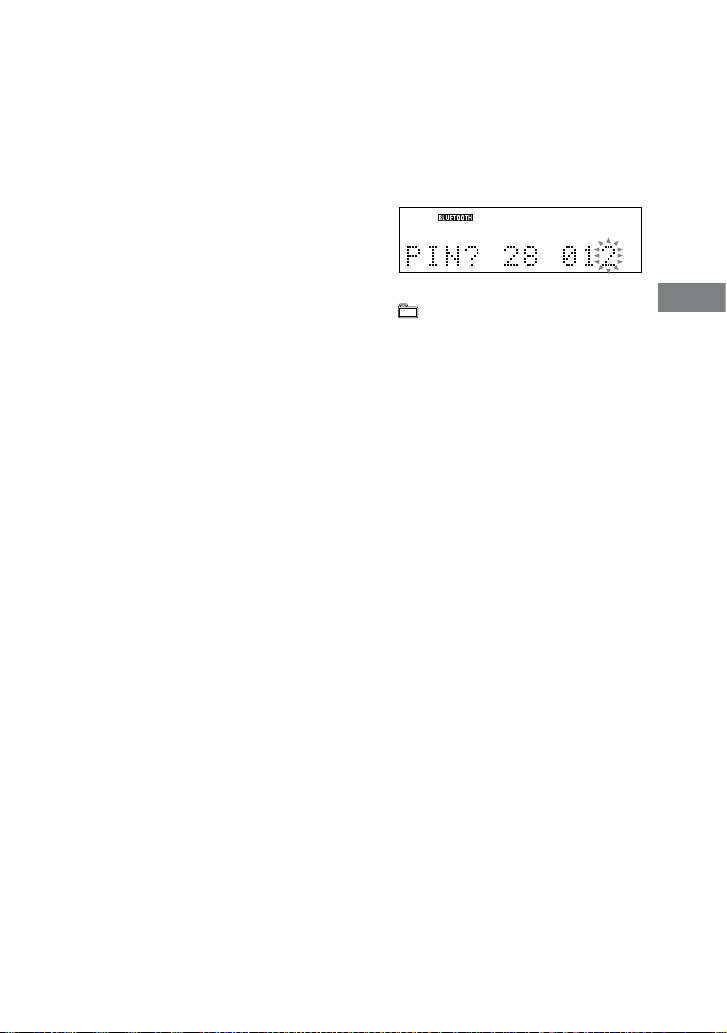
CMT-DH7BT.GB.3-097-195-11(2)
53
GB
Bluetooth Device
Continued
Pairing this system with a Bluetooth
device
Pairing is an operation where Bluetooth
devices register with each other
beforehand. Use the procedure below
to pair the system with your Bluetooth
device. Once a pairing operation is
performed, it does not need to be
performed again. If pairing is already
completed, proceed to “Playing music of
a Bluetooth device” (page 54).
1
Place the Bluetooth device to be
connected to this system within
1 meter of the system.
2
Select the Bluetooth function.
Press FUNCTION +/
repeatedly
to select “BLUETOOTH” (or press
BLUETOOTH
on the unit).
3
Operate the Bluetooth device
and perform the pairing
operation.
For details about the operations of
the Bluetooth device, refer to the
operation manual supplied with your
Bluetooth device.
When searching for this system
with the Bluetooth device, a list of
the devices found may appear in the
Bluetooth device display depending
on the type of Bluetooth device.
is system appears as
“CMT-DH7BT.”
When establishing a connection with
this system, select the audio prole
(A2DP, AVRCP) at the Bluetooth
device. If the Bluetooth device does
not support the AVRCP prole, you
cannot perform playback or other
operations with the system (page 54).
4
Enter the passcode.
Passcode entry may be required
depending on the type of Bluetooth
device.
When “PIN?” and a countdown
appear, enter the passcode at the
system as follows:
Press the numeric buttons
(or
+/
and /
) to
enter the same passcode that was
entered at the Bluetooth device,
and then press ENTER
(or
BLUETOOTH OPR
on the unit).
Once pairing is completed and the
connection is established, the system
display changes as follows:
“Connect” Name of the Bluetooth
device
To cancel passcode entry partway
Press
.
Notes
“Passcode” may be called “Passkey,” “PIN
code,” “PIN number” or “Password,” etc.
depending on the device.
is system only supports numerical
passcodes up to 4 digits.
e pairing standby status of the system is
cancelled aer about 30 seconds. If pairing is
not successful, redo the procedure from step
1.
While connected to a Bluetooth device, this
system cannot be detected and a connection
cannot be established from another
Bluetooth device.

CMT-DH7BT.GB.3-097-195-11(2)
54
GB
To erase all the pairing registration
information
1
Press FUNCTION +/
repeatedly
to select “BLUETOOTH” (or press
BLUETOOTH
on the unit).
When the system is connected with a
Bluetooth device (when the Bluetooth
device name or other information
appears in the system display), press
and hold BLUETOOTH OPR
on
the unit for about 2 seconds to put the
system in Bluetooth standby mode.
2
Press CLEAR
.
“Delete?” appears.
3
Press ENTER
.
“Complete!” appears and all the
pairing information is erased.
Note
In order to connect with a Bluetooth device
aer performing this operation, you must enter
the passcode again.
Playing music of a Bluetooth device
You can operate a Bluetooth device by
connecting the system and a Bluetooth
device using AVRCP. If the system is not
connected with a Bluetooth device using
AVRCP, “Not In Use” appears when you
operate the system.
1
Select the Bluetooth function.
Press FUNCTION +/
repeatedly
to select “BLUETOOTH” (or press
BLUETOOTH
on the unit).
2
Establish a connection from the
Bluetooth device.
For details about the operations of
the Bluetooth device, refer to the
operation manual supplied with your
Bluetooth device.
Once the connection is established,
the system display changes as follows:
“Connect” Name of the Bluetooth
device
3
Start playback.
Press
(or BLUETOOTH
on the unit).
Depending on the Bluetooth device,
you may need to start up the AV
soware of the Bluetooth device
beforehand.
4
Adjust the volume.
Press VOLUME +/
.
To check the address of a connected
Bluetooth device
Press DISPLAY
while the Bluetooth
device name appears in the system
display.
e Bluetooth device address appears for
8 seconds.
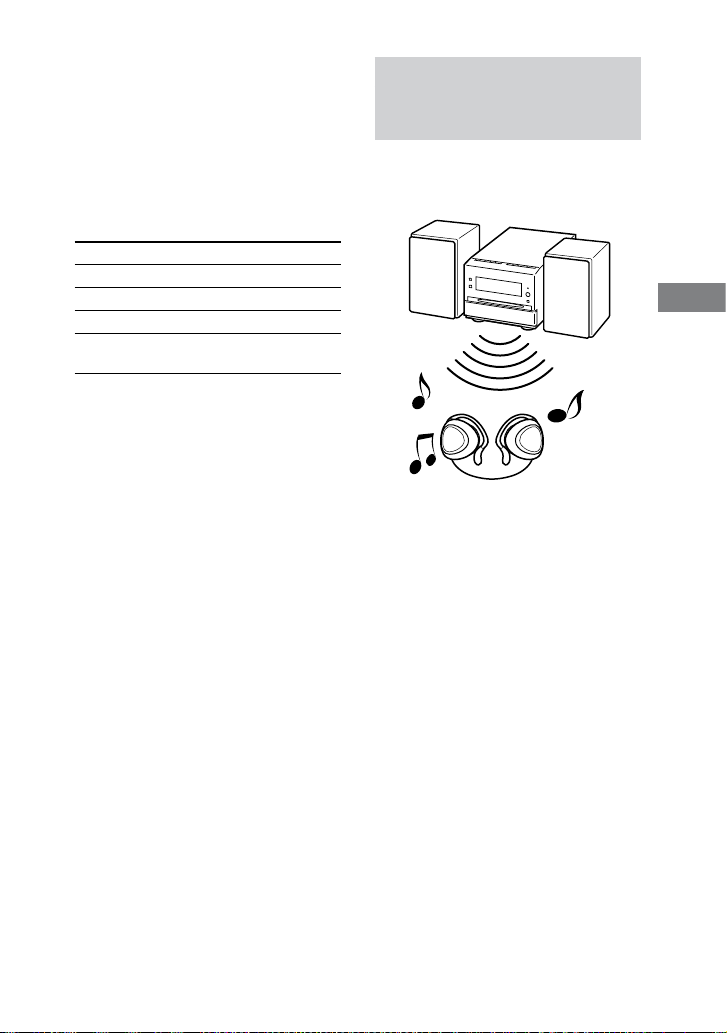
CMT-DH7BT.GB.3-097-195-11(2)
55
GB
Bluetooth Device
To cancel the connection with a
Bluetooth device
Press and hold BLUETOOTH OPR
on the unit for about 2 seconds until
“Disconnect” appears, or until the
information on the display (device name,
etc.) disappears.
Other operation
To Press
Pause playback
.
Stop playback
.
Select a le /
.
Find a point in
a le
Hold down /
.
Note
ese operations may not be available for
certain Bluetooth devices. In addition, the
actual operations may dier depending on the
connected Bluetooth device.
Notes on connections with Bluetooth
devices
If you cannot connect with a paired
Bluetooth device, perform the pairing
operation between the system and the
Bluetooth device again.
Depending on the type of Bluetooth device,
you can adjust the volume using the controls
of the Bluetooth device.
When BLUETOOTH
on the unit
is pressed while connected to Bluetooth
headphones, it may take some time until
a connection is made to the system from
another Bluetooth device.
Listening to music on this
system using Bluetooth
headphones
You can listen to music played on this
system using your Bluetooth headphones
over a wireless connection.
Follow the procedure below to listen
to music on this system with Bluetooth
headphones.
Pairing this system with Bluetooth
headphones
Connecting to registered headphones
Playing music on this system
For details about the operations of the
Bluetooth headphones, also refer to the
operation manual supplied with your
Bluetooth headphones.
Continued

CMT-DH7BT.GB.3-097-195-11(2)
56
GB
Pairing this system with Bluetooth
headphones
Pairing is an operation where Bluetooth
devices register with each other
beforehand. Use the procedure below
to pair the system with your Bluetooth
headphones. Once a pairing operation
is performed, it does not need to be
performed again. If pairing is already
completed, proceed to “Playing music on
this system” (page 57).
1
Select a function other than the
Bluetooth function.
Press FUNCTION +/
repeatedly.
2
Place the Bluetooth
headphones to be connected
to this system within 1 meter of
the system.
3
Put the Bluetooth headphones
in pairing mode.
For details about the operations of the
Bluetooth headphones, refer to the
operation manual supplied with your
Bluetooth headphones.
4
Press and hold BLUETOOTH
OPR
on the unit for about 7
seconds until the BLUETOOTH
indicator
ashes.
Sound output from the speakers is
stopped.
5
Enter the passcode.
Follow the same procedure as in
step 4 of “Pairing this system with a
Bluetooth device” (page 53).
Once pairing is completed and the
connection is established, the system
display changes as follows:
“Connect” Name of the Bluetooth
device
To cancel passcode entry partway
Press
.
Notes
“Passcode” may be called “Passkey,” “PIN
code,” “PIN number” or “Password,” etc.
depending on the device.
is system only supports numerical
passcodes up to 4 digits.
e pairing standby status of the system is
cancelled aer about 30 seconds. If pairing
is not successful, redo the procedure from
step 1.
While connected to a Bluetooth device, this
system cannot be detected and a connection
cannot be established from another
Bluetooth device.
Pairing may not be possible if other
Bluetooth devices are present around the
system. In this case, turn o the other
Bluetooth devices.
To erase all the pairing registration
information
1
Press FUNCTION +/
repeatedly
to select “BLUETOOTH” (or press
BLUETOOTH
on the unit).
When the system is connected with a
Bluetooth device (when the Bluetooth
device name or other information
appears in the system display), press
and hold BLUETOOTH OPR
on
the unit for about 2 seconds to put the
system in Bluetooth standby mode.
2
Press CLEAR
.
“Delete?” appears.
3
Press ENTER
.
“Complete!” appears and all the
pairing information is erased.
Note
To connect with Bluetooth headphones aer
performing this operation, you must enter the
passcode again.

CMT-DH7BT.GB.3-097-195-11(2)
57
GB
Bluetooth Device
Playing music on this system
You can operate this system from
Bluetooth headphones by connecting the
system and Bluetooth headphones using
AVRCP.
1
Select a function other than the
Bluetooth function.
Press FUNCTION +/
repeatedly.
2
Establish a connection with the
Bluetooth headphones.
Press and hold BLUETOOTH OPR
on the unit for about 2 seconds
until the BLUETOOTH indicator
lights up, then release the button.
If more than one Bluetooth device
that has been connected in the past
is present around the system, the
system attempts to connect with up
to 3 most recently connected devices.
(Connection is attempted with up
to 3 devices in order from the most
recently connected device, and the
attempts end when a connection is
established.)
Once the connection is established,
the system display changes as follows:
“Connect” Name of the Bluetooth
device
3
Start playback of the music for
the function selected in step 1.
Depending on the type of Bluetooth
headphones, you can operate this
system (playback, volume control,
etc.) using the headphone’s controls.
For details about the operations of the
Bluetooth headphones, refer to the
operation manual supplied with your
Bluetooth headphones.
4
Adjust the volume.
Press VOLUME +/
.
To cancel the connection with
Bluetooth headphones
Press and hold BLUETOOTH OPR
on the unit for about 2 seconds until the
BLUETOOTH indicator
turns o.
Notes
If you cannot connect with paired Bluetooth
headphones, perform the pairing operation
between the system and the Bluetooth
headphones again.
When the system is changed to a function
other than the Bluetooth function and
BLUETOOTH OPR
on the unit is pressed
while connected to a Bluetooth device, it may
take some time until a connection is made
with the Bluetooth headphones.
is system stores separate volume settings
for when listening through the speakers
or PHONES jack
on the unit, or when
listening through Bluetooth headphones.

CMT-DH7BT.GB.3-097-195-11(2)
58
GB
Sound Adjustment
Adjusting the sound
Generating a more dynamic
sound (Dynamic Sound
Generator X-tra)
You can reinforce the bass and create a
more powerful sound.
e DSGX setting is ideal for music
sources.
Press DSGX
on the unit
repeatedly.
Each time you press the button, the
display changes as follows:
DSGX ON DSGX OFF
Tip
e default setting is “DSGX ON.”
Setting the sound eect
1
Press EQ
repeatedly to select
“BASS” or “TREBLE.”
2
Press PRESET +/
repeatedly
to adjust the level.
CMT-DH7BT.GB.3-097-195-11(2)
59
GB
Sound Adjustment/Other Operations
Other Operations
Using the timer
Falling asleep to music
Sleep Timer
You can set the system to turn o aer a
certain time, so that you can fall asleep
to music.
Press SLEEP
repeatedly.
Each time you press the button, the
minute display changes cyclically as
follows:
90min
80min
70min
…
10min
OFF
Other operations
To Do this
Check the
remaining time
Press SLEEP
once.
Change the
time to turn o
Press SLEEP
repeatedly to select the
time you want.
Cancel the
Sleep Timer
Press SLEEP
repeatedly until “SLEEP
OFF” appears in the
display.
Waking up to music
Play Timer
You can wake up to music at a preset
time. Make sure you have set the clock
(see “Setting the clock” (page 19)).
1
Prepare the sound source.
Disc: Insert a disc.
Radio: Tune in the preset station
you want (see “Listening to the
radio” (page 48)).
2
Press VOLUME +/
to adjust
the volume.
3
Press TIMER MENU
.
4
Press or
repeatedly to
select “PLAY SET?,” then press
ENTER
.
“ON” appears and the hour indication
ashes in the display.
5
Set the time to start playback.
Press or
repeatedly to set the
hour, then press ENTER
.
e minute indication ashes in the
display. Use the procedure above to
set the minute. “OFF” appears and the
hour indication ashes in the display.
6
Set the time to stop playback
using the same procedure as
step 5.
7
Select the sound source.
Press or
repeatedly until the
music source you want appears in the
display, then press ENTER
. is
display will show the timer settings.
8
Press
to turn o the
system.
Continued
CMT-DH7BT.GB.3-097-195-11(2)
60
GB
Other operations
To Do this
Check the
setting
1
Press TIMER
MENU
.
“TIMER SEL?”
ashes in the display.
2
Press ENTER
.
3
Press or
repeatedly to select
“PLAY SELECT?,”
then press
ENTER
.
Change the
setting
Start from step 1.
Cancel the Play
Timer
1
Press TIMER
MENU
.
“TIMER SEL?”
ashes in the display.
2
Press ENTER
.
3
Press or
repeatedly to select
“TIMER OFF?,” then
press ENTER
.
Notes
e Play Timer will not be activated if the
system is turned on or if “STANDBY” ashes
in the display.
e system turns on 30 seconds before the
preset time.
Before the system is turned o, if a
connection is made with the Bluetooth
headphones, sounds played by the Play Timer
may be output to the Bluetooth headphones.
Changing the display
Checking the clock
Press DISPLAY
when the system
is turned o. The clock is displayed
for 8 seconds.
Adjusting the brightness of the
display
Press DIMMER
repeatedly while
the system is on.
Each time you press the button, the
display changes cyclically as follows:
DIMMER OFF
DIMMER 1
DIMMER 2*
* DIMMER 2 is the darkest.

CMT-DH7BT.GB.3-097-195-11(2)
61
GB
Other Operations
Viewing information
about the disc
Viewing information about the
disc in the front panel display
Press DISPLAY
.
Each time you press DISPLAY
, the
display changes from
…
Disc information
Clock display (for 8 seconds)
Checking the elapsed playing time,
remaining time and titles
Press TIME/TEXT
during playback.
Each time you press TIME/TEXT
, the
display changes from …
…
When playing a DVD VIDEO or DVD-
R/-RW in VR mode:
When the menu or the title without a
chapter is played back
Elapsed playing time of the menu
or the current title
Title of the disc
1)
When a chapter other than above
condition is played back
Elapsed playing time of the current
title
Remaining time of the current title
Elapsed playing time of the current
chapter
Remaining time of the current
chapter
Title of the disc
1)2)
When playing an AUDIO CD or VIDEO
CD without PBC function:
Elapsed playing time of the current
track
Remaining time of the current track
Elapsed playing time of the current
disc
3)
Remaining time of the current disc
3)
Title of the disc
1)4)
When playing a VIDEO CD/Super
VCD:
Elapsed playing time of the current
scene/track
Title of the disc
1)4)
When playing MP3 audio tracks on a
DATA CD/DVD:
Elapsed playing time of the current
track
Title of the track
Checking the total playing time and
titles
Press TIME/TEXT
repeatedly when
playback is stopped.
Each time you press TIME/TEXT
,
the display changes from
…
DVD VIDEO or DVD-R/-RW in VR
mode:
Total number of titles on the disc
Title of the disc
1)
VIDEO CD without PBC playback or
AUDIO CD:
Total number of the tracks on the disc
and the total playing time of the disc
Title of the disc
1)
VIDEO CD with PBC playback:
Total number of scenes on the disc
Title of the disc
1)
Continued
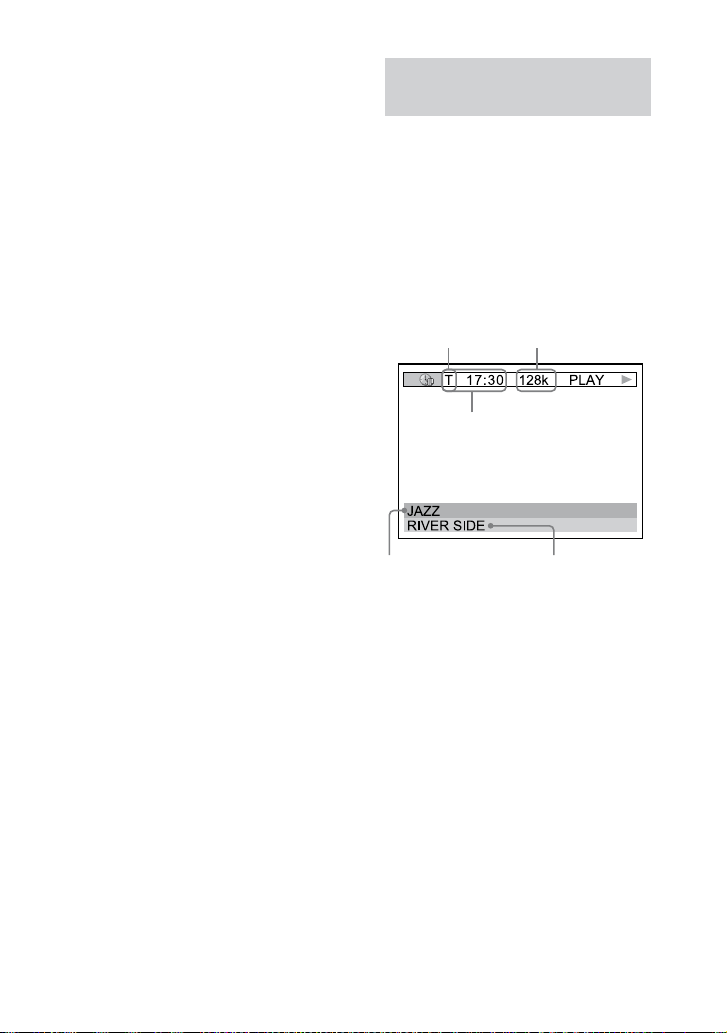
CMT-DH7BT.GB.3-097-195-11(2)
62
GB
1)
“NO TEXT” appears in the display if the
DVD VIDEO is not a DVD-TEXT disc or the
VIDEO CD does not have text information.
2)
e current chapter number and the current
title number are displayed for 2 seconds
before the display returns to elapsed playing
time when you press TIME/TEXT
during
display of title of the disc.
3)
When Program Play or Shue Play is
turned on, the elapsed playing time and the
remaining time of the disc would be skipped.
4)
e current track number and the current
index number (for a disc without PBC) or the
current scene number (for a disc with PBC)
are displayed for 2 seconds before the display
returns to elapsed playing time when you
press TIME/TEXT
during display of the
title of disc.
Notes
If you play back a disc containing JPEG
image les only, “JPEG” or “No Audio”
appears in the display.
You cannot use TIME/TEXT
to change
the display of disc information when:
a JPEG image le is played back.
playback is stopped for DATA CD/DVD
with MP3 audio tracks and/or JPEG
image les.
If the MP3 audio track title contains
characters which cannot be displayed, these
characters will be displayed as “*.”
Viewing information about the
disc in the on-screen display
Press TIME/TEXT
.
Each time you press TIME/TEXT
while playing the disc, the display
changes from …
…
e time display that you can view on the
TV screen depends on the disc you are
playing.
T: title or track
C: chapter
D: disc
Bit rate
Time information
Album Title Disc/track/le title
When playing a DVD VIDEO or DVD-
R/-RW in VR mode:
Elapsed playing time of the current
title
Remaining time of the current title
Elapsed playing time of the current
chapter
Remaining time of the current chapter
Title of the disc
When playing a VIDEO CD/Super
VCD:
Elapsed playing time of the current
scene/track
Title of the disc
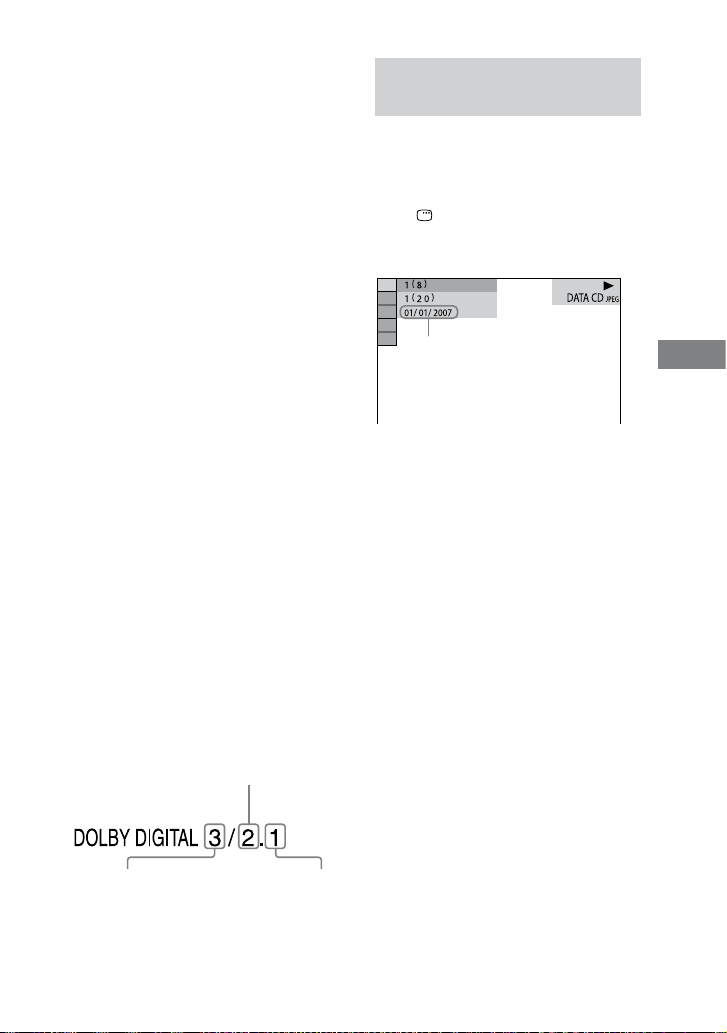
CMT-DH7BT.GB.3-097-195-11(2)
63
GB
Other Operations
When playing an AUDIO CD or VIDEO
CD without PBC function:
Elapsed playing time of the current
track
Remaining time of the current track
Elapsed playing time of the current
disc
Remaining time of the current disc
Title of the disc
When playing a DATA CD/DVD:
Elapsed playing time of the current
track/le
Notes
Only alphabet letters, numbers and some
symbols can be displayed.
Depending on the disc, the system can only
display a limited number of characters.
For MP3 audio tracks with format other than
ISO 9660 Level 1 and Level 2, album title and
track title may not be displayed.
Displaying the audio information of
the disc
(DVD VIDEO only)
When you press AUDIO
repeatedly
during playback, the format of the
current audio signal is displayed on the
TV screen.
When playing a DVD VIDEO:
For example, in Dolby Digital format,
multiple signals ranging from monaural
to 5.1 channel signals can be recorded on
a DVD VIDEO.
Example:
For Dolby Digital 5.1 channel:
2 Surround components
2 Front components +
1 Center component
1 LFE (Low Frequency
Eect) component
Checking the date information
of JPEG image les
You can check the date information
during playback when Exif* tag is
recorded in the JPEG image les.
Press DISPLAY
repeatedly
during playback.
e Control Menu appears.
Date information
* “Exchangeable Image File Format” is a
digital camera image format dened by the
Japan Electronics & Information Technology
Industries Association (JEITA).
Note
e date information format varies depending
on the area.
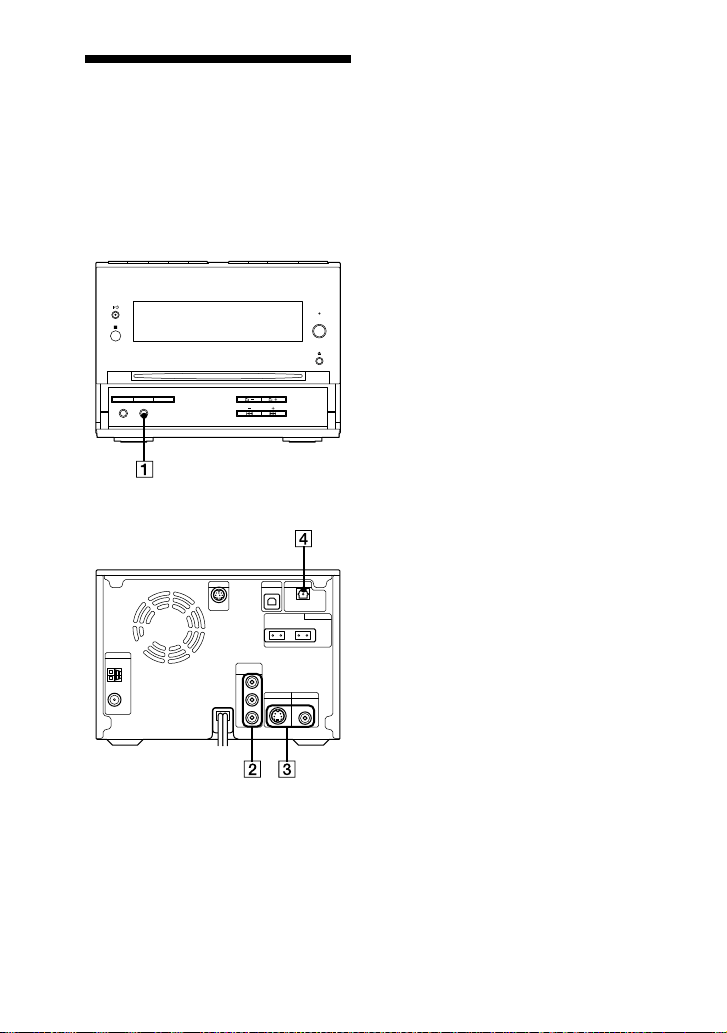
CMT-DH7BT.GB.3-097-195-11(2)
64
GB
Hooking up optional
components
To enhance your system, you can connect
optional components. Refer to the
operating instructions provided with
each component.
Front panel
Rear panel
AUDIO IN jack
Connect the audio output jack of an
optional component (portable audio
player, etc.).
COMPONENT VIDEO OUT jacks
Connect the component video input
jacks of the TV or projector. If your
TV accept progressive format signals,
you must use this connection and
press PROGRESSIVE
on the unit
repeatedly to select “P AUTO” or
“P VIDEO.” You can enjoy higher
quality video images.
S VIDEO OUT/VIDEO OUT jacks
Connect the S Video/video input
jack of the TV. You can enjoy higher
quality video images when you select
the S VIDEO.
DIGITAL OUT jack
Connect the digital optical input jack
of an optional digital component
(such as amplier). You can enjoy
5.1 channel sound, if the connected
amplier equipped with Dolby Digital
or DTS decoder.
Note
Sound is output only when the system
function is set to “DVD”.

CMT-DH7BT.GB.3-097-195-11(2)
65
GB
Other Operations
Enjoying the multi channel
sound with the optional
amplier
1
Connect the digital optical cord.
See “Hooking up optional
components” (page 64).
2
Connect the speakers to an
optional amplier equipped
with a decoder.
For the speakers placement, refer to
the operating instructions supplied
with the connected amplier.
3
Start playing a multi channel
source, such as a DVD VIDEO.
4
Select the audio format you
want.
See “Changing the sound” (page 25).

CMT-DH7BT.GB.3-097-195-11(2)
66
GB
Additional Informa
tion
Troubleshooting
Should you encounter a problem with
your system, do the following:
1
Make sure the power cord and
speaker cords are connected
correctly and rmly.
2
Find your problem in the
troubleshooting checklist below and
take the indicated corrective action.
If the problem persists aer doing all
of the above, consult your nearest Sony
dealer.
If the STANDBY indicator ashes
Immediately unplug the power cord,
and check the following items.
If your system has a voltage
selector, is the voltage selector set
to the correct voltage?
Are you using only the supplied
speakers?
Is anything blocking the ventilation
holes on the rear of the system?
Aer the STANDBY indicator
stops ashing, reconnect the power
cord, and turn on the system, If the
issue persists, contact your nearest
Sony dealer.
General
The clock or timer setting is canceled.
e power cord is disconnected or a
power failure occurred. Redo “Setting
the clock” (page 19). If you have set
the timer, redo “Waking up to music”
(page 59).
“– –:– –” appears in the display.
A power failure has occurred. Set the
clock (page 19) and timer settings
(page 59) again.
There is no sound.
Press VOLUME +
repeatedly.
e headphones are connected to the
PHONES jack
.
Check the speaker connections
(page 14).
e system is in pause mode, in Slow-
motion Play or in Lock Search. Press
(or DVD
on the unit) to
start the playback.
If the BLUETOOTH indicator
is lit
or ashing when a function other than
the Bluetooth function is selected, no
sound is heard through the speakers
or PHONES jack
. Press and hold
BLUETOOTH OPR
for about
2 seconds until the BLUETOOTH
indicator
turns o.
There is severe hum or noise.
A TV or VCR is placed too close to the
unit. Move the unit away from the TV
or VCR.
Move the unit away from the source of
noise.
Connect the unit to a dierent wall
outlet.
Install a noise lter (commercially
available) to the power cord.

CMT-DH7BT.GB.3-097-195-11(2)
67
GB
Additional Information
Continued
The timer does not function.
Check the timer setting and set the
correct time (page 59).
Cancel the Sleep Timer function
(page 59).
The remote does not function.
Remove the obstacles between the
remote and the unit.
Move the remote closer to the unit.
Point the remote at the unit’s sensor.
Replace the batteries (R6/size AA).
Locate the unit away from the
uorescent light.
There is acoustic feedback.
Reduce the volume.
The color irregularity on a TV screen
persists.
Turn o the TV set once, then turn it
on aer 15 to 30 minutes. If the color
irregularity still persists, place the
speakers farther away from the TV set.
THEATRE SYNC function does not
work.
If distance between the TV and this
unit is too far, this function may not
work. Install the unit near the TV.
Speakers
Sound comes from one channel or
unbalanced left and right volume.
Place the speakers as symmetrically as
possible.
Check that the speakers are connected
securely and correctly.
e source being played back is
monaural.
Disc Player
The disc does not eject.
Consult your nearest Sony dealer.
Playback does not start.
Check whether a disc is loaded.
Wipe the disc clean (page 75).
Reinsert the disc.
Insert the disc that this system can play
back (page 5).
Insert the disc in the disc slot
with
the label side facing up.
Remove the disc and wipe away the
moisture on the disc, then leave the
system turned on for a few hours until
the moisture evaporates.
Press
(or DVD
on the
unit) to start playback.
e region code on the DVD VIDEO
does not match the system.
Cancel the Custom Parental Control
function (page 40).
The sound skips.
Wipe the disc clean (page 75).
Reinsert the disc.
Move the unit to a place without
vibration (e.g., on top of a stable
stand).
Move the speakers away from the
unit, or place them on separate stands.
When you listen to a track with bass
sounds at high volume, the speaker
vibration may cause the sound to skip.

CMT-DH7BT.GB.3-097-195-11(2)
68
GB
Playback does not start from the rst
track.
e system is in Program Play or
Shue Play mode. Turn o Program
Play and Shue Play.
Resume Play has been selected. Press
twice. en, press
to start
playback (page 27).
e title of DVD VIDEO or PBC
menu automatically appears on the TV
screen.
Playback starts automatically.
e DVD VIDEO features an auto
playback function.
Playback stops automatically.
Some discs may contain an auto pause
signal. While playing such a disc, the
playback stops at auto pause signal.
You cannot perform some functions
such as Stop, Lock Search, Slow-
motion Play, Repeat Play, Shue Play
or Program Play.
Depending on the disc, you may not
be able to do some of the operations
above. Refer to the operating
instructions supplied with the disc.
The DATA CD (MP3 audio track/JPEG
image le) cannot be played back.
e DATA CD is not recorded in a
format that conforms to ISO 9660
Level 1, Level 2, or Joliet (expansion
format).
e DATA DVD is not recorded
in a format that conforms to UDF
(Universal Disk Format).
e MP3 audio track does not have the
extension “.MP3”.
e data is not stored in the desired
format.
e MP3 audio tracks in format other
than MPEG 1 Audio Layer 3 cannot be
played back.
e system can playback to a depth of
8 folders only.
For MP3/JPEG les, check the “MODE
(MP3, JPEG)” setting (page 37).
e disc contains more than 200
albums.
e album contains more than 600
tracks/les.
For MP3/JPEG les, the album
contains more than 300 tracks/les
when the “MODE (MP3, JPEG)” is set
to “AUTO.”
e JPEG image le does not have the
extension “.JPG” or “.JPEG”.
e JPEG image le is larger than
3,072 (width) × 2,048 (height) in
normal mode, or more than 2,000,000
pixels in Progressive JPEG mode which
is mainly used on the Internet website.
JPEG image les with a high width to
length ratio cannot be played back.
The MP3 audio tracks take longer
time to play back than others.
Aer the system reads all the tracks on
the disc, playback may take more time
than usual if:
the number of albums or tracks on
the disc is very large.
the album and track organization
structure is very complex.
The disc title, album title, track title
and DVD-TEXT characters do not
appear properly.
Use a disc that conforms to the
ISO 9660 Level 1, Level 2, or Joliet
(expansion).
e character code that can be
displayed by this system are as follows:
Upper cases (A to Z)
Lower cases (a to z)
Numbers (0 to 9)
Symbols (< > * +, / [ ] _)
Other characters may not be displayed
correctly.

CMT-DH7BT.GB.3-097-195-11(2)
69
GB
Additional Information
Continued
The surround eect is dicult to hear
when you are playing a Dolby Digital
or MPEG audio sound track.
Check the speaker connections (page
14).
Depending on the DVD VIDEO, the
output signal may not be the entire 5.1
channel. It may be monaural or stereo,
even if the sound track is recorded in
Dolby Digital or MPEG audio format.
The sound loses stereo eect when
you play back an AUDIO CD, VIDEO
CD, MP3 audio track or DVD VIDEO.
Make sure the system is connected
properly.
Bluetooth device
Pairing cannot be done.
Move the Bluetooth device closer to
the system.
Pairing may not be possible if other
Bluetooth devices are present around
the system. In this case, turn o the
other Bluetooth devices.
Connection is not possible.
e Bluetooth device you attempted
to connect does not support the A2DP
and AVRCP proles, and cannot be
connected with the system.
Enable the Bluetooth function of the
Bluetooth device.
e pairing registration information
has been erased. Perform the pairing
operation again.
While connected to a Bluetooth device,
this system cannot be detected and a
connection cannot be established from
another Bluetooth device.
The sound skips or uctuates, or the
connection is lost.
e system and the Bluetooth device
are too far apart.
If there are obstacles between the
system and your Bluetooth device,
remove or avoid the obstacles.
If there is equipment that generates
electromagnetic radiation, such as a
wireless LAN, other Bluetooth device,
or a microwave oven nearby, move
them away.
The sound of your Bluetooth device
cannot be heard on this system.
Turn up the volume on your Bluetooth
device rst, and then adjust the volume
using VOLUME +/
.
Severe hum or noise
If there are obstacles between the
system and your Bluetooth device,
remove or avoid the obstacles.
If there is equipment that generates
electromagnetic radiation, such as a
wireless LAN, other Bluetooth device,
or a microwave oven nearby, move
them away.
Turn down the volume of the
connected Bluetooth device.
The sound from the Bluetooth
headphones is distorted.
Turn down the volume of the system
using VOLUME
. If your
headphones have a volume control,
also adjust the volume using the
headphone’s volume control.
Press DSGX
on the unit repeatedly
until “DSGX OFF” appears.
Press EQ
repeatedly to select
“BASS” or “TREBLE,” and then press
PRESET
repeatedly to turn down
the level.

CMT-DH7BT.GB.3-097-195-11(2)
70
GB
Picture
There is no picture.
Press FUNCTION +/
repeatedly
to select “DVD” (or press DVD
on the unit).
Check that the system is connected
securely.
e video cord is damaged. Replace it
with a new one.
Make sure you connect the unit to the
video input jack of your TV (page 17).
Make sure you turn on the TV and
operate the TV correctly.
Press PROGRESSIVE
on the unit
repeatedly to select “INTERLACE”
if you connect your TV to the unit’s
COMPONENT VIDEO OUT jacks
and your TV cannot accept progressive
signal.
You have set to progressive format but
your TV cannot accept the signal in
progressive format. In this case, set to
interlace format (the default setting)
(page 18).
Even if your TV is compatible with
progressive format (525p/625p)
signals, the image may be aected
when you set to progressive format. In
this case, set to interlace format (the
default setting) (page 18).
Make sure you select the video input
on the TV so that you can view the
pictures from the system.
Make sure you connect the unit and
your TV using only the supplied video
cord.
Picture noise appears.
Clean the disc.
If video signal from your system has to
go through your VCR to your TV, the
copy-protection applied to some DVD
VIDEO programs could aect the
picture quality. If you still experience
problems aer checking your
connections, connect your unit directly
to your TV’s S Video input (page 17).
Keep the speaker cords away from the
antennas.
When you connect your TV to the
COMPONENT VIDEO OUT jacks
and play back video-based soware
in progressive signal format, some
sections of the image may appear
unnatural due to the conversion
process.
The aspect ratio of the TV screen
cannot be changed even though you
can set “TV TYPE” under “SCREEN
SETUP” in the Setup Menu when you
play back a wide picture.
e aspect ratio is xed on your DVD
VIDEO.
If you connect the unit with the S
Video cord, connect directly to the TV.
Otherwise, you may not change the
aspect ratio.
Depending on the TV, you may not
change the aspect ratio.
Messages do not appear on the TV
screen in the language you want.
Select the language you want for the
on-screen display in “OSD” under
“LANGUAGE SETUP” in the Setup
Menu (page 44).
The language for the sound track
cannot be changed.
Multilingual tracks are not recorded on
the DVD VIDEO being played back.
e DVD VIDEO prohibits changing
the language for the sound track.

CMT-DH7BT.GB.3-097-195-11(2)
71
GB
Additional Information
Continued
The subtitles language cannot be
changed.
Multilingual subtitles are not recorded
on the DVD VIDEO being played
back.
e DVD VIDEO prohibits changing
the subtitles.
The subtitles cannot be turned o.
e DVD VIDEO prohibits turning o
subtitles.
The angles cannot be changed.
Multi-angles are not recorded on the
DVD VIDEO being played back.
e DVD VIDEO prohibits changing
the angles.
Tuner
The radio presetting is canceled.
e power cord is disconnected or a
power failure occurred for longer than
half a day. Redo “Listening to preset
radio station” (page 49).
There is severe hum or noise.
(“TUNED” or “ST” ashes in the
display)
Set the proper band and frequency
(page 48).
Connect the antenna properly
(page 14).
Find a place and an orientation that
provide good reception, then set up
the antenna again. If you cannot obtain
good reception, we recommend that
you connect a commercially available
external antenna.
Keep the antennas, SiriusConnect
Home tuner, and AC adaptor away
from the speaker cords and the power
cord to avoid picking up noise.
e supplied FM lead antenna receives
signals along its entire length, so make
sure you extend it fully.
Locate the antennas as far away from
the speaker cords as possible.
Try turning o the surrounding
electrical equipment.
A stereo FM program cannot be
received in stereo.
Press FM MODE
repeatedly until
“MONO” disappears from the display.
The system cannot receive satellite
channels at all.
Check that the XM Mini-Tuner and
Home Dock or the SiriusConnect
Home tuner are connected properly.
e receiving condition is not good.
Move to the place where the condition
is good.
Check that you subscribed to the
desired satellite radio service (pages 16
and 17).
Optional components
There is no sound.
Refer to General item “ere is no
sound.” (page 66) and check the
condition of the system.
Connect the component properly
(page 64) while checking:
if the cords are connected properly.
if the cord plugs are rmly inserted
all the way.
Turn on the connected component.
Refer to the operating instructions
supplied with the connected
component and start playing.
CMT-DH7BT.GB.3-097-195-11(2)
72
GB
If the system still does not operate
properly after performing the
above measures or other troubles
not described above occur, reset the
system as follows:
Use buttons on the unit to reset the
system to its factory default settings.
1
Unplug the power cord.
2
Plug the power cord back in.
3
Press
to turn on the system.
4
Press
, DISPLAY
and
at the same time.
“RESET” appears in the display.
e system is reset to the factory settings
except for DVD settings. You should set
the settings you made, such as the preset
stations, clock and timer.
To return the DVD setup to the default
settings*, perform reset as follows:
1
Press DISPLAY
when playback
is stopped.
e Control Menu appears on the TV
screen.
2
Press or
repeatedly to
select (SETUP), then press
ENTER
.
3
Press or
repeatedly to select
“RESET,” then press ENTER
.
4
Press or
repeatedly to select
“YES,” then press ENTER
.
It takes a few seconds to complete. Do
not press
when resetting the
system.
* Except for Parental Control settings
Self-diagnosis Function
(When letters/numbers appear in the
display)
When the self-diagnosis function
is activated to prevent the system
from malfunctioning, a 5-character
service number (e.g. C 13 50) with a
combination of a letter and 4 digits
appears on the TV screen and the front
panel display. In this case, check the
following table.
First 3
characters of
the service
number
Cause and corrective
action
C 13 is disc is dirty.
Clean the disc with a
so cloth (page 75).
C 31 e disc is not inserted
correctly.
Restart the system,
then re-insert the
disc correctly.
E XX
(XX is a
number)
To prevent a
malfunction, the
system has performed
the self-diagnosis
function.
Contact your nearest
Sony dealer or local
authorized Sony
service facility and
give the 5-character
service number.
Example: E 61 10
CMT-DH7BT.GB.3-097-195-11(2)
73
GB
Additional Information
Continued
When displaying the version number
on the TV screen
When you turn on the system, the
version number [VER.X.XX] (X is a
number) may appear on the TV screen.
Although this is not a malfunction and
for Sony service use only, normal system
operation will not be possible. Turn o
the system, and then turn on the system
again to operate.
Messages
One of the following messages may
appear or ash in the front panel display
during operation.
DVD player, Tuner
Cannot Play
A disc that cannot be played back was
inserted.
A DVD VIDEO with unsupported
region code was inserted.
Data Error
e MP3 audio track and JPEG image
le you want to play back is damaged.
e MP3 audio track does not conform
to MPEG 1 Audio Layer 3 format.
e JPEG image le does not conform
to DCF format.
e MP3 audio track has the extension
“.MP3” but it is not in MP3 format.
e JPEG image le has the extension
“.JPG” or “.JPEG” but it is not in JPEG
format.
No Disc
ere is no disc in the disc slot
.
Not In Use
You have pressed a button whose
operation is not allowed or invalid at that
time.
OFF TIME NG!
e on time and o time of Play Timer
is the same.

CMT-DH7BT.GB.3-097-195-11(2)
74
GB
PASSWORD
Custom Parental Control or Parental
Control is set.
Please Wait
e system is doing initialization process.
Reading
e system is reading information of the
disc. Some buttons are not available.
Bluetooth device
Connect
Bluetooth communication was
established.
Disconnect
Communication with a Bluetooth device
was cut o for some reason, or Bluetooth
communication was ended.
Not Connect
Connection was not possible.
No Device
A pairable Bluetooth device was not
found, or connection was not possible.
Not In Use
e system is not connected with a
Bluetooth device using AVRCP.
PIN?
e system is asking for the passcode.
For details, see “Using the Bluetooth
function” (page 52).
Please Wait
e system is readying for usage of a
Bluetooth device.
XM
ANTENNA
e XM Mini-Tuner and Home Dock
are not connected. Check all the
connections, and then turn the system
on again.
CH – – –
You have entered an invalid channel
number. e channel to be tuned-in is
void due to the change by the broadcast
service, or the receiving condition is not
good.
LOADING
e system have not nished receiving
the entire audio data or text information.
Some buttons are not available.
NO SIGNAL
e receiving condition is not good. Try
moving the antenna to another location.
Make sure the antenna points south. For
details about the antenna location, see
the instructions supplied with the XM
Mini-Tuner and Home Dock.
OFF AIR
e channel is not broadcasted now.
UPDATING
You have not subscribed for XM or the
channel is not authorized. You need to
subscribe for XM.
– – – – – –
ere is no text information or time
information in the channel. is is not
an error. e text information may not
be displayed depending on the system
condition, for example, right aer the
system has received a channel.

CMT-DH7BT.GB.3-097-195-11(2)
75
GB
Additional Information
SIRIUS
ANTENNA
e antenna is not connected properly.
Check the connection between the
SiriusConnect Home tuner and the
antenna.
ACQUIRING
e receiving condition is not good. Try
moving the antenna to another location.
For details about the antenna location,
see the instructions supplied with the
SiriusConnect Home tuner.
Call 888–539–SIRI
You have not subscribed for the selected
channel.
CHECK SIRIUS
e SiriusConnect Home tuner is
not connected properly. Check all the
connections, and then turn the system on
again. Also make sure if the AC adaptor
supplied with the SiriusConnect Home
tuner is connected to a wall socket.
Invalid
You have entered an invalid channel
number. e channel to be tuned-in is
void due to the change by the broadcast
service, or the receiving condition is not
good.
SUB UPDATED
You have not subscribed for SIRIUS or
the channel is not authorized. You need
to subscribe for SIRIUS.
UPDATING
Channel information or SiriusConnect
Home tuner rmware is being updated.
– – – – – –
ere is no text information or time
information in the channel. is is not
an error. e text information may not
be displayed depending on the system
condition, for example, right aer the
system has received a channel.
Precautions
Discs that this system CANNOT play
Discs of non-standard shape (for example,
heart, square, star)
Discs that have adhesive tape, paper, or
sticker attached to them
Rental or used discs with attached seals
where the glue extends beyond the seal
Discs that have labels printed using ink that
feels tacky when touched
Notes on discs
Before playing, wipe the disc with a cleaning
cloth from the center out to the edge.
Do not clean discs with solvents, such as
benzine thinner, or commercially available
cleaners or anti-static spray intended for
vinyl LPs.
Do not expose discs to direct sunlight or heat
sources such as hot air ducts, nor leave it in a
car parked in direct sunlight.
Do not use discs encircled with a protection
ring. is may cause a malfunction to the
system.
On operating voltage
Before operating the system, check that the
operating voltage of the unit is identical with
the voltage of your local power supply.
On safety
e unit is not disconnected from the
AC power source (mains) as long as it is
connected to the wall socket, even if the unit
itself has been turned o.
Completely disconnect the power cord
(mains lead) from the wall socket (mains)
if it is not going to be used for an extended
period of time. When unplugging the unit,
always grip the plug. Never pull the cord
itself.
Should any solid object or liquid get into
the system, unplug the system, and have
it checked by qualied personnel before
operating it again.
e AC power cord can be changed only by a
qualied service facility.
Continued

CMT-DH7BT.GB.3-097-195-11(2)
76
GB
On placement
Do not place the system in an inclined
position or in locations that are extremely
hot, cold, dusty, dirty, or humid or lacking
adequate ventilation, or subject to vibration,
direct sunlight or a bright light.
Be careful when placing the unit or speakers
on surfaces that have been specially treated
(for example, with wax, oil, polish) as
staining or discoloration of the surface may
result.
If the system is brought directly from a cold
to a warm location or is placed in a very
damp room, moisture may condense on the
lens inside the DVD player, and cause the
system to malfunction. In this situation,
remove the disc, and leave the system turned
on for about an hour until the moisture
evaporates.
On heat buildup
Heat buildup on the unit during operation is
normal and is not cause for alarm.
Do not touch the cabinet if it has been used
continuously at a high volume because the
cabinet may have become hot.
Do not obstruct the ventilation holes.
On the speaker system
e front speaker is magnetically shielded and
can be installed near a TV. Color irregularity
may still be observed, however on some types
of TV screens. In this situation, turn o the
TV, wait 15 to 30 minutes, and turn it back
on. Place the right speaker on the right side of
the unit and the le speaker on the le side of
the unit. If there is no improvement, move the
speakers far away from the TV.
IMPORTANT NOTICE
Caution: If you leave a still video image
or on-screen display image displayed on
your TV for an extended period of time via
this system, you risk permanent damage
to your TV screen. Projection TVs are
especially susceptible to this.
Cleaning the cabinet
Clean this system with a so cloth slightly
moistened with a mild detergent solution.
Do not use any type of abrasive pad, scouring
powder, or solvent, such as thinner, benzine,
or alcohol.
Specications
Main unit (HCD-DH7BT/DVD Receiver)
AUDIO POWER SPECIFICATIONS
POWER OUTPUT AND TOTAL
HARMONIC DISTORTION:
With 6 ohm loads, both channels driven,
from 120 – 10,000 Hz; rated 50 watts per
channel minimum RMS power, with no
more than 10% total harmonic distortion
from 250 milliwatts to rated output.
Amplier section
DIN power output (rated):
40 W + 40 W (6 ohms at 1 kHz, DIN)
Continuous RMS power output (reference):
50 W + 50 W (6 ohms at 1 kHz, 10%
THD)
Inputs:
AUDIO IN (stereo mini jack):
Voltage 620 mV, impedance
47 kilohms
Outputs:
DIGITAL OUT (square optical connector
jack):
Wavelength 660 nm
VIDEO OUT (phono jack):
Max. output level 1 Vp-p, unbalanced,
Sync. negative load impedance
75 ohms
COMPONENT VIDEO OUT:
Y: 1 Vp-p, 75 ohms
P/C: 0.7 Vp-p, 75 ohms
P/C: 0.7 Vp-p, 75 ohms
S VIDEO OUT (4-pin/mini-DIN jack):
Y: 1 Vp-p, unbalanced, Sync. negative
C: 0.286 Vp-p, load impedance
75 ohms
PHONES (stereo mini jack):
accepts headphones of 8 ohms or
more

CMT-DH7BT.GB.3-097-195-11(2)
77
GB
Additional Information
Continued
Bluetooth section
Communication system:
Bluetooth Standard version 2.0
Output:
Bluetooth Standard Power Class 2
Maximum communication range:
Line of sight approx. 10 m
1)
Frequency band:
2.4 GHz band (2.4000 GHz – 2.4835
GHz)
Modulation method:
FHSS
Compatible Bluetooth proles
2)
:
A2DP (Advanced Audio Distribution
Prole)
AVRCP (Audio Video Remote
Control Prole)
Supported codecs:
Receive: SBC (Sub Band Codec), MP3
Transmit: SBC (Sub Band Codec)
1)
e actual range will vary depending
on factors such as obstacles between
devices, magnetic elds around a
microwave oven, static electricity,
reception sensitivity, antenna’s
performance, operating system,
soware application, etc.
2)
Bluetooth standard proles indicate the
purpose of Bluetooth communication
between devices.
Disc player section
System:
Compact disc and digital audio and
video system
Laser:
Laser Diode Properties:
Emission duration: continuous
Laser Output*: Less than 1000 µW
* is output is the value measurement
at a distance of 200 mm from the
objective lens surface on the Optical
Pick-up Block with 7 mm aperture.
Semiconductor laser:
(DVD: λ=650 nm, CD: λ=790 nm)
Frequency response:
DVD (PCM 48 kHz): 2 Hz 22 kHz
(±1dB)
CD: 2 Hz 20 kHz (±0.5 dB)
Video color system format:
NTSC
Tuner section
FM stereo, FM/AM superheterodyne tuner
FM tuner section
Tuning range:
87.5 108.0 MHz (100 kHz step)
Antenna:
FM lead antenna
Antenna terminals:
75 ohms unbalanced
Intermediate frequency:
10.7 MHz
AM tuner section
Tuning range:
530 1,710 kHz (with the interval set
at 10 kHz)
531 1,710 kHz (with the interval set
at 9 kHz)
Antenna:
AM loop antenna
Antenna terminals:
External antenna terminal
Intermediate frequency:
450 kHz
Speaker (SS-CDH3)
Speaker system:
2-way, bass-reex type, magnetically
shielded
Speaker units:
Woofer: 12 cm, cone type
Tweeter: 4 cm, cone type
Nominal impedance:
6 ohms
Dimensions (w/h/d):
Approx. 140 × 250 × 211 mm
Mass:
Approx. 2.2 kg net per speaker

CMT-DH7BT.GB.3-097-195-11(2)
78
GB
General
Power requirements:
120 V AC, 60 Hz
Power consumption:
40 W
Dimensions (w/h/d) (Approx.):
190 × 141 × 273 mm
Mass (Approx.):
2.8 kg
Supplied accessories:
Remote Commander (RM-SCD30)(1)
R6 (Size AA) batteries (2)
AM loop antenna (1)
FM lead antenna (1)
Video cord (1)
Speaker pads (8)
Design and specications are subject to
change without notice.
• Standby power
consumption: 0.5 W
• Halogenated ame
retardants are not used in
the certain printed wiring
boards.
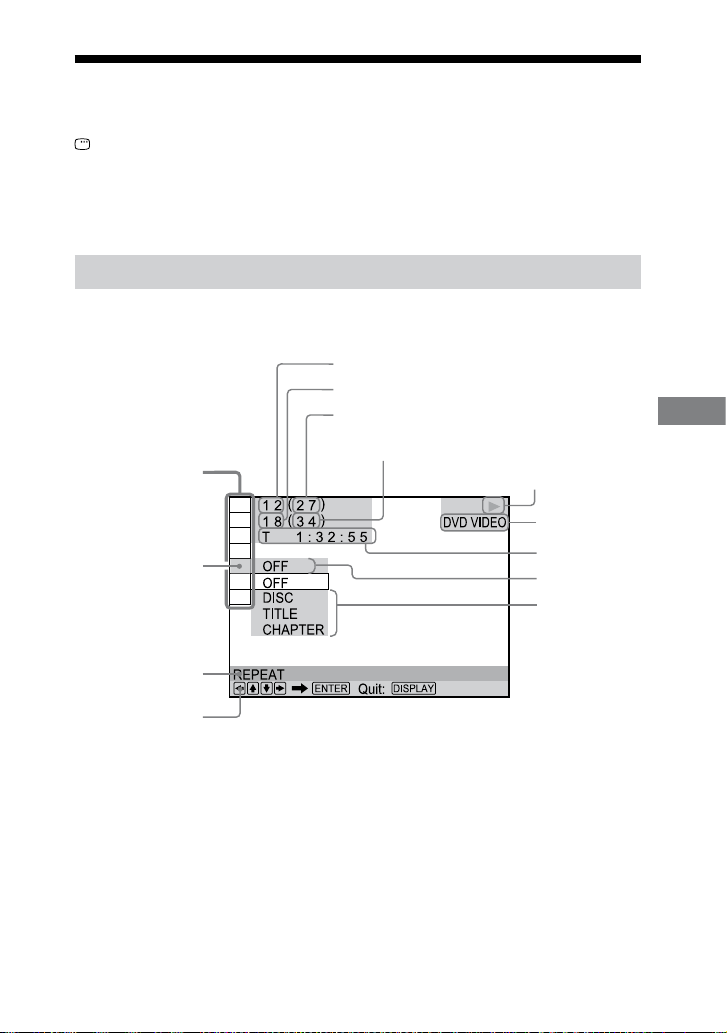
CMT-DH7BT.GB.3-097-195-11(2)
79
GB
Additional Information
Guide to the Control Menu display
Use the Control Menu to select a function and to view related information. Press
DISPLAY
repeatedly to turn on, turn o or change the Control Menu display as
follows:
Control Menu display 1 Control Menu display 2 (appears for certain discs only)
Control Menu display o Control Menu display 1 …
Control Menu display
e Control Menu display 1 and 2 will show dierent items depending on the disc type.
Example: Control Menu display 1 when playing a DVD VIDEO
Currently playing title number
Currently playing chapter number
Total number of titles
Playback status ( Playback,
Pause, Stop, etc.)
Total number of chapters
Control Menu
items
Type of disc being played
back
Elapsed playing time
Selected item
Current setting
Options
Function name of
selected Control
Menu item
Operation message
Continued
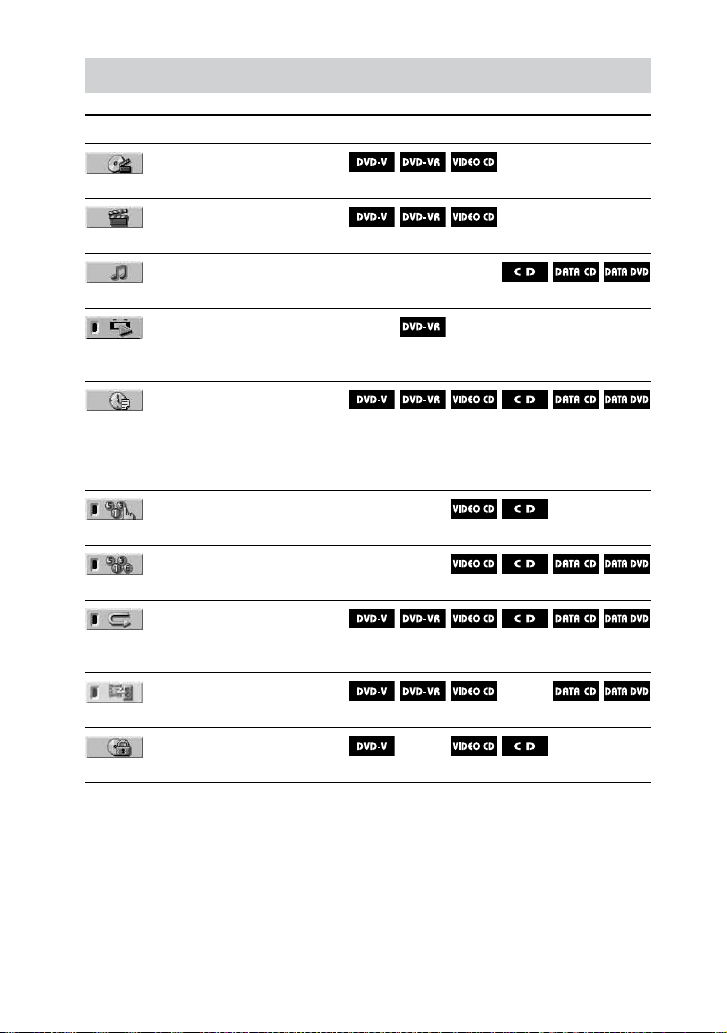
CMT-DH7BT.GB.3-097-195-11(2)
80
GB
List of Control Menu items
Item Item Name, Relevant Disc Type, Function
TITLE/SCENE/TRACK
Selects the title, scene, or track to be played back.
CHAPTER/INDEX
Selects the chapter or index to be played back.
TRACK
Selects the track to be played back.
ORIGINAL/PLAY LIST
Selects the playback sequence either to the originally recorded
sequence or to the playlist created on the disc.
TIME/TEXT
Checks the elapsed playing time and the remaining time.
Inputs the time code for picture and music searching.
Displays the text information on the DVD TEXT discs and MP3 audio
tracks.
PROGRAM
Plays back the track in the order you want.
SHUFFLE
Plays back the track in random order.
REPEAT
Plays back a disc repeatedly, the entire disc (all titles/all tracks/all
albums) repeatedly or one title/chapter/track/album/le repeatedly.
A/V SYNC
Sets the delay time between the sound and display.
PARENTAL CONTROL
Sets to prohibit playback on this system.
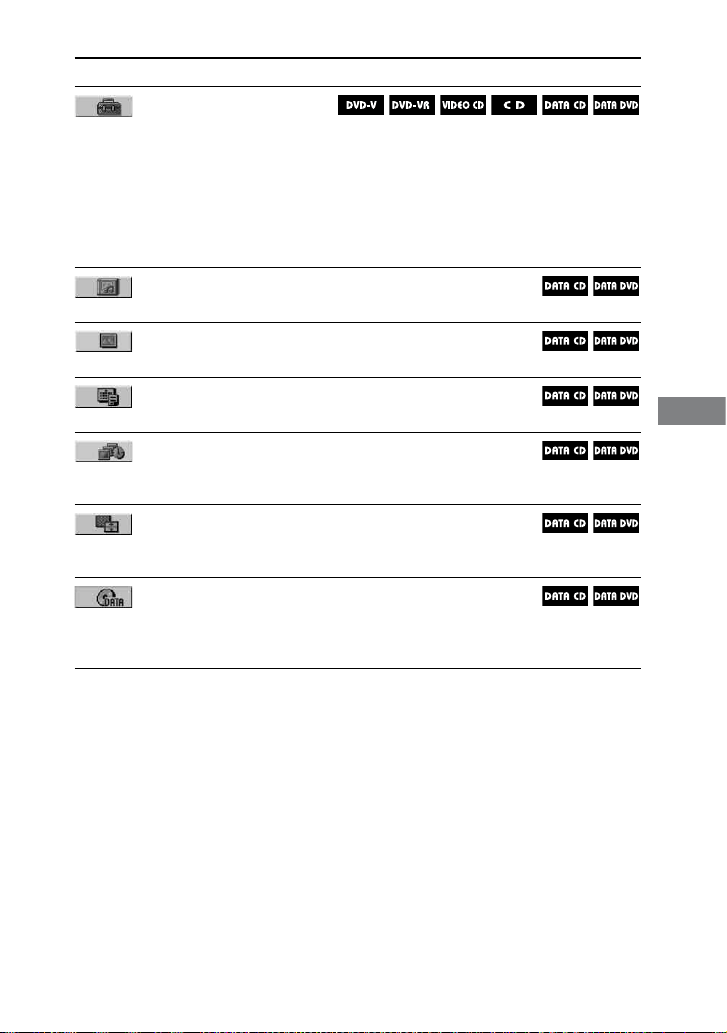
CMT-DH7BT.GB.3-097-195-11(2)
81
GB
Additional Information
Item Item Name, Relevant Disc Type, Function
SETUP
QUICK Setup
Use QUICK SETUP to choose the language of the on-screen display
and the aspect ratio of the TV.
CUSTOM Setup
In addition to the QUICK SETUP setting, you can adjust other
settings.
RESET
Returns the settings in “SETUP” to the default setting.
ALBUM
Selects the album to be played back.
FILE
Selects the JPEG image le to be played back.
DATE
Displays the date when the picture was taken by a digital camera.
INTERVAL
Species the duration for which the slides are displayed on the TV
screen.
EFFECT
Selects the transition eects to be used for changing slides during a
slide show.
MODE (MP3, JPEG)
Selects the data type: MP3 audio track (AUDIO), JPEG image le
(IMAGE) or both (AUTO) to be played back when playing a DATA
CD/DVD.

CMT-DH7BT.GB.3-097-195-11(2)
82
GB
Language code list
e language spellings conform to the ISO 639:1988 (E/F) standard.
Code Language Code Language Code Language Code Language
1027 Afar 1186 Scots Gaelic 1350 Malayalam 1513 Siswati
1028 Abkhazian 1194 Galician 1352 Mongolian 1514 Sesotho
1032 Afrikaans 1196 Guarani 1353 Moldavian 1515 Sundanese
1039 Amharic 1203 Gujarati 1356 Marathi 1516 Swedish
1044 Arabic 1209 Hausa 1357 Malay 1517 Swahili
1045 Assamese 1217 Hindi 1358 Maltese 1521 Tamil
1051 Aymara 1226 Croatian 1363 Burmese 1525 Telugu
1052 Azerbaijani 1229 Hungarian 1365 Nauru 1527 Tajik
1053 Bashkir 1233 Armenian 1369 Nepali 1528 ai
1057 Byelorussian 1235 Interlingua 1376 Dutch 1529 Tigrinya
1059 Bulgarian 1239 Interlingue 1379 Norwegian 1531 Turkmen
1060 Bihari 1245 Inupiak 1393 Occitan 1532 Tagalog
1061 Bislama 1248 Indonesian 1403 (Afan) Oromo 1534 Setswana
1066 Bengali; Bangla 1253 Icelandic 1408 Oriya 1535 Tonga
1067 Tibetan 1254 Italian 1417 Punjabi 1538 Turkish
1070 Breton 1257 Hebrew 1428 Polish 1539 Tsonga
1079 Catalan 1261 Japanese 1435 Pashto; Pushto 1540 Tatar
1093 Corsican 1269 Yiddish 1436 Portuguese 1543 Twi
1097 Czech 1283 Javanese 1463 Quechua 1557 Ukrainian
1103 Welsh 1287 Georgian 1481
Rhaeto-Romance
1564 Urdu
1105 Danish 1297 Kazakh 1482 Kirundi 1572 Uzbek
1109 German 1298 Greenlandic 1483 Romanian 1581 Vietnamese
1130 Bhutani 1299 Cambodian 1489 Russian 1587 Volapük
1142 Greek 1300 Kannada 1491 Kinyarwanda 1613 Wolof
1144 English 1301 Korean 1495 Sanskrit 1632 Xhosa
1145 Esperanto 1305 Kashmiri 1498 Sindhi 1665 Yoruba
1149 Spanish 1307 Kurdish 1501 Sangho 1684 Chinese
1150 Estonian 1311 Kirghiz 1502 Serbo-Croatian 1697 Zulu
1151 Basque 1313 Latin 1503 Singhalese 1703 Not specied
1157 Persian 1326 Lingala 1505 Slovak
1165 Finnish 1327 Laothian 1506 Slovenian
1166 Fiji 1332 Lithuanian 1507 Samoan
1171 Faroese 1334 Latvian; Lettish 1508 Shona
1174 French 1345 Malagasy 1509 Somali
1181 Frisian 1347 Maori 1511 Albanian
1183 Irish 1349 Macedonian 1512 Serbian

CMT-DH7BT.GB.3-097-195-11(2)
83
GB
Additional Information
Parental Control area code list
Code Area Code Area Code Area Code Area
2044 Argentina 2165 Finland 2362 Mexico 2149 Spain
2047 Australia 2174 France 2376 Netherlands 2499 Sweden
2046 Austria 2109 Germany 2390 New Zealand 2086 Switzerland
2057 Belgium 2248 India 2379 Norway 2528 ailand
2070 Brazil 2238 Indonesia 2427 Pakistan 2184
United Kingdom
2079 Canada 2254 Italy 2424 Philippines
2090 Chile 2276 Japan 2436 Portugal
2092 China 2304 Korea 2489 Russia
2115 Denmark 2363 Malaysia 2501 Singapore

CMT-DH7BT.GB.3-097-195-11(2)
84
GB
Bluetooth wireless
technology
Bluetooth wireless technology is a short-
range wireless technology linking digital
devices, such as personal computers and
digital still cameras. Using the Bluetooth
wireless technology, you can operate the
units involved within a range of about 10
meters.
e Bluetooth wireless technology is
commonly used between two devices,
but a single device can be connected to
multiple devices.
You do not need wires to get connected
as you do with a USB connection, and
you do not need to place the devices face
to face as you do with wireless infrared
technology. You can use the technology
with one Bluetooth device in your bag
or pocket.
Bluetooth wireless technology is a global
standard supported by thousands of
companies. ese companies produce
products that meet the global standard.
Supported Bluetooth version and
proles
Prole refers to a standard set of
capabilities for various Bluetooth product
capabilities. is system supports the
following Bluetooth version and proles.
Supported Bluetooth version:
Bluetooth Standard version 2.0
Supported Bluetooth proles:
A2DP (Advanced Audio Distribution
Prole)
AVRCP (Audio Video Remote
Control Prole)
Eective communication range
Bluetooth devices should be used within
approximately 10 meters (unobstructed
distance) of each other. e eective
communication range may become
shorter under the following conditions.
When a person, metal object, wall
or other obstruction is between the
devices with a Bluetooth connection
Locations where a wireless LAN is
installed
Around microwave ovens that are in
use
Locations where other electromagnetic
waves occur
Eects of other devices
Bluetooth devices and wireless LAN
(IEEE 802.11b/g) use the same frequency
band (2.4 GHz). When using your
Bluetooth device near a device with
wireless LAN capability, electromagnetic
interference may occur. is could result
in lower data transfer rates, noise, or
inability to connect. If this happens, try
the following remedies:
Try connecting this system and
Bluetooth mobile phone or Bluetooth
device when you are at least 10
meters away from the wireless LAN
equipment.
Turn o the power to the wireless LAN
equipment when using your Bluetooth
device within 10 meters.

CMT-DH7BT.GB.3-097-195-11(2)
85
GB
Additional Information
Eects on other devices
e radio waves broadcast by this system
may interfere with the operation of some
medical devices. Since this interference
may result in malfunction, always turn
o the power on this system, Bluetooth
mobile phone and Bluetooth device in
the following locations:
In hospitals, on trains, in airplanes,
at gas stations, and any place where
ammable gasses may be present
Near automatic doors or re alarms
Notes
is system supports security functions that
comply with the Bluetooth specication
as a means of ensuring security during
communication using Bluetooth technology.
However, this security may be insucient
depending on the setting contents and
other factors, so always be careful when
performing communication using Bluetooth
technology.
Sony cannot be held liable in any way
for damages or other loss resulting from
information leaks during communication
using Bluetooth technology.
Bluetooth communication is not necessarily
guaranteed with all Bluetooth devices that
have the same prole as this system.
Bluetooth devices connected with this system
must comply with the Bluetooth specication
prescribed by the Bluetooth SIG, Inc., and
must be certied to comply. However, even
when a device complies with the Bluetooth
specication, there may be cases where
the characteristics or specications of the
Bluetooth device make it impossible to
connect, or may result in dierent control
methods, display or operation.
Noise may occur or the audio may
cut o depending on the Bluetooth
device connected with this system,
the communications environment, or
surrounding conditions.
Playable Bluetooth
devices
You can check the websites below for the
Bluetooth compatible devices.
For customers in the U.S.A.:
<http://www.sony.com/shelfsupport>
For customers in Canada:
English <http://www.sony.ca/
ElectronicsSupport/>
French <http://fr.sony.ca/
ElectronicsSupport/>
For customers in Europe:
<http://sonydigital-link.com/dna>
For customers in Latin America:
<http://www.sony-latin.com/pa/info>
For customers in Asia and Oceania:
<http://www.css.ap.sony.com/>

CMT-DH7BT.GB.3-097-195-11(2)
86
GB
Glossary
Album
Section of a music or picture piece on
a DATA CD or DATA DVD containing
MP3 audio tracks, JPEG image les.
Chapter
Subdivision of a title on a DVD VIDEO.
A title is composed of several chapters.
Dolby Digital
is sound format for movie theaters is
more advanced than Dolby Surround
Pro Logic. In this format, the surround
speakers output stereo sound with
an expanded frequency range and a
subwoofer channel for deep bass is
independently provided. is format is
also called “5.1” because the subwoofer
channel is counted as 0.1 channel (since
it functions only when a deep bass eect
is needed). All six channels in this format
are recorded separately to realize superior
channel separation. Furthermore, since
all the signals are processed digitally, less
signal degradation occurs.
DTS
Digital audio compression technology
that the Digital eater Systems, Inc.
developed. is technology conforms
to 5.1-channel surround. e surround
channel is stereo and there is discrete
subwoofer channel in this format. DTS
provides the same 5.1 discrete channels
of high quality digital audio. e good
channel separation is realized because the
all channel data is recorded discrete and
processed in digital.
DVD VIDEO
A disc that contains up to 8 hours of
moving pictures even though its diameter
is the same as an AUDIO CD.
e data capacity of a single-layer and
single-sided DVD VIDEO, at 4.7 GB
(Giga Byte), is 7 times that of an AUDIO
CD. Furthermore, the data capacity of a
dual-layer and single-sided DVD VIDEO
is 8.5 GB, a single-layer and double-sided
DVD VIDEO 9.4 GB, and a dual-layer
and double-sided DVD VIDEO 17 GB.
e picture data uses the MPEG 2
format, one of the worldwide standards
for digital compression technology. e
picture data is compressed to about 1/40
of its original size. e DVD VIDEO
also uses variable rate coding technology
that changes the data to be allocated
according to the status of the picture.
e audio data is recorded in Dolby
Digital as well as in PCM, allowing you to
enjoy more realistic audio presence.
Furthermore, various advanced functions
such as the multi-angle, multilingual, and
Parental Control functions are provided
with the DVD VIDEO.
DVD-RW
A DVD-RW is a recordable and
rewritable disc that is the same size as
a DVD VIDEO. e DVD-RW has two
dierent modes: VR mode and Video
mode. DVD-RWs created in Video
mode have the same format as a DVD
VIDEO, while discs created in VR (Video
Recording) mode allow the contents to
be programmed or edited.

CMT-DH7BT.GB.3-097-195-11(2)
87
GB
Additional Information
Continued
DVD+RW
A DVD+RW (plus RW) is a recordable
and rewritable disc. DVD+RWs use a
recording format that is comparable to
the DVD VIDEO format.
File
A JPEG image le recorded on a DATA
CD or DATA DVD. (“File” is an exclusive
denition for this system.) A single le
consists of a single image.
Film based software, Video based
software
DVD VIDEOs can be classied as Film
based or Video based soware. Film
based DVD VIDEOs contain the same
images (24 frames per second) that are
shown at movie theaters. Video based
DVD VIDEOs, such as television dramas
or sitcoms, displays images at 30 frames
(or 60 elds) per second.
Interlace format (Interlaced scanning)
e Interlace format is the NTSC
standard method for displaying TV
images at 30 frames per second. Each
frame is scanned twice-alternately
between the even numbered scanning
lines and then odd numbered scanning
lines, at 60 times per second.
Multi-angle function
Various angles, or viewpoints of the video
camera, for a scene are recorded on some
DVD VIDEOs.
Multilingual function
Several languages for the sound or
subtitles in a picture are recorded on
some DVD VIDEOs.
Parental Control
A function of the DVD VIDEO to limit
playback of the disc by the age of the
users according to the limitation level in
each country. e limitation varies from
disc to disc; when it is activated, playback
is completely prohibited, violent scenes
are skipped or replaced with other scenes
and so on.
Playback Control (PBC)
Signals encoded on VIDEO CDs (Version
2.0) to control playback. By using menu
screens recorded on VIDEO CDs with
PBC functions, you can enjoy playing
simple interactive programs, programs
with search functions, and so on.
Progressive format (sequential
scanning)
In contrast to the Interlace format,
the progressive format can reproduce
50 60 frames per second by
reproducing all scanning lines (525
lines for the NTSC system, 625 lines
for PAL system). e overall picture
quality increases and still images, text
and horizontal lines appear sharper. is
format is compatible with the 525 or 625
progressive format.

CMT-DH7BT.GB.3-097-195-11(2)
88
GB
Region Code
is system is used to protect copyrights.
A region code is allocated on each DVD
system or DVD VIDEO according to
the sales region. Each region code is
shown on the unit as well as on the disc
packaging. e system can play back
the discs that match its region code. e
system can also play back discs with the
“ ” mark. Even when the region code
is not shown on the DVD VIDEO, the
region limit may still be activated.
Scene
On a VIDEO CD with PBC functions,
the menu screens, moving pictures and
still pictures are divided into sections
called “scenes.”
Title
e longest section of a picture or a
music piece on a DVD VIDEO; a movie,
etc., for a picture piece on video soware,
or the entire album in audio soware.
Track
Section of a picture or a music piece on
a VIDEO CD, CD, or MP3. An album is
composed of several tracks (MP3 only).
VIDEO CD
A compact disc that contains moving
pictures.
e picture data uses the MPEG 1
format, one of the worldwide standards
for digital compression technology. e
picture data is compressed to about 1/140
of its original size. Consequently, a 12 cm
VIDEO CD can contain up to 74 minutes
of moving pictures.
VIDEO CDs also contain compact audio
data.
Sounds outside the range of human
hearing are compressed while the
sounds we can hear are not compressed.
VIDEO CDs can hold 6 times the audio
information of conventional AUDIO
CDs.
ere are 2 versions of VIDEO CDs.
Version 1.1: You can play back only
moving pictures and sounds.
Version 2.0: You can play back high-
resolution still pictures and enjoy PBC
functions.
is system conforms to both versions.

CMT-DH7BT.GB.3-097-195-11(2)
Additional Information
89
GB
Continued
Index
Numerics
16:09 45
4:3 LETTER BOX 45
4:3 OUTPUT 46
4:3 PAN SCAN 45
A
A/V SYNC 39, 80
A2DP 52, 84
ALBUM 81
Album 23, 86
ANGLE 24
AUDIO 44
AUDIO DRC 47
AVRCP 52, 54, 57, 84
B
BACKGROUND 45
Batteries 15
BLACK LEVEL 45
BLACK LEVEL
(COMPONENT OUT) 46
Bluetooth device address 54
BLUETOOTH OPR 53, 54,
55, 56, 57
C
CATEGORY 49
CATEGORY MODE 49
CHAPTER 32, 80
Chapter 23, 86
COLD RESET 72
COMPONENT VIDEO OUT
18, 64
Continuous play 37
Controlling the TV 19
Control Menu Display 79
CUSTOM 43
CUSTOM PARENTAL
CONTROL 39
CUSTOM SETUP 46
D
DATA CD 5
DATA DVD 5
DIMMER 60
DISPLAY 19
Dolby Digital 86
DTS 86
DVD 5
DVD+RW 5, 87
DVD-RW 5, 86
DVD’s menu 31
E
EFFECT 38, 81
F
Fast forward 23
Fast reverse 23
FILE 81
File 87
Film based soware 87
Freeze Frame 24
Front panel 64
Front panel display 13
H
Handling discs 23
I
INDEX 80
Instant Advance 24
Instant Replay 24
INTERLACE 18
Interlace format 87
INTERVAL 81
J
JPEG 34, 35, 37
L
Language Code List 82
LANGUAGE SETUP 20, 44
Listening to other
components 64
Listening to the radio 48
Locating a specic point by
watching the TV screen 32
M
MENU 44
MODE (MP3, JPEG) 81
MP3 5
Multi-angle function 24, 87
MULTI-DISC RESUME
27, 47
Multilingual function 87
Multi Session CD 7
O
ORIGINAL 31, 80
OSD 44
Other Component Hookup 64
P
Pairing 53, 54, 56
PARENTAL CONTROL
41, 80
Parental Control 87
Parental Lock 50, 51
Passcode 53, 56
Passkey 53
PAUSE MODE 46
PBC Playback 26
PICTURE NAVI 33, 36
PIN 53
Playback Control (PBC) 87
Playing a disc 23
PLAY LIST 31, 80
Play Timer 59
Program Play 27
PROGRESSIVE AUTO 18
Progressive format 87
PROGRESSIVE VIDEO 18

CMT-DH7BT.GB.3-097-195-11(2)
90
GB
R
Radio 16, 17, 48
Radio Stations 48, 49
Rear Panel 64
Region Code 88
Remote 9
Repeat Play 29
RESET 72, 81
Resume Play 26
S
Satellite Radio 16, 17, 48
Scan 20, 45
SCENE 80
Scene 88
SCREEN SAVER 45
SCREEN SETUP 20
Searching 31
Selecting 31
SETUP 81
Setup Display 20
Shue Play 29
SIRIUS 17
SIRIUS ID 49
SLEEP 21, 59
Sleep Timer 59
Slide Show 36, 37
Slow-motion Play 24
SUBTITLE 45
S VIDEO 64
T
THEATRE SYNC 21
TIME/TEXT 80
Timer 59
TITLE 30, 80
Title 31, 88
TRACK 80
Track 5, 23
TRACK SELECTION 47
Troubleshooting 66
TV Hookup 17
TV TYPE 45
U
Usable discs 5
V
VIDEO CD 5, 88
X
XM 16
XM Radio ID 49

CMT-DH7BT.GB.3-097-195-11(2)
Additional Information
91
GB

CMT-DH7BT.GB.3-097-195-11(2)
Printed in China