
2-630-290-22(1)
© 2005 Sony Corporation
TFT LCD Color
Computer Display
SDM-S75
SDM-S95
2
Owner’s Record
The model and serial numbers are located at the rear of the unit.
Record these numbers in the spaces provided below. Refer to them
whenever you call upon your dealer regarding this product.
Model No.
Serial No.
To reduce the risk of fire or electric shock, do not
expose this apparatus to rain or moisture.
Dangerously high voltages are present inside the
unit. Do not open the cabinet. Refer servicing to
qualified personnel only.
FCC Notice
This equipment has been tested and found to comply with the limits
for a Class B digital device, pursuant to Part 15 of the FCC Rules.
These limits are designed to provide reasonable protection against
harmful interference in a residential installation. This equipment
generates, uses, and can radiate radio frequency energy and, if not
installed and used in accordance with the instructions, may cause
harmful interference to radio communications. However, there is no
guarantee that interference will not occur in a particular installation.
If this equipment does cause harmful interference to radio or
television reception, which can be determined by turning the
equipment off and on, the user is encouraged to try to correct the
interference by one or more of the following measures:
– Reorient or relocate the receiving antenna.
– Increase the separation between the equipment and receiver.
– Connect the equipment into an outlet on a circuit different from
that to which the receiver is connected.
– Consult the dealer or an experienced radio/TV technician for help.
You are cautioned that any changes or modifications not expressly
approved in this manual could void your authority to operate this
equipment.
Be sure to confirm the carton that came with your display. The ID
label of your display model is located at the rear of the display.
(for the black model)
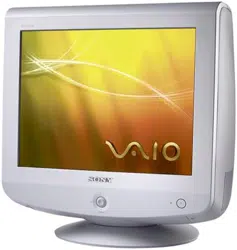
(for the silver model)
WARNING
IMPORTANTE
Para prevenir cualquier mal funcionamiento y evitar daños, por
favor, lea detalladamente este manual de instrucciones antes
de conectar y operar este equipo.
If you have any questions about this product, you may call;
Sony Customer Information Services Center 1-800-222-7669
or http://www.sony.com/
Declaration of Conformity
Trade Name : SONY
Model : SDM-S75 /S95
Note : means any number or alphanumeric
character.
Responsible Party : Sony Electronics Inc.
Address : 16530 Via Esprillo, San Diego, CA
92127 U.S.A.
Telephone Number : 858-942-2230
This device complies with part 15 of the FCC rules. Operation is
subject to the following two conditions: (1) This device may not
cause harmful interference, and (2) this device must accept any
interference received, including interference that may cause
undesired operation.
NOTICE
This notice is applicable for USA/Canada only.
If shipped to USA/Canada, install only a UL LISTED/CSA
LABELLED power supply cord meeting the following
specifications:
SPECIFICATIONS
Plug Type Nema-Plug 5-15p
Cord Type SVT or SJT, minimum 3 × 18 AWG
Length Maximum 15 feet
Rating Minimum 7 A, 125 V
NOTICE
Cette notice s’applique aux Etats-Unis et au Canada
uniquement.
Si cet appareil est export* aux Etats-Unis ou au Canada, utiliser
le cordon d’alimentation portant la mention UL LISTED/CSA
LABELLED et remplissant les conditions suivantes:
SPECIFICATIONS
Type de fiche Fiche Nema 5-15 broches
Cordon Type SVT ou SJT, minimum 3 × 18 AWG
Longueur Maximum 15 pieds
Tension Minimum 7 A, 125 V
As an
ENERGY STAR Partner, Sony
Corporation has determined that this
product meets the
ENERGY STAR
guidelines for energy efficiency.
This monitor complies with the
TCO’99 guidelines.
This monitor complies with the
TCO’03 guidelines.
Table of Contents
• Macintosh is a trademark licensed to
Apple Computer, Inc., registered in the
U.S.A. and other countries.
• Windows
®
is registered trademarks of
Microsoft Corporation in the United
States and other countries.
• IBM PC/AT and VGA are registered
trademarks of IBM Corporation of the
U.S.A.
• VESA and DDC
™
are trademarks of the
Video Electronics Standards
Association.
•
ENERGY STAR is a U.S. registered
mark.
• Adobe and Acrobat are trademarks of
Adobe Systems Incorporated.
• All other product names mentioned
herein may be the trademarks or
registered trademarks of their respective
companies.
•Furthermore, “™” and “®” are not
mentioned in each case in this manual.
3
US
http://www.sony.net/
Precautions. . . . . . . . . . . . . . . . . . . . . . . . . . . . . . . . . . . . . . . . . . . . 4
Checking the model name of the display . . . . . . . . . . . . . . . . . . . . . 5
Identifying parts and controls . . . . . . . . . . . . . . . . . . . . . . . . . . . . . . 5
Setup. . . . . . . . . . . . . . . . . . . . . . . . . . . . . . . . . . . . . . . . . .6
Setup 1: Assemble the stand . . . . . . . . . . . . . . . . . . . . . . . . . . . . . . 6
Setup 2: Connect the video signal cables. . . . . . . . . . . . . . . . . . . . 7
Setup 3: Connect the audio cords . . . . . . . . . . . . . . . . . . . . . . . . . . 8
Setup 4: Connect the power cord . . . . . . . . . . . . . . . . . . . . . . . . . . 9
Setup 5: Secure the cords . . . . . . . . . . . . . . . . . . . . . . . . . . . . . . . . 9
Setup 6: Turn on the display and computer . . . . . . . . . . . . . . . . . . . 9
Setup 7: Adjust the tilt and height . . . . . . . . . . . . . . . . . . . . . . . . . 10
Selecting the input signal (INPUT1/INPUT2) . . . . . . . . . . . . . . . . . 11
Customizing Your Display . . . . . . . . . . . . . . . . . . . . . . .12
Navigating the menu. . . . . . . . . . . . . . . . . . . . . . . . . . . . . . . . . . . . 12
Menu options list. . . . . . . . . . . . . . . . . . . . . . . . . . . . . . . . . . . . . . . 13
PICTURE ADJUST menu . . . . . . . . . . . . . . . . . . . . . . . . . . . . . 14
COLOR menu. . . . . . . . . . . . . . . . . . . . . . . . . . . . . . . . . . . . . . . 14
SHARPNESS menu. . . . . . . . . . . . . . . . . . . . . . . . . . . . . . . . . . 14
0 MODE RESET menu (PICTURE ADJUST menu only). . . . . . . 14
SCREEN menu (analog RGB signal only) . . . . . . . . . . . . . . . . 14
MENU POSITION menu . . . . . . . . . . . . . . . . . . . . . . . . . . . . . . 15
INPUT SENSING menu . . . . . . . . . . . . . . . . . . . . . . . . . . . . . . . 15
LANGUAGE menu . . . . . . . . . . . . . . . . . . . . . . . . . . . . . . . . . . . 15
0 RESET menu (reset to the default setting) . . . . . . . . . . . . . . . . 15
MENU LOCK menu . . . . . . . . . . . . . . . . . . . . . . . . . . . . . . . . . 15
Technical Features . . . . . . . . . . . . . . . . . . . . . . . . . . . . .16
Power saving function. . . . . . . . . . . . . . . . . . . . . . . . . . . . . . . . . . . 16
Reducing the power consumption (ECO mode) . . . . . . . . . . . . . . . 16
Automatic picture quality adjustment function
(analog RGB signal only) . . . . . . . . . . . . . . . . . . . . . . . . . . . . . . . . 16
Troubleshooting. . . . . . . . . . . . . . . . . . . . . . . . . . . . . . . .17
On-screen messages . . . . . . . . . . . . . . . . . . . . . . . . . . . . . . . . . . . 17
Trouble symptoms and remedies . . . . . . . . . . . . . . . . . . . . . . . . . . 18
Specifications. . . . . . . . . . . . . . . . . . . . . . . . . . . . . . . . . .20
TCO’99 Eco-document (for the black model) . . . . . . . . . . . . . . . . . . .i
TCO’03 Eco-document (for the silver model) . . . . . . . . . . . . . . . . . . ii
4
Precautions
Warning on power connections
• Use the supplied power cord. If you use a different power cord,
be sure that it is compatible with your local power supply.
For the customers in the U.S.A.
If you do not use the appropriate cord, this display will not
conform to mandatory FCC standards.
For the customers in the UK
If you use the display in the UK, be sure to use the appropriate
UK power cord.
Installation
Do not install or leave the display:
• In places subject to extreme temperatures, for example near a
radiator, heating vent, or in direct sunlight. Subjecting the
display to extreme temperatures, such as in an automobile
parked in direct sunlight or near a heating vent, could cause
deformations of the casing or malfunctions.
• In places subject to mechanical vibration or shock.
• Near any equipment that generates a strong magnetic field,
such as a TV or various other household appliances.
• In places subject to inordinate amounts of dust, dirt, or sand, for
example near an open window or an outdoor exit. If setting up
temporarily in an outdoor environment, be sure to take
adequate precautions against airborne dust and dirt. Otherwise
irreparable malfunctions could occur.
Handling the LCD screen
• Do not leave the LCD screen facing the sun as it can damage
the LCD screen. Take care when you place the display by a
window.
• Do not push on or scratch the LCD screen. Do not place a heavy
object on the LCD screen. This may cause the screen to lose
uniformity or cause LCD panel malfunctions.
• If the display is used in a cold place, a residual image may
appear on the screen. This is not a malfunction. The screen
returns to normal as the temperature rises to a normal operating
level.
• If a still picture is displayed for a long time, a residual image
may appear for a while. The residual image will eventually
disappear.
• The LCD panel becomes warm during operation. This is not a
malfunction.
Note on the LCD (Liquid Crystal Display)
Please note that the LCD screen is made with high-
precision technology. However, black points or bright
points of light (red, blue, or green) may appear
constantly on the LCD screen, and irregular colored
stripes or brightness may appear on the LCD screen.
This is not malfunction.
(Effective dots: more than 99.99%)
Maintenance
• Be sure to unplug the power cord from the power outlet before
cleaning your display.
• Clean the LCD screen with a soft cloth. If you use a glass
cleaning liquid, do not use any type of cleaner containing an
anti-static solution or similar additive as this may scratch the
LCD screen’s coating.
• Clean the cabinet, panel, and controls with a soft cloth lightly
moistened with a mild detergent solution. Do not use any type
of abrasive pad, scouring powder, or solvent, such as alcohol or
benzine.
• Do not rub, touch, or tap the surface of the screen with sharp or
abrasive items such as a ballpoint pen or screwdriver. This type
of contact may result in a scratched picture tube.
• Note that material deterioration or LCD screen coating
degradation may occur if the display is exposed to volatile
solvents such as insecticide, or if prolonged contact is
maintained with rubber or vinyl materials.
Transportation
• Disconnect all the cables from the display. If you use a height
adjustable stand adjust its height to the highest position and
hold both sides of the LCD display securely. Be careful not to
scratch the screen when transporting. If you drop the display,
you may injured or the display may be damaged.
• When you transport this display for repair or shipment, use the
original carton and packing materials.
• Replace the stopper pin for the height adjustable stand to fix the
stand during the transportation.
Disposal of the display
• Do not dispose of this display with general
household waste.
• The fluorescent tube used in this display contains
mercury. Disposal of this display must be carried out
in accordance to the regulations of your local
sanitation authority.
For customers in the United States
This product contains mercury. Disposal of this product may be
regulated if sold in the United States. For disposal or recycling
information, please contact your local authorities or the
Electronics Industries Alliance (http://www.eiae.org).
The equipment should be installed near an easily accessible outlet.
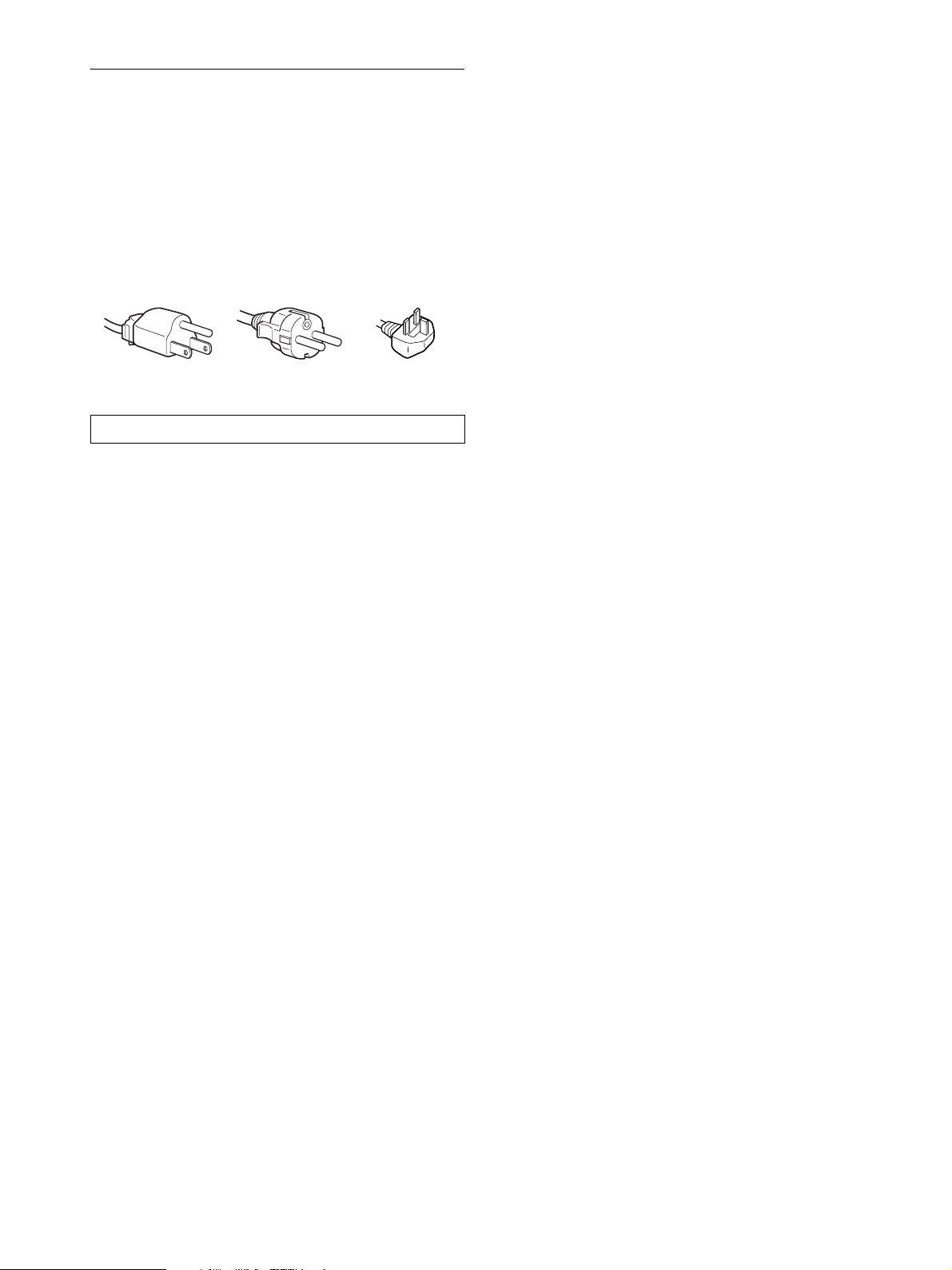
Example of plug types
for 100 to 120 V AC for 200 to 240 V AC for 240 V AC only
5
US
Checking the model name of the
display
Check the model name of the display first.
The model name is located at the rear of the display (Example :
SDM-S75A).
You cannot use some of the functions or menu options for
certain display models.
Identifying parts and controls
See the pages in parentheses for further details.
The illustration only shows one of all the models that are available
for this display.
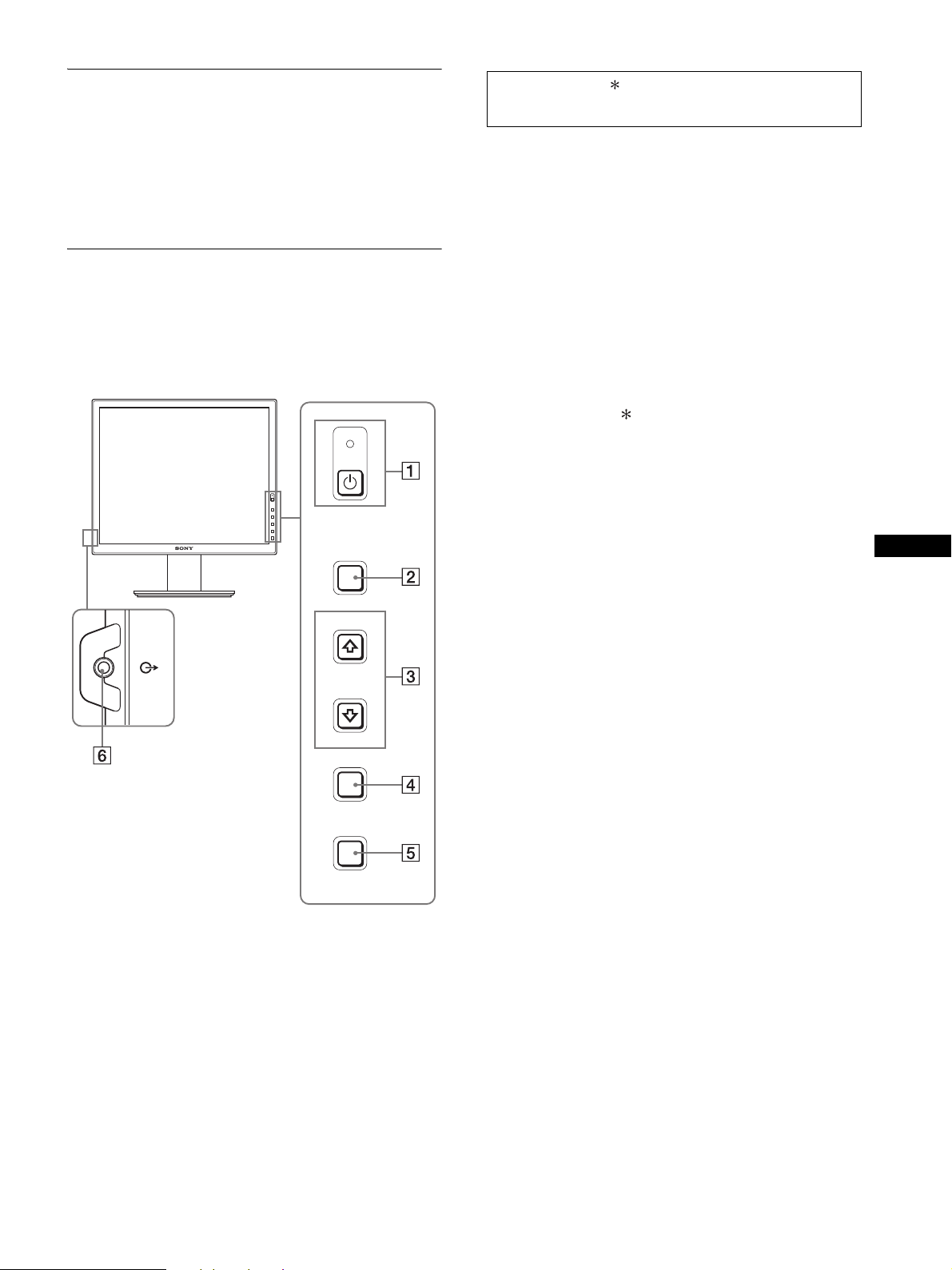
1 1 (Power) switch and 1 (power) indicator
(pages 9, 16)
This switch turns the display on. To turn the display off, press
this switch again.
2 MENU button (pages 12)
This button turns the menu screen on and off.
3 m/M buttons (page 12)
These buttons are used to select the menu items and make
adjustments.
4 OK button (page 12)
This button activates the selected menu item and adjustments
made using the m/M buttons (3).
INPUT (page 11)
These buttons switch the video input signal between INPUT1
and INPUT2 when two computers are connected to the
display. (Only available when menu is turned off.)
5 ECO button (page 16)
This button is used to reduce the power consumption.
When the menu screen is not displayed, you can also
automatically adjust the picture quality for the current input
signal while keeping pressing this button for more than 3
seconds (One touch Auto adjust). (analog RGB signal only)
6 Audio output jack (page 8)
This jack outputs audio signals to speakers or other audio
equipment.
MENU
INPUT
ECO
OK
Front of the display
The contents with mark for specifications vary
depending on the models. For details, see “Specifications”
(page 20).
6
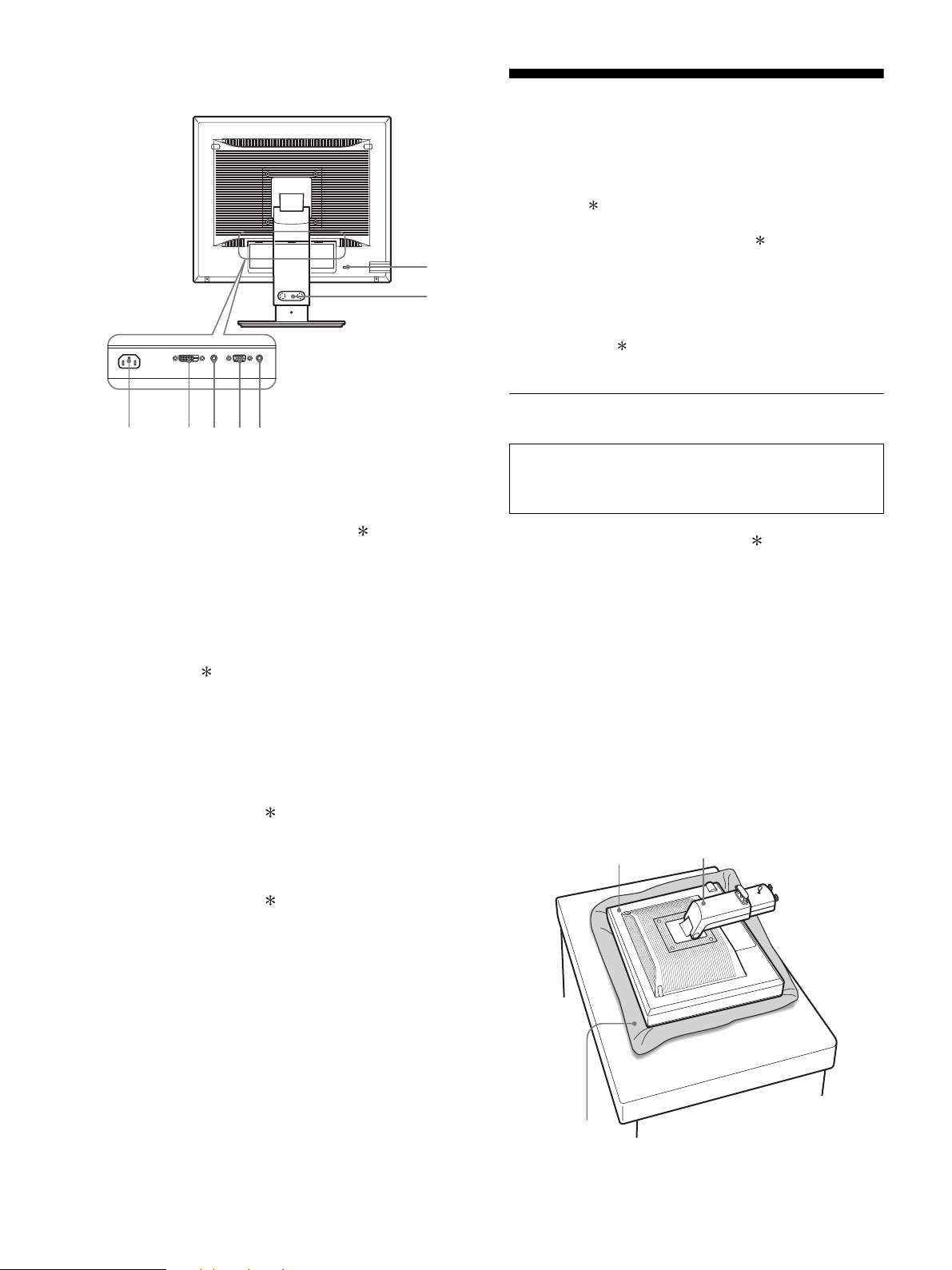
7 AC IN connector (page 9)
This connector connects the power cord (supplied).
8 DVI-D input connector (digital RGB) (page 8)
This connector inputs digital RGB video signals that comply
with DVI Rev.1.0.
9 HD15 input connector (analog RGB) (page 8)
This connector inputs analog RGB video signals (0.700 Vp-p,
positive) and sync signals.
0 Cable holder (page 9)
This part secures cables and cords to the display.
qa Security lock hole
The security lock hole should be used with the Kensington
Micro Saver Security System.
Micro Saver Security System is a trademark of Kensington.
qs Audio jack for INPUT1
This jack inputs audio signals when connected to the audio
output jack of a computer or other audio equipment connected
to INPUT1.
qd Audio jack for INPUT2
This jack inputs audio signals when connected to the audio
output jack of a computer or other audio equipment connected
to INPUT2.
Setup
Before using your display, check that the following items are
included in your carton:
• LCD display
•Power cord
• Stand Base
• HD15-HD15 video signal cable (analog RGB)
• DVI-D video signal cable (digital RGB)
• CD-ROM (utility software for Windows/Macintosh, Operating
Instructions, etc.)
• Warranty card
• Quick Setup Guide
The contents with mark for specifications vary depending on
the models. For details, “Specifications” (page 20).
Setup 1:Assemble the stand
x When using supplied stand
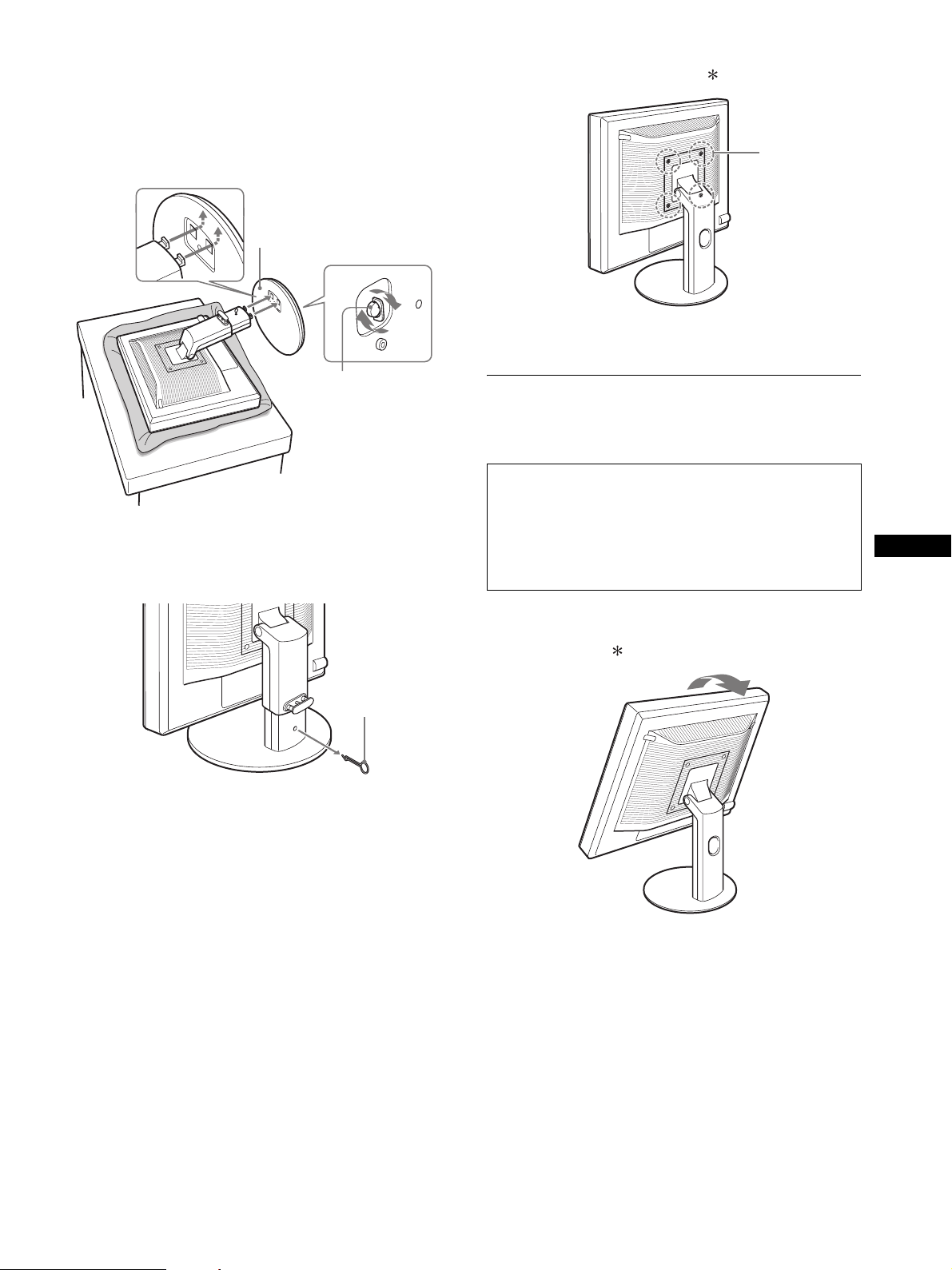
1 Open the carton and take out the stand base.
2 Confirm the supplied items.
• Stand Base (with the screw at the bottom side)
3 Place a soft mat or a kind on a flat surface like a
desk.
You may damage the LCD screen and the display itself if
putting the display directly on the desk.
4 Take the display out from the carton and then place
the frame of the laid display along the edge of the
desk.
The figure shows the height adjustable stand. If you use the
fixed stand, your last step of assembling procedure is Step 5.
qa
0
78q
s
9q
d
Real of the display
Do not press the LCD display when placing or raising the
display straight on a desk or a like.
It may affect the uniformity of the screen or damage the
LCD display.
Display
Stand
Soft mat or a like
7
US
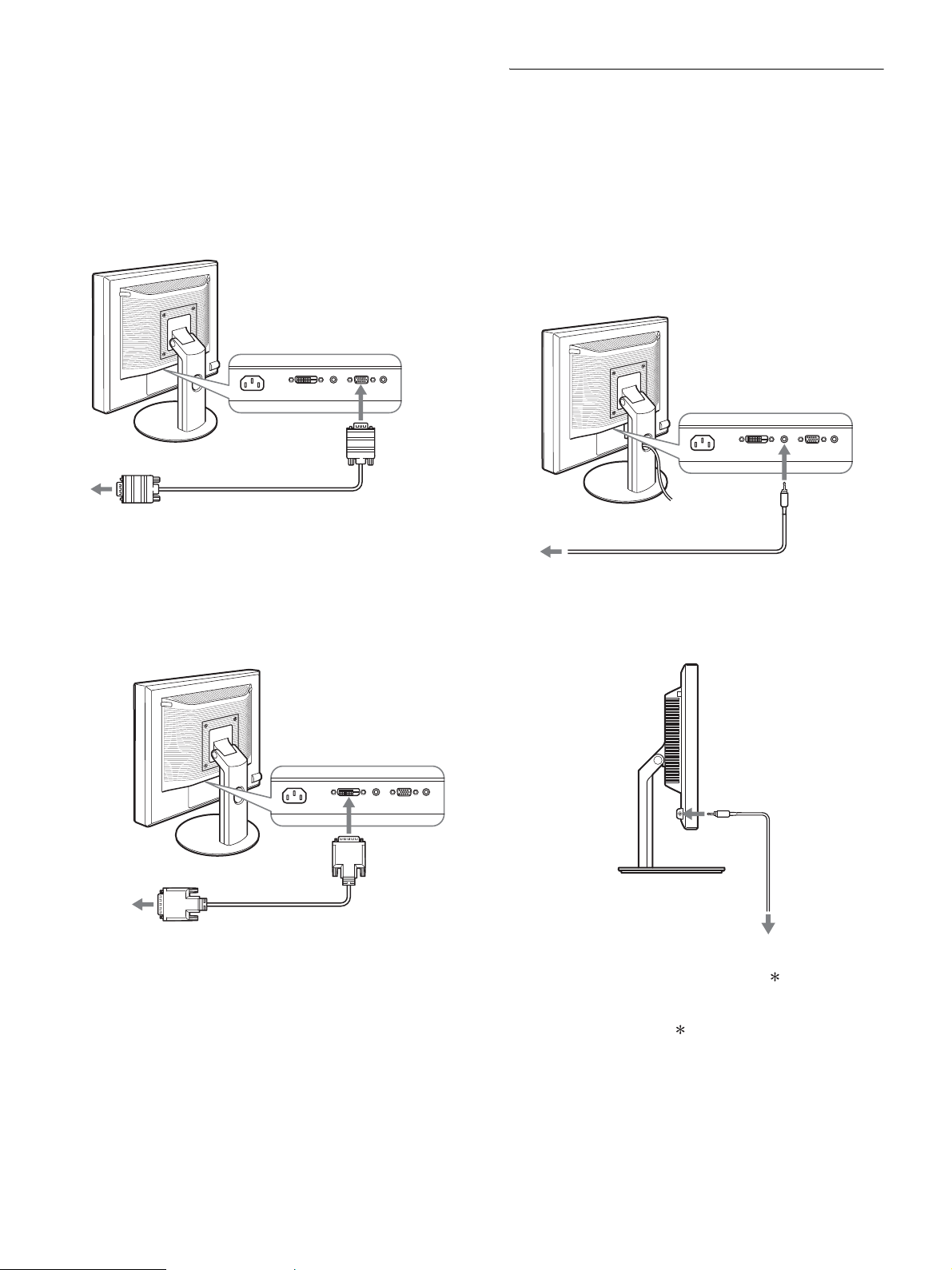
5 Hook the stand base holes onto the prongs of stand
to attach. 1
Lift the handle of screw to screw the stand base
securely. 2
Be sure that the screw is secured and turn the screw
handle back.
6 If you use the height adjustable stand, remove the
stopper pin after raising the height adjustable stand
straight.
Note
Do not remove the stopper pin while the stand is laid. It may fall or injure
you by the stand neck coming off the stand base impetuously.
x When using VESA Stand
You can attach a VESA stand in other brands by removing the
supplied stand attached to the display.
Setup 2:Connect the video signal
cables
1 Tilt the display up.
When using the height adjustable stand, raise the
display higher.
1 Stand Base
2 Screw
Stopper Pin
• Turn off the display and computer before connecting.
Notes
• Do not touch the pins of the video signal cable connector as this
might bend the pins.
• Check the alignment of the connector to avoid bending the pins of
the video signal cable connector.
Screws
compatible with
VESA stand (4)
8
2 Connect the video signal cables to the display.
If you use the fixed stand, draw the video signal cables
through the stand hole first and then connect them to the
display. For more details see “Setup 5: Secure the cords.”
x Connect a computer equipped with an HD15
output connector (analog RGB)
Using the supplied HD15-HD15 video signal cable (analog
RGB), connect the computer to the display’s HD 15 input
connector (analog RGB).
x Connect a computer equipped with a DVI
output connector (digital RGB)
Using the supplied DVI-D video signal cable (digital RGB),
connect the computer to the display’s DVI-D input connector
(digital RGB).
Setup 3:Connect the audio cords
If you are not intended to output audio, you do not need
this connection.
If you use the fixed stand, draw the audio cords through the stand
hole first and then connect them to the display. For more details
see “Setup 5: Secure the cords.”
1 Connect the display’s audio input jack and audio
output jack of the computer or other audio
equipment using the audio cord (not supplied).
2 Connect the audio cable (not supplied) securely to
the display’s audio output jack.
Audio output will be changed when the display’s audio input and
audio output connection has been completed.
Connect audio equipment that is within the input range shown in
the display’s audio input specifications. Too high of an input may
cause damage to the display.
to the computer’s HD15 output
connector (analog RGB)
HD15-HD15 video signal
cable (analog RGB)
(supplied)
to the HD 15
input connector
(analog RGB)
to the computer’s DVI output
connector (digital RGB)
DVI-D video signal
cable (digital RGB)
(supplied)
to the DVI-D
input connector
(digital RGB)
to the audio
input
to audio output of the computer
or other audio equipment
audio cord (not supplied)
to the audio output
audio cable
(not supplied)
9
US
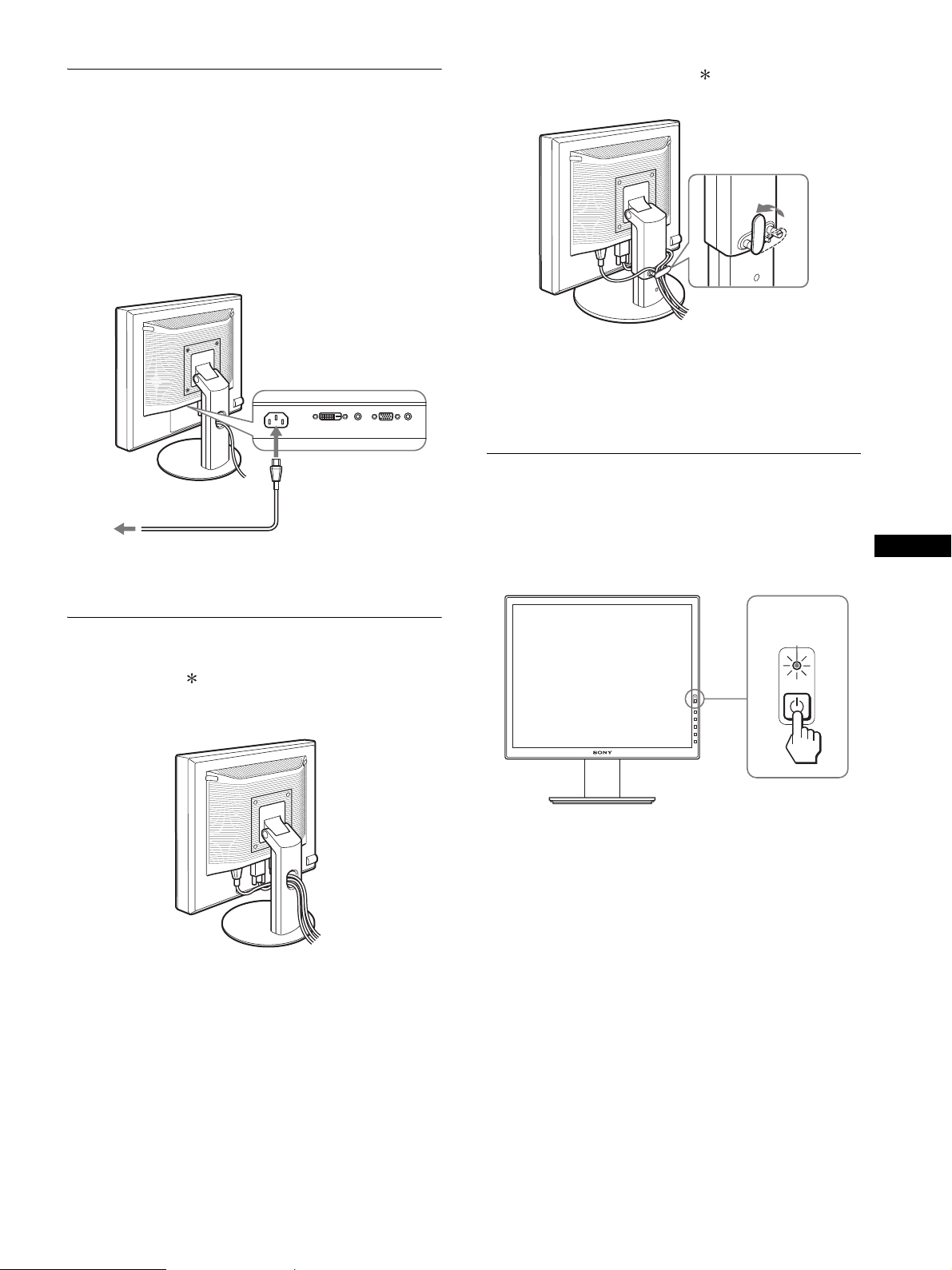
Setup 4:Connect the power cord
If you use the fixed stand, draw the power cord through the stand
hole first and then connect them to the display. For more details
see “Setup 5: Secure the cords.”
1 Connect the supplied power cord securely to the
display’s AC IN connector.
2 Connect the other end securely to a power outlet.
Setup 5:Secure the cords
x Fixed Stand
Be sure that the cords and cables have been drawn into the stand
hole as illustrated.
x Height adjustable stand
Draw the cords and cables through the cable holder as illustrated.
Note
When bounding the cords and cables, be sure to loosen them a little. If
they get pulled hard they may come off from the connectors or plugs as
you adjust the screen angle. If you stretch the cords and cables too hard
they may get damaged.
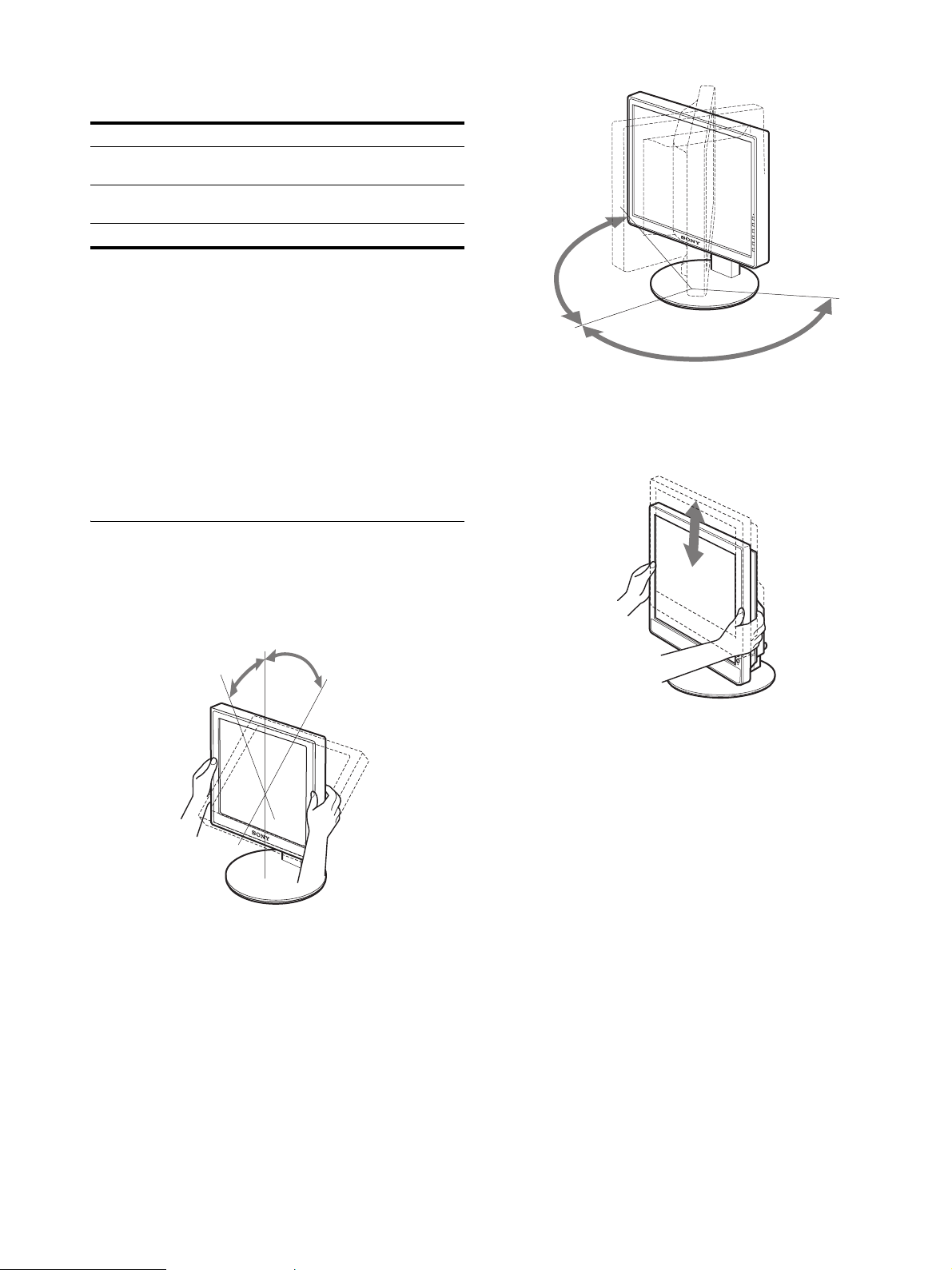
Setup 6:Turn on the display and
computer
1 Press the 1 (power) switch located on the front
right of the display.
The 1 (power) indicator lights up in green.
2 Turn on the computer.
If no picture appears on your screen
• Check that the power cord and the video signal cables are
properly connected.
• If “NO INPUT SIGNAL” appears on the screen:
– The computer is in the power saving mode. Try pressing any
key on the keyboard or moving the mouse.
– Check that the input signal setting is correct by pressing the
OK button (page 11).
• If “CABLE DISCONNECTED” appears on the screen:
– Check that the video signal cables are properly connected.
– Check that the input signal setting is correct by pressing the
OK button (page 11).
to AC IN
to a power outlet
power cord (supplied)
1
2
lights in green
10
• If “OUT OF RANGE” appears on the screen:
Reconnect the old display. Then adjust the computer’s graphics
board within the following ranges.
For more information about the on-screen messages, see “Trouble
symptoms and remedies” on page 18.
No need for specific drivers
The display complies with the “DDC” Plug & Play standard and
automatically detects all the display’s information. No specific driver
needs to be installed to the computer.
The first time you turn on your computer after connecting the display, the
setup Wizard may appear on the screen. If this is the case, follow the on-
screen instructions. The Plug & Play display is automatically selected so
that you can use this display.
The vertical frequency turns to 60 Hz.
Since flickers are unobtrusive on the display, you can use it as is. You do
not need to set the vertical frequency to any particular high value.
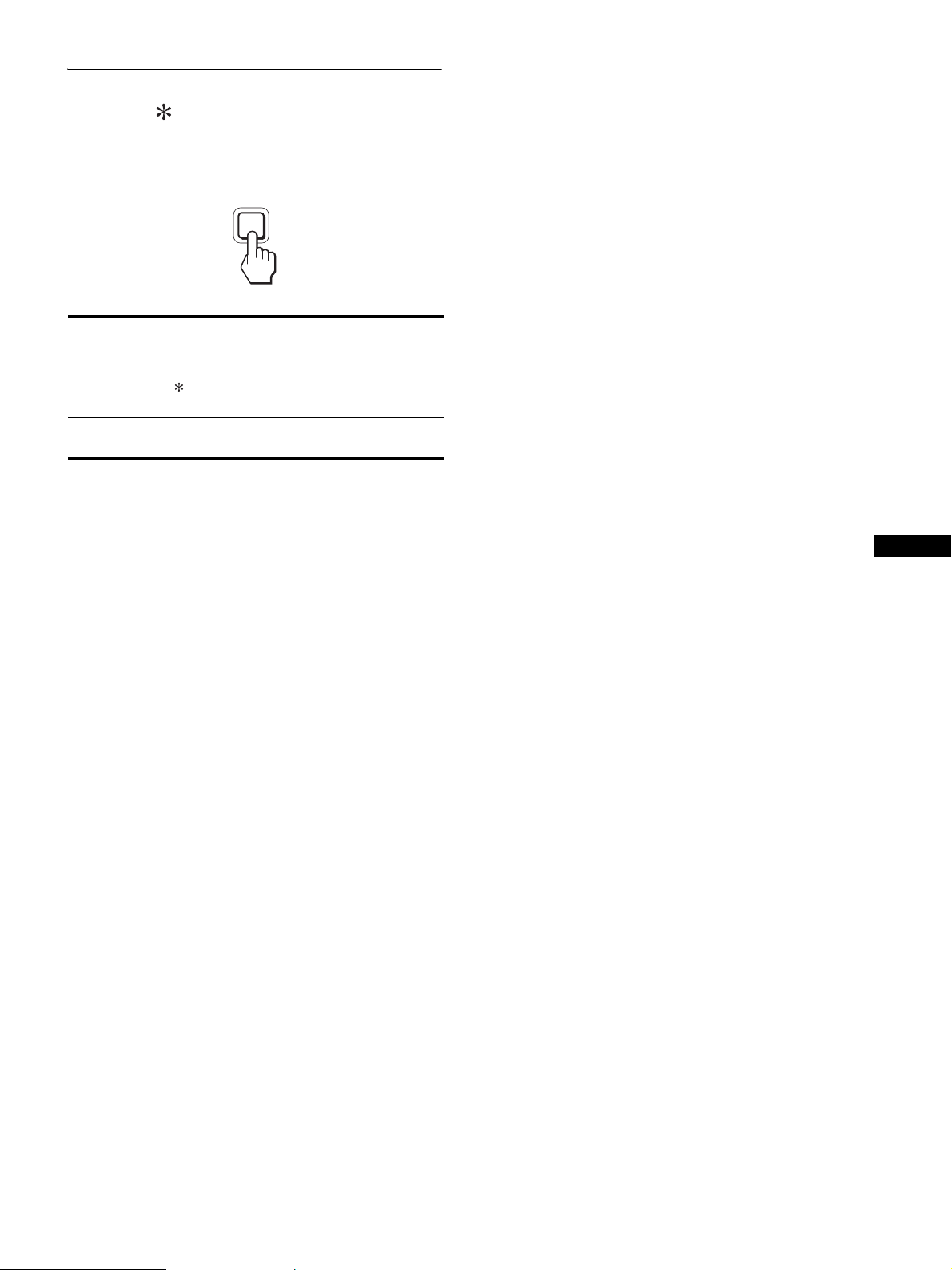
Setup 7:Adjust the tilt and height
This display can be adjusted within the angles shown below.
Hold both sides of the LCD panel, then adjust screen
angles.
When you use the height adjustable stand, the height adjust is also
available as below.
Hold both sides of the LCD panel, then adjust screen
height.
To use the display comfortably
Adjust the viewing angle of your display according to the height
of your desk and chair, so that light is not reflected from the screen
to your eyes.
Notes
• When adjusting the screen’s angle, be sure not to crash it against any
objects around the display.
• Do not put any objects under the display when you adjust the height of
stand. It may get damaged by accident.
Analog RGB Digital RGB
Horizontal
frequency
28–80 kHz 28–64 kHz
Vertical
frequency
48–75 Hz 60 Hz
Resolution 1280 × 1024 or less
approx. 5°
approx. 20°
approx. 175°
approx.
175°
approx. 110 mm
(4
11
/
32
inches)
11
US
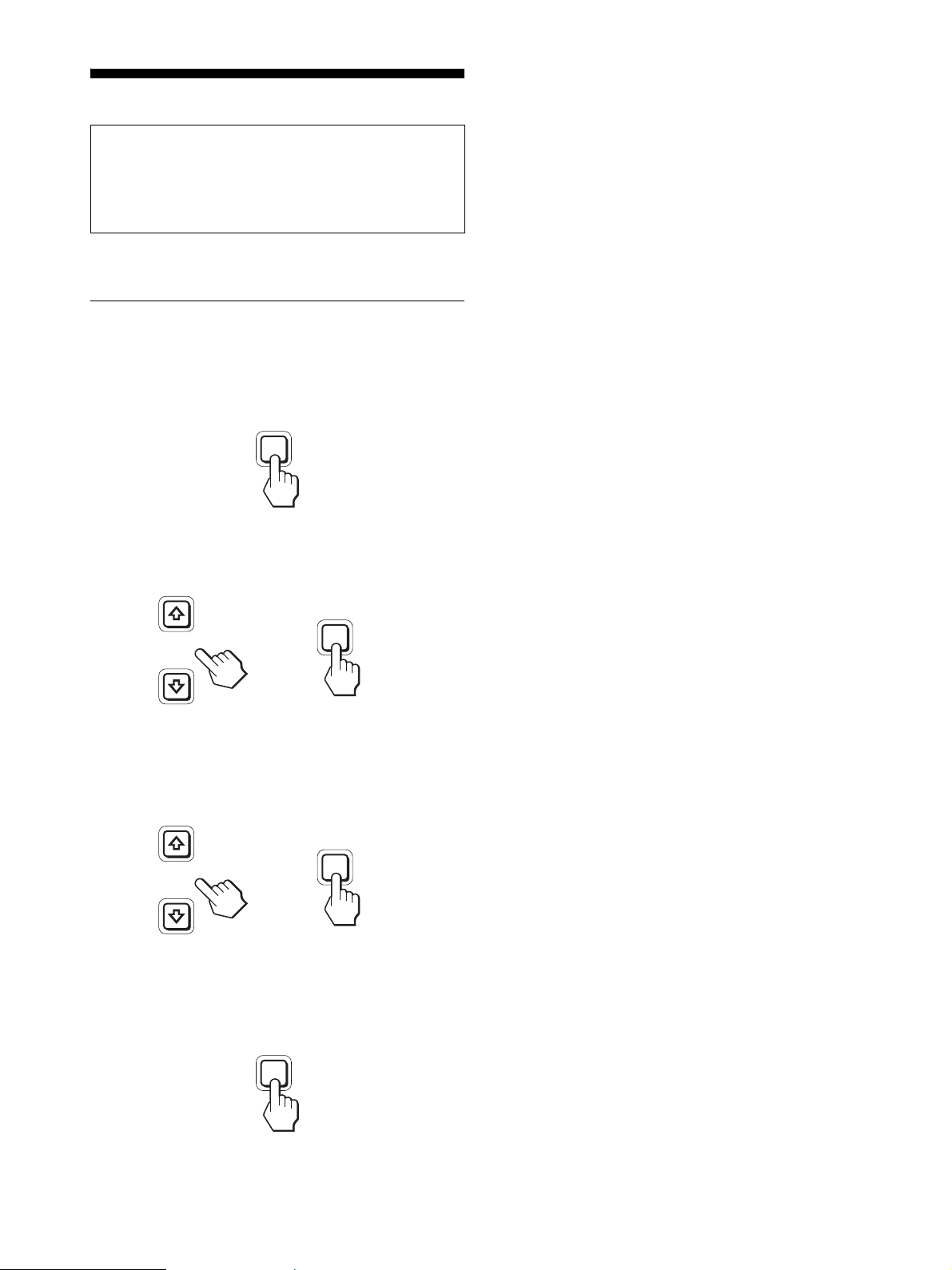
Selecting the input signal (INPUT1/
INPUT2)
Press the OK button.
The input signal change each time you press this button.
On-screen message
(Appears about 5 seconds on
the upper left corner.)
Input signal configuration
INPUT1 : DVI-D DVI-D input connector
(digital RGB) for INPUT1
INPUT2 : HD15 HD15 input connector
(analog RGB) for INPUT2
INPUT
OK
12
Customizing Your Display
You can make numerous adjustments to your display using the
on-screen menu.
Navigating the menu
1 Display the main menu.
Press the MENU button to display the main menu on your
screen.
2 Select the menu you want to adjust.
Press the m/M buttons to display the desired menu. Press the
OK button to select the menu item.
3 Adjust the item.
Press the m/M buttons to make the adjustment, then press the
OK button.
When you press the OK button, the setting is stored, then the
display returns to the previous menu.
4 Close the menu.
Press the MENU button once to return to normal viewing. If
no buttons are pressed, the menu closes automatically after
about 45 seconds.
x Resetting the adjustments to the default
settings
You can reset the adjustments using the RESET menu. For more
information about resetting the adjustments, see 0 (RESET) on
page 15.
Before making adjustments
Connect the display and the computer, and turn them on.
For the best results, wait for at least 30 minutes before making
any adjustments after display is connected to the computer and
turned on.
MENU
INPUT
OK
,
INPUT
OK
,
MENU

13
US
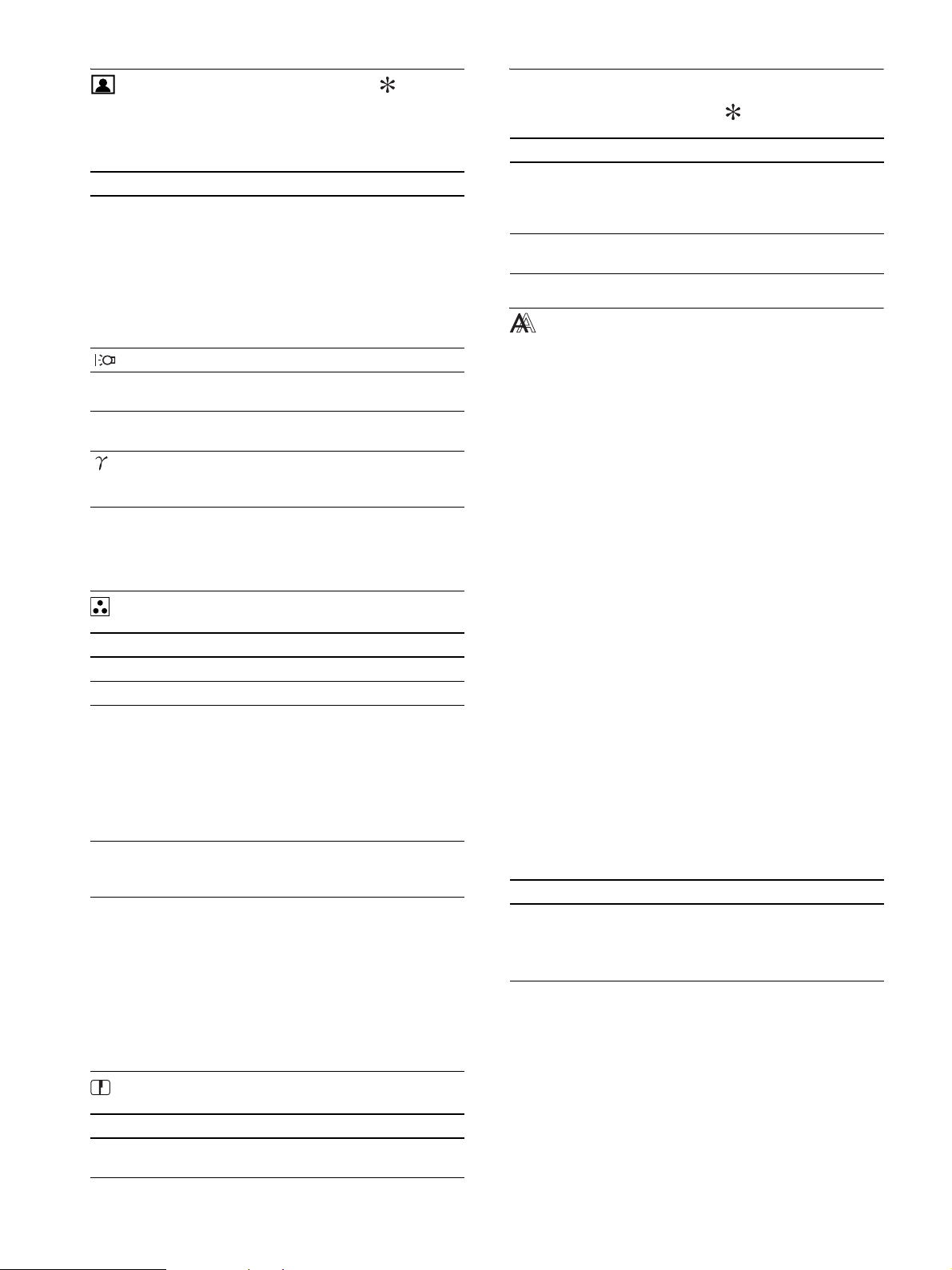
Menu options list
Menu options vary depending on the models.
Check your model name on the bottom of the display and refer to the tables below.
1)
CONTRAST, BRIGHTNESS, and GAMMA are not adjustable when
“sRGB” selected.
SDM-S75A/S95AR
SDM-S75E/S95ER
BACKLIGHT ;
6 CONTRAST ;
1)
8 BRIGHTNESS ;
1)
GAMMA ;
1)
COLOR 9300K
6500K
sRGB
1)
USER (gain of R and B)
SHARPNESS ;
0 MODE RESET –
SCREEN AUTO
PHASE
PITCH
H CENTER
V CENTER
MENU POSITION ;
INPUT SENSING –
LANGUAGE ENGLISH
FRANÇAIS
DEUTSCH
ESPAÑOL
ITALIANO
NEDERLANDS
SVENSKA
0 RESET OK
CANCEL
MENU LOCK ON
OFF
SDM-S75D/S95DR
SDM-S75F/S95FR
SDM-S75N/S95NR
PICTURE ADJUST menu
MODE (ECO mode) HIGH
MIDDLE
LOW
USER
BACKLIGHT ;
6 CONTRAST ;
1)
8 BRIGHTNESS ;
1)
GAMMA ;
1)
COLOR 9300K
6500K
sRGB
1)
USER (gain of R and B)
SHARPNESS ;
0 MODE RESET ;
SCREEN AUTO
PHASE
PITCH
H CENTER
V CENTER
MENU POSITION ;
INPUT SENSING AUTO ON
INPUT1
INPUT2
AUTO OFF
LANGUAGE ENGLISH
FRANÇAIS
DEUTSCH
ESPAÑOL
ITALIANO
NEDERLANDS
SVENSKA
0 RESET OK
CANCEL
MENU LOCK ON
OFF
14
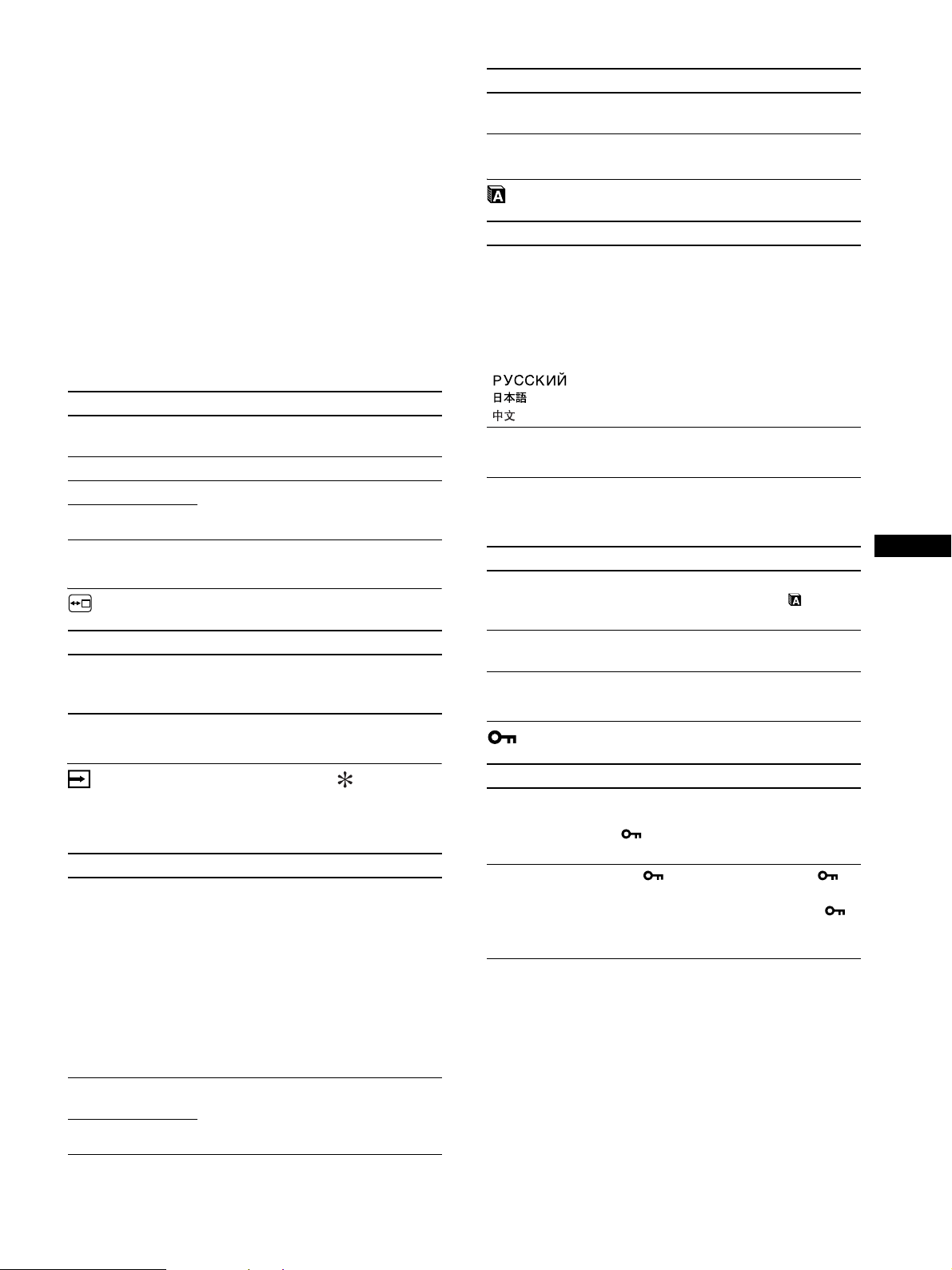
PICTURE ADJUST menu
For those display with analog inputs, BACKLIGHT,
CONTRAST, and BRIGHTNESS can be adjustable when the
ECO mode is selected for the USER only.
Note
If you select “sRGB,” you cannot adjust CONTRAST, BRIGHTNESS,
and GAMMA.
COLOR menu
1)
If a computer or other equipment connected to the display is not sRGB-
compliant, color cannot be adjusted to the sRGB profile.
When you select “sRGB,” you cannot adjust CONTRAST,
BRIGHTNESS, and GAMMA.
sRGB is unavailable when HIGH or MIDDLE or LOW mode for ECO
mode is selected. (“sRGB” would be gray-out)
2)
This adjustment changes the color temperature by increasing or
decreasing the R and B components with respect to G (green). G
component is fixed.
SHARPNESS menu
0 MODE RESET menu (PICTURE
ADJUST menu only)
SCREEN menu (analog RGB
signal only)
x Automatic picture quality adjustment
function
When the display receives an input signal, it
automatically adjusts the picture’s position and
sharpness (phase/pitch), and ensures that a clear
picture appears on the screen (page 17).
Note
While the automatic picture quality adjustment function is activated, only
the 1 (power) switch is operable.
The picture may flicker during this time, but this is not a malfunction.
Simply wait a few moments until the adjustment completes.
If the automatic picture quality adjustment function of
this display did not seem to adjust the picture
completely
You can make further automatic adjustment of the picture quality
for the current input signal. (See AUTO below.)
If you still need to make further adjustments to the
picture quality
You can manually adjust the picture’s sharpness (phase/pitch) and
position (horizontal/vertical position).
These adjustments are stored in memory and automatically
recalled when the display receives the same input signal. These
settings may have to be repeated if you change the input signal
after reconnecting your computer.
x Adjust the picture’s sharpness and position
manually (PHASE/PITCH/H CENTER/V
CENTER)
You can adjust the picture’s sharpness and position as follows.
1 Set the resolution to 1280 × 1024, on the computer.
2 Load the CD-ROM.
3 Start the CD-ROM, and display the test pattern.
Items
Press the
M
button Press the
m
button
MODE
HIGH
MIDDLE
LOW
USER
Set the ECO mode.
Select the brightness of your display from
"HIGH," "MIDDLE," "LOW," or "USER"
to save power consumption.
You can adjust the subtle tones of your
display brightness when selecting the
"USER" mode.
You can set a variety of mode by setting an
input.
BACKLIGHT
Brightens the screen. Darkens the screen.
6 CONTRAST Sharpens the picture
contrasts.
Blurs the picture
contrasts.
8
BRIGHTNESS
Brightens the picture
(Black label).
Darkens the picture
(Black label).
GAMMA Features
You can adjust your pictures on the screen
to the original coloring.
Items Features
9300K Bluish hue
6500K Reddish hue
sRGB
1)
When you select “sRGB” the color are
adjusted to the sRGB profile. (The sRGB
color setting is an industry-standard
color space protocol designed for
computer products.) When you select
“sRGB,” the color settings of your
computer must be set to the sRGB
profile.
USER
2)
You can adjust color temperature finely
and that color setting is stored in
memory.
Items Press the m/M buttons
SHARPNESS Adjust to sharpen the edge of images,
etc.
Items Features
OK You can reset the adjustments of
BACKLIGHT, CONTRAST,
BRIGHTNESS, GAMMA, COLOR, and
SHARPNESS to the default setting.
CANCEL To cancel resetting and return to the
menu.
Items Features
AUTO Make the appropriate adjustments of the
screen’s phase, pitch and horizontal/
vertical position for the current input
signal and store them.
15
US
For Windows User
When Auto run operates:
1 Click “DISPLAY ADJUSTMENT TOOL (UTILITY)”.
2 Click “Adjust” and confirm the resolution and then click
“Next”.
3 Test pattern for PITCH, PHASE, H CENTER and V
CENTER appears in order.
When Auto run fails to operate:
1 Open “My Computer” and right click the CD-ROM icon.
Go to “Explorer” and open the CD-ROM icon.
2 Open [Utility] and then select [Windows].
3 Start [Win_Utility.exe].
Test pattern appears.
For Macintosh user
1 Open [Utility] and then select [Mac].
2 Start [Mac_Utility.exe]
Test pattern appears.
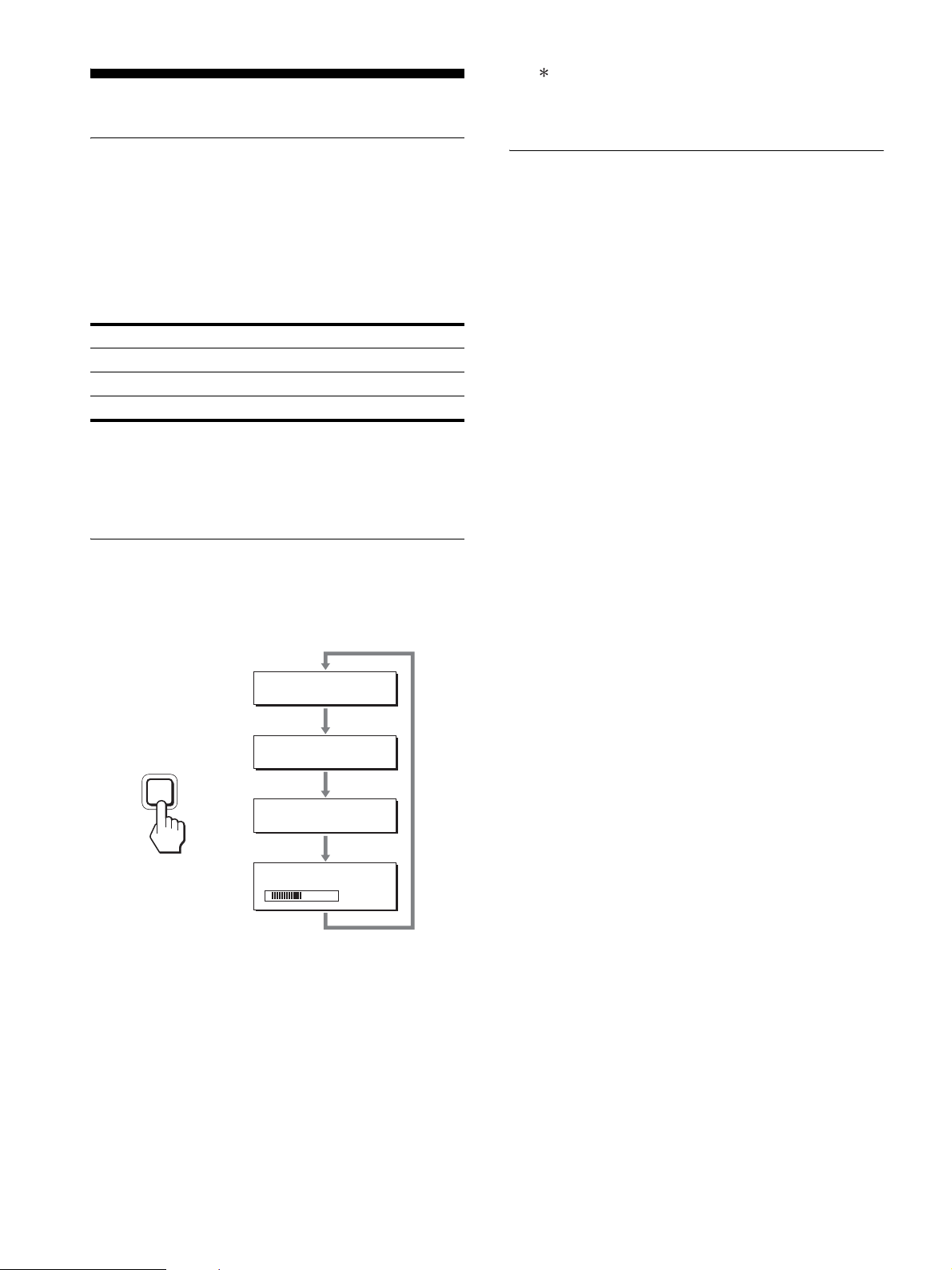
MENU POSITION menu
INPUT SENSING menu
Those models of digital input search any input signals. You can
switch the signals back and forth automatically.
LANGUAGE menu
0 RESET menu (reset to the
default setting)
MENU LOCK menu
Items Press the m/M buttons
PHASE Minimize the horizontal stripes on the
screen.
PITCH Vertical stripes become vanished.
H CENTER Adjust the picture position when your
picture does not appear on the center of
the screen.
V CENTER
Items Press the m/M buttons
MENU POSITION You can change the menu displayed
position on the screen. You can choose
one of 9 positions.
Items Features
AUTO ON When the selected input has no signal, or
when you select an input with the OK
button and if it has no input signal, an
on-screen message appears. Then the
display checks the input signal and
switch to other input automatically.
When an input is changed, the selected
input is displayed on the upper left
corner of the screen.
When there still is no input signal, the
display goes into the power saving mode.
INPUT 1 When turning on the display, INPUT1 or
INPUT2 will be displayed as priority
setting (INPUT SENSING will not
function).
INPUT 2
AUTO OFF The input is not changed automatically.
Press the OK button to change the input.
Items Press the m/M buttons
ENGLISH
FRANÇAIS
DEUTSCH
ESPAÑOL
ITALIANO
NEDERLANDS
SVENSKA
French
German
Spanish
Italian
Dutch
Swedish
Russian
Japanese
Chinese
Items Features
OK To reset all the adjustment data to the
default setting except for the
(LANGUAGE) setting.
CANCEL To cancel resetting and return to the
menu screen.
Items Features
ON Only the 1 (power) switch will operate.
If you attempt any other operation, the
(MENU LOCK) icon appears on the
screen.
OFF Set (MENU LOCK) to off. If
(MENU LOCK) has been set to ON,
when you press the MENU button,
(MENU LOCK) is automatically
selected.
Items Features
16
Technical Features
Power saving function
This display meets the power-saving guidelines set by VESA,
ENERGY STAR, and NUTEK. If the display is connected to a
computer or video graphics board that is DPMS (Display Power
Management Standard) for Analog input / DMPM (DVI Digital
Monitor Power Management) for Digital input compliant, the
display will automatically reduce power consumption as shown
below.
1)
When your computer enters the “active off” mode, the input signal is
cut and NO INPUT SIGNAL appears on the screen. After 5 seconds,
the display enters the power saving mode.
“deep sleep” is the power saving mode defined by the Environmental
Protection Agency.
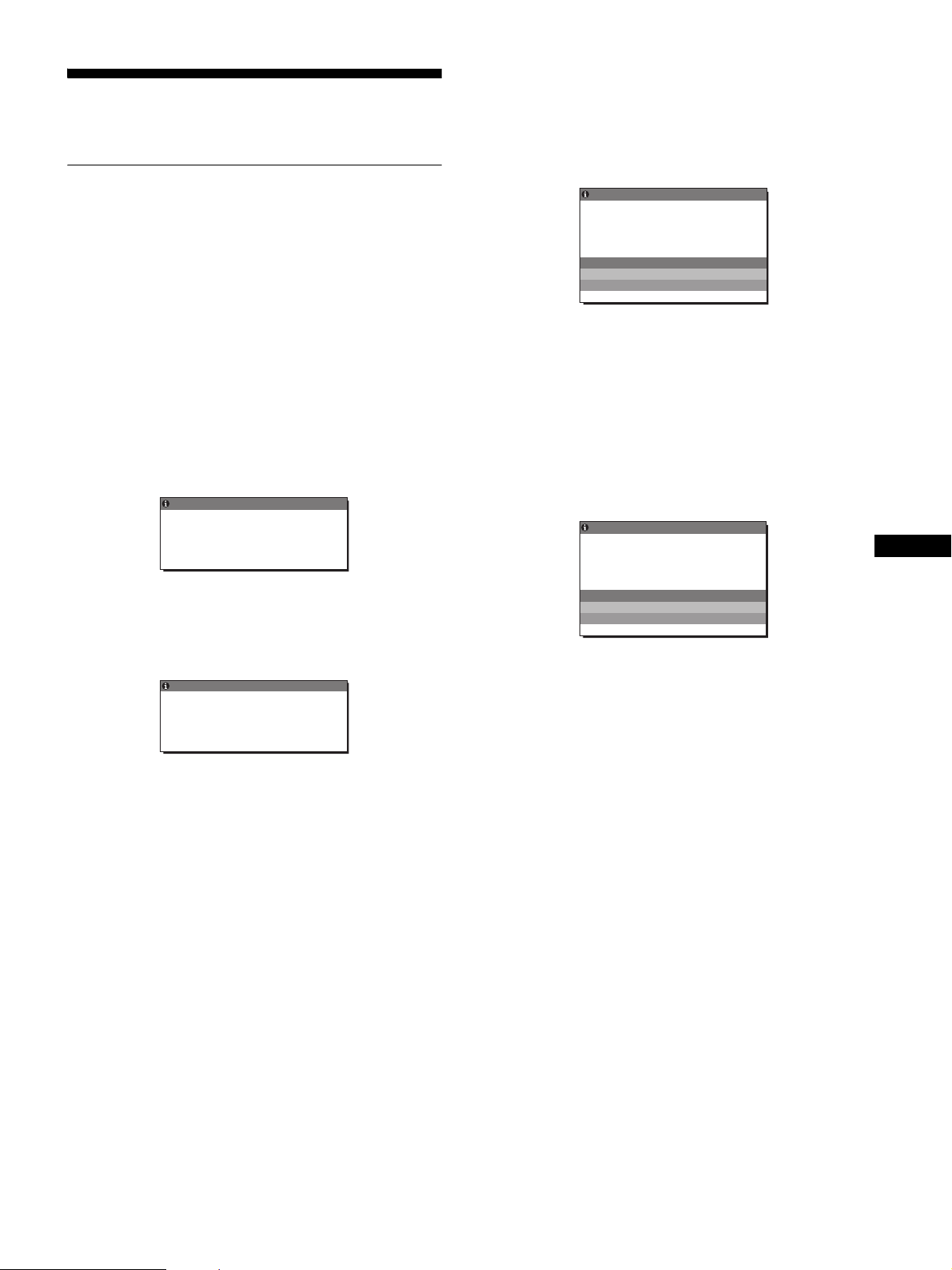
Reducing the power consumption
(ECO mode)
If you press the ECO button on the front of the display repeatedly,
you can select the screen brightness.
Each mode appears on the screen and the screen brightness is
reduced according to the mode. The menu automatically
disappears after about 5 seconds.
Screen brightness and power consumption are reduced as the
mode changes from HIGH to MIDDLE to LOW.
The default setting of the screen brightness is set to HIGH.
If you select USER, you can adjust the backlight level by pressing
the m/M buttons, the same as when you select BACKLIGHT
using the menu.
Note
For those displays with analog inputs, only while the ECO mode is set to
USER, are the BACKLIGHT, CONTRAST, and BRIGHTNESS items of
the menu available (page 14).
Automatic picture quality
adjustment function (analog RGB
signal only)
When the display receives an input signal, it
automatically adjusts the picture’s position and
sharpness (phase/pitch), and ensures that a clear
picture appears on the screen.
The factory preset mode
When the display receives an input signal, it automatically
matches the signal to one of the factory preset modes stored in the
display’s memory to provide a high quality picture at the center of
the screen. If the input signal matches the factory preset mode, the
picture appears on the screen automatically with the appropriate
default adjustments.
If input signals do not match one of the factory
preset modes
When the display receives an input signal that does not match one
of the factory preset modes, the automatic picture quality
adjustment function of this display is activated to ensure that a
clear picture always appears on the screen (within the following
display frequency ranges):
Horizontal frequency: 28–80 kHz
Vertical frequency: 48–75 Hz
Consequently, the first time the display receives input signals that
do not match one of the factory preset modes, the display may
take a longer time than normal to display the picture on the screen.
This adjustment data is automatically stored in memory so that
next time, the display will function in the same way as when the
display receives the signals that match one of the factory preset
modes.
If you adjust the phase, pitch, and picture position
manually
For some input signals, the automatic picture quality adjustment
function of this display may not completely adjust the picture
position, phase, and pitch. In this case, you can set these
adjustments manually (page 14). If you set these adjustments
manually, they are stored in memory as user modes and
automatically recalled whenever the display receives the same
input signals.
Note
While the automatic picture quality adjustment function is activated, only
the 1 (power) switch will operate.
The picture may flicker during this time, but this is not a malfunction.
Simply wait a few moments until the adjustment completes.
Power mode 1 (power) indicator
normal operation green
active off
1)
(deep sleep) orange
power off off
ECO LOW
:
ECO USER
:
ECO HIGH
:
ECO MIDDLE
:
50
ECO
,
17
US
Troubleshooting
Before contacting technical support, refer to this section.
On-screen messages
If there is something wrong with the input signal, one of the
following messages appears on the screen. To solve the problem,
see “Trouble symptoms and remedies” on page 18.
If “OUT OF RANGE” appears on the screen
This indicates that the input signal is not supported by the
display’s specifications. Check the following items.
For more information about on-screen messages, see “Trouble
symptoms and remedies” on page 18.
If “xxx.x kHz/xxx Hz” is displayed
This indicates that either the horizontal or vertical frequency
is not supported by the display’s specifications.
The figures indicate the horizontal and vertical frequencies of
the current input signal.
If “RESOLUTION > 1280 × 1024” is displayed
This indicates that the resolution is not supported by the
display’s specifications (1280 × 1024 or less).
If “NO INPUT SIGNAL” appears on the screen
This indicates that no signal is being input via the currently
selected connector.
When INPUT SENSING (page 15) is set to ON, the display finds
another input signal and changes the input automatically.
When input signals cannot be found
“GO TO POWER SAVE” message appears.
5 seconds later, the power saving mode starts.
If “CABLE DISCONNECTED” appears on the
screen
This indicates that the video signal cable has been disconnected
from the currently selected connector.
When INPUT SENSING (page 15) is set to ON, the display finds
another input signal and changes the input automatically.
When input signals cannot be found
“GO TO POWER SAVE” message appears.
45 seconds later, the power saving mode starts.
OUT OF RANGE
INPUT1 DVI
-
D
xxx.xkHz/ xxxHz
INFORMATIO
N
:
Example
OUT OF RANGE
RESOLUT I ON > 2180X1 420
INFORMATIO
N
I NPUT1 : DV I - D
Example
INFORMATION
NO I NPUT S I GNAL
GO TO POWER SAVE
INPUT1 DVI
-
D
:
Example
CABLE D I SCONNECTED
INFORMATION
INPUT1 DVI
-
D
:
GO TO POWER SAVE
Example

18
Trouble symptoms and remedies
If a problem occurs as a result of a connected computer or other equipment, refer to the connected computer/equipment’s instruction manual.
Symptom Check these items
No picture
If the 1 (power) indicator is not lit,
or, 1 (power) indicator turns on in
orange,
• Check that the 1 (power) switch is on.
If the 1 (power) indicator will not
light up when the 1 (power) switch
is pressed,
• Check that the power cord is properly connected.
If CABLE DISCONNECTED
appears on the screen,
• Check that the video signal cable is properly connected and all plugs are firmly seated in
their sockets (page 7).
• Check that the video input connector’s pins are not bent or pushed in.
• Check that the input select setting is correct (page 11).
• A non-supplied video signal cable is connected. If you connect a non-supplied video
signal cable, CABLE DISCONNECTED may appear on the screen. This is not a
malfunction.
If NO INPUT SIGNAL appears on
the screen, or, 1 (power) indicator
turns on in orange,
• Check that the video signal cable is properly connected and all plugs are firmly seated in
their sockets (page 7).
• Check that the video input connector’s pins are not bent or pushed in.
• Check that the input select setting is correct (page 11).
x Problems caused by a computer or other equipment connected, and not
caused by the display
• The computer is in the power saving mode. Try pressing any key on the keyboard or
moving the mouse.
• Check that your graphics board is installed properly.
• Check that the computer’s power is on.
• Restart the computer.
If OUT OF RANGE appears on the
screen (page 17),
x Problems caused by a computer or other equipment connected, and not
caused by the display
• Check that the video frequency range is within that specified for the display. If you
replaced an old display with this display, reconnect the old display and adjust the
computer’s graphics board within the following ranges:
Horizontal: 28 – 80 kHz (analog RGB), 28 – 64 kHz (digital RGB)
Vertical: 48 – 75 Hz (analog RGB), 60 Hz (digital RGB)
Resolution: 1280 × 1024 or less
If using Windows, • If you replaced an old display with this display, reconnect the old display and do the
following. Select “SONY” from the “Manufacturers” list and select the desired model
name from the “Models” list in the Windows device selection screen. If the model name of
this display does not appear in the “Models” list, try “Plug & Play.”
If using a Macintosh system, • When connecting a Macintosh computer, use an adapter (not supplied) if necessary.
Connect the adapter to the computer before connecting the video signal cable.
Picture flickers, bounces,
oscillates, or is scrambled
• Adjust the pitch and phase (analog RGB signal only) (page 14).
• Try plugging the display into a different AC outlet, preferably on a different circuit.
x Problems caused by a computer or other equipment connected, and not
caused by the display
• Check your graphics board manual for the proper display setting.
• Confirm that the graphics mode (VESA, Macintosh 19" Color, etc.) and the frequency of
the input signal are supported by this display. Even if the frequency is within the proper
range, some graphics boards may have a sync pulse that is too narrow for the display to
sync correctly.
• This display does not process interlace signals. Set for progressive signals.
• Adjust the computer’s refresh rate (vertical frequency) to obtain the best possible picture.
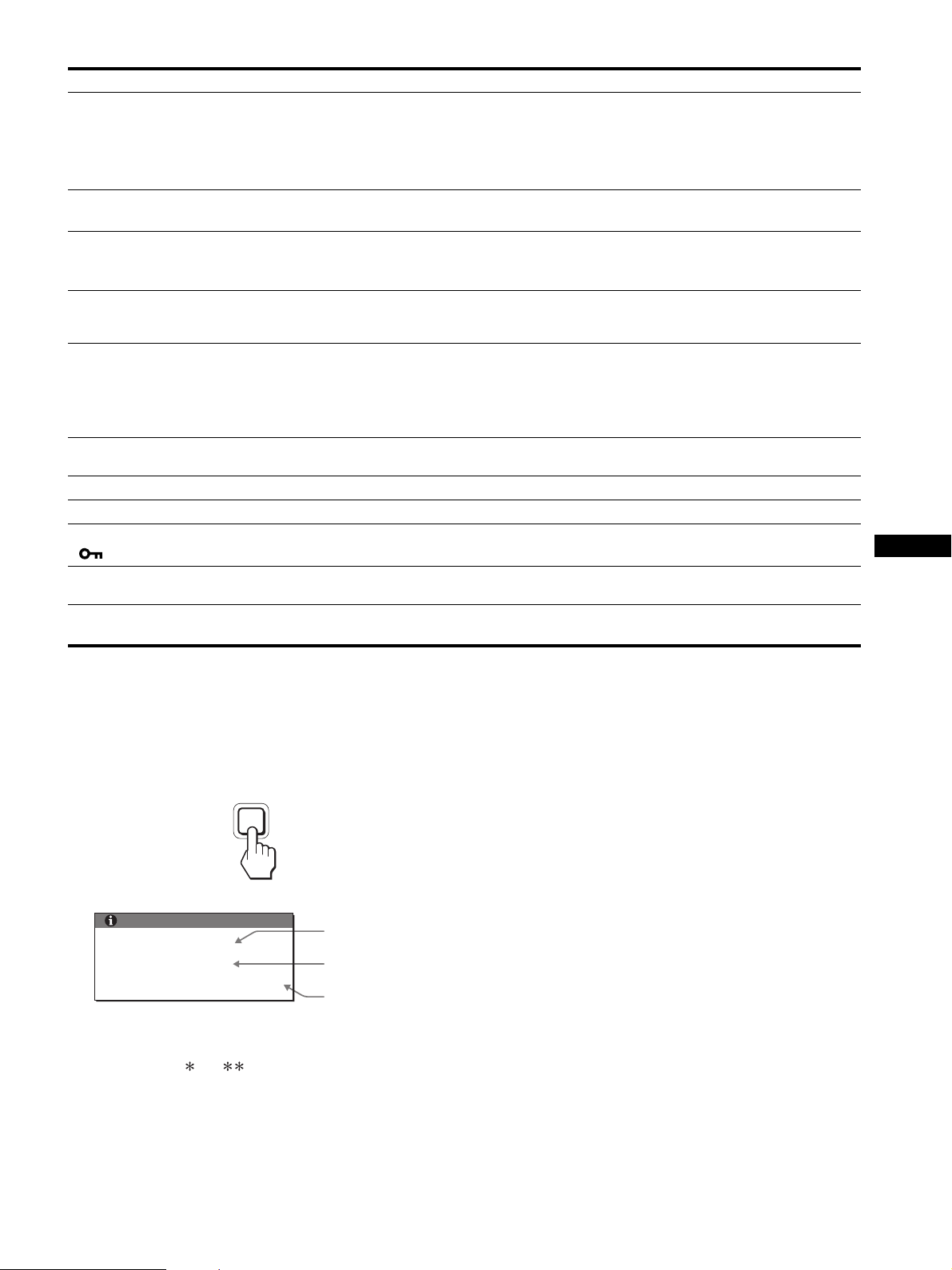
19
US
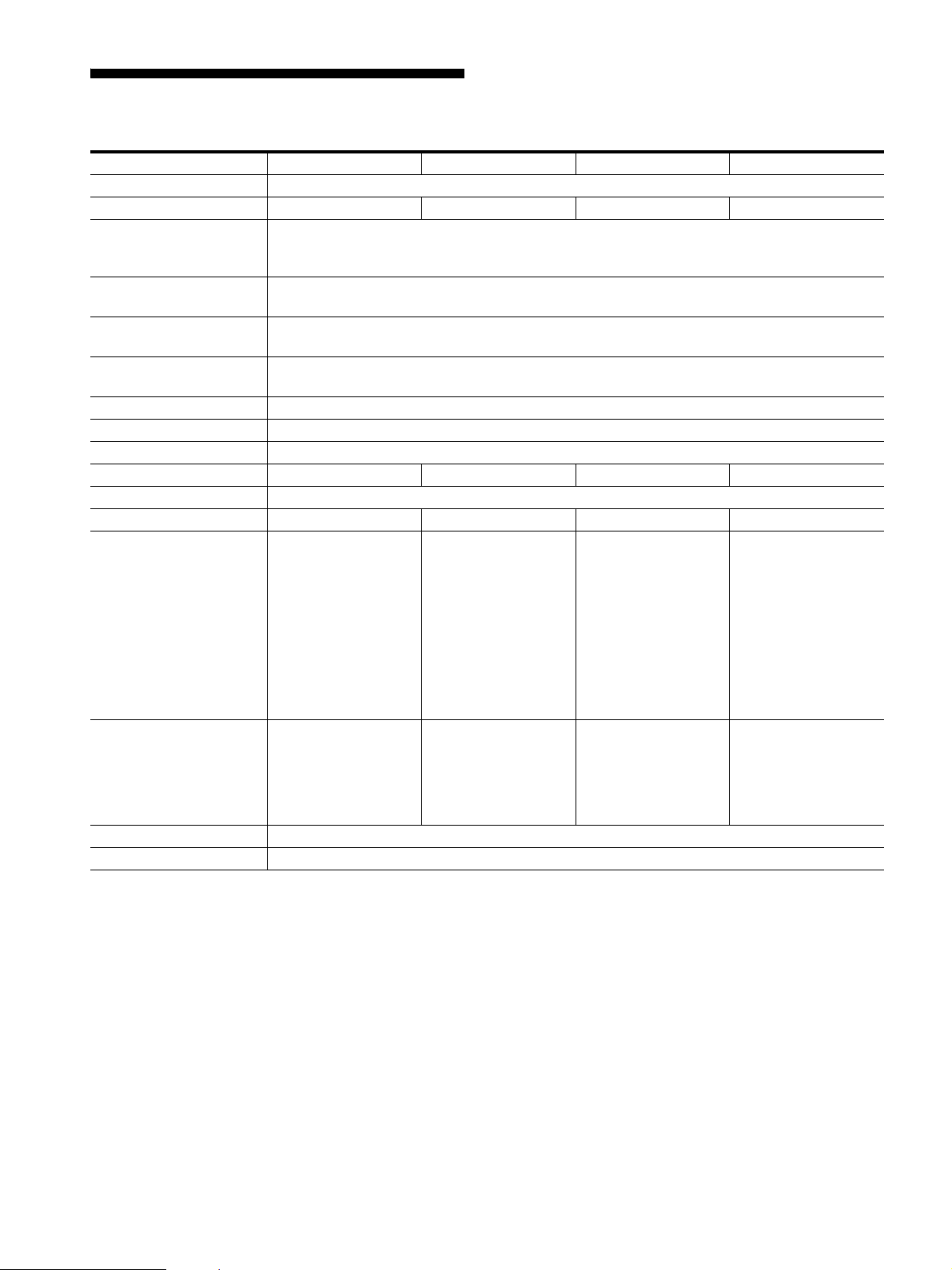
Displaying this display’s information
While the display is receiving a video signal, press and
hold the MENU button for more than 5 seconds until the
information box appears.
Press the MENU button again to make the box disappear.
Although the safety standard registered model name of this
display is SDM-S75 /S95 , the name of SDM-S75A/S95AR/
S75D/S95DR/S75E/S95ER/S75F/S95FR/S75N/S95NR is used
on sale.
If any problem persists, call your authorized Sony dealer and give
the following information:
• Model name
• Serial number
• Detailed description of the problem
• Date of purchase
• Name and specifications of your computer and graphics board
• Type of input signals (analog RGB/digital RGB)
Picture is fuzzy • Adjust the brightness and contrast (page 14).
• Adjust the pitch and phase (analog RGB signal only) (page 14).
x Problems caused by a computer or other equipment connected, and not
caused by the display
• Set the resolution to 1280 × 1024 on your computer.
Picture is ghosting • Eliminate the use of video cable extensions and/or video switch boxes.
• Check that all plugs are firmly seated in their sockets.
Picture is not centered or sized
properly (analog RGB signal only)
• Adjust the pitch and phase (page 14).
• Adjust the picture position (page 14). Note that some video modes do not fill the screen to
the edges.
Picture is too small x Problems caused by a computer or other equipment connected, and not
caused by the display
• Set the resolution to 1280 × 1024 on your computer.
Picture is dark • Adjust the backlight (page 14).
• Adjust the brightness (page 14).
• Adjust the gamma using GAMMA menu (page 14).
• It takes a few minutes for the display to become bright after turning on the display.
• The screen might turn darker, depends on ECO mode you selected.
Wavy or elliptical pattern (moire)
is visible
• Adjust the pitch and phase (analog RGB signal only) (page 14).
Color is not uniform • Adjust the pitch and phase (analog RGB signal only) (page 14).
White does not look white • Adjust the color temperature (page 14).
Display buttons do not operate
( appears on the screen)
• If MENU LOCK is set to ON, set it to OFF (page 15).
The display turns off after a while xProblems caused by the connected computer or other equipment
• Set the computer’s power saving setting to off.
Resolution displayed on the menu
screen is incorrect.
• Depending on the graphics board setting, the resolution displayed on the menu screen may
not coincide with the one set on the computer.
Symptom Check these items
MENU
Example
Model name
Serial number
Week and year
of manufacture
INFORMATION
MODEL : SDM-S75A
SER. NO : 1234567
MANUFACTURED : 2005-52
20
Specifications
1)
Recommended horizontal and vertical timing condition
• Horizontal sync width duty should be more than 4.8% of total
horizontal time or 0.8 µs, whichever is larger.
• Horizontal blanking width should be more than 2.5 µsec.
• Vertical blanking width should be more than 450 µsec.
Design and specifications are subject to change without notice.
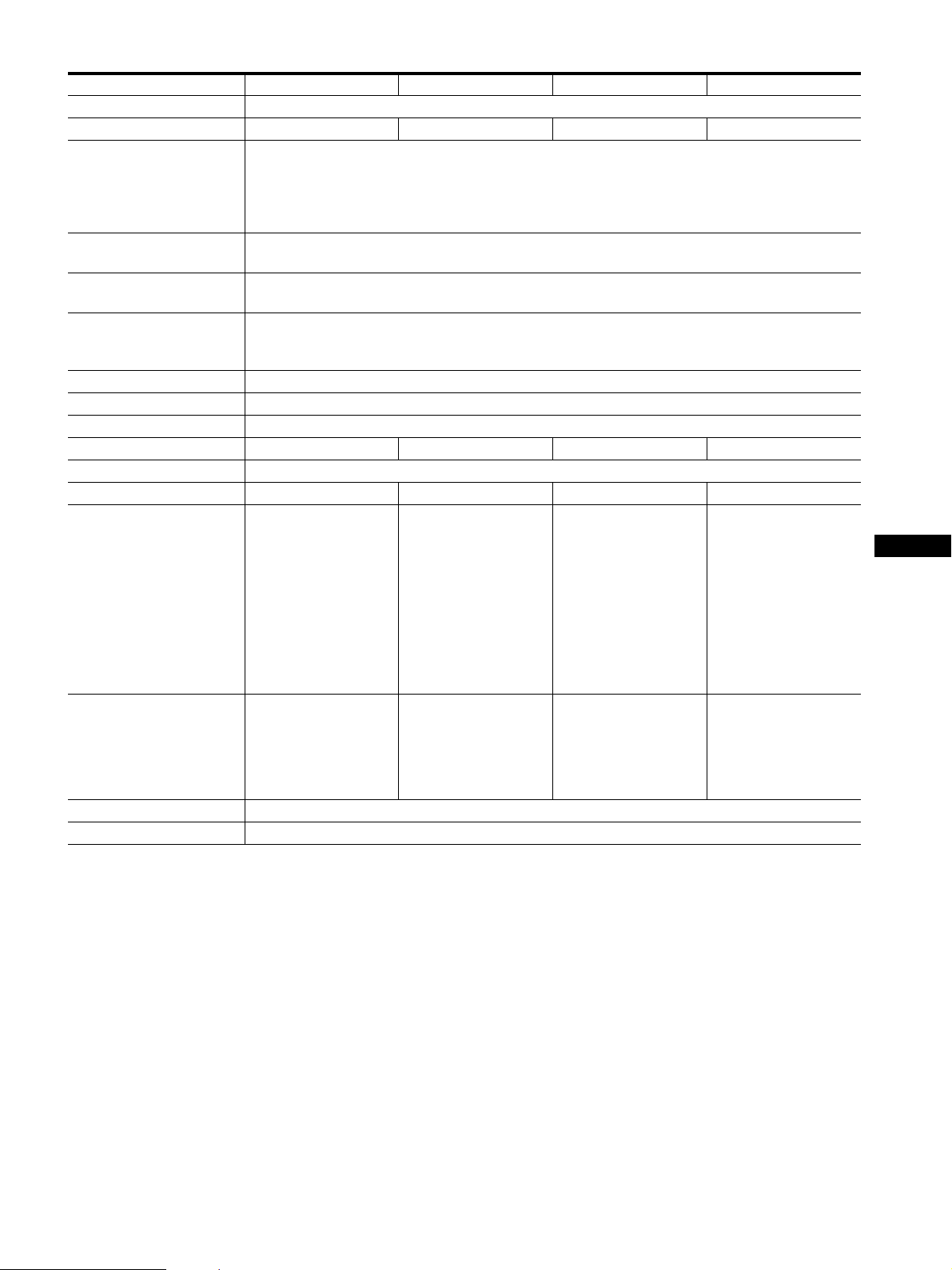
Model name SDM-S75A SDM-S95AR SDM-S75E SDM-S95ER
LCD panel Panel type: a-Si TFT Active Matrix
Picture size: inch 17.0 19.0 17.0 19.0
Input signal format RGB operating frequency
1)
Horizontal: 28 – 80 kHz
Vertical: 48 – 75 Hz
Resolution Horizontal: Max.1280 dots
Vertical: Max.1024 lines
Type of input signal
(Digital/Analog)
Analog ×1
Input signal levels Analog RGB video signal 0.7 Vp-p, 75 Ω, positive
SYNC signal TTL level, 2.2 kΩ, positive or negative
Audio input Stereo minijack, 0.5 Vrms
Audio output Stereo minijack
Power requirements 100 – 240 V, 50 – 60 Hz, Max. 1.0 A
Power consumption Max. 45 W Max. 50 W Max. 45 W Max. 50 W
Operating temperature 5 – 35 °C
Type of the stand Fixed Fixed Height adjust Height adjust
Dimensions (width/height/
depth)
Approx. 369 × 423.5 ×
225 mm (14
5
/
8
×
16
3
/
4
× 8
7
/
8
inches)
(with stand)
Approx. 369 × 315 ×
66 mm (14
5
/
8
×
12
3
/
8
× 2
5
/
8
inches)
(without stand)
Approx. 414 × 439.5 ×
225 mm (16
3
/
8
×
17
3
/
8
× 8
7
/
8
inches)
(with stand)
Approx. 414 × 348 ×
69 mm (16
3
/
8
×
13
3
/
4
× 2
3
/
4
inches)
(without stand)
Approx. 369 × 393.5 –
503.5 × 253 mm
(14
5
/
8
× 15
1
/
2
–
19
7
/
8
× 10 inches)
(with stand)
Approx. 369 × 315 ×
66 mm (14
5
/
8
×
12
3
/
8
× 2
5
/
8
inches)
(without stand)
Approx. 414 × 409.5 –
519.5 × 277.5 mm
(16
3
/
8
× 16
1
/
8
–
20
1
/
2
× 11 inches)
(with stand)
Approx. 414 × 348 ×
69 mm (16
3
/
8
×
13
3
/
4
× 2
3
/
4
inches)
(without stand)
Mass Approx. 6.4 kg (14 lb
1
3
/
4
oz) (with stand)
Approx. 4.3 kg
(9 lb 7
5
/
8
oz)
(without stand)
Approx. 7.3 kg (16 lb
1
1
/
2
oz) (with stand)
Approx. 5.2 kg
(11 lb 7
3
/
8
oz)
(without stand)
Approx. 7.5 kg (16 lb
8
1
/
2
oz) (with stand)
Approx. 4.3 kg
(9 lb 7
5
/
8
oz)
(without stand)
Approx. 8.7 kg (19 lb
2
7
/
8
oz) (with stand)
Approx. 5.2 kg
(11 lb 7
3
/
8
oz)
(without stand)
Plug & Play DDC2B
Accessories See page 6.
21
US
1)
Recommended horizontal and vertical timing condition
• Horizontal sync width duty should be more than 4.8% of total
horizontal time or 0.8 µs, whichever is larger.
• Horizontal blanking width should be more than 2.5 µsec.
• Vertical blanking width should be more than 450 µsec.
Design and specifications are subject to change without notice.
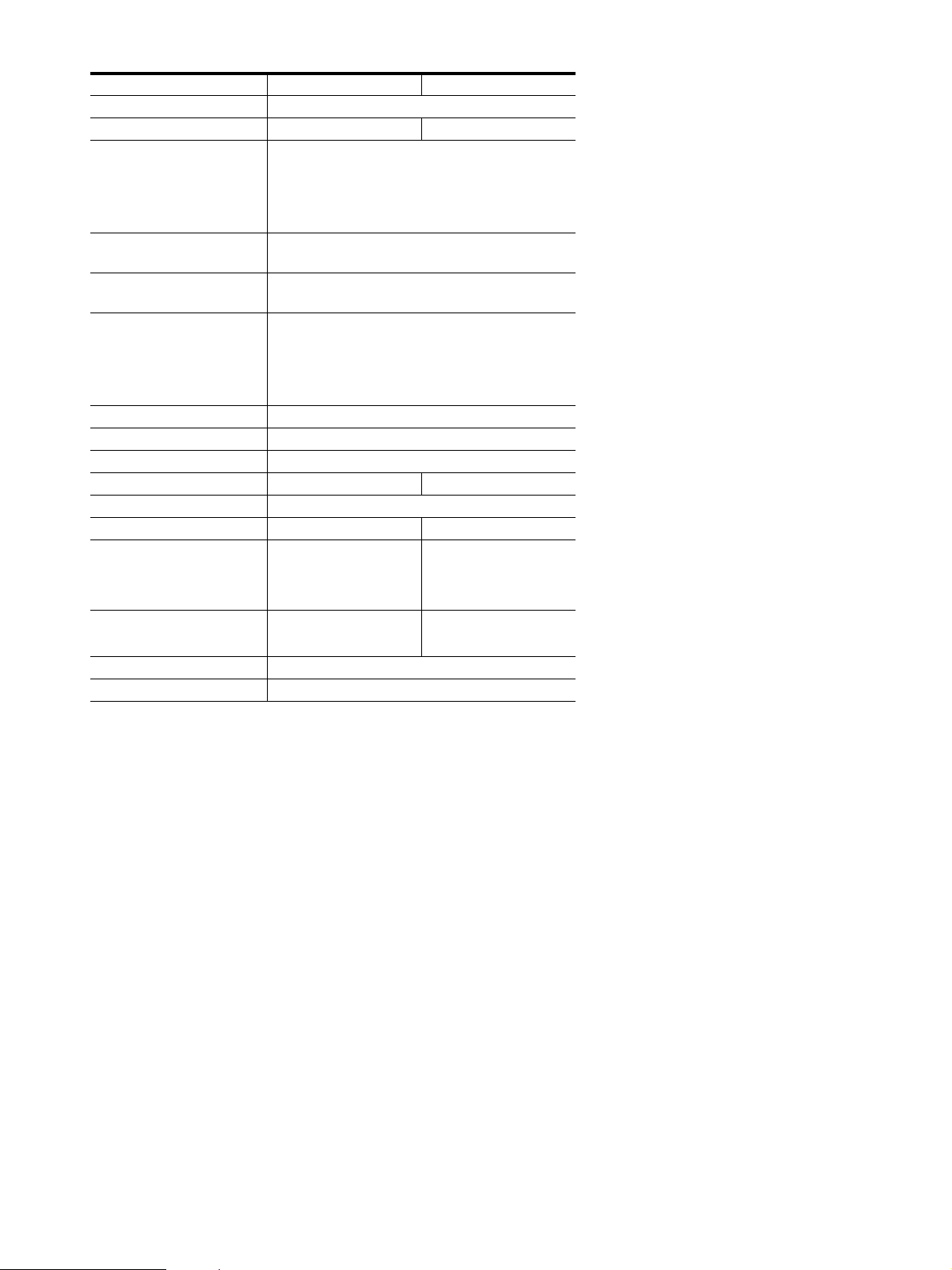
Model name SDM-S75D SDM-S95DR SDM-S75F SDM-S95FR
LCD panel Panel type: a-Si TFT Active Matrix
Picture size: inch 17.0 19.0 17.0 19.0
Input signal format RGB operating frequency
1)
Horizontal: 28 – 80 kHz (analog RGB)
28 – 64 kHz (digital RGB)
Vertical: 48 – 75 Hz (analog RGB)
60 Hz (digital RGB)
Resolution Horizontal: Max.1280 dots
Vertical: Max.1024 lines
Type of input signal
(Digital/Analog)
Digital × 1/Analog × 1
Input signal levels Analog RGB video signal 0.7 Vp-p, 75 Ω, positive
SYNC signal TTL level, 2.2 kΩ, positive or negative
Digital RGB (DVI) signal TMDS (single link)
Audio input Stereo minijack, 0.5 Vrms
Audio output Stereo minijack
Power requirements 100 – 240 V, 50 – 60 Hz, Max. 1.0 A
Power consumption Max. 45 W Max. 50 W Max. 45 W Max. 50 W
Operating temperature 5 – 35 °C
Type of the stand Fixed Fixed Height adjust Height adjust
Dimensions (width/height/
depth)
Approx. 369 × 423.5 ×
225 mm (14
5
/
8
×
16
3
/
4
× 8
7
/
8
inches)
(with stand)
Approx. 369 × 315 ×
66 mm (14
5
/
8
×
12
3
/
8
× 2
5
/
8
inches)
(without stand)
Approx. 414 × 439.5 ×
225 mm (16
3
/
8
×
17
3
/
8
× 8
7
/
8
inches)
(with stand)
Approx. 414 × 348 ×
69 mm (16
3
/
8
×
13
3
/
4
× 2
3
/
4
inches)
(without stand)
Approx. 369 × 393.5 –
503.5 × 253 mm
(14
5
/
8
× 15
1
/
2
–
19
7
/
8
× 10 inches)
(with stand)
Approx. 369 × 315 ×
66 mm (14
5
/
8
×
12
3
/
8
× 2
5
/
8
inches)
(without stand)
Approx. 414 × 409.5 –
519.5 × 277.5 mm
(16
3
/
8
× 16
1
/
8
–
20
1
/
2
× 11 inches)
(with stand)
Approx. 414 × 348 ×
69 mm (16
3
/
8
×
13
3
/
4
× 2
3
/
4
inches)
(without stand)
Mass Approx. 6.4 kg (14 lb
1
3
/
4
oz) (with stand)
Approx. 4.3 kg
(9 lb 7
5
/
8
oz)
(without stand)
Approx. 7.3 kg (16 lb
1
1
/
2
oz) (with stand)
Approx. 5.2 kg
(11 lb 7
3
/
8
oz)
(without stand)
Approx. 7.5 kg (16 lb
8
1
/
2
oz) (with stand)
Approx. 4.3 kg
(9 lb 7
5
/
8
oz)
(without stand)
Approx. 8.7 kg (19 lb
2
7
/
8
oz) (with stand)
Approx. 5.2 kg
(11 lb 7
3
/
8
oz)
(without stand)
Plug & Play DDC2B
Accessories See page 6.
22
1) Recommended horizontal and vertical timing condition
• Horizontal sync width duty should be more than 4.8% of total
horizontal time or 0.8 µs, whichever is larger.
• Horizontal blanking width should be more than 2.5 µsec.
• Vertical blanking width should be more than 450 µsec.
Design and specifications are subject to change without notice.
Model name SDM-S75N SDM-S95NR
LCD panel Panel type: a-Si TFT Active Matrix
Picture size: inch 17.0 19.0
Input signal format RGB operating frequency
1)
Horizontal: 28 – 80 kHz (analog RGB)
28 – 64 kHz (digital RGB)
Vertical: 48 – 75 Hz (analog RGB)
60 Hz (digital RGB)
Resolution Horizontal: Max.1280 dots
Vertical: Max.1024 lines
Type of input signal
(Digital/Analog)
Digital × 1/Analog × 1
Input signal levels Analog RGB video signal
0.7 Vp-p, 75 Ω, positive
SYNC signal
TTL level, 2.2 kΩ, positive or negative
Digital RGB (DVI) signal TMDS (single link)
Audio input Stereo minijack, 0.5 Vrms
Audio output Stereo minijack
Power requirements 100 – 240 V, 50 – 60 Hz, Max. 1.0 A
Power consumption Max. 45 W Max. 50 W
Operating temperature 5 – 35 °C
Type of the stand – –
Dimensions (width/height/
depth)
Approx. 369 × 315 ×
66 mm (14
5
/
8
× 12
3
/
8
× 2
5
/
8
inches)
Approx. 414 × 348 ×
69 mm (16
3
/
8
× 13
3
/
4
× 2
3
/
4
inches)
Mass Approx. 4.3 kg
(9 lb 7
5
/
8
oz)
Approx. 5.2 kg
(11 lb 7
3
/
8
oz)
Plug & Play DDC2B
Accessories See page 6.

i
TCO’99 Eco-document (for the black
model)
x Congratulations!
You have just purchased a TCO’99 approved and labelled product! Your
choice has provided you with a product developed for professional use.
Your purchase has also contributed to reducing the burden on the
environment and also to the further development of environmentally
adapted electronics products.
x Why do we have environmentally labelled com-
puters?
In many countries, environmental labelling has become an established
method for encouraging the adaptation of goods and services to the
environment. The main problem, as far as computers and other electronics
equipment are concerned, is that environmentally harmful substances are
used both in the products and during their manufacture. Since it is not so
far possible to satisfactorily recycle the majority of electronics equipment,
most of these potentially damaging substances sooner or later enter nature.
There are also other characteristics of a computer, such as energy
consumption levels, that are important from the viewpoints of both the
work (internal) and natural (external) environments. Since all methods of
electricity generation have a negative effect on the environment (e.g.
acidic and climate-influencing emissions, radioactive waste), it is vital to
save energy. Electronics equipment in offices is often left running
continuously and thereby consumes a lot of energy.
x What does labelling involve?
This product meets the requirements for the TCO’99 scheme which
provides for international and environmental labelling of personal
computers. The labelling scheme was developed as a joint effort by the
TCO (The Swedish Confederation of Professional Employees), Svenska
Naturskyddsforeningen (The Swedish Society for Nature Conservation)
and Statens Energimyndighet (The Swedish National Energy
Administration).
Approval requirements cover a wide range of issues: environment,
ergonomics, usability, emission of electric and magnetic fields, energy
consumption and electrical and fire safety.
The environmental demands impose restrictions on the presence and use
of heavy metals, brominated and chlorinated flame retardants, CFCs
(freons) and chlorinated solvents, among other things. The product must
be prepared for recycling and the manufacturer is obliged to have an
environmental policy which must be adhered to in each country where the
company implements its operational policy.
The energy requirements include a demand that the computer and/or
display, after a certain period of inactivity, shall reduce its power
consumption to a lower level in one or more stages. The length of time to
reactivate the computer shall be reasonable for the user.
Labelled products must meet strict environmental demands, for example,
in respect of the reduction of electric and magnetic fields, physical and
visual ergonomics and good usability.
Below you will find a brief summary of the environmental requirements
met by this product. The complete environmental criteria document may
be ordered from:
TCO Development
SE-114 94 Stockholm, Sweden
Fax: +46 8 782 92 07
Email (Internet): [email protected]
Current information regarding TCO’99 approved and labelled
products may also be obtained via the Internet, using the address:
http://www.tco-info.com/
x Environmental requirements
Flame retardants
Flame retardants are present in printed circuit boards, cables, wires,
casings and housings. Their purpose is to prevent, or at least to delay the
spread of fire. Up to 30% of the plastic in a computer casing can consist
of flame retardant substances. Most flame retardants contain bromine or
chloride, and those flame retardants are chemically related to another
group of environmental toxins, PCBs. Both the flame retardants
containing bromine or chloride and the PCBs are suspected of giving rise
to severe health effects, including reproductive damage in fish-eating
birds and mammals, due to the bio-accumulative
* processes. Flame
retardants have been found in human blood and researchers fear that
disturbances in foetus development may occur.
The relevant TCO’99 demand requires that plastic components weighing
more than 25 grams must not contain flame retardants with organically
bound bromine or chlorine. Flame retardants are allowed in the printed
circuit boards since no substitutes are available.
Cadmium**
Cadmium is present in rechargeable batteries and in the colour-generating
layers of certain computer displays. Cadmium damages the nervous
system and is toxic in high doses. The relevant TCO’99 requirement states
that batteries, the colour-generating layers of display screens and the
electrical or electronics components must not contain any cadmium.
Mercury**
Mercury is sometimes found in batteries, relays and switches. It damages
the nervous system and is toxic in high doses. The relevant TCO’99
requirement states that batteries may not contain any mercury. It also
demands that mercury is not present in any of the electrical or electronics
components associated with the labelled unit.
CFCs (freons)
The relevant TCO’99 requirement states that neither CFCs nor HCFCs
may be used during the manufacture and assembly of the product. CFCs
(freons) are sometimes used for washing printed circuit boards. CFCs
break down ozone and thereby damage the ozone layer in the stratosphere,
causing increased reception on earth of ultraviolet light with e.g. increased
risks of skin cancer (malignant melanoma) as a consequence.
Lead**
Lead can be found in picture tubes, display screens, solders and
capacitors. Lead damages the nervous system and in higher doses, causes
lead poisoning. The relevant TCO’99 requirement permits the inclusion of
lead since no replacement has yet been developed.
* Bio-accumulative is defined as substances which accumulate within
living organisms.
** Lead, Cadmium and Mercury are heavy metals which are Bio-
accumulative.

ii
TCO’03 Eco-document (for the silver
model)
x Congratulations!
The display you have just purchased carries the TCO’03
Displays label. This means that your display is designed,
manufactured and tested according to some of the strictest
quality and environmental requirements in the world. This
makes for a high performance product, designed with the
user in focus that also minimizes the impact on our natural
environment.
x Ergonomics
• Good visual ergonomics and image quality in order to
improve the working environment for the user and to
reduce sight and strain problems. Important parameters
are luminance, contrast, resolution, reflectance, colour
rendition and image stability.
x Energy
• Energy-saving mode after a certain time – beneficial
both for the user and the environment
• Electrical safety
x Emissions
• Electromagnetic fields
• Noise emissions
x Ecology
• The product must be prepared for recycling and the
manufacturer must have a certified environmental
management system such as EMAS or ISO 14 001
• Restrictions on
- chlorinated and brominated flame retardants and
polymers
- heavy metals such as cadmium, mercury and lead.
The requirements included in this label have been
developed by TCO Development in co-operation with
scientists, experts, users as well as manufacturers all over
the world. Since the end of the 1980s TCO has been
involved in influencing the development of IT equipment
in a more user-friendly direction. Our labelling system
started with displays in 1992 and is now requested by users
and IT-manufacturers all over the world.
For more information, please visit
www.tcodevelopment.com
Recycling Information
x Customer in Europe
The collection and recycling of this product has been planned
according to your country’s relevant legislation. To ensure that
this product will be collected and recycled in way that minimizes
the impact on the environment, please do the following:
1. If you purchased this product for private use, contact your
municipality or the waste collection system and bring the
product to this collection point / have the product be picked up
by the waste collection system. Alternatively, your retailer
might take back this if you purchase new equivalent equipment;
please check with your retailer whether he will take back this
product before bringing it. For information on your country’s
recycling arrangements, please contact the Sony representation
in your country (contact details at: www.sony-europe.com).
Further details on specific recycling systems can be found at the
following addresses:
- Belgium: www.recupel.be
- Netherlands: www.nvmp.nl (consumer electronics)
www.ictmilieu.nl (IT equipment)
- Norway: www.elretur.no
- Sweden: www.el-kretsen.se
- Switzerland: www.swico.ch
2. If you use this product professionally, check the product’s
delivery contract for take back / recycling arrangements and
follow the procedures described therein. Alternatively, follow
the procedures described under point 1.
x Customer in USA
We Sony as a member of EIA recommends to visit URL below
http://www.eiae.org/
x Customer in Asia
http://www.sony.co.jp/SonyInfo/Environment/recycle/3R.html
2-630-290-22(1)
© 2005 Sony Corporation
TFT LCD Color
Computer Display
SDM-S75
SDM-S95
2
Owner’s Record
The model and serial numbers are located at the rear of the unit.
Record these numbers in the spaces provided below. Refer to them
whenever you call upon your dealer regarding this product.
Model No.
Serial No.
To reduce the risk of fire or electric shock, do not
expose this apparatus to rain or moisture.
Dangerously high voltages are present inside the
unit. Do not open the cabinet. Refer servicing to
qualified personnel only.
FCC Notice
This equipment has been tested and found to comply with the limits
for a Class B digital device, pursuant to Part 15 of the FCC Rules.
These limits are designed to provide reasonable protection against
harmful interference in a residential installation. This equipment
generates, uses, and can radiate radio frequency energy and, if not
installed and used in accordance with the instructions, may cause
harmful interference to radio communications. However, there is no
guarantee that interference will not occur in a particular installation.
If this equipment does cause harmful interference to radio or
television reception, which can be determined by turning the
equipment off and on, the user is encouraged to try to correct the
interference by one or more of the following measures:
– Reorient or relocate the receiving antenna.
– Increase the separation between the equipment and receiver.
– Connect the equipment into an outlet on a circuit different from
that to which the receiver is connected.
– Consult the dealer or an experienced radio/TV technician for help.
You are cautioned that any changes or modifications not expressly
approved in this manual could void your authority to operate this
equipment.
N’oubliez pas de vérifier le carton fourni avec votre écran.
L’étiquette d’identification du modèle de votre écran figure à
l’arrière de celui-ci
(for the black model)
(for the silver model)
WARNING
IMPORTANTE
Para prevenir cualquier mal funcionamiento y evitar daños, por
favor, lea detalladamente este manual de instrucciones antes
de conectar y operar este equipo.
If you have any questions about this product, you may call;
Sony Customer Information Services Center 1-800-222-7669
or http://www.sony.com/
Declaration of Conformity
Trade Name : SONY
Model : SDM-S75 /S95
Note : means any number or alphanumeric
character.
Responsible Party : Sony Electronics Inc.
Address : 16530 Via Esprillo, San Diego, CA
92127 U.S.A.
Telephone Number : 858-942-2230
This device complies with part 15 of the FCC rules. Operation is
subject to the following two conditions: (1) This device may not
cause harmful interference, and (2) this device must accept any
interference received, including interference that may cause
undesired operation.
NOTICE
This notice is applicable for USA/Canada only.
If shipped to USA/Canada, install only a UL LISTED/CSA
LABELLED power supply cord meeting the following
specifications:
SPECIFICATIONS
Plug Type Nema-Plug 5-15p
Cord Type SVT or SJT, minimum 3 × 18 AWG
Length Maximum 15 feet
Rating Minimum 7 A, 125 V
NOTICE
Cette notice s’applique aux Etats-Unis et au Canada
uniquement.
Si cet appareil est export* aux Etats-Unis ou au Canada, utiliser
le cordon d’alimentation portant la mention UL LISTED/CSA
LABELLED et remplissant les conditions suivantes:
SPECIFICATIONS
Type de fiche Fiche Nema 5-15 broches
Cordon Type SVT ou SJT, minimum 3 × 18 AWG
Longueur Maximum 15 pieds
Tension Minimum 7 A, 125 V
As an
ENERGY STAR Partner, Sony
Corporation has determined that this
product meets the
ENERGY STAR
guidelines for energy efficiency.
This monitor complies with the
TCO’99 guidelines.
This monitor complies with the
TCO’03 guidelines.
3
Table des matières
• Macintosh est une marque commerciale
sous licence d’Apple Computer, Inc.,
déposée aux Etats-Unis et dans d’autres
pays.
•Windows
®
est une marque commerciale
déposée de Microsoft Corporation aux
Etats-Unis et dans d’autres pays.
• IBM PC/AT et VGA sont des marques
commerciales déposées d’IBM
Corporation aux Etats-Unis.
• VESA et DDC
™
sont des marques
commerciales de Video Electronics
Standards Association.
•
ENERGY STAR est une marque
déposée aux Etats-Unis.
• Adobe et Acrobat sont des marques
commerciales de Adobe Systems
Incorporated.
• Tous les autres noms de produit
mentionnés dans le présent mode
d’emploi peuvent être des marques
commerciales ou des marques
commerciales déposées de leurs
entreprises respectives.
• De plus, les symboles
«
™
»
et
«
®
»
ne
sont pas systématiquement mentionnés
dans ce mode d’emploi.
FR
http://www.sony.net/
Précautions. . . . . . . . . . . . . . . . . . . . . . . . . . . . . . . . . . . . . . . . . . . . 4
Vérification du nom du modèle de l’écran. . . . . . . . . . . . . . . . . . . . . 5
Identification des composants et des commandes . . . . . . . . . . . . . . 5
Installation . . . . . . . . . . . . . . . . . . . . . . . . . . . . . . . . . . . . .6
Étape 1 : Assemblez le support . . . . . . . . . . . . . . . . . . . . . . . . . . . . 6
Étape 2 : Raccordez les câbles de signal vidéo. . . . . . . . . . . . . . . . 7
Étape 3 : Raccordez les cordons audio . . . . . . . . . . . . . . . . . . . . . . 8
Étape 4 : Branchez le cordon d’alimentation . . . . . . . . . . . . . . . . . . 9
Étape 5 : Fixez les cordons . . . . . . . . . . . . . . . . . . . . . . . . . . . . . . . 9
Étape 6 : Mettez l’écran et l’ordinateur sous tension . . . . . . . . . . . . 9
Étape 7 : Réglez l’inclinaison et la hauteur . . . . . . . . . . . . . . . . . . 10
Sélection du signal d’entrée (INPUT1/INPUT2) . . . . . . . . . . . . . . . 11
Personnalisation de votre écran . . . . . . . . . . . . . . . . . .12
Pilotage par menu. . . . . . . . . . . . . . . . . . . . . . . . . . . . . . . . . . . . . . 12
Liste des options de menu . . . . . . . . . . . . . . . . . . . . . . . . . . . . . . . 13
Menu RÉGLAGE IMAGE . . . . . . . . . . . . . . . . . . . . . . . . . . . . . 14
Menu COULEUR . . . . . . . . . . . . . . . . . . . . . . . . . . . . . . . . . . . 14
Menu NETTETE . . . . . . . . . . . . . . . . . . . . . . . . . . . . . . . . . . . . 14
0 Menu REINIT. DU MODE (pour le RÉGLAGE IMAGE) . . . . . . 14
Menu ECRAN (signal RVB analogique uniquement) . . . . . . . . 14
Menu POSITION MENU . . . . . . . . . . . . . . . . . . . . . . . . . . . . . . 15
Menu DÉTECTE ENTRÉE . . . . . . . . . . . . . . . . . . . . . . . . . . . . 15
Menu LANGUAGE . . . . . . . . . . . . . . . . . . . . . . . . . . . . . . . . . . 15
0 Menu REINITIALISATIO
(réinitialisation aux valeurs par défaut) . . . . . . . . . . . . . . . . . . . . . . 15
Menu VERROU DU MENU . . . . . . . . . . . . . . . . . . . . . . . . . . . 15
Spécifications techniques. . . . . . . . . . . . . . . . . . . . . . . .16
Fonction d’économie d’énergie. . . . . . . . . . . . . . . . . . . . . . . . . . . . 16
Réduction de la consommation électrique (Mode-ECO) . . . . . . . . 16
Fonction de réglage automatique de la qualité de l’image
(signal RVB analogique uniquement) . . . . . . . . . . . . . . . . . . . . . . . 16
Dépannage . . . . . . . . . . . . . . . . . . . . . . . . . . . . . . . . . . . .17
Messages affichés . . . . . . . . . . . . . . . . . . . . . . . . . . . . . . . . . . . . . 17
Symptômes de défaillances et remèdes. . . . . . . . . . . . . . . . . . . . . 18
Spécifications. . . . . . . . . . . . . . . . . . . . . . . . . . . . . . . . . .20
TCO’99 Eco-document (for the black model) . . . . . . . . . . . . . . . . . . .i
TCO’03 Eco-document (for the silver model) . . . . . . . . . . . . . . . . . . ii

4
Précautions
Avertissement sur les connexions d’alimentation
• Utilisez le cordon d’alimentation fourni. Si vous utilisez un
câble d’alimentation différent, assurez-vous qu’il est
compatible avec la tension secteur locale.
Pour les clients résidant aux Etats-Unis
Si vous n’employez pas le câble approprié, ce moniteur ne sera
pas conforme aux normes FCC obligatoires.
Pour les clients résidant au Royaume-Uni
Si vous utilisez le moniteur au Royaume-Uni, veuillez utiliser
le cordon d’alimentation adapté au Royaume-Uni.
Installation
N’installez pas et ne laissez pas le moniteur :
• A des endroits exposés à des températures extrêmes, par
exemple à proximité d’un radiateur, d’un conduit de chauffage
ou le rayonnement direct du soleil. L’exposition du moniteur à
des températures extrêmes, comme dans l’habitacle d’une
voiture garée en plein soleil ou à proximité d’un conduit de
chauffage, risque d’entraîner des déformations du châssis ou
des dysfonctionnements.
• A des endroits soumis à des vibrations mécaniques ou à des
chocs.
• A proximité d’appareils générant de puissants champs
magnétiques, comme un téléviseur ou d’autres appareils
électroménagers.
• A des endroit soumis à des quantités inhabituelles de poussière,
de saletés ou de sable, par exemple à côté d’une fenêtre ouverte
ou d’une porte donnant sur l’extérieur. En cas d’installation
temporaire à l’extérieur, veillez à prendre les précautions
requises contre la poussière et les saletés en suspension dans l’air.
Faute de quoi des dommages irréparables risquent de se produire.
Manipulation de l’écran LCD
• Ne laissez pas l’écran LCD face au soleil, car vous risquez
sinon de l’endommager. Faites donc attention si vous installez
le moniteur à côté d’une fenêtre.
• N’appuyez pas sur et veillez à ne pas érafler la surface de
l’écran LCD. Ne posez pas d’objets lourds sur l’écran LCD.
Vous risquez sinon d’altérer l’uniformité de l’écran ou de
provoquer un dysfonctionnement de l’écran LCD.
• Lorsque le moniteur est employé dans un environnement froid,
il est possible qu’une image rémanente apparaisse sur l’écran.
Il ne s’agit pas d’un dysfonctionnement. L’écran recouvre sa
condition normale dès que la température est revenue à un
niveau normal.
• Si une image fixe reste affichée pendant une longue durée, il se
peut qu’une image rémanente apparaisse pendant un certain
temps. Cette image rémanente finira par disparaître.
• Le panneau LCD chauffe en cours d’utilisation. Il ne s’agit pas
d’un dysfonctionnement.
Remarque sur l’affichage à cristaux liquides
(LCD - Liquid Crystal Display)
Veuillez noter que l’écran LCD est issu d’une
technologie de haute précision. Toutefois, il est
possible que des points noirs ou des points brillants de
lumière (rouge, bleu ou vert) apparaissent
constamment sur l’écran LCD, ainsi que des bandes de
couleurs irrégulières ou une certaine luminosité. Il ne
s’agit pas d’un dysfonctionnement.
(Pixels actifs : supérieurs à 99,99%)
Entretien
• Débranchez le cordon d’alimentation de la prise secteur avant
de procéder au nettoyage de votre moniteur.
• Nettoyez l’écran LCD avec un chiffon doux. Si vous utilisez un
liquide de nettoyage pour le verre, n’utilisez pas de nettoyant
contenant une solution antistatique ou tout autre additif
similaire, car vous risquez sinon de griffer le revêtement de
l’écran LCD.
• Nettoyez le châssis, le panneau et les commandes à l’aide d’un
chiffon doux légèrement imprégné d’une solution détergente
neutre. N’utilisez aucun type de tampon abrasif, de poudre à
récurer ou de solvant tel que de l’alcool ou de l’essence.
• Ne frottez pas, ne touchez pas et ne tapotez pas la surface de
l’écran avec des objets pointus ou abrasifs comme un stylo à
bille ou un tournevis. Ce type de contact risque de rayer le tube
image.
• Sachez qu’une détérioration des matériaux ou du revêtement de
l’écran LCD risque de se produire si le moniteur est exposé à
des solvants volatils comme des insecticides ou en cas de
contact prolongé avec des objets en caoutchouc ou en vinyle.
Transport
• Débranchez tous les câbles de l’écran. Si vous utilisez un
support à hauteur réglable, réglez-le sur la position la plus
élevée et tenez convenablement l’écran LCD par les deux côtés.
Veillez à ne pas griffer l’écran pendant le transport. Si vous
laissez tomber l’écran, vous risquez de vous blesser ou de
l’endommager.
• Pour transporter ce moniteur en vue de réparations ou de son
expédition, utilisez le carton et les matériaux de
conditionnement originaux.
• Replacez la goupille d’arrêt du support à hauteur réglable pour
immobiliser le support pendant le transport.
Elimination du moniteur
• N’éliminez pas ce moniteur avec les ordures
ménagères.
• Le tube fluorescent utilisé dans ce moniteur contient
du mercure. L’élimination de ce moniteur doit être
effectuée conformément aux réglementations des
administrations compétentes en matière de propreté
publique.
L’appareil doit être installé à proximité d’une prise de courant
aisément accessible.
Exemples de types de fiches
pour 100 à 120 V CA
pour 200 à 240 V CA
pour 240 V CA
uniquement
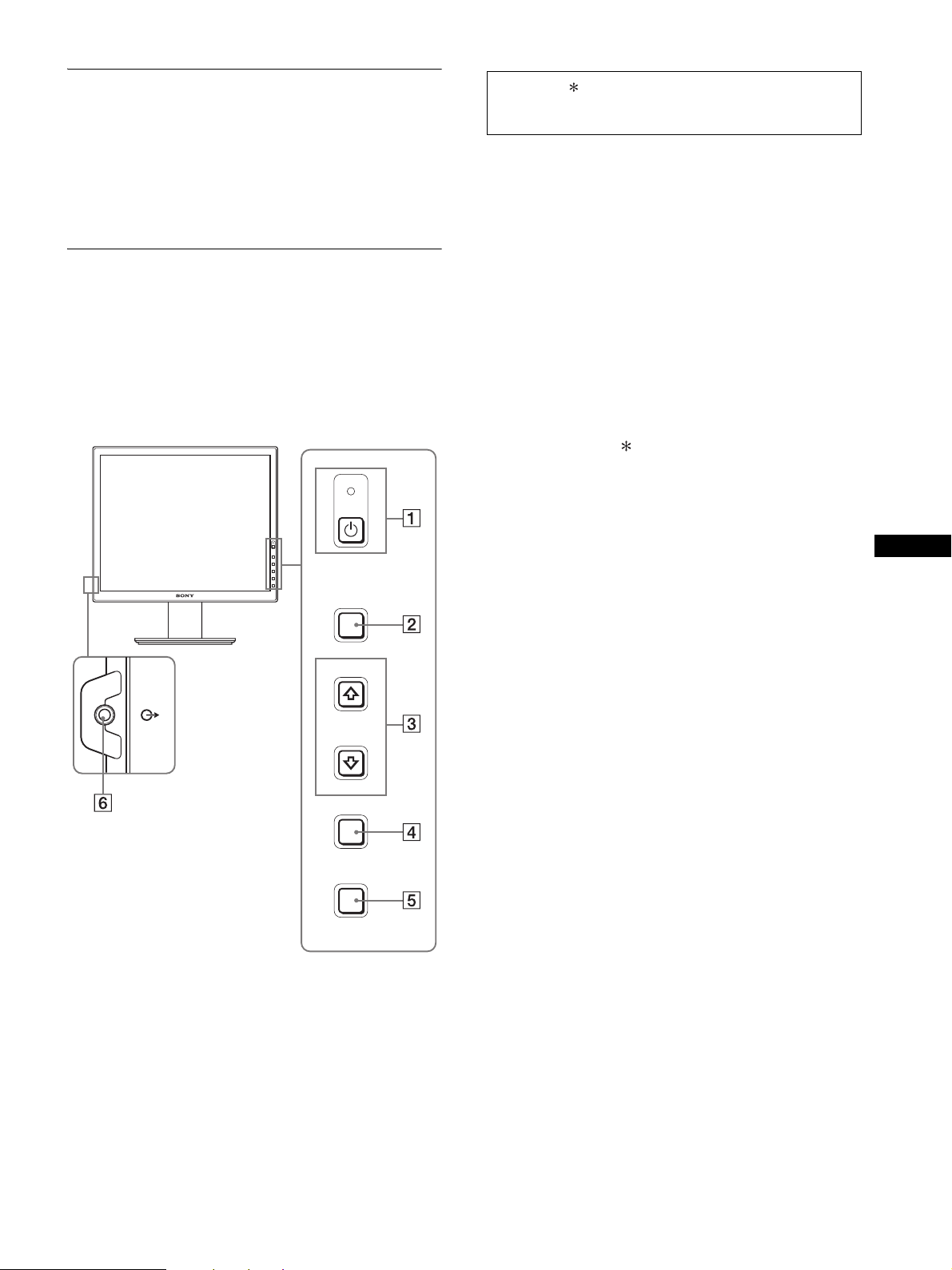
5
FRFR
Vérification du nom du modèle de
l’écran
Commencez par vérifier le nom du modèle de l’écran.
Le nom du modèle se trouve à l’arrière de l’écran
(Exemple: SDM-S75A).
Vous ne pouvez pas utiliser certaines fonctions et certains menus
avec certains modèles de l’écran.
Identification des composants et
des commandes
Pour plus de détails, reportez-vous aux pages indiquées entre
parenthèses.
L’illustration représente uniquement l’un des modèles
disponibles pour ce écran.
1 Commutateur 1 (alimentation) et indicateur
1 (alimentation) (pages 9, 16)
Cet interrupteur met l’écran sous tension. Appuyez de
nouveau sur ce commutateur pour mettre l’écran hors tension.
2 Touche MENU (page 12)
Cette touche permet d’activer et de désactiver l’écran de
menu.
3 Touches m/M (page 12)
Ces touches permettent de sélectionner les options de menu et
d’effectuer des réglages.
4 Touche OK (page 12)
Cette touche active les réglages et les options de menu
sélectionnés à l’aide des touches m/M (3).
INPUT (page 11)
Ces touches permettent de commuter le signal d’entrée vidéo
entre INPUT1 et INPUT2 lorsque deux ordinateurs sont
raccordés à l’écran. (Disponible uniquement lorsque le menu
est désactivé.)
5 Touche ECO (page 16)
Cette touche permet de réduire la consommation d’énergie.
Lorsque l’écran de menu n’est pas affiché, vous pouvez aussi
régler automatiquement la qualité de l’image du signal
d’entrée en cours en maintenant cette touche enfoncée
pendant plus de 3 secondes (Réglage automatique par touche
unique). (signal RVB analogique uniquement)
6 Prise de sortie audio (page 8)
Cette prise transmet les signaux audio vers les haut-parleurs
ou vers un autre appareil vidéo.
MENU
INPUT
ECO
OK
Avant de l’affichage
La marque indique des informations de spécifications
diverses selon les modèles. Pour plus de détails, reportez-
vous à la section « Spécifications » (page 20).
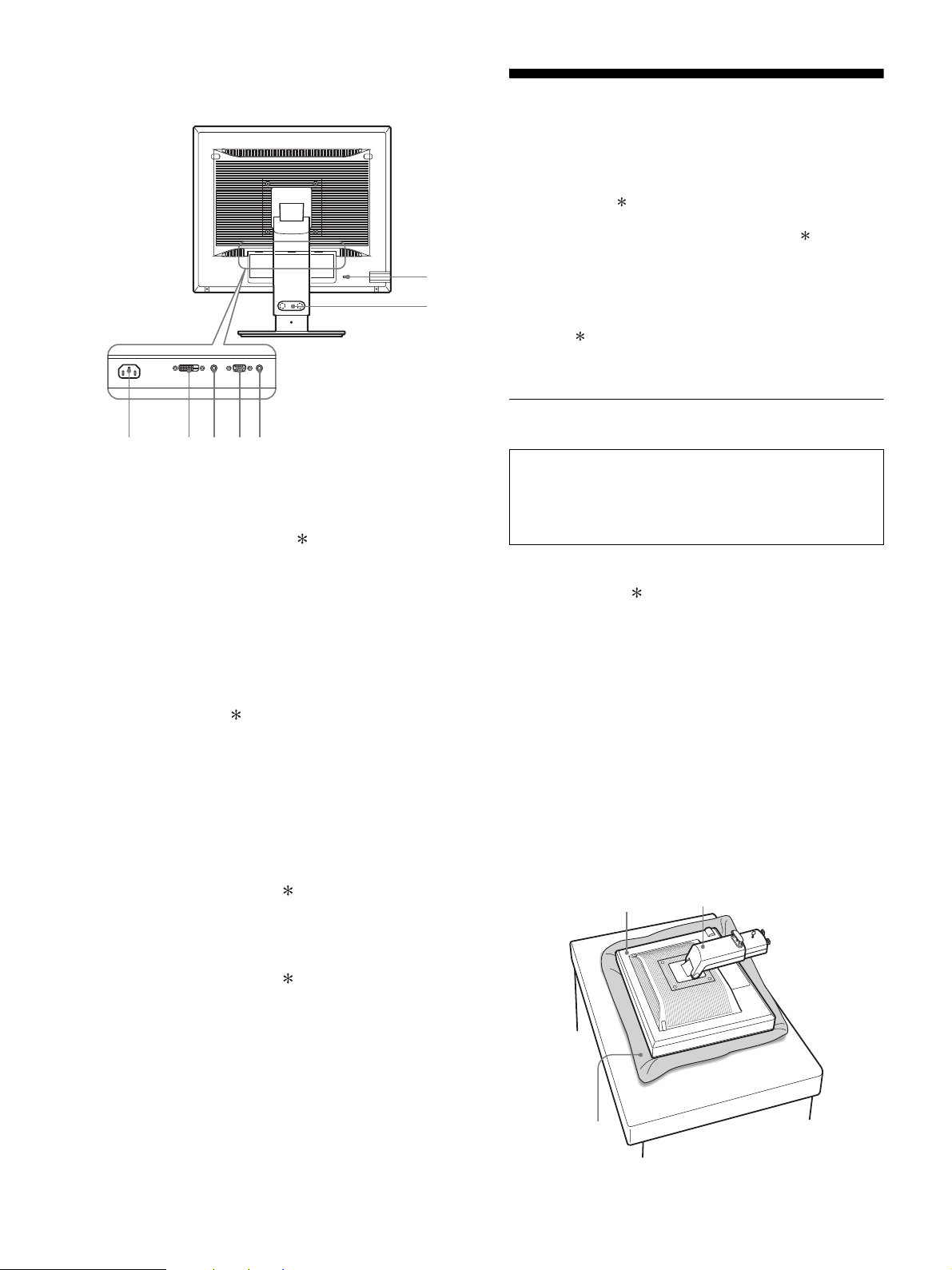
6
7 Connecteur AC IN (page 9)
Ce connecteur raccorde le cordon d’alimentation (fourni).
8 Connecteur d’entrée DVI-D (RVB numérique)
(page 8)
Ce connecteur transmet des signaux vidéo RVB numériques
conformes à la DVI Rév. 1.0.
9 Connecteur d’entrée HD15 (RVB analogique)
(page 8)
Ce connecteur transmet des signaux vidéo RVB analogiques
(0,700 Vc-c, positifs) et des signaux de synchronisation.
0 Support de câble (page 9)
Cette pièce permet de maintenir les câbles et les cordons
contre l’écran.
qa Orifice de verrouillage de sécurité
L’orifice de verrouillage de sécurité doit être utilisé avec le
système Kensington Micro Saver Security System.
Micro Saver Security System est une marque commerciale de
Kensington.
qs Prise audio pour INPUT1
Cette prise capte des signaux audio lorsqu’elle est raccordée
à la prise de sortie audio d’un ordinateur ou d’un autre
appareil audio raccordé à INPUT1.
qd Prise audio pour INPUT2
Cette prise capte des signaux audio lorsqu’elle est raccordée
à la prise de sortie audio d’un ordinateur ou d’un autre
appareil audio raccordé à INPUT2.
Installation
Avant d’utiliser votre écran, vérifiez si les accessoires suivants se
trouvent bien dans le carton d’emballage :
•Écran LCD
• Cordon d’alimentation
• Base du support
• Câble de signal vidéo HD15-HD15 (RVB analogique)
• Câble de signal vidéo DVI-D (RVB numérique)
• CD-ROM (logiciel utilitaire pour Windows et Macintosh,
mode d’emploi, etc.)
• Carte de garantie
• Guide de configuration rapide
La marque indique des informations de spécifications diverses
selon les modèles. Pour plus de détails, reportez-vous à la section
« Spécifications » (page 20).
Étape 1 : Assemblez le support
x En cas d’utilisation du support fourni-
Support fixe
1 Ouvrez le carton et retirez la base du support.
2 Vérifiez les pièces fournies.
• Base du support (avec vis sur le dessous)
3 Posez un tapis souple ou équivalent sur une surface
plane, un bureau par exemple.
Vous risquez d’endommager l’écran LCD et l’écran
proprement dit si vous le déposez directement sur le bureau.
4 Retirez l’écran du carton et posez le cadre de l’écran
le long du bord du bureau.
La figure illustre le support à hauteur réglable. Si vous utilisez
le support fixe, vous arrivez au terme de la procédure dès que
vous avez terminé l’étape 5.
qa
0
78q
s
9q
d
Arrière de l’écran
N’appuyez pas sur l’ecran LCD lorsque vous placez ou
soulevez l’ecran proprement dit sur un bureau ou une
surface similaire.
Cela peut endommager l’ecran LCD ou affecter son
uniformite.
Écran
Support
Tapis souple ou
équivalent
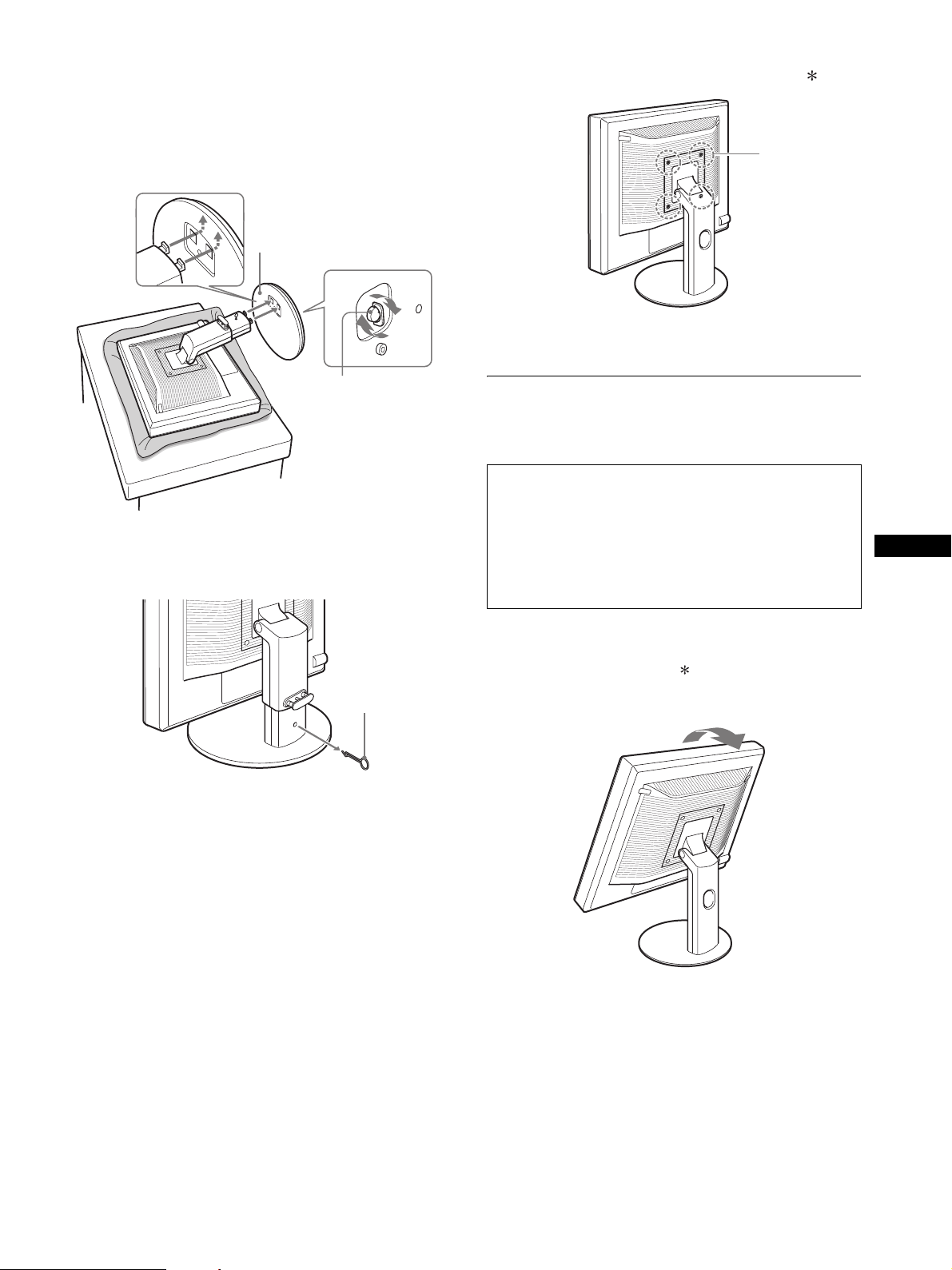
7
FRFR
5 Encliquetez les parties en saillie du bras du support
sur les orifices de la base du support afin de fixer
cette dernière.
1
Soulevez la poignée de la vis pour visser
correctement la base du support.
2
Assurez-vous que la vis est serrée et retournez la
poignée de la vis.
6 Si vous utilisez un support à hauteur réglable,
retirez la goupille d’arrêt après avoir levé
verticalement le support à hauteur réglable.
Remarque
Ne retirez pas la goupille d’arrêt aussi longtemps que le support
demeure couché. Il risquerait de tomber ou de vous blesser s’il
venait à se détacher de la base de manière impromptue.
x En cas d’utilisation du support VESA
Vous pouvez fixer un support VESA d’une autre marque en
retirant le support fourni qui est déjà fixé à l’écran.
Étape 2 : Raccordez les câbles de
signal vidéo
1 Inclinez l’écran vers l’avant.
Levez davantage l’écran si vous utilisez le support
de réglage de la hauteur.
1 Base du support
2 Vis
Goupille d’arrêt
• Mettez l’écran et l’ordinateur hors tension avant de
procéder au raccordement.
Remarques
• Ne touchez pas les broches du connecteur du câble de signal vidéo,
car vous risquez de les plier.
• Vérifiez l’alignement du connecteur pour ne pas tordre les broches
du connecteur du câble de signal vidéo.
Vis compatibles
avec la norme
VESA (4)
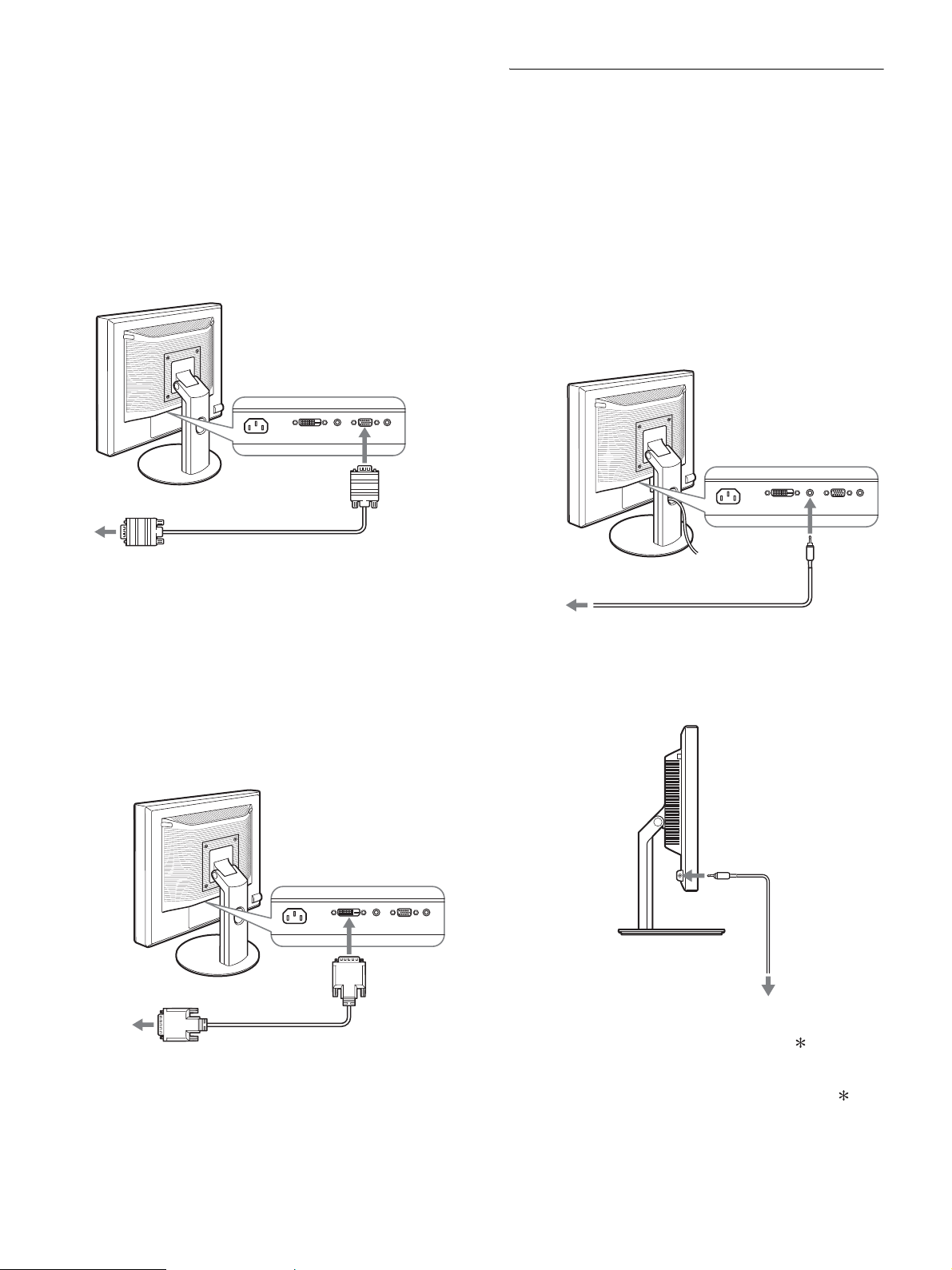
8
2 Raccordez les câbles de signal vidéo à l’écran.
Si vous utilisez le support fixe, faites d’abord passer les câbles
de signal vidéo à travers l’orifice du support, puis raccordez-
les à l’écran. Pour plus de détails, reportez-vous à la section
« Etape 5 : Fixez les cordons ».
x Raccordez un ordinateur équipé d’un
connecteur de sortie HD15 (RVB
analogique)
À l’aide du câble de signal vidéo HD15-HD15 fourni (RVB
analogique), raccordez l’ordinateur au connecteur d’entrée
HD 15 de l’écran (RVB analogique).
x Raccordez un ordinateur équipé d’un
connecteur de sortie DVI (RVB numérique)
Raccordez l’ordinateur au connecteur d’entrée DVI-D de
l’écran (RVB numérique) à l’aide du câble de signal vidéo
DVI-D (RVB numérique) fourni.
Étape 3 : Raccordez les cordons
audio
Si vous ne souhaitez pas reproduire le son, vous n’avez
pas besoin de ce raccordement.
Si vous utilisez le support fixe, faites d’abord passer les cordons
audio à travers l’orifice du support, puis raccordez-les à l’écran.
Pour plus de détails, reportez-vous à la section « Etape 5 : Fixez
les cordons ».
1 Raccordez la prise d’entrée audio de l’écran et la
prise de sortie audio de l’ordinateur ou de tout autre
appareil audio en utilisant le câble audio (non
fourni).
2 Raccordez le câble audio (non fourni) correctement
à la prise de sortie audio de l’écran.
La sortie audio sera modifiée dès que le raccordement de la sortie
audio et de l’entrée audio de l’écran sera terminé.
Raccordez l’appareil audio situé dans la plage d’entrée reprise
dans les caractéristiques d’entrée audio de l’écran. Si le niveau
d’entrée est trop élevé, l’écran risque d’être endommagé.
câble de signal vidéo
HD15-HD15
(RVB analogique)
(fourni)
vers le connecteur de sortie HD15 de
l’ordinateur (RVB analogique)
vers le
connecteur
d’entrée HD 15
(RVB
analogique)
vers le connecteur de sortie DVI
de l’ordinateur (RVB numérique)
vers le connecteur
d’entrée DVI-D
(RVB numérique)
câble de signal vidéo
DVI-D (RVB
numérique) (fourni)
vers l’entrée audio
câble audio (non fourni)
vers la sortie audio de
l’ordinateur ou d’un autre
appareil audio
vers l’entrée audio
cordon audio
(fourni)
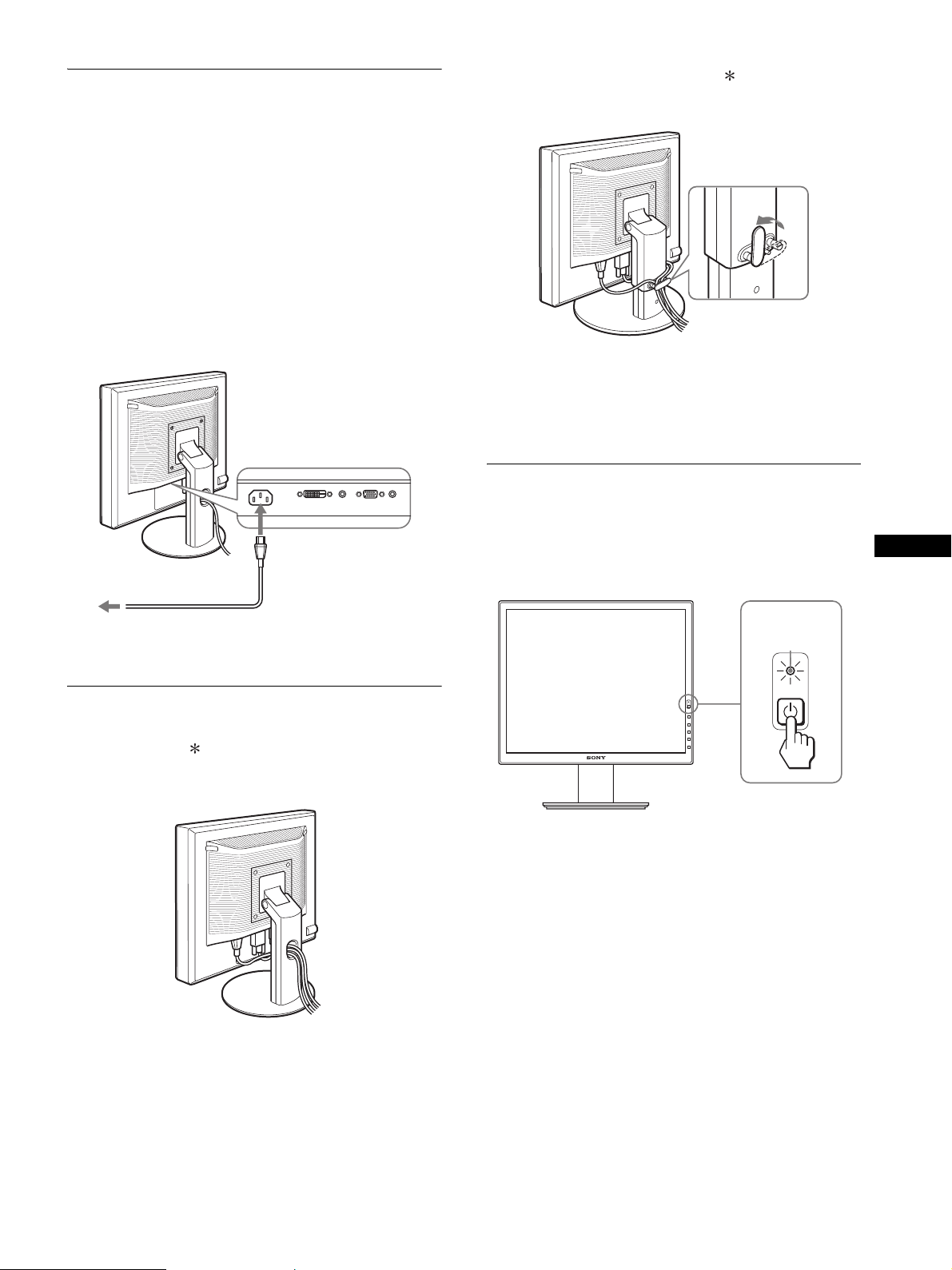
9
FRFR
Étape 4 : Branchez le cordon
d’alimentation
Si vous utilisez le support fixe, faites d’abord passer le cordon
d’alimentation à travers l’orifice du support, puis raccordez-le à
l’écran. Pour plus de détails, reportez-vous à la section « Etape 5
: Fixez les cordons».
1 Raccordez solidement le cordon d’alimentation
fourni au connecteur AC IN de l’écran.
2 Raccordez solidement l’autre extrémité du cordon à
une prise secteur.
Étape 5 : Fixez les cordons
x Support fixe
Assurez-vous que les cordons et les câbles ont bien été passés à
travers l’orifice du pied, de la manière illustrée.
x Support à hauteur réglable
Tirez les cordons et les câbles en les passant dans le collier des
câbles, comme illustré.
Remarque
Lorsque vous rassemblez les cordons et les câbles, veillez à laisser un peu
de jeu. S’ils sont trop tendus, ils risquent de se détacher des connecteurs
ou des prises quand vous réglez l’angle de l’écran. Si vous tirez trop fort
sur les cordons et les câbles, vous risquez de les endommager.
Étape 6 : Mettez l’écran et
l’ordinateur sous tension
1 Appuyez sur le commutateur 1 (alimentation) situé
à droite, à l’avant de l’écran.
L’indicateur 1 (alimentation) s’allume en vert.
2 Mettez l’ordinateur sous tension.
Si aucune image n’apparaît sur l’écran
• Vérifiez que le cordon d’alimentation et le câble du signal
vidéo sont correctement raccordés.
• Si l’indication « PAS D’ENTREE VIDEO » apparaît sur
l’écran :
– L’ordinateur est en mode d’économie d’énergie. Essayez
d’appuyer sur n’importe quelle touche du clavier ou déplacez la
souris.
– Vérifiez que le réglage du signal d’entrée est correct en
appuyant sur la touche OK (page 11).
• Si l’indication
«
CABLE NON CONNECTÉ » apparaît sur
l’écran :
– Vérifiez que les câbles vidéo sont bien raccordés.
– Vérifiez que le réglage du signal d’entrée est correct en
appuyant sur la touche OK (page 11).
Cordon d’alimentation (fourni)
vers AC IN
vers une prise secteur
2
1
L’indicateur
s’allume en vert
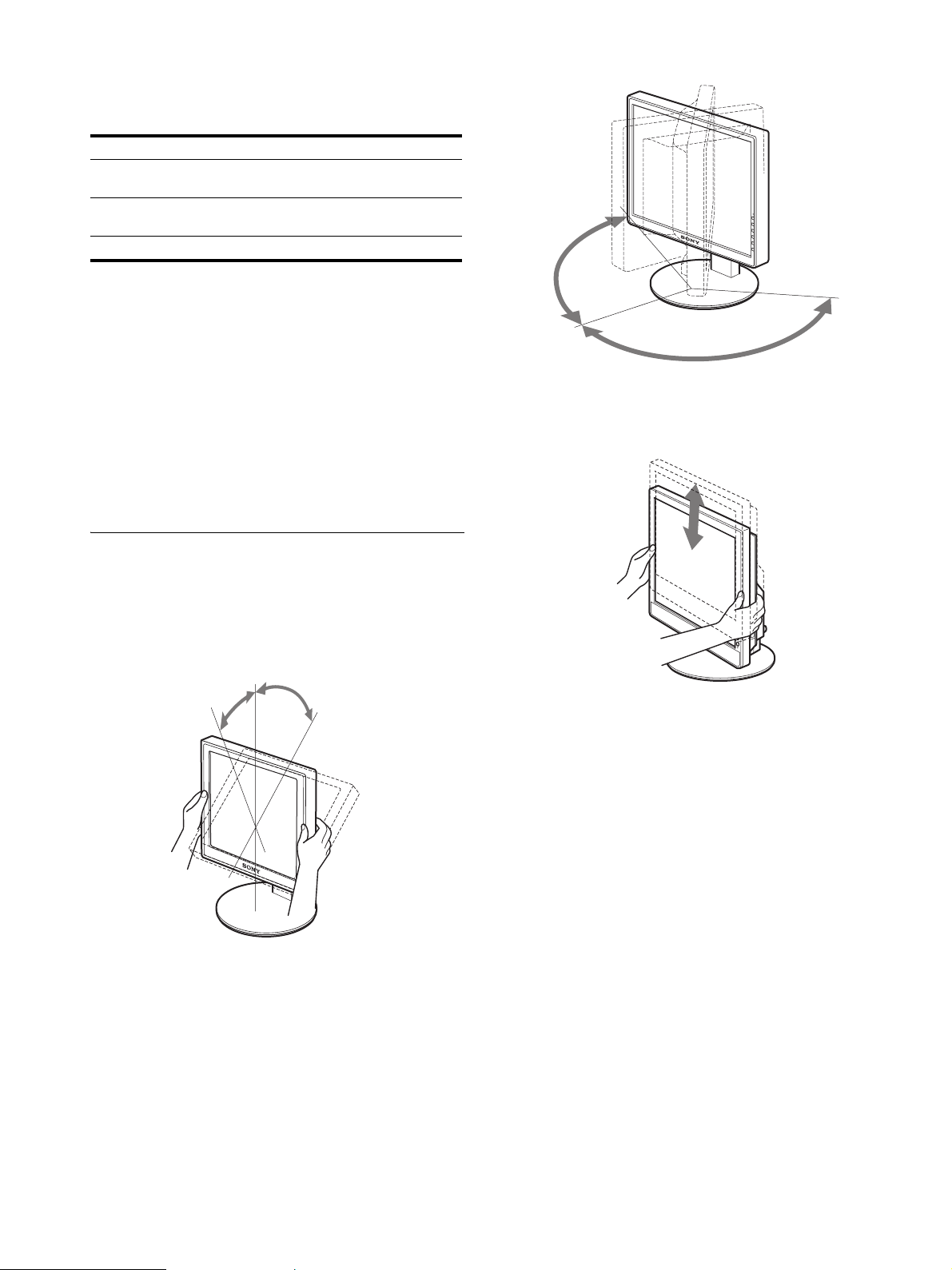
10
• Si l’indication « HORS PLAGE FRÉQUENCES » apparaît
sur l’écran :
Reconnectez l’ancien écran. Réglez ensuite la carte graphique
de l’ordinateur dans les plages suivantes.
Pour des informations plus détaillées sur les messages à l’écran,
voir « Symptômes de défaillances et remèdes » à la page 18.
Vous n’avez besoin d’aucun pilote pour ce moniteur
Le moniteur prend en charge la fonction Plug & Play « DDC » et détecte
automatiquement toutes les autres informations relatives au moniteur. Il
n’est pas nécessaire d’installer de pilote pour cet ordinateur.
La première fois que vous mettez l’ordinateur sous tension après avoir
raccordé le moniteur, l’assistant d’installation peut s’afficher sur l’écran.
Dans ce cas, suivez les indications affichées à l’écran. Le moniteur Plug
& Play est automatiquement sélectionné afin que vous puissiez l’utiliser.
La fréquence verticale devient 60 Hz.
Etant donné que les scintillements sur le moniteur ne sont pas gênants,
vous pouvez l’utiliser tel quel. Vous n’avez pas besoin de régler la
fréquence verticale sur une valeur particulièrement élevée.
Étape 7 : Réglez l’inclinaison et la
hauteur
Cet écran peut être ajusté selon les angles illustrés ci-dessous.
Maintenez le panneau LCD par les deux côtés puis
réglez les angles d’inclinaison de l’écran.
Lorsque vous utilisez le support à hauteur réglable, la hauteur peut
aussi être réglée de la manière décrite ci-dessous.
Saisissez le panneau LCD des deux côtés, puis ajustez
la hauteur de l’écran.
Pour une utilisation confortable de l’écran
Ajustez l’angle de vision de votre écran selon la hauteur de votre
bureau et de votre siège de sorte que l’écran ne réfléchisse pas la
lumière dans les yeux.
Remarques
• Quand vous réglez l’angle de l’écran, veillez à ce qu’il ne percute aucun
objet environnant.
• Ne placez aucun objet sous l’écran lorsque vous réglez la hauteur du
support. Il risquerait d’être endommagé accidentellement.
RVB analogique RVB numérique
Fréquence
horizontale
28 – 80 kHz 28 – 64 kHz
Fréquence
verticale
48 – 75 Hz 60 Hz
Résolution 1280 × 1 024 ou moins
environ 20°
environ 5°
environ
175°
environ
175°
environ 110 mm (4
11
/
32
pouces)
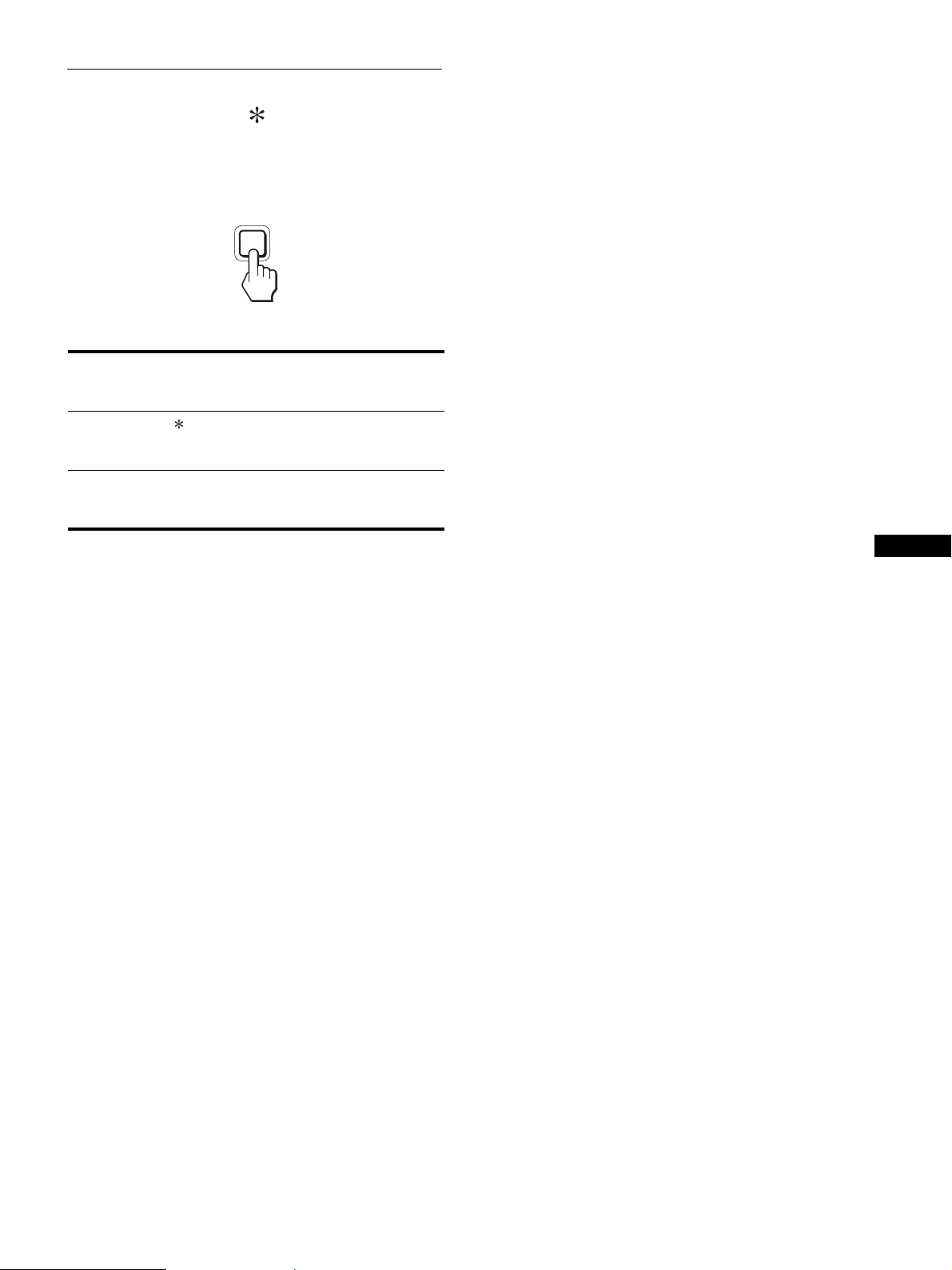
11
FRFR
Sélection du signal d’entrée
(INPUT1/INPUT2)
Appuyez sur la touche OK.
Le signal d’entrée change chaque fois que vous appuyez sur cette
touche.
Message à l’écran (s’affiche
pendant environ 5 secondes
dans le coin supérieur gauche).
Configuration du signal en
entrée
INPUT1 : DVI-D
Connecteur d
’entrée DVI-D
(RVB numérique) pour
INPUT1
INPUT2 : HD15 Connecteur d
’entrée HD15
(RVB analogique) pour
INPUT2
MENU
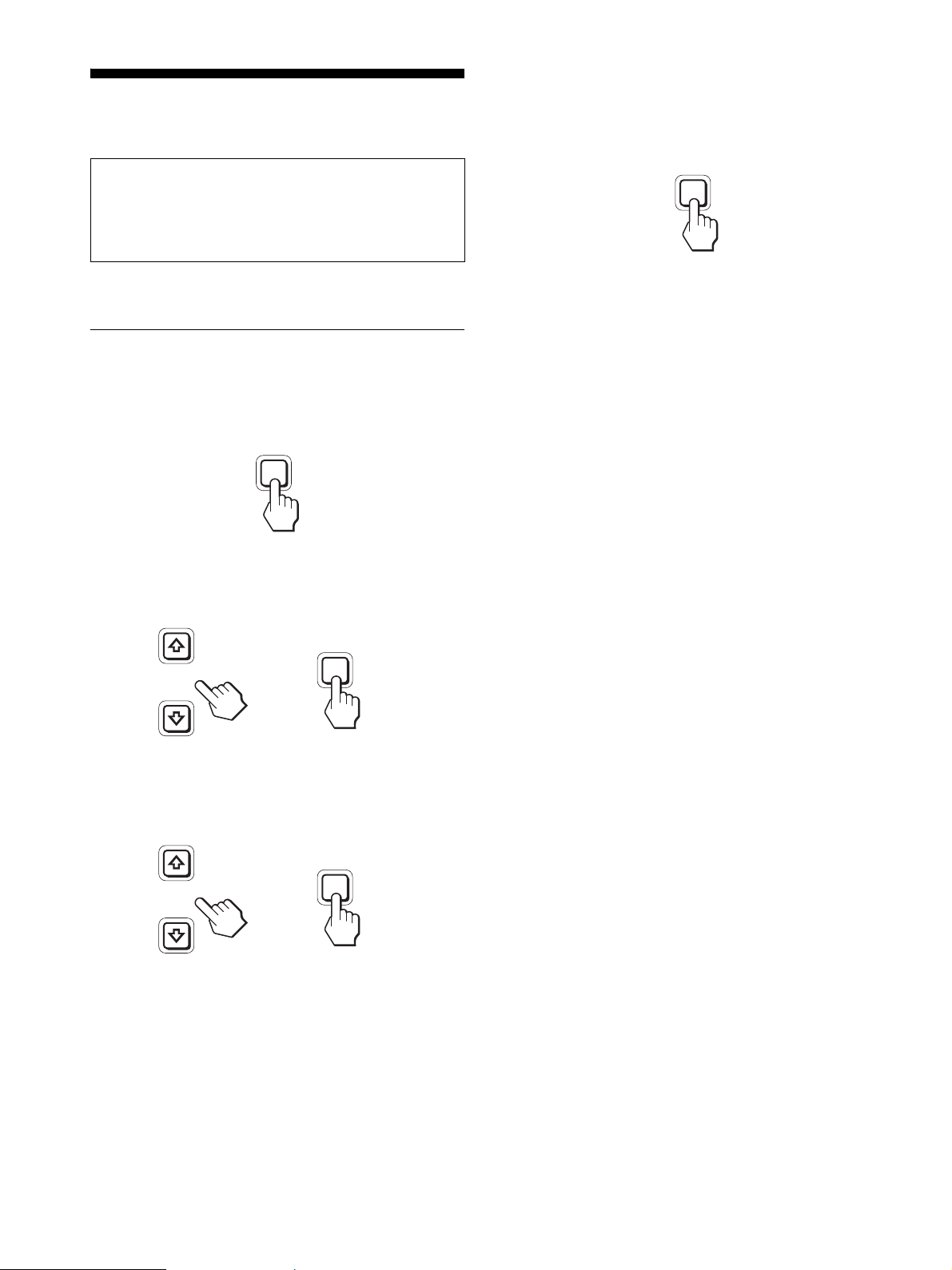
12
Personnalisation de votre
écran
Vous pouvez effectuer de nombreux réglages de votre écran à
l’aide des menus affichés.
Pilotage par menu
1 Affichez le menu principal.
Appuyez sur la touche MENU pour afficher le menu principal
sur votre écran.
2 Sélectionnez le menu que vous souhaitez régler.
Appuyez sur les touches m/M pour afficher le menu de votre
choix. Appuyez sur la touche OK pour sélectionner un
paramètre.
3 Réglez l’option.
Appuyez sur les touches m/M pour effectuer votre réglage,
puis appuyez sur la touche OK.
Lorsque vous appuyez sur OK, le réglage est mémorisé et
l’appareil revient au menu précédent.
4 Refermez le menu.
Appuyez une fois sur la touche MENU pour revenir en mode
de visualisation normale. Si vous n’actionnez aucune touche,
le menu se referme automatiquement au bout d’environ
45 secondes.
x Réinitialisation des réglages à leurs valeurs
par défaut
Vous pouvez réinitialiser les réglages à l’aide du menu
REINITIALISATIO.
Pour plus d’informations sur la réinitialisation des réglages, voir
0 (REINITIALISATIO) à la page 15.
Avant de procéder aux réglages
Raccordez l’écran et l’ordinateur, puis mettez-les sous tension.
Pour obtenir des résultats optimaux, attendez au moins
30 minutes avant d’effectuer des réglages après avoir raccordé
l’écran à l’ordinateur et l’avoir mis sous tension.
MENU
INPUT
OK
,
INPUT
OK
,
MENU
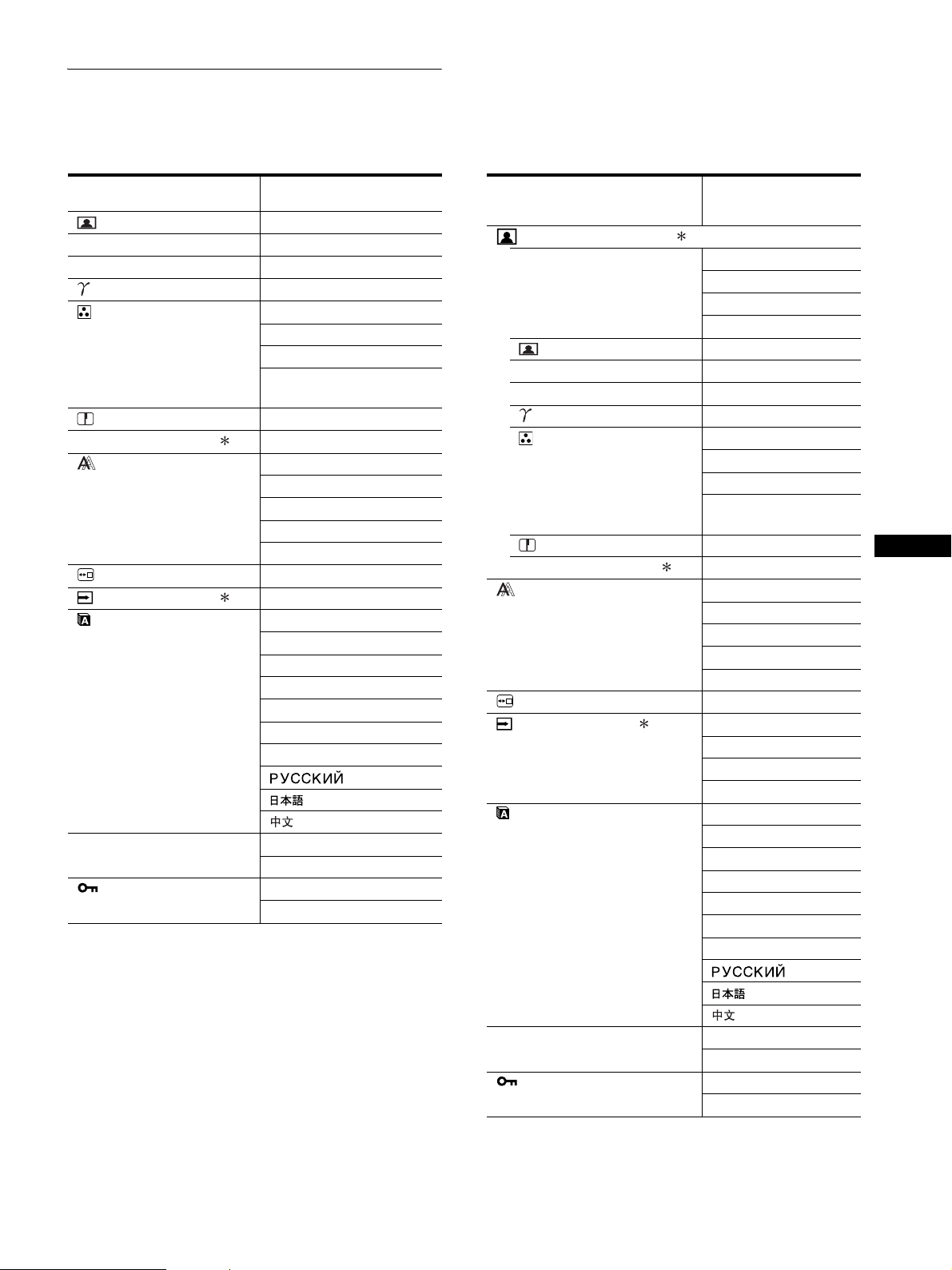
13
FRFR
Liste des options de menu
Les options de menu varient selon les modèles.
Vérifiez le nom du modèle indiqué sur la partie inférieure de l’écran et reportez-vous aux tableaux ci-dessous.
1)
CONTRASTE, LUMINOSITÉ et GAMMA ne peuvent pas être
sélectionnés lorsque « sRGB » est sélectionné.
SDM-S75A/S95AR
SDM-S75E/S95ER
RETROÉCLAIRAGE ;
6 CONTRASTE ;
1)
8 LUMINOSITÉ ;
1)
GAMMA ;
1)
COULEUR 9300K
6500K
sRGB
1)
UTILISATEUR (gain de R
et B)
NETTETE ;
0 REINIT. DU MODE –
ECRAN AUTOMATIQUE
PHASE
HORLOGE
CENTRAGE H
CENTRAGE V
POSITION MENU ;
DÉTECTE ENTRÉE –
LANGUAGE ENGLISH
FRANÇAIS
DEUTSCH
ESPAÑOL
ITALIANO
NEDERLANDS
SVENSKA
0 REINITIALISATIO OK
ANNULER
VERROU DU MENU ACTIF
INACTIF
SDM-S75D/S95DR
SDM-S75F/S95FR
SDM-S75N/S95NR
Menu RÉGLAGE IMAGE
MODE (Mode-ECO) HAUT
MOYEN
BAS
UTILISATEUR
RETROÉCLAIRAGE ;
6 CONTRASTE ;
1)
8 LUMINOSITÉ ;
1)
GAMMA ;
1)
COULEUR 9300K
6500K
sRGB
1)
UTILISATEUR (gain
de R et B)
NETTETE ;
0 REINIT. DU MODE ;
ECRAN AUTOMATIQUE
PHASE
HORLOGE
CENTRAGE H
CENTRAGE V
POSITION MENU ;
DÉTECTE ENTRÉE AUTO ACTIVÉE
ENTRÉE 1
ENTRÉE 2
AUTO DESACTIV
LANGUAGE ENGLISH
FRANÇAIS
DEUTSCH
ESPAÑOL
ITALIANO
NEDERLANDS
SVENSKA
0 REINITIALISATIO OK
ANNULER
VERROU DU MENU ACTIF
INACTIF
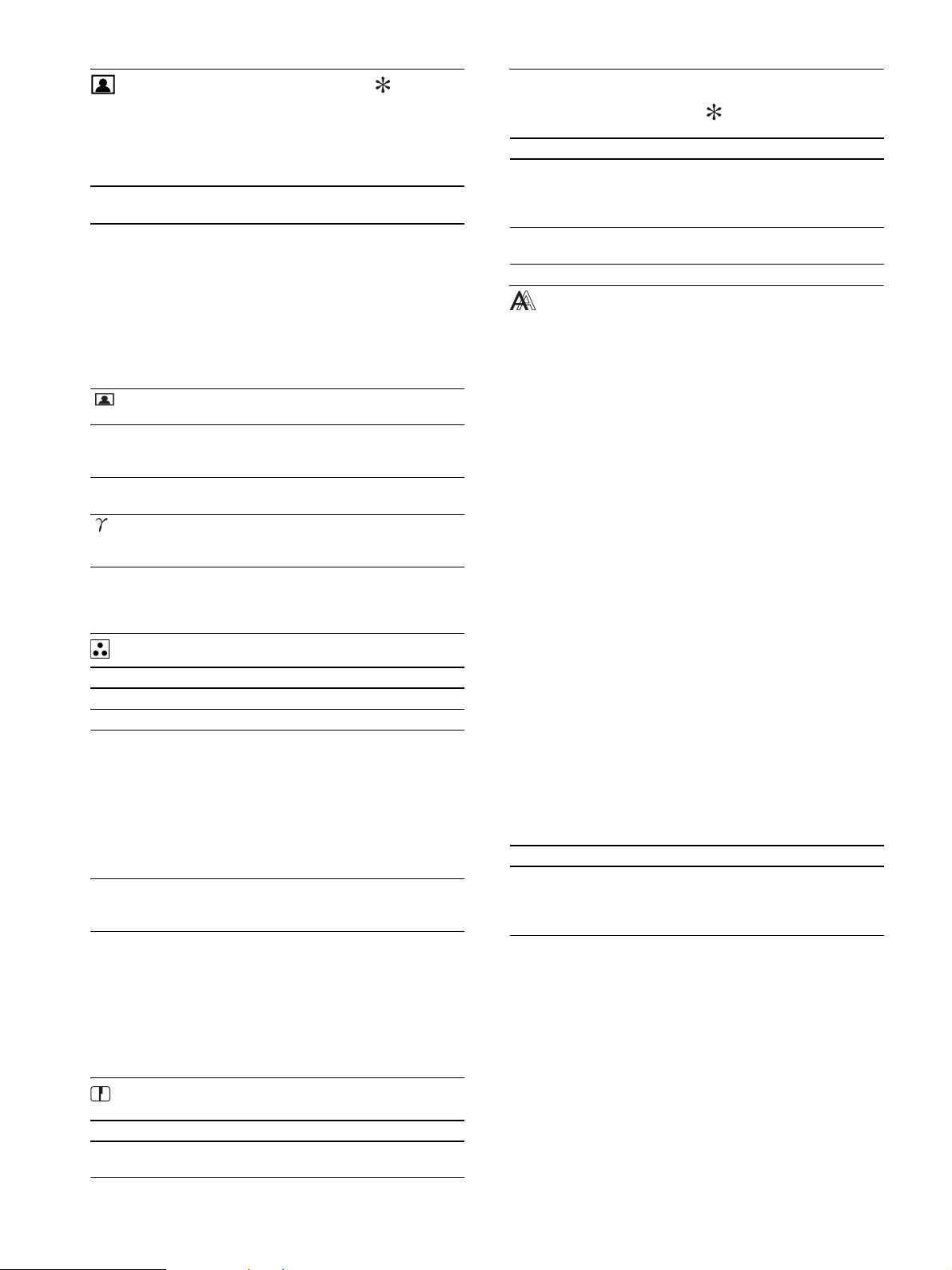
14
Menu RÉGLAGE IMAGE
Pour les écrans dotés d’entrées analogiques,
RETROÉCLAIRAGE, CONTRASTE et LUMINOSITÉ peuvent
être réglés lorsque le mode ECO est sélectionné pour
UTILISATEUR uniquement.
Remarque
Si vous sélectionnez « sRGB », vous ne pouvez pas régler les options
CONTRASTE, LUMINOSITÉ et GAMMA.
Menu COULEUR
1)
Si un ordinateur ou un autre appareil raccordé à l’écran n’est pas compatible
sRGB, les couleurs ne peuvent pas être ajustées sur le profil sRGB.
Lorsque vous sélectionnez « sRGB », vous ne pouvez pas ajuster
CONTRASTE, LUMINOSITÉ et GAMMA.
sRGB n’est pas disponible lorsque les réglages HAUT, MOYEN ou BAS
du mode ECO sont sélectionnés. (« sRGB » apparaît alors en grisé)
2)
Cet ajustement modifie la température des couleurs en augmentant ou
en diminuant les composantes R (rouge) et B (bleu) par rapport à V
(vert). La composante V reste fixe.
Menu NETTETE
0 Menu REINIT. DU MODE (pour le
RÉGLAGE IMAGE)
Menu ECRAN (signal RVB
analogique uniquement)
x Fonction de réglage automatique de la
qualité de l’image
Lorsque l’écran reçoit un signal d’entrée, il ajuste
automatiquement la position et la netteté de l’image
(phase/horloge), et garantit la qualité de l’image qui
apparaît sur l’écran (page 16).
Remarque
Lorsque la fonction de réglage automatique de la qualité l’image est
activée, seul le commutateur
1 (alimentation) fonctionne.
L’image risque de scintiller pendant ce temps, mais il ne s’agit pas d’un
disfonctionnement. Patientez simplement quelques secondes, jusqu’à ce
que le réglage soit terminé.
Si la fonction de réglage automatique de la qualité de
l’image de cet écran semble ne pas régler
complètement l’image
Vous pouvez effectuer un autre réglage automatique de la qualité de
l’image pour le .signal d’entrée réglé. (Voir « AUTOMATIQUE »
ci-dessous.)
Si vous souhaitez effectuer d’autres réglages de la
qualité de l’image
Vous pouvez régler manuellement la netteté (phase/horloge) et la
position (horizontale/verticale) de l’image.
Ces réglages sont mémorisés et apparaissent automatiquement
lorsque l’écran reçoit le même signal d’entrée. Ces réglages
doivent éventuellement être répétés si vous changez de signal
d’entrée après avoir rebranché votre ordinateur.
x Ajustez la netteté et la position de l’image
manuellement (PHASE/HORLOGE/
CENTRAGE H/CENTRAGE V)
Vous pouvez ajuster la netteté et la position de l’image, comme suit.
1 Réglez la résolution sur 1 280 × 1 024 sur
l’ordinateur.
2 Chargez le CD-ROM.
3 Lancez le CD-ROM, puis affichez la mire de test.
Options Appuyez sur la
touche M
Appuyez sur la
touche m
MODE
HAUT
MOYEN
BAS
UTILISATEUR
Reglez le mode ECO.
Selectionnez la luminosite de l'ecran en
choisissant « HAUT », « MOYEN »,
« BAS »‚ ou « UTILISATEUR »‚ afin de
reduire sa consommation d'energie.
Vous pouvez regler les subtiles nuances de
la luminosite de l'ecran en selectionnant le
mode « UTILISATEUR ».
Vous pouvez reglez divers modes en
selectionnant une entree.
RETROÉCLAIRAGE
Éclaircit l’écran. Assombrit l’écran.
6 CONTRASTE Accentue le
contraste de
l’image.
Réduit le contraste
de l’image.
8 LUMINOSITÉ Illumine l’image
(étiquette noire).
Assombrit l’image
(étiquette noire).
GAMMA Caractéristiques
Vous pouvez ajuster vos images à l’écran
en fonction des couleurs d’origine.
Options Caractéristiques
9300K Teinte bleutée
6500K Teinte rougeâtre
sRGB
1)
Lorsque vous sélectionnez « sRGB », les
couleurs sont ajustées en fonction du
profil sRGB. (Le réglage des couleurs
sRGB est un protocole d’espace
colorimétrique conforme aux normes
industrielles.) Lorsque vous sélectionnez
« sRGB », les réglages des couleurs de
votre ordinateur doivent être ajustés sur
le profil sRGB.
UTILISATEUR
2)
Vous pouvez ajuster précisément la
température des couleurs et ce réglage
des couleurs est mémorisé.
Options Appuyez sur les touches m/M
NETTETE Effectuez ce réglage pour augmenter la
netteté des bords des images, etc.
Options Caractéristiques
OK Vous pouvez réinitialiser les réglages de
RETROÉCLAIRAGE, CONTRASTE,
LUMINOSITÉ, GAMMA, COULEUR
et NETTETE aux valeurs par défaut.
ANNULER Annule la réinitialisation et revient au
menu.
Options Caractéristiques
AUTOMATIQUE Procédez aux réglages appropriés de la
phase, de l’horloge et de la position
horizontale/verticale de l’écran pour le
signal d’entrée réglé et enregistrez-les.
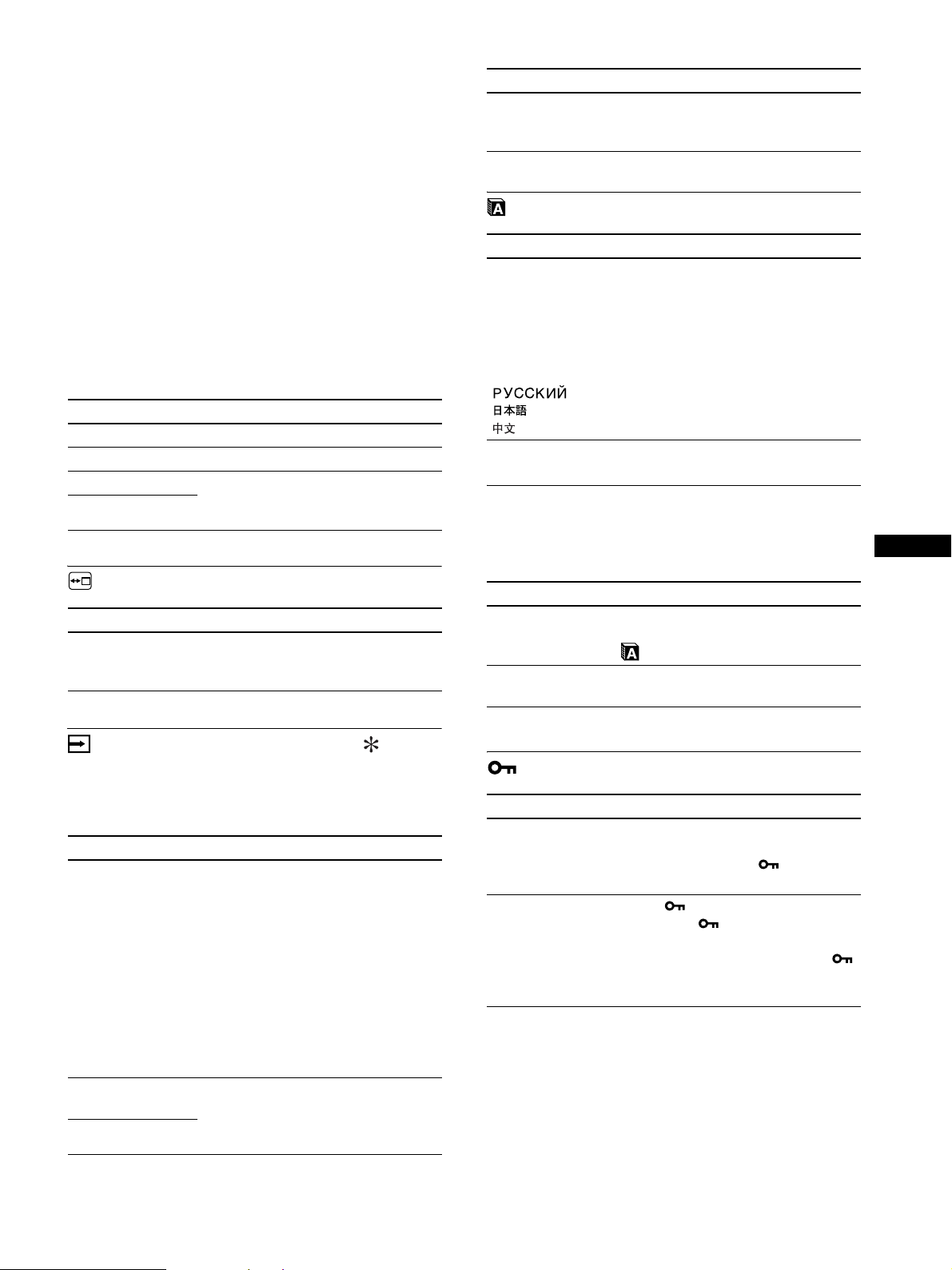
15
FRFR
Pour l’utilisateur Windows
Si le démarrage automatique est activé :
1 Cliquez sur « Outil de réglage d’affichage (UTILITY) »
2 Cliquez sur « Adjust » et vérifiez la résolution, puis cliquez
sur « Next ».
3 Les mires de test de PHASE/HORLOGE/CENTRAGE H/
CENTRAGE V s’affichent successivement.
Si le démarrage automatique échoue :
1 Ouvrez « Poste de travail » et cliquez avec le bouton droit
sur l’icône du CD-ROM. Cliquez sur « Explorer » et ouvrez
l’icône du CD-ROM.
2 Ouvrez [Utility], puis sélectionnez [Windows].
3 Démarrez [Win_Utility.exe].
La mire de test s’affiche.
Pour l’utilisateur Macintosh
1 Ouvrez [Utility], puis sélectionnez [Mac].
2 Démarrez [Mac_Utility.exe]
La mire de test s’affiche.
Menu POSITION MENU
Menu DÉTECTE ENTRÉE
Ces modèles d’entrée numérique recherchent n’importe quels
signaux d’entrée. Vous pouvez commuter automatiquement les
signaux.
Menu LANGUAGE
0 Menu REINITIALISATIO
(réinitialisation aux valeurs par
défaut)
Menu VERROU DU MENU
Options Appuyez sur les touches m/M
PHASE Réduisez les rayures horizontales à l’écran.
HORLOGE Les rayures verticales disparaissent.
CENTRAGE H Ajustez la position de l’image lorsque
votre image n’apparaît pas au centre de
l’écran.
CENTRAGE V
Options Appuyez sur les touches m/M
POSITION MENU Vous pouvez modifier la position
d’affichage du menu à l’écran. Vous avez
le choix entre l’une des 9 positions.
Options Caractéristiques
AUTO ACTIVÉE Si l’entrée sélectionnée n’a pas de signal
ou si vous sélectionnez une entrée avec
la touche OK et qu’elle n’a pas de signal
d’entrée, un message s’affiche sur
l’écran. L’écran vérifie alors le signal
d’entrée et bascule automatiquement
vers l’autre entrée.
Lorsque l’entrée est commutée, l’entrée
sélectionnée est affichée dans le coin
supérieur gauche de l’écran.
Lorsque aucun signal n’est capté, l’écran
passe en mode de veille.
ENTRÉE 1 A la mise sous tension de l’écran,
ENTRÉE1 ou ENTRÉE 2 apparaît
comme réglage prioritaire (DÉTECTE
ENTRÉE ne fonctionne pas).
ENTRÉE 2
AUTO DESACTIV L’entrée n’est pas changée
automatiquement. Appuyez sur la touche
OK pour changer l’entrée.
Options Appuyez sur les touches m/M
ENGLISH
FRANÇAIS
DEUTSCH
ESPAÑOL
ITALIANO
NEDERLANDS
SVENSKA
Anglais
Allemand
Espagnol
Italien
Néerlandais
Suédois
Russe
Japonais
Chinois
Options Caractéristiques
OK Réinitialise toutes les données de réglage
à leurs valeurs par défaut sauf celles du
(LANGUAGE).
ANNULER Annule la réinitialisation et revient à
l’écran de menu.
Options Caractéristiques
ACTIF Seul le 1 commutateur d’alimentation
1 est actif. Si vous tentez de lancer une
autre opération, l’icône (VERROU
DU MENU) apparaît sur l’écran.
INACTIF Réglez (VERROU DU MENU) sur
INACTIF. Si (VERROU DU
MENU) est réglé sur ACTIF, lorsque
vous appuyez sur la touche MENU,
(VERROU DU MENU) est
automatiquement sélectionné.
Options Caractéristiques
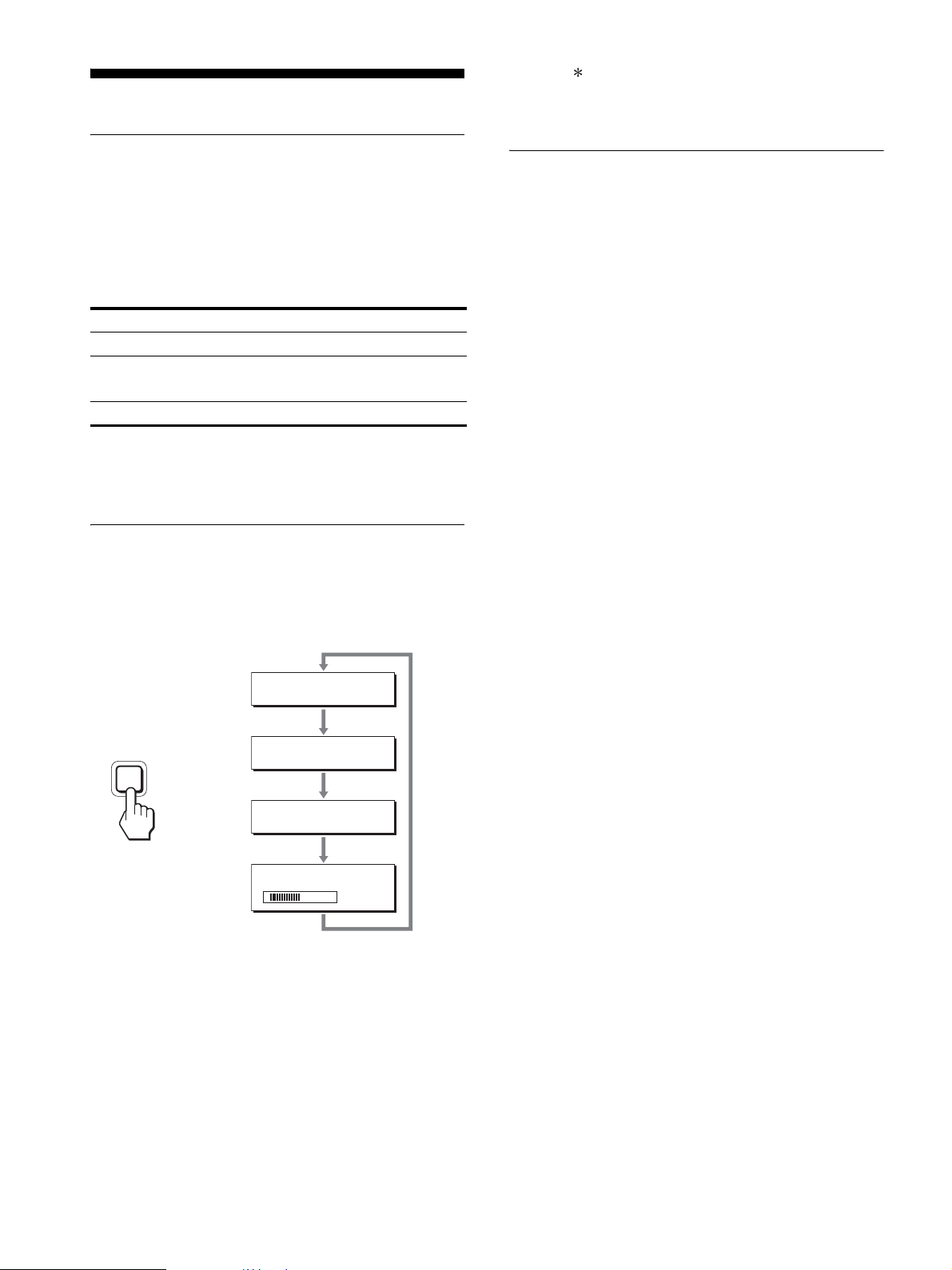
16
Spécifications techniques
Fonction d’économie d’énergie
Cet écran satisfait aux critères d’économie d’énergie VESA,
ENERGY STAR et NUTEK. Si l’écran est raccordé à un
ordinateur ou à une carte graphique vidéo compatible DPMS
(Display Power Management Standard) pour une entrée
analogique/compatible DMPM (DVI Digital Monitor Power
Management) pour une entrée numérique, l’écran réduit
automatiquement sa consommation d’énergie comme indiqué ci-
dessous.
1)
Lorsque votre ordinateur passe en mode « inactif », le signal d’entrée
est coupé est l’indication PAS D’ENTREE VIDEO apparaît à l’écran.
Au bout de 5 secondes, l’écran passe en mode d’économie d’énergie.
« sommeil profond » est un mode d’économie d’énergie défini par
l’Environmental Protection Agency.
Réduction de la consommation
électrique
(Mode-ECO)
Si vous appuyez à plusieurs reprises sur la touche ECO situé à
l’avant de l’écran, vous pouvez sélectionner la luminosité de l’écran.
Chaque mode apparaît à l’écran et la luminosité de celui-ci est
réduite en fonction du mode. Le menu disparaît automatiquement
dans les cinq secondes.
La luminosité de l’écran et la consommation électrique sont
réduites suivant le changement de mode, de HAUT à MOYEN et
à BAS.
Le réglage par défaut de la luminosité de l’écran est fixé à HAUT.
Si vous sélectionnez UTILISATEUR, vous pouvez régler le
rétroéclairage en appuyant sur les touches m/M, les mêmes que
celles que vous utilisez lorsque vous sélectionnez
RETROÉCLAIRAGE dans le menu.
Remarque
Pour les écrans dotés d’entrées analogiques, les options de menu
RETROÉCLAIRAGE, CONTRASTE et LUMINOSITÉ sont disponibles
uniquement lorsque le mode ECO est réglé sur UTILISATEUR (page 14).
Fonction de réglage automatique
de la qualité de l’image
(signal RVB
analogique uniquement)
Lorsque l’écran reçoit un signal d’entrée, il ajuste
automatiquement la position et la précision de
l’image (phase/horloge) et garantit la qualité de
l’image qui apparaît sur l’écran.
Le mode préréglé par défaut
Lorsque l’écran reçoit un signal d’entrée, il fait automatiquement
correspondre le signal à l’un des modes préréglés par défaut,
enregistrés dans la mémoire de l’écran afin de produire une image
de haute qualité au centre de l’écran. Si le signal d’entrée
correspond au mode préréglé par défaut, l’image apparaît
automatiquement sur l’écran, avec le réglage par défaut
approprié.
Si certains signaux d’entrée ne correspondent à
aucun mode préréglé par défaut
Lorsque l’écran reçoit un signal d’entrée qui ne correspond à
aucun mode préréglé par défaut, la fonction de réglage
automatique de la qualité de l’image de cet écran est activée et
garantit l’affichage permanent d’une image claire sur l’écran
(dans les plages de fréquences suivantes de l’écran) :
Fréquence horizontale : 28–80 kHz
Fréquence verticale : 48–75 Hz
En conséquence, la première fois que le moniteur reçoit des
signaux d’entrée qui ne correspondent pas à l’un des modes
préréglés par défaut, il se peut que l’affichage de l’image à l’écran
prenne plus de temps. Ces données de réglages sont
automatiquement enregistrées dans la mémoire de sorte que
l’écran fonctionnera de la même manière la prochaine fois qu’il
recevra des signaux correspondants à l’un des modes préréglés
par défaut.
Si vous ajustez la phase, l’horloge et la position
des images manuellement
Pour certains signaux d’entrée, la fonction de réglage
automatique de la qualité de l’image de cet écran peut ne pas
ajuster complètement la position, la phase et l’horloge de l’image.
Dans ce cas, vous pouvez effectuer ces réglages manuellement
(page 14). Si vous effectuez ces réglages manuellement, ils sont
mémorisés comme des modes utilisateurs et sont
automatiquement rappelés lorsque l’écran reçoit les mêmes
signaux d’entrée.
Remarque
Pendant que la fonction de réglage de la qualité d’image automatique est
activée, seul le commutateur 1 (alimentation) fonctionnera.
L’image risque de scintiller pendant ce temps, mais il ne s’agit pas d’un
disfonctionnement. Patientez simplement quelques secondes, jusqu’à ce
que le réglage soit terminé.
Mode d’alimentation Indicateur 1 (alimentation)
fonctionnement normal vert
inactif
1)
(sommeil profond)
orange
hors tension éteint
ECO
50
ECO
HAUT
:
ECO
MOYEN
:
ECO
BAS
:
ECO
UTILISATEUR
:
,
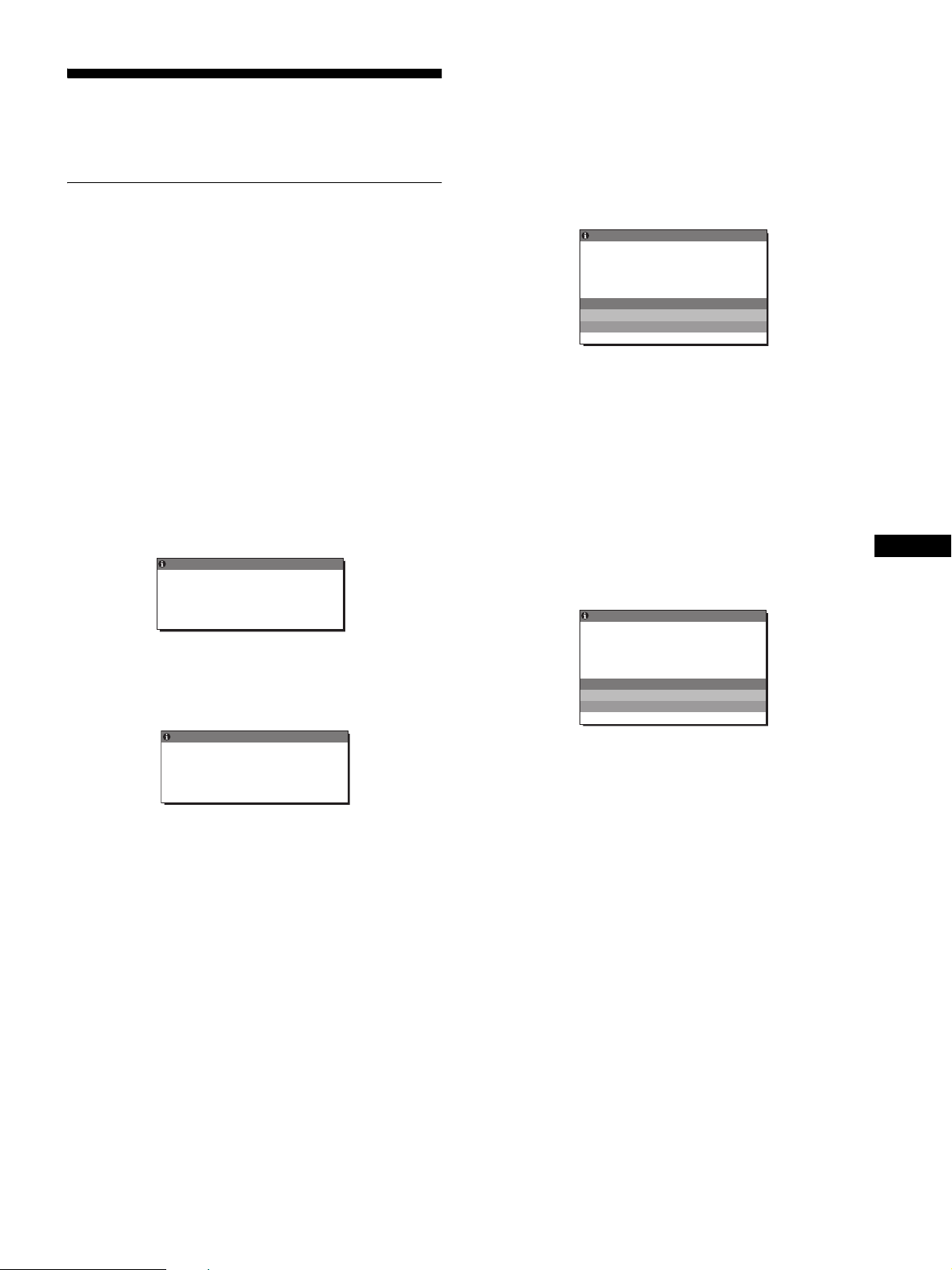
17
FRFR
Dépannage
Avant de prendre contact avec l’assistance technique, parcourez
les informations présentées dans cette section.
Messages affichés
S’il se produit une anomalie au niveau du signal d’entrée, l’un des
messages suivants apparaît sur l’écran. Pour résoudre le
problème, voir « Symptômes de défaillances et remèdes » à la
page 18.
Si l’indication « HORS PLAGE FRÉQUENCES »
apparaît sur l’écran
Cela signifie que le signal transmis n’est pas pris en charge par les
spécifications de l’écran. Vérifiez les éléments suivants.
Pour des informations détaillées sur les messages à l’écran,
voir « Symptômes de défaillances et remèdes » à la page 18.
Si « xxx.xkHz/ xxxHz » est affiché
Cela signifie que la fréquence horizontale ou verticale n’est
pas prise en charge par les spécifications de l’écran.
Les chiffres indiquent les fréquences horizontales et
verticales du signal d’entrée en cours
Si « RÉSOLUTION > 1280 × 1024 » est affiché
Cela signifie que la résolution n’est pas prise en charge par les
spécifications de l’écran (1 280 × 1 024 ou moins).
Si l’indication « PAS D’ENTREE VIDEO » apparaît
sur l’écran
Cela signifie qu’aucun signal n’est détecté en entrée via le
connecteur actuellement sélectionné.
Lorsque DÉTECTE ENTRÉE (page 15) est réglé sur ACTIF,
l’écran détecte un autre signal d’entrée et commute
automatiquement la source d’entrée.
En l’absence de signaux d’entrée, le message « PASSER EN
MODE ÉCO » s’affiche.
Le passage en mode d’économie d’énergie intervient 5
secondes plus tard.
Si l’indication « CABLE NON CONNECTÉ »
apparaît sur l’écran
Cela signifie que le câble de signal vidéo a été déconnecté du
connecteur actuellement sélectionné.
Lorsque DÉTECTE ENTRÉE (page 15) est réglé sur ACTIF,
l’écran détecte un autre signal d’entrée et commute
automatiquement la source d’entrée.
En l’absence de signaux d’entrée, le message « PASSER EN
MODE ÉCO » s’affiche.
Le passage en mode d’économie d’énergie intervient 45
secondes plus tard.
FR QUENC SE
HORS P L AGE
ENTRÉ
É
E1
:
DV I
-
xxx.xkHz/ xxx
D
Hz
INFORMATION
S
Exemple
Exemple
INFORMATIONS
HORS PLAGE
RÉSOLUTION > 1280X1024
ENTRÉE1
:
DV I
-
D
FR QUENC SEÉ
PAS D NTREE V I DEO
PASSER EN MODE ÉCO
I NFORMAT I ONS
ENTRÉ
E
E1
:
DV I
-
D
'
Exemple
CABL E NON CONNECTÉ
INFORMATIONS
ENTRÉE1
:
DV I
-
D
PASSER EN MODE ÉCO
Exemple

18
Symptômes de défaillances et remèdes
Si un problème est causé par un ordinateur ou un autre appareil raccordé, reportez-vous aux modes d’emploi de l’appareil ou de l’ordinateur concerné.
Symptôme Vérifiez ces éléments
Pas d’image
Si l’indicateur 1 (alimentation) est
éteint, ou, si l’indicateur
1(alimentation) s’allume en orange,
• Vérifiez que le commutateur 1 (alimentation) est activé.
L’indicateur 1 (alimentation) ne
s’allume pas alors que le
commutateur 1 (alimentation) est
enfoncé.
• Vérifiez que le cordon d’alimentation est correctement raccordé.
Si CABLE NON CONNECTÉ
apparaît sur l’écran,
• Vérifiez que le câble de signal vidéo est correctement raccordé et que toutes les fiches sont
correctement branchées dans leur prise (page 7).
• Vérifiez que les broches du connecteur d’entrée vidéo ne sont pas pliées ou enfoncées.
• Vérifiez que le réglage de sélection d’entrée est correct (page 11).
• Un câble de signal vidéo non fourni est raccordé. Si vous raccordez un câble de signal
vidéo non fourni, l’indication CABLE NON CONNECTÉ peut apparaître sur l’écran. Il ne
s’agit pas d’un problème de fonctionnement.
Si l’indication PAS D’ENTREE
VIDEO apparaît sur l’écran, ou, si
l’indicateur 1 (alimentation)
s’allume en orange,
• Vérifiez que le câble de signal vidéo est correctement raccordé et que toutes les fiches sont
correctement branchées dans leur prise (page 7).
• Vérifiez que les broches du connecteur d’entrée vidéo ne sont pas pliées ou enfoncées.
• Vérifiez que le réglage de sélection d’entrée est correct (page 11).
x
Problèmes causés par un ordinateur ou un autre appareil raccordé et non
par l’écran
• L’ordinateur est en mode d’économie d’énergie. Appuyez sur une touche quelconque du
clavier ou déplacez la souris.
• Vérifiez que votre carte graphique est correctement installée.
• Vérifiez que l’alimentation de l’ordinateur est activée.
• Redémarrez l’ordinateur.
Si HORS PLAGE FRÉQUENCES
apparaît à l’écran (page 17),
x
Problèmes causés par un ordinateur ou un autre appareil raccordé et non
par l’écran
• Vérifiez que la plage de fréquence vidéo est comprise dans la plage spécifiée pour l’écran.
Si vous avez remplacé un ancien écran par cet écran, rebranchez l’ancien, puis ajustez la
carte graphique de l’ordinateur dans les plages suivantes :
Horizontale : 28 à 80 kHz (RVB analogique), 28 à 64 kHz (RVB numérique)
Verticale : 48 à 75 Hz (RVB analogique), 60 Hz (RVB numérique)
Résolution : 1 280 × 1 024 ou moins
Si vous utilisez Windows, • Si vous avez remplacé votre ancien écran par cet écran, rebranchez l’ancien écran et suivez
la procédure suivante. Sélectionnez « SONY » dans la liste « Fabricants », puis
sélectionnez le nom de modèle souhaité dans la liste « Modèles » dans l’écran de sélection
de périphériques Windows. Si le nom de modèle de cet écran n’apparaît pas dans la liste «
Modèles », essayez « Plug & Play ».
Si vous utilisez un système
Macintosh,
• En cas de raccordement d’un ordinateur Macintosh, utilisez si nécessaire un adaptateur (non
fourni). Raccordez l’adaptateur à l’ordinateur avant de raccorder le câble du signal vidéo.
L’image scintille, sautille, oscille
ou est brouillée
• Ajustez l’horloge et la phase (signal RVB analogique uniquement) (page 14).
• Branchez l’écran sur une autre prise secteur, de préférence reliée à un autre circuit.
x
Problèmes causés par un ordinateur ou un autre appareil raccordé et non
par l’écran
• Consultez le mode d’emploi de votre carte graphique pour le réglage approprié de l’écran.
• Assurez-vous que le mode graphique (VESA, Macintosh 19” Color, etc.) et la fréquence
du signal d’entrée sont pris en charge par cet écran. Même si la fréquence est comprise
dans la plage appropriée, il se peut que certaines cartes vidéo offrent une impulsion de
synchronisation trop étroite pour que l’écran se synchronise correctement.
• Cet écran ne traite pas les signaux entrelacés. Utilisez des signaux progressifs.
• Ajustez le taux de régénération de l’ordinateur (fréquence verticale) de manière à obtenir
la meilleure image possible.
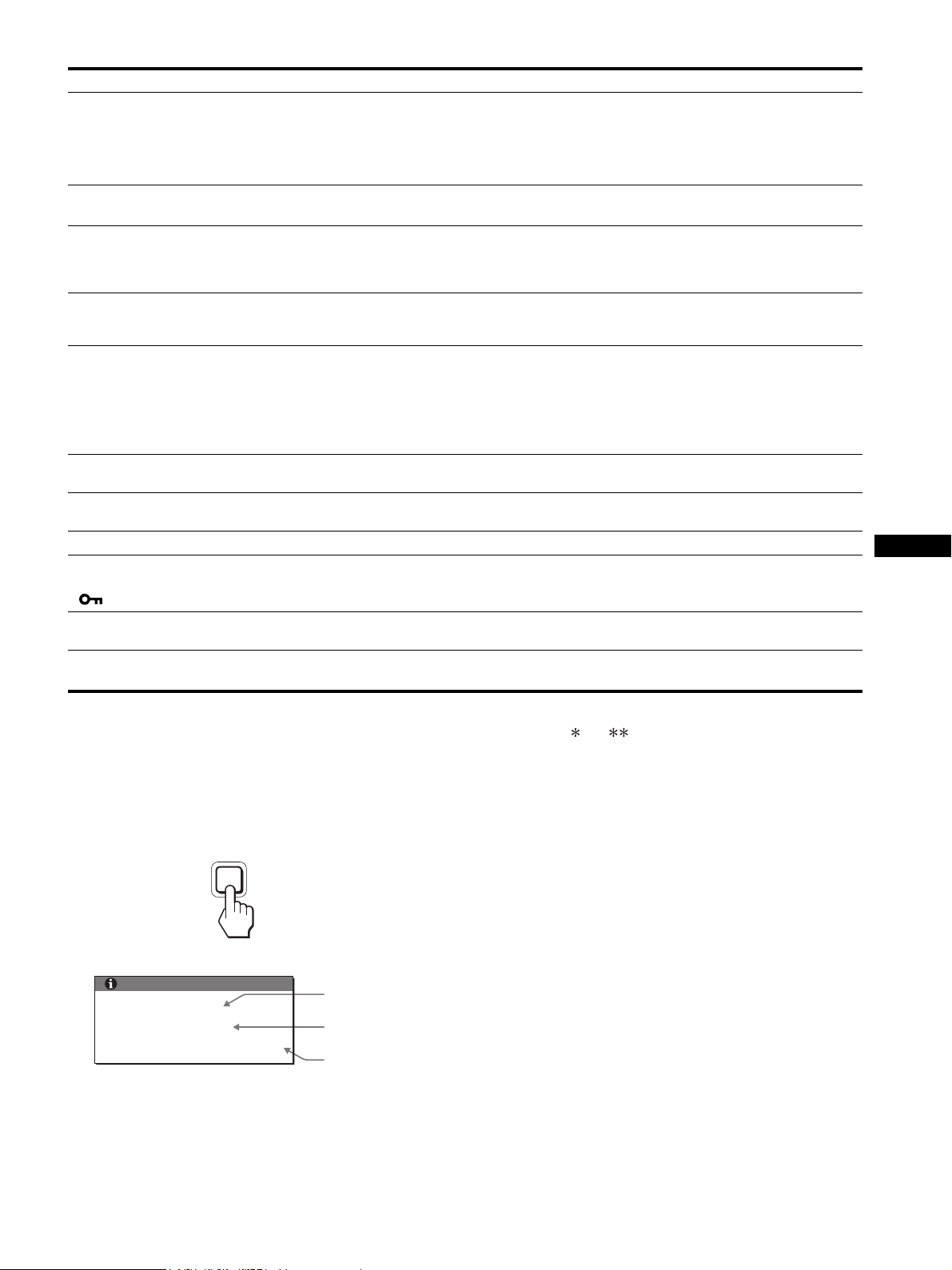
19
FRFR
Affichage des informations de l’écran
Lorsque l’écran reçoit un signal vidéo, appuyez sur la
touche MENU et maintenez-la enfoncée pendant plus
de 5 secondes jusqu’à ce que la boîte de dialogue
d’informations s’affiche.
Appuyez de nouveau sur la touche MENU pour faire disparaître
la boîte de dialogue.
Bien que le nom de modèle enregistré pour les normes de sécurité
soit SDM-S75 /S95 , les noms SDM-S75A/S95AR/S75D/
S95DR/S75E/S95ER/S75F/S95FR/S75N/S95NR sont utilisés
lors de la vente.
Si le problème persiste, appelez votre revendeur Sony agréé et
fournissez-lui les informations suivantes :
• Désignation
• Numéro de série
• Description détaillée du problème
• Date d’achat
• Nom et spécifications de votre ordinateur et de votre carte
graphique
• Types de signaux d’entrée (RVB analogique/RVB numérique)
L’image est floue • Ajustez la luminosité et le contraste (page 14).
• Ajustez l’horloge et la phase (signal RVB analogique uniquement) (page 14).
x
Problèmes causés par un ordinateur ou un autre appareil raccordé et non
par l’écran
• Réglez la résolution sur votre ordinateur à 1 280 × 1 024.
Apparition d’images fantômes • N’utilisez pas de prolongateurs de câble vidéo et/ou de boîtiers de commutation vidéo.
• Vérifiez si toutes les fiches sont correctement branchées sur leur prise.
L’image n’est ni centrée
correctement, ni au bon format
(signal RVB analogique
uniquement)
• Ajustez l’horloge et la phase (page 14).
• Ajustez la position de l’image (page 14). Notez que certains modes vidéo ne remplissent
pas l’écran jusqu’aux bords.
L’image est trop petite x
Problèmes causés par un ordinateur ou un autre appareil raccordé et non
par l’écran
• Réglez la résolution sur votre ordinateur à 1 280 × 1 024.
L’image est sombre • Réglez le rétroéclairage (page 14).
• Réglez la luminosité (page 14).
• Ajustez le réglage gamma à l’aide du menu GAMMA (page 14).
• Plusieurs minutes sont nécessaires avant que l’écran ne devienne lumineux après sa mise
sous tension.
• L’écran peut s’assombrir en fonction du mode ECO sélectionné.
Apparition d’un motif ondulatoire
ou elliptique (moiré)
• Ajustez l’horloge et la phase (signal RVB analogique uniquement) (page 14).
Les couleurs ne sont pas
uniformes
• Ajustez l’horloge et la phase (signal RVB analogique uniquement) (page 14).
Le blanc ne semble pas blanc • Réglez la température des couleurs (page 14).
Les touches de l’écran sont
inopérantes
( apparaît sur l’écran)
•Si VERROU DU MENU est réglé sur ACTIF, réglez-le sur INACTIF (page 15).
L’écran se met hors tension au
bout d’un moment
x
Problèmes causés par l’ordinateur ou tout autre équipement connecté
• Désactivez le mode d’économie d’énergie de l’ordinateur.
La résolution affichée dans l’écran
de menu est incorrecte.
• Selon le paramétrage de la carte graphique, il est possible que la résolution affichée dans
l’écran de menu ne corresponde pas à celle de l’ordinateur.
Symptôme Vérifiez ces éléments
INFORMATIONS
MODEL : SDM-S75A
SER. NO : 1234567
MANUFACTURED : 2005-52
MENU
Exemple
Désignation
Numéro de série
Semaine et année
de fabrication
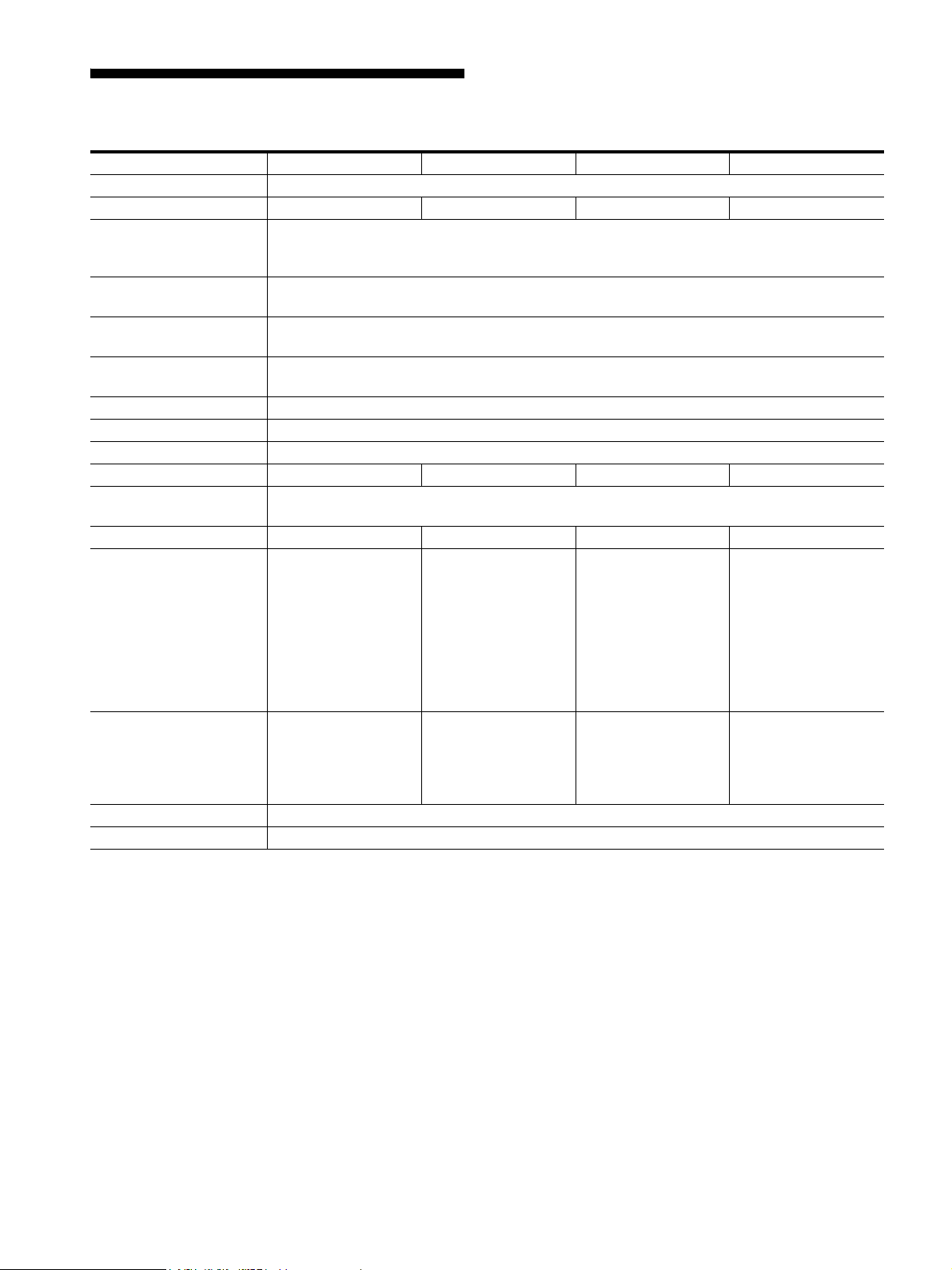
20
Spécifications
1)
Condition de synchronisation horizontale et verticale
recommandée
• La largeur de synchronisation horizontale doit être
supérieure de plus de 4,8% à la durée horizontale totale ou
0,8 µs, suivant la plus grande valeur.
• La largeur de suppression horizontale doit être supérieure à
2,5 µs.
• La largeur de suppression verticale doit être supérieure à 450
µs.
La conception et les spécifications sont sujettes à modifications
sans préavis.
Nom du modèle SDM-S75A SDM-S95AR SDM-S75E SDM-S95ER
Panneau LCD Type de panneau : a-Si TFT à matrice active
Taille de l’image : pouces 17,0 19,0 17,0 19,0
Format du signal d’entrée Fréquence opérationnelle RVB
1)
Horizontale : 28 – 80 kHz
Verticale : 48 – 75 Hz
Résolution Horizontale : Max. 1 280 points
Verticale : Max. 1 024 lignes
Type de signal d’entrée
(Numérique/Analogique)
Analogique ×1
Niveaux des signaux
d’entrée
Signal vidéo RVB 0,7 Vp-p, 75 Ω, positif
Signal SYNC Niveau TTL, 2,2 kΩ, positif ou négatif
Entrée audio Mini-prise stéréo, 0,5 V eff.
Sortie audio Mini-prise stéréo
Puissance de raccordement 100 – 240 V, 50 – 60 Hz, Max. 1.0 A
Consommation électrique Max. 45 W Max. 50 W Max. 45 W Max. 50 W
Température de
fonctionnement
5 – 35 °C
Type de support Fixe Fixe Hauteur réglable Hauteur réglable
Dimensions (largeur/
hauteur/profondeur)
environ 369 × 423,5 ×
225 mm (14
5
/
8
×
16
3
/
4
× 8
7
/
8
pouces)
(avec support)
environ 369 × 315 ×
66 mm (14
5
/
8
×
12
3
/
8
× 2
5
/
8
pouces)
(sans support)
environ 414 × 439,5 ×
225 mm (16
3
/
8
×
17
3
/
8
× 8
7
/
8
pouces)
(avec support)
environ 414 × 348 ×
69 mm (16
3
/
8
×
13
3
/
4
× 2
3
/
4
pouces)
(sans support)
environ 369 × 393,5 –
503,5 × 253 mm
(14
5
/
8
× 15
1
/
2
–
19
7
/
8
× 10 pouces)
(avec support)
environ 369 × 315 ×
66 mm (14
5
/
8
×
12
3
/
8
× 2
5
/
8
pouces)
(sans support)
environ 414 × 409,5 –
519,5 × 277,5 mm
(16
3
/
8
× 16
1
/
8
–
20
1
/
2
× 11 pouces)
(avec support)
environ 414 × 348 ×
69 mm (16
3
/
8
×
13
3
/
4
× 2
3
/
4
pouces)
(sans support)
Masse environ 6,4 kg (14 lb
1
3
/
4
oz) (avec support)
environ 4,3 kg
(9 lb 7
5
/
8
oz)
(sans support)
environ 7,3 kg (16 lb
1
1
/
2
oz) (avec support)
environ 5,2 kg
(11 lb 7
3
/
8
oz)
(sans support)
environ 7,5 kg (16 lb
8
1
/
2
oz) (avec support)
environ 4,3 kg
(9 lb 7
5
/
8
oz)
(sans support)
environ 8,7 kg (19 lb
2
7
/
8
oz) (avec support)
environ 5,2 kg
(11 lb 7
3
/
8
oz)
(sans support)
Plug & Play DDC2B
Accessoires Voir page 6.
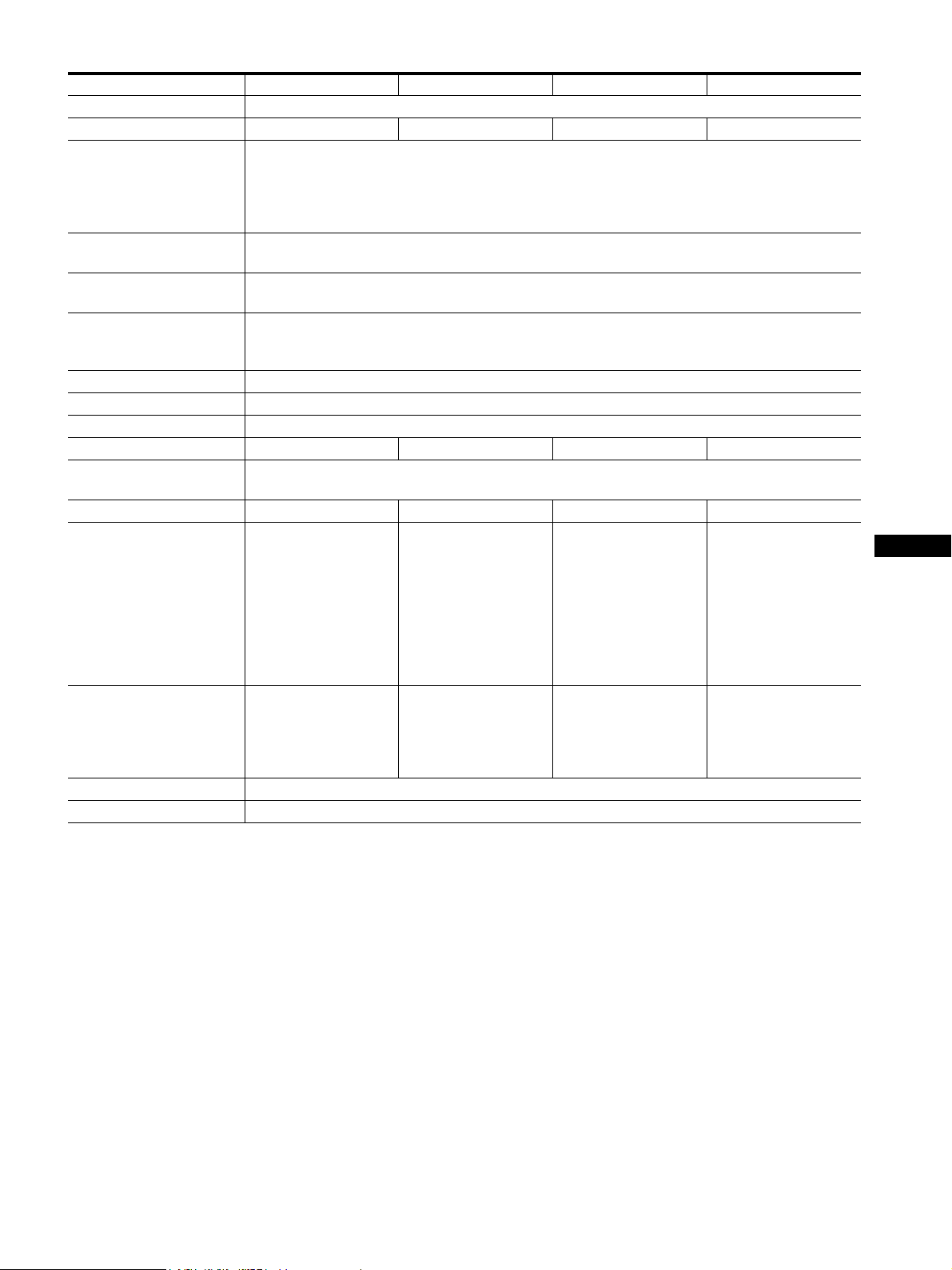
21
FRFR
1)
Condition de synchronisation horizontale et verticale
recommandée
• La largeur de synchronisation horizontale doit être
supérieure de plus de 4,8% à la durée horizontale totale ou
0,8 µs, suivant la plus grande valeur.
• La largeur de suppression horizontale doit être supérieure à
2,5 µs.
• La largeur de suppression verticale doit être supérieure à 450
µs.
La conception et les spécifications sont sujettes à modifications
sans préavis.
Nom du modèle SDM-S75D SDM-S95DR SDM-S75F SDM-S95FR
Panneau LCD Type de panneau : a-Si TFT à matrice active
Taille de l’image : pouces 17,0 19,0 17,0 19,0
Format du signal d’entrée Fréquence opérationnelle RVB
1)
Horizontale : 28 – 80 kHz (RVB analogique)
28 – 64 kHz (RVB numérique)
Verticale : 48 – 75 Hz (RVB analogique)
60 Hz (RVB numérique)
Résolution Horizontale : Max. 1 280 points
Verticale : Max. 1 024 lignes
Type de signal d’entrée
(Numérique/Analogique)
Numérique × 1/Analogique × 1
Niveaux des signaux
d’entrée
Signal vidéo RVB 0,7 Vp-p, 75 Ω, positif
Signal SYNC Niveau TTL, 2,2 kΩ, positif ou négatif
Signal RVB numérique (DVI) : TMDS (lien simple)
Entrée audio Mini-prise stéréo, 0,5 V eff.
Sortie audio Mini-prise stéréo
Puissance de raccordement 100 – 240 V, 50 – 60 Hz, Max. 1.0 A
Consommation électrique Max. 45 W Max. 50 W Max. 45 W Max. 50 W
Température de
fonctionnement
5 – 35 °C
Type de support Fixe Fixe Hauteur réglable Hauteur réglable
Dimensions (largeur/
hauteur/profondeur)
environ 369 × 423,5 ×
225 mm (14
5
/
8
×
16
3
/
4
× 8
7
/
8
pouces)
(avec support)
environ 369 × 315 ×
66 mm (14
5
/
8
×
12
3
/
8
× 2
5
/
8
pouces)
(sans support)
environ 414 × 439,5 ×
225 mm (16
3
/
8
×
17
3
/
8
× 8
7
/
8
pouces)
(avec support)
environ 414 × 348 ×
69 mm (16
3
/
8
×
13
3
/
4
× 2
3
/
4
pouces)
(sans support)
environ 369 × 393,5 –
503,5 × 253 mm
(14
5
/
8
× 15
1
/
2
–
19
7
/
8
× 10 pouces)
(avec support)
environ 369 × 315 ×
66 mm (14
5
/
8
×
12
3
/
8
× 2
5
/
8
pouces)
(sans support)
environ 414 × 409,5 –
519,5 × 277,5 mm
(16
3
/
8
× 16
1
/
8
–
20
1
/
2
× 11 pouces)
(avec support)
environ 414 × 348 ×
69 mm (16
3
/
8
×
13
3
/
4
× 2
3
/
4
pouces)
(sans support)
Masse environ 6,4 kg (14 lb
1
3
/
4
oz) (avec support)
environ 4,3 kg
(9 lb 7
5
/
8
oz)
(sans support)
environ 7,3 kg (16 lb
1
1
/
2
oz) (avec support)
environ 5,2 kg
(11 lb 7
3
/
8
oz)
(sans support)
environ 7,5 kg (16 lb
8
1
/
2
oz) (avec support)
environ 4,3 kg
(9 lb 7
5
/
8
oz)
(sans support)
environ 8,7 kg (19 lb
2
7
/
8
oz) (avec support)
environ 5,2 kg
(11 lb 7
3
/
8
oz)
(sans support)
Plug & Play DDC2B
Accessoires Voir page 6.
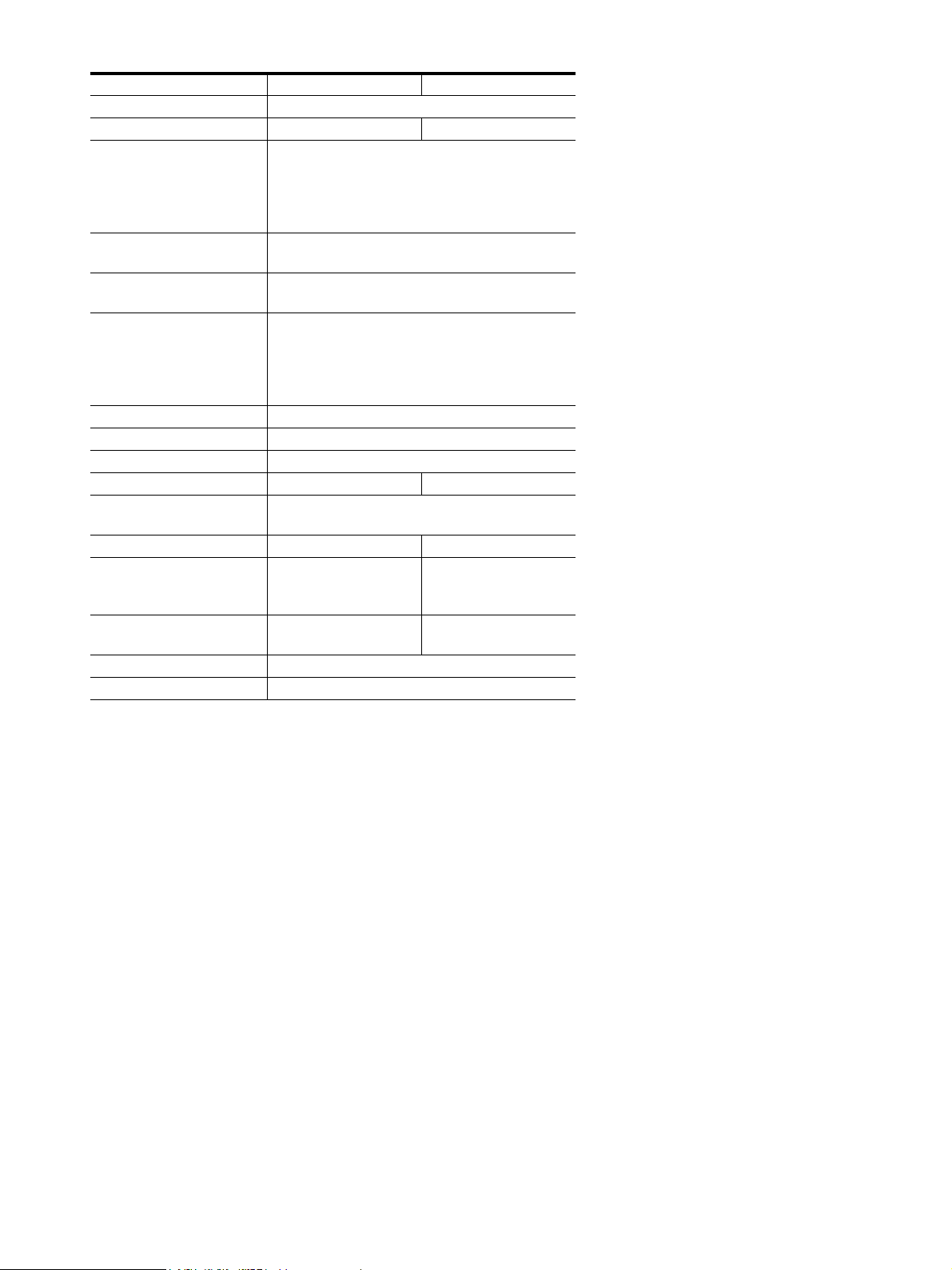
22
1)
Condition de synchronisation horizontale et verticale
recommandée
• La largeur de synchronisation horizontale doit être
supérieure de plus de 4,8% à la durée horizontale totale ou
0,8 µs, suivant la plus grande valeur.
• La largeur de suppression horizontale doit être supérieure à
2,5 µs.
• La largeur de suppression verticale doit être supérieure à 450
µs.
La conception et les spécifications sont sujettes à modifications
sans préavis.
Nom du modèle SDM-S75N SDM-S95NR
Panneau LCD Type de panneau : a-Si TFT à matrice active
Taille de l’image : pouces 17,0 19,0
Format du signal d’entrée Fréquence opérationnelle RVB
1)
Horizontale : 28 – 80 kHz (RVB analogique)
28 – 64 kHz (RVB numérique)
Verticale : 48 – 75 Hz (RVB analogique)
60 Hz (RVB numérique)
Résolution Horizontale : Max. 1 280 points
Verticale : Max. 1 024 lignes
Type de signal d’entrée
(Numérique/Analogique)
Numérique × 1/Analogique × 1
Niveaux des signaux
d’entrée
Signal vidéo RVB 0,7 Vp-p, 75 Ω, positif
Signal SYNC Niveau TTL, 2,2 kΩ,
positif ou négatif
Signal RVB numérique (DVI) :
TMDS (lien simple)
Entrée audio Mini-prise stéréo, 0,5 V eff.
Sortie audio Mini-prise stéréo
Puissance de raccordement 100 – 240 V, 50 – 60 Hz, Max. 1.0 A
Consommation électrique Max. 45 W Max. 50 W
Température de
fonctionnement
5 – 35 °C
Type de support – –
Dimensions (largeur/
hauteur/profondeur)
environ 369 × 315 ×
66 mm (14
5
/
8
× 12
3
/
8
×
2
5
/
8
pouces)
environ 414 × 348 ×
69 mm (16
3
/
8
× 13
3
/
4
×
2
3
/
4
pouces)
Masse environ 4,3 kg
(9 lb 7
5
/
8
oz)
environ 5,2 kg
(11 lb 7
3
/
8
oz)
Plug & Play DDC2B
Accessoires Voir page 6.

i
TCO’99 Eco-document (for the black
model)
x Congratulations!
You have just purchased a TCO’99 approved and labelled product! Your
choice has provided you with a product developed for professional use.
Your purchase has also contributed to reducing the burden on the
environment and also to the further development of environmentally
adapted electronics products.
x Why do we have environmentally labelled com-
puters?
In many countries, environmental labelling has become an established
method for encouraging the adaptation of goods and services to the
environment. The main problem, as far as computers and other electronics
equipment are concerned, is that environmentally harmful substances are
used both in the products and during their manufacture. Since it is not so
far possible to satisfactorily recycle the majority of electronics equipment,
most of these potentially damaging substances sooner or later enter nature.
There are also other characteristics of a computer, such as energy
consumption levels, that are important from the viewpoints of both the
work (internal) and natural (external) environments. Since all methods of
electricity generation have a negative effect on the environment (e.g.
acidic and climate-influencing emissions, radioactive waste), it is vital to
save energy. Electronics equipment in offices is often left running
continuously and thereby consumes a lot of energy.
x What does labelling involve?
This product meets the requirements for the TCO’99 scheme which
provides for international and environmental labelling of personal
computers. The labelling scheme was developed as a joint effort by the
TCO (The Swedish Confederation of Professional Employees), Svenska
Naturskyddsforeningen (The Swedish Society for Nature Conservation)
and Statens Energimyndighet (The Swedish National Energy
Administration).
Approval requirements cover a wide range of issues: environment,
ergonomics, usability, emission of electric and magnetic fields, energy
consumption and electrical and fire safety.
The environmental demands impose restrictions on the presence and use
of heavy metals, brominated and chlorinated flame retardants, CFCs
(freons) and chlorinated solvents, among other things. The product must
be prepared for recycling and the manufacturer is obliged to have an
environmental policy which must be adhered to in each country where the
company implements its operational policy.
The energy requirements include a demand that the computer and/or
display, after a certain period of inactivity, shall reduce its power
consumption to a lower level in one or more stages. The length of time to
reactivate the computer shall be reasonable for the user.
Labelled products must meet strict environmental demands, for example,
in respect of the reduction of electric and magnetic fields, physical and
visual ergonomics and good usability.
Below you will find a brief summary of the environmental requirements
met by this product. The complete environmental criteria document may
be ordered from:
TCO Development
SE-114 94 Stockholm, Sweden
Fax: +46 8 782 92 07
Email (Internet): [email protected]
Current information regarding TCO’99 approved and labelled
products may also be obtained via the Internet, using the address:
http://www.tco-info.com/
x Environmental requirements
Flame retardants
Flame retardants are present in printed circuit boards, cables, wires,
casings and housings. Their purpose is to prevent, or at least to delay the
spread of fire. Up to 30% of the plastic in a computer casing can consist
of flame retardant substances. Most flame retardants contain bromine or
chloride, and those flame retardants are chemically related to another
group of environmental toxins, PCBs. Both the flame retardants
containing bromine or chloride and the PCBs are suspected of giving rise
to severe health effects, including reproductive damage in fish-eating
birds and mammals, due to the bio-accumulative
* processes. Flame
retardants have been found in human blood and researchers fear that
disturbances in foetus development may occur.
The relevant TCO’99 demand requires that plastic components weighing
more than 25 grams must not contain flame retardants with organically
bound bromine or chlorine. Flame retardants are allowed in the printed
circuit boards since no substitutes are available.
Cadmium**
Cadmium is present in rechargeable batteries and in the colour-generating
layers of certain computer displays. Cadmium damages the nervous
system and is toxic in high doses. The relevant TCO’99 requirement states
that batteries, the colour-generating layers of display screens and the
electrical or electronics components must not contain any cadmium.
Mercury**
Mercury is sometimes found in batteries, relays and switches. It damages
the nervous system and is toxic in high doses. The relevant TCO’99
requirement states that batteries may not contain any mercury. It also
demands that mercury is not present in any of the electrical or electronics
components associated with the labelled unit.
CFCs (freons)
The relevant TCO’99 requirement states that neither CFCs nor HCFCs
may be used during the manufacture and assembly of the product. CFCs
(freons) are sometimes used for washing printed circuit boards. CFCs
break down ozone and thereby damage the ozone layer in the stratosphere,
causing increased reception on earth of ultraviolet light with e.g. increased
risks of skin cancer (malignant melanoma) as a consequence.
Lead**
Lead can be found in picture tubes, display screens, solders and
capacitors. Lead damages the nervous system and in higher doses, causes
lead poisoning. The relevant TCO’99 requirement permits the inclusion of
lead since no replacement has yet been developed.
* Bio-accumulative is defined as substances which accumulate within
living organisms.
** Lead, Cadmium and Mercury are heavy metals which are Bio-
accumulative.

ii
TCO’03 Eco-document (for the silver
model)
x Congratulations!
The display you have just purchased carries the TCO’03
Displays label. This means that your display is designed,
manufactured and tested according to some of the strictest
quality and environmental requirements in the world. This
makes for a high performance product, designed with the
user in focus that also minimizes the impact on our natural
environment.
x Ergonomics
• Good visual ergonomics and image quality in order to
improve the working environment for the user and to
reduce sight and strain problems. Important parameters
are luminance, contrast, resolution, reflectance, colour
rendition and image stability.
x Energy
• Energy-saving mode after a certain time – beneficial
both for the user and the environment
• Electrical safety
x Emissions
• Electromagnetic fields
• Noise emissions
x Ecology
• The product must be prepared for recycling and the
manufacturer must have a certified environmental
management system such as EMAS or ISO 14 001
• Restrictions on
- chlorinated and brominated flame retardants and
polymers
- heavy metals such as cadmium, mercury and lead.
The requirements included in this label have been
developed by TCO Development in co-operation with
scientists, experts, users as well as manufacturers all over
the world. Since the end of the 1980s TCO has been
involved in influencing the development of IT equipment
in a more user-friendly direction. Our labelling system
started with displays in 1992 and is now requested by users
and IT-manufacturers all over the world.
For more information, please visit
www.tcodevelopment.com
Recycling Information
x Customer in Europe
The collection and recycling of this product has been planned
according to your country’s relevant legislation. To ensure that
this product will be collected and recycled in way that minimizes
the impact on the environment, please do the following:
1. If you purchased this product for private use, contact your
municipality or the waste collection system and bring the
product to this collection point / have the product be picked up
by the waste collection system. Alternatively, your retailer
might take back this if you purchase new equivalent equipment;
please check with your retailer whether he will take back this
product before bringing it. For information on your country’s
recycling arrangements, please contact the Sony representation
in your country (contact details at: www.sony-europe.com).
Further details on specific recycling systems can be found at the
following addresses:
- Belgium: www.recupel.be
- Netherlands: www.nvmp.nl (consumer electronics)
www.ictmilieu.nl (IT equipment)
- Norway: www.elretur.no
- Sweden: www.el-kretsen.se
- Switzerland: www.swico.ch
2. If you use this product professionally, check the product’s
delivery contract for take back / recycling arrangements and
follow the procedures described therein. Alternatively, follow
the procedures described under point 1.
x Customer in USA
We Sony as a member of EIA recommends to visit URL below
http://www.eiae.org/
x Customer in Asia
http://www.sony.co.jp/SonyInfo/Environment/recycle/3R.html
2-630-290-22(1)
© 2005 Sony Corporation
Monitor de computador
en color LCD TFT
SDM-S75
SDM-S95
2
Registro del propietario
Los números de serie y de modelo están situados en la parte
posterior de la unidad.
Anote dichos números en los espacios suministrados a
continuación. Téngalos a mano siempre que se ponga en contacto
con su proveedor en relación con este producto.
Nº de modelo
Nº de serie
Para reducir el riesgo de incendios o electrocución,
no exponga este aparato a la lluvia ni a la humedad.
Dentro de la unidad existen voltajes
peligrosamente altos. No abra la carcasa. Solicite
asistencia técnica únicamente a personal
cualificado.
Aviso de FCC
Este equipo ha sido probado y cumple con los límites para un
dispositivo digital de Clase B, de acuerdo con el Apartado 15 del
reglamento de la FCC. Dichos límites se establecieron para
proporcionar una protección razonable contra interferencias
dañinas en una instalación residencial. Este equipo genera, utiliza
y puede emitir energía de radiofrecuencia y, si no se instala y utiliza
según las instrucciones, puede causar interferencias dañinas a las
radiocomunicaciones. No obstante, no se garantiza que no se
producirá interferencias en una instalación en particular.
Si este equipo causa interferencias dañinas a la recepción de radio
o televisión, que se pueden determinar encendiendo y apagando
el equipo, se recomienda al usuario que intente corregirlas
mediante una o varias de las siguientes medidas:
– Cambiar la orientación o la ubicación de la antena de recepción.
– Incrementar la distancia entre el equipo y el receptor.
– Conectar el equipo a un tomacorriente situado sobre un circuito
distinto al que utiliza el receptor.
– Ponerse en contacto con el proveedor o con un técnico
especialista en radio y televisión para obtener ayuda.
Se le advierte de que la realización de cambios o modificaciones
no aprobados explícitamente en este manual puede anular su
autorización para utilizar este equipo.
Compruebe la caja de cartón facilitada con la pantalla. La etiqueta
identificativa del modelo de la pantalla se encuentra en la parte
posterior de ésta.
(para el modelo blanco)
(para el modelo plateado)
ADVERTENCIA
IMPORTANTE
Para prevenir cualquier mal funcionamiento y evitar daños, por
favor, lea detalladamente este manual de instrucciones antes
de conectar y operar este equipo.
Si desea realizar alguna pregunta acerca de este producto,
puede llamar al número siguiente:
Sony Customer Information Services Center 1-800-222-7669
o visitar el sitio Web http://www.sony.com/
Declaración de conformidad
Nombre comercial: SONY
Modelo: SDM-S75 /S95
Nota: hace referencia a un número cualquiera o
a un carácter alfanumérico.
Entidad responsable: Sony Electronics Inc.
Dirección: 16530 Via Esprillo, San Diego,
CA 92127 EE.UU.
Número de teléfono: 858-942-2230
Este dispositivo cumple con el Apartado 15 del reglamento de
la FCC. Su funcionamiento está sujeto a las dos condiciones
siguientes: (1) Este dispositivo no debe causar interferencias
perjudiciales, y (2) este dispositivo debe aceptar cualquier
interferencia que reciba, incluidas las interferencias que
puedan causar un mal funcionamiento.
AVISO
Este aviso sólo es aplicable para Estados Unidos y Canadá.
Si se envía a Estados Unidos y/o Canadá, sólo debe instalarse
un cable de suministro de alimentación UL LISTED/CSA
LABELLED que cumpla las especificaciones siguientes:
ESPECIFICACIONES
Tipo de enchufe Enchufe Nema de 5-15 patillas
Cable Tipo SVT o SJT, 3 x 18 AWG mínimo
Longitud 4,5 metros máximo
Clasificación 7 A, 125 V mínimo
NOTICE
Cette notice s’applique aux Etats-Unis et au Canada
uniquement.
Si cet appareil est export* aux Etats-Unis ou au Canada, utiliser
le cordon d’alimentation portant la mention UL LISTED/CSA
LABELLED et remplissant les conditions suivantes:
SPECIFICATIONS
Type de fiche Fiche Nema 5-15 broches
Cordon Type SVT ou SJT, minimum 3 × 18 AWG
Longueur Maximum 15 pieds
Tension Minimum 7 A, 125 V
Como asociada de
ENERGY STAR,
Sony Corporation ha determinado
que este producto cumple las
directrices
ENERGY STAR de uso
eficiente de la energía eléctrica.
Este monitor cumple con las
directrices TCO’99.
Este monitor cumple con las
directrices TCO’03.
Índice
• Macintosh es una marca comercial con
licencia de Apple Computer, Inc.,
registrada en EE.UU. y en otros países.
•Windows
®
es una marca comercial
registrada de Microsoft Corporation en
Estados Unidos y otros países.
• IBM PC/AT y VGA son marcas
comerciales registradas de IBM
Corporation de EE.UU.
• VESA y DDC
™
son marcas comerciales
de Video Electronics Standards
Association.
•
ENERGY STAR es una marca
registrada de EE.UU.
• Adobe y Acrobat son marcas
comerciales de Adobe Systems
Incorporated.
• El resto de nombres de productos
mencionados pueden ser marcas
comerciales o marcas comerciales
registradas de sus respectivas
compañías.
•Además, “™” y “®” no se mencionan en
cada caso en este manual.
ES
http://www.sony.net/
3
Precauciones . . . . . . . . . . . . . . . . . . . . . . . . . . . . . . . . . . . . . . . . . . 4
Comprobación del nombre de modelo de la pantalla . . . . . . . . . . . . 5
Identificación de componentes y controles. . . . . . . . . . . . . . . . . . . . 5
Configuración. . . . . . . . . . . . . . . . . . . . . . . . . . . . . . . . . . .6
Configuración 1: Montaje del soporte. . . . . . . . . . . . . . . . . . . . . . . 6
Configuración 2: Conexión de los cables de señal de vídeo . . . . . 7
Configuración 3: Conexión de los cables de audio . . . . . . . . . . . . 8
Configuración 4: Conexión del cable de alimentación . . . . . . . . . . 9
Configuración 5: Fijación de los cables . . . . . . . . . . . . . . . . . . . . . 9
Configuración 6: Encendido de la pantalla y el ordenador. . . . . . . 9
Configuración 7: Ajuste de la inclinación y la altura . . . . . . . . . . . 10
Selección de la señal de entrada (INPUT1/INPUT2) . . . . . . . . . . . 11
Personalización de la pantalla . . . . . . . . . . . . . . . . . . . .12
Navegación por el menú. . . . . . . . . . . . . . . . . . . . . . . . . . . . . . . . . 12
Lista de opciones de menú. . . . . . . . . . . . . . . . . . . . . . . . . . . . . . . 13
Menú AJUSTE IMAGEN. . . . . . . . . . . . . . . . . . . . . . . . . . . . . . 14
Menú COLOR . . . . . . . . . . . . . . . . . . . . . . . . . . . . . . . . . . . . . . 14
Menú NITIDEZ . . . . . . . . . . . . . . . . . . . . . . . . . . . . . . . . . . . . . 14
0 Menú MODO RESTAB. (sólo para AJUSTE IMAGEN) . . . . . . 14
Menú PANTALLA (sólo para señales RVA analógicas) . . . . . 14
Menú POSICIÓN MENÚ . . . . . . . . . . . . . . . . . . . . . . . . . . . . . . 15
Menú SIN SEÑAL ENTR . . . . . . . . . . . . . . . . . . . . . . . . . . . . . . 15
Menú LANGUAGE . . . . . . . . . . . . . . . . . . . . . . . . . . . . . . . . . . . 15
0 Menú REST (restablece los valores predeterminados) . . . . . . 15
Menú BLOQ DE AJUSTES . . . . . . . . . . . . . . . . . . . . . . . . . . . 15
Características técnicas . . . . . . . . . . . . . . . . . . . . . . . . .16
Función de ahorro de energía . . . . . . . . . . . . . . . . . . . . . . . . . . . . 16
Reducción del consumo de energía (modo ECO) . . . . . . . . . . . . . 16
Función de ajuste automático de la calidad de imagen
(sólo para señales RVA analógicas). . . . . . . . . . . . . . . . . . . . . . . . 16
Solución de problemas . . . . . . . . . . . . . . . . . . . . . . . . . .17
Mensajes en pantalla . . . . . . . . . . . . . . . . . . . . . . . . . . . . . . . . . . . 17
Problemas y soluciones . . . . . . . . . . . . . . . . . . . . . . . . . . . . . . . . . 18
Especificaciones . . . . . . . . . . . . . . . . . . . . . . . . . . . . . . .20
REFERENCIA DE TERMINOLOGIA . . . . . . . . . . . . . . . . . . . . . . . 23
TCO’99 Eco-document (for the black model) . . . . . . . . . . . . . . . . . . .i
TCO’03 Eco-document (for the silver model) . . . . . . . . . . . . . . . . . . ii
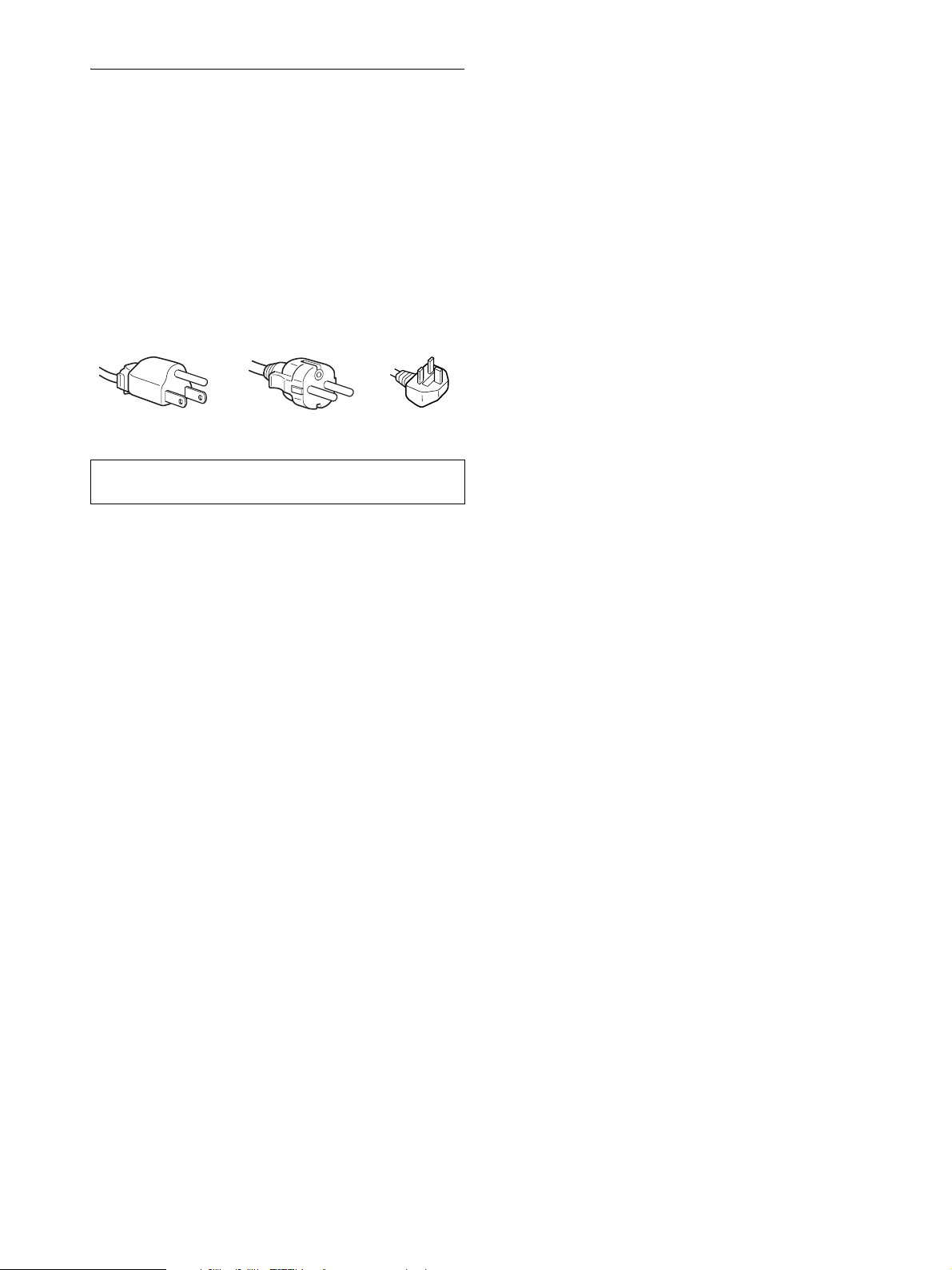
4
Precauciones
Advertencia sobre las conexiones de la
alimentación
• Utilice el cable de alimentación suministrado. Si utiliza un
cable de alimentación diferente, asegúrese de que es
compatible con el suministro eléctrico local.
Para los usuarios en EE.UU.
Si no utiliza el cable adecuado, este monitor no cumplirá las
normas obligatorias de la FCC.
Para los usuarios en el Reino Unido
Si emplea el monitor en el Reino Unido, utilice el cable de
alimentación apropiado para dicho país.
Instalación
No instale ni deje el monitor:
• En lugares sujetos a temperaturas extremas como, por ejemplo,
cerca de un radiador, de una salida de aire caliente o bajo la luz
solar directa. Si se expone a temperaturas extremas, como en un
automóvil aparcado bajo la luz solar directa o cerca de una
salida de aire caliente, podrían producirse deformaciones del
exterior o fallos de funcionamiento.
• En lugares sujetos a vibraciones mecánicas o golpes.
• Cerca de equipos que generan campos magnéticos intensos,
como un televisor o demás electrodomésticos.
• En lugares expuestos a grandes cantidades de polvo, suciedad o
arena como, por ejemplo, cerca de una ventana abierta o de una
salida al exterior. Si lo instala temporalmente en un lugar
exterior, asegúrese de tomar las precauciones adecuadas contra
polvo y suciedad. En caso contrario, podrían producirse fallos
de funcionamiento irreparables.
Manejo de la pantalla LCD
• No deje la pantalla LCD orientada al sol, ya que puede dañarse.
Tenga cuidado cuando coloque el monitor cerca de una ventana.
• No presione ni arañe la pantalla LCD. No sitúe objetos pesados
sobre la pantalla LCD. Si lo hace, la pantalla puede perder
uniformidad o podrían producirse fallos de funcionamiento en
el panel LCD.
• Si utiliza el monitor en un lugar frío, es posible que aparezca
una imagen residual en la pantalla. Esto no es un fallo de
funcionamiento. La pantalla recuperará el nivel de
funcionamiento normal al aumentar la temperatura.
• Si una imagen fija permanece en pantalla durante mucho
tiempo, es posible que aparezca una imagen residual durante un
tiempo. Dicha imagen residual desaparecerá eventualmente.
• El panel LCD se calienta durante el funcionamiento. Esto no es
un fallo de funcionamiento.
Nota sobre la pantalla LCD (Pantalla de cristal
líquido)
Tenga en cuenta que la pantalla LCD está fabricada con
tecnología de alta precisión. No obstante, pueden
aparecer de forma constante en la misma puntos
negros o brillantes de luz (rojos, azules o verdes) y
ocasionalmente brillos o rayas de color irregular. Esto
no es un fallo de funcionamiento.
(Puntos efectivos: más del 99,99%)
Mantenimiento
• Asegúrese de desenchufar el cable de alimentación de la toma
de corriente antes de limpiar el monitor.
• Limpie la pantalla LCD con un paño suave. Si utiliza un
producto líquido de limpieza de cristales, no emplee ningún
producto que contenga soluciones antiestáticas ni aditivos
similares, ya que puede dañar el revestimiento de la pantalla.
• Limpie el exterior, el panel y los controles con un paño suave
ligeramente humedecido con una solución detergente poco
concentrada. No utilice estropajos abrasivos, detergente en
polvo ni disolventes, como alcohol o bencina.
• No frote, toque ni golpee la superficie de la pantalla LCD con
objetos afilados o abrasivos, como un bolígrafo o un
destornillador. Este tipo de contacto puede rayar el tubo de
imagen.
• Tenga en cuenta que el material podría deteriorarse o el
revestimiento de la pantalla LCD degradarse si expone el
monitor a disolventes volátiles, como insecticidas, o si está en
contacto durante mucho tiempo con materiales de caucho o de
vinilo.
Transporte
• Desconecte todos los cables de la pantalla. Si utiliza un soporte
de altura regulable, ajuste la altura lo más arriba posible y sujete
firmemente ambos lados de la pantalla LCD. Asegúrese de no
rayar la pantalla al transportarla. Si la pantalla se cae, ésta
puede dañarse o usted puede sufrir daños.
• Cuando transporte este monitor para su reparación o
desplazamiento, utilice la caja de cartón y los materiales de
embalaje originales.
• Sustituya el retén del pasador por el soporte de altura regulable
para fijar el soporte durante el traslado.
Desecho del monitor
• No deseche este monitor en basuras domésticas
ordinarias.
• El tubo fluorescente utilizado en este monitor
contiene mercurio. El desecho de este monitor debe
realizarse de acuerdo con las normas de las
autoridades sanitarias locales.
El equipo debe instalarse cerca de una toma de corriente de
fácil acceso.
Ejemplo de tipos de enchufe
para 100 a 120 V de ca para 200 a 240 V de ca
para 240 V de
ca solamente
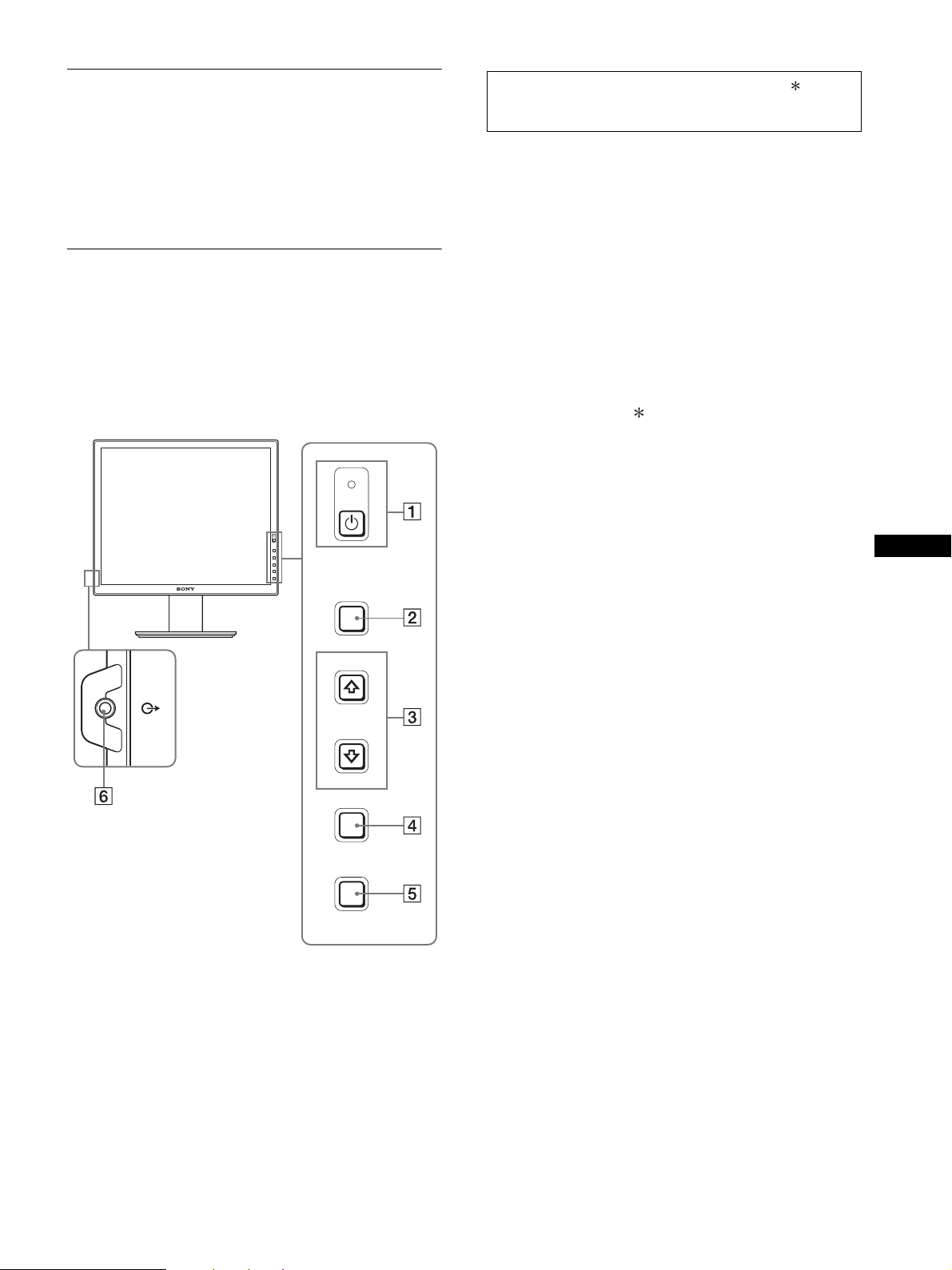
5
ES
Comprobación del nombre de
modelo de la pantalla
Compruebe primero el nombre de modelo de la pantalla
que encontrará en la parte posterior del mismo (Ejemplo: SDM-
S75A).
En algunos modelos de la pantalla no podrá utilizar determinadas
funciones o menús.
Identificación de componentes y
controles
Consulte las páginas que aparecen entre paréntesis para obtener
información detallada.
La ilustración sólo muestra uno de los modelos de la pantalla
disponibles.
1 Interruptor e indicador 1 (alimentación)
(páginas 9, 16)
Este interruptor enciende la pantalla. Vuelva a pulsarlo para
apagar la pantalla.
2 Botón MENU (página 12)
Este botón activa y desactiva la pantalla del menú.
3 Botones m/M (página 12)
Estos botones se utilizan para seleccionar los elementos del
menú y realizar ajustes.
4 Botón OK (página 12)
Este botón activa el elemento de menú seleccionado y los
ajustes realizados con los botones m/M (3).
INPUT (página 11)
Estos botones alternan la señal de entrada de vídeo entre
INPUT1 e INPUT2 cuando se conectan dos ordenadores a la
pantalla. (Sólo está disponible cuando el menú está
desactivado.)
5 Botón ECO (página 16)
Este botón se utiliza para reducir el consumo de energía.
Cuando no se muestra la pantalla del menú, también se puede
ajustar automáticamente la calidad de imagen de la señal de
entrada actual manteniendo pulsado este botón durante más
de 3 segundos (ajuste automático inmediato). (Únicamente
señal RGB analógica)
6 Toma de salida de audio (página 8)
Esta toma emite señales de audio a los altavoces o a cualquier
otro equipo de audio.
MENU
INPUT
ECO
OK
Parte frontal de la pantalla
El contenido de las especificaciones con la marca variará
en función de los modelos. Para obtener más información,
consulte la sección “Especificaciones” (página 20).
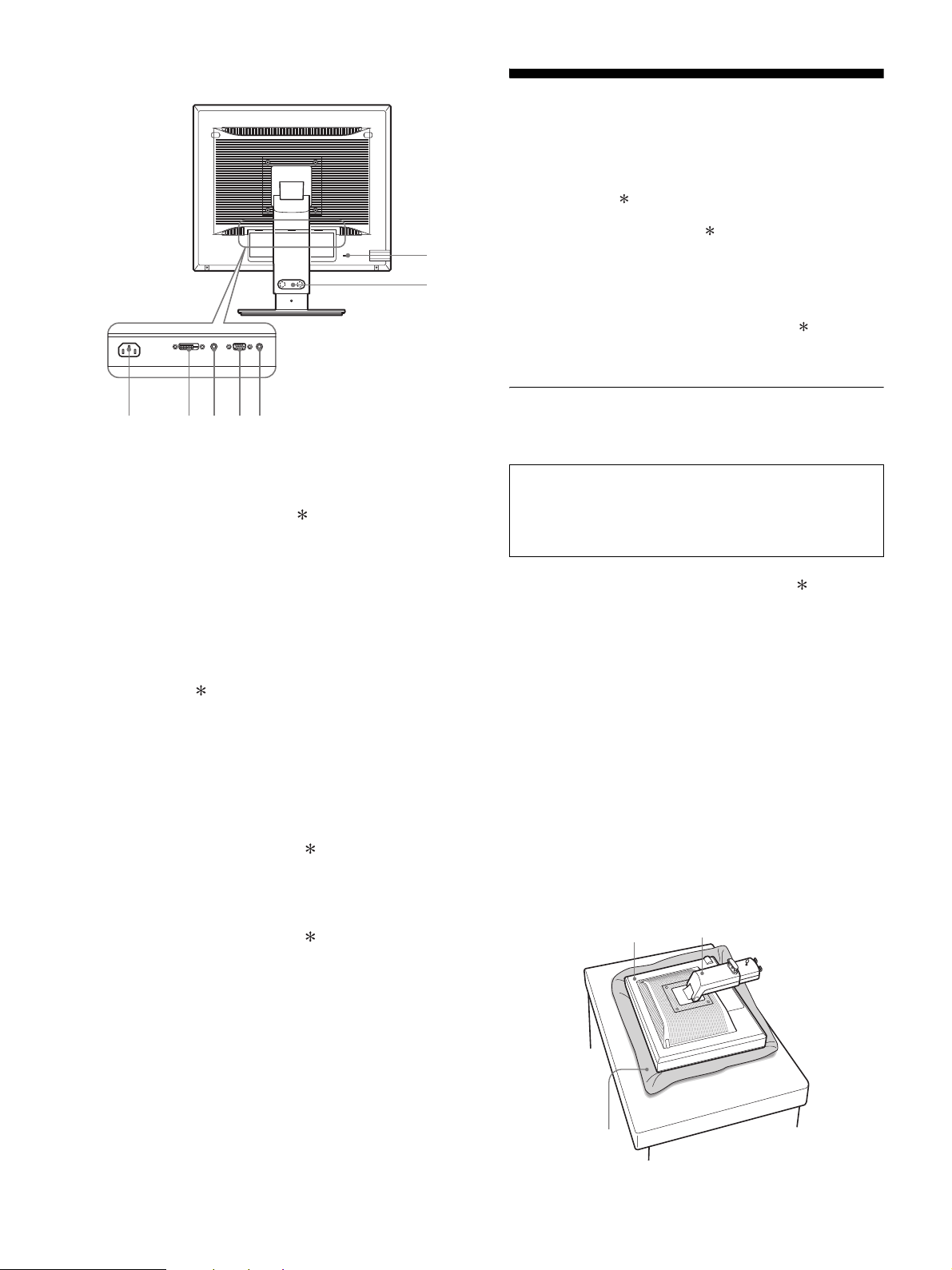
6
7 Conector AC IN (página 9)
Conecta el cable de alimentación (suministrado).
8 Conector de entrada DVI-D (RVA digital)
(página 8)
Este conector introduce señales de vídeo RVA digitales que
cumplen con DVI Rev.1.0.
9 Conector de entrada HD15 (RVA analógico)
(página 8)
Este conector introduce señales de vídeo RVA analógicas
(0,700 Vp-p, positivas) y señales de sincronización.
0 Portacables (página 9)
Esta pieza fija los cables a la pantalla.
qa Orificio de bloqueo de seguridad
El orificio de bloqueo de seguridad debe utilizarse con el
sistema Micro Saver Security System de Kensington.
Micro Saver Security System es una marca comercial de
Kensington.
qs Toma de audio para INPUT1
Esta toma recibe señales de audio si se conecta a la toma de
salida de audio de un ordenador u otro equipo de audio
conectado a INPUT1.
qd Toma de audio para INPUT2
Esta toma recibe señales de audio si se conecta a la toma de
salida de audio de un ordenador u otro equipo de audio
conectado a INPUT2.
Configuración
Antes de utilizar la pantalla, compruebe que los siguientes
artículos se incluyen en la caja:
• Pantalla LCD
• Cable de alimentación
• Base del soporte
• Cable de señal de vídeo HD15-HD15 (RVA analógico)
• Cable de señal de vídeo DVI-D (RVA digital)
• CD-ROM (software de utilidades para Windows/Macintosh,
manual de instrucciones, etc.)
• Tarjeta de garantía
• Guía de instalación rápida
El contenido de las especificaciones con la marca variará en
función de los modelos. Para obtener más información, consulte
la sección “Especificaciones” (página 20).
Configuración 1: Montaje del
soporte
x Si utiliza el soporte suministrado
1 Abra la caja de cartón y extraiga la base del soporte.
2 Compruebe todos los componentes suministrados.
• Base del soporte (con el tornillo en la parte inferior)
3 Coloque una estera blanda o similar sobre una
superficie plana, como por ejemplo, una mesa.
Si coloca la unidad directamente sobre la mesa, la pantalla
LCD y la unidad en sí pueden resultar dañadas.
4 Extraiga la pantalla de la caja de cartón. Apoye el
marco de la pantalla contra la mesa y coloque la
pantalla en posición paralela respecto al borde de la
mesa.
En la ilustración se muestra el soporte de altura regulable. Si
utiliza el soporte fijo, puede finalizar el proceso de montaje
tras completar el Paso 5.
qa
0
78q
s
9q
d
Parte posterior de la pantalla
No presione la pantalla LCD al ajustar la altura del
monitor o colocarlo directamente sobre una mesa o
similar.
Esto puede afectar a la uniformidad de la pantalla o danar
el monitor LCD.
Estera blanda
o similar
Pantalla
Soporte
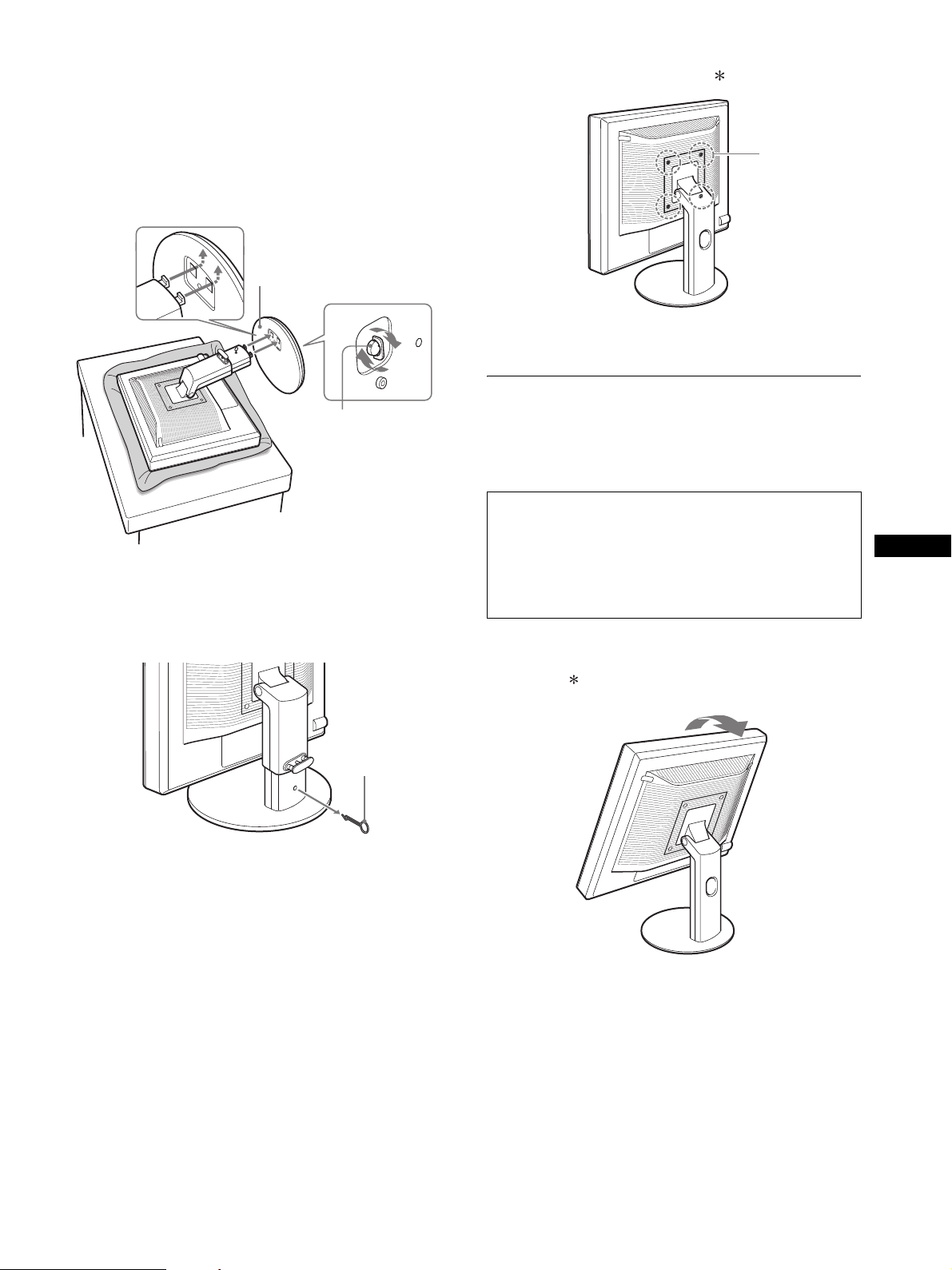
7
ES
5 Para colocar la base del soporte, enganche las
partes que sobresalen del soporte en los orificios
de dicha base.
1
Levante el asa para atornillar la base del soporte
firmemente.
2
Asegúrese de que el tornillo queda fijado y vuelva a
colocar el asa en el tornillo.
6 Si utiliza el soporte regulable en altura, extraiga el
retén del pasador después de ajustar la altura del
soporte.
Nota
No extraiga el retén del pasador mientras el soporte se encuentre en
posición horizontal. Éste podría caerse o provocar lesiones debido a la
caída repentina del cuello del soporte desde la base del mismo.
x Si utiliza el soporte VESA
Puede ajustar un soporte VESA en otras marcas retirando el
soporte suministrado ajustado a la pantalla.
Configuración 2: Conexión de los
cables de señal
de vídeo
1 Incline la pantalla hacia arriba.
Si utiliza el soporte de altura regulable, suba más la
pantalla.
2 Tornillo
1 Base del soporte
Pasador de
retención
• Apague la pantalla y el ordenador antes de conectarlos.
Notas
• No toque los terminales del conector del cable de señal de vídeo, ya
que podrían doblarse.
• Compruebe la alineación del conector para evitar que se doblen los
terminales del conector del cable de señal de vídeo.
Tornillos
compatibles con
los estándares
de VESA (4)
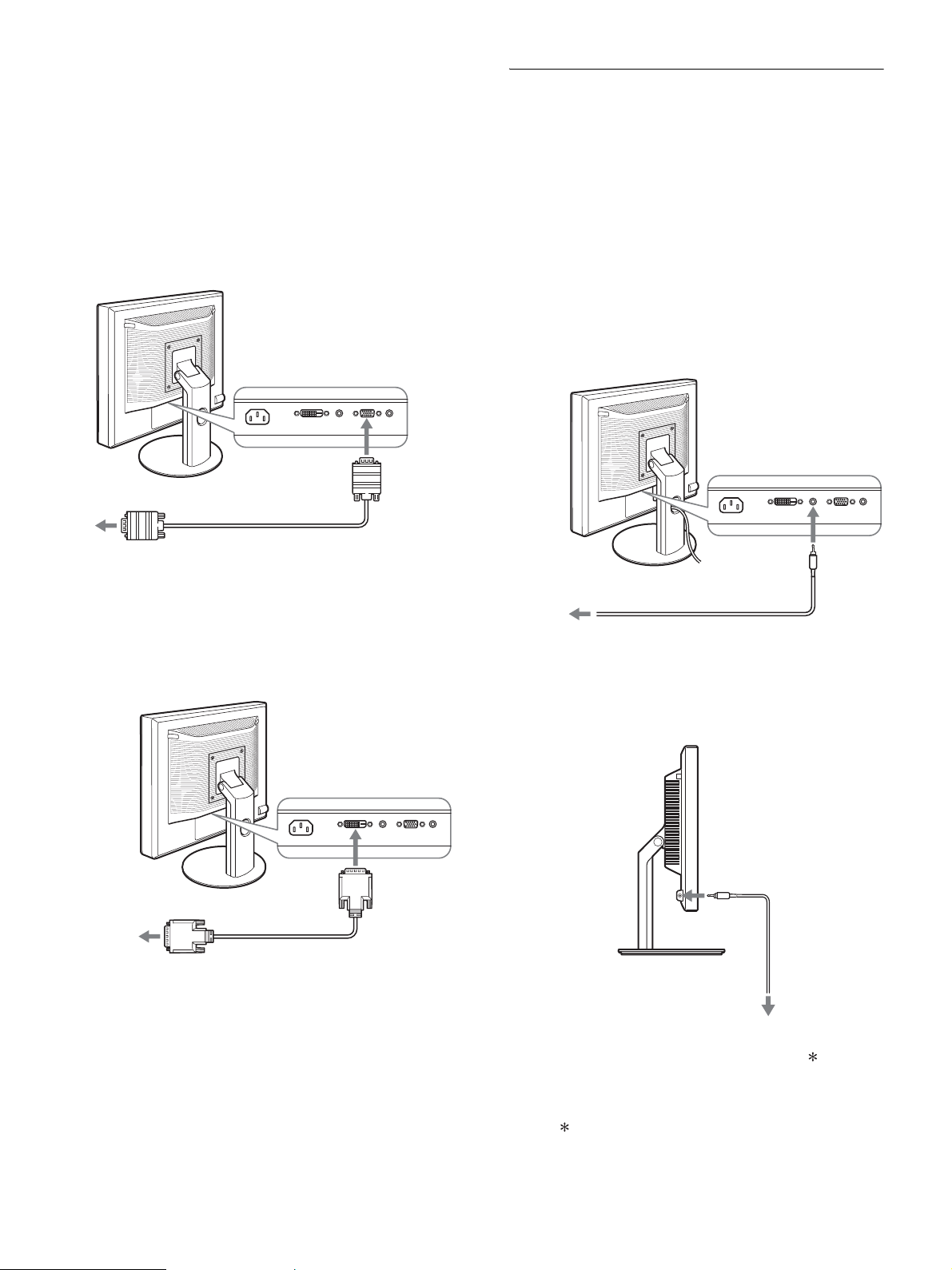
8
2 Conecte los cables de señal de vídeo a la pantalla.
Si utiliza el soporte fijo, pase primero los cables de señal de
vídeo por el orificio del soporte y, a continuación, conéctelos
a la pantalla. Si desea obtener más información, consulte
“Configuración 5: Fije los cables”.
x Conexión de un ordenador equipado con un
conector de salida HD15 (RVA analógico)
Utilice el cable de señal de vídeo HD15-HD15 (RVA
analógico) suministrado para enchufar el ordenador al
conector de entrada HD 15 (RVA analógico) de la pantalla.
x Conexión de un ordenador equipado con un
conector de salida DVI (RVA digital)
Utilice el cable de señal de vídeo DVI-D (RVA digital)
suministrado para conectar el ordenador al conector de
entrada DVI-D (RVA digital) de la pantalla.
Configuración 3: Conexión de los
cables de audio
Si no tiene la intención de emitir señales de audio, no
necesitará esta conexión.
Si utiliza un soporte fijo, pase primero los cables de audio por el
orificio del soporte y, a continuación, conéctelos a la pantalla. Si
desea obtener más información, consulte “Configuración 5: Fije
los cables”.
1 Conecte la toma de entrada de audio de la pantalla
y la salida de audio del ordenador o de cualquier
otro equipo de audio mediante el cable de audio (no
suministrado).
2 Conecte el cable de audio (no suministrado)
firmemente a la toma de salida de audio de la
pantalla.
La salida de audio cambiará cuando la conexión entre la entrada
y la salida de audio de la pantalla se haya realizado.
Conecte un equipo de audio que se encuentre dentro del rango de
entrada que se muestra en las especificaciones de entrada de audio
de la pantalla. Una entrada demasiado alta podría dañar la
pantalla.
cable de señal de vídeo HD15-
HD15 (RVA analógico)
(suministrado)
al conector de salida HD15 (RVA
analógico) del ordenador
al conector de
entrada HD 15
(RVA
analógico)
al conector de salida DVI del
ordenador (RVA digital)
al conector de
entrada DVI-D
(RVA digital)
cable de señal de vídeo
DVI-D (RVA digital)
(suministrado)
a la entrada de
audio
a la salida de audio del
ordenador o de otro equipo
de audio
cable de audio (no suministrado)
a la salida de audio
cable de audio
(no suministrado)
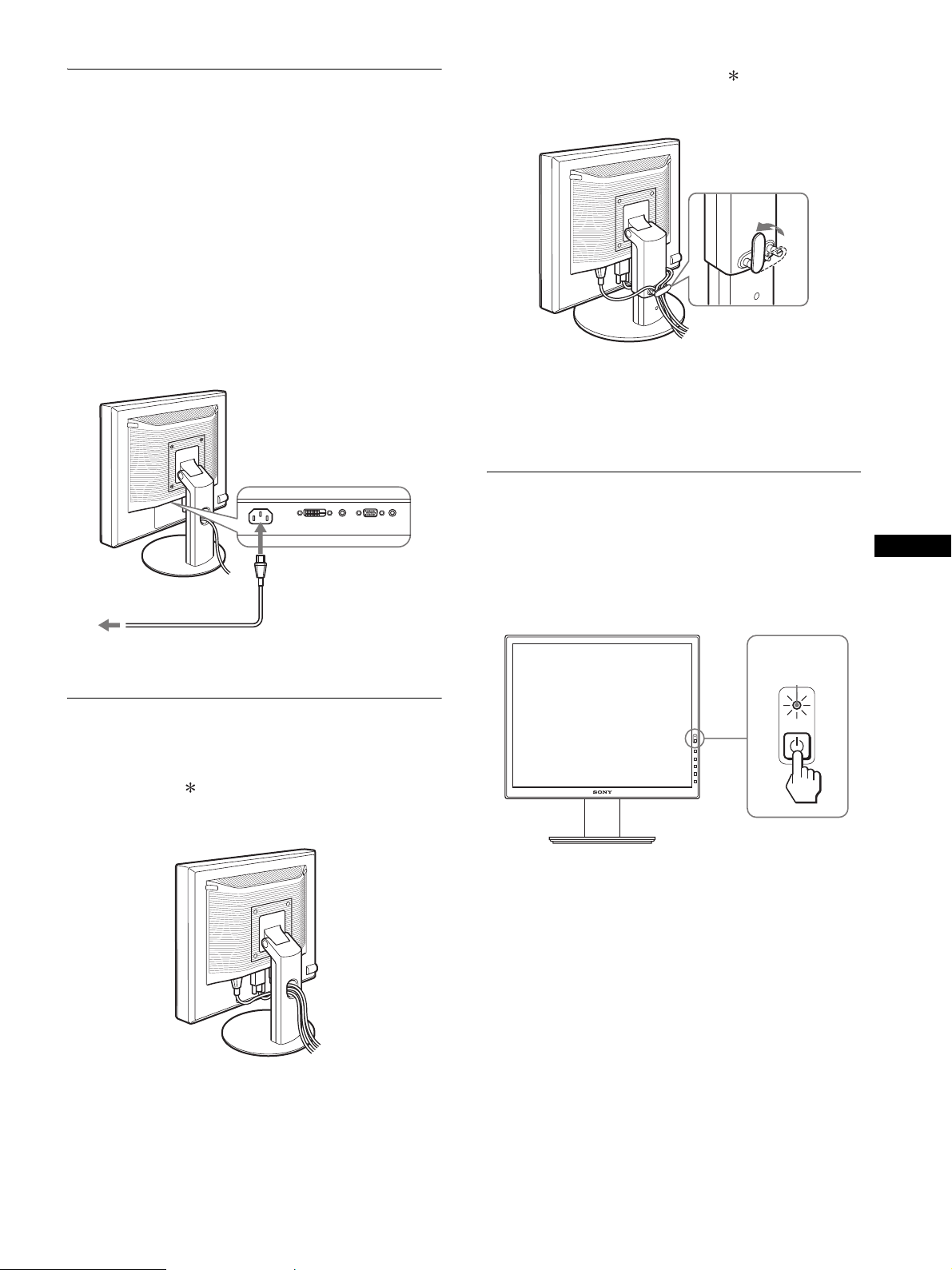
9
ES
Configuración 4: Conexión del
cable de
alimentación
Si utiliza un soporte fijo, pase primero el cable de alimentación
por el orificio del soporte y, a continuación, conéctelo a la
pantalla. Si desea obtener más información, consulte
“Configuración 5: Fije los cables”.
1 Conecte firmemente el cable de alimentación
suministrado al conector AC IN de la pantalla.
2 Conecte firmemente el otro extremo a una toma de
corriente.
Configuración 5: Fijación de los
cables
x Soporte fijo
Asegúrese de pasar los cables por el orificio del soporte como se
muestra en la ilustración.
x Soporte de altura regulable
Pase los cables por el portacables como se muestra en la
ilustración.
Nota
Cuando agrupe los cables, asegúrese de dejarlos ligeramente flojos. Si se
tira con fuerza de ellos, puede que se salgan de sus conectores o enchufes
mientras ajusta el ángulo de la pantalla. Si estira demasiado los cables,
éstos pueden resultar dañados.
Configuración 6: Encendido de la
pantalla y el
ordenador
1 Pulse el interruptor 1 (alimentación) situado en la
parte frontal derecha de la pantalla.
El indicador 1 (alimentación) se ilumina en verde.
2 Encienda el ordenador.
Si no aparece ninguna imagen en pantalla
• Compruebe que el cable de alimentación y el cable de señal de
vídeo están conectados correctamente.
• Si aparece “NO SEÑAL” en la pantalla:
– El ordenador está en el modo de ahorro de energía. Pulse
cualquier tecla del teclado o mueva el ratón.
– Pulse el botón OK para comprobar que el ajuste de la señal de
entrada es correcto (página 11).
• Si aparece “CABLE DESCONECTADO” en la pantalla:
– Compruebe que los cables de señal de vídeo están conectados
correctamente.
– Pulse el botón OK para comprobar que el ajuste de la señal de
entrada es correcto (página 11).
a AC IN
cable de alimentación
(suministrado)
a una toma de corriente
1
2
se ilumina en
verde
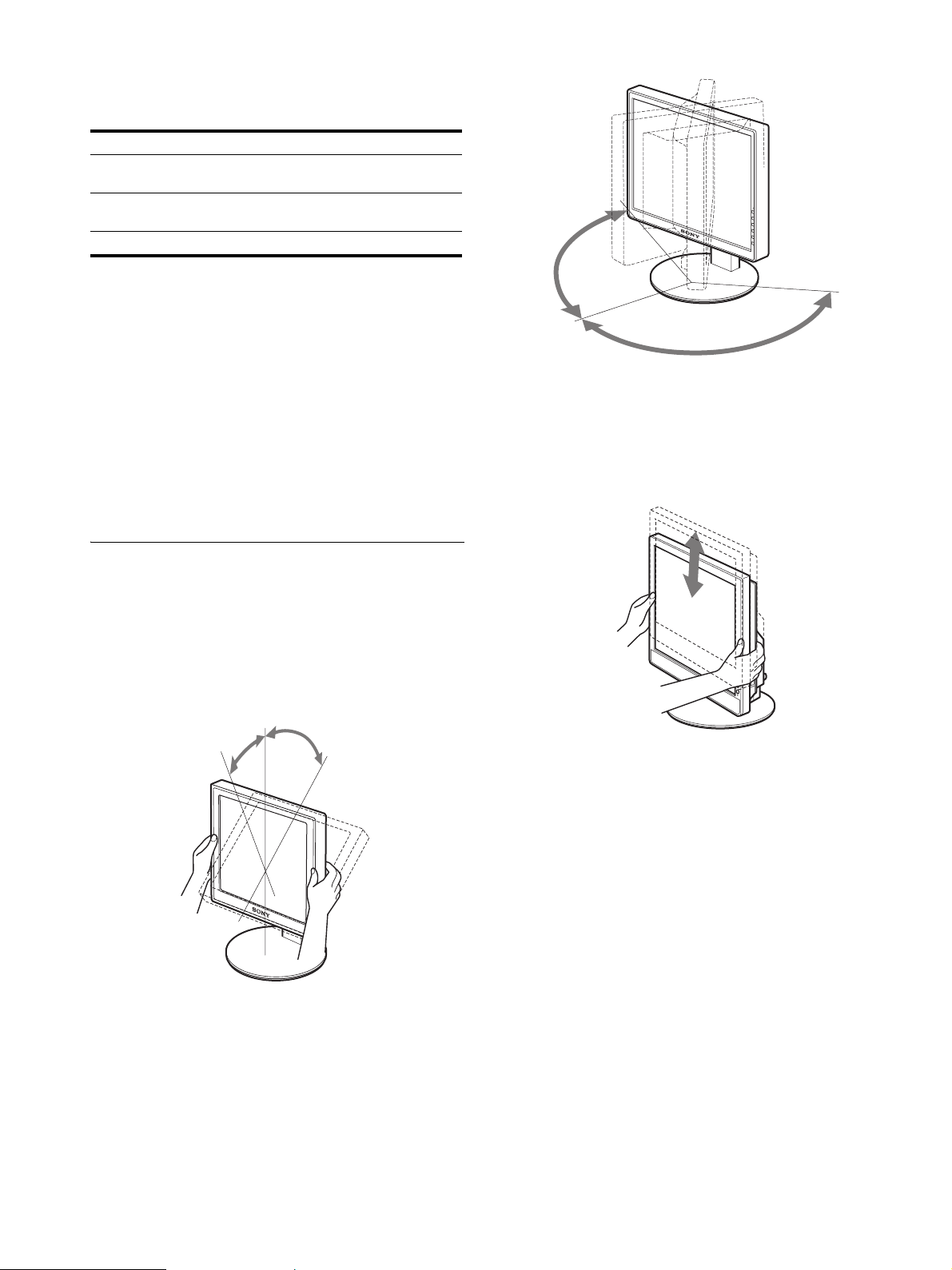
10
• Si aparece “FUERA ALCANCE” en la pantalla:
Vuelva a conectar la antigua pantalla. A continuación, ajuste la
tarjeta gráfica del ordenador en los siguientes rangos.
Para obtener más información sobre los mensajes en pantalla,
consulte “Problemas y soluciones” en la página 18.
No es necesario instalar controladores específicos
El monitor cumple con el estándar Plug & Play “DDC” y detecta
automáticamente toda la información de dicho monitor. No es preciso
instalar ningún controlador específico en el ordenador.
La primera vez que encienda el ordenador después de conectar el monitor,
puede aparecer en la pantalla el Asistente de configuración. En tal caso,
siga las instrucciones en pantalla. El monitor Plug & Play se selecciona
automáticamente para que pueda utilizarlo.
La frecuencia vertical se ajusta en 60 Hz
Ya que los parpadeos del monitor son discretos, puede utilizarlo tal como
está. No es necesario ajustar la frecuencia vertical en ningún valor alto
específico.
Configuración 7: Ajuste de la
inclinación y la
altura
Esta pantalla puede ajustarse en los ángulos que se muestran a
continuación.
Sujete el panel LCD por ambos lados y, a continuación,
ajuste los ángulos de la pantalla.
Si utiliza el soporte de altura regulable, también puede ajustar la
altura como se indica a continuación.
Sostenga ambos lados del panel LCD y ajuste la
altura de la pantalla.
Para un uso cómodo de la pantalla
Ajuste el ángulo de visualización de la pantalla en función de la
altura del escritorio y de la silla, de forma que la luz no se refleje
de la pantalla a los ojos.
Notas
• Cuando esté ajustando el ángulo de la pantalla, asegúrese de no golpear
la pantalla contra posibles objetos situados alrededor de ésta.
• No coloque objetos debajo de la pantalla cuando ajuste la altura del
soporte, ya que podría dañarse accidentalmente.
RVA analógico RVA digital
Frecuencia
horizontal
28 – 80 kHz 28 – 64 kHz
Frecuencia
vertical
48 – 75 Hz 60 Hz
Resolución 1280 × 1 024 o inferior
aprox.
20°
aprox.
5°
aprox.175°
aprox.175°
aprox.110 mm (4
11
/
32
pulgadas)
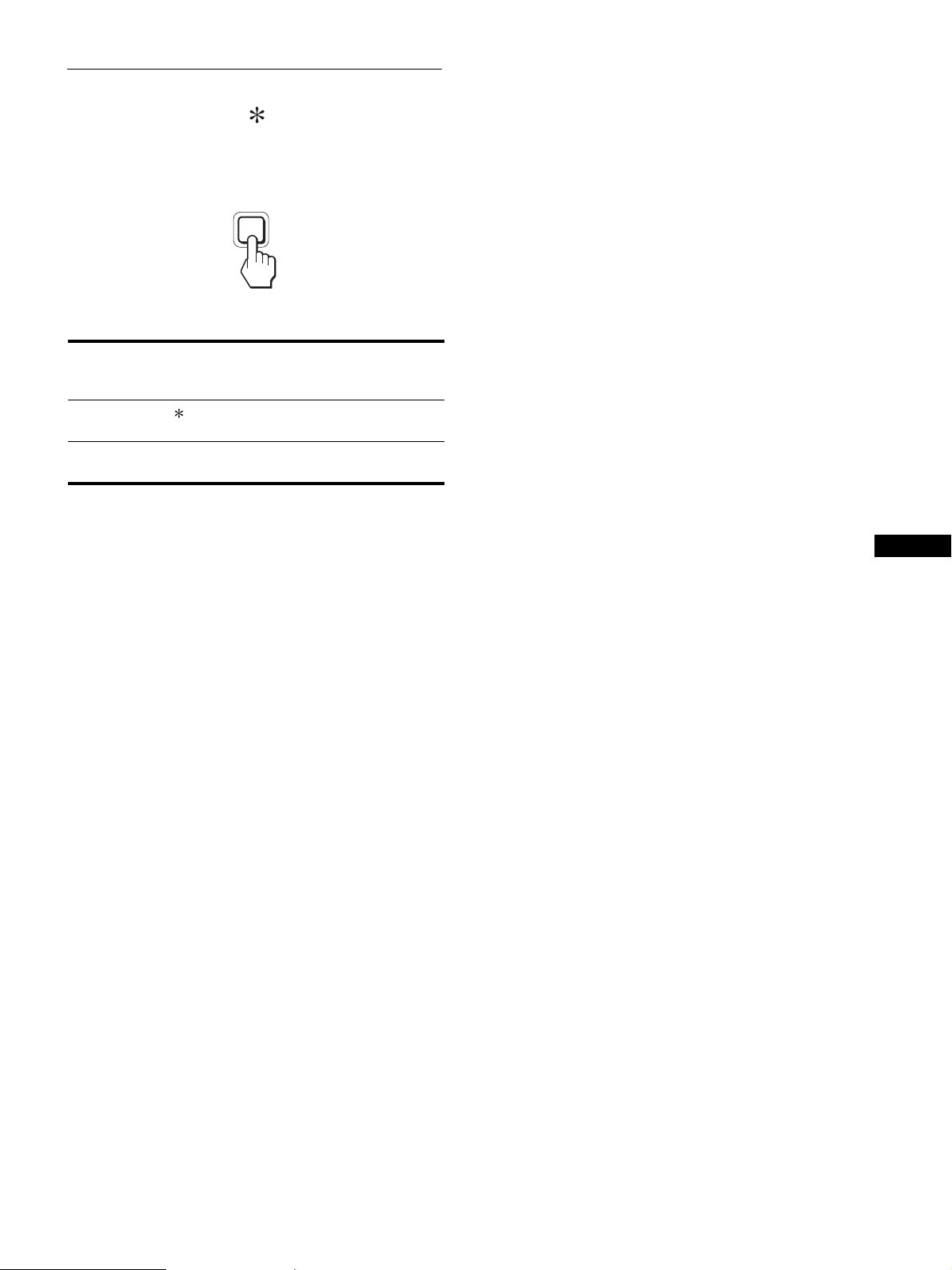
11
ES
Selección de la señal de entrada
(INPUT1/INPUT2)
Pulse el botón OK.
La señal de entrada cambia cada vez que pulsa este botón.
Mensaje en pantalla (aparece
durante unos 5 segundos en la
esquina superior izquierda).
Configuración de la señal de
entrada
INPUT1 : DVI-D
Conector de entrada DVI-D
(RVA digital) para INPUT1
INPUT2 : HD15 Conector de entrada HD15
(RVA analógico) para INPUT2
INPUT
OK
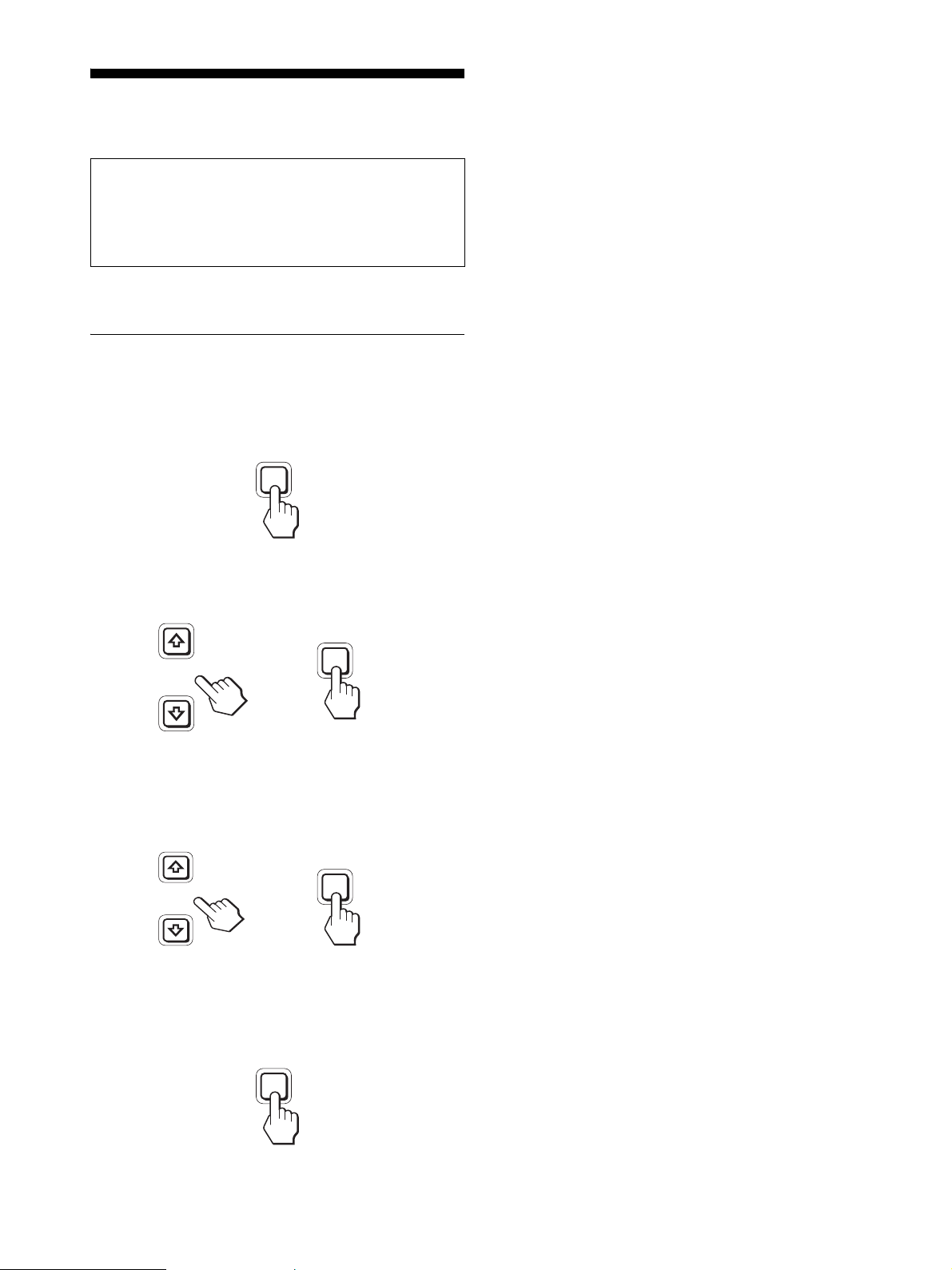
12
Personalización de la
pantalla
Es posible realizar diversos ajustes en la pantalla mediante el
menú en pantalla.
Navegación por el menú
1 Muestre el menú principal.
Pulse el botón MENU para que el menú principal aparezca en
pantalla.
2 Seleccione el menú que desee ajustar.
Pulse los botones m/M para que aparezca el menú deseado.
Pulse el botón OK para seleccionar el elemento de menú.
3 Ajuste el elemento.
Pulse los botones m/M para realizar el ajuste y, a
continuación, pulse el botón OK.
Al pulsar el botón OK, el ajuste se almacena y, a
continuación, la unidad vuelve al menú anterior.
4 Cierre el menú.
Pulse el botón MENU una vez para recuperar la visualización
normal. Si no pulsa ningún botón, el menú se cerrará
automáticamente después de unos 45 segundos.
x Restauración de los ajustes a los valores
predeterminados
Puede restablecer los ajustes mediante el menú REST.
Para obtener más información sobre la restauración de los ajustes,
consulte 0 (REST) en la página 15.
Antes de realizar ajustes
Conecte la pantalla y el ordenador, y enciéndalos.
Para obtener resultados óptimos, espere al menos 30 minutos
antes de realizar cualquier ajuste después de conectar la
pantalla al ordenador y encenderlo.
MENU
INPUT
OK
,
INPUT
OK
,
MENU
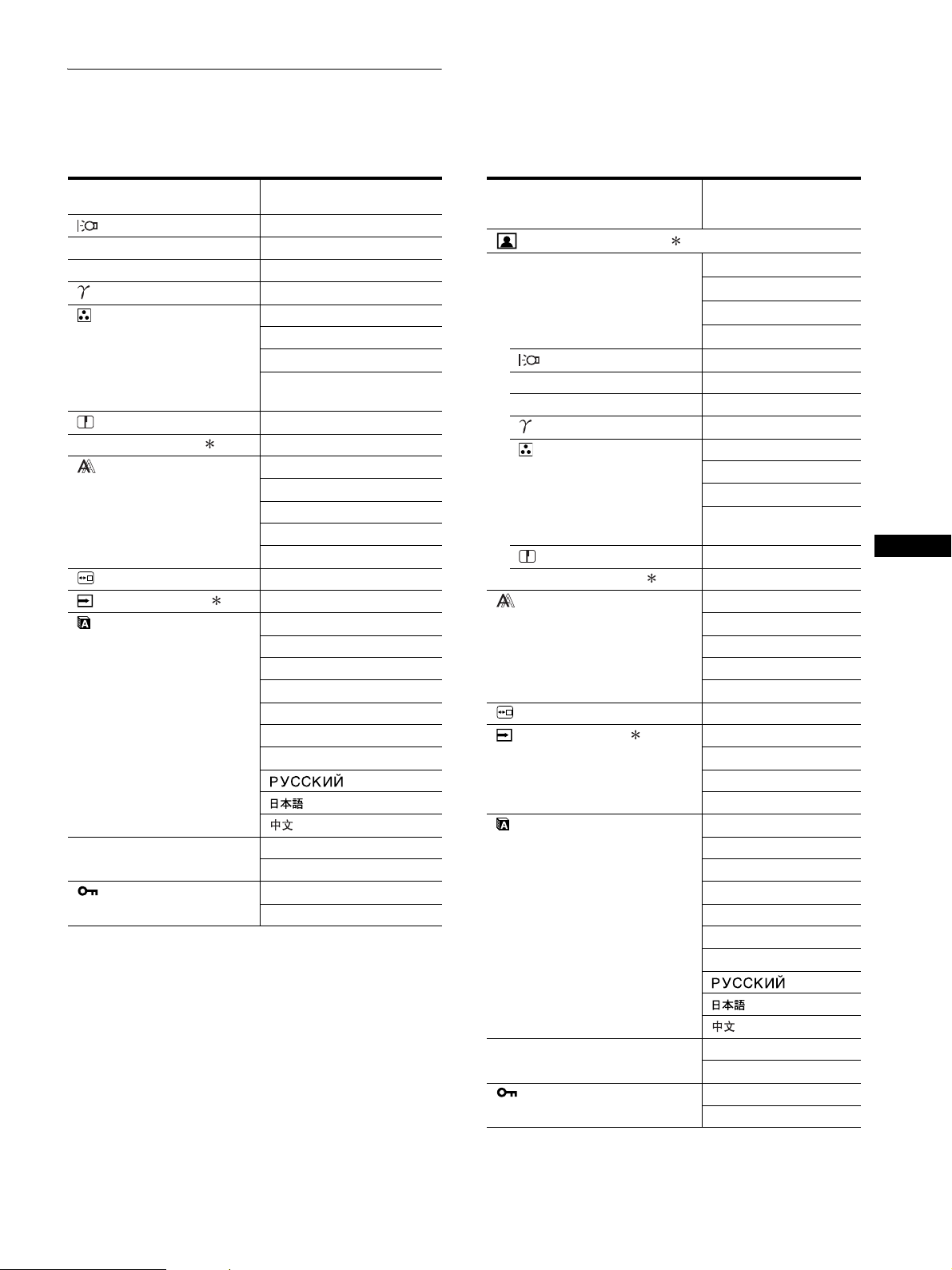
13
ES
Lista de opciones de menú
Las opciones de menú varían en función de los modelos.
Compruebe el nombre de modelo situado en la parte inferior de la pantalla y consulte las tablas siguientes:
1)
CONTRASTE, BRILLO y GAMMA no se pueden ajustar si se ha
seleccionado “sRGB”.
SDM-S75A/S95AR
SDM-S75E/S95ER
RETROILUMIN ;
6 CONTRASTE ;
1)
8 BRILLO ;
1)
GAMMA ;
1)
COLOR 9300K
6500K
sRGB
1)
USUARIO (ganancia de R y
A)
NITIDEZ ;
0 MODO RESTAB. –
PANTALLA AUTOMÁTICA
FASE
ANCHO
CENTRADO H
CENTRADO V
POSICIÓN MENÚ ;
SIN SEÑAL ENTR –
LANGUAGE ENGLISH
FRANÇAIS
DEUTSCH
ESPAÑOL
ITALIANO
NEDERLANDS
SVENSKA
0 REST ACEPTAR
CANCELAR
BLOQ DE AJUSTES SÍ
NO
SDM-S75D/S95DR
SDM-S75F/S95FR
SDM-S75N/S95NR
Menú AJUSTE IMAGEN
MODE (modo ECO) ALTO
MEDIO
BAJO
USUARIO
RETROILUMIN ;
6 CONTRASTE ;
1)
8 BRILLO ;
1)
GAMMA ;
1)
COLOR 9300K
6500K
sRGB
1)
USUARIO (ganancia de
R y A)
NITIDEZ ;
0 MODO RESTAB. ;
PANTALLA AUTOMÁTICA
FASE
ANCHO
CENTRADO H
CENTRADO V
POSICIÓN MENÚ ;
SIN SEÑAL ENTR ENTR AUTO ACT
ENTRADA1
ENTRADA2
ENTR AUTO DES
LANGUAGE ENGLISH
FRANÇAIS
DEUTSCH
ESPAÑOL
ITALIANO
NEDERLANDS
SVENSKA
0 REST ACEPTAR
CANCELAR
BLOQ DE AJUSTES SÍ
NO
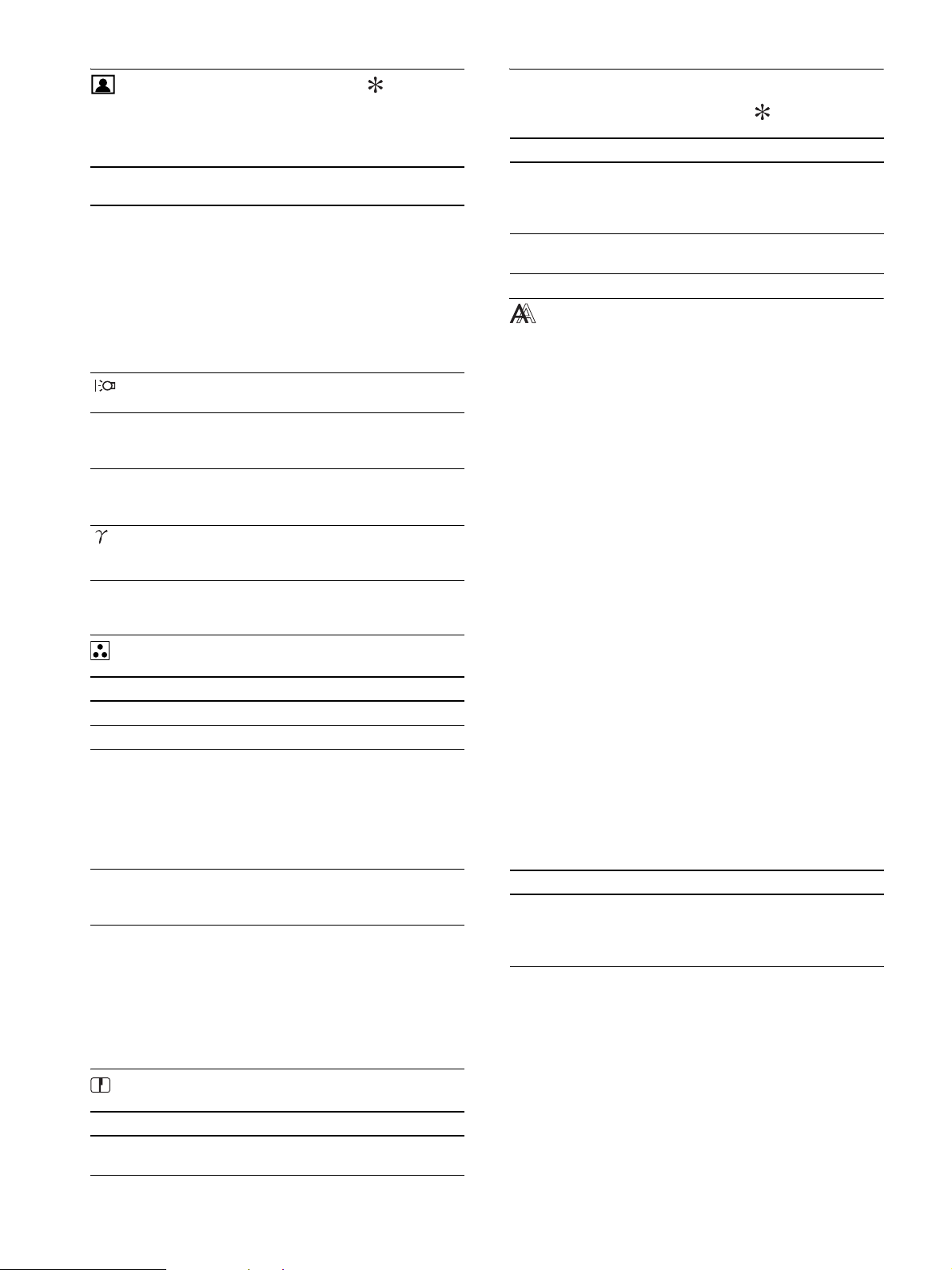
14
Menú AJUSTE IMAGEN
En los monitores con terminales de entrada analógica,
RETROILUMIN, CONTRASTE y BRILLO se pueden ajustar si
sólo se ha seleccionado USUARIO en el modo ECO.
Nota
Si selecciona “sRGB”, no podrá ajustar CONTRASTE, BRILLO ni GAMMA.
Menú COLOR
1)
Si un ordenador u otro equipo conectado a la pantalla no es compatible
con sRGB, no se puede ajustar el color según el perfil sRGB.
Si selecciona “sRGB”, no podrá ajustar CONTRASTE, BRILLO ni GAMMA
.
sRGB no estará disponible si se ha seleccionado el modo ALTO,
MEDIO o BAJO en el modo ECO. (“sRGB” aparecerá atenuado).
2)
Este ajuste cambia la temperatura del color aumentando o
disminuyendo los componentes R y A respecto a V (verde). El
componente V es fijo.
Menú NITIDEZ
0 Menú MODO RESTAB. (sólo
para AJUSTE IMAGEN)
Menú PANTALLA (sólo para
señales RVA analógicas)
x Función de ajuste automático de la calidad
de imagen
Cuando la pantalla recibe una señal de entrada, ajusta
automáticamente la posición y la nitidez de la imagen
(fase/ancho) con el fin de garantizar la visualización de
una imagen nítida en la pantalla (página 16).
Nota
Si la función de ajuste automático de la calidad de imagen está activada,
sólo funcionará el interruptor 1 (alimentación).
La imagen podría parpadear durante estos momentos, pero no se trata de
un fallo de funcionamiento. Simplemente espere unos segundos hasta que
se complete el ajuste.
Si la función de ajuste automático de la calidad de
imagen de esta pantalla parece no ajustar la imagen
completamente
Es posible realizar ajustes automáticos adicionales de la calidad
de imagen para la señal de entrada actual. (Consulte la opción
AUTOMÁTICA a continuación.)
Si todavía debe realizar ajustes adicionales a la calidad
de imagen
Es posible ajustar manualmente la nitidez (fase/ancho) y la
posición (horizontal/vertical) de la imagen.
Estos ajustes quedan almacenados en la memoria y se recuperan
automáticamente cuando la pantalla recibe la misma señal de
entrada. Deberá repetir los ajustes si cambia la señal de entrada
tras volver a conectar el ordenador.
x Ajuste manual de la nitidez y la posición de
la imagen (FASE/ANCHO/ CENTRADO H /
CENTRADO V)
Puede ajustar la nitidez y la posición de la imagen según se indica
a continuación.
1 Establezca la resolución a 1280 × 1024 en el
ordenador.
2 Cargue el CD-ROM.
3 Inicie el CD-ROM, visualice la imagen de prueba.
Elementos Si pulsa el
botón M
Si pulsa el
botón m
MODE
ALTO
MEDIO
BAJO
USUARIO
Establezca el modo ECO.
Seleccione el brillo de la pantalla entre
las opciones “ALTO
”, “MEDIO”,
“BAJO
” o “USUARIO” para ahorrar en
el consumo de energia.
Puede ajustar los tonos suaves del brillo
de la pantalla si selecciona el modo
“USUARIO
”.
Puede establecer un tipo de modo
mediante el ajuste de una entrada.
RETROILUMIN
Aumenta el brillo
de la pantalla.
Se oscurece la
pantalla.
6 CONTRASTE Aumenta la nitidez
del contraste de la
imagen.
El contraste de la
imagen aparece
borroso.
8 BRILLO Aumenta el brillo
de la imagen
(etiqueta negra).
Se oscurece la
imagen (etiqueta
negra).
GAMMA Características
Puede ajustar las imágenes de la pantalla
al color original.
Elementos Características
9300K Tono azulado
6500K Tono rojizo
sRGB
1)
Si selecciona “sRGB”, los colores se
ajustarán según el perfil sRGB. (El ajuste
de color sRGB es un protocolo estándar
de espacio de color para productos
informáticos.) Si selecciona “sRGB”, los
ajustes de color del ordenador deben
establecerse según el perfil sRGB.
USUARIO
2)
Puede ajustar con precisión la
temperatura del color y hacer que el
ajuste del color se almacene en memoria.
Elementos Si pulsa los botones m/M
NITIDEZ Podrá ajustar el aumento de la nitidez de
los bordes de las imágenes, etc.
Elementos Características
ACEPTAR Puede restaurar los ajustes de
RETROILUMIN, CONTRASTE,
BRILLO, GAMMA, COLOR y
NITIDEZ a los valores predeterminados.
CANCELAR Para cancelar la restauración y regresar
al menú.
Elementos Características
AUTOMÁTICA Realice los ajustes necesarios de la fase,
el ancho y la posición horizontal o
vertical de la pantalla para la señal de
entrada actual y almacénelos.
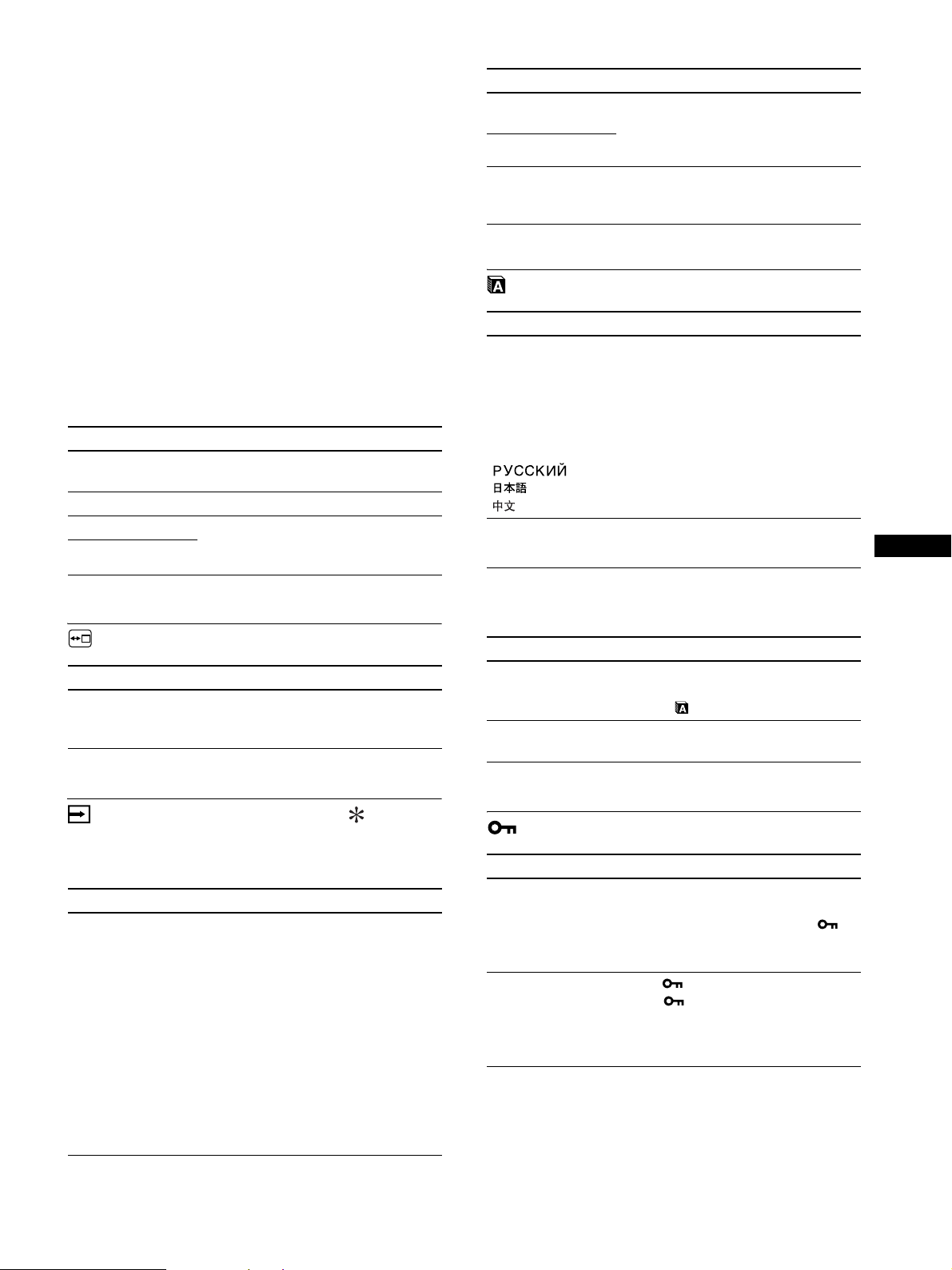
15
ES
Para usuarios de Windows
Si funciona la ejecución automática:
1 Haga clic en “Mostrar herramienta de ajuste (UTILITY)”.
2 Haga clic en “Adjust” (Ajustar), confirme la resolución y,
a continuación, haga clic en “Next” (Siguiente).
3 Aparecerá en orden la imagen de prueba de ANCHO,
FASE, CENTRADO H y CENTRADO V.
Si la ejecución automática no funciona:
1 Abra “Mi PC” y haga clic con el botón derecho en el icono
de CD-ROM. Vaya a “Explorar” y abra el icono del CD-
ROM.
2 Abra [Utility] (Utilidades) y seleccione [Windows]
(Windows).
3 Inicie [Win_Utility.exe].
Aparecerá la imagen de prueba.
Para usuarios de Macintosh
1 Abra [Utility] (Utilidades) y seleccione [Mac] (Mac).
2 Inicie [Mac_Utility.exe]
Aparecerá la imagen de prueba.
Menú POSICIÓN MENÚ
Menú SIN SEÑAL ENTR
Estos modelos de entrada digital localizan cualquier señal de
entrada. Es posible alternar entre las señales automáticamente.
Menú LANGUAGE
0 Menú REST (restablece los
valores predeterminados)
Menú BLOQ DE AJUSTES
Elementos Si pulsa los botones m/M
FASE Minimiza las rayas horizontales de la
pantalla.
ANCHO Elimina las rayas verticales.
CENTRADO H Ajusta la posición de la imagen cuando
la imagen no aparece en el centro de la
pantalla.
CENTRADO V
Elementos Si pulsa los botones m/M
POSICIÓN MENÚ Puede cambiar la posición del menú que
aparece en la pantalla. Elija una de las 9
posiciones.
Elementos Características
ENTR AUTO ACT Si el terminal de entrada seleccionada no
emite ninguna señal o si selecciona un
terminal de entrada con el botón OK y
éste no recibe ninguna señal, aparecerá
un mensaje en pantalla. A continuación,
la pantalla comprobará la señal de
entrada y cambiará a otro terminal de
entrada automáticamente.
Al cambiar la entrada, el terminal de
entrada seleccionado aparecerá en la
esquina superior izquierda de la pantalla.
Si sigue sin recibirse ninguna señal, la
pantalla pasará automáticamente al
modo de ahorro de energía.
ENTRADA1 Al encender la pantalla, se visualizará
ENTRADA1 o ENTRADA2 como
ajuste prioritario (la opción SIN SEÑAL
ENTR no funcionará).
ENTRADA2
ENTR AUTO DES El terminal de entrada no cambia
automáticamente. Pulse el botón OK
para cambiar el terminal de entrada.
Elementos Si pulsa los botones m/M
ENGLISH
FRANÇAIS
DEUTSCH
ESPAÑOL
ITALIANO
NEDERLANDS
SVENSKA
Inglés
Francés
Alemán
Italiano
Holandés
Sueco
Ruso
Japonés
Chino
Elementos Características
ACEPTAR Para restaurar todos los datos de ajuste a
los valores predeterminados excepto el
ajuste de (LANGUAGE).
CANCELAR Para cancelar la restauración y regresar a
la pantalla de menú.
Elementos Características
SÍ Sólo funcionará el interruptor 1
(alimentación). Si intenta realizar
cualquier otra operación, el icono
(BLOQ DE AJUSTES) aparecerá en la
pantalla.
NO Ajuste (BLOQ DE AJUSTES) en
NO. Si (BLOQ DE AJUSTES) se ha
ajustado en SÍ, al pulsar el botón MENU,
(BLOQ DE AJUSTES) se seleccionará
automáticamente.
Elementos Características
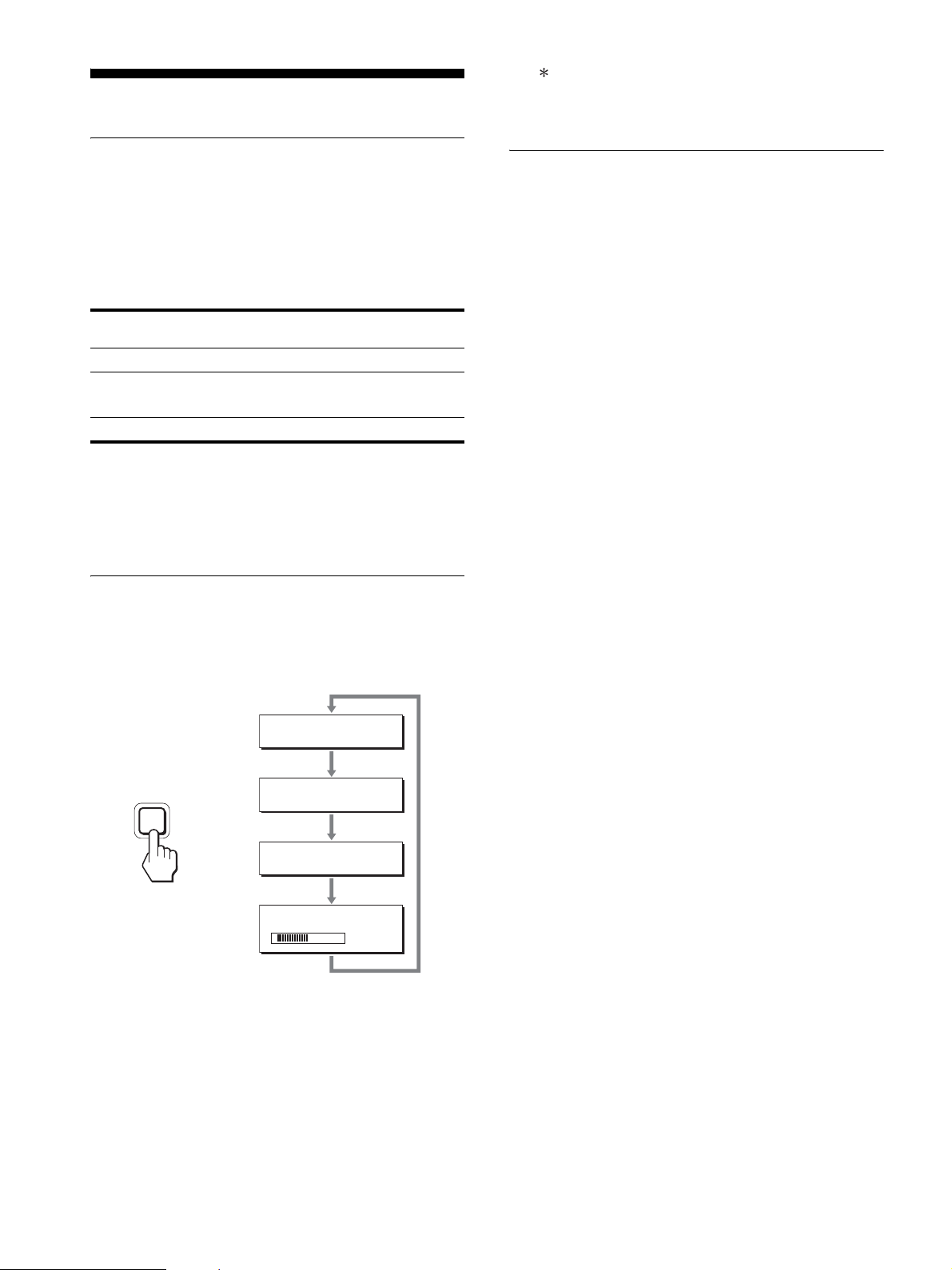
16
Características técnicas
Función de ahorro de energía
Esta pantalla cumple las directrices de ahorro de energía
establecidas por VESA, ENERGY STAR y NUTEK. Si la
pantalla está conectada a un ordenador o a una tarjeta gráfica de
vídeo compatible con DPMS (Display Power Management
Standard) para entradas analógicas o con DMPM (DVI Digital
Monitor Power Management) para entradas digitales, el consumo
de energía de la pantalla se reducirá automáticamente tal como se
muestra a continuación.
1) Cuando el ordenador entra en el modo “activo inactivo”, la señal de
entrada se interrumpe y la pantalla muestra NO SEÑAL.
Transcurridos 5 segundos, la pantalla entra en el modo de ahorro de
energía.
“deep sleep” corresponde al modo de ahorro de energía definido por
la Agencia de protección del medio ambiente (Environmental
Protection Agency).
Reducción del consumo de energía
(modo ECO)
Si pulsa varias veces el botón ECO situado en la parte frontal de
la pantalla, podrá seleccionar el brillo de la pantalla.
Cada modo aparece en la pantalla y el brillo de la misma se reduce
en función del modo. El menú desaparece de forma automática
transcurridos aproximadamente 5 segundos.
El brillo de la pantalla y el consumo de energía se reducen a
medida que el modo cambia de ALTO a MEDIO y a BAJO.
El valor predeterminado del brillo de la pantalla se ajusta en
ALTO.
Si selecciona USUARIO, puede ajustar el nivel de la luz de fondo
mediante los botones m/M del mismo modo que cuando
selecciona RETROILUMIN mediante el menú.
Nota
En los monitores con terminales de entrada analógica, los elementos del
menú RETROILUMIN, CONTRASTE y BRILLO sólo se encuentran
disponibles cuando el modo ECO está ajustado en USUARIO (página 14).
Función de ajuste automático de la
calidad de imagen
(sólo para señales
RVA analógicas)
Cuando la pantalla recibe una señal de entrada,
ajusta automáticamente la posición y la nitidez
(fase/paso) de la imagen con el fin de garantizar la
visualización de una imagen nítida en la pantalla.
Modo predefinido en fábrica
Cuando la pantalla recibe una señal de entrada, la hace coincidir
automáticamente con uno de los modos predefinidos en fábrica y
almacenados en la memoria de la pantalla para mostrar una
imagen de alta calidad en el centro de la pantalla. Si la señal de
entrada coincide con el modo predefinido en fábrica, la imagen
aparecerá automáticamente en la pantalla con los ajustes
predefinidos adecuados.
Si las señales de entrada no coinciden con uno de
los modos predefinidos en fábrica
Cuando la pantalla recibe una señal de entrada que no coincide
con ninguno de los modos predefinidos en fábrica, su función de
ajuste automático de la calidad de imagen se activa con el fin de
garantizar la visualización constante de una imagen nítida en la
pantalla (dentro de los siguientes rangos de frecuencia de la
pantalla):
Frecuencia horizontal: 28–80 kHz
Frecuencia vertical: 48–75 Hz
En consecuencia, la primera vez que la pantalla recibe señales de
entrada que no coinciden con los modos predefinidos en fábrica,
es posible que tarde más tiempo de lo normal en mostrar la
imagen en la pantalla. Estos datos de ajuste se almacenan
automáticamente en la memoria, de modo que la próxima vez que
se reciban las señales, la pantalla funcionará del mismo modo que
cuando recibe señales que coinciden con uno de los modos
predefinidos en fábrica.
Si ajusta la fase, el paso y la posición de la
imagen manualmente
Para algunas señales de entrada, es posible que la función de
ajuste automático de la calidad de imagen de esta pantalla no
ajuste la posición, la fase y el paso de la imagen completamente.
En tal caso, estos valores pueden ajustarse manualmente
(página 14). Si estos valores se ajustan manualmente, se
almacenarán en la memoria como modos de usuario y se
recuperarán automáticamente cada vez que la pantalla reciba las
mismas señales de entrada.
Nota
Mientras la función de ajuste automático de la calidad de imagen esté
activada, sólo funcionará el interruptor 1 (alimentación).
La imagen podría parpadear durante estos momentos, pero no se trata de
un fallo de funcionamiento. Simplemente espere unos segundos hasta que
se complete el ajuste.
Modo de alimentación Indicador 1
(alimentación)
funcionamiento normal verde
activo inactivo
1)
(deep sleep)
naranja
alimentación desactivada apagado
ECO
,
50
ECO
ALTO
:
ECO
MEDIO
:
ECO
BAJO
:
ECO
USUARIO
:
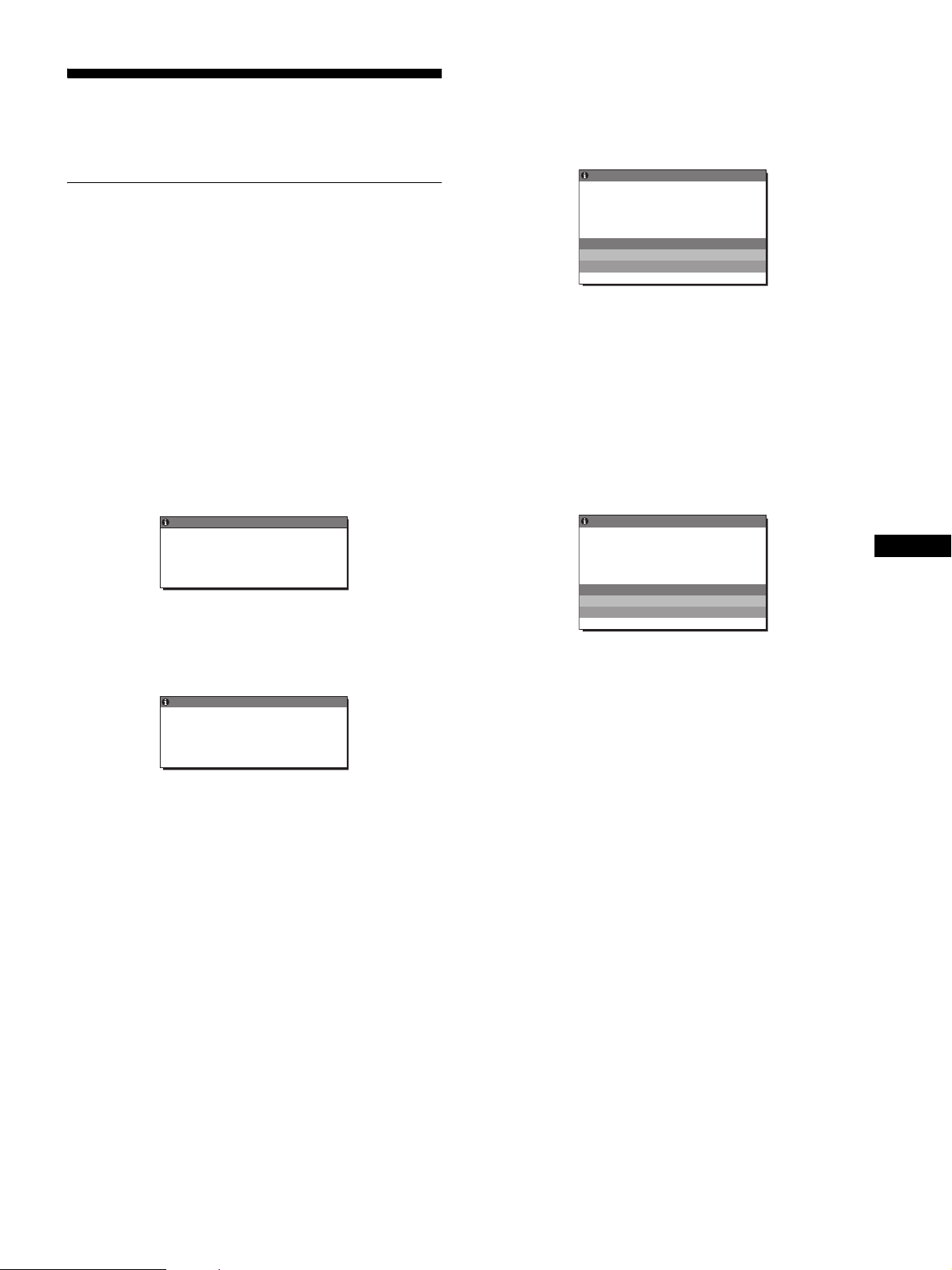
17
ES
Solución de problemas
Antes de ponerse en contacto con el soporte técnico, consulte esta
sección.
Mensajes en pantalla
Si la señal de entrada presenta algún problema, la pantalla
mostrará uno de los siguientes mensajes. Para solucionar el
problema, consulte “Problemas y soluciones” en la página 18.
Si “FUERA ALCANCE” aparece en pantalla
Esto indica que la señal de entrada no cumple las especificaciones
de la pantalla. Compruebe lo siguiente.
Para obtener más información acerca de los mensajes en pantalla,
consulte “Problemas y soluciones” en la página 18.
Si aparece “xxx.xkHz/ xxxHz”
Esto indica que la frecuencia horizontal o la vertical no
cumple las especificaciones de la pantalla.
Las cifras indican las frecuencias horizontal y vertical de la
señal de entrada actual.
Si aparece “RESOLUCIÓN > 1 280 × 1 024”
Esto indica que la resolución no cumple las especificaciones
de la pantalla (1 280 × 1 024 o inferior).
Si “NO SEÑAL” aparece en pantalla
Esto indica que el conector seleccionado no recibe ninguna señal.
Si SIN SEÑAL ENTR (página 15) se ajusta en ACT, la pantalla
buscará y cambiará automáticamente a otra señal de entrada.
Cuando no se pueden encontrar señales de entrada se muestra
el mensaje “IR A AHORRO ENERGÍA”.
5 segundos después, se activa el modo de ahorro de energía.
Si “CABLE DESCONECTADO” aparece en
pantalla
Esto indica que el cable de señal de vídeo se ha desconectado del
conector seleccionado.
Si SIN SEÑAL ENTR (página 15) se ajusta en ACT, la pantalla
buscará y cambiará automáticamente a otra señal de entrada.
Cuando no se pueden encontrar señales de entrada se muestra
el mensaje “IR A AHORRO ENERGÍA”.
45 segundos después, se activa el modo de ahorro de energía.
xxx . xkHz / xxxHz
I NFORMAC I
N
FUERA ALCANCE
EN TRA A1
:
DV I
-
D
D
Ó
Ejemplo
INFORMACIÓN
FUERA ALCANCE
EN RADA
RESOLUCIÓN > 1280X1024
T1
:
DV I
-
D
Ejemplo
ENTRA A1
:
DV I
-
D
NO SEÑAL
IR A A
D
HORRO ENERG Í A
INFORMACI N
Ó
Ejemplo
CABLE DESCONECTADO
INFORMACI NÓ
:
DV I
-
D
ENTRADA1
I R A AHORRO ENERG Í A
Ejemplo
18
Problemas y soluciones
Si se produce algún problema debido a la conexión de un ordenador u otro equipo, consulte el manual de instrucciones de dicho equipo.
Problema Compruebe lo siguiente
No hay imagen
Si el indicador 1 (alimentación) no
se encuentra iluminado, o bien si el
indicador 1 (alimentación) se
ilumina en naranja,
• Compruebe que el interruptor 1 (alimentación) esté activado.
Si el indicador 1 (alimentación) no
se ilumina cuando el interruptor 1
(alimentación) está pulsado,
• Compruebe que el cable de alimentación esté conectado correctamente.
Si CABLE DESCONECTADO
aparece en la pantalla,
• Compruebe que el cable de señal de vídeo esté conectado correctamente y que todos los
enchufes estén colocados en sus receptáculos (página 7).
• Compruebe que los terminales del conector de entrada de vídeo no estén doblados o
hundidos.
• Compruebe que el ajuste de selección de entrada sea correcto (página 11).
• Se ha conectado un cable de señal de vídeo no suministrado. Si conecta un cable de señal
de vídeo no suministrado con el equipo, es posible que aparezca el mensaje CABLE
DESCONECTADO en pantalla. No se trata de un fallo en el funcionamiento.
Si NO SEÑAL aparece en la
pantalla, o bien si el indicador 1
(alimentación) se ilumina en naranja,
• Compruebe que el cable de señal de vídeo esté conectado correctamente y que todos los
enchufes estén colocados en sus receptáculos (página 7).
• Compruebe que los terminales del conector de entrada de vídeo no estén doblados o
hundidos.
• Compruebe que el ajuste de selección de entrada sea correcto (página 11).
x Problemas causados por un ordenador u otro equipo conectado, y no por la
pantalla
• El ordenador se encuentra en el modo de ahorro de energía. Pulse cualquier tecla del
teclado o mueva el ratón.
• Compruebe que la tarjeta gráfica esté instalada correctamente.
• Compruebe que el ordenador esté encendido.
• Reinicie el ordenador.
Si FUERA ALCANCE aparece en la
pantalla (página 17),
x Problemas causados por un ordenador u otro equipo conectado, y no por la
pantalla
• Compruebe que el rango de frecuencia de vídeo se encuentre dentro del rango especificado
para la pantalla. Si ha sustituido una antigua pantalla por ésta, vuelva a conectar la antigua
y ajuste la tarjeta gráfica del ordenador a los siguientes valores:
Horizontal: 28 – 80 kHz (RVA analógico), 28 – 64 kHz (RVA digital)
Vertical: 48 – 75 Hz (RVA analógico), 60 Hz (RVA digital)
Resolución: 1 280 × 1 024 o inferior
Si utiliza Windows, • Si ha sustituido una antigua pantalla por ésta, vuelva a conectar la antigua y realice los
pasos siguientes. Seleccione “SONY” de la lista “Fabricantes” y elija el nombre de
modelo que desea de la lista “Modelos” en la pantalla de selección de dispositivos de
Windows. Si el nombre de modelo de esta pantalla no aparece en la lista “Modelos”,
inténtelo con “Plug & Play”.
Si utiliza un sistema Macintosh, • Si conecta un ordenador Macintosh, utilice un adaptador (no suministrado) si es necesario.
Conecte el adaptador al ordenador antes de conectar el cable de señal de vídeo.
La imagen parpadea, se ondula,
oscila o aparece codificada
• Ajuste el paso y la fase (sólo para señales RVA analógicas) (página 14).
• Enchufe la pantalla a una toma de ca diferente, preferiblemente de un circuito diferente.
x Problemas causados por un ordenador u otro equipo conectado, y no por la
pantalla
• Consulte el manual de la tarjeta gráfica para obtener información sobre el ajuste adecuado
para la pantalla.
• Compruebe que esta pantalla admite el modo gráfico (VESA, Macintosh 19" Color, etc.) y
la frecuencia de la señal de entrada. Aunque la frecuencia se encuentre dentro del margen
adecuado, algunas tarjetas de vídeo pueden tener un impulso de sincronización demasiado
estrecho para que la pantalla se sincronice correctamente.
• Esta pantalla no procesa las señales de entrelazado. Ajústelo para señales progresivas.
• Ajuste la frecuencia de barrido (frecuencia vertical) del ordenador para obtener la mejor
imagen posible.
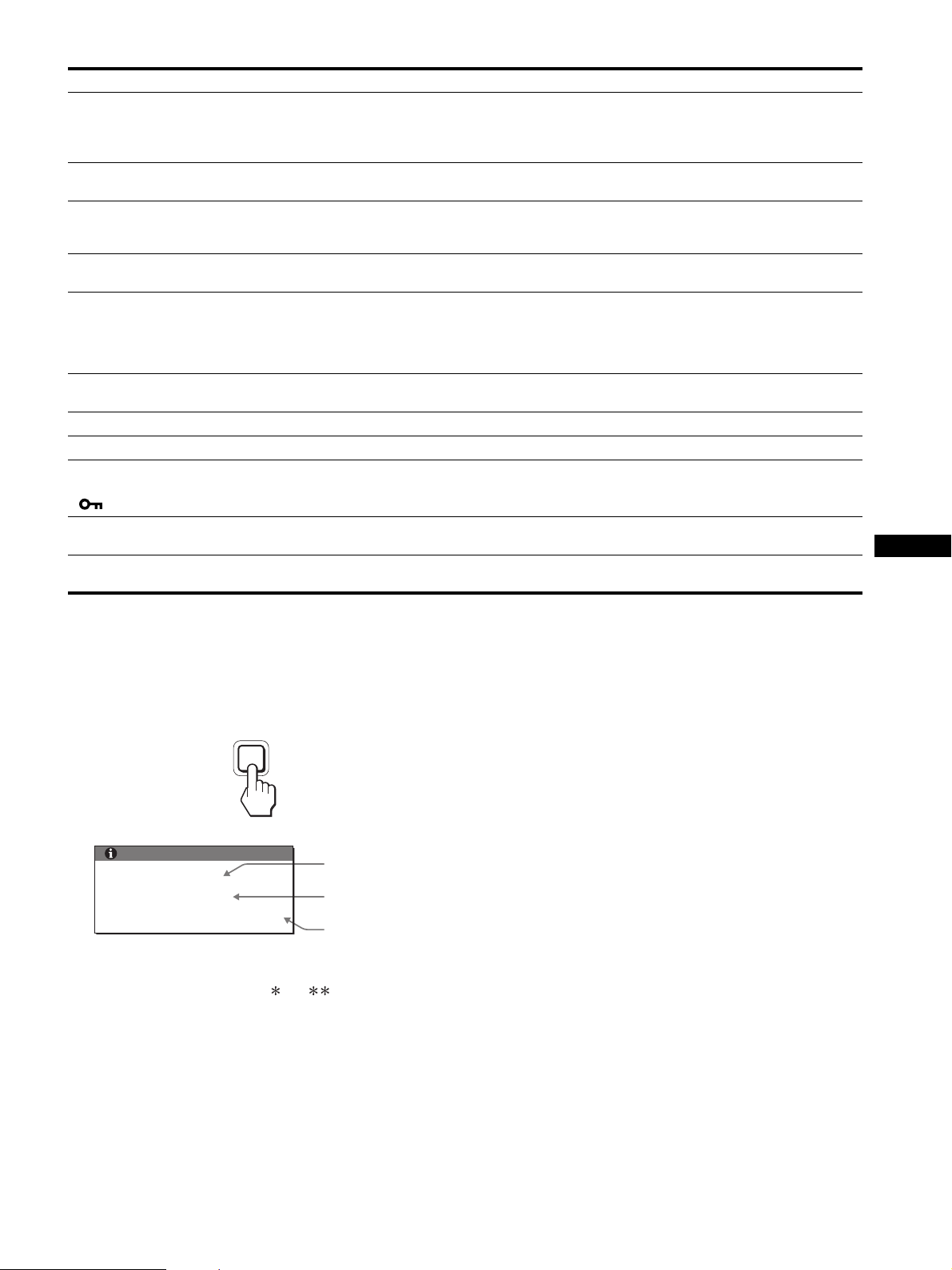
19
ES
Visualización de la información de la pantalla
Mientras la pantalla recibe una señal de vídeo,
mantenga pulsado el botón MENU durante más de 5
segundos hasta que aparezca el cuadro de
información.
Para que desaparezca el cuadro, vuelva a pulsar el botón MENU.
Aunque el nombre de modelo de esta pantalla registrado según el
estándar de seguridad es SDM-S75 /S95 , en la venta al
público se utiliza la denominación SDM-S75A/S95AR/S75D/
S95DR/S75E/S95ER/S75F/S95FR/S75N/S95NR.
Si algún problema no se soluciona, póngase en contacto con un
distribuidor Sony autorizado y proporciónele la siguiente
información:
• Nombre del modelo
• Número de serie
• Descripción detallada del problema
• Fecha de compra
• Nombre y especificaciones del ordenador y la tarjeta gráfica
• Tipo de señales de entrada (RVA analógico/RVA digital)
La imagen es borrosa • Ajuste el brillo y el contraste (página 14).
• Ajuste el paso y la fase (sólo para señales RVA analógicas) (página 14).
x
Problemas causados por un ordenador u otro equipo conectado, y no por la pantalla
• Ajuste la resolución del ordenador en 1 280 × 1 024.
Aparecen imágenes fantasma • Deje de utilizar cables prolongadores de vídeo y/o dispositivos de conmutación de vídeo.
• Compruebe que todos los enchufes estén firmemente insertados en sus receptáculos.
La imagen no está centrada o su
tamaño no es correcto (sólo para
señales RVA analógicas)
• Ajuste el paso y la fase (página 14).
• Ajuste la posición de la imagen (página 14). Tenga en cuenta que algunos modos de vídeo
no llenan la pantalla hasta los bordes.
La imagen es demasiado pequeña
x
Problemas causados por un ordenador u otro equipo conectado, y no por la pantalla
• Ajuste la resolución del ordenador en 1 280 × 1 024.
La imagen es oscura • Ajuste la luz de fondo (página 14).
• Ajuste el brillo (página 14).
• Ajuste el valor de gama utilizando el menú GAMMA (página 14).
• La pantalla tarda unos minutos en iluminarse tras encender la unidad.
• En función del modo ECO que haya seleccionado, es posible que la pantalla se vuelva más oscura.
Aparece un patrón ondulado o
elíptico (muaré)
• Ajuste el paso y la fase (sólo para señales RVA analógicas) (página 14).
El color no es uniforme • Ajuste el paso y la fase (sólo para señales RVA analógicas) (página 14).
El blanco no parece blanco • Ajuste la temperatura del color (página 14).
Los botones de la pantalla no
funcionan
( aparece en pantalla)
• Si BLOQ DE AJUSTES está ajustado en SI, ajústelo en NO (página 15).
La pantalla se apaga tras un
tiempo
x Problemas causados por el ordenador u otro equipo conectado
• Desactive el ajuste de ahorro de energía del ordenador.
La resolución que aparece en la
pantalla del menú es incorrecta.
• Dependiendo del ajuste de la tarjeta gráfica, es posible que la resolución que aparece en la
pantalla del menú no coincida con la del ordenador.
Problema Compruebe lo siguiente
INFORMACIÓN
MODEL : SDM-S75A
SER. NO : 1234567
MANUFACTURED : 2005-52
MENU
Ejemplo
Nombre del
modelo
Número de serie
Año y semana
de fabricación
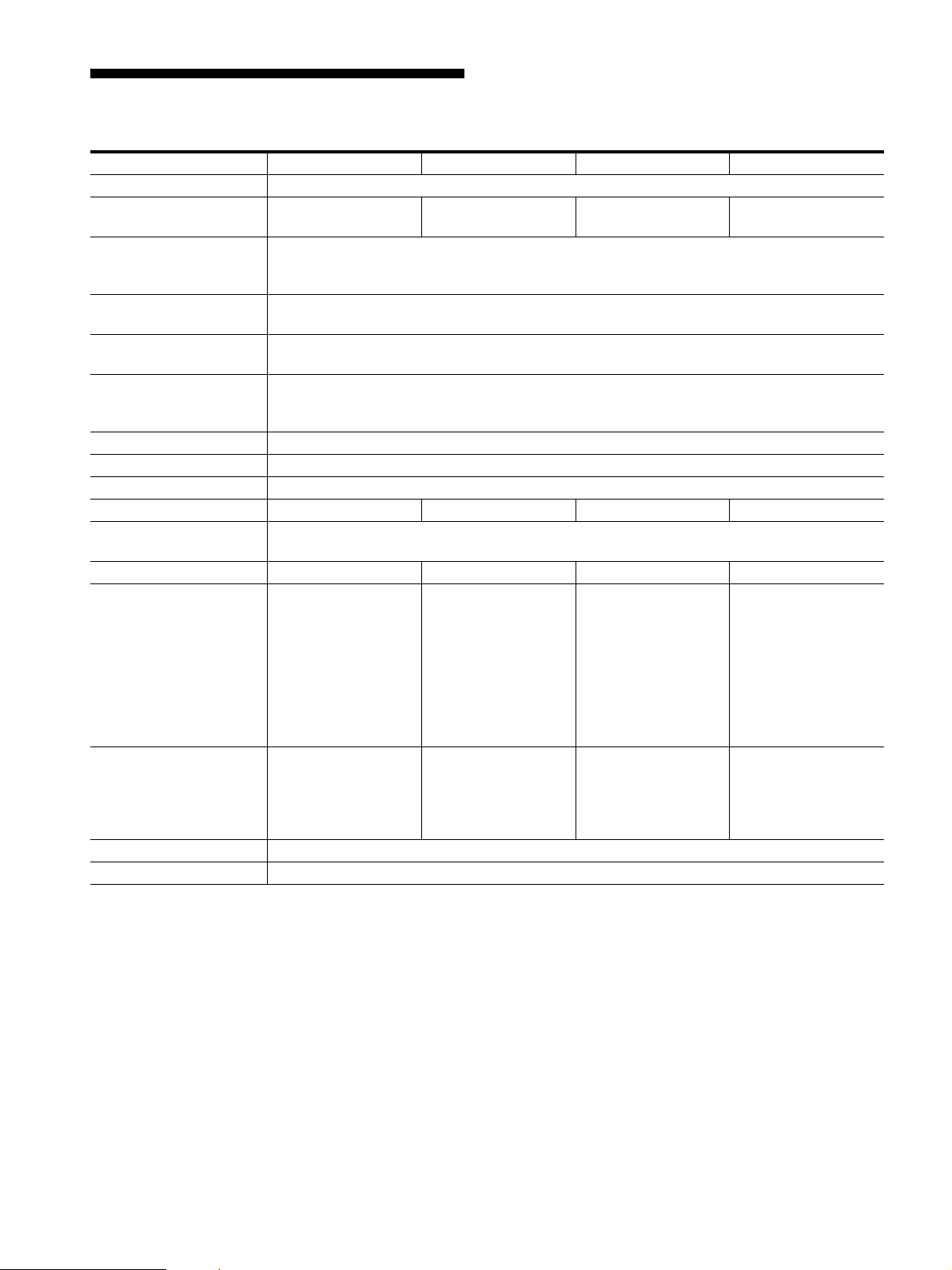
20
Especificaciones
1)
Condición de temporización horizontal y vertical recomendada
• La anchura de sincronización horizontal de empleo debe ser
superior al 4,8% del tiempo total horizontal o 0,8 µs, según el
que sea mayor.
• La anchura de supresión horizontal debe ser superior a 2,5 µs
• La anchura de supresión vertical debe ser superior a 450 µs
Diseño y especificaciones sujetos a cambios sin previo aviso.
Nombre del modelo SDM-S75A SDM-S95AR SDM-S75E SDM-S95ER
Panel LCD Tipo de panel: Matriz activa a-Si TFT
Tamaño de imagen: 43,18 cm
(17,0 pulgadas)
48,26 cm
(19,0 pulgadas)
43,18 cm
(17,0 pulgadas)
48,26 cm
(19,0 pulgadas)
Formato de la señal de
entrada
Frecuencia de funcionamiento RVA
1)
Horizontal: 28 – 80 kHz
Vertical: 48 – 75 Hz
Resolución Horizontal: Máx. 1 280 puntos
Vertical: Máx. 1 024 líneas
Tipo de señal de entrada
(digital/analógica)
Analógica ×1
Niveles de señal de entrada Señal de vídeo RVA analógica 0,7 Vp-p, 75 Ω, positiva
Señal SYNC
Nivel TTL, 2,2 kΩ, positiva o negativa
Entrada de audio Minitoma estéreo, 0,5 Vrms
Salida de audio Minitoma estéreo
Requisitos de alimentación ca de 100 a 240 V, de 50 a 60 Hz, Máx. 1,0 A
Consumo de energía Máx. 45 W Máx. 50 W Máx. 45 W Máx. 50 W
Temperatura de
funcionamiento
De 5 a 35 ºC
El tipo de soporte Fijo Fijo Ajuste de altura Ajuste de altura
Dimensiones (ancho/alto/
profundidad)
Aprox. 369 × 423,5 ×
225 mm (14
5
/
8
×
16
3
/
4
× 8
7
/
8
pulgadas)
(con soporte)
Aprox. 369 × 315 ×
66 mm (14
5
/
8
×
12
3
/
8
× 2
5
/
8
pulgadas)
(sin soporte)
Aprox. 414 × 439,5 ×
225 mm (16
3
/
8
×
17
3
/
8
× 8
7
/
8
pulgadas)
(con soporte)
Aprox. 414 × 348 ×
69 mm (16
3
/
8
×
13
3
/
4
× 2
3
/
4
pulgadas)
(sin soporte)
Aprox. 369 × 393,5 –
503,5 × 253 mm
(14
5
/
8
× 15
1
/
2
–
19
7
/
8
× 10 pulgadas)
(con soporte)
Aprox. 369 × 315 ×
66 mm (14
5
/
8
×
12
3
/
8
× 2
5
/
8
pulgadas)
(sin soporte)
Aprox. 414 × 409,5 –
519,5 × 277,5 mm
(16
3
/
8
× 16
1
/
8
–
20
1
/
2
× 11 pulgadas)
(con soporte)
Aprox. 414 × 348 ×
69 mm (16
3
/
8
×
13
3
/
4
× 2
3
/
4
pulgadas)
(sin soporte)
Peso Aprox. 6,4 kg (14 lb
1
3
/
4
oz) (con soporte)
Aprox. 4,3 kg
(9 lb 7
5
/
8
oz)
(sin soporte)
Aprox. 7,3 kg (16 lb
1
1
/
2
oz) (con soporte)
Aprox. 5,2 kg (11 lb
7
3
/
8
oz) (sin soporte)
Aprox. 7,5 kg (16 lb
8
1
/
2
oz) (con soporte)
Aprox. 4,3 kg (9 lb
7
5
/
8
oz) (sin soporte)
Aprox. 8,7 kg (19 lb
2
7
/
8
oz) (con soporte)
Aprox. 5,2 kg (11 lb
7
3
/
8
oz) (sin soporte)
Plug & Play DDC2B
Accesorios Consulte la página 6.
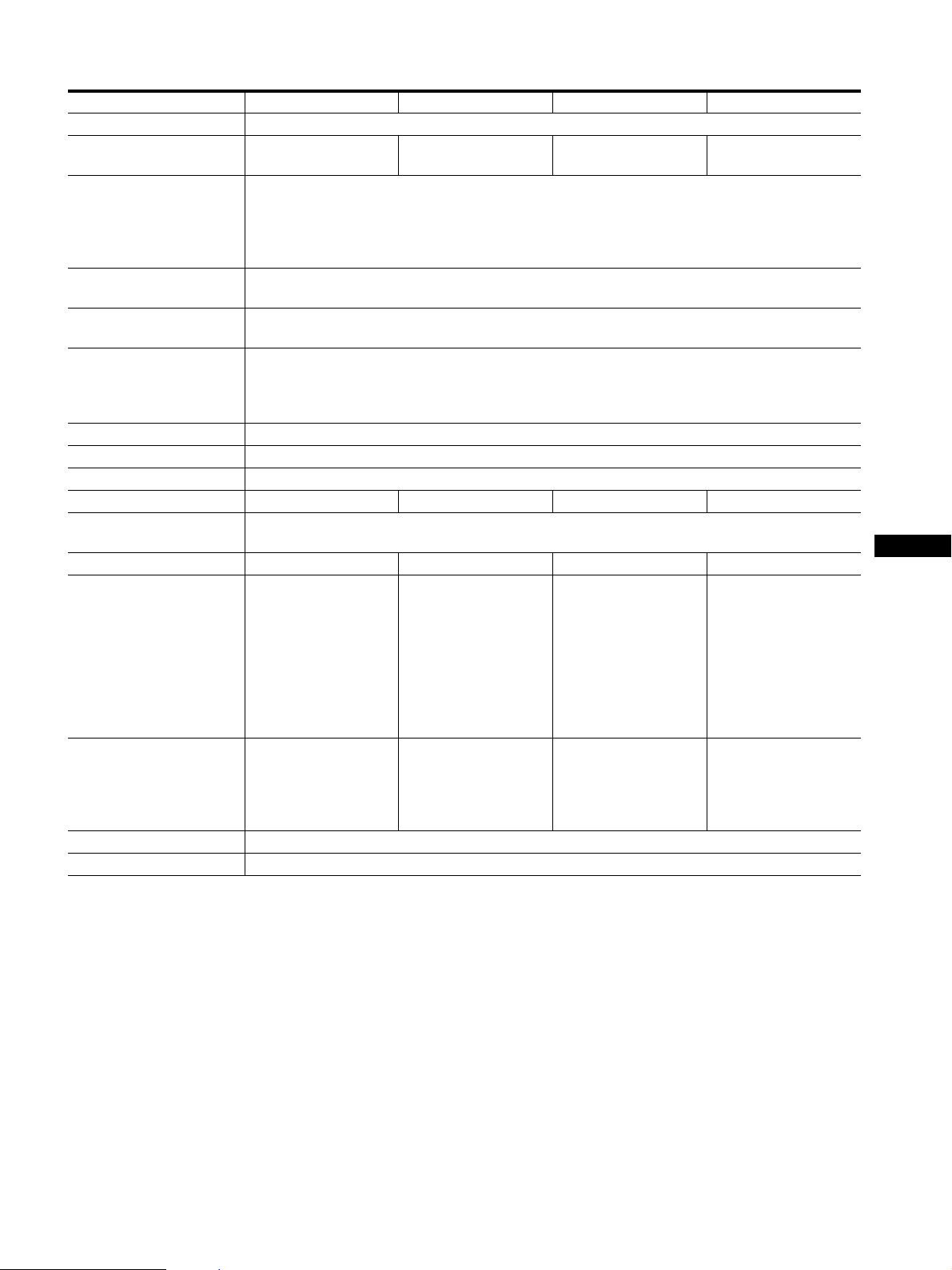
21
ES
1)
Condición de temporización horizontal y vertical recomendada
• La anchura de sincronización horizontal de empleo debe ser
superior al 4,8% del tiempo total horizontal o 0,8 µs, según el
que sea mayor.
• La anchura de supresión horizontal debe ser superior a 2,5 µs
• La anchura de supresión vertical debe ser superior a 450 µs
Diseño y especificaciones sujetos a cambios sin previo aviso.
Nombre del modelo SDM-S75D SDM-S95DR SDM-S75F SDM-S95FR
Panel LCD Tipo de panel: Matriz activa a-Si TFT
Tamaño de imagen: 43,18 cm
(17,0 pulgadas)
48,26 cm
(19,0 pulgadas)
43,18 cm
(17,0 pulgadas)
48,26 cm
(19,0 pulgadas)
Formato de la señal de
entrada
Frecuencia de funcionamiento RVA
1)
Horizontal: 28 – 80 kHz (RVA analógico)
28 – 64 kHz (RVA digital)
Vertical: 48 – 75 Hz (RVA analógico)
60 Hz (RVA digital)
Resolución Horizontal: Máx. 1 280 puntos
Vertical: Máx. 1 024 líneas
Tipo de señal de entrada
(digital/analógica)
Digital × 1/analógica × 1
Niveles de señal de entrada Señal de vídeo RVA analógica 0,7 Vp-p, 75 Ω, positiva
Señal SYNC
Nivel TTL, 2,2 kΩ, positiva o negativa
Señal RVA (DVI) digital: TMDS (enlace único)
Entrada de audio Minitoma estéreo, 0,5 Vrms
Salida de audio Minitoma estéreo
Requisitos de alimentación ca de 100 a 240 V, de 50 a 60 Hz, Máx. 1,0 A
Consumo de energía Máx. 45 W Máx. 50 W Máx. 45 W Máx. 50 W
Temperatura de
funcionamiento
De 5 a 35 ºC
El tipo de soporte Fijo Fijo Ajuste de altura Ajuste de altura
Dimensiones (ancho/alto/
profundidad)
Aprox. 369 × 423,5 ×
225 mm (14
5
/
8
×
16
3
/
4
× 8
7
/
8
pulgadas)
(con soporte)
Aprox. 369 × 315 ×
66 mm (14
5
/
8
×
12
3
/
8
× 2
5
/
8
pulgadas)
(sin soporte)
Aprox. 414 × 439,5 ×
225 mm (16
3
/
8
×
17
3
/
8
× 8
7
/
8
pulgadas)
(con soporte)
Aprox. 414 × 348 ×
69 mm (16
3
/
8
×
13
3
/
4
× 2
3
/
4
pulgadas)
(sin soporte)
Aprox. 369 × 393,5 –
503,5 × 253 mm
(14
5
/
8
× 15
1
/
2
–
19
7
/
8
× 10 pulgadas)
(con soporte)
Aprox. 369 × 315 ×
66 mm (14
5
/
8
×
12
3
/
8
× 2
5
/
8
pulgadas)
(sin soporte)
Aprox. 414 × 409,5 –
519,5 × 277,5 mm
(16
3
/
8
× 16
1
/
8
–
20
1
/
2
× 11 pulgadas)
(con soporte)
Aprox. 414 × 348 ×
69 mm (16
3
/
8
×
13
3
/
4
× 2
3
/
4
pulgadas)
(sin soporte)
Peso Aprox. 6,4 kg (14 lb
1
3
/
4
oz) (con soporte)
Aprox. 4,3 kg
(9 lb 7
5
/
8
oz)
(sin soporte)
Aprox. 7,3 kg (16 lb
1
1
/
2
oz) (con soporte)
Aprox. 5,2 kg
(11 lb 7
3
/
8
oz)
(sin soporte)
Aprox. 7,5 kg (16 lb
8
1
/
2
oz) (con soporte)
Aprox. 4,3 kg (9 lb
7
5
/
8
oz) (sin soporte)
Aprox. 8,7 kg (19 lb
2
7
/
8
oz) (con soporte)
Aprox. 5,2 kg (11 lb
7
3
/
8
oz) (sin soporte)
Plug & Play DDC2B
Accesorios Consulte la página 6.
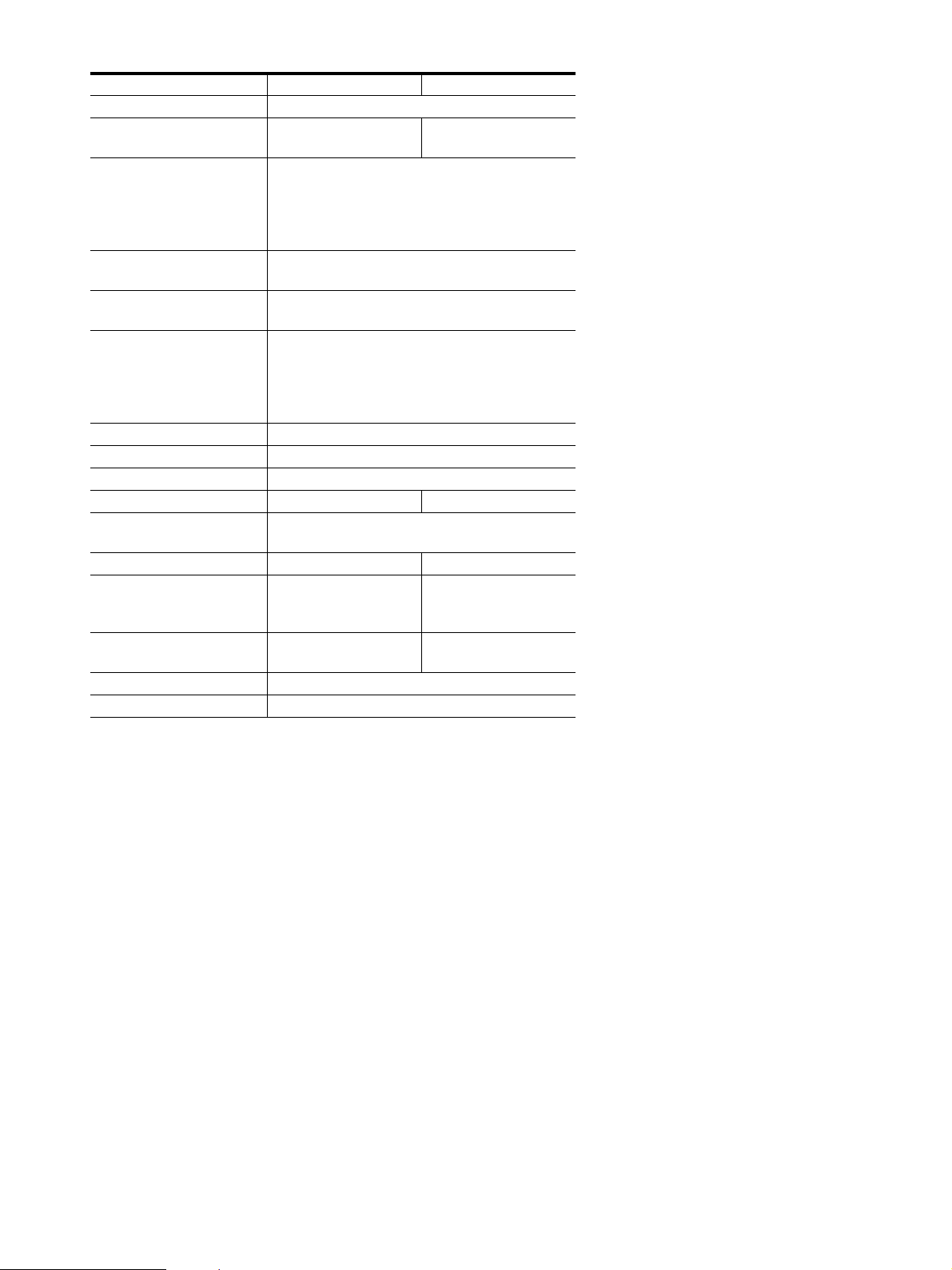
22
1)
Condición de temporización horizontal y vertical recomendada
• La anchura de sincronización horizontal de empleo debe ser
superior al 4,8% del tiempo total horizontal o 0,8 µs, según el
que sea mayor.
• La anchura de supresión horizontal debe ser superior a 2,5 µs
• La anchura de supresión vertical debe ser superior a 450 µs
Diseño y especificaciones sujetos a cambios sin previo aviso.
Nombre del modelo SDM-S75N SDM-S95NR
Panel LCD Tipo de panel: Matriz activa a-Si TFT
Tamaño de imagen: 43,18 cm
(17,0 pulgadas)
48,26 cm
(19,0 pulgadas)
Formato de la señal de
entrada
Frecuencia de funcionamiento RVA
1)
Horizontal: 28 – 80 kHz (RVA analógico)
28 – 64 kHz (RVA digital)
Vertical: 48 – 75 Hz (RVA analógico)
60 Hz (RVA digital)
Resolución Horizontal: Máx. 1 280 puntos
Vertical: Máx. 1 024 líneas
Tipo de señal de entrada
(digital/analógica)
Digital × 1/analógica × 1
Niveles de señal de entrada Señal de vídeo RVA analógica 0,7 Vp-p, 75 Ω,
positiva
Señal SYNC
Nivel TTL, 2,2 kΩ, positiva o negativa
Señal RVA (DVI) digital: TMDS (enlace único)
Entrada de audio Minitoma estéreo, 0,5 Vrms
Salida de audio Minitoma estéreo
Requisitos de alimentación ca de 100 a 240 V, de 50 a 60 Hz, Máx. 1,0 A
Consumo de energía Máx. 45 W Máx. 50 W
Temperatura de
funcionamiento
De 5 a 35 ºC
El tipo de soporte – –
Dimensiones (ancho/alto/
profundidad)
Aprox. 369
×
315
×
66 mm (14
5
/
8
×
12
3
/
8
×
2
5
/
8
pulgadas)
Aprox. 414
×
348
×
69 mm (16
3
/
8
×
13
3
/
4
×
2
3
/
4
pulgadas)
Peso Aprox. 4,3 kg
(9 lb 7
5
/
8
oz)
Aprox. 5,2 kg
(11 lb 7
3
/
8
oz)
Plug & Play DDC2B
Accesorios Consulte la página 6.
23
ES
REFERENCIA DE TERMINOLOGIA
AC IN (entrada de ca)
CD-ROM (disco compacto de memoria de sólo lectura)
COMPUTER (computador)
DDC (Display Data Channel, Canal de datos)
DISPLAY (monitor)
deep sleep (modo desactivado)
DPMS (Estándar de administración de alimentación de la
pantalla)
DMPM (Administración de alimentación de la pantalla digital
DVI)
DVI-D (el interfaz visual digital para digital)
END (Finalizar)
Environment Protection Agency (Agencia de protección del
medio ambiente)
GAMMA (Gamma)
INPUT (entrada)
LANGUAGE (idioma)
LCD (pantalla de cristal líquido)
MENU (Menú)
Micro Saver Security System (Sistema de seguridad de Micro
Saver)
OK (aceptar)
PC (computadora personal)
PLUG & PLAY (conectar y listo)
RGB (Rojo, verde, azul)
RVA (volt ampere reactivo)
SYNC (Sincronizada)
TFT (transistor de película fina)
TMDS (señal diferencial minimizada de transición)
TTL (lógica de transistor a transistor)
VESA (Asociación de estándares de vídeo y electrónica)

i
TCO’99 Eco-document (for the black
model)
x Congratulations!
You have just purchased a TCO’99 approved and labelled product! Your
choice has provided you with a product developed for professional use.
Your purchase has also contributed to reducing the burden on the
environment and also to the further development of environmentally
adapted electronics products.
x Why do we have environmentally labelled com-
puters?
In many countries, environmental labelling has become an established
method for encouraging the adaptation of goods and services to the
environment. The main problem, as far as computers and other electronics
equipment are concerned, is that environmentally harmful substances are
used both in the products and during their manufacture. Since it is not so
far possible to satisfactorily recycle the majority of electronics equipment,
most of these potentially damaging substances sooner or later enter nature.
There are also other characteristics of a computer, such as energy
consumption levels, that are important from the viewpoints of both the
work (internal) and natural (external) environments. Since all methods of
electricity generation have a negative effect on the environment (e.g.
acidic and climate-influencing emissions, radioactive waste), it is vital to
save energy. Electronics equipment in offices is often left running
continuously and thereby consumes a lot of energy.
x What does labelling involve?
This product meets the requirements for the TCO’99 scheme which
provides for international and environmental labelling of personal
computers. The labelling scheme was developed as a joint effort by the
TCO (The Swedish Confederation of Professional Employees), Svenska
Naturskyddsforeningen (The Swedish Society for Nature Conservation)
and Statens Energimyndighet (The Swedish National Energy
Administration).
Approval requirements cover a wide range of issues: environment,
ergonomics, usability, emission of electric and magnetic fields, energy
consumption and electrical and fire safety.
The environmental demands impose restrictions on the presence and use
of heavy metals, brominated and chlorinated flame retardants, CFCs
(freons) and chlorinated solvents, among other things. The product must
be prepared for recycling and the manufacturer is obliged to have an
environmental policy which must be adhered to in each country where the
company implements its operational policy.
The energy requirements include a demand that the computer and/or
display, after a certain period of inactivity, shall reduce its power
consumption to a lower level in one or more stages. The length of time to
reactivate the computer shall be reasonable for the user.
Labelled products must meet strict environmental demands, for example,
in respect of the reduction of electric and magnetic fields, physical and
visual ergonomics and good usability.
Below you will find a brief summary of the environmental requirements
met by this product. The complete environmental criteria document may
be ordered from:
TCO Development
SE-114 94 Stockholm, Sweden
Fax: +46 8 782 92 07
Email (Internet): [email protected]
Current information regarding TCO’99 approved and labelled
products may also be obtained via the Internet, using the address:
http://www.tco-info.com/
x Environmental requirements
Flame retardants
Flame retardants are present in printed circuit boards, cables, wires,
casings and housings. Their purpose is to prevent, or at least to delay the
spread of fire. Up to 30% of the plastic in a computer casing can consist
of flame retardant substances. Most flame retardants contain bromine or
chloride, and those flame retardants are chemically related to another
group of environmental toxins, PCBs. Both the flame retardants
containing bromine or chloride and the PCBs are suspected of giving rise
to severe health effects, including reproductive damage in fish-eating
birds and mammals, due to the bio-accumulative
* processes. Flame
retardants have been found in human blood and researchers fear that
disturbances in foetus development may occur.
The relevant TCO’99 demand requires that plastic components weighing
more than 25 grams must not contain flame retardants with organically
bound bromine or chlorine. Flame retardants are allowed in the printed
circuit boards since no substitutes are available.
Cadmium**
Cadmium is present in rechargeable batteries and in the colour-generating
layers of certain computer displays. Cadmium damages the nervous
system and is toxic in high doses. The relevant TCO’99 requirement states
that batteries, the colour-generating layers of display screens and the
electrical or electronics components must not contain any cadmium.
Mercury**
Mercury is sometimes found in batteries, relays and switches. It damages
the nervous system and is toxic in high doses. The relevant TCO’99
requirement states that batteries may not contain any mercury. It also
demands that mercury is not present in any of the electrical or electronics
components associated with the labelled unit.
CFCs (freons)
The relevant TCO’99 requirement states that neither CFCs nor HCFCs
may be used during the manufacture and assembly of the product. CFCs
(freons) are sometimes used for washing printed circuit boards. CFCs
break down ozone and thereby damage the ozone layer in the stratosphere,
causing increased reception on earth of ultraviolet light with e.g. increased
risks of skin cancer (malignant melanoma) as a consequence.
Lead**
Lead can be found in picture tubes, display screens, solders and
capacitors. Lead damages the nervous system and in higher doses, causes
lead poisoning. The relevant TCO’99 requirement permits the inclusion of
lead since no replacement has yet been developed.
* Bio-accumulative is defined as substances which accumulate within
living organisms.
** Lead, Cadmium and Mercury are heavy metals which are Bio-
accumulative.

ii
TCO’03 Eco-document (for the silver
model)
x Congratulations!
The display you have just purchased carries the TCO’03
Displays label. This means that your display is designed,
manufactured and tested according to some of the strictest
quality and environmental requirements in the world. This
makes for a high performance product, designed with the
user in focus that also minimizes the impact on our natural
environment.
x Ergonomics
• Good visual ergonomics and image quality in order to
improve the working environment for the user and to
reduce sight and strain problems. Important parameters
are luminance, contrast, resolution, reflectance, colour
rendition and image stability.
x Energy
• Energy-saving mode after a certain time – beneficial
both for the user and the environment
• Electrical safety
x Emissions
• Electromagnetic fields
• Noise emissions
x Ecology
• The product must be prepared for recycling and the
manufacturer must have a certified environmental
management system such as EMAS or ISO 14 001
• Restrictions on
- chlorinated and brominated flame retardants and
polymers
- heavy metals such as cadmium, mercury and lead.
The requirements included in this label have been
developed by TCO Development in co-operation with
scientists, experts, users as well as manufacturers all over
the world. Since the end of the 1980s TCO has been
involved in influencing the development of IT equipment
in a more user-friendly direction. Our labelling system
started with displays in 1992 and is now requested by users
and IT-manufacturers all over the world.
For more information, please visit
www.tcodevelopment.com
Recycling Information
x Customer in Europe
The collection and recycling of this product has been planned
according to your country’s relevant legislation. To ensure that
this product will be collected and recycled in way that minimizes
the impact on the environment, please do the following:
1. If you purchased this product for private use, contact your
municipality or the waste collection system and bring the
product to this collection point / have the product be picked up
by the waste collection system. Alternatively, your retailer
might take back this if you purchase new equivalent equipment;
please check with your retailer whether he will take back this
product before bringing it. For information on your country’s
recycling arrangements, please contact the Sony representation
in your country (contact details at: www.sony-europe.com).
Further details on specific recycling systems can be found at the
following addresses:
- Belgium: www.recupel.be
- Netherlands: www.nvmp.nl (consumer electronics)
www.ictmilieu.nl (IT equipment)
- Norway: www.elretur.no
- Sweden: www.el-kretsen.se
- Switzerland: www.swico.ch
2. If you use this product professionally, check the product’s
delivery contract for take back / recycling arrangements and
follow the procedures described therein. Alternatively, follow
the procedures described under point 1.
x Customer in USA
We Sony as a member of EIA recommends to visit URL below
http://www.eiae.org/
x Customer in Asia
http://www.sony.co.jp/SonyInfo/Environment/recycle/3R.html
2-630-290-22(1)
© 2005 Sony Corporation
TFT LCD Color
Computer Display
SDM-S75
SDM-S95
2
Owner’s Record
The model and serial numbers are located at the rear of the unit.
Record these numbers in the spaces provided below. Refer to them
whenever you call upon your dealer regarding this product.
Model No.
Serial No.
To reduce the risk of fire or electric shock, do not
expose this apparatus to rain or moisture.
Dangerously high voltages are present inside the unit.
Do not open the cabinet. Refer servicing to qualified
personnel only.
FCC Notice
This equipment has been tested and found to comply with the limits
for a Class B digital device, pursuant to Part 15 of the FCC Rules.
These limits are designed to provide reasonable protection against
harmful interference in a residential installation. This equipment
generates, uses, and can radiate radio frequency energy and, if not
installed and used in accordance with the instructions, may cause
harmful interference to radio communications. However, there is no
guarantee that interference will not occur in a particular installation.
If this equipment does cause harmful interference to radio or
television reception, which can be determined by turning the
equipment off and on, the user is encouraged to try to correct the
interference by one or more of the following measures:
– Reorient or relocate the receiving antenna.
– Increase the separation between the equipment and receiver.
– Connect the equipment into an outlet on a circuit different from
that to which the receiver is connected.
– Consult the dealer or an experienced radio/TV technician for help.
You are cautioned that any changes or modifications not expressly
approved in this manual could void your authority to operate this
equipment.
务必确认和显示器一直提供的纸箱。显示器型号的识别标签位于显
示器后部。
(for the black model)
(for the silver model)
WARNING
IMPORTANTE
Para prevenir cualquier mal funcionamiento y evitar daños, por
favor, lea detalladamente este manual de instrucciones antes
de conectar y operar este equipo.
If you have any questions about this product, you may call; Sony
Customer Information Services Center 1-800-222-7669 or http://
www.sony.com/
Declaration of Conformity
Trade Name : SONY
Model : SDM-S75 /S95
Note : means any number or alphanumeric
character.
Responsible Party : Sony Electronics Inc.
Address : 16530 Via Esprillo, San Diego, CA
92127 U.S.A.
Telephone Number : 858-942-2230
This device complies with part 15 of the FCC rules. Operation is
subject to the following two conditions: (1) This device may not
cause harmful interference, and (2) this device must accept any
interference received, including interference that may cause
undesired operation.
NOTICE
This notice is applicable for USA/Canada only.
If shipped to USA/Canada, install only a UL LISTED/CSA
LABELLED power supply cord meeting the following
specifications:
SPECIFICATIONS
Plug Type Nema-Plug 5-15p
Cord Type SVT or SJT, minimum 3 × 18 AWG
Length Maximum 15 feet
Rating Minimum 7 A, 125 V
NOTICE
Cette notice s’applique aux Etats-Unis et au Canada
uniquement.
Si cet appareil est export* aux Etats-Unis ou au Canada, utiliser
le cordon d’alimentation portant la mention UL LISTED/CSA
LABELLED et remplissant les conditions suivantes:
SPECIFICATIONS
Type de fiche Fiche Nema 5-15 broches
Cordon Type SVT ou SJT, minimum 3 × 18 AWG
Longueur Maximum 15 pieds
Tension Minimum 7 A, 125 V
As an
ENERGY STAR Partner, Sony
Corporation has determined that this
product meets the
ENERGY STAR
guidelines for energy efficiency.
This monitor complies with the
TCO’99 guidelines.
This monitor complies with the
TCO’03 guidelines.
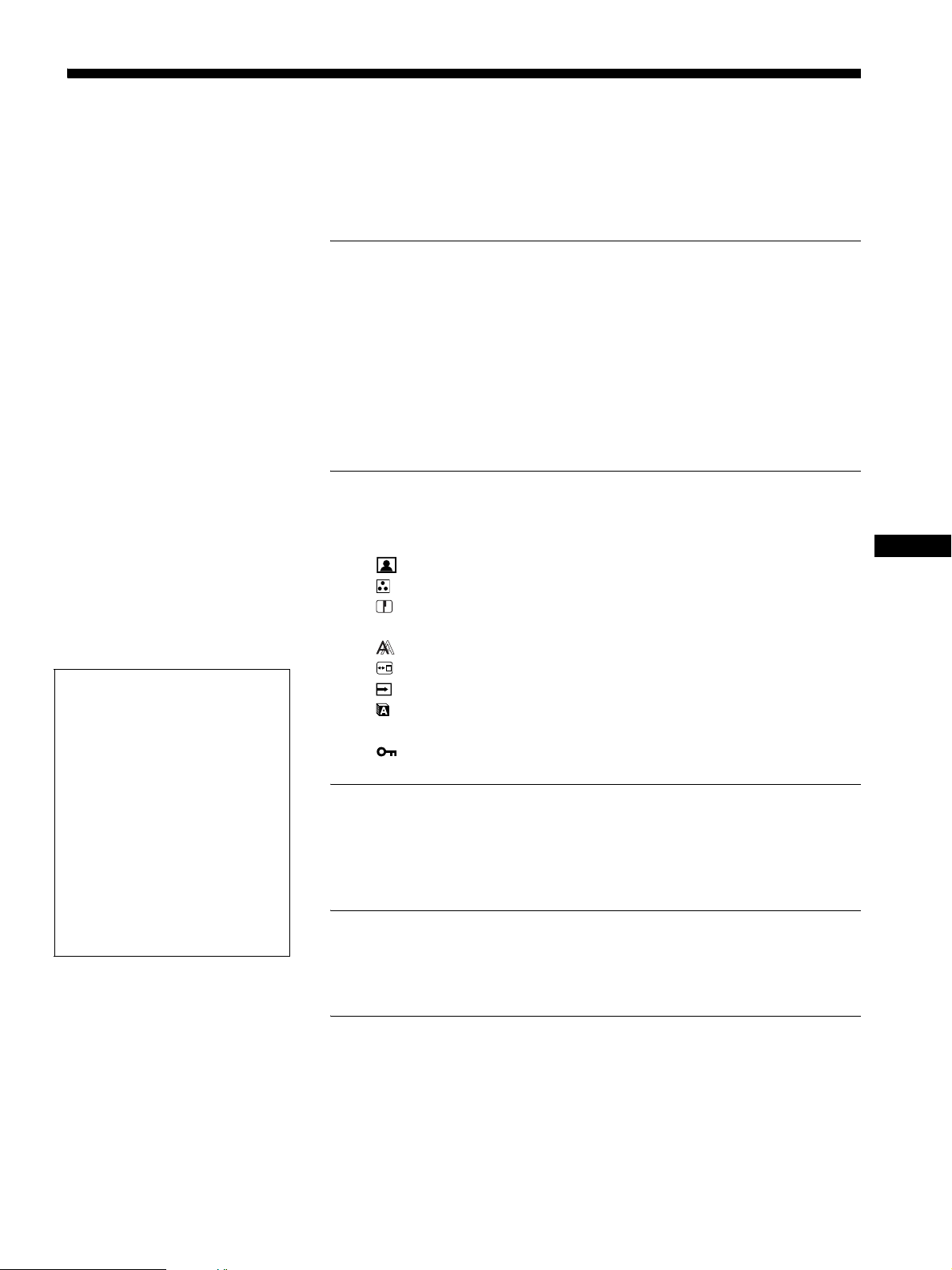
目录
• Macintosh 是特许 Apple Computer,
Inc. 使用的商标,注册于美国和其
它国家。
• Windows
是Microsoft Corporation
在美国和其它国家的注册商标。
• IBM PC/AT 和 VGA 是美国 IBM
Corporation 的注册商标。
• VESA 和 DDC
是 Video Electronics
Standards Association 的商标。
• ENERGY STAR 是一个美国的注册标
志。
• Adobe 和 Acrobat 是 Adobe Systems
Incorporated 的商标。
• 本手册中提到的其它产品名称可能
是相应公司的商标或注册商标。
• 另外 , 本手册中未在各处都标出
“”和 “”。
3
CS
http://www.sony.net/
使用前注意事项 . . . . . . . . . . . . . . . . . . . . . . . . . . . . . . . . . . . . . . . . . . . . .4
检查显示器的型号名称 . . . . . . . . . . . . . . . . . . . . . . . . . . . . . . . . . . . . . . .5
识别部件和控制钮 . . . . . . . . . . . . . . . . . . . . . . . . . . . . . . . . . . . . . . . . . . .5
安装 . . . . . . . . . . . . . . . . . . . . . . . . . . . . . . . . . . . . . . . . . . .6
步骤 1: 底座装配 . . . . . . . . . . . . . . . . . . . . . . . . . . . . . . . . . . . . . . . . . . .6
步骤 2: 连接视频信号电缆 . . . . . . . . . . . . . . . . . . . . . . . . . . . . . . . . . . .7
步骤 3: 连接音频线 . . . . . . . . . . . . . . . . . . . . . . . . . . . . . . . . . . . . . . . . .8
步骤 4: 连接电源线 . . . . . . . . . . . . . . . . . . . . . . . . . . . . . . . . . . . . . . . . .9
步骤 5: 牢固连接电线 . . . . . . . . . . . . . . . . . . . . . . . . . . . . . . . . . . . . . . .9
步骤 6: 打开显示器和计算机 . . . . . . . . . . . . . . . . . . . . . . . . . . . . . . . . .9
步骤 7: 调节倾斜度和高度 . . . . . . . . . . . . . . . . . . . . . . . . . . . . . . . . . .10
选择输入信号 (INPUT1/INPUT2) . . . . . . . . . . . . . . . . . . . . . . . . . . . . . .11
设定显示器 . . . . . . . . . . . . . . . . . . . . . . . . . . . . . . . . . . . . .12
导航菜单 . . . . . . . . . . . . . . . . . . . . . . . . . . . . . . . . . . . . . . . . . . . . . . . . . . 12
菜单选项列表 . . . . . . . . . . . . . . . . . . . . . . . . . . . . . . . . . . . . . . . . . . . . . .13
图像调整菜单 . . . . . . . . . . . . . . . . . . . . . . . . . . . . . . . . . . . . . . . . . . .14
色温菜单. . . . . . . . . . . . . . . . . . . . . . . . . . . . . . . . . . . . . . . . . . . . . . . .14
锐度菜单 . . . . . . . . . . . . . . . . . . . . . . . . . . . . . . . . . . . . . . . . . . . . . . .14
0 模式复原菜单 (仅用于图像调整菜单). . . . . . . . . . . . . . . . . . . . .14
屏幕效果菜单 (仅用于模拟 RGB 信号) . . . . . . . . . . . . . . . . . . . . .14
菜单位置菜单 . . . . . . . . . . . . . . . . . . . . . . . . . . . . . . . . . . . . . . . . . . .15
输入检测菜单 . . . . . . . . . . . . . . . . . . . . . . . . . . . . . . . . . . . . . . . . . . .15
LANGUAGE 菜单 . . . . . . . . . . . . . . . . . . . . . . . . . . . . . . . . . . . . . . . . . . .15
0 复原菜单 (复原至默认设定) . . . . . . . . . . . . . . . . . . . . . . . . . . . . .15
菜单锁定菜单 . . . . . . . . . . . . . . . . . . . . . . . . . . . . . . . . . . . . . . . . . . .15
技术特点. . . . . . . . . . . . . . . . . . . . . . . . . . . . . . . . . . . . . . .16
省电功能 . . . . . . . . . . . . . . . . . . . . . . . . . . . . . . . . . . . . . . . . . . . . . . . . . . 16
减少功耗 (ECO mode) . . . . . . . . . . . . . . . . . . . . . . . . . . . . . . . . . . . . . . . .16
自动图像质量调整功能 (仅用于模拟 RGB 信号) . . . . . . . . . . . . . . . .16
故障排除. . . . . . . . . . . . . . . . . . . . . . . . . . . . . . . . . . . . . . .17
屏幕信息 . . . . . . . . . . . . . . . . . . . . . . . . . . . . . . . . . . . . . . . . . . . . . . . . . . 17
故障现象和排除方法 . . . . . . . . . . . . . . . . . . . . . . . . . . . . . . . . . . . . . . . .18
规格 . . . . . . . . . . . . . . . . . . . . . . . . . . . . . . . . . . . . . . . . . .20
TCO’99 Eco-document (for the black model) . . . . . . . . . . . . . . . . . . . i
TCO’03 Eco-document (for the silver model) . . . . . . . . . . . . . . . . . .ii
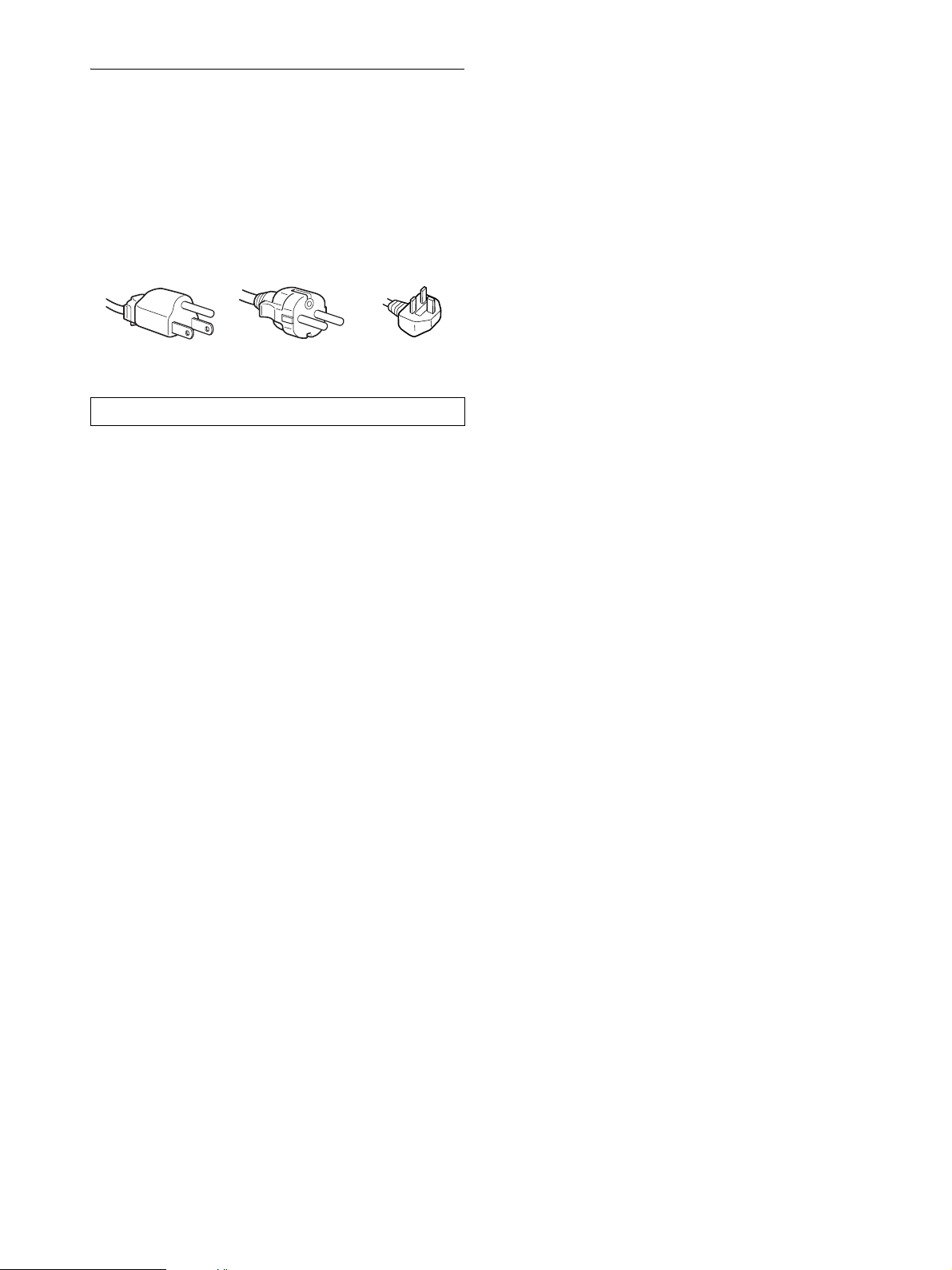
4
使用前注意事项
有关电源连接的警告事项
• 请使用附带的电源线。 如果使用其它电源线,则必须与
当地的电源相匹配。
对于美国用户
如果没有使用合适的电源线,该显示器将无法遵循 FCC 的
强制性标准。
对于英国用户
如果在英国使用显示器,请务必使用适合英国的电源线。
安装
切勿在下列场所安装或放置显示器:
• 受高温影响的地方,例如靠近暖气管、热气管道或直射阳
光下。 显示器若受到高温影响,如放置在直射阳光下的
汽车内或靠近热气管道,会引起机壳变形或故障。
• 受到机械振动或冲击的地方。
• 靠近会产生强磁场的设备,如电视机或各种其它家用电
器。
• 受大量灰尘或沙尘影响的地方,例如靠近开着的窗或门等
等。如果临时放置在户外,则必须采取足够的预防措施防
止空气中的灰尘。否则会产生不可修复的故障。
使用液晶显示屏
• 切勿将液晶显示屏面向太阳放置,因为太阳光会损坏液晶
显示屏。 将显示器放置在窗口边时请当心。
• 切勿推压或刮擦液晶显示屏。 切勿将重物放在液晶显示
屏上。 这可能导致屏幕失去均匀性或造成液晶显示板故
障。
• 如果在寒冷的地方使用本显示器,屏幕上会出现残影。
这并不是故障。 当温度上升到正常操作温度时,屏幕恢
复正常。
• 如果长时间显示静止图像,可能会暂时出现残影。 残影
最终会消失。
• 液晶显示板在使用时会变热。 这并不是故障。
有关 LCD (液晶显示器)的注意事项
请注意,液晶显示屏是由高精密技术制成。 但在液晶显示
屏上可能经常出现黑点或发光亮点 (红色、蓝色或绿色),
还可能出现不规则的彩色条纹或亮点。 这并不是故障。
(有效点: 99.99% 以上)
保养
• 清洁显示器之前,请先拔掉电源线。
• 请用软布清洁液晶显示屏。 如果使用玻璃清洁液,切勿
使用任何含有抗静电溶剂或类似添加剂的清洁剂,因为这
可能损伤液晶显示屏的涂层。
• 请用软布蘸柔性洗涤剂溶液清洁机壳、面板和控制钮。
切勿使用任何类型的砂纸、研磨粉或酒精、汽油等溶剂。
• 切勿用圆珠笔或螺丝起子等尖锐物体去摩擦、触碰或敲击
屏幕表面。 这种接触可能会导致显像管的划伤。
• 请注意,如果显示器接触到如杀虫剂等挥发性溶剂,或者
长期接触到橡胶或乙烯基材料,则可能导致材料退化或液
晶显示屏涂层退化。
搬运
• 断开所有与显示器连接的电缆。如果使用高度可调的底
座,请将底座的高度调到最高位置并牢牢抓住液晶显示器
的两侧。注意在搬运时不要划伤屏幕。如果显示器掉落,
您可能受伤,显示器可能损坏。
• 送维修或搬运本显示器时,请使用原纸箱和包装材料。
• 搬运时,请将高度可调底座的止动销重新插好,以固定底
座。
显示器的废弃
• 切勿将本显示器作为普通家庭废弃物处理。
• 本显示器所使用的荧光管含有水银。 对本显示器的处理
必须按照您当地卫生权力机构的法规执行。
设备必须安装在容易插拔的电源插座附近。
插头类型范例
用于 100V-120V
交流电
用于 200V-240V
交流电
仅限于 240V
交流电
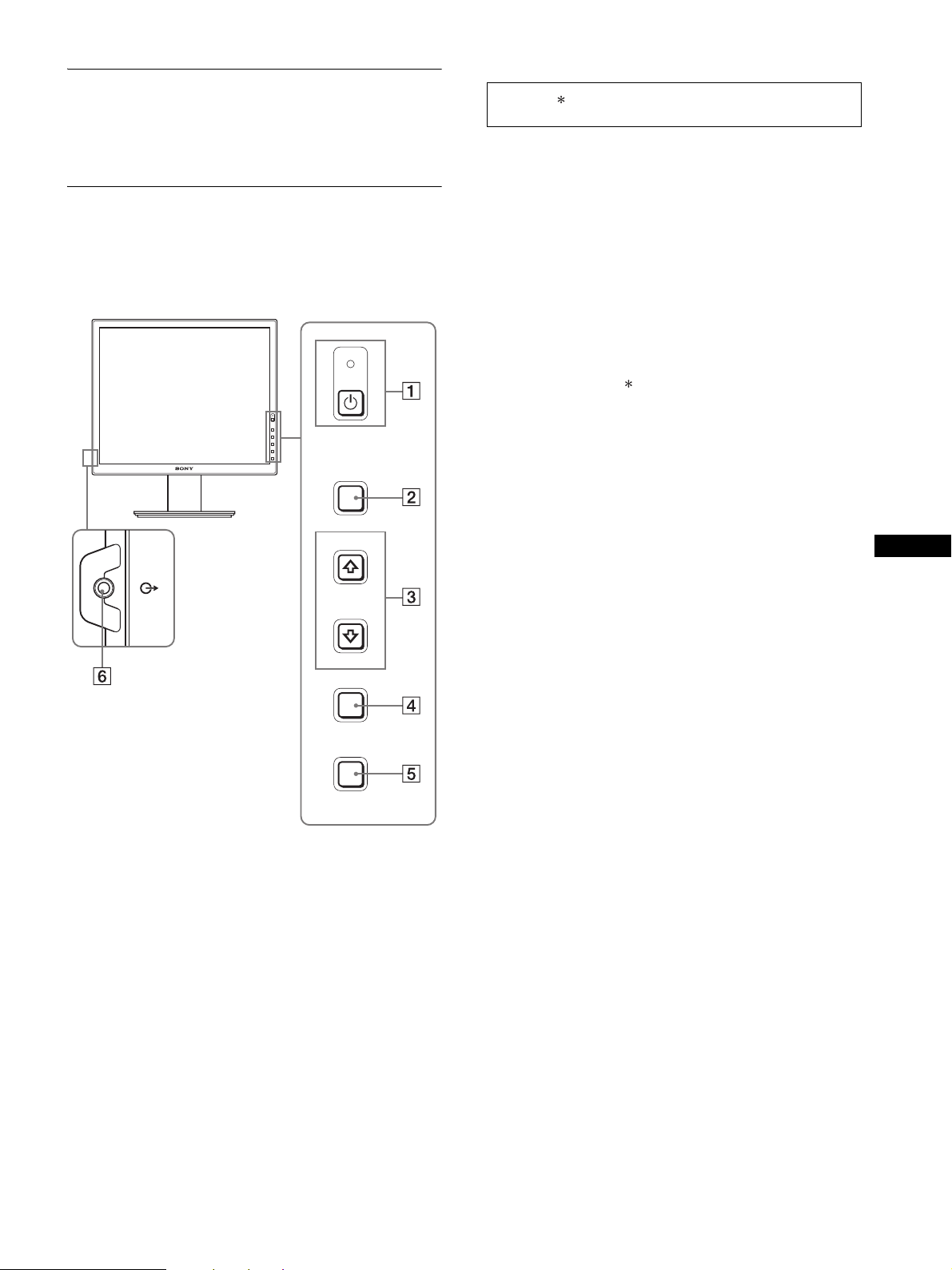
5
CS
检查显示器的型号名称
首先检查显示器的型号名称。
型号名称位于显示器后部 (例如: SDM-S75A)。
对某些型号的显示器,您不能使用有些功能或菜单选项。
识别部件和控制钮
详细内容请参照括弧内的页数
此图只给出了本显示器所有型号中的一种。
1 1 ( 电源)开关和 1 (电源)指示灯 ( 第 9,16 页 )
本开关打开显示器电源。 要关闭显示器电源,请再按一
次本开关。
2 MENU 按钮 ( 第 12 页 )
本按钮可显示或关闭主菜单。
3 m/M 按钮 ( 第12页)
这些按钮用于选择菜单选项和进行调节。
4 OK 按钮 ( 第 12 页 )
本按钮可激活所选择的菜单项目和使用 m/M 按钮 (3)
所做出的调整。
INPUT
(第11页)
当两台计算机连接到显示器时,这些按钮可在 INPUT1
和 INPUT2 之间转换视频输入信号。(仅当菜单关闭时可
用。)
5 ECO 按钮 ( 第 16 页 )
本按钮用于降低功耗。
不显示菜单屏幕时,按住本按钮 3 秒钟以上也可以自动
调节当前输入信号的图像质量 (轻按自动调节)。( 仅
用于模拟 RGB 信号)
6 音频输出插孔 ( 第 8 页 )
本插孔将音频信号输出到扬声器或其他音频设备。
MENU
INPUT
ECO
OK
显示器的前面
规格中带 标记的内容因型号而异。 有关详情,请参阅
“规格”(第 20 页)。
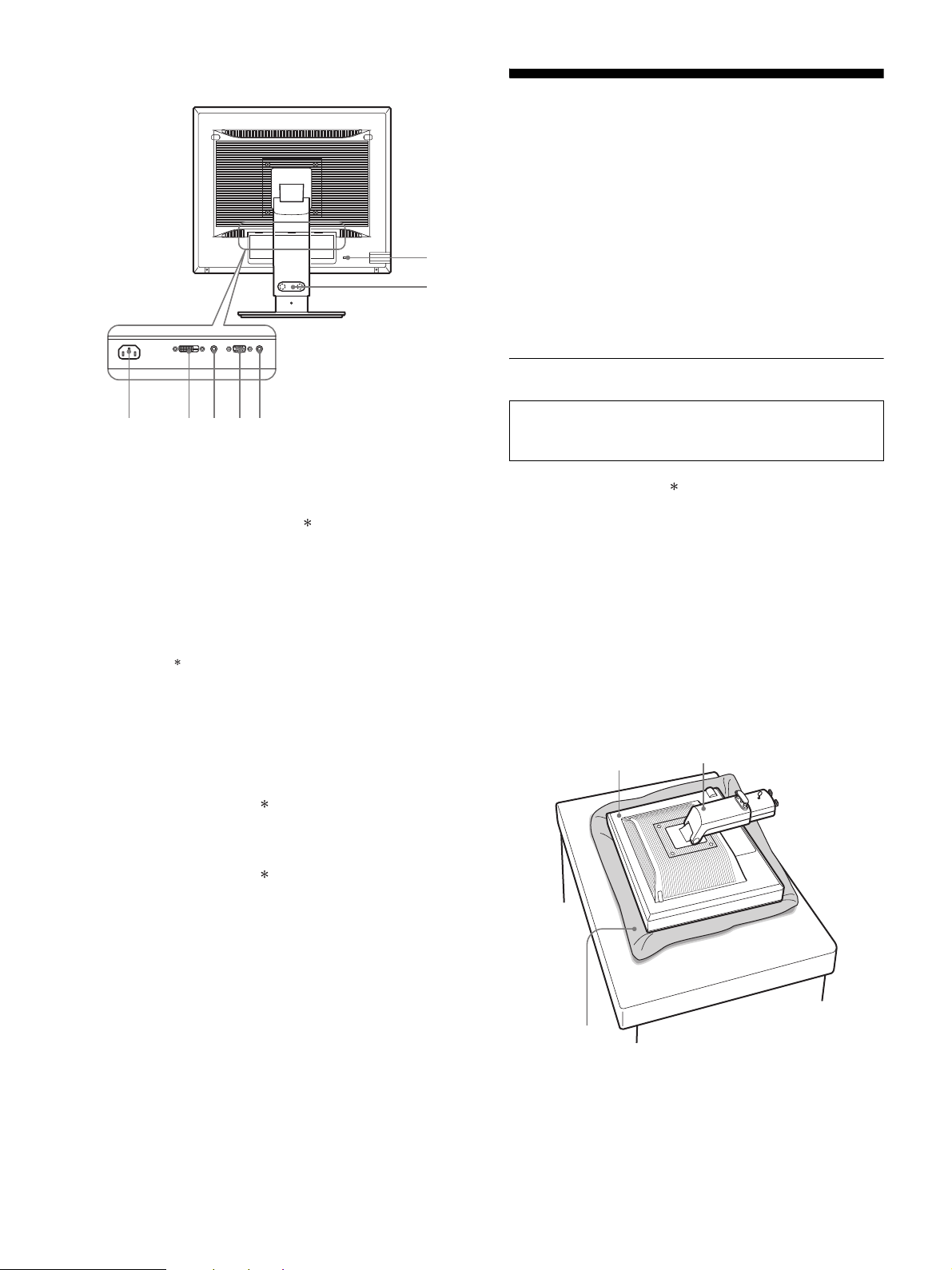
6
7 交流输入连接器 ( 第 9 页 )
本连接器可连接电源线 (附带)。
8 DVI-D 输入连接器 ( 数字 RGB) ( 第 8 页 )
此连接器输入符合 DVI Rev.1.0 标准的数字 RGB 视频信
号。
9 HD15 输入连接器 (模拟 RGB)( 第 8 页 )
此连接器用于输入模拟 RGB 视频信号 (0.700 Vp-p, 正极 )
和同步信号。
0 缆索支架 ( 第9页)
此部件用于固定连接至显示器的电缆和电线。
qa 安全锁定孔
安全锁定孔应和 Kensington Micro Saver Security
System 一起使用。
Micro Saver Security System 是 Kensington 的商标。
qs 用于输入 1 的音频插孔
当连接到一台计算机的音频输出插孔或者其它音频设备
连接到输入 1 时,本插孔输入音频信号。
qd 用于输入 2 的音频插孔
当连接到一台计算机的音频输出插孔或者其它音频设备
连接到输入 2 时,本插孔输入音频信号。
安装
使用显示器前,请查点一下包装纸箱内是否含有下列物品:
• 液晶显示器
• 电源线
• 底座
*
• HD15-HD15 视频信号电缆 (模拟 RGB)
• DVI-D 视频信号电缆 (数字 RGB)
*
• CD-ROM (Windows/Macintosh 实用软件、操作说明等)
• 保修卡
• 快速安装指南
规格中带
*
标记的内容因型号而异。 有关详情,请参阅
“规格”(第 20 页)。
步骤 1: 底座装配
x 使用附带的底座时
1 打开盒子,取出底座。
2 确认附带的物品。
• 底座 (底部带螺丝)
3 将软垫或类似物品放在桌子等平的表面上。
如果将显示器直接放在桌子上,可能损坏液晶显示屏或
显示器本身。
4 将显示器从纸箱中取出,然后沿桌子的边缘放置放平的
显示器的边框。
图中所示是高度可调底座。如果使用固定底座,步骤 5
即为装配的最后一步。
qa
0
78q
s
9q
d
显示器的后视图
在桌子或类似平面上放置或竖直抬高显示器时,切勿按
压液晶显示器。
否则可能造成显示屏液晶不均匀或损坏液晶显示器。
显示器
底座
软垫或类似物品
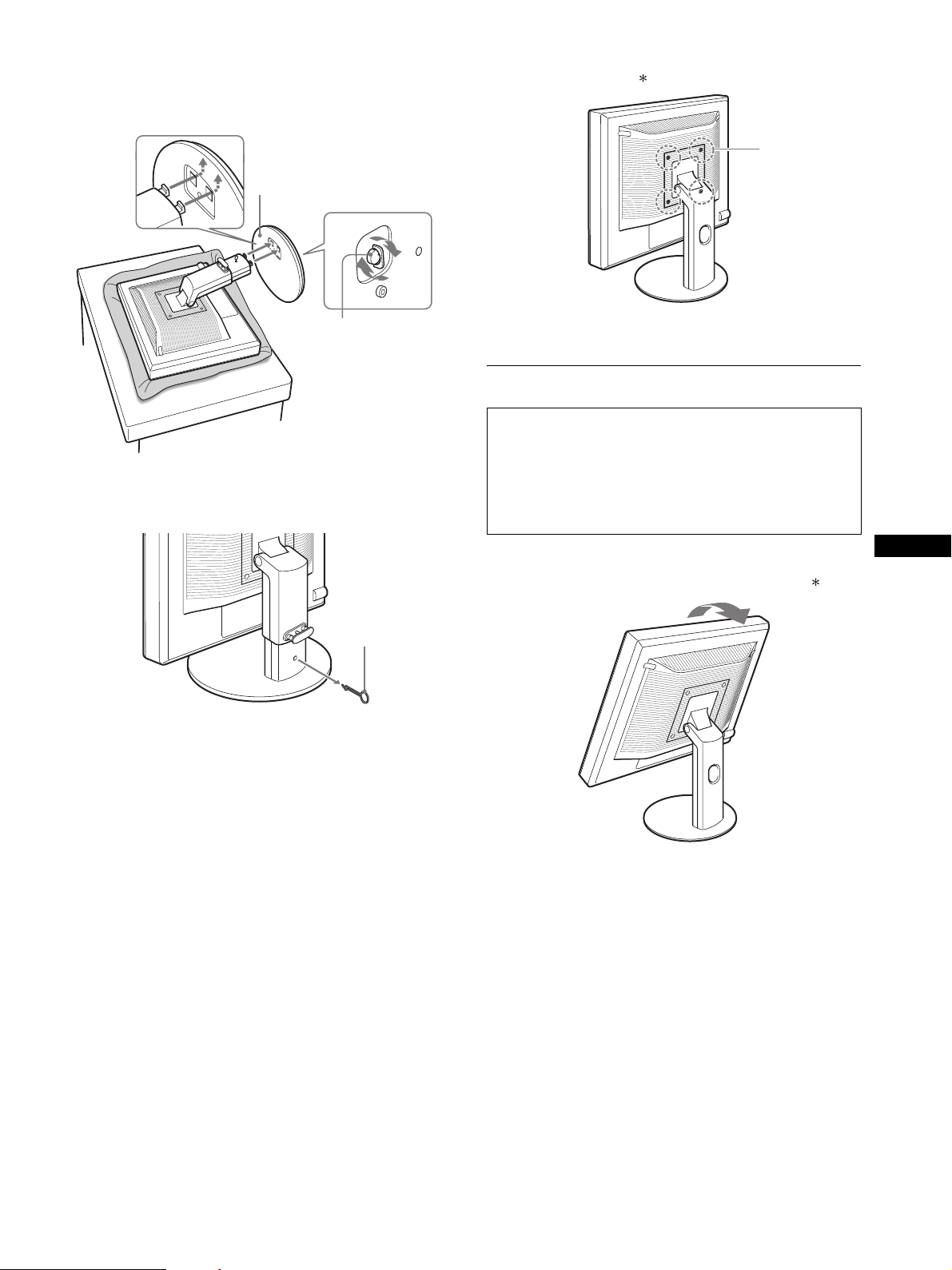
7
CS
5 将底座孔钩在底座的爪上进行装配。 1
提起螺丝柄将其牢牢拧在底座上。 2
务必拧紧螺丝,然后将螺丝柄放回。
6 如果使用高度可调底座,请在拉直高度可调底座后拆下
止动销。
注意
底座放平时不能拆下止动销。 底座颈从底座弹出可能掉落或弄伤
您。
x 使用 VESA 底座时
拆下装在显示器上的附带底座后也可以安装其他品牌的
VESA 底座。
步骤 2: 连接视频信号电缆
1 向上倾斜显示器。
使用高度可调底座时,请将显示器抬得高一些。
1 底座
2 螺丝
止动销
• 连接之前,必须关闭显示器和计算机电源。
注意
• 不要接触视频信号电缆连接器内的针,因为这可能将针折
弯。
• 请检查连接器是否对准,以避免弄弯视频信号电缆连接器的
针脚。
这些螺丝也适合
VESA 底座 (4)
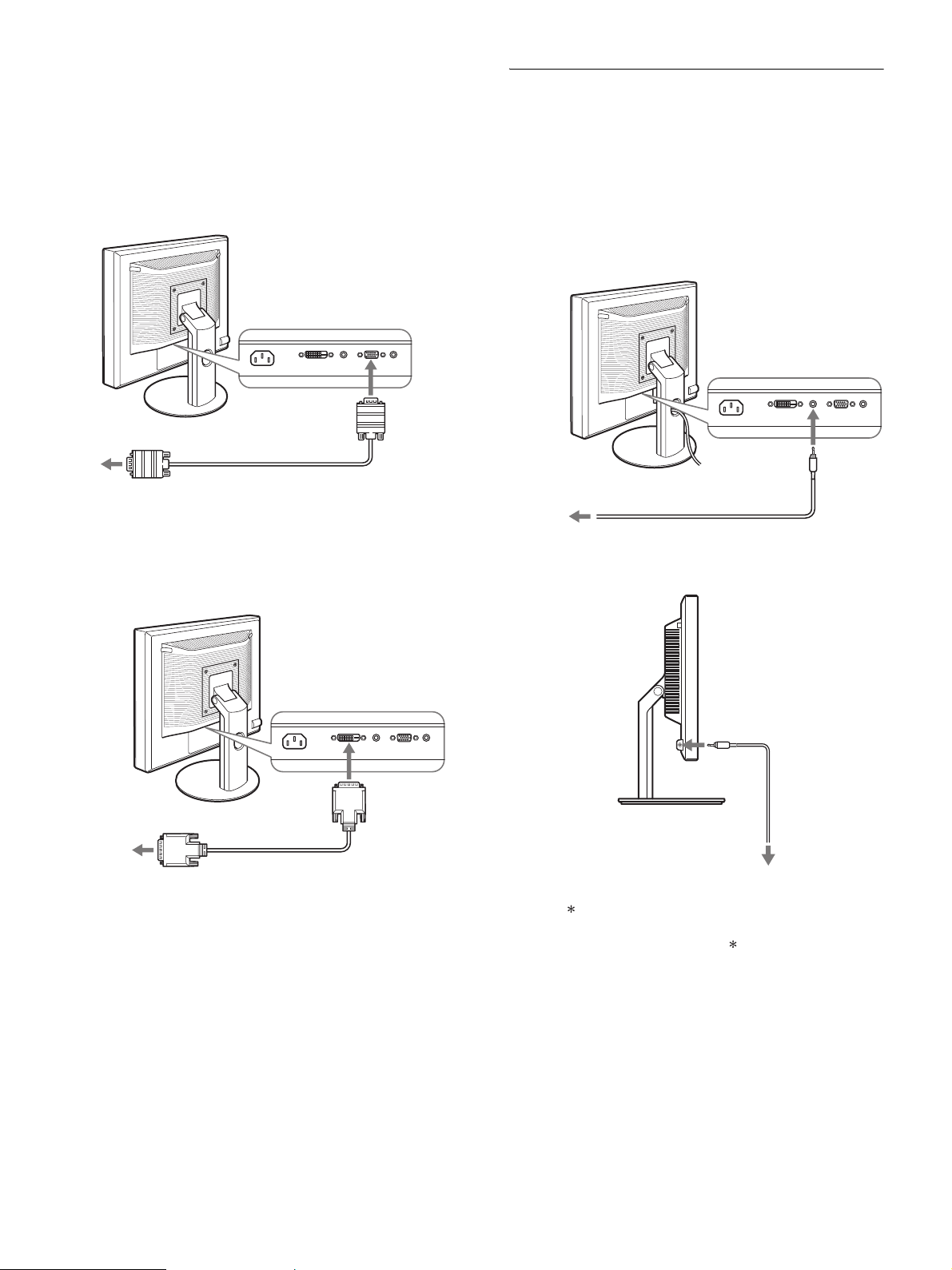
8
2 将视频信号电缆连接到显示器上。
如果使用固定底座,先将视频信号电缆从底座孔拉出,
然后将其连接到显示器上。更多详情,请参阅 “步骤
5:牢固连接电线。”
x 连接到装有 HD15 输出连接器(模拟 RGB)的计算
机
使用附带的 HD15-HD15 视频信号电缆 (模拟 RGB)将计
算机连接到显示器的 HD 15 输入连接器 (模拟 RGB)。
x 连接到装有 DVI 输出连接器 (数字 RGB)的计算
机
使用附带的 DVI-D 视频信号电缆 (数字 RGB)时,请将
计算机连接到显示器的 DVI-D 输入连接器 (数字 RGB)。
步骤 3: 连接音频线
如果不想输出音频,无需进行此连接。
如果使用固定底座,先将音频线从底座孔拉出,然后将其
连接到显示器上。更多详情,请参阅 “步骤 5:牢固连接
电线。”
1 使用音频线 (不附带)连接显示器的音频输入插孔和计
算机的音频输出插孔或其它音频设备。
2 将音频电缆 (不附带)牢牢地连接到显示器的音频输出
插孔。
当显示器的音频输入和音频输出连接完成后,音频输出将
被改变。
请连接显示器音频输入规格中所示的输入范围内的音频装
置。过高的输入可能会损坏显示器 。
至计算机 HD15 输出连接器
(模拟 RGB)
HD15-HD15 视频信号电缆
(模拟 RGB)(附带)
至 HD 15 输
入连接器
(模拟 RGB)
至计算机的 DVI 输出连接器
(数字 RGB)
DVI-D 视频信号电缆
(数字 RGB)(附带)
至 DVI-D 输入
连接器 (数字
RGB)
至音频输入
至计算机或其它
音频设备的音频
输出
音频线 (不附带)
至音频输出
音频电缆
( 不附带 )
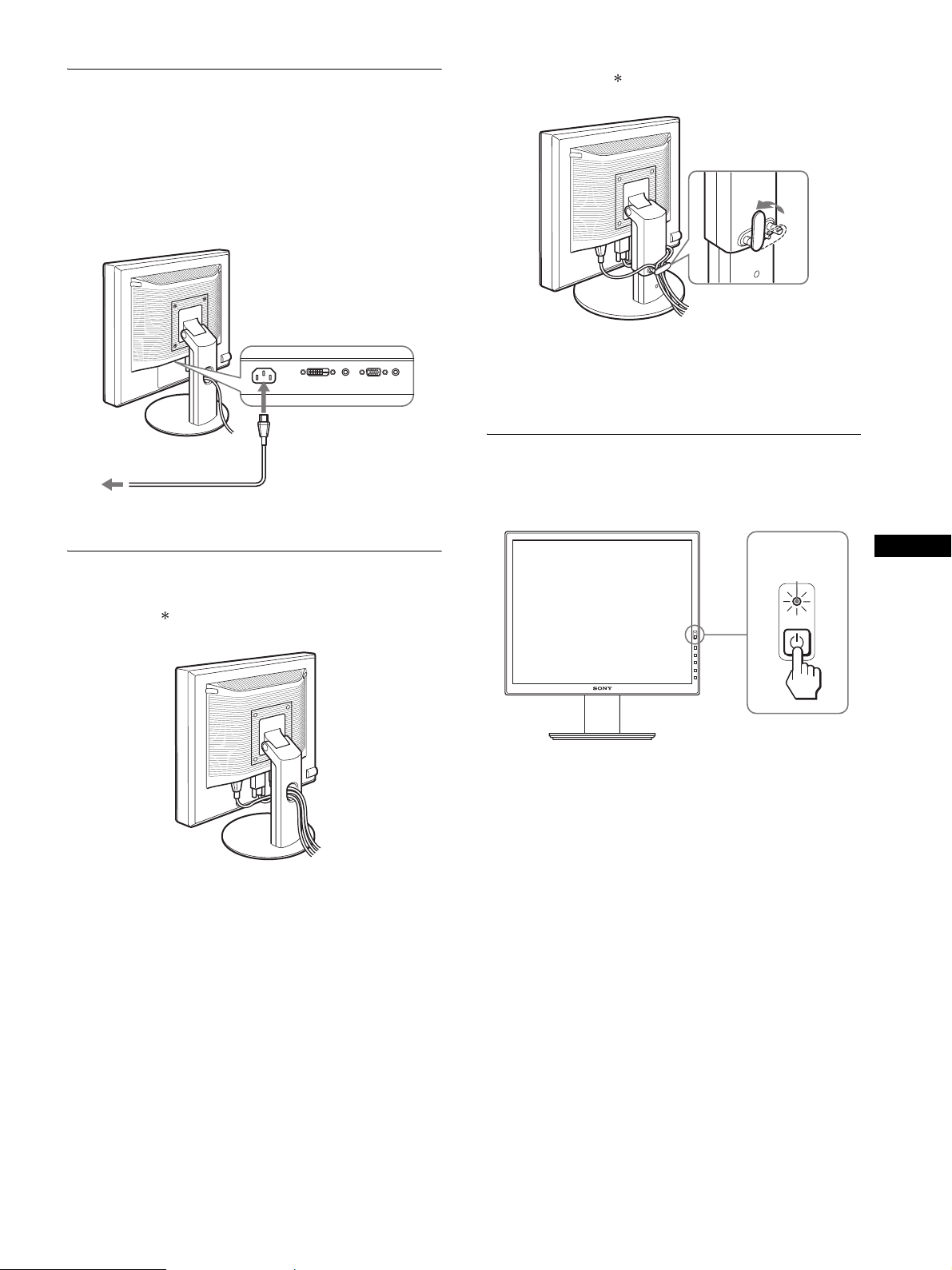
9
CS
步骤 4: 连接电源线
如果使用固定底座,先将电源线从底座孔拉出,然后将其
连接到显示器上。更多详情,请参阅 “步骤 5:牢固连接
电线。”
1 将附带的电源线牢牢地连接到显示器的交流输入连接器。
2 将另一端牢牢地连接到电源插座。
步骤 5: 牢固连接电线
x 固定底座
请确保电线和电缆如图从底座孔拉出。
x 高度可调底座
如图所示,将电线和电缆穿过电缆支架。
注意
弯折电线和电缆时,务必先将电线和电缆松开一点。 电线和电线如
果拉得太紧,在调节屏幕角度时它们可能会从连接器或插头中掉
出。 如果电线和电缆拉得太紧可能会损坏。
步骤 6: 打开显示器和计算机
1 按显示器右前方的 1 (电源)开关。
1 (电源)指示灯以绿色点亮。
2 打开计算机。
如果屏幕上未出现图像
• 请检查电源线和视频信号电缆是否正确连接。
• 如果屏幕上出现 “没有输入信号” :
– 计算机进入节电模式。 试着按键盘上任意键或移动鼠标。
– 按 OK 按钮检查输入信号设置是否正确 ( 第 11 页 )。
• 如果屏幕上出现 “未连接信号线”:
– 检查视频信号电缆是否正确连接。
– 按 OK 按钮检查输入信号设置是否正确 ( 第 11 页 )。
至交流
输入
至电源插座
电源线 (附带)
1
2
呈绿色点亮
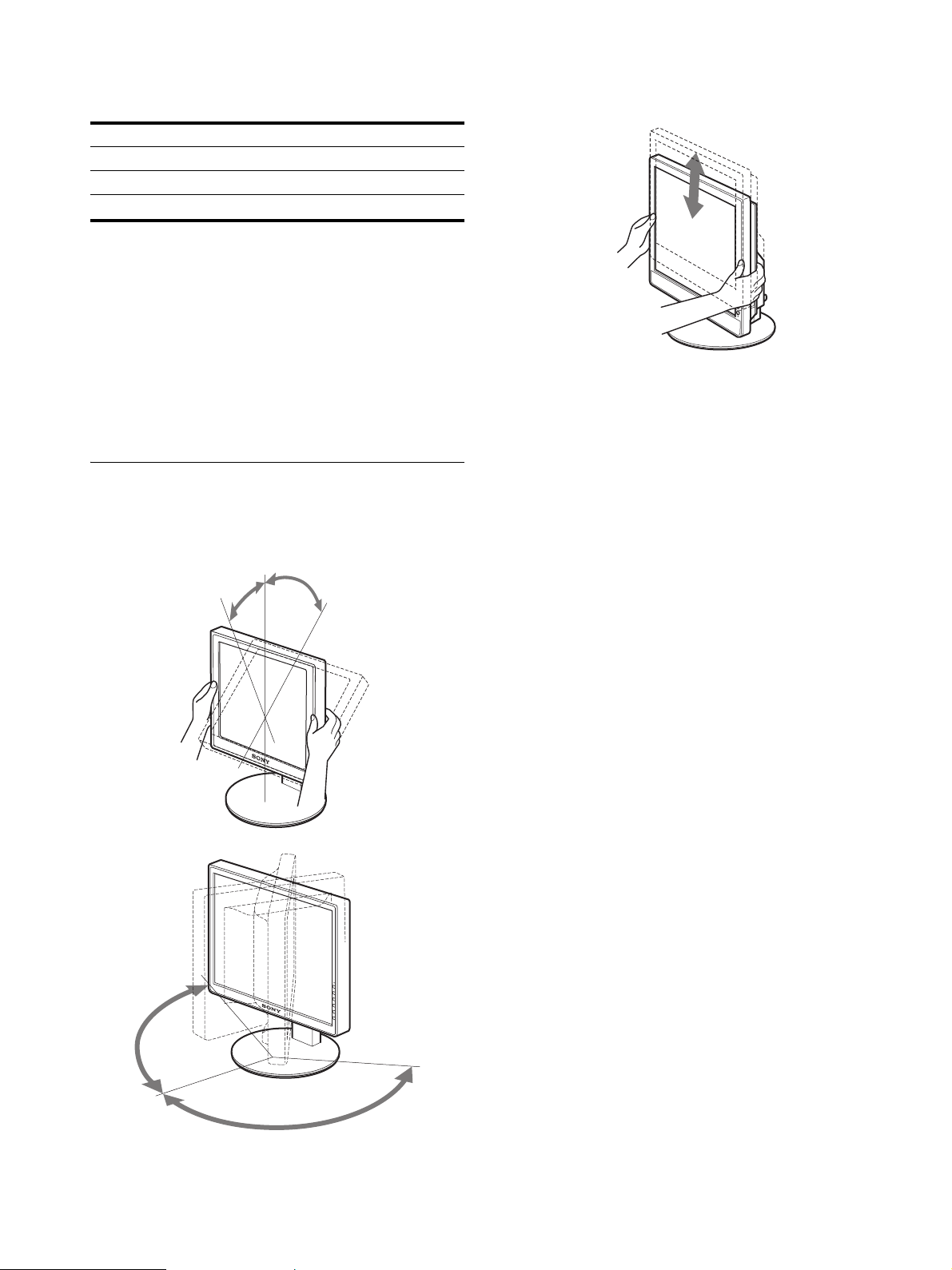
10
• 如果屏幕上出现 “超出范围” :
请重新连接旧显示器。 然后将计算机的显示卡调节至以
下范围内。
有关屏幕信息的更多说明,请参阅第 18 页 “故障现象和排
除方法”。
不需要特定的驱动程序
本显示器符合 “DDC”即插即用标准,并自动检测所有显示器信
息。 计算机不需要安装特定的驱动程序。
连接显示器后第一次打开计算机时,屏幕上会出现设定向导。 此
时,请按照屏幕指示进行操作。 即插即用显示器被自动选择,因此
您可以使用显示器。
垂直频率变为 60Hz。
如果显示器上闪烁不明显,您可以就这样使用。 您不需要将垂直频
率设定到更高的值。
步骤 7: 调节倾斜度和高度
显示器可以在以下所示的角度内进行调整。
抓住液晶显示屏的两侧,然后调整屏幕角度。
使用高度可调底座时,也可以按如下方法进行高度调整。
抓住液晶显示屏的两侧,然后调整屏幕高度。
若要舒适地使用显示器
根据桌子和椅子的高度调整显示器的视角,使屏幕上的光
亮不会反射到您的眼睛。
注意
• 调整显示屏角度时,切勿使其碰撞到显示器周围的任何物体。
• 调整底座高度时,显示器下方不要放置任何物体。 物品可能会意
外损坏。
模拟 RGB 数字 RGB
水平频率 28-80 kHz 28-64 kHz
垂直频率 48-75 Hz 60 Hz
分辨率 1280 × 1024 或更小
大约 5°
大约 20°
大约 175°
大约 175°
大约 110mm
11
CS
选择输入信号 (INPUT1/INPUT2)
按 OK 按钮。
每次按此按钮,输入信号都将发生改变。
屏幕信息
(在屏幕左上角显示 5 秒)
输入信号配置
输入 1: DVI-D
*
DVI-D 输入连接器
用于 INPUT1 (数字 RGB)
输入 2: HD15 HD15 输入连接器
用于 INPUT2 (模拟 RGB)
INPUT
OK
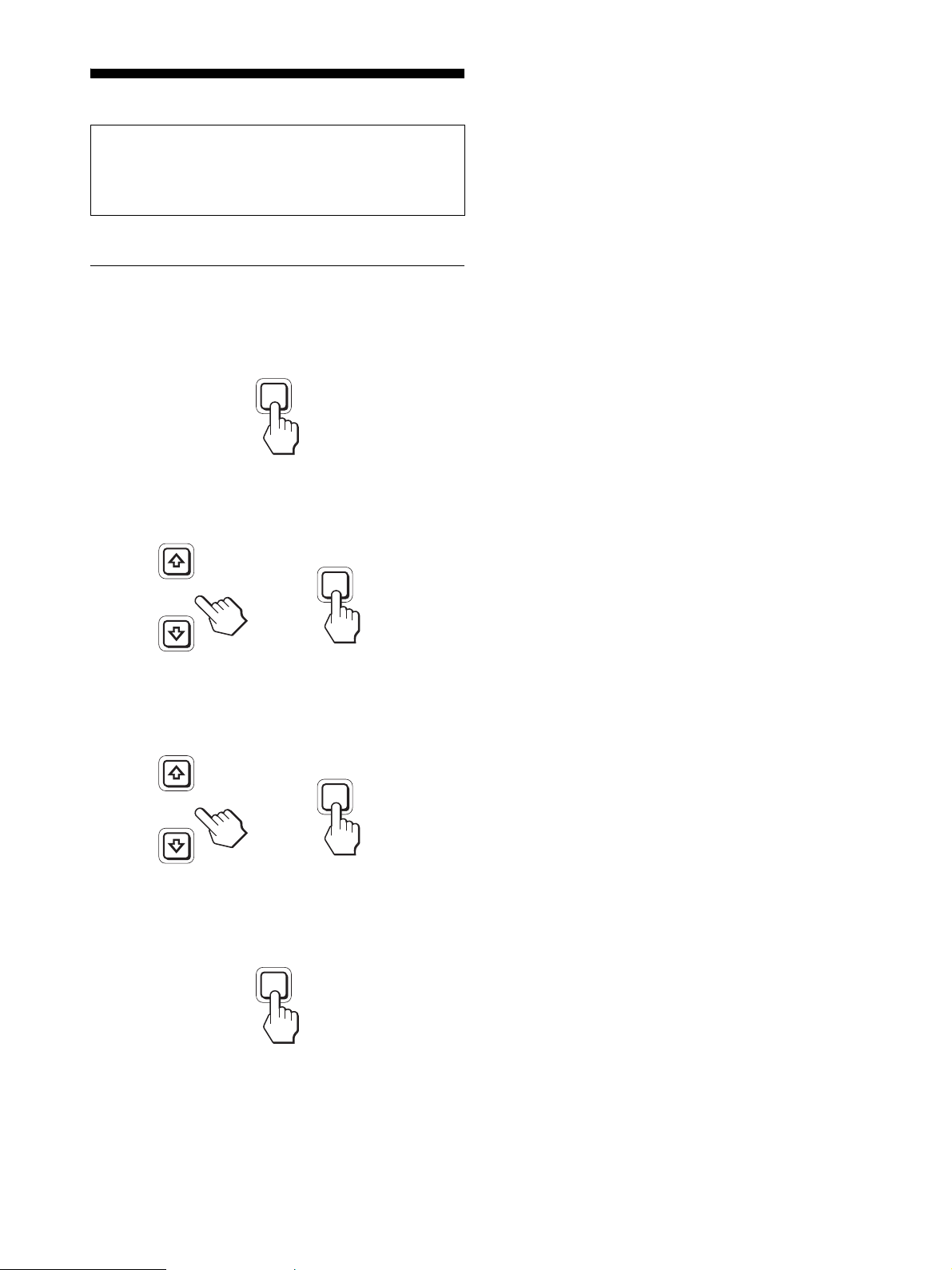
12
设定显示器
可用屏幕显示菜单对显示器做许多调整。
导航菜单
1 显示主菜单
按 MENU 按钮在屏幕上显示主菜单。
2 选择您想要调整的菜单。
按 m/M 按钮以显示想要的菜单。 按 OK 按钮选择菜单项
目。
3 调整项目。
按 m/M 按钮进行调整,然后按 OK 按钮。
当您按 OK 按钮时,设置被储存,然后显示返回到上一
个菜单。
4 关闭菜单。
按一次 MENU 钮回到正常显示状态。 若未按任何按钮,
大约 45 秒后菜单将自动关闭。
x 将调整复原至默认设定
您可以用复原菜单将调整复原。 有关复原调整的更多信息,
请参阅第 15 页上的 0 (复原)。
进行调整之前
连接并开启显示器和计算机。
为获得最佳结果,将显示器连接到计算机并打开后,进
行任何调整前至少要等 30 分钟。
MENU
INPUT
OK
,
INPUT
OK
,
MENU
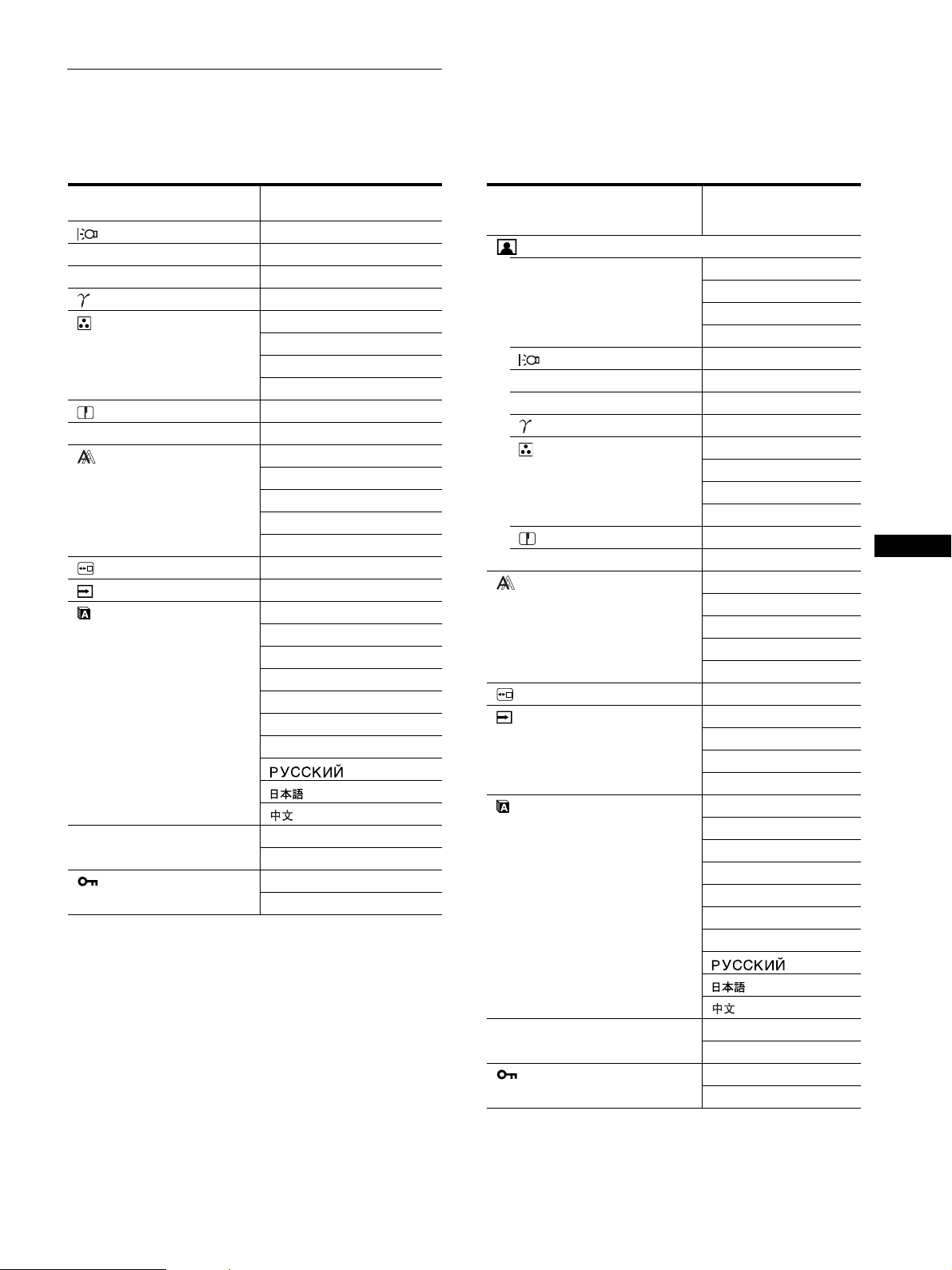
13
CS
菜单选项列表
菜单选项因型号而异。
检查显示器底部的型号名称并参阅下列各表。
1)
选择 “sRGB”时,不能调整对比度、亮度和 GAMMA。
SDM-S75A/S95AR
SDM-S75E/S95ER
背光 ;
6 对比度 ;
1)
8 亮度 ;
1)
GAMMA ;
1)
色温 9300K
6500K
sRGB
1)
用户 (R 和 B 增益)
锐度 ;
0 模式复原
*
-
屏幕效果 自动
相位
像素频率
水平中心
垂直中心
菜单位置 ;
输入检测
*
-
LANGUAGE ENGLISH
FRANÇAIS
DEUTSCH
ESPAÑOL
ITALIANO
NEDERLANDS
SVENSKA
0 复原 确定
取消
菜单锁定 打开
关闭
SDM-S75D/S95DR
SDM-S75F/S95FR
SDM-S75N/S95NR
图像调整菜单
*
模式 (ECO mode) 高
中
低
用户
背光 ;
6 对比度 ;
1)
8 亮度 ;
1)
GAMMA ;
1)
色温 9300K
6500K
sRGB
1)
用户 (R 和 B 增益)
锐度 ;
0 模式复原
*
;
屏幕效果 自动
相位
像素频率
水平中心
垂直中心
菜单位置 ;
输入检测
*
开启自动输入检测
输入 1
输入 2
关闭自动输入检测
ENGLISH LANGUAGE
FRANÇAIS
DEUTSCH
ESPAÑOL
ITALIANO
NEDERLANDS
SVENSKA
0 复原 确定
取消
菜单锁定 打开
关闭
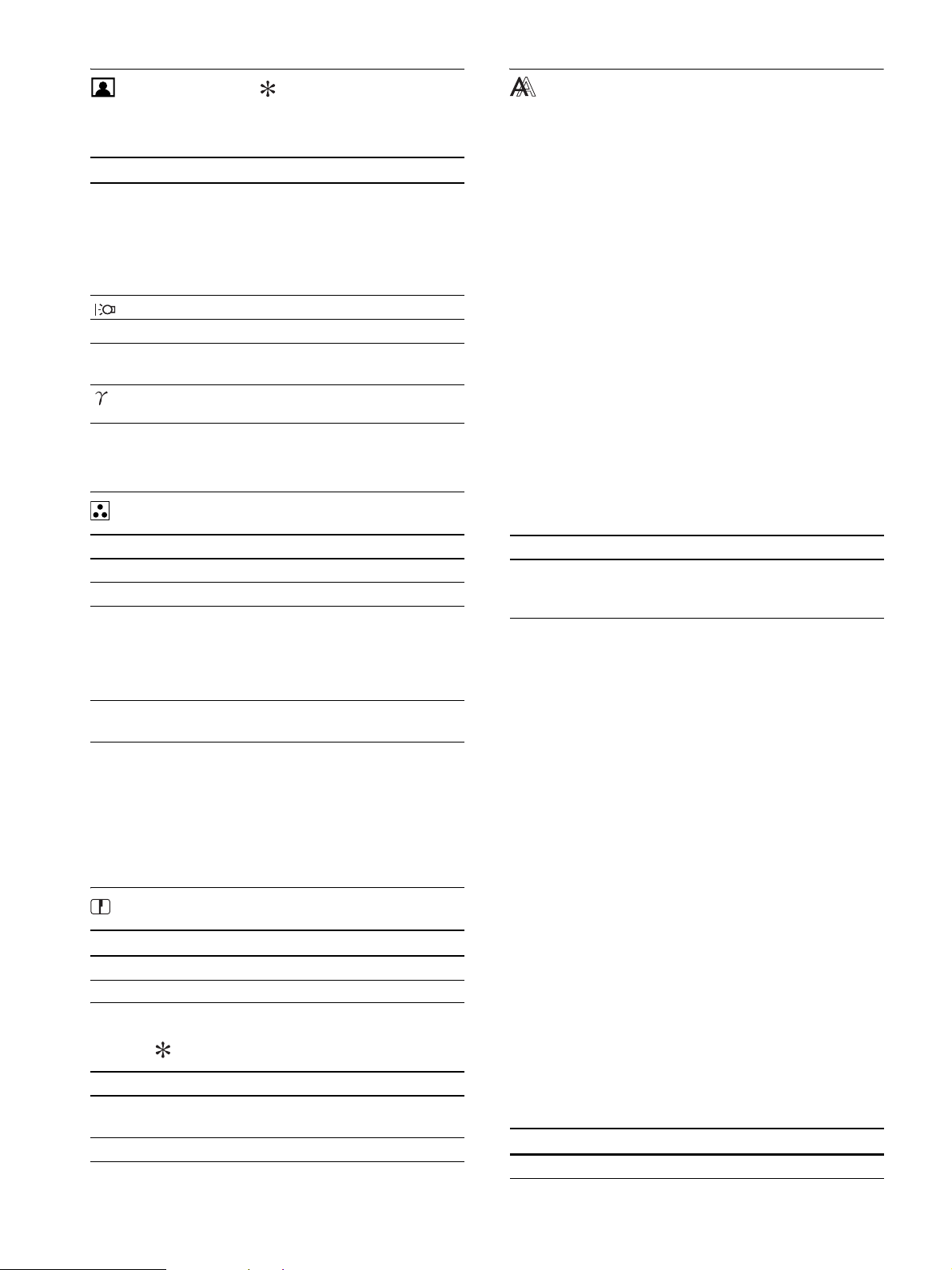
14
图像调整菜单
对于模拟输入的显示器,只有当用户选择 ECO 模式时,才
能调整背光、对比度和亮度。
注意
如果选择 “sRGB”,则不能调整对比度、亮度和 GAMMA。
色温菜单
1)
如果计算机或连接到显示器上的其他设备与 sRGB 不兼容,则色
彩不能调整到 sRGB 色彩空间。
选择 “sRGB”时,就不能调整对比度、亮度和 GAMMA。
ECO 模式选择高、中或低时,不能使用 sRGB。(“sRGB”选项为
灰色)
2)
此项调整通过增加或减少红色和蓝色成分相对于绿色的比例来改
变色温。 绿色成分不变。
锐度菜单
0 模式复原菜单 (仅用于图像调整
菜单)
屏幕效果菜单 (仅用于模拟 RGB 信
号)
x 自动图像质量调整功能
当显示器接收到输入信号时,它会自动调整图像位置和锐
度 (相位 / 像素频率 ),确保屏幕上出现清晰的图像 (第
17 页)。
注意
当自动图像质量调整功能启用时,仅 1 (电源)开关可以操作。
图像在此时间内可能会闪烁,但这不是故障。只要等待片刻直至调
整结束。
如果本显示器的自动图像质量调整功能似乎不能完全调整
图像
您可以对当前输入信号进一步进行图像质量的自动调整。
(参见下面的自动)
如果仍需要进一步进行图像质量的调整
您可以手动调整图像锐度 (相位 / 像素频率)和位置 (水
平 / 垂直位置 )。
这些调整保存在存储器中,显示器接收到同样的输入信号
时自动调出。 重新连接计算机后,如果输入信号改变,这
些设定可能需要重做。
x 手动调整图像的锐度和位置 (相位 / 像素频率 /
水平中心 / 垂直中心)
您可以按照以下步骤调整图像锐度和位置。
1 在计算机上将分辨率设定至 1280 × 1024。
2 放入 CD-ROM。
3 启动 CD-ROM,选择地区和机型,并显示测试图案。
对于 Windows 用户
当操作自动运行时:
1 点击 “显示调整工具 (UTILITY)”。
2 点击 “Adjust”并确认分辨率,然后点击 “Next”。
3 依次出现像素频率、相位、水平中心和垂直中心的测
试图案。
当无法自动运行时:
1 打开 “我的电脑”并右击 CD-ROM 图标。 进入
“Explorer”,打开 CD-R0M 图标。
2 选择 [Windows] 然后打开 [Utility]。
3 启动 [Win_Utility.exe]。
显示出测试图案。
对 Macintosh 用户
1 打开 [Utility],然后选择 [Mac]。
2 启动 [Mac_Utility.exe]
显示出测试图案。
项目 按 M 按钮 按 m 按钮
模式
高
中
低
用户
选择 ECO 模式。
在 “高”、“中”、“低”或 “用户”模
式中选择显示器亮度,以减少功率消耗。
选择 “用户”模式时,您可以精确调节
显示器亮度。
通过设置输入,您可以选择各种模式。
背光 使屏幕变亮。 使屏幕变暗。
6 对比度 加深图像对比度。 减弱图像对比度。
8 亮度 调亮图像 (黑色电
平)
调暗图像 (黑色电
平)
GAMMA 功能
可以将屏幕上的图像调整到原来的色彩。
项目 功能
9300K 浅蓝色色调
6500K 浅红色色调
sRGB
1)
选择 “sRGB”时,色彩被调整到
sRGB 色彩空间。(sRGB 色彩设定是为
计算机产品设计的工业标准色彩空间
协议。) 选择 “sRGB”时,计算机的
色彩设定必须设为 sRGB 色彩空间。
用户
2)
可以精细调节色温,色彩设定保存在
存储器中。
项目 按 m/M 按钮
锐度 调整图像锐度等。
项目 功能
确定 可以将背光、对比度、亮度、GAMMA、
色温和锐度的调整复原到默认设定。
取消 取消复原,并返回到菜单。
项目 功能
自动 对于当前的输入信号 , 进行适当的画
面相位、像素频率和水平 / 垂直位置
的调整,并保存。
项目 按 m/M 按钮
相位 减少屏幕上的水平条纹。
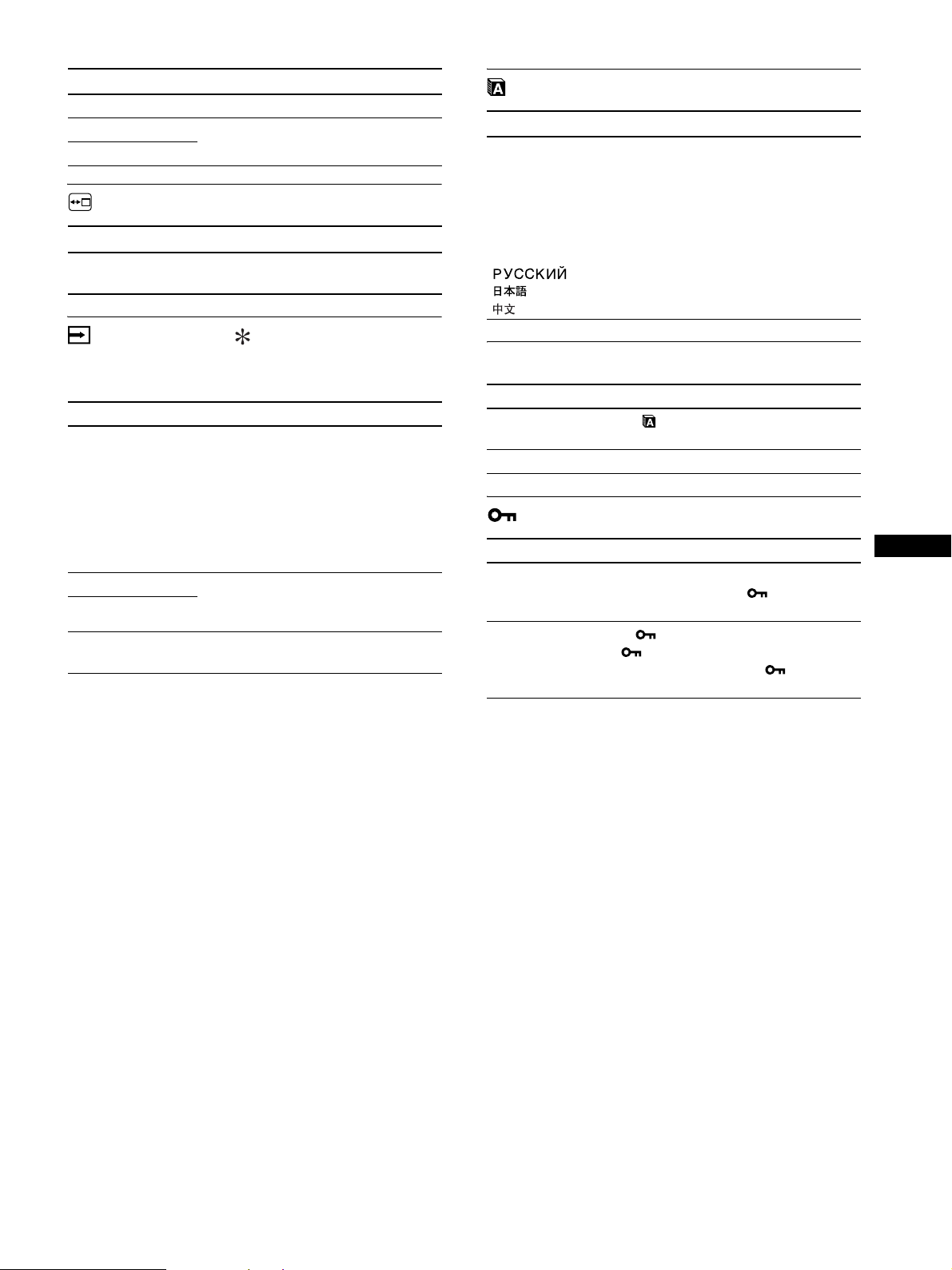
15
CS
菜单位置菜单
输入检测菜单
数字输入型号的显示器搜索任何输入信号。 可以自动地来
回切换信号。
LANGUAGE 菜单
0 复原菜单 (复原至默认设定)
菜单锁定菜单
像素频率 垂直条纹消失。
水平中心 图像没有出现在屏幕中间时调整图像
的位置。
垂直中心
项目 按 m/M 按钮
菜单位置 可以改变菜单在屏幕上的显示位置。
可以选择 9 个位置中的一个。
项目 功能
开启自动输入检测 所选的输入没有信号时,或用 OK 按
钮选择输入时没有输入信号,则出现
屏幕显示消息。 然后显示器检查输入
信号,并自动地切换到其他输入。
输入改变时,所选的输入显示在屏幕
的左上角。
如果仍没有输入信号,则显示器进入
省电模式。
输入 1 打开显示屏时,输入 1 或输入 2 将作
为优先设定显示 (输入检测将无
效)。
输入 2
关闭自动输入检测 输入不会自动改变。按 OK 按钮改变
输入。
项目 按 m/M 按钮
项目 按 m/M 按钮
ENGLISH
FRANÇAIS
DEUTSCH
ESPAÑOL
ITALIANO
NEDERLANDS
SVENSKA
英语
法语
德语
西班牙语
意大利语
荷兰语
瑞典语
俄语
日语
项目 功能
确定 除 (LANGUAGE)设定外,将所有的
调整数据复原到默认设定。
取消 取消复原,并返回到菜单屏幕。
项目 功能
打开 仅 1 (电源)开关可以操作。 如果
您想进行其它操作, (菜单锁定)
图标出现在屏幕上。
关闭 将 (菜单锁定)设为关闭。 如果
(菜单锁定)已经设为打开,则在
按菜单按钮时自动选择 (菜单锁
定)。
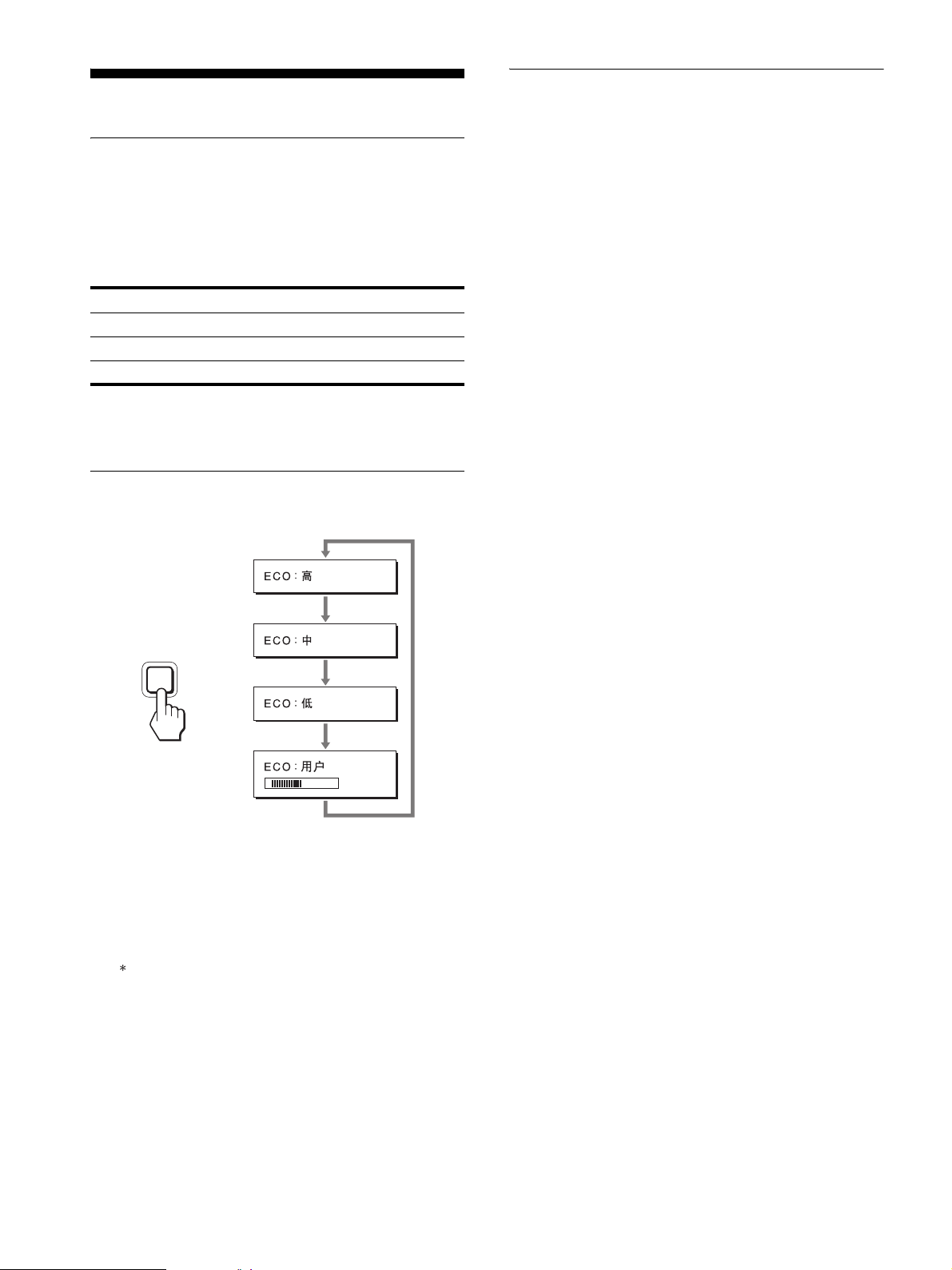
16
技术特点
省电功能
本显示器符合 VESA 、ENERGY STAR 和 NUTEK 制定的省电原
则。 如果将显示器连接到计算机或与适用于模拟输入的
DPMS (显示电源管理标准)/ 适用于数字输入的 DMPM(DVI
数字监视器电源管理)兼容的视频显示卡,显示器将如下
所示自动减少功率消耗。
1)
当计算机进入 “休眠”模式时,输入信号切断,并在屏幕上出
现 “没有输入信号”。 5 秒钟后,显示器进入省电模式。
“深度睡眠”是环境保护局定义的省电模式。
减少功耗 (ECO mode)
如果反复按显示器前面的 ECO 按钮,可以选择屏幕亮度。
每种模式显示在屏幕上,屏幕亮度按模式减弱。 5 秒钟后菜
单自动消失。
当模式从高变为中或低时,屏幕亮度和功耗降低。
屏幕亮度的默认设定为 “高”。
如果选择用户,按 m/M 按钮可以调整背光,这与用菜单选
择背光相同。
注意
对于模拟输入的显示器,只有当 ECO 模式设为用户时,才能使用菜
单的背光、对比度和亮度选项 (第 14 页)。
自动图像质量调整功能 (仅用于模拟
RGB 信号)
当显示器接收到输入信号时,它会自动调整图像位置
和锐度 (相位 / 像素频率 ),确保屏幕上出现清晰的
图像。
工厂预设模式
当显示器接收到输入信号时,它会自动将信号与存储在显
示器存储器中的工厂预设模式之一相匹配,以便在屏幕中
心提供高质量图像。 如果输入信号与工厂预设模式相匹配,
图像将以适当的默认调整自动出现在屏幕上。
如果输入信号不符合工厂预设模式
当显示器接收到不符合工厂预设模式之一的输入信号时,
本显示器的自动图像质量调整功能将启动,以确保 (在以
下显示器频率范围内)图像清晰地出现在屏幕上 :
水平频率 : 28-80 kHz
垂直频率 : 48-75 Hz
因此当显示器第一次接收到不符合工厂预设模式之一的输
入信号时,显示器可能要花比普通情况下更长的时间才能
在屏幕上显示图像。 此调整数据自动储存在存储器中,下
次显示器将如同接收到符合工厂预设模式之一的输入信号
一样运行。
如果您手动调整相位、像素频率和图像位置
对于某些输入信号,本显示器的自动图像质量调整功能可
能无法完全调整图像位置、相位和像素频率。 如果这样,
您可以手动设定 (第 14 页)。 如果您手动设定,调整数据
将作为用户模式被储存,并在任何时候显示器接收到相同
输入信号时自动调用。
注意
当自动图像质量调整功能启用时,仅 1 (电源)开关可以操作。
图像在此时间内可能会闪烁,但这不是故障。只要等待片刻直至调
整结束。
电源模式 1 (电源)指示灯
正常操作 绿色
休眠
1)
(深度睡眠) 橙色
电源关 关闭
50
ECO
,
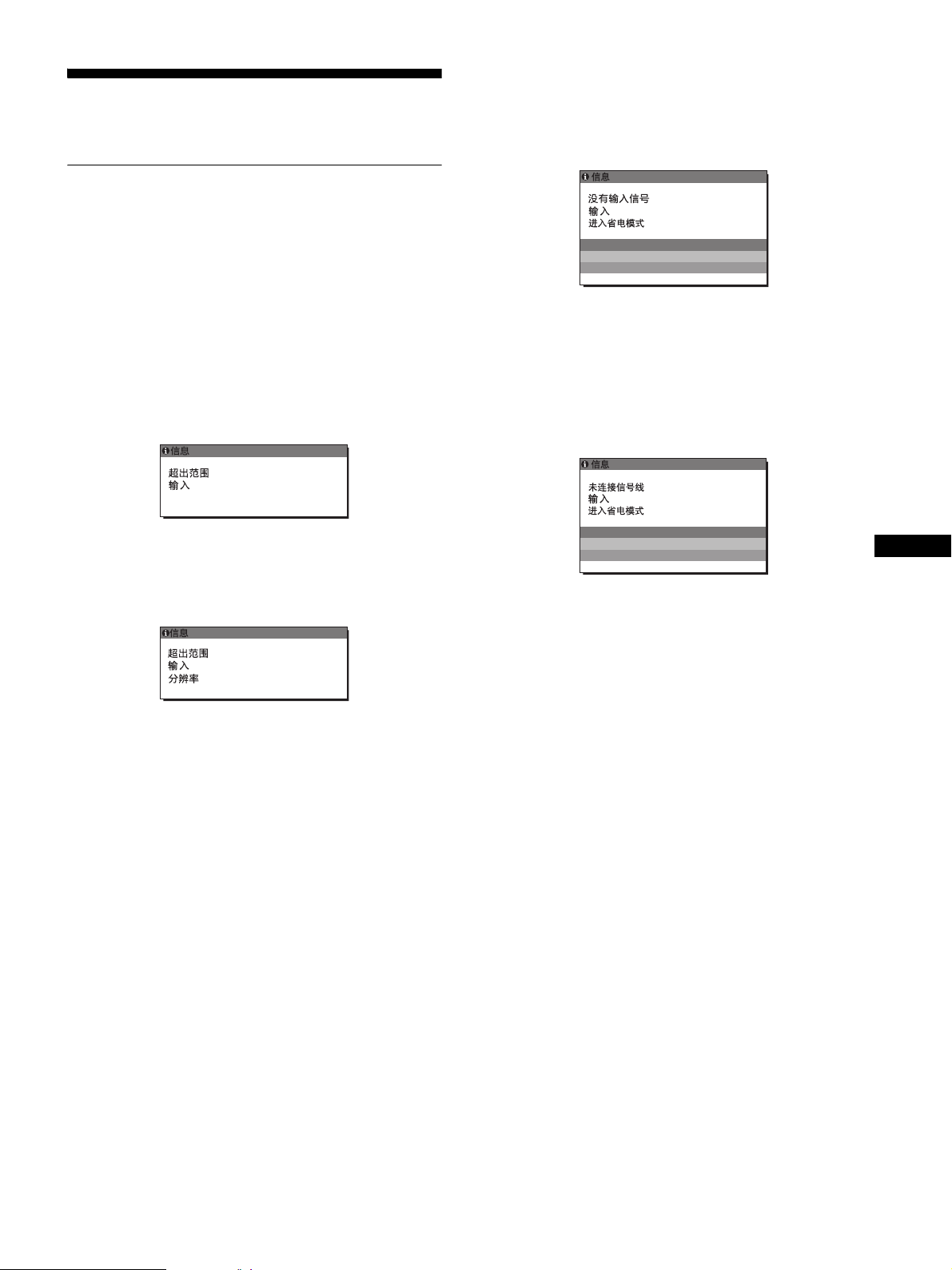
17
CS
故障排除
在与技术服务部门联系之前,请参考此部分。
屏幕信息
如果输入信号有误,屏幕上会出现下列信息之一。 若要解
决此问题,请参阅第 18 页 “故障现象和排除方法”。
如果屏幕上出现 “超出范围”。
此信息表示本显示器的规格不支持此输入信号。 请检查以
下项目。
有关屏幕信息的更多说明,请参阅第 18 页 “故障现象和排
除方法”。
如果显示 “xxx.x kHz/xxx Hz”
此信息表示本显示器的规格不支持水平或垂直频率。
此图表示当前输入信号的水平和垂直频率。
如果显示 “分辨率 > 1280 × 1024”
此信息表示本显示器的规格 (1280 × 1024 或更低 ) 不
支持此分辨率。
如果屏幕上显示 “没有输入信号”
此信息表示没有信号经当前所选的连接器输入。
当输入检测开启 / 关闭 (第 15 页)设定为开启时,显示器
将自动找到其他输入信号并改变输入。
当无法找到输入信号时,显示 “进入省电模式”消息。
5 秒钟后,省电模式启动。
如果屏幕上出现 “未连接信号线”
此信息表示视频信号电缆与当前所选连接器已经断开。
当输入检测开启 / 关闭 (第 15 页)设定为开启时,显示器
将自动找到其他输入信号并改变输入。
当无法找到输入信号时,显示 “进入省电模式”消息。
45 秒钟后,省电模式启动。
xxx.xkHz/ xxxHz
:
1DVI
-
D
例如
>
2180X1 420
:
1DVI
-
D
例如
1DVI
-
D
例如
1
:
DV I
-
D
例如

18
故障现象和排除方法
如果问题是由所连接的计算机或其他设备引起的,请参照
所连接计算机 / 设备的使用说明书。
现象 检查项目
没有画面
如果 1 (电源)指示灯未点亮,
或 1 (电源)指示灯变为橙色,
• 检查 1 (电源)开关是否打开。
如果按下 1 (电源)开关后 1
(电源)指示灯不亮,
• 检查电源线的连接是否正确。
如果屏幕上出现 “未连接信号线” • 检查视频信号电缆是否连接正确,所有插头是否牢固地插在各自的插孔内
(第 7 页)。
• 检查视频输入连接器的针是否被弯曲或被挤入。
• 检查输入选择设定是否正确 (第 11 页)。
• 连接了非附带的视频信号电缆。 如果您连接了非附带的视频信号电缆,则屏幕上
显示 “未连接信号线”。 这并不是故障。
显示屏上显示 “没有输入信号”,
或 1 (电源)指示灯变为橙色,
• 检查视频信号电缆是否连接正确,所有插头是否牢固地插在各自的插孔内
(第 7 页)。
• 检查视频输入连接器的针是否被弯曲或被挤入。
• 检查输入选择设定是否正确 (第 11 页)。
x 由所连接的计算机或其他设备引起的问题,不是由显示器引起的问题
• 计算机进入节电模式。 试着按键盘上任意键或移动鼠标。
• 检查显示卡是否正确安装。
• 检查计算机电源是否打开。
• 重启计算机。
如果屏幕上出现 “超出范围”
(第17页),
x 由所连接的计算机或其他设备引起的问题,不是由显示器引起的问题
• 检查视频的频率范围是否在显示器制定的范围内。 如果用本显示器更换旧显示
器,请重新连接旧显示器,并把计算机显示卡调整到如下范围内:
水平:28 - 80 kHz (模拟 RGB), 28 - 64 kHz (数字 RGB)
垂直:48 - 75 Hz (模拟 RGB), 60 Hz (数字 RGB)
分辨率:1280 × 1024 或更小
如果使用 Windows, • 如果您用本显示器更换旧显示器,请重新连接旧显示器并进行以下操作。 在
Windows 设备选择画面中,从 “厂家”列表中选择 “SONY”,从 “型号”列表中
选择想要的型号名称。 如果本显示器的型号名称不出现在 “型号”列表中,请试
一下 “即插即用。”
如果使用 Macintosh 系统, • 当连接 Macintosh 计算机时,如有必要请使用适配器(不附带)。 连接视频信号电
缆之前,请将适配器连接到计算机。
画面闪烁、跳动、振荡或被扰频 • 调整像素频率和相位 (仅用于模拟 RGB 信号)(第 14 页)。
• 尝试将显示器电源插头插到另一个交流电源插座上,最好在不同线路上。
x 由所连接的计算机或其他设备引起的问题,不是由显示器引起的问题
• 查阅您的显示卡说明书以便正确地设定显示器。
• 确认本显示器是否支持图形模式 (VESA Macintosh 19" Color 等等)和输入信号
的频率。 即使频率在适当范围内,但有些显示卡的同步脉冲可能太窄而不足于让
显示器正确达成同步。
• 本显示器不处理隔行信号。 设置为处理逐行信号。
• 调整计算机的刷新率 (垂直频率)以获得最佳图像。
画面模糊 • 调整亮度和对比度 (第 14 页)
• 调整像素频率和相位 (仅用于模拟 RGB 信号)(第 14 页)。
x 由所连接的计算机或其他设备引起的问题,不是由显示器引起的问题
• 在计算机上将分辨率设定至 1280 × 1024。
画面出现重影 • 请勿使用视频电缆延长线和 / 或视频转换开关盒。
• 检查所有插头是否牢固地插在各自的插口内。
画面未居中或尺寸不当 (仅用于模拟
RGB 信号)
• 调整像素频率和相位 (第 14 页)。
• 调整图像位置 (第 14 页)。 请注意有些视频模式不充满屏幕的边缘。
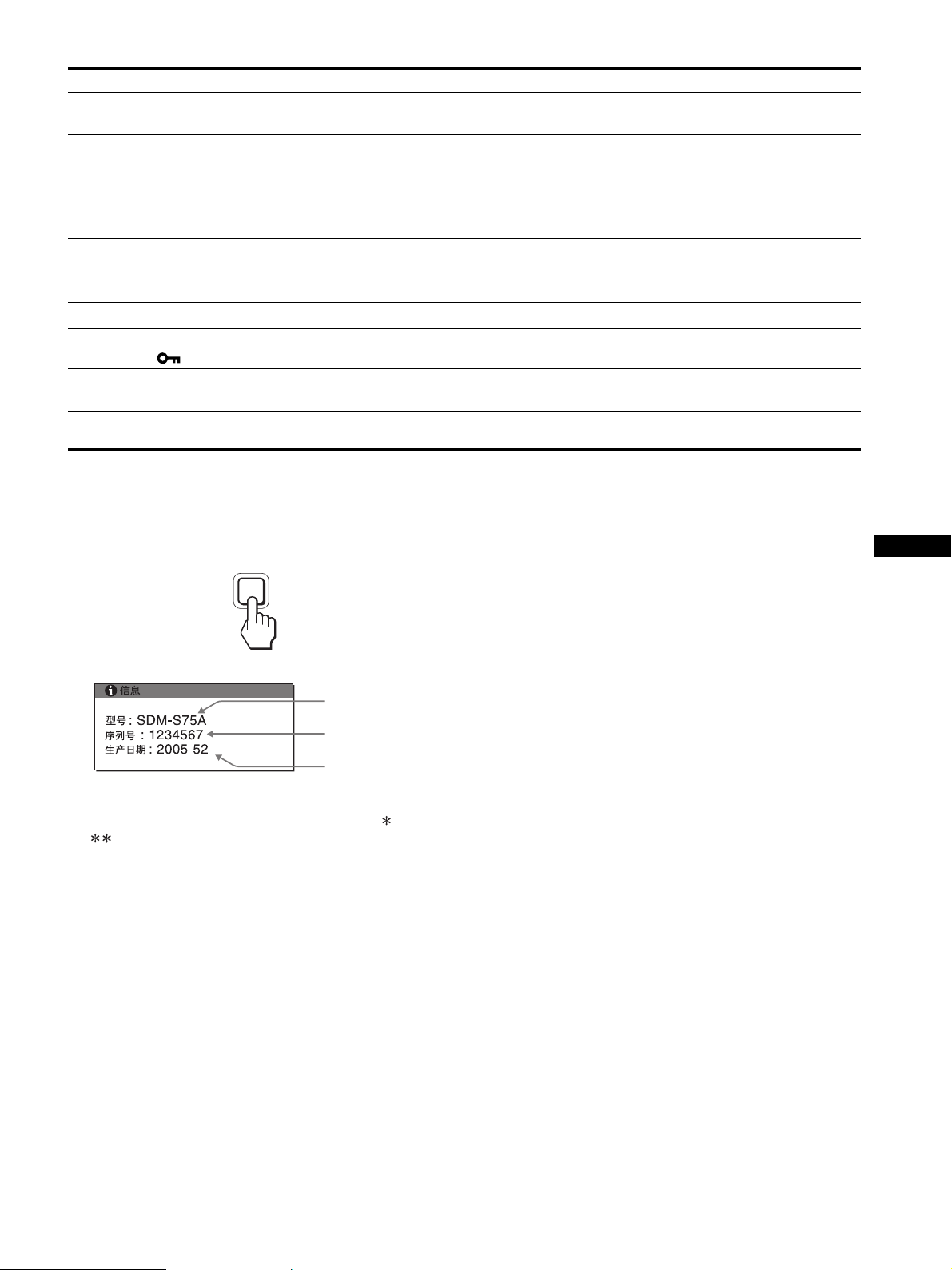
19
CS
显示本显示器的信息
当显示器正在接收视频信号时,按住 MENU 按钮 5 秒钟以
上,直至信息框出现。
再次按 MENU 按钮,信息框消失。
虽然本显示器型号名称注册的安全标准为 SDM-S75 /
S95 ,但销售时使用 SDM-S75A/S95AR/S75D/S95DR/S75E/
S95ER/S75F/S95FR/S75N/S95NR 的名称。
如果问题仍然存在,请致电授权的 Sony 经销商,并提供下
列信息:
• 型号名称
• 序列号
• 故障的详细说明
• 购买日期
• 您的计算机和显示卡的名称和规格
• 输入信号种类 (模拟 RGB/ 数字 RGB)
画面太小 x 由所连接的计算机或其他设备引起的问题,不是由显示器引起的问题
• 在计算机上将分辨率设定至 1280 × 1024。
画面太暗 • 调节背光 (第 14 页)。
• 调节亮度 (第 14 页)。
• 用 GAMMA 菜单调节灰度系数 (第 14 页)。
• 打开显示器后要经过几分钟显示器才会变亮。
• 屏幕可能变暗,这取决于您选择的 ECO 模式。
可看到波纹或椭圆形图案 (摩尔效
应)
• 调整像素频率和相位 (仅用于模拟 RGB 信号)(第 14 页)。
色彩不均匀 • 调整像素频率和相位 (仅用于模拟 RGB 信号)(第 14 页)。
白色看起来不白 • 调节色温 (第 14 页)。
显示器按钮不起作用
( 屏幕上出现 )
• 如果菜单锁定设为打开 , 请将其设为关闭 (第 15 页)。
过一会儿显示器关闭 x 由所连接的计算机或其他设备引起的问题
• 将计算机的省电设定设为关。
显示在菜单屏幕上的分辨率是错误
的。
• 根据显示卡的设定,显示菜单屏幕上的分辨率可能与计算机上的设定不符。
现象 检查项目
MENU
例如
型号名称
序列号
生产年份和星期
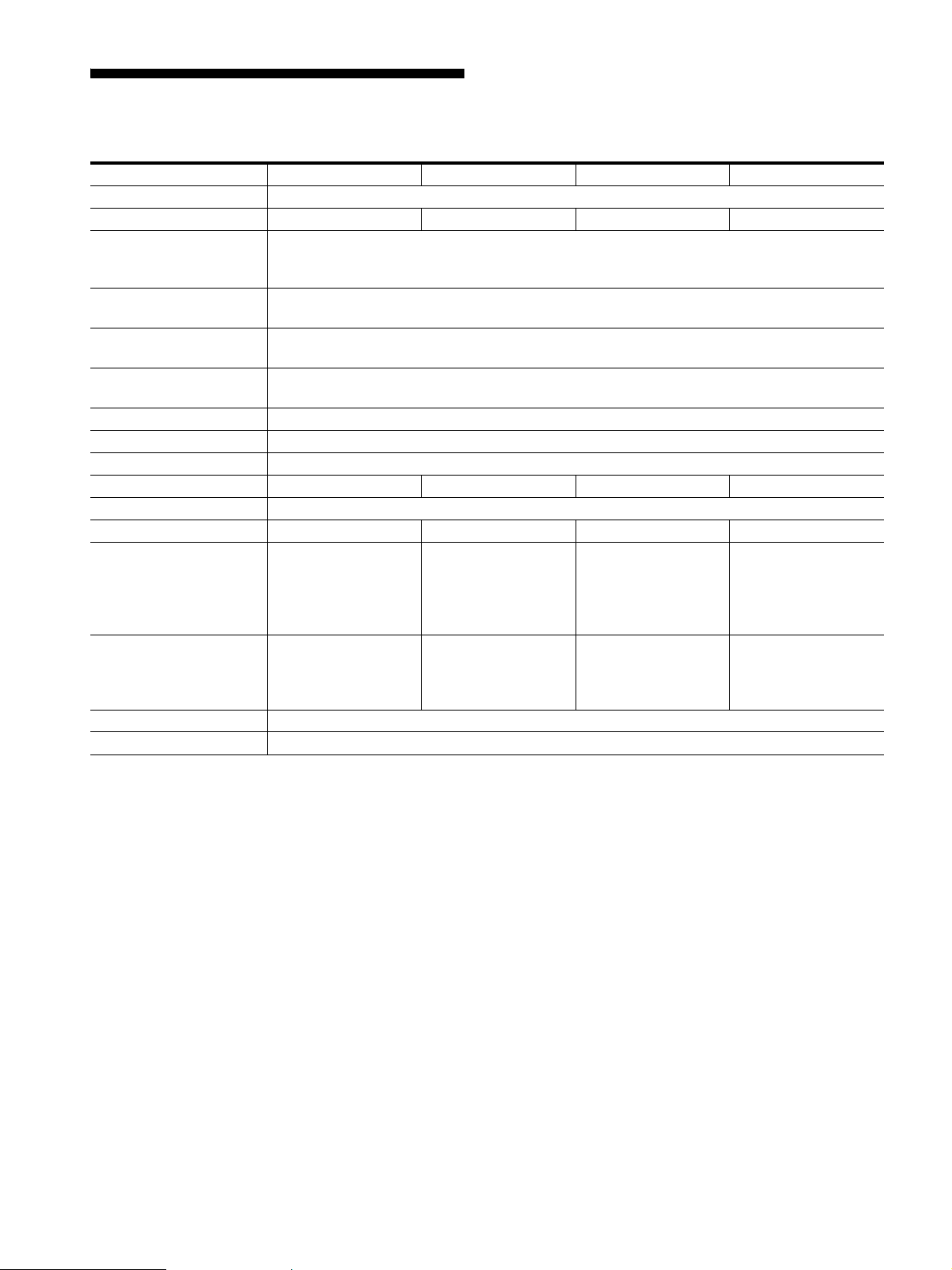
20
规格
1)
建议的水平和垂直计时条件
• 水平同步频宽比应该大于总水平计时的 4.8% 或 0.8 µsec(取最大
的一个)。
• 水平空白宽度应该大于 2.5 µsec。
• 垂直空白宽度应该大于 450 µsec。
设计和规格如有变动,恕不另行通知。
型号名称 SDM-S75A SDM-S95AR SDM-S75E SDM-S95ER
液晶显示器面板 面板类型: a-Si TFT 有源矩阵
画面尺寸: 英寸 17.0 19.0 17.0 19.0
输入信号格式 RGB 工作频率
1)
水平: 28 - 80 kHz
垂直 : 48 - 75 Hz
分辨率 水平: 最大 1280 点
垂直 : 最大 1024 线
输入信号类型 (数字 /
模拟)
模拟 ×1
输入信号等级 模拟 RGB 视频信号 0.7 Vp-p, 75 Ω , 正极
SYNC 信号 TTL 级 , 2.2 kΩ ,正极或负极
音频输入 立体声袖珍插孔,0.5 Vrms
音频输出 立体声袖珍插孔
电源规格 100-240 V, 50-60 Hz, 最大 1.0 A
功率消耗 最大 45 W 最大 50 W 最大 45 W 最大 50 W
工作温度 5 - 35 °C
底座类型 固定 固定 高度可调 高度可调
尺寸 (宽 / 高 / 深)
约 369 × 423.5 ×
225 mm (带底座)
约 369 × 315 ×
66 mm (不带底座)
约 414 × 439.5 ×
225 mm (带底座)
约 414 × 348 ×
69 mm (不带底座)
约 369 × 393.5-
503.5 × 253 mm
(带底座)
约369 × 315 ×
66 mm (不带底座)
约 414 × 409.5-
519.5 × 277.5 mm
(带底座)
约 414 × 348 ×
69 mm (不带底座)
质量 大约 6.4 kg (带底
座)
大约 4.3 kg (不带
底座)
大约 7.3 kg (带底
座)
大约 5.2 kg (不带
底座)
大约 7.5 kg (带底
座)
大约 4.3 kg (不带
底座)
大约 8.7 kg (带底
座)
大约 5.2 kg (不带
底座)
即插即用 DDC2B
附件 参阅第 6 页。
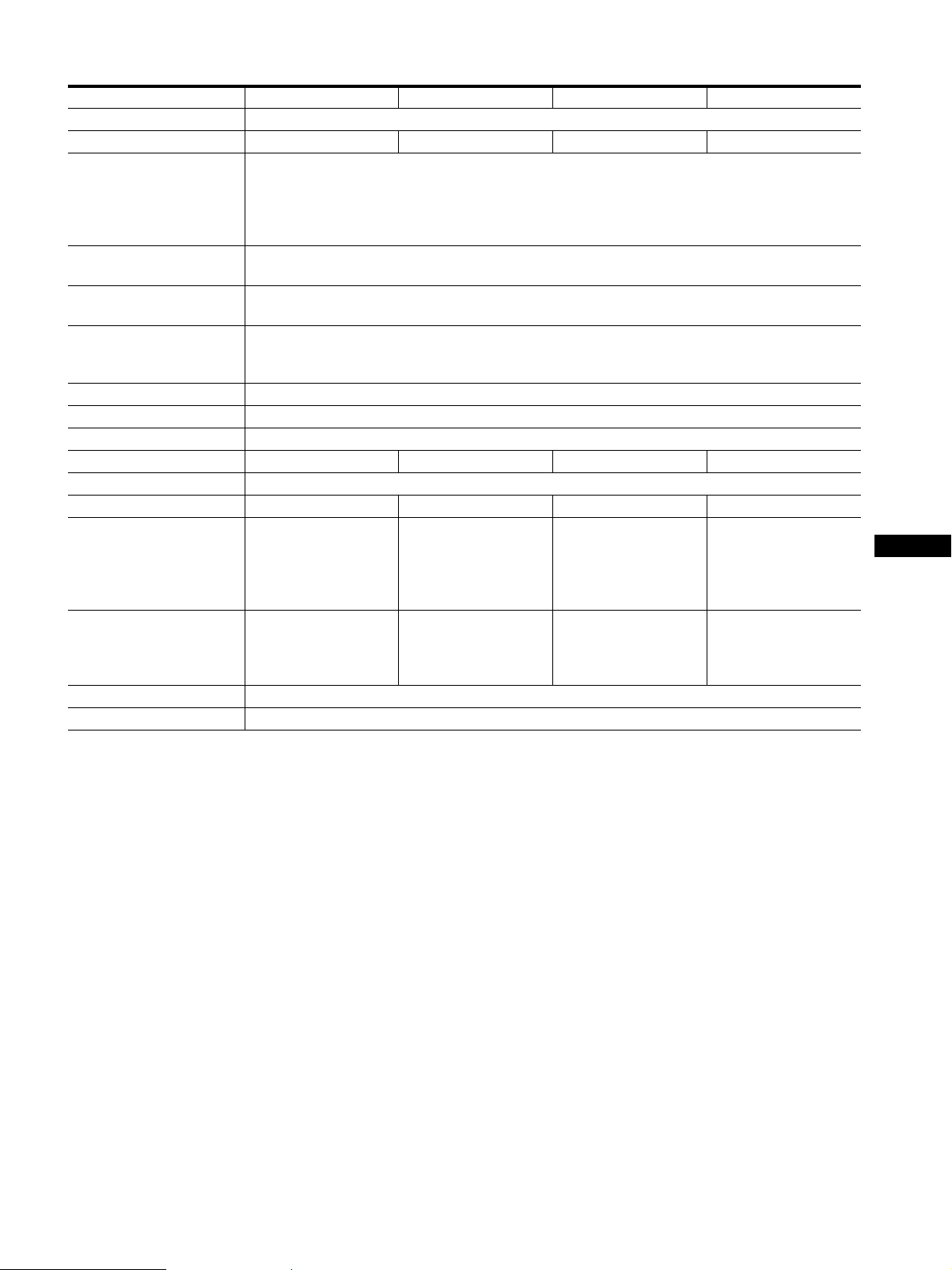
21
CS
1)
建议的水平和垂直计时条件
• 水平同步频宽比应该大于总水平计时的 4.8% 或 0.8 µsec(取最大
的一个)。
• 水平空白宽度应该大于 2.5 µsec。
• 垂直空白宽度应该大于 450 µsec。
设计和规格如有变动,恕不另行通知。
型号名称 SDM-S75D SDM-S95DR SDM-S75F SDM-S95FR
液晶显示器面板 面板类型: a-Si TFT 有源矩阵
画面尺寸: 英寸 17.0 19.0 17.0 19.0
输入信号格式 RGB 工作频率
1)
水平: 28 - 80 kHz (模拟 RGB)
28 - 64 kHz (数字 RGB)
垂直 : 48 - 75 Hz (模拟 RGB)
60 Hz (数字 RGB)
分辨率 水平: 最大 1280 点
垂直 : 最大 1024 线
输入信号类型 (数字 /
模拟)
数字 × 1/ 模拟 × 1
输入信号等级 RGB 视频信号 0.7 Vp-p, 75 Ω , 正极
SYNC 信号 TTL 级 , 2.2 kΩ ,正极或负极
数字 RGB (DVI) 信号 TMDS (单独连接)
音频输入 立体声袖珍插孔,0.5 Vrms
音频输出 立体声袖珍插孔
电源规格 100-240 V, 50-60 Hz, 最大 1.0 A
功率消耗 最大 45 W 最大 50 W 最大 45 W 最大 50 W
工作温度 5 - 35 °C
底座类型 固定 固定 高度可调 高度可调
尺寸 (宽 / 高 / 深)
约 369 × 423.5 ×
225 mm (带底座)
约369 × 315 ×
66 mm (不带底座)
约 414 × 439.5 ×
225 mm (带底座)
约 414 × 348 ×
69 mm (不带底座)
约369 × 393.5-
503.5 × 253 mm
(带底座)
约 369 × 315 ×
66 mm (不带底座)
约 414 × 409.5-
519.5 × 277.5 mm
(带底座)
约 414 × 348 ×
69 mm (不带底座)
质量 大约 6.4 kg (带底
座)
大约 4.3 kg (不带
底座)
大约 7.3 kg (带底
座)
大约 5.2 kg (不带
底座)
大约 7.5 kg (带底
座)
大约 4.3 kg (不带
底座)
大约 8.7 kg (带底
座)
大约 5.2 kg (不带
底座)
即插即用 DDC2B
附件 参阅第 6 页。
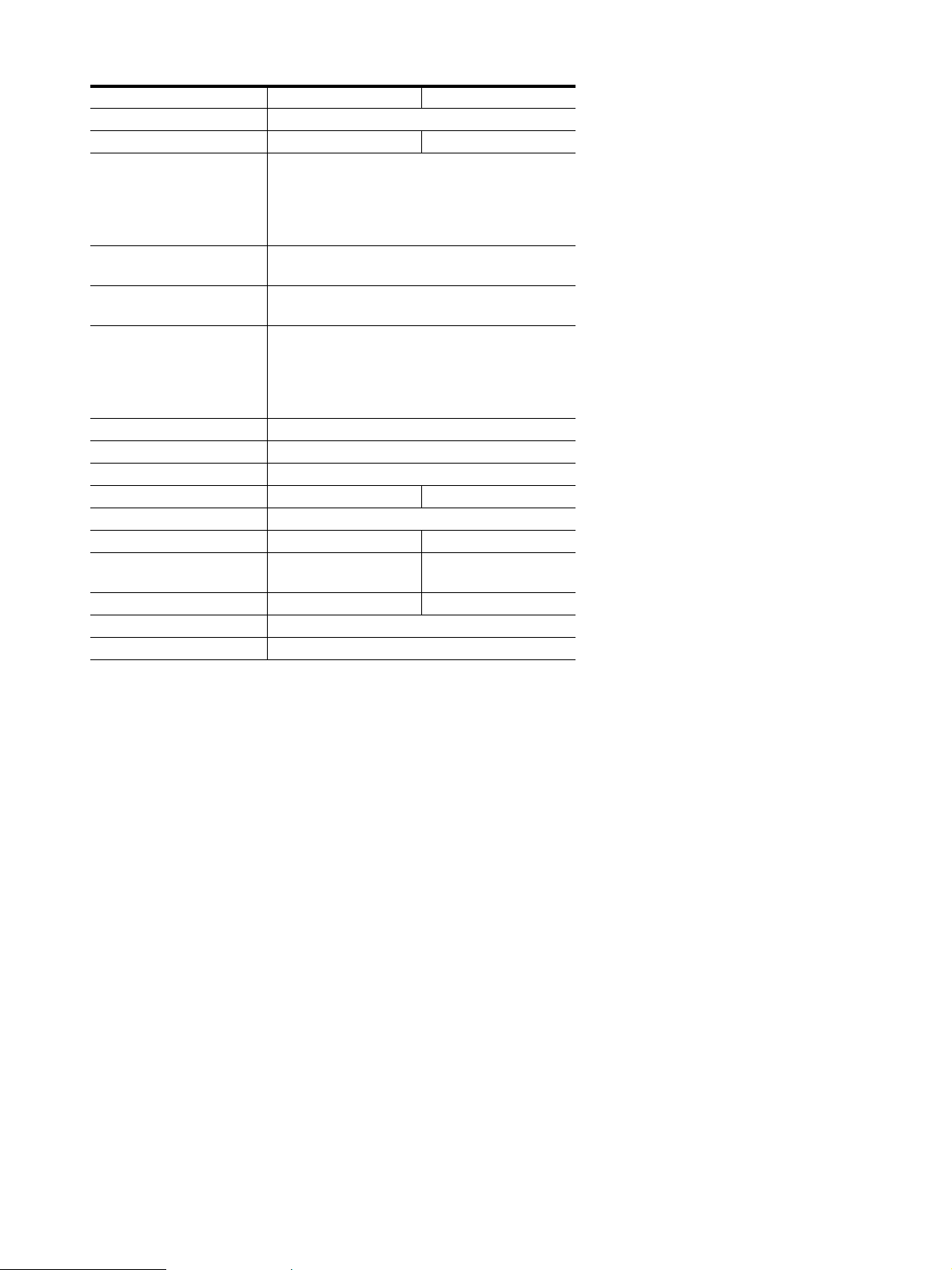
22
1) 建议的水平和垂直计时条件
• 水平同步频宽比应该大于总水平计时的 4.8% 或 0.8 µsec(取最大
的一个)。
• 水平空白宽度应该大于 2.5 µsec。
• 垂直空白宽度应该大于 450 µsec。
设计和规格如有变动,恕不另行通知。
型号名称 SDM-S75N SDM-S95NR
液晶显示器面板 面板类型: a-Si TFT 有源矩阵
画面尺寸: 英寸 17.0 19.0
输入信号格式 RGB 工作频率
1)
水平: 28 - 80 kHz (模拟 RGB)
28 - 64 kHz (数字 RGB)
垂直 : 48 - 75 Hz (模拟 RGB)
60 Hz (数字 RGB)
分辨率 水平: 最大 1280 点
垂直 : 最大 1024 线
输入信号类型 (数字 /
模拟)
数字 × 1/ 模拟 × 1
输入信号等级 RGB 视频信号
0.7 Vp-p, 75 Ω,正极
SYNC 信号
TTL 级 , 2.2 kΩ , 正极或负极
数字 RGB (DVI) 信号 TMDS (单独连接)
音频输入 立体声袖珍插孔,0.5 Vrms
音频输出 立体声袖珍插孔
电源规格 100-240 V, 50-60 Hz, 最大 1.0 A
功率消耗 最大 45 W 最大 50 W
工作温度 5 - 35 °C
底座类型 - -
尺寸 (宽 / 高 / 深) 约 369 × 315 ×
66 mm
约 414 × 348 ×
69 mm
质量 大约 4.3 kg 大约 5.2 kg
即插即用 DDC2B
附件 参阅第 6 页。

i
TCO’99 Eco-document (for the black
model)
x Congratulations!
You have just purchased a TCO’99 approved and labelled product! Your
choice has provided you with a product developed for professional use.
Your purchase has also contributed to reducing the burden on the
environment and also to the further development of environmentally
adapted electronics products.
x Why do we have environmentally labelled comput-
ers?
In many countries, environmental labelling has become an established
method for encouraging the adaptation of goods and services to the
environment. The main problem, as far as computers and other electronics
equipment are concerned, is that environmentally harmful substances are
used both in the products and during their manufacture. Since it is not so
far possible to satisfactorily recycle the majority of electronics equipment,
most of these potentially damaging substances sooner or later enter nature.
There are also other characteristics of a computer, such as energy
consumption levels, that are important from the viewpoints of both the
work (internal) and natural (external) environments. Since all methods of
electricity generation have a negative effect on the environment (e.g.
acidic and climate-influencing emissions, radioactive waste), it is vital to
save energy. Electronics equipment in offices is often left running
continuously and thereby consumes a lot of energy.
x What does labelling involve?
This product meets the requirements for the TCO’99 scheme which
provides for international and environmental labelling of personal
computers. The labelling scheme was developed as a joint effort by the
TCO (The Swedish Confederation of Professional Employees), Svenska
Naturskyddsforeningen (The Swedish Society for Nature Conservation)
and Statens Energimyndighet (The Swedish National Energy
Administration).
Approval requirements cover a wide range of issues: environment,
ergonomics, usability, emission of electric and magnetic fields, energy
consumption and electrical and fire safety.
The environmental demands impose restrictions on the presence and use
of heavy metals, brominated and chlorinated flame retardants, CFCs
(freons) and chlorinated solvents, among other things. The product must
be prepared for recycling and the manufacturer is obliged to have an
environmental policy which must be adhered to in each country where the
company implements its operational policy.
The energy requirements include a demand that the computer and/or
display, after a certain period of inactivity, shall reduce its power
consumption to a lower level in one or more stages. The length of time to
reactivate the computer shall be reasonable for the user.
Labelled products must meet strict environmental demands, for example,
in respect of the reduction of electric and magnetic fields, physical and
visual ergonomics and good usability.
Below you will find a brief summary of the environmental requirements
met by this product. The complete environmental criteria document may
be ordered from:
TCO Development
SE-114 94 Stockholm, Sweden
Fax: +46 8 782 92 07
Email (Internet): [email protected]
Current information regarding TCO’99 approved and labelled
products may also be obtained via the Internet, using the address:
http://www.tco-info.com/
x Environmental requirements
Flame retardants
Flame retardants are present in printed circuit boards, cables, wires,
casings and housings. Their purpose is to prevent, or at least to delay the
spread of fire. Up to 30% of the plastic in a computer casing can consist
of flame retardant substances. Most flame retardants contain bromine or
chloride, and those flame retardants are chemically related to another
group of environmental toxins, PCBs. Both the flame retardants
containing bromine or chloride and the PCBs are suspected of giving rise
to severe health effects, including reproductive damage in fish-eating
birds and mammals, due to the bio-accumulative
* processes. Flame
retardants have been found in human blood and researchers fear that
disturbances in foetus development may occur.
The relevant TCO’99 demand requires that plastic components weighing
more than 25 grams must not contain flame retardants with organically
bound bromine or chlorine. Flame retardants are allowed in the printed
circuit boards since no substitutes are available.
Cadmium**
Cadmium is present in rechargeable batteries and in the colour-generating
layers of certain computer displays. Cadmium damages the nervous
system and is toxic in high doses. The relevant TCO’99 requirement states
that batteries, the colour-generating layers of display screens and the
electrical or electronics components must not contain any cadmium.
Mercury**
Mercury is sometimes found in batteries, relays and switches. It damages
the nervous system and is toxic in high doses. The relevant TCO’99
requirement states that batteries may not contain any mercury. It also
demands that mercury is not present in any of the electrical or electronics
components associated with the labelled unit.
CFCs (freons)
The relevant TCO’99 requirement states that neither CFCs nor HCFCs
may be used during the manufacture and assembly of the product. CFCs
(freons) are sometimes used for washing printed circuit boards. CFCs
break down ozone and thereby damage the ozone layer in the stratosphere,
causing increased reception on earth of ultraviolet light with e.g. increased
risks of skin cancer (malignant melanoma) as a consequence.
Lead**
Lead can be found in picture tubes, display screens, solders and
capacitors. Lead damages the nervous system and in higher doses, causes
lead poisoning. The relevant TCO’99 requirement permits the inclusion of
lead since no replacement has yet been developed.
* Bio-accumulative is defined as substances which accumulate within
living organisms.
** Lead, Cadmium and Mercury are heavy metals which are Bio-
accumulative.

ii
TCO’03 Eco-document (for the silver
model)
x Congratulations!
The display you have just purchased carries the TCO’03
Displays label. This means that your display is designed,
manufactured and tested according to some of the strictest
quality and environmental requirements in the world. This
makes for a high performance product, designed with the
user in focus that also minimizes the impact on our natural
environment.
x Ergonomics
• Good visual ergonomics and image quality in order to
improve the working environment for the user and to
reduce sight and strain problems. Important parameters
are luminance, contrast, resolution, reflectance, colour
rendition and image stability.
x Energy
• Energy-saving mode after a certain time – beneficial
both for the user and the environment
• Electrical safety
x Emissions
• Electromagnetic fields
• Noise emissions
x Ecology
• The product must be prepared for recycling and the
manufacturer must have a certified environmental
management system such as EMAS or ISO 14 001
• Restrictions on
- chlorinated and brominated flame retardants and
polymers
- heavy metals such as cadmium, mercury and lead.
The requirements included in this label have been
developed by TCO Development in co-operation with
scientists, experts, users as well as manufacturers all over
the world. Since the end of the 1980s TCO has been
involved in influencing the development of IT equipment
in a more user-friendly direction. Our labelling system
started with displays in 1992 and is now requested by users
and IT-manufacturers all over the world.
For more information, please visit
www.tcodevelopment.com
Recycling Information
x Customer in Europe
The collection and recycling of this product has been planned
according to your country’s relevant legislation. To ensure that
this product will be collected and recycled in way that minimizes
the impact on the environment, please do the following:
1. If you purchased this product for private use, contact your
municipality or the waste collection system and bring the
product to this collection point / have the product be picked up
by the waste collection system. Alternatively, your retailer
might take back this if you purchase new equivalent equipment;
please check with your retailer whether he will take back this
product before bringing it. For information on your country’s
recycling arrangements, please contact the Sony representation
in your country (contact details at: www.sony-europe.com).
Further details on specific recycling systems can be found at the
following addresses:
- Belgium: www.recupel.be
- Netherlands: www.nvmp.nl (consumer electronics)
www.ictmilieu.nl (IT equipment)
- Norway: www.elretur.no
- Sweden: www.el-kretsen.se
- Switzerland: www.swico.ch
2. If you use this product professionally, check the product’s
delivery contract for take back / recycling arrangements and
follow the procedures described therein. Alternatively, follow
the procedures described under point 1.
x Customer in USA
We Sony as a member of EIA recommends to visit URL below
http://www.eiae.org/
x Customer in Asia
http://www.sony.co.jp/SonyInfo/Environment/recycle/3R.html