Preparation
Unpacking
4
Features
5
Wireless
5
Sound quality
5
Comfort
5
Features and functions
6
Charging / Battery status
7
Wearing
10
Switching Audio Guidance
11
Turning the vibration function on and off
13
Connections
Bluetooth operation
14
Pairing
14
Connecting
14
1: Connecting to the headphones for the first time
15
2: Reconnecting paired devices
17
Connecting to a computer via USB
18
Operation
Listening to music
19
Listening to music using a Bluetooth device
19
Listening to music on a computer via USB
20
Conducting phone calls
22
Making a call
22
Answering an incoming call
22
Ending a call
22
Using the call waiting function
23
Ignoring an incoming call
23
Switching a call from the headphones to a mobile phone
23
Other operations
24
Turning the power off
24
Information
25
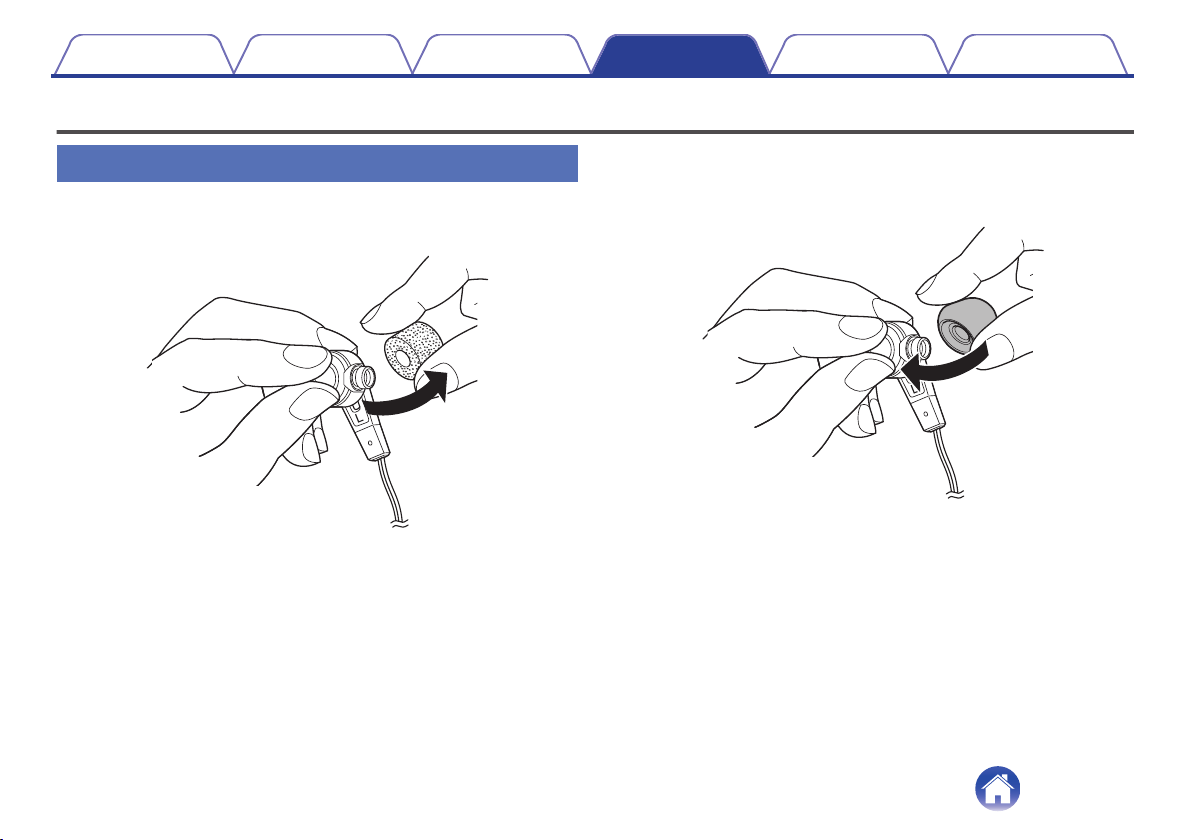
Replacing the ear tips
25
Audio Playback and Phone Calls on a Bluetooth Device
26
Deleting pairing information
26
Contents Preparation Connections Operation
Troubleshooting
Appendix
Contents
2
Troubleshooting
Troubleshooting
27
Power does not turn on
27
The device cannot be charged
27
No sound comes out
28
Sound is distorted, noisy, or cuts in and out
28
Cannot play media using Bluetooth
29
Cannot make a phone call
30
Appendix
Precautions for Use
31
Disposal of these headphones
32
Trademark information
32
Specifications
33
Contents Preparation Connections Operation
Troubleshooting
Appendix
3
Thank you for purchasing this product.
To ensure proper operation, please read this Owner’s Manual carefully before using the product.
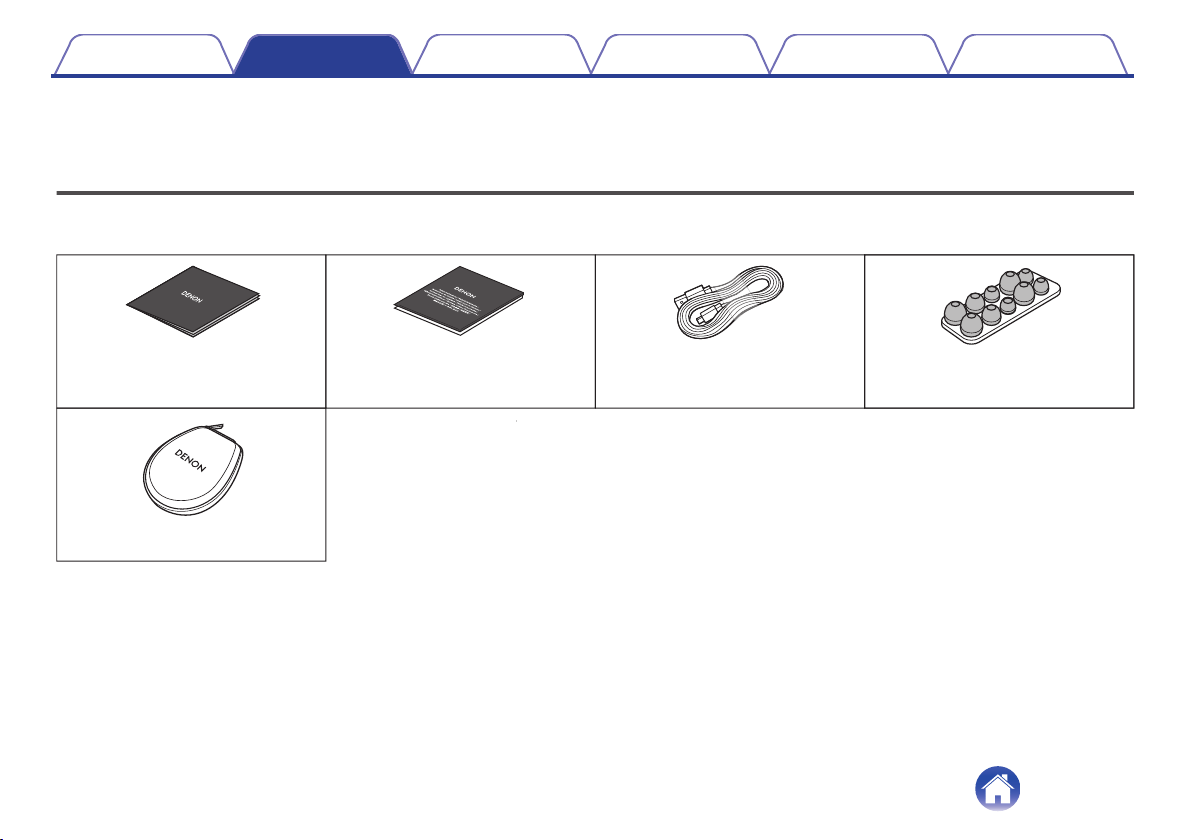
Unpacking
Check that all of these are present before using this device.
.
Quick Start Guide Safety Instructions USB cable
(Micro-B connector,
approximately 1.3 m)
Ear tips
(L/M/S/LONG M/LONG S)
Carrying case
Contents Preparation Connections Operation
Troubleshooting
Appendix
Preparation
4
Features
Wireless
0
You can enjoy listening to music wirelessly by connecting these
headphones to your Bluetooth device. Playback operations and
volume adjustment can be performed for the paired audio device
using the headphones.
0
You can also make hands-free phone calls by pairing these
headphones to a Bluetooth compatible mobile phone. Equipped
with Qualcomm
®
cVc
TM
technology that suppresses echoes,
enabling low-noise phone calls.
Sound quality
0
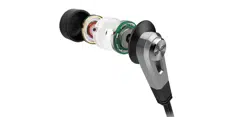
Two 11.5 mm dynamic drivers are placed parallel to each other
for each channel. This creates double the diaphragm area,
achieving exceptional volume and powerful sound quality for
even the deepest bass zone.
0
These headphones are compatible with a wide range of codecs,
including the high sound quality codecs aptX, AAC and SBC.
These headphones automatically select the optimum compatible
codec for your Bluetooth device (smartphone or tablet) so you
can enjoy high-grade wireless sound. Additionally, aptX is Low
Latency compatible so you can enjoy videos and gaming without
audio lag.
Comfort
0
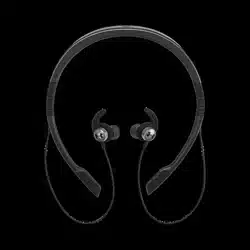
A neckband format is used, with parts such as the battery and
control buttons located on the ends of the neckband. The
earphones are designed not to come out easily, enabling use for
long periods.
0
Choose between silicone ear tips in five different sizes and
Comply
TM
foam ear tips made from low repulsion foam to get just
the right fit for your ears.
0
Audio and vibration can be used to indicate the status and
controls of the headphones.
Contents Preparation Connections Operation
Troubleshooting
Appendix
5
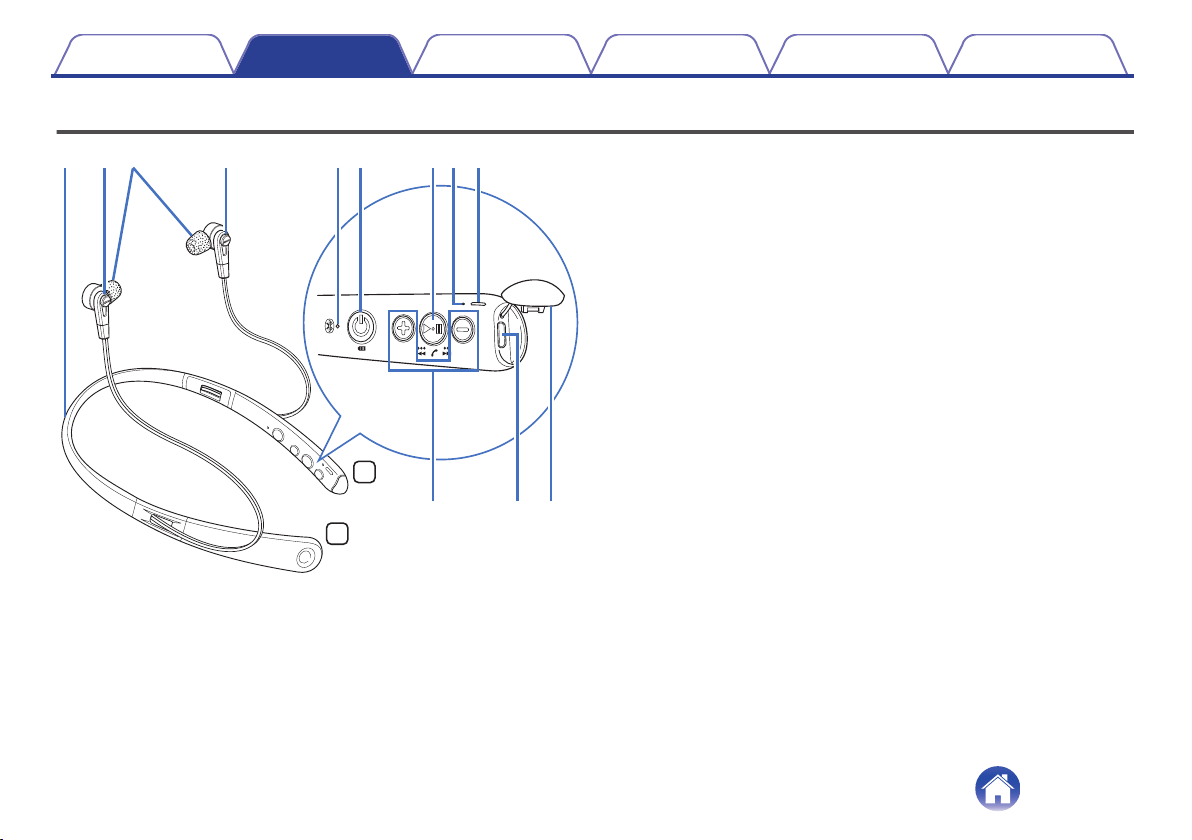
Features and functions
.
R
L
eq rt y i
Q1oQ0
uw
w
A
Neckband
B
Housing
The housing of the earphones contains magnets. This allows you to join
the earphones together or attach them to the neckband when you are
not using the headphones. (v p. 10)
C
Ear tips
The Comply
TM
foam ear tips are attached at the time of purchase.
Replace them with any of the accessory ear tips to match your
preference. (v p. 25)
D
Bluetooth LED
E
Power button (X)
0
Indicates the remaining battery power. (v p. 8)
0
Pairs the headphones with Bluetooth devices. (v p. 15)
0
Connects to Bluetooth devices. (v p. 17)
0
Turns the power off. (v p. 24)
F
Control button (1 3)
Performs playback and phone operations.
0
“Listening to music” (v p. 19)
0
“Conducting phone calls” (v p. 22)
G
Call microphones
H
Charging LED
I
Volume buttons (+/–) (v p. 20)
J
USB port (Micro-B)
K
USB port cover
Contents
Preparation Connections Operation
Troubleshooting
Appendix
6
Charging / Battery status
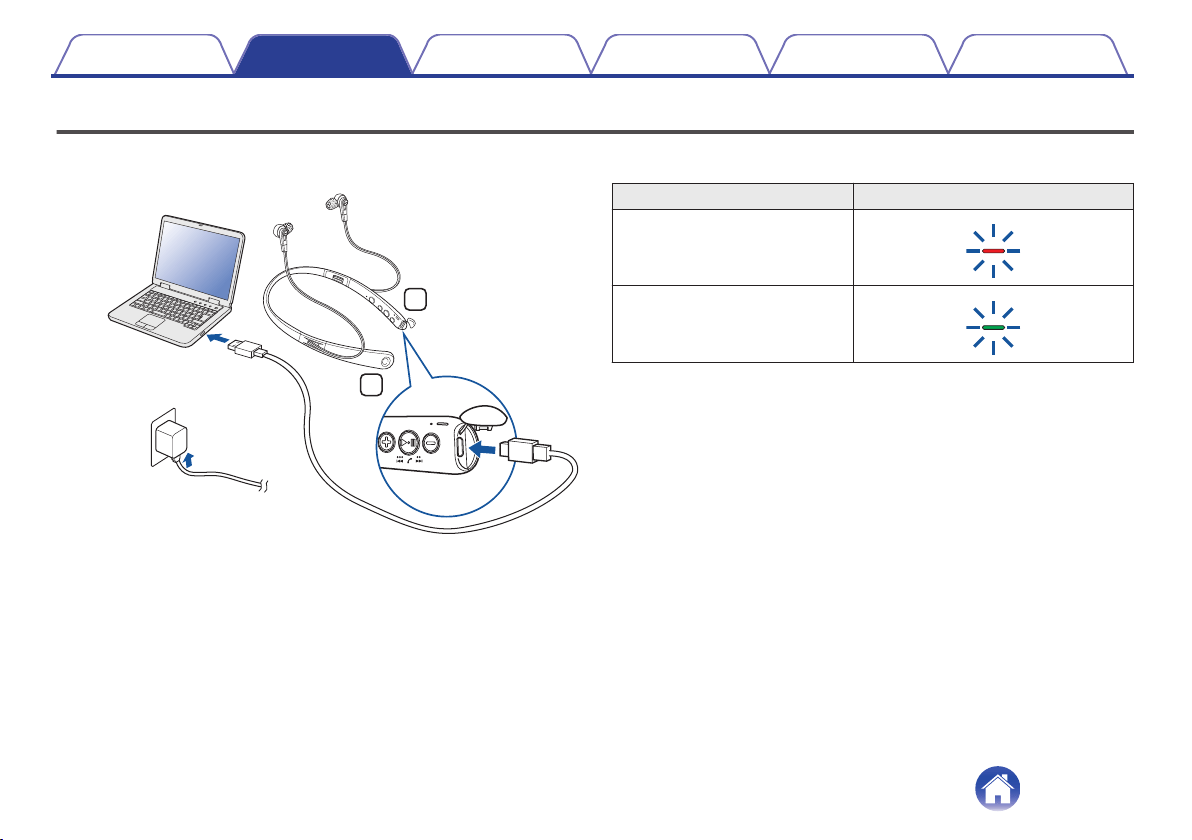
Connect the headphones to a computer or USB AC adapter (sold
separately) using the supplied dedicated USB cable to charge the battery.
.
L
R
PC
or
USB AC
adapter
USB cable (supplied)
The charging status can be checked from the charging LED on
headphones.
Charging status Color of charging LED
Charging
.
Fully charged
.
Contents Preparation Connections Operation
Troubleshooting
Appendix
7
0
When using the headphones for the first time after purchase or when the
remaining power of the rechargeable battery is low, charge the battery.
0
The headphones can be used for approximately 10 hours of music playback when
fully charged.
0
It takes approximately 2 hours to fully charge the rechargeable battery from the
state of no remaining battery power.
0
When the USB cable is connected to this device, the headphones disconnect from
Bluetooth and enter charging mode. Reconnect to Bluetooth to start Bluetooth
playback again. (v p. 14)
0
The usable time of the headphones differs depending on the temperature of the
environment in which they are used and method of use.
NOTE
0
When connecting the USB cable to the USB port, be sure to match the cable
connector with the shape of the socket. Forcing the connector into the socket will
cause damage.
0
The rating of the charging output should be DC 5 V, 2.4 A or less.
o
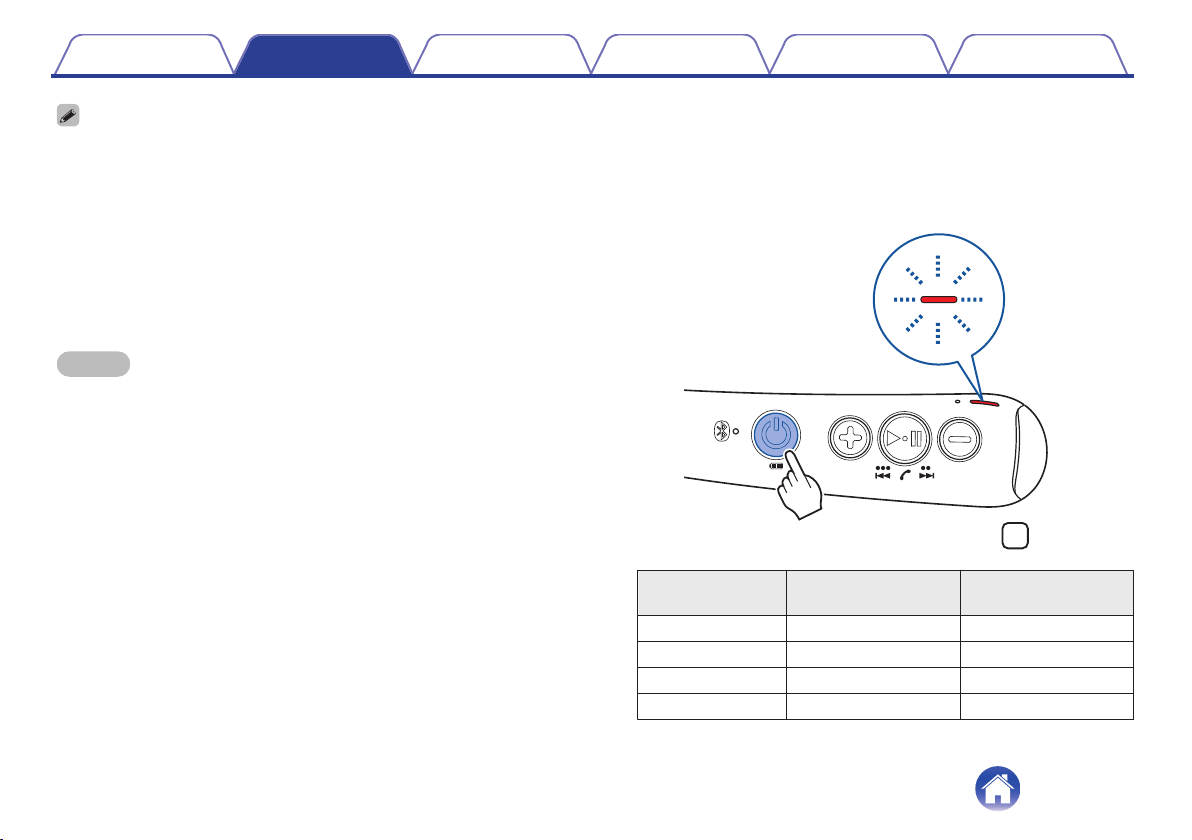
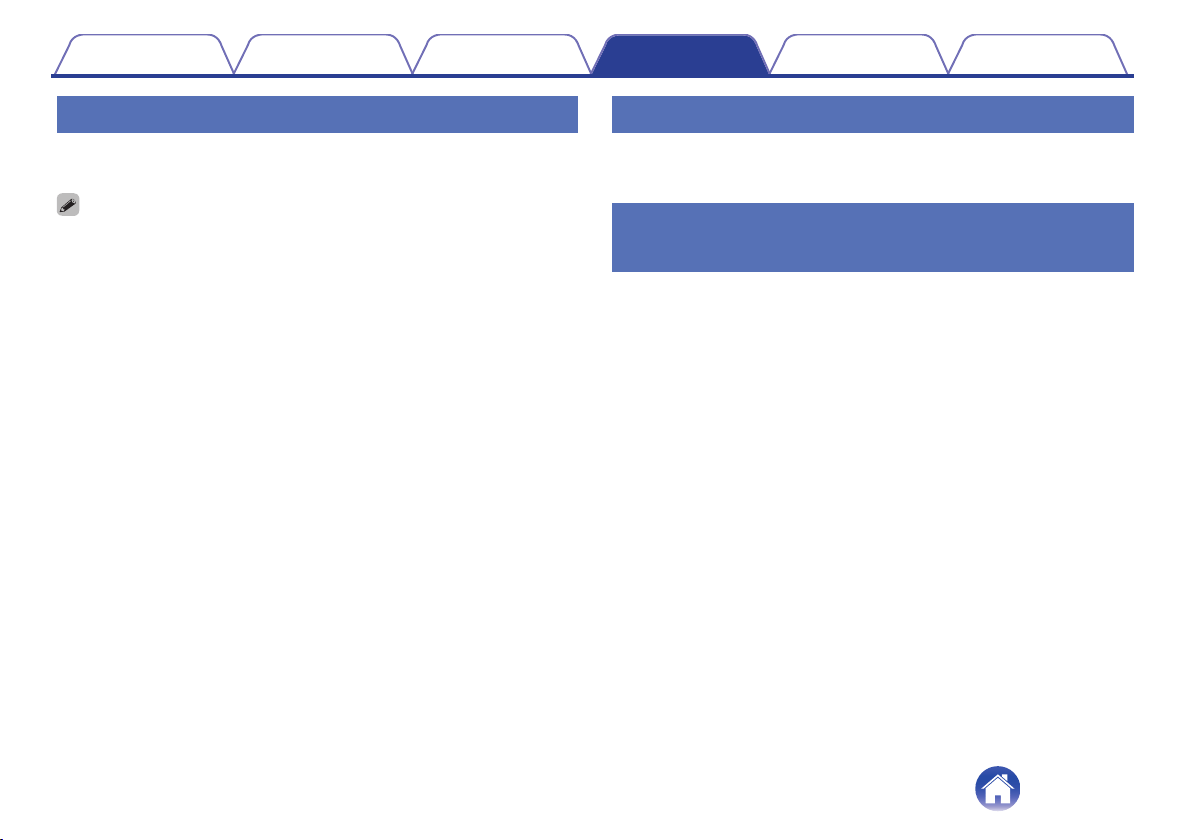
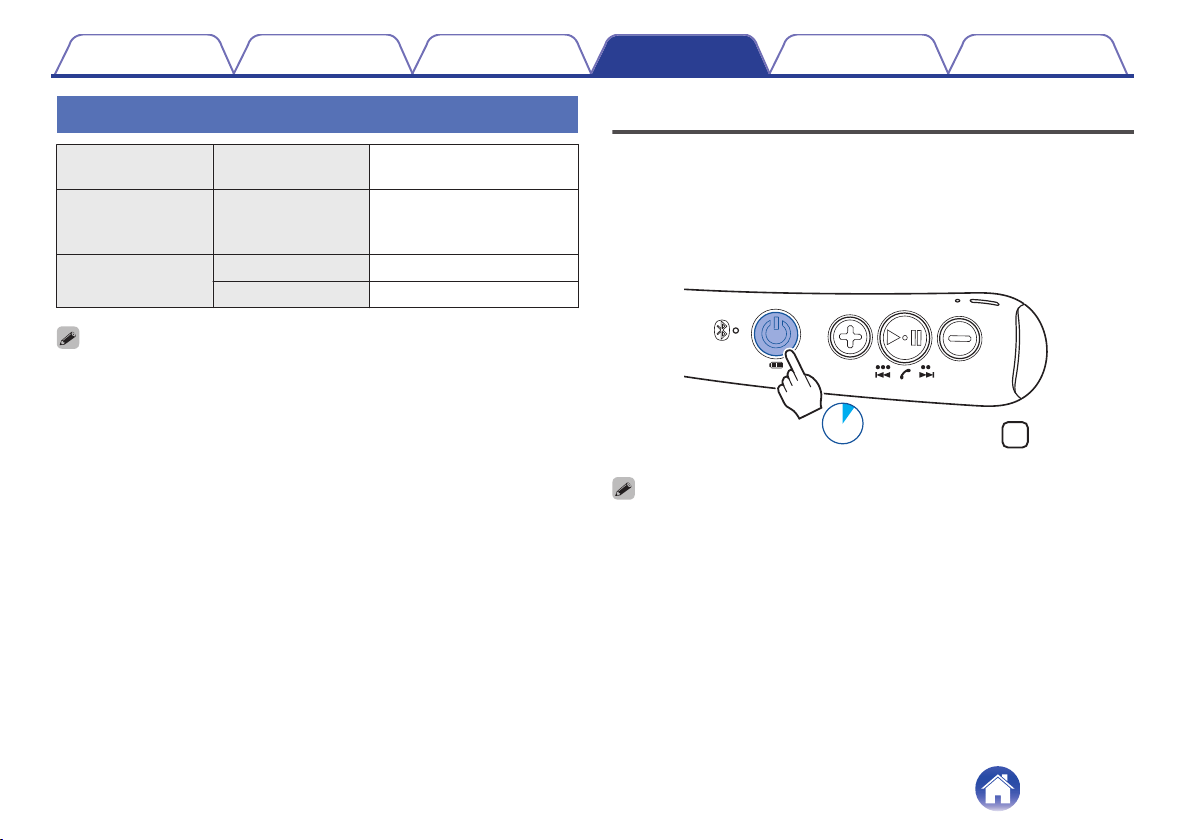
Checking the remaining battery power
The remaining power of the rechargeable battery can be checked from
the number of alert sounds or audio guidance. It can also be checked
from the number of times the charging LED flashes. Press and hold the
X button for approximately 2 seconds to turn the power on. If a call is
not in progress, press and release the X button.
.
L
Number of alert
sounds
Number of times the
charging LED flashes
Remaining time of
rechargeable battery
Four times Four times Approx. 10 hours
Three times Three times Approx. 5 hours
Twice Twice Approx. 3 hours
Once Once Less than 1 hours
Contents Preparation Connections Operation
Troubleshooting
Appendix
8
0
When the remaining power of the rechargeable battery is running low, the charging
LED flashes at approximately 3-second intervals together with an alert sound.
0
You can also check the remaining power of the rechargeable battery on an iPhone. (*)
z
The remaining power of the rechargeable battery can be displayed as a
percentage (%) on an iPhone, but this number is an approximate value.
Contents Preparation Connections Operation
Troubleshooting
Appendix
9
Wearing
.
R
L
o
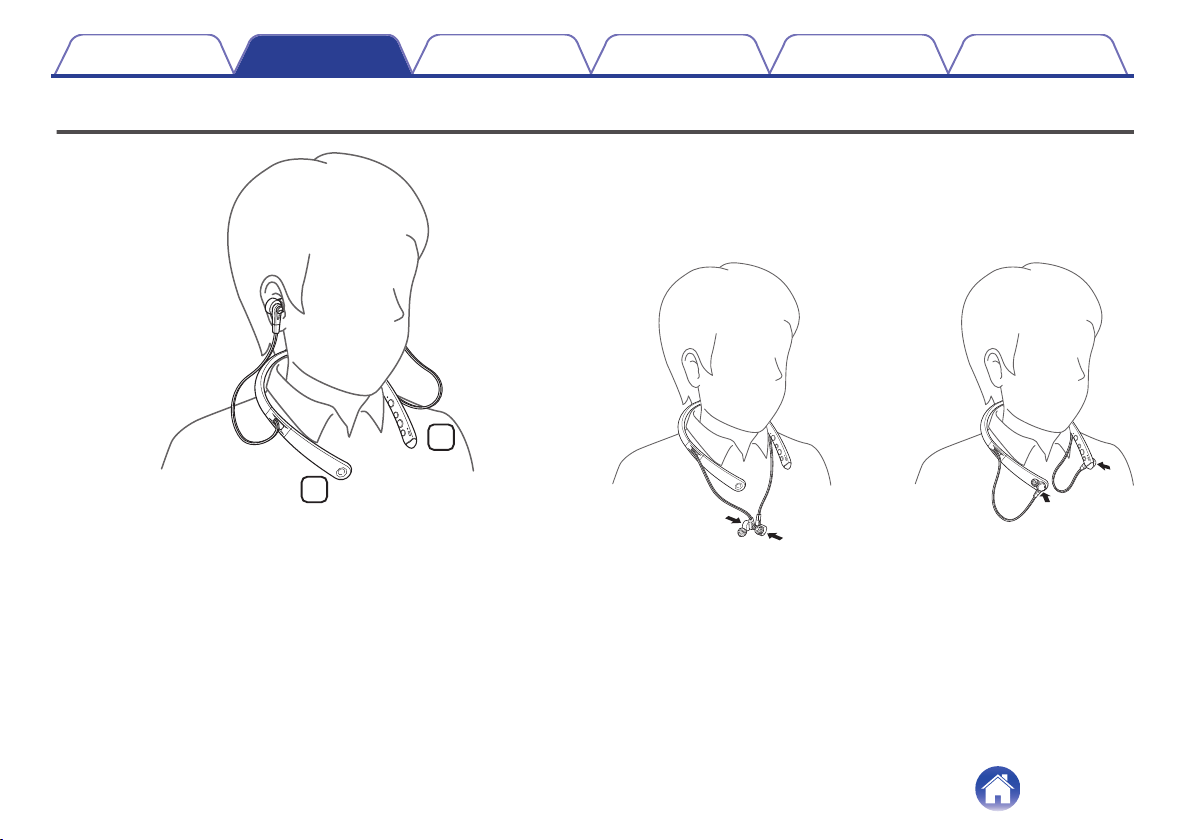
When you are not using the headphones
The housing and neckband of the headphones contain magnets.
When you are not using the headphones, you can join the left and right
earphones together as shown in the figure below, reducing the hassle
caused by dangling cables.
.
R
Contents
Preparation Connections Operation
Troubleshooting
Appendix
10
Switching Audio Guidance
You will be notified when an operation has been correctly completed via the audio guidance or an alert sound.
You can switch to audio guidance in your preferred language or use only an alert sound for guidance.
1
Connect the headphones and Bluetooth device using
Bluetooth. (v p. 14)
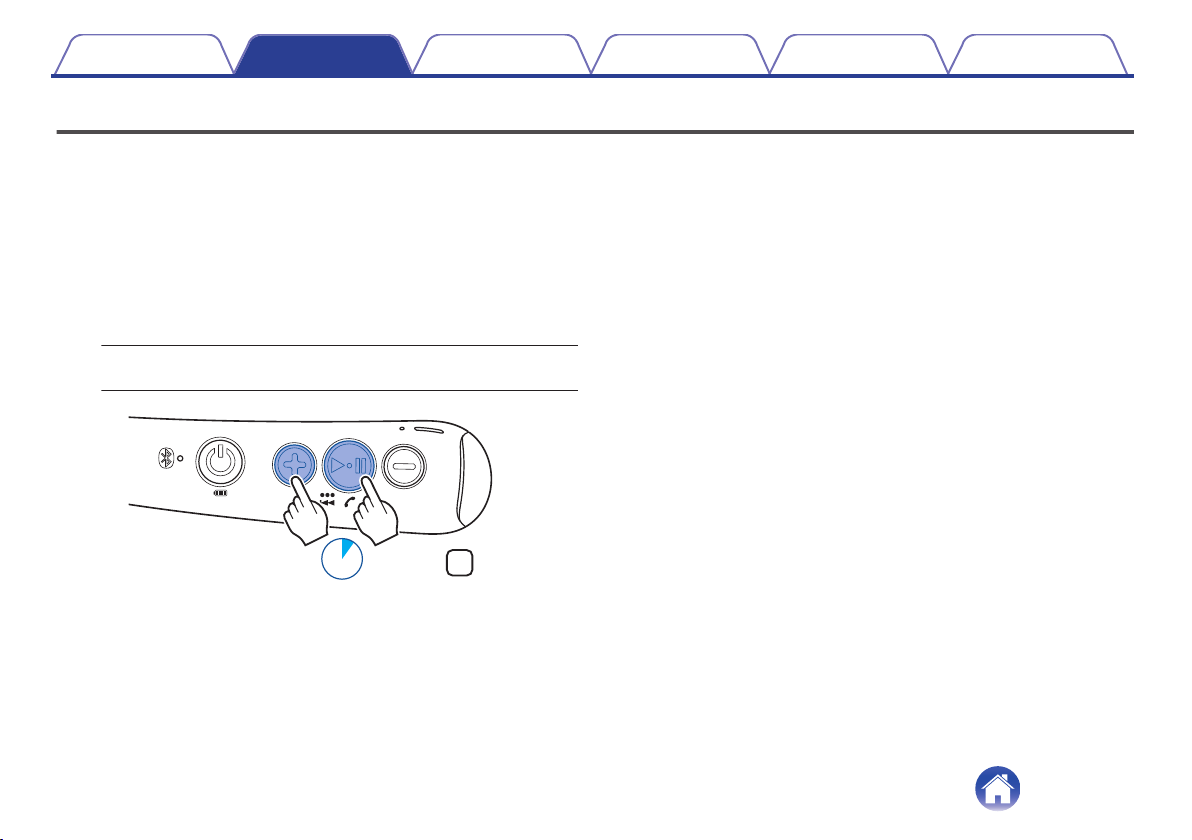
2
Press and hold the 1 3 button and volume “+” button
together for approximately 2 seconds.
The options switch between the audio guidance languages or only
alert sounds in the following order while the buttons are pressed.
English / Japanese / German / French / Italian / Spanish /
Chinese / Alert sounds (Default: English)
.
L
2sec.
3
Release the buttons when the options have switched to
your desired setting.
This commits the audio guidance setting.
Contents Preparation Connections Operation
Troubleshooting
Appendix
11
o
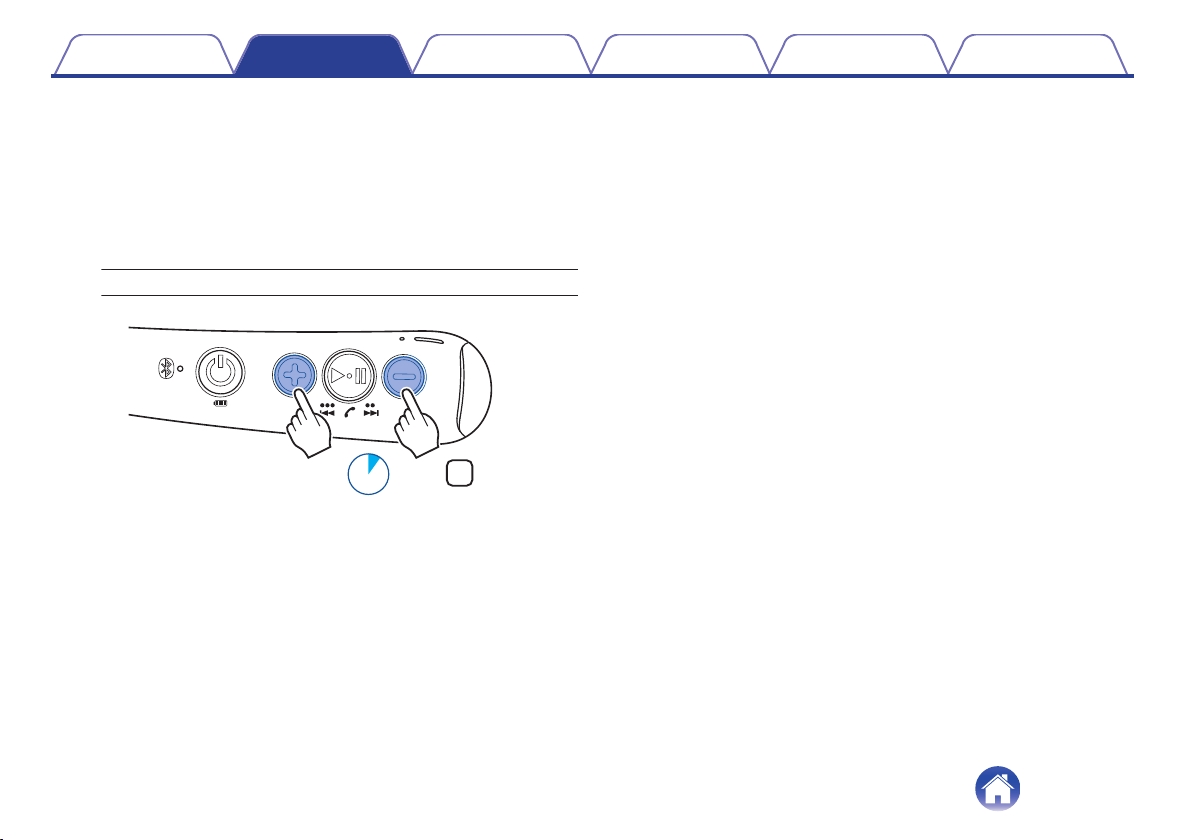
Adjusting the audio guidance volume
The audio guidance volume can be adjusted between 3 levels.
1
Press and hold the volume “+” button and volume “-”
button together for approximately 2 seconds.
An alert sound is heard and the audio guidance volume changes in
the following order. Repeat step 1 until the desired volume is
selected.
Medium / High / Low(Default: Medium)
.
L
2sec.
Contents
Preparation Connections Operation
Troubleshooting
Appendix
12
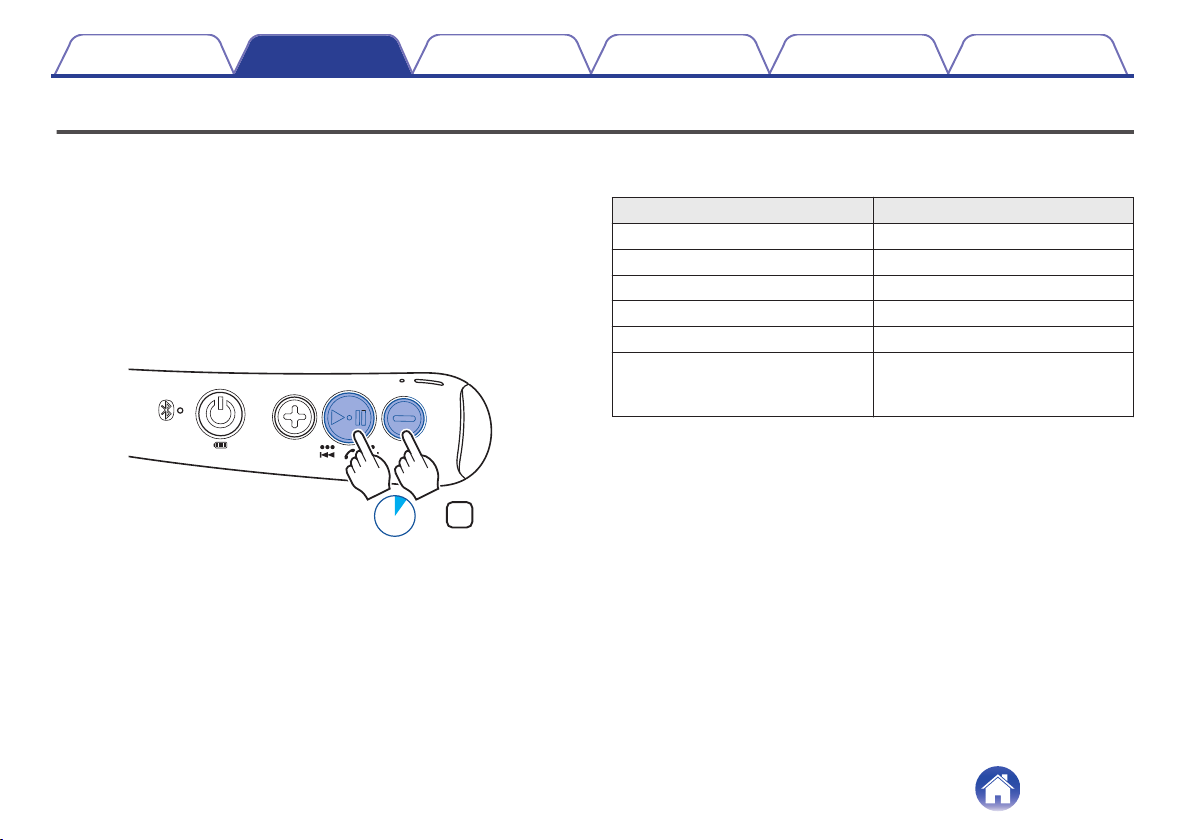
Turning the vibration function on and off
The vibration function makes the neckband vibrate as an alert when some operations are performed correctly.
The vibration function can be turned on or off according to your preference.
1
Connect the headphones and Bluetooth device using
Bluetooth. (v p. 14)
2
Press and hold the 1 3 button and volume “-” button
together for approximately 2 seconds.
An alert sound is heard and the vibration function turns off. Repeat
step 2 to turn this function on.
.
L
2sec.
Headphones operation/status Vibration pattern
Power on Vibrates once
Power off Vibrates once
Entering pairing mode Vibrates twice
Completion of Bluetooth connection Vibrates three times
Turning vibration function on Vibrates twice
Incoming call
Vibrates for approximately 1 second
(repeatedly throughout the incoming
call signal)
Contents Preparation Connections Operation
Troubleshooting
Appendix
13
Bluetooth operation
You can enjoy listening to music wirelessly by connecting the headphones to your Bluetooth device.
Pairing
Pairing (registration) is an operation that is required in order to connect a
Bluetooth device to the headphones. When using Bluetooth for the first
time, you need to pair the headphones and your Bluetooth device so they
can communicate with each other. Once a Bluetooth device has been
paired with your headphones, pairing does not need to be performed
again for future Bluetooth connections with that device.
0
Pairing needs to be done again in the following cases.
0
When 9 or more devices have been paired with the headphones
These headphones can store pairing information from a maximum of 8 devices.
When 9 or more devices are paired, the new pairing information overwrites the
oldest pairing information in order from the oldest information onwards.
0
Multiple Bluetooth devices cannot be played back at the same time.
Connecting
There are two methods for connecting with Bluetooth devices:
1
Connecting to the headphones for the first time
(v p. 15)
2
Reconnecting paired devices (v p. 17)
Contents Preparation Connections Operation
Troubleshooting
Appendix
Connections
14
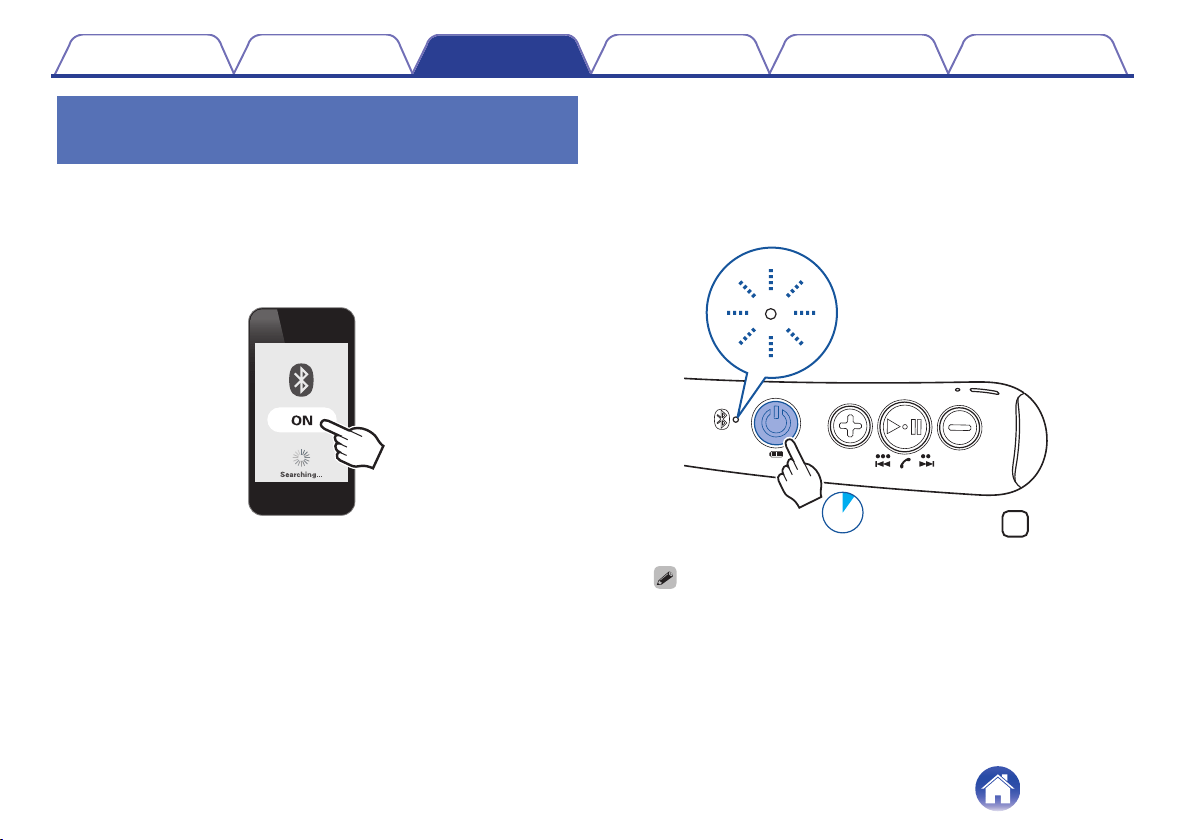
1: Connecting to the headphones for
the first time
Check that the headphones are not connected to any Bluetooth device
before pairing.
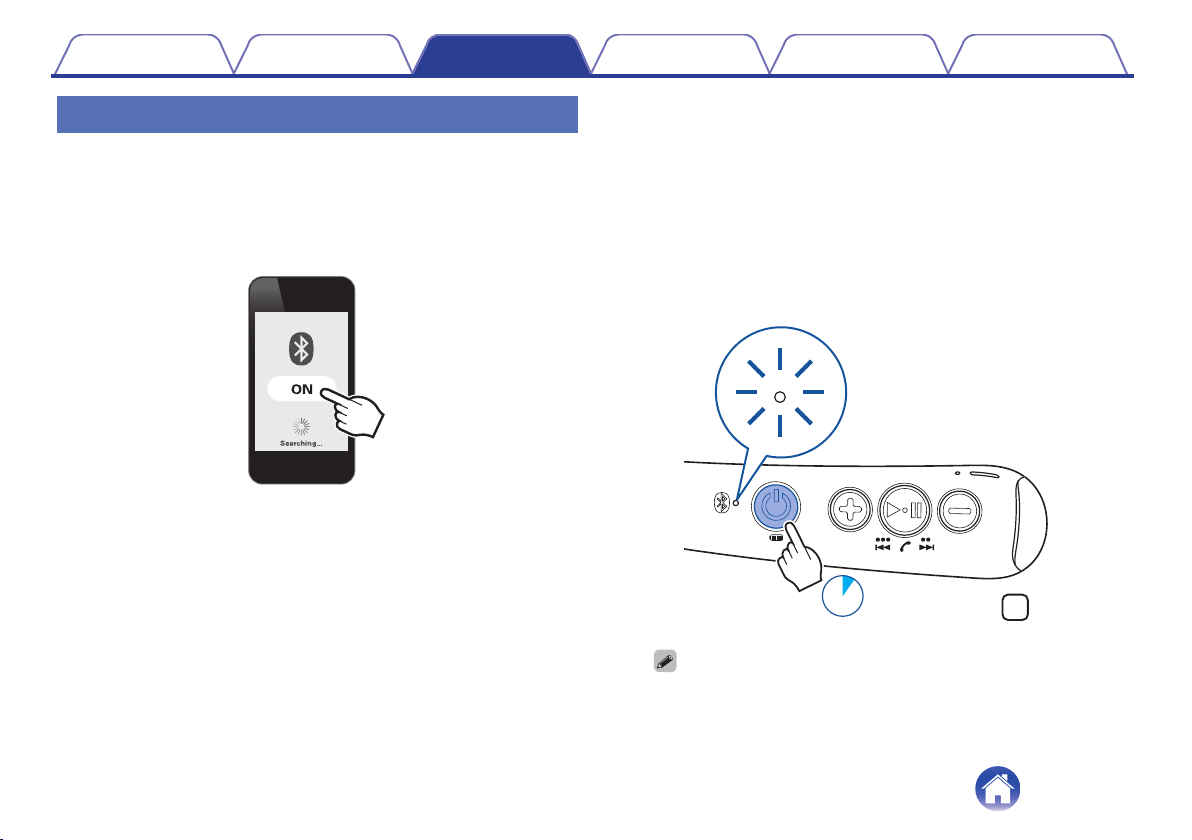
1
Turn on the Bluetooth function of your mobile device.
0
For details, see the Owner’s Manual of the Bluetooth device that
you want to connect.
.
2
Press and hold the X button for approximately 4
seconds while the headphones are powered off.
The Bluetooth LED lights and then blinks in approximately 1-second
intervals as the headphones enter pairing mode.
0
If the vibration function is on, the neckband vibrates twice when
the headphones enter pairing mode. (v p. 13)
.
L
4sec.
0
The power of the headphones turns on after pressing and holding the X
button for approximately 2 seconds. Continue pressing the button.
0
If the Bluetooth LED does not light even when the X button is pressed, the
rechargeable battery has no power remaining. Charge the battery.
(v p. 7)
Contents
Preparation Connections Operation
Troubleshooting
Appendix
15
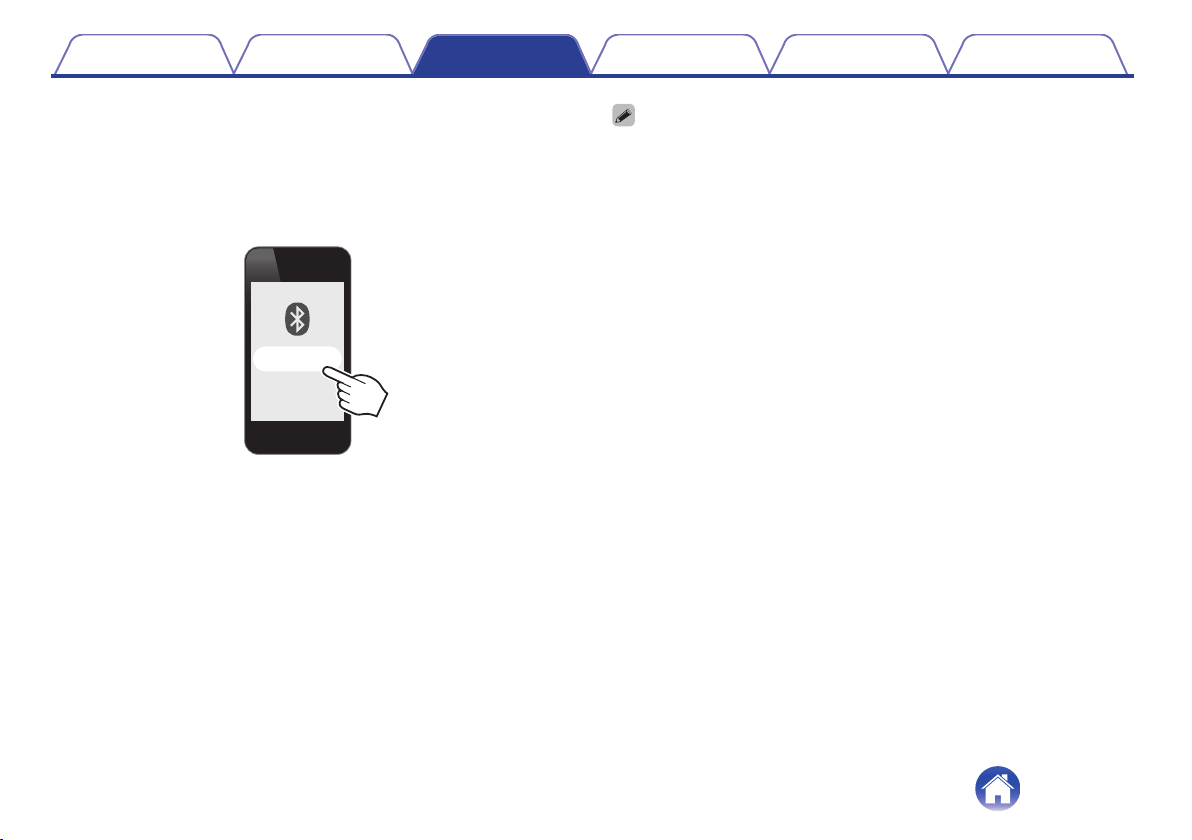
3
Select “DENON AH-C820W” from the list of devices
displayed on the screen of your Bluetooth device.
When pairing is completed and the Bluetooth connection is
established, the Bluetooth LED lights for approximately 2.5 seconds.
0
If the vibration function is on, the neckband vibrates three times
when the Bluetooth connection is established. (v p. 13)
.
DENON AH-C820W
4
Playing back music on the Bluetooth device.
Music played back on the connected Bluetooth device is output from
the headphones.
0
If the power is on, press and hold the X button for approximately 4 seconds to turn
the power off before pairing.
0
The headphones pairing mode is canceled if pairing is not completed within 3
minutes. In this case, press and hold the X button for approximately 4 seconds to
turn the power off and then pair the devices again.
0
If you are requested to enter a PIN code (pass key), enter “0000” (four zeros).
Contents Preparation Connections Operation
Troubleshooting
Appendix
16
2: Reconnecting paired devices
Check that the headphones are not connected to any Bluetooth device
before connecting.
1
Turn on the Bluetooth function of your mobile device.
0
For details, see the Owner’s Manual of the Bluetooth device that
you want to connect.
.
2
Press and hold the X button for approximately 2
seconds while the headphones are powered off.
The Bluetooth LED flashes for approximately 1.5 seconds and the
headphones power on before automatically connecting to the
Bluetooth device.
0
When the Bluetooth connection is established, the Bluetooth LED
lights for approximately 2.5 seconds.
0
If the vibration function is on, the neckband vibrates once when
the power turns on and three times when the Bluetooth
connection is established. (v p. 13)
.
L
2sec.
0
If the Bluetooth connection is not made automatically, select “DENON AH-
C820W” from the list of devices displayed on the screen of your Bluetooth
device.
Contents Preparation Connections Operation
Troubleshooting
Appendix
17
3
Playing back music on the Bluetooth device.
Music played back on the connected Bluetooth device is output from
the headphones.
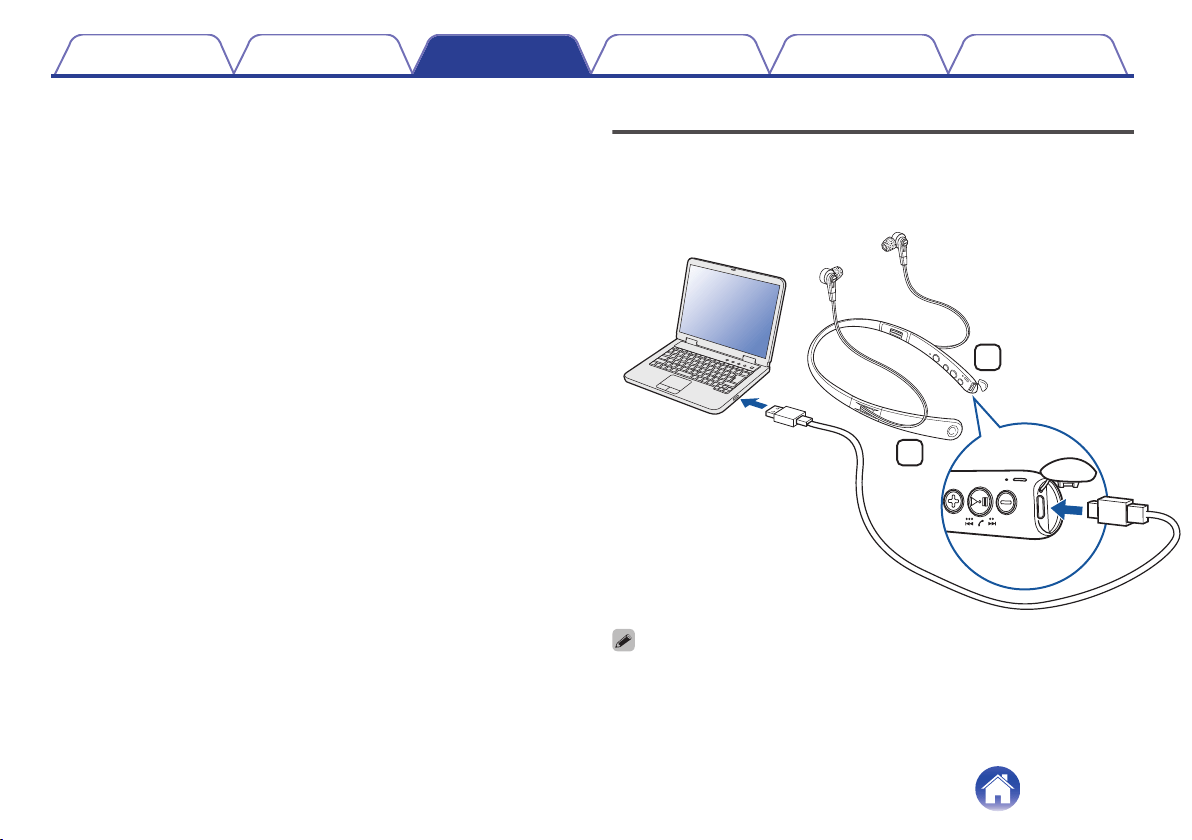
Connecting to a computer via USB
Audio data on a computer can be played through the headphones by
inserting the USB cable (supplied) in the USB port of the headphones and
connecting them to the computer. (v p. 20)
.
L
R
PC
USB cable (supplied)
0
The headphones automatically start charging when they are connected to a
computer.
Contents Preparation Connections Operation
Troubleshooting
Appendix
18
Listening to music
Listening to music using a Bluetooth
device
First check that the headphones and Bluetooth device are connected via
Bluetooth. (v p. 14)
Playback operations can be performed from both the Bluetooth device and
headphones. Here we will explain the operations using the buttons on the
headphones.
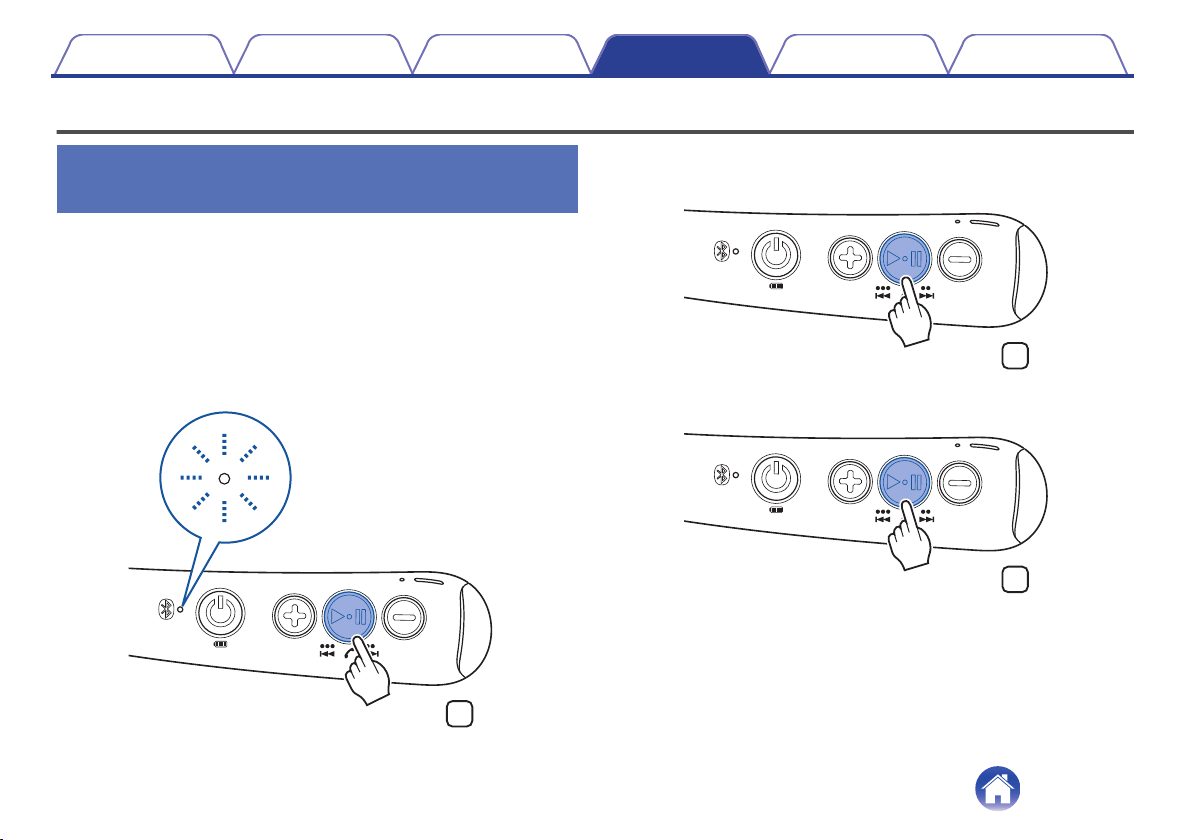
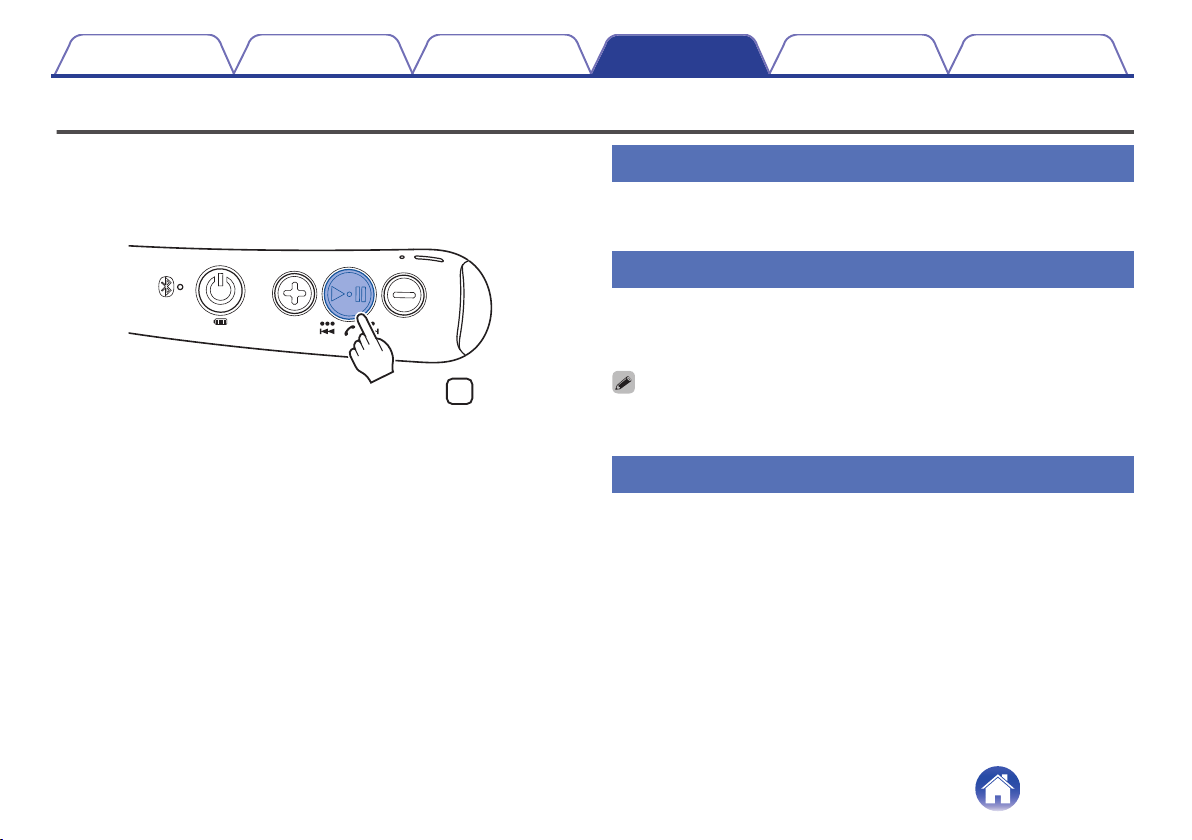
Playback/pause
Press the 1 3 button once.
0
The Bluetooth LED flashes in 5-second intervals during playback.
.
L
Select track
Next track: Press the 1 3 button twice.
.
L
×2
Previous track: Press the 1 3 button 3 times.
.
L
×3
Contents
Preparation Connections Operation
Troubleshooting
Appendix
Operation
19
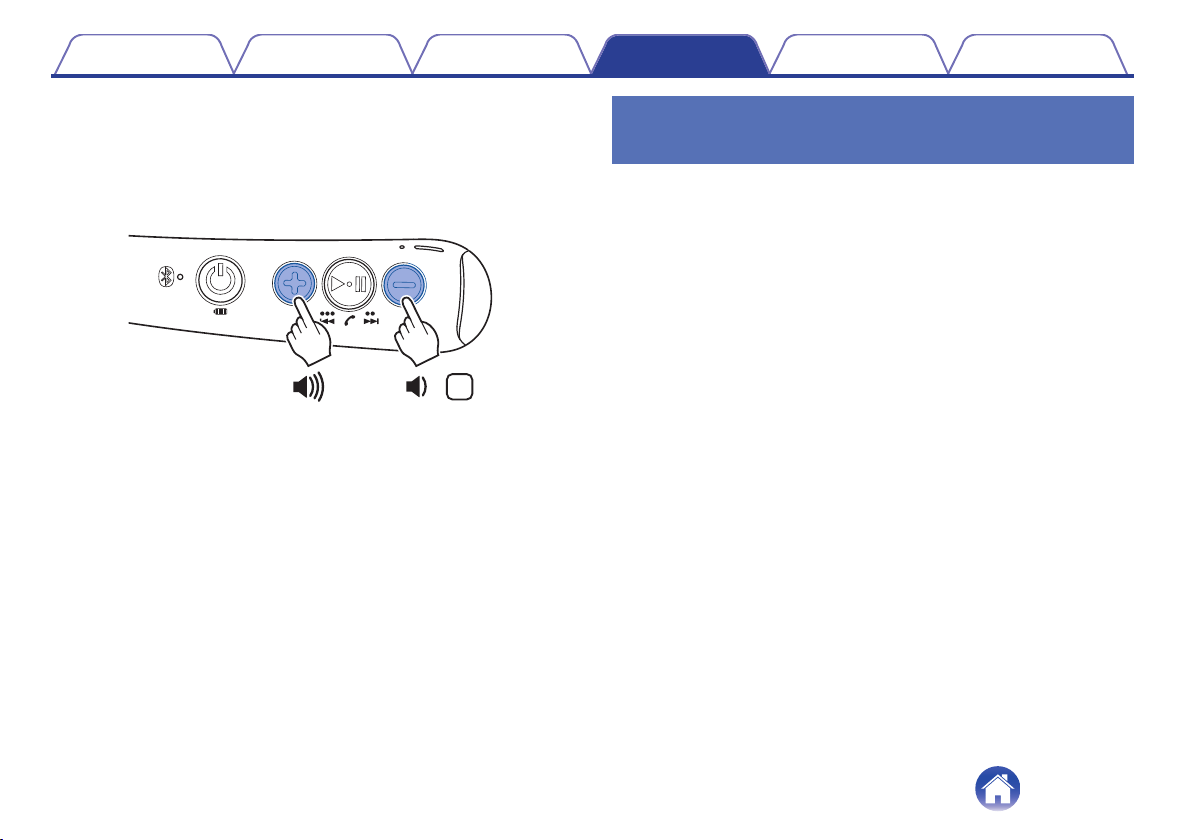
Volume adjustment
Increase volume: Press the volume “+” button.
Decrease volume: Press the volume “-” button.
0
An alert sound is heard when the maximum or minimum volume is
reached.
.
L
Listening to music on a computer via
USB
First check that the headphones and computer are connected via USB.
(v p. 18)
o
For Windows OS
1
Click “Start” on the computer screen and then click
“Control Panel”.
This displays the Control Panel settings list.
2
Click “Sound”.
This displays the Sound menu screen.
3
In the “Playback” tab, make sure that “Default Device”
is checked for “AH-C820W”.
0
If it is checked for another device, select “AH-C820W” and click
“Set Default”.
4
Play the music in the player software on your
computer.
The music being played is output through the headphones.
Contents
Preparation Connections Operation
Troubleshooting
Appendix
20
o
For Mac OS
1
Move the cursor to “Go” on the computer screen and
click “Utilities”.
This displays the Utilities list.
2
Double click “Audio MIDI Setup”.
This displays the “Audio Devices” screen.
3
In “AH-C820W”, make sure that “Use this device for
sound output” is checked.
0
If it is checked for another device, secondary click “AH-C820W”
and select “Use this device for sound output”.
4
Play the music in the player software on your
computer.
The music being played is output through the headphones.
0
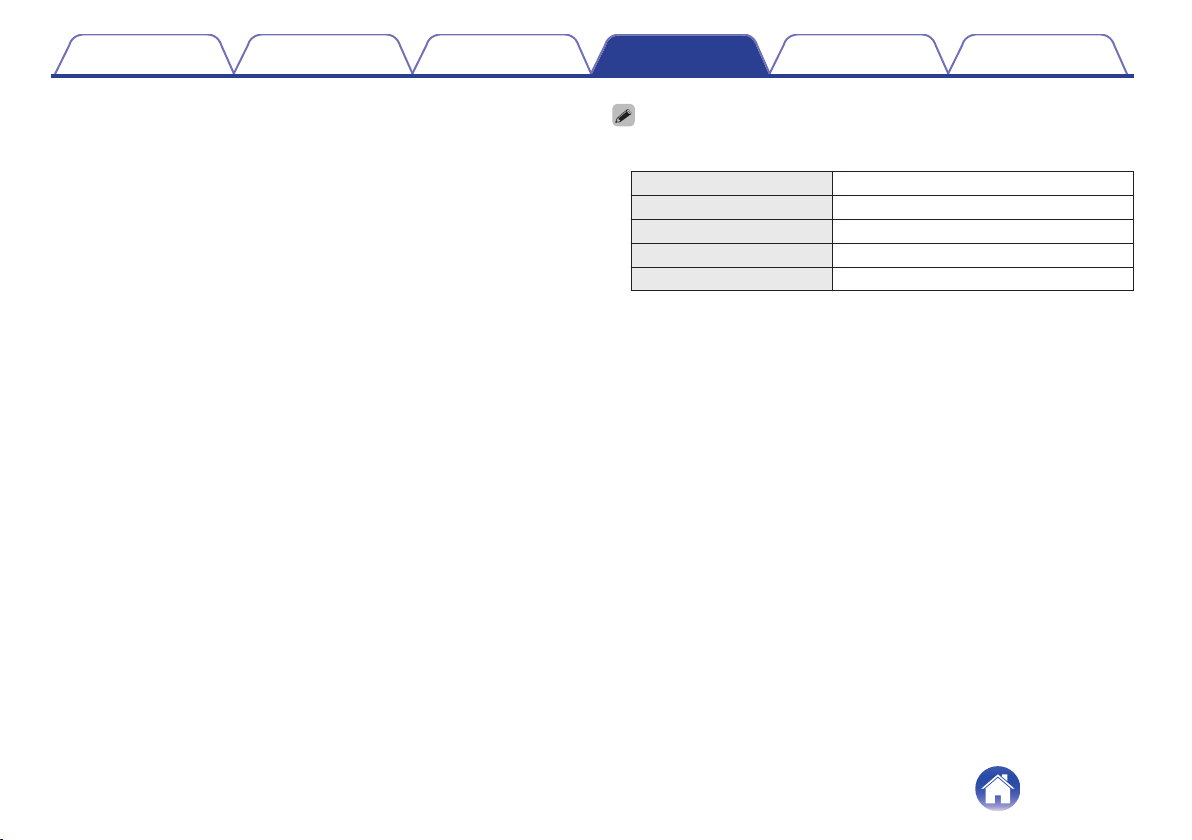
The buttons on the headphones can be used to control playback in addition to the
controls on the computer.
Playback/pause
Press the 1 3 button once
Next track
Press the 1 3 button twice
Previous track
Press the 1 3 button three times
Increase volume Press the volume “+” button
Decrease volume Press the volume “-” button
z
It may not be possible to use the buttons of the headphones to control the
playback with some computers or player software.
Contents Preparation Connections Operation
Troubleshooting
Appendix
21
Conducting phone calls
Calls can be made while you are wearing the headphones. You can hear
the caller’s voice through the headphones, and your voice is picked up by
the built-in microphone in the headphones. The Bluetooth compatible
mobile phone connected via Bluetooth is controlled using the 1 3 button.
.
L
Making a call
Dial the number with the mobile phone connected via Bluetooth. Audio
playback is paused and the call is connected.
Answering an incoming call
When an incoming call is received, audio playback is paused and the ring
tone is heard.
Press the 1 3 button once to start the call.
0
The neckband vibrates repeatedly for approximately 1 second when receiving
incoming calls. (v p. 13)
Ending a call
Press the 1 3 button once during the call.
When a call is ended, playback of the paused track is restarted.
Contents
Preparation Connections Operation
Troubleshooting
Appendix
22
Using the call waiting function
If you receive a call while another call is already in progress, you can place
the current call (call A) on hold and switch to the new call (call B).
0
Some of mobile phones may not be compatible with these functions.
1
Press the 1 3 button once during the call.
0
This places the current call (call A) on hold and switches to the
new call (call B).
0
When the new call (call B) ends, the headphones return to the call
that is on hold (call A).
o
To return to the call that is on hold (call A)
1
Press the 1 3 button 3 times during the call (call B).
0
This places the current call (call B) on hold and switches to the
call that is on hold (call A).
Ignoring an incoming call
Press and hold the 1 3 button for approximately 2 seconds when an
incoming call is received.
Switching a call from the headphones
to a mobile phone
Switch the current call to the mobile phone.
Press the 1 3 button three times.
Contents Preparation Connections Operation
Troubleshooting
Appendix
23
Other operations
Incoming call
detected
Answer
Press the 1 3 button once
In standby mode/
During audio
playback
Voice dial/
Voice activated call
Press and hold the 1 3
button for approximately 1
second
Call in progress
End call
Press the 1 3 button once
Mute on/off
Press the 1 3 button twice
0
Press the volume buttons (+/-) to adjust the volume of the caller’s voice.
Turning the power off
1
Press and hold the X button for approximately 4
seconds.
The Bluetooth LED turns off and the power is turned off.
0
If the vibration function is on, the neckband vibrates once when
the headphones are powered off. (v p. 13)
.
L
4sec.
0
A small amount of power is consumed even when the power is off.
Contents Preparation Connections Operation
Troubleshooting
Appendix
24
Audio Playback and Phone Calls on a
Bluetooth Device
0
These headphones are compatible with SCMS-T content security
standards. You can use these headphones with SCMS-T compatible
mobile phones or devices.
0
In order to listen to music via a Bluetooth connection, the connected
Bluetooth device needs to be A2DP (Advanced Audio Distribution
Profile) compatible. (*)
0
In order to control playback of the Bluetooth device using the
headphones, the connected Bluetooth device needs to be AVRCP
(Audio Video Remote Control Profile) compatible. (*)
0
The connected Bluetooth device needs to be compatible with either
HSP (Headset Profile) or HFP (Hands-free Profile) in order to use the
headphones for conducting phone calls. (*)
0
The Bluetooth device needs to be compatible with either HFP or HSP
and A2DP in order to conduct calls during audio playback. (*)
z
For details on profiles that the Bluetooth device is compatible with, see the
Bluetooth device Owner’s Manual.
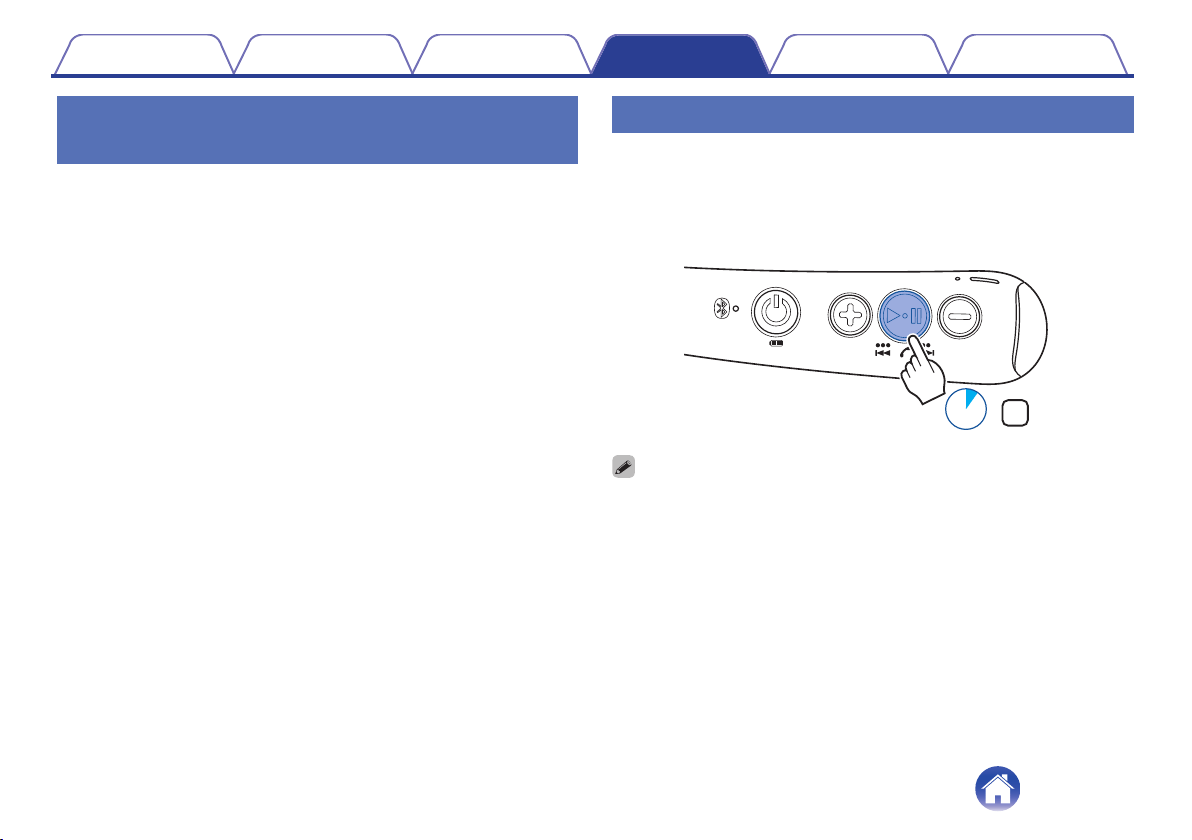
Deleting pairing information
Delete pairing information if you have made a mistake entering pairing
information or when re-pairing a device.
1
Press and hold the 1 3 button for approximately 4
seconds in pairing mode.
.
L
4sec.
0
To make a Bluetooth connection after clearing the pairing information, follow the
instructions on “1: Connecting to the headphones for the first time” (v p. 15).
Contents Preparation Connections Operation
Troubleshooting
Appendix
26
Troubleshooting
First, check the following.
1. Are all of the connections correct?
2. Were the instructions in the manual followed correctly?
3. Is the connected device being operated correctly?
If the headphones do not operate properly, check the corresponding issue here.
If the issue is not covered here, there may be a malfunction. Contact the store where you purchased the headphones. If the staff at the store where you
purchased the headphones also do not know how to resolve the issue, contact the Denon Customer Service Center or your nearest Repairs Center.
Power does not turn on
Power does not turn on.
0
When the rechargeable battery has no power remaining, connect the headphones to an AC adapter or computer using the supplied USB cable to
charge the battery. (v p. 7)
The device cannot be charged
The headphones cannot be charged.
0
Check whether the power plug is correctly inserted into the power outlet. (v p. 7)
0
Make sure the supplied USB cable is inserted correctly into the headphones. (v p. 7)
0
If the headphones are connected to the computer via the USB port, check that the computer is powered on.
Contents
Preparation Connections Operation
Troubleshooting
Appendix
Troubleshooting
27
No sound comes out
No sound comes out.
0
Check that the headphones and the connected device are powered on.
0
Adjust the volume of the headphones and the connected device to a suitable level. (v p. 20)
0
Pair the headphones with the Bluetooth device. (v p. 15)
0
If you are trying to play music on a computer via USB, check that the supplied USB cable is fully connected. (v p. 18)
Sound is distorted, noisy, or cuts in and out
Sound is distorted, noisy, or cuts in and out.
0
Adjust the volume of the headphones and the connected device to a suitable level. (v p. 20)
0
The Bluetooth device is out of range. Bring the Bluetooth device closer to the headphones.
0
The Bluetooth connection is experiencing wireless interference. Move the headphones away from appliances such as microwave ovens and other
wireless devices.
0
Power cycle the device and try again.
Contents
Preparation Connections Operation
Troubleshooting
Appendix
28
Cannot play media using Bluetooth
Cannot connect using Bluetooth.
0
Check that the power of the Bluetooth device is on and the Bluetooth function is enabled.
0
Check whether the Bluetooth device is in sleep status.
0
Bring the headphones and the Bluetooth device closer together.
0
Turn the Bluetooth device off and back on and try again.
0
Pair the devices again. (v p. 15)
0
Select A2DP as the Bluetooth connection profile on the transmitting Bluetooth device. For details, see the Owner’s Manual of the Bluetooth device.
0
If the USB cable is connected, remove it.
Sound is not output from the headphones when connected using Bluetooth.
0
Check that audio is being played back on the Bluetooth device.
0
Increase the volume. Increase the volume on the Bluetooth device if it is necessary to adjust the volume on the Bluetooth device. (v p. 20)
Contents
Preparation Connections Operation
Troubleshooting
Appendix
29
Cannot make a phone call
Cannot make a phone call.
0
Some smartphones and phone apps do not support hands-free calls.
Cannot hear the caller’s voice.
0
If the call came while you were listening to music with the headphones, press the 1 3 button to switch to call mode. (v p. 22)
0
Check that the power of the Bluetooth device is on and the Bluetooth function is enabled.
0
Select HSP or HFP as the Bluetooth connection profile on the transmitting Bluetooth device. For details, see the Owner’s Manual of the Bluetooth
device.
0
Check that the Bluetooth device is set to handle calls through the headphones. For details, see the Owner’s Manual of the Bluetooth device.
0
Increase the incoming call volume. (v p. 24)
Contents Preparation Connections Operation
Troubleshooting
Appendix
30
Precautions for Use
0
Be sure to read the Owner’s Manual of the device that you want to connect.
0
Check the volume settings when using the headphones on public transport or in public places and make sure you do not disturb people around you.
0
These headphones are not guaranteed to work with all combinations of Bluetooth devices/mobile phones.
0
These headphones do not support connection with all Bluetooth devices/mobile phones.
0
Bluetooth wireless technology can communicate over a distance of approximately 10 m. However, obstructions (people, metallic objects, walls, etc.)
and radio wave conditions affect the range in which communication is possible.
0
The Bluetooth device that you want to connect must support the same profile as these headphones in order to use the Bluetooth function. For details on
profiles that the Bluetooth device is compatible with, see the Bluetooth device Owner’s Manual.
0
Due to features of Bluetooth wireless technology, playback of audio on the headphones is slightly delayed compared to the voice/audio playback on the
transmitting device.
Contents Preparation Connections Operation
Troubleshooting
Appendix
Appendix
31
Disposal of these headphones
The rechargeable battery built into these headphones can be recycled.
Contact the Denon Customer Service Center for details on disposing of
these headphones.
Trademark information
.
The Bluetooth
®
word mark and logos are registered trademarks owned
by the Bluetooth SIG, Inc. and any use of such marks by D&M Holdings
Inc. is under license. Other trademarks and trade names are those of
their respective owners.
.
Qualcomm aptX and Qualcomm cVc are products of Qualcomm
Technologies, Inc. and/or its subsidiaries.
Qualcomm is a trademark of Qualcomm Incorporated, registered in the
United States and other countries. aptX and cVc are trademarks of
Qualcomm Technologies International, Ltd., registered in the United
States and other countries.
Contents Preparation Connections Operation
Troubleshooting
Appendix
32
Specifications
o
Headphone section
Type: Dynamic type
Drive units: φ11.5 mm x 2
Playback frequency: 4 – 22,000 Hz
Maximum output acoustic pressure level: 100 dBA
o
Bluetooth section
Compatible standards: Bluetooth Ver. 5.0
Transmission power class: Class1
Compatible profiles: A2DP/AVRCP/HSP/HFP
A2DP codec support: aptX/aptX Low Latency/AAC/SBC
Continuous playback time: Approx. 10 hours
Charging time: Approx. 2 hours
Contents Preparation Connections Operation
Troubleshooting
Appendix
33
o
USB audio component
Supported format: PCM 16-bit / Sampling frequencies: 48, 44.1, 32 kHz
Supported device class: Audio device class ver.1.0, HID class ver.1.11
o
General
Operating temperature range: 5 ℃ - 40 ℃
Power supply: DC 3.7 V (internal lithium polymer rechargeable battery)
Weight: 72 g
z
For purposes of improvement, specifications and design are subject to change without notice.
Contents Preparation Connections Operation
Troubleshooting
Appendix
34

www.denon.com
3520 10650 00ADA
Copyright © 2018 D&M Holdings Inc. All Rights Reserved.
35