
STRONG Australia Pty Ltd.
60 WEDGEWOOD ROAD, HALLAM, VICTORIA 3803
PH: +61 3 8795 7990 FAX: +61 3 8795 7991
TECHNICAL SUPPORT: 1 800 820 030
STRONG & CO.
(
FAR EAST
)
, LTD.
P. O. BOX 85, YOKOHAMA, KANAGAWA-KEN
JAPAN 231-91 FAX : +81 45 651 1842
www.strong.com.au
ڡStrong Australia Pty Ltd., 2010
USER MANUAL
High Definition Digital
Terrestrial Television Receiver
and Recorder
֣

English
1. Introduction ........................................................................................................... 1
1.1 Overview
1.2 Main Features
2. Safety/Precautions ............................................................................................... 3
2.1 Safety
2.2 Precautions
2.3 Positioning
3. Points to Check before Use ................................................................................. 5
3.1 Accessories
4. Controls/Functions .............................................................................................. 6
4.1 Front Panel
4.2 Rear Panel
4.3 Remote controller
4.4 Front Display
5. How to Connect .................................................................................................. 11
6. Operation ............................................................................................................. 12
6.1 Getting Started
6.2 System Setting
6.3 Channels
6.4 Electronic Program Guide
6.5 Entertainment
6.6 Media Manager
6.7 System Information
6.8 DVR
6.9 MEDIA
6.10 PIP Function(Picture in Picture)
7. Troubleshooting ................................................................................................. 58
8. Specifications ..................................................................................................... 59
Contents

2
English
1
The SRT7014 is a High Definition Digital Video recorder with Internet Connectivity
features to turn your TV into a SMART CONNECTED TV. You will enjoy being able to
To ensure the correct operation of this product the user manual must be read by any
person that is installing, connecting, operation or cleaning the unit.
ҫҫ
Note: All products that are marked either directly or labeled on the packaging with the
following icon:
Cannot be disposed of through the normal household waste channels and
must be disposed of through specialized collection centers that recycle electric
and electronic devices.
By disposing of such products as required by law, you are contributing to the
protection of the environment.
Incorrect disposal can be hazardous to human health and the environment.
Introduction
1.1 Overview
ᶀ
Digital Video Recorder with Twin Tuner
ᶀ
Built in 500GB Hard Drive
ᶀ
Time Shift, Record & Playback (Max. 3 channels recording simultaneously)
ᶀ
Media Playback via external storage devices (HDD, SD Card Reader)
ᶀ
2 X USB 2.0 Host for MP3 Playback, JPEG Viewing & Firmware Update
ᶀ
Ethernet Port for Internet Connectivity, File transfer and Ice TV functionality
ᶀ
DVB-T, MPEG-2/MPEG-4 Compliant
ᶀ
1080p / 1080i / 720p / 576p / 576i Video Resolution
ᶀ
HDMI Output
ᶀ
Component Video (Y, Pb, Pr) Outputs
ᶀ
Auto & Manual Channel Search
ᶀ
Dolby Digital Optical Output
ᶀ
Channel Sorting by Alphabet
ᶀ
16 Favorite Channel Groups
ᶀ
Selection of 12 languages
ᶀ
Picture in Picture Feature
ᶀ
SD Card Reader
ᶀ
AV input capable via Component and Composite
ᶀ
16:9 Full Screen, 4:3 Letterbox & 4:3 Full Screen
ᶀ
Electronic Program Guide
ᶀ
Subtitle
ᶀ
Auto Voltage (AC 100 - 250V) SMPS
ᶀ
Support MEPS(Minimum efficiency performance standard)
ᶀ
Manufactured under license from Dolby Laboratories.
“Dolby” and the double-D Symbol are trademarks of Dolby Laboratories.
ᶀ
Compatible with Icetv Electronic Program Guide
1.2 Main Features
record up to 3 channels at once and watch a 4th channel from 2 networks to the
inbuilt 500GB HDD as well as having access to apps including Youtube, Facebook,
Twitter and Picasa. The inbuilt web browser also allows you to surf the internet directly
on your TV while controlling your receiver from your iPhone/iPad or Android device.
You can also stream recorded content from the inbuilt HDD to your iPhone or iPad.

4
English
2.3 Positioning
ᶀ
Ensure the receiver is placed on a stable, even surface.
ᶀ
Do not place heavy objects on top of the receiver.
ᶀ
Install the receiver in a well ventilated location and avoid direct sunlight.
ᶀ
Avoid dusty locations.
ᶀ
Never cover the ventilation holes in the cover of the receiver.
ᶀ
Humidity can occur inside the receiver when moving from a cold to a warm place.
In this case, wait approximately one hour before operating the unit.
3
Safety Precautions
2.1 Safety
ᶀ
Only connect the receiver to a properly installed 100-240V, 50-60 Hz mains socket.
ᶀ
During electrical storms it is recommended the receiver be unplugged from the
mains.
ᶀ
To avoid any risk of fire and electric shock, do not expose the receiver to any
water. If objects or liquids enter the receiver, immediately unplug power from the
mains. Contact a qualified service technician before using the receiver again, or
there may be a risk of electric shock.
ᶀ
Do not open the cover as there is a risk of electric shock.
ᶀ
When the receiver is not in use for extended periods, disconnect the plug from
the mains.
ᶀ
Never use the receiver with a damaged mains cable as there is a risk of electric
shock.
ᶀ
Should the mains cable be damaged, refer to a qualified service technician or
contact an authorized Strong technician to arrange repair or replacement
before using the receiver again.
ᶀ
Do not allow children to use the receiver without supervision.
ᶀ
Always refer maintenance to a qualified service technician or contact Strong for
an authorized representative.
Please thoroughly read the following safety precautions before operating this receiver.
You are required to read all notes, instructions and warnings contained in this User
Manual.
2.2 Safety Precautions
6
English
5
Controls/Functions
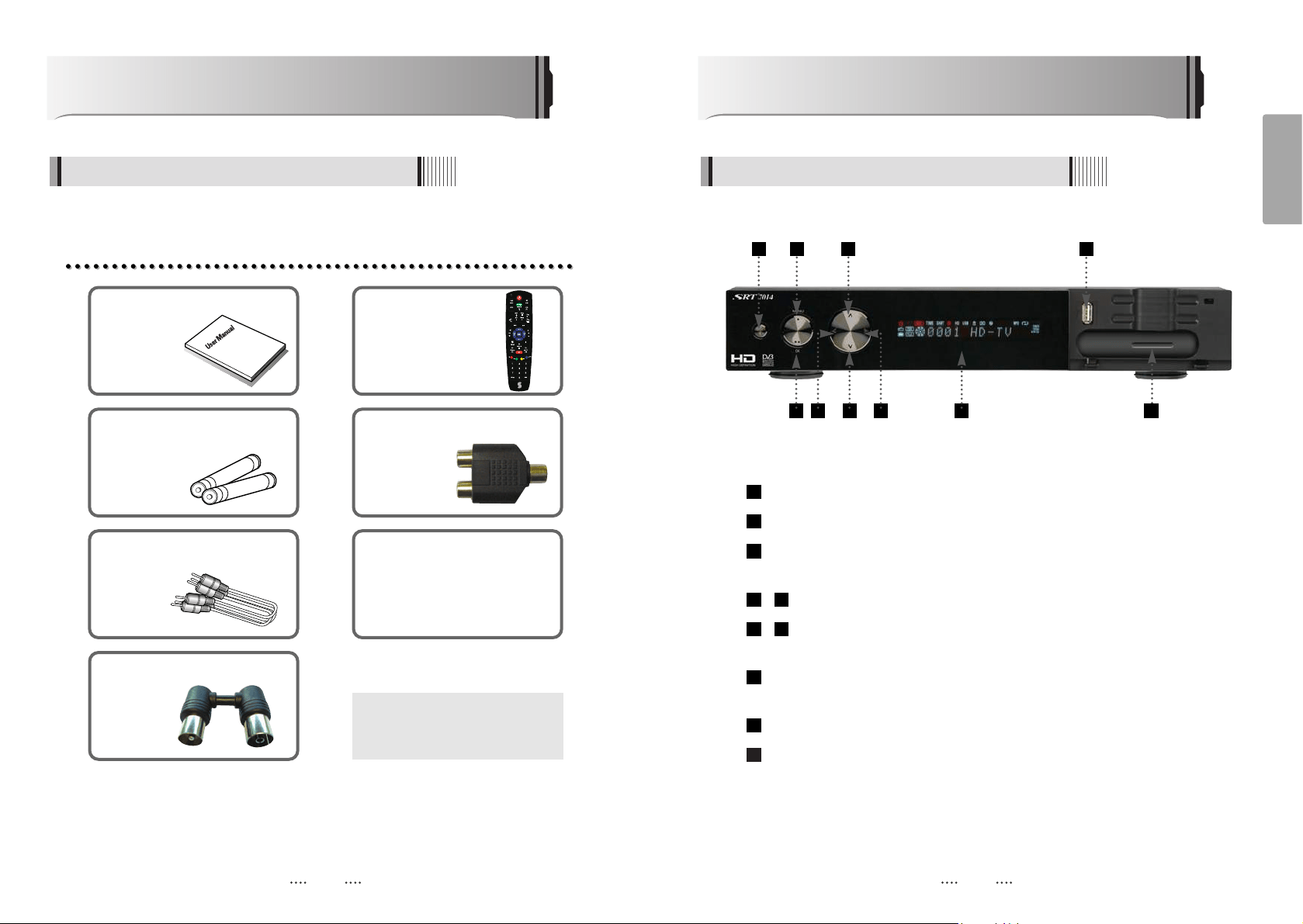
4.1 Front Panel
Power : Switches the receiver between “Standby” and “Power ON”
Menu : To enter or exit the main menu.
OK : To display the channel list or select and confirm an item in the menu
mode.
- VOL
ȜȞ : To adjust the volume.
- CH ƌƊ : To change channels or position the cursor on the
application screen
Passive Standby / Power on indications Lamp : Flashes blue light in “Passive
Standby” mode and shows no light in “Power ON” mode.
USB : To connect a USB device (ex. Memory stick or external hard drive)
SD Card Reader : To read and write data to SD media.
10
9
8
76
54
3
2
1
9
3 7 8
10
4 5
Unpack the unit and ensure that all of the following items are
included in the pack.
Points to Check before Use
3.1 Accessories
User Manual : 1 Remote Control : 1
Batteries (AAA type) : 2 Splitter : 3
RCA Cable : 2
Loop Cable : 1
Power Cord : 1
ᶀ
If any of the above listed
accessories are missing, please
contact your sales representative.
AV IN
1 2 6
8
English
7
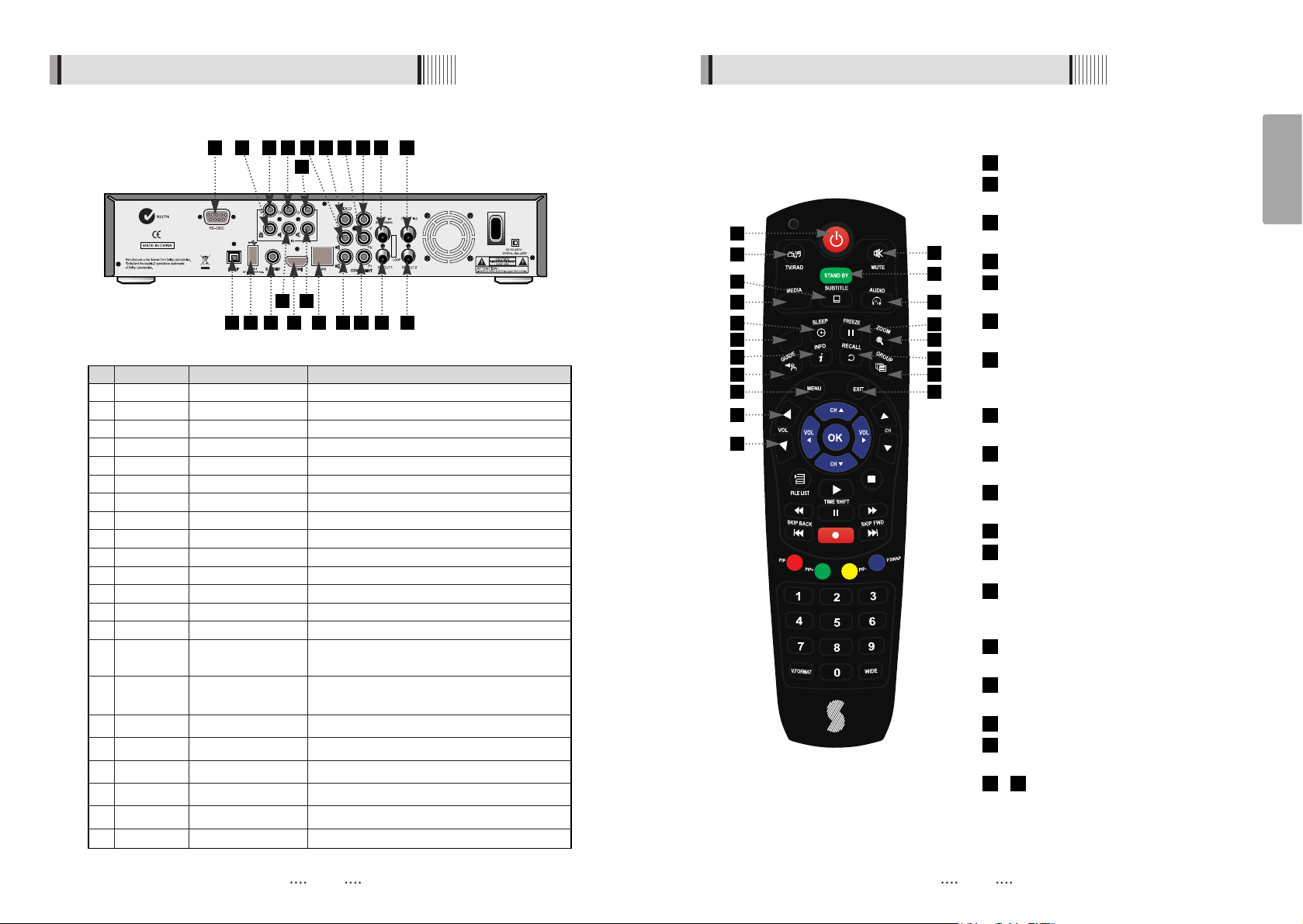
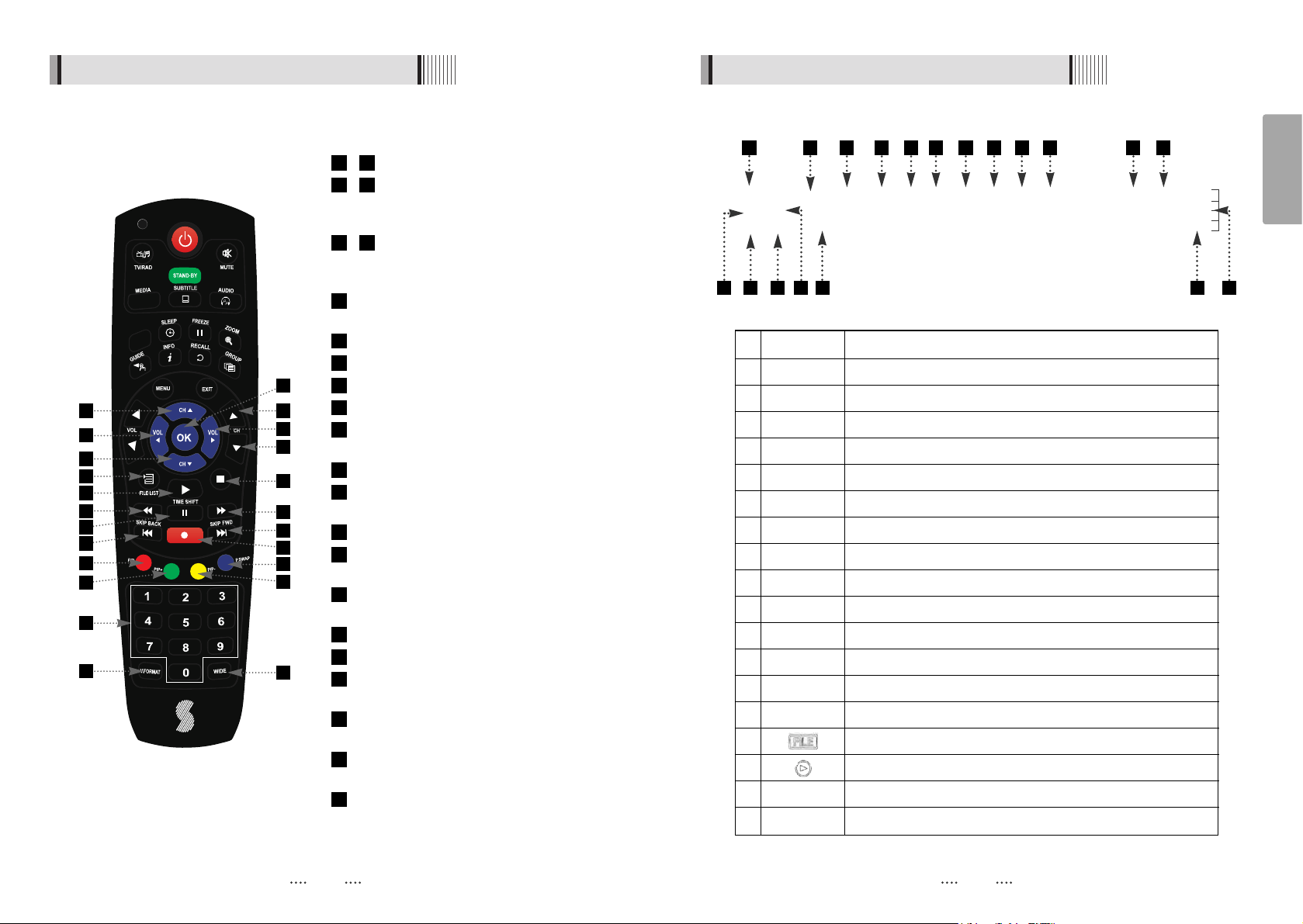
4.3 Remote controller
POWER
:
Turns the unit on and off
STAND BY
:
Places the receiver in
standby mode
TV/RADIO
:
Switches between TV and
Radio functions
MUTE
:
Turns the sound on and off
MEDIA : To access media file playback
menu
SUBTITLE : To turn the closed captions
on and off
AUDIO
:
To display the Multi-language
audio track, stereo/mono mode and
subtitle information
AV IN : To view the AV In channel
directly
SLEEP
:
To turn the unit off after a pre-
set time
FREEZE
:
Press once to pause live TV.
Press again to resume play
ZOOM
:
Activates the zoom function
GUIDE : Displays the TV/Radio Electronic
Program Guide
INFO : Displays information about the
selected program. Press twice for
additional detail
RECALL
:
To return to the previous
channel
GROUP
:
To select set channel favorite
groups
MENU
:
To enter or exit the main menu
EXIT
:
To exit the current menu and
move to the previous menu
- Vol Up & Down : To change volume
setting
1918
17
16
15
14
13
12
11
10
9
8
7
6
5
4
3
2
1
AV
IN
1
5 7
8
11
12
15
16
18
19
17
4
2
10
14
13
3
6
9
4.2 Rear Panel
No. Name Connector Function
1 S/PDIF Fiber Optic Digital audio output (Optical)
2 USB USB A-type USB 2.0
3 S-VIDEO MINI-DIN S-VHS Output
4 RS-232C DB-9 Low speed serial port
5 HDMI HDMI Digital Video/Audio Output
6 LAN RJ-45 10/100Mbps Ethernet
7 VIDEO RCA cinch Composite video output
8 AUDIO L RCA cinch Left audio output
9 AUDIO R RCA cinch Right audio output
10 Y RCA cinch Component video output(Y)
11 Pb RCA cinch Component video output(Pb)
12 Pr RCA cinch Component video output(Pr)
13 ANT IN1 IEC 169-2 FEMALE Input from terrestrial antenna
14 ANT IN2 IEC 169-2 FEMALE Input from terrestrial antenna
15 ANT OUT1 IEC 169-2 MALE Loop-through output from digital tuner and
Output to TV
16 ANT OUT2 IEC 169-2 MALE Loop-through output from digital tuner and
Output to TV
17 Y RCA cinch Component video input(Y)
18 Cb RCA cinch Component video input(Cb)
19 Cr RCA cinch Component video input(Cr)
20 VIDEO RCA cinch Composite video input
21 AUDIO L RCA cinch Left audio input
22 AUDIO R RCA cinch Right audio input
4
17 18 13 14
2 3 5 61
9 12 15 16
820
19
21 22
7 11 10
10
English
9
4.4 Front Display
1 Indicates Power (On/Off) mode
2 Lights when the current channel is recording
3 Lights when Time Shift is enabled
4 Lights when Time Shift is enabled
5Lights when the Timer is set
6 Lights when a High Definition signal is received
7 Lights when a USB device is connected
8 Indicates the current channel is set in Lock mode
9 Lights when the current chanel is Dolby audio format
10 Lights when the current sound is set to Off
11 Ligths when Mp3 player is enabled
12 Lights when an Mp3 player is set in loop mode
13 Lights when the current channel is in Radio mode
14 Lights when the current channel is in TV mode
15 Lights when the signal is being received via the antenna
16 Indicates the current playback mode in the file list
17 Lights when a recorded file is being played
18 Indicates the resolution of video ouput
19 Indicates Progressive or Interlaced scanning mode
1 2 3 4 5 6 7 8
9 10 11 12
1413 16 17 181915
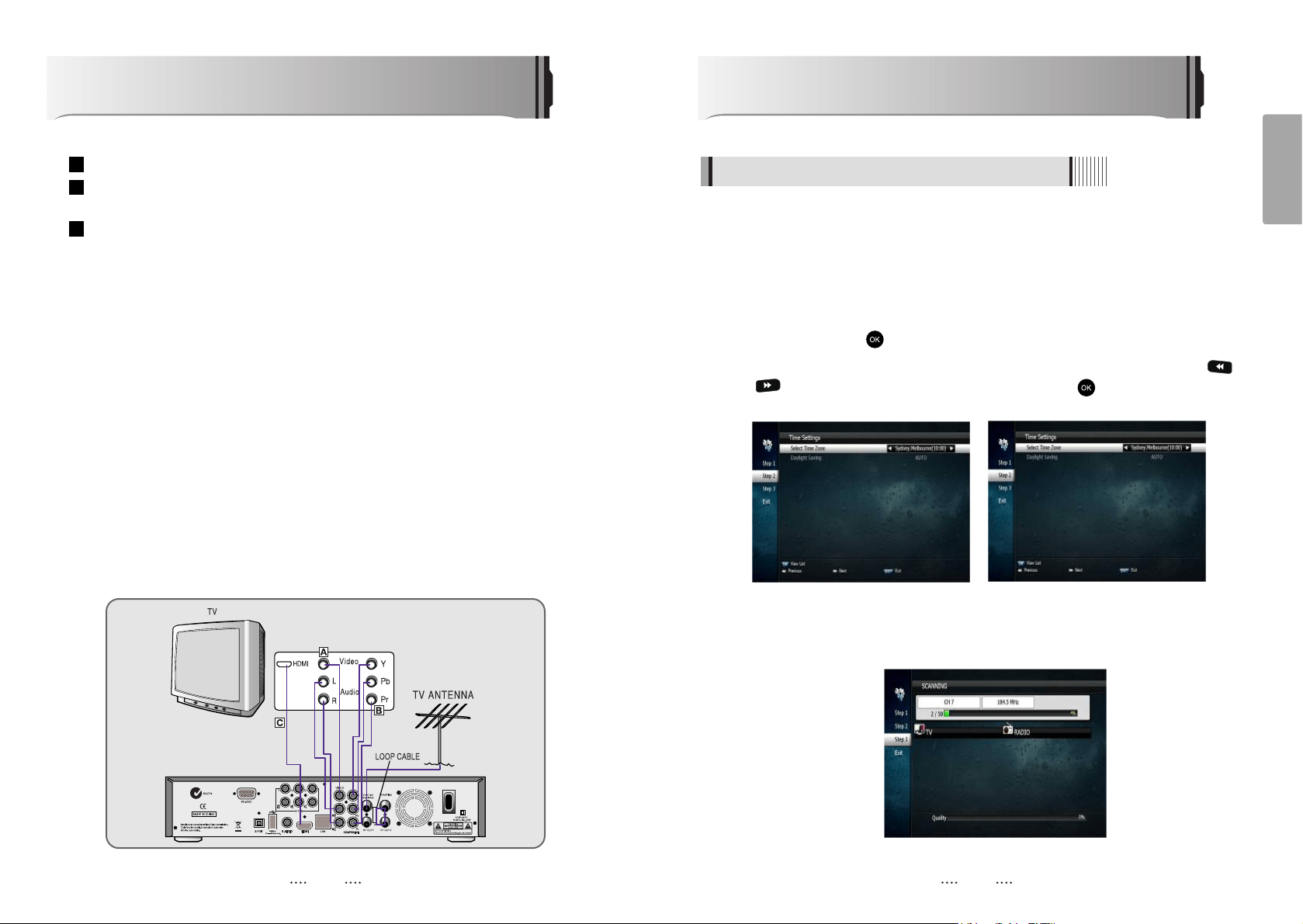
4.3 Remote controller
AV
IN
- CH Up/Down : To change channels
- Up & Down : To change channels or
move the cursor up and down in
menu mode
- Left & Right : To change the
volume level. Also modifies a setting in
menu mode
OK
:
To show the channel list or to select
or confirm an item in menu mode
FILELIST
:
Displays the file list
PLAY
:
Press to play content
STOP
:
Press to stop playback
RWD
:
Playback in rewind mode
PAUSE
:
Pauses playback and begins
timeshift
FWD
:
Starts playback
SKIP BACK : To skip back while
watching recorded programs
REC : To start recording
SKIP FORWARD : To skip forward while
watching a recorded program
PIP : To activate the Picture in Picture
Function
PIP+ : To change the PIP channel up
PIP- : To change the PIP channel down
P.SWAP : To swap the PIP picture and
the main picture
Numeric Keys (0-9) : To enter numerical
setting such as channel numbers
V.FORMAT : To change video output
resolution
Wide : To select an aspect ratio with Pan
Scan or Letterbox (4.3) (Full screen or
Pillar box)
42
41
40
39
38
37
36
35
34
33
32
31
30
29
28
27
26
2524
2322
2120
24
22
23
27
28
30
36
41
40
31
33
37
20
25
21
29
32
39
42
35
26
34
38
12
English
11
Operation
6.1 Getting Started
After your receiver is powered on, proceed with installation as follows :
1) Installation Wizard
⊹
Plug in the receiver and position the power switch to “on”
⊺
Turn on your TV
⊻
A pop-up menu will appear for language selection <Figure 6.1.1> Select the desired
language and press button to proceed
⊼
⊽
The time setting menu will now be displayed <Figure 6.1.2>. Once again use the
/ to select the desired time and confirm by pressing button.
(see also Page 21??)
The Auto Scan menu will now appear <Figure 6.1.3> In this mode the receiver will
scan for all available channels and save them.
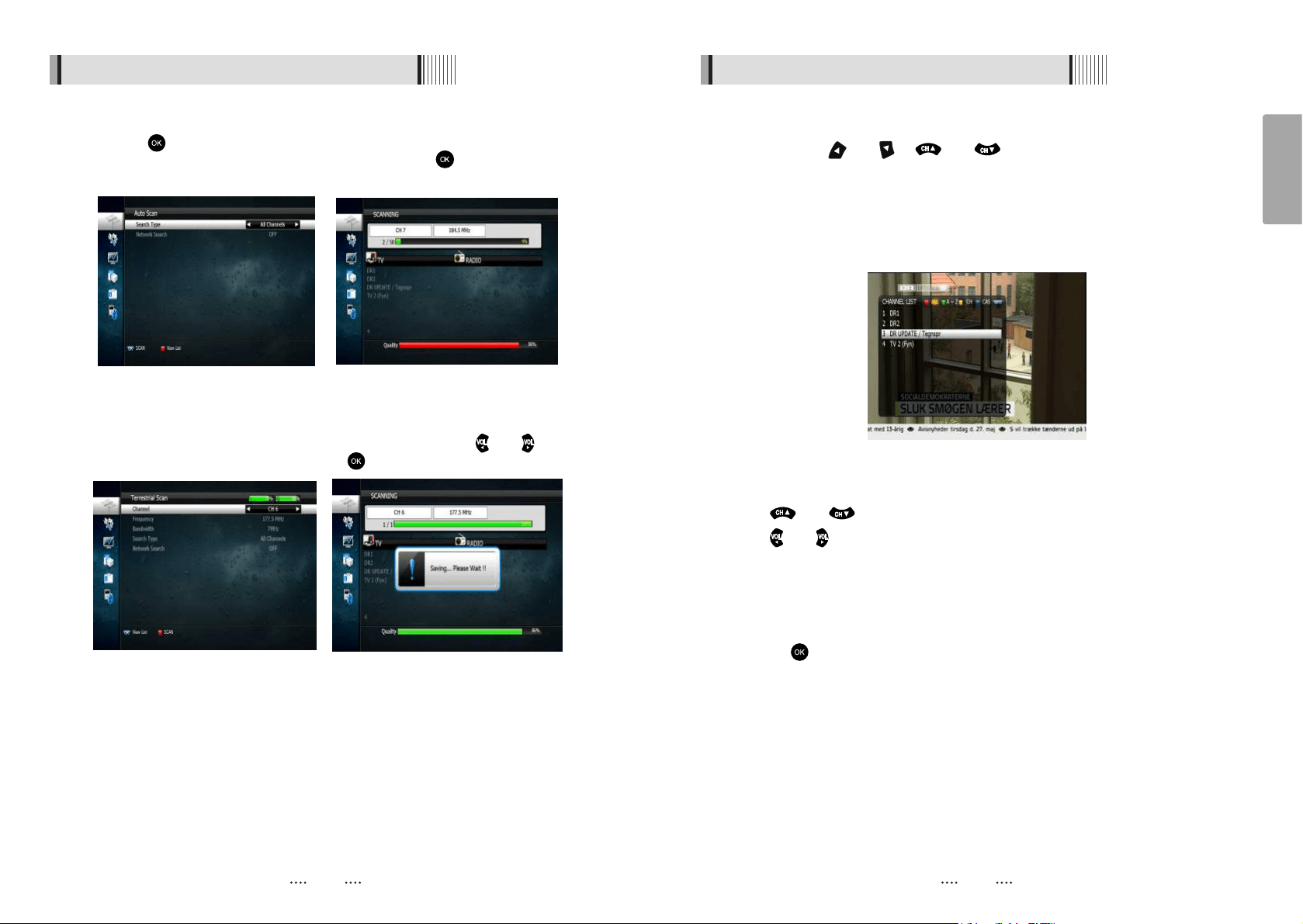
How to Connect
Connect the antenna lead coming from the wall plate to the input marked “Tuner 1”
Connect the Loop Cable provided to the input marked Tuner 1 RF then to the Tuner 2
input as shown in the diagram below
There are a number of methods to connect your receiver to your television
A. Using the Composite cable provided ( red, white and yellow leads)
For video, connect the yellow lead to the yellow socket on back of the receiver
and to the corresponding Video Input socket on the back of the TV.
For Right Audio, connect the red lead to the red socket on the back of the
receiver and to the corresponding Right Audio Input socket on the back of the TV.
For Left Audio, connect the white lead to the white socket on the back of the
receiver and to the corresponding Left Audio Input socket on the back of the TV.
B. Using the Component cable (Sold separately) (green, blue and red leads) paying
attention to the color coding, connect the three color coded leads to the
matching sockets in the back of the receiver and Video In sockets of the TV. You
will also need a connection for Right and Left audio via the audio socket. This may
be achieved using the Composite cable supplied and connecting the red and
white leads as described in Step A above.
C. If your TV has a HDMI input, you can use a HDMI cable ( sold separately) from the
back of the receiver to the TV. A HDMI cable supplies both video and audio signals
through a single cable so no other leads are required. Please ensure your TV is set
to the HDMI input mode to detect the receiver.
3
2
1
<Figure 6.1.3>
<Figure 6.1.1> <Figure 6.1.2>
14
English
13
6.1 Getting Started
4) Channel Selection
You can use the and or and keys to navigate between channels to
select desired channels.
ᶀ
If you know the channel number you can enter it using the NUMERIC buttons on the
remote control and wait 2 seconds for the change.
ᶀ
Detailed information about the selected channel will be displayed on the right hand
side of the screen <Figure 6.1.8>
<Figure 6.1.8>
ᶀ
You can use the following buttons to navigate between channels
- and : Moves one channel up or down
- and : Moves one page up or down
- RED : Shows all channels in the current group
- Green : Shows all channels alphabetically
- Yellow : Shows all channels by transponder
- Blue : Shows all channels by CAS.
ᶀ
Press when the selection bar is positioned on the desired channel.
6.1 Getting Started
Press the on Auto Scan in Installation menu.
with the ALL Channels highlighted
<Figure 6.1.4>
press the button to start
the scan. Scanned channels will be shown on screen <Figure 6.1.5>
3) Manual Scanning
To manually scan a channel select the channel number using the and keys on
the remote control <Figure 6.1.6> and press
N
<Figure 6.1.4> <Figure 6.1.5>
<Figure 6.1.6> <Figure 6.1.7
2) Auto Scanning
16
English
15
6.1 Getting Started
ᶀ
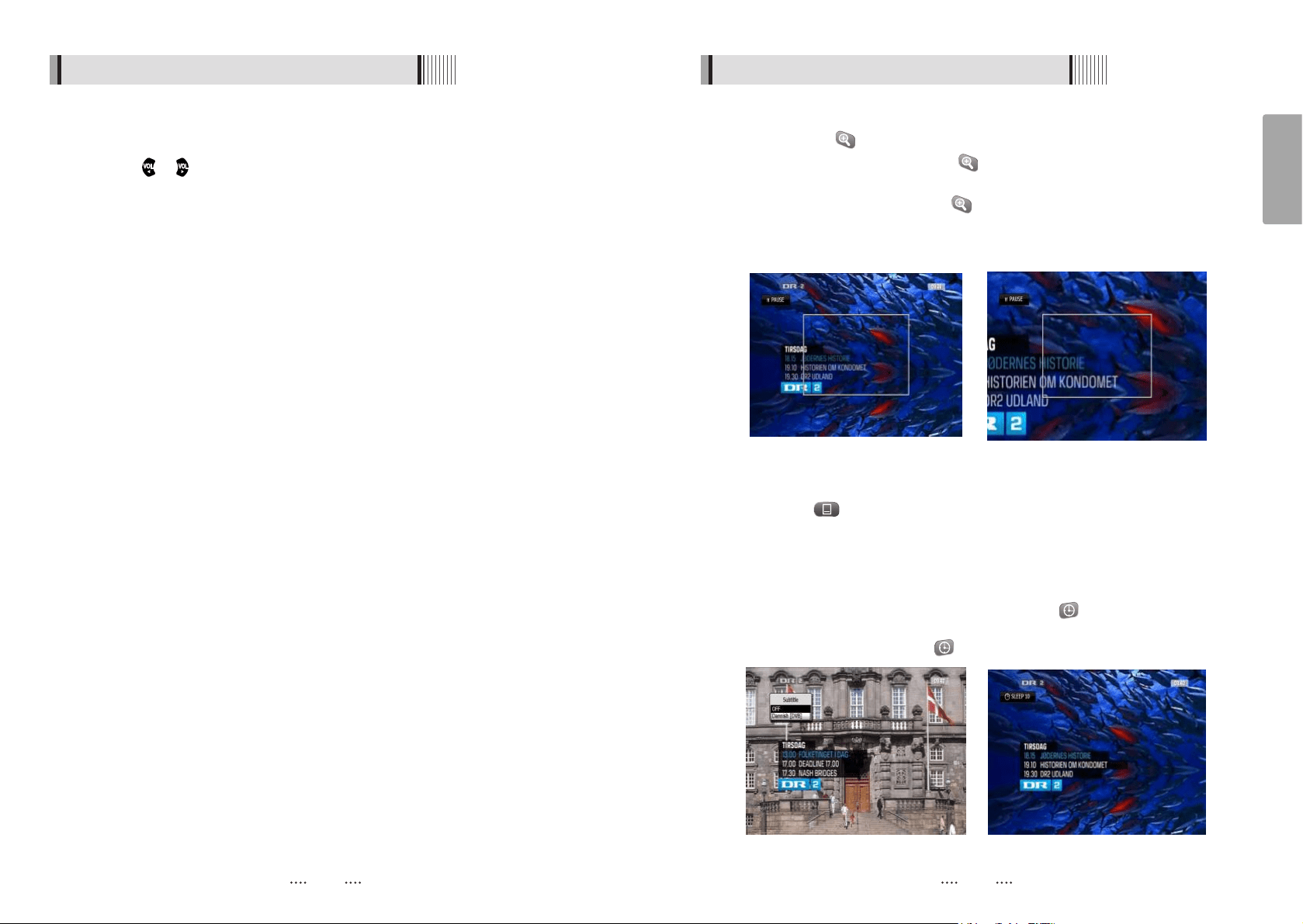
ZOOM
By pressing the button you can zoom in video.
⊹
By pressing the PAUSE button and you can zoom in on sections of video on
Freeze <Figure 6.1.9>
⊺
While watching a program press to zoom in on sections of a video <Figure
6.1.10>
⊻
To cancel the freeze status release it by pressing the ZOOM button continuously.
<Figure 6.1.9> <Figure 6.1.10>
6.1 Getting Started
5) Other Functions of the Remote Control
ᶀ
Volume Control
⊹
Press or to adjust the volume while watching a program
⊺
Pressing the Mute button will remove the sound and the mute icon will be
displayed. Pressing the Mute button again will restore the sound.
ᶀ
Channel Information
⊹
Pressing the INFO button will briefly display the channel information
⊺
Pressing the INFO button a second time will display a more detailed program
information
ᶀ
TV/RADIO switching
Press this button to change from a TV to a Radio channel. Pressing the button again
will return the unit to the TV channel
ᶀ
RECALL
Pressing this button returns the unit to the previously viewed channel
ᶀ
Audio
Use this button to adjust the subtitles or audio status of the current channel
- Audio Mode : Select from Stereo ᵎ Mono Left ᵎ Mono Right
- Audio Track : Select between tracks available in this program
- Audio Level : Use to select High ᵎ Medium ᵎ Low
ҫ
Note : Subtitle and audio settings are only available when the selected channel
supports these functions.
ᶀ
FREEZE
Press this button to freeze video. Pressing the button again will restore the video.
ᶀ
GROUP
This button is used to view the list of favorite channel groups. Only registered groups
are displayed.
ᶀ
SUBTITLE
By pressing you can select the subtitle language of the current channel <Figure
6.1.11>
ᶀ
SLEEP
You can set your receiver to turn off after a period of time. Available timer selections
are 10,20,30,60,100 and 120 minutes. To activate press and set the timer. <Figure
6.1.12>
- To cancel the sleep timer press until the minutes are set as “0 min”
<Figure 6.1.11> <Figure 6.1.12>
17
ᶀ
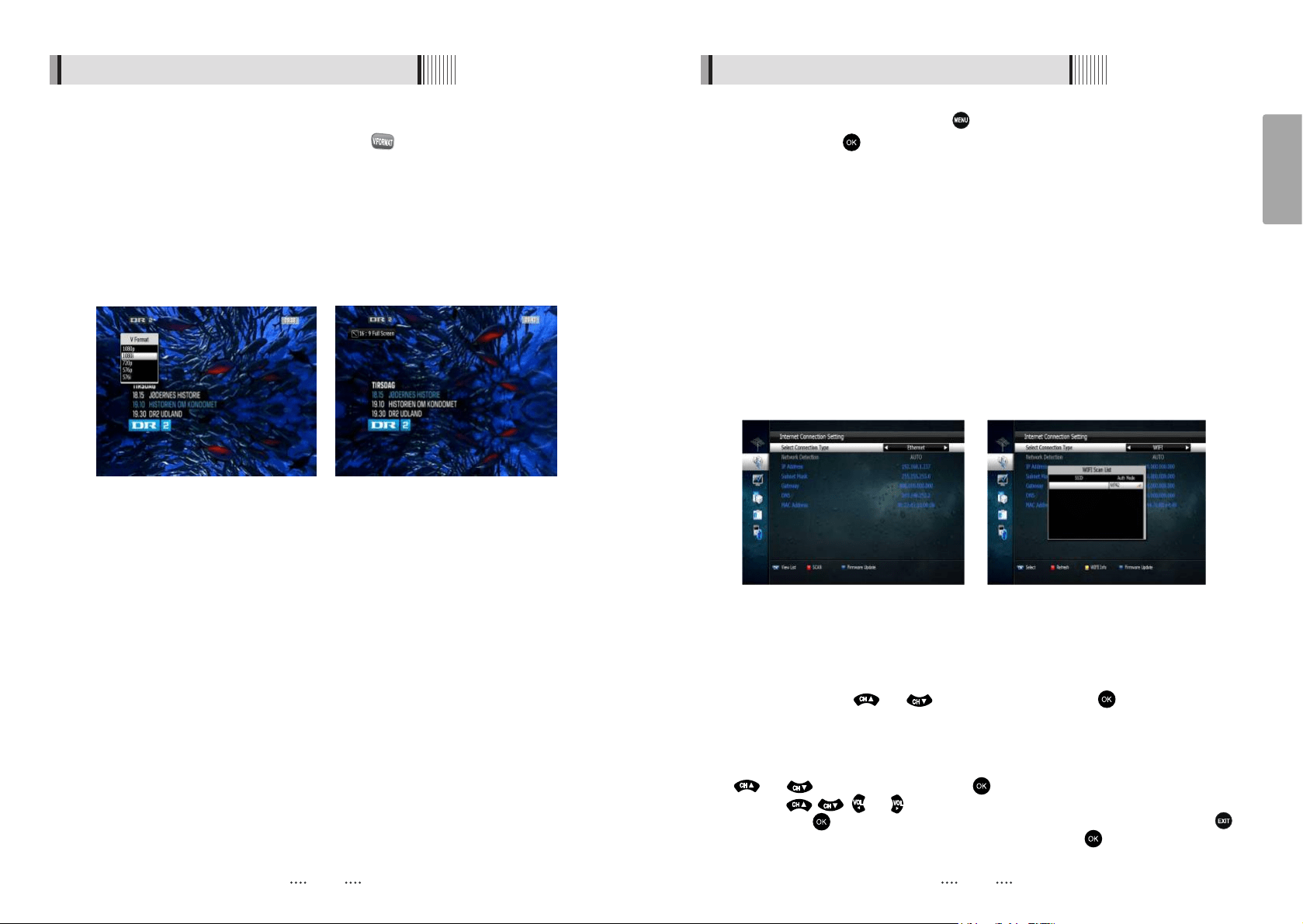
V.FORMAT <Figure 6.1.13>
You may select the video resolution by pressing . Available selections are 1080p
ᵎ 1080i ᵎ 720p ᵎ 576p ᵎ 576i
ᶀ
WIDE <Figure 6.1.14>
Pressing WIDE changes the aspect ratio. Available ratios are:
- 4.3 Pan-Scan or Letter-Box
- 16.9 Full-Screen or Pillar-Box
6.1 Getting Started
<Figure 6.1.13> <Figure 6.1.14>
18
English
6.2 System Setting
These can be accessed by pressing the button and then scrolling to the “System”
section and pressing
N
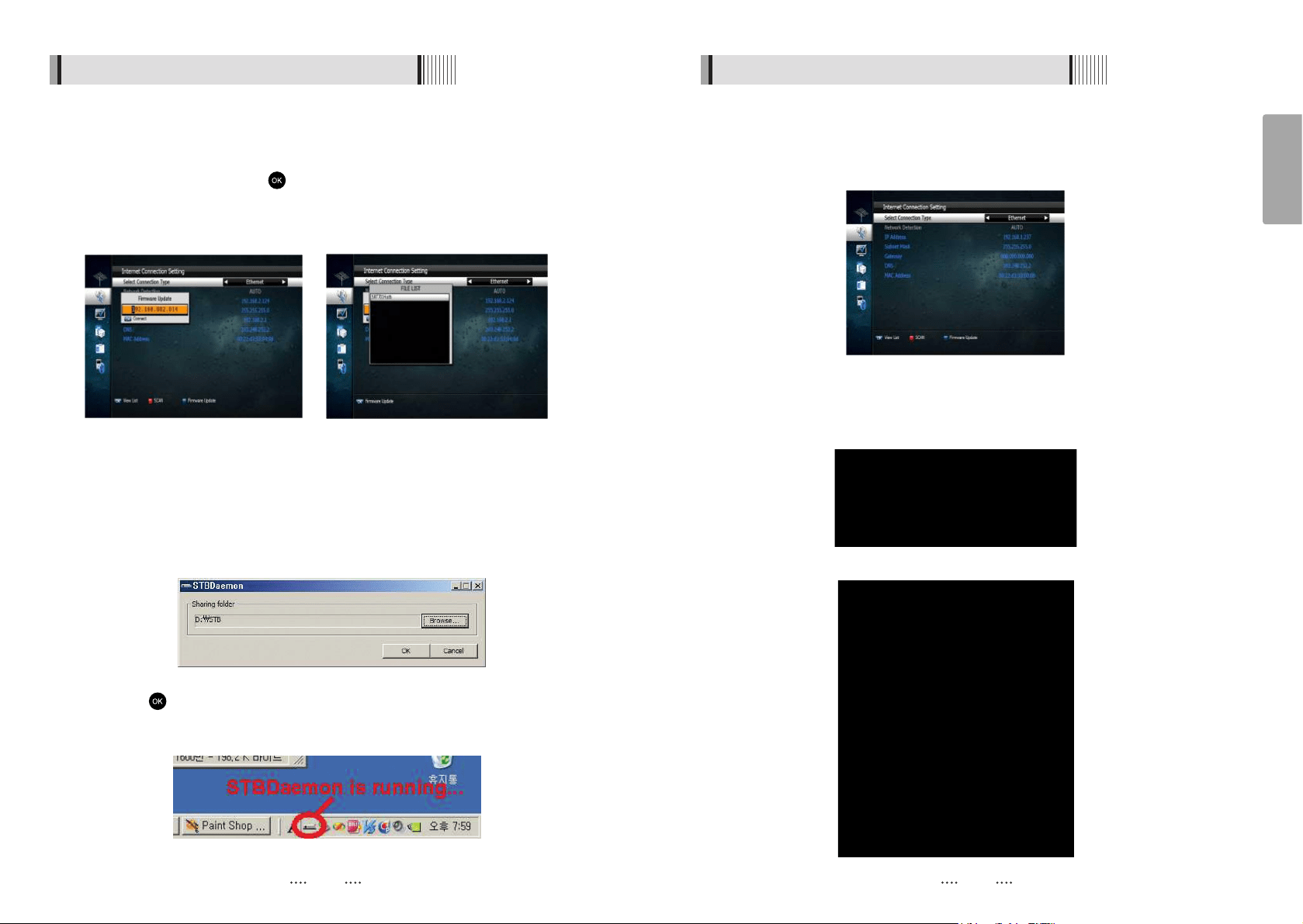
1) Internet Connection Setting
If the Network supports DHCP , IP settings can be allocated automatically. If the Network
does not support DHCP, the Addresses must enter manually (Static IP).<Figure 6.2.1>
- Select Connection Type:
Ethernet or WiFi. Select Ethernet if you are connecting the receiver
wireless network using the wireless USB dongle supplied with your receiver. (Please
note the wireless USB dongle is already inserted into the rear USB port or the receiver)
- Network Detection :
Auto/Manual to receive IP settings automatically
- IP Address : Enter the IP address
- Subnet Mask : Enter Subnet Mask Number from your Network
- Gateway : Enter IP address of Gateway (e.g. router)
- DNS : Enter IP address of main DNS Server
- Mac Address : Mac Address display
to the network via a LAN cable. Select WiFi if you wish to connect to your home
- SCAN :
Press the RED button to SCAN for the IP address and network details
if they do not apprear automatically.
- WiFi Wi ard :
When connecting to your home network using WiFi press the RED button to
view the list of available wireless networks. Select the desired wireless network you wish to
connect to using the and arrow buttons and press the button to select your
- WiFi Setting :
Once you have selected the wireless network you wish to connect to in the WiFi
<Figure 6.2.1>
Wizard press the YELLOW button to access the WiFi Setting menu. In this menu you can
enter the network key to connect to your wireless home network. HIghlight Key using the
and arrow buttons and press the button to bring up the virtual keyboard.
Using the , , and buttons select the characters of your wireless network security
and press the button. Once you have entered your wireless network key press the
button to save and exit. Now highlight connect and press the button to connect to your
z
network.
wireless network.
<Figure 6.2.2>
20
English
19
6.2 System Setting6.2 System Setting
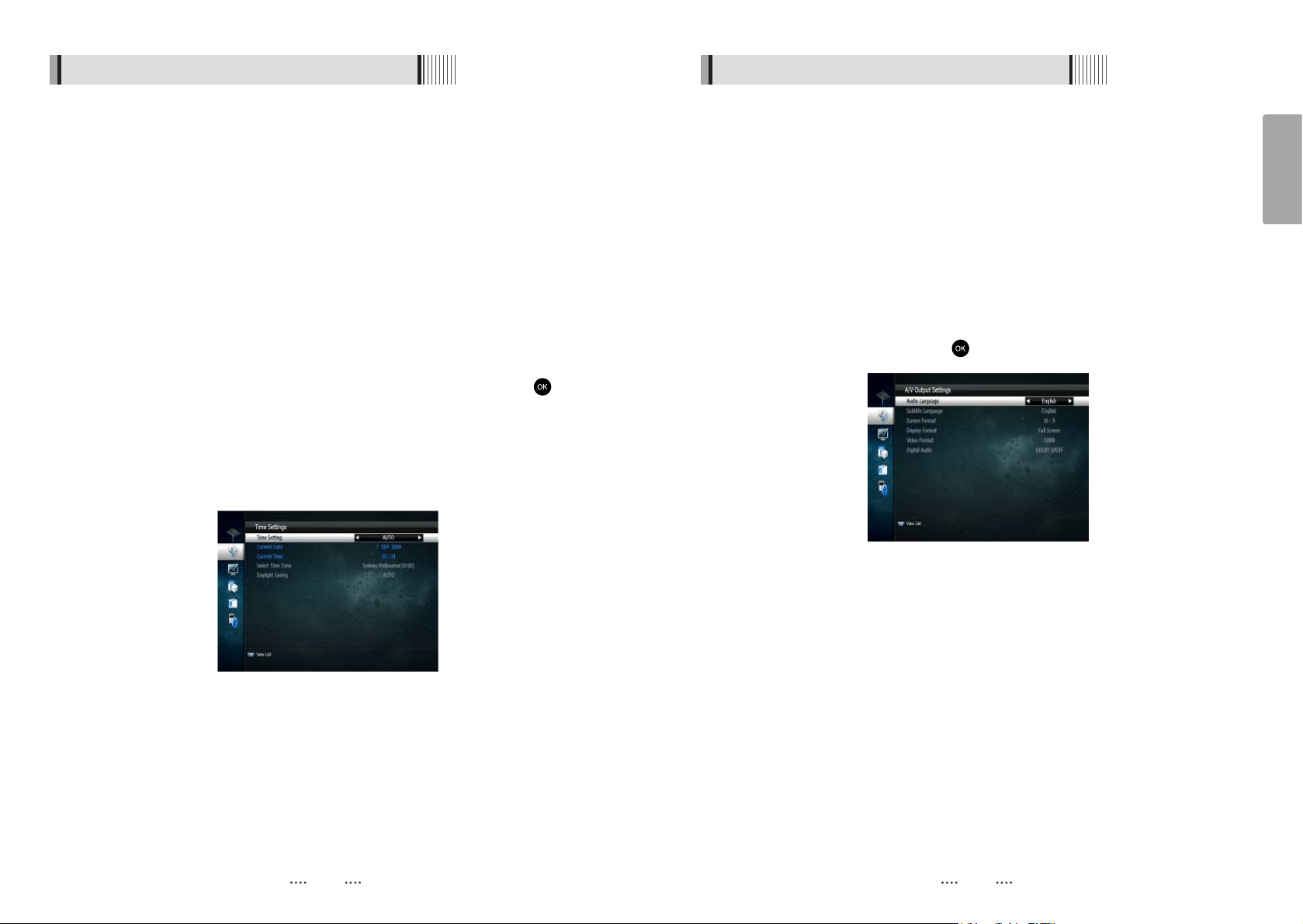
- Firmware update : Support download from a LAN.
⊹
BLUE button, appear input target IP address.
⊺
RED button to Scan after inputting a target IP.
⊻
Choose a update software and button for downloading.
⍢⍢
Note : The PC tool STB Daemon must be installed on your PC before you can connect
your receiver the PC. Please refer to the “Connecting your receiver via LAN to a
PC” section for PC Tool download instruction
<Figure 6.2.3> <Figure 6.2.4>
Connecting your receiver to a PC via your Network
1. Follow these instructions prior to connecting your receiver to your PC:
a) Run the PC Tool program (STB Daemon) before connecting to your PC,
b) Click Browse and select a sharing folder on your PC.
c) Press “ ” then select STB Daemon and the window will be hidden. You can still see
the icon on bottom right of the windows screen.
2. Connect an Ethernet cable or wireless USB dongle from your DVR to your network port.
this can be downloaded from www.strong.com.au/faq tech. html.
3. Press menu, Select System Settings, Select IP Settings:
b) If your Network supports DHCP, IP settings can be allocated automatically by turning
Network Detection Auto and pressing the red colored key
a) Depending on your connection select either Ethernet of WiFi.
c) If your Network does not support DHCP, the IP Address must be entered manually
(Static IP). EG. If your computers IP is 192.168.168.114, you can allocate the unit an IP
of 192.168.168 any other number not used on your network.
d) Click the network icon on the bottom of your desktop.
e) Now select the Support Tab, you can allocate your IP Address.
22
English
6.2 System Setting6.2 System Setting
21
4. You can now go into Media Manager, then File Manager menu (on your DVR)
and press the yellow coloured key (on remote) to type in the IP address of the
computer which has STB Dadmon running.
Please see page 42 for instructions on how to transfer files.
⍢
2) Time Settings
The sub menu allows you to set your local time, wake up timer, wake up channel and
sleep time. <Figure 6.2.5>
Use the scroll buttons to select the following options
- Time Setting :
Set this ON for the local time to be determined by adjusting the time
difference with GMT.
- Current Date :
If Time Setting is Manual, you can change the date by pressing
- Current Time : If Time Setting is Manual, you can change the time using the NUMERIC
buttons
- Daylight Saving :
Select the time during which summer time is applied
<Figure 6.2.5>
- Select Time Zone :
If Time Setting is Manual, Local time is GMT + Local offset.
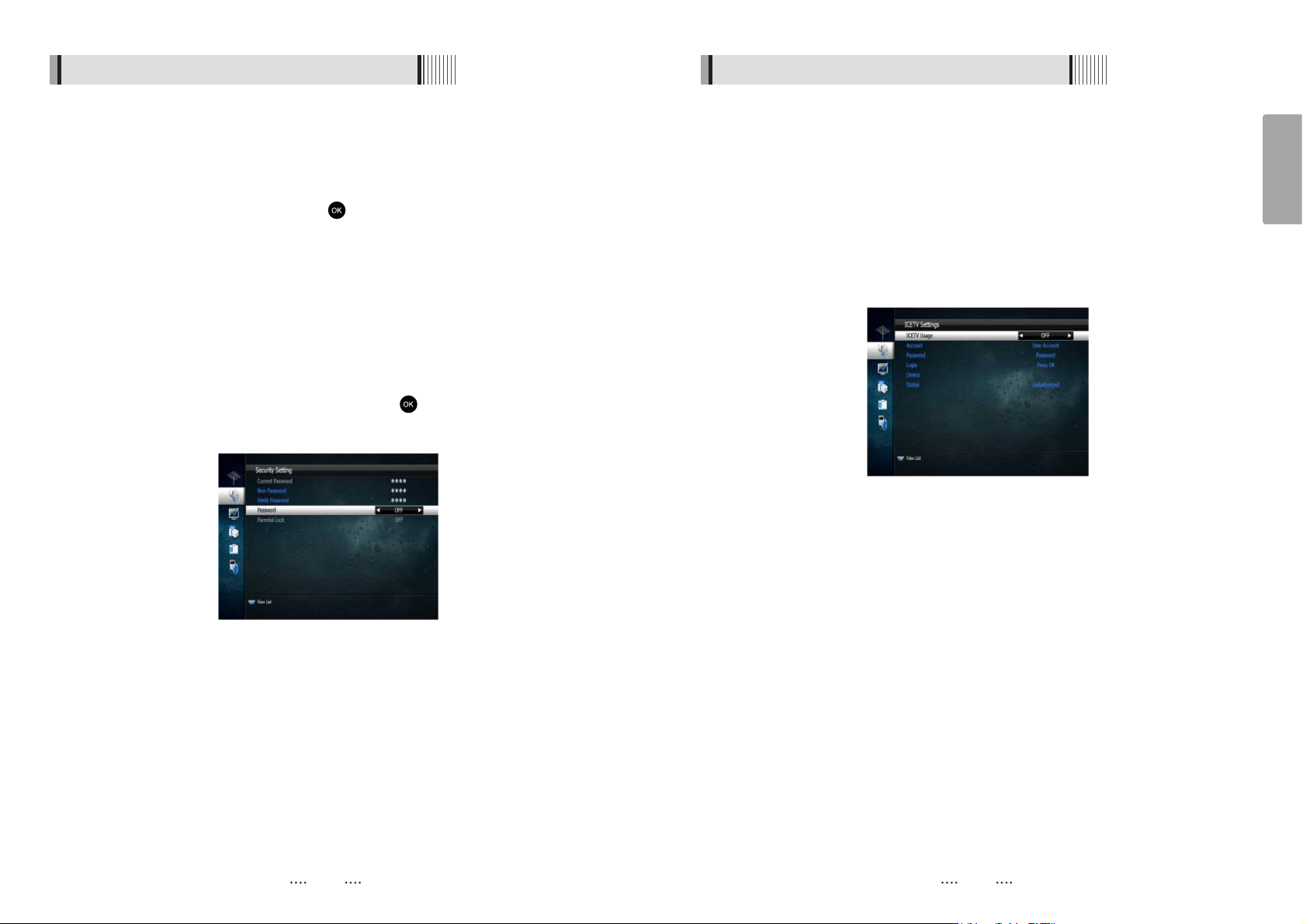
3) A/V Output Settings
This menu lets you specify the audio and video output settings of your receiver <Figure
6.2.6>
Use the scroll buttons to select your desired setting
- Audio Language : set the audio language
- Subtitle Language : Select the subtitle language
- Screen Format : Select the screen format (16.9/ 4.3)
- Display Format : Select the aspect ratio
- Video Format : Select the video format from 1080p, 1080i, 720p, 576p or 576i
- Digital Audio : Selects the audio output type
After making your selection press the to confirm
<Figure 6.2.6>
24
English
23
6.2 System Setting6.2 System Setting
4) Security Settings
To prevent unauthorized access to classified programming, you can set a personal PIN
number for your receiver. (Note that the factory set default password is : 0000. PIN and
password are the same) <Figure 6.2.7>
By setting any of the following functions to in this menu, the PIN will be required to
access them;
- Receiver Lock, Install Lock, Channel Lock, Lock Channel Confirm
ᶀ
Parental Lock
Under this menu you may select a Rating of programs you choose to block.
All available ratings are listed in the menu and when the program information regarding
the rating available from the broadcaster exceeds the selection, a PIN number is
required to access the program.
Use the scroll buttons to make your selection and press button to confirm.
This section also contains options to change and enter new passwords.
<Figure 6.2.7>
You will need to connect your receiver to an internet connection via the LAN port on
the back panel. Connect the LAN cable from your Modem or Router to the receiver.
You will then be required to enter you home network details in the Ice TV settings menu
as below:
- ICETV Usage : Select On/Off to activate or de activate the IceTV feature
- Account : Enter your IceTv account name
- Password : Enter your IceTv account password
- Device : Select 0,1,2 or 3 depending on how many receivers are linked to the IceTV
account
- Login
: Once you input your Ice Tv account details and connected the LAN
cable to the receiver press OK to check the status of your connection.
When your receiver is connected to Ice TV the status will state
“Authorized”
- Status : Displays the current status of your Ice TV account
If you are experiencing problem connecting to your Ice TV account and you are
receiving “UnAuthorized” message in the Status section please contact Ice TV to ensure
your account details are correct and has been activated.
5) ICE TV Settings
Connect your receiver via LAN to an internet connection to receive the Ice TV EPG
service.
IceTV is an independently compiled electronic program guide (EPG) for digital free-to-
air television delivered via the internet. The IceTV EPG service gives you acces to the
online EPG and enables you to set timer recordings via the Ice TV online EPG.
To activate your Ice Tv account you will need to input the information in the Ice TV
settings menu. To purchase an Ice TV subscription please visit the Ice TV website at
www.icetv.com.au
<Figure 6.2.8>
26
English
25
6.2 System Setting6.2 System Setting
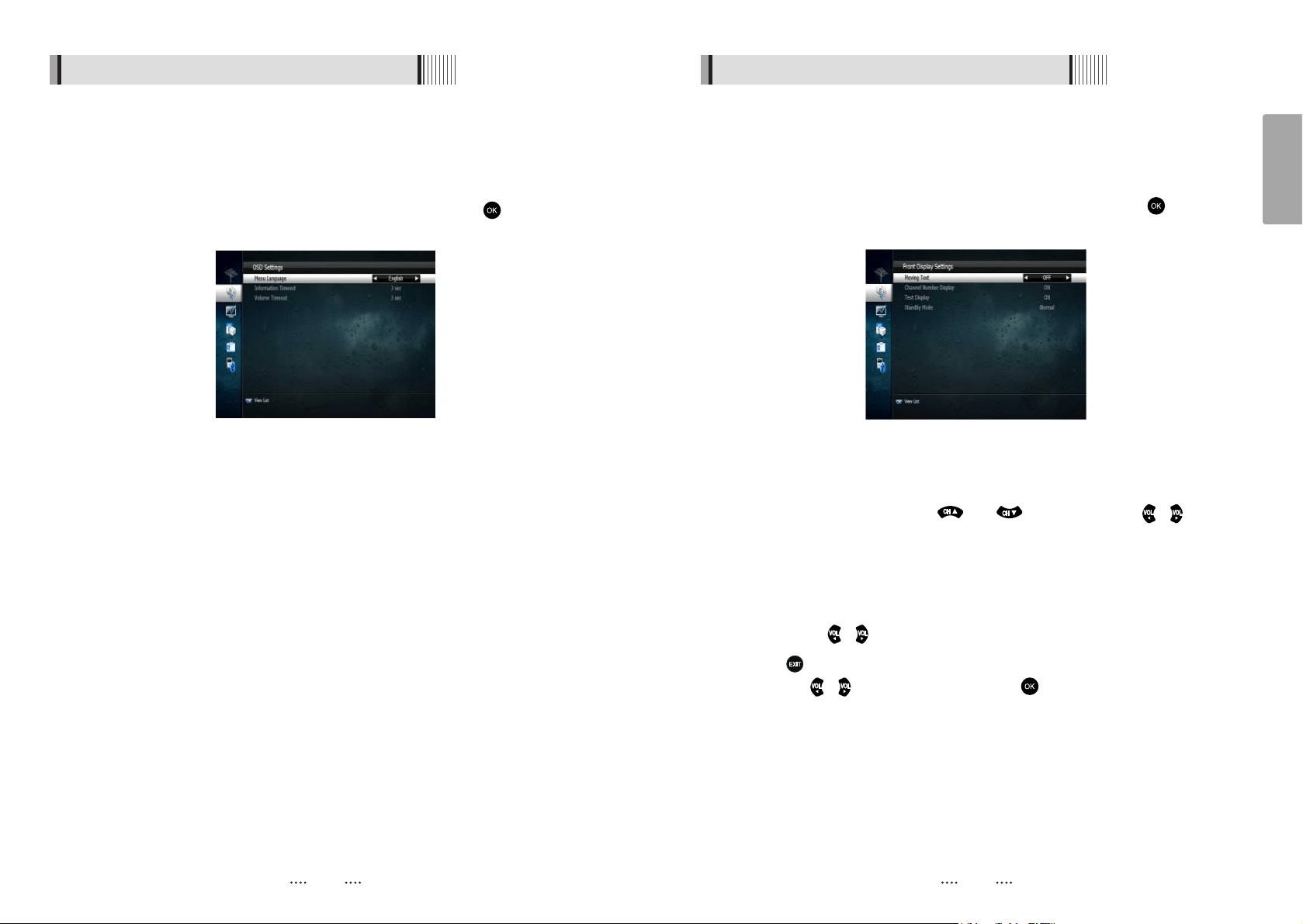
6) On Screen Settings
Using this menu, you can select the menu language and the duration that the display
and volume bars are shown on the screen.
<Figure 6.2.9>
Use the scroll buttons to highlight and adjust your selections and press button to
confirm.
<Figure 6.2.9>
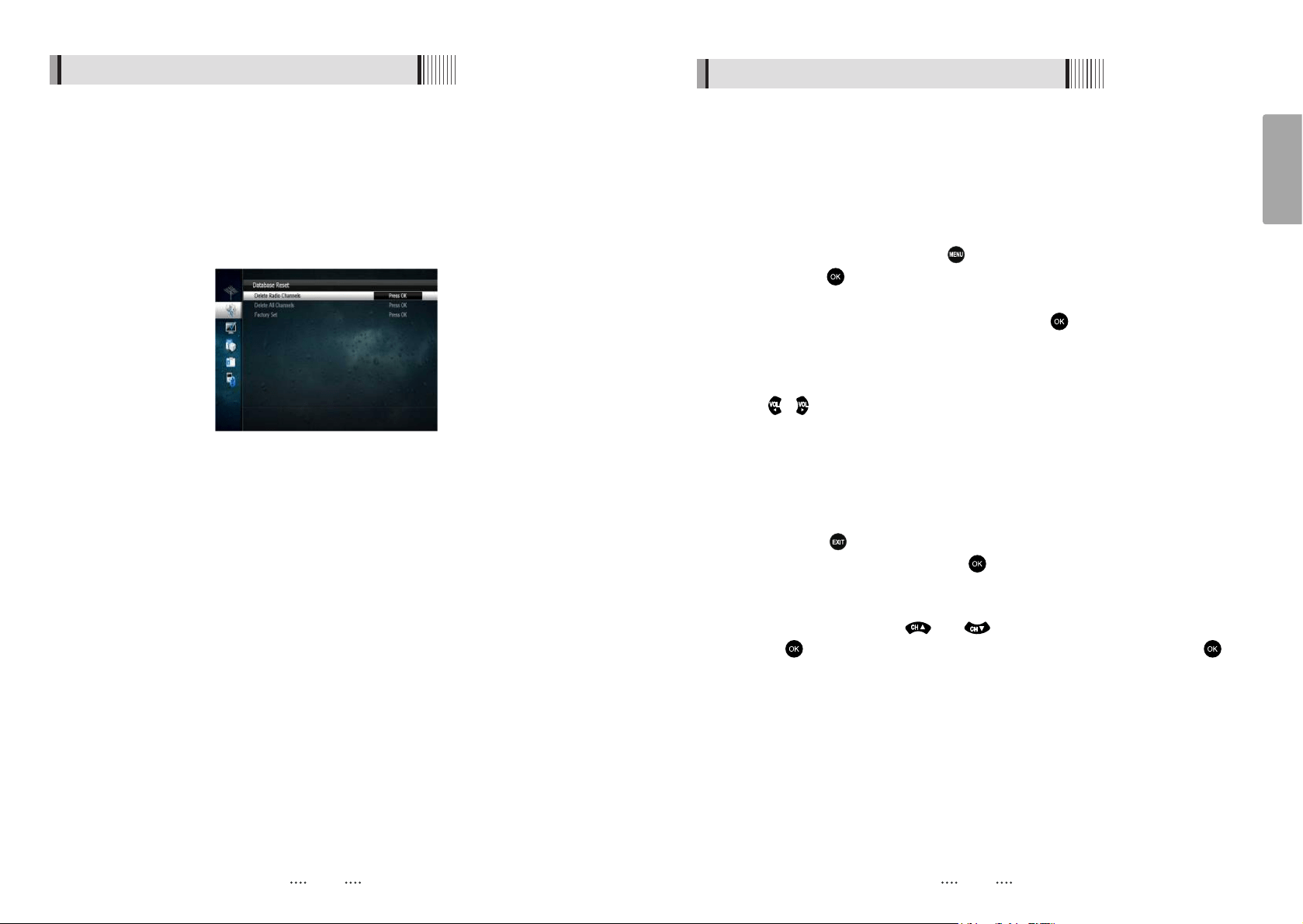
7) Front Display Setting
This function enables you to set the front display settings.
Moving text can be enabled or disabled and Channels can be set to display Channel
Name or Name and Numbers.
Use the scroll button to highlight and adjust your selection and press the button to
confirm. <Figure 6.2.10>
- Standby Mode (Selecting Power Saving or Normal)
Highlight standby mode using the and arrow keys. Use the / arrow
keys to adjust your selection.
Ү
Power Saving : Set Power Saving to ON using the left and right arrow keys for the
receiver to consume less power whilst in standby
Ү
Normal : Should you wish to access your televisions inbuilt tuner whilst your STRONG
DVR is in standby you will need to set the Standby Mode to Normal. Using
the / arrow keys set Standby Mode to Normal.
Press the button, you will be prompted whether you wish to save the settings select
Yes using the / arrow buttons and press the button
<Figure 6.2.10>
28
English
6.2 System Setting
27
6.3 Channels
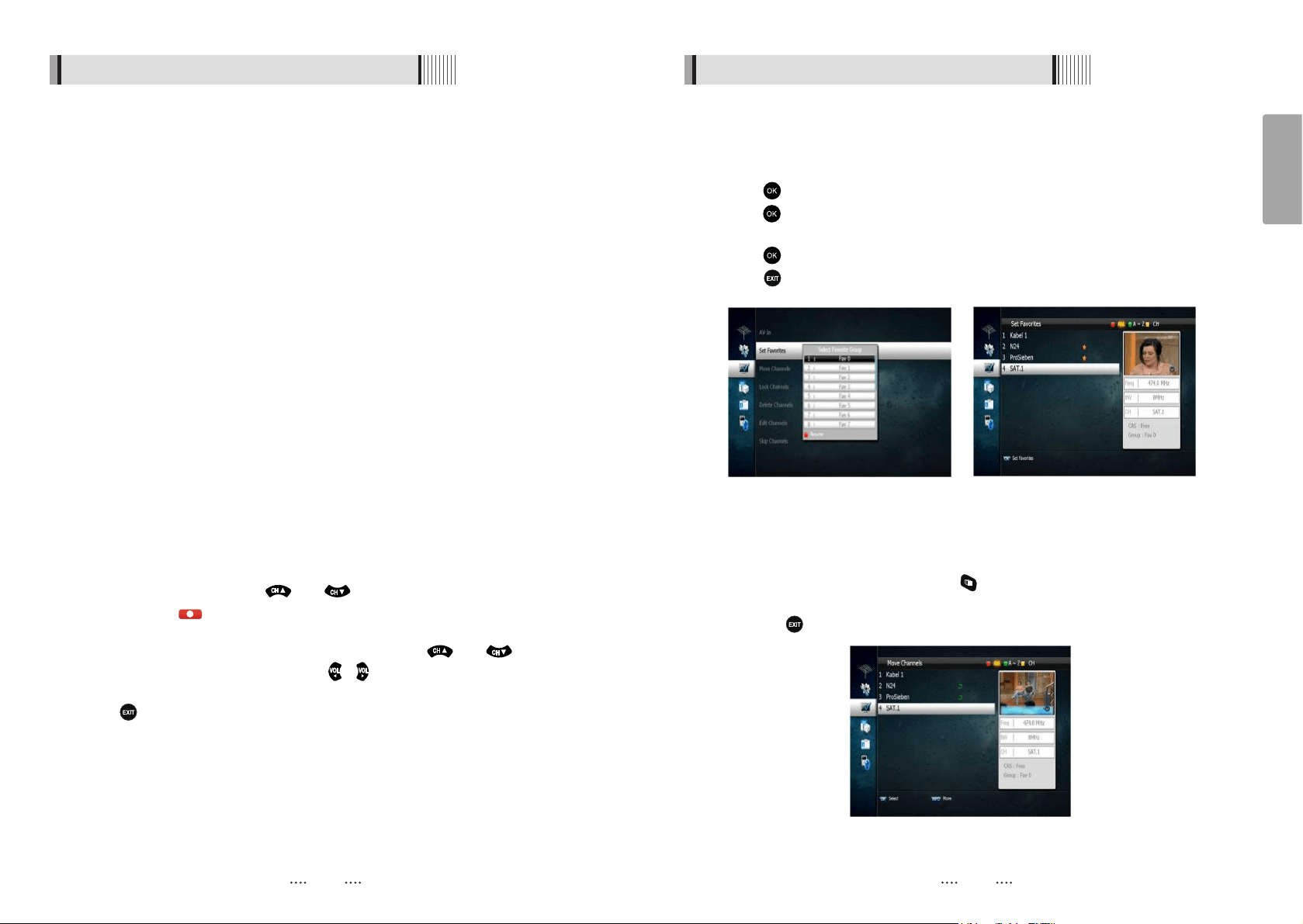
8) Database Reset
<Figure 6.2.11>
This section allows you to reset the receiver to the factory settings.
- Delete Radio Channels : Erase all radio channels in the database.
- Delete All Channels : Erase all channels.
- Factory Set : Erase all channels and restore the factory default settings.
Please note that a factory reset is required to be performed after a software upgrade
<Figure 6.2.11>
1) AV In (AV Input Channel)
Ү
Your STRONG SRT7014 incorporates an AV Input feature that will allow you to record
from any external video source to the internal HDD, such as Pay TV, Gaming consoles,
Camcorders and many others
Ү
You can connect your external audio/video source either via Component or
Composite Video cables and Audio Left and Right RCA cables
Ү
To activate the AV In feature press , using the arrow buttons highlight Channels
and press the button. You will be prompted to enter your PIN (the default PIN
number is ‘0000’) to access this menu.
Ү
Using the arrow buttons highlight AV In and press the button, the AV In menu
screen will be displayed
Ү
With AV Input highlighted, using the arrow buttons select ON
Ү
To set the Input Selection, use the arrow down button select Input Select, now using
the / arrow buttons select the appropriate connection type.
Ү
If you have connected your external video source via Component (Red, Green and
Blue RCA cables) select YCbCr
Ү
Video source must be set to 576i when connecting via component.
select CVBS
Ү
Now press the button, you will be prompted to save these settings. Using the
arrow buttons select Yes and press the button.
The AV Input channel will be added in the channel list at the last position.To access the
AV In channel press the AV IN button on the remote control. You can also access the
AV In channel by pressing the and buttons until it is displayed or alternatively
press the button to bring up the Channel List. And select AV In by pressing the
button.
Ү
If you have connected your external video source via Composite (Yellow RCA cable)
30
English
29
6.3 Channels
6.3 Channels
Ү
The RCA Splitters have 1 x RCA Socket on one side and 2 x RCA Sockets on the other
side.
Ү
Connect the Yellow (Video Signal), Red (Audio Output Right) and White (Audio
Output Left) into the single RCA socket of each splitter.
Ү
Using the supplied RCA Composite cables, connect both sets of RCA cables into the
RCA Splitters.
Ү
The 2 x Yellow (Video Signal) plugs should be connected to the 2 x RCA sockets of
the splitter that has the Yellow (Video Signal) plug connected to it from the gaming
console.
Ү
The 2 x Red (Audio Output Right) plugs should be connected to the 2 x RCA sockets
of the splitter that has the Red (Audio Output Right) plug connected to it from the
gaming console.
Ү
The 2 x White (Audio Output Left) plugs should be connected to the 2 x RCA sockets
of the splitter that has the White (Audio Output Left) plug connected to it from the
gaming console.
Ү
Now connect the RCA Composite cable to the corresponding Video Input socket on
the back of the TV.
Ү
For Right Audio, connect the red lead the corresponding Right Audio Input socket on
the back of the TV.
Ү
For Left Audio, connect the white lead to the corresponding Left Audio Input socket
on the back of the TV
Once you have connected the desired device to the AV Input channel of the receiver,
select the AV In channel using the and keys or by pressing the AV IN button.
To record press the button, the receiver will immediately begin recording the AV In
channel for the default time of 3:00 Hours. To change the default time, press the Record
button again to bring up the record duration setting. Using the and arrow
buttons highlight Duration and then using the / arrow keys increase or decrease
the recording duration.
Press the button to leave this menu.
Now using your TV remote control select the AV Channel that you have connected the
RCA cables to from the splitter. Once you have selected the AV Channel you can view
the camcorder or game play in real time while the SRT7000 records simultaneously.
2) Setting Favorite Channels
This section allows you to select up to 16 groups of favorite channels in either TV or
Radio.
⊹
Press on “Set Favorites” and the group lists will be displayed <Figure 6.3.1>
⊺
Press button to choose a group and a new menu will appear <Figure 6.3.2>
To change the name of the group press the RED button
⊻
Press to add or remove a channel from the list
⊼ Press button to return to the previous menu.
<Figure 6.3.1> <Figure 6.3.2>
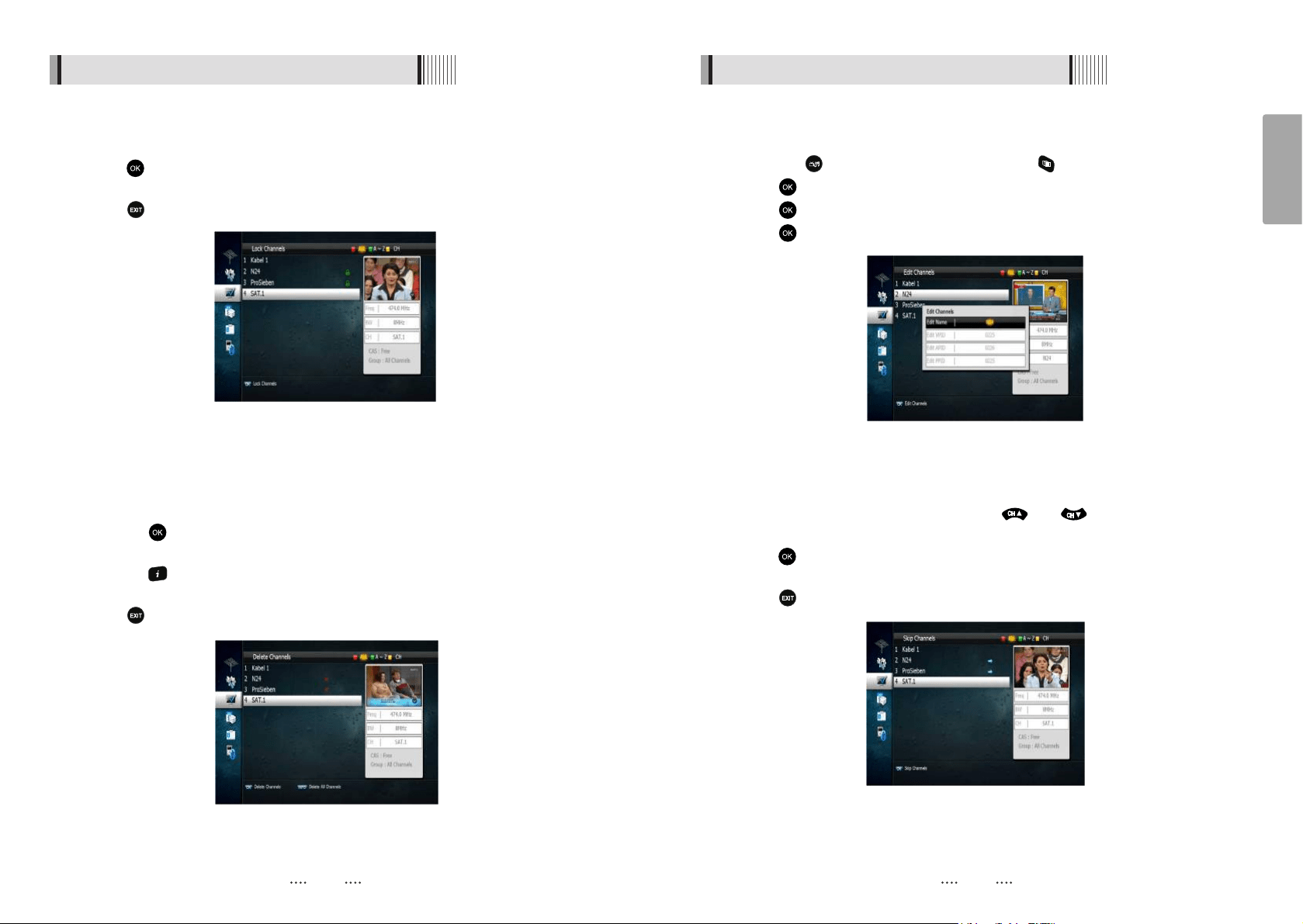
3) Move Channels
By navigating through this section you can change the channel sequence.
⊹
Choose the channel list by pressing the button, use the cursor keys to select the
desired options. <Figure 6.3.3>
⊺
Press the button to return to the previous menu.
<Figure 6.3.3>
32
English
31
6.3 Channels 6.3 Channels
4) Lock Channels
This feature allows you to lock a specific channel so it will require a password to access it.
⊹
Press button on the “Lock Channels” and follow the on-screen prompts to set the
function. <Figure 6.3.4>
⊺
Press to return to the previous menu.
<Figure 6.3.4>
5) Delete Channels
This function allows you to delete a channel selection.
ҫ
NOTE : Deleting a channel means you will not be able to access it until you rescan.
⊹
Press the on “Delete Channel” and follow the screen prompts to activate this
feature. <Figure 6.3.5>
⊺
Press the button to delete all channels in the current list; you will be asked to enter
your password.
⊻
Press to return to the previous menu.
<Figure 6.3.5>
6) Edit Channels
This section lets you rename and edit channels. You can select from Radio or TV by
pressing the button or a channel by pressing the button.
⊹
Press button on “Edit Channels” and a new menu will appear <Figure 6.3.6>
⊺
Press button on the desired channel
⊻
Press button on “Edit Name” to rename the channel using the displayed keypad
<Figure 6.3.6>
7) Skip Channels
This feature skips a set channel when using the and buttons to navigate
channels.
⊹
Press on the “Skip Channels” and follow the on-screen prompts to activate the
feature on the selected channels. <Figure 6.3.7>
⊺
Press to return to the previous menu.
<Figure 6.3.7>
33 34
English
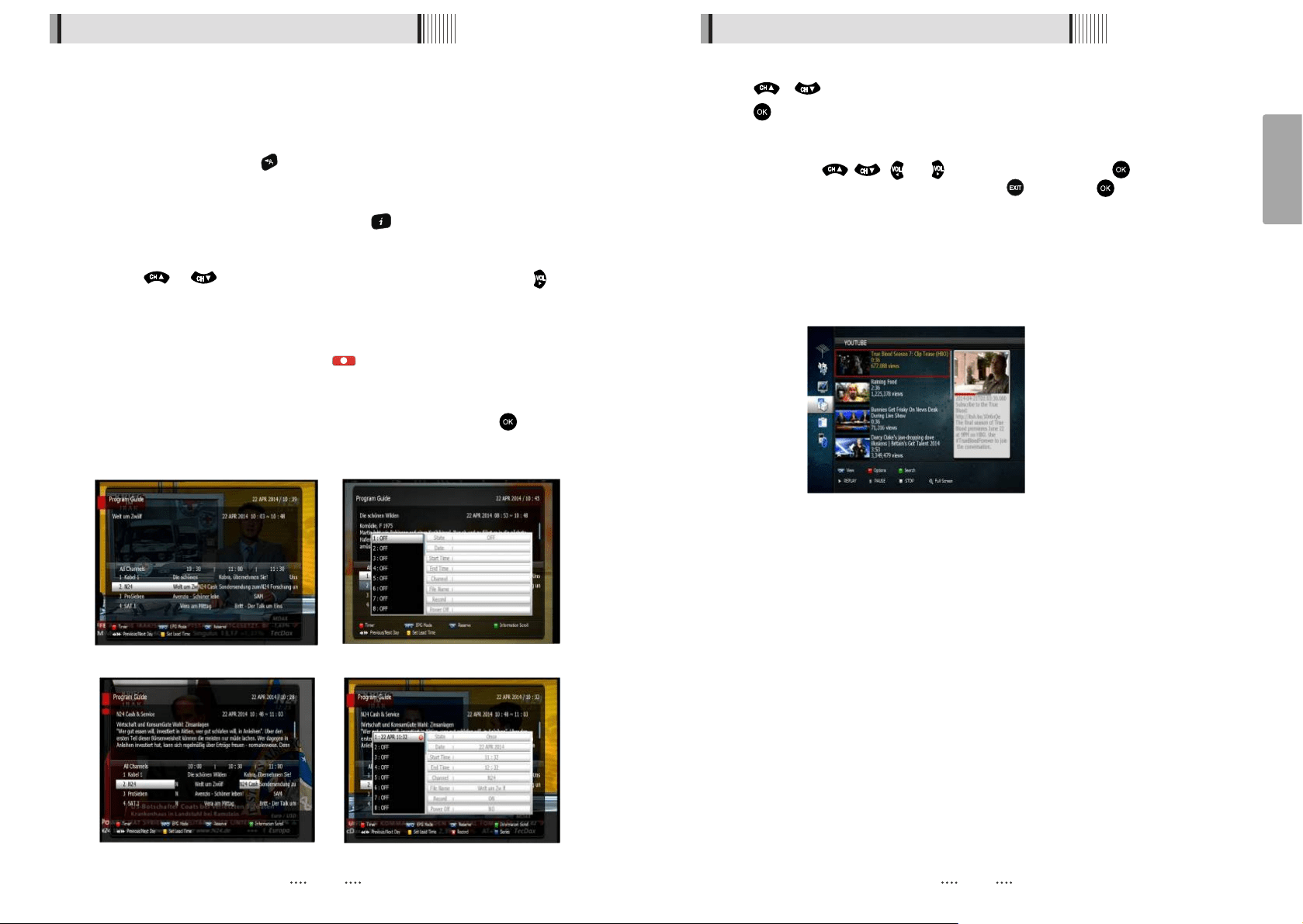
1) EPG
⊹
An EPG (Electronic Program Guide) is an on screen list displaying scheduling
information for current and upcoming programming from all Free To Air broadcasters
for the next 7 Days.
⊺
To access the EPG press the button, the list of channels will be displayed in the
left window and the programming information for the selected channel will be
displayed in the right window
Use the or arrow buttons to select the desired channel. Press the arrow
button to access the programming information for the desired channel
⊼
By selecting the desired program, detailed program information will be displayed in
the top pane of the EPG screen
⊽
To Record a selected program press the button (Refer to the ‘How To Record on
your STRONG SRT 7014 Digital Video Recorder’ section for recording instructions via
the EPG
⊾
To Reserve a program for viewing, select the program by pressing the button. This
will highlight the program. You receiver will now automatically display this program
when it begins even if you are watching another channel
<Figure 6.4.1> <Figure 6.4.2>
<Figure 6.4.3>
<Figure 6.4.4>
⊻
You can change the EPG mode by pressing the button. By pressing Info the EPG
mode will change from single channel display. Please note single channel display is the
⊿
default setting.
6.4 Electronic Program Guide
6.5 Entertainment
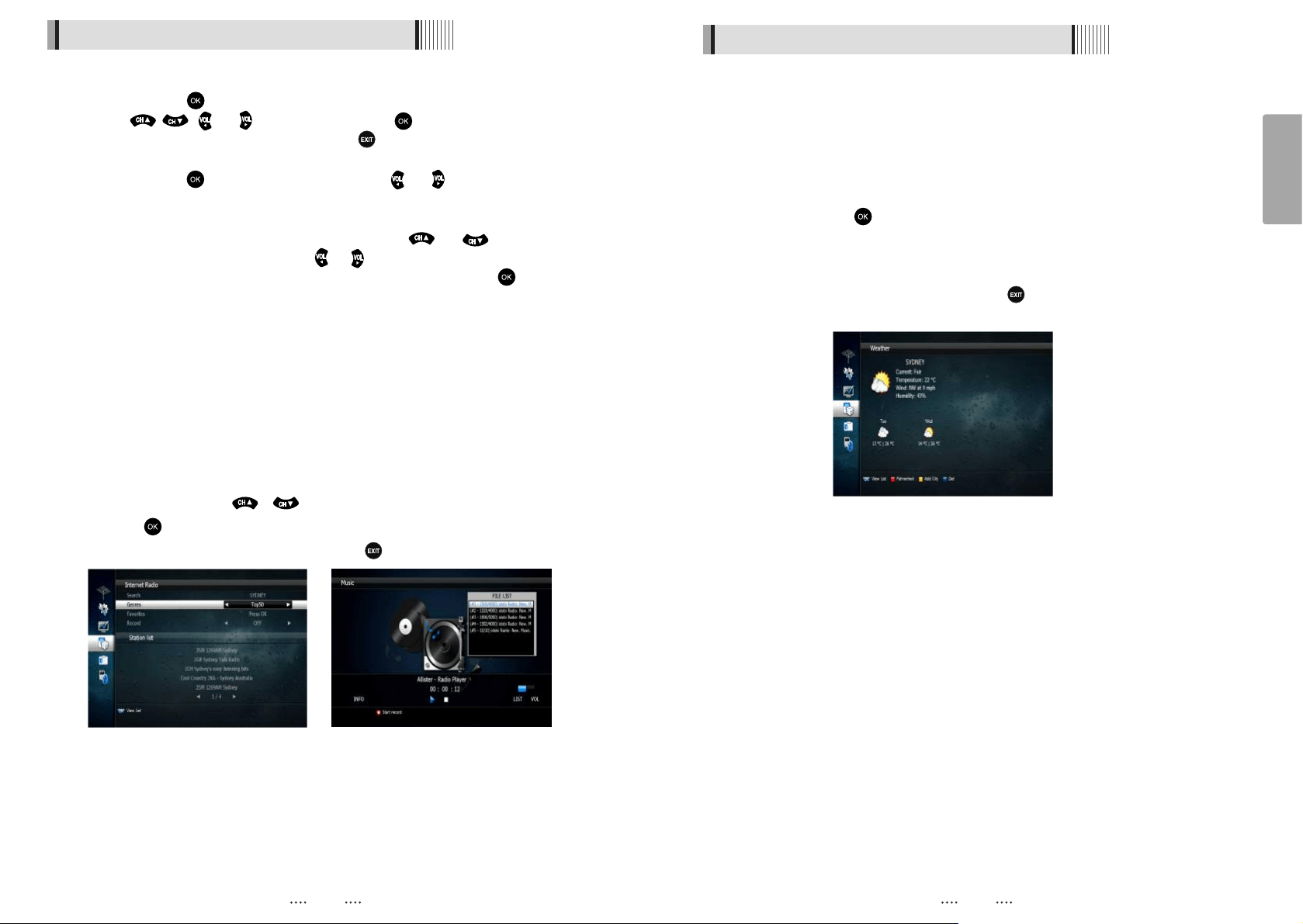
1) YOUTUBE
⊹
/ : To select Youtube feature.
⊺
: To play desired clip.
- Option : Allows you to set search parameters by Category. Viewed, Time, Location.
- Search : Use this to search by key word. Use the virtual keyboard to enter the search
- Next : To move to the Next page of the search results.
- Previous : To move to the previous page of the search results.
- REPLAY : To replay the current clip.
<Figure 6.5.1>
- PAUSE : To pause the playing clip.
- STOP : To stop the clip.
- Fullview : To view the clip in full screen.
name using the , , and arrow buttons and press the button to select.
Once you have entered the search name press to save and to start search.
36
English
35
6.5 Entertainment
3) Weather
⊹
Press BLUE button to be begin search for a city.
⊺
Enter the City name using the virtual keyboard.
⊻
Press to save and exit the window.
6.5 Entertainment
2) Internet Radio
- Search : Press the button to display the virtual keyboard to search by key word.
Once you have entered the search name press to save and then press
- Genres : Press the button to view the list or use the and arrow buttons to
⊹
⊺
⊻
Search Radio channel by Key word or Genre.
Select a channel by / <Figure 6.5.2>
Press to play Radio.
⍢
To exit and return to the main menu press the button on the remote control.
<Figure 6.5.2> <Figure 6.5.3>
- View List : Press the button to view and select the saved list of cities.
- Fahrenheit / Celsuis : To display the temperature in your desired measurement.
- Add City : Press the YELLOW button to add a City to the list.
- Del : Press the BLUE button to delete the City in list.
<Figure 6.5.4>
select the Genre you wish to search by. Once you have selected the Genre press
the RED button to begin search.
Search results will be displayed in the Station List. Use the and arrow buttons
Use the , , and arrow buttons, press the button to select.
the RED button to begin search.
to select the desired station and use the and arrow buttons to move to the next
page of stations in the list. Once you have selected the station press the button
to load this radio station. Playback will begin once buffering is complete.
- Favorites : To set favorite channels highlight the channel you wish to add to your favorites list
and press the GREEN button. Channels you have selected as favorites will be added to
your favorites list.
- Record : To record Radio that you are currently listening to press the Record button.
To stop recording press the record button agian.
Recorded radio programs can be accessed via the Media Manager menu under
file manager and selecting Music.
Your selection will be displayed.
⍢
To exit and return to the main menu press the button on the remote control.
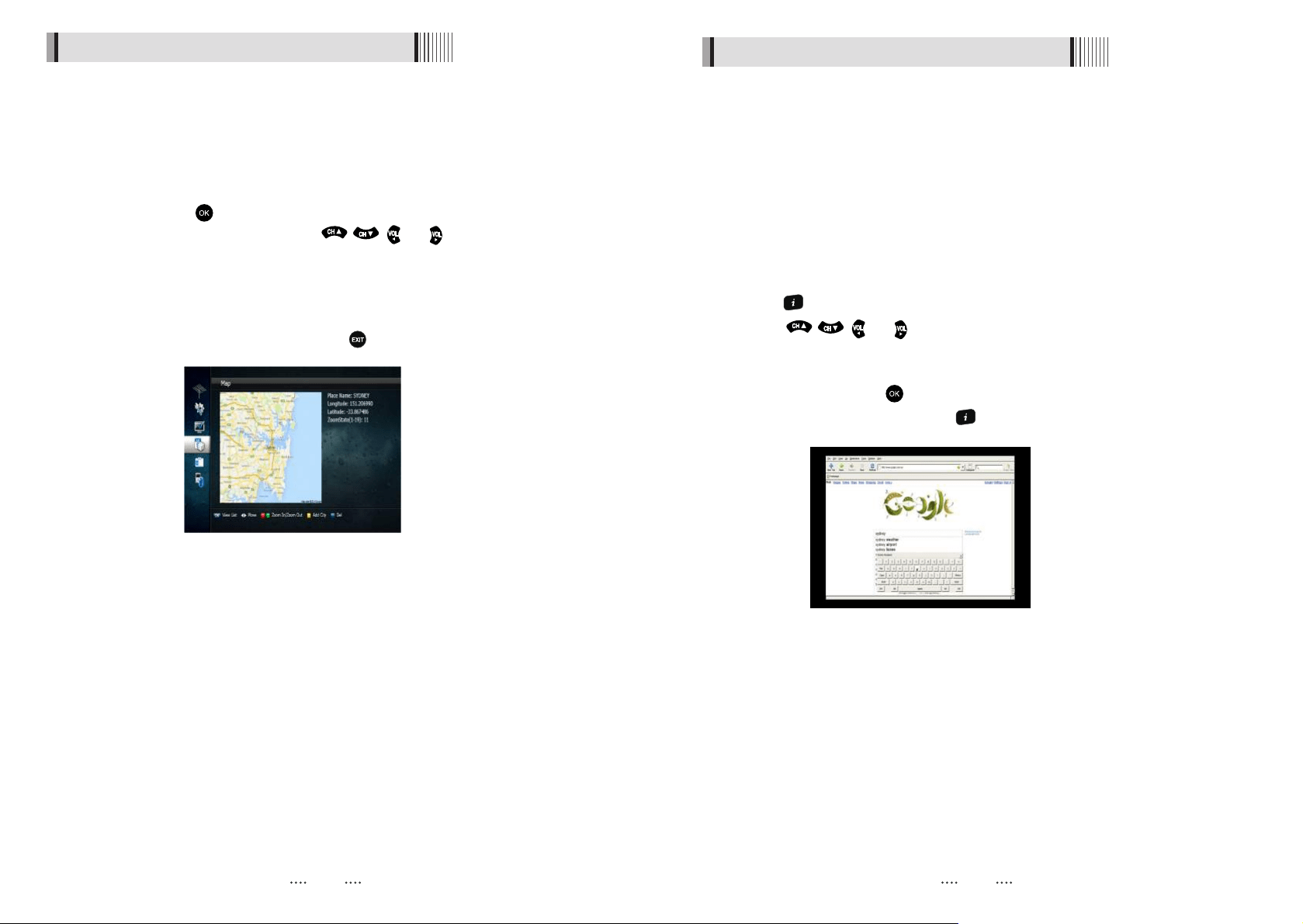
4) MAP
Searching the MAP for City.
⊹
Press BLUE button to begin search.
⊺
Enter the City or Country name using the virtual keyboard.
⊻
Press to save the search and exit the window.
- View List : Press the button to view the saved search list.
- Move : To move around the map use the , , and buttons.
- Zoom In : To enlarge the size of the MAP press the RED button.
- Zoom Out : To reduce the size of the MAP press the GREEN button.
- Add City : Press the YELLOW button to add a City to the savd list.
- Del : Press the BLUE button to delete the CIty in list.
<Figure 6.5.5>
6.5 Entertainment
6.5 Entertainment
3837
⍢
To exit and return to the main menu press the button on the remote control.
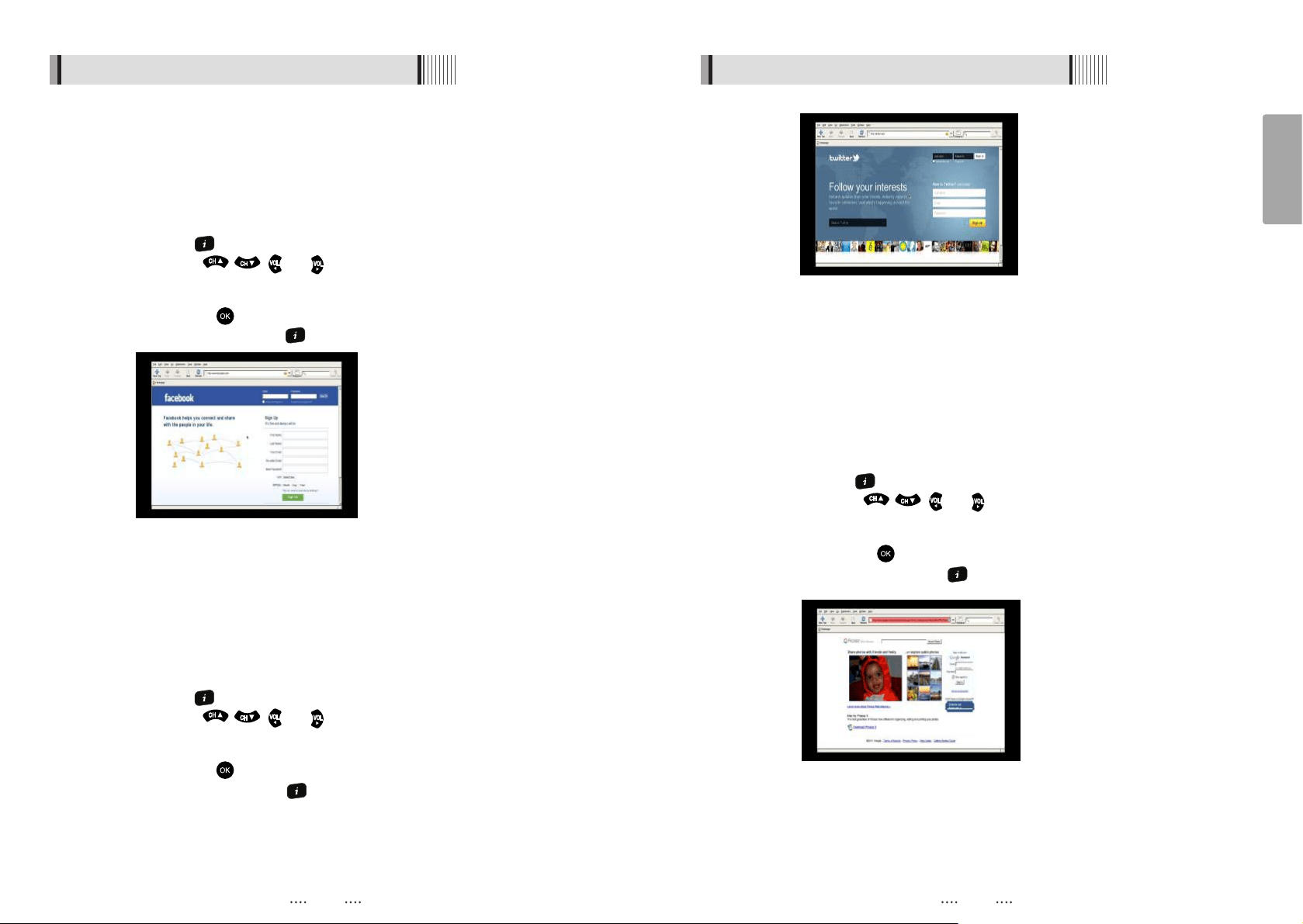
5) Web Browser
The SRT7014 has an inbuilt web browser similar to what you will find on your PC.
You can navigate the internet by either connecting an external USB wireless keyboard
and mouse or via your iPhone / iPad or Android device.
Press Enter to close Key board.
<Figure 6.5.6>
For instructions on how to turn your handheld device into a remote control and keyboard
please refer to the separate instructions supplied titled, Remote Apps for SRT7014.
You can also access the web browser feature using the virtual remote control built in to
your SRT7014.
Press the button on the remote control to display the virtual keyboard on the screen.
Using the , , and arrow buttons you can navigate around the screen and
around the virtual keyboard.
To select an option or and item from the virtual keyboard, place the cursor over the
desired item and press the button.
To close the virtual keyboard, press the button on the remote control.
English
6.5 Entertainment
The SRT7014 has an inbuilt Facebook app.
As in the web browser you can navigate your Facebook page by either connecting
6.5 Entertainment
7) Twitter
<Figure 6.5.8>
8) Picasa
<Figure 6.5.9>
4039
6) Facebook
<Figure 6.5.7>
and external USB wireless keyboard and mouse or via your iPhone/iPad or Android device.
For instructions on how to turn your handheld device into a remote control and keyboard
please refer to the separate instructions supplied titiled, Remote Apps for SRT7014.
You can also access your Facebook page using the virtual remote control built in to
your SRT7014. Press the button on the remote control to display the virtual keyboard
on the screen. Using the , , and arrow buttons you can navigate around
the screen and around the virtual keyboard.
To select an option or an item from the virtual keyboard, place the cursor over the
desired item and press the button.
To close the virtual keyboard, press the button on the remote control.
The SRT7014 has an inbuilt Twitter app.
As in the web browser you can navigate your Twitter page by either connecting
and external USB wireless keyboard and mouse or via your iPhone/iPad or Android device.
For instructions on how to turn your handheld device into a remote control and keyboard
please refer to the separate instructions supplied titiled, Remote Apps for SRT7014.
You can also access your Twitter page using the virtual remote control built in to
your SRT7014. Press the button on the remote control to display the virtual keyboard
on the screen. Using the , , and arrow buttons you can navigate around
the screen and around the virtual keyboard.
To select an option or an item from the virtual keyboard, place the cursor over the
desired item and press the button.
To close the virtual keyboard, press the button on the remote control.
The SRT7014 has an inbuilt Picasa app.
As in the web browser you can navigate your Picasa account by either connecting
and external USB wireless keyboard and mouse or via your iPhone/iPad or Android device.
For instructions on how to turn your handheld device into a remote control and keyboard
please refer to the separate instructions supplied titiled, Remote Apps for SRT7014.
You can also access your Picasa account using the virtual remote control built in to
your SRT7014. Press the button on the remote control to display the virtual keyboard
on the screen. Using the , , and arrow buttons you can navigate around
the screen and around the virtual keyboard.
To select an option or an item from the virtual keyboard, place the cursor over the
desired item and press the button.
To close the virtual keyboard, press the button on the remote control.
Picasa allows you to share your photos with friends and family online.
English
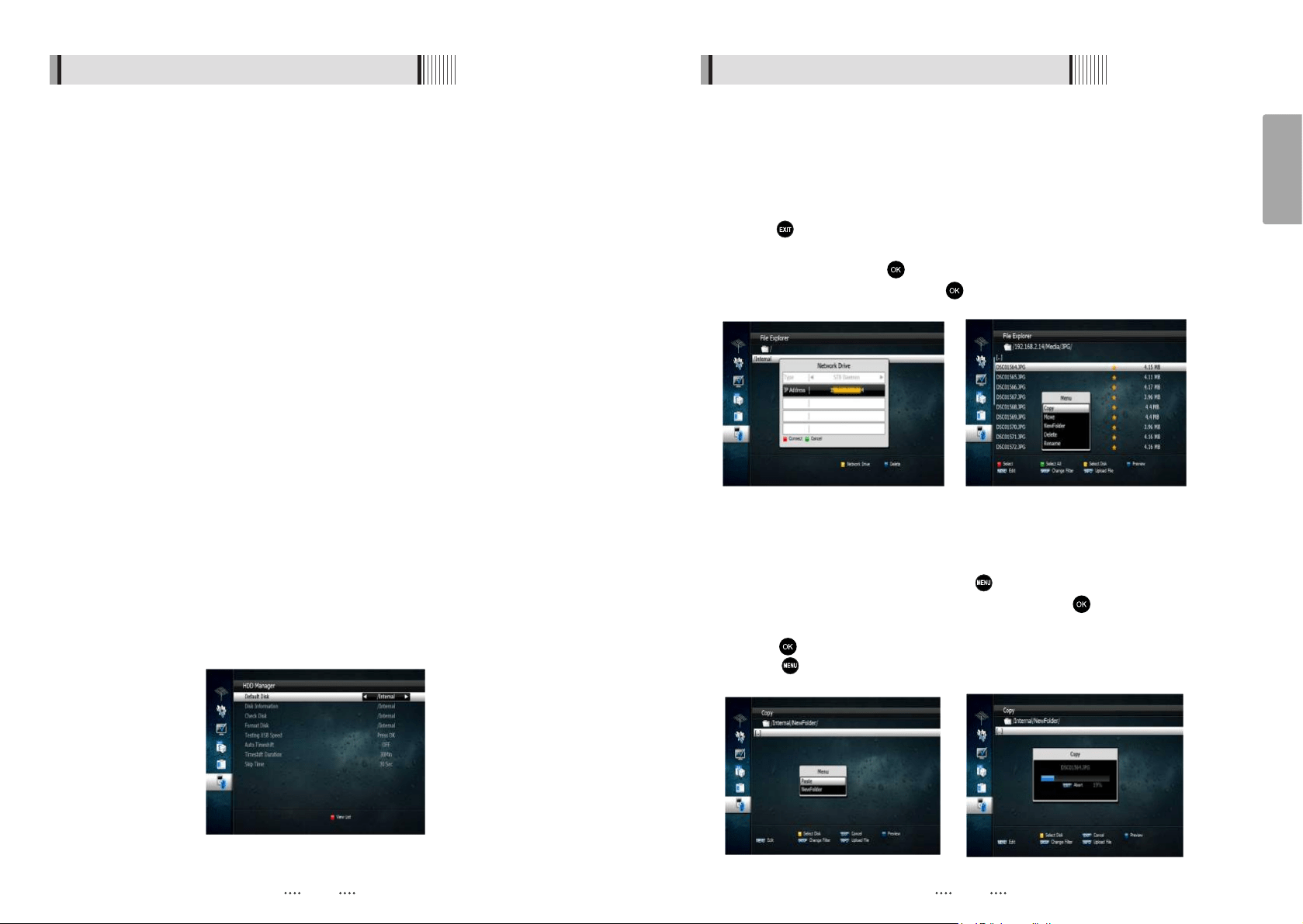
1) Disk Manager
Use the cursor keys to activate the desired functions from this menu.
- Default Disk : If you have additional Storage devices connected to your receiver (i.e.
USB HDD, SD Card Reader) you can select which storage device is to be
the default drive for playback and recording
- Disk Information : Select the Hard disk volume, USB device or SD Card Reader.
Information of the storage devices will be displayed (i.e. used size,
total size, free size)
- Check Disk : Checks the status of the selected Storage device.
- Format Disk : Format disk enables you to delete all information stored on the selected
storage device. There are 2 options in this section.
⍢⍢
Warning : If you select Format Disk all data on the storage device will be deleted
- Testing USB Speed : Press to test USB speed for DVR.
-
- Timeshift Duration: Set the preferred Timeshift Recording Time.
(10Min/30Min/60Min/90min/120min)
- Auto Timeshift : Set Auto Timeshift to On or Off. When set to on unit will automatically
begin Timeshift for pre determined time set in the Timeshift Rec Time
menu.
- Skip Time : Set the preferred amount of Skip Forward and Back time during playback
(5sec/10sec/30sec/1Min/2Min/3Min/5Min/10Min20Min/30Min)
<Figure 6.6.1>
4241
- NTFS (Recommended) : Selecting NTFS will format the storage device to
this format which is recommended for use with the SRT7014.
- EXT3 : EXT3 is a format used with the Linux operating system which the
SRT7014 runs on. We do not recommend that you format storage devices
in this format type if you wish to connect the storage device to a PC.
If connected a separate program will be required for your PC to
recognize the drive.
6.6 Media Manager
6.6 Media Manager
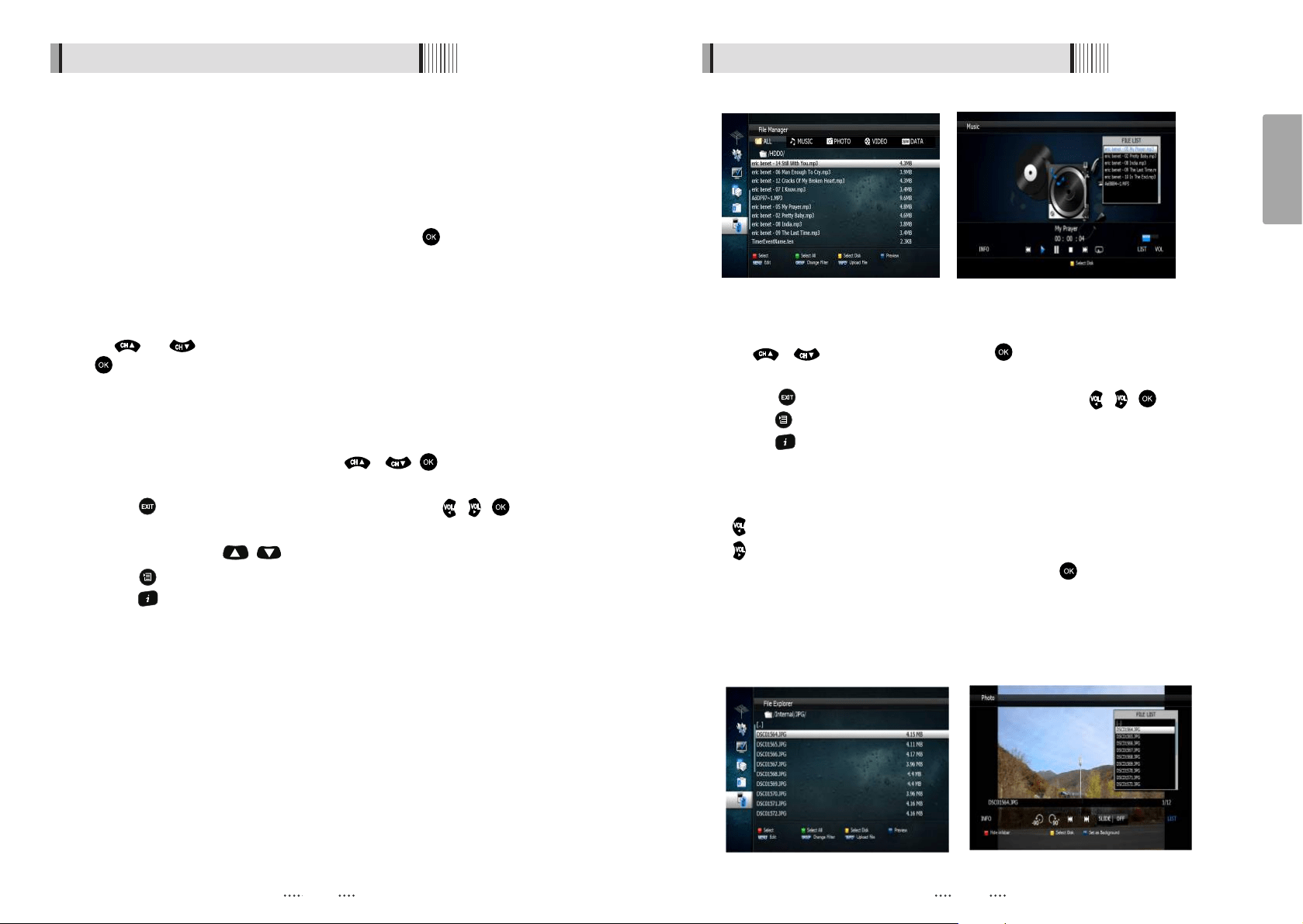
2) File Manager (Transferring Files from your SRT7014 to a PC or external USB HDD)
⊼
Press the RED button on the remote control to select the desired files to be
transferred or press the GREEN button to select all files on the HDD.
⊽
Once you have selected the files press the button to select the desired function
of Move/Copy/New Folder/Delete/Rename by pressing the button
⊾
Select your created Network drive or external USB HDD using the arrow buttons and
⊿
Press the button to transfer the selected files to your Network Drive by selecting
Copy, Paste or Move
⍢⍢
Note : Follow instructions in the “Connecting your receiver to a PC via your network”
section on page 19 if you have not already connected a PC to the SRT7014
⊹
Press the YELLOW button on the remote control to create a new Network
Connection or to select the external USB HDD that you would like to transfer to.
⊺
Press the button after inputting your IP address to add it into the File Manger
section.
⊻
Select/HDD0 by pressing the button, use the arrow buttons to highlight records
on the right hand side menu and press to view the list of recorded files on the
receivers hard drive.
<Figure 6.6.2> <Figure 6.6.3>
<Figure 6.6.4> <Figure 6.6.5>
Use the numeric keys to enter your PC’s IP Address
Transferring Files from your SRT7014 to a PC
press the button
English
- MP3 Playback
⊹
⊺
⊻
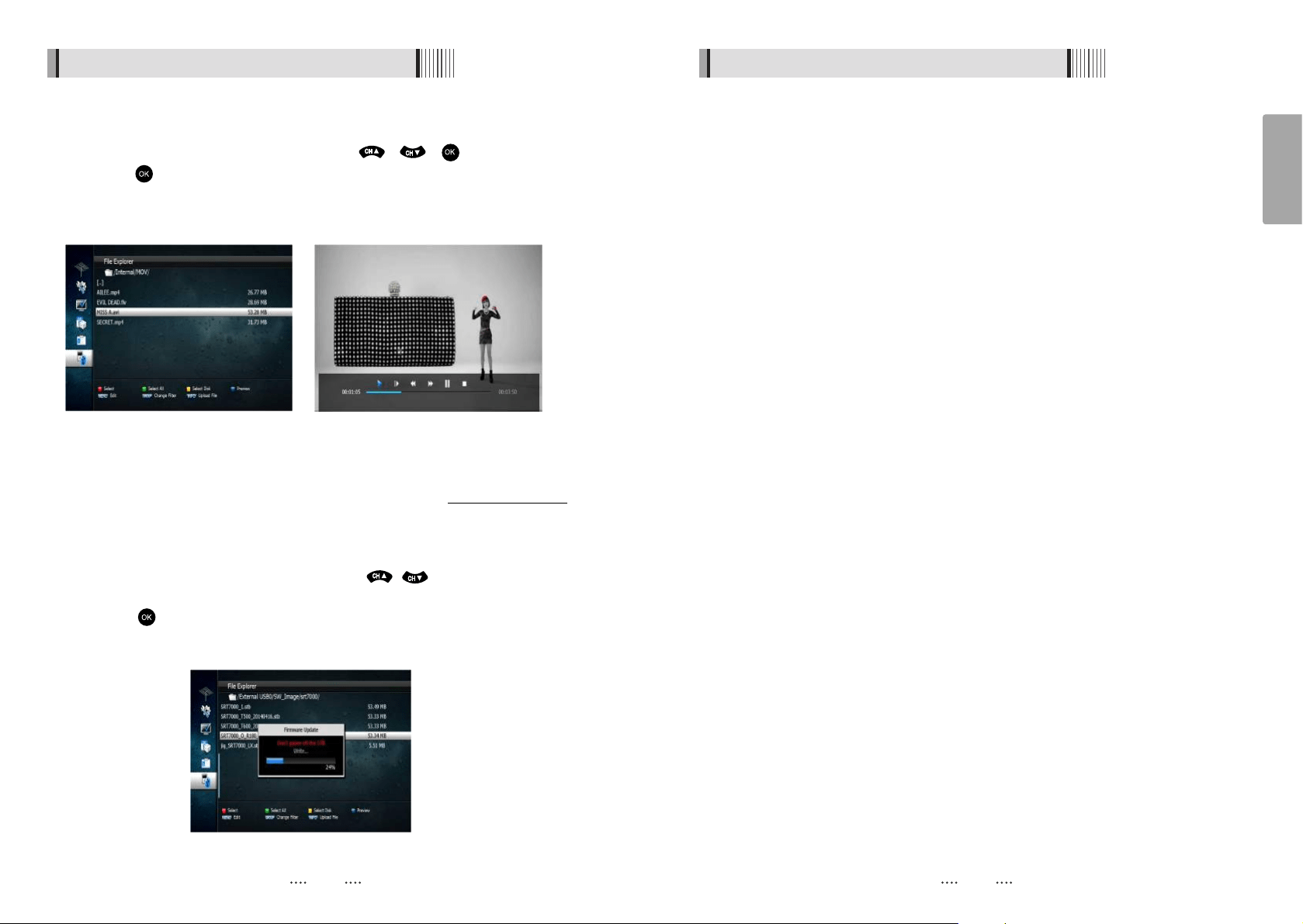
Select the MP3 file you wish to play using the / , in the file list.
Press the button to hide the file list. Select and option using / , .
Adjust the volume using /
Press the button to display the MP3 file list.
<Figure 6.6.6>
<Figure 6.6.7>
⊽
Press the button to display information about the selected MP3 file
LIST : Displays / hides the file list.
Ү
INFO : Displays information about the selected file should further information
Ү
YELLOW : Allows you to select which drive you wish to access should an external
Ү
<Figure 6.6.8> <Figure 6.6.9>
44
Using the GROUP button select MUSIC.
sould further information be available.
be available.
USB HDD be connected.
INFO : Shows information about the selected file.
Ү
Select Disk : Selects the hard disk or USB device on which images are stored on.
Ү
LIST : Shows / Hides the JPEG file list.
Ү
6.6 Media Manager
6.6 Media Manager
<Figure 6.6.6> <Figure 6.6.7>
- PG View
⊹
⊺
⊻
Press / to select a picture then press button to display the selected
Press the button to hide the file list. Select and option using / , .
Press the button to display the JPG file list.
Press the button to display information about the selected MP3 file.
image <Figure 6.6.8>.
<Figure 6.6.9>
-90 Degrees : Rotates the image anticlockwise.
Ү
+90 Degrees : Rotates the image clockwise.
Ү
: Press the Left arrow button to skip to the previous image.
Ү
HIDE infobar bar : Press the RED button to hide the info bar.
Ү
J
Using the GROUP button select MUSIC.
: Press the Right arrow button to skip to the next image.
Ү
SLIDE : Select SLIDE using the arrow buttons and press the button to adjust the
Ү
slide show interval time from 3 seconds, 5 seconds, 10 seconds and OFF.
43
The File Manager menu gives you access to all Media files you have stored on the
To select the storage device you wish to access press the YELLOW button.
- To access the internal HDD select / HDD0
- To access an external HDD select / USB0
Please note if you have no external device connected the receiver will display
all the contents on the internal HDD.
Once you have selected your storage device by pressing the button all files and
folders will be displayed in the list.
To sort files into their appropriate types, use the Group button to select from MUSIC,
PHOTO, VIDEO and SWDATA.
Once you have selected the file type you wish to access, these file types will be
displayed in the list.
internal HDD or any external storage devices you have connected to your SRT7014.
Use the and arrow buttons to select the file you wish to access and press
the button.
Hide infobar : Hide all menu in screen execept picture.
Ү
Set as Background : set a background picture.
Ү
English
3) iShare
The iShare feature of the SRT7014 allows you to stream, view and access content
from Apple and Android mobile devices.
4645
6.6 Media Manager
6.6 Media Manager
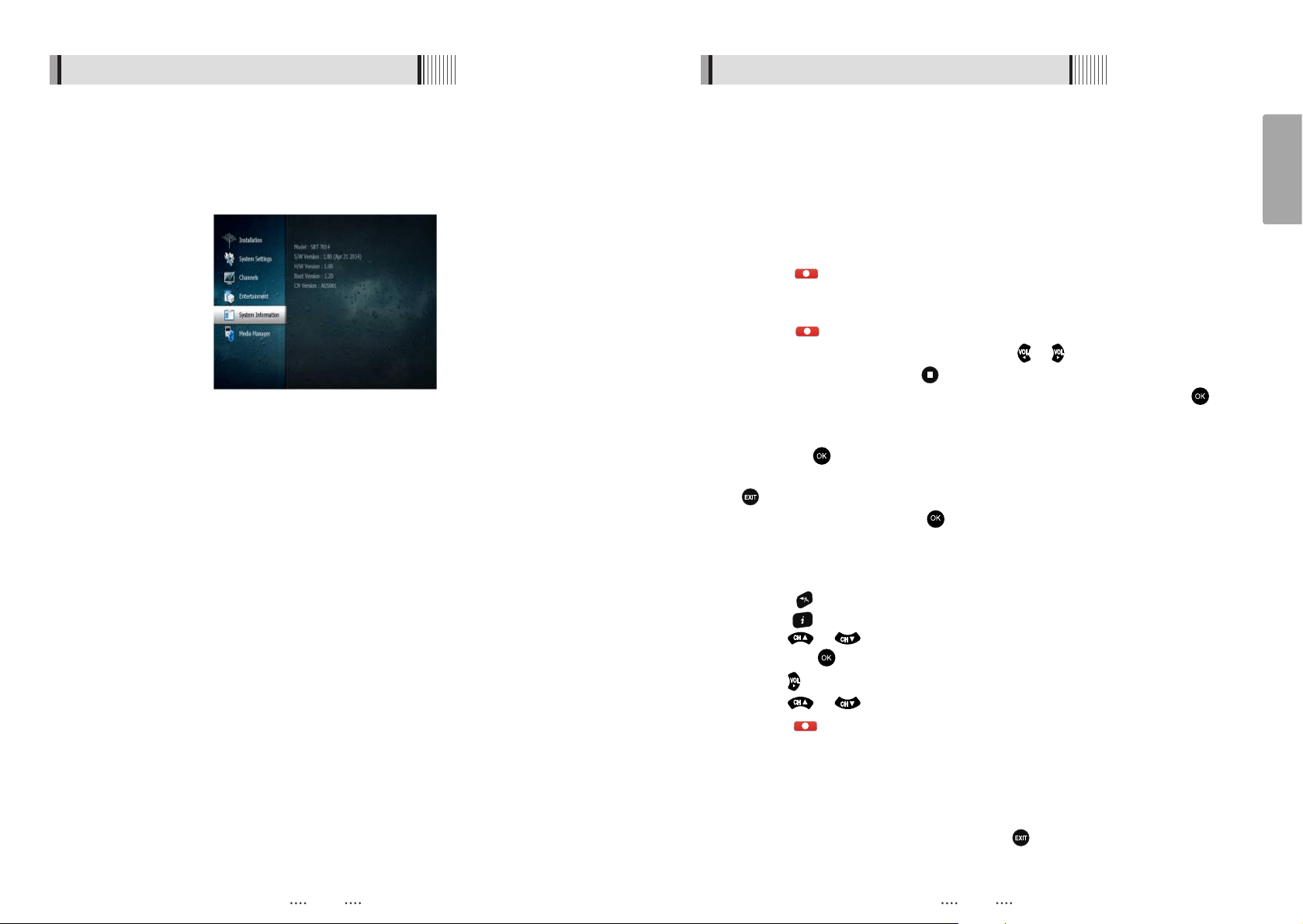
- VIDEO Play
⊹
Select the video file you want to play using the / , in the file list.
Press the button to begin playback of the selected video file. Once playback
<Figure 6.6.10> <Figure 6.6.11>
- Update (Firmware, Channel)
Select the software you want to update by using / in the menu.
Press the button to start the update.
<Figure 6.6.12>
⍢
Warning : do not switch off your receiver before the download is complete.
<Figure 6.6.12>
Using the GROUP button select VIDEO.
has commenced all standard DVR buttons are active, Play, Pause, FF, RW, Skip Fwd,
Skip Back and Stop.
For full instructions on the iShare feature please refer to the separate iShare flyer
that came with your SRT7014.
⊻
⊹
⊺
You can find software updates for this model on our website at www.strong.com.au.
Go here to download the latest version and place it onto the root directory of a USB
drive do the following with the unit turned on and running, go to Menu Media Manager
File Explorer External USB
ᵎ
ᵎ
ᵎ
English
6.8 DVR
1) How to record on your STRONG SRT 7014 Digital Video Recorders internal
HDD
or a previously recorded program via 2 networks. E.G. Record Channel 7,
- Instant Recording
This method can be used if the program you wish to record is currently showing.
Ү
Switch your DVR to the channel that you wish to record.
Ү
Press the button on your STRONG remote. The receiver will automatically begin
recording.
Ү
Please note that the default record duration is 3 hours. If you wish to change this,
press the button again and a banner will appear where you can set your
desired record start and stop duration using the or arrows.
Ү
To stop the recording press the button on the remote control. You will be
prompted to confirm that you wish to stop recording. Select Yes and press the
button.
Ү
If you are recording more than one program, select the recording you wish to stop by
pressing the button on that recording. A tick will be placed in the box next to
that recording. Once you have selected the recording(s) you wish to stop, press the
button. You will then be prompted to confirm the stop operation. Select Yes using
the arrow buttons and press the key to stop recording
- EPG (Electronic Program Guide) Series Recording
whole series with the touch of button.
Ү
Press the button on your Strong remote.
Ү
Use the or buttons to highlight the channel for the program you wish to
record. Press .
Ү
Use the button to highlight the program name section of the EPG menu.
Ү
Use the or buttons to highlight the program you wish to record.
Ү
Press the button while this program is highlighted. The selected program will then
appear in orange. All subsequent programs in this series sill have a blue dot with a white S
Ү
Once you have set the series record press the key to return to normal viewing.
6.7 System Information
Your receiver displays current information <Figure 6.7.1> regarding model name, software
version and date of manufacture. This info is useful when downloading new software.
Please note if you have performed a software update you must also perform a factory
reset of the receiver. Please see Database Reset section in the Systems settings menu for
instruction on page 23.
<Figure 6.7.1>
4847
The SRT7014 allows you to record 3 channels simultaneously while watching a 4th
There are 4 ways to record TV programs on your STRONG DVR:
7 TWO, Channel 9 and watch GO. Or a previously recorded program.
This method of recording is unique feature that allows you to set the receiver to record a
next to the program name indicating that it is set to record as part of the series. This series
will record every program when it is aired until the series record is cancelled. A series
recording can be cancelled by either selecting the program in the EPG and pressing
the BLUE button again or by deleting the timer setting in the Timer Manager menu.
⍢
Please Note : Setting series recordings may create undetected timer conflicts as EPG
data is only available for 7 days in advance.
Ү
Press the button to select EPG mode.
English
6.8 DVR
3) Record on your STRONG SRT 7014 Digital Video Recorder using an external
HDD via USB
Ү
You can expand the storage capacity of your STRONG DVR by connecting an
external HDD via the front or rear USB ports
Ү
Before connecting the external HDD you will need to format the drive.
Instructions on how to do this can be found on our website www.strong.com.au
in the FAQ section.
Ү
To record to the external HDD you will need to select it in the Menu. Press the
button and using the and arrow buttons select Media Manager by pressing
button. This will display the Media Manager Menu. Using the and arrow
buttons select HDD Manager and press the button. This will display the HDD
Manager Menu. The first item in the list is Default Disk. This will currently be displaying
/Internal which corresponds to the internal HDD. To set the default disk to your external
HDD press the or arrow buttons until /External USB0 is displayed. This corresponds to
your external USB. Once you have selected /External USB0 press the button, you will be
prompted to save the changes made. Select Yes using the or arrow button
and press the button. The default disk is now set to the external HDD
Ү
You can now perform all the recording options listed above using the external USB
Ү
To set the default HDD back to the internal drive simply remove the external USB.
Ү
Should you wish to have the external drive permanantly connected follow the abve
instructions to select which HDD to record onto.
2) Timer Lead In and Lead Out Times
Ү
Lead In and Lead Out Times can be set on your DVR to apply to all Timer recordings.
Lead In and Lead Out times add specified amounts of time to the beginning and the
end of Timer recordings so you dont miss the begining or end of recorded programs.
Ү
To set Lead In & Out times press and then press yellow key.
This will display the popup menu, and allow you to set the Lead in & out times to either
5,10 or 15minutes.
- Manual Timer Record
This method can be used to record at specific times.
Ү
Press the button on your STRONG remote.
Ү
Press the RED coloured key on your STRONG remote.
Ү
Use the or buttons to highlight a slot that is “OFF”.
Ү
Press on your STRONG remote to select this timer slot.
Ү
Use the or to change the “State” to how often you want the DVR to record at
the desired time (Once, Daily, Weekly, Mon-Fri or Series).
Ү
Use the button to highlight the next option, and the or buttons to change
the setting for each option.
Ү
If you want the receiver to power off once the recording has finished, in the Power
Off section select Yes by pressing the or arrow keys
Ү
Once the last option is set and the button is pressed, you will see “Do you want to
save?”.
Ү
Use the or buttons to highlight Yes and press the button.
Ү
Press the key twice to return to normal viewing.
6.8 DVR
5049

English
6.8 DVR6.8 DVR
4) Playing Recorded TV programs:
Ү
To access any programs you have recorded press the button on your remote
control. The full list of the programs you have recorded will be displayed on the
screen.
Ү
To play these programs highlight them by using the and arrow buttons
and select them by pressing the button, this will preview the program. To watch
the program full screen press the button again.
Ү
Your recorded program will begin playback
During Playback the Following Options are available
Ү
This displays the time- banner showing the progress of the recorded program
.
Ү
This button will pause playback of the program. To resume viewing either press the
PAUSE or PLAY button
Ү
(Fast Forward)
When playing a file you can search through the program by pressing the FF Button. By
pressing the FF Button multiple times you can adjust the speed from x2, x4, x8, x16 and
x32. To resume normal playback press the PLAY button.
Ү
(Rewind)
When playing a file you can search back through the program by pressing the RWD
Button. By pressing the RWD Button multiple times you can adjust the speed from x2,
x4, x8, x16 and x32. To resume normal playback press the PLAY button.
Ү
Slow Motion(1/2x, 1/4x)
While playing back a file you can select slow motion. By pressing the Button
multiple times you can adjust the speed to slow motion 1/2 or 1/4 speeds. To resume
normal playback press the button again.
Ү
Skip FWD & BCK
You can skip forwards or backwards through a file by pressing the SKIP FWD & SKIP
BCK buttons.
The default skip time is 30 seconds.
You can adjust the amount of skip time from 30secs, 1Min, 2Min, 3Min, 5Min, 10Min,
20Min and 30Min
To set the desired skip time press , select Media Manager using the arrow keys
and then select Disk Manager by pressing the button.
Highlight Skip Time. Using the and arrow buttons select the desired Skip Time. To
store this setting press the button and select Yes using the button.
5) Deleting Recorded TV programs:
Ү
To delete a recorded TV program press the button, when the list of recorded files
is displayed select the file you wish to delete by pressing the or arrow
buttons.
Ү
Press the BLUE button to enter delete mode. Now press the button and a “X” will
be placed next to the file you have selected to delete. (You can select more than
one program at a time to delete)
Ү
Press the BLUE button again to delete the file. You will be then prompted to confirm
the deletion of file(s). To confirm deletion select Yes and press the button.
5251
You will now be returned to normal viewing.
English
6.8 DVR
8) Bookmarking Recorded Programs
Ү
The SRT 7014
will set auto bookmarks to each recorded program. Once a recorded
program has been viewed, a bookmark will be set at the position playback was
stopped. If the recorded program is watched in full a bookmark position will not be
set. If selected to be viewed again playback will begin at the beginning of the
program.
Ү
When the program is re selected for playback it will resume form the last viewed
position.
Ү
You can also set manual bookmarks during playback of recordings-
Ү
During playback press the RED button, a red triangle will appear on the playback
progress bar indicating the bookmarked position. You can set multiple bookmarks in
a program. (Maximum 20)
Ү
Press the GREEN button and the current position will jump to the first bookmarked
position and commence playback from this point.
Ү
Press the YELLOW button and the current position will jump to the next bookmarked
position and commence playback from this point.
Ү
To delete the bookmarks press the RED button again and the red triangle will be
removed. This needs to be performed for each bookmark
9) Editing Recorded Programs
- File Cut Feature
Ү
The SRT 7014 allows you to cut sections out of recorded programs.
Ү
While playing back a recorded program press the button twice. A menu will
appear at the bottom of the screen.
Ү
Press the Blue key will place the unit into the File Edit mode.
Ү
Pressing will input the start position of the file to be cut or copied.
Ү
A small window will be displayed in the top left hand corner showing the time and
frame of when the cut was started. You can now fast forward or skip to the desired
position you wish cut or copy.
Ү
Press the button to mark the end of the section to be cut or copied. You will then
be asked whether you wish to Cut or Copy.
Ү
By selecting Cut the selected portion will be deleted. Selecting Copy, copies this
portion into a separate file in the File List.
Ү
This file will be listed by the same name as the original file but will have E and digit in
front of the name (e.g. E2-ONE HD)
6.8 DVR
6) Lock Recorded TV programs:
Ү
To protect a recorded program from accidental deletion or to restrict the viewing of
recorded programs to specific audience, programs can be locked.
Ү
To Lock a program press the button to display the recorded programs
Ү
Press the GREEN button, you will be prompted to enter your PIN (the default PIN is
“0000”), this will put the receiver into File Lock Mode. (To set your own personal PIN
number for the receiver please refer to the Security Settings, Parental Lock Section in
this manual on page 23.
Ү
Select the recorded program you wish to lock use the arrow buttons and press the
button. A padlock will appear next to the selected file. This file is now locked.
Ү
To return to normal mode either press the button.
Ү
Once a recorded file has been locked you will be required to enter the PIN number
to view or delete this program
7) Rename Recorded TV programs:
Ү
Recorded programs can be renamed once recording is complete
Ү
To Rename programs press the button to display the recorded programs
Ү
Select the recorded program you wish to rename by using the arrow keys and press
the Yellow button
Ү
The file name will be highlighted. Now press the button to bring up a virtual key
board.
Ү
Using the arrow keys select the desired letters to make up the new file name and
press the button
Ү
Once you have completed the new file name press the button. You wil be
prompted to save the changes, select Yes and press to save
5453
English
6.8 DVR
10) Time Shift (Pause & Rewind Live TV)
Ү
Timeshift allows you to Pause and Rewind Live TV. Timeshift can be set to Automatic
or manual and can be activated as required
Ү
To set TimeShift to Automatic press and select Media Manager, then select HDD
Manager using the arrow buttons. Here you can set the AutoTimeshift function to ON or OFF.
Ү
With Auto Timeshift set to ON your DVR will allow you to Pause or Rewind the current
channel you have been viewing for a pre determined time. The default Timeshift time
is 60 minutes. You can adjust this time in the same HDD Manager menu under Timeshift
Record Time. The options are 10min, 30min, 60min, 90min and 120min
Ү
To activate Timeshift manually press the button on the remote control.
Ү
This will pause the currently viewed program and allow you to resume watching from
this point by pressing the button.
Ү
Your DVR will record the program to a buffer for the default time you have set in the
menu
Ү
Please note that if you have Auto Timeshift on it will reset every time you change the
channel
6.9 MEDIA
Playing Media Files On Your SRT 7014:
Ү
The SRT 7014 is compatible with most PC type media files
Ү
These files can be played back on your receiver via the USB ports or SD Card Reader
Ү
To Playback media files, firstly connect the storage device where files are stored
Ү
Then press the MEDIA button on the remote control, this will bring up the list of
connected storage devices. Select the desired storage device by pressing the
button
Ү
The list of files on the storage device will now be displayed on the screen. Select the
file by pressing the or arrow buttons and to play press the button. If
the file is supported playback will begin. If the file is not supported you will be
returned to the Media file list
Ү
To stop playback press the button, this will bring you back to the list of files on
your storage device
Ү
Please note as there are many variations of file types and various audio codecs
within certain file types, all media files may not be supported
5655
English
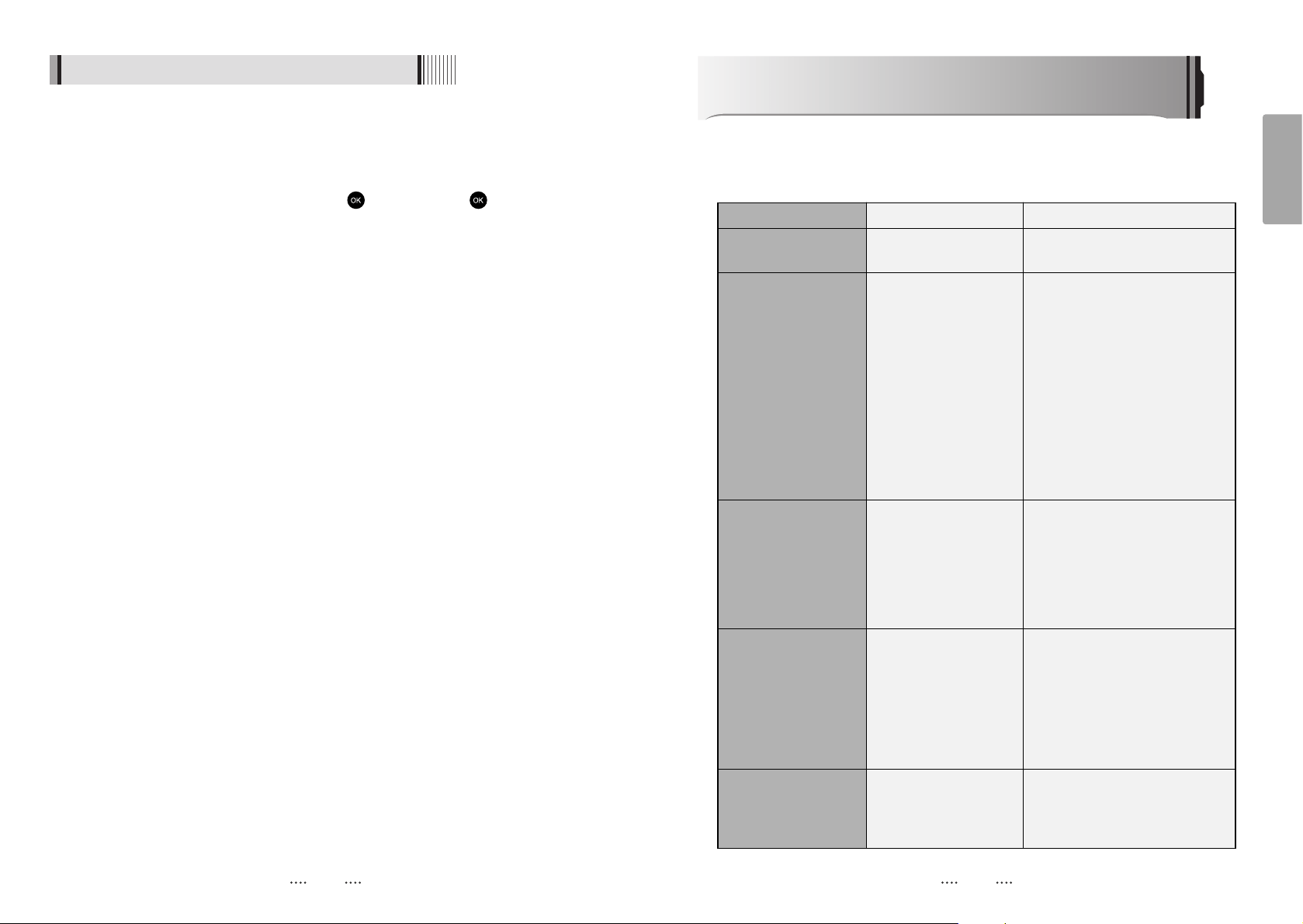
Troubleshooting
There may be various reasons for the abnormal operation of the unit. Therefore, if the unit
does not work properly, check it according to the procedures shown in the table below:
Remedy
Connect the power cord properly
into the power socket.
Connect the two terminals correctly
with RCA or RF cable(s), HDMI
cable(s).
Connect the antenna cable
correctly.
Adjust the direction of the antenna.
Check the cable connections
Type the setting values correctly.
Use a TV of the same mode.
Connect a NTSC/PAL converter
between the receiver and the TV.
Change the batteries.
Switch off the light.
Aim the remote control at the
receiver.
Check mains supply and ensure
that the unit is witched on both at
the mains and at the power switch
on the rear of the receiver.
Possible causes
The AC power cord is
disconnected.
Wrong connection of the
video/audio output to the
TV input terminal.
Wrong connection of the
terrestrial cable.
No signal or weak signal.
Wrong setting of channel
information in the MENU
screen.
Your TV mode (PAL/NTSC)
is different from the
terrestrial broadcasting
mode.
Batteries are exhausted.
Fluorescent light is
interfering with the remote
controller.
Remote controller is
incorrectly aimed.
No Power or Switched off.
Problem
The LED light on the front
panel does not light
No Picture or sound.
Black-and-white
screen or V-Hold.
The remote controller is
not working.
Unit will not operate.
6.10 PIP Function(Picture in Picture)
Ү
PIP is the feature where one program (channel) is displayed on the main screen at
the same time as another program (channel) is displayed in a smaller inset window
Ү
To activate the PIP function press the PIP button
Ү
This will bring a up Sub Channel List. From this list select the channel you wish to be
displayed in the PIP window by pressing the button. Press the button again to
remove the Sub Channel List
Ү
To change the channel displayed in the PIP window press the PIP+ button to change
the channel up, or press the PIP- button to change the channel down.
Ү
To decrease the size of the PIP window press the PIP button
Ү
To remove the PIP window (if window is at largest size) press the PIP button twice
Ү
To remove the PIP window (if window is at the reduced size) press the PIP key once
Ү
To switch between the main channel and the PIP channel press the PIP Swap button
57
58

English
9pin D-sub male, Max 115K bps
NEC-IR
up to 7 Meter
up to ver. 2.0(SDHC)
DC 5V Max 500mA
DC 5V Max 100mA
max 50W
<1W(Compliance with MEPS)
100V ~ 250V
50Hz ~ 60Hz
1 X RCA cinch
2 X RCA cinch
3 X RCA cinch
1 X RCA cinch
2 X RCA cinch
3 X RCA cinch
9pin D-sub
IEC 169 - 24
IEC 169 - 24
IEC 169 - 2
IEC 169 - 2
Fiber Optic
Digital Video/Audio Output
USB A-type
MINI-DIN
RJ-45
Connector
Code
Operating condition
Support SD spec
USB Supply
Antenna Supply
Power consumption
Passive standby
Supply voltage
Supply frequency
Video
Audio L/R
Component(Y/Pb/Pr)
Video IN
Audio IN
Componet(Y/Cb/Cr) IN
Serial data
Terrestrial ant input
Terrestrial ant output
S/PDIF
HDMI
USB
S-VIDEO
LAN
Serial data interface
Remote control
SD card reader
USB
Terrestrial ant input
Power supply
Rear Panel
connectors
335 X 58.5 X 247
(
mm
)
3 Kg
Size
(
W X H X D
)
Weight
(
Net
)
Physical
Specification
Disposal of Old Electrical & Electronic Equipment(Applicable in the European Union and other
European Countries with separate collection systems)
This symbol on the product or on its packaging indicates that this product shall not be treated as household
waste. Instead it shall be handed over to the applicable collection point for the recycling of electrical and
electronic equipnent. By ensuring this product is disposed of correctly, you will help prevent potential
negative consequences for the environment and human health, which could otherwise be caused by
inappropirate waste handling of this product. The recycling of materials will help to conserve natural
resources.
For more detailed information about recycling of this product, please contact your local city office, your
household waste disposal service or the shop where you purchased the product.
Specifications
IEC 169-2, Female
IEC 169-2, Male
170 ~ 230 MHz, 470 ~ 862MHz
75 Ohms Nominal
7,8MHz(-78dBm~-25dBm) switchable by software
7,8MHz(-3dB) switchable by software
OFDM
2k and 8k hierarchical/non-hierarchical
1/2, 2/3, 3/4, 5/6, 7/8
1/4, 1/8, 1/16, 1/32
32bit processor (450MHz)
128Mbyte X 2
NOR 8Mbyte, NAND 256Mbyte
256Kbit
MPEG-2, MPEG-4, H.264
up to 15M bits/s
1920 X 1080P/i, 1280 X 720P, 720 X 576P/i
PAL
4:3,16:9
Mono, Stereo, Joint Stereo
32, 44.1 and 48 KHz
1x CVBS , 1x Component (YCbCr)
480i,576i Only
1x Audio R/L
Compliant to ISO/IEC13818-2
(MPEG2 video)MP@ML and
ISO/IEC11172-2 (MPEG1 video)
ISO/IEC11172-3 (MPEG1 audio)
layer 1/2-compliant
48KHz
Fully DVB compliant
Input connector
Loop-through out
Frequency range
Input impedance
Signal level
IF Bandwidth
Waveform
Carrier Mode
Code Rate
Guard Interval
Processor
DDR SDRAM
FLASH
EEPROM
MPEG 2
Data Rate
Resolution
Video format
Aspec Ratio
DVB compliant
MPEG 1 layer I/II,
MPEG 2 layer II,
AC3 Dolby Digital
Type
Sampling rates
Video Input
Support Video resolution
Audio input
Video Encoding method
Audio Encoding method
Audio Sampling frequency
System capabilities
TERRESTRIAL
System capabilities
Tuner
& Channel Decoder
System resource
Video decoder
Teletext
MPEG Audio
MPEG2 Video
encoder
59
60

STRONG Australia Pty Ltd.
60 WEDGEWOOD ROAD, HALLAM, VICTORIA 3803
PH: +61 3 8795 7990 FAX: +61 3 8795 7991
TECHNICAL SUPPORT: 1 800 820 030
STRONG & CO.
(
FAR EAST
)
, LTD.
P. O. BOX 85, YOKOHAMA, KANAGAWA-KEN
JAPAN 231-91 FAX : +81 45 651 1842
www.strong.com.au
ڡStrong Australia Pty Ltd., 2010
E109000257A