3-223-746-13(1)
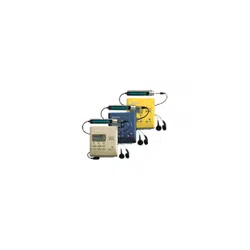
Portable
MiniDisc Recorder
Operating Instructions
© 2000 Sony Corporation
MZ-R500/R500PC/R500DPC

2-GB
To prevent fire or shock hazard, do
not expose the unit to rain or
moisture.
To avoid electrical shock, do not
open the cabinet. Refer servicing to
qualified personnel only.
Caution
The use of optical instruments with this
product will increase eye hazard.
Listening for many hours at maximum
volume may damage your hearing.
CAUTION — INVISIBLE LASER
RADIATION WHEN OPEN
AVOID EXPOSURE TO BEAM
Information
For customers in the USA
Owner’s Record
The serial number is located at the rear of
the disc compartment lid and the model
number is located at the top and bottom.
Record the serial number in the space
provided below. Refer to them whenever
you call upon your Sony dealer regarding
this product.
Model No.
Serial No.
This equipment has been tested and found
to comply with the limits for a Class B
digital device, pursuant to Part 15 of the
FCC Rules. These limits are designed to
provide reasonable protection against
harmful interference in a residential
installation. This equipment generates,
uses, and can radiate radio frequency
energy and, if not installed and used in
accordance with the instructions, may
cause harmful interference to radio
communications. However, there is no
guarantee that interference will not occur
in a particular installation. If this
equipment does cause harmful
interference to radio or television
reception, which can be determined by
turning the equipment off and on, the user
is encouraged to try to correct the
interference by one or more of the
following measures:
— Reorient or relocate the receiving
antenna.
— Increase the separation between the
equipment and receiver.
— Connect the equipment into an outlet
on a circuit different from that to
which the receiver is connected.
— Consult the dealer or an experienced
radio/TV technician for help.
This device complies with Part 15 of the
FCC Rules. Operation is subject to the
following two conditions: (1) This device
may not cause harmful interference, and
(2) this device must accept any
interference received, including
interference that may cause undesired
operation.
You are cautioned that any changes or
modifications not expressly approved in
this manual could void your authority to
operate this equipment.
Do not install the appliance in a
confined space, such as a bookcase or
built-in cabinet.
IN NO EVENT SHALL SELLER BE
LIABLE FOR ANY DIRECT,
INCIDENTAL OR
CONSEQUENTIAL DAMAGES OF
ANY NATURE, OR LOSSES OR
EXPENSES RESULTING FROM
ANY DEFECTIVE PRODUCT OR
THE USE OF ANY PRODUCT.
WARNING
3-GB
For customers in Canada
To prevent electric shock, do not use this
polarized AC plug with an extension cord,
receptacle or other outlet unless the
blades can be fully inserted to prevent
blade exposure.
The CE mark on the unit is
valid only for products
marketed in the European
Union.
Certain countries may regulate disposal of
battery used to power this product.
Please consult with your local authority.
WALKMAN and are trademarks
of Sony Corporation.
GB

4-GB
Table of contents
Looking at the controls ....................................6
Getting started ................................................. 8
Recording an MD right away! .........................10
Playing an MD right away! .............................. 13
Various ways of recording .............................. 15
Two ways of connecting to a sound source ..........................................15
Recording with analog input (line cable required) ...............................16
Recording for long times ......................................................................16
To start/stop recording in sync with the source player
(Synchro-recording) ........................................................................17
Recording without overwriting existing material .................................18
Adjusting the recording level manually
(Manual recording) ..........................................................................19
Checking the remaining time or the recording position .......................20
Various ways of playback .............................. 21
Playing tracks repeatedly ......................................................................21
Emphasizing bass (DIGITAL MEGA BASS) ......................................22
Protecting your hearing (AVLS) ...........................................................22
Checking the remaining time or the playing position ...........................23
Locking the controls (HOLD) ...............................................................23
Connecting to a stereo system ..............................................................24

5-GB
Editing recorded tracks .................................. 25
Erasing tracks ....................................................................................... 25
To erase a track .............................................................................. 25
To erase the whole disc .................................................................. 25
Adding a track mark ............................................................................. 26
Erasing a track mark ............................................................................ 26
Moving recorded tracks ....................................................................... 27
Labeling recordings .............................................................................. 28
Additional information .................................... 30
Precautions ........................................................................................... 30
Troubleshooting ................................................................................... 32
System limitations ................................................................................ 34
Messages .............................................................................................. 35
Specifications ....................................................................................... 37
What is an MD? ................................................................................... 38

6-GB
Looking at the controls
See pages in ( ) for more details.
The recorder
A N button (11) (13) (17) (24)
B VOL +/– buttons (13) (28)
C x button (11) (13) (25) (28)
D X button (11) (13) (19) (26) (28)
E HOLD switch (at the rear) (9) (23)
F >MENU. buttons (16) (21)
(25)
./> (search /AMS) buttons
(11) (13) (19) (27) (28)
G ENTER button (16) (21) (25)
H OPEN switch (9)
I Display window (18) (21)
J END SEARCH button (11) (28)
K T MARK button (26)
REC (record) button (11) (17)
L i (headphones) jack (9) (24)
M Battery compartment (at the rear) (8)
N LINE IN (OPTICAL) jack (10) (16)
O DC IN 3V jack (10) (30)
A
C
B
E
D
F
G
I
J
K
H
O
N
M
L
7-GB
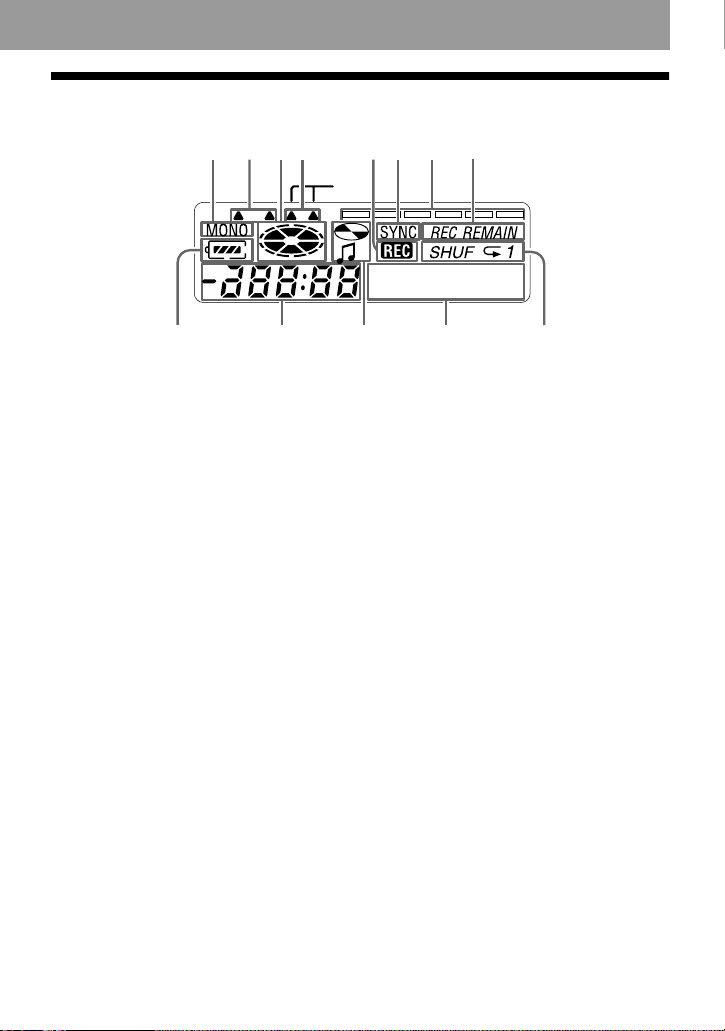
The display window
A MONO (monaural) indication
B LP mode indication (17)
C Disc indication
Shows that the disc is rotating for
recording, playing or editing an MD
D Mega bass indication (22).
E REC indication
Lights up while recording. When
flashing, the recorder is in record
standby mode.
F SYNC (synchro-recording) indication
(18)
G Level meter (19)
Shows the volume of the MD being
played or recorded.
H REC REMAIN/REMAIN (remaining
time/tracks) indication (20) (23)
Lights up along with the remaining
time of the track, the remaining time
of the MD, or the remaining number
of tracks.
I Battery indication (9)
Shows approximate battery condition.
J Time display
K Disc name/track name indication
Lights up when labeling a disc or a
track.
L Character information display (20)
(23)
Displays the disc and track names,
error messages, track numbers, etc.
M Play mode indication (21)
Shows the play mode of the MD.
LMK
LP2
.
4
Digital
MEGA BASS
C
AB
D
JI
FG
H
E
8-GB
Getting started
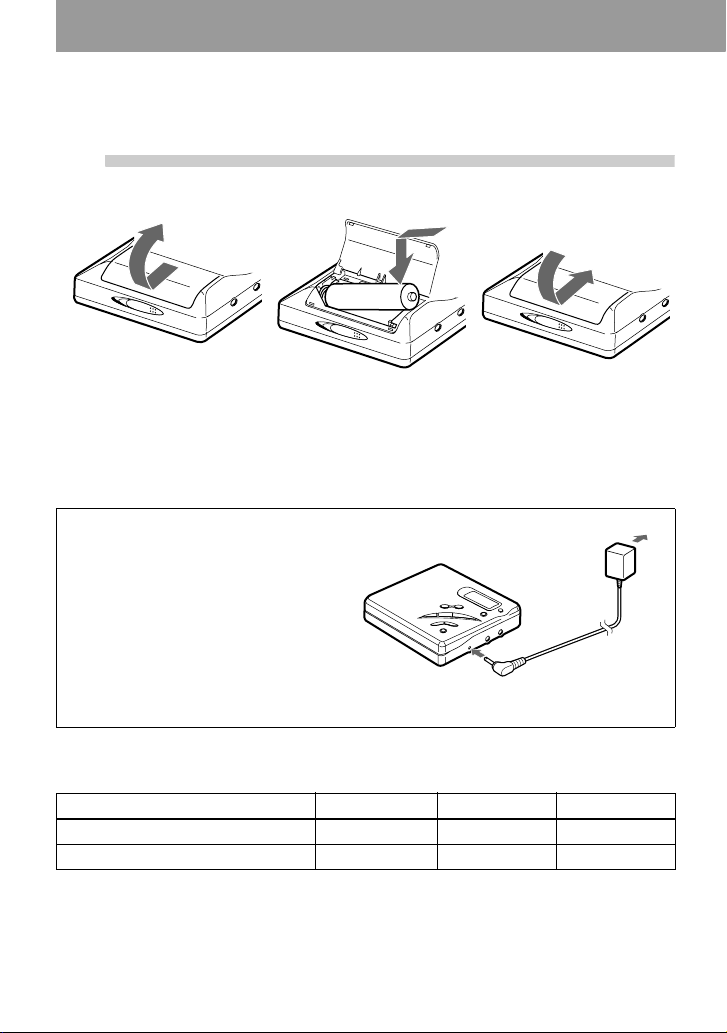
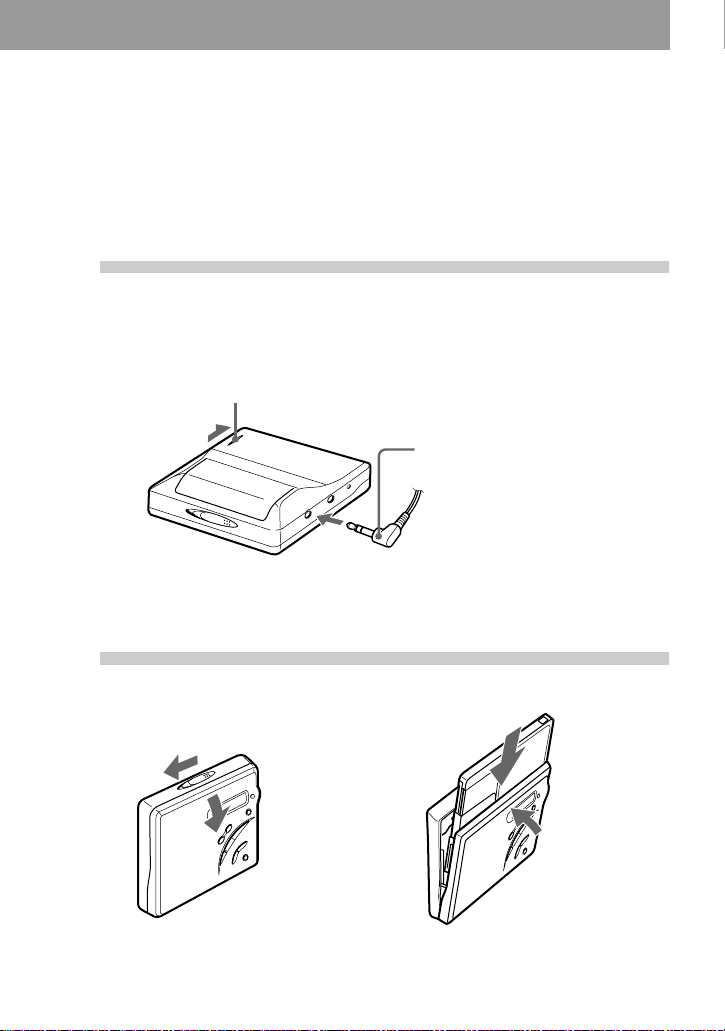
1
Insert an alkaline dry battery.
e
E
Insert an LR6 (size AA)
alkaline dry battery minus
end first.
Slide to open the battery
compartment lid.
Close the lid.
Using on a house current.
Connect the supplied AC power
adaptor
*
or the optional AC-E30HG
(when an AC power adaptor is not
supplied).
∗ Supplied with the European,
Chinese and Argentine models
only.
Battery life
1)
(Unit: Approx. hours) (JEITA
2)
)
1)
The battery life may be shorter due to operating conditions, the temperature of the location, and
varieties of batteries.
2)
Measured value by the standard of JEITA (Japan Electronics and Information Technology Industries
Association).
LR6 (SG) alkaline dry battery
3)
3)
When using a Sony LR6 (SG) “STAMINA” alkaline dry battery (produced in Japan).
Normal LP2 LP4
Recording
4)
4)
To prevent interrupted recording due to drained battery, use new battey for recording operations.
7.5 10 13.5
Playback 36 42 48
To DC IN 3V
9-GB
When to replace the battery
When the dry battery is weak, flashing r or “LoBATT” appears in the display. Replace
the dry battery.
Note that the battery level indicated by the battery indication is only approximate and
varies with the recorder condition.
Note
Stop the recorder before replacing battery.
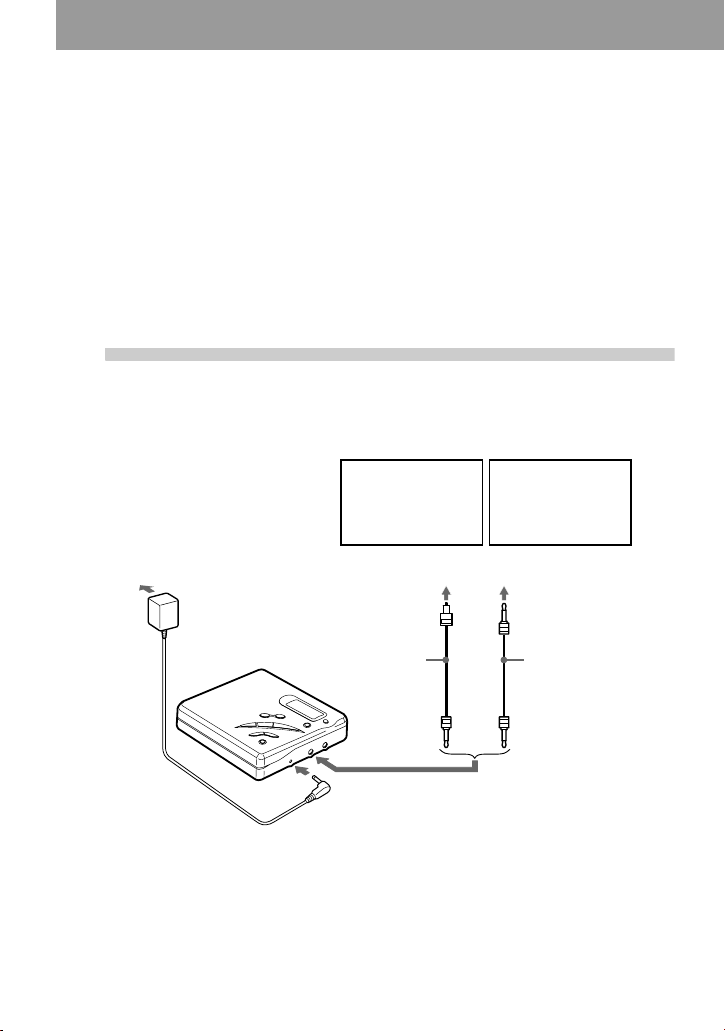
2
Connect the headphones/
earphones and unlock the control.
3
Insert an MD.
1 Slide OPEN to open the lid. 2 Insert an MD with the label side facing
front, and press the lid down to close.
To i
Connect firmly
HOLD
headphones/earphones
(supplied)
Insert an recordable MD when recording.
10-GB
Recording an MD right away!
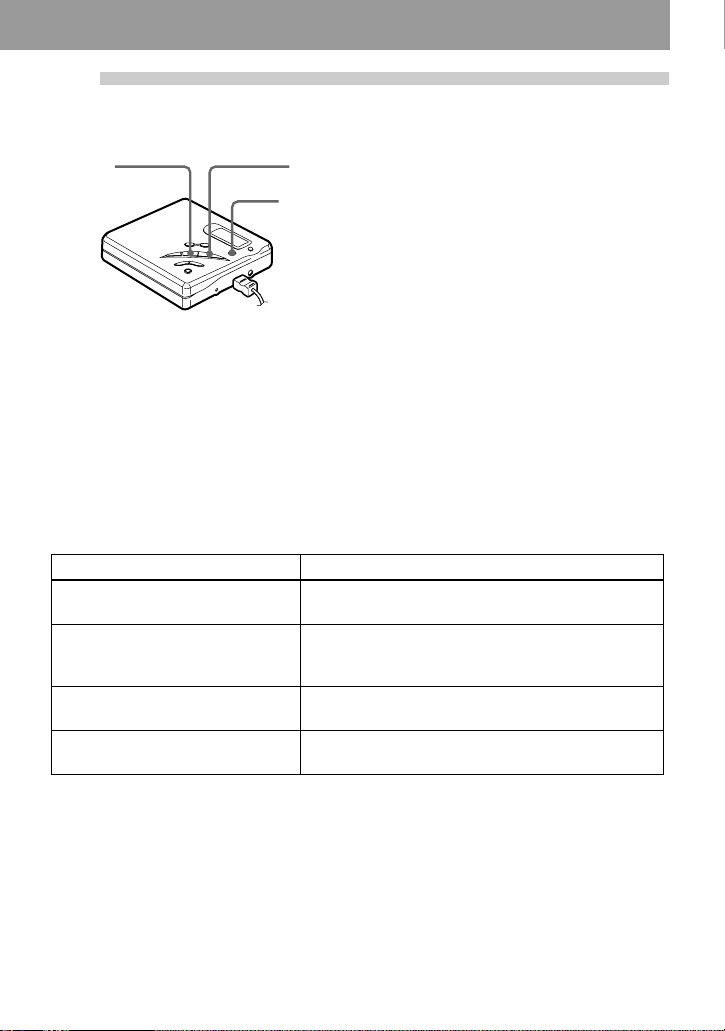
Connect to a digital source using an optical cable (supplied with the
European, Chinese and Argentine models only) to make digital
recordings. Digital recording is possible even from digital equipment
with different sampling rates, such as a DAT deck or a BS tuner, using
the built-in sampling rate converter. To record from an analog source,
see “Recording with analog input (line cable required)” (page 16). To
record from an MD, see “Note on digital recording” (page 31).
1
Make connections.
(Insert the cables
firmly and completely into the appropriate jacks.)
to a wall
outlet
AC power adaptor
1)
to LINE IN (OPTICAL)
to DC IN 3V
CD player, MD
player, digital
amplifier, etc.
Portable CD
player, etc.
Optical mini-plug
to DIGITAL OUT (OPTICAL)
1)
Supplied with the European, Chinese and Argentine models only.
2)
Supplied with the European and Argentine models only.
3)
Supplied with the Chinese model only.
Optical cable
3)
Optical plug
Optical cable
2)
11-GB
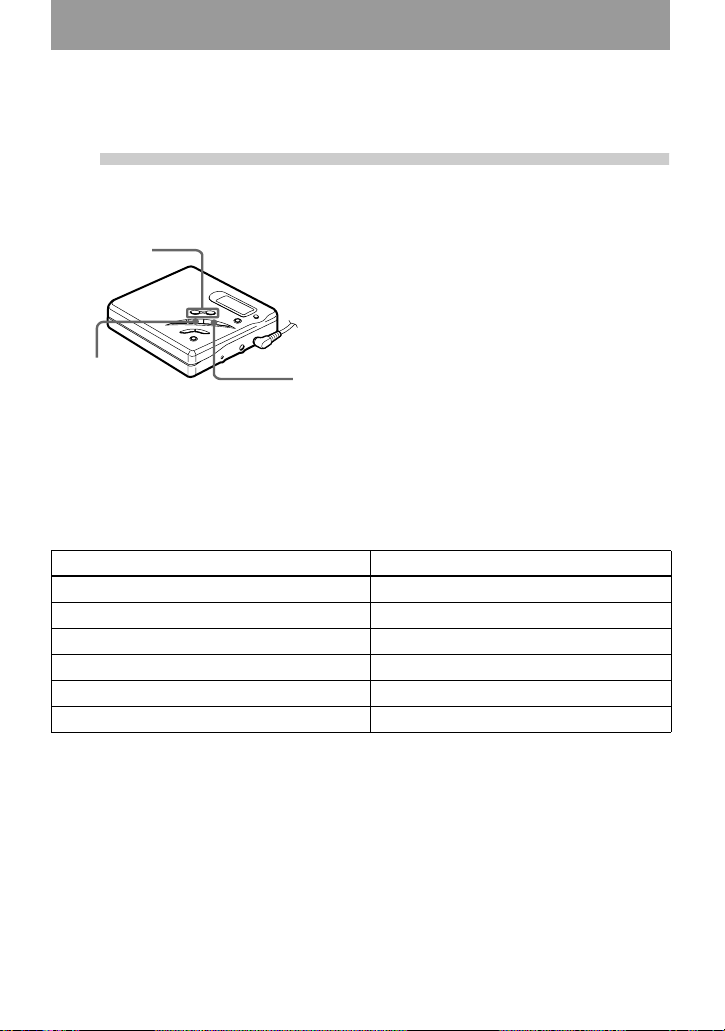
2
Record an MD.
1 Press N while pressing REC.
Recording starts.
2 Play the source you want to record.
To stop recording, press x.
After you press x and “Edit” stops
flashing in the display, the recorder will
automatically turn off after:
— about 10 seconds when using a
battery.
— about 5 minutes when using the
supplied AC power adaptor or the
optional AC-E30HG (when an AC
power adaptor is not supplied).
Notes
• “Saving” or “Edit” flashes while data of the recording (the track’s start and end points, etc.) is being
recorded. Do not move or jog the recorder or disconnect the power source while the indication is
flashing in the display.
• The lid does not open until “Edit” disappears in the display.
REC
x
N
To Press
Record from the end of the
previous recording
1)
END SEARCH and press N while pressing REC.
Record partway through the
previous recording
1)
N, > or . to find the start point of
recording and press x to stop. Then press N
while pressing REC.
Pause X
2)
Press X again to resume recording.
Remove the MD x and open the lid.
3)
(The lid does not open while
“Edit” flashing in the display.)
1)
By setting “R-Posi” to “Fr End”, recording operations will always start from the end of the
previousely recorded material (page 18).
2)
A track mark is added at the point where you press X again to resume recording while pausing; thus
the remainder of the track will be counted as a new track.
3)
If you open the lid while “R-Posi” is set to “FrHere,” recording will begin with the first track the next
time you record (page 18).

12-GB
If the recording does not start
• Make sure the recorder is not locked
(page 23).
• Make sure the MD is not record-protected
(page 31).
• Premastered MDs cannot be recorded over.
For models supplied with the AC plug
adaptor
If the AC power adaptor (supplied with the
European, Chinese and Argentine models only)
does not fit the wall outlet, use the AC plug
adaptor.
Notes
• If the power supply is disrupted (i.e. the
battery is removed or becomes exhausted or
the AC power adaptor is disconnected) during
a recording or editing operation, or while
“Edit” appears in the display, then it will not
be possible to open the lid until power is
restored.
• You can make a digital recording only from an
optical type output.
• When recording from a portable CD player,
set the CD player to pause, and then do the
recording procedure on the recorder.
• Note the following when recording from a
portable CD player:
—Some portable CD players may not be
capable of digital out unless powered by the
AC power.
—Connect the AC power adaptor to the
portable CD player and use it on AC power
as the power source.
—Disable any anti-skip function (such as
ESP
*
) on the portable CD player.
∗ Electronic Shock Protection
z
• LINE IN (OPTICAL) jack is for both digital
and analog input. The recorder automatically
recognizes the type of line cable and switches
to digital or analog input.
• The level of the recorded sound is adjusted
automatically.
• You can monitor the sound during recording.
Connect the supplied headphones/earphones
to i and adjust the volume by pressing VOL
+/–. This does not affect the recording level.
13-GB
Playing an MD right away!
1
Play an MD.
1 Press N.
2 Press VOL +/– to adjust the volume.
The volume will be shown in the
display.
To stop play, press x.
Playback starts from the point you last
stopped playing.
After you press x and “Edit” stops flashing in the display, the recorder will automatically
turn off after:
— about 10 seconds when using a battery.
— about 5 minutes when using the supplied AC power adaptor or the optional AC-
E30HG (when an AC power adaptor is not supplied).
VOL +/–
x
N
To Press
Find the beginning of the current track . once
Find the beginning of the next track > once
Pause X. Press X again to resume play.
Go backwards while playing
1)
1)
To go backward or forward quickly without listening, press X and keep pressing . or >.
keep pressing ..
Go forward while playing
1)
keep pressing >.
Remove the MD x and open the lid
2)
.
2)
Once you open the lid, the point to start play will change to the beginning of the first track.

14-GB
G-PROTECTION function
The G-PROTECTION function has been
developed to provide excellent protection
against sound skipping during many active
uses. This function provides a higher level of
shock protection during playback than the
traditional one.
If the play does not start
Make sure the recorder is not locked (page 23).
z
Playback will switch automatically between
stereo and monaural according to the sound
source.
Note
Sound may skip if:
—the recorder receives stronger continuous
shock than expected.
—a dirty or scratched MiniDisc is played.
15-GB
Various ways of recording
Two ways of connecting to a sound source
The input jack of this recorder works as both digital and analog input jacks. Connect the
recorder to a CD player or a cassette recorder using either digital (optical) input or analog
(line) input. To record, see “Recording an MD right away!” (page 10) to record using
digital (optical) input, and “Recording with analog input (line cable required)” (page 16) to
record using analog (line) input.
Difference between digital (optical) and analog (line) inputs
Note
Track marks may be copied incorrectly:
• when you record from some CD players or multi disc players using digital (optical) input.
• when the source is in shuffle or program play mode while recording using digital (optical) input. In
this case, play the source in normal play mode.
• when recording BS or CS programs through digital (optical) input.
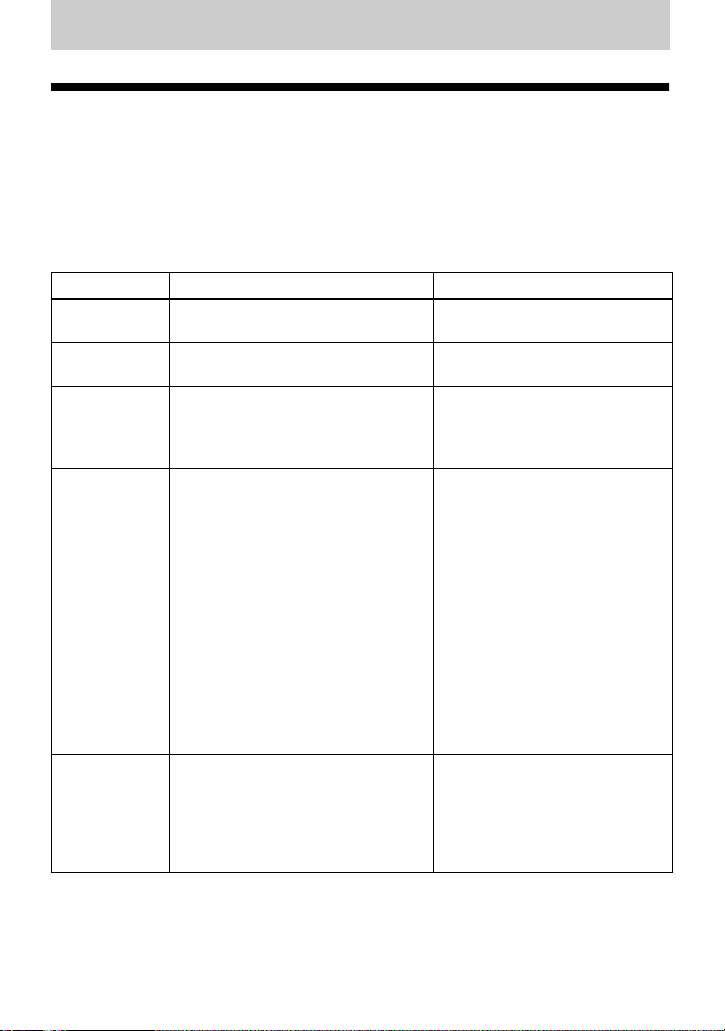
Difference Digital (optical) input Analog (line) input
Connectable
source
Equipment with a digital (optical)
output jack
Equipment with an analog (line)
output jack
Usable cord Optical cable (with an optical or an
optical-mini plug)(page 10)
Line cable (with 2 phono plugs
or a stereo-mini plug)(page 16)
Signal from the
source
Digital Analog
Even when a digital source (such
as a CD) is connected, the signal
sent to the recorder is analog.
Recorded track
numbers
Marked (copied) automatically
• at the same positions as the source
(when the sound source is a CD or
an MD).
• after more than 2 seconds of blank
or low-level segment (with a sound
source other than a CD or an MD).
• when the recorder is paused during
synchro-recording (the recorder
pauses automatically when it
encounters a section with no audio
signal for 3 seconds or more).
You can erase unnecessary marks
after recording. (“Erasing a track
mark”, page 26).
Marked automatically
• after more than 2 seconds of
blank or low-level segment.
• when the recorder is paused
while recording.
You can erase unnecessary marks
after recording (“Erasing a track
mark”, page 26).
Recorded
sound level
Same as the source.
Can also be adjusted manually
(Digital REC level control)
(“Adjusting the recording level
manually (Manual recording)”,
page 19).
Adjusted automatically. Can also
be adjusted manually (“Adjusting
the recording level manually
(Manual recording)”, page 19).
16-GB
Recording with analog
input (line cable
required)
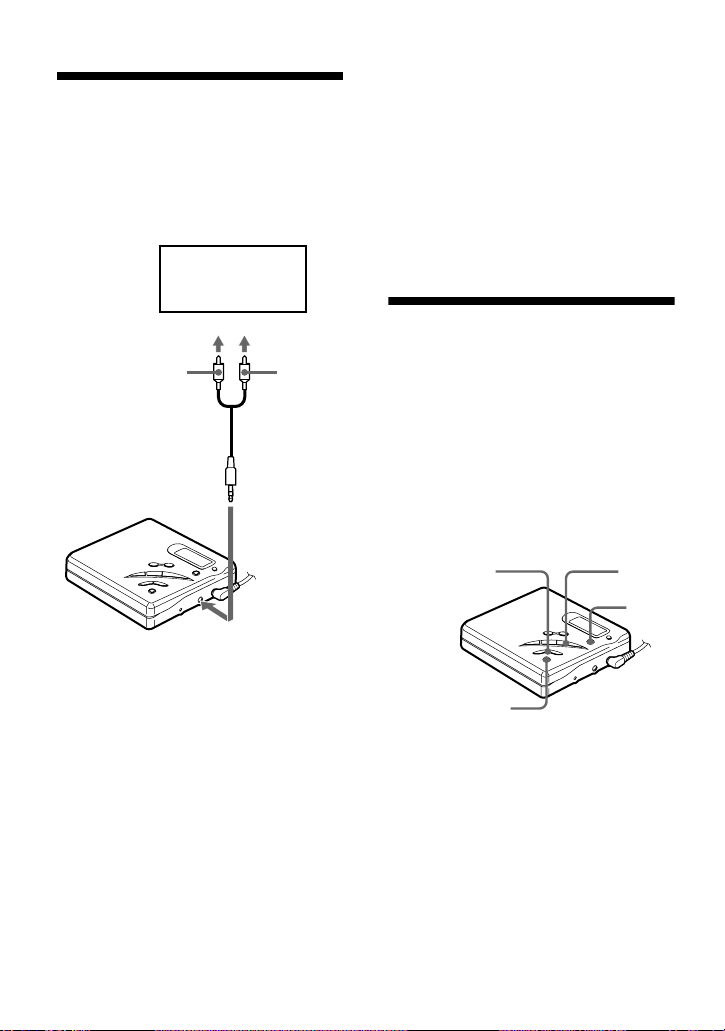
The sound will sent from the connected
equipment as analog signal but will be
recorded digitally on the disc.
1 Insert a recordable MD and start
recording.
For recording operations, see
“Recording an MD right away!”
(page 10). To record from a portable
CD player, set the CD player to pause
and then start recording.
LINE IN (OPTICAL) jack is for both
digital and analog input
The recorder automatically recognizes the type
of line cable and switches to digital or analog
input.
Note
A track mark is added at the point where you
press X again to resume recording while
pausing recording; thus the track will be
counted as a new track.
Recording for long
times
Select each recording mode according to
the recording time that you want.
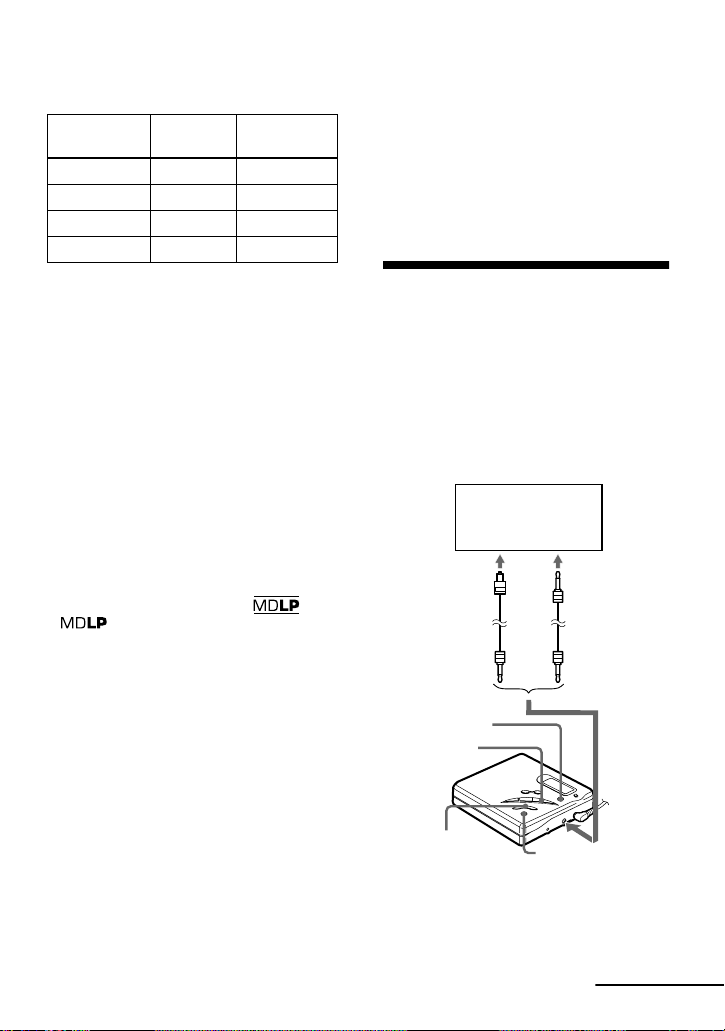
Stereo recording is possible at 2 times
(LP2) or 4 times (LP4) the normal
recording time.
MDs recorded in monaural, LP2 or LP4
mode can be played back only on MD
players or recorders with monaural, LP2
or LP4 playback mode.
1 Press ENTER, press
>MENU. repeatedly until “R-
MODE” flashes in the display, and
then press ENTER again.
to LINE IN (OPTICAL)
Line cable
(RK-G129,
not supplied)*
CD player,
cassette recorder,
etc.
to LINE OUT
L (white)
R (red)
∗ Use the connecting cords without an
attenuator. To connect to a component
such as a portable CD player having a
stereo mini-jack, use the RK-G136
connecting cord (not supplied).
>MENU.
N
ENTER
REC
17-GB
2 Press >MENU. repeatedly to
select the desired recording mode.
3 Press ENTER.
4 Press N while pressing REC.
The recording starts.
5 Play the source sound.
To stop recording, press x.
The settings of the recording mode
remains when you record the next time.
z
• Audio components that support the LP2 or
LP4 modes are indicated by the or
logo marks.
• Once you set, the recorder keeps its recording
mode when you record the next time.
Notes
• You cannot change the recording mode while
recording.
• It is recommended that you use the AC power
adaptor for long recordings.
• If you try to play an MD recorded in LP2 or
LP4 on a player/recorder that is not support
these modes, playback will not start and “LP:”
will appear on the display.
• Sound recorded through digital (optical) input
can be monitored in stereo through
headphones/earphones, etc.
• When you record in LP4 mode, momentary
noise may be produced on very rare occasions
with certain sound sources. This is because of
the special digital audio compression
technology that enables a recording time 4
times longer than normal. If noise is produced,
it is recommended that you record in normal
stereo or LP2 mode to obtain better sound
quality.
To start/stop recording
in sync with the source
player
(Synchro-recording)
You can easily make digital recordings of
a digital source on an MD.
Before synchro-recording, make
connections to the digital source with a
digital cable, and insert a recordable MD.
1 Press ENTER while the recorder is
stopped.
Recording
mode
1)
1)
For better sound quality, record in normal
stereo or LP2 mode.
Display Recording
time
3)
3)
When using an 80-minute recordable MD.
Stereo Stereo 80 min.
LP2 stereo LP2 160 min.
LP4 stereo LP4 320 min.
Monaural
2)
2)
If you record a stereo source in monaural, the
sounds from left and right will be mixed.
Mono 160 min.
CD players,
etc.
N
REC
>MENU.
ENTER
continued
18-GB
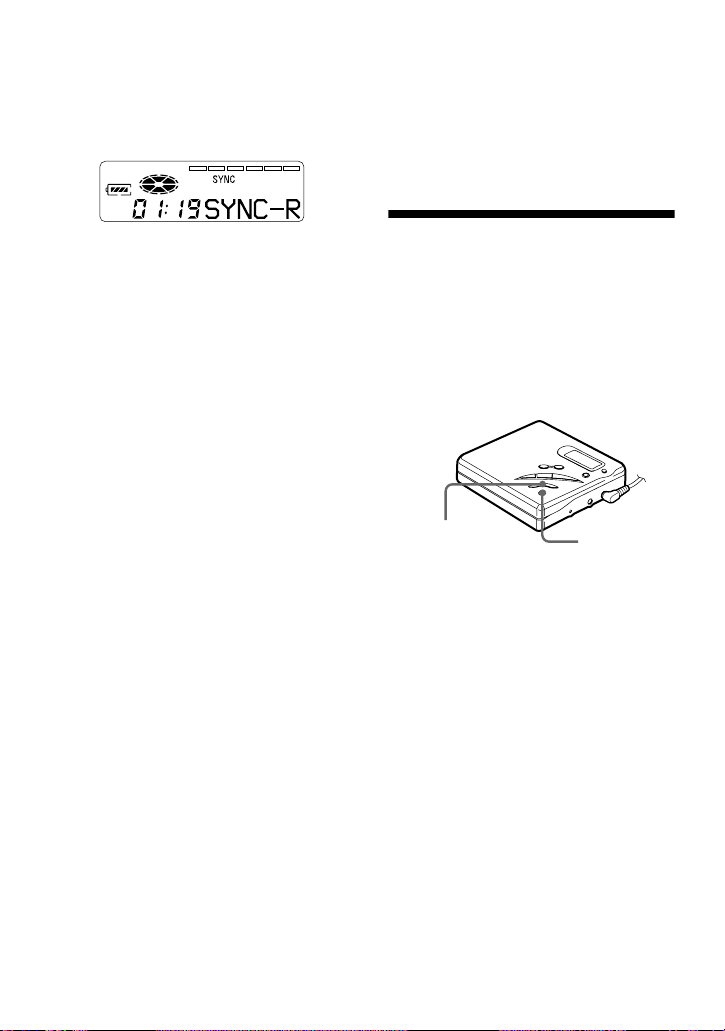
2 Press >MENU. repeatedly
until “SYNC-R” flashes in the
display, and then press ENTER.
“SYNC” lights up in the display.
“SYNC” does not lights up if optical
cable is not connected to the recorder.
3 Press >MENU. repeatedly
until “ON” flashes in the display, and
then press ENTER.
4 Press N while pressing REC.
The recorder stands by for recording.
5 Play the source sound.
The recorder starts recording when it
receives the playing sound.
To stop recording, press x.
z
• You cannot pause manually during synchro-
recording.
• When there is no sound from the player for
more than 3 seconds during synchro-
recording, the recorder goes into the standby
mode automatically. When the sound comes
from the player again, the recorder resumes
synchro-recording. If the recorder is kept in
the standby mode for 5 minutes or longer, the
recorder stops automatically.
• For longer recording, follow steps 1 to 3 of
“Recording for long times” (page 16) to select
the recording mode, and then start the
procedure of synchro-recording.
Notes
• Do not change the “SYNC-R” setting while
recording. Recording may not be done
properly.
• Even when there is no recorded sound on the
sound source, there may be cases when
recording does not pause automatically during
synchro-recording due to the noise level
emitted from the sound source.
• If a silent portion is encountered for 2 seconds
or more during synchro-recording, a new track
mark is automatically added at the point
where the silent portion ends.
• Synchro-recording cannot be done if the
connecting cord is not an optical cable.
• You cannot adjust the recording level
manually during synchro-recording.
Recording without
overwriting existing
material
If you wish to avoid overwriting the
current contents of an MD, do the
following procedure. All new material
will then be recorded from the end of the
current contents.
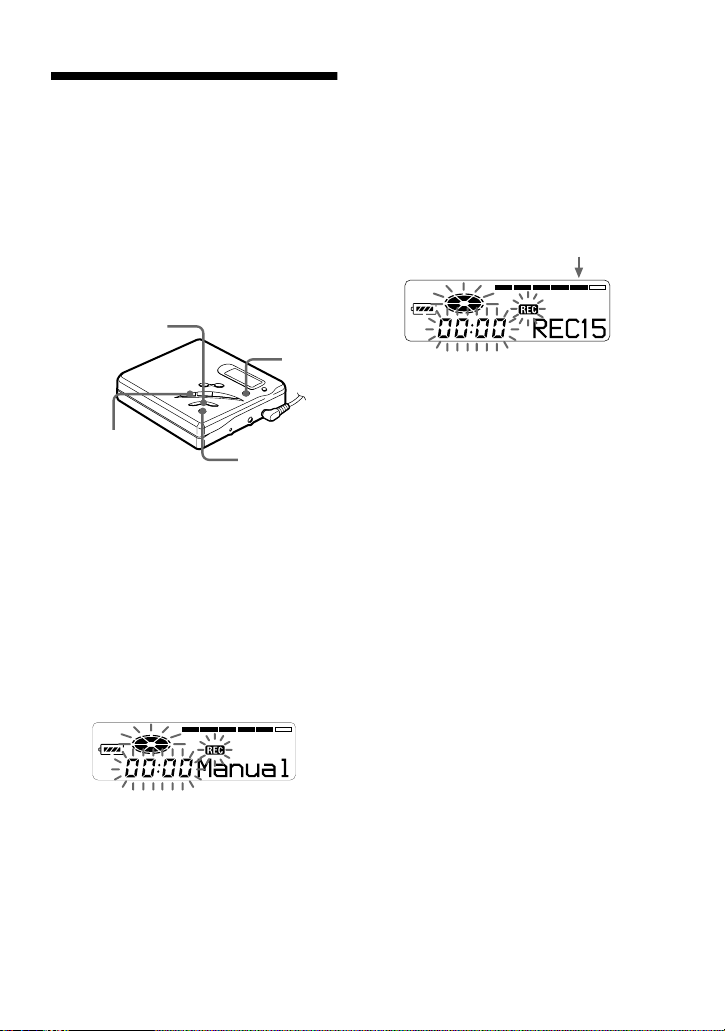
1 While the recorder is stopped, press
ENTER.
2 Press >MENU. repeatedly
until “R-Posi” flashes in the display,
and then press ENTER.
3 Press >MENU. repeatedly
until “Fr End” flashes in the display,
and then press ENTER.
To start recording from the
current point.
Select “FrHere” in step 3.
Notes
• If you start recording while the recorder is in
play-pause mode, the recording will begin
from the point at which is paused.
• The setting will not be lost after the power is
turned off.
>MENU.
ENTER
19-GB
Adjusting the recording
level manually
(Manual recording)
When you record, the sound level is
adjusted automatically. If necessary, you
can set the level manually.
Note
Adjust the recording level while the recorder is
in standby mode. You cannot adjust it while
recording
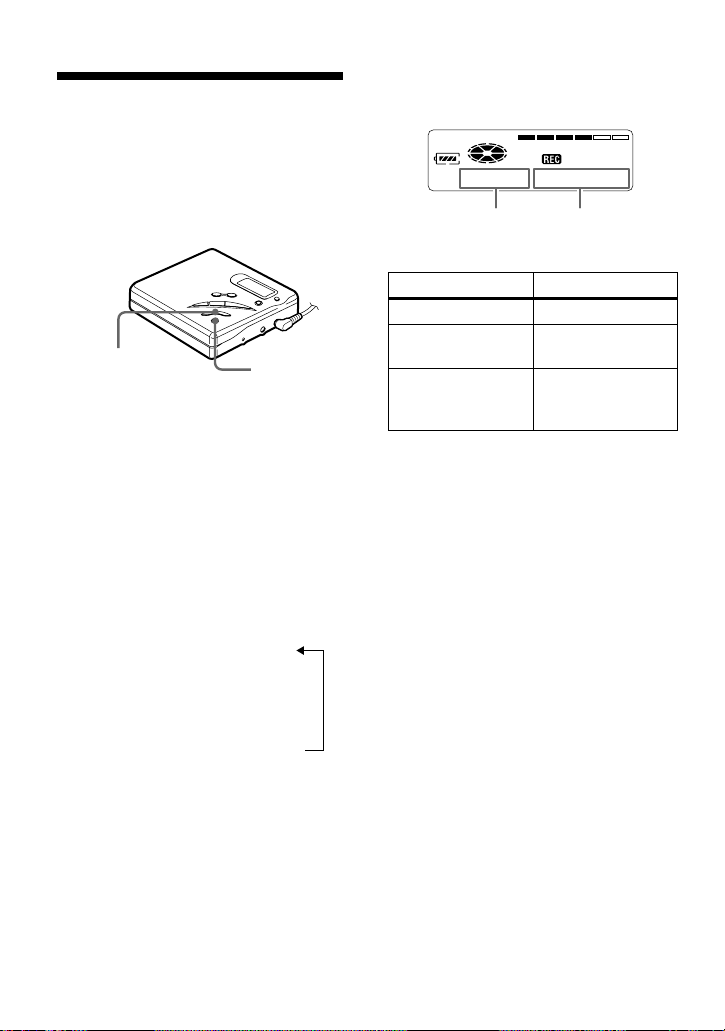
1 Press REC while pressing X.
The recorder stands by for recording.
2 Press ENTER, press
>MENU. repeatedly until
“RecVol” flashes in the display, and
then press ENTER again.
3 Press >MENU. repeatedly
until “Manual” flashes in the display,
and then press ENTER.
To switch back to the automatic
control, Press >MENU.
repeatedly until “Auto” flashes in the
display, and then press ENTER.
4 Play the source.
5 While observing the level meter in the
display, adjust the recording level by
pressing >MENU..
Set the level so that the maximum
input lights up the fifth segment on
the level meter. If the sixth segment
lights up, lower the level by pressing
>MENU.
Recording does not start in this step.
If your source is an externally
connected component, be sure to cue
the source to the beginning of the
material to be recorded before you
start playback.
6 Press X again to start recording.
To stop recording, press x.
The recording level control is switched back to
automatic control when you record the next
time.
Notes
• The recording level cannot be adjusted while
recording is in progress. If you want to adjust
the recording level after you have started the
recording, press X to pause the recorder. Then
do the procedure from step 5.
• You cannot adjust the recording level
manually during synchro-recording.
REC
ENTER
X
>MENU.
fifth segment
20-GB
Checking the remaining
time or the recording
position
You can check the remaining time, track
number, etc. when recording or during
stop.
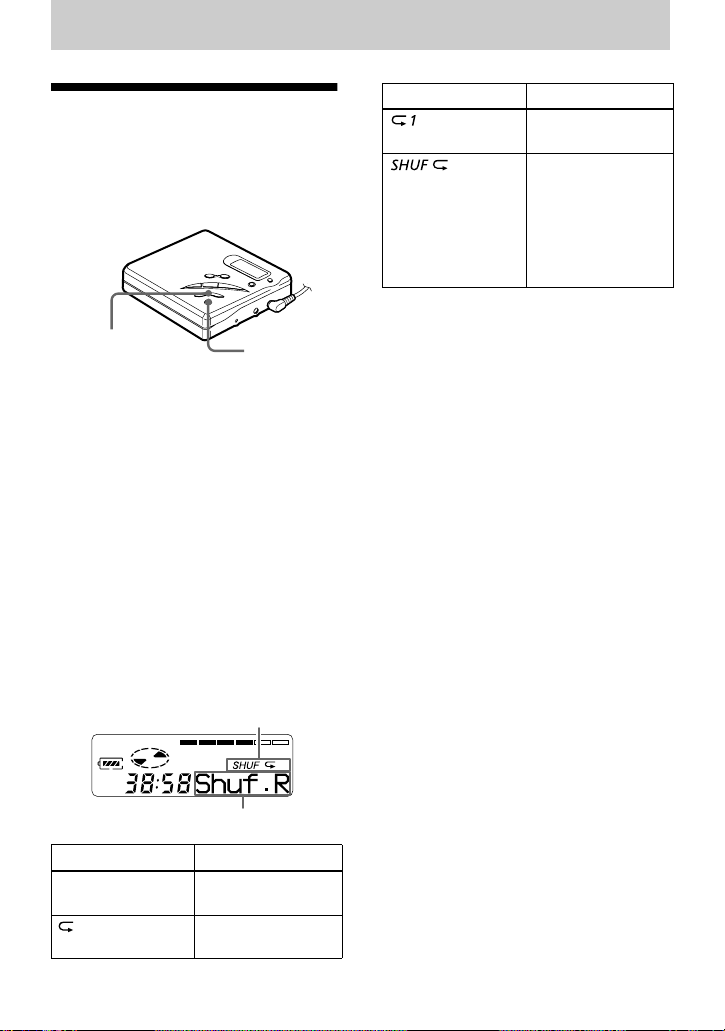
1 While the recorder is recording or
stopped, press ENTER, press
>MENU. repeatedly until
“DISP” flashes in the display, and
then press ENTER again.
2 Press >MENU. repeatedly
until the information you want flashes
in the display.
Each time you press MENU., the
display changes as follows.
LapTim (elapsed time)
r
RecRem (remaining time for
recording)
1)
r
AllRem (remaining time after
the current location)
2)
1)
“REC REMAIN” start flashing in the display
when the remaining time for recording
become 3 minutes or less.
2)
Appears only when the recorder is stopped.
3 Press ENTER.
The display changes as follows.
z
If you want to check the playing position or
track name while playing, see page 23.
>MENU.
ENTER
AB
Elapsed time Track number
Remaining time for
recording
Track name
1)
1)
Appears only if the track has been labeled.
Remaining time
after the current
location
Disc name
1)
A B
21-GB
Various ways of playback
Playing tracks
repeatedly
You can play tracks repeatedly in three
ways — all repeat, single repeat, and
shuffle repeat.
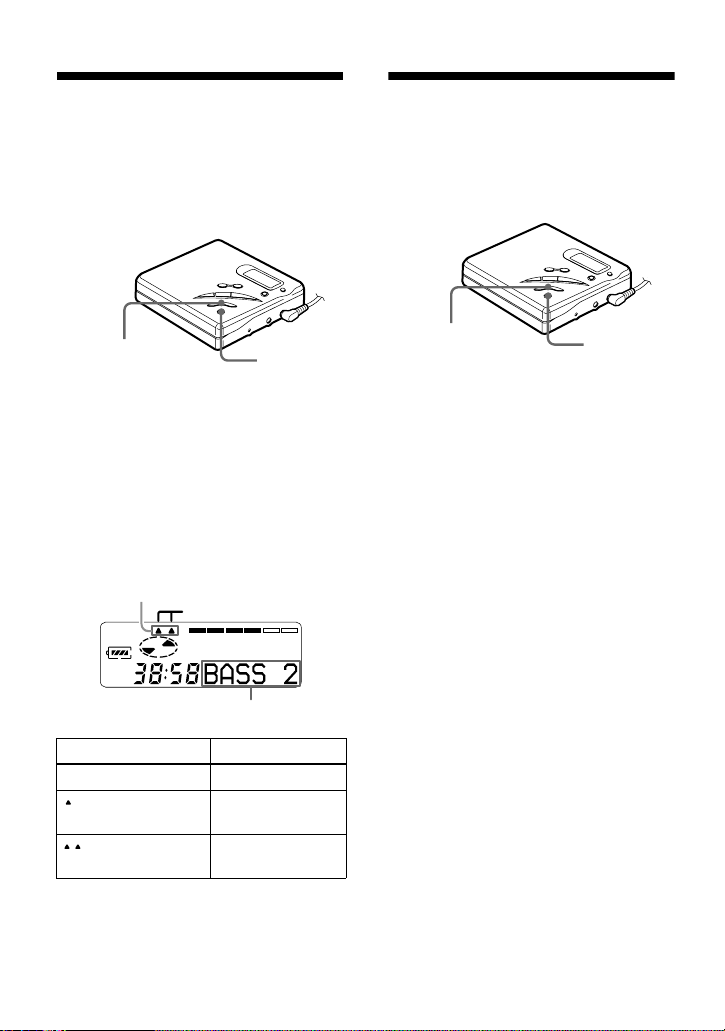
1 While the recorder is playing or
stopped, press ENTER, press
>MENU. repeatedly until “P-
MODE” flashes in the display, and
then press ENTER again.
2 Press >MENU. repeatedly to
select the play mode, and then press
ENTER.
Each time you press MENU., the
display item indicated by B changes
as shown in the table below.
Pressing ENTER while B is flashing
causes the play mode to change.
The new mode then appears in the
window indicated by A.
Indication A/B Play mode
—/Normal All the tracks are
played once.
/AllRep All the tracks are
played repeatedly.
>MENU.
ENTER
A
B
/1 Rep A single track is
played repeatedly.
/Shuf.R After the currently
selected track
finishes playing,
the remaining
tracks are played
repeatedly in
random order.
Indication A/B Play mode
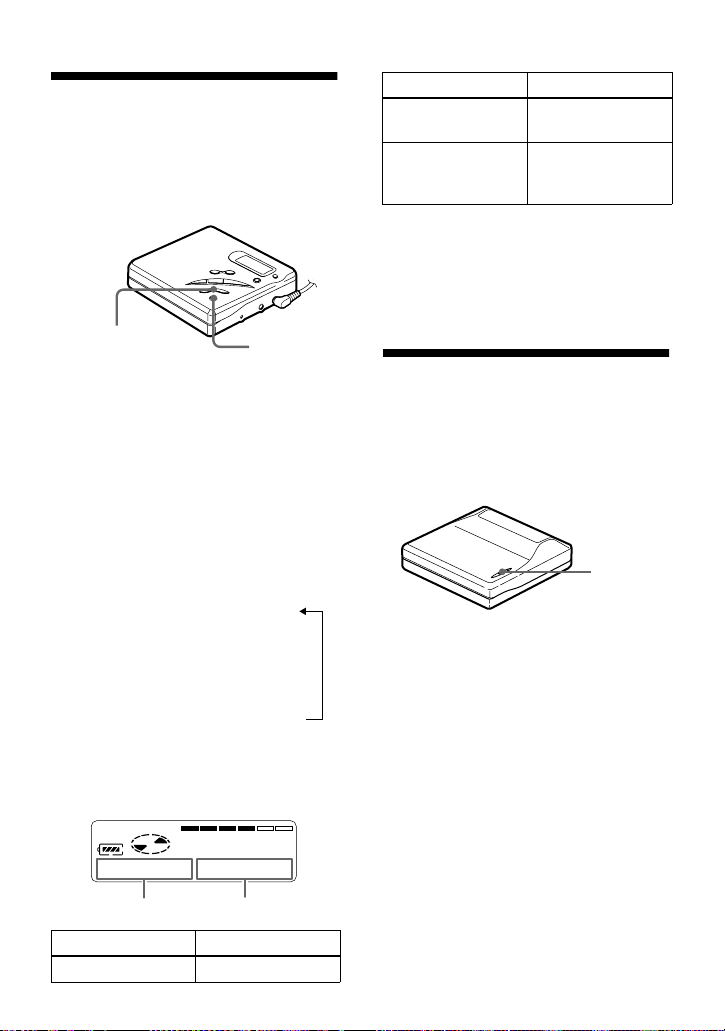
22-GB
Emphasizing bass
(DIGITAL MEGA BASS)
The Mega Bass function intensifies low
frequency sound for richer quality audio
reproduction. It affects only the sound
from the headphones/earphones.
1 Press ENTER, press
>MENU. repeatedly until
“BASS” flashes in the display, and
then press ENTER again.
2 Press >MENU. to select the
item, and then press ENTER.
Each time you press MENU., A
and B change as follows.
Notes
• If the sound becomes distorted when
emphasizing bass, turn down the volume.
• The Mega Bass function does not affects the
sound being recorded.
Protecting your hearing
(AVLS)
The AVLS (Automatic Volume Limiter
System) function keeps down the
maximum volume to protect your ears.
1 Press ENTER, press
>MENU. repeatedly until
“AV L S ” flashes in the display, and
then press ENTER again.
2 Press >MENU. repeatedly
until “ON” flashes in the display, and
then press ENTER.
When you try to turn the volume too
high, “AV L S ” flashes in the display.
The volume is kept to a moderate
level.
To cancel AVLS
Select “OFF” in step 2.
Indication A/B Play mode
—/OFF Normal play
/BASS 1 Mega Bass
(moderate effect)
/BASS 2 Mega Bass
(strong effect)
ENTER
>MENU.
Digital
MEGA BASS
B
A
ENTER
>MENU.
23-GB
Checking the remaining
time or the playing
position
You can check the track name, disc name,
etc. during playback.
1 While the recorder is playing, press
ENTER, press >MENU.
repeatedly until “DISP” flashes in the
display, and then press ENTER again.
2 Press >MENU. repeatedly
until the information you want flashes
in the display.
Each time you press MENU., the
display changes as follows.
LapTim (erapsed time)
r
1 Rem (remaining time of the
current track)
r
AllRem (remaining time after
current location)
3 Press ENTER.
The display changes as follows.
z
If you want to check the remaining time or the
recording position while recording or in stop
mode, see page 20.
Locking the controls
(HOLD)
To prevent the buttons from being
accidentally operated when you carry the
recorder, use this function.
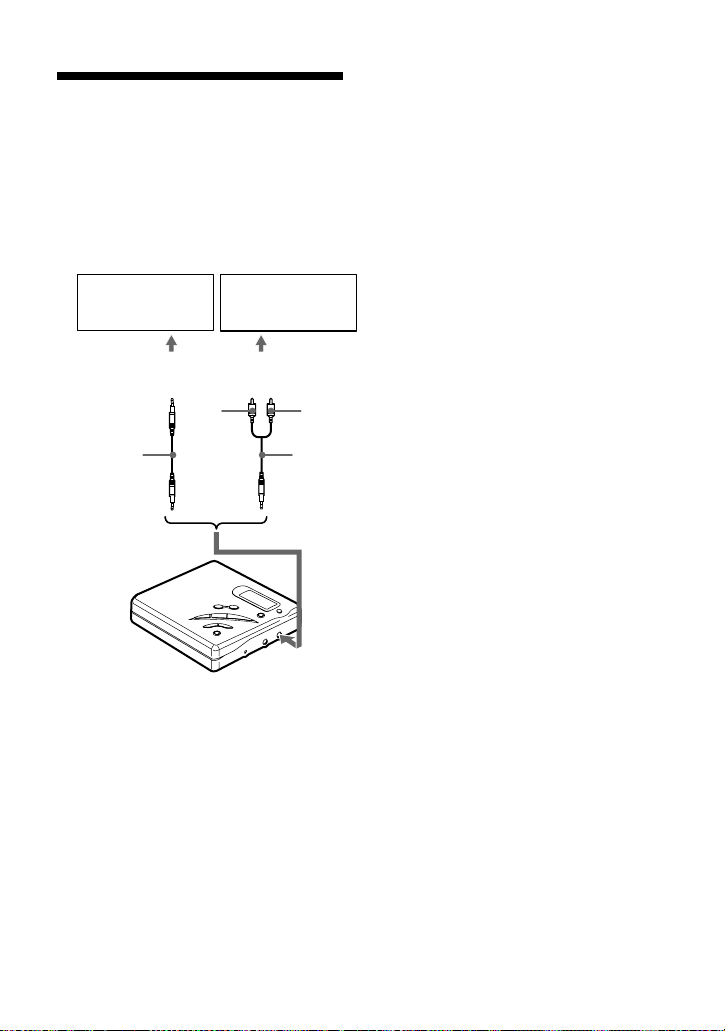
1 Slide HOLD in the direction of the
..
To unlock the controls
Slide HOLD in the opposite direction of
the arrow.
AB
Elapsed time Track number
ENTER
>MENU.
A B
Remaining time of
the current track
Track name
1)
Remaining time
after the current
location
Disc name
1)
1)
Appears only if the track has been labeled.
AB
HOLD
24-GB
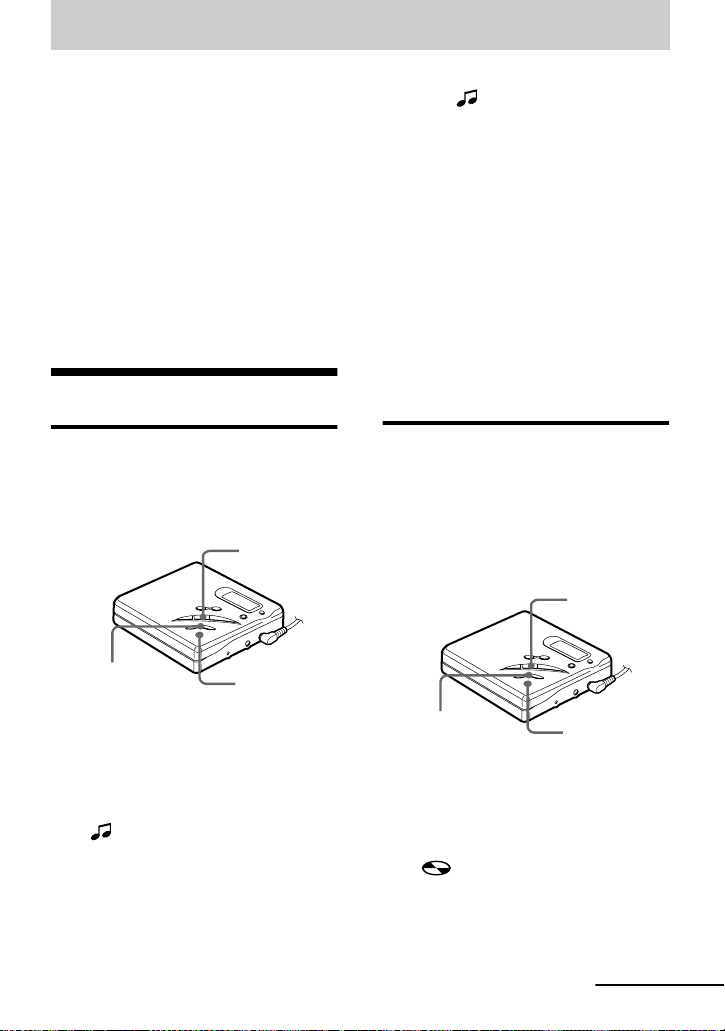
Connecting to a stereo
system
Connect the i jack of the recorder to the
LINE IN jacks of an amplifier or a
recorder with a line cable (not supplied).
The output is analog. The recorder plays
the MD digitally and sends analog signals
to the externally connected equipment.
1 Press N to start playing.
Notes
• Even when connecting to the externally
connected equipment, the Mega Bass function
is operative. If you do not want the effect of
the Mega Bass function on your recording or
the output from the externally connected
equipment, set “BASS” to “OFF” (page 22).
• When recording to an externally connected
equipment, press VOL +/– repeatedly to
adjust the volume level until “VOL 27”
appears in the display, which is optimum for
recording to an externally connected
equipment.
Portable DAT
recorder, etc.
Stereo system,
etc.
to LINE IN
2 phono plugs
L
(white)
Stereo mini-plug
R (red)
RK-G129
(not supplied
)
to i
RK-G136
(not supplied)
25-GB
Editing recorded tracks
You can edit your recordings by adding/
erasing track marks or labeling tracks and
MDs. Premastered MDs cannot be edited.
Notes on editing
• Do not move or jog the recorder while “Edit”
is flashing in the display.
• You cannot edit tracks on an MD that is
record-protected. Before editing tracks, close
the tab on the side of the MD (page 31).
• If you perform an editing operation while
playing, be sure not to turn the power off until
“Edit” disappears in the display.
• The lid does not open until “Edit” disappears
in the display after editing.
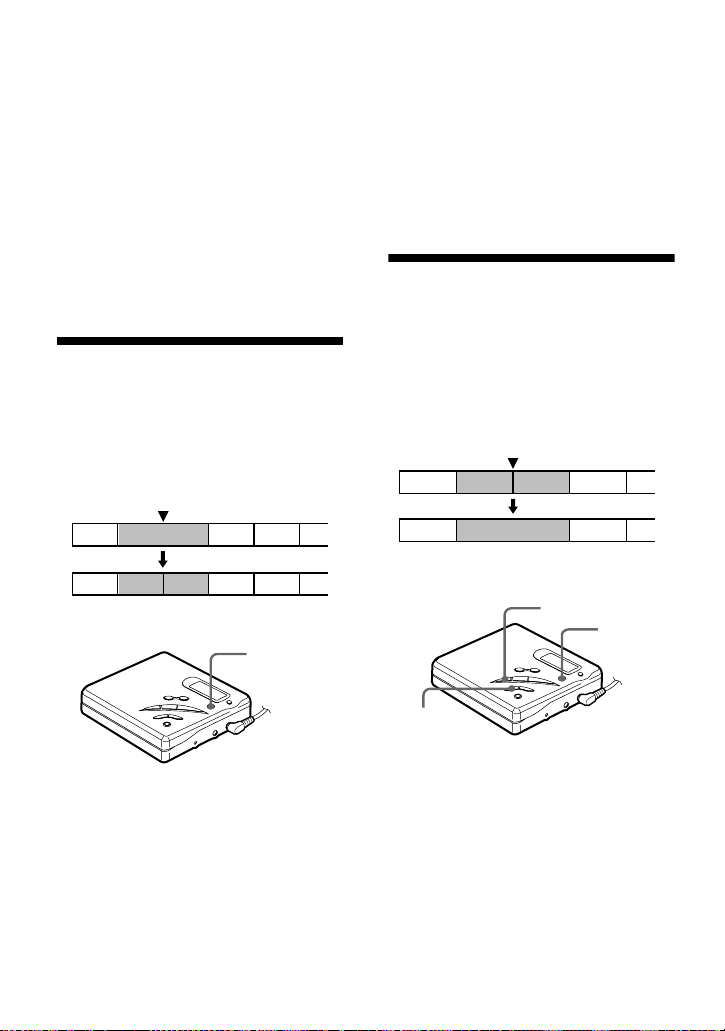
Erasing tracks
To erase a track
Note that once a recording has been
erased, you cannot retrieve it. Make sure
of the track you are erasing.
1 While playing the track you want to
erase, press ENTER, press
>MENU. repeatedly until
“EDIT” flashes in the display, and
then press ENTER again.
“” and “Name” flash in the
display, and the recorder plays the
selected track repeatedly.
2 Press >MENU. repeatedly
until “” and “Erase” flash in the
display, and then press ENTER.
“Erase?” and “ENTER” appear
alternately in the display.
To cancel erasing, press x.
3 Press ENTER.
The track is erased and the next track
starts to play. All the tracks after the
one erased are automatically
renumbered.
To erase a part of a track
Add track marks at the beginning and the
end of the part you want to erase, then
erase the part (page 26).
To erase the whole disc
You can quickly erase all the tracks and
data of the MD at the same time.
Note that once a recording has been
erased, you cannot retrieve it. Be sure to
check the contents of the disc you want to
erase.
1 While the recorder is stopped, press
ENTER, press >MENU.
repeatedly until “EDIT” flashes in the
display, and then press ENTER again.
“” and “Name” flash in the
display.
x
ENTER
>MENU.
x
ENTER
>MENU.
continued
26-GB
2 Press >MENU. repeatedly
until “Erase” flashes in the display,
and then press ENTER.
“Erase?” and “ENTER” appear
alternately in the display.
To cancel erasing, press x.
3 Press ENTER again.
“Edit” flashes in the display, and all
the tracks will be erased.
When erasing is complete, “BLANK”
appears in the display.
Adding a track mark
You can add track marks so that the part
after the new track mark is counted as a
new track.
The track numbers will increase as
follows.
1 While playing or pausing an MD,
press T MARK at the point you want
to mark.
“MK ON” appears in the display, and
a track mark is added. The track
number will increase by one.
To add track marks while
recording
Press T MARK at the point you want to
add a track mark.
Note
You cannot add track marks during synchro-
recording.
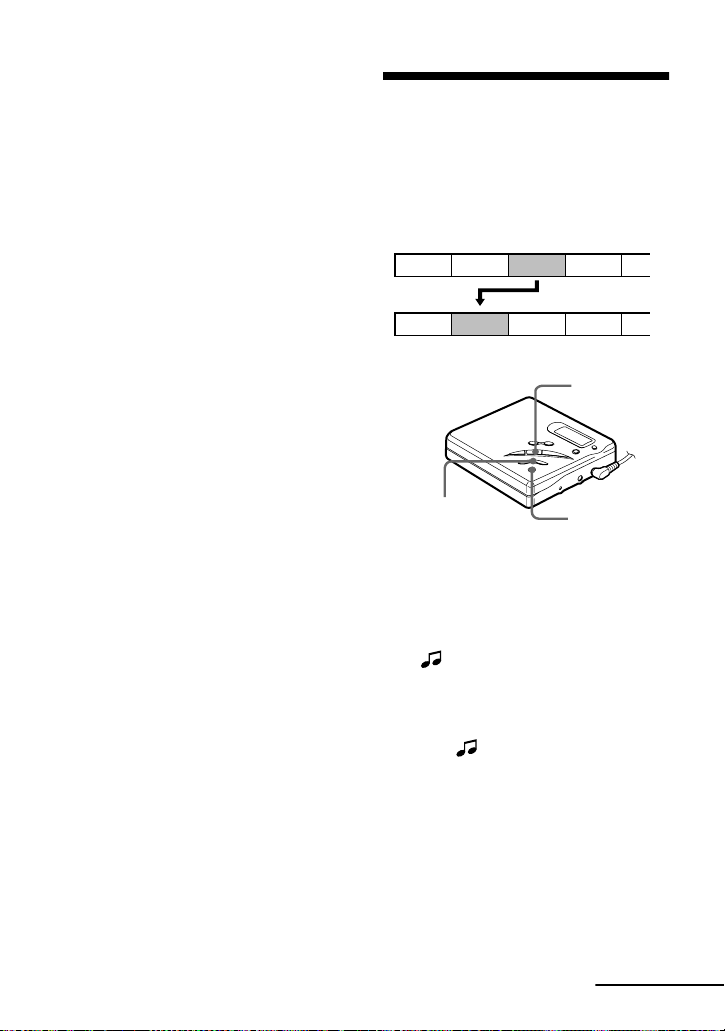
Erasing a track mark
When you record with analog (line) input,
unnecessary track marks may be recorded
where recording level is low. You can
erase a track mark to combine the tracks
before and after the track mark. The track
numbers will change as follows.
1 While playing the track with the track
mark you want to erase, press X to
pause.
1 3 42
231 4 5
Add a track mark
Track numbers increase
T MARK
1 3 42
1 32
Erase a track mark
Track numbers decrease
T MARK
X
.
27-GB
2 Find the track mark by pressing .
slightly.
For example, to erase the third track
mark, find the beginning of the third
track. “00:00” appears in the display.
“MK 003” appears in the display for
2 seconds.
3 Press T MARK to erase the mark.
“MK OFF” appears in the display.
The track mark is erased and the two
tracks are combined.
z
When you erase a track mark, name assigned to
the mark is also erased.
Notes
• You cannot erase a track mark that has been
written between track marks recorded in
different recording mode, If you try to erase
such a track mark, “SORRY” appears in the
display.
• You cannot erase a track mark that has been
written between a track recorded through a
digital connection and a track recorded
through an analog connection. If you try to
erase such a track mark, “SORRY” appears in
the display.
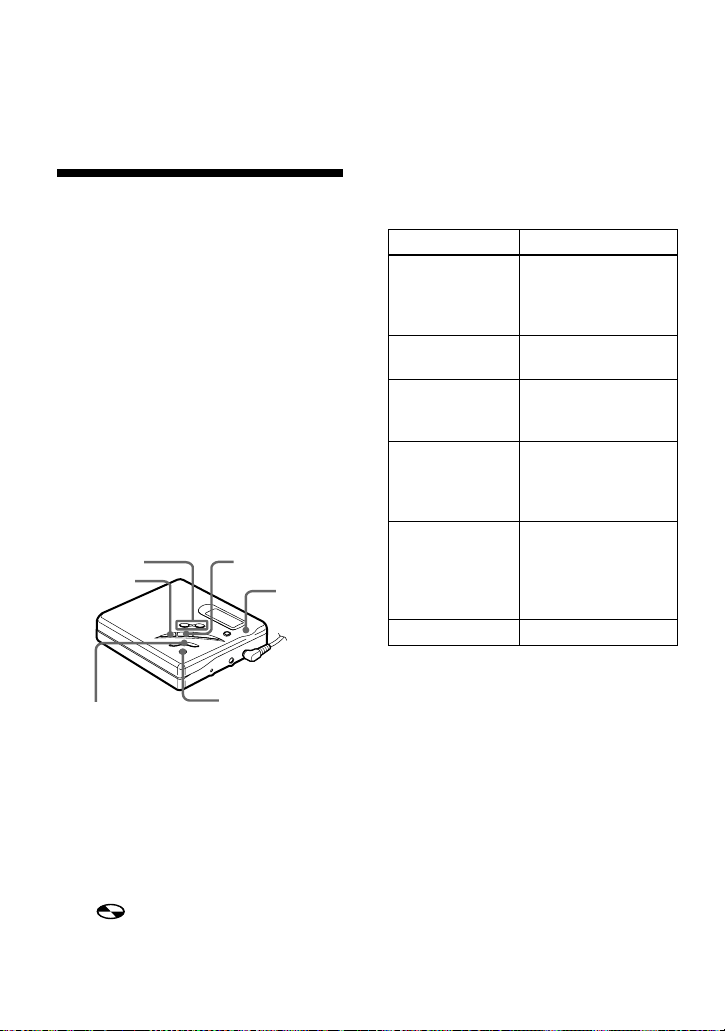
Moving recorded tracks
You can change the order of the recorded
tracks.
Example
Move track C from the third to the second
track
1 While playing the track you want to
move, press ENTER, press
>MENU. repeatedly until
“EDIT” flashes in the display, and
then press ENTER again.
“” and “Name” flash in the
display and the recorder plays the
selected track repeatedly.
2 Press >MENU. repeatedly
until “” and “Move” flash in the
display, and then press ENTER.
For the example above, “003 t” and
“t 003” appear alternately in the
display.
3 Press >MENU. to select the
destination track number.
For the example above, “003 t” and
“t 002” appears in the display.
To cancel moving, press x.
A C DB
A B DC
Before moving
After moving
x
ENTER
>MENU.
continued
28-GB
4 Press ENTER again.
The track moves to the selected
destination track.
Labeling recordings
You can name discs while the recorder is
stopped, tracks while the recorder is
playing, and both while the recorder is
recording. Each name can be as long as
200 letters.
Each disc can hold up to 1,700
alphanumeric letters during playback or
stop.
Available characters
• Capital and small letters of the English
alphabet
• Numbers 0 to 9
• !
" # $ % & ( ) * . ; < = > ?
@ _ ` + – ' , / : _ (space)
Labeling a disc during stop
1 Press ENTER, press
>MENU. repeatedly until
“EDIT” flashes in the display, and
then press ENTER again.
“” and “Name” flash in the
display.
2 Press ENTER.
The disc is ready to be labeled.
3 Press >MENU. repeatedly to
select a letter and press ENTER.
The selected letter stops flashing and
the cursor moves to the next input
position.
4 Repeat step 3 and enter all characters
of the label name.
To cancel labeling, press x.
5 Press ENTER for 2 seconds or more.
The track or disc is labeled.
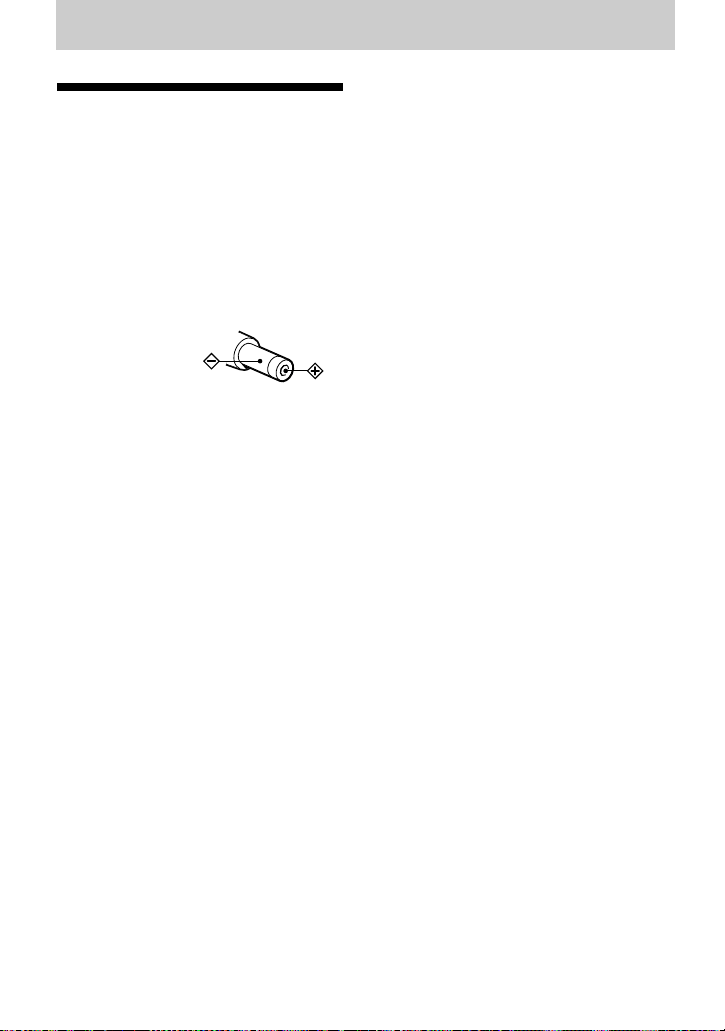
>MENU./
./>
VOL +/–
X
x
ENTER
END
SEARCH
Press To
X Switch between
capital letters, small
letters and marks /
numbers.
VOL +/– Move the cursor to
the left or right.
./> Change the letter to
the one before / next
one.
END SEARCH/
VOL +
Insert a blank space
to type in a new letter
pressing both buttons
together.
END SEARCH/
VOL –
Delete a letter and
move back all
following letters to
the left pressing both
buttons together.
x Cancel labeling.

29-GB
Labeling a track during
playback
1 Insert a disc and play the track you
want to label.
2 Press ENTER, press
>MENU. repeatedly until
“EDIT” flashes in the display, and
then press ENTER again.
“” and “Name” flash in the
display.
3 Press ENTER.
The track is ready to be labeled.
4 Follow steps 3 to 5 of “Labeling a
disc during stop”.
Labeling a track or a disc
during recording
1 While recording, press ENTER, press
>MENU. repeatedly until
“EDIT” flashes in the display, and
then press ENTER again.
“” and “Name” flash in the
display.
2 To label a track, press ENTER again.
To label a disc, press
>MENU. repeatedly until
“” and “Name” flash in the
display.
The track or disc is ready to be
labeled.
3 Follow steps 3 to 5 of “Labeling a
disc during stop”.
To cancel labeling, press x.
Notes
• When the recording is stopped while labeling
a track or a disc during recording, or when the
recording moves on to the next track while
labeling a track, the input at that point is
entered automatically.
• “LP:” has automatically been added at the
beginning of track names for tracks recorded
in LP2 or LP4.
Relabeling recordings
Follow the steps corresponding to the
labeling method until the disc or track is
ready to be labeled. Enter a new character
over the one you want to change, then
press ENTER.
Notes
• You cannot relabel premastered MDs or label
MDs that have not been recorded.
• The recorder is able to display, but cannot
label using Japanese “Katakana” characters.
• The recorder cannot rewrite a disc or track
name of more than 200 letters that was created
by another device.
30-GB
Additional information
Precautions
On safety
Do not put any foreign objects in the DC IN 3V
jack.
On power sources
• Use house current or LR6 (size AA) battery.
• For use in your house: Use the supplied AC
power adaptor or the optional AC-E30HG. Do
not use any other AC power adaptor since it
may cause the recorder to malfunction.
• The recorder is not disconnected from the AC
power source (mains) as long as it is
connected to the wall outlet, even if the
recorder itself has been turned off.
• If you are not going to use this recorder for a
long time, be sure to disconnect the power
supply (AC power adaptor or dry battery). To
remove the AC power adaptor from the wall
outlet, grasp the adaptor plug itself; never pull
the cord.
On heat build-up
Heat may build up in the recorder if it is used
for an extended period of time. In this case,
leave the recorder turned off until it cools down.
On installation
• Never use the recorder where it will be
subjected to extremes of light, temperature,
moisture or vibration.
• Never wrap the recorder in anything when it is
being used with the AC power adaptor. Heat
build-up in the recorder may cause
malfunction or damage.
On the headphones/earphones
Road safety
Do not use headphones/earphones while
driving, cycling, or operating any motorized
vehicle. It may create a traffic hazard and is
illegal in many areas. It can also be potentially
dangerous to play your recorder at high volume
while walking, especially at pedestrian
crossings. You should exercise extreme caution
or discontinue use in potentially hazardous
situations.
Preventing hearing damage
Avoid using headphones/earphones at high
volume. Hearing experts advise against
continuous, loud and extended play. If you
experience a ringing in your ears, reduce the
volume or discontinue use.
Caring for others
Keep the volume at a moderate level. This will
allow you to hear outside sounds and to be
considerate of the people around you.
On the MiniDisc cartridge
• When carrying or storing the MiniDisc, keep
it in its case.
• Do not break open the shutter.
• Do not place the cartridge where it will be
subject to light, extreme temperatures,
moisture or dust.
• Attach the supplied MD label only in the
space designated for it on the disc. Do not
stick it on any other disc surface.
On cleaning
• Clean the recorder casing with a soft cloth
slightly moistened with water or a mild
detergent solution. Do not use any type of
abrasive pad, scouring powder or solvent such
as alcohol or benzene as it may mar the finish
of the casing.
• Wipe the disc cartridge with a dry cloth to
remove dirt.
• Dust on the lens may prevent the unit from
operating properly. Be sure to close the disc
compartment lid after inserting or ejecting an
MD.
• To obtain the best sound quality, use a dry
cloth to wipe the plugs of the headphones/
earphones. Dirty plugs may cause sound
distortion or intermittent breaks in the sound.
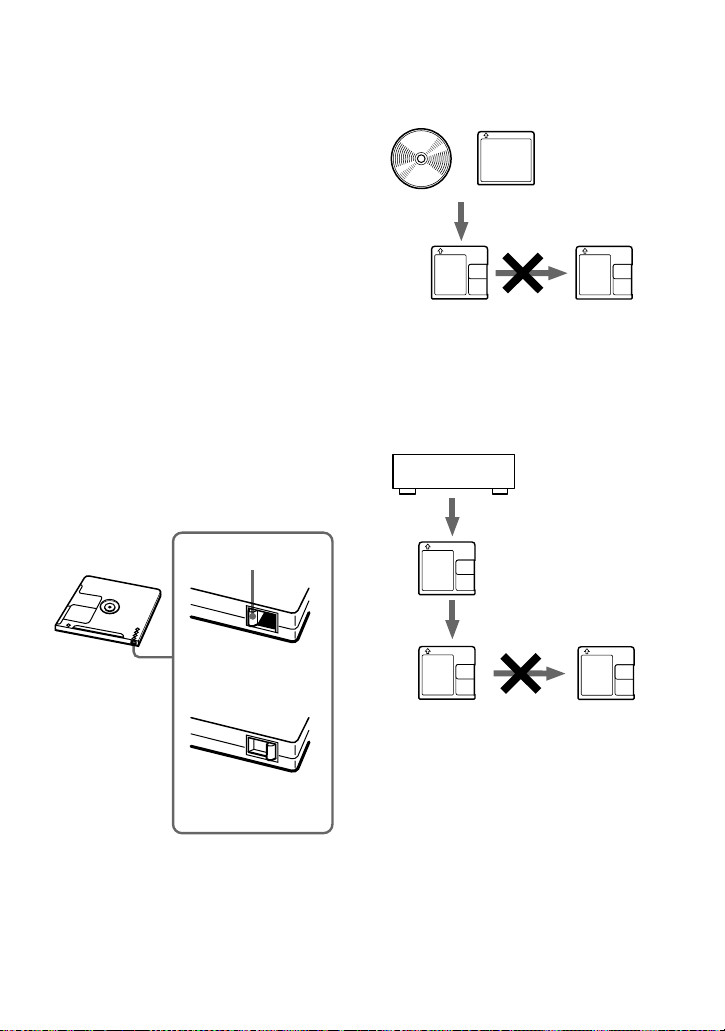
Polarity of the
plug
31-GB
Notes on battery
Incorrect battery usage may lead to leakage of
battery fluid or bursting battery. To prevent
such accidents, observe the following
precautions:
• Install the + and – poles of the battery
correctly.
• Do not try to recharge dry battery.
• When the recorder is not to be used for a long
time, be sure to remove the battery.
• If a battery leak should develop, carefully and
thoroughly wipe away battery fluid from the
battery compartment before inserting new
ones.
Note on mechanical noise
The recorder gives off mechanical noise while
operating, which is caused by the power-saving
system of the recorder and it is not a problem.
To protect a recorded MD
To record-protect an MD, slide open the tab at
the side of the MD. In this position, the MD
cannot be recorded or edited. To record again,
slide the tab back so the tab is visible.
Note on digital recording
This recorder uses the Serial Copy
Management System, which allows only first-
generation digital copies to be made from
premastered software. You can only make
copies from a home-recorded MD by using the
analog connections.
If you have any questions or problems
concerning your recorder, please consult your
nearest Sony dealer. (If a trouble occurred when
the disc was in the recorder, we recommend that
the disc be left in the recorder when you consult
your Sony dealer so that the cause of trouble
may be better understood.)
Back of the MD
Recorded material
is protected.
Tab
Recorded material
is not protected.
Premastered software such
as CDs or MDs.
Digital recording
Home-
recorded
MD
No
digital
recording
Recordable
MD
Microphone, record player, tuner, etc.
(with analog output jacks).
Home-recorded MD
No
digital
recording
Recordable
MD
Digital recording
Analog recording
Recordable
MD

32-GB
Troubleshooting
Should any problem persist after you have made these checks, consult your nearest Sony
dealer.
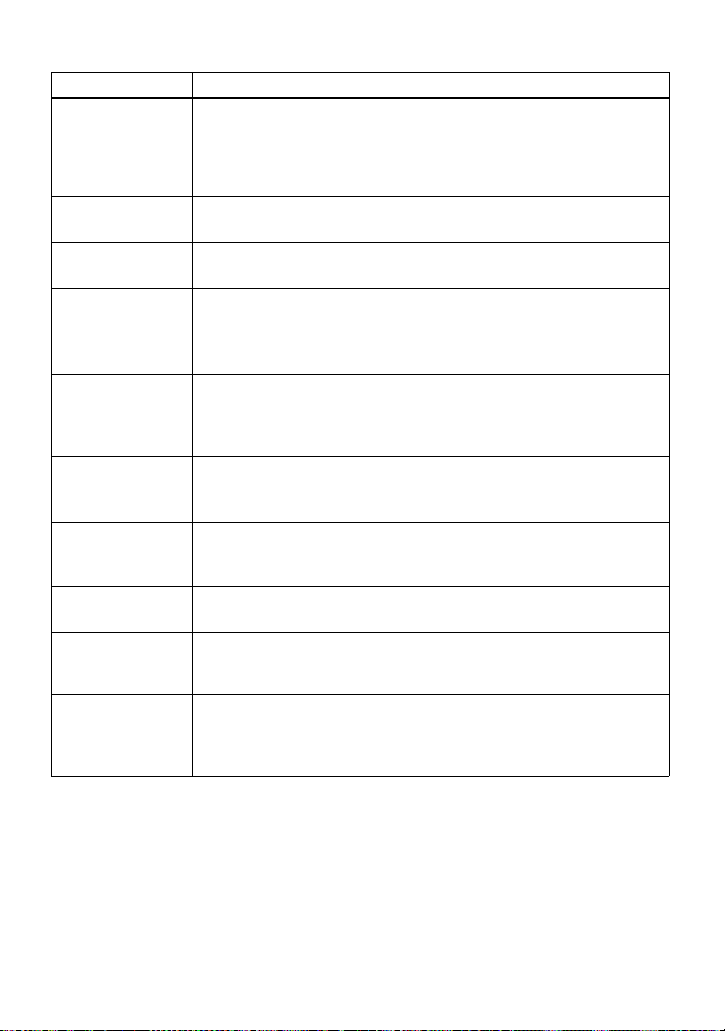
Symptom Cause/Solution
The recorder does
not work or works
poorly.
• Audio sources may not be securely connected.
, Disconnect the audio sources once and connect them again
(pages 10, 16).
• The HOLD function is turned on (“HOLD” appears in the display
when you press an operation button on the recorder).
, Disable HOLD by sliding the HOLD switch in the opposite
direction of the arrow (page 23).
• Moisture has condensed inside the recorder.
, Take the MD out and leave the recorder in a warm place with
the lid open for several hours until the moisture evaporates.
• The dry battery is weak (r or “LoBATT” flashes).
, Replace the dry battery (page 9).
• The dry battery have been inserted incorrectly.
, Insert the battery correctly (page 8).
• You pressed a button while the disc indication was rotating
quickly.
, Wait until the indication rotates slowly.
• When recording digitally from a portable CD player, you did not
use AC power or did not disable the anti-skip function such as ESP
(page 12).
• The analog recording was made using a connecting cord with an
attenuator.
, Use a connecting cord without an attenuator (page 16).
• While operating, the recorder received a mechanical shock, too
much static, abnormal power voltage caused by lightning, etc.
, Restart the operation as follows.
1 Remove the battery from the battery compartment lid.
2 Leave the recorder for about 30 seconds.
3 Insert the battery into the battery compartment.
• The disc is damaged or does not contain proper recording or
editing data.
, Reinsert the disc. If this fails, rerecord.
“No SIG” appears
in the display
when recording
from a portable
CD player.
• There is no digital signal from a portable CD player.
, When recording digitally from a portable CD player, use the
AC power adaptor and disable the anti-skip function (such as
ESP) on the CD player (page 12).
33-GB
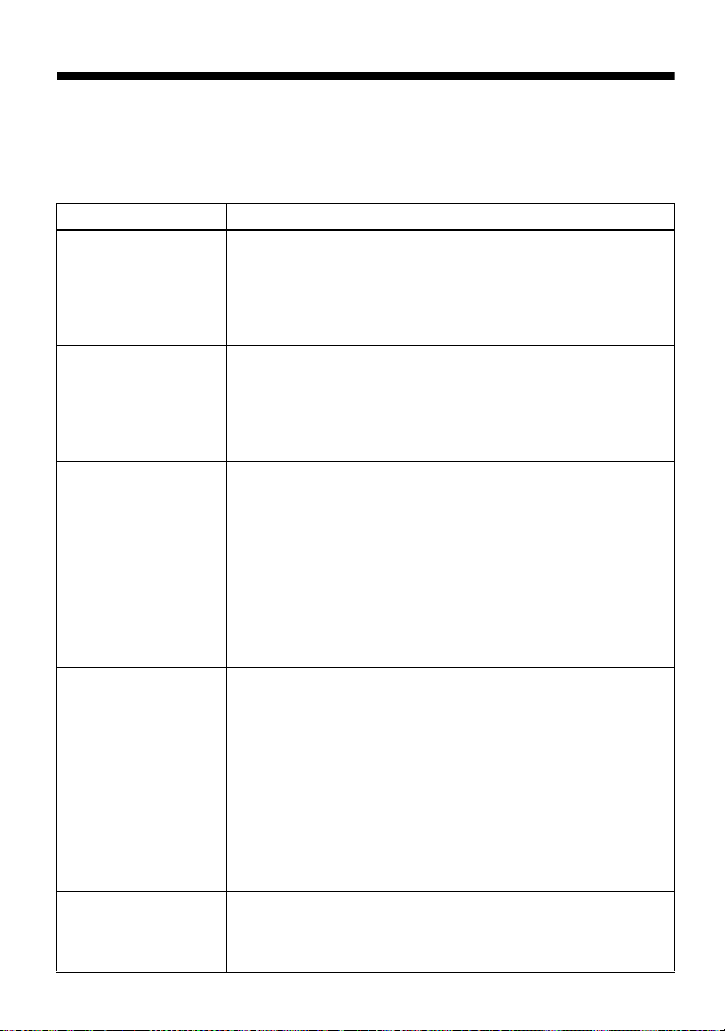
There is no
recording on the
MD after a
recording
operation.
• The AC power adaptor was unplugged or a power outage occurred
during recording.
The lid does not
open.
• The battery have been exhausted.
, Replace the exhausted battery with new ones.
Volume cannot be
turned up.
• AVLS is on.
, Set AVLS to “OFF” (page 22).
No sound comes
through the
headphones/
earphones.
• The headphones/earphones plug is not firmly connected.
, Plug in the plug of the headphones/earphones firmly to i.
• Volume is too low.
, Adjust the volume by pressing VOL +/–.
An MD is not
played from the
first track.
• Disc playing stopped before it came to the last track.
, Press . repeatedly or open and close the lid once to go back
to the beginning of the disc, and restart playing after checking
the track number in the display.
Playback sound
skips.
• The recorder is placed where it receives continuous vibration.
, Put the recorder on a stable place.
• A very short track may cause sound to skip.
Sound has a lot of
static.
• Strong magnetism from a television or such device is interfering
with operation.
, Move the recorder away from the source of strong magnetism.
Cannot find the
track marks.
• You pressed X after pressing . or >.
, Press X before or pressing . or > (page 27).
The disc cannot
edit on other
component.
• The component does not support LP2 and LP4.
, Edit on other component that support LP2 and LP4.
Momentary noise
is heard.
• Due to the special digital audio compression technology used in
LP4 mode, momentary noise may occur on very rare occasions
with certain sound sources.
, Record in normal stereo or LP2 mode.
Symptom Cause/Solution
34-GB
System limitations
The recording system in your MiniDisc recorder is radically different from those used in
cassette and DAT decks and is characterized by the limitations described below. Note,
however, that these limitations are due to the inherent nature of the MD recording system
itself and not to mechanical causes.
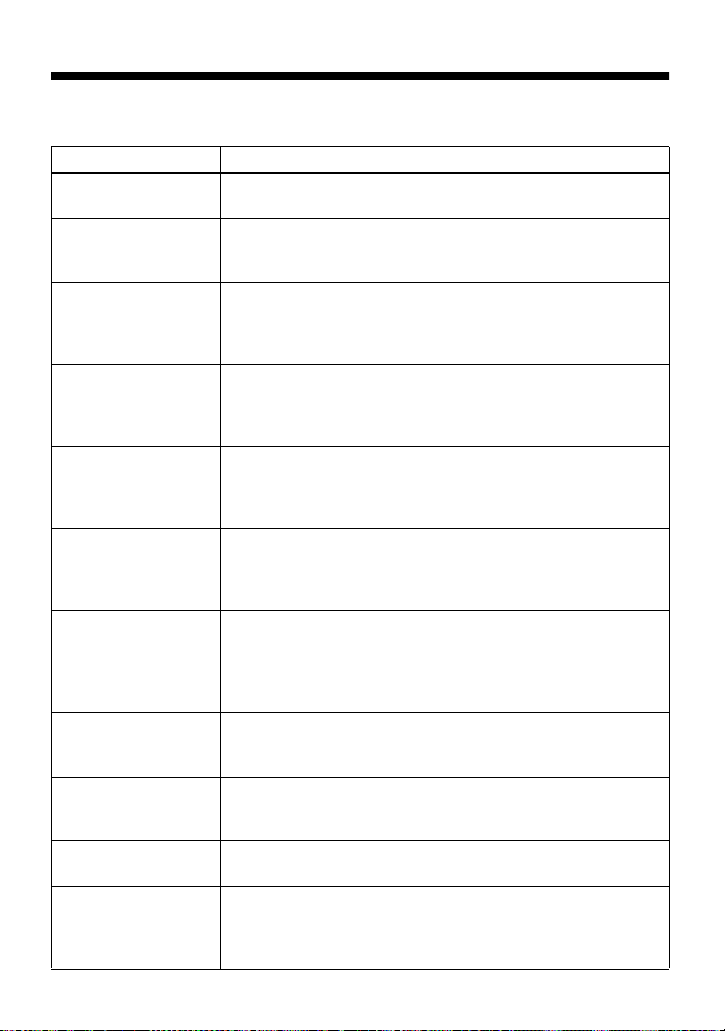
Symptom Cause
“TrFULL” appears
even before the disc
has reached the
maximum recording
time (60, 74, or 80
minutes).
When 254 tracks have been recorded on the disc, “TrFULL”
appears regardless of the total recorded time. More than 254
tracks cannot be recorded on the disc. To continue recording,
erase unnecessary tracks.
“TrFULL” appears
even before the disc
has reached the
maximum track
number or recording
time.
Repeated recording and erasing may cause fragmentation and
scattering of data. Although those scattered data can be read,
each fragment is counted as a track. In this case, the number of
tracks may reach 254 and further recording is not possible. To
continue recording, erase unnecessary tracks.
Track marks cannot be
erased.
The remaining
recording time does
not increase even after
erasing numerous
short tracks.
When the data of a track is fragmented, the track mark of a
fragment under 12 seconds long (recorded in stereo), 24 seconds
long (recorded in LP2 mode or monaural mode), or 48 seconds
long (recorded in LP4 mode) cannot be erased. You cannot
combine tracks recorded in different recording modes, e.g., a
track recorded in stereo and a track recorded in monaural; nor
can you combine a track recorded with digital connection and a
track recorded with analog connection.
Tracks of under 12 seconds, 24 seconds, or 48 seconds in length
are not counted and so erasing them may not lead to an increase
in the recording time.
The total recorded
time and the remaining
time on the disc may
not total the maximum
recording time (60, 74,
or 80 minutes).
Normally, recording is done in minimum units of approximately
2 seconds (in stereo), 4 seconds (in LP2 mode or monaural), or 8
seconds (in LP4 mode). When recording is stopped, the last unit
of recording always uses this unit of 2 seconds, 4 seconds, or 8
seconds even if the actual recording is shorter. Likewise, when
recording is restarted after the stop, the recorder will
automatically insert a blank space amounting to 2 seconds, 4
seconds, or 8 seconds before the next recording. (This is to
prevent accidental erasing of a previous track whenever a new
recording is started). Therefore, the actual recording time will
decrease whenever a recording is stopped by a maximum of 6
seconds, 12 seconds, or 24 seconds.
The edited tracks may
exhibit sound dropout
during search
operations.
The fragmentation of data may cause sound dropout while
searching because the tracks are played in higher speed than
normal playback.
35-GB
Messages
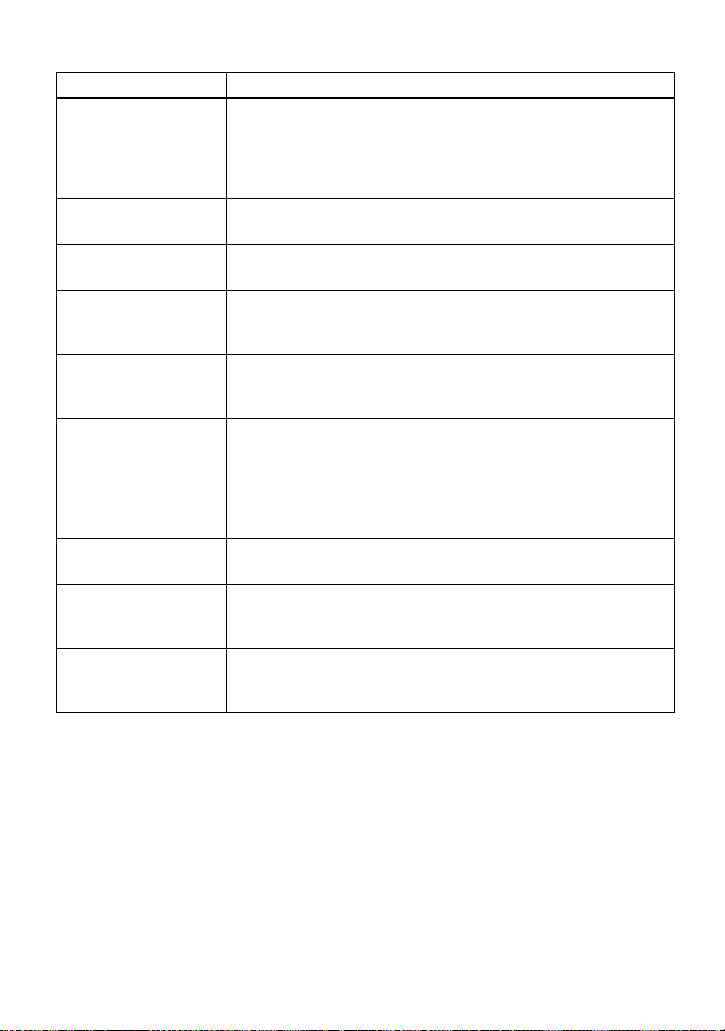
If the following error messages flash in the display window, check the chart below.
Error message Meaning/Remedy
BLANK • An MD with no recording on it is inserted.
, Insert a recorded MD.
ERROR • The disc is damaged or does not contain proper recording or
editing data.
, Reinsert the disc. If this fails, rerecord.
FULL • There is no more space to record on the disc (less than 12
seconds in stereo, 24 seconds in LP2 mode or monaural or 48
seconds in LP4 mode available).
, Replace the disc.
Saving • The MD player is recording information (sounds) from the
memory to the disk.
, Wait until this process is completed. Do not expose the
player to any physical shock, nor disrupt power supply.
Edit • The MD player is recording information (track start and end
position) from the memory to the disk.
, Wait until this process is completed. Do not expose the
player to physical shock, nor disrupt power supply.
BUSY • You tried to operate the recorder while it was accessing the
recorded data.
, Wait until the message goes out (in rare cases, it may take
2–3 minutes).
FULL • You tried to enter more than 200 letters to label a single track
or disc.
• You tried to enter a total of more than 1,700 letters for track or
disc names during playback or stop.
, Enter the characters within the limit.
HiDCin • Voltage of the power supply is too high (The recommended
AC power adaptor is not used).
, Use the recommended AC power adaptor.
HOLD • The recorder is locked.
, Slide HOLD against the arrow to unlock the recorder
(page 23).
LoBATT • Battery is weak.
, Replace the dry battery (page 9).
MEMORY • You tried to record with the recorder placed where it receives
continuous vibration.
, Put the recorder on a stable place, and start recording
again.
36-GB
NoCOPY • You tried to make a copy from a disc that is protected by the
Serial Copy Management System. You cannot make copies
from a digitally connected source which was itself recorded
using digital connection.
, Use analog connection instead (page 16).
NoDISC • You tried to play or record with no disc in the recorder.
, Insert an MD.
No SIG • The recorder could not detect digital input signals.
, Make sure that the source is connected firmly (page 10).
PbONLY • You tried to record or edit on a premastered MD (Pb stands for
“playback”).
, Insert a recordable MD.
SAVED • You tried to record or edit on a MD with the tab in the record-
protect position.
, Slide the tab back (page 31).
SORRY • You tried to erase the track mark at the beginning of the first
track.
• You tried to erase a track mark to combine tracks the recorder
cannot combine (a track recorded in stereo and in mono, for
example).
• You tried to press X or T MARK during synchro-recording.
TEMP • Heat has built up in the recorder.
, Let the recorder cool down.
TrFULL • There is no more space for new data when you are editing the
MD.
, Erase unnecessary tracks (page 25).
TrPROT • You tried to record or edit on a track that is protected from
erasing.
, Record or edit on other tracks.
Error message Meaning/Remedy

37-GB
Specifications
System
Audio playing system
MiniDisc digital audio system
Laser diode properties
Material: GaAlAs
Wavelength: λ = 790 nm
Emission duration: continuous
Laser output: less than 44.6 µW
(This output is the value measured at a distance
of 200 mm from the lens surface on the optical
pick-up block with 7 mm aperture.)
Recording and playback time
When using MDW-80:
Maximum 160 min. in monaural
Maximum 320 min. in stereo
Revolutions
350 rpm to 2,800 rpm (CLV)
Error correction
ACIRC (Advanced Cross Interleave Reed
Solomon Code)
Sampling frequency
44.1 kHz
Sampling rate converter
Input: 32 kHz/44.1 kHz/48 kHz
Coding
ATRAC (Adaptive TRansform Acoustic
Coding)
ATRAC3 - LP2
ATRAC3 - LP4
Modulation system
EFM (Eight to Fourteen Modulation)
Number of channels
2 stereo channels
1 monaural channel
Frequency response
20 to 20,000 Hz ± 3 dB
Wow and Flutter
Below measurable limit
Inputs
Line in: stereo mini-jack, minimum input level
49 mV
Optical (Digital) in: optical (digital) mini-jack
Outputs
i: stereo mini-jack, maximum output level 5
mW + 5 mW, load impedance 16 ohm
General
Power requirements
Sony AC power adaptor connected at the DC IN
3V jack (supplied with the European, Chinese
and Argentine models only):
120 V AC, 60 Hz (U.S.A., Canadian and
Taiwan model)
230 V AC, 50/60 Hz (Europe continental
model)
240 V AC, 50 Hz (Australian model)
220 V AC, 50 Hz (Chinese model)
230 - 240 V AC, 50 Hz (U.K. and Hong
Kong model)
220 V AC, 50 Hz (Argentina model)
110/220 V AC, 60 Hz (Korean model)
100 - 240 V AC, 50/60 Hz (Other models)
One LR6 (size AA) alkaline dry battery (not
supplied)
Battery operation time
See “Battery life” (page 8)
Dimensions
Approx. 83.0 × 27.8 × 75.8 mm (w/h/d) (3
3
/8 ×
1
1
/8 × 3 in.) without projections.
Mass
Approx. 113 g (4.0 oz) the recorder only
Supplied accessories
AC power adaptor (European, Chinese and
Argentine models only) (1)
Headphones/earphones (1)
Optical cable (European, Chinese and
Argentine models only) (1)
US and foreign patents licensed from Dolby
Laboratories.
Design and specifications are subject to change
without notice.
Optional accessories
Optical Cable
POC-15B, POC-15AB, POC-DA12SP
Line Cable RK-G129, RK-G136
Stereo Headphones* MDR-D77, MDR-D55
Active Speakers SRS-Z500
Recordable MDs MDW-series
AC power adaptor AC-E30HG
Your dealer may not handle some of the above
listed accessories. Please ask the dealer for
detailed information about the accessories in
your country.
38-GB
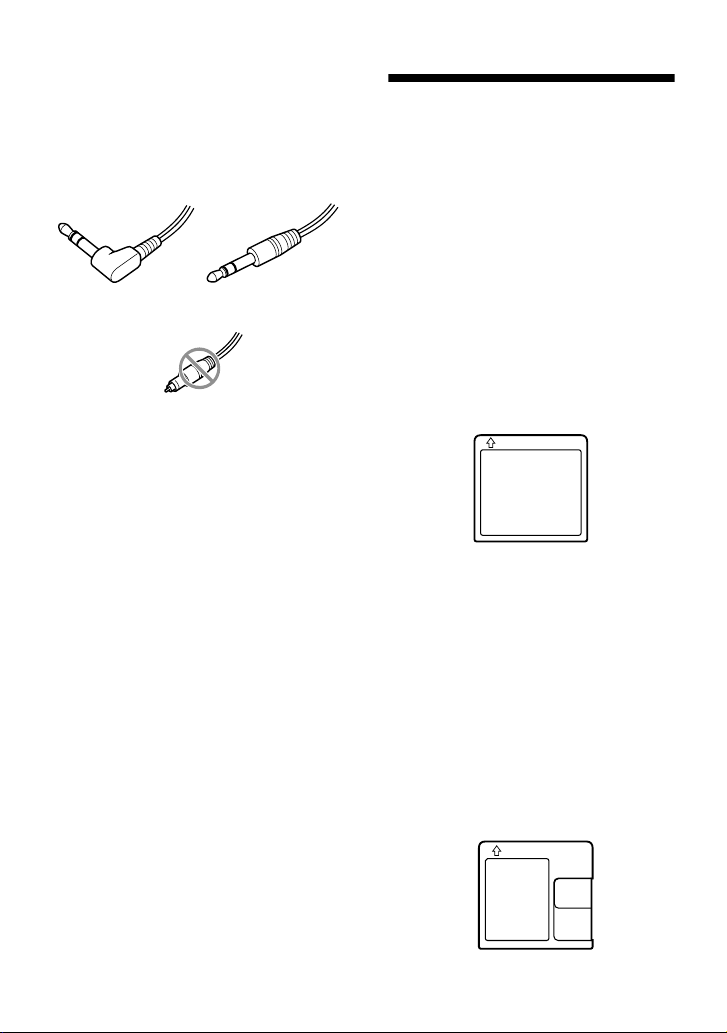
∗ You should plug the headphones/earphones
directly to i jack on the main unit. Use
only headphones/earphones with stereo
mini plugs. You cannot use headphones/
earphones with micro plugs.
What is an MD?
How MiniDisc works
MiniDisc (MD) comes in two types:
premastered (prerecorded) and recordable
(blank). Premastered MDs, recorded at
music studios, can be played back almost
endlessly. However, they can’t be recorded
on or over like cassette tapes. To record, you
must use a “recordable MD”.
Premastered MDs
Premastered MDs are recorded and played
like regular CDs. A laser beam focuses on
the pits in the surface of the MD and reflects
the information back to the lens in the
recorder. The recorder then decodes the
signals and plays them back as music.
Recordable MDs
Recordable MDs, which use magneto-
optical (MO) technology, can be recorded
again and again. The laser inside the
recorder applies heat to the MD,
demagnetizing the magnetic layer of the
MD. The recorder then applies a magnetic
field to the layer. This magnetic field
corresponds exactly to the audio signals
generated by the connected source. (The
north and south polarities equate to digital
“1” and “0”.) The demagnetized MD adopts
the polarity of the magnetic field, resulting
in a recorded MD.
Stereo mini plugs
Micro plug
39-GB
How the MiniDisc got so small
The 2.5-inch MiniDisc, encased in a plastic
cartridge that looks like a 3.5-inch diskette
(see illustration on page 38), uses a new
digital audio compression technology called
ATRAC (Adaptive TRansform Acoustic
Coding). To store more sound in less space,
ATRAC extracts and encodes only those
frequency components actually audible to
the human ear.
Quick Random Access
Like CDs, MDs offer instantaneous random
access to the beginning of any music track.
Premastered MDs are recorded with location
addresses corresponding to each music
selection.
Recordable MDs are manufactured with a
“User TOC Area” to contain the order of the
music. The TOC (Table of Contents) system
is similar to the “directory management
system” of floppy disks. In other words,
starting and ending addresses for all music
tracks recorded on the disc are stored in this
area. This lets you randomly access the
beginning of any track as soon as you enter
the track number (AMS), as well as label the
location with a track name as you would a
file on a diskette.
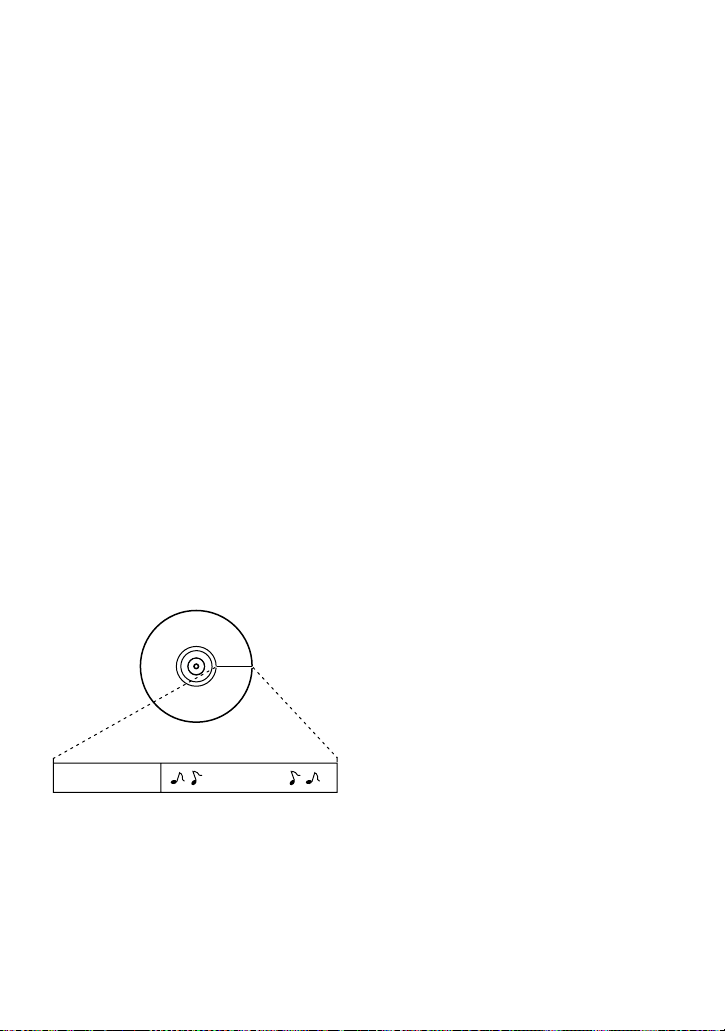
BA
A — User TOC area
Contains the order and start/end points of
the music.
B — Music Data

Sony Corporation Printed in JapanSony Corporation Printed in Malaysia
This warranty is valid only in the United States.