© 2009 Sony Corporation
4-143-379-62(1)
DSC-W180/W190
Digital Still Camera
Cámara fotografía digital
Instruction Manual
··················································
Manual de instrucciones
·······························
GB
ES
2
GB
Owner’s Record
The model and serial numbers are located
on the bottom. Record the serial number in
the space provided below. Refer to these
numbers whenever you call upon your Sony
dealer regarding this product.
Model No. DSC-W180/W190
Serial No. ___________________________
To reduce fire or shock hazard, do
not expose the unit to rain or
moisture.
If the shape of the plug does not fit the
power outlet, use an attachment plug
adaptor of the proper configuration for the
power outlet.
English
WARNING

3
GB
GB
[ Battery pack
If the battery pack is mishandled, the battery pack
can burst, cause a fire or even chemical burns.
Observe the following cautions.
• Do not disassemble.
• Do not crush and do not expose the battery pack
to any shock or force such as hammering,
dropping or stepping on it.
• Do not short circuit and do not allow metal
objects to come into contact with the battery
terminals.
• Do not expose to high temperature above 60°C
(140°F) such as in direct sunlight or in a car
parked in the sun.
• Do not incinerate or dispose of in fire.
• Do not handle damaged or leaking lithium ion
batteries.
• Be sure to charge the battery pack using a
genuine Sony battery charger or a device that
can charge the battery pack.
• Keep the battery pack out of the reach of small
children.
• Keep the battery pack dry.
• Replace only with the same or equivalent type
recommended by Sony.
• Dispose of used battery packs promptly as
described in the instructions.
[ Battery charger
Even if the CHARGE lamp is not lit, the battery
charger is not disconnected from the AC power
source (mains) as long as it is connected to the
wall outlet (wall socket). If some trouble occurs
while using the battery charger, immediately shut
off the power by disconnecting the plug from the
wall outlet (wall socket).
[ RECYCLING LITHIUM-ION
BATTERIES
Lithium-Ion batteries are
recyclable.
You can help preserve our
environment by returning your
used rechargeable batteries to
the collection and recycling
location nearest you.
For more information regarding recycling of
rechargeable batteries, call toll free
1-800-822-8837, or visit http://www.rbrc.org/
Caution: Do not handle damaged or leaking
Lithium-Ion batteries.
[ Battery pack
This device complies with Part 15 of the FCC
Rules. Operation is subject to the following two
conditions: (1) This device may not cause harmful
interference, and (2) this device must accept any
interference received, including interference that
may cause undesired operation.
This Class B digital apparatus complies with
Canadian ICES-003.
CAUTION For Customers in the U.S.A. and
Canada

4
GB
UL is an internationally recognized safety
organization.
This product has received UL Listing.
If you have any questions about this product, you
may call:
Sony Customer Information Center
1-800-222-SONY (7669)
The number below is for the FCC related matters
only.
[ Regulatory Information
[ CAUTION
You are cautioned that any changes or
modifications not expressly approved in this
manual could void your authority to operate this
equipment.
[ Note:
This equipment has been tested and found to
comply with the limits for a Class B digital
device, pursuant to Part 15 of the FCC Rules.
These limits are designed to provide reasonable
protection against harmful interference in a
residential installation. This equipment generates,
uses, and can radiate radio frequency energy and,
if not installed and used in accordance with the
instructions, may cause harmful interference to
radio communications. However, there is no
guarantee that interference will not occur in a
particular installation. If this equipment does
cause harmful interference to radio or television
reception, which can be determined by turning the
equipment off and on, the user is encouraged to
try to correct the interference by one or more of
the following measures:
– Reorient or relocate the receiving antenna.
– Increase the separation between the equipment
and receiver.
– Connect the equipment into an outlet on a
circuit different from that to which the receiver
is connected.
– Consult the dealer or an experienced radio/TV
technician for help.
The supplied interface cable must be used with the
equipment in order to comply with the limits for a
digital device pursuant to Subpart B of Part 15 of
FCC Rules.
Perchlorate Material-special handling may apply,
See
www.dtsc.ca.gov/hazardouswaste/perchlorate
Perchlorate Material: Lithium battery contains
perchlorate.
For Customers in the U.S.A.
Declaration of Conformity
Trade Name: SONY
Model No.: DSC-W180
Responsible Party: Sony Electronics Inc.
Address: 16530 Via Esprillo,
San Diego, CA 92127U.S.A.
Telephone No.: 858-942-2230
This device complies with Part 15 of the FCC
Rules. Operation is subject to the following
two conditions: (1) This device may not cause
harmful interference, and (2) this device must
accept any interference received, including
interference that may cause undesired
operation.
Declaration of Conformity
Trade Name: SONY
Model No.: DSC-W190
Responsible Party: Sony Electronics Inc.
Address: 16530 Via Esprillo,
San Diego, CA 92127U.S.A.
Telephone No.: 858-942-2230
This device complies with Part 15 of the FCC
Rules. Operation is subject to the following
two conditions: (1) This device may not cause
harmful interference, and (2) this device must
accept any interference received, including
interference that may cause undesired
operation.
For the State of California, USA
only

5
GB
[ Notice for the customers in the
countries applying EU Directives
The manufacturer of this product is Sony
Corporation, 1-7-1 Konan Minato-ku Tokyo, 108-
0075 Japan. The Authorized Representative for
EMC and product safety is Sony Deutschland
GmbH, Hedelfinger Strasse 61, 70327 Stuttgart,
Germany. For any service or guarantee matters
please refer to the addresses given in separate
service or guarantee documents.
This product has been tested and found compliant
with the limits set out in the EMC Directive for
using connection cables shorter than 3 meters
(9.8 feet).
[ Attention
The electromagnetic fields at the specific
frequencies may influence the picture and sound
of this unit.
[ Notice
If static electricity or electromagnetism causes
data transfer to discontinue midway (fail), restart
the application or disconnect and connect the
communication cable (USB, etc.) again.
[ Disposal of Old Electrical &
Electronic Equipment (Applicable
in the European Union and other
European countries with separate
collection systems)
This symbol on the product or on its packaging
indicates that this product shall not be treated as
household waste. Instead it shall be handed over
to the applicable collection point for the recycling
of electrical and electronic equipment. By
ensuring this product is disposed of correctly, you
will help prevent potential negative consequences
for the environment and human health, which
could otherwise be caused by inappropriate waste
handling of this product. The recycling of
materials will help to conserve natural resources.
For more detailed information about recycling of
this product, please contact your local Civic
Office, your household waste disposal service or
the shop where you purchased the product.
For Customers in Europe

6
GB
Disposal of waste batteries
(applicable in the European Union
and other European countries with
separate collection systems)
This symbol on the battery or on the packaging
indicates that the battery provided with this
product shall not be treated as household waste.
On certain batteries this symbol might be used in
combination with a chemical symbol. The
chemical symbols for mercury (Hg) or lead (Pb)
are added if the battery contains more than
0.0005% mercury or 0.004% lead.
By ensuring these batteries are disposed of
correctly, you will help prevent potentially
negative consequences for the environment and
human health which could otherwise be caused by
inappropriate waste handling of the battery. The
recycling of the materials will help to conserve
natural resources.
In case of products that for safety, performance or
data integrity reasons require a permanent
connection with an incorporated battery, this
battery should be replaced by qualified service
staff only. To ensure that the battery will be
treated properly, hand over the product at end-of-
life to the applicable collection point for the
recycling of electrical and electronic equipment.
For all other batteries, please view the section on
how to remove the battery from the product
safely.
Hand the battery over to the applicable collection
point for the recycling of waste batteries.
For more detailed information about recycling of
this product or battery, please contact your local
Civic Office, your household waste disposal
service or the shop where you purchased the
product.
A moulded plug complying with BS 1363 is fitted
to this equipment for your safety and
convenience.
Should the fuse in the plug supplied need to be
replaced, a fuse of the same rating as the supplied
one and approved by ASTA or BSI to BS 1362,
(i.e., marked with an or mark) must be
used.
If the plug supplied with this equipment has a
detachable fuse cover, be sure to attach the fuse
cover after you change the fuse. Never use the
plug without the fuse cover. If you should lose the
fuse cover, please contact your nearest Sony
service station.
Notice for customers in the
United Kingdom

7
GB
Table of contents
Notes on using the camera ...................................................................... 9
Getting started ................................................................... 10
Checking the accessories supplied........................................................ 10
Identifying parts....................................................................................... 11
Charging the battery pack ...................................................................... 12
Inserting the battery pack/a “Memory Stick Duo” media
(sold separately)...................................................................................... 14
Setting the clock...................................................................................... 16
Shooting/viewing images ...................................... 18
Shooting images...................................................................................... 18
Viewing images ....................................................................................... 19
Using shooting functions ........................................................ 20
Detecting smiles and shooting automatically (Smile Shutter)................. 20
Focusing on the face of the subject (Face Detection) ............................ 21
Shooting close-ups (Macro).................................................................... 22
Using the self-timer ................................................................................. 22
Selecting a flash mode............................................................................ 23
Changing the screen display .................................................................. 23
Selecting the image size to match the usage ......................................... 24
Using the Shooting mode that matches the scene (Scene Selection).... 27
Shooting movies ...................................................................................... 28
Using viewing functions ........................................................... 30
Viewing an enlarged image (Playback zoom)......................................... 30
Searching for an image (Image Index) ................................................... 30
Viewing a series of still images (Slideshow)............................................ 31
Deleting images ............................................................................. 32
Deleting images ...................................................................................... 32
Deleting all images (Format) ................................................................... 33

8
GB
Connecting to other devices ................................................. 34
Viewing images on a TV ..........................................................................34
Printing still images..................................................................................34
Using the camera with a computer..........................................................36
Changing camera settings ...................................................... 40
Changing the operation sounds ..............................................................40
Using the MENU items............................................................................. 41
Using the (Settings) items .................................................................44
Others .................................................................................................. 46
List of icons displayed on the screen......................................................46
Learning more about the camera (“Cyber-shot Handbook”) .................. 49
Troubleshooting.......................................................................................50
Precautions.............................................................................................. 52
Specifications .......................................................................................... 53

9
GB
x
Notes on using the camera
Internal memory and “Memory
Stick Duo” media back up
Do not turn off the camera, remove the battery
pack, or remove the “Memory Stick Duo”
media while the access lamp is lit. Otherwise,
the internal memory data or “Memory Stick
Duo” media may be damaged. Be sure to make
a backup copy to protect your data.
Notes on recording/playback
• Before you start recording, make a trial
recording to make sure that the camera is
working correctly.
• The camera is neither dust-proof, nor splash-
proof, nor water-proof. Read “Precautions”
(page 52) before operating the camera.
• Avoid exposing the camera to water. If water
enters inside the camera, a malfunction may
occur. In some cases, the camera cannot be
repaired.
• Do not aim the camera at the sun or other
bright light. It may cause the malfunction of
the camera.
• Do not use the camera near a location that
generates strong radio waves or emits
radiation. Otherwise, the camera may not
properly record or play back images.
• Using the camera in sandy or dusty locations
may cause malfunctions.
• If moisture condensation occurs, remove it
before using the camera (page 52).
• Do not shake or strike the camera. It may
cause a malfunction and you may not be able
to record images. Furthermore, the recording
media may become unusable or image data
may be damaged.
• Clean the flash surface before use. The heat
of flash emission may cause dirt on the flash
surface to become discolored or to stick to
the flash surface, resulting in insufficient
light emission.
Notes on the LCD screen and lens
• The LCD screen is manufactured using
extremely high-precision technology so over
99.99% of the pixels are operational for
effective use. However, some tiny black and/
or bright dots (white, red, blue or green) may
appear on the LCD screen. These dots are a
normal result of the manufacturing process,
and do not affect the recording.
• When the battery level becomes low, the lens
might stop moving. Insert a charged battery
pack and turn on the camera again.
On camera’s temperature
Your camera and battery may get warm due to
continuous use, but it is not a malfunction.
On the overheat protection
Depending on the camera and battery
temperature, the power may turn off
automatically to protect the camera.
A message will be displayed on the LCD
screen before the power turns off.
On image data compatibility
• The camera conforms with DCF (Design rule
for Camera File system) universal standard
established by JEITA (Japan Electronics and
Information Technology Industries
Association).
• Sony does not guarantee that the camera will
play back images recorded or edited with
other equipment, or that other equipment will
play back images recorded with the camera.
Warning on copyright
Television programs, films, videotapes, and
other materials may be copyrighted.
Unauthorized recording of such materials may
be contrary to the provisions of the copyright
laws.
No compensation for damaged
content or recording failure
Sony cannot compensate for failure to record
or loss or damage of recorded content due to a
malfunction of the camera or recording media,
etc.
10
GB
Getting started
G
e
tti
n
g
s
t
ar
t
e
d
Checking the accessories supplied
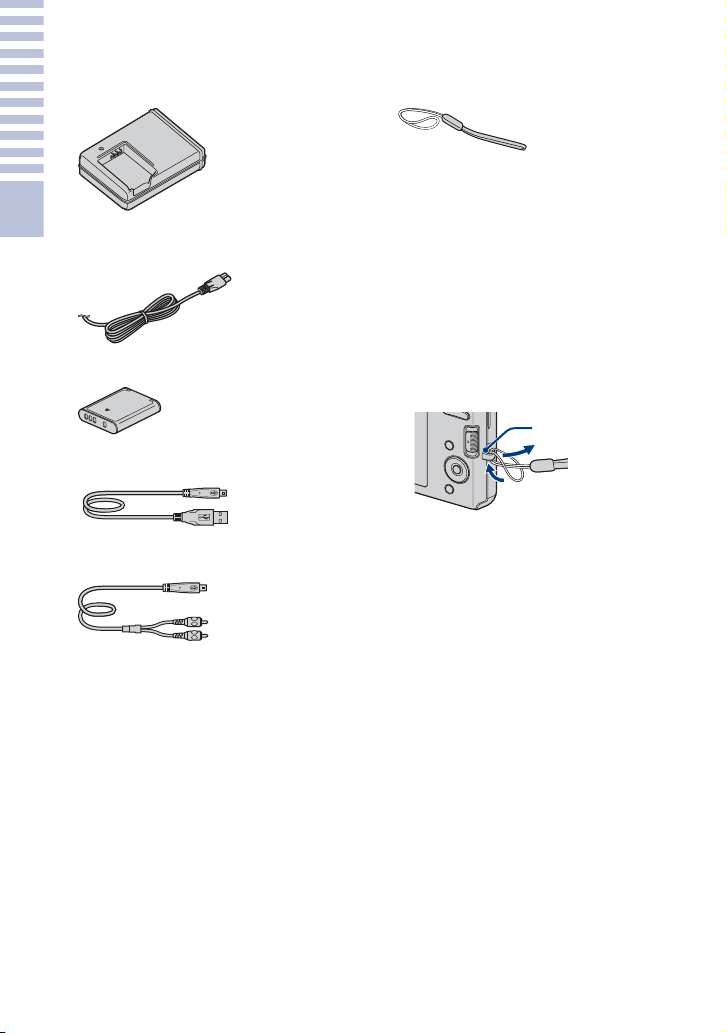
• Battery charger BC-CSKA (1)
• Power cord (mains lead) (1)
(not supplied in the USA and Canada)
• Rechargeable battery pack NP-BK1 (1)
• Dedicated USB cable (1)
• Dedicated A/V cable (1)
• Wrist strap (1)
• CD-ROM (1)
– Cyber-shot application software
– “Cyber-shot Handbook”
– “Cyber-shot Step-up Guide”
• Instruction Manual (this manual) (1)
x
Using the wrist strap
The wrist strap is preset at the factory.
Attach the strap and place your hand through
the loop to prevent the camera from damage
by being dropped.
Hook
11
GB
Getting started
Identifying parts
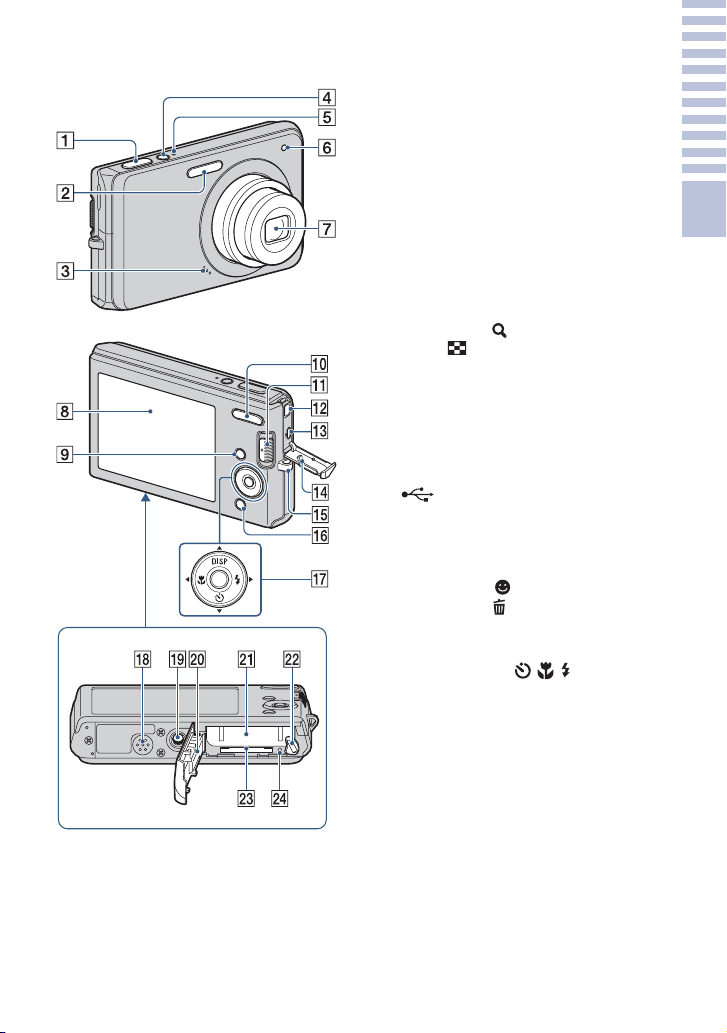
A Shutter button
B Flash
C Microphone
D ON/OFF (Power) button
E ON/OFF (Power) lamp
F Self-timer lamp
G Lens
H LCD screen
I MENU button
J For shooting: W/T (Zoom) button
For viewing: (Playback zoom)
button/ (Index) button
K Mode switch
L DC IN jack
• Connecting the camera to AC Adaptor
AC-LS5K (sold separately) will not
charge the battery. Use a battery charger
for charging the battery.
M (USB)·A/V OUT terminal
(side)
N Jack cover
O Hook for wrist strap
P For shooting: (Smile) button
For viewing: (Delete) button
Q Control button
Menu on: v/V/b/B/z
Menu off: DISP/ / /
R Speaker
S Tripod receptacle
• Use a tripod with a screw less than
5.5 mm (7/32 inch) long. Otherwise, you
cannot firmly secure the camera, and
damage to the camera may occur.
T Battery/“Memory Stick Duo” media
cover
U Battery insertion slot
V Battery eject lever
W “Memory Stick Duo” media slot
X Access lamp
Bottom
12
GB
Getting started
Charging the battery pack
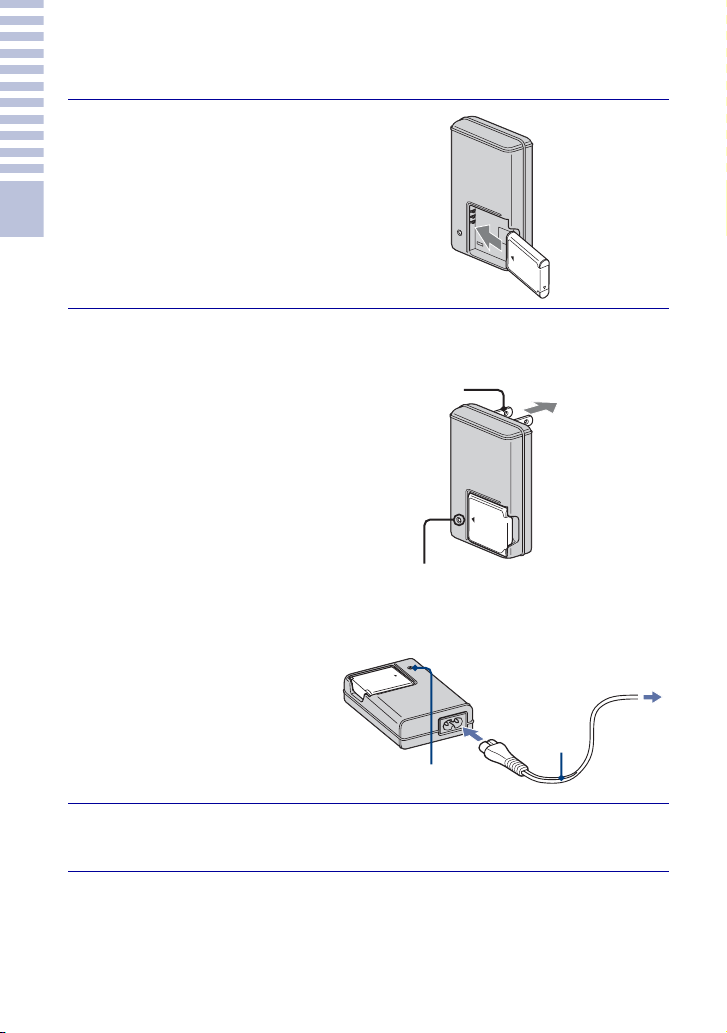
1
Insert the battery pack into
the battery charger.
• You can charge the battery even when
it is partially charged.
2
Connect the battery
charger to the wall
outlet (wall socket).
• If you continue charging the
battery pack for about one
more hour after the CHARGE
lamp turns off, the charge will
last slightly longer (full
charge).
CHARGE lamp
Lit: Charging
Off: Charging finished (normal
charge)
3
When charging is finished, disconnect the battery
charger.
Battery pack
CHARGE lamp
For customers in the USA and Canada
Plug
CHARGE lamp
Power cord
(mains lead)
For customers in countries/regions other
than the USA and Canada
13
GB
Getting started
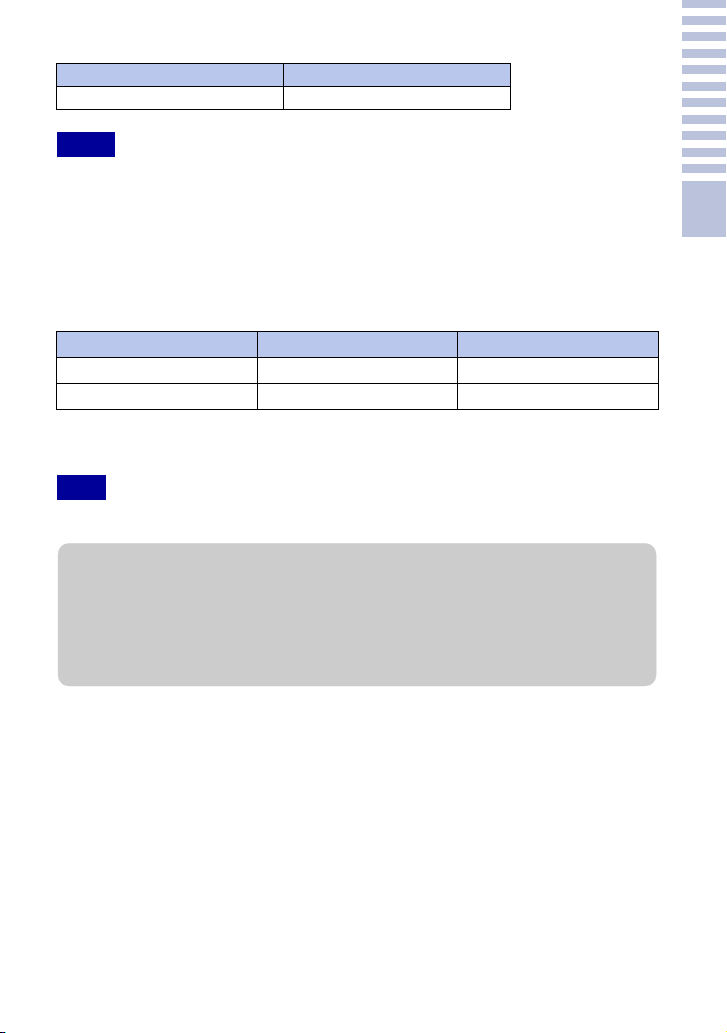
x
Charging time
• The table above shows the time required to charge a fully depleted battery pack at a temperature of
25°C (77°F). Charging may take longer depending on conditions of use and circumstances.
• Connect the battery charger to the nearest wall outlet (wall socket).
• When charging is finished, disconnect the power cord (mains lead) from the wall outlet (wall
socket), and remove the battery pack from the battery charger.
• Be sure to use the battery pack or the battery charger of the genuine Sony brand.
x
Battery life and number of images you can record/view
The measurement method is based on the CIPA standard. (CIPA: Camera & Imaging
Products Association)
• The battery life and the number of still images may vary depending on the camera settings.
Full charge time Normal charge time
Approx. 300 min. Approx. 240 min.
Notes
Battery life (min.) No. of Images
Shooting still images Approx. 145 Approx. 290
Viewing still images Approx. 240 Approx. 4800
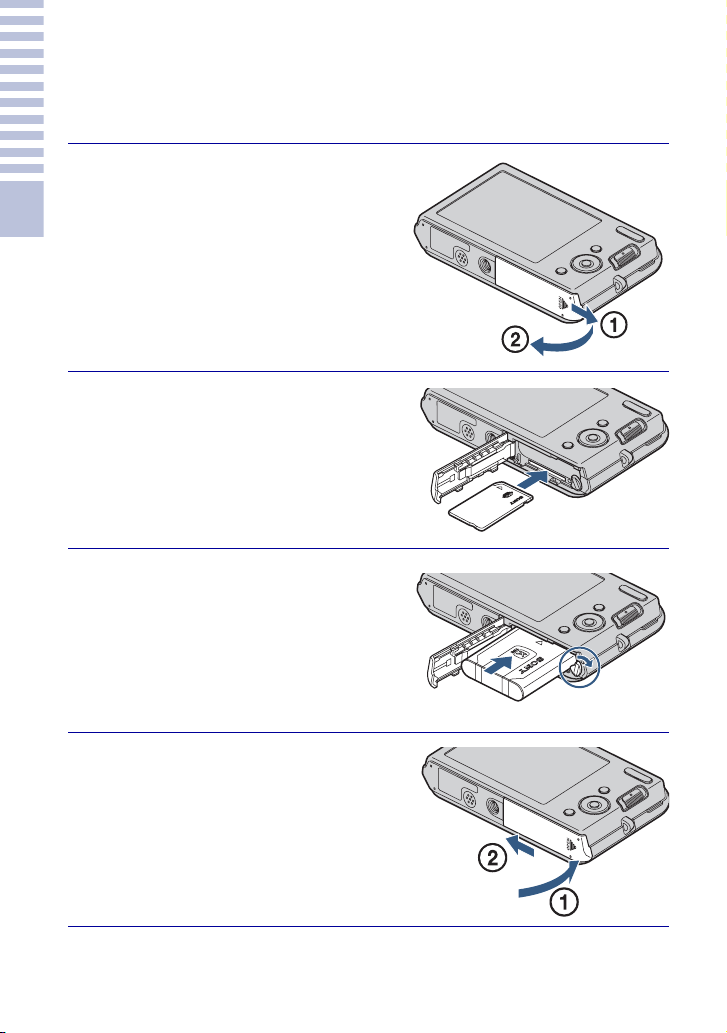
Note
zUsing the camera abroad
You can use the camera, the battery charger (supplied), and the AC-LS5K AC Adaptor (sold
separately) in any country or region where the power supply is within 100 V to 240 V AC,
50 Hz/60 Hz.
Do not use an electronic transformer (travel converter). This may cause a malfunction.
14
GB
Getting started
Inserting the battery pack/a “Memory
Stick Duo” media (sold separately)
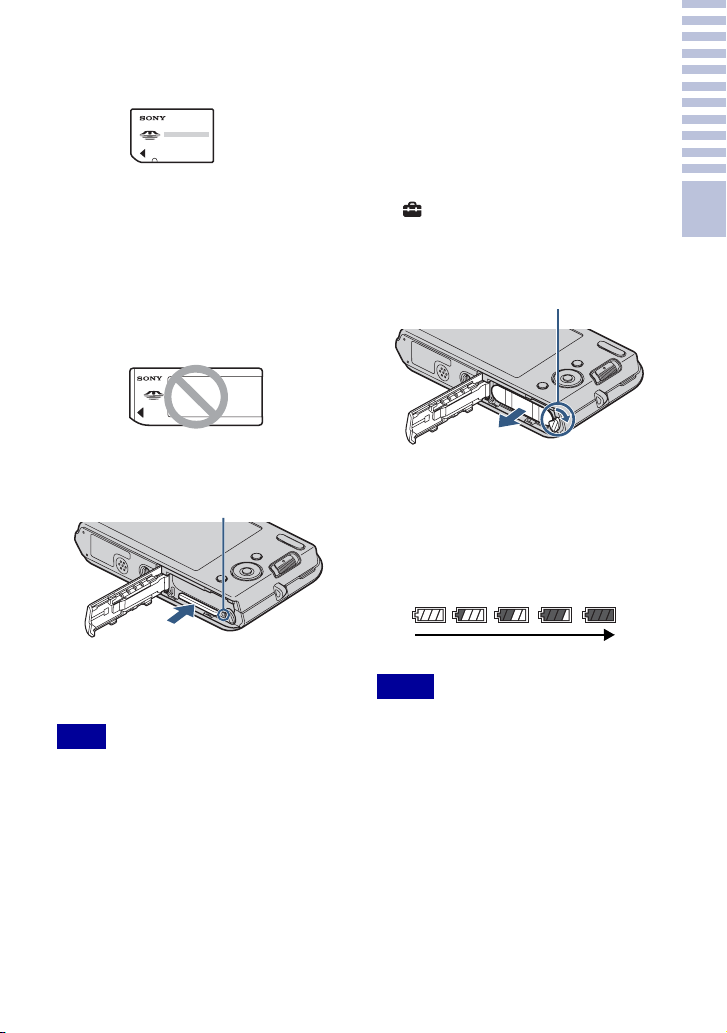
1
Open the cover.
2
Insert the “Memory Stick
Duo” media (sold
separately).
With the terminal side facing the lens,
insert the “Memory Stick Duo” media until
it clicks into place.
3
Insert the battery pack.
Insert the battery while pressing the lever
in the direction of the arrow.
4
Close the cover.
Getting started
15
GB
x
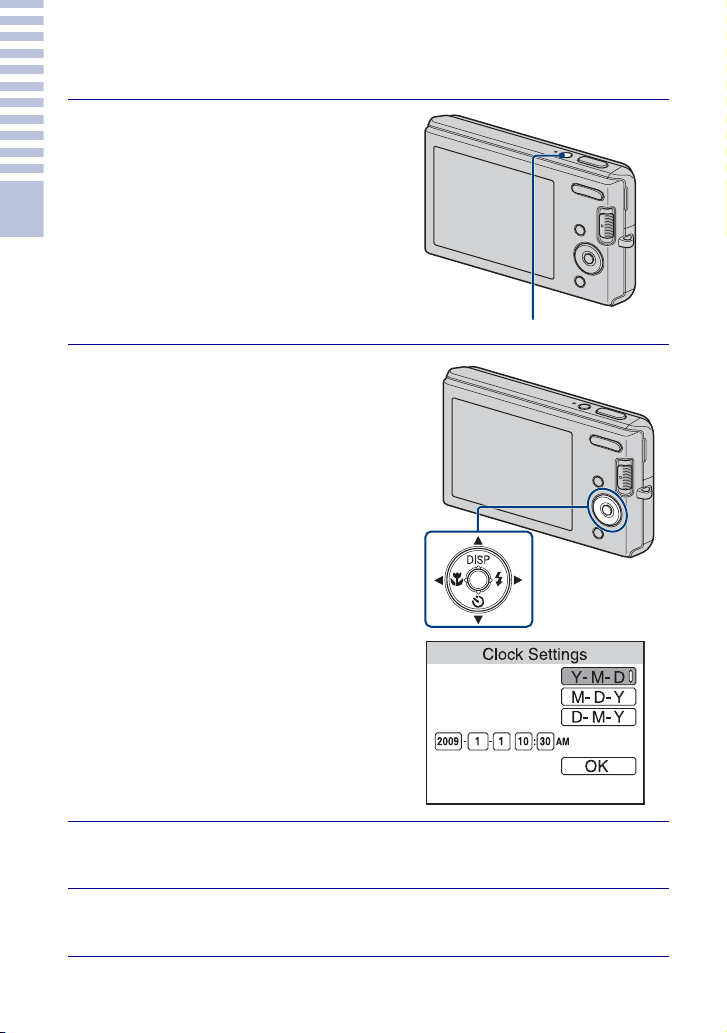
“Memory Stick” media that
you can use
“Memory Stick Duo” media
You can also use a “Memory Stick PRO Duo”
media or “Memory Stick PRO-HG Duo”
media with the camera.
For details on the number of images/time that
can be recorded, see pages 26, 29. Other types
of “Memory Stick” media or memory card are
not compatible with the camera.
“Memory Stick” media
You cannot use a “Memory Stick” media with
the camera.
x
To remove the
“Memory
Stick Duo” media
• Never remove the “Memory Stick Duo”
media/battery pack when the access lamp is
lit. This may cause damage to data in the
“Memory Stick Duo” media/internal
memory.
x
When there is no “Memory
Stick Duo” media inserted
Images are stored in the camera’s internal
memory (approximately 12 MB).
To copy images from the internal
memory to a “Memory Stick Duo”
media, insert the “Memory Stick Duo”
media in the camera, then select MENU
t (Settings) t [“Memory Stick”
Tool] t [Copy].
x
To remove the battery pack
x
Checking the remaining
battery charge
A remaining charge indicator appears on
the upper left of the LCD screen.
• It takes about one minute until the correct
remaining charge indicator appears.
• The remaining charge indicator may not be
correct under certain circumstances.
• Battery capacity decreases over time and
through repeated use. When the operating
time per charge decreases markedly, the
battery pack needs to be replaced. Purchase a
new battery pack.
• If the camera is running on and you do not
operate the camera for about three minutes,
the camera turns off automatically (Auto
power-off function).
Note
Make sure that the access lamp
is not lit, then push the “Memory
Stick Duo” media in once.
Access lamp
Notes
Slide the battery eject lever. Be
sure not to drop the battery pack.
Battery eject lever
High
Low
16
GB
Getting started
Setting the clock
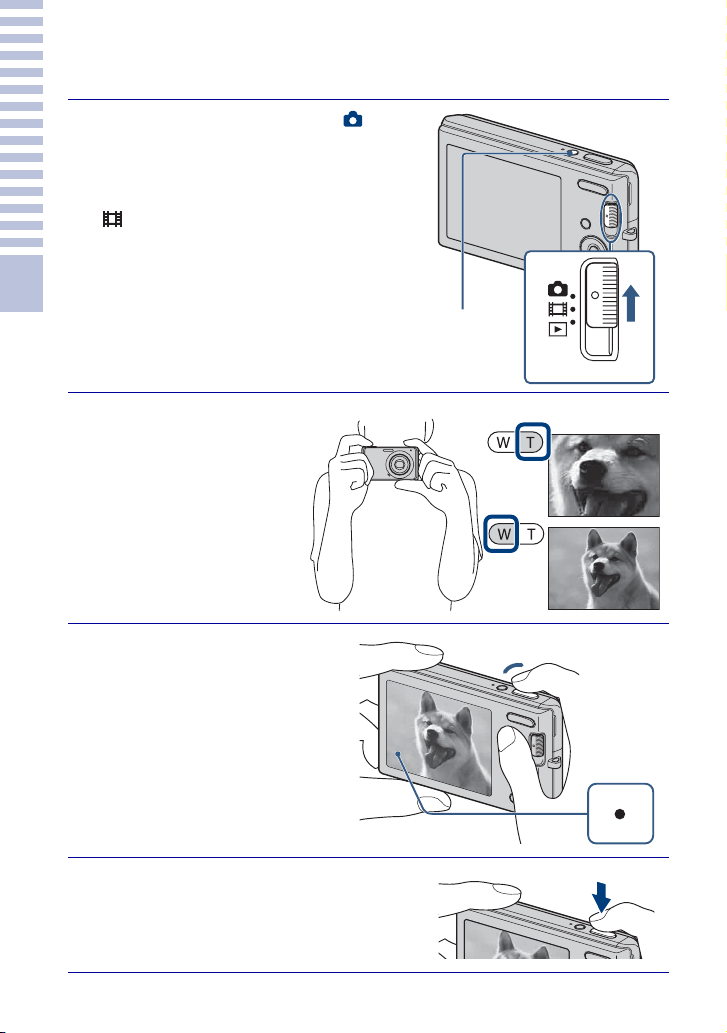
1
Press the ON/OFF (Power)
button.
The camera is turned on.
• It may take time for the power to turn on
and allow operation.
2
Select the date and time
display format with v/V on
the control button, then
press z.
3
Set the numeric value with v/V/b/B, then press z.
• Midnight is indicated as 12:00 AM, and noon as 12:00 PM.
4
Select [OK], then press z.
ON/OFF (Power) button
Control button

18
GB
Shooting/viewing images
Sh
oo
ti
n
g/
v
i
ew
i
n
g
i
ma
g
es
Shooting images
1
Set the mode switch to
(Still Image), then press ON/
OFF (Power) button.
To shoot movies, set the mode switch to
(Movie) (page 28).
2
Hold the camera
steady as
illustrated.
• Press the T button to zoom
in, W button to zoom out.
3
Press the shutter
button halfway down
to focus.
When the image is in focus, a
beep sounds and the z indicator
lights.
• The shortest shooting distance is
approximately 5 cm (2 inches)
(W)/40 cm (1 feet 3 3/4 inches)
(T) (from the lens).
4
Press the shutter button fully
down.
The image is shot.
Mode switch
ON/OFF (Power)
button
W/T (Zoom) button
Shutter button
AE/AF
lock
Shooting/viewing images
19
GB
Viewing images
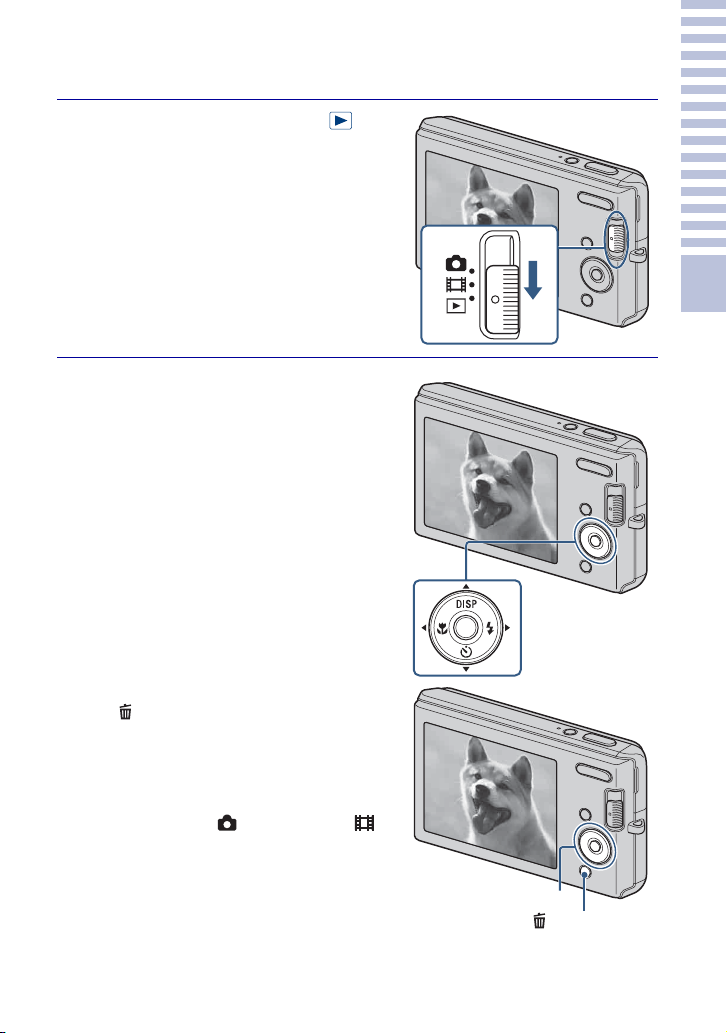
1
Set the mode switch to
(Playback).
The last image shot is displayed.
x
Selecting next/previous image
Select an image with B (next)/b (previous) on
the control button.
x
Deleting an image
1 Press (Delete) button.
2 Select [This Image] with b/B on the control
button, then press z.
x
Returning to shooting images
Set the mode switch to (Still Image) or
(Movie).
x
Turning off the camera
Press ON/OFF (Power) button.
Control button
(Delete) button
Control button
20
GB
U
s
i
n
g
s
h
oo
ti
n
g
f
unc
ti
ons
Detecting smiles and shooting automatically
(Smile Shutter)
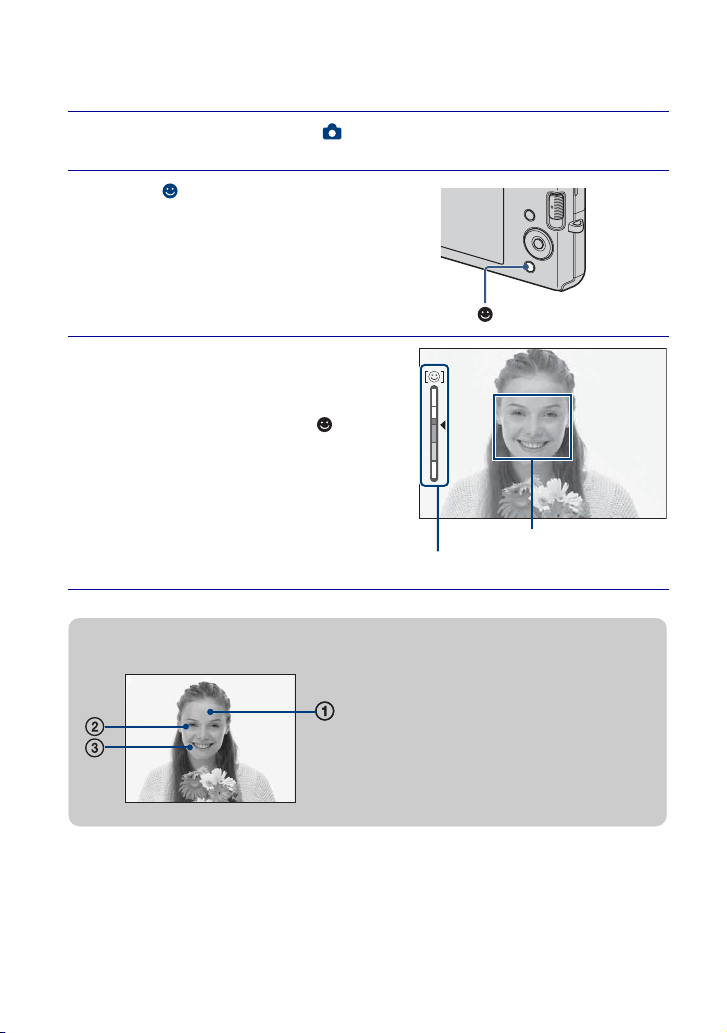
1
Set the mode switch to (Still Image).
2
Press (Smile) button.
3
Wait detecting a smile.
When the smile level exceeds the b point
on the indicator, the camera shoots images
automatically. When you press (Smile)
button again, Smile Shutter ends.
• Even if you press the shutter button
during Smile Shutter, the camera shoots
the image, then returns to Smile Shutter
mode.
(Smile) button
Face Detection frame
Smile Detection Sensitivity indicator
zHints for better capturing of smiles
1 Do not cover the eyes with the bangs.
2 Try to orient the face in front of the
camera and be as level as possible.
The detection rate is higher when the
eyes are narrowed.
3 Give a clear smile with an open mouth.
The smile is easier to detect when the
teeth are showing.
21
GB
Using shooting functions
Focusing on the face of the subject
(Face Detection)
The camera detects the face of the subject and focuses on it. You can select which
subject takes priority when focusing.
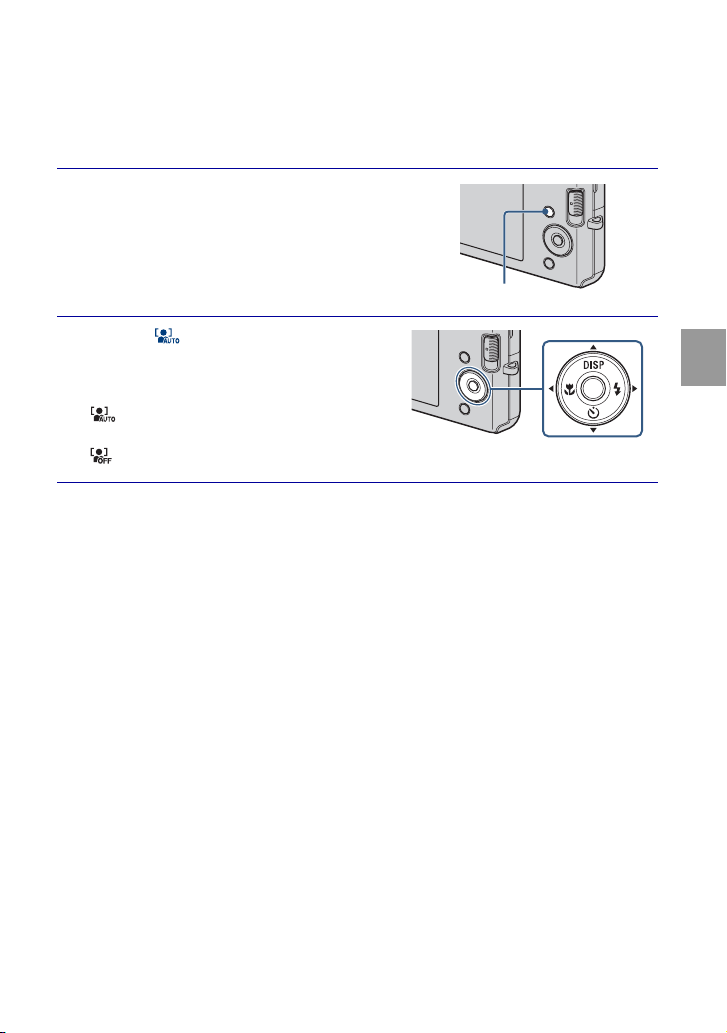
1
Press the MENU button.
2
Select (Face Detection) with
v/V/b/B on the control button
t desired mode t z.
(Auto): Automatically selects and
focuses on a priority face.
(Off): Does not use Face Detection.
MENU button
22
GB
Shooting close-ups (Macro)
You can shoot beautiful close-up images of small subjects such as insects or flowers.
Using the self-timer
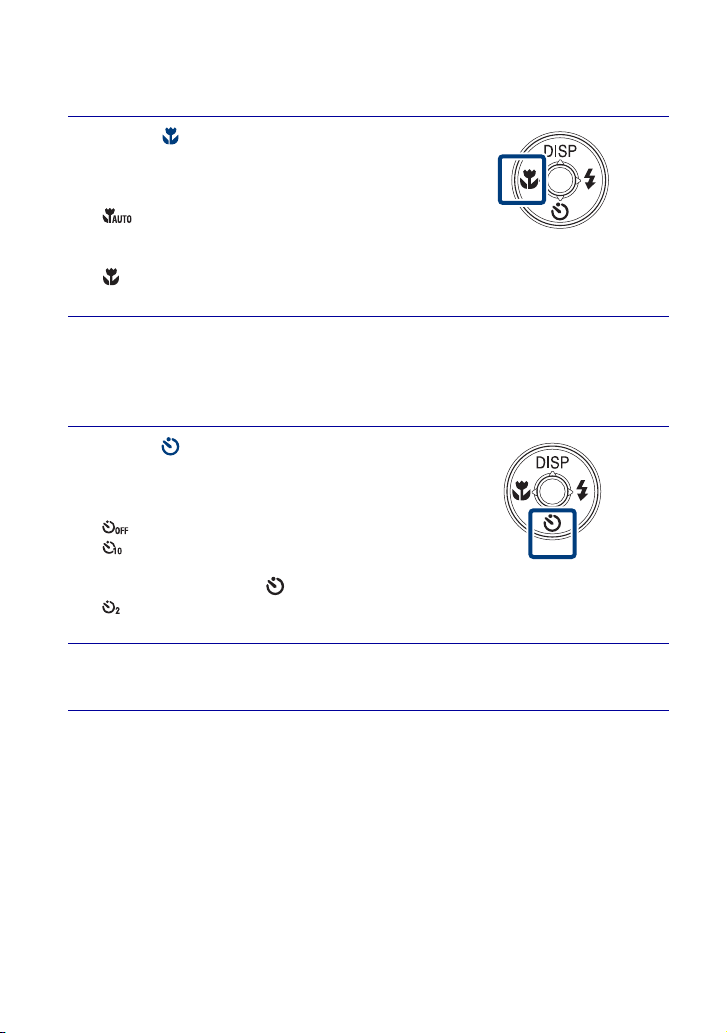
1
Press (Macro) on the control
button repeatedly to select the
desired mode t z.
: The camera adjusts the focus
automatically from distant subjects to close-up.
Normally, put the camera in this mode.
: The camera adjusts the focus with priority on close-up subjects.
Set Macro On when shooting close subjects.
1
Press (Self-Timer) on the control
button repeatedly to select the
desired mode t z.
: Not using the self-timer.
: Shooting starts after a 10-second delay. Use
this setting if you want to include yourself in the
image. To cancel, press again.
: Shooting starts after a two-second delay. This is to prevent blurring due to
unsteadiness when the shutter button is pressed.
2
Press the shutter button.
The self-timer lamp flashes and a beep sounds until the shutter operates.
23
GB
Using shooting functions
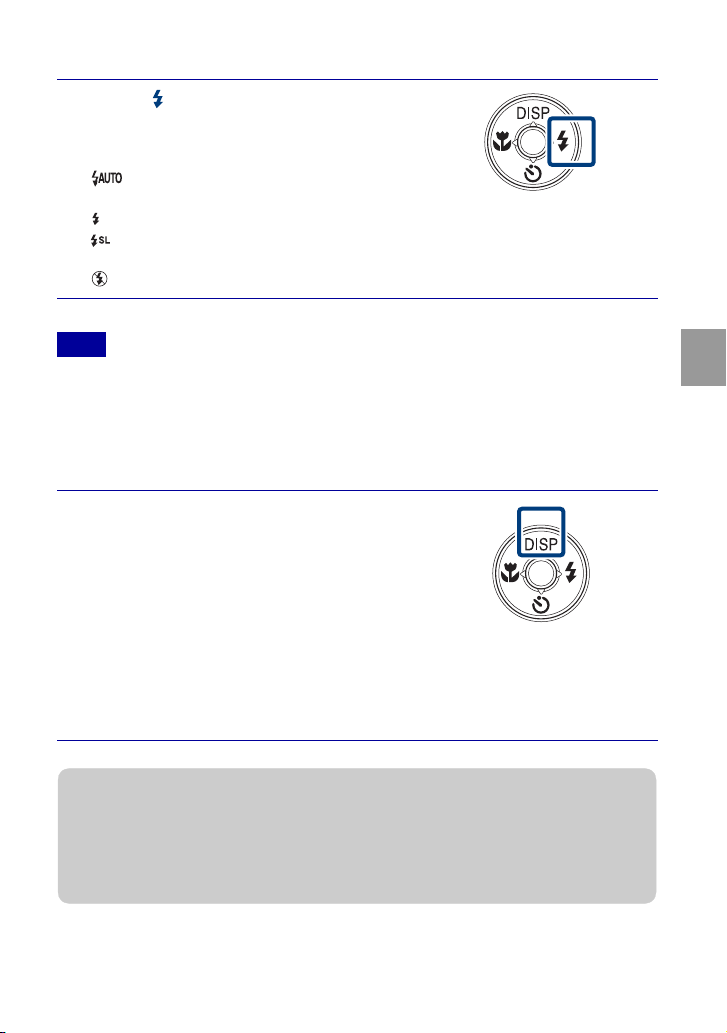
Selecting a flash mode
• You cannot use the flash during burst shooting.
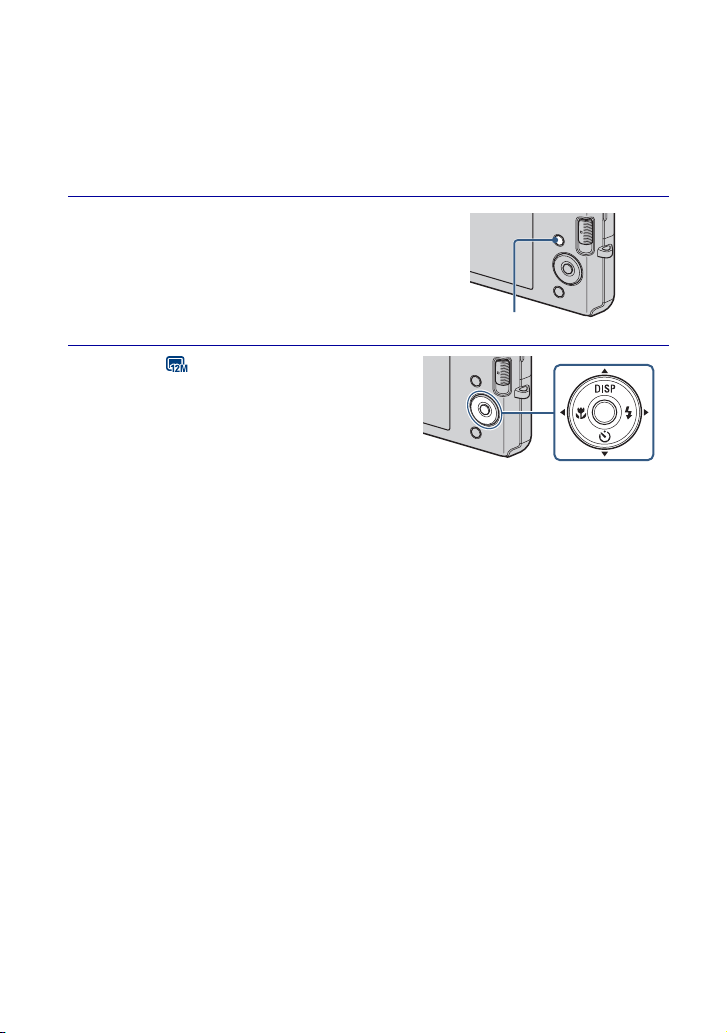
Changing the screen display
1
Press (Flash) on the control
button repeatedly to select the
desired mode t z.
: Flashes when there is insufficient light or
backlight.
: Flash always operates.
: Flash always operates. The shutter speed is slow in a dark place to clearly
shoot the background that is out of flash light. (Slow Synchro)
: Flash does not operate.
Note
1
Press DISP (screen display) on the
control button repeatedly to select
the desired mode.
Indicators on: Sets screen to standard
brightness and displays the information.
Indicators on*: Sets screen brighter and
displays the information.
Histogram on*: Sets screen brighter and displays a graph of the image brightness.
Indicators off*: Sets screen brighter and displays only images.
* The brightness of the LCD Backlight increases.
zHistogram and brightness settings
A histogram is a graph showing the brightness of an image. The graph display indicates a bright
image when skewed to the right side, and a dark image when skewed to the left side.
• If you view images in bright outside light, adjust the screen brightness up. However, the battery
power may decrease faster under such condition.
24
GB
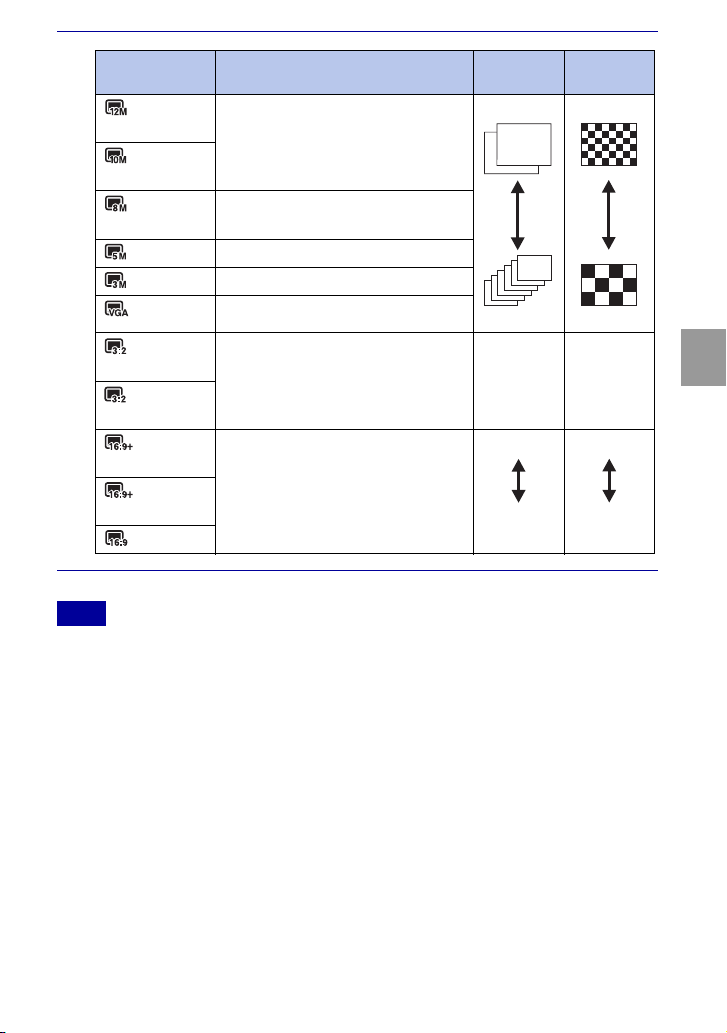
Selecting the image size to match the usage
The image size determines the size of the image file that is recorded when you take a
image.
The larger the image size, the more detail will be reproduced when the image is printed
on large-format paper. The smaller the image size, the more images can be recorded.
Select the image size that matches the way you will view your images.
1
Press the MENU button.
2
Select (Image Size) with v/V/
b/B on the control button t
desired size t z.
MENU button
25
GB
Using shooting functions
• When you print images shot with 16:9 aspect ratio, both edges may be cut off.
Note
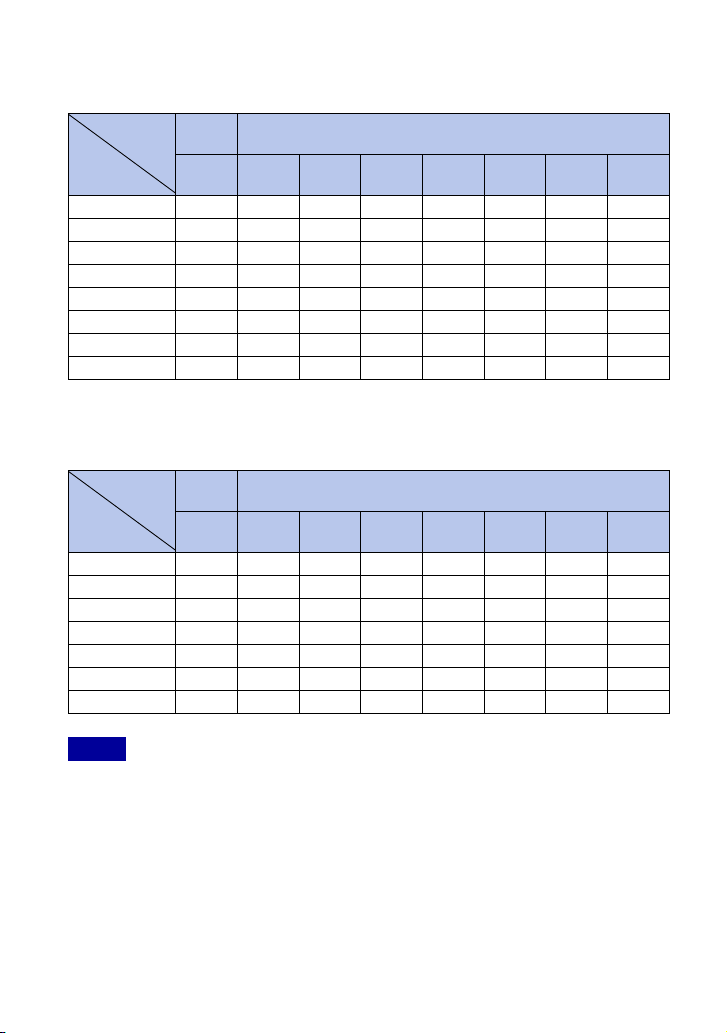
Image size Usage guidelines No. of
images
Printing
(4000×3000)
(DSC-W190 only)
For prints up to A3+ size Less
More
Fine
Rough
(3648×2736)
(DSC-W180 only)
(3264×2448)
(DSC-W190 only)
For prints up to A3 size
(2592×1944)
For prints up to A4 size
(2048×1536)
For prints up to L/2L size
(640×480) For e-mail attachments
(4000×2672)
(DSC-W190 only)
3:2 aspect ratio as in photo prints and
postcards
Less Fine
(3648×2056)
(DSC-W180 only)
(4000×2248)
(DSC-W190 only)
For viewing on a high-definition TV. Less
More
Fine
Rough
(3648×2056)
(DSC-W180 only)
(1920×1080)
26
GB
x
Number of still images that can be recorded
DSC-W190
(Units: Images)
DSC-W180
(Units: Images)
• The number of still images may vary depending on the shooting conditions and the recording
media.
• When the number of remaining shootable images is greater than 9,999, the “>9999” indicator
appears.
• When an image shot with other cameras is played back on this camera, the image may not appear
in the actual image size.
Capacity
Size
Internal
memory
“Memory Stick Duo” media formatted with this camera
Approx.
12MB
256 MB 512 MB 1GB 2GB 4GB 8GB 16 GB
12M 2 49 93 197 395 790 1600 3200
8M 3 72 140 288 580 1170 2350 4700
5M 4 90 170 350 710 1420 2900 5850
3M 7 148 293 600 1200 2400 4850 9800
VGA 60 1200 2360 4800 9650 19300 38600 77200
3:2(11M) 2 49 93 197 395 790 1600 3200
16:9(9M) 3 66 130 262 533 1060 2150 4300
16:9(2M) 11 230 450 900 1800 3700 7500 15000
Capacity
Size
Internal
memory
“Memory Stick Duo” media formatted with this camera
Approx.
12 MB
256 MB 512 MB 1GB 2GB 4GB 8GB 16 GB
10M 2 58 115 230 470 940 1900 3800
5M 4 90 170 350 710 1420 2900 5850
3M 7 148 293 600 1200 2400 4850 9800
VGA 60 1200 2360 4800 9650 19300 38600 77200
3:2(8M) 2 58 115 230 470 940 1900 3800
16:9(7M) 3 75 150 300 600 1200 2450 5000
16:9(2M) 11 230 450 900 1800 3700 7500 15000
Notes
27
GB
Using shooting functions
Using the Shooting mode that matches the
scene (Scene Selection)
• The flash does not operate in some modes.
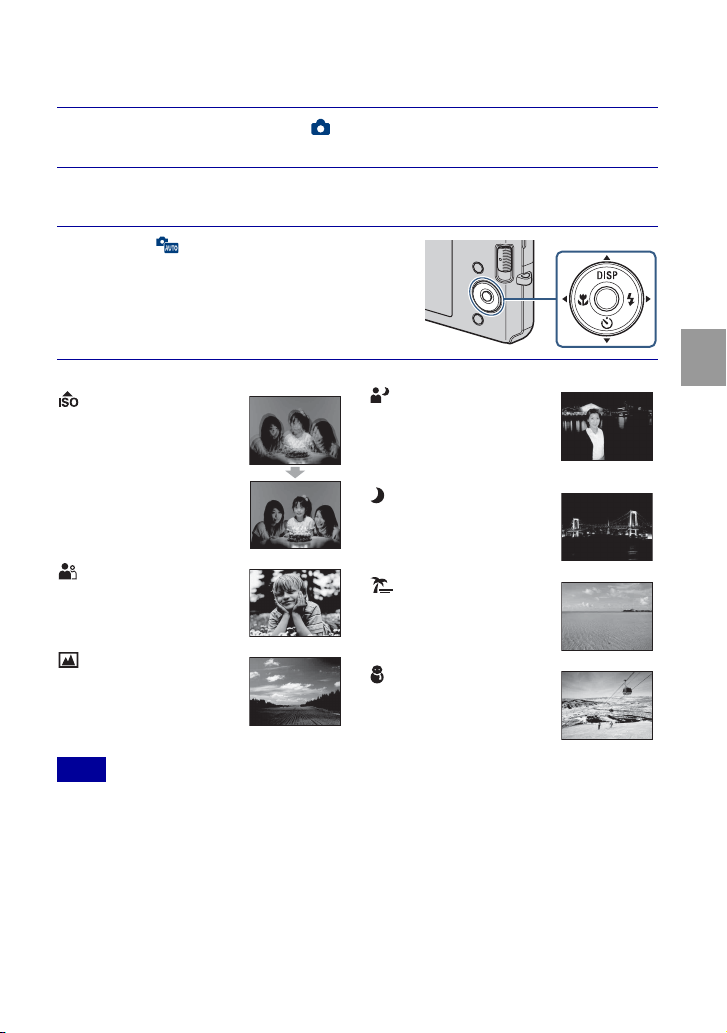
1
Set the mode switch to (Still Image).
2
Press the MENU button.
3
Select (Camera) with v/V/b/B
on the control button t the
desired Scene Selection t z.
Note
(High Sensitivity):
Shoots images without a
flash even in low lighting.
(Soft Snap): Shoots
images with a softer
atmosphere for portraits of
people, flowers, etc.
(Landscape): Shoots
with the focus on a distant
subject.
(Twilight Portrait):
Shoots sharp images of
people in a dark place
without losing the nighttime
atmosphere.
(Twilight): Shoots night
scenes without losing the
nighttime atmosphere.
(Beach): Shoots
seaside or lakeside scenes
with the blueness of the
water captured more vividly.
(Snow): Shoots snow
scenes in white more clearly.
28
GB
Shooting movies
x
Viewing movies
1 Set the mode switch to (Playback) and press B (next)/b (previous) on the control
button to select a movie to view.
2 Press z.
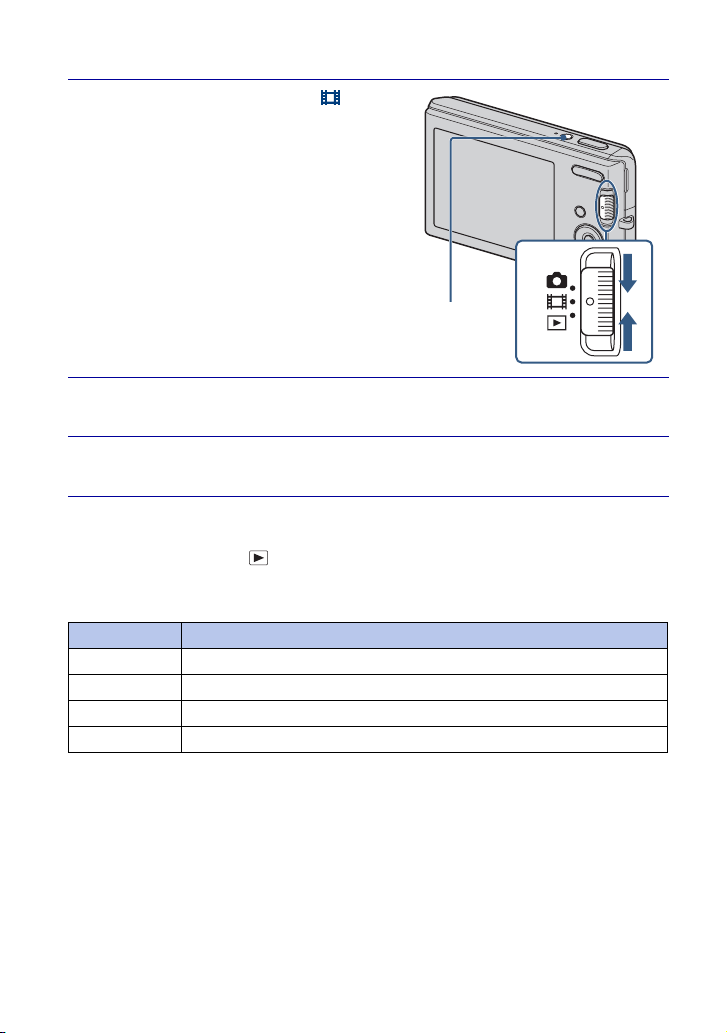
1
Set the mode switch to
(Movie), then press ON/
OFF (Power) button.
2
Press the shutter button fully down to start recording.
3
Press the shutter button fully down again to stop recording.
Button Playback feature
z Pause
B Fast forward
b Fast rewind
V Displays the volume control screen. Adjust the volume with b/B.
ON/OFF(Power) button
29
GB
Using shooting functions
x
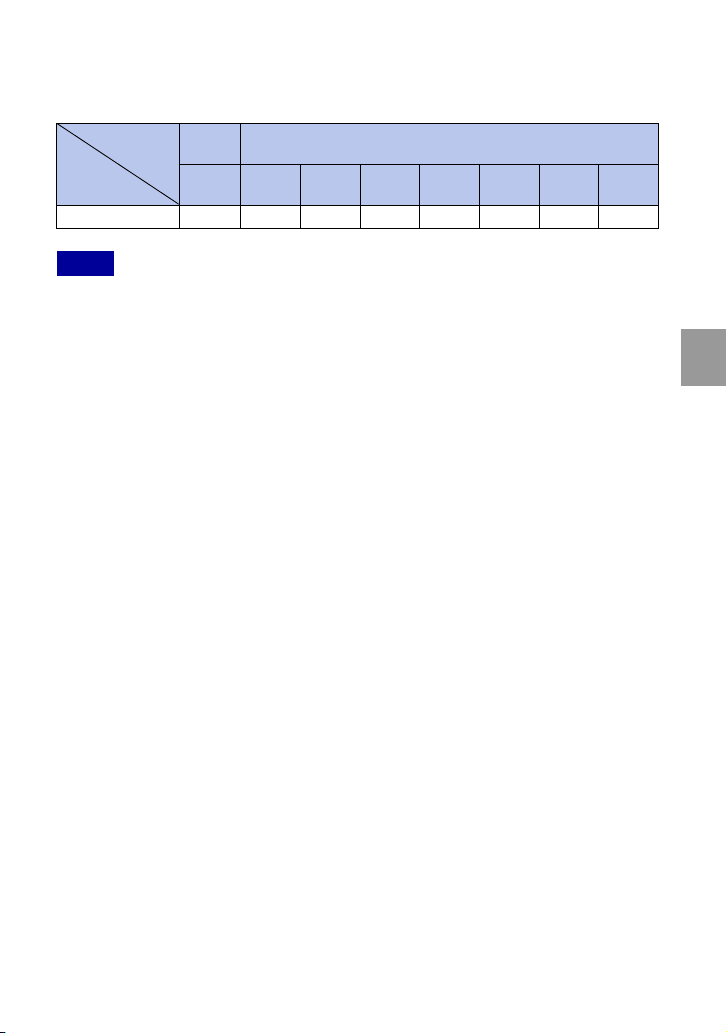
Maximum recording time
The table below shows the approximate maximum recording times. These are the total
times for all movie files. The image size is fixed to 320 × 240.
(Units: hour : minute : second)
• The recording time may vary depending on the shooting conditions and the recording media.
• Recordable movie file size is up to approx. 2 GB for each file. If the file size reaches approx. 2 GB,
the camera stops recording automatically.
• The camera does not support HD recordings or playbacks for movies.
Capacity
Size
Internal
memory
“Memory Stick Duo” media formatted with this camera
Approx.
12 MB
256 MB 512 MB 1GB 2GB 4GB 8GB 16 GB
320 × 240 0:00:20 0:10:10 0:20:20 0:41:20 1:23:40 2:45:00 5:35:00 11:18:00
Notes
30
GB
U
s
i
n
g
v
i
ew
i
n
g
f
unc
ti
ons
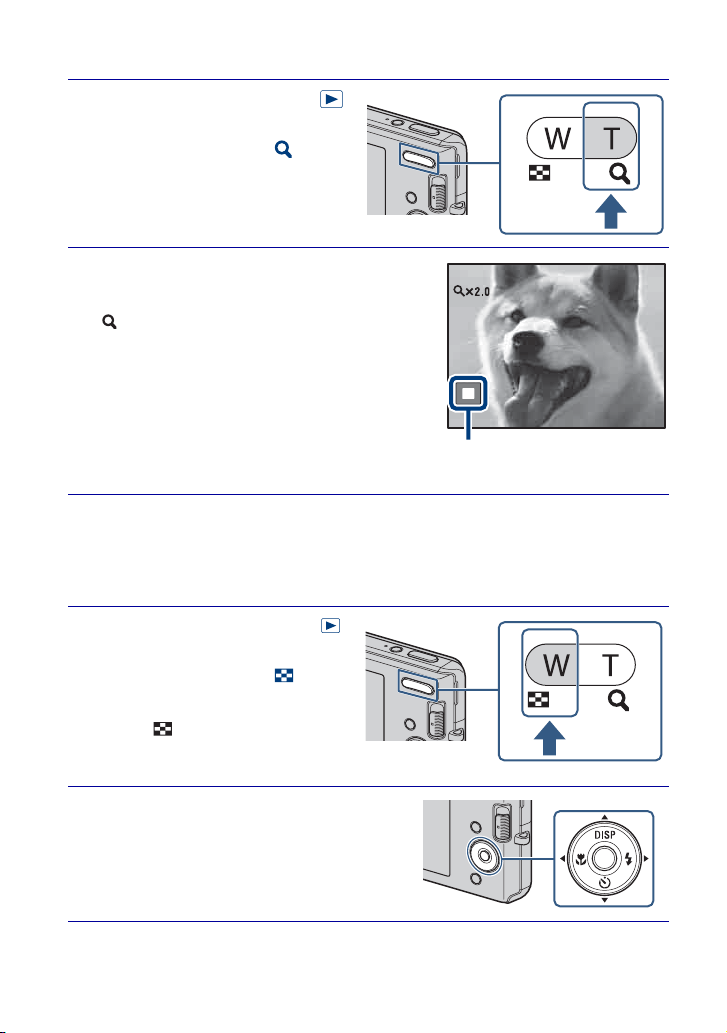
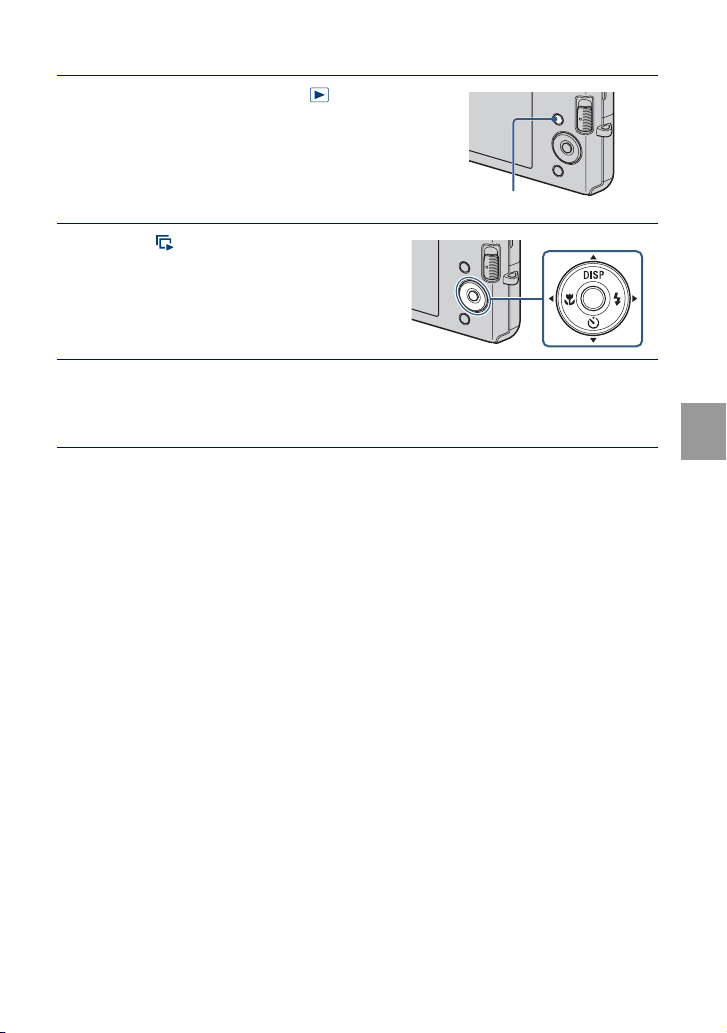
Viewing an enlarged image (Playback zoom)
Searching for an image (Image Index)
1
Set the mode switch to
(Playback) to display an
image, then press
(Playback zoom) button.
The image is enlarged at twice the
size, with the center of the image.
2
Adjust the zoom scale and
position.
button: Zooms in.
W button of the W/T (Zoom) button:
Zooms out.
v/V/b/B on the control button: Adjusts
the position.
1
Set the mode switch to
(Playback) to display an
image, then press
(Index) button.
• Press (Index) button again to
display an index screen with even
more images.
2
Select an image with v/V/b/B
on the control button.
• To return to the single-image screen, press
z.
Shows the displayed area of the
whole image
31
GB
Using viewing functions
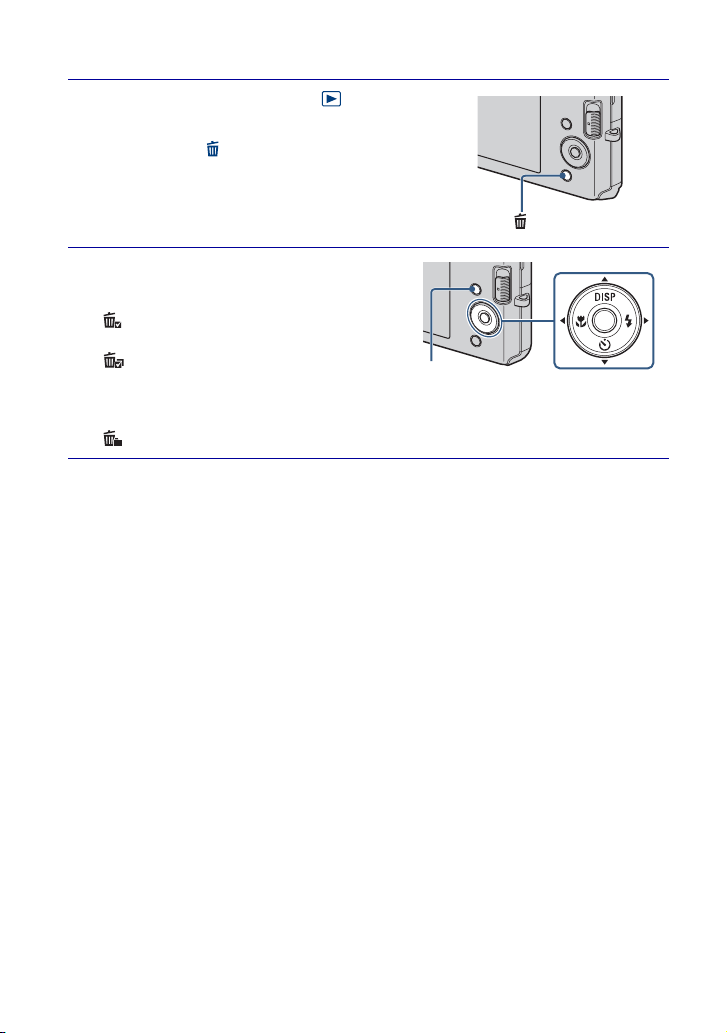
Viewing a series of still images (Slideshow)
1
Set the mode switch to
(Playback) to display a still image,
then press the MENU button.
2
Select (Slideshow) with v/V
on the control button, then press
z.
3
Select [Start] with v, then press z.
The slideshow starts.
• To end the slideshow, press z.
MENU button
32
GB
D
e
l
e
ti
n
g
i
ma
g
es
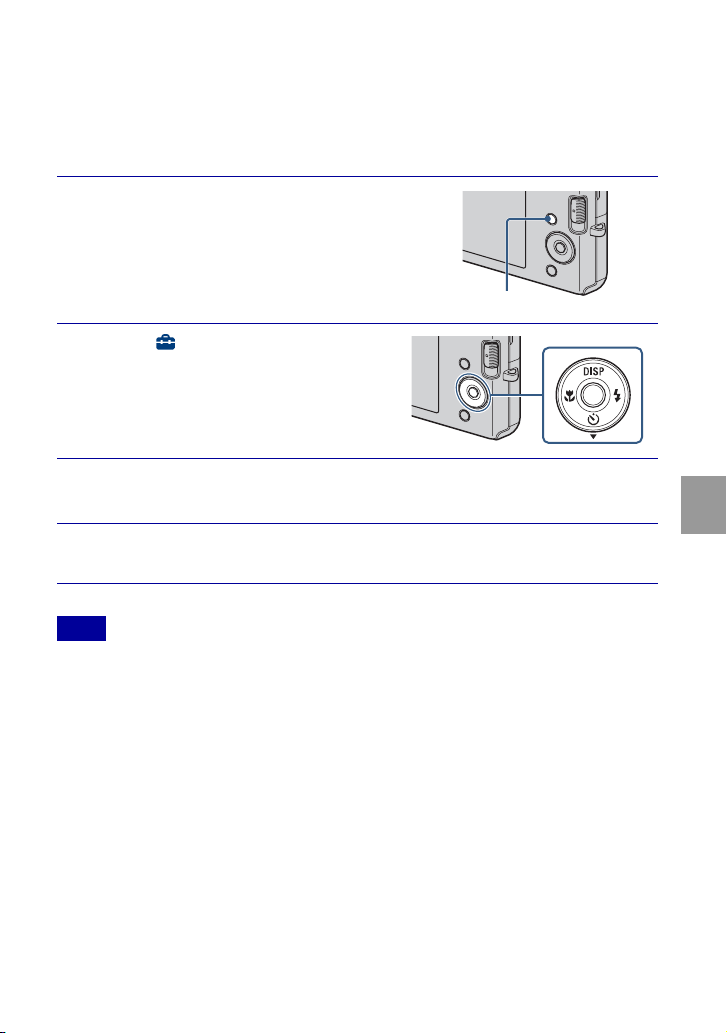
Deleting images
1
Set the mode switch to
(Playback) to display an image,
then press (Delete) button.
2
Press b/B on the control button
to select the desired setting.
(This Image): You can delete the
currently displayed image.
(Multiple Images): You can select
and delete multiple images. Select the
images, press z, and then press the MENU
button to delete.
(All in This Folder): You can delete all the images of the selected folder.
(Delete) button
MENU button
33
GB
Deleting images
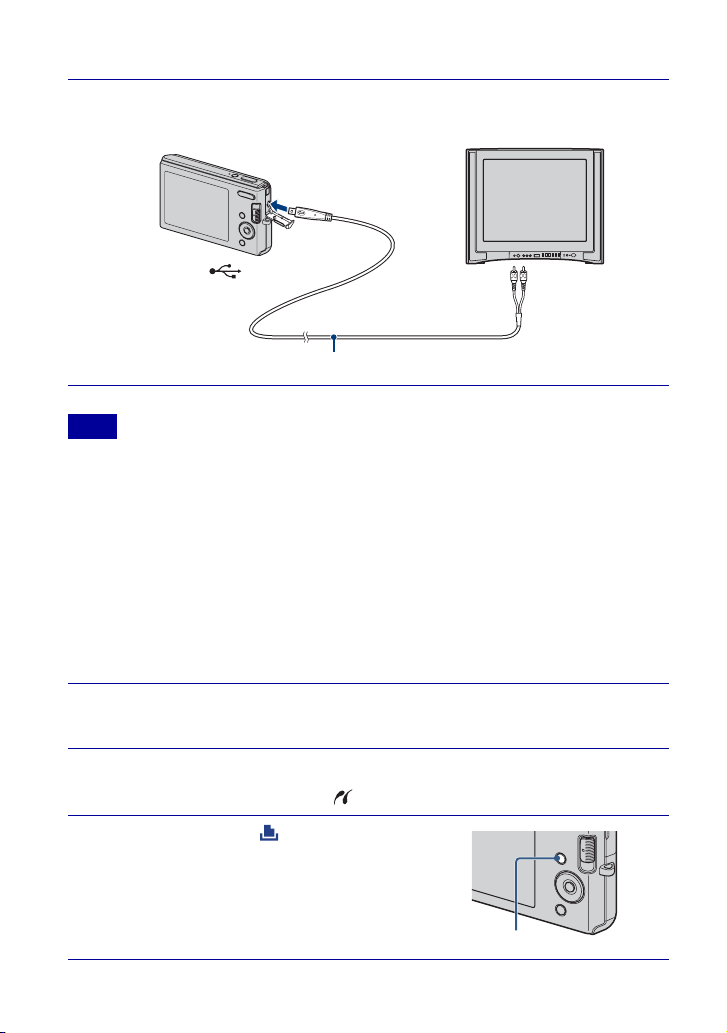
Deleting all images (Format)
You can delete all data stored on “Memory Stick Duo” media or the internal memory. If
a “Memory Stick Duo” media is inserted, all data stored on the “Memory Stick Duo”
media are deleted. If no “Memory Stick Duo” media is inserted, all data stored in the
internal memory are deleted.
• Formatting permanently deletes all data, including protected images, and the data cannot be
recovered.
1
Press the MENU button.
2
Select (Settings) with V on
the control button, then press z.
3
Select [“Memory Stick” Tool] or [Internal Memory Tool] with
v/V on the control button, then press [Format] t z.
4
Select [OK], then press z.
Note
MENU button
34
GB
C
onnec
ti
n
g
t
o o
th
er
d
ev
i
ces
Viewing images on a TV
• The [Video Out] setting is set to [NTSC] mode at the factory to let you enjoy optimum movie
image quality. When images do not appear or jittery on your TV, you may be using a PAL-only
TV. Try switching the [Video Out] setting to [PAL] (page 44).
Printing still images
If you have a PictBridge compliant printer, you can print images by the following
procedure.
First, set the camera to enable USB connection between the camera and the printer.
1
Connect the camera to the TV with the dedicated A/V cable
(supplied).
Note
1
Connect the camera to the printer with the dedicated USB
cable (supplied).
2
Turn on the camera and the printer.
After the connection is made, the indicator appears.
3
Press MENU t (Print) with v/
V on the control button t z.
To the (USB)·
A/V OUT terminal
To audio/video
input jacks
Dedicated A/V cable
MENU button

35
GB
Connecting to other devices
• If it was impossible to connect to the printer, be sure to set [USB Connect] under (Settings) to
[PictBridge].
4
Select the desired mode with v/V on the control button t z.
This Image: Print the currently displayed image.
Multiple Images: Press b/B to display the image, then z.
5
Select the desired setting item, then [OK] t z.
The image is printed.
Note
zPrinting at a shop
You cannot print images stored in the internal memory at a print shop directly from the camera.
Copy the images to a “Memory Stick Duo” media, then take the “Memory Stick Duo” media to
the print shop.
How to copy: Press MENU t (Settings) t [“Memory Stick” Tool] t [Copy] t [OK].
For details, consult your photo printing service shop.
zSuperimposing dates on images
This camera does not include a function for superimposing a date on an image. The reason for
this is to prevent the date from being duplicated during printing.
Printing at a shop:
You can ask that images be printed with a date superimposed. For details, consult with a photo
printing service shop.
Printing at home:
Connect to a PictBridge-compliant printer, and press the MENU button, then set [Print] t
[Date] to [Date] or [Day&Time].
Superimposing dates on images using PMB:
With the supplied “PMB” software installed on a PC (page 37), you can directly superimpose the
date on an image. However, note that when images with a superimposed date are printed, the
date may be duplicated depending on print settings. For details on “PMB”, see the “PMB Guide”
(page 38).
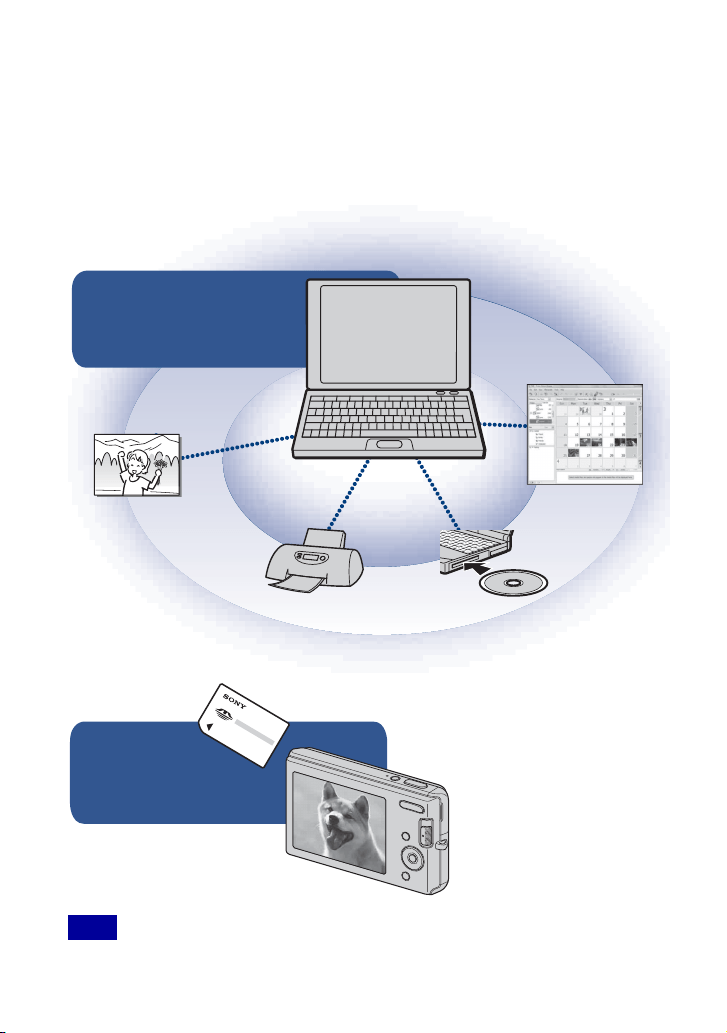
36
GB
Using the camera with a computer
x
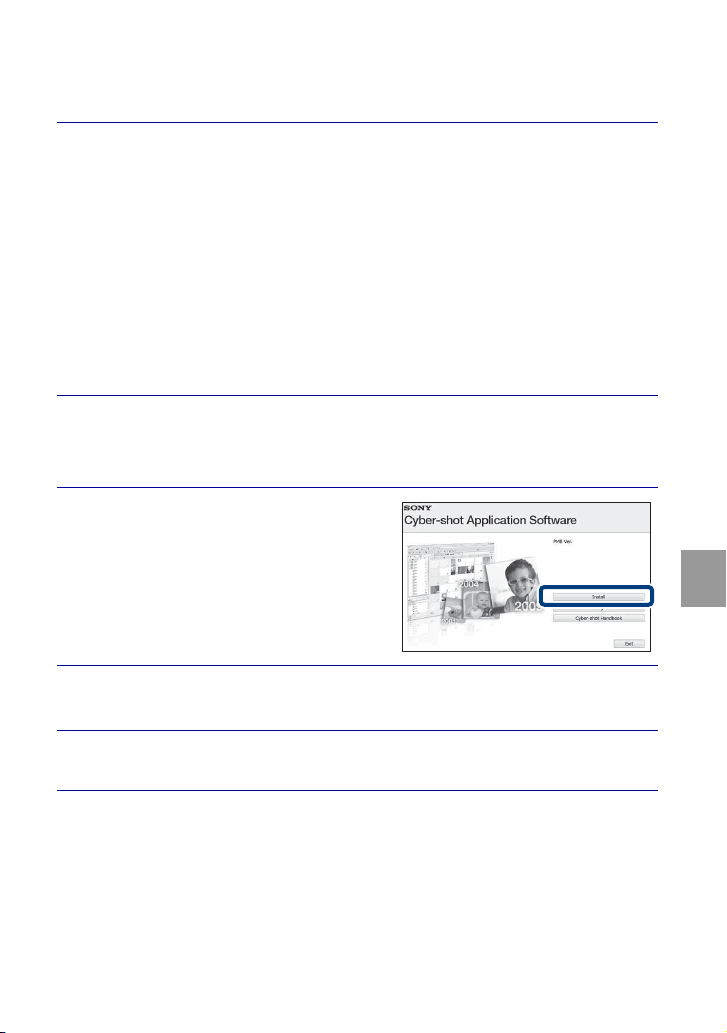
Using “PMB (Picture Motion Browser)”
You can enjoy the recorded images more than ever by taking advantage of the software,
and “PMB” is included on a CD-ROM (supplied).
There are more functions, in addition to those listed below, for enjoying your images.
For details, see the “PMB Guide” (page 38).
• “PMB” is not compatible with Macintosh computers.
Note
Export to
camera
Exporting images to a
“Memory Stick Duo” media
and viewing them.
Import to
computer
Media service
Uploading the image to the
media service.
Print
Printing images with
date stamps.
CD/DVD
Creating a data disc using
a CD burner drive or DVD
burner drive.
Calendar
Viewing images in a
calendar.
37
GB
Connecting to other devices
x
Stage 1: Installing the “PMB” (supplied)
You can install the software (supplied) using the following procedure.
• Log on as Administrator.
1
Check your computer environment.
Recommended environment for using “PMB”
OS (pre-installed): Microsoft Windows XP*
1
SP3/Windows Vista*
2
SP1
CPU:
Intel Pentium III 500 MHz or faster (Recommended: Intel Pentium III 800
MHz or faster)
Memory:
256 MB or more (Recommended: 512 MB or more)
Hard Disk (Disk space required for installation): Approximately 500 MB
Display: Screen resolution: 1,024 × 768 dots or more
Video memory: 32 MB or more (Recommended: 64 MB or more)
*
1
64-bit editions and Starter (Edition) are not supported.
*
2
Starter (Edition) is not supported.
2
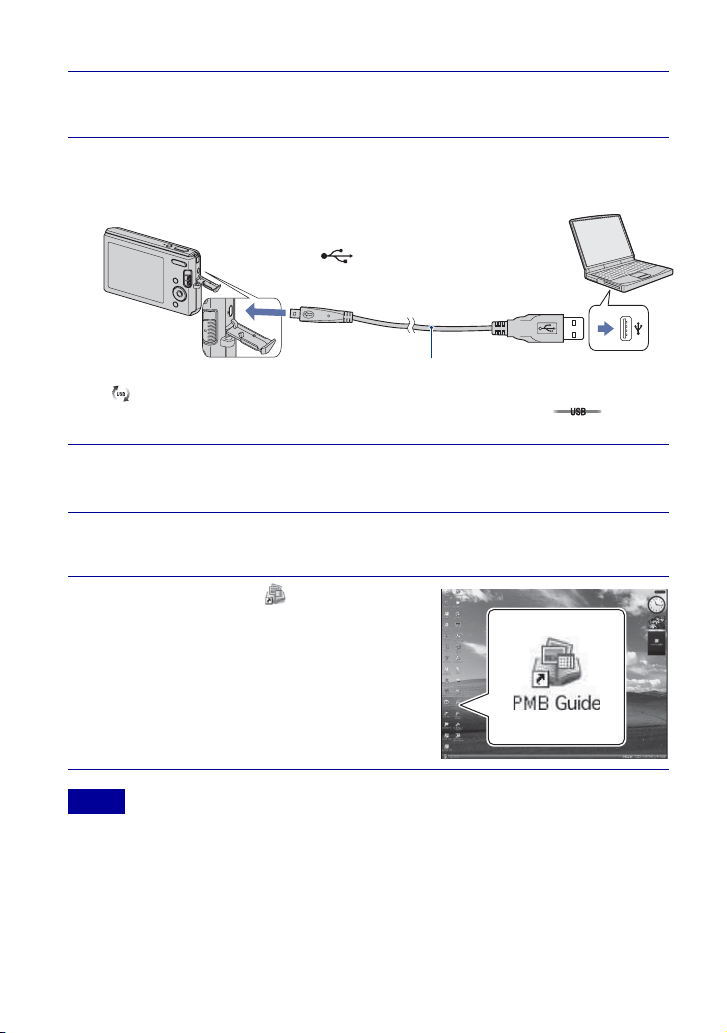
Turn on your computer, and insert the CD-ROM (supplied)
into the CD-ROM drive.
The installation menu screen appears.
3
Click [Install].
The “Choose Setup Language” screen
appears.
4
Follow the instructions on the screen to complete the
installation.
5
Remove the CD-ROM after the installation is complete.
38
GB
x
Stage 2: Importing images to your computer using “PMB”
x
Stage 3: Viewing “PMB Guide”
• Do not disconnect the dedicated USB cable from the camera while the camera is operating or while
“Accessing…” appears on the screen of the camera. Doing so may corrupt the data.
• When using a battery with little remaining charge, you may not be able to transfer the data or the
data may be corrupted. Using the AC Adaptor (sold separately) is recommended.
1
Insert a fully charged battery pack to the camera, then press
the ON/OFF (Power) button.
2
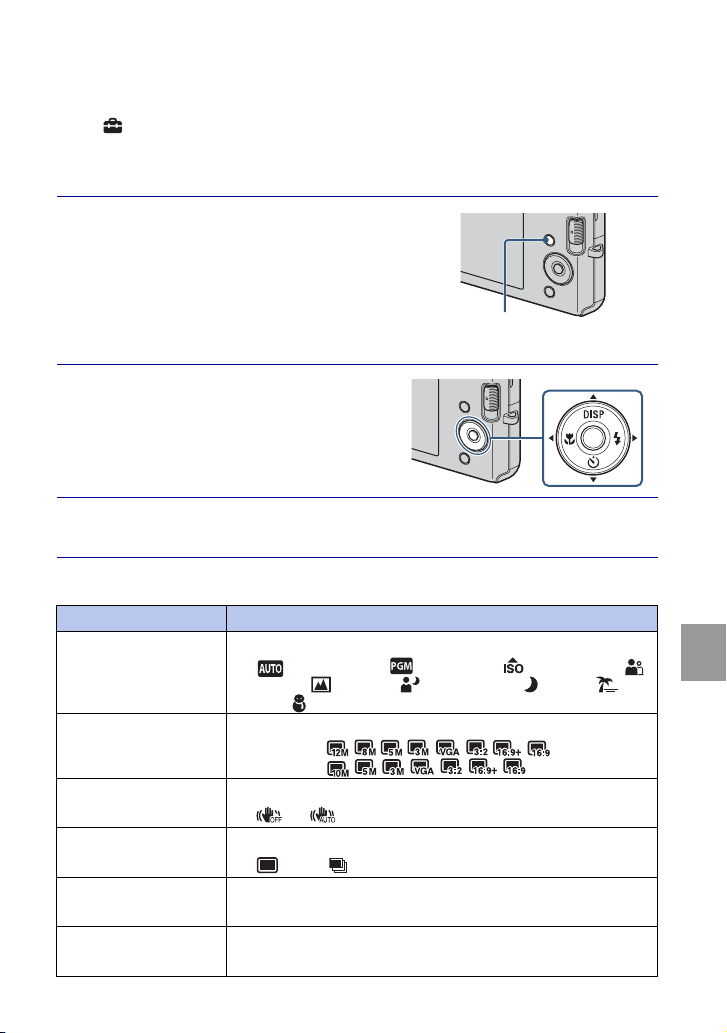
Connect the camera to your computer.
“Connecting…” appears on the screen of the camera.
• is displayed on the screen during the communication session. Do not operate the
computer while the indicator is displayed. When the indicator changes to , you can
start using the computer again.
3
Click the [Import] button.
For details, see the “PMB Guide”.
1
Double-click the (PMB Guide)
icon on the desktop.
• To access the “PMB Guide” from the start
menu: Click [Start]
t [All Programs] t
[Sony Picture Utility]
t [Help] t [PMB
Guide].
Notes
Dedicated USB cable
1 To a USB jack
2 To the
(USB)·A/V OUT terminal

39
GB
Connecting to other devices
x
Using the camera with your Macintosh computer
You can copy images to your Macintosh computer. However, “PMB” is not compatible.
Recommended computer environment
The following environment is recommended for a computer connected to the camera.
Recommended environment for importing images
OS (pre-installed): Mac OS 9.1/9.2/ Mac OS X (v10.1 to v10.5)
USB jack: Provided as standard

40
GB
Ch
an
gi
n
g
camera se
tti
n
g
s
Changing the operation sounds
You can set the sound produced when you operate the camera.
1
Press the MENU button.
2
Select (Settings) with V on
the control button, then press z.
3
Select [Main Settings] with v/V on the control button, then
press [Beep] t z.
4
Select the desired mode with v/V on the control button t z.
Shutter: Turns on the shutter sound when you press the shutter button.
On: Turns on the beep/shutter sound when you press the control/shutter button.
Off: Turns off the beep/shutter sound.
MENU button
41
GB
Changing camera settings
Using the MENU items
Displays available functions for easy setting when the camera is in shooting or playback
mode. Only the items that are available for each mode are displayed on the screen.
Select
(Settings) t [Main Settings] t [Initialize] to initialize the settings to the
default setting.
x
MENU in shooting mode
1
Press the MENU button to display
the Menu screen.
2
Select the desired menu item
with v/V/b/B on the control
button. During playback, confirm
by pressing z.
3
Press the MENU button to turn off the Menu screen.
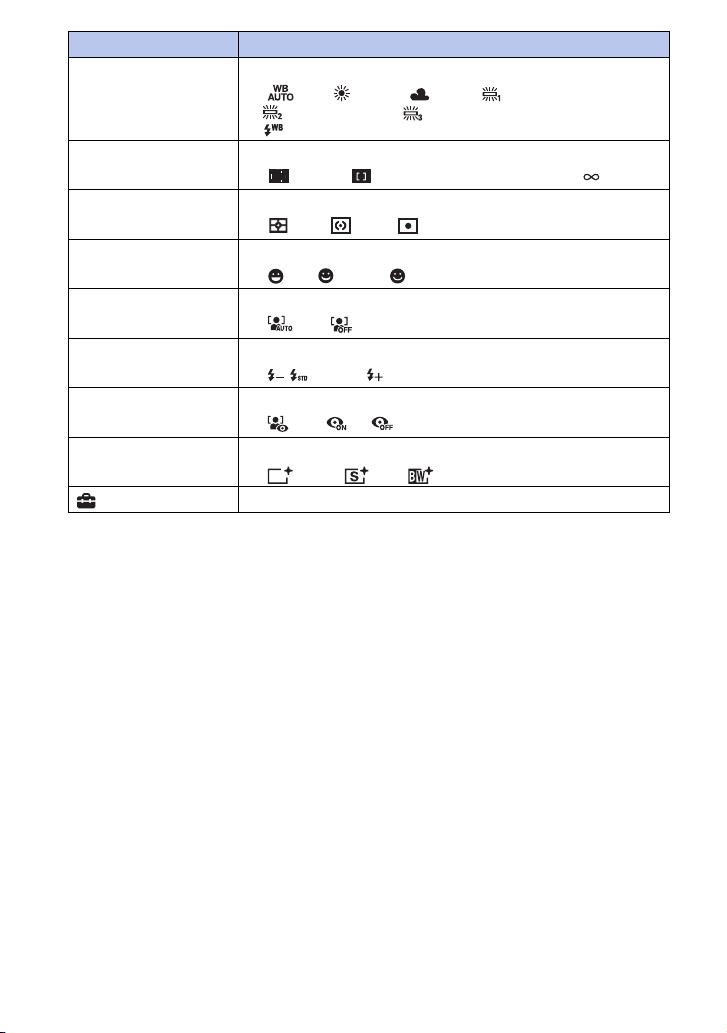
Item Description
Camera Sets the camera mode.
( Auto Adjustment/ Program Auto/ High Sensitivity/
Soft Snap/ Landscape/ Twilight Portrait/ Twilight/
Beach/ Snow)
Image Size Sets the image size.
DSC-W190 ( / / / / / / / )
DSC-W180 ( / / / / / / )
SteadyShot Selects the anti-blur mode.
( Off/ Auto)
REC Mode Selects the continuous shooting method.
( Normal/ Burst)
EV Adjusts exposure manually.
(–2.0 EV to +2.0 EV)
ISO Selects a luminous sensitivity.
(Auto/ISO 100 to ISO 3200)
MENU button
42
GB
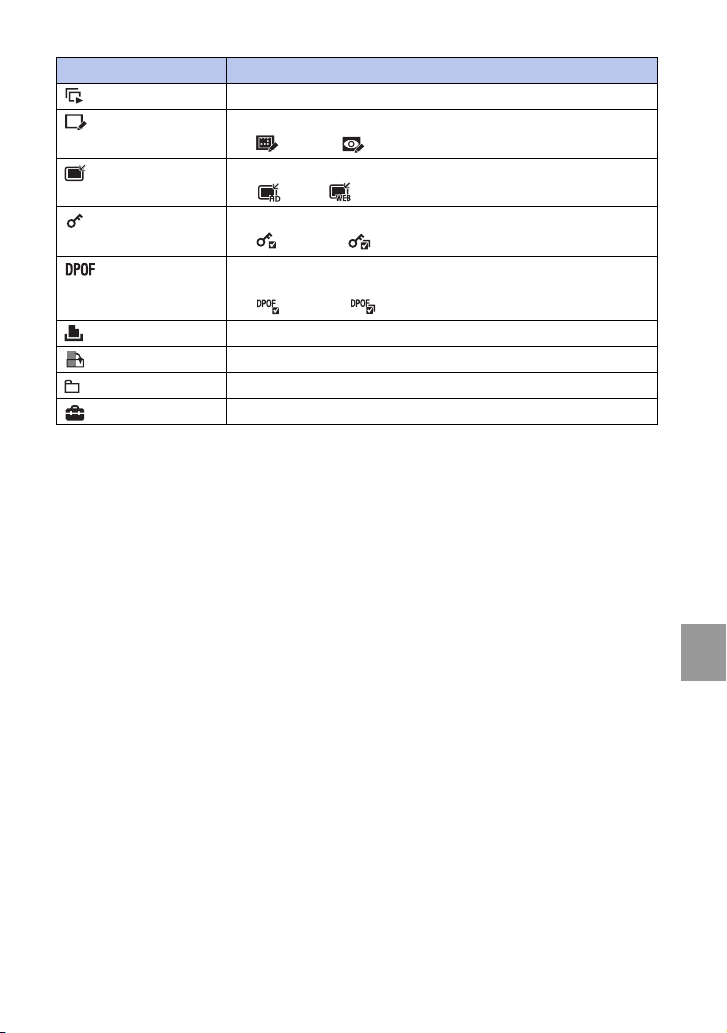
White Balance Adjusts color tones according to the surrounding light conditions.
( Auto/ Daylight/ Cloudy/ Fluorescent Light 1,
Fluorescent Light 2, Fluorescent Light 3/n Incandescent/
Flash)
Focus Changes the focus method.
( Multi AF/ Center AF/0.5 m/1.0 m/3.0 m/7.0 m/ )
Metering Mode Sets which part of the subject to measure to determine the exposure.
( Multi/ Center/ Spot)
Smile Detection Sensitivity Sets the level of sensitivity to detect smile.
( Low/ Medium/ High)
Face Detection Sets the Face Detection.
( Auto/ Off)
Flash Level Adjusts the amount of flash light.
( / Standard/ )
Red Eye Reduction Sets to reduce the red-eye phenomenon.
( Auto/ On/ Off)
Color Mode Changes the vividness of the image or adds special effects.
( Normal/ Sepia/ B & W)
(Settings) Changes the camera settings.
Item Description
43
GB
Changing camera settings
x
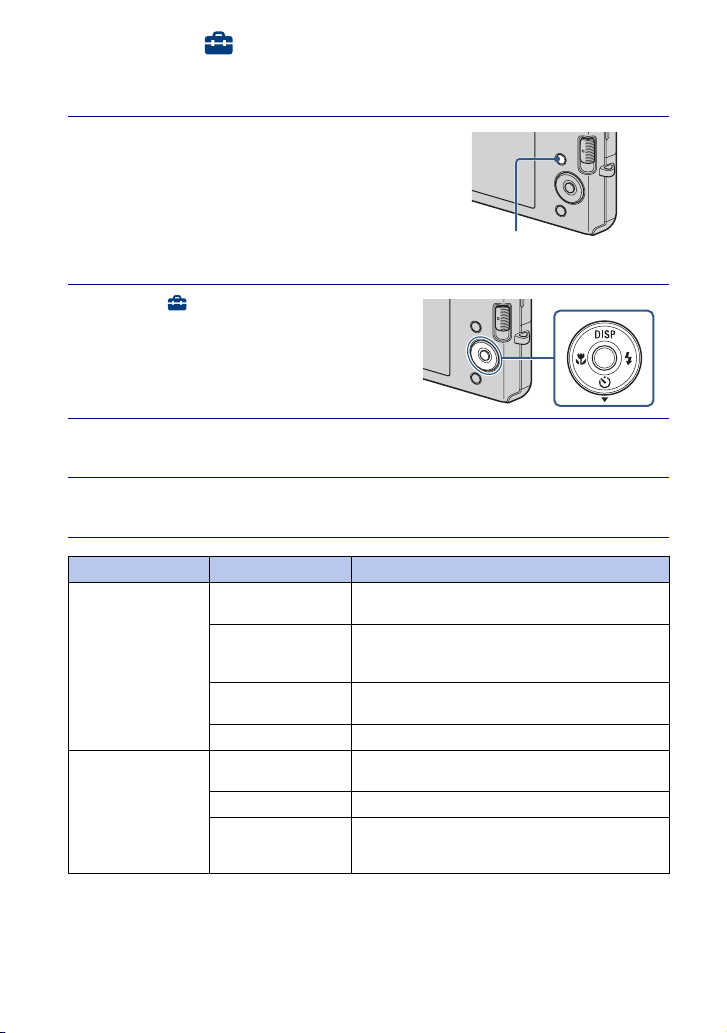
MENU in viewing mode
Item Description
(Slideshow) Plays back images in succession along with effects.
(Retouch) Retouches still images.
( Trimming/ Red Eye Correction)
(Multi-Purpose
Resize)
Changes the image size according to usage.
( HDTV/ Blog/E-mail)
(Protect) Prevents accidental erasure.
( This Image/ Multiple Images)
Adds a Print order mark to the image you want to print in a “Memory
Stick Duo” media.
( This Image/ Multiple Images)
(Print) Prints images using a PictBridge compliant printer.
(Rotate) Rotates a still image.
(Select Folder) Selects the folder for viewing images.
(Settings) Changes settings.
44
GB
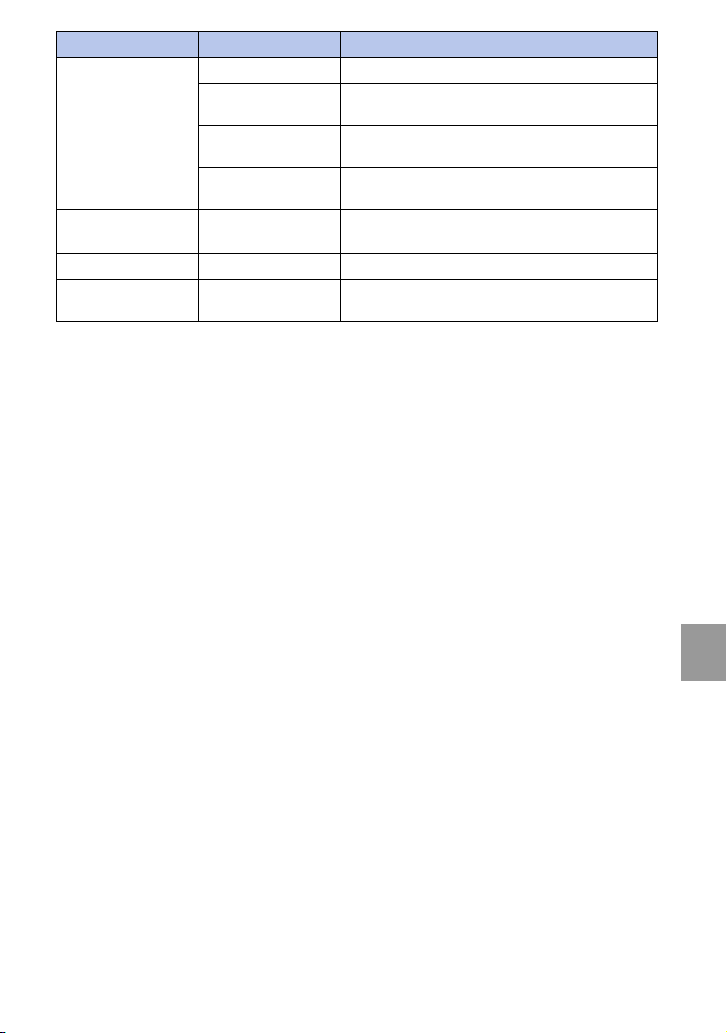
Using the (Settings) items
You can change the default settings.
1
Press the MENU button to display
the Menu screen.
2
Select (Settings) with V on
the control button, then press z.
3
Select the desired item with v/V/b/B, then press z.
4
Press the MENU button to turn off the setting screen.
Category Item Description
Main Settings Beep Selects or turns off the sound produced when you
operate the camera.
USB Connect Selects the USB mode when connecting the camera to
a computer or a PictBridge-compliant printer using
the dedicated USB cable.
Video Out Sets the video signal output according to the TV color
system of the connected video equipment.
Initialize Initializes settings to their default settings.
Shooting Settings Grid Line Sets whether or not to display the grid lines on the
screen.
Digital Zoom Selects the digital zoom mode.
Auto Review Displays the recorded image on the screen for
approximately two seconds immediately after
shooting a still image.
MENU button
45
GB
Changing camera settings
“Memory Stick” Tool Format Formats the “Memory Stick Duo” media.
Create REC.Folder Creates a folder in “Memory Stick Duo” media for
recording images.
Change REC.Folder Changes the folder currently used for recording
images.
Copy Copies all images in the internal memory to “Memory
Stick Duo” media.
Internal Memory
Tool
Format Formats the internal memory.
Clock Settings Clock Settings Sets the date and time.
Language Setting Language Setting Selects the language to be used in menu items,
warnings and messages.
Category Item Description
46
GB
Oth
ers
List of icons displayed on the screen
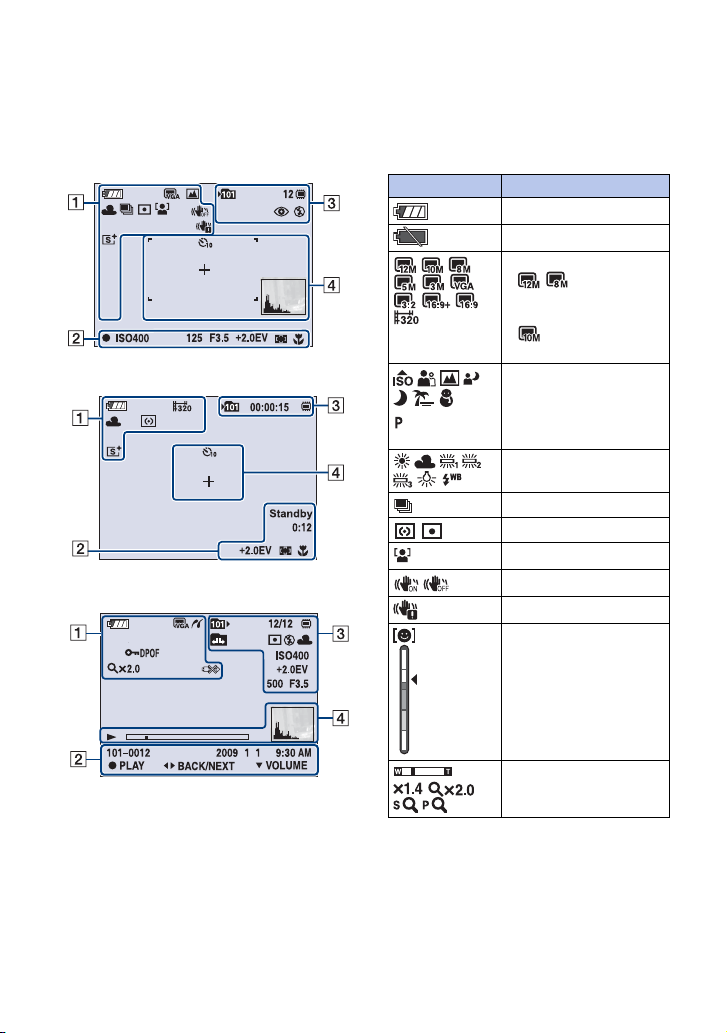
Icons are displayed on the screen to indicate the camera status.
You can change the screen display using DISP (screen display) on the control button
(page 23).
When shooting still images
When shooting movies
When playing back
A
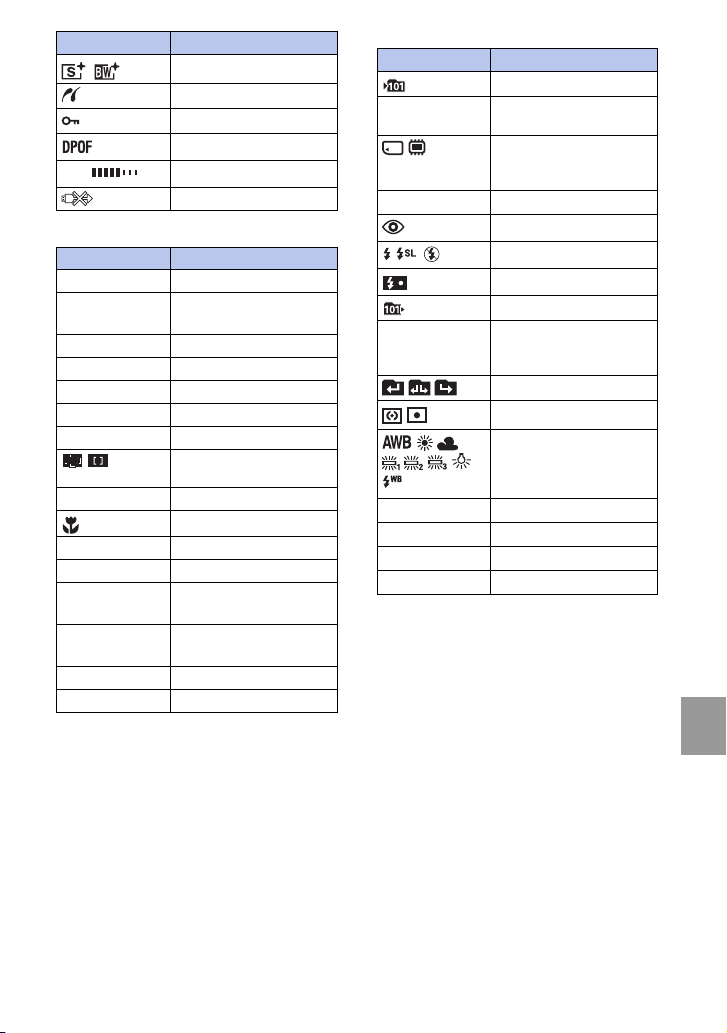
Display Indication
Battery remaining
Low battery warning
Image size
•
/ is displayed
only for the DSC-
W190.
• is displayed only
for the DSC-W180.
Camera mode (Scene
Selection)
Camera mode (Program
Auto)
White balance
Burst
Metering Mode
Face Detection
SteadyShot
Vibration warning
Smile Detection Sensitivity
indicator
Zoom scaling
47
GB
Others
B
C
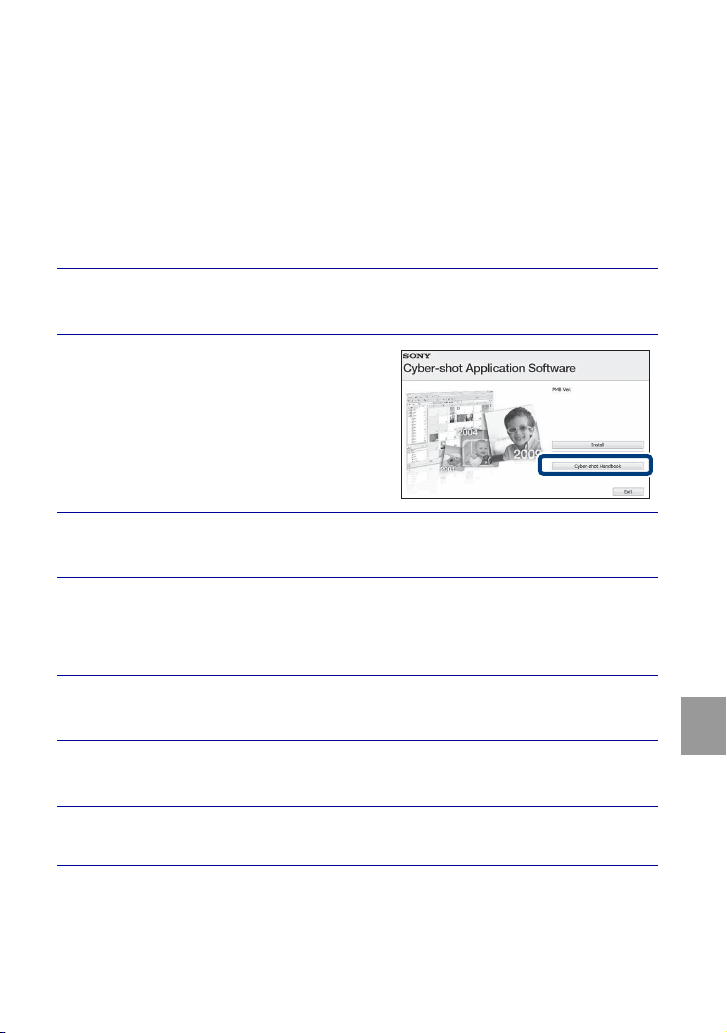
Color mode
PictBridge connecting
Protect
Print order (DPOF)
VOL.
Volume
PictBridge connecting
Display Indication
z
AE/AF lock
REC
Standby
Recording a movie/Standby
a movie
ISO400
ISO number
125
Shutter speed
F3.5
Aperture value
+2.0EV
Exposure Value
0:12
Recording time (m:s)
AF range finder frame
indicator
1.0 m
Semi-manual value
Macro
00:00:12
Counter
101-0012
Folder-file number
2009 1 1
9:30 AM
Recorded date/time of the
playback image
z STOP
z PLAY
Function guide for playing
image
bB BACK/NEXT
Selecting images
V VOLUME
Adjusting volume
Display Indication
Display Indication
Recording folder
12
Number of recordable
images
Recording/Playback Media
(“Memory Stick Duo”
media, internal memory)
00:00:15
Recordable time
Red-eye reduction
Flash mode
Flash charging
Playback folder
12/12
Image number/Number of
images recorded in selected
folder
Changing folder
Metering mode
White balance
ISO 400
ISO number
+2.0EV
Exposure value
500
Shutter speed
F3.5
Aperture value

48
GB
D
Display Indication
Self-timer
Spot metering cross hair
AF range finder frame
N
Playback
Playback bar
Histogram
•
appears when
histogram display is
disabled.
49
GB
Others
Learning more about the camera (“Cyber-
shot Handbook”)
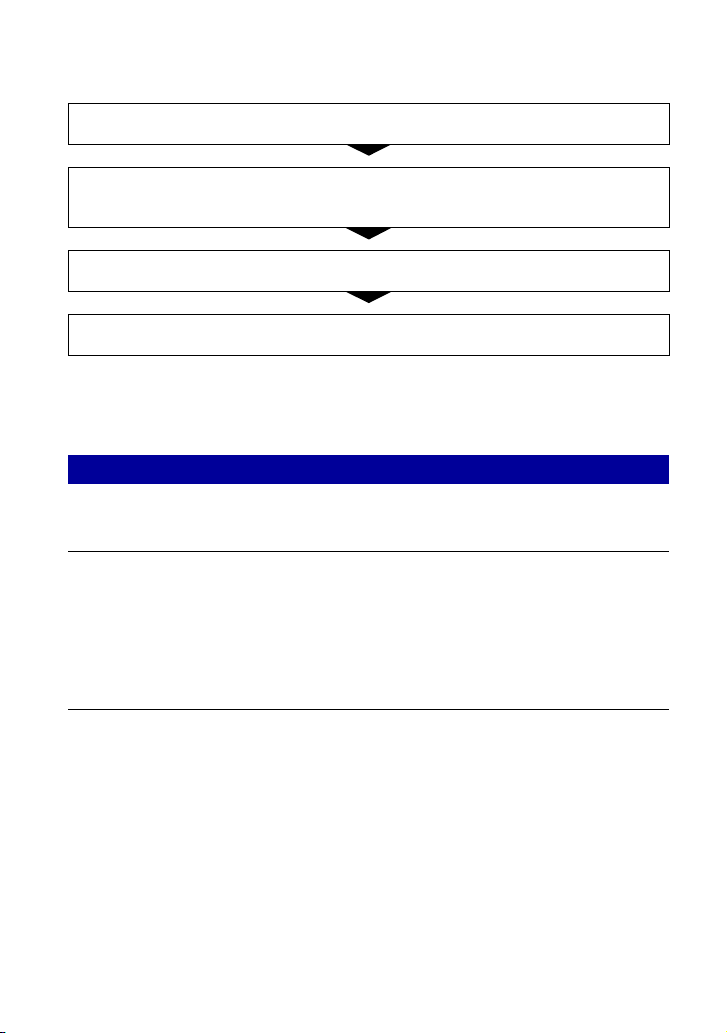
“Cyber-shot Handbook”, which explains how to use the camera in detail, is included on
the CD-ROM (supplied). Refer to it for in-depth instructions on the many functions of
the camera.
• You need Adobe Reader to read “Cyber-shot Handbook”. If it is not installed on your
computer, you can download it from web page: http://www.adobe.com/
x
For Windows users
x
For Macintosh users
1
Turn on your computer, and insert the CD-ROM (supplied)
into the CD-ROM drive.
2
Click “Cyber-shot Handbook”.
“Cyber-shot Step-up Guide”, which contains
information on accessories for the camera, is
installed at the same time.
3
Start “Cyber-shot Handbook” from the shortcut on the
desktop.
1
Turn on your computer, and insert the CD-ROM (supplied)
into the CD-ROM drive.
2
Select the [Handbook] folder and copy “Handbook.pdf”
stored in the [GB] folder to your computer.
3
After copying is complete, double-click “Handbook.pdf”.
50
GB
Troubleshooting
If you experience trouble with the camera, try the following solutions.
On repairing cameras with internal memory function included, data in the camera may
be checked on minimum necessity to verify and improve the malfunction symptoms.
Sony will not copy or save any of those data.
Cannot insert the battery pack.
• Insert the battery pack correctly by pushing the battery eject lever (page 14).
Cannot turn on the camera.
• After inserting the battery pack into the camera, it may take a few moments for the camera to
power up.
• Insert the battery pack correctly (page 14).
• The battery pack is discharged. Insert a charged battery pack (page 12).
• The battery pack is dead. Replace it with a new one.
• Use a recommended battery pack.
The power turns off suddenly.
• Depending on the camera and battery temperature, the power may turn off automatically to
protect the camera. In this case, a message is displayed on the LCD screen before the power
turns off.
• If you do not operate the camera for about three minutes while the power is on, the camera
turns off automatically to prevent wearing down the battery pack. Turn on the camera again
(page 16).
• The battery pack is dead. Replace it with a new one.
1 Check the items below, and refer to “Cyber-shot Handbook” (PDF).
2 Remove the battery pack, wait for about one minute, re-insert the battery
pack, then turn on the power.
3 Initialize the settings (page 44).
4 Consult your Sony dealer or local authorized Sony service facility.
Battery pack and power
51
GB
Others
The remaining charge indicator is incorrect.
• The battery charge will quickly get used up and the actual remaining battery charge will be
lower than the indicator in the following cases:
– When you use the camera in an extremely hot or cold location.
– When you use the flash and zoom frequently.
– When you repeatedly turn the power on and off.
– When you set the screen brightness higher using DISP (screen display) settings.
• The battery pack is discharged. Insert the charged battery pack (page 12).
• The battery pack is dead. Replace it with a new one.
Cannot charge the battery pack while it is inside the camera.
• You cannot charge the battery pack using the AC Adaptor (sold separately). Use the battery
charger (supplied) to charge the battery.
The CHARGE lamp flashes while charging the battery.
• Remove and reinsert the battery pack, making sure it is installed correctly.
• The temperature may be inappropriate for charging. Try charging the battery pack again
within the proper charging temperature range (10°C to 30°C (50°F to 86°F)).
Cannot record images.
• Check the free capacity of the internal memory or “Memory Stick Duo” media (pages 26, 29).
If it is full, do one of the following:
– Delete unnecessary images (page 32).
– Change the “Memory Stick Duo” media.
• You cannot record images while charging the flash.
• When shooting a still image, set the mode switch to (Still Image).
• Set the mode switch to (Movie) when shooting movies.
White, black, red, purple or other streaks appear on the image, or the image
seems reddish.
• This phenomenon is called smearing. This is not a malfunction.
Cannot play back images.
• Set the mode switch to (Playback) (page 19).
• The folder/file name has been changed on your computer.
• No guarantees are made for playing back, on this camera, files containing images which were
processed on a computer or images which were shot using other cameras.
• The camera is in USB mode. Delete the USB connection.
Shooting still images/movies
Viewing images

52
GB
Precautions
Do not use/store the camera in the
following places
• In an extremely hot, cold or humid place
In places such as in a car parked in the sun,
the camera body may become deformed and
this may cause a malfunction.
• Under direct sunlight or near a heater
The camera body may become discolored or
deformed, and this may cause a malfunction.
• In a location subject to rocking vibration
• Near strong magnetic place
• In sandy or dusty places
Be careful not to let sand or dust get into the
camera. This may cause the camera to
malfunction, and in some cases this
malfunction cannot be repaired.
On carrying
Do not sit down in a chair or other place with
the camera in the back pocket of your trousers
or skirt, as this may cause malfunction or
damage the camera.
On cleaning
Cleaning the LCD screen
Wipe the screen surface with an LCD cleaning
kit (sold separately) to remove fingerprints,
dust, etc.
Cleaning the lens
Wipe the lens with a soft cloth to remove
fingerprints, dust, etc.
Cleaning the camera surface
Clean the camera surface with a soft cloth
slightly moistened with water, then wipe the
surface with a dry cloth. To prevent damage to
the finish or casing:
– Do not expose the camera to chemical
products such as thinner, benzine, alcohol,
disposable cloths, insect repellent, sunscreen
or insecticide.
– Do not touch the camera with any of the
above on your hand.
– Do not leave the camera in contact with
rubber or vinyl for a long time.
On operating temperatures
Your camera is designed for use under the
temperatures between 0°C and 40°C (32°F and
104°F). Shooting in extremely cold or hot
places that exceed this range is not
recommended.
On moisture condensation
If the camera is brought directly from a cold to
a warm location, moisture may condense
inside or outside the camera. This moisture
condensation may cause a malfunction of the
camera.
If moisture condensation occurs
Turn off the camera and wait about an hour for
the moisture to evaporate. Note that if you
attempt to shoot with moisture remaining
inside the lens, you will be unable to record
clear images.
On the internal rechargeable
backup battery
This camera has an internal rechargeable
battery for maintaining the date and time and
other settings regardless of whether the power
is on or off.
This rechargeable battery is continually
charged as long as you are using the camera.
However, if you use the camera for only short
periods, it discharges gradually, and if you do
not use the camera at all for about one month it
becomes completely discharged. In this case,
be sure to charge this rechargeable battery
before using the camera.
However, even if this rechargeable battery is
not charged, you can still use the camera, but
the date and time will not be indicated.
Charging method of the internal
rechargeable backup battery
Insert charged battery pack in the camera, and
then leave the camera for 24 hours or more
with the power off.

53
GB
Others
Specifications
Camera
[System]
Image device:
DSC-W190: 7.79 mm (1/2.3 type) color CCD,
Primary color filter
DSC-W180: 7.70 mm (1/2.3 type) color CCD,
Primary color filter
Total pixel number of camera:
DSC-W190: Approx. 12.4 Megapixels
DSC-W180: Approx. 10.3 Megapixels
Effective pixel number of camera:
DSC-W190: Approx. 12.1 Megapixels
DSC-W180: Approx. 10.1 Megapixels
Lens: 3× zoom lens
f = 6.2 mm – 18.6 mm (35 mm – 105 mm
(35 mm film equivalent))
F3.1 (W) – F5.6 (T)
Exposure control: Automatic exposure, Scene
Selection (7 modes)
White balance: Automatic, Daylight, Cloudy,
Fluorescent 1,2,3, Incandescent, Flash
Recording interval for Burst mode:
Approx. 1 second
File format:
Still images: JPEG (DCF Ver. 2.0, Exif
Ver. 2.21, MPF Baseline) compliant, DPOF
compatible
Movies: AVI (Motion JPEG)
Recording media: Internal Memory
(approx. 12 MB), “Memory Stick Duo” media
Flash: Flash range (ISO sensitivity
(Recommended exposure Index) set to Auto):
Approx. 0.5 m to 3.0 m (1 feet 7 3/4 inches to
9 feet 10 1/8 inches) (W)/
approx. 0.5 m to 1.5 m (1 feet 7 3/4 inches to
4feet111/8inches) (T)
[Input and Output connectors]
(USB)·A/V OUT terminal:
Video output
Audio output (Monaural)
USB communication
USB communication: Hi-Speed USB (USB 2.0
compliant)
[LCD screen]
LCD panel:
6.7 cm (2.7 type) TFT drive
Total number of dots: 230 400 (960 × 240) dots
[Power, general]
Power: Rechargeable battery pack
NP-BK1, 3.6 V
AC-LS5 AC Adaptor (sold separately), 4.2 V
Power consumption (during shooting):
1.2 W
Operating temperature: 0°C to 40°C (32°F to
104°F)
Storage temperature: –20°C to +60°C (–4°F to
+140°F)
Dimensions:
93.4 × 54.5 × 18.7 mm (3 3/4 × 2 1/4 ×
3/4 inches) (W/H/D, excluding protrusions)
Mass (including NP-BK1 battery pack, “Memory
Stick Duo” media):
Approx. 140 g (4.9 oz)
Microphone: Monaural
Speaker: Monaural
Exif Print: Compatible
PRINT Image Matching III: Compatible
PictBridge: Compatible

54
GB
BC-CSKA battery charger
Power requirements: AC 100 V to 240 V,
50 Hz/60 Hz, 2.3 W
Output voltage: DC 4.2 V, 0.30 A
Operating temperature: 0°C to 40°C (32°F to
104°F)
Storage temperature: –20°C to +60°C (–4°F to
+140°F)
Dimensions: Approx. 62 × 24 × 91 mm
(2 1/2 × 31/32 × 3 5/8 inches) (W/H/D)
Mass: Approx. 70 g (2.5 oz)
Rechargeable battery pack
NP-BK1
Used battery: Lithium-ion battery
Maximum voltage: DC 4.2 V
Nominal voltage: DC 3.6 V
Maximum charge current: 1.4 A
Maximum charge voltage: DC 4.2 V
Capacity:
typical: 3.4 Wh (970 mAh)
minimum: 3.3 Wh (930 mAh)
Design and specifications are subject to
change without notice.
Trademarks
• The following marks are trademarks of Sony
Corporation.
, “Cyber-shot,” “Memory
Stick,” , “Memory Stick PRO,”
, “Memory Stick Duo,”
, “Memory Stick PRO
Duo,” , “Memory
Stick PRO-HG Duo,”
, “Memory Stick
Micro,” “MagicGate,”
• Microsoft, Windows, DirectX and Windows
Vista are either registered trademarks or
trademarks of Microsoft Corporation in the
United States and/or other countries.
• Macintosh and Mac OS are trademarks or
registered trademarks of Apple Inc.
• Intel, MMX, and Pentium are trademarks or
registered trademarks of Intel Corporation.
• Adobe and Reader are either trademarks or
registered trademarks of Adobe Systems
Incorporated in the United States and/or
other countries.
• In addition, system and product names used
in this manual are, in general, trademarks or
registered trademarks of their respective
developers or manufacturers. However, the
™ or ® marks are not used in all cases in this
manual.

55
GB
Others

2
ES
Nombre del producto: Cámara Digital
Modelo: DSC-W180/W190
Para reducir el riesgo de incendio o
descarga eléctrica, no exponga la
unidad a la lluvia ni a la humedad.
INSTRUCCIONES
DE SEGURIDAD
IMPORTANTES
-GUARDE ESTAS
INSTRUCCIONES
PELIGRO
PARA REDUCIR EL
RIESGO DE INCENDIO O
DESCARGA ELÉCTRICA,
SIGA ATENTAMENTE
ESTAS INSTRUCCIONES
Si la forma de la clavija no encaja en la
toma de corriente, utilice un accesorio
adaptador de clavija de la configuración
apropiada para la toma de corriente.
[ Batería
Si la batería se manipula indebidamente, puede
explotar y causar un incendio o provocarle
quemaduras químicas. Tenga en cuenta las
siguientes precauciones.
• No desmonte el producto.
• No aplaste ni exponga la batería a impactos
tales como golpes o caídas, ni la deje caer o la
pise.
• No provoque un cortocircuito en la batería ni
permita que objetos metálicos entren en
contacto con sus terminales.
• No exponga la batería a temperaturas superiores
a 60 °C como a la luz solar directa, o en el
interior de un automóvil estacionado al sol.
• No la incinere ni la arroje al fuego.
• No manipule baterías de iones de litio dañadas
o con fugas.
• Asegúrese de cargar la batería con un cargador
de baterías original de Sony o con un
dispositivo que pueda cargarla.
• Mantenga la batería fuera del alcance de niños
pequeños.
• Mantenga la batería seca.
• Sustitúyala únicamente por otra del mismo tipo
o equivalente recomendada por Sony.
• Deshágase de la baterías usada lo antes posible
según el procedimiento que se describe en las
instrucciones.
[ Cargador de batería
Aunque la lámpara CHARGE no esté encendida,
el cargador de batería no estará desconectado de la
fuente de alimentación de ca en tanto que el
mismo esté conectado a la toma de corriente de la
pared. Si ocurre algún problema mientras utiliza
el cargador de batería, interrumpa inmediatamente
la alimentación desconectando la clavija de la
toma de corriente de la pared.
Español
POR FAVOR LEA DETALLADAMENTE
ESTE MANUAL DE INSTRUCCIONES
ANTES DE CONECTAR Y OPERAR
ESTE EQUIPO.
RECUERDE QUE UN MAL USO DE SU
APARATO PODRÍA ANULAR LA
GARANTÍA.
AVISO
PRECAUCIÓN
3
ES
[ Aviso para los clientes de países
en los que se aplican las
directivas de la UE
El fabricante de este producto es Sony
Corporation, 1-7-1 Konan Minato-ku Tokyo, 108-
0075, Japón. El representante autorizado en lo
referente al cumplimiento de la directiva EMC y a
la seguridad de los productos es Sony
Deutschland GmbH, Hedelfinger Strasse 61,
70327 Stuttgart, Alemania. Para resolver
cualquier asunto relacionado con el soporte
técnico o la garantía, consulte las direcciones que
se indican en los documentos de soporte técnico y
garantía suministrados por separado.
Este producto se ha probado y cumple con la
normativa que establece la Directiva EMC si se
utiliza un cable de conexión de menos de 3 metros
de longitud.
[ Atención
Los campos electromagnéticos a frecuencias
específicas podrán influir en la imagen y el sonido
de esta unidad.
[ Aviso
Si la electricidad estática o el electromagnetismo
interrumpen la transmisíon de datos (fallo),
reinicie la aplicación o desconecte el cable de
comunicación (USB, etc.) y vuelva a conectarlo.
[ Tratamiento de los equipos
eléctricos y electrónicos al final
de su vida útil (aplicable en la
Unión Europea y en países
europeos con sistemas de
recogida selectiva de residuos)
Este símbolo en el equipo o el embalaje indica
que el presente producto no puede ser tratado
como residuos domésticos normales, sino que
debe entregarse en el correspondiente punto de
recogida de equipos eléctricos y electrónicos. Al
asegurarse de que este producto se desecha
correctamente, Ud. ayuda a prevenir las
consecuencias negativas para el medio ambiente y
la salud humana que podrían derivarse de la
incorrecta manipulación en el momento de
deshacerse de este producto. El reciclaje de
materiales ayuda a conservar los recursos
naturales. Para recibir información detallada sobre
el reciclaje de este producto, póngase en contacto
con el ayuntamiento, el punto de recogida más
cercano o el establecimiento donde ha adquirido
el producto.
Atención para los clientes en
Europa
ES

4
ES
Tratamiento de las baterías al final
de su vida útil (aplicable en la
Unión Europea y en países
europeos con sistemas de
recogida selectiva de residuos)
Este símbolo en la batería o en el embalaje indica
que la batería proporcionada con este producto no
puede ser tratada como un residuo doméstico
normal.
En algunas baterías este símbolo puede utilizarse
en combinación con el símbolo químico. El
símbolo químico del mercurio (Hg) o del plomo
(Pb) se añadirá si la batería contiene más del
0,0005% de mercurio o del 0,004% de plomo.
Al asegurarse de que estas baterías se desechan
correctamente, Ud. ayuda a prevenir las
consecuencias negativas para el medio ambiente y
la salud humana que podrían derivarse de la
incorrecta manipulación en el momento de
deshacerse de la batería. El reciclaje de
materiales ayuda a conservar los recursos
naturales.
En el caso de productos que por razones de
seguridad, rendimiento o mantenimiento de datos,
sea necesaria una conexión permanente con la
batería incorporada, esta batería solo deberá ser
reemplazada por personal técnico cualificado para
ello.
Para asegurarse de que la batería será tratada
correctamente, entregue el producto al final de su
vida útil en un punto de recogida para el reciclado
de aparatos eléctricos y electrónicos.
Para las demás baterías, vea la sección donde se
indica cómo quitar la batería del producto de
forma segura. Deposite la batería en el
correspondiente punto de recogida para el
reciclado.
Para recibir información detallada sobre el
reciclaje de este producto o de la batería, póngase
en contacto con el ayuntamiento, el punto de
recogida más cercano o el establecimiento donde
ha adquirido el producto.

5
ES
Índice
Notas sobre la utilización de la cámara ................................................... 7
Preparativos ............................................................................ 8
Comprobación de los accesorios suministrados...................................... 8
Identificación de las partes....................................................................... 9
Carga de la batería ................................................................................. 10
Inserción de la batería/un “Memory Stick Duo”
(se vende por separado)......................................................................... 12
Ajuste del reloj......................................................................................... 14
Toma/visionado de imágenes .......................... 16
Toma de imágenes.................................................................................. 16
Visualización de imágenes...................................................................... 17
Utilización de las funciones de toma de imagen ...... 18
Detección de sonrisas y toma automática (Captador de sonrisas)........ 18
Enfoque de la cara del motivo (Detección de cara) ............................... 19
Toma de primeros planos (Macro).......................................................... 20
Utilización del autodisparador ................................................................ 20
Selección de un modo de flash............................................................... 21
Cambio de la visualización en pantalla................................................... 21
Selección del tamaño de imagen para coincidir con la utilización......... 22
Utilización del modo de toma que coincide con la escena
(Selección escena).................................................................................. 25
Toma de películas................................................................................... 26
Utilización de las funciones de visionado .................... 28
Visionado de una imagen ampliada (zoom de reproducción)................ 28
Búsqueda de una imagen (Índice de imágenes) ................................... 28
Visualización de una serie de imágenes fijas (Diapositivas) .................. 29
Borrado de imágenes ................................................................. 30
Borrado de imágenes.............................................................................. 30
Eliminación de todas las imágenes (Formatear)..................................... 31

6
ES
Conexión a otros dispositivos ............................................. 32
Visionado de imágenes en un televisor................................................... 32
Impresión de imágenes fijas.................................................................... 32
Utilización de la cámara con un ordenador ............................................34
Cambio de los ajustes de la cámara ................................ 38
Cambio de los sonidos de operación......................................................38
Utilización de los elementos de MENU ................................................... 39
Utilización de los elementos de (Ajustes)..........................................41
Otros ..................................................................................................... 43
Lista de iconos visualizados en la pantalla ............................................. 43
Para saber más sobre la cámara (“Guía práctica de Cyber-shot”) ........45
Solución de problemas............................................................................46
Precauciones........................................................................................... 48
Especificaciones......................................................................................49

7
ES
x
Notas sobre la utilización de la cámara
Copia de seguridad de la memoria
interna y del “Memory Stick Duo”
No apague la cámara, extraiga la batería, ni
retire el “Memory Stick Duo” mientras está
encendida la lámpara de acceso. De lo
contrario, podrán dañarse los datos de la
memoria interna o el “Memory Stick Duo”.
Asegúrese de hacer una copia de seguridad
para proteger sus datos.
Notas sobre la grabación/
reproducción
• Antes de comenzar a grabar, haga una
grabación a modo de prueba para asegurarse
de que la cámara está funcionando
correctamente.
• La cámara no está hecha a prueba de polvo,
ni a prueba de salpicaduras, ni a prueba de
agua. Lea “Precauciones” (página 48) antes
de utilizar la cámara.
• Evite exponer la cámara al agua. Si entra
agua dentro de la cámara, podrá ocurrir un
mal funcionamiento. En algunos casos, la
cámara no podrá ser reparada.
• No dirija la cámara hacia el sol ni hacia otras
luces intensas. Podrá ocasionar un mal
funcionamiento de la cámara.
• No utilice la cámara cerca de un lugar que
genere ondas de radio fuertes o emita
radiación. De lo contrario, es posible que la
cámara no pueda grabar o reproducir
imágenes correctamente.
• La utilización de la cámara en lugares
arenosos o polvorientos podrá ocasionar un
mal funcionamiento.
• Si se condensa humedad, elimínela antes de
utilizar la cámara (página 48).
• No agite ni golpee la cámara. Podría
ocasionar un mal funcionamiento y no poder
grabar imágenes. Además, el soporte de
grabación podría quedar inutilizable o
dañarse los datos de imagen.
• Limpie la superficie del flash antes de
utilizarlo. El calor de la emisión del flash
podrá hacer que la suciedad en la superficie
del flash se descolore o se adhiera en ella,
ocasionando una insuficiente emisión de luz.
Notas sobre la pantalla LCD y el
objetivo
• La pantalla LCD está fabricada utilizando
tecnología de muy alta precisión por lo que
más del 99,99% de los píxeles son operativos
para uso efectivo. Sin embargo, es posible
que aparezcan algunos puntos diminutos
negros y/o brillantes (blancos, rojos, azules o
verdes) en la pantalla LCD. Estos puntos son
un resultado normal del proceso de
fabricación, y no afectan a la grabación.
• Cuando el nivel de la batería sea bajo, es
posible que el objetivo deje de moverse.
Inserte una batería cargada y encienda la
cámara otra vez.
Acerca de la temperatura de la
cámara
La cámara y la batería pueden calentarse
debido a una utilización continua, pero esto no
es un defecto de funcionamiento.
Acerca de la protección contra el
recalentamiento
Dependiendo de la temperatura de la cámara y
de la batería, es posible que la alimentación se
desconecte automáticamente para proteger la
cámara.
Se visualizará un mensaje en la pantalla LCD
antes de desconectarse la alimentación.
Acerca de la compatibilidad de los
datos de imagen
• La cámara cumple con la norma universal
DCF (Design rule for Camera File system)
establecida por la JEITA (Japan Electronics
and Information Technology Industries
Association).
• Sony no garantiza que la cámara pueda
reproducir imágenes grabadas o editadas con
otro equipo, ni que otros equipos puedan
reproducir imágenes grabadas con la cámara.
Aviso sobre los derechos de autor
Los programas de televisión, películas, cintas
de vídeo y demás materiales pueden estar
protegidos por copyright. La grabación no
autorizada de tales materiales puede ir en
contra de los artículos de las leyes de
copyright.
No hay compensación por daño
del contenido o fallo de grabación
Sony no compensará por no poder grabar o por
la pérdida o daño del contenido grabado
debido a un mal funcionamiento de la cámara
o el soporte de grabación, etc.
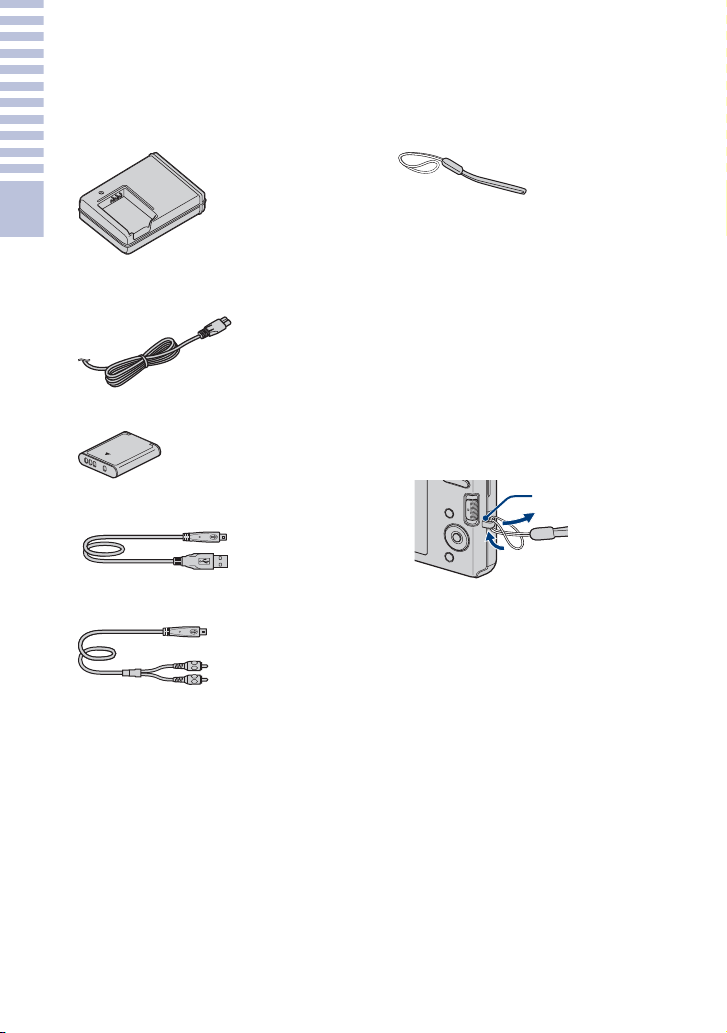
8
ES
Preparativos
P
repara
ti
vos
Comprobación de los accesorios
suministrados
• Cargador de batería BC-CSKA (1)
• Cable de alimentación (1)
(no suministrado en EE. UU. y Canadá)
• Batería recargable NP-BK1 (1)
• Cable USB exclusivo (1)
• Cable A/V exclusivo (1)
• Correa para muñeca (1)
• CD-ROM (1)
– Software de aplicación del Cyber-shot
– “Guía práctica de Cyber-shot”
– “Guía avanzada de Cyber-shot”
• Manual de instrucciones (este manual) (1)
x
Utilización de la correa de
muñeca
La correa de muñeca se prefija en fábrica.
Coloque la correa y pase la mano a través del
lazo para evitar que pueda caérsele la cámara
y dañarse.
Gancho
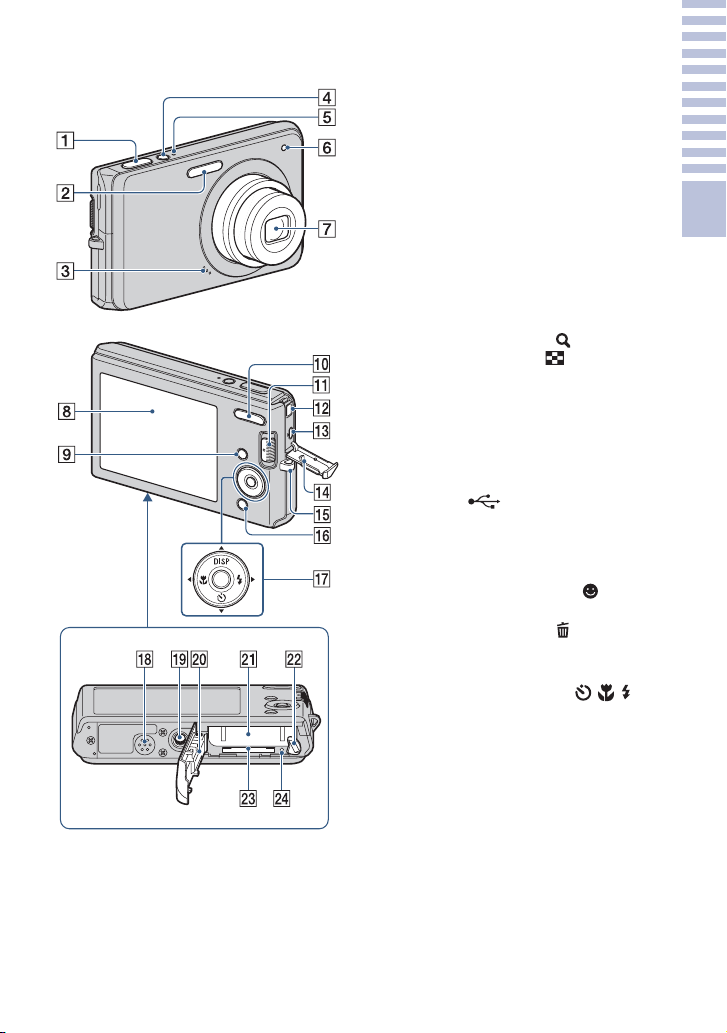
9
ES
Preparativos
Identificación de las partes
A Botón del disparador
B Flash
C Micrófono
D Botón ON/OFF (Alimentación)
E Lámpara ON/OFF (Alimentación)
F Lámpara de autodisparador
G Objetivo
H Pantalla LCD
I Botón MENU
J Para tomar imagen: Botón W/T
(Zoom)
Para visionado: Botón (Zoom de
reproducción)/Botón (Índice)
K Conmutador de modo
L Toma DC (cc) IN
• Aunque conecte la cámara al adaptador
de ca AC-LS5K (se vende por separado)
la batería no se cargará. Utilice un
cargador de batería para cargar la batería.
M Terminal (USB)·A/V OUT
(lateral)
N Tapa de toma
O Gancho para correa de muñeca
P Para tomar imagen: Botón
(Sonrisa)
Para visionado: Botón (Borrar)
Q Botón de control
Menú activado: v/V/b/B/z
Menú desactivado: DISP/ / /
R Altavoz
S Rosca para trípode
• Utilice un trípode con un tornillo de
menos de 5,5 mm de largo. De lo
contrario, no podrá sujetar firmemente la
cámara, y es posible que la cámara se
dañe.
T Tapa de la batería/“Memory Stick
Duo”
U Ranura de inserción de la batería
V Palanca de expulsión de la batería
W Ranura de “Memory Stick Duo”
X Lámpara de acceso
Parte inferior
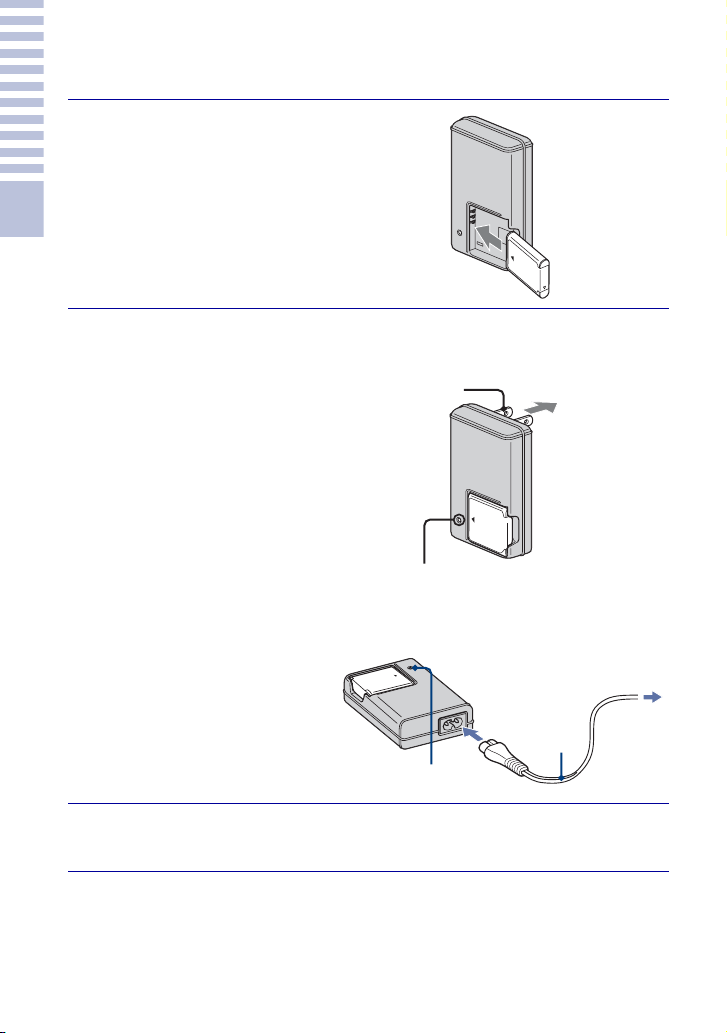
10
ES
Preparativos
Carga de la batería
1
Inserte la batería en el
cargador de batería.
• Puede cargar la batería incluso cuando
esté parcialmente cargada.
2
Conecte el cargador
de batería a la toma
de corriente de la
pared.
• Si continúa cargando la batería
durante aproximadamente una
h (hora) más después de
haberse apagado la lámpara
CHARGE, la carga durará un
poco más (carga completa).
Lámpara CHARGE
Iluminada: Cargando
Apagada: Ha finalizado la carga
(carga normal)
3
Cuando se haya completado la carga, desconecte el
cargador de batería.
Batería
Lámpara CHARGE
Para clientes en EE.UU. y Canadá
Clavija
Lámpara CHARGE
Cable de
alimentación
Para clientes en países/regiones distintos de
EE.UU. y Canadá
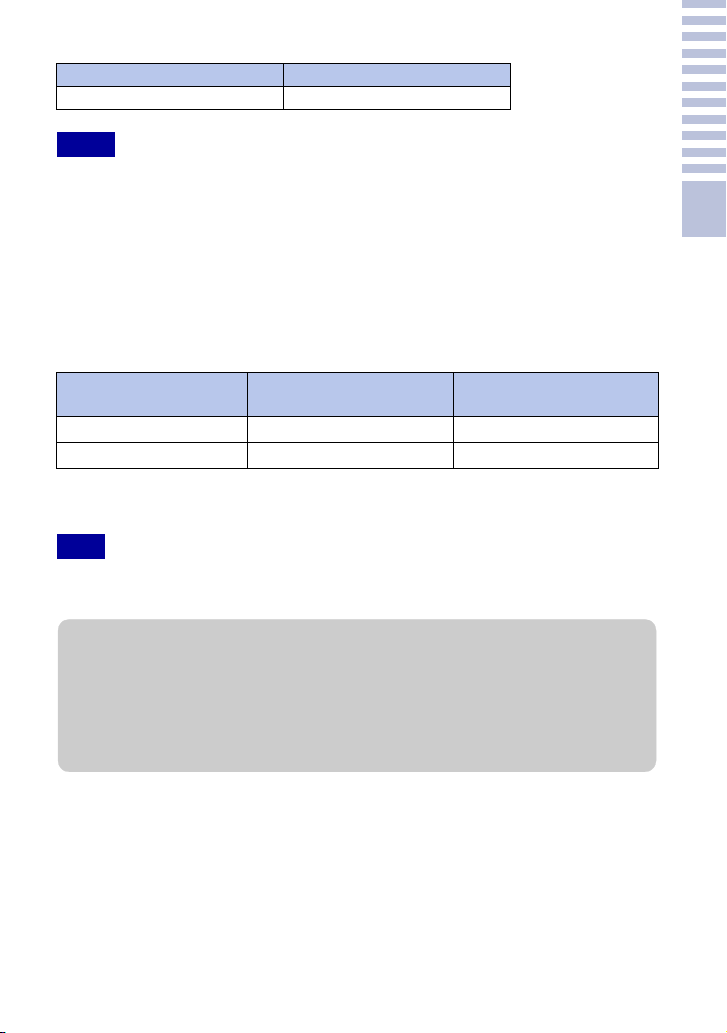
11
ES
Preparativos
x
Tiempo de carga
• La tabla de arriba muestra el tiempo requerido para cargar una batería completamente descargada a
una temperatura de 25 °C
La carga podrá llevar más tiempo según las condiciones de utilización y las circunstancias.
• Conecte el cargador de batería a la toma de corriente de la pared más próxima.
• Cuando finalice la carga, desenchufe el cable de alimentación de la toma de corriente de la pared, y
extraiga la batería del cargador de batería.
• Asegúrese de utilizar la batería o el cargador de batería de la marca Sony genuina.
x
Duración de la batería y número de imágenes que se pueden
grabar/ver
El método de medición está basado en el estándar CIPA. (CIPA: Camera & Imaging
Products Association)
• La duración de la batería y el número de imágenes fijas podrán variar dependiendo de los ajustes
de la cámara.
Tiempo de carga completa Tiempo de carga normal
Aprox. 300 min (minuto) Aprox. 240 min (minuto)
Notas
Duración de la batería
(min (minuto))
N°. de imágenes
Toma de imágenes fijas Aprox. 145 Aprox. 290
Visionado de imágenes fijas Aprox. 240 Aprox. 4 800
Nota
zUtilización de la cámara en el extranjero
Puede utilizar la cámara, el cargador de baterías (suministrado), y el adaptador de ca AC-LS5K
(se vende por separado) en cualquier país o región donde el suministro de corriente sea de entre
100 V a 240 V de ca 50 Hz/60 Hz
No utilice un transformador electrónico (convertidor para usar en viajes). Ello podría ocasionar
un mal funcionamiento.
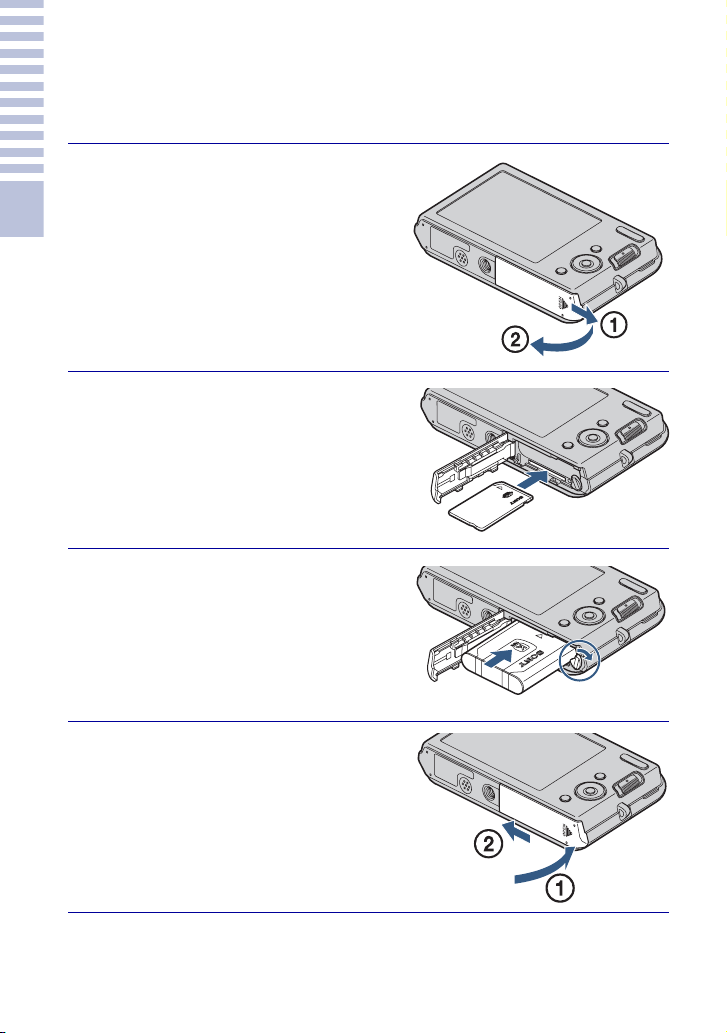
12
ES
Preparativos
Inserción de la batería/un “Memory
Stick Duo” (se vende por separado)
1
Abra la tapa.
2
Inserte el “Memory Stick
Duo” (se vende por
separado).
Con el lado del terminal orientado hacia el
objetivo, inserte el “Memory Stick Duo”
hasta que produzca un chasquido al encajar
en su sitio.
3
Inserte la batería.
Inserte la batería a la vez que presiona la
palanca en la dirección indicada por la
flecha.
4
Cierre la tapa.
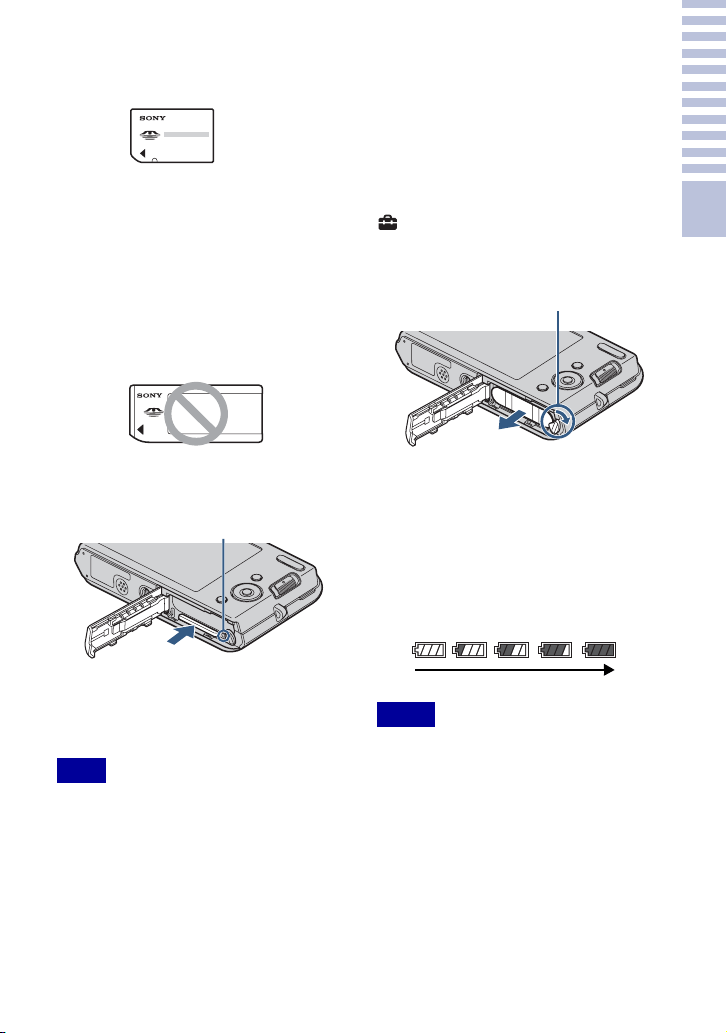
Preparativos
13
ES
x
“Memory Stick” que puede
utilizar
“Memory Stick Duo”
También puede utilizar un “Memory Stick
PRO Duo” o “Memory Stick PRO-HG Duo”
con la cámara.
Para más detalles sobre el número de
imágenes/tiempo que se pueden grabar,
consulte las páginas 24, 27. Otros tipos de
“Memory Stick” o tarjeta de memoria no son
compatibles con la cámara.
“Memory Stick”
No puede utilizar un “Memory Stick” con la
cámara.
x
Para extraer el
“Memory
Stick Duo”
• No extraiga nunca el “Memory Stick Duo”/
batería cuando esté iluminada la lámpara de
acceso. Esto podría ocasionar daño a los
datos del “Memory Stick Duo”/memoria
interna.
x
Cuando no hay insertado un
“Memory Stick Duo”
Las imágenes se almacenan en la
memoria interna de la cámara
(aproximadamente 12 MB)
Para copiar imágenes de la memoria
interna a un “Memory Stick Duo”,
inserte el “Memory Stick Duo” en la
cámara, después seleccione MENU t
(Ajustes) t [Her "Memory Stick"]
t [Copiar].
x
Para extraer la batería
x
Comprobación de la carga
de batería restante
En la parte superior izquierda de la
pantalla LCD aparece un indicador de
carga restante.
• La aparición del indicador de carga restante
correcto lleva aproximadamente un min
(minuto).
• Es posible que el indicador de carga restante
no sea correcto en ciertas circunstancias.
• La capacidad de la batería disminuye a
medida que pasa el tiempo y con el uso
repetido. Cuando el tiempo de operación por
carga disminuya notablemente, la batería
necesitará ser reemplazada. Adquiera una
batería nueva.
• Si la cámara está encendida y no la utiliza
durante unos tres min (minuto), la cámara se
apagará automáticamente (Función de
apagado automático).
Nota
Asegúrese de que la lámpara de
acceso no está encendida,
después pulse el “Memory Stick
Duo” hacia dentro una vez.
Lámpara de acceso
Notas
Deslice la palanca de expulsión
de la batería. Asegúrese de no
dejar caer la batería.
Palanca de expulsión de la batería
Alta
Baja
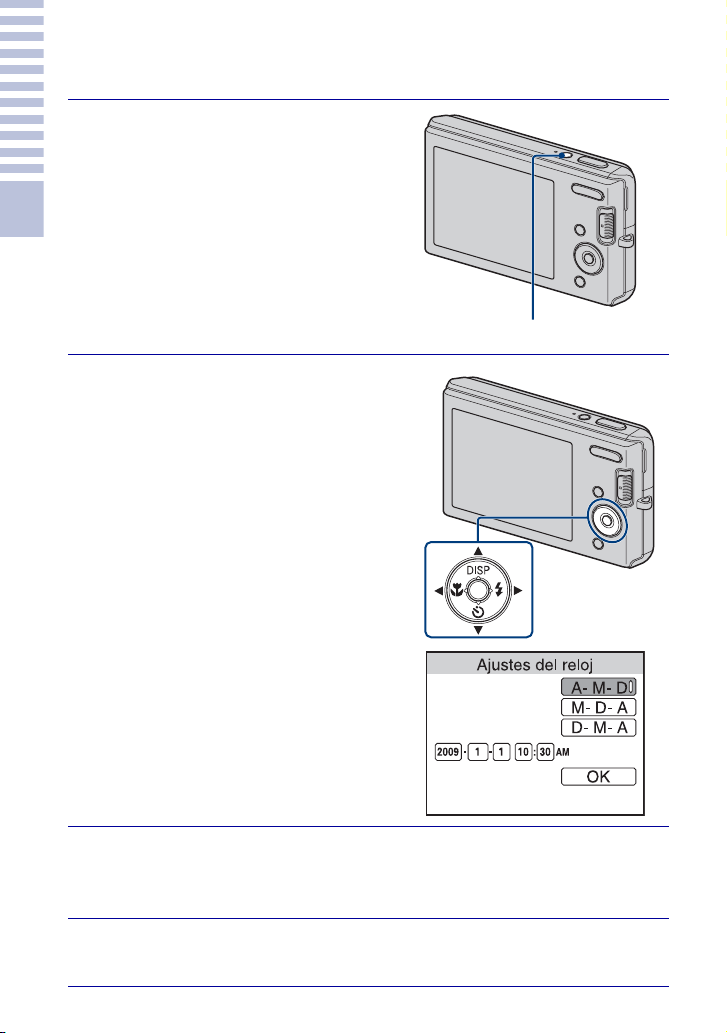
14
ES
Preparativos
Ajuste del reloj
1
Pulse el botón ON/OFF
(Alimentación).
La cámara se enciende.
• Es posible que lleve algún tiempo en
conectarse la alimentación y permitir
realizar operaciones.
2
Seleccione el formato de
visualización de fecha y
hora con v/V del botón de
control, después pulse z.
3
Ajuste el valor numérico con v/V/b/B, después pulse
z.
• Medianoche se indica como 12:00 AM, y mediodía como 12:00 PM.
4
Seleccione [OK], y después pulse z.
Botón ON/OFF (Alimentación)
Botón de control

15
ES
Preparativos
• La cámara no tiene una función para superponer fechas en imágenes. Utilizando “PMB” del CD-
ROM (suministrado), puede imprimir o guardar imágenes con la fecha.
x
Ajuste de la fecha y la hora otra vez
Pulse el botón MENU, después seleccione (Ajustes) t [Ajustes del reloj]
(página 42).
Nota
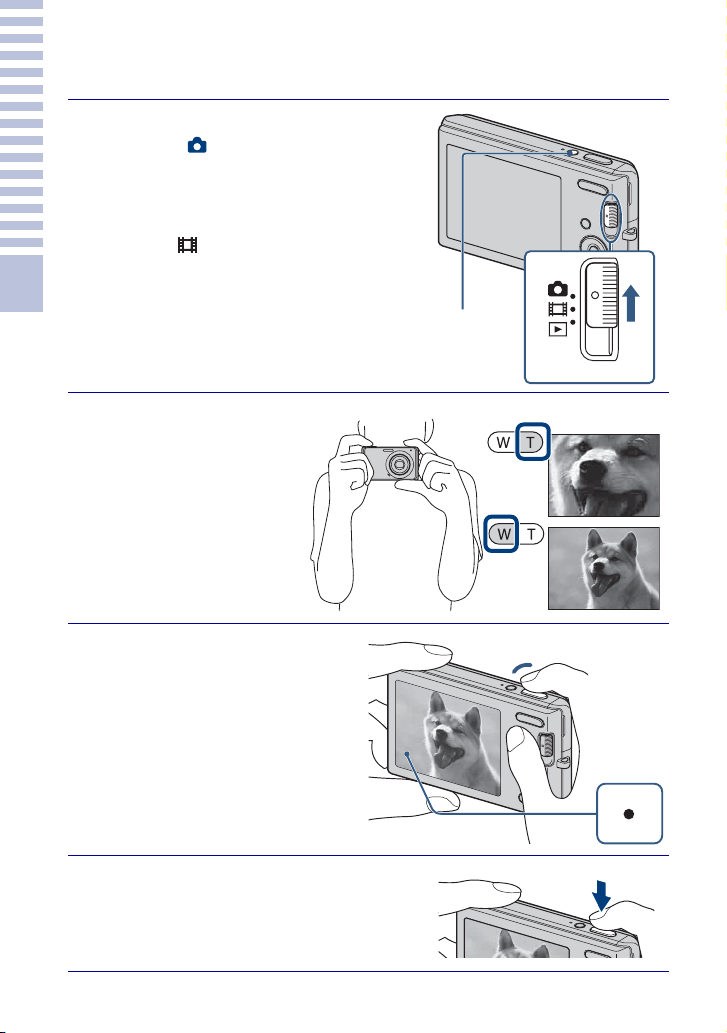
16
ES
Toma/visionado de imágenes
T
oma
/
v
i
s
i
ona
d
o
d
e
i
m
ág
enes
Toma de imágenes
1
Ajuste el conmutador de
modo a (Imagen fija),
después pulse el botón ON/
OFF (Alimentación).
Para tomar películas, ajuste el conmutador
de modo a (Película) (página 26).
2
Sujete la cámara
sin moverla como
se muestra en la
ilustración.
• Pulse el botón T para
acercar con zoom, y el
botón W para alejar con
zoom.
3
Pulse el botón del
disparador hasta la
mitad para enfocar.
Cuando la imagen está enfocada,
suena un pitido y se ilumina el
indicador z.
• La distancia de toma más corta es
de aproximadamente 5 cm (W)/
40 cm (T) (desde el objetivo).
4
Pulse el botón del disparador
a fondo.
Se toma la imagen.
Conmutador de modo
Botón ON/OFF
(Alimentación)
Botón W/T (Zoom)
Botón del disparador
Bloqueo
AE/AF
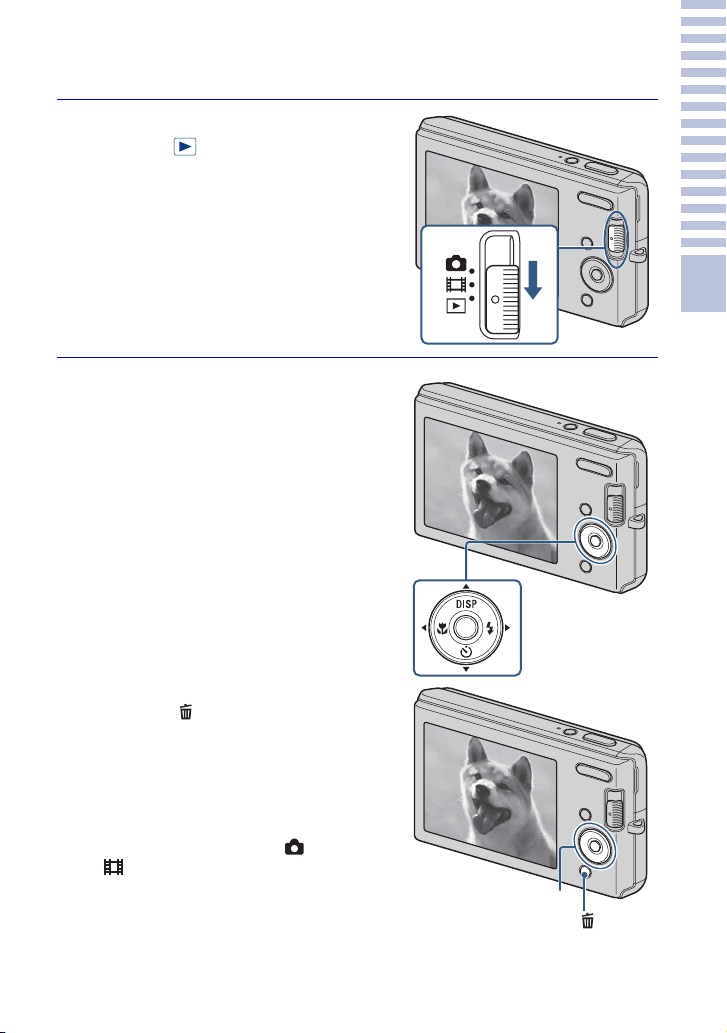
Toma/visionado de imágenes
17
ES
Visualización de imágenes
1
Ajuste el conmutador de
modo a (Reproducción).
Se visualiza la última imagen tomada.
x
Selección de la imagen
siguiente/anterior
Seleccione una imagen con B (siguiente)/b
(anterior) del botón de control.
x
Eliminación de una imagen
1 Pulse el botón (Borrar).
2 Seleccione [Esta imagen] con b/B del
botón de control, después pulse z.
x
Para volver a la toma de
imágenes
Ajuste el conmutador de modo a (Imagen
fija) o (Película).
x
Para apagar la cámara
Pulse el botón ON/OFF (Alimentación).
Botón de control
Botón (Borrar)
Botón de control
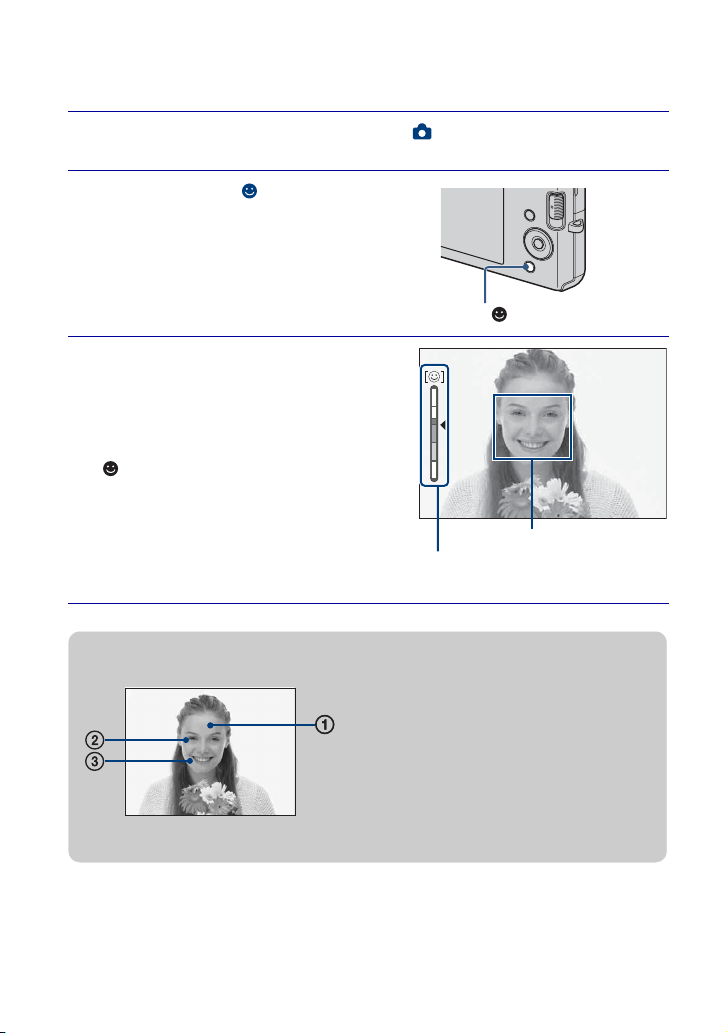
18
ES
Utili
zac
ió
n
d
e
l
as
f
unc
i
ones
d
e
t
oma
d
e
i
ma
g
en
Detección de sonrisas y toma automática
(Captador de sonrisas)
1
Ajuste el conmutador de modo a (Imagen fija).
2
Pulse el botón (Sonrisa).
3
Espere mientras se detecta
una sonrisa.
Cuando el nivel de sonrisa excede el punto
b del indicador, la cámara toma imágenes
automáticamente. Cuando pulse el botón
(Sonrisa) otra vez, finalizará el
Captador de sonrisas.
• Aunque pulse el botón del disparador
durante el Captador de sonrisas, la
cámara tomará la imagen, después
volverá al modo Captador de sonrisas.
Botón (Sonrisa)
Cuadro de Detección de cara
Indicador de sensibilidad de
detección de sonrisas
zConsejos para capturar sonrisas mejor
1 No se cubra los ojos con flequillos.
2 Intente orientar la cara enfrente de la
cámara y estar lo más nivelado
posible. El porcentaje de detección
será mayor cuando los ojos estén
entornados.
3 Ofrezca una sonrisa clara con la boca
abierta. Las sonrisas son más fáciles
de detectar cuando se muestran los
dientes.
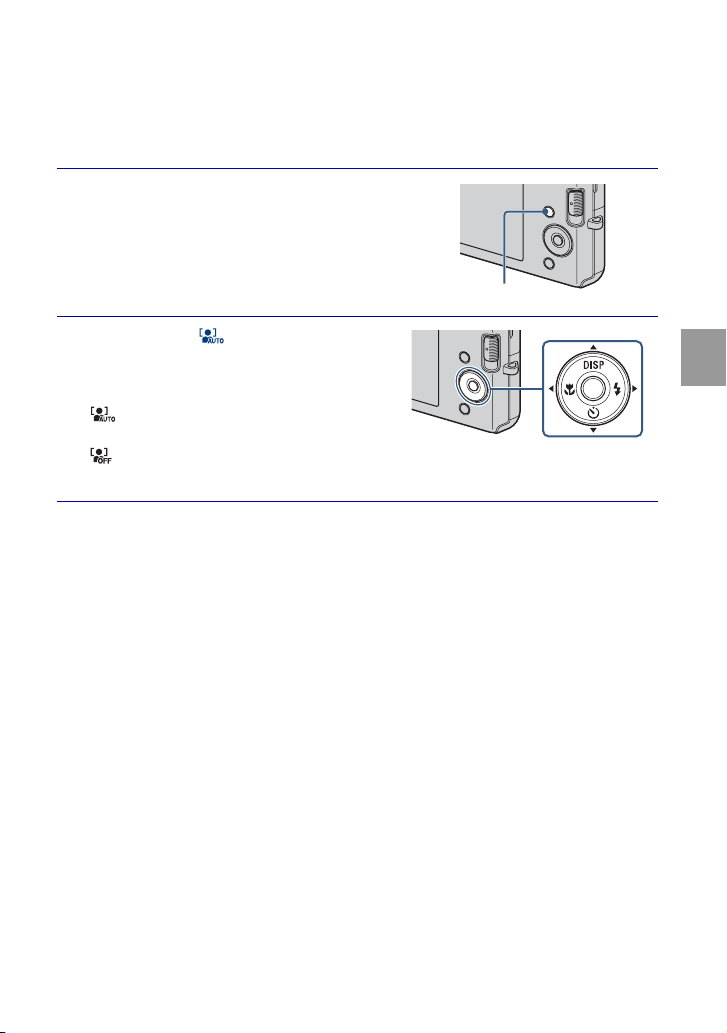
19
ES
Utilización de las funciones de toma de imagen
Enfoque de la cara del motivo (Detección de
cara)
La cámara detecta la cara del motivo y la enfoca. Puede seleccionar qué motivo tendrá
prioridad al enfocar.
1
Pulse el botón MENU.
2
Seleccione (Detección de
cara) con v/V/b/B del botón de
control t modo deseado t z.
(Auto): Selecciona y enfoca
automáticamente una cara prioritaria.
(Desactivar): No utiliza Detección de
cara.
Botón MENU
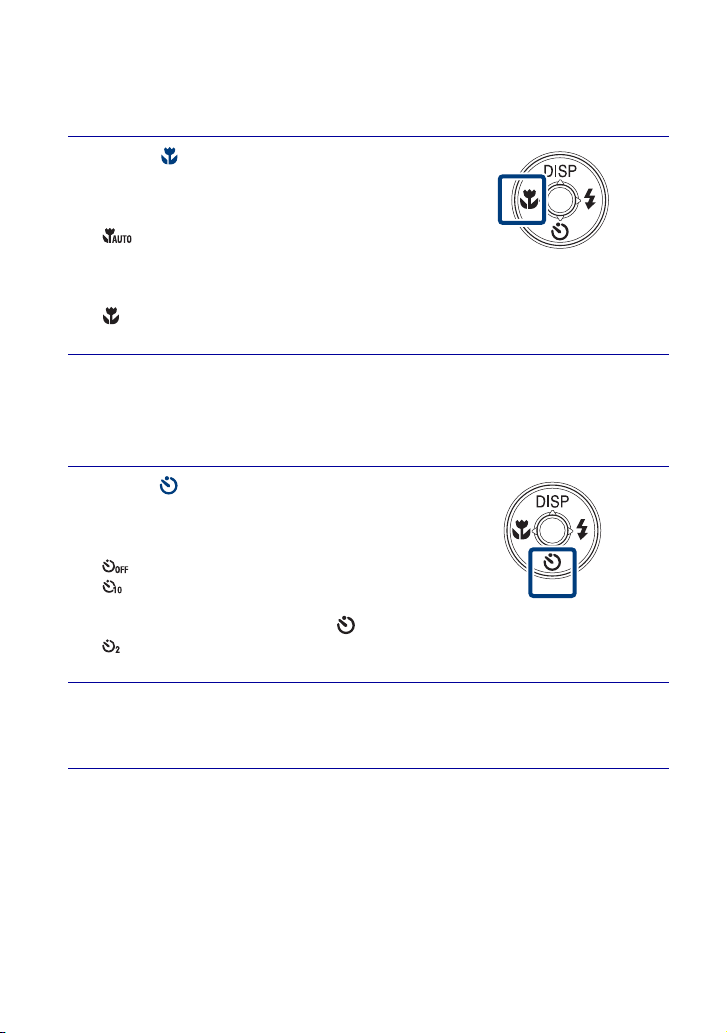
20
ES
Toma de primeros planos (Macro)
Puede tomar bellas imágenes en primer plano de objetos pequeños tales como insectos o
flores.
Utilización del autodisparador
1
Pulse (Macro) del botón de
control repetidamente para
seleccionar el modo deseado t z.
: La cámara ajusta el enfoque
automáticamente desde motivos distantes a
primer plano.
Normalmente, ponga la cámara en este modo.
: La cámara ajusta el enfoque con prioridad sobre motivos en primer plano.
Ajuste Macro activado cuando tome motivos cercanos.
1
Pulse (Autodisparador) del botón
de control repetidamente para
seleccionar el modo deseado t z.
: Sin utilizar el autodisparador.
: La toma se inicia tras un retardo de 10 s
(segundo). Utilice este ajuste si quiere incluirse
en la imagen. Para cancelar, pulse otra vez.
: La toma se inicia tras un retardo de dos s (segundo). Esto es para evitar el
desenfoque debido a la inestabilidad cuando se pulsa el botón del disparador.
2
Pulse el botón del disparador.
La lámpara del autodisparador parpadea y suena un pitido hasta que se acciona el
obturador.
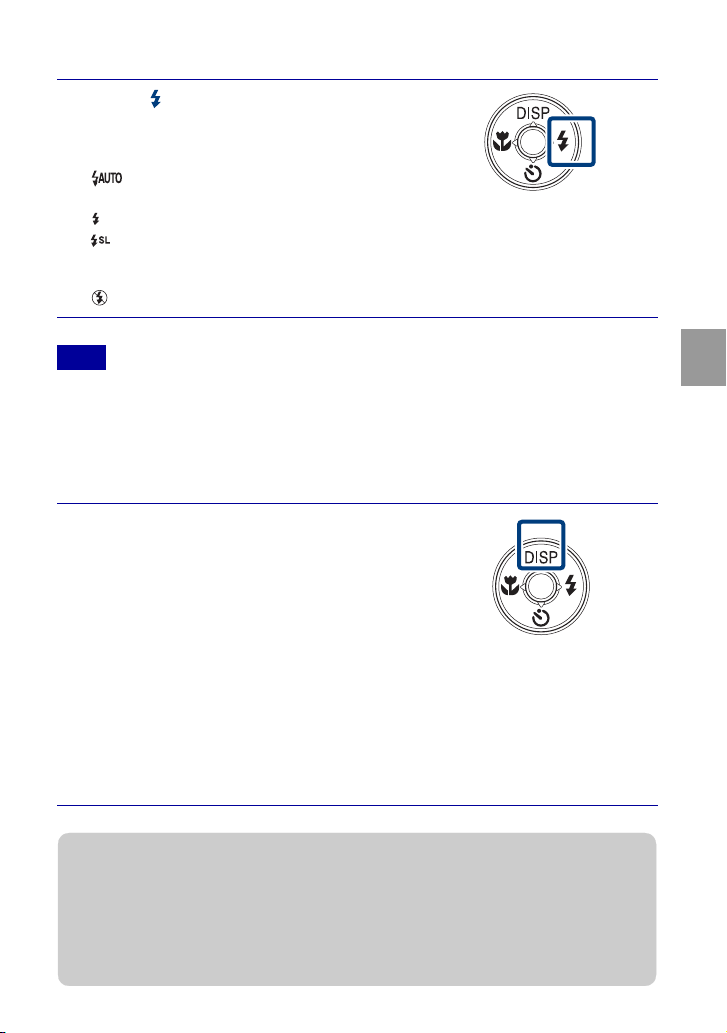
21
ES
Utilización de las funciones de toma de imagen
Selección de un modo de flash
• No se puede utilizar el flash durante la toma con ráfaga.
Cambio de la visualización en pantalla
1
Pulse (Flash) del botón de control
repetidamente para seleccionar el
modo deseado t z.
: Destella cuando hay insuficiente luz o
contraluz.
: El flash funciona siempre.
: El flash funciona siempre. En un lugar oscuro la velocidad de obturación es
lenta para tomar claramente el fondo que queda fuera del alcance de la luz del flash.
(Sinc lenta)
: El flash no funciona.
Nota
1
Pulse DISP (visualización en
pantalla) del botón de control
repetidamente para seleccionar el
modo deseado.
Indicadores activados: Ajusta la pantalla a
brillo estándar y visualiza la información.
Indicadores activados*: Aumenta el brillo de la pantalla y visualiza la
información.
Histograma activado*: Aumenta el brillo de la pantalla y visualiza un gráfico
del brillo de la imagen.
Indicadores desactivados*: Aumenta el brillo de la pantalla y visualiza
solamente imágenes.
* Aumenta el brillo de la iluminación de fondo de la pantalla LCD.
zAjustes de histograma y brillo
Un histograma es un gráfico que muestra el brillo de una imagen. El gráfico visualizado indicará
una imagen brillante cuando se desvíe hacia el lado derecho, y una imagen oscura cuando se
desvíe hacia el lado izquierdo.
• Si ve imágenes en luz diurna brillante, aumente el brillo de la pantalla. Sin embargo, la
potencia de la batería podrá disminuir más rápidamente en tal condición.
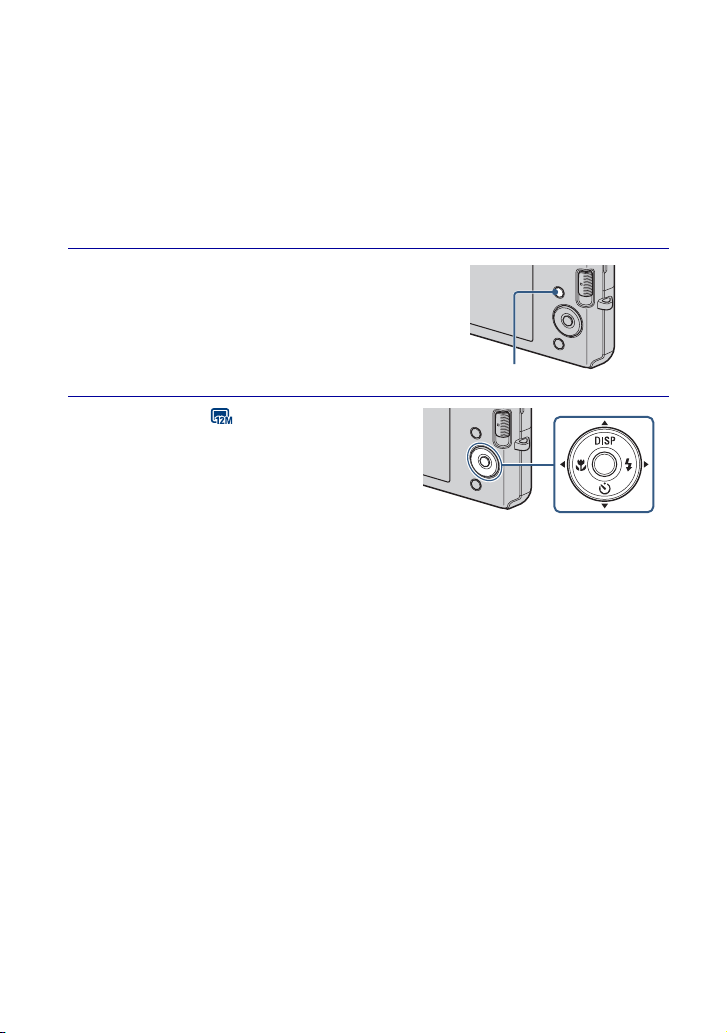
22
ES
Selección del tamaño de imagen para
coincidir con la utilización
El tamaño de imagen determina el tamaño del archivo de imagen que se graba cuando
toma una imagen.
Cuanto más grande sea el tamaño de imagen, más detalles se reproducirán cuando la
imagen sea impresa en papel de formato grande. Cuanto más pequeño sea el tamaño de
imagen, más imágenes podrán grabarse. Seleccione el tamaño de imagen que
corresponda con la forma en que verá sus imágenes.
1
Pulse el botón MENU.
2
Seleccione (Tamaño imag)
con v/V/b/B del botón de
control t tamaño deseado t
z.
Botón MENU
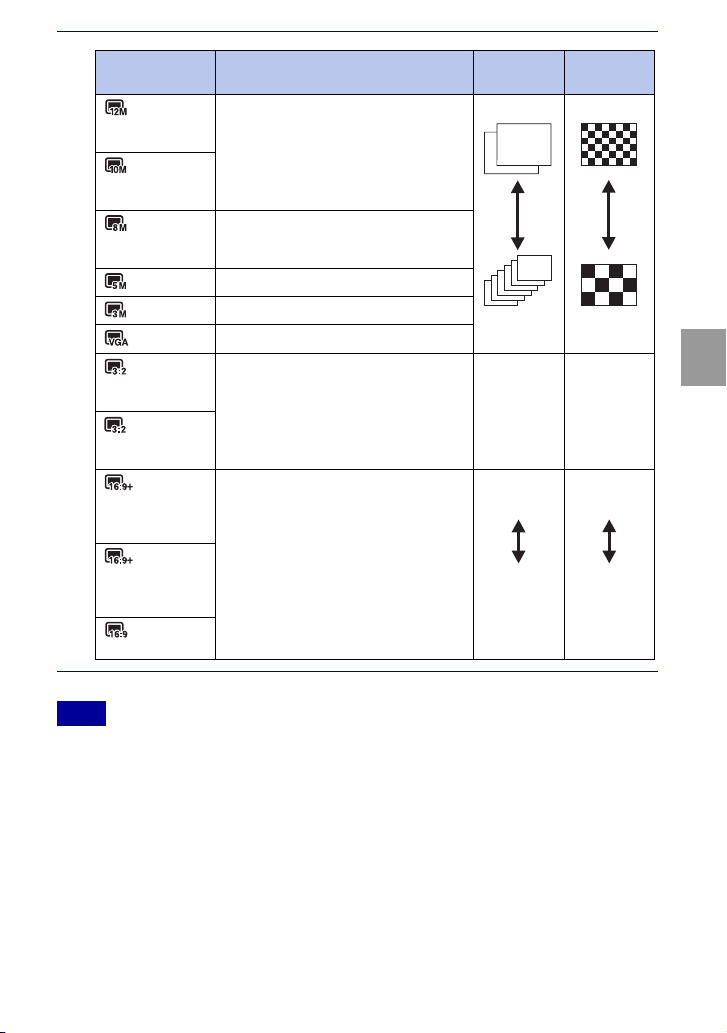
23
ES
Utilización de las funciones de toma de imagen
• Cuando imprima imágenes tomadas con relación de aspecto 16:9, es posible que ambos bordes
sean recortados.
Nota
Tamaño de
imagen
Guía de uso N°. de
imágenes
Impresión
(4 000×3 000)
(DSC-W190
solamente)
Para copias hasta tamaño A3+ Menos
Más
Fina
Tosca
(3 648×2 736)
(DSC-W180
solamente)
(3 264×2 448)
(DSC-W190
solamente)
Para copias hasta tamaño A3
(2 592×1 944)
Para copias hasta tamaño A4
(2 048×1 536)
Para copias hasta tamaño L/2L
(640×480) Para adjuntar a correo electrónico
(4 000×2 672)
(DSC-W190
solamente)
Relación de aspecto 3:2 como las copias de
fotos y tarjetas postales
Menos Fina
(3 648×2 056)
(DSC-W180
solamente)
(4 000×2 248)
(DSC-W190
solamente)
Para ver en un televisor de alta definición. Menos
Más
Fina
Tosca
(3 648×2 056)
(DSC-W180
solamente)
(1 920×1 080)
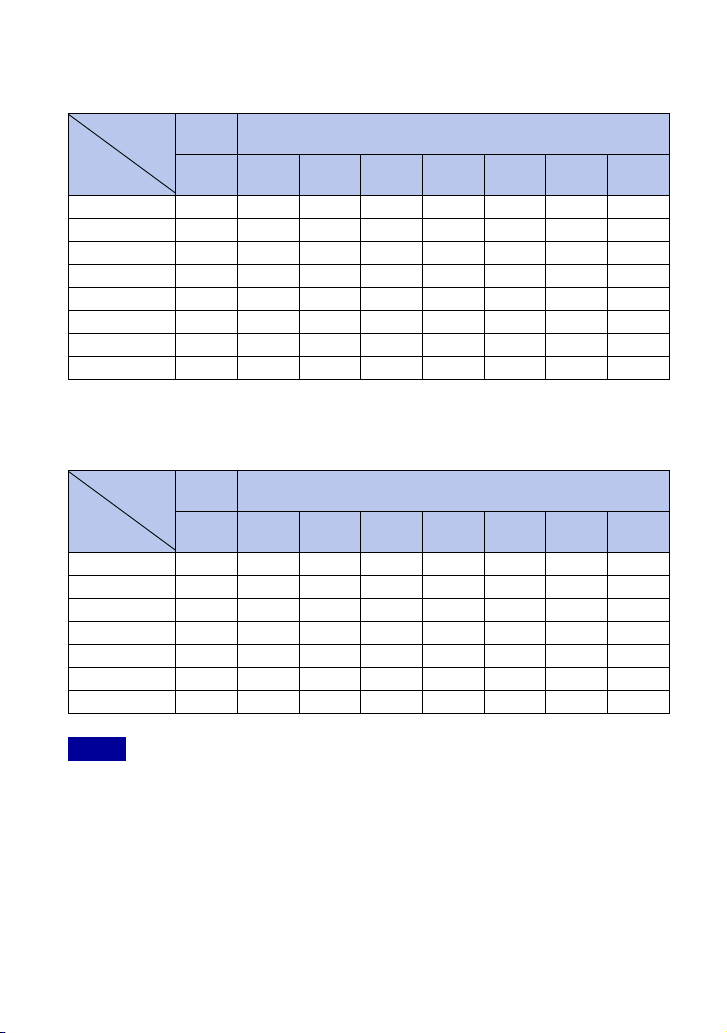
24
ES
x
Número de imágenes fijas que se pueden grabar
DSC-W190
(Unidades: Imágenes)
DSC-W180
(Unidades: Imágenes)
• El número de imágenes fijas podrá variar dependiendo de las condiciones de la toma y el soporte
de grabación.
• Cuando el número de imágenes restantes que pueden tomarse es superior a 9 999, aparece el
indicador “>9999”.
• Cuando se reproduzca en esta cámara una imagen tomada con otras cámaras, es posible que la
imagen no aparezca en el tamaño de imagen real.
Capacidad
Tamaño
Memoria
interna
“Memory Stick Duo” formateado con esta cámara
Aprox.
12 MB
256 MB 512 MB 1GB 2GB 4GB 8GB 16 GB
12M 2 49 93 197 395 790 1 600 3 200
8M 3 72 140 288 580 1 170 2 350 4 700
5M 4 90 170 350 710 1 420 2 900 5 850
3M 7 148 293 600 1 200 2 400 4 850 9 800
VGA 60 1 200 2 360 4 800 9 650 19 300 38 600 77 200
3:2(11M) 2 49 93 197 395 790 1 600 3 200
16:9(9M) 3 66 130 262 533 1 060 2 150 4 300
16:9(2M) 11 230 450 900 1 800 3 700 7 500 15 000
Capacidad
Tamaño
Memoria
interna
“Memory Stick Duo” formateado con esta cámara
Aprox.
12 MB
256 MB 512 MB 1GB 2GB 4GB 8GB 16 GB
10M 2 58 115 230 470 940 1 900 3 800
5M 4 90 170 350 710 1 420 2 900 5 850
3M 7 148 293 600 1 200 2 400 4 850 9 800
VGA 60 1 200 2 360 4 800 9 650 19 300 38 600 77 200
3:2(8M) 2 58 115 230 470 940 1 900 3 800
16:9(7M) 3 75 150 300 600 1 200 2 450 5 000
16:9(2M) 11 230 450 900 1 800 3 700 7 500 15 000
Notas
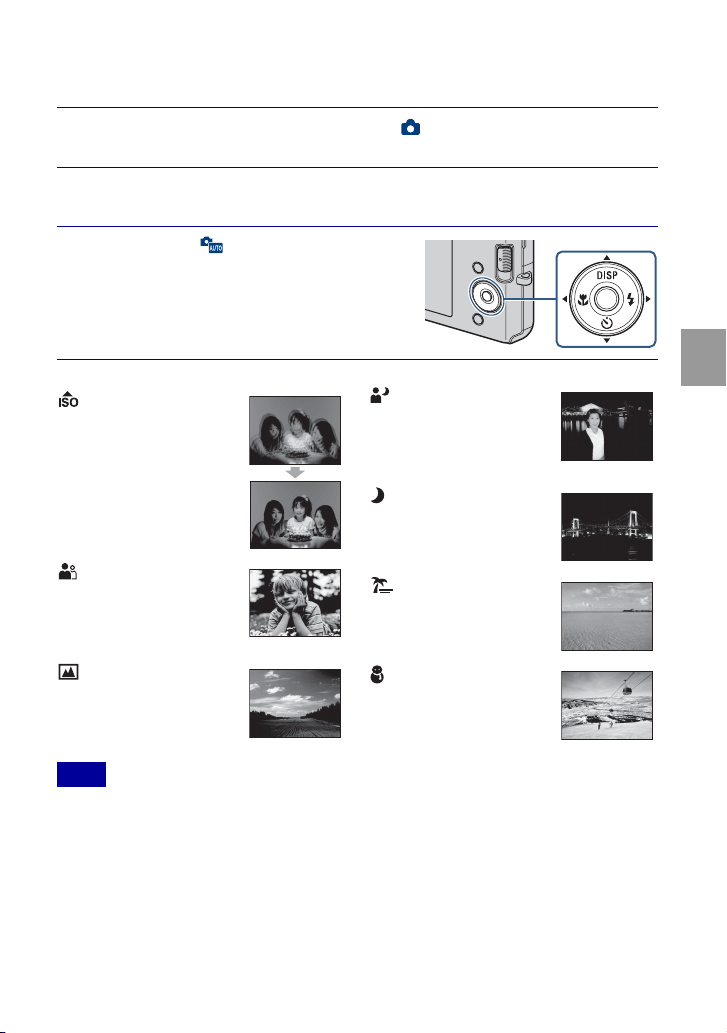
25
ES
Utilización de las funciones de toma de imagen
Utilización del modo de toma que coincide
con la escena (Selección escena)
• El flash no responderá en algunos modos.
1
Ajuste el conmutador de modo a (Imagen fija).
2
Pulse el botón MENU.
3
Seleccione (Cámara) con v/V/
b/B del botón de control t la
Selección escena deseada t z.
Nota
(Alta sensibilidad):
Toma imágenes sin flash
incluso con poca
iluminación.
(Instantánea suave):
Toma imágenes con un
ambiente más suave para
retratos de personas, flores,
etc.
(Paisaje): Toma con el
enfoque en un motivo
distante.
(Retrato crepúsculo):
Toma imágenes nítidas de
gente en un lugar oscuro sin
perder el ambiente
nocturno.
(Crepúsculo): Toma
escenas nocturnas sin
perder el ambiente
nocturno.
(Playa): Toma escenas
de costas y riberas de lagos
con el azul del agua
capturado más vívidamente.
(Nieve): Toma escenas
de nieve en blanco más
claramente.
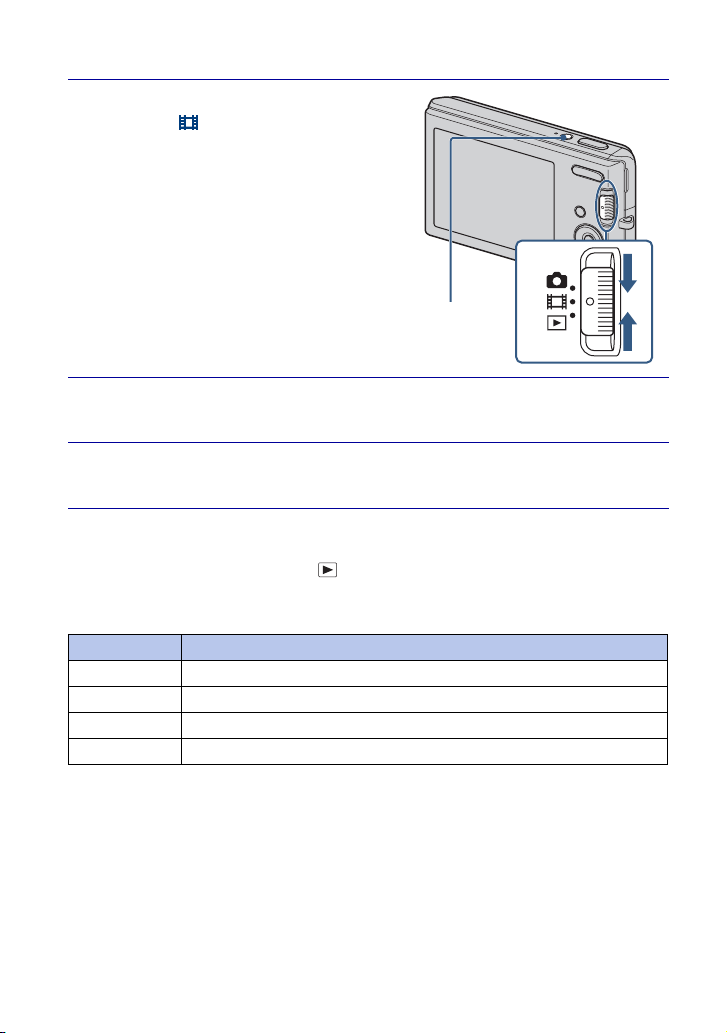
26
ES
Toma de películas
x
Visionado de películas
1 Ajuste el conmutador de modo a (Reproducción) y pulse B (siguiente)/b
(anterior) del botón de control para seleccionar una película que quiera ver.
2 Pulse z.
1
Ajuste el conmutador de
modo a (Película),
después pulse el botón
ON/OFF (Alimentación).
2
Pulse el botón del disparador a fondo para iniciar la
grabación.
3
Pulse el botón del disparador a fondo otra vez para detener
la grabación.
Botón Función de reproducción
z Pausa
B Avance rápido
b Rebobinado rápido
V Visualiza la pantalla de control de volumen. Ajuste el volumen con b/B.
Botón ON/OFF
(Alimentación)
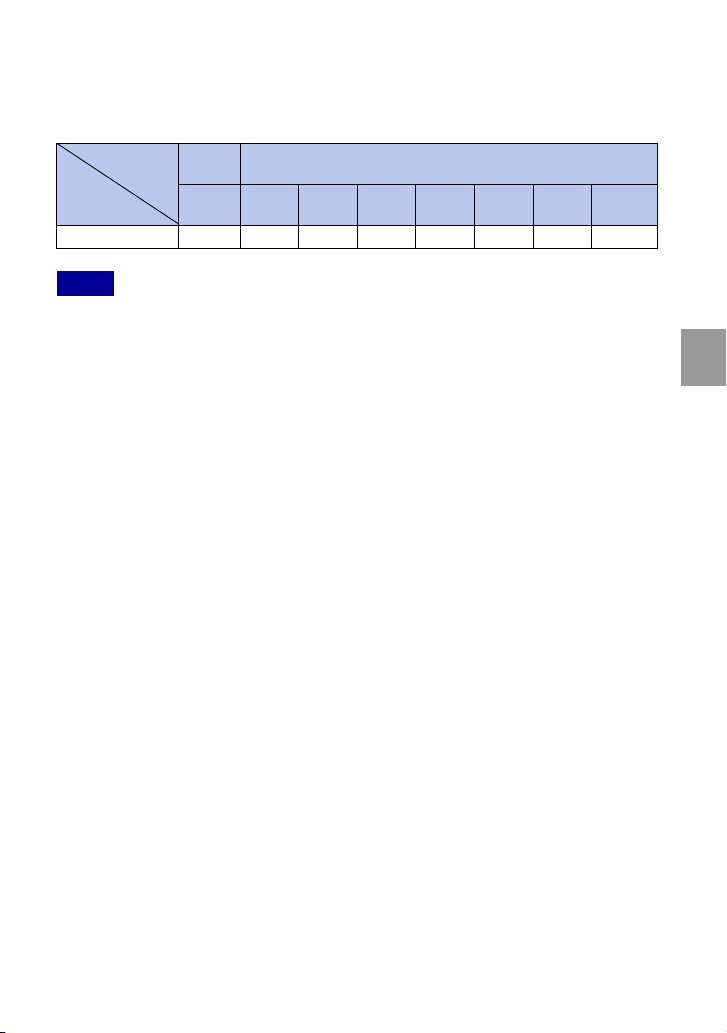
27
ES
Utilización de las funciones de toma de imagen
x
Tiempo de grabación máximo
La tabla de abajo muestra los tiempos de grabación máximos aproximados. Estos son los
tiempos totales para todos los archivos de película. El tamaño de imagen se fija a 320 ×
240.
(Unidades: h (hora) : min (minuto) : s (segundo))
• El tiempo de grabación podrá variar dependiendo de las condiciones de la toma y del soporte de
grabación.
• El tamaño de archivo de película que se puede grabar es de hasta aprox. 2 GB para cada archivo. Si
el tamaño de archivo alcanza aprox. 2 GB, la cámara detendrá la grabación automáticamente.
• La cámara no admite grabaciones HD ni reproducciones para películas.
Capacidad
Tamaño
Memoria
interna
“Memory Stick Duo” formateado con esta cámara
Aprox.
12 MB
256 MB 512 MB 1GB 2GB 4GB 8GB 16 GB
320 × 240 0:00:20 0:10:10 0:20:20 0:41:20 1:23:40 2:45:00 5:35:00 11:18:00
Notas
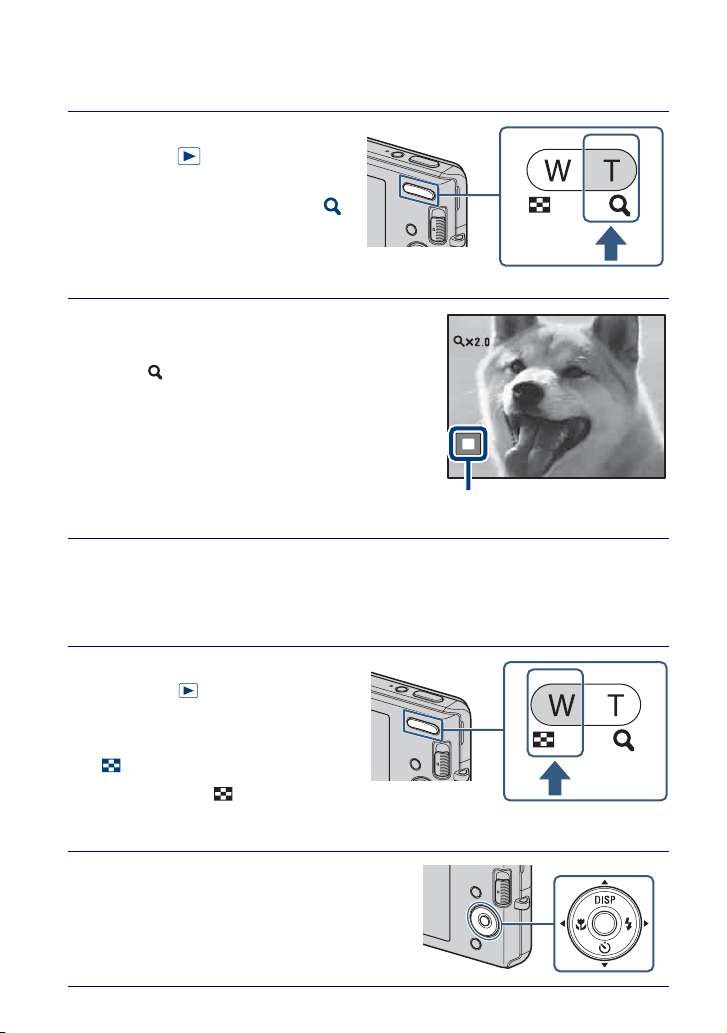
28
ES
Utili
zac
ió
n
d
e
l
as
f
unc
i
ones
d
e v
i
s
i
ona
d
o
Visionado de una imagen ampliada (zoom de
reproducción)
Búsqueda de una imagen (Índice de imágenes)
1
Ajuste el conmutador de
modo a (Reproducción)
para visualizar una imagen,
después pulse el botón
(Zoom de reproducción).
La imagen se amplía al doble del
tamaño, con el centro de la imagen.
2
Ajuste la escala del zoom y la
posición.
Botón : Acerca con zoom.
Botón W del botón W/T (Zoom): Aleja
con zoom.
v/V/b/B del botón de control: Ajusta la
posición.
1
Ajuste el conmutador de
modo a (Reproducción)
para visualizar una imagen,
después pulse el botón
(Índice).
• Pulse el botón (Índice) otra vez
para visualizar una pantalla de índice
con incluso más imágenes.
2
Seleccione una imagen con v/
V/b/B del botón de control.
• Para volver a la pantalla de una sola
imagen, pulse z.
Muestra el área visualizada de la
imagen entera
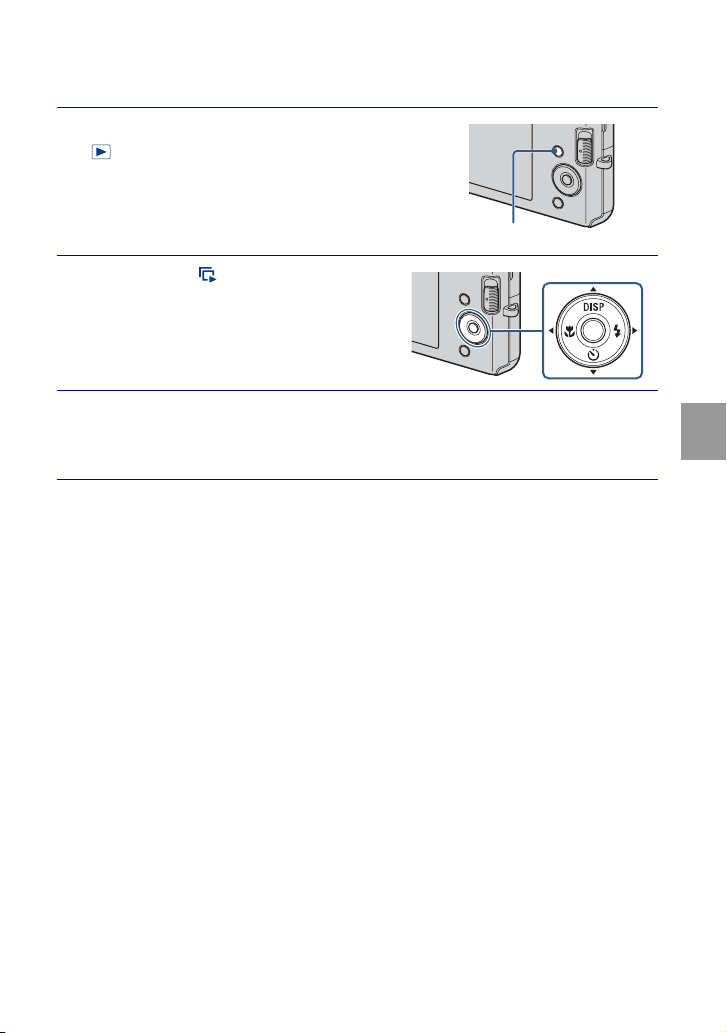
29
ES
Utilización de las funciones de visionado
Visualización de una serie de imágenes fijas
(Diapositivas)
1
Ajuste el conmutador de modo a
(Reproducción) para visualizar
una imagen fija, después pulse el
botón MENU.
2
Seleccione (Diapositivas) con
v/V del botón de control,
después pulse z.
3
Seleccione [Inicio] con v, después pulse z.
Comienza el pase de diapositivas.
• Para finalizar el pase de diapositivas, pulse z.
Botón MENU
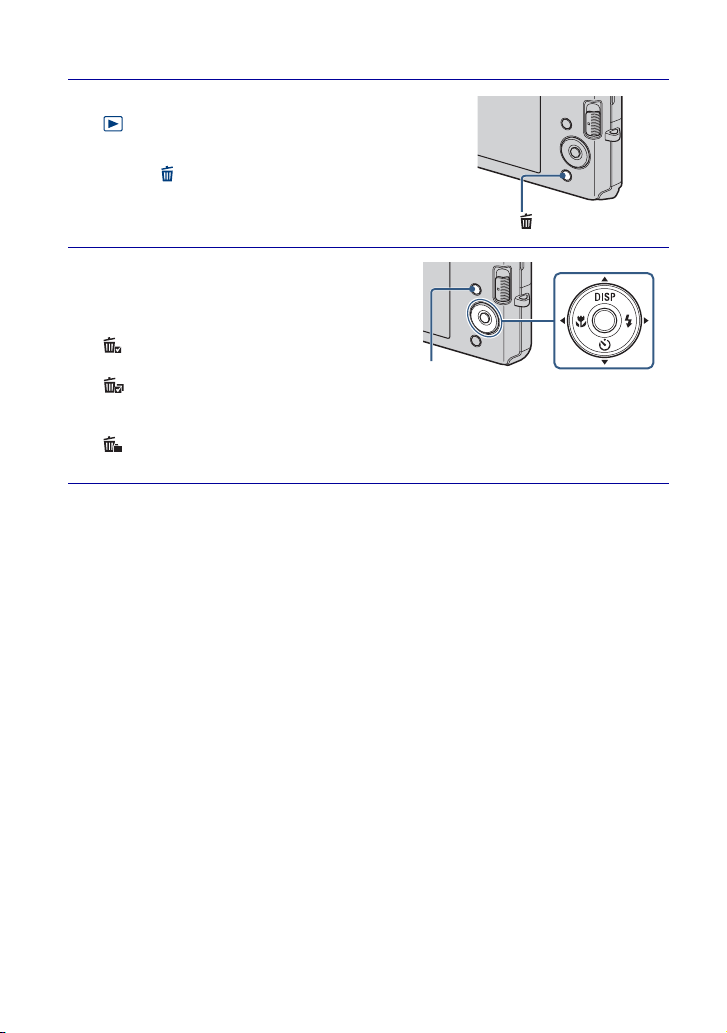
30
ES
B
orra
d
o
d
e
i
m
ág
enes
Borrado de imágenes
1
Ajuste el conmutador de modo a
(Reproducción) para visualizar
una imagen, después pulse el
botón (Borrar).
2
Pulse b/B del botón de control
para seleccionar el ajuste
deseado.
(Esta imagen): Puede eliminar la
imagen visualizada actualmente.
(Múltiples imágenes): Puede
seleccionar y eliminar múltiples imágenes.
Seleccione las imágenes, pulse z, y después pulse el botón MENU para eliminar.
(Todo En Esta Carpeta): Puede borrar todas las imágenes de la carpeta
seleccionada.
Botón (Borrar)
Botón MENU
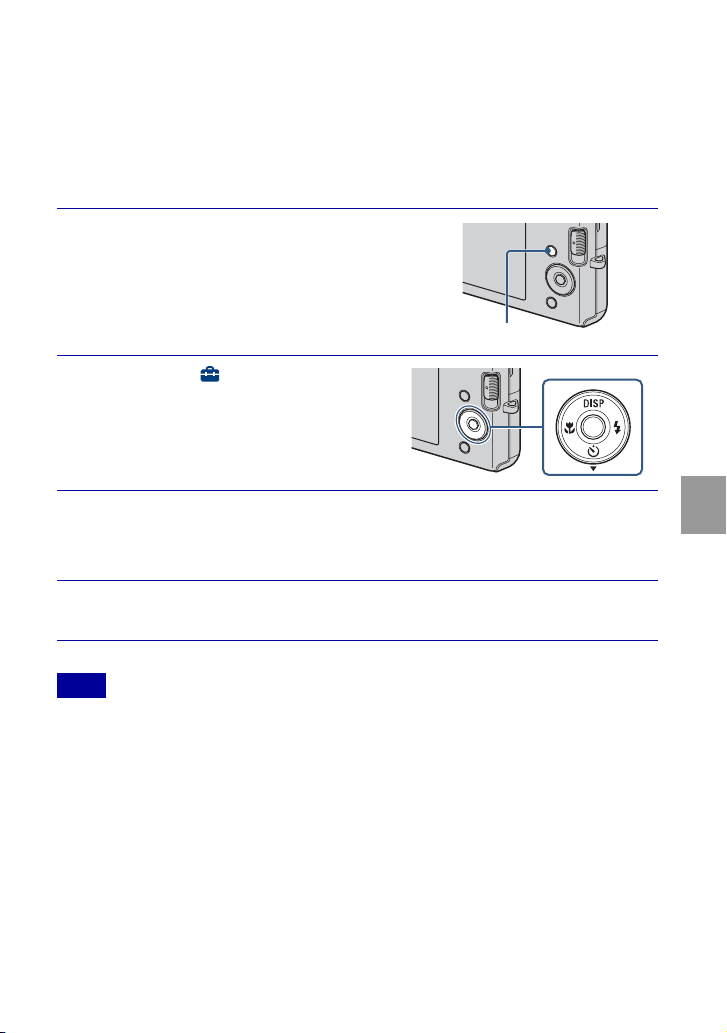
31
ES
Borrado de imágenes
Eliminación de todas las imágenes
(Formatear)
Puede eliminar todos los datos almacenados en el “Memory Stick Duo” o la memoria
interna. Si hay insertado un “Memory Stick Duo”, se eliminarán todos los datos
almacenados en el “Memory Stick Duo”. Si no hay insertado un “Memory Stick Duo”,
se eliminarán todos los datos almacenados en la memoria interna.
• El formateo elimina permanentemente todos los datos, incluidas las imágenes protegidas, y los
datos no se pueden recuperar.
1
Pulse el botón MENU.
2
Seleccione (Ajustes) con V
del botón de control, después
pulse z.
3
Seleccione [Her "Memory Stick"] o [Herr.memoria interna]
con v/V del botón de control, después pulse [Formatear] t
z.
4
Seleccione [OK], y después pulse z.
Nota
Botón MENU
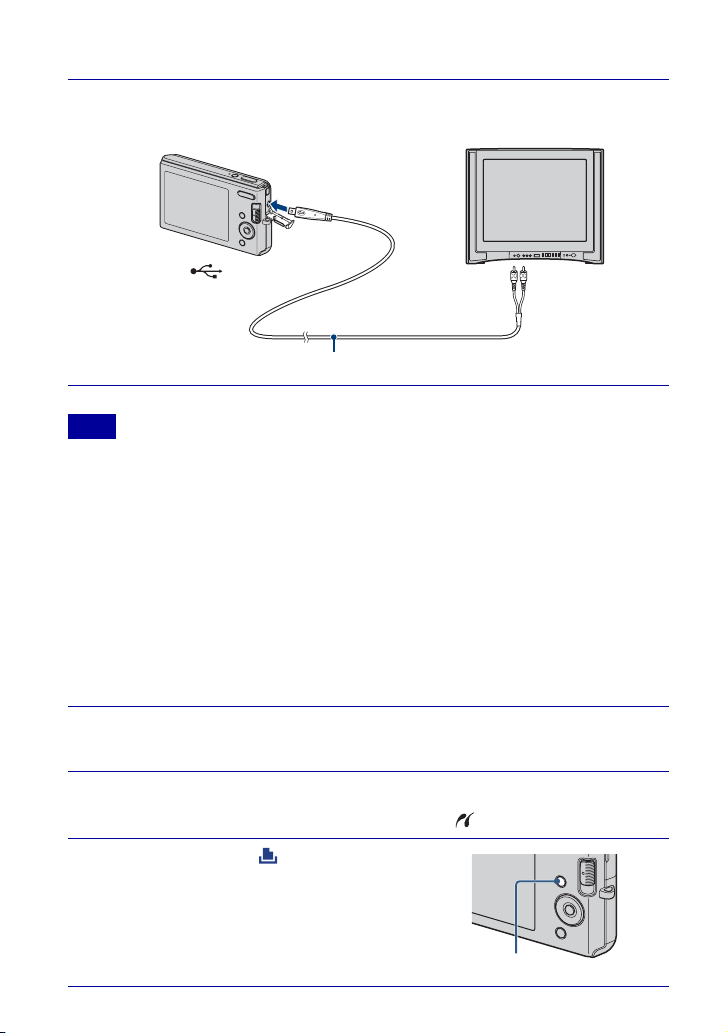
32
ES
C
onex
ió
n a o
t
ros
di
spos
iti
vos
Visionado de imágenes en un televisor
• El ajuste [Salida vídeo] sale de fábrica puesto en el modo [NTSC] para permitirle disfrutar de una
calidad de imagen de películas óptima. Si las imágenes no aparecen o tiemblan en el televisor, es
posible que esté utilizando un televisor que sólo admite PAL. Intente cambiando el ajuste [Salida
vídeo] a [PAL] (página 41).
Impresión de imágenes fijas
Si tiene una impresora compatible con PictBridge, puede imprimir imágenes mediante el
procedimiento siguiente.
En primer lugar, ajuste la cámara para permitir la conexión USB entre la cámara y la
impresora.
1
Conecte la cámara al televisor con el cable A/V exclusivo
(suministrado).
Nota
1
Conecte la cámara a la impresora con el cable USB
exclusivo (suministrado).
2
Encienda la cámara y la impresora.
Después de hacer la conexión, aparece el indicador .
3
Pulse MENU t (Imprimir) con
v/V del botón de control t z.
Al terminal (USB)·A/V OUT
A las tomas de
entrada de audio/
vídeo
Cable A/V exclusivo
Botón MENU

33
ES
Conexión a otros dispositivos
• Si resultó imposible conectar a la impresora, asegúrese de ajustar [Conexión USB] en
(Ajustes) a [PictBridge].
4
Seleccione el modo deseado con v/V del botón de control t
z.
Esta imagen: Imprima la imagen visualizada actualmente.
Múltiples imágenes: Pulse b/B para visualizar la imagen, después z.
5
Seleccione el elemento de ajuste deseado, después [OK] t
z.
Se imprimirá la imagen.
Nota
zImpresión en un establecimiento
No es posible imprimir imágenes almacenadas en la memoria interna en un establecimiento de
servicio de impresión directamente desde la cámara. Copie las imágenes a un “Memory Stick
Duo”, después lleve el “Memory Stick Duo” al establecimiento.
Cómo copiar: Pulse MENU t (Ajustes) t [Her "Memory Stick"] t [Copiar] t [OK].
Para más detalles, consulte con el establecimiento de impresión de fotos.
zSuperposición de fechas en las imágenes
Esta cámara no incluye una función para superponer una fecha en una imagen. La razón de ello
es para evitar que la fecha se duplique durante la impresión.
Impresión en un establecimiento:
Puede pedir que impriman las imágenes con la fecha superpuesta. Para más detalles, consulte
con el establecimiento de impresión de fotos.
Impresión en casa:
Conecte a una impresora compatible con PictBridge, y pulse el botón MENU, después ajuste
[Imprimir] t [Fecha] a [Fecha] o [Día/Hora].
Superposición de fechas en las imágenes utilizando PMB:
Con el software “PMB” suministrado instalado en un PC (página 35), puede superponer
directamente la fecha en una imagen. Sin embargo, tenga en cuenta que cuando imprima
imágenes con fecha superpuesta, es posible que la fecha se duplique dependiendo de los ajustes
de impresión. Para más detalles sobre “PMB”, consulte la “Guía de PMB” (página 36).
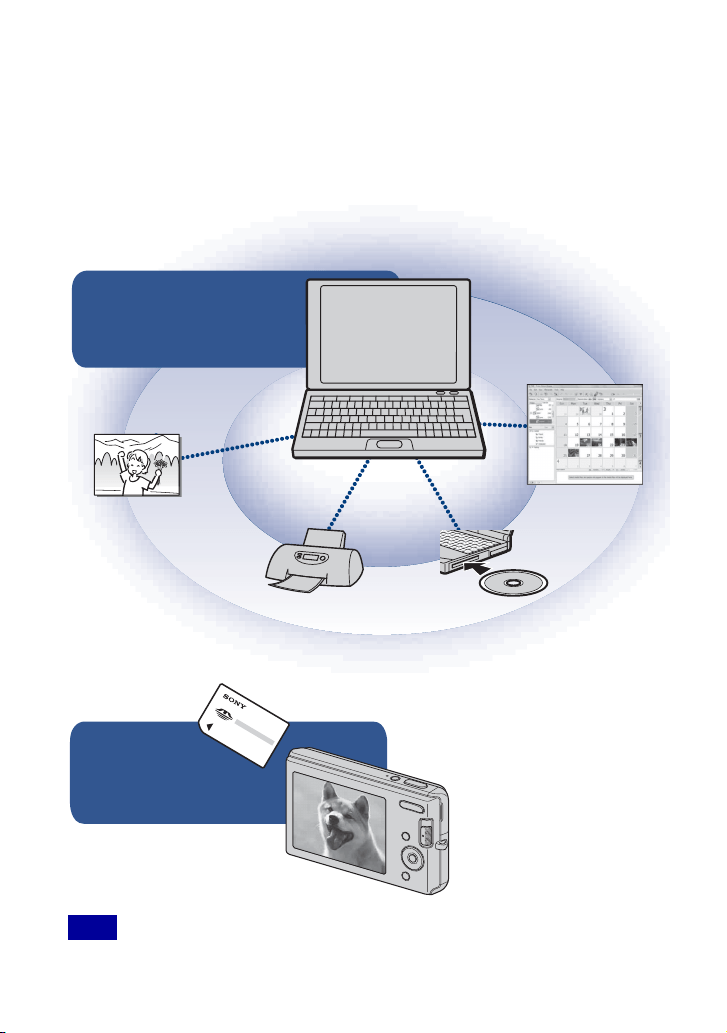
34
ES
Utilización de la cámara con un ordenador
x
Utilización de “PMB (Picture Motion Browser)”
Puede disfrutar de las imágenes grabadas más que nunca aprovechando las ventajas del
software, y “PMB” incluidos en el CD-ROM (suministrado).
Hay más funciones, además de las de la lista de abajo, para disfrutar de las imágenes.
Para más detalles, consulte la “Guía de PMB” (página 36).
• “PMB” no es compatible con ordenadores Macintosh.
Nota
Exportación a la
cámara
Exportación de imágenes a un
“Memory Stick Duo” y
visionado de las mismas.
Importación al
ordenador
Servicio
multimedia
Para colgar imágenes
en el servicio multimedia.
Imprimir
Impresión de
imágenes con sellos
de fecha.
CD/DVD
Creación de un disco de
datos utilizando una
unidad grabadora de CD o
de DVD.
Calendario
Visionado de
imágenes en un
calendario.
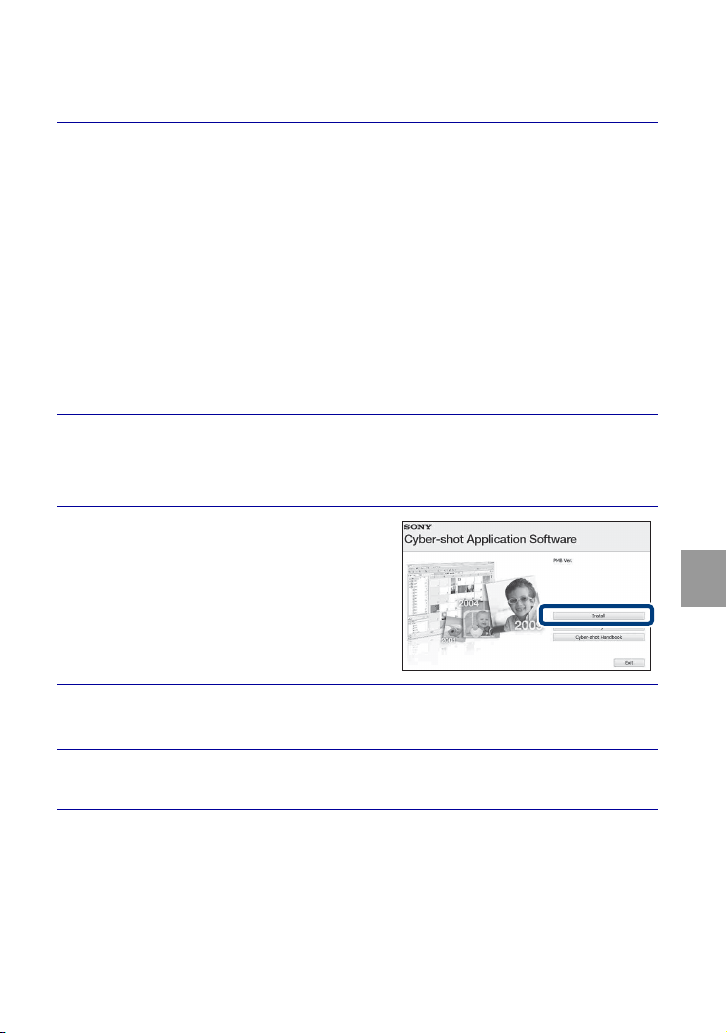
35
ES
Conexión a otros dispositivos
x
Etapa 1: Instalación de “PMB” (suministrado)
Puede instalar el software (suministrado) utilizando el procedimiento siguiente.
• Inicie la sesión como Administrador.
1
Compruebe el entorno de su ordenador.
Entorno recomendado para utilizar “PMB”
SO (preinstalado): Microsoft Windows XP*
1
SP3/Windows Vista*
2
SP1
CPU:
Intel Pentium III 500 MHz o más rápido (Recomendado: Intel Pentium III
800 MHz o más rápido)
Memoria:
256 MB o más (Recomendado: 512 MB o más)
Disco duro (Espacio requerido en disco para la instalación):
Aproximadamente 500 MB
Pantalla: Resolución de pantalla: 1 024 × 768 puntos o más
Memoria de vídeo:32 MB o más (Recomendado: 64 MB o más)
*
1
Las ediciones de 64 bits y Starter (Edition) no son compatibles.
*
2
Starter (Edition) no es compatible.
2
Encienda su ordenador e inserte el CD-ROM (suministrado)
en la unidad de CD-ROM.
Aparecerá la pantalla del menú de instalación.
3
Haga clic en [Instalar].
Aparecerá la pantalla “Choose Setup
Language” (Elegir idioma de instalación).
4
Siga las instrucciones de la pantalla para completar la
instalación.
5
Extraiga el CD-ROM después de completarse la instalación.
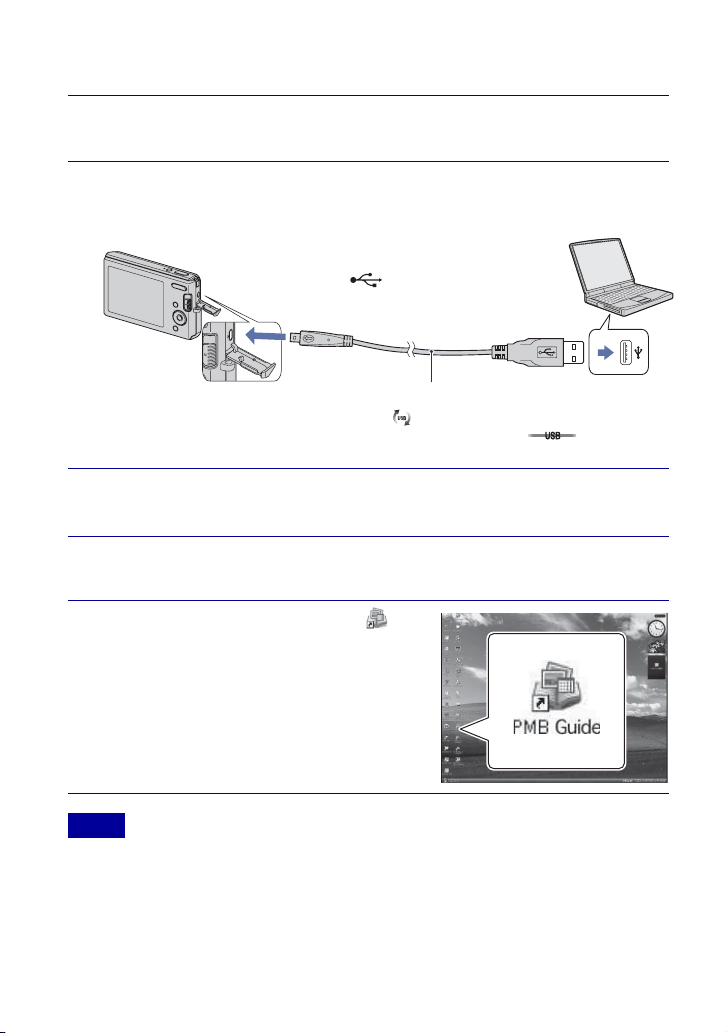
36
ES
x
Etapa 2: Importación de imágenes a su ordenador utilizando
“PMB”
x
Etapa 3: Visionado de la “Guía de PMB”
• No desconecte el cable USB exclusivo de la cámara mientras la cámara esté funcionando ni
mientras aparece “Acceso…” en la pantalla de la cámara. Si lo hace podrá estropear los datos.
• Cuando utilice una batería con poca carga restante, es posible que no pueda transferir los datos o
que los datos se estropeen. Se recomienda utilizar el adaptador de ca (se vende por separado).
1
Inserte una batería completamente cargada en la cámara,
después pulse el botón ON/OFF (Alimentación).
2
Conecte la cámara a su ordenador.
Aparecerá “Conectando…” en la pantalla de la cámara.
• Durante la sesión de comunicación se muestra en la pantalla. No utilice el ordenador
mientras esté visualizado el indicador. Cuando el indicador cambia a , puede
comenzar a utilizar el ordenador de nuevo.
3
Haga clic en el botón [Importar].
Para más detalles, consulte la “Guía de PMB”.
1
Haga doble clic en el icono
(Guía de PMB) del escritorio.
• Para acceder a la “Guía de PMB” desde el
menú de inicio: Haga clic en [Inicio]
t
[Todos los programas]
t [Sony Picture
Utility]
t [Ayuda] t [Guía de PMB].
Notas
Cable USB exclusivo
1 A una toma USB
2 Al terminal
(USB)·A/V OUT

37
ES
Conexión a otros dispositivos
x
Utilización de la cámara con su ordenador Macintosh
Puede copiar imágenes a su ordenador Macintosh. Sin embargo, “PMB” no compatible.
Entorno de ordenador recomendado
Para un ordenador conectado a la cámara se recomienda el entorno siguiente.
Entorno recomendado para importar imágenes
SO (preinstalado): Mac OS 9,1/9,2/ Mac OS X (v10,1 a v10,5)
Toma USB: Suministrada como estándar
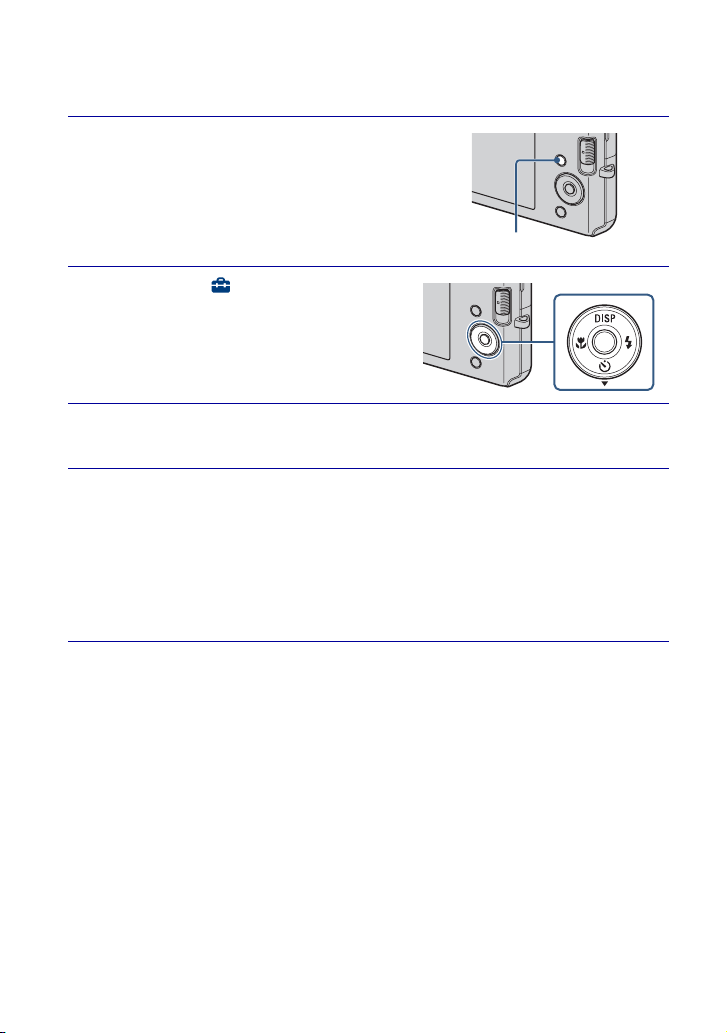
38
ES
C
am
bi
o
d
e
l
os a
j
us
t
es
d
e
l
a c
á
mara
Cambio de los sonidos de operación
Puede ajustar el sonido producido cuando utiliza la cámara.
1
Pulse el botón MENU.
2
Seleccione (Ajustes) con V
del botón de control, después
pulse z.
3
Seleccione [Ajustes principales] con v/V del botón de
control, después pulse [Pitido] t z.
4
Seleccione el modo deseado con v/V del botón de control
t z.
Obturador: Activa el sonido del obturador para cuando se pulsa el botón del
disparador.
Activar: Activa el sonido de pitido/obturador para cuando se pulsa el botón de
control/disparador.
Desactivar: Desactiva el sonido de pitido/obturador.
Botón MENU
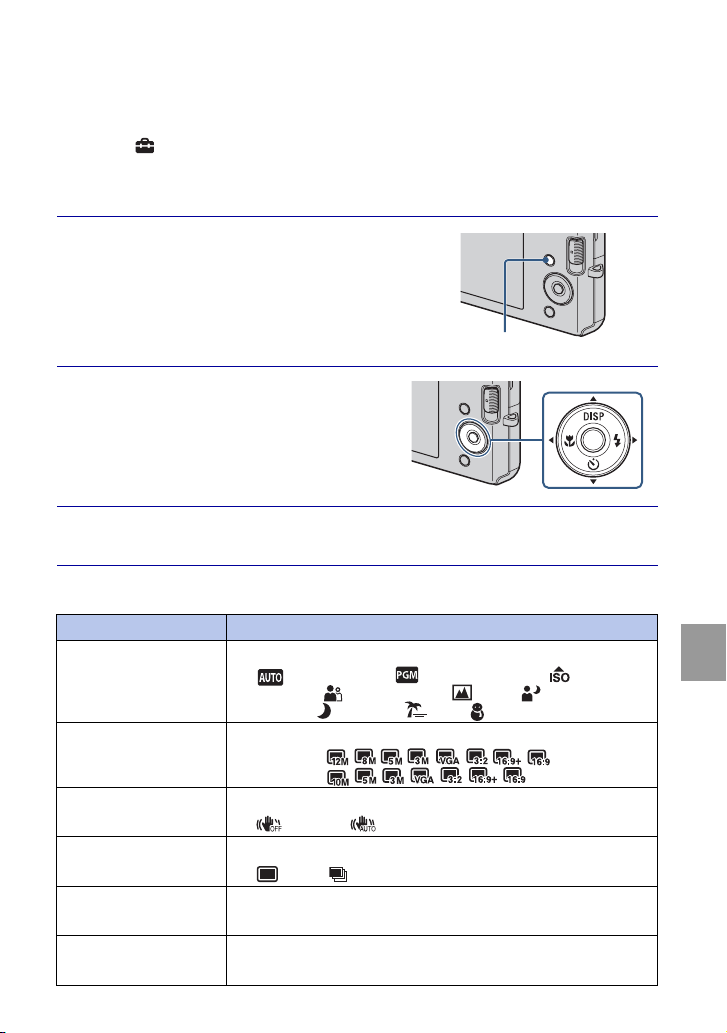
39
ES
Cambio de los ajustes de la cámara
Utilización de los elementos de MENU
Visualiza funciones disponibles para ajustarlas fácilmente cuando la cámara está en
modo de toma de imagen o reproducción. En la pantalla solamente se visualizan los
elementos disponibles para cada modo.
Seleccione
(Ajustes) t [Ajustes principales] t [Inicializar] para inicializar los
ajustes a sus valores predeterminados.
x
MENU en modo de toma de imagen
1
Pulse el botón MENU para
visualizar la pantalla de Menú.
2
Seleccione el elemento de
menú deseado con v/V/b/B del
botón de control. Durante la
reproducción, confirme
pulsando z.
3
Pulse el botón MENU para quitar la pantalla de Menú.
Elemento Descripción
Cámara Ajusta el modo de cámara.
( Ajuste automático/ Programa automático/ Alta
sensibilidad/ Instantánea suave/ Paisaje/ Retrato
crepúsculo/ Crepúsculo/ Playa/ Nieve)
Tamaño imag Establece el tamaño de imagen.
DSC-W190 ( / / / / / / / )
DSC-W180 ( / / / / / / )
SteadyShot Selecciona el modo de toma estable.
( Desactivar/ Auto)
Modo Grabación Selecciona el método de toma continua.
( Normal/ Ráfaga)
EV Ajusta la exposición manualmente.
(–2,0 EV a +2,0 EV)
ISO Selecciona una sensibilidad luminosa.
(Auto/ISO 100 a ISO 3200)
Botón MENU
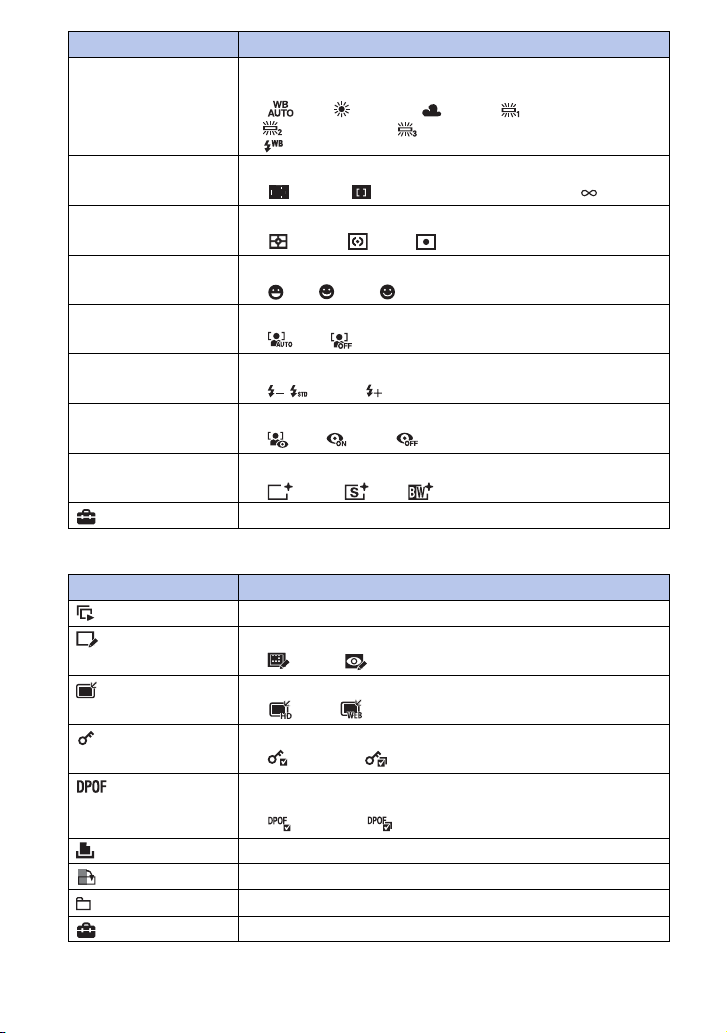
40
ES
x
MENU en modo de visionado
Balance Blanco Ajusta los tonos de color en función de las condiciones de la luz
ambiental.
( Auto/ Luz diurna/ Nublado/ Luz fluorescente 1,
Luz fluorescente 2, Luz fluorescente 3/n Incandescente/
Flash)
Enfoque Cambia el método de enfoque.
( Multi AF/ AF centro/0,5 m/1,0 m/3,0 m/7,0 m/ )
Modo medición Establece qué parte del motivo se mide para determinar la exposición.
( Múltiple/ Centro/ Punto)
Sensib detección sonrisas Ajusta el nivel de sensibilidad para detectar sonrisa.
( Bajo/ Medio/ Alto)
Detección de cara Ajusta la Detección de cara.
( Auto/ Desactivar)
Nivel flash Ajusta la cantidad de luz del flash.
( / Estándar/ )
Reducción ojos rojos Se ajusta para reducir el efecto ojos rojos.
( Auto/ Activar/ Desactivar)
Modo color Cambia la vivacidad de la imagen o agrega efectos especiales.
( Normal/ Sepia/ B y N)
(Ajustes) Cambia los ajustes de la cámara.
Elemento Descripción
(Diapositivas) Reproduce imágenes sucesivamente junto con efectos.
(Retocar) Retoca imágenes fijas.
( Recortar/ Corrección ojos rojos)
(Múltiples tamaños) Cambia el tamaño de imagen de acuerdo con la utilización.
( HDTV/ Blog / E-mail)
(Proteger) Previene el borrado accidental.
( Esta imagen/ Múltiples imágenes)
Añade una marca de orden de impresión a la imagen que quiere imprimir
de un “Memory Stick Duo”.
( Esta imagen/ Múltiples imágenes)
(Imprimir) Imprime imágenes utilizando una impresora compatible con PictBridge.
(Girar) Gira una imagen fija.
(Seleccionar carpeta) Selecciona una carpeta para ver imágenes.
(Ajustes) Cambia ajustes.
Elemento Descripción
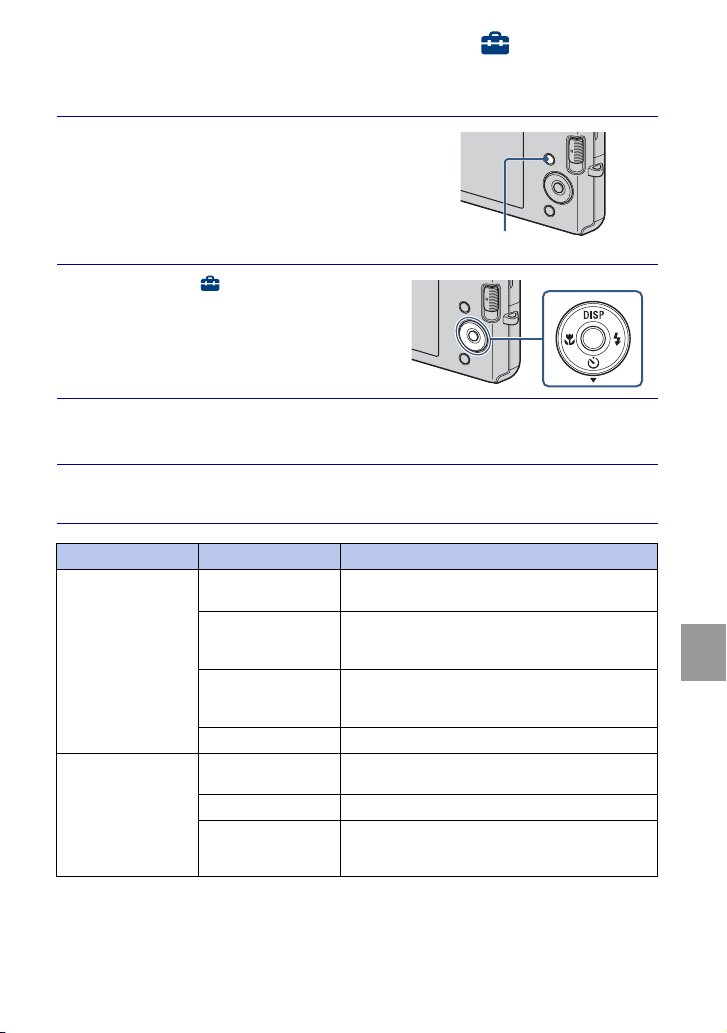
41
ES
Cambio de los ajustes de la cámara
Utilización de los elementos de (Ajustes)
Puede cambiar los ajustes predeterminados.
1
Pulse el botón MENU para
visualizar la pantalla de Menú.
2
Seleccione (Ajustes) con V
del botón de control, después
pulse z.
3
Seleccione el elemento deseado con v/V/b/B, después
pulse z.
4
Pulse el botón MENU para quitar la pantalla de ajustes.
Categoría Elemento Descripción
Ajustes principales Pitido Selecciona o desactiva el sonido producido cuando
utiliza la cámara.
Conexión USB Selecciona el modo USB cuando se conecta la cámara
a un ordenador o a una impresora compatible con
PictBridge utilizando el cable USB exclusivo.
Salida vídeo Ajusta la salida de señal de vídeo de acuerdo con el
sistema de color de televisión del equipo de vídeo
conectado.
Inicializar Inicializa los ajustes a sus valores predeterminados.
Ajustes de toma Cuadrícula Establece si se muestran o no las líneas cuadriculadas
en la pantalla.
Zoom digital Selecciona el modo de zoom digital.
Revisión autom Visualiza la imagen grabada en la pantalla durante
unos dos s (segundo) inmediatamente después de
tomar una imagen fija.
Botón MENU
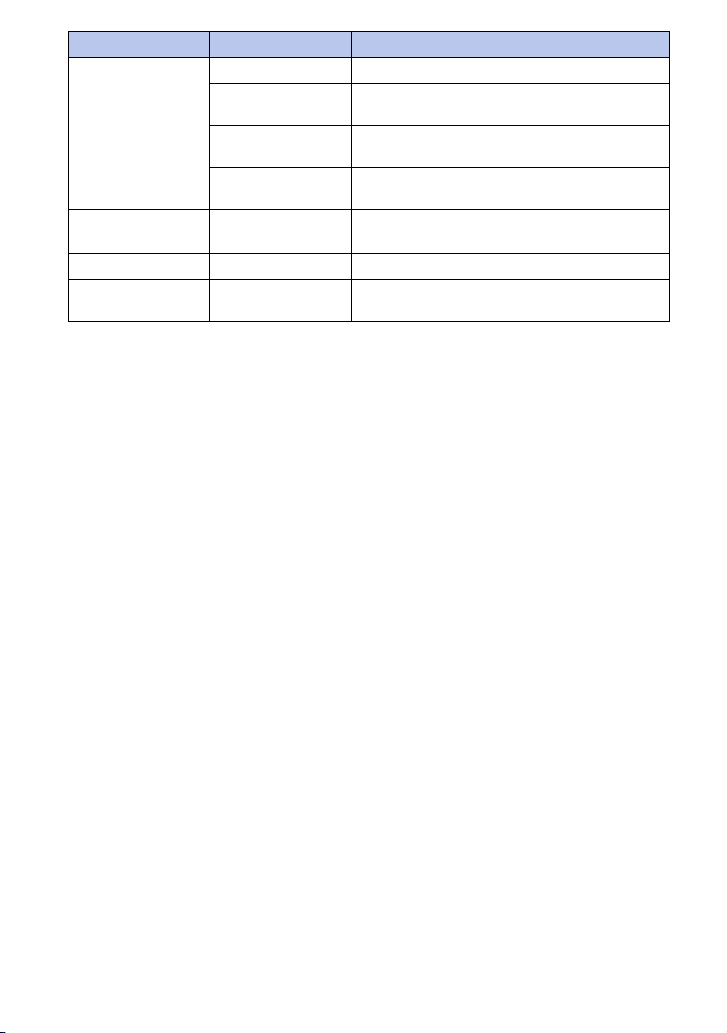
42
ES
Her "Memory Stick" Formatear Formatea el “Memory Stick Duo”.
Crea CarpGrabación Crea una carpeta en el “Memory Stick Duo” para
grabar imágenes.
Camb. Carp. Grab. Cambia la carpeta utilizada actualmente para grabar
imágenes.
Copiar Copia todas las imágenes de la memoria interna a un
“Memory Stick Duo”.
Herr.memoria
interna
Formatear Formatea la memoria interna.
Ajustes del reloj Ajustes del reloj Establece la fecha y hora.
Language Setting Language Setting Selecciona el idioma a utilizar en los elementos de
menú, avisos y mensajes.
Categoría Elemento Descripción
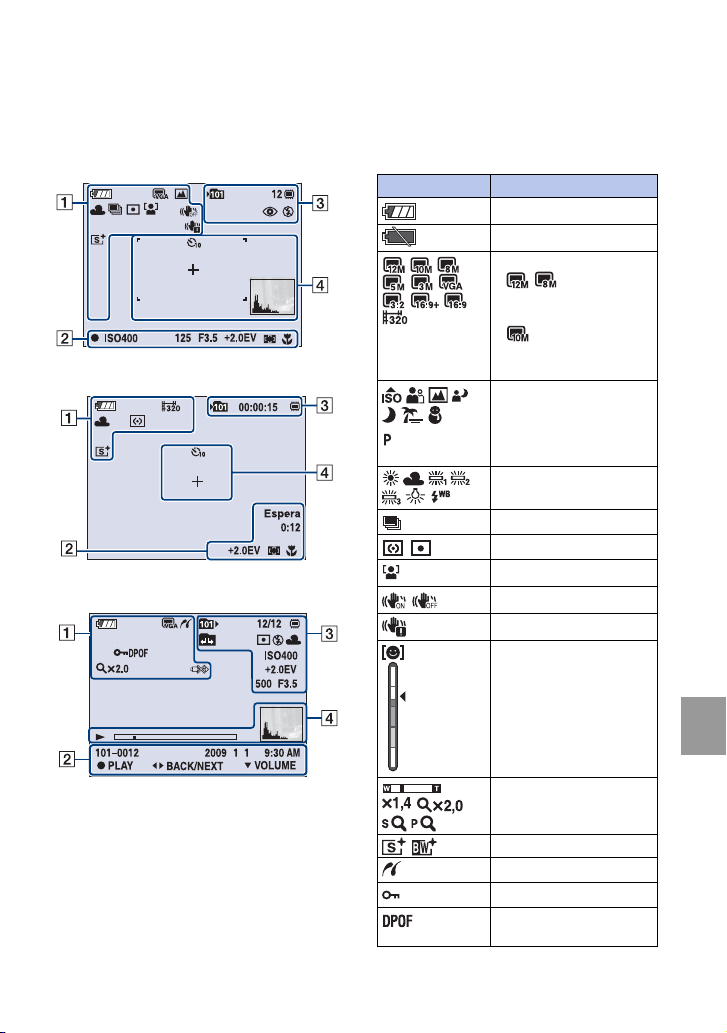
43
ES
Otros
Ot
ros
Lista de iconos visualizados en la pantalla
Los iconos se visualizan en la pantalla para indicar el estado de la cámara.
Puede cambiar la visualización en pantalla utilizando DISP (visualización en pantalla)
del botón de control (página 21).
Cuando se toman imágenes fijas
Cuando se toman películas
Cuando se reproduce
A
Visualización Indicación
Batería restante
Aviso de poca batería
Tamaño de imagen
•
/ solamente se
visualiza para la DSC-
W190.
• solamente se
visualiza para la DSC-
W180.
Modo de cámara (Selección
escena)
Modo de cámara (Programa
automático)
Balance del blanco
Ráfaga
Modo de medición
Detección de cara
SteadyShot
Aviso de vibración
Indicador de sensibilidad de
detección de sonrisas
Relación del zoom
Modo color
Conexión PictBridge
Proteger
Orden de impresión
(DPOF)
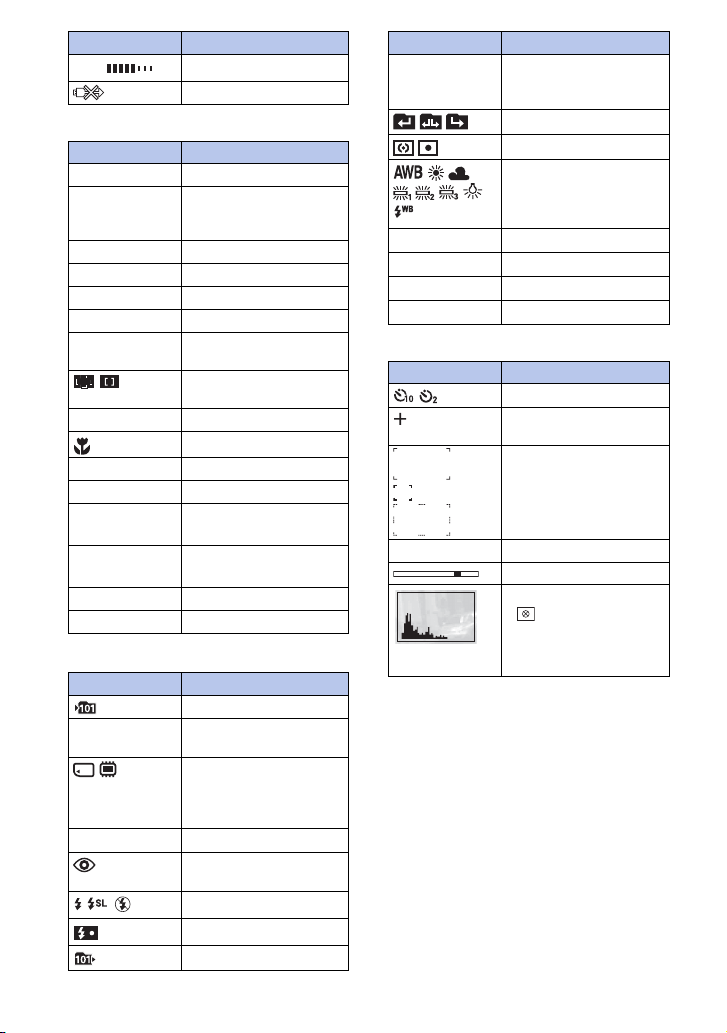
44
ES
B
C
D
VOL.
Exportación del PMB
Conexión PictBridge
Visualización Indicación
z
Bloqueo AE/AF
GRABAR
Espera
Grabación de una película/
Puesta en espera de una
película
ISO400
Número ISO
125
Velocidad de obturación
F3,5
Valor de abertura
+2,0EV
Valor de exposición
0:12
Tiempo de grabación
(min:s)
Indicador del cuadro del
visor de rango AF
1,0 m
Valor semimanual
Macro
00:00:12
Contador
101-0012
Número de carpeta-archivo
2009 1 1
9:30 AM
Fecha/hora grabadas de la
imagen de reproducción
z STOP
z PLAY
Guía de funciones para
reproducir imagen
bB BACK/NEXT
Selección de imágenes
V VOLUME
Ajuste del volumen
Visualización Indicación
Carpeta de grabación
12
Número de imágenes que se
pueden grabar
Soporte de grabación/
reproducción (“Memory
Stick Duo”, memoria
interna)
00:00:15
Tiempo que se puede grabar
Reducción del efecto ojos
rojos
Modo de flash
Carga del flash
Carpeta de reproducción
Visualización Indicación
12/12
Número de imagen/Número
de imágenes grabadas en la
carpeta seleccionada
Cambio de carpeta
Modo de medición
Balance del blanco
ISO 400
Número ISO
+2,0EV
Valor de exposición
500
Velocidad de obturación
F3,5
Valor de abertura
Visualización Indicación
Autodisparador
Cruz filial de la medición
de punto
Cuadro del visor de rango
AF
N
Reproducción
Barra de reproducción
Histograma
•
aparece cuando la
visualización del
histograma está
desactivada.
Visualización Indicación
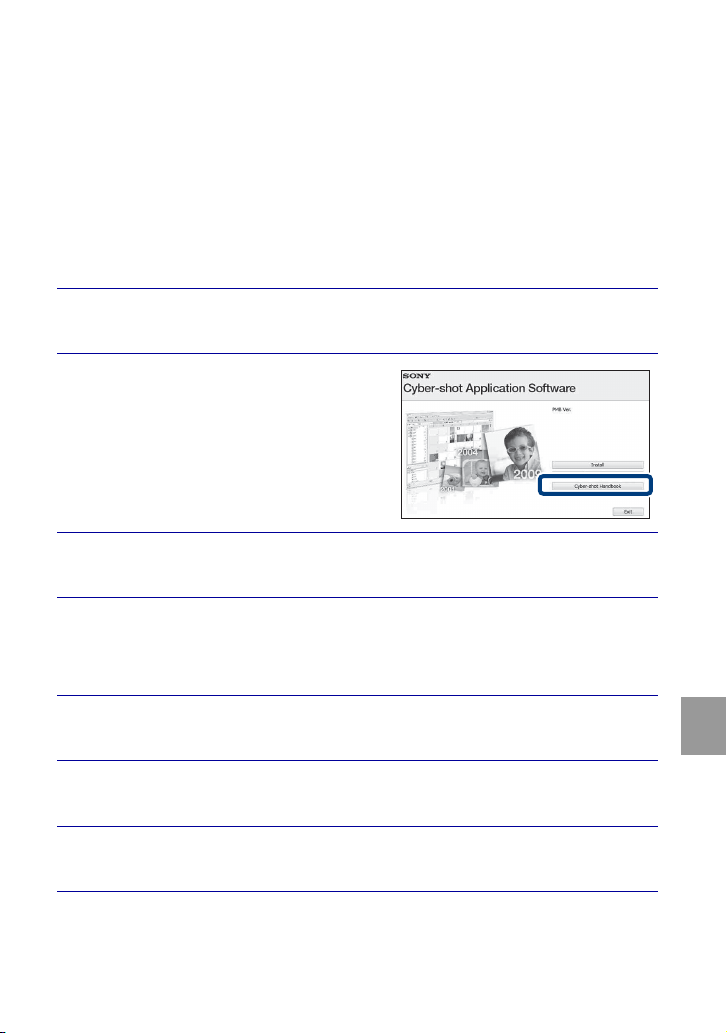
45
ES
Otros
Para saber más sobre la cámara (“Guía
práctica de Cyber-shot”)
La “Guía práctica de Cyber-shot”, que explica cómo utilizar la cámara en detalle, está
incluida en el CD-ROM (suministrado). Consúltela para ver instrucciones exhaustivas
sobre las muchas funciones de la cámara.
• Necesita Adobe Reader para leer “Guía práctica de Cyber-shot”. Si no lo tiene
instalado en su ordenador, puede descargarlo de la página Web: http://
www.adobe.com/
x
Para usuarios de Windows
x
Para usuarios de Macintosh
1
Encienda su ordenador e inserte el CD-ROM (suministrado)
en la unidad de CD-ROM.
2
Haga clic en “Cyber-shot
Handbook”.
La “Guía avanzada de Cyber-shot”, que
contiene información sobre accesorios para
la cámara, se instala al mismo tiempo.
3
Inicie la “Guía práctica de Cyber-shot” desde el acceso
directo del escritorio.
1
Encienda su ordenador e inserte el CD-ROM (suministrado)
en la unidad de CD-ROM.
2
Seleccione la carpeta [Handbook] y copie el “Handbook.pdf”
almacenado en la carpeta [ES] a su ordenador.
3
Después de haberse completado el copiado, haga doble clic
en “Handbook.pdf”.
46
ES
Solución de problemas
Si encuentra problemas con la cámara, pruebe las siguientes soluciones.
Al reparar cámaras que incluyan función de memoria interna, los datos almacenados en
la cámara podrán ser comprobados en lo mínimo necesario para verificar y mejorar los
síntomas del mal funcionamiento. Sony no copiará ni guardará ninguno de esos datos.
Resulta imposible insertar la batería.
• Inserte la batería correctamente empujando la palanca de expulsión de la batería (página 12).
Resulta imposible encender la cámara.
• Después de insertar la batería en la cámara, es posible que la cámara tarde unos momentos en
responder.
• Inserte la batería correctamente (página 12).
• La batería está descargada. Inserte una batería cargada (página 10).
• La batería está agotada. Reemplácela con una nueva.
• Utilice una batería recomendada.
La alimentación se desconecta súbitamente.
• Dependiendo de la temperatura de la cámara y de la batería, es posible que la alimentación se
desconecte automáticamente para proteger la cámara. En este caso, se visualizará un mensaje
en la pantalla LCD antes de que se desconecte la alimentación.
• Si no utiliza la cámara durante unos tres min (minuto) mientras esté conectada la
alimentación, la cámara se apagará automáticamente para evitar que la batería se agote.
Encienda la cámara otra vez (página 14).
• La batería está agotada. Reemplácela con una nueva.
1 Compruebe el elemento de abajo, y consulte la “Guía práctica de Cyber-shot”
(PDF).
2 Extraiga la batería, espere un min (minuto) aproximadamente, vuelva a
insertarla y, a continuación, conecte la alimentación.
3 Inicialice los ajustes (página 41).
4 Consulte con el distribuidor Sony o con la oficina de servicio local autorizada
de Sony.
Batería y alimentación
47
ES
Otros
El indicador de carga restante es incorrecto.
• La carga de la batería se agotará rápidamente y la carga de batería restante actual será inferior
que la del indicador en los siguientes casos:
– Cuando utilice la cámara en un lugar muy cálido o frío.
– Cuando utilice el flash y el zoom con frecuencia.
– Cuando conecte y desconecte la alimentación repetidamente.
– Cuando ajuste el brillo de la pantalla más alto utilizando los ajustes de DISP (visualización
en pantalla).
• La batería está descargada. Inserte la batería cargada (página 10).
• La batería está agotada. Reemplácela con una nueva.
Resulta imposible cargar la batería mientras está dentro de la cámara.
• No es posible cargar la batería utilizando el adaptador de ca (se vende por separado). Utilice el
cargador de batería (suministrado) para cargar la batería.
La lámpara CHARGE parpadea mientras se carga la batería.
• Extraiga y vuelva a insertar la batería, asegurándose de que está instalada correctamente.
• Es posible que la temperatura no sea apropiada para cargar. Intente cargar la batería otra vez
dentro del rango de temperatura de carga apropiado (10 °C a 30 °C)
Resulta imposible grabar imágenes.
• Compruebe la capacidad libre de la memoria interna o el “Memory Stick Duo” (páginas 24,
27). Si está llena, realice uno de lo siguiente:
– Borre imágenes no necesarias (página 30).
– Cambie el “Memory Stick Duo”.
• No es posible grabar imágenes mientras se carga el flash.
• Cuando tome una imagen fija, ajuste el conmutador de modo a (Imagen fija).
• Ajuste el conmutador de modo a (Película) cuando tome películas.
Aparecen rayas blancas, rojas, púrpuras u otras en la imagen, o la imagen
parece rojiza.
• Este fenómeno se denomina borrosidad. Esto no es un fallo de funcionamiento.
Resulta imposible reproducir imágenes.
• Ajuste el conmutador de modo a (Reproducción) (página 17).
• El nombre de carpeta/archivo ha sido cambiado en su ordenador.
• No se ofrecen garantías para reproducir, en esta cámara, archivos que contengan imágenes
que hayan sido procesadas en un ordenador o imágenes que hayan sido tomadas con otras
cámaras.
• La cámara está en el modo USB. Elimine la conexión USB.
Toma de imágenes fijas/películas
Visualización de imágenes

48
ES
Precauciones
No utilice o almacene la cámara en
los siguientes lugares
• En un lugar muy caluroso, frío o húmedo
En lugares tales como en un automóvil
aparcado al sol, es posible que el cuerpo de
la cámara se deforme y esto podrá ocasionar
un mal funcionamiento.
• Bajo la luz solar directa o cerca de una estufa
El cuerpo de la cámara podrá decolorarse o
deformarse, y esto podrá ocasionar un mal
funcionamiento.
• En un lugar expuesto a vibración basculante
• Cerca de un lugar magnético fuerte
• En lugares arenosos o polvorientos
Tenga cuidado de no dejar entrar dentro de la
cámara arena o polvo. Esto podrá ocasionar
un mal funcionamiento en la cámara, y en
algunos casos este mal funcionamiento no
podrá repararse.
Acerca del transporte
No se siente en una silla u otro lugar con la
cámara en el bolsillo trasero de sus pantalones
o falda, porque podrá ocasionar un mal
funcionamiento de la cámara o dañarla.
Acerca de la limpieza
Limpieza de la pantalla LCD
Limpie la superficie de la pantalla con un kit
de limpieza de LCD (se vende por separado)
para quitar las huellas dactilares, el polvo, etc.
Limpieza del objetivo
Limpie el objetivo con un paño suave para
quitar huellas dactilares, polvo, etc.
Limpieza de la superficie de la cámara
Limpie la superficie de la cámara con un paño
suave ligeramente humedecido con agua,
después limpie la superficie con un paño seco.
Para evitar dañar el acabado o la envoltura:
– No exponga la cámara a productos químicos
tales como diluyente, bencina, alcohol,
paños desechables, repelente de insectos,
bronceador o insecticida.
– No toque la cámara con nada de lo de arriba
en su mano.
– No deje la cámara en contacto con goma o
vinilo durante largo tiempo.
Acerca de la temperatura de
funcionamiento
Su cámara está diseñada para ser utilizada a
temperaturas de entre 0 °C y 40 °C
No se recomienda tomar imágenes en lugares
extremadamente fríos o calurosos que excedan
esta gama.
Acerca de la condensación de
humedad
Si se traslada la cámara directamente de un
lugar frío a uno cálido, es posible que la
humedad se condense en el interior o el
exterior de la cámara. Esta condensación de
humedad podrá ocasionar un mal
funcionamiento de la cámara.
Si se produce condensación de humedad
Apague la cámara y espere una h (hora)
aproximadamente hasta que la humedad se
evapore. Tenga en cuenta que si intenta tomar
imágenes quedando aún humedad en el
interior del objetivo, no podrá grabar imágenes
claras.
Acerca de la batería interna de
respaldo recargable
Esta cámara tiene una batería recargable
interna para mantener la fecha y hora y otros
ajustes independientemente de si la
alimentación está conectada o desconectada.
Esta batería recargable se carga continuamente
siempre que está utilizando la cámara. Sin
embargo, si utiliza la cámara solamente
durante cortos períodos se descargará
gradualmente, y si no la utiliza en absoluto
durante un mes se descargará completamente.
En este caso, asegúrese de cargar esta batería
recargable antes de utilizar la cámara.
Sin embargo, aunque esta batería recargable
no esté cargada, aún podrá utilizar la cámara,
pero la fecha y la hora no se indicarán.
Método de carga de la batería interna de
respaldo recargable
Inserte la batería cargada en la cámara, y
después deje la cámara durante 24 h (hora) o
más con la alimentación desconectada.

49
ES
Otros
Especificaciones
Cámara
[Sistema]
Dispositivo de imagen:
DSC-W190: CCD de color de 7,79 mm
(tipo 1/2,3), Filtro de color primario
DSC-W180: CCD de color de 7,70 mm
(tipo 1/2,3), Filtro de color primario
Número total de píxeles de la cámara:
DSC-W190: Aprox. 12,4 Megapíxeles
DSC-W180: Aprox. 10,3 Megapíxeles
Número efectivo de píxeles de la cámara:
DSC-W190: Aprox. 12,1 Megapíxeles
DSC-W180: Aprox. 10,1 Megapíxeles
Objetivo: Objetivo zoom 3×
f = 6,2 mm – 18,6 mm (35 mm – 105 mm
(equivalente a película de 35 mm))
F3,1 (W) – F5,6 (T)
Control de exposición: Exposición automática,
Selección de escena (7 modos)
Balance del blanco: Automático, Luz diurna,
Nublado, Fluorescente 1,2,3, Incandescente,
Flash
Intervalo de grabación para el modo Ráfaga:
Aprox. 1 s (segundo)
Formato de archivo:
Imágenes fijas: Compatible con JPEG (DCF
Ver. 2,0, Exif Ver. 2,21, MPF Baseline),
compatible con DPOF
Películas: AVI (Motion JPEG)
Soporte de grabación: Memoria interna
(aprox. 12 MB) “Memory Stick Duo”
Flash: Alcance del flash (sensibilidad ISO (Índice
de exposición recomendado) ajustado a
Auto):
Aprox. 0,5 m a 3,0 m (W)/aprox. 0,5 m a
1,5 m (T)
[Conectores de entrada y salida]
Terminal (USB)·A/V OUT:
Salida de vídeo
Salida de audio (Monoaural)
Conmunicación USB
Conmunicación USB: Hi-Speed USB (Cumple
con USB 2.0)
[Pantalla LCD]
Panel LCD:
6,7 cm (tipo 2,7) Unidad TFT
Número total de puntos: 230 400 (960 × 240)
puntos
[Alimentación, general]
Alimentación: Batería recargable
NP-BK1, 3,6 V
Adaptador de ca AC-LS5 (se vende por
separado), 4,2 V
Consumo (durante la toma de imagen):
1,2 W
Temperatura de funcionamiento: 0 °C a 40°C
Temperatura de almacenamiento: –20°C a +60°C
Dimensiones:
93,4 × 54,5 × 18,7 mm (An/Al/Pr, excluyendo
los salientes)
Peso (incluyendo la batería NP-BK1, “Memory
Stick Duo”):
Aprox. 140 g
Micrófono: Monofónico
Altavoz: Monofónico
Exif Print: Compatible
PRINT Image Matching III: Compatible
PictBridge: Compatible

50
ES
Cargador de batería BC-CSKA
Requisitos de alimentación: ca 100 V a 240 V
50 Hz/60 Hz 2,3 W
Tensión de salida: cc 4,2 V 0,30 A
Temperatura de funcionamiento: 0 °C a 40°C
Temperatura de almacenamiento: –20°C a +60°C
Dimensiones: Aprox. 62 × 24 × 91 mm (An/Al/
Pr)
Peso: Aprox. 70 g
Batería recargable NP-BK1
Batería utilizada: Batería de litio-ión
Tensión máxima: cc 4,2 V
Tensión nominal: cc 3,6 V
Corriente de carga máxima: 1,4 A
Tensión de carga máxima: cc 4,2 V
Capacidad:
típica: 3,4 Wh (970 mAh)
mínima: 3,3 Wh (930 mAh)
El diseño y las especificaciones están sujetos a
cambios sin previo aviso.
Marcas comerciales
• Las marcas siguientes son marcas
comerciales de Sony Corporation.
, “Cyber-shot”, “Memory
Stick”, , “Memory Stick PRO”,
, “Memory Stick Duo”,
, “Memory Stick PRO
Duo”, , “Memory
Stick PRO-HG Duo”,
, “Memory Stick
Micro”, “MagicGate”,
• Microsoft, Windows, DirectX y Windows
Vista son o bien marcas comerciales
registradas o marcas comerciales de
Microsoft Corporation en los Estados Unidos
de América y/u otros países.
• Macintosh y Mac OS son marcas
comerciales o marcas comerciales
registradas de Apple Inc.
• Intel, MMX, y Pentium son marcas
comerciales o marcas comerciales
registradas de Intel Corporation.
• Adobe y Reader son marcas comerciales o
bien marcas comerciales registradas de
Adobe Systems Incorporated en los Estados
Unidos y/u otros países.
• Además, los nombres de sistemas y
productos utilizados en este manual son, en
general, marcas comerciales o marcas
comerciales registradas de sus respectivos
desarrolladores o fabricantes. Sin embargo,
las marcas ™ o ® no se utilizan en todos los
casos en este manual.

51
ES
Otros

52
ES

53
ES
Otros

54
ES

55
ES
Otros

56
ES

57
ES
Otros
Printed in China
Printed on 70% or more recycled paper using VOC
(Volatile Organic Compound)-free vegetable oil based
ink.
Impreso en papel reciclado en un 70% o más utilizando
tinta hecha con aceite vegetal exento de compuesto
orgánico volátil (COV).
Additional information on this product and answers
to frequently asked questions can be found at our
Customer Support Website.
En la página Web de atención al cliente puede
encontrar información adicional sobre este producto
y respuesta a las preguntas hechas con más
frecuencia.