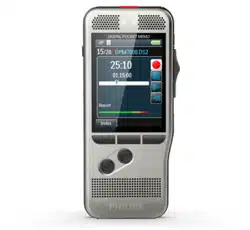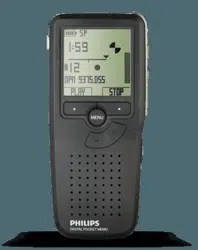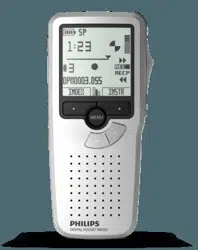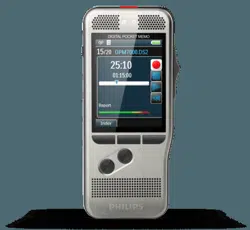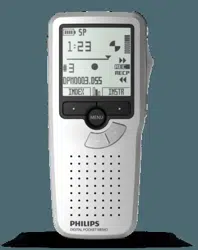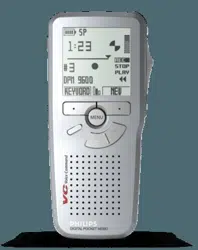
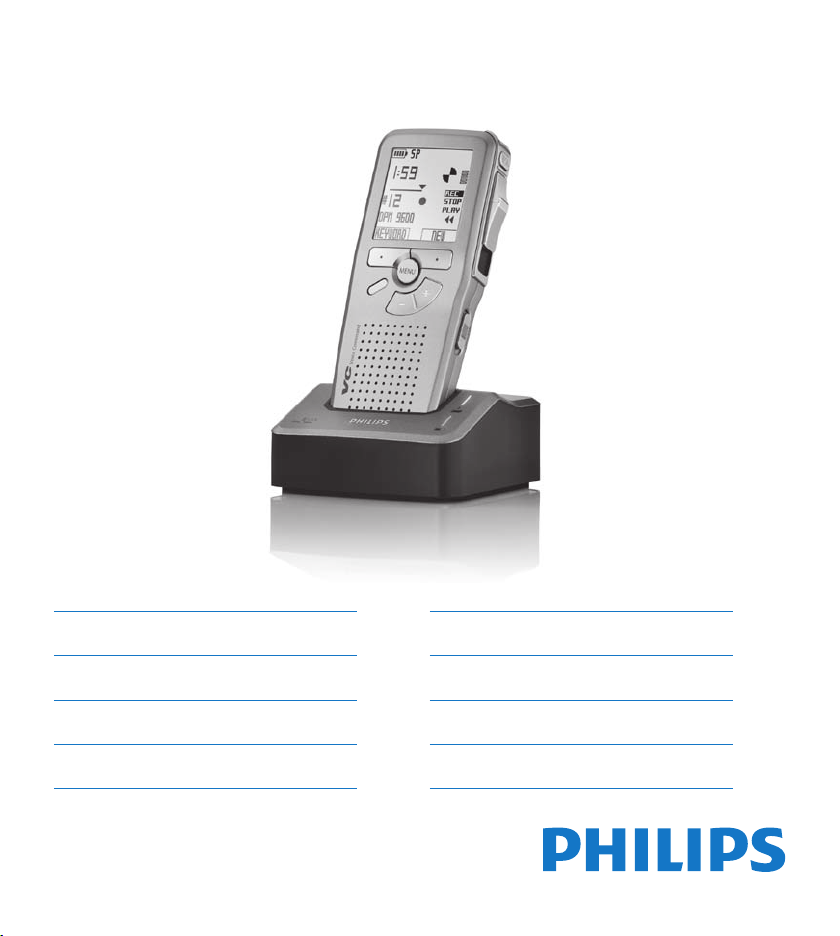
LFH9600
LFH9620
For product information and support, visit
www.philips.com/dictation POCKET MEMO
IT Manuale di istruzioni 99
NL Gebruikershandleiding 123
PT Manual do utilizador 147
SV Användarhandbok 171
EN User manual 3
DE Benutzerhandbuch 27
FR Manuel de l‘utilisateur 51
ES Manual del usuario 75


3User manual
ENGLISH
1 Welcome 4
1.1 Product highlights 4
1.2 What’s in the box 4
2 Important 5
2.1 Safety 5
2.2 Disposal of your old product 5
2.3 Technical support and warranty 5
3 Get started 6
3.1 Overview – controls and connections 6
3.2 Overview – display indicators and
symbols 7
3.3 Install the batteries 8
3.4 Recharge the batteries 8
3.4.1 Recharge the batteries through the docking
station 8
3.4.2 Recharge the batteries through the USB
cable 9
3.4.3 Recharge the batteries using the Philips
power supply 9
3.5 Insert and eject the memory card 9
3.6 Format a new memory card 10
3.7 Activate the Digital Pocket Memo 10
3.7.1 Set the language 10
3.7.2 Set the date and time 11
3.8 Power-save mode 11
4 Use your Digital Pocket Memo 12
4.1 Recording 12
4.1.1 Create a recording 12
4.1.2 Record a spoken instruction 13
4.1.3 Add to a recording (insert/overwrite) 13
4.1.4 Finish (lock) a recording 14
4.1.5 Change the recording format 15
4.1.6 Adjust the microphone sensitivity 15
4.2 Playback 16
4.2.1 Overview of playback functions 16
4.3 Delete 17
4.3.1 Delete a file 17
4.3.2 Delete part of a recording 17
4.3.3 Delete all dictations 18
5 Use more of your Digital Pocket
Memo 19
5.1 Use Philips SpeechExec software 19
5.1.1 Advanced configuration 19
5.1.2 Download recordings to the PC 19
5.2 Use voice-activated recording 20
5.3 Work with index marks 21
5.3.1 Insert an index mark 21
5.3.2 Delete an index mark 21
5.3.3 Delete all index marks 21
5.4 Assign a keyword 22
5.5 Use Voice Command 22
5.5.1 Voice command training 22
5.5.2 Enter keywords using voice command 23
5.6 Menu settings 24
5.6.1 Menu list 24
6 Technical data 26
User manual
4 User manual
Welcome1
Congratulations on your purchase and welcome
to Philips!
To fully benefit from the support that Philips
oers, visit our Website for support information
such as user manuals, software downloads,
warranty information and more:
www.philips.com/dictation.
Product highlights1.1
The Philips Digital Pocket Memo 9600 series •
sets new standards in advanced functionality
and style. Voice commands, on-board file
encryption and password protection are but a
few of the powerful features of the 9600. The
ergonomic design lends itself to unparalleled
user friendliness to create dictations, and the
intuitive controls are easy to use.
The Digital Pocket Memo’s asymmetrical and •
ergonomic design delivers unparalleled user-
friendly operation. All buttons are within the
sweep-angle of the thumb; a separate on/o
switch and the popular 4-position slide switch
let you work in the most familiar way.
Security and confidentiality is ensured through •
file encryption. Voice files can be real-time
encrypted and password-protected to prevent
unauthorized access. Another level of privacy
is ensured through personal user key codes.
SpeechExec Pro Dictate, the network-based •
dictation software, facilitates the sharing
and archiving of dictations and streamlines
communication between author and
transcriptionists. It includes advanced features
such as file encryption and integration with
legal and medical IT systems.
The Digital Pocket Memo 9600 can be quick-•
charged through the USB connection to your
PC. This gives you the assurance that your
recorder will always be ready to work when
you are.
Assign job data such as keywords simply by •
speaking them. This increases eciency and
minimizes errors.
What’s in the box1.2
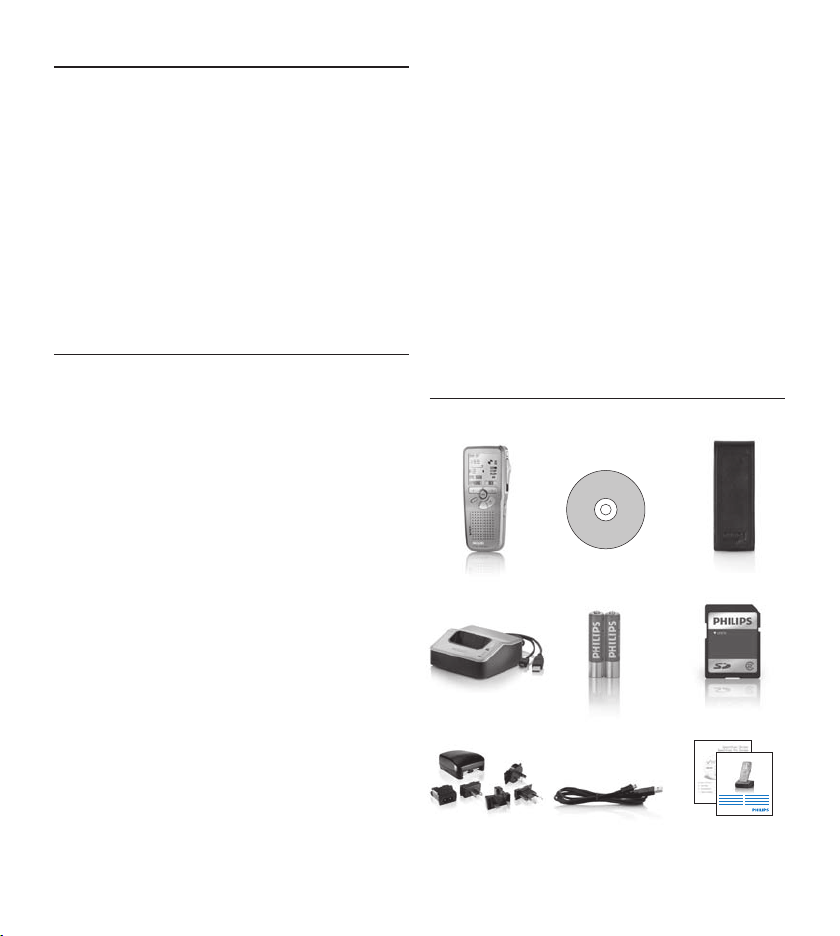
Digital Pocket Memo
EN User manual 3
DE Benutzerhandbuch 23
FR Manuel de l‘utilisateur 43
ES Manual del usuario 63
NL Gebruikershandleiding 83
IT Manuale di istruzioni 10 3
LFH 9600
LFH 9620
For product information and support , visit
www.philips.com/dictation
Digital Pocket
Memo
CD-ROM
SD memory
card
Rechargeable
batteries
Pouch
USB Docking
Station
Power supply Mini USB
cable
Quick start guide,
user manual
5User manual
ENGLISH
Important2
Safety2.1
To avoid short circuit, do not expose the •
product to rain or water.
Do not expose the device to excessive •
heat caused by heating equipment or direct
sunlight.
Protect the cables from being pinched, •
particularly at plugs and the point where they
exit from the device.
Back up your files. Philips is not responsible •
for any loss of data.
Disposal of your old product2.2
Your product is designed and manufactured •
with high quality materials and components,
that can be recycled and re-used.
When this crossed-out wheeled bin •
symbol is attached to a product, it
indicates that the product is covered
by the European Directive 2002/96/
EC.
Please become informed about the local •
separate collection system for electrical and
electronic products.
Please act according to your local rules and •
do not dispose of old products with your
normal household waste. The correct disposal
of old products will help prevent potential
negative consequences for the environment
and human health.
Batteries (including built-in rechargeable •
batteries) contain substances that may pollute
the environment. All batteries should be
disposed of at an ocial collection point.
Technical support and warranty2.3
This Philips product was designed and
manufactured to the highest quality standards.
If your Philips product is not working correctly
or is defective, contact your supplying Philips
Speech Processing dealer who will provide
you with the necessary information on how to
proceed.
If you have questions that your dealer cannot
answer or any other related question, visit
www.philips.com/dictation to contact us.
No components are user-serviceable. Do not
open or remove covers and do not insert
objects not suitable for the specific connectors.
Repairs may be made only by Philips service
centers and ocial repair facilities. Failure to do
so will void any warranty, stated or implied. Any
operation expressly prohibited in this manual,
any adjustments, or assembly procedures not
recommended or authorized in this manual will
void the warranty.
6 User manual
Get started3
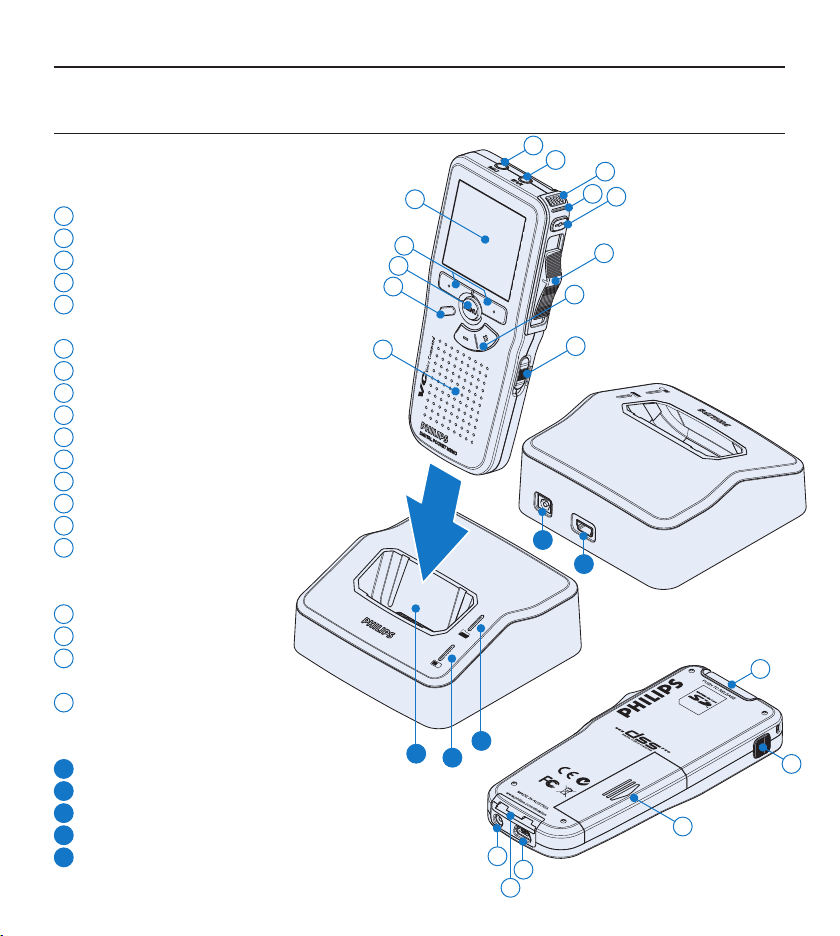
Overview – controls and connections3.1
Digital Pocket Memo
1
Microphone socket
2
Headphone socket
3
Built-in microphone
4
Status LED
5
LFH 9600: EOL (end-of-letter) button
LFH 9620: REC (record) button
6
Slide switch
7
+/–, menu navigation and volume control
8
On/o switch
9
Speaker
10
Function button (programmable)
11
Menu button
12
Smart buttons
13
Display
14
Memory card slot
15
LFH 9600: FWD (forward) button
LFH 9620: EOL (end-of-letter)
button
16
Battery compartment
17
USB connection slot
18
Docking station
connection slot
19
Power supply socket
USB Docking Station
20
Power supply socket
21
USB connection slot
22
Download indicator LED
23
Charge indicator LED
24
Docking slot for the Digital Pocket Memo
1
3
5
4
6
8
9
10
11
13
12
14
15
16
17
19
22
23
24
20
21
18
7
2
7User manual
ENGLISH
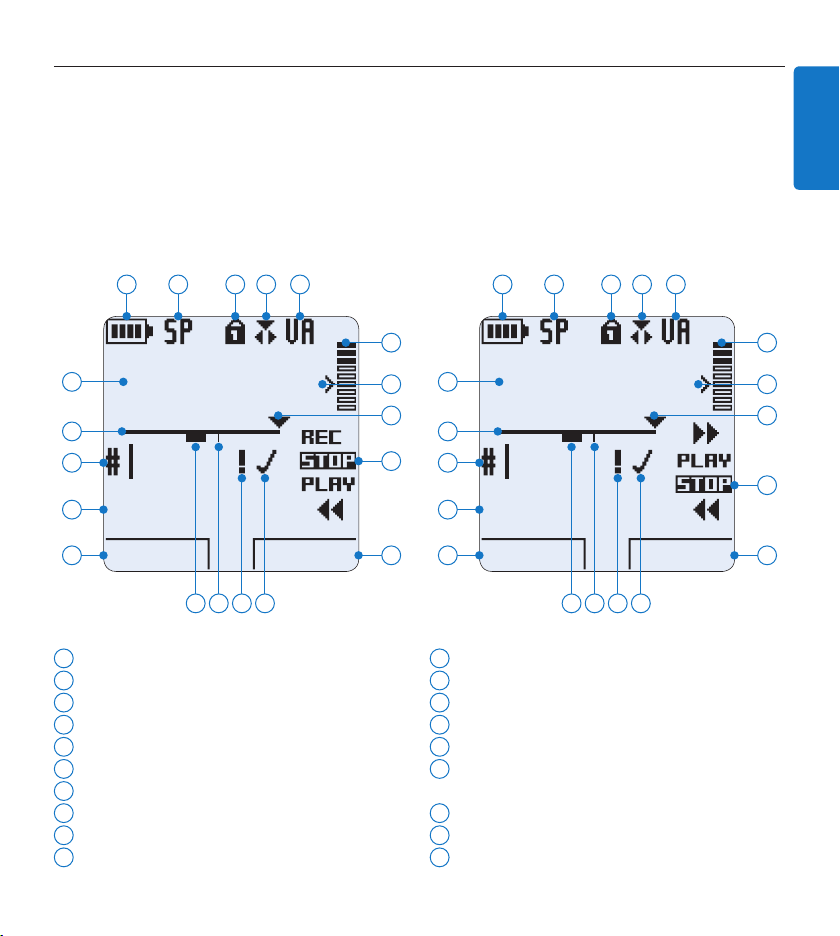
1
Current function of the left smart button
2
Keyword 1 (such as author name)
3
Recording number
4
Position bar
5
Recording / playback time
6
Battery level indicator
7
Recording format
8
Memory card is write-protected (locked)
9
Insert recording mode is activated
10
Voice-activated recording in progress
Overview – display indicators and symbols3.2
D Note
The slide switch has dierent function placements on each of the two models of the Digital Pocket
Memo 9600 series (LFH 9600 and LFH 9620). This user manual will describe functions for both
models.
11
Recording level meter
12
Sensitivity level for voice-activated recording
13
Current position in the recording
14
Positions of the slide switch
15
Current function of the right smart button
16
Recording is marked finished (EOL) and
locked
17
Recording is marked priority
18
Recording contains index mark
19
Recording contains spoken instruction
DPM 9600
KEYWORD NEW
9:23
1
2
3
4
5
6 7 8 9 10
12
11
14
15
13
1719 18 16
Digital Pocket Memo 9600
with international slide switch
Digital Pocket Memo 9620
with Philips slide switch
DPM 9620
KEYWORD NEW
9:23
1
2
3
4
5
6 7 8 9 10
12
11
14
15
13
1719 18 16
8 User manual
Recharge the batteries3.4
The Digital Pocket Memo can be operated
with the rechargeable Philips AAA batteries. To
recharge these batteries, use the Docking Station,
the USB cable or the Philips power supply.
Recharge the batteries through the 3.4.1
docking station
Make sure that the docking station is 1
connected to the main power supply with
the Philips power supply.
Insert the Digital Pocket Memo into the 2
docking slot of the docking station and press
it down firmly until it locks. The green LED
lights up, indicating that the batteries of the
Digital Pocket Memo are being recharged in
fast recharge mode.
Record with the Digital Pocket Memo from 3
the docking station, or switch it o when
not being used.
When the green LED blinks, recharging is 4
complete and you can remove the Digital
Pocket Memo from the docking slot.
D Note
When the Digital Pocket Memo is connected
to the docking station, it is powered by the
docking station and not by the batteries. If
the Digital Pocket Memo is operated with
rechargeable batteries, the batteries are
automatically recharged while the Digital Pocket
Memo is connected to the docking station.
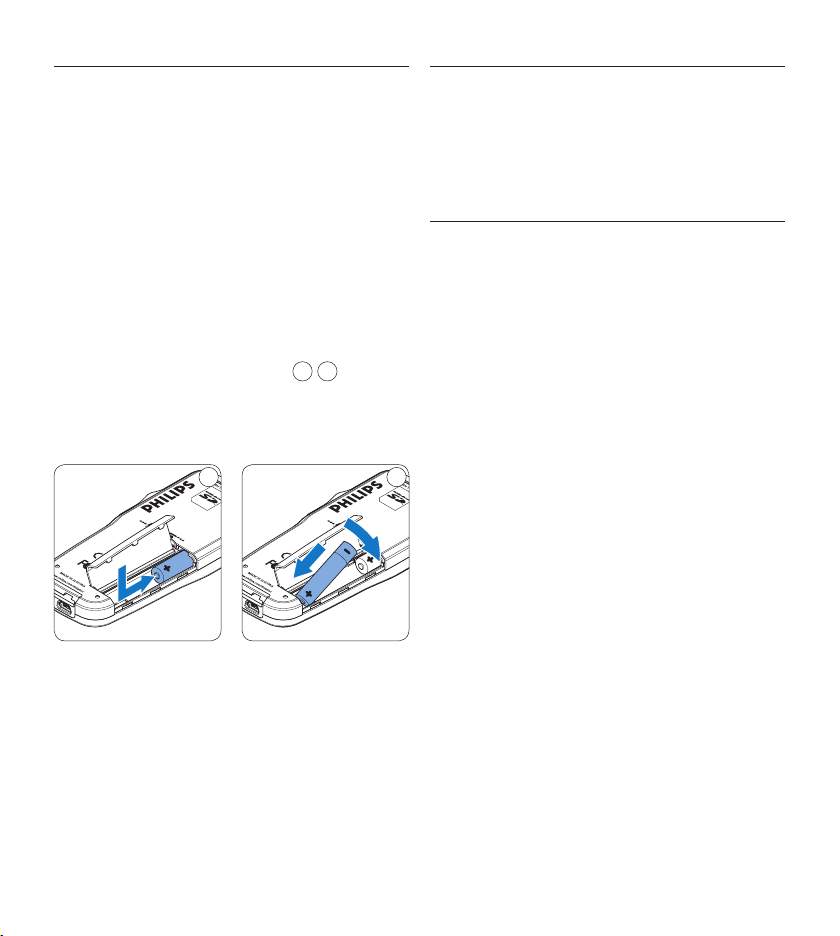
Install the batteries3.3
The Digital Pocket Memo can be operated with
the two rechargeable AAA batteries delivered
with the product. Standard (non-rechargeable)
AAA alkaline batteries may also be used.
The on/o switch of the Digital Pocket 1
Memo must be in the
OFF position.
Open the battery compartment on the back 2
side of the Digital Pocket Memo by sliding it
outwards then folding it up.
Insert the two AAA batteries. The correct 3
polarity is indicated on the inside of the
battery compartment cover.
1
2
Close the battery compartment by folding it 4
down and sliding the battery compartment
cover inward until it clicks.
21
D Note
Do not mix battery types! Use two rechargeable
batteries or two non-rechargeable alkaline
batteries.
9User manual
ENGLISH
Recharge the batteries through the 3.4.2
USB cable
When the Digital Pocket Memo is connected to
a PC or notebook computer with the supplied
USB cable, the rechargeable batteries are
automatically recharged. If the USB port on the
computer is high powered, a complete recharge
cycle takes about 2.5 hours.
D Note
The PC must be ON when charging battery via
the USB cable connection. The Digital Pocket
Memo may become warm during fast recharging.
C Important
If the USB port of the computer does not
supply enough power capacity (500 mA), disable
the USB quick charge function in the menu of the
Digital Pocket Memo and recharge the batteries
using the optional power supply.
Recharge the batteries using the 3.4.3
Philips power supply
Connect the Philips power supply to the 1
main power supply.
Connect the Digital Pocket Memo to the 2
Philips power supply.
D Note
It is okay to continue using the Digital Pocket
Memo during recharge. The batteries will be
recharged while you work, and will continue
recharging even when the Digital Pocket Memo
is turned o.
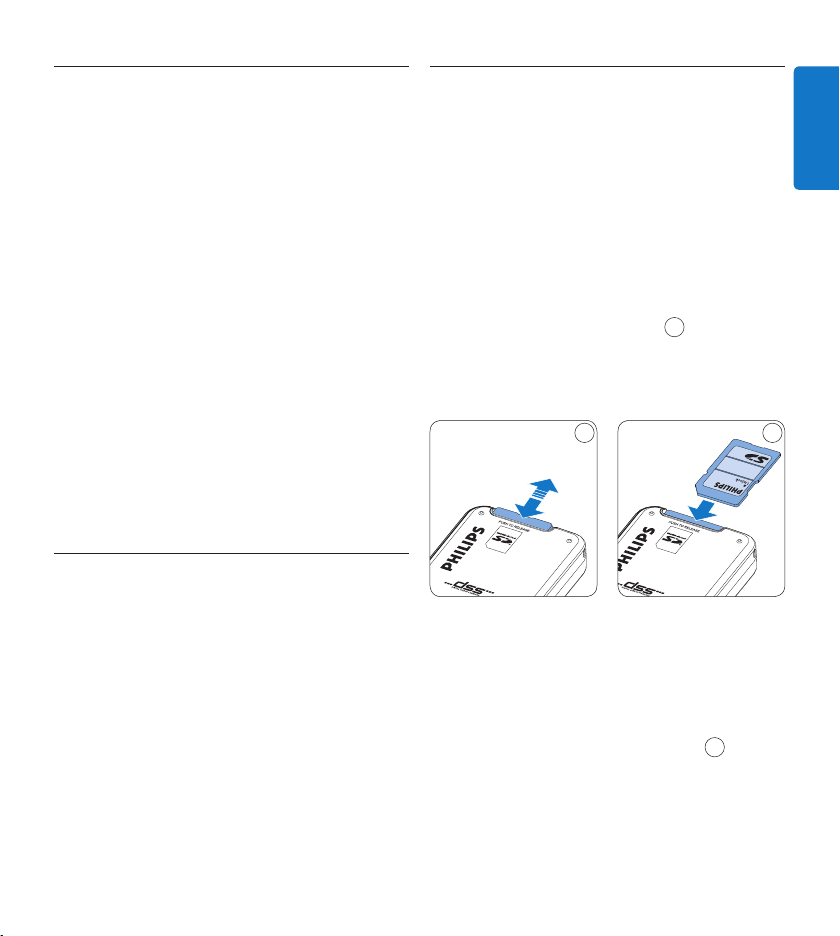
Insert and eject the memory card3.5
The Digital Pocket Memo operates with a SD
(SecureDigital) memory card and supports
SDHC cards with storage capacities of up to 32
GB. Your Digital Pocket Memo is packaged with
a memory card already inserted and formatted.
To eject the memory card:
Locate the memory card slot on the top 1
back side of the Digital Pocket Memo.
Press the memory card into the Digital 2
Pocket Memo until it clicks.
1
Release the memory card. It will slightly 3
emerge from the memory card slot. Simply
slide it out.
1 2
To insert a memory card:
Locate the memory card slot on the top 1
back side of the Digital Pocket Memo.
Slide the memory card into the slot. A small 2
illustration under the memory card slot
indicates the correct orientation.
2
Push the memory card in until it clicks.3
D Note
If the Digital Pocket Memo is turned to the
ON
position and there is no memory card inserted,
a warning screen is displayed.
10 User manual
Activate the Digital Pocket Memo3.7
The Digital Pocket Memo is turned on and o
by sliding the
ON/OFF switch. When using it for
the first time, you will be prompted to set the
language, date and time.
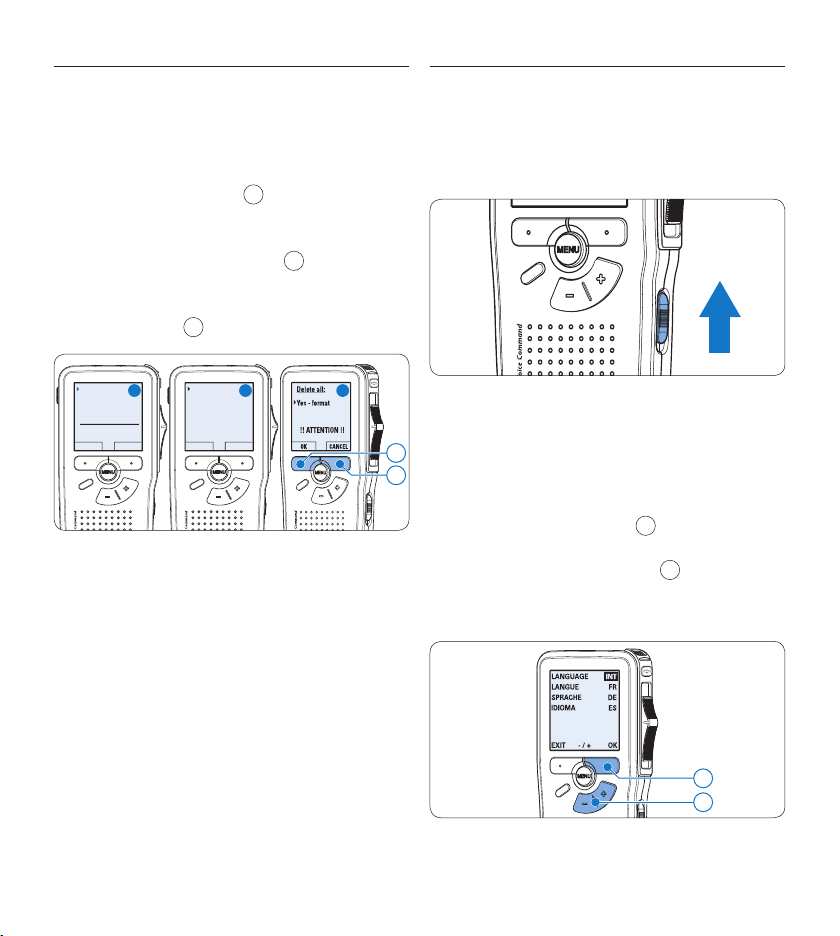
Set the language3.7.1
When using the Digital Pocket Memo for the
first time, you will be prompted to set the
language.
Press the 1 + or – button
1
on the Digital
Pocket Memo to select a language.
Press the 2
OK smart button
2
to confirm
the selection. The selected language will be
displayed.
2
1
Format a new memory card3.6
When a new, unformatted memory card (or a
memory card that was formatted with a non-
Digital Pocket Memo device) is inserted, the
Digital Pocket Memo will display a prompt to
format the memory card.
A
To confirm and start the formatting process, 1
press the
OK smart button
1
.
To cancel the formatting process, remove 2
the memory card or press the
CANCEL
smart button
2
.
Format memory
Volume
Font
Language
Delete all?
BACK ENTER
Delete all ?
All files
will be lost !
Yes -format
BACK ENTER
A B C
1
2
D Note
Formatting is not possible if the memory card is
in read-only mode (locked).
11User manual
ENGLISH
D Note
It is possible to change the language later using
the menu. See Menu settings on page 24 for
more information.
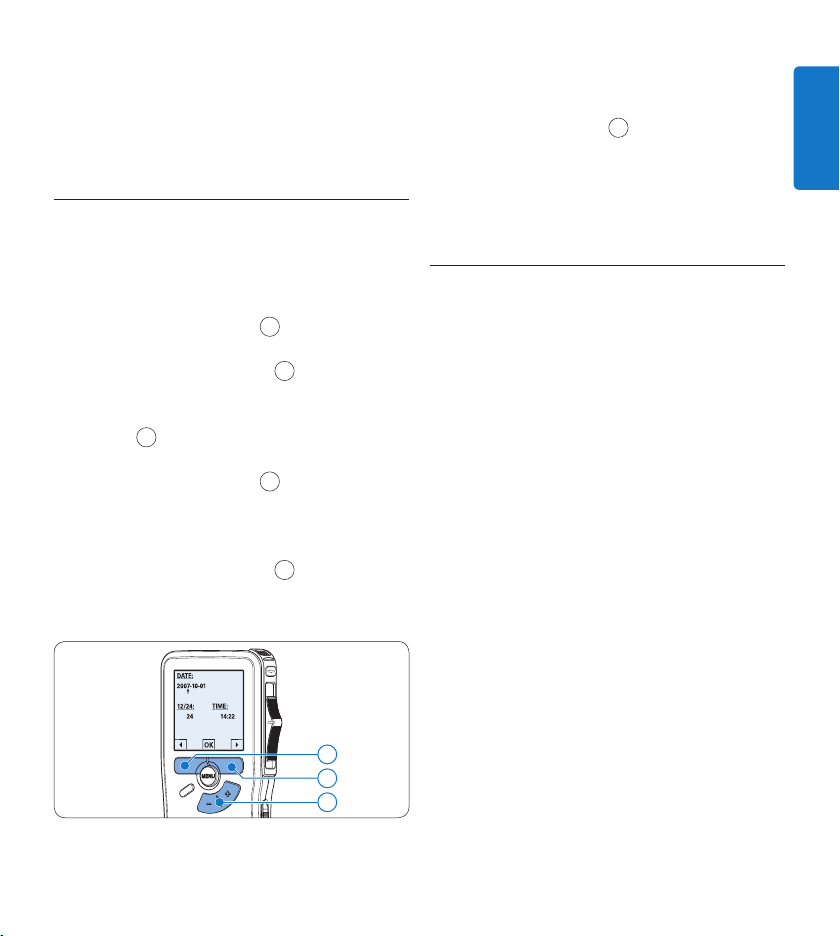
Set the date and time3.7.2
After selecting the user interface language, the
Digital Pocket Memo will prompt you to set the
current date and time.
Press the 1 + or – button
1
to change the
value for the year, month or day.
Press the 2 → smart button
2
to advance the
arrow (↑) to the next entry.
After setting the day, press the 3 → smart
button
2
to advance the settings to the
correct time.
Press the 4 + or – button
1
to select a
2-hour or 24-hour clock, AM or PM (if a
2-hour clock is selected), and to change
the value of the hour and minute settings.
Press the 5 → smart button
2
to confirm the
date and time. The Digital Pocket Memo is
now ready to function.
2
1
3
D Note
If a mistake is made in setting the date/time,
use the ← smart button
3
any time during the
procedure to step back to make corrections.
It is also possible to change the date and time
later using the menu. See Menu settings on page
24 for more information.
Power-save mode3.8
After 60 minutes of inactivity, the Digital Pocket
Memo automatically goes into power-save mode
and the LCD screen will display the date and
time. Press any button to reactivate it.
If the Digital Pocket Memo is not used for more
than two hours, it turns o completely. Turn the
unit on by moving the On/O switch to the OFF
position and then back to the ON position.
12 User manual
Use your Digital Pocket 4
Memo
Recording4.1
Create a recording4.1.1
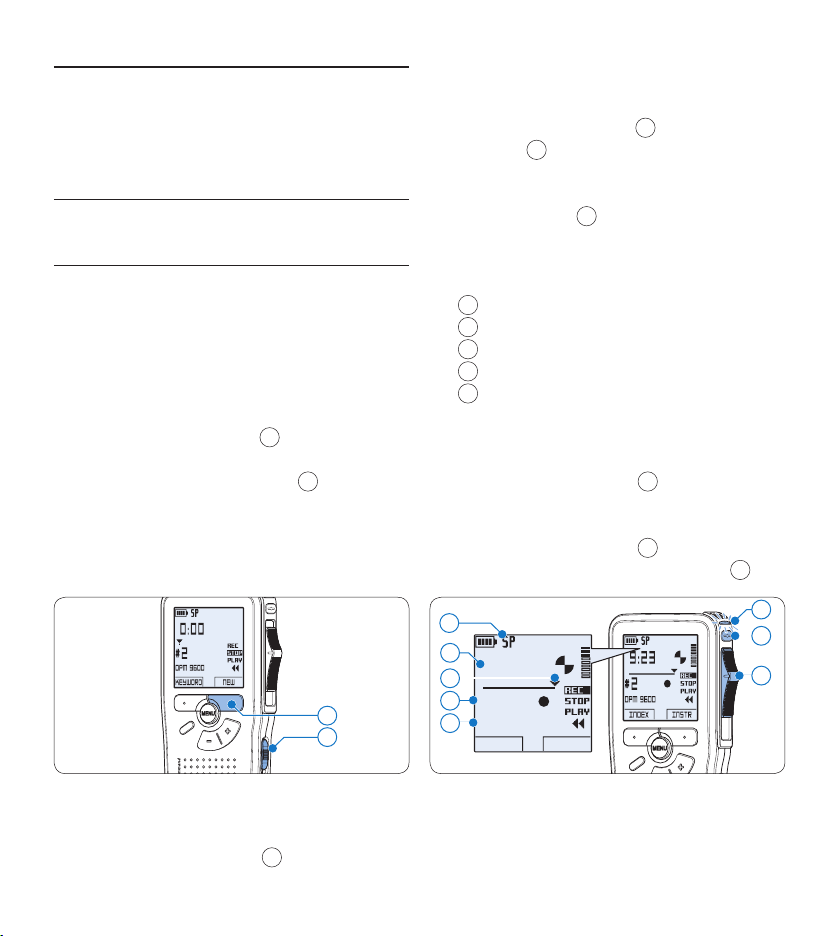
Follow these steps to create a recording with
the Digital Pocket Memo:
A memory card must be inserted into the 1
memory card slot. See Insert and eject the
memory card on page 9 for more information.
Slide the On/O switch 2
1
to the ON posi-
tion to switch on the Digital Pocket Memo.
Press the 3
NEW smart button
2
to create a
new recording.
D Note
The
NEW smart button is not displayed if
the current recording is empty.
2
1
To start recording:4
On the • Digital Pocket Memo 9600,
move the slide switch
4
to the REC
position and start speaking.
On the • Digital Pocket Memo 9620,
press the
REC button
3
, move the slide
switch
4
to the REC position and start
speaking.
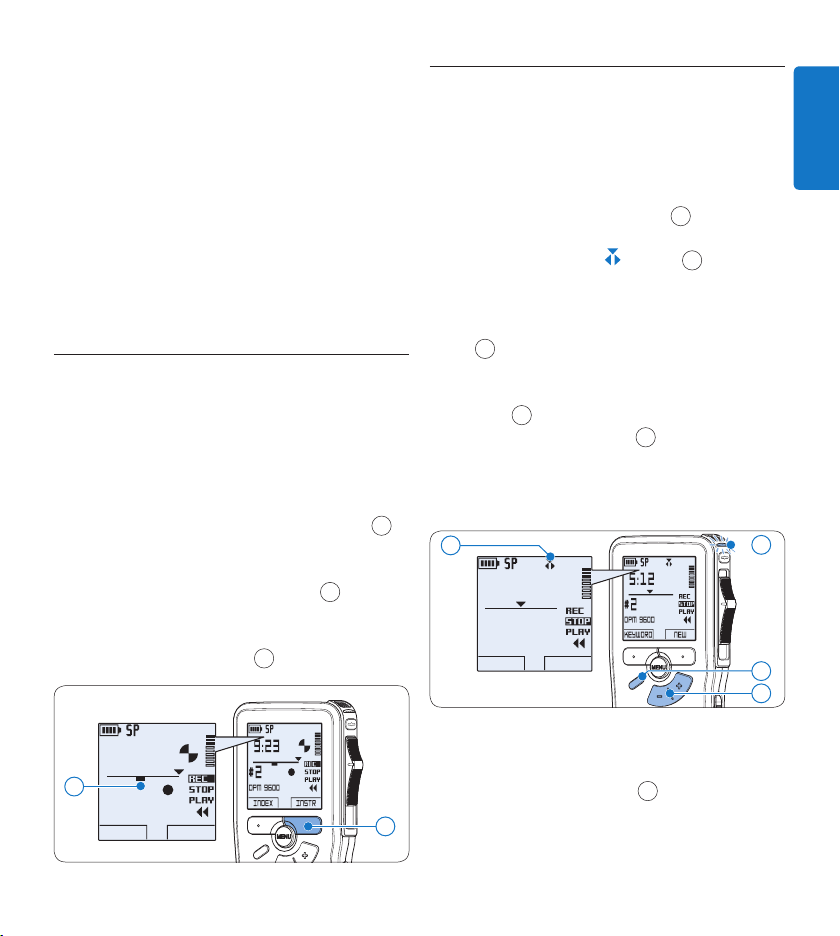
The status LED
5
glows in red (in
overwrite mode) or green (in insert mode)
while recording. The following information is
displayed:
a
Recording format
b
Recording time
c
Current position in the recording
d
File number
e
Keyword 1 (author name)
To stop recording:5
On the • Digital Pocket Memo 9600,
move the slide switch
4
to the STOP
position.
On the • Digital Pocket Memo 9620,
move the slide switch
4
to the RECP
position and press the
REC button
3
.
DPM 9600
INDEX INSTR
9:23
#2
5
b
4
c
3
d
e
a
D Note
For best results, speak clearly and keep •
the microphone about four inches (ten
13User manual
ENGLISH
centimeters) away from your mouth.
A beep will sound when the battery level •
drops below 10 % or the remaining recording
time reaches two minutes.
Press the •
INDEX smart button during
recording or playback to insert an index mark.
See Work with index marks on page 21 for
more information.
Press and hold the •
INSTR smart button during
recording to record a spoken instruction. See
the next chapter for more information.
Record a spoken instruction4.1.2
Spoken instructions are recorded comments
by the author that are directed to the person
transcribing the dictation.
To insert a spoken instruction into a dictation
file:
Press and hold the 1
INSTR smart button
1
while recording.
Dictate the instruction.2
Release the 3
INSTR smart button
1
when
the spoken instruction is complete. The
spoken instruction is displayed as a solid line
on the file position bar
a
.
DPM 9600
INDEX INSTR
9:23
#2
1
a
4.1.3 Add to a recording (insert/
overwrite)
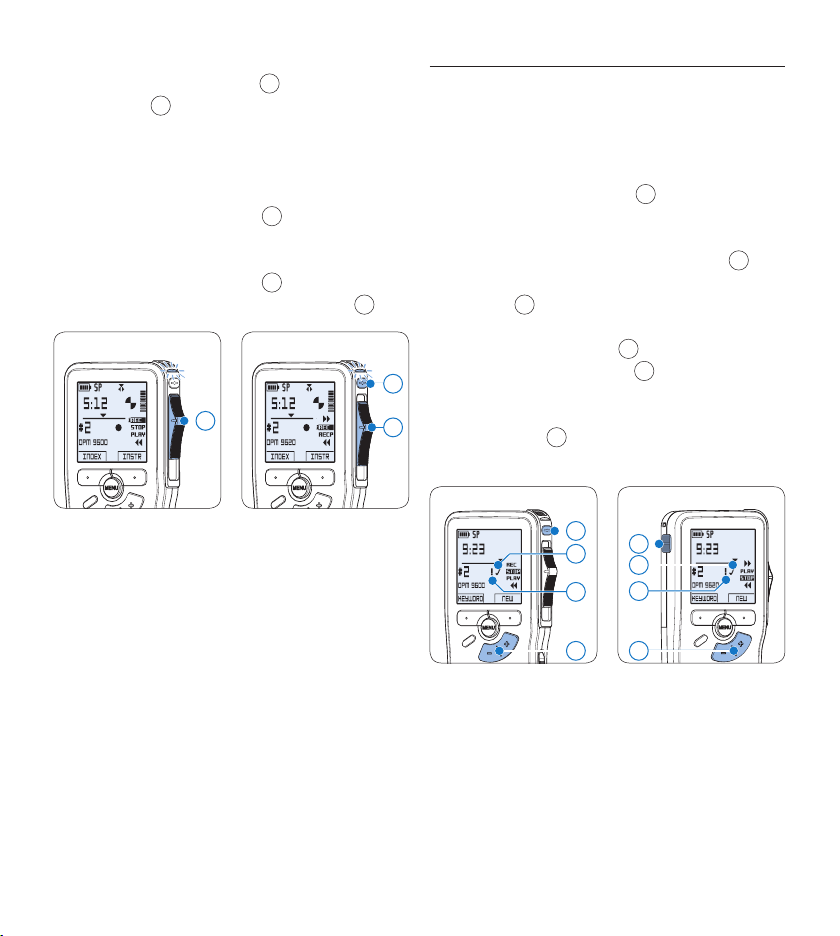
Files are recorded in overwrite mode by default.
Follow these steps to switch to insert mode to
make additions to a recording:
Press the 1
FUNCTION button
1
while
stopped to switch between insert or
overwrite mode. The
symbol
a
is
displayed when in insert mode.
In • insert mode, the record position of the
slide switch reads
iREC and the status LED
2
glows in green while recording.
In • overwrite mode, the record position of
the slide switch reads
REC and the status
LED
2
glows in red while recording.
Press the 2 + or – button
3
to select the file
into which the insertion should be made.
Play, forward or rewind to the position 3
where the insertion should be made.
DPM 9600
KEYWORD NEW
5:12
#2
a
3
1
2
To insert an additional recording:4
On the • Digital Pocket Memo 9600,
move the slide switch
4
to the iREC
position and start speaking. The insertion
will not overwrite the recording.
On the • Digital Pocket Memo 9620,
14 User manual
press the REC button
5
, move the slide
switch
4
to the iREC position and start
speaking. The insertion will not overwrite
the recording.
To end the inserted recording:5
On the • Digital Pocket Memo 9600,
move the slide switch
4
to the STOP
position.
On the • Digital Pocket Memo 9620,
move the slide switch
4
to the RECP
position and press the
REC button
5
.
Digital Pocket Memo 9600
4
4
5
Digital Pocket Memo 9620
If the recording is not finished, simply fast 6
forward to the end of the file and continue
recording.
Repeat from step 7 1 to return to overwrite
recording mode.
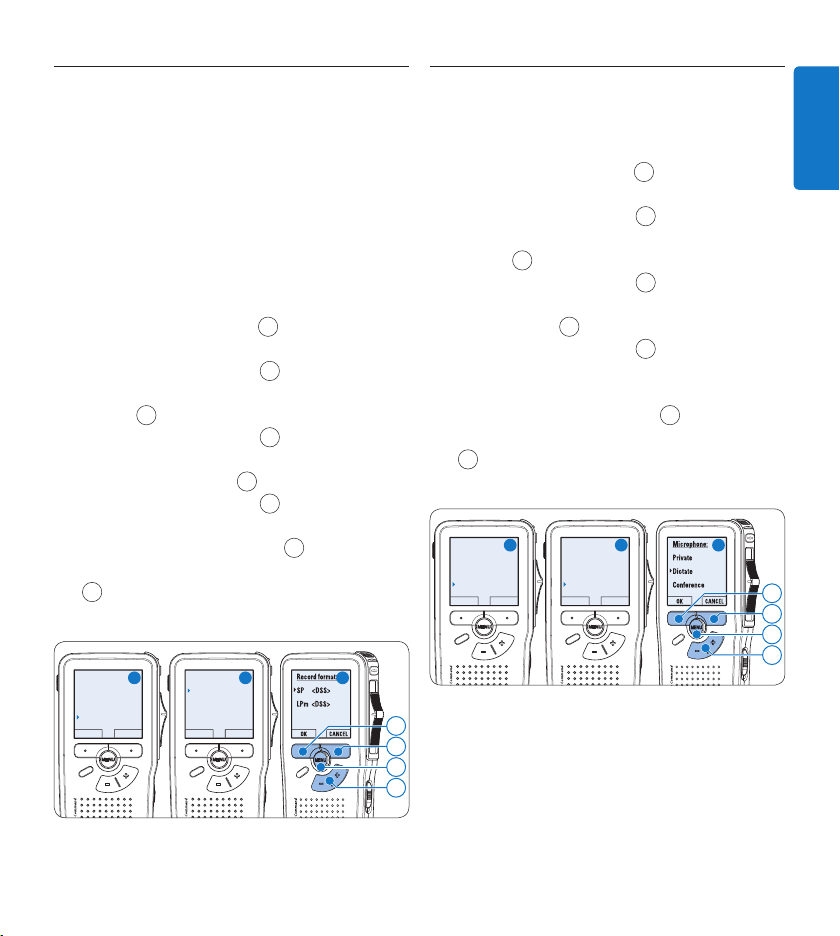
4.1.4 Finish (lock) a recording
When a recording is finished and no additional
changes will be made, follow these steps to
mark it as finished and protect it from being
accidentally deleted:
Press the 1 + or – button
1
while in the
stop position to select the recording to be
marked finished.
Press the end-of-letter (2
EOL) button
2
to
lock the file and mark it as finished. The
symbol
a
is displayed.
To assign priority status to the recording, 3
press the
EOL button
2
again within half
a second. The ! symbol
b
is displayed,
indicating that the file has priority status.
To make changes to the recording, press the 4
EOL button
2
again to remove the finished
mark.
Digital Pocket Memo 9600
2
b
a
1
2
b
a
Digital Pocket Memo 9620
1
E Tip
Philips SpeechExec software can be configured to
download only those files from the Digital Pocket
Memo to the PC that are marked finished.
C Caution
Locked files are deleted when the memory card
is formatted or the delete-all-dictations function
is used.
15User manual
ENGLISH
4.1.5 Change the recording format
The recording format determines the audio
quality of recordings and aects the number of
audio files that can fit on the memory card. The
Digital Pocket Memo supports the following
recording formats:
Quality Play (QP) requires 1 megabyte for 5 •
minutes of recording.
Standard Play (SP) requires 1 megabyte for 10 •
minutes of recording.
Press the 1
MENU button
1
while in the stop
position to open the menu.
Press the 2 + or – button
2
to select the
Setup menu item and press the
ENTER smart
button
3
.
Press the 3 + or – button
2
to select the
Record format menu item and press the
ENTER smart button
3
.
Press the 4 + or – button
2
to choose
between QP and SP.
Press the 5
OK smart button
4
to save the
setting or press the
CANCEL smart button
3
to exit the sub-menu without changing
the setting.
Delete dictation
Insert mode
Keywords
Setup
Language
BACK ENTER
Language
Record format
Voice activation
Backlight
SP <DSS>
BACK ENTER
4
3
1
2
A B C
4.1.6 Adjust the microphone sensitivity
Set the microphone sensitivity for the
environment and your recording preferences.
Press the 1
MENU button
1
while in the stop
position to open the menu.
Press the 2 + or – button
2
to select the
Setup menu item and press the
ENTER smart
button
3
.
Press the 3 + or – button
2
to select the
Microphone menu item and press the
ENTER
smart button
3
.
Press the 4 + or – button
2
to choose the
microphone sensitivity: Private (low), Dictate
(medium) and Conference (high).
Press the 5
OK smart button
4
to save the
setting or press the
CANCEL smart button
3
to exit the sub-menu without changing
the setting.
Delete dictation
Insert mode
Keywords
Setup
Language
BACK ENTER
Record lamp
Contrast
Device beep
Microphone
Dictate
BACK ENTER
4
3
1
2
A B C
16 User manual
Playback4.2
Press the 1 + or – button
1
while in the stop
position to select the file to play and locate
the beginning of the recording.
Move the slide switch 2
2
to the PLAY
position to start playback.
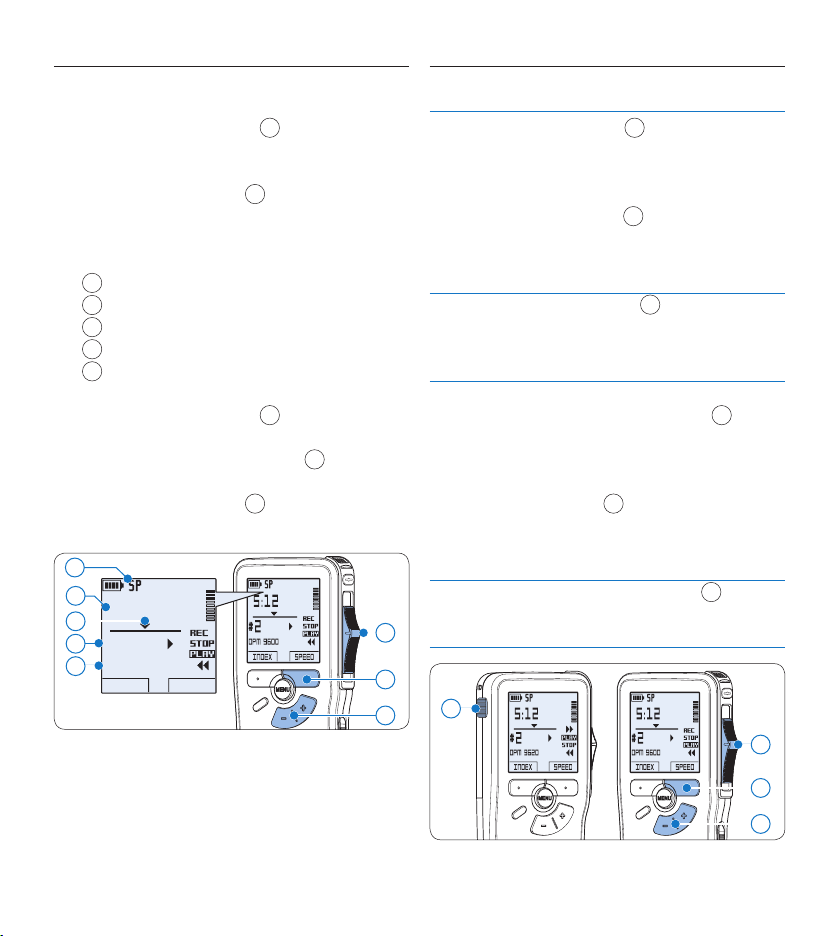
The following information is displayed:
a
Recording format
b
Playback position (minutes : seconds)
c
Current position in the recording
d
File number
e
Keyword 1 (author name)
Press the 3 + or – button
1
to adjust the
playback volume during playback.
Press the 4
SPEED smart button
3
to adjust
faster or slower file playback.
Move the slide switch 5
2
to the STOP
position to stop playback.
DPM 9600
INDEX SPEED
5:12
#2
b
2
c
3
d
e
a
1
Overview of playback functions4.2.1
File
selection
Press the + button
1
once while in the
stop position to skip to the end of a file.
Press the + button again to skip to the
beginning of the next file.
Press the – button
1
once while in the
stop position to skip to the beginning of a
file. Press the – button again to skip to the
end of the previous file.
Fast
rewind
Move the slide switch
2
to the ┤ position.
Move the slide switch to the STOP position
to stop rewinding or the PLAY position to
stop rewinding and begin playback.
Fast
forward
On the Digital Pocket Memo 9600,
press and hold the FWD button
3
while
in the stop or play position. Release the
FWD button to stop forwarding.
On the Digital Pocket Memo 9620, move
the slide switch
2
to the ┢ position.
Move the slide switch to the STOP position
to stop forwarding or the PLAY position to
stop forwarding and begin playback.
Playback
speed
Press the SPEED smart button
4
during
playback to adjust faster or slower file
playback.
1
2
4
3
17User manual
ENGLISH
Delete4.3
D Note
Before deleting a file, make sure that it is not
marked finished and that the memory card is not
set to read-only (locked). If the file is marked fin-
ished, unlock it by pressing the
EOL button once.
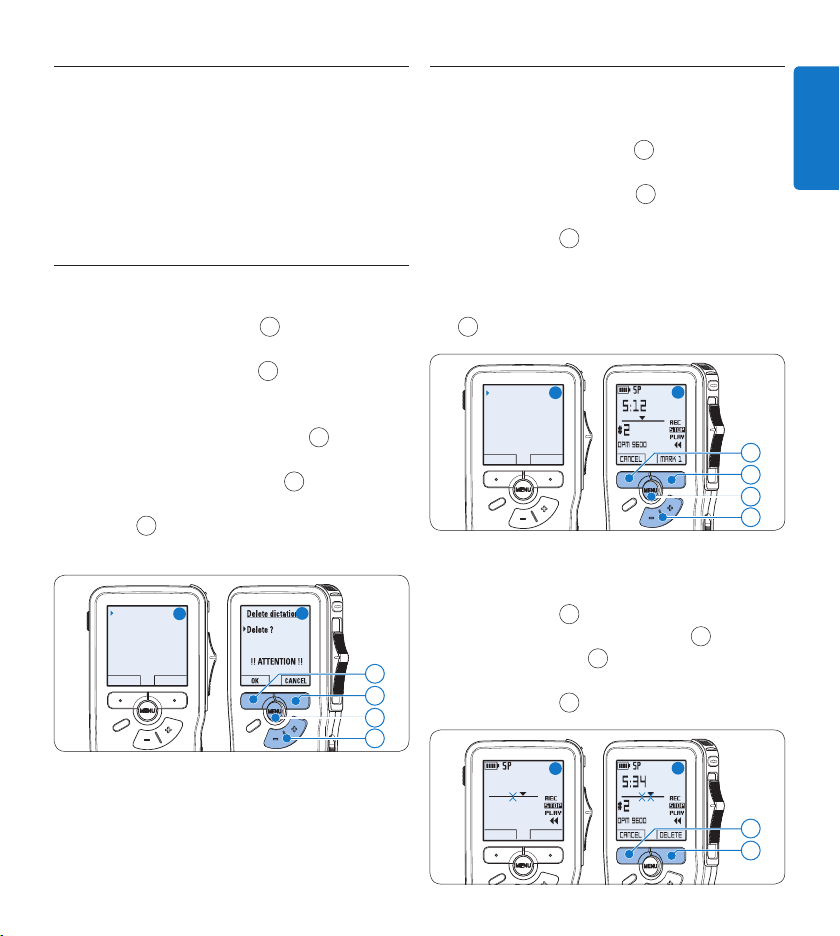
4.3.1 Delete a file
Follow these steps to delete a file entirely:
Press the 1 + or – button
1
while in the stop
position to select the file to be deleted.
Press the 2
MENU button
2
to open the
menu. The Delete dictation
menu item is
selected.
Press the 3
ENTER smart button
3
to enter
the sub menu.
Press the 4
OK smart button
4
to delete the
file permanently. Press the
CANCEL smart
button
3
to cancel the operation and leave
the recording intact.
Delete dictation
Insert mode
Keywords
Setup
Delete ?
BACK ENTER
4
3
2
A
B
1
4.3.2 Delete part of a recording
Follow these steps to delete a section from a
recording:
Press the 1
MENU button
1
while in the stop
position to open the menu.
Press the 2 + or – button
2
to select the
Delete section menu item and press the
OK
smart button
3
.
Using the play, forward or rewind functions, 3
navigate to the beginning of the section to
be deleted. Press the
MARK smart button
4
. A cross symbol appears on the screen.
Delete section
Delete dictation
Priority high
Index set
OK CANCEL
3
4
1
A
B
2
Navigate to the second mark position using 4
playback, forward or rewind. Press the
MARK 2
smart button
5
. The second cross appears.
Press the 5
DELETE smart button
5
and the
OK smart button
6
to confirm the deletion
of the marked section, or press the
CANCEL
smart button
5
to exit without deleting.
DPM 9600
CANCEL MARK 2
5:34
#2
6
5
C
D
18 User manual
4.3.3 Delete all dictations
C Caution
Files marked finished (EOL) are deleted when
the delete-all-dictations function is used.
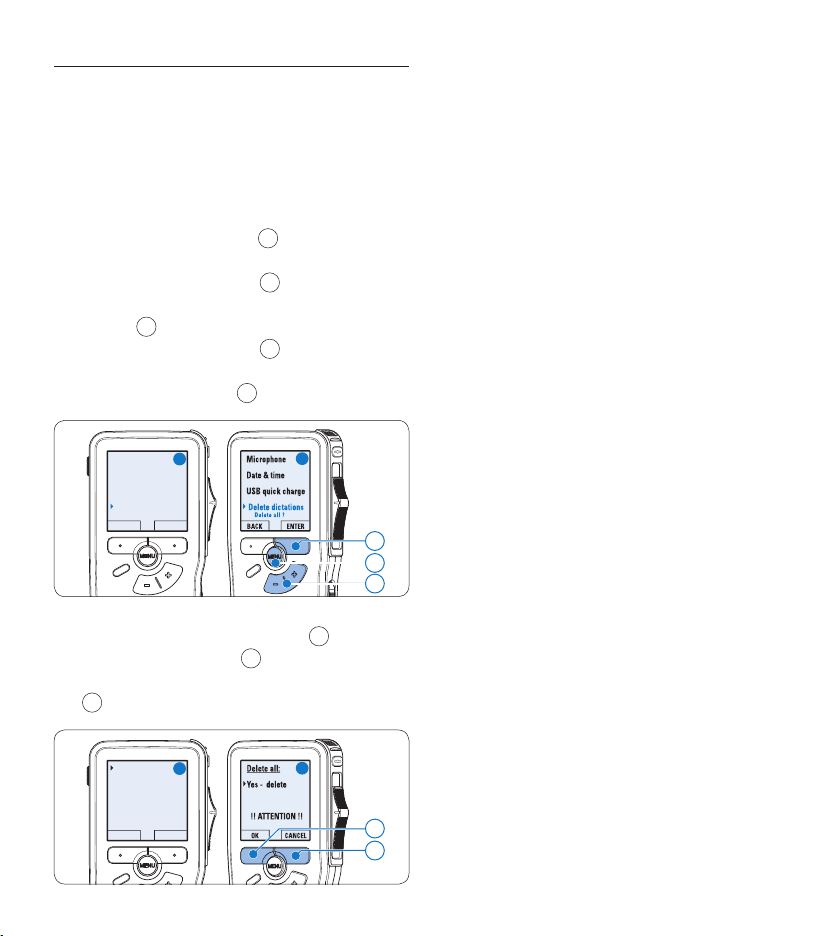
Follow these steps to delete all recordings:
Press the 1
MENU button
1
while in the stop
position to open the menu.
Press the 2 + or – button
2
to select the
Setup menu item and press the
ENTER smart
button
3
.
Press the 3 + or – button
2
to select the
Delete dictations menu item and press the
ENTER smart button
3
.
Delete dictation
Insert mode
Keywords
Setup
Language
BACK ENTER
3
1
A
B
2
Press the 4 ENTER smart button
4
and
the
OK smart button
5
to confirm the
deletion, or press the
CANCEL smart button
4
to exit without deleting.
Delete all ?
All dictations
will be lost !
Yes - delete
BACK ENTER
5
4
C
D
19User manual
ENGLISH
Use more of your Digital 5
Pocket Memo
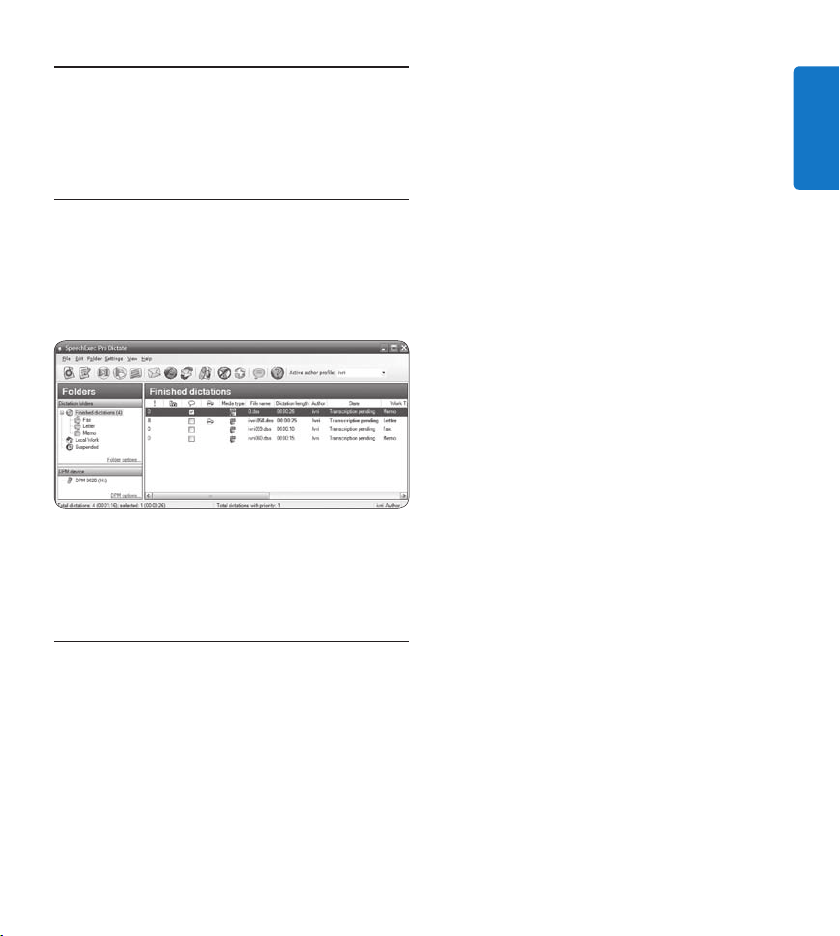
Use Philips SpeechExec software5.1
Philips SpeechExec software can be used for
advanced configuration of the Digital Pocket
Memo, automatic download, conversion and
routing of dictation files.
D Note
For detailed information about SpeechExec
software, refer to the SpeechExec user manual.
Advanced configuration5.1.1
The Digital Pocket Memo Configuration
Wizard is part of the Philips SpeechExec Pro
Dictate software. It guides users through the
device configurations and settings of the Digital
Pocket Memo. The wizard assists in configuring
time format, sound feedback, voice-activated
recording, display appearance (standard or
advanced display mode), recording format,
microphone sensitivity, keywords, and file
download to the PC.
Connect the Digital Pocket Memo to the PC 1
using a USB cable.
Start 2 Philips SpeechExec Pro Dictate software.
Click 3
Settings > General settings on the menu
bar of SpeechExec to open the settings
menu and select
DPM/DT Configuration > DPM
Wizard
from the list on the left side.
Click the 4
Start Wizard… button to open the
wizard. Follow the on-screen instructions to
customize the Digital Pocket Memo.
Click the 5
Finish button to close the wizard
and confirm the transfer of the new settings
to the Digital Pocket Memo.
D Note
When the Digital Pocket Memo is connected
to the PC for the first time, Windows detects
the new hardware and automatically installs
the required drivers. When the installation is
complete, Windows may prompt you to restart
the PC.

20 User manual
Download recordings to the PC5.1.2
With USB mass storage support, the Digital
Pocket Memo is automatically displayed as an
external drive when it is connected to the
computer. It can then be accessed easily with
any Microsoft Windows program as a regular
drive.
Use Philips SpeechExec software for automatic
download, conversion, and routing of files.
Make a recording with the Digital Pocket 1
Memo.
Start 2 Philips SpeechExec Pro Dictate software.
Connect the Digital Pocket Memo to the 3
PC using the USB cable or the USB docking
station.
By default, the recordings on the Digital 4
Pocket Memo will be downloaded
automatically to the PC and moved to the
Finished dictations folder of the work list.
D Note
How and which files are downloaded after
a Digital Pocket Memo is connected can be
configured in the settings menu of SpeechExec
or with the Configuration Wizard.
Use voice-activated recording5.2
Voice-activated recording is a convenience feature
for hands-free recording. When voice-activated
recording is enabled, recording will start when
you begin speaking. When you stop speaking,
the Digital Pocket Memo will automatically
pause recording after three seconds of silence,
and resume only when you begin speaking again.
Press the 1
MENU button
1
while in the stop
position to open the menu.
Press the 2 + or – button
2
to select the
Setup menu item and press the
ENTER smart
button
3
.
Press the 3 + or – button
2
to select the
Voice activation menu item and press the
ENTER smart button
3
.
Press the 4 + or – button
2
to choose O
or On.
Press the 5
OK smart button
4
to save the
setting or press the
CANCEL smart button
3
to exit the sub-menu without changing
the setting.
Delete dictation
Insert mode
Keywords
Setup
Language
BACK ENTER
Language
Record format
Voice activation
Backlight
Off
BACK ENTER
4
3
1
2
A B C
To start recording:6
On the • Digital Pocket Memo 9600,
move the slide switch
6
to the REC

21User manual
ENGLISH
position and start speaking.
On the • Digital Pocket Memo 9620,
press the
REC button
5
, move the slide
switch
6
to the REC position and start
speaking.
The status LED
7
glows in red (in
overwrite mode) or green (in insert mode)
while recording. When the sound level
drops below the threshold sound level
a
,
recording pauses after three seconds and
the status LED flashes.
Press the 7 + or – button
8
to adjust the
threshold sound level
a
while recording.
To stop recording:8
On the • Digital Pocket Memo 9600,
move the slide switch
6
to the STOP
position.
On the • Digital Pocket Memo 9620,
move the slide switch
6
to the RECP
position and press the
REC button
5
.
DPM 9600
INDEX INSTR
9:23
#2
5
6
7
a
8
Work with index marks5.3
Index marks can be used to mark certain points
in a recording as points of reference. A point
of reference may be the beginning of a major
section, or a part of the recording that you may
want to revise later or access quickly.
Insert an index mark5.3.1
Press the 1
INDEX smart button
1
during
recording or playback to insert an index
mark
a
. The index number is displayed for
two seconds.
DPM 9600
INDEX INSTR
9:23
INDEX 1
1
a
Delete an index mark5.3.2
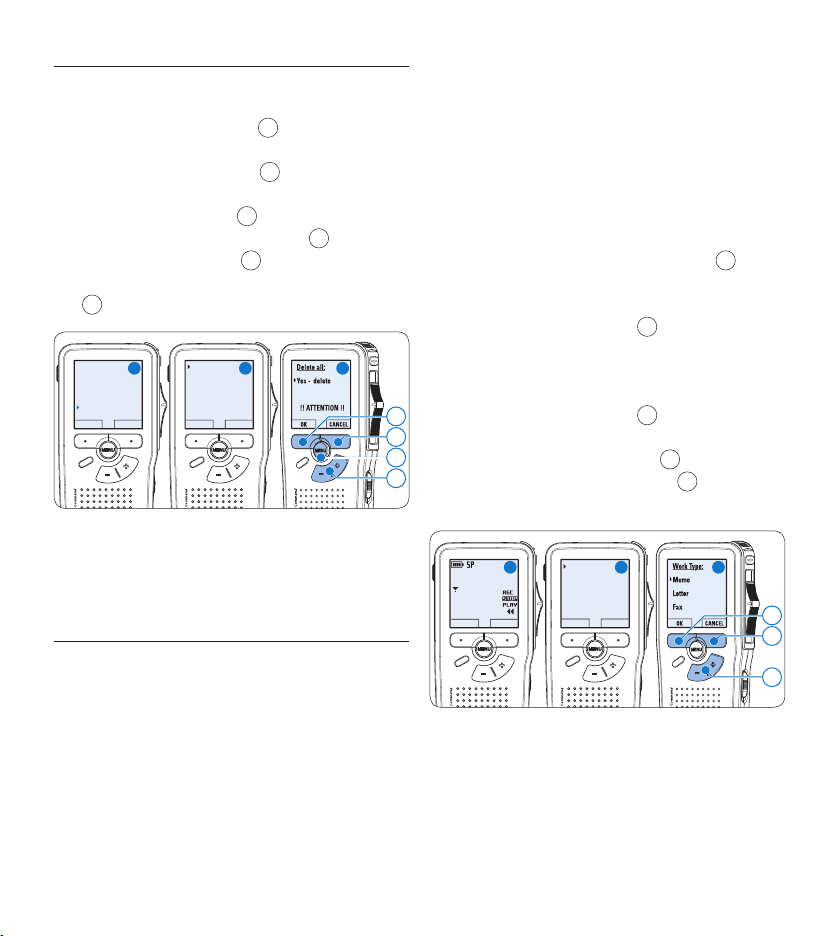
Play, fast forward or fast rewind to the index 1
mark to be deleted
a
.
Press the 2
MENU button
1
while in the stop
position to open the menu.
Press the 3 + or – button
2
to select the
Index clear menu and press the
OK smart
button
3
.
DPM 9600
KEYWORD NEW
6:32
#2
3
1
A
B
2
a
22 User manual
5.3.3 Delete all index marks
Press the 1
MENU button
1
while in the stop
position to open the menu.
Press the 2 + or – button
2
to select the
Delete indices menu item and press the
ENTER smart button
3
.
Press the 3
ENTER smart button
3
and
the
OK smart button
4
to confirm the
deletion, or press the
CANCEL smart button
3
to exit without deleting.
Insert mode
Keywords
Setup
Delete indices
Delete all ?
BACK ENTER
Delete all ?
All indices
will be lost !
Yes - delete
BACK ENTER
4
3
1
2
A B C
D Note
The Delete Indices menu item is available only if
the current file has at least one index mark.
Assign a keyword5.4
One or more keywords, such as the author’s
name, can be assigned to every recording.
Keywords can be used to identify recordings
and automatic file routing in Philips SpeechExec
software.
D Note
Keywords must first be set up with Philips
Speech Exec software. See Advanced configuration
on page 19 for more information. By default,
the keyword category Author with the keywords
‘DPM 9600’ and ‘- - -’ (empty) and the category
Work type with the keywords ‘Memo’, ‘Letter’,
‘Fax’ and ‘Report’ are available on the Digital
Pocket Memo.
To assign a keyword to a recording:
Press the 1
KEYWORD smart button
1
while
in the stop position to display the list of
keyword categories.
Press the 2 + or − button
2
to select a
category.
Press the 3
ENTER smart button to display the
list of keywords for the category.
Press the 4 + or − button
2
to select a
keyword.
Press the 5
OK smart button
4
to confirm
or the
CANCEL smart button
3
to exit
without assigning a keyword.
Work Type
Author
BACK ENTER
DPM 9600
KEYWORD NEW
0:00
#2
1
3
2
A B C

23User manual
ENGLISH
5.5 Use Voice Command
Voice Command allows to add keywords to
dictation files by speaking them.
D Note
The Voice Command feature must be enabled
with Philips SpeechExec or the software
application of your system integrator and the
proper configuration (keywords, codes to use)
and settings must have been transferred to the
Digital Pocket Memo. See Advanced configuration
on page 19 for more information.
Voice command training5.5.1
The voice recognition engine of the Digital
Pocket Memo must be trained to recognize your
voice and way of speaking. You can quickly train
the Digital Pocket Memo to recognize individual
numbers and letters of the alphabet, as well as
keywords. The training process takes only a few
minutes.
Follow these steps to train the Digital Pocket
Memo:
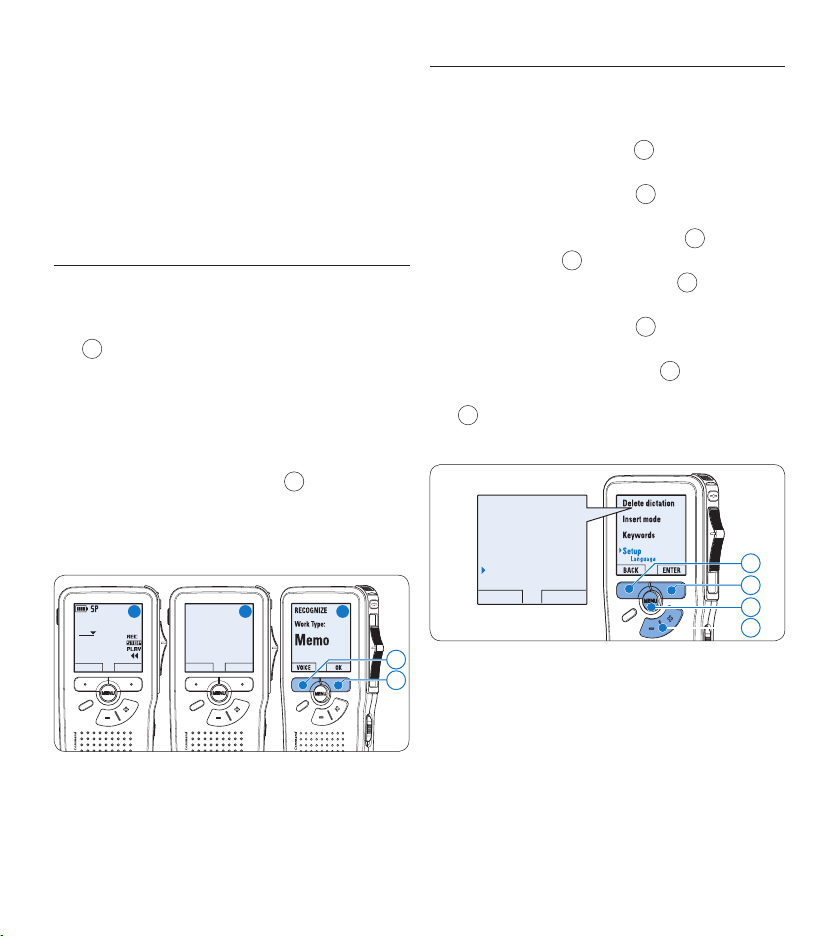
Press the 1
MENU button
1
while in the stop
position to open the menu.
Press the 2 + or – button
2
to select the
Setup menu item and press the
ENTER smart
button
3
.
Press the 3 + or – button
2
to select the
Voice cmd traing menu item and press the
ENTER smart button
3
.
D Note
The voice command setting must be acti-
vated in Philips SpeechExec or the software
application of your system integrator for this
option to appear in the menu.
The first keyword is displayed. Press and 4
hold the
VOICE smart button
4
and say the
keyword. Release the
VOICE smart button
when the status LED
5
glows in green.
Press the + button to skip training the
current item and continue to the next.
The Digital Pocket Memo will prompt you 5
to repeat the word. Press and hold the
VOICE smart button
4
and say the keyword
again. Release the
VOICE smart button when
the status LED
5
glows in green (training
was successful) or red (training was not
successful). If the training was successful,
the Digital Pocket Memo will automatically
advance to the next keyword. Repeat from
step 4 until you have trained all keywords.
Delete dictation
Insert mode
Keywords
Setup
Language
BACK ENTER
USB chick charge
Delete dictations
Format memory
Voice cmd traing
BACK ENTER
4
3
1
2
A B C
5
D Note
If you have configured Voice Command to use
alphanumeric characters, the training procedure
starts with with numbers (0-9), followed by
letters (A-Z), then special characters. For
recognition of letters, say the word for each
letter, such as “alpha” for A, “bravo” for B and
so on.
24 User manual
E Tip
Voice recognition performance can be adversely
aected by background noise during training,
or words that sound similar, such as “four”
and “door”. The Digital Pocket Memo may
prompt you to repeat the training procedure to
guarantee reliable voice recognition.
Enter keywords using voice command5.5.2
Press and hold the 1
VOICE smart button
1
while stopped to activate the keyword
recognition mode.
Say the keyword or the word for the next 2
character. If the word is recognized, the cor-
responding keyword or character is displayed.
Release the 3
VOICE smart button.
Press the 4
OK smart button
2
to accept
the keyword and assign it to the current
recording, or repeat from step 1 to modify
the keyword.
RECOGNIZE
Work Type:
VOICE CANCEL
DPM0002.DSS
VOICE NEW
2:36
#2
1
2
A B C
D Note
A keyword can have a maximum of 15
characters. For more than 7 characters, the
character size will be reduced to fit the display.
Menu settings5.6
To access the Digital Pocket Memo menu:
Press the 1
MENU button
1
while in the stop
position to open the menu.
Press the 2 + or – button
2
to select the
next/previous menu item.
Press the 3
ENTER smart button
3
or the
MENU button
1
to enter a sub-menu.
Press the
BACK smart button
4
to exit the
menu.
Press the 4 + or – button
2
to select a
function.
Press the 5
OK smart button
4
to confirm
a selection or the
CANCEL smart button
3
to exit a sub-menu without changing a
setting.
Delete dictation
Insert mode
Keywords
Setup
Language
BACK ENTER
4
3
1
2
Menu list5.6.1
D Note
Some settings, such as defining keywords or •
switching to the simple display mode, are
available only through Philips SpeechExec Pro
Dictate. See Advanced configuration on page 19
for more information.
Press and hold the •
MENU button for a few
25User manual
ENGLISH
seconds to access additional information
about files, the device, and the memory card.
Press the MENU button
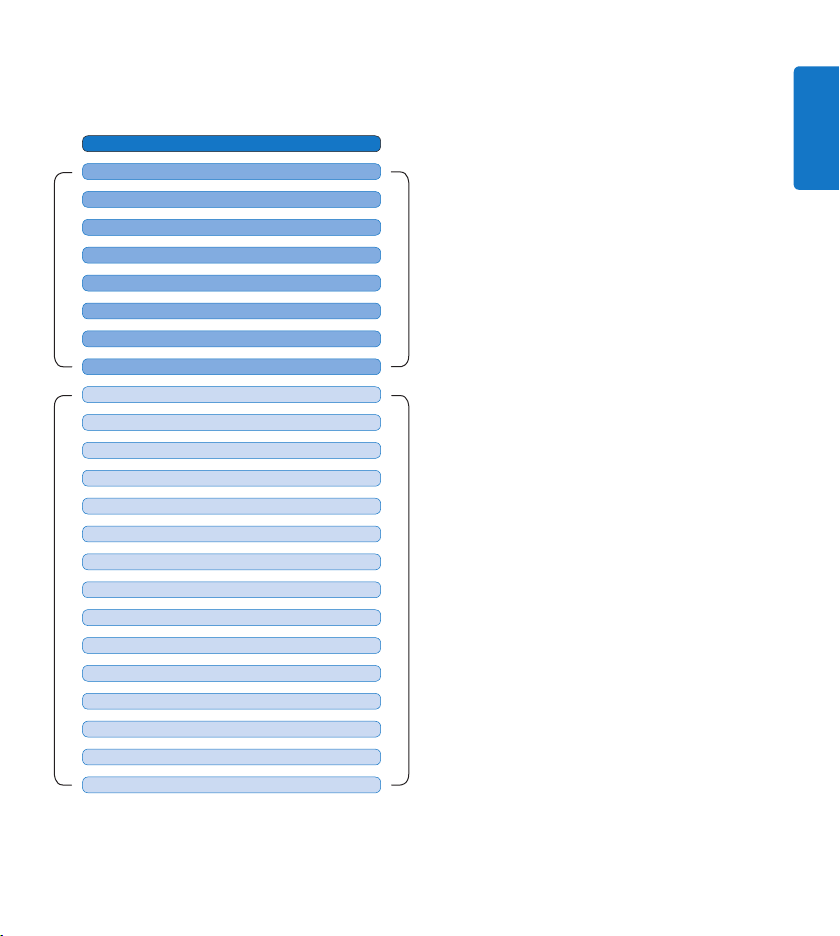
DELETE DICTATION (see 4.3.1 page 17)
INDEX SET / CLEAR (see 5.3 page 21)
PRIORITY HIGH / NORMAL (see 4.1.4 page 14)
INSERT MODE (see 4.1.3 page 13)
DELETE SECTION (see 4.3.2 page 17)
DELETE ALL INDICES (see 5.3.3 page 22)
SETUP
VOICE ACTIVATION (see 5.2 page 20)
LANGUAGE (see 3.7.1 page 10)
BACKLIGHT (OFF / 8 s / 20 s)
LCD CONTRAST
RECORD LAMP ON / OFF
DEVICE BEEP ON / OFF
USB QUICK CHARGE ON / OFF
MICROPHONE SENSITIVITY (see 4.1.6 page 15)
FORMAT MEMORY (see 3.6 page 10)
PLAYBACK VOLUME
VOICE COMMAND TRAINING (see 5.5 page 23)
KEYWORDS (see 5.4 page 22)
RECORD FORMAT (see 4.1.5 page 15)
DATE & TIME (see 3.7.2 page 11)
DELETE ALL DICTATIONS (see 4.3.3 page 18)
MAIN MENU
SETUP MENU
DEVICE FONT (MODERN / CLASSIC)

26 User manual
Connectivity
Docking connector: 8 pin female•
USB: Mini-USB 2.0 female (full •
speed, 12 Mbit/s)
DC in: 6 V•
Microphone: 3.5 mm, impedance •
2 k
Earphone: 3.5 mm, impedance 8 •
or more
Memory card: Secure Digital •
(SD)/Multimedia (MMC)
Display
Type: TFT-Transreflective•
Diagonal screen size: 44 mm / •
1.71 “
Resolution: 128 x 128 pixels•
Backlight colour: White•
Recording format
.dss / .dss Pro (Digital Speech •
Standard)
Recording modes
Quality Play mode (QP)•
Standard Play mode (SP)•
Technical data6
Recording media
Memory: Secure Digital (SD) / •
MMC: up to 32 GB
Recording time (QP / SP): •
21 / 44 hours with 256 MB card
Sampling frequency
QP mode: 16 kHz•
SP mode: 12 kHz•
Compression rate
QP mode: 26 kbit/s•
SP mode: 13.5 kbit/s•
Speaker
Built-in 30 mm round dynamic •
speaker
Output power: 200 mW•
Power
Battery type: two Philips AAA •
Ni-MH rechargeable batteries
(LFH 9154) or two AAA
batteries (LR03 or R03)
Power supply (optional): 6 V DC •
/ 850 mA
Battery life (SP mode)
21 hours with Philips Ni-MH •
rechargeable battery
19 hours with Philips alkaline •
battery
Green Specifications
Compliant to 2002/95/EC (RoHS)•
Lead-free soldered product•
Operation conditions
Temperature: 5° – 45° C / •
41° – 113° F
Humidity: 10 % – 90 %•
Specifications
Product dimensions (W × D × H): •
50 × 116 × 17 mm / 2.0 × 4.6 × 0.7 "
Weight: 106 g / 3.7 oz including •
batteries
Optional accessories
LAN Docking Station 9160•
Barcode module 9294•
Rechargeable batteries 9154•
Power supply 9146•
Philips Secure Digital (SD) •
memory card
Headphones 334•
Disclaimer and Notices
Philips performs extensive testing with the most popular configurations. However, since PC add-ons and device
drivers are updated continually, conflict-free operation cannot be guaranteed.
Declaration of Conformity
Tested to comply with FCC standards
FOR HOME OR OFFICE USE
Model Number: LFH9600 / LFH9620
Trade Name: Philips Digital Pocket Memo 9600 / 9620
Responsible Party: Philips Speech Processing
Address: 64 Perimeter Center East, Atlanta, GA 30346, USA
Telephone number: 888-260-6261
Website: www.philips.com/dictation
This device complies with Part 5 of the FCC Rules. Operation is subject to the following two conditions:
) This device may not cause harmful interference.
2) This device must accept any interference received, including interference that may cause undesired operation.
The CE mark confirms that the device corresponds to the relevant guidelines of the
European Union.
The cardboard used for packaging can be recycled. This electronic device contains
recyclable material.

Specifications are subject to change without notice.
Trademarks are the property of Royal Philips Electronics or their respective owners.
© 2010 Royal Philips Electronics. All rights reserved.
Document Version 3.2, 22/01/2010.
5103 109 9661.4
Discover the comprehensive range of high-end dictation products from Philips
www.philips.com/dictation