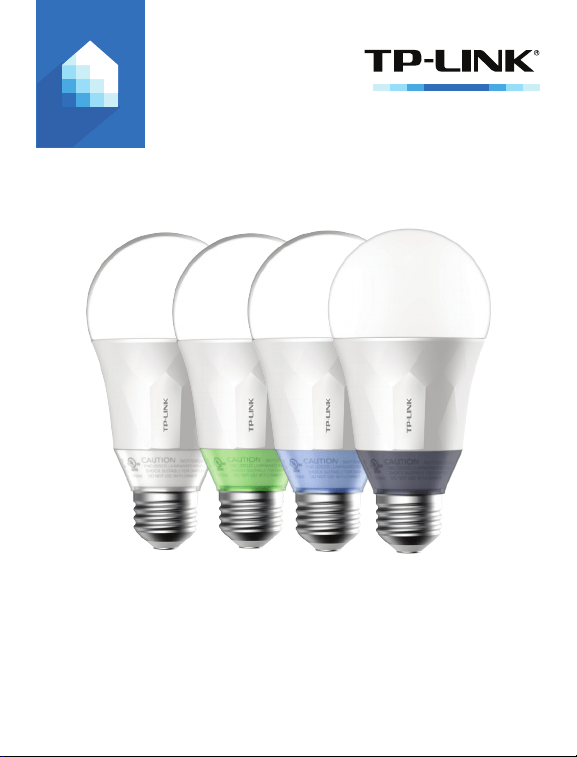
User’s Manual
LB1XX Series
1910011878 REV 1.0.0
Smart Wi-Fi LED Bulbs
Copyright & Trademarks
Specications are subject to change without notice. is
a registered trademark of TP-LINK TECHNOLOGIES CO., LTD. Other
brands and product names are trademarks or registered trademarks
of their respective holders.
No part of the specications may be reproduced in any form or
by any means or used to make any derivative such as translation,
transformation, or adaptation without permission from TP-LINK
TECHNOLOGIES CO., LTD.
Apple and App Store are trademarks of Apple Inc., registered in the
U.S. and other countries.
Android and the Google Play logo are trademarks of Google Inc.
© 2016 TP-LINK. All rights reserved.
www.tp-link.com

5 Introduction
5 Product Requirements
6 Important Safety Information
7 Smart Wi-Fi LED Bulb Installation
9 Using Kasa with Smart Wi-Fi LED Bulbs
9 Kasa Account
10 Kasa Settings
11 Kasa Controls
12 Customizing Smart Wi-Fi LED Bulbs
14 Tunable White
15 Adjustment of Brightness
16 Coloring your room
17 Circadian Mode
18 Scheduling
20 Energy Monitoring
21 Creating Scenes
23 Away Mode
26 Maintaining the Smart Wi-Fi LED Bulbs
26 Firmware Update
27 Resetting
29 Troubleshooting
Contents

29 Frequently Asked Questions
31 Usage Tips
31 Support
32 Specications
33 Limited Warranty

5www.tp-link.com
User’s Manual Smart Wi-Fi LED Bulbs
Introduction
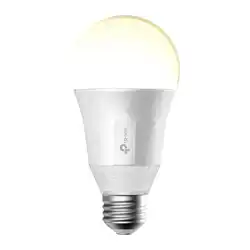
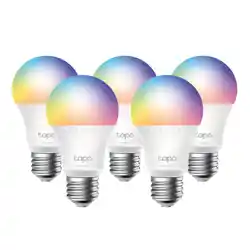
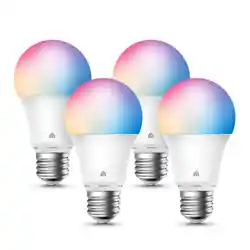
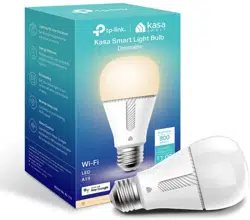
TP-LINK Smart Wi-Fi LED Bulbs, Tunable White and
Multi-Color, are Wi-Fi enabled, energy ecient LED light
bulbs that can be controlled via your iOS or Android
smartphones or tablets without the needs of an
additional hub or hardwired switch. Along with the
TP-LINK Kasa mobile app, you can access your lights
and create custom lighting automations from anywhere
in the world with an active Internet connection.
Product Requirements
• A smartphone or tablet running iOS 8 or higher;
Android 4.1x or higher.
• A Wi-Fi connection (supports 802.11n standard).

6www.tp-link.com
User’s Manual Smart Wi-Fi LED Bulbs
Important Safety Information
Before installing or replacing the Smart Wi-Fi LED Bulbs,
read and follow all precautions, including the following:
• WARNING: RISK OF ELECTRIC SHOCK OR BURNS.
Switch OFF the light switch controlling the bulb and
WAIT for the bulb to cool down before attempting to
change it.
• Do not install the Smart Wi-Fi LED Bulb with wet
hands or when standing on wet or damp surfaces.
• Not suitable for use with standard in-wall dimmers.
Dimmable via the app only.
• Suitable for use in operating environment between
-20°C and 40°C (-4°F and 104°F).
• This device is not intended for use with emergency
exit luminaires.
• NOT FOR EMERGENCY LIGHTING.
7www.tp-link.com
User’s Manual Smart Wi-Fi LED Bulbs
Smart Wi-Fi LED Bulb Installation
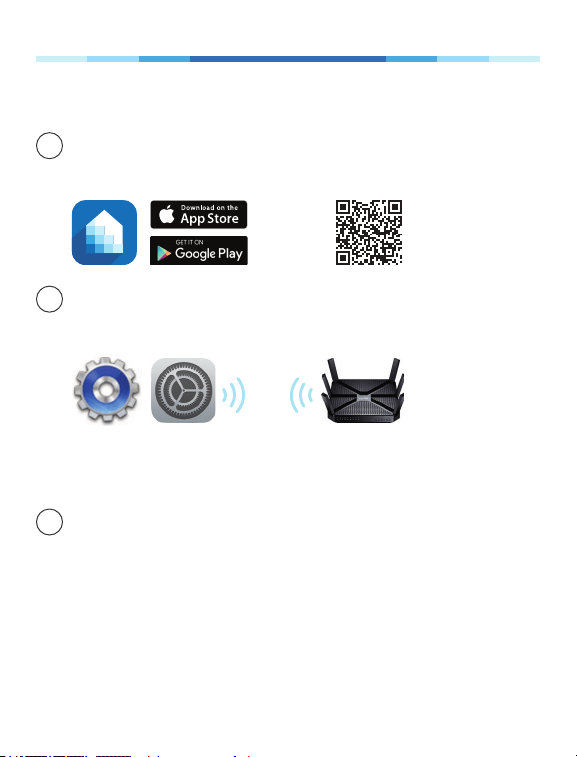
1 Download TP-LINK Kasa from App Store or Google
Play.
OR
scan QR
code
2 Connect mobile device to your 2.4GHz Wi-Fi
network.
Note: The Smart Wi-Fi LED Bulbs only supports 2.4GHz
networks.
3 Lauch Kasa and follow the in-app instructions to
connect the Smart Wi-Fi LED Bulb to your Wi-Fi
network.
8www.tp-link.com
User’s Manual Smart Wi-Fi LED Bulbs
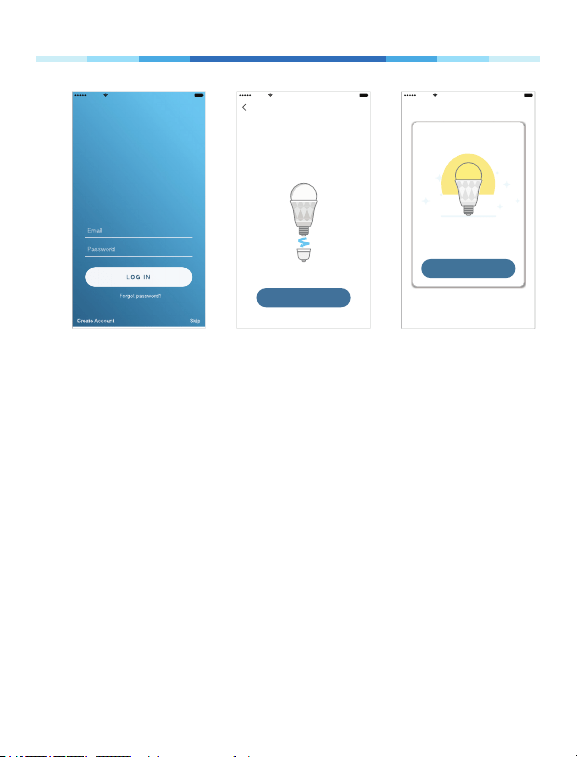
Log in to access your devices.
Welcome
home
Sketch 9:41 AM 100%
Sketch 9:41 AM 100%
DONE
Great!
Your Smart Bulb is all set up. It is
now saved in your Device List.
Sketch 9:41 AM 100%
Install your Smart Bulb
First, make sure the power is off on
the light you’re replacing. Swap the
current bulb with your Smart Bulb.
NEXT

9www.tp-link.com
User’s Manual Smart Wi-Fi LED Bulbs
Using Kasa with Smart Wi-Fi LED Bulbs
Kasa Account
While you don’t have to have a Kasa account to use
your devices, signing up for an account provides added
functionality such as:
• Synchronization of settings and congurations to
all your mobile devices.
• Ability to control and congure the devices from
outside your home.
• Ability to customize your TP-LINK Smart Home
devices with “Scenes” for a truly automated
experience.
• Use of third-party services and products such as
Amazon Echo.
Devices can only be associated with one Kasa account.
To remove the association, turn off Remote Control in
the Kasa’s settings, or factory reset the device.
After creating your Kasa account, you will need to verify
the email associated with your account by clicking a
link in an email that Kasa sends you. Until you verify the
email, much of the above functionality will not work.

10www.tp-link.com
User’s Manual Smart Wi-Fi LED Bulbs
Kasa Settings
Kasa’s Settings allows you to set your global
preferences such as:
• Remote Control to control your Smart Home
devices outside of your home. You need to sign in to
your Kasa account rst to turn on this function.
• Location and Time to set the location and time
of where the Smart Home devices are located so
that the Away Mode and Schedules can run on
time. You can set your device’s location using your
smartphone’s GPS function, or manually enter the
latitude and longitude coordinates.
• Firmware Update to update your Smart Home
devices when there is an update available. Refer to
Firmware Update for instructions.
11www.tp-link.com
User’s Manual Smart Wi-Fi LED Bulbs
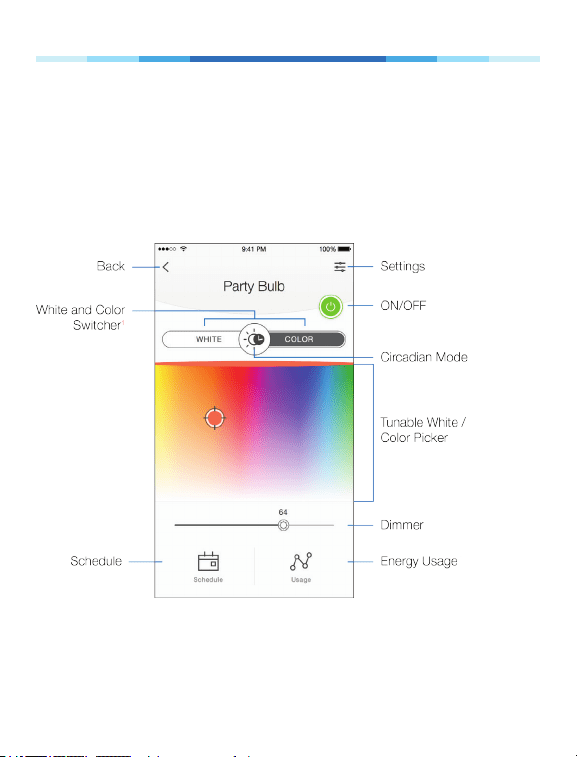
Kasa Controls
The features and functions displayed on this screen
vary depending on the model version of your Smart
Wi-Fi LED Bulb.
The Multi-Color bulb is used as an example below.
1
Available for the Multi-Color bulbs only.
12www.tp-link.com
User’s Manual Smart Wi-Fi LED Bulbs
Customizing Smart Wi-Fi LED Bulbs
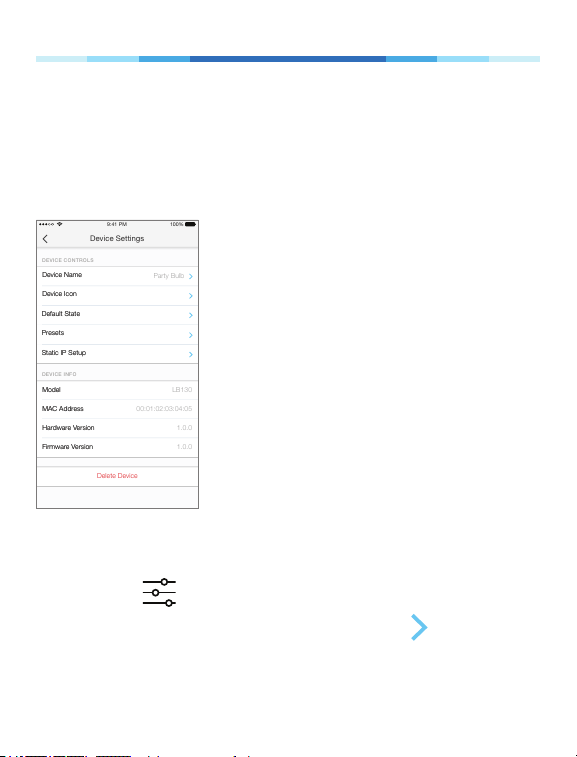
You can personalize your Smart Wi-Fi LED Bulb with a
descriptive name, icon, and other information from the
bulb’s details screen.
Delete Device
Device Settings
9:41 PM 100%
Device NameDevice Name
Party Bulb
ModelModel
Firmware VersionFirmware Version
DEVICE INFO
MAC AddressMAC Address
Hardware VersionHardware Version
1.0.0
1.0.0
00:01:02:03:04:05
LB130
Device IconDevice Icon
Default StateDefault State
PresetsPresets
Static IP SetupStatic IP Setup
DEVICE CONTROLS
1. On the Devices screen, tap on the row of the Smart
Wi-Fi LED Bulb to go to its controls.
2. Tap the (Settings) icon at the top-right corner.
3. On the Device Settings screen, tap the icon for
each of these settings you want to personalize.
• Device Name – Create a unique name for your
13www.tp-link.com
User’s Manual Smart Wi-Fi LED Bulbs
Smart Wi-Fi LED Bulb.
• Device Icon – Choose one of the available icons
or use your own custom icon.
• Default State – Set the default state when the
Smart Wi-Fi LED Bulb is switched on.
• Presets – Choose one of the presets or
customize your own by tapping the icon.
• Static IP Setup – Enter the static IP congured
for your Smart Wi-Fi LED Bulb.
14www.tp-link.com
User’s Manual Smart Wi-Fi LED Bulbs
Tunable White
*Available for the LB120 and LB130 bulbs only.
The LB120 bulb has an adjustable temperature range
of warm (2,700k) to cool (6,500k) shades of white, and
the LB130 bulb has color temperature rating of 2500k
to 9000k, allowing you to adjust your home’s lighting to
suit your needs throughout the day.
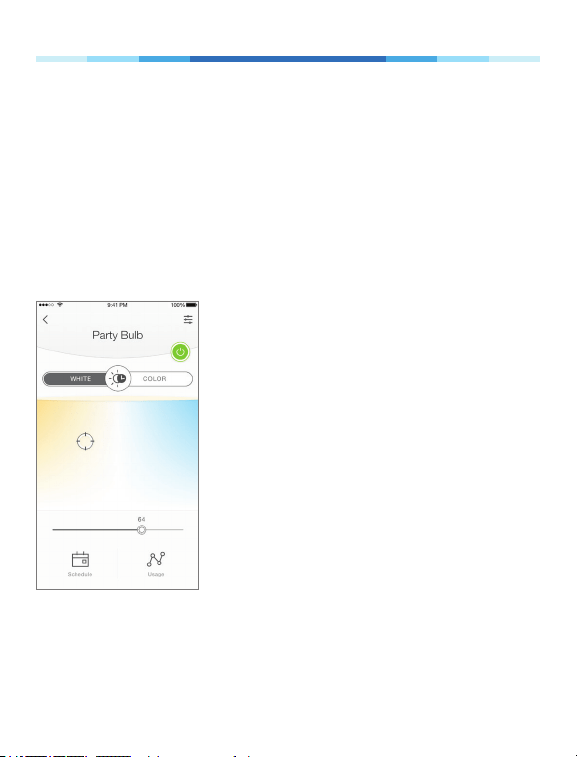
1. On the Devices screen, tap on the row of the Smart
Wi-Fi LED Bulb to go to its controls.
2. Pick a preferred color temperature (warm or cool)
from the temperature spectrum.
15www.tp-link.com
User’s Manual Smart Wi-Fi LED Bulbs
Adjustment of Brightness
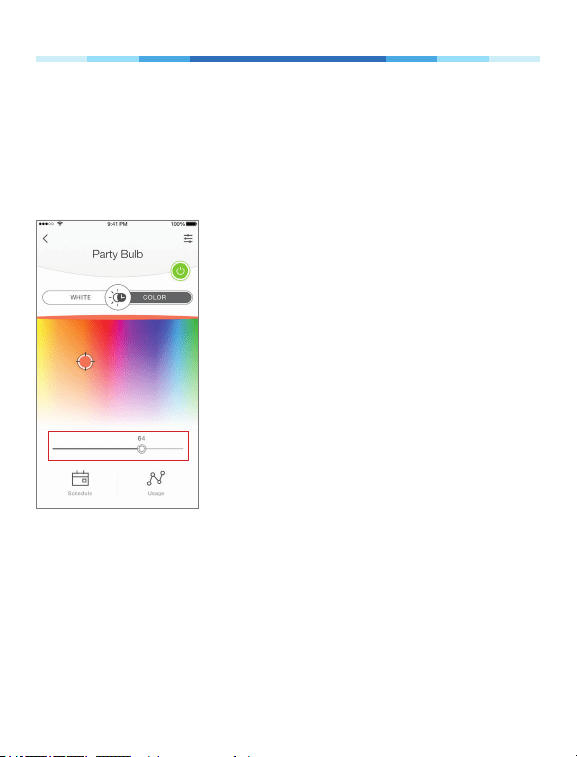
You can increase or decrease the bulb brightness (both
white and color) from 1% to 100% using the dimmer
slider.
Remember: The Smart Wi-Fi LED Bulb can only be dimmed
via the Kasa app. It’s not recommended to be used with a
standard in-wall dimmer.
16www.tp-link.com
User’s Manual Smart Wi-Fi LED Bulbs
Coloring your room
*Available for the Multi-Color bulb only.
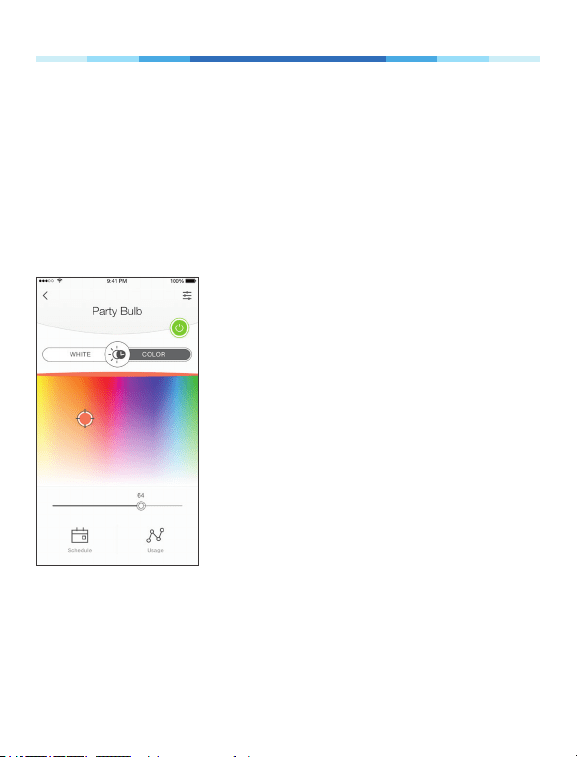
The Multi-Color bulb is capable of over 16 million colors
that can be set to create the perfect ambiance in your
home or oce, or to add fun and exciting lighting
effects to your home décor.
1. On the Devices screen, tap on the row of the Smart
Wi-Fi LED Bulb to go to its controls.
2. Tap COLOR to switch to the Color mode.
3. Select a hue from the color spectrum.
17www.tp-link.com
User’s Manual Smart Wi-Fi LED Bulbs
Circadian Mode
*Available for the Tunable White and Multi-Color bulbs only.
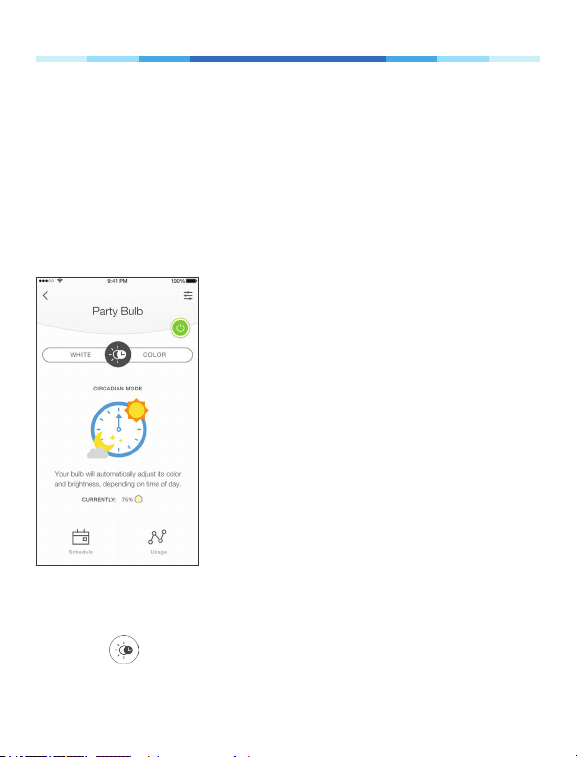
When enabled, the Smart Wi-Fi LED Bulbs dynamically
adjust both light intensity and color temperature to
mimic the natural changes in daylight throughout the
day to support your body’s circadian rhythm.
1. On the Devices screen, tap on the row of the Smart
Wi-Fi LED Bulb to go to its controls.
2. Tap to enable the Circadian mode.

18www.tp-link.com
User’s Manual Smart Wi-Fi LED Bulbs
Scheduling
You can set up your Smart Wi-Fi LED Bulbs to illuminate
around your home at specic times on specic days of
the week, or to slowly wake you up in the morning.
1. On the Devices screen, tap on the row of the Smart
Wi-Fi LED Bulb that you want to create a schedule
for.
2. Tap (Schedule) to open the Schedule screen.
3. Tap to create an event.
4. Within the Create Event screen, set your preferred
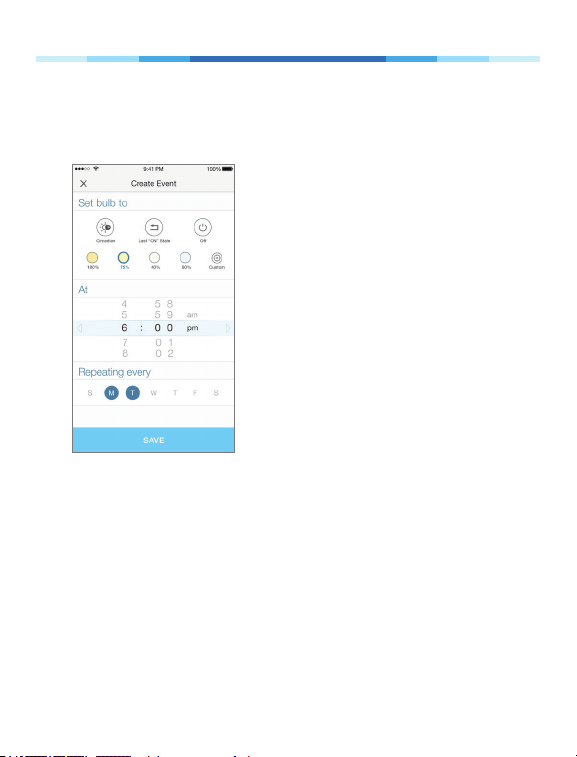
19www.tp-link.com
User’s Manual Smart Wi-Fi LED Bulbs
state for the light bulb (ON or OFF), brightness
intensity, time, and day(s).
5. Tap Save.
You can create as many events as you like and edit
them at any time from the Schedule screen.
20www.tp-link.com
User’s Manual Smart Wi-Fi LED Bulbs
Energy Monitoring
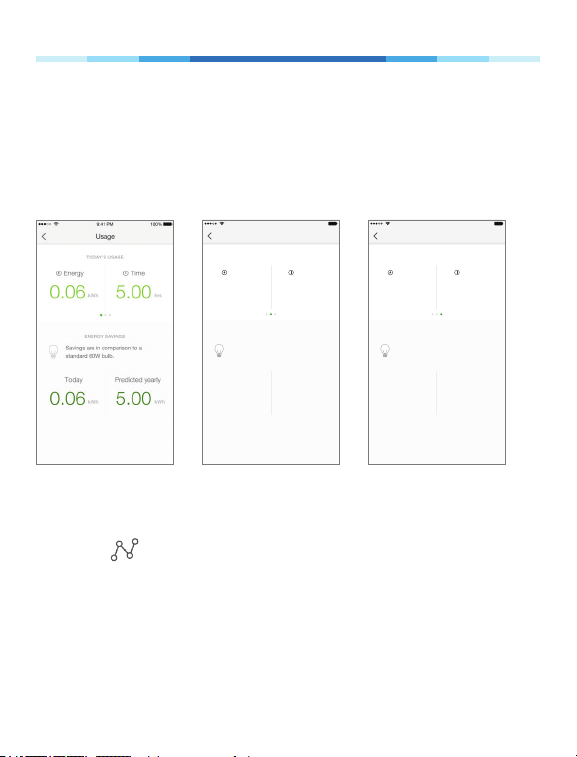
With energy usage monitoring capability, you get a real-
time energy consumption report (average daily, weekly,
and monthly) on your Smart Wi-Fi LED Bulbs.
0.05
kWh
Energy
4.86
hrs
Time
Usage
9:41 PM 100%
DAILY AVG IN PAST 30 DAYS
ENERGY SAVINGS
Savings are in comparison to a
standard 60W bulb.
0.06
kWh
Today
5.00
kWh
Predicted yearly
0.07
kWh
Energy
6.20
hrs
Time
Usage
9:41 PM 100%
DAILY AVG IN PAST 7 DAYS
ENERGY SAVINGS
Savings are in comparison to a
standard 60W bulb.
0.06
kWh
Today
5.00
kWh
Predicted yearly
1. On the Devices screen, tap on the row of the Smart
Wi-Fi LED Bulb to go to its controls.
2. Tap (Usage).

21www.tp-link.com
User’s Manual Smart Wi-Fi LED Bulbs
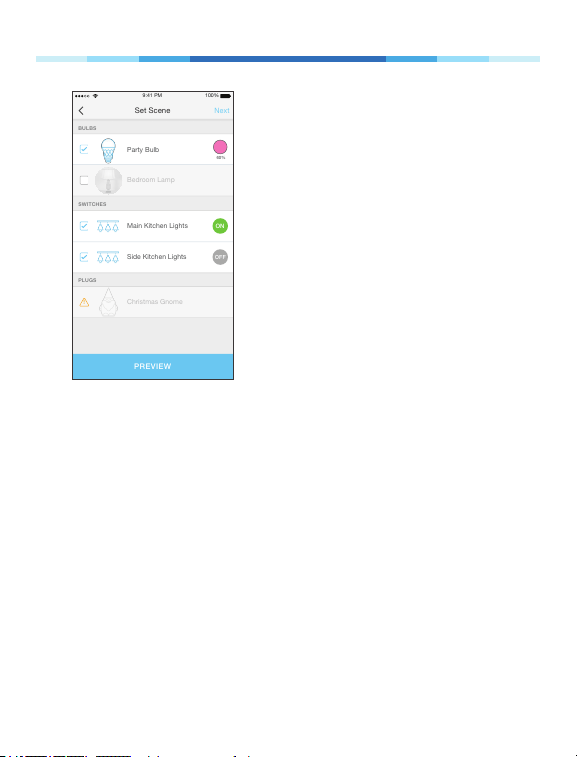
Creating Scenes
Take full advantage of your TP-LINK Smart Home
devices in your home with “Scenes”. A scene is a preset
group of Smart Devices (such as Smart Plugs, Smart
Wi-Fi LED Bulbs, and Smart Switches) that can be
customized and controlled simultaneously at the touch
of a button from your smartphone or tablet to easily set
your mood or t any special occasion. For example, set
a customized “Movie Time” to turn on the home theater
system plugged into a Smart Plug and dim down the
lights in your Entertainment Room to 10% at the same
time.
Please keep in mind that SCENES can only be set and
controlled once you’re signed in to your Kasa account.
22www.tp-link.com
User’s Manual Smart Wi-Fi LED Bulbs
Devices
Scenes
Scenes let you set the mood of your
home in one tap.
Good Morning
Get ready for the day by
turning on your devices
Movie Night
Dim the lights for
showtime
Good Night
Turn everything off
before bedtime
Custom
Create your own scene
9:41 PM 100%
Scenes
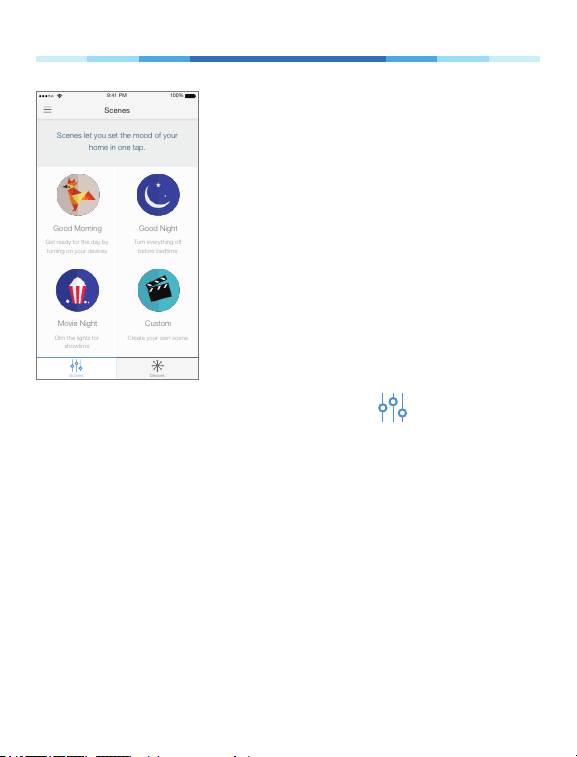
1. On the main Home screen, tap the (Scenes) tab
to switch to the Scenes view.
2. Choose one of the preset scenes to start, or
choose Custom to set up your own scene that is
personalized to suit your liking. To set a scene,
you will need to select one or more devices to be
controlled, and then dene their actions and/or
states.
23www.tp-link.com
User’s Manual Smart Wi-Fi LED Bulbs
Bedroom Lamp
BULBS
PREVIEW
Main Kitchen Lights
Side Kitchen Lights
Christmas Gnome
SWITCHES
PLUGS
60%
Party Bulb
ON
OFF
Next
9:41 PM 100%
Set Scene
!
Note that you must have at least one Smart Device
in order to create a scene.
Away Mode
Away Mode allows you to automate your Smart Wi-
Fi LED Bulbs in combination with other Smart Home
products to respond to your specic schedules. For
example, turn on and off Smart Devices at certain
intervals to simulate occupancy when you’re away from
home.
24www.tp-link.com
User’s Manual Smart Wi-Fi LED Bulbs
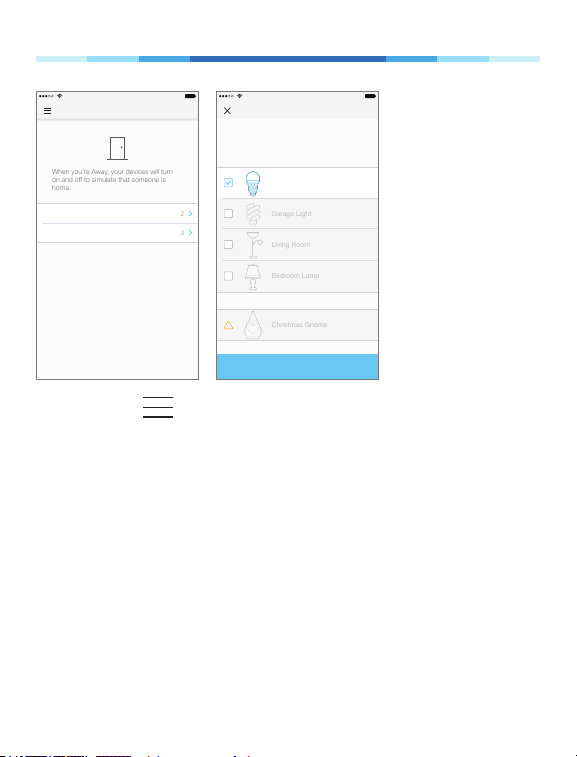
Away Mode
9:41 PM 100%
Schedules
Devices
2
3
When you’re Away, your devices will turn
on and off to simulate that someone is
home.
Select Devices
9:41 PM 100%
How about picking one light from each
room?
Christmas Gnome
Garage Light
Party Bulb
Living Room
Bedroom Lamp
!
PLUGS
BULBS
SAVE
1. Tap the (navigation drawer) and then Away
Mode.
2. Tap Select Devices to select your Smart Home
devices, and then tap Save.
3. If you want to set a schedule to automate Away
Mode so you don’t have to manually activate it, tap
Set Schedule.
Note: Multiple schedules can be set to repeat weekly
on the day(s) of your choice.
4. Within the Create Event screen, set your preferred
mode (Away or Home), time, and day(s).

25www.tp-link.com
User’s Manual Smart Wi-Fi LED Bulbs
5. Tap Save.
You can always toggle Away Mode on and off in the
sidebar by tapping on the translucent button under the
Kasa logo.
26www.tp-link.com
User’s Manual Smart Wi-Fi LED Bulbs
Maintaining the Smart Wi-Fi LED Bulbs
Firmware Update
To keep the Smart Wi-Fi LED Bulbs happy and up-
to-date with all the latest improvement and xes, we
recommend that you update the rmware when updates
are available.
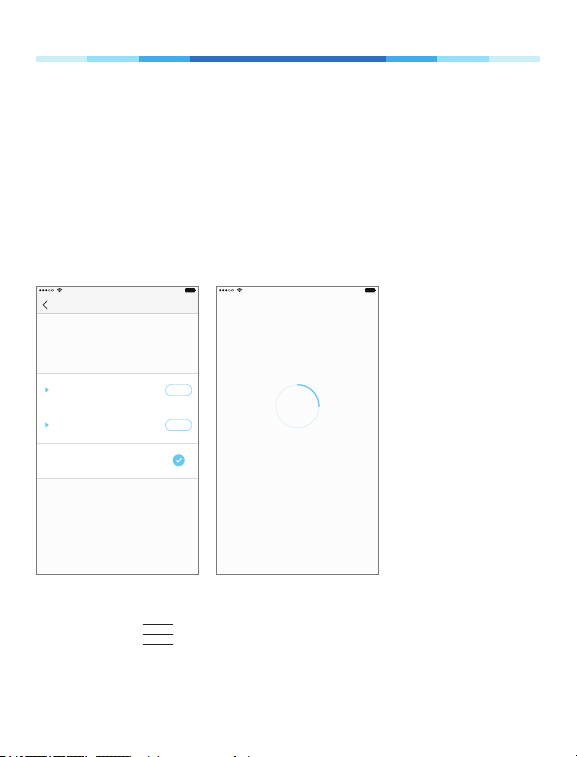
Firmware Update
9:41 PM 100%
New Updates Available
Smart Plugs
UPDATE
We found available firmware updates for your
reachable devices.
4 Available Updates
Smart Bulbs
UPDATE
2 Available Updates
Smart Switches
0 Available Updates
9:41 PM 100%
Updating rmware
Please do not unplug your devices during
the update.
25%
This process may take a few minutes.
1. Launch Kasa.
2. Tap the (navigation drawer) and then Settings.
3. Tap Firmware Update.

27www.tp-link.com
User’s Manual Smart Wi-Fi LED Bulbs
4. Within the Firmware Update screen, tap Update.
Remember: Only the Smart Wi-Fi LED Bulbs that are
currently reachable and have an available update will
be shown in the Firmware Update screen.
It is important to leave the Kasa app running while it
nishes updating the Smart Wi-Fi LED Bulbs. Try not to
minimize the app, close the app, or interrupt the update
to prevent problems.
Resetting
Resetting the Smart Wi-Fi LED Bulbs can help you
troubleshoot any issues you may have. There are two
types of reset available–a soft reset which does not
erase the current settings, and a factory reset that
erases all of your custom settings and restore them to
factory defaults.
To reset the Smart Wi-Fi LED Bulbs without losing the
conguration settings:
1. Turn the light switch controlling the bulb to the OFF
position.
2. Flip the light switch on and off 3 times.

28www.tp-link.com
User’s Manual Smart Wi-Fi LED Bulbs
To reset the Smart Wi-Fi LED Bulbs to factory defaults:
1. Turn the light switch controlling the bulb to the OFF
position.
2. Flip the light switch on and off 5 times.

29www.tp-link.com
User’s Manual Smart Wi-Fi LED Bulbs
Troubleshooting
Frequently Asked Questions
1. Can I control multiple Smart Wi-Fi LED Bulbs at the
same time?
Yes. You can manage and save multiple bulbs
together as a “scene”.
2. How far can I be and still able to control the Smart
Wi-Fi LED Bulbs?
You can be anywhere in the world and still able to
control your Smart Wi-Fi LED Bulbs as long as your
have an Internet connection.
3. The Smart Wi-Fi LED Bulb appears oine or
unreachable, what should I do?
• Check the light switch and make sure that it’s
switched to ON. The Smart Wi-Fi LED Bulb
requires an “always-on” power supply to operate
properly.
• Make sure you are connected to the same
Wi-Fi network to control it locally. To control
the Smart Wi-Fi LED Bulb outside of your home,
sign in to your Kasa account and enable Remote
Control.

30www.tp-link.com
User’s Manual Smart Wi-Fi LED Bulbs
• Reset the Smart Wi-Fi LED Bulb and reconnect it
to your Wi-Fi network.
4. Why do my Smart Wi-Fi LED Bulbs show “Local
Only”?
That means the Smart Wi-Fi LED Bulbs can only be
controlled through your Wi-Fi network. To control
the Smart Wi-Fi LED Bulb outside of your home, sign
in to your Kasa account and enable Remote Control.
5. Can I dim the Smart Wi-Fi LED Bulbs?
The Smart Wi-Fi LED Bulbs are not designed for use
with traditional wall-dimmer. It can only be dimmed
via the Kasa app.
6. How do I reset the Smart Wi-Fi LED Bulb to factory
defaults?
Refer to Resetting.
7. How do I pair the Smart Wi-Fi LED Bulbs with
Amazon Echo?
For pairing instructions, please visit www.tp-link.
com/en/faq-944.html or within the Kasa Help
section.

31www.tp-link.com
User’s Manual Smart Wi-Fi LED Bulbs
Usage Tips
• Place the Smart Wi-Fi LED Bulb within the range of
your Wi-Fi router or access point (approximately 100
feet).
• Avoid physical obstructions and radio interference
in the surrounding area.
Support
If you encounter any issues with the Smart Wi-Fi Light
Bulbs or conguration, please visit
www.tp-link.com/support for web support and
troubleshooting information.
32www.tp-link.com
User’s Manual Smart Wi-Fi LED Bulbs
Specications
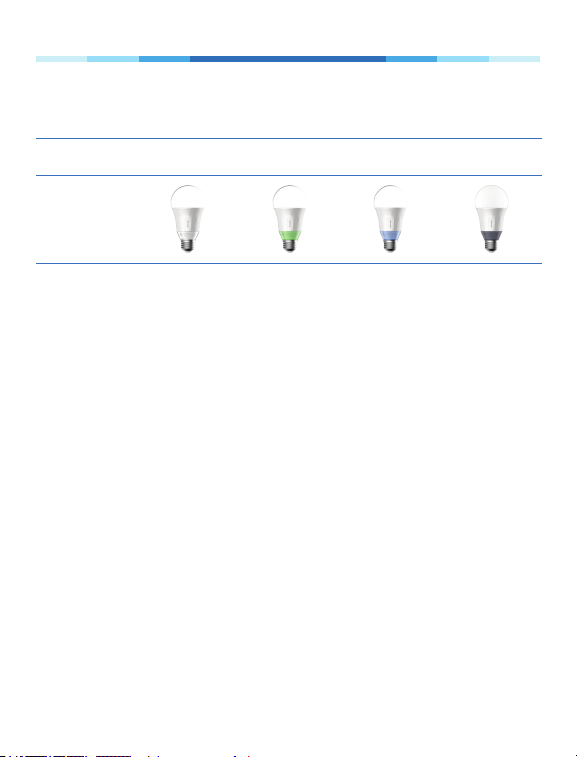
LB100 LB110 LB120 LB130
Product
Lifetime
Rating
15,000 hours 25,000 hours 25,000 hours 25,000 hours
Base
E26 E26 E26 E26
Dome
Frosted /
Shatterproof
Frosted /
Shatterproof
Frosted /
Shatterproof
Frosted /
Shatterproof
Lumens
600
(50W equiv.)
800
(60W equiv.)
800
(60W equiv.)
800
(60W equiv.)
Dimmable*
✓ ✓ ✓ ✓
Temp.
2700k 2700-6500k 2700-6500k 2500-9000k
Color
Warm White
2700k /
CRI > 80
Warm White
2700k /
CRI > 80
Tunable
White: Warm
to Natural
2700k-6500k
/ CRI > 80
16 million
colors
2500k-9000k
/ CRI > 80
Beam
Angle
270 270 270 150
33www.tp-link.com
User’s Manual Smart Wi-Fi LED Bulbs
Connec-
tivity
Wi-Fi 802.11n / Remote and Cloud Access
Energy
Monitoring
✓ ✓ ✓ ✓
*The Smart Wi-Fi LED Bulb can be dimmed via the Kasa app only.
Limited Warranty
To learn more about the Limited Warranty for TP-LINK
products, please visit www.tp-link.us/support/rma.

User’s Manual Smart Wi-Fi LED Bulbs
FCC Statement
This equipment has been tested and found to comply with the limits for a
Class B digital device, pursuant to part 15 of the FCC Rules. These limits are
designed to provide reasonable protection against harmful interference in
a residential installation. This equipment generates, uses and can radiate
radio frequency energy and, if not installed and used in accordance with
the instructions, may cause harmful interference to radio communications.
However, there is no guarantee that interference will not occur in a particular
installation. If this equipment does cause harmful interference to radio or
television reception, which can be determined by turning the equipment off
and on, the user is encouraged to try to correct the interference by one or more
of the following measures:
• Reorient or relocate the receiving antenna.
• Increase the separation between the equipment and receiver.
• Connect the equipment into an outlet on a circuit different from that to
which the receiver is connected.
• Consult the dealer or an experienced radio / TV technician for help.
This device complies with part 15 of the FCC Rules. Operation is subject to the
following two conditions:
1) This device may not cause harmful interference.
2) This device must accept any interference received, including
interference that may cause undesired operation.
Any changes or modications not expressly approved by the party responsible
for compliance could void the user’s authority to operate the equipment.
Note: The manufacturer is not responsible for any radio or TV interference
caused by unauthorized modications to this equipment. Such modications
could void the user’s authority to operate the equipment.
FCC RF Radiation Exposure Statement
This equipment complies with FCC RF radiation exposure limits set forth for
User’s Manual Smart Wi-Fi LED Bulbs
an uncontrolled environment. This device and its antenna must not be co-
located or operating in conjunction with any other antenna or transmitter.
“To comply with FCC RF exposure compliance requirements, this grant
is applicable to only Mobile Congurations. The antennas used for this
transmitter must be installed to provide a separation distance of at least 20
cm from all persons and must not be co-located or operating in conjunction
with any other antenna or transmitter.”
CE Mark Warning
This is a class B product. In a domestic environment, this product may cause
radio interference, in which case the user may be required to take adequate
measures.
RF Exposure Information
This device meets the EU requirements (1999/5/EC Article 3.1a) on the
limitation of exposure of the general public to electromagnetic elds by way of
health protection.
The device complies with RF specications when the device used at 20 cm
from your body.
Canadian Compliance Statement
This device complies with Industry Canada license-exempt RSSs. Operation is
subject to the following two conditions:
1) This device may not cause interference, and
2) This device must accept any interference, including interference that may
cause undesired operation of the device.
Le présent appareil est conforme aux CNR d’Industrie Canada applicables
aux appareils radio exempts de licence. L’exploitation est autorisée aux deux
conditions suivantes :

User’s Manual Smart Wi-Fi LED Bulbs
1) l’appareil ne doit pas produire de brouillage;
2) l’utilisateur de l’appareil doit accepter tout brouillage radioélectrique
subi, meme si le brouillage est susceptible d’en compromettre le
fonctionnement.
Radiation Exposure Statement
This equipment complies with IC radiation exposure limits set forth for an
uncontrolled environment. This equipment should be installed and operated
with minimum distance 20cm between the radiator and your body.
Déclaration d’exposition aux radiations
Cet équipement est conforme aux limites d’exposition aux rayonnements
IC établies pour un environnement non contrôlé. Cet équipement doit être
installé et utilisé avec un minimum de 20 cm de distance entre la source de
rayonnement et votre corps.
Industry Canada Statement
CAN ICES-3 (B)/NMB-3(B)
Korea Warning Statements
당해 무선설비는 운용중 전파혼신 가능성이 있음。
NCC Notice
注意! 依據 低功率電波輻射性電機管理辦法
第十二條 經型式認證合格之低功率射頻電機,非經許可,公司、商號或使用者均不得
擅自變更頻率、加大功率或變更原設計之特性或功能。
第十四條 低功率射頻電機之使用不得影響飛航安全及干擾合法通行;經發現有干擾
現象時,應立即停用,並改善至無干擾時方得繼續使用。前項合法通信,指依電信規
定作業之無線電信。低功率射頻電機需忍受合法通信或工業、科學以及醫療用電波
輻射性電機設備之干擾。
減少電磁波影響,請妥適使用。

User’s Manual Smart Wi-Fi LED Bulbs
安全諮詢及注意事項
• 請使用原裝電源供應器或只能按照本產品注明的電源類型使用本產品。
• 清潔本產品之前請先拔掉電源線。請勿使用液體、噴霧清潔劑或濕布進行清潔。
• 注意防潮,請勿將水或其他液體潑灑到本產品上。
• 插槽與開口供通風使用,以確保本產品的操作可靠並防止過熱,請勿堵塞或覆蓋
開口。
• 請勿將本產品置放於靠近熱源的地方。除非有正常的通風,否則不可放在密閉位
置中。
• 請不要私自打開機殼,不要嘗試自行維修本產品,請由授權的專業人士進行此項
工作。
Продукт сертифіковано згідно с правилами системи УкрСЕПРО на
відповідність вимогам нормативних документів та вимогам, що
передбачені чинними законодавчими актами України.
Safety Information
• When product has a power button, the power button is one of the ways
to shut off the product; when there is no power button, the only way to
completely shut off the power is to disconnect the product or the power
adapter from the power source.
• Don’t disassemble the product, or make repairs yourself. You run the risk of
electric shock and voiding the limited warranty. If you need service, please
contact us.
• Avoid water and wet locations.
User’s Manual Smart Wi-Fi LED Bulbs
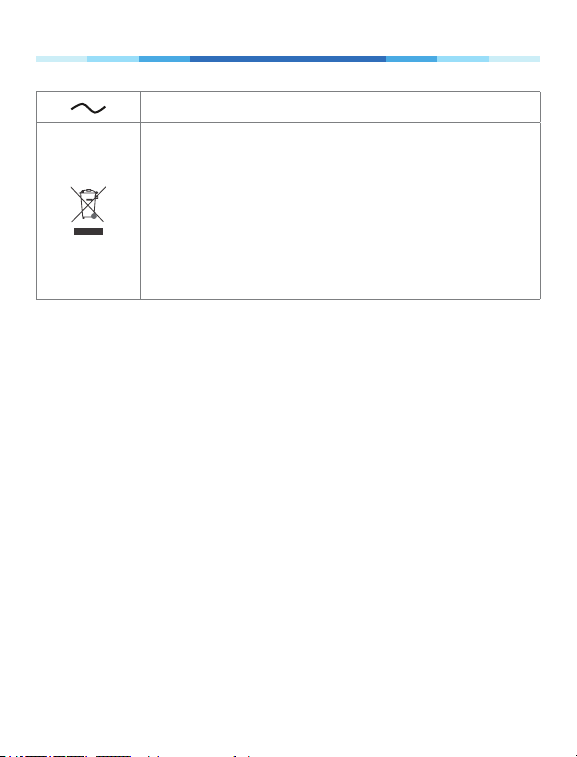
AC voltage
RECYCLING
This product bears the selective sorting symbol for Waste
electrical and electronic equipment (WEEE). This means
that this product must be handled pursuant to European
directive 2012/19/EU in order to be recycled or dismantled
to minimize its impact on the environment.
User has the choice to give his product to a competent
recycling organization or to the retailer when he buys a
new electrical or electronic equipment.