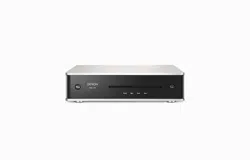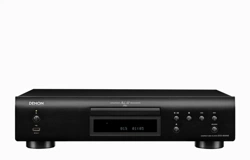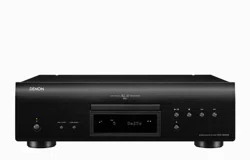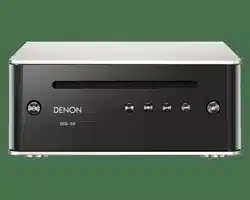
Accessories
4
Inserting the batteries
5
Operating range of the remote control unit
5
Part names and functions
6
Front panel
6
Display
8
Rear panel
9
Remote control unit
10
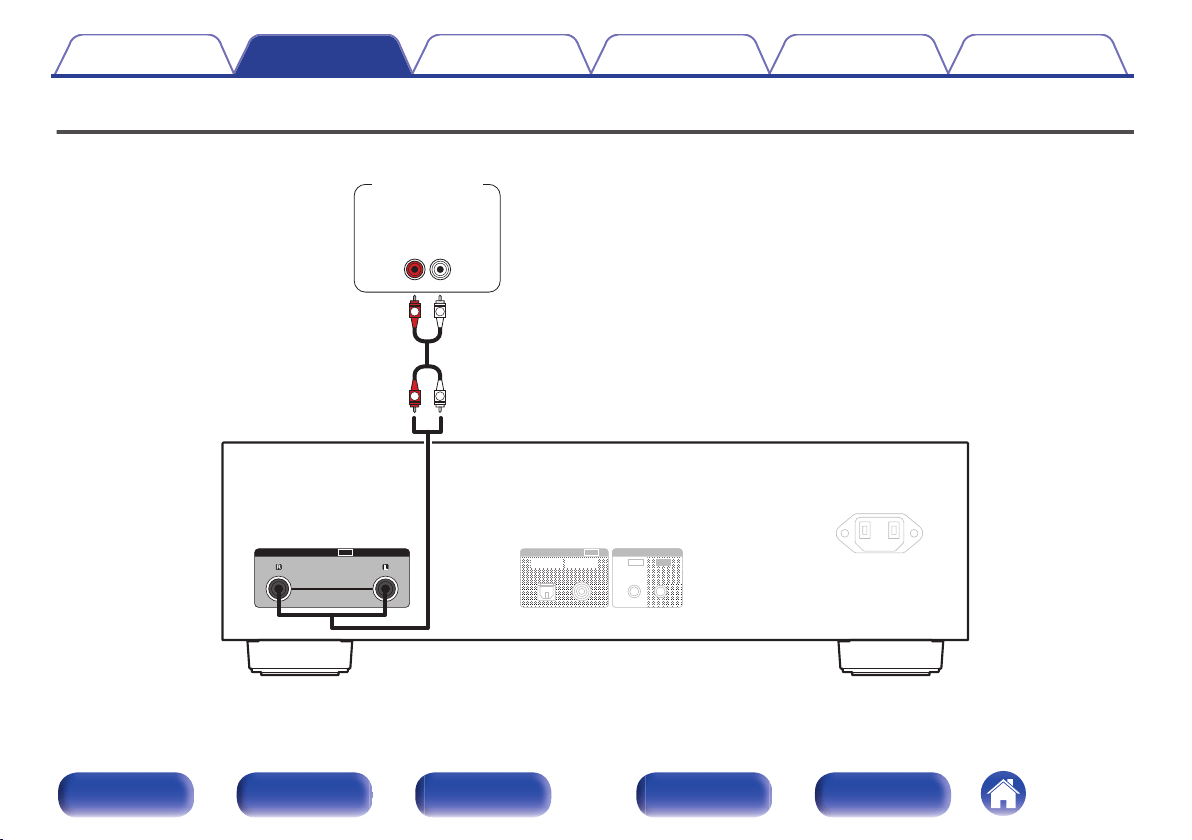
Connections
Connecting an amplifier
14
Connecting to a device with digital audio input connectors
15
Connecting the timer device
16
Connecting the power cord
17
Playback
Basic operation
19
Turning the power on
19
Switching the power to standby
19
Switching the display’s brightness
20
Switching the Pure Direct mode
20
Setting the top priority playback layer for Super Audio CDs
21
Playing CDs/Super Audio CDs
22
Playing CDs/Super Audio CDs
22
Playing tracks in a specific order (Program playback)
24
Playing Data CDs and Data DVDs
26
Playing files
27
Using the timer play function
29
Contents Connections Playback Settings Tips Appendix
2
Front panel Display Rear panel Remote Index
Settings
Setting the Auto Standby mode
30
Tips
Tips
32
Troubleshooting
33
Power does not turn on / Power is turned off
34
Operations cannot be performed through the remote control unit
35
Display on this unit shows nothing
35
No sound comes out
36
Sound is interrupted or noise occurs
36
Cannot playback Discs
37
Appendix
Playable media
38
Discs
38
Playback order of music files
40
About discs and files
41
Cautions on using media
42
Loading discs
42
How to handle media
43
Cleaning discs
43
Explanation of terms
44
Specifications
47
Index
50
Contents Connections Playback Settings Tips Appendix
3
Front panel Display Rear panel Remote Index
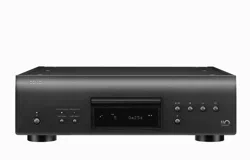
Thank you for purchasing this Denon product. To ensure proper operation, please read this owner’s manual carefully before using the product.
After reading this manual, be sure to keep it for future reference.
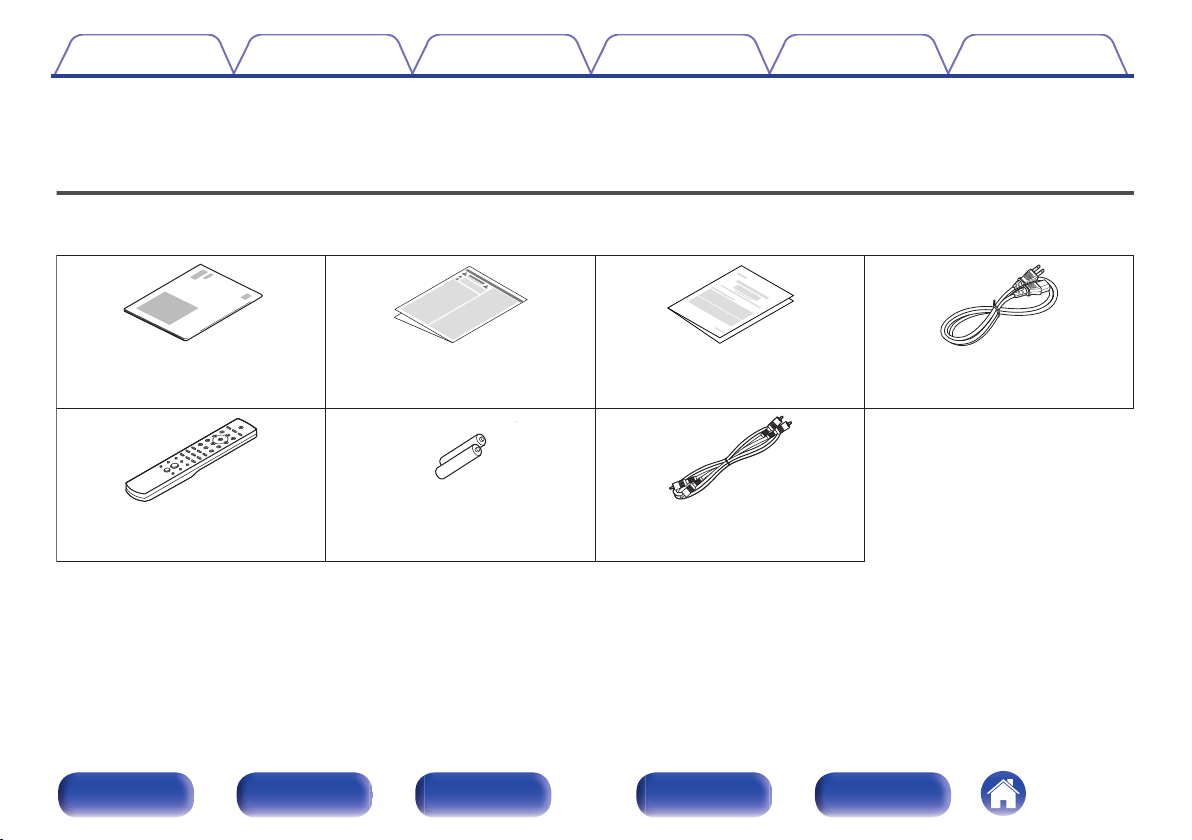
Accessories
Check that the following parts are supplied with the product.
.
Warranty
(for North America model only)
Safety InstructionsQuick Start Guide Power cord
Audio cableR03/AAA batteriesRemote control unit
(RC-1237)
Contents Connections Playback Settings Tips Appendix
4
Front panel Display Rear panel Remote Index
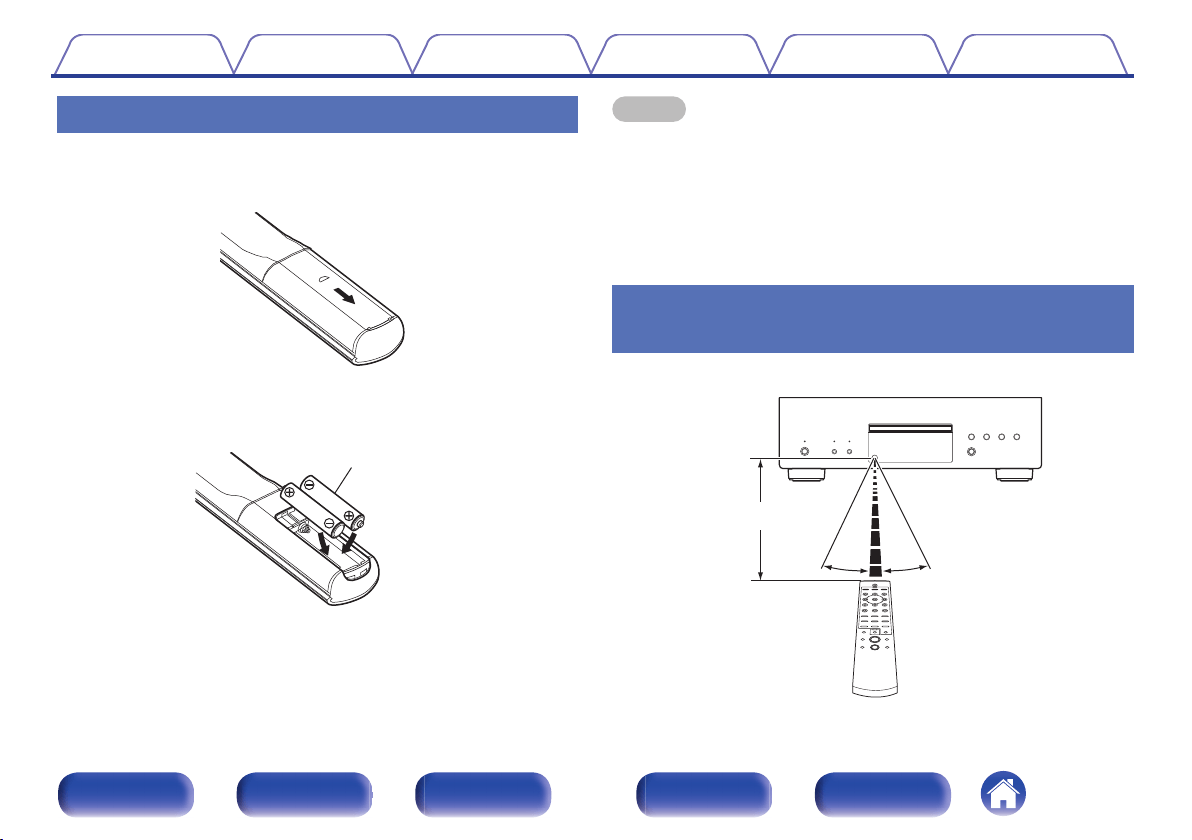
Inserting the batteries
1
Remove the rear lid in the direction of the arrow and
remove it.
.
2
Insert two batteries correctly into the battery
compartment as indicated.
.
Batteries
3
Put the rear lid back on.
NOTE
0
To prevent damage or leakage of battery fluid:
0
Do not use a new battery together with an old one.
0
Do not use two different types of batteries.
0
Remove the batteries from the remote control unit if it will not be in use for long
periods.
0
If the battery fluid should leak, carefully wipe the fluid off the inside of the battery
compartment and insert new batteries.
Operating range of the remote control
unit
Point the remote control unit at the remote sensor when operating it.
.
Approx. 23 ft/7 m
30°
30°
Contents
Connections Playback Settings Tips Appendix
5
Front panel Display Rear panel Remote Index
.
Q
3
Q
4
Q
2
Q
1
Q
0
yuioert
wq
A
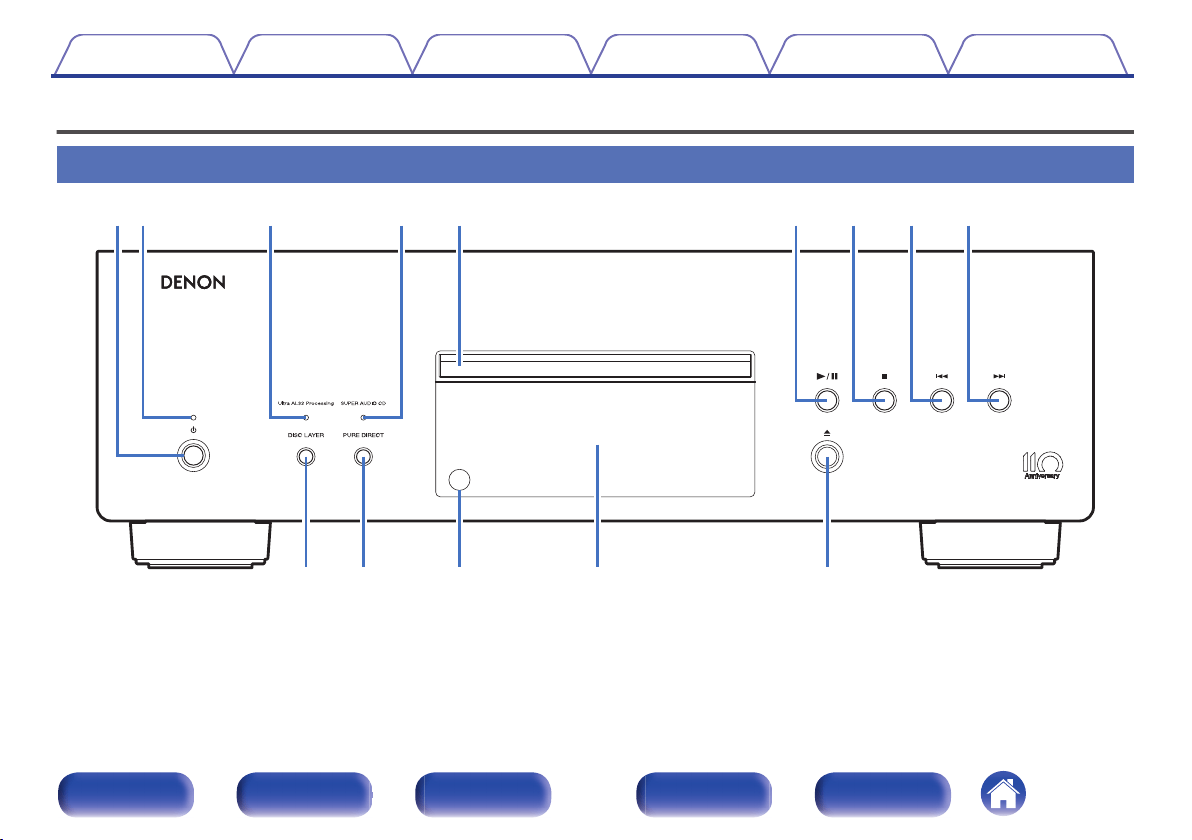
Power operation button (X)
This turns the power on/off. (v p. 19)
B
Power indicator
This is lit as follows according to the power status:
0
Power on : White
0
Standby : Off
0
Power off : Off
C
Ultra AL32 Processing indicator
When this unit is used in the following ways, Ultra AL32 Processing is
activated and this light turns on.
0
When a CD is inserted
0
When a data disc is inserted
0
When “CD” is set as the layer mode of a Super Audio CD
0
When a DSD file is played, Ultra AL32 Processing stops and this light turns off.
D
SUPER AUDIO CD indicator
This light turns on when this unit is used in the following ways.
0
When a Super Audio CD is inserted
0
When “STEREO” or “MULTI” is set as the layer mode of a Super
Audio CD
E
Disc tray
Used to insert a disc.
F
Play/Pause button (1/3)
Plays the track/Pauses the track.
G
Stop button (2)
Stops playback.
H
Reverse-skip button (8)
Returns to the start of the currently playing track.
I
Forward-skip button (9)
Plays the next track.
J
DISC LAYER button
This switches the Super Audio CD layer. (v p. 21)
K
PURE DIRECT button
This switches the Pure Direct mode. (v p. 20)
L
Remote control sensor
This receives signals from the remote control unit. (v p. 5)
M
Display
Various information is displayed here. (v p. 8)
N
Disc tray open/close button (5)
Used to open/close the disc tray.
Contents
Connections Playback Settings Tips Appendix
7
Front panel Display Rear panel Remote Index
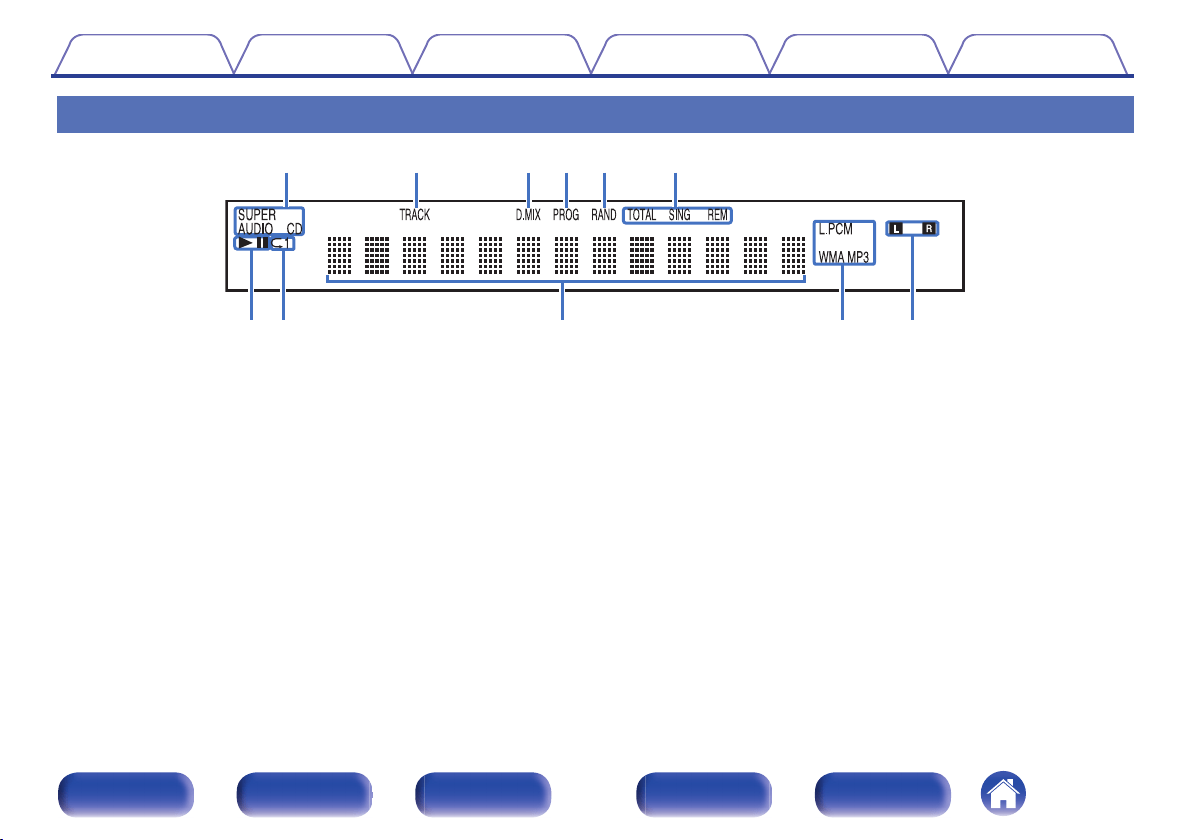
Display
.
iu o Q0
q
w r t y
Q1
e
A
Disc media indicators
Displays the type of disc that is being played back.
B
Track number indicator
Lights up when displaying the track number.
C
Downmix indicator (D.MIX)
This light turns on when a multi-channel area of a Super Audio CD is
played.
D
Program indicator (PROG)
Lights up during program playback.
E
Random indicator (RAND)
Lights during random playback.
F
Time display indicators
TOTAL REM : Lights up when displaying the remaining time in all-track
playback.
SING REM : Lights up when displaying the remaining time in
singletrack playback.
G
Playback mode indicators
1 : Lights up during playback.
3 : Lights up during pause.
H
Repeat mode indicator
Lights to match the repeat mode settings.
I
Information display
Displays various information or playback elapsed time and so on of the
disc.
J
Playback format indicators
Lights up while an WAV/MP3/WMA file is being played back.
K
Playback signal channel indicator
The respective indicator will light corresponding to the output signal.
L : Front left
R : Front right
Contents
Connections Playback Settings Tips Appendix
8
Front panel Display Rear panel Remote Index
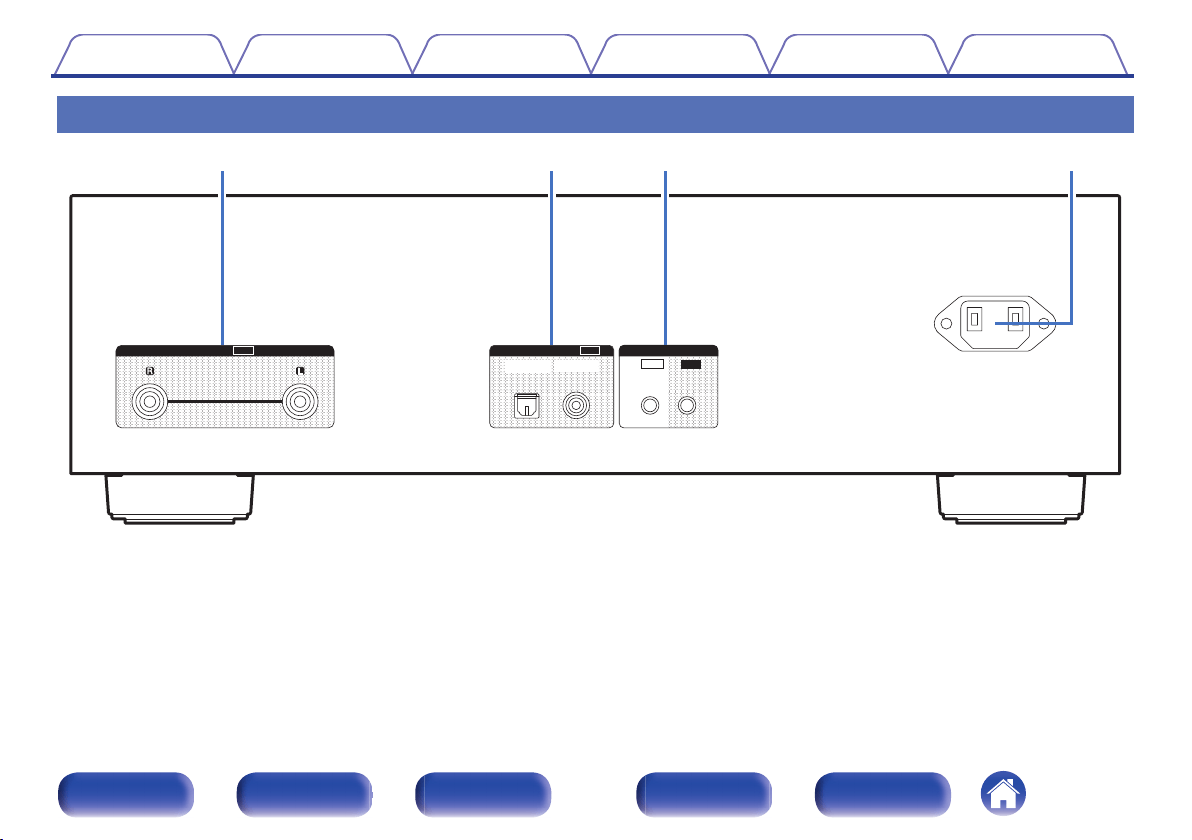
Rear panel
.
OUT
AUDIO
COAXIALOPTICAL
DIGITAL AUDIO
OUT
IN
IR CONTROL
OUT
AC IN
rq w e
A
AUDIO OUT connectors
Used to connect devices equipped with analog audio inputs connectors
or an external amplifier. (v p. 14)
B
DIGITAL AUDIO OUT connectors
Used to connect an AV receiver or D/A converter that has a digital input
connectors. (v p. 15)
C
IR CONTROL connectors
Used to connect Denon network audio players with an IR controller.
D
AC inlet (AC IN)
Used to connect the power cord. (v p. 17)
Contents Connections Playback Settings Tips Appendix
9
Front panel Display Rear panel Remote Index
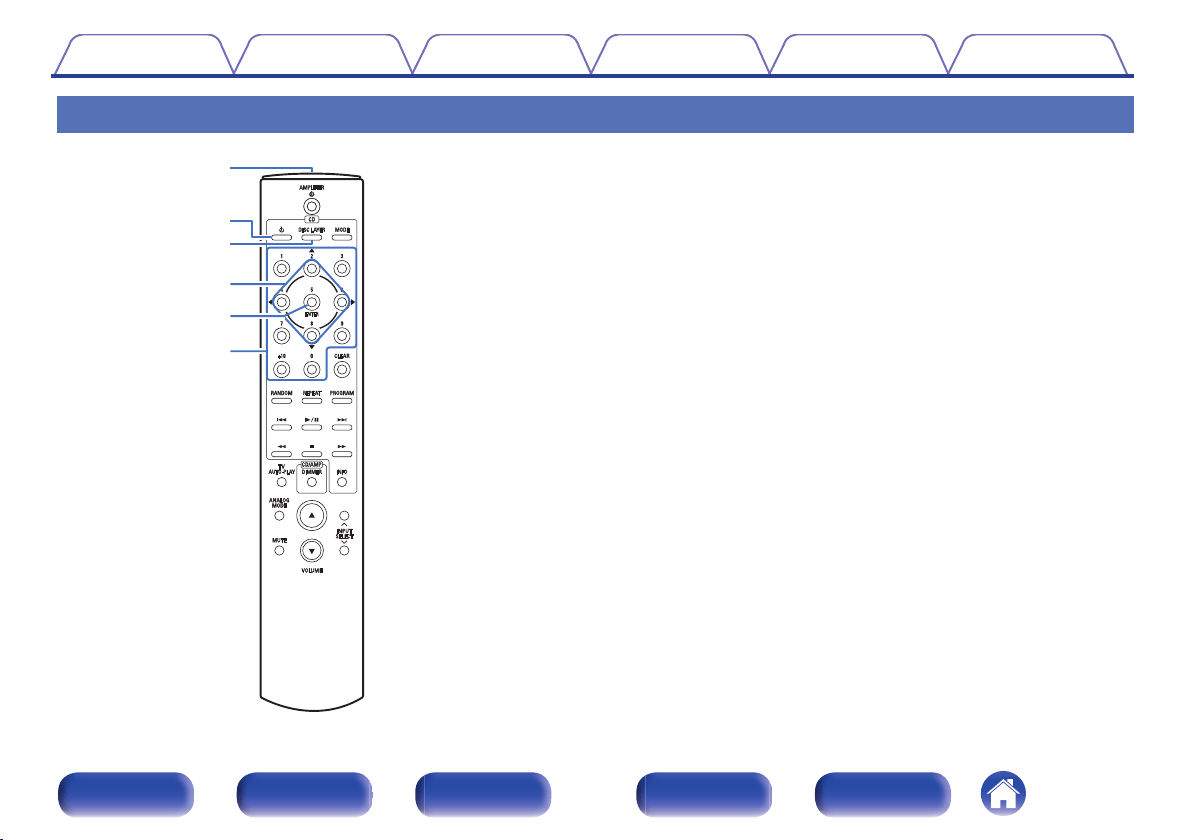
Remote control unit
r
y
t
w
e
q
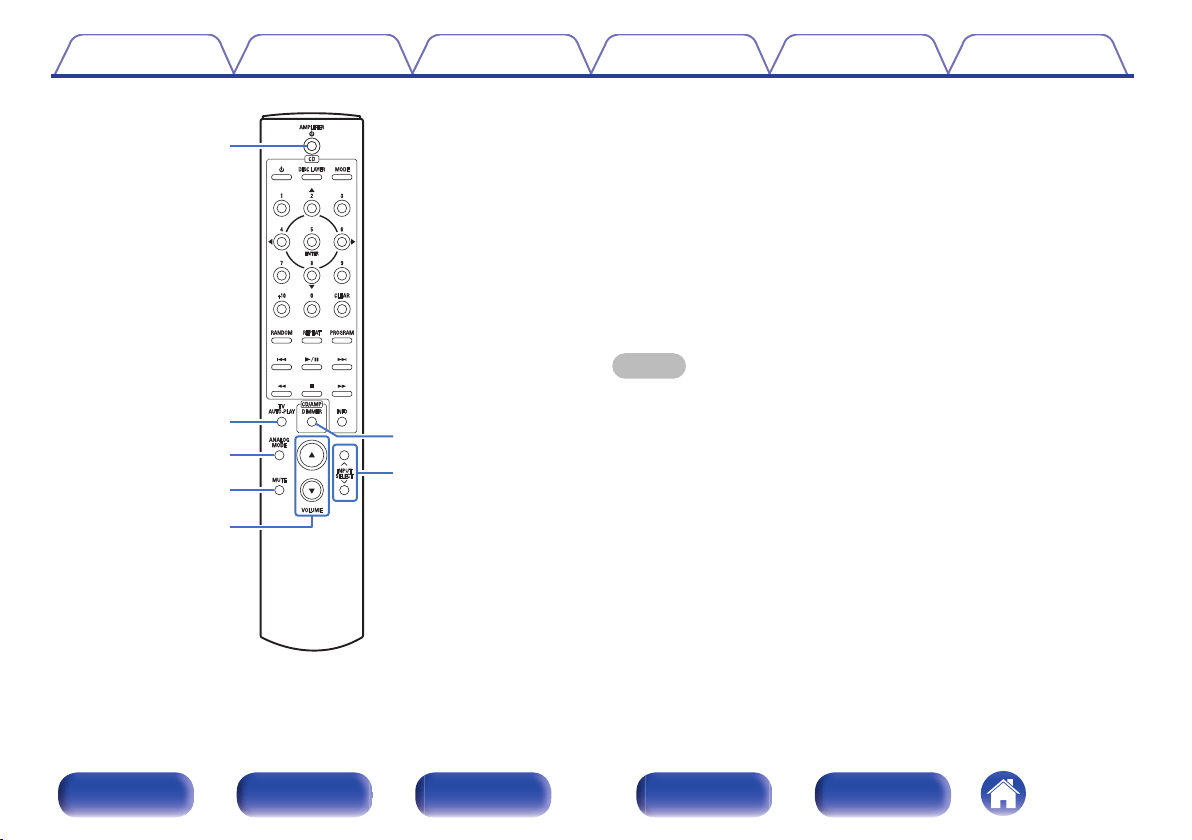
The remote control provided with this unit can control a Denon amplifier.
0
“Amplifier operations” (v p. 12)
o
Operating this unit
A
Remote control signal transmitter
This transmits signals from the remote control unit. (v p. 5)
B
Power operation button (X)
This turns the power on/off (standby). (v p. 19)
C
DISC LAYER button
This switches the playback layer of a Super Audio CD.
0
“Setting the top priority playback layer for Super Audio
CDs” (v p. 21)
0
“Playing CDs/Super Audio CDs” (v p. 22)
D
Cursor buttons (uio p)
These select items.
E
ENTER button
This determines the selection.
F
Number buttons (0 – 9, +10)
These enter numbers into the unit.
Contents
Connections Playback Settings Tips Appendix
10
Front panel Display Rear panel Remote Index
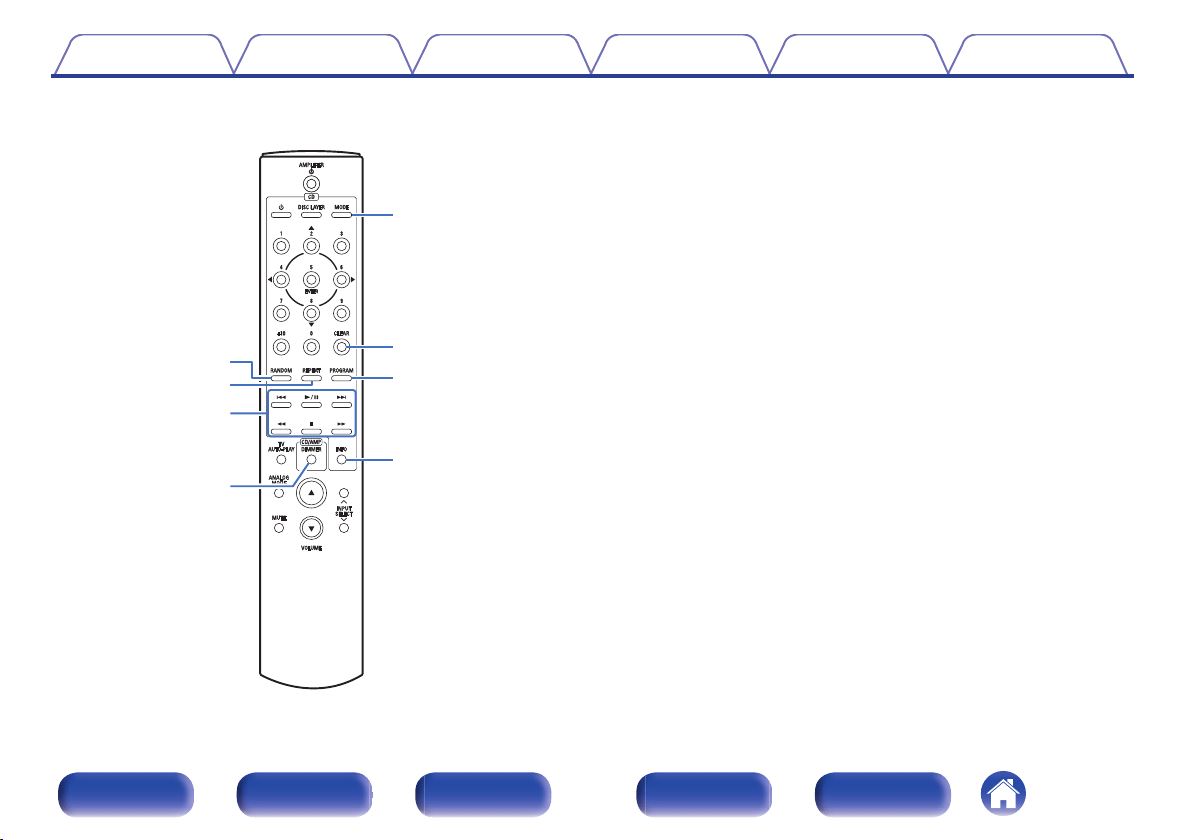
o
i
u
Q0
Q3
Q4
Q2
Q1
G
RANDOM button
Switches the random playback.
H
REPEAT button
Switches the repeat playback.
I
System buttons
These perform playback related operations.
J
DIMMER button
This switches the brightness of the display. (v p. 20)
K
MODE button
This switches the playback mode. (v p. 28)
L
CLEAR button
This clears the program registration. (v p. 25)
M
PROGRAM button
This sets program playback. (v p. 24)
N
Information button (INFO)
This switches the track information shown in the display during
playback.
Contents
Connections Playback Settings Tips Appendix
11
Front panel Display Rear panel Remote Index
r
t
e
w
q
y
u
o
Amplifier operations
A Denon amplifier can be operated.
A
Power operation button (AMPLIFIER X)
B
TV AUTO-PLAY button
C
ANALOG MODE button
D
MUTE button
E
VOLUME buttons (df)
F
DIMMER button
G
Input source select buttons (INPUT SELECT)
NOTE
0
The remote control may not operate some products.
Contents Connections Playback Settings Tips Appendix
12
Front panel Display Rear panel Remote Index
o
Contents
Connecting an amplifier
14
Connecting to a device with digital audio input connectors
15
Connecting the timer device
16
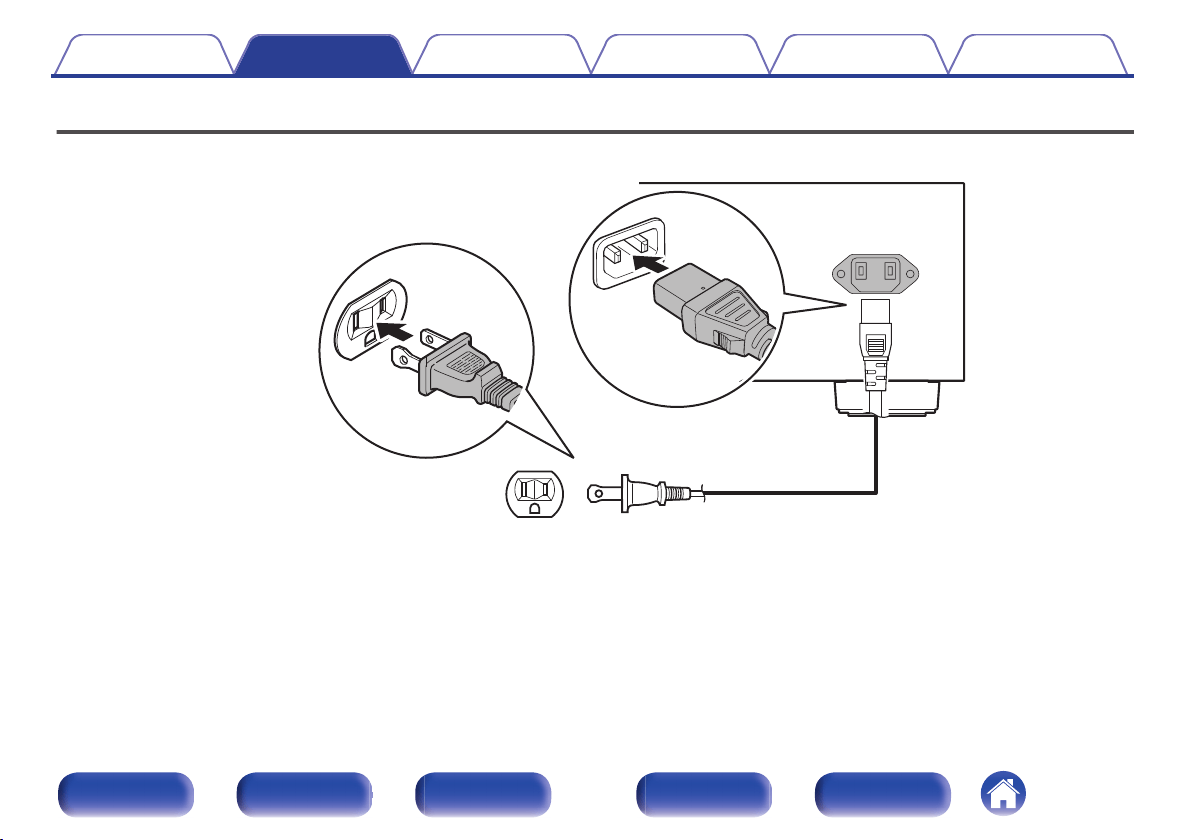
Connecting the power cord
17
NOTE
0
Do not plug in the power cord until all connections have been completed.
0
Do not bundle power cords together with connection cables. Doing so can result in
noise.
o
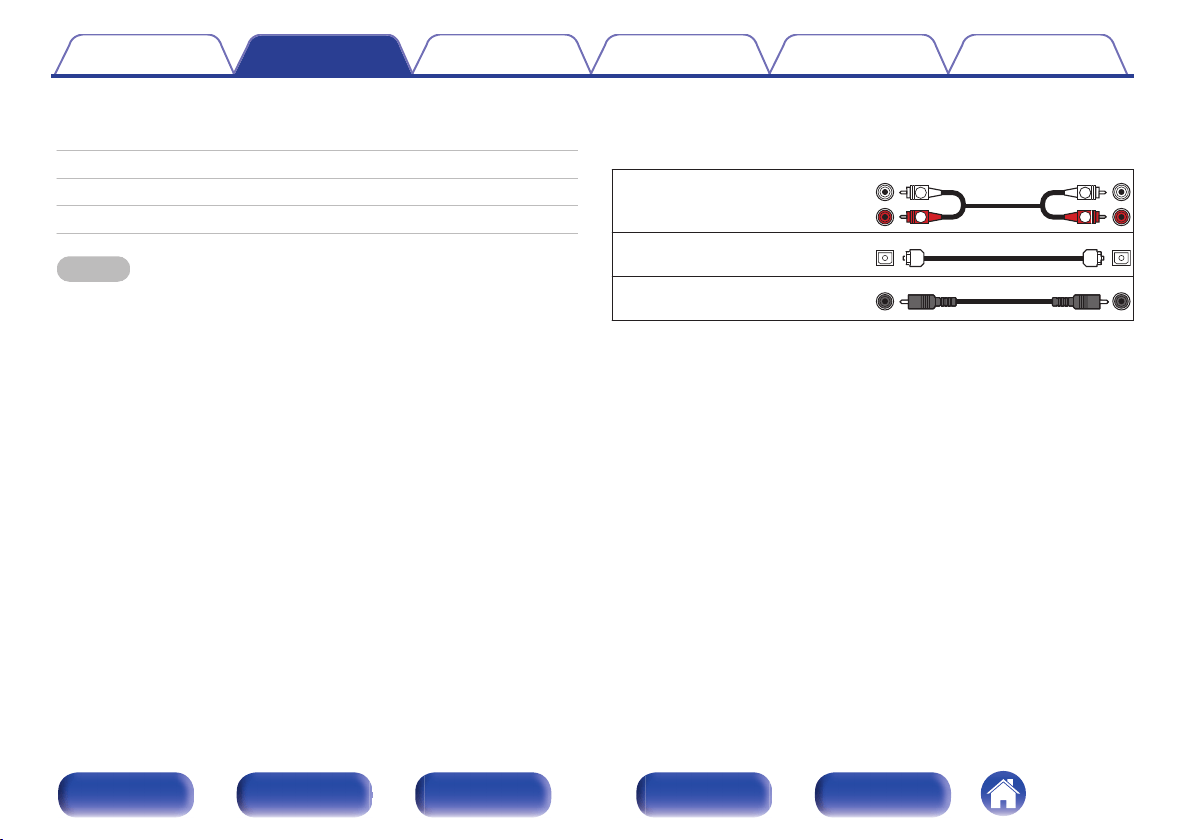
Cables used for connections
Provide necessary cables according to the devices you want to
connect.
Audio cable
(supplied)
.
R
L
R
L
Optical cable
.
Coaxial digital cable
.
Contents Connections Playback Settings Tips Appendix
13
Front panel Display Rear panel Remote Index
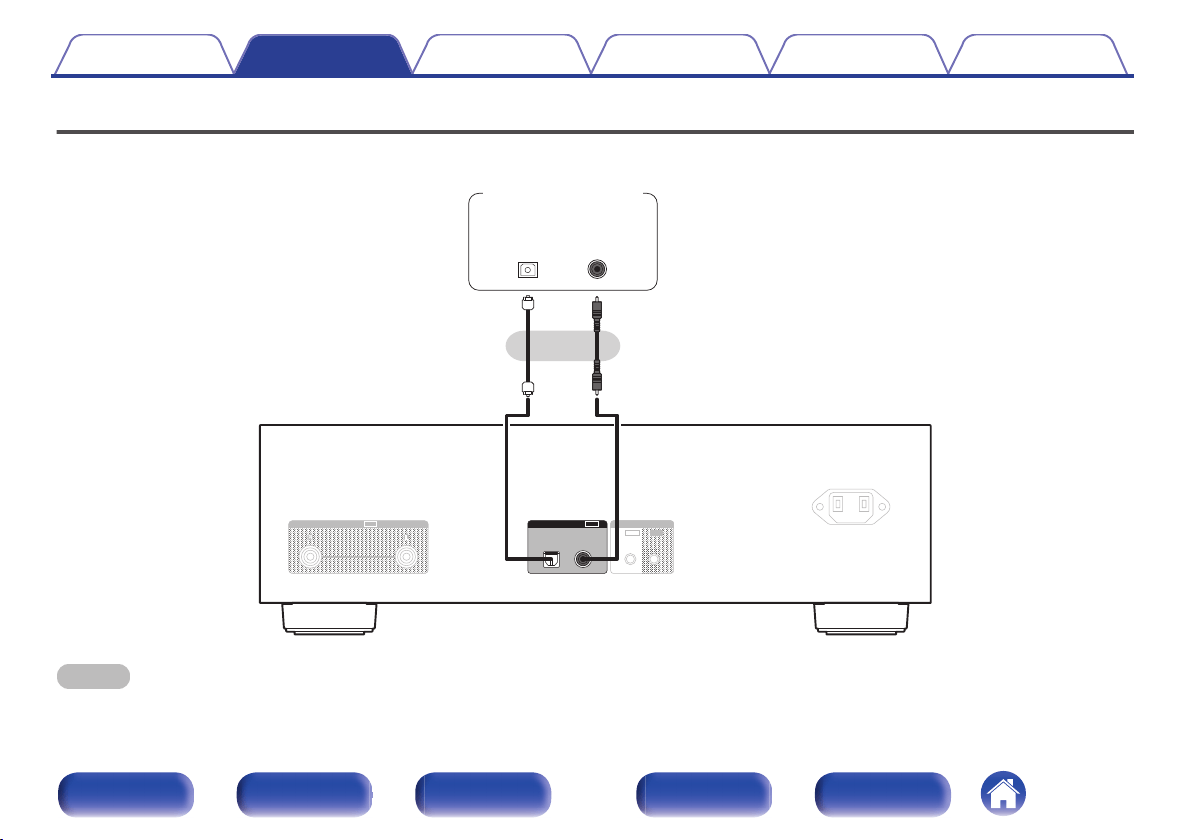
Connecting to a device with digital audio input connectors
You can enjoy digital audio playback by connecting an AV receiver or D/A converter that has a digital audio connector to this unit.
.
OUT
AUDIO
IN
IR CONTROL
OUT
AC IN
COAXIALOPTICAL
DIGITAL AUDIO
OUT
or
COAXIAL
IN
OPTICAL
IN
AV receiver /
D/A converter
NOTE
0
Digital audio output stops during playback of the HD layer of Super Audio CDs, DSD files and files with a sampling frequency of 32 kHz.
Contents Connections Playback Settings Tips Appendix
15
Front panel Display Rear panel Remote Index
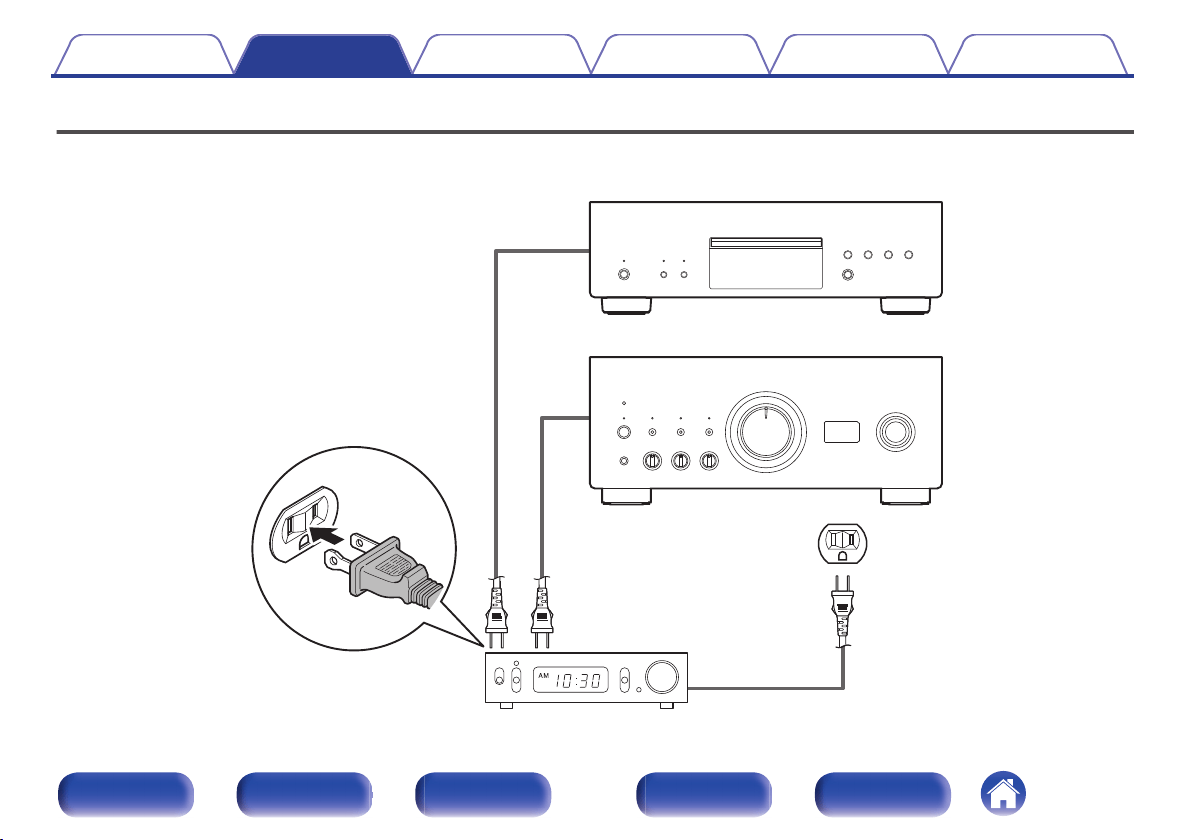
Connecting the timer device
This unit can perform timer play when an amplifier and timer device are connected to this unit. (“Using the timer play function” (v p. 29))
.
This unit
Amplifier
To household power outlet
(AC 120 V, 60 Hz)
Timer device
Contents
Connections Playback Settings Tips Appendix
16
Front panel Display Rear panel Remote Index
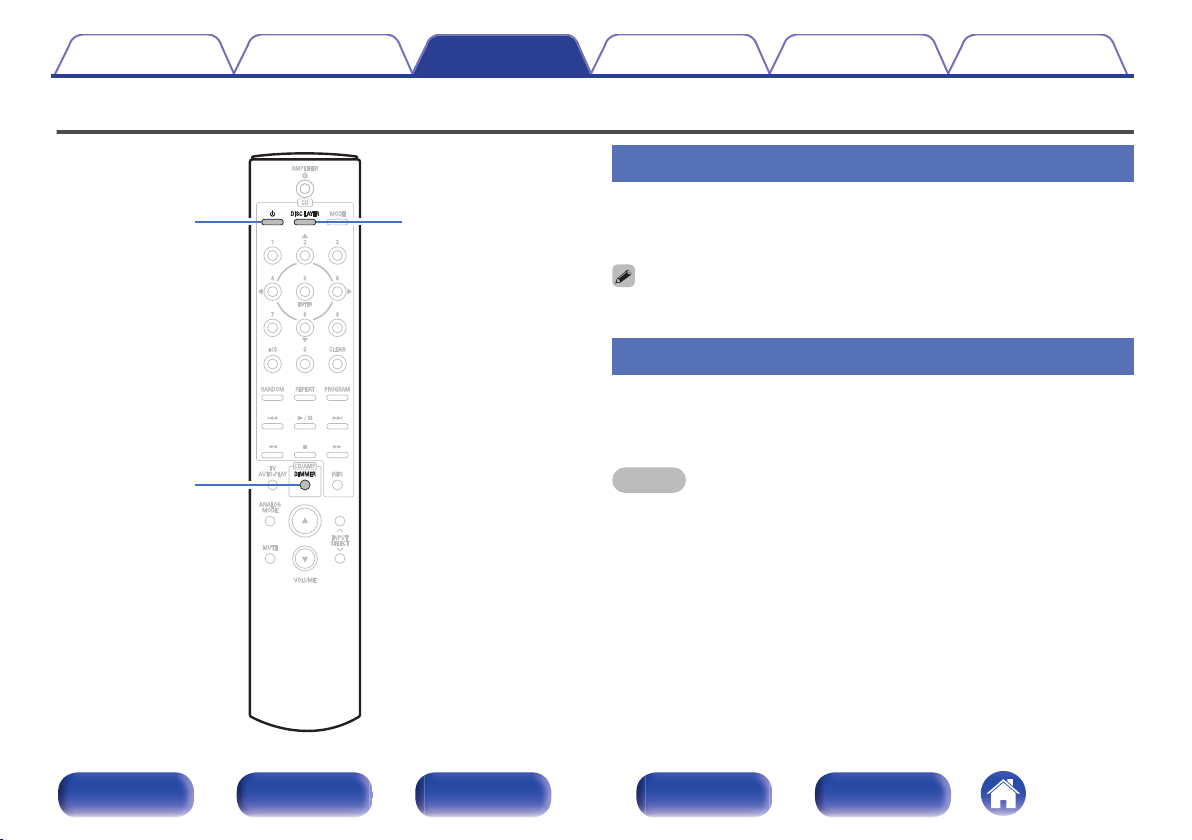
Basic operation
.
X
DIMMER
DISC LAYER
Turning the power on
1
Press X on the main unit to turn the power on.
The power indicator lights white.
0
Press X on the remote control unit to turn on power from standby mode.
Switching the power to standby
1
Press X.
The unit switches to standby mode.
NOTE
0
Power continues to be supplied to some of the circuitry even when the power is in
the standby mode. When leaving home for long periods of time or when going on
vacation, either press X on the main unit to turn off the power, or unplug the power
cord from the power outlet.
Contents Connections Playback Settings Tips Appendix
19
Front panel Display Rear panel Remote Index
Switching the display’s brightness
The display brightness can be adjusted between four levels. Switching the
display off reduces a source of noise that affects sound quality, enabling
higher sound quality playback.
1
Press DIMMER.
0
The brightness of the display switches each time the button is
pressed.
0
The display brightness is set to most brightly by default.
0
The DIMMER button also controls the Denon's Integrated Amplifier PMA-A110, so
the PMA-A110 can be operated simultaneously with this unit. When the two units
have different settings, press and hold in the button for lease 2 seconds to reset
them both to the default setting, then make the desired setting.
Switching the Pure Direct mode
In Pure Direct mode, the display turns off and digital audio output stops.
This reduces the source of noise that can adversely affect sound quality,
enabling high quality playback.
1
Press PURE DIRECT on the main unit.
The display turned off, and Pure Direct playback begins.
0
To turn off this mode, press PURE DIRECT again.
0
In the Pure Direct mode, DIMMER is not available for operation.
0
The display is only turned off during playback.
Contents Connections Playback Settings Tips Appendix
20
Front panel Display Rear panel Remote Index
Setting the top priority playback layer
for Super Audio CDs
The layer that is played with priority when the disc is loaded can be set.
1
Check that no disc is loaded.
0
If the layer is switched while the disc is being loaded, the
playback layer switches for that disc, but the top priority playback
layer setting itself does not change.
2
Press DISC LAYER and switch to the layer you want to
set.
STEREO
(Default):
Plays back the 2-channel area of the
Super Audio CD.
MULTI:
Plays back the multi-channel area of the
Super Audio CD.
The analog output of this unit outputs a
down-mixed 2-channel signal.
CD:
Plays back the CD layer of the Super
Audio CD.
0
The layer for playback can also be switched by pressing DISC LAYER on this unit.
0
When a disc is loaded after the setting has been made, the contents recorded on
the set layer are displayed.
0
If a disc that does not contain the layer set for top priority playback is loaded, the
contents recorded on another layer are displayed automatically.
0
This setting is stored in the memory and is not cleared even when the disc holder
is opened or closed or the power is turned off. To change the setting, repeat the
procedure above.
0
The priority playback layer cannot be set when a disc is inserted or “Open” is
shown on the display.
0
If the area and layer have not been set for a disc, the priority playback order is as
follows:
A
STEREO
B
MULTI
C
CD
Contents Connections Playback Settings Tips Appendix
21
Front panel Display Rear panel Remote Index
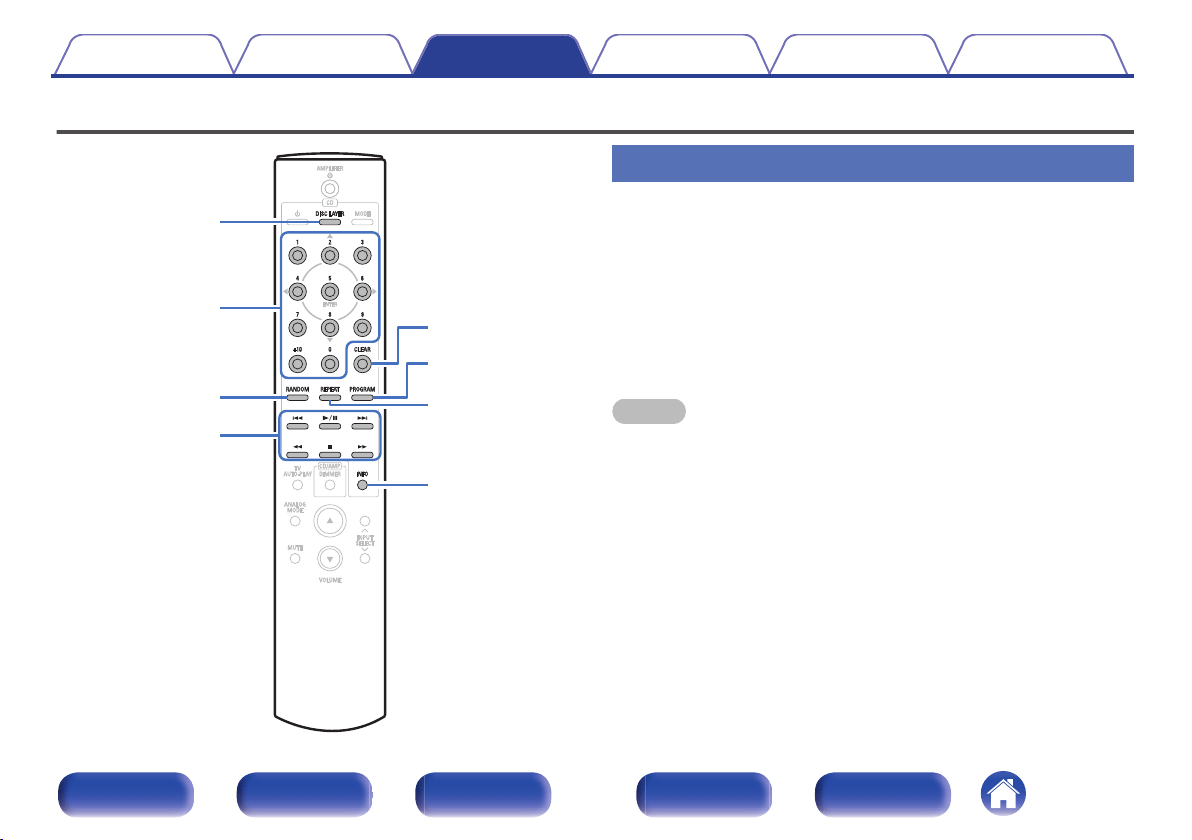
Playing CDs/Super Audio CDs
.
INFO
RANDOM
PROGRAM
CLEAR
REPEAT
0 - 9
㸩
10
1
/
3
2
8 9
6 7
DISC LAYER
Playing CDs/Super Audio CDs
1
Insert a disc. (v p. 42)
0
Press 5 on the main unit to open/close the disc tray.
2
When playing back a Super Audio CD, press DISC
LAYER to set the playback layer. (v p. 21)
3
Press 1/3.
The 1 indicator lights on the display. Playback starts.
NOTE
0
Do not place any foreign objects in the disc tray. Doing so could damage the unit.
0
Do not push the disc tray in by hand when the power is turned off. Doing so could
damage the unit.
Contents
Connections Playback Settings Tips Appendix
22
Front panel Display Rear panel Remote Index
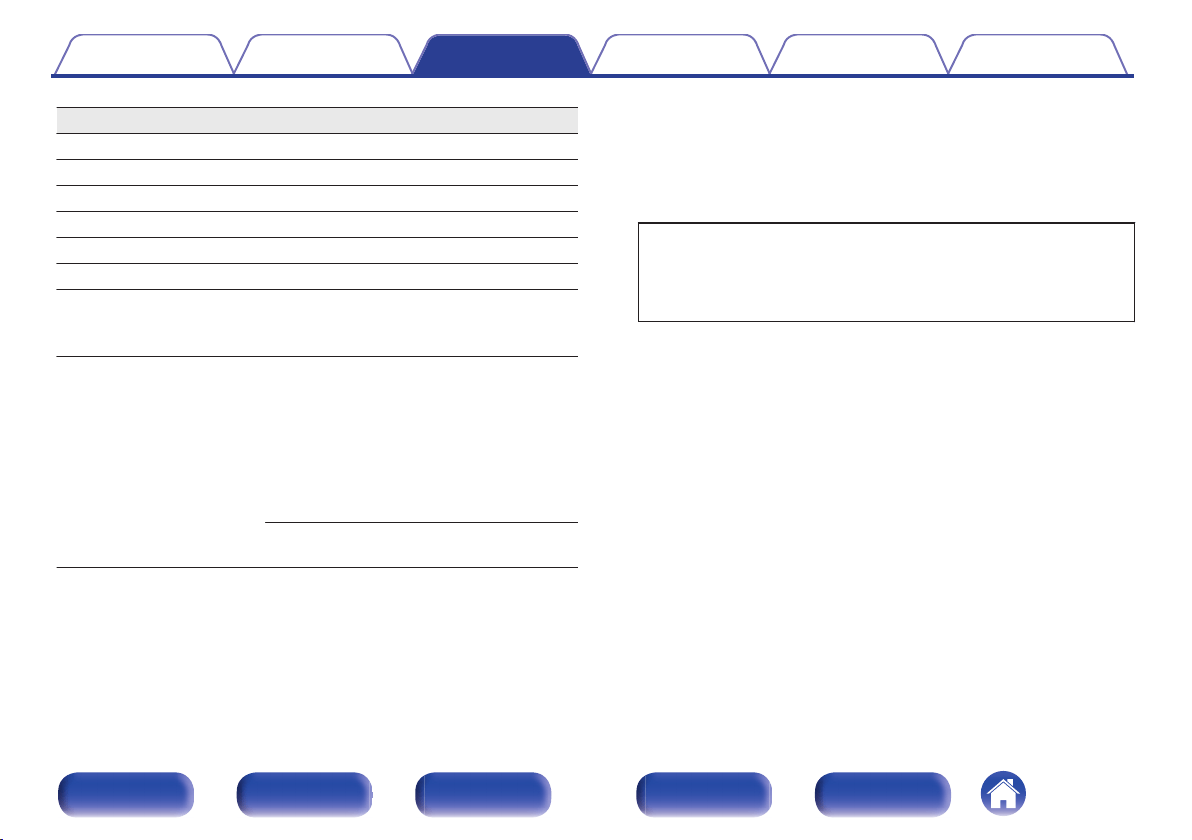
Operation buttons
Function
1/3
Playback / Pause
2
Stop
8 9
Skip to previous track / Skip to next track
6 7
Fast-reverse / Fast-forward
0 - 9, +10 Select the track
RANDOM Random playback
REPEAT
Repeat playback
0
Switching between All-track repeat,
Single-track repeat and Repeat off.
INFO
Time display switching
0
Switching between elapsed time of the
current track, remaining time of the
current track and remaining time of all
tracks.
0
The time displayed on this unit may differ
from this actual time, as it is calculated
by truncating to the nearest 1 second.
Text information recorded on the Super
Audio CD appears in the display.
o
Switching the display
Press INFO.
Displays text and time information stored on media.
0
The text information is only displayed for Super Audio CD.
0
The player can display the following characters:
ABCDEFGHIJKLMNOPQRSTUVWXYZ
abcdefghijklmnopqrstuvwxyz
0123456789
! ” # $ % & : ; < > ? @ \ [ ] _ ` l { } ~ ^ ’( ) * + , - . / = (space)
o
Discs that can be played back
0
See “Discs”. (v p. 38)
Contents
Connections Playback Settings Tips Appendix
23
Front panel Display Rear panel Remote Index
o
Playing a specific track (Direct searching)
1
Use 0 – 9, +10 to select the tracks.
GExampleH
Track 4 :
Press number 4 to select track 4.
Track 12 :
Press numbers +10 and 2 consecutively.
Playing tracks in a specific order
(Program playback)
Up to 20 tracks can be programmed.
1
In the stop mode, press PROGRAM.
The program indicator lights on the display.
2
Use 0 – 9 and +10 to select the tracks.
GExampleH
To program tracks 3 and 12 to be played in that order, press 3, +10
and 2 one after the other.
3
Press 1/3.
Playback starts in the programmed order.
0
When REPEAT is pressed during program playback, the tracks are played
repeatedly in the programmed order.
Contents Connections Playback Settings Tips Appendix
24
Front panel Display Rear panel Remote Index
o
Checking the order of the programmed tracks
In the stop mode, press 9.
The track numbers are displayed in the programmed order each time
the button is pressed.
o
To clear the last track programmed
In the stop mode, press CLEAR.
The last track programmed is cleared each time the button is pressed.
o
Clearing the all programmed track
In the stop mode, press PROGRAM.
Contents Connections Playback Settings Tips Appendix
25
Front panel Display Rear panel Remote Index
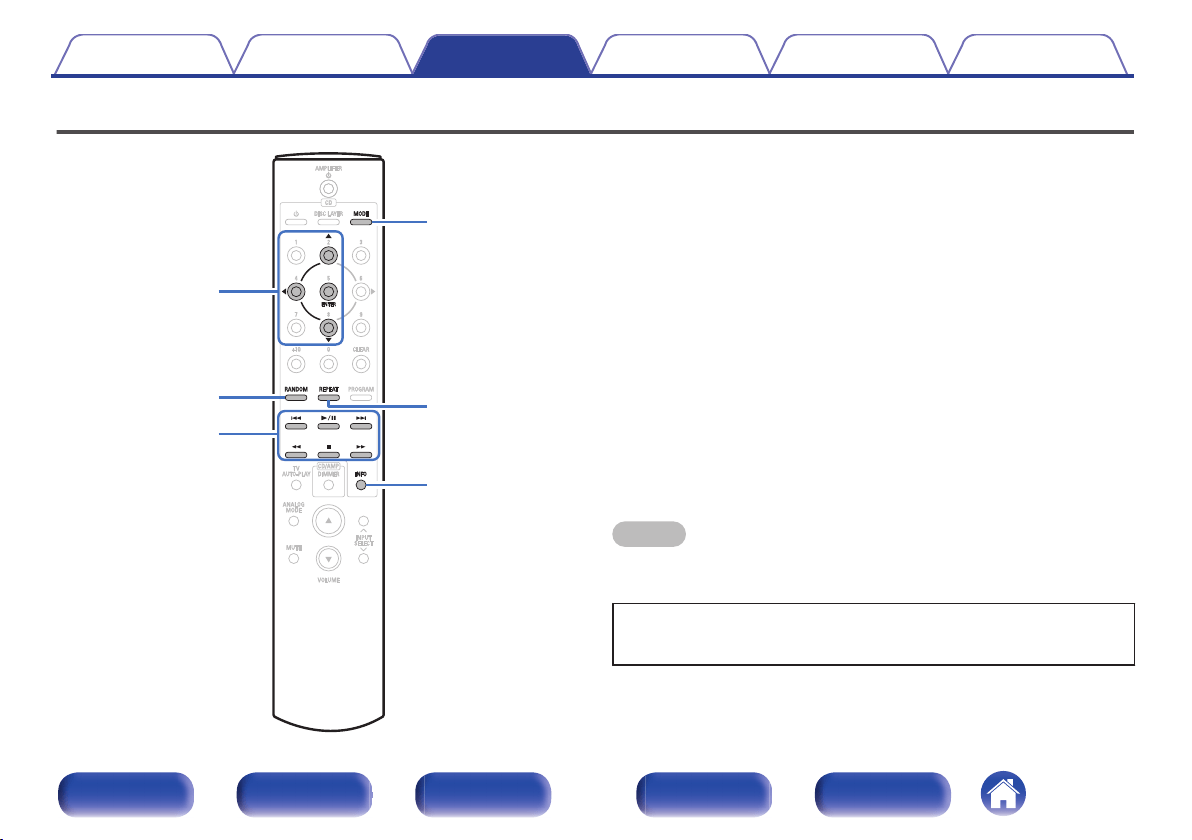
Playing Data CDs and Data DVDs
.
INFO
RANDOM
REPEAT
MODE
uio
ENTER
1
/
3
2
8 9
6 7
0
This section explains how to playback music files that are recorded onto
a CD-R/-RW or DVD-R/-RW/+R/+RW.
0
There are many music distribution sites on the Internet allowing you to
download music files in MP3 or WMA (Windows Media
®
Audio) format.
The music (files) downloaded from such sites can be stored on CD-R/-
RW or DVD-R/-RW/+R/+RW discs and played on this unit.
0
The audio format types and specifications supported by this unit for
playback are as follows.
See “Playable files” for details. (v p. 39)
0
MP3
0
WMA
0
AAC
0
WAV
0
FLAC
0
ALAC
0
AIFF
0
DSD
NOTE
0
Copyright-protected files cannot be played.
Note that depending on the software used for burning and other conditions, some
files may not play or display correctly.
“Windows Media” and “Windows” are the trademarks or registered
trademarks of Microsoft Corporation in the United States and other
countries.
Contents
Connections Playback Settings Tips Appendix
26
Front panel Display Rear panel Remote Index
Playing files
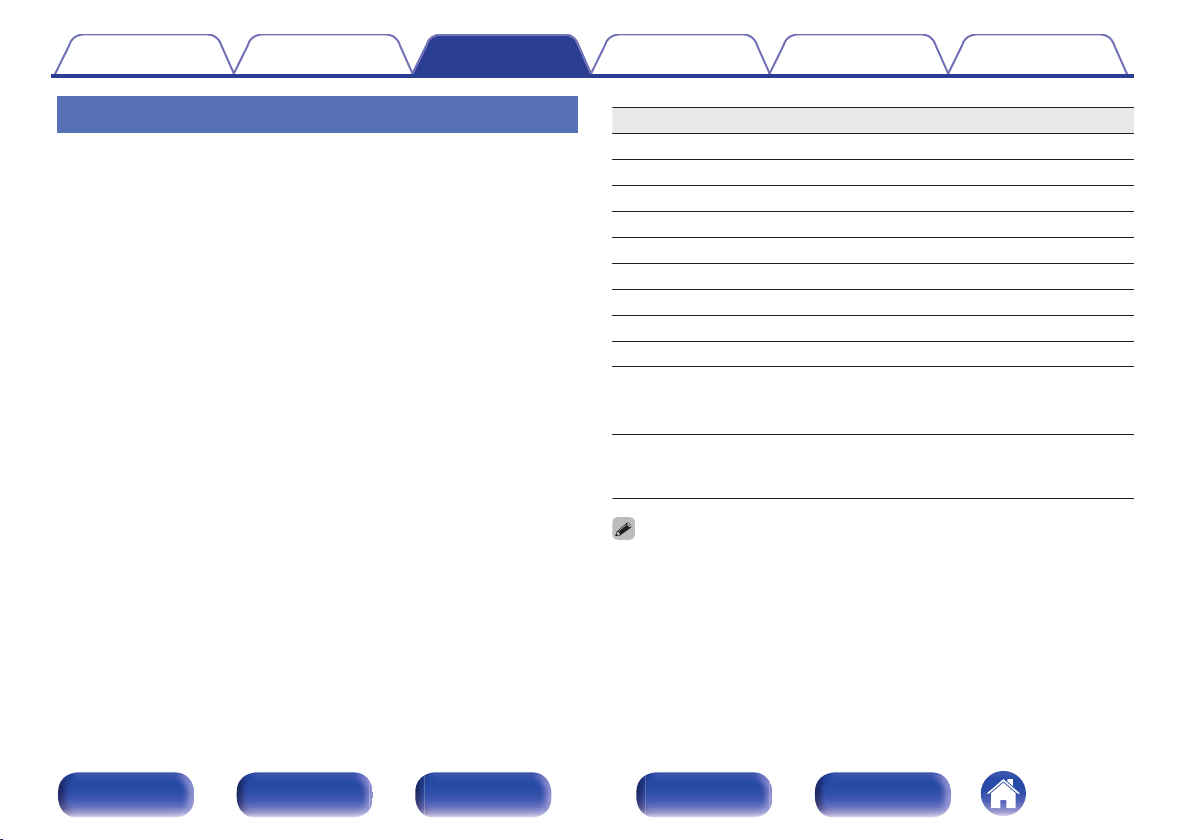
1
Load a CD-R/-RW or DVD-R/-RW/+R/+RW disc
containing music files into the disc tray. (v p. 42)
0
Press 5 on the main unit to open/close the disc tray.
2
Use uio to select the folder to be played, then press
ENTER.
3
Use ui to select the file to be played, then press
ENTER.
Playback starts.
Operation buttons
Function
1/3
Playback / Pause
2
Stop
8 9
Skip to previous track / Skip to next track
6 7
Fast-reverse / Fast-forward
o
Moving up a level in the folder tree
u i
Select the item
ENTER Enter the selected item / Playback
MODE Select the playback range
RANDOM Random playback
REPEAT
Repeat playback
0
Switching between All-track repeat,
Single-track repeat and Repeat off.
INFO
Switch the display between the elapsed
playback time, text information stored in the
file and the file format.
0
To play another file while playing from a CD-R/-RW or DVD-R/-RW/+R/+RW,
press o to display the folder tree, ui to select the file to be played, and then
press ENTER.
Contents Connections Playback Settings Tips Appendix
27
Front panel Display Rear panel Remote Index
o
Switching the display
During playback, press INFO.
0
Switch the display between the elapsed playback time, text
information stored in the file and the file format.
0
If a file does not support text information or no track information is
recorded, the file name is displayed.
0
The player can display the following characters:
ABCDEFGHIJKLMNOPQRSTUVWXYZ
abcdefghijklmnopqrstuvwxyz
0123456789
! ” # $ % & : ; < > ? @ \ [ ] _ ` l { } ~ ^ ’( ) * + , - . / = space
0
The folder and file numbers are set automatically when the disc is
loaded.
o
Files that can be played back
0
See “Playable files”. (v p. 39)
o
Switching the playback range
In the stop mode, press MODE.
0
The playback range of a track can be set.
Folder mode:
All the files in the selected folder are
played.
All mode: All the files in the disc are played.
0
The folder hierarchy is not displayed when “All mode” is set as the playback
range.
Contents Connections Playback Settings Tips Appendix
28
Front panel Display Rear panel Remote Index
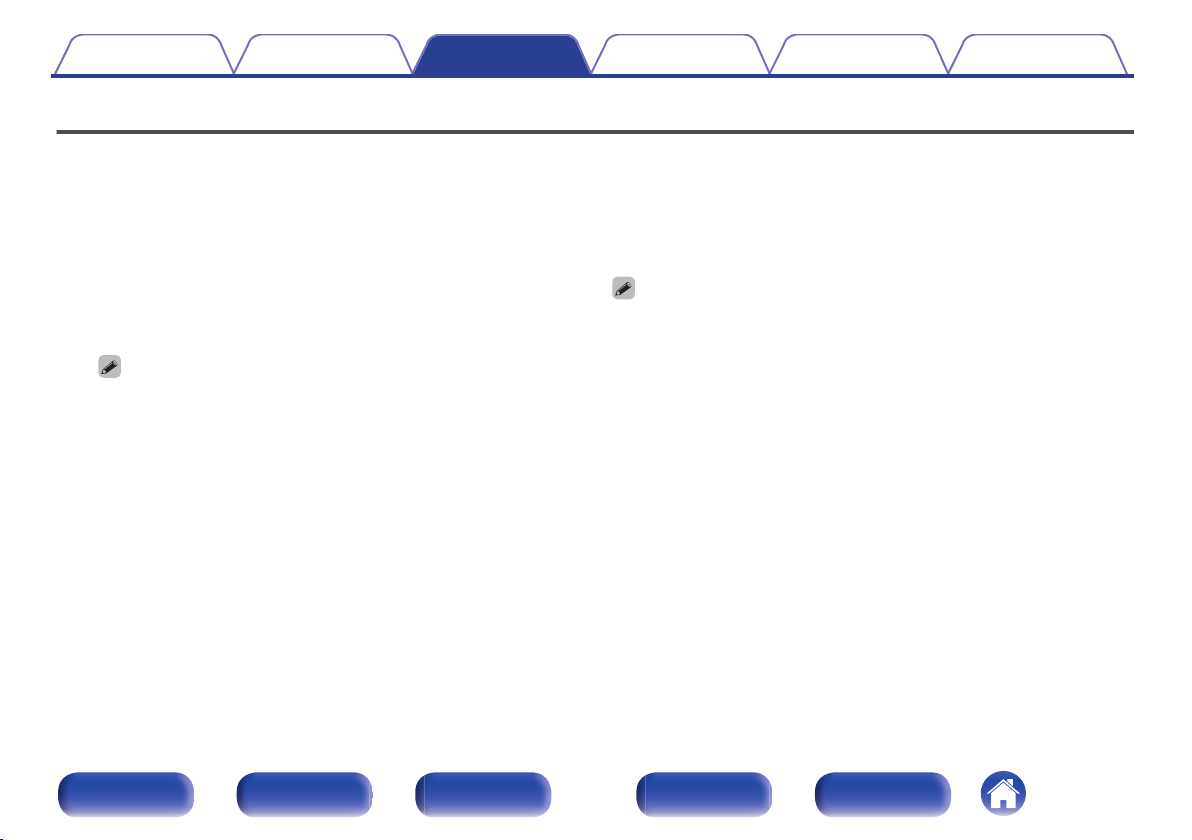
Using the timer play function
1
Turn on the power of the connected components.
(v p. 16)
2
Switch the amplifier’s function to input from the
connected unit.
3
Press the MODE button on the remote control for 5
seconds or more to turn on the timer play function.
“Timer Play On” is displayed on the display.
0
Pressing the MODE button on the remote control for 5 seconds or more
switches the timer play function between on and off.
0
“Timer Play On” and “Timer Play Off” are only shown on the display when
the timer play function switches between on and off.
4
Load a disc.
5
Set the audio timer for the desired times.
0
Refer also to the owner’s manual of the audio timer.
6
Turn the timer “On”.
0
The power of the components connected to the timer turns off.
0
When the set time is reached, the power of the different
components automatically turns on and playback starts from the
first track.
0
The timer play does not support the random play or program play.
Contents Connections Playback Settings Tips Appendix
29
Front panel Display Rear panel Remote Index
Setting the Auto Standby mode
When Auto Standby mode is set to On, if the unit remains in the stopped
state and no operations are performed for approximately 30 minutes, the
unit automatically switches to standby mode.
The default setting is “Off”.
.
X
1
Press and hold X for 5 seconds or more to switch it on
and off.
The display changes as follows each time it is switched on and off.
0
When auto standby mode is on: “Auto STBY On” is displayed.
0
When auto standby mode is off: “Auto STBY Off” is displayed.
Contents
Connections Playback Settings Tips Appendix
30
Front panel Display Rear panel Remote Index
o
Contents
Tips
I want to enjoy analog output audio at higher quality 32
I want to playback just the specified folder 32
I want to display Super Audio CD text 32
I want to play the multi-channel area of a Super Audio CD is played 32
I want to play all tracks on a DVD-R/-RW/+R/+RW or CD-R/-RW at
random 32
Troubleshooting
Power does not turn on / Power is turned off 34
Operations cannot be performed through the remote control unit 35
Display on this unit shows nothing 35
No sound comes out 36
Sound is interrupted or noise occurs 36
Cannot playback Discs 37
Contents Connections Playback Settings Tips Appendix
31
Front panel Display Rear panel Remote Index
Tips
I want to enjoy analog output audio at higher quality
0
Set Pure Direct which turns digital output and the display off. (v p. 20)
I want to playback just the specified folder
0
The MODE button to set the playback range to “Folder mode”. (v p. 28)
I want to display Super Audio CD text
0
This unit supports Super Audio CD text. Press the INFO button to switch the display information. (v p. 23)
I want to play the multi-channel area of a Super Audio CD is played
0
This unit can play multi-channel audio by downmixing to two channels. Press the DISC LAYER button and set “MULTI”. (v p. 21)
I want to play all tracks on a DVD-R/-RW/+R/+RW or CD-R/-RW at random
0
Random playback can be set by pressing the MODE button and setting “All Mode” as the playback mode before playback. (v p. 28)
Contents
Connections Playback Settings Tips Appendix
32
Front panel Display Rear panel Remote Index
Troubleshooting
If a problem should arise, first check the following:
1. Are the connections correct?
2. Is the set being operated as described in the owner’s manual?
3. Are the other devices operating properly?
If this unit does not operate properly, check the corresponding symptoms in this section.
If the symptoms do not match any of those described here, consult your dealer as it could be due to a fault in this unit. In this case, disconnect the power
immediately and contact the store where you purchased this unit.
Contents Connections Playback Settings Tips Appendix
33
Front panel Display Rear panel Remote Index
Power does not turn on / Power is turned off
Power is not turned on.
0
Check whether the power plug is correctly inserted into the power outlet. (v p. 17)
0
This unit is in standby mode. Press the X button on the remote control. (v p. 19)
Power automatically turns off.
0
The auto standby mode setting is on. The auto standby mode automatically switches the unit to standby if there are no operations for more than 30
minutes. To disable the Auto Standby mode, press and hold the X button on the remote control for more than 5 seconds when the Auto Standby mode
is enabled. (v p. 30)
When the power is turned on, the power indicator shows one long blink and three or six short blinks in red.
0
Press the X button on the main unit to turn off the power, and then turn on the power again. If the power indicator blinks again, this unit’s circuit has
failed. Unplug the power cord and contact our customer service center.
Contents
Connections Playback Settings Tips Appendix
34
Front panel Display Rear panel Remote Index
Operations cannot be performed through the remote control unit
Operations cannot be performed through the remote control unit.
0
Batteries are worn out. Replace with new batteries. (v p. 5)
0
Operate the remote control unit within a distance of about 23 ft/7 m from this unit and at an angle of within 30°. (v p. 5)
0
Remove any obstacle between this unit and the remote control unit.
0
Insert the batteries in the proper direction, checking the q and w marks. (v p. 5)
0
The unit’s remote control sensor is exposed to strong light (direct sunlight, inverter type fluorescent bulb light, etc.). Move the set to a place in which the
remote control sensor will not be exposed to strong light.
0
When using a 3D video device, the remote control unit of this unit may not function due to effects of infrared communications between units (such as TV
and glasses for 3D viewing). In this case, adjust the direction of units with the 3D communications function and their distance to ensure they do not
affect operations from the remote control unit of this unit.
Display on this unit shows nothing
Display is off.
0
Press the DIMMER button, and change the setting to anything other than off. (v p. 20)
0
Setting Pure Direct mode to on turns off the display. Press the PURE DIRECT button on the main unit to set Pure Direct mode to off. (v p. 20)
Contents
Connections Playback Settings Tips Appendix
35
Front panel Display Rear panel Remote Index
No sound comes out
No sound is produced. Or sound is distorted.
0
Check the connections for all devices. (v p. 13)
0
Insert connection cables all the way in.
0
Check that input connectors and output connectors are not reversely connected.
0
Check cables for damage.
0
Check the amplifier’s functions and controls and adjust as necessary.
0
When Pure Direct mode is set to on, digital audio output stops. Set Pure Direct mode to off to output digital audio. (v p. 20)
0
Digital audio output stops during playback of the HD layer of Super Audio CDs, DSD files and files with a sampling frequency of 32 kHz.
Sound is interrupted or noise occurs
During playback from the CD-R/CD-RW/DVD-R/DVD-RW/DVD+R/DVD+RW, sound is occasionally interrupted.
0
The sound may skip during playback of a CD-R/CD-RW containing a high-resolution audio source.
0
This may be caused by poor recording conditions, or the disc itself may be of poor quality. Use a correctly recorded disc.
Contents
Connections Playback Settings Tips Appendix
36
Front panel Display Rear panel Remote Index
Cannot playback Discs
Cannot playback when the play button is pressed, or cannot correctly play back a specific part of the disc.
0
The disc is dirty or scratched. Either clean the disc, or insert a different disc. (v p. 43)
Cannot playback CD-R/CD-RW/DVD-R/DVD-RW/DVD+R/DVD+RW.
0
Discs cannot be played back unless they have been finalized. Use a finalized disc. (v p. 38)
0
This may be caused by poor recording conditions, or the disc itself may be of poor quality. Use a correctly recorded disc.
0
Files are created in a format that is not supported by this unit. Check the formats supported by this unit. (v p. 38)
“No Disc” is displayed.
0
“No Disc” is displayed if the disc is loaded upside-down, if no disc is loaded, when the inserted disc cannot be read because it is not compatible with
this unit or is dirty or scratched. Check the disc.
“System Error” is displayed.
0
“System Error” is displayed when an error not caused by disc, format, etc., occurs. Contact our customer service center.
“Wrong Format” is displayed.
0
“Wrong Format” is displayed for files created in a format that is not supported by this unit. Check the formats supported by this unit. (v p. 39)
Contents
Connections Playback Settings Tips Appendix
37
Front panel Display Rear panel Remote Index
Playable media
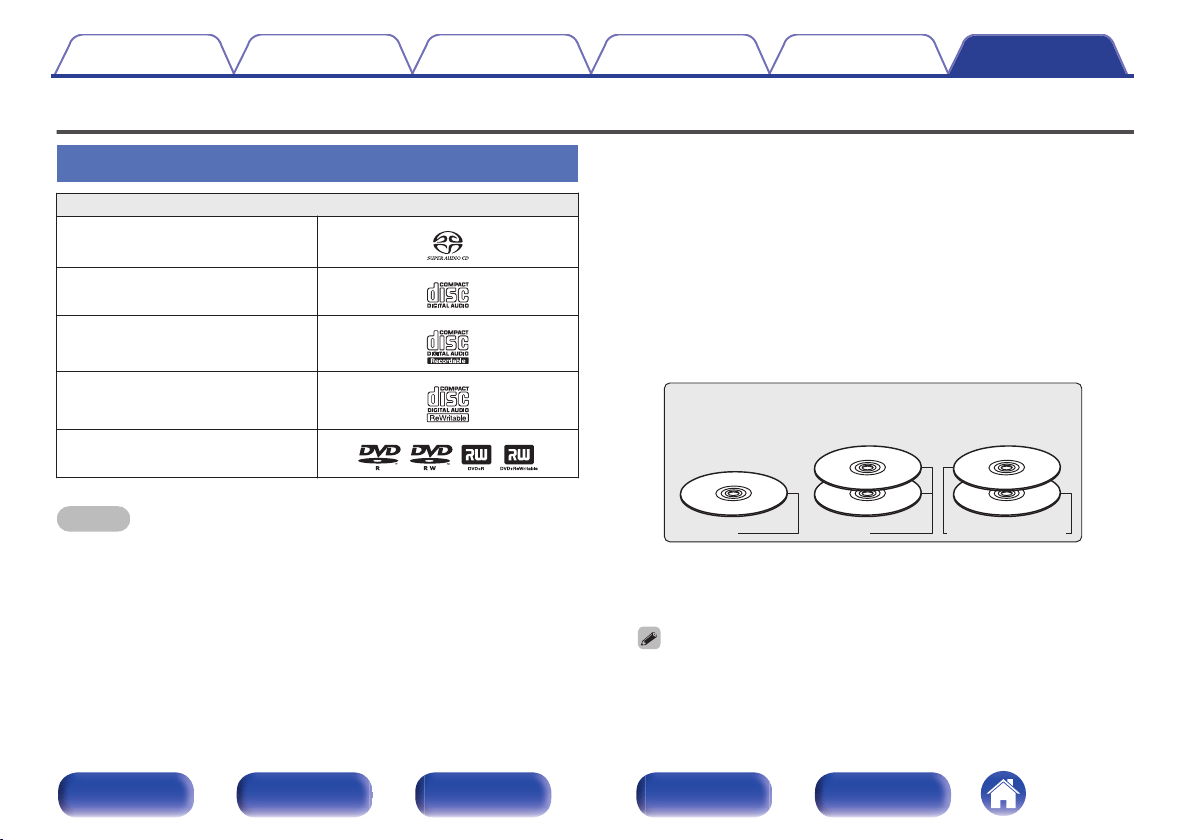
Discs
Playable media
Super Audio CD
.
CD
.
CD-R
.
CD-RW
.
DVD-R/-RW/+R/+RW
.
NOTE
0
Some discs and some recording formats cannot be played.
0
Non-finalized discs cannot be played.
o
Super Audio CD
There are three types of Super Audio CDs:
A
Single layer disc
Single layer Super Audio CD with just an HD layer.
B
Dual layer disc
Super Audio CD with two HD layers. Enables long playback at a
high audio quality.
C
Hybrid disc
Two-layer Super Audio CD with an HD layer and a CD layer.
The signals on the CD layer can be played on a regular CD player.
.
Types of Super Audio CDs
Single layer disc Dual layer disc
Hybrid disc
HD layer
HD layer HD layer
CD layer
The HD layer is a layer of high density signals for Super Audio CDs.
The CD layer is the layer of signals that can be read on a regular CD
player.
0
When “MULTI” is selected, down-mixed audio is output to the L and R
channels.
Contents Connections Playback Settings Tips Appendix
38
Front panel Display Rear panel Remote Index
o
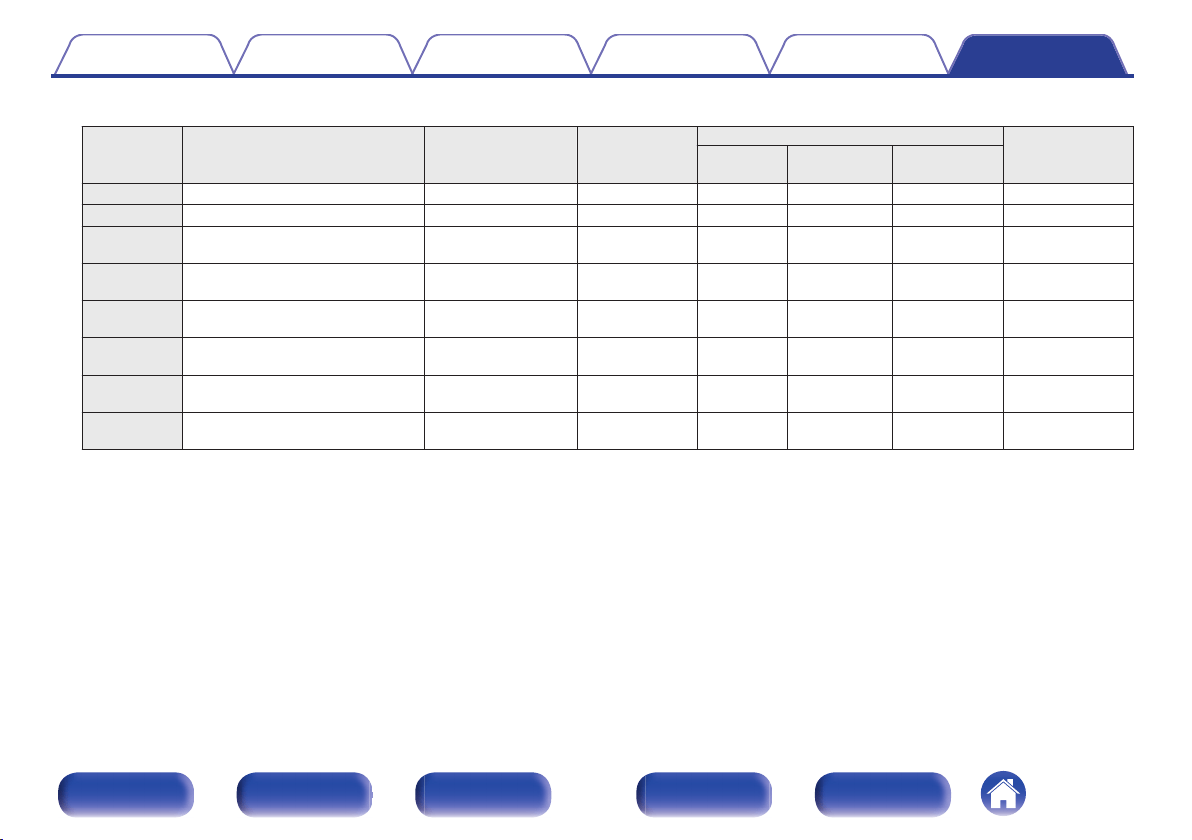
Compatible formats
Sampling frequency Bit rate
Bit length
Playable discs
Extension
CD-R/
CD-RW
DVD-R/
DVD-RW
DVD+R/
DVD+RW
MP3 32/44.1/48 kHz 32 – 320 kbps -
P P P
.mp3
WMA 32/44.1/48 kHz 48 – 320 kbps -
P P P
.wma
AAC 32/44.1/48 kHz 16 – 320 kbps -
P P P
.aac/
.m4a
WAV
32/44.1/48/88.2/
96/176.4/192 kHz
- 16/24 bit
P
z
2
P P
.wav
FLAC
32/44.1/48/88.2/
96/176.4/192 kHz
- 16/24 bit
P
z
2
P P
.flac
ALAC
z
1
32/44.1/48/
88.2/96 kHz
- 16/24 bit
P
z
2
P P
.m4a
AIFF
32/44.1/48/88.2/
96/176.4/192 kHz
- 16/24 bit
P
z
2
P P
.aif/
.aiff
DSD 2.8/5.6 MHz - 1 bit –
P P
.dsf/
.dff
z1
Copyright [2012] [D&M Holdings. Inc.]
Licensed under the Apache License, Version 2.0 (the “License”); you may not use this file except in compliance with the License. You may obtain a copy of the License at
http://www.apache.org/licenses/LICENSE-2.0
z2
This item can only be used to play files with a sampling frequency of 32/44.1/48 kHz.
o
Maximum number of playable files and folders
Maximum number of folders : 1,000
Maximum number of files in 1 folder : 2,000
Contents Connections Playback Settings Tips Appendix
39
Front panel Display Rear panel Remote Index
NOTE
0
Be sure to give files the extension. Files with any other extensions or files with
no extensions cannot be played.
0
Recordings you have made should only be used for your personal enjoyment,
and as per copyright laws may not be used in other ways without permission of
the copyright holder.
0
Only music files that are not copyright-protected can be played on this unit.
0
Content downloaded from pay sites on the Internet are copyright protected.
Also, files encoded in WMA format when ripped from a CD, etc. on a
computer may be copyright protected, depending on the computer’s
settings.
0
The maximum number of files and folders that can be played differs
depending on conditions such as the length of the file name or folder name or
the number of levels in the folder hierarchy.
Playback order of music files
When there are multiple folders containing music files, the playback order
of folders is automatically set when this unit reads the media. The files in
each folder are played back in the order in which the files were recorded
on the media, from the oldest date and time.
DVD-R/-RW/+R/+RW and CD-R/-RW
For playback of files on DVD-R/-RW/+R/+RW or CD-R/-RW, files in all
folders on the first layer are played first, next on the second layer, then
next on the third layer, and so on in this order.
0
The playback order displayed on a PC may differ from the actual playback order.
0
The playback order with a DVD-R/-RW/+R/+RW and CD-R/-RW may differ,
depending on the writing software.
Contents Connections Playback Settings Tips Appendix
40
Front panel Display Rear panel Remote Index
About discs and files
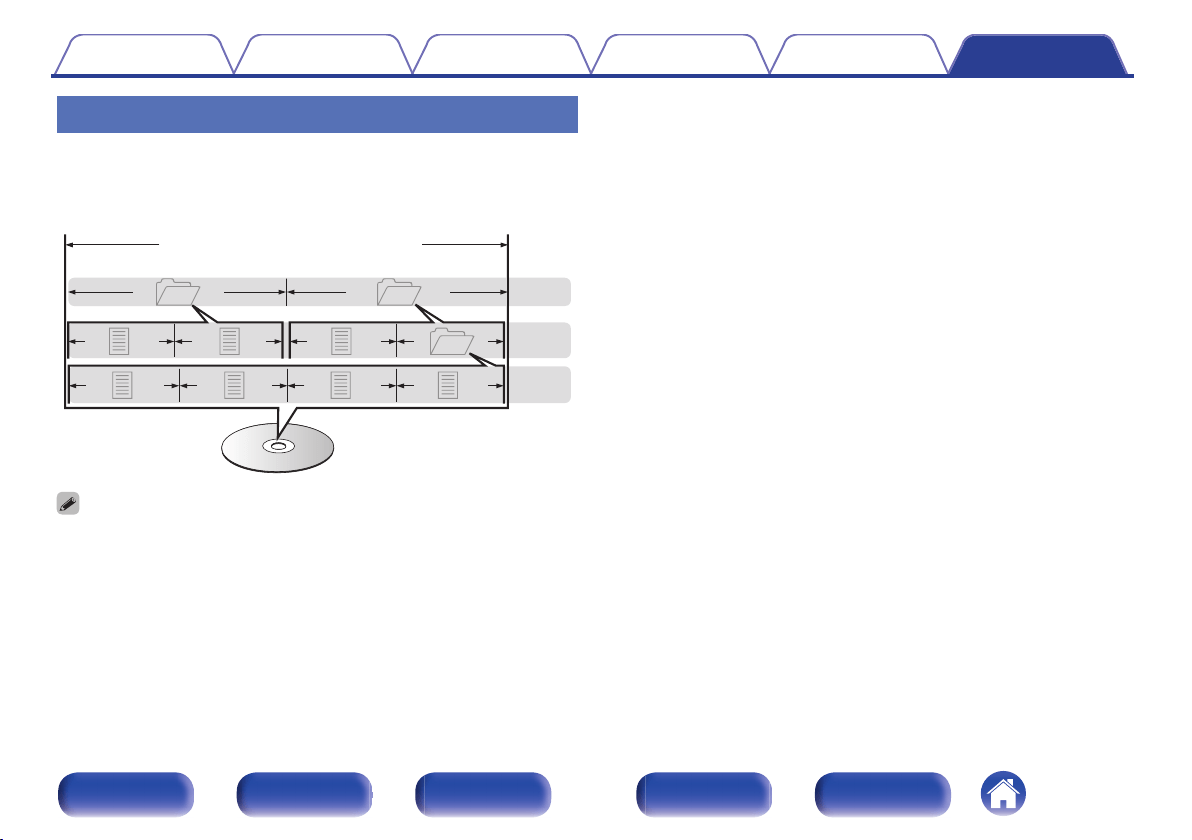
Music files recorded on CD-R/-RW and DVD-R/-RW/+R/+RW are divided
into large segments (folders) and small segments (files).
Files are stored in folders, and folders can be placed for storage in a
hierarchy. The unit can recognize up to 8 levels of folders.
.
3rd level
File 7
File 6
File 5
File 4
2nd level
Folder 3
File 3File 2
File 1
1st level
Folder 1
Folder 2
DVD-R/-RW/+R/+RW or CD-R/-RW
0
When writing music files on a DVD-R/-RW/+R/+RW or CD-R/-RW disc, set the
writing software’s format to “ISO9660”. The files may not play properly if they are
recorded in other formats. For details, refer to the instructions of your writing
software.
Contents Connections Playback Settings Tips Appendix
41
Front panel Display Rear panel Remote Index
Cautions on using media
Loading discs
0
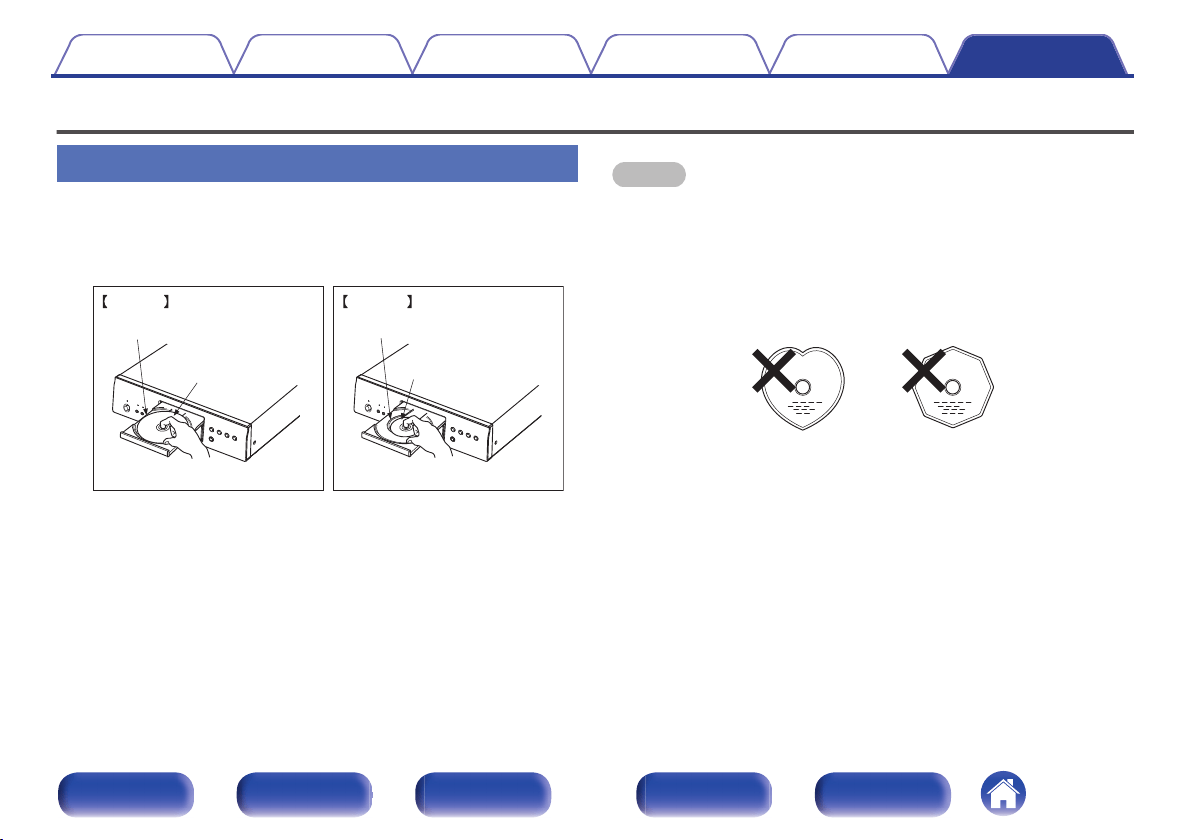
Set the disc in the tray label side up.
0
Make sure the disc tray is fully open when inserting the disc.
0
Place the discs flatly, 5 inch/12 cm discs in the outer tray guide (Figure
1), 3 inch/8 cm discs in the inner tray guide (Figure 2).
.
Outer tray guide Inner tray guide
5 inch/12 cm disc
3 inch/8 cm disc
Figure 2Figure 1
0
Place 3 inch/8 cm discs in the inner tray guide without using an adapter.
NOTE
0
Only load one disc at a time. Loading two or more discs can damage the unit or
scratch the discs.
0
Do not use cracked or warped discs or discs that have been repaired with
adhesive, etc.
0
Do not use discs on which the sticky part of cellophane tape or labels is exposed
or on which there are traces of where labels have been removed. Such discs can
get caught inside the player and damage it.
0
Do not use discs in special shapes, as they may damage the unit.
.
0
Do not push the disc tray in by hand when the power is off. Doing so could
damage the unit.
0
If the unit is left in a room full of smoke from cigarettes, etc., for long periods of
time, the surface of the optical pickup may get dirty, preventing it from receiving
signals properly.
Contents
Connections Playback Settings Tips Appendix
42
Front panel Display Rear panel Remote Index
How to handle media
0
Do not get fingerprints, oil or dirt on discs.
0
Take special care not to scratch discs when removing them from their
cases.
0
Do not bend or heat discs.
0
Do not enlarge the hole in the center.
0
Do not write on the labeled (printed) surface with ball-point pens,
pencils, etc., or stick new labels on discs.
0
Condensation may form on discs if they are moved suddenly from a
cold place (outdoors for example) to a warm place, but do not try to dry
discs with a hairdryer, etc.
0
Do not store discs in the following places:
1. Places exposed to direct sunlight for long periods of time
2. Dusty or humid places
3. Places exposed to heat from heaters, etc.
Cleaning discs
0
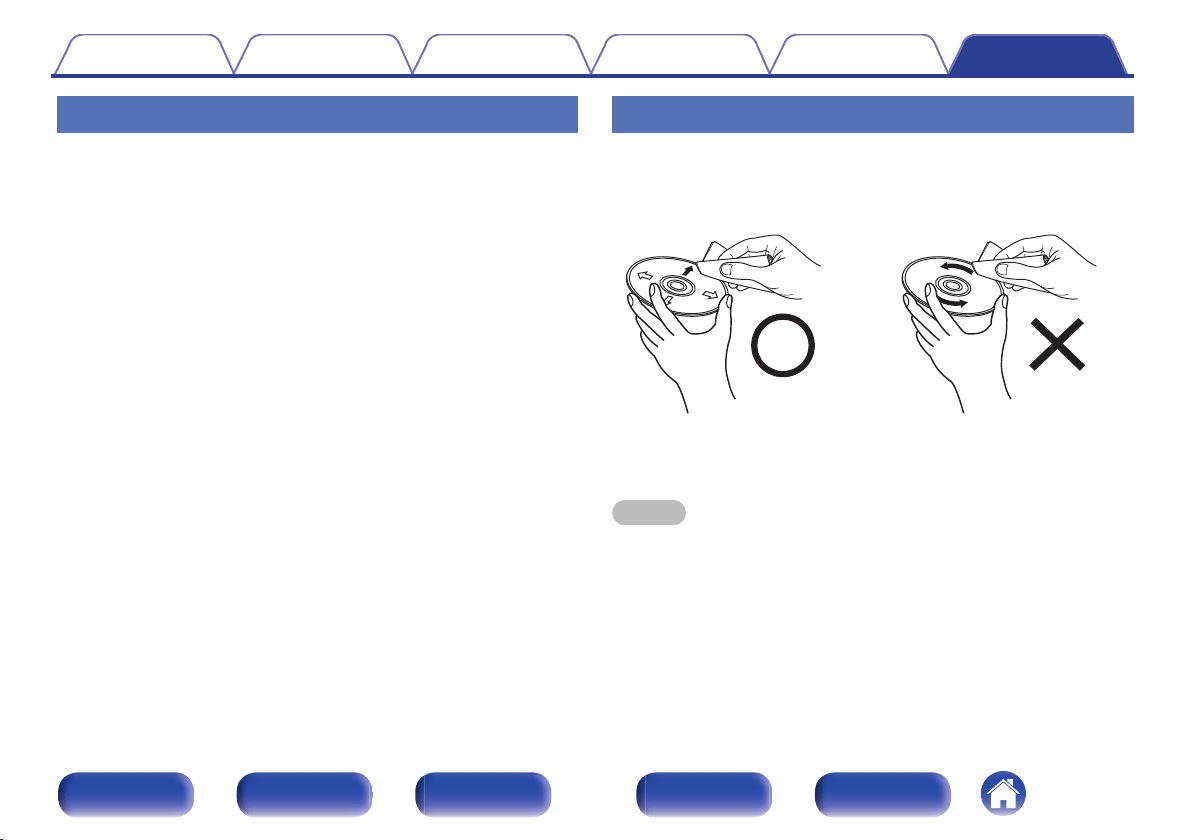
If there are fingerprints or dirt on a disc, wipe them off before using the
disc.
0
Use a commercially available disc cleaning set or a soft cloth to clean
discs.
.
Gently wipe the disc from the
inside towards the outside.
Do not wipe with a circular
motion.
NOTE
0
Do not use record spray, antistatic agents, benzene, thinner or other solvents.
Contents Connections Playback Settings Tips Appendix
43
Front panel Display Rear panel Remote Index
Explanation of terms
Ultra AL32 Processing
This is Denon’s analog waveform reproduction technology. Interpolation
processing is performed in an ideal manner by a custom algorithm for data
lost from existing data. By exquisitely restoring data lost at digital
recording, playback faithful to the original sound is achieved.
AIFF (Audio Interchange File Format)
This is an uncompressed and lossless format for digital audio. Use AIFF
files to burn high-quality audio CDs from imported songs. AIFF files use
approximately 10 MB of disk space per minute.
ALAC (Apple Lossless Audio Codec)
This is a codec for lossless audio compression method developed by
Apple Inc. This codec can be played back on iTunes, iPod or iPhone. Data
compressed to approximately 60 – 70 % can be decompressed to exactly
the same original data.
DSD (Direct-Stream Digital)
One of the audio data recording methods, it is the signal aspect used to
store audio signals on a super audio CD, and is Δ-Σ modulated digital
audio.
FLAC
FLAC stands for Free lossless Audio Codec, and is a lossless free audio
file format. Lossless means that the audio is compressed without any loss
in quality.
The FLAC license is as shown below.
Copyright (C) 2000, 2001, 2002, 2003, 2004, 2005, 2006, 2007, 2008,
2009 Josh Coalson
Redistribution and use in source and binary forms, with or without
modification, are permitted provided that the following conditions are met:
0
Redistributions of source code must retain the above copyright notice,
this list of conditions and the following disclaimer.
0
Redistributions in binary form must reproduce the above copyright
notice, this list of conditions and the following disclaimer in the
documentation and/or other materials provided with the distribution.
0
Neither the name of the Xiph.org Foundation nor the names of its
contributors may be used to endorse or promote products derived from
this software without specific prior written permission.
Contents
Connections Playback Settings Tips Appendix
44
Front panel Display Rear panel Remote Index
THIS SOFTWARE IS PROVIDED BY THE COPYRIGHT HOLDERS AND
CONTRIBUTORS “AS IS” AND ANY EXPRESS OR IMPLIED
WARRANTIES, INCLUDING, BUT NOT LIMITED TO, THE IMPLIED
WARRANTIES OF MERCHANTABILITY AND FITNESS FOR A
PARTICULAR PURPOSE ARE DISCLAIMED. IN NO EVENT SHALL THE
FOUNDATION OR CONTRIBUTORS BE LIABLE FOR ANY DIRECT,
INDIRECT, INCIDENTAL, SPECIAL, EXEMPLARY, OR
CONSEQUENTIAL DAMAGES (INCLUDING, BUT NOT LIMITED TO,
PROCUREMENT OF SUBSTITUTE GOODS OR SERVICES; LOSS OF
USE, DATA, OR PROFITS; OR BUSINESS INTERRUPTION) HOWEVER
CAUSED AND ON ANY THEORY OF LIABILITY, WHETHER IN
CONTRACT, STRICT LIABILITY, OR TORT (INCLUDING NEGLIGENCE
OR OTHERWISE) ARISING IN ANY WAY OUT OF THE USE OF THIS
SOFTWARE, EVEN IF ADVISED OF THE POSSIBILITY OF SUCH
DAMAGE.
MP3 (MPEG Audio Layer-3)
This is an internationally standardized audio data compression scheme,
using the “MPEG-1” video compression standard. It compresses the data
volume to about one eleventh its original size while maintaining sound
quality equivalent to a music CD.
WMA (Windows Media Audio)
This is audio compression technology developed by Microsoft
Corporation.
WMA data can be encoded using Windows Media
®
Player.
To encode WMA files, only use applications authorized by Microsoft
Corporation. If you use an unauthorized application, the file may not work
properly.
Sampling frequency
Sampling involves taking a reading of a sound wave (analog signal) at
regular intervals and expressing the height of the wave at each reading in
digitized format (producing a digital signal).
The number of readings taken in one second is called the “sampling
frequency”. The larger the value, the closer the reproduced sound is to the
original.
Dynamic range
The difference between the maximum undistorted sound level and the
minimum discernible level above the noise emitted by the device.
Downmix
This function converts the number of channels of surround audio to a
lower number of channels and plays back according to the system’s
configuration.
Contents
Connections Playback Settings Tips Appendix
45
Front panel Display Rear panel Remote Index
Bit rate
This is the amount of audio data recorded on a disc that is read in one
second.
Finalizing
This process enables CDs recorded with a CD recorder or drive to be
played by other players.
Linear PCM
This is an uncompressed PCM (Pulse Code Modulation) signal. Unlike
lossy compression audio sources such as MP3, no audio quality or
dynamic range deteriorates.
Contents Connections Playback Settings Tips Appendix
46
Front panel Display Rear panel Remote Index
Specifications
o
Audio performance
0
Analog output [Super Audio CD] [CD]
Channels: 2-channels 2-channels
Playable frequency range: 2 Hz – 100 kHz 2 Hz – 20 kHz
Playable frequency response: 2 Hz – 50 kHz (-3 dB) 2 Hz – 20 kHz (±0.5 dB)
S/N ratio: 122 dB (Audible range) 122 dB
Dynamic range: 118 dB (Audible range) 101 dB
Harmonic distortion: 0.0005 % (1 kHz, Audible range) 0.0015 % (1 kHz)
Wow & flutter: Below measurable limits Below measurable limits
Output level: 2.0 V (10 kΩ/kohms) 2.0 V (10 kΩ/kohms)
Signal type: 1-bit DSD 16-bit linear PCM
Sampling frequency: 2.8224 MHz 44.1 kHz
Usable discs: Super Audio CD Compact Disc
0
Digital output
Coaxial: - 0.5 Vp-p / 75 Ω/ohms
Optical: - -15 - -21 dBm
Emission wavelength: - 660 nm
Contents Connections Playback Settings Tips Appendix
47
Front panel Display Rear panel Remote Index
o
General
Operating temperature: +5 ℃ - +35 ℃
Power supply: AC 120 V, 60 Hz
Power consumption: 42 W
Power consumption in standby mode: 0.1 W or less
For the purpose of improvement, the specifications and design are subject to change without notice.
Contents Connections Playback Settings Tips Appendix
48
Front panel Display Rear panel Remote Index
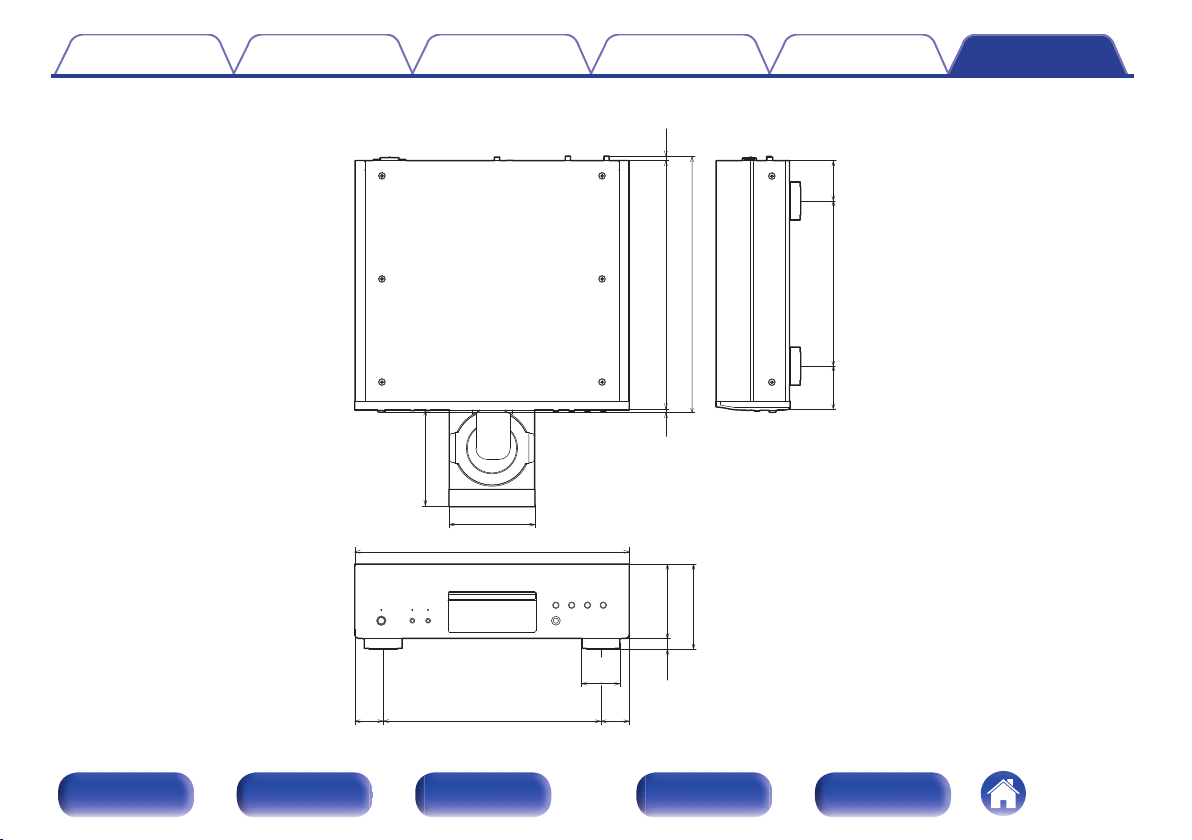
o
Dimensions (Unit : in. (mm))
.
13 5/8 (344)
1 7/8
(45)
2 1/2
(61)
1 7/8
(45)
7/8
(20)
4 3/4 (118)
5 1/2 (138)
17 1/8 (434)
15 5/8 (395)
16 (405)
1/4
(4)
1/4
(6)
6 1/8 (154)
5 3/8 (136)
10 3/8 (262)
2 7/8
(70)
2 1/2
(63)
o
Weight : 36 lbs 6 oz (16.5 kg)
Contents Connections Playback Settings Tips Appendix
49
Front panel Display Rear panel Remote Index
Index
v A
Amplifier ......................................................... 14
Auto Standby ................................................. 30
AV receiver ..................................................... 15
v C
CD .................................................................. 22
v D
D/A converter ................................................. 15
DATA CD ....................................................... 26
Display ............................................................. 8
Display’s brightness ....................................... 20
v F
Front panel ....................................................... 6
v P
Program playback .......................................... 24
v R
Rear panel ........................................................ 9
Remote control unit ........................................ 10
v T
Timer device ............................................. 16, 29
Tips ................................................................ 32
Troubleshooting ............................................. 33
Contents Connections Playback Settings Tips Appendix
50
Front panel Display Rear panel Remote Index
.
www.denon.com
3520 10777 00AD
©2020 Sound United. All Rights Reserved.
51