Foreword
This supplement contains a detailed description and instructions for
proper operation of the following systems:
• Navigation System
• Audio and Visual System
• Voice Activation System
• Handsfree System
• Other Function
Please read this supplement carefully before using any of the sys-
tems it describes that may be present in your vehicle.
Please keep this supplement with your Owner's Manual and leave it
in the vehicle at the time of resale. The next owner will need the
information it contains.
The information, specifications and illustrations found in this supple-
ment are those in effect at the time of printing. FUJI HEAVY INDUS-
TRIES LTD. reserves the right to change specifications and designs at
any time without prior notice and without incurring any obligation
to make the same or similar changes on vehicles previously sold.
This Owner's Manual supplement applies to all models and covers all
equipment, including factory installed options. Some explanations,
therefore may be for equipment not installed in your vehicle.
FUJI HEAVY INDUSTRIES LTD., TOKYO, JAPAN
is a registered trademark of FUJI HEAVY INDUSTRIES LTD.
Copyright © 2010, FUJI HEAVY INDUSTRIES LTD.

1
Contents
Introduction
Safety Warnings ............................................................................. 8
System Components and Controls ............................................... 9
■ Note on Handling................................................................................................................................ 12
Adjusting Screen .......................................................................... 13
■ Adjusting brightness/contrast..................................................................................................... 13
Navigation
Before Use..................................................................................... 16
Navigation System Controls........................................................ 20
Map Disc Loading ......................................................................... 22
Starting Up the Navigation System ............................................ 23
Voice Guidance Volume............................................................... 25
Markers and Controls Displayed on Maps ................................. 26
Screens During Route Setting.................................................................. 26
Screens During Route Guidance ............................................................. 28
Menu Screen Keys and Functions ............................................... 29
Map Operations............................................................................ 31
Selecting Map Orientation ........................................................................ 31
Changing Map Scale.................................................................................... 32
Setting Route................................................................................ 34
Setting Destination...................................................................................... 34
■ Setting destination/waypoints by scrolling the map.................................................... 34
■ Setting destination from the navigation menu................................................................ 36
Route Guidance............................................................................ 51
Route Guidance Screen.............................................................................. 51
Zoom-in Map at Intersection ................................................................... 52
Dual Map Display ......................................................................................... 53
Freeway Information................................................................................... 54
Replaying Voice Guidance ........................................................................ 55
Compass Mode ............................................................................................. 56
Route Options .............................................................................. 57
Setting Route Options................................................................................ 57
■ Search condition................................................................................................................................... 58
■ Detour.......................................................................................................................................................... 59
■ Route preferences................................................................................................................................ 60
■ Destination and waypoints............................................................................................................ 60
■ Display route............................................................................................................................................ 64
■ Route preview......................................................................................................................................... 65
Navigation Setup ......................................................................... 68
Setting Navigation System ....................................................................... 68
■ User settings............................................................................................................................................ 69
■ Quick POI selection.............................................................................................................................. 71
■ Language Selection ............................................................................................................................ 72
■ Calibration................................................................................................................................................. 73
■ Set clock...................................................................................................................................................... 74
■ Vehicle signal........................................................................................................................................... 75
■ Restore system defaults.................................................................................................................... 75
Stored Locations .......................................................................... 77
■ Memory points....................................................................................................................................... 78
■ Avoid area.................................................................................................................................................. 83
■ Previous destination (deleting stored locations).............................................................. 85
Other Functions............................................................................ 87
■ Displaying POIs on a map ............................................................................................................... 87

2
■ Displaying POI data............................................................................................................................. 89
■ Deleting POI markers......................................................................................................................... 90
■ Editing Quick POI categories......................................................................................................... 91
■ SUBARU dealership search............................................................................................................. 93
Version and Initialization ............................................................ 96
Version.............................................................................................................. 96
Initialization of the navigation settings................................................ 97
General Information .................................................................... 99
When a Problem Occurs.......................................................................... 102
Voice activation system ............................................................. 103
■ Basic operations of voice recognition.................................................................................. 103
Audio and Visual
Before using the Audio and Visual system............................... 106
Precautions when using the system................................................... 106
Discs that can be used ............................................................................. 109
Player.............................................................................................................. 111
Character information displayed ......................................................... 112
Voice activation system........................................................................... 113
Basic operation of the Audio and Visual system ..................... 114
Steering remote control.......................................................................... 116
Turning on the power .............................................................................. 117
Selecting the audio source..................................................................... 118
■ Pressing the button for selection............................................................................................ 118
■ Audio source selection.................................................................................................................. 120
Setting and adjusting the sound ......................................................... 121
■ Adjusting the sound volume..................................................................................................... 121
■ Mute the sound.................................................................................................................................. 121
Radio functions .......................................................................... 123
Listening to the radio................................................................................ 123
■ FM radio screen is displayed....................................................................................................... 123
■ AM radio screen displayed........................................................................................................... 124
Selecting a station...................................................................................... 126
■ Selecting a preset station............................................................................................................. 126
■ Setting the frequency..................................................................................................................... 126
■ Searching a station automatically........................................................................................... 127
■ Searching a FM station from a category of interest..................................................... 127
Presetting a station.................................................................................... 129
■ Manual storing .................................................................................................................................... 129
■ Auto store............................................................................................................................................... 129
Compact disc functions ............................................................. 130
Setting the disc ........................................................................................... 130
■ Loading the disc................................................................................................................................. 130
Listening to a tune in the CD ................................................................. 131
CD screen displayed.................................................................................. 132
Selecting a tune .......................................................................................... 134
■ Selecting the preceding tune.................................................................................................... 134
■ Selecting the succeeding tune................................................................................................. 134
■ Selecting a tune from the list..................................................................................................... 135
■ Searching a tune while listening.............................................................................................. 136
■ Reverse or fast-forward a tune .................................................................................................. 136
Listening to a tune repeatedly .............................................................. 137
Listening to tunes in random order..................................................... 138
MP3/WMA disc functions........................................................... 139
MP3/WMA..................................................................................................... 139
Listening to tunes (file) in the MP3/WMA disc................................. 142
MP3/WMA disc screen displayed ......................................................... 143

3
Selecting a tune.......................................................................................... 145
■ Selecting a folder that you want to hear............................................................................ 145
■ Selecting a tune (file) you want to hear.............................................................................. 146
■ Reverse or fast-forwarding a tune .......................................................................................... 148
■ Listening to a tune repeatedly.................................................................................................. 149
■ Listening the tunes in random order.................................................................................... 150
DVD functions............................................................................. 151
What must be known............................................................................... 152
■ Operations while in the playback of the disc.................................................................. 152
■ DVD video and DVD audio.......................................................................................................... 152
Playing back the DVD............................................................................... 153
DVD control screen displayed............................................................... 154
Selecting the title and the chapter...................................................... 156
■ Selecting the chapter..................................................................................................................... 156
■ Searching a title with the title number specified.......................................................... 156
Controlling the playback of the DVD ................................................. 158
Operating the menu screen................................................................... 160
■ Selecting the menu......................................................................................................................... 160
■ Changing over the position of the menu operation key......................................... 161
Changing the language and the angle.............................................. 162
■ Changing the superimposed language.............................................................................. 162
■ Changing the voice language .................................................................................................. 163
■ Changing over the angle ............................................................................................................. 164
Setting the screen ..................................................................................... 165
■ Adjusting the image quality....................................................................................................... 165
■ Setting the SCREEN MODE.......................................................................................................... 166
Looking at the VIDEO ............................................................................... 167
Satellite radio operation (if equipped)..................................... 168
Bluetooth AUDIO functions....................................................... 169
■ Setting the Bluetooth audio....................................................................................................... 169
Playing back the Bluetooth audio ....................................................... 172
Selecting a tune .......................................................................................... 174
■ Selecting the preceding tune.................................................................................................... 174
■ Selecting the succeeding tune................................................................................................. 174
■ Searching for a tune while listening...................................................................................... 175
■ Listening to a tune repeatedly.................................................................................................. 176
■ Listening to tunes in random order....................................................................................... 176
iPod functions ............................................................................ 177
Setting the iPod .......................................................................................... 178
■ Media format........................................................................................................................................ 178
■ Connection cables............................................................................................................................ 178
iPod control screen displayed ............................................................... 179
Playing the iPod-Music............................................................................. 181
Selecting a tune (track) you want to hear ......................................... 183
■ Reversing or fast-forwarding a tune ...................................................................................... 183
■ Listening to a tune repeatedly.................................................................................................. 184
■ Listening the tunes in random order.................................................................................... 184
AUX functions............................................................................. 185
Playing back the AUX................................................................................ 185
USB storage device functions ................................................... 186
■ Setting the USB storage device................................................................................................ 186
Playing the USB storage device ............................................................ 187
USB control screen displayed ................................................................ 188
Selecting a tune .......................................................................................... 190
■ Selecting a tune (file) you want to hear .............................................................................. 191
■ Reversing or fast-forwarding a tune ...................................................................................... 193
■ Listening to a tune repeatedly.................................................................................................. 193
■ Listening to the tunes in random order.............................................................................. 194
Setting the audio ....................................................................... 195
■ Setting ...................................................................................................................................................... 195
Setting the equalizer................................................................................. 196

4
■ Setting the equalizer with ease................................................................................................ 196
■ Setting the equalizer in detail ................................................................................................... 197
■ Invoking the equalizer setting that has been preset.................................................. 198
Setting the balance/fader....................................................................... 199
Select the portable player ...................................................................... 200
■ Referring to the Bluetooth audio device information................................................ 201
■ Editing the Bluetooth audio device information .......................................................... 202
Initializing the DVD ................................................................................... 203
■ Setting the screen............................................................................................................................. 204
■ Setting the dynamic range......................................................................................................... 205
■ Setting the language...................................................................................................................... 206
■ Setting the password of the parental level....................................................................... 207
■ Setting the parental level............................................................................................................. 209
Setting the Bluetooth audio.................................................................. 210
■ Registering the Bluetooth audio devices........................................................................... 210
■ Deleting the Bluetooth audio device registration........................................................ 212
■ Connecting the Bluetooth audio device automatically............................................ 213
■ Setting the connection method of the Bluetooth audio device ........................ 214
■ Referring to the device information of the Bluetooth audio system................ 215
■ Editing the device information of the Bluetooth audio system .......................... 216
■ Setting the A/V-IN............................................................................................................................. 218
Voice Activation
Voice activation system ............................................................. 220
■ Basic operations of voice recognition ...................................................... 220
Voice command list .................................................................... 222
Hands-Free Phone System
Before using the Hands-Free Phone System ........................... 232
What can be made with the Hands-Free Phone System ............. 232
■ What cannot be done with the Hands-Free Phone System................................... 232
Precautions to be taken when using the Bluetooth
equipment............................................................................................... 233
Name of each part...................................................................................... 235
Phone voice.................................................................................................. 236
Various types of displays ......................................................................... 237
■ Reception level display.................................................................................................................. 237
■ Battery indicator................................................................................................................................. 237
■ Bluetooth connection status display..................................................................................... 238
■ Roaming display................................................................................................................................. 238
When parting with your car.................................................................... 239
Making preparations of the Hands-Free Phone System......... 240
Registering the Bluetooth Phone......................................................... 240
Connecting the Bluetooth Phone ........................................................ 242
Speaking over the Hands-Free Phone System ........................ 244
Making a phone call .................................................................................. 244
■ Entering a phone number to make a phone call .......................................................... 244
■ Making a phone call from the outgoing or incoming call history...................... 245
■ Making a phone call from the phone book...................................................................... 247
■ Making a phone call from the Speed Dial.......................................................................... 249
■ Making a phone call to the phone number of the Memory Point..................... 250
■ Making a phone call from the Bluetooth Phone ........................................................... 252
■ Making a call by the voice recognition system............................................................... 252
■ Making a call using name recognition:................................................................................ 253
■ Making a call using phone number recognition:.......................................................... 254
Taking a phone call and declining a incoming call........................ 255
■ Taking a phone call........................................................................................................................... 255

5
■ Putting an incoming phone call on hold........................................................................... 255
■ Hanging up an incoming call before answering it (Denial of an
incoming call)...................................................................................................................................... 256
Speaking over the phone ....................................................................... 257
■ Adjusting the tonal volume........................................................................................................ 257
■ Muting the voice on this side.................................................................................................... 257
■ Transmitting the phone call....................................................................................................... 258
■ Hanging up the phone.................................................................................................................. 258
Using the outgoing or incoming call history ........................... 259
Checking the outgoing or incoming call history ........................... 259
Deleting all the outgoing and incoming call history.................... 260
Using the phone book................................................................ 261
Registering the phone book data........................................................ 261
■ Transmitting the phone book of the Bluetooth Phone............................................ 261
■ Registering a new data with the phone book................................................................ 263
■ Voice tag registration...................................................................................................................... 266
■ Registering data with the phone book from the outgoing or
incoming call history....................................................................................................................... 267
Editing or deleting a phone book data.............................................. 269
■ Editing a phone book data ......................................................................................................... 269
■ Selecting a phone book data to delete it .......................................................................... 271
■ Deleting all the phone book data........................................................................................... 273
Other Bluetooth settings........................................................... 275
Deleting the registered Bluetooth Phone from the in-vehicle
equipment .............................................................................................. 275
Changing the Device Name of the in-vehicle equipment
displayed in the Bluetooth Phone.................................................. 277
Editing the Speed Dial setting .............................................................. 279
■ Adding the phone number to the Speed Dial memory........................................... 279
■ Deleting the phone number from the Speed Dial memory.................................. 281
Changing the Pass-Key used when certificating the Bluetooth
Phone ........................................................................................................ 283
Other Functions
The calculator functions ............................................................ 286
The calendar functions .............................................................. 288

6

Introduction
8Introduction
Safety Warnings
You will find a number of WARNINGs, CAUTIONs and NOTEs in this
supplement.
These safety warnings alert you to potential hazards that could
result in injury to you or others.
Please read these safety warnings as well as all other portions of
this supplement carefully in order to gain a better understanding
of how to safely use the systems it describes.
NOTE
A NOTE gives information or suggestions how to make better use of the
systems described in this supplement.
WARNING
A WARNING indicates a situation in which serious injury or
death could result if the warning is ignored.
CAUTION
A CAUTION indicates a situation in which injury or damage to
your vehicle including the systems described in this supple-
ment, or both, could result if the caution is ignored.
Introduction 9
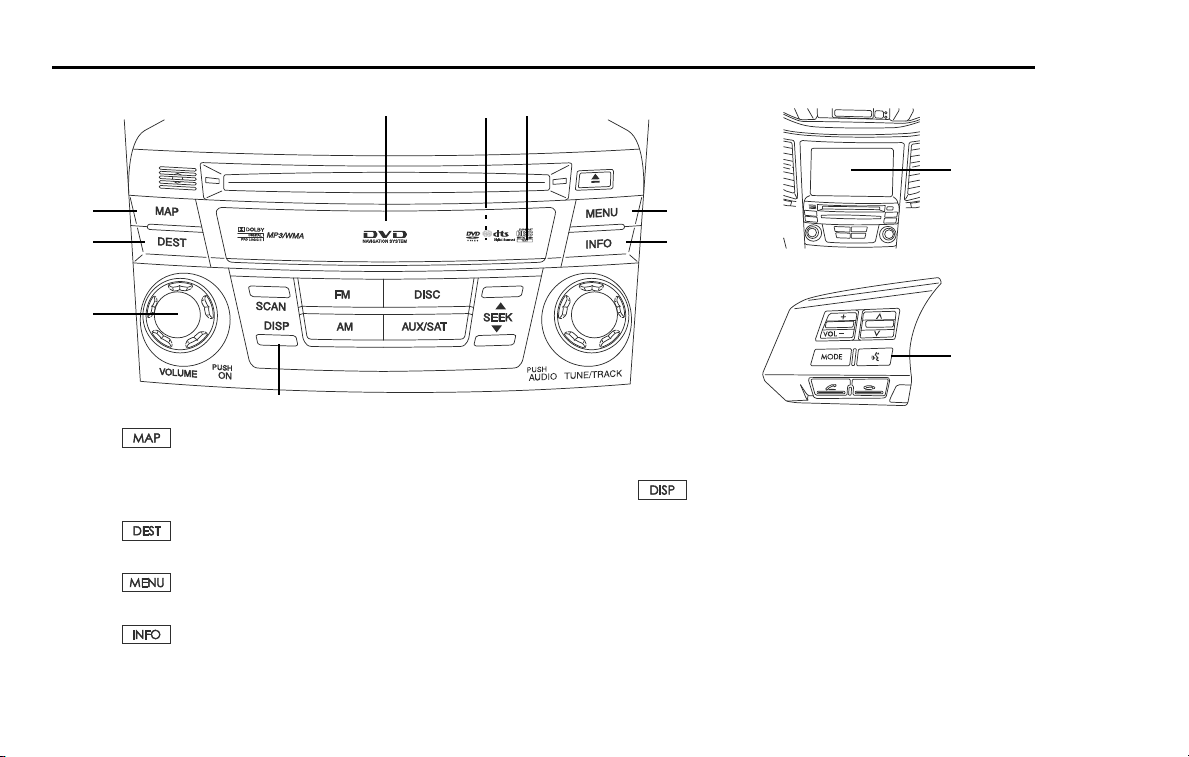
System Components and Controls
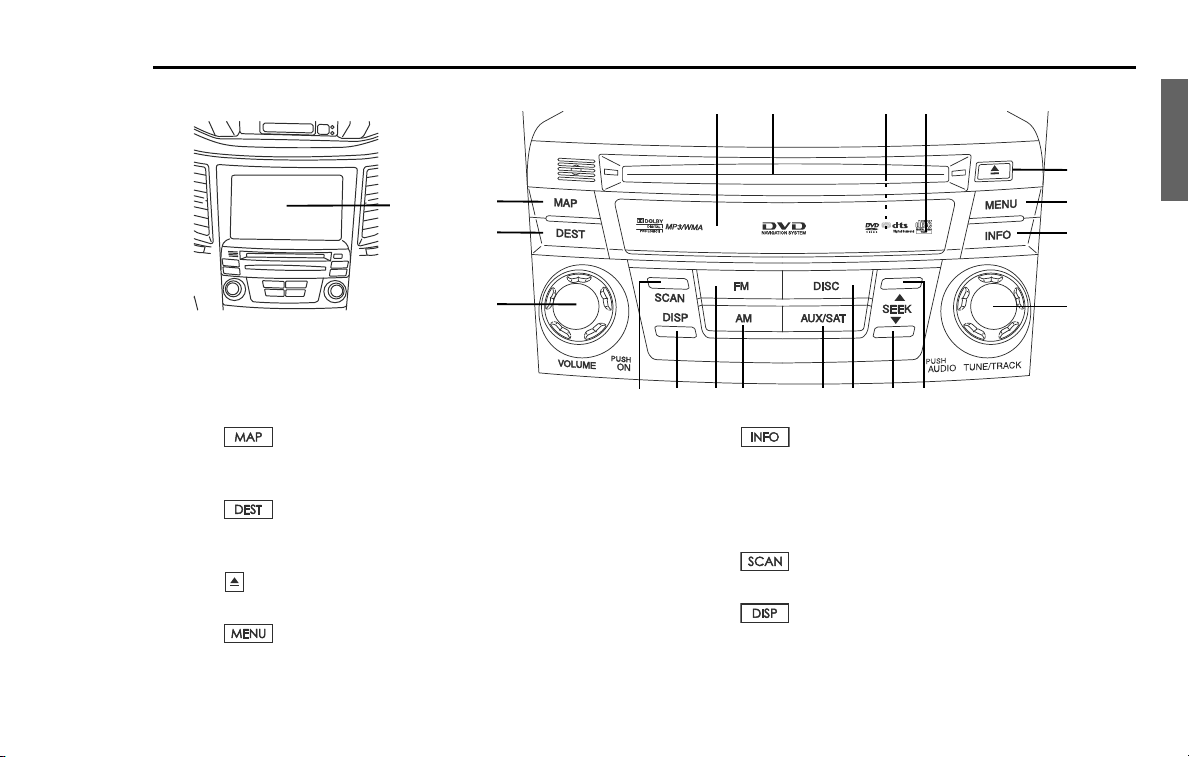
(1)
This button is used to display the current map screen of the
navigation system.
(2)
This button is used to display the destination entry screen of
the navigation system.
(3) [EJECT]
This button is used to eject an audio disc.
(4)
This button is used to display the menu screen of the naviga-
tion system.
(5)
This button is used to display the information screen.
(6) [VOL / POWER]
This button is used to turn the system on or off and adjust
the sound volume.
(7)
This button is used to operate the audio system.
(8)
This button is used to display the SCREEN function in which
setting adjustments can be made to the screen.
(8)
(20)
(1)
(2)
(6)
(3)
(4)
(5)
(15)
(7)
(14) (13)
(10)
(9)
(12)
(11)
(19)
(18)
(17)
(16)
10 Introduction
System Components and Controls
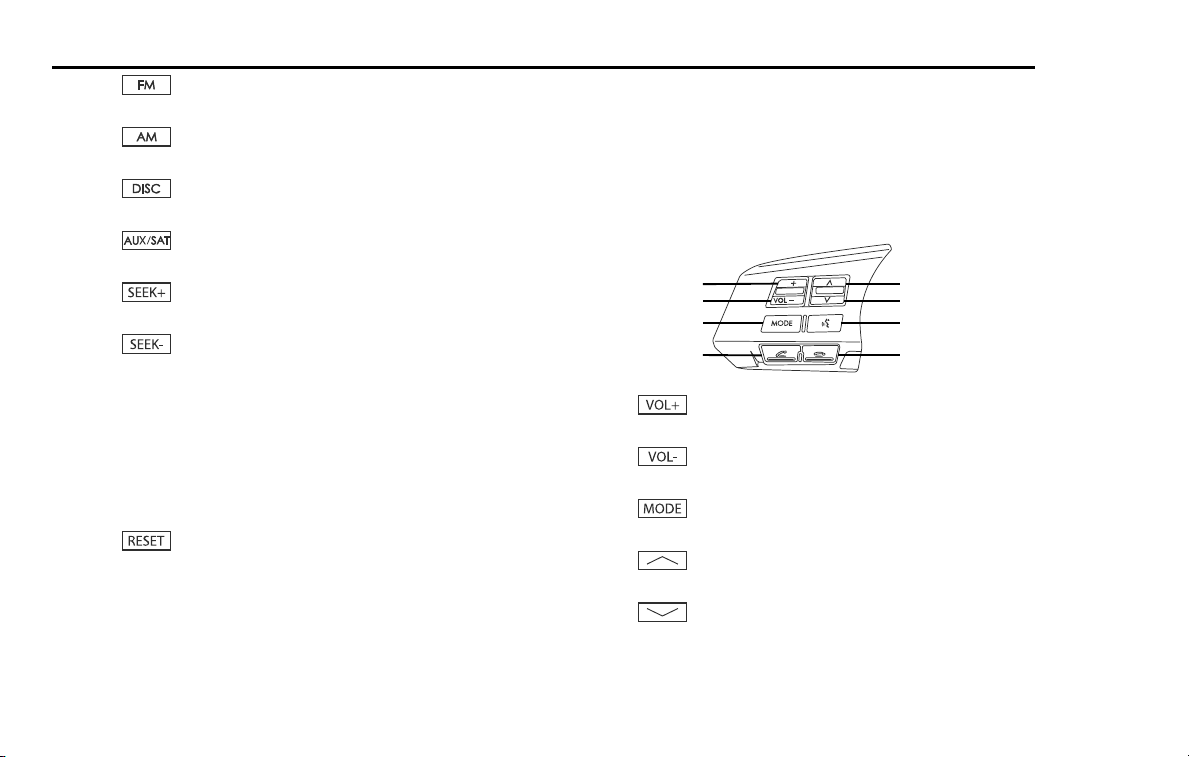
(9)
This button is used to receive the FM band.
(10)
This button is used to receive the AM band.
(11)
This button is used to operate the audio system.
(12)
This button is used to operate the audio system.
(13)
This button is used to seek up from the current audio source.
(14)
This button is used to seek down from the current audio
source.
(15) [TUNE / TRACK]
This button is used to operate the audio system.
(16) [MAP DISC EJECT]
This button is used to eject a map disc for the navigation sys-
tem.
(17)
This button is used to reset all settings to return to the factory
settings. This button is located on behind the map disc slot
cover.
(18) CD / DVD drive loading slot
Insert a playback CD/DVD here.
(19) Map disc drive loading slot
Insert a map disc here.
(20) Display touch screen
Multi function screens appear here.
■ Steering remote control
(1)
This button is used to increase the sound volume.
(2)
This button is used to decrease the sound volume.
(3)
This button is used to select the audio source.
(4) [TRACK/SEEK UP]
This button is used to seek up from the current audio source.
(5) [TRACK/SEEK DOWN]
This button is used to seek down from the current audio
source.
(1)
(2)
(3)
(7)
(4)
(5)
(6)
(8)
Introduction 11
System Components and Controls
(6)
This button is used to enter the voice recognition mode.
(7) [TEL ON]
This button is used to hang up the phone.
(8) [TEL OFF]
This button is used to make a phone call.
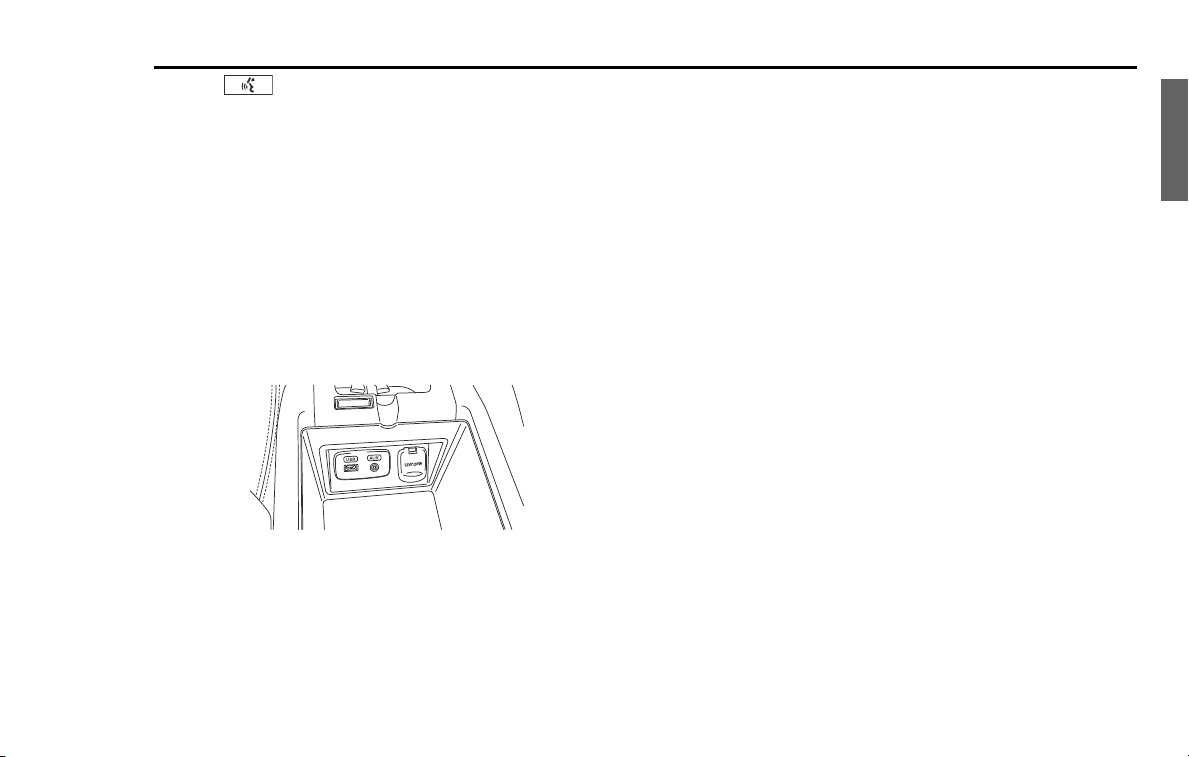
■ USB and AUX connector
This unit can be used to control a connected USB and external input
audio source device.
Use the USB connector to connect the USB device.
Use the AUX connector to connect the external input audio device.
■ Voice activation system
The voice activation system allows the system to be operated using
spoken commands.
For details regarding this function, refer to "Voice activation system".
(See Page 220.)

12 Introduction
System Components and Controls
Note on Handling
■ Liquid crystal panel
Carefully read the following information for a longer service life of the
system.
• The touch keys on the display operate when slightly touched. Do not
press the touch key screen with a strong force.
• Do not push the case surrounding the touch key panel with a strong
force. This may cause the touch keys to malfunction.
• Subjecting the operation panel to shocks may result in breakage,
deformation or other damage.
• Do not use a protection film on the display to avoid damage. The
system may not work properly or may not accept touching opera-
tions performed on the screen.
• Do not burn the display by cigarettes, cigars, etc. Doing so may dam-
age or deform the cabinet.
• Do not get the system wet from drinks, umbrellas, etc.
Doing so may damage the internal circuitry.
• Do not insert objects or poke in the space between the operation
panel and the main unit.
• Do not disassemble or modify the unit in any way.
Doing so may result in damage.
• In extremely cold weather conditions, the display movement may
become slower and the display may darken. This is not a malfunc-
tion.
The display will work normally when the temperature increases.
• Small black and shiny spots inside the liquid crystal panel are normal
for LCD products.
• If any problems occur, contact the nearest SUBARU dealer.
■ Cleaning the liquid crystal panel
The liquid crystal panel tends to collect dust, so wipe it off occasionally
with a soft cloth. The surface is easily scratched, so do not rub it with a
hard object.
Introduction 13
Adjusting Screen
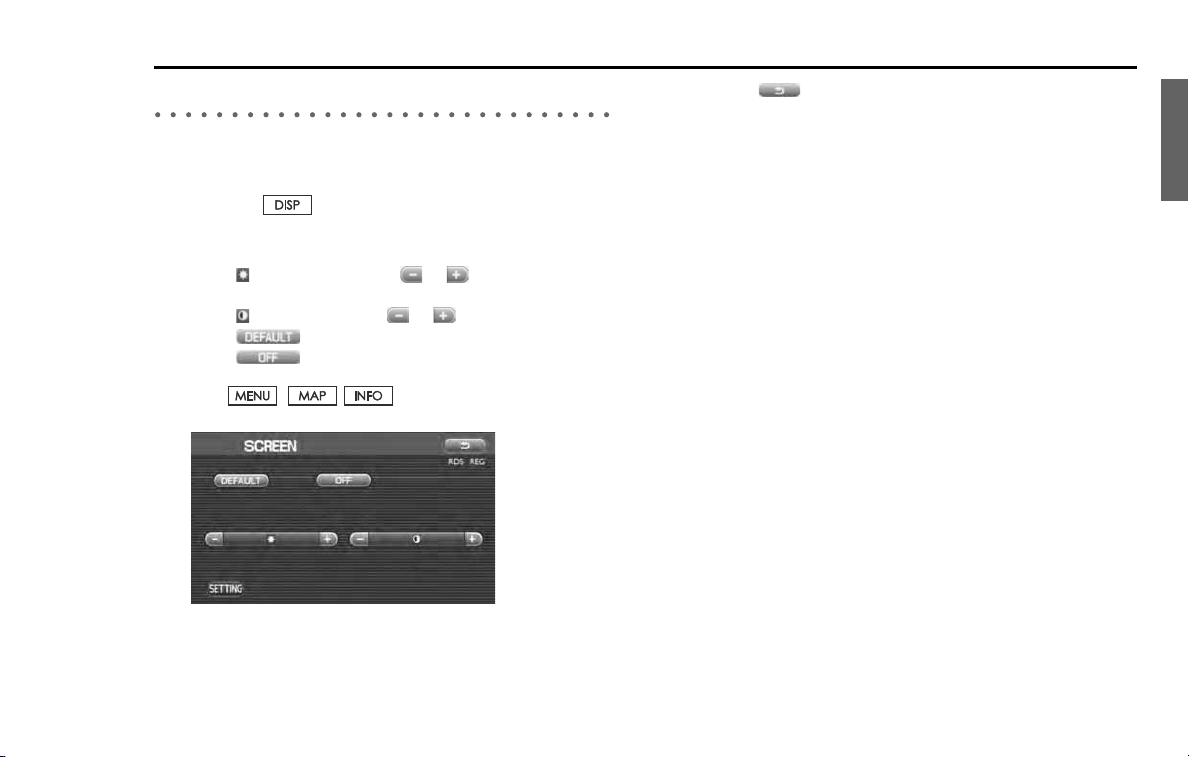
Adjusting brightness/contrast
Use the following procedure to adjust the brightness/contrast of the
image on each screen:
1 Press the button.
2 Adjust the image contrast/brightness as follows:
Select (Brightness) and then or to adjust the bright-
ness.
Select (Contrast) and then or to adjust the contrast.
Select to restore the default settings.
Select to turn off the brightness/contrast on the
screen.
Press , , or [TUNE/TRACK] button to turn
on the display.
3 Select .
The previous screen will be displayed.
This completes the procedure.
NOTE
• All adjustments take effect as soon as you make them and can be visually con-
firmed.
• The system saves the adjustments for individual screens (vehicle information
screen and navigation screen) as well as for a situation with and without illu-
mination from headlights or parking lights.

14 Introduction
Adjusting Screen

Navigation
16 Navigation
Before Use
WARNING
READ THIS MANUAL FIRST
Read this supplement carefully before using the navigation
system. We are not liable for accidents or other problems
resulting from failure to follow the instructions in this sup-
plement.
OBEY LOCAL ROAD SIGNS AND REGULATIONS
Always obey local road signs and regulations while following
instructions given by the navigation system. Some of the
data on the DVD-ROM disc may be outdated due to changes
in local road signs and regulations. Furthermore, the data on
the DVD-ROM disc does not take into account variable fac-
tors such as the weather, road congestion at different times
of the day, temporary road closures due to road construc-
tion, and special events. Local road signs and regulations
always take precedence over directions given by the system.
Failure to obey them could place you in physical danger or in
violation of the law.
DRIVE SAFELY
• Before following an instruction (for example, in the case of
changing direction) given by the system, check that the action
would be safe to take in the current traffic conditions. Continue
to pay attention to safety while following any instruction.
• Do not be distracted by the navigation screen.
Failure to keep your attention on the road could lead to an acci-
dent. When you need to look at the screen while driving, do so
for the shortest time possible and avoid staring at the screen.
• You must stop the vehicle in a safe place before operating
the navigation system. For safety's sake, some of the naviga-
tion system's controls and functions cannot be used unless
the vehicle is stationary.
• When you need to look at the navigation screen, do so for
the shortest time possible. Looking away from the road for
too long could lead to an accident.
• Use this system only in locations where it is legal to do so.
Some states/provinces may have laws prohibiting video
screens within sight of the driver.
• If you stare at the display with too much enthusiasm or oper-
ate the switches of the system while in driving, the naviga-
tion system could cause your attention to be distracted from
the current traffic conditions. Please be sure to input in the
system as much information as possible before taking your
departure. And also please be sure to bring your car to a
stop in a safe place if you need to input information.
• The buttons for the touch screen that cannot be used are
greyed out.
Operating the navigation system while in driving could cause
your attention to be distracted from the current traffic condi-
tions. And in consequence, this could result in a severe or fatal
accident. Follow the descriptions of all operations and the
instructions for safety given in this manual without fail.
VOLUME LEVEL
• Keep the system's volume level low enough for you to be
able to hear outside sounds while driving. To do otherwise
may prevent you from reacting appropriately to traffic con-
ditions and could result in an accident.
Navigation 17
Before Use
NOTE
• For safety reasons, the use of some functions may be unavailable while
in driving. The button for a touch screen that cannot be used will be
greyed out.
• Liquid crystal displays may be difficult to read when wearing polarized
glasses.
CAUTION
FOREIGN OBJECTS
Do not allow foreign objects to enter the disc insertion slot,
including your fingers.
Foreign objects inside the system's main unit could cause an
electric shock or a fire. If the main unit emits smoke or an
unusual smell, stop using the system immediately and con-
tact the nearest SUBARU dealer.
NEVER DISASSEMBLE OR MODIFY THE SYSTEM
Any attempt to disassemble or modify any part of the system could
lead to an electric shock or a fire, or some other type of accident.
Do not continue using the navigation system if it malfunctions
If the system shows any sign of malfunctioning (for example,
the navigation system gives no picture), stop using it imme-
diately and contact the nearest SUBARU dealer.
Continuing to use the system could lead to a fire, an electric
shock, or some other type of accident.
CAUTION
If the navigation system gets contaminated, emits smoke or an
odd smell, stop using it
If a foreign object gets inside the system, liquid is spilled
onto the system, or the system emits smoke or an unusual
smell, stop using it immediately and contact the nearest
SUBARU dealer. Continuing to use the system could lead to a
fire, an electric shock, or some other type of accident.

18 Navigation
Before Use
■ Points to note before use
Starting the engine before using the system
The navigation system can be used with the ignition key in either the
ON position or the ACC position. To preserve the battery, however, it
should be used with the engine running whenever possible. Using
the system for a long time with the engine off can cause the battery
to run down.
Delay before display of current position
The system will not immediately display a correct indication of your
vehicle's current position after being switched on for the first time or
after the battery has been disconnected for a long time. It will display
a correct current position indication as soon as it receives Global Posi-
tioning System (GPS) signals.
Program reloading after battery disconnection
The navigation program will be erased from the system's memory if
the battery is disconnected. If this happens, load the provided DVD-
ROM disc in the system's main unit and turn the ignition switch to
the ON or ACC position. The system will automatically reload the pro-
gram and start operating normally again.
Incorrect operation on rough roads
The system may operate incorrectly or be unable to read the data on
the DVD-ROM disc when subjected to severe vibration caused by
driving on rough roads.
Handling the GPS antenna
Do not paint the antenna. Doing so could impair or prevent signal
reception.
Disabled switches
Some switches are disabled during operation of the system. These
switches are displayed in fainter colors and no messages are dis-
played for them.
Risk of damage to the main unit
Be mindful of the occupant compartment temperature. Using the
system when the occupant compartment temperature is extremely
high or low can damage it or cause it to malfunction. Also, note that
the system's main unit can be damaged by strong vibration and by
any metallic object or water that gets inside.
Condensation
Condensation can form on the lens inside the main unit when there
is a rapid change in occupant compartment temperature (for exam-
ple, when the heater is switched on in cold weather). Such condensa-
tion can cause the system to operate abnormally. If you wait an hour
or so for the condensation to disappear, the system should start
working normally again. If normal operation is still not restored after
several hours, we recommend that you contact the nearest SUBARU
dealer.
Replacing the DVD-ROM disc
If you need to replace the DVD-ROM disc, make sure the replacement
disc is compatible with your system's main unit. Inserting an incom-
patible disc could damage the unit.

Navigation 19
Before Use
■ Handling precautions for DVD-ROM discs
• Handle DVD-ROM discs carefully. Any DVD-ROM disc with exces-
sive warping or scratches on its surface can cause reading errors.
• Store DVD-ROM discs away from direct sunlight, which can cause
warping and render them unusable.
• DVD-ROM discs rotate at high speeds inside the system's main
unit. Never use a cracked or badly warped disc; doing so could
damage the unit.
• To clean a DVD-ROM disc, lightly wipe it with a soft cloth in
straight lines from the center hole toward the outer edge.
• Never clean DVD-ROM discs with benzene, thinner, record spray,
antistatic spray, or chemical swabs.
• Do not touch the DVD-ROM disc's data surface (the surface with-
out a printed label). A dirty data surface can cause reading errors.
Always hold a DVD-ROM disc by the center hole and at one point
on the outer edge, or by two points on the outer edge.
• Do not write anything on DVD-ROM discs or affix anything, such
as stickers, to them.
20 Navigation
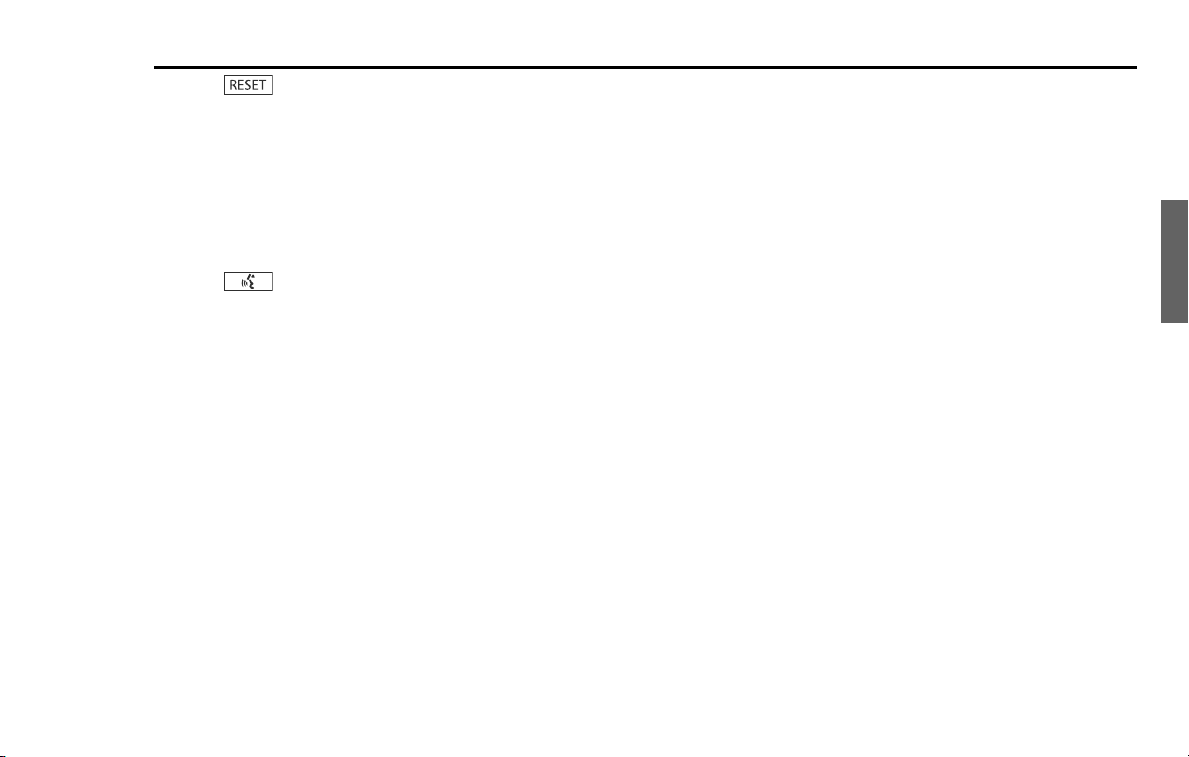
Navigation System Controls
(1)
This button is used to display the current map screen.
During route guidance, this button is used to repeat the last
voice guidance.
(2)
This button is used to display the destination entry screen.
(3)
This button is used to display the menu screen.
(4)
This button is used to display the information screen.
(5) [VOL / POWER]
This button is used to turn the system on or off.
(6)
This button is used to display the SCREEN function in which
setting adjustments can be made to the screen.
(7) [MAP DISC EJECT]
This button is used to eject a map disc for the navigation sys-
tem.
(1
(2
(5
(3
(4
(6)
(9)
(10)
(11)
(8)
(7)
Navigation 21
Navigation System Controls
(8)
This button is used to revert all settings performed on the
system to the default settings. This button is located on
behind the map disc slot cover.
(9) Map disc drive loading slot
Insert a map disc here.
(10) Display screen
Multi function screens appear here.
(11)
This button is used to enter the voice recognition mode.
22 Navigation
Map Disc Loading
When changing the map disc with a disc that is appropriate to the cur-
rent location, or when updating the map disc while in the version
upgrade of a map disc, it is necessary to change it with another map
disc by following the procedure described below.
NOTE
• When changing a map disc with another one, be sure to stop the vehicle in a
safe location.
• For details of the map discs, see "Map Discs". (See Page 49.)
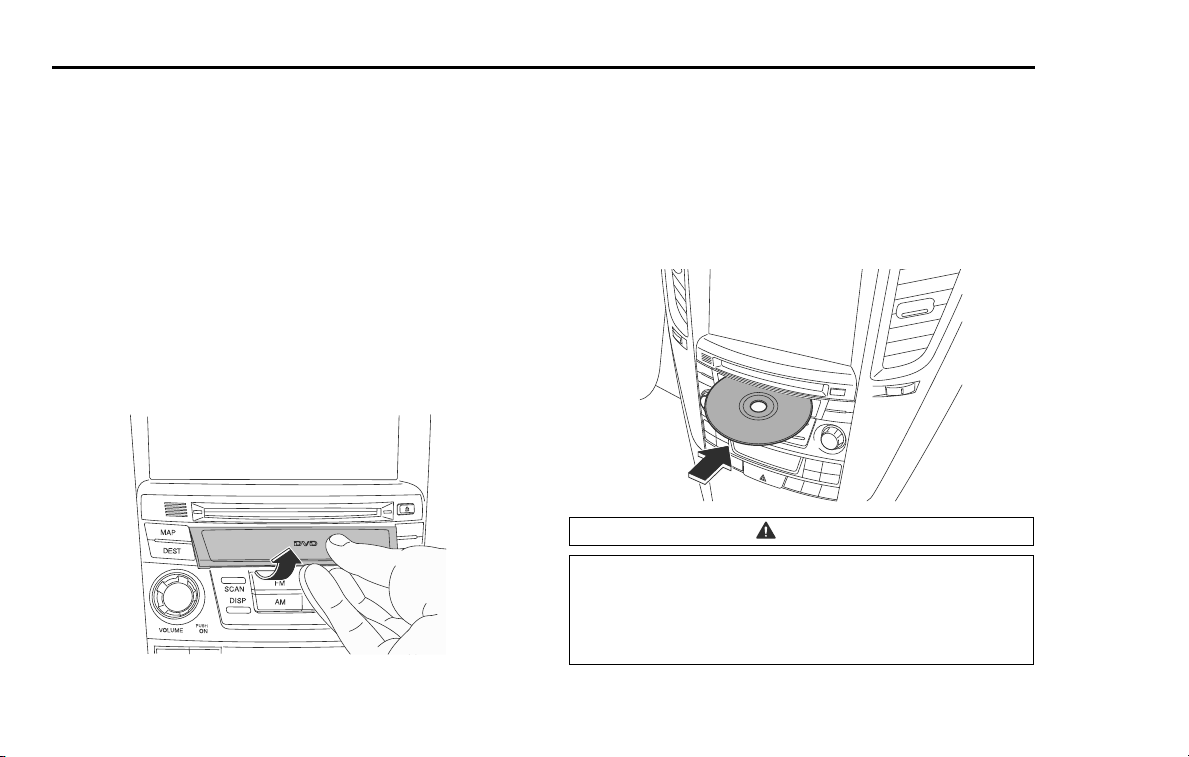
1 With the ignition switch on, open the cover of the map
disc slot.
NOTE
Support the upper side of the cover with your thumb, pull the notch located on
the center of the under side of the cover, and then remove the cover.
2 Press the map disc eject button.
3 When the map disc is ejected, take it out.
4 Insert a map disc that contains the area showing the cur-
rent position.
The monitor automatically returns to the normal condition to start
the loading of the disc.
CAUTION
• You must insert the map disc into the second slot from
the top.
• When inserting a map disc, do not insert 2 or more map
discs together. This may cause the mechanism to mal-
function.
Navigation 23
Starting Up the Navigation System
Use the following procedure to start up the navigation system and dis-
play the current map screen.
1
Start the engine.
2
Press the [VOL/POWER] button while the system is off.
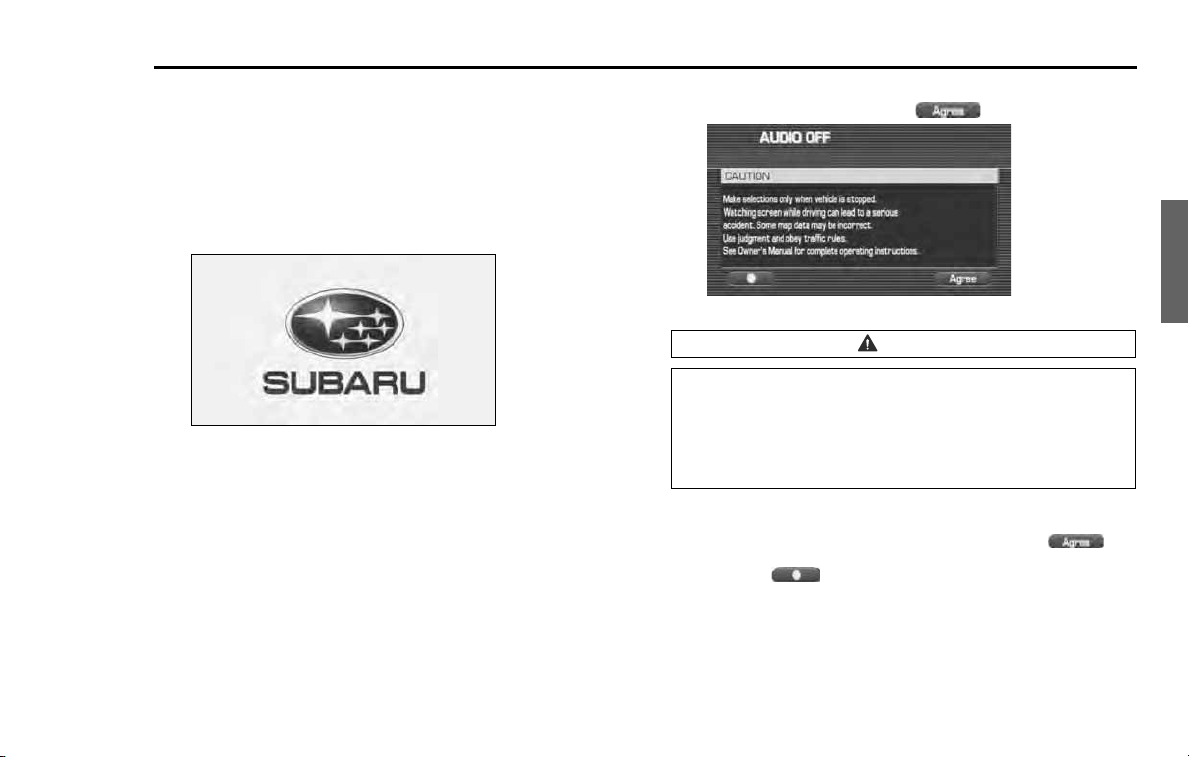
The CAUTION screen will appear, followed by the opening screen.
NOTE
• When the system is started, a loading status bar will appear on the screen
while the system loads the programs from the map disc.
• When the system is started without the map disc loaded, the functions of the
system will be restricted.
3
Carefully read the instructions on the CAUTION screen
(shown below), then select (agree).
NOTE
• The CAUTION screen remains on the display unless you select
(agree).
• Selecting the button allows you to change the language displayed
in the navigation system. (See Page 72)
CAUTION
Make selections only when vehicle is stopped.
Watching screen while driving can lead to a serious accident.
Some map data may be incorrect.
Use judgment and obey traffic rules.
See Owner's Manual for complete operating instructions.
24 Navigation
Starting Up the Navigation System
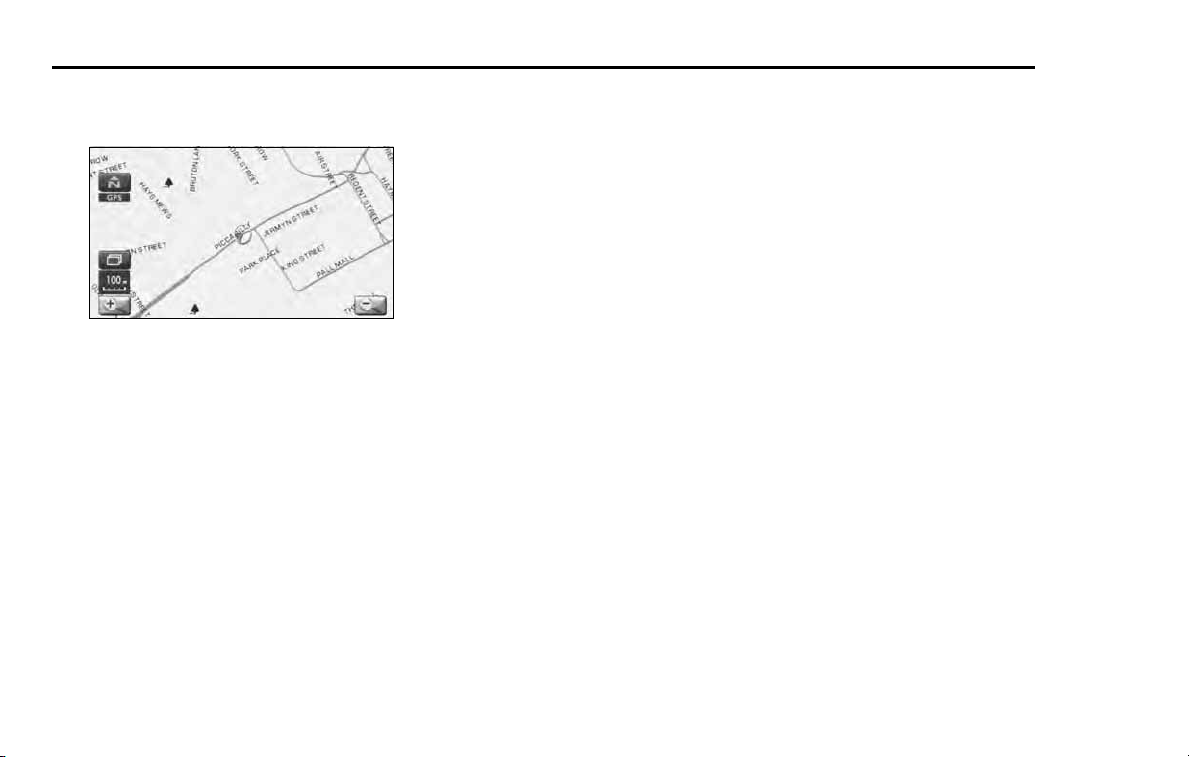
4 The current map screen will appear.
To make a selection, touch the desired key that is displayed on the
screen.
NOTE
• When you use the navigation system for the first time, Central Time will be
displayed. Adjust the system's clock to the local time using the clock setting
screen ("SET CLOCK") described on Page
74
.
Navigation 25
Voice Guidance Volume
Use this function if you want to change the voice guidance
volume setting from the default setting.
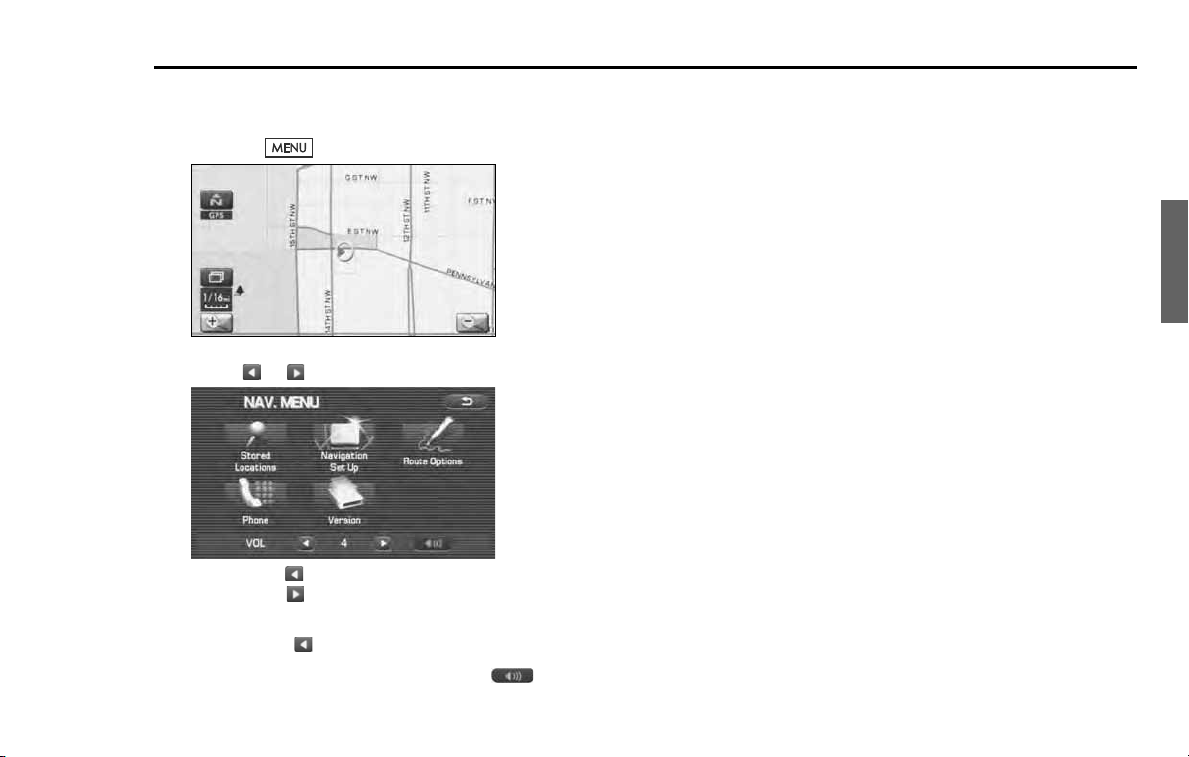
1
Press the button.
2
Select or to adjust the sound volume.
•
Each time is selected, the sound volume decreases.
Each time is selected, the sound volume increases.
• If you want to turn off the sound of the navigation sys-
tem, select to display "OFF".
• To make sure the volume level, select .
26 Navigation
Markers and Controls Displayed on Maps
Screens During Route Setting
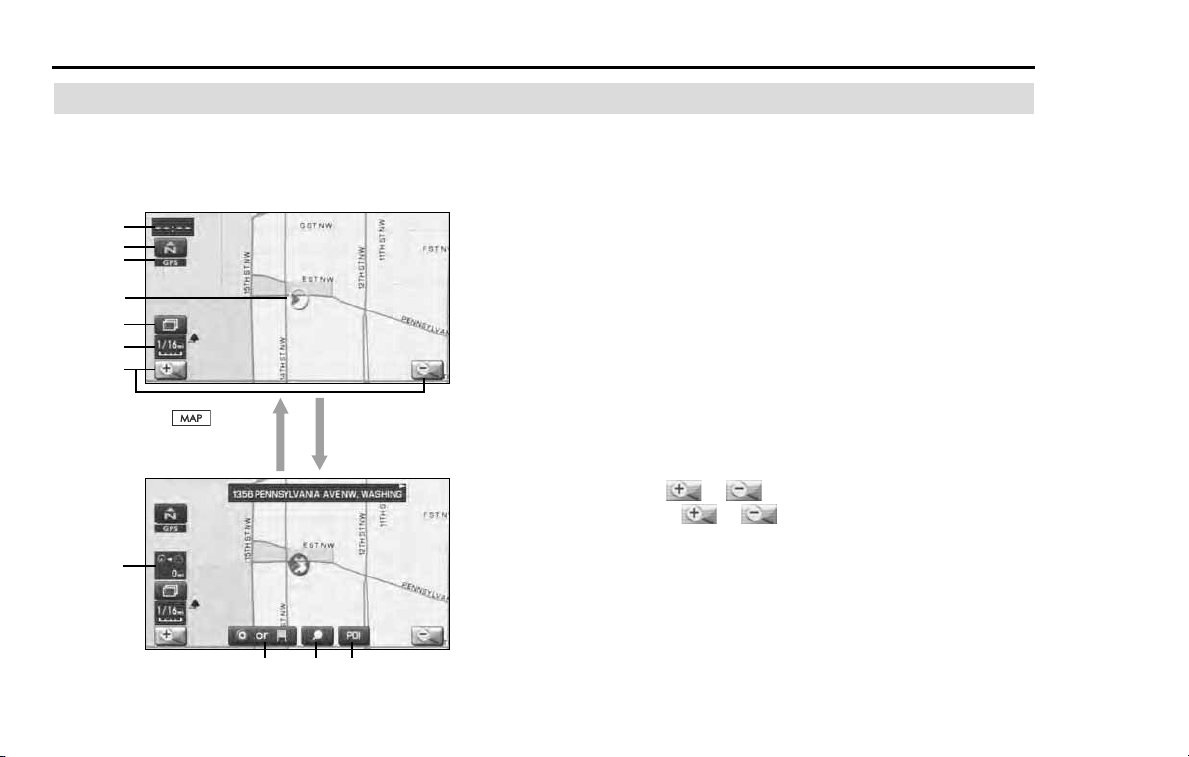
Touch a point on the map. A crosshair (scroll mark) will appear
on the screen. Then touch a desired point on the map. The
map will scroll with the selected point at the center.
(1) Time
Indicates the current time.
(2) Map orientation control
Allows you to select either a "north up" display or "heading
up" display of the map. (See Page 31.)
(3) GPS marker
Shows the status of the signal from GPS satellites. When this
marker appears, the navigation system is receiving GPS sig-
nals.
(4) Screen configuration control
Allows you to select a preferred display type for route guid-
ance. (See Page 51.)
(5) Map scale
Displays the map scale.
(6) Zooming control
Use or to zoom out or zoom in the map.
Select or to select the map scale. (See Page 32.)
(7) Vehicle position marker
Indicates the current vehicle position and direction.
(4)
Scroll the map
<Current Position screen>
<Scroll screen>
Press button to
return to the current map
screen.
(1)
(2)
(6)
(7)
(5)
(10)
(9)(8)(11)
(3)

Navigation 27
Markers and Controls Displayed on Maps
(8) "Store memory point" key
Stores the marked position on the map as a memory point.
(9) Point of interest (POI) key
Allows you to display the POI selection screen (See Page 87).
On the screen, you can program POIs to appear on a map as
markers.
(10) Distance from current position
Indicates the distance from the current vehicle position to
the position marked by .
(11) Destination/waypoint key
Programs a destination or waypoint at the position marked
by on a scroll screen.
28 Navigation
Markers and Controls Displayed on Maps
Screens During Route Guidance
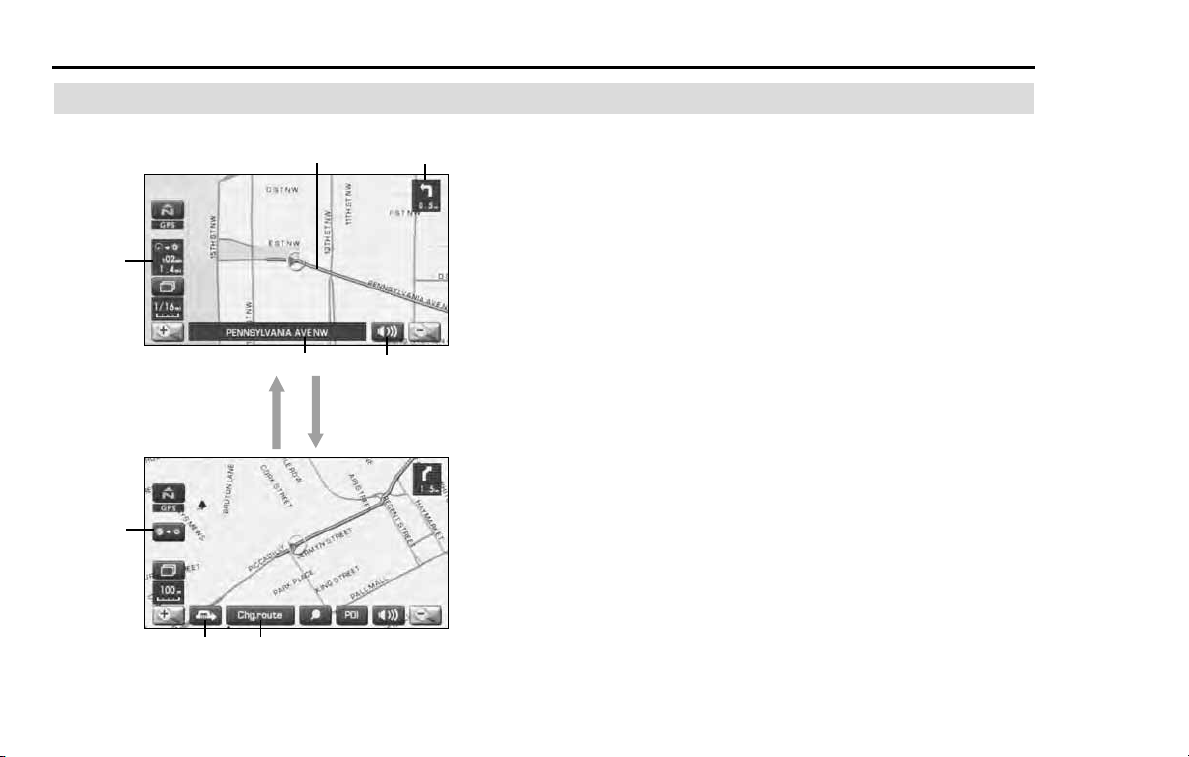
(1) Distance and time to destination
Indicates the time (either approximate time required or esti-
mated time of arrival) and the distance to the destination or a
waypoint.
(2) Route
Indicates the route guide with blue line.
(3) Turn guidance arrow
Indicates the direction of your turn at the next intersection/
intersection as well as the distance to the intersection/inter-
section.
(4) "Repeat voice guidance" key
Repeats the last voice guidance.
(5) Current road name
Shows the name of the road you are currently driving on.
(6) "Display whole route" key
Displays a map containing the entire route. (See Page 64.)
(7) Detour
Calculates an alternative route that detours from the current
location.
(8) "Change route" key
Displays the route option menu. Selecting a new route
option causes the system to calculate the selected route.
(3)
(2)
(1)
(4)
(5)
(6)
(7)
Select the screen
(Touch a point on the screen)
(5 seconds)
(8)
<Quick menu screen>
<Current position screen>
Navigation 29
Menu Screen Keys and Functions
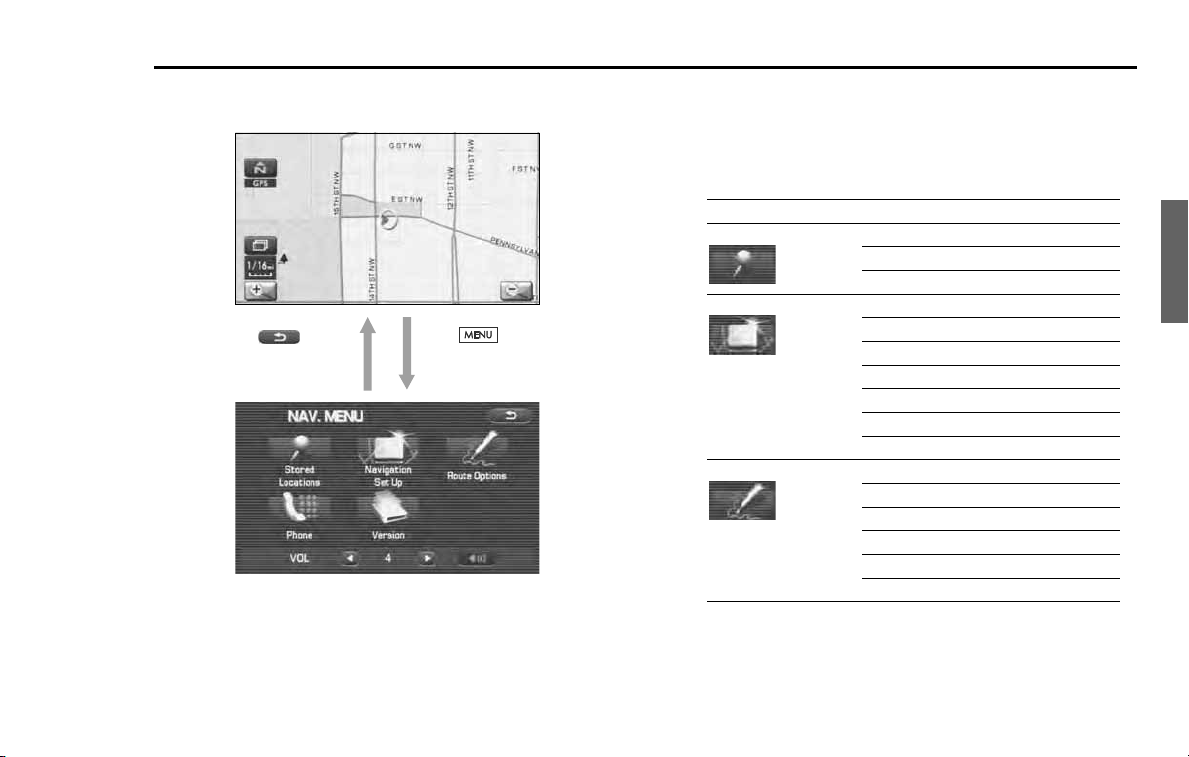
The table below shows the keys displayed on the NAVI MENU
screen, the functions accessible by selecting these keys, and the
pages of this manual that describe the instructions you should fol-
low when using these functions.
Press button to dis-
play the menu screen.
<Current position screen>
<NAVI MENU screen>
Select to return
to the current map screen.
Menu screen key Function Reference page
Stored Locations Memory Points page 78
Avoid Area page 83
Previous Dest. page 85
Navigation Set Up User Settings page 69
Quick POI Selection page 71
Language Selection page 72
Calibration page 73
Set Clocks page 74
Vehicle Signal page 75
Restore System Defaults page 75
Route Options Search Condition page 58
Detour page 59
Route Pref. page 60
Dest. & Way Point page 60
Display Route page 64
Route Preview page 65
30 Navigation
Menu Screen Keys and Functions
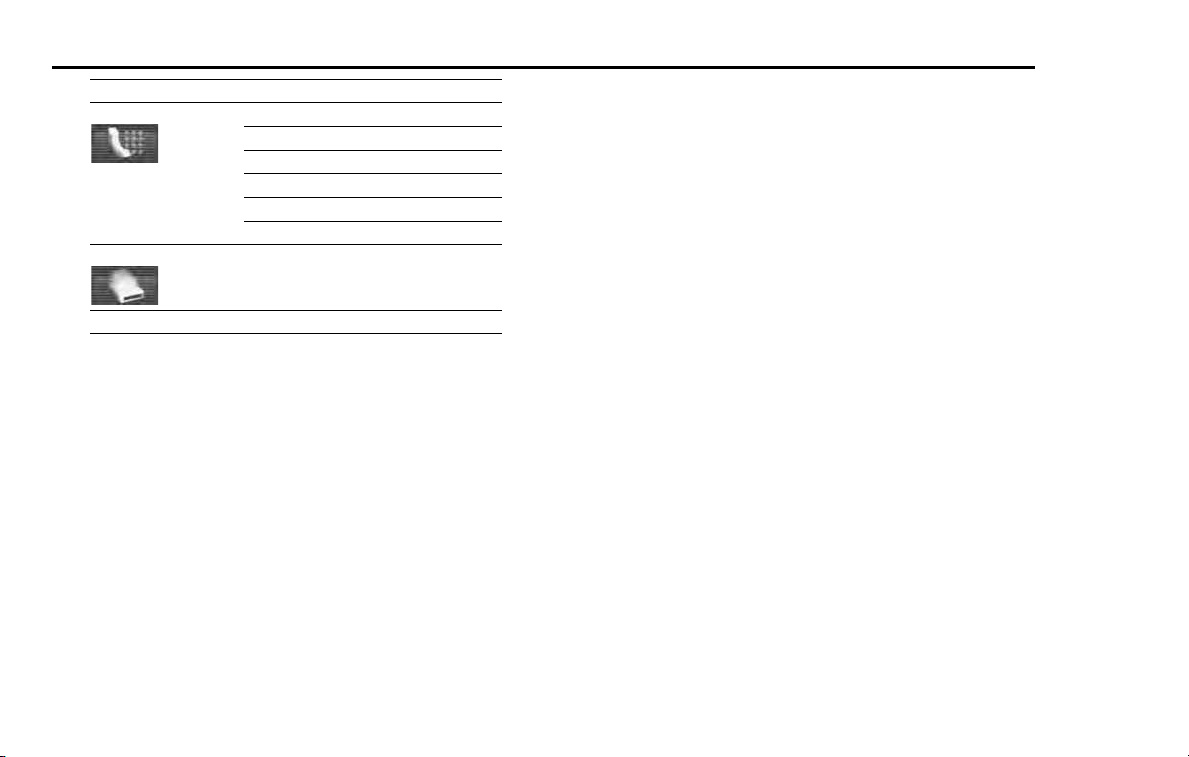
Phone
Bluetooth Phone page
240
Redial List page
259
Received Calls page
259
Phone Book page
261
Memory Points page
250
Bluetooth Settings page
252
Version
Version page
96
VOL
Voice guidance volume page
25
Menu screen key Function Reference page
Navigation 31
Map Operations
Selecting Map Orientation
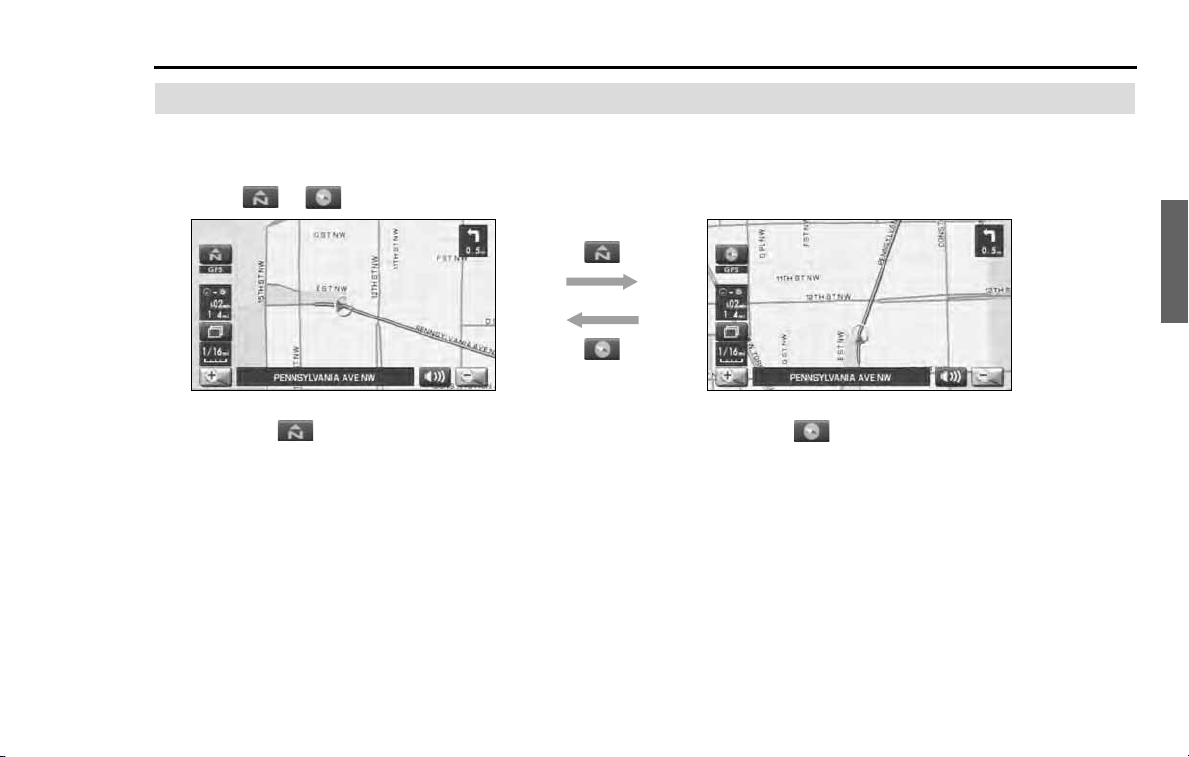
You can select either "heading up" or "north up" display on
the current map screen by using the following procedure.
1 Select or .
If you select ("north up" display), the system rotates the
map so that north is always directly upwards on the screen.
If you select ("heading up" display), the system rotates the
map so that the direction in which you are heading is always
directly upwards on the screen (note that the red arrow points to
the north).
<"Heading up" display>
<"North up" display>
32 Navigation
Map Operations
Changing Map Scale
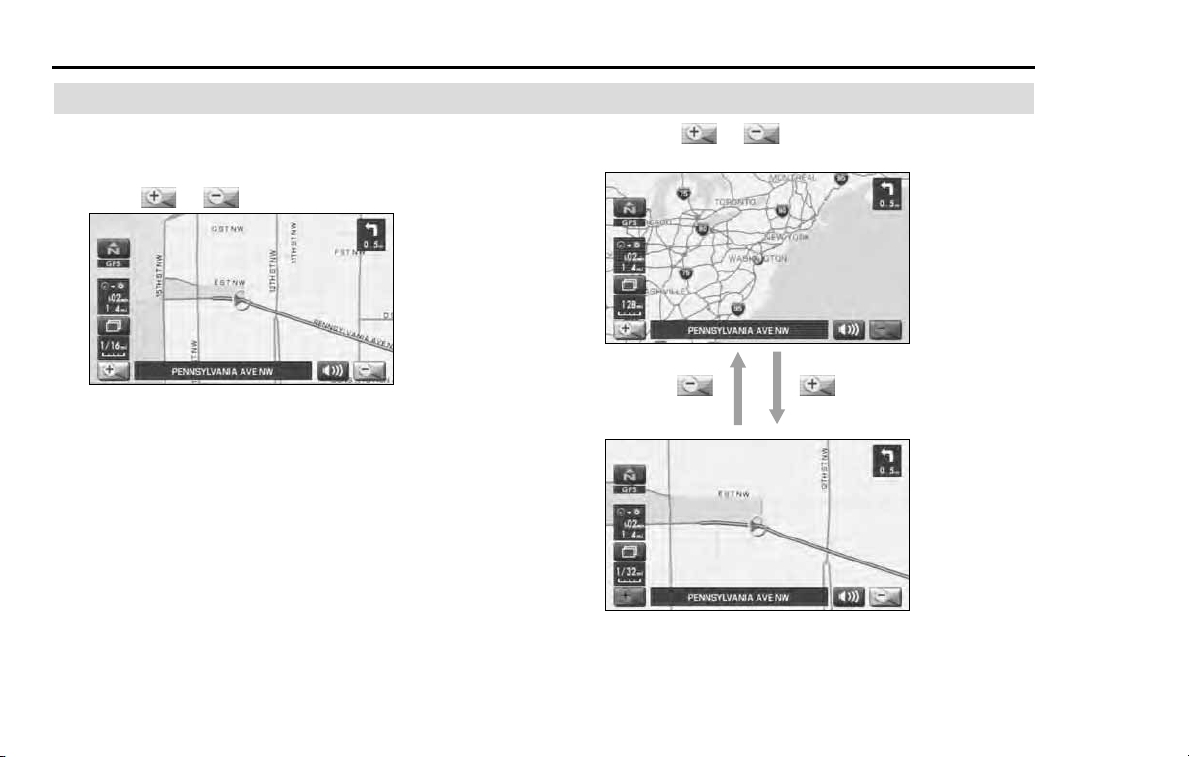
You can increase or decrease the scale of the map using the
following procedure:
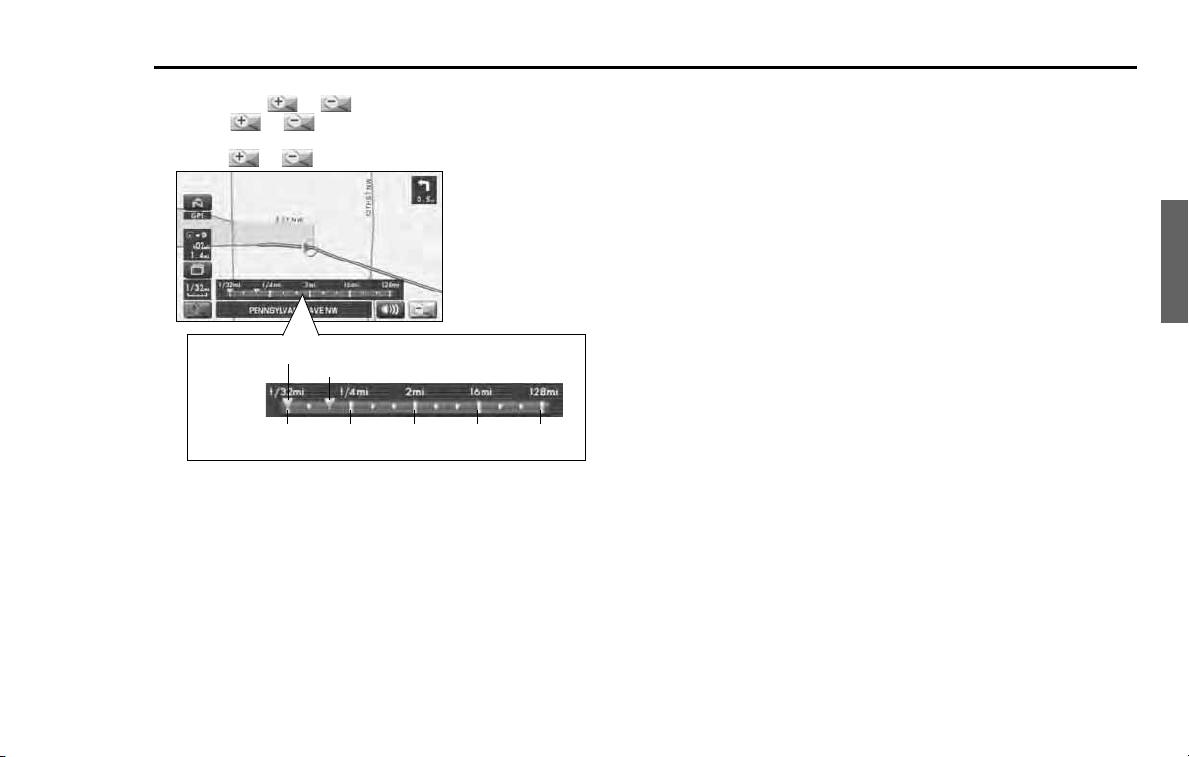
1 Select or to change the map scale.
2 Selecting or changes the scale as shown
below.
Navigation 33
Map Operations
NOTE
• Briefly touching or allows you to change the map scale.
• Touching or for a long time allows you to change the map scale.
• Selecting either of the following on the scale bar displayed by
selecting or allows you to change to the specified map scale.
• The scale can be displayed in Imperial or metric units. To change the units, See
Page
69
.
Imperial display
Metric display
1/32 mi (mile)
50 m
1/4 mi (mile)
500 m
2 mi (mile)
4 km
16 mi (mile)
32 km
128 mi (mile)
256 km
Current scale
<Scale Bar>
Scale to be changed
34 Navigation
Setting Route
Setting Destination
Setting destination/waypoints by scrolling the
map
Even if you do not know the exact address of your destination or a way-
point on your route to the destination, you can set it by scrolling the
map as follows:
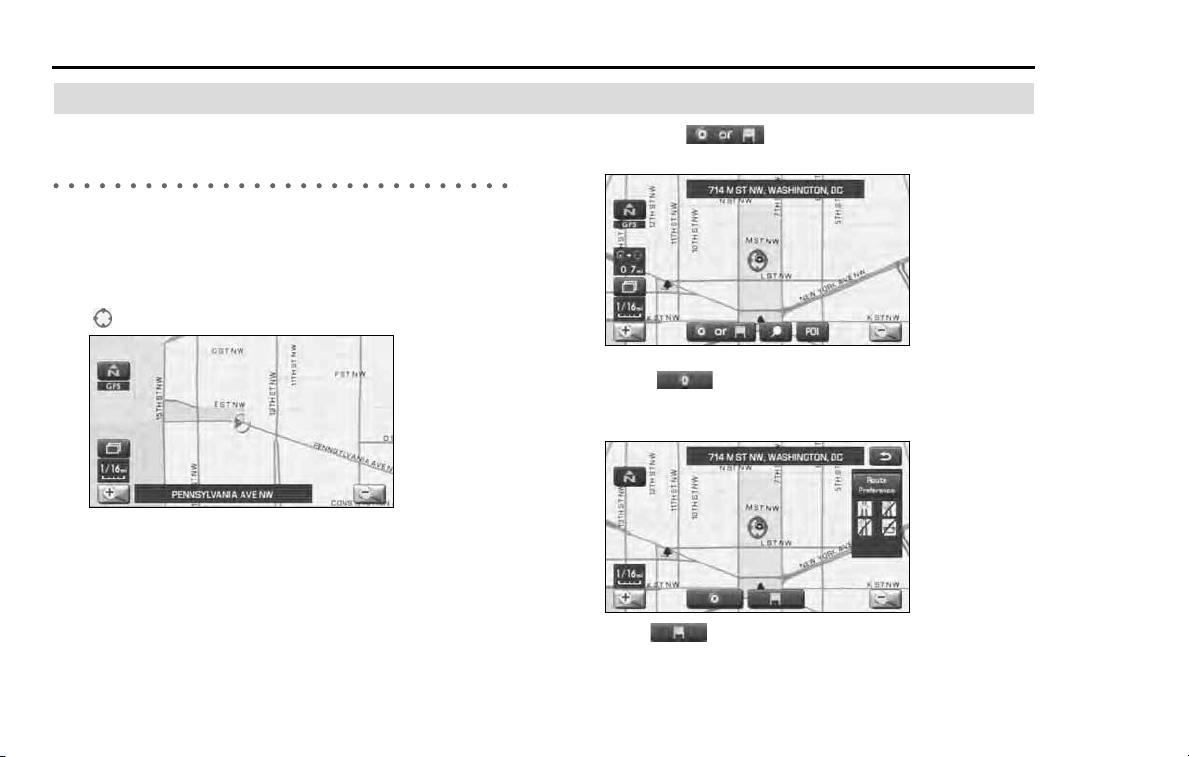
1
Touch the screen and scroll the map until the crosshair
reaches the destination or a waypoint.
2
Select the (destination or waypoint) key.
The key will separate into the destination key and the waypoint key.
3
Select for setting the destination
The system will calculate the route and display the entire route to
the destination on the map.
Select for a waypoint. The system will program the
address of the waypoint on your route. (See Page 60.) You can set
up to 5 waypoints per trip.
Navigation 35
Setting Route
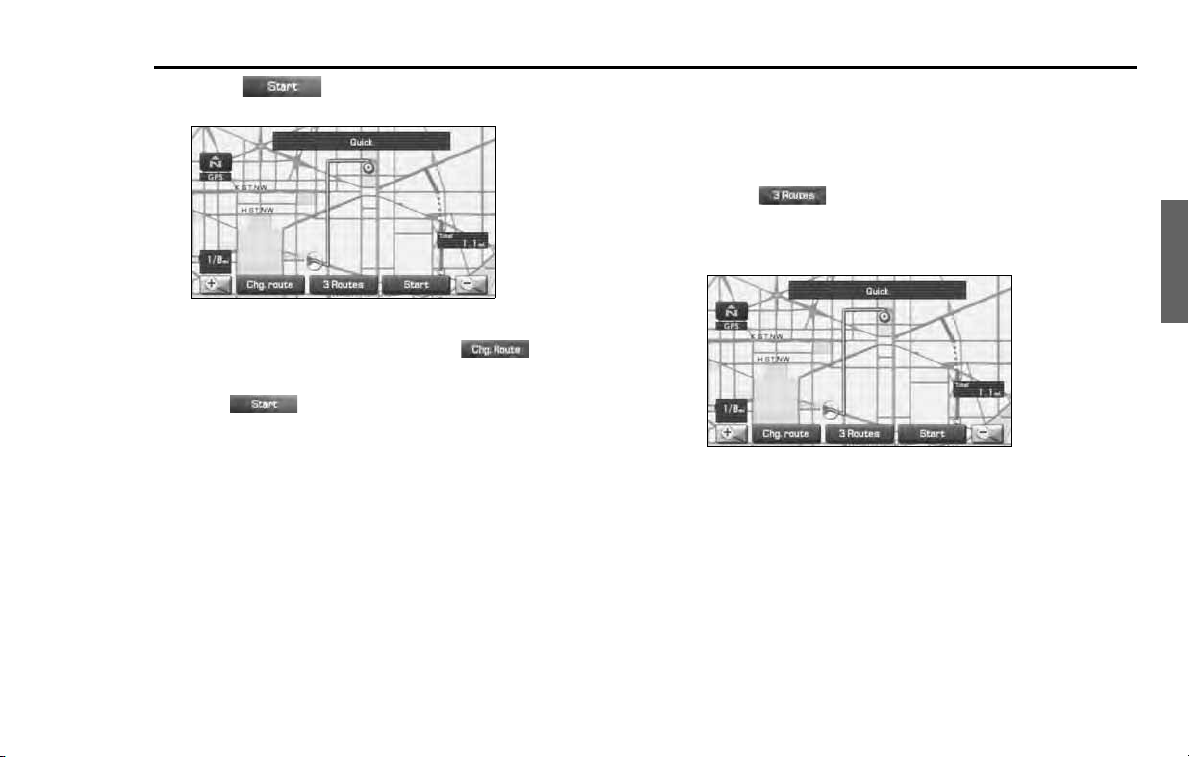
4
Select (start).
Route guidance will begin along the displayed route.
NOTE
• If the system cannot find the desired route, select (change
route). This will allow you to access the ROUTE OPTIONS screen, from which
you can prompt the system to calculate a new route. (See Page
57
.)
• Selecting (start) for more than 5 seconds will start the demon-
stration mode operation.
■ Selecting route
Upon setting the destination, the system prepares to calculate three
types of routes to the destination (Quick, Alt., and Short). You can select
from any of the three options as follows:
1
Select (3 routes).
The system will be ready for calculation of any route you select
from the three options, namely, Quick (the fastest route), Alt.
(alternative route), and Short (the shortest route).
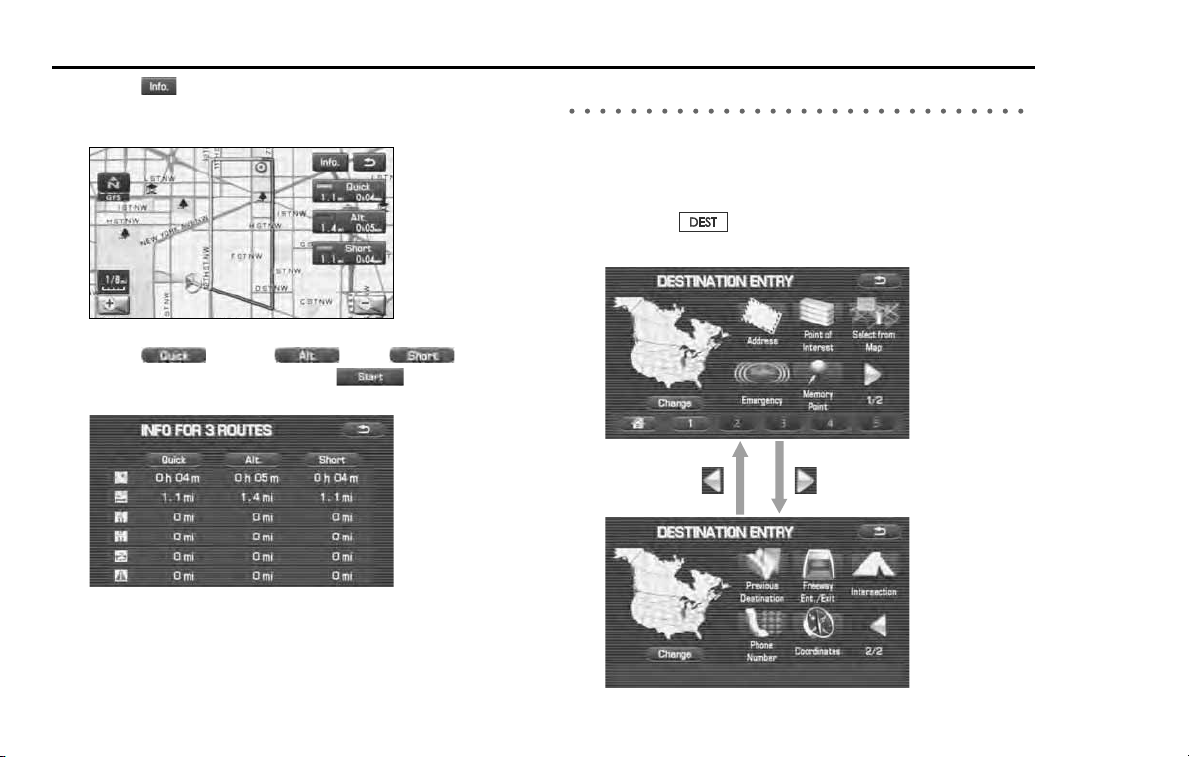
36 Navigation
Setting Route
2 Select (information).
The screen will display details (required time, total distance, roads
used, etc.) regarding each option.
3 Select (Quick), (Alt.), (Short)
or as you desire, and then select (Start) to con-
firm your selection.
Setting destination from the navigation menu
You can set the destination using a variety of categories if you start set-
ting from the DESTINATION ENTRY screen. Before you can use any of
these categories, perform the following steps:
1 Press the button.
2 Select the desired search category.
Navigation 37
Setting Route
You can switch between screens by selecting (next page)
or (previous page).
NOTE
• If the set destination area is different from the one displayed under "Search
Area" in the right part of the screen, you must select the (change)
key and specify the desired area again.
• Depending on the category used or the status of the map displayed, the
point that is located may differ from the location where the facility you want
to visit actually exists.
(Address) See Page
38
.
(Point of Interests) See Page
41
.
(Select from Map) See Page
43
.
(Emergency) See Page
44
.
(Memory Point) See Page
40
.
(Previous Destination) See Page
42
.
(Intersection) See Page
46
.
(Freeway Ent/Exit) See Page
43
.
(Phone number) See Page
48
.
(Coordinates) See Page
45
.
(Home) See Page
40
.
- (Preset1) - (Preset5)
38 Navigation
Setting Route
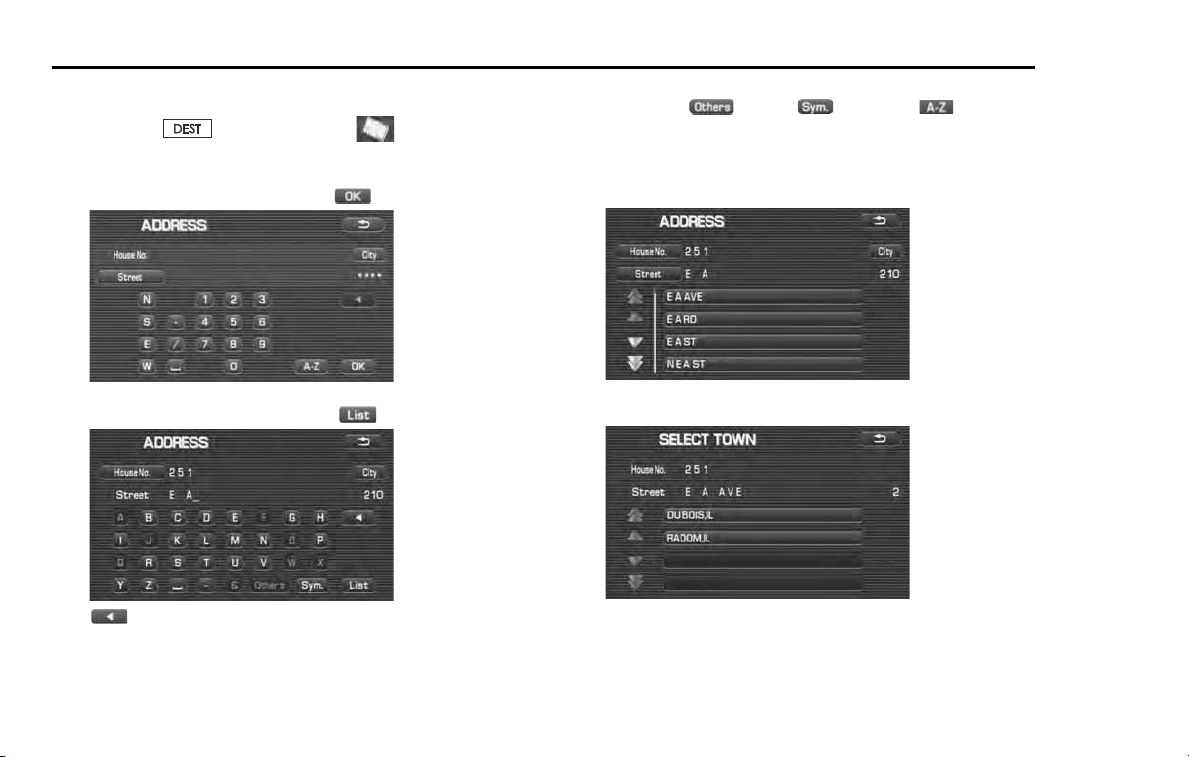
■ "Address" category
1 Press the button and select (address).
2 Enter a house number using the keypad on the house
number input screen and select .
3 Enter the street name and select (list).
: Use this key to delete the last character entered. Select it
repeatedly if you want to delete all the characters entered.
You can switch between keypad screens showing different characters
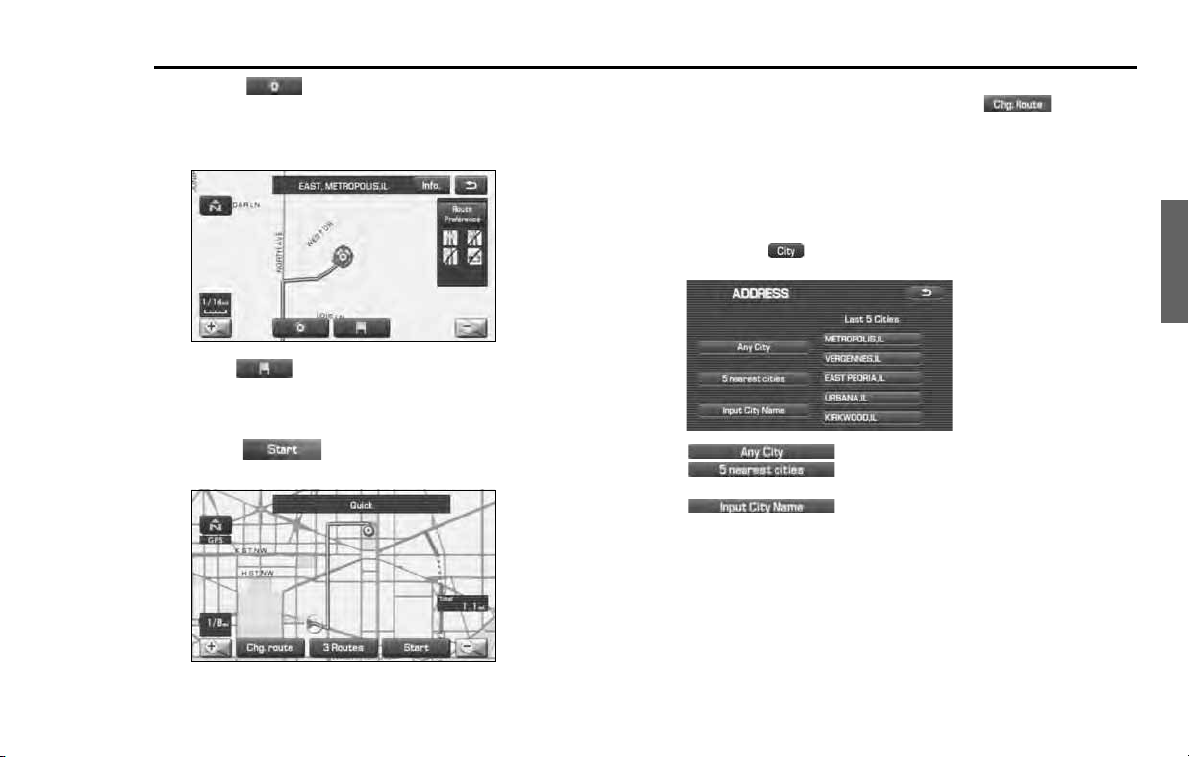
by selecting (others), (symbols) or (alphabet).
4 Select the desired street from the list.
If the same street name exists in more than one city, a list of these
towns will be shown.
5 Select the correct town from the list.
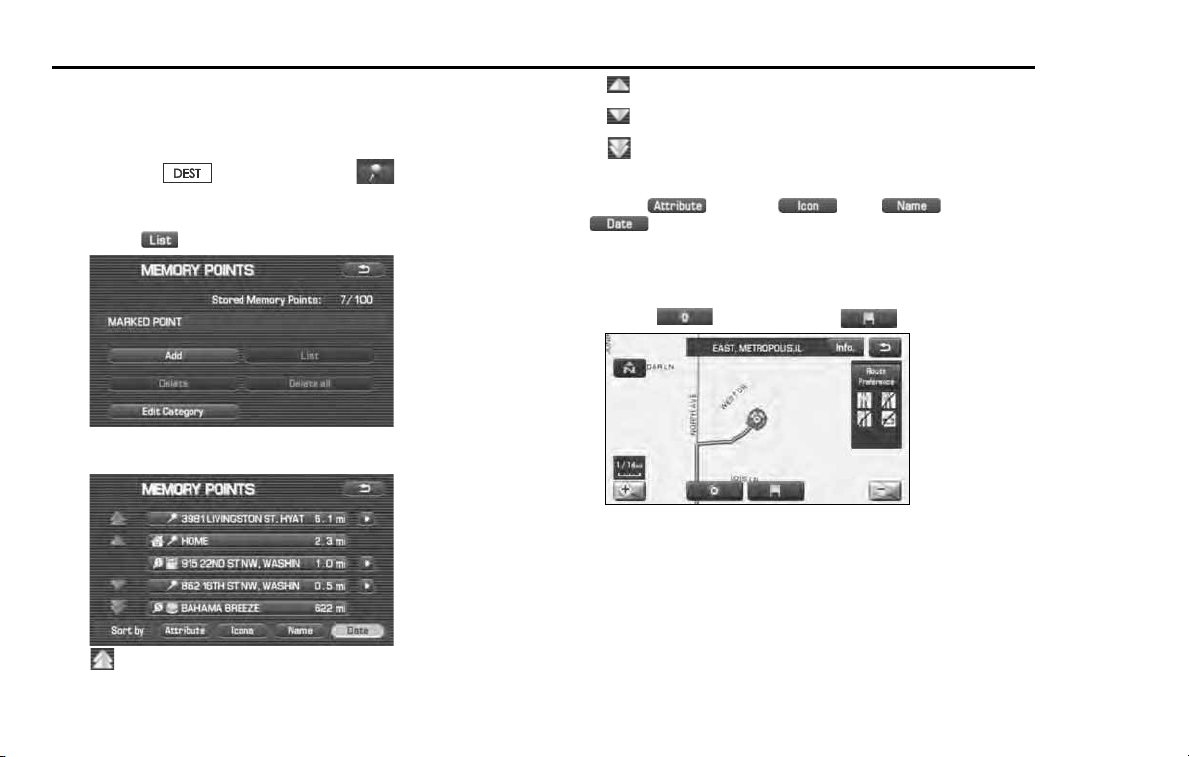
Navigation 39
Setting Route
6
Select (destination) to set the address entered
in the above steps as the final destination.
The system will calculate the route and display the entire route on
the map.
Select (waypoint) to set the address entered in the
above steps as a waypoint on your route.
You can program up to five waypoints per trip.
7
Select (start).
Route guidance begins along the displayed route.
NOTE
• If the system cannot find your desired route, select (change
route). This will allow you to access the ROUTE OPTIONS screen, from which
you can prompt the system to calculate a new route. (See Page
57
.)
• If the map disc does not contain the relevant house number data, an error
message will be displayed and a street map will appear, allowing you to set
the destination using the map disc.
• If the destination is not on a road, set a destination point on a main road near-
est to the actual destination.
• Selecting the (city) will display a screen that searches the destination
on a city basis.
: Search the destination from all cities.
: Search the destination from the nearby five cities
from the current position.
: Search the destination by inputting the city name.
Last 5 cities : You can also search the destination from the five
cities that you searched in the past.
40 Navigation
Setting Route
■ "Memory Point" category
If you have saved some locations in the system's memory, you can
make use of an appropriate one to set the destination.
1 Press the button and select (memory
point).
2 Select (list).
3 Select the desired location (memory point).
: Use this key to display up to five previous suggestions.
: Use this key to display the previous suggestion.
: Use this key to display the next suggestion.
: Use this key to display up to five of the next suggestions.
NOTE
• Select the (Attribute), (icon), (name), or
(date) key to change the sequence in which memory points are
displayed.
• You cannot use the "Memory Point" method unless there are memory points
stored. To store memory points, See Page 78.
4 Select (destination) or (waypoint).
■ "Home" category or "Preset" category using stored des-
tinations
If you have stored the home address in the system's memory, you can
use it for your destination or a waypoint. Similarly, if other locations are
stored in the memory, they can be conveniently used for quick setting
of destination and waypoints.
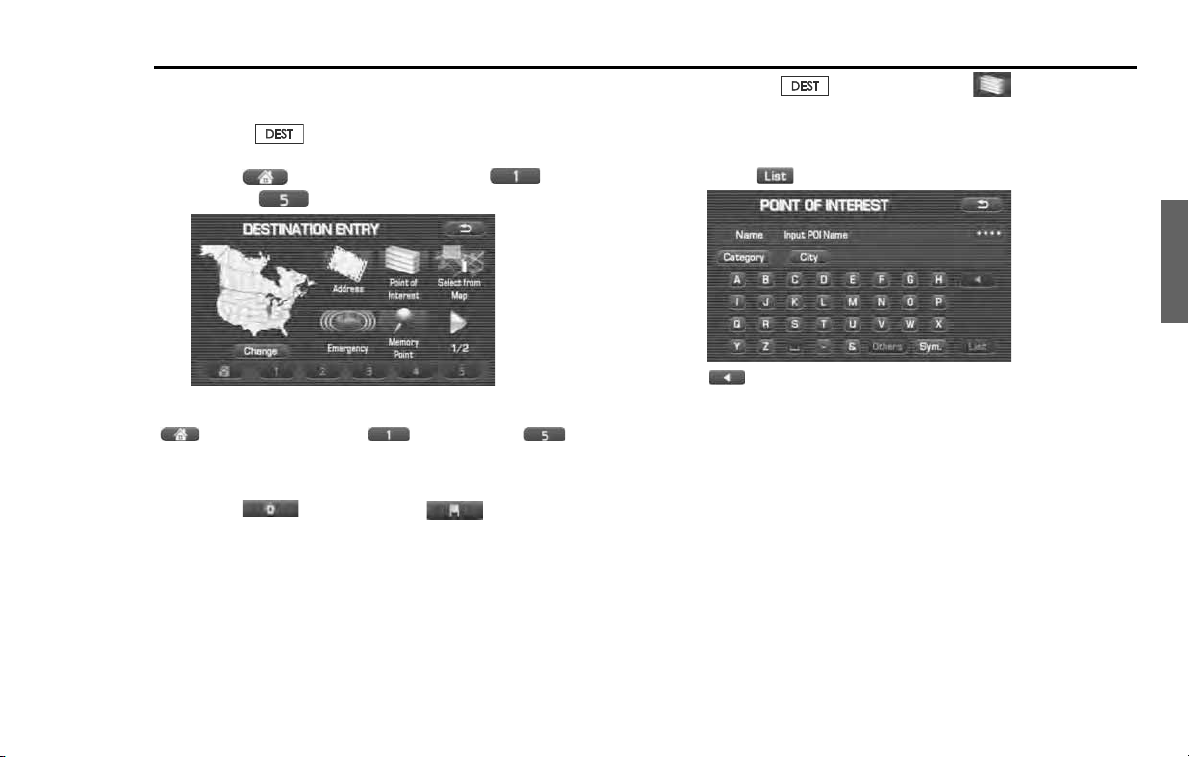
Navigation 41
Setting Route
1
First, choose either of the two procedures below to fol-
low the "home" category.
Press the button.
2
Select (home) or the preset keys (Preset 1)
through (Preset 5).
NOTE
(home) and the preset keys (Preset 1) through (Preset
5) are displayed only when you have stored the home location and other loca-
tions in the memory.
3
Select (destination) or (waypoint).
The map including the home location or the selected location will
be displayed.
■ "Point of Interest" category
You can use a selection from the "Point of Interest" listing as the desti-
nation or a waypoint.
1
Press the button and select (point of inter-
est).
2
Enter the name of the desired point of interest and
select .
: Use this key to delete the character last entered. Select it
repeatedly if you want to delete all of the characters
entered.
NOTE
During character entry, the system shows the point of interest list automatically
when the amount of matching points of interest is four or less.
42 Navigation
Setting Route
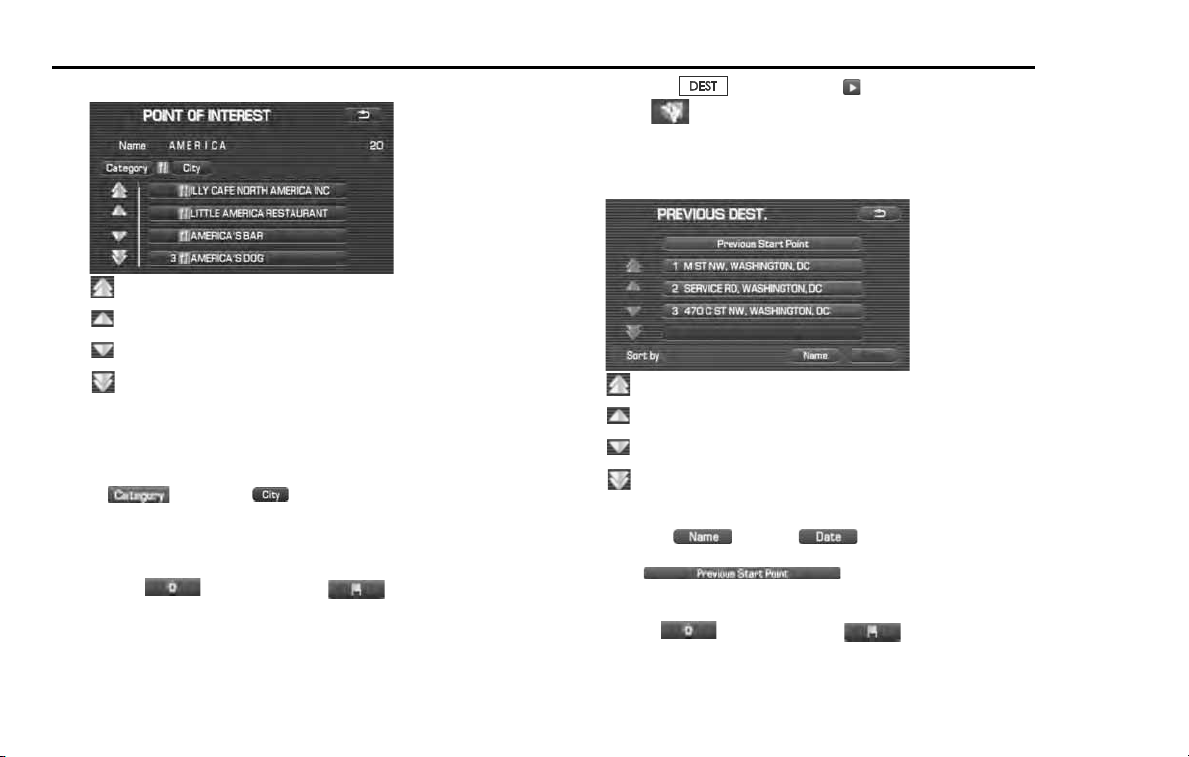
3 Select the desired point of interest from the list.
: Use this key to display up to five previous suggestions.
: Use this key to display the previous suggestion.
: Use this key to display the next suggestion.
: Use this key to display up to five of the next suggestions.
NOTE
• If two or more points of interest share the same name, they will both be listed
on the screen. Choose an appropriate one from the list.
• If there are two or more points of interest with the same name,
select (category) or (City) to shorten the list.
• Displayed information about a specific facility might not include recent
changes. It is recommended that you check the location or business days/
hours of a desired point of interest before departure.
4 Select (destination) or (waypoint).
■ "Previous Destination" category
This method allows you to choose one of the most recently used 100
destinations or waypoints as the new destination or waypoint.
1 Press the button, select , and then
select (previous destination).
2 Select a desired location from the Previous Destination
list.
:Use this key to display up to five previous suggestions.
: Use this key to display the previous suggestion.
: Use this key to display the next suggestion.
: Use this key to display up to five of the next suggestions.
NOTE
• You can select (name) or (date) to change the
sequence in which previous destinations are displayed.
• Selecting displays the start point of the
previous route guide.
3 Select (destination) or (waypoint).
Navigation 43
Setting Route
■ "Select from Map" category
You can specify a location on the map that was last displayed and use it
for setting the destination or a waypoint.
1
Press the button and select (select from
map).
2
Scroll the map until the crosshair is at the desired
destination or waypoint.
3
Select (destination) or (waypoint).
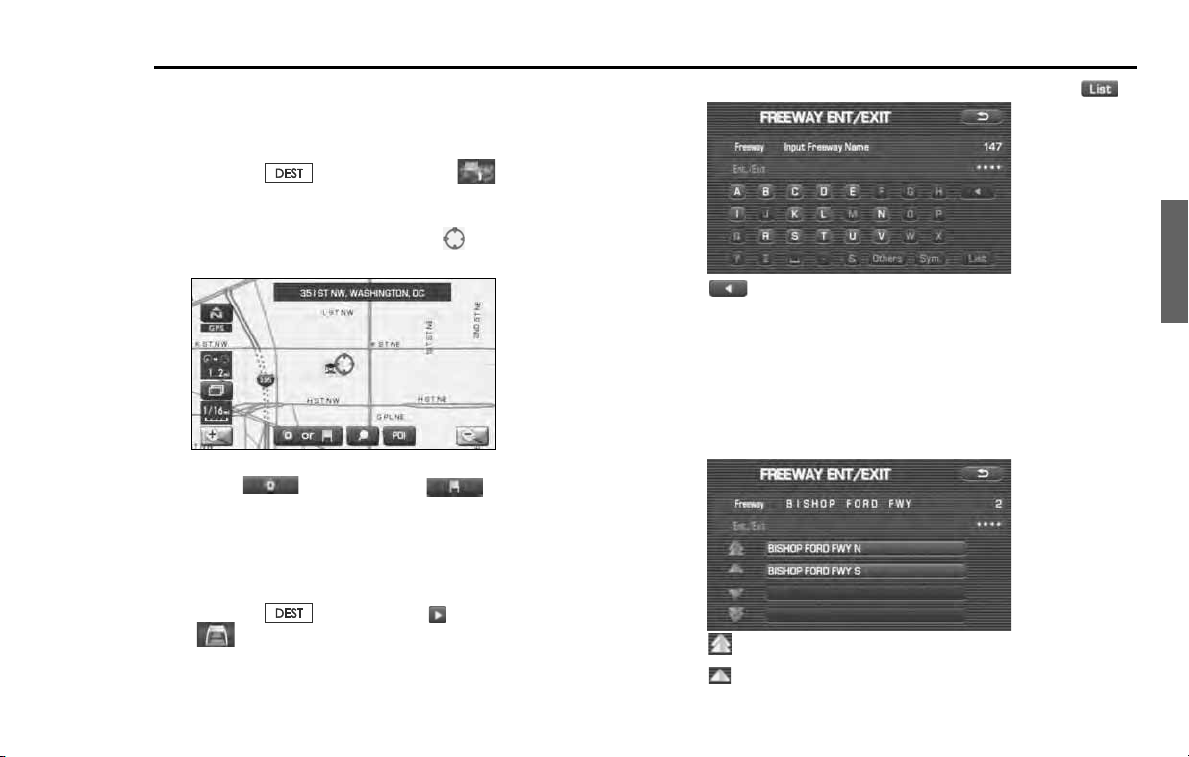
■ "Freeway Entrance/Exit" category
You can use the name of a Freeway entrance or exit selected from the
"Freeway Ent./Exit" list for setting the destination or a waypoint.
1
Press the button, select , and then select
(Freeway Ent./Exit).
2
Enter the name of the desired freeway and select .
: Use this key to delete the character last entered. Select it
repeatedly if you want to delete all of the characters
entered.
NOTE
During character entry, the system shows the freeway name list automatically
when the amount of matching freeways is four or less.
3
Select the name of the freeway from the list.
: Use this key to display up to five previous suggestions.
: Use this key to display the previous suggestion.
44 Navigation
Setting Route
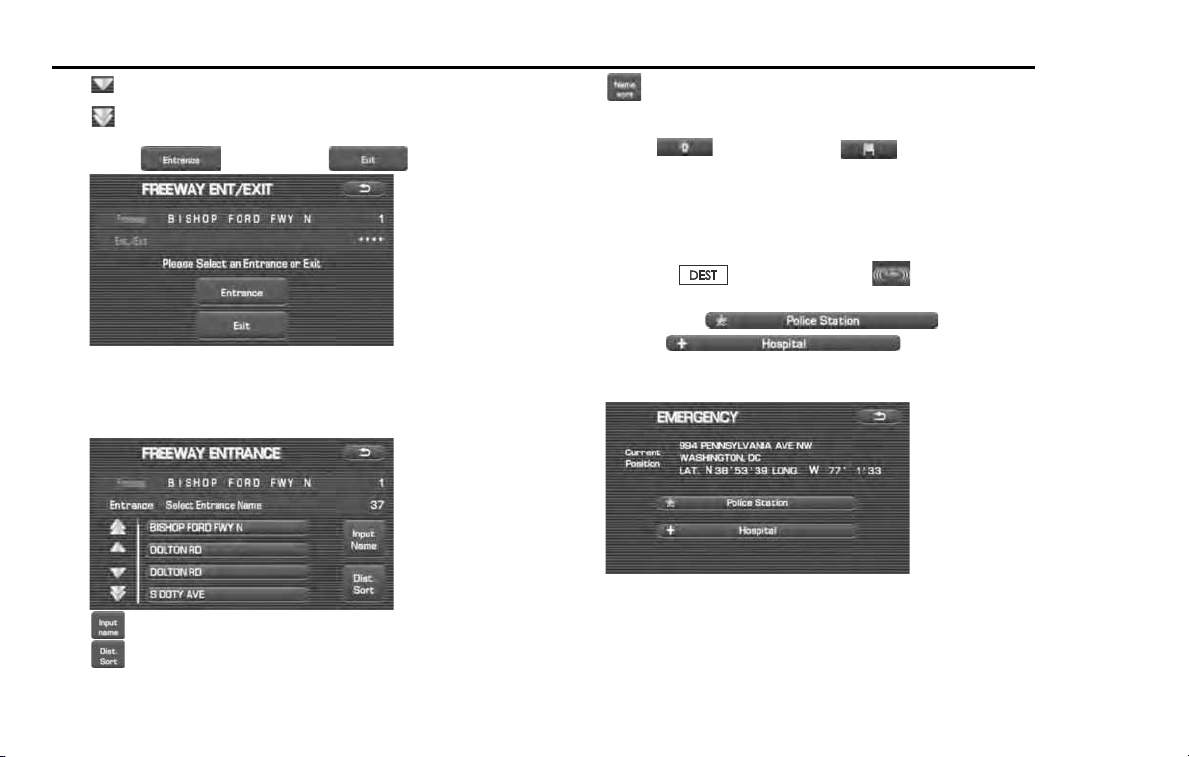
: Use this key to display the next suggestion.
: Use this key to display up to five of the next suggestions.
4 Select (entrance) or (exit).
5 Select the name of the street from which you will enter
the freeway or to which you will go after leaving the free-
way.
: Select this key before you can enter the street name.
: Use this key to search through the list by distance.
: Use this key to search through the list by name (alphabeti-
cal search)
6 Select (destination) or (waypoint).
■ "Emergency" category
This function allows the nearest police station or hospital to be set as
the destination.
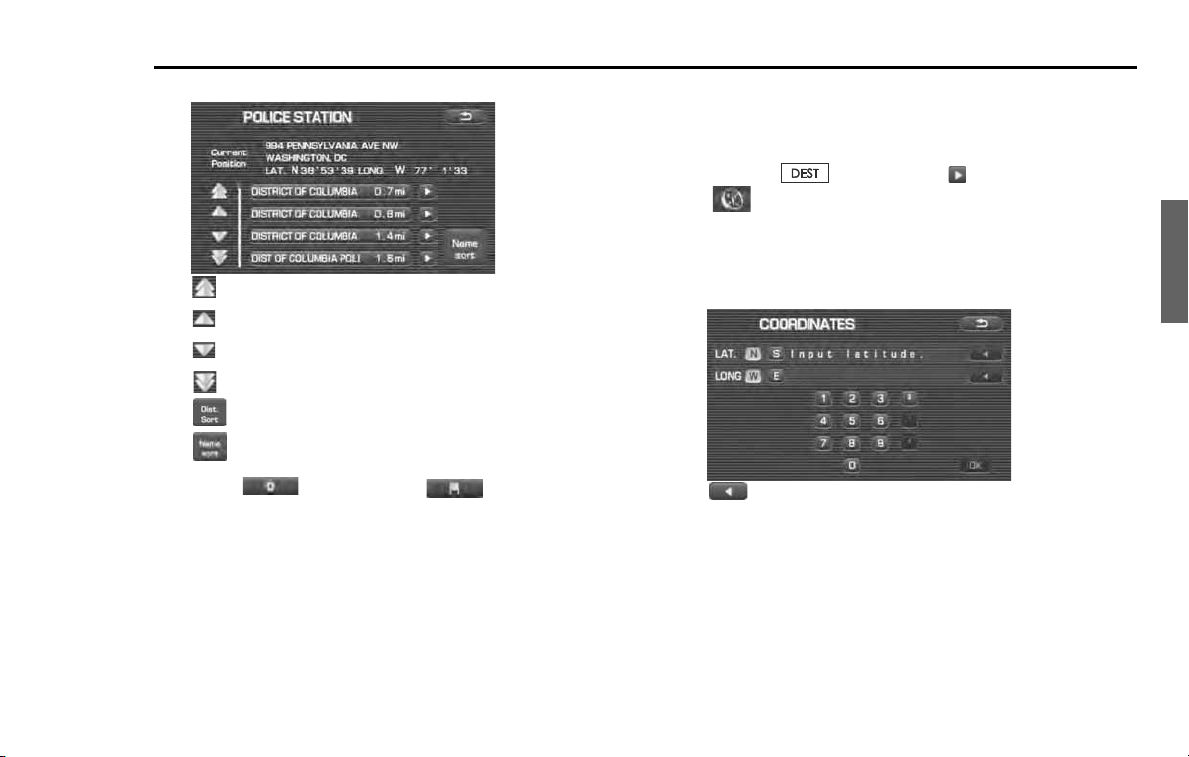
1 Press the button and select (emergency).
2 Select either (Police sta-
tion) or (Hospital).
The nearest police stations or hospitals will be displayed accord-
ingly.
Navigation 45
Setting Route
3
Select the desired institution from the list.
: Use this key to display up to five previous suggestions.
: Use this key to display the previous suggestion.
: Use this key to display the next suggestion.
: Use this key to display up to five of the next suggestions.
: Sorts the list by distance.
: Sorts the list in alphabetical order by name.
4
Select (destination) or (waypoint).
NOTE
Displayed information about each facility might be changed. It is recommended
that you check the location or business days/hours before departure.
■ "Coordinates" category
You can set destinations or waypoints using their latitudes and longi-
tudes as follows:
1
Press the button, select , and then select
(coordinates).
2
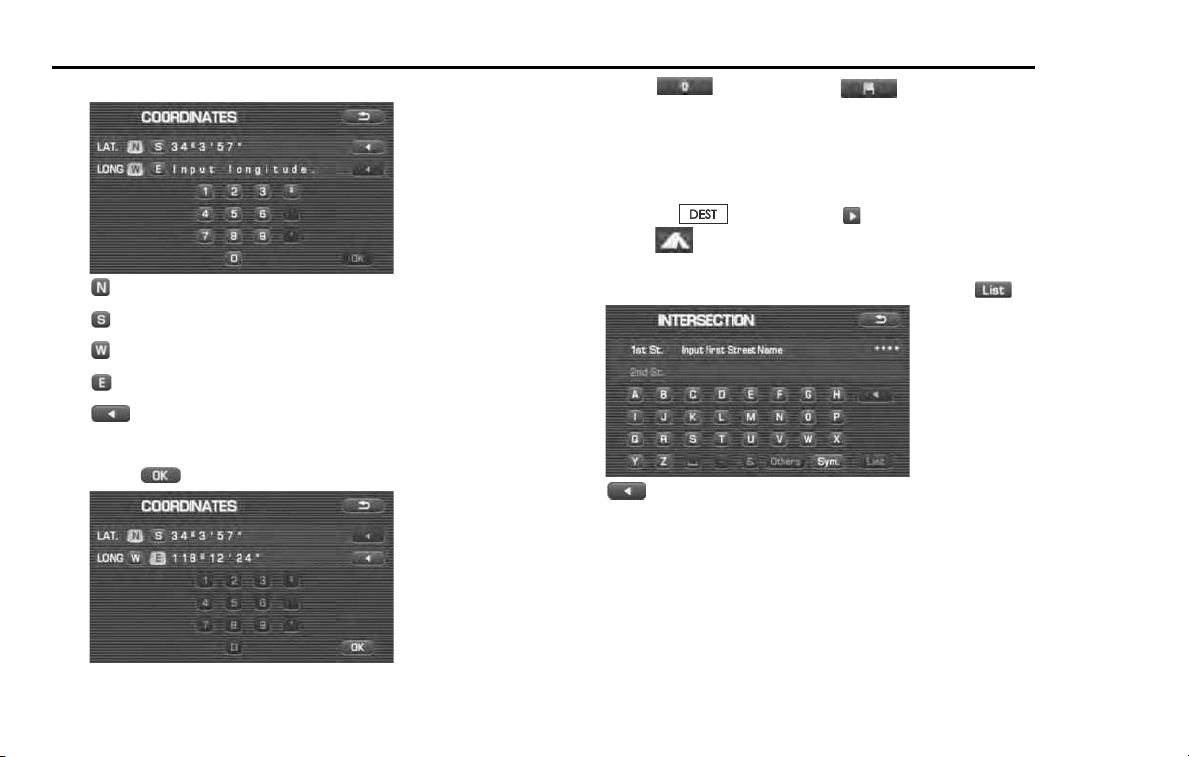
Enter the latitude of the desired location.
Use the numeric keys together with the [°] (degrees), ['] (minutes),
and ["] (seconds) keys.
: Use this key to delete the character last entered. Select it
repeatedly if you want to delete all of the characters
entered.
46 Navigation
Setting Route
3 Enter the longitude of the location.
: Use this key to switch over to the north latitude.
: Use this key to switch over to the south latitude.
: Use this key to switch over to the west longitude.
: Use this key to switch over to the east longitude.
: Use this key to delete the character last entered. Select it
repeatedly if you want to delete all the characters entered.
4 Select (OK).
5 Select (destination) or (waypoint).
■ "Intersection" category
You can use a intersection defined by two street names as a location for
setting your destination or a waypoint.
1 Press the button, select , and then
select (Intersection).
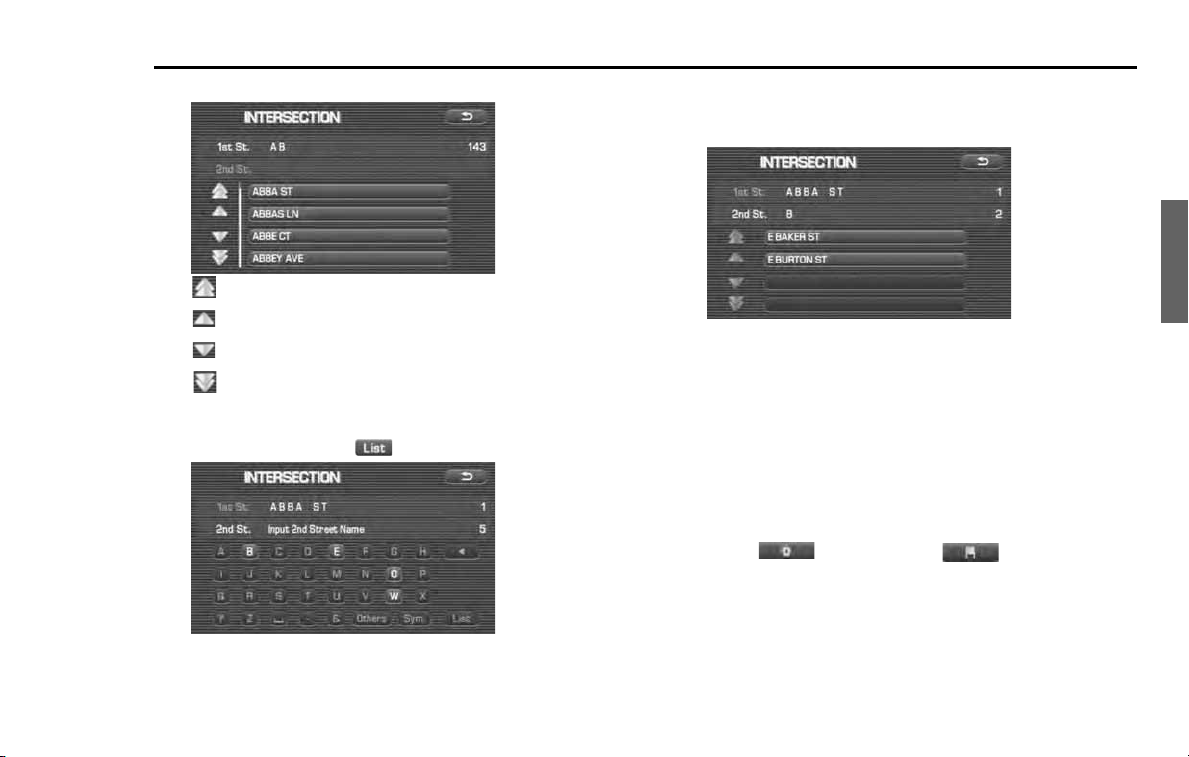
2 Enter the name of the first street and then select .
: Use this key to delete the character last entered. Select it
repeatedly if you want to delete all of the characters
entered.
NOTE
During character entry, the system shows the street name list automatically
when the amount of matching streets is four or less.
Navigation 47
Setting Route
3
Select the street from the "Intersection" list.
: Use this key to display up to five previous suggestions.
: Use this key to display the previous suggestion.
: Use this key to display the next suggestion.
: Use this key to display up to five of the next suggestions.
4
Specify the second street using the same procedure as
the first street. Select (List).
5
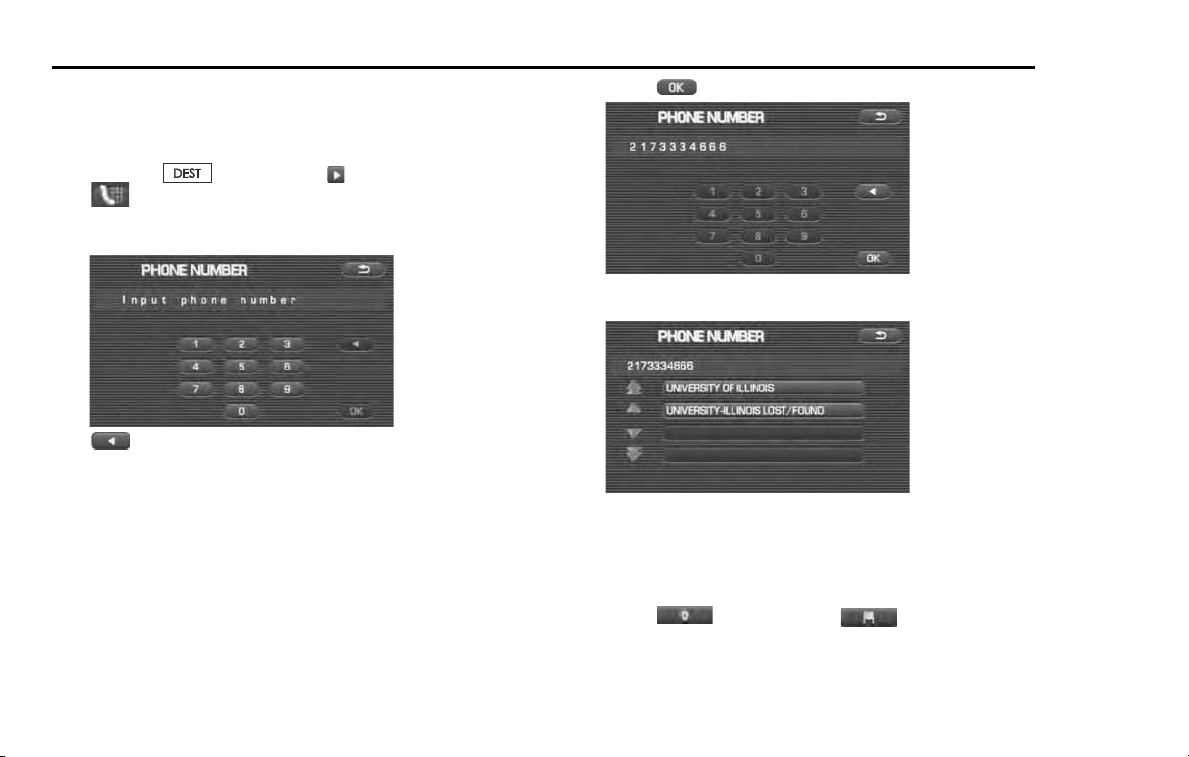
When there are two or more candidates, a list of intersec-
tions will be displayed. Select an intersection of the des-
tination.
NOTE
No intersection is defined if
• the two streets do not cross each other,
• the two streets are a freeway and a highway,
• either street is for right or left turns only,
• both are one-way streets,
• either street is for U-turns,
• the two streets cross on the inside lane,
• either street is an on/off ramp, and/or
• either street is a frontage street.
6
Select (destination) or (waypoint).
48 Navigation
Setting Route
■ "Phone number" category
This function allows buildings and the like to be located using their
phone numbers.
1 Press the button, select , and then select
(phone number).
2 Enter the phone number starting with the area code.
: Use this key to delete the character last entered. Select it
repeatedly if you want to delete all of the characters
entered.
3 Select .
4 Select your destination.
NOTE
If a number of candidates exist as a result of, for example, different area codes,
these will be displayed in a list. The desired destination can then be selected
from the list.
5 Select (destination) or (waypoint).
Navigation 49
Setting Route
■ Using "Change Search Area" function
This function designates a general geographical area where the desti-
nation or waypoint you want to set is located.
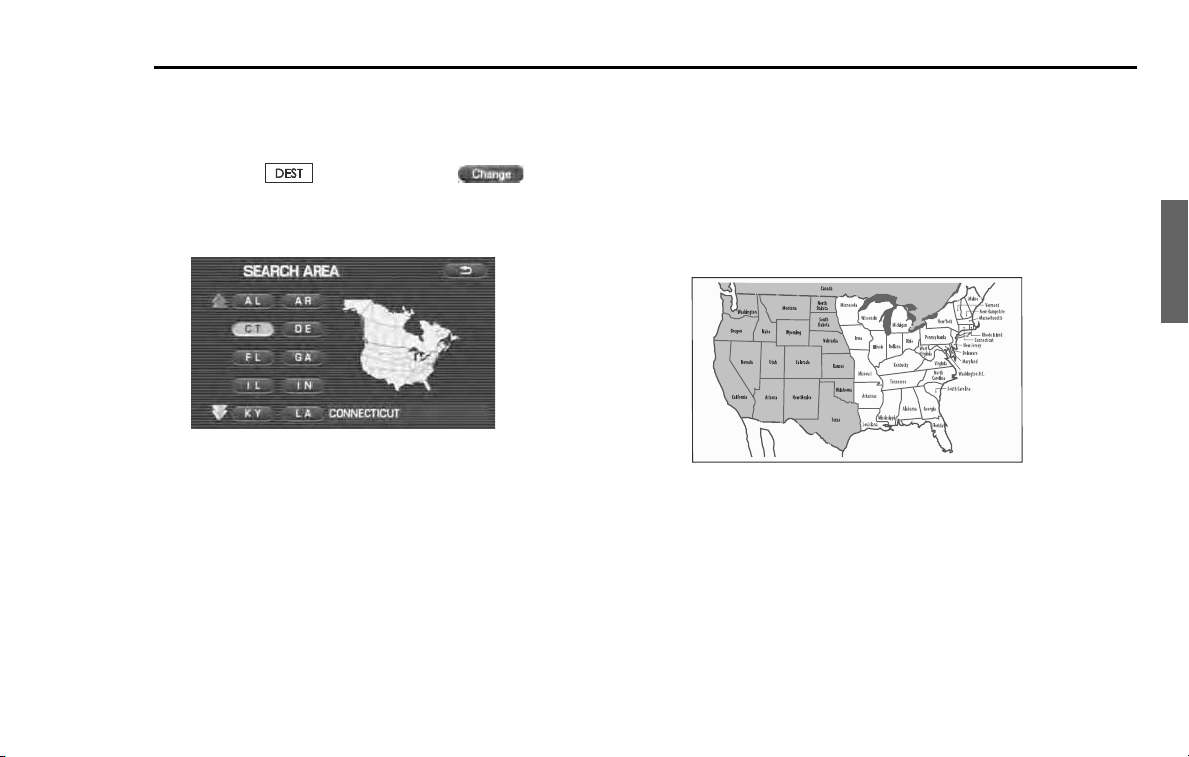
1
Press the button and select (change).
2
Select the desired area.
The DESTINATION ENTRY menu screen will appear.
NOTE
• The SEARCH AREA screen shown above is a sample image. It may be slightly
different from the actual screen image.
• Three map discs are contained in this system. When performing a search for a
different area in your destination search, it is necessary to change the map
disc with another map disc. If an area you want to find is not displayed on the
screen shown above, take out the map disc and change it with a map disc
containing the relevant area.
For details of the map disc, refer to the description below.
■ Map Discs
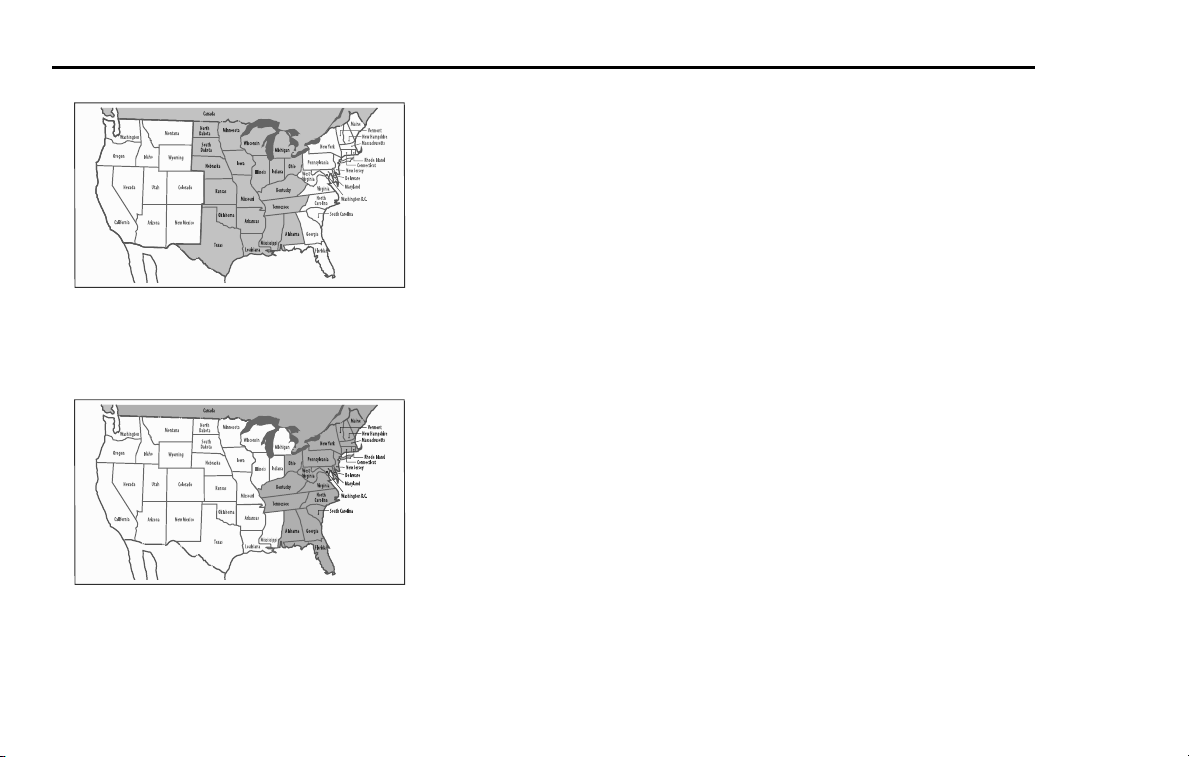
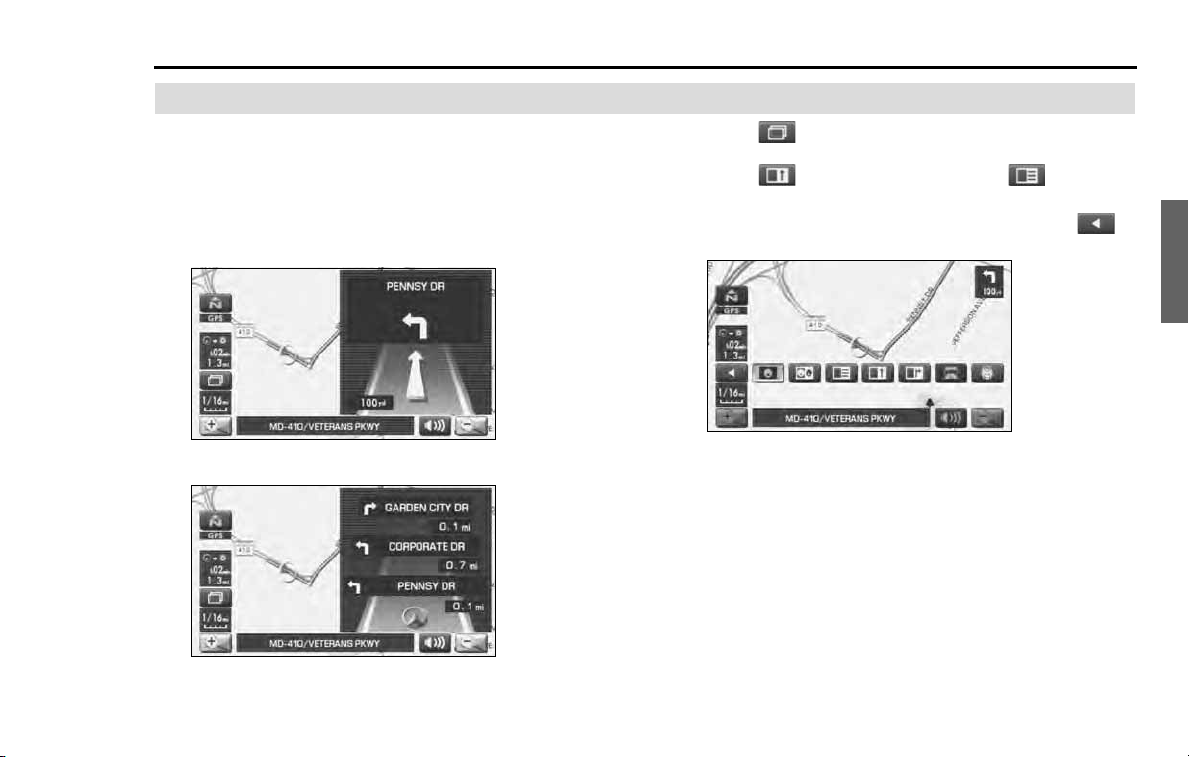
The three map discs contain different areas, respectively. (West, Mid and
East) Select the map disc containing the destination area you wish and
insert the disc in the navigation system.
Make sure to reselect the destination when changing the map disc.
Refer to the section Set Route in the Instruction Manual for instructions
on reselecting the destination.
■ Area (West)
Arizona, California, Colorado, Idaho, Kansas, Montana, Nebraska,
Nevada, New Mexico, North Dakota, Oklahoma, Oregon, South Dakota,
Texas, Utah, Washington, Wyoming, Canada
50 Navigation
Setting Route
■ Area (Mid)
Alabama, Arkansas, Illinois, Indiana, Iowa, Kansas, Kentucky, Louisiana,
Michigan, Minnesota, Mississippi, Missouri, Nebraska, North Dakota,
Ohio, Oklahoma, South Dakota, Tennessee, Texas, Wisconsin, Canada
■ Area (East)
Alabama, Connecticut, Delaware, Florida, Georgia, Kentucky, Maine,
Massachusetts, Maryland, New Hampshire, New Jersey, New York, North
Carolina, Ohio, Pennsylvania, Rhode Island, South Carolina, Tennessee,
Vermont, Virginia, Washington D.C., West Virginia, Canada
NOTE
• Road information for all of the above locations is included on the map discs.
This means that the following operations can be performed regardless of
which map disc is loaded in the system;
- Scrolling Map to Select Destination (Select from Map)
- Selecting Destination from the previously registered points as a memory
point (Home, Memory Point, Previous Destination) within the same area.
- Selecting Destination by Latitude and Longitude (Coordinates), Phone num-
ber, Emergency, and Quick POI.
• After replacing the map disc, stored data including the POI icon on the map
and stored Avoid Street settings will be deleted, and Quick POI selections will
return to default.
• In the Current Location display, the arrival time and the distance to the desti-
nation are displayed for Next Way Point.
Navigation 51
Route Guidance
Route Guidance Screen
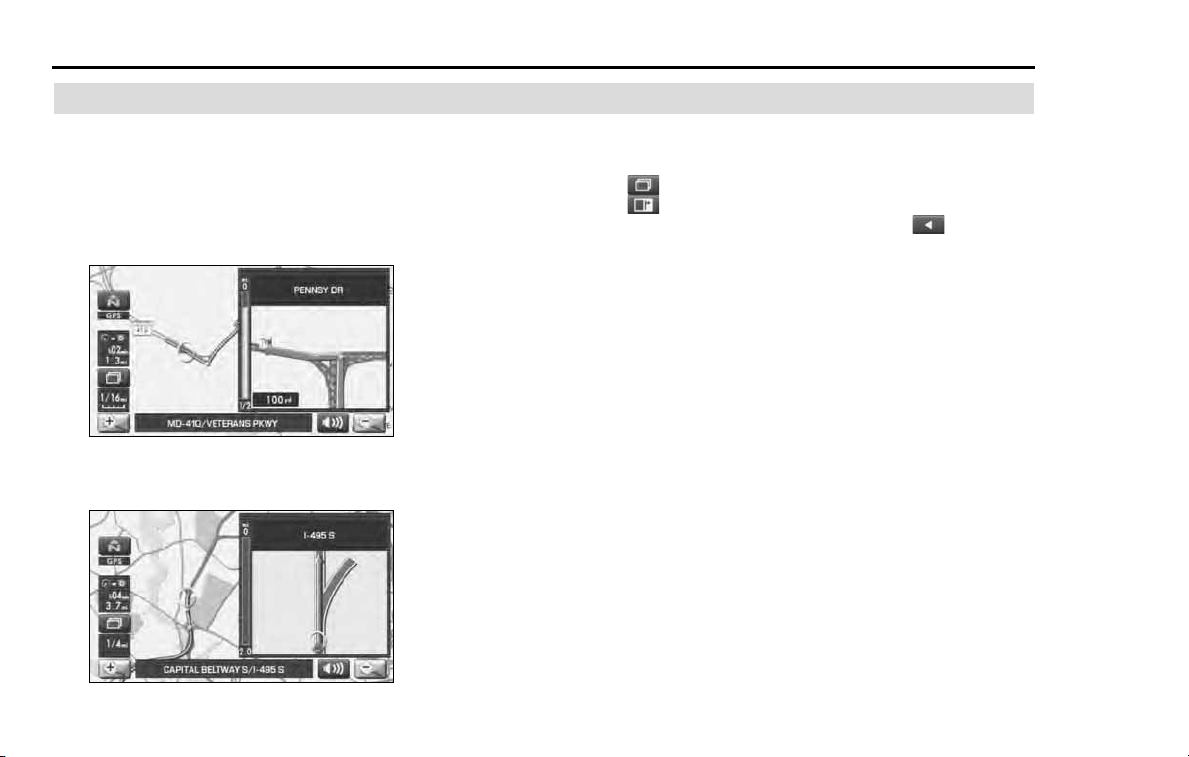
During route guidance, the system can indicate on a second
screen the directions in which you must make turns at the
next and following intersection in either of two ways: "turn
arrow" or "turn list". Specify your preferred method of indica-
tion as follows:
1 Select (screen configuration).
2 Select for turn arrow indication or for turn list
indication.
If you do not need to make any further selections, select .
The displayed keys will be hidden.
<Turn arrow>
Turn direction is indicated by an arrow.
Turn directions are indicated in a list.
<
T
urn
li
st>
52 Navigation
Route Guidance
Zoom-in Map at Intersection
Before you arrive at an intersection, the system will automati-
cally show a zoom-in map of the intersection on a second
screen to make the guidance clearer.
As you approach an intersection during route guidance, a zoom-in map
of the intersection automatically appears on a second screen. After you
drive past the intersection, the zoom-in map disappears.
As you approach a fork on a freeway during route guidance, a zoom-in
map of the freeway automatically appears on a second screen, making
the route guidance clearer.
NOTE
Use the following procedure to recall the most recently displayed zoom-in map
of an intersection or a freeway fork.
1. Select (screen configuration).
2. Select (re-display of intersection/range guidance).
If you do not need to make any further selections, select . The displayed
keys will be hidden.
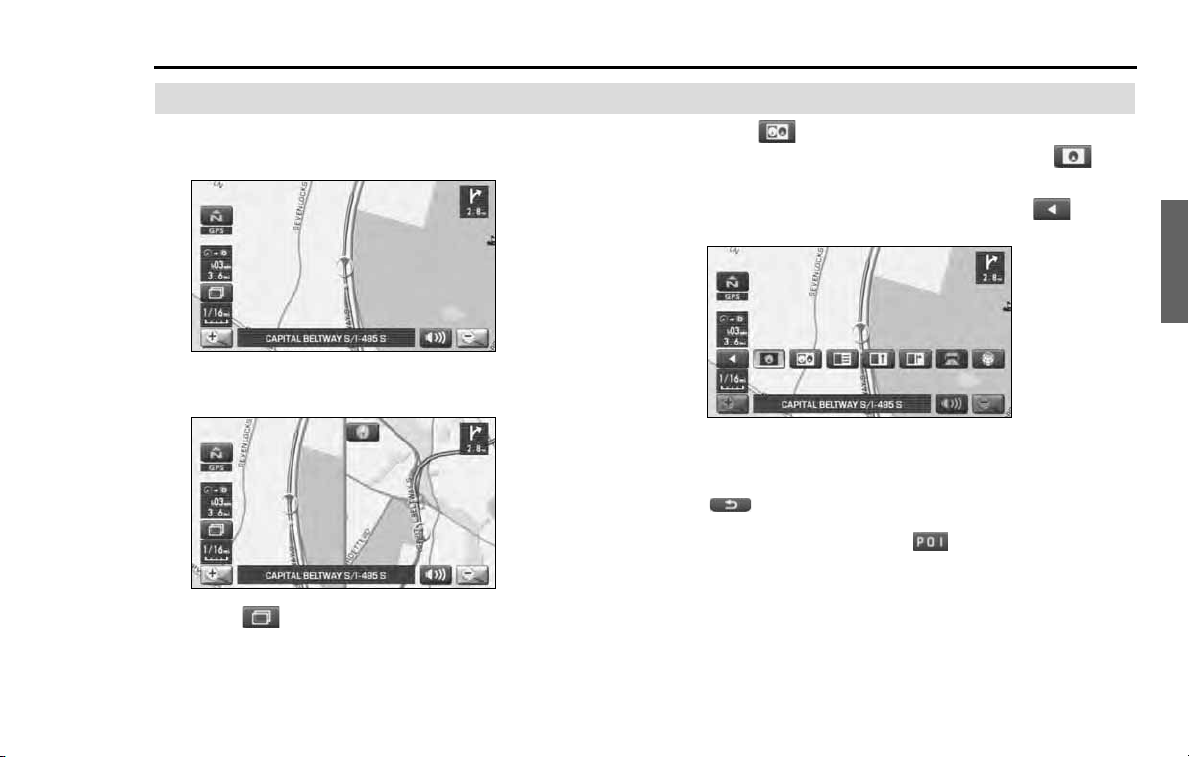
Navigation 53
Route Guidance
Dual Map Display
You can configure the screen for a dual map display.
1 Select (screen configuration).
2 Select (dual map).
If you wish to return to the single map display, select (sin-
gle map).
If you need not make any further selection, select . The rele-
vant keys will disappear.
NOTE
If you wish to modify the display selections that have been made for a second
screen, touch the top of the screen. After completing the modification,
select .
• See Page
32
for details on scale changes.
• See Page
87
for details on setting with .
<Single map display>
<Dual map display>
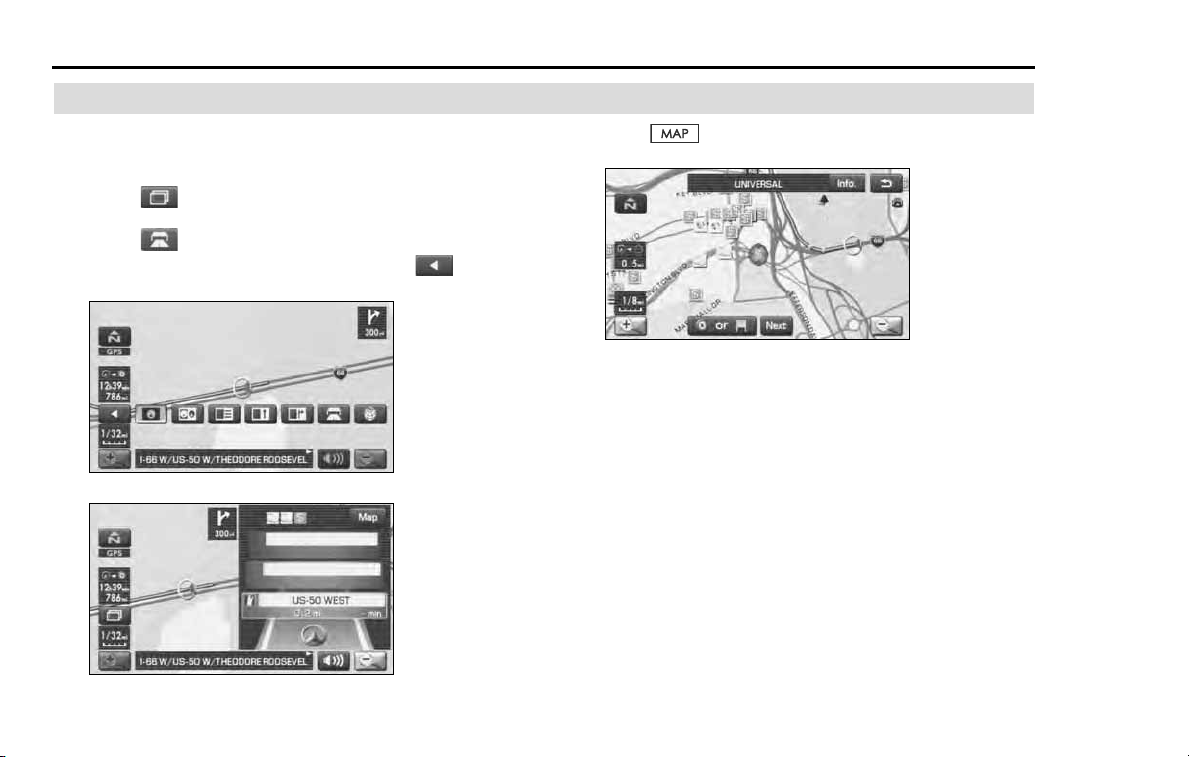
54 Navigation
Route Guidance
Freeway Information
A list of buildings and facilities along a freeway can be dis-
played on the screen.
1 Select (screen configuration).
2 Select (freeway information).
If you need not make any further selection, select .
The relevant keys will disappear.
The information of a freeway is displayed.
Select to display the map in the neighborhood together
with the icons of hotels and banks.
This map allows you to set the destination and waypoints. It also
allows you to register them with the Memory Point with the cur-
sor placed on the icon.
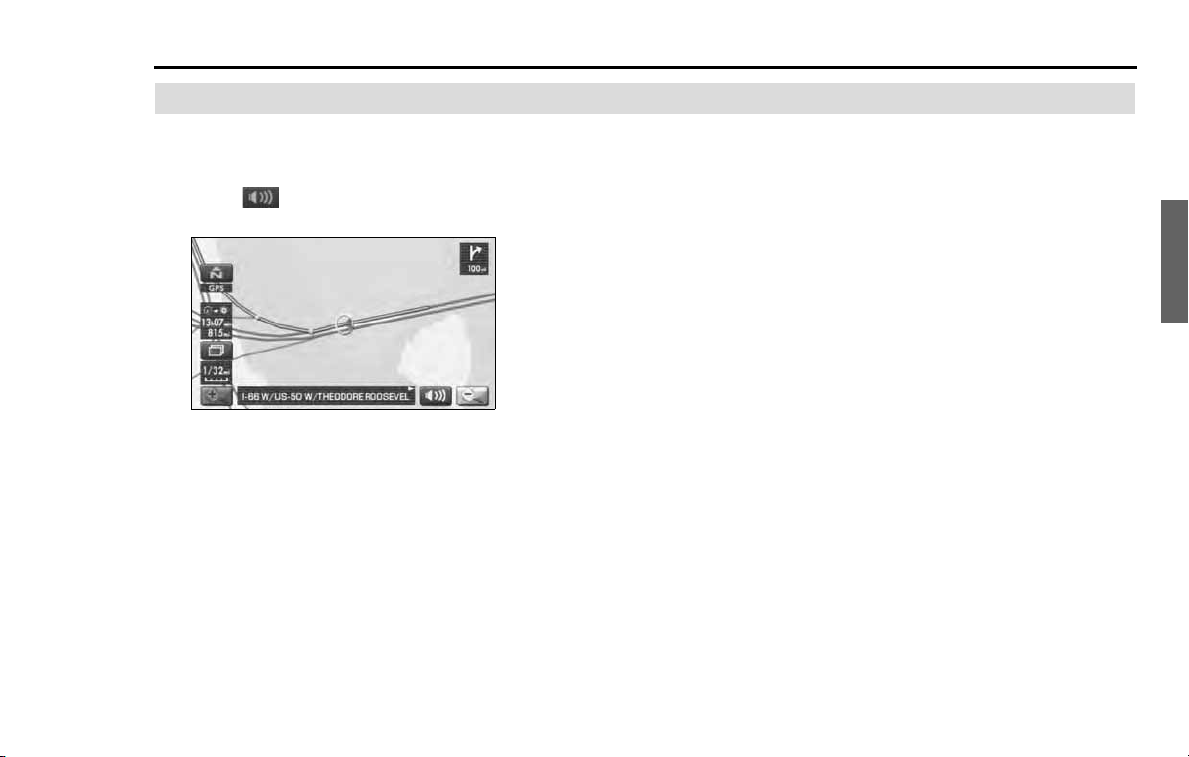
Navigation 55
Route Guidance
Replaying Voice Guidance
If you want to listen to the last voice guidance again during
route guidance, use the following procedure:
1 Select .
You can hear the voice guidance again.
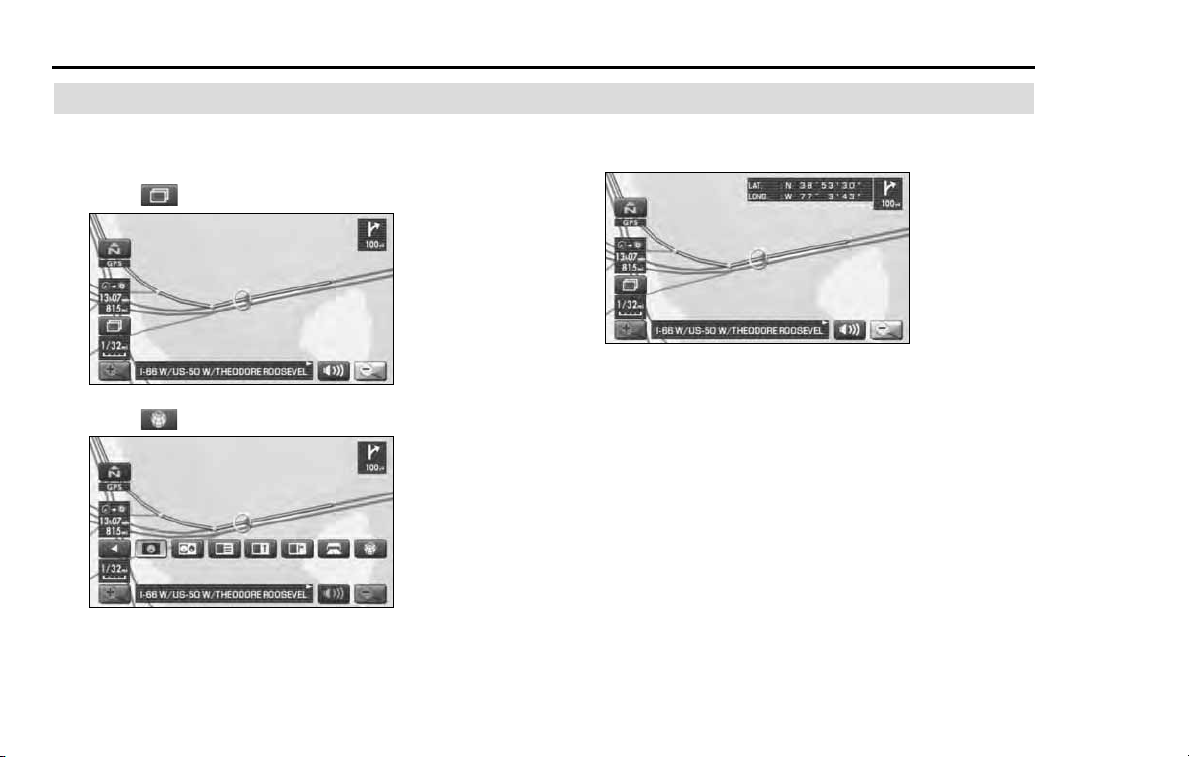
56 Navigation
Route Guidance
Compass Mode
Longitude and latitude of present location can be displayed
on the screen.
1 Select (screen configuration).
2 Select (compass).
3 Longitude and latitude of present location are displayed
at upper right of the screen.
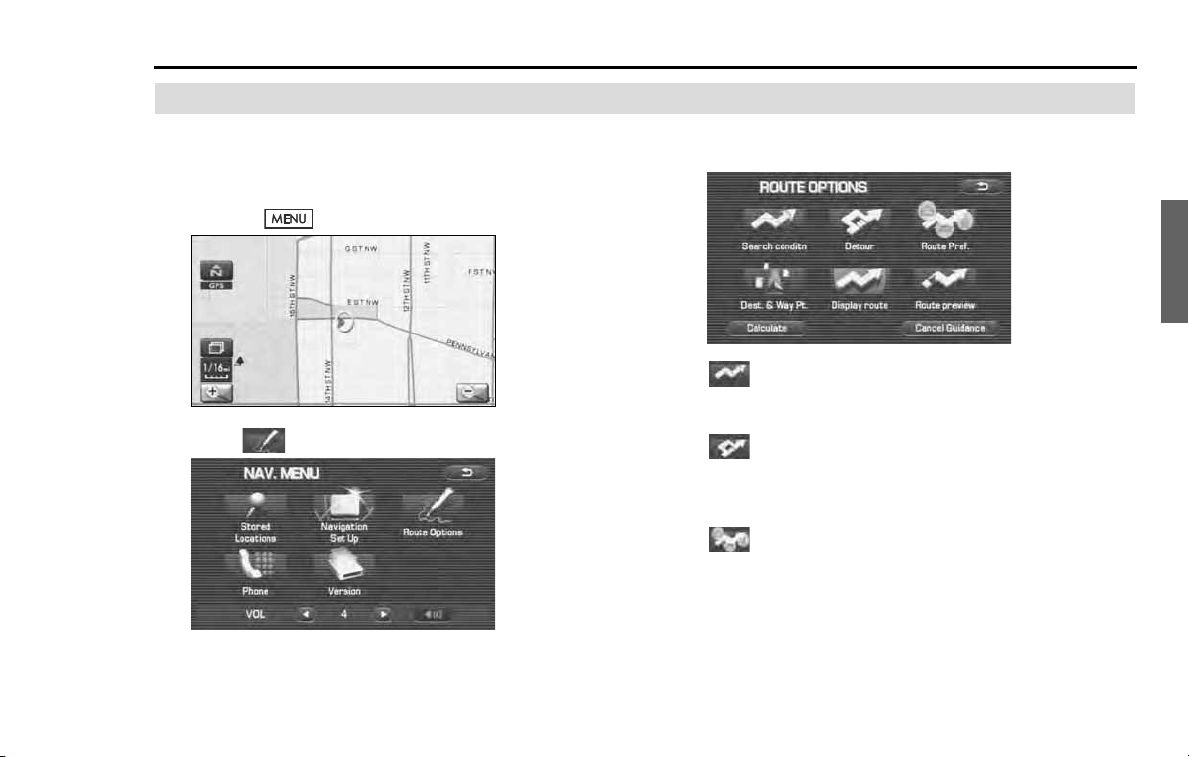
Navigation 57
Route Options
Setting Route Options
Using the functions available from the Route Options screen,
you can change the route options, stop the route guidance or
check the route. Use the following procedures:
1 Press the button.
2 Select (route options).
3 The Route Options screen will appear. Select any of the
following displayed functions as necessary:
(search condition):
This function allows you to specify the way in which the system
calculates the route to the destination. (See Page 58.)
(detour):
This function allows you to prompt the system to calculates an
alternative route from the current position within a specified dis-
tance. (See Page 59.)
(route preferences):
This function allows you to prompt the system to alter the route
search conditions and recalculate the route accordingly. (See Page
60.)
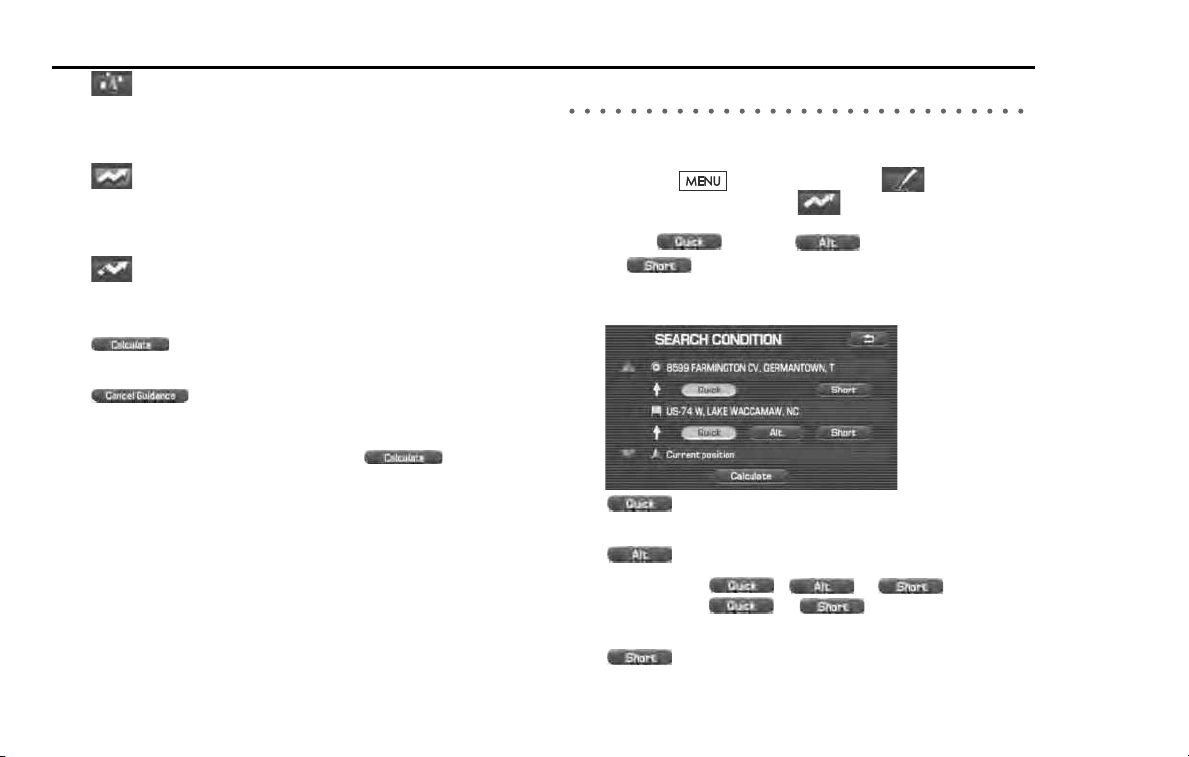
58 Navigation
Route Options
(destination and waypoint):
This function allows you to modify the destination and waypoints,
and prompt the system to recalculate the route accordingly. (See
Page 60.)
(display route):
This function allows you to confirm the entire route and, if neces-
sary, prompt the system to recalculate the route according to your
specification. (See Page 64.)
(route preview):
This function allows you to simulate a drive along the route that is
calculated by the system before departure. (See Page 65.)
(calculate):
Selecting this key prompts the system to recalculate the route.
(cancel guidance):
Selecting this key prompts the system to stop route guidance.
Note that this erases the destination and waypoints. To prompt
the system to start guidance again, select (calculate).
NOTE
A recalculated route will sometimes be the same route as the one displayed
before recalculation.
Search condition
You can specify the way in which the system calculates the route.
1 Press the button, then select (route
options), and then select (search condition).
2 Select (Quick), (Alt.),
or (Short) to specify the way of calculating the
route to reach the next waypoint or the destination from
the current point.
: The system will calculate a route with the shortest
driving time required.
: The system will calculate an alternative route.
(You can select , or for the first
waypoint. Only or can be specified for the
second and subsequent waypoints.)
: The system will calculate a route with the shortest
driving distance.
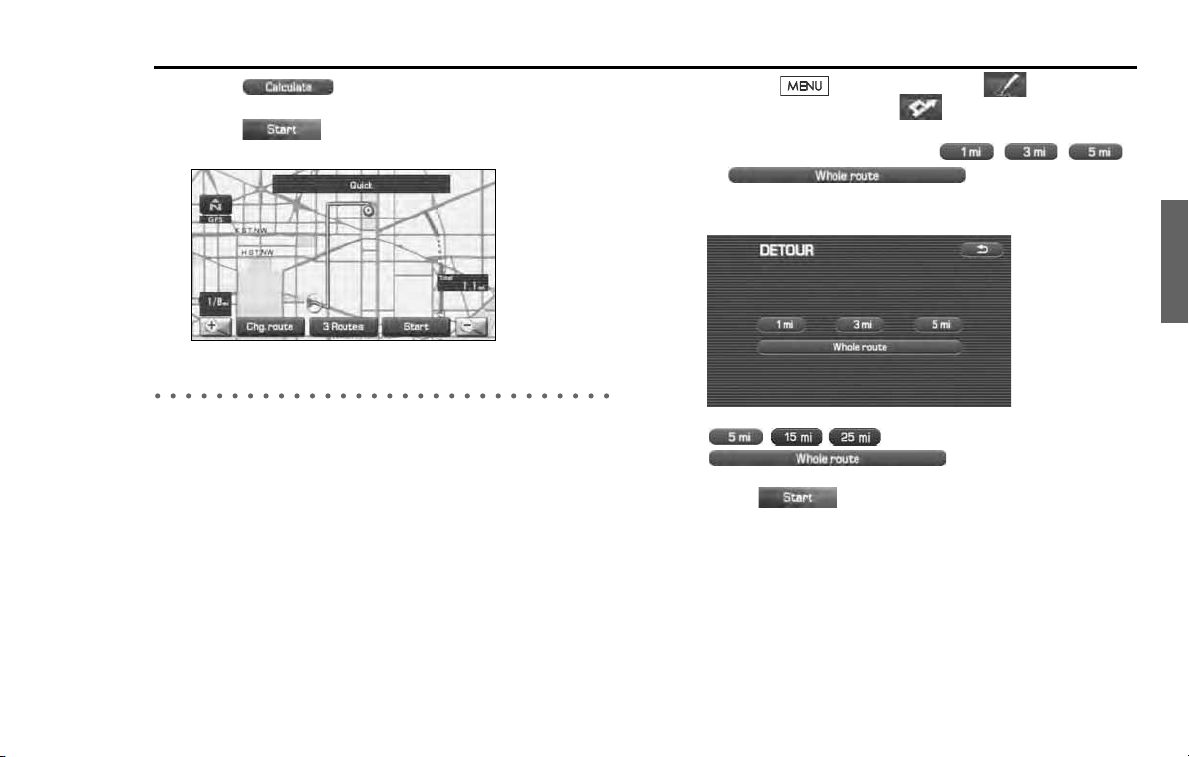
Navigation 59
Route Options
3
Select (calculate)
4
Select (start).
Route guidance will begin along the displayed route.
Detour
You can specify a detour distance from your current position. The sys-
tem will calculate an alternative route according to the distance specifi-
cation, enabling you to take a detour.
1
Press the button, then select (route
options), and then select (detour).
2
Select a detour distance using , , ,
or (whole route).
The system will then calculate an alternative route that detours
from the current location within the specified distance.
When driving on the freeway, make a selection from among
, , and
.
3
Select (start).
NOTE
If you are driving off the route, it is not possible to calculate a detour route.
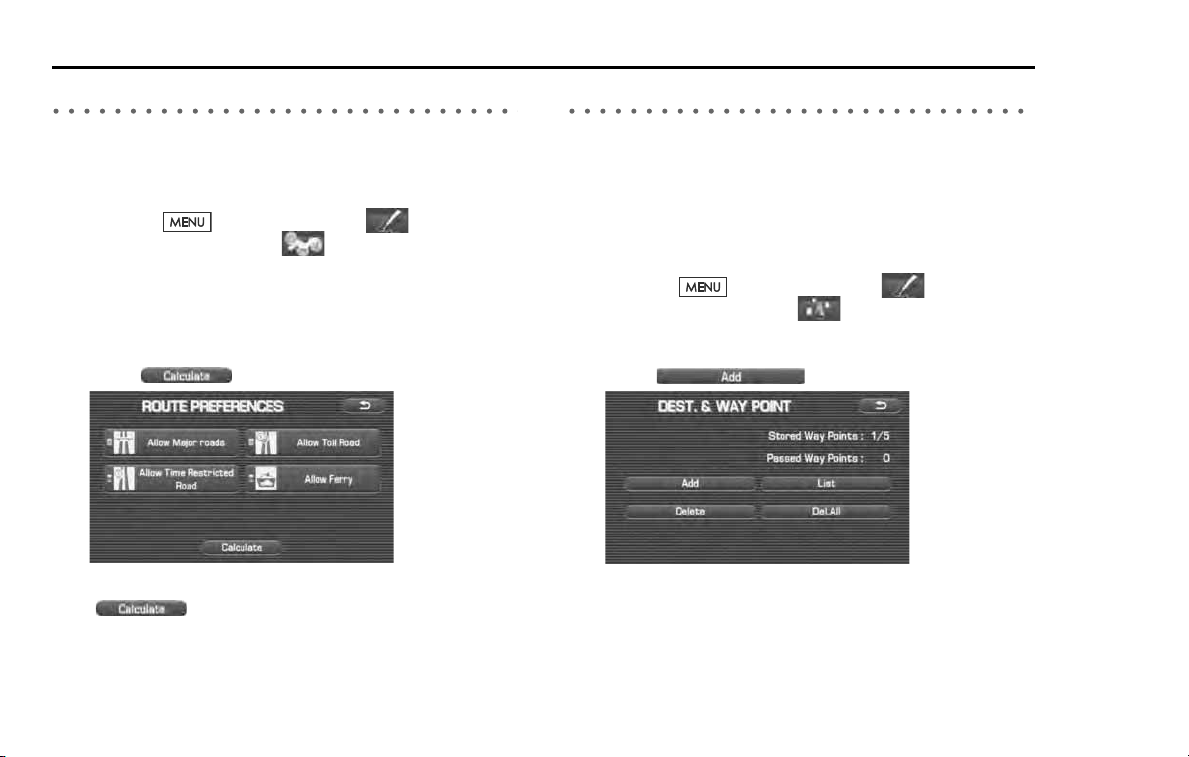
60 Navigation
Route Options
Route preferences
Use this function to specify preferred route search conditions. The sys-
tem will start recalculating the route according to your specified condi-
tions.
1 Press the button, then select (route
options), and then select (route preferences).
2 Specify conditions by selecting keys.
Each time you select a key, it will toggle between "usage" and
"non-usage" of the corresponding roads or ferries.
3 Select (calculate).
NOTE
• The (calculate) key can be selected during route guidance.
• The route calculation will not always be able to follow the specified condi-
tions.
Destination and waypoints
You can change the destination or waypoints for the route calculation
by using this function.
■ Addition of waypoints
Use the following procedure to add new waypoints to the current route
for recalculation.
1 Press the button, then select (route
options), and then select (destination and way-
points).
2 Select (add).
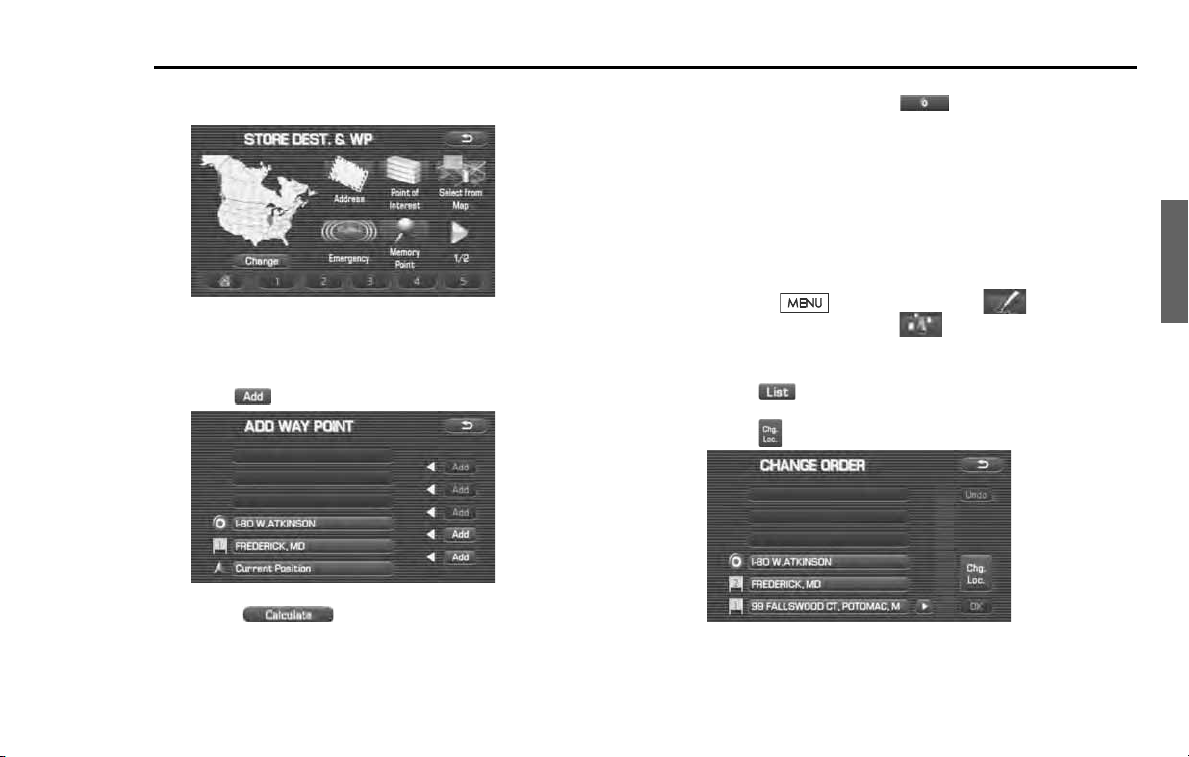
Navigation 61
Route Options
3
Set a waypoint using any method available from the
screen.
4
Specify the order in which all the set waypoints are to be
visited.
Choose the location of the waypoint to be added, and then
select (add).
5
Select (calculate).
NOTE
• When a new destination is set using (destination), it will replace the
current destination and the route calculation will be carried out again.
• Step 4 must be performed for the second and any subsequent waypoints.
• Repeat Steps 1 to 4 for each waypoint to be set.
■ Modifying destination or waypoint positions
Use this procedure to modify the destination or waypoint positions. The
screen will display the calculated route and the positions of the destina-
tion or waypoints that you will be able to modify.
1
Press the button, then select (route
options), and then select (destination and way-
points).
2
Select (list).
3
Select (change location).
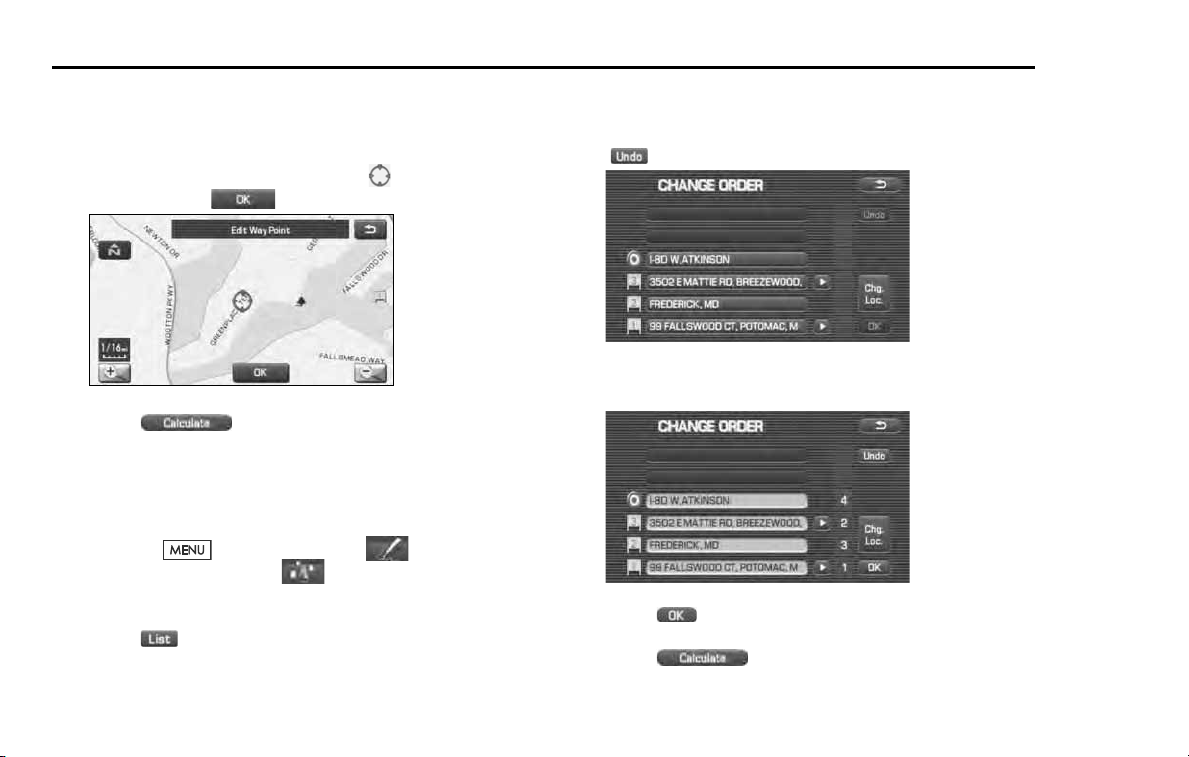
62 Navigation
Route Options
4 Select the key corresponding to the location that is to be
modified.
The map for the area around current location will be displayed.
5 Scroll the map to bring the crosshair to the location
and then select .
6 Select (calculate).
■ Modifying visiting order
You can change the order for visiting your waypoints by using this pro-
cedure.
1 Press the button, then select (route
options), and then select (destination and way-
points)
2 Select (list).
3 Select the waypoint keys according to the order of your
visit.
If you wish to cancel the visiting order number indication, select
(undo).
4 When you complete the sequencing, the visiting order
will be updated automatically.
5 Select .
6 Select (calculate).
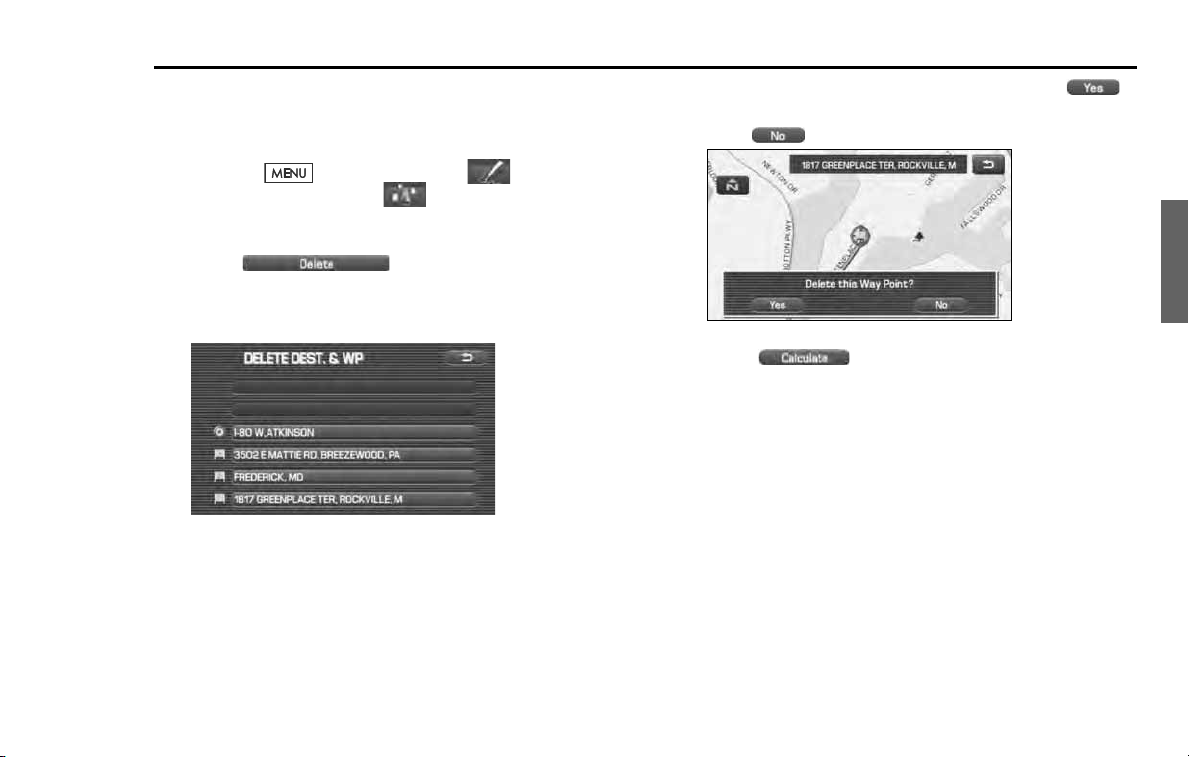
Navigation 63
Route Options
■ Deleting destination or waypoints
Use this procedure when you wish to delete the previously set destina-
tion or waypoint.
1
Press the button, then select (route
options), and then select (destination and way-
points).
2
Select (delete).
3
Select the key corresponding to the destination or way-
point you wish to delete.
4
Confirmation message will be displayed. Select
(yes).
Select (no) to cancel the deletion.
5
Select (calculate).
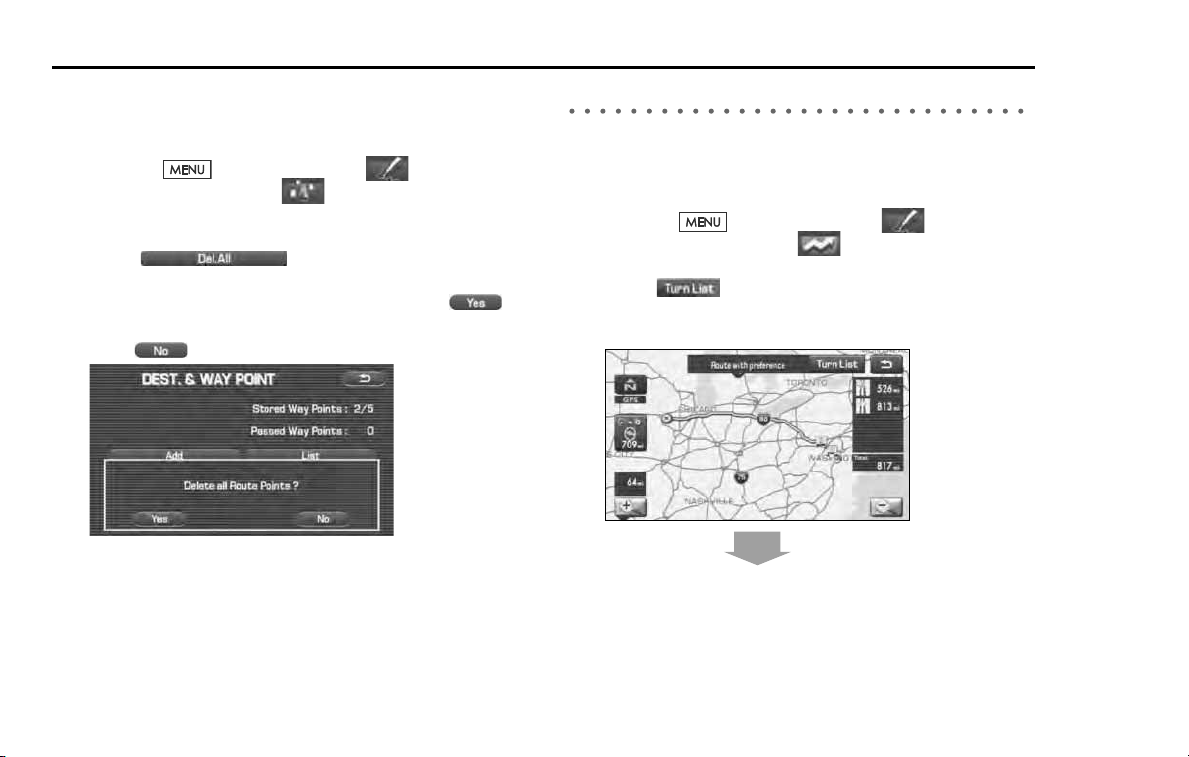
64 Navigation
Route Options
■ Deleting destination and all waypoints
You can delete the destination and all previously set waypoints in a sin-
gle process.
1 Press the button, then select (route
options), and then select (destination and way-
points).
2 Select (delete all).
3 Confirmation message will be displayed. Select
(yes).
Select (no) to cancel the deletion.
Display route
Use this function to display the entire route. You can also specify an area
you wish to avoid and prompt the system to recalculate the route
accordingly.
1 Press the button, then select (route
options), and then select (display route).
2 Select (turn list).
The entire route screen will appear and then it will change to the
Turn List screen.
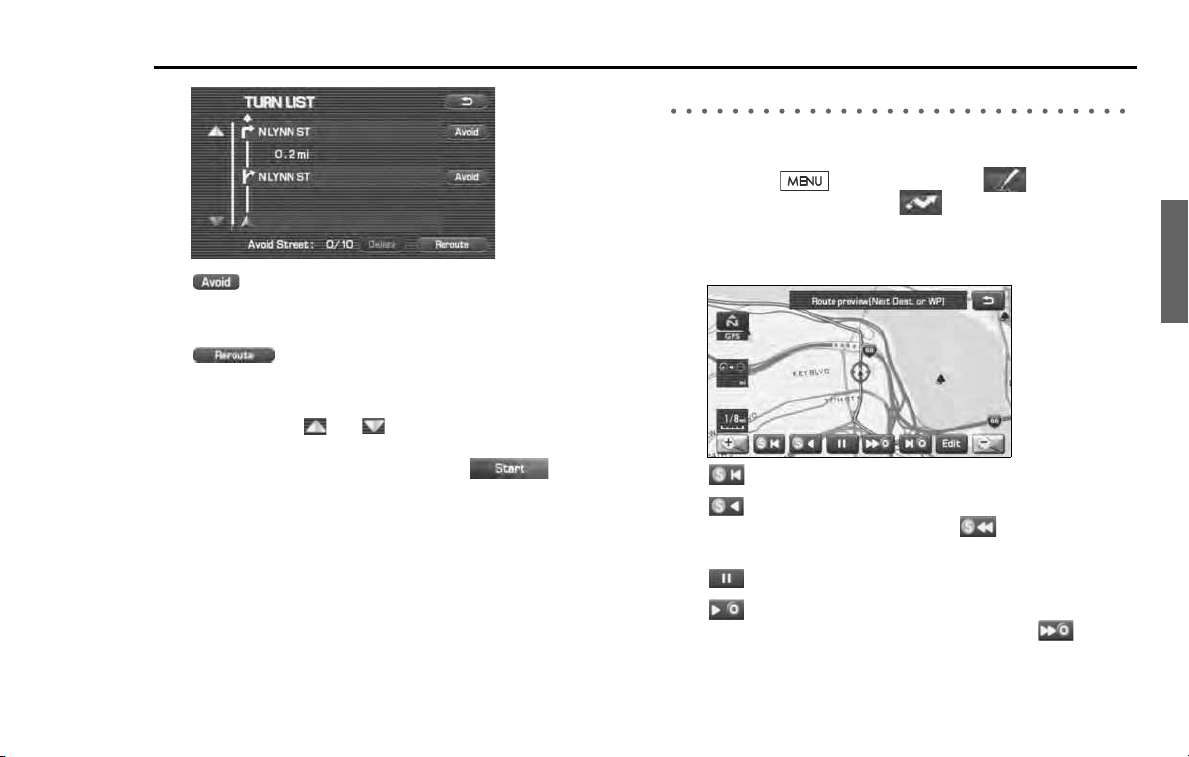
Navigation 65
Route Options
(avoid):
Select this key if you wish to specify any areas to avoid from the
list of street names.
(Reroute):
The system will recalculate the route.
If the data for the route cannot be shown on one screen, scroll the
screen using the and keys.
3
When the Reroute is selected: Select (start).
Route preview
The system can show you an automated simulation of the calculated route.
1
Press the button, then select (route
options), and then select (route preview).
2
Start the simulation drive according to the calculated
route using the keys on the screen as follows:
: Move to the start point.
: The simulation drive will start toward the start point. After the
start, this key will be displayed as , and when it is
selected, the simulation drive will switch to high-speed driving.
: The simulation drive will stop.
: The simulation drive will start toward the destination.
After the start, this key will be displayed as , and
when it is selected, the simulation drive will switch to
high-speed driving.
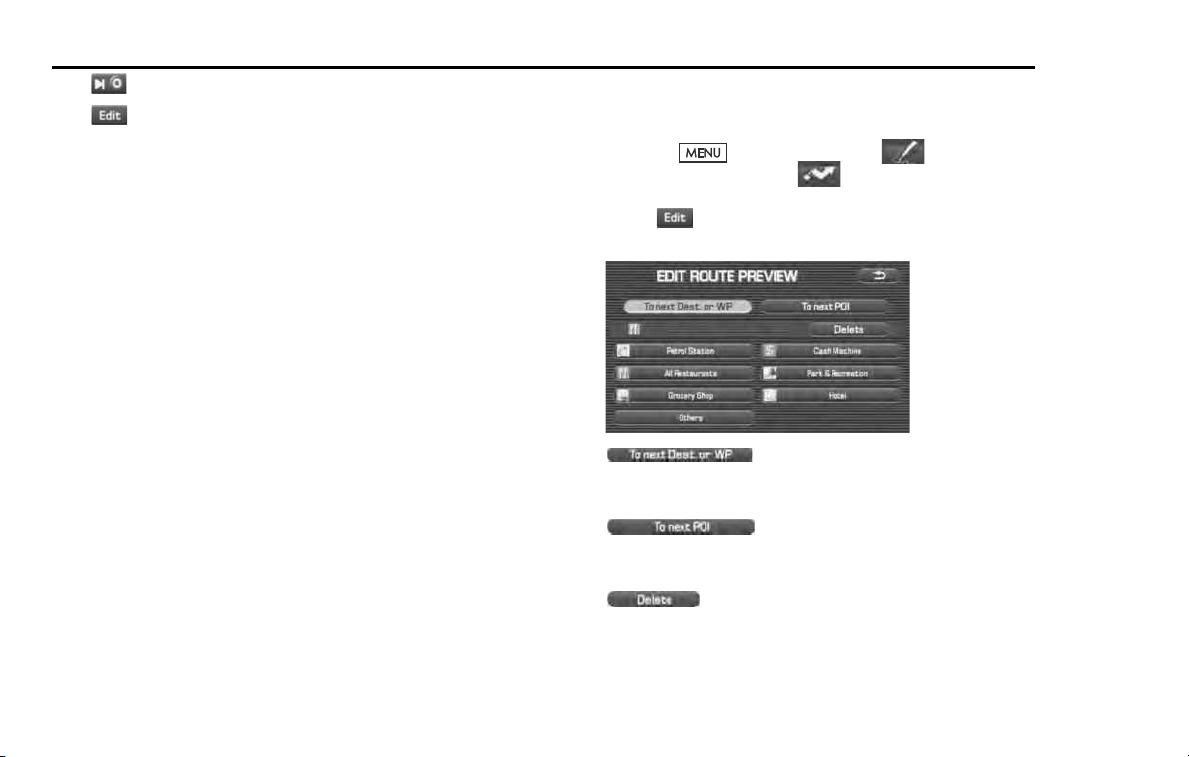
66 Navigation
Route Options
: Move to the destination.
: The EDIT ROUTE PREVIEW screen will be displayed. (See
Page 66.)
NOTE
The visual speed of the simulation vehicle varies with the map scale selected.
The speed appears to be faster with a wide-area map than with a zoom-in map.
■ Setting conditions for simulation drive
You can change the simulation drive conditions using this procedure.
1 Press the button, then select (route
options), and then select (route preview).
2 Select (edit).
The EDIT ROUTE PREVIEW screen will appear.
(to destination or next waypoint):
The simulation drive will stop at the destination or the next way-
point.
(to next POI):
The simulation drive will stop at a point of interest that has been
set up on the route.
(delete):
A selected POI will be deleted.
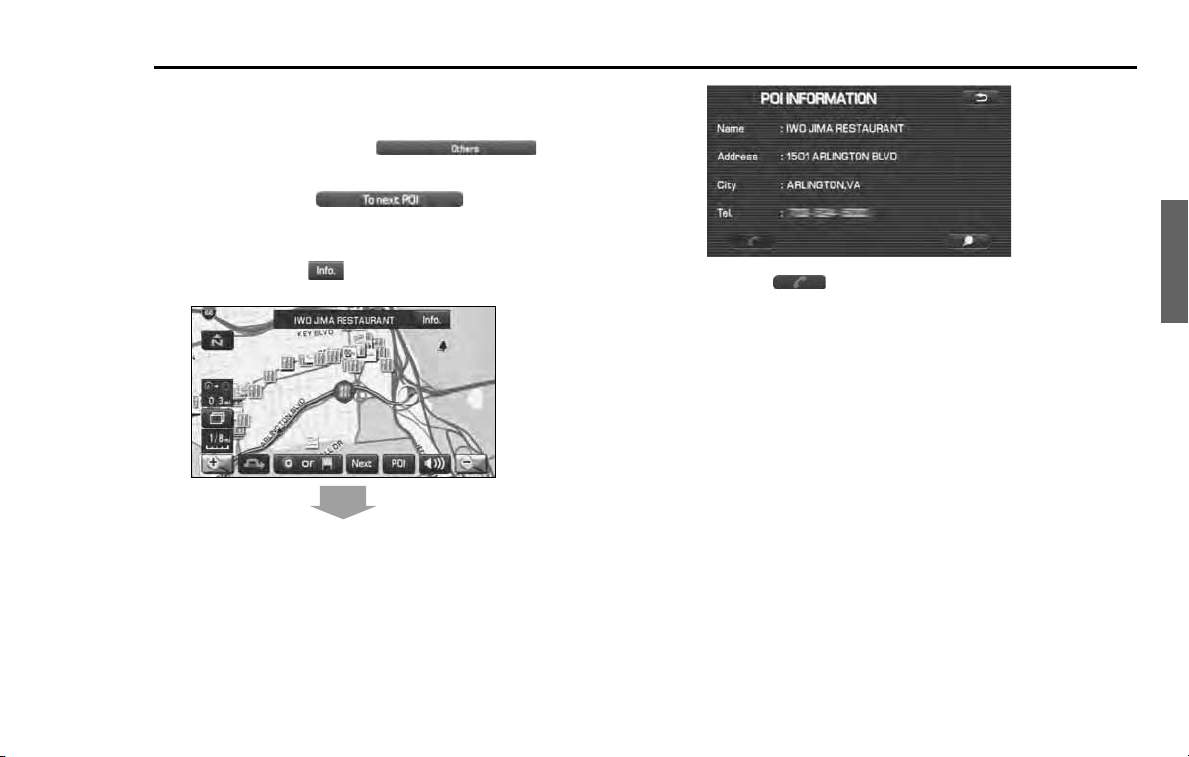
Navigation 67
Route Options
POI keys:
When you select one of the six POI category keys, the system will
retrieve the selected POI from the Quick POI storage and display it on
the map. When selecting the (others) key,
POIs of other categories can be found. For more details, see Page
71
.
If, for example, the (to next POI) category
key is selected and a simulation drive is started, the simulation
vehicle will then stop at a restaurant on the route.
If you then select (information), the system will display
information on the restaurant.
.
Selecting allows you to make a phone call to the phone
number displayed.
* The Bluetooth Phone is required to be set in advance.
NOTE
You must finish the simulation drive before you actually start to drive. Although
the simulation drive will automatically stop when you actually start to drive, not
finishing it properly can lead to an error in the display of the current position of
the vehicle.
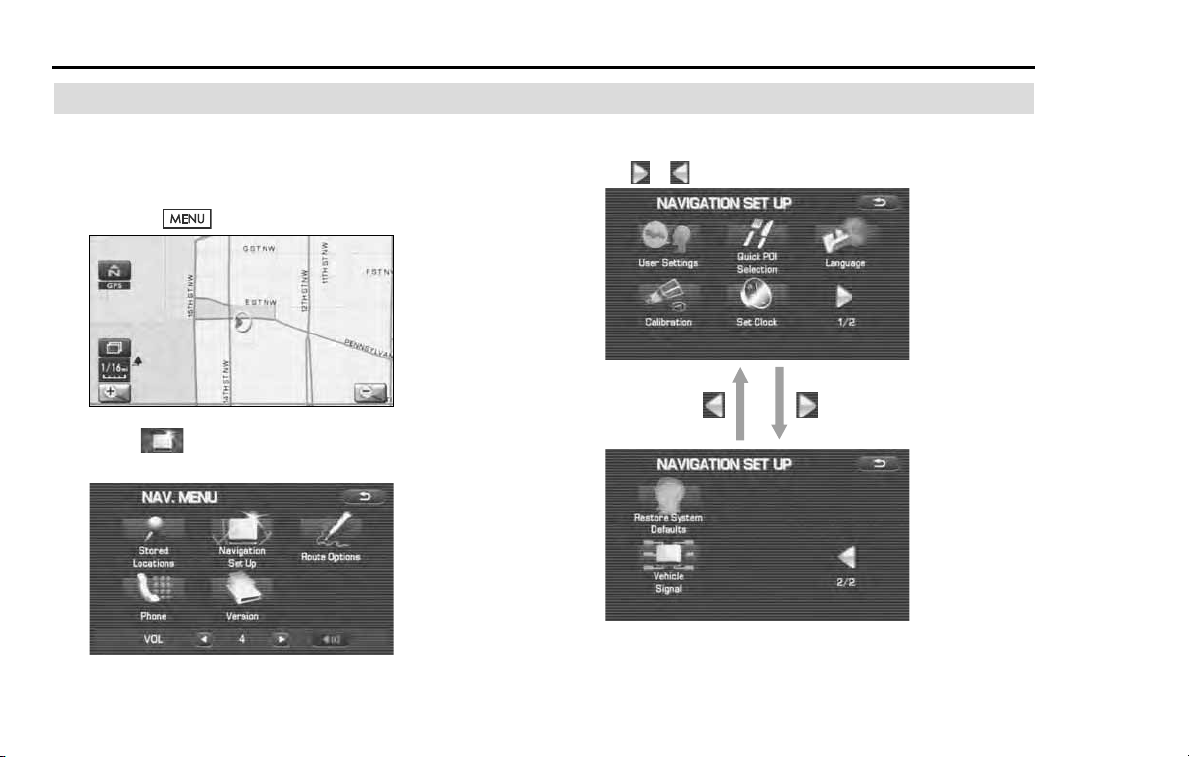
68 Navigation
Navigation Setup
Setting Navigation System
Using the functions available from the Navigation Setup
screen, you can change the map display conditions and alter
the route guidance conditions.
1 Press the button.
2 Select (navigation setup).
The NAVIGATION SET UP screen will appear.
Select any of the displayed functions as necessary. This screen
consists of two pages. Change the page by using
the or keys.
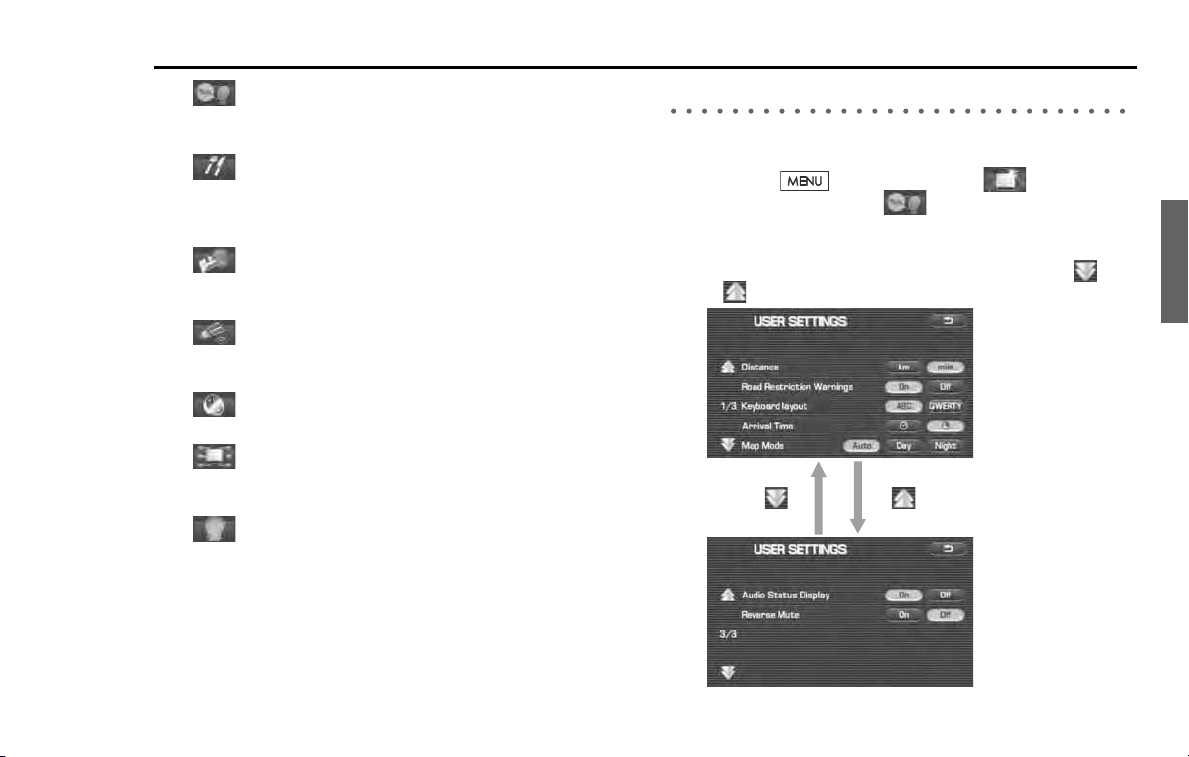
Navigation 69
Navigation Setup
(user settings):
This function allows you to change the screen display and sound
settings. (See Page 69.)
(quick POI selection):
This function allows you to set the point of interest categories that
are displayed when selecting the menu from the current position
screen. (See Page 71.)
(language):
This function allows you to change the language for the menu
screens and the voice guidance. (See Page 72.)
(calibration):
You can use this function to correct display errors in the vehicle's
position and direction. (See Page 73.)
(set clock):
This function allows you to set the time. (See Page 74.)
(Vehicle Signal):
This function allows you to confirm the vehicle signal, the version
of the DVD-ROM disc. (See Page 75.)
(restore system defaults):
This function allows you to change the system's current settings
back to the default settings (factory settings). (See Page 75.)
User settings
You can change the screen display and sound settings using this procedure.
1 Press the button, then select (navigation
setup), and then select (user settings).
2 Select the setting item you wish to change.
The USER SETTINGS screen consists of three pages. Use the
or keys to change the screen page when selecting a setting item.
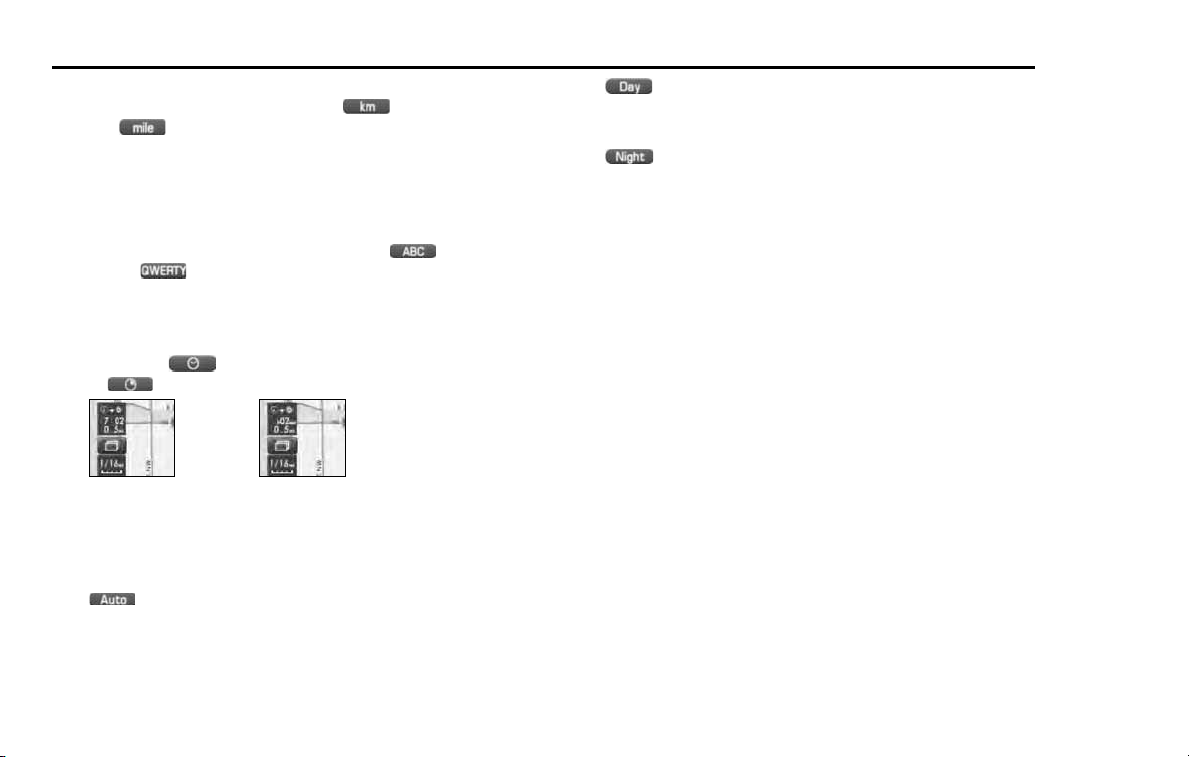
70 Navigation
Navigation Setup
Distance:
Units of distance can be selected from (km)
and (mile).
Road Restriction Warnings:
You can select or deselect display of traffic restriction warnings
during route guidance.
Keyboard layout:
The layout of input keys can be selected from ("ABC" lay-
out) or ("QWERTY" layout).
Arrival Time:
Time of arrival at the destination or a waypoint can be displayed in
two different ways: estimated arrival time or remaining driving
time. Select for the estimated arrival time display
or for the remaining time display.
Map Mode:
The map display mode can be set to any of the automatic, day-
time, and nighttime modes.
(automatic):
The brightness of the display will automatically change to day-
time brightness and nighttime brightness when the headlights
are turned off and on, respectively.
(daytime):
The brightness of the display is fixed at the daytime setting
regardless of whether the headlights are on or off.
(nighttime):
The brightness of the display is fixed at the nighttime setting
regardless of whether the headlights are on or off.
Guidance Screen:
This function allows you to select or deselect display of guidance
messages on the screen.
Freeway Information:
This function allows you to select or deselect display of guidance
messages when driving on freeway.
Auto Volume:
A setting can be made so that the sound volume of the naviga-
tion system automatically increases as the speed of the vehicle
increases.
Beep:
A setting can be made so that a beep sounds.
Clock Display:
A setting can be made so that the clock is displayed.
Audio Status Display:
A setting can be made so that the status of the audio system is
displayed.
Reverse Mute:
A setting can be made so that the sound volume of the audio sys-
tem is reduced while reversing the vehicle.
<Estimated arrival time>
<Required remaining time>
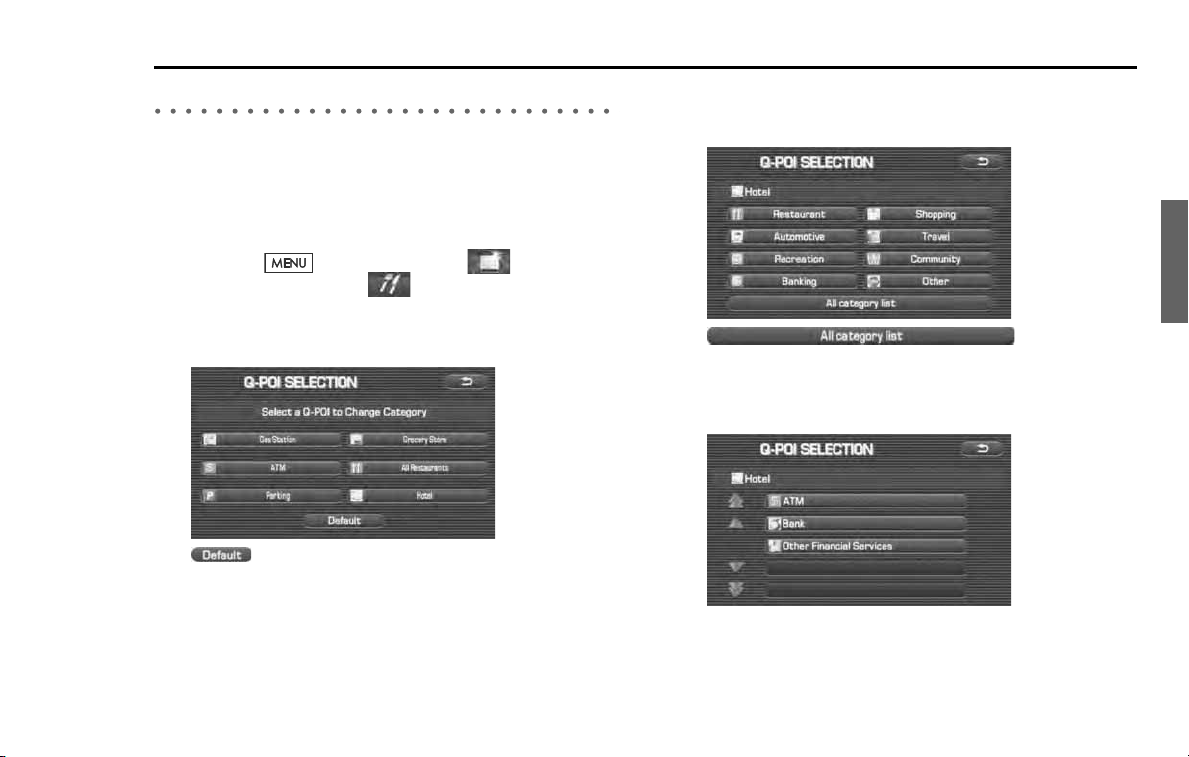
Navigation 71
Navigation Setup
Quick POI selection
Using this function, you can set the point of interest categories that are
displayed when selecting the Point of Interest menu key on the current
map screen. Set up to six different categories that are used most fre-
quently. (See Page 87 for displaying POI categories on the map and
searching for the nearest points of interest.)
1
Press the button, then select (navigation
setup), and then select (quick POI selection).
2
Select one of the six category keys you wish to program
into the Quick POI storage.
(default):
Use this key to restore the factory settings.
3
Select a category.
Once you have selected a category key, subcategories will be dis-
played.
(all category list):
Subcategories from all individual categories will be displayed
together.
4
Select the subcategories to be displayed on the map.
NOTE
Repeat Steps 1 to 4 to add more POI categories for display on the menu screen.
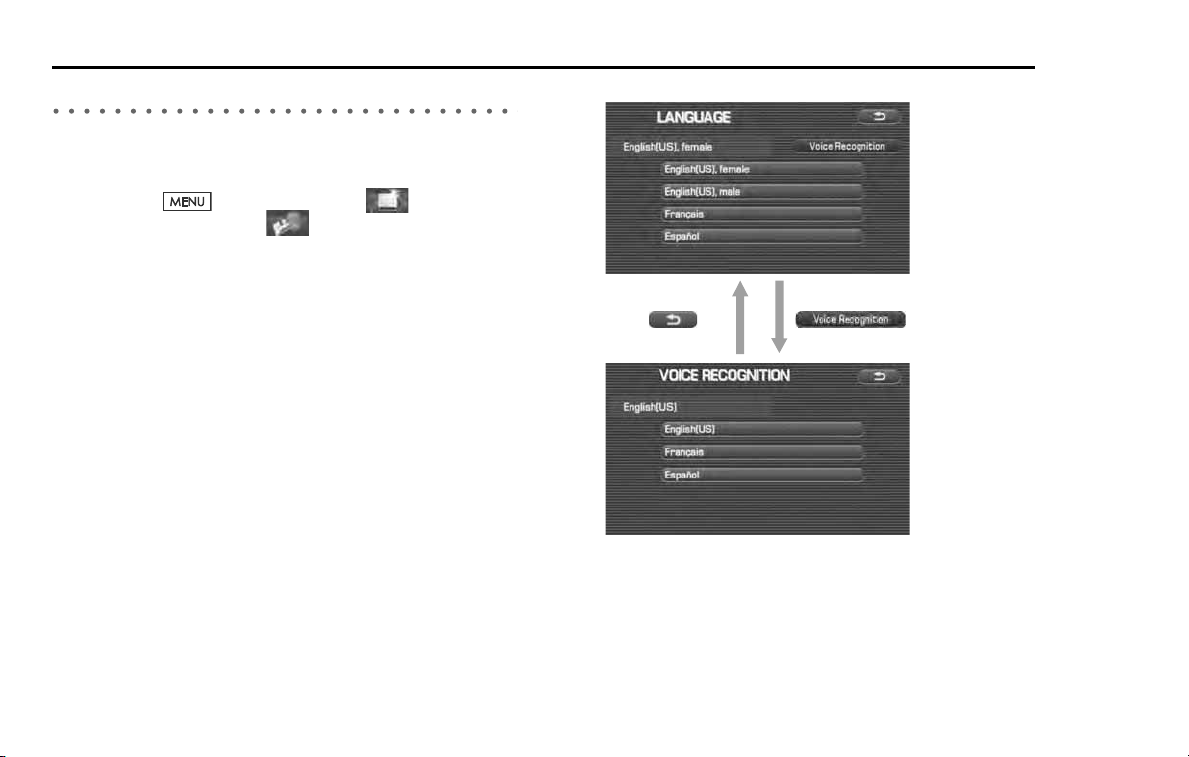
72 Navigation
Navigation Setup
Language Selection
Perform the following procedure to select your preferred language for
the menu screens, voice guidance and voice recognition.
1 Press the button, then select (navigation
setup), and then select (language)
2 Select your preferred language from the list.
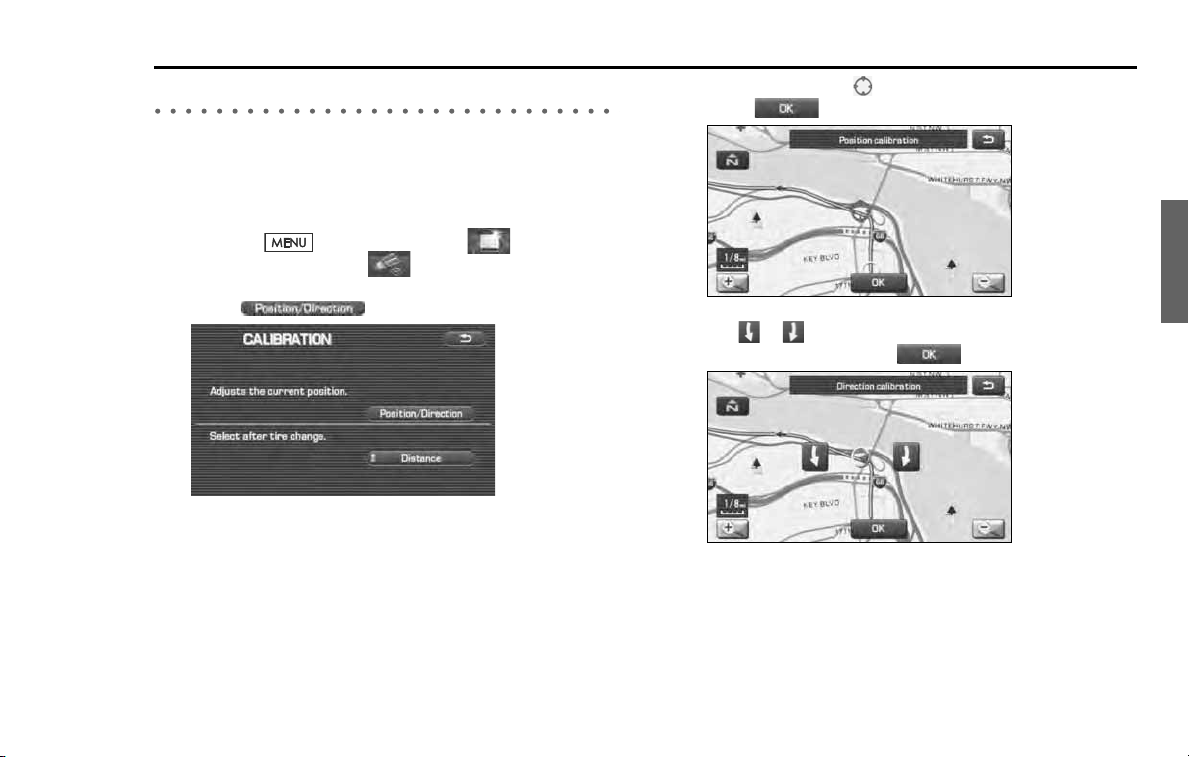
Navigation 73
Navigation Setup
Calibration
This function allows you to correct any display errors in the position and
direction of your vehicle on the map display.
■ Adjusting current position and direction
1
Press the button, then select (navigation
setup), and then select (calibration).
2
Select (position/direction).
3
Move the crosshair to the correct position, and then
select
.
4
Use or to adjust the direction in which you are
heading, and then select .
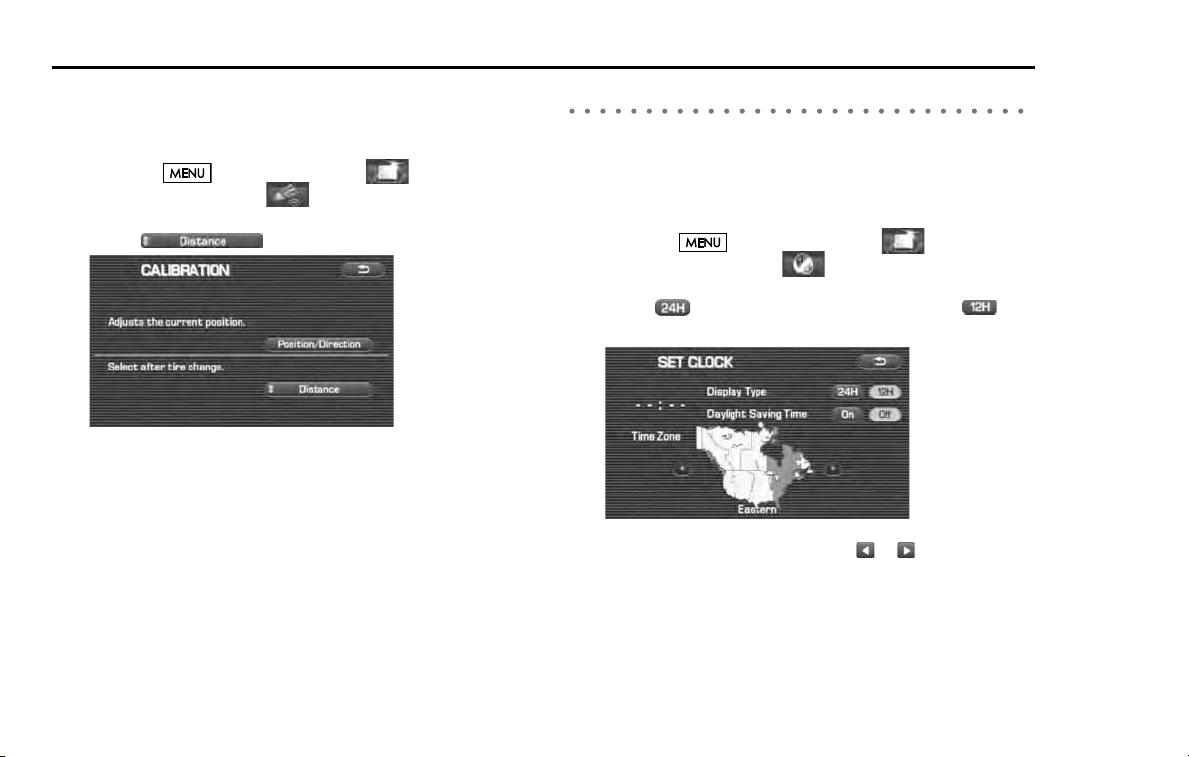
74 Navigation
Navigation Setup
■ Distance
When selected, this function automatically corrects an error in the cur-
rent position display that might occur after tire replacement.
1 Press the button, then select (navigation
setup), and then select (calibration).
2 Select (Distance).
Set clock
Since the adjustments for minutes and seconds are made automatically
using the time data provided by GPS satellites, you can set your clock by
simply performing a time-zone and daylight saving time adjustment
using this function.
1 Press the button, then select (navigation
setup), and then select (set clock).
2 Select if you prefer 24-hour display; select for
12-hour display.
3 Select the time-zone by pressing or .
NOTE
Initial time-zone setting of this navigation unit is Eastern.
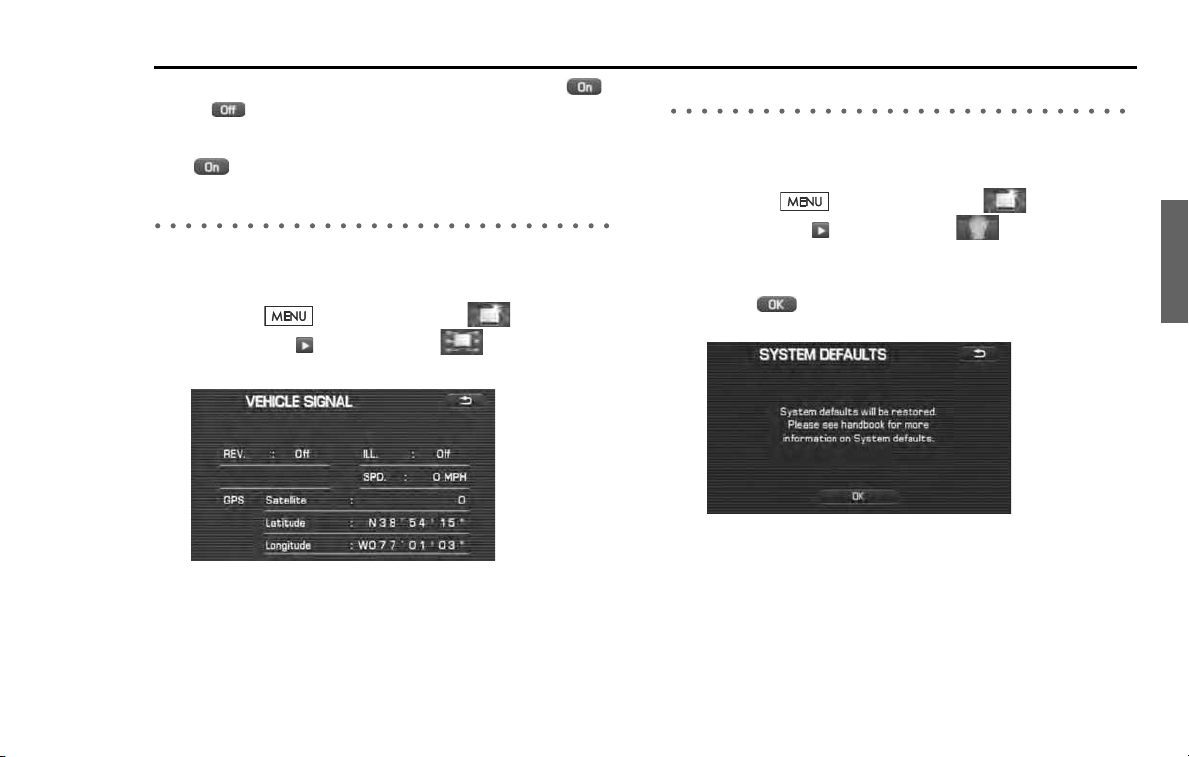
Navigation 75
Navigation Setup
4
Select the daylight saving time mode by pressing
or .
NOTE
Select to advance the time by one hour.
Vehicle signal
This function allows certain vehicle data and GPS satellite data to be dis-
played.
1 Press the button, then select (navigation
setup), select and then select (vehicle signal).
The VEHICLE SIGNAL screen will appear.
Restore system defaults
Use this function if you want to change all of the system's current set-
tings back to the default settings.
1
Press the button, then select (navigation
setup), select and then select (restore system
defaults).
2
Select to return all current systems settings to
default.
NOTE
If you select this function, all your settings will be deleted.

76 Navigation
Navigation Setup
[Default List]
Item Initial condition
Map display
Search Area
Display Guidance Language
Voice Recognition Language
Map Orientation (1 and 2 screen)
Map Display Mode
Map Display Scale
Map Configuration
Q-POI Map Display
Show POI Icon Display
Right Screen Setting, POI
Passage Point Display/
Current Location, Map Screen (Time
Requirement, Time, Direction / Distance)
Passage Point Display/
Full Route, Map Screen (Time Require-
ment, Time, Direction / Distance)
Restricted Road
Freeway Information
Disc A (WEST): CA
Disc B (MID): IL
Disc C (EAST): DC
US English, female
US English
North up
Single-screen display
Single-screen:
10,000 map (1/16 mi) (100 m)
Dual-screen:
40,000 map (1/4 mi) (500 m)
Arrow Mode
Off
Off
On
Next passage point
Destination
On
Off
Volume Control
Volume Preset
4
Navigation Setup Menu
Distance
Road Restriction Warnings
Reverse Mute
Keyboard Layout
Arrival Time
mile
On
Off
ABC
Required remaining time
Item Initial condition
Map Mode
Guidance Screen
Q-POI Selection
Language Selection
Auto
On
A: Gas station
B: ATM
C: Parking
D: Grocery store
E: All Restaurants
F: Hotel
US English, female, male,
French, Espanõl
Route Options
Search Condition
Route Preferences
Quick
Allow Toll Road: Off
Allow Ferry: Off
Allow Major Roads: On
Allow Time Restricted Road:
Off
Item Initial condition
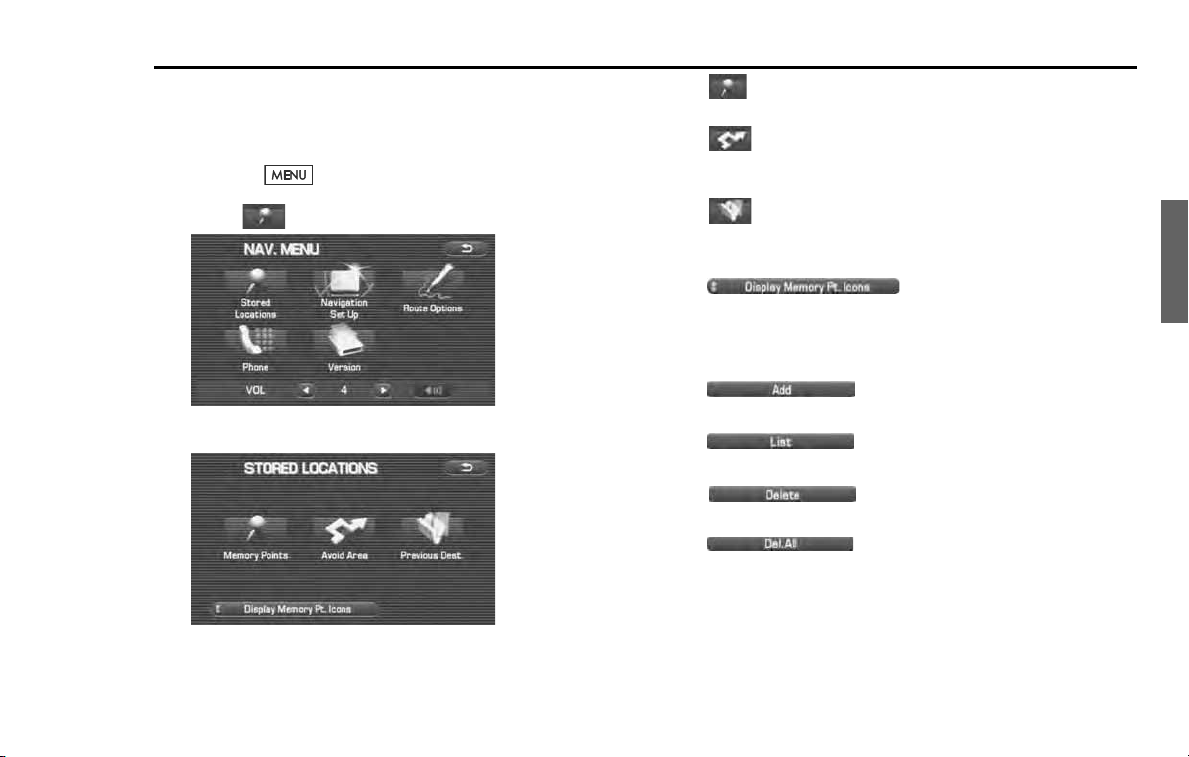
Navigation 77
Stored Locations
You can store, edit, or delete any destinations, waypoints, and
other marked points using the procedures described in this
section.
1
Press the button.
2
Select (stored locations).
3
Select the desired item.
(Memory Points):
Use this function to place markers on the map. (See Page 78.)
(Avoid Area):
Use this function to store into the system's memory any areas you
want to avoid. (See Page 83.)
(Previous Destination):
Use this function to delete previously stored destinations and
waypoints. (See Page 85.)
(Display memory point icons):
Selecting this key allows you to display icons for memory points.
Each of the above three functions has some or all of the following
four standard editing functions (see the table below):
(add):
You can store a new location into memory.
(list):
You can see a list of the stored locations.
(delete):
You can delete stored locations.
(delete all):
You can delete all stored locations.
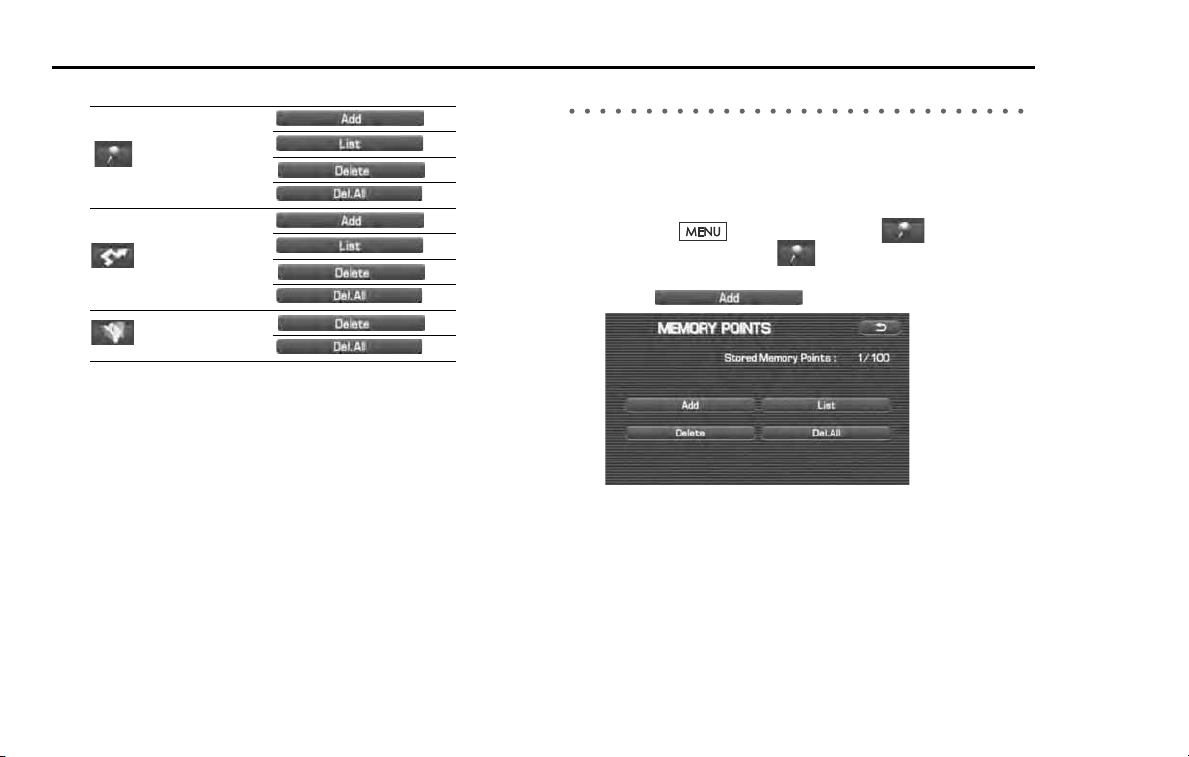
78 Navigation
Stored Locations
Editing keys displayed for each function are as follows:
The numbers in parentheses following the function names indicate the
maximum locations you can store in the memory.
Memory points
■ Storing new memory points
Memory points can be stored into any of the six categories (including
Home) of storage locations.
1 Press the button, then select (stored loca-
tions), and then select (memory points).
2 Select (add).
Memory Points (100)
Avoid Area (10)
Previous Dest. (100)
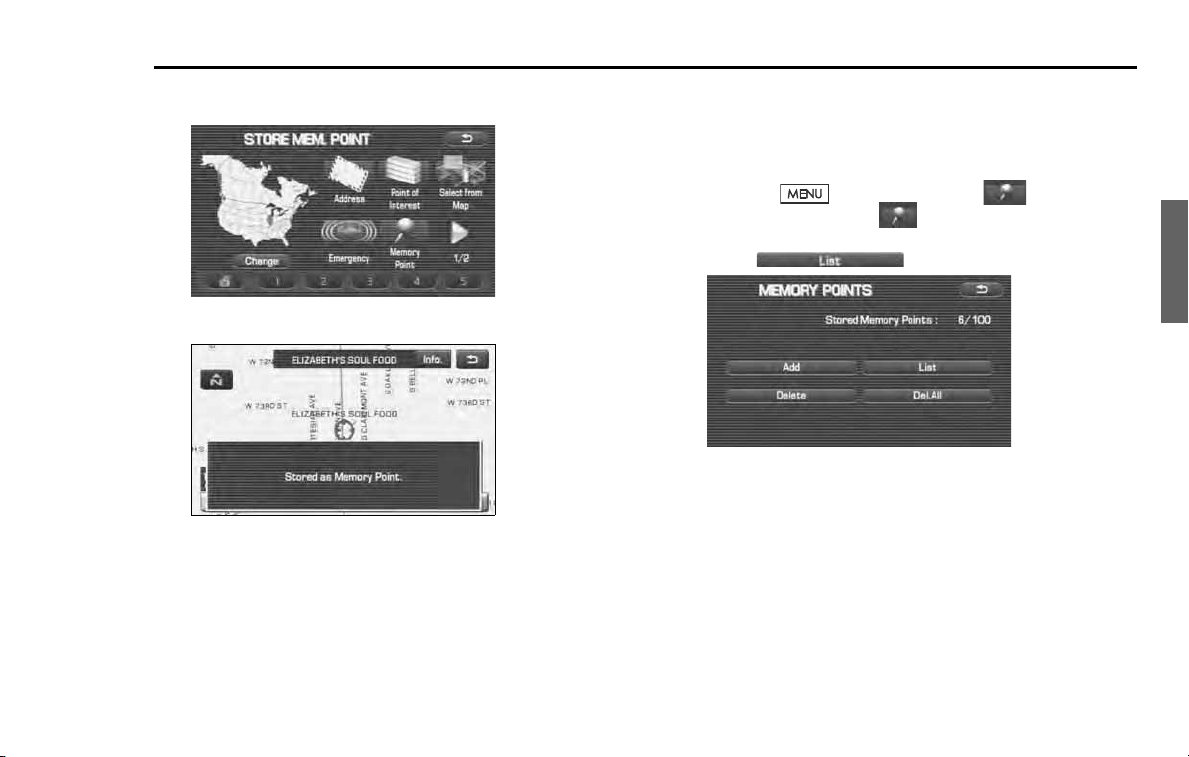
Navigation 79
Stored Locations
3
Set the memory point using the preferred category avail-
able on the displayed screen.
4
A confirmation message will be displayed.
NOTE
Up to 100 memory points can be stored. Once that number has been reached,
you must delete memory points that you no longer require (See Page
82
) before
you can store new memory points. The number of memory points you can store
is indicated on the screen.
■ Editing memory points
Using this function, you can review the stored memory points in the
form of a list on the screen and modify names, icons, telephone num-
bers, and other memory point data.
1
Press the button, then select (stored loca-
tions), and then select (memory points).
2
Select (list).
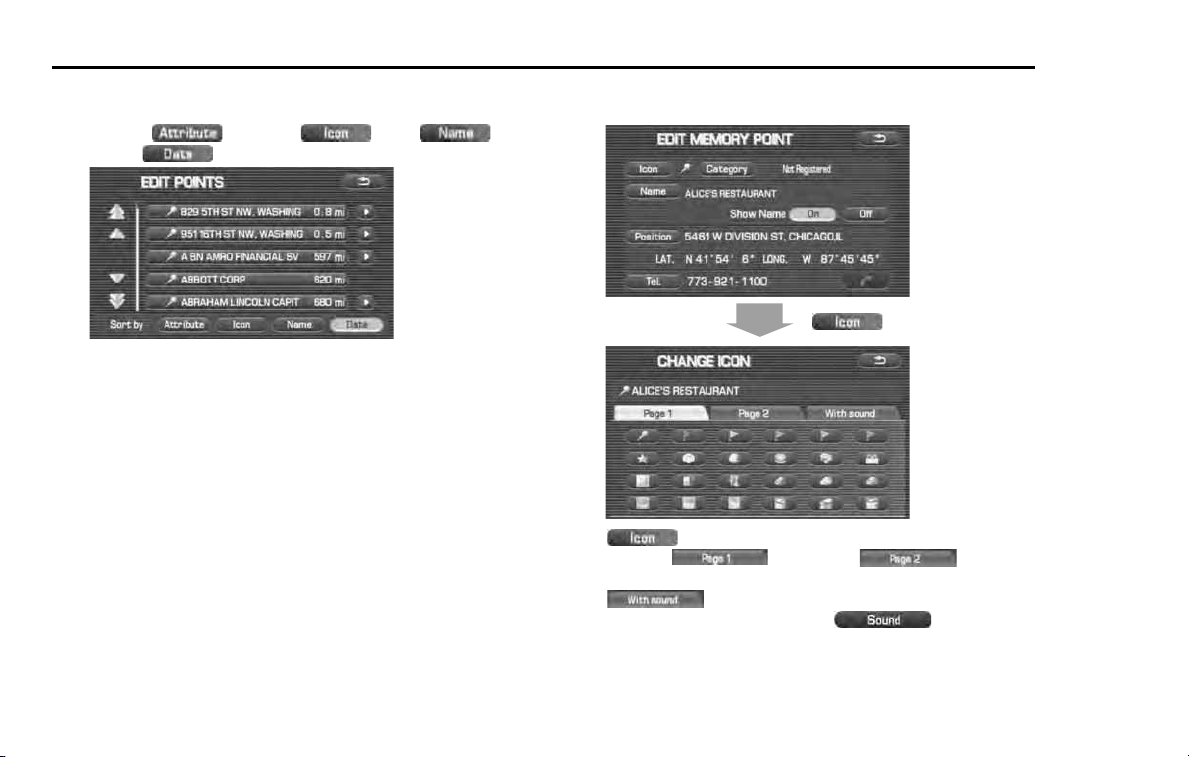
80 Navigation
Stored Locations
3 Select the memory point to be edited.
You can sort the sequence in which memory points are listed by
selecting (Attribute), (icon), (na
me), or (date)
.
4 Select the category key corresponding to the memory
point to be edited.
(icon): Selecting this key allows you to choose a dis-
play icon. (Page 1) and (Page 2) of
the CHANGE ICON screen contain standard icons, whereas the
(with sound) page contains icons that are accom-
panied by response sounds. Select (sound) to lis-
ten to these sounds.
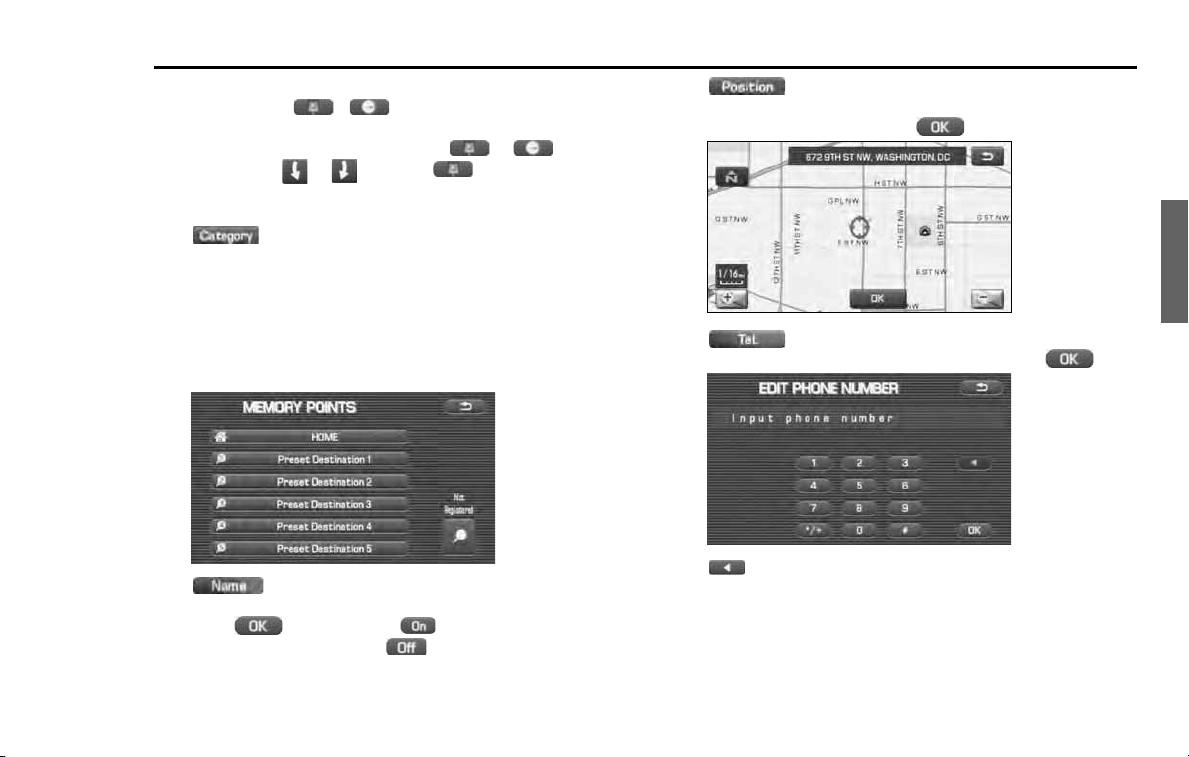
Navigation 81
Stored Locations
NOTE
The "With direction" ( / ) keys in the "With Sound" page are
used to activate response sounds only when you come near the mem-
ory point from the specified direction. Select or and set
the direction using or . Selecting allows you to listen to
respective sounds.
(category): Use this key to change the storage cate-
gory. After selecting this key, select either key of HOME or presets
1 to 5.
For memory points to which the category has been set, it is possi-
ble to set them quickly as a destination. It is convenient to set in
advance the category to the home or a location to which you go
frequently. When setting it as a destination, select the relevant key
on the DESTINATION ENTRY screen. See Page 36.
(name): Select this key to change the name of a mem-
ory point. When the change has been completed,
select (OK). Then select (on) if the name is to be dis-
played on the map screen, or (off ) if it is not to be dis-
played.
(position): Select this key to review the memory
points and modify a memory point on the map screen. After
checking or modifying it, select (OK).
(Tel): Select this key to modify a telephone number.
When the modification has been completed, select (OK).
: Use this key to delete the character last entered. Select it
repeatedly if you want to delete all of the characters entered.
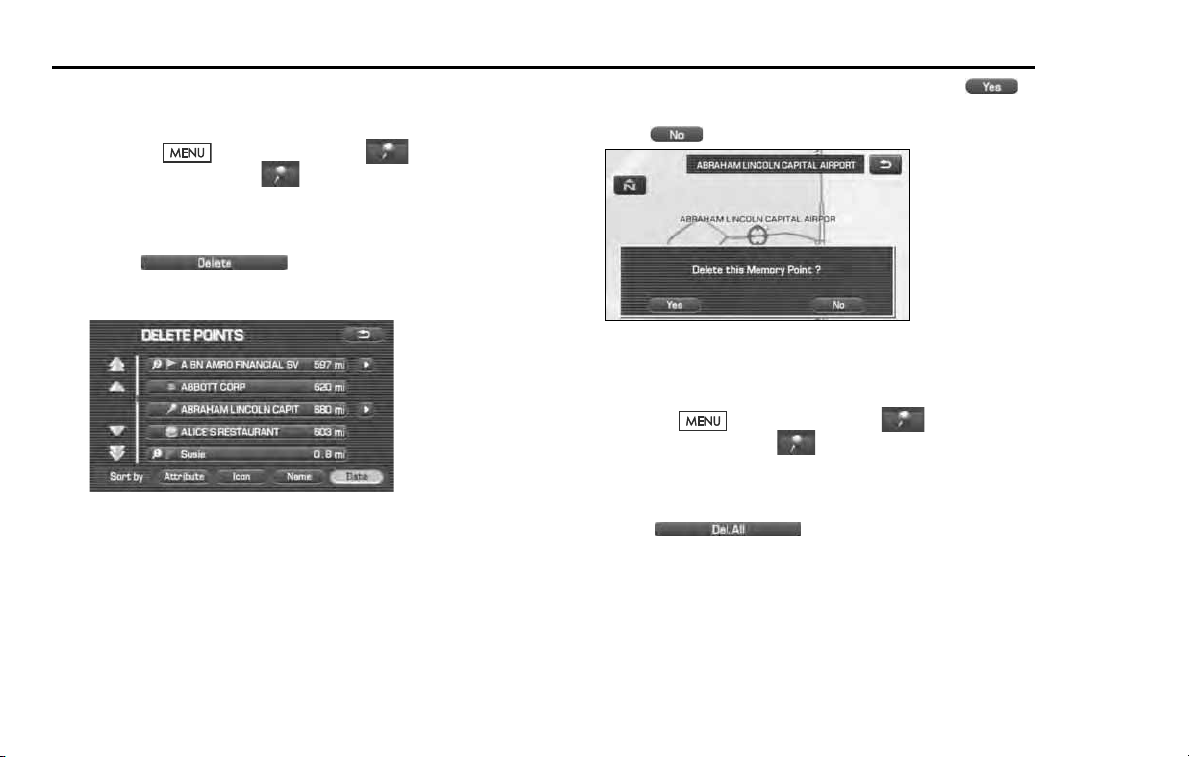
82 Navigation
Stored Locations
■ Deleting memory points
You can delete stored memory points by using this function.
1 Press the button, then select (stored loca-
tions), and then select (memory points).
2 Select the category of the memory point to be deleted.
3 Select (delete).
4 Select the memory point to be deleted.
5 Confirmation message will be displayed. Select
(yes).
Select (no) to cancel the deletion.
■ Deleting all memory points
Using this function, you can delete all memory points.
1 Press the button, then select (stored loca-
tions), and then select (memory points).
2 Select the category of the memory points to be deleted.
3 Select (delete all).
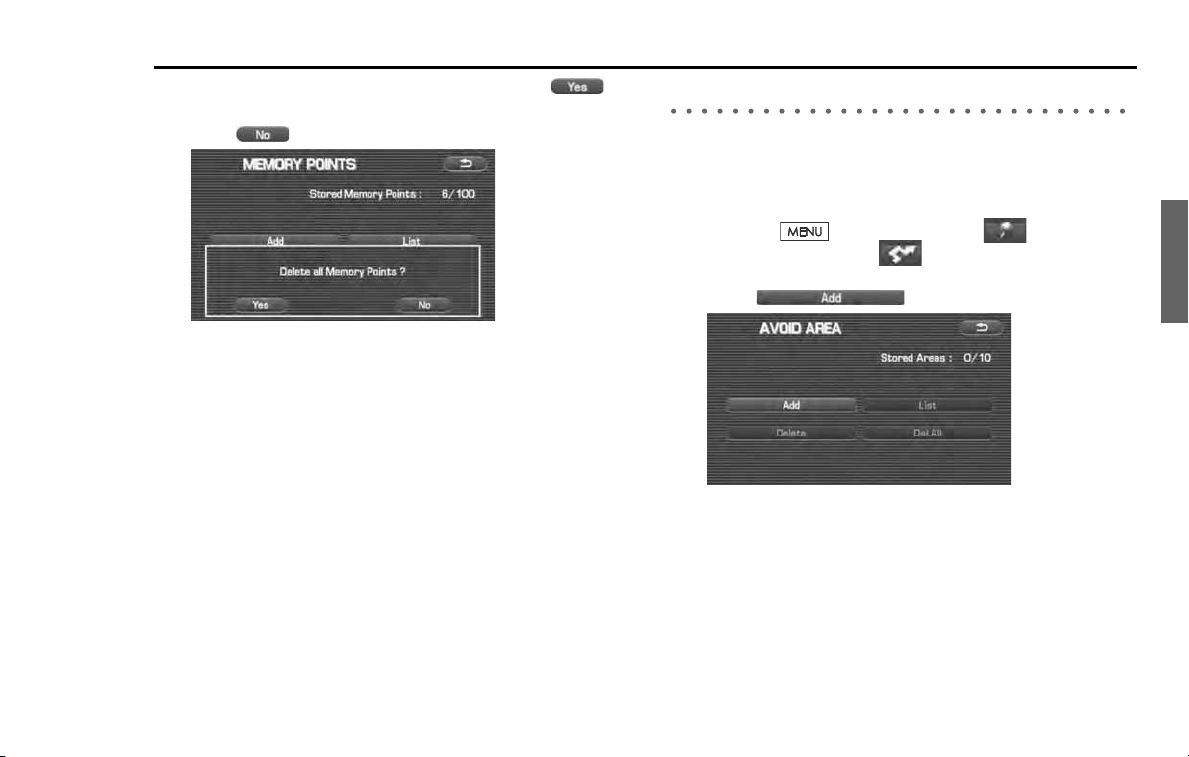
Navigation 83
Stored Locations
4
Confirmation message will be displayed. Select
(yes).
Select (no) to cancel the deletion.
Avoid area
■ Storing avoid areas
If you use this function to store into the system's memory the areas you
want to avoid, the system will avoid the areas when calculating routes.
1 Press the button, then select (stored loca-
tions), and then select (avoid area).
2 Select (add).
3 Set an avoid area using preferred method.
A map including the specified avoid area will appear.
The method of setting avoid areas is identical to that of setting
destinations.
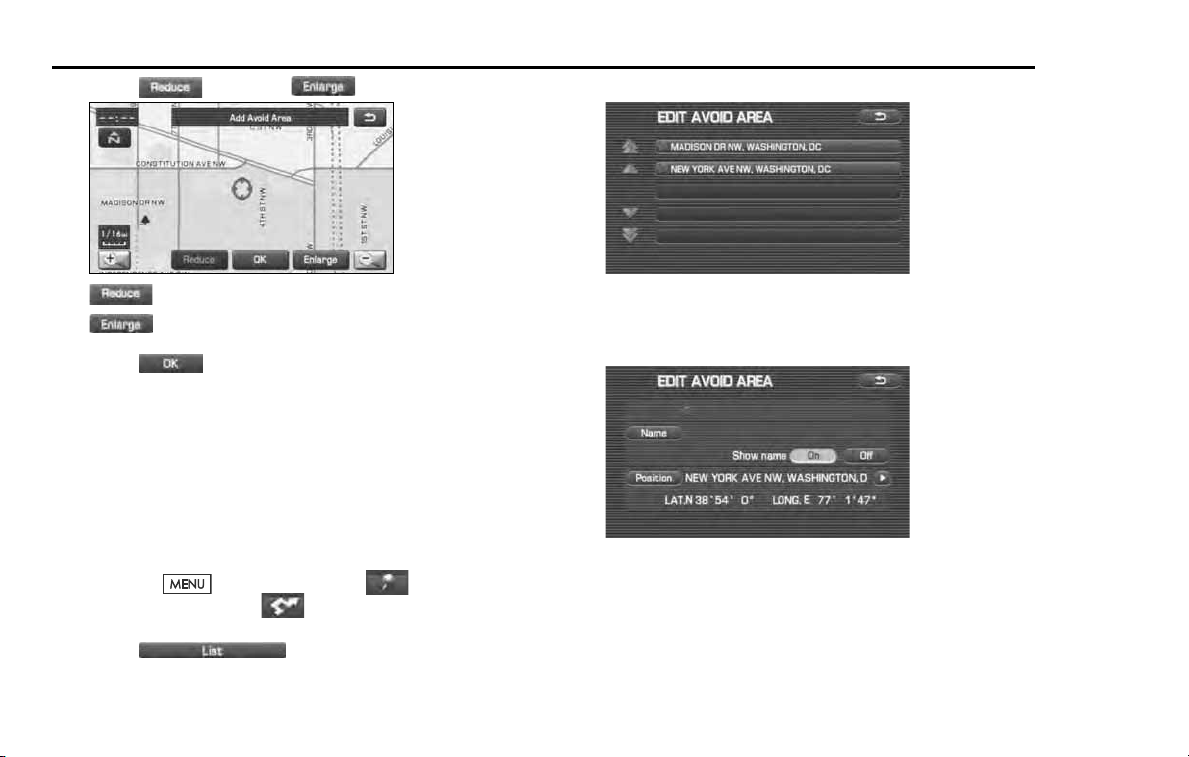
84 Navigation
Stored Locations
4 Select (reduce) or (enlarge).
(reduce): Reduces the size of the avoid area.
(enlarge): Increases the size of the avoid area.
5 Select (OK).
NOTE
• Reduce the scale of the map to specify a larger area.
• Avoid areas can be set only when the scale of the map is 1/32-1/2 mile (50 m-
1 km) or less.
■ Editing avoid areas
Using this function, you can review the stored avoid areas in the form of
a list and modify them if necessary.
1 Press the button, then select (stored loca-
tions), and then select (avoid area).
2 Select (list).
3 Select the avoid area to be modified.
4 Select the key corresponding to the item to be modified.
For details regarding the function of each key, refer to "Editing
memory points" on Page 79.
NOTE
The methods for deleting individual and all avoid areas are the same as those
described on Page 82 for memory points.
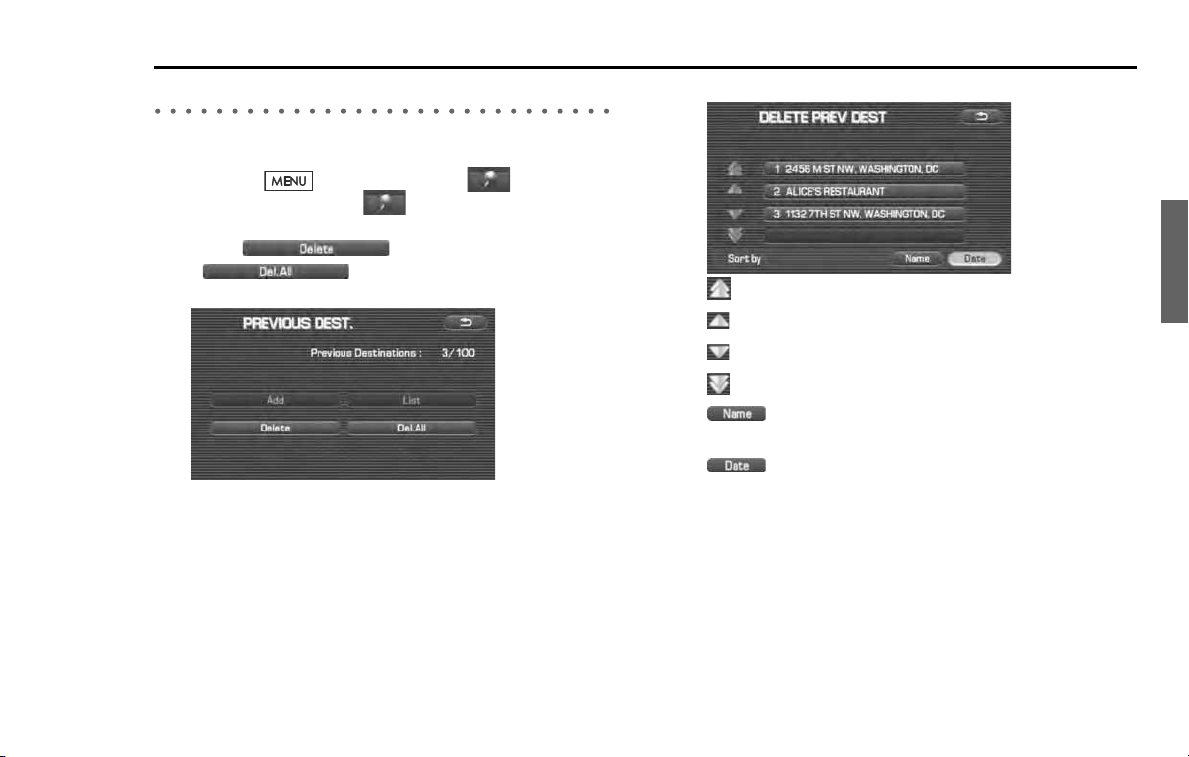
Navigation 85
Stored Locations
Previous destination (deleting stored locations)
Use this function to delete previously set destinations.
1
Press the button, then select (stored loca-
tions), and then select (previous destinations).
2
Select (delete).
If (all delete) is selected, all previously set
destinations will be deleted.
3
Select the destination to be deleted.
: Use this key to display up to five previous destinations.
: Use this key to display the previous destination.
: Use this key to display the next destination.
: Use this key to display up to five of the next destinations.
(name): Use this key to search through the list by name
(alphabetical search).
(date): Use this key to search through the list by date.
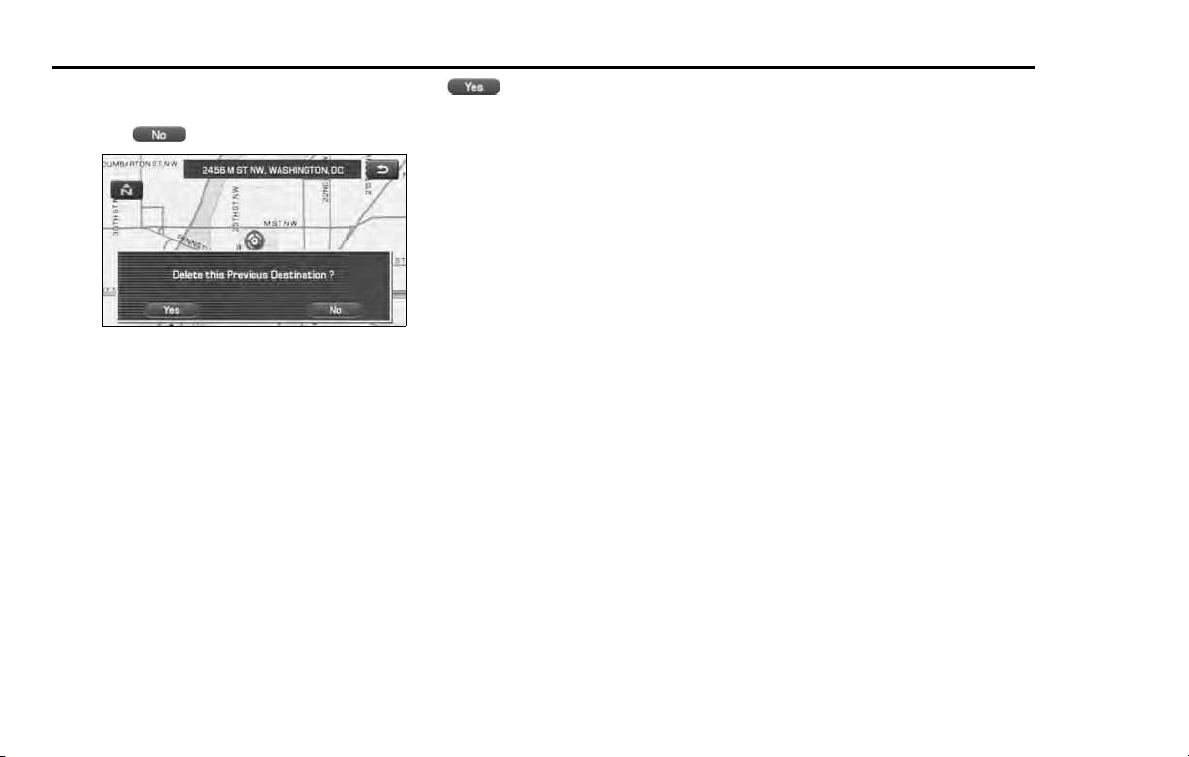
86 Navigation
Stored Locations
4 Confirmation message will be displayed. Select
(yes).
Select (no) to cancel the deletion.
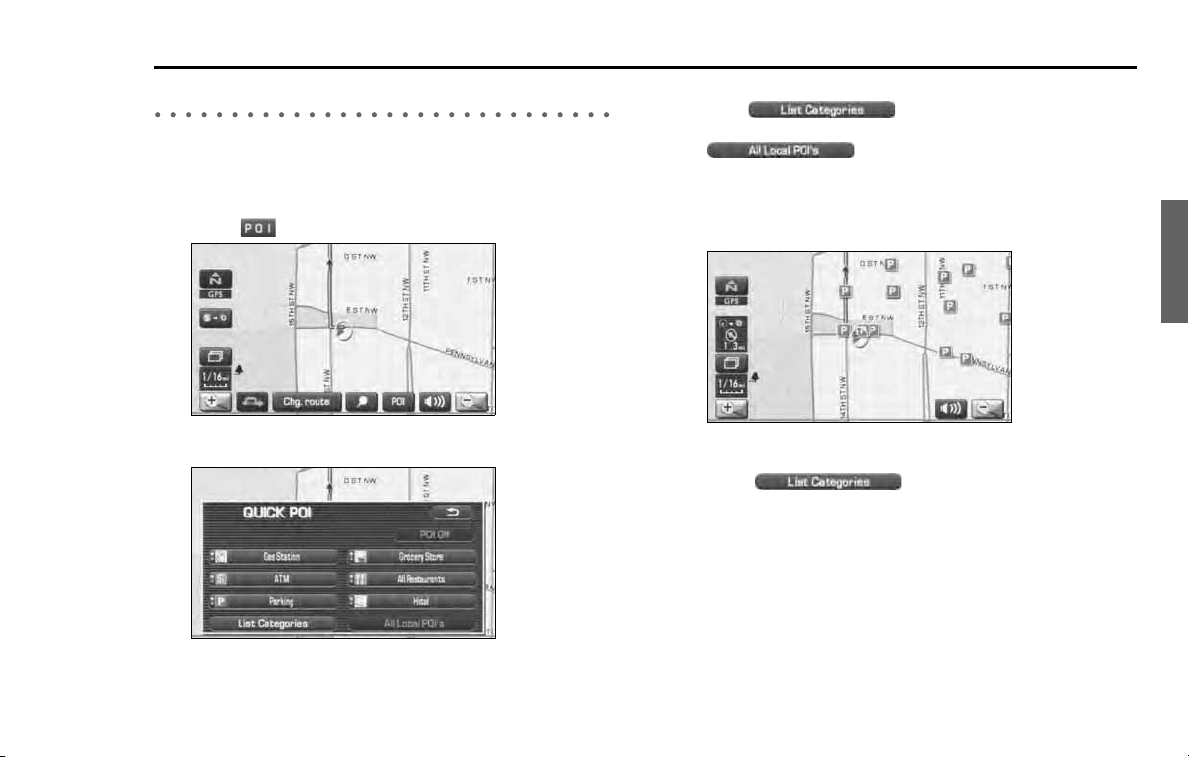
Navigation 87
Other Functions
Displaying POIs on a map
Using this function, you can display POIs on the current map screen.
1 Touch the current map screen.
2 Select (points of interest).
3 Select desired POIs using the displayed category keys.
When selecting two or more categories,
select (list category) to make a selection of
them.
(all local POIs): Use this key to search for all
local points of interest (refer to "Local POI search" on Page 88).
4 Once you have made the selection of POIs, correspond-
ing markers will appear on the current map screen.
5 When selecting two or more categories,
select (list categories) to make a
selection of them. The selection of up to five categories is
available.
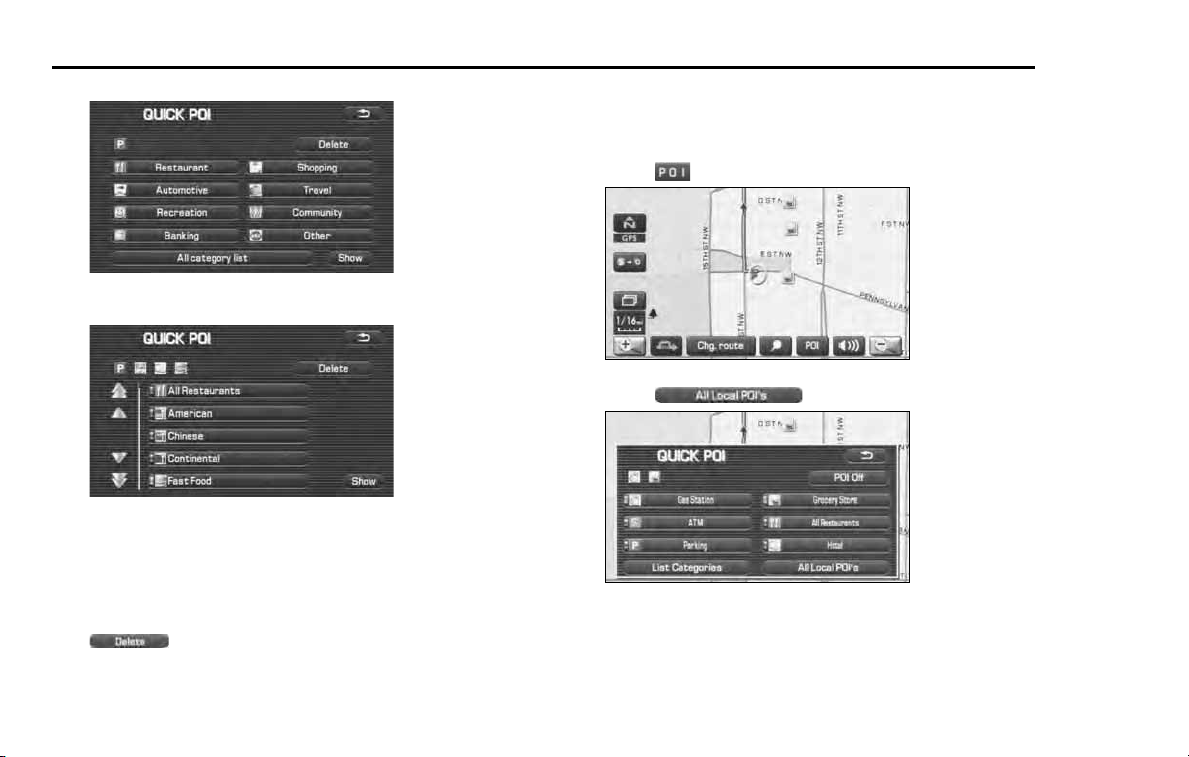
88 Navigation
Other Functions
6 Select desired POIs using the displayed category keys.
7 Select desired POIs using the displayed category keys.
NOTE
• To delete the markers for these POIs, see Page
90
.
• Displayed information about each POI facility might not include recent
changes. It is recommended that you check the location or business days/
hours before departure.
(delete): Use this key to hide the POI that was the
last item set of the POIs that are selected.
■ Local POI search
1 Touch the current map screen.
2 Select (points of interest).
3 Select (all local points of interest).
When searching local points of interest, it is necessary to set in
advance the category you want to make a search to the Quick POI.
(See Page 71.)
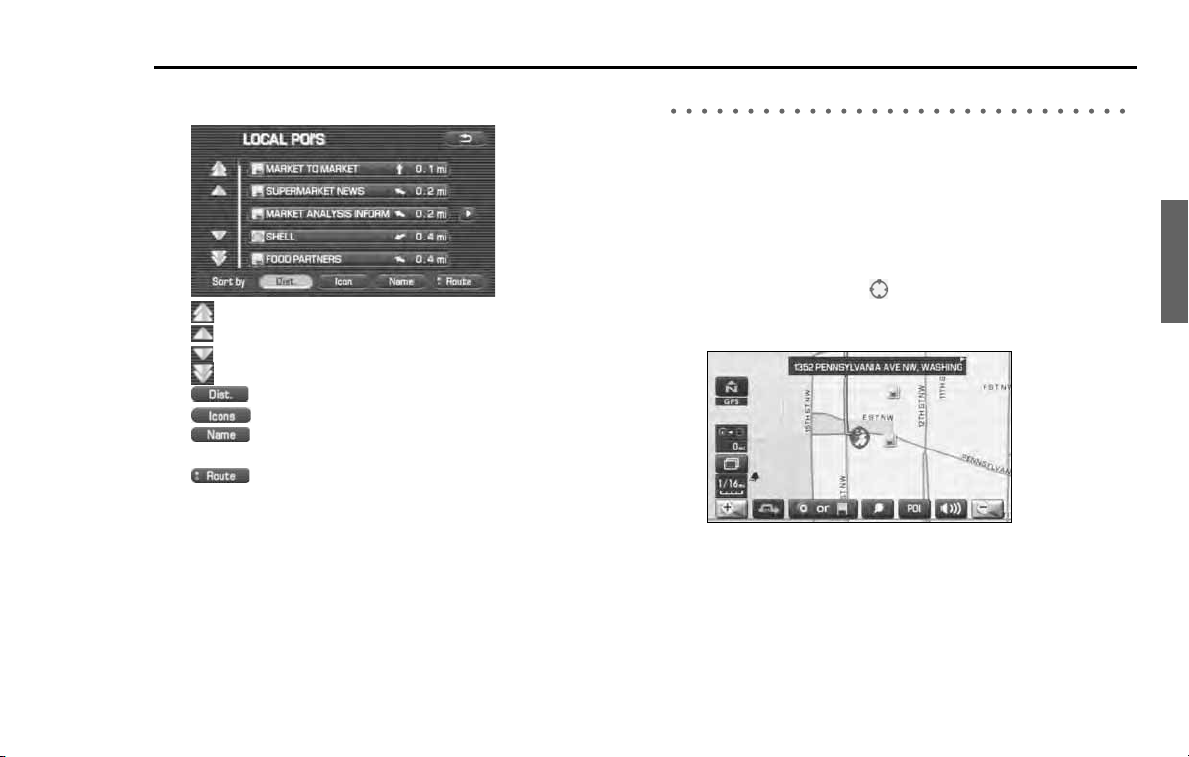
Navigation 89
Other Functions
4
Select the POI you want to find from the list of catego-
ries.
: Use this key to display up to five previous POIs.
: Use this key to display the previous POI.
: Use this key to display the next POI.
: Use this key to display up to five of the next POIs.
: Use this key to search through the list by distance.
: Use this key to search through the list by icon type.
: Use this key to search through the list by name (alpha-
betical search).
: Use this key to display a list of POIs only along the
route up to the destination.
Once you have made your selection of POIs, corresponding mark-
ers will appear on the map.
Displaying POI data
You can display the information on a POI, such as the name, address
and telephone number.
1 Display the desired POI markers on the current map
screen. (See Page 71 and 87 for the procedure.)
2 Select the POI marker for which you want information by
moving the crosshair over it.
The name of the POI will appear.
If no data is stored for the selected POI, no name is displayed.
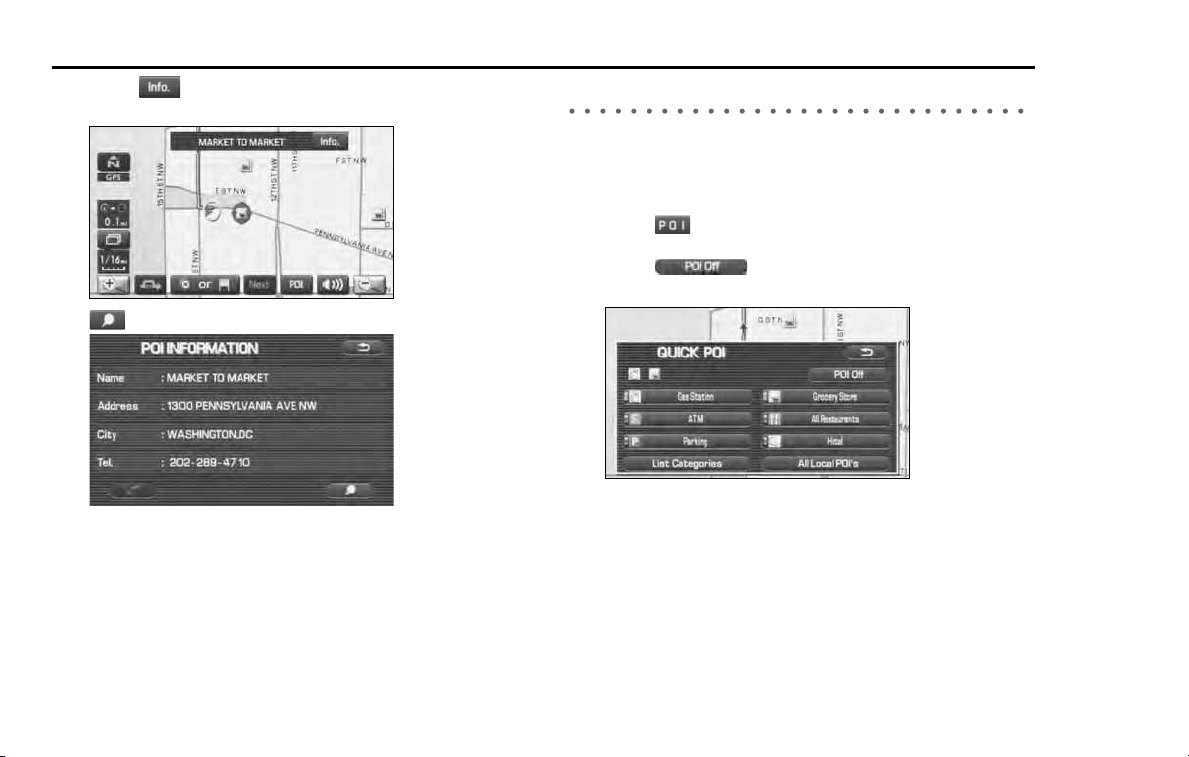
90 Navigation
Other Functions
3 Select (information).
The information on the POI will be displayed.
: Use this key to store the POI location as a memory point.
Deleting POI markers
Use this function when you want to delete any POI markers on the map.
1 Touch the current map screen.
2 Select (point of interest).
3 Select (point of interest off).
The marker for the POI will disappear from the map.
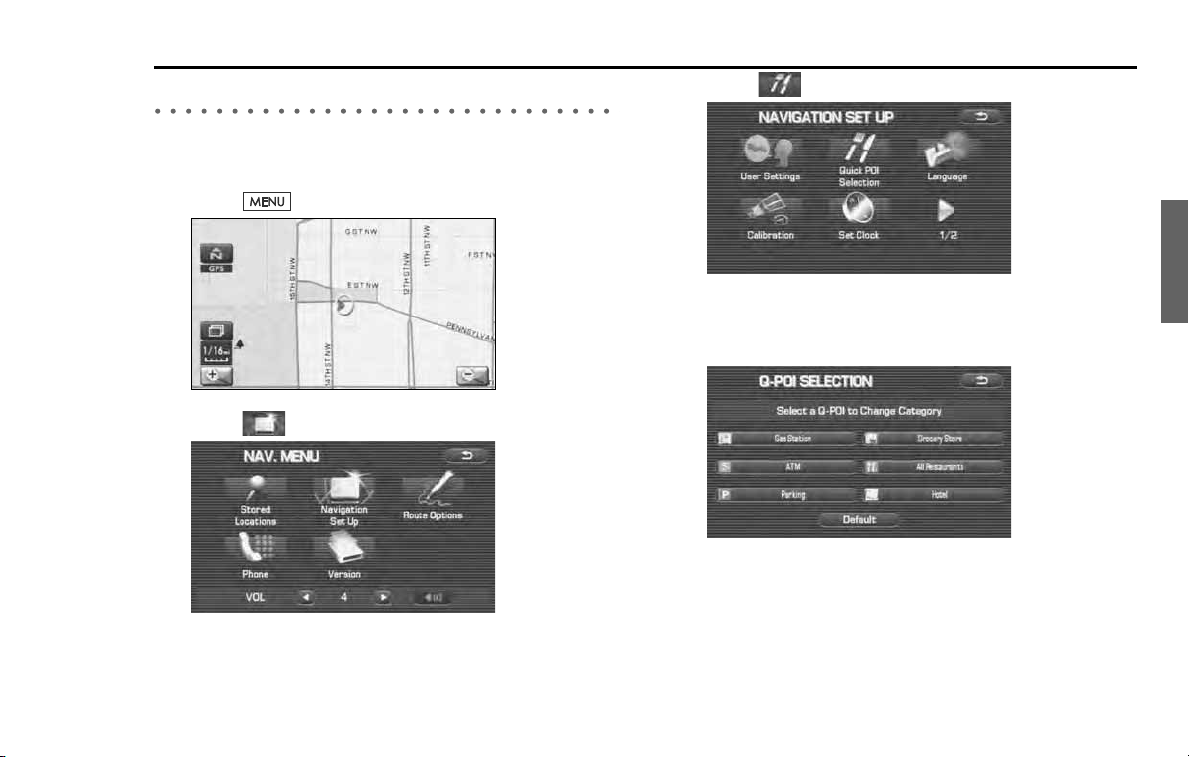
Navigation 91
Other Functions
Editing Quick POI categories
Use this function when you want to edit the Quick POI categories on
this unit.
1
Select (menu).
2
Select (navigation set up).
3
Select (quick POI selection).
4
Select the item that you want to edit.
(Following procedure show how to change the category from
ATM to SUBARU dealership on Quick POI for example.)
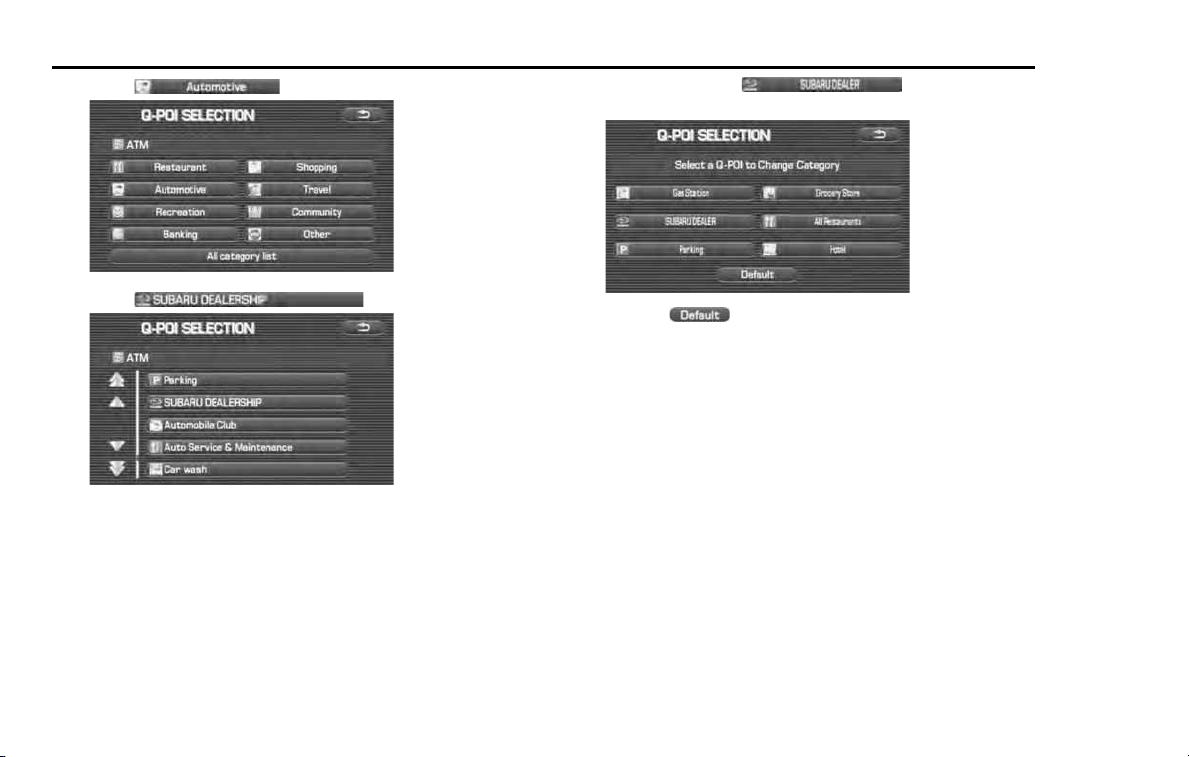
92 Navigation
Other Functions
5 Select (automotive).
6 Select (SUBARU dealership).
ATM bookmarked as (SUBARU dealer) to
Quick POI.
Selecting (default) returns the Q-POI SELECTION items
to their default settings.
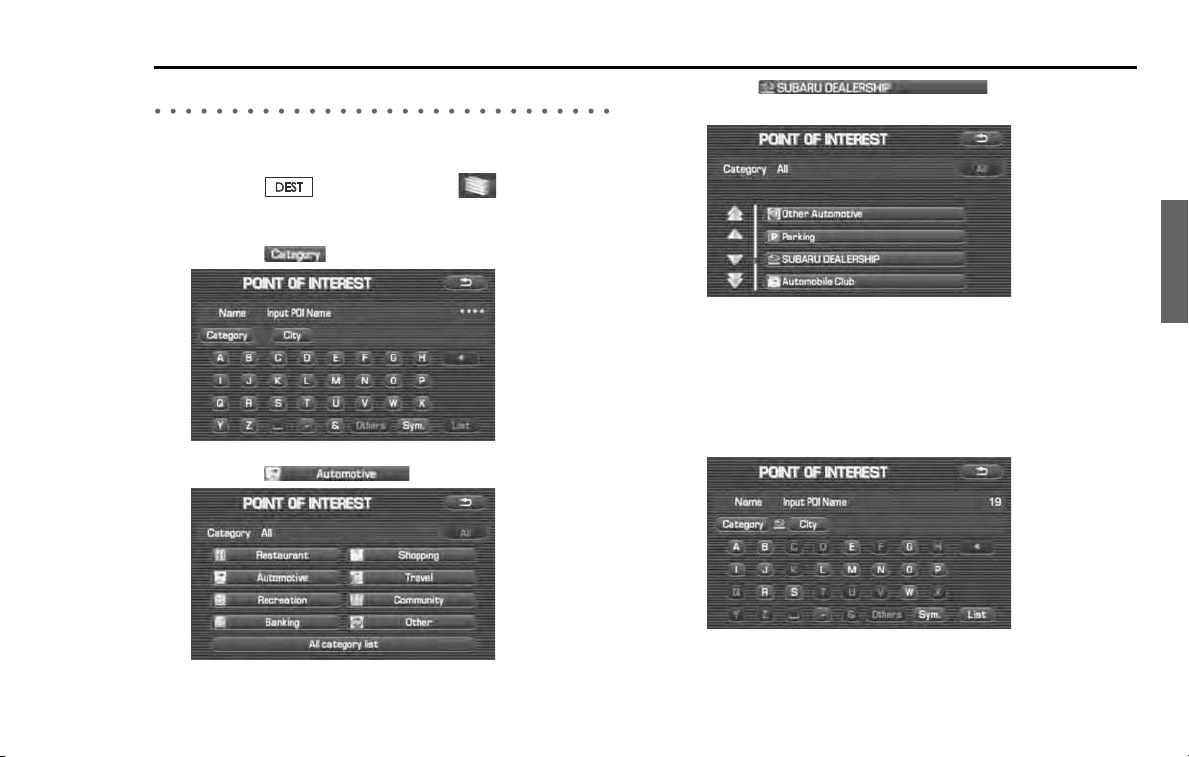
Navigation 93
Other Functions
SUBARU dealership search
■ SUBARU dealership search from POI
1 Press the button and select (point of inter-
est).
2 Press the (category).
3 Press the (automotive).
4 Select (SUBARU dealer-
ship) from the list.
NOTE
• Displayed information about a specific facility might not include recent
changes. It is recommended that you check the location or business days/
hours of a desired point of interest before departure.
5
The system refine the destination search only for SUB-
ARU dealership.
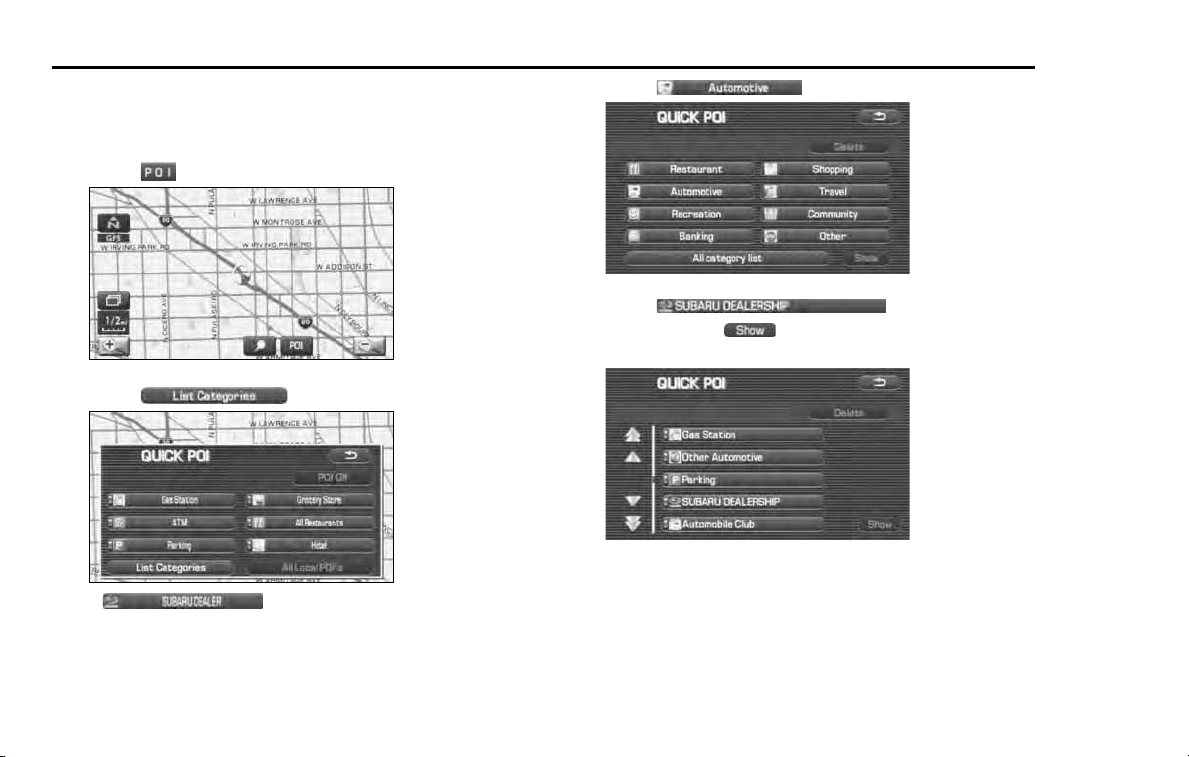
94 Navigation
Other Functions
■ Displaying SUBARU dealership on map
1 Touch the current map screen.
2 Select (points of interest).
3 Select (list categories).
If (SUBARU DEALER) has been registered
as a quick POI on the screen shown above, turn it on and then
proceed to step 6.
4 Select (automotive).
5 Select (SUBARU dealer-
ship) and press (show).
The POI marker of SUBARU dealership will appear.
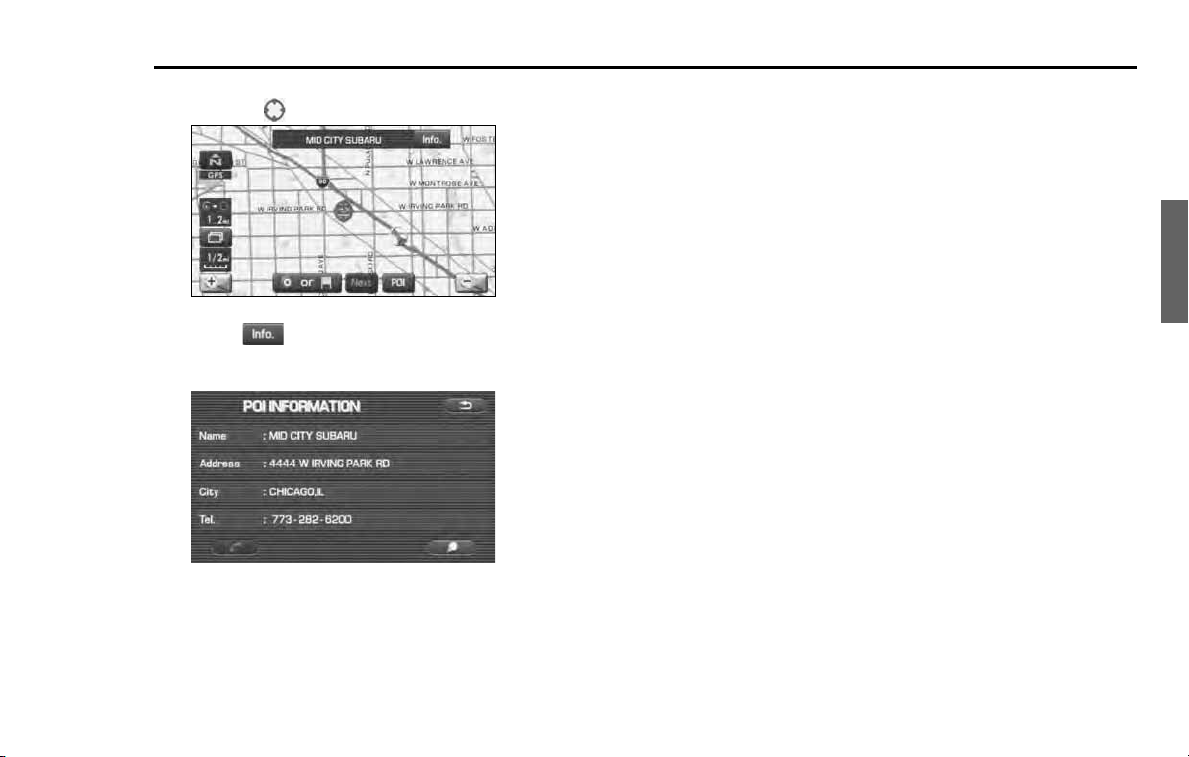
Navigation 95
Other Functions
6
Select the SUBARU dealership marker by moving the
crosshair over it.
7
Select (info).
8
The information of SUBARU dealership will be displayed.
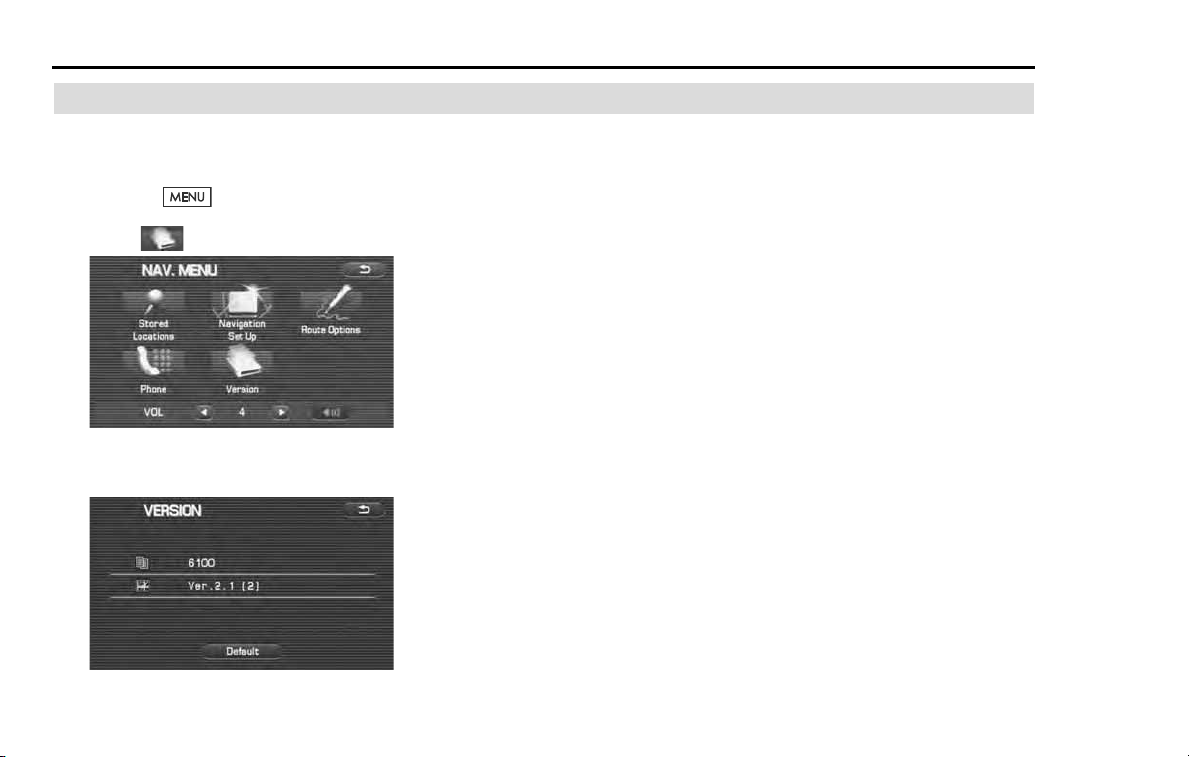
96 Navigation
Version and Initialization
Version
Use this function to check the version of the DVD-ROM disc
you are presently using.
1 Press the button.
2 Select (version).
3 The version of the DVD-ROM disc will be displayed on
the screen.
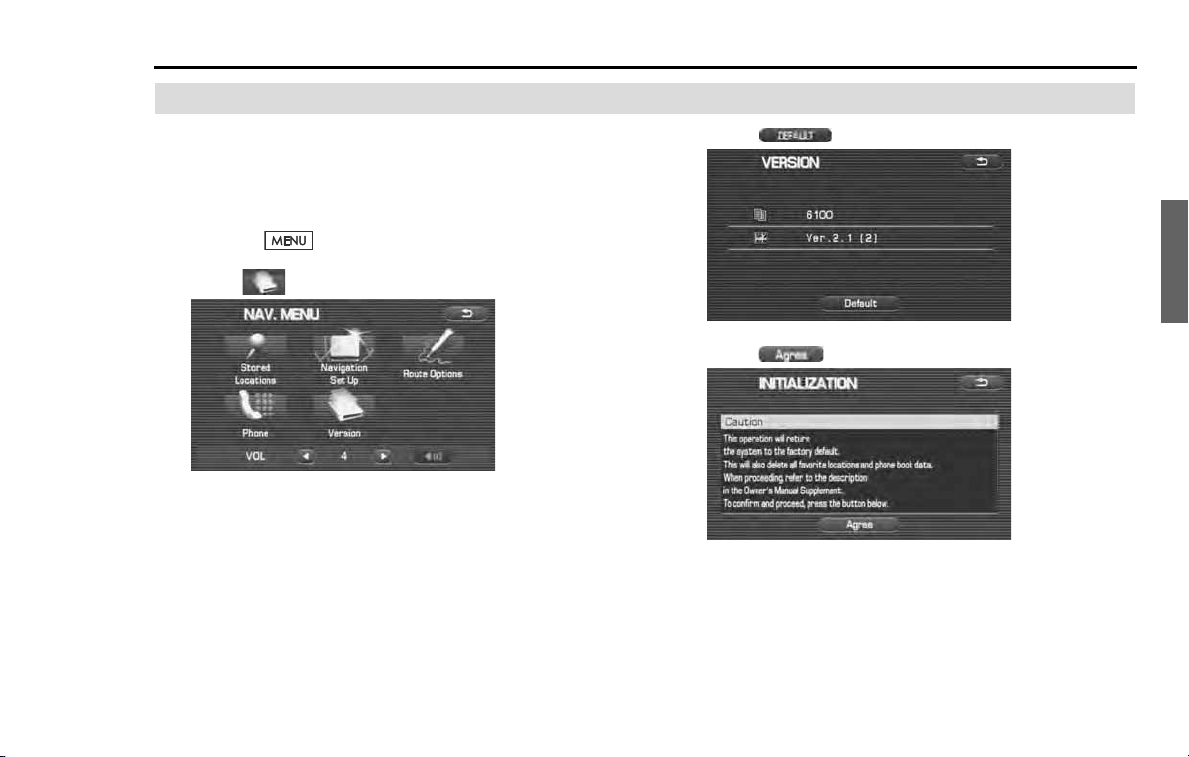
Navigation 97
Version and Initialization
Initialization of the navigation settings
The settings of the navigation system can be initialized. When
initialized, data such as memory points, travel history and
telephone numbers are all deleted. Data once deleted cannot
be restored.
1 Press the button.
2 Select (version).
3 Select
(default).
4
Select (agree).
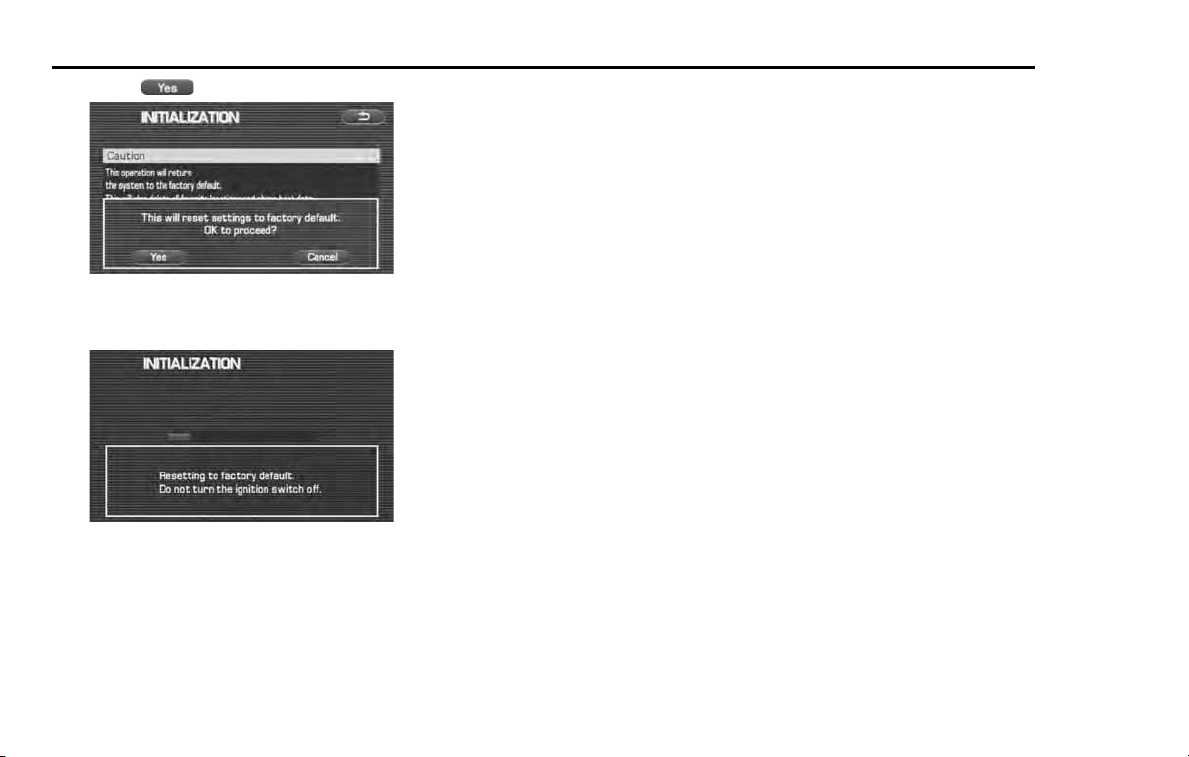
98 Navigation
Version and Initialization
5 Select (yes).
6 The navigation system is restarted automatically.
All of the settings are initialized.

Navigation 99
General Information
■ Accuracy of vehicle position
Area in which GPS signals cannot be received
Because the radiowave signals from the GPS satellites travel primarily
by line of sight, the navigation system might not be able to receive
the signals in the areas described below.(If the GPS mark does not
appear on the map screen, it means that the GPS radiowave signals
are not being properly received.)
(1) Inside a tunnel
(2) Inside a building
(3) Under a three-dimensional road system such as for high speed
roads
(4) On boulevards lined with trees
(5) Between buildings
(6) Under a cliff or in a cave
• If the GPS antenna or its surroundings are blocked by an obstacle
(including cargo), it might not be possible for the system to
receive the GPS radiowave signals.
• If multiple paths are created due to the reflection from buildings,
a large measurement error could occur, causing the vehicle's
mark to deviate from its actual position.
Deviation of the vehicle's position mark
The vehicle's position mark could deviate from its actual position
when the vehicle is being driven under the conditions listed below or
due to conditions of the GPS satellites.
If the vehicle travels on a road whose actual shape differs from that in
the map data, the vehicle's mark could deviate from the actual posi-
tion. The correct position will eventually appear on the screen
through the correction function. If the screen does not show the cor-
rect position for an excessively long time, correct the current position
or make an automatic correction.
(1) The vehicle's mark could appear on a parallel road.
(2) When the road splits into a narrow Y, the vehicle's mark could
appear on the other fork of the Y.
(3) When the vehicle makes a right or left turn, the vehicle's mark
could appear on one street ahead or behind.
(4) If the vehicle is transported by means other than the vehicle's
own power, such as on a ferryboat, the vehicle's mark will
remain in the position it was before the transport until the sys-
tem can calculate the position through the GPS.
(5) When the vehicle is driven on a steep incline, the vehicle's mark
could deviate from its actual position.
(6) If there are continuous gradual curves in the same direction, the
vehicle's mark could deviate from its actual position.
(7) If the vehicle is driven in a zigzag pattern, such as through fre-
quent lane changes, the vehicle's mark could deviate from its
actual position.
(8) If the vehicle is placed on a turntable, such as in a parking area,
and turned with the ignition OFF, the vehicle's mark could devi-
ate from its actual orientation. The vehicle's mark could also
deviate even after the vehicle has exited the parking area.
(9) The vehicle's mark could deviate from its actual position if the
vehicle is driven using tire chains or snow tires on a snow-cov-
ered road or on a mountainous road.

100 Navigation
General Information
(10) The vehicle's mark could deviate from its actual position after
the tires have been replaced.
(11) While driving on a public road, if an expressway that is under
construction travels over the public road, the position mark of
the vehicle may be indicated on a different road.
(12) If other electronic devices are installed on the instrument panel,
these devices may adversely affect the GPS signal communica-
tion and the position of the vehicle may not be indicated cor-
rectly.
■ How the vehicle position is detected
Detecting the vehicle's position through the GPS
GPS stands for "Global Positioning System", which is a system used for
detecting an object's position through the use of satellites of the U.S.
Department of Defense.
Radiowave signals from three or more satellites are received by the
navigation system, which utilizes the principle of triangulation to
detect the position at which the radiowave signals are received.
When the navigation unit is receiving the GPS radiowave signals, a
"GPS" mark will appear on the map screen.
Detecting the vehicle's position through self-contained naviga-
tion
Self-contained navigation is a system that detects the vehicle's posi-
tion by calculating the vehicle's driven distance and turning angle
though the use of various types of sensors that are mounted on the
vehicle.
Through the use of self-contained navigation, the vehicle's position
can be detected even in an area where the GPS radiowave signals
cannot be received.
Making corrections to the detection of the vehicle's position
through map matching
• In map matching, the position information resulting from the
detection of the vehicle's position and the locus of the travel of
the vehicle up to the present are constantly compared to the
shape of the roads on the map in order to correct the vehicle's
position mark to the most appropriate road.
• If the vehicle is driven on a road whose actual shape differs from
its map data, the vehicle's position mark on the map could devi-
ate from its actual position.
Occasionally, the correction of the vehicle's position mark to the
actual road on the map can be observed, particularly after the
vehicle has turned at an intersection or has exited from a parking
area.
■ Accuracy of the route guidance
The conditions listed below do not indicate a malfunction.
(1) The guidance might prompt the driver to drive straight even
though the vehicle is being driven on a straight road.
(2) The directional guidance could display multiple place names.
(3) If the vehicle makes a turn at an intersection before the guided
route, the wrong type of voice guidance could be outputted.
(4) The guidance might not be outputted while the vehicle is mak-
ing a turn at an intersection.
(5) The system might not be able to search for the proper route.

Navigation 101
General Information
(6) If there is no road to the destination or if there is only a narrow
road, the route might be indicated up to an area that is short of
the destination.
(7) The repeat search could take a long time while the vehicle is
being driven at high speeds.
(8) While the system is searching again for the route, the route indi-
cation might not appear in time for the next right or left turn.
(9) The route might not change even if a search is made again.
(10) The system might guide the driver to make a U-turn.
(11) The system might guide the driver to a road that cannot actu-
ally be travelled (such as a road to which entry is prohibited).
(12) The system might not output guidance even if the vehicle is
driven in reverse on the guided route.
(13) The system might not use a local ferryboat even if the ferry pri-
ority is selected.
(14) If the intersection that you're being guided to is near the end of
the route search, the system might not be able to provide guid-
ance.
(15) The route might not go on a toll road even if the toll-road prior-
ity is selected.
Similarly, a route that uses a toll road could appear on the
screen even if the toll-road priority is not selected. (The driver
may or may not be able to select "toll-road priority" if both toll
and free roads are available.)
102 Navigation
General Information
When a Problem Occurs
Confirm whether the problem is due to a minor operational error or a malfunction in the system by referring to the table below
before you contact your SUBARU dealer for any repair service.
The map does not scroll even when the vehicle is moving.
The screen shown might not be the current map screen.
See Page 26 of this manual for instructions on displaying the current map
screen.
The vehicle marker does not appear.
The screen shown might not be the current map screen.
See Page 26 of this manual for instructions on displaying the current map
screen.
The GPS marker is not displayed.
The GPS antenna or your vehicle might be in a position where GPS signals
cannot be received.
Try moving the GPS antenna or your vehicle to a position where there are no
obstacles around.
There is no voice guidance.
• Route guidance might be suspended.
• The guidance volume might be too low.
• See "Voice Guidance Volume" on Page 25.
Small spots or bright flashes appear on the screen display.
This is probably due to the natural characteristics of the liquid crystal
display (LCD).
There is nothing wrong with the display and no need for concern.
The DVD-ROM disc cannot be ejected.
The disc might be incompatible or might have been inserted incorrectly.
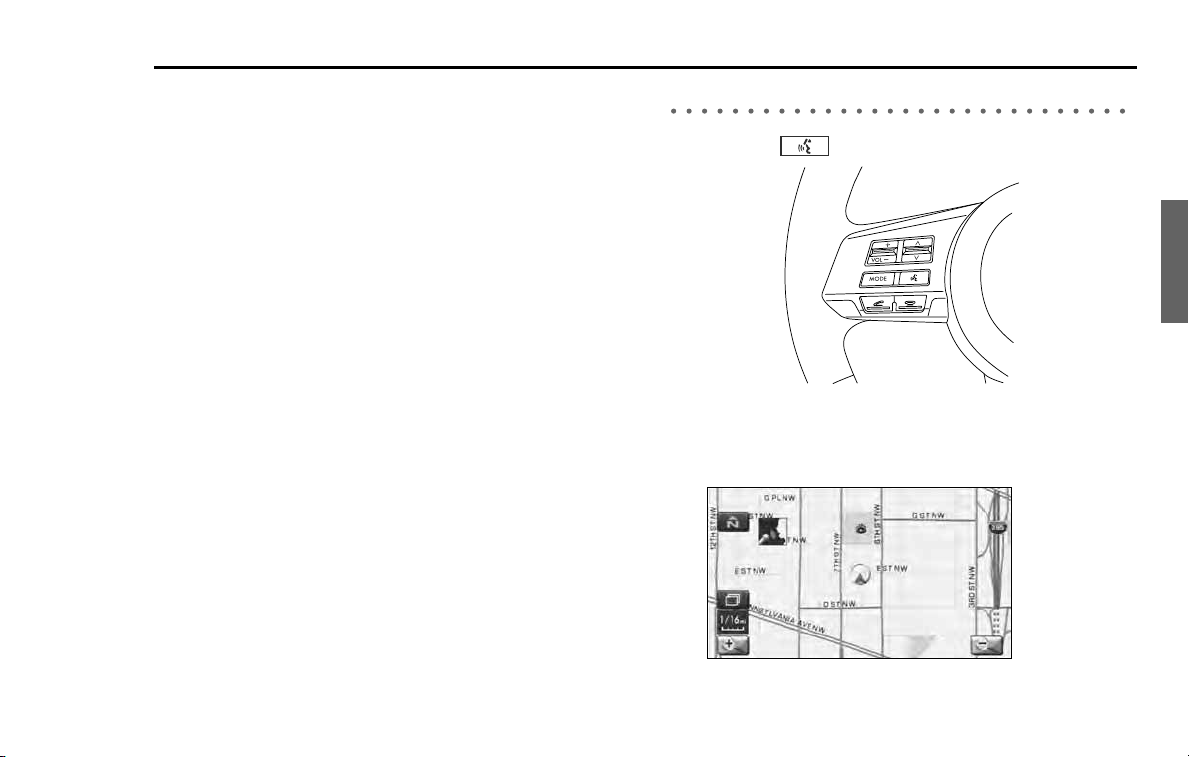
Navigation 103
Voice activation system
The voice recognition function allows you to operate the navigation
system, audio system and hands-free phone system using your voice
instead of display screen handling. This section includes instructions
about how to perform the voice commands. The commands that can
be recognized by this system are restricted. (See Page 222.) For each
function, refer to the corresponding items.
■ Correct voice recognition
The interior circumstances of the vehicle will adversely affect the cor-
rect recognition of the voice. Note the following items in order for the
system to correctly recognize the voice.
• Speak clearly into the microphone. Speaking faster or slower and
pausing between words will cause incorrect recognition.
• Close the windows to eliminate outside noise. Traffic noises, driv-
ing sounds and wind noises may affect correct recognition of the
voice.
• Speak the voice commands correctly. The commands that can be
recognized by this system are restricted. Any terms other than
the recognized terms for the system or dull sounds that are incor-
rectly spoken will not be recognized by the system. If the name
of a facility is pronounced different from the recognized terms for
the system, the command will not be recognized by the system.
• The microphone is located at the best distance and in the best
direction for each model to gain the maximum voice recognition
performance. Speak commands in a correct driving posture.
• Do not speak commands during navigation voice guidance. This
causes sounds to overlap and results in incorrect voice recogni-
tion.
Basic operations of voice recognition
1 Press the button located on the steering switch.
The voice recognition mode is activated, and the icon of voice
recognition will be displayed on the upper left side of the screen.
2
While the icon is displayed, speak a voice command.
104 Navigation
Voice activation system
During the voice recognition mode, the sound from the audio sys-
tem is muted.
(voice input waiting mode):
shows the status of waiting for a voice command.
(during a calculation):
shows the status of accepting and processing a voice command.
After a voice command is spoken, the system recognizes the voice and
activates the function input by the voice command. Then the system
confirms your command by voice guidance.
Pressing the button located on the steering wheel for a long
time during voice recognition will cancel the voice recognition mode.

Audio and
Visual
106 Audio and Visual
Before using the Audio and Visual system
Precautions when using the system
WARNING
READ THIS MANUAL FIRST
Read this supplement carefully before using the audio and visual
system. We are not liable for accidents or other problems resulting
from failure to follow the instructions in this supplement.
AVOID OPERATING THE AUDIO AND VISUAL system WHILE
DRIVING
You should stop the vehicle in a safe place before operating
the audio and visual system. For safety’s sake, some of the
audio and visual system’s functions cannot be used unless the
vehicle is stationary.
If you stare at the display with too much enthusiasm or oper-
ate the switches of the system while in driving, the navigation
system could cause your attention to be distracted from the
current traffic conditions. Please be sure to input in the system
as much information as possible before departure. And also
please be sure to bring the vehicle to a stop in a safe place if
you need to input information.
The buttons for a touch screen that cannot be used are dis-
played greyed out.
Operating the navigation system while in driving could cause
your attention to be distracted from the current traffic condi-
tions. And in consequence, this could result in a severe or fatal
accident. Always follow the descriptions of all operations and
the instructions for safety given in this manual.
LOOK AT THE AUDIO AND VISUAL SCREEN ONLY WHEN NECES-
SARY
When you need to look at the audio and visual screen, do so
for the shortest time possible. Looking away from the road
for too long could lead to an accident.
KEEP THE VOLUME LOW ENOUGH FOR YOU TO HEAR OUTSIDE
SOUNDS
Keep the system’s volume level low enough for you to be
able to hear outside sounds while driving. To do otherwise
may mean that you are unable to react appropriately to traf-
fic conditions thus resulting in an accident.
Audio and Visual 107
Before using the Audio and Visual system
■ About the audio and visual screen
• Subjecting the control buttons or liquid crystal display to excessive
shock could result in audio and visual screen deformation or other
damage.
• Keep any heat source (including lighted cigarettes) away from the
audio and visual screen. If a heat source is brought into contact with
the audio and visual system cabinet and panel, they could be
deformed or otherwise degraded.
• In extreme cold, the audio and visual screen may operate sluggishly
and the display may dim. Such conditions do not indicate a problem.
They will disappear when the cabin temperature rises to a normal
temperature.
• Tiny black and white dots may occasionally appear in the liquid crys-
tal display. These dots are a normal characteristic of the display. They
do not indicate a problem.
•
When the
audio and visual screen
requires cleaning, gently wipe it
with a silicone cloth or other soft cloth. If necessary, spray the cloth
with neutral cleaning fluid. Be sure to wipe away any cleaning fluid
left on the audio and visual screen. Do not spray the cleaning fluid
directly onto the
audio and visual screen
. Spraying cleaning fluid
directly onto the
audio and visual screen
could cause an adverse
effect on internal components. It is also not a good idea to wipe the
audio and visual screen
with a stiff cloth or attempt to clean it using
thinners, alcohol, or any other volatile solvent. Doing so could leave
scratches and/or erase the control button labels
.
• Do not allow the audio and visual screen to get wet. If it gets wet
(allowing, for example, to a spilled drink or wet umbrella), its internal
electronic circuitry may malfunction.
CAUTION
NEVER DISASSEMBLE OR MODIFY THE AUDIO AND VISUAL SYSTEM
Any attempt to disassemble or modify the audio and visual
system could lead to a fire, an electric shock, or some other
type of accident.
Do not continue using the audio and visual system if it mal-
functions
If the system shows any sign of malfunctioning (for example,
the monitor gives no picture), stop using it immediately and
contact the nearest SUBARU dealer. Continuing to use the
system could lead to a fire, an electric shock, or some other
type of accident.
If the audio and visual system gets contaminated, emits smoke
or an odd smell, stop using it
If a foreign object gets inside the system, liquid is spilled
onto the system, or the system emits smoke or an unusual
smell, stop using it immediately and contact the nearest
SUBARU dealer. Continuing to use the system could lead to a
fire, an electric shock, or some other type of accident.

108 Audio and Visual
Before using the Audio and Visual system
• In hot weather, cool the passenger compartment down before using
the audio and visual system. The liquid crystal display operates cor-
rectly at temperatures between 0°C and 60°C (32°F and 140°F). When
the temperature exceeds 60°C (140°F), the audio and visual system
circuit protection function is activated, causing the display to dim.
NOTE
• In the interest of safety, the use of some functions may be unavailable while in
driving. The buttons for a touch screen that cannot be used are displayed
greyed out.
• Liquid-crystal displays may be difficult to read when wearing polarized
glasses.
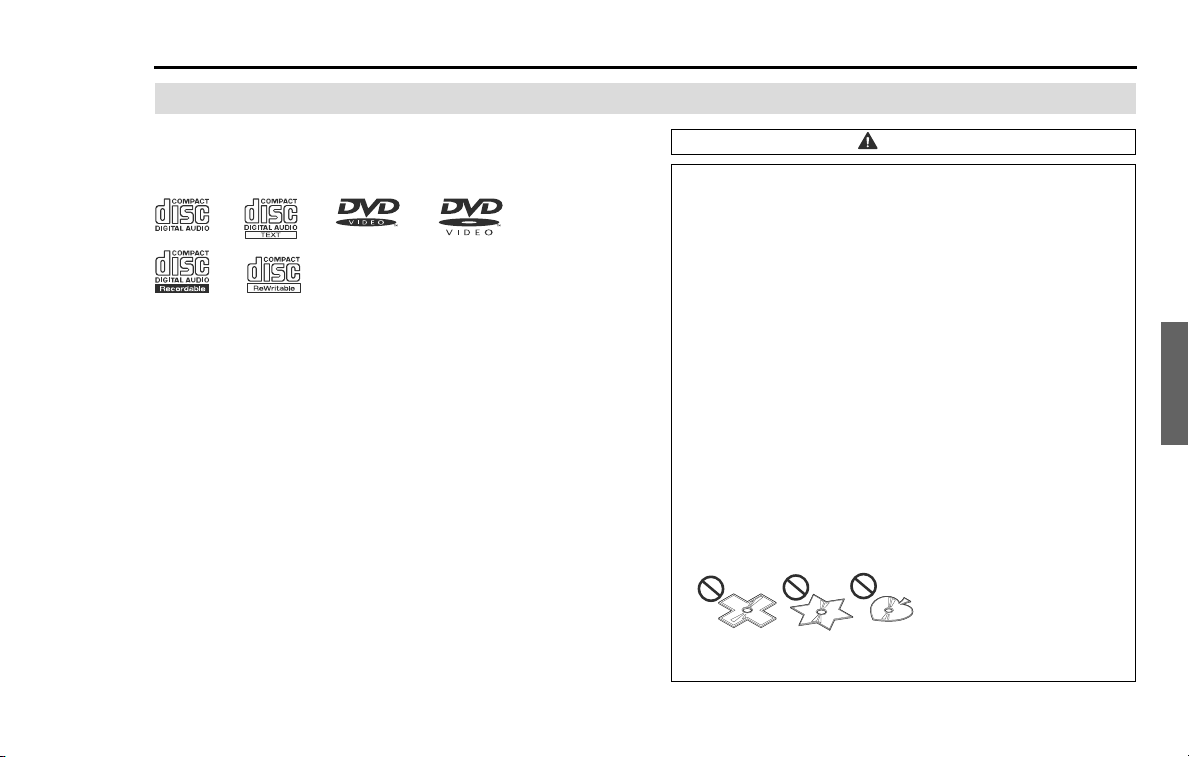
Audio and Visual 109
Before using the Audio and Visual system
Discs that can be used
For the in-vehicle equipment, it is possible to look and listen
to discs attached with the marks shown below.
NOTE
• Special discs are not supported that are not compliant with the formal CD
specifications such as the copy control CD.
• Discs such as CD-R (CD-Recordable) and CD-RW (CD-ReWritable) may not be
played back when they are inferior in their recording condition and character-
istics, when they get scratched or stained, or when they get deteriorated due
to being left in the vehicle for a long time. And when CD-R and CD-RW has
not been treated for finalization, they cannot be played back.
• The DVD which formatted with DVD-VR (Video Recording) mode, or DVD-VR
product can not be played in this system.
Music CD DVD Video
CAUTION
• Handle the disc with care so that it does not get smeared
with fingerprints and stain, or does not get scratched.
• When handling the disc, be sure to hold it at the center hole
and the edge with the labeled side up.
• When the disc gets stained, wipe it lightly with a soft, dry
cloth for spectacles with plastic lenses. Pressing the disc hard
with your hand or rubbing it with a hard cloth may cause
scratches on the surface. And, avoid the use of a solution
such as record spray, antistatic agent, alcohol, benzine and
thinner, or chemical duster. This may cause damage to the
disc, rendering it unusable.
• After pressing the disc eject switch, do not leave it in the
ejected condition for a long stretch of time. This may cause
warp to the disc, thus rendering it unusable.
• Store the disc away from direct sunlight, which may cause
warp to it, thus rendering it unusable.
• Discs that can be played back are limited only to those with a
circular form 12 cm in diameter.
Avoid using irregular sized discs, which may cause malfunc-
tion to the equipment.
• The DualDisc is not supported. Avoid using it, which may
cause malfunction to the equipment.
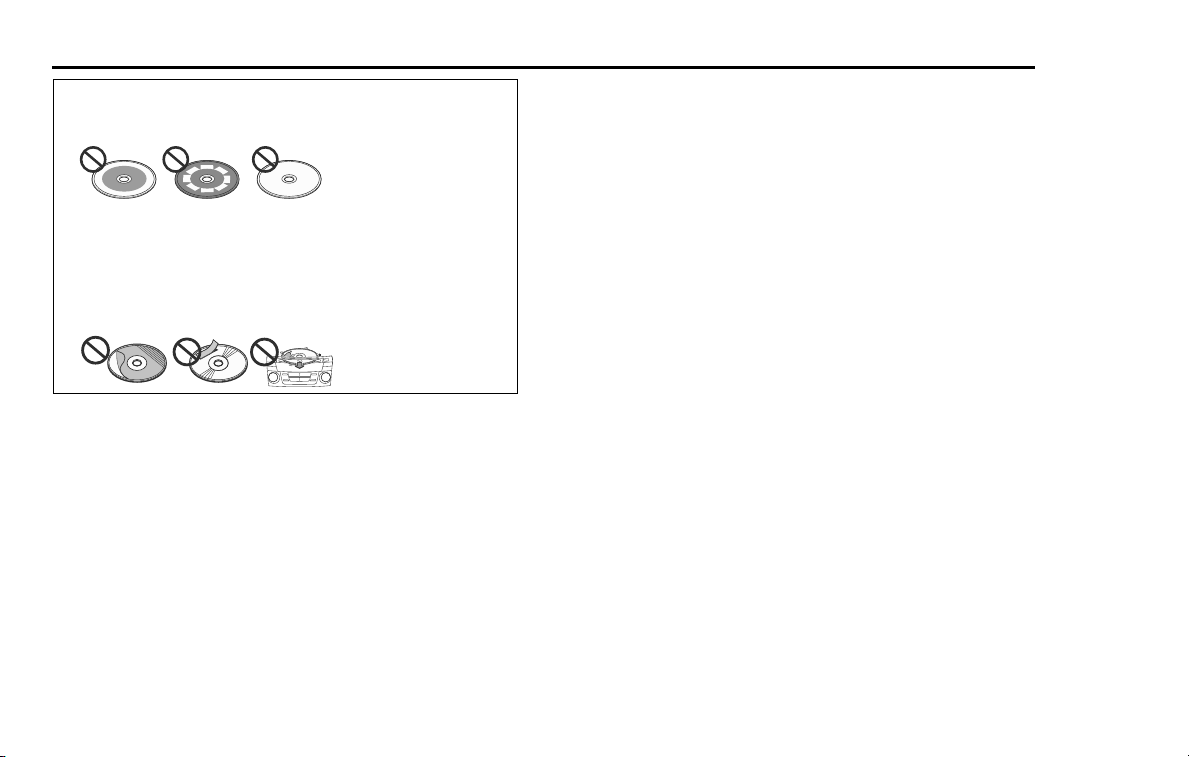
110 Audio and Visual
Before using the Audio and Visual system
• Avoid the use of discs of which the recording section is trans-
parent or translucent. These discs may not be inserted or
ejected, or played back normally.
• Using lens cleaner may cause malfunction to the pick-up sec-
tion of the player. Be sure not to use it.
• Do not use discs attached with scotch tape, seal or CD-R
label, or those having traces of them. Using these discs may
cause malfunction to the player with the ejection of discs
unavailable.

Audio and Visual 111
Before using the Audio and Visual system
Player
When there occurs an abnormal condition, the player stops
automatically to protect the inside mechanism of the player.
Even when conducting the operation according to the mes-
sage displayed on the screen and the function is stopped, a
malfunction may result. Get a checkup of the player at Subaru
Dealer.
In the following cases other than malfunction, the player may not oper-
ate normally.
• When the disc can not read due to it being stained.
• When the player is out of order.
• When an abnormal temperature of the player has been detected.
(When the sign disappears after the temperature of the player gets
back to the normal temperature, the player can be used.)
• When there occurs a dew condensation. (When it is cold or rains,
there occurs a dew condensation inside the player just as the inner
surface of the vehicle glass clouds up. In such a case, the audio
sound may be disturbed or the playback may be stopped. Ventilate
or dehumidify the player for a while before using it.)
• When vibrated severely due to driving on rough roads. (The sound
may be disturbed.)

112 Audio and Visual
Before using the Audio and Visual system
Character information displayed
The number of characters that can be displayed as informa-
tion on various screens and the audio display is limited, and it
sometimes occurs that all of the characters cannot be dis-
played. And also, they may not be, or cannot be, displayed
correctly depending on the contents of the recorded informa-
tion like these.
And the contents of the character information like these may
sometimes differ for various screens and the audio display.

Audio and Visual 113
Before using the Audio and Visual system
Voice activation system
The voice activation system allows the system to be operated
using spoken commands.
For details regarding the function, refer to
"Voice activation
system
" on Page 220.
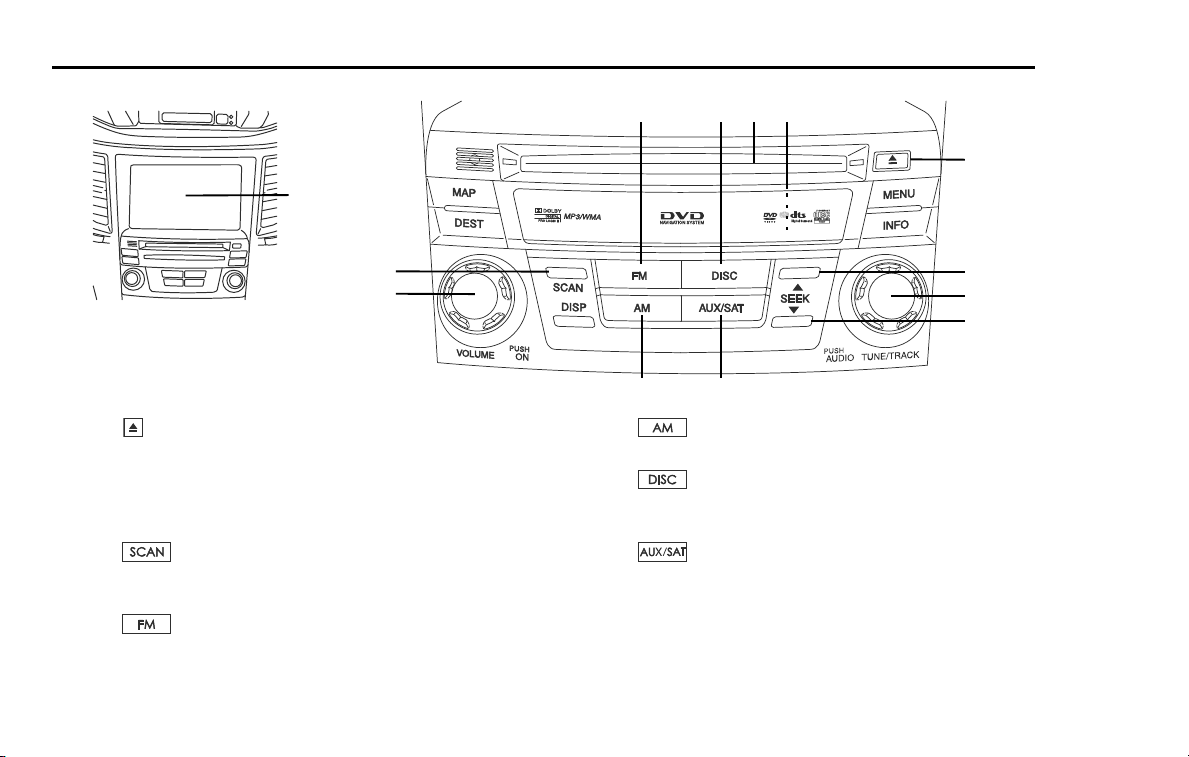
114 Audio and Visual
Basic operation of the Audio and Visual system
(1) [EJECT]
This button is used to eject an audio disc.
(2) [VOL/POWER]
This button is used to operate the system ON or OFF and
adjust volume.
(3)
This button is used to search a tune, track or radio station (for
Radio, CD, CD changer, MP3/WMA, USB, Bluetooth).
(4)
This button is used to receive the FM waveband.
(5)
This button is used to receive the AM waveband.
(6)
This button is used to operate the audio disc (VIDEO, CD,
DVD, MP3/WMA).
(7)
This button is used to operate the externally connected
audio equipment for looking and listening.
(13)
(2)
(1)
(8)
(9)
(10)
(4)
(7)
(3)
(6)
(5)
(12)
(11)
Audio and Visual 115
Basic operation of the Audio and Visual system
(8)
This button is used to seek up from the current audio source.
Briefly press:
•Radio - Auto seek
• CD, CD changer, Bluetooth, iPod - Forward track search
• MP3/WMA, USB - Forward file search
• DVD - Forward chapter search
Press and hold:
• All audio source - Forward manual search
(9)
This button is used to seek down from the current audio
source.
Briefly press:
• Radio - Auto search
• CD, CD changer, Bluetooth, iPod - Reverse track search
• MP3/WMA, USB - Reverse file search
• DVD - Reverse chapter search
Press and hold:
• All audio source - Reverse manual search
(10) [TUNE/TRACK]
Rotate:
This button is used to seek up/down from the current audio
source.
• Radio - Manual search (up/down)
• CD, CD changer, Bluetooth, iPod - Track search (up/down)
• MP3/WMA, USB - File search (up/down)
• DVD - Chapter search (up/down)
Press:
This button is used to select the screen set for the audio.
(11)
This button is used to reset all settings to return to the factory
settings.
(12) DVD/CD drive loading slot
Insert CD/DVD here to play back.
(13) Display touch screen
Multi-function screens appear here.
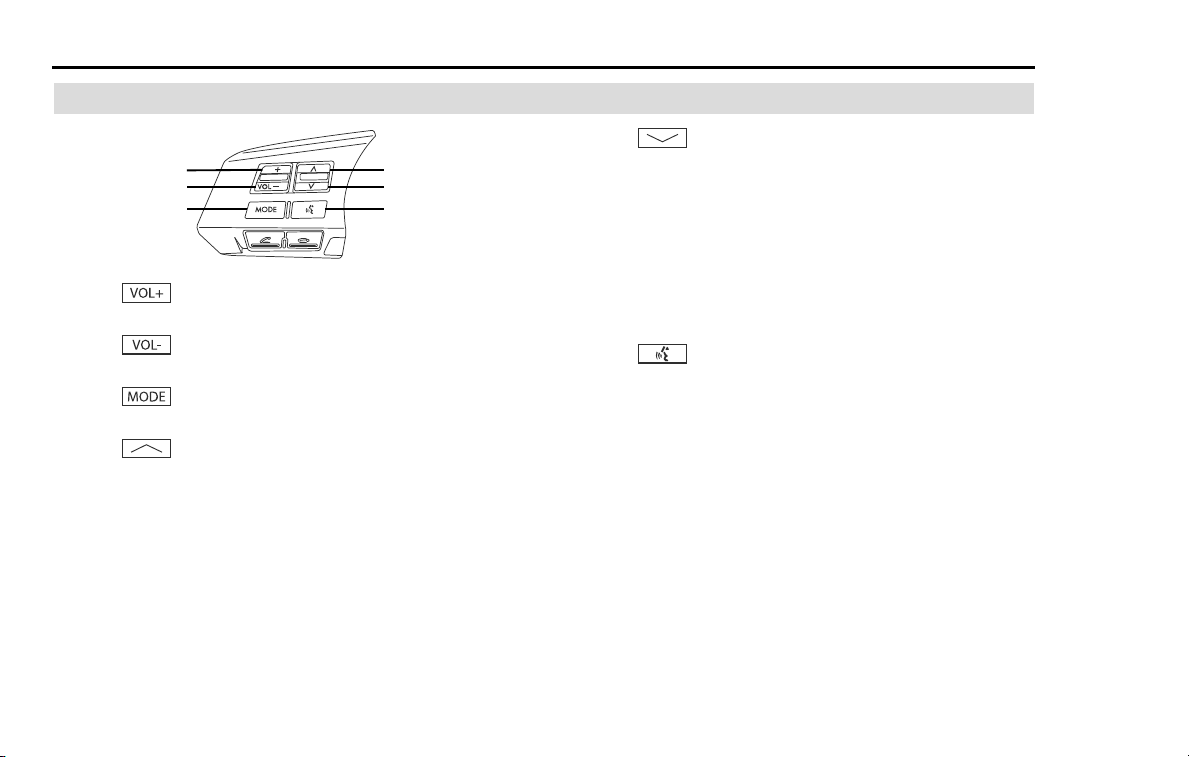
116 Audio and Visual
Basic operation of the Audio and Visual system
Steering remote control
(1)
This button is used to adjust volume (increase).
(2)
This button is used to adjust volume (decrease)
(3)
This button is used to select the audio source.
(4) (SEEK UP)
This button is used to seek up from the current audio source.
Briefly press:
•Radio - Auto seek
• CD, CD changer, Bluetooth, iPod - Forward track search
• MP3/WMA, USB - Forward file search
• DVD - Forward chapter search
Press and hold:
• All audio source - Forward manual search
(5) (SEEK DOWN)
This button is used to seek down from the current audio
source.
Briefly press:
• Radio - Auto preset down search
• CD, CD changer, Bluetooth, iPod - Reverse track search
• MP3/WMA, USB - Reverse file search
• DVD - Reverse chapter search
Press and hold:
• All audio source - Reverse manual search
(6)
This button is used to enter voice recognition mode.
(1)
(2)
(3)
(4)
(5)
(6)
Audio and Visual 117
Basic operation of the Audio and Visual system
Turning on the power
Turn on the power for the Audio and Visual system.
1 The audiovisual system is turned on when one of the fol-
lowing operations is performed while the system is off.
• Press the [VOL/POWER] button.
• Press the [TUNE/TRACK] button, select the source.
• Press the button on the steering switch.
• Press the , or button.
• Insert the audio disc.
• Connect the USB device.
• Connect the iPod.
The audiovisual system is turned off when one of the following
operations is performed.
• Press the [VOL/POWER] button.
• Press the button on the steering switch.
NOTE
• Each time the [VOL/POWER] button or the button of the steering
switch is pressed, the audio function is turned on and off.
• Inserting the disc turns on the power automatically to start the playback of
the disc.
• The audiovisual system can be operated using the voice recognition func-
tions. Refer to the "Voice Recognition" section.
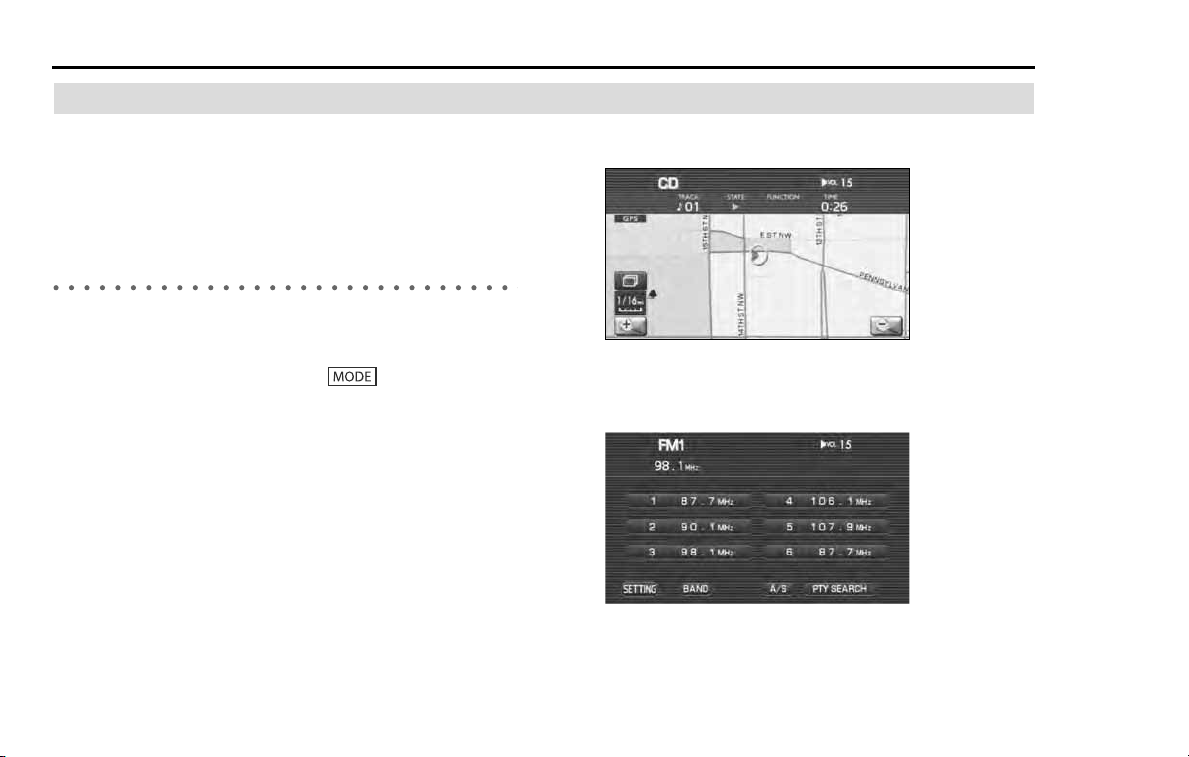
118 Audio and Visual
Basic operation of the Audio and Visual system
Selecting the audio source
It is possible to select the AM radio, FM radio, SAT, CD, DVD,
MP3/WMA and other externally connected equipment for
viewing and listening. When selecting SAT and other exter-
nally connected equipment, it is necessary for the relevant
units to be connected.
Pressing the button for selection
Pressing the button on the externally connected equipment or the
steering switch to select the audio source.
1 Press the desired button or the button on the
steering switch.
Each time the button is pressed, the audio source changes.
When the operations above are conducted on other than the
audio screen, a brief description of the audio is displayed in the
upper section of the screen for a few seconds.
Example of the CD information being displayed while in the map
is displayed.
When the operations above are conducted on the audio screen,
each source screen is displayed as following example.
FM radio screen
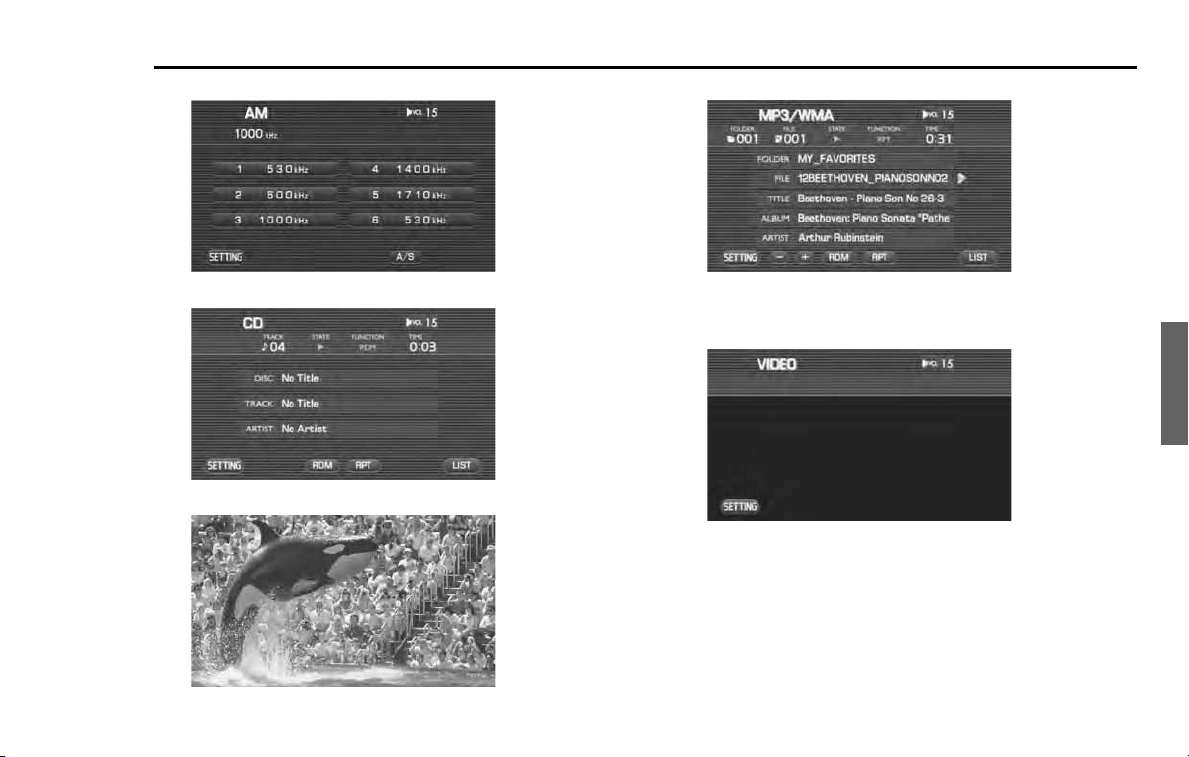
Audio and Visual 119
Basic operation of the Audio and Visual system
AM radio screen
CD screen
DVD screen
MP3/WMA screen
Other externally connected equipment
The display varies depending on the externally connected equip-
ment.
NOTE
• When the disc is not set or when no externally connected equipment is pro-
vided, the source is not displayed.
• When the satellite radio is connected, it is displayed on the dedicated source
screen in the same manner as the AM or FM radio.
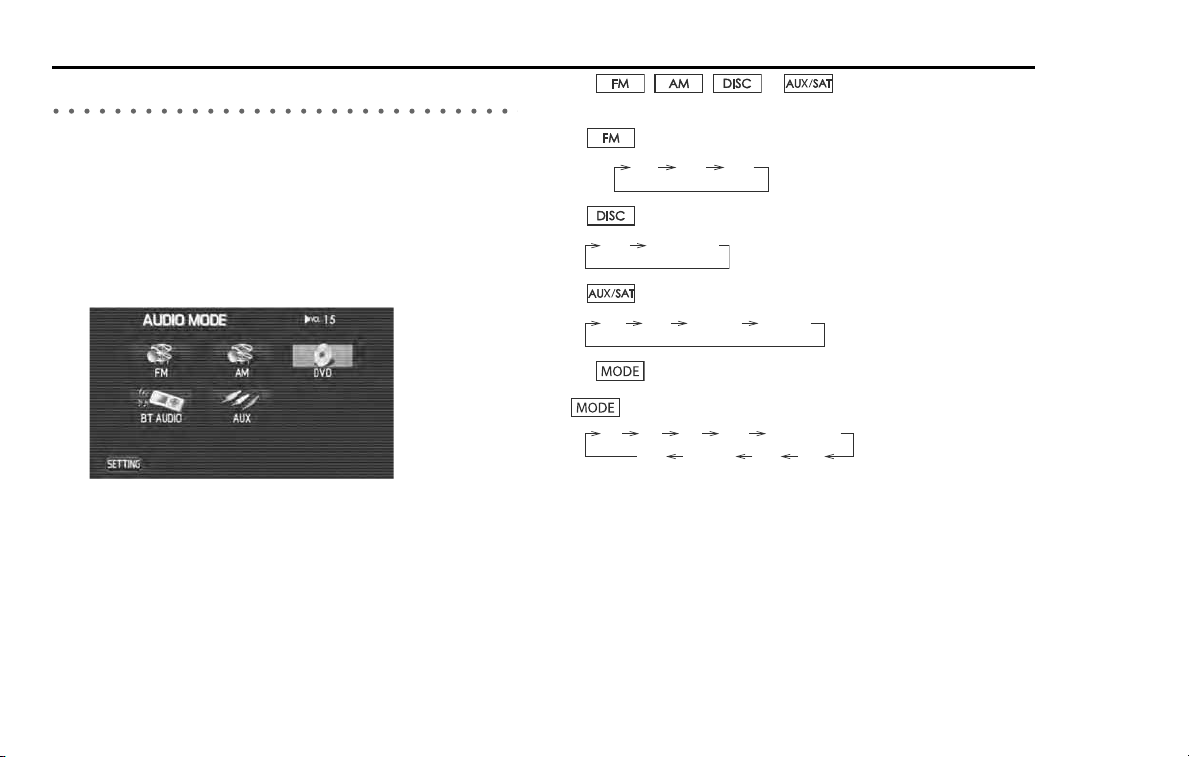
120 Audio and Visual
Basic operation of the Audio and Visual system
Audio source selection
Touching the source display allows you to select a source.
1 Press the [TUNE/TRACK] button.
When the source display is shown, proceed to step 3.
2 Press the [TUNE/TRACK] button again.
3 Select a source.
Each of the source screens is displayed.
NOTE
Sources displayed vary depending on the equipment connected.
The , , or button can be used to select an
audio source.
• button: Toggles between FM1 and FM3.
• button: Toggles between disc and CD changer.
• button: Toggle between SAT and Bluetooth audio.
The button on the steering wheel control can be used to select an
audio source.
button: Toggles between FM and AUX.
NOTE
• When the disc is not set or when no externally connected equipment is pro-
vided, the source is not displayed.
• When the USB or iPod equipment is connected and during suspend mode,
the source is not displayed.
FM ( FM1 FM2 FM3 )
DISC CDCHANGER
SAT AUX USB/iPod BTAUDIO
FM AM SAT DISC CDCHANGER
AUX BTAUDIO iPod USB
Audio and Visual 121
Basic operation of the Audio and Visual system
Setting and adjusting the sound
Adjusting the sound volume
It is possible to adjust the sound volume while looking and listening to
the source.
The sound volume setting has the following independent settings.
• A volume setting for the audio sources except for the auxiliary input
audio source.
• A volume setting for the auxiliary input audio source.
NOTE
When the voice of the navigation system breaks in, the sound volume is auto-
matically reduced temporarily.
1
Rotate the [VOL/POWER] button in either direction or
press the buttons of the steering switch.
• Turning the [VOL/POWER] button counterclockwise decreases
the sound volume while turning it clockwise increases the
sound volume.
• Each time the button of the steering switch is pressed,
the sound volume decreases, and each time the but-
ton is pressed, it increases.
• The volume level is displayed in figures on the upper right sec-
tion of the screen.
Mute the sound
The audio sound volume is automatically reduced temporarily under
the following conditions.
• ATT mute: The sound volume is slightly reduced when voice guid-
ance is performed by the navigation system or the gearshift lever is
placed in the reverse position.
• TEL mute: The sound volume is muted when using a hands-free
phone.
• PTT mute: The sound volume is muted during the Voice Recognition
mode (when pressing the button that is located on the
steering remote control).
NOTE
ATT mute
• The amount of reduced volume during ATT mode depends on the setting
value of the audio sound volume.
• The ATT mute mode is cancelled when the audio sound volume is increased
using the volume control button or the volume adjusting button located on
the steering remote control.
• The ATT mute mode is not cancelled when the audio sound volume is
decreased using the volume control button or the volume adjusting button
located on the steering remote control.
TEL mute
• The TEL mute mode is cancelled when the hands-free phone is disconnected.
• The TEL mute mode is cancelled when the audio sound volume is increased
using the volume control button or the volume adjusting button located on
the steering remote control.

122 Audio and Visual
Basic operation of the Audio and Visual system
PTT mute
• The PTT mode is cancelled when the button is pressed while the
PTT mute mode is activated.
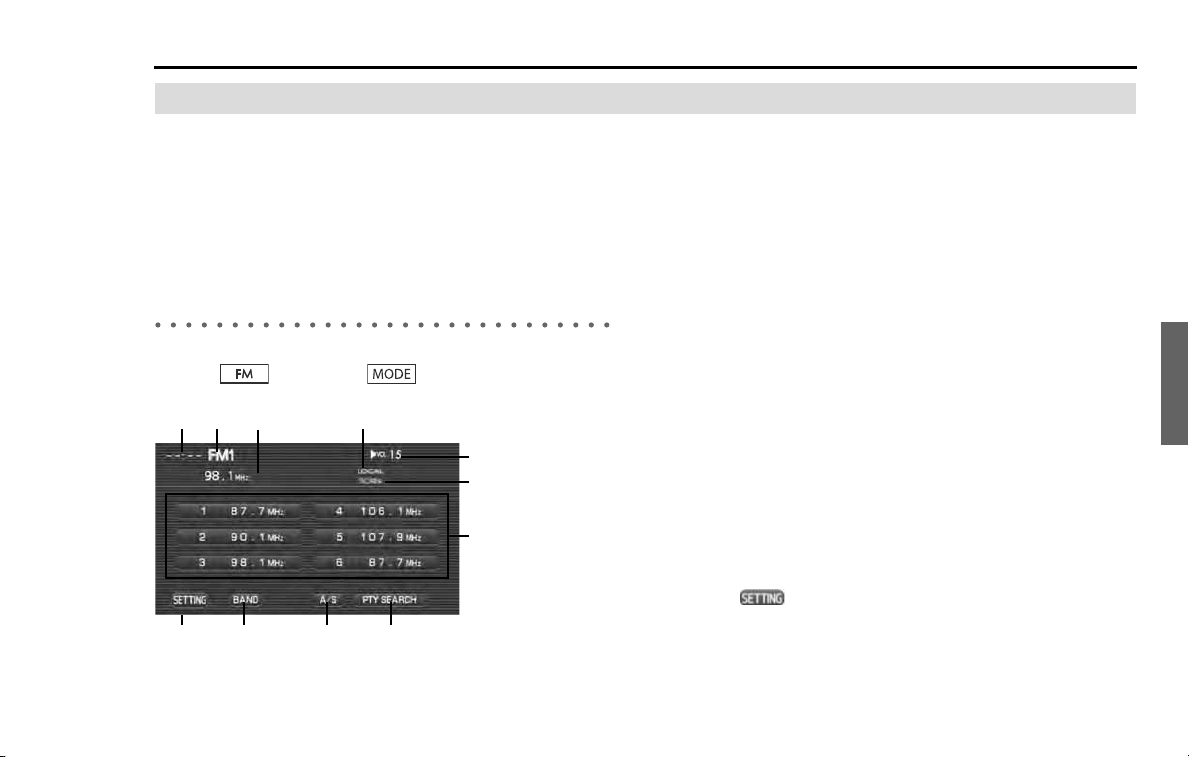
Audio and Visual 123
Radio functions
Listening to the radio
It is possible to tune in to a radio station to listen to the AM or
FM radio.
1 Change the source over to the FM or AM radio.
(See Page 118.)
2 Tune in to a station. (See Page 126.)
FM radio screen is displayed
When no FM radio screen is displayed while listening to the FM radio,
press the button or the button on the steering switch
to display the FM radio screen.
(1) Clock
The current time is displayed.
(2) Waveband display
The difference between the FM1 and FM3 frequency bands is
displayed.
(3) Station tuned in to
The name of the station tuned in to and its frequency are dis-
played. When the station is preset, the preset number is also
displayed.
(4) ST
Displayed while in the stereophonic.
(5) VOL
The volume level is displayed. (See Page 121.)
(6) SCAN
Displayed when scanning a station to which you can tune in.
(See Page 127.)
(7) Preset keys 1 to 6
It is possible to preset a station and select it later. (See Page
129.)
(8) (SETTING)
Select this key to display the screen set for the audio. (See
Page 195.)
(1) (2)
(4)
(6)
(3)
(5)
(7)
(8) (9) (10) (11)
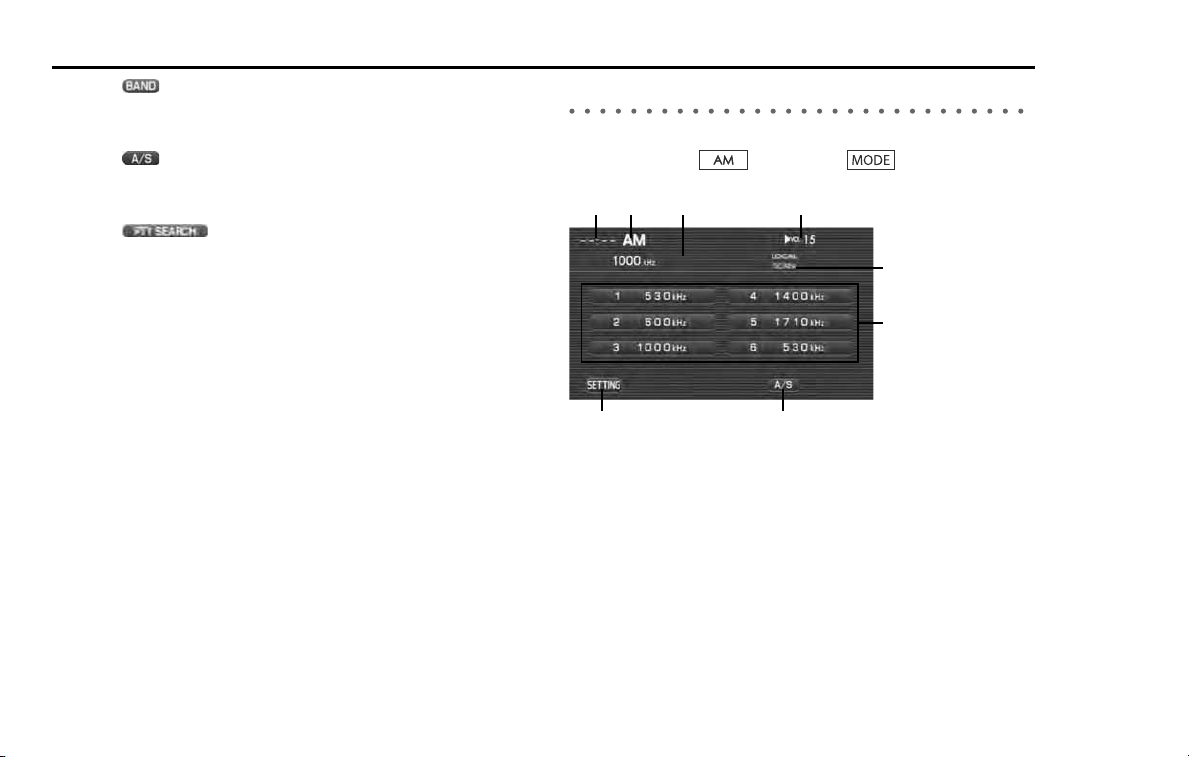
124 Audio and Visual
Radio functions
(9) (BAND)
Each time this key is selected the frequency band (FM1/FM2/
FM3) changes.
(10) (AUTO STORE)
Using this key, the preset buttons can automatically be allo-
cated to the stations with the strongest reception.
(11) (PTY SEARCH)
Selecting this key allows you to search a station with a cate-
gory of interest selected. (See Page 127.)
AM radio screen displayed
When the AM waveband screen is not displayed while listening to the
AM radio, press the button or the button on the steer-
ing switch to display the AM radio screen.
(1) Clock
The current time is displayed.
(2) Waveband display
AM is displayed.
(3) Station tuned in to
The name of the station tuned in to and its frequency are dis-
played. When the station is preset, the preset number is also
displayed.
(4) VOL
The volume level is displayed. (See Page 121.)
(1) (2)
(4)
(5)
(3)
(6)
(7) (8)

Audio and Visual 125
Radio functions
(5) SCAN
Displayed when scanning a station that you can tune into.
(See Page 127.)
(6) Preset keys 1 to 6
It is possible to preset a station and invoke it later. (See Page
129.)
(7) (SETTING)
Select this key to display the selected audio screen. (See Page
195.)
(8) (AUTO STORE)
Using this key, the preset buttons can automatically be allo-
cated to the stations with the strongest reception.
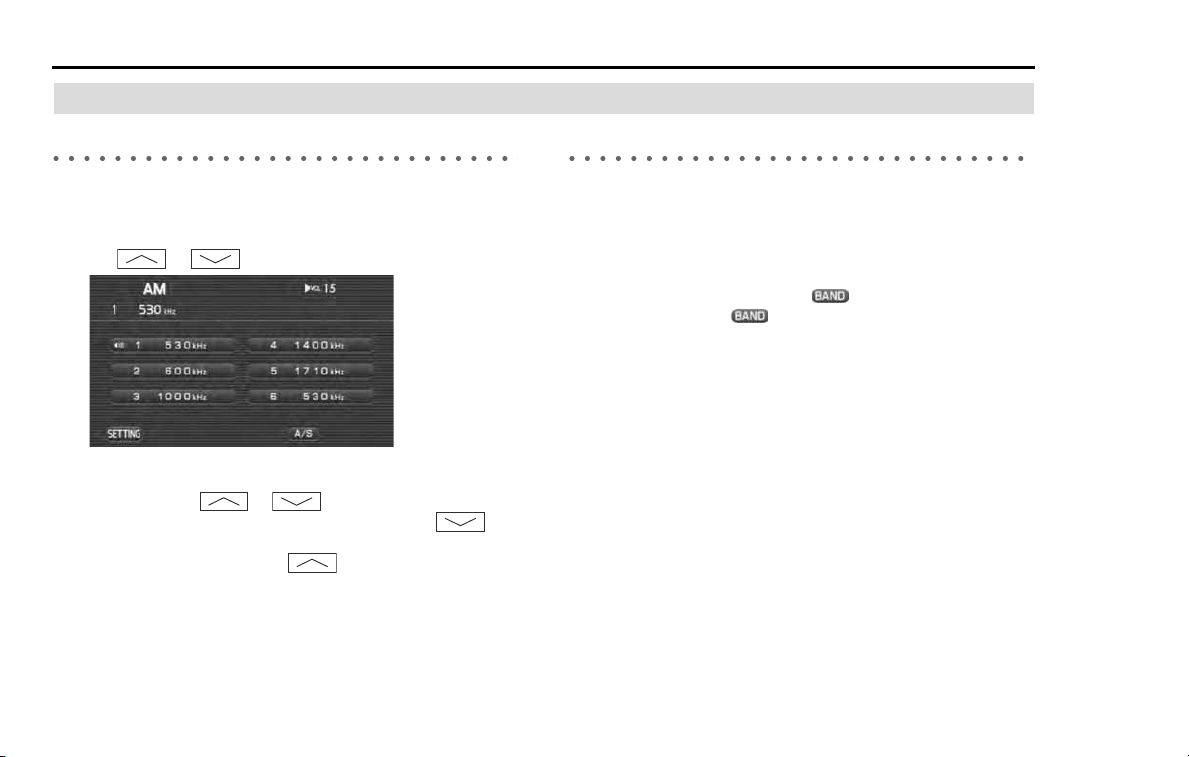
126 Audio and Visual
Radio functions
Selecting a station
Selecting a preset station
Presetting a station in advance in the in-vehicle equipment allows you
to select that station.
1
Select the station preset on the FM or AM radio screen, or press
the or button on the steering switch.
• When the FM or AM radio screen is not displayed, press the
desired button.
• Each time the or button in the steering switch
is pressed, the station preset changes. Pressing the but-
ton changes the station in the descending order of the preset
number, while pressing the button changes it over in
the ascending order of the preset number.
NOTE
For detailed method for presetting a station, refer to "Presetting a station" on
Page 129.
Setting the frequency
It is possible to manually set the frequency to listen to the radio.
1 Rotate the [TUNE/TRACK] button in either direction.
• Turning the [TUNE/TRACK] button counterclockwise lowers the
frequency and turning it clockwise increases the frequency.
• For the FM waveband, select (BAND) to select the wave-
band. Each time (BAND) is selected, the waveband alter-
nates between FM1 and FM3.
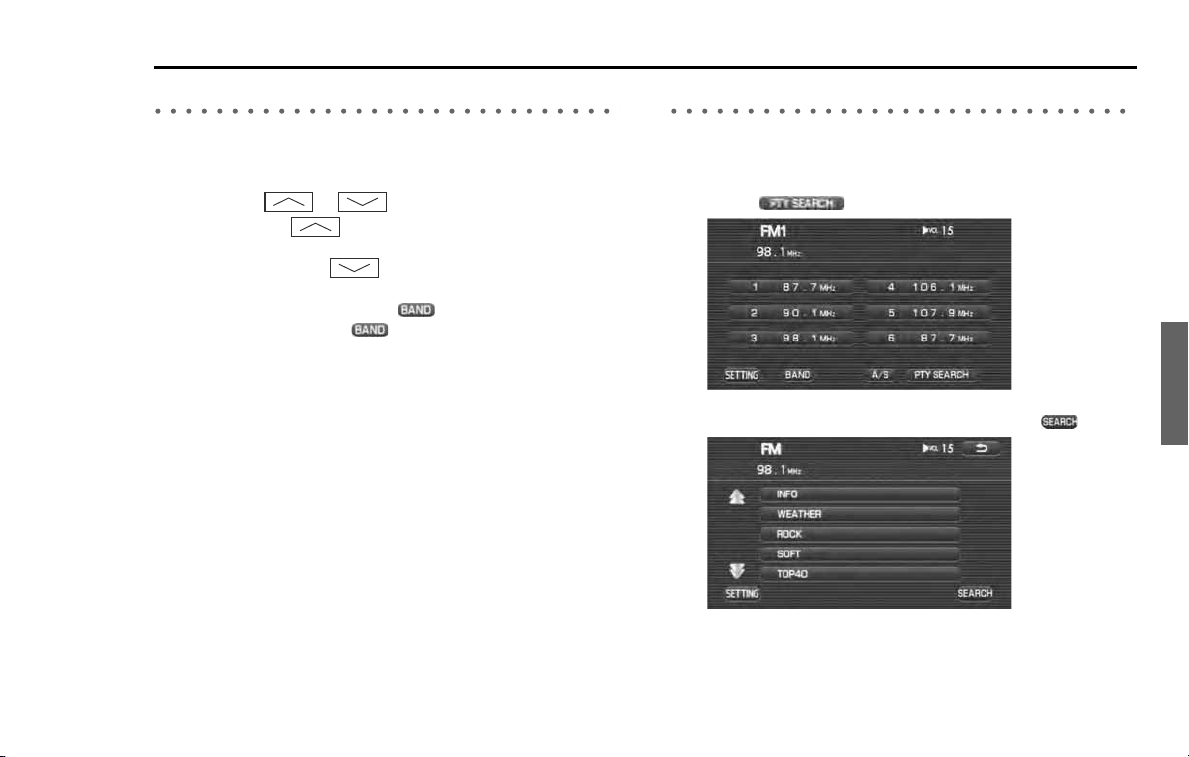
Audio and Visual 127
Radio functions
Searching a station automatically
It is possible to search a station that can be tuned in to automatically to
listen to a radio.
1
Press the
or
button.
• Pressing the button allows you to select a station that
can be tuned in to in the higher-intensity frequency direction,
while pressing the button allows you to select a station
in the lower-intensity frequency direction.
• For the FM waveband, select (BAND) to select of the
waveband. Each time (BAND) is selected, the waveband
alternates between FM1 and FM3.
Searching a FM station from a category of interest
It is possible to select a category of interest and select a station to listen
to on the radio.
1 Select (PTY SEARCH).
2 Select a category of interest and then select .
Categories that can be selected are shown below.
•INFO
•WEATHER

128 Audio and Visual
Radio functions
•ROCK
•SOFT
•TOP 40
• COUNTRY
•OLDIES
•JAZZ
• CLASSIC
•R&B
• RELIGIOUS
•MISC
•ALL
• Selecting scrolls the display to display a category 5 posi-
tions above.
• Selecting scrolls the display to display a category 5 posi-
tions below.
A station corresponding to the category is selected.
NOTE
• This function is available only for the FM radio.
• Each time is selected, another station can be searched.
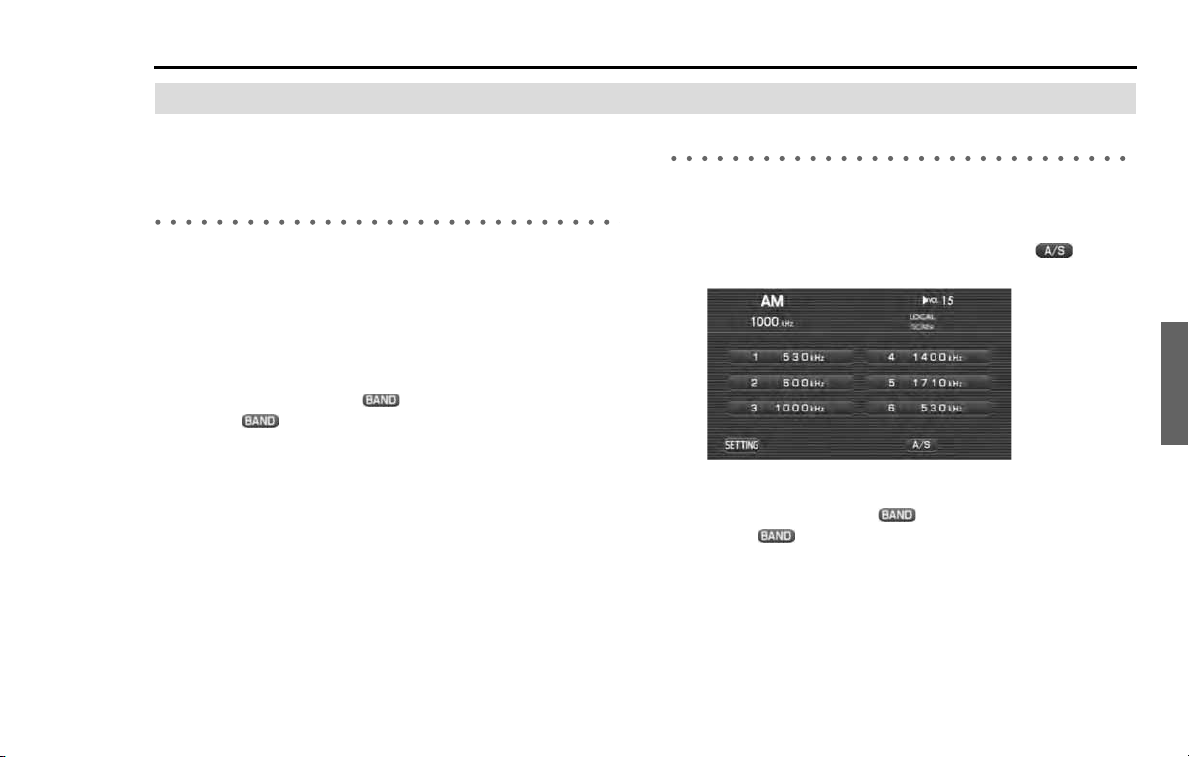
Audio and Visual 129
Radio functions
Presetting a station
It is possible to store a station frequently listened to in the
memory and select it later.
Manual storing
It is possible to preset a station that is now being tuned in to. Conduct-
ing this operation with a key that is already preset causes the preset key
to be overwritten.
1
Press the preset key for more than 2 seconds.
• When the FM or AM radio screen is not displayed, press the
desired button.
• For the FM radio, select (BAND) to select the BAND. Each
time (BAND) is selected, the waveband alternates
between FM1 and FM3.
The frequency preset is displayed in the preset key.
NOTE
For a detailed description of how to select a preset station, refer to "Selecting a
preset station" on Page
126
.
Auto store
It is possible to automatically search and preset a station that has radio
reception.
1
Select the FM or AM radio screen, press the (AUTO
STORE) for more than 2 seconds.
• The preset buttons can automatically be allocated to the sta-
tions with the strongest reception.
• For the FM radio, select (BAND) to select the BAND. Each
time (BAND) is selected, the waveband alternates
between FM1 and FM3.
The frequency preset is displayed in the preset key.
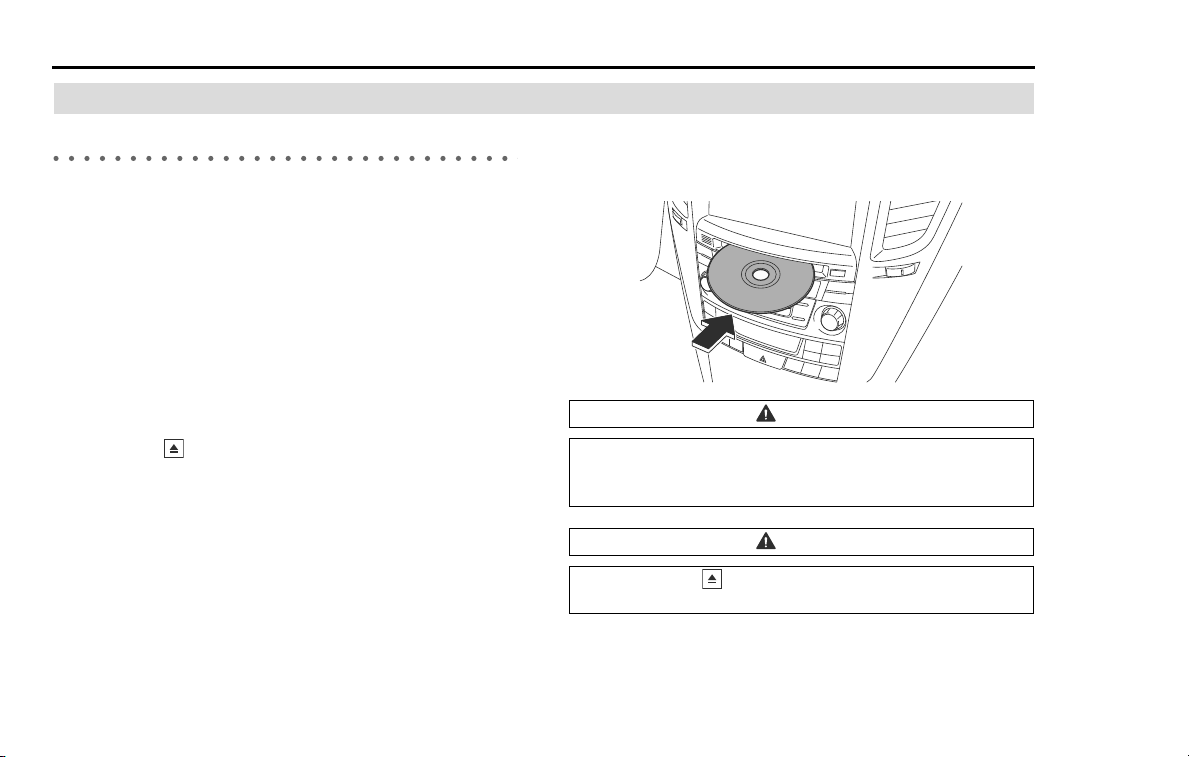
130 Audio and Visual
Compact disc functions
Setting the disc
Loading the disc
Set a CD, DVD, or MP3/WMA disc.
For details of the discs that can be used, refer to "Discs that can be used"
on Page 109.
When changing a disc, it is necessary to follow the procedure described
below.
NOTE
When changing a disc with another one, be sure to stop the vehicle in a safe
place.
1
With the ignition switch on, open the cover of the disc
slot.
2
Press the
[EJECT] button.
3
When the disc is ejected, take it out.
4
Insert a disc that contains the area information of the
current position. The monitor automatically returns to
the default display and begins to load the disc.
NOTE
Reload function: If the disc is not removed from the slot within 15 seconds after
the disc is ejected, the disc will be reloaded into the slot to protect it.
CAUTION
When inserting a CD, do not insert 2 or more CD's in piles. This
may cause a malfunction to the player, resulting in the take-off
of the discs unavailable.
CAUTION
Do not press the [EJECT] button while the system is load-
ing a disc.

Audio and Visual 131
Compact disc functions
Listening to a tune in the CD
It is possible to set the CD in the in-vehicle equipment to lis-
ten to a tune in the CD.
1 Change the source over to the disc. (See Page 118.)
The track of the CD is played back from the start.
When the track of the CD is played back to the last, the playback
resumes from the start.
NOTE
When no CD is set in the in-vehicle equipment, set the CD. (See Page
130
.)
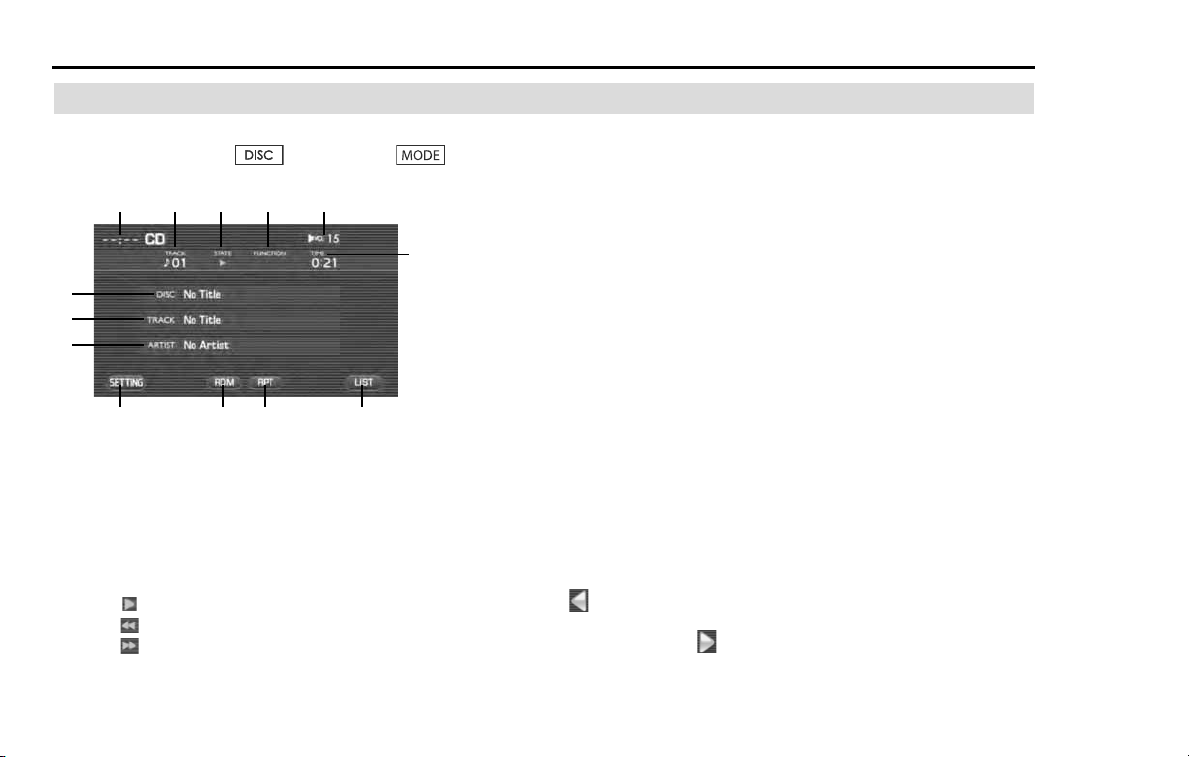
132 Audio and Visual
Compact disc functions
CD screen displayed
When the CD screen is not displayed while looking and listen-
ing to the CD, press the button or the button
of the steering switch to display the CD screen.
(1) Clock
The current time is displayed.
(2) TRACK
The track number is displayed.
(3) STATE
The playback status is displayed.
: Playback is operating.
: Reverse is operating.
: Fast forward is operating.
(4) FUNCTION
The playback status such as repeat and random is displayed.
RPT: A tune is being played back repeatedly.
RDM: Tunes in the CD are being played back in random
order.
SCAN: Each of the tunes in the CD is being played back for
10 seconds.
(5) VOL
The volume level is displayed. (See Page 121.)
(6) TIME
The playback time of a tune is displayed.
(7) DISC
When corresponding to the CD text, the disc title is dis-
played.
(8) TRACK
When corresponding to the CD text, the name of a tune is
displayed.
(9) ARTIST
When corresponding to the CD text, the name of an artist is
displayed.
: Displayed when the contents of the CD text cannot be displayed
for each item. Selecting this scrolls the characters. When scrolled up to
the end of the text, is displayed.
(1) (2)
(3)
(4)
(5)
(6)
(10)
(11) (12)
(7)
(8)
(9)
(13)
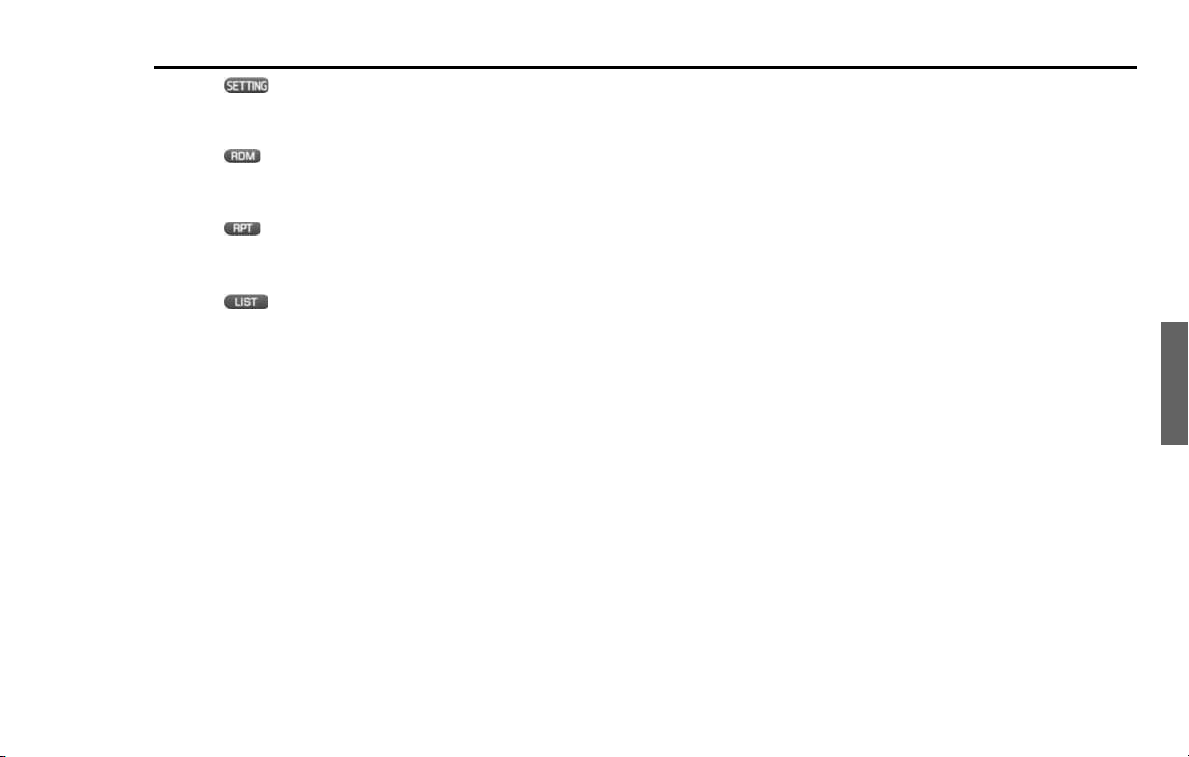
Audio and Visual 133
Compact disc functions
(10) (SETTING)
Selecting this key displays the screen set for the audio. (See
Page 195.)
(11) (RDM)
The playback method of tunes is changed over in random
order. (See Page 138.)
(12) (RPT)
The playback method of tunes is changed over to the
repeated playback. (See Page 137.)
(13) (LIST)
Tunes contained in the CD are displayed in the list. (See Page
135.)
134 Audio and Visual
Compact disc functions
Selecting a tune
Selecting the preceding tune
It is possible to play back a tune preceding the one that is now being
played back.
1 Conduct either of the following operations while playing
back a tune.
• Press the button.
• Rotate the [TUNE/TRACK] button counterclockwise.
• Press the button of the steering switch.
A tune preceding the one that is now being played back is played
back.
Selecting the succeeding tune
It is possible to play back a tune succeeding to the one that is now
being played back.
1 Conduct either of the following operations while playing
back a tune.
• Press the button.
• Rotate the [TUNE/TRACK] button clockwise.
• Press the button of the steering switch.
The succeeding tune is played back.
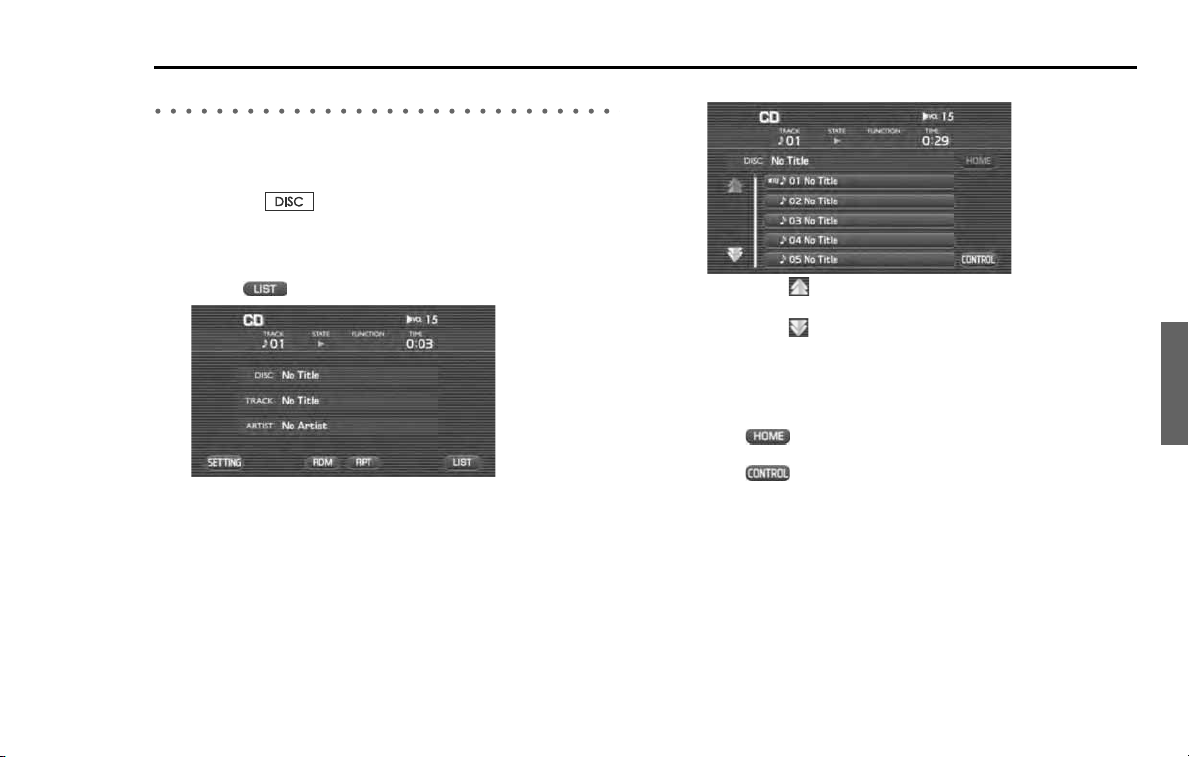
Audio and Visual 135
Compact disc functions
Selecting a tune from the list
It is possible to display in the list tunes contained in the CD, and select a
tune from the list to play it back.
1
Press the button.
When the CD screen has been displayed, this operation is not
required. Proceed to step 2.
2
Select (LIST).
3
Select a tune you want to listen to.
• Selecting scrolls the display to display a tune 5 positions
ahead.
• Selecting scrolls the display to display a tune 5 positions
behind.
A tune that is selected is played back.
NOTE
• Selecting (HOME) displays a page containing a tune that is now
being played back.
• Selecting (CONTROL) gets back to the screen in which the tune infor-
mation is displayed.
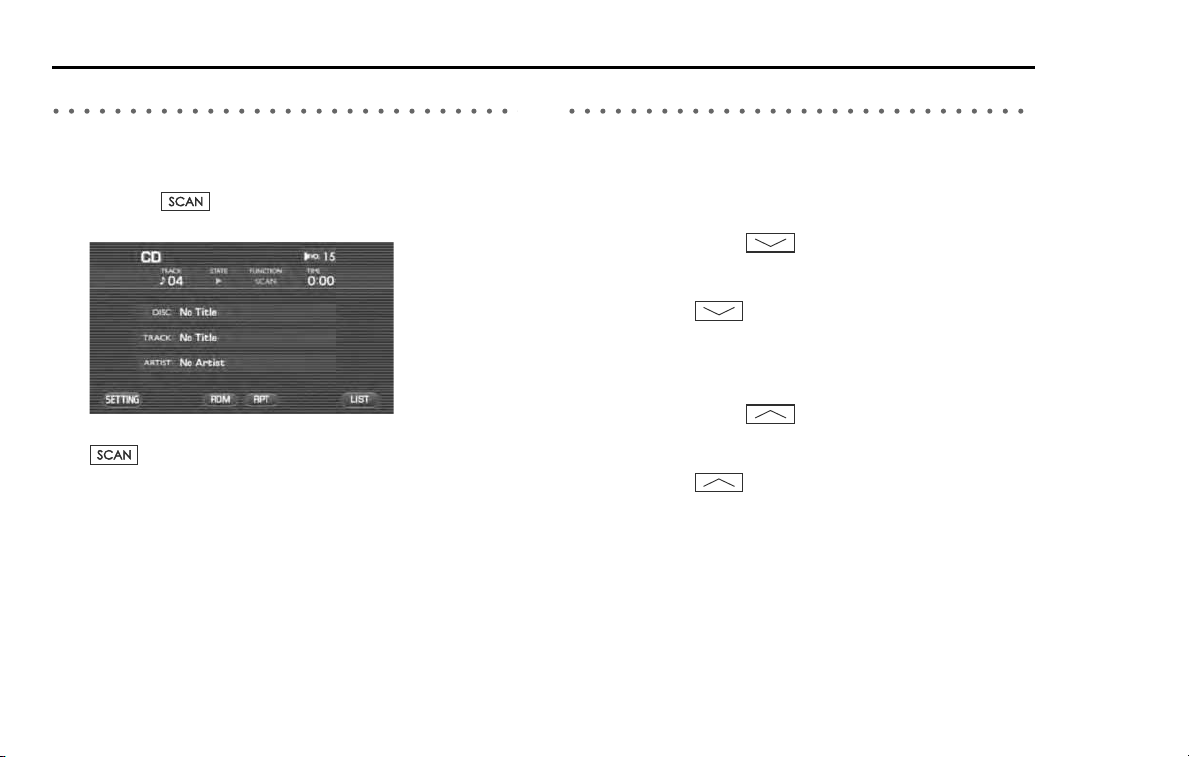
136 Audio and Visual
Compact disc functions
Searching a tune while listening
It is possible to search a tune you want to hear while listening to each
tune in the CD for 10 seconds.
1 Press the button while playing back a tune.
"SCAN" is displayed for the FUNCTION on the CD screen.
After a tune you want to hear is played back, press again the
button.
Reverse or fast-forward a tune
It is possible to reverse or fast-forward a tune that is now being played
back.
■ To reverse a tune quickly
1 Keep pressing the button while playing back a
tune.
A tune is reversed quickly while the button is pressed. When
releasing the button, the tune is played back from the
point to which the tune was reversed.
■ To fast-forward a tune
1 Keep pressing the button while playing back a
tune.
A tune is forwarded quickly while the button is pressed. When
releasing the button, the tune is played back from the
point to which the tune was fast-forwarded.
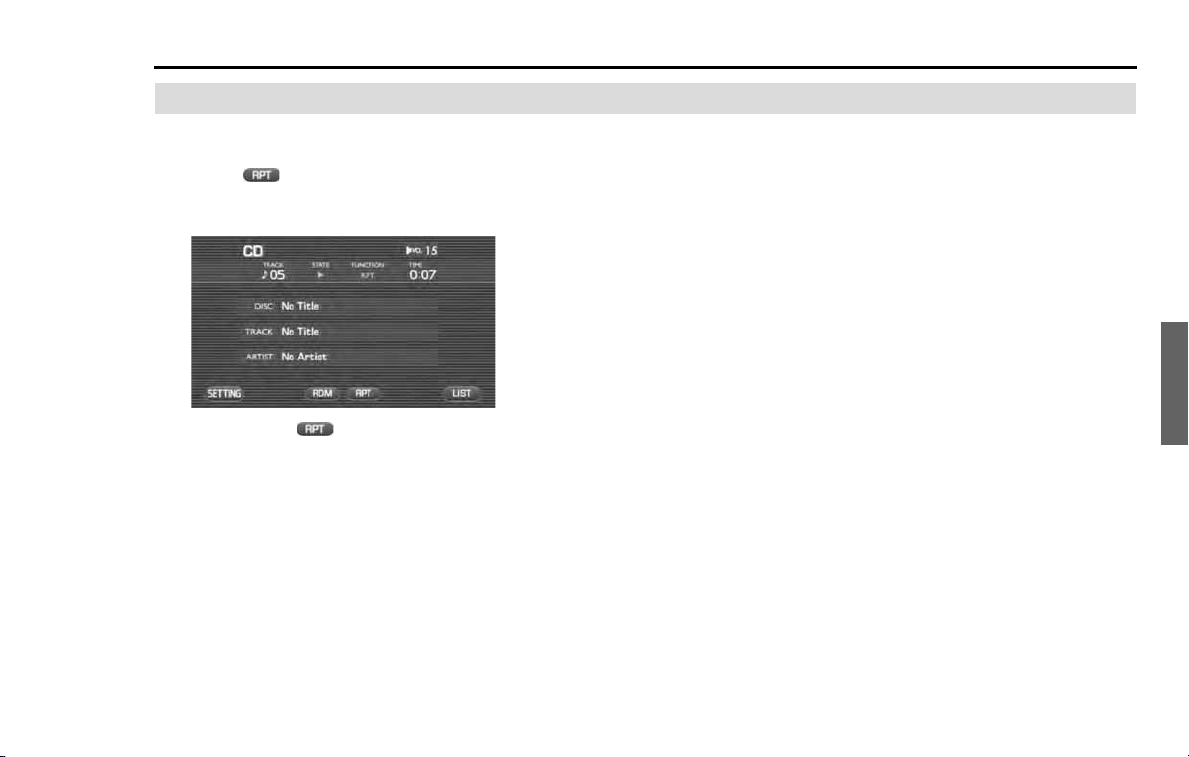
Audio and Visual 137
Compact disc functions
Listening to a tune repeatedly
It is possible to play back a tune repeatedly.
1 Select (RPT) while playing back a tune.
"RPT" is displayed for FUNCTION on the CD screen to play back a
tune repeatedly.
Selecting again (RPT) releases the repeated playback.
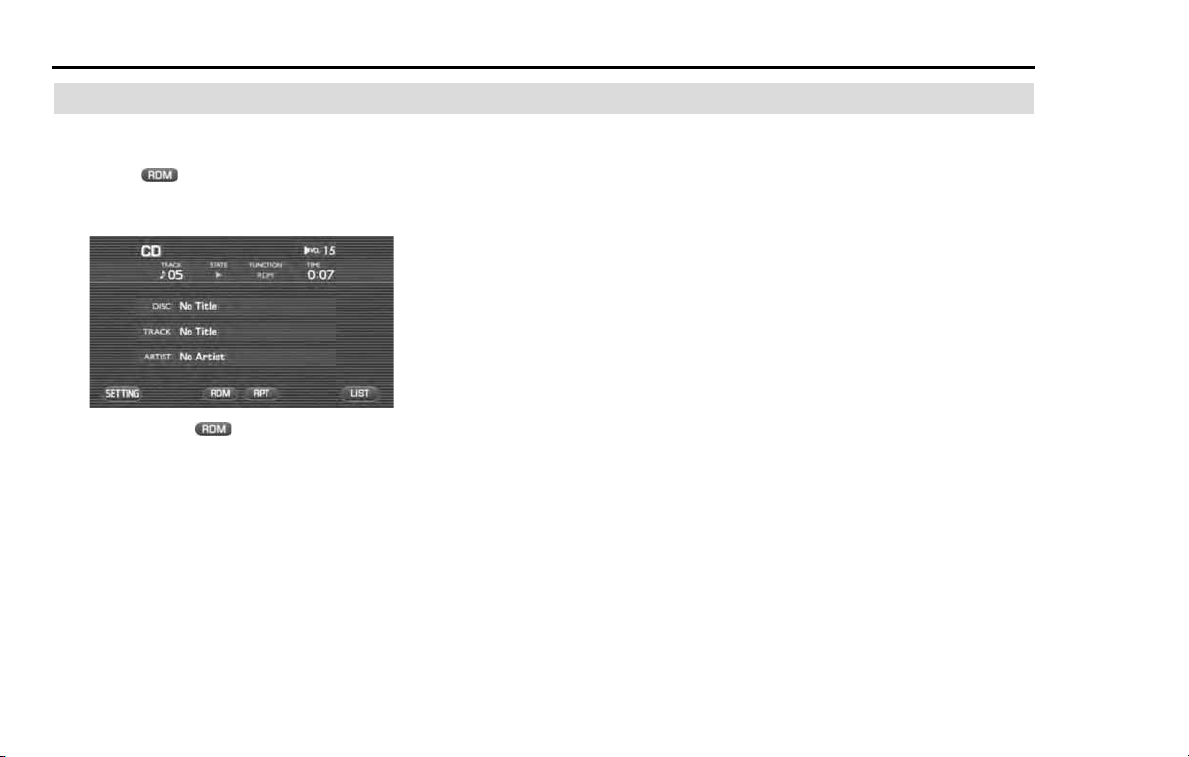
138 Audio and Visual
Compact disc functions
Listening to tunes in random order
It is possible to play back the tunes in the CD in random order.
1 Select (RDM) while playing back a tune.
With "RDM" displayed for FUNCTION on the CD screen, tunes are
played back in random order.
Selecting again (RDM) releases the playback in random
order.

Audio and Visual 139
MP3/WMA disc functions
MP3/WMA
MP3/WMA can be played back by this in-vehicle equipment.
However, media and formats are limited in which MP3/WMA
files that can be used are recorded. Please note the following
when writing MP3/WMA files. The limited number of charac-
ters given below is the number of characters when using 1-
byte characters.
■ Media that can be used
Media used to include MP3/WMA that can be used are CD-R and CD-
RW.
Media created in a simplified format cannot be played back with this in-
vehicle equipment.
■ MP3 formats that can be played back
MP3 formats that can be played back with this in-vehicle equipment are
as shown below.
Specification
MPEG-1 Layer 3
MPEG-2 Layer 3
Sampling frequency
MPEG-1 Layer 3 32, 44.1, 48 (kHz)
MPEG-2 Layer 3 16, 22.05, 24 (kHz)
Bit rate
MPEG-1 Layer 3 32 to 320 (kbps)
MPEG-2 Layer 3 8 to 160 (kbps)
Variable bit rate compliant
■ WMA formats that can be played back
WMA files that can be played back with the in-vehicle equipment are as
shown below.
Specifications
WMA Ver. 7, 8 and 9
Sampling frequency
Ver. 7: 44.1, 48 (kHz)
Ver. 8 and 9: 32, 44.1, 48 (kHz)
Bit rate
Ver. 7: 64 to 192 (kbps)
Ver. 8 and 9: 48 to 192 (kbps)
Variable bit rate compliant
■ Disc formats that can be used
Discs that can be used with this in-vehicle equipment are as shown
below. The number of characters following the format name is the max-
imum number of characters (a delimiter "." and 3 characters of extension
included) specified for the file name.
• ISO 9660 Level 1: 12 characters
• ISO 9660 Level 2: 31 characters
• Joliet: 64 characters
• Romeo: 128 characters
And when written in a long file name format, it is possible to display up
to the number of characters as shown below.
64 character (all 1-byte characters)

140 Audio and Visual
MP3/WMA disc functions
For details of the characters that can be used, refer to the instruction
manual of the writing software and "Input of file name and folder
name."
However, characters that can be displayed are as shown below.
• Half size characters (alphanumeric, and ASCII codes)
Characters other than the above are displayed with an asterisk "?."
However, discs that can be played back with this in-vehicle equipment
are accompanied by the following restrictions.
• Maximum directory layers: 8 layers
• Maximum number of files in a folder: 255
• Maximum number of folders: 254 (including the ROOT)
• Maximum number of characters used in a folder name: 64 characters
MP3/WMA files that are written in formats other than the above may
not be played back normally, and the file name and the folder name of
which may not be displayed correctly.
■ Setting of the compression software and the writing
software
When compressed into an MP3/WMA file, it is recommended that the
setting of the transfer bit rate of the compression software is "fixed" to
"128 kbps."
When recording a blank media up to the maximum capacity at once,
make a setting to "Disc at Once."
■ Input of a file name and a folder name
When inputting a file name and a folder name, input them in half size
alphanumeric characters. File names and folder names that are written
in characters other than the above may not be displayed correctly. And
depending on a writing software or a disc format used, characters that
can be displayed are restricted. For details, refer to the instruction man-
ual of the writing software. And files that can be acknowledged and
played back are restricted only to those attached with an extension
".MP3" or ".WMA." When saving an MP3/WMA file, be sure to attach it
with an extension ".MP3" or ".WMA."
Forbidden
If a file other than MP3/WMA is attached with an extension ".MP3" or
".WMA," it may be mistakenly acknowledged as an MP3/WMA file,
thus causing the generation of loud noises to damage the speaker.
So, do not attach any file other than MP3/WMA with an extension
".MP3" or ".WMA."
■ ID3/WMA Tag
ID3/WMA Tag is compliant (Ver.1.0, 1.1).
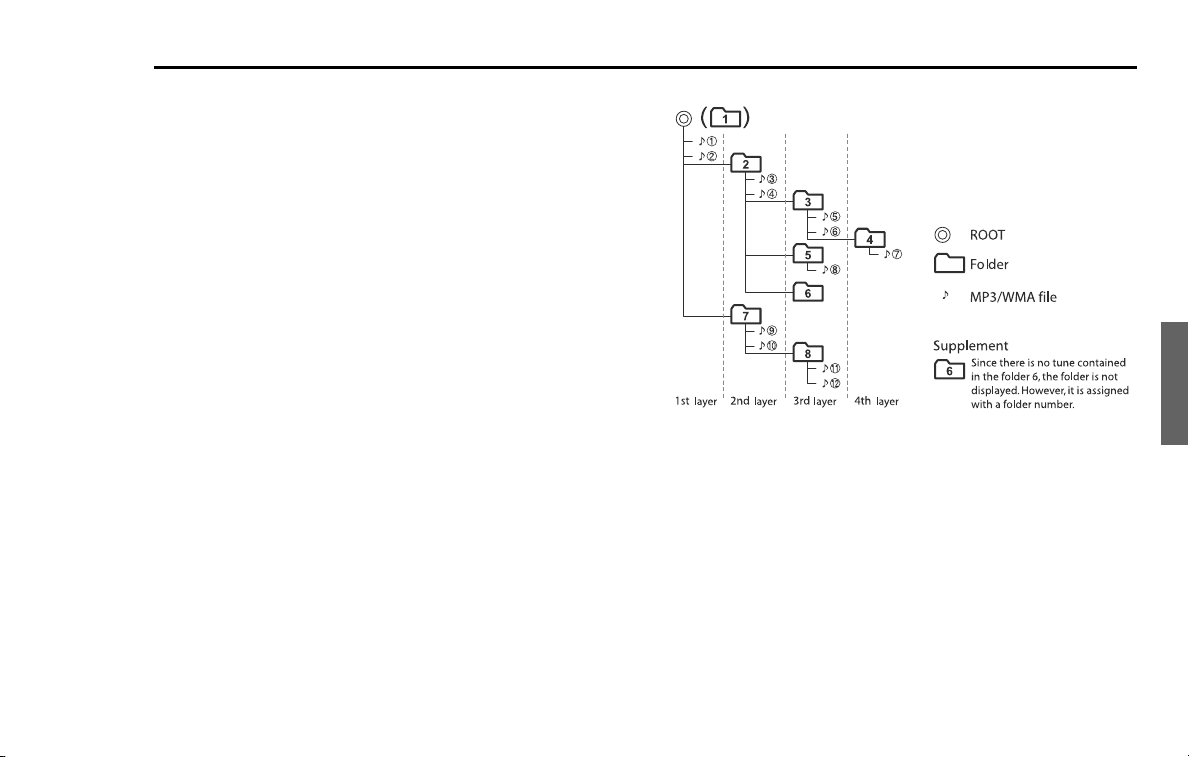
Audio and Visual 141
MP3/WMA disc functions
■ Files that are written into media
When media that contains MP3/WMA files is inserted, first of all, all the
files in the disc are checked.
So, when a lot of folders and files other than MP3/WMA are written into
the media to be played back, a lot of time is required before starting the
playback of the media.
And time may be required before proceeding to the playback of the
next MP3/WMA file, and a file search and a folder search cannot be con-
ducted smoothly.
■ Sequence in which MP3/WMA files are played back.
The sequence in which files and folders are selected while in the play-
back, folder search, file search and the folder selection is in the order in
which they are written with the writing software. Accordingly, the
sequence in which the files are expected to be played back may not
conform to the sequence in which the files are actually played back.
Depending on the writing software, entering "01" to "90" at the head of
the file name as a playback sequence with it written in CD-R may allow
you to set the sequence in which files are played back. Conducting a
folder search, a file search and a folder selection in the media of the fol-
lowing folder/file layer results in a media hierarchy as shown below.
■ Example of Media hierarchy

142 Audio and Visual
MP3/WMA disc functions
Listening to tunes (file) in the MP3/WMA disc
It is possible to set the MP3/WMA disc in the in-vehicle equip-
ment to listen to tunes (files) in the disc.
1 Change the source over to the disc. (See Page 118.)
The first tune in the lead folder in the MP3/WMA disc is played
back from the start.
When the tunes in the folder are played back to the last, the first
tune in the lower-order or next folder is played back.
When the tunes in the MP3/WMA disc are played back to the last,
the playback is resumed from the first tune in the lead folder.
NOTE
When no MP3/WMA disc is set in the in-vehicle equipment, set the MP3/WMA
disc. (See Page
130
.)
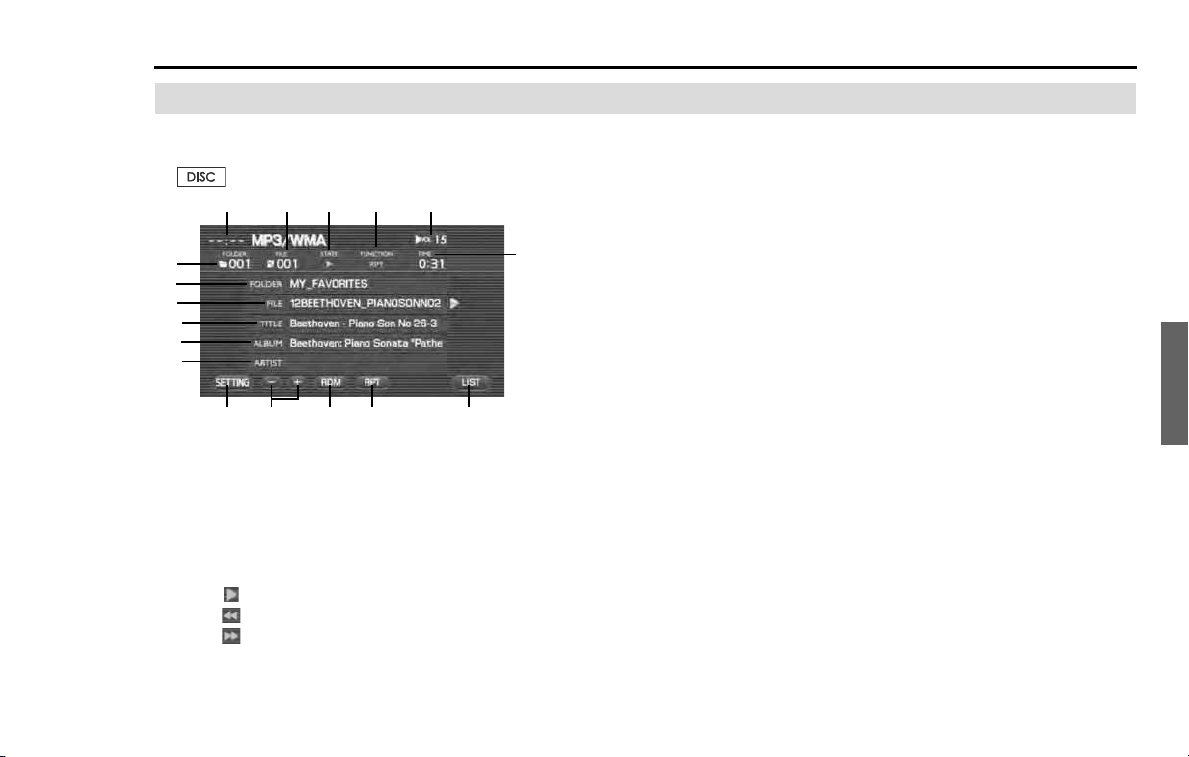
Audio and Visual 143
MP3/WMA disc functions
MP3/WMA disc screen displayed
When no MP3/WMA disc screen is displayed while looking
and listening to the MP3/WMA disc, press the [TUNE/TRACK]
or button to display the MP3/WMA disc screen.
(1) Clock
The current time is displayed.
(2) The file number is displayed.
(3) STATE
The playback status is displayed.
: Play back is operating.
: Reverse is operating.
: Fast forward is operating.
(4) FUNCTION
The playback status is displayed.
RPT: A tune is being played back repeatedly.
F.RPT: Tunes in the folder are being played back repeatedly.
RDM: Tunes in the MP3/WMA disc are being played back in
random order.
SCAN: Each of the tunes in the MP3/WMA disc is being
played back for 10 seconds.
(4) VOL
The volume level is displayed. (See Page 121.)
(5) TIME
The playback time of a tune is displayed.
(6) FOLDER
The folder name is displayed.
(7) FILE
The file name is displayed.
(8) TITLE
The title of a tune is displayed.
(9) ALBUM
The name of an album is displayed.
(1) (3)
(4)
(5)
(6)
(13)
(15) (16)
(8)
(9)
(10)
(17)
(11)
(12)
(14)
(2)
(7)
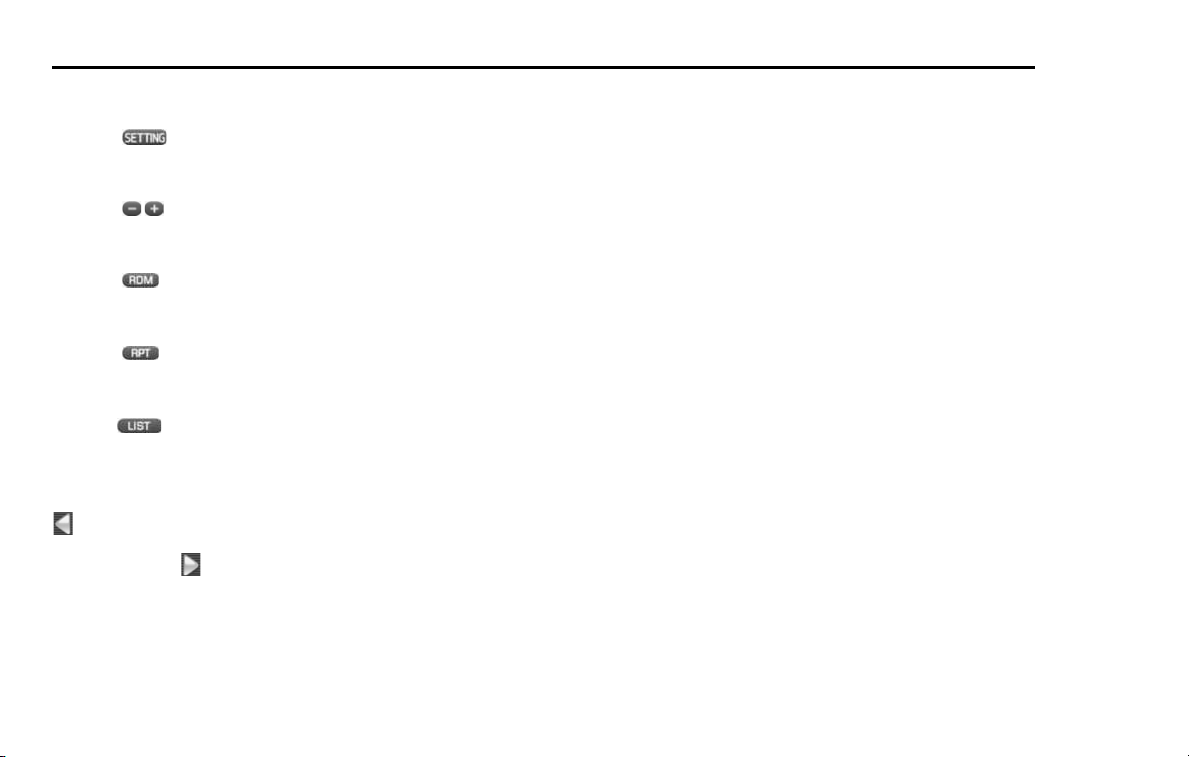
144 Audio and Visual
MP3/WMA disc functions
(10) ARTIST
The name of an artist is displayed.
(11) (SETTING)
Selecting this displays the screen set for the audio. (See Page
195.)
(12) (FOLDER UP/DOWN)
Used to play back the first tune in the succeeding/preceding
folder. (See Page 145.)
(13) (RDM)
Used to change over the playback method of tunes in ran-
dom order. (See Page 150.)
(14) (RPT)
Used to change the playback method of tunes over to the
repeated playback. (See Page 149.)
(15) (LIST)
Used to display the list in the MP3/WMA disc. (See Page 145
and 147.)
: Displayed when the contents of the CD text cannot be displayed
for each item. Selecting this scrolls the characters. When scrolled up to
the end of the text, is displayed.
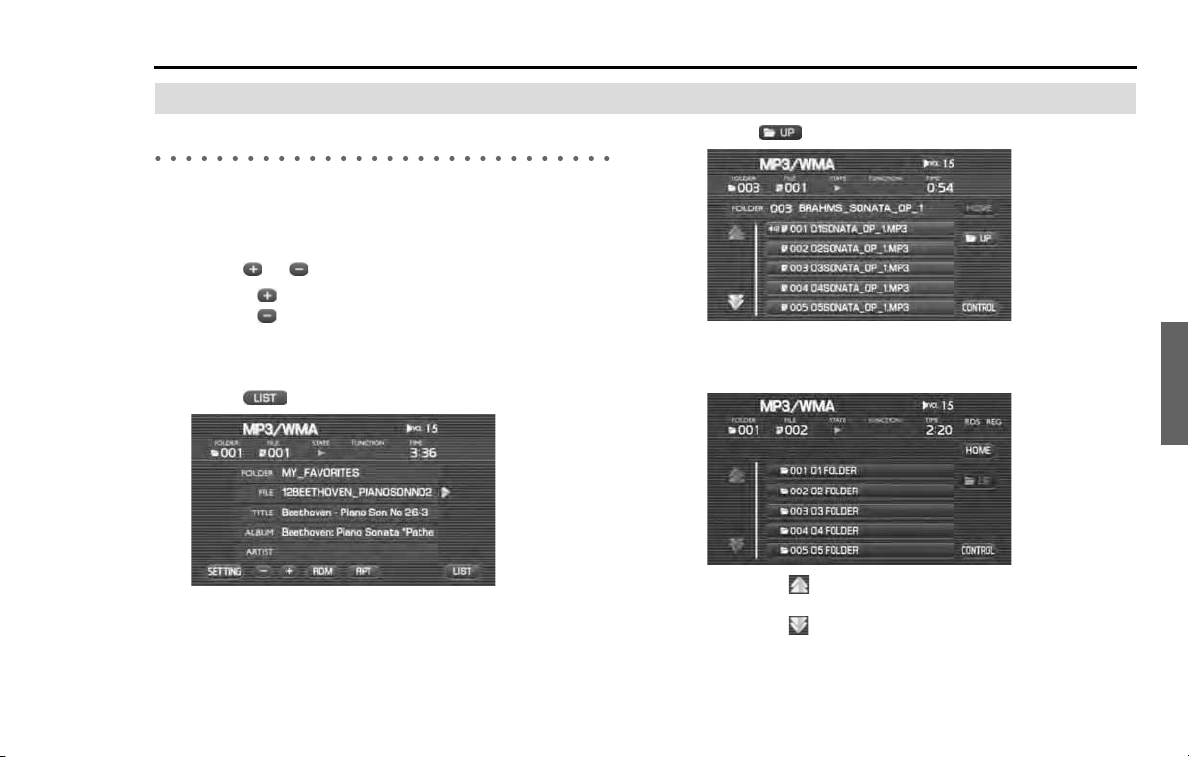
Audio and Visual 145
MP3/WMA disc functions
Selecting a tune
Selecting a folder that you want to hear
Select a folder in the MP3/WMA disc.
■ To select a folder
1
Select or .
Selecting plays back the first tune in the succeeding folder.
Selecting plays back the first tune in the preceding folder.
■ To select a folder from the list
1
Select (LIST).
2
Select (UP).
3
Select the folder name.
The screen will display the folder list.
• Selecting scrolls the display to display a folder 5 positions
ahead.
• Selecting scrolls the display to display a folder 5 positions
behind.
146 Audio and Visual
MP3/WMA disc functions
• Selecting (HOME) displays in the list the tunes in the
folder in which a tune that is now being played back is con-
tained.
• When the tunes are displayed in the list, selecting (UP)
displays the folder list.
• Selecting (CONTROL) gets back to the MP3/WMA disc
in which the tune information is displayed.
The first tune in the folder selected is played back.
Selecting a tune (file) you want to hear
Select a tune (file) in the MP3/WMA disc.
■ To select the preceding tune
It is possible to play back a tune in the high-order folder of the tune that
is now being played back or the preceding tune.
1 Conduct either of the following operations while playing
back a tune.
• Press the button.
• Rotate the [TUNE/TRACK] button counterclockwise.
• Press the button of the steering switch.
The preceding tune is played back.
■ To select the succeeding tune
It is possible to play back a tune succeeding the tune that is now being
played back.
1 Conduct either of the following operations while playing
back a tune.
• Press the button.
• Rotate the [TUNE/TRACK] button clockwise.
• Press the button of the steering switch.
The succeeding tune is played back.

Audio and Visual 147
MP3/WMA disc functions
■ To select a tune from the list
1
Select (LIST).
2
Select the tune name.
• Selecting scrolls the display to display a folder 5 positions
ahead.
• Selecting scrolls the display to display a folder 5 positions
behind.
• Selecting (HOME) displays in the list the tunes in the
folder in which the tune that is now being played back is con-
tained.
• When the tunes are displayed in the list, selecting (UP)
displays the folder list.
• Selecting (CONTROL) gets back to the MP3/WMA disc
in which the tune information is displayed.
The tunes in the folder are displayed in the list.
A tune selected is played back.
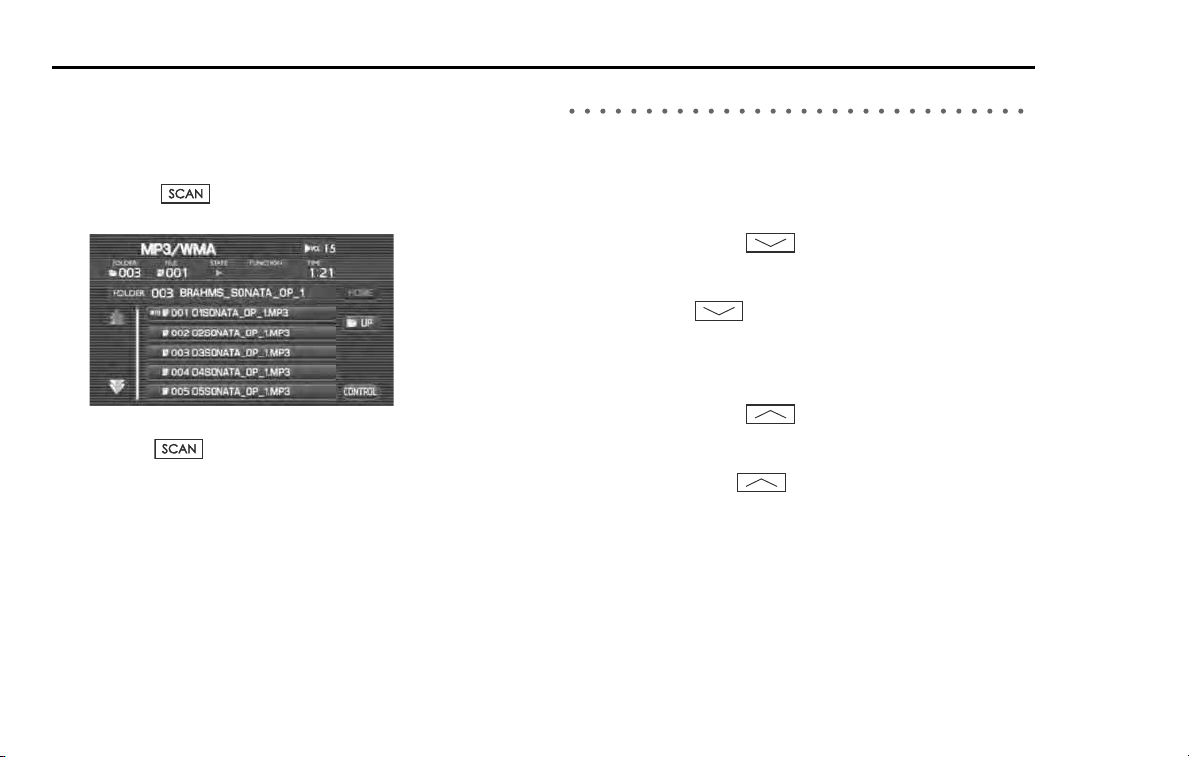
148 Audio and Visual
MP3/WMA disc functions
■ To search a tune while listening to tunes in the folder
It is possible to search a tune you want to hear while listening to each of
the tunes in the folder for 10 seconds. After all the tunes in the folder
are played back, the player gets back to the normal playback mode.
1 Press the button while playing back a tune.
"SCAN" is displayed for FUNCTION on the MP3/WMA screen.
After completion of the playback of a tune you want to hear, press
again the button.
Reverse or fast-forwarding a tune
It is possible to reverse or forward quickly a tune that is now being
played back.
■ To reverse a tune quickly
1 Keep pressing the button while playing back a
tune.
A tune is reversed quickly while the button is pressed. When
releasing the button, the tune is played back from the
point to which the tune was reversed.
■ To forward a tune quickly
1 Keep pressing the button while playing back a
tune.
A tune is forwarded quickly while the button is kept pressed.
When releasing the button, the tune is played back from
the point to which the tune was forwarded.
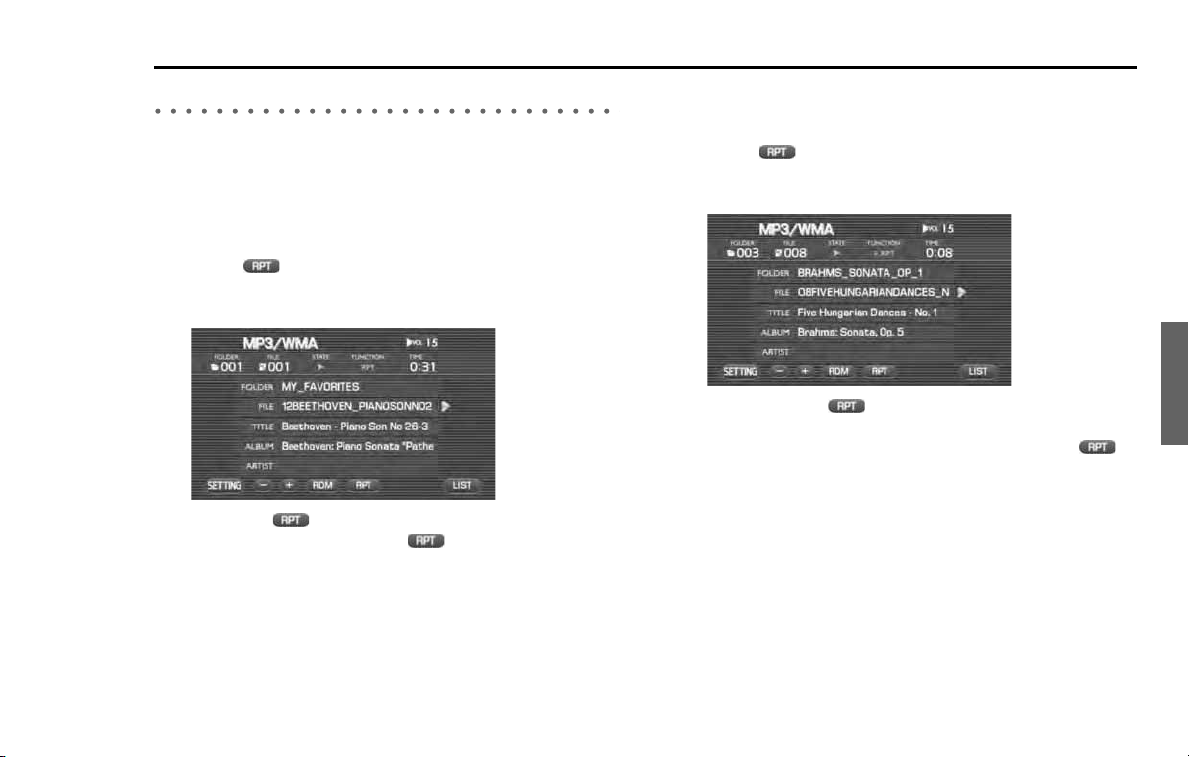
Audio and Visual 149
MP3/WMA disc functions
Listening to a tune repeatedly
It is possible to listen to the same tune or the tunes in the folder repeat-
edly.
■ To listen to the same tune repeatedly
It is possible to play back the same tune repeatedly.
1
Select (RPT) while playing back a tune.
With "RPT" displayed for FUNCTION on the MP3/WMA screen, the
tune is played back repeatedly.
• Selecting (RPT) allows you to listen to the tunes in the
folder repeatedly. Select again (RPT) to release the
repeated playback.
• When "F.RPT" is displayed for FUNCTION, the MP3/WMA is set to
the mode for listening to the tunes in the folder.
■ To listen to the tunes in the folder repeatedly
It is possible to play back the tunes in the folder repeatedly.
1
Select (RPT) twice while playing back a tune.
With "F.RPT" displayed for FUNCTION on the MP3/WMA screen,
the tunes in the folder are played back repeatedly.
• Selecting again (RPT) releases the repeated playback.
• When "RPT" is displayed for FUNCTION, the mode is set in
which the same tune is played back repeatedly. Select
(RPT) again.
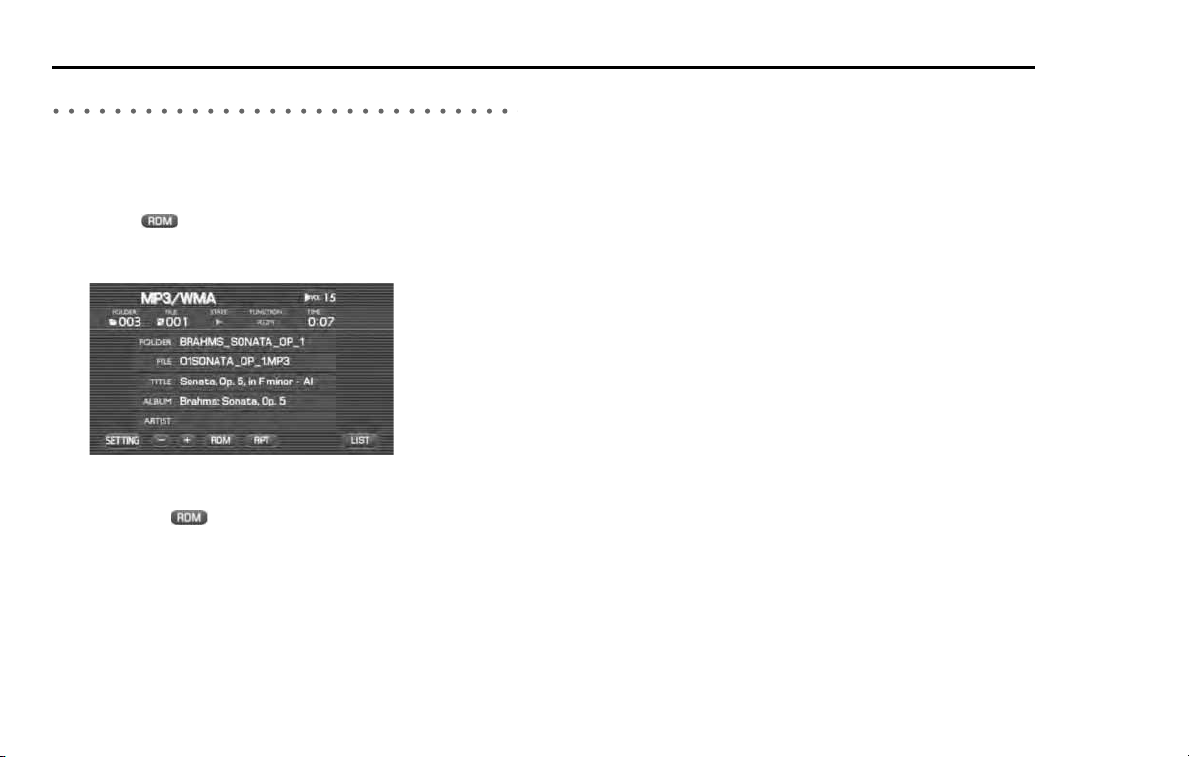
150 Audio and Visual
MP3/WMA disc functions
Listening the tunes in random order
It is possible to play back the tunes in the folder in random order. After
all the tunes in the folder are played back, the tunes in the next folder
are played back in random order.
1 Select (RDM) while playing back a tune.
With "RDM" displayed for FUNCTION on the MP3/WMA screen, the
tunes in the folder are played back in random order.
• After all the tunes in the folder are played back, the tunes in the
next folder are played back in random order.
• Selecting (RDM) again releases the random playback.
Audio and Visual 151
DVD functions
NOTE
• Using the Audio and Visual System with the engine stopped could lower the
battery electricity level. If the initial charge level is too low, the engine may not
start the next time. It is recommended that the system be used only while the
engine is running, except when the vehicle is parked in a garage or other
enclosed area.
• In the interest of safety, the use of some functions may be unavailable while in
driving. The buttons for a touch screen that cannot be used are displayed
greyed out.
• Liquid-crystal displays may be difficult to read when wearing polarized glasses.
WARNING
• Never try watching videos or using other entertainment pro-
grams with the Audio and Visual System by keeping the
vehicle engine running in a garage or other enclosed area.
Exhaust gases accumulated in such an area and entering the
vehicle are dangerous, and even lethal.
• The driver must not attempt to operate or watch the DVD
while the vehicle is in motion. Doing so will distract attention
from driving and the road, and could lead to an accident.
• If you wish to park the vehicle and enjoy an entertainment
program on this system, select a safe place that does not
hinder traffic and has a legal parking area.
152 Audio and Visual
DVD functions
What must be known
Manufactured under license from Dolby Laboratories.
"Dolby," "Pro Logic," and the double-D symbol are trademarks of Dolby
Laboratories.
Non disclosed confidential writings: Copyright: Dolby Laboratories,
1992 to 1997
No reproduction allowed
"DTS" and "DTS Digital Surround" are registered trademarks of Digital
Theater Systems, Inc.
Operations while in the playback of the disc
For DVD video, DVD audio and video CD, the playback condition has
been specified according to the instruction of software manufacturers.
This DVD player, because of it being played back according to the
instructions intended by the software manufacturer, may not some-
times function as intended when operated. Be sure also to read
through the instruction manual attached to a disc to be played back.
DVD video and DVD audio
They are compliant with the NTSC color television format.
DVDs that are formatted in the VR mode cannot be played back.
■ Region code of discs that can be played back
For some discs, a region code is displayed that stands for a region
(country) of the player in which a disc can be played back.
Of discs attached with a region code, those with "1" (a code standing
for North America) not included in its region code list or those with
"ALL" (for worldwide use) not displayed cannot be played back with this
DVD player.
When playing back a disc like this, a message "REGION CODE ERROR" is
displayed on the screen. And for discs with no region code displayed,
their region for use may have been restricted. On an occasion like this,
the playback with this DVD player may not be available.

Audio and Visual 153
DVD functions
Playing back the DVD
It is possible to set a DVD on the in-vehicle equipment to look
at and listen to it.
1 Change the source over to the disc. (See Page 118.)
When a DVD is not yet set on the in-vehicle equipment, set a DVD.
(See Page 130.)
The DVD is played back.
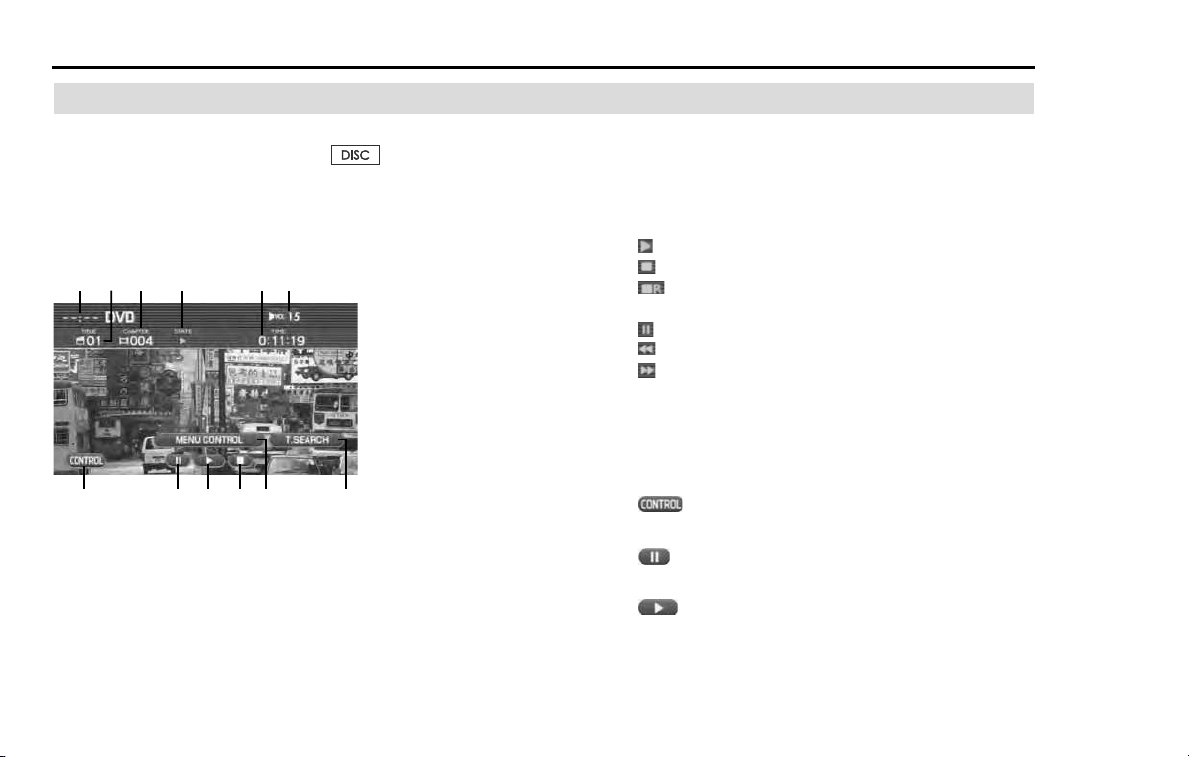
154 Audio and Visual
DVD functions
DVD control screen displayed
When the DVD screen is not displayed while in the playback
of a DVD, press the [TUNE/TRACK] or button to display
the DVD screen. And then selecting the screen displays the
DVD control screen.
NOTE
When 10 seconds has elapsed with no key selected, the display disappears.
(1) Clock
The current time is displayed.
(2) TITLE
The title number of the DVD that is being played back is dis-
played.
(3) CHAPTER
The chapter number of the DVD that is being played back is
displayed.
(4) STATE
The playback condition of the chapter is displayed.
: The playback is in progress.
: The playback is stopped.
: The playback is stopped while keeping the playback
condition just before stop.
: The playback is stopped temporarily.
: The DVD is reversing quickly.
: The DVD is forwarding quickly.
(5) TIME
The playback time of the chapter is displayed.
(6) VOLUME
The volume level is displayed.
(7) (CONTROL)
Selecting this displays the DVD setting screen.
(8) (PAUSE)
The DVD playback is stopped temporarily.
(9) (PLAY)
The playback of the DVD starts.
(1) (2)
(3)
(4)
(7)
(8) (9) (11)
(5)
(6)
(10)
(12)
Audio and Visual 155
DVD functions
(10) (STOP)
The playback of the DVD stops.
(11) (MENU CONTROL)
The screen is changed over in which the menu is operated.
See Page 160.
(12) (T.SEARCH)
The DVD image can be played back with the title specified.
See Page 156.
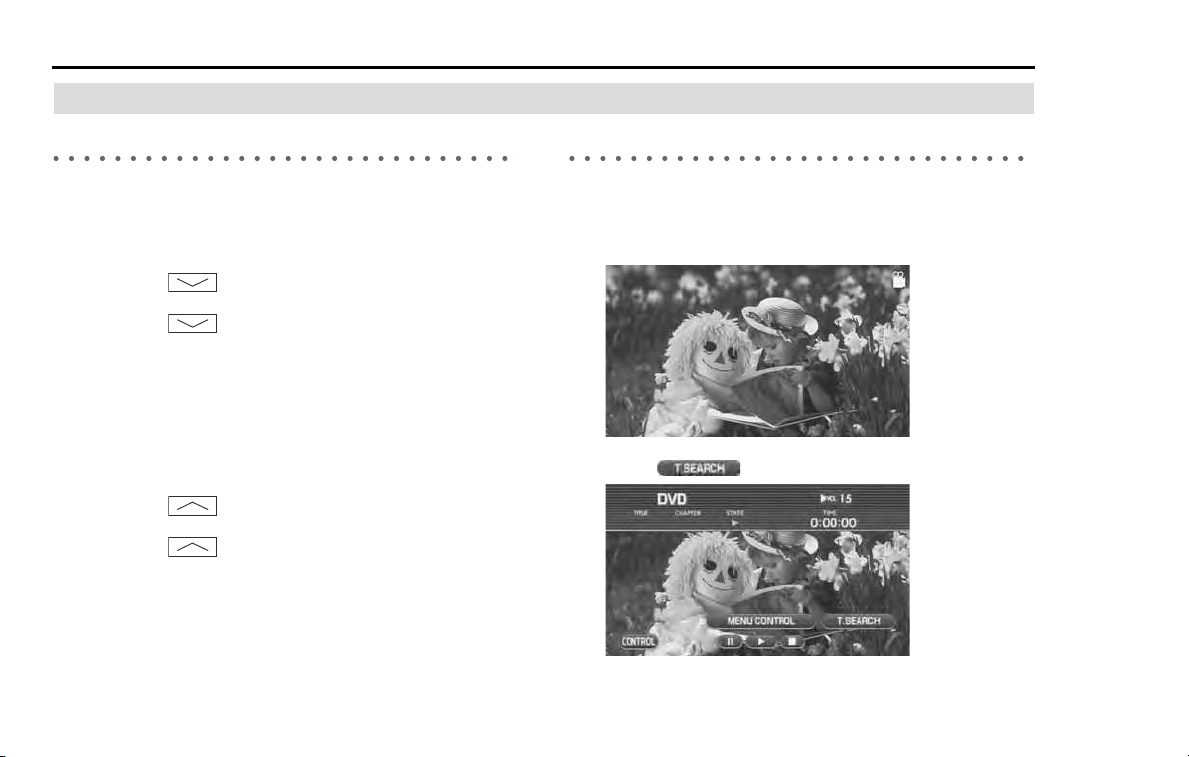
156 Audio and Visual
DVD functions
Selecting the title and the chapter
Selecting the chapter
■ To play back the preceding chapter
1 Conduct either of the following operations while in the
DVD playback.
• Press the button.
• Rotate the [TUNE/TRACK] button counterclockwise.
• Press the button of the steering switch.
A chapter preceding the chapter that is now being played back
will be played back.
■ To play back the succeeding chapter
1 Conduct either of the following operations while in the
DVD playback.
• Press the button.
• Rotate the [TUNE/TRACK] button clockwise.
• Press the button of the steering switch.
A chapter succeeding the chapter that is now being played back
will be played back.
Searching a title with the title number specified
It is possible to search a title with the title number specified and then
play it back.
1 Select the screen while in the DVD playback.
2 Select (T.SEARCH).
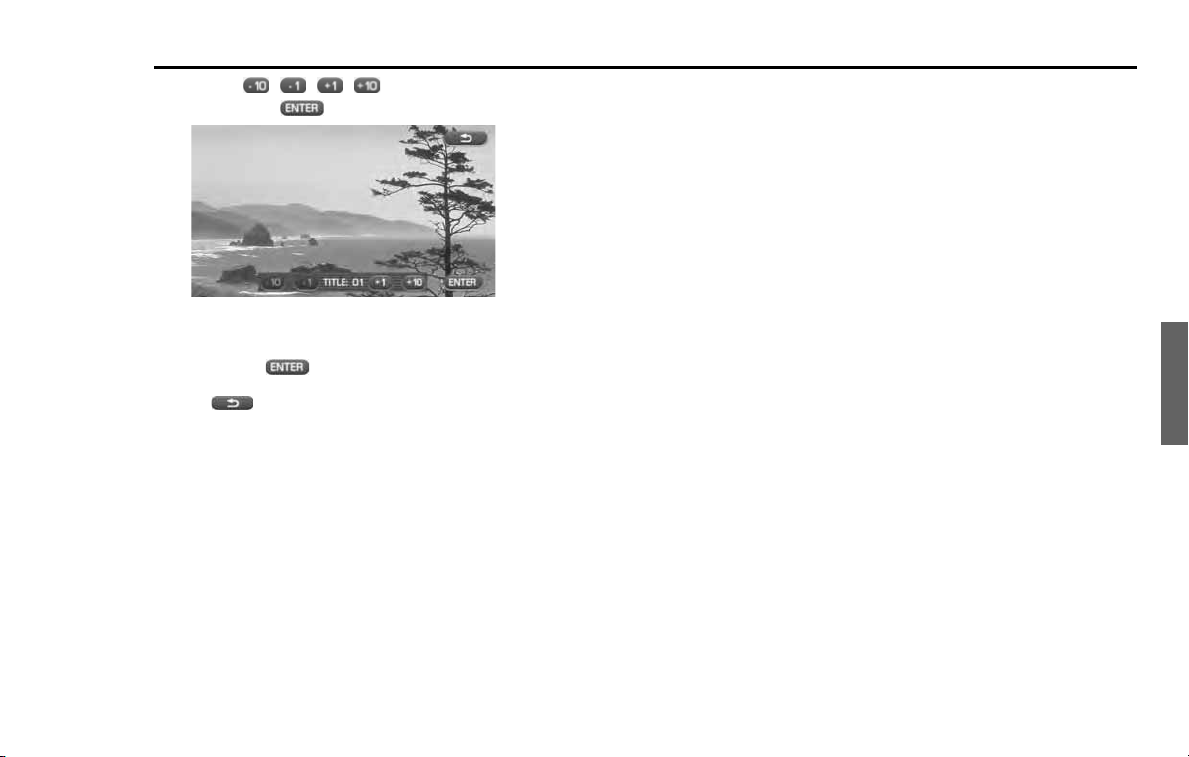
Audio and Visual 157
DVD functions
3
Select , , , to enter a title number and
then select (ENTER).
A title selected is played back.
NOTE
• When selecting (ENTER) with a title number entered that is not in the
DVD, the screen displayed is not changed.
• Select (return) to return to the previous screen.
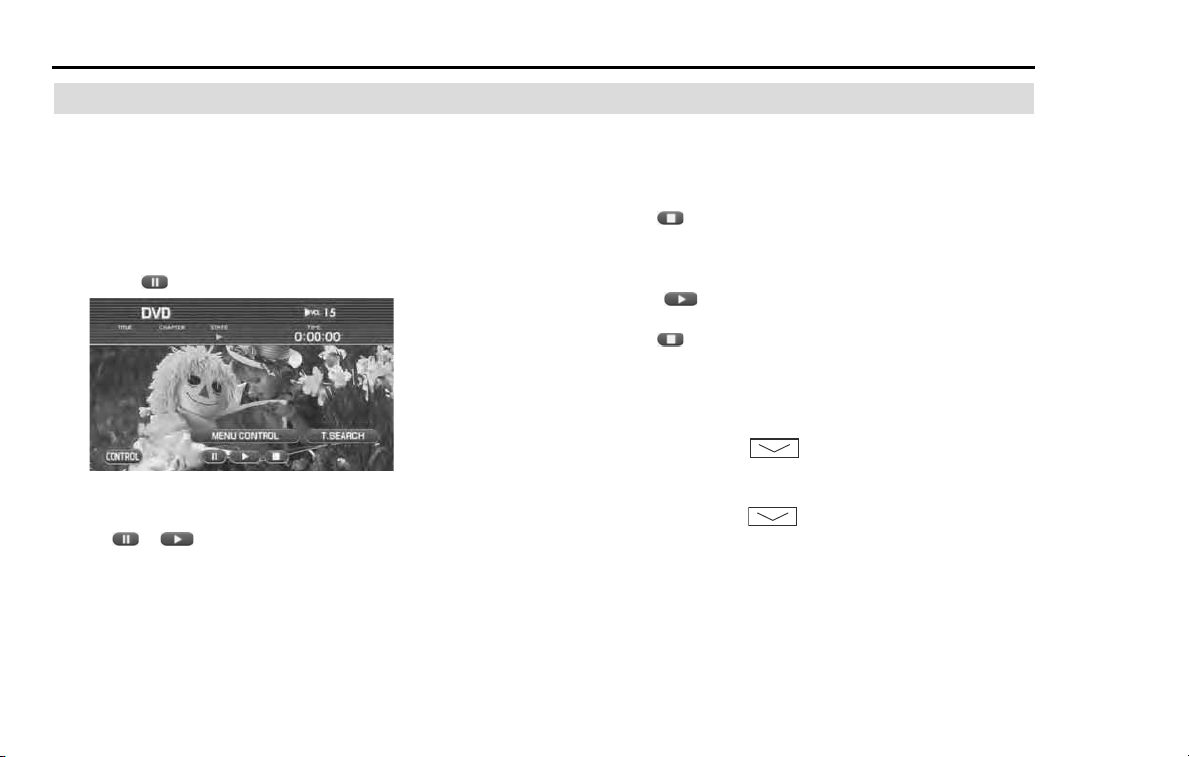
158 Audio and Visual
DVD functions
Controlling the playback of the DVD
It is possible to pause, stop, reverse quickly or forward quickly
the DVD for control.
■ To stop the DVD temporarily
1 Select the DVD screen while in the DVD playback.
2 Select .
The DVD stops temporarily.
NOTE
Selecting or returns to the normal playback mode.
■ To stop the DVD
1 Select the DVD screen while in the DVD playback.
2 Select .
The DVD stops.
NOTE
Selecting resumes the playback.
3 Select again.
The DVD stops.
■ To reverse the DVD image quickly
1 Press and hold the button while the DVD is play-
back.
While the button is being pressed, the DVD image is reversed
quickly. Releasing the button resumes the playback of the
DVD image from the point to which the DVD image was reversed.
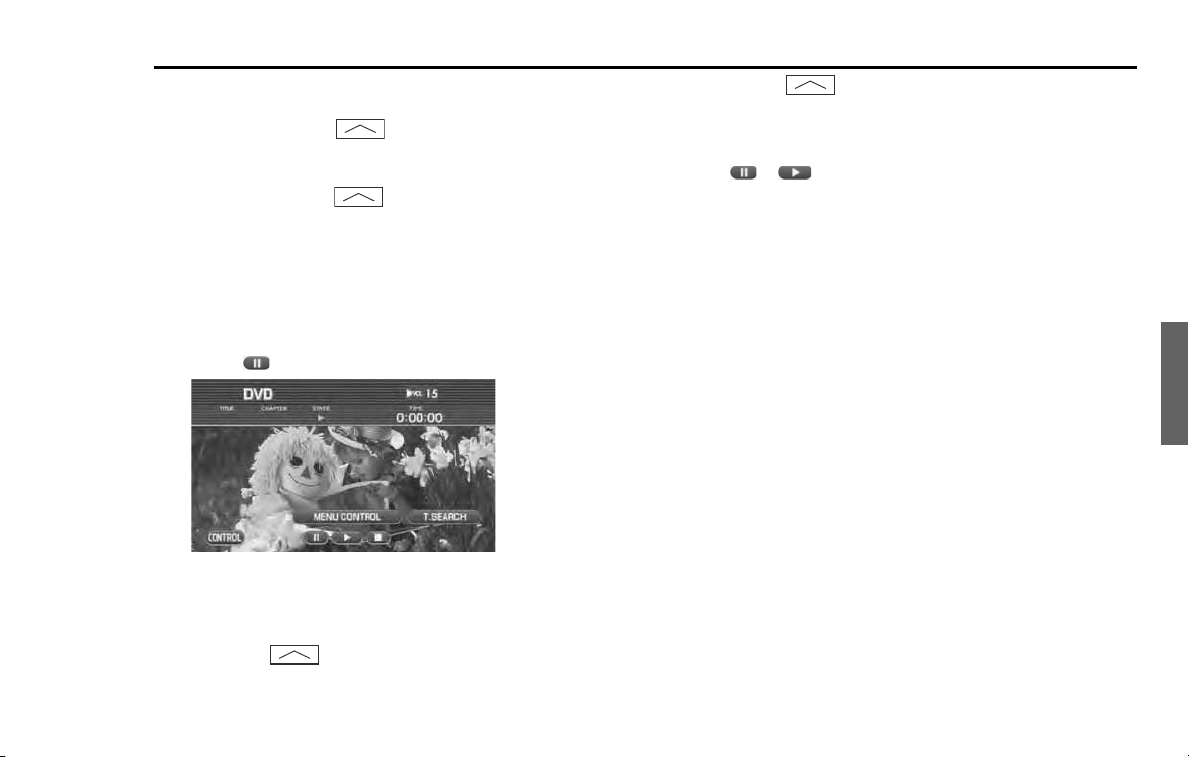
Audio and Visual 159
DVD functions
■ To forward the DVD image quickly
1
Press and hold the button while in the DVD play-
back.
While the button is being pressed, the DVD image is forwarded
quickly. Releasing the button resumes the playback of the
DVD image from the point to which the DVD image was for-
warded quickly.
■ To forward the DVD image in single frame step
1
Select the screen while in the DVD playback.
2
Select .
The DVD is stops temporarily.
3
Conduct either of the following operations while in the
DVD playback.
• Press the button.
• Rotate the [TUNE/TRACK] button clockwise.
• Press the button of the steering switch.
The DVD image is played back in single frame forward step.
NOTE
Selecting or returns to the normal playback mode.
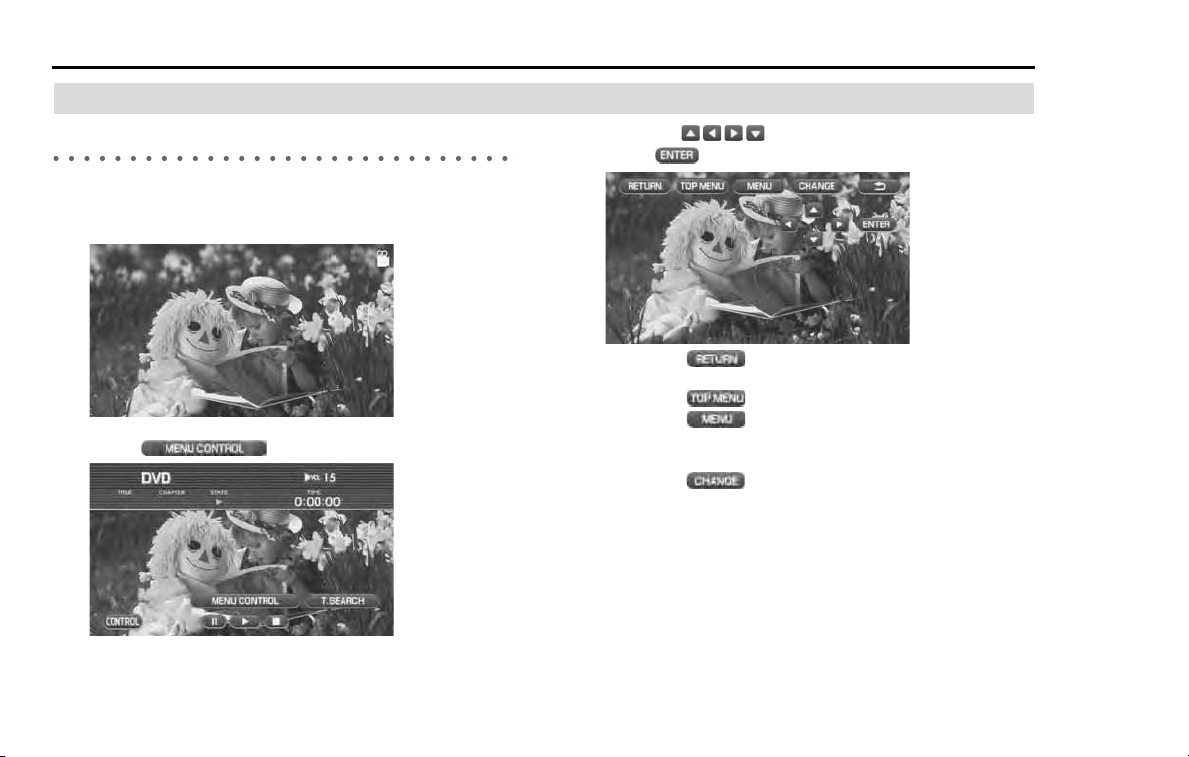
160 Audio and Visual
DVD functions
Operating the menu screen
Selecting the menu
It is possible to operate the menu screen of the DVD.
1 Select the screen while in the DVD playback.
2 Select (MENU CONTROL).
3 Selecting to select a menu item, and then
select (ENTER).
• Selecting (RETURN) starts the playback from a point
specified for each DVD.
• Selecting (TOP MENU) displays the top menu.
• Selecting (MENU) displays the menu.
• The configurations of the top menu and the menu vary with
the DVDs.
• Selecting (CHANGE) switches the arrangement of the
keys displayed on the screen. (See the next page.)
The image is played back as a menu is selected.
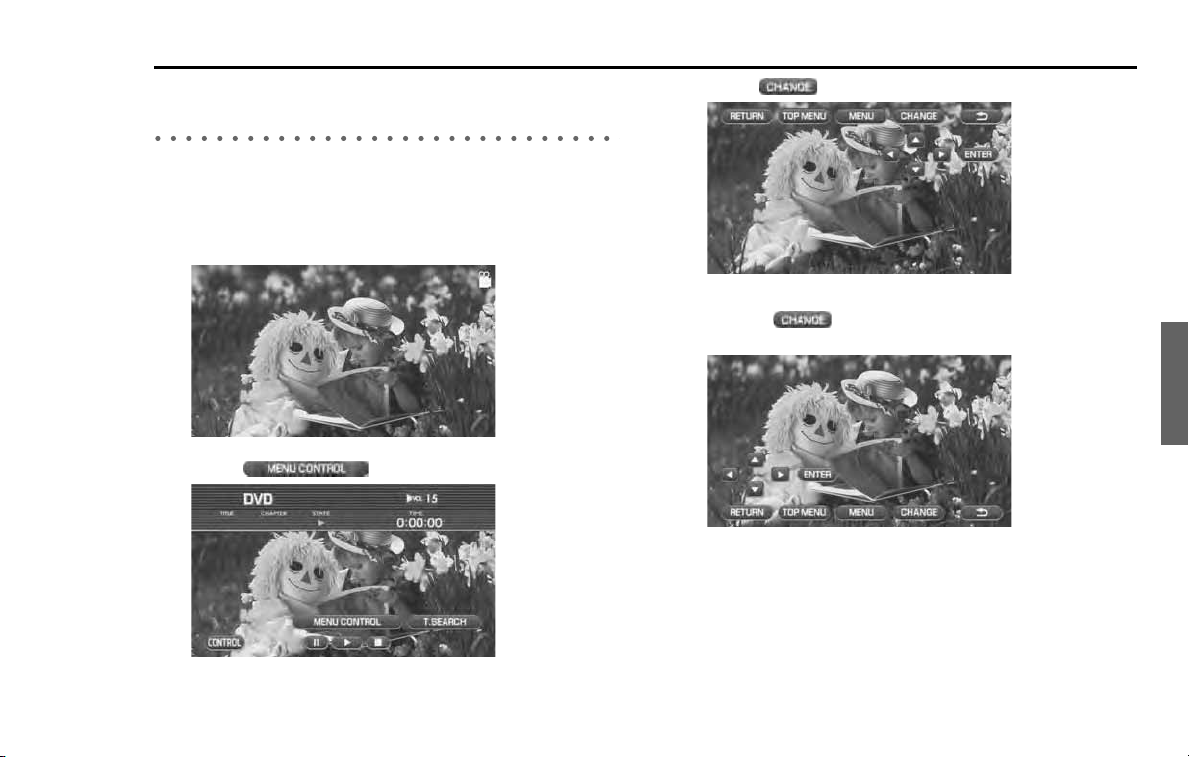
Audio and Visual 161
DVD functions
Changing over the position of the menu opera-
tion key
The menu operation key is used to operate the menu of the DVD. It is
possible to relocate the position of the menu operation key so that it
does not interfere with the DVD image.
1 Select the screen while in the DVD playback.
2 Select (MENU CONTROL).
3 Select (CHANGE).
The location of the menu key is changed.
Selecting (CHANGE) again gets back to the original
menu location.
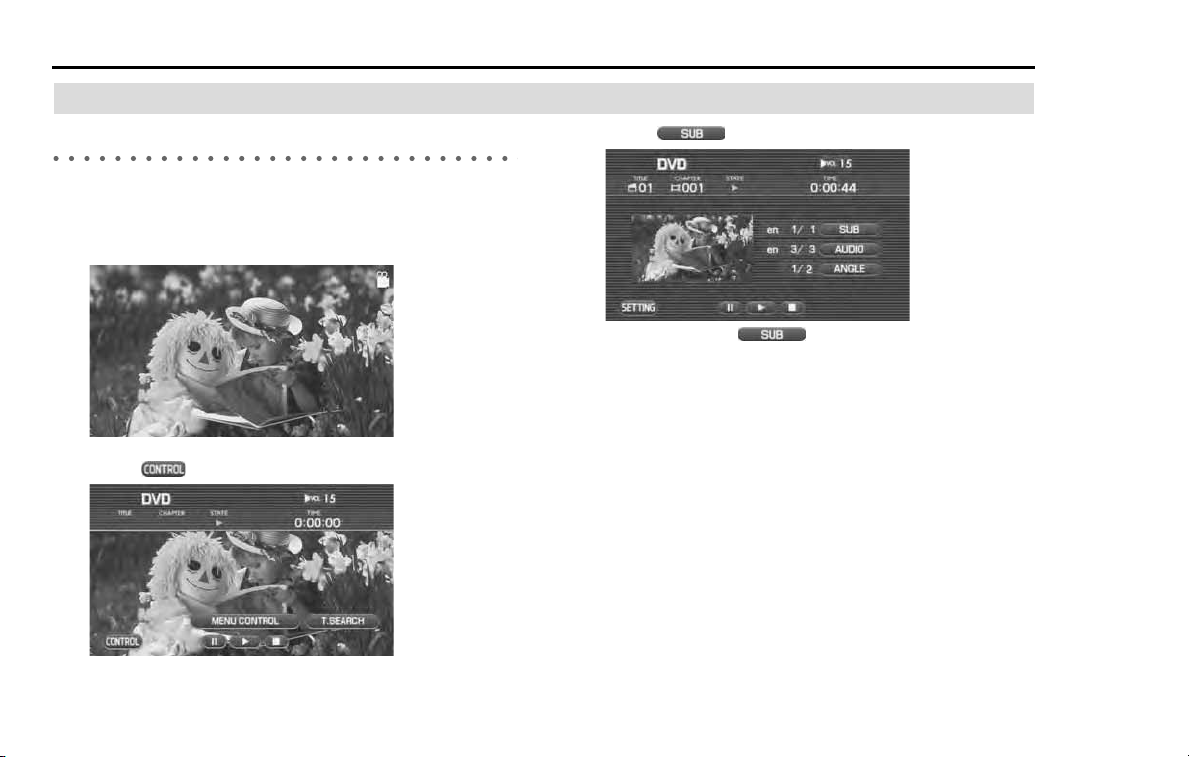
162 Audio and Visual
DVD functions
Changing the language and the angle
Changing the superimposed language
It is possible to change over the superimposed language while in the
playback of a DVD.
1 Select the screen while in the DVD playback.
2 Select (CONTROL).
3 Select (SUB).
Each time selecting (SUB), the superimposed lan-
guage is changed.
NOTE
• The superimposed language is indicated by a numeric character. When a
numeric character is not displayed, the DVD is not compliant with multiple
languages.
• Selecting the screen allows you to check the superimposed language on the
playback screen.
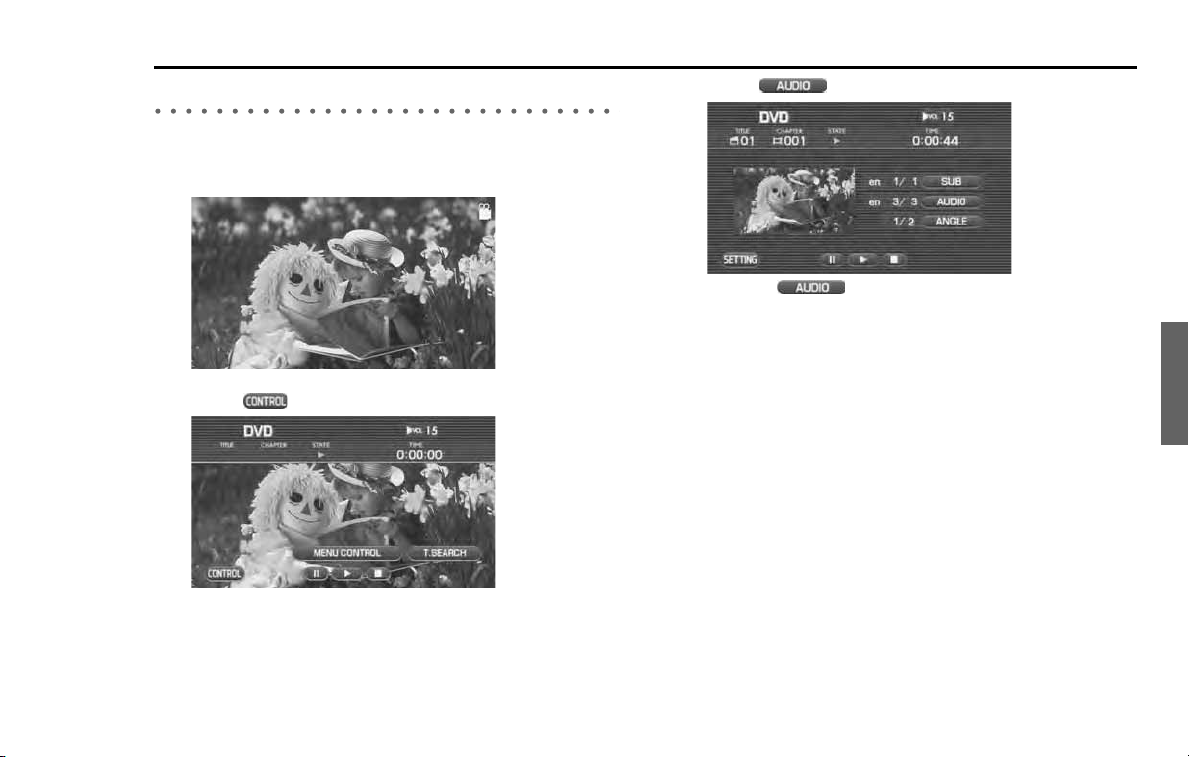
Audio and Visual 163
DVD functions
Changing the voice language
It is possible to change the voice language while in the DVD playback.
1
Select the screen while in the DVD playback.
2
Select (CONTROL).
3
Select (AUDIO).
Each time (AUDIO) is selected, the voice is changed.
NOTE
• The voice language is indicated by a numeric character. When a numeric
character is not displayed, the DVD is not compliant with multiple languages.
• Selecting the image section in the screen allows you to check the voice lan-
guage on the playback screen.
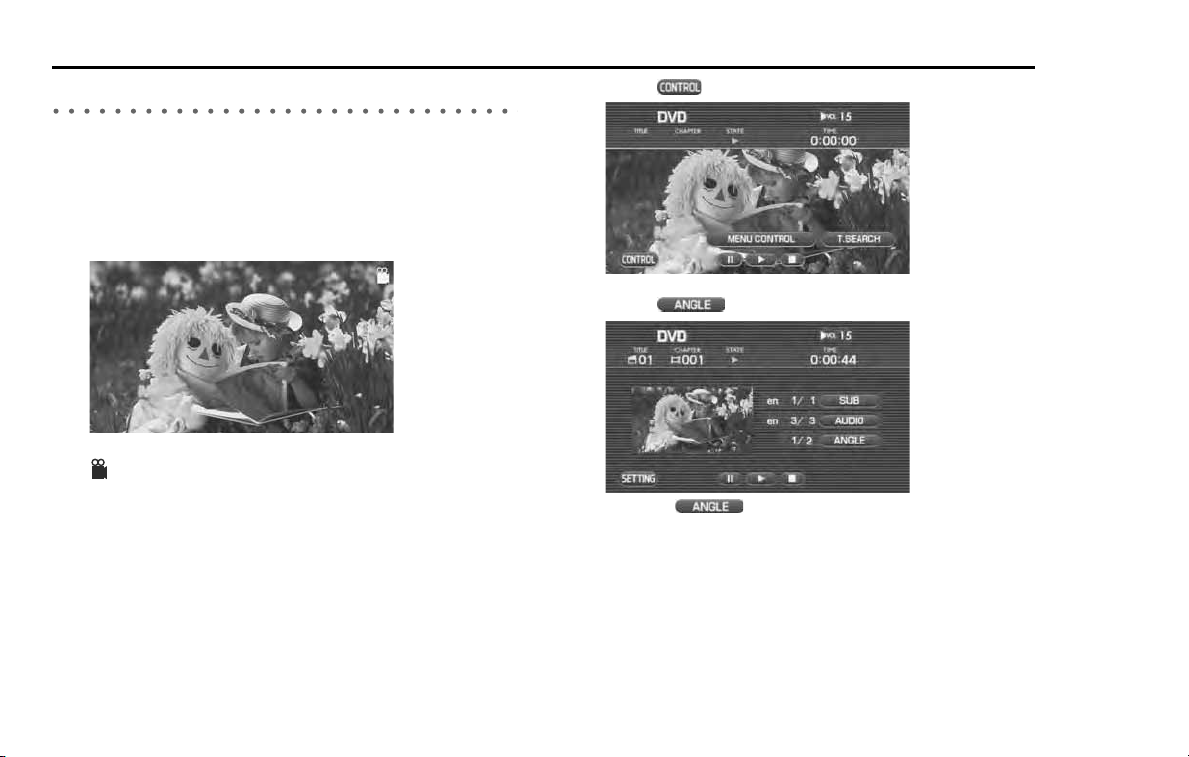
164 Audio and Visual
DVD functions
Changing over the angle
It is possible to change over the angle to look at the DVD image in the
multi-angle scene while in the playback of the DVD compliant with
multi-angle.
1 In the scene compliant with multi-angle, select the
screen while in the DVD playback.
When a setting is made in the initial setting of the DVD so that the
(angle mark) is displayed, an angle mark is displayed in the
scene compliant with multi-angle. (See Page 204.)
2 Select (CONTROL).
3 Select (ANGLE).
Each time (ANGLE) is selected, the DVD is played back
with the angle changed.
NOTE
• The type of the angle is indicated by a numeric character. When a numeric
character is not displayed, or when it is displayed as 1/1, the DVD is not com-
pliant with multiple angles.
• Selecting the image section in the screen allows you to check the angle on
the playback screen.
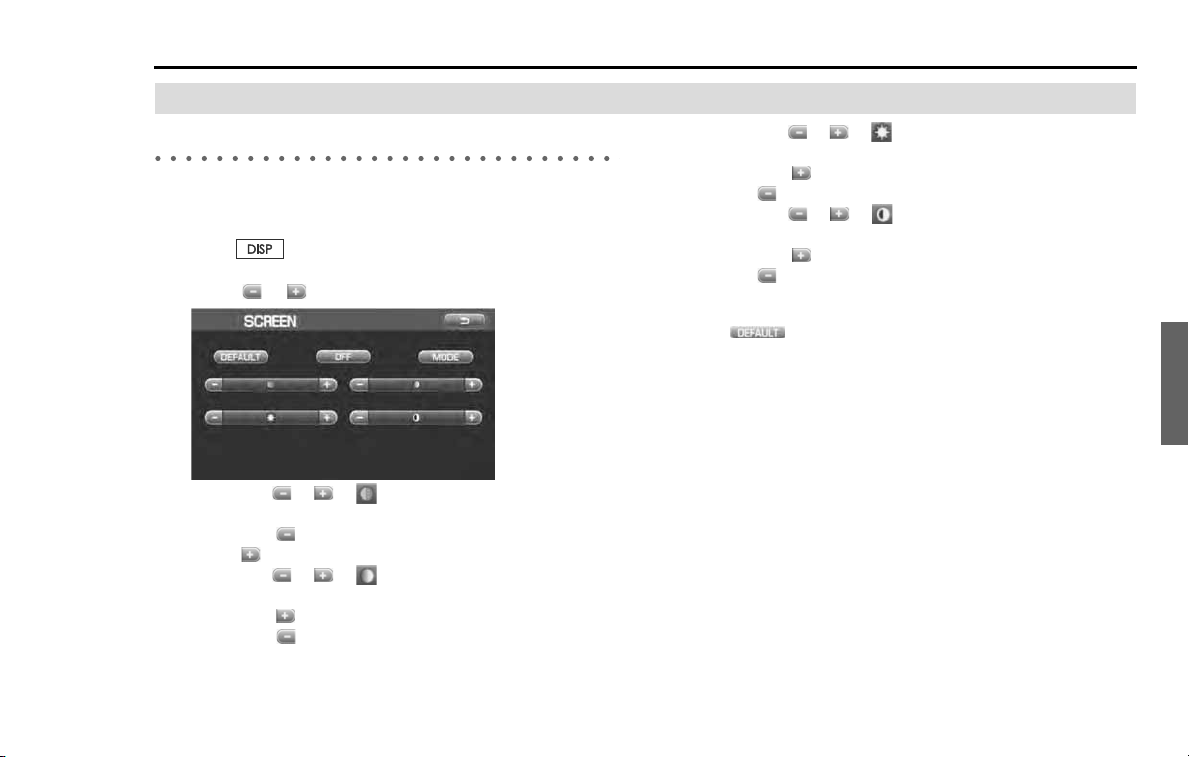
Audio and Visual 165
DVD functions
Setting the screen
Adjusting the image quality
The image quality can be adjusted while looking and listening to the
DVD.
1
Press .
2
Select or of each item to adjust the image quality.
• Selecting or of (tint) allows you to adjust the tint of
a color.
Each time is selected, the tint of red is increased and each
time is selected, the tint of green is increased.
• Selecting or of (color) allows you to adjust the
shade of a color.
Each time is selected, the shade of a color is increased and
each time is selected, the shade of a color is decreased.
• Selecting or of (brightness) allows you to adjust the
brightness.
Each time is selected, the brightness is increased and each
time is selected, the brightness is decreased.
• Selecting or of (contrast) allows you to adjust the
contrast.
Each time is selected, the contrast is increased and each
time is selected, the contrast is decreased.
NOTE
Selecting (DEFAULT) returns the settings to the default settings.
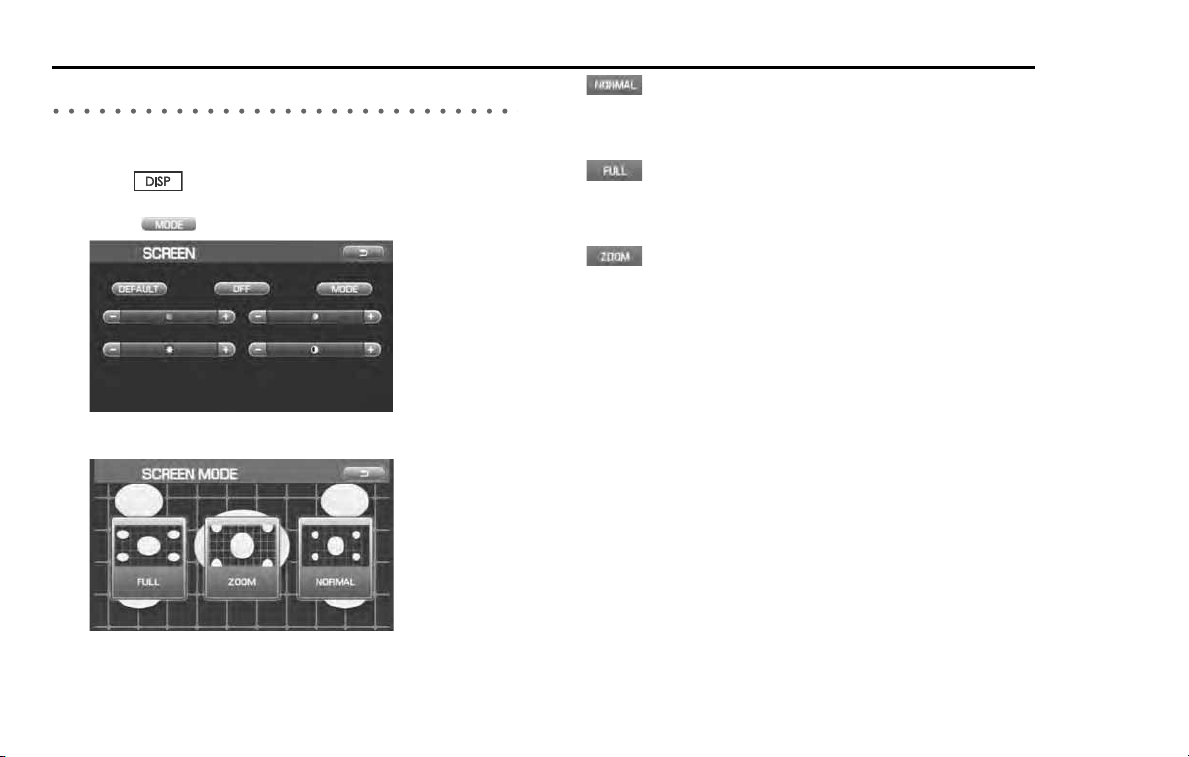
166 Audio and Visual
DVD functions
Setting the SCREEN MODE
The screen mode can be set while looking and listening to the DVD.
1 Press .
2 Select (MODE).
3 Select either of the SCREEN MODE's below.
(NORMAL):
Displayed in the horizontal to vertical ratio of 3:4 screen (normal size
of TV screen). The image is expanded so that the top and bottom
edges of the image fit inside the screen.
(FULL):
Displayed in the horizontal to vertical ratio of 3:4 screen (normal size
of TV screen) that is expanded uniformly in the left and right direc-
tions.
(ZOOM):
Displayed in the horizontal to vertical ratio of 3:4 screen (normal size
of TV screen) that is expanded uniformly in the top and bottom direc-
tions and the left and right directions.
When receiving a wide screen broadcast, change over to this mode.
There is no legal restriction imposed so long as you enjoy the DVD personally.
However, if the screen is compressed or expanded for a commercial purpose,
or with the view of letting the general public enjoy the DVD, please note that
this may infringe the right of authorship that is protected by the copyright
law.
NOTE
Pressing the [TUNE/TRACK] button allows you to look and listen to the DVD in the
size set.

Audio and Visual 167
DVD functions
Looking at the VIDEO
It is possible to look at the VIDEO with the VIDEO equipment
externally connected.
1 Change the source over to VIDEO. (See Page 118.)
NOTE
• The VTR equipment is required to be connected externally.
• When "VIDEO" is displayed even after the source is changed over to VIDEO,
the VIDEO equipment is not externally connected.

168 Audio and Visual
Satellite radio operation (if equipped)
To receive satellite radio, it is necessary to install the Subaru
genuine satellite receiver and to enter into a contract. For
details, please contact your SUBARU dealer.
■ XM™ satellite radio
XM™ is a continental U.S. based satellite radio service, including music,
news, sports, talk and children’s programming.
XM™
provides digital quality audio and text information, including song
title and artist name. A service fee is required to receive the XM™ ser-
vice. For more information, contact XM™ at www.xmradio.com
or call 1-
800-XMRADIO (1-800-967-2346) for U.S.
■ Sirius satellite radio
Sirius satellite radio is a recent innovation that allows the listener to
experience digital sound quality and to have a greater variety of chan-
nels.
Use of satellite radio (Sirius) requires a tuner, antenna and a service con-
tract. For details, please contact your SUBARU dealer or visit Sirius Satel-
lite Radio at www.sirius.com
or call 1-888-539-SIRIUS (7474) for more
information. Sirius, the Sirius dog logo, channel names and logos are
trademarks of SIRIUS Satellite Radio Inc.
■ Satellite radio reception
Satellite radio signals are best received in areas with a clear view of the
open sky. In areas where there are tall buildings, trees, tunnels or other
structures that may obstruct the signal of the satellites, there may be
signal interruptions. Other circumstances that may result in signal loss
include driving near a wall, steep cliff, hill or driving on the lower level of
a multi-tiered road or inside of a parking garage.
To help reduce this condition, satellite radio providers have installed
ground-based repeaters in heavily populated areas. However, you may
still experience reception problems in some areas.
Audio and Visual 169
Bluetooth AUDIO functions
NOTE
• Using the Audio and Visual System with the engine stopped could lower the
battery electricity level. If the initial charge level is too low, the engine may not
start. It is recommended that the system be used only while the engine is run-
ning, except when the vehicle is parked in a garage or other enclosed area.
• In the interest of safety, the use of some functions may be unavailable while
driving. The button for a touch screen item that cannot be used will be dis-
played greyed out.
• Liquid-crystal displays may be difficult to read when wearing polarized
glasses.
Setting the Bluetooth audio
This function enables you to play back audio sources recorded in Blue-
tooth audio devices.
You need to register the in-vehicle equipment and Bluetooth audio
device before using it. If you have registered two audio devices, you
need to select one of them. (See Page 200)
■ About media format
Bluetooth audio devices cannot be connected if they are not compati-
ble with the following Bluetooth profiles.
A2DP (Advanced Audio Distribution Profile)
AVRCP (Audio/Video Remote Control Profile)
NOTE
The available functions are different between the AVRCP 1.0 compatible device
and the AVRCP 1.3 compatible device.
WARNING
The driver must not attempt to operate or watch the screen
while the vehicle is in motion. Doing so will distract attention
from driving and the road, and could lead accident.
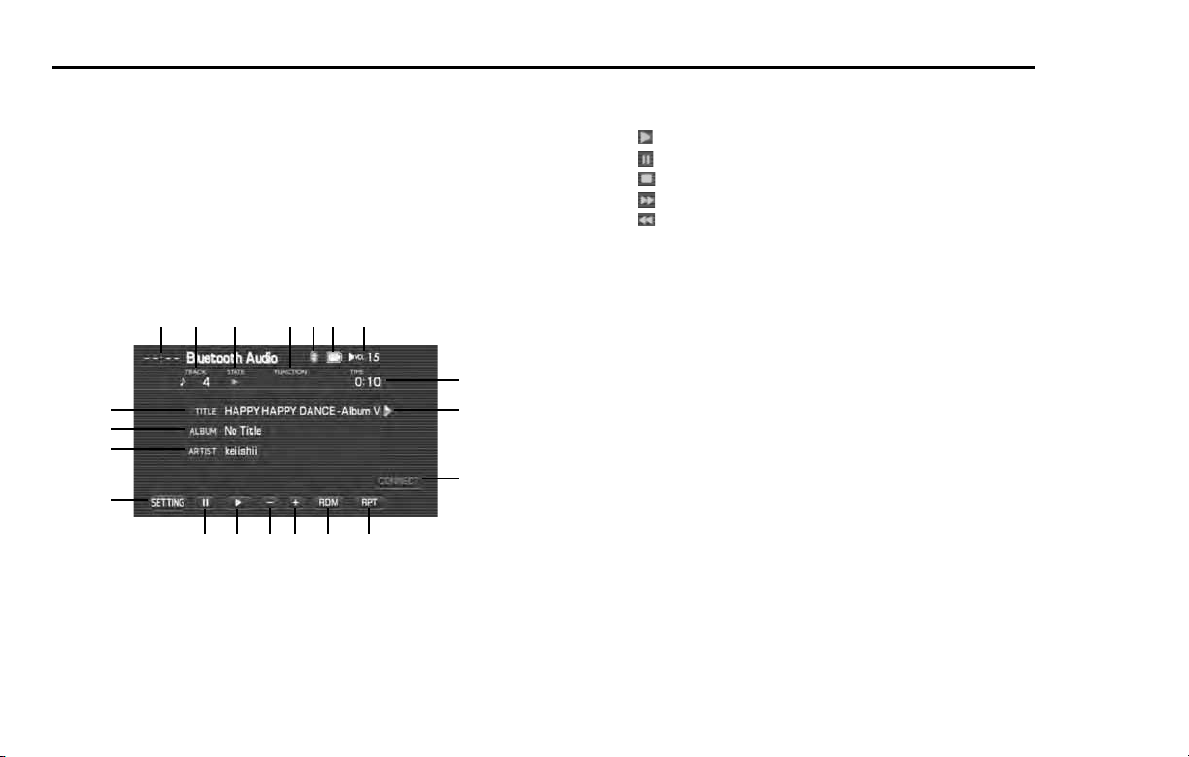
170 Audio and Visual
Bluetooth AUDIO functions
■ Bluetooth audio control screen display
When the Bluetooth audio screen is not displayed while playing back a
Bluetooth audio file, press the [TUNE/TRACK] button to display the
Bluetooth audio screen.
NOTE:
Some of the controls that are described in the following instructions depend on
the Bluetooth audio device. Therefore, some of the controls may not be dis-
played or may be incorrectly displayed on the screen.
Selecting the screen displays the Bluetooth audio control screen.
(1) Clock
The current time is displayed. Refer to clock setting screen
"SET CLOCK" as described on Page 74.
(2) TRACK
The number of the track being played back is displayed.
(3) STATE
The status of the track being played back is displayed.
: Play
: Pause
: Stop
: Forward search
: Reverse search
(4) FUNCTION
The status of the file being played back is displayed.
RPT: Repeat
RDM: Random playback
SCAN: Scan
(5) Bluetooth
The status of Bluetooth connection is displayed. One of the
following three icons is displayed to show the connection
status.
Signal strength 1 icon: Bluetooth link is not connected.
Signal strength 2 icon: Poor sound quality
Signal strength 3 icon: Good sound quality
(1)
(9)
(2)
(3)
(4)
(5)
(8)
(10)
(11)
(7)
(12)
(19)
(13)
(14)
(15)
(16)
(6)
(17)
(18)
(20)
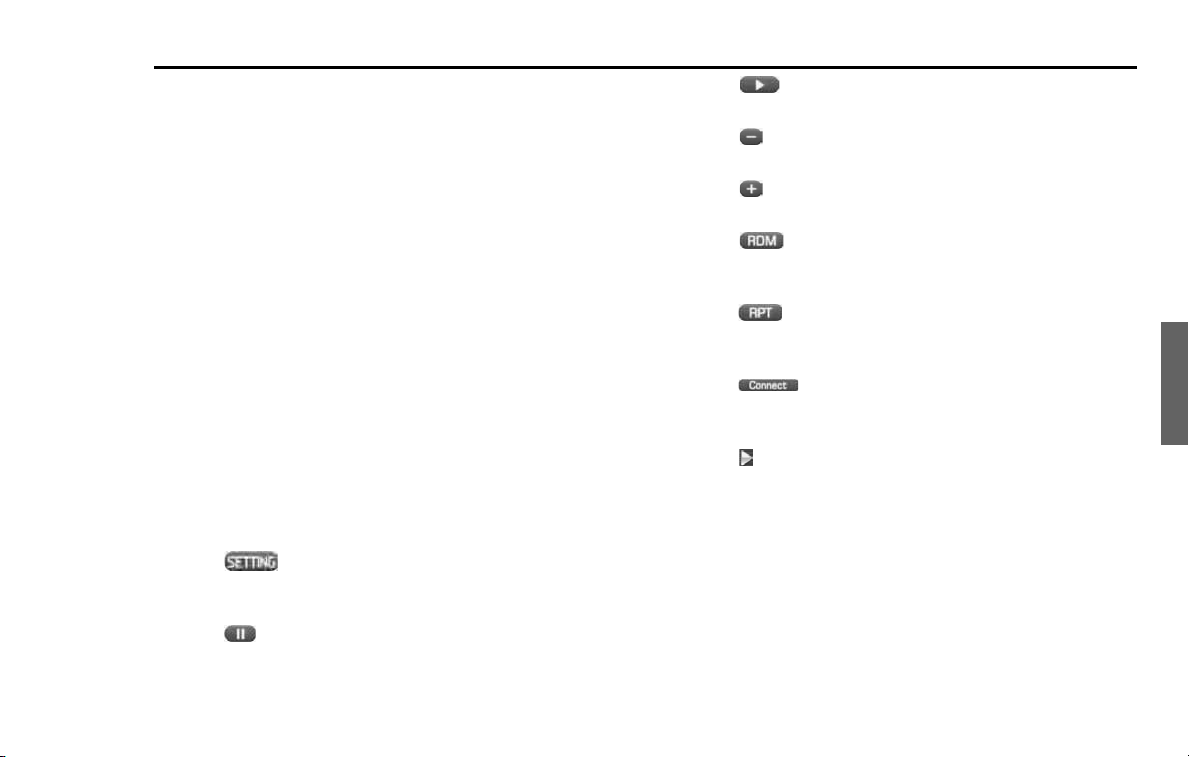
Audio and Visual 171
Bluetooth AUDIO functions
(6) Battery
The status of the battery of Bluetooth devices is displayed.
One of the following five icons is displayed to show the cur-
rent status.
Remaining battery level 1: 0 (CRITICAL) is indicated.
Remaining battery level 2: 1 (WARNING) is indicated.
Remaining battery level 3: 2 (NORMAL) is indicated.
Remaining battery level 4: 3 (FULL CHARGE) is indicated.
Remaining battery level 5: External power supply is con-
nected (EXTERNAL).
(7) TIME
The playback time is displayed.
(8) VOL
Sound volume level is displayed. (See Page 121.)
(9) TITLE
The title name is displayed.
(10) ALBUM
The album name is displayed.
(11) ARTIST
The artist name is displayed.
(12) (setting)
Displays the screen set for the Bluetooth audio. (See Page
195.)
(13) (PAUSE)
The Bluetooth audio is stopped temporarily.
(14) (play)
Used to playback the first tune in the folder. (See Page 172.)
(15) (GROUP DOWN - folder search)
Used to search for tunes in a group backward.
(16) (GROUP UP - folder search)
Used to search for tunes in a group forward.
(17) (random)
Used to change the playback method of tunes in random
order. (See Page 176.)
(18) (repeat)
Used to change the playback method of tunes to repeated
playback. (See Page 176.)
(19) (connect)
Used to start the connection process, and the display will be
switched to the Bluetooth audio connection screen.
(20) (name)
Displayed when the contents of the text cannot be displayed
for each item. Selecting this scrolls the characters. When
scrolled, all of the text is displayed.

172 Audio and Visual
Bluetooth AUDIO functions
Playing back the Bluetooth audio
It is possible to set Bluetooth audio device on the in-vehicle
equipment to listen to it. When a Bluetooth audio device is
not yet set on the in-vehicle equipment, set the Bluetooth
audio device. (See Page 210.)
1 Change the audio source to the Bluetooth audio.
2 Select (connect).
3 Select (play).
■ To stop the playback temporarily
Bluetooth audio being played back can be paused.
1 Select (pause).

Audio and Visual 173
Bluetooth AUDIO functions
■ To stop the playback
Bluetooth audio being played back can be stopped.
When switching the audio source from Bluetooth audio to others, the playback
of the connected Bluetooth audio device will be stopped.
174 Audio and Visual
Bluetooth AUDIO functions
Selecting a tune
Selecting the preceding tune
It is possible to play back a tune preceding the one that is now being
played.
1 Perform either of the following operations while playing
back a tune.
• Press the button.
• Rotate the [TUNE/TRACK] button counterclockwise.
• Press the (seek down) button of the steering switch.
The preceding track will now play.
Selecting the succeeding tune
It is possible to play back a tune succeeding the one that is now being
played.
1 Perform either of the following operations while playing
a tune.
• Press the button.
• Rotate the [TUNE/TRACK] button clockwise.
• Press the (seek up) button of the steering switch.
The succeeding track will now play.
Audio and Visual 175
Bluetooth AUDIO functions
Searching for a tune while listening
It is possible to search for a tune you want to hear while listening to a
tune in the Bluetooth audio device for few seconds.
■ Forward manual search
A tune is forwarded quickly while the button is pressed and
hold.
When releasing the button, the tune is played back from the
point to which the tune was fast forwarded.
■ Reverse manual search
A tune is reverse quickly while the button is pressed and hold.
When releasing the button, the tune is played back from the
point to which the tune was reverse.
■ Group up search
A tune contained in the group that is next to the present group will be
played back.
(GROUP is referred to as a unit of tracks defined by the Bluetooth audio
devices.)
• Group is being searched forward while
(group up) is pressed
during playback.
■ Group down search
A tune contained in the group that is previous to the present group will
be played back.
(GROUP is referred to as a unit of tracks defined by the Bluetooth audio
devices.)
• Group is being searched backward while (group down) is
pressed during playback.
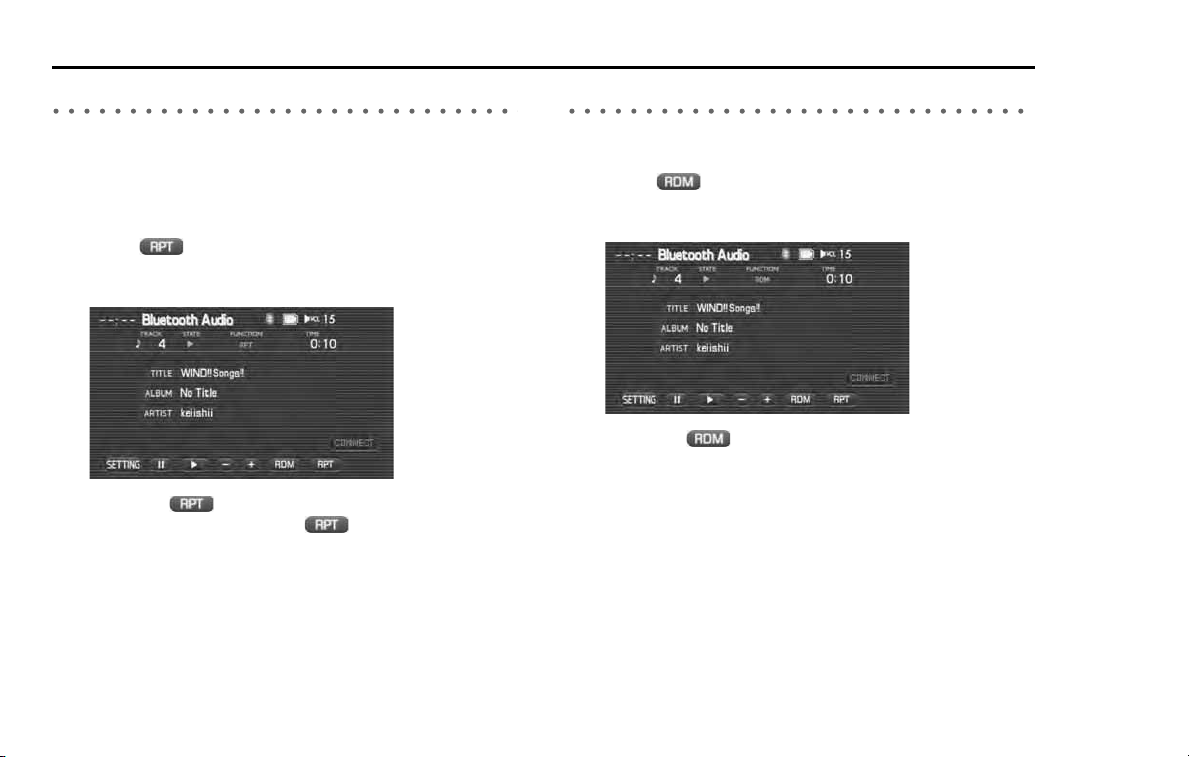
176 Audio and Visual
Bluetooth AUDIO functions
Listening to a tune repeatedly
It is possible to listen to the same tune repeatedly.
■ To listen to the same tune repeatedly
It is possible to playback the same tune repeatedly.
1 Select (repeat) while playing back a tune.
With "RPT" displayed as the FUNCTION on the Bluetooth audio
screen, the tune is played back repeatedly.
• Selecting
(repeat) allows you to listen to the tunes in a
folder repeatedly. Select again
(repeat) to deselect
repeated playback.
Listening to tunes in random order
It is possible to play back the tunes in a folder in random order.
1 Select (random) while playing back a tune.
With "RDM" displayed as the FUNCTION on the Bluetooth audio
screen, the tunes in the folder are played back in random order.
• Selecting (random) again deselect random playback.
Audio and Visual 177
iPod functions
NOTE
• Using the Audio and Visual System with the engine stopped could lower the
battery electricity level. If the initial charge level is too low, the engine may not
start. It is recommended that the system be used only while the engine is run-
ning, except when the vehicle is parked in a garage or other enclosed area.
• In the interest of safety, the use of some functions may be unavailable while
driving. The button for a touch screen that cannot be used will be displayed
greyed out.
• Liquid-crystal displays may be difficult to read when wearing polarized
glasses.
WARNING
The driver must not attempt to operate or watch the screen
while the vehicle is in motion. Doing so will distract attention
from driving and the road, and could lead to an accident.
178 Audio and Visual
iPod functions
Setting the iPod
MUSIC files stored in the memory of an iPod can be played
back.
Media format
■ Connectable iPod models and compatible firmware ver-
sions.
iPod model Firmware version
•nano 1.3.1
•5G 1.3
•2G nano 1.1.3
•classic 1.1.2
•3G nano 1.1.2
•touch 1.1.4
Connection cables
■ Connection cables specific to the USB storage devices
Used to connect USB mass-storage class devices or iPods. Video con-
tent stored in the iPod with the video cannot be played back.
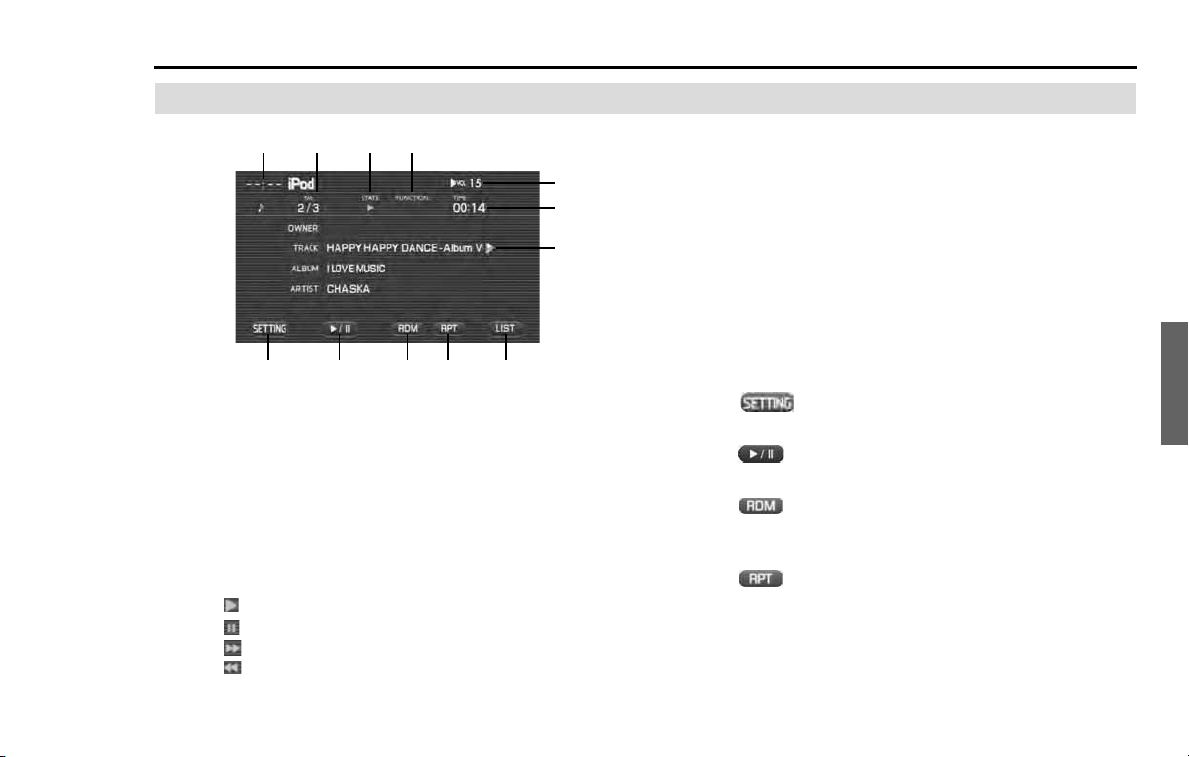
Audio and Visual 179
iPod functions
iPod control screen displayed
(1) Clock
The current time is displayed.
Refer to clock setting screen "SET CLOCK" as described on
Page 74.
(2) No.
The content index being played back is displayed.
(3) STATE
The play status of the file being played back is displayed.
: Play
: Pause
: Forward search
: Reverse search
(4) FUNCTION
The play status of the content being played back is displayed.
RPT: Repeating
RDM: Random playback
A.RDM: Album random playback
RPT RDM: Repeat and random playback
RPT A.RDM: Repeat and album random playback
(5) TIME
The playback time of the file is displayed.
(6) VOL
The sound volume level is displayed. (See Page 121.)
(7) (setting)
Selecting this displays the screen set for the iPod audio.
(8) (play/pause)
The playback is stopped temporarily or played.
(9) (random)
Used to change the playback method of tunes in random
order. (See Page 184.)
(10) (repeat)
Used to change the playback method of tunes to repeated
playback. (See Page 184.)
(1)
(2)
(3)
(4)
(5)
(7)
(10)
(11)
(8)
(9)
(6)
(12)
180 Audio and Visual
iPod functions
(11) (list)
Used to display the list in iPod audio.
(12) (name)
Displayed when the contents of the text cannot be displayed
for each item. Selecting this scrolls the characters. When
scrolled, all of the text is displayed.
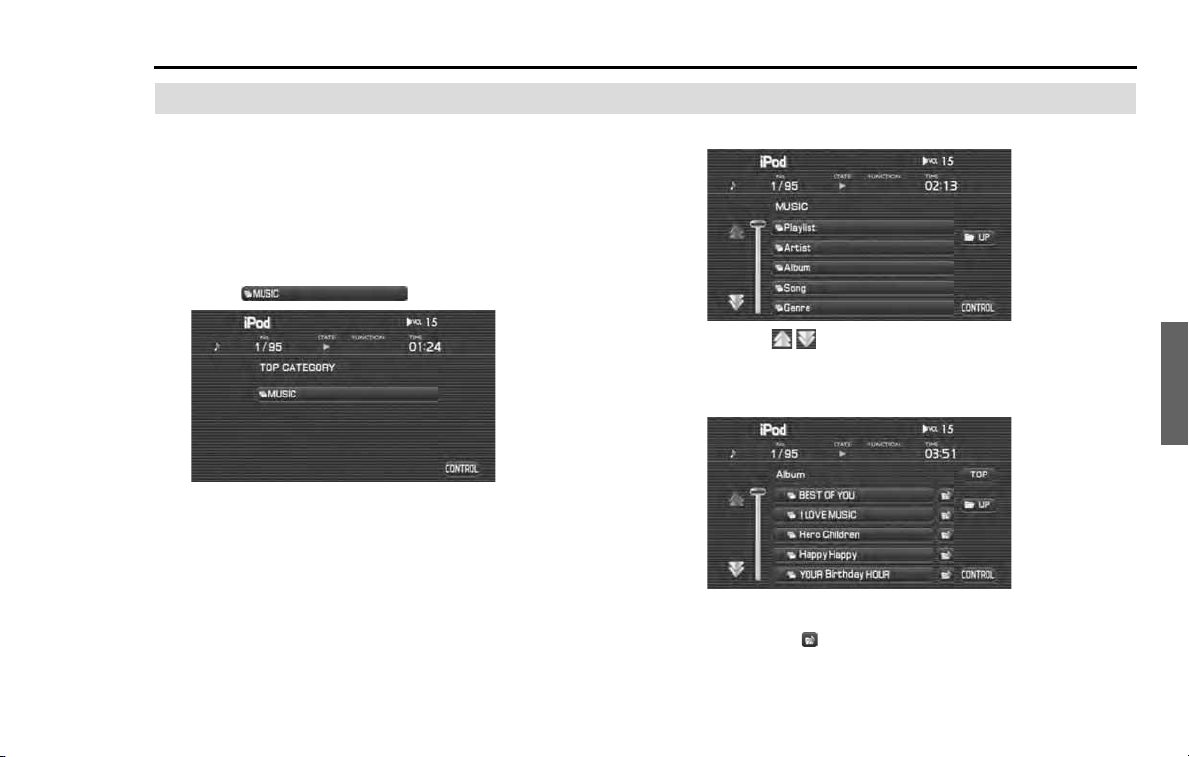
Audio and Visual 181
iPod functions
Playing the iPod-Music
Music files stored in the memory of an externally connected
iPod can be played back.
1 Change the audio source to the iPod.
NOTE
When no iPod device is set in the in-vehicle equipment, set the iPod device.
2
Select (music).
3
Select the desired category from the list.
Selecting scrolls to display 5 category positions ahead or
behind.
4
Select the desired category from the list.
NOTE
When briefly pressing (category play) of the category to be played back, all
the items contained in the category will be played back from the first one.
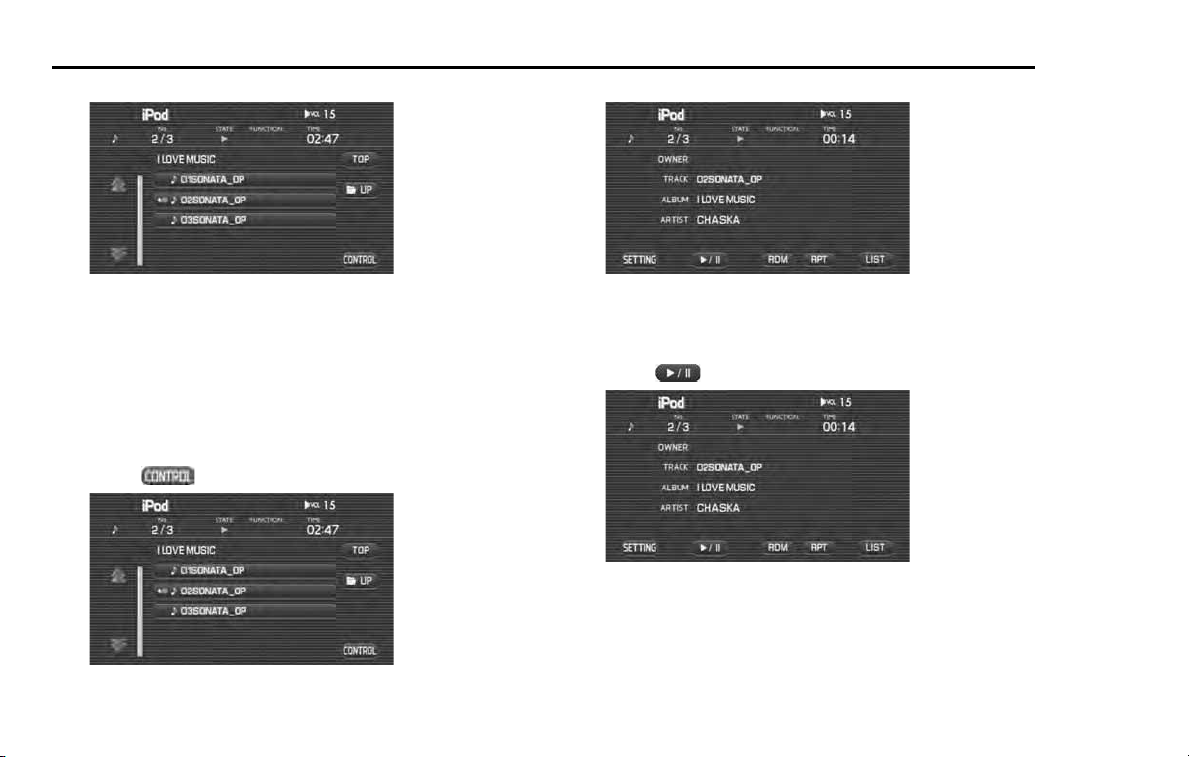
182 Audio and Visual
iPod functions
5 Select the desired file from the list.
The file selected is played back.
The first tune in the first folder in the iPod device is played back
from the start.
When the last tune in the folder is played back, the first tune in the
next folder is played back.
When the last tune in the iPod device is played back, the playback
is resumed from the first tune in the lead folder.
6 Select (control).
7 The tune information is displayed.
■ To stop playing back temporarily
An item being played back on an iPod will be paused.
1 Select (pause).
■ To stop playing back
An item being played back on an iPod will be stopped.
When switching the iPod source to other sources, the playback of the connected
iPod will be pause.
Audio and Visual 183
iPod functions
Selecting a tune (track) you want to hear
■ To select the preceding tune
It is possible to reveres or fast-forward a tune that is now being played
back.
1
Conduct either of the following operations while playing
back a tune.
• Press the button.
• Rotate the [TUNE/TRACK] button counterclockwise.
• Press the
button of the steering switch.
The preceding tune is played back.
■ To select the succeeding tune
It is possible to play back a tune succeeding the tune that is now being
played back.
1
Conduct either of the following operations while playing
back a tune.
• Press the button.
• Rotate the [TUNE/TRACK] button counterclockwise.
• Press the
button of the steering switch.
The preceding tune is played back.
Reversing or fast-forwarding a tune
It is possible to reverse or fast-forward quickly a tune that is now being
played back.
■ To reverse a tune quickly
1
Keep pressing the button while playing back a
tune.
The tune is reverse quickly while the button is pressed and held.
When releasing the button is released, the tune is played
back from the point to which the tune was reverse.
■ To forward a tune quickly
1
Keep pressing the button while playing back a
tune.
The tune is fast-forwarded quickly while the button is pressed and
held.
When the button is released, the tune is played back from
the point to which the tune was fast-forwarded.
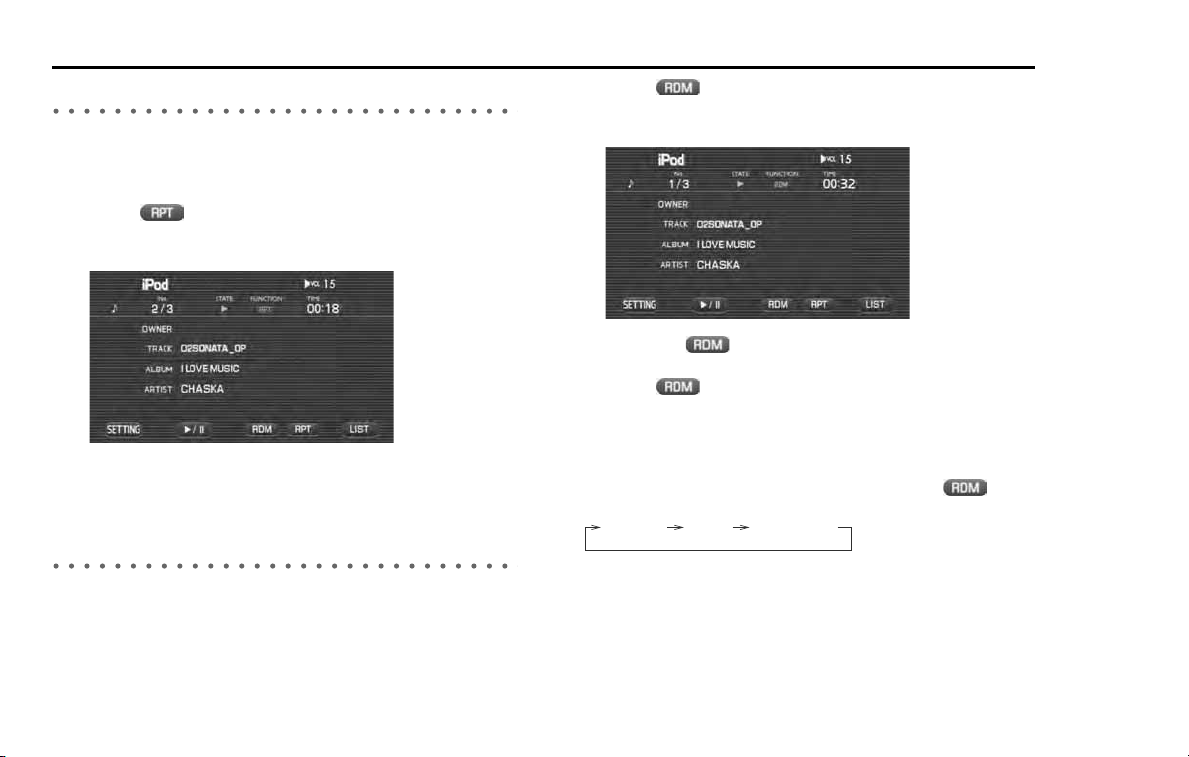
184 Audio and Visual
iPod functions
Listening to a tune repeatedly
■ To listen to the same tune repeatedly
It is possible to play back the same tune repeatedly.
1 Select (repeat) while playing back a tune.
With "RPT" displayed for FUNCTION on the iPod screen, the tune is
played back repeatedly.
NOTE
Each time you select a key, it will toggle between "usage" and "non-usage" of the
corresponding roads or ferries.
Listening the tunes in random order
It is possible to play back the tunes in the folder in random order.
NOTE
The random order function is available only for music contents.
1 Select (random) while playing back a tune.
With "RDM" displayed for FUNCTION on the iPod screen, the tunes
in the folder are played back in random order.
• Selecting (random) again releases the random playback.
2 Select (random) again.
The albums in the list are rearranged in random order, and the
tracks in an album are played in order.
NOTE
The function will be toggled as shown below by briefly pressing
(ran-
dom) repeatedly.
random o random album random
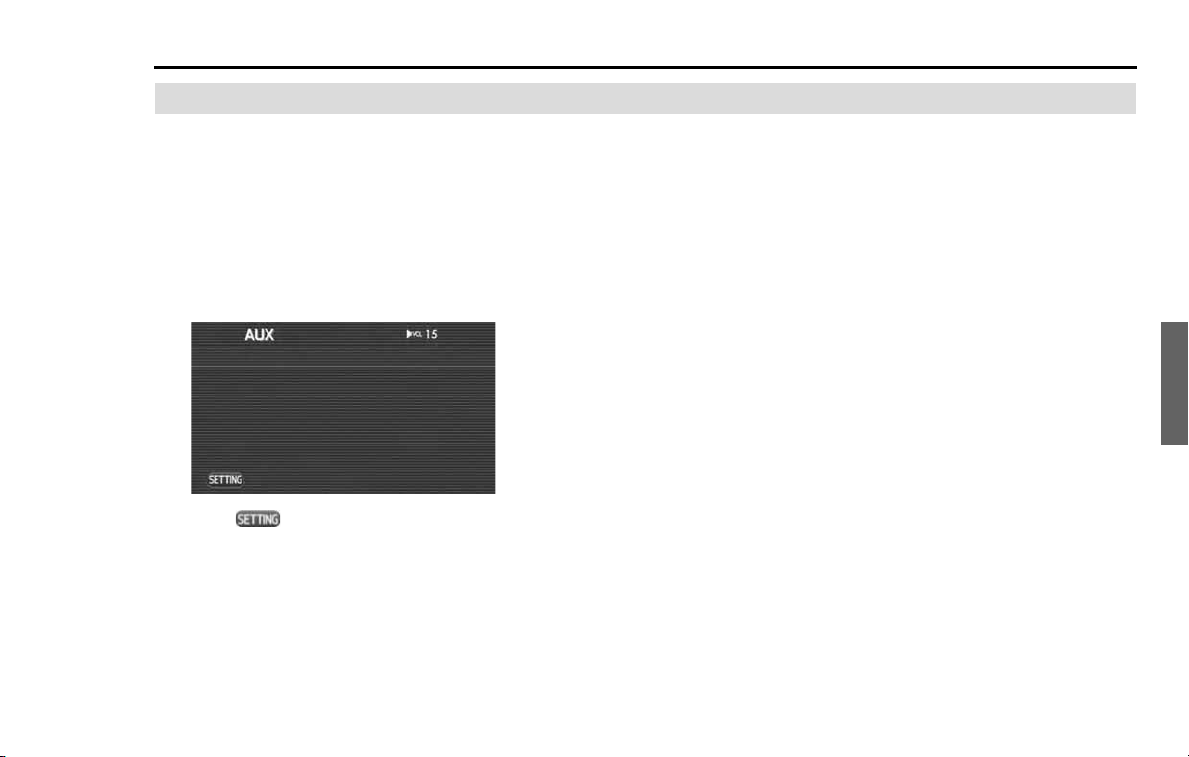
Audio and Visual 185
AUX functions
Playing back the AUX
The external input sound can be output. The external input
sound is regarded as "AUX" that is one of the audio sources. To
activate this function, AUXBOX connection should be
detected and A/V-IN setting is changed to "AUX".
1 Switch the external input source.
When a AUX is not yet set on the in-vehicle equipment, set a AUX.
Connect a mini pin plug (3.5I).
Refer to the Owner's Manual of the vehicle.
Select (setting) to display the screen set for the audio. (See
Page 195.)
186 Audio and Visual
USB storage device functions
NOTE
• Using the Audio and Visual System with the engine stopped could lower the
battery's electricity level. If the initial charge level is too low, the engine may
not start the next time. It is recommended that the system be used only when
the engine is running expect when the vehicle is parked in a garage or other
enclosed area.
• In the interest of safety, the use of some functions may be unavailable while
driving. The buttons for a touch screen that cannot be used are displayed
greyed out.
• Liquid-crystal displays may be difficult to read when wearing polarized glasses.
Setting the USB storage device
Using this system, MP3/WMA/AAC files stored in the memory of USB
storage devices can be played back. To activate this function, externally
connect a USB storage device.
■ Media format
Supported file systems are FAT16 (128 MB or more) and FAT32 (256 MB
or more). NTSF is not supported.
MP3: MPEG1 Audio Layer 3, 32 to 320 kbps, 44.1/48/32 kHz
WMA: Windows Media Audio 9.2 supported
AAC: AAC-LC 8 to 320 kbps, 8 to 48 kHz
NOTE
In the following cases, play back is not possible.
A USB connection device that:
• is connected to a hub in between,
• requires more than 500 mA operating current,
• is compatible only with USB 1.1,
• requires an additional power supply except for the USB power supply (bus
power),
• is a digital audio player except for an iPod,
• is formatted on NTFS,
• is a card reader for a memory card,
• includes a file that is protected by Digital Rights Management (DRM), or
• is of poor quality (is not compatible with USB 2.0).
■ Connecting or disconnecting the USB storage device
Connection of a USB storage device is detected when a USB storage
device is installed with the connection cable specific to the USB storage
devices that was attached to the vehicle. Disconnection of a USB stor-
age device is detected when a USB storage device is removed from the
connection cable or USB connection is suspended.
WARNING
The driver must not attempt to operate or watch the screen
while the vehicle is in motion. Doing so will distract attention
from driving and the road, and could lead to an accident.

Audio and Visual 187
USB storage device functions
Playing the USB storage device
It is possible to play back MP3/WMA/AAC audio files stored in
the memory of the USB storage devices.
1 Connect the USB storage devices with the connection
cable specific to the USB storage devices that was
attached to the vehicle. Playback will automatically start.
The first tune in the lead folder in the USB storage device is played
back from the start.
When the tunes in the folder are played back to the last, the first
tune in the lower-order or next folder is played back.
When the tunes in the USB storage device are played back to the
last, the playback is resumed from the first tune in the lead folder.
NOTE
When no USB storage device is set in the in-vehicle equipment, set the USB stor-
age device.
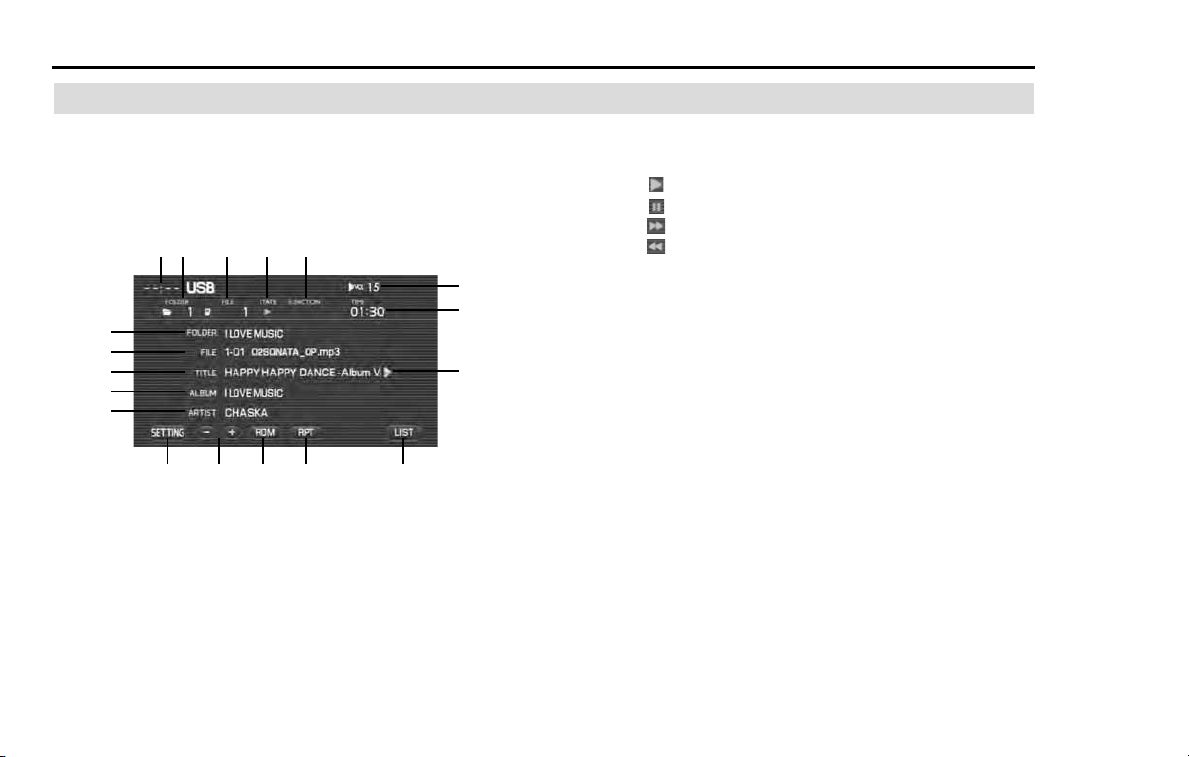
188 Audio and Visual
USB storage device functions
USB control screen displayed
When the USB screen is not displayed while playing back of a
USB audio file, press the [TUNE/TRACK] button to display the
USB screen.
And then selecting the screen displays the USB control
screen.
(1) Clock
The current time is displayed.
Clock setting screen "SET CLOCK" as described on Page 74.
(2) FOLDER
The folder number of the file being played back is displayed.
(3) FILE
The file number of the file being played back is displayed.
(4) STATE
The play status of the file being played back is displayed.
: Play
: Pause
: Forward search
: Reverse search
(5) FUNCTION
The play status of the file being played back is displayed.
RPT: Repeating
F.RPT: Folder repeating
RDM: Random playback
SCAN: Scanning
(6) TIME
The playback time of the file is displayed.
(7) VOL
Sound volume level is displayed. (See Page 121.)
(8) FOLDER
The folder name is displayed.
(9) FILE
The file name is displayed.
(10) TITLE
The title of a tune is displayed.
(1)
(8)
(2)
(3)
(4)
(5)
(11)
(12)
(6)
(13)
(14)
(15)
(16)
(7)
(10)
(9)
(17)
(18)
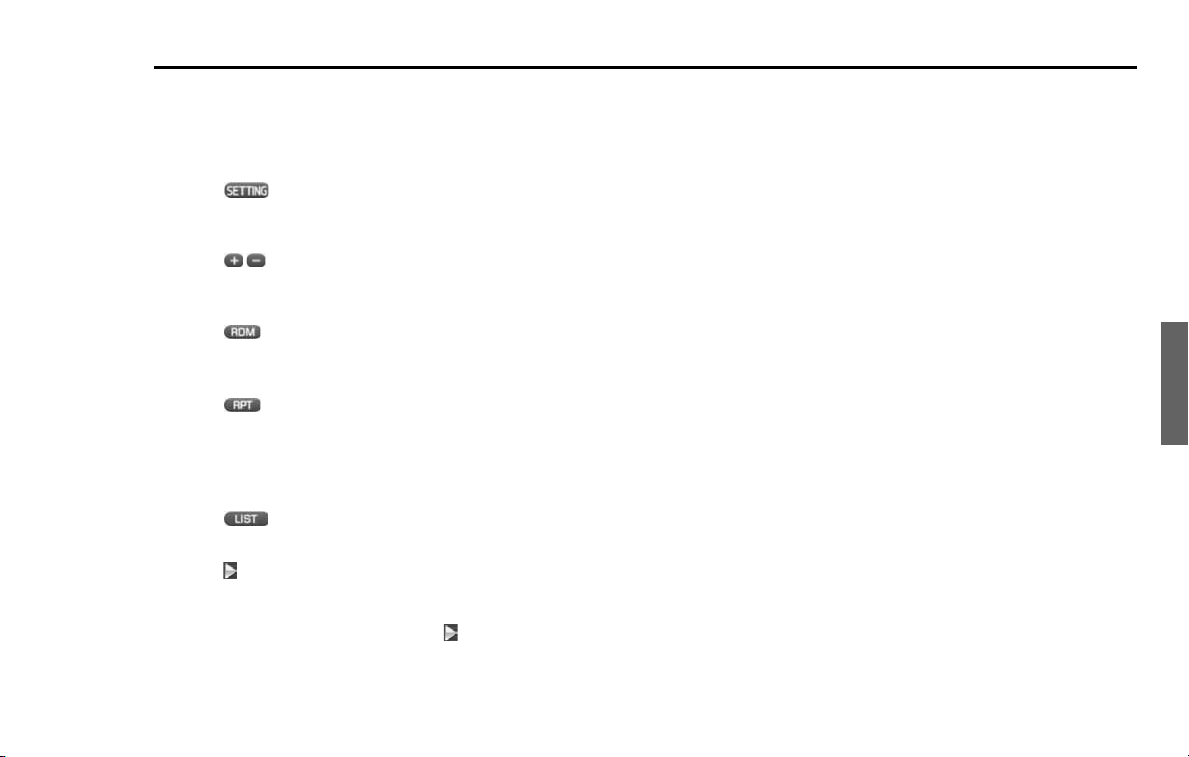
Audio and Visual 189
USB storage device functions
(11) ALBUM
The name of an album is displayed.
(12) ARTIST
The name of an artist is displayed.
(13) (setting)
Selecting this displays the screen set for the audio. (See Page
195.)
(14) (folder search)
Used to play back the first tune in the succeeding/preceding
folder. (See Page 190.)
(15) (random)
Used to change over the playback method of tunes in ran-
dom order. (See Page 194.)
(16) (repeat)
Used to change the playback method of tunes over to the
repeated playback. (See Page 193.)
The function will be toggled as shown below.
OFF -> RPT -> F.RPT -> OFF .....
(17) (list)
Used to display the list in the USB. (See Page 190.)
(18) (Name)
Displayed when the contents of the text cannot be displayed
for each item. Selecting this scrolls the characters. When
scrolled up to the end of the text, is displayed.
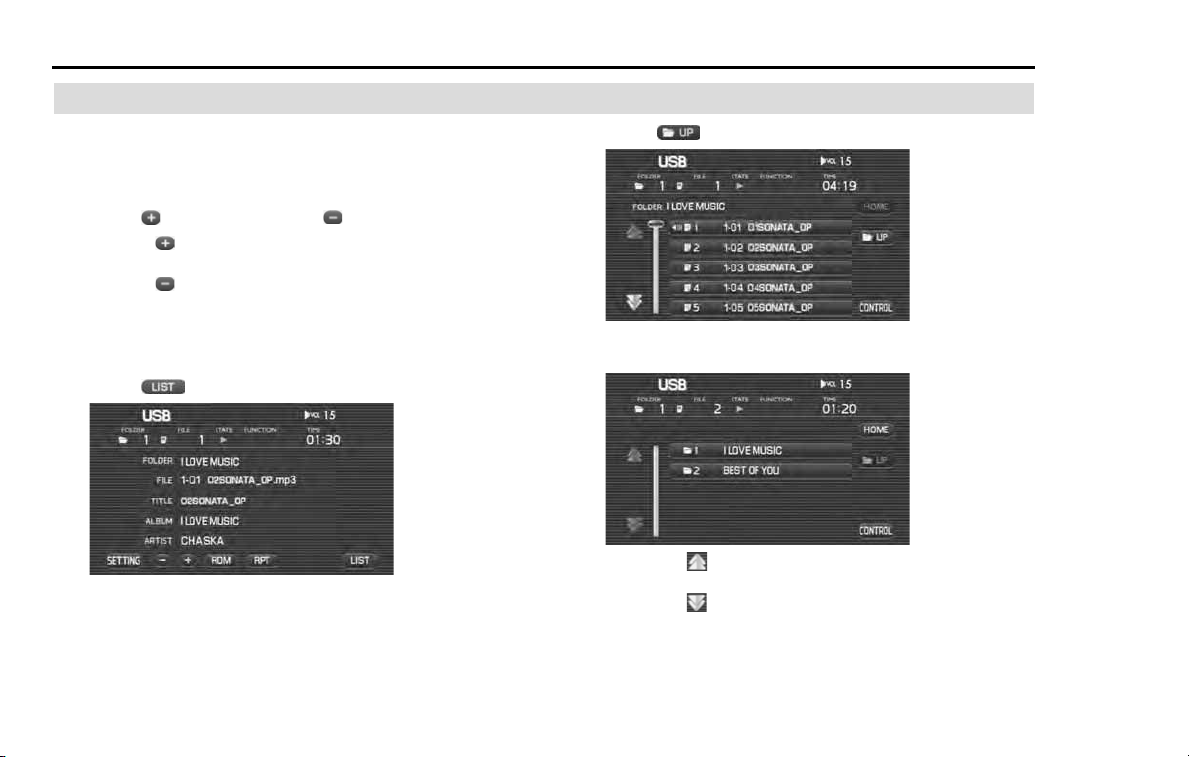
190 Audio and Visual
USB storage device functions
Selecting a tune
Select a folder in the USB storage device.
■ To select a folder
1 Select (folder up search) or (folder down search).
Selecting (folder up search) plays back the first tune in the
succeeding folder.
Selecting (folder down search) plays back the first tune in the
preceding folder.
■ To select a folder from the list
1 Select (list).
2 Select (up).
3 Select the folder name.
• Selecting scrolls the display to display a folder 5 positions
ahead.
• Selecting scrolls the display to display a folder 5 positions
behind.
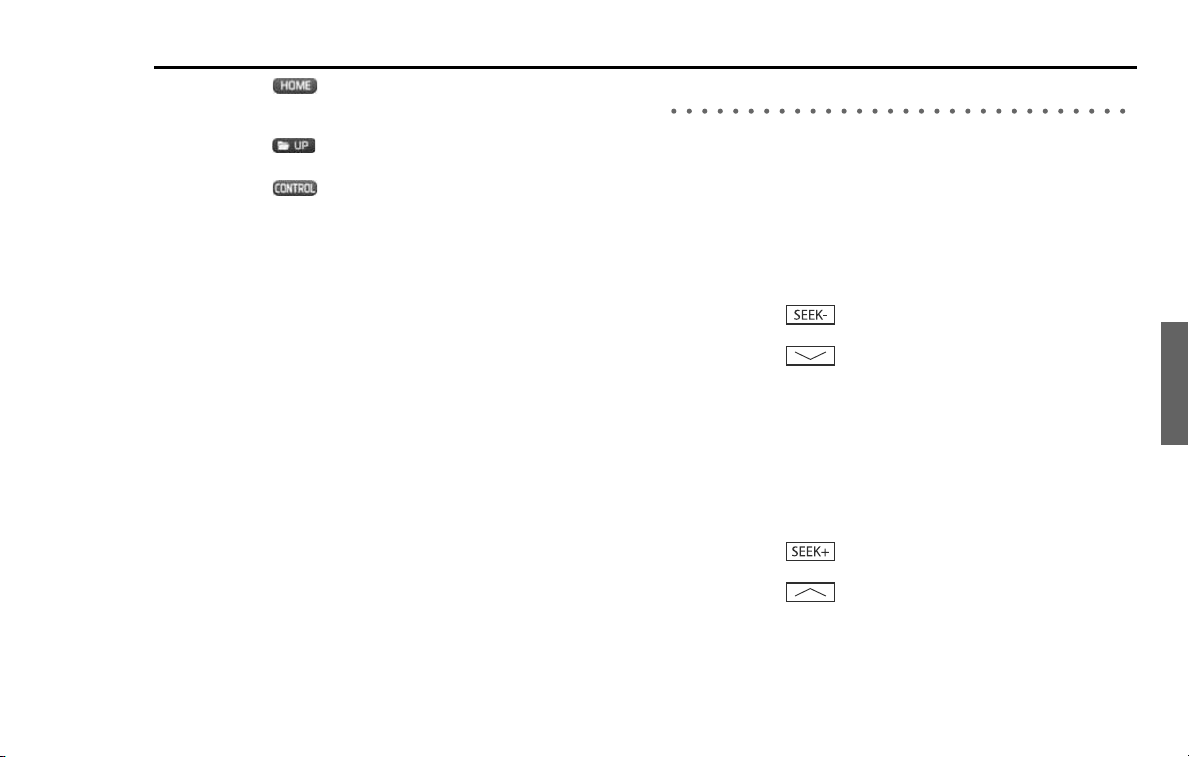
Audio and Visual 191
USB storage device functions
• Selecting (home) displays in the list the tunes in the
folder in which a tune that is now being played back is con-
tained.
• Selecting (up) displays the folder list when the tunes are
displayed in the list.
• Selecting (control) gets back to the USB in which the
tune information is displayed.
The first tune in the folder selected is played back.
Selecting a tune (file) you want to hear
Select a tune (file) in the USB storage device.
■ To select the preceding tune
It is possible to play back a tune in the high-order folder of the tune that
is now being played back or the preceding tune.
1
Conduct either of the following operations while playing
back a tune.
• Press the button.
• Rotate the [TUNE/TRACK] button counterclockwise.
• Press the (SEEK DOWN) button of the steering switch.
The preceding tune is played back.
■ To select the succeeding tune
It is possible to play back a tune succeeding the tune that is now being
played back.
1
Conduct either of the following operations while playing
back a tune.
• Press the button.
• Rotate the [TUNE/TRACK] button counterclockwise.
• Press the (SEEK UP) button of the steering switch.
The preceding tune is played back.
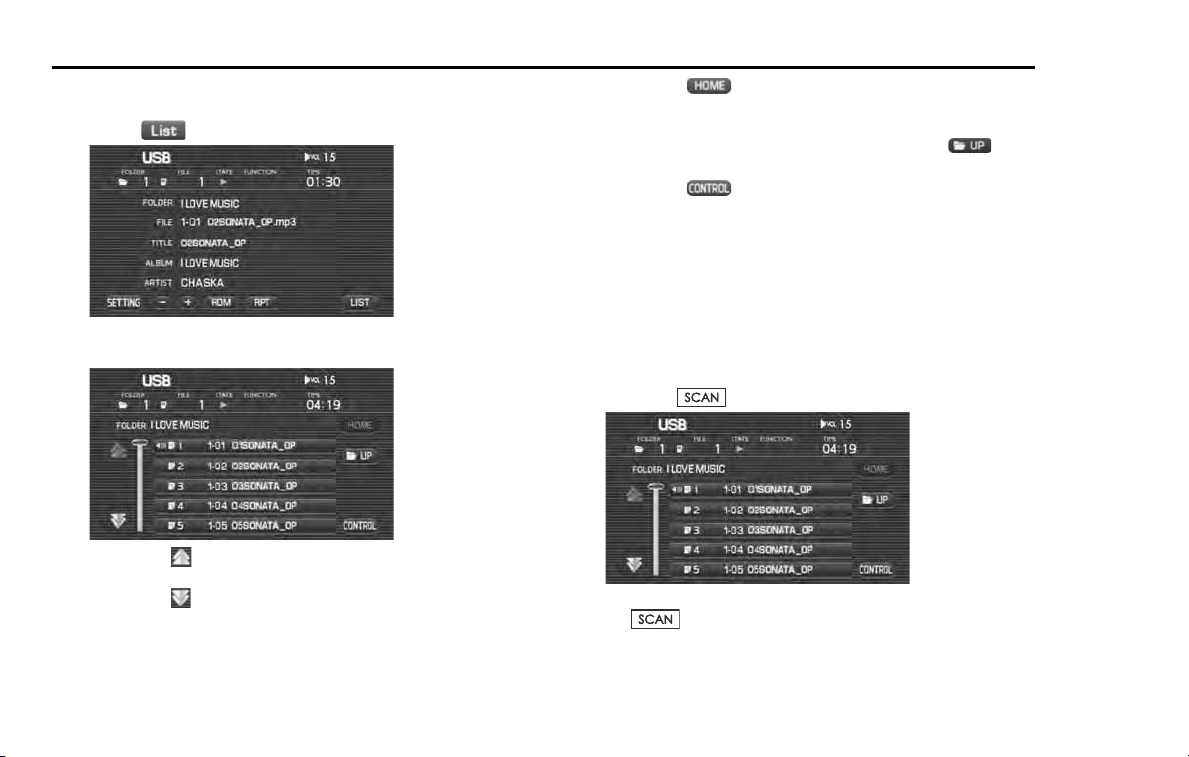
192 Audio and Visual
USB storage device functions
■ To select a tune from the list
1 Select (list).
2 Select the tune name.
• Selecting scrolls the display to display a folder 5 positions
ahead.
• Selecting scrolls the display to display a folder 5 positions
behind.
• Selecting (home) displays in the list the tunes in the
folder in which a tune that is now being played back is con-
tained.
• When the tunes are displayed in the list, selecting (up)
displays the folder list.
• Selecting (control) gets back to the USB in which the
tune information is displayed.
The tunes in the folder are displayed in the list.
A tune selected is played back.
■ To search a tune while listening to tunes in the folder
It is possible to search a tune you want to hear while listening to each of
the tunes in the folder for 10 seconds. After all the tunes in the folder
are played back, the player gets back to the normal playback mode.
1 Press the button while playing back a tune.
After completion of the playback of tune you want to hear, press
the button again.
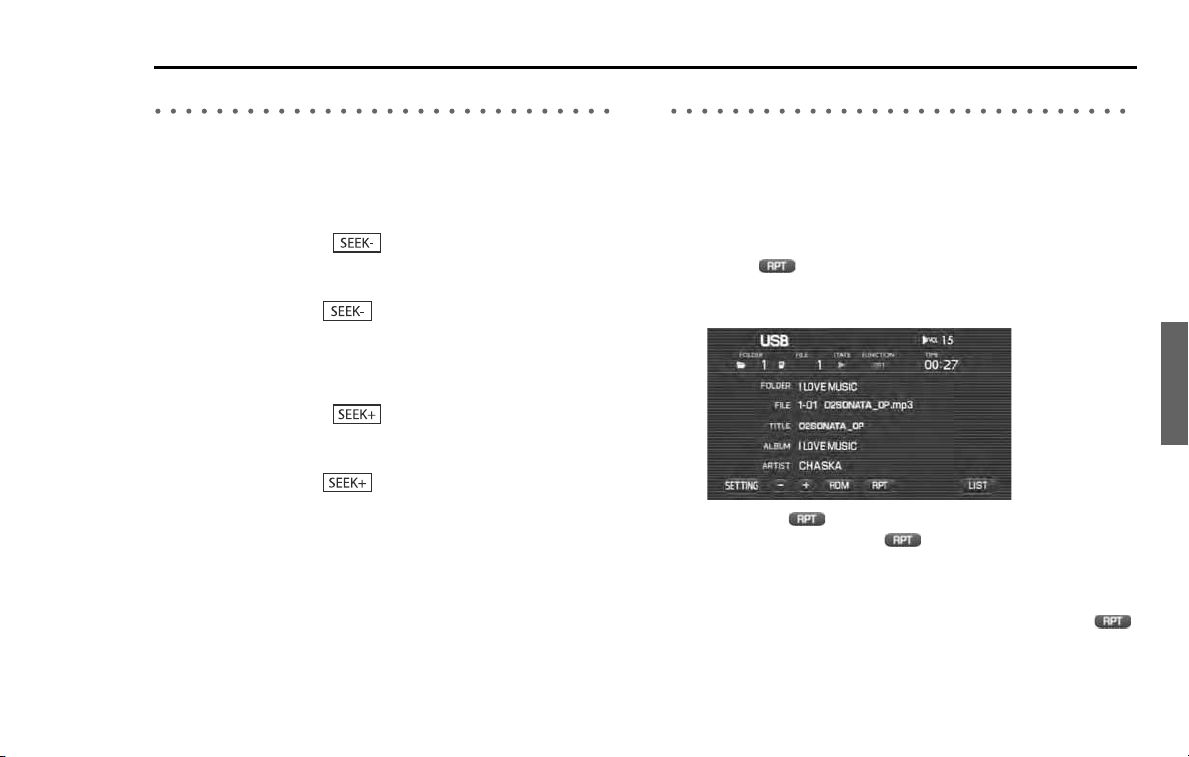
Audio and Visual 193
USB storage device functions
Reversing or fast-forwarding a tune
It is possible to reverse or forward quickly a tune that is now being
played back.
■ To reverse a tune quickly
1
Keep pressing the button while playing back a
tune.
A tune is reversed quickly while the button is kept pressed.
When releasing the button, the tune is played back from
the point to which the tune was reversed.
■ To forward a tune quickly
1
Keep pressing the button while playing back a
tune.
A tune is forwarded quickly while the button is kept pressed.
When releasing the button, the tune is played back from
the point to which the tune was forwarded.
Listening to a tune repeatedly
It is possible to listen to the same tune or the tunes in the folder repeat-
edly.
■ To listen to the same tune repeatedly
It is possible to play back the same tune repeatedly.
1 Select (repeat) while playing back a tune.
With "RPT" displayed for FUNCTION on the USB audio screen, the
tune is played back repeatedly.
• Selecting (repeat) allows you to listen to the tunes in the
folder repeatedly. Select (repeat) again to release the
repeated playback.
• When "F.RPT" is displayed for FUNCTION, the USB audio is set to
the mode for listening to the tunes in the folder.
• The function will be toggled as shown below by pressing
(repeat) repeatedly.
repeat OFF -> file repeat -> folder repeat -> repeat OFF .....
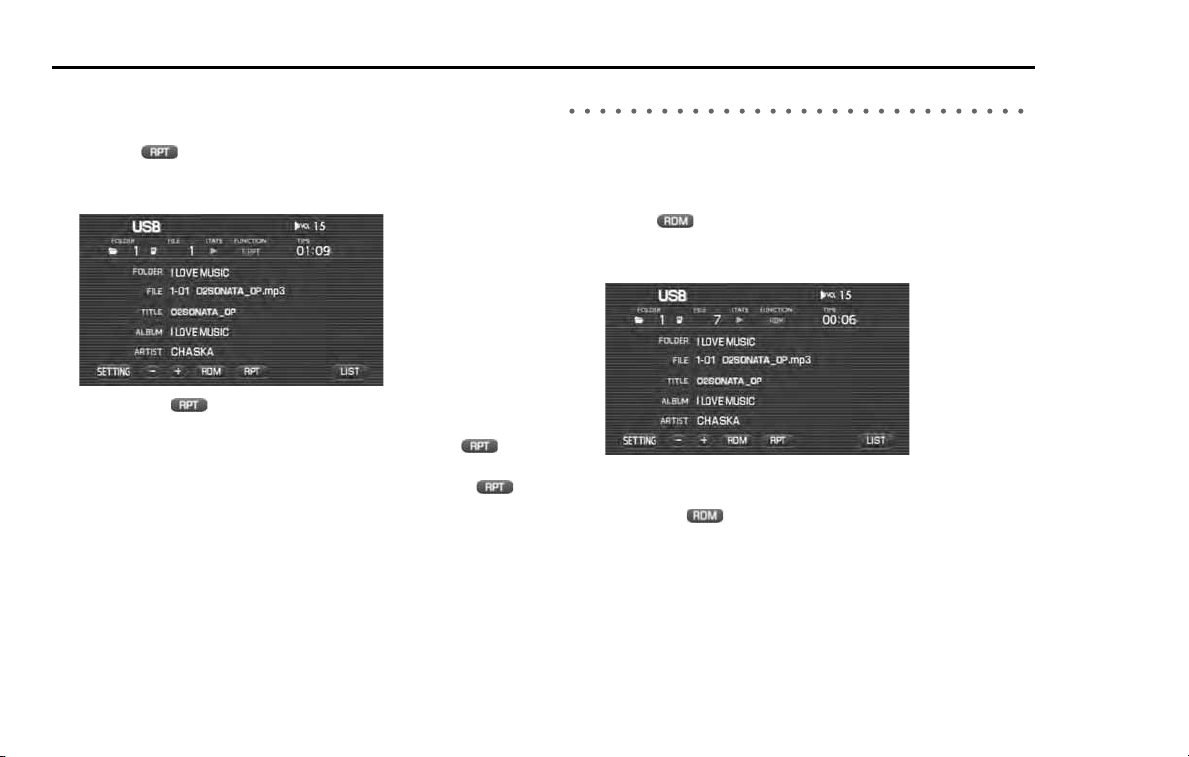
194 Audio and Visual
USB storage device functions
■ To listen to the tunes in the folder repeatedly
It is possible to play back the tunes in the folder repeatedly.
1 Select (repeat) twice while playing back a tune.
With "F.RPT" displayed for FUNCTION on the USB audio screen, the
tunes in the folder are played back repeatedly.
• Selecting (repeat) again releases the repeated playback.
• When "RPT" is displayed for FUNCTION, the mode is set in
which the same tune is played back repeatedly. Select
(repeat) again.
• The function will be toggled as shown below by pressing
(repeat) repeatedly.
repeat OFF -> file repeat -> folder repeat -> repeat OFF .....
Listening to the tunes in random order
It is possible to play back the tunes in the folder in random order. After
all the tunes in the folder are played back, the tunes in the next folder
are played back in random order.
1 Select (random) while playing back a tune.
With "RDM" displayed for FUNCTION on the USB audio screen, the
tunes in the folder are played back in random order.
• After all the tunes in the folder are played back, the tunes in the
next folder are played back in random order.
• Selecting (random) again releases the random playback.
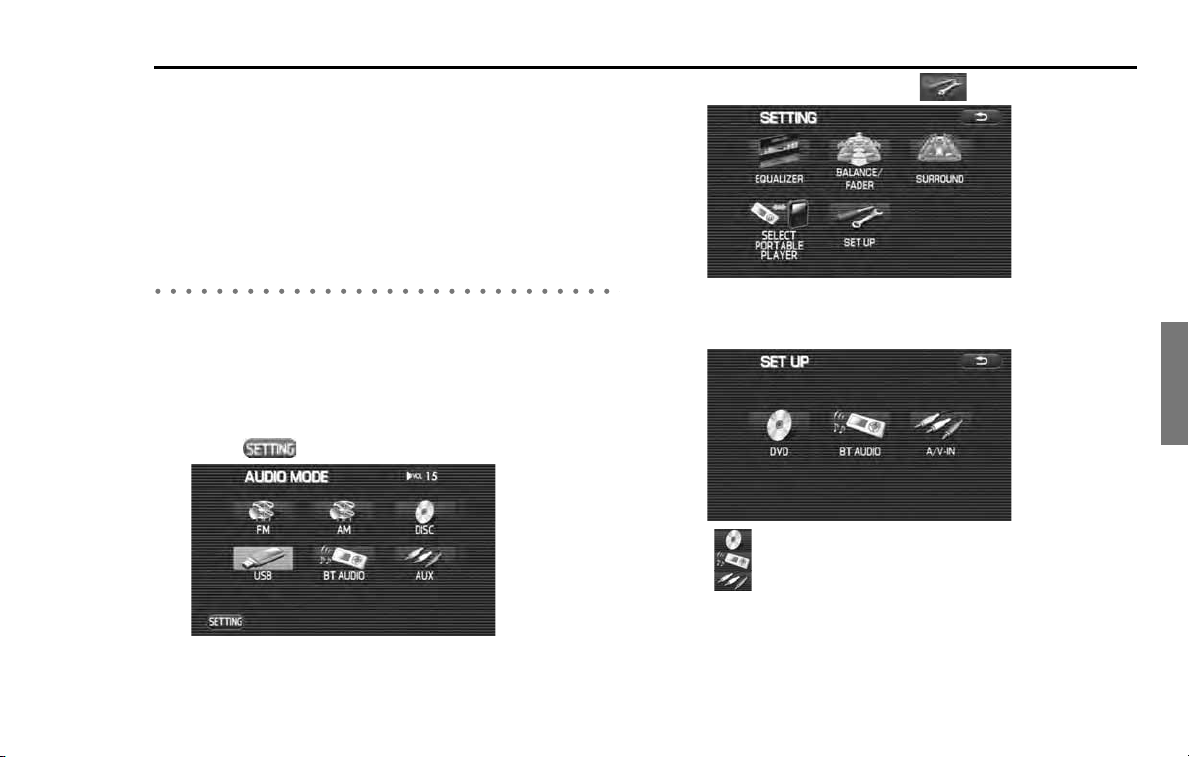
Audio and Visual 195
Setting the audio
To adjust the audio settings, observe the following instruc-
tions to go to the menu screens regarding each setting. For
more details about each setting, refer to the corresponding
section.
NOTE
The surround function is set at the factory and cannot be reset using the sur-
round button.
Setting
NOTE
Sources displayed vary with the equipment connected.
1
Press the [TUNE/TRACK] button.
When the source display is shown, proceed to step 3.
2
Select (setting).
3
Select the desired source or (set up).
4
Select the desired source.
Each of the source screens are displayed.
(DVD) See Page 153
(BT AUDIO) See Page 170
(A/V-IN) See Page 218
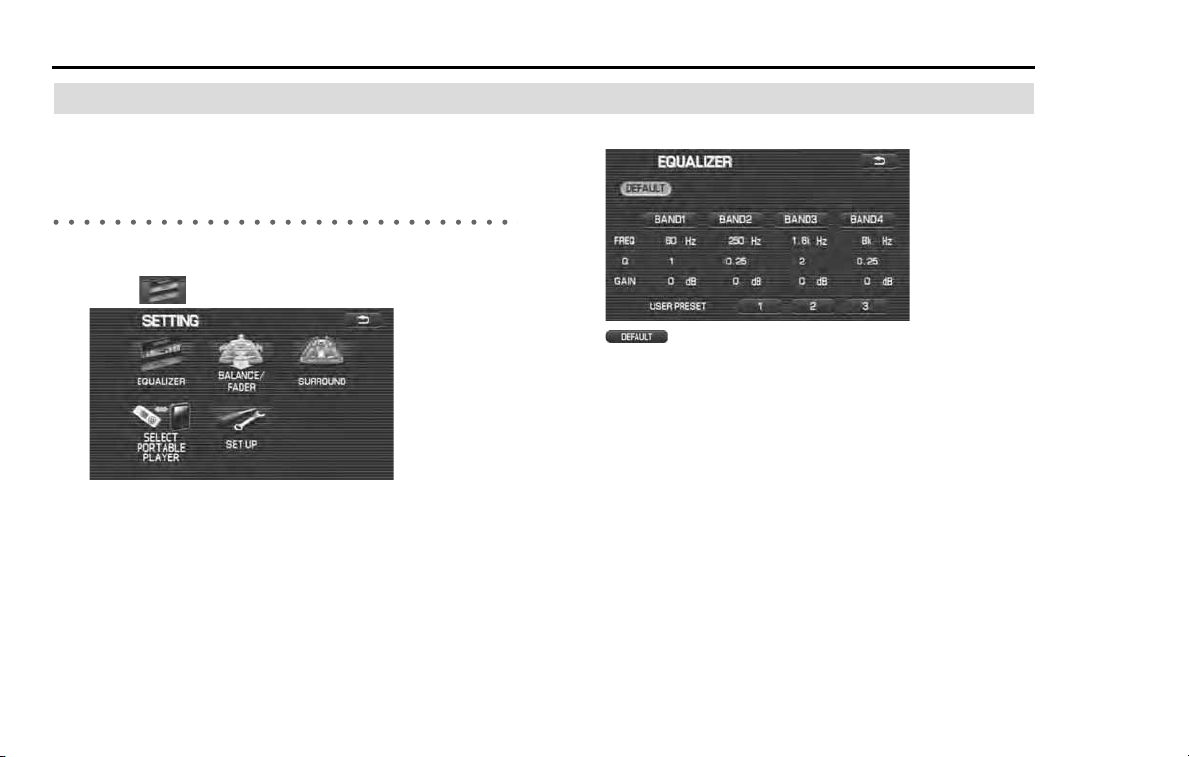
196 Audio and Visual
Setting the audio
Setting the equalizer
It is possible to set the audio to the sound quality of your pref-
erence.
Setting the equalizer with ease
It is possible to select a sound category to set the equalizer with ease.
1 Select (EQUALIZER).
2 Select either of the categories.
(default): All items are configured to the default settings
at the same time.
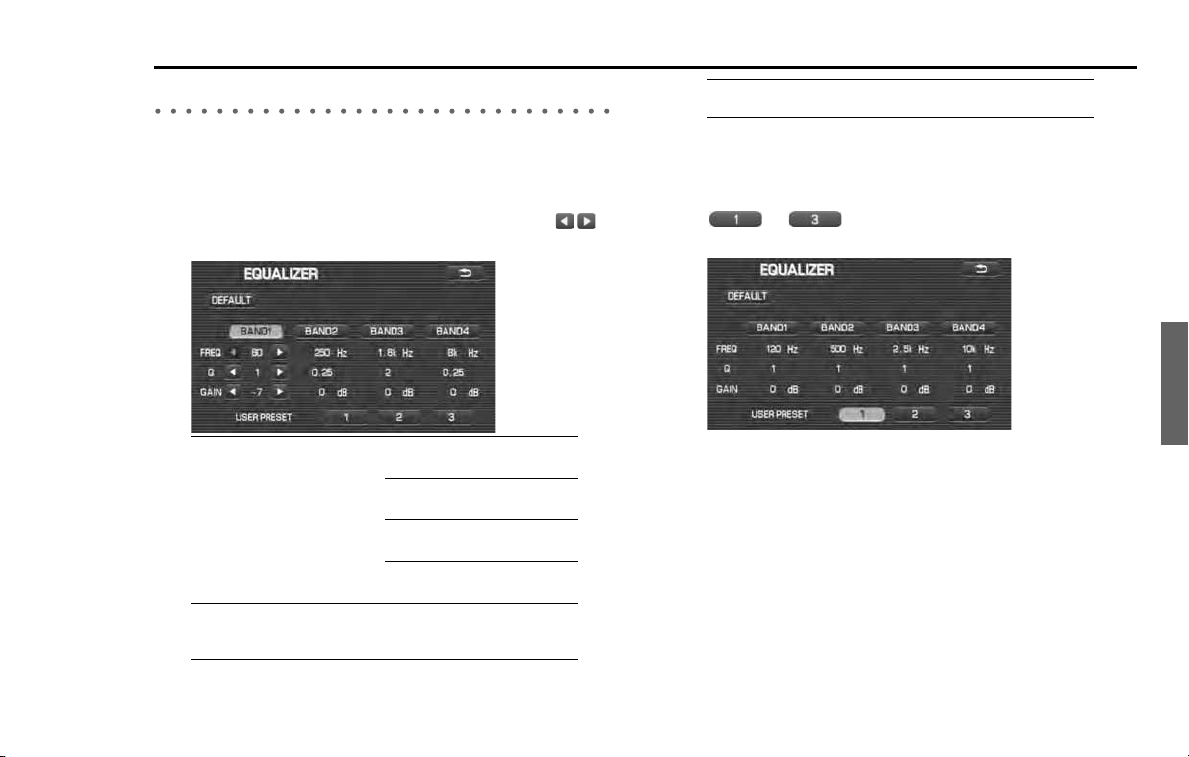
Audio and Visual 197
Setting the audio
Setting the equalizer in detail
Setting the numeric value of the equalizer in detail allows you to enjoy
a sound quality more suited to your taste. Presetting the equalizer
allows you to invoke it later.
1
Select either of the BANDs 1 to 4 and then select to
set a numeric value for each band.
The larger the value of Q factor (degree of acumination) is, the
more the gain of the center frequency is enhanced.
2
When presetting the equalizer setting, select either of
to of the USER PRESET for more than 2
second.
NOTE
When not preset, it is not possible to invoke the setting later. However, you can
enjoy the audio as you have set it.
FREQ:
Used to set the frequency.
BAND1
60/80/100/120/160/200
BAND2
250/315/400/500/630/800/1k
BAND3
1.25k/1.6k/2k/2.5k/3.15k/4k
BAND4
5k/6.3k/8k/10k/12.5k/16k
Q:
Used to set the degree of
acumination.
0.25/0.5/1/2
GAIN:
Used to set the value of gain.
-9/-7/-5/-3/-2/-1/0/1/2/3/5/7/9
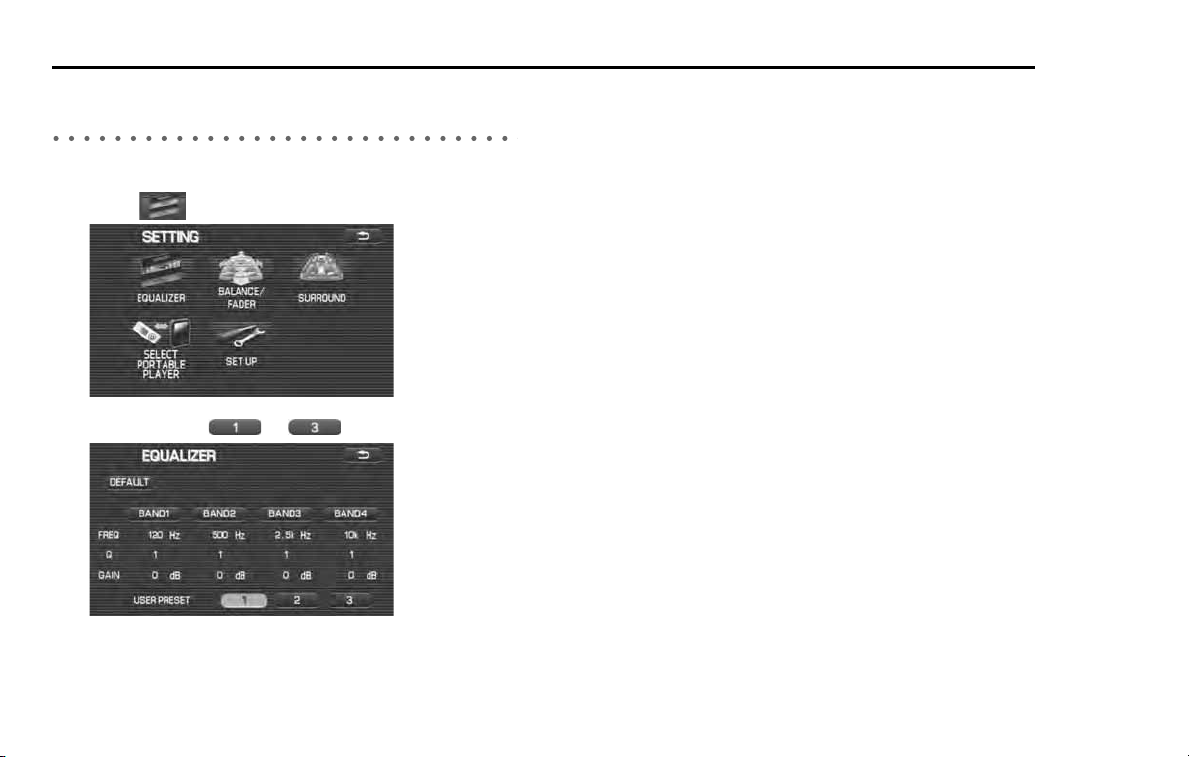
198 Audio and Visual
Setting the audio
Invoking the equalizer setting that has been
preset
It is possible to invoke the equalizer preset to make use of it.
1 Select (EQUALIZER) in the SETTING screen.
2 Select either of to of USER PRESET.
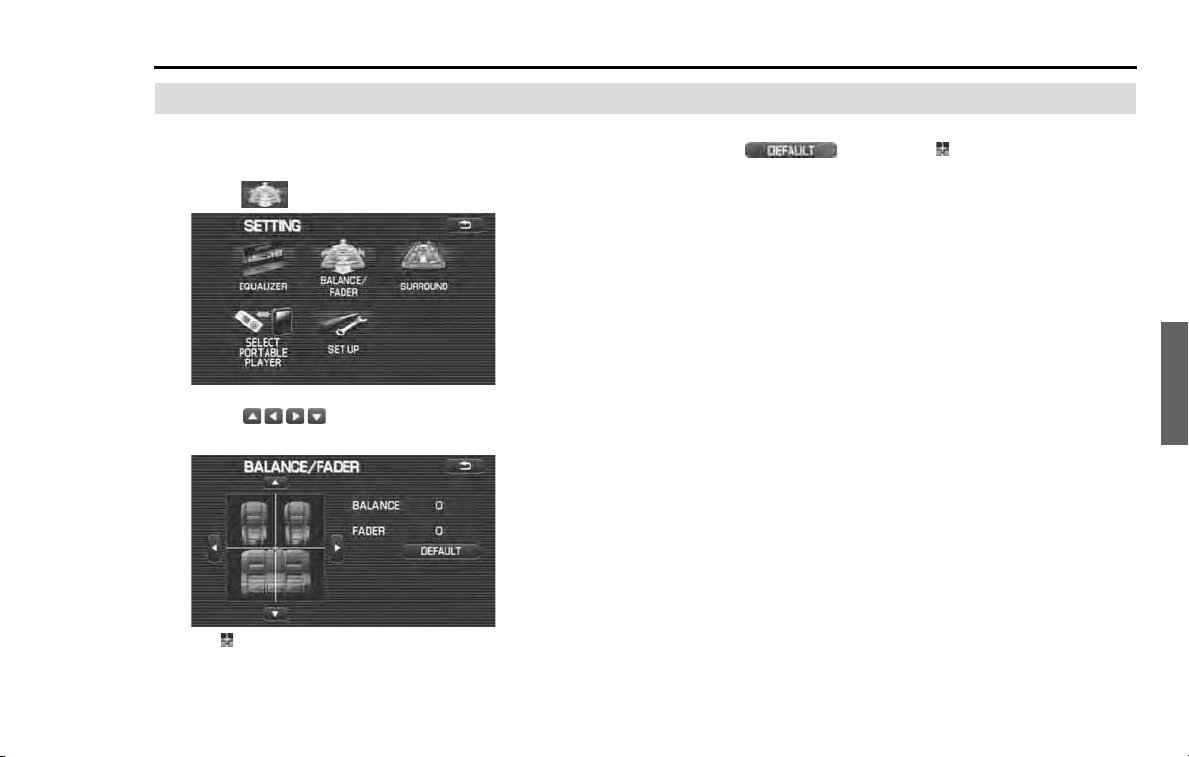
Audio and Visual 199
Setting the audio
Setting the balance/fader
It is possible to set the audio to the sound balance of your
preference.
1 Select (BALANCE/FADER).
2 Select given in the in-vehicle illustration to
set the balance level and fader level.
Set " " (cross point) to the position at which you want to tone up
the sound level the most.
NOTE
• Selecting (DEFAULT) gets " " (cross point) back to the center
position.
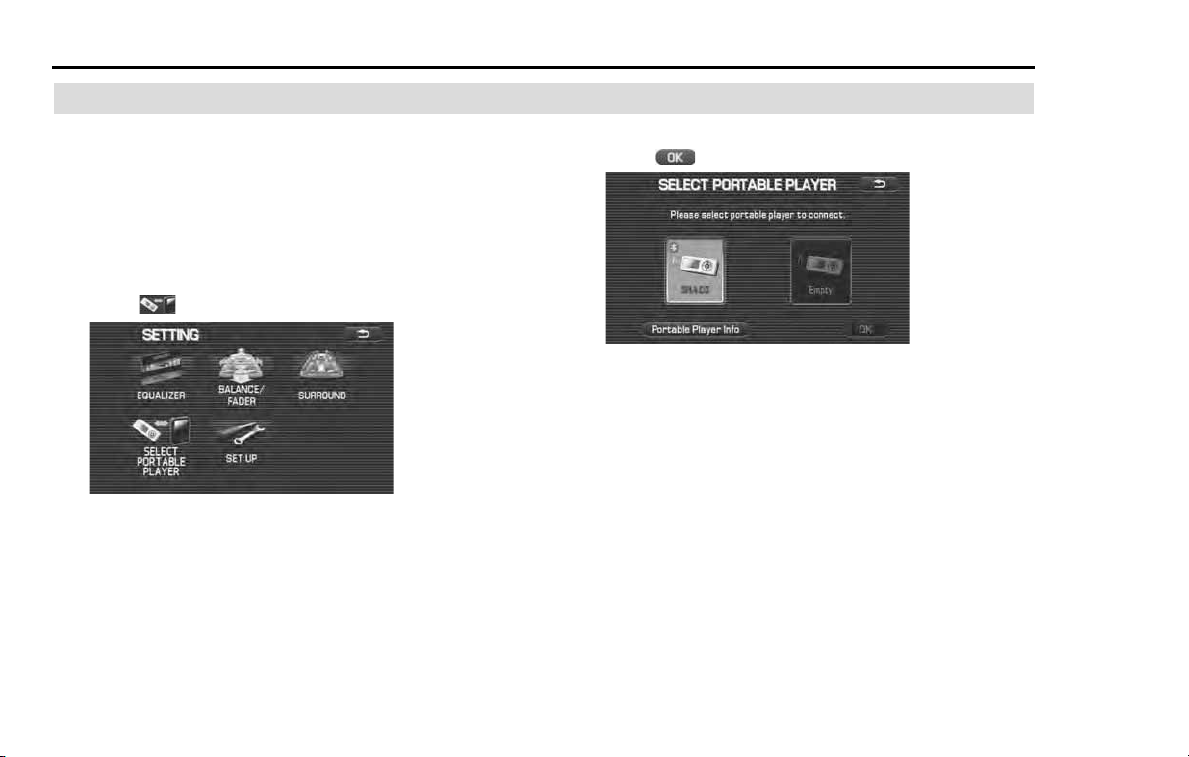
200 Audio and Visual
Setting the audio
Select the portable player
To switch the Bluetooth audio devices that were already regis-
tered, perform the following procedure. For more details
about Bluetooth audio, refer to the "Bluetooth audio" section.
This function is available when more than one Bluetooth
audio device was registered. Only one Bluetooth audio device
can be connected at once. The switching procedures to con-
nect a Bluetooth audio device are shown below.
1 Select (select portable player).
2 Select the Bluetooth audio device to be used, and then
select (OK).
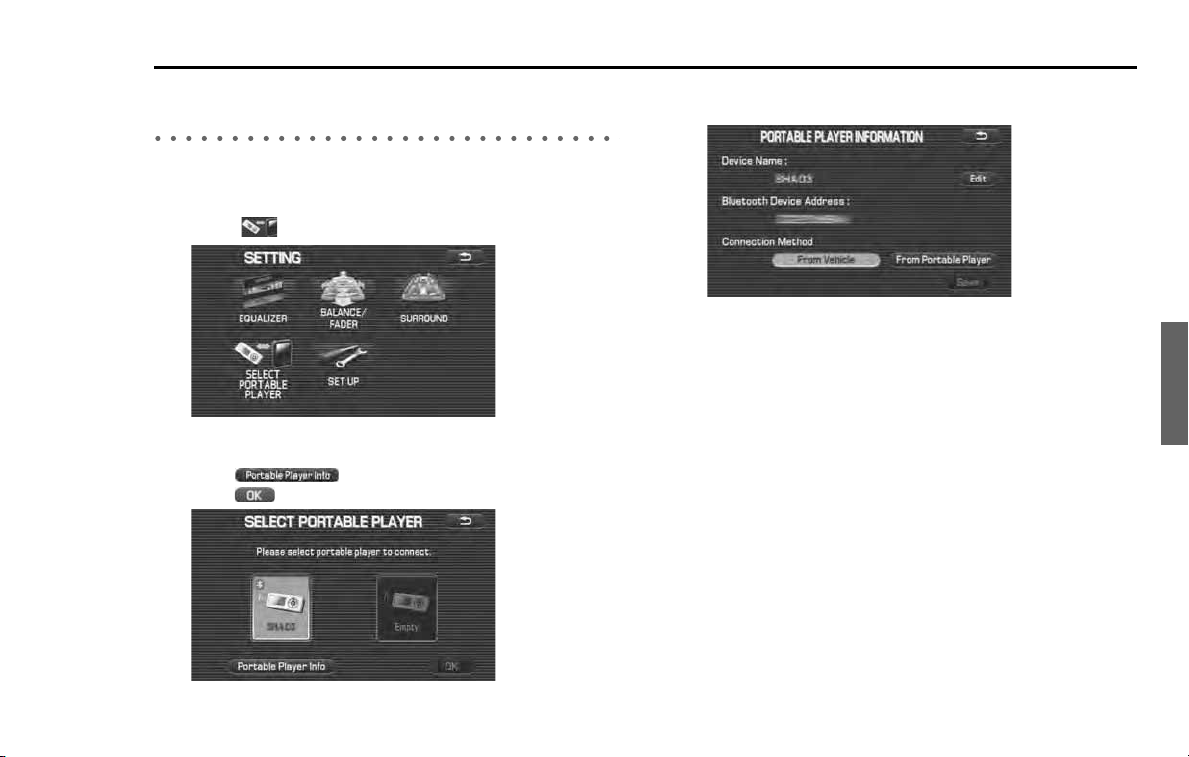
Audio and Visual 201
Setting the audio
Referring to the Bluetooth audio device infor-
mation
Perform the following procedure to refer to and edit the information of
the Bluetooth audio devices that were already registered.
1
Select (select portable player).
2
Select the Bluetooth audio device to be referred to.
Select (portable player information), and then
select (ok).
3
The information about the Bluetooth audio device is dis-
played.
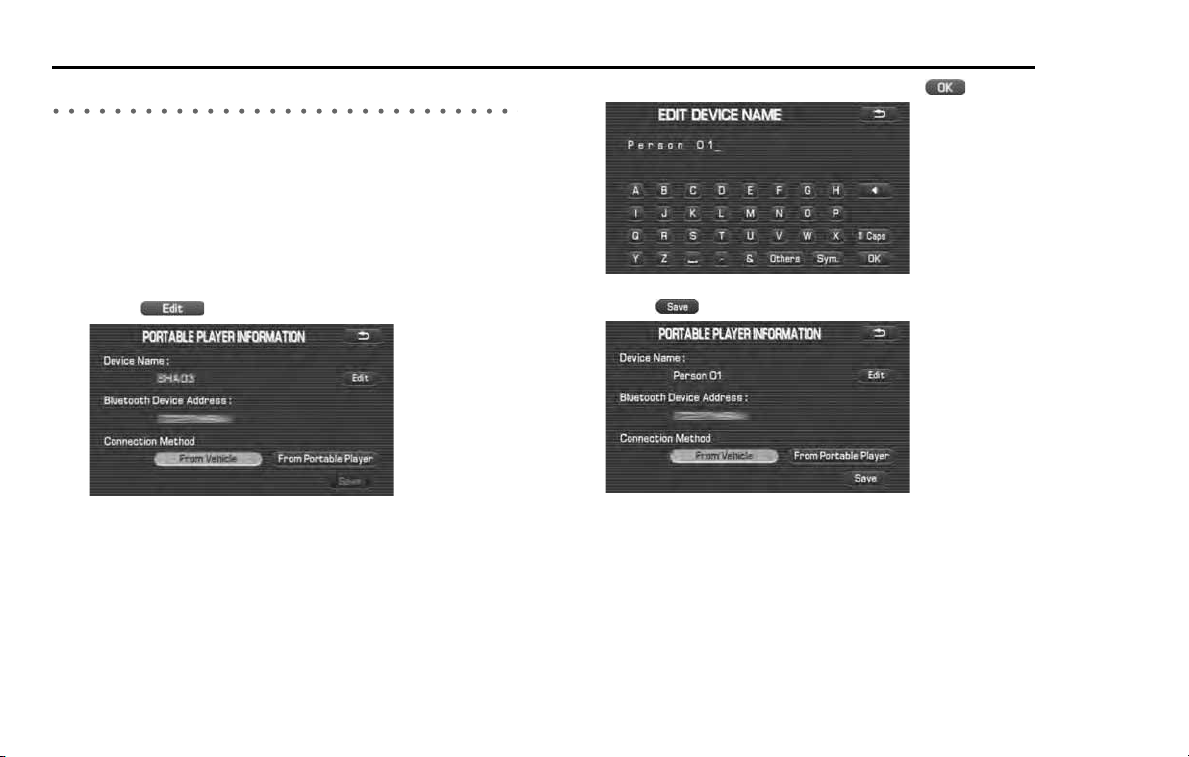
202 Audio and Visual
Setting the audio
Editing the Bluetooth audio device information
Perform the following procedure to edit the information of the Blue-
tooth audio devices that were already registered.
■ Device name editing
1 Display the information of the Bluetooth audio devices
on the information screen.
2 Select (edit) of the device name.
3 Input a new device name, and then select (ok).
4 Select (save).
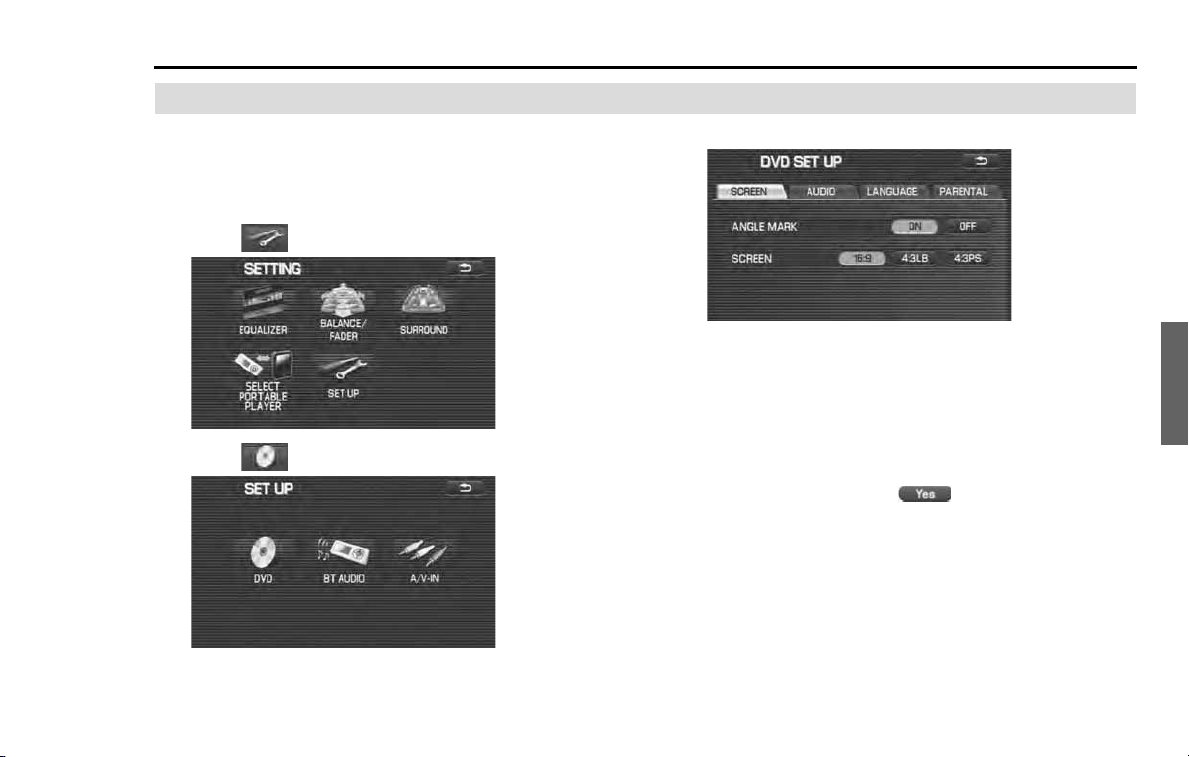
Audio and Visual 203
Setting the audio
Initializing the DVD
The DVD player is initialized. The selection of the superim-
posed language and the sound can be set while in the look-
ing and listening of the DVD. However, it is convenient if you
initialize in advance the settings frequently used.
1 Select (SET UP).
2 Select (DVD).
The DVD SET UP screen is displayed.
3
Select the desired setting.
NOTE
The following can be conducted in this screen.
• Setting the screen (See Page
204
.)
• Setting the dynamic range (See Page
205
.)
• Setting the language (See Page
206
.)
• Setting the parental level (See Page
209
.)
4
When "After changing settings, system may not play
back" is displayed, select (Yes).
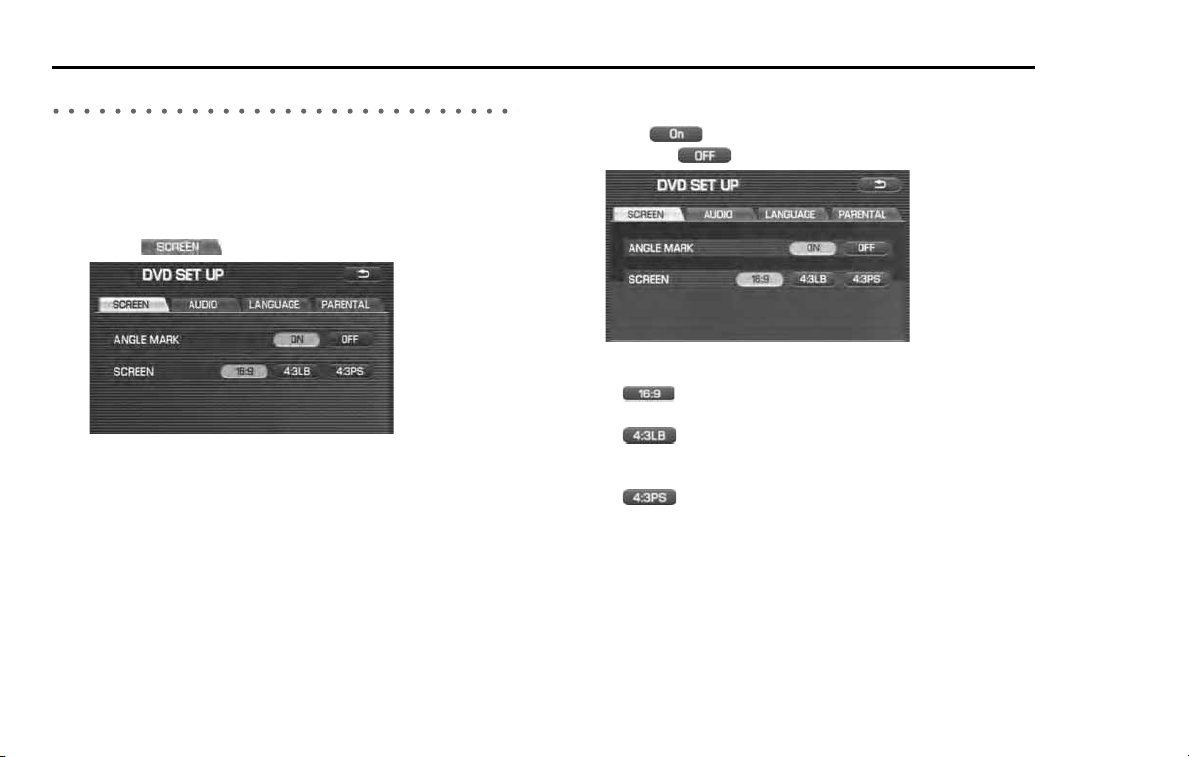
204 Audio and Visual
Setting the audio
Setting the screen
It is possible to make a setting to decide whether or not the angle mark
is displayed. And it is also possible to set the type of the image.
The angle mark is a mark displayed when the angle can be changed
while playing back a DVD compliant with multi-angle.
1 Select (SCREEN).
2 Make a setting to decide whether or not the angle mark
is displayed, and also set the type of the screen.
Select (ON) of the ANGLE MARK to display the angle mark.
And select (OFF) not to display the ANGLE MARK
.
Select either of the following to set the type of the image.
• : The width and height of the image is displayed in the
ratio of 16:9.
• : With a black frame attached to the top and bottom
of the image in the ratio of 16:9, the width and
height is displayed in the ratio of 4:3.
• : The width and height is displayed in the ratio of 4:3.
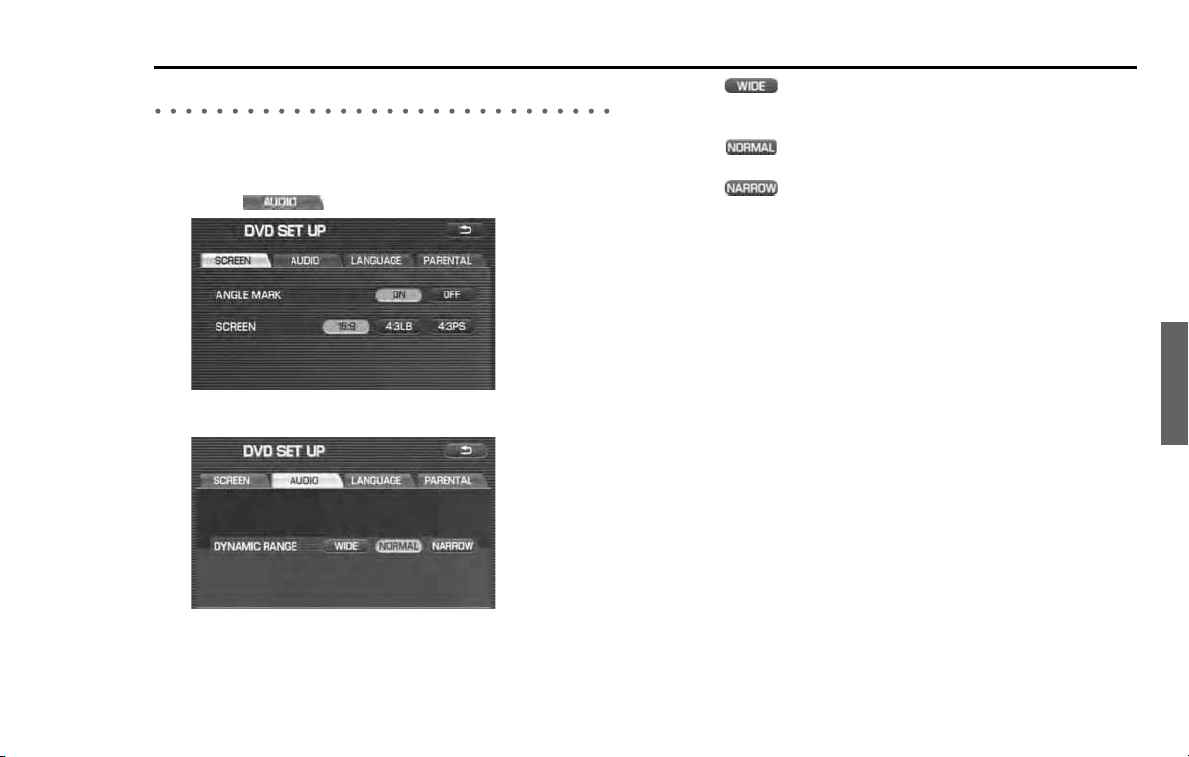
Audio and Visual 205
Setting the audio
Setting the dynamic range
The dynamic range is set. The setting of the dynamic range is effective
when playing back Dolby digital image.
1
Select (AUDIO).
2
Set the dynamic range.
Select either of the following to set the dynamic range.
• : Used to enhance the high-pitched sounds and the
low-pitched sounds so that the dynamic range is
played back in the sound modulated for effect.
• : Used to play back the dynamic range in the normal
mode.
• : Used to suppress the high-pitched sounds and the
low-pitched sounds to make speeches listener-
friendly.
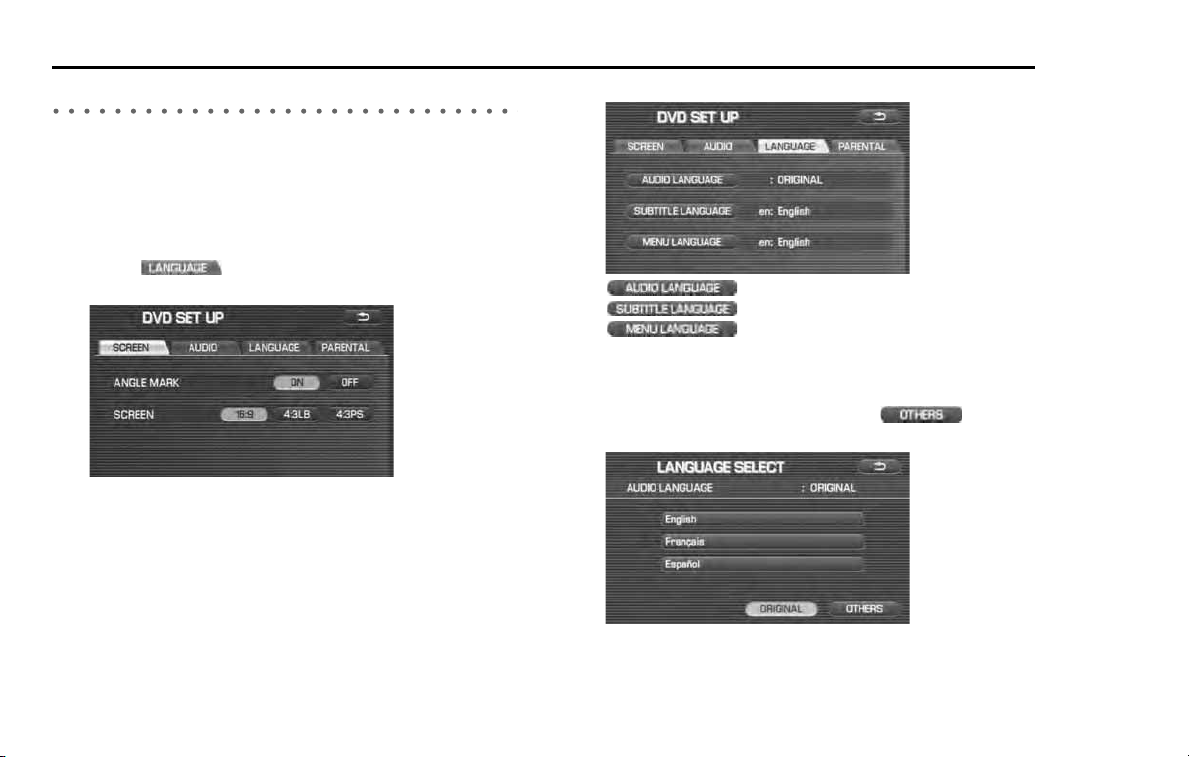
206 Audio and Visual
Setting the audio
Setting the language
It is possible to initialize the voice language, the superimposed lan-
guage and the language to be displayed on the menu.
For detailed method for changing the language while in the looking
and listening of the DVD, refer to "Changing the voice language" on
Page 163 and "Changing the superimposed language" on Page 162.
1 Select (LANGUAGE) in the DVD SET UP
screen.
2 Select the language item you want to set.
: Used to set the voice language.
: Used to set the superimposed language.
: Used to set the language to be displayed
on the menu.
3 Select the voice you want to set. When there is no lan-
guage found you want to set, select (OTH-
ERS).
Selecting the language terminates this operation.
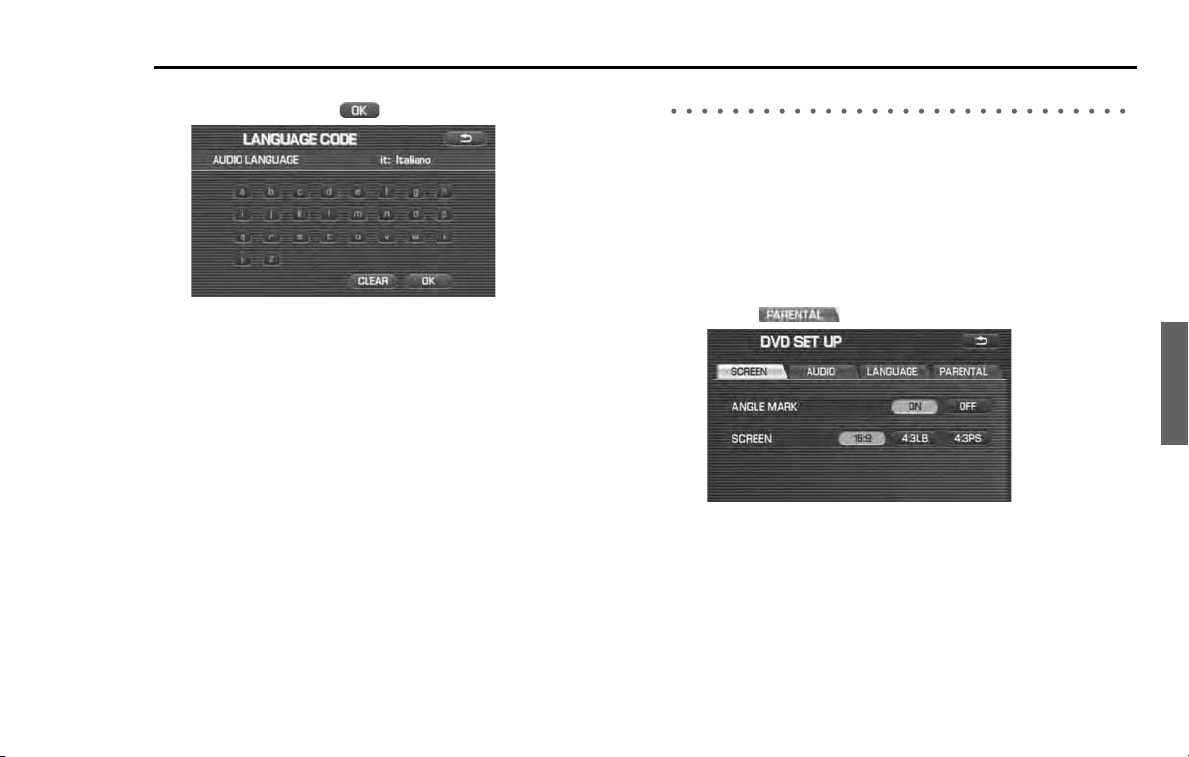
Audio and Visual 207
Setting the audio
4
Enter the LANGUAGE CODE of the language you want to
set and then select (OK).
Setting the password of the parental level
The parental level is used to restrict the looking and listening
of the DVD according to the level set. To set the parental level,
it is necessary to register a password in advance.
When setting the parental level, it sometimes occurs that a
password is asked for while in the looking and listening of the
DVD. In that case, enter the password you used when setting
the parental level.
1
Select (PARENTAL).
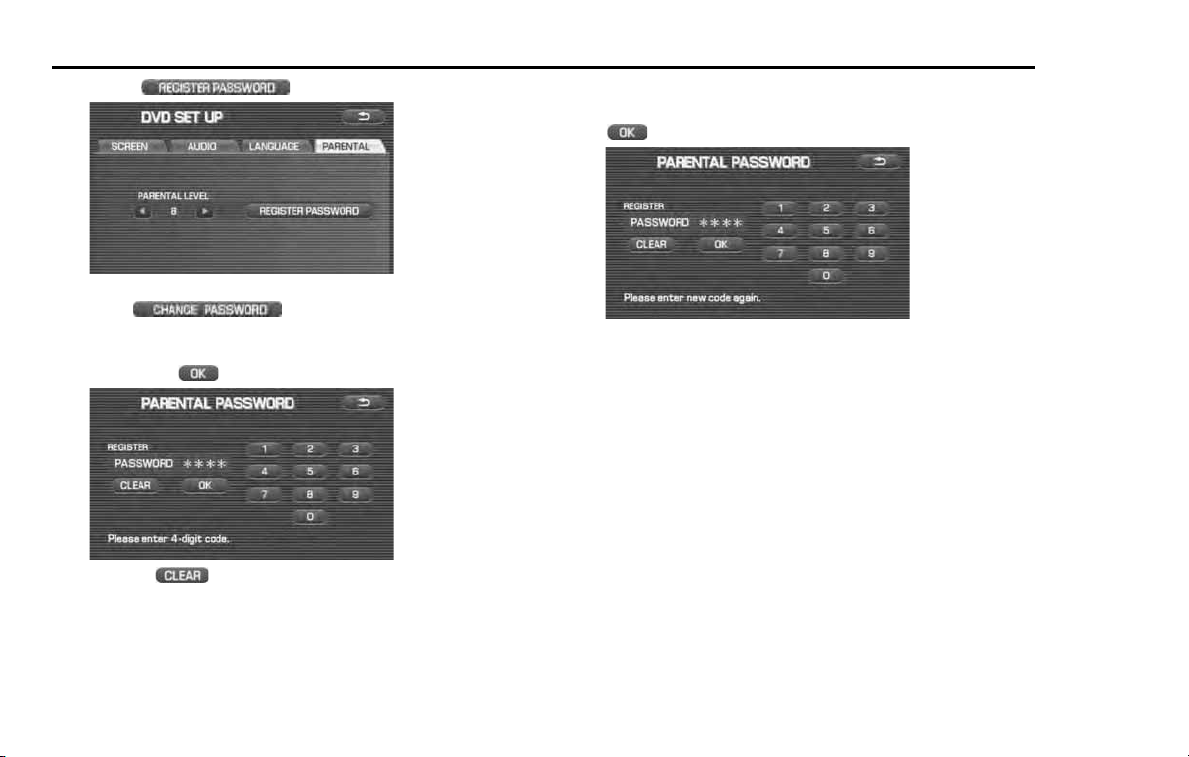
208 Audio and Visual
Setting the audio
2 Select (REGISTER PASSWORD).
When the password has been set and you want to change it,
select (CHANGE PASSWORD).
3 Select the numeric key to enter a 4-digit password, and
then select (OK).
Selecting (CLEAR) deletes what has been entered.
4 As a password for confirmation, enter a 4-digit password
that is the same as the one used in step 3 and then select
(OK).
When setting the parental level, follow the procedure given at
step 4 and the succeeding steps on Page 209.
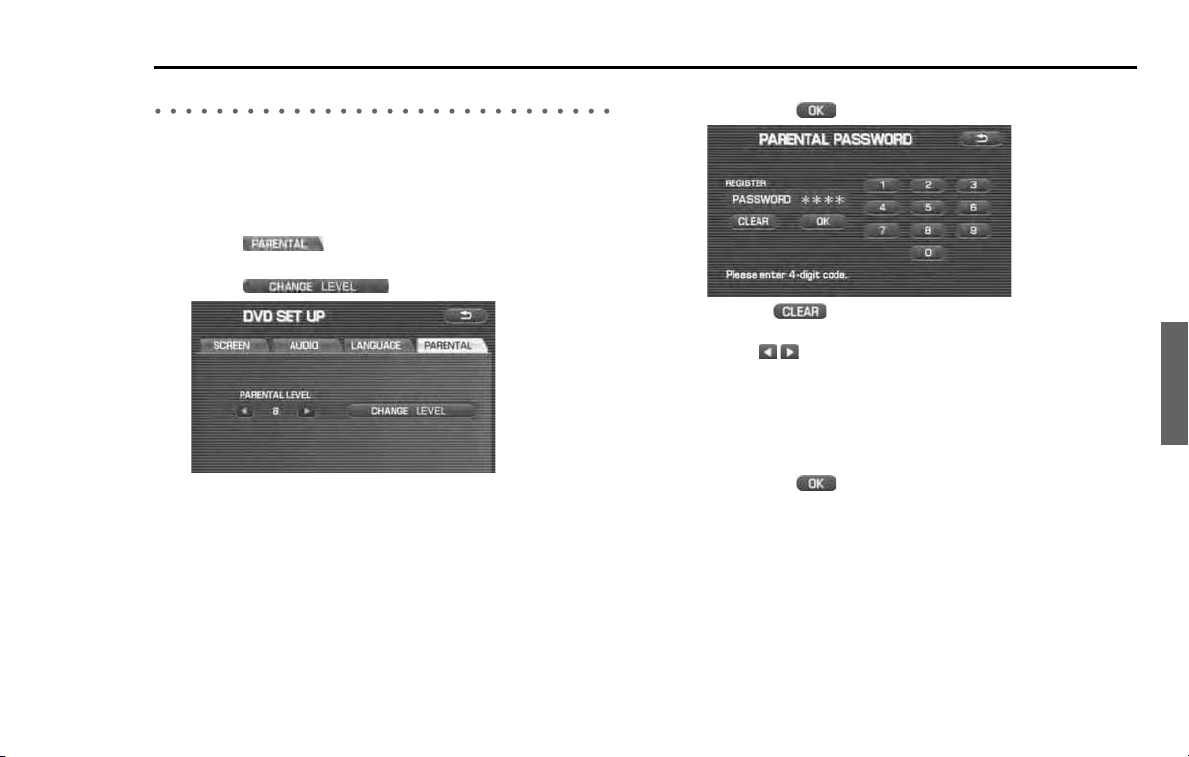
Audio and Visual 209
Setting the audio
Setting the parental level
Set the parental level to restrict the looking and listening of the DVD
according to the level set. In order to set the parental level, a password
is used. When a password is not yet set, it is necessary to register a pass-
word. (See Page 207.)
1
Select (PARENTAL) in the DVD SET UP screen.
2
Select (CHANGE LEVEL).
3
Select the numeric keys to enter a 4-digit password and
then select (OK).
Selecting (CLEAR) deletes what has been entered.
4
Select of the PARENTAL LEVEL.
The smaller the numeric value (1-8) of the parental level, the more
severe the restriction. And the larger the numeric value, the more
gentle the restriction.
5
Select the numeric keys to enter a 4-digit password and
then select (OK).
If you want to change the password, select [CHANGE PASSWORD],
and then change it referring to "Setting the password of the
parental level" on Page 207.
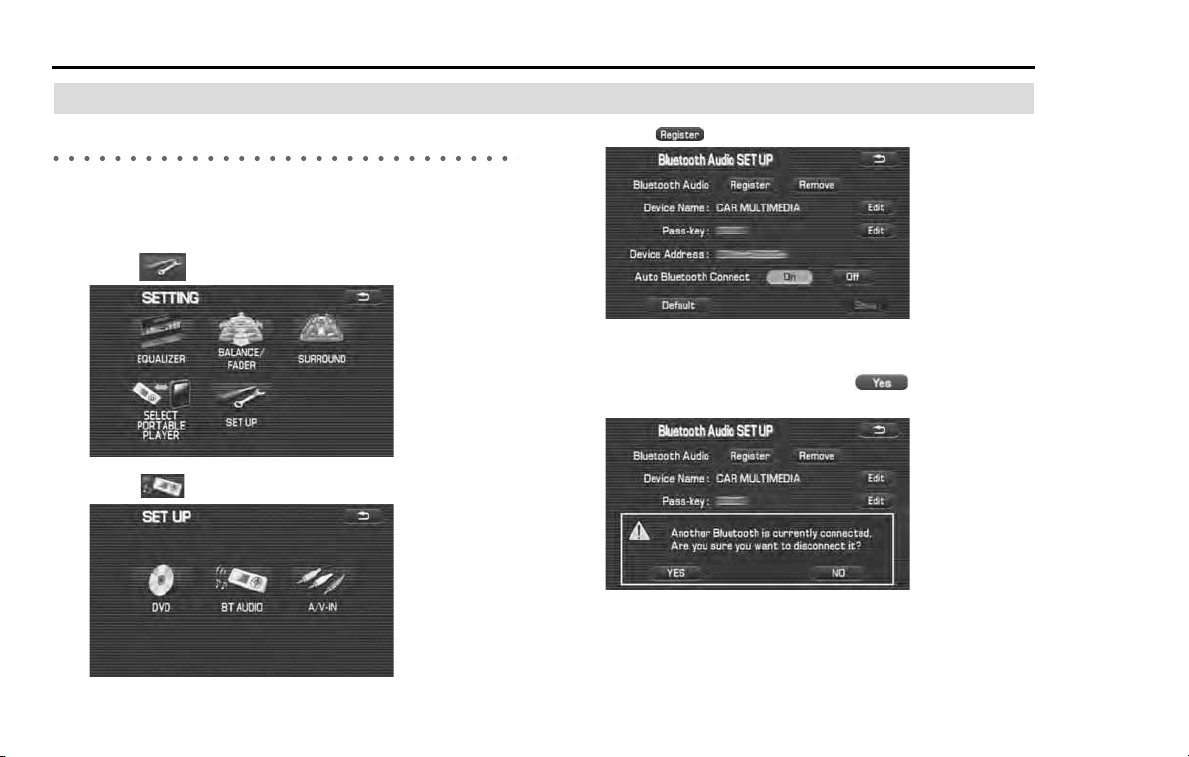
210 Audio and Visual
Setting the audio
Setting the Bluetooth audio
Registering the Bluetooth audio devices
Before using a Bluetooth audio device, registering (pairing) the Blue-
tooth audio device in the system is required. A maximum number of
two devices can be registered.
1 Select (set up).
2 Select (BT audio).
3 Select (register).
If another Bluetooth audio device is connected, the BT audio con-
firmation message is displayed. Select (yes) to cancel the
connection of the device.
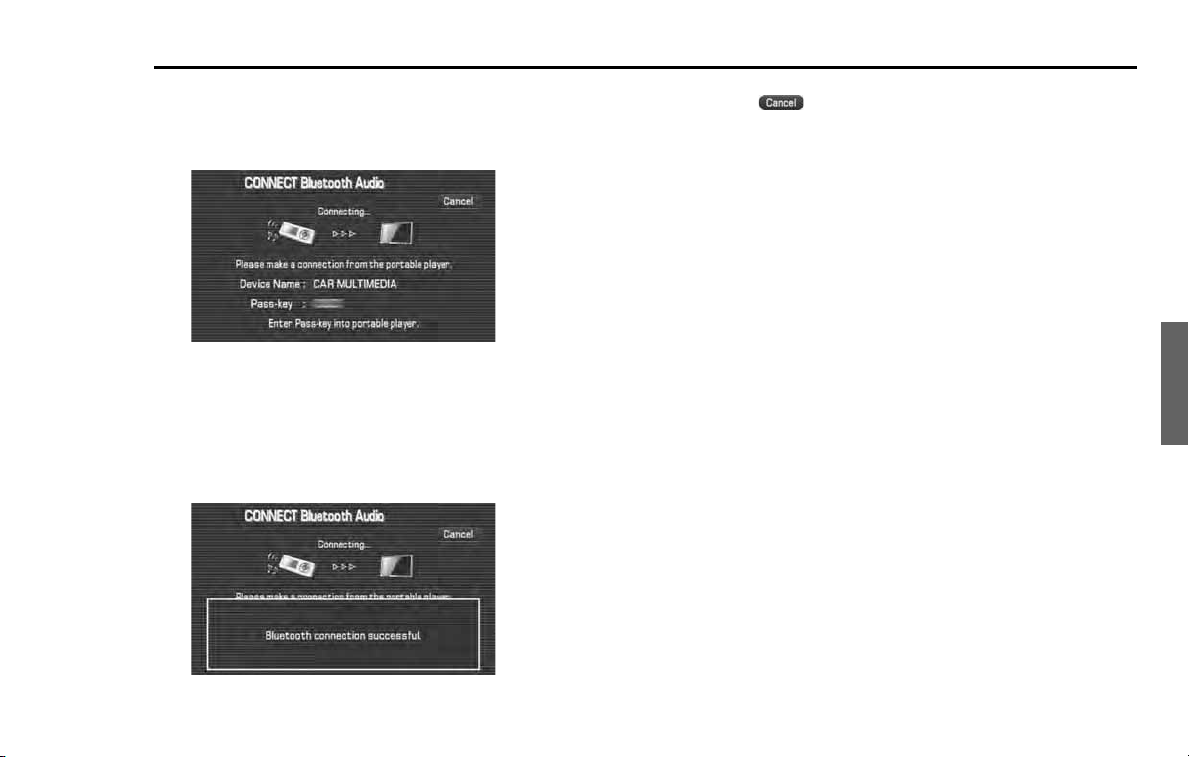
Audio and Visual 211
Setting the audio
4
While the Bluetooth audio screen is displayed, operate
the Bluetooth audio device to search and connect to the
in-vehicle equipment. (When connecting, use the pass-
key shown on the Bluetooth audio screen.)
NOTE
If your Bluetooth audio device is not equipped with the pass-key input interface,
register the device after changing the pass-key of the in-vehicle equipment to
the one of the Bluetooth audio device.
5
When the connection is successful, a confirmation mes-
sage is displayed and the registration is completed.
NOTE
• If you select (cancel) shown on the Bluetooth audio screen or move
to other screens during registration, the ongoing registration process will be
canceled.
• After the registration is completed, the registered Bluetooth audio device is
automatically connected.
• Registration cannot be performed while a hands-free phone is receiving a call
or when talking on a hands-free phone.
• The registered Bluetooth audio device can be used on the interface of the BT
audio function. If you want to use the device on the interface of the hands-
free phone function, perform the registration of hands-free phone devices.
• Regarding the operation of the Bluetooth audio device that is registered and
connected, refer to the owner's manual that comes with the Bluetooth audio
device.
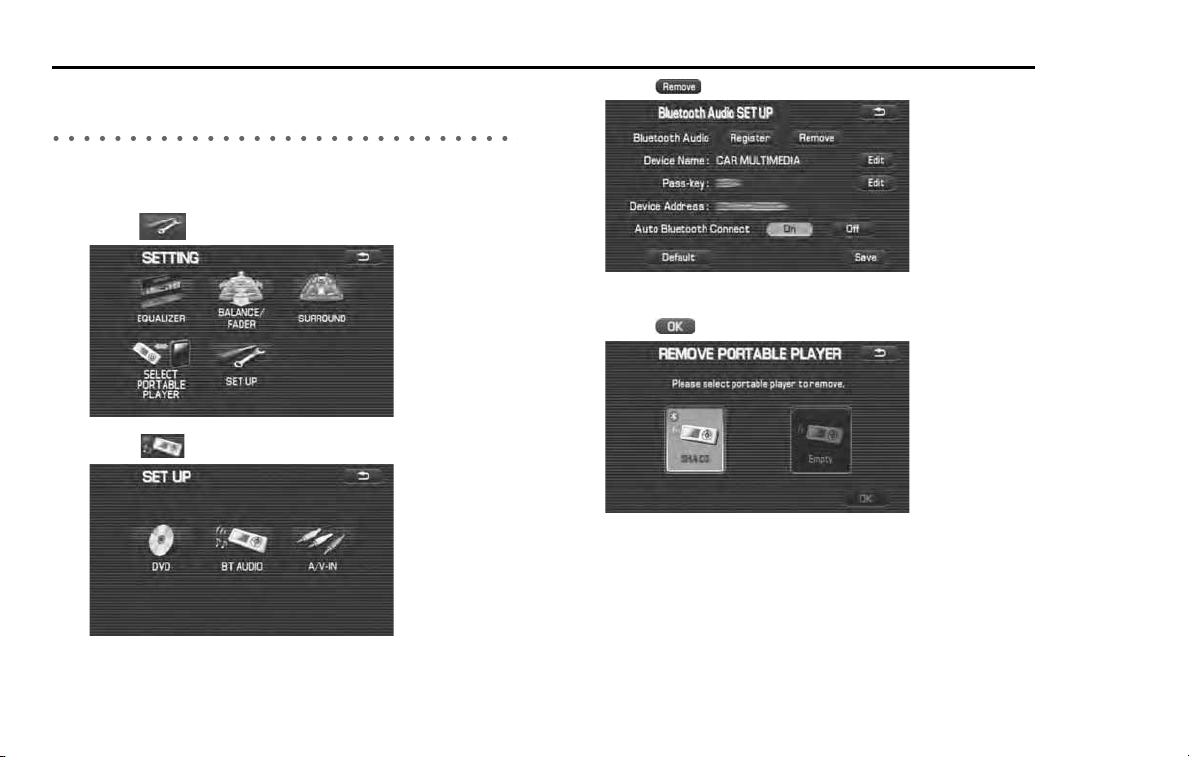
212 Audio and Visual
Setting the audio
Deleting the Bluetooth audio device registra-
tion
Specify a registered Bluetooth audio device and delete the registration
from the system.
1 Select (set up).
2 Select (BT audio).
3 Select (remove).
4 Select the device to be deleted on the list, and then
select (ok).
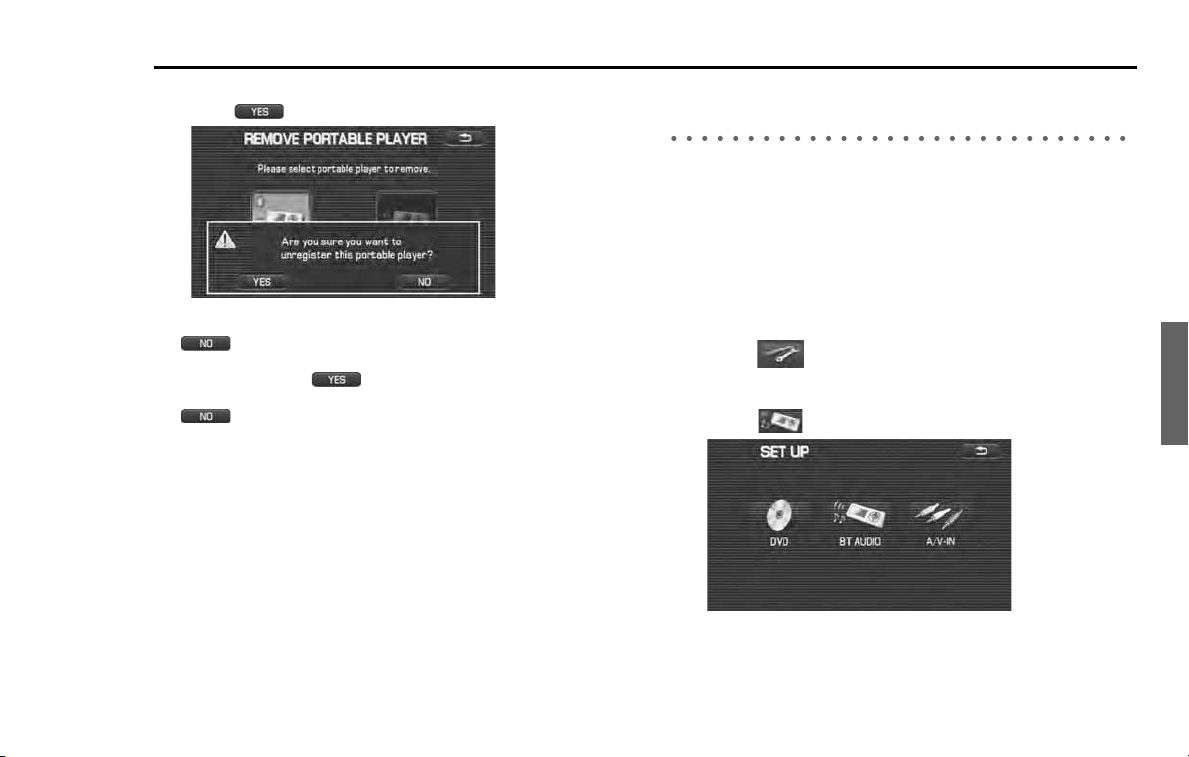
Audio and Visual 213
Setting the audio
5
A confirmation message is displayed.
Select (yes).
NOTE
• If (no) is selected, the deletion process is canceled.
• If the device to be deleted is connected to the system, a confirmation mes-
sage is displayed. Select (yes) to cancel the connection, and then
perform the deletion process.
• If (no) is selected, the deletion process is canceled.
6
A confirmation message is displayed while deleting the
registration, and another confirmation message is dis-
played when the deletion process is successful.
NOTE
• After the deletion is completed, another registered Bluetooth audio device is
not automatically connected.
• Deletion cannot be performed while a hands-free phone is receiving a call or
when talking on a hands-free phone.
Connecting the Bluetooth audio device auto-
matically
The Bluetooth audio device that was already registered in the system
can be automatically connected.
NOTE
• If the connection method was set to "From portable player", operating the
Bluetooth audio device is required for connection after the ignition key is
turned to the ACC or ON position.
• Automatic connection will not be performed if no Bluetooth audio device is
registered.
1
Select (set up).
The "setup" menu is displayed.
2
Select (BT audio).
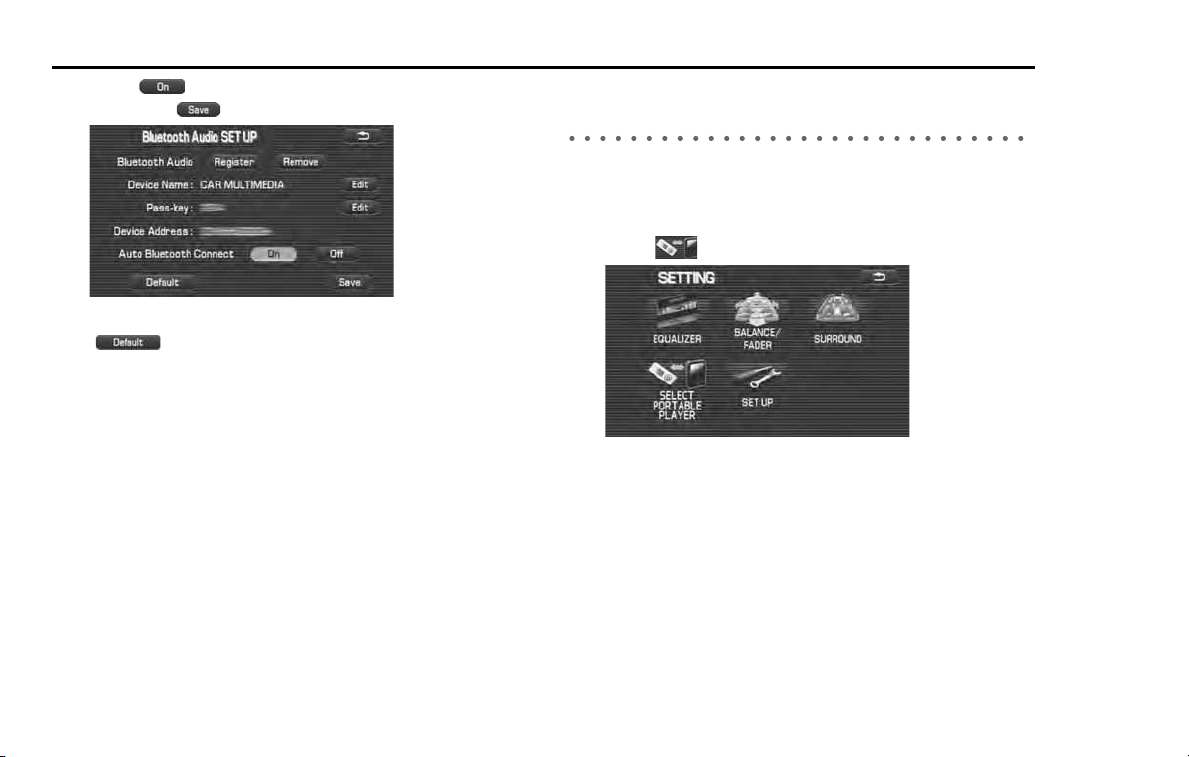
214 Audio and Visual
Setting the audio
3 Select (on) of the "Auto Bluetooth connect", and
then select (save).
NOTE
Select (default) to use the default of the automatic connection set-
ting.
Setting the connection method of the Bluetooth
audio device
The connection method (connecting from either the system or Blue-
tooth audio device) can be set up independently on each registered
Bluetooth audio device.
1 Select (select portable player).
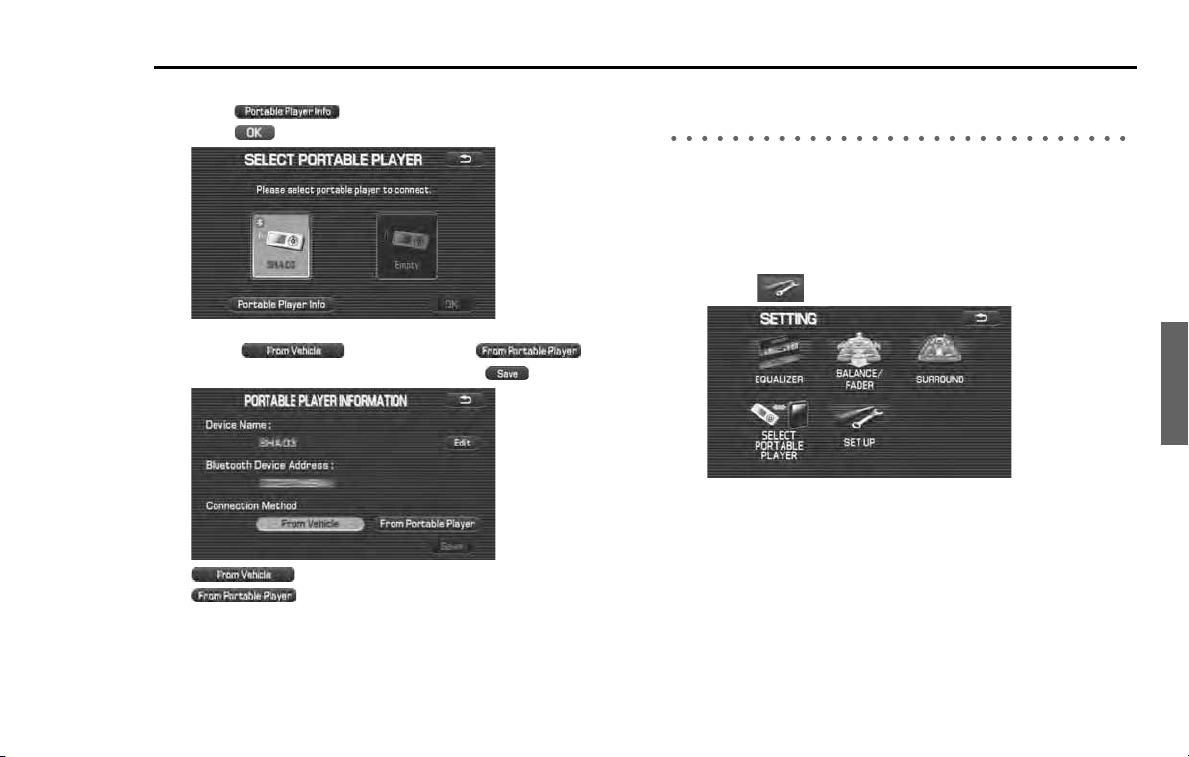
Audio and Visual 215
Setting the audio
2
Select the Bluetooth audio device to be set.
Select (portable player information), and then
select (ok).
3
Select (from vehicle) or
(from portable player), and then select (save).
: Connection is performed from the vehicle.
: Connection is performed from the player.
Referring to the device information of the Blue-
tooth audio system
Perform the following to refer to and edit the information of the Blue-
tooth audio system stored in the in-vehicle equipment and the infor-
mation of the Bluetooth audio devices that were already registered.
■ In-vehicle equipment information display
1
Select (set up).
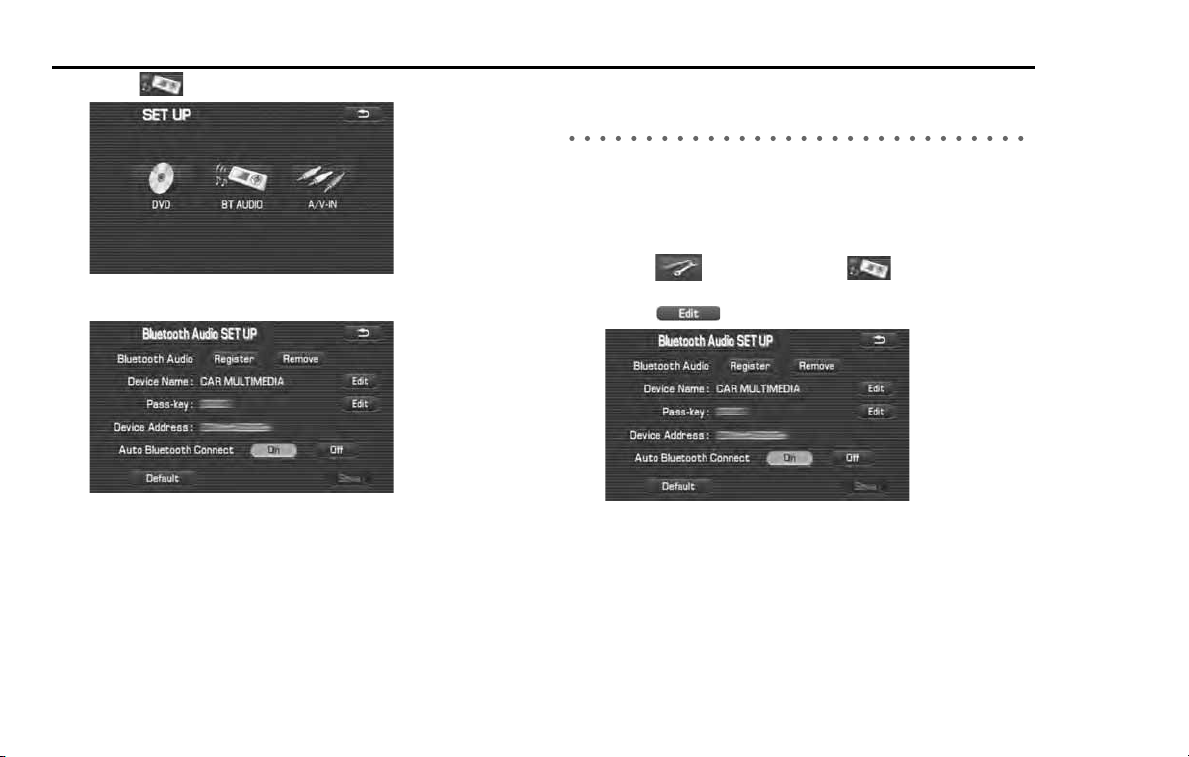
216 Audio and Visual
Setting the audio
2 Select (BT audio).
3 The device information is displayed.
Editing the device information of the Bluetooth
audio system
Perform the following procedure to edit the information of the in-vehi-
cle equipment that has already been registered.
■ Device name editing
1 Select (set up) and select (BT audio).
2 Select (edit) of the device name.
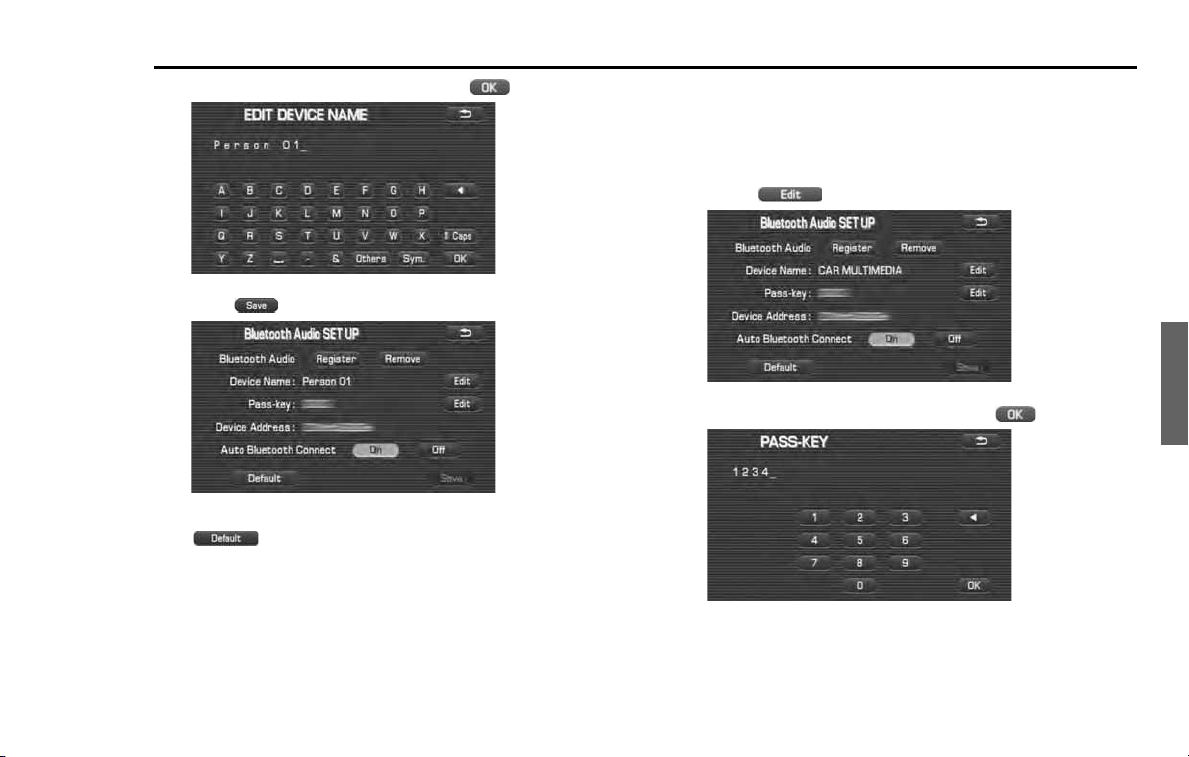
Audio and Visual 217
Setting the audio
3
Input a new device name, and then select (ok).
4
Select (save).
NOTE
Select (default) to use the default of the automatic connection set-
ting.
■ Pass-key editing
1
Perform steps 1 and 2 in the previous section, and then
display the editing screen.
2
Select (edit) of "Pass-key".
3
Input a new pass-key, and then select (ok).
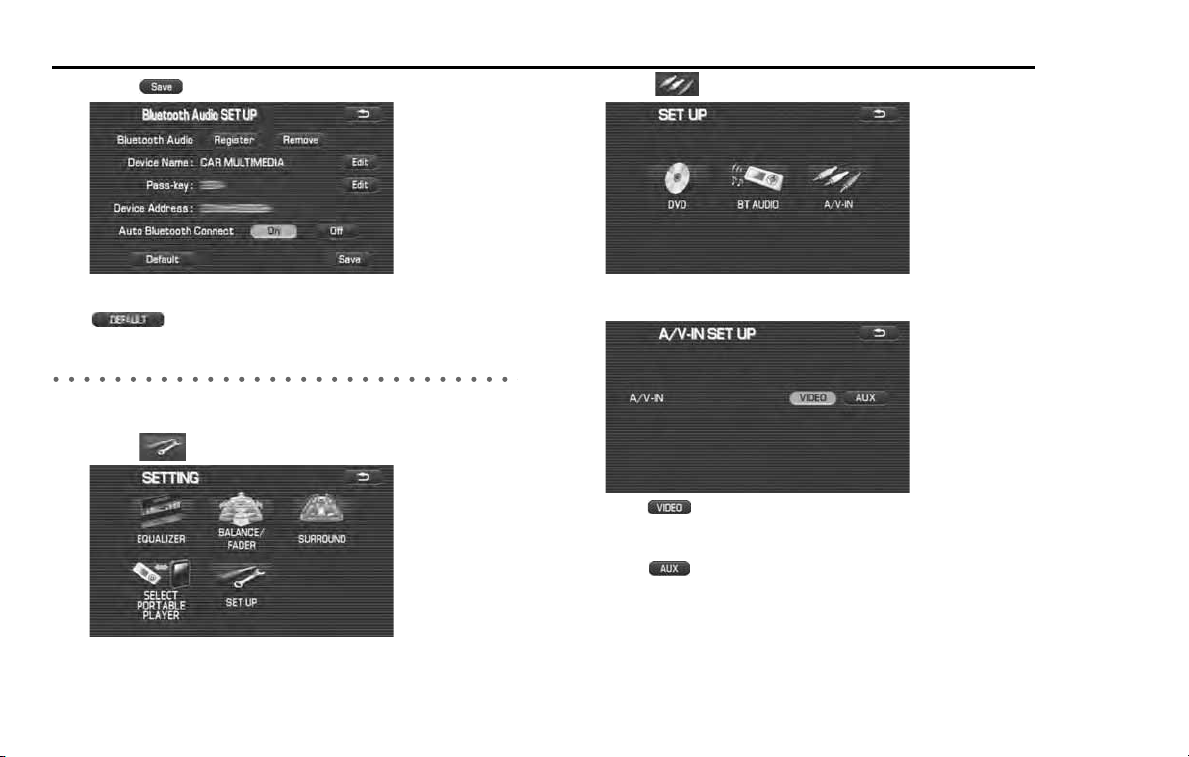
218 Audio and Visual
Setting the audio
4 Select (save).
NOTE
Select (default) to use the default setting.
Setting the A/V-IN
The procedure to set up external input sources is given in this section.
1 Select (set up).
2 Select (A/V-IN).
3 Select the external input source to be switched.
When (video) is selected, the key name of the external
input source turns to "VIDEO" and video sources (video screens)
can be selected.
When (aux) is selected, the key name of the external input
source turns to "AUX" and auxiliary sources screens can be
selected.

Voice
Activation
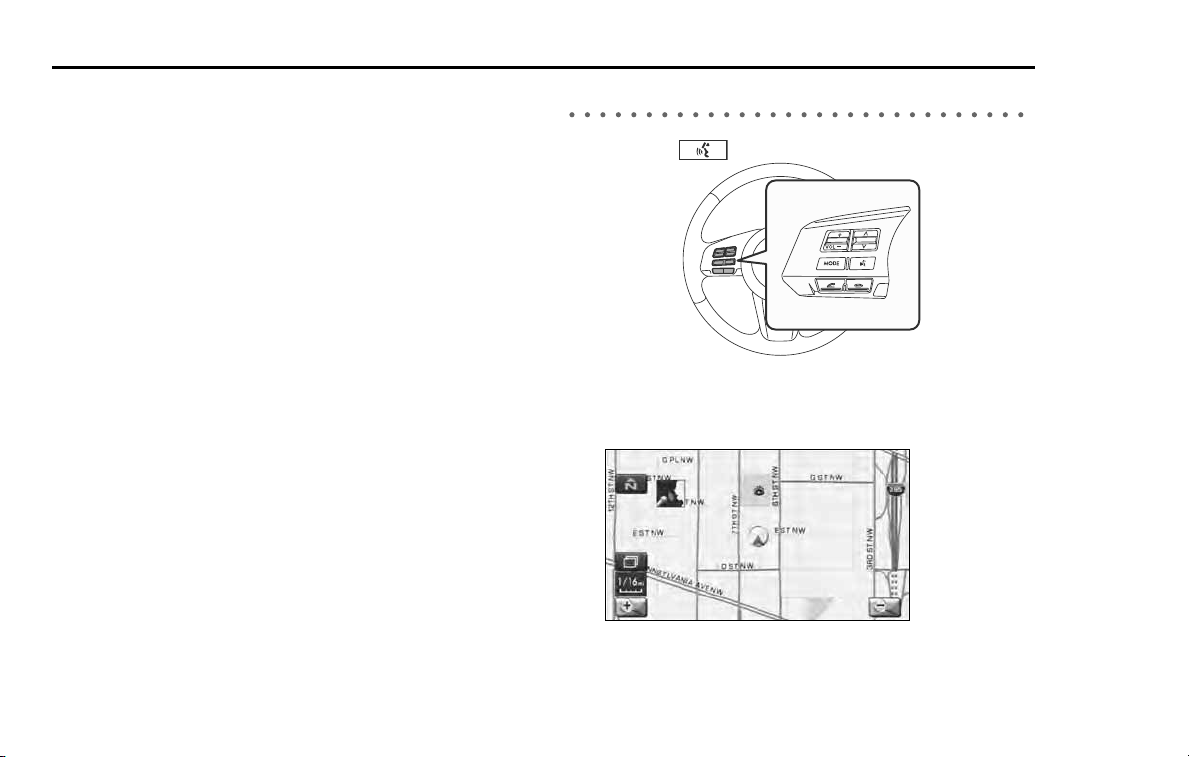
220 Voice Activation
Voice activation system
The voice recognition function allows you to operate the nav-
igation system, audio system and hands-free phone system
using your voice instead of display screen handling. This sec-
tion includes instructions about how to perform the voice
commands. The commands that can be recognized by this
system are restricted. (See Page 222.) For each function, refer
to the corresponding items.
■ Correct voice recognition
The circumstance of the interior of the vehicle will adversely affect the
correct recognition of the voice. Note the following items in order for
the system to correctly recognize the voice.
• Speak clearly into the microphone. Speaking faster or slower and
pausing between words will cause incorrect recognition.
• Close the windows to eliminate outside noise. Traffic noise, driving
sounds and wind noise may affect the correct recognition of the
voice.
• Speak the voice commands correctly. The commands that can be
recognized by this system are restricted. Any terms other than the
recognized terms for the system or dull sounds that are incorrectly
spoken will not be recognized by the system. If the name of a facility
is pronounced differently from the recognized terms for the system,
the command will not be recognized by the system.
• The microphone is located at the best distance and in the best direc-
tion for each model to gain the maximum voice recognition perfor-
mance. Speak commands in the correct driving posture.
• Do not speak commands during navigation voice guidance or voice
recognition talk back. This causes sounds to overlap and results in
incorrect voice recognition.
Basic operations of voice recognition
1 Press the button located on the steering switch.
The voice recognition mode is activated, and the icon for voice
recognition will be displayed on the upper left side of the screen.
2 While the icon is displayed, speak a voice command.
During the voice recognition mode, the sound from the audio sys-
tem is muted.
Voice Activation 221
Voice activation system
(voice input waiting mode):
shows the status of waiting for a voice command.
(during a calculation):
shows the status of accepting and processing a voice com-
mand.
After a voice command is spoken, the system recognizes the voice and
activates the function input by the voice command. Then the system
will announce the operated function during voice recognition talk
back.
Pressing the button located on the steering wheel during
voice recognition will cancel the voice recognition mode.

222 Voice Activation
Voice command list
The voice commands that are available for the voice recogni-
tion function are listed in this section. Speak the voice com-
mands correctly. The commands that can be recognized by
this system are restricted. Any terms other than the recog-
nized terms for the system or dull sounds that are incorrectly
spoken will not be recognized by the system. If the name of a
facility is pronounced differently from the recognized terms
for the system, the command will not be recognized by the
system.
■ Types of commands
1. Common
Operation commands that are common to the system
2. Shortcut
Commands to switch the screen
3. Function direct (map operation)
Commands to perform the functions of "map operation"
4. Function direct (POI)
Commands to perform the functions of "POI"
5. Function direct (destination)
Commands to perform the functions of "destination setting"
6. Function direct (guidance)
Commands to perform the functions of "guidance"
7. Audio mode
Commands that can be used when an audio device that is compati-
ble with the system is connected
8. Audio radio
Commands that can be used when the current audio source is the
radio
9. Audio media
Commands that can be used when the current audio source is a
media device
10. Hands-Free Phone System
Commands to operate the Hands-Free Phone using voice recogni-
tion
When the voice recognition system can recognize several phrases for a
command, these phrases are distinguished by the following categories
in this section.
1. Selection
Several phrases that can be recognized by the system for a command
are shown with the mark "|".
Example 1: A | B ..... A or B
Example 2: A | B |C ..... A or B or C
2. Grouping
When the range of selection is limited, the beginning of the selection
group is shown with the mark "(", and the end is shown with the mark ")".
Example 3: (A | B) ..... The range of selection is limited to A | B.
Example 4: A (B | C) ..... AB or AC
3. Omission
When some phrases can be omitted, the beginning of the omission is
shown with the mark "[", and the end is shown with the mark "]".
Example 5: [AB] ..... A and B can be omitted.
Example 6: A (B | C [D]) ..... AB or AC or ACD

Voice Activation 223
Voice command list
1. Common
• When the button is briefly pressed, a beep (a single note)
will sound and the voice recognition mode will start.
• When the button is pressed, the voice recognition mode
will be canceled.
2. Shortcut
Commands to switch the screen
Voice commands
[Show] Map
[Show] Current (Position | Location)
Repeat [Voice][Guidance]
Cancel
3. Function direct (map operation)
Commands to perform the functions of "map operation"
Voice commands
Zoom In
Zoom Out
Right [Screen] Map Zoom In
Right [Screen] Map Zoom Out
[Change to | Show] North up [Mode]
[Change to | Show] Heading up [Mode]
[Change] Map Direction
Right [Screen] Map [Change to | Show] North up [Mode]
Right Map [Change to | Show] Heading Up [Mode]
Right [Screen] Map [Change] Map Direction
[Change to] Dual Map [Mode]
[Change to] Single Map [Mode]
Store This Point | Mark This Point | Memory Point
Zoom In Maximum
Zoom Out Maximum
Right [Screen] Map (Zoom In Maximum | Minimum Scale)
Right [Screen] Map (Zoom Out Maximum | Minimum Scale)
4. Function direct (POI)
Commands to perform the functions of "POI"
Command (US English)
(Automobile Club | Triple A)
(Gas Station | Gas)
(Parking | Parking Lot | Parking Garage | Car Park)
(Auto Service & Maintenance | Auto Service)
SUBARU DEALERSHIP
ATM
Bank
(Town Center | City Center)
Convention Center | Exhibition Center)
Court House
Government Offices
(Higher Education | University | College)
Hospital
Library
(Parks & Recreation | Park & Recreation)
Police Station

224 Voice Activation
Voice command list
School
Amusement Park
Casino
Golf Course
Historical Monument
Marina
Museum
(Ski Resort | Skiing)
(Sports Complex | Stadium)
Performing Arts
Tourist Attraction
Tourist Information
Winery
(Restaurant | I'm Hungry | Show Restaurant)
(American Restaurant | American Food)
(Chinese Restaurant | Chinese Food)
(Continental Restaurant | Continental Food)
(Fast Food | Fast Food Restaurant)
(French Restaurant | French Food)
(Italian Restaurant | Italian Food)
(Japanese Restaurant | Japanese Food)
(Mexican Restaurant | Mexican Food)
(Seafood Restaurant | Seafood)
(Thai Restaurant | Thai Food)
(Other Restaurant | Other Food)
Grocery Store
Shopping Mall
Airport
Bus Station
Ferry Terminal
Hotel
Rental Car Agency
Rest Area
Train Station
Business Facility
Convenience Store
Department Store
Home and Garden
Pharmacy
Specialty Food Store
Other Retail Stores
Car wash
Campground
Botanical/Zoological Gardens
Cinema
Horse Racing
National and State Parks
Speedway
Video Rental
Post Office

Voice Activation 225
Voice command list
Other Financial Services
Coffee House
Dry Cleaning
Health and Fitness Club
Ice Cream Parlor
Beauty and Barber shops
The nearest POIs are listed from the next item.
Nearest (Automobile Club | Triple A)
Nearest (Gas Station | Gas)
Nearest (Parking | Parking Lot | Parking Garage | Car Park)
Nearest (Auto Service & Maintenance | Auto Service)
Nearest SUBARU DEALERSHIP
Nearest ATM
Nearest Bank
Nearest (Town Center | City Center)
Nearest (Convention Center | Exhibition Center)
Nearest Court House
Nearest Government office
Nearest (Higher Education | University | College)
Nearest Hospital
Nearest Library
Nearest (Parks & Recreation | Park & Recreation)
Nearest Police Station
Nearest School
Nearest Amusement Park
Nearest Casino
Nearest Golf Course
Nearest Historical Monument
Nearest Marina
Nearest Museum
Nearest (Ski Resort | Skiing)
Nearest (Sports Complex | Stadium)
Nearest Performing Arts
Nearest Tourist Attraction
Nearest Tourist Information
Nearest Winery
Nearest (Restaurant | I'm Hungry | Show Restaurant)
Nearest (American Restaurant | American Food)
Nearest (Chinese Restaurant | Chinese Food)
Nearest (Continental Restaurant | Continental Food)
Nearest (Fast Food | Fast Food Restaurant)
Nearest (French Restaurant | French Food)
Nearest (Italian Restaurant | Italian Food)
Nearest (Japanese Restaurant | Japanese Food)
Nearest (Mexican Restaurant | Mexican Food)
Nearest (Seafood Restaurant | Seafood)
Nearest (Thai Restaurant | Thai Food)
Nearest (Other Restaurant | Other Food)
Nearest Grocery Store
Nearest Shopping Mall

226 Voice Activation
Voice command list
Nearest Airport
Nearest Bus Station
Nearest Ferry Terminal
Nearest Hotel
Nearest Rental Car Agency
Nearest Rest Area
Nearest Train Station
Nearest Business Facility
Nearest Convenience Store
Nearest Department Store
Nearest Home and Garden
Nearest Pharmacy
Nearest Specialty Food Store
Nearest Other Retail Stores
Nearest Car wash
Nearest Campground
Nearest Botanical/Zoological Gardens
Nearest Cinema
Nearest Horse Racing
Nearest National and State Parks
Nearest Speedway
Nearest Video Rental
Nearest Post Office
Nearest Other Financial Services
Nearest Coffee House
Nearest Dry Cleaning
Nearest Health and Fitness Club
Nearest Ice Cream Parlor
Nearest Beauty and Barber shops
Cancel
No beeps / no items found by the voice recognition
[Enter] Destination
[Add to] Way Point
[Show] list
Set
Other
POI Off
5. Function direct (destination)
Commands to perform the functions of "destination setting"
Command
[Go] Home
Cancel
No beeps / no items found by the voice recognition
[Enter] Destination
[Add to] Way Point
(Go to | Previous)(Starting | Start) Point
Cancel
No beeps / no items found by the voice recognition
[Enter] Destination
[Add to] Way Point

Voice Activation 227
Voice command list
Set
Other
[Go to] Previous Destination
Cancel
No beeps / no items found by the voice recognition
[Enter] Destination
[Add to] Way Point
Set
Other
[Go to] Preset Destination [Number] One
Cancel
No beeps / no items found by the voice recognition
[Enter] Destination
[Add to] Way Point
[Go to] Preset Destination [Number] 2
Cancel
No beeps / no items found by the voice recognition
[Enter] Destination
[Add to] Way Point
[Go to] Preset Destination [Number] 3
Cancel
No beeps / no items found by the voice recognition
[Enter] Destination
[Add to] Way Point
[Go to] Preset Destination [Number] 4
Cancel
No beeps / no items found by the voice recognition
[Enter] Destination
[Add to] Way Point
[Go to] Preset Destination [Number] 5
Cancel
No beeps / no items found by the voice recognition
[Enter] Destination
[Add to] Way Point
6. Function direct (guidance)
Commands to perform the functions of "guidance"
Command
Louder
Softer
[Change to] Arrow [Guide | Guidance | mode]
[Change to] Turn List [Guide | Guidance | mode]
[Show](Whole | Entire | Display) Route [Map]
[Show] Next Way Point [Map]
Show First Way Point [Map]
Show Second Way Point [Map]
Show Third Way Point [Map]
Show Fourth Way Point [Map]
Show Fifth Way Point [Map]
Show Destination [Map]
(Delete | Cancel) Next Way Point

228 Voice Activation
Voice command list
Yes
No
(Delete | Cancel) Destination
Yes
No
(Delete | Cancel) All Way Points and Destination
Yes
No
Voice Guidance Off
Voice Guidance On
Quick
Short
Alternative
Detour
Detour (Entire | Whole) Route
[Change to] Freeway [Information] On
[Change to] Junction Detail On
[Change to] Compass mode
[Change to] Freeway [Information] Off
[Change to] Junction Detail Off
7. Audio mode
Commands that can be used when an audio device that is compati-
ble with the system is connected
Command
radio
AM [radio]
FM [radio]
FM1
FM2
FM3
(Disc | CD | DVD | MP3 | WMA)
Audio [on | off]
Satellite radio
SAT
AUX | Auxiliary
Video
USB Audio
iPod
Bluetooth audio | BT audio

Voice Activation 229
Voice command list
8. Audio radio
Commands that can be used when the current audio source is the
radio
Command
Seek up
Seek down
Category up
Category down
9. Audio media
Commands that can be used when the current audio source is a
media device
Command
Track up | Next track
Track down
Previous track
Folder up
Folder down
Group up
Group down
10. Hands-free
Commands to operate the hands-free phone using voice recognition
Command
Dial by Name
Dial by Number
No beeps / no items found by the voice recognition
Cancel
Dial by Name
Dial by Number
No beeps / no items found by the voice recognition
{{{ (Name)
No beeps / no items found by the voice recognition
Cancel
Dial Next Candidate
No beeps / no items found by the voice recognition
Cancel
{{{ (Number)
No beeps / no items found by the voice recognition
Cancel
Correction
Delete
Dial
{{{ (Number)

230 Voice Activation
Voice command list

Hands-Free
Phone System

232 Hands-Free Phone System
Before using the Hands-Free Phone System
What can be made with the Hands-Free Phone System
It is possible to connect the Bluetooth Phone of which the
operation has been confirmed to the in-vehicle equipment
through the Bluetooth format (wireless) to make a phone call
from the in-vehicle equipment or take an incoming phone
call.
Since the Bluetooth format is wireless, a connection between
the in-vehicle equipment and the Bluetooth Phone can be
made without placing them in the close vicinity of each other.
The Bluetooth Phone can be used with it left in the breast
pocket or bag.
The Bluetooth Phone that is compliant with the in-vehicle equipment
must meet the following requirements.
• Bluetooth Specification Ver. 1.1 or above (Ver. 1.2 or above is recom-
mended.)
• Corresponding Profiles are as shown below.
• HFP (Hands Free Profile) Ver. 1.0 (Ver. 1.5 or above is recommended.)
• OPP (Object Push Profile) Ver. 1.1
"Bluetooth" is a trademark of Bluetooth SIG, Inc.
What cannot be done with the Hands-Free
Phone System
In the following cases, the functions of the handsfree cannot be used.
• While not in the phone call area.
• While in the phone call being restricted due to the lines congested.
• When the phone book data is being transmitted from the Bluetooth
Phone.
• When the Bluetooth Phone is being used, due to data communica-
tion.
• When the Bluetooth Phone is out of order.
• When the Bluetooth Phone is not connected to the in-vehicle equip-
ment.
• When the battery of the Bluetooth Phone has run down.
• When the power switch of the Bluetooth Phone is turned off.
• When the Bluetooth Phone is not set to the handsfree mode.
• When a changeover is made on the in-vehicle side from the phone
book transmission to the handsfree.
• When the Bluetooth Phone cannot be used for other reasons.

Hands-Free Phone System 233
Before using the Hands-Free Phone System
Precautions to be taken when using the Bluetooth equipment
Please take note of the following when using the Bluetooth
equipment.
WARNING
• For safety's sake, the driver should avoid the operation of the
Bluetooth Phone while driving.
• Do not make a phone call while driving. When you have an
incoming call, bring your car to a stop in a safe place in a
calm manner before taking the incoming phone call. When
you have to absolutely take a phone call, tell the caller "I'll
call you back" by handsfree. And then call him back after
stopping the car in a safe place.
• The buttons for the touch screen that cannot be used are
displayed greyed out.
Operating the navigation system while in driving could cause
your attention to be distracted from the current traffic condi-
tions. And in consequence, this could result in a severe or fatal
accident. Follow the descriptions of all operations and the
instructions for safety given in this manual without fail.
• Please comply with the instructions specified in the laws and
regulations concerning the use of the telephone in the vehicle.
CAUTION
• Do not leave the Bluetooth Phone in the vehicle.
(The temperature in a sun-heated car may go up extremely high.)
• When using the Bluetooth Phone, be careful not to get it
close to the in-vehicle equipment. Getting it too close to the
in-vehicle equipment may result in deterioration in tone
quality or a poor connecting condition.
• The frequency band used by this equipment is the same
band on which other industrial, scientific and medical equip-
ment such as microwave ovens, radio stations (a license
required) to be used by the production line in the factory to
identify movable bodies, specific small power radio stations
(a license not required) and amateur radio stations (a license
required) is being operated. (These three type radio stations
mentioned above are hereinafter referred to as "other radio
stations.") Before using this equipment, be sure to check to
see if "other radio stations" are being operated in the vicin-
ity. Should there be a detrimental radio interference from
this equipment to "other radio stations," move the equip-
ment to another location as soon as possible to avoid radio
interference. The frequency band used by this equipment is
in the 2.4 GHz zone.
The FH-SS modulation is employed as a
modulation method. The expected inflicting interference dis-
tance is less than 10m. This equipment uses a full band and can
avoid a band used by a movable body identification device.

234 Hands-Free Phone System
Before using the Hands-Free Phone System
NOTE
• Depending on the type of cell phone that is used, the screen illumination of
the cell phone remains on while the ignition switch is in the "ON" position. If
this occurs, turn the illumination off by operating the cell phone settings. For
cell phone setting information, refer to the cell phone owner's manual.
• Depending on the setting of the cell phone, the dial lock may activate after
connection. Deactivate the dial lock of the cell phone before use.
• Depending on the cell phone to be connected, operation and the sound vol-
ume may be different from those of cell phones currently used.
• When the ignition switch is turned to the "OFF" or "LOCK" position during a
call, the call may be disconnected or continued on the cell phone depending
on the type of cell phone that is used. Note that operation of the cell phone
may be necessary if the call is continued on the cell phone.
• Do not speak at the same time with the other party during a call. If you and
the party speak at the same time, your voice may be difficult to be heard by
the party and vice versa. This does not indicate that there is a malfunction.
• The receiver sound volume should be set as low as possible. Otherwise, the
party you are calling may notice an undesirable echo sound. Speak clearly and
loudly.
• Your voice may be difficult to be heard by the party under the following con-
ditions.
-Driving on a rough road.
-Driving on an expressway.
-Driving with a window open.
-Air from the ventilator blows directly towards the microphone.
-The sound coming from the fan of the heater/cooler is loud.
-The cell phone is too close to the microphone.
• The sound quality may be degraded and noise or an echo will occur due to
the influence of the cell phone that is connected to the system or the circum-
stances of the Bluetooth network.
• When another Bluetooth device (such as a portable audio device) is simulta-
neously connected, noise may occur in the voice from the hands-free phone.
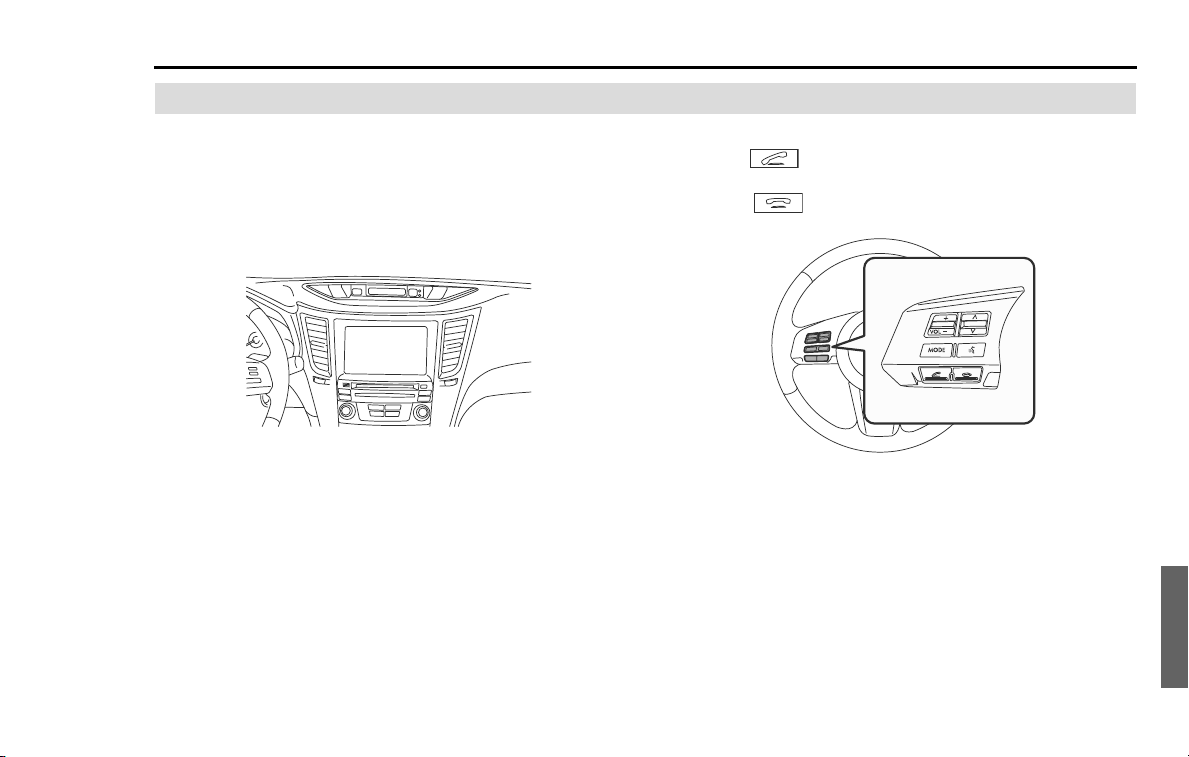
Hands-Free Phone System 235
Before using the Hands-Free Phone System
Name of each part
The name of each part used by the functions of the handsfree
is as shown below.
■ In-vehicle equipment
Operating the touch switches displayed on the screen allows you to use
the functions of the handsfree.
■ Steering switches
Pressing the button short allows you to answer an incoming
phone call.
Pressing the
button short
allows you to hang up the phone.
■ Microphone
Used while in the phone call. (dealer option)
For details, check with the dealer.

236 Hands-Free Phone System
Before using the Hands-Free Phone System
Phone voice
After making a phone call or having a phone call, you can talk
over the phone through microphone and speaker.
• An incoming call notice and a voice output while in the phone call
are output from the speaker on the driver's seat side and passenger’s
seat.
• When a voice or an incoming call signal is issued by the handsfree,
the sound from the audio and the navigation system is muted.
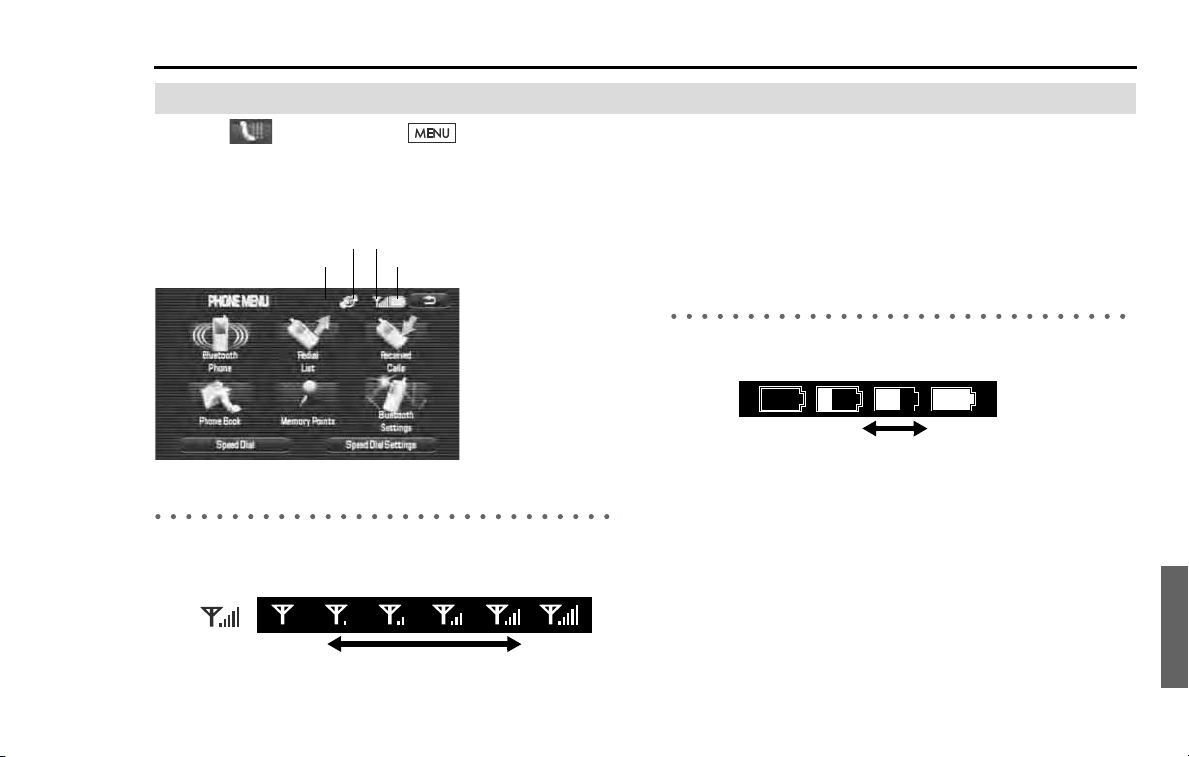
Hands-Free Phone System 237
Before using the Hands-Free Phone System
Various types of displays
Selecting (Phone) with the button pressed dis-
plays the PHONE MENU screen, in which you can set and
operate the functions of the handsfree. The explanation here
is given of the various kinds of displays shown on the PHONE
MENU screen.
Reception level display
This shows a rough standard of the reception level of radio waves. How-
ever, this is not displayed while in the transmission of the phone book
data.
• When "Out of the range" is being displayed, you are now out of the
service area, or in the location to which no radio waves get through.
On occasions like this, you cannot use the Bluetooth Phone. Move to
a location where a clear reception can be obtained.
• The reception level does not always conform to the display of the
Bluetooth Phone. The reception level may not be displayed for some
model types.
Battery indicator
This shows a rough battery capacity of the Bluetooth Phone. However,
this is not displayed while in the transmission of the phone book data.
• The display of the battery capacity may not sometimes conform to
that of the Bluetooth Phone. And also, the battery capacity may not
be displayed for some model types.
• This system is not provided with a charging function for a cell phone.
Bluetooth connection
status display
Battery indicator
Reception level displayRoaming display
Out of
the range
IntenseFaintLevel:
Display:
Remaining
amount:
Display:
None Little Full
238 Hands-Free Phone System
Before using the Hands-Free Phone System
Bluetooth connection status display
This displays the Bluetooth connection status of the Bluetooth Phone.
Roaming display
Roaming is a service that provides a continuous use of the system by
using the facilities of a company with which the telephone company
ties up when you are out of the stipulated service area.
When the roaming function is being used, "Rm" is displayed.
The Bluetooth Phone is correctly connected to the in-vehicle equip-
ment.
The Bluetooth Phone is connected to the in-vehicle equipment, but
radio waves are weak.
The Bluetooth Phone is not connected to the in-vehicle equipment.
When using the handsfree, register the Bluetooth Phone and the in-
vehicle equipment, and then connect them each other. (See "Register-
ing the Bluetooth Phone" on Page 240)

Hands-Free Phone System 239
Before using the Hands-Free Phone System
When parting with your car
When using the handsfree, a lot of personal information is
registered.
When parting with your car, delete your personal information
and data referring to the following.
And data once deleted cannot be restored to their original
state. Be careful not delete date mistakenly.
Deleting all the outgoing and incoming call history. (See Page 260.)
Deleting all the phone book data. (See Page 273.)
Deleting the registered Bluetooth Phone from the in-vehicle equip-
ment. (See Page 275.)
Changing the Device Name of the in-vehicle equipment displayed in
the Bluetooth Phone. (See Page 277.)
Changing the Pass-Key to be used when certificating the Bluetooth
Phone. (See Page 283.)
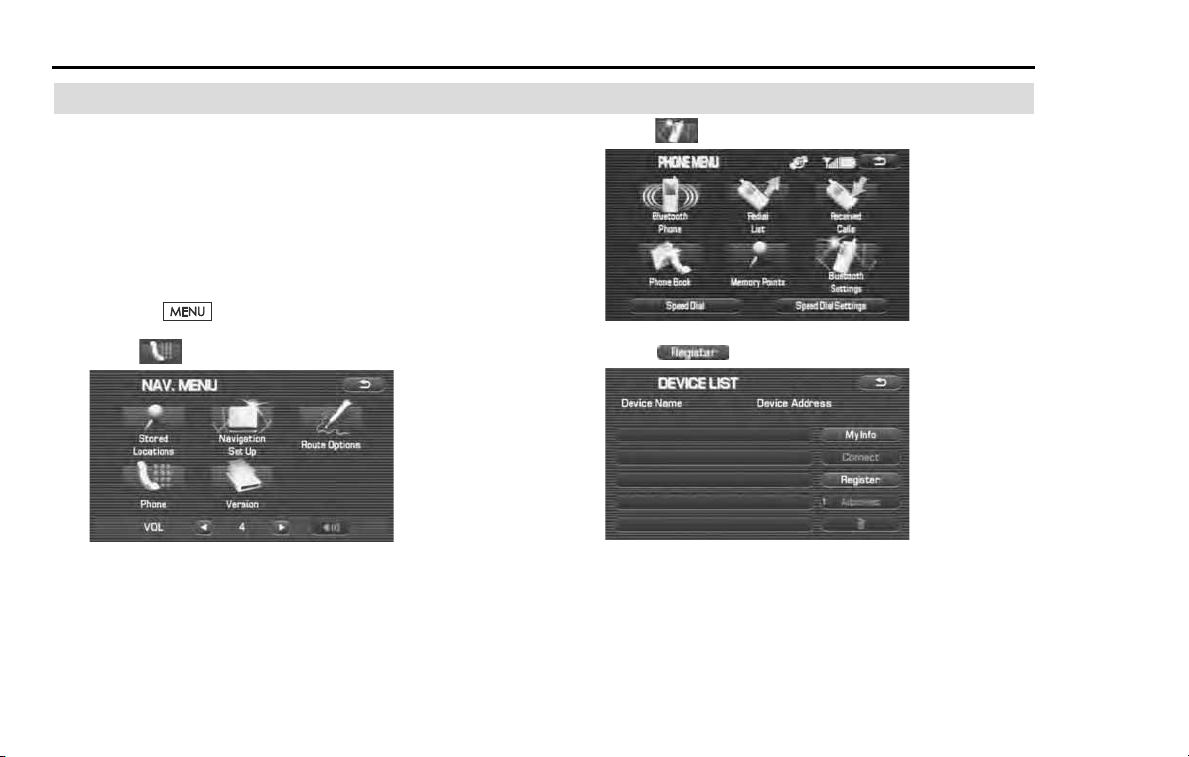
240 Hands-Free Phone System
Making preparations of the Hands-Free Phone System
Registering the Bluetooth Phone
To use the Bluetooth Phone in interlock with the in-vehicle
equipment, it is necessary to register the Bluetooth Phone
with the in-vehicle equipment in advance.
NOTE
It is possible to register up to five Bluetooth Phones with the in-vehicle equip-
ment. However, Bluetooth Phones that can be used with the in-vehicle equip-
ment are restricted only to those selected by the phone selection.
1 Press the button.
2 Select (Phone).
3 Select (Bluetooth Settings).
4 Select (Register).
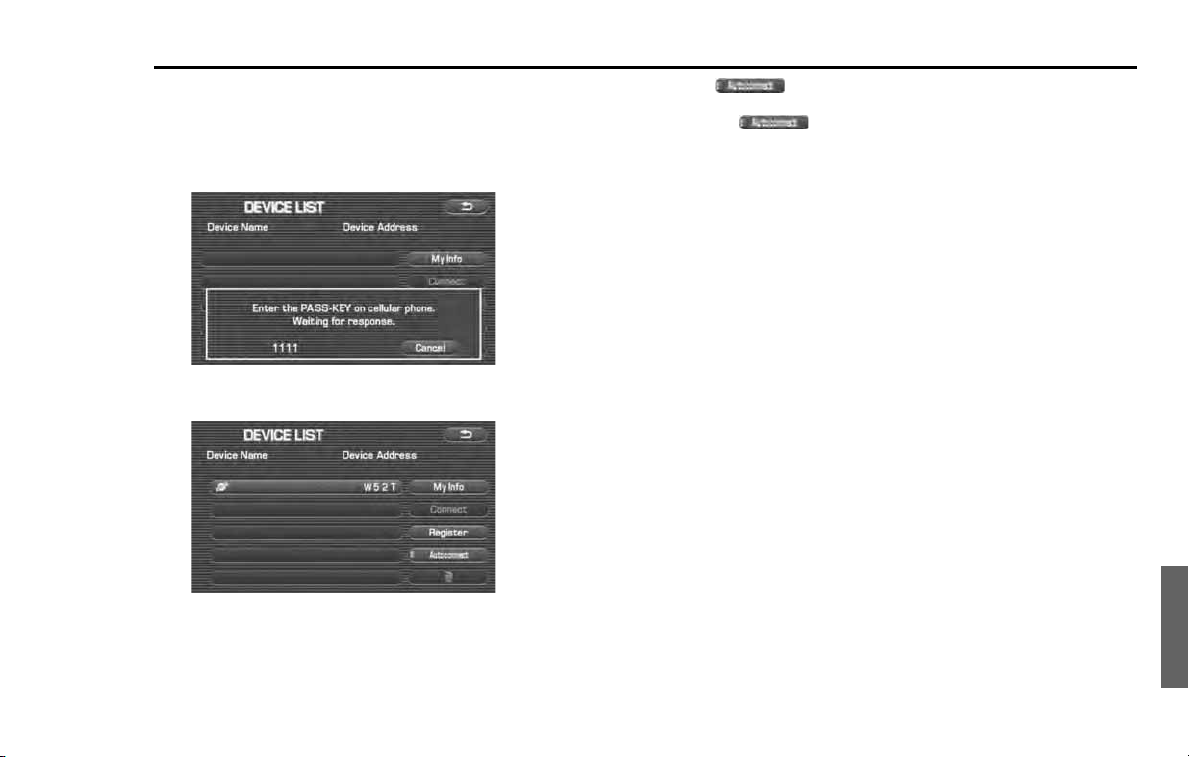
Hands-Free Phone System 241
Making preparations of the Hands-Free Phone System
5
Register the Bluetooth equipment from the Bluetooth
Phone and then enter the PASS-KEY displayed on the
screen for it to be transmitted.
The device name of the Bluetooth Phone is displayed on the
DEVICE LIST.
The Bluetooth Phone most recently registered is selected as a
Bluetooth Phone to be used with the in-vehicle equipment.
NOTE
• For detailed method for the transmission of the PASS-KEY from the Bluetooth Phone,
refer to the instruction manual of the Bluetooth Phone.
• With (Autoconnect) set to "ON" on the DEVICE LIST screen in advance,
the in-vehicle equipment automatically accept the connection of the Bluetooth Phone.
Selecting (Autoconnect) makes a changeover between ON and OFF.
• When registering two or more Bluetooth Phones, it is necessary to select a Bluetooth
Phone for connection.

242 Hands-Free Phone System
Making preparations of the Hands-Free Phone System
Connecting the Bluetooth Phone
To use the Bluetooth Phone in interlock with the in-vehicle
equipment, the Bluetooth Phone registered with the in-vehi-
cle equipment is required to be connected to the in-vehicle
equipment. When (Bluetooth connection status) is dis-
played on the PHONE MENU screen, or when changing a
Bluetooth Phone to be connected, conduct this operation.
With "Autoconnect" set to "ON" in advance, a connection is made auto-
matically to the Bluetooth Phone most recently connected. It is recom-
mended that "Autoconnect" is set to "ON" in advance.
1 Press the button.
2 Select (Phone).
3 Select (Bluetooth Settings).
4 Select the Bluetooth Phone you want to connect.
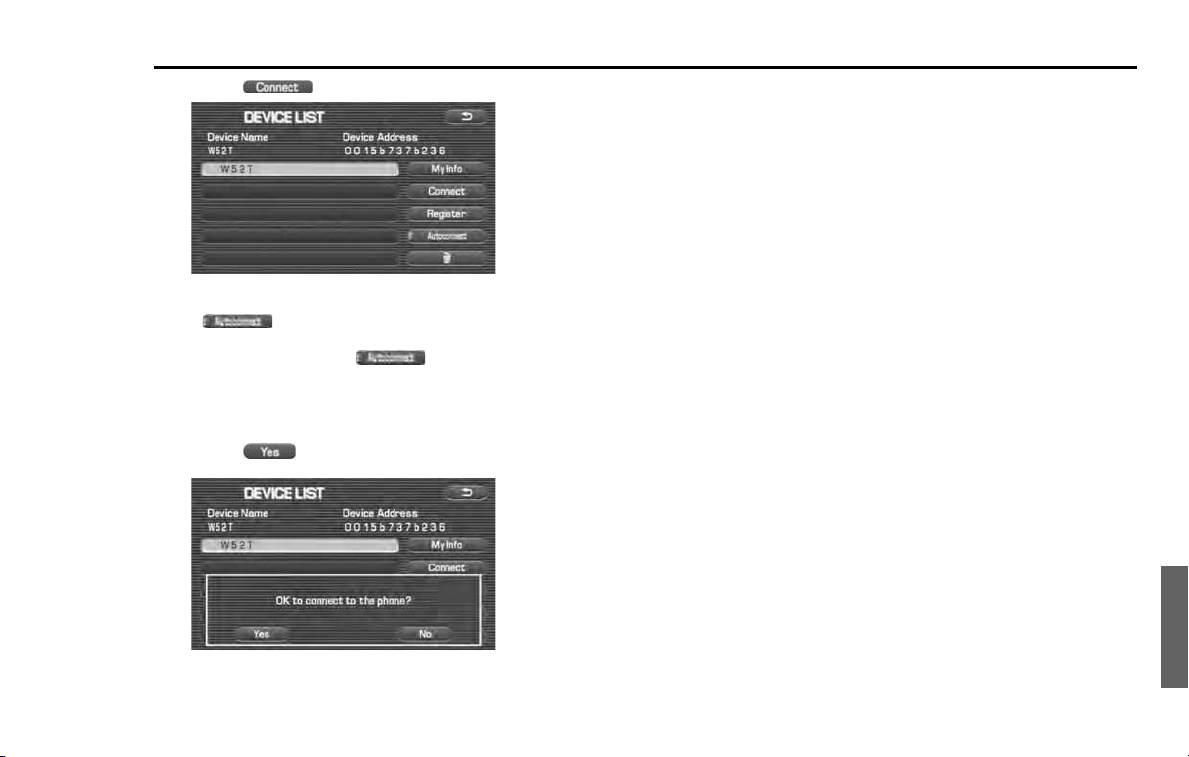
Hands-Free Phone System 243
Making preparations of the Hands-Free Phone System
5
Select (Connect).
NOTE
• With (Autoconnect) set to "ON" on the DEVICE LIST screen in
advance, the in-vehicle equipment automatically accept the connection of
the Bluetooth Phone. Selecting (Autoconnect) makes a
changeover between ON and OFF.
• When a connection has been made to another Bluetooth Phone, a confirma-
tion message is displayed.
6
Select (Yes).
The Bluetooth Phone selected is connected by the Bluetooth.
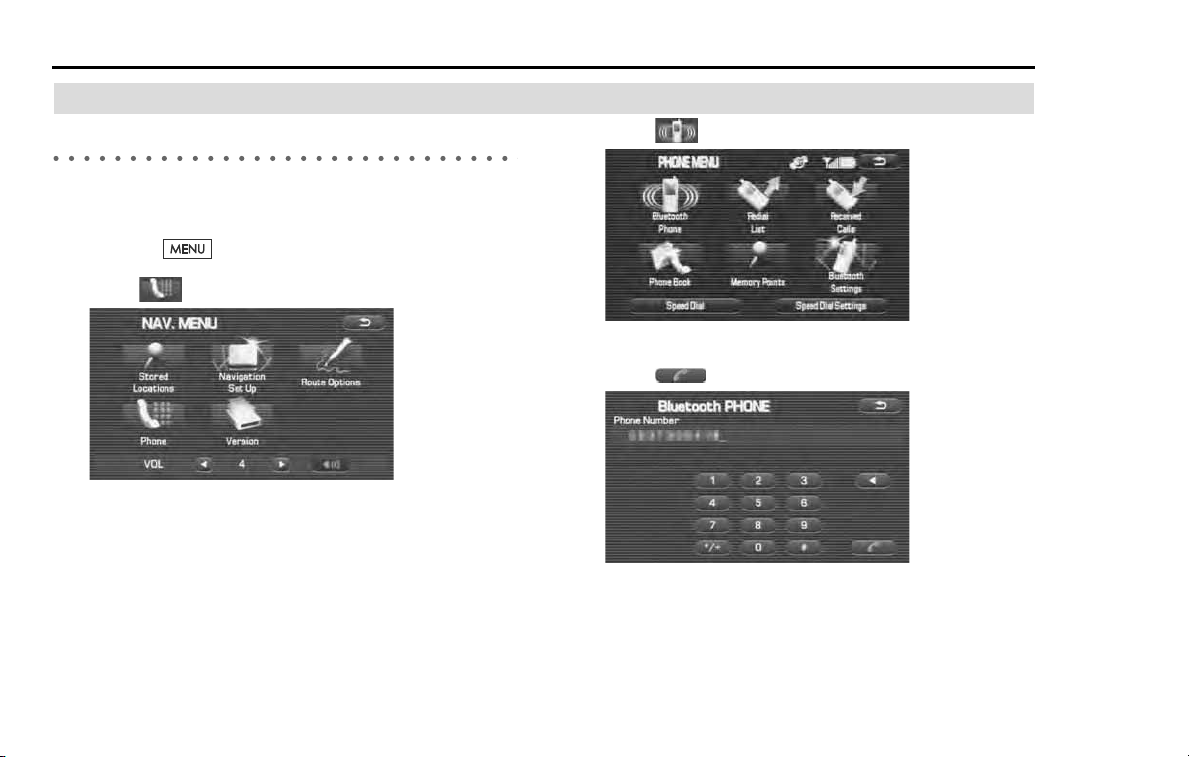
244 Hands-Free Phone System
Speaking over the Hands-Free Phone System
Making a phone call
Entering a phone number to make a phone call
It is possible to select the in-vehicle equipment to enter a phone num-
ber and make a phone call.
1
Press the button.
2
Select (Phone).
3
Select (Bluetooth Phone).
4
Select numeric keys to enter a phone number and then
select .
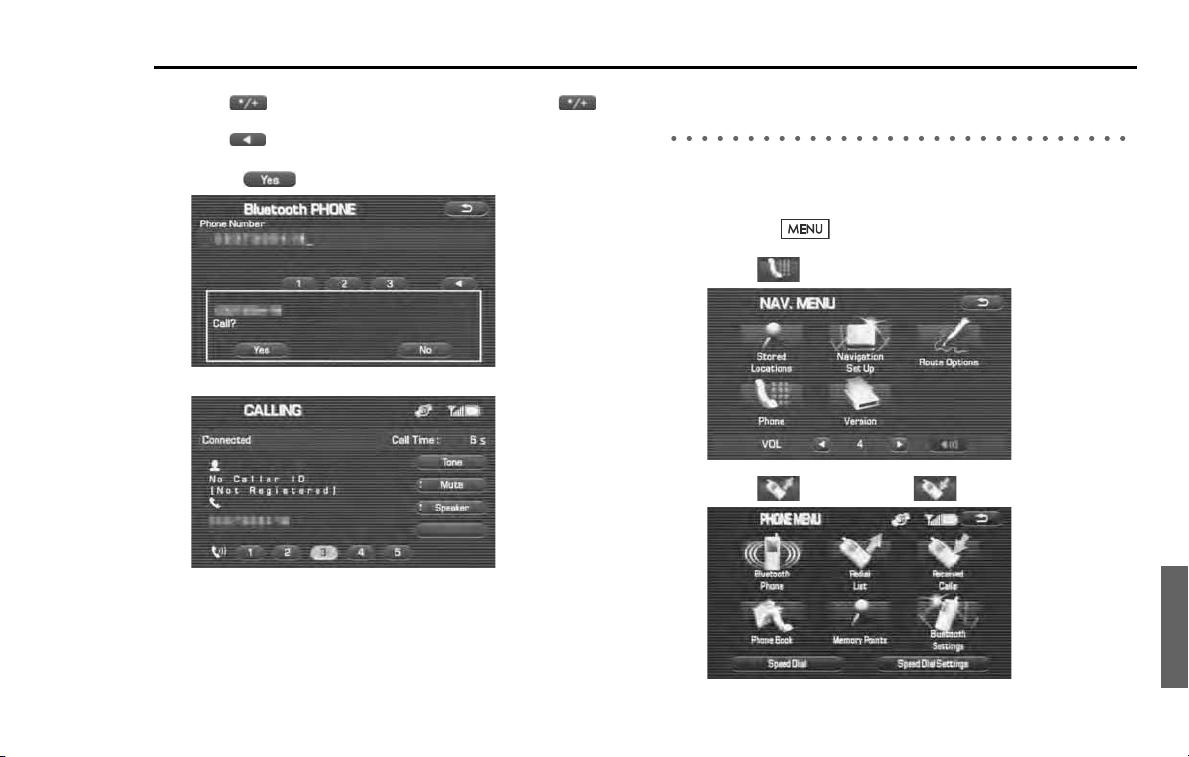
Hands-Free Phone System 245
Speaking over the Hands-Free Phone System
NOTE
• Selecting briefly allows you to enter "*." And then selecting for
more than two seconds allows you to enter "+."
• Selecting allows you to delete a digit entered.
5
Select (Yes).
You have a phone call. Speak over the phone.
When the phone call is over, hang up the phone. (See Page 258.)
Making a phone call from the outgoing or
incoming call history
It is possible to make a phone call to a phone number in the outgoing
or incoming call history.
1
Press the button.
2
Select (Phone).
3
Select (Redial List) or (Received Calls).
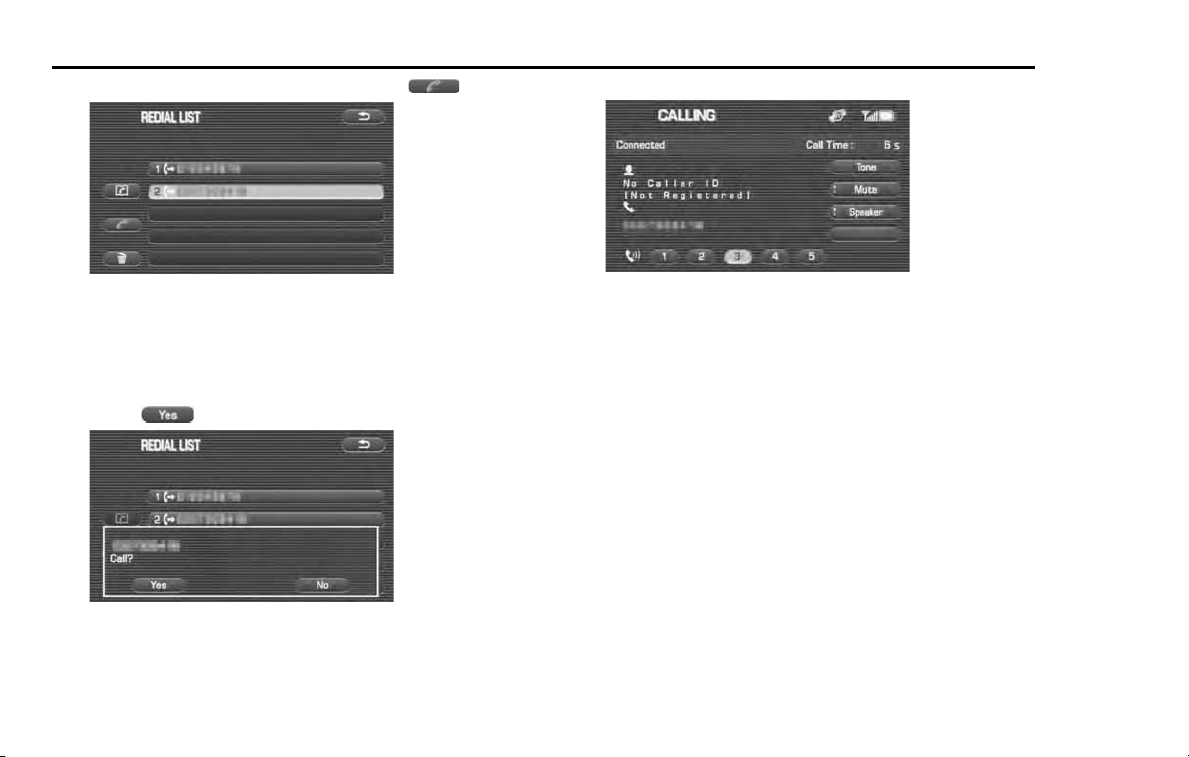
246 Hands-Free Phone System
Speaking over the Hands-Free Phone System
4 Select the phone number and then select .
NOTE
The following can be conducted from this screen.
• It is possible to register a phone number with the phone book. (See Page
267
.)
• It is possible to delete an outgoing or incoming call history. (See Page
260
.)
5 Select (Yes).
You have a phone call. Speak over the phone.
When the phone call is over, hang up the phone. (See Page 258.)
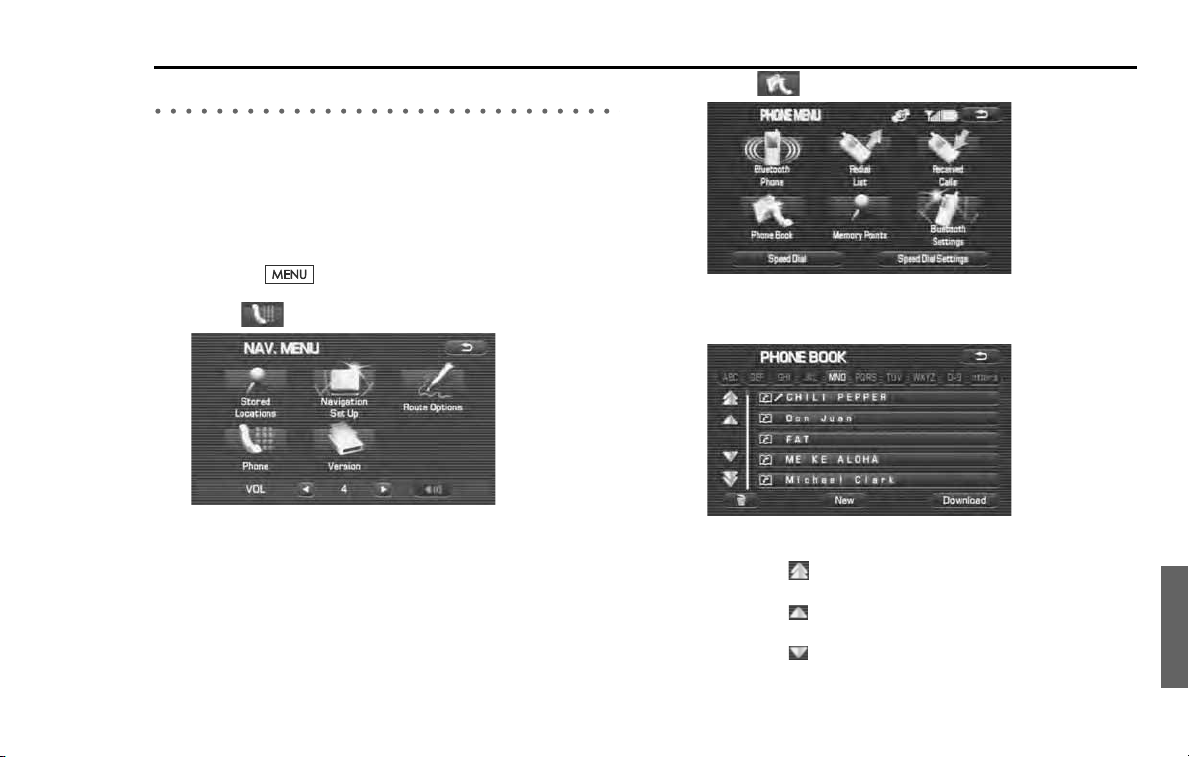
Hands-Free Phone System 247
Speaking over the Hands-Free Phone System
Making a phone call from the phone book
It is possible to select a phone number from the phone book registered
with the in-vehicle equipment to make a phone call.
NOTE
It is possible to copy the data in the phone book from the phone book of the
Bluetooth Phone into that of the in-vehicle equipment. (See Page
261
.)
1
Press the button.
2
Select (Phone).
3
Select (Phone Book).
4
Select the name or phone number of a person to whom
you want to make a phone call.
• Selecting alphabets, numerical characters or [Others] displays a
phone book data to which the acronym has relevance.
• Selecting scrolls the display to display a phone book data 5
positions ahead.
• Selecting scrolls the display to display a phone book data 1
position ahead.
• Selecting scrolls the display to display a phone book data 1
position behind.
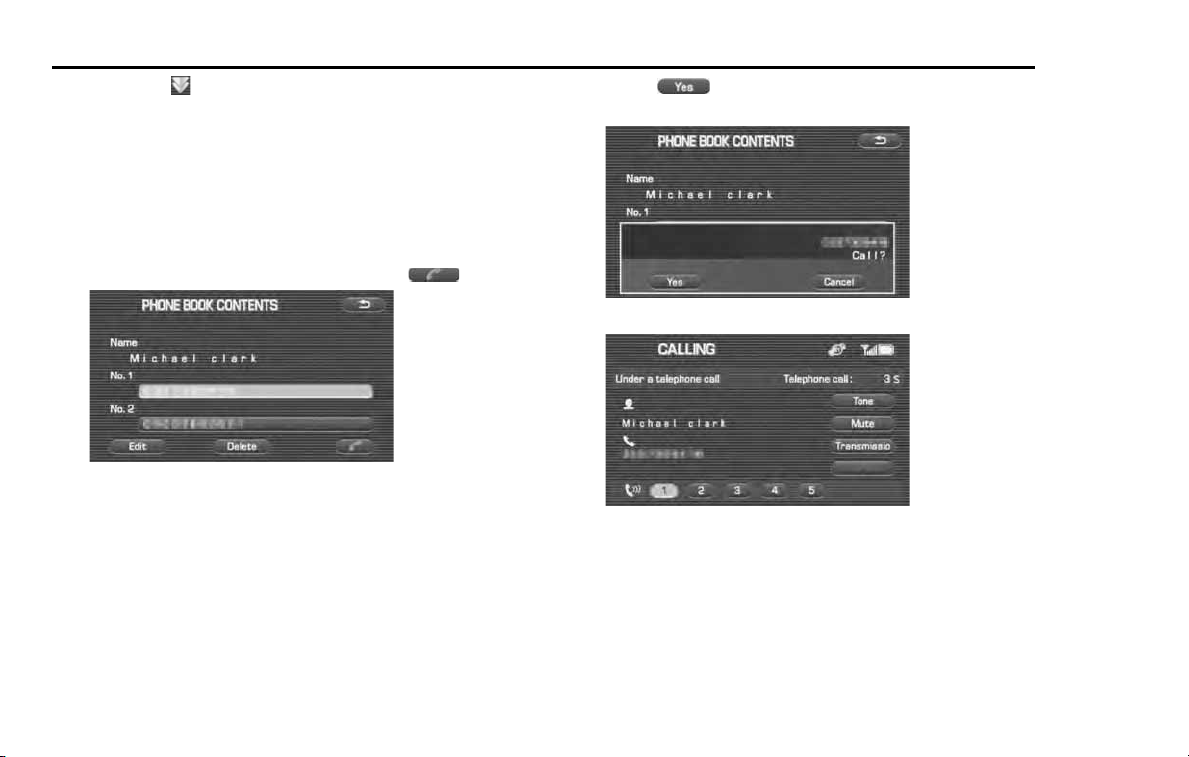
248 Hands-Free Phone System
Speaking over the Hands-Free Phone System
• Selecting scrolls the display to display a phone book data 5
position behind.
NOTE
The following can be conducted from this screen.
• It is possible to register the phone book data. (See Page
263
.)
• It is possible to register the phone book data from the Bluetooth Phone. (See
Page
261
.)
• It is possible to delete all the phone book data. (See Page
273
.)
5 Select the phone number and then select .
NOTE
The following can be conducted from this screen.
• It is possible to edit the phone book data. (See Page
269
.)
• It is possible to delete the phone book data. (See Page
271
and
273
.)
6 Select (Yes).
You have a phone call. Speak over the phone.
When the phone call is over, hang up the phone.
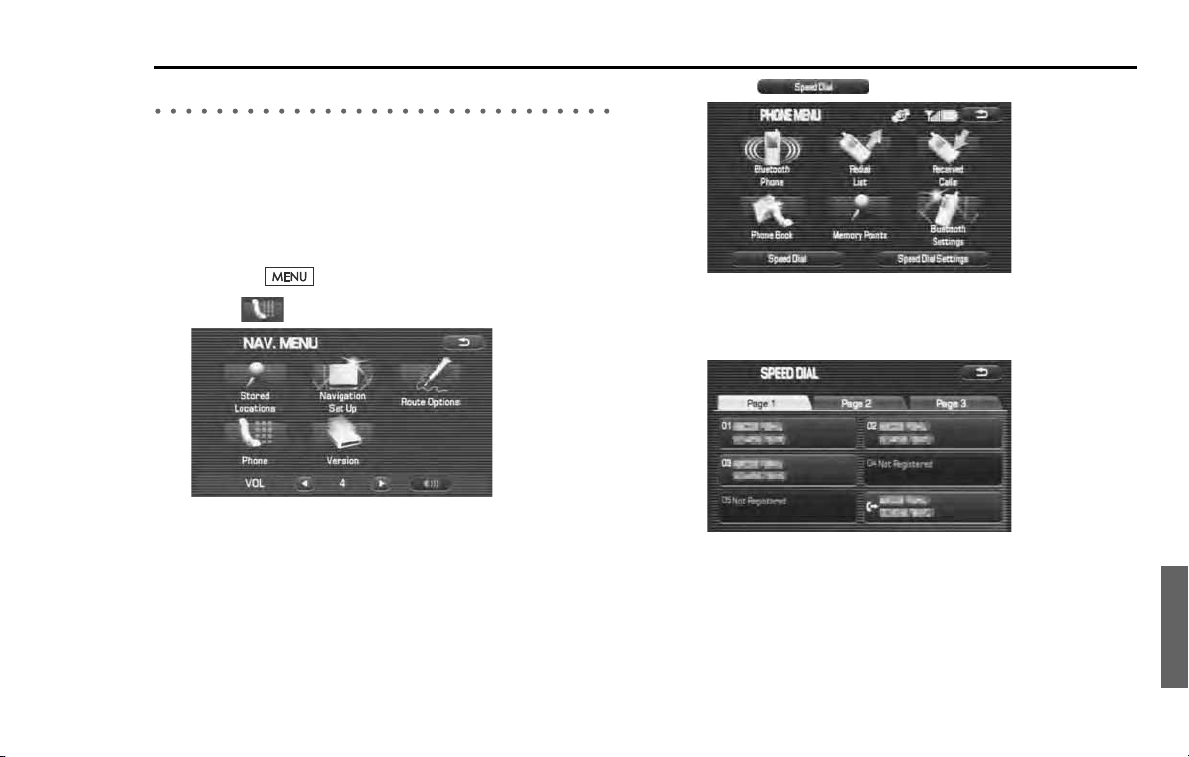
Hands-Free Phone System 249
Speaking over the Hands-Free Phone System
Making a phone call from the Speed Dial
It is possible to select a phone number from the Speed Dial registered
with the in-vehicle equipment to make a phone call. Up to 17 phone
numbers can be stored in the memory.
NOTE
To use the Speed Dial, the phone number needs to be registered onto Speed
Dial beforehand. (See page
279
)
1
Press the button.
2
Select (Phone).
3
Select (Speed Dial).
4
Select the name or phone number of a person to whom you
want to make a phone call.
You have a phone call. Speak over the phone.
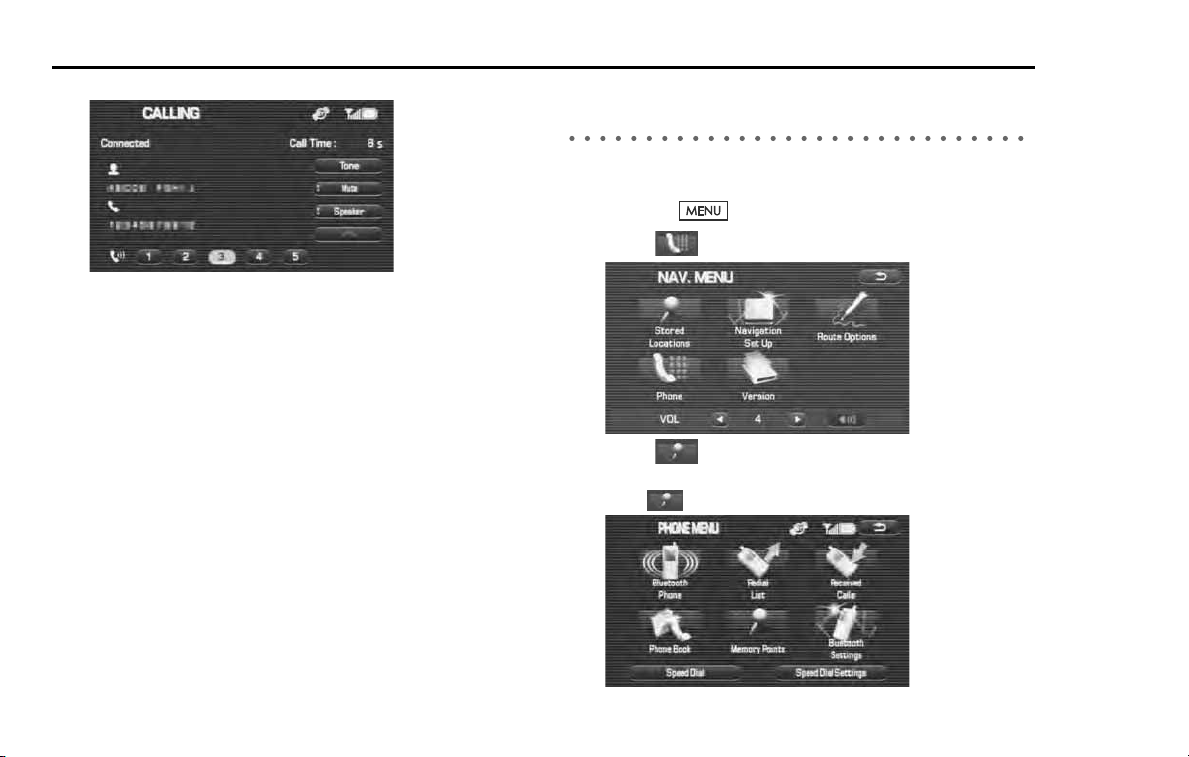
250 Hands-Free Phone System
Speaking over the Hands-Free Phone System
When the phone call is over, hang up the phone.
Making a phone call to the phone number of the
Memory Point
It is possible to make a phone call to the phone number registered as a
memory point.
1 Press the button.
2 Select (Phone).
3 Select (Memory Points).
When the Memory Points is not stored in the in-vehicle equip-
ment, (Memory Points) cannot be selected.
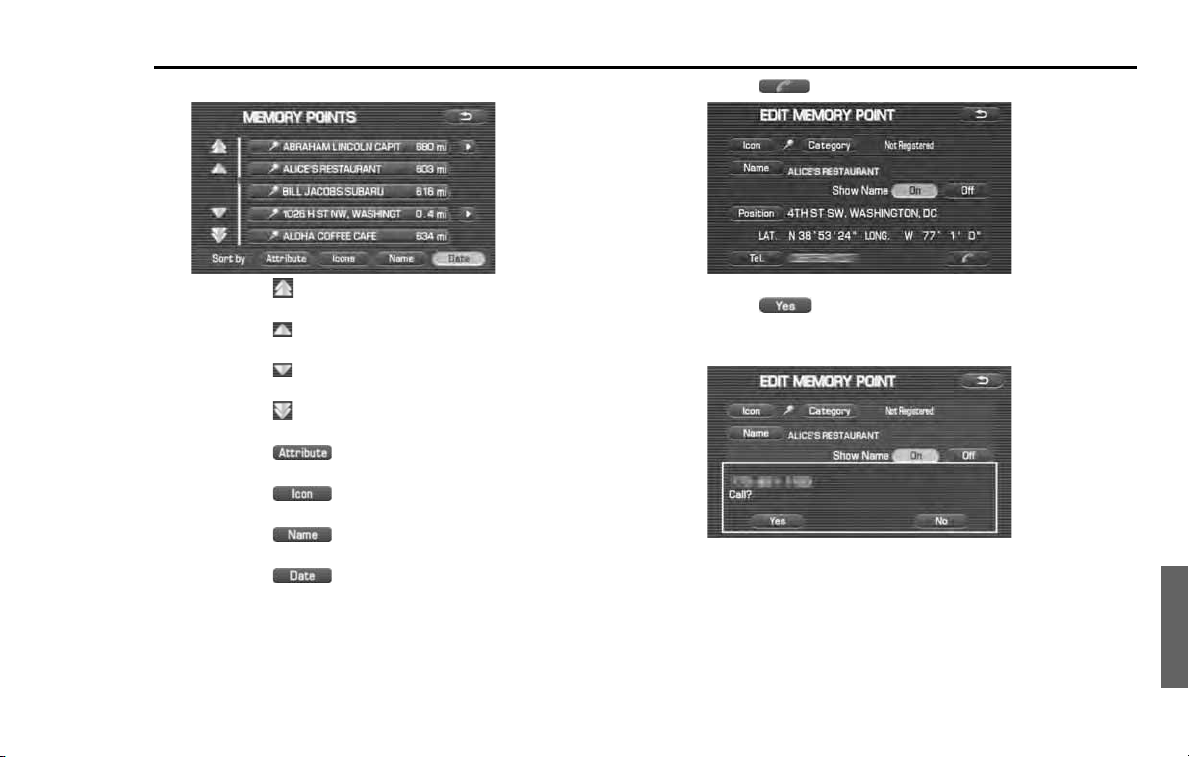
Hands-Free Phone System 251
Speaking over the Hands-Free Phone System
4
Select the Memory Point.
• Selecting scrolls the display to display a memory point 5
position ahead.
• Selecting scrolls the display to display a memory point 1
position ahead.
• Selecting scrolls the display to display a memory point 1
position behind.
• Selecting scrolls the display to display a memory point 5
position behind.
• Selecting (Attribute) sorts the memory points in the
order of shorter distances.
• Selecting (Icon) sorts the memory points in icon
order.
• Selecting (Name) sorts the memory points in name
order.
• Selecting (Date) sorts the memory points in regis-
tered data order.
5
Select .
6
Select (Yes).
You have a phone call. Speak over the phone.
When the phone call is over, hang up the phone. (See Page 258.)
252 Hands-Free Phone System
Speaking over the Hands-Free Phone System
Making a phone call from the Bluetooth Phone
It is possible to directly operate the Bluetooth Phone connected to the
in-vehicle equipment to make a phone call.
Even while speaking over the Bluetooth Phone, operating either of the
following, when connected to the in-vehicle equipment, displays the
handsfree screen in the in-vehicle equipment.
• Press the phone switch.
• Select (Phone) on the menu screen.
In this case, it is not possible to conduct any operations in relation to
the handsfree from the in-vehicle equipment.
Making a call by the voice recognition system
The voice recognition system allows you to make a call with your voice.
Perform the following two calling methods by voice recognition.
• Making a call using name recognition:
When the user speaks a name, the system searches for the phone
number attached with a voice tag (user’s voice) that was registered
for the name in the phone book.
• Making a call using phone number recognition:
When the user speaks a phone number, the system dials the number.
WARNING
For safety's sake, the driver should refrain from the operation
of a cell phone while driving.
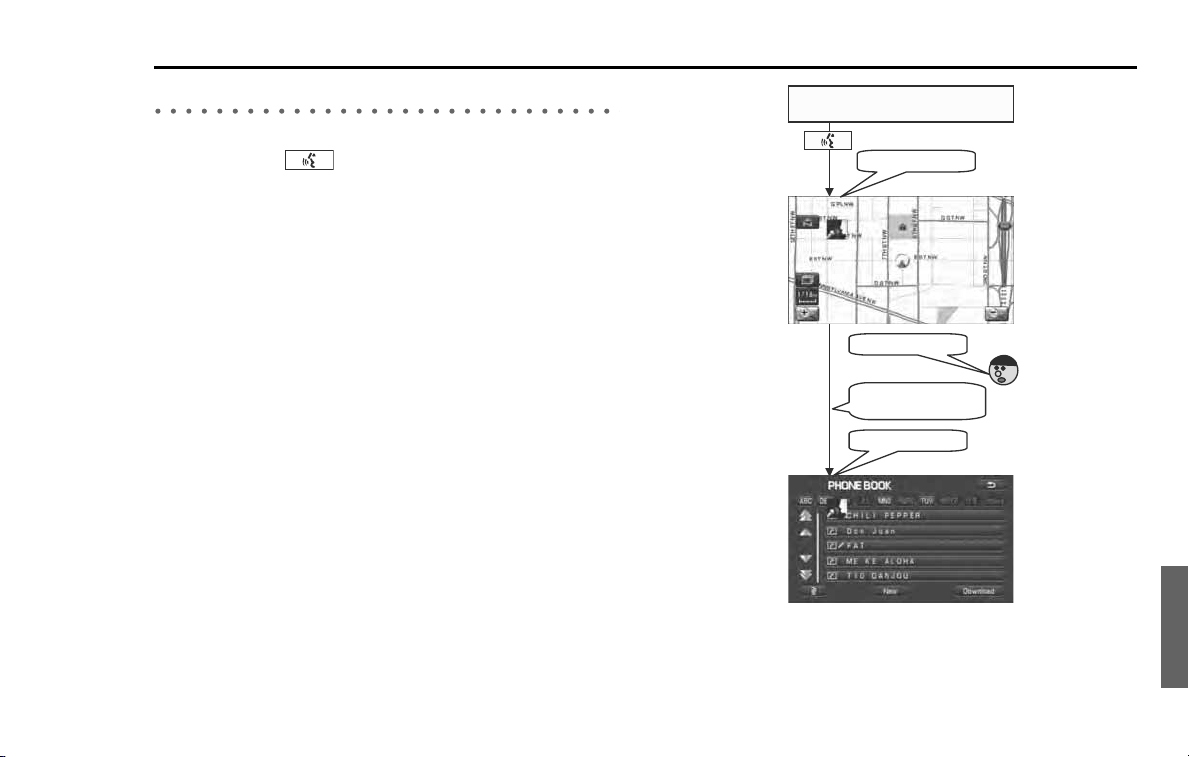
Hands-Free Phone System 253
Speaking over the Hands-Free Phone System
Making a call using name recognition:
NOTE
• When pressing the button located on the steering wheel while the
phone book screen is displayed, voice recognition (name recognition) for the
hands-free phone system will start. The screen does not change.
• The terms that can be used for voice recognition (name recognition) for the
hands-free phone system are "Name", "Cancel", "Next candidate" and "Dial".
Dial by Number
Dial by number has
been chosen
“Pi”(BEEP)
“Pi”(BEEP)
Any display screen other than
the phone book screen
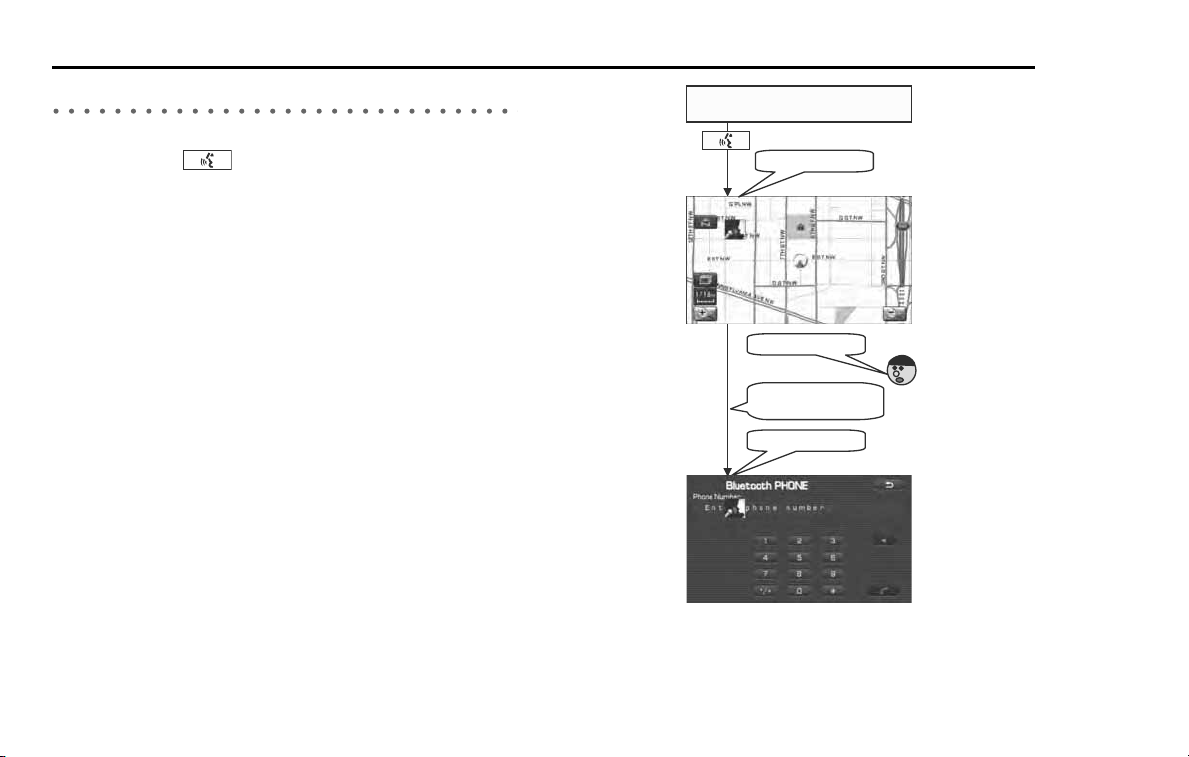
254 Hands-Free Phone System
Speaking over the Hands-Free Phone System
Making a call using phone number recognition:
NOTE
• When pressing the button located on the steering wheel while the
dial screen is displayed, voice recognition (phone number recognition) for the
hands-free phone system will start. The screen does not change.
• The terms that can be used for voice recognition (name recognition) for the
hands-free phone system are "Name", "Cancel", "Next candidate" and "Dial".
Dial by Number
Dial by number has
been chosen
“Pi”(BEEP)
“Pi”(BEEP)
Any display screen other than
the dial screen
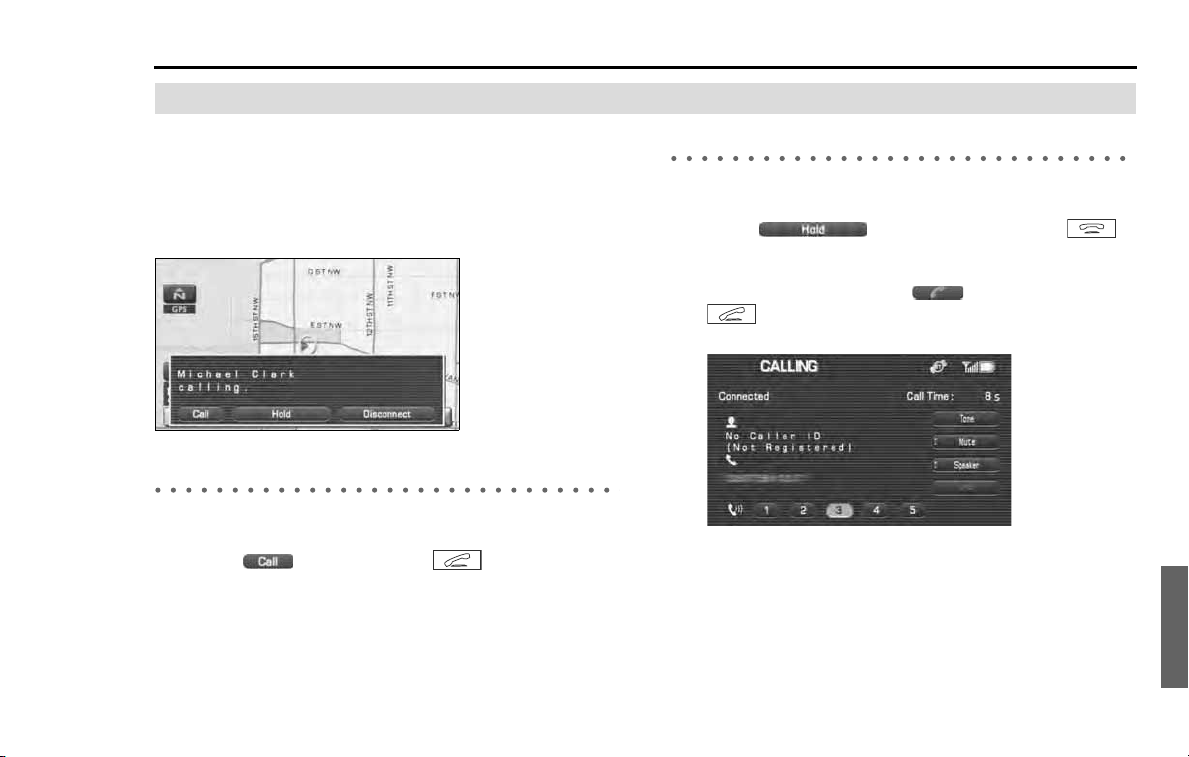
Hands-Free Phone System 255
Speaking over the Hands-Free Phone System
Taking a phone call and declining a incoming call
When you have a phone call, the information of a caller is dis-
played together with an incoming call sign. When the name
of a caller is registered with the phone book, the name of the
caller is displayed. On an occasion other than the above, a
phone number is displayed. For a caller with no outgoing call
notice, no information is displayed.
Taking a phone call
It is possible to take an incoming phone call and talk over the phone.
1
Select (Call) or press the button of the
steering switch.
You can take a phone call. Speak over the phone.
When the phone call is over, hang up the phone. (See Page 258.)
Putting an incoming phone call on hold
It is possible to put an incoming phone call on hold to take it later.
1
Select (Hold) or briefly press the
button of the steering switch.
2
When taking it later, select or briefly press the
button.
When the phone call is over, hang up the phone. (See Page 258.)
256 Hands-Free Phone System
Speaking over the Hands-Free Phone System
Hanging up an incoming call before answering
it (Denial of an incoming call)
It is possible to hang up an incoming call before answering it. And it is
also possible, while putting a phone call on hold, to conduct the follow-
ing operations to hang up the phone call.
1 Select (Disconnect) or keep pressing the
button of the steering switch for more than 2 sec-
onds.
The phone call is hanged up.
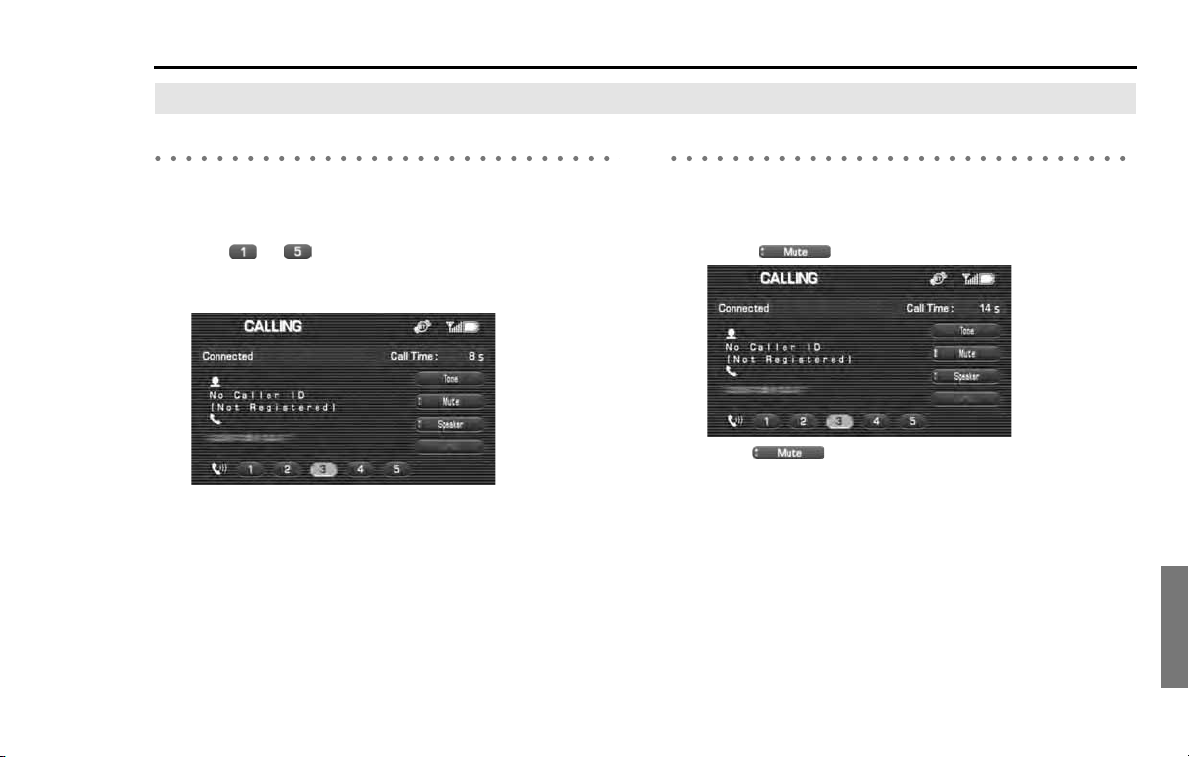
Hands-Free Phone System 257
Speaking over the Hands-Free Phone System
Speaking over the phone
Adjusting the tonal volume
It is possible to adjust the tonal volume.
1
While speaking over the phone, select either of the fig-
ures to shown on the lower section of the
screen or press the volume adjusting switch of the steer-
ing switch.
NOTE
The larger the figure you select, the larger the tonal volume.
Muting the voice on this side
It is possible to make your voice unheard to the other party (Mute).
However, you can hear the voice of the other party.
1
Select (Mute) while speaking over the phone.
Select (Mute) again to cancel the mute.
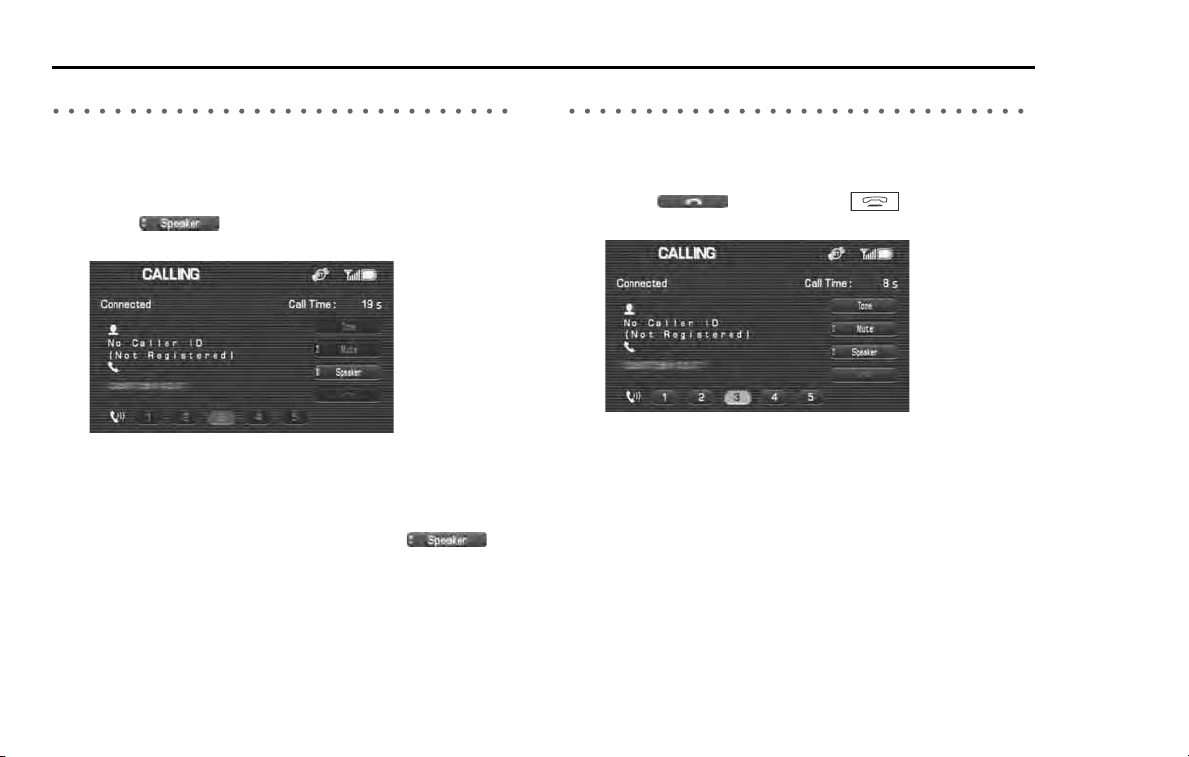
258 Hands-Free Phone System
Speaking over the Hands-Free Phone System
Transmitting the phone call
It is possible to transmit the phone call of the in-vehicle equipment to
the Bluetooth Phone. And also, the phone call of the Bluetooth Phone
can be transmitted to the in-vehicle equipment.
1 Select (Speaker) while speaking over the
phone or putting the answer on hold.
You can speak over the Bluetooth Phone.
NOTE
• While speaking over the Bluetooth Phone, the only operation that can be
made is to transmit the phone call again to the in-vehicle equipment.
• If you want to speak over the in-vehicle equipment, select
(Speaker).
Hanging up the phone
Hang up the phone while speaking over the phone or after the phone
call is over.
1 Select or pressing the button of the
steering switch for more than 2 seconds.
NOTE
It is also possible to hang up the phone on the Bluetooth Phone.
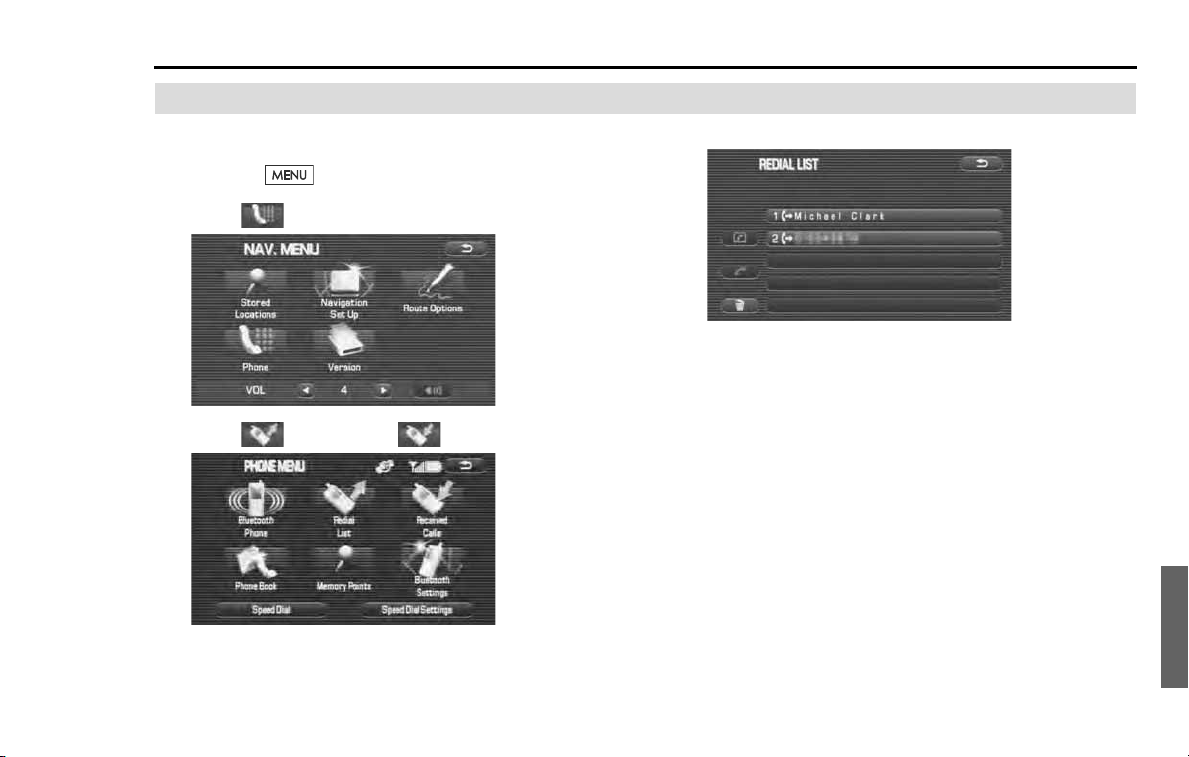
Hands-Free Phone System 259
Using the outgoing or incoming call history
Checking the outgoing or incoming call history
It is possible to check the outgoing or incoming call history.
1 Press the button.
2 Select (Phone).
3 Select (Redial List) or (Received Calls).
4 Check the outgoing or incoming call history.
• The maximum number of calls in the history items that can be
checked is five for each of the outgoing calls and the incoming
calls.
• The history of phone calls directly sent out from the Bluetooth
Phone and the history of phone calls received when not con-
nected to the in-vehicle equipment are not displayed.
NOTE
The following can be conducted from this screen.
• It is possible to make a phone call to the number displayed. (See Page 245.)
• It is possible to register a phone number with the phone book. (See Page
267.)
• It is possible to delete an outgoing or incoming call history displayed. (See
Page 260.)
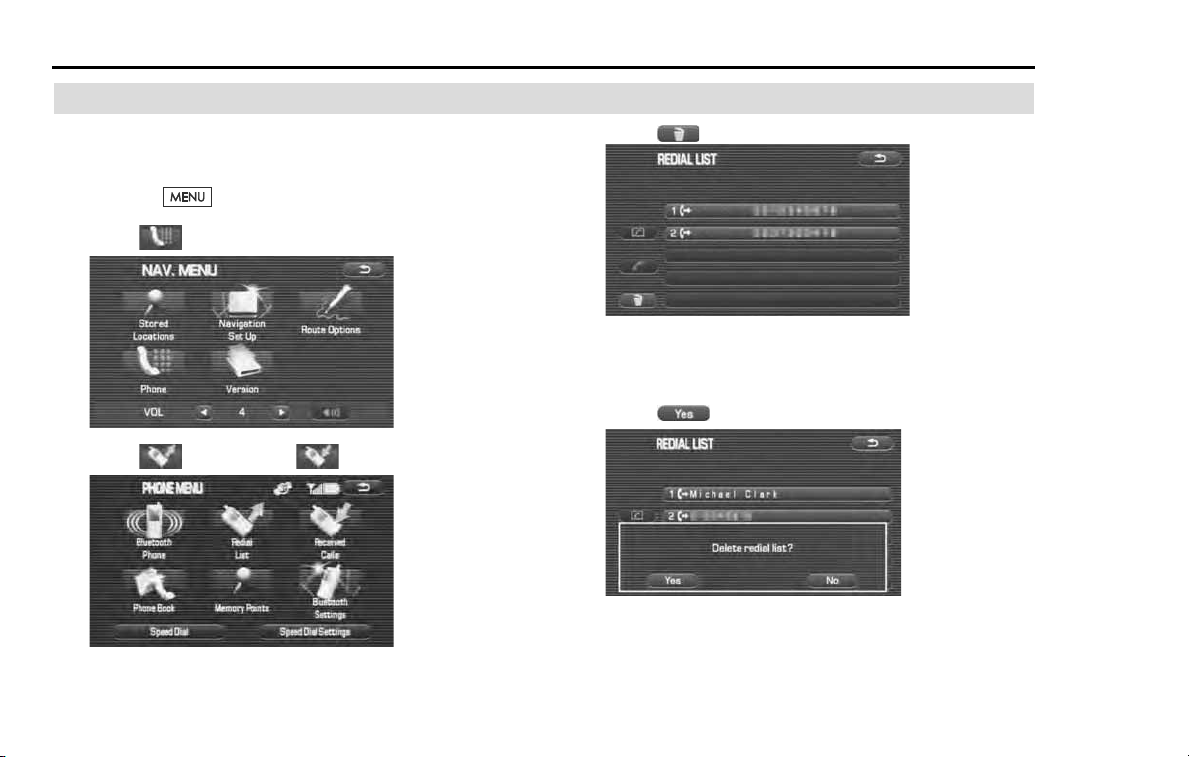
260 Hands-Free Phone System
Using the outgoing or incoming call history
Deleting all the outgoing and incoming call history
Delete all the outgoing and incoming call history. History
once deleted cannot be restored to its original state.
1 Press the button.
2 Select (Phone).
3 Select (Redial List) or (Received Calls).
4 Select .
NOTE
The following can be conducted from this screen.
• It is possible to make a phone call to the phone number displayed. (See Page
245
.)
• It is possible to register a phone number with the phone book. (See Page
267
.)
5 Select (Yes).
All of the outgoing or incoming call history are deleted.
NOTE
It is necessary to delete the outgoing call history and the incoming call history
separately.
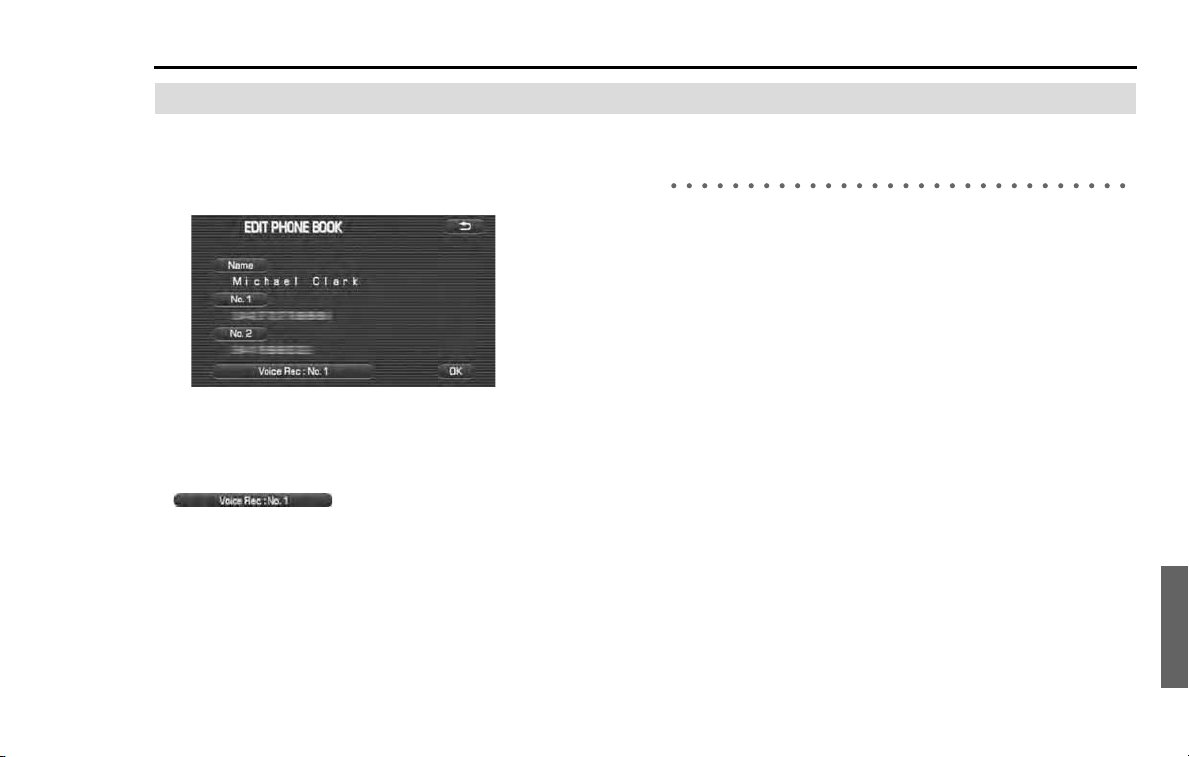
Hands-Free Phone System 261
Using the phone book
Registering the phone book data
Up to 1000 phone book data can be registered with the
phone book of the in-vehicle equipment.
Contents that can be registered as phone book data are as
shown below.
• Name: It is possible to register up to 24 characters. They can be
clipped.
• Phone number 1, phone number 2: Up to 25 digits can be regis-
tered. Any letter other than "0 to 9, *, #" cannot be used.
• (voice record: No.1) : A voice tag can be reg-
istered.
Transmitting the phone book of the Bluetooth
Phone
It is possible to transmit the phone book data from the phone book of
the Bluetooth Phone to that of the in-vehicle equipment. Phone book
data that can be transmitted are as shown below.
• Name
When the name of the phone book data of the Bluetooth Phone is in
excess of 24 character, up to 24 characters from the start are regis-
tered with the phone book of the in-vehicle equipment.
When a non-corresponding character is registered in the name of the
phone book data of the Bluetooth Phone, this is registered with the
phone book of the in-vehicle equipment as a blank.
• Phone number 1
• Phone number 2
When more than 3 phone numbers are registered with the phone
book data of the Bluetooth Phone, with two or more phone book
data of the same name created, they are divided to be registered
with the phone book of the in-vehicle equipment.
When any letters other than "0 to 9, *, #" are included in the phone
book data of the Bluetooth Phone, those relevant letters are deleted
to be registered with the phone book of the in-vehicle equipment.
When the phone book data of the Bluetooth Phone is a phone num-
ber in excess of 25 digits, it is not registered with the phone book of
the in-vehicle equipment.
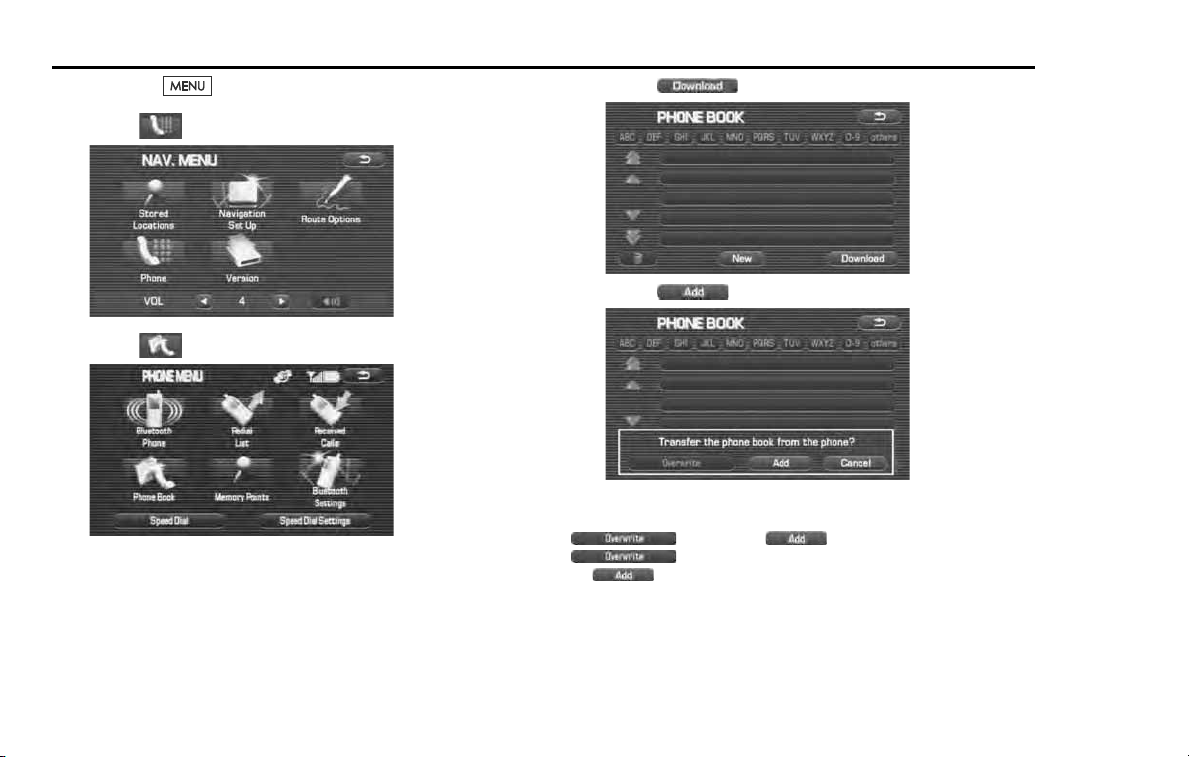
262 Hands-Free Phone System
Using the phone book
1 Press the button.
2 Select (Phone).
3 Select (Phone Book).
4 Select (Download).
5 Select (Add).
NOTE
When there is a phone book data already in the phone book, select
(Overwrite) or (Add). Selecting
(Overwrite) overwrites the existing phone book. And select-
ing (Add) adds a phone book data to the existing phone book data as
a new data.
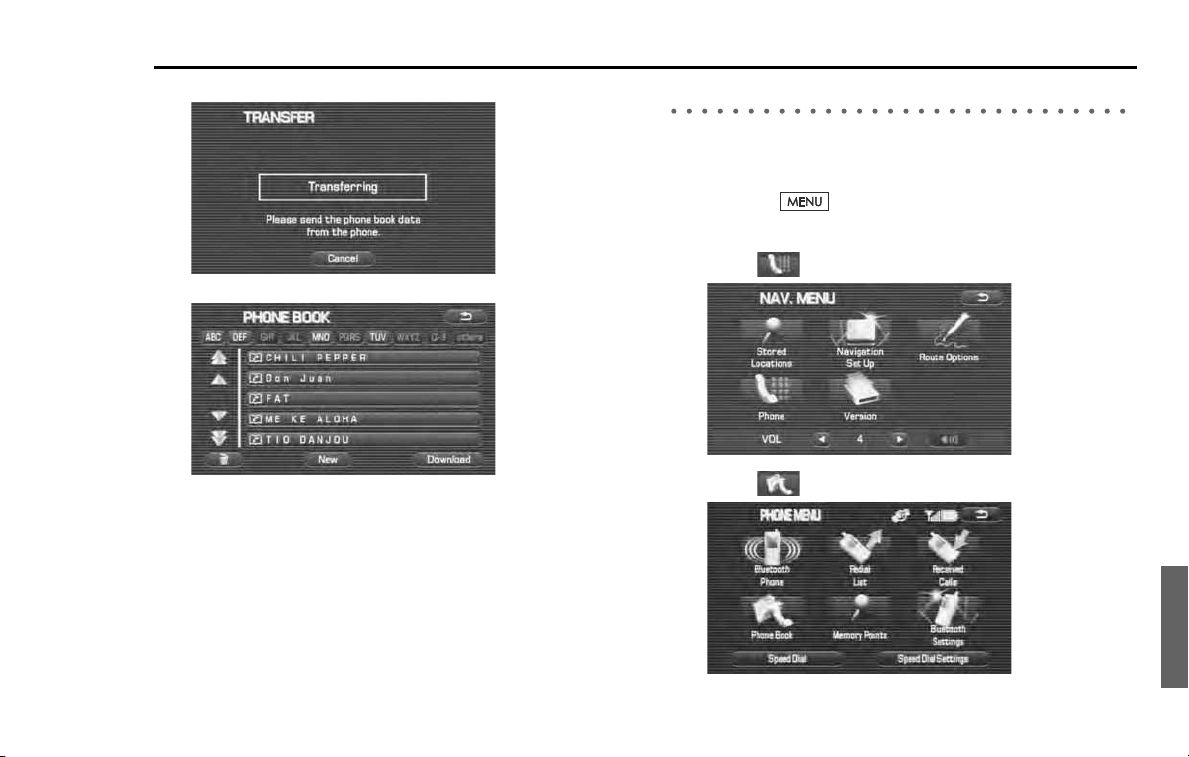
Hands-Free Phone System 263
Using the phone book
6
Transmit the phone number data from the Bluetooth Phone.
The phone book data is displayed in the phone book
NOTE
For detail method for transmitting the phone book data from the Bluetooth
Phone, refer to the instruction manual of the Bluetooth Phone.
Registering a new data with the phone book
Register a new phone book data with the phone book. It is possible to
register a name and up to 2 phone numbers as phone book data.
1
Press the button to edit the phone book data reg-
istered.
2
Select (Phone).
3
Select (Phone Book).
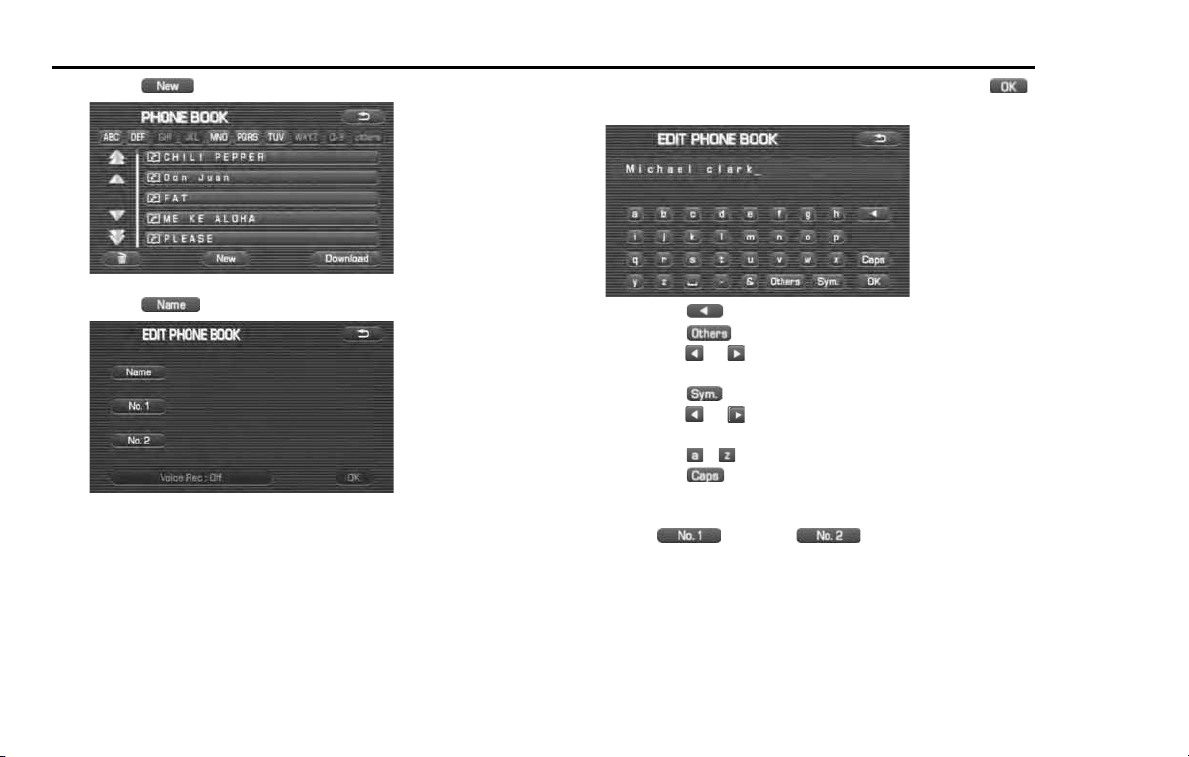
264 Hands-Free Phone System
Using the phone book
4 Select (New).
5 Select (Name).
NOTE
The Name doesn't need to be entered. When not entered, the phone number is
displayed on the phone book. And when not entered, proceed to step 7.
6 Enter the name of the phone book data and select
(OK).
• Selecting deletes 1 character.
• Selecting (Others) displays other characters. Then
selecting or displays the preceding or succeeding
screen.
• Selecting (Sym.) displays figures and symbols. Then
selecting or displays the preceding or succeeding
screen.
• Selecting - displays alphabets and symbols.
• Selecting (Caps) allows you to make a changeover
between upper case and lower case.
7 Select (No.1) or (No.2).
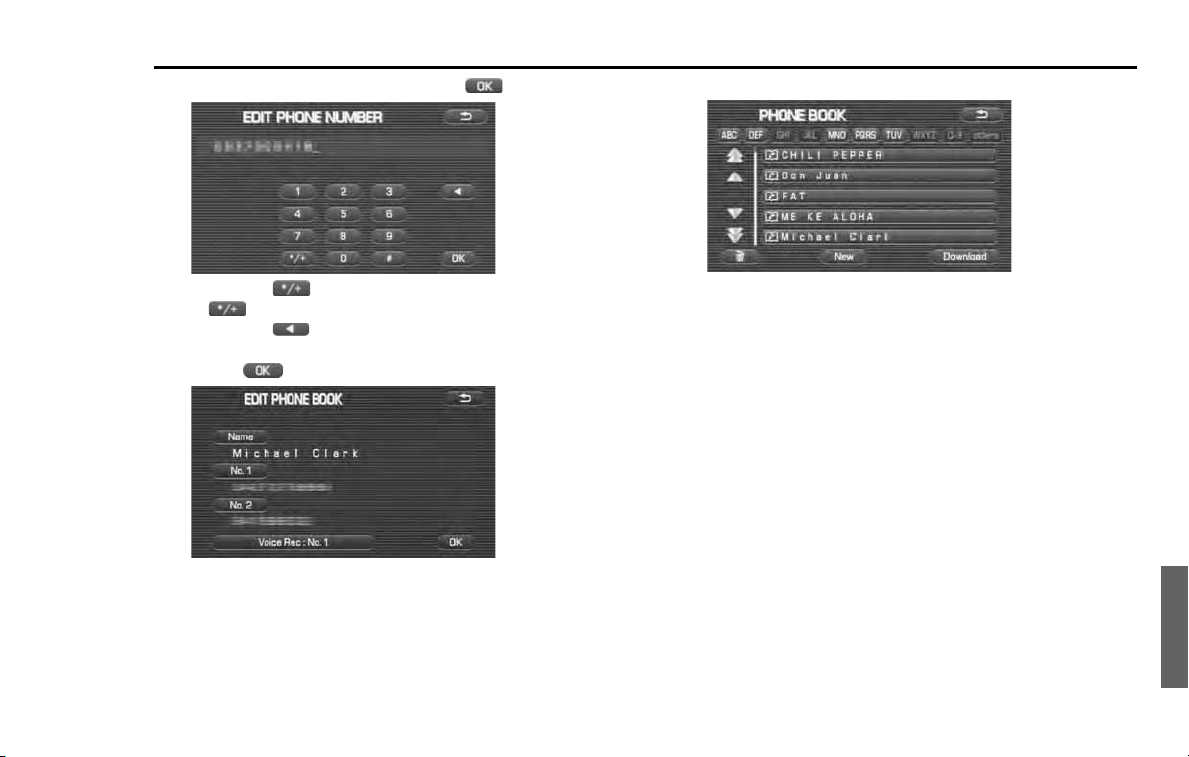
Hands-Free Phone System 265
Using the phone book
8
Enter the phone number and select (OK).
• Selecting briefly allows you to enter "*" and selecting
for more than 2 seconds allows you to enter "+."
• Selecting deletes 1 character.
9
Select (OK).
A phone book data is added.
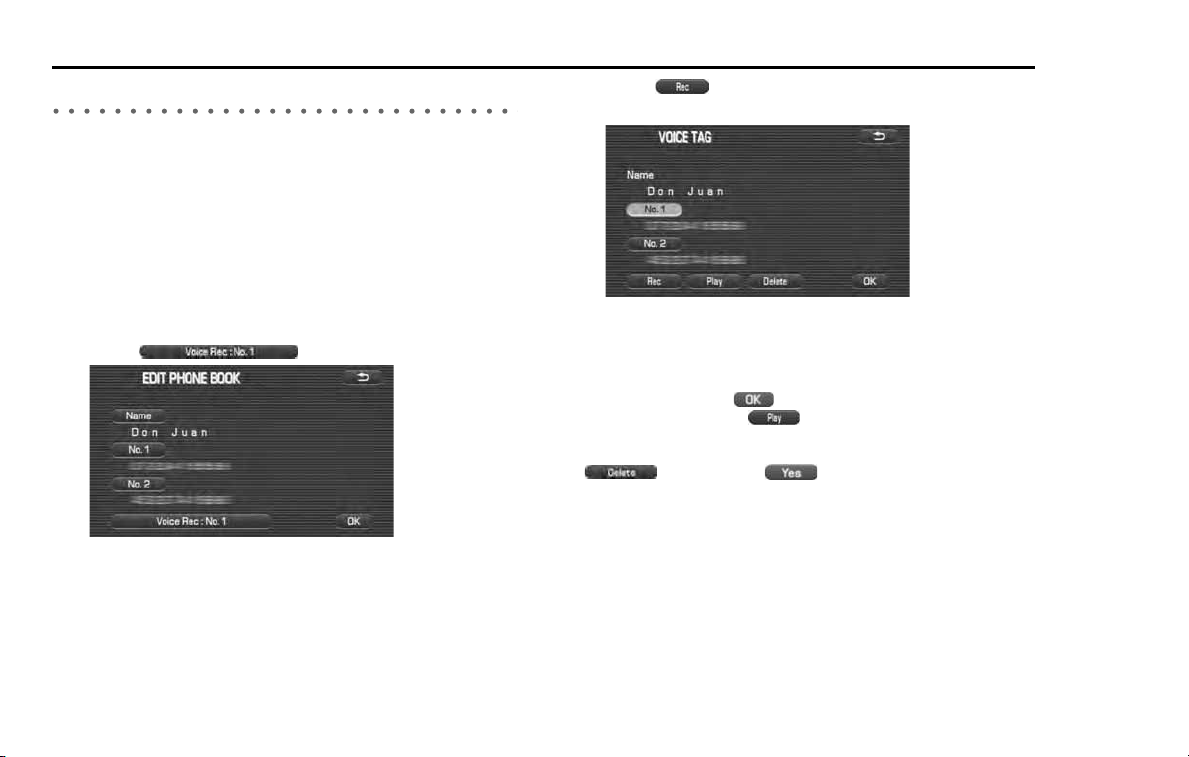
266 Hands-Free Phone System
Using the phone book
Voice tag registration
The user’s voice can be registered as a voice tag that is added to a
phone number in the phone book. Voice tags will be stored in the sys-
tem when you speak a party’s name after voice guidance is announced
and the voice tag screen is displayed. A maximum of 20 voice tags can
be registered in the system, and it takes a maximum of 5 seconds per
registration.
1 Refer to the procedure of phone book data editing to go
to the editing screen.
2 Select (Voice record).
NOTE
• Select the phone number to be added with a voice tag.
3 Select (record), and then speak the preferred
voice tag to record it in the system.
NOTE
• When the recording is completed, a message is displayed on the screen and
voice guidance starts. When the recording has been completed, the system
will announce via voice guidance whether the recording was completed cor-
rectly or incorrectly. Press (ok) to finish the registration procedure.
• Select a voice tag and press (play) to play back the registered voice
tag.
• A confirmation message is displayed when selecting a voice tag and pressing
(delete). Press the (yes) to delete the voice tag.
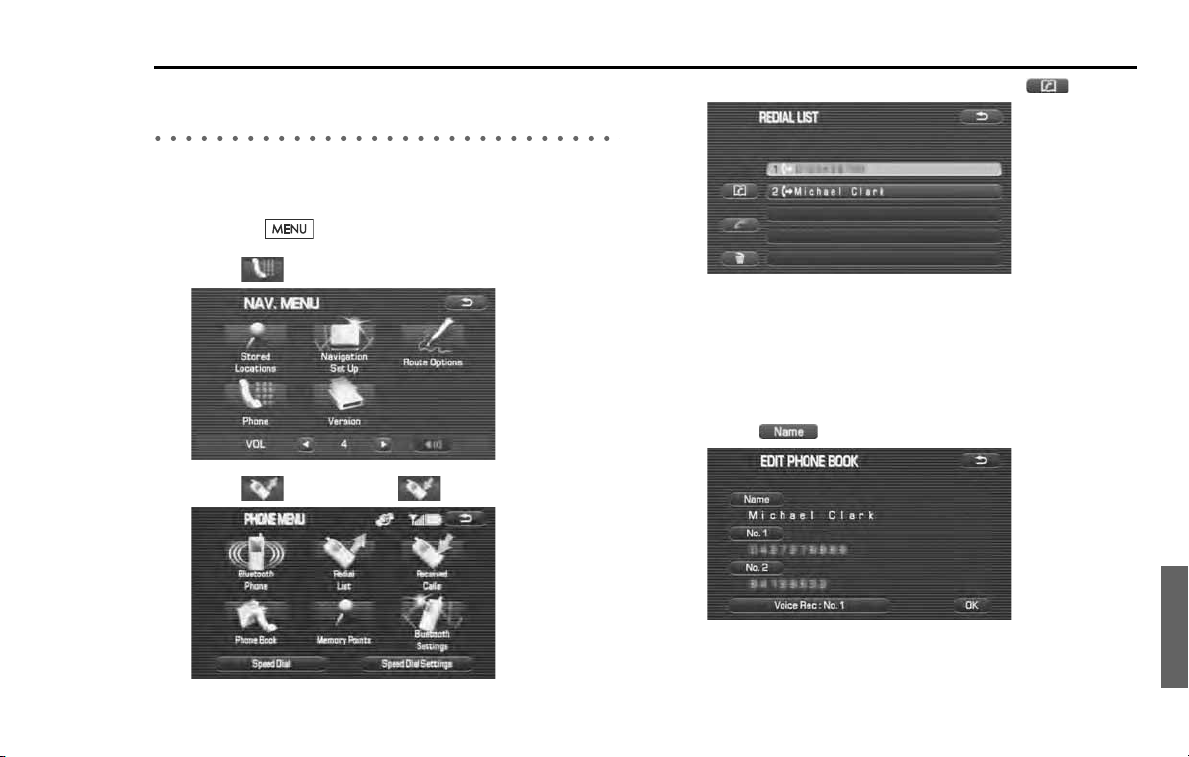
Hands-Free Phone System 267
Using the phone book
Registering data with the phone book from the
outgoing or incoming call history
It is possible to register a phone number of the outgoing or incoming
call history with the phone book.
1
Press the button.
2
Select (Phone).
3
Select (Redial List) or (Received Calls).
4
Select the phone number and then select .
NOTE
The following can be conducted from this screen.
• It is possible to make a phone call to a phone number displayed. (See Page
245.)
• It is possible to delete an incoming or outgoing call history displayed. (See
Page 260.)
5
Select (Name).
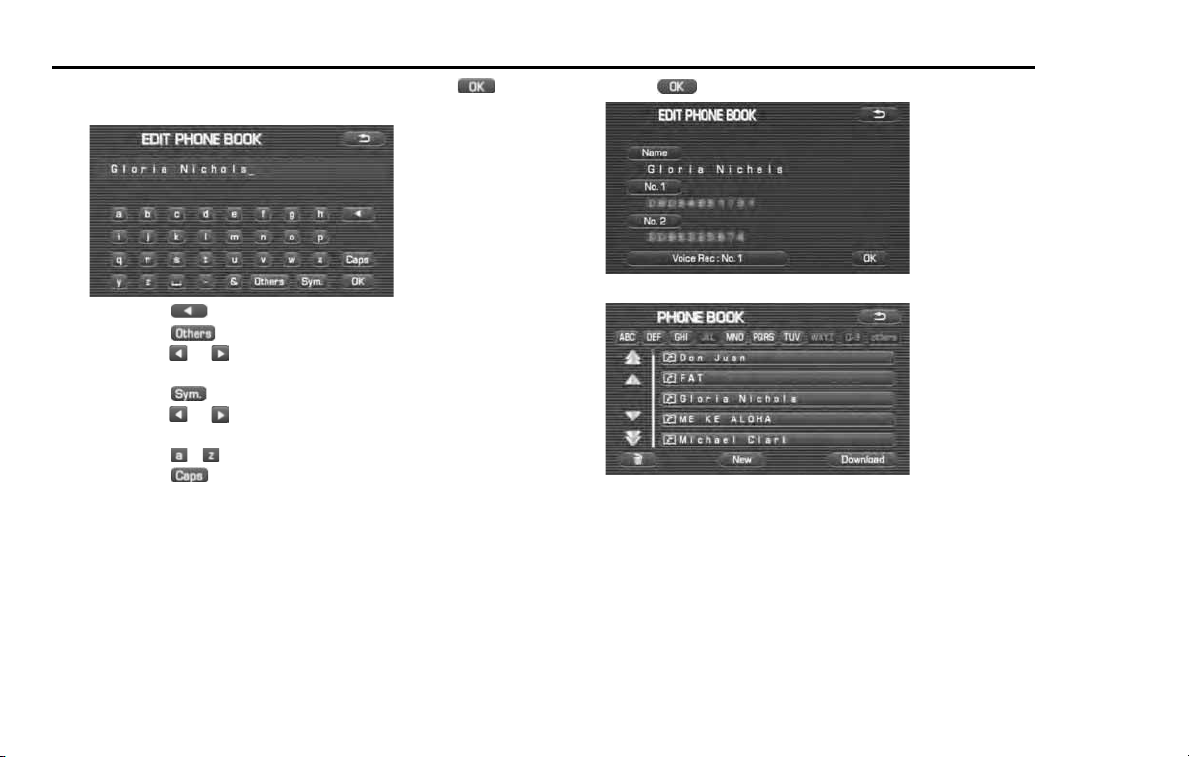
268 Hands-Free Phone System
Using the phone book
6 Enter the name of a phone book data and select
(OK).
• Selecting deletes 1 character.
• Selecting (Others) displays other characters. Then
selecting or displays the preceding or succeeding
screen.
• Selecting (Sym.) displays figures and symbols. Then
selecting or displays the preceding or succeeding
screen.
• Selecting - displays alphabets.
• Selecting (Caps) allows you to make a changeover
between upper case and lower case.
7 Select (OK).
The phone number is registered with the phone book data.
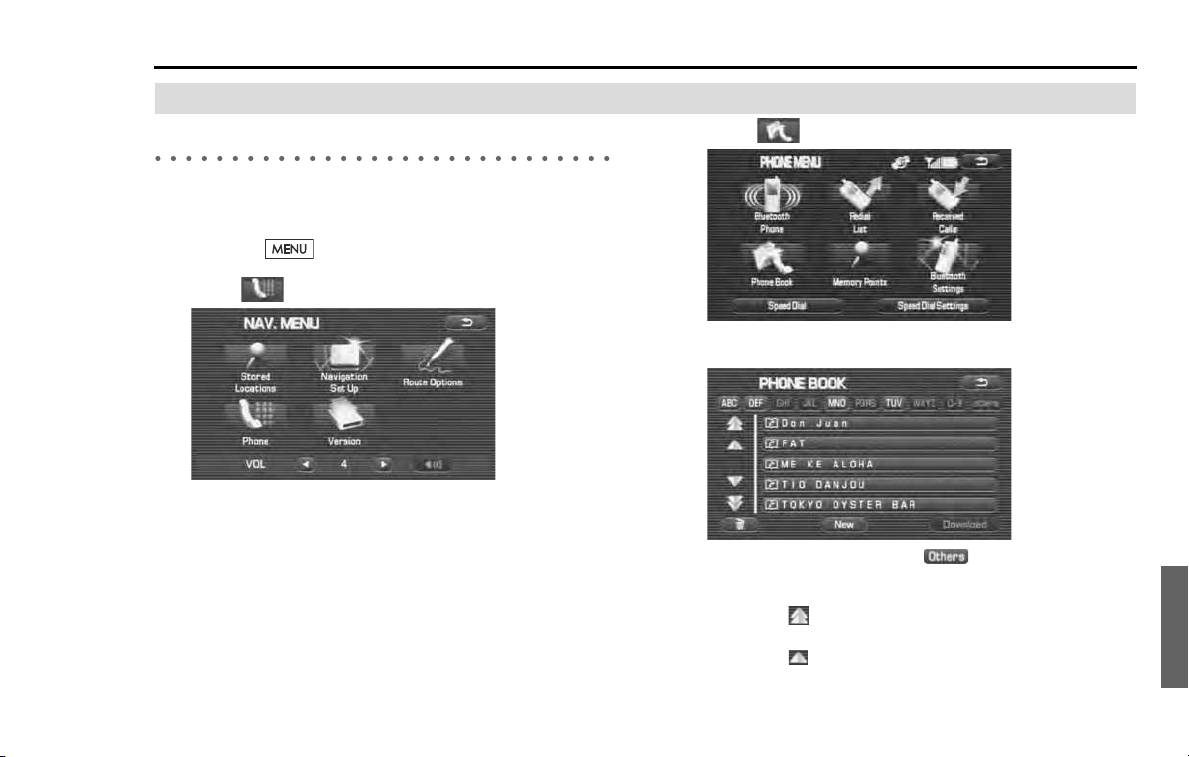
Hands-Free Phone System 269
Using the phone book
Editing or deleting a phone book data
Editing a phone book data
It is possible to edit the name of a phone book data and a phone num-
ber.
1
Press the button.
2
Select (Phone).
3
Select (Phone Book).
4
Select the phone book data you want to edit.
• Selecting alphabets, figures or (Others) given in the
upper section displays a phone book data to which the acro-
nym has relevance.
• Selecting scrolls the display to display a phone book data 5
positions ahead.
• Selecting scrolls the display to display a phone book data 1
position ahead.
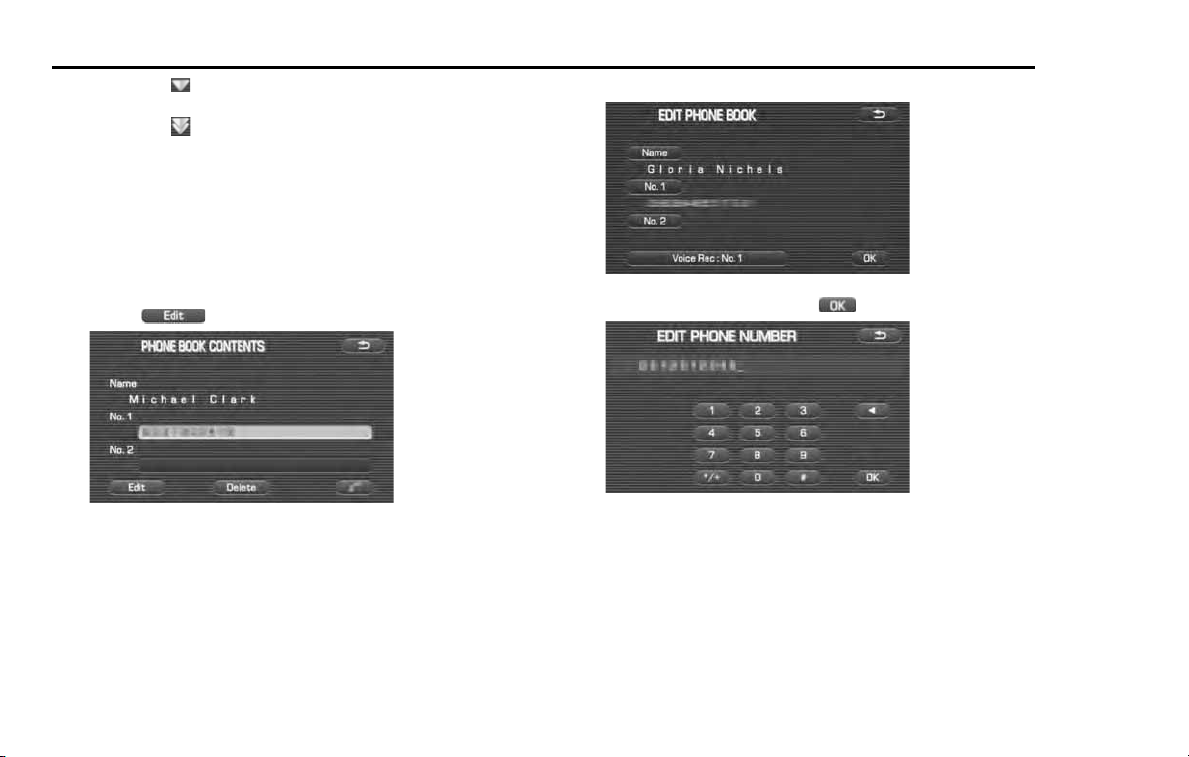
270 Hands-Free Phone System
Using the phone book
• Selecting scrolls the display to display a phone book data 1
position behind.
• Selecting scrolls the display to display a phone book data 5
positions behind.
NOTE
The following can be conducted from this screen.
• It is possible to register a phone book data. (See Page
263
.)
• It is possible to register a phone book data from the Bluetooth Phone. (See
Page
261
.)
• It is possible to delete all the phone book data. (See Page
273
.)
5 Select (Edit).
NOTE
The following can also be conducted from this screen.
• It is possible to delete a phone book data. (See Page
271
and
273
.)
• It is possible to make a phone call to the phone number selected. (See Page
247
.)
6 Select an item you want to edit.
7 Enter a new data and select (OK).
NOTE
For details of the editing method, refer to "Registering a new data with the
phone book." (See Page
263
.)
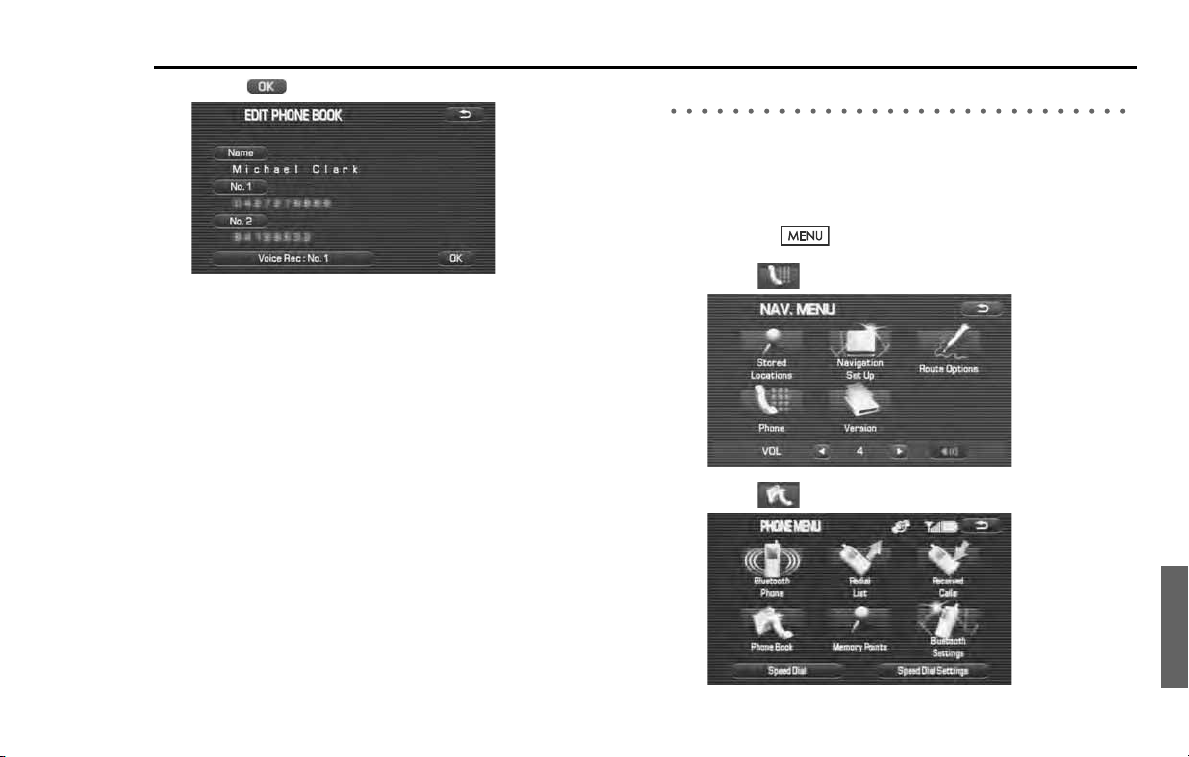
Hands-Free Phone System 271
Using the phone book
8
Select (OK).
The result of the edit is reflected in the phone book data.
Selecting a phone book data to delete it
Select a phone book data registered and delete it.
NOTE
A phone book data once deleted cannot be restored to its original state.
1
Press the button.
2
Select (Phone).
3
Select (Phone Book).
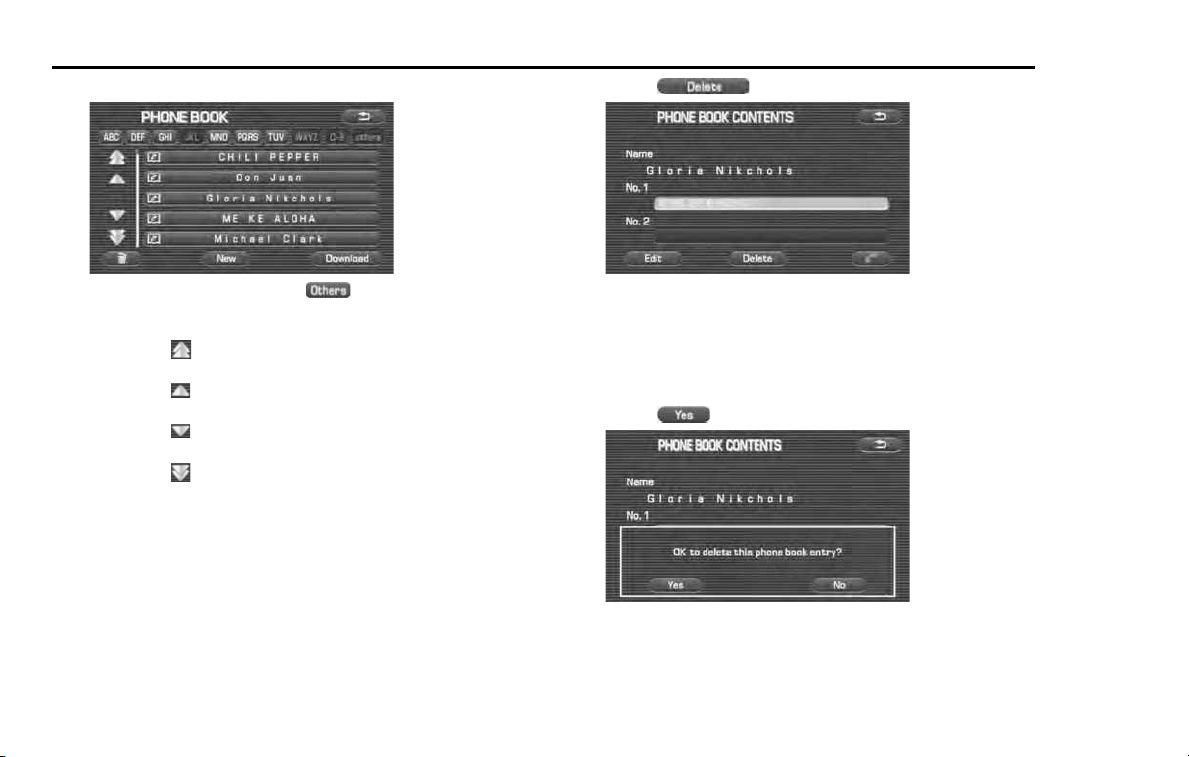
272 Hands-Free Phone System
Using the phone book
4 Select a phone book data you want to edit.
• Selecting alphabets, figures or (Others) given in the
upper section displays a phone book data to which the acro-
nym has relevance.
• Selecting scrolls the display to display a phone book data 5
positions ahead.
• Selecting scrolls the display to display a phone book data 1
position ahead.
• Selecting scrolls the display to display a phone book data 1
position behind.
• Selecting scrolls the display to display a phone book data 5
positions behind.
NOTE
The following can be conducted from this screen.
• It is possible to register a phone book data. (See Page
263
.)
• It is possible to register a phone book data from the Bluetooth Phone. (See
Page
261
.)
• It is possible to delete all the phone book data. (See Page
273
.)
5 Select (Delete).
NOTE
The following can be conducted from this screen.
• It is possible to edit a phone book data. (See Page
269
.)
• It is possible to make a phone call to the phone number selected. (See Page
247
.)
6 Select (Yes).
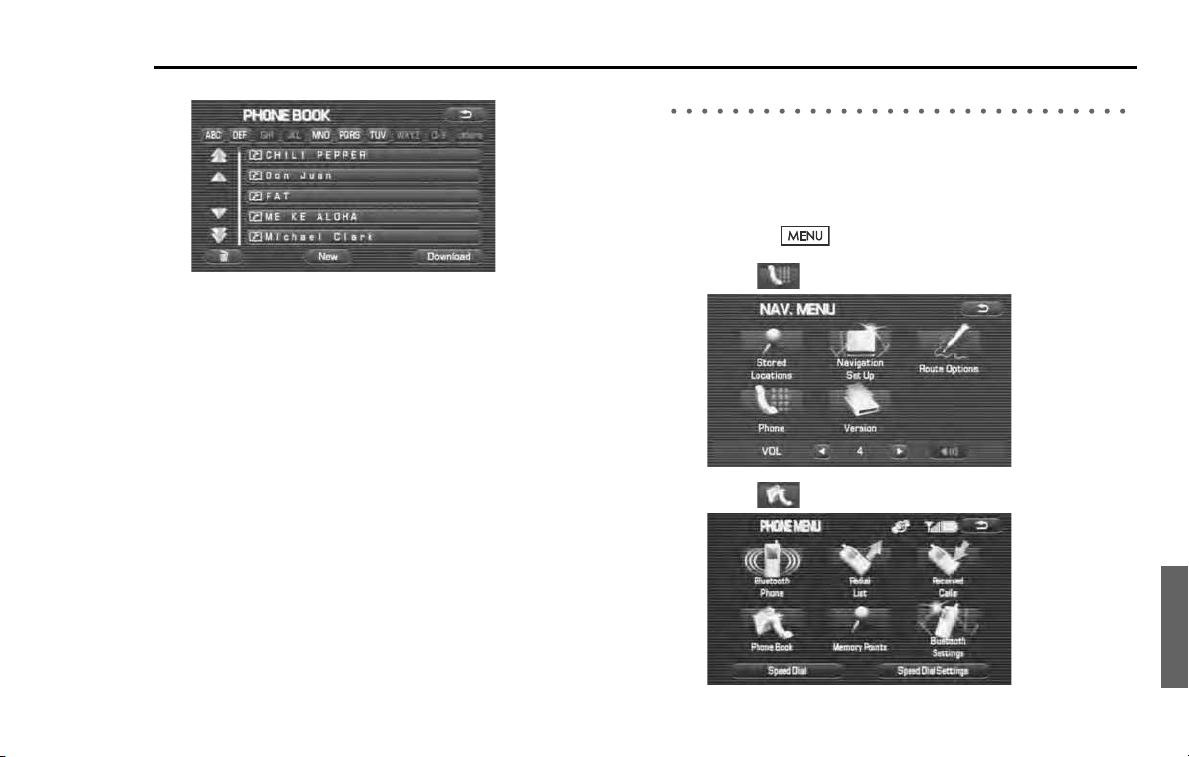
Hands-Free Phone System 273
Using the phone book
The phone book data selected is deleted.
Deleting all the phone book data
It is possible to delete all the phone book data.
NOTE
Phone book data once deleted cannot be restored to their original state.
1
Press the button.
2
Select (Phone).
3
Select (Phone Book).
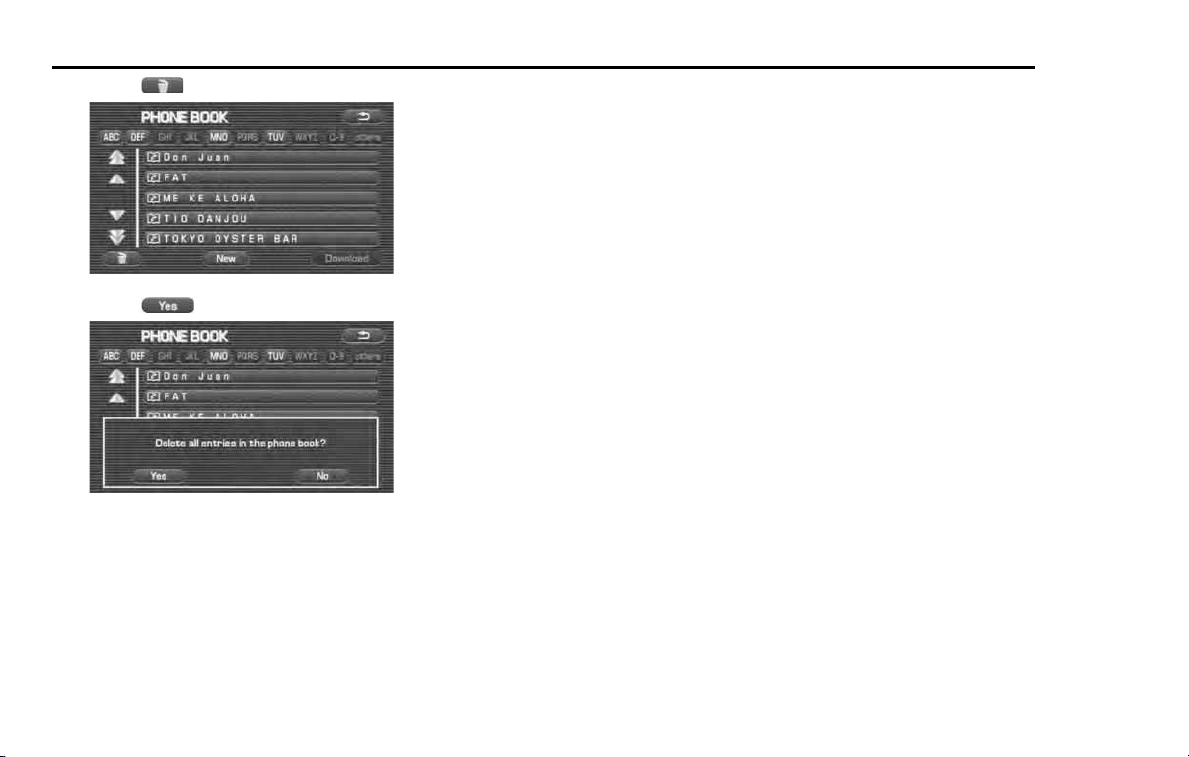
274 Hands-Free Phone System
Using the phone book
4 Select .
5 Select (Yes).
All the phone book data are deleted.
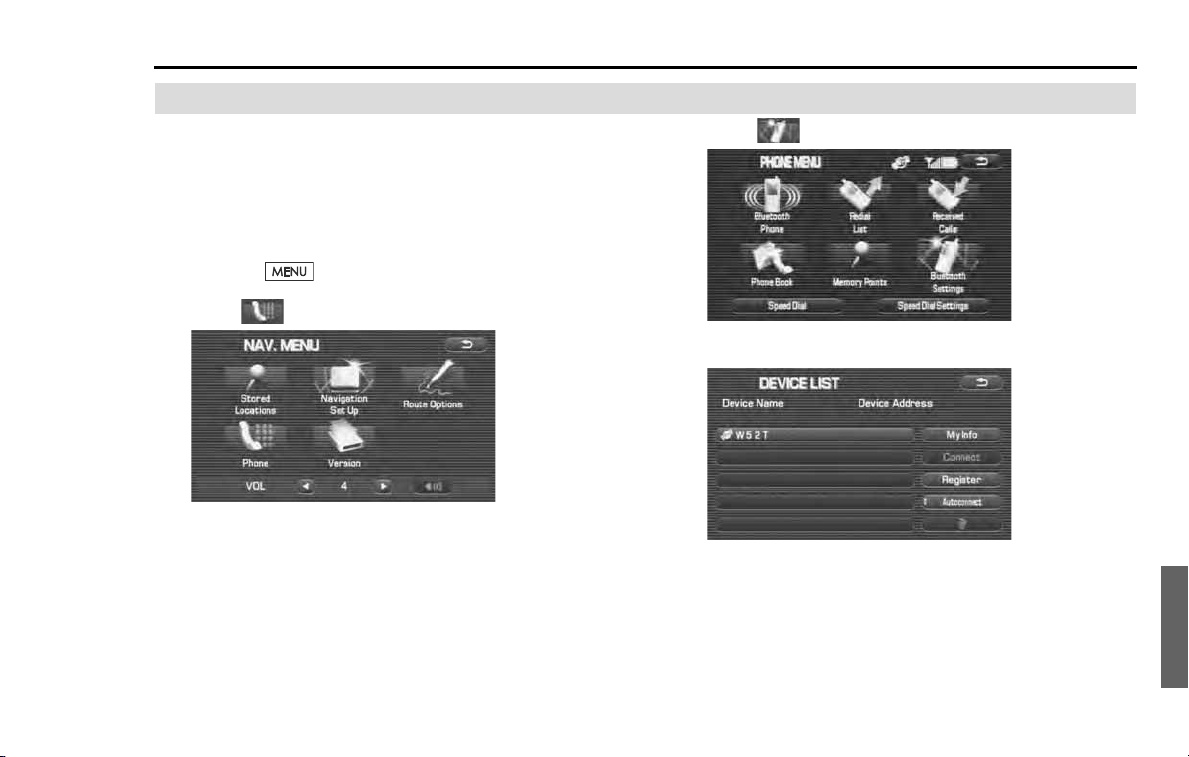
Hands-Free Phone System 275
Other Bluetooth settings
Deleting the registered Bluetooth Phone from the in-vehicle equipment
Delete the Bluetooth Phone registered with the in-vehicle
equipment.
NOTE
When deleting the Bluetooth Phone with the Bluetooth Phone connected to the
in-vehicle equipment, no automatic connection is made.
1
Press the button.
2
Select (Phone).
3
Select (Bluetooth Settings).
4
Select a Bluetooth Phone name you want to delete.
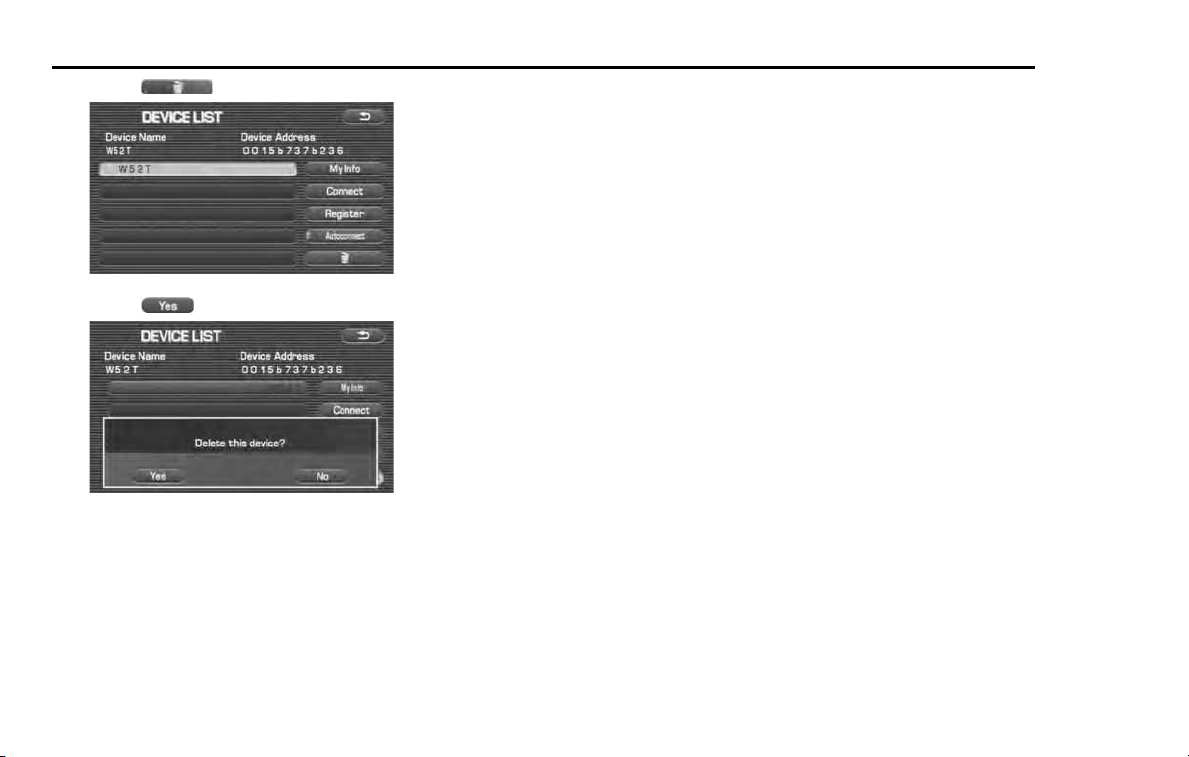
276 Hands-Free Phone System
Other Bluetooth settings
5 Select (Delete).
6 Select (Yes).
The Bluetooth Phone registered is deleted.
NOTE
• When you want to use again the deleted Bluetooth Phone in interlock with
the in-vehicle equipment, register and connect it again.
• Even when the Bluetooth Phone is deleted from the in-vehicle equipment,
the phone book data transmitted from the Bluetooth Phone and the outgo-
ing and incoming call history remain as they are.
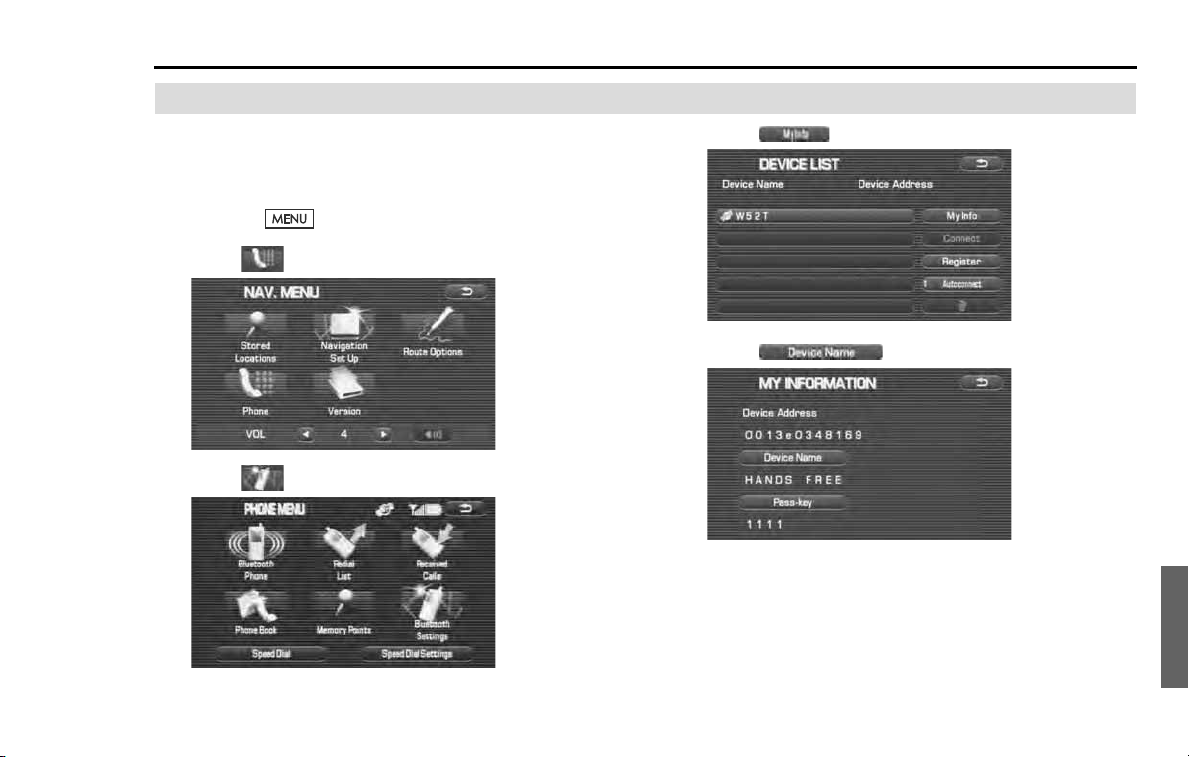
Hands-Free Phone System 277
Other Bluetooth settings
Changing the Device Name of the in-vehicle equipment displayed in the Bluetooth Phone
It is possible to change the Device Name of the in-vehicle
equipment displayed in the Bluetooth setting of the Blue-
tooth Phone.
1 Press the button.
2 Select (Phone).
3 Select (Bluetooth Settings).
4 Select (My Info).
5 Select (Device Name).
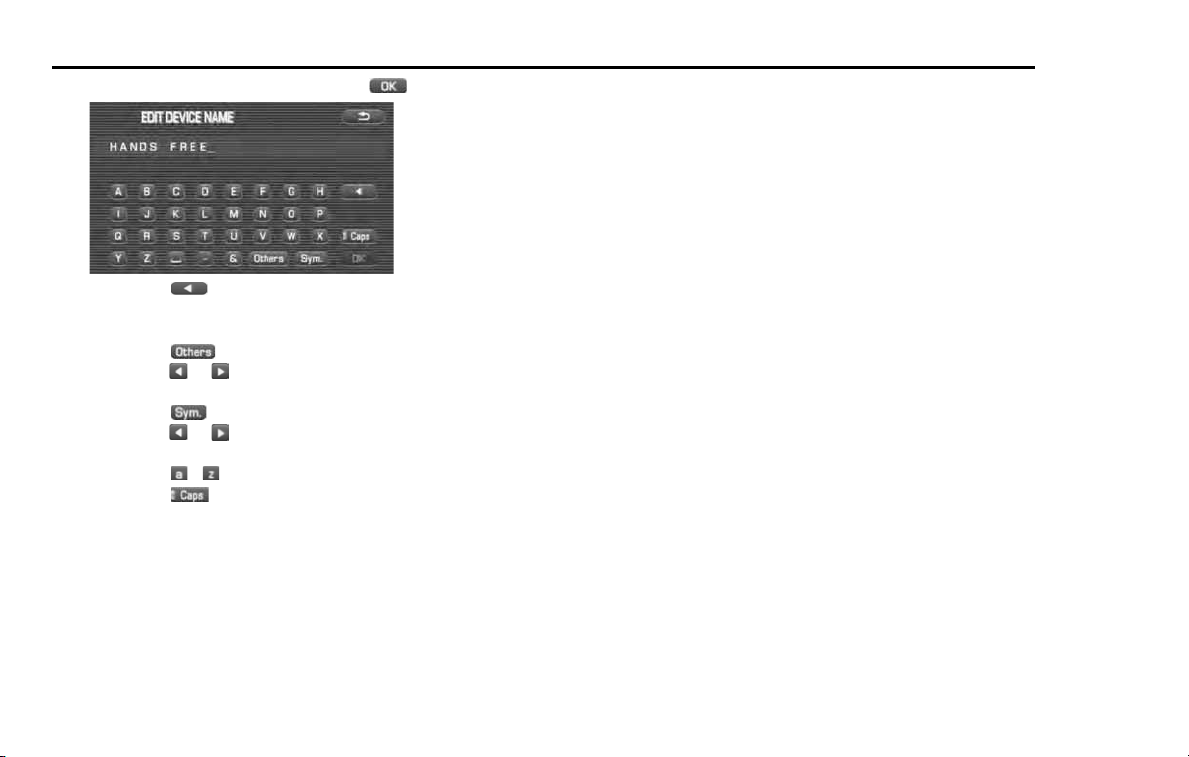
278 Hands-Free Phone System
Other Bluetooth settings
6 Enter a new Device Name and select (OK).
• Selecting deletes 1 character.
• The number of characters that can be entered is up to 20 char-
acters.
• Selecting (Others) displays other characters. Then
selecting or displays the preceding or succeeding
screen.
• Selecting (Sym.) displays figures and symbols. Then
selecting or displays the preceding or succeeding
screen.
• Selecting - displays alphabets.
• Selecting (Caps) allows you to make a changeover
between upper case and lower case.
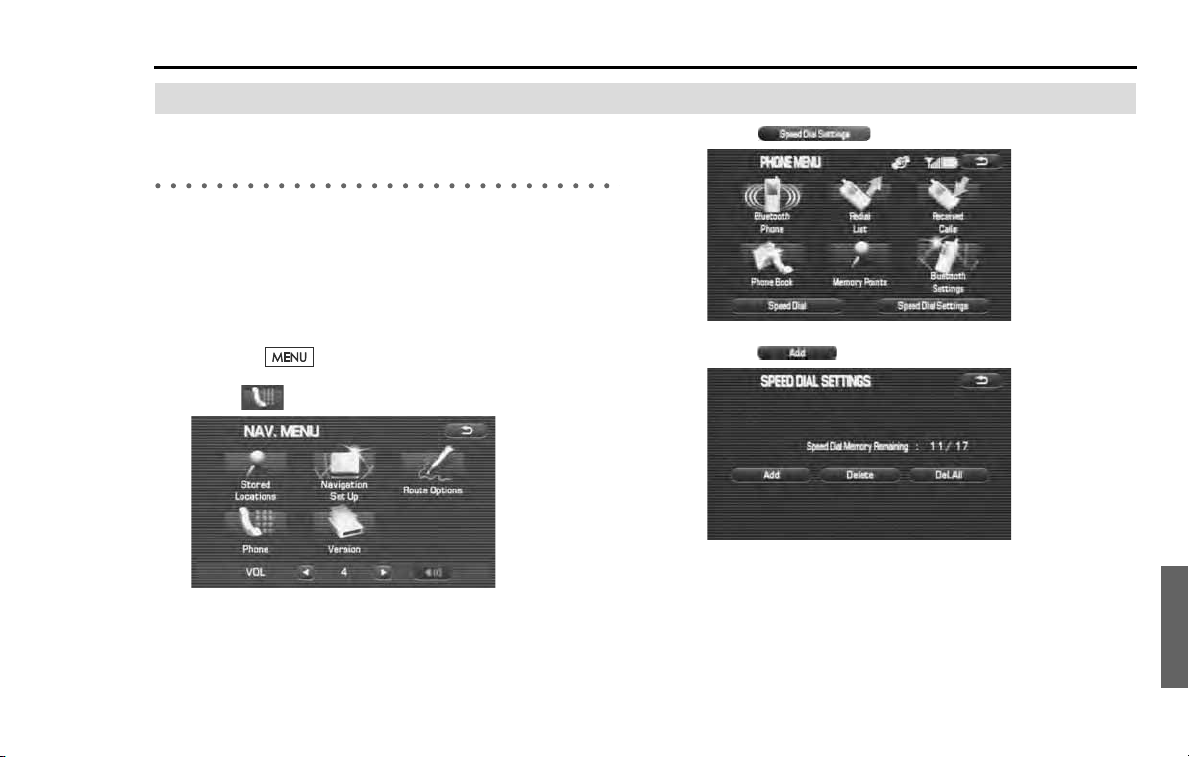
Hands-Free Phone System 279
Other Bluetooth settings
Editing the Speed Dial setting
Adding the phone number to the Speed Dial
memory
It is possible to add the phone number from the Phone Book to Speed
Dial memory. Up to 17 phone numbers can be stored in the memory.
NOTE
To add the phone number to the Speed Dial memory, the phone num-
ber needs to be registered onto Phone Book beforehand. (See page
261
)
1
Press the button.
2
Select (Phone).
3
Select (Speed Dial Settings).
4
Select (Add).
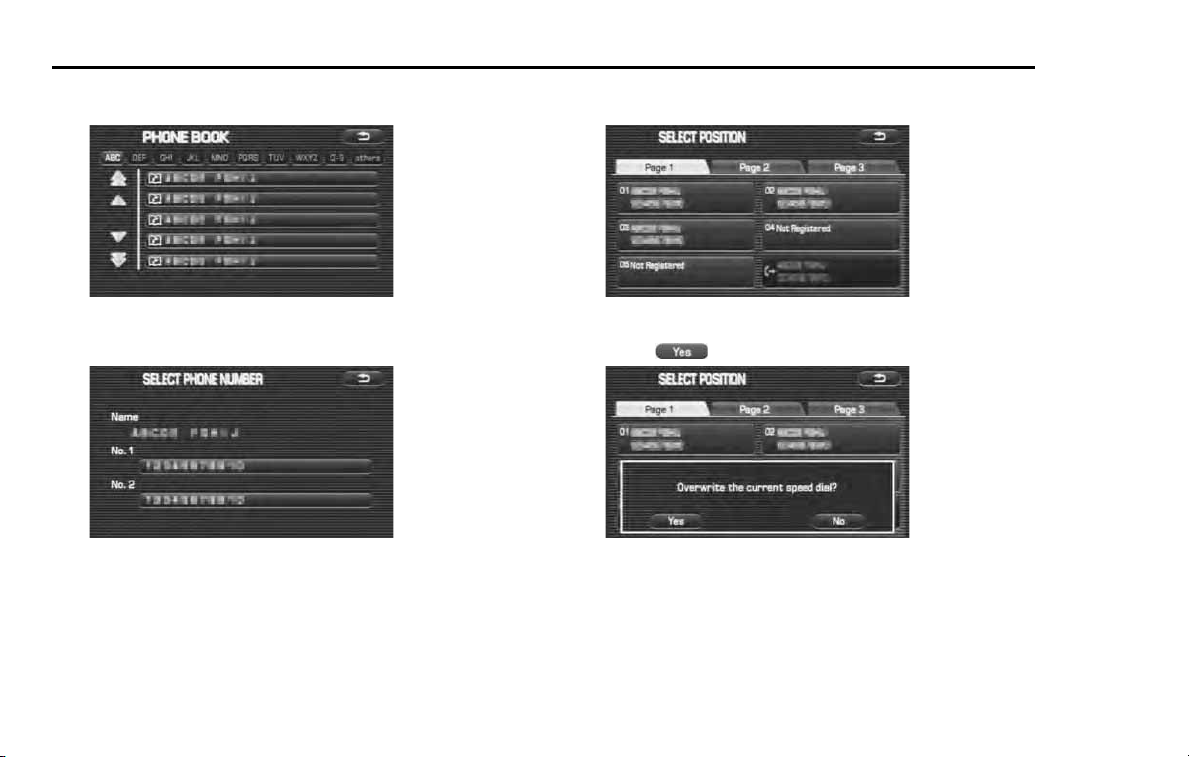
280 Hands-Free Phone System
Other Bluetooth settings
5 Select a name on a Phone Book whom you want to add
to the Speed Dial memory.
6 Select a phone number which you want to add to the
Speed Dial memory.
7 Select a registering position where you want to add to
the Speed Dial memory.
8 If you are going to overwrite the Speed Dial memory,
select (Yes) to finish the adding.
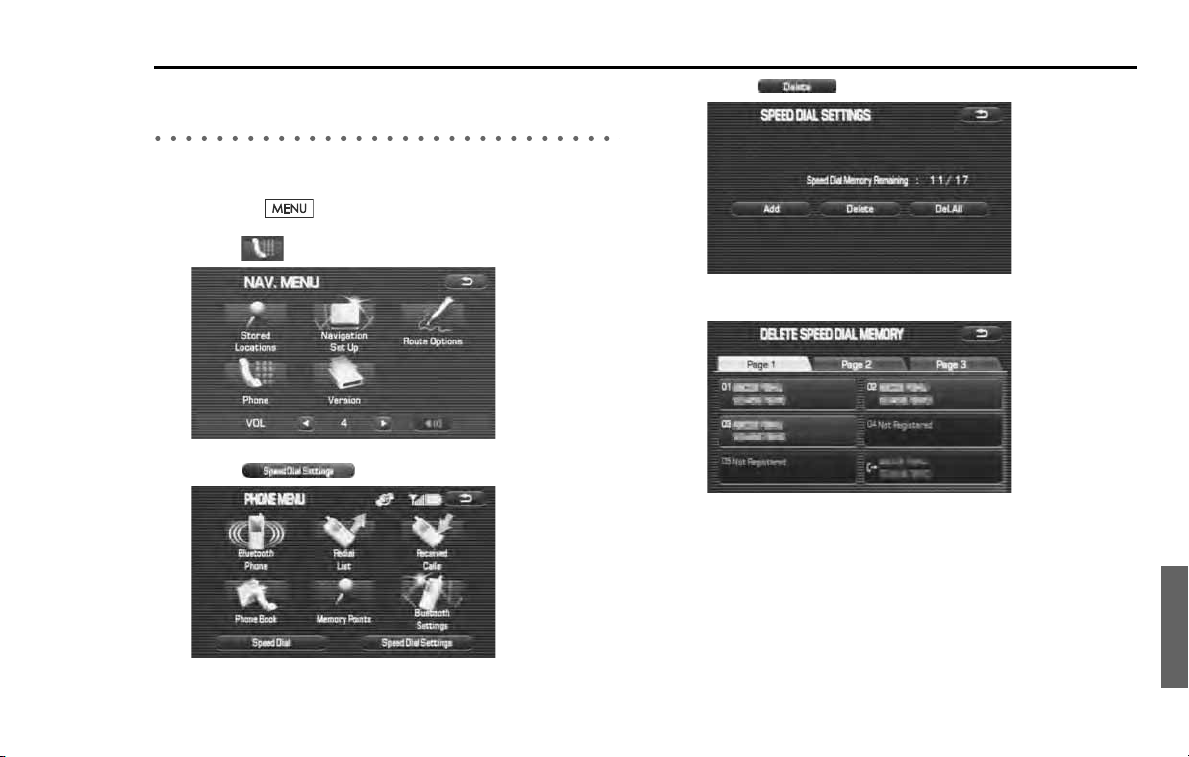
Hands-Free Phone System 281
Other Bluetooth settings
Deleting the phone number from the Speed Dial
memory
It is possible to delete the phone number from the Speed Dial memory.
1
Press the button.
2
Select (Phone).
3
Select (Speed Dial Settings).
4
Select (Delete).
5
Select a Speed Dial memory which you want to delete.
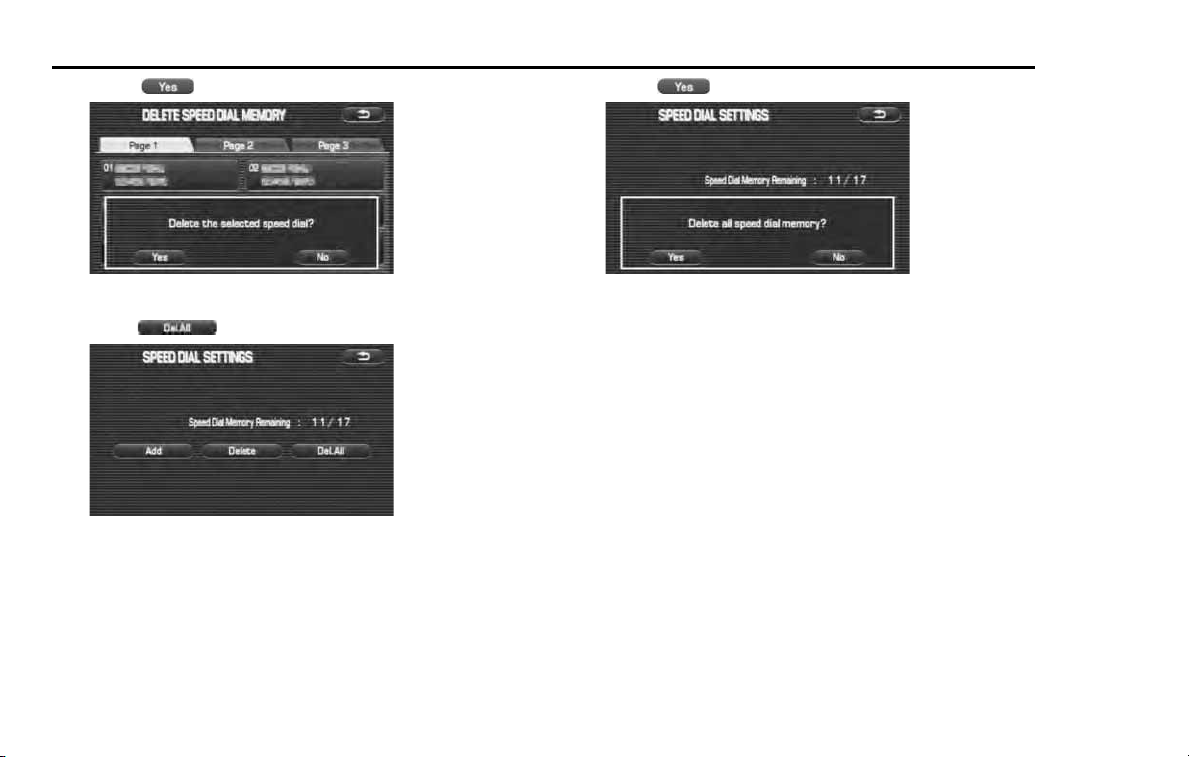
282 Hands-Free Phone System
Other Bluetooth settings
6 Select (Yes).
7 If you need to delete all memories from Speed Dial,
select (Delete all) on step 4.
8 Select (Yes).
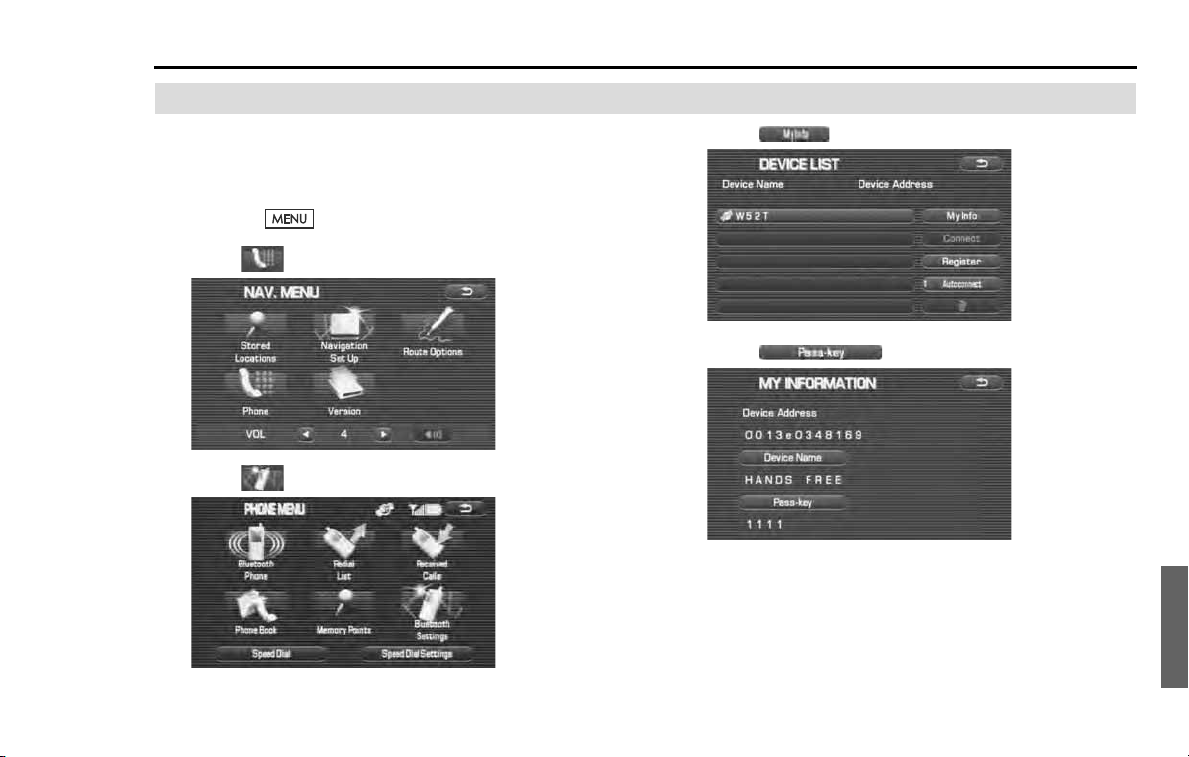
Hands-Free Phone System 283
Other Bluetooth settings
Changing the Pass-Key used when certificating the Bluetooth Phone
When connecting the Bluetooth Phone to the in-vehicle
equipment, the Pass-key is used for certification. It is possible
to change the Pass-Key used for certification.
1 Press the button.
2 Select (Phone).
3 Select (Bluetooth Settings).
4 Select (My Info).
5 Select (Pass-key).
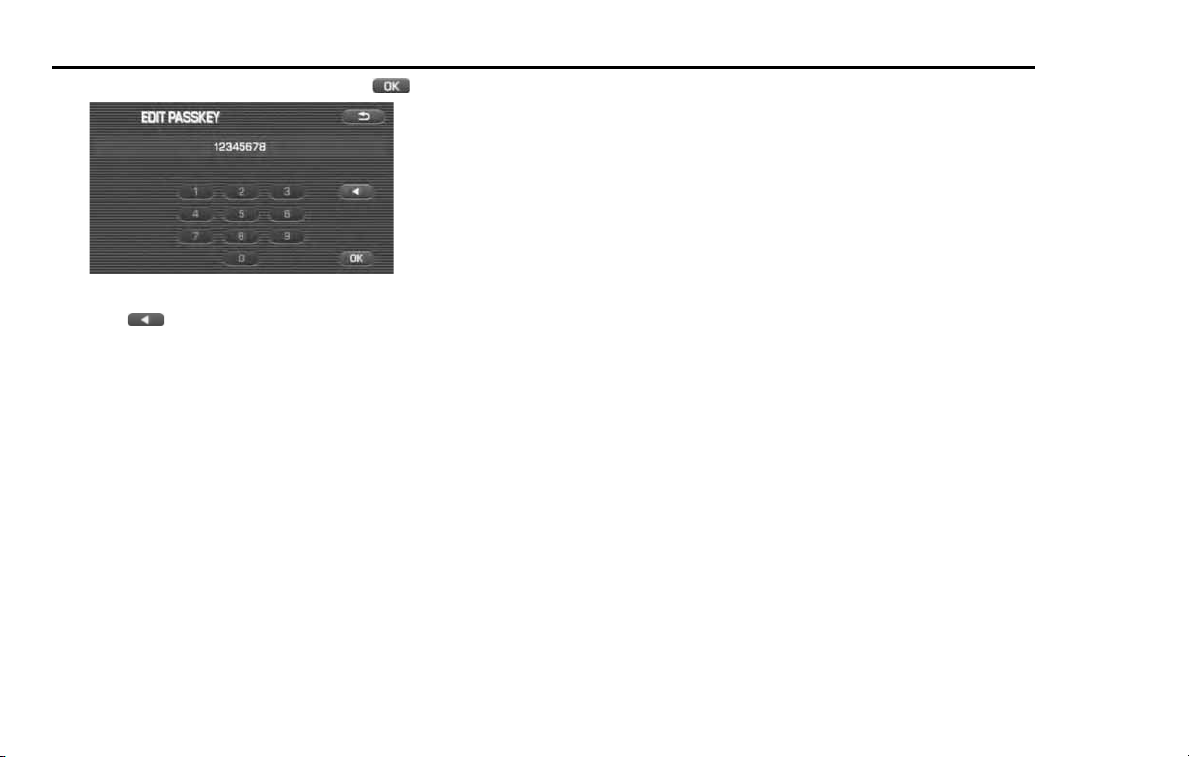
284 Hands-Free Phone System
Other Bluetooth settings
6 Enter a new Pass-key and then select (OK).
NOTE
• Selecting (Backspace) deletes 1 character.
• What can be entered as a Pass-key are limited only to numeric characters "0 to
9" in 4 to 8 digits.

Other
Functions
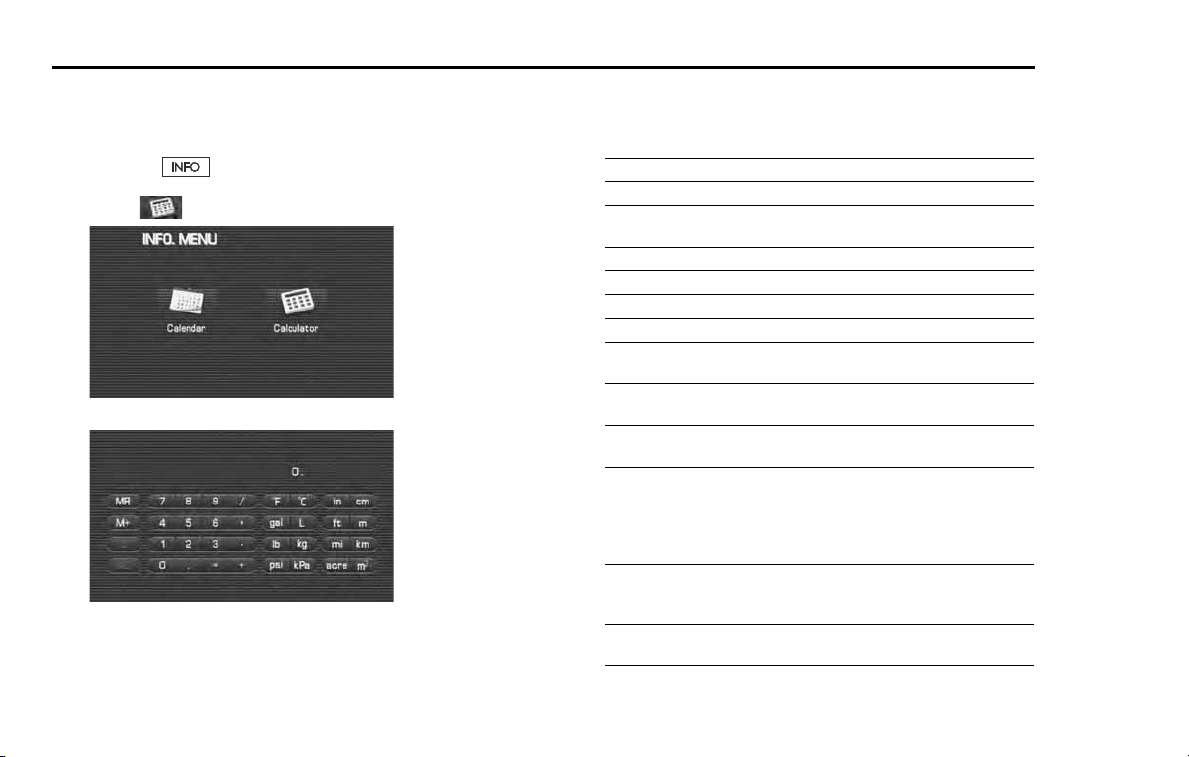
286 Other Functions
The calculator functions
A calculator with an 8-digit display is available. The calculator also per-
forms unit conversions between miles and kilometers, pounds and kilo-
grams, etc.
1 Press the button.
2 Select (calculator).
To perform a unit conversion, enter a number, then select the key
for the unit you wish to convert from, then the key for the unit you
wish to convert to.
Example: Convert 100 miles into kilometers: 100 ➔ [mile] ➔ [km]
= 160.9 km
Below is a description of each key and what it does.
Key Description Action
0-9 Numbers The numbers 0 to 9
. Decimal point Begin entering numbers below the deci-
mal point
= Equals sign Display the results of the calculation
+ Addition operator Perform addition
– Subtraction operator Perform subtraction
/ Division operator Perform division
½ Multiplication opera-
tor
Perform multiplication
MR Memory recall Retrieve a number from memory, and
overwriting the current display
M+ Memory add Add the currently displayed number to the
memory
C Clear Clear the currently displayed number. If
you have entered a number after pressing
an operator, pressing this button returns
the calculator to the state of having
pressed the operator.
AC All clear Return to the initial state (clear the current
display, operator state, memory number,
etc.)
°F Fahrenheit Convert the entered number from Celsius
to Fahrenheit*
Other Functions 287
The calculator functions
* Results of unit conversions may include rounding errors.
°C Celsius Convert the entered number from Fahren-
heit to Celsius*
gal Gallons Convert the entered number from liters to
gallons*
L Liters Convert the entered number from gallons
to liters*
lb Pounds Convert the entered number from kilo-
grams to pounds*
kg Kilograms Convert the entered number from pounds
to kilograms*
mi Miles Convert the entered number from kilome-
ters to miles*
km Kilometers Convert the entered number from miles to
kilometers*
ft Feet Convert the entered number from meters
to feet*
m Meters Convert the entered number from feet to
meters*
in Inches Convert the entered number from centi-
meters to inches*
cm Centimeters Convert the entered number from inches
to centimeters*
acre Acres Convert the entered number from square
meters to acres*
m
2
Square meters Convert the entered number from acres to
square meters*
Key Description Action
psi Pounds per square
inch
Convert the entered number from kilopas-
cals to pounds per square inch*
kPa Kilopascals Convert the entered number from pounds
per square inch to kilopascals*
Key Description Action
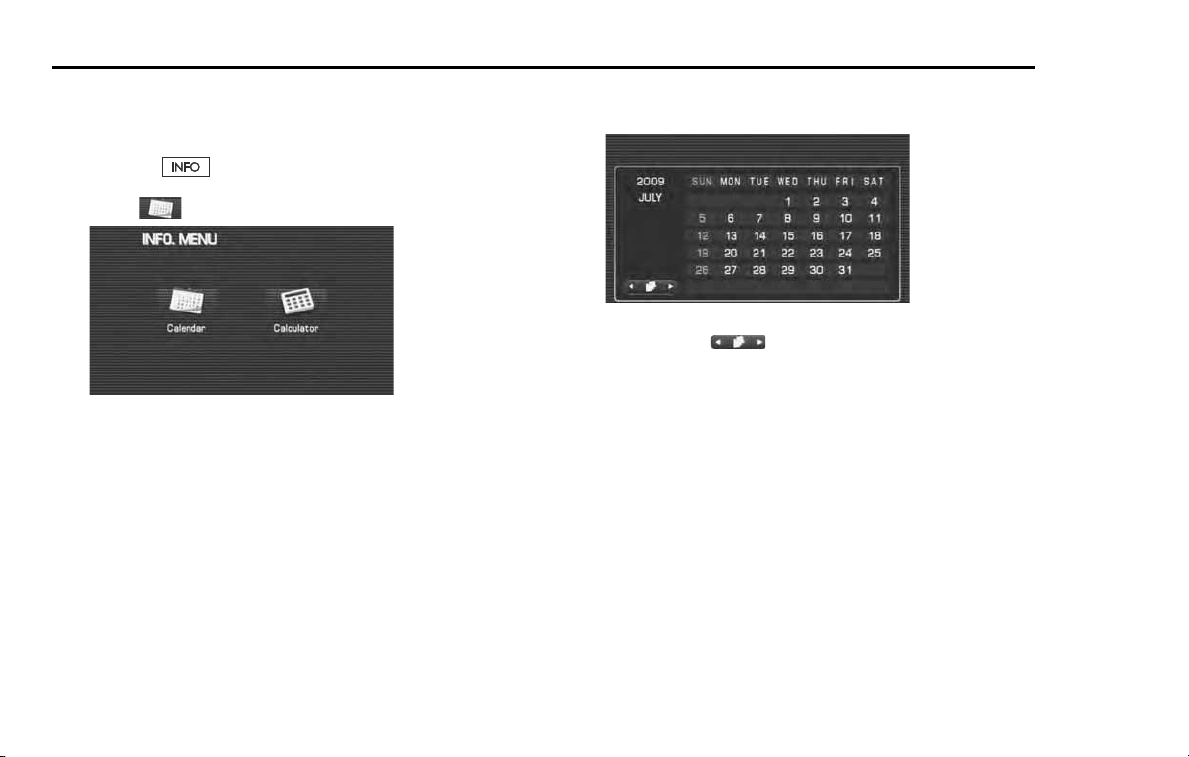
288 Other Functions
The calendar functions
A calendar feature is available.
■ Displaying calendar
1 Press the button.
2 Select (calendar).
3 The calendar will appear.
A mark will appear on today's date.
NOTE
Use the arrow buttons ( ) to display the previous and following
months.
FCC WARNING
This equipment may generate or use radio frequency energy.
Changes or modifications to this equipment may cause harmful interference
unless the modifications are expressly approved in the instruction manual. The
user could lose the authority to operate this equipment if an unauthorized
change or modification is made.
NOTE
This equipment has been tested and found to comply with the limits for a Class
B digital device, pursuant to Part 15 of the FCC Rules.
These limits are designed to provide reasonable protection against harmful
interference in a residential installation. This equipment may cause harmful inter-
ference to radio communications, if it is not installed and used in accordance
with the instructions. However, there is no guarantee that interference will not
occur in a particular installation. If this equipment does cause harmful interfer-
ence to radio or television reception, which can be determined by turning the
equipment off and on, the user is encouraged to try to correct the interference
by one or more of the following measures:
• Reorient or relocate the receiving antenna.
• Increase the separation between the equipment and receiver.
• Connect the equipment into an outlet on a circuit different from that to which
the receiver is connected.
• Consult the dealer or an experienced radio/TV technician for help.
IC (Industry Canada) Notice
Operation is subject to the following two conditions: (1) This device may not
cause interference, and (2) this device must accept any interference, including
interference that may cause undesired operation of the device.
The term "IC:" before the certification/registration number only signifies that the
Industry Canada technical specification were met.
Note de IC (Industrie Canada)
"L'utilisation de ce dispositif est autorisée seulement aux conditions suivantes :
(1) il ne doit pas produire de brouillage et (2) l'utilisateur du dispositif doit être
prêt à accepter tout brouillage radioélectrique reçu, même si ce brouillage est
susceptible de compromettre le fonctionnement du dispositif."
L’expression "IC:" avant le numéro d’homologation/enregistrement signifie
seulement que les spécifications techniques d’Industrie Canada ont été
respectées.
CAUTION
Use of controls or adjustments or performance of procedures other than
those specified herein may result in hazardous radiation exposure.
In compliance with Federal Regulations, following are reproductions of
labels on, or inside the product relating to laser product safety.