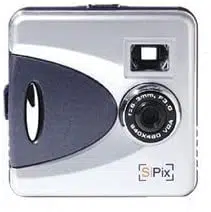

Digital Camera with
Streaming Snapshot™
Owner’s Manual

ii
About this manual
This manual is designed to assist you in using the SiPix StyleCam Blink Digital Camera with
Streaming Snapshot mode. Information in this document has been carefully checked for
accuracy. However, no guarantee is given to the correctness of the contents. The information in
this document is subject to change without notice.
Edition
First Edition, February 2002
Copyright
© Copyright 2002
This document contains proprietary information protected by copyright. All rights are reserved. No
part of this manual may be reproduced by any mechanical, electronic or other means, in any
form, without prior written permission of the manufacturer.
Federal Communications Commission (FCC) Compliance
This equipment has been tested and found to comply with the limits for a Class B digital device,
pursuant to Part 15 of the FCC Rules. These limits are designed to provide reasonable protection
against harmful interference in a residential installation. This equipment generates, uses, and can
radiate radio frequency energy and, if not installed and used in accordance with the instructions,
may cause harmful interference to radio communications. However, there is no guarantee that
interference will not occur in a particular installation. If this equipment does cause harmful
interference to radio or television reception, which can be determined by turning the equipment
off and on, the user is encouraged to try to correct the interference by one or more of the
following measures:
♦ Reorient or relocate the receiving antenna.
♦ Increase the separation between the equipment and the receiver.
♦ Connect the equipment to an outlet on a circuit different from that to which the
receiver is connected.
♦ Consult the dealer or an experienced radio/TV technician for help.
Warning: A shielded-type power cord is required in order to meet FCC
emission limits and to prevent interference to the nearby radio and tele
vision
reception. Use only shielded cables to connect I/O devices to this equipment.
You are cautioned that changes or modifications not expressly approved
by the party responsible for compliance could void your authority to
operate the equipment.

ii
Declaration of conformity
This device complies with part 15 of the FCC rules. Operation is subject to the following
conditions:
♦ This device may not cause harmful interference.
♦ This device must accept any interference received, including interference that may
cause undesired operation.
Canadian Department of Communications
This class B digital apparatus meets all requirements of the Canadian Interference-causing
Equipment Regulations.
Cet appareil numérique de la classe B respecte toutes les exigences du Réglement sur le
matériel brouilieur du Canada.
Trademark recognition
Microsoft MS-DOS and Windows are registered trademarks of Microsoft Corp.
Other product names used in this manual are the properties of their respective owners and
hereby acknowledged.
Safety and handling precautions
Camera information
♦ Do not disassemble or attempt to service the camera yourself.
♦ Do not expose the camera to moisture, or extremes in temperature.
♦ Let the camera warm up when moving from a cold to a warm temperature.
♦ Do not touch the lenses of the camera.
♦ Do not expose the lens to direct sunlight for extended periods.
♦ Do not connect the camera to the computer before the software has been installed or
before instructed to do so by the software during the software installation.
Battery information
♦ Turn off the camera before installing or removing batteries.
♦ Use only AAA alkaline or rechargeable NiMH batteries.
♦ Always replace batteries with two new or freshly charged batteries.
♦ Do not use batteries that are leaking, corroded, or damaged.
♦ Do not attempt to recharge non-rechargeable batteries.
♦ When charging rechargeable batteries, use a battery charger specifically designed
for the type of battery. If the charger is designed to accommodate multiple battery
types, be sure to adjust its settings to match the type of battery you are recharging.
♦ Remove the batteries from the camera if you are going to store it for extended
periods.
♦ Be sure to download pictures before replacing or removing the battery to avoid losing
your saved images.
♦ Download pictures prior to storing the camera. Battery power is required to maintain
pictures in memory. Loss of image data will occur should the batteries lose power.

iii
CONTENTS
Getting Started………………………………………………………………………………... 1
Identifying Components………………………………………………………………………. 3
Inserting & Removing Batteries……………………………………………………………… 4
Camera Setup & Operation………………………………………………………………...… 5
Installing Software………………………………………………………………………………8
Downloading Images to Your PC…………………………………………………………… 14
Create a Streaming Snapshot™ Using AVI Maker……………………………………….. 15
Using the StyleCam Blink as a PC Camera…………………...……………………………17
Troubleshooting & Specifications………..………………………………………………….. 19
One-Year Limited Warranty………………………………………………………………….. 24
Warranty Service……………………………………………………………………………… 25
Technical Support…………………………………………………………………………….. 26
Appendix I
Quick Tips: How to Take Great Photos with the SiPix StyleCam Blink

1
Getting Started
Introduction
Congratulations on your purchase of the SiPix StyleCam Blink Digital Camera with Streaming
Snapshot mode! Your StyleCam Blink has been ergonomically designed to allow you to quickly
and easily take high-quality digital pictures without the trouble of buying and developing film.
The supplied software and driver enable you to view and download the images to your computer.
With ArcSoft PhotoImpression you can edit the pictures with tools such as sharpen, red-eye
reduction, and brightness and contrast adjustment. ArcSoft PhotoFantasy, PhotoMontage, and
VideoImpression have special effect tools for creating photo fantasies and editing video clips. The
Inetcam iVISTA software allows you to have a live videoconference via the Internet. SiPix AVI
maker allows you to make AVI videos out of the Streaming Snapshots. The StyleCam Blink
includes a USB cable that provides quick and easy image transfer from the StyleCam Blink to
your computer.
Unpacking the SiPix StyleCam Blink
Upon receiving your StyleCam Blink, open the carton and carefully remove the contents. If
anything is missing or damaged, please contact your reseller immediately. Your package should
contain the following items:
1. SiPix StyleCam Blink
2. Tilt base
3. Camera neck strap, swivel clip
4. Software CD containing:
o StyleCam Blink TWAIN
driver
o ArcSoft PhotoImpression
o ArcSoft PhotoMontage
o ArcSoft PhotoFantasy
o ArcSoft VideoImpression
o Inetcam iVISTA
o Adobe Acrobat Reader
o Owner’s Manual (PDF)
5. USB cable
6. Quick Start Guide
7. AAA battery

2
Key Features & Accessories
The SiPix StyleCam Blink comes with the following key features and accessories:
• Super-slim, compact design
• PC camera mode 640 x 480 (VGA), 320 x 240 (CIF) & 160 x 120 (QCIF)
• Digital camera mode 640 x 480(VGA), 320 x 240 (CIF)
• Internal 8MB memory
• Streaming Snapshot mode
• Auto power off after 60 seconds.
• Bundled software includes
o StyleCam Blink TWAIN driver
o SiPix AVI Maker
o ArcSoft PhotoImpression
o ArcSoft PhotoFantasy
o ArcSoft PhotoMontage
o ArcSoft VideoImpression
o Inetcam iVISTA
o Adobe Acrobat Reader
o Owner’s Manual (PDF)
PC requirements
• Pentium processor or higher
• Windows 98/98SE/ME/2000/XP
• 64MB RAM or more
• 90MB available hard disk space or more
• 16-bit color display or higher
• 28.8 kbps or faster modem
• USB port
• CD-ROM drive for software installation
• Sound blaster or 100% compatible sound card (optional)
• Speakers and a microphone (optional)
3
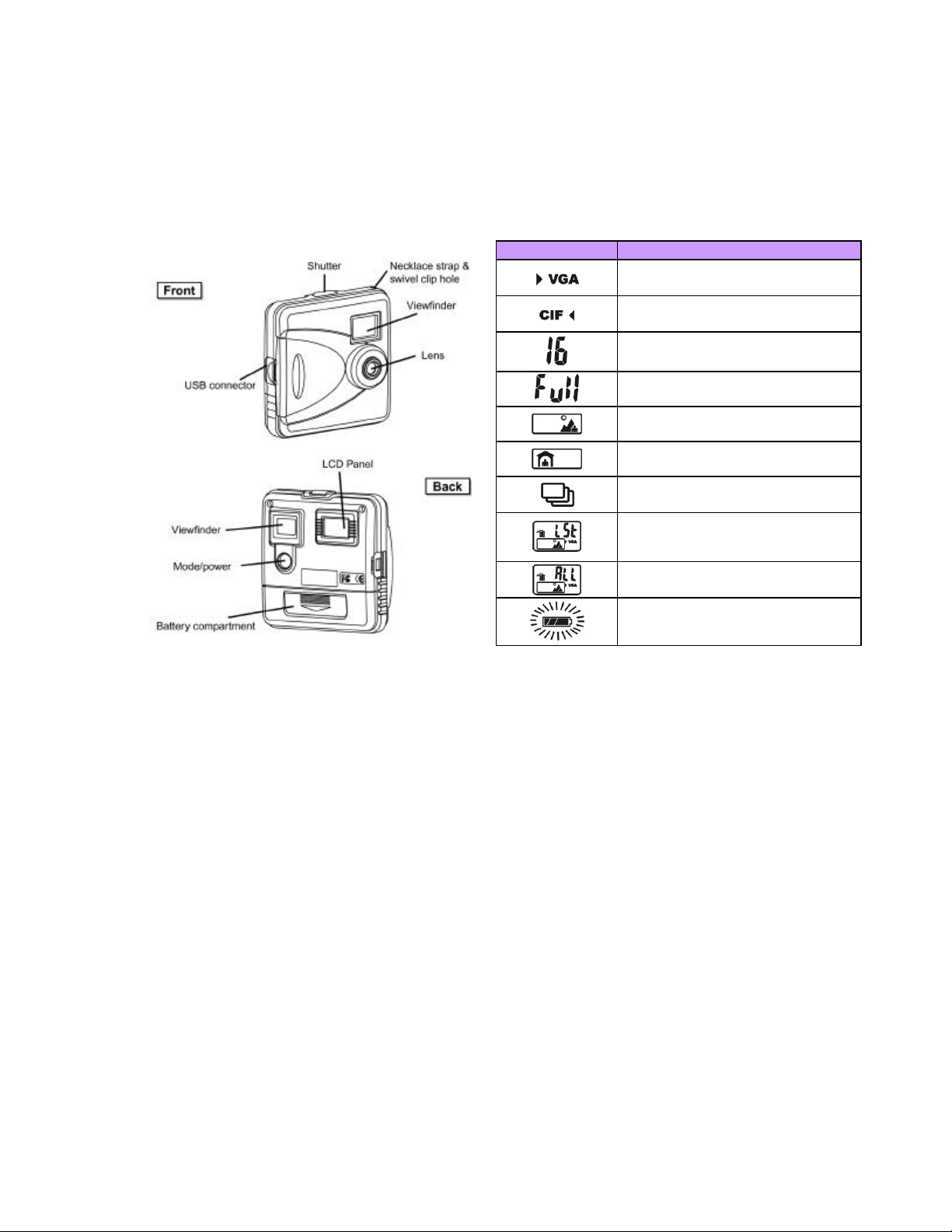
Identifying Components
Please refer to the following illustrations to identify the StyleCam Blink components:
Icons Description
Camera set to VGA 640 x 480
resolution
Camera set to CIF 320 x 240
resolution
Number of pictures taken
Internal memory is full
Outdoor mode
Indoor mode
Streaming Snapshot mode
enabled
Delete the LAST picture taken
Delete ALL pictures
Low battery warning

4
Inserting & Removing the Battery
Please follow the instructions below to insert the battery.
Inserting Battery
1. Make sure the Power of the camera is OFF.
2. To open the battery compartment cover on the back of the camera, slide the entire
cover in the direction indicated by the arrow on the cover; the cover will slide open.
3. Note the battery polarity inside the battery compartment, and insert the battery
accordingly. Make sure you insert the batteries on top of the blue strip.
4. Close the battery compartment cover by sliding it back until it clicks.
Removing Battery
1. Maker sure the camera’s power is OFF.
2. To open the battery compartment cover on the back of the camera, slide the entire
cover in the direction indicated by the arrow on the cover; the cover will slide open.
3. Pull on the blue strip to pop out the battery.
4. Close the battery compartment cover by sliding it back until it clicks.
Note: Use only AAA alkaline or rechargeable NiMH batteries.
Inserting the battery with the incorrect polarity may cause damage to
the camera or battery.

5
Camera Setup & Operation
The instructions below will guide you through the basic functions of the StyleCam Blink and how it
operates.
HOW TO SET UP THE STYLECAM BLINK
Press the MODE button to select the function you need. (See Identifying Components on
page 3)
The function icon on status display will blink, and then press the SHUTTER button until you
hear two (2) beeps to select. The mode will change.
The function mode status flow is as follows:
Please refer to the icon description in Identifying Components on page 3.
HOW TO USE THE STYLECAM BLINK
Turning the Camera On/Off
1. Power ON: Press and release the MODE button, and the camera will beep.
2. Power OFF: Press and hold the MODE button until the camera beeps twice, then
release the button.
3. Auto Power Off: The camera will turn off automatically if it is inactive for 60 seconds.
Selecting Image Resolution
The StyleCam Blink has two resolution settings: VGA (640 x 480 pixels) or CIF (320 x 240
pixels).
1. Press the MODE button until the desired resolution is selected, VGA or CIF.
2. Press and hold the SHUTTER button until the camera beeps twice to select your
desired setting.
Selecting An Environment
The StyleCam Blink has two environments you can choose from: outdoor mode or indoor
mode.
1. Press the MODE button to scroll to the outdoor icon or the indoor icon.
2. Press and hold the SHUTTER button until the camera beeps twice to select your
desired setting.
Important Note: If the subject area is too dark, the camera will emit three beeps when the
SHUTTER button is pressed, and the image will not be recorded.

6
Taking Pictures
1. View your subject through the viewfinder, and press the SHUTTER button to take a
picture. Hold the camera still until you hear a Beep. The camera will beep to confirm
that the picture is taken.
2. The status display will show the number of pictures you have taken.
For best results when taking pictures with the StyleCam Blink, follow these brief guidelines:
In general, avoid taking photographs in which the subject is positioned directly in front of a
bright light source, or in which the subject is in close proximity to a bright light source.
Photographs recorded in such conditions will often be improperly exposed.
When recording images in low light conditions, the camera requires more time to take a
picture. Because of this, it is possible for the image to be blurred by either camera movement
or subject movement. To avoid “camera shake”, place the camera on a tripod (or table using
the tilt/swivel base) when recording images of stationary subjects, or instruct your subject to
remain very still when recording images of people. The best solution, however, is to increase
the level of the ambient lighting, if it is possible.
When taking pictures in high-contrast lighting (extremely bright areas with extremely dark
shadows), the camera will only expose one of the areas properly. To ensure that the subject
receives the proper exposure, position the subject such that most of the subject is illuminated
evenly (all dark or all bright), and try to fill the picture with as much of the subject as possible.
When taking a picture, gently press the shutter button, being careful not to shake the camera.
Hold the camera still until you hear a Beep, indicating a picture was taken.

7
Streaming Snapshot
1. Press the MODE button to select the streaming snapshot mode icon. (The camera
will automatically switch to CIF mode)
2. Press and hold the SHUTTER button until the camera beeps twice to confirm the
mode selection.
3. To take continuous shots, find your subject through the viewfinder, and hold the
SHUTTER button down to take pictures.
4. The picture counter will accumulate the number of pictures taken.
5. To stop taking pictures, release the SHUTTER button. (Or, the camera will stop
taking pictures when the memory becomes full).
Note: The Streaming Snapshot mode is optimized for use outdoors in a sunny
environment. It is best to keep the camera steady and in place when using the Streaming
Snapshot mode. When using the Streaming Snapshot mode indoors, ensure the
environment has good light. Moving the camera when shooting or shooting in low light
conditions will result in blurry images.
Deleting Pictures
Delete the last image:
1. To delete the last picture you’ve taken, press the MODE button until you see a
trashcan icon with the letters LST showing in the status display.
2. Press and hold the SHUTTER button until you hear the beep twice.
3. The camera will then delete the last picture saved in the memory.
4. The status display will show the number of images saved on the camera.
Delete all images:
1. To delete all the pictures taken, press the MODE button until you see a trashcan icon
with the letters ALL showing in the status display.
2. Press and hold the SHUTTER button until you hear the beep twice.
3. The camera will then delete ALL the images saved on the memory.
4. The status display will show zero (0) images saved on the camera.

8
Installing Software
The SiPix StyleCam Blink bundles a superb collection of photo editing, video editing, and video
conferencing software. These applications include ArcSoft PhotoImpression, PhotoFantasy,
PhotoMontage, and VideoImpression, and Inetcam iVISTA. Inetcam™ is offering streaming live
video service to SiPix StyleCam Blink users for 30 days free of charge (follow the instructions to
get your free trial). The StyleCam Blink also comes with a TWAIN driver for downloading the
images to your computer, SiPix AVI Maker for making video clips out of streaming snapshots and
Adobe Acrobat Reader for viewing this manual in PDF file format. Please follow the instructions
below to install your software.
INSTALLING THE SIPIX STYLECAM BLINK DRIVER – WINDOWS 98/98SE/ME/2000XP
Inserting the StyleCam Blink CD
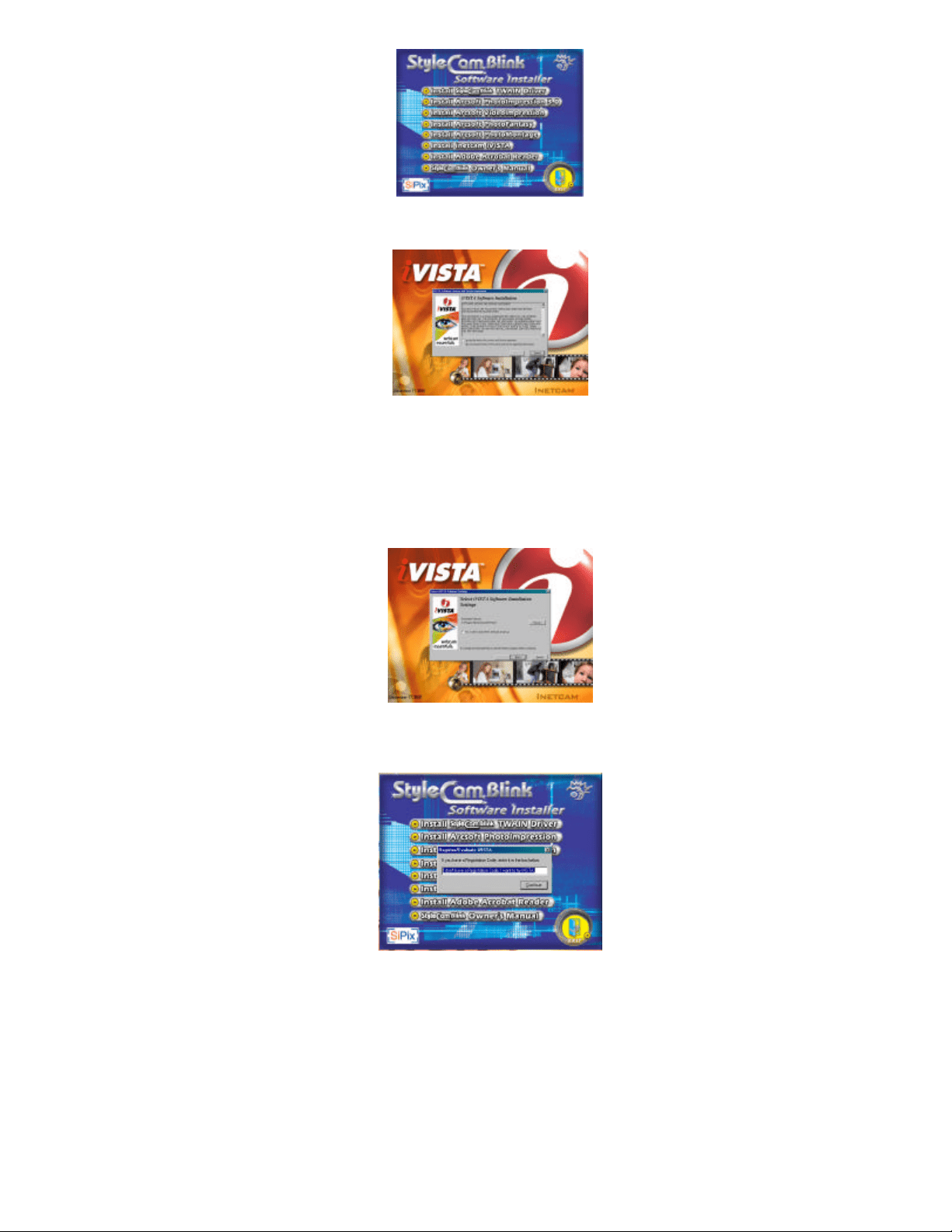
1. Insert the StyleCam Blink Driver CD into your CD-ROM drive. The following installer
menu will appear on your computer screen. If the menu screen does not open
automatically, click Start àà Run and enter d:\installmgr.exe (where “d” is your CD-
ROM drive).
2. The Installer Menu has the following options:
Install StyleCam TWAIN driver (also installs AVI Maker)
Install ArcSoft PhotoImpression
Install ArcSoft VideoImpression
Install ArcSoft PhotoFantasy
Install ArcSoft PhotoMontage
Install Inetcam iVISTA
Install Adobe Acrobat Reader
StyleCam Owner’s Manual (click on this to view the Owner’s Manual)
Installing the StyleCam TWAIN Driver and AVI Maker
Note: Please keep the CD inside your CD-ROM drive when you plug the StyleCam Blink into
the computer for the first time, and then remove the CD after installation fully completed.
3. Click on Install StyleCam Blink TWAIN driver
Note: You will be prompted to restart your computer at the end of
installation. We strongly recommend you to save your work and
close all applications before installing the driver.
9
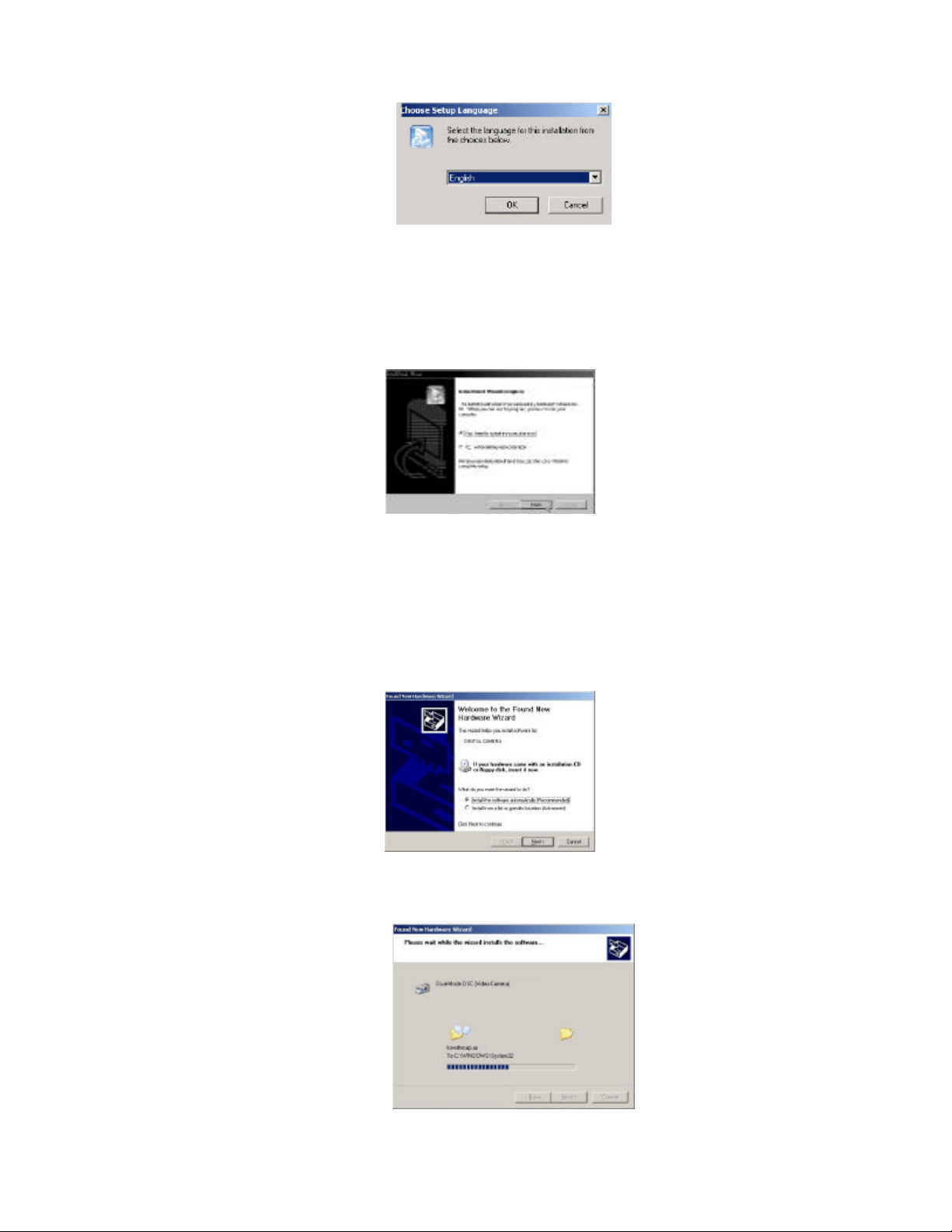
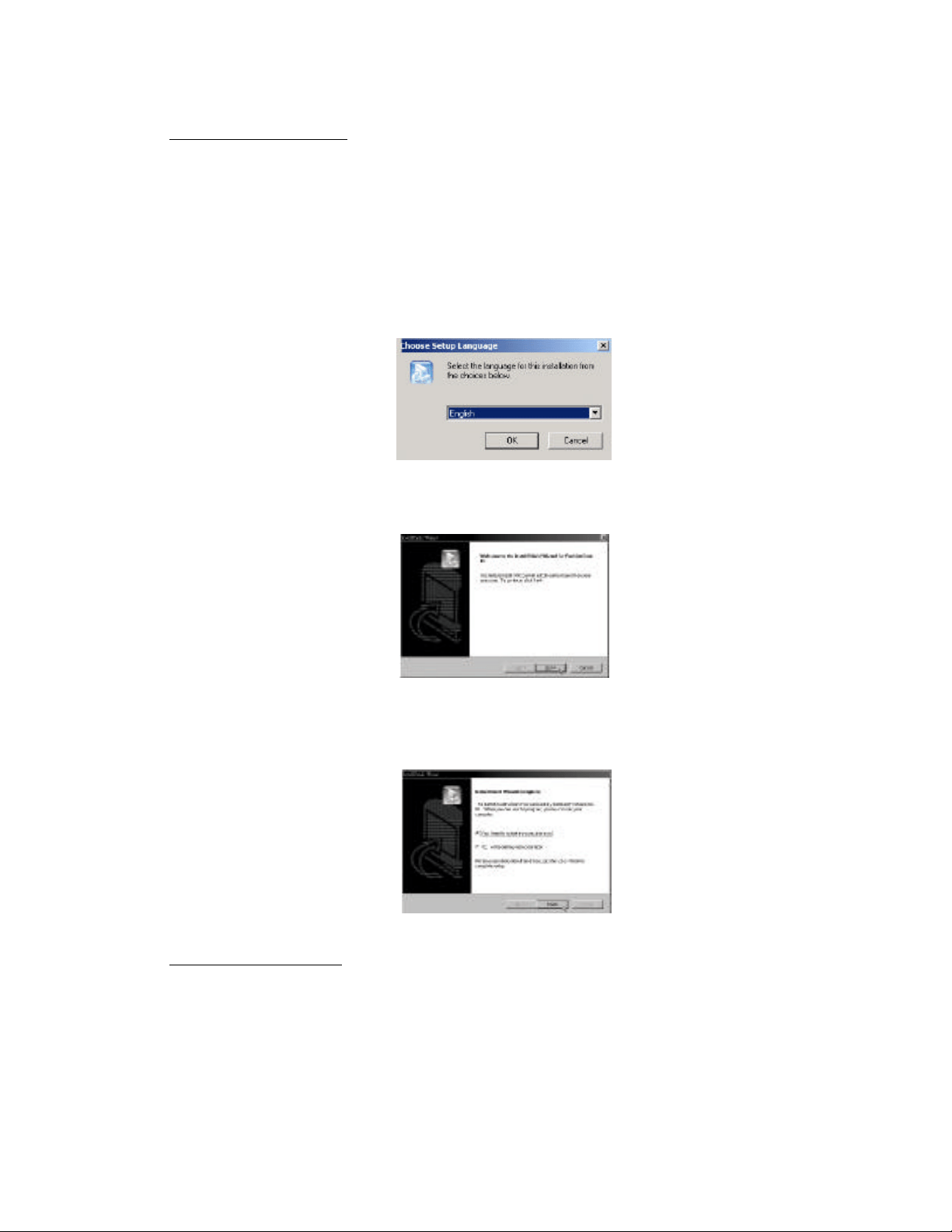
4. The screen will prompt you to choose a language. Select the language you want and
click OK.
5. The screen will display a Welcome window, click Next to continue.
6. Follow through the instructions to complete the TWAIN driver. When asked, select
Yes to restart the computer. Leave the CD in the CD-ROM driver and click Finish to
restart the computer.
ADDITIONAL STEPS FOR WINDOWS XP USERS
1. With the StyleCam Blink CD in the CD-ROM drive, plug the USB cable
into the camera and the other end into the PC.
2. The system will detect the camera
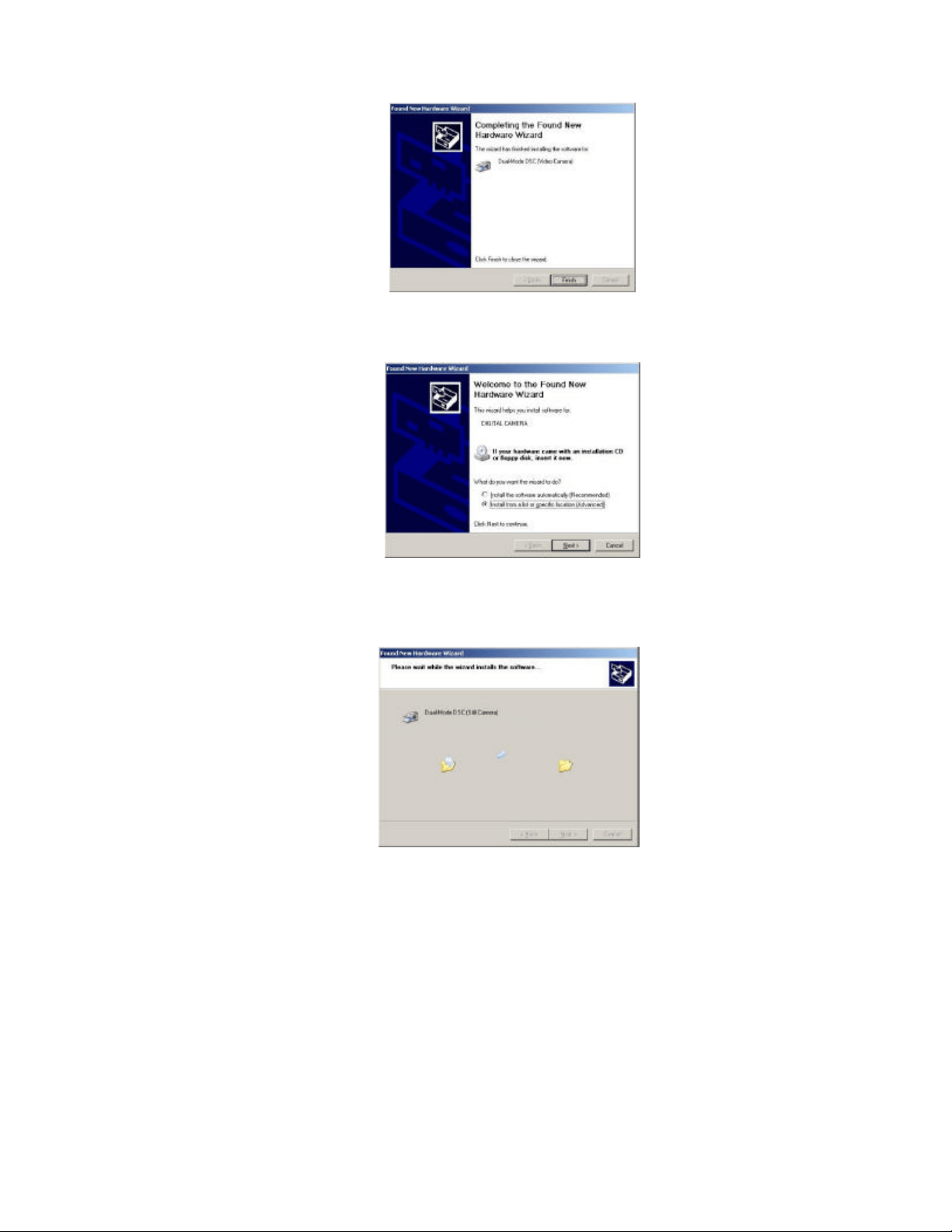
3. When the Found New Hardware Wizard window appears, please select
Install the software automatically [Recommended] and click Next to
continue.
4. The system will copy the files and the following screen will appear:
10
5. Click Finish to continue the installation.
7. The New Hardware Wizard will reappear. Please select Install the
software automatically [Recommended] and click Next to continue.
8. System files will copy and the following screen will appear. Click Finish
to complete the driver installation.
11
Installing ArcSoft software
1. Insert the StyleCam Blink Driver CD into your CD-ROM drive. The following installer
menu will appear on your computer screen. If the menu screen does not open
automatically, click Start àà Run and enter d:\installmgr.exe (where “d” is your CD-
ROM drive). Click on the Install ArcSoft PhotoImpression, Install ArcSoft
VideoImpression, Install ArcSoft PhotoFantasy, or Install ArcSoft PhotoMontage
button.
2. The screen will prompt you to choose a language. Select the language you want and
click OK.
3. The screen will display a Welcome window, click Next to continue.
4. Follow through the instructions to complete the installation of the ArcSoft
application(s), and click Finish.
Installing Inetcam iVISTA
Note: Be sure to be on the Internet when installing iVista. There is an online registration
process that must take place in order to use iVista.
1. Go back to the SiPix installer menu and choose Install Inetcam iVISTA.
12
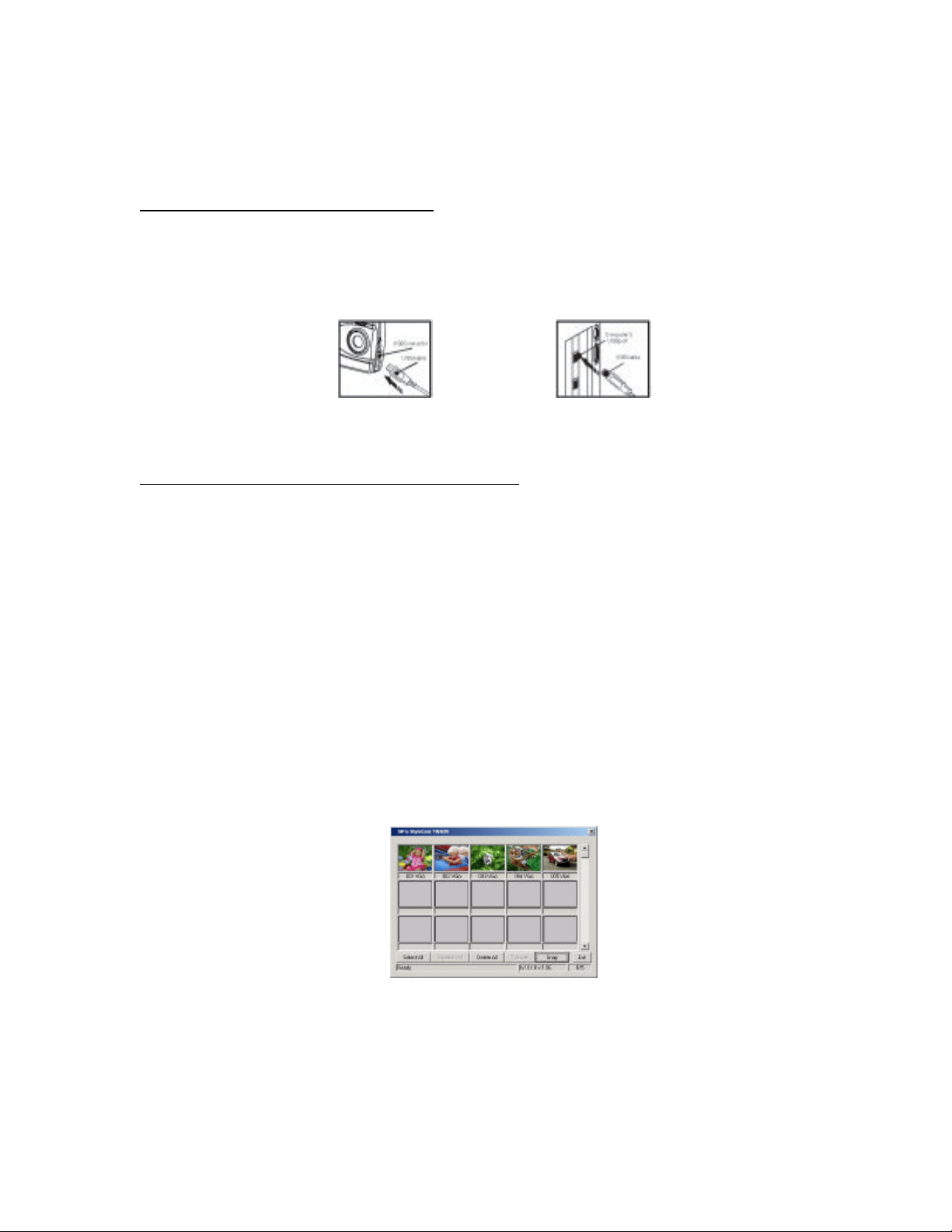
2. Read the license agreement, click the Agree button and select NEXT to continue.
3. Choose desired setting. Also choose if you want Inetcam iVista to launch on system
start up. If unsure, deselect the box and click NEXT.
4. The registration code screen will appear. Enter the default “I don’t have a
registration code. I want to try iVista”.
5. iVista will access the Internet and self-register (activate) the program. This will allow
you to use iVista for the 30-day evaluation period.

13
6. iVista will now be activated and the control panel appears as shown below.
7. To find out more about how to use iVista go to Start>Programs>Inetcam and click on
help as shown below.
Launch iVISTA Software Help.lnk
14
Downloading Images to Your PC
After installing the StyleCam Blink TWAIN driver and the utility software, you may begin
downloading the images from the camera to your PC. Please follow these instructions carefully.
Connecting the StyleCam Blink to Your PC
1. Make sure the StyleCam Blink is powered OFF.
2. Connect one end of the USB cable to the StyleCam Blink, and the other end to the
PC’s USB port on the back of your computer. (See figures below)
3. Press the MODE button to turn the StyleCam Deluxe ON.
Transferring Images from the StyleCam Blink to the PC
1. To open ArcSoft PhotoImpression application, go to Start Menu à Programs à
ArcSoft à PhotoImpression.
2. Click the Get Photo button.
3. Click the Camera/Scanner button, and the Select source list will appear.
4. Select StyleCam Blink.
5. Choose the destination album for your pictures from the “Select album” list.
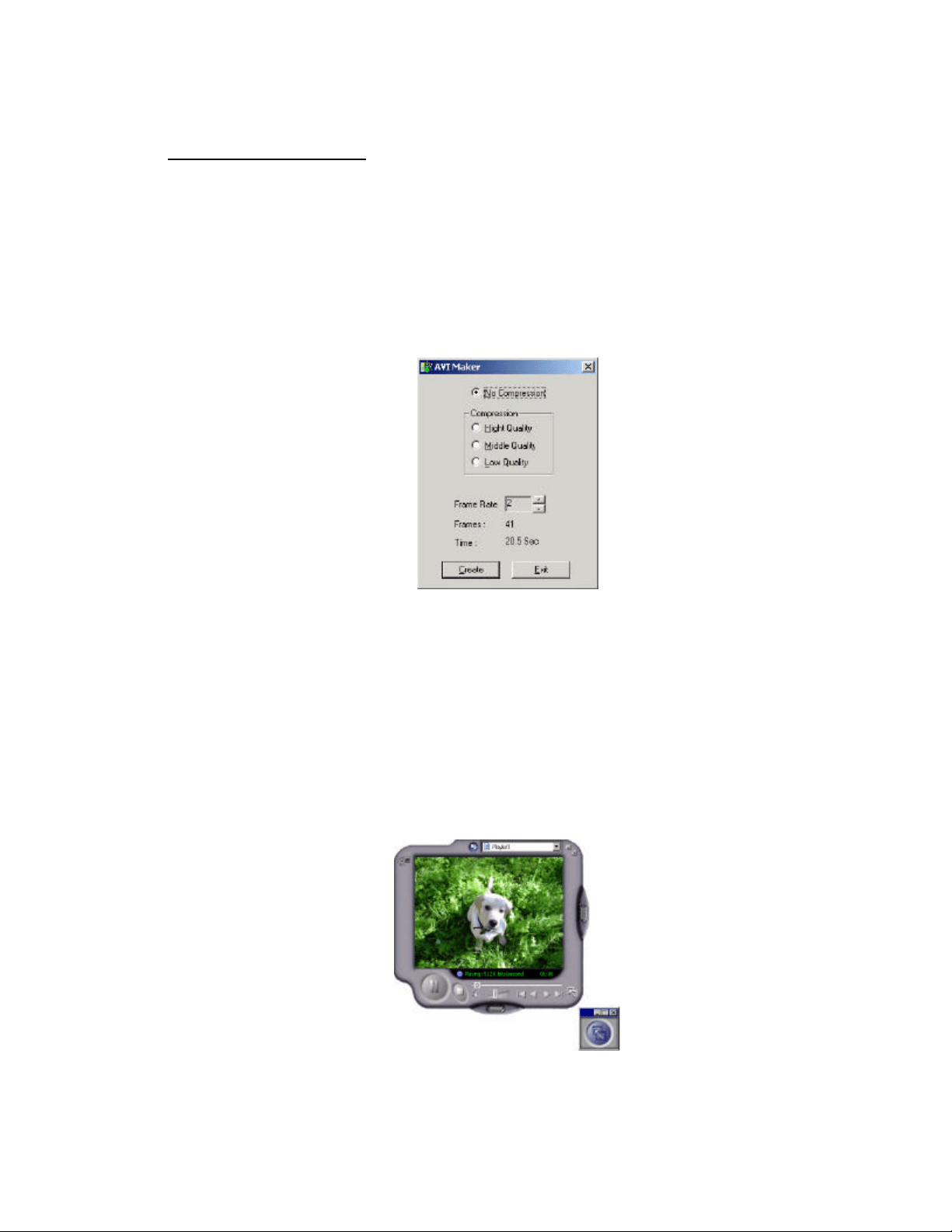
6. Click the Acquire button; the StyleCam Blink TWAIN software window will open.
7. The pictures that you have taken will be displayed in the TWAIN window.
8. Choose the images that you want to transfer or click Select all, and then click the
Transfer button.
15
Create Streaming Snapshots Using AVI Maker
The SiPix StyleCam Blink allows you to make video clips using Streaming Snapshot mode.
Please follow these instructions to create your own video with the AVI Maker.
Streaming Snapshot™ Mode
1. Use the Streaming Snapshot mode of the StyleCam Blink to record a series of
images.
2. Connect the StyleCam to your PC, and start the AVI Maker application. Go to:
Start Menu à Programs à SiPix à StyleCam Blink à AVI Maker
3. The application will automatically read the images from your StyleCam Blink
and display the following window:
Note: The camera records approximately 3-4 frames per second. Setting the frame rate
to 3 or 4 will make the video speed match. Selecting another frame rate will either speed
up or slow down the video.
4. After selecting the Compression Quality and Frame Rate, click the Create
button. A Save As window will open.
5. Choose a directory and type in the file name, and then click Save. The AVI
Maker will create the video file.
6. When it is completed, the file will open using Windows® Media Player.
Note: If cancel was clicked on the Save As screen, the file will still be created. To save
it, you must then use the save command in Windows Media Player.
16
Using the StyleCam Blink as a PC Camera
The SiPix StyleCam Blink allows you to connect to your computer with the supplied USB cable
and use it as a PC camera. Please follow the instructions below carefully.
Connecting the StyleCam Blink to a PC
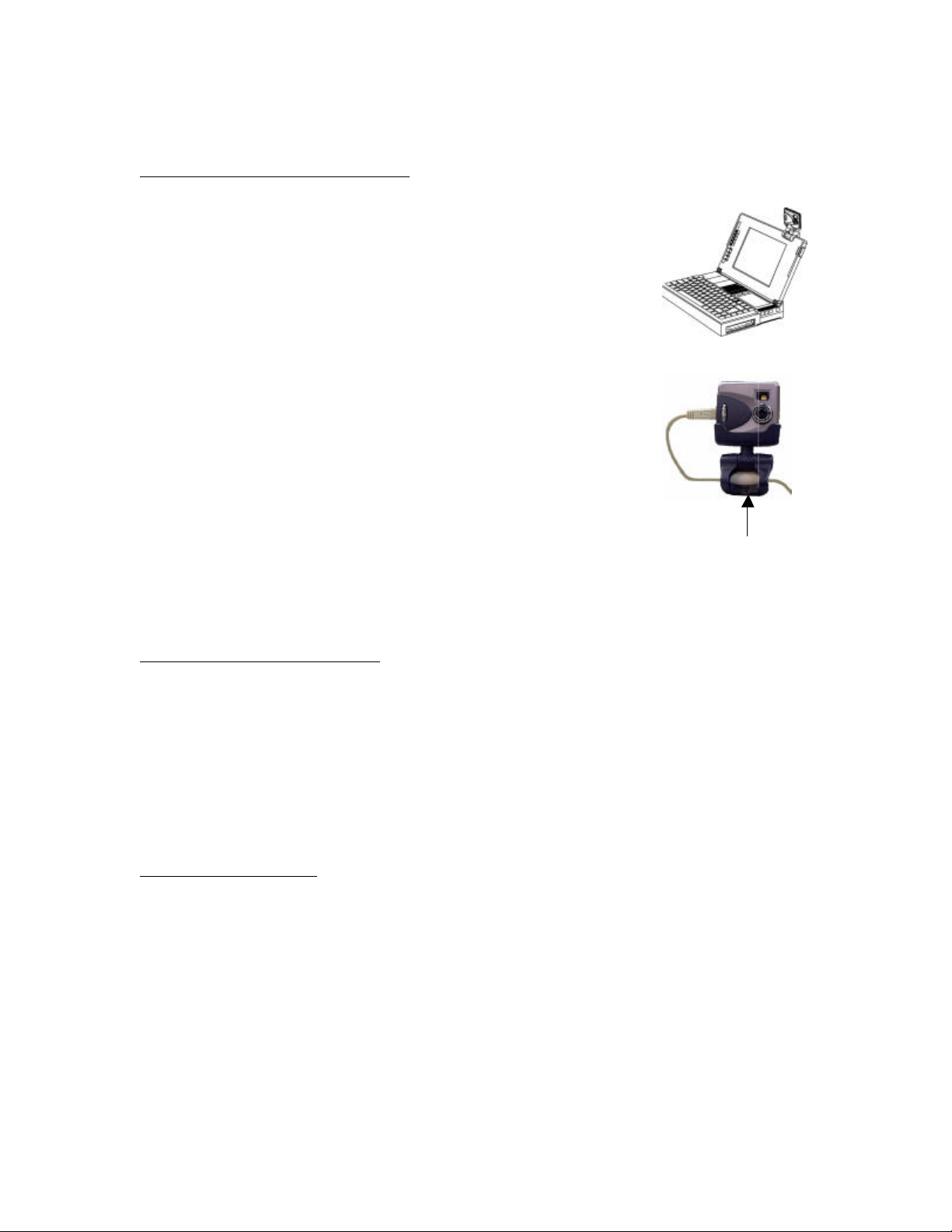
1. Set your StyleCam Blink on the tilt base (supplied) and
place it on a flat surface. Or the tilt base can be place on a
computer monitor as shown below.
2. Connect one end of the USB cable to StyleCam Blink and
the other end of the USB cable to your computer’s USB
port.
3. To make the StyleCam Blink tilt base additionally stable
when on desktop or monitor, place the barrel, located on
the USB cable, within the bottom of the tilt stand.
Note: Do not disconnect the USB cable while you are using the StyleCam Blink as a PC
camera. It may lock up the computer, and require a reboot.
Using the ArcSoft VideoImpression
1. To open ArcSoft VideoImpression 1.6, go to Start Menu à Programs à ArcSoft
VideoImpression à VideoImpression 1.6.
2. Click “New” icon on the left side of the VideoImpression screen.
3. Click “Acquire” icon on the left side of the VideoImpression screen.
4. The application should automatically detect your StyleCam and begin displaying the
image from the camera.
Using the Inetcam iVISTA
Setting up iVISTA
1. Open the iVISTA application. Go to: Start Menu à Programs à Inetcam à iVISTA,
and then open the iVISTA Control Panel.
2. From the Control Panel, click on the Video button on the upper right, and choose
Webcast Video.
3. The Video icon should turn yellow to indicate you are actively webcasting.
Insert barrel

17
Previewing video
In order to see what video you'll be webcasting to the world, you can preview the video on
your computer. Please follow these steps to preview your video image:
1. Start iVISTA (Start-Programs-Inetcam-iVISTA) and open the iVISTA Control Panel.
2. Click the Video button, and then click Preview Video.
The live video from your camera will display in a new window on your desktop.
For more information on iVISTA or upgrading registration codes, please visit
www.inetcam.com.

18
Troubleshooting & Specifications
Troubleshooting
Problem Possible cause Solution
The camera is off. Make sure that the Power indicator is red.
The battery is
discharged.
Replace the battery with new or freshly charged one. Refer
to page 4.
The camera
has no power.
The battery is
inserted incorrectly.
Check the battery orientation. Refer to page 4.
Is the camera’s
power on?
The camera has auto power off after 60 seconds. Make
sure the camera’s power is ON before taking a picture.
The camera
won’t take a
picture.
Is the camera
connected to a
computer?
The camera’s buttons are not functional when connected to
a PC. Disconnect the camera to take more pictures.
The pictures
are blurry.
The Camera or
subject was moving
when the picture
was taken.
Hold the camera steady or put it on a tripod to take
pictures. After pressing shutter button, do not move the
camera until you hear a Beep.
Specifications
Image Sensor
CMOS
Output resolution 640 x 480 pixels
Image capacity VGA (640 x 480): 100 (varies) CIF (320 x 240): 300 (varies)
Internal memory 8MB SDRAM
View finder Optical
Status display Monochrome LCD
Focal range 90cm ~ infinity
Lens aperture F3.0
Lens focal length 6.3mm (35mm equivalent = 24mm)
White balance Auto (indoors), Manual (indoors, outdoors)
Exposure adjustment Auto
Image format JPEG, AVI (trough software)
Computer interface USB
Power control Auto power off (60 seconds)
Power source 1 AAA alkaline battery
Tilt base Included
Camera weight 1.5 oz. Without batteries (30g)
Camera dimensions .6” x 1.97” x 1.97” (1.5 x 5 x 5cm)

19
One Year Limited Warranty
SiPix, Inc. warrants this hardware product against defects in material and workmanship for a
period of one year from the original date of purchase as identified on the proof of purchase (your
receipt). It is the end-user’s responsibility to make certain this product is in working condition with
the intended computer system within the one-year warranty period.
These are the sole remedies and SiPix’s sole liabilities for performance or failure to perform of the
product. SiPix reserves the right to change its warranty policy at any time for all products
distributed after the date of such change in warranty. Except as set forth above, all other
warranties whether express or implied, including but not limited to, the implied warranties of
merchantability and fitness for a particular purpose are hereby excluded.
SiPix shall not be liable for incidental, special or consequential damages arising out of or related
to the use or performance of the product, including, without limitation, loss of data or use of data
processing facilities or equipment, regardless of whether SiPix may have been advised about the
possibility of such damages arising out of use of the product shall be limited to the amounts paid
by purchaser for such product.
This warranty is only valid within the boundaries and territories of the USA and Canada. SiPix is
not responsible for costs incurred due to shipping, insurance, customs, or duties. SiPix is not
responsible for non-traceable packages or packages shipped without a valid RMA number on the
outside of the package.
This warranty does not apply if the product has been damaged by an accident, electrical fault,
through misuse or abuse. If the product has been altered without written authorization from SiPix,
the warranty will be void.
This warranty applies only to hardware products manufactured by or for SiPix. Warranted
products must bear the “SiPix” brand name, trade name, or logo. The aforementioned warranty
and remedies are exclusive, and in lieu of all others, whether oral, written, expressed or implied.
SiPix specifically disclaims any and all implied warranties of merchantability and fitness for a
particular purpose.
SiPix is not responsible for incidental or consequential damages resulting from any breach of
warranty. SiPix is not responsible under any other legal theory, including, but not limited to lost
profits, and any cost of recovering reprogramming or reproducing any program or data stored in
or used with SiPix products.

20
Warranty Service
If your SiPix product needs to be returned for repair, you must contact SiPix technical support
prior to shipment for an RMA number before sending in the product. The RMA number is a
Return Merchandise Authorization number. SiPix will refuse all shipments without a
proper RMA number. The RMA number MUST be printed on the outside of the original shipping
carton in large print written in black ink next to the shipping label. Failure to properly pack
shipment could cause serious damage to the product and void the warranty.
Should any defect(s) be discovered, the product may be returned to SiPix with a valid RMA
number. If you are returning product for repair, please be sure to do the following:
1. Call SiPix Customer Support Mon-Fri during regular business hours at 408-719-5076 and
obtain an RMA (Return Merchandise Authorization) number.
2. Print your RMA number on the OUTSIDE of the original shipping carton in large print
written in black ink next to the shipping label.
3. Include a copy of the bill of sale with the returned product.
4. Unless otherwise instructed, do not return any manuals or software when returning items
for repair.
5. Ship to SiPix via a traceable shipping method and retain the tracking number.
Note: This product is intended for use only within the boundaries and territories of the United
States and Canada. If you purchased this product in Mexico or South America and need
assistance or repair, you must contact your originating reseller for service and support. SiPix will
not accept any shipments from outside the boundaries and territories of the USA and Canada.
SiPix often bundles many different third party software options with its products. If any of these
options were ordered with your SiPix product and they appear to be missing or incorrect, contact
your reseller immediately.

21
Technical Support
SiPix provides technical support at no cost (customer to pay any toll charges) during the one-year
warranty period. Users with questions or concerns of a technical nature should first refer to the
product manual, as usage and troubleshooting information is provided in detail. For additional
information or assistance, users should visit the SiPix Web-site, as tutorials, updated drivers,
frequently asked questions and news updates are available. www.sipix.com/support
Should you require further assistance, you may contact SiPix technical support representatives
by calling:
• Technical Support call: 408-719-5076
SiPix Technical Support is available from 8 AM to 6 PM PST, Monday through Friday, and from 9
AM to 5 PM Saturday, excluding holidays.