User Guide
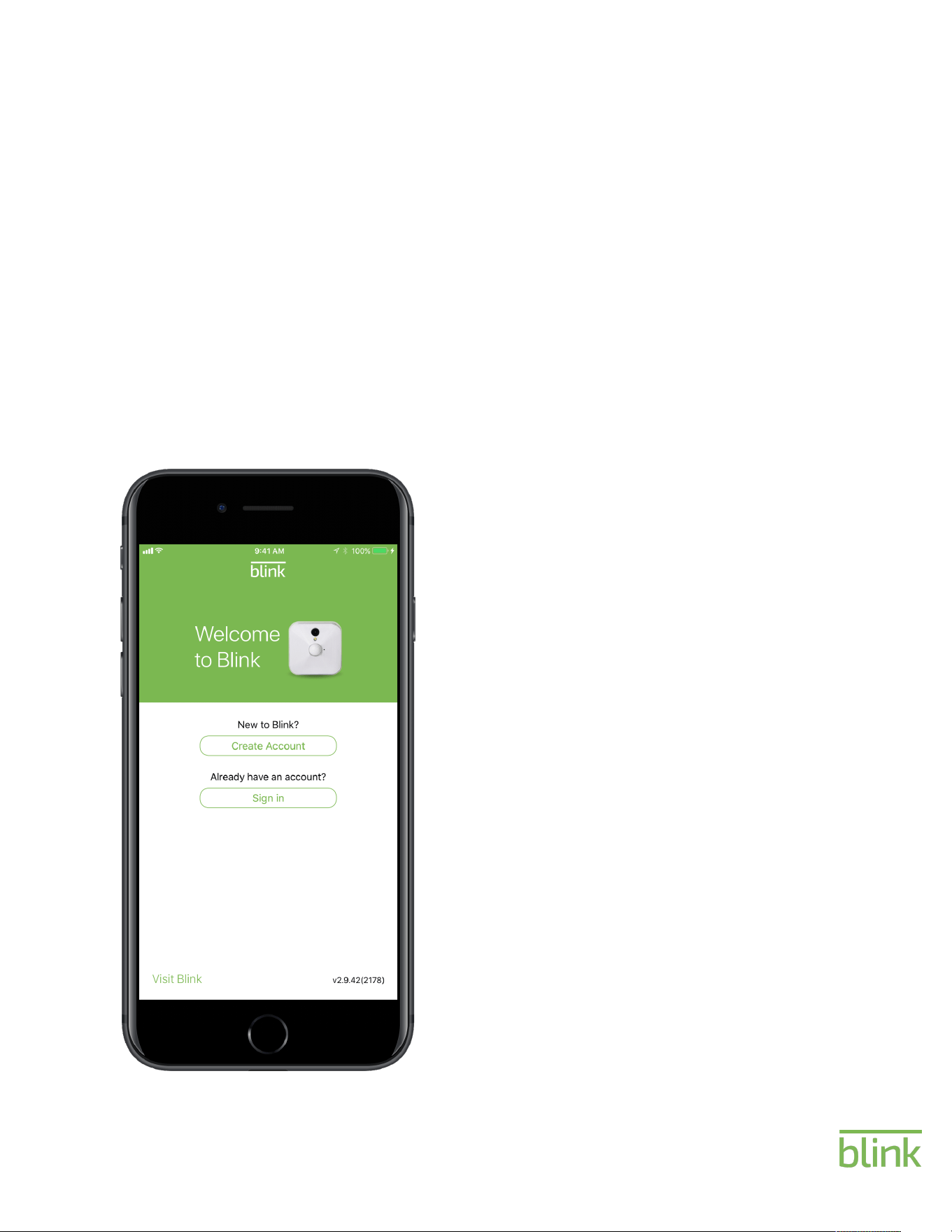
Simple Setup
1. Download the app.
Visit the App Store, Google Play Store
2. Launch the App.
Open the app on your iOS or Android
device
3. Follow in-app instructions.
The Blink app will walk you through creating
an account and setting up your new Blink
system.
Detailed setup instructions can be found on
page 5.
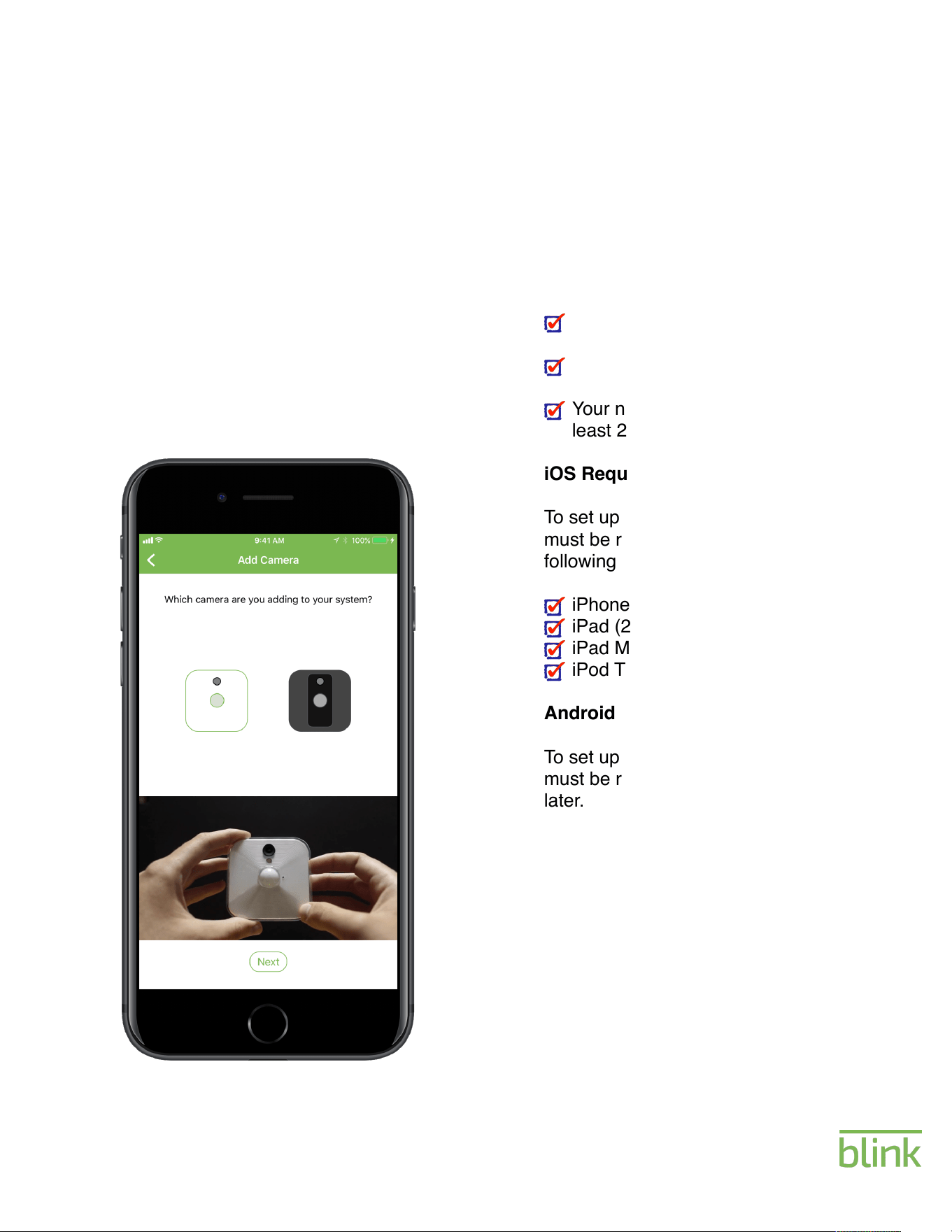
System
Requirements
Blink connects to the Internet via a
wireless connection.
Wi-Fi Network Requirements
In order for Blink to connect to your
home Wi-Fi network, it must meet the
following requirements.
Your Wi-Fi network broadcasts at
2.4GHz (802.11 b/g/n)
Your network does not block port
443.
Your network upload speed is at
least 2 Mbps.
iOS Requirements
To set up Blink using an iOS device, it
must be running iOS 8.1 or later. The
following devices support that:
iPhone (4S or newer)
iPad (2nd gen or newer)
iPad Mini (1st gen or newer)
iPod Touch (5th gen or newer)
Android Requirements
To set up Blink on an Android device, it
must be running Android 4.4 (KitKat) or
later.
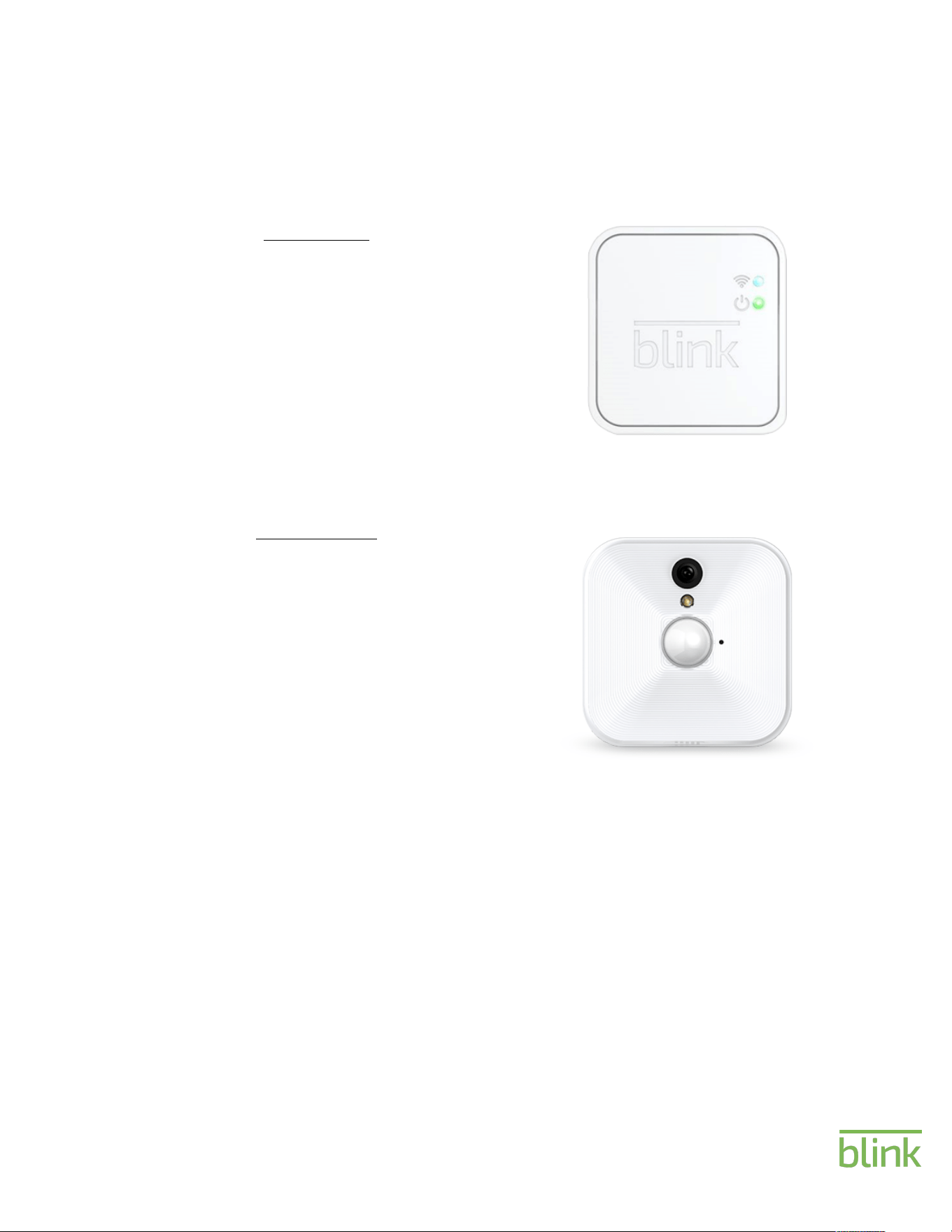
Sync Module
The Sync Module is the central hub of your
Blink system. This connects to your WiFi
network and your Blink cameras.
Package Includes:!
Micro USB Cable & USB Wall Adapter
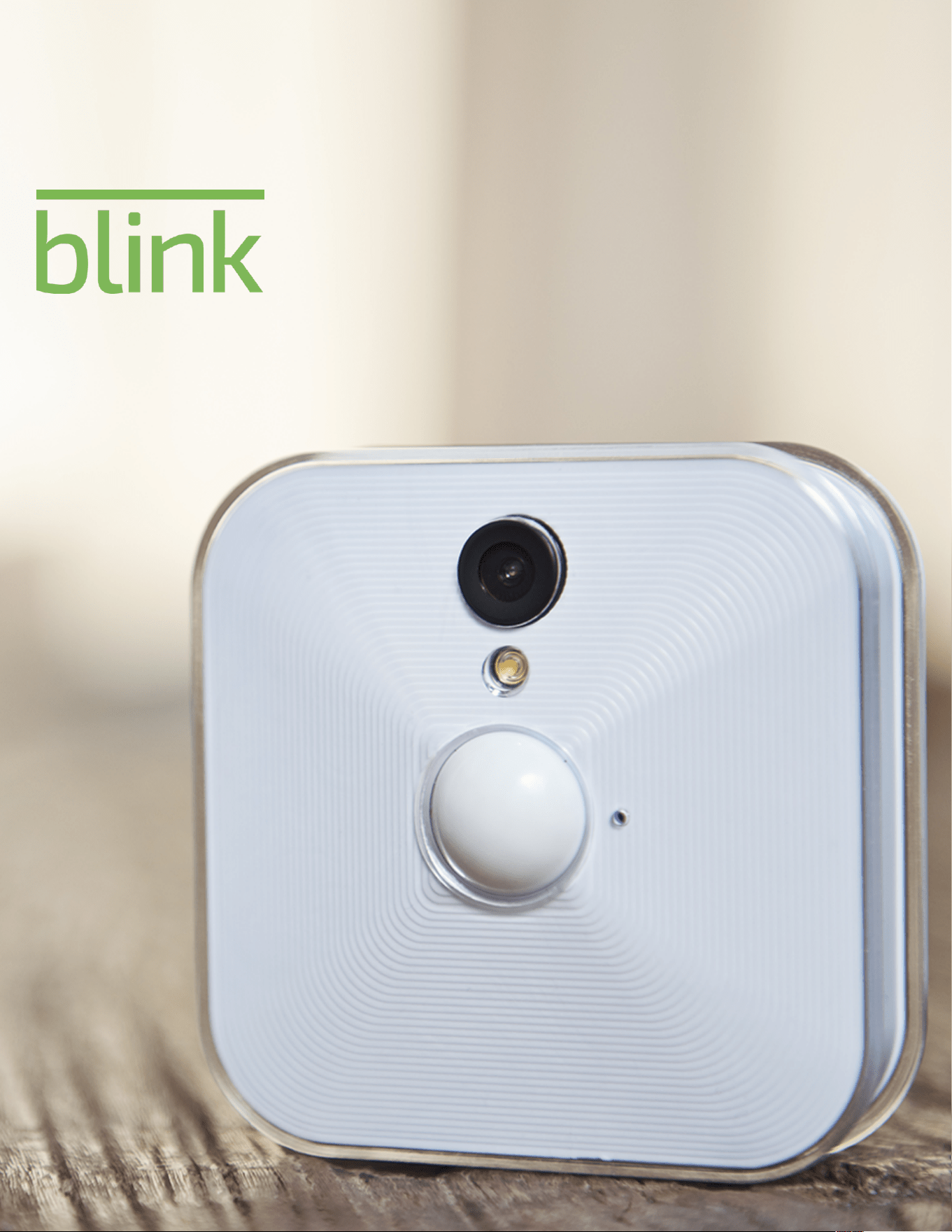
Indoor Camera
Our Indoor camera operates on 2 AA Lithium
batteries and with standard use can last up to
two years before needing to be replaced.
( A l k a l i n e o r R e c h a r g e a b l e a r e n o t
recommended and standard use is defined
as 40,000 seconds of Live View and Motion
Clips over a 2 year period).
Package Includes:!
Indoor Camera
2 x AA Lithium Batteries!
Mounting Bracket & Screw
Package Contents
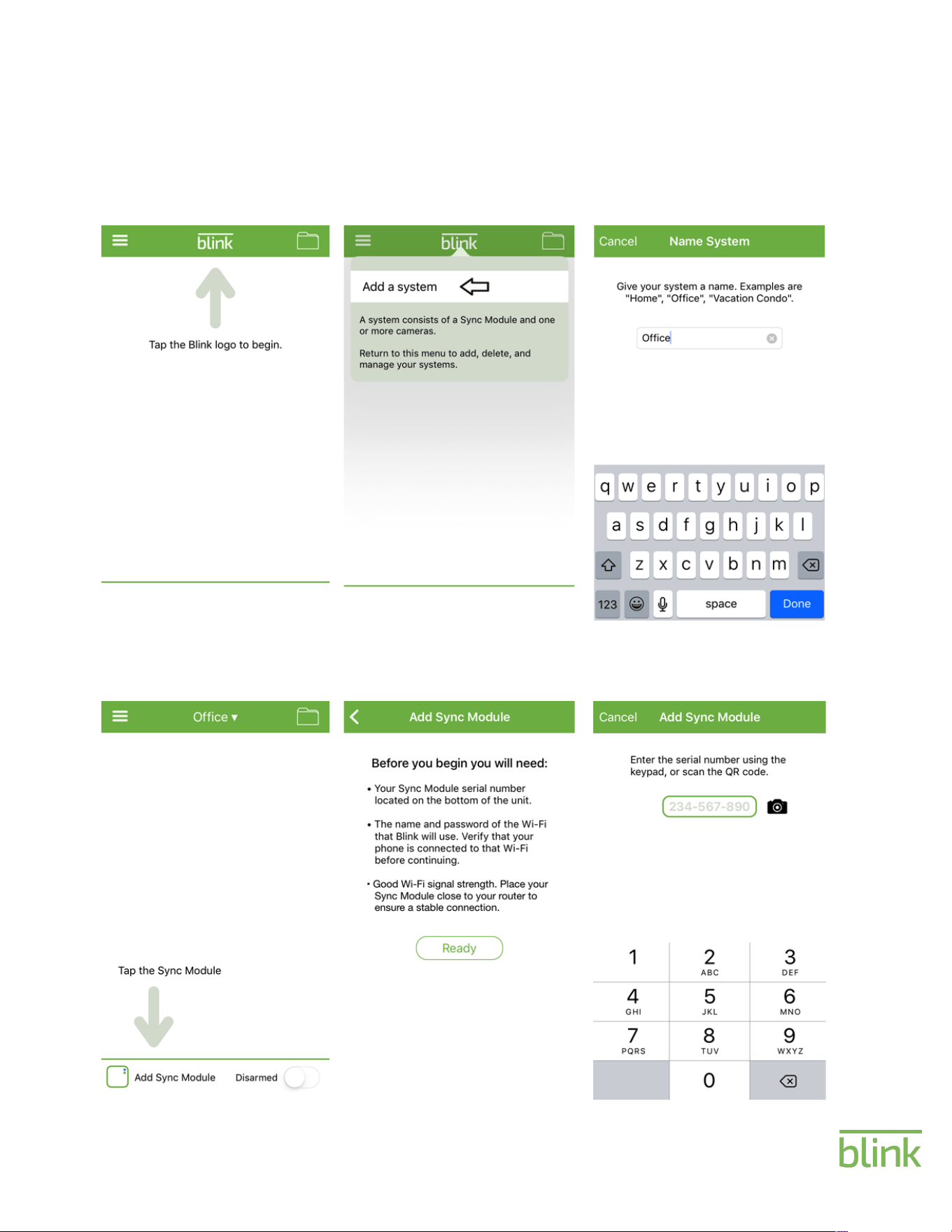
Setup
4. Tap add a Sync Module.
5. Read guide then tap
“Ready” when you have the
necessary information.
6. Enter your Sync Module’s
serial number located on the
bottom of the unit.
1. Tap the Blink logo to
begin.
2. Tap the Add a system
button.
3. Set a name for the system
like “Home” or “Office”.
This is an overview of the setup
process. Once you’ve downloaded the
Blink app, create your account and
follow these instructions.
!
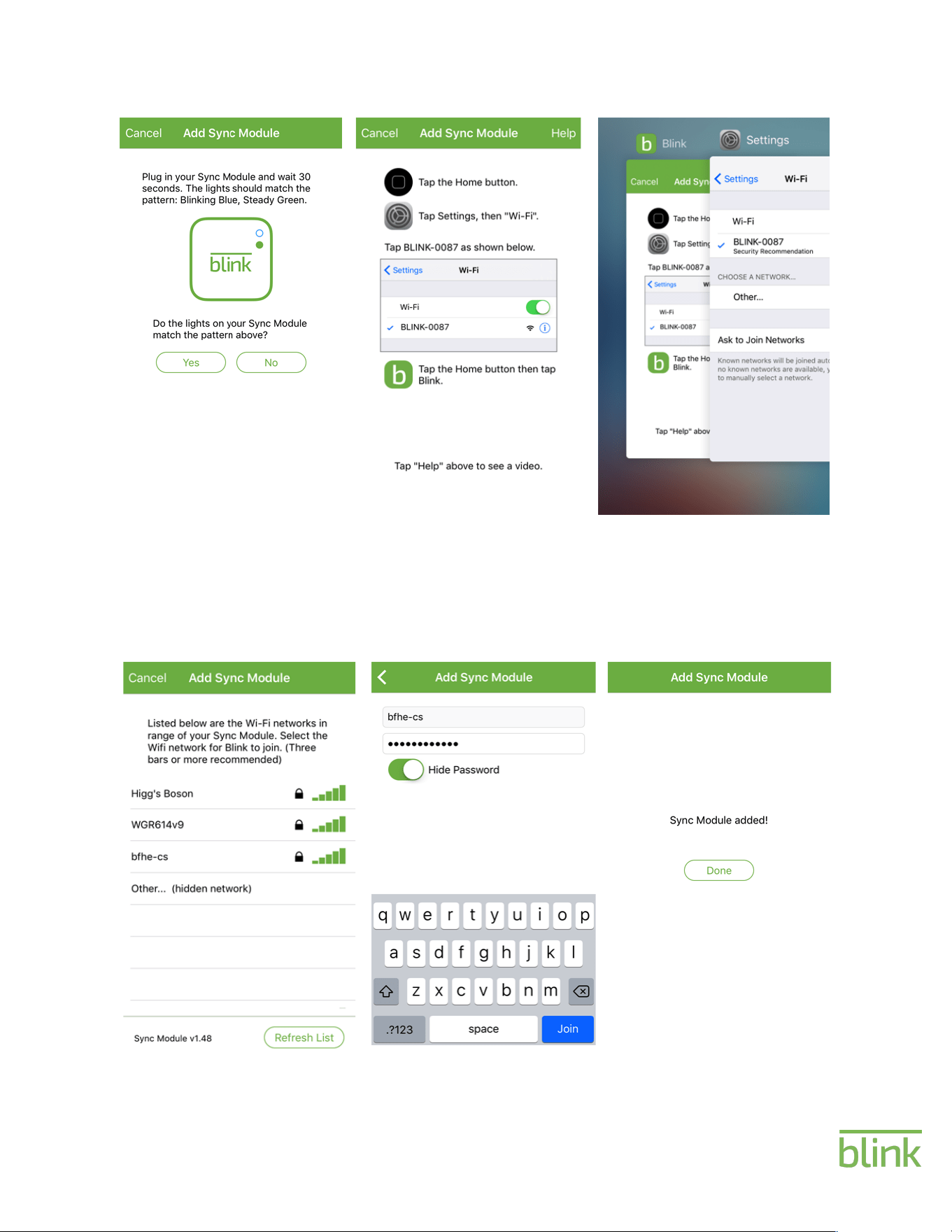
9. Locate your Home WiFi
network then tap it to
continue.
11. After about 30 seconds,
you’ll see the message “Sync
Module added!”. Tap
“Done”.
10. Enter the password for
your home WiFi network to
connect.
7. Plug your Sync Module
into power and wait 30
seconds until you see a solid
green and flashing blue
light.
8. Leave the Blink app and
go to Settings>WiFi.
Connect to the Blink-####
network. It’s normal to see
“Security Recommendation"
or “Connected, no Internet”.
9. After a successful
connection, navigate back to
the Blink App.
Setup Cont’d.
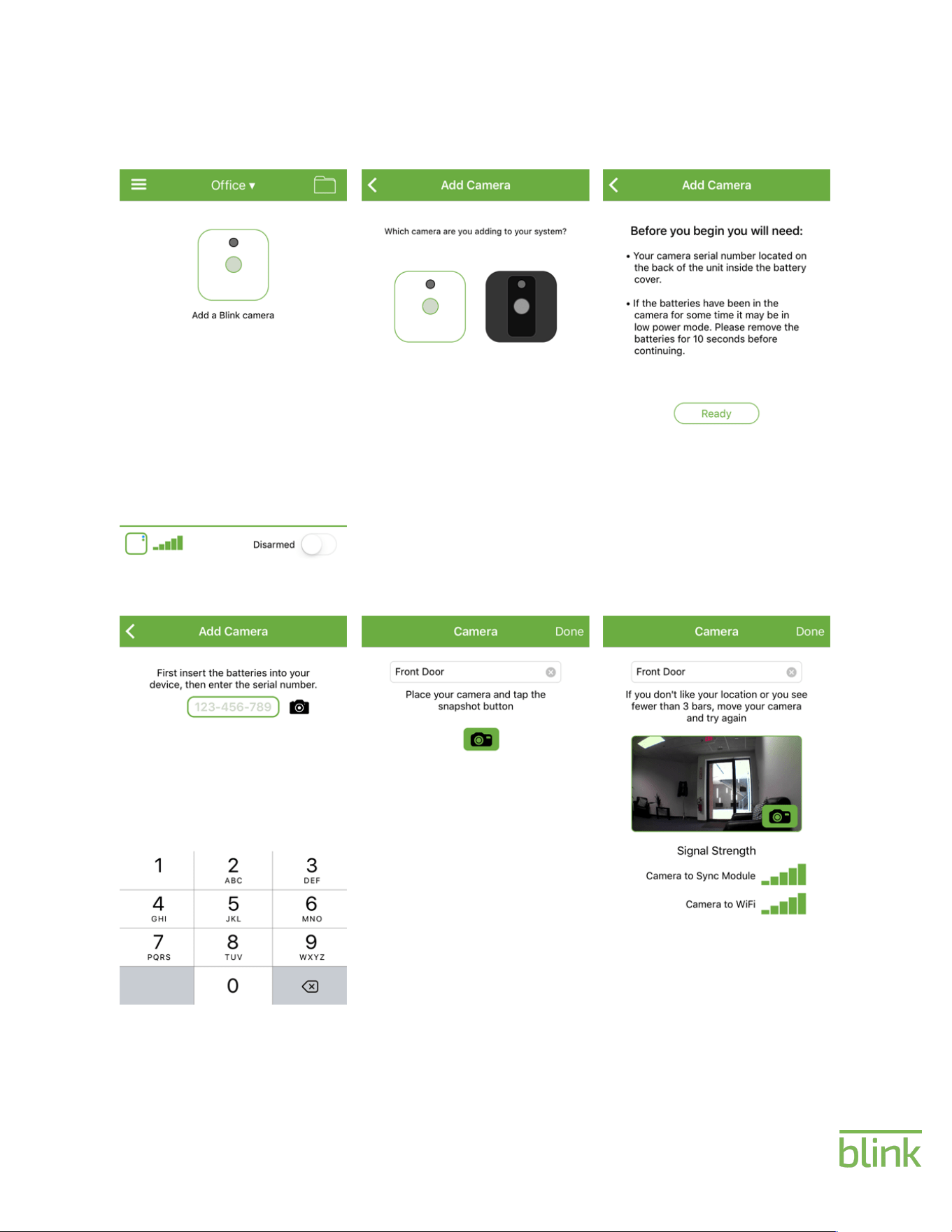
1. Tap to Add a Blink camera.
5. Name and position your
camera then tap the
snapshot.
3. Read guide then tap
Ready.
4. Enter camera’s serial
number and hit the continue
button.
2. Select which camera to
add.
6. Once generated, gauge
the signal strengths and tap
“Done”. Repeat the above
steps for any additional
cameras.
Adding your Cameras
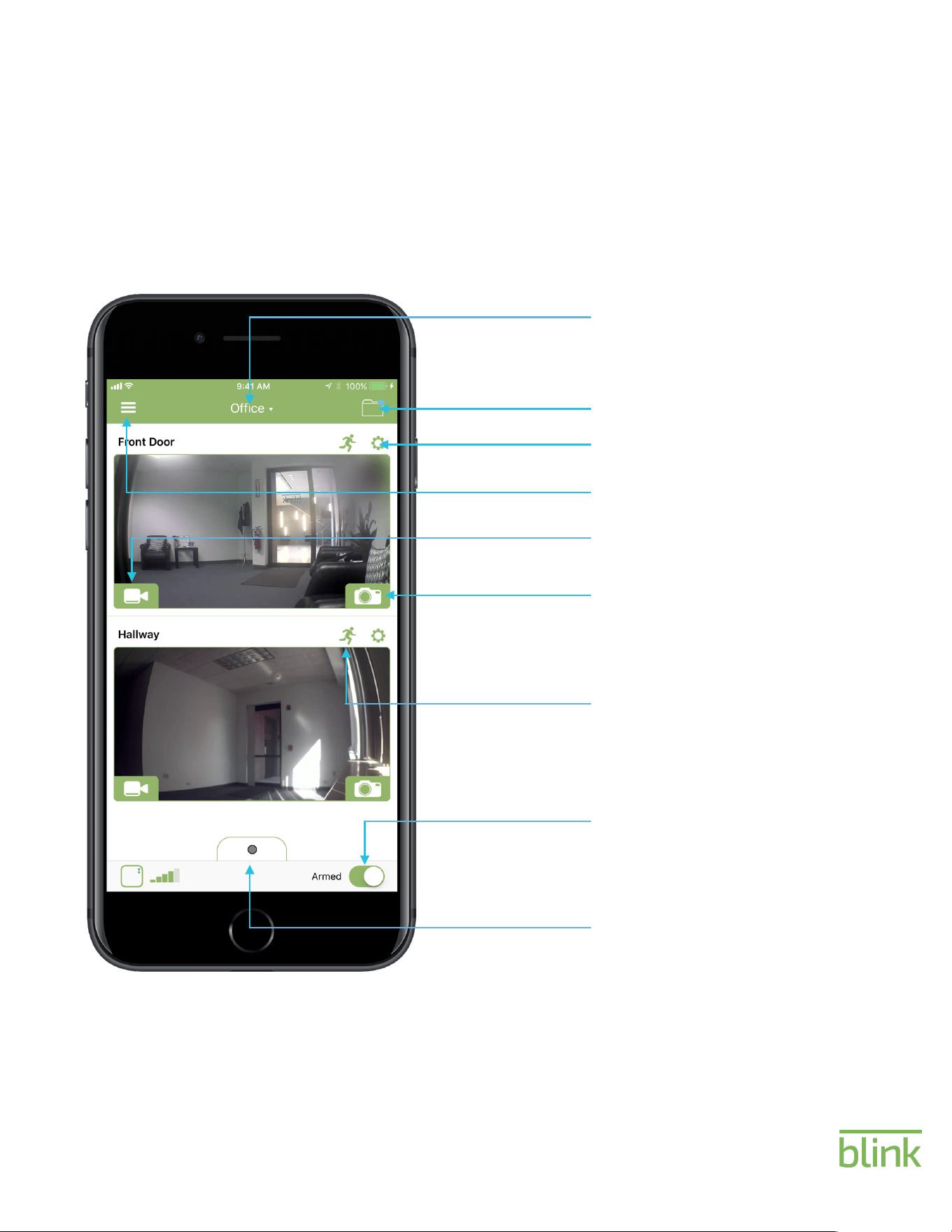
Home Screen
The Home Screen shows you the
cameras that you have on your account.
From here, you can update their
thumbnails, access them using Live
View, and more.
System Picker
Live View
Thumbnail
Enable/Disable Motion
Arm/Disarm System
Curtain Menu
Add Additional Cameras
Clip List
Camera Settings
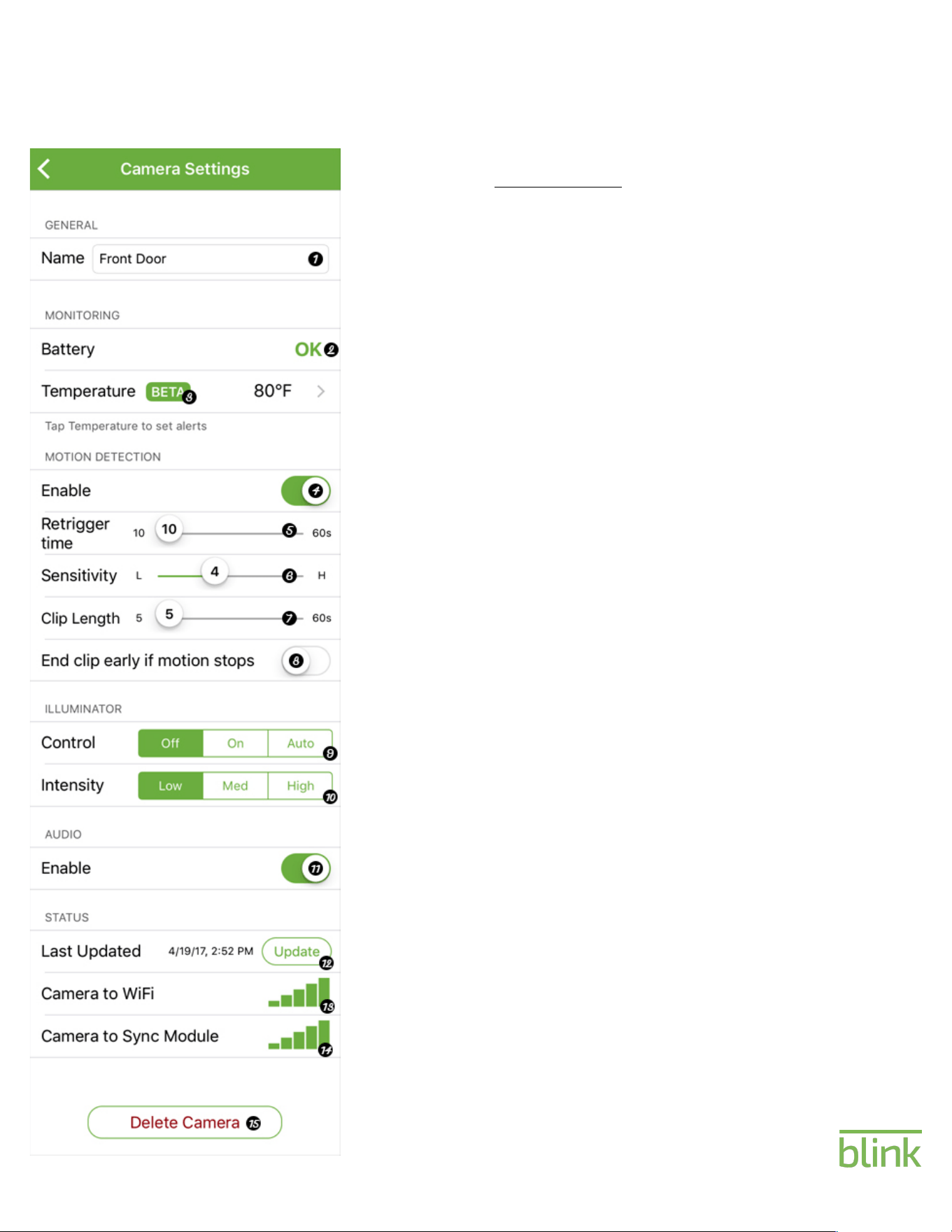
Camera Settings!
1. Name: Camera’s individual name
!
2. Battery: Battery indicator
!
3. Temperature: Current temperature
!
4. Motion Detection: Enable or disable!
!
5. Retrigger Time: Time between motion
clips
!
6. Sensitivity: Sensitivity of motion detection
7. Clip Length: Length of motion clip!
!
8. End Early: Ends clip if motion stops
9. Control: Camera’s LED lighting
10. Intensity: Brightness of LED illuminator
11. Audio: Enable or disable microphone
12. Update: Refresh camera’s readings
13. Camera to WiFi: Signal strength to WiFi
14. Camera to Sync Module: Signal
strength to your Sync Module
15. Delete Camera: Deletes camera from
your account.
!
!
Camera Settings
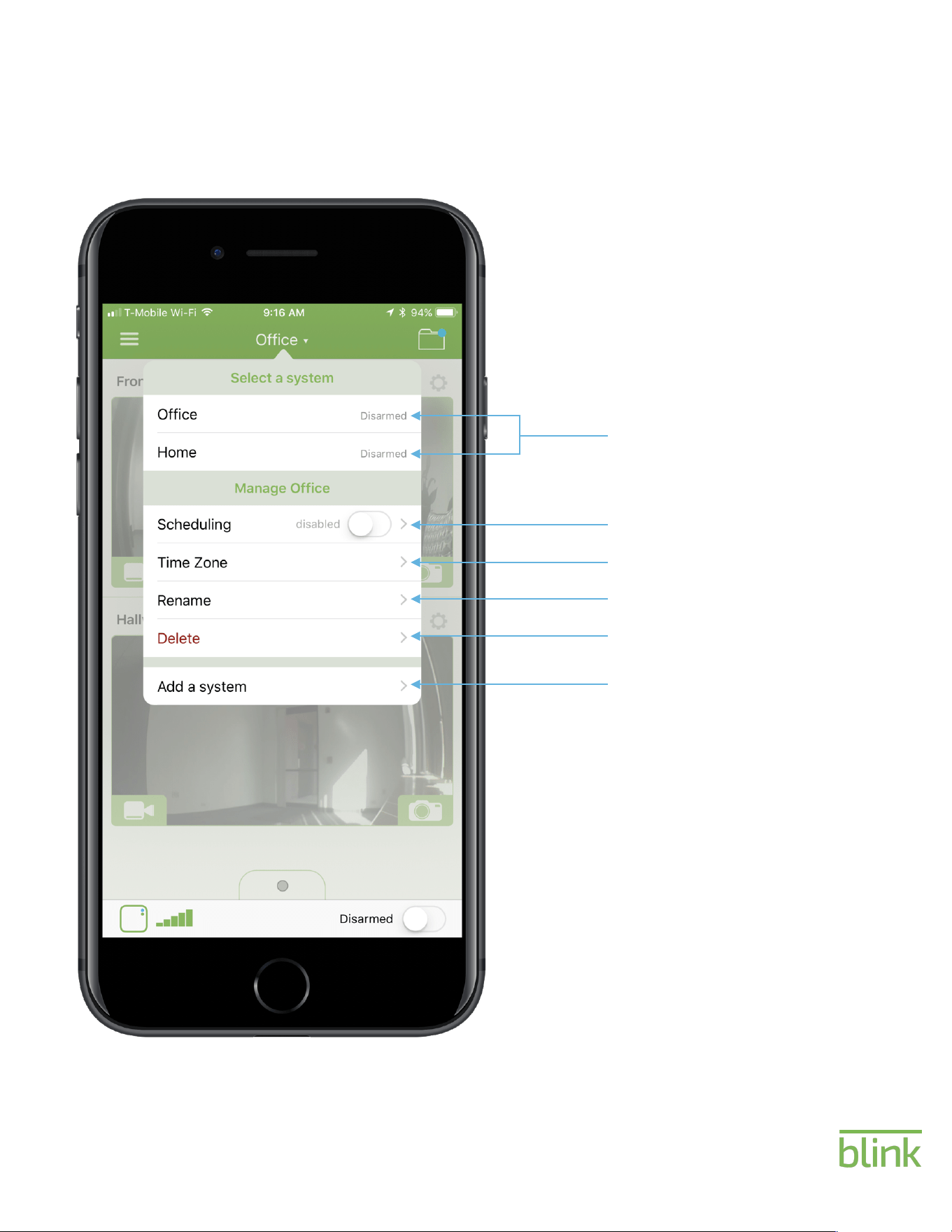
System Picker
Switch between multiple systems
Set up a motion detection schedule
Set your Time Zone
Rename your system
Delete your Blink system
Add another Blink system
Help
At Blink, our dedicated support
team is ready to assist you using
your preferred method if you run
into any issues.
Email: [email protected]
Web: support.blinkforhome.com
Phone: (781) 332-5465
Thank you for choosing Blink!