Register your product and get support at
www.philips.com/welcome
User manual
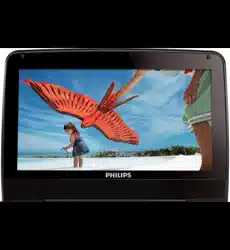
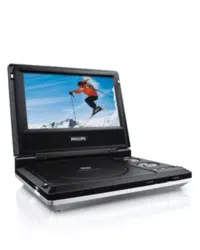
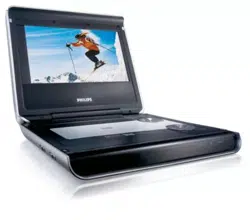
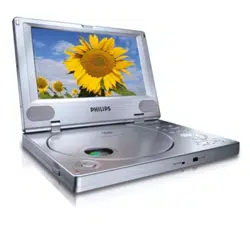
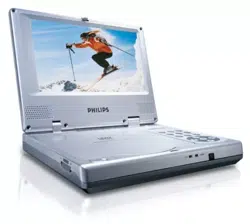
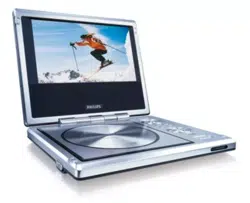
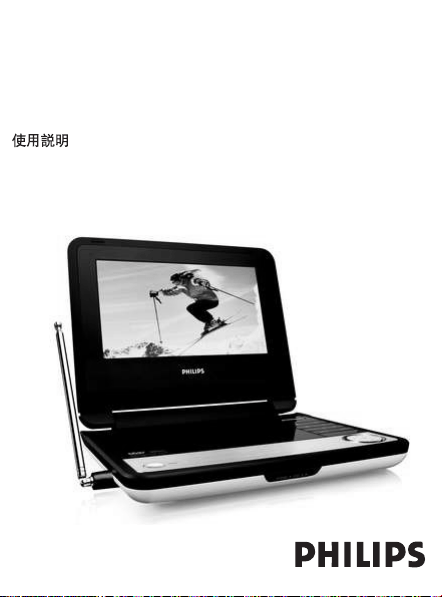
PET738/PET2008
Portable DVD player
PET2008_738_93_CCR_Eng 2008.4.2 15:41 Page 1

1
1
2
3
7
4
8
5
6
15
PET2008_738_93_CCR_Eng 2008.4.2 15:41 Page 2
16
17
1
PET2008_738_93_CCR_Eng 2008.4.2 15:41 Page 3
CH-
CH+
2
2
5
3
4
1
6
7
8
9
10
11
12
13
14
15
PET2008_738_93_CCR_Eng 2008.4.2 15:41 Page 4

English
1 Control elements and
functional components
1.1 Main unit controls
1.2 Front of player
1.4 Right of player
1.5 Left of player
1.6 Back of the player
1.7 Remote Control
2 Introduction
2.1 Your portable DVD player
2.2 Unpacking
2.3 Placement
2.4 Playable disc formats
2.4.1 DVD-Video
2.4.2 Video CD
2.4.3 Audio CD / MP3 CD /
WMA CD
2.4.4 CD with JPEG files
2.4.5 DivX video discs
2.5 Zero Bright DotTM
3 General information
4 Charging the units
4.1 Charge the DVD player
4.2 Powering your remote
control
5 Start up
5.1 Setup
5.2 Playback DVD
5.3 Playback VCD
5.4 Playback Super (S)-VCD
5.5 Playback Music CD
5.6 Playback Music
MP3/WMA-CD
5.7 Playback Picture-CD
5.8 Playback from USB
5.9 Analog TV
5.9.1 First Time Installation
5.9.2 Setup TV channels
5.9.3 Setup TV channels
Congratulations on your purchase and welcome to Philips!
To fully benefit from the support that Philips offers,
register your product at www.philips.com/welcome.
Content
PET2008_738_93_CCR_Eng 2008.4.2 15:41 Page 5

1 Control elements and functional components
1.1 Main unit controls (see figure 1)
1 OPEN Open disc door to insert or remove disc
2POWER Switch the player on / off
3 9 Press once to stop playback and store the stop
position. Press twice to stop playback completely.
2; Start / pause / resume playback
4 J( / )K Search backward (J( ) or search forward ()K )
5
- VOL +
Volume control
6 OPTION Access additional functions
MENU Display MENU page
7 3, 4, 1, 2 Up / down / left / right cursor
Function of CH +/-
OK Confirm selection
1.2 Front of player (see figure 1)
8
POWER/
IR
/CHR
Power / Remote sensor / charging indicator
1.4 Right of player (see figure 1)
9
PHONE 1 & 2
Headphones jack
10 AV OUT Audio/Video output
11 AV IN Audio video input
12 USB USB connector
13 COAXIAL Digital audio output
6Addition Functions
6.1 DISPLAY Menu
6.2 Connection
6.2.1 Headphone
6.2.2 TV
6.2.3 AV input
6.2.4 USB
6.2.5 Coaxial
7Troubleshooting
8Technical data
PET2008_738_93_CCR_Eng 2008.4.2 15:41 Page 6

14 DC IN 9V Power supply socket
1.5 Left of the player (see figure 1)
15 Antenna terminal
connect antenna
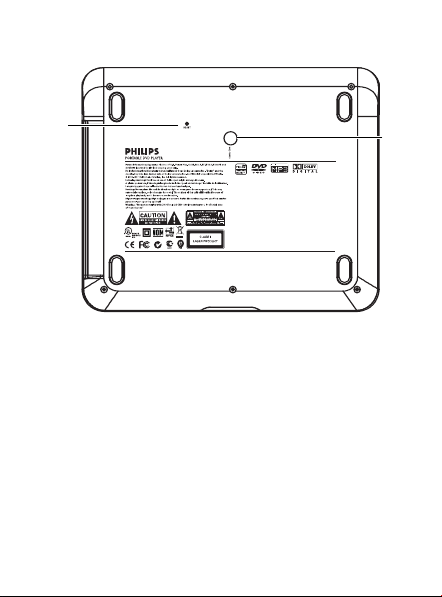
1.6 Back of the player (see figure 1)
16 Reset Reset the player when it is hanged up
17 Car mounting screw hole
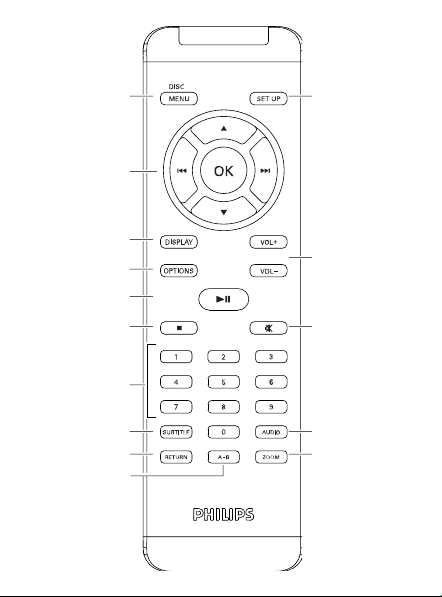
1.7 Remote Control (see figure 2)
1 MENU Display MENU page
2 3, 4 Up / down / left / right navigation key
J( , )K Skip to previous/next chapter, track or title
OK Confirm selection
CH + / - Change channel
3 DISPLAY Adjust the display value of the system
4 OPTION Access additional functions or title
5 2; Start / pause / resume playback
6 9 Press twice to stop playback
70- 9 Numeric keypad
8
SUBTITLE
Subtitle language selector
9 RETURN For VCD menu page
10 A - B To r epeat or loop a sequence in a title
11 SETUP Enter SETUP menu
12 VOL+ / - Volume control
13 s Mute player volume
14 AUDIO Audio language selector
15 ZOOM Enlarge video image
CAUTION Use of controls or adjustments or performance of
procedures other than herein may result in hazardous radiation
exposure or other unsafe operation.
PET2008_738_93_CCR_Eng 2008.4.2 15:41 Page 7

2 Introduction
2.1 Your portable DVD player
Your portable DVD player plays digital video discs conforming to
the universal DVD Video standard.With it, you will be able to enjoy
full-length movies with true cinema picture quality, and stereo or
multichannel sound (depending on the disc and on your playback
set-up).
The unique features of DVD-Video, such as selection of soundtrack
and subtitle languages, and of different camera angles (again depend-
ing on the disc), are all included.
What’s more, parental lock lets you decide which discs your chil-
dren will be able to see.You will find your player remarkably easy
to use with the On-Screen Display and player display in combina-
tion with the remote control.
2.2 Unpacking
First check and identify the contents of your package, as listed
below:
•Portable DVD player • Remote Control (AY5511)
• Car adaptor (12V) (AY4115) • AC power adaptor (AY4117)
• User manual • Antenna
•
Car headrest mounting kit (AY4246) • AV cable
2.3 Placement
• Place the player on a firm, flat surface.
•Keep away from domestic heating equipment and direct sunlight.
• If the player cannot read CDs/DVDs correctly, try using a com-
monly available cleaning CD/DVD to clean the lens before taking
the player to be repaired. Other cleaning methods may destroy
the lens.
•Always keep the disc door closed to avoid dust on the lens.
• The lens may cloud over when the player is suddenly moved
from cold to warm surroundings. It is then not possible to play a
CD/DVD. Leave the player in a warm environment until the
moisture evaporates.
PET2008_738_93_CCR_Eng 2008.4.2 15:41 Page 8
2.4 Playable disc formats
In addition to DVD-Video disc, you will also be able to play all
Video CDs, CDs, CDR, CDRW,DVD±R and DVR±RW.
2.4.1 DVD-Video
Depending on the material on the disc (a movie, video
clips, a drama series, etc.) these discs may have one or
more Titles, and each Title may have one or more Chapters.To
make access easy and convenient, your player lets you move
between Titles, and also between Chapters.
2.4.2 Video CD
Depending on the material on the disc (a movie, video
clips, a drama series, etc.) these discs may have one or
more Tracks, and tracks may have one or more indexes, as indicated
on the disc case.To make access easy and convenient, your player
lets you move between tracks and between indexes.
2.4.3 Audio CD / MP3 CD / WMA CD
Audio CDs / MP3 CD / WMA CD contain music tracks
only.You can play them in the conventional way
through a stereo system using the keys on the
remote control and/or main unit, or via the TV
using the On Screen Display (OSD).
2.4.4 CD with JPEG files
You can also view JPEG still photos on this player.
2.4.5 DivX video discs
DivX is a popular media technology created by DivX, Inc.
DivX media files contain highly compressed video with high visual
quality that maintains a relatively samll file size. DivX files can also
include advanced media features like menus, subtitles, and alternate
audio tracks. Many DivX media files are available for download
online, and you can create your own using your personal content
and easy-to-use tools from DivX.com.
PET2008_738_93_CCR_Eng 2008.4.2 15:41 Page 9

2.5 Zero Bright Dot
TM
Enjoy highest-quality images that are free from annoying
blank spots on the LCD screen. LCD displays commonly have
imperfections, termed as 'bright dots' by the LCD industry.A limit-
ed number of bright dots were once considered an inevitable side
effect of LCD mass production.With Philips' strict quality control
procedures used in our Portable DVD Players, our LCD displays
are produced with zero tolerance for bright dots. Select Portable
DVD Players come with Philips Zero Bright Dot
TM
Policy to guaran-
tee optimal screen quality.
Warranty service varies from region to region. Contact your local
Philips representative for more detailed information.
3 General information
Power Sources
This unit operates on a supplied AC adaptor, car adapter, or a
rechargeable battery pack.
• Make sure that the input voltage of the AC adaptor is in line
with the local voltage. Otherwise, the AC adaptor and unit may
be damaged.
• Do not touch the AC adaptor with wet hands to prevent elec-
tric shock.
• When connecting with car power (cigarette lighter) adaptor, be
sure the input voltage of the adaptor is identical with car voltage.
• Unplug the AC adaptor from the outlet or remove the battery
pack when the unit is not used for long periods of time.
• Hold the plug to disconnect the AC adaptor. Do not pull the
power cord.
Please always use supplied AC/DC adaptor
Safety and maintenance
• Do not disassemble the unit for laser rays are dangerous to
eyes.
Any service should be done by qualified service personnel.
PET2008_738_93_CCR_Eng 2008.4.2 15:41 Page 10

• Unplug the AC adaptor to cut the power if liquid or objects get
inside the unit.
•Take care not to drop the unit or subject it to strong shocks,
which may cause malfunction.
Hearing Safety
Listen at a moderate volume.
• Using headphones at a high volume can impair your
hearing.This product can produce sounds in decibel ranges that
may cause hearing loss for a normal person, even for exposure
less than a minute.The higher decibel ranges are offered for
those that may have already experienced some hearing loss.
• Sound can be deceiving. Over time your hearing “comfort level”
adapts to higher volumes of sound. So after prolonged listening,
what sounds “normal” can actually be loud and harmful to your
hearing.To guard against this, set your volume to a safe level
before your hearing adapts and leave it there.
To establish a safe volume level:
• Set your volume control at a low setting.
• Slowly increase the sound until you can hear it comfortably and
clearly, without distortion.
Listen for reasonable periods of time:
•Prolonged exposure to sound, even at normally “safe” levels, can
also cause hearing loss.
• Be sure to use your equipment reasonably and take appropriate
breaks.
Be sure to observe the following guidelines when using
your headphones.
• Listen at reasonable volumes for reasonable periods of time.
• Be careful not to adjust the volume as your hearing adapts.
• Do not turn up the volume so high that you can’t hear what’s
around you.
•You should use caution or temporarily discontinue use in poten-
tially hazardous situations.
PET2008_738_93_CCR_Eng 2008.4.2 15:41 Page 11

• Do not use headphones while operating a motorized vehicle,
cycling, skateboarding, etc.; it may create a traffic hazard and is
illegal in many areas.
• Important (for models with by-packed headphones): Philips guar-
antees compliance with the maximum sound power of its audio
players as determined by relevant regulatory bodies only with
the original model of provided headphones. In case this one
needs replacement, we recommend that you contact your retail-
er to order a model identical to that of the original provided by
Philips.
•Traffic safety: do not use while driving or cycling as you may
cause an accident.
• Do not expose to excessive heat caused by heating equipment
or direct sunlight.
• This product is not waterproof: do not allow your player to be
submersed in water.Water entering the player may cause major
damage.
• Do not use any cleaning agents containing alcohol, ammonia,
benzene, or abrasives as these may harm the player.
• Apparatus shall not be exposed to dripping or splashing. Do not
place any sources of danger on the appartus (e.g. liquid filled
objects,lighted candles)
• Do not touch the lens!
When the player is in use for a long period of time, the surface
will be heated.This is normal.
Handling discs
• Do not attach paper or tape to the disc.
•Keep the disc away from direct sunlight or
heat sources.
• Store the disc in a disc case after playback.
•To clean, wipe the disc outwards from the
center with a soft, lint-free clean cloth.
PET2008_738_93_CCR_Eng 2008.4.2 15:41 Page 12
On handling the LCD screen
The LCD is manufactured using high precision technology.You may,
however, see tiny black points that continuously appear on the LCD.
This is a normal result of the manufacturing process and does not
indicate a malfunction.
Environmental information
We have reduced the packaging to its minimum and made it easy to
separate into mono materials: cardboard, PS, PE and PET.
Your set consists of material which can be recycled if disassembled
by a specialized company. Please observe the local regulations to
dispose of packaging, exhausted batteries and old equipment.
Copyright information
“DivX, DivX” Certified, and associated logos are trademarks of
DivX, Inc. and are used under license.”
All other brand and product names are trademarks of their respec-
tive companies or organizations.
Unauthorized duplication of any recordings downloaded from the
internet or made from CDs / VCDs / DVDs is a violation of copy-
right laws and international treaties.
The Windows Media and the Windows logo are registered trademarks
of Microsoft Corporation in the United States and/or other countries.
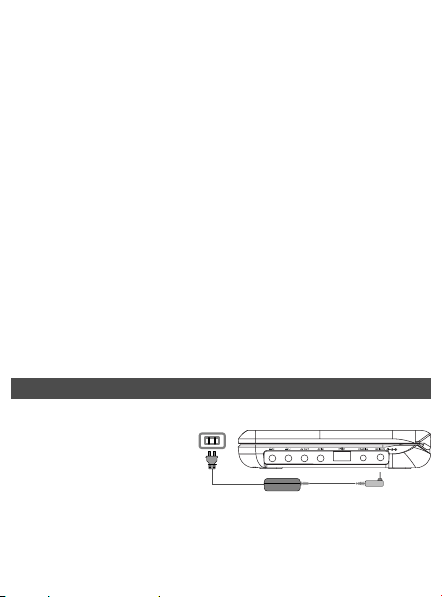
4 Charging the units
4.1 Charge the DVD player
Plug in the AC/DC adaptor
• The RED LED indicates
that charging is in progress.
When the set is not in use, it
will take about 4 hours to fully charge it. However, when in use, it
will take more than 8 hours to fully charge it.*
• The RED LED will turn off when the set is fully charged.When
the low battery icon appears on the screen, please charge the
player.
PET2008_738_93_CCR_Eng 2008.4.2 15:41 Page 13
* Rechargeable batteries have a limited number of charge cycles
and may eventually need to be replaced. Battery life and number of
charge cycles vary by use and settings.
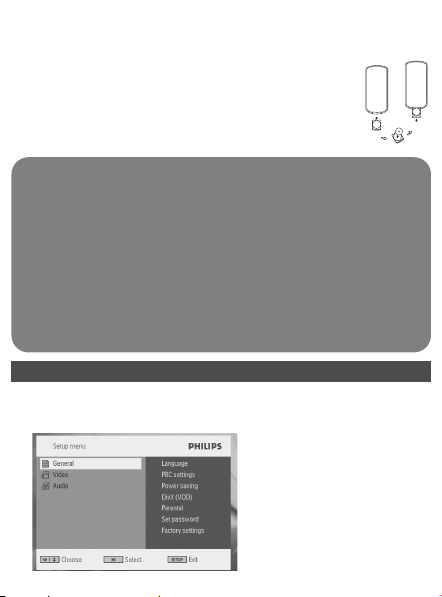
4.2 Powering your remote control
1 Open the battery compartment. Remove the protec-
tive plastic tab (first time users only).
2 Insert 1 x lithium 3V battery, type CR2025, then
close the compartment.
CAUTION
• Batteries contain chemical substances, so they should be dis-
posed of properly.
• Danger of explosion if battery is incorrectly replaced. Replace
only with the same or equivalent type.
• Incorrect use of batteries can cause electrolyte leakage and will
corrode the compartment or cause the batteries to burst.
• Remove the batteries if the set is not to be used for a long
time.
•Perchlorate Material – special handling may apply. See
www.dtsc.ca.gov/hazardouswaste/perchlorate.
5 Start up
5.1 Setup
1 Press SETUP.A list of features is shown.
PET2008_738_93_CCR_Eng 2008.4.2 15:41 Page 14
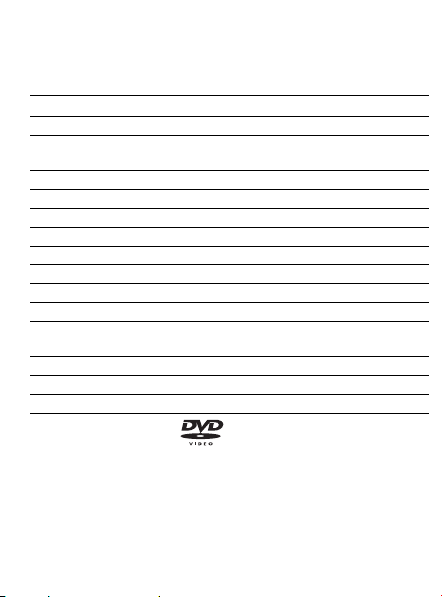
2 Use 3 / 4 to highlight your selection.
3 Use J( or )K to enter a sub-menu
4 Use the navigation keys to highlight your desired setting and
press OK to confirm.
5 The SETUP menu includes:
General
Language Set On Screen Display (OSD) languages
PBC settings Set Playback Control function ON/OFF.This fea-
ture is available for Super VCD.
Power save Set Power Saving mode ON/OFF
DivX (VOD) Get the DivX (Video-On-Demand) code
Parental Set parental options
Set password Change password (default: 9999)
Factory settings Restore factory settings
Video
TV Display Set screen display aspect ratio
TV standard Set video output format to TV system
Mpeg 4 subtitle Select subtitle language for Mpeg 4 video, e.g.
DivX video
Audio
Dolby Set Dolby output
Digital (SPDIF) Set digital output format
5.2 Playback DVD
1 Briefly press POWER on the main control of the player to
switch on the set.
2 Open the disc door and insert the disc.
3 The player will start to play the disc automatically.
4 Use navigation keys 1, 2, 3, 4 to select an item from the DVD
disc menu, such as play now, select languages and subtitle.
PET2008_738_93_CCR_Eng 2008.4.2 15:41 Page 15

5 The following functions are available during playback:
Pause Press 2; to pause playback.You can resume
playback by pressing 2; again
Previous/Next Briefly press J( or )K once or several times to
select your desired chapters
Fast backward / Fast forward
Keep pressing J( or )K will search in fast speed,
2X, 4X, 6X… Then, press 2; to resume normal
playback
Volume Control
Press 3 or 4 briefly or repeatedly to increase
or decrease the sound volume
Stop Briefly press 9 on the right side of the player to
stop playback
Subtitle Change subtitle display.The function is available
by pressing either the SUBTITLE or
OPTIONS key
Language Change language.The function is available by
pressing either the AUDIO or OPTIONS key
Angle Change the viewing angle provided in the DVD
disc.The function is available by pressing the
OPTIONS key.
Zoom Zoom in the screen, and then use the navigation
keys to pan the screen.The function is available
by pressing either the ZOOM or OPTIONS
key
A-B Repeat Set repeat loop playback. Press A-B to set the
starting point and press A-B again to set the end-
ing point.Then, the player will repeat the loop
playback. Press A-B to cancel the loop playback
PET2008_738_93_CCR_Eng 2008.4.2 15:41 Page 16
5.3 Playback VCD
1 Briefly press POWER on the main control of the player to
switch on the set.
2 Open the disc door and insert the disc.
3 The set will start to play the disc automatically.
4 The following functions are available during playback:
Pause Press 2; to pause playback.You can resume
playback by pressing 2; again
Previous/Next Briefly press J( or )K once or several times to
select your desired track
Fast backward / Fast forward
Keep pressing J( or )K will search in fast speed,
2X, 4X, 6X or 8X.Then, press 2; to resume
normal playback
Volume Control
Press 3 or 4 briefly or repeatedly to increase
or decrease the sound volume
Stop Briefly press 9 on the right side of the player to
stop playback
Audio Some VCDs only contain 2 languages for selec-
tion.You can change the language using this func-
tion.The function is available by pressing either
the AUDIO or OPTIONS key
Zoom Zoom in the screen, and then use the navigation
keys to pan the screen.The function is available
by pressing either the ZOOM or OPTIONS
key
A-B Repeat Set repeat loop playback. Press A-B to set the
starting point and press A-B again to set the
ending point.Then, the player will repeat the
loop playback. Press A-B to cancel the loop
playback
PET2008_738_93_CCR_Eng 2008.4.2 15:41 Page 17
5.4 Playback Super (S)-VCD
(Super) Video CDs may feature PBC (Play Back Control).This
allows you to play the video CDs interactively, following the menu
on the display.
1 Briefly press POWER on the main control of the player to
switch on the set.
2 Insert the (S)VCD into the disc slot on the right side of the player.
If PBC is on, the disc index menu will appear on the screen.
3 Use numeric keypad 0-9 to input your selection or select a play
option.
4 Press RETURN on the remote control to return to the previ-
ous menu.
5 To turn Playback Control mode on/off, please go to SETUP and
select PBC settings.
5.5 Playback Music CD
1 Briefly press POWER on the main control of the player to
switch on the set.
2 Open the disc door and insert the disc.
3 The set will start to play the disc automatically.
4 The following functions are available during playback:
Pause Press 2; to pause playback.You can resume
playback by pressing 2; again
Previous/Next Briefly press J( or )K once or several times to
select your desired track
Fast backward / Fast forward
Keep pressing J( or )K will enter the fast search
mode.Then, press brief will change the searching
speed to 2X, 4X, 6X, 8X, 16x or 32x.
Volume Control
Press 3 or 4 briefly or repeatedly to increase
PET2008_738_93_CCR_Eng 2008.4.2 15:41 Page 18
or decrease the sound volume
Repeat Press OPTIONS key to select Repeat 1 track
or Repeat all tracks
Shuffle Press OPTIONS key to turn shuffle playback
on or off
Stop Briefly press 9 on the right side of the player to
stop playback
5.6 Playback Music MP3/WMA-CD
1 Briefly press POWER on the main control of the player to
switch on the set.
2 Open the disc door and insert the disc.
3 The set will start to play the disc automatically.
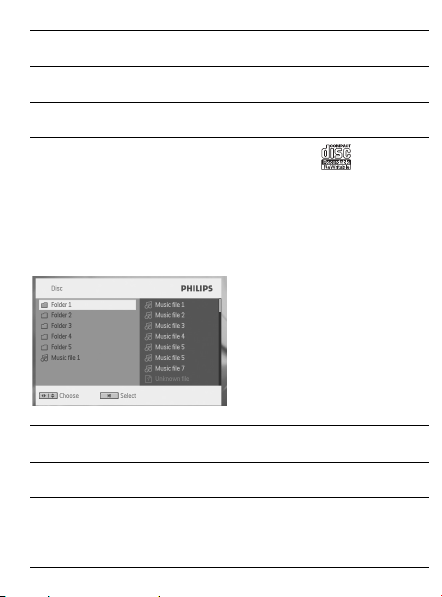
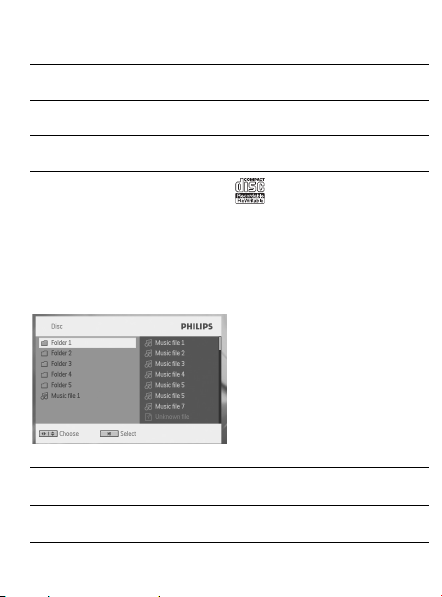
4 Use navigation keys to select the folder and MP3/WMA file to
be played.
5 The following functions are available during playback:
Pause Press 2; to pause playback.You can resume
playback by pressing 2; again
Previous/Next Briefly press J( or )K once or several times to
select your desired track
Fast backward / Fast forward
Keep pressing J( or )K will search in fast speed,
2X, 4X, 6X or 8X.Then, press 2; to resume
normal playback
PET2008_738_93_CCR_Eng 2008.4.2 15:41 Page 19
Volume Control
Press 3 or 4 briefly or repeatedly to increase
or decrease the sound volume
Repeat Press OPTIONS key to select Repeat 1 track
or Repeat all tracks
Shuffle Press OPTIONS key to turn shuffle playback
on or off
Stop Briefly press 9 on the right side of the player to
stop playback
5.7 Playback Picture-CD
The player can only read pictures in JPEG format.
1 Briefly press POWER on the main control of the player to
switch on the set.
2 Open the disc door and insert the disc.
3 The set will start to play the disc automatically.
4 Use navigation keys to select the folder and JPEG file to be played.
5 The following functions are available during playback:
Pause Press 2; to pause playback.You can resume
playback by pressing 2; again
Previous/Next Briefly press J( or )K once or several times to
select your desired track
Rotate Press OPTIONS key to select rotate mode.
Then, use 1 to rotate the picture clockwise.
PET2008_738_93_CCR_Eng 2008.4.2 15:41 Page 20

Use 2 to rotate the picture anti-clockwise.
Press OPTIONS key to exit rotate mode.
Zoom Zoom in the screen, and then use the navigation
keys to pan the screen.The function is available
by pressing either the ZOOM or OPTIONS
key
Stop Briefly press 9 on the right side of the player to
stop playback
5.8 Playback from USB
This USB port supports the playback of JPEG / MP3 / WMA /
DivX / MPG-4 files.
Transfering and recording of data from the DVD to the USB
port is not possible.
1 Briefly press POWER on the main control of the player to
switch on the set.
2 Insert a USB flash drive or USB memory card reader into the
USB port.
The USB plug-in storage only support Mass Storage (MSC)
device. It does not support support Hard Disk USB storage
device and storage in MTP (Music Transfer Protocol) format.
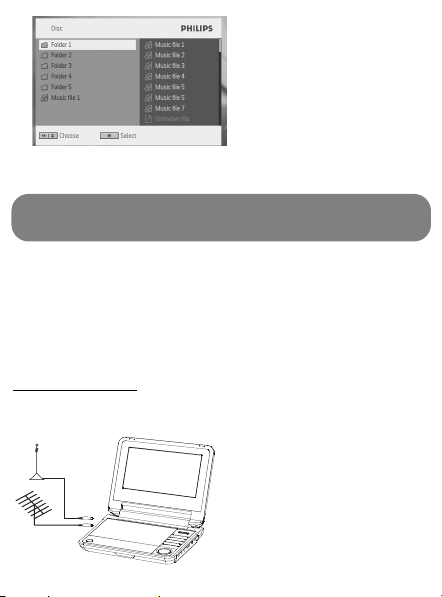
3 The player will browse and show the contents in the USB flash
device automatically.
The DVD player will take some time to browse the content of
your USB flash drive.The browsing time will vary for memory
capacity and the number of content in your USB drive.
4 Use navigation keys to select the file you want to access, then
press OK to play it.
PET2008_738_93_CCR_Eng 2008.4.2 15:41 Page 21
5 At the end of the playback, unplug the USB flash drive or USB
memory card from the player
To deactivate the USB browser or want to switch to DVD play-
back, simply unplug the USB connection.
5.9 Analog TV
Before installation, please make sure that you are in an area with
sufficient TV signal coverage.As the TV signal is weaker in an indoor
environment, please always connect to a TV wall socket for the
best reception quality when using it at home or indoor.
5.9.1 First Time Installation
Antenna connection
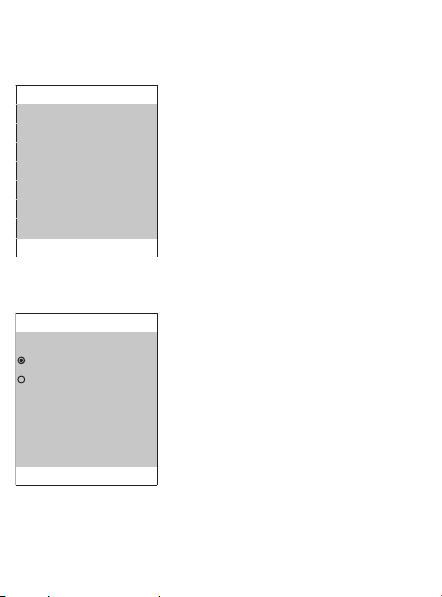
Before you start to search for TV channels, connect the DVD play-
er to the antenna as shown.
PET2008_738_93_CCR_Eng 2008.4.2 15:41 Page 22

5.9.2 Setup TV channels
Setup you TV
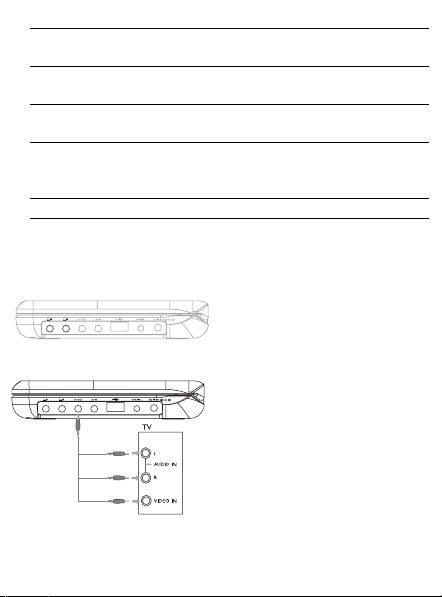
1 Press OPTIONS and select SOURCES > TV.
2 In TV mode, press SETUP, the TV Setup menu will be dis-
played to show the following available functions.
- area setup: Select your area
- tv mode: Select a TV mode
- auto search: Run auto search for all available TV channels
- ch. manage: Manage channels by deleting or renaming them
- fine tuning: Fine tune each TV channel
tv setup menu
area setup
tv mode
auto search
ch. manage
fine tuning
setup exit
Option menu
Sources
Setup
[Option] EXIT
PET2008_738_93_CCR_Eng 2008.4.2 15:41 Page 23
Area Setup
- Please make sure that you select the correct area that matches
your local TV system.
- Use 3 / 4 key to select your area.
TV mode
There are several modes available.
tv For normal on-the-air TV reception
cable tv For cable TV reception
system: The standard TV system used in various countries. E.g.
China use PAL TV system, Russian use SECAM TV sys-
tem
tv mode
tv
cable tv
system:
pal 2
audio:
pal I 2
setup exit
area setup
3
China
4
setup exit
PET2008_738_93_CCR_Eng 2008.4.2 15:41 Page 24

audio: E.g. China is PAL DK, Russian is SECAM D.
Auto sear
ch
Auto search provides an overall search for all available channels in
your area.
- Press OK to start auto search.The screen will display “running
xx%”.
- Upon completion, the screen will display “finished”.
When search is completed, the first channel found will be dis-
played.
A channel counter will indicate the number of channels that can be
found.
Note Sometimes, there may be duplicated or empty channels
found after Auto Search.This is due to TV signal interference in
some areas, not a malfunction of your product.
Channel mana
ge
You can perform channel management
auto search
auto search
ch. found: 02
running 80%
setup exit
PET2008_738_93_CCR_Eng 2008.4.2 15:41 Page 25

- current ch: It displays the channel number of the TV channel you
are currently watching.
- del. current:You can delete the current channel. E.g. If a duplicate
channel was found due to interference, you can delete the dupli-
cate channel.
- rename:You can rename the channel number. The r
enamed chan-
nel will overwrite the existing one. Please confirm when you rename the
channel.
Please remember to save before you exit Ch. manage menu.
Otherwise, your changes will not be captured.
Fine tuning
When there is interference when watching the TV, you can fine
tune the frequency of the reception.
ch. manage
current ch: 02
del. current: 02
rename: 1 16 2
save
setup exit
PET2008_738_93_CCR_Eng 2008.4.2 15:41 Page 26

- In the fine tuning menu, press 1 / 2 key to decrease / increase
the frequency of the reception.
- You can press 1 / 2 keys until a better picture quality with less
interference is found.
- Please remember to save before you exit the fine tuning menu.
Otherwise, your tuning will not be captured.
5.9.3 Setup TV channels
To change channels
- Press OPTIONS and select SOURCES > TV
- In TV mode, you can either press CH-/CH+ to change channels.
- Or, you can enter the channel number with the numeric keys and
press OK.
T
o change volume
- Press vol+ / vol – to adjust the volume level.
- Press to mute the volume. Press again to restore sound.
6Addition Functions
6.1 DISPLAY Menu
When you press DISPLAY during playback, the following menu
will appear and you can access the corresponding function and
information:
s
s
fine tuning
tuning 12
save
setup exit
PET2008_738_93_CCR_Eng 2008.4.2 15:41 Page 27
Brightness It allows you to adjust the brightness of the
screen
Contrast It allows you to adjust the contrast of the
screen
Color It allows you to adjust the color of the screen
from cool, warm and normal.
Turn off LCD You can turn off the screen in some situations,
such as when connected to TV or playing music
discs.This can save the battery power
Battery level It shows the battery level
6.2 Connection
6.2.1 Headphone
Connect the headphone to either one of the headphone jacks on
the side of the player.
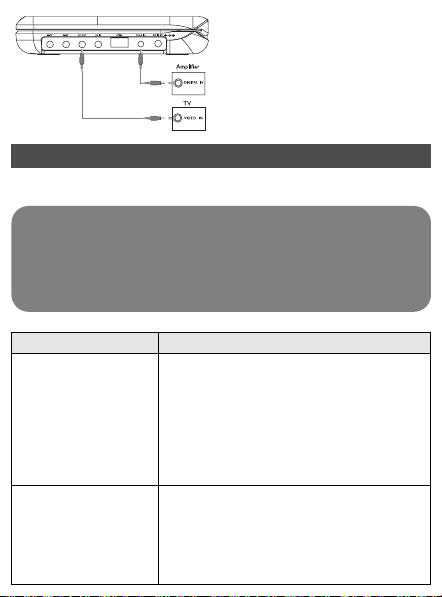
6.2.2 TV
You can connect the player to a TV and enjoy your DVD.
6.2.3 AV input
You can connect to other devices such as Digital Video Recorder,
Digital Camera, etc.
White
Red
Yellow
PET2008_738_93_CCR_Eng 2008.4.2 15:41 Page 28
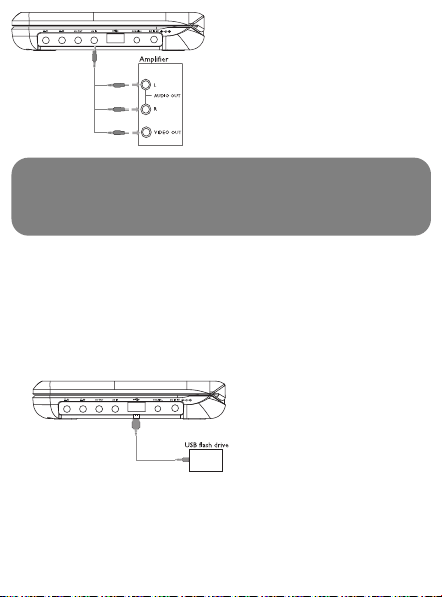
The video input devices, such as video amplifier, digital video
recorder, digital camera should have the RCA output connec-
tion on the device. If you device does not have the RCA out-
put, please consult your dealer.
6.2.4 USB
You can plug in the USB flash drive to view the stored pictures and
video.
1 After plug in the USB flash drive, the DVD player will browse
the content of your USB drive automatically.
2 See section 5.8 Playback from USB for playback details.
3 Unplug the USB drive after enjoyment.This will also deactivate
the USB browser function.
6.2.5 Coaxial
It provides digital audio output signal that you can connect to your
home theater equipment to decode the digital audio signal.
White
Red
Yellow
PET2008_738_93_CCR_Eng 2008.4.2 15:41 Page 29
7Troubleshooting
If it appears that the DVD-Video player is faulty, first consult this
checklist. It may be that something has been overlooked.
WARNING Under no circumstances should you try to repair
the set yourself as this will invalidate the guarantee.
If a fault occurs, first check the points listed, before taking the
set for repair. If you are unable to solve a problem by following
these hints, consult your dealer or service centre.
Yellow
Symptom Remedy
No power • Check if both plugs of the mains cord
are properly connected.
• Check if there is power at the AC outlet
by plugging in another appliance.
• Check if battery pack is inserted appro-
priately.
• Check if car adaptor is connected
appropriately.
Distorted picture • Check the disc for fingerprints and clean
with a soft cloth, wiping from centre to
edge.
• Sometimes a small amount of picture
distortion may appear.This is not a mal-
function.
PET2008_738_93_CCR_Eng 2008.4.2 15:41 Page 30
Symptom Remedy
Completely distorted
picture / no colour in
the TV screen
The NTSC/PAL setting may be in the wrong
status. Match your TV’s setting with the
player’s setting.
No sound Check audio connections. If using a HiFi
amplifier, try another sound source.
Disc can’t be played • Ensure the disc label is upwards.
• Clean the disc.
• Check if the disc is defective by trying
another disc.
The player does not
respond to the
remote control
Aim the remote control directly at the sen-
sor on the front of the player.Avoid all
obstacles that may interfere with the signal
path. Inspect or replace the batteries.
Distorted or B/W
picture with DVD
Use only discs formatted according to the
TV-set used (PAL/NTSC).
No audio at digital
output
• Check the digital connections.
Player does not
respond to all operat-
ing commands during
playback
• Operations are not permitted by the
disc.
• Refer to the instructions in the disc inlay.
Cannot detect USB
plug-in
• Unplug the USB connection and plug-in
again. Detection may take some time that
vary with the capacity of your USB
device.
• The DVD player only support Mass
Storage (MSC) format from USB flash
drive.
• The DVD player does not support Hard
Disk storage or Media Transfer Protocol
(MTP) format.
PET2008_738_93_CCR_Eng 2008.4.2 15:41 Page 32
Symptom Remedy
Cannot switch to AV-
in or no signal
• Unplug the AV-in connection and plug-in
again.
• Check the connection from the AV out-
put device, such as digital camera, video
recorder, etc.
• Use the provided AV cable for connec-
tion.
Switch between
DVD/USB/AV-in
•DVD mode is default source during the
DVD player power on.
• Plug in USB will activate USB mode.
Deactivate it by unplug the connection.
• Plug in AV-in will activate AV-in mode.
And deactivate it by unplugging the con-
nection.
• Do not plug-in USB & AV-in at the same
time. Plug-in one type connection at a
time only.
• Unplug the connection before you plug-in
another connection.
Player feels warm When the player is in use for a long period
of time, the surface will be heated.
This is normal.
Display goes dimmer
when AC is unplugged
The unit is saving power to ensure longer
playtime with battery. It is normal.
Adjust the brightness in the SETUP menu.
This set complies with the radio interference requirements of the
European Union.
PET2008_738_93_CCR_Eng 2008.4.2 15:41 Page 33

8Technical data
Dimensions 20.4 x 16.8 x 3.3 cm
8.0 x 6.6 x 1.3 inches
Weight 1.0 kg / 2.19 lb
Power adapter DC 9V 1.8A
Power Consumption ≤ 20W
Operating temperature range
0 - 50°C (32 - 122°F)
Laser wavelength 650nm
Video system NTSC / PAL / AUTO
PHILIPS reserves the right to make design and specification
changes for product improvement without prior notice.
Modifications not authorized by the manufacturer may
void users authority to operate this device.
All rights reserved.
PET2008_738_93_CCR_Eng 2008.4.2 15:41 Page 34

Copyright information
The making of unauthorized copies of copy-protected material,
including computer programmes, files, broadcasts and sound
recordings, may be an infringement of copyrights and constitute a
criminal offence.This equipment should not be used for such pur-
poses.
Disposal of your old product
Your product is designed and manufactured with high
quality materials and components, which can be recycled
and reused.
When this crossed-out wheeled bin symbol is attached
to a product, it means the product is covered by the
European Directive 2002/96/EC.
Please be informed about the local separate collection system for
electrical and electronic products.
Please act according to your local rules and do not dispose of your
old product with your normal household waste.The correct dis-
posal of your old product will help prevent potential negative con-
sequences to the environment and human health.
PET2008_738_93_CCR_Eng 2008.4.2 15:41 Page 35
Printed in China wk7065
Specifications are subject to change without notice.
Trademarks are the property of Koninklijke Philips Electronics N.V.
or their respective owners
2007 © Koninklijke Philips Electronics N.V. All rights reserved.
PET2008_738_93_CCR_Eng 2008.4.2 15:41 Page 36
Register your product and get support at
www.philips.com/welcome
PET738
Portable DVD player
PET2008_738_93_CCR_Eng 2008.4.2 15:41 Page 37
Printed in China wk7065
Specifications are subject to change without notice.
Trademarks are the property of Koninklijke Philips Electronics N.V.
or their respective owners
2007 © Koninklijke Philips Electronics N.V. All rights reserved.
PET2008_738_93_CCR_Eng 2008.4.2 15:41 Page 38