

WARNING: This product contains chemicals known to the State of California to cause cancer and birth defects or other
reproductive harm. Wash hands after handling.

2
ENG
ENGLISH
TABLE OF CONTENTS
CONTENTS
4 LICENSES
5 ASSEMBLING AND
PREPARING
5 Accessories
6 OptionalAccessories
7 Partsandbuttons
8 UsingtheMountingCableTie
8 ConnectingtheSpeakers
9 Connectingthestand
9 UsingtheIRReceiver
10 UsingtheKensingtonsecuritysystem
10 PortraitLayout
11 ConnectingtheMediaPlayer
12 Mountingonawall
13 REMOTE CONTROL
15 USING THE MONITOR
15 ConnectingtoaPC
16 - RGBconnection
16 - DVI-Dconnection
17 - HDMIconnection
17 - DisplayPortconnection
18 - IRReceiverconnection
19 Adjustingthescreen
19 - Selectinganimagemode
19 - Customizingimageoptions
20 - CustomizingPCdisplayoptions
20 Adjustingthesound
20 - Selectingansoundmode
21 - Customizingsoundoptions
21 Usingadditionaloptions
21 - Adjustingaspectratio
23 - Usingtheinputlist
24 ENTERTAINMENT
24 - Connectingtoawirednetwork
25 - NetworkStatus
26 - ConnectingUSBstoragedevices
27 - Browsingfiles
28 - Viewingmovies
32 - Viewingphotos
35 - Listeningtomusic
37 - ViewingtheContentsList
38 - DivX®VODGuide
39 - UsingPIP/PBP
41 CUSTOMIZING SETTINGS
41 AccessingMainMenus
42 - PICTUREsettings
45 - AUDIOsettings
46 - TIMEsettings
47 - OPTIONsettings
52 - PictureID
53 - NETWORKsettings
54 MAKING CONNECTIONS
55 ConnectingtoaHDreceiver,DVD,
Camcorder,Camera,GamingDeviceor
VCRplayer
55 - HDMIconnection
55 - Componentconnection
56 - AV(CVBS)connection
56 ConnectingtoaUSB
57 ConnectingtotheLAN
57 - LANconnection
58 DaisyChainMonitors


ENGLISH
4
LICENSES
LICENSES
Supportedlicensesmaydifferbymodel.Formoreinformationofthelicenses,visitwww.lg.com.
HDMI,theHDMIlogoandHigh-DefinitionMultimediaInterfacearetrademarks
orregisteredtrademarksofHDMILicensingLLC.
ABOUTDIVXVIDEO:DivX isadigitalvideoformatcreatedbyDivX,LLC,a
subsidiaryofRoviCorporation.ThisisanofficialDivXCertified devicethat
playsDivXvideo.Visitdivx.comformoreinformationandsoftwaretoolsto
convertyourfilesintoDivXvideos.
ABOUTDIVXVIDEO-ON-DEMAND:ThisDivX
Certified devicemustberegisteredinordertoplaypurchasedDivXVideo-
on-Demand(VOD)movies.Toobtainyourregistrationcode,locatethe
DivXVODsectioninyourdevicesetupmenu.Gotovod.divx.comformore
informationonhowtocompleteyourregistration.
DivXCertified toplayDivX videouptoHD1080p,includingpremium
content.
DivX ,DivXCertified andassociatedlogosaretrademarksofRovi
Corporationoritssubsidiariesandareusedunderlicense.
CoveredbyoneormoreofthefollowingU.S.patents:7,295,673;7,460,668;
7,515,710;7,519,274
ManufacturedunderlicensefromDolbyLaboratories.“Dolby”andthe
double-DsymbolaretrademarksofDolbyLaboratories.

5
ENG
ENGLISH
ASSEMBLING AND PREPARING
ASSEMBLING AND PREPARING
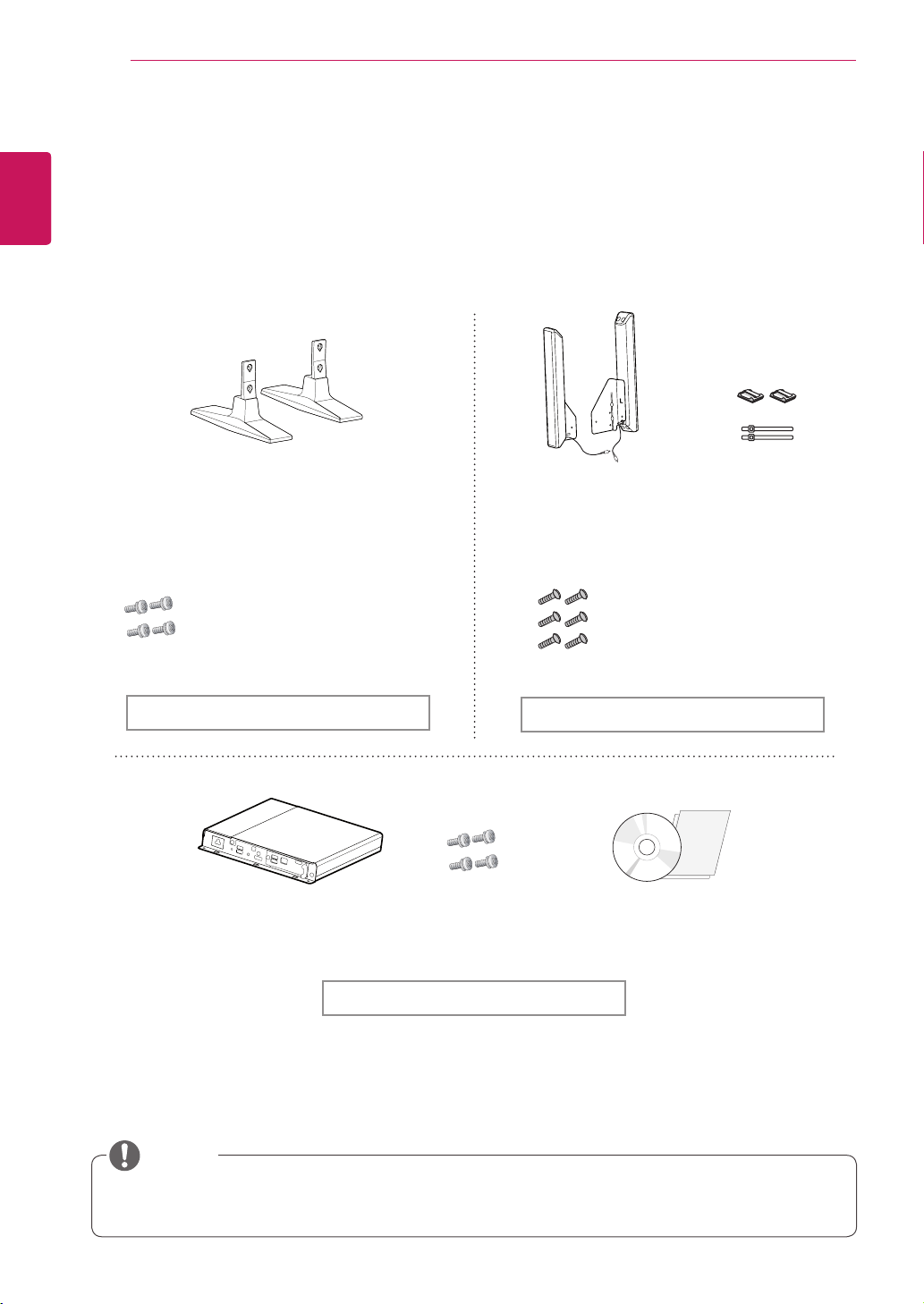
Accessories
Checkyourproductboxforthefollowingitems.Ifthereareanymissingaccessories,contactthelocal
dealerwhereyoupurchasedyourproduct.Theillustrationsinthismanualmaydifferfromtheactualproduct
andaccessories.
Donotuseanyunapprovedorcounterfeitpartsoraccessoriestoensurethesafetyandproductlife
span.
Anydamagesorinjuriesbyusingpirateditemsarenotcoveredbythewarranty.
Theaccessoriessuppliedwithyourproductmayvarydependingonthemodel.
Productspecificationsorcontentsinthismanualmaybechangedwithoutpriornoticeduetoupgrade
ofproductfunctions.
Remote control and Batteries Power Cord IR Receiver
CD (Owner's Manual)/
Card
D-sub 15 pin signal cable Mounting Cable Tie
CAUTION
NOTE
P
A
G
E
INPUT
ENERGY
SAVING
MARK
ARC
ON
OFF
. , !
ABC
DEF
GHI
JKL
MNO
PQRS
TUV
1/a/A
- * #
WXYZ
CLEAR
MONITOR
PSM
AUTO
MUTE
BRIGHT
NESS
MENU
POWER
OK
S.MENU
ID
BACK
TILE
ON
OFF
EXIT
6
ENG
ENGLISH
ASSEMBLING AND PREPARING
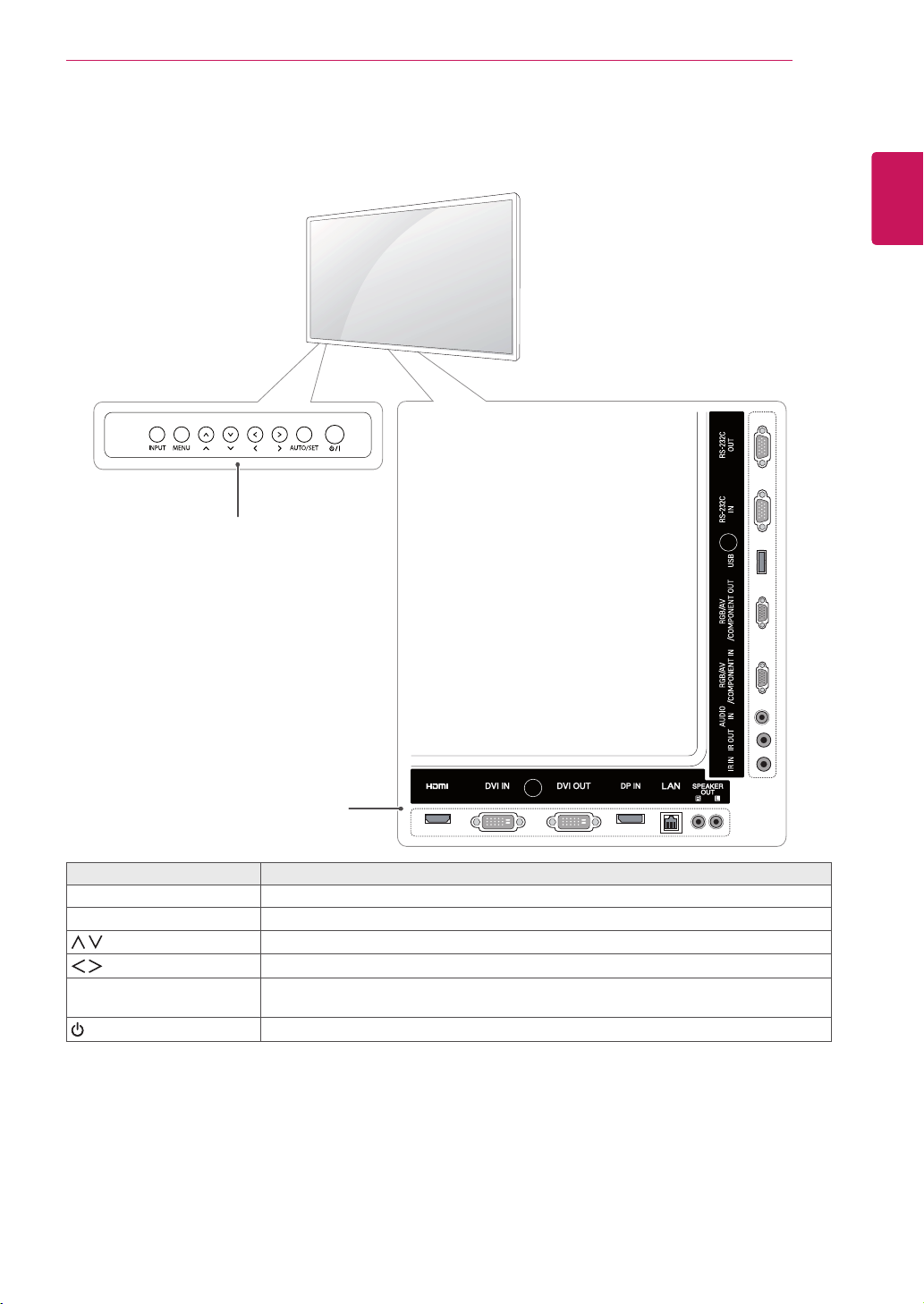
Optional Accessories
Without prior notice, optional accessories are subject to change to improve the performance of the product,
and new accessories may be added. The illustrations in this manual may differ from the actual product and
accessories.
Cable holder/Cable tie may not be available in some areas or for some models.
Optional accessories are not included for all models.
ST-200T
Stand
Screws
: Diameter 4.0 mm x Pitch 0.7 mm x
Length 10 mm(Included Spring Washer)
Cable holder/
Cable Tie
Screws
Diameter 4.0 mm x Pitch 0.7 mm x
Length 8 mm(Included Spring Washer)
SP-2000
Speaker
NOTE
Stand kit
Speaker kit
Media Player kit
CD (Owner's Manual)/
Card
Media Player Screws
7
ENG
ENGLISH
ASSEMBLING AND PREPARING
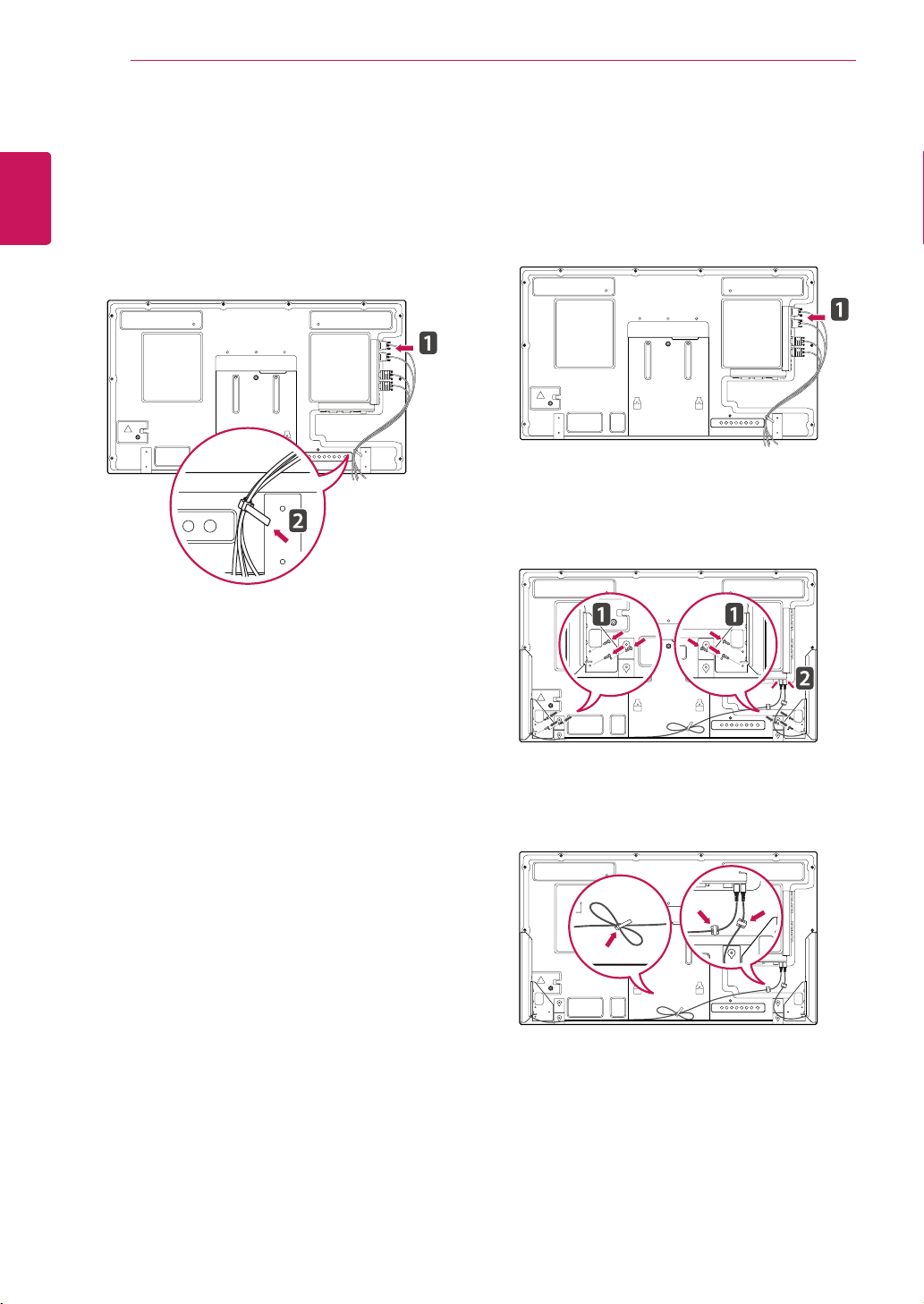
Parts and buttons
Screen Marks Description
INPUT Changestheinputsource.
MENU Accessesthemainmenus,orsavesyourinputandexitsthemenus.
Adjusttheupanddown.
Adjuststhevolumelevel.
AUTO/SET Displaysthecurrentsignalandmode.
Pressthisbuttontoadjustthescreenautomatically(availableonlyinRGBmode)
/I
Turnsthepoweronoroff.
Connection panel
Screen Buttons/ Screen Marks
8
ENG
ENGLISH
ASSEMBLING AND PREPARING
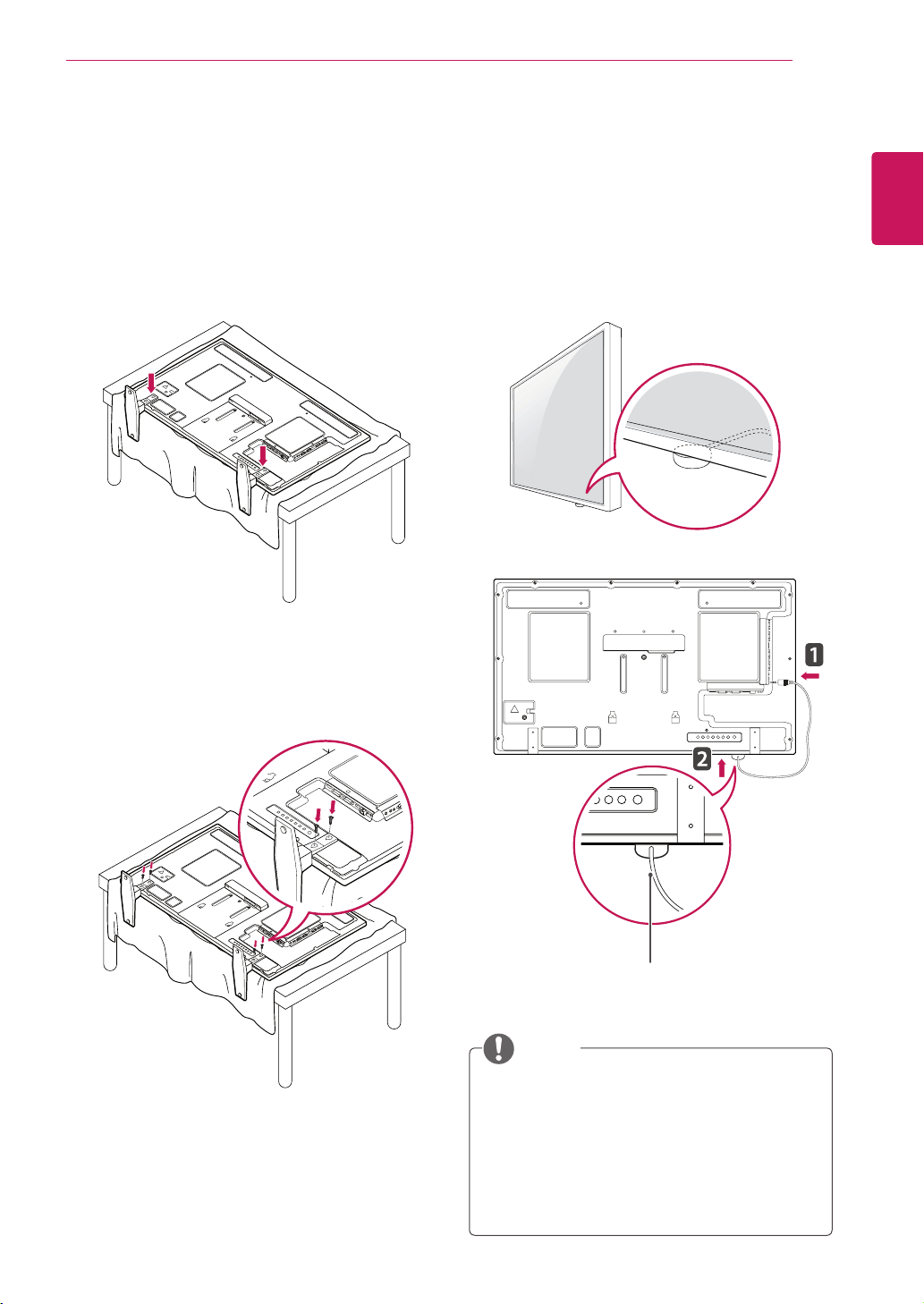
Connecting the Speakers
-Onlyonsomemodels.
1
Connectaninputsignalcabletousebefore
installingthespeakers.
3
Afterinstallingyourspeakers,useholdersand
cabletiestoorganizethespeakercables.
2
Mountthespeakerbyusingascrewasshown
inthefollowing.Thenconnectthespeaker
cable.
Using the Mounting Cable
Tie
First,connecttheinputsignalcabletobeused.
Insertthecabletieintothebottomholeonthe
backasshowninthefiguretoorganizecables.
9
ENG
ENGLISH
ASSEMBLING AND PREPARING
2
Usethescrewstosecurethestandontherear
sideoftheproductasshowninthediagram.
Connecting the stand
-Onlyonsomemodels.
1
Placeasoftclothonthetableandputthe
productwiththescreenfacingdownward.
Connectthestandasshowninthefollowing
picture.
Using the IR Receiver
IR Receiver cable
Thisallowsaremotecontrolsensortobeplaced
inacustomlocation.Thenthatdisplaycancontrol
otherdisplaysviaanRS-232Ccable.InstalltheIR
receivertowardsthefrontoftheset.
Whenyouseefromthebackoftheset,if
theIRreceivercabledoesnotfacefront,the
signalreceptionrangemayshorten.
TheIRreceiverismadewithamagnet.Itis
detachableatthebottom(typicalinstallation)
orback(wallinstallation)oftheset.
NOTE
10
ENG
ENGLISH
ASSEMBLING AND PREPARING
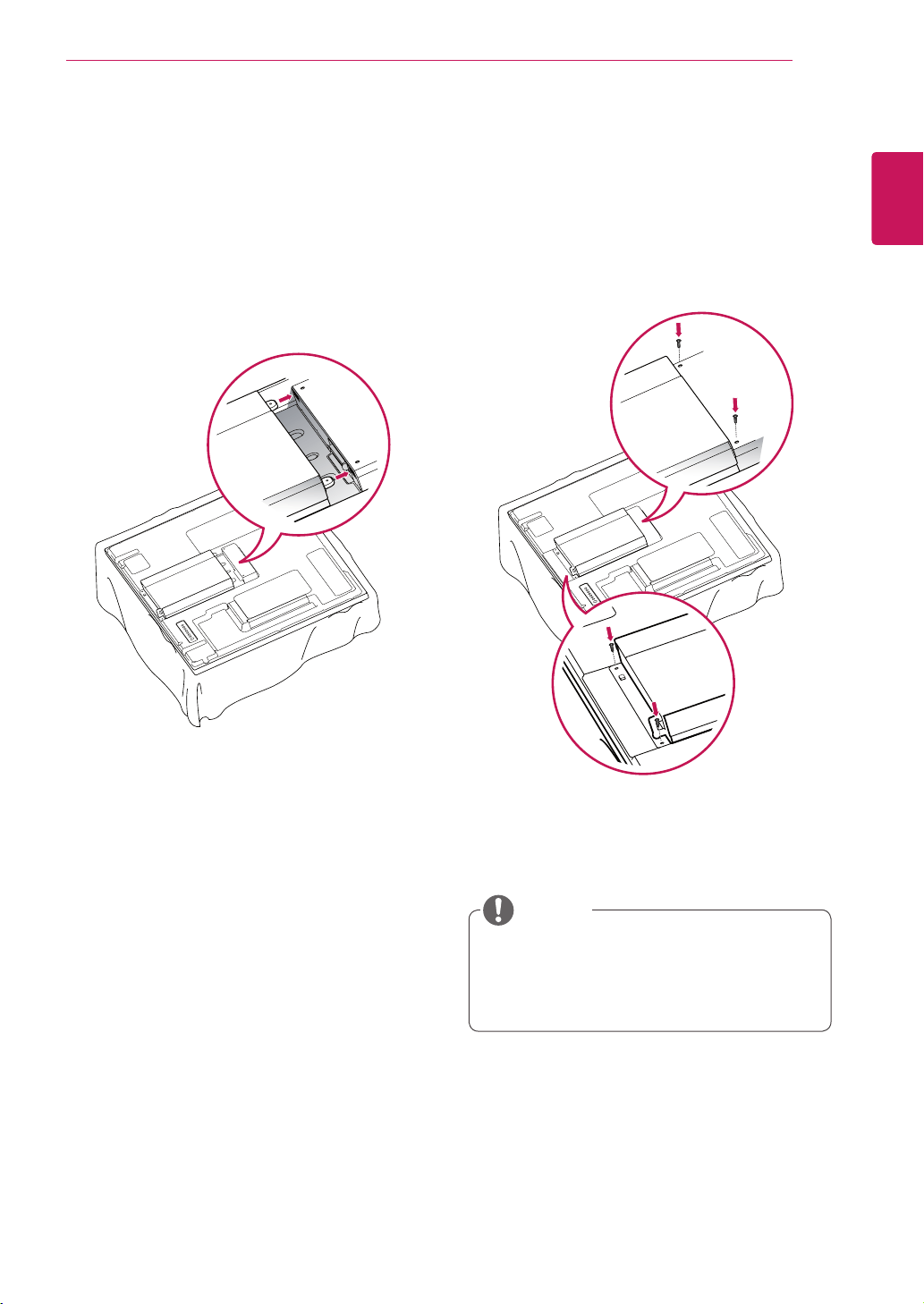
Portrait Layout
-Onlyonsomemodels.
Toinstallinportraitmode,rotatetheset
counterclockwise90degreeswhenlookingatfrom
thefront.
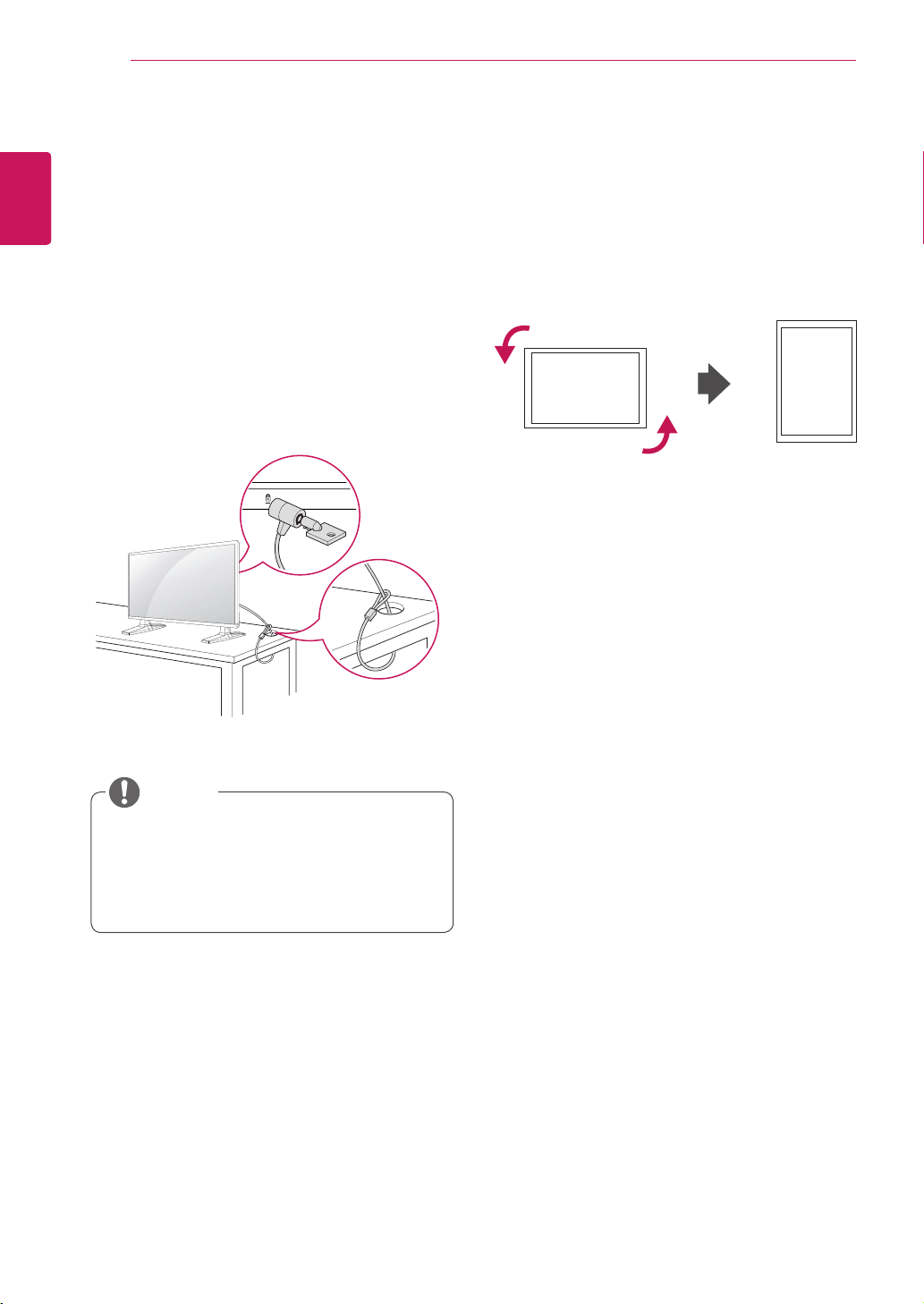
Using the Kensington
security system
TheKensingtonsecuritysystemconnectoris
locatedatthebackoftheMonitor.Formore
informationofinstallationandusing,refertothe
manualsuppliedwiththeKensingtonsecurity
systemorvisit
http://www.kensington.com
.
ConnecttheKensingtonsecuritysystemcable
betweentheMonitorandatable.
TheKensingtonsecuritysystemisoptional.
Youcanobtainadditionalaccessoriesfrom
mostelectronicsstores.
NOTE
11
ENG
ENGLISH
ASSEMBLING AND PREPARING
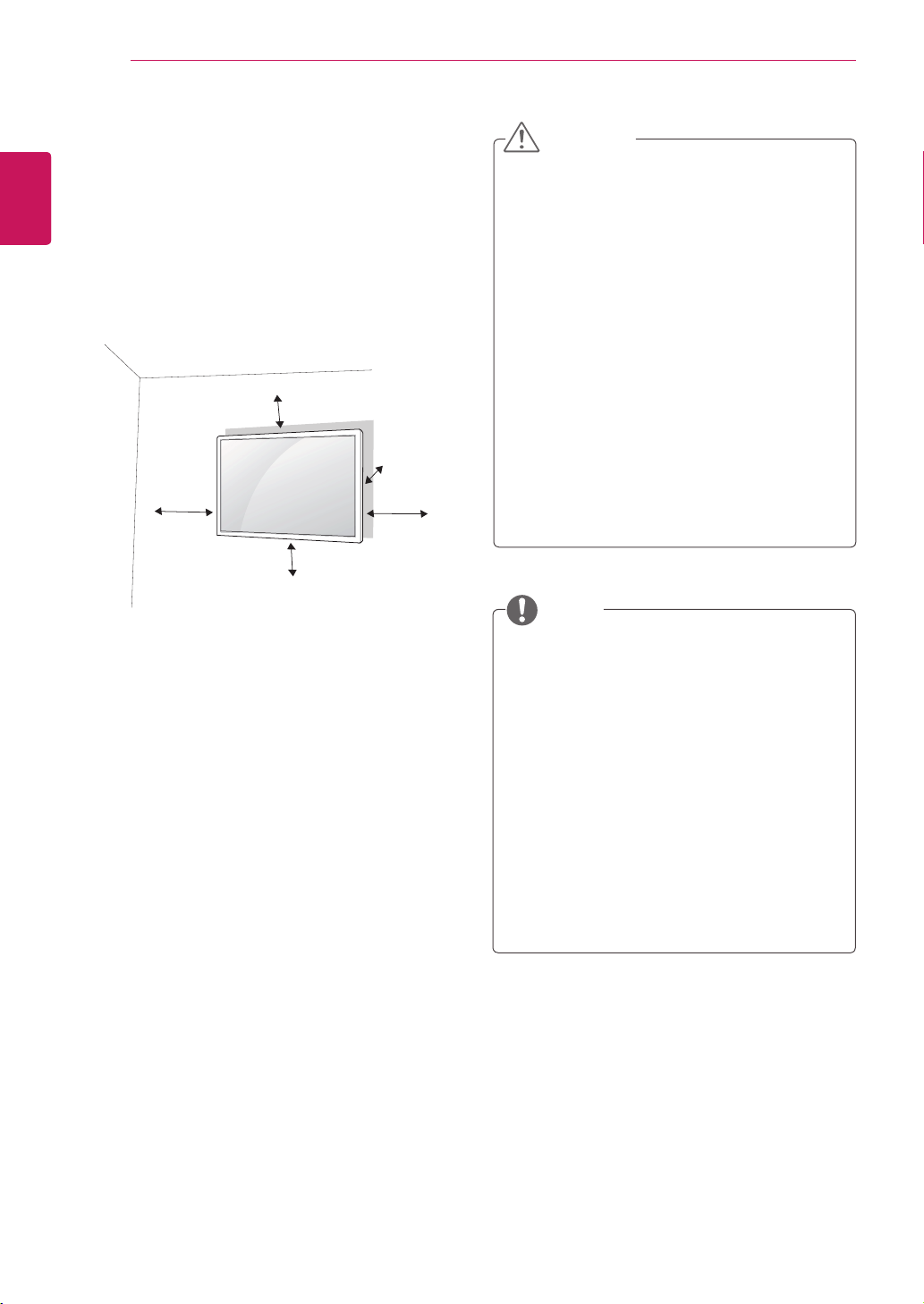
2
AttachtheMediaPlayerontheproductusing
thefourscrewsprovided.
Usethescrewsprovidedwiththeproduct.
(Diameter3.0mmxPitch0.5mmxLength
6.0mm)
NOTE
Connecting the Media
Player
-Onlyonsomemodels.
1
Placeasoftclothonthetableandputthe
productwiththescreenfacingdownward.
PushtheMediaPlayerintothecompartmentto
mountit.
12
ENG
ENGLISH
ASSEMBLING AND PREPARING
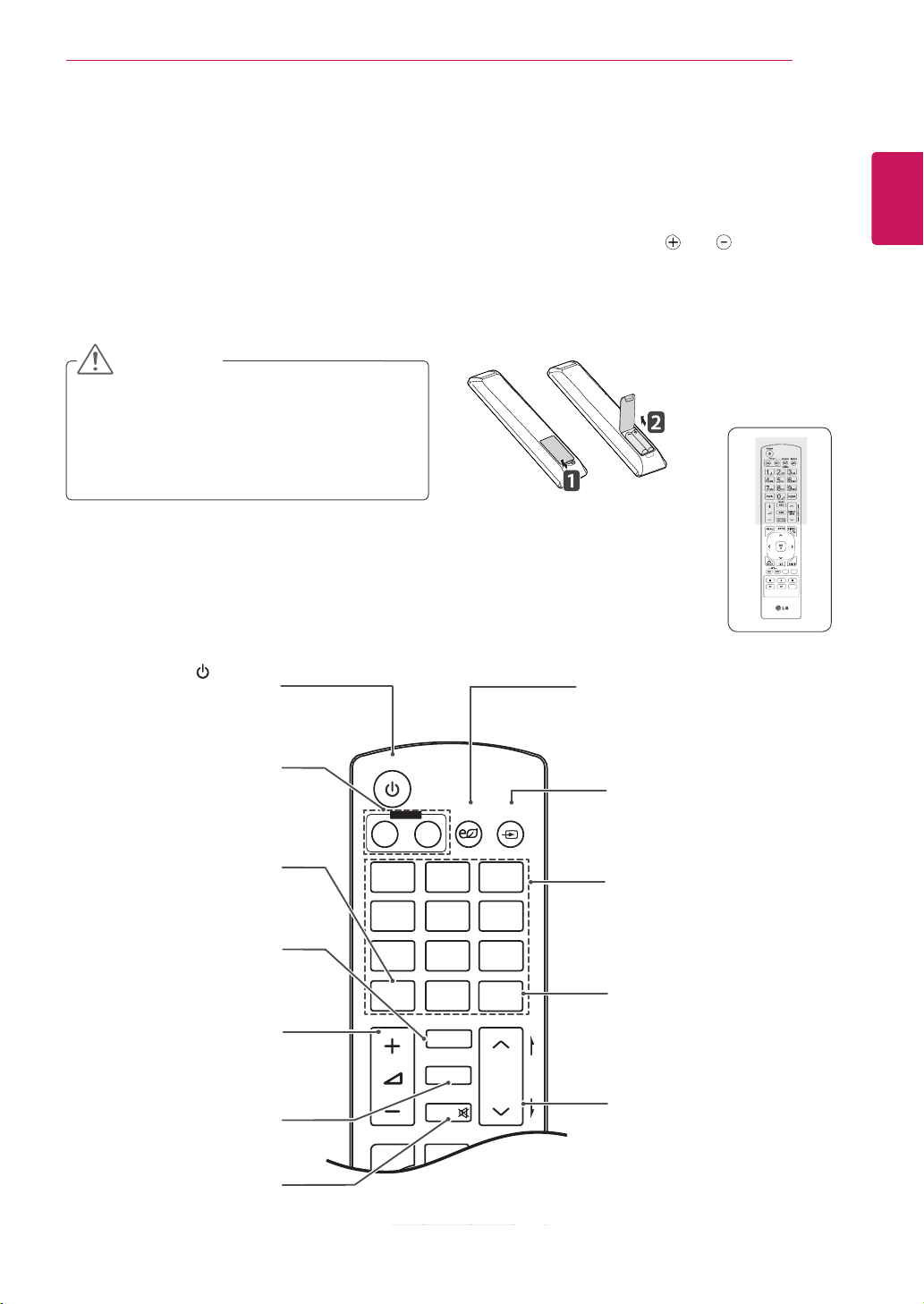
Mounting on a wall
Forproperventilation,allowaclearanceof10
cmoneachsideandfromthewall.Detailed
installationinstructionsareavailablefromyour
dealer,seetheoptionalTiltWallMountingBracket
InstallationandSetupGuide.
10cm
10cm
10cm
10cm
10cm
IfyouintendtomounttheMonitortoawall,attach
Wallmountinginterface(optionalparts)totheback
oftheset.
WhenyouinstalltheMonitorusingthewall
mountinginterface(optionalparts),attachit
carefullysoitwillnotfall.
1
Please,Usethescrewandwallmountinterface
inaccordancewithVESAStandards.
2
Ifyouusescrewlongerthanstandard,the
monitormightbedamagedinternally.
3
Ifyouuseimproperscrew,theproductmight
bedamagedanddropfrommountedposition.
Inthiscase,LGElectronicsisnotresponsible
forit.
4
VESAcompatible.
5
PleaseuseVESAstandardasbelow.
785mm(31inch)orgreater
*Fasteningscrew:Diameter6.0mmxPitch1.0
mmxLength10mm
Disconnectthepowerbeforeinstallingor
movingthemonitor.Otherwiseelectricshock
mayoccur.
IfyouinstalltheMonitoronaceilingor
slantedwall,itmayfallandresultinsevere
injury.UseanauthorizedLGwallmount
andcontactthelocaldealerorqualified
personnel.
Donotovertightenthescrewsasthismay
causedamagetotheMonitorandvoidyour
warranty.
Usescrewsandwallmountsthatmeetthe
VESAstandard.Anydamagesorinjuriesby
misuseorusinganimproperaccessoryare
notcoveredbythewarranty.
UsescrewsthatarelistedontheVESA
standardscrewspecifications.
Thewallmountkitincludesaninstallation
manualandnecessaryparts.
Thewallmountbracketisoptional.Youcan
obtainadditionalaccessoriesfromyourlocal
dealer.
Thelengthofscrewsmaydifferdepending
onthewallmount.Besuretousetheproper
length.
Formoreinformation,refertotheinstructions
suppliedwiththewallmount.
CAUTION
NOTE
13
ENG
ENGLISH
REMOTE CONTROL
REMOTE CONTROL
P
A
G
E
INPUT
ENERGY
SAVING
MARK
ARC
ON
OFF
. , !
ABC
DEF
GHI
JKL
MNO
PQRS
TUV
1/a/A
- * #
WXYZ
CLEAR
OK
S.MENU
MONITOR
PSM
AUTO
MUTE
BRIGHT
NESS
MENU
ID
BACK
TILE
ON
OFF
EXIT
POWER
(POWER)
TurnstheMonitoronoroff.
MONITOR ON / OFF
Turnoffthemonitorandthen
turnitbackon.
1/a/A Button
Thisbuttonselectionisnot
applicable.
ENERGY SAVING
Adjuststhebrightnessof
thescreentoreduceenergy
consumption.
INPUT
Selectstheinputmode.
Number and Alphabet buttons
Entersnumbers.
Thealphabetselectionisnot
applicable.
CLEAR
Thisbuttonselectionisnot
applicable.
PSM
SelectsthePictureStatus
Mode.
MUTE
Mutesallsounds.
ARC
SelectstheAspectRatio
Mode.
Volume Up / Down
Adjuststhevolumelevel.
BRIGHTNESS Key
Adjustthebrightnessby
pressingtheUpandDown
buttonsontheremotecontrol.
InUSBmode,theOSDmenu
hasthePagefunctiontomove
tothenextfilelist.
Thedescriptionsinthismanualarebasedonthebuttonsoftheremotecontrol.Pleasereadthismanual
carefullyandusetheMonitorcorrectly.
Toreplacebatteries,openthebatterycover,replacebatteries(1.5VAAA)matching and endstothe
labelinsidethecompartment,andclosethebatterycover.
Toremovethebatteries,performtheinstallationactionsinreverse.
Donotmixoldandnewbatteries,asthis
maydamagetheremotecontrol.
Makesuretopointtheremotecontrolatthe
remotecontrolsensorontheMonitor.
CAUTION

14
ENG
ENGLISH
REMOTE CONTROL
P
A
G
E
INPUT
ENERGY
SAVING
MARK
ARC
ON
OFF
. , !
ABC
DEF
GHI
JKL
MNO
PQRS
TUV
1/a/A
- * #
WXYZ
CLEAR
OK
S.MENU
MONITOR
PSM
AUTO
MUTE
BRIGHT
NESS
MENU
ID
BACK
TILE
ON
OFF
EXIT
POWER
S.MENU
(SuperSignMenuKey)
SelectstheSuperSignOSD
Menu.(SuperSigninputonly)
EXIT
Clearsallon-screendisplays
andreturnstoMonitor
viewingfromanymenu.
TILE
SelectstheTILEMode.
MENU (Seep.41)
Accessesthemainmenus
orsavesyourinputandexit
menus.
Navigation buttons
Scrollsthroughmenusor
options.
OK
Selectsmenusoroptionsand
confirmsyourinput.
BACK
Allowstheusertomoveback
onestep.
USB Menu control buttons
Controlsmediaplayback.
ID ON/OFF
Whenmorethanonemonitor
ispresentinthesameroom,
thisallowsyoutocontrolthem
individually.
AUTO
Automaticallyadjustspicture
positionandminimizesimage
instability.(RGBinputonly)

15
ENG
ENGLISH
USING THE MONITOR SET
USING THE MONITOR
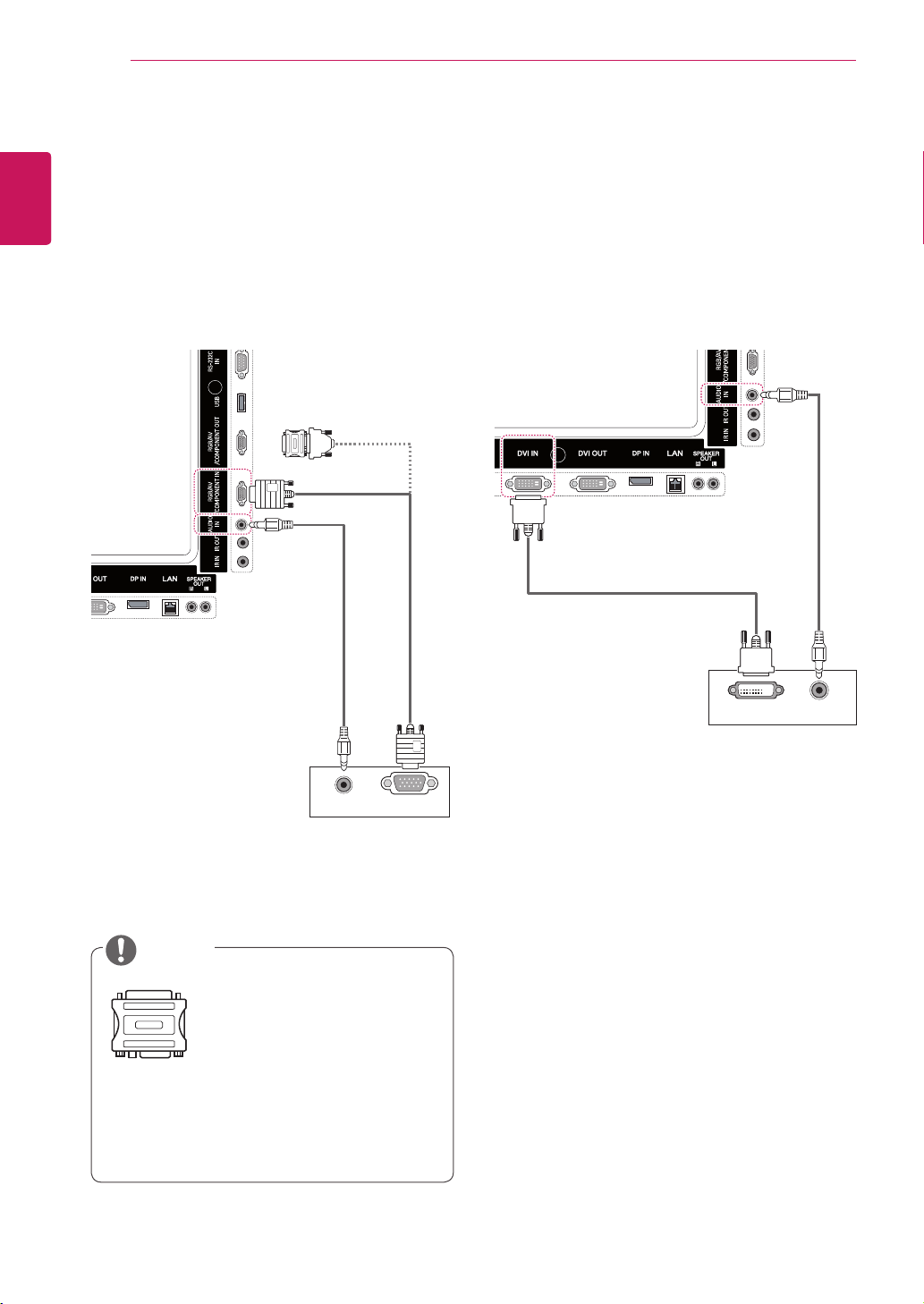
Connecting to a PC
YourMonitorsupportsthePlug&Play*feature.
*Plug&Play:ThisisthefunctionthatallowsaPC
tousethemonitorwithoutinstallingadriver.
NOTE
Connectthe
signalinputcable
andtightenitby
turningthescrews
clockwise.
Donotpressthescreenwithyourfingerfor
alongtimeasthismayresultintemporary
distortiononthescreen.
Avoiddisplayingafixedimageonthescreen
foralongperiodoftimetopreventimage
burn.Useascreensaverifpossible.
ItisrecommendedtousetheMonitorwith
theHDMIconnectionforthebestimage
quality.
Useashieldedsignalinterfacecable,such
asD-sub15pinsignalcableandDVIcable,
withaferritecoretomaintainstandard
compliancefortheproduct.
IfyouturntheMonitoronwhentheset
becomescold,thescreenmayflicker.This
isnormal.
Somered,green,orbluespotsmayappear
onthescreen.Thisisnormal.
CAUTION
16
ENG
ENGLISH
USING THE MONITOR SET
RGB OUT (PC)AUDIO OUT
DVI OUT
AUDIO OUT
DVI-D connection
TransmitsthedigitalvideosignalfromyourPCto
theMonitor.ConnectthePCandtheMonitor
setwiththeDVIcableasshownthefollowing
illustrations.
SelectDVI-Dinputsourceonthemonitor.
RGB connection
TransmitstheanalogvideosignalfromyourPCto
theMonitor.ConnectthePCandtheMonitor
setwiththe15pinsignalcableasshownthe
followingillustrations.
SelectRGBinputsourceonthemonitor.
Applecomputersmayrequireanadapterto
connecttothismonitor.Callorvisittheirweb
siteformoreinformation.
Usethestandard
Macintoshadaptersince
anincompatibleadapter
isavailableinthemarket.
(Differentsignalingsystem)
NOTE
MacintoshAdapter
(notincluded)
(notincluded)
(notincluded)
(notincluded)
17
ENG
ENGLISH
USING THE MONITOR SET
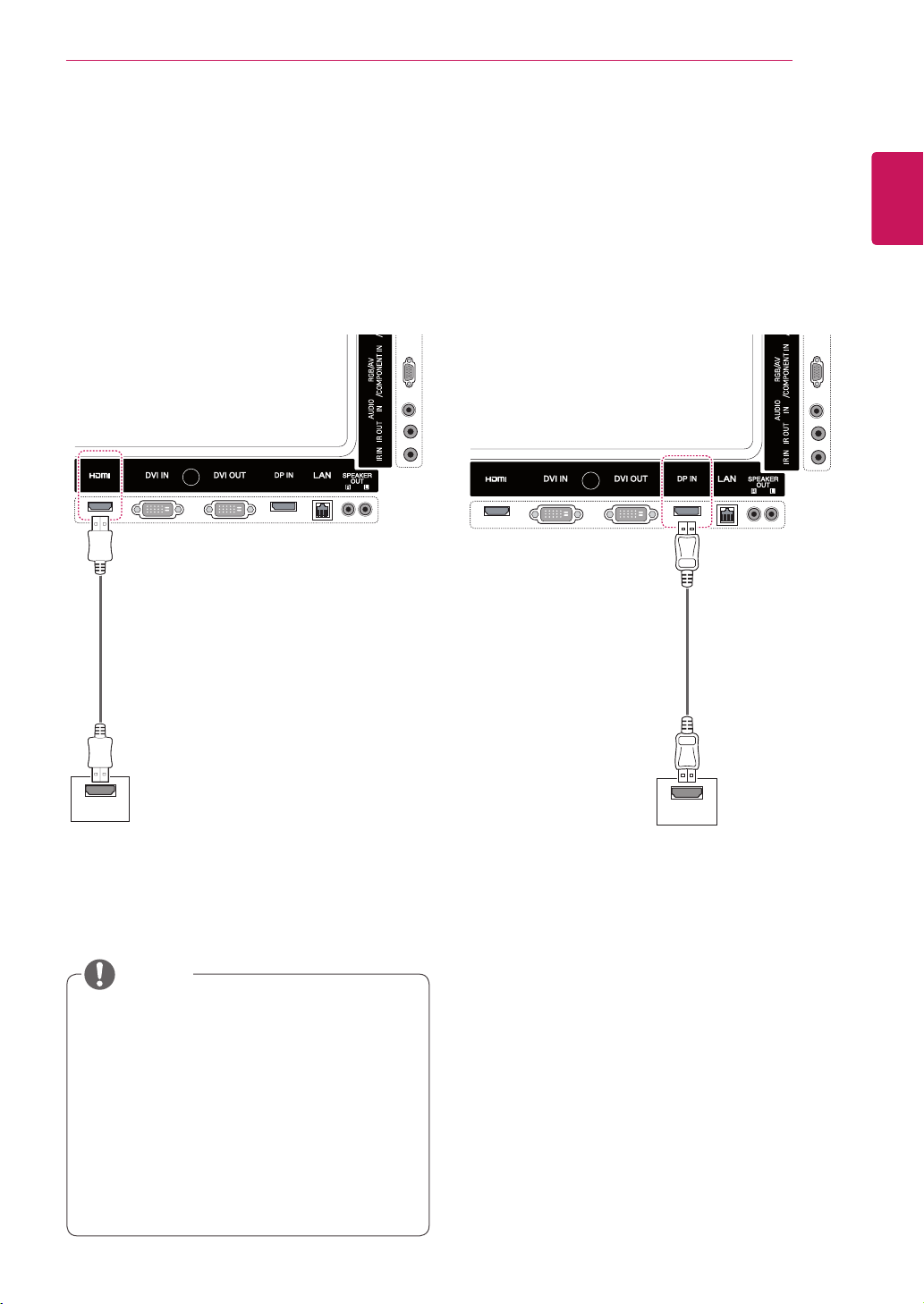
HDMI
DP OUT
HDMI connection
Transmitsthedigitalvideoandaudiosignalsfrom
yourPCtotheMonitor.ConnectthePCandthe
MonitorwiththeHDMIcableasshowninthe
followingillustrations.
SelectHDMIinputsource.
Display Port connection
Transmitsthedigitalvideoandaudiosignalsfrom
yourPCtotheMonitor.ConnectthePCandthe
MonitorwiththeDisplayPortcableasshownin
thefollowingillustrations.
SelectDisplayPortinputsource.
UseaHighSpeedHDMI™Cable.
PleasecheckthePCenvironmentifyou
cannothearthesoundinHDMImode.Some
PCsrequireyoutomanuallychangethe
defaultaudiooutputtoHDMI.
IfyouwanttouseHDMIPCmode,youmust
setPC/DTVtoPCmode.
WhenHDMIPCisused,acompatiblity
problemmightoccur.
NOTE
(notincluded)
(notincluded)
18
ENG
ENGLISH
USING THE MONITOR SET
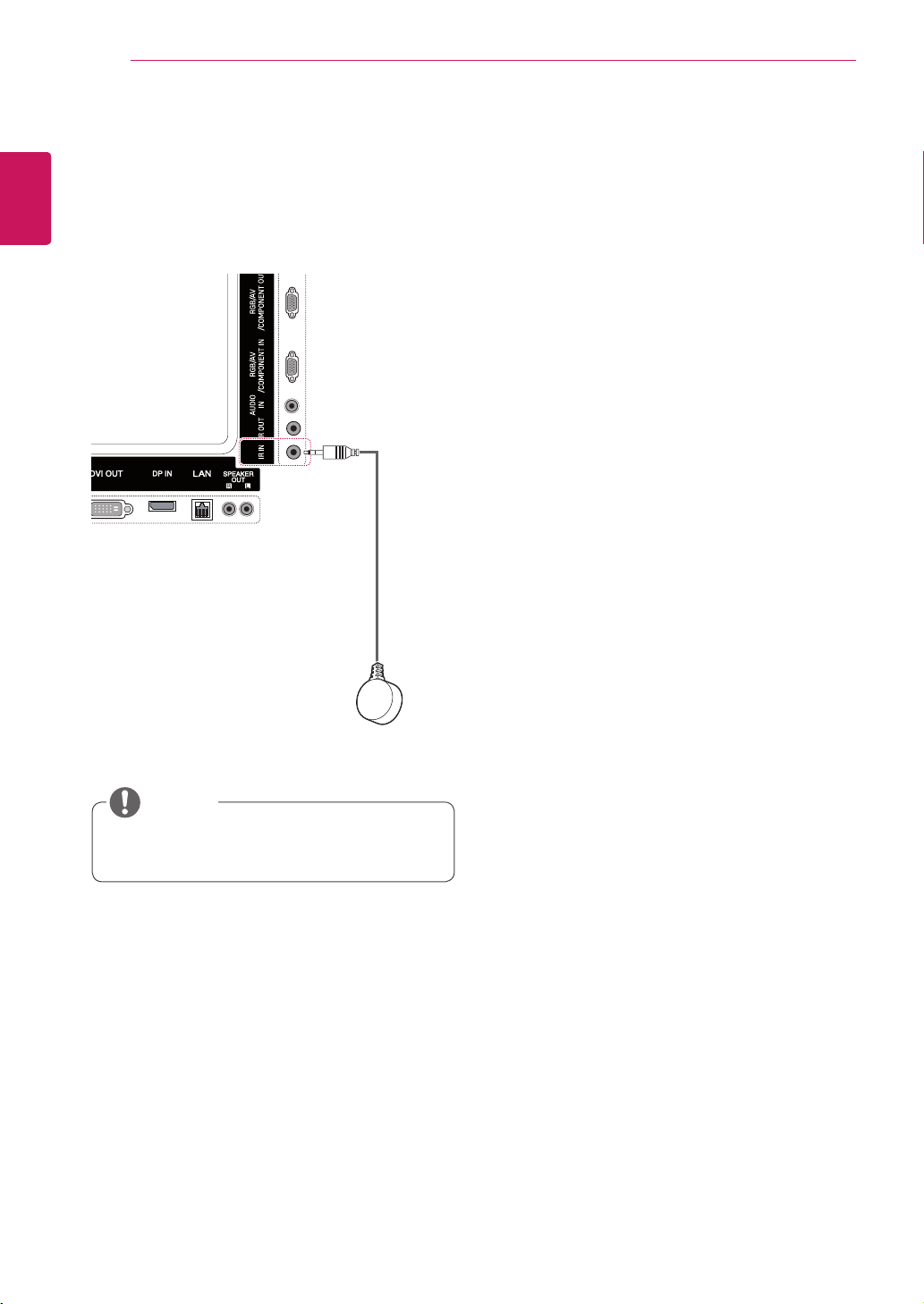
IR Receiver connection
AllowstheuseofawiredremoteorIRreceiver
extension.
Makesurethepowercableisdisconnected.
NOTE
19
ENG
ENGLISH
USING THE MONITOR SET
Adjusting the screen
Selecting an image mode
Displayimagesinitsoptimizedsettingsby
selectingoneofthepresetimagemodes.
1
PressMENUtoaccessthemainmenus.
2
PresstheNavigationbuttonstoscrollto
PICTUREandpressOK.
3
PresstheNavigationbuttonstoscrollto
Picture ModeandpressOK.
4
PresstheNavigationbuttonstoscrolltoan
imagemodeyouwantandpressOK.
Customizing image options
Customizebasicandadvancedoptionsofeach
imagemodeforthebestscreenperformance.
1
PressMENUtoaccessthemainmenus.
2
PresstheNavigationbuttonstoscrollto
PICTUREandpressOK.
3
PresstheNavigationbuttonstoscrollto
Picture ModeandpressOK.
4
PresstheNavigationbuttonstoscrolltoan
imagemodeyouwantandpressOK.
5
Selectandadjustthefollowingoptions,and
thenpressOK.
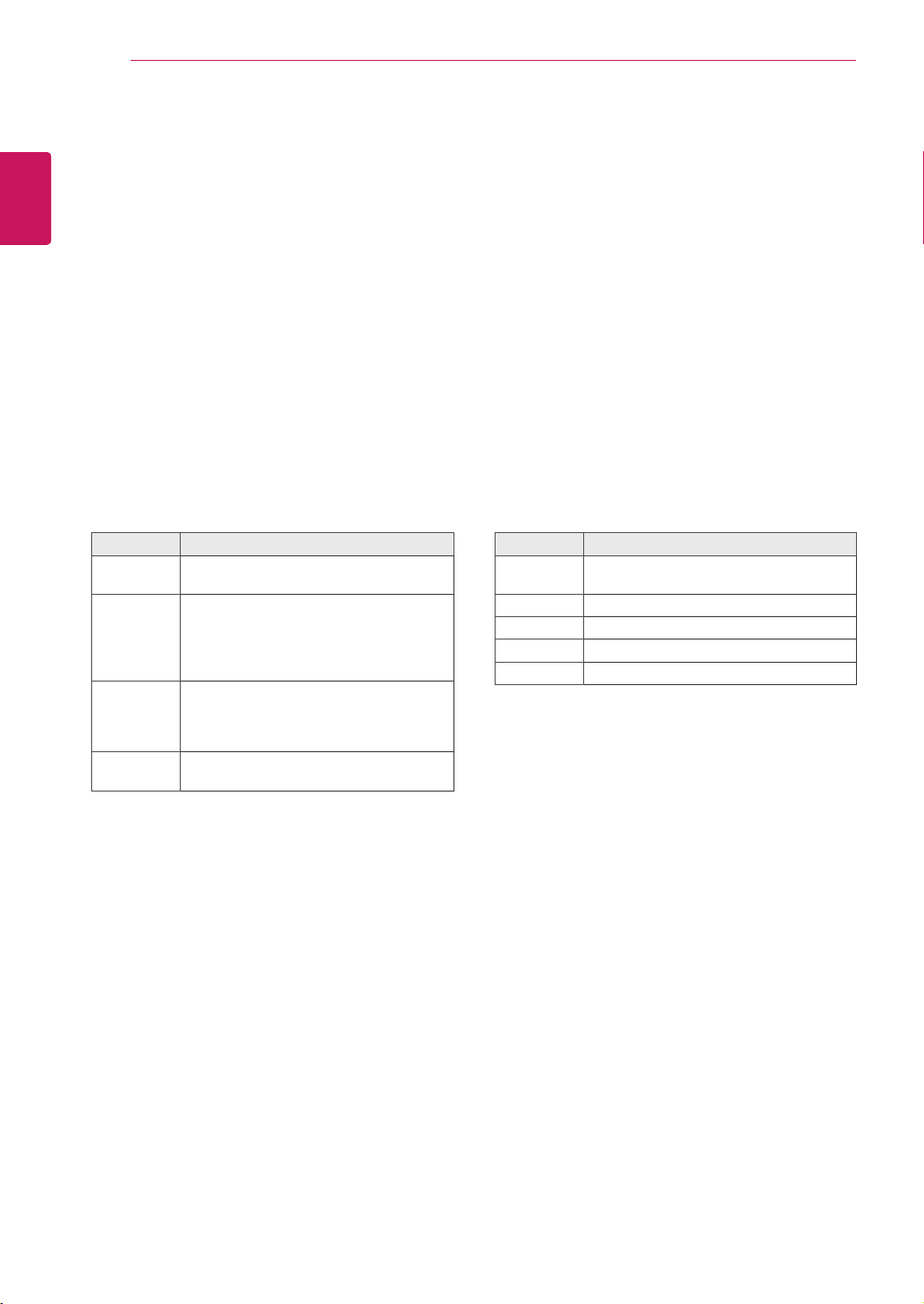
Mode Description
Vivid Adjuststhevideoimagefortheretail
environmentbyenhancingthecontrast,
brightness,color,andsharpness.
Standard Adjuststheimageforanormal
environment.
Cinema Optimizesthevideoimageforacinematic
looktoenjoymoviesasifyouareina
movietheater.
Sport Optimizesthevideoimageforhighand
dynamicactionsbyemphasizingprimary
colorssuchaswhite,grass,orskyblue.
Game Optimizesthevideoimageforafast
gamingscreensuchasPCsorgames.
5
Whenyouarefinished,pressEXIT.
Whenyoureturntothepreviousmenu,press
BACK.
Option Description
Backlight Adjuststhebrightnessofthescreen
bycontrollingtheLCDbacklight.If
youdecreasethebrightnesslevel,
thescreenbecomesdarkerandthe
powerconsumptionwillbereduced
withoutanyvideosignalloss.
Contrast Increasesordecreasesthegradient
ofthevideosignal.Youmayuse
Contrastwhenthebrightpartsofthe
picturearesaturated.
Brightness Adjuststhebaselevelofthesignalin
thepicture.YoumayuseBrightness
whenthedarkareasofthepictureare
saturated.
Sharpness Adjuststhelevelofcrispnessinthe
edgesbetweenthelightanddark
areasofthepicture.Thelowerthe
level,thesoftertheimage.
Color Adjustsintensityofallcolors.
Tint Adjuststhebalancebetweenredand
greenlevels.
Color Temp. SettowarmtoenhancehotterColors
suchasred,orsettocooltomake
picturebluish.
Advanced
Control
Customizestheadvancedoptions.
RefertotheAdvancedimageoptions.
(Seep.44)
Picture Reset Restorestheoptionstothedefault
setting.
6
Whenyouarefinished,pressEXIT.
Whenyoureturntothepreviousmenu,press
BACK.
20
ENG
ENGLISH
USING THE MONITOR SET
Customizing PC display options
Customizeoptionsofeachimagemodeforthe
bestimagequality.
Thisfunctionworksinthefollowingmode:
RGB[PC]mode.
1
PressMENUtoaccessthemainmenus.
2
PresstheNavigationbuttonstoscrollto
PICTUREandpressOK.
3
PresstheNavigationbuttonstoscrollto
ScreenandpressOK.
4
Selectandadjustfollowingoptions,andthen
pressOK.
Option Description
Resolution Selectsaproperresolution.See
“CustomizingPCdisplayoptions”.
Auto
Config.
Adjuststhescreenposition,clock,and
phaseautomatically.
Thedisplayedimagemaybeunstablefor
afewsecondswhiletheconfigurationis
inprogress.
Position/
Size/Phase
Adjuststheoptionswhenthepictureis
notclear,especiallywhencharactersare
shaky.RunAutoConfig.beforeadjusting
these.
Reset Restorestheoptionstothedefault
setting.
5
Whenyouarefinished,pressEXIT.
Whenyoureturntothepreviousmenu,press
BACK.
Adjusting the sound
Selecting an sound mode
ThisMonitorhas5presetsoundmodesto
complimentdifferenttypesofvideocontent.
1
PressMENUtoaccessthemainmenus.
2
PresstheNavigationbuttonstoscrollto
AUDIOandpressOK.
3
PresstheNavigationbuttonstoscrolltoSound
ModeandpressOK.
4
PresstheNavigationbuttonstoscrolltoa
soundmodeyouwantandpressOK.
Mode Description
Standard Selectwhenyouwantstandard-quality
sound.
Music Selectwhenyoulistentomusic.
Cinema Selectwhenyouwatchmovies.
Sport Selectwhenyouwatchsportevents.
Game Selectswhenyouplaygames.
5
Whenyouarefinished,pressEXIT.
Whenyoureturntothepreviousmenu,press
BACK.

21
ENG
ENGLISH
USING THE MONITOR SET
Customizing sound options
You may customize options of each sound mode
for the best sound quality.
1
Press MENU to access the main menus.
2
Press the Navigation buttons to scroll to
AUDIO and press OK.
3
Press the Navigation buttons to scroll to Sound
Mode and press OK.
4
Press the Navigation buttons to scroll to a
sound mode you want and press OK.
5
Select and adjust following options, and then
press OK.
Option Description
Infinite
Sound
LG's Infinity Sound option provides 5.1
channel stereo quality sound from two
speakers.
Treble Increases the intensity of the high
frequency part of audio.
Bass Increases the intensity of the low
frequency part of audio.
Reset Resets the sound mode to the default
setting.
6
When you are finished, press EXIT.
When you return to the previous menu, press
BACK.
Using additional options
Adjusting aspect ratio
Resize the image to view the image at its optimal
size by pressing ARC while you are watching
content.
If a fixed image displays on the screen for a
long period of time, it will be imprinted and
become a permanent disfigurement on the
screen. This is “image burn” or “burn-in” and
not covered by the warranty.
If the aspect ratio is set to 4:3 for a long
period of time, image burn may occur on the
letterboxed area of the screen.
You can also change the image size by
accessing the main menus.
The Just Scan mode operates when a video
signal has resolution of 720p or higher.
CAUTION
NOTE
MODE
ARC
AV Component RGB Display
Port
DVI-D HDMI
PC DTV PC DTV PC DTV PC
16:9 o o o o o o o o o
Just
Scan
x o x o x o x o x
1:1 x x o x o x o x o
4:3 o o o o o o o o o
Zoom o o x o x o x o x
Cinema
Zoom 1
o o x o x o x o x
22
ENG
ENGLISH
USING THE MONITOR SET
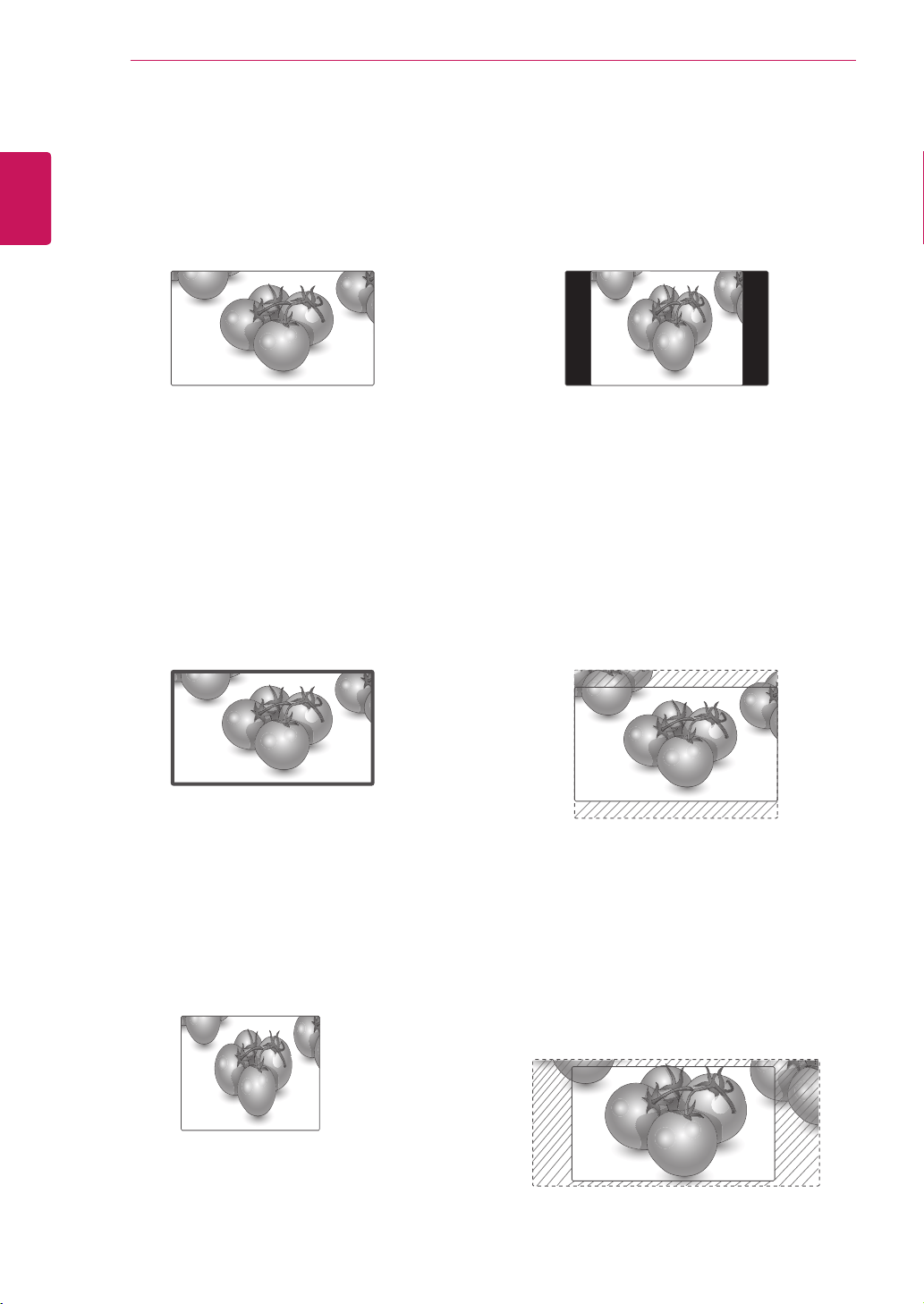
-4:3 :Thisselectionwillallowyoutoviewa
picturewithanoriginal4:3aspectratio,black
barswillappearonboththeleftandrightofthe
screen.
-Zoom :Thisselectionwillallowyoutoviewthe
picturewithoutanyalteration,whilefillingthe
entirescreen.However,thetopandbottomof
thepicturewillbecropped.
-Cinema Zoom 1 :ChooseCinemaZoom
whenyouwanttoenlargethepictureincorrect
proportion.Note:Whenenlargingorreducing
thepicture,theimagemaybecomedistorted.
-16:9 :Thisselectionwillallowyoutoadjustthe
picturehorizontally,inlinearproportion,tofillthe
entirescreen(usefulforviewing4:3formatted
DVDs).
-Just Scan :ThisSelectionwillallowyouview
thepictureofbestqualitywithoutlossoforiginal
pictureinhighresolutionimage.Note:Ifthereis
noiseinoriginalPicture,Youcanseethenoise
attheedge.
-1:1 :Theaspectratioisnotadjustedfromthe
original.(OnlyDisplayPortPC,HDMIPC,
DVI-DPC,RGBPC)
Just Scan

23
ENG
ENGLISH
USING THE MONITOR SET
Using the input list
Selecting an input source
1
PressINPUTtoaccesstheinputsourcelist.
-Theconnecteddevicedisplaysoneachinput
source.
2
PresstheNavigationbuttonstoscrolltooneof
theinputsourcesandpressOK.
Input source Description
AV(CVBS) WatchvideofromaVCRorother
externaldevices.
Component WatchcontentfromaDVDorother
externaldevices,orthrougha
digitalset-topbox
RGB ViewstheconnectedPCdisplayon
thescreen.
Display Port WatchcontentfromaPC,DVD
ofDigitalset-topboxotherhigh
definitiondevices
DVI-D ViewstheconnectedPCdisplayon
thescreen.
HDMI WatchcontentfromaPC,DVD
ofDigitalset-topboxotherhigh
definitiondevices
SuperSign ViewstheMediaPlayerdisplayon
thescreen.

24
ENG
ENGLISH
ENTERTAINMENT
ENTERTAINMENT
Connecting to a wired network
(Dependingonmodel)
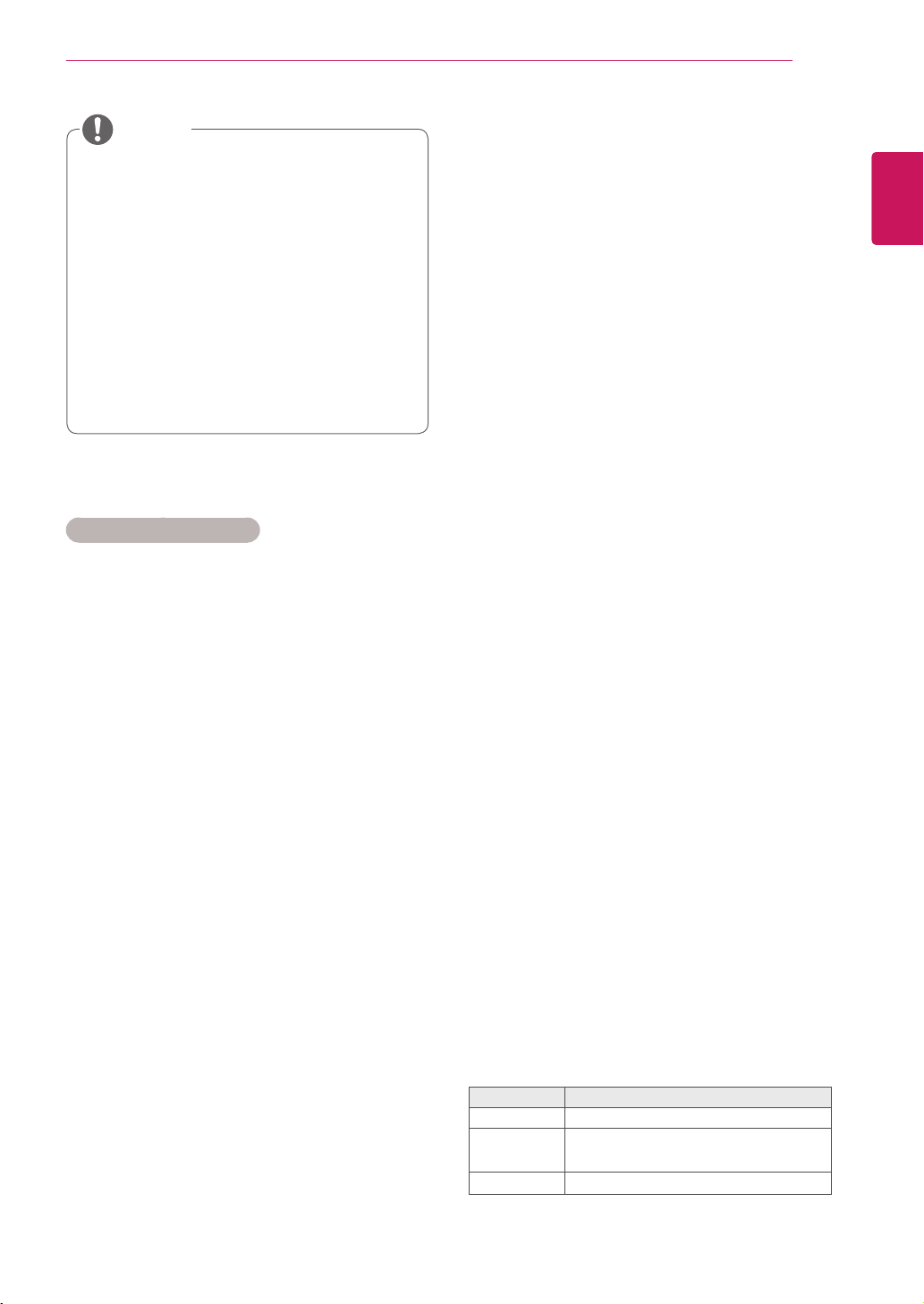
Connectthedisplaytoalocalareanetwork(LAN)
viatheLANportasshownonthefollowingillustra-
tionandsetupthenetworksettings.
Thismonitoronlysupportsawirednetworkcon-
nection.
Aftermakingaphysicalconnection,asmall
numberofhomenetworksmayrequirethedisplay
networksettingstobeadjusted.Formosthome
networks,thedisplaywillconnecttoautomatically
withoutanyadjustments.
Fordetailinformation,contactyourinternetpro-
viderorroutermanual.
Donotconnectamodularphonecabletothe
LANport.
Sincetherearevariousconnectionmeth-
ods,pleasefollowthespecificationsofyour
telecommunicationcarrierorinternetservice
provider.
Networksettingmenuwillnotbeavailable
untilthedisplayisconnectedtophysical
network.
Sincetherearevariousconnectionmeth-
ods,pleasefollowthespecificationsofyour
telecommunicationcarrierorinternetservice
provider.
Tosetupthenetworkseetings:(Evenifyourdis-
playhasalreadyconnectedautomatically,running
setupagainwillnotharmanything),
1 PressMENUtoaccessthemainmenus.
2 PresstheNavigationbuttonstoscrolltoNET-
WORKandpressOK.
3 PresstheNavigationbuttonstoselectNet-
work SettingandpressOK.
4 IfyoualreadysetNetworkSetting,select
Resetting.Thenewconnectionsettingsresets
thecurrentnetworksettings.
5 SelectIP Auto SettingorIP Manual Setting.
-IfselectingIP Manual Setting,pressthe
NavigationandNumberbuttons.IPaddress-
eswillneedtobeinputmanually.
-IP Auto Setting:Selectthisifthereisa
DHCPserver(Router)onthelocalareanet-
work(LAN)viawiredconnection,thedisplay
willautomaticallybeallocatedanIPaddress.
Ifyou’reusingabroadbandrouterorbroad-
bandmodemthathasaDHCP(Dynamic
HostConfigurationProtocol)serverfunction.
TheIPaddresswillautomaticallybedeter-
mined.
6 Whenyouarefinished,pressEXIT.
LAN
Router
LAN WAN
Cable modem
ETHERNET
@
Internet
Internet
CAUTION
CAUTION
25
ENG
ENGLISH
ENTERTAINMENT
IfyouwanttoaccesstheInternetdirectlyon
yourdisplay,theinternetconnectionshould
alwaysbeon.
IfyoucannotaccesstheInternet,check
thenetworkconditionsfromaPConyour
network.
WhenyouuseNetwork Setting,checkthe
LANcableorcheckifDHCPintherouteris
turnedon.
Ifyoudonotcompletethenetworksettings,
thenetworkmaynotworkproperly.
Tips for Network setting
UseastandardLANcablewiththisdisplay.Cat5
orbetterwithaRJ45connector.
Manynetworkconnectionproblemsduringset
upcanoftenbefixedbyre-settingtherouter
ormodem.Afterconnectingthedisplaytothe
homenetwork,quicklypoweroffand/ordiscon-
nectthepowercableofthehomenetworkrouter
orcablemodem.Thenpoweronand/orconnect
thepowercableagain.
Dependingontheinternetserviceprovider
(ISP),thenumberofdevicesthatcanreceive
internetservicemaybelimitedbytheapplicable
termsofservice.Fordetails,contactyourISP.
LGisnotresponsibleforanymalfunctionofthe
displayand/ortheinternetconnectionfeature
duetocommunicationerrors/malfunctionsas-
sociatedwithyourinternetconnection,orother
connectedequipment.
LGisnotresponsibleforproblemswithinyour
internetconnection.
Youmayexperienceundesiredresultsifthe
networkconnectionspeeddoesnotmeetthe
requirementsofthecontentbeingaccessed.
Someinternetconnectionoperationsmaynot
bepossibleduetocertainrestrictionssetbythe
Internetserviceprovider(ISP)supplyingyour
Internetconnection.
AnyfeeschargedbyanISPincluding,without
limitation,connectionchargesareyourrespon-
sibility.
A10Base-Tor100Base-TXLANportis
requiredwhenusingawiredconnectiontothis
display.Ifyourinternetservicedoesnotallowfor
suchaconnection,youwillnotbeabletocon-
nectthedisplay.
ADSLmodemisrequiredtouseDSLservice
andacablemodemisrequiredtousecable
modemservice.Dependingontheaccess
methodofandsubscriberagreementwithyour
ISP,youmaynotbeabletousetheinternet
connectionfeaturecontainedinthisdisplayor
youmaybelimitedtothenumberofdevicesyou
canconnectatthesametime.(IfyourISPlimits
sub-scriptiontoonedevice,thisdisplaymay
notbeallowedtoconnectwhenaPCisalready
connected.)
Theuseofa“Router”maynotbeallowedorits
usagemaybelimiteddependingonthepolicies
andrestrictionsofyourISP.Fordetails,contact
yourISPdirectly.
Network Status
1 PressMENUtoaccessthemainmenus.
2 PresstheNavigationbuttonstoscrolltoNET-
WORKandpressOK.
3 PresstheNavigationbuttonstoselectNet-
work Status.
4 PressOKtocheckthenetworkstatus.
5 Whenyouarefinished,pressEXIT.
Option Description
Setting Returntothenetworksettingmenu.
Test
Testthecurrentnetworkstatusafterset-
tingthenetwork.
Close Returntothepreviousmenu.
NOTE
26
ENG
ENGLISH
ENTERTAINMENT
Tips for using USB storage devices
OnlyaUSBstoragedeviceisrecognizable.
IftheUSBstoragedeviceisconnected
throughaUSBhub,thedeviceisnotrecog-
nizable.
AUSBstoragedeviceusinganautomatic
recognitionprogrammemaynotberecog-
nized.
AUSBstoragedevicewhichusesitsown
drivermaynotberecognized.
TherecognitionspeedofaUSBstorage
devicemaydependoneachdevice.
Pleasedonotturnoffthedisplayorunplug
theUSBdevicewhentheconnectedUSB
storagedeviceisworking.Whensuchdevice
issuddenlyseparatedorunplugged,the
storedfilesortheUSBstoragedevicemay
bedamaged.
PleasedonotconnecttheUSBstorage
devicewhichwasartificiallymaneuveredon
thePC.Thedevicemaycausetheproductto
malfunctionorfailtobeplayed.Neverforget
touseonlyaUSBstoragedevicewhichhas
normalmusicfiles,imagefilesormoviefiles.
PleaseuseonlyaUSBstoragedevicewhich
wasformattedasaFAT32filesystemor
NTFSfilesystemprovidedwiththeWin-
dowsoperatingsystem.Incaseofastorage
deviceformattedasadifferentutilityprogram
whichisnotsupportedbyWindows,itmay
notberecognized.
PleaseconnectpowertoaUSBstorage
device(over0.5A)whichrequiresanexternal
powersupply.Ifnot,thedevicemaynotbe
recognized.
PleaseconnectaUSBstoragedevicewith
thecableofferedbythedevicemaker.
SomeUSBstoragedevicesmaynotbesup-
portedoroperatedsmoothly.
FilealignmentmethodofUSBstorage
deviceissimilartoWindowXPandfilename
canrecognizeupto100Englishcharacters.
Besuretobackupimportantfilessincedata
storedinaUSBmemorydevicemaybe
damaged.Wewillnotberesponsibleforany
dataloss.
Connecting USB storage devices
YoucanconnectUSBstoragedevicessuchas
aUSBflashmemory,externalharddrivetothe
displayandusemultimediafeatures.
ConnectaUSBflashmemoryorUSBmemory
cardreadertotheDisplayasshownonthefollow-
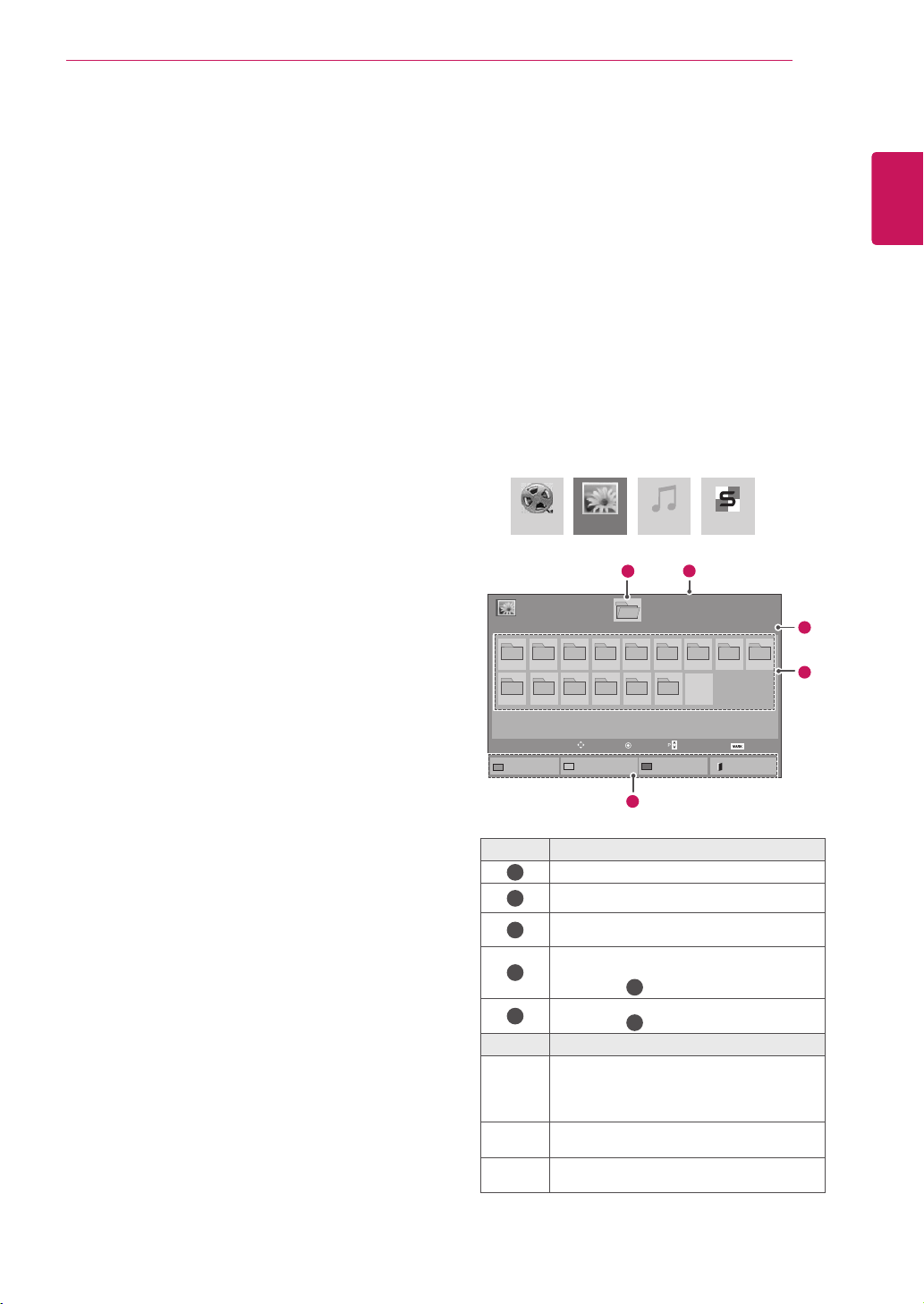
ingillustration.TheMymediascreenappears.
DonotturnthedisplayofforremoveaUSB
storagedevicewhiletheEMF(mymedia)
Menuisactivated,asthiscouldresultin
lossoffilesordamagetotheUSBstorage
device.
BackupyourfilessavedonaUSBstorage
devicefrequently,asyoumayloseordam-
agethefilesandthismaybenotcoveredby
thewarranty.
CAUTION
or
27
ENG
ENGLISH
ENTERTAINMENT
IftheUSBHDDdoesnothaveanexternal
powersource,theUSBdevicemaynotbe
detected.Sobesuretoconnecttheexternal
powersource.
-Pleaseuseapoweradaptorforanexternal
powersource.WedonotguaranteeanUSB
cableforanexternalpowersource.
IfyourUSBmemorydevicehasmultiple
partitions,orifyouuseaUSBmulti-card
reader,youcanuseupto4partitionsorUSB
memorydevices.
IfaUSBmemorydeviceisconnectedtoa
USBmulti-cardreader,itsvolumedatamay
notbedetected.
IftheUSBmemorydevicedoesnotwork
properly,disconnectandreconnectit.
HowfastaUSBmemorydeviceisdetected
differsfromdevicetodevice.
IftheUSBisconnectedinStandbyMode,
specificharddiskwillautomaticallybe
loadedwhenthedisplayisturnedon.
Therecommendedcapacityis1TBorless
foraUSBexternalharddiskand32GBor
lessforUSBmemory.
Anydevicewithmorethantherecommended
capacitymaynotworkproperly.
IfaUSBexternalharddiskwitha“Energy
Saving”functiondoesnotwork,turnthe
harddiskoffandonagaintomakeitwork
properly.
USBstoragedevicesbelowUSB2.0are
supportedaswell.Buttheymaynotwork
properlyinthemovielist.
Maximumof999foldersorfilescanberec-
ognizedunderonefolder.
ItisrecommendedtouseacertifiedUSB
storagedeviceandcable.Otherwise,aUSB
storagedevicemaynotbedetectedora
playbackerrormayoccur.
OnlyaUSBmemorystickcanbeusedto
playbackthefilesdistributedandstored
bySuperSignManager.AUSBharddiskor
multi-cardreaderwillnotwork.
OnlyanFAT32fileformattedstoragedevice
canplaybackthefilesdistributedandstored
bySuperSignmanager.
AUSB3.0storagedevicemaynotwork.
Browsing files
Accessthephoto,music,ormovielistsandbrowse
files.
1
ConnectaUSBstoragedevice.
2
PressMENUtoaccessthemainmenus.
3
PresstheNavigationbuttonstoscrolltoMy
MediaandpressOK.
4
PresstheNavigationbuttonstochoose
fromMovie List, Photo List,Music Listor
Contents ListandpressOK.
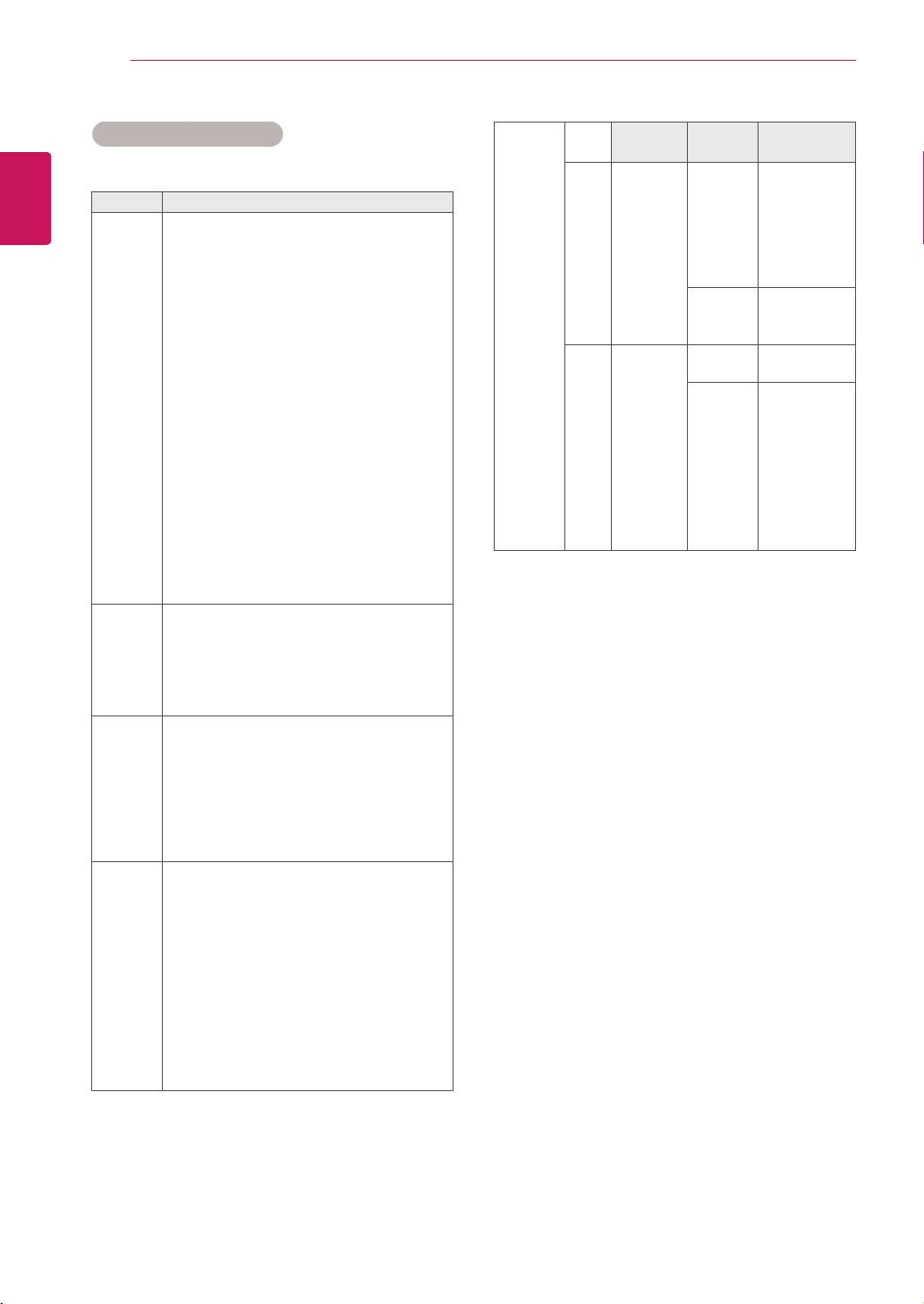
No. Description
1
Movestoupperlevelfolder
2
Currentpage/Totalpages
3
Correspondingbuttonsonthe
remotecontrol
4
Currentpage/totalpagesof
contentsunderthefolder
focusedon
1
5
Contentsunderthefolder
focusedon
1
Buttom Description
Green
button
Repeatedly,presstheGREENbuttonto
convertedtoMovie List->Photo List, Photo
List->Music List,Music List->Contents
ListorContents List->Movie List.
Yellow
button
A method to view in 5 large thumbnail
or simple list.
Blue
button
ConverttoMarkMode.
Page1/1
PhotoList
Drive1
Page1/1
USBExternal
001
010 011 012 013 014 015
002 003 004 005 006 007
008
009
ToMusicList
ChangeNumbers
MarkMode
Exit
11
2
3
4
5
View
Move
PageChange
Mark
MovieList
MusicList
PhotoList
ContentsList
28
ENG
ENGLISH
ENTERTAINMENT
Supported File Formats
Viewing movies
Playvideofilesondisplay.Yourdisplayshowsall
ofthevideofilessavedinaUSBstoragedeviceor
sharedfolderonaPC.
1 PresstheNavigationbuttonstoscrolltoMy
MediaandpressOK.
2 PresstheNavigationbuttonstoscrolltoMovie
ListandpressOK.
3 PresstheNavigationbuttonstoscrolltoa
folderyouwantandpressOK.
4 PresstheNavigationbuttonstoscrolltoafile
youwantandpressOK.
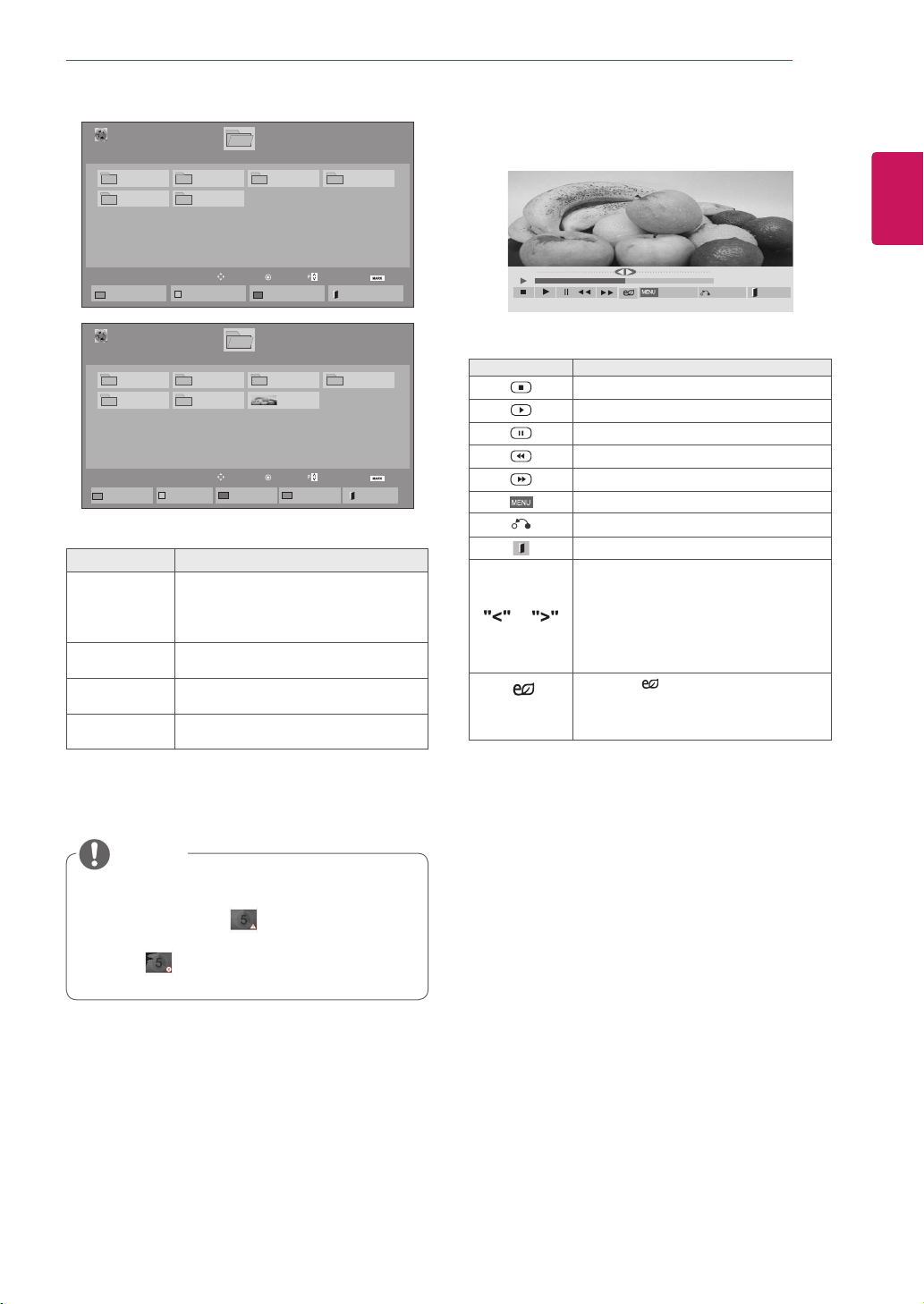
Type Supported file format
Movie DAT,MPG,MPEG,VOB,AVI,DIVX,MP4,MKV,TS,T
RP,TP,ASF,WMV,FLV)
Movie(*.mpg/*.mpeg/*dat/*.ts/*.trp/*.tp/*.vob/*.
mp4/*.mov/*.mkv/*.divx/*.avi/*.asf/*.wmv/*.flv/*.
avi(motion-jpeg)/*.
mp4(motion-jpeg)/*.mkv(motion-jpeg))supporting
file
Video format:DivX3.11,DivX4.12,DivX5.x,
DivX6,Xvid1.00,Xvid1.01,Xvid1.02,Xvid1.03,
Xvid1.10beta-1/beta-2,
Mpeg-1,Mpeg-2,Mpeg-4,H.264/AVC,VC1,
JPEG,SorensonH.263
Audio format:DolbyDigital,AAC,Mpeg,MP3,
LPCM,HE-AAC,ADPCM,WMA
Bit rate:within32kbpsto320kbps(MP3)
External Subtitle format:*.smi/*.srt/*.sub
(MicroDVD,Subviewer1.0/2.0)/*.ass/*.ssa/*.
txt(TMPlayer)/*.psb(PowerDivX)
Internal Subtitle format :only,XSUB(Itisthe
subtitleformatusedinDivX6files)
Photo JPEG
Baseline:64x64to15360x8640
Progressive:64x64to1920x1440
YoucanplayJPEGfilesonly.
Non-supportedfilesaredisplayedintheform
ofpredefinedicon.
Music MP3
Bitrate32to320
SamplingrateMPEG1Layer3:32kHz,44.1
kHz,48kHz
SamplingrateMPEG2Layer3:16kHz,22.05
kHz,24kHz
SamplingrateMPEG2.5Layer3:8kHz,
11.025kHz,12kHz
Content
(when
using
SuperSign
Manager)
FileExtensions:*.cts/*.cse
Movie
File Extensions:*.mpg/*.mpeg/*.dat/*.ts/*.
trp/*.tp/*.vob/*.mp4/*.mov/*.mkv/*.avi/*.asf/*.
wmv/*.avi(motionJPEG)/*.mp4(motionJPEG)/*.
mkv(motionJPEG)
Video format:MPEG1,MPEG2,MPEG4,H.264/
AVC,DivX3.11,DivX4.12,DivX5.x,DivX6,
Xvid1.00,Xvid1.01,Xvid1.02,Xvid1.03,Xwvid
1.10-beta1/2,JPEG,VC1(WVC1/WMV3)
Audio format:MP2,MP3,DolbyDigital,LPCM,
AAC,HE-AAC,LPCM,ADPCM,WMA,MP3
File
Extensions
Item Profile
Photo JPEG
JPG
PNG
BMP
supported
fileformat
SOF0:
baseline
SOF1:
Extend
Sequential
SOF2:
Progressive
Photosize
Min:64x64
MaxType:
1366x768
Music MP3 Bitrate 32kbpsto320
kbps
Sampling
rate
32kHz,44.1
kHz,48kHz
(MPEG1L3)
16kHz,22.05
kHz,24kHz
(MPEG2L3)
8kHz,11.025
kHz,12kHz
(MPEG2.5L3)
29
ENG
ENGLISH
ENTERTAINMENT
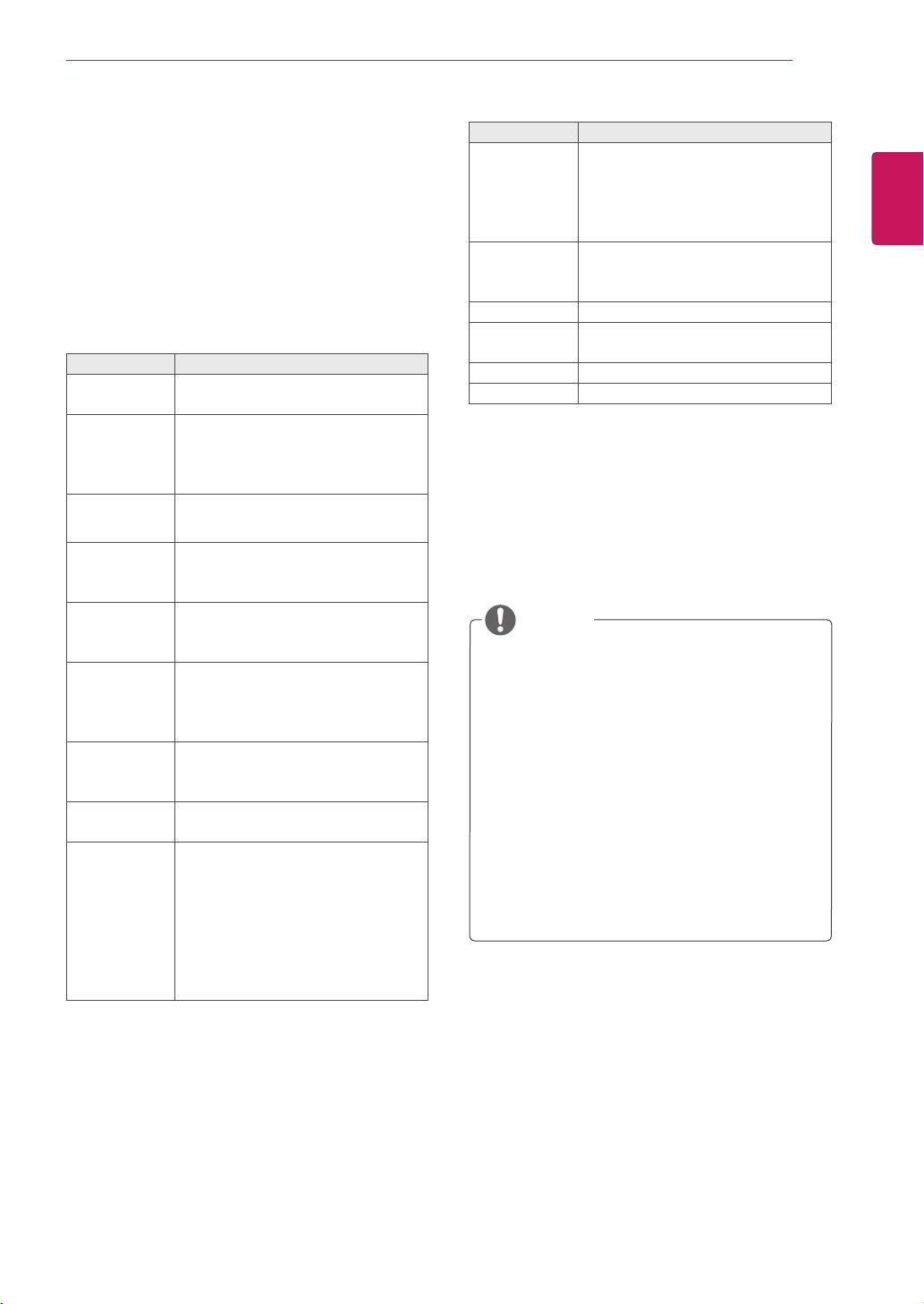
Menu Description
Play Marked Playtheselectedmoviefile.
Onceamoviefilefinishesplaying,
thenextselectedonewillbeplayed
automatically.
Mark All Markallmoviefilesonthescreen.
Unmark All Deselectallmarkedmoviefiles.
Exit Mark Mode ExittheMarkMode.
5 Playamovie.
Non-supportedfilesaredisplayedthepreview
imagebyicononly .
Abnormal files are displayed in the form of
bitmap .
6 Controlplaybackbyusingthefollowingbuttons.
Button Description
Stopstheplayback
Playsavideo
Pausesorresumestheplayback
Scansbackwardinafile
Scansforwardinafile
ShowtheOptionmenu.
Hidethemenuonthefull-sizedscreen.
ReturntoMovie List.
or
Skipstospecificpointsinafiledur-
ingplayback.Thetimeofaspecific
pointwillappearonthestatusbar.In
somefiles,thisfunctionmaynotwork
properly.
ENERGY
SAVING
Pressthe
ENERGY SAVINGbutton
repeatedlytoincreasethebrightness
ofyourscreen.
01:02:30/02:30:25
Option
Hide
Exit
NOTE
Page1/1
MovieList
USB1USBDrive
Drive1
Page1/1
ToPhotolist
ChangeNumbers
MarkMode
Exit
003
001 002
004
005 006
Play
Move
PageChange
Mark
Page1/1
MovieList
USB1USBDrive
Drive1
Page1/1
PlayMarked
MarkAll
UnmarkAll
Exit
003
001 002
004
005 006
MarkMode
ExitMarkMode
051.Apple_......
02:30:25
Mark
Move
PageChange
Mark

30
ENG
ENGLISH
ENTERTAINMENT
Video options
1 PressMENUtoaccessthePop-Upmenus.
2 PresstheNavigationbuttonstoscrolltoSet
Video Play., Set Video. or Set Audio. and
pressOK.
OptionvalueschangedinMovie Listdoes
notaffectPhoto ListandMusic List.
OptionvaluechangedinPhoto ListandMu-
sic ListarechangedlikewiseinPhoto List
andMusic ListexcludingMovie List.
Whenreplayingthevideofileafterstopping,
youcanplayfromwhereitstoppedprevi-
ously.
Tips for using playing video files
Someuser-createdsubtitlesmaynotwork
properly.
Somespecialcharactersarenotsupported
insubtitles.
HTMLtagsarenotsupportedinsubtitles.
Subtitlesinlanguagesotherthanthesup-
portedlanguagesarenotavailable.
Thescreenmaysuffertemporaryinterrup-
tions(imagestoppage,fasterplayback,etc.)
whentheaudiolanguageischanged.
Adamagedmoviefilemaynotbeplayed
correctly,orsomeplayerfunctionsmaynot
beusable.
Moviefilesproducedwithsomeencoders
maynotbeplayedcorrectly.
Ifthevideoandaudiostructureofrecorded
fileisnotinterleaved,eithervideooraudiois
outputted.
HDvideoswithamaximumof
1920x1080@25/30Por1280x720@50/60P
aresupported,dependingontheframe.
Videoswithresolutionshigherthan
1920X1080@25/30Por1280x720@50/60P
maynotworkproperlydependingonthe
frame.
Moviefilesotherthanthespecifiedtypesand
formatsmaynotworkproperly.
Maxbitrateofplayablemoviefileis20Mbps.
(only,MotionJPEG:10Mbps)
Wedonotguaranteesmoothplaybackof
profilesencodedlevel4.1orhigherinH.264/
AVC.
DTSAudiocodecisnotsupported.
Amoviefilemorethan30GBinfilesizeis
notsupportedforplayback.
ADivXmoviefileanditssubtitlefilemustbe
locatedinthesamefolder.
Avideofilenameanditssubtitlefilename
mustbeidenticalforittobedisplayed.
PlayingavideoviaaUSBconnectionthat
doesn’tsupporthighspeedmaynotwork
properly.
FilesencodedwithGMC(GlobalMotion
Compensation)maynotbeplayed.
WhenyouarewatchingthemoviebyMovie
Listfunction,youcanadjustanimageby
EnergySavingkeyontheremotecontrol.
Usersetupforeachimagemodedoesnot
operate.
NOTE
31
ENG
ENGLISH
ENTERTAINMENT
Code Page Support Language
Latin1 English,Spanish,French,
German,Italian,Swedish,Finnish,
Dutch,Portuguese,Danish,Roma-
nian,Norwegian,Albanian,Gaelic,
Welsh,Irish,Catalan,Valencian
Latin2 Bosnian,Polish,Croatian,Czech,
Slovak,Slovenian,Serbian,
Hungarian
Latin4 Estonian,Latvian,Lithuanian
Cyrillic Bulgarian,Macedonian,Russian,
Ukrainian,Kazakh
Greek Greek
Korean Korean
Only10,000ofsyncblockscanbesupport-
edwithinthesubtitlefile.
Whenplayingavideo,youcanadjustthe
PictureSizebypressingtheRATIObutton.
Subtitlesinyourlanguageareonlysup-
portedwhentheOSDmenuisalsointhis
language.
Thecodepageoptionsmaybedisabledde-
pendingonthelanguageofthesubtitlefiles.
Selecttheappropriatecodepageforthe
subtitlefiles.
WhenyouselecttheSet Video Play,,
1 PresstheNavigationbuttonstoscrolltoshow
thePicture Size, Audio Language, Subtitle
LanguageorRepeat.
2 PresstheNavigationbuttonstoscrolltomake
appropriateadjustments.
Menu Description
Picture Size Selectsyourdesiredpicture
formatduringmovieplay.
Audio
Language
ChangestheLanguageGroupofthe
audioduringmovieplay.Files
withasingleaudiotrackcannotbe
selected.
Subtitle Lan-
guage
Turnon/offthesubtitle.
Language ActivatedforSMIsubtitleand
canselectthelanguagewithinthe
subtitle.
Code Page Canselectthefontforsubtitle.
Whensettodefault,samefontas
generalmenuwillbeused.
Sync Adjuststhetimesynchronisationof
thesubtitlefrom-10secsto+10secs
bystepsof0.5secsduringmovie
play.
Position Changesthepositionofthe
subtitleeitherupordownduring
movieplay.
Size SelectsyourdesiredSubtitlesize
duringmovieplay.
Repeat Turnon/offrepeatfunctionof
movieplayback.Whenturnedon,the
filewithinthefolderwillbeplayed
backrepeatedly.Evenwhenthe
repeatedplayback
isturnedoff,itcanruntheplaybackif
thefilenameissimilartotheprevious
file.
NOTE

32
ENG
ENGLISH
ENTERTAINMENT
WhenyouselecttheSet Video,,
1 PresstheNavigationbuttonstoscrolltomake
appropriateadjustments.
WhenyouselecttheSet Audio,,
1 PresstheNavigationbuttonstoscrolltoshow
theSound Mode, Clear Voice II orBalance.
2 PresstheNavigationbuttonstoscrolltomake
appropriateadjustments.
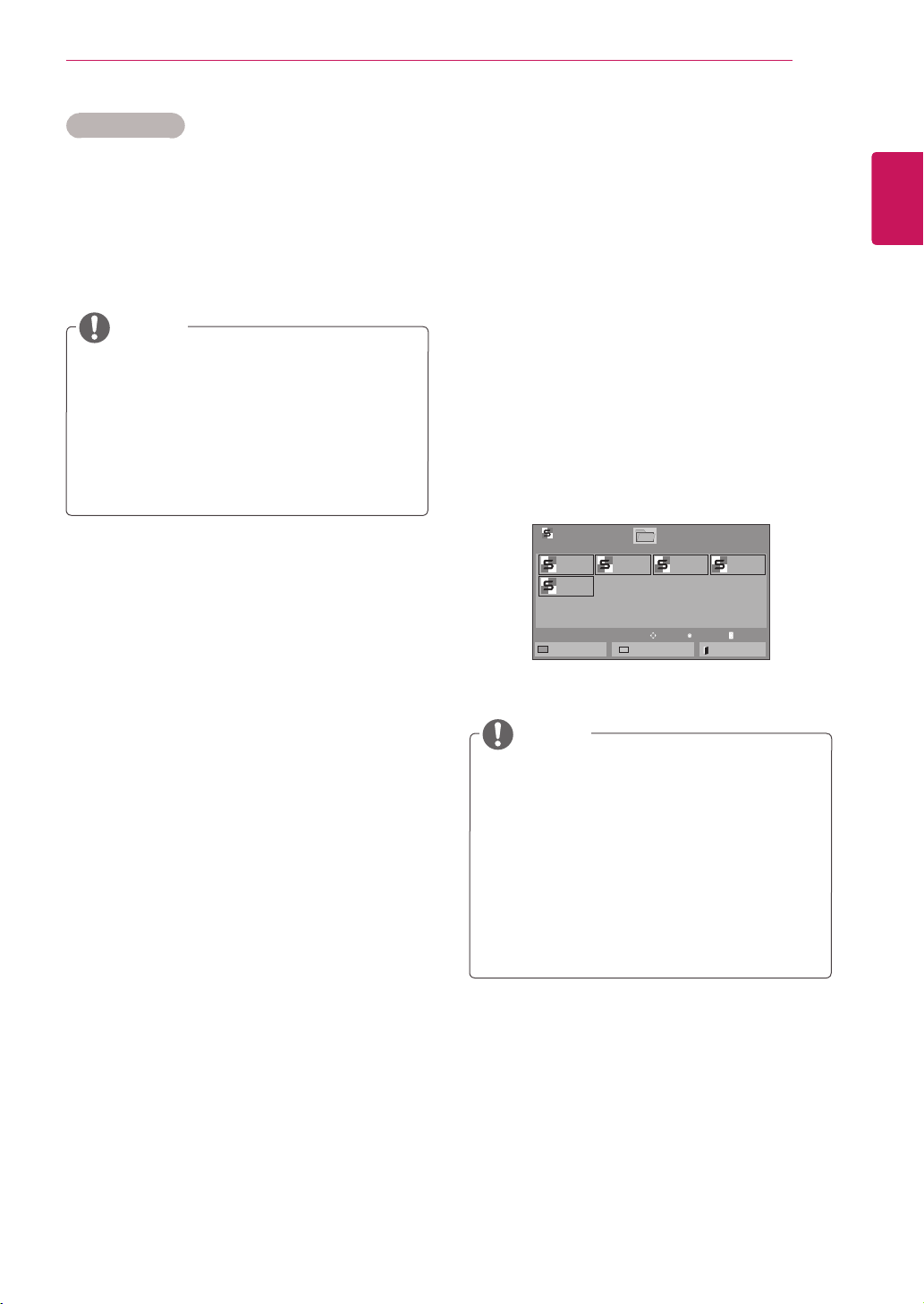
Viewing photos
ViewimagefilessavedinaUSBstoragedevice.
Thedisplaysonthescreenmaydifferfromthe
model.
1 PresstheNavigationbuttonstoscrolltoMy
MediaandpressOK.
2 PresstheNavigationbuttonstoscrolltoPhoto
ListandpressOK.
3 PresstheNavigationbuttonstoscrolltoa
folderyouwantandpressOK.
4 PresstheNavigationbuttonstoscrolltoafile
youwantandpressOK.
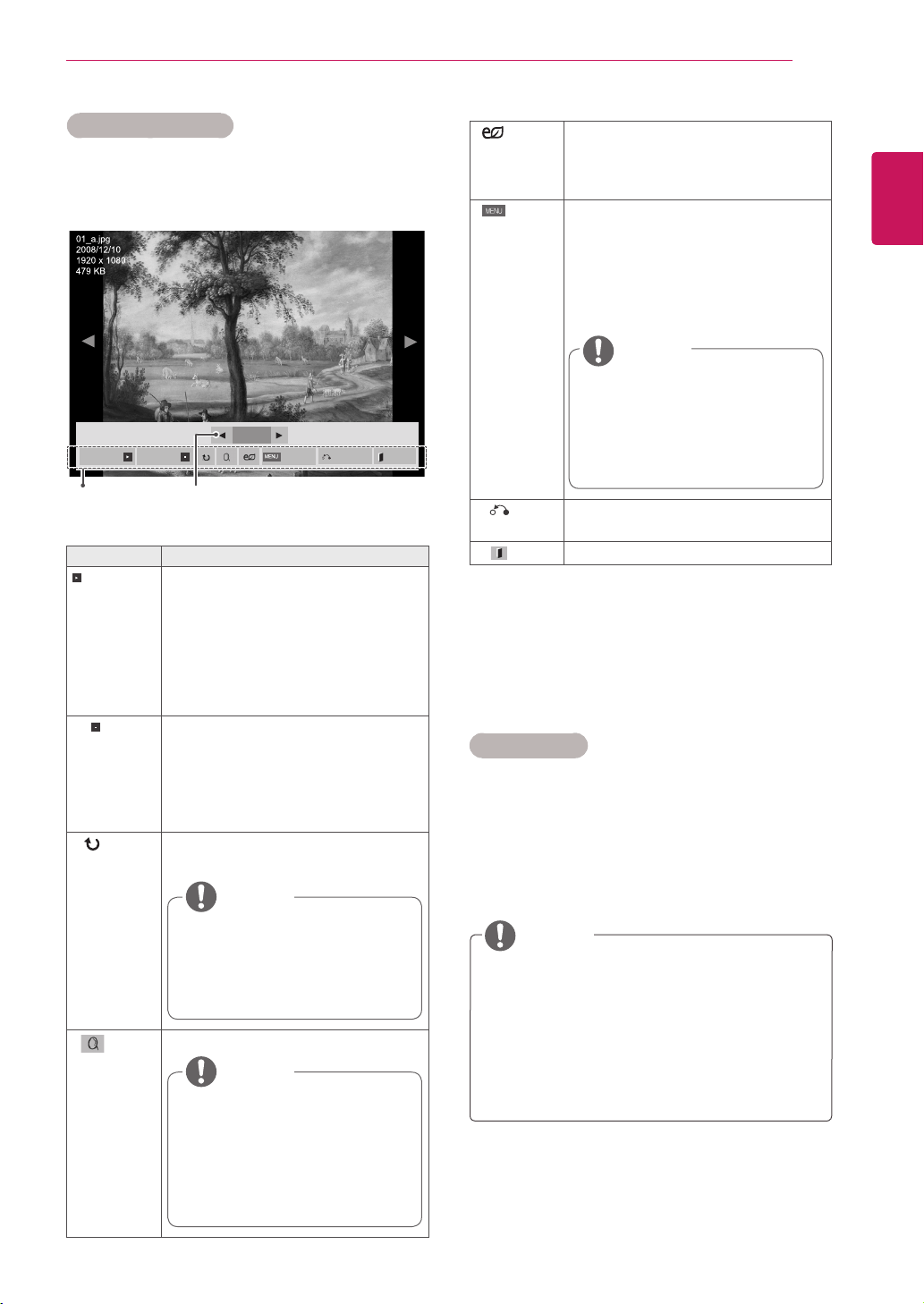
5 Viewphotos.
Non-supportedfilesaredisplayedthepre-
viewimagebyicononly .
Abnormalfilesaredisplayedintheformof
bitmap .
Menu Description
View Marked Displaytheselectedphotofile.
Mark All Markallphotofilesonthescreen.
Unmark All Deselectallmarkedphotofiles.
Exit Mark Mode ExittheMarkMode.
NOTE
Page1/1
PhotoList
Drive1
Page1/1
USB1USBDrive
001
010 011 012 013 014 015
002 003 004 005 006 007
008
009
ToMusicList
ChangeNumbers
MarkMode
Exit
View
Move
PageChange
Mark
Page1/1
PhotoList
Drive1
Page1/1
USB1USBDrive
001
010 011 012 013 014 015
002 003 004 005 006 007
008
009
MarkMode
ViewMarked
MarkAll
UnmarkAll
Exit
ExitMarkMode
Mark
Move
PageChange
Mark
33
ENG
ENGLISH
ENTERTAINMENT
Photo options
1 PressMENUtoshowtheOptionmenus.
2 Press the Navigation buttons to scroll to Set
Photo View., Set Video. or Set Audio. and
pressOK.
Option values changed in Movie List does
notaffectPhoto ListandMusic List.
OptionvaluechangedinPhoto ListandMu-
sic ListarechangedlikewiseinPhoto List
andMusic ListexcludingMovie List.
Option Description
Slideshow Startsorstopsaslideshowwithselected
photos.
Iftherearenoselectedphotos,allpho-
tossavedinthecurrentfolderdisplay
duringaslideshow.
SelectOptiontosetthespeedandview
modeoftheslideshow.
BGM Turnsthebackgroundmusiconoroff.
Tosetthebackgroundmusicfolder,
selectOption.
YoucanadjustOptionbyMENUbutton
ontheremotecontrol.
Rotate
Rotatesphotosclockwise(90°,180°,
270°,360°).
Zoom
Enlargestheimageto200%or400%.
NumberofselectedphotosOptions
ENER-
GY SAVING
PresstheENERGY SAVINGbutton
repeatedlytochangethebrightnessof
yourscreen.
Option
Slide Speed: Selects a slideshow
speed(Fast,Medium,Slow).
TransitionEffect: Settheviewmode
oftheslideshow.
BGM:Selectsamusicfolderforthe
backgroundmusic.
Hide
Hidestheoptionwindow.
Todisplaytheoptions,pressOK.
EXIT
ReturntoPhoto List.
Using photo options
Usethefollowingoptionswhileviewingphotos.
2/13
Slideshow BGM
Hide
Option
Exit
The supported photo size is
limited. You cannot rotate a
photo if the resolution of the
rotatedwidthislargerthanthe
supportedresolutionsize.
NOTE
Youcannotchangethemusic
folder while the background
musicisplaying.
You can only select the MP3
foldersavedonthedevicethat
currentlydisplaysthephoto.
NOTE
NOTE
NOTE
Zoom to 200% or 400% only
work for image of 1372×772
pixelsizeorlarger.
For image of 960×540 pixel
size or larger, only zoom to
400%worksproperly.

34
ENG
ENGLISH
ENTERTAINMENT
WhenyouselecttheSet Photo View,
1 PresstheNavigationbuttonstoscrolltoselectSlide Speed,Transition Effect or BGM.
2 PresstheNavigationbuttonstoscrolltomakeappropriateadjustments.
Transition Effect Option
Option Description
Sliding Pushesthecurrentslideoutofviewasitplaystothenextslide.
Stairs Pushesthecurrentslideinastaircaseshapeasitplaystothenextslide.
Door Open
/Close
Pushesthecurrentslidelikeopeningorclosingthedoorasitplaystothenextslide.
Shutter Pushesthecurrentslidelikedrawingorpullingdowntheblindasitplaystothenextslide
Fade In Fadestheslideoutslowlybeforeplayingtothenextslide.

35
ENG
ENGLISH
ENTERTAINMENT
WhenyouselecttheSet Video,
1 PresstheNavigationbuttonstoscrolltomake
appropriateadjustments.
WhenyouselecttheSet Audio,
1 PresstheNavigationbuttonstoscrolltoshow
theSound Mode, Clear Voice II orBalance.
2 PresstheNavigationbuttonstoscrolltomake
appropriateadjustments.
5 Playmusic.
Listening to music
1 PresstheNavigationbuttonstoscrolltoMy Me-
diaandpressOK.
2 PresstheNavigationbuttonstoscrolltoMusic
ListandpressOK.
3 PresstheNavigationbuttonstoscrolltoafolder
youwantandpressOK.
4 Pressthe Navigationbuttons to scrollto a file
youwantandpressOK.
Menu Description
Play Marked Displaytheselectedmusicfile.
Mark All Markallmusicfilesonthescreen.
Unmark All Deselectallmarkedmusicfiles.
Exit Mark Mode ExittheMarkMode.
Page1/1
MusicList
Drive1
Page1/1
001.-B01.mp3
00:00
002.-B02.mp3
00:00
003.B03.mp3
00:00
004.-B04.mp3
00:00
005.-B05.mp3
00:00
USB1USBDrive
ToMovieList
ChangeNumbers
MarkMode
Exit
Play
Move
PageChange
Mark
Page1/1
MusicList
Drive1
Page1/1
001.-B01.mp3
00:00
002.-B02.mp3
00:00
003.B03.mp3
00:00
004.-B04.mp3
00:00
005.-B05.mp3
00:00
USB1USBDrive
PlayMarked
MarkAll
UnmarkAll
Exit
MarkMode
ExitMarkMode
Mark
Move
PageChange
Mark

36
ENG
ENGLISH
ENTERTAINMENT
Timeelapsed/Duration
002.B02.mp3
00:31/04:04
filename
Non-supported files are displayed the pre-
viewimagebyicononly .
Abnormal files are displayed in the form of
bitmap .
Adamagedorcorruptedmusicdoesnotplay
butdisplays00:00inplaytime.
Amusicdownloadedfromapaidservicewith
copyright protection does not start but dis-
playsinappropriateinformationinplaytime.
IfyoupressOK, buttons,screensaveris
stopped.
ThePLAY( ),Pause( ), , , but-
tonsontheremotecontrolarealsoavailable
inthismode.
Youcanusethe buttontoselectthenext
musicandthe buttontoselecttheprevi-
ousmusic.
6 Controlplaybackbyusingthefollowingbuttons.
Page1/1
MusicList
Drive1 Page1/1
3file(s)Marked
004.-B04.mp3
00:00
005.-B05.mp3
00:00
006.-B06.mp3
00:00
007.-B07.mp3
00:00
008.-B08.mp3
00:00
005.-B05.mp3
02:30/03:25
Hide Exit
Option
PlaywithPhoto
Button Description
Stopsplayback
Playsamusicfile
Pausesorresumesplayback
Skipstothenextfile
Skipstothepreviousfile
or Whenplaying,
Whenyoupressthe button,thepre-
viousmusicfilewillbeplayed.
Whenyoupressthe button,thenext
musicfilewillbeplayed.
Green
button
Startplayingtheselectedmusicfilesand
thenmovetothePhoto List.
ENERGY
SAVING
Press the
ENERGY SAVING button
repeatedly to change the brightness of
yourscreen.
Option
ShowtheOptionmenu.
Hide
Hidestheoptionwindow.
Todisplaytheoptions,pressOK.
EXIT
When you press the EXIT button while
the Music player is displayed, only the
musicwillbestoppedandtheplayerwill
notreturntonormalviewing.
When you press the EXIT button while
themusicisstoppedorwhilethemusic
playerishidden,theplayerwillreturnto
normalviewing.
or
When using the < or > button during
playbackacursorindicatingtheposition
canbeplayed.
Tips for playing music files
This unit doesn't support the ID3 Tag
embeddedMP3files.
NOTE
37
ENG
ENGLISH
ENTERTAINMENT
1 PressMENUtoaccessthePop-Upmenus.
2 PresstheNavigationbuttonstoscrolltoSet Au-
dio Play. or Set Audio. andpressOK.
Music options
Option values changed in Movie List does
notaffectPhoto ListandMusic List.
OptionvaluechangedinPhoto ListandMu-
sic ListarechangedlikewiseinPhoto List
andMusic ListexcludingMovie List.
WhenyouselecttheSet Audio Play.,
1 PresstheNavigationbuttonstoscrolltoselect
theRepeatorRandom.
2 PresstheNavigationbuttonstoscrolltomake
appropriateadjustments.
WhenyouselecttheSet Audio,,
1 PresstheNavigationbuttonstoscrolltoselect
theSound Mode, Clear Voice II orBalance.
2 PresstheNavigationbuttonstoscrolltomake
appropriateadjustments.
NOTE
WhileplayingmediafilesfromContentsList,
onlytheBACK,EXITorVolumebuttonare
available.SelectingtheBACKorEXITbutton
stopsplayingmediafilesandreturnstothe
screenviewmode.
IfthereistheAutoPlayfolderintheUSB
deviceanditsfilesareinsupportedformats,
theycanbeplayedbackautomaticallywhen
theUSBdeviceisconnectedtothemonitor.
NOTE
Viewing the Contents List
PlaysbackthestoredfilesusingtheExportoption
inSuperSignManager.
1 PresstheNavigationbuttonstoscrolltoMy
MediaandpressOK.
2 PresstheNavigationbuttonstoscrolltoCon-
tents ListandpressOK.
3 PresstheNavigationbuttonstoscrolltoa
folderyouwantandpressOK.
4 PresstheNavigationbuttonstoscrolltoafile
youwantandpressOK.
Page1/1
ContentsList
Drive1
Page1/1
test1.cts
07/01/2011
test2.cts
07/01/2011
test3.cts
07/01/2011
test4.cts
07/01/2011
test5.cts
07/01/2011
USB1USBDrive
ToMovieList
ChangeNumbers
Exit
Play
Move
Page ChangeP
38
ENG
ENGLISH
ENTERTAINMENT
DivX® VOD Guide
DivX® VOD Registration
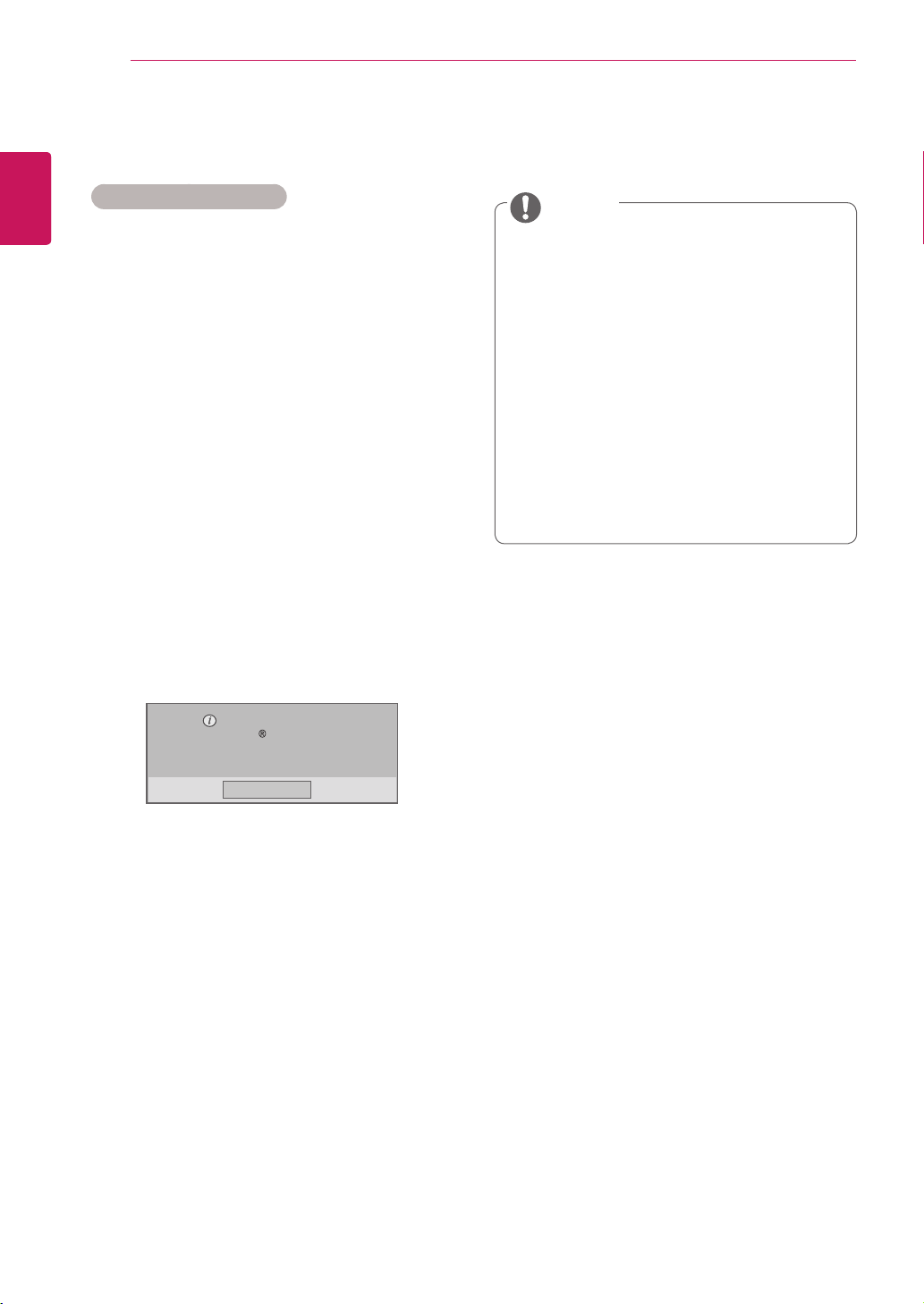
InordertoplaypurchasedorrentedDivX®VOD
contents,youshouldregisteryourdevicewith10
digitDivXregistrationcodefromyourdeviceat
www.divx.com/vod.
1 PressMENUtoaccessthemainmenus.
2 PresstheNavigationbuttonstoscrolltoMY
MEDIAandpressOK.
3 PresstheBluebutton.
4 PresstheNavigationbuttonstoscrolltoDivX
Reg. CodeandpressOK.
5 Viewtheregistrationcodeofyourdisplay.
6 Whenyouarefinished,press EXIT.
Whenyoureturntothepreviousmenu,press
BACK.
Whileyouarecheckingtheregistrationcode,
somebuttonsmaynotwork.
IfyouusetheDivXregistrationcodeof
anotherdevice,youcannotplaytherented
orpurchasedDivXfile.Makesuretousethe
DivXregistrationcodeassignedtoyourTV.
Thevideooraudiofilesthatarenotcon-
vertedbythestandardDivXcodecmaybe
corruptedornotbeplayed.
TheDivXVODcodeallowsyoutoactivate
upto6devicesunderoneaccount.
Youmustregisteryourdevice
toplayDivX protectedvideos.
Registrationcode:**********
Registerathttp://vod.divx.com
Close
NOTE
39
ENG
ENGLISH
ENTERTAINMENT
Oncethederegistrationisexecuted,you
mustregisteryourdeviceagaintosee
DivX®VODcontents.
DivX® VOD Deregistration
Youshouldderegisteryourdevicewith8digitDivX
deregistrationcodefromyourdeviceatwww.divx.
com/vod.
1 PressMENUtoaccessthemainmenus.
2 Press the Navigation buttons to scroll to MY
MEDIAandpressOK.
3 PresstheBluebutton.
4 PresstheNavigationbuttonstoscrolltoDeacti-
vationandpressOK.
5 Press the Navigation buttons to select Yes to
confirm.
Deregistrationcode:
********
Deregisterathttp://vod.divx.com
Continuewithregistration?
Yes No
6 Whenyouarefinished,press EXIT.
When you return to the previous menu, press
BACK.
NOTE
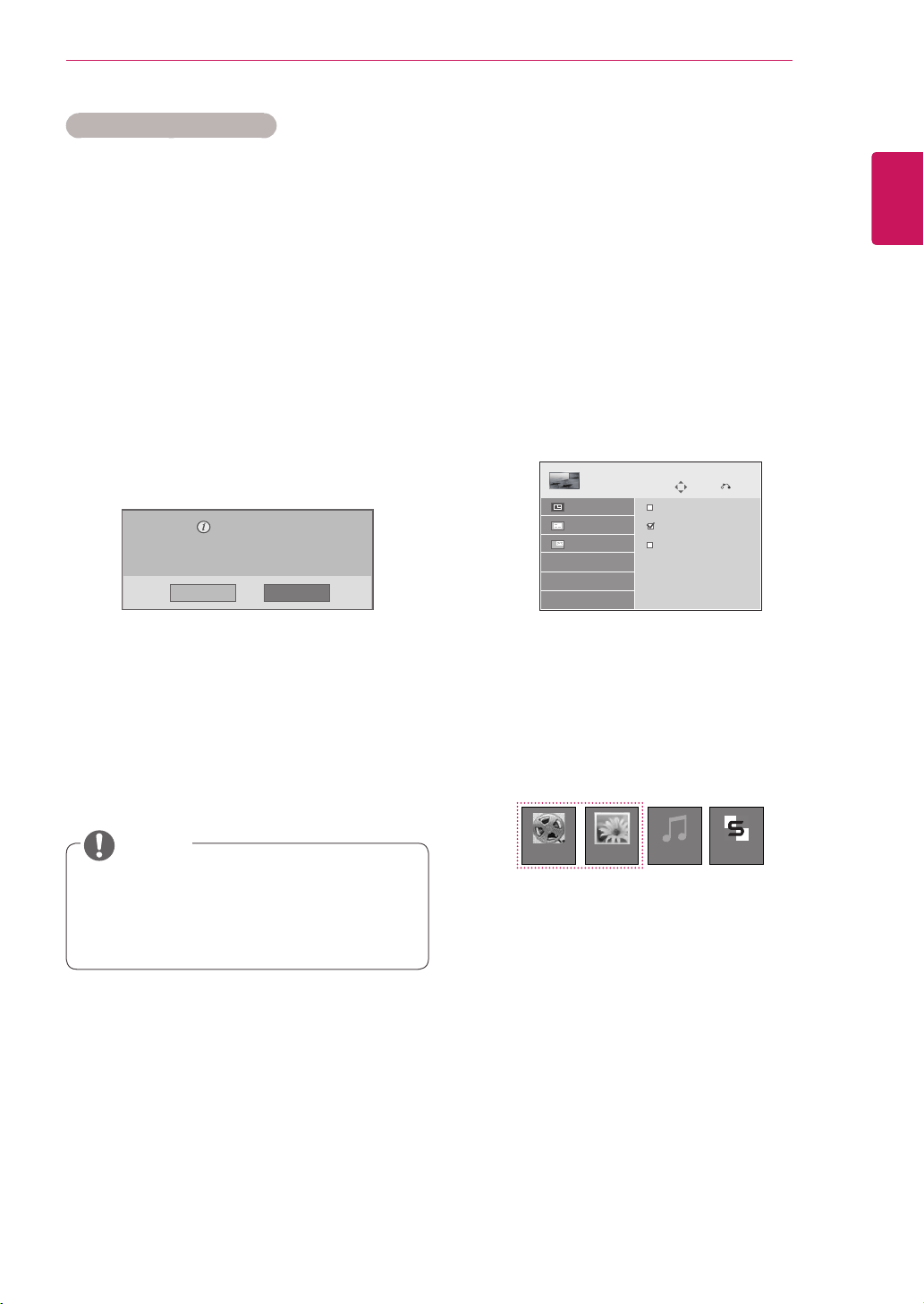
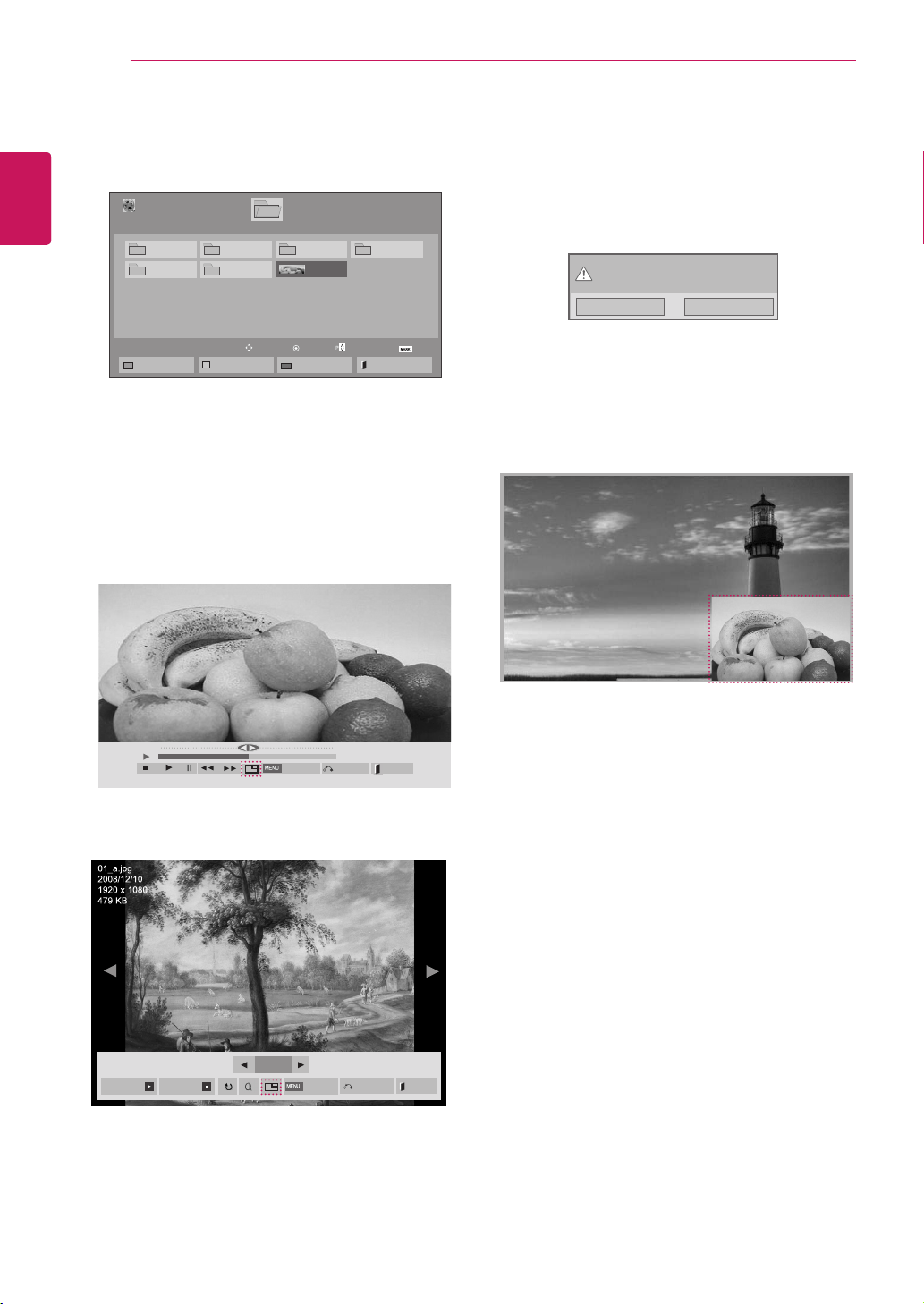
Using PIP/PBP
VideosorpicturesstoredontheUSBdevicecan
bedisplayedonasinglemonitorbydividingthem
intothemainandsubscreens.(Seep.51)
1 Press the MENU button to move to OPTION
andpressOK.
2 PressPIP/PBPtoselectPIPorPBPandthen
pressOK.
3 SelectMovieListorPhoto ListfromMy
Media.
Move
PIP/PBP
Off
PIP
PBP
Prev.
Mode
Position
Size
MovieList MusicListPhotoList
ContentsList
40
ENG
ENGLISH
ENTERTAINMENT
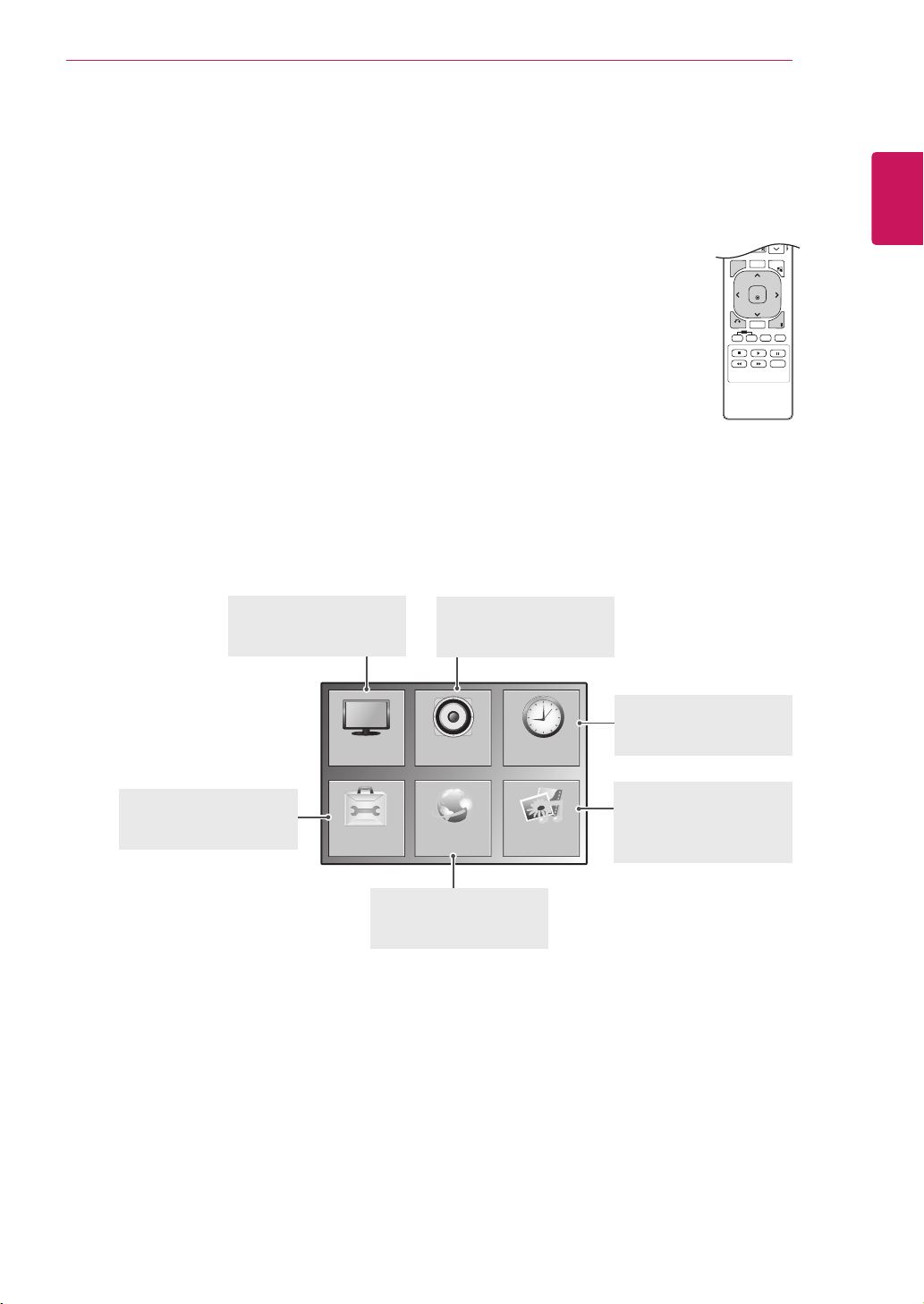
4 SelectafileyouwantandthenpressOK.
5 SelectthePIPorPBPiconfromtheplaylist.
6 ForsoundselecteitherMainorSub.Youmust
to select the output sound before running the
PIP orPBPfunction.
Selectthesoundpath.
Main Sub
7 Thesubscreenisdisplayedonthemainscreen.
01:02:30/02:30:25
Option
Hide
Exit
< MOVIE LIST >
< PHOTO LIST >
Page1/1
MovieList
USB1USBDrive
Drive1
Page1/1
ToPhotolist
ChangeNumbers
MarkMode
Exit
003
001 002
004
005 006
Play
Move
PageChange
Mark
051.Apple_...
02:30:25
2/13
Slideshow BGM
Hide
Option
Exit
41
ENG
ENGLISH
CUSTOMIZING SETTINGS
CUSTOMIZING SETTINGS
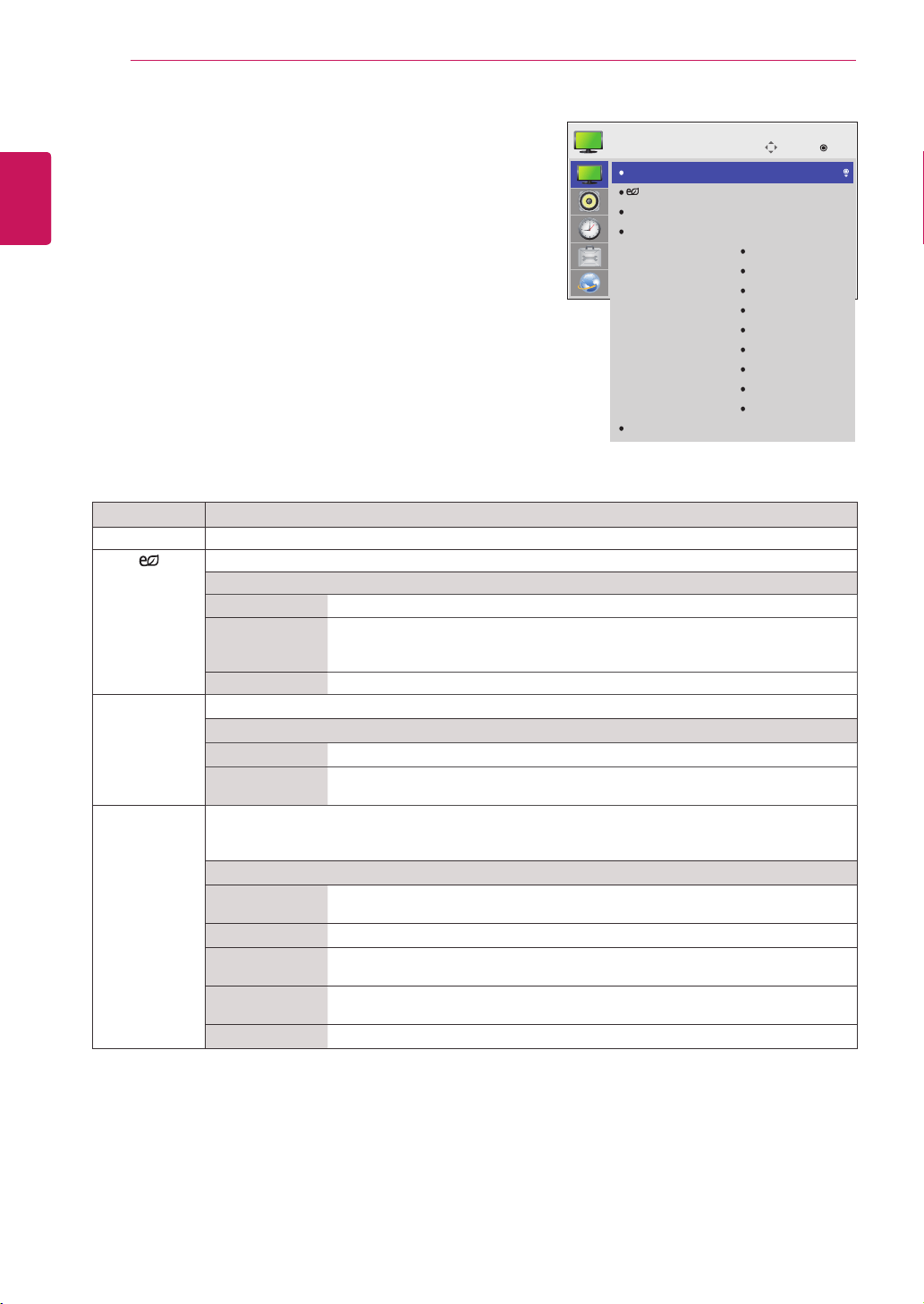
Accessing Main Menus
1
PressMENUtoaccessthemainmenus.
2
PresstheNavigationbuttonstoscrolltooneofthefollowingmenusand
pressOK.
3
PresstheNavigationbuttonstoscrolltothesettingoroptionyouwant
andpressOK.
4
Whenyouarefinished,pressEXIT.
Whenyoureturntothepreviousmenu,pressBACK.
P
A
G
E
MARK
ARC
OK
S.MENU
PSM
AUTO
MUTE
BRIGHT
NESS
MENU
ID
BACK
TILE
ON
OFF
EXIT
OPTION
PICTURE
NETWORK
AUDIO TIME
MY MEDIA
PICTURE (Seep.42)
Adjuststheimagesize,
quality,oreffect.
AUDIO(Seep.45)
Adjuststhesoundquality,
effect,orvolumelevel.
NETWORK(Seep.53)
Setsupthenetwork
setting.
OPTION (Seep.47)
Customizesthegeneral
settings.
TIME(Seep.46)
Setsthetime,date,or
Timerfeature.
MY MEDIA(Seep.27)
Displayandplaymovie,
photoandmusiccontent
storedonyourUSB
42
ENG
ENGLISH
CUSTOMIZING SETTINGS
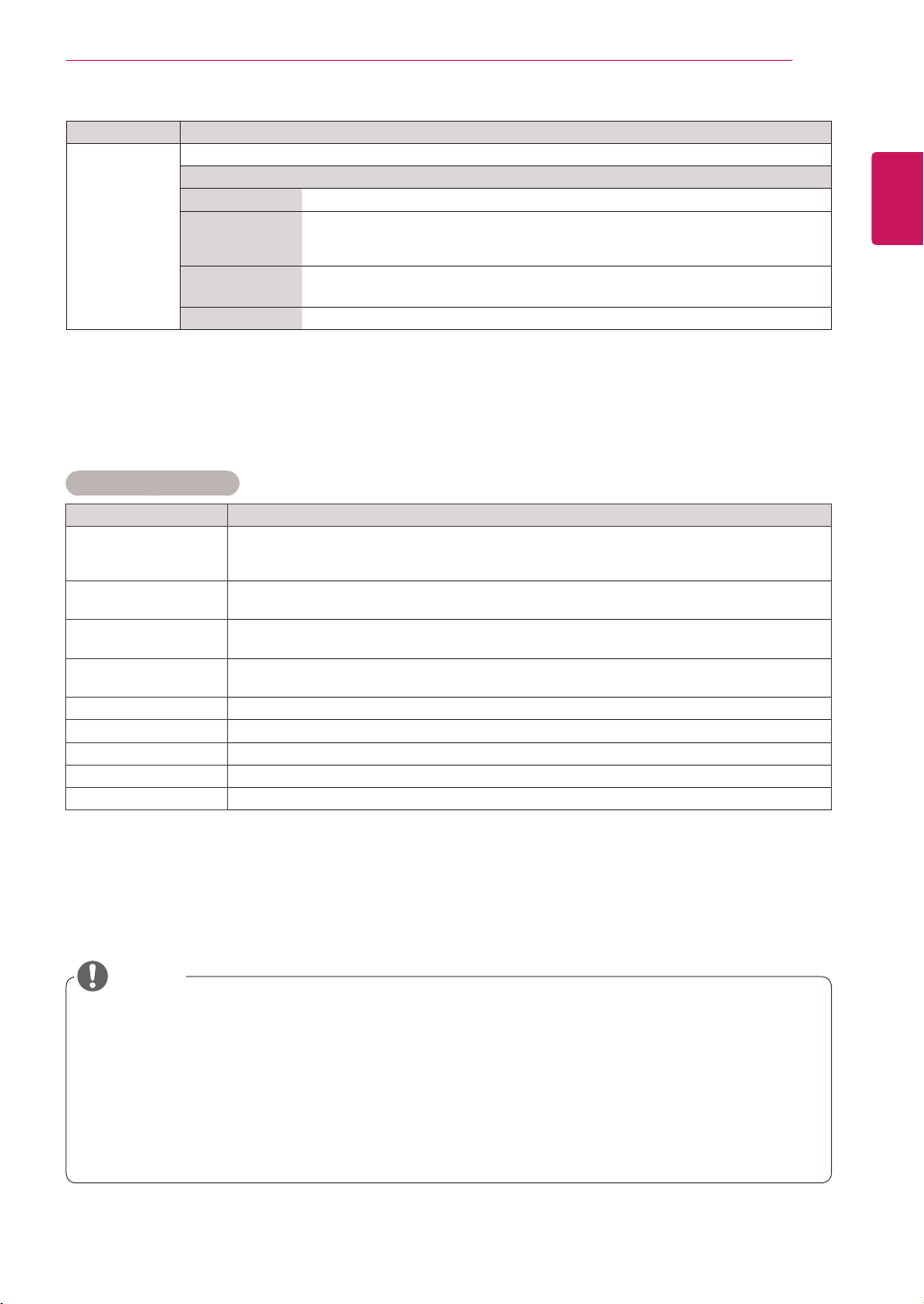
PICTURE settings
1
PressMENUtoaccessthemainmenus.
2
PresstheNavigationbuttonstoscrolltoPICTUREand
pressOK.
3
PresstheNavigationbuttonstoscrolltothesettingor
optionyouwantandpressOK.
-Toreturntothepreviouslevel,pressBACK.
4
Whenyouarefinished,pressEXIT.
Whenyoureturntothepreviousmenu,press
BACK.
Theavailablepicturesettingsaredescribedinthefollowing:
Setting Description
Aspect Ratio Changestheimageformatting.(Seep.21).
Energy Saving
Adjuststhescreenbrightnesscorrespondingtothesurroundings.
Level
Off DisablesEnergySavingfunction
Minimum/
Medium/
Maximum
Selectsthebrightnesslevelofthebacklight.
Screen off Thescreenturnsoffin3seconds.
Smart Energy
Saving
Adjuststhebacklightandcontrastdependingonthescreenbrightness.
Level
Off DisablestheSmartEnergySavingfunction.
On EnablestheSmartEnergySavingfunctiontosavepowerconsumptionasmuch
asthevaluesetinthesmartenergysavingrate.
Picture Mode SelectsoneofthepresetimageorcustomizesoptionsineachmodeforthebestMonitorscreen
performance.Youarealsoabletocustomizeadvancedoptionsofeachmode.
TheavailablepresetpicturemodesvarydependingontheMonitor.
Mode
Vivid Adjuststhevideoimagefortheretailenvironmentbyenhancingthecontrast,
brightness,color,andsharpness.
Standard Adjuststheimageforanormalenvironment.
Cinema Optimizesthevideoimageforacinematiclooktoenjoymoviesasifyouareina
movietheater.
Sport Optimizesthevideoimageforhighanddynamicactionsbyemphasizingprimary
colorssuchaswhite,grass,orskyblue.
Game OptimizesthevideoimageforfastmovingvideosuchasPCsorgames.
Move
OK
PICTURE
Aspect Ratio
Energy Saving
Smart Energy Saving
Picture Mode
Screen
: 16:9
: Off
: Off
: Standard
Backlight
Contrast
Brightness
Sharpness
Color
Tint
Color Temp.
Advanced Control
Picture Reset
43
ENG
ENGLISH
CUSTOMIZING SETTINGS
Ifthe'Picture Mode'settinginthePicturemenuissettoVivid, Standard, Cinema, SportorGame
thesubsequentmenuswillbeautomaticallyset.
YoucannotadjustcolorandtintintheRGB-PC/HDMI-PCmode.
WhenusingtheSmartEnergySavingfunction,thescreenmaylooksaturatedinthewhiteareaofa
stillimage.
IfEnergySavingissettoMinimum,Medium,orMaximum,theSmartEnergySavingfunctionis
disabled.
Picture Mode options
Setting Description
Backlight AdjuststhebrightnessofthescreenbycontrollingtheLCDbacklight.Ifyoudecreasethe
brightnesslevel,thescreenbecomesdarkerandthepowerconsumptionwillbereduced
withoutanyvideosignalloss.
Contrast Increasesordecreasesthegradientofthevideosignal.YoumayuseContrastwhenthe
brightpartofthepictureissaturated.
Brightness Adjuststhebaselevelofthesignalinthepicture.YoumayuseBrightnesswhenthedarkpart
ofthepictureissaturated.
Sharpness Adjuststhelevelofcrispnessintheedgesbetweenthelightanddarkareasofthepicture.
Thelowerthelevel,thesoftertheimage.
Color Adjustsintensityofallcolors.
Tint Adjuststhebalancebetweenredandgreenlevels.
Color Temp. SettowarmtoenhancehotterColorssuchasred,orsettocooltomakepicturebluish.
Advanced Control Customizestheadvancedoptions.RefertotheAdvancedimageoptions.(Seep.44).
Picture Reset Restorestheoptionstothedefaultsetting.
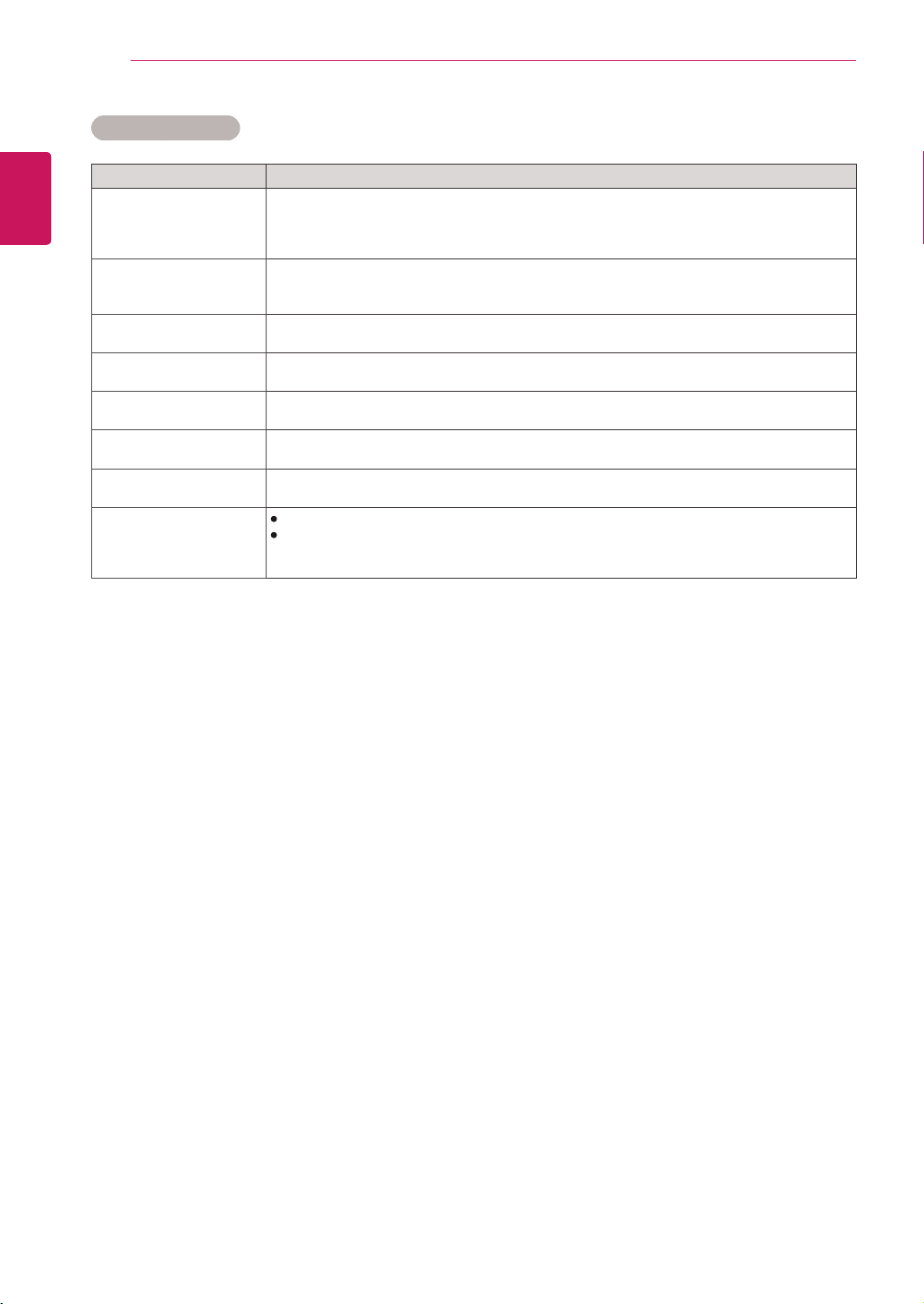
Setting Description
SCREEN
(In RGB
Mode Only)
CustomizesthePCdisplayoptionsinRGBmode.
Option
Resolution Selectsaproperresolution.See“CustomizingPCdisplayoptions”.
Auto Config. Adjuststhescreenposition,clock,andphaseautomatically.
Thedisplayedimagemaybeunstableforafewsecondswhiletheconfigurationis
inprogress.
Position/Size/
Phase
Adjuststheoptionswhenthepictureisnotclear,especiallywhencharactersare
shaky.RunAutoConfig.beforeadjustingthese.
Reset Restoresalloptionstothedefaultsetting.
NOTE
44
ENG
ENGLISH
CUSTOMIZING SETTINGS
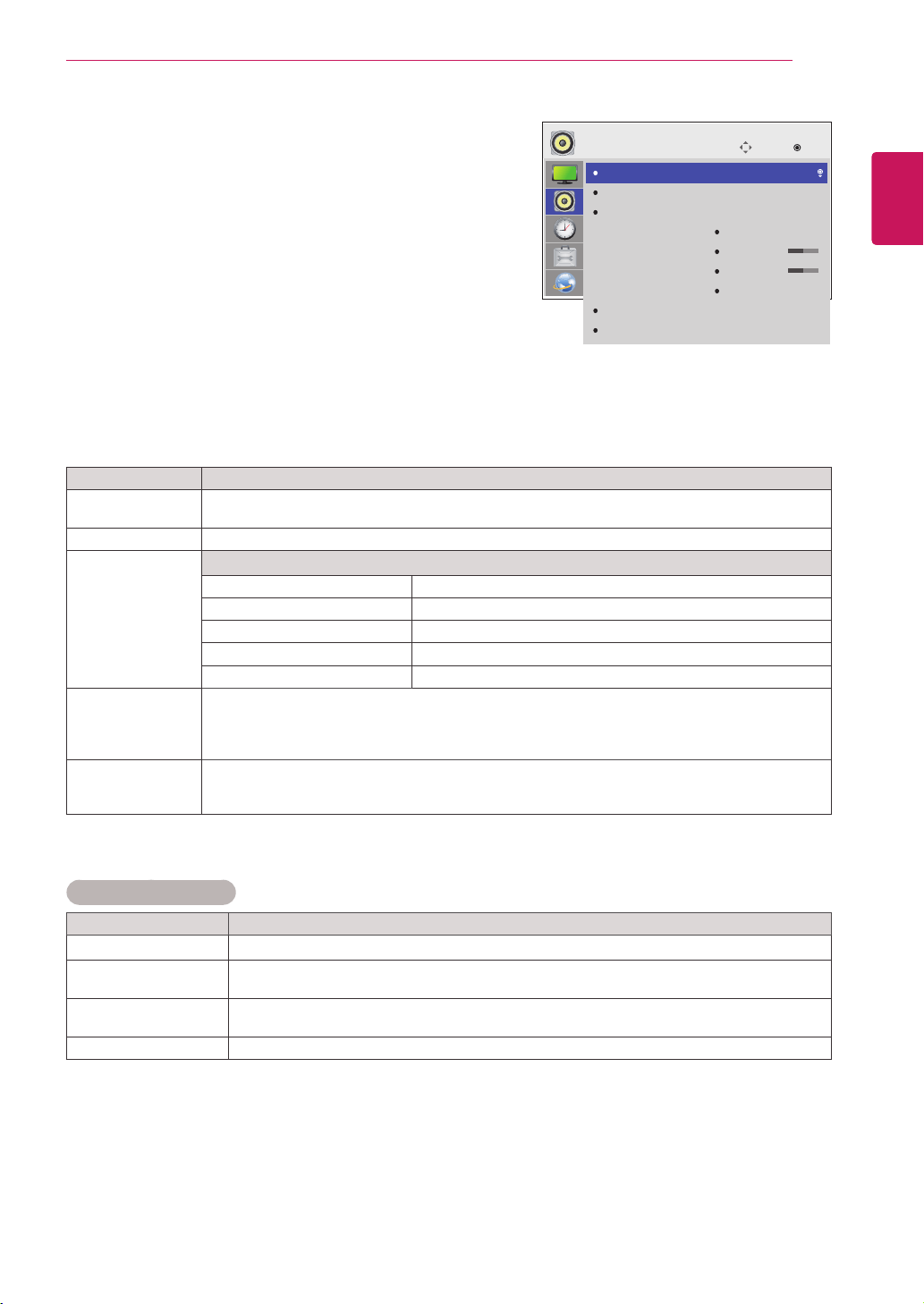
Setting Description
Dynamic Contrast
(Off/High/Medium/Low)
Adjuststhecontrasttokeepitatthebestlevelaccordingtothebrightnessofthescreen.
The
pictureisimprovedbymakingbrightpartsbrighteranddarkpartsdarker.
(Functionworksinthefollowingmode-AV(CVBS),Component,HDMI-DTV,DisplayPort-DTV)
Dynamic Color
(Off/High/Low)
AdjustsscreenColorssothattheylooklivelier,richerandclearer.Thisfeatureenhances
hue,saturationandluminancesothatred,blue,greenandwhitelookmorevivid.
(Functionworksinthefollowingmode-AV(CVBS),Component,HDMI-DTV,DisplayPort-DTV)
Clear White
(Off/High/Low)
Makethewhiteareaofscreenbrighterandmorewhite.
Skin Color
(-5 to 5)
Itdetectstheskinareaofvideoandadjustsittoexpressanaturalskincolor.
Noise Reduction
(Off/High/Medium/Low)
Reducesscreennoisewithoutcompromisingvideoquality.
(Functionworksinthefollowingmode-AV(CVBS),Component,HDMI-DTV,DisplayPort-DTV)
Digital Noise Reduction
(Off/High/Medium/Low)
Thisoptionreducesthenoiseproducedwhilecreatingdigitalvideosignals.
Gamma
(High/Medium/Low)
Setyourowngammavalue.Onthemonitor,highgammavaluesdisplaywhitishimagesand
lowgammavaluesdisplayhighcontrastimages.
Black Level
(High/Low)
Low:Thepictureofthescreengetsdarker.
High:Thepictureofthescreengetsbrighter.
Setblacklevelofthescreentoproperlevel.
(Functionworksinthefollowingmode-AV(CVBS),Component,HDMI-DTV,DisplayPort-DTV)
Advanced Control
45
ENG
ENGLISH
CUSTOMIZING SETTINGS
AUDIO settings
1
PressMENUtoaccessthemainmenus.
2
PresstheNavigationbuttonstoscrolltoAUDIOandpress
OK.
3
PresstheNavigationbuttonstoscrolltothesettingor
optionyouwantandpressOK.
-Toreturntothepreviouslevel,pressBACK.
4
Whenyouarefinished,pressEXIT.
Whenyoureturntothepreviousmenu,pressBACK.
Theavailableaudiooptionsaredescribedinthefollowing:
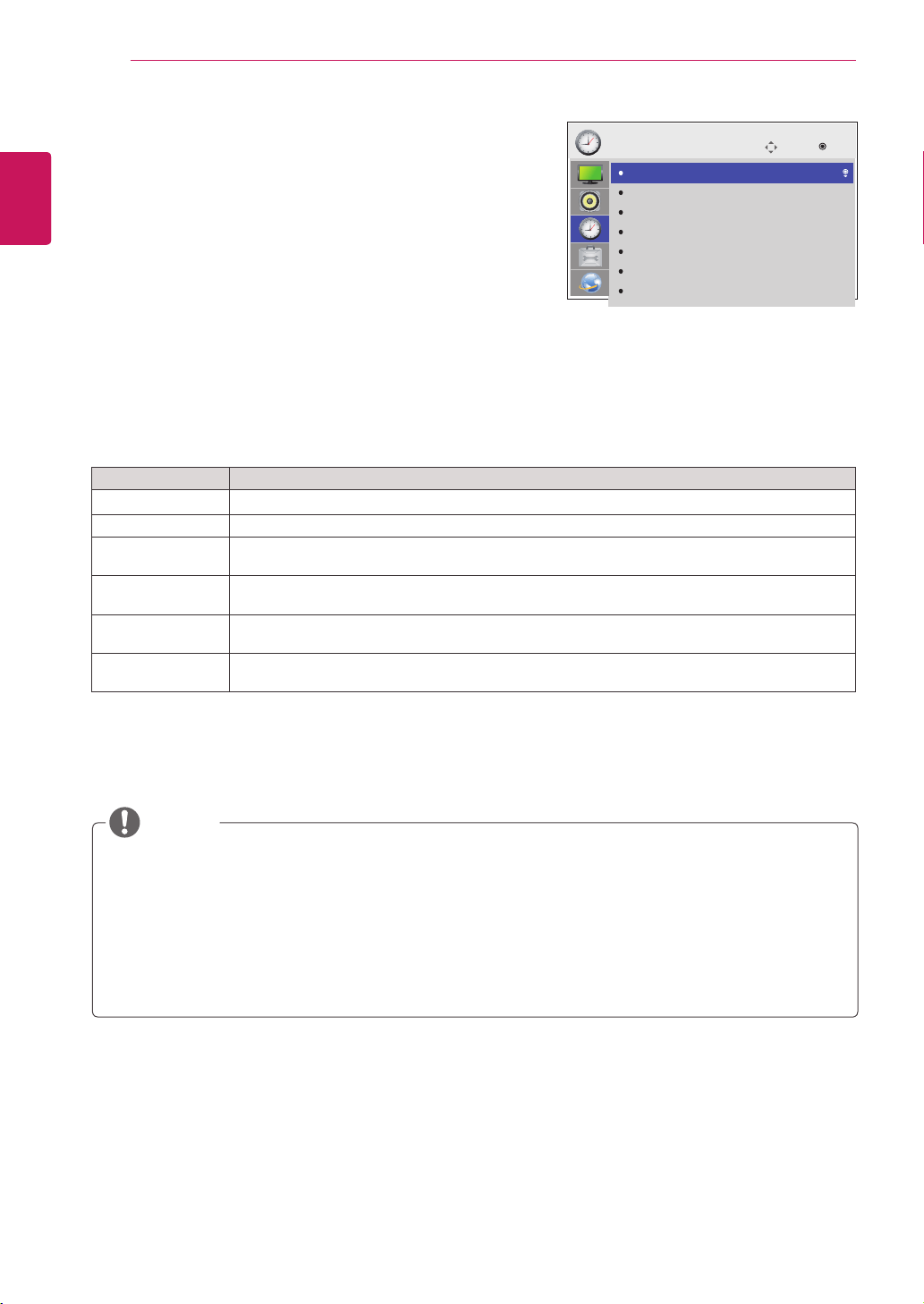
Setting Description
Clear Voice ll Bydifferentiatingthehumansoundrangefromothers,ithelpsusersmakesdialogeasierto
understand.
Balance Adjustsbalancebetweentheleftandrightspeakersaccordingtoyourroomenvironment.
Sound Mode Mode
Standard Selectwhenyouwantstandard-qualitysound.
Music Selectwhenyoulistentomusic.
Cinema Selectwhenyouwatchmovies.
Sport Selectwhenyouwatchsportevents.
Game Selectswhenyouplaygames.
Digital Audio
Input
HDMI/Display Port:OutputsthesoundofdigitalsignalfromHDMIanddisplayportsthroughthe
monitorspeaker.
Audio In:OutputsthesoundthroughthemonitorspeakerbyconnectingHDMIanddisplayports
totheAudioInport.
Speaker ON:Enablessoundtothemonitorspeaker.(*Themonitorspeakerissoldseparately.)
OFF:Disablessoundtothemonitorspeaker.Usethisoptionwhenusinganexternalsound
device.
Sound Mode options
Setting Description
Infinite Sound LG'sInfinitySoundoptionprovides5.1channelstereosoundfromtwospeakers.
Treble Controlsthedominantsoundsintheoutput.Whenyouturnupthetreble,itwillincreasethe
outputtothehigherfrequencyrange.
Bass Controlsthesoftersoundsintheoutput.Whenyouturnupthebass,itwillincreasetheoutput
tothelowerfrequencyrange.
Reset Resetsthesoundmodetothedefaultsetting.
Move
OK
AUDIO
Clear Voice II
Balance
Sound Mode
Digital Audio Input
Speaker
: Off
: Standard
Infinite Sound : Off
Treble
Bass
Reset
: Audio In
: On
50
50
46
ENG
ENGLISH
CUSTOMIZING SETTINGS
TIME settings
1
PressMENUtoaccessthemainmenus.
2
PresstheNavigationbuttonstoscrolltoTIMEandpress
OK.
3
PresstheNavigationbuttonstoscrolltothesettingoroption
youwantandpressOK.
-Toreturntothepreviouslevel,pressBACK.
4
Whenyouarefinished,pressEXIT.
Whenyoureturntothepreviousmenu,pressBACK.
Theavailabletimesettingsaredescribedinthefollowing:
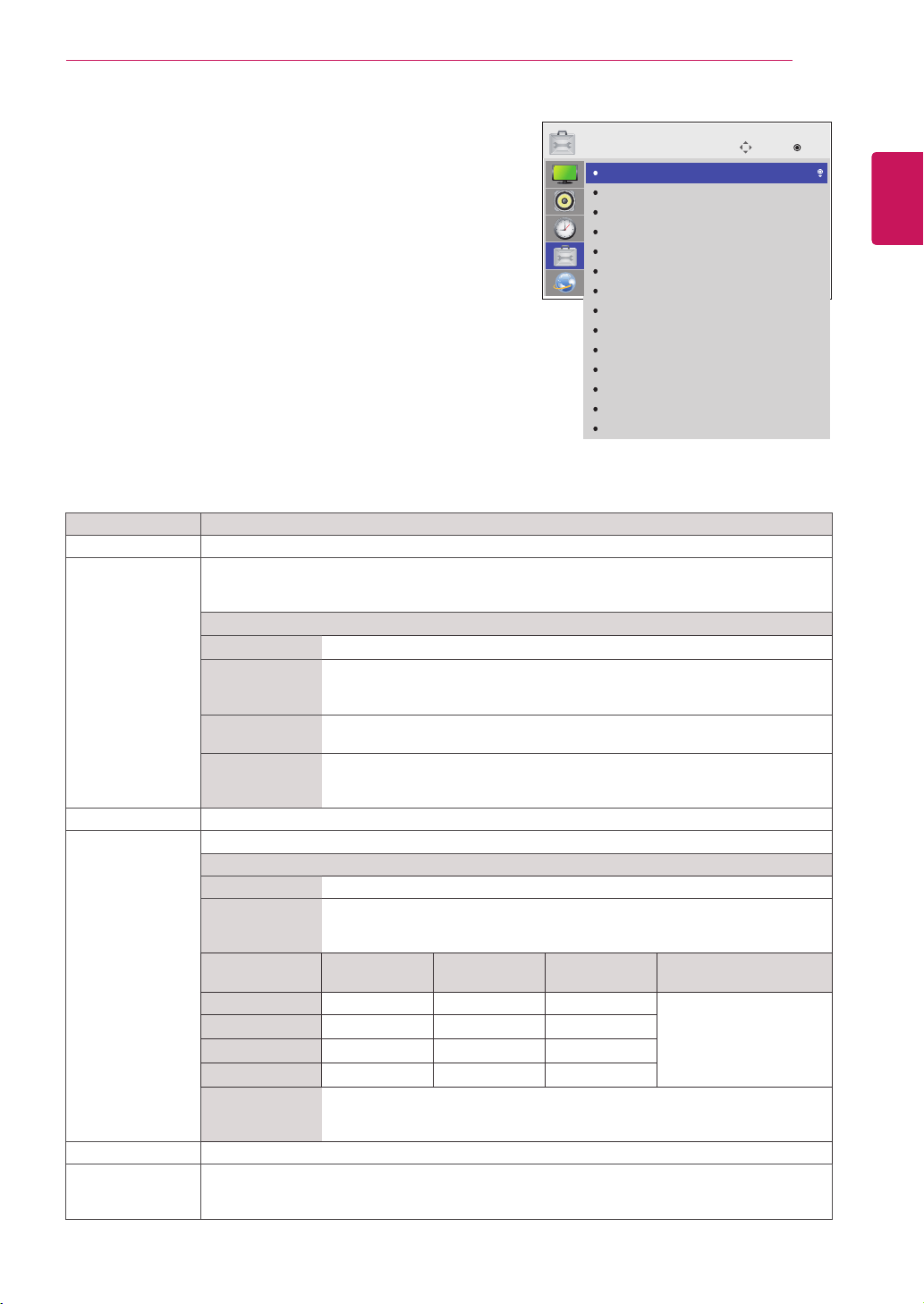
Setting Description
Clock Setsthetimefeature.
Off/On Time SetsthetimetoturnonorofftheMonitor.
Sleep Timer SetsthelengthoftimeuntiltheMonitortoturnsoff.WhenyouturntheMonitoroffandturn
itonagain,theSleepTimerwillbesettooff.
Power on delay Whenconnectingmultiplemonitorsandturningthepoweron,themonitorsareturnedon
individuallytopreventoverload.
Auto off IfAutooffisactiveandthereisnoinputsignal,thesetswitchestooffmodeautomaticallyafter15
minutes.
Automatic
Standby
Ifyoudonotusethemonitorformorethan4hours,itwillbeinoffmodeautomatically.
Off/OnTimecanbesavedforuptosevenschedules;theMonitoristurnedonoroffatthepresettimeinthe
schedulelist.Ifmultiplepresettimesarestoredintheschedulelist,thisfunctionworksatthenearesttimefromthe
currenttime.
Thescheduledpower-offfunctionworksproperlyonlywhenthedevicetimeissetcorrectly.
Whenthescheduledpower-onandpower-offtimesarethesame,thepower-offtimehaspriorityoverthepower-
ontimeifthesetisturnedon,andviceversaifthesetisturnedoff.
"The""AutomaticStandby""and""Autooff""functionsmaynotbeavailableinsomecountries."
NOTE
Move OK
TIME
Clock
Off Time
On Time
Sleep Timer
Power On Delay
Auto Off
Automatic Standby
: Off
: Off
: Off
: Off
: 15 min.
: Off
47
ENG
ENGLISH
CUSTOMIZING SETTINGS
Setting Description
Language Tochoosethelanguageinwhichthecontrolnamesaredisplayed.
ISM Method AfrozenorstillpicturefromaPC/Videogamedisplayedonthescreenforprolongedperiodscould
resultinaghostimageremainingevenwhenyouchangetheimage.Avoidallowingafixedimage
toremainonthescreenforalongperiodoftime.
Setting
Normal Leaveonnormalifyoudon'tforeseeimageburninbeingaproblem.
Orbiter May help prevent ghost images. However, it is bestnot to allow anyfixed
imagetoremainonthescreen.Toavoidapermanentimageonthescreen,the
screenwillmoveevery2minutes.
Inversion This function inverts the panel color of the screen. The panel color is
automaticallyinvertedevery30minutes.
White Wash Whitewashfills the screenwith solidwhite.Thishelps removespermanent
imagesburnedintothescreen.Apermanentimagemaybeimpossibletoclear
entirelywithwhitewash.
DPM Select Ausercanchoosetoturnthepowersavingmodeon/off.
Fail Over Ifthereisnoinputsignal,itautomaticallyswitchestoanotherinputwithsignal.
mode
Off Stopsautoswitchoftheinputsource.
Auto Attemptstofindanotherinputsourcehavingvideosignalaccordingtothe
definedinputorderifnovideosignalcomesfromthecurrentinputsource.
(Refertothesequenceofthetablebelow.)
Current
InputSource
Attempt1 Attempt2 Attempt3 Attempt4
RGB HDMI DVI DP
Ifthereisnoavailable
videosignaltoswitchto,
thenthecurrentinput
sourceremains.
DVI HDMI DP RGB
HDMI DVI DP RGB
DP HDMI DVI RGB
Manual Theinputsourcechangesaccordingtothespecifiedorder.
Ifthereisnovideosignalfromthespecifiedinputsource,thenthecurrentinput
sourceremains.
Factory Reset Selectthisoptiontoreturntothedefaultfactorysettings.
Set ID YoucanassignauniqueSetIDNO(nameassignment)toeachproductwhenseveralproducts
areconnectedfordisplay.Specifythenumber(1to255)usingthebuttonandexit.Usethe
assignedSetIDtoindividuallycontroleachproductusingtheProductControlProgram.
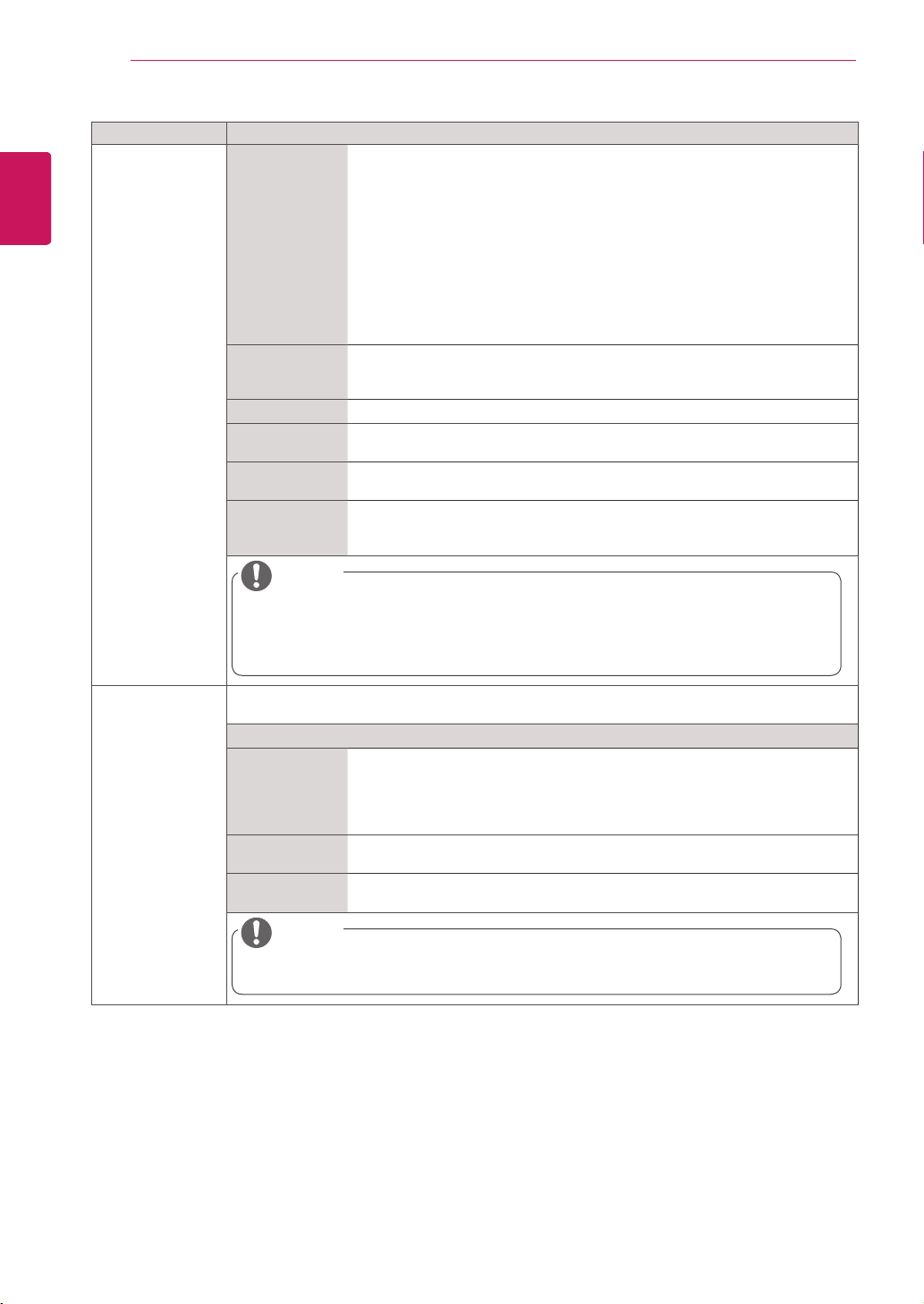
OPTION settings
1
PressMENUtoaccessthemainmenus.
2
PresstheNavigationbuttonstoscrolltoOPTIONandpress
OK.
3
PresstheNavigationbuttonstoscrolltothesettingoroption
youwantandpressOK.
-Toreturntothepreviouslevel,pressBACK.
4
Whenyouarefinished,pressEXIT.
Whenyoureturntothepreviousmenu,pressBACK.
Theavailableoptionsettingsaredescribedinthefollowing:
Move
OK
OPTION
Language
ISM Method
DPM Select
Fail Over
Factory Reset
Set ID
Tile Mode
PIP/PBP
Key Lock
Interface Select
PC Power Control
USB Content Recovery
Product/Service Info.
Portrait Mode
: Normal
: On
: Off
: 1
: Off
: RS232C
: Off
: Off
48
ENG
ENGLISH
CUSTOMIZING SETTINGS
Setting Description
Tile Mode Tile Mode Tousethisfunction
-Mustbedisplayedwithvariousotherproducts.
-MustbeinafunctionthatcanbeconnectedtoRGBCablebydistributorand
RS-232C.
TilemodeandchooseTilealignmentandsettheIDofthecurrentproductto
setlocation.
*OnlyafterpressingtheSETbuttontheadjustmentsmadetothesettingswill
besaved.
-Tilemode:columnxrow(c=1to15r=1to15)
-15x15available.
-Configurationofanintegrationscreenisalsoavailableaswellas
configurationofOnebyoneDisplay.
Auto Config. Adjuststhescreenpositionautomatically.
Thedisplayedimagemaybeunstableforafewsecondswhiletheconfiguration
isinprogress.
PC Position Movingthescreenpositionhorizontallyandvertically.
PC Size Adjustthehorizontalandverticalsizeofthescreentakingintoaccountthesize
ofthebezel.
Natural Theimageisomittedbythedistancebetweenthescreenstobenaturally
shown.
Reset FunctiontoinitializeandreleaseaTile.
AllTilesettingarereleasedwhenselectingTilerecallandthescreenreturnsto
Fullscreen.
NOTE
IfTileModeisenabled,SmartEnergySavingandtheAutooptioninEnergySavingwillbe
disabledtoprovidethesamepicturequalityasotherdisplays.
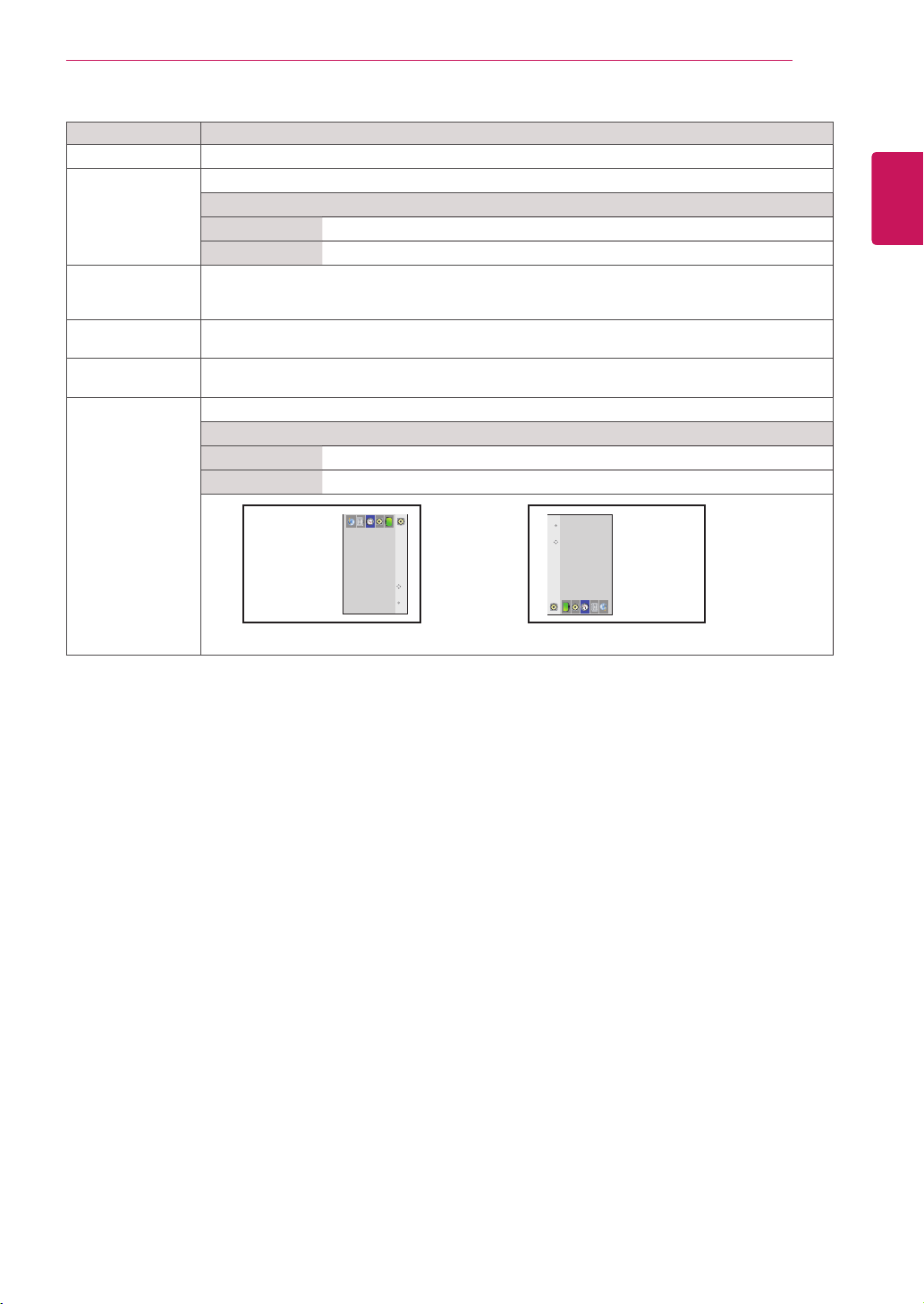
PIP/PBP VideosorphotosstoredontheUSBdevicecanbedisplayedonasinglemonitorbydividingthem
intothemainandsubscreens.
Option
Mode Setsthetypeofsecondaryscreen.
*OFF:Disablesthesecondaryscreen.
*PIP(PictureInPicture):Displaysthesecondaryscreeninthemainscreen.
*PBP(PictureByPicture):Displaysthesecondaryscreennexttothemain
screen.
Position Adjuststhepositionofthesubscreen(topleft,bottomleft,topright,bottom
right)Thedefaultvalueisinthebottomright.
Size Adjuststhesizeofthesubscreen(Size0-10).ThedefaultsizeofthePIP(Size:
0)is480x240;themaximumsize(Size:10)is960x540.
NOTE
ThePositionandSizeoptionsareenabledonlyinPIPmode.
49
ENG
ENGLISH
CUSTOMIZING SETTINGS
Setting Description
Key Lock Keyinputdoesnotwork.Thispreventsinvalidkeyinput.
Interface Select SetscommunicationwithMediaPlayerandtheconnectedPC.
Option
RS232C CommunicateswiththeconnectedPCinserialmode.
SuperSign CommunicateswithMediaPlayer.
PC Power Control ControlsthepowerofthemonitorwithMediaPlayerturnedon.
On:TurnsonoroffthemonitorwithMediaPlayeron.
Off:Turnsonoroffthewholesystem.
USB Content
Recovery
ReplaysthecontentinaUSBwhenthepowerisbackonifitisturnedoffduringplayingacontent.
(ThisfunctionoperatesthesamewhenaUSBisdisconnectedandconnectedagain.)
Product/Service
Info.
Displaysthemodelname,softwareversion,serialnumber,IPaddress,MACaddressandhome
page.
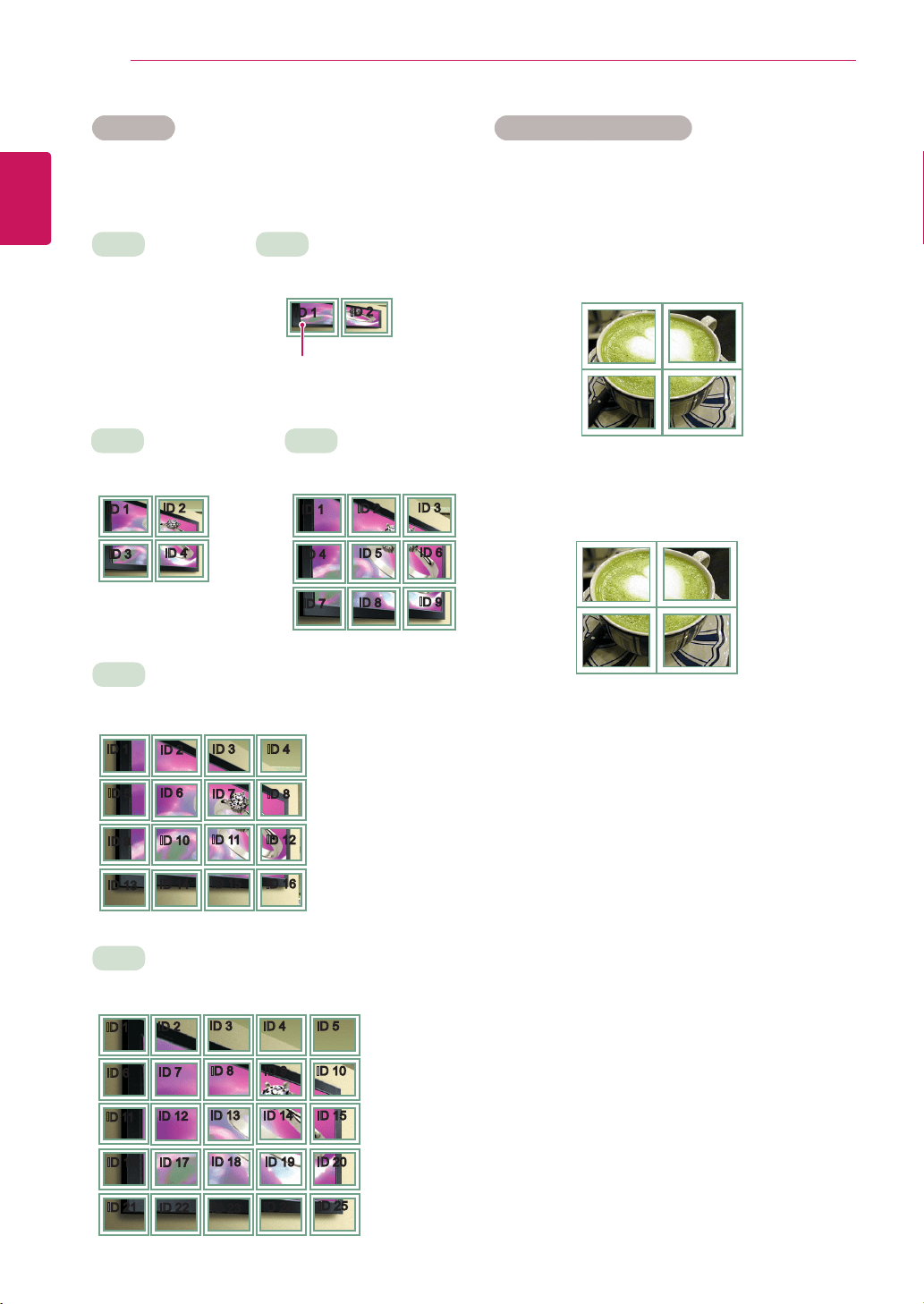
Portrait mode RotateOSDclockwise(90°,270°)
Option
90° RotateOSDclockwise90°.
270° RotateOSDclockwise270°.
Move OK
AUDIO
ClearVoiceII
Balance
SoundMode
DigitalAudioOut
Speaker
270°
Move OK
AUDIO
ClearVoiceII
Balance
SoundMode
DigitalAudioOut
Speaker
90°
50
ENG
ENGLISH
CUSTOMIZING SETTINGS
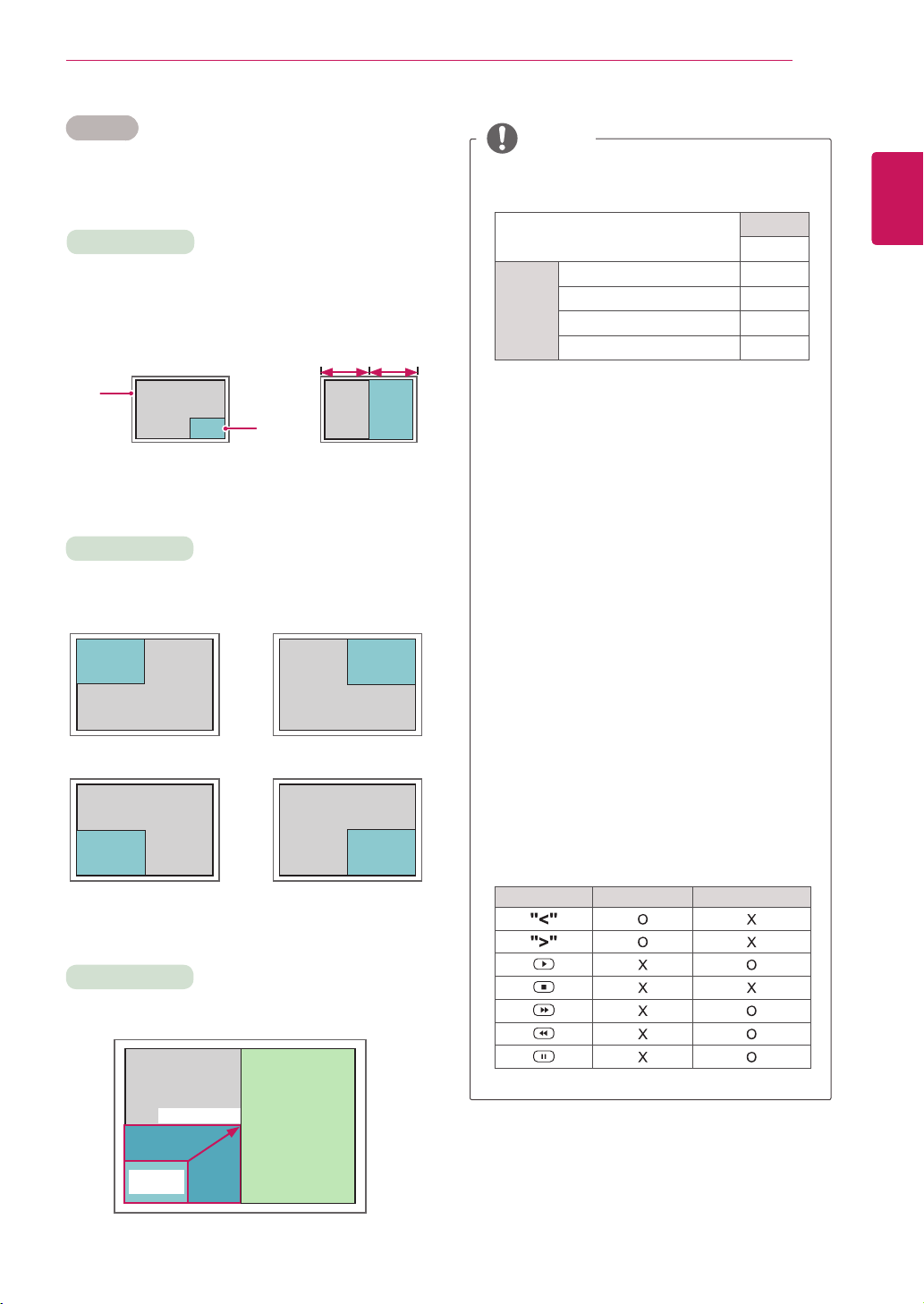
Tile Mode
Thismonitorcanbetiledwithadditionalmonitors
tocreatealargetileddisplay.
Tile Mode - Natural mode
Whenactive,thepartoftheimagethatwould
normallybedisplayedinthegapbetweenthe
monitorsisomitted.
ID1
ID2
ID3
ID4
ID1
ID2
ID4
ID5
ID3
ID6
ID7
ID8
ID9
3X3
Whenusing9monitors
ID1
ID2
ID5
ID6
ID3
ID7
ID9
ID10
ID11
ID4
ID8
ID12
ID13
ID14
ID15
ID16
ID1
ID2
ID6
ID7
ID3
ID8
ID11
ID12
ID13
ID4 ID5
ID9 ID10
ID14 ID15
ID16
ID21
ID17
ID22
ID18
ID23
ID19
ID24
ID20
ID25
Off
WhentheTileMode
optionisdisabled
1X2
Whenusing2monitors
2X2
Whenusing4monitors
5X5
Whenusing25monitors
4X4
Whenusing16monitors
ID1
ID2
TileID
Before
After
51
ENG
ENGLISH
CUSTOMIZING SETTINGS
PIP/PBP
DisplaysvideosorphotosstoredintheUSBdevice
onasinglemonitorbydividingitintothemainand
subscreens.(Seep.39)
Position
Mode
Size
top left top right
bottom left bottom right
*PIP(Picture In Picture):DisplaystheSubscreen
inthemainscreen.
*PBP(Picture By Picture):DisplaystheSub
screennexttothemainscreen.
Adjuststhepositionofthesubscreen(topleft,
bottomleft,topright,bottomright)
Adjuststhesizeofthesubscreen(Size0-10).
< 1920x1080 >
PBP
960x1080
0 :
480x270
PIP
10 : 960x540
Thesubscreenisonlysupportedwhenusingthe
USBdevice.
Sub
USB
Main
Component O
RGB O
HDMI/DVI-D/Display Port O
AV X
YoucanonlychangethesizeandpositioninPIP
mode.
WithPBPselected,theAspectRatiooptioninthe
PICTUREmenuisdisabled(Fixedas16:9).
WhilerunningthePBPfunction,theTileModefunction
doesnotwork.
Youmustselecttheoutputsoundbeforerunning
thePIPorPBPfunctions.(SelecteitherMainor
Sub.)
IfyoufailtoselectMainorSubfromthesound
selectionbox,andiftheOSDdisappearsafter
eitheraperiodoftimeorwhentheExitorBack
keyispressed,thePIP/PBPsubscreenisnot
activated.
Youcannotchangethesoundwhilerunningthe
PIPorPBPfunctions.Ifyouwanttochangethe
sound,pleaserestartPIP/PBP.
Thepicturequalityofthesubscreenisset
accordingtothevaluesselectedinthemainmenu,
nottheUSBdevice.
Evenwhenthepoweristurnedofforon,ifthe
USBdeviceisconnected,thePIP/PBPmodeplays
againfromwhereitleftoff.
IfyouplayvideosyouselectedinPIP/PBPmode,
thevideoswillplaybackrepeatelyinsuccession.
ThebuttonsbelowworkinPIPmode.
Button Photo Movie
NOTE
Main
screen
Sub
screen
PIP PBP

52
ENG
ENGLISH
CUSTOMIZING SETTINGS
Picture ID
PictureIDisusedtochangethesettingsofa
specicdisplayusingasingleIRreceiverformulti-
vision.Communicationispossiblebetweenaset
withanIRreceiverandothersetsusingaudio
cables.EachsetisidentiedbyasetID.Ifyou
assignthePictureIDusingtheremotecontrol,only
displayswiththesamePictureIDandSetIDcan
becontrolledremotely.
1 PresstheredONbuttonontheremotecontrol
toassignthePictureID.
2 Ifyoupresstheleft/rightbuttonsorpressthe
ONbuttonrepeatedly,thePictureIDcycles
throughOFFand0to4.AssigntheIDyou
want.
IfyouassigntheSetIDtoeachsetwith
multi-vision,andthenassignthePictureID
usingtheredbuttonontheremotecontrol,
thekeycommandisdisplayedfortheset
withthesameSetIDandPictureID.Aset
withdifferentSetIDsandPictureIDscannot
becontrolledbyIRsignals.
Formoreinformationonhowtoassignthe
SetID,see"SetID"onpage47.
PleaserefertotheInstallationManualfor
moreinformationonTotalSetIDassignment.
P
A
G
E
INPUT
ENERGY
SAVING
MARK
ARC
ON
OFF
. , !
ABC
DEF
GHI
JKL
MNO
PQRS
TUV
1/a/A
- * #
WXYZ
CLEAR
OK
S.MENU
MONITOR
PSM
AUTO
MUTE
BRIGHT
NESS
MENU
ID
BACK
TILE
ON
OFF
EXIT
POWER
P
A
G
E
INPUT
ENERGY
SAVING
MARK
ARC
ON
OFF
. , !
ABC
DEF
GHI
JKL
MNO
PQRS
TUV
1/a/A
- * #
WXYZ
CLEAR
OK
S.MENU
MONITOR
PSM
AUTO
MUTE
BRIGHT
NESS
MENU
ID
BACK
TILE
ON
OFF
EXIT
POWER
Forexample,ifthePictureIDisassignedto
2,theupperrightdisplay(SetID:2)canbe
controlledbyIRsignals.
Foreachset,youcanchangethesettings
forthePICTURE,AUDIO,TIME,NETWORK
andMYMEDIAmenusorthehotkeyson
theremotecontrol.
IfyoupressthegreenOFFbuttonforPicture
IDs,thePictureIDsforallsetsareturnedoff.
Ifyouthenpressanybuttonontheremote
control,allsetswillstartworkingagain.
PictureIDwillbedisabledwhileusingthe
MYMEDIAmenu.
NOTE
PictureID
Close
◀
Off
▶
2X2Multi-Vision(TotalSetID:4)
SetIDsareassignedasshowninthepicture.
AUDIO
(RGB/DVI)
REMOTE
CONTROL IN
RS-232C OUT
RS-232C IN
RS-232C OUT
RS-232C IN
RS-232C OUT
RS-232C IN
IR Receiver
Audiocable
PictureID
Close
Off
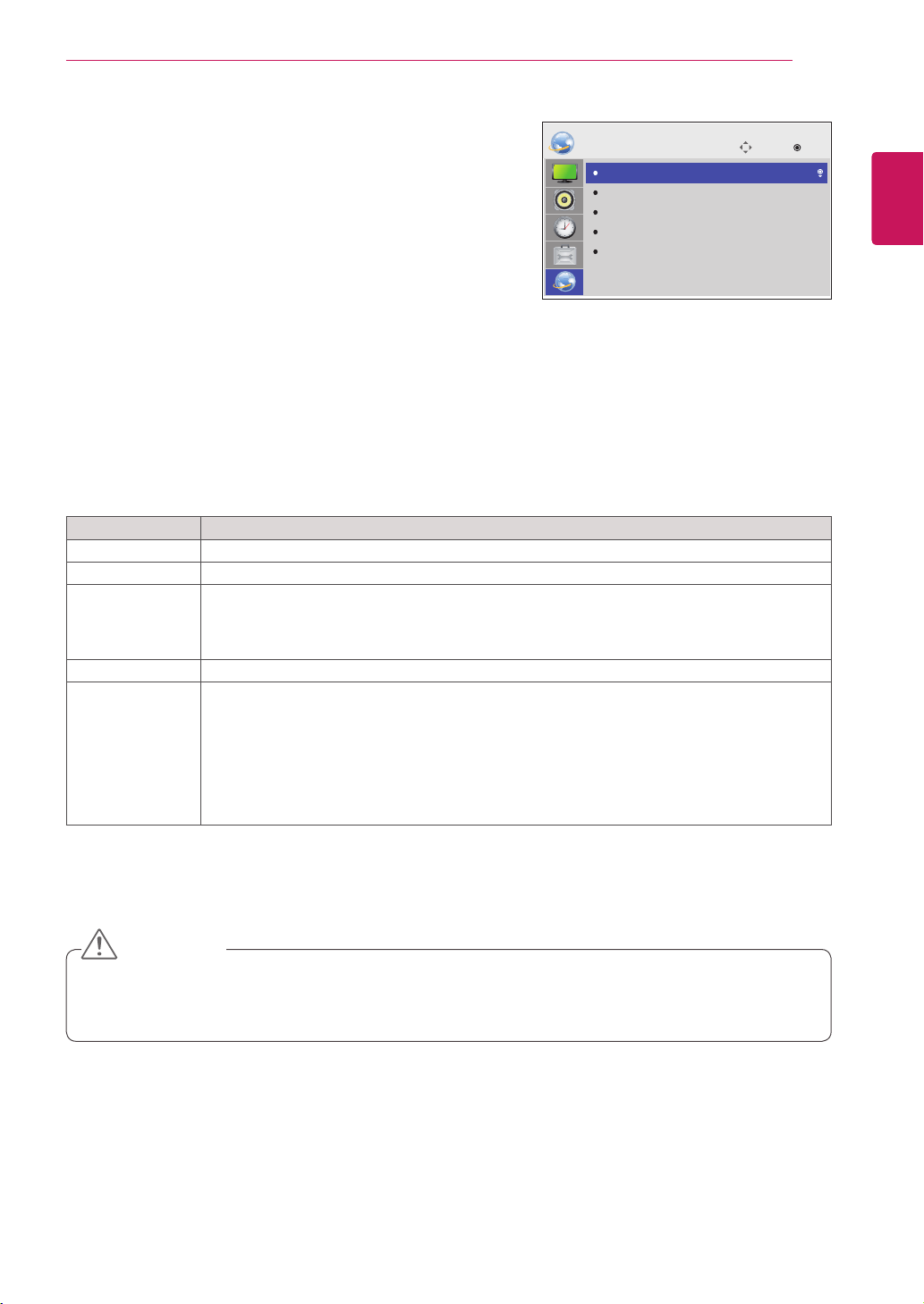
53
ENG
ENGLISH
CUSTOMIZING SETTINGS
NETWORK settings
1
PressMENUtoaccessthemainmenus.
2
PresstheNavigationbuttonstoscrolltoNETWORKand
pressOK.
3
PresstheNavigationbuttonstoscrolltothesettingoroption
youwantandpressOK.
-Toreturntothepreviouslevel,pressBACK.
4
Whenyouarefinished,pressEXIT.
Whenyoureturntothepreviousmenu,pressBACK.
Theavailableoptionsettingsaredescribedinthefollowing:
Setting Description
Player Name SetstheplayernameusedinSuperSignManager.(Upto20characters)
Network Setting Configurethenetworksettings.
Network Status
Displaythenetworkstatus.
-Internetisconnected:Extermallyconnected
-Homenetworkisconnected:Onlyinternallyconnected
-Notconnected:Whenthereisnonetworkconnection
Server IP Setting SetstheIPaddressofthecomputer(server)onwhichSuperSignManagerisinstalled.
Server IP Status Displaystheconnectionstatuswiththeserver.
-Notconnected:WhenthereisnonetworkconnectionwithSuperSignserver
-Waitingforapproval:WhennetworkconnectionwithSuperSignserverhasbeenmade,but
accesstoserverhasnotbeenapprovedbytheserver
-Rejected:WhennetworkconnectionwithSuperSignserverhasbeenmade,butaccessto
serverhasbeenrejectedbytheserver
-Internetisconnected:WhennetworkconnectionwithSuperSignserverhasbeenmadeand
accesstoserverhasalsobeenapprovedbytheserver
WhensettingthePlayerName,inputdelaymayoccurifyoupressthebuttonsontheremotecontrol
continuously.
CAUTION
Move
OK
NETWORK
Player Name Setting
Network Setting
Network Status
Server IP Setting
Server IP Status
: None
: Not connected
: Not connected

54
ENG
ENGLISH
MAKING CONNECTIONS
HDMI-Seep.55
Component-Seep.55
AV(CVBS)-Seep.56
RGB-Seep.16
DVI-D-Seep.16
HDMI-Seep.17
DisplayPort-Seep.17
LAN-Seep.57
HDMI-Seep.55
Component-Seep.55
AV(CVBS)-Seep.56
HDMI-Seep.55
Component-Seep.55
AV(CVBS)-Seep.56
AV(CVBS)-Seep.56
Component-Seep.55
HDMI-Seep.55
Component-Seep.55
AV(CVBS)-Seep.56
MAKING CONNECTIONS
ConnectvariousexternaldevicestotheportsontheMonitor’sbackpanel.
1
FindanexternaldeviceyouwanttoconnecttoyourMonitorshownonthefollowingillustration.
2
Checktheconnectiontypeoftheexternaldevice.
3
Gototheappropriateillustrationandchecktheconnectiondetails.
IfyouconnectagamingdevicetotheMonitor,usethecablesuppliedwiththegamingdevice.
HD Receiver DVD VCR
USB
PC
Camcorder/Camera
Gaming device
Speaker
Memorystorage
–Seep.26
NOTE
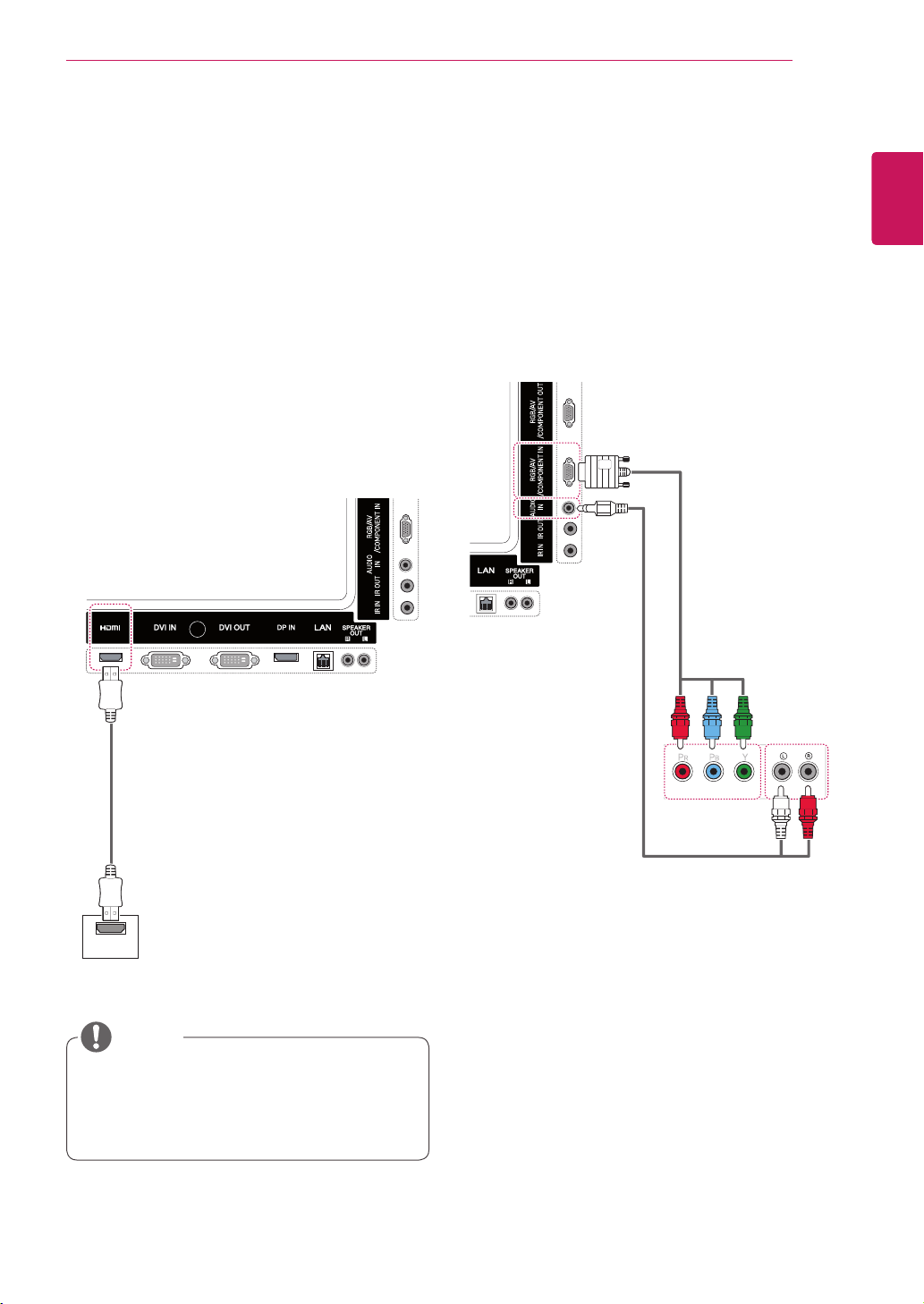
55
ENG
ENGLISH
MAKING CONNECTIONS
HDMI
V
IDE
O
A
UD
I
O OUT
Connecting to a HD receiver,
DVD, Camcorder, Camera,
Gaming Device or VCR player
ConnectaHDreceiver,DVD,orVCRplayertothe
Monitorandselectanappropriateinputmode.
HDMI connection
Transmitsthedigitalvideoandaudiosignalsfrom
anexternaldevicetotheMonitor.Connectthe
externaldeviceandtheMonitorwiththeHDMI
cableasshownonthefollowingillustration.
UseaHighSpeedHDMI™Cable.
HighSpeedHDMI™Cablesaretestedto
carryanHDsignalupto1080pandhigher.
NOTE
Component connection
Transmitstheanalogvideoandaudiosignals
fromanexternaldevicetotheMonitor.Connect
theexternaldeviceandtheMonitorwiththe15
pinsignaltoRCAcableasshownonthefollowing
illustration.Todisplayimagesbyusingprogressive
scan,makesuretousethecomponentcable.
(notincluded)
(notincluded)
(notincluded)
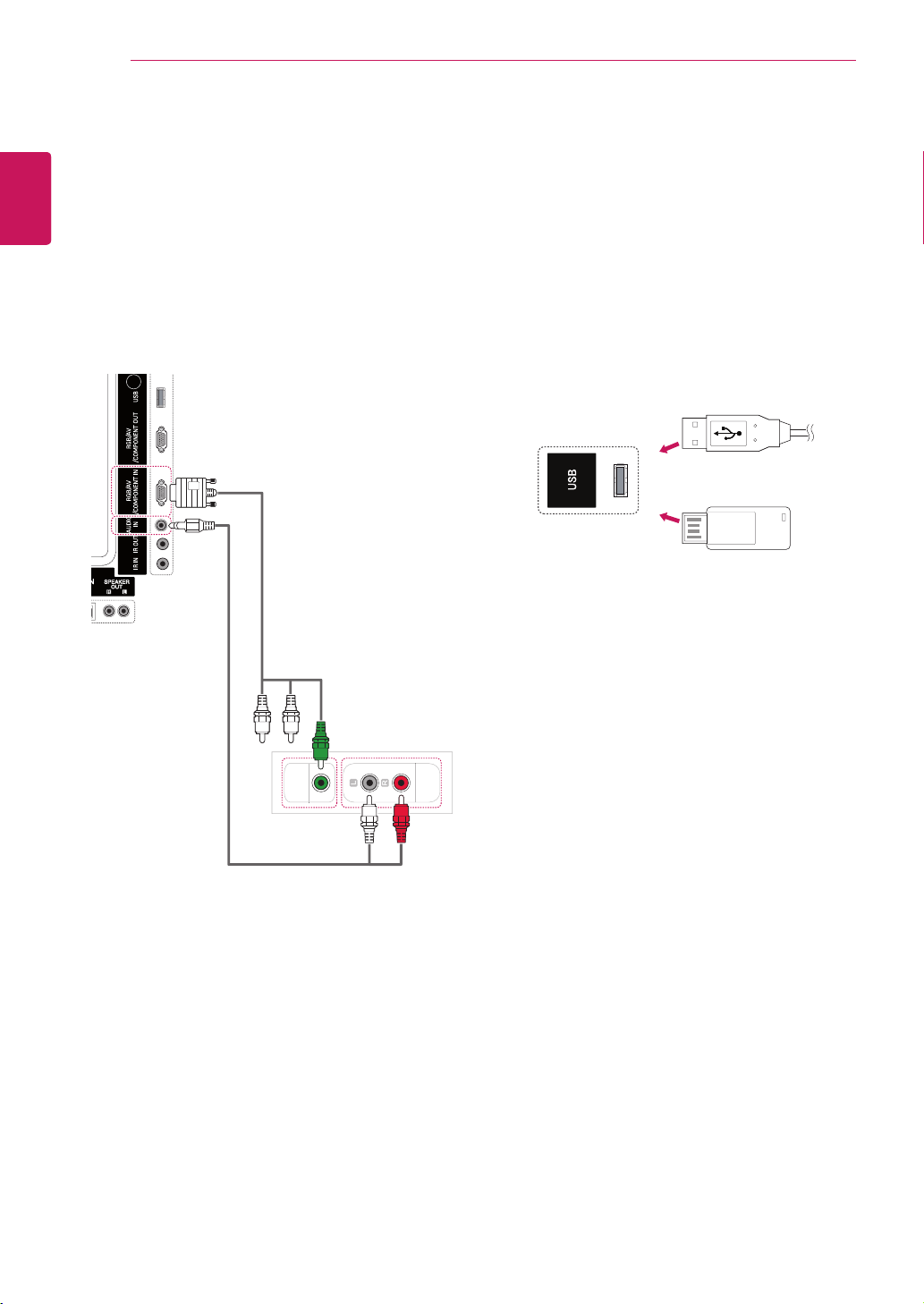
56
ENG
ENGLISH
MAKING CONNECTIONS
AU
DI
O
OUT
V
IDE
O
OU
T
AV(CVBS) connection
Transmitstheanalogvideoandaudiosignals
fromanexternaldevicetotheMonitor.Connect
theexternaldeviceandtheMonitorwiththe15
pinsignaltoRCAcableasshownonthefollowing
illustration.
Connecting to a USB
ConnectaUSBstoragedevicesuchassUSB
flashmemory,externalharddrive,MP3playeror
aUSBmemorycardreadertotheMonitorand
accesstheUSBmenutousevariousmultimedia
files.
or
(notincluded)
(notincluded)
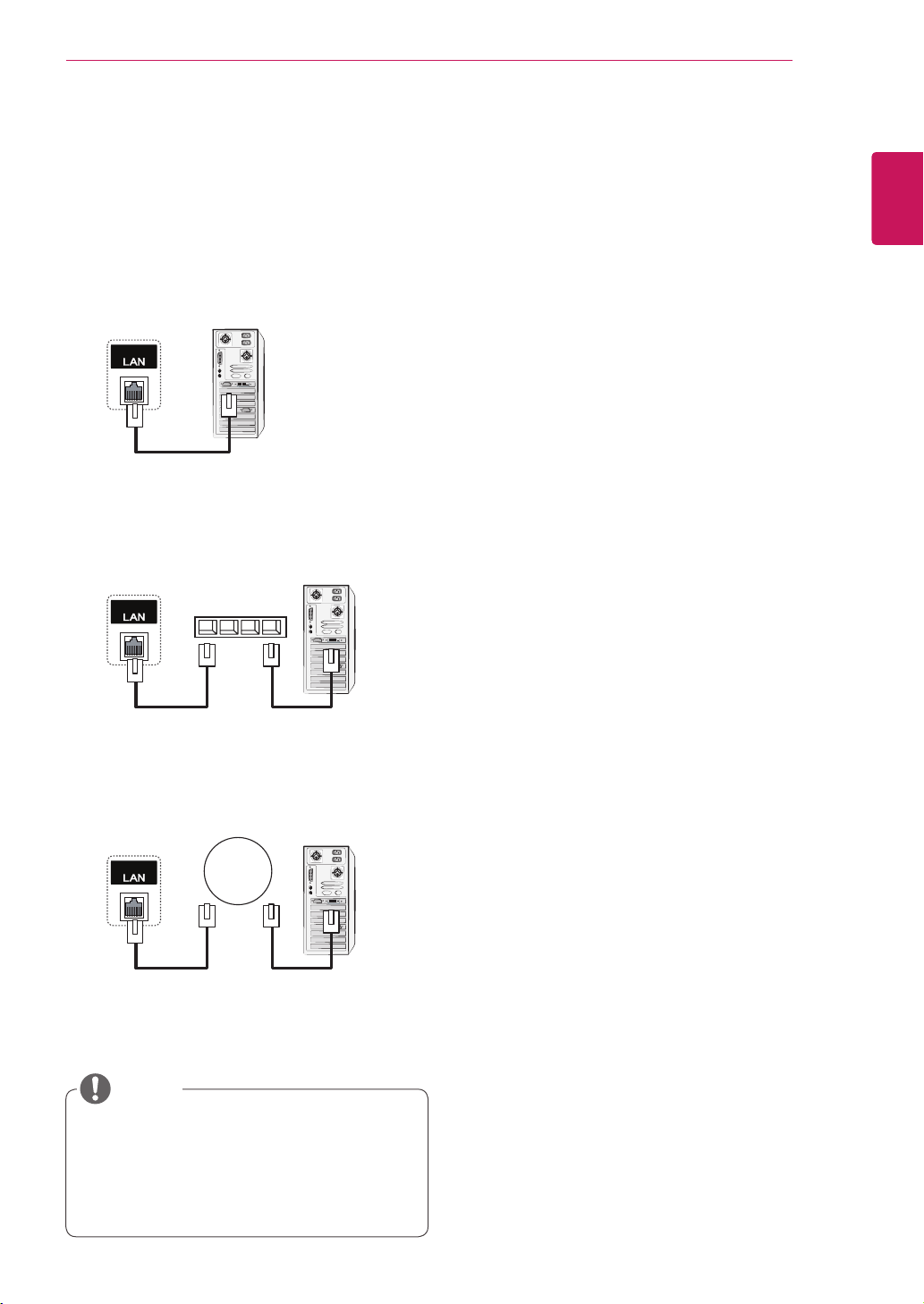
57
ENG
ENGLISH
MAKING CONNECTIONS
Connecting to the LAN
UsingLANestablishescommunication
betweenyourPCandthemonitorand
enablestousetheOSDmenusonthePCas
wellasonthemonitor.
LAN connection
A
ConnectPCtoMonitordirectly.
B
Usingarouter(Switch)
C
UsingtheInternet.
NOTE
PC
Monitor
Network
LAN
Monitor
PC
Network
LAN
Network
Monitor
PC
Switch
LAN

58
ENG
ENGLISH
MAKING CONNECTIONS
RGB OUT
(
PC
)
V
IDE
O
A
UDI
O
OUT
V
IDE
O
OUT
Daisy Chain Monitors
UsethisfunctiontosharetheRGBvideosignalwithothermonitorswithouthavingtouseaseparatesignal
splitterbox.
TousedifferentproductsconnectedtoeachotherConnectoneendofthesignalinputcable(15-pinD-Sub
SignalCable)totheRGBOUTconnectorofproduct1andconnecttheotherendtotheRGBINconnector
ofotherproducts
RGB
Mode
Component
Mode
AV(CVBS)
Mode
15-pinD-SubSignalCable
(Max3m)
Monitor4 Monitor3 Monitor2 Monitor1
Thenumberofmonitorsthatcanbeconnectedtooneoutputmayvarydependingonsignalstatus
andcableloss.Ifthesignalstatusisgood,andthereisnocableloss,itispossibletoconnectupto
9monitors.Ifyouwanttoconnectmorethanthisnumberofmonitors,itisrecommendedtousea
distributor.
Whenmulti-connectingin/outcascadeformat,nolosscablesarerecommended.
NOTE
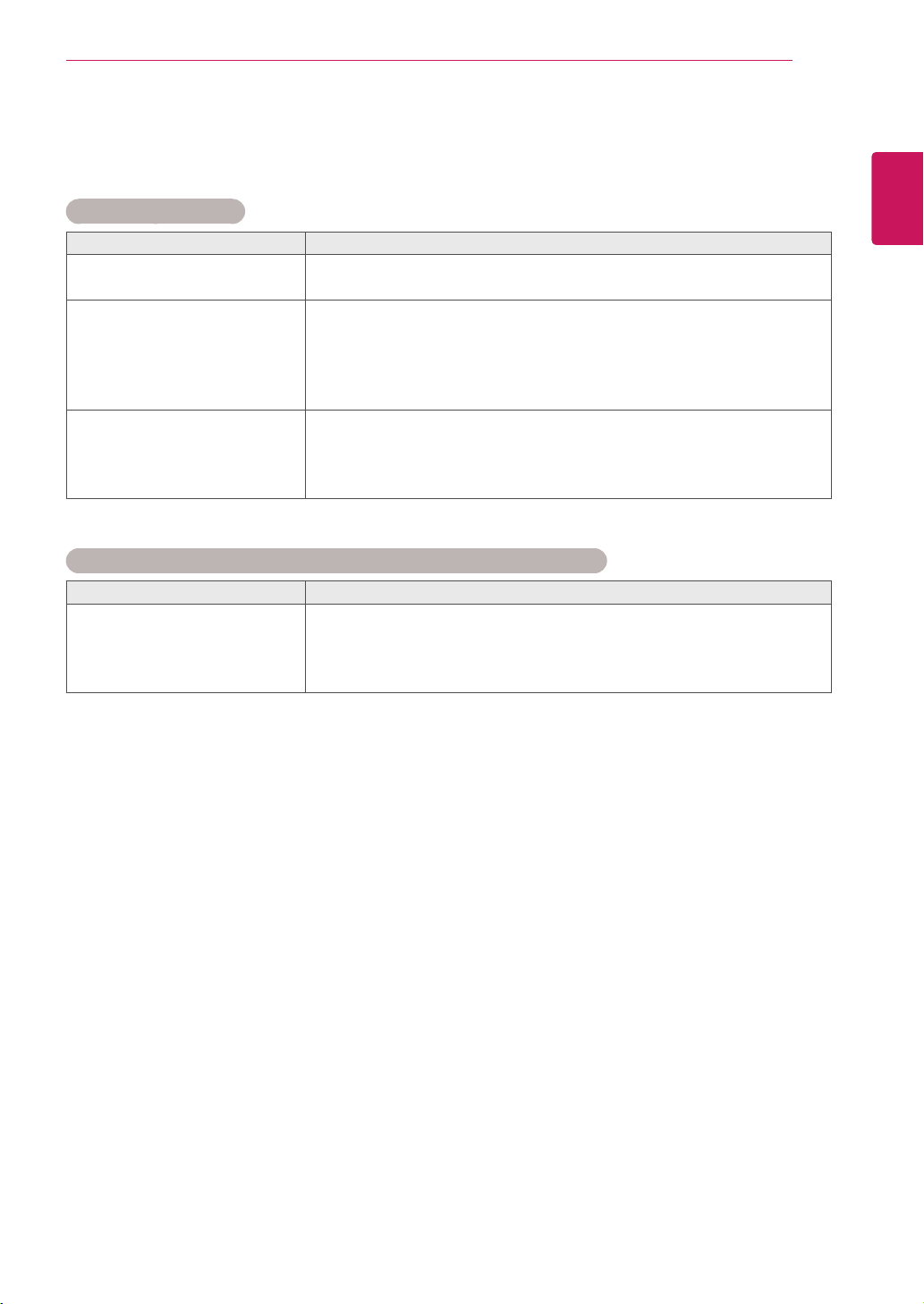
59
ENG
ENGLISH
TROUBLESHOOTING
TROUBLESHOOTING
No image is displayed
Problem Resolution
Istheproductpowercord
connected?
Seeifthepowercordisproperlyconnectedtotheoutlet.
Doesthe'Outofrange'
messageappear?
ThesignalfromthePC(videocard)isoutoftheverticalorhorizontal
frequencyrangeoftheproduct.Adjustthefrequencyrangeby
referringtotheSpecificationsinthismanual.
*Maximumresolution
RGB,HDMI,DVI-D,DisplayPort:1920x1080@60Hz
Doesthe'Checksignalcable'
messageappear?
ThesignalcablebetweenPCandproductisnotconnected.Check
thesignalcable.
Pressthe'INPUT'menuintheremoteControltochecktheinput
signal.
'Unknown Product' message appears when the product is connected.
Problem Resolution
Didyouinstallthedriver?
Installtheproductdriver,whichisprovidedwiththeproduct,or
downloaditfromthewebsite.(http://www.lg.com)
Seeiftheplug&playfunctionissupportedbyreferringtothevideo
cardusermanual.
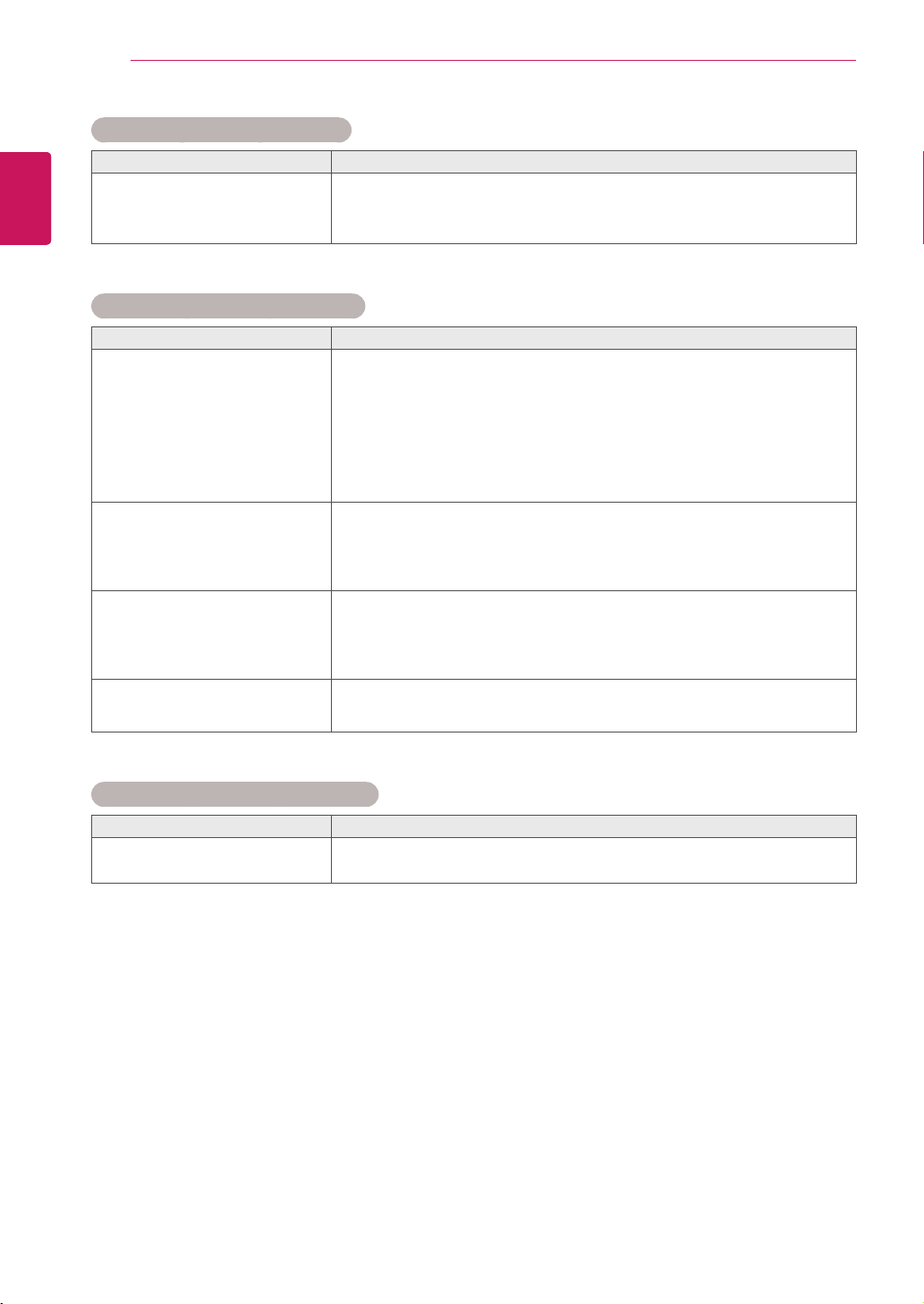
60
ENG
ENGLISH
TROUBLESHOOTING
'Key Lock On' message appears.
Problem Resolution
The'KeyLockOn'message
appearswhenpressingthe
Menubutton.
TheLockfunctionpreventstheOSDsettingsfrombeingchanged
inadvertently.Toreleasethelock,gotoMenuandOptionanddisable
theKeyLockoption.
The screen image looks abnormal.
Problem Resolution
Isthescreenpositionwrong?
D-Subanalogsignal-Pressthe"AUTO"buttonintheremotecontrol
toautomaticallyselecttheoptimalscreenstatusthatfitsintothe
currentmode.Ifadjustmentisnotsatisfactory,usethePositionOSD
menu.
Seeifthevideocardresolutionandfrequencyaresupportedbythe
product.Ifthefrequencyisoutofrange,settotherecommended
resolutionintheControlPanel"Display"Settingmenu.
Dothinlinesappearonthe
backgroundscreen?
D-Subanalogsignal-Pressthe"AUTO"buttonintheremotecontrol
toautomaticallyselectanoptimalscreenstatusthatfitsintothe
currentmode.Ifadjustmentisnotsatisfactory,usetheClockOSD
menu.
Horizontalnoiseappearsorthe
characterslookblurred.
D-Subanalogsignal-Pressthe"AUTO"buttonintheremotecontrol
toautomaticallyselectanoptimalscreenstatusthatfitsintothe
currentmode.Ifadjustmentisnotsatisfactory,usethePhaseOSD
menu.
Thescreenisdisplayed
abnormally.
Theproperinputsignalisnotconnectedtothesignalport.Connect
thesignalcablethatmatcheswiththesourceinputsignal.
After-image appears on the product.
Problem Resolution
After-imageappearswhenthe
productisturnedoff.
Ifyouuseafixedimageforalongtime,thepixelsmaybedamaged
quickly.Usethescreen-saverfunction.
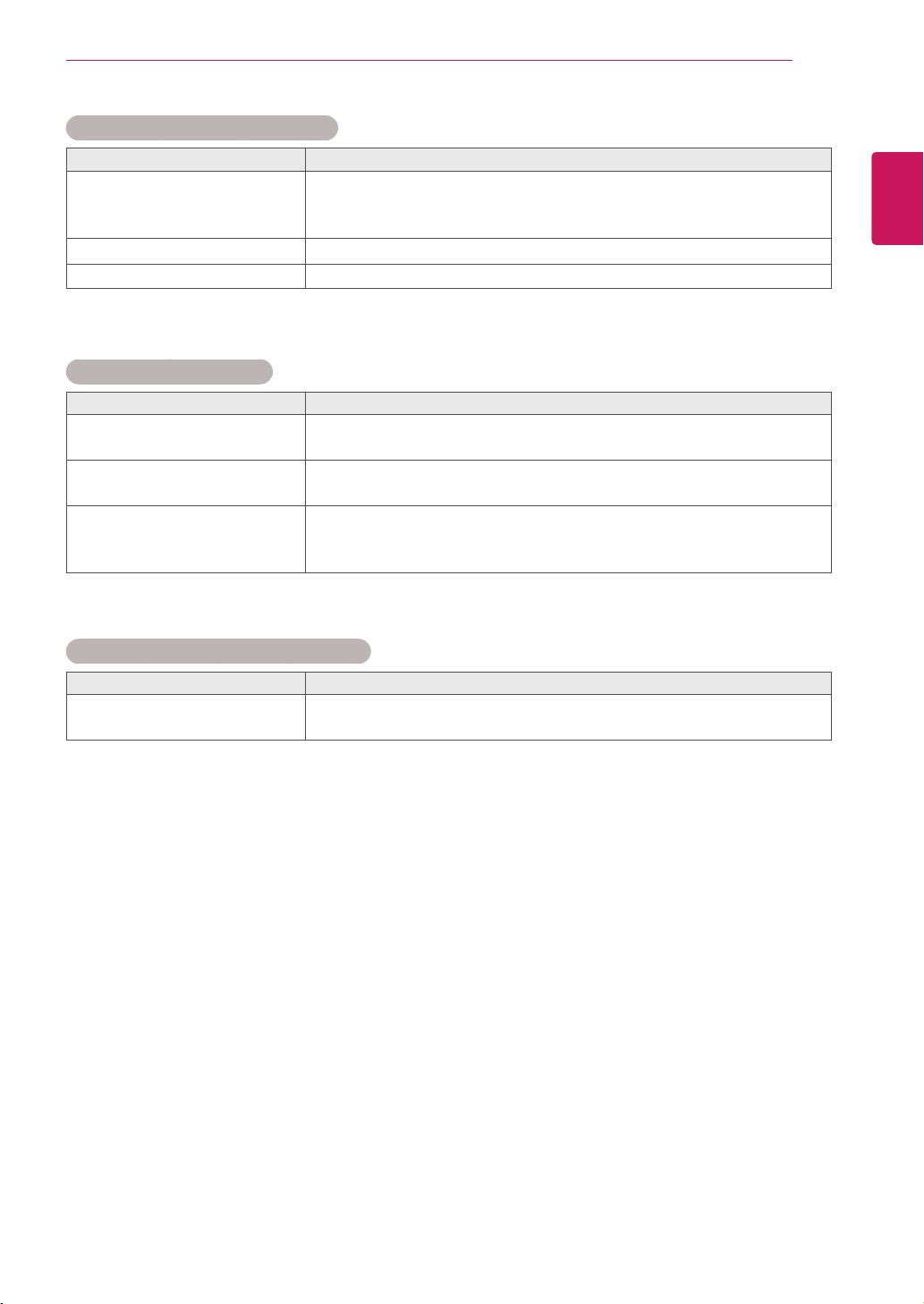
61
ENG
ENGLISH
TROUBLESHOOTING
Screen color is abnormal.
Problem Resolution
Screenhaspoorcolorresolution
(16colors).
Setthenumberofcolorstomorethan24bits(truecolor)Select
ControlPanel-Display-Settings-ColorTablemenuinWindows.
Screencolorisunstableor
mono-colored.
Checktheconnectionstatusofthesignalcable.Or,re-insertthePC
videocard.
Doblackspotsappearonthe
screen?
Severalpixels(red,green,whiteorblackcolor)mayappearonthe
screen,whichcanbeattributabletotheuniquecharacteristicsofthe
LCDpanel.ItisnotamalfunctionoftheLCD.
The operation does not work normally.
Problem Resolution
Thepowersuddenlyturnedoff.
Isthesleeptimerset?
Checkthepowercontrolsettings.Powerinterrupted
The audio function does not work.
Problem Resolution
Nosound?
Seeiftheaudiocableisconnectedproperly.
Adjustthevolume.
Seeifthesoundissetproperly.
Soundistoodull.
AdjusttheClearVoicell,TrebleandBassappropriately.
Soundistoolow.
Adjustthevolume.

62
ENG
ENGLISH
SPECIFICATIONS
SPECIFICATIONS
LCDPanel ScreenType 42"class(42.0"diagonal)TFT(ThinFilmTransistor)
LCD(LiquidCrystalDisplay)Panel.
Visiblediagonalsize:1067.31mm
PixelPitch 0.4845mm(H)x0.4845mm(V)
VideoSignal Max.Resolution RGB:1920X1080@60Hz
HDMI,DVI-D,DisplayPort:1920X1080@60Hz
-ItmaynotbesupporteddependingontheOSorvideocardtype.
RecommendedResolution RGB:1920X1080@60Hz
HDMI,DVI-D,DisplayPort:1920X1080@60Hz
-ItmaynotbesupporteddependingontheOSorvideocardtype.
HorizontalFrequency RGB:30kHzto83kHz
HDMI,DVI-D,DisplayPort:30kHzto83kHz
VerticalFrequency RGB:56Hzto75Hz
HDMI,DVI-D,DisplayPort:56Hzto60Hz
SynchronizationType SeparateSync,CompositeSync,Digital
InputConnector 15-pinD-Sub,HDMI,DVI-D,DisplayPort,RS-232C,LAN,
USB,Audio
Power RatedVoltage 100-240V~50/60Hz1.6A
PowerConsumption OnMode:115WTyp.
SleepMode(RGB):≤1W
SleepMode(HDMI,DVI-D,DisplayPort)
:≤1W(SetOnly)/≤2W(WithExternalDevice)
OffMode:≤0.5W
Environmental
conditions
OperatingTemperature
OperatingHumidity
0°Cto40°C
10%to80%
StorageTemperature
StorageHumidity
-20°Cto60°C
5%to95%
Productspecificationsshownabovemaybechangedwithoutpriornoticeduetoupgradeofproduct
functions.
42WS50MS
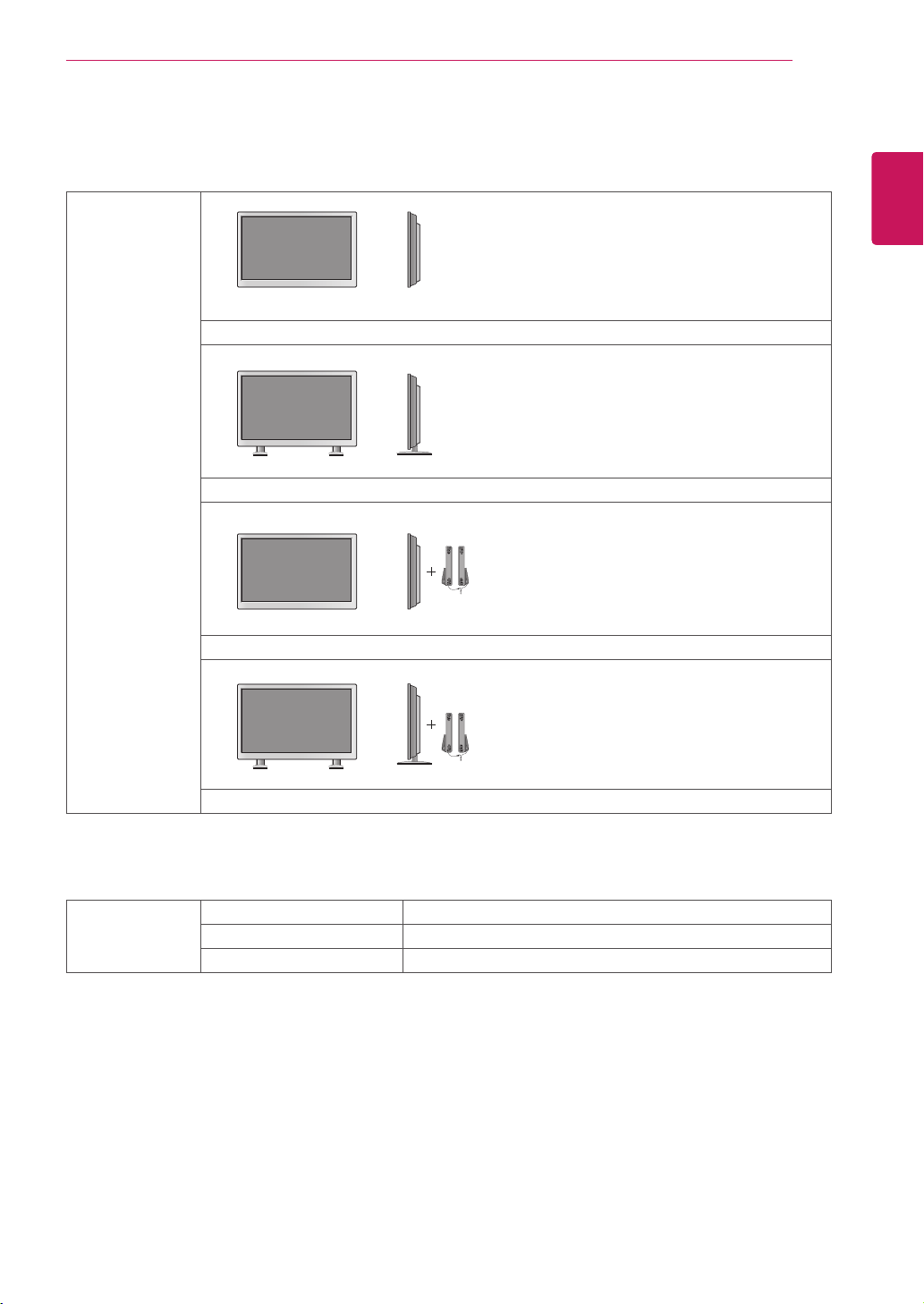
63
ENG
ENGLISH
SPECIFICATIONS
Dimensions
(WidthxHeightx
Depth)/Weight
961.6mmx554.5mmx31.9mm/13.7kg
961.6mmx628.9mmx298.3mm/15.1kg
961.6mmx554.5mmx81.5mm/14.5kg
961.6mmx628.9mmx298.3mm/15.9kg
* Applicable only for models that support the speakers
Audio RMSAudioOutput 10W+10W(R+L)
InputSensitivity 0.7Vrms
SpeakerImpedance 8Ω
Productspecificationsshownabovemaybechangedwithoutpriornoticeduetoupgradeofproduct
functions.

64
ENG
ENGLISH
SPECIFICATIONS
LCDPanel ScreenType 47"class(46.9"diagonal)TFT(ThinFilmTransistor)
LCD(LiquidCrystalDisplay)Panel.
Visiblediagonalsize:1192.87mm
PixelPitch 0.5415mm(H)x0.5415mm(V)
VideoSignal Max.Resolution RGB:1920X1080@60Hz
HDMI,DVI-D,DisplayPort:1920X1080@60Hz
-ItmaynotbesupporteddependingontheOSorvideocardtype.
RecommendedResolution RGB:1920X1080@60Hz
HDMI,DVI-D,DisplayPort:1920X1080@60Hz
-ItmaynotbesupporteddependingontheOSorvideocardtype.
HorizontalFrequency RGB:30kHzto83kHz
HDMI,DVI-D,DisplayPort:30kHzto83kHz
VerticalFrequency RGB:56Hzto75Hz
HDMI,DVI-D,DisplayPort:56Hzto60Hz
SynchronizationType SeparateSync,CompositeSync,Digital
InputConnector 15-pinD-Sub,HDMI,DVI-D,DisplayPort,RS-232C,LAN,
USB,Audio
Power RatedVoltage 100-240V~50/60Hz1.8A
PowerConsumption OnMode:120WTyp.
SleepMode(RGB):≤1W
SleepMode(HDMI,DVI-D,DisplayPort)
:≤1W(SetOnly)/≤2W(WithExternalDevice)
OffMode:≤0.5W
Environmental
conditions
OperatingTemperature
OperatingHumidity
0°Cto40°C
10%to80%
StorageTemperature
StorageHumidity
-20°Cto60°C
5%to95%
Productspecificationsshownabovemaybechangedwithoutpriornoticeduetoupgradeofproduct
functions.
47WS50MS

65
ENG
ENGLISH
SPECIFICATIONS
Dimensions
(WidthxHeightx
Depth)/Weight
1071.8mmx616mmx31mm/15.7kg
1071.8mmx690.4mmx298.3mm/17kg
1071.8mmx616mmx80.6mm/16.6kg
1071.8mmx690.4mmx298.3mm/17.9kg
* Applicable only for models that support the speakers
Audio RMSAudioOutput 10W+10W(R+L)
InputSensitivity 0.7Vrms
SpeakerImpedance 8Ω
Productspecificationsshownabovemaybechangedwithoutpriornoticeduetoupgradeofproduct
functions.
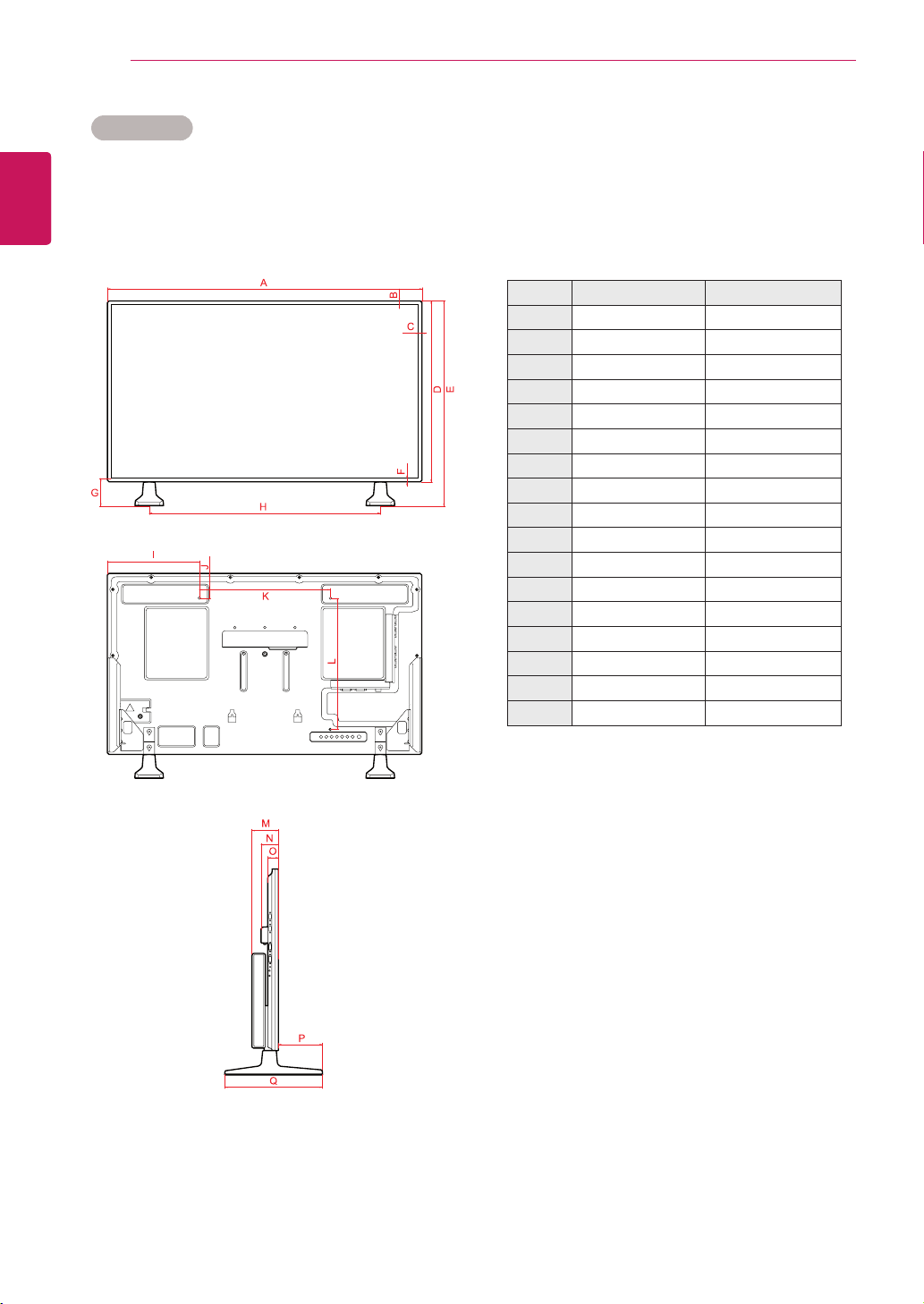
66
ENG
ENGLISH
SPECIFICATIONS
42WS50MS 47WS50MS
A 961.6 1071.8
B 11.5 11.5
C 11.5 11.5
D 554.5 616
E 628.9 690.4
F 11.5 11.5
G 85.9 85.9
H 706 804
I 280.8 335.9
J 77.3 108
K 400 400
L 400 400
M 81.5 80.6
N 52.6 52.6
O 31.9 31.0
P 134.7 135.6
Q 298.3 298.3
Dimensions
Theillustrationsinthismanualmaydifferfromtheactualproductandaccessories.
Pleaseseethe"Mountingonawall"sectionforsizesofscrews.(Seep.12)
Productspecificationsshownabovemaybe
changedwithoutpriornoticeduetoupgradeof
productfunctions.
(Unit:mm)
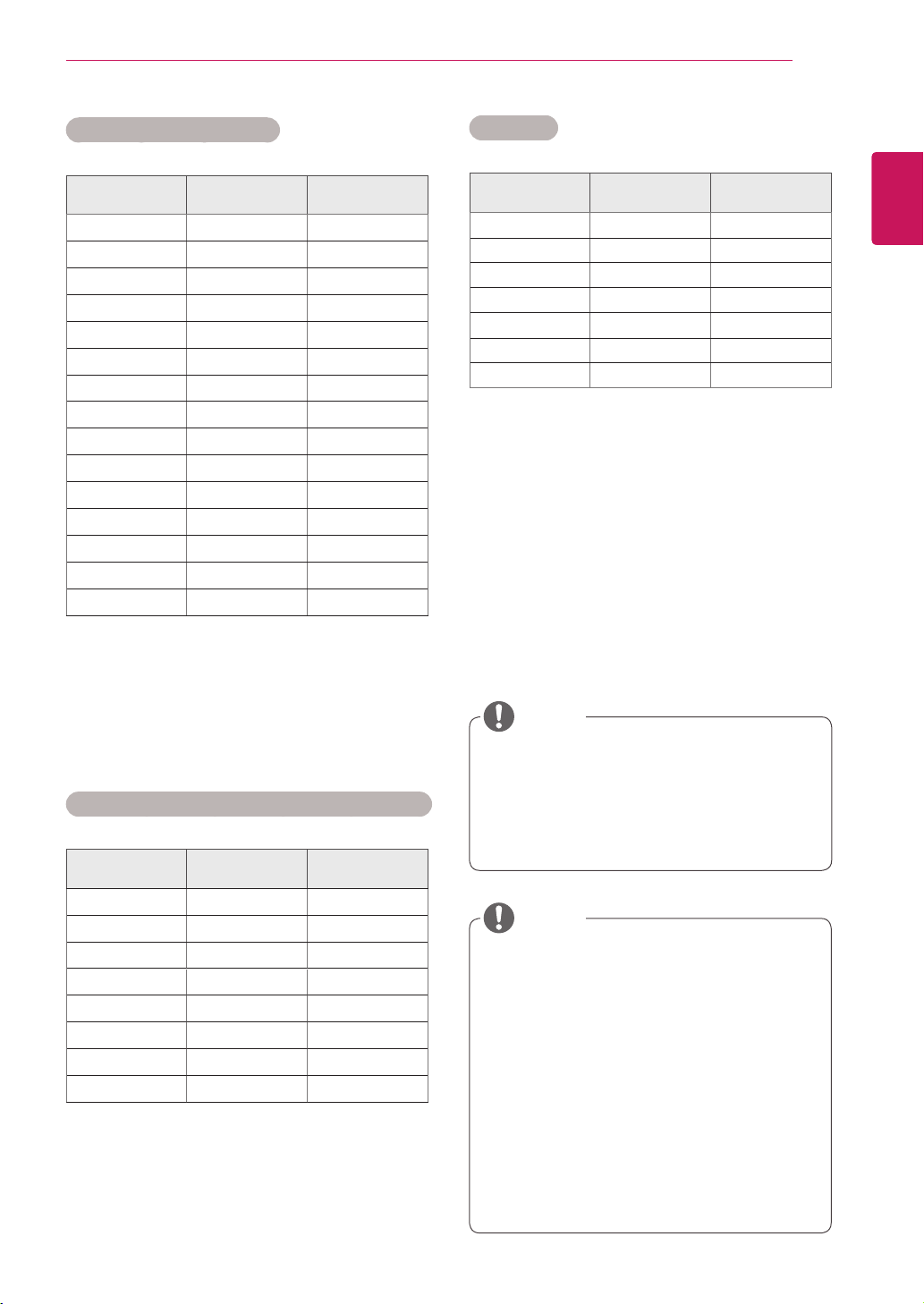
67
ENG
ENGLISH
SPECIFICATIONS
RGB (PC) supported mode
Resolution
Horizontal
Frequency(kHz)
Vertical
Frequency(Hz)
640x350
31.469 70.8
720x400
31.468 70.8
640x480
31.469 59.94
640x480
37.5 75
800x600
37.879 60.317
800x600
46.875 75
832x624
49.725 74.55
1024x768
48.363 60
1024x768
60.123 75.029
1280x720
44.772 59.855
1366x768
47.7 60
1280x1024
63.981 60.02
1280x1024
79.98 75.02
1680x1050
65.290 59.954
1920x1080
67.5 60
HDMI,DVI-D,Display Port (PC) supported mode
Resolution
Horizontal
Frequency(kHz)
Vertical
Frequency(Hz)
640x480
31.469 59.94
800x600
37.879 60.317
1024x768
48.363 60
1280x720
44.772 59.855
1366x768
47.7 60
1280x1024
63.981 60.02
1680x1050
65.290 59.954
1920x1080
67.5 60
WhenthecableisconnectedtotheHDMIor
thedisplayport,youcanselectthePC/DTV
modeoptionally.Itisrecommendedyouto
settothePCmodewhenconnectingtoPC;
theDTVmodewhenconnectingtoDTV.
DTV Mode
Resolution Component
HDMI,Display
Port (DTV)
480i o x
576i o x
480p o o
576p o o
720p o o
1080i o o
1080p o o
NOTE
Verticalfrequency:Toenabletheuserto
watchtheproductdisplay,screenimage
shouldbechangedtensoftimesevery
secondlikeafluorescentlamp.Thevertical
frequencyorrefreshrateisthetimesof
imagedisplaypersecond.TheunitisHz.
Horizontalfrequency:Thehorizontalinterval
isthetimetodisplayoneverticalline.When
1isdividedbythehorizontalinterval,the
numberofhorizontallinesdisplayedevery
secondcanbetabulatedasthehorizontal
frequency.TheunitiskHz.
NOTE
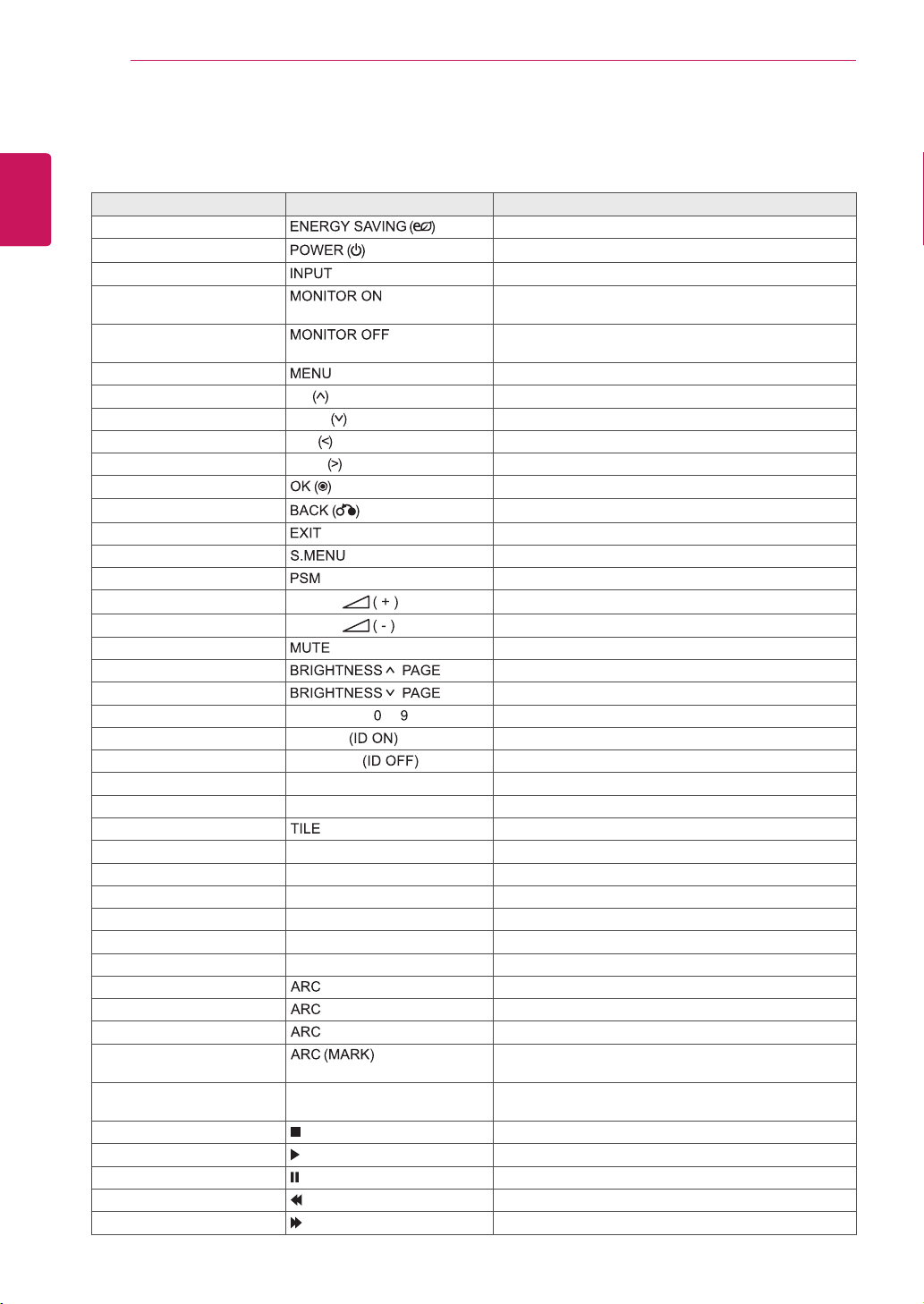
68
ENG
ENGLISH
IR CODES
Code (Hexa) Function Note
95 R/CBUTTON
08
ON/OFF
R/CBUTTON
0B R/CBUTTON
C4 R/CBUTTON
(DiscreteIRCode)
C5 R/CBUTTON
(DiscreteIRCode)
43 R/CBUTTON
40 Up R/CBUTTON
41 Down R/CBUTTON
07 Left R/CBUTTON
06 Right R/CBUTTON
44
R/CBUTTON
28
R/CBUTTON
5B R/CBUTTON
3F R/CBUTTON
4D R/CBUTTON
02
Volume
R/CBUTTON
03
Volume
R/CBUTTON
09 R/CBUTTON
E0 ( UP) R/CBUTTON
E1 ( Down) R/CBUTTON
10to19 NumberKey to R/CBUTTON
72
RedKey
R/CBUTTON
71
GreenKey
R/CBUTTON
63 YellowKey R/CBUTTON
61 BlueKey R/CBUTTON
7B R/CBUTTON
5A AV(CVBS) DiscreteIRCode
BF Component DiscreteIRCode
D5 RGB DiscreteIRCode
CE DisplayPort DiscreteIRCode
C6 DVI-D DiscreteIRCode
E9 HDMI DiscreteIRCode
76 (4:3) DiscreteIRCode
77 (16:9) DiscreteIRCode
AF (ZOOM,CinemaZoom1) DiscreteIRCode
79 R/CBUTTON
(DiscreteIRCode)
99 AutoConfig. R/CBUTTON
(DiscreteIRCode)
B1 R/CBUTTON
B0 R/CBUTTON
BA R/CBUTTON
8F R/CBUTTON
8E R/CBUTTON
IR CODES
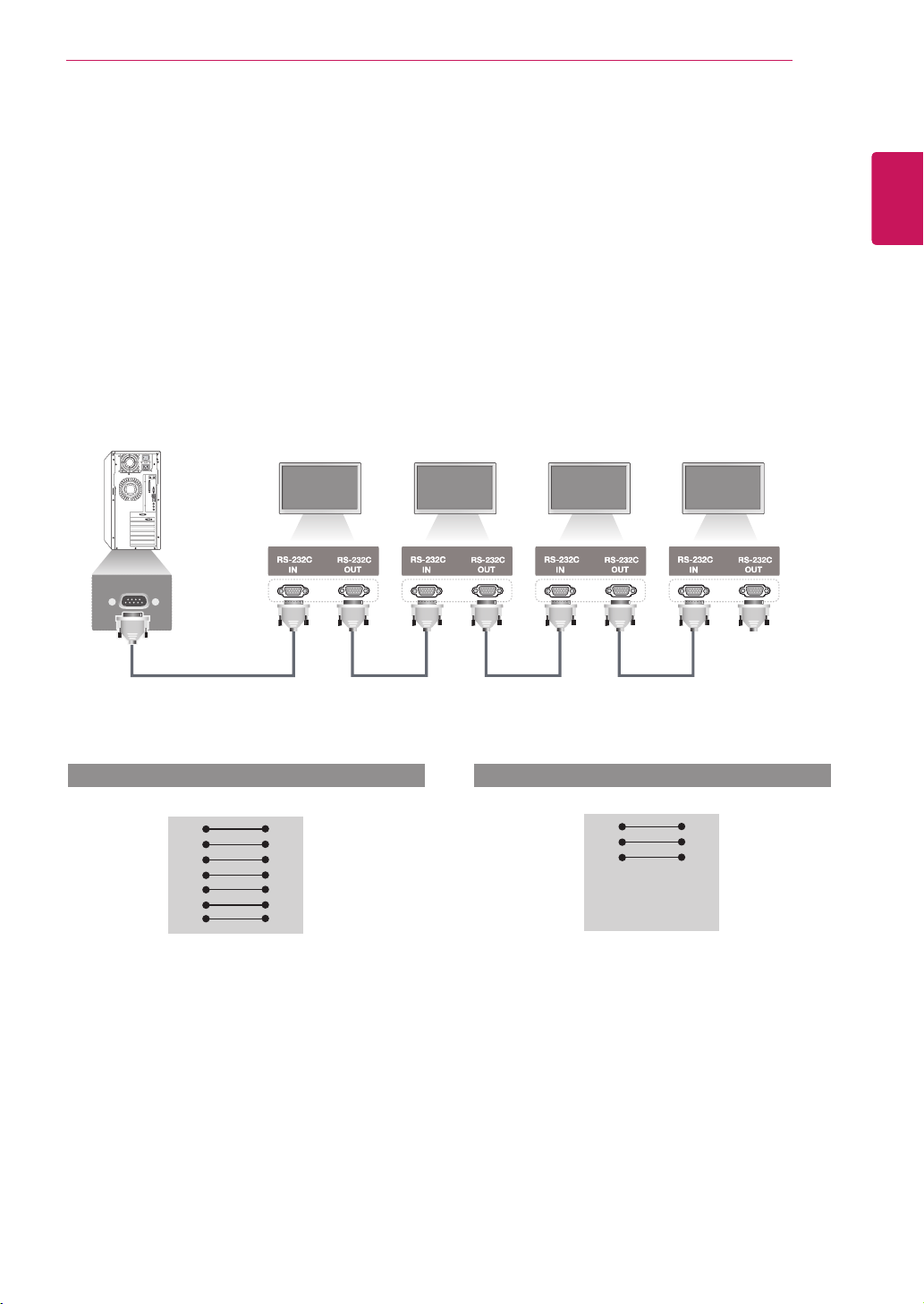
69
ENG
ENGLISH
CONTROLLING THE MULTIPLE PRODUCT
CONTROLLING THE MULTIPLE PRODUCT
Use this method to connect several products to a single PC. You can control several products at a
time by connecting them to a single PC.
In the Option menu, Set ID must be between 1 and 255 without being duplicated.
Connecting the cable
Connect the RS-232C cable as shown in the picture.
The RS-232C protocol is used for communication between the PC and product. Y
ou can turn the
product on/off, select an input source or adjust the OSD menu from your PC.
Communication Parameter
RS-232C Configurations
RXD
TXD
GND
DTR
DSR
RTS
CTS
RXD
TXD
GND
DTR
DSR
RTS
CTS
TXD
RXD
GND
DSR
DTR
CTS
RTS
TXD
RXD
GND
DSR
DTR
CTS
RTS
PC Set PC Set
2
3
5
4
6
7
8
3
2
5
6
4
8
7
D-Sub 9 D-Sub 9
(Female) (Female)
D-Sub 9 D-Sub 9
(Female) (Female)
2
3
5
4
6
7
8
3
2
5
6
4
7
8
Baud Rate : 9600 buad Rate (UART)
Data Length : 8 bit
Parity Bit : None
Stop Bit : 1bit
Flow Control : None
Communication Code : ASCII code
Use a crossed (reverse) cable
7-Wire Configurations (Standard RS-232C cable)
3-Wire Configurations (Not Standard)
Monitor 1 Monitor 2 Monitor 3 Monitor 4
PC
RS-232C Cable (not included)

70
ENG
ENGLISH
CONTROLLING THE MULTIPLE PRODUCT
Command reference list
COMMAND DATA
1 Power k a 00Hto01H
2 AspectRatio k c 01Hto1FH
3 ScreenMute k d 00Hto01H
4 VolumeMute k e 00Hto01H
5 VolumeControl k f 00Hto64H
6 Contrast k g 00Hto64H
7 Brightness k h 00Hto64H
8 Color k i 00Hto64H
9 Tint k j 00Hto64H
10 Sharpness k k 00Hto64H
11 OSDSelect k l 00Hto01H
12 RemoteLock/keyLock k m 00Hto01H
13 Treble k r 00Hto64H
14 Bass k s 00Hto64H
15 AudioBalance k t 00Hto64H
16 Abnomalstate k z FFH
17 WhiteBalanceRedGain j m 00HtoFEH
18 WhiteBalanceGreenGain j n 00HtoFEH
19 WhiteBalanceBlueGain j o 00HtoFEH
20 ISMmode j p 01Hto08H
21 EnergySaving j q 00Hto05H
22 Autoconfiguration j u 01H
23 RemoconKey m c Referto'RemoconKey'
24 FailOverSelect m i 00Hto02H
25 FailOverInputSelect m j Referto’FailOverInputSelect’
26 4HoursOff m n 00HtoFFH
27 TileModeCheck d z FFH
28 TileMode d d 00Hto55H
29 TileHPosition d e 00Hto14H
30 TileVPosition d f 00Hto14H
31 TileHSize d g 00Hto64H
32 TileVSize d h 00Hto64H
33 TileIDSet d i 01HtoE1H
34 NaturalMode(InTilemode) d j 00Hto01H
35 Picturemode(PSM) d x 00Hto04H
36 Soundmode d y 00Hto05H
37 FanFaultcheck d w FFH
38 Elapsedtimereturn d l FFH
39 Temperaturevalue d n FFH
40 Lampfaultcheck d p FFH
41 Speaker d v 00Hto01H
42 SleepTime f f 00Hto08H
71
ENG
ENGLISH
CONTROLLING THE MULTIPLE PRODUCT
COMMAND DATA
43 AutoSleep f g 00Hto01H
44 PowerOnDelay f h 00Hto64H
45 Language f i 00Hto12H
46 DPMSelect f j 00Hto01H
47 Reset f k 00Hto03H
48 Serialno. f y FFH
49 S/WVersion f z FFH
50 Time1(Years/Months/Days) f a Referto‘Time1’
51 Time2(Hours/Minutes/Seconds) f x Referto‘Time2’
52 OffTimer(Repeatmode/Time) f e Referto‘OffTimer’
53 OnTimer(RepeatMode/Time) f d Referto‘OnTimer’
54 OnTimerInput f u Referto‘OnTimerInput’
55 HPosition f q 00Hto64H
56 VPosition f r 23Hto41H
57 HSize f s 00Hto64H
58 InputSelect x b 20HtoD0H
59 ColorTemperature x u 00Hto64H
60 PCPowerControl d t 00Hto01H
61 PCPower d s 00Hto01H
WhenusingtheproductwithaUSBDivXplayer,allcommandsexceptforPower(ka),Key(mc),
Abnormalstate(kz),FanFaultcheck(dw),Elapsedtimereturn(dl),Temperaturevalue(dn),Lamp
faultCheck(dp),Serialno.Check(fy),andS/WVersion(fz)arenotexecutedandhandledaserrors.
The‘ff’commandwhichshowsthestatusofacertaincommanddoesnotdisplaytheOSDasthe
resultinordertobecompatiblewithSuperSignprogram.
NOTE

72
ENG
ENGLISH
CONTROLLING THE MULTIPLE PRODUCT
Transmission
[Command1][Command2][][SetID][][Data][Cr]
*[Command1]:Firstcommand.(k,j,m,d,f,x)
*[Command2]:Secondcommand.(atou)
*[SetID]:SetuptheSetIDnumberofproduct.
range:01Hto63H.bysetting'0',servercancontrolallproducts.
*Incaseofoperatingwithmorethan2setsusingsetIDas'0'atthesametime,itshouldnotbecheckedtheack
message.Becauseallsetswillsendtheackmessage,soit'simpossiblethecheckthewholeackmessages.
*[DATA]:Totransmitcommanddata.
Transmit'FF'datatoreadstatusofcommand.
*[Cr]:CarriageReturn(ASCIIcode'0x0D')
*[]:ASCIIcodeSpace(0x20)
OK Acknowledgement
[Command2][][SetID][][OK][Data][x]
*TheProducttransmitsACK(acknowledgement)basedonthisformatwhenreceivingnormaldata.Atthistime,
ifthedataisdatareadmode,itindicatespresentstatusdata.Ifthedataisdatawritemode,itreturnsthedataof
thePCcomputer.
Error Acknowledgement
[Command2][][SetID][][NG][Data][x]
*Ifthereiserror,itreturnsNG
Transmission / Receiving protocol

73
ENG
ENGLISH
CONTROLLING THE MULTIPLE PRODUCT
01.Power(Command:ka)
TocontrolPowerOn/Offoftheset.
Transmission
[k][a][][SetID][][Data][Cr]
Data
00:PowerOff
01:PowerOn
Acknowledgement
[a][][SetID][][OK][Data][x]
ToshowthestatusofPowerOn/Off.
Transmission
[k][a][][SetID][][FF][Cr]
Acknowledgement
[a][][SetID][][OK][Data][x]
Data
00:PowerOff
01:PowerOn
03.ScreenMute(Command:kd)
Toselectscreenmuteon/off.
Transmission
[k][d][][SetID][][Data][Cr]
Data
00:Screenmuteoff(Pictureon)
01:Screenmuteon(Pictureoff)
Acknowledgement
[d][][SetID][][OK][Data][x]
02.AspectRatio(Command:kc)
Toadjustthescreenformat.
YoucanalsoadjustthescreenformatusingtheARC
(AspectRatioControl)buttononremotecontrolorin
theScreenmenu.
Transmission
[k][c][][SetID][][Data][Cr]
Data
01:NormalScreen(4:3)
02:WideScran(16:9)
04:Zoom
(AV,Component,HDMI/DisplayPortDTV)
09:JustScan
(Component,HDMI/DisplayPortDTV-availableonly
with720porhigher)
*WhentheRGB,DVI-D,HDMI/DisplayPortPC
mode(1:1)
10to1F:CinemaZoom1to16
(AV,Component,HDMI/DisplayPortDTV)
Acknowledgement
[c][][SetID][][OK][Data][x]
04.VolumeMute(Command:ke)
TocontrolOn/OffoftheVolumeMute.
Transmission
[k][e][][SetID][][Data][Cr]
Data
00:VolumeMuteOn(VolumeOff)
01:VolumeMuteOff(VolumeOn)
Acknowledgement
[e][][SetID][][OK][Data][x]
Data
00:VolumeMuteOn(VolumeOff)
01:VolumeMuteOff(VolumeOn)
05.VolumeControl(Command:kf)
ToadjustVolume.
Transmission
[k][f][][SetID][][Data][Cr]
Data
Min:00HtoMax:64H
(Hexadecimalcode)
Acknowledgement
[f][][SetID][][OK][Data][x]
Data
Min:00HtoMax:64H
* Real data mapping
Hexadecimal Num.
(SettingValue)
Decimal Num.
(RealValue)
0 0
A 10
F 15
10 16
20 32
64 100
FE 254
FF 255

74
ENG
ENGLISH
CONTROLLING THE MULTIPLE PRODUCT
06.Contrast(Command:kg)
Toadjustscreencontrast.
YoucanalsoadjustthecontrastinthePicturemenu.
Transmission
[k][g][][SetID][][Data][Cr]
Data
Min:00HtoMax:64H:0to100
Acknowledgement
[g][][SetID][][OK][Data][x]
Data
Min:00HtoMax:64H
*Referto'Realdatamapping’.
09.Tint(Command:kj)(Videoinputonly)
Toadjustthescreentint.
YoucanalsoadjustthetintinthePicturemenu.
Transmission
[k][j][][SetID][][Data][Cr]
Data
Min:00HtoMax:64H
(Hexadecimalcode)
00H:StepR50
64H:StepG50
Acknowledgement
[j][][SetID][][OK][Data][x]
DataMin:00HtoMax:64H
*TintRealdatamapping
0:Step0toRed
64:Step100toGreen
07.Brightness(Command:kh)
Toadjustscreenbrightness.
YoucanalsoadjustthebrightnessinthePicture
menu.
Transmission
[k][h][][SetID][][Data][Cr]
Data
Min:00HtoMax:64H:0to100
(Hexadecimalcode)
*Referto'Realdatamapping’.
Acknowledgement
[h][][SetID][][OK][Data][x]
*Referto'Realdatamapping’.
10.Sharpness(Command:kk)(Videoinputonly)
ToadjustthescreenSharpness.
YoucanalsoadjustthesharpnessinthePicture
menu.
Transmission
[k][k][][SetID][][Data][Cr]
Data
Min:00HtoMax:64H:0to100
(Hexadecimalcode)
*Referto'Realdatamapping’.
Acknowledgement
[k][][SetID][][OK][Data][x]
Data
Min:00HtoMax:64H
08.Color(Command:ki)(Videoinputonly)
Toadjustthescreencolor.
YoucanalsoadjustthecolorinthePicturemenu.
Transmission
[k][i][][SetID][][Data][Cr]
Data
Min:00HtoMax:64H:0to100
(Hexadecimalcode)
*Referto'Realdatamapping’.
Acknowledgement
[i][][SetID][][OK][Data][x]
Data
Min:00HtoMax:64H
11.OSDSelect(Command:kl)
TocontrolOSDon/offtotheset.
Transmission
[k][l][][SetID][][Data][Cr]
Data
00:OSDOff
01:OSDOn
Acknowledgement
[l][][SetID][][OK][Data][x]
Data
00:OSDOff
01:OSDOn

75
ENG
ENGLISH
CONTROLLING THE MULTIPLE PRODUCT
12.RemoteLock/KeyLock(Command:km)
TocontrolRemoteLockon/offtotheset.
Thisfunction,whencontrollingRS-232C,locksthe
remotecontrolandthelocalkeys.
Transmission
[k][m][][SetID][][Data][Cr]
Data
00:Off
01:On
Acknowledgement
[m][][SetID][][OK][Data][x]
Data
00:Off
01:On
15.Balance(Command:kt)
Toadjustthesoundbalance.
Transmission
[k][t][][SetID][][Data][Cr]
Data
Min:00HtoMax:64H
(Hexadecimalcode)
00H:StepL50
64H:StepR50
Acknowledgement
[t][][SetID][][OK][Data][x]
Data
Min:00HtoMax:64H
(Hexadecimalcode)
00H:Step0toL50
64H:Step100toR50
*Balance:L50toR50
13.Treble(Command:kr)
Toadjusttreble.
Transmission
[k][r][][SetID][][Data][Cr]
Data
00~64:Treble0~100
Acknowledgement
[r][][SetID][][OK/NG][Data][x]
16.Abnormalstate(Command:kz)
UsedtoReadthepoweroffstatuswhenStand-by
mode.
Transmission
[k][z][][SetID][][Data][Cr]
Data
FF:Read
Acknowledgement
[z][][SetID][][OK][Data][x]
Data
00:Normal(Poweronandsignalexist)
01:Nosignal(Poweron)
02:Turnthemonitoroffbyremotecontrol
03:Turnthemonitoroffbysleeptimefunction
04:TurnthemonitoroffbyRS-232Cfunction
08:Turnthemonitoroffbyofftimefunction
09:Turnthemonitoroffbyautoofffunction
14.Bass(Command:ks)
Toadjustbass.
Transmission
[k][s][][SetID][][Data][Cr]
Data
00~64:Bass0~100
Acknowledgement
[s][][SetID][][OK/NG][Data][x]

76
ENG
ENGLISH
CONTROLLING THE MULTIPLE PRODUCT
17.WhiteBalanceRedGain(Command:jm)
Toadjustwhitebalanceredgain.
Transmission
[j][m][][SetID][][Data][Cr]
Data
00~FE:Redgain0~254
Acknowledgement
[z][][SetID][][OK/NG][Data][x]
20.ISMmode(Command:jp)
Usedtoselecttheafterimagepreventingfunction.
Transmission
[j][p][][SetID][][Data][Cr]
Data
01:Inversion
02:Orbiter
04:WhiteWash
08:Normal
Acknowledgement
[p][][SetID][][OK][Data][x]
18.WhiteBalanceGreenGain(Command:jn)
Toadjustwhitebalancegreengain.
Transmission
[j][n][][SetID][][Data][Cr]
Data
00~FE:Greengain0~254
Acknowledgement
[n][][SetID][][OK/NG][Data][x]
21.EnergySaving(Command:jq)
ToreducethepowerconsumptionoftheMonitor.
Transmission
[j][q][][SetID][][Data][Cr]
Data
00:Off
01:Minimum
02:Medium
03:Maximum
05:Screenoff
Acknowledgement
[q][][SetID][][OK][Data][x]
19.WhiteBalanceBlueGain(Command:jo)
Toadjustwhitebalancebluegain.
Transmission
[j][o][][SetID][][Data][Cr]
Data
00~FE:Bluegain0~254
Acknowledgement
[o][][SetID][][OK/NG][Data][x]
22.AutoConfig.(Command:ju)
Toadjustpicturepositionandminimizeimage
shaking.Automatically.NB:OnlyappliestoRGB(PC)
mode.
Transmission
[j][u][][SetID][][Data][Cr]
Data
01:Toset
Acknowledgement
[u][][SetID][][OK][Data][x]

77
ENG
ENGLISH
CONTROLLING THE MULTIPLE PRODUCT
23.Key(Command:mc)
TosendIRremotekeycode.
Transmission
[m][c][][SetID][][Data][Cr]
Data
Keycode:Referto‘IRCODES’.
Acknowledgement
[c][][SetID][][OK][Data][x]
26.AutomaticStandby(Command:mn)
TosettheAutomaticStandbyfunction.
Transmission
[m][n][][SetID][][Data][Cr]
Data
00:Off(NotusingtheAutomaticStandbyfunction)
01:4Hours(Themonitorwillbeoffin4hours.)
Acknowledgement
[n][][SetID][][OK/NG][Data][x]
24.FailOverSelect(Command:mi)
ToselectFailOvermode.
Transmission
[m][i][][SetID][][Data][Cr]
Data
00:Off
01:Auto
02:Manual
Acknowledgement
[i][][SetID][][OK/NG][Data][x]
27.TileModeCheck(Command:dz)
TocheckTileModestatus.
Transmission
[d][z][][SetID][][Data][Cr]
Data
FF:CheckTileModestatus
Acknowledgement
[z][][SetID][][OK/NG][Data1][Data2][Data3][x]
Data1
00:TileModeOff
01:TileModeOn
Data2
00to0F:TileRowValue
Data3
00to0F:TileColumnValue
25.FailOverInputSelect(Command:mj)
Toselectfailovermode.
*OnlyavailableinFailOvermanualmode.
Transmission
[m][j][][SetID][][Data1][][Data2][][Data3]
[][Data4][Cr]
Data(Priority1~4)
60:RGB
70:DVI-D
90:HDMI
C0:DisplayPort
*Use0x70asdataforDVI-Dinput,0x90asdata
forHDMIinput,0xC0asdataforDisplayPortinput,
regardlesstheirinputlabels.
Acknowledgement
[j][][SetID][][OK/NG][Data1][Data2][Data3][x]
78
ENG
ENGLISH
CONTROLLING THE MULTIPLE PRODUCT
28.TileMode(Command:dd)
ChangeaTileMode.
Transmission
[d][d][][SetID][][Data][Cr]
Data
00~FE:Firstbit-Column
Secondbit-Row
*OSDismarkedwithrowbycolumn.
Acknowledgement
[d][][SetID][][OK/NG][Data][x]
31.TileHSize(Command:dg)
TosettheHorizontalsize.
Transmission
[d][g][][SetID][][Data][Cr]
Data
Min:00HtoMax:64H:0to100
*Referto'Realdatamapping’.
Acknowledgement
[g][][SetID][][OK/NG][Data][x]
32.TileVSize(Command:dh)
TosettheVerticalsize.
Transmission
[d][h][][SetID][][Data][Cr]
Data
Min:00HtoMax:64H:0to100
*Referto'Realdatamapping’.
Acknowledgement
[h][][SetID][][OK/NG][Data][x]
30.TileVPosition(Command:df)
TosettheVerticalposition.
TheTileVSizesettingneedstobechangedtoadjust
positionofthescreens.
Transmission
[d][f][][SetID][][Data][Cr]
Data
Min:00HtoMax:14H
00H:Step0(Down)
14H:Step20(Up)
Acknowledgement
[f][][SetID][][OK/NG][Data][x]
29.TileHPosition(Command:de)
TosettheHorizontalposition.
TheTileHSizesettingneedstobechangedtoadjust
positionofthescreens.
Transmission
[d][e][][SetID][][Data][Cr]
Data
Min:00HtoMax:14H
00H:Step-10(Left)
14H:Step10(Right)
Acknowledgement
[e][][SetID][][OK/NG][Data][x]
33.TileID(Command:di)
ToassigntheTileIDforTilingfunction.
Transmission
[d][i][][SetID][][Data][Cr]
Data
Min:01HtoMax:19H(Hexadecimalcode)
1to225forTileID
FF:ChecksTileID
Thedatavaluecannotexceedthevalueofrowx
column.
Acknowledgement
[i][][SetID][][OK/NG][Data][x]
Data Description
00,01,10,11 Tilemodeisoff.
12 1x2mode(columnxrow)
13 1x3mode
14 1x4mode
... ...
FF 15x15mode

79
ENG
ENGLISH
CONTROLLING THE MULTIPLE PRODUCT
34.NaturalMode(Command:dj)
ToassigntheTileNaturalmodeforTilingfunction.
Transmission
[d][j][][SetID][][Data][Cr]
Data
00:NaturalOff
01:NaturalOn
ff:ReadStatus
Acknowledgement
[j][][SetID][][OK/NG][Data][x]
37.FanFaultcheck(Command:dw)
TochecktheFanfaultoftheSet.
Transmission
[d][w][][SetID][][Data][Cr]
*ThedataisalwaysFF(inHex).
Data
ff:ReadStatus
Acknowledgement
[w][][SetID][][OK/NG][Data][x]
*DataisthestatusvalueoftheFanfault.
Data
00:Fanfault
01:FanOk
02:N/A(NotAvaliable)
38.Elapsedtimereturn(Command:dl)
Toreadtheelapsedtime.
Transmission
[d][l][][SetID][][Data][Cr]
*ThedataisalwaysFF(inHex).
Acknowledgement
[l][][SetID][][OK/NG][Data][x]
*ThedataisalwaysFF(inHex).
(Hexadecimalcode)
36.SoundMode(Command:dy)
ToadjusttheSoundmode.
Transmission
[d][y][][SetID][][Data][Cr]
DataStructure
Acknowledgement
[y][][SetID][][OK/NG][Data][x]
35.PictureMode(Command:dx)
Toadjustthepicturemode.
Transmission
[d][x][][SetID][][Data][Cr]
DataStructure
Acknowledgement
[x][][SetID][][OK/NG][Data][x]
39.Temperaturevalue(Command:dn)
Toreadtheinsidetemperaturevalue.
Transmission
[d][n][][SetID][][Data][Cr]
*ThedataisalwaysFF(inHex).
Acknowledgement
[n][][SetID][][OK/NG][Data][x]
*Thedatais1bytelonginHexadecimal.
Data(Hex) Mode
00
Vivid
01
Standard
02
Cinema
03
Sport
04
Game
Data(Hex) Mode
00
Standard
01
Music
02
Cinema
03
Sport
04
Game

80
ENG
ENGLISH
CONTROLLING THE MULTIPLE PRODUCT
40.LampfaultCheck(Command:dp)
Tochecklampfault.
Transmission
[d][p][][SetID][][Data][Cr]
*ThedataisalwaysFF(inHex).
Acknowledgement
[p][][SetID][][OK/NG][Data][x]
*Thedatais1bytelonginHexadecimal.
Data
00:LampFault
01:LampOk
02:N/A(DPM/PowerOff)
43.AutoSleep(Command:fg)
SetAutoSleep.
Transmission
[f][g][][SetID][][Data][Cr]
Data
00:Off(NotusingtheAutoofffunction)
01:15Minutes(Setturnedoffwhennosignalis
enteredfor15min.)
Acknowledgement
[g][][SetID][][OK/NG][Data][x]
44.PowerOnDelay(Command:fh)
Setthescheduledelaywhenthepoweristurnedon
(Unit:second).
Transmission
[f][h][][SetID][][Data][Cr]
Data
00Hto64H(Datavalue):0to100
*Referto'Realdatamapping’.
Acknowledgement
[h][][SetID][][OK/NG][Data][x]
42.SleepTime(Command:ff)
SetSleepTime.
Transmission
[f][f][][SetID][][Data][Cr]
Data
00:Off
01:10
02:20
03:30
04:60
05:90
06:120
07:180
08:240
Acknowledgement
[f][][SetID][][OK/NG][Data][x]
41.Speaker(Command:dv)
Turnthespeakeronoroff.
Transmission
[d][v][][SetID][][Data][Cr]
Data
00:Off
01:On
Acknowledgement
[v][][SetID][][OK/NG][Data][x]

81
ENG
ENGLISH
CONTROLLING THE MULTIPLE PRODUCT
47.Reset(Command:fk)
ExecutethePicture,ScreenandFactoryReset
functions.
Transmission
[f][k][][SetID][][Data][Cr]
Data
00:PictureReset
(ResetthevaluessetinthePICTUREmenu.)
01:ScreenReset
(ResetthevaluessetinundertheScreenoption.)
02:FactoryReset
(ResetthevaluessetintheOPTIONmenu.)
03:AudioReset
(ResetthevaluessetintheAUDIOmenu.)
Acknowledgement
[k][][SetID][][OK/NG][Data][x]
46.DPMSelect(Command:fj)
SettheDPM(DisplayPowerManagement)function.
Transmission
[f][j][][SetID][][Data][Cr]
Data
00:Off
01:On
Acknowledgement
[j][][SetID][][OK/NG][Data][x]
45.Language(Command:fi)
SettheOSDlanguage.
Transmission
[f][i][][SetID][][Data][Cr]
Data
00:Czech
01:Danish
02:German
03:English
04:Spanish(EU)
05:Greek
06:French
07:Italian
08:Dutch
09:Norwegian
0a:Portuguese(EU)
0b:Portuguese(Brazil)
0c:Russian
0d:Finnish
0e:Swedish
0f:Korean
10:SimplifiedChinese
11:Japanese
12:TraditionalChinese
Acknowledgement
[i][][SetID][][OK/NG][Data][x]
48.Serialno.Check(Command:fy)
ChecktheSerialno.
Transmission
[f][y][][SetID][][Data][Cr]
Data
FF(toreadtheserialnumbers)
Acknowledgement
[y][][SetID][][OK/NG][Data1]to[Data13][x]
*ThedataformatisASCIICode.
49.S/WVersion(Command:fz)
Checkthesoftwareversion.
Transmission
[f][z][][SetID][][Data][Cr]
Data
FFH:Read
Acknowledgement
[z][][SetID][][OK/NG][Data][x]

82
ENG
ENGLISH
CONTROLLING THE MULTIPLE PRODUCT
52.OffTime(RepeatMode/Time)(Command:fe)
1)TosettheOffTime(Repeatmode/Time)function.
Transmission
[f][e][][SetID][][Data1][][Data2][][Data3][Cr]
Data1
00:RepeatOff
01:RepeatOnce
02.RepeatDaily
03:RepeatfromMondaytoFriday
04:RepeatfromMondaytoSaturday
05:RepeatfromSaturdaytoSunday
06.RepeatonSunday
07:RepeatonMonday
08:RepeatonTuesday
09:RepeatonWednesday
0A:RepeatonThursday
0B:RepeatonFriday
0C:RepeatonSaturday
Data2
00to17:00to23Hours
Data3
00to3B:00to59Minutes
*Enter“fe[SetID]ff”forcheckingOffTimer(Repeat
mode/Time)values.
*CheckifTime1andTime2havebeensetbefore
settingthisfunction.
Acknowledgement
[e][][SetID][][OK/NG][Data1][Data2][Data3][x]
2)TocheckthesettingvalueoftheOffTime(Repeat
Mode/Time)function.
Transmission
[f][e][][SetID][][Data][][f][f][][f][f][Cr]
Data1
f`1~f7:Fromthefirsttotheseventhindexno.ofthe
OffTimelist
Acknowledgement
[e][][SetID][][OK/NG][Data1][Data2][Data3]
[Data4][x]
Data1
f`1~f7:Fromthefirsttotheseventhindexno.ofthe
OffTimelist
Data2
00:RepeatOff
01:RepeatOnce
02.RepeatDaily
03:RepeatfromMondaytoFriday
04:RepeatfromMondaytoSaturday
05:RepeatfromSaturdaytoSunday
06.RepeatonSunday
07:RepeatonMonday
08:RepeatonTuesday
09:RepeatonWednesday
0A:RepeatonThursday
0B:RepeatonFriday
0C:RepeatonSaturday
Data3
00to17:00to23Hours
Data4
00to3B:00to59Minutes
51.Time2(Hour/Minute/Second)(Command:fx)
TosettheTime2(Hour/Minute/Second)values.
Transmission
[f][x][][SetID][][Data1][][Data2][][Data3][Cr]
Data1
00to17:00to23hours
Data2
00to3B:00to59minutes
Data3
00to3B:00to59seconds
*Enter“fx[SetID]ff”forcheckingTime2values.
**Thiscommandwon’tworkifTime1hasnotbeen
setinadvance.
Acknowledgement
[x][][SetID][][OK/NG][Data1][Data2][Data3][x]
50.Time1(Year/Month/Day)(Command:fa)
TosettheTime1(Year/Month/Day)values.
Transmission
[f][a][][SetID][][Data1][][Data2][][Data3][Cr]
Data1
00to14:2010to2030
Data2
01to0C:JanuarytoDecember
Data3
01to1F:1to31
*Enter“fa[SetID]ff”forcheckingTime1values.
Acknowledgement
[a][][SetID][][OK/NG][Data1][Data2][Data3][x]

83
ENG
ENGLISH
CONTROLLING THE MULTIPLE PRODUCT
53.OnTime(RepeatMode/Time)(Command:fd)
1)TosettheOnTime(Repeatmode/Time)function.
Transmission
[f][d][][SetID][][Data1][][Data2][][Data3][Cr]
Data1
00:RepeatOff
01:RepeatOnce
02.RepeatDaily
03:RepeatfromMondaytoFriday
04:RepeatfromMondaytoSaturday
05:RepeatfromSaturdaytoSunday
06.RepeatonSunday
07:RepeatonMonday
08:RepeatonTuesday
09:RepeatonWednesday
0A:RepeatonThursday
0B:RepeatonFriday
0C:RepeatonSaturday
Data2
00to17:00to23Hours
Data3
00to3B:00to59Minutes
*Enter“fd[SetID]ff”forcheckingOnTimer(Repeat
mode/Time)values.
*CheckifTime1andTime2havebeensetbefore
settingthisfunction.
Acknowledgement
[d][][SetID][][OK/NG][Data1][Data2][Data3][x]
2)TocheckthesettingvalueoftheOnTime(Repeat
Mode/Time)function.
Transmission
[f][d][][SetID][][Data][][f][f][][f][f][Cr]
Data1
f`1~f7:Fromthefirsttotheseventhindexno.ofthe
OnTimelist
Acknowledgement
[d][][SetID][][OK/NG][Data1][Data2][Data3]
[Data4][x]
Data1
Fromthefirsttotheseventhindexno.oftheOnTime
list
Data2
00:RepeatOff
01:RepeatOnce
02.RepeatDaily
03:RepeatfromMondaytoFriday
04:RepeatfromMondaytoSaturday
05:RepeatfromSaturdaytoSunday
06.RepeatonSunday
07:RepeatonMonday
08:RepeatonTuesday
09:RepeatonWednesday
0A:RepeatonThursday
0B:RepeatonFriday
0C:RepeatonSaturday
Data3
00to17:00to23Hours
Data4
00to3B:00to59Minutes
54.OnTimeInput(Command:fu)
1)TosettheOnTimeInputfunction.
Transmission
[f][u][][SetID][][Data][Cr]
Data
20:AV
40:Component
60:RGB
70:DVI-D
90:HDMI
C0:DisplayPort
B0:SuperSign
*CheckifTime1andTime2andOnTime(Repeat
Mode/Time)functionshavebeensetbeforesetting
thisfunction.
Acknowledgement
[u][][SetID][][OK/NG][Data][x]
2)TocheckthesettingvalueoftheOnTimeInput
function.
Transmission
[f][u][][SetID][][Data][][f][f][Cr]
Data1
f`1~f7:Fromthefirsttotheseventhindexno.ofthe
OnTimeInputlist
Acknowledgement
[u][][SetID][][OK/NG][Data1][Data2]
Data1
f`1~f7:Fromthefirsttotheseventhindexno.ofthe
OnTimeInputlist
Data2
20:AV
40:Component
60:RGB
70:DVI-D
90:HDMI
C0:DisplayPort
B0:SuperSign
55.HPosition(Command:fq)
TosettheHorizontalposition.
*OnlyavailableforTileOffmode.
Transmission
[f][q][][SetID][][Data][Cr]
Data
00~64:Left-50~Right50
Acknowledgement
[q][][SetID][][OK/NG][Data][x]

84
ENG
ENGLISH
CONTROLLING THE MULTIPLE PRODUCT
57.HSize(Command:fs)
TosettheHorizontalsize.
*OnlyavailableforTileOffmode.
Transmission
[f][s][][SetID][][Data][Cr]
Data
00~64:Size-50~50
Acknowledgement
[s][][SetID][][OK/NG][Data][x]
56.VPosition(Command:fr)
TosettheVerticalposition.
*OnlyavailableforTileOffmode.
Transmission
[f][r][][SetID][][Data][Cr]
Data
23~41:Bottom-15~Top15
Acknowledgement
[r][][SetID][][OK/NG][Data][x]
58.InputSelect(Command:xb)
ToselectinputsourcefortheSet.
Transmission
[x][b][][SetID][][Data][Cr]
Data
20:AV(CVBS)
40:Component
60:RGB(PC)
70:DVI-D
90:HDMI(DTV)
A0:HDMI(PC)
B0:SuperSign
C0:DisplayPort(DTV)
D0:DisplayPort(PC)
Acknowledgement
[b][][SetID][][OK/NG][Data][x]
59.ColorTemperature(Command:xu)
Toadjustthescreencolortemperature.
Transmission
[x][u][][SetID][][Data][Cr]
Data
00~64:Warm50~Cool50
Acknowledgement
[u][][SetID][][OK][Data][x]
60.PCPowerControl(Command:dt)
TocontrolthePCpowerifthePCandthemonitor
aresynchronized.
Transmission
[d][t][][SetID][][Data][Cr]
Data
00:Synchronized(Whenthemonitorisoff,thePCis
alsoturnedoff.)
01:Notsynchronized(ThemonitorisoffbutthePC
ison.)
Acknowledgement
[t][][SetID][][OK][Data][x]
Data
00:Synchronized(Whenthemonitorisoff,thePCis
alsoturnedoff.)
01:Notsynchronized(ThemonitorisoffbutthePC
ison.)
61.PCPower(Command:ds)
TocontrolthePCpowerwhenthePCandthe
monitorarenotsynchronized.
Transmission
[d][t][][SetID][][Data][Cr]
Data
00:PCitturnedoff.
01:PCisturnedon.
Acknowledgement
[t][][SetID][][OK][Data][x]
Data
00:PCitturnedoff.
01:PCisturnedon.

Make sure to read the Safety Precautions
before using the product.
Keep the Owner's Manual(CD) in an accessible
place for future reference.
The model and serial number of the SET is
located on the back and one side of the SET.
Record it below should you ever need service.
MODEL
SERIAL
Temporarynoiseisnormal whenpoweringONor
OFFthisdevice.
WARNING -This is a class A product. In a domestic
environment this product may cause radio
interference in which case the user may be required
to take adequate measures.
Warranty void if removed.
Important
WARRANTYVOID
IFREMOVED
3850TAZ209Y

P/NO : 3840TRL098E (0801-REV00)
www.lge.com






