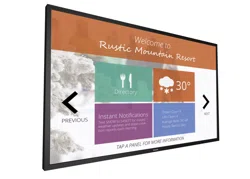

www.philips.com/welcome
43BDL4051T
V1.00
User Manual (English)

43BDL4051T
ii
Safety Instructions
Safety precautions and maintenance
WARNING: Use of controls, adjustments or procedures other than those specied in this documentation may result in exposure to
shock, electrical hazards and/or mechanical hazards.
Read and follow these instructions when connecting and using your display:
Operation:
• Keepthedisplayoutofdirectsunlightandawayfromstovesoranyotherheatsources.
• Removeanyobjectthatcouldfallintoventilationholesorpreventpropercoolingofthedisplay’selectronics.
• Donotblocktheventilationholesonthecabinet.
• Whenpositioningthedisplay,makesurethepowerplugandoutletareeasilyaccessible.
• Whenturningoffthedisplaybydetachingthepowercord,wait6secondsbeforere-attachingthepowercordfornormaloperation.
• EnsuretheuseofanapprovedpowercordprovidedbyPhilipsatalltimes.Ifyourpowercordismissing,pleasecontactyourlocalservicecenter.
• Donotsubjectthedisplaytoseverevibrationorhighimpactconditionsduringoperation.
• Donotknockordropthedisplayduringoperationortransportation.
Maintenance:
• Toprotectyourdisplayfrompossibledamage,donotputexcessivepressureontheLCDpanel.Whenmovingyourdisplay,grasptheframetolift;do
notliftthedisplaybyplacingyourhandorngersontheLCDpanel.
• Unplugthedisplayifyouarenotgoingtouseitforanextensiveperiodoftime.
• Unplugthedisplayifyouneedtocleanitwithaslightlydampcloth.Thescreenmaybewipedwithadryclothwhenthepowerisoff.However,never
useorganicsolvent,suchas,alcohol,orammonia-basedliquidstocleanyourdisplay.
• Toavoidtheriskofshockorpermanentdamagetotheset,donotexposethedisplaytodust,rain,wateroranexcessivelymoistenvironment.
• Ifyourdisplaybecomeswet,wipeitwithdryclothassoonaspossible.
• Ifaforeignsubstanceorwatergetsinyourdisplay,turnthepoweroffimmediatelyanddisconnectthepowercord.Thenremovetheforeignsubstance
orwater,andsendtheunittothemaintenancecenter.
• Donotstoreorusethedisplayinlocationsexposedtoheat,directsunlightorextremecold.
• Inordertomaintainthebestperformanceofyourdisplayandensurealongerlifetime,westronglyrecommendusingthedisplayinalocationthatfalls
withinthefollowingtemperatureandhumidityranges.
- Temperature:0-40°C32-104°F
- Humidity:20-80%RH
IMPORTANT:Alwaysactivateamovingscreensaverprogramwhenyouleaveyourdisplayunattended.Alwaysactivateaperiodicscreenrefresh
applicationiftheunitwilldisplayunchangingstaticcontent.Uninterrupteddisplayofstillorstaticimagesoveranextendedperiodmaycause“burnin”,
alsoknownas“after-imaging”or“ghostimaging”,onyourscreen.Thisisawell-knownphenomenoninLCDpaneltechnology.Inmostcases,the“burned
in”or“after-imaging”or“ghostimaging”willdisappeargraduallyoveraperiodoftimeafterthepowerhasbeenswitchedoff.
WARNING:Severe“burn-in”or“after-image”or“ghostimage”symptomswillnotdisappearandcannotberepaired.Thisisalsonotcoveredunderthe
termsofyourwarranty.
Service:
• Thecasingcovershouldbeopenedonlybyqualiedservicepersonnel.
• Ifthereisanyneedforrepairorintegration,pleasecontactyourlocalservicecenter.
• Donotleaveyourdisplayunderdirectsunlight.
Ifyourdisplaydoesnotoperatenormally,havingfollowedtheinstructionssetoutinthisdocument,pleasecontactatechnicianoryour
localservicecenter.
43BDL4051T
iii
Read and follow these instructions when connecting and using your display:
• Unplugthedisplayifyouarenotgoingtouseitforanextensiveperiodoftime.
• Unplugthedisplayifyouneedtocleanitwithaslightlydampcloth.Thescreenmanybewipedwithadryclothwhenthepoweris
off.However,neverusealcohol,solventsorammonia-basedliquids.
• Consultaservicetechnicianifthedisplaydoesnotoperatenormallywhenyouhavefollowedtheinstructionsinthismanual.
• Thecasingcovershouldbeopenedonlybyqualiedservicepersonnel.
• Keepthedisplayoutofdirectsunlightandawayfromstovesoranyotherheatsources.
• Removeanyobjectthatcouldfallintotheventsorpreventpropercoolingofthedisplay’selectronics.
• Donotblocktheventilationholesonthecabinet.
• Keepthedisplaydry.Toavoidelectricshock,donotexposeittorainorexcessivemoisture.
• WhenturningoffthedisplaybydetachingthepowercableorDCpowercord,waitfor6secondsbeforere-attachingthepower
cableorDCpowercordfornormaloperation..
• Toavoidtheriskofshockorpermanentdamagetothesetdonotexposethedisplaytorainorexcessivemoisture.
• Whenpositioningthedisplay,makesurethepowerplugandoutletareeasilyaccessible.
• IMPORTANT:Alwaysactivateascreensaverprogramduringyourapplication.Ifastillimageinhighcontrastremainsonthe
screenforanextendedperiodoftime,itmayleavean‘after-image’or‘ghostimage’onthefrontofthescreen.Thisisawell-known
phenomenonthatiscausedbytheshortcomingsinherentinLCDtechnology.Inmostcasestheafterimagewilldisappeargradually
overaperiodoftimeafterthepowerhasbeenswitchedoff.Beawarethattheafter-imagesymptomcannotberepairedandisnot
coveredunderwarranty.
CE Declaration of Conformity
ThisdevicecomplieswiththerequirementssetoutintheCouncilDirectiveontheApproximationoftheLawsoftheMemberStatesrelatingto
ElectromagneticCompatibility(2014/30/EU),Low-voltageDirective(2014/35/EU),RoHSdirective(2011/65/EU)andRadioEquipmentDirective(2014/53/
EU).
ThisproducthasbeentestedandfoundtocomplywiththeharmonizedstandardsforInformationTechnologyEquipment,theseharmonizedstandards
publishedunderDirectivesofOfcialJournaloftheEuropeanUnion.
Warning:
ThisequipmentiscompliantwithClassAofEN55032/CISPR32.Inaresidentialenvironmentthisequipmentmaycauseradiointerference.
ESD Warnings
Whenuserclosetothemonitormaycausetheequipmentdischargeandreboottothedisplayofmainmenu.
Federal Communications Commission (FCC) Notice (U.S. Only)
NOTE:ThisequipmenthasbeentestedandfoundtocomplywiththelimitsforaClassAdigitaldevice,pursuanttopart15ofthe
FCCRules.Theselimitsaredesignedtoprovidereasonableprotectionagainstharmfulinterferencewhentheequipmentisoperated
inacommercialenvironment.Thisequipmentgenerates,uses,andcanradiateradiofrequencyenergyand,ifnotinstalledandusedin
accordancewiththeinstructionmanual,maycauseharmfulinterferencetoradiocommunications.Operationofthisequipmentina
residentialareaislikelytocauseharmfulinterferenceinwhichcasetheuserwillberequiredtocorrecttheinterferenceathisown
expense.
Changesormodicationsnotexpresslyapprovedbythepartyresponsibleforcompliancecouldvoidtheuser’sauthoritytooperatethe
equipment.
UseonlyanRFshieldedcablethatwassuppliedwiththedisplaywhenconnectingthisdisplaytoacomputerdevice.
Topreventdamagewhichmayresultinreorshockhazard,donotexposethisappliancetorainorexcessivemoisture.
Europe – EU Declaration of Conformity
ThisdevicecomplieswiththeessentialrequirementsoftheRadioEquipmentDirective(2014/53/EU).Thefollowingtestmethodshavebeenappliedin
ordertoprovepresumptionofconformitywiththeessentialrequirementsoftheRadioEquipmentDirective(2014/53/EU):
-EN60950-1
SafetyofInformationTechnologyEquipment
-EN62311
Assessmentofelectronicandelectricalequipmentrelatedtohumanexposurerestrictionsforelectromagneticelds(0Hz-300GHz)
43BDL4051T
iv
-EN300328(For802.11b/g/n)
ElectromagneticcompatibilityandRadiospectrumMatters(ERM);WidebandTransmissionsystems;Datatransmissionequipmentoperatinginthe2,4
GHzISMbandandusingspreadspectrummodulationtechniques;HarmonizedENcoveringessentialrequirementsunderarticle3.2oftheR&TTE
Directive
-EN301489-17
ElectromagneticcompatibilityandRadiospectrumMatters(ERM);ElectroMagneticCompatibility(EMC)standardforradioequipmentandservices;Part
17:Specicconditionsfor2,4GHzwidebandtransmissionsystemsand5GHzhighperformanceRLANequipment
-EN301489-1
ElectromagneticcompatibilityandRadioSpectrumMatters(ERM);ElectroMagneticCompatibility(EMC)standardforradioequipmentandservices;Part1:
Commontechnicalrequirements
Taiwan:
低功率電波輻射性電機管理辦法
第十二條
經型式認證合格之低功率射頻電機,非經許可,公司、商號或使用者均不得擅自變更頻率、
加大功率或變更原設計之特性及功能。
第十四條
低功率射頻電機之使用不得影響飛航安全及干擾合法通信;經發現有干擾現象時,應立即停
用,並改善至無干擾時方得繼續使用。
前項合法通信,指依電信法規定作業之無線電通信。
低功率射頻電機須忍受合法通信或工業、科學及醫療用電波輻射性電機設備之干擾。
USA:
FederalCommunicationCommissionInterferenceStatement
ThisdevicecomplieswithPart15oftheFCCRules.Operationissubjecttothefollowingtwoconditions:(1)Thisdevicemaynotcauseharmful
interference,and(2)thisdevicemustacceptanyinterferencereceived,includinginterferencethatmaycauseundesiredoperation.
ThisequipmenthasbeentestedandfoundtocomplywiththelimitsforaClassBdigitaldevice,pursuanttoPart15oftheFCCRules.Theselimitsare
designedtoprovidereasonableprotectionagainstharmfulinterferenceinaresidentialinstallation.Thisequipmentgenerates,usesandcanradiateradio
frequencyenergyand,ifnotinstalledandusedinaccordancewiththeinstructions,maycauseharmfulinterferencetoradiocommunications.However,
thereisnoguaranteethatinterferencewillnotoccurinaparticularinstallation.Ifthisequipmentdoescauseharmfulinterferencetoradioortelevision
reception,whichcanbedeterminedbyturningtheequipmentoffandon,theuserisencouragedtotrytocorrecttheinterferencebyoneofthe
followingmeasures:
-Reorientorrelocatethereceivingantenna.
-Increasetheseparationbetweentheequipmentandreceiver.
-Connecttheequipmentintoanoutletonacircuitdifferentfromthattowhichthe
receiverisconnected.
-Consultthedealeroranexperiencedradio/TVtechnicianforhelp.
FCCCaution:Anychangesormodicationsnotexpresslyapprovedbythepartyresponsibleforcompliancecouldvoidtheuser'sauthorityto
operatethisequipment.
Thistransmittermustnotbeco-locatedoroperatinginconjunctionwithanyotherantennaortransmitter.
Canada:
IndustryCanadastatement:
ThisdevicecomplieswithRSS-247oftheIndustryCanadaRules.Operationissubjecttothefollowingtwoconditions:(1)Thisdevicemaynotcause
harmfulinterference,and(2)thisdevicemustacceptanyinterferencereceived,includinginterferencethatmaycauseundesiredoperation.
43BDL4051T
v
CedispositifestconformeàlanormeCNR-247d'IndustrieCanadaapplicableauxappareilsradioexemptsdelicence.Sonfonctionnementestsujetaux
deuxconditionssuivantes:(1)ledispositifnedoitpasproduiredebrouillagepréjudiciable,et(2)cedispositifdoitacceptertoutbrouillagereçu,ycompris
unbrouillagesusceptibledeprovoquerunfonctionnementin
Brazil:
ANATELRFSTATEMENT
PerArticle6ofResolution506,equipmentofrestrictedradiationmustcarrythefollowingstatementinavisiblelocation
“Esteequipamentooperaemcarátersecundário,istoé,nãotemdireitoaproteçãocontrainterferênciaprejudicial,mesmodeestaçõesdomesmotipo,e
nãopodecausarinterferênciaasistemasoperandoemcaráterprimário.”
ANATELBODYSARSTATEMENT
“Esteprodutoatendeaosrequisitostécnicosaplicados,incluindooslimitesdeexposiçãodaTaxadeAbsorçãoEspecícareferenteacamposelétricos,
magnéticoseeletromagnéticosderadiofrequência,deacordocomasresoluçõesn°303/2002e533/2009.Esteprodutoatendeàsdiretrizesdeexposição
àRFnaposiçãonormaldeusoapelomenosXcentímetroslongedocorpo,tendosidoosensaiosdeSARparacorporealizadoaXcmdeacordocom
oinformativoderecomendaçãoapresentadonomanualdofabricante.”
Polish Center for Testing and Certication Notice
Theequipmentshoulddrawpowerfromasocketwithanattachedprotectioncircuit(athree-prongsocket).Allequipmentthatworkstogether(computer,
display,printer,andsoon)shouldhavethesamepowersupplysource.
Thephasingconductoroftheroom’selectricalinstallationshouldhaveareserveshort-circuitprotectiondeviceintheformofafusewithanominalvalue
nolargerthan16amperes(A).
Tocompletelyswitchofftheequipment,thepowersupplycablemustberemovedfromthepowersupplysocket,whichshouldbelocatednearthe
equipmentandeasilyaccessible.
Aprotectionmark“B”conrmsthattheequipmentisincompliancewiththeprotectionusagerequirementsofstandardsPN-93/T-42107andPN-89/
E-06251.
43BDL4051T
vi
Electric, Magnetic and Electromagnetic Fields (“EMF”)
1. Wemanufactureandsellmanyproductstargetedatconsumers,which,likeanyelectronicapparatus,ingeneralhavetheabilitytoemitandreceive
electromagneticsignals.
2. OneofourleadingBusinessPrinciplesistotakeallnecessaryhealthandsafetymeasuresforourproducts,tocomplywithallapplicablelegal
requirementsandtostaywellwithintheEMFstandardsapplicableatthetimeofproducingtheproducts.
3. Wearecommittedtodevelop,produceandmarketproductsthatcausenoadversehealtheffects.
4. Weconrmthatifitsproductsarehandledproperlyfortheirintendeduse,theyaresafetouseaccordingtoscienticevidenceavailabletoday.
5. WeplayanactiveroleinthedevelopmentofinternationalEMFandsafetystandards,enablingustoanticipatefurtherdevelopmentsinstandardization
forearlyintegrationinitsproducts.
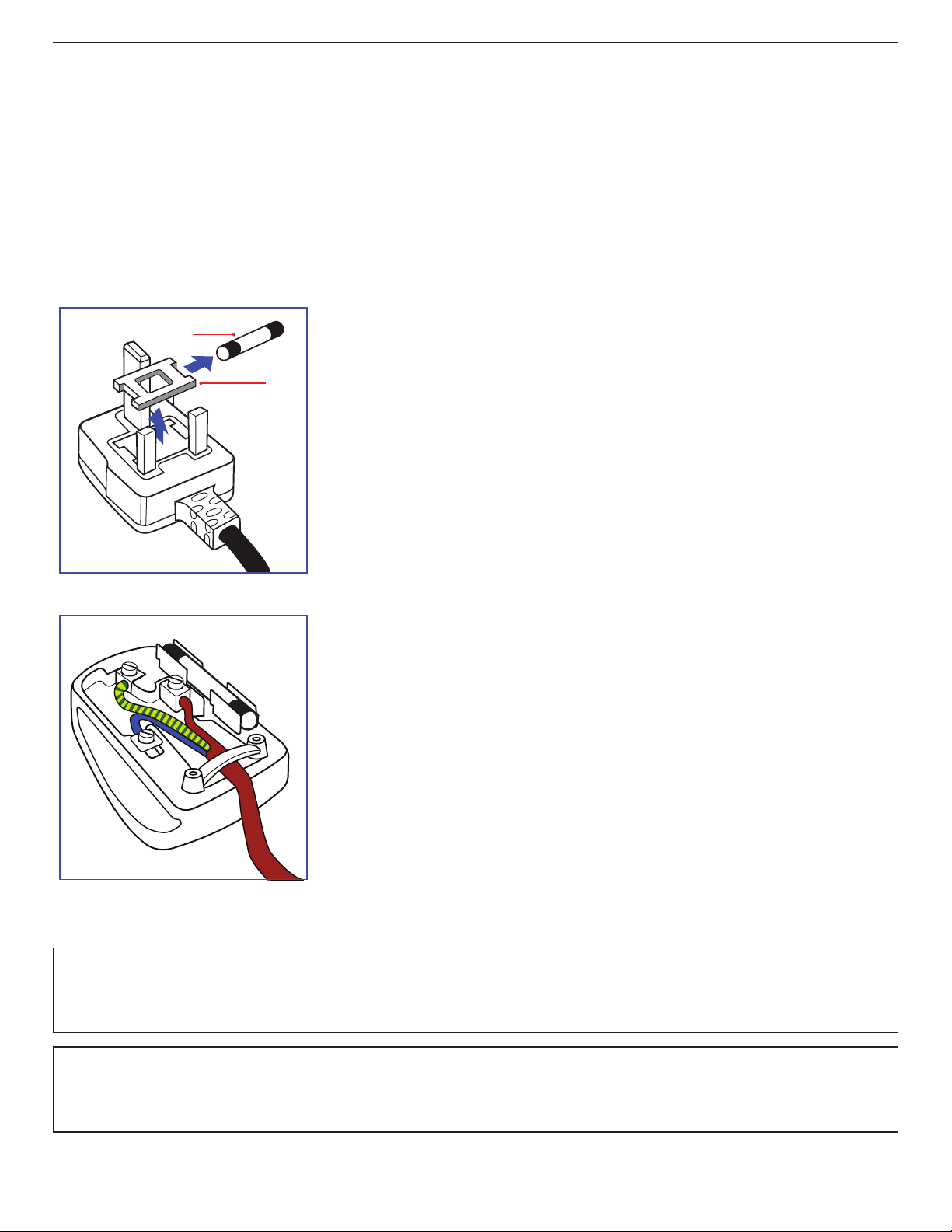
Information for U.K. only
(A)
(B)
WARNING - THIS APPLIANCE MUST BE EARTHED.
Important:
Thisapparatusissuppliedwithanapprovedmoulded13Aplug.Tochangeafuseinthistypeofplug
proceedasfollows:+
1. Removefusecoverandfuse.
2. FitnewfusewhichshouldbeaBS13625A,A.S.T.A.orBSIapprovedtype.
3. Retthefusecover.
Ifthettedplugisnotsuitableforyoursocketoutlets,itshouldbecutoffandanappropriate3-pin
plugttedinitsplace.
Ifthemainsplugcontainsafuse,thisshouldhaveavalueof5A.Ifaplugwithoutafuseisused,thefuse
atthedistributionboardshouldnotbegreaterthan5A.
NOTE: Theseveredplugmustbedestroyedtoavoidapossibleshockhazardshoulditbeinserted
intoa13Asocketelsewhere.
How to connect a plug
Thewiresinthemainsleadarecolouredinaccordancewiththefollowingcode:
BLUE-“NEUTRAL”(“N”)
BROWN-“LIVE”(“L”)
GREEN&YELLOW-“EARTH”(“E”)
1. TheGREEN&YELLOWwiremustbeconnectedtotheterminalintheplugwhichismarkedwith
theletter“E”orbytheEarthsymbolorcolouredGREENorGREEN&YELLOW.
2. TheBLUEwiremustbeconnectedtotheterminalwhichismarkedwiththeletter“N”orcoloured
BLACK.
3. TheBROWNwiremustbeconnectedtotheterminalwhichmarkedwiththeletter“L”or
colouredRED.
Beforereplacingtheplugcover,makecertainthatthecordgripisclampedoverthesheathofthelead
-notsimplyoverthethreewires.
North Europe (Nordic Countries) Information
Placering/Ventilation
VARNING:
FÖRSÄKRADIGOMATTHUVUDBRYTAREOCHUTTAGÄRLÄTÅTKOMLIGA,NÄRDUSTÄLLERDINUTRUSTNINGPÅPLATS.
Placering/Ventilation
ADVARSEL:
SØRGVEDPLACERINGENFOR,ATNETLEDNINGENSSTIKOGSTIKKONTAKTERNEMTTILGÆNGELIGE.

43BDL4051T
vii
Paikka/Ilmankierto
VAROITUS:
SIJOITALAITESITEN,ETTÄVERKKOJOHTOVOIDAANTARVITTAESSAHELPOSTIIRROTTAAPISTORASIASTA.
Plassering/Ventilasjon
ADVARSEL:
NÅRDETTEUTSTYRETPLASSERES,MÅDUPASSEPÅATKONTAKTENEFORSTØMTILFØRSELERLETTEÅNÅ.
43BDL4051T
viii
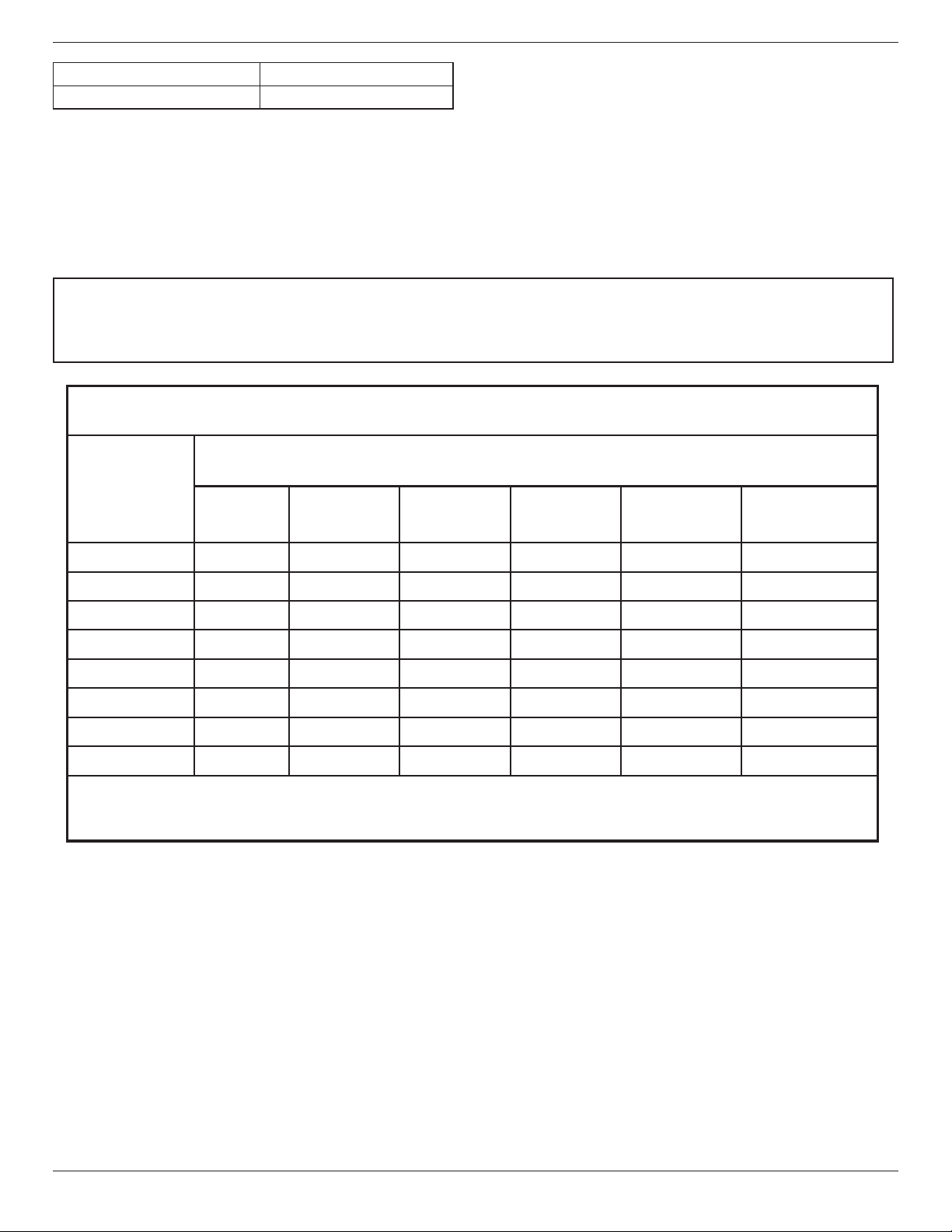
China RoHS
电子电气产品有害物质限制使用标识要求 (中国RoHS法规标识要求) 产品中有害物质的名称及含量。
零部件名称
有害物质
铅
(Pb)
汞
(Hg)
镉
(Cd)
六价铬
(Cr (VI))
多溴联苯
(PBB)
多溴二苯醚
(PBDE)
塑料外框 O O O O O O
后壳 O O O O O O
LCD
panel
CCFL X X O O O O
LED X O O O O O
电路板组件* X O O O O O
底座 O O O O O O
电源线 X O O O O O
其他线材 X O O O O O
遥控器 X O O O O O
*:电路板组件包括印刷电路板及其构成的零部件,如电阻、电容、集成电路、连接器等。
本表格依据SJ/T 11364的规定编制。
O: 表示该有害物质在该部件所有均质材料中的含量均在 GB/T 26572 标准规定的限量要求以下.
X: 表示该有害物质至少在该部件的某一均质材料中的含量超出 GB/T 26572 标准规定的限量要求.
上 表 中 打“ X”的部件中,应功能需要,部分有害物质含量超出GB/T 26572规定的限量要求,但是符合欧盟
RoHS法规要求(属于豁免部分)。
备注:上表仅做为范例,实际标示时应依照各产品的实际部件及所含有害物质进行标示。
10
環保使用期限
此標識指期限(十年),電子电气產品中含有的有害物質在正常使用的條件下不會發生外泄或突變,
電子电气產品用戶使用該電子电气產品不會對環境造成嚴重污染或對其人身、財產造成嚴重損害的期限。
中国能源效率标识
根据中国大陆《能源效率标识管理办法》,本显示器符合以下要求
能源效率(cd/W) >1.05
43BDL4051T
ix
能效等级 1 级
能效标准 GB 21520-2008
详细有关信息请查阅中国能效标识网: http://www.energylabel.gov.cn/
《废弃电器电子产品回收处理管理条例》提示性说明
为了更好地关爱及保护地球,当用户不再需要此产品或产品寿命终止时,请遵守国家废弃电器电子产品
回收处理相关法律法规,将其交给当地具有国家认可的回收处理资质的厂商进行回收处理。
娤⌈
㨢᳸$䵥ᵥ⍿Ʋ◦䏝㯹䉭❁ᳫ濕媣ᵥ⍿⊭侻廞ノ㒞䵽䏳ⴰㄮƲ◦店䢋⾃濕⊭侻斾堿䏦ヵ
⪷ⴰㄮ悅⊔⩜⊭圊䕂㉨㑻Ʋ
設備名稱: 液晶彩色顯示器,型號(型式):43BDL4051T
單元
限用物質及其化學符號
鉛
(Pb)
汞
(Hg)
鎘
(Cd)
六價鉻
(Cr
+6
)
多溴聯苯
(PBB)
多溴二苯醚
(PBDE)
塑料外框 ○ ○ ○ ○ ○ ○
後殼 ○ ○ ○ ○ ○ ○
LCD panel - ○ ○ ○ ○ ○
電路板組件 - ○ ○ ○ ○ ○
底座 ○ ○ ○ ○ ○ ○
電源線 - ○ ○ ○ ○ ○
其他線材 - ○ ○ ○ ○ ○
遙控器 - ○ ○ ○ ○ ○
備考1.〝○〞係指該項限用物質之百分比含量未超出百分比含量基準值。
備考2.〝-〞係指該項限用物質為排除項目。
警語 : 使用過度恐傷害視力。
注意事項: (1) 使用30分鐘請休息10分鐘。
(2) 未滿2歲幼兒不看螢幕,2歲以上每天看螢幕不要超過1小時。
End-of-Life Disposal
YournewPublicInformationDisplaycontainsmaterialsthatcanberecycledandreused.Specializedcompaniescanrecycleyourproducttoincreasethe
amountofreusablematerialsandtominimizetheamounttobedisposedof.
PleasendoutaboutthelocalregulationsonhowtodisposeofyourolddisplayfromyourlocalPhilipsdealer.
(For customers in Canada and U.S.A.)
Thisproductmaycontainleadand/ormercury.Disposeofinaccordancetolocal-stateandfederalregulations.Foradditionalinformationonrecycling
contactwww.eia.org(ConsumerEducationInitiative)
43BDL4051T
x
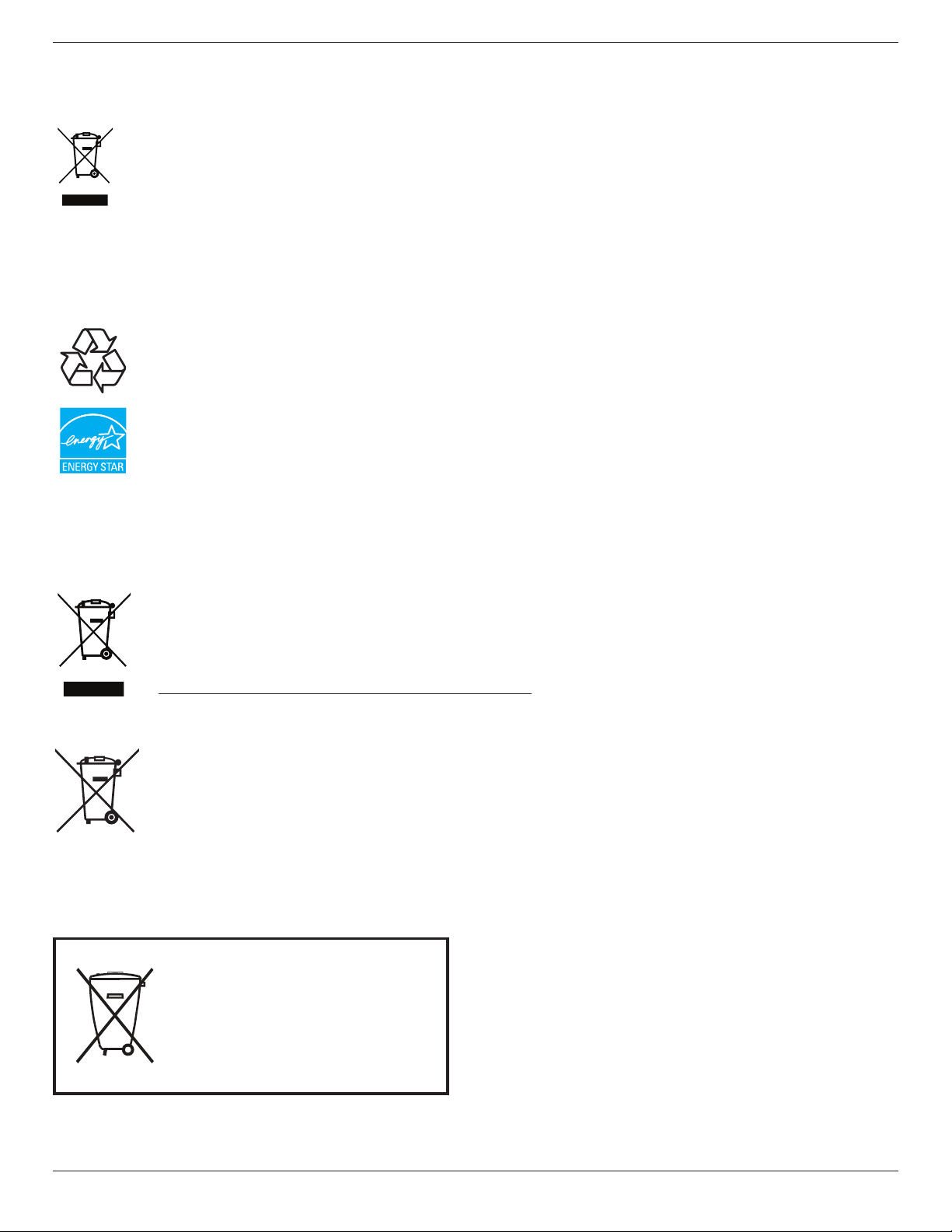
Waste Electrical and Electronic Equipment-WEEE
Attention users in European Union private households
Thismarkingontheproductoronitspackagingillustratesthat,underEuropeanDirective2012/19/EUgoverningusedelectricaland
electronicappliances,thisproductmaynotbedisposedofwithnormalhouseholdwaste.Youareresponsiblefordisposalofthis
equipmentthroughadesignatedwasteelectricalandelectronicequipmentcollection.Todeterminethelocationsfordroppingoffsuch
wasteelectricalandelectronic,contactyourlocalgovernmentofce,thewastedisposalorganizationthatservesyourhouseholdorthe
storeatwhichyoupurchasedtheproduct.
Attention users in United States:
PleasedisposeofaccordingtoallLocal,StateandFederalLaws.Forthedisposalorrecyclinginformation,contact:www.mygreenelectronics.comorwww.
eiae.org.
End of Life Directives-Recycling
YournewPublicInformationDisplaycontainsseveralmaterialsthatcanberecycledfornewusers.
PleasedisposeofaccordingtoallLocal,State,andFederallaws
AsanENERGYSTARPartner,wehavedeterminedthatthisproductmeetstheENERGYSTARguidelinesforenergyefciency.
Restriction on Hazardous Substances statement (India)
Thisproductcomplieswiththe“IndiaE-wasteRule”andprohibitsuseoflead,mercury,hexavalentchromium,polybrominatedbiphenylsorpolybrominated
diphenylethersinconcentrationsexceeding0.1weight%and0.01weight%forcadmium,exceptfortheexemptionssetinSchedule2oftheRule.
E-Waste Declaration for India
Thissymbolontheproductoronitspackagingindicatesthatthisproductmustnotbedisposedofwithyourotherhouseholdwaste.
Insteaditisyourresponsibilitytodisposeofyourwasteequipmentbyhandingitovertoadesignatedcollectionpointfortherecycling
ofwasteelectricalandelectronicequipment.Theseparatecollectionandrecyclingofyourwasteequipmentatthetimeofdisposal
willhelptoconservenaturalresourcesandensurethatitisrecycledinamannerthatprotectshumanhealthandtheenviron-ment.
FormoreinformationaboutwhereyoucandropoffyourwasteequipmentforrecyclinginIndiapleasevisitthebelowweblink.
http://www.india.philips.com/about/sustainability/recycling/index.page
Batteries
For EU: The crossed-out wheeled bin implies that used batteries should not be put to the general household waste! There is a
separate collection system for used batteries, to allow proper treatment and recycling in accordance with legislation.
Please contact your local authority for details on the collection and recycling schemes.
For Switzerland: The used battery is to be returned to the selling point.
For other non-EU countries: Please contact your local authority for correct method of disposal of the used battery.
According to EU directive 2006/66/EC, the battery can’t be disposed improperly. The battery shall be separated
to collect by local service.
Após o uso, as pilhas
deverão ser entregues ao
estabelecimento comercial
ou
e/ou baterias
rede de assistência técnica
autorizada.

43BDL4051T
xi
警告使用者 :
此為甲類資訊技術設備 , 於居住環境中使用時 , 可能會造成射頻擾動 , 在此種情況下 , 使用者會被要
求採取某些適當的對策 .

43BDL4051T
xii
Table Of Contents
1. Unpacking and Installation .......................................................1
1.1. Unpacking.........................................................................................1
1.2. PackageContents........................................................................1
1.3. InstallationNotes.........................................................................1
1.4. InstallingandRemovingTableStands(optional)........2
1.5. MountingonaWall....................................................................3
1.5.1. VESAGrid....................................................................3
1.6. MountinginPortraitPosition................................................4
1.6.1. Howtousethelogoguiderforportrait
position...........................................................................4
1.6.2. Howtoremovethelogo.....................................4
1.7. UsingofRemotesensorandpowerindicator............5
2. Parts and Functions ...................................................................6
2.1. ControlPanel.................................................................................6
2.2. Input/OutputTerminals.............................................................7
2.3. RemoteControl...........................................................................8
2.3.1. Generalfunctions.....................................................8
2.3.2. IDRemoteControl..............................................10
2.3.3. RemoteControlbuttonsonAndroid
source...........................................................................11
2.3.4. Insertingthebatteriesintheremote
control..........................................................................12
2.3.5. Handlingtheremotecontrol..........................13
2.3.6. Operatingrangeoftheremotecontrol...13
3. Connecting External Equipment.......................................... 14
3.1. ConnectingExternalEquipment(DVD/VCR/
VCD)...............................................................................................14
3.1.1. UsingHDMIvideoinput...................................14
3.2. ConnectingaPC.......................................................................14
3.2.1. UsingDVI-Iinput...................................................14
3.2.2. UsingDVIinput......................................................15
3.2.3. UsingHDMIinput.................................................15
3.2.4. UsingDisplayPortinput.....................................15
3.3. ConnectingAudioEquipment...........................................16
3.3.1. Connectinganexternalaudiodevice........16
3.4. ConnectingMultipleDisplaysinaDaisy-chain
Conguration..............................................................................16
3.4.1. Displaycontrolconnection..............................16
3.4.2. Digitalvideoconnection....................................16
3.4.3. Analogvideoconnection..................................17
3.5. IRconnection..............................................................................17
3.6. IRPass-throughConnection...............................................18
3.7. TouchOperation......................................................................19
4. Operation ................................................................................. 21
4.1. WatchtheConnectedVideoSource............................21
4.2. ChangePictureFormat.........................................................21
4.3. AndroidLauncher....................................................................21
4.4. MediaPlayerintroduction:...................................................22
4.5. Browsermanual.........................................................................24
4.6. PDFreaderplay.........................................................................26
4.7. SmartCMS....................................................................................29
4.8. Customapp.................................................................................30
4.8.1. OSDMenuoperation:........................................30
4.8.2. FunctionIntroduction..........................................30
5. signage display .......................................................................... 31
5.1. Setting..............................................................................................31
5.2. Wi-Fi................................................................................................31
5.3. Ethernet..........................................................................................31
5.3.1. DHCP..........................................................................31
5.3.2. StaticIP........................................................................31
5.4. SignageDisplay...........................................................................32
5.4.1. GeneralSettings.....................................................32
5.4.2. ServerSettings........................................................34
5.4.3. SourceSettings.......................................................37
5.5. SystemTools................................................................................39
5.5.1. NavigationBar.........................................................39
5.5.2. ClearStorage...........................................................39
5.5.3. FactoryReset...........................................................39
5.5.4. Import&Export....................................................39
5.6. Storage............................................................................................40
5.7. Apps.................................................................................................40
5.8. Date&time.................................................................................40
5.9. Developeroptions...................................................................40
5.10. About..............................................................................................40
5.10.1. Systemupdates.......................................................41
5.11. Supplementary...........................................................................41
5.11.1. Rotation......................................................................41
5.11.2. ASCIITable.................................................................41
6. OSD Menu ............................................................................... 42
6.1. NavigatingtheOSDMenu................................................42
6.1.1. NavigatingtheOSDmenuusingthe
remotecontrol........................................................42
6.1.2. NavigatingtheOSDmenuusingthe
display’scontrolbuttons....................................42
6.2. OSDMenuOverview...........................................................42
6.2.1. Picturemenu............................................................42
6.2.2. Screenmenu............................................................43
6.2.3. Audiomenu..............................................................44
6.2.4. PIPmenu....................................................................45
6.2.5. Conguration1menu..........................................45
6.2.6. Conguration2menu..........................................46
6.2.7. Advancedoptionmenu.....................................48

43BDL4051T
xiii
7. USB device compatibility ....................................................... 52
8. Input Mode ............................................................................... 54
9. Pixel Defect Policy .................................................................. 55
9.1. PixelsandSub-Pixels...............................................................55
9.2. TypesofPixelDefects+DotDenition....................55
9.3. BrightDotDefects...................................................................55
9.4. DarkDotDefects.....................................................................56
9.5. ProximityofPixelDefects...................................................56
9.6. PixelDefectTolerances.........................................................56
9.7. MURA.............................................................................................56
10. Cleaning and Troubleshooting .............................................. 57
10.1. Cleaning..........................................................................................57
10.2. Troubleshooting.........................................................................58
11. Technical Specications ......................................................... 59
43BDL4051T
1
1. Unpacking and Installation
1.1. Unpacking
• Thisproductispackedinacarton,togetherwiththestandardaccessories.
• Anyotheroptionalaccessorieswillbepackedseparately.
• Duetothesizeandweightofthisdisplayitisrecommendedfortwopeopletomoveit.
• Afteropeningthecarton,ensurethatthecontentsarecompleteandingoodcondition.
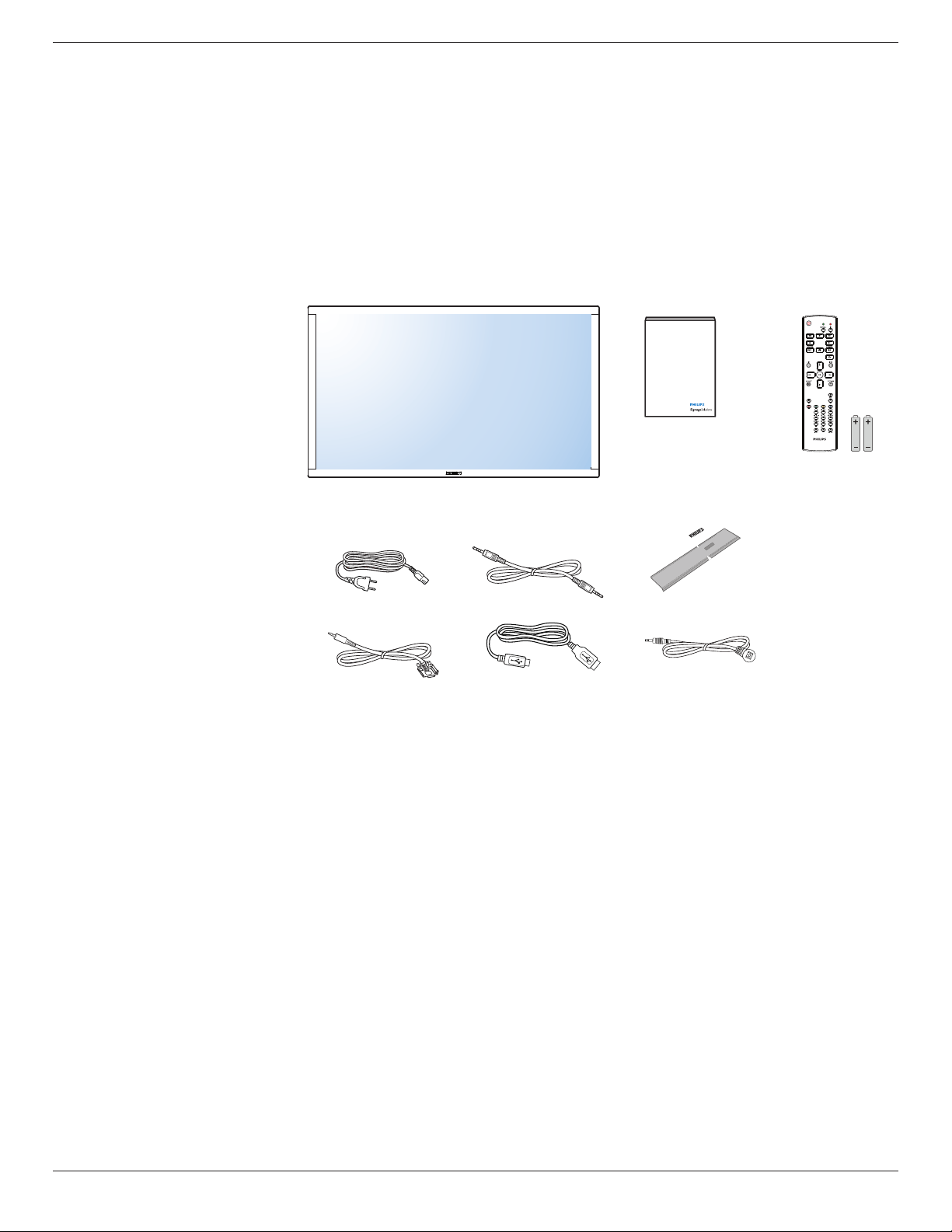
1.2. Package Contents
Pleaseverifythatyoureceivedthefollowingitemswithyourpackagecontent:
• LCDdisplay
• RemotecontrolwithAAAbatteries
• Powercord(1.8m)
• RS232cable(1.8m)
• RS232daisy-chaincable(1.8m)
• Quickstartguide
• Logoguider&logo
• USBcable(1.8m)
• IRsensorcable(1.8m)
* The supplied power cord varies depending on destination.
Power Cord
Logo guider
Quick start guide
Remote Control
and AAA Batteries
RS232 Cable
RS232 daisy-chain cable
USB Cable IR Sensor Cable
*Differencesaccordingtoregions.
Displaydesignandaccessoriesmaydifferfromthoseillustratedabove.
NOTES:
• Forallotherregions,applyapowercordthatconformstotheACvoltageofthepowersocketandhasbeenapprovedbyandcomplieswiththe
safetyregulationsoftheparticularcountry(TypeH05VV-F,2Gor3G,0.75or1mm
2
shouldbeused).
• Youmightliketosavethepackageboxandpackingmaterialforshippingthedisplay.
1.3. Installation Notes
• Duetothehighpowerconsumption,alwaysusetheplugexclusivelydesignedforthisproduct.Ifanextendedlineisrequired,pleaseconsultyour
serviceagent.
• Theproductshouldbeinstalledonaatsurfacetoavoidtipping.Thedistancebetweenthebackoftheproductandthewallshouldbemaintained
forproperventilation.Avoidinstallingtheproductinthekitchen,bathroomoranyotherplaceswithhighhumiditysoasnottoshortentheservicelife
oftheelectroniccomponents.
• Theproductcannormallyoperateonlyunder3000minaltitude.Ininstallationsataltitudesabove3000m,someabnormalitiesmaybeexperienced.

43BDL4051T
2
1.4. Installing and Removing Table Stands (optional)
To install table stands:
Step 1- Put on the table
Layaprotectivesheetonthetable,whickwaswrappedarroundthedisplaywhenitwaspackaged,beneachthescreensurfacesoasnottoscratch
thescreenface.
Step 2- Fix the tube to the display (by using M6xL41 screws)
Pleaserefertothefollowingdrawingtoknowthepositionofscrews.
Step 3- Set up the stand (by using thumb)
Thumb screws
Table stand
Longer portions face the front
Thumb screws
Thumb screws
To remove table stands:
1. Poweroffthedisplay.
2. Spreadaprotectivesheetonaatsurface.
3. Grabthecarryinghandlesandplacethedisplayface-downontheprotectivesheet.
4. Removescrewsusingascrewdriverandplacetheminasafeplaceforreuse.
43BDL4051T
3
1.5. Mounting on a Wall
Tomountthisdisplaytoawall,youwillhavetoobtainastandardwall-mountingkit(commerciallyavailable).Werecommendusingamountinginterface
thatcomplieswithTUV-GSand/orUL1678standard.
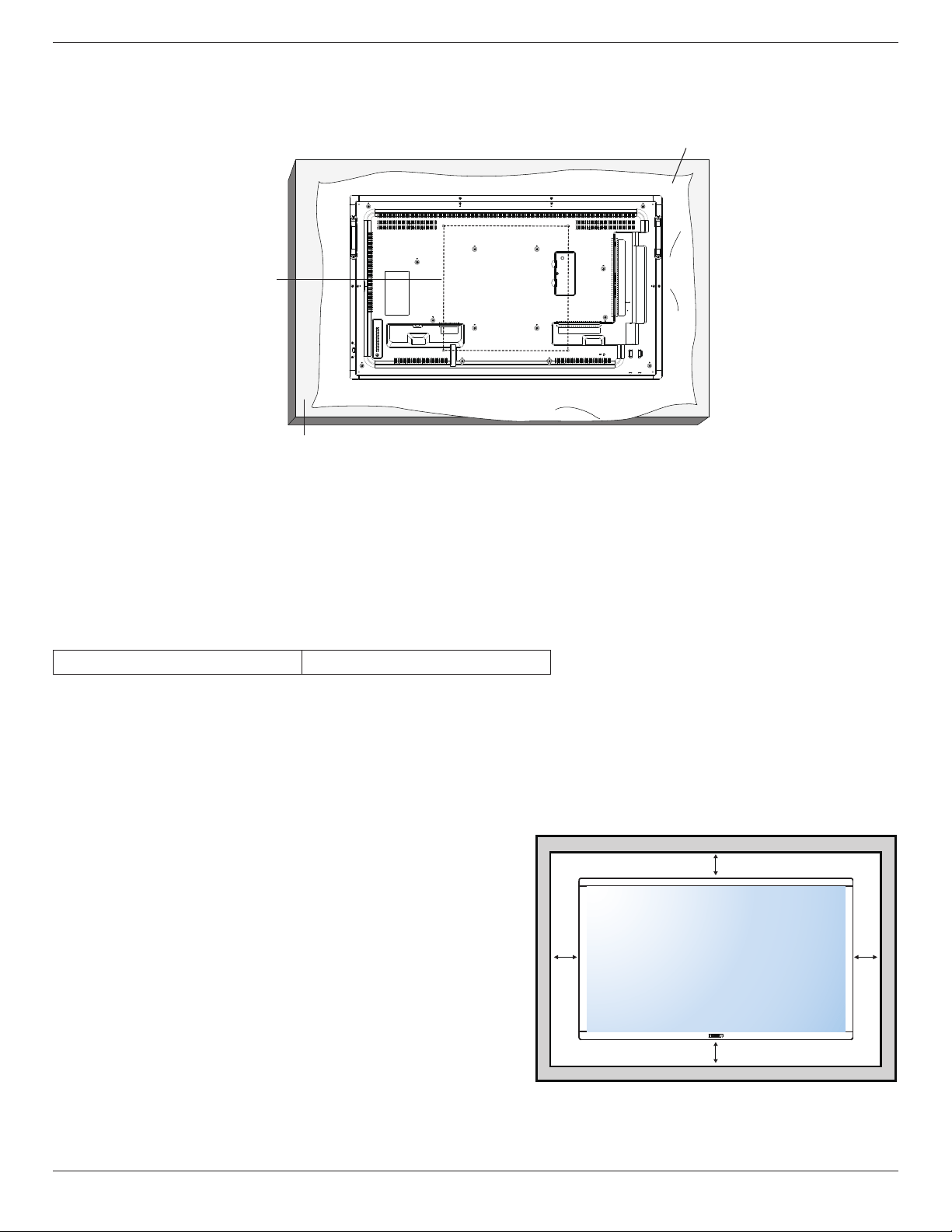
Protective Sheet
Table
VESA Grid
1. Layaprotectivesheetonatable,whichwaswrappedaroundthedisplaywhenitwaspackaged,beneaththescreensurfacesoasnottoscratchthe
screenface.
2. Ensureyouhaveallaccessoriesformountingthisdisplay(wallmount,ceilingmount,tablestand,etc).
3. Followtheinstructionsthatcomewiththebasemountingkit.Failuretofollowcorrectmountingprocedurescouldresultindamagetotheequipment
orinjurytotheuserorinstaller.Productwarrantydoesnotcoverdamagecausedbyimproperinstallation.
4. Forthewall-mountingkit,useM6mountingscrews(havingalength10mmlongerthanthethicknessofthemountingbracket)andtightenthem
securely.
1.5.1. VESA Grid
43BDL4051T
400(H)x400(V)mm
Caution:
Topreventthedisplayfromfalling:
• Forwallorceilinginstallation,werecommendinstallingthedisplaywithmetalbracketswhicharecommerciallyavailable.Fordetailedinstallation
instructions,refertotheguidereceivedwiththerespectivebracket.
• Tolessentheprobabilityofinjuryanddamageresultingfromfallofthedisplayincaseofearthquakeorothernaturaldisaster,besuretoconsultthe
bracketmanufacturerforinstallationlocation.
Ventilation Requirements for enclosure locating
Toallowheattodisperse,leavespacebetweensurroundingobjectsasshowninthe
diagrambelow.
100 mm
100 mm
100 mm
100 mm
43BDL4051T
4
1.6. Mounting in Portrait Position
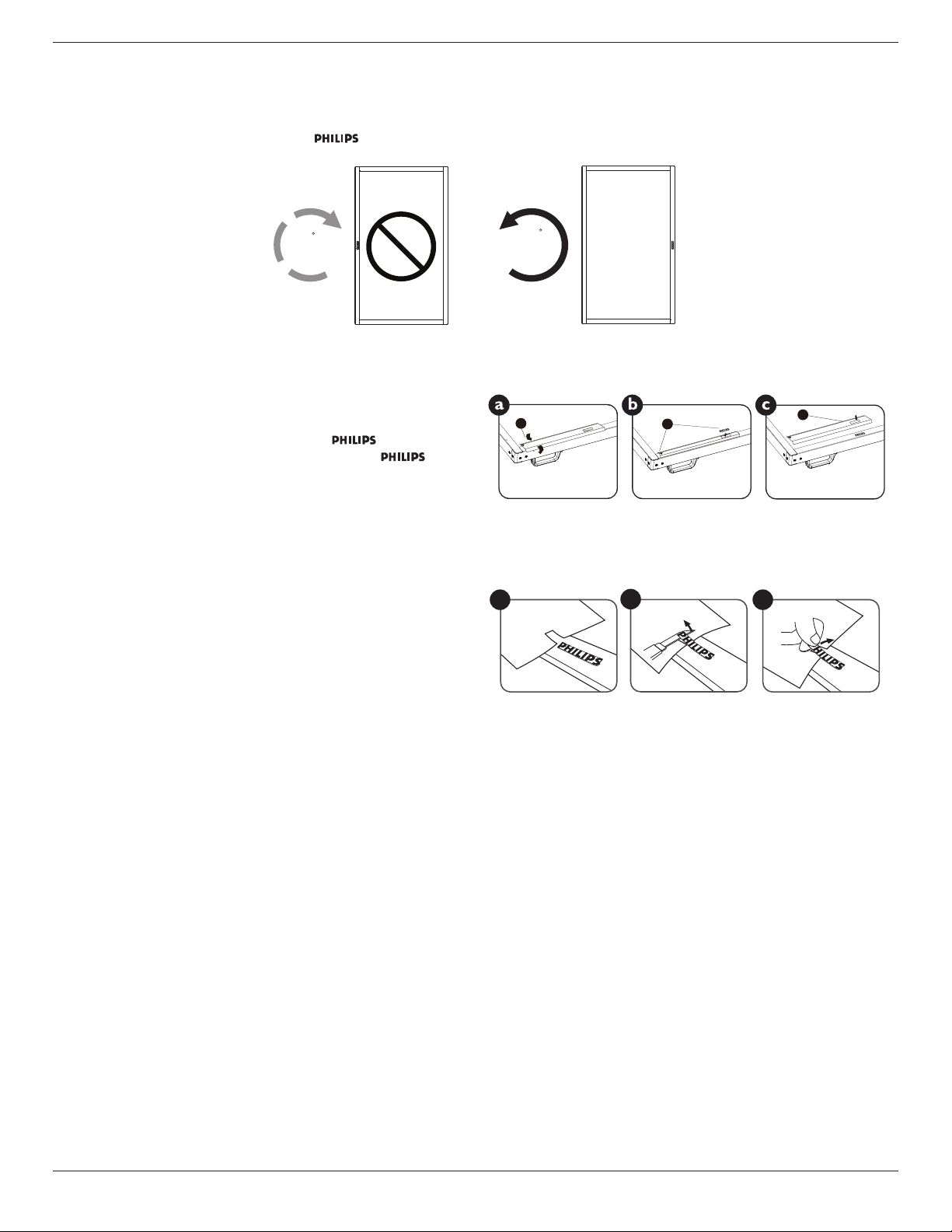
Thisdisplaycanbeinstalledinportraitposition.
1. Removethetablestand,ifattached.
2. Rotate90degreescounter-clockwise.The“
”logoshouldbeontheRIGHTsidewhenfacingthedisplay.
90
90
1.6.1. How to use the logo guider for portrait position
1. Puttheguideronthelower-leftcornerofthefrontbezelofthedisplay.
Folddownbothofitsedges.
2. Peelofftheprotectivelmatthebackofthe“
”logosticker.
Holdandpresstheguiderwithyourlefthand.Putthe“
”logo
stickerwithitsadhesivesidedownintothelogoholewithyourright
hand,andpresstomakeitsticktightlyontothefrontbezel.
3. Removetheguider.
1
2
3
1.6.2. How to remove the logo
1. Prepareapieceofpaperwithacuttingareaoflogoasaprotectorto
preventthefrontbezelfromscratching.
2. Usingaknife,carefullyremovethelogostickerwiththepaperplacing
beneath.
3. Tearoffthelogosticker.
1
2
3
NOTE: Wheninstallingthedisplayonawall,pleaseconsultaprofessionaltechnicianforproperinstallation.Weacceptnoliabilityforinstallationsnot
performedbyaprofessionaltechnician.
43BDL4051T
5
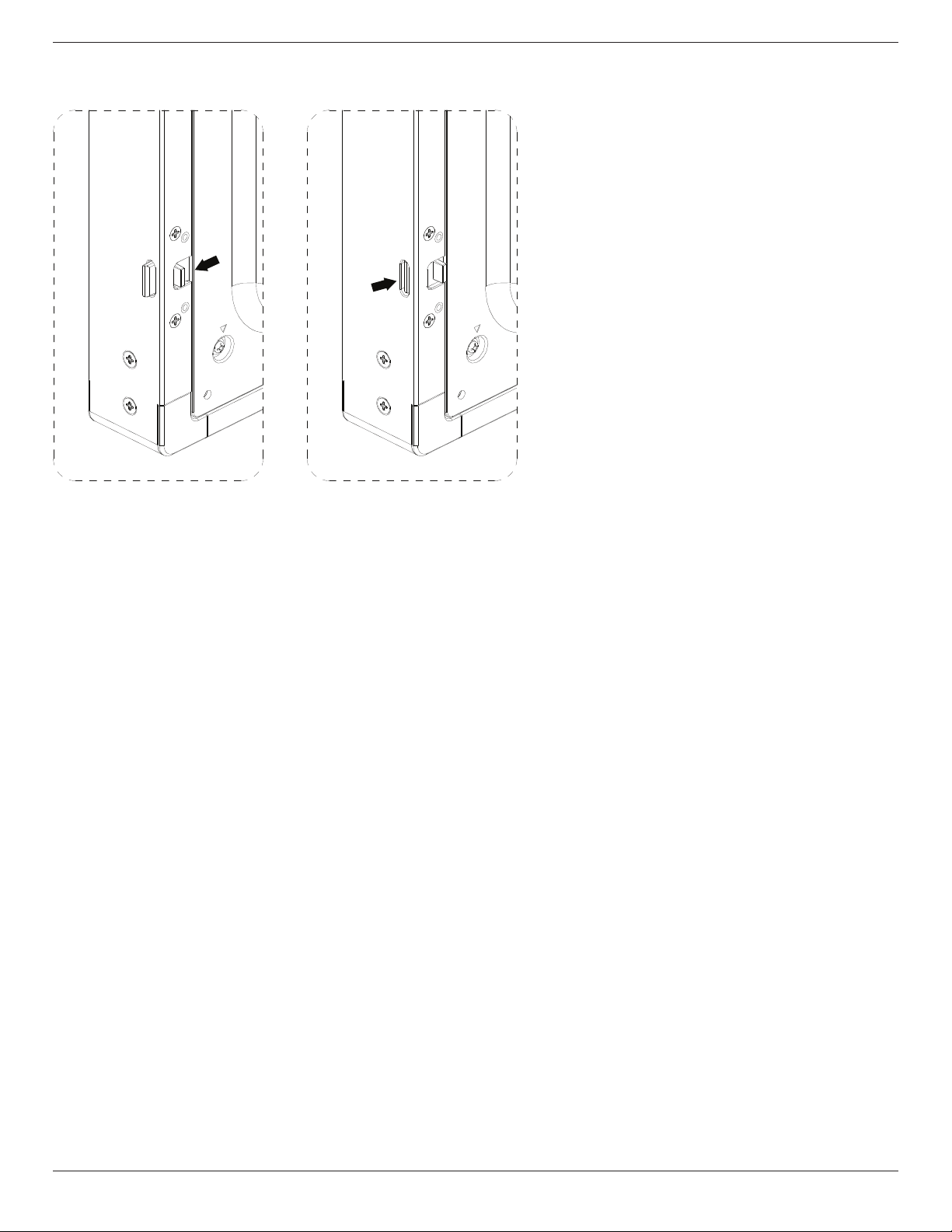
1.7. Using of Remote sensor and power indicator
1. Pull left the lens to have better remote control performance and easy to observe the light information of power status.
2. Push right the lens to collapse it if needed.
3. Pull/Push the lens until hearing the click sound.
43BDL4051T
6
2. Parts and Functions
2.1. Control Panel
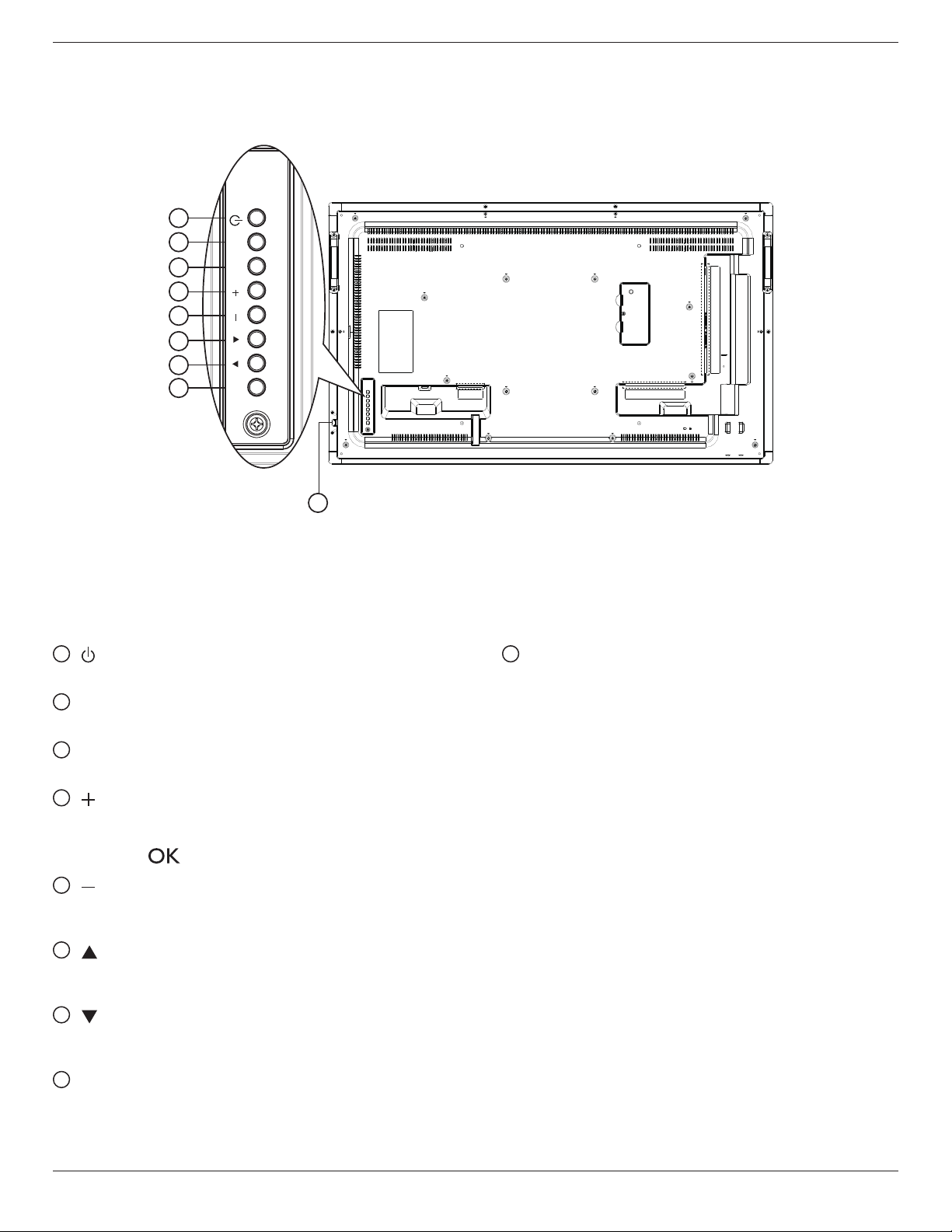
1
2
3
4
5
6
7
8
9
MUTE INPUT
MENU
1
[ ] button
Usethisbuttontoturnthedisplayonorputthedisplaytostandby.
2
[MUTE] button
SwitchtheaudiomuteON/OFF.
3
[INPUT] button
Choosetheinputsource.
4
[ ] button
IncreasetheadjustmentwhileOSDmenuison,orincreasethe
audiooutputlevelwhileOSDmenuisoff.
• Usedas[
]buttonintheOn-Screen-Displaymenu.
5
[ ] button
DecreasetheadjustmentwhileOSDmenuison,ordecreasethe
audiooutputlevelwhileOSDmenuisoff.
6
[ ] button
MovethehighlightbaruptoadjusttheselecteditemwhileOSD
menuison.
7
[ ] button
MovethehighlightbardowntoadjusttheselecteditemwhileOSD
menuison.
8
[MENU] button
ReturntopreviousmenuwhileOSDmenuison,ortoactivatethe
OSDmenuwhenOSDmenuisoff.
9
Remote control sensor and power status indicator
• Receivescommandsignalsfromtheremotecontrol.
• Indicatestheoperatingstatusofthedisplay:
- Lightsgreenwhenthedisplayisturnedon
- Lightsredwhenthedisplayisinstandbymode
- Lightsamberwhenthedisplayenterssleepmode
- When{SCHEDULE}isenabled,thelightblinksgreenandred
- Ifthelightblinksred,itindicatesthatafailurehasbeen
detected
- Lightsoffwhenthemainpowerofthedisplayisturnedoff
43BDL4051T
7
2.2. Input/Output Terminals
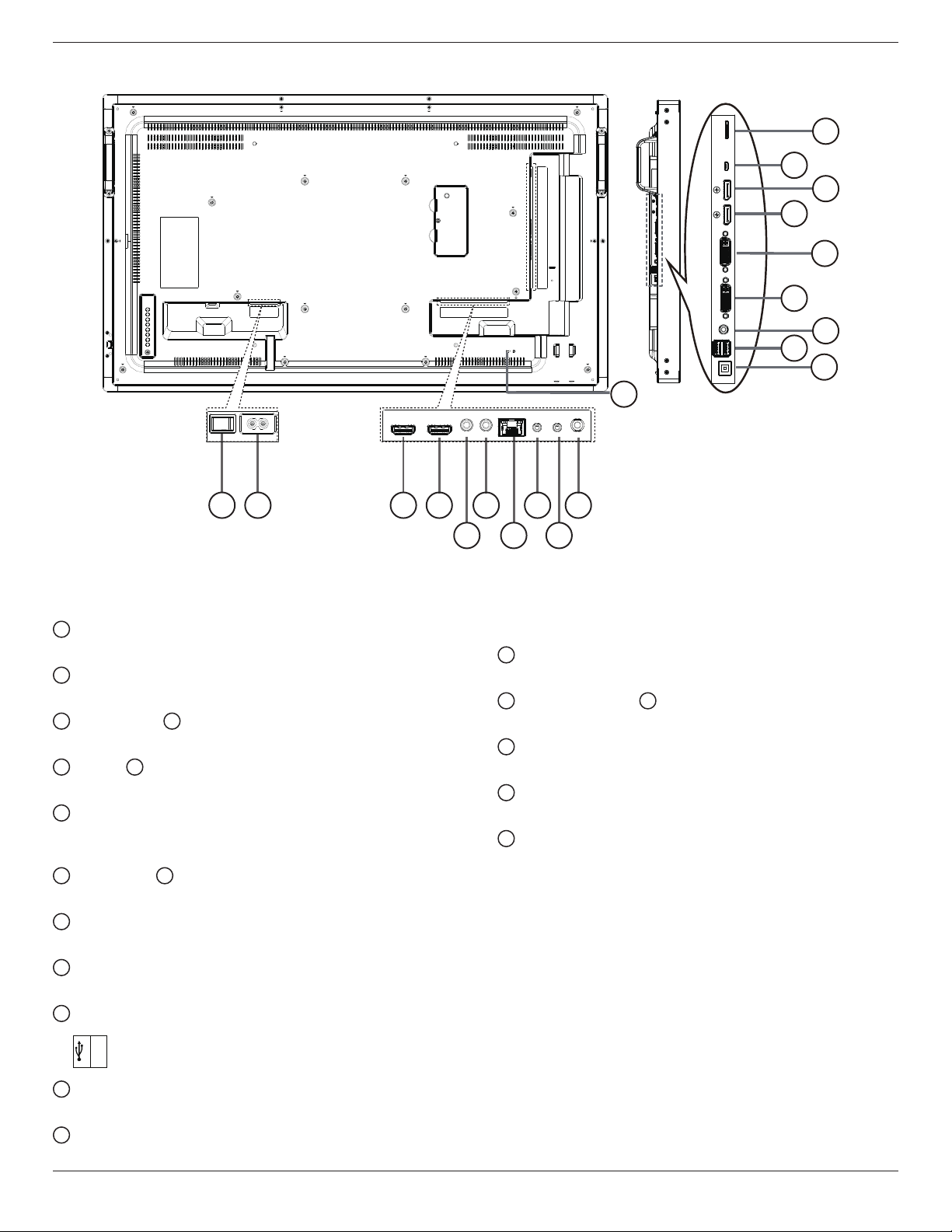
11
12
13
16
18
17
19
15
20
21 43 6
5
8
7
10
9
14
1
AC SWITCH
SwitchtheACpoweron/off.
2
AC IN
ACpowerinputfromthewalloutlet.
3
HDMI1 IN /
4
HDMI2 IN
HDMIvideo/audioinput.
5
IR IN /
6
IR OUT
IRsignalinput/outputfortheloop-throughfunction.
7
RJ-45
LANcontrolfunctionfortheuseofremotecontrolsignalfrom
controlcenter.
8
RS232 IN /
9
RS232 OUT
RS232networkinput/outputfortheloop-throughfunction.
10
Audio OUT
AudiooutputtoexternalAVdevice.
11
USB PORT B
TouchconnectortoPC.
12
USB PORT A
USB
5V/2A
13
PC LINE IN
AudioinputforVGAsource(3.5mmstereophone).
14
DVI IN
DVI-Ivideoinput.
15
DVI OUT
DVIorVGAvideooutput.
16
DisplayPort IN /
17
DisplayPort OUT
DisplayPortvideoinput/output.
18
MICRO USB
ConnectyourUSBstoragedevice.
19
MICRO SD CARD
ConnectyourMICROSDCARD.
20
SECURITY LOCK
Usedforsecurityandtheftprevention.
43BDL4051T
8
2.3. Remote Control
2.3.1. General functions
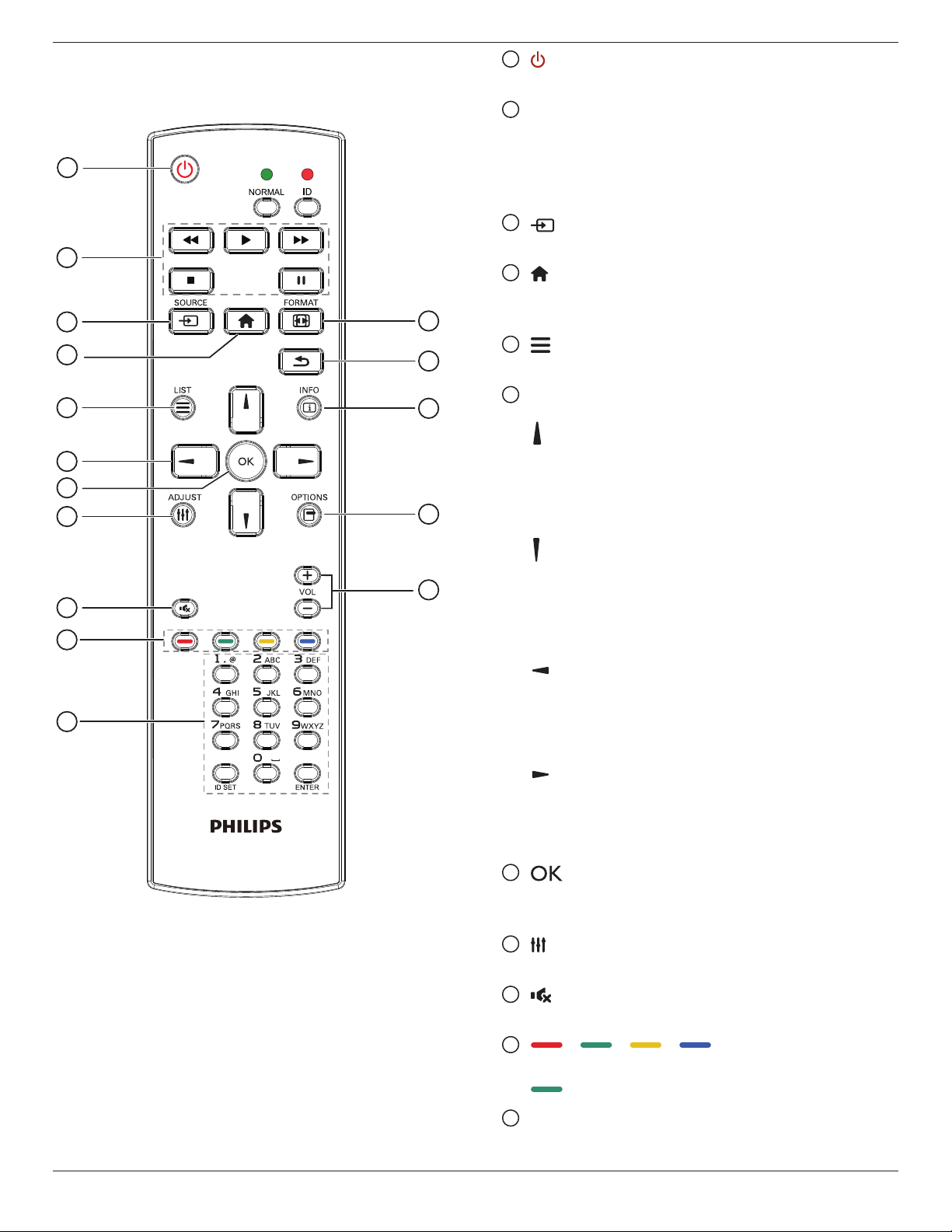
1
2
3
4
5
6
7
8
10
9
12
14
15
11
13
16
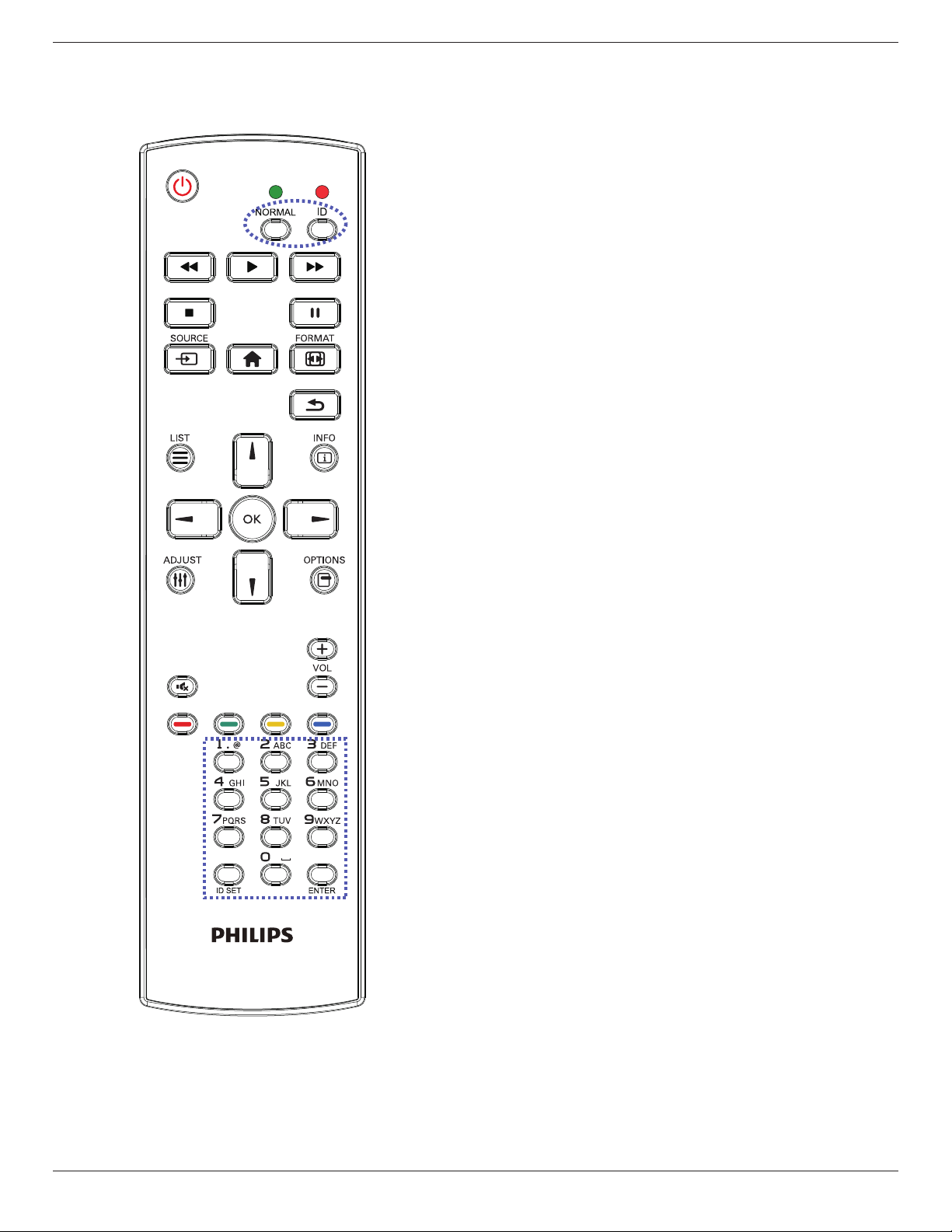
1
[ ] POWER button
PowerON/OFF.
2
[PLAY] buttons
Controlplaybackofmediales.(forMediaInputonly)
Freeze feature
Pasue:Freezehotkeyforallinputscontent.
Play:Unfreezehotkeyforallinputcontent.
3
[ ] SOURCE button
Root Menu:GotoVideosourceOSD.
4
[ ] HOME button
Root Menu:GotoMainMenuOSD.
Others:ExitOSD.
5
[ ] LIST button
Nofunction.
6
NAVIGATION buttons
[
]
Root Menu:GotoSmartpictureOSD.
Main Menu:Movethehighlightbaruptoadjusttheselecteditem.
IR Daisy Chain Menu:IncreasecontrolledGroupIDnumber.
[ ]
Root Menu:GotoAudiosourceOSD.
Main Menu:Movethehighlightbardowntoadjusttheselected
item.
IR Daisy Chain Menu:DecreasecontrolledGroupIDnumber.
[ ]
Main Menu:gotopreviouslevelmenu.
Source Menu:Exitsourcemenu.
Volume Menu:DecreaseAudioVolume.
[ ]
Main Menu:gotonextlevelmenuorsetselectedoption.
Source Menu:Gotoselectedsource.
Volume Menu:IncreaseAudioVolume.
7
[ ] button
Root Menu:GotoIRdaisychainOSDinPrimary/Secondarymode.
Main Menu:Conrmanentryorselection.
8
[ ] ADJUST button
GotoAutoAdjustOSDforVGAonly.
9
[ ] MUTE button
ToggleAudioMute/Unmute.
10
[ ] [ ] [ ] [ ] COLOR buttons
Choosetasksoroptions.(forMediaInputonly)
[ ]
HotkeyforWindowselectionfunction.
11
[Number/ ID SET/ ENTER] button
Entertextfornetworksetting.
43BDL4051T
9
PresstosetthedisplayID.Referto2.3.2. ID Remote Control
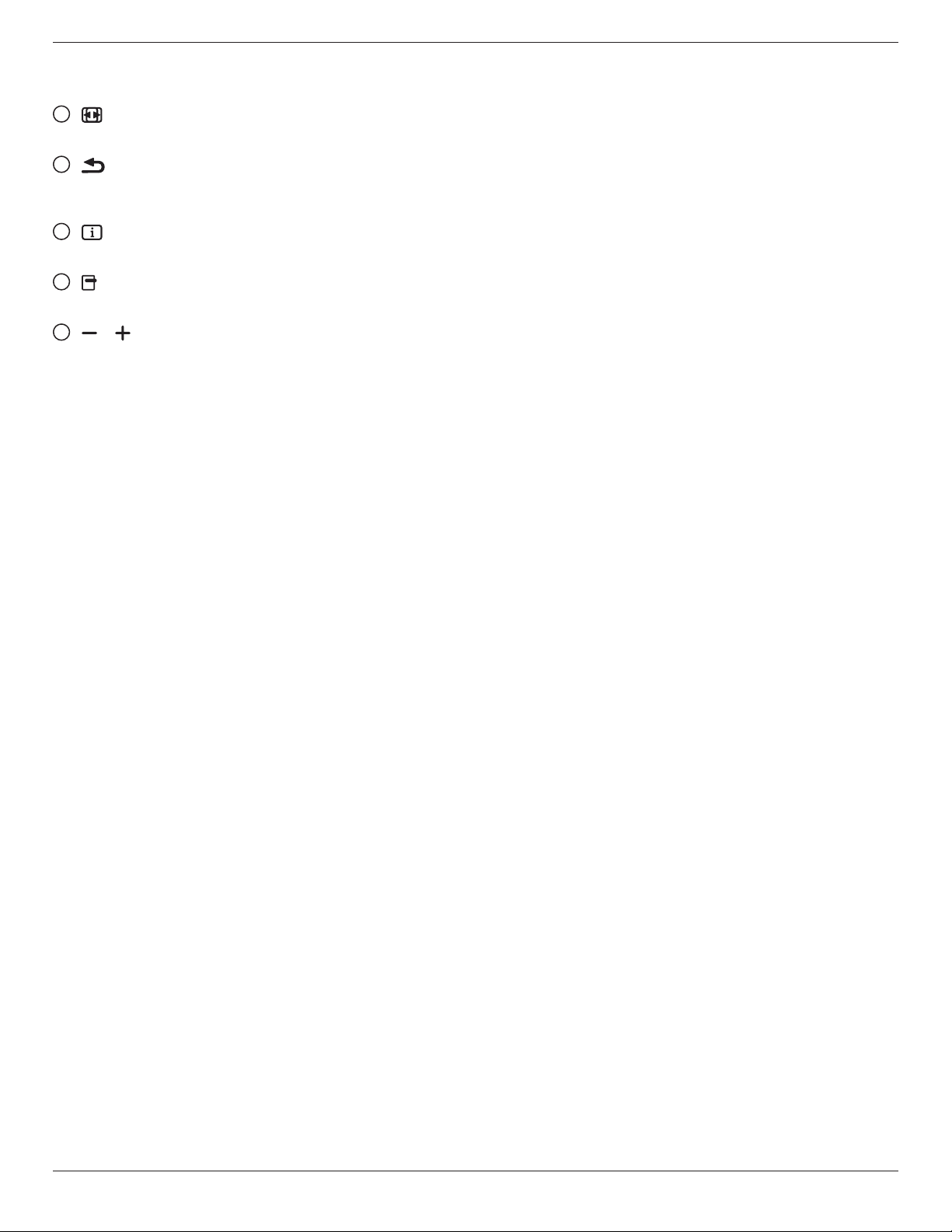
formoredetail.
12
[ ] FORMAT button
ChangeImageZoomMode[Full][4:3][1:1][16:9][21:9][Custom].
13
[ ] BACK button
Returntothepreviousmenupageorexitfromtheprevious
function.
14
[ ] INFO button
ShowInformationOSD
15
[ ] OPTIONS button
Nofunction.
16
[ ] [ ] VOLUME button
Adjustvolume.
43BDL4051T
10
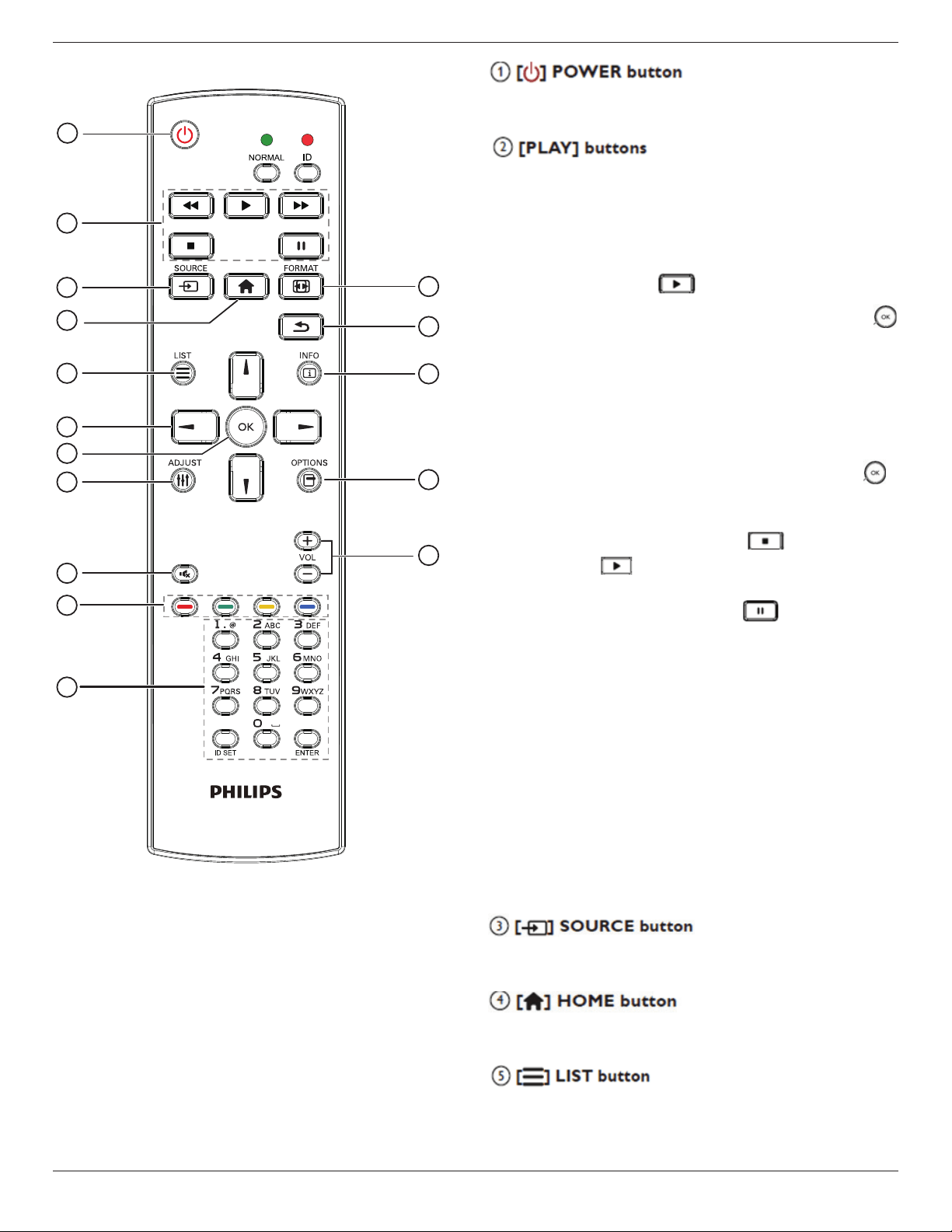
2.3.2. ID Remote Control
YoucansettheremotecontrolIDwhenyouwanttousethisremote
controlononeofseveraldifferentdisplays.
Press[ID]button.TheredLEDblinkstwice.
1. Press[IDSET]buttonformorethan1secondtoentertheID
Mode.TheredLEDlightsup.
Pressthe[IDSET]buttonagainwillexittheIDMode.TheredLED
lightsoff.
Pressthedigitnumbers[0]~[9]toselectthedisplayyouwantto
control.
Forexample:press[0]and[1]fordisplayNo.1,press[1]and[1]for
displayNo.11.
Thenumbersavailablearefrom[01]~[255].
2. Notpressinganybuttonwithin10secondswillexittheIDMode.
3. Ifanerrorpressingofbuttonsotherthanthedigitsoccured,wait
1secondaftertheredLEDlightsoffandthenlightsupagain,then
pressthecorrectdigitsagain.
4. Press[ENTER]buttontoconrm.TheredLEDblinkstwiceand
thenlightsoff.
NOTE:
• Press[NORMAL]button.ThegreenLEDblinkstwice,indicatingthe
displayisinnormaloperation.
• ItisnecessarytosetuptheIDnumberforeachdisplaybefore
selectingitsIDnumber.
43BDL4051T
11
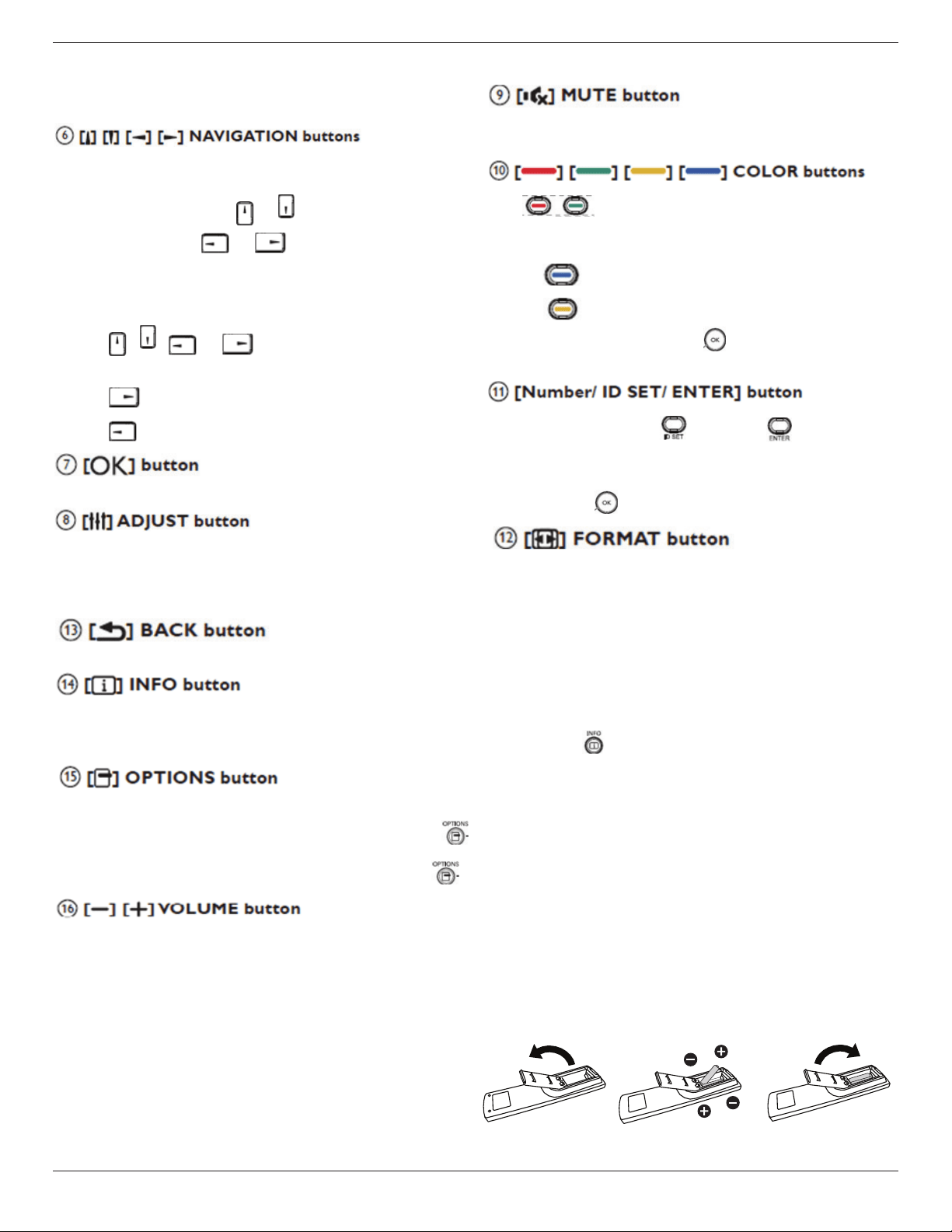
2.3.3. Remote Control buttons on Android source
1
2
3
4
5
6
7
8
10
9
12
14
15
11
13
16
Turnthedisplayonorputthedisplaytostandby.
ThebuttonisonlycontrolledbyScalar.
1.Controlplaybackofmedia(video/audio/picture)les.
Thereare4waystoplaymediales.
1)FileManager
FindthemedialefromtheFileManagerandselectittoplay.
2)MediaPlayer->Compose->editornewaddplaylist->choose
anymediales->press
toplaythemedialedirectly.
3)MediaPlayer->Play->choosenon-emptyplaylist->press
toplayallthemedialesintheplaylist.
4)SetmediaplaylistinBootonSourceorSchedulebyOSDmenu.
2.PlayPDFle
Thereare3waystoplaymediales.
1)FileManager
FindthepdflefromtheFileManagerandselectittoplay.
2)PDFPlayer->Play->choosenon-emptyplaylist->press
toplayallthePDFlesintheplaylist.
3)SetpdfplaylistinBootonSourceorSchedulebyOSDmenu.
3.WhenplayingPDF,videoormusic,press
tostopplaying.
Thenifpressing
again,playingwillbestartedfromthebeginning
ofthele.
4.WhenplayingPDF,videoormusic,press
buttontopause
playing.
5.Allmeidaorpdflesshouldbeputatthefolder,whichisnamed
“philips”withsub-folder,undertherootdirectoryofthespecied
storage(internal/USB/SDCard).Allsub-folders(video/photo/music/
pdf)arenamedbymediatypesandshouldn’tbechanged.
videos:{rootdirofstorage}/philips/video/
photos:{rootdirofstorage}/philips/photo/
music:{rootdirofstorage}/philips/music/
pdfs:{rootdirofstorage}/philips/pdf/
Notethattherootdirectoriesofthreestoragesare
Internalstorage:/sdcard
USBstorage:/mnt/usb_storage
SDcard:/mnt/external_sd
Chooseinputsource.
ThebuttonisonlycontrolledbyScalar.
AccessOSDmenu.
ThebuttonisonlycontrolledbyScalar.
43BDL4051T
12
1.Inthecontentofthewebpage,movethefocusuptothenext
clickableitems.
2.Movethefocusuptothenextcontrolorwidgetsuchasbuttons.
1.Navigatethroughmenusandchooseitems.
2.Inthecontentofthewebpage,thesebuttonsaretocontrolthe
scrollbarofthescreen.Press
or isformovingverticalscroll
barupordown.Press
or isformovinghorizontalscroll
barleftorright.
3.ForPDFles,
»
whenzoomin/outhasbeenperformed,
Press
, , or toadjustthepositionofthescreen.
»
whenzoomin/outhasbeennotperformed,
Press
togotothenextpage.
Press
togotothepreviouspage.
Conrmanentryorselection.
1.Inthecontentofthewebpage,movethefocusdowntothenext
clickableitems.
2.Movethefocusdowntothenextcontrolorwidgetsuchasbuttons.
Presstoturnthemutefunctionon/off.
ThebuttonisonlycontrolledbyScalar.
1. :NofunctiononAndroidsource.Thesetwobuttons
areonlycontrolledbyScalar.
2.ForPDFles,
press
buttontoperformzoom-in;
press
buttontoperformzoom-out.
Afterzoom-inorzoom-out,press
buttontorevertthepdfle
totheoriginalsize.
1.NofunctionsforIDSET andENTER onAndroid
source.ThesebuttonsareonlycontrolledbyScalar.
2.ForPDFle,enterthepagenumberbypressingnumberbuttons
andthenpress
buttontojumptothespecicpage.
Changepictureformat.ThebuttonisonlycontrolledbyScalar.
Returntothepreviouspageorexitfromthepreviousfunction.
1.Displayinformationaboutcurrentinputsignal.ItisshownbyScalar.
2.MediaPlayer->Compose->editornewaddplaylist->chooseanymediales->press
toshowtheinformationofthechosenmediale.
OpentoolboxinMediaPlayerorPDFPlayer.
1.MediaPlayer->Compose->Editornewaddplaylist->press
toopentoolbox.Toolboxwillbeslidefromtheleftsideofthescreen.
2.PDFPlayer->Compose->Editornewaddplaylist->press
toopentoolbox.Toolboxwillbeslidefromtheleftsideofthescreen.
Adjustvolume.ThebuttonsareonlycontrolledbyScalar.
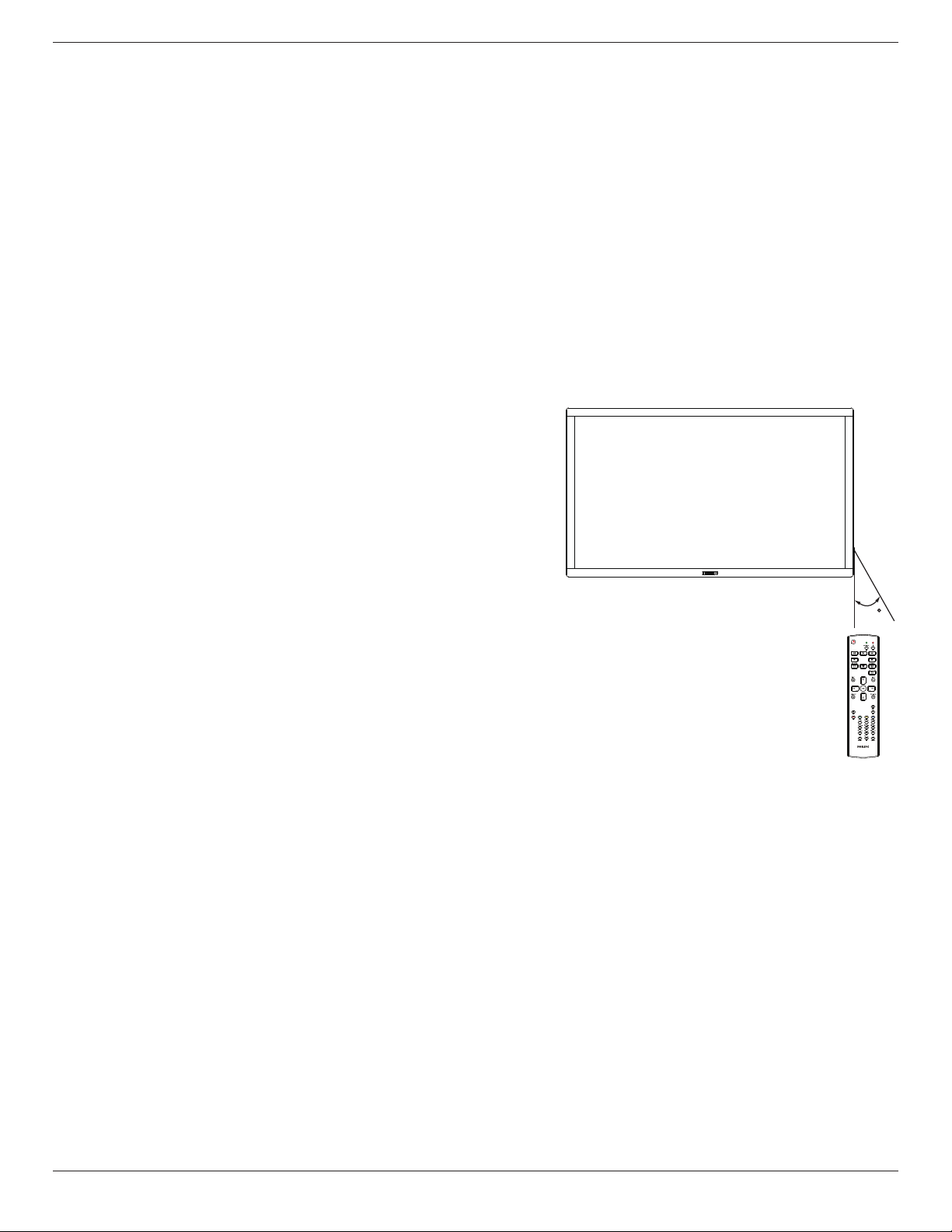
2.3.4. Inserting the batteries in the remote control
Theremotecontrolispoweredbytwo1.5VAAAbatteries.
Toinstallorreplacebatteries:
1. Pressandthenslidethecovertoopenit.
2. Alignthebatteriesaccordingtothe(+)and(–)indicationsinsidethe
batterycompartment.
3. Replacethecover.
43BDL4051T
13
Caution:
Theincorrectuseofbatteriescanresultinleaksorbursting.Besuretofollowtheseinstructions:
• Place“AAA”batteriesmatchingthe(+)and(–)signsoneachbatterytothe(+)and(–)signsofthebatterycompartment.
• Donotmixbatterytypes.
• Donotcombinenewbatterieswithusedones.Itcausesshorterlifeorleakageofbatteries.
• Removethedeadbatteriesimmediatelytopreventthemfromliquidleakinginthebatterycompartment.Don’ttouchexposedbatteryacid,asitcan
damageyourskin.
NOTE: Ifyoudonotintendtousetheremotecontrolforalongperiod,removethebatteries.
2.3.5. Handling the remote control
• Donotsubjecttostrongshock.
• Donotallowwaterorotherliquidtosplashtheremotecontrol.Iftheremotecontrolgetswet,wipeitdryimmediately.
• Avoidexposuretoheatandsteam.
• Otherthantoinstallthebatteries,donotopentheremotecontrol.
2.3.6. Operating range of the remote control
Pointthetopoftheremotecontroltowardthedisplay’sremotecontrolsensorwhen
pressingabutton.
Usetheremotecontrolwithinadistanceoflessthan5m/16ftfromthedisplay’ssensor,
andahorizontalandverticalangleoflessthan30degrees.
NOTE: Theremotecontrolmaynotfunctionproperlywhentheremotecontrol
sensoronthedisplayisunderdirectsunlightorstrongillumination,orwhen
thereisanobstacleinthepathofsignaltransmission.
30
43BDL4051T
14
3. Connecting External Equipment
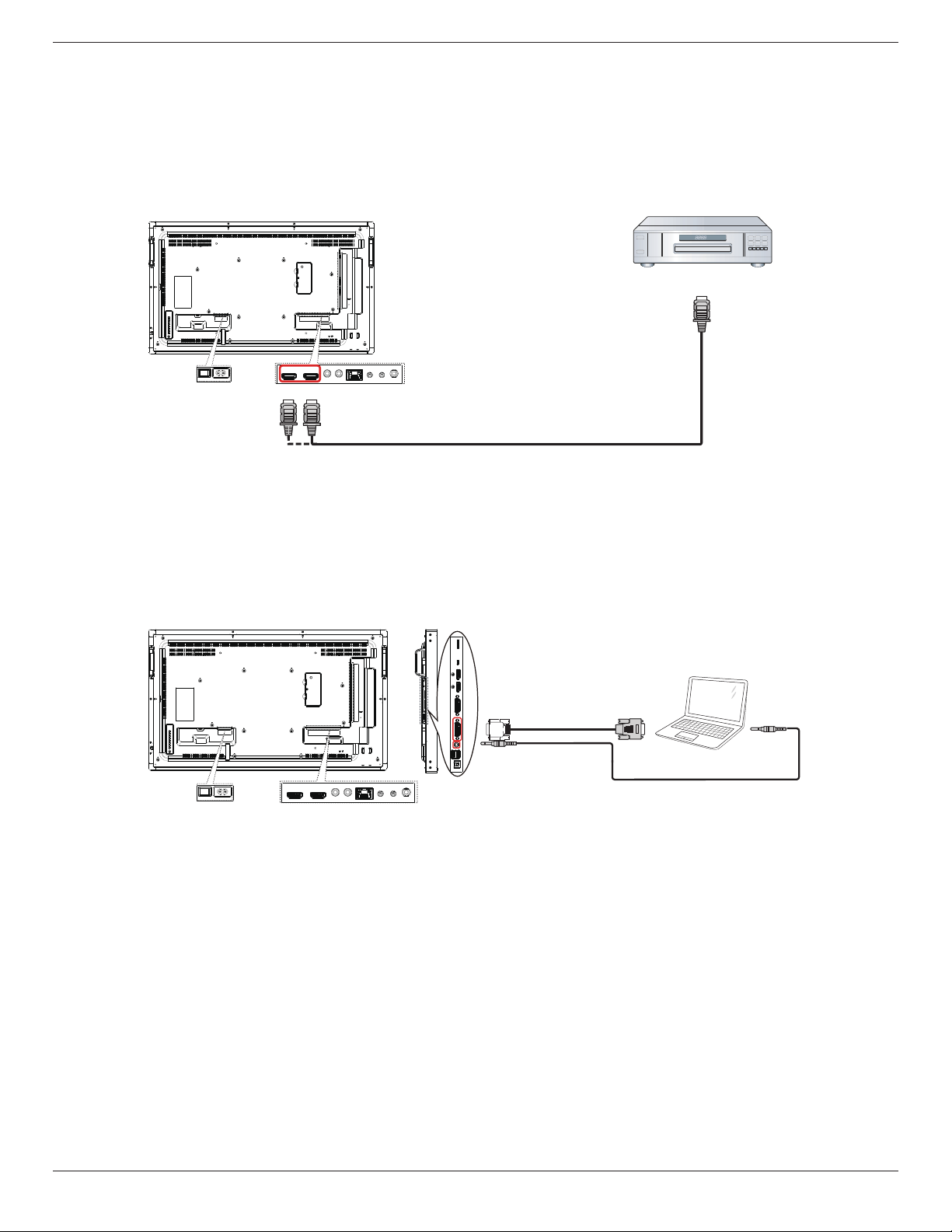
3.1. Connecting External Equipment (DVD/VCR/VCD)
3.1.1. Using HDMI video input
DVD / VCR / VCD
HDMI Out
[HDMI IN]
3.2. Connecting a PC
3.2.1. Using DVI-I input
PC
[DVI-I IN]
[VGA AUDIO IN]
VGA Out
D-Sub 15 pin
Audio Out
43BDL4051T
15
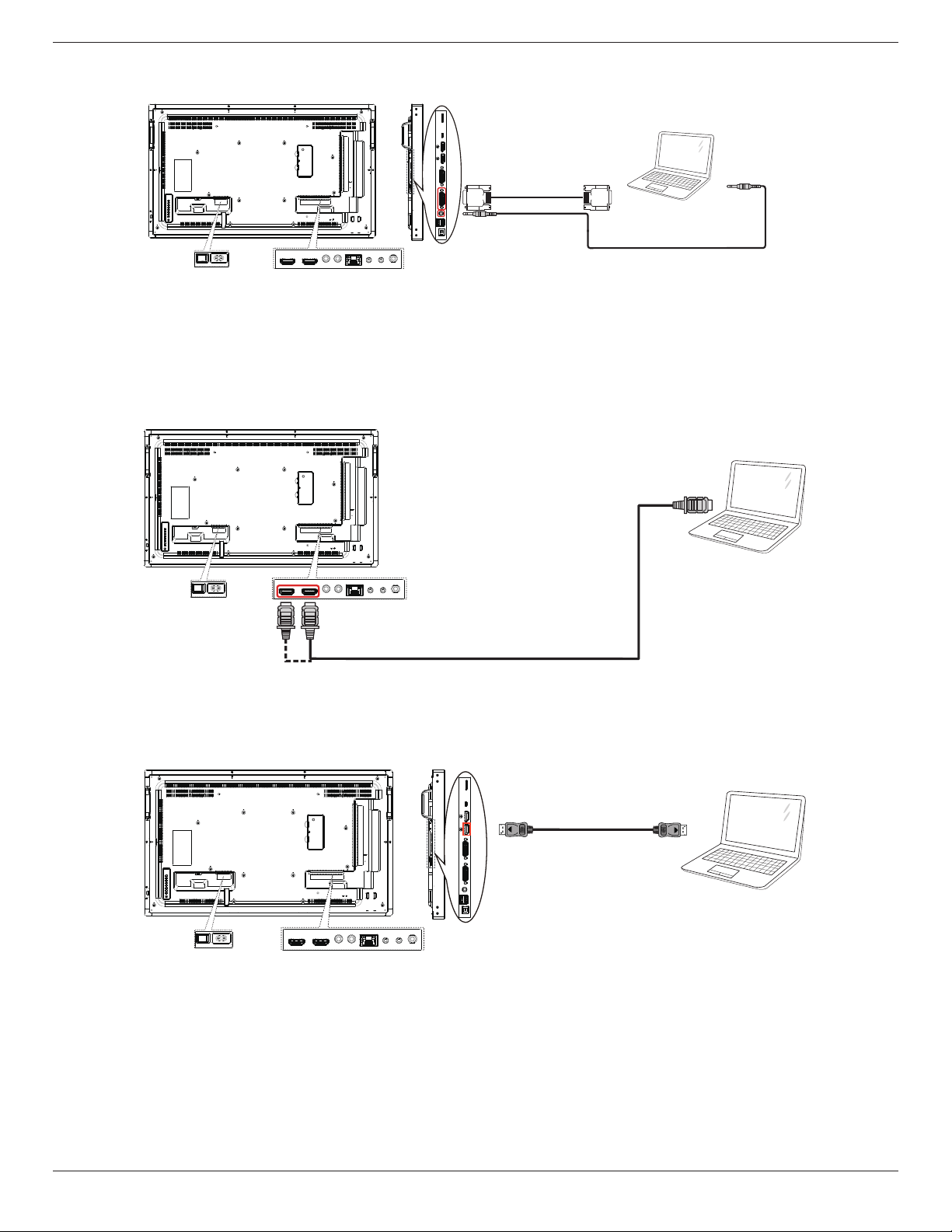
3.2.2. Using DVI input
PC
[VGA AUDIO IN]
DVI Out
Audio Out
[DVI IN]
3.2.3. Using HDMI input
PC
HDMI Out
[HDMI IN]
3.2.4. Using DisplayPort input
PC
DisplayPort Out
43BDL4051T
16
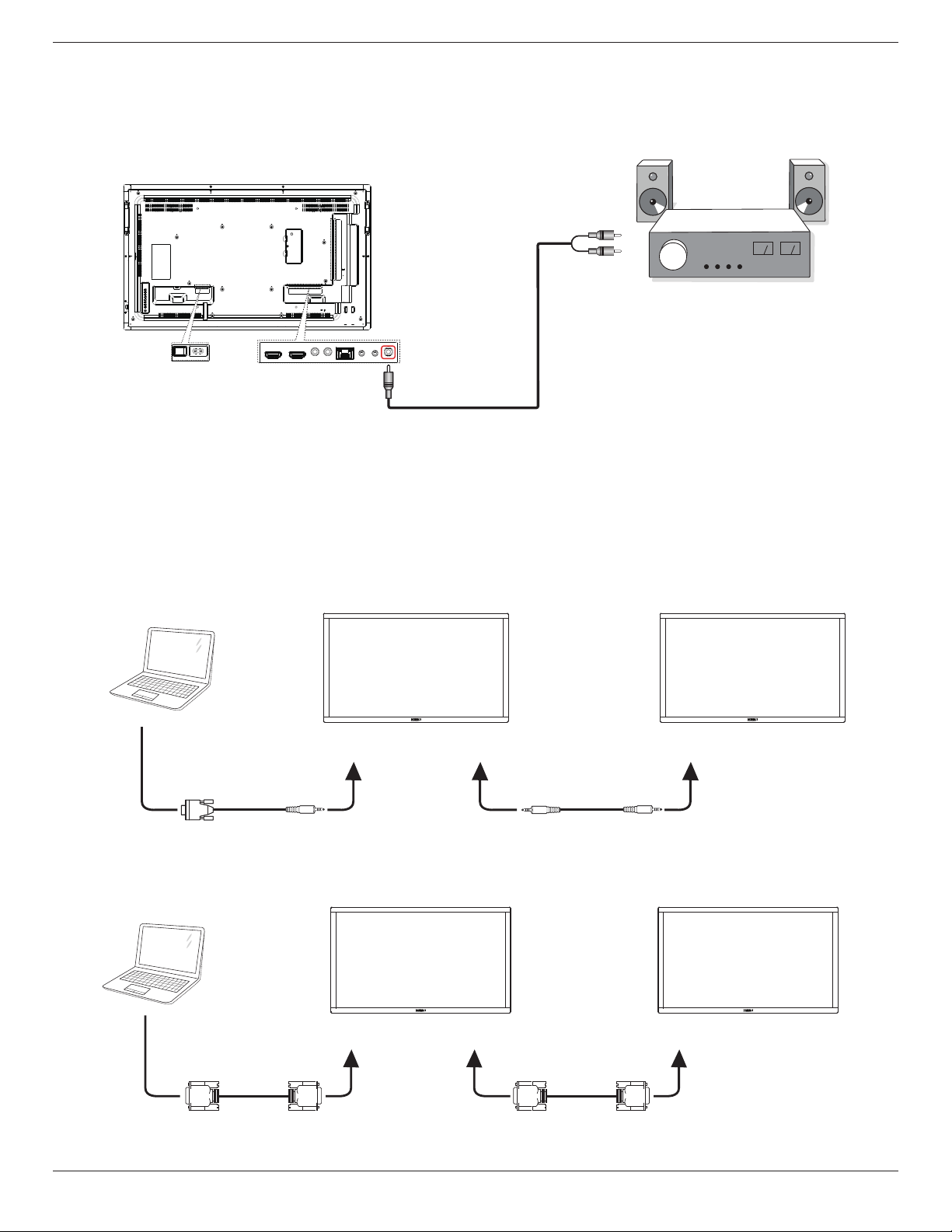
3.3. Connecting Audio Equipment
3.3.1. Connecting an external audio device
Stereo Amplifier
[AUDIO OUT]
Audio In
3.4. Connecting Multiple Displays in a Daisy-chain Configuration
Youcaninterconnectmultipledisplaystocreateadaisy-chaincongurationforapplicationssuchasavideowall.
NOTE: Maximum25displays(5x5)canbeusedinaDVIdaisy-chainconguration.ForVGAdaisy-chain,Maximum9displayscanbeused.
3.4.1. Display control connection
Connectthe[RS232OUT]connectorofDISPLAY1tothe[RS232IN]connectorofDISPLAY2.
DISPLAY 1 DISPLAY 2
PC
[RS-232C IN]
[RS-232C]
[RS-232C OUT] [RS-232C IN]
3.4.2. Digital video connection
Connectthe[DVIOUT/DVI-IOUT]connectorofDISPLAY1tothe[DVIIN]connectorofDISPLAY2.
PC
[DVI IN]
[DVI]
[DVI/DVI-I OUT] [DVI IN]
DISPLAY 1 DISPLAY 2
43BDL4051T
17
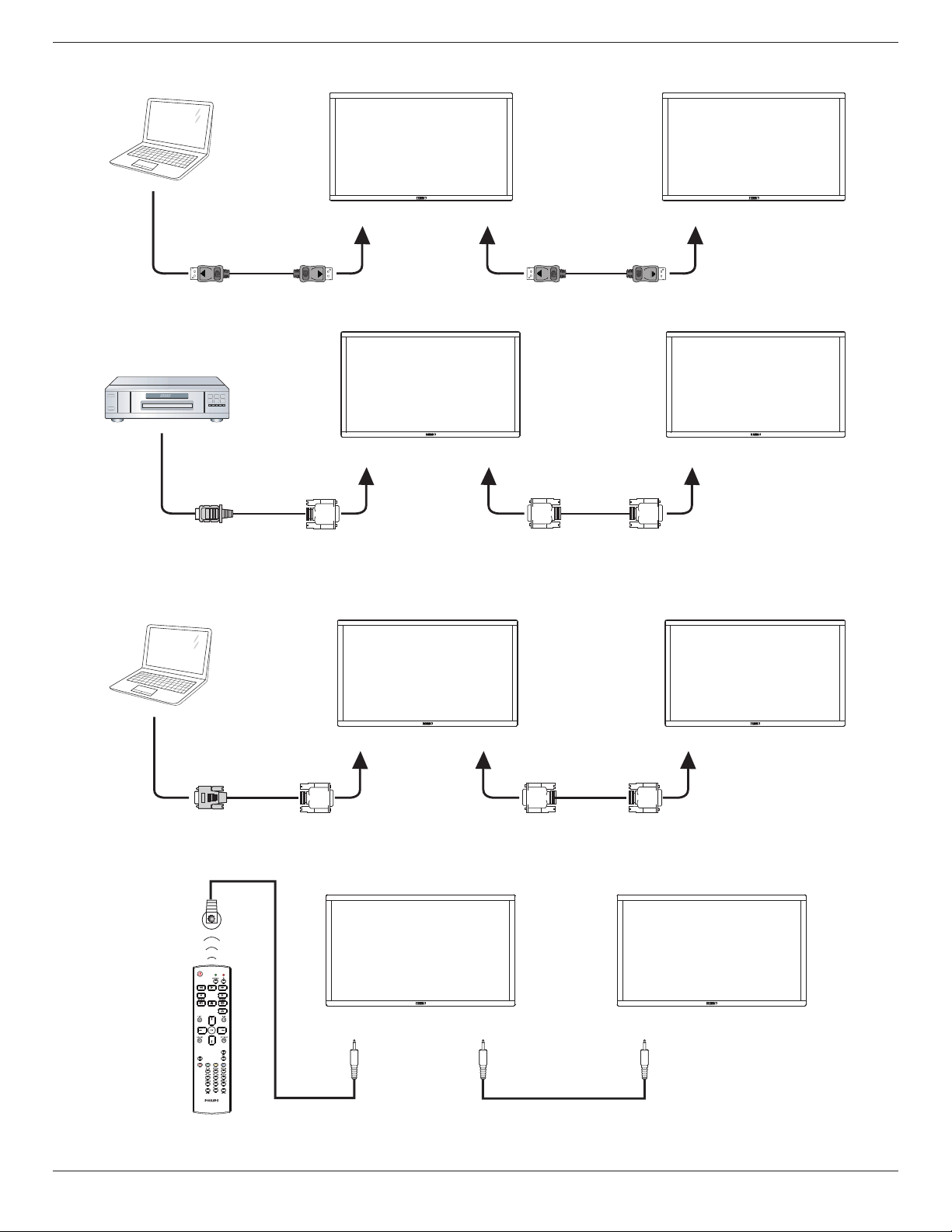
Connectthe[DPOUT]connectorofDISPLAY1tothe[DPIN]connectorofDISPLAY2.
PC
[DP IN]
[DP]
[DP OUT] [DP IN]
DISPLAY 1 DISPLAY 2
Connectthe[DVIOUT]connectorofDISPLAY1tothe[DVIIN]connectorofDISPLAY2.
[DVI IN]
[HDMI]
[DVI OUT] [DVI IN]
DVD / VCR / VCD
DISPLAY 1 DISPLAY 2
3.4.3. Analog video connection
Connectthe[DVIOUT/DVI-IOUT]connectorofDISPLAY1tothe[DVI-IIN]connectorofDISPLAY2.
PC
DISPLAY 1 DISPLAY 2
[DVI-I IN]
[DVI-I]
[DVI/DVI-I OUT] [DVI-I IN]
3.5. IR connection
DISPLAY 1 DISPLAY 2
[IR IN] [IR OUT]
[IR IN]
External
IR Receiver

43BDL4051T
18
NOTE:
1. Thisdisplay’sremotecontrolsensorwillstopworkingifthe[IR IN]isconnected.
2. IRloopthroughconnectioncansupportupto9displays.
3.6. IR Pass-through Connection
DVD / VCR / VCD
(DVD / VCR / VCD)
Remote Control
[IR OUT]
[IR IN]
43BDL4051T
19
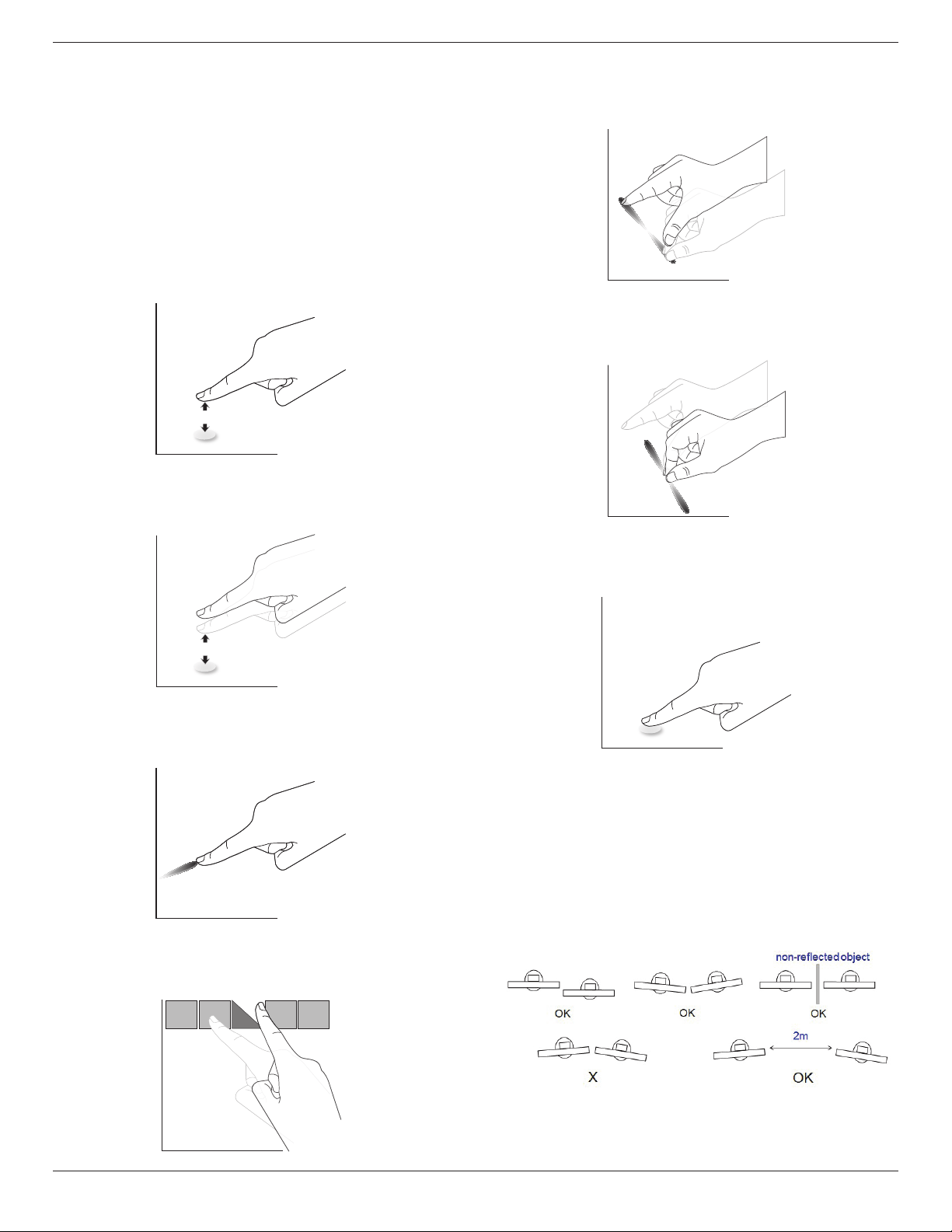
3.7. Touch Operation
Thisdisplayisequippedwithatouch-sensitivescreenandsupports
theWindows Touchfeatureseitherbysingletouchormultitouch
operation.Youcantouchthepicturesorwordsonthedisplaygently
withyourngers,andyourcomputerwillreact.
Thefollowingdescriptionillustratesometypicaltouchoperation
behavior.Forfurtherdetailonhowtorunthetouchoperation,please
refertotheWindowsoperationinstruction.
Single Tap
Touchthetargetonthescreenwithonengertipforonequicktap,
thenrelease.
Double Tap
Touchthetargetonthescreenwithonengertipfortwoquicktaps,
thenrelease.
Pan
Touchthetargetonthescreenwithonengertipandmoveacrossthe
targetwithoutlosingdirectcontact,thenrelease.
Flick
Touchthetargetonthescreenwithonengertipandbrushthesurface
quickly.
Zoom in
Touchthetargetonthescreenwithtwongertipsholdedtogetherand
movethemaparttozoomin(magnify)thescreenimage.
Zoom out
Touchthetargetonthescreenwithtwongertipsstretchedapartand
movethemclosertozoomout(shrink)thescreenimage.
Touch and Hold
Touchandholdthetargetonthescreenwithonengertipforawhile
todisplayacontextmenuoroptionspageforanitem.
Avoid
• Avoidscratchingwithsharpobjectonthescreen.Onlyyour
ngertipsareallowedtodothetouchcontrol.
• Avoidintensivelight,spotlight,orwide-spreadlightfromdirect
beamingonthescreen.
• Avoidinstallationlocationclosetothewindowsorglass-doorsas
thedirectsunlightmayaffectthetouch-controlperformance.
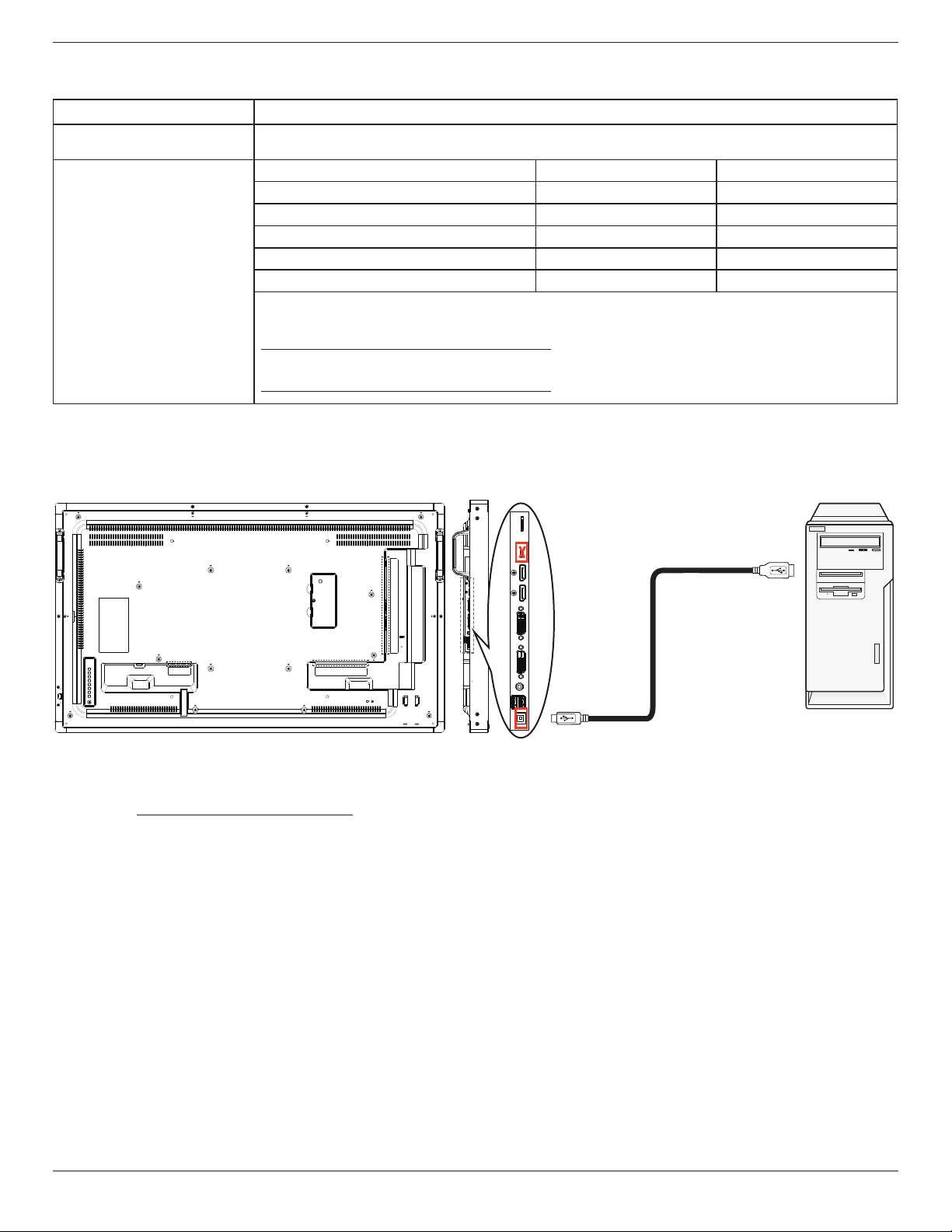
• Toavoidscreensinterferewihteachother,donotmake2touch
screenssidebysideasthefollowingpicture.
Fig.Touchscreensinterfering
43BDL4051T
20
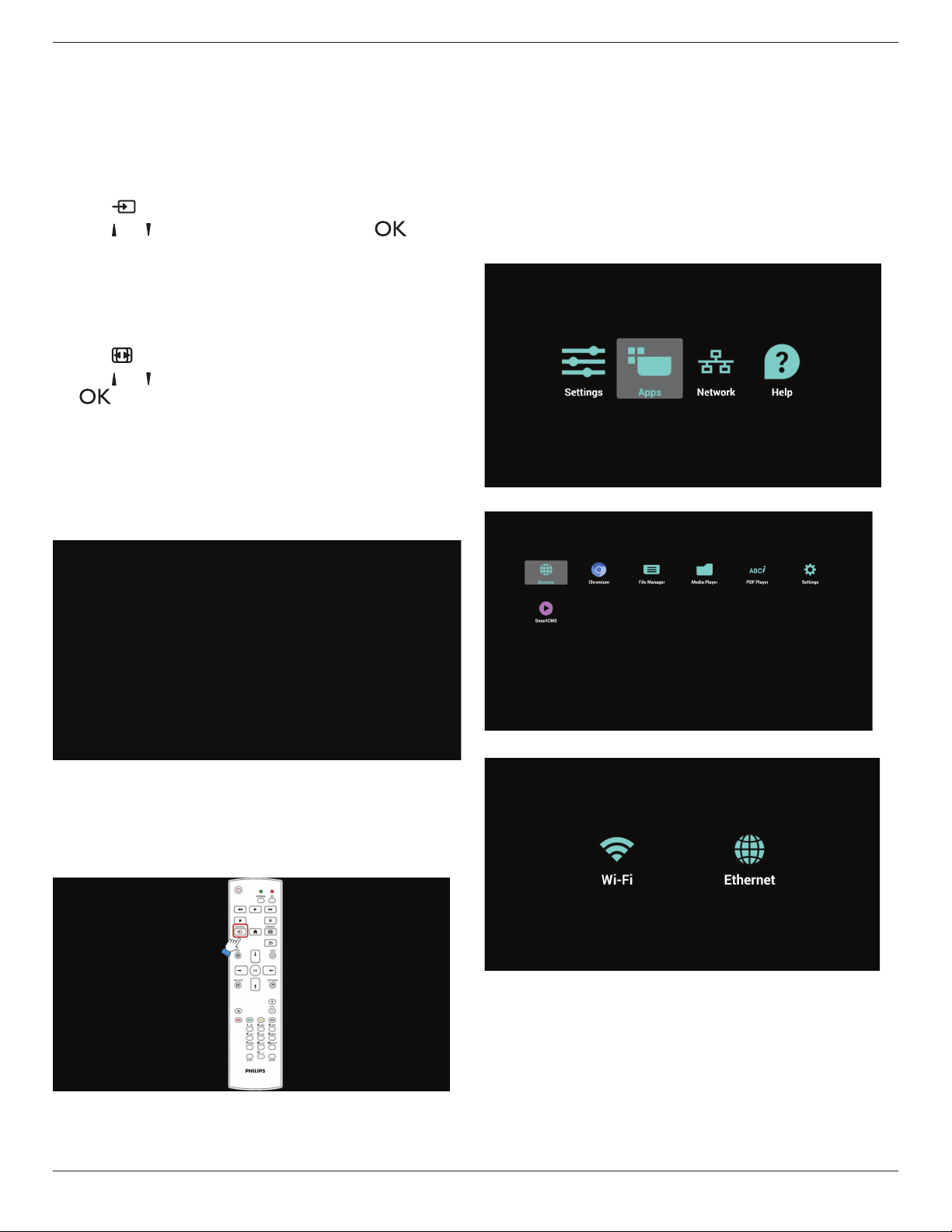
TheTouchscreendoesnotrequireadevicedriverbeinstalledonthehostcomputerforWindowsOS,ForWindows7andWindows8,itis
recommendedthatthestandardMicrosoftWindowControlPanelcalibrationisused.
Item Description
OperatingSystemsSupportedby
Plug-and-Play
-Windows7,8/8.1,10
SupportedModesofOperationby
theOperatingSystem
OS Single_Touch Multi_Touch
-Windows7,8/8.1,10 O O
-MacOSXbefore10.9(include) O X
-MacOSX10.10+(include) O* O**
-Chrome38+ O O
-AndroidOS4.0+(Kernel3.5+) O O
ForMacOSX,itisrecommended
*ForSingle_Touch,pleasedownload“TouchService_V3030_MAC_20150310_01.rar”
(http://download.cvte.com/viewle.php?le_id=56315)
**ForMulti_Touch,pleasedownload”updd_05_01_1476.dmg”
(http://download.cvte.com/viewle.php?le_id=55078)
1. WehighlyrecommendusingthelatestServicePackwithallWindows7OS.
2. DigitizerinputtoWindowsreferstotouchdigitizerasopposedtopendigitizerintabletPCs.
3. SetasdefaultbyMicrosoft.
4. TouchcannotworkifTPMUSBcableplugintoUSBI/F.
PC
5. ForMacOS10.10,itisrecommendedusingthetool“TouchService_V3030_MAC”tore-denethetouchpositionandsimulatemouse
operation(singletouch).Firstlyinstallingthetool“TouchService_V3030_MAC”toMacOS,thenfollowtheinstructionofTouchServiceManualin
thesoftwarepackage“TouchServiceforMac10.10.rar”whichisenclosedintheCDDisk.
6. Pleasevisithttp://www.philips.com/signagesolutionsforthelatestinformationaboutMacOSXmodesupport.
43BDL4051T
21
4. Operation
NOTE: Thecontrolbuttondescribedinthissectionismainlyonthe
remotecontrolunlessspeciedotherwise.
4.1. Watch the Connected Video Source
Seepage14forexternalequipmentsconnection.
1. Press
[ ] SOURCEbutton.
2. Press[
]
or[ ]buttontochooseadevice,thenpress[ ]button.
4.2. Change Picture Format
Youcanchangethepictureformattosuitthevideosource.Eachvideo
sourcehasitsavailablepictureformats.
Theavailablepictureformatsdependonthevideosource:
1. Press[
] FORMATbutton.
2. Press[
]
or[ ]buttontochooseapictureformat,thenpress
[
]button.
• PCmode:{Full}/{4:3}/{1:1}/{16:9}/{21:9}/{Custom}.
• Videomode:{Full}/{4:3}/{1:1}/{16:9}/{21:9}/{Custom}.
4.3. Android Launcher
1. AndroidPDlauncher:
• Android PD launcher is black page, as below:
• Every app leaves by pressing the back key. The screen will go to
Android PD launcher.
• When you return to android PD launcher, the screen will show
hint image, The hint image only shows 5 seconds as below:
• The hint image will notify you can press source key to change
source.
2. Adminmode:
• You can press “Home + 1888” to startup admin mode.
• Admin mode will show four icons: “Settings”, “Apps”, “Network”
and “Help”.
• When you leave admin mode, system will return to last source.
1)Homepageofadminmode,thispagehasfouritems:“Settings”,
“Apps”,“Network”and“Help”.
Settings:gotosettingsapp.
Applications:showallapps.
Network:setwiorethernet.
Help:displayQRcode.
2.)Applicationpage:
3
)
Networkpage
4)Wi-Fipage:
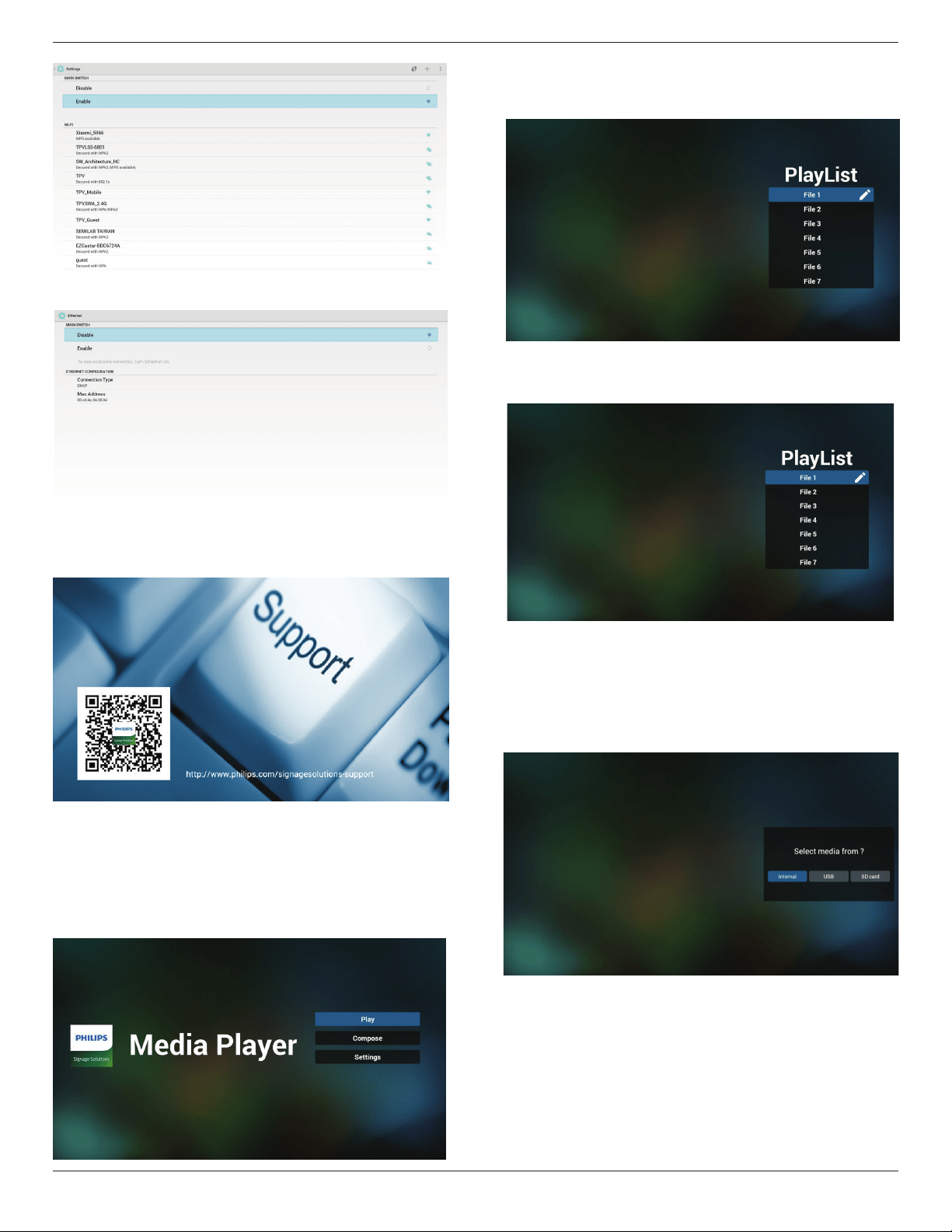
43BDL4051T
22
5
)
Ethernetpage
6)Helppage:
DisplayQRcodepage.
4.4. Media Player introduction:
1. HomepageofMediaPlayer,thispagehasthreeitems:“Play”,
“Compose”and“Settings”.
Play:selectplaylisttoplay.
Compose:editplaylist.
Settings:settingplayproperties.
2. Select“Play”onhomepage,rstyoushouldchooseoneplaylistto
playbetweenFILE1andFILE7.
Thepenciliconmeanstheplaylistisnon-empty.
3. Select“Compose”onhomepage,rstyoushouldchooseone
playlisttoeditbetweenFILE1andFILE7.
Thepenciliconmeanstheplaylistisnon-empty.
4. Ifanemptyplaylistischosen,theappwillguideyoutoselectthe
mediasource.
All media les should be placed in /philips/ of root directory.
For example,
- videos in /root/philips/video/
- photos in /root/philips/photo/
- music in /root/philips/music/
5. Youcouldeditordeleteanon-emptyplaylist,justchoosethe
desiredplaylistwhichiswithpencilicon.
43BDL4051T
23
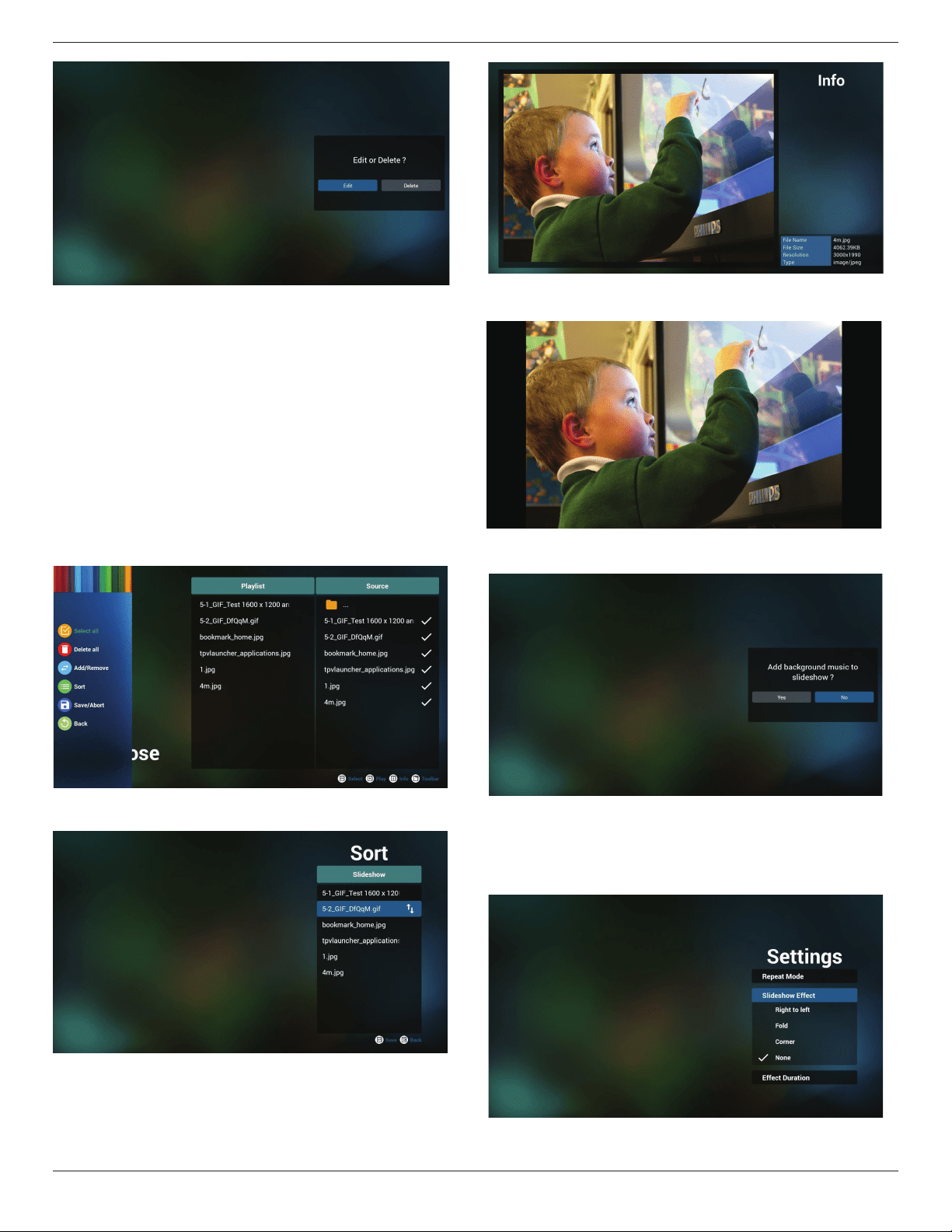
6. Onceyoustarttoeditaplaylist,youwillseebelowscreen.
Source-lesinstorage.
Playlist–lesinplaylist.
Thereare4iconswhichmaptothekeysofremotecontroller.Option
key–launchslidebar
Playkey–playmediale.
Infokey–showmediainfo.
Okkey–select/unselectle.
6-1Intheslidebar,ithelpsyoutodothefollowing:
-selectall:selectallstorageles.
-deleteall:deleteallplaylistles.
-add/remove:updateplaylistfromsource.
-sort:sortplaylist.
-save/abort:saveorabortplaylist.
-back:return.
7. ifyouchoose“Sort”intheslidebar,youcanchangetheorderofles
onebyone.
8. Pressinfokeyafteryouchoosedesiredle,youwillgetthedetail
information.
9. Pressplaykeyafteryouchoosedesiredle,youwillplaysthemedia
ledirectly.
10. Ifyoumakeaplaylistwithallimagesles,beforesaving,theappwillask
youifyouwanttohavebackgroundmusicwhileplayingslideshow.
11. Select“Settings”onhomepage,thispagehasthreeparts,“Repeat
Mode”,“SlideshowEffect”and“EffectDuration”.
RepeatMode:playmode.
SlideshowEffect:photoslideshoweffect.
EffectDuration:photoeffectduration.
12. MediaHotkey
Play:Playbackle.
43BDL4051T
24
Pause:Pausele.
Fastforward:forward10second.
Rewind:back10second.
Stop:Stopleandreturntostart.Ifthegifle,itlikethepause.
4.5. Browser manual
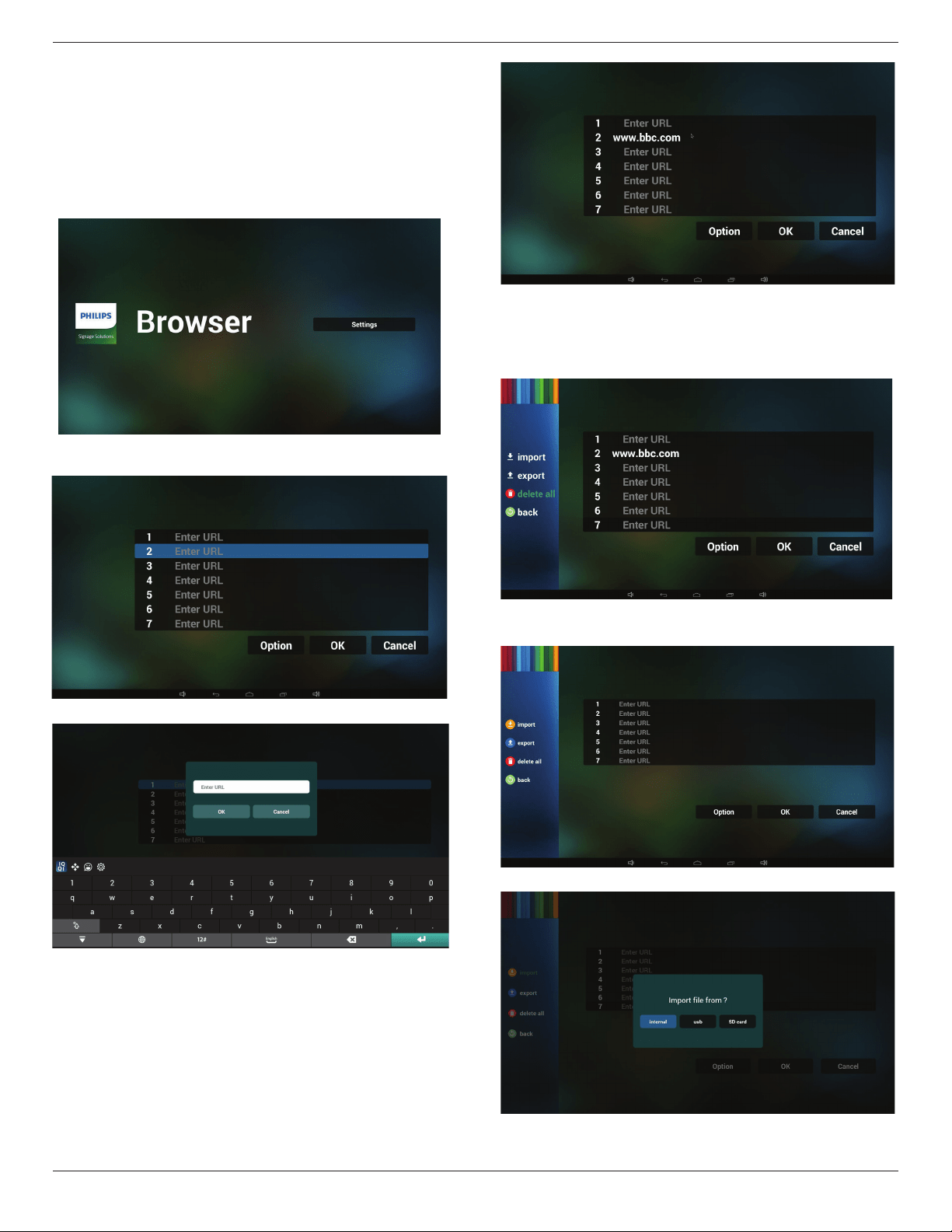
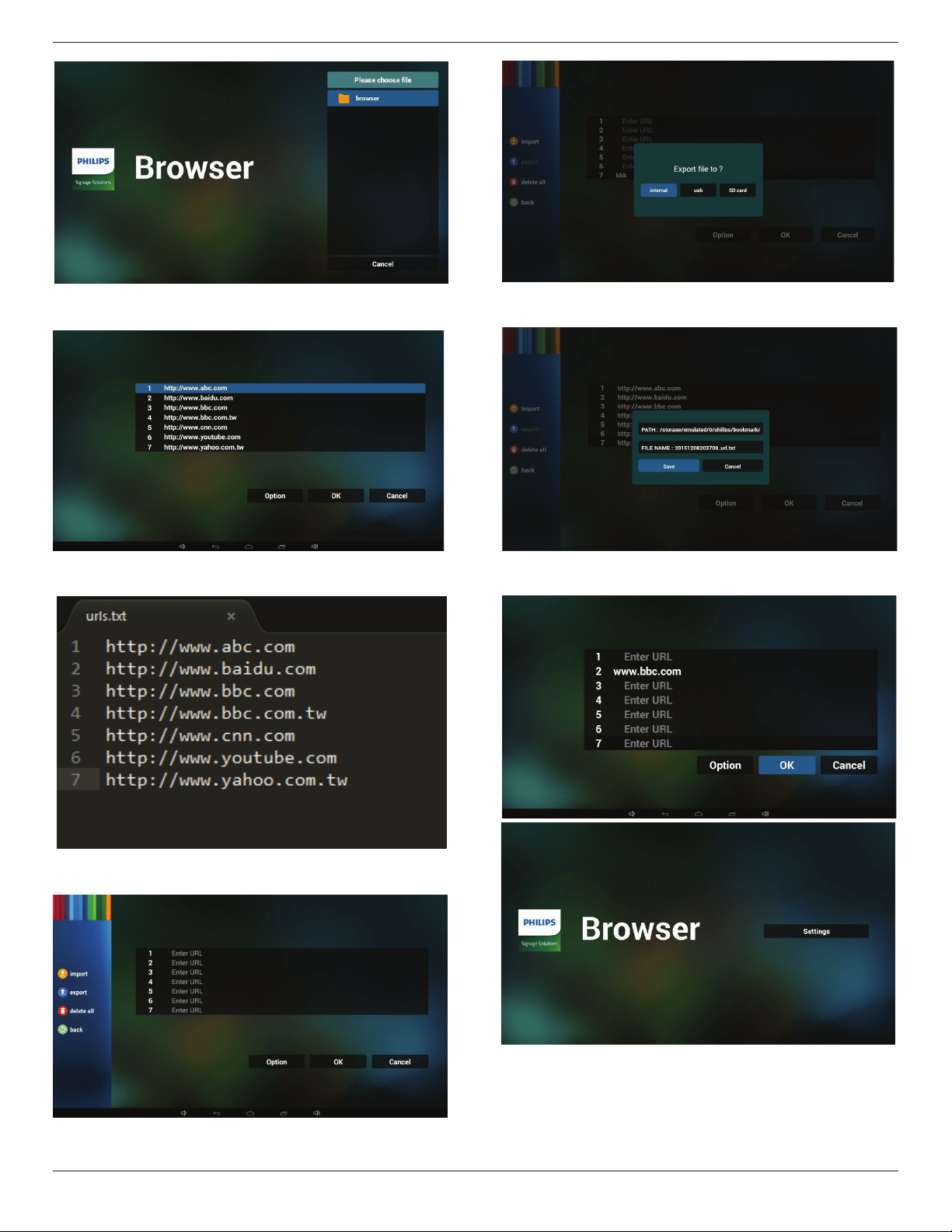
1. HomepageofBrowserapp,thispagehasoneitem:“Settings”.
PressSettingsthenenternextpage.
2. Userscanchoose1~7.
Pressanyonewillshowadialog.
3. EnterurlandpressOKthendatawillsaveonList
4. Press“Option”thenleftsidewillpopupalist
Import:Importurllistle
Export:Exporturllistle
Deleteall:Deleteallurlrecordonrightside
Back:leftsidelistwillbeclosed.
4.1Import
• Clickimport
• Choosestorage
• Chooselecontainsurls
43BDL4051T
25
• Importleandurlwillshowonlist
• Fileformatforimport
Formatshouldbelikebelowwithleextension“txt”
4.2Export:
• Clickexport
• Choosestorage
• Dialogshowspathlewillbesavedandle’sname.
Press“save”buttonthenurlsonlistwillbesaved.
5. PressOKthenurlrecordswillbesaved
.
6. Onurllistpage,ifyouselectnon-emptyitem,itwillshowadialog
toaskeditorplayurl.Ifpress“Edit”,itwillshowediturldialog,if
press“Play”,itwillshowwebpageofitem’surl.
43BDL4051T
26
7. OSDmenuinteractionwithBrowser
7.1Bootonsource
• SetOSDmenu=>Conuration1=>Bootonsource=>Input
beBROWERPlayListbe0.
ThenPDwillshowBrowserafterreboot.
• SetOSDmenu=>Conuration1=>Bootonsource=>Inputbe
BROWERPlayListbe1.
ThenPDwillshowwebpagewith1stUrlinBrowserapp.
7.2Schedule
SetOSDmenu=>Advancedoption=>Schedule=>
Ontime1,Offtime2,InputbeBROWSER,anydayyouwantofweek,
andPlayList.
Finallychecktherightbox.
ThenPDwillshowwebpagewithUrlinBrowserappattime1and
nishattime2.
4.6. PDF reader play
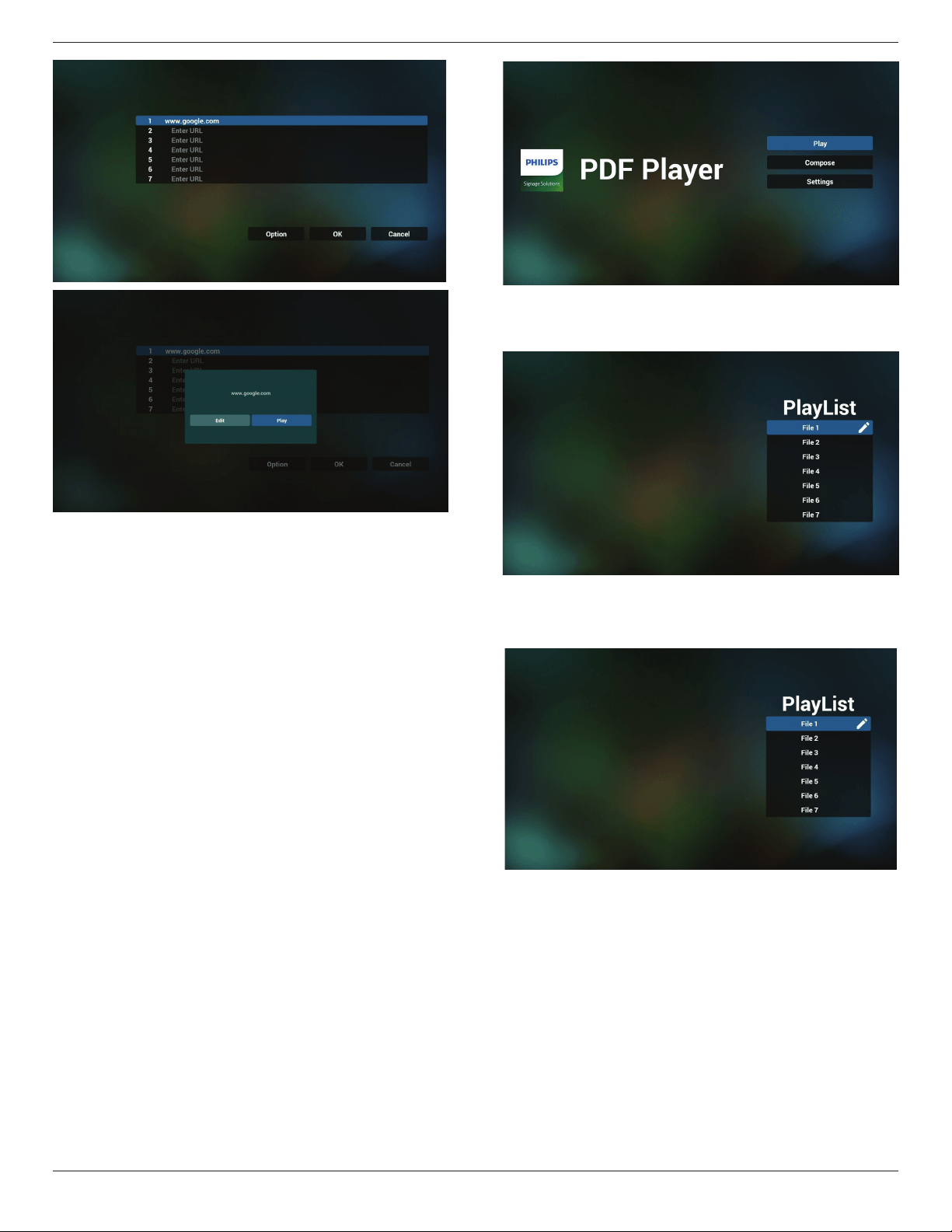
1. HomepageofPDFPlayer,thispagehasthreeitems:“Play”,
“Compose”and“Settings”.
Play:selectplaylisttoplay.
Compose:editplaylist.
Settings:settingplayproperties.
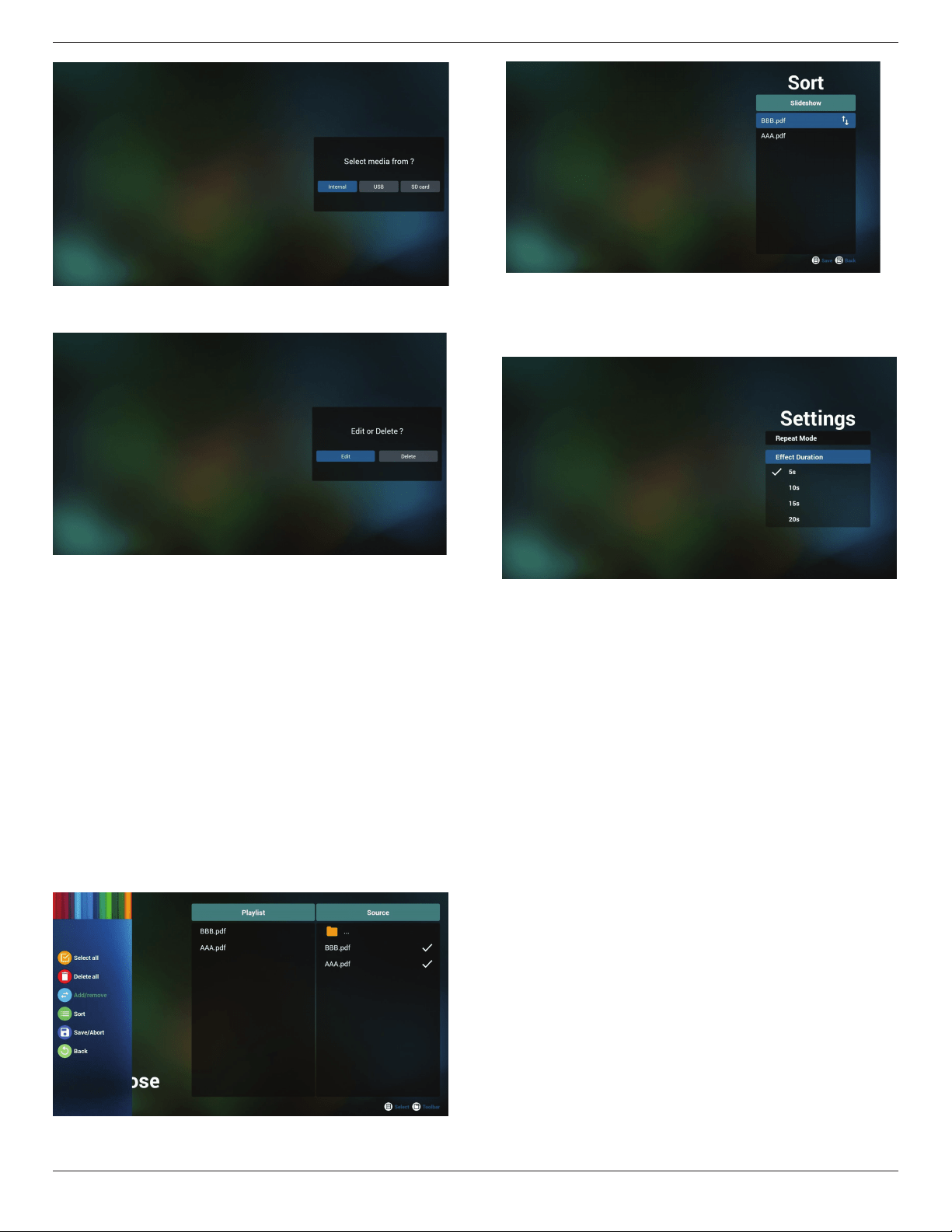
2. Select“Play”onhomepage,rstyoushouldchooseoneplaylistto
playbetweenFILE1andFILE7.
Thepenciliconmeanstheplaylistisnon-empty.
3. Select“Compose”onhomepage,rstyoushouldchooseone
playlisttoeditbetweenFILE1andFILE7.
Thepenciliconmeanstheplaylistisnon-empty.
4. Ifanemptyplaylistischosen,theappwillguideyoutoselectthe
mediasource.
All media les should be placed in /philips/ of root directory. For
example,
- pdfs in /root/philips/pdf/
43BDL4051T
27
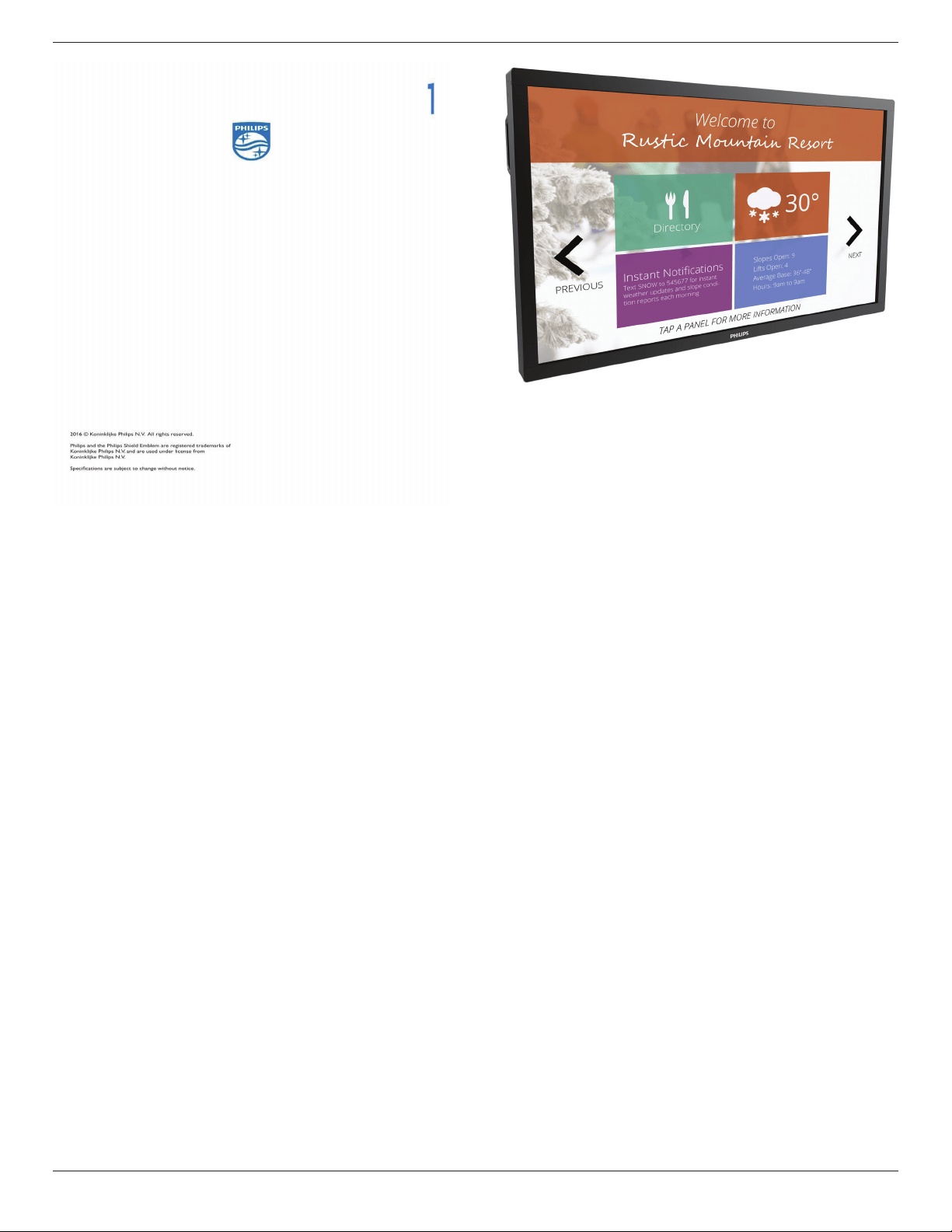
5. Youcouldeditordeleteanon-emptyplaylist,justchoosethe
desiredplaylistwhichiswithpencilicon.
6. Onceyoustarttoeditaplaylist,youwillseebelowscreen.
Source-lesinstorage.
Playlist–lesinplaylist.
Thereare4iconswhichmaptothekeysofremotecontroller.
Optionkey–launchslidebar
Playkey–playmediale.
Infokey–showmediainfo.
Okkey–select/unselectle.
6-1.Intheslidebar,ithelpsyoutodothefollowing:
-selectall:selectallstorageles.
-deleteall:deleteallplaylistles.
-add/remove:updateplaylistfromsource.
-sort:sortplaylist.
-save/abort:saveorabortplaylist.
-back:return.
7. ifyouchoose“Sort”intheslidebar,youcanchangetheorderof
lesonebyone.
8. Select“Settings”onhomepage,thispagehastwoparts,“Repeat
Mode”and“EffectDuration”.
RepeatMode:playmode.
EffectDuration:photoeffectduration.
Media Hotkey:
Play:Playbackle.
Pause:Pausepage.
Fastforward:gotonextpage,ifthepageisendofthele,itwillgo
tonextle.
Rewind:backtolastpage,ifthepageisrstofthele,itwillbackto
lastle.
Stop:returntorstpageofle
Color Hotkey:
Blue:Zoomin.(+10%)
Yellow:Zoomout.(-10%)
OK:Restorezoom
Arrow keys:
Up/Down/Left/Right:Adjustpage.(Whenthepagehaszoomedin/
out)
Left:PreviousPage.(Whenthepagehasnotzoomedin/out)
Right:NextPage.(Whenthepagehasnotzoomedin/out)
Combination key:
Numberkey+OKkey:selectspecicpage,andpressokkeyto
changepage.
-Pressnumberkey.
43BDL4051T
28
-PressOKkey,thebottomofthepagewillshowthepagenumber,
ifpagenumberovertotalpagenumber,itwillnotchangepageand
showcurrentpagenumberatthebottomofthepage.
43BDL4051T
29
4.7. SmartCMS
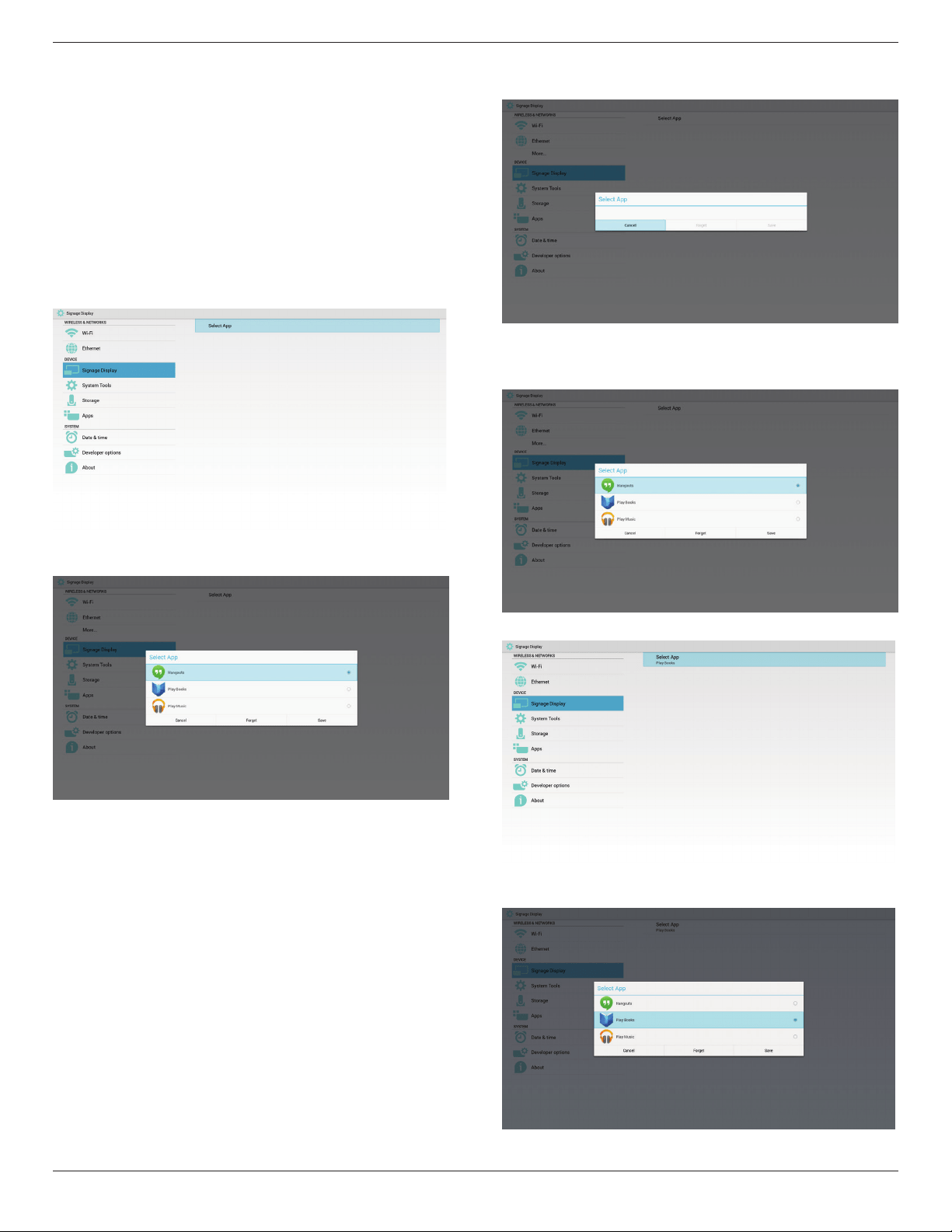
1. Settings
1)ServerIP:Your_SmartCMS_server_address
2)Account:admin
3)PINCode:0281(Default,whichcanbegeneratebyservertool)
4)Version:Ver.3(defaultvalue)
YoucanselectVer.2orVer.3.AndSmartCMSwoulddownloadcms
contentsfromaVer.2serveroraVer.3server.
a. Ver.3:Youneedtosetserverinformation(ip,account,PIN
Code)inthesettings.
b. Ver.2:Youneedtoinstallcmsdatafromlocalstoragefortherst
time.Andserverinformationwouldbeaccessedfromthelocalcms
content.Theoptionsinthesettings,includingIP,account,andPINCode,
wouldbedisabled.
5)Content:cmscontentcanbestoredintheinternalstorage,SDcard,
andUSBstorage.Bydefault,thetargetisinternal.
a. Ifserverisconnected,cmsdatawouldbedownloadedfrom
SmartCMSserver.
b. Ifserverisdisconnected,cmsdatawouldbeaccessedfromlocal
storage.
6)Localcmscontent(*.cmsle)
a. If content is set to be internal storage, *.cms should be stored
in the FTP root folder(high priority) or /sdcard/philips(low priority).
b. IfcontentissettobeUSBstorageorSDcard,*.cmsshouldbe
storedintherootfolderofexternalstorage.
7)YoucandeletecmsdataviaSystemTools.
2. SetsourcetoSmartCMS,cmsdatawillbedownloadedautomatically
1)Ifthereisnocmsdataintheserverorthenetworkisdisconnect.“No
Content”willbeshown.
2)Ifyouselect“SDcard”or“USBstorage”,“NoContent”willbe
shownwhenyouremovetheSDcard/USBstorage.
43BDL4051T
30
4.8. Custom app
UsercansetuptheapplicationforCustomerSource
Note:
(1)OnlydisplayUserInstalledapp.
(2)Willnotshowupsystempre-installapp.
4.8.1. OSD Menu operation:
RCU:Source->Custom
IfsetupcustomerAPK,PDwillopencustomerappwhenswitchsource
toCustomermode.
IfnosetupcustomerAPK,PDwillshowBlackscreenwhenswitch
sourcetoCustomermode.
4.8.2. Function Introduction
Save
SelecttheApp,clicktheSavewillperformthefunctionofstorage.
Forget
AfterpresstheForget,canremovepreviouslystoredinformation.
Cancel
Don’tdoanychange,directlyclosedWindows.
Ifnocustomerinstalledapk,thelistwillbeblank.
Thelistwillbeblankand“Save””Forget”willbegrayanduseless.
Ifcustomerinstalledapk,usercanselectcustomerinstalledapkinlist
• Case1:NotsetupCustomAppcase.
Customerappwillshowupandfocusonrstitemautomatically.
Aftersetup,thesettingscreendisplaytheappname.
• Case2:SetupCustomAppcase(thereisentitycircletotherightof
icon)
43BDL4051T
31
5. signage display
5.1. Setting
Settingmainitems:
(1)Wi-Fi
(2)Ethernet
(3)SignageDisplay
(4)SystemTools
(5)Storage
(6)Apps
(7)Date&time
(8)Developeroptions
(9)About
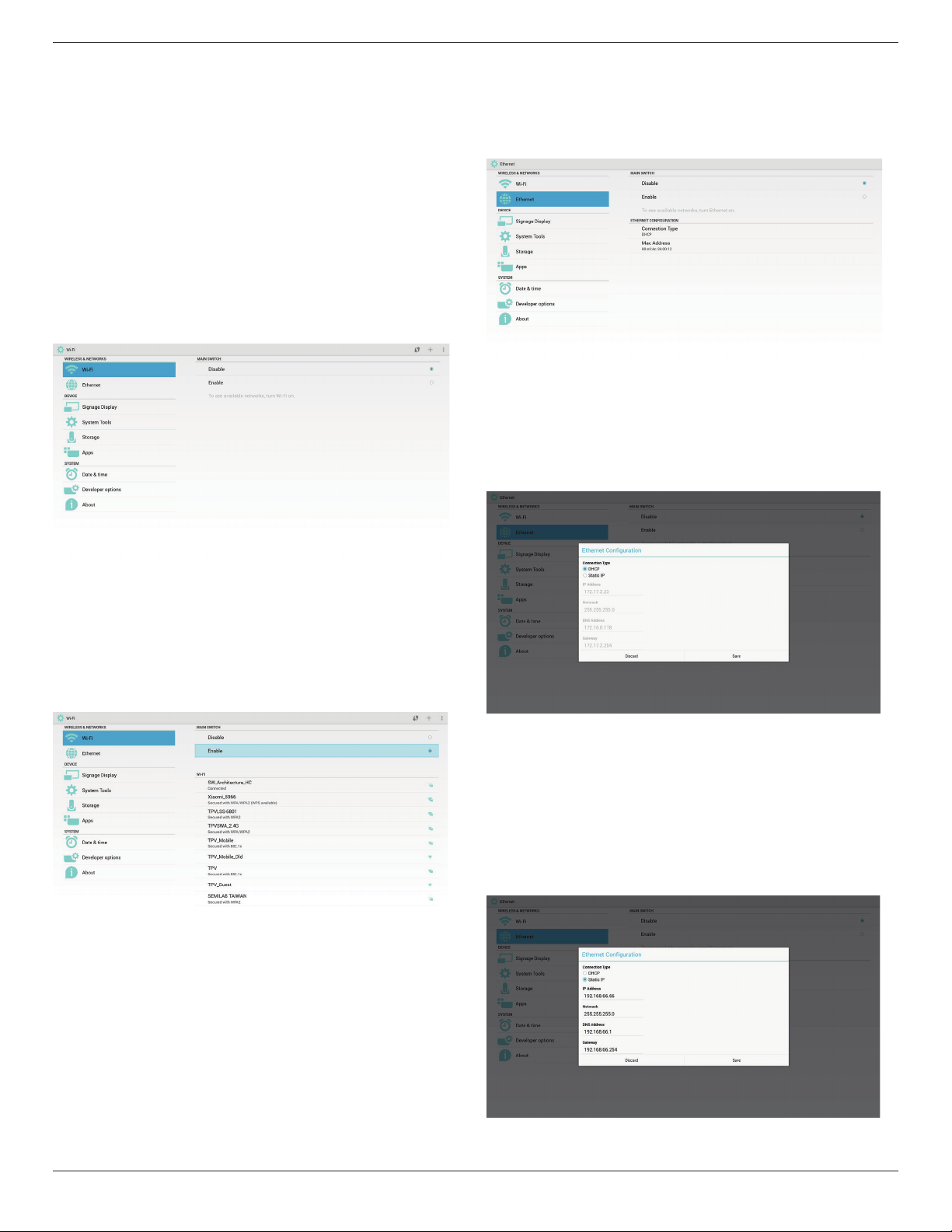
5.2. Wi-Fi
ViaEnable/DisabletocontrolWi-FiOn/OFF.AfterEnable,thescreenwill
listallavailableWiFiAP.
Note:
EthernetwillbedisableautomaticallyifWiturnonandconnectto
network
.
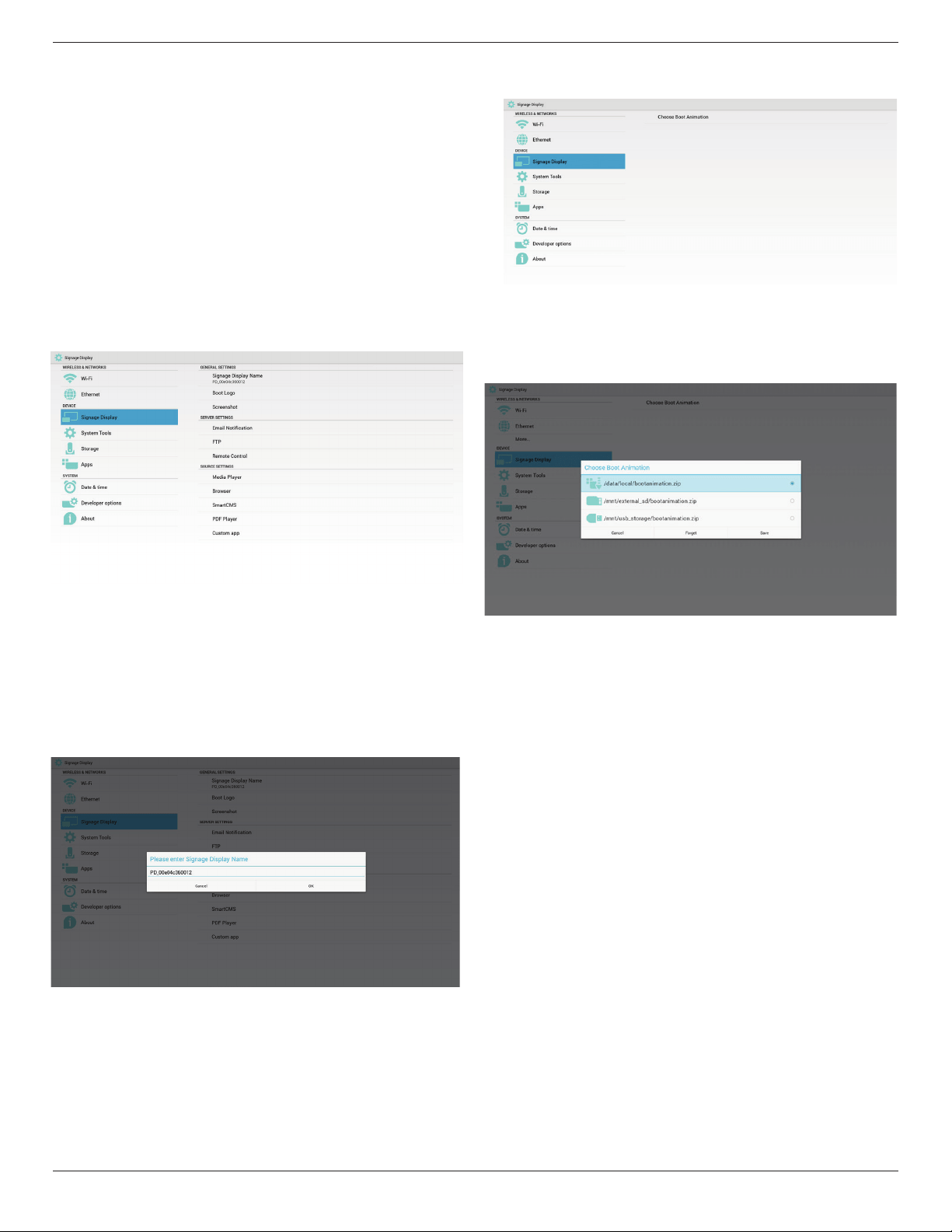
5.3. Ethernet
ViaEnable/DisabletocontrolEthernetOn/Off.AfterenableEthernet,itwill
display:
(1)ConnectType(availabletypeisDHCP/StaticIP)
A.DHCP
B.StaticIP
C.IPAddress
D.Netmask
E.DNSAddress
F.GatewayAddress
(2)MacAddress
Note:
WiFiwillbedisableautomaticallyifEthernetturnonandconnectto
network.
5.3.1. DHCP
DHCPmode:
(1)CannotmodifyIPAddress,Netmask,DNSAddressandGateway..
(2)(Ifconnectsuccessfully,itwilldisplaycurrentnetworkconguration.
5.3.2. Static IP
UnderStaticIP,UsercanmanuallyinputIPAddress,Netmask,DNSAddress
andGateway.
Note:
IPaddress,netmask,DNSaddressandgatewayaddressinputlimitation
(1)Format:
I. number0-9
II. decimalpoint“.”
43BDL4051T
32
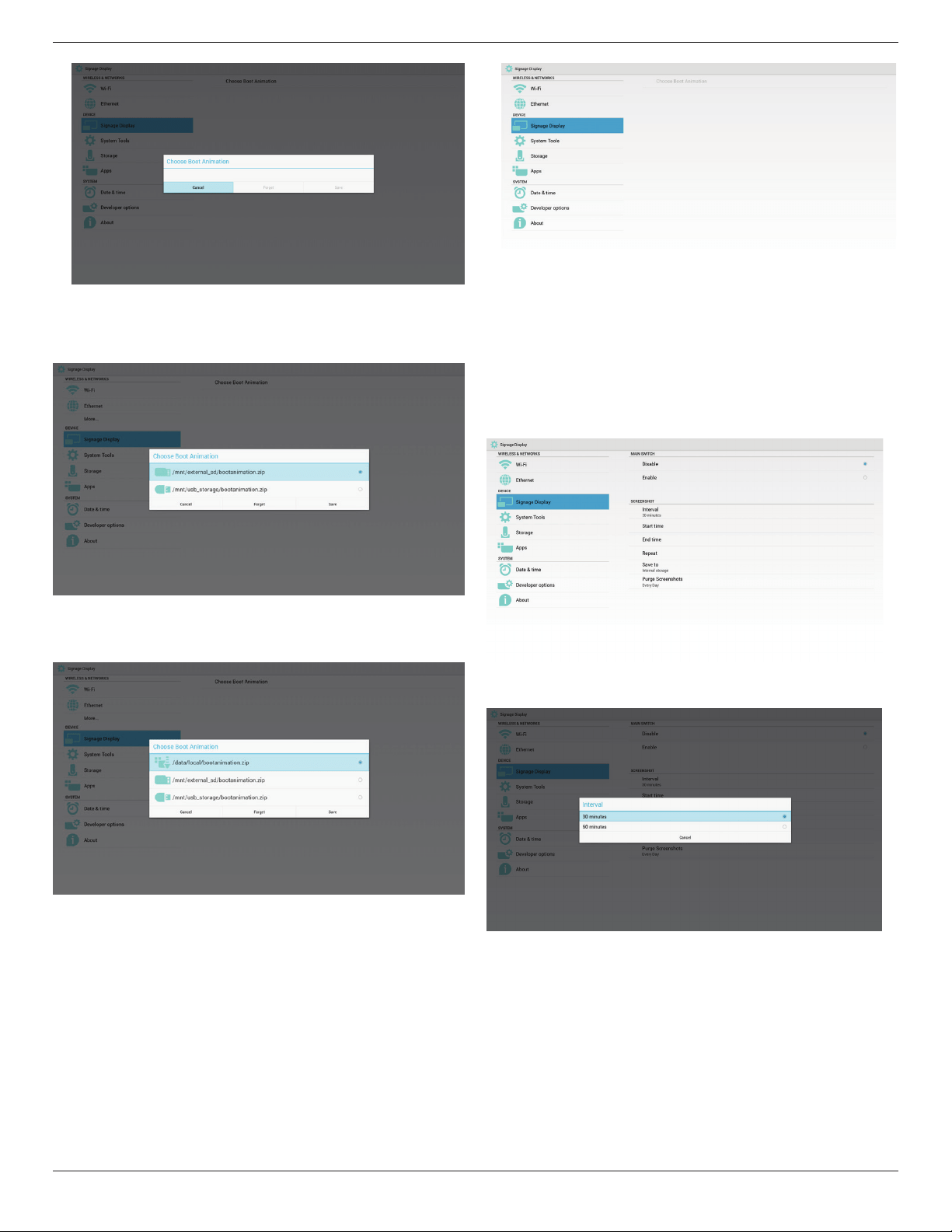
5.4. Signage Display
Divideinto3groups:GeneralSettings/ServerSettings/SourceSettings
(1)GeneralSettings
A. SignageDisplayName
B. BootLogo
C. Screenshot
(2)ServerSettings
A. EmailNotication
B. FTP
C. RemoteControl
(3)SourceSettings
A. MediaPlayer
B. Browser
C. SmartCMS
D. PDFPlayer
E. Customapp
5.4.1. General Settings
1. SignageDisplayName
SetupPDname“PD_”+EthernetMacAddress.
Note:
Inputlimitation:
(1)length:Max36characters
(2)format:nolimit
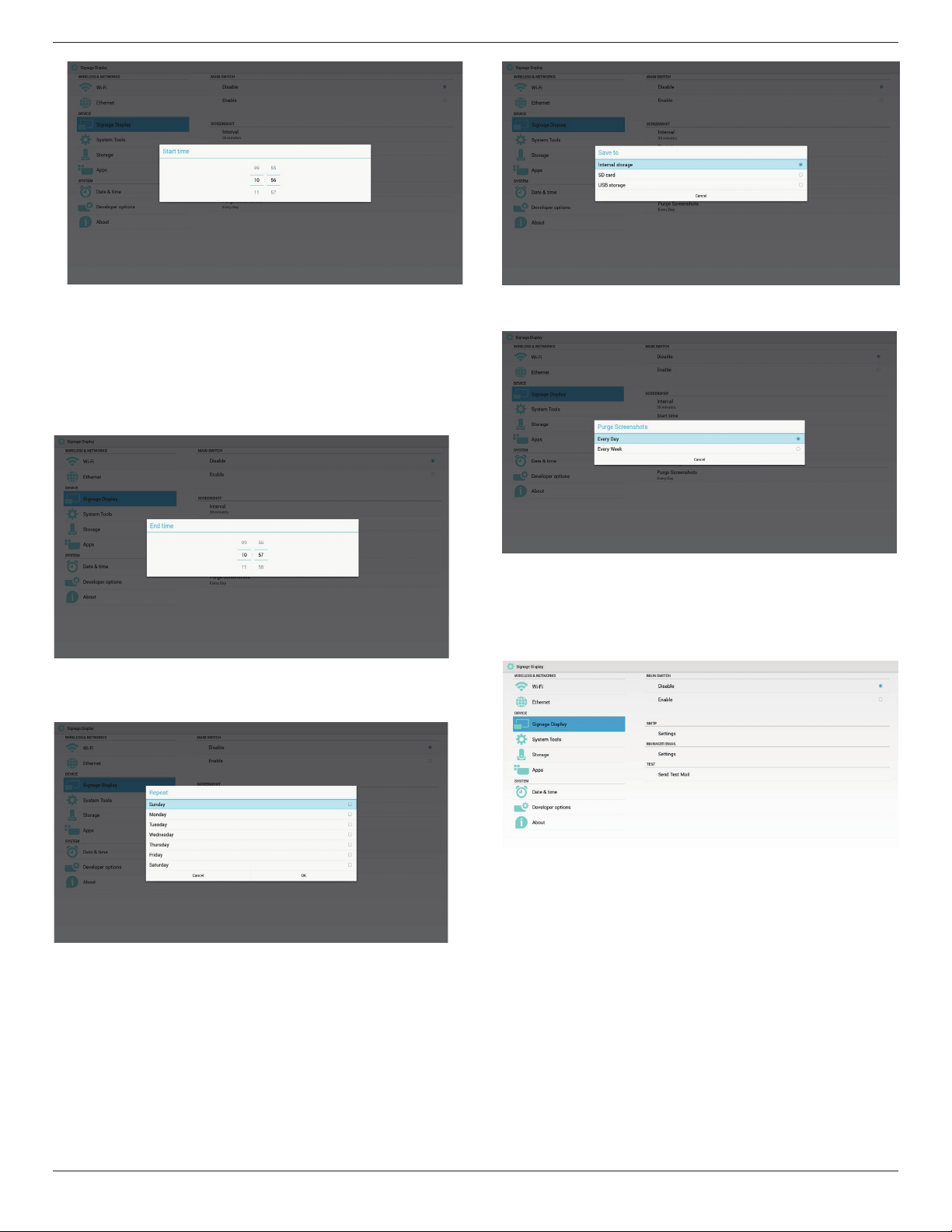
2. BootLogo
1)ScalarOSDmenutocontrolAndroidbootlogoenable/disable.
ScalarOSDMenuoperation:
RCU:Home->Conguration2->Logo->On/Off/User
InUsermode,usercanchoosetheirownbootlogoanimationle.
Note:
(1)Bootanimationlenamemustbe:bootanimation.zip
(2)Willpop-upawindowforusertoselectUSBandSDcard.No
priorityissue.
2)Whenbootlogoselection,PDwillcheckifthereisbootanimation.zip
underUSBandSDcard.
Functionintroduction:
a. Optiondescription
/data/local
UsecustomizedbootanimationlewhichiscopiedfromSDcardor
USB
/mnt/external_sd
UsebootanimationleunderSDcard
/mnt/usb_storage
UsebootanimationleunderUSB
b. Save
PressSavekeytosaveSDcardorUSBbootanimation.zipto/data/local
andsetitasbootlogo.
c. Forget
PressForgetkeytodelete/data/localbootanimation.zipandnotshow
bootlogo.
d. Cancel
Closedialoguew/ochanges.
Scenariointroduction:
Case1
Theusersdonotsettlecustomizedbootlogo.PDdoesnotndany
bootanimation.zipleunderSDandUSB.TheListwillbeblank.Save
andForgetbuttonwillbegrayanduseless.
43BDL4051T
33
Case2
Theusersdonotsettlecustomizedbootlog,PDndbootanimation.
zipleunderSDorUSB.Thescreenwillshowbootanimation.zipand
selecttherstleautomatically.
Case3
Theusersettlecustomizedbootlogo,Thescreenwillshow/data/local/
bootanimation.zip
3)IfOSDmenuLogoitemisOnorOff,theuserscannotchooseboot
animationinAndroidsettings.
3. Screenshot
ViaEnable/DisabletocontrolscreenshotOn/Off.AfterEnable,usercanset
screenshottimeslotandsavepath.
Note:
Timeslotofdeletionandscreenshot:
(1)Willdeletepictureatinitialtime0sec.
(2)Willscreeshotatrst40sec.
1)Interval
Setupintervaltimeframe.30minsor60mins.
2)StartTime
Setupscreenshotstarttime.
Note:
(1)NoCancel,Conrmbuttonindialog.
(2)JustpressBackkeytoexitdialogforSetup
(3)StarttimecannotbenewerthanEndtime.ItwillshowErrortoast.
43BDL4051T
34
3)EndTime
Set up screenshot End time
Note:
(1)NoCancel,Conrmbuttonindialog.
(2)JustpressBackkeytoexitdialogforsetup
(3)(StarttimecannotbenewerthanEndtime.Itwillshowerror
toast.
4)Repeat
Setscreenshotrepeatcycle.Usercanchoosescreenshottimeframe.
(Multipleselection)
5)Saveto
Setupscreenshotsavepath.Internalstorage,SDcardorUSB
storage.
Note:
picturestoragepath:
(1)Inrootofinternalstorage/usbstorage/sdcard,PDwillcreate
folderautomatically.
(2)thepicturewillsavetophilips/Screenshot/.
6)PurgeScreenshots
Setuppurgetimeframe.OnedayorOneweek.
5.4.2. Server Settings
1. EmailNotication
ViaEnable/DisabletocontrolEmailOn/Off.AfterEnable,usercansetup
Emailnoticationconguration.
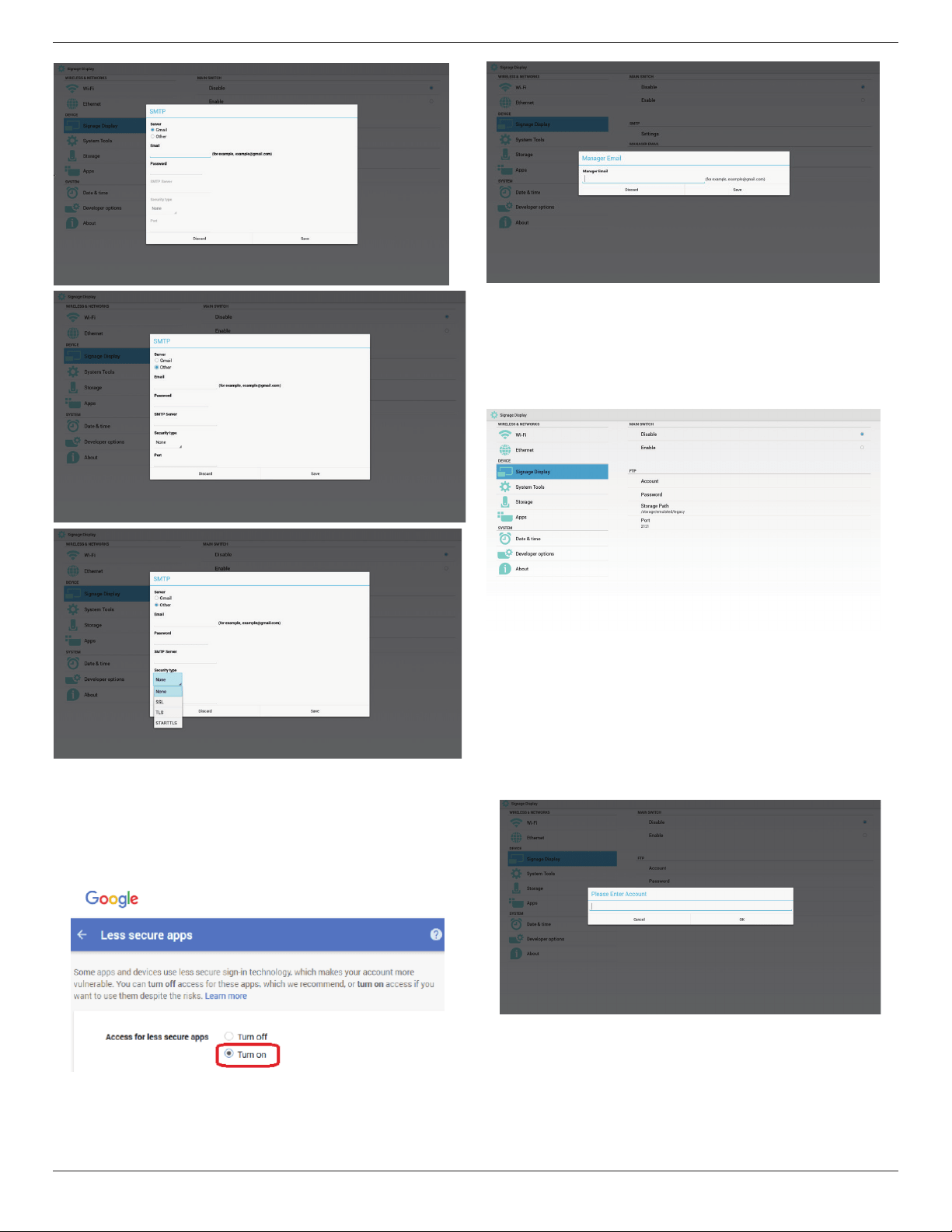
1)SMTP
Email
SetSMTPconguration.UsercansetGmailaccountorothermail
account.UsercanselectothermailaccountandsetupSMTPserver,
Securitytypeandportitme
Note:
Passwordinputlimitation
(1)Length:6-20characters
(2)Format:nolimit
(3)Donotusetheport:5000
43BDL4051T
35
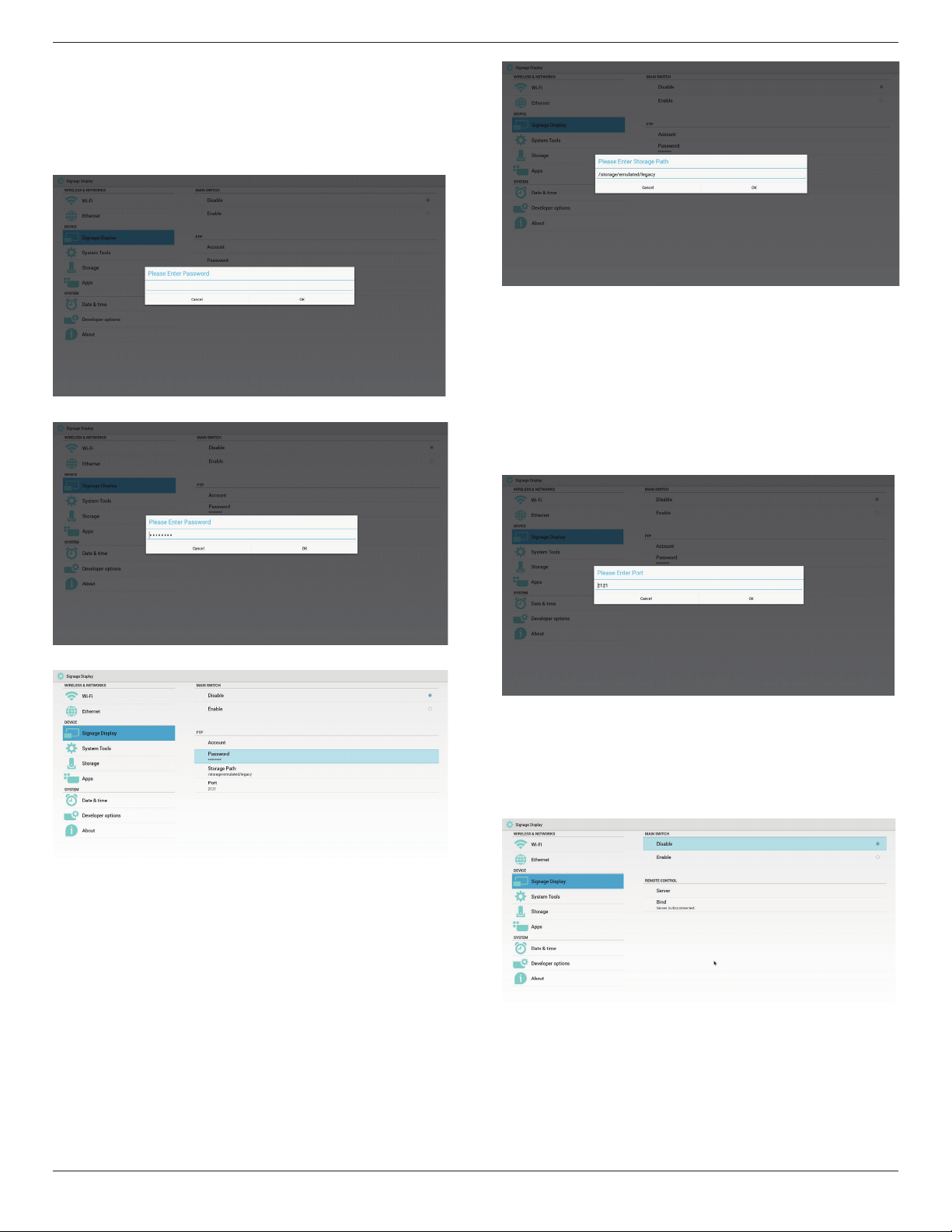
Gmailsafetysetting
IfitcannotsendmanageraftersettingGmail,pleaseloginyourGmail
testaccount,thenaccesstowebsite:
https://www.google.com/settings/security/lesssecureapps.
Conrmthe“Accessforlesssecureapps”,pleasesettoTurnon
2)ManagerEmail
Email
SetupReceivermailaccount
3)Test
SendTestMail
TotestGmailaccountreceive/sendfunction.
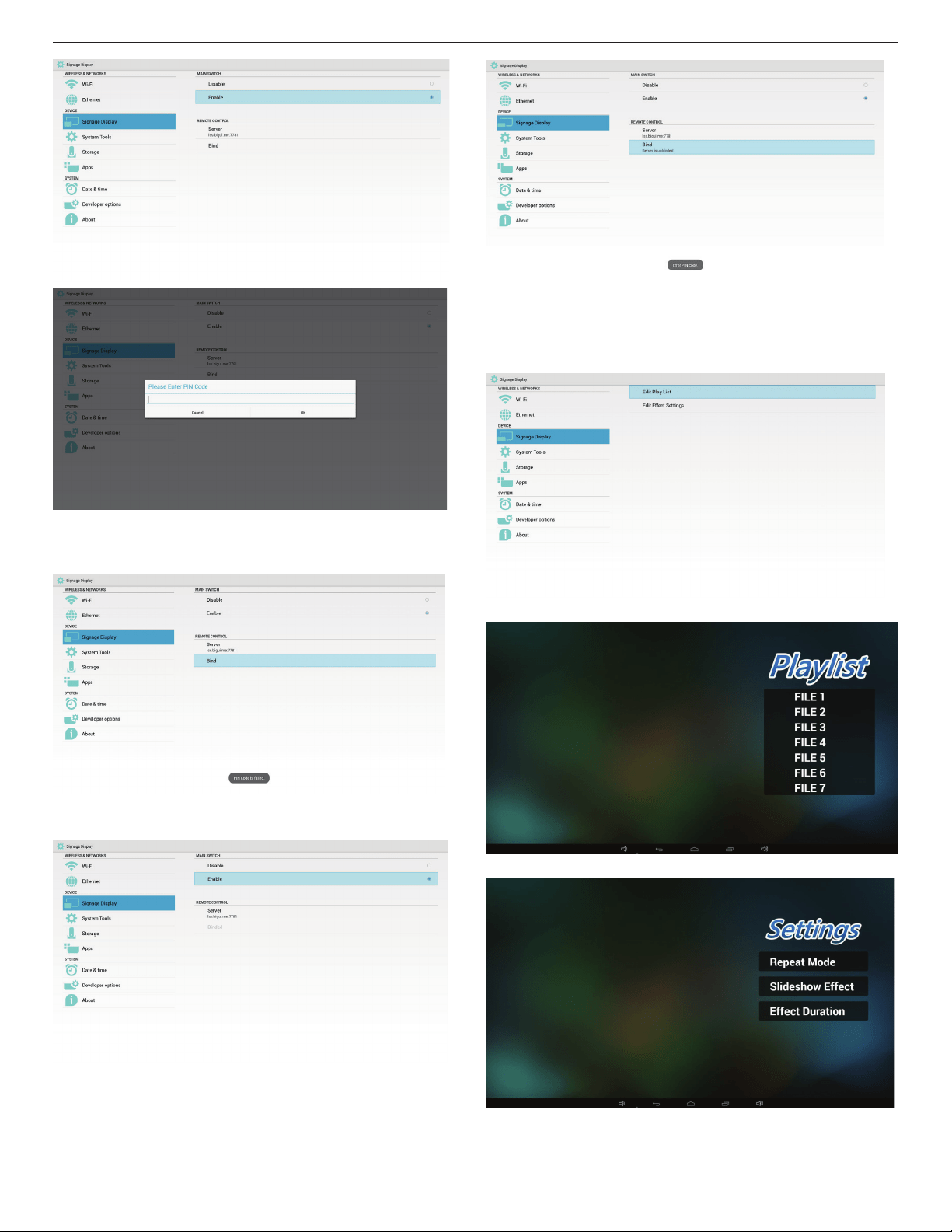
2. FTP
ViaEnable/DisabletocontrolFTPOn/Off.Aftersetup,PDcanshareFTP
les.
1)Account
SetupFTPaccount
Note:
Inputlimitation
(1)Length:4-20characters
(2)Format:
I. Englisha-zandA-Z
II. Number0-9
2)Password
SetupFTPpassword.
Note:
Inputlimitation
(1)Length:6-20characters
(2)Format:
I. Englisha-zandA-Z
43BDL4051T
36
II. Number0-9
FTPpassworddisplay
(1)Willshow“*”symboltoinsteadpasswordifsetuppassworkvia
remotecontrol.
(2)Aftersetup,thepasswordtextwillshowas“*”symbol.Before
passwordinput:
Afterpasswordinput:
Setupcompletedscreen:
3)StoragePath
SetupFTPsharepath.:/storage/emulated/legacy
Note:
Inputlimitation
(1)Cannotsaveifthepathisinvalid
4)Port
SetupFTPportnumber.Default:2121
Note:
Inputlimitation
(1)Length:Max5characters
(2)Range:1-65535
(3)Format:
I. Number0-9
(4)Donotusetheport:5000
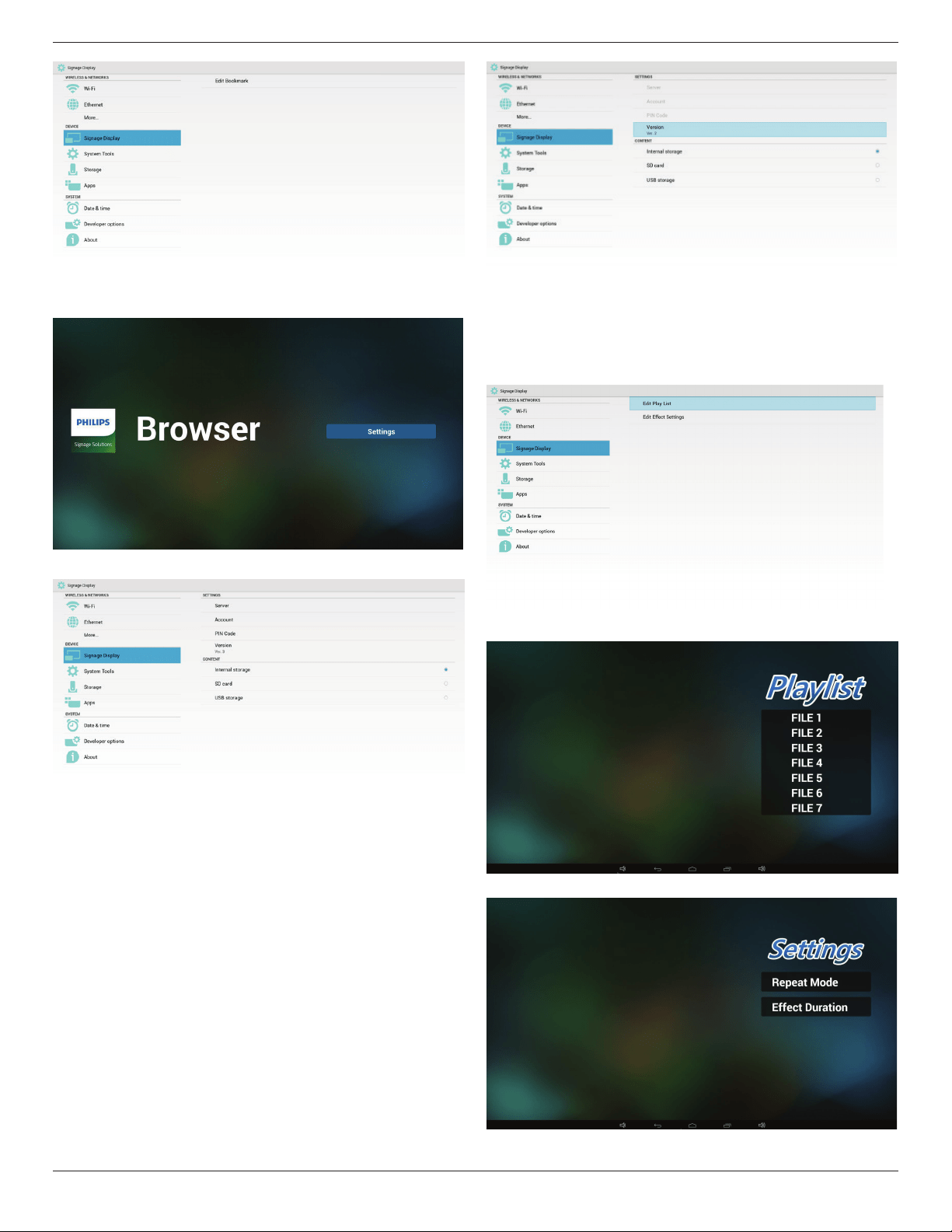
3.RemoteControl
ViaEnable/DisabletoControlRemoteControlOn/Off
UsercaninputServeraddress.Ifserverdoesnotregistered,itwillask
userforPINcode.
Bindstatus:
(1)Willshownetworkisdisconnectedifnotyetconnectstonetwork.
Bindstatus:
(2)WillshowServerisdisconnectedifnetworkconnectedbut
remotecontrolserverdisconnected.
43BDL4051T
37
Bindstatus:
(3)WillshowServerisunbindedifRemotecontrolserverfeedback
unbindedstatus.
Bindstatus:
(4)WillshowserverisbindedifSeverbindedsuccessfully.
Bindstatus:
(5)WillshowErrorPINcodeifinputincorrectPINcode.
5.4.3. Source Settings
1. MediaPlayer
CanEditMediaPlayerplaylistandeffectsettings.
(1)OpenMediaPlayerPlayerListeditpage.
(2)OpenMediaPlayerslideshoweffecteditpage.
2. Browser
CaneditBookmarkconguration.
43BDL4051T
38
(1)OpenBrowsersettingpage.
3. SmartCMS
1)Server
SetupSmartCMSServeraddress.
2)Account
SetupSmartCMSaccount.
Note:
Inputformatlimitation:ASCIIonly(referto11.2ASCIITable)
3)PINCode
SetupSmartCMSPINCode
4)Version
CanselectVer.2andVer.3
• Ver.2:Using2.0/2.2updateadvertisingagreement.
• Ver.3:Using3.0/3.1updateadvertisingagreement.
InVer.2cases,donotuseServer/Account/PINCodevalues,sothe
threegrayandcannotbeused.
5)Content
CanselectInternalstorage/SDcard/USBstorage.
4. PDFPlayer
CaneditPDFPlayerPlayListandEffectSettings.
(1)OpenPDFPlayerPlayerListeditpage.
(2)OpenPDFPlayereffecteditpage.
5. Customapp
43BDL4051T
39
PleaserefertoPage30Customapp
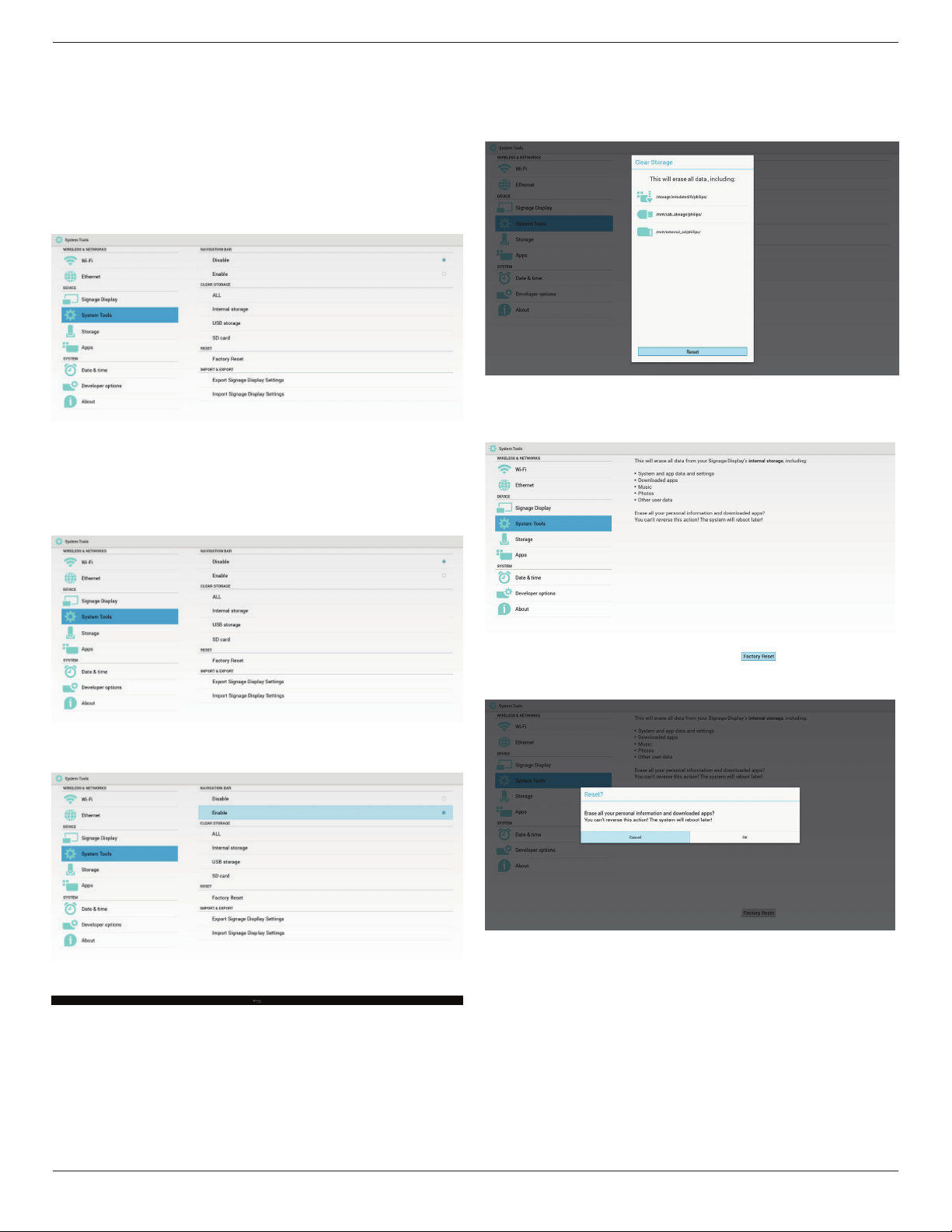
5.5. System Tools
Systemtools4mainfunctions:
(1)NavigationBar(onlyfortouchmodel)
(2)ClearStorage
(3)FactoryReset
(4)Import&Export
5.5.1. Navigation Bar
Toenable/disableNavigationBar.(Touchmodelonly)
• Disable:
Hidenavigationbar.
• Enable:
Shownavigationbar.TheBackkeywillshowonbottomofscreen.
5.5.2. Clear Storage
ThepurposeistoclearalldatainPhilipsfolders.
Dividedinto4mode:
(1)ClearallPhilipsfolde
(2)OnlyclearPhilipsfolderunderInternalstorage.
(3)OnlyclearPhilipsfolderunderUSBstorage.
(4)OnlyclearPhilipsfolderunderSDcard.
Pop-upthewindowtodisplayallfolderswhichcanbeclear.
5.5.3. Factory Reset
FactoryResetcanrecovertoFactorydefaultsettings.
PressOKtoexecuteResetfunctionautomatically
.
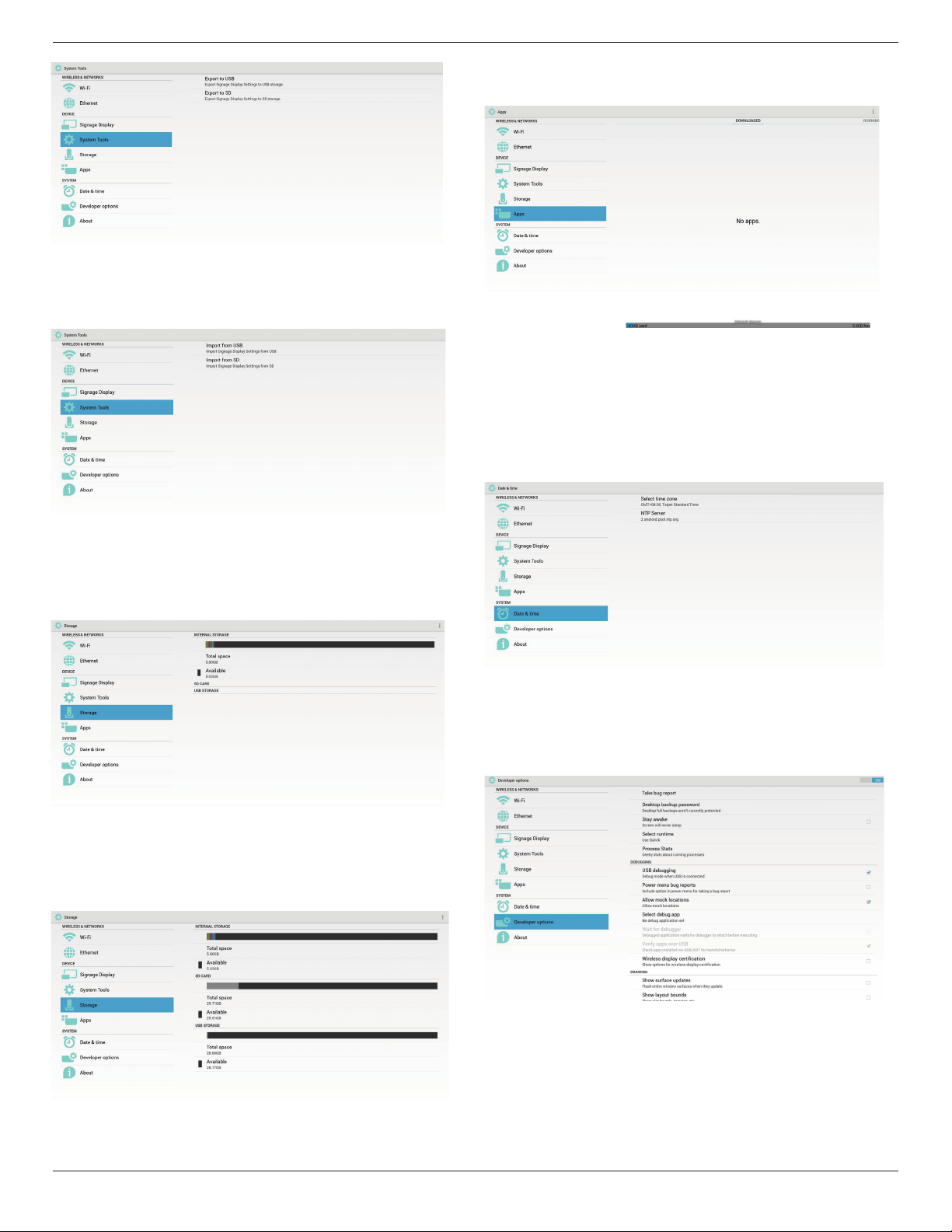
5.5.4. Import & Export
ThefunctionofImport&ExportPDsettins.
Note:
(1)Savedlename:settings.db
(2)WillsavetoPhilipsfolderinstorage.
1. Export
Willexportsettings.dbtoPhilipsfolderunderUSBorSDcard.
Note:
IfnoPhilipsfolderexistsinUSBorSDcard,itwillbecreatedautomatically.
43BDL4051T
40
2. Import
Importsettings.dbfromPhilipsfolderunderUSBorSDcard.
5.6. Storage
DisplaycurrentPDAndroidstorageinformation.
SD CARD and USB STORAGE
:
NeedtoinsertSDcardorUSB,theinformationwillshowuptotalspace
andavailableofSDcardorUSBstorage.
5.7. Apps
Displayapplicationsinformation.
5.8. Date & time
ViaScalarOSDmenutocontrolAutoTimeOn/Off.
WhenSalarOSDmenuturnoffAutotime,usercansetupTimeZone
manually.
Note:
AddnewNTPservertodisplaycurrentserverIP
.
5.9. Developer options
Androiddeveloperoptions.
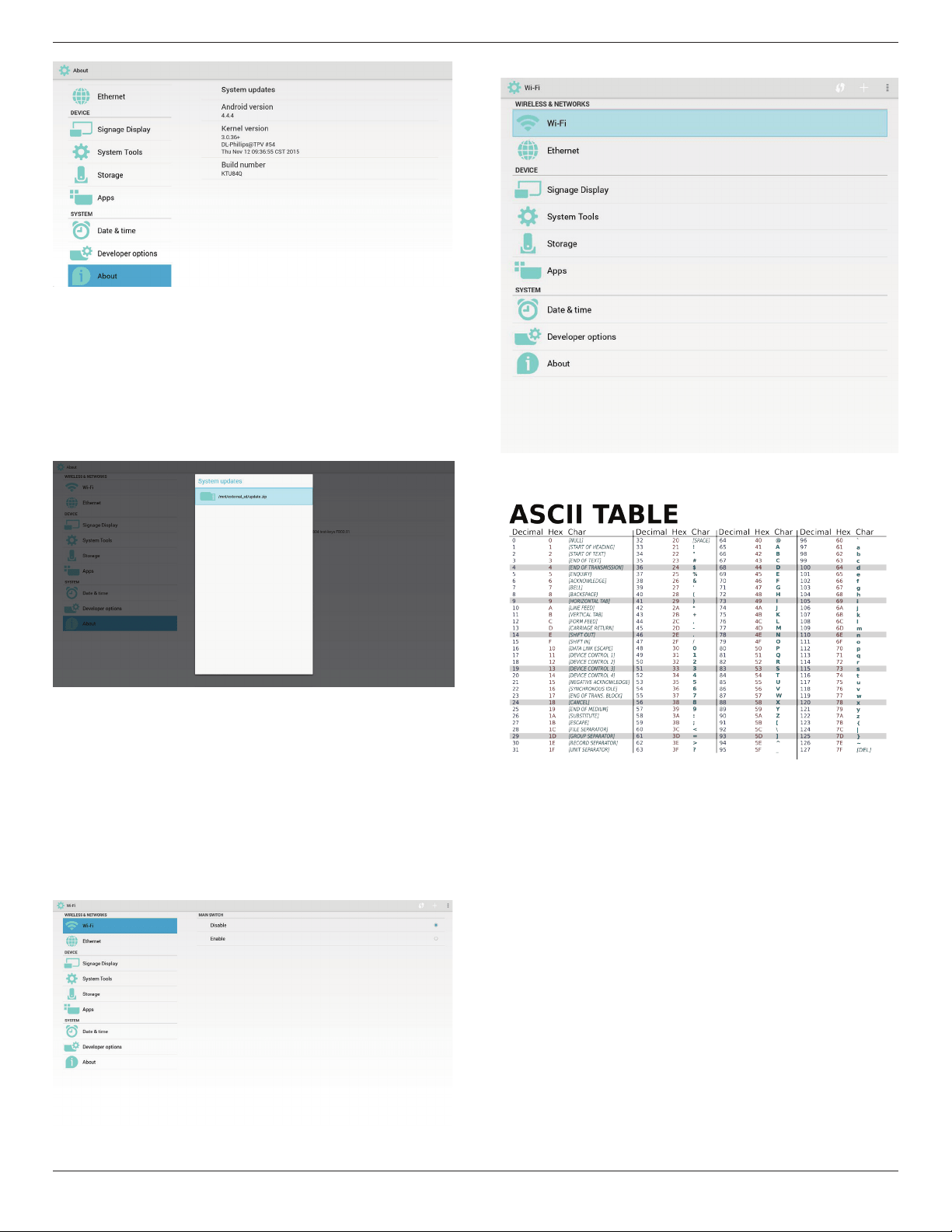
5.10. About
MaininfoinAbout:
(1)Systemupdates
(2)Androidversion
(3)Kernelversion
(4)Buildnumber
43BDL4051T
41
5.10.1. System updates
Willautomaticallysearchupdate.zipinUSBorSDcard.
Willbeshowninlistforuserselectioniffound
Note:
(1)OnlysupportAndroidFullimage.
(2)lenameshouldbeupdate.zip.
(3)theleshouldbelocatedinrootofstorage.
Afterselectupdate.ziple,PDwillrestartandstarttoupdate.
5.11. Supplementary
5.11.1. Rotation
ViaScalarOSDmenutooperateRotation:
Home->Conguration2->Rotation->OSDrotation
1. Landscape
AftersetupLandscapemode,thesettingscreenwilldivideinto2part.
SelectLeftitem,rightsidewilldisplaythesubmenu.
2. Portrait
AftersetupPortraitmode,thesettingscreenonlydisplayonelayer.
5.11.2. ASCII Table
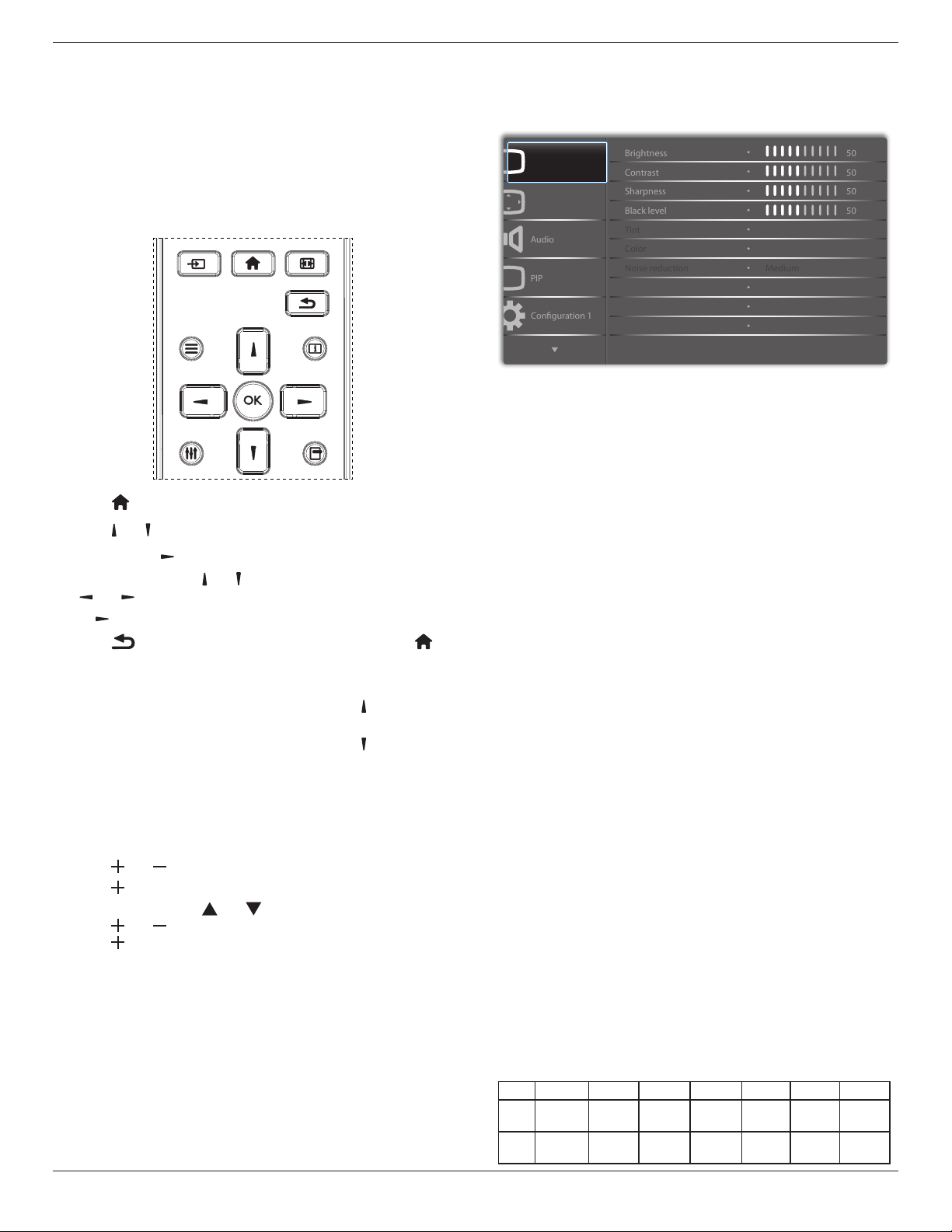
43BDL4051T
42
6. OSD Menu
AnoverallviewoftheOn-ScreenDisplay(OSD)structureisshown
below.Youcanuseitasareferenceforfurtheradjustingyourdisplay.
6.1. Navigating the OSD Menu
6.1.1. Navigating the OSD menu using the
remote control
FORMAT
SOURCE
INFOLIST
OPTIONSADJUST
1. Press[ ] buttonontheremotecontroltodisplaytheOSDmenu.
2. Press[
] or[ ] buttontochoosetheitemyouwanttoadjust.
3. Press[OK]or[
] buttontoenterthesubmenu.
4. Inthesubmenu,press[
] or[ ]buttontotoggleamongitems,press
[
]
or[ ]buttontoadjustsettings.Ifthereisasubmenu,press[OK]
or[
]buttontoenterthesubmenu.
5. Press[
]buttontoreturntothepreviousmenu,orpress[ ]
buttontoexittheOSDmenu.
NOTES:
• WhenthereisnoOSDmenuonthescreen,press[
]todisplaythe
menuof{Smart picture}.
• WhenthereisnoOSDmenuonthescreen,press[
]todisplaythe
menuof{Audio source}.
6.1.2. Navigating the OSD menu using the
display’s control buttons
1. Press[MENU]buttontodisplaytheOSDmenu.
2. Press[
]or[ ]buttontochoosetheitemyouwanttoadjust.
3. Press[
]buttontoenterthesubmenu.
4. Inthesubmenu,press[
]or[ ]buttontotoggleamongitems,
press[
]or[ ]buttontoadjustsettings.Ifthereisasubmenu,
press[ ]buttontoenterthesubmenu.
5. Press[MENU]buttontoreturntothepreviousmenu,orpress
[MENU]buttonseveraltimestoexittheOSDmenu.
6.2. OSD Menu Overview
6.2.1. Picture menu
P
Audio
PIP
Screen
Picture
Conguration 1
Contrast
Sharpness
Color
Tint
Brightness
Black level
Gamma selection
Color temperature
Color control
Noise reduction
50
50
50
50
Native
Native
Medium
Brightness(Picture)
Adjusttheoverallimageandbackgroundscreenbrightness(backlight).
Contrast
Adjusttheimagecontrastratiofortheinputsignal.
Sharpness
Thisfunctionisdigitallycapabletokeepcrispimageatanytimings.
Itisadjustabletogetadistinctimageorasoftoneasyoupreferandset
independentlyforeach
picturemode.
Black level
Adjusttheimagebrightnessforthebackground.
NOTE:sRGBpicturemodeisstandardandcannotbechanged.
Tint(Hue)
Adjustthetintofthescreen.
Press+buttontheeshtonecolorbecomesgreenish.
Press-buttontheeshtonecolorbecomespurplish.
NOTE:VIDEOmodeonly.
Color(Saturation)
Adjustthecolorofthescreen.
Press+buttontoincreasecolordepth.
Press-buttontodecreasecolordepth.
NOTE:VIDEOmodeonly
Noise Reduction
Adjustthenoisereductionlevel.
Gamma selection
Selectadisplaygamma,It’srefertothebrightnessperformancecurveof
signalinput.Choosefrom{Native}/{2.2}/{2.4}/{sgamma}/{D-image}.
NOTE:sRGBpicturemodeisstandardandcannotbechanged.
Color temperature
Itisusedtoadjustthecolortemperature.
Theimagebecomesreddishasthecolortemperaturedecreases,and
becomesbluishasthecolor.
CCT
10000ºK 9300ºK 7500ºK 6500ºK 5000ºK 4000ºK 3000ºK
X
0.279±
0.030
0.283±
0.030
0.299±
0.030
0.313±
0.030
0.346±
0.030
0.382±
0.030
0.440±
0.030
Y
0.292±
0.030
0.298±
0.030
0.315±
0.030
0.329±
0.030
0.359±
0.030
0.384±
0.030
0.403±
0.030
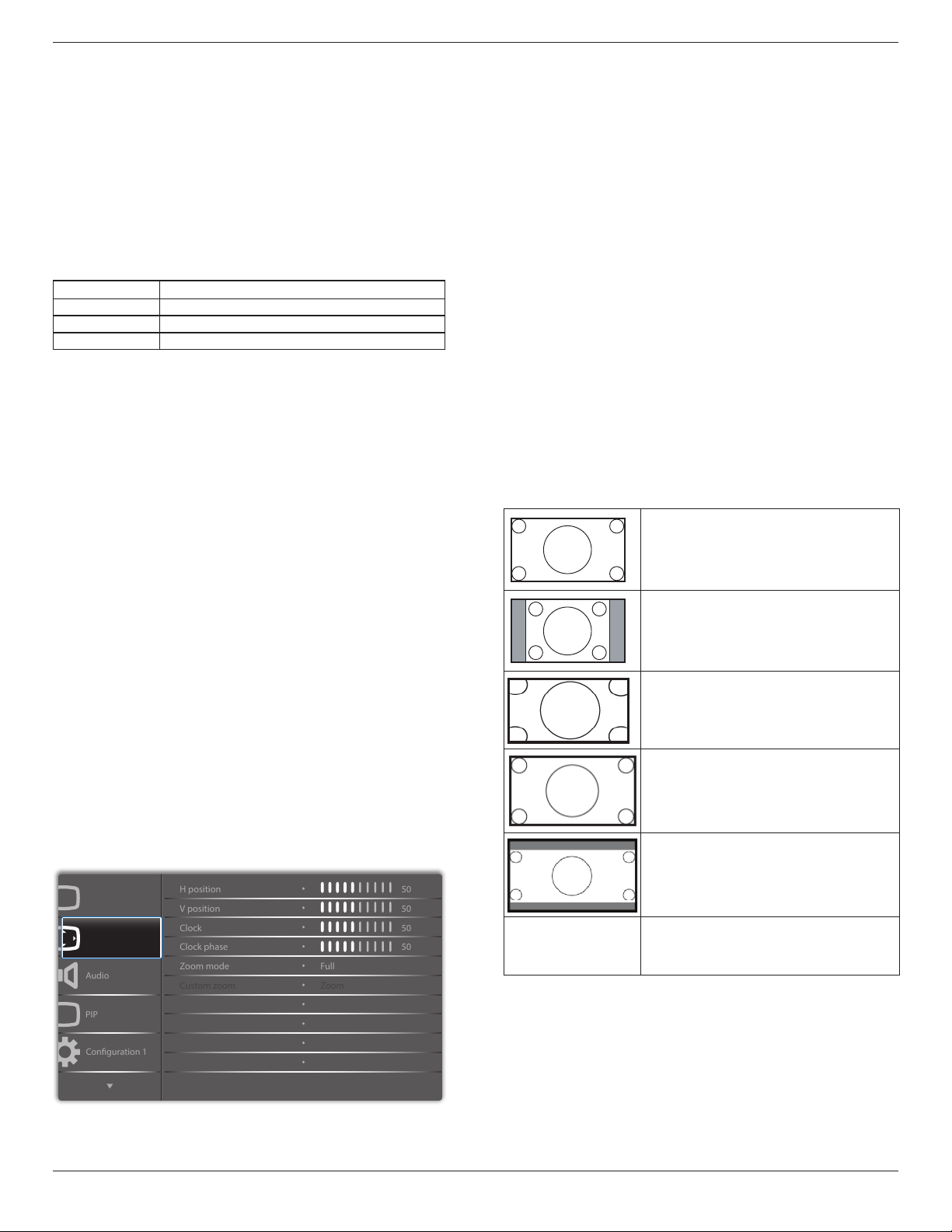
43BDL4051T
43
Color control
Thecolorlevelsofred,green,andblueareadjustedbythecolorbars.
R:Redgain,G:Greengain,B:Bluegain.
Smart picture
PQsetting
PCmode:{Standard}/{Highbright}/{sRGB}.
Videomode:{Standard}/{Highbright}/{Cinema}.
Smart Contrast
Autodetectblackdataandwhitedataoncontentandsetsuitable
backlight.
Surface Ratio Backlight Setting
5%-90% (MaxBacklight-MinBacklight)*SurfaceRatio/100
<5% MinBacklight
>90% MaxBacklight
Smart power
SmartPowercontrolisnotrelativetobrightnesscontrol:
1. InitialsettingBrigthness
70(intherangefrom0-100)
Powerconsumption70%ofmaximumpowerconsumption
2. SmartPower
OFF:noadaptation
MEDIUM:80%ofpowerconsumptionrelativetocurrentsettings
HIGH:65%ofpowerconsumptionrelativetocurrentsettings
3. Panelsaving/BrightnessON:40%ofmaximumpowerconsumption
Thecontrolssettingsshouldonlybevisibleonitsowncontrols.It
shouldnothavesecondaryeffectsonothercontrols
(eabrightnesssettingchangeswhensmartpowersettinghas
changed).
Overscan
Changethedisplayareaoftheimage.
ON:Settodisplayareaabout95%.
OFF:Settodisplayareaabout100%.
Picture reset
ResetallsettingsinthePicturemenu.
Select“Yes”andpress“SET”buttontorestoretofactorypresetdata.
Press“EXIT”buttontocancelandthenreturntothepreviousmenu.
6.2.2. Screen menu
P
Audio
PIP
Screen
Picture
Conguration 1
V position
Clock
Zoom mode
Custom zoom
H position
Clock phase
Auto adjust
Screen reset
50
50
50
50
Action
Action
Zoom
Full
H position
ControlHorizontalImagepositionwithinthedisplayareaoftheLCD.
Press+buttontomovescreentoright.
Press-buttontomovescreentoleft.
V position
ControlVerticalImagepositionwithinthedisplayareaoftheLCD.
Press+buttontomovescreentoup.
Press-buttontomovescreentodown.
Clock
Press+buttontoexpandthewidthoftheimageonthescreenthe
right.
Press-buttontonarrowthewidthoftheimageonthescreentheleft.
NOTE:VGAinputonly.
Clock phase
Improvesfocus,clarityandimagestabilitybyincreasingordecreasing
thissetting.
NOTE:VGAinputonly
Zoom mode
PCmode:{Full}/{4:3}/{1:1}/{16:9}/{21:9}/{Custom}.
Videomode:{Full}/{4:3}/{1:1}/{16:9}/{21:9}/{Custom}.
*Zoom mode setting is by input. If input in multi-windows, the setting
will apply for windows with the same input.
And the INFO OSD will show the latest setting.
Full
Thismoderestoresthecorrectproportions
ofpicturestransmittedin16:9usingthefull
screendisplay.
4:3
Thepictureisreproducedin4:3formatand
ablackbandisdisplayedoneithersideofthe
picture..
1:1
Thismodedisplaystheimagepixel-by-pixel
onscreenwithoutscalingtheoriginalimage
size.
16:9
Thepictureisreproducedin16:9formatand
ablackbandatthetopandbottom.
21:9
Thepictureisreproducedin21:9formatand
ablackbandatthetopandbottom.
Custom
Choosetoapplythecustomzoomsettingsin
theCustomZoomsubmenu.
Custom zoom
Youcanusethisfunctiontofurthercustomizethezoomsettingstosuit
theimageyouwanttodisplay.
NOTE: Thisitemisfunctionalonlywhenthe{Zoom mode}issetto
{Custom}.
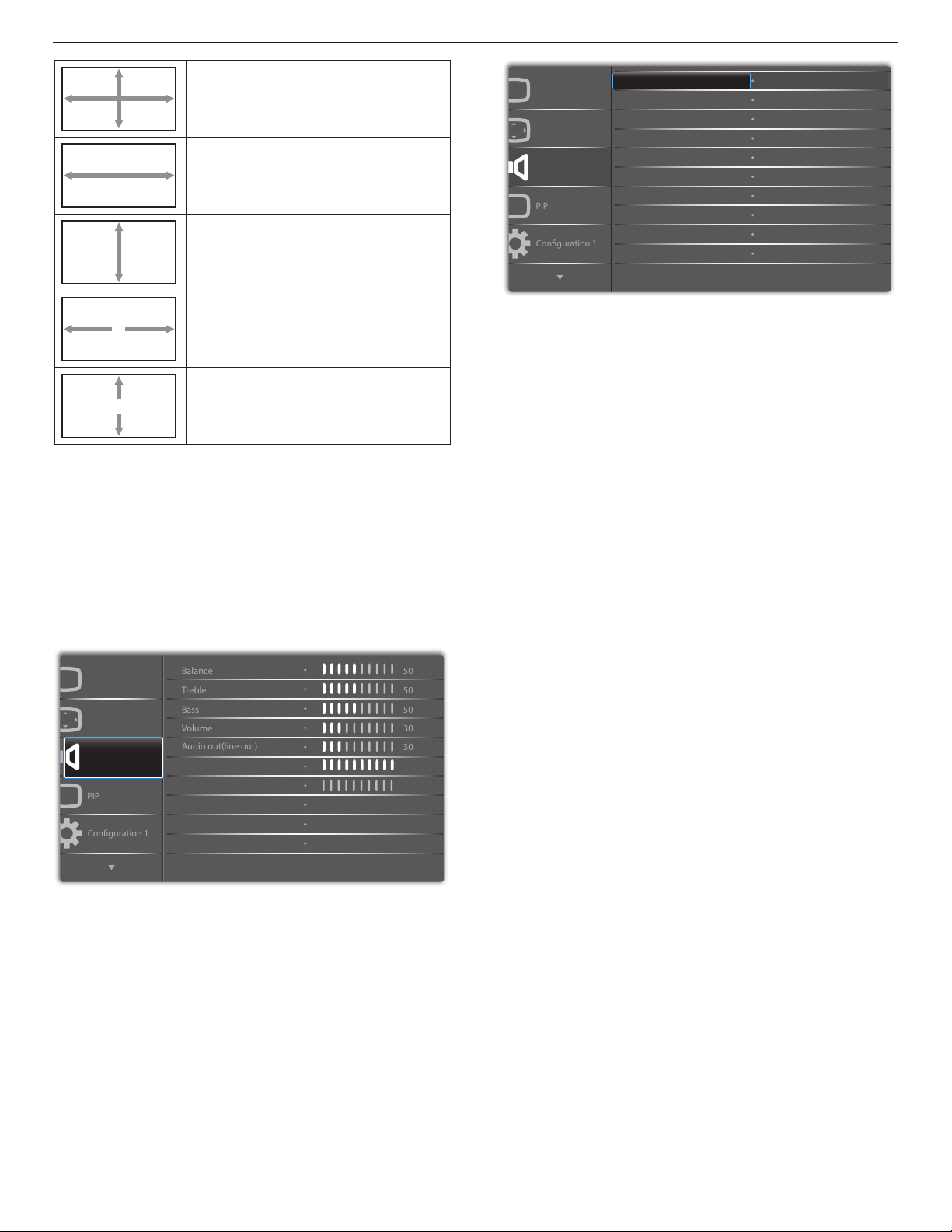
43BDL4051T
44
Zoom
Expandsthehorizontalandverticalsizesofthe
imagesimultaneously.
H zoom
Expandsthehorizontalsizeoftheimageonly.
V zoom
Expandstheverticalsizeoftheimageonly.
H position
Movesthehorizontalpositionoftheimageleft
orright.
V position
Movestheverticalpositionoftheimageupor
down.
Auto adjust
Press“Set”todetectandadjustHposition,Vposition,Clock,Phase
automatically.
Screen reset
ResetallsettingsintheScreenmenutofactorypresetvalues.
Select“Yes”andpress“SET”buttontorestorethefactorypresetdata.
Press“EXIT”buttontocancelandthenreturntothepreviousmenu.
6.2.3. Audio menu
P
Audio
PIP
Screen
Picture
Conguration 1
Treble
Bass
Maximum volume
Minimum volume
Balance
Volume
Audio out(line out)
Mute
50
50
50
30
O
O
30
0
100
Audio source
Sync.Volume
Analog
P
Audio
PIP
Screen
Picture
Conguration 1
Audio reset Action
Balance
Adjusttoemphasizeleftorrightaudiooutputbalance.
Treble
Adjusttoincreaseordecreasehigher-pitchedsounds.
Bass
Adjusttoincreaseordecreaselower-pitchedsounds.
Volume
Adjusttoincreaseordecreasetheaudiooutputlevel.
Audio out (line out)
Adjusttoincreaseordecreaselineoutoutputlevel.
Maximum volume
Adjustyourownlimitationforthemaximumvolumesetting.Thisstops
thevolumefrombeingplayedtooloudly.
Minimum volume
Adjustyourownlimitationfortheminimumvolumesetting.
Mute
Turnthemutefunctionon/off.
Audio source
Selecttheaudioinputsource.
Analog:audiofromaudioinput
Digital:audiofromHDMI/DVIaudio.
Displyport:audiofromDP.
Sync. Volume
Enable/disableaudioout(lineout)volumeadjustabilitytosyncwith
internalspeakers.
Audio reset
ResetallsettingsintheAudiomenutofactorypresetvalues.

43BDL4051T
45
6.2.4. PIP menu
PP
Audio
PIP
Screen
Picture
Conguration 1
PIP size
PIP position
PIP reset
Sub mode
PIP change
PIP source
PIP audio
Small
Bottom-Right
O
Action
VGA
Main
Action
Sub mode
Selectthesubmode.
Choosefrom:{Off}/{PIP}/{POP}/{Quick swap}/{PBP}.
Off PIP PBP 2Win
Sub Win1
Input
Quick swap
Switchmainontopor
subontop.
PIP size
SelectthesizeofthesubpictureinthePIP(Picture-in-Picture)mode.
Choosefrom:{Small}/{Medium}/{Large}.
PIP position
SelectthepositionofthesubpictureinthePIP(Picture-in-Picture)mode.
Choosefrom:{Bottom-Right}/{Bottom -Left}/{Top-Right}/{Top-Left}.
PIP change
ExchangeMainandPIP / PBP / Quick swapinputsignal.
PIP source
Selecttheinputsignalforthesubpicture.
PIP audio
SelecttheaudiosourceintheSubmode.
•{Main}-Selectaudiofromthemainpicture
•{Sub}-Selectaudiofromthesubpicture.
PIP reset
ResetallsettingsinthePIPmenutofactorypresetvalues.
• ThePIPfunctionisavailableonlyforcertainsignalsourcecombinations
asshowninthetablebelow.
HDMI1 HDMI2 DVI DisplayPort VGA
Media
Player
Browser SmartCMS
PDF
Reader
Custom
HDMI1 O X X O O X X X X X
HDMI2 X O X O O X X X X X
DVI X X O O O* X X X X X
DisplayPort O O O O O O O O O O
VGA O O O* O O O O O O O
Medoa
Player
X X X O O O X X X X
Browser X X X O O X O X X X
SmartCMS X X X O O X X O X X
PDF
Reader
X X X O O X X X O X
Custom X X X O O X X X X O
(O:PIPfunctionavailable,X:PIPfunctionunavailable)
• TheavailabilityofthePIPfunctionwillalsodependontheresolution
oftheinputsignalbeingused.
Note:Touchfunctionisonlyforsinglefullscreen.Multiplescreentouch
eventwillbeincorrectcorresponding.
6.2.5. Configuration1 menu
P
Audio
PIP
Screen
Picture
Conguration 1
Panel Saving
RS232 routing
WOL
DDC/CI
Switch on state
Boot on source
Light sensor
Power LED light
Conguration1 reset
Human sensor
Action
RS232
Last status
Action
O
On
O
O
Action
On
Switch on state
Selectthedisplaystatususedforthenexttimeyouconnectthepower
cord.
• {Power off}-Thedisplaywillremainoffwhenthepowercordis
connectedtoawalloutlet.
• {Forced on}-Thedisplaywillturnonwhenthepowercordis
connectedtoawalloutlet.
• {Last status}-Thedisplaywillreturntothepreviouspowerstatus(on/
off/standby)whenremovingandreplacingthepowercord.
Panel saving
Choosetoenablethepanelsavingfunctionsandthusreducetheriskof
“imagepersistence”or“ghost-imaging”.
• {Brightness}-Select{On}andtheimagebrightnesswillbereducedto
anappropriatelevel.TheBrightnesssettinginthePicturemenuwillbe
unavailablewhenselected.
• {Pixel shift}-Selectthetimeinterval({Auto}/{10~900}Seconds
/{Off})forthedisplaytoslightlyexpandtheimagesizeandshiftthe
positionofpixelsinfourdirections(up,down,left,orright).
RS232 routing
Selectthenetworkcontrolport.
Choosefrom:{RS232}/{LAN ->RS232}.
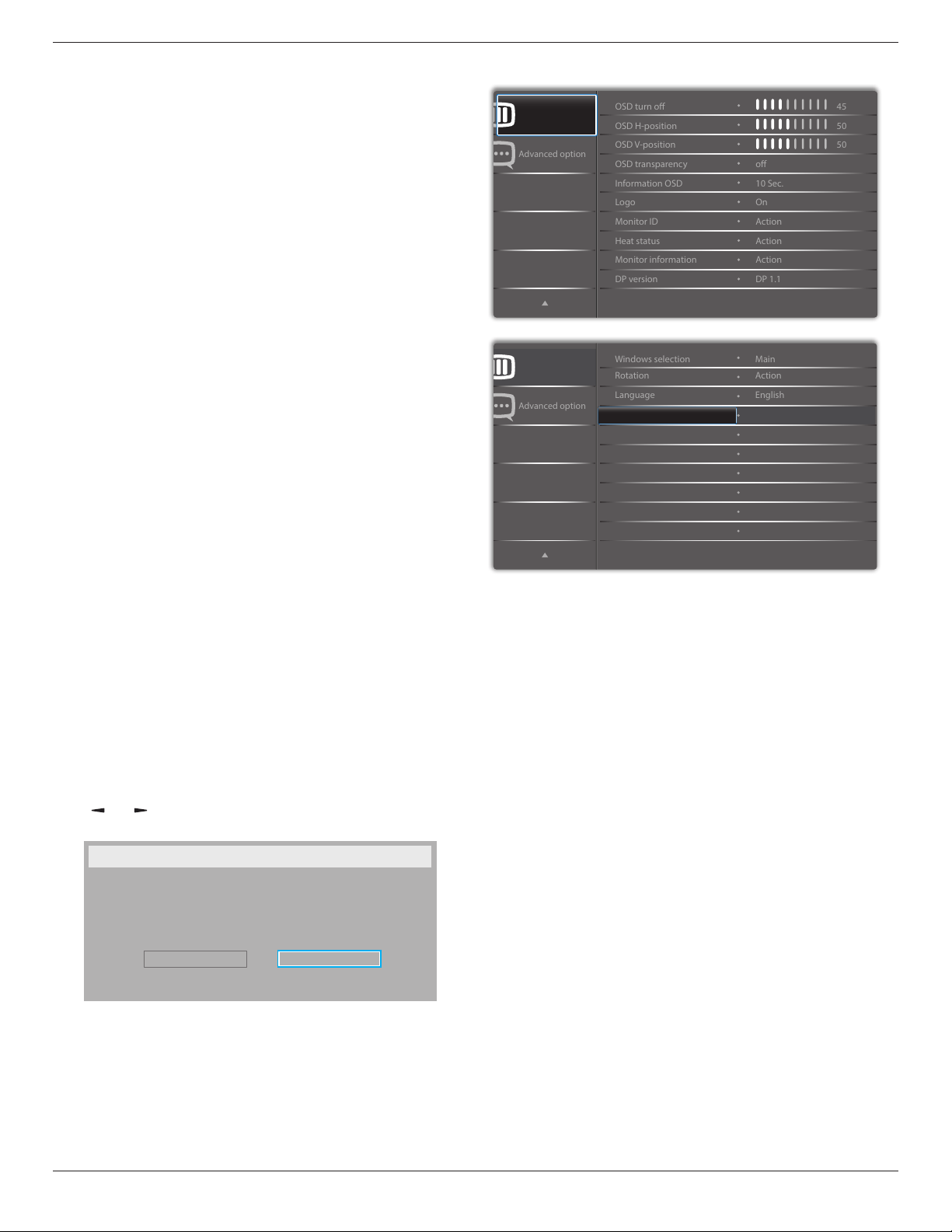
43BDL4051T
46
Boot on source
Choosetoselectsourcewhenbootup.
Input:selectinputsourcewhenbootup.
Playlist:selectplaylistindexforMediaplayer,Browser,PDFplayer.
0:noplaylist.SameasswitchsourcefromOSD.1~7:playlist
number.
WOL
ChoosetoturnonoroffthewakeonLANfunction.
Choosefrom:{Off}/{On}
DDC/CI
ChoosetoturnonorofftheDDC/CIcommunicationfunction.
Select{On}fornormaluse.
Light sensor(require Philips accessory CRD41 External Sensor
Box)
Choosetoturnonoroffbacklightadjustmentaccordingtoenvironment
brightness.
Choosefrom:{Off}/{On}
Human sensor(require Philips accessory CRD41 External
Sensor Box)
TheHumansensorcandetectifpeopleapproachthedisplayornot.
Thedisplaywillturnoffbacklightifdetectnothinginsettingtime.
Thedisplaywillbacktobacklightonwhenpeopleapproachit.
Theoptionsare:
•{Off}(Default),{10Min.},{20Min.},{30Min.},{40Min.},{50Min.},{60
Min.}
Power LED light
ChoosetosetpowerindicateLEDonoroff.
Choose{On}fornormaluse.
Conguration1 reset
ResetallsettingsinConguration1menutothefactorypresetvalues.
Factory reset
ResetallsettingsintheOSDmenusof{Picture},{Screen},{Audio},{PIP},
{Conguration1},{Conguration2},and{Advanced option}tothefactory
presetvalues.
Androidsettingswillalsoresetwhenfactoryreset.
Press[
]
or[ ]buttontoselect{Reset},andpress[OK]buttontodo
thereset.
Factory reset
Cancel
Reset
6.2.6. Configuration2 menu
Advanced option
Conguration 2
OSD H-position
OSD V-position
Information OSD
Logo
OSD turn o
OSD transparency
Monitor ID
Monitor information
DP version
Heat status
50
50
45
o
Action
Action
Action
10 Sec.
On
DP 1.1
Advanced option
Conguration 2
Rotation
Language
Windows selection
Action
English
Main
Action
Conguration2 reset
OSD turn off
SettheperiodoftimetheOSD(on-screendisplay)menustaysonthe
screen.
Theoptionsare:{0 ~ 120}seconds.
*{0}doesnotdisappearautomatically.
OSD H-position
AdjustthehorizontalpositionoftheOSDmenu.
OSD V-position
AdjusttheverticalpositionoftheOSDmenu.
OSD Transparency
AdjustOSDtransparency.
• {Off}-Transparencyoff.
• {1-100}-Transparencylevel1-100.
Information OSD
SettheperiodoftimetheinformationOSDisdisplayedontheupper
rightcornerofthescreen.TheinformationOSDwilldisplaywheninput
signalischanged.
TheinformationOSDwillremainonthescreenwith{Off}selection.
Theoptionsare:{1 ~ 60}seconds.
Logo
ChoosetoenableordisablethepictureofLogowhenturnonyourdisplay.
Theoptionsare:
• {Off}(Default)
• {On}*
• {User}**
**IfLogosettoUSER.
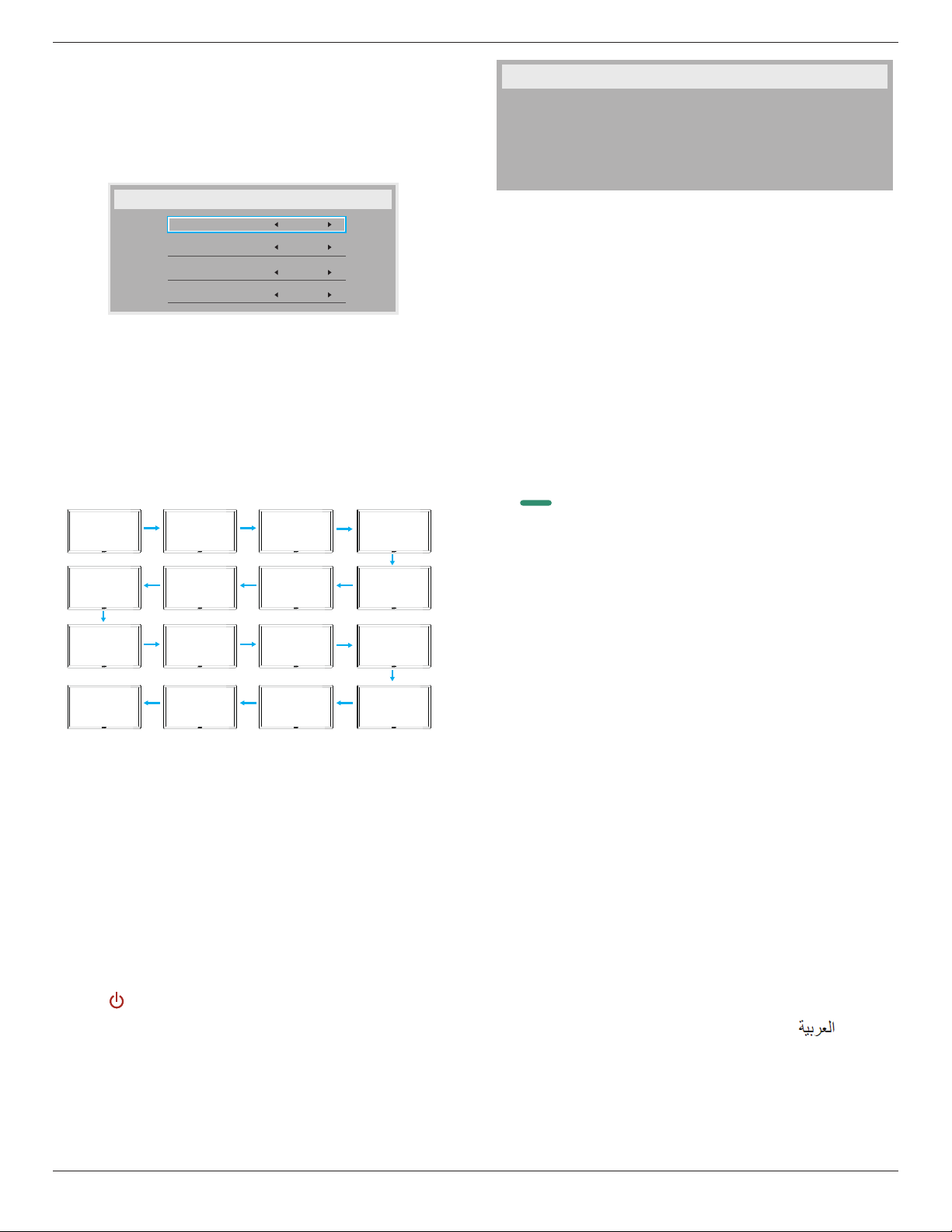
43BDL4051T
47
UserlogodoesNOTsupportrotationfunction.
Monitor ID
SettheIDnumberforcontrollingthedisplayviatheRS232Cconnection.
EachdisplaymusthaveauniqueIDnumberwhenmultiplesetsofthis
displayareconnected.MonitorIDnumberrangeisbetween1to255.
Theoptionare:{Monitor group}/{Tiling matrix}/{Auto ID}
Monitor Id
Monitor Id
Monitor group
Tiling matrix
Auto ID
1
1
1
End
• {Monitor group}
Theoptionsare:{Off}/{1-254}
• {Off}–{Monitorgroup}arenotsupported.
• {1-254}–{Monitorgroup}aresupported.Thedefaultsettingis1.
• {Tiling matrix}
Tilingmatrixnumberrangeisbetween1to15.1isdefaultsetting.
The{Auto ID}setupfunctionenablessettingup{Monitor ID}of
connectedmachineaccordingto{Tiling matrix}settings.
Example:Tilingmatrixsetsas4
1 2
5 6
3 4
7 8
9 10 11 12
13
14 15
16
• {Auto ID}
Theoptionare:{Start}/{End}.Thedefaultis{End}.
• SwitchtoStartoptiontosetupIDsofmachinesbackward
fromcurrentone.
• Oncethesetupiscompleted,theoptionexitstoEnd
automatically.
• Tousethisfunction,serialconnectallmachineswithRS-232
cableandsettheirControlportstoRS-232too.
Heat status
Thisfunctionallowsyoutocheckthethermalstatusatanytime.
• Atemperature-warningmessagewillbeshownonthescreenif
thetemperaturereaches97°C(207°F).Allkeyfunctionsexcept
[ ]
keywillthenbedisabled.
• Oncethetemperaturereaches98°C(208°F),thedisplaypower
willbeshutdownautomatically.
Monitor information
Showsinformationaboutyourdisplay,includingmodelnumber,serial
number,operatinghoursandsoftwareversion.
Monitor information
Model name
Serial no
Operation hours
SW Version
43BDL4051T
CNCA123456789
46H45M
V0.300
DP version
DisplayPortsupportmode.
Theoptionsare:
• {DP 1.1}(Default):DP1.1singlestream(clonemode)
• {DP 1.2 SST}:DP1.2Singlestream(clonemode)
• {DP 1.2 MST}:DP1.2Multi-Stream
*NOTE:
TheDPversionmustbesetthesameforalldaisychaindisplays.
Window selection
Selectthewindowforadjustingsetting.Theselectedwindowwillbe
highlightgreenborder.
WindowselectionwillsettoMainafterpoweron.
Theoptionsare:
• {Main}(Default),{PIP}
• [ ]
HotkeyforWindowselectionfunction.
Rotation
SettherotationofMain/Sub/OSD
AutoRotate: Off/On Default: Off
OSDRotate: Landscape/Portrait Default: Landscape
ImageRotate:
All: Off/On Default: Off
Main: Off/On Default: Off
Sub: Off/On Default: Off
AutoRotate:{Off},{On}whenvalueisOn,automaticallydetectwhether
thePDrotation,OffissetbyOSD.
OSDRotate:{Off},{On}whenvalueison,OSDrotate90°,Offis
restored.
All:{Off},{On}whenvalueison,allWindowscreenrotate90°,Offthe
referencesetindividualwindow.
Main:{Off},{On}whenvalueisonn,Mainwindowscreenrotate90°,Off
isrestored.
Sub:{Off},{On}whenvalueison,Sub1Windowscreenrotate90°,Offis
restored.
*WhentheMain/Subsourceisthesame,rotationisgivenpriorityto
withSub.
*NotsuuporedDe-Interlacingfunctioninrotationmode.
Language
SelectthelanguageusedintheOSDmenu.
Theoptionsare:English/Deutsch/
简体中文
/Français/Italiano/Español/
Pyccкий/Polski/Türkçe/
繁體中文
/
日本語
/Português/
/Danish/
Svenska/Suomi/Norsk/Nederlands.
Conguration2 reset
ResetallsettingsinConguration2menutothefactorypresetvalues.
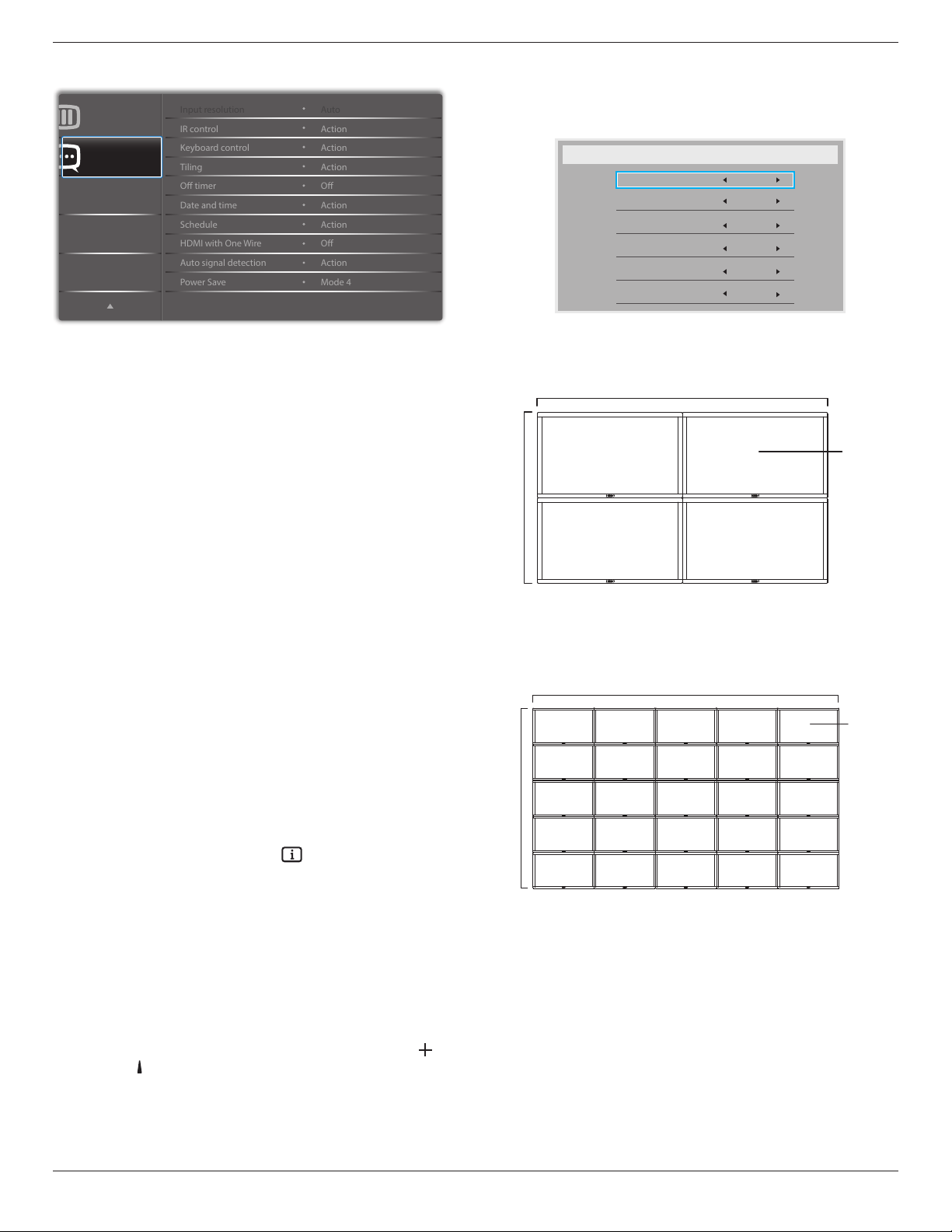
43BDL4051T
48
6.2.7. Advanced option menu
Advanced option
Conguration 2
IR control
Keyboard control
O timer
Date and time
Input resolution
Tiling
Schedule
Auto signal detection
Power Save
HDMI with One Wire
Action
Action
Auto
Action
Action
Action
O
O
Action
Mode 4
Input resolution
SettheresolutionoftheVGAinput.Thisisonlyrequiredwhenthe
displayisunabletodetecttheVGAinputresolutioncorrectly.
NOTE: ThisitemisfunctionalforVGAinputonly.
Theoptionsare:
• {1024x768/1280x768/1360x768 / 1366x768}
• {1400x1050/1680x1050}
• {1600x1200/1920x1200}
• {Auto}:Determinestheresolutionautomatically.
Theselectedsettingswillbecomeeffectiveafterturningoffthepower
andturningitonagain.
IR control
Selecttheoperationmodeoftheremotecontrolwhenmultipledisplays
areconnectedviaanRS232Cconnection.
• {Normal} -Alldisplayscanbeoperatednormallybytheremote
controlunit.
• {Primary}-Designatethisdisplayastheprimarydisplayfor
remotecontroloperation.Onlythisdisplaycanbeoperatedbythe
remotecontrol.(Inprimarymode,IRkeywillalwaysbeprocessed
regardlessthemonitorid/groupsettings).
• {Secondary}-Designatethisdisplayasthesecondarydisplay.This
displaycannotbeoperatedbytheremotecontrol,andwillonly
receivethecontrolsignalfromtheprimarydisplayviatheRS232C
connection.
• {Lock All}/{Lock all but Volume}/{Lock all but Power}/{Lock
all except PWR & VOL}-Locktheremotecontrolfunctionofthis
display.Tounlock,pressandholdthe[
]INFObuttononthe
remotecontrolfor6(six)seconds.
Keyboard control
Choosetoenableordisablethedisplaykeyboard(controlbuttons)
function.
• {Unlock}-Enablethekeyboardfunction.
• {Lock All}/{Lock all but Volume}/{Lock all but Power}/{Lock all
except PWR & VOL}-Disablethekeyboardfunction.
NOTE: “KeyboardControlLockMode”Thisfunctioncompletely
disablestheaccesstoallKeyboardControlfunctions.To
enableordisablethekeyboardcontrollock,pressboth[
]
and[
]buttonsandholddowncontinuouslyformorethan3
seconds.
Tiling
Withthisfunctionyoucancreateasinglelarge-screenmatrix(video
wall)thatconsistsofupto225setsofthisdisplay(up to 15-sets on the
vertical and 15-sets on the horizontal sides).Thisfunctionrequiresa
daisy-chainconnection.
Note:Touchfunctionisonlyforsinglefullscreen.Multiplescreentouch
eventwillbeincorrectcorresponding.
Tiling
H monitors
V monitors
Position
Frame comp.
Enable
Switch on delay
1
1
1
No
No
Off
Example: 2 x 2 screen matrix (4 displays)
Hmonitors=2displays
Vmonitors=2displays
1 2
3 4
H monitors
V monitors
Position
Example: 5 x 5 screen matrix (25 displays)
Hmonitors=5displays
Vmonitors=5displays
1 2
6 7
3 4
8 9
5
10
11 12 13 14 15
16 17 18 19 20
21 22 23 24 25
H monitors
V monitors
Position
• {H monitors}-Selectthenumberofdisplaysonthehorizontalside.
• {V monitors}-Selectthenumberofdisplaysontheverticalside.
• {Position}-Selectthepositionofthisdisplayinthescreenmatrix.
• {Frame comp.}-Choosetoturntheframecompensation
functiononoroff.Ifselected{Ye s },thedisplaywilladjusttheimage
tocompensateforthewidthofthedisplaybezelsinorderto
accuratelydisplaytheimag
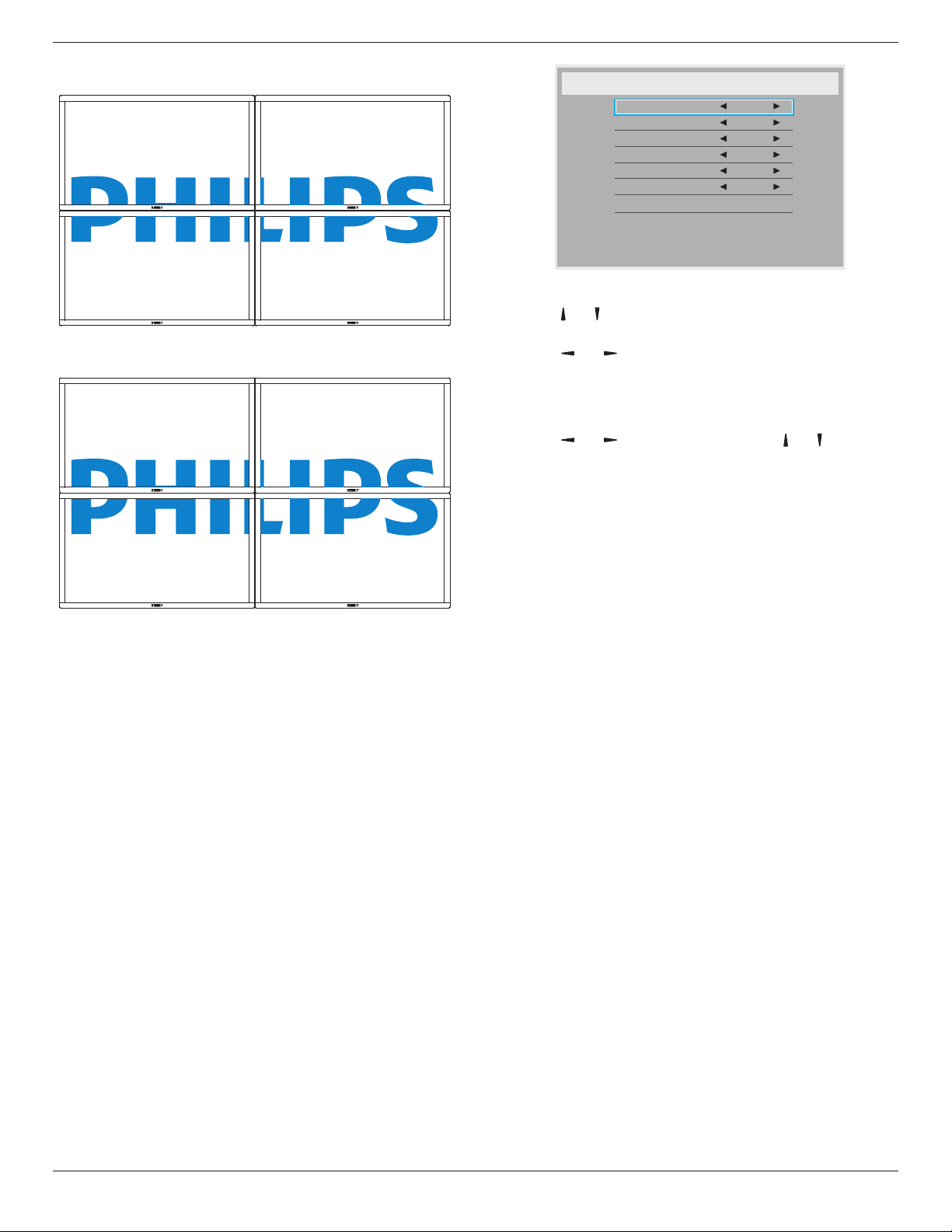
43BDL4051T
49
Frame compensation - Yes
Frame compensation - No
• {Enable}-ChoosetoenableordisabletheTilingfunction.Ifenabled,
thedisplaywillapplythesettingsin{H monitors},{V monitors},
{Position},and{Frame comp.}.
• {Switch on delay}-Setthepower-ondelayingtime(inseconds).
Thedefaultoption{Auto}allowsasequentialpowering-onforeach
displaybytheirIDnumberwhenmultipledisplaysareconnected.
Theoptionsare:{Off/Auto/2-255}
• Brightness:{Normal}/{ACS}
{Normal}:ApplyOSDbrightnessvalue(backlight)
{ACS}:Applybrightnessvalue(backlight)whichisadjustedbyMICtool.
ThedefaultvaluebeforeadjustmentisthesameasOSDbrightness
value,e.g.,70)
Somebrightness(backlight)settingscannotbeadjustedbyOSD.Please
refertoPictureMenuBacklightsettingpriority.
Off Timer
Setautomaticallypowerofftime(inhours).
Date and time
Adjustthecurrentdateandtimeforthedisplay’sinternalclock.
Date and time
Year
Month
Day
Hour
Minute
Daylight saving time
Current date time
2015 . 01 . 01 22 : 41 : 00
Press [OK] to set clock
2015
1
1
22
40
Auto Sync No
1. Press[OK]buttontoenterthesubmenu.
2. Press[
] or[ ]buttontotogglebetween{Year},{Month},{Day},
{Hour},{Minute},and{Daylight saving time}.
3. Press[
]
or[ ]buttontoadjustallsettingsexcept{Daylight
saving time}.
4. Press[OK]buttontoenterthe{Daylight saving time}submenu.
5. Press[
]
or[ ]buttontoselectitem,press[ ] or[ ] buttonto
adjust.
The Daylight saving time denition and behavior:
Thecurrentimplementationofdaylightsavingisaremindertoolfor
thecustomerwhichdoesn’tknowhowtoadjusttheclockfordaylight
savingonandoff.Itdoesnotadjusttherealtimeclockautomatically.
Problemisthattherearenostablerulesperregion,orcountrywhento
adjusttheclock.Tosolvethistheusermustbeabletosetthedaylight
savingstartenstopdate.Whendaylightsavingcorrectionison(user
selectable)thentherealtimeclockshouldbeadjustedatthemoment
intimesetinthedaylightsavingonandoffdate.Atdaylightstartdate
theclockshouldbeputforward1hourat2o’clock.Atdaylightstop
datetheclockshouldbeputback1hourat2o’clock.
Theexistingdaylighton/offmenuitemshouldbereplacedwiththe
followingmenustructure:
• Menuitem<Daylightsavingsetup>openssubmenucontainingthe
followingitems:
• Menuitem<Daylight-savingstartdate>Selectionitem<1st,2nd,
3rd,4th,last>Sundayofselectionitem<1-12month>
• Menuitem<Daylight-savingstopdate>Selectionitem<1st,2nd,
3rd,4th,last>Sundayofselectionitem<1-12month>
• optional
• Menuitem<Correctiontime>Selectionitem<0.5,1.0,1.5,2.0>
hour
• Menuitem<Daylightsavingcorrection>Selectionitem<on,off>
when“daylightsaving”is“on”therealtimeclockwouldhavebeen
adjustedautomaticallyforwinterandsummertimewhenpassingthe
criticalmomentintime(egmarch29,2009,02.00o’clock:timewillbe
set1hourlaterorOctober25,2009,02.00o’clock:timewillbeset1
hourearlier)
Schedule
Thisfunctionallowsyoutoprogramupto7(seven)differentscheduled
timeintervalsforthedisplaytoactivate.
Youcanselect:
• Thetimeforthedisplaytoturnonandturnoff.
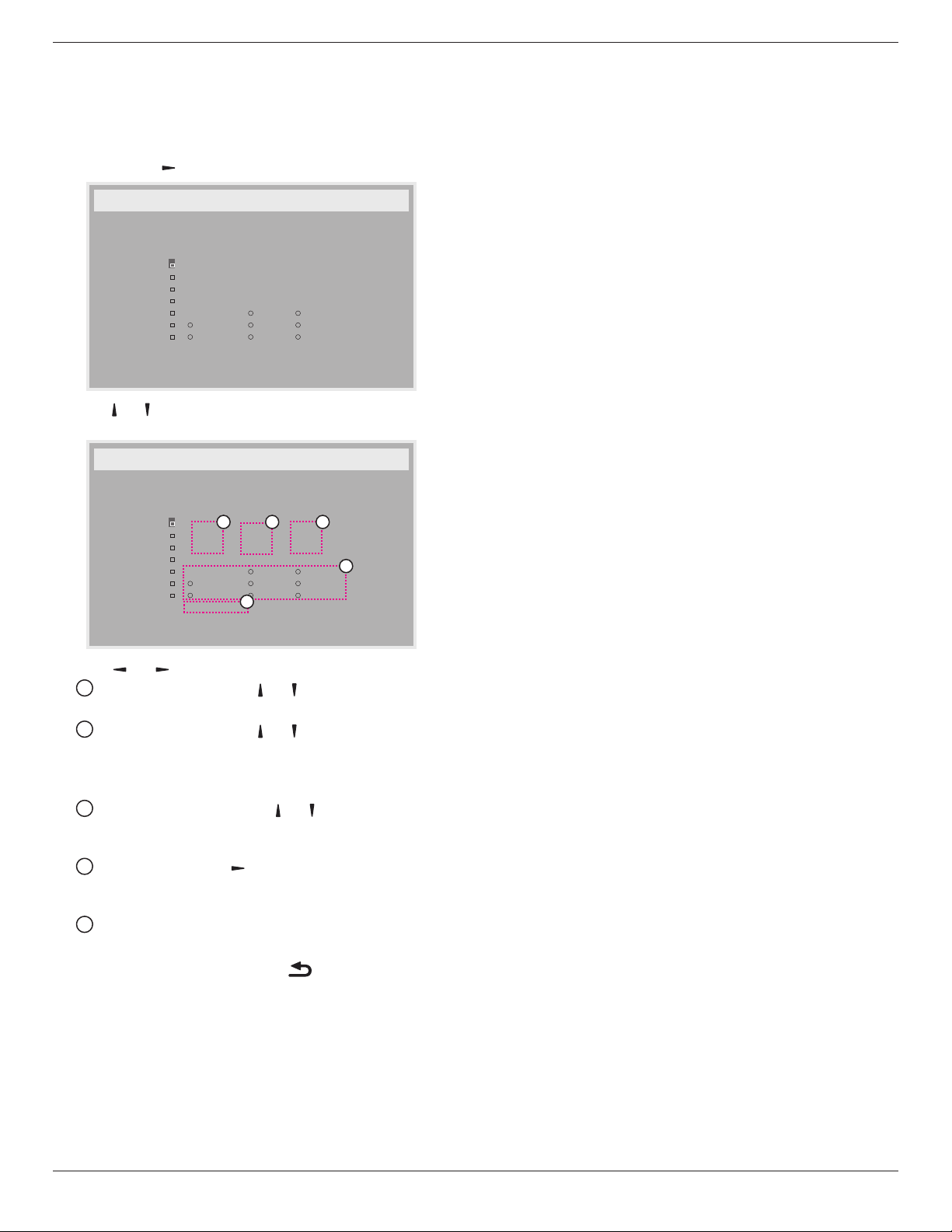
43BDL4051T
50
• Thedaysinaweekforthedisplaytoactivate.
• Whichinputsourcethedisplaywilluseforeachscheduled
activationperiod.
NOTE: Werecommendyoutosetupcurrentdateandtimeinthe
{Date and time}menubeforeusingthisfunction.
1. Press[OK]or[
]buttontoenterthesubmenu.
Schedule
Today
1
2
3
4
5
7
6
2015 . 01 . 04 SUN 04 : 14 : 01
On
:
_
:
_ _ _ _
O
Input
WED
SAT
MON
THU
SUN
TUE
FRI
Every week
Clear all
playlist 0
2. Press[ ] or[ ] buttontoselectascheduleitem(itemnumber1~7),
andthenpress[OK]buttontomarkittheitemnumber.
Schedule
Today
1
2
3
4
5
7
6
2015 . 01 . 04 SUN 04 : 14 : 01
On
:
_
:
_ _ _ _
O
Input
WED
SAT
MON
THU
SUN
TUE
FRI
Every week
Clear all
playlist 0
4
1
32
5
3. Press[ ]
or[ ]buttontoselecttheschedule:
1
Power-onschedule:Press[ ] or[ ]buttontosetthehour
andminuteforthedisplaytoturnon.
2
Power-offschedule:Press[ ] or[ ] buttontosetthehour
andminuteforthedisplaytoturnoff.
Selectorleaveanempty“__”forboththehourandminuteslotif
youdonotwanttousethispower-onorpower-offschedule.
3
Input-sourceselection:Press[ ] or[ ] buttontoselectan
inputsource.Ifnoinputsourceisselected,theinputsource
willremainthesameaslastselected.
4
Dateschedule:Press[ ]buttontoselectwhichdayina
weekthisscheduleitemwillbetakeeffect,andthenpressthe
[OK]button.
5
WhenInput-sourceselecttoUSB,enabletoaccessplaylist
setting:
4.
Foradditionalschedulesettings,press[
],thenrepeatthesteps
above.Acheckmarkintheboxnexttothenumberoftheschedule
itemindicatesthattheselectedscheduleisineffect.
NOTES:
• Iftheschedulesoverlap,thescheduledpower-ontimetakespriority
overscheduledpower-offtime.
• Iftherearetwoscheduleitemsprogrammedforthesametime,the
highestnumberedscheduletakespriority.Forexample,ifschedule
items#1and#2bothsetthedisplaytopoweronat7:00AMand
offat5:00PM,thenonlyscheduleitem#2willtakeeffect.
HDMI with One Wire
CECcontrol.
• {Off} -DisableCEC.(Default)
• {On}-EnableCEC.
Auto signal detection
Choosetoletthedisplaydetectanddisplayavailablesignalsources
automatically.
• {Off}-Onceasignalisconnected,itcanonlybeselectedmanually.
Iftheselectedinputisnosignal,setthedisplaytodisplaytheimage
automaticallyaccordingtothesearchorderofeachoption.
Theoptionsare:{All} / {Failover}
• {All}:DP -> HDMI1 -> HDMI2 -> DVI -> VGA->MediaPlayer->
Browser->SmartCMS->PDFReader->Custom.
• {Failover}
- Failover1:User-denedsetting.Default:HDMI1.
- Failover2:User-denedsetting.Default:HDMI1.
- Failover3:User-denedsetting.Default:HDMI1.
- Failover4:User-denedsetting.Default:HDMI1.
- Failover5:User-denedsetting.Default:HDMI1.
- Failover6:User-denedsetting.Default:HDMI1.
- Failover7:User-denedsetting.Default:HDMI1.
- Failover8:User-denedsetting.Default:HDMI1.
- Failover9:User-denedsetting.Default:HDMI1.
- Failover10:User-denedsetting.Default:HDMI1.
Power Save
Powersavemodes
Mode1:DCoff->Poweroff.LED:Red.
PowerSave->Poweroff,LED:Red
Mode2:DCoff->Poweroff,LED:Red.
PowerSave->PowerSaving.LED:Orange.Canbewakeup.
Mode3:DCoff->Backlightoff,LED:Red
PowerSave->Backlightoff,LED:Orange.Canbewakeup.
Mode4:DCoff->Backlightoff,LED:Red
PowerSave->Willnotenterpowersavemode.show“nosignal”only.
*Note:WhenAutoFWupdateisnotOFF,displaywillworkunder
Mode3forFWupdate,butOSDitemwillnotchange.
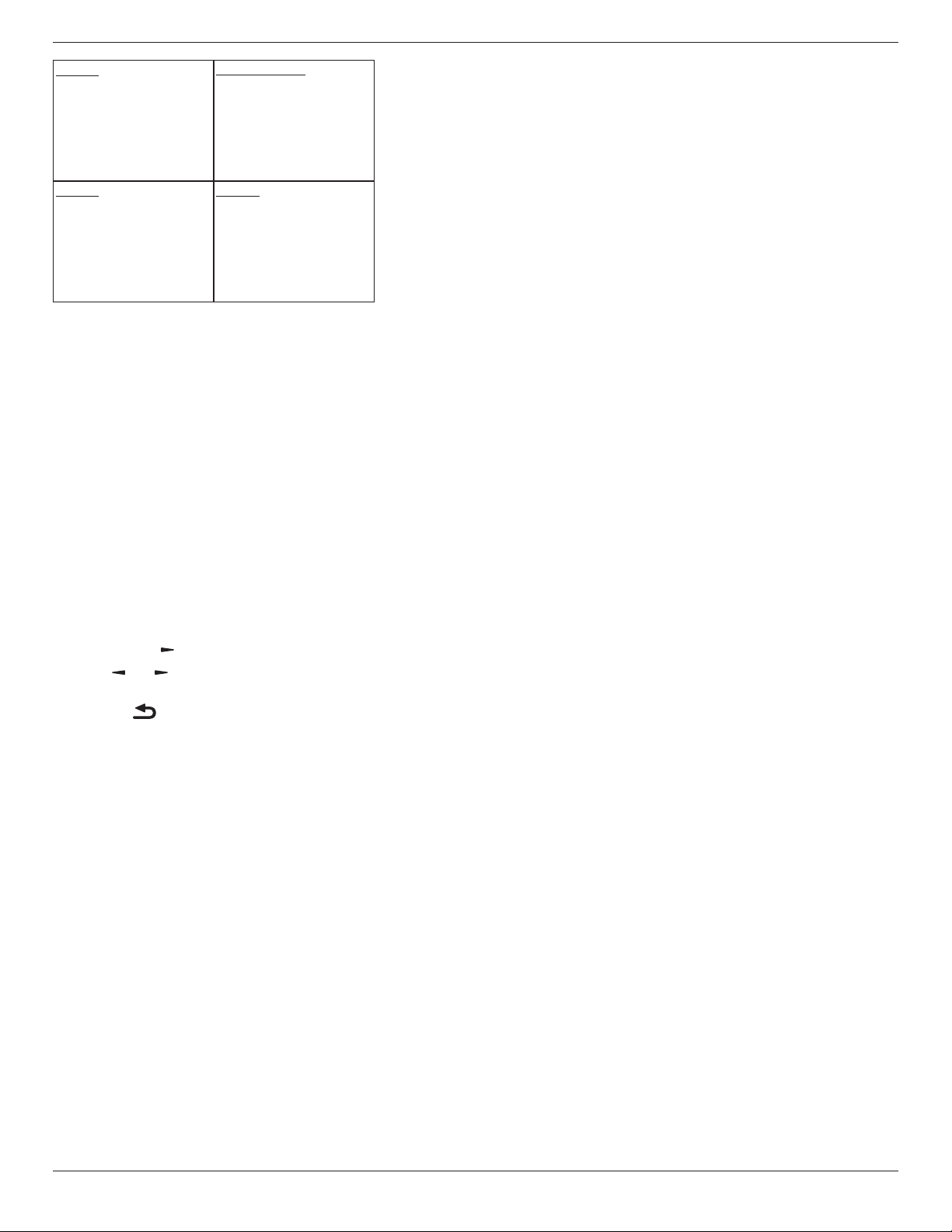
43BDL4051T
51
Mode3
DCOFF:
BacklightOffonly
PowerSave:
BacklightOoffonly
Mode1(default)
DCOFF:
PowerOff
PowerSave:
PowerOff
Mode4
DCOFF:
BacklightOffonly
PowerSave:
Nosignal(BacklightOn)
Mode2
DCOFF:
PowerOff
PowerSave:
PowerSaving
Scalar FW Update
UpdatescalarFWbyUSB.
Auto FW Update
SetupAndroidFWautobackgroundupdatetime.
*Note:WhenAutoFWupdateisnotOFF,displaywillworkunder
Mode3forFWupdate,butOSDitemwillnotchange.
USB cloning
CopyPDsettingsfromonesettoanother.
Import:Copysettingsfromletodisplay
Export:CopyPDsettingsintole.
*Cloneddatastoresinandroidinternalstorage.UserneedtouseAPK
tocopycloneddatatoanotherdisplay.
Advanced option reset
Resetallsettingsexcept{Date and Time}intheAdvanced optionmenu
tofactorypresetvalues.
1. Press[OK]or[
]buttontoenterthesubmenu.
2. Press[
]
or[ ]buttontoselect{Reset}andpressthe[OK]
buttontorestoresettingstofactorypresetvalues.
3.
Pressthe[
]buttonorselect{Cancel}andpressthe[OK]
buttontocancelandthenreturntothepreviousmenu.
43BDL4051T
52
7. USB device compatibility
USB Multimedia Codec formats
Video Decode
Type VideoCodec Container Decode Encode Channel
Remark
MPEG1/2 MPEG1/2 FileFormat:DAT,MPG,VOB,TS V
SupportedImageSize:48x48pixelsto1920x1088pixels
MaximumFrameRate:30fps
MaximumBitRate:80Mbps
AudioCodec:MP2,MP3
MPEG-4 MPEG4
FileFormat:AVI,MKV,MP4,MOV,
3GP
V
SupportedImageSize:48x48pixelsto1920x1088pixels
MaximumFrameRate:30fps
MaximumBitRate:38.4Mbps
AudioCodec:MP2,MP3,AAC,PCM,
(1)NotsupportMSMPEG4v1/v2/v3
(2)NotsupportGMC(globalmotioncompensation)
H.263 H.263 FileFormat:3GP,MOV,MP4 V
SupportedImageSize:SQCIF(128x96),
QCIF(176x144),
CIF(352x288),4CIF(704x576)
MaximumFrameRate:30fps
MaximumBitRate:38.4Mbps
AudioCodec:MP3
(1)NotsupportH.263+
H.264 H.264
FileFormat:AVI,MKV,MP4,MOV,
3GP,TS,FLV
V
SupportedImageSize:48x48pixelsto1920x1088pixels
MaximumFrameRate:30fps
MaximumBitRate:57.2Mbps
AudioCodec:MP2,MP3,AAC,PCM
(1)NotsupportMBAFF
GOOGLE
VP8
VP8 FileFormat:WEBM V
SupportedImageSize:48x48pixelsto1920x1088pixels
MaximumFrameRate:30fps
MaximumBitRate:38.4Mbps
AudioCodec:OggVorbis
MotionJPEG MJPEG FileFormat:AVI,MOV V
SupportedImageSize:48x48pixelsto1920x1088pixels
MaximumFrameRate:30fps
MaximumBitRate:38.4Mbps
AudioCodec:MP2,MP3,AAC,PCM
Audio Decode
Type AudioCodec Container Decode Encode Channel Remark
MPEGAudio
MPEG1/2/2.5Audio
Layer1/2/3
Decode:MP1,MP2,MP3 V 2
BitRate:8kbps~320Kbps,CBRandVBR
SamplingRate:8KHZ~48KHz
Windows
MediaAudio
WMAVersion4,4.1,
7,8,9,wmapro
Decode:WMA V 2
BitRate:8kbps~320Kbps
SamplingRate:8KHZ~48KHz
Non-supportWMAPro,losslessandMBR
AACAudio
MAIN,ADIF,ATDS
HeaderAAC-LC
andAAC-HE
FileFormat:AAC,M4A V 5.1
BitRate:N/A
SamplingRate:8KHZ~48KHz
Image Decode
Type ImageCodec Photo Decode Encode Channel Remark

43BDL4051T
53
JPEG JFIFleformat1.02 FileFormat:JPG,JPEG V Decode:Resolution48X48to8176X8176
(1)NotSupportNon-interleavedScan
(2)SoftwaresupportSRGBJPEG
(3)SoftwaresupportAdobeRGBJPEG
BMP BMP FileFormat:BMP V MaximumSupportedImageSize:4096x4096pixels
GIF GIF FileFormat:GIF V ResolutionNoRestriction
PNG PNG FileFormat:PNG V ResolutionNoRestriction
NOTES:
• Soundorvideomaynotworkifthecontentshaveastandardbitrate/framerateabovethecompatibleFrame/seclistedinthetableabove.
• VideocontentwithaBitrateorFrameratelargerthantheratespeciedinthetableabovecancausechoppyvideoduringplayback.
43BDL4051T
54
8. Input Mode
VGA Resolution:
Standard
Resolution
ActiveResolution
RefreshRate PixelRate AspectRatio StandforMode
HPixels VLines
VGA 640 480
60Hz 25.175MHz
4:3 VideoGraphicArray72Hz 31.5MHz
75Hz 31.5MHz
WVGA 720 400 70Hz 33.75MHz 16:9 WideVideoGraphicArray
SVGA 800 600
60Hz 40MHz
4:3 SuperVGA
75Hz 49.5MHz
XGA 1024 768
60Hz 65MHz
4:3 ExtendedGraphicArray
75Hz 78.75MHz
WXGA 1280 768 60Hz 79.5MHz 5:3 WideXGA
WXGA 1280 800 60Hz 79.5MHz 16:10 WideXGA
SXGA 1280 1024 60Hz 108MHz 5:4 SuperXGA
WXGA 1360 768 60Hz 85.5MHz 16:9 WideXGA
UXGA 1600 1200 60Hz 162MHz 4:3 UltraXGA
HD1080 1920 1080 60Hz 148.5MHz 16:9 HD1080
SDTV Resolution:
Standard
Resolution
ActiveResolution
RefreshRate PixelRate AspectRatio StandforMode
HPixels VLines
480i
720 480 59.94Hz 27MHz 4:3 ModiedNTSCStandard
480p
576i
720 576 50Hz 27MHz 4:3 ModiedPALStandard
576p
HDTV Resolution:
Standard
Resolution
ActiveResolution
RefreshRate PixelRate AspectRatio StandforMode
HPixels VLines
720p 1280 720
50Hz
74.25MHz 16:9 NormallyDVBMode
60Hz
1080i 1920 1080
50Hz 74.25MHz
16:9 NormallyATSCMode
60Hz 74.176MHz
1080p 1920 1080
50Hz 148.5MHz
16:9 NormallyATSCMode
60Hz 148.325MHz
• ThePCtextqualityisoptimuminHD1080mode(1920x1080,60Hz).
• YourPCdisplayscreenmightappeardifferentdependingonthemanufacturer(andyourparticularversionofWindows).
• CheckyourPCinstructionbookforinformationaboutconnectingyourPCtoadisplay.
• Ifaverticalandhorizontalfrequency-selectmodeexists,select60Hz(vertical)and31.5KHz(horizontal).Insomecases,abnormalsignals(suchas
stripes)mightappearonthescreenwhenthePCpoweristurnedoff(orifthePCisdisconnected).Ifso,pressthe[INPUT]buttontoenterthevideo
mode.Also,makesurethatthePCisconnected.
• WhenhorizontalsynchronoussignalsseemirregularinRGBmode,checkPCpowersavingmodeorcableconnections.
• ThedisplaysettingstablecompliestotheIBM/VESAstandards,andbasedontheanaloginput.
• TheDVIsupportmodeisregardedassametothePCsupportmode.
• Thebesttimingfortheverticalfrequencytoeachmodeis60Hz.
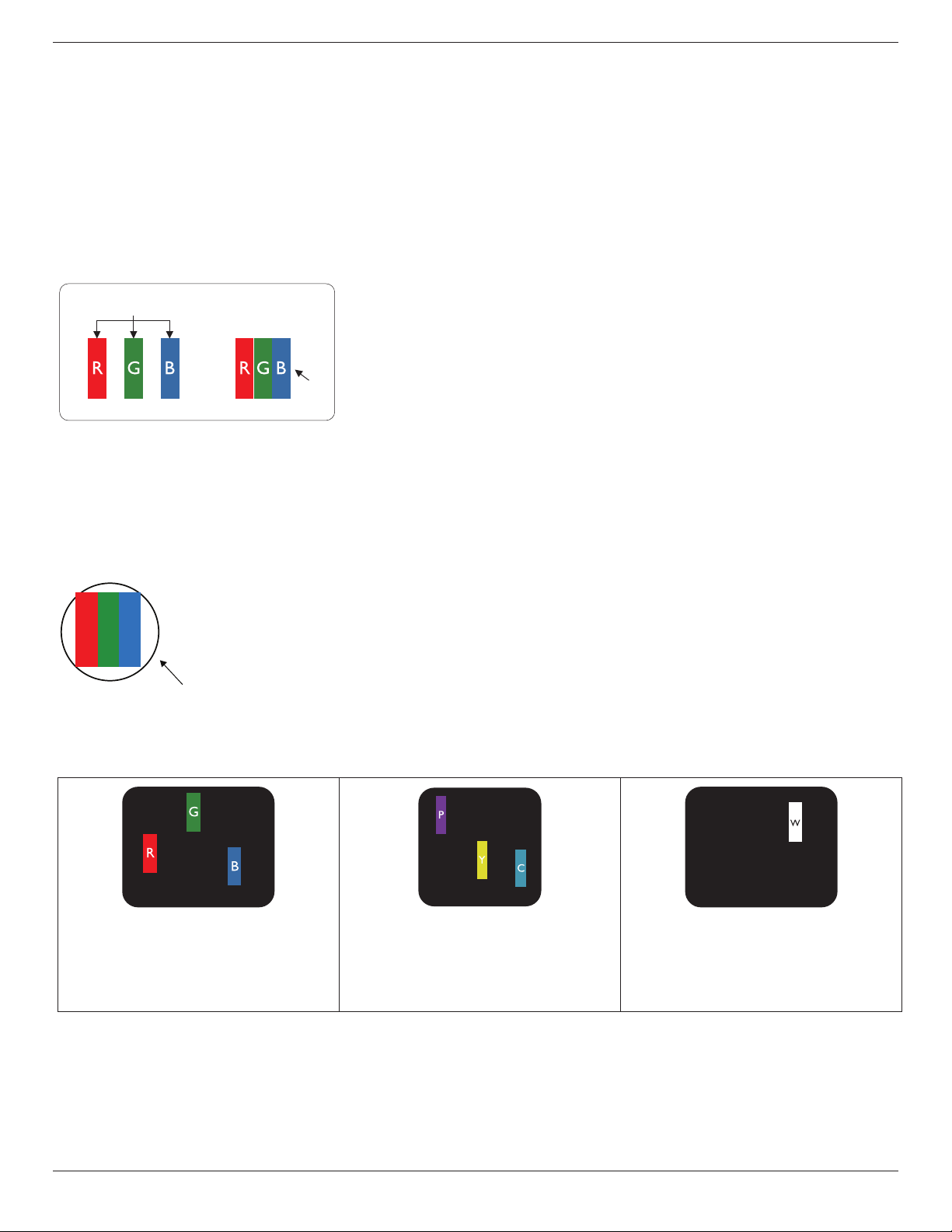
43BDL4051T
55
9. Pixel Defect Policy
Westrivetodeliverthehighestqualityproductsandusesomeoftheindustry’smostadvancedmanufacturingprocesseswhilstpracticingstringentquality
control.However,pixelorsub-pixeldefectsonthePDP/TFTpanelsusedinPlasma-&LCD-displaysaresometimesunavoidable.Nomanufacturercan
guaranteethatallpanelswillbefreefrompixeldefects,butPhilipsguaranteesthatanyPlasma-&LCD-displayswithanunacceptablenumberofdefects
willberepairedduringthewarrantyperiodinlinewithyourlocalguaranteeconditions.
ThisnoticeexplainsthedifferenttypesofpixeldefectsanddenestheacceptabledefectlevelfortheLCDscreen.Inordertoqualifyforrepairunder
warranty,thenumberofpixeldefectsmustexceedacertainlevelasshowninthereferencetable.IftheLCDscreeniswithinspecicationawarranty
exchange/claimbackwillberefused.Additionally,becausesometypesorcombinationsofpixeldefectsaremorenoticeablethanothers,Philipssets
evenhigherqualitystandardsforthose.
9.1. Pixels and Sub-Pixels
subpixel
pixel
Apixel,orpictureelement,iscomposedofthreesub-pixelsintheprimarycolorsofred,greenand
blue.Manypixelstogetherformanimage.Whenallsub-pixelsofapixelarelit,thethreecolored
sub-pixelstogetherappearasasinglewhitepixel.Whenallaredark,thethreecoloredsub-pixels
togetherappearasasingleblackpixel.Othercombinationsoflitanddarksub-pixelsappearas
singlepixelsofothercolors.
9.2. Types of Pixel Defects + Dot Definition
Pixelandsub-pixeldefectsappearonthescreenindifferentways.Therearethreecategoriesofpixeldefectsandseveraltypesofsub-pixeldefectswithin
eachcategory.
Dot denition = What is a defective “Dot”? :
Oneormoredefective,adjacentsub-pixelaredenedasone“dot”.Theno.ofdefectivesub-pixelsarenotrelevanttodeneadefectivedot.Thismeans
thatadefectivedotcanconsistofone,twoorthreedefectivesub-pixelswhichcanbedarkorlit.
RR G B
Onedot=OnePixel;consistsofthreesub-pixelsofRed,Green,andBlue.
9.3. Bright Dot Defects
Brightdotdefectsappearaspixelsorsub-pixelsthatarealwayslitor“on”.Thesearetheexamplesofbrightdotdefects:
Onelitred,greenorbluesubpixel Twoadjacentlitsubpixels:
Red+Blue=Purple
Red+Green=Yellow
Green+Blue=Cyan(LightBlue)
Threeadjacentlitsubpixels(onewhitepixel)
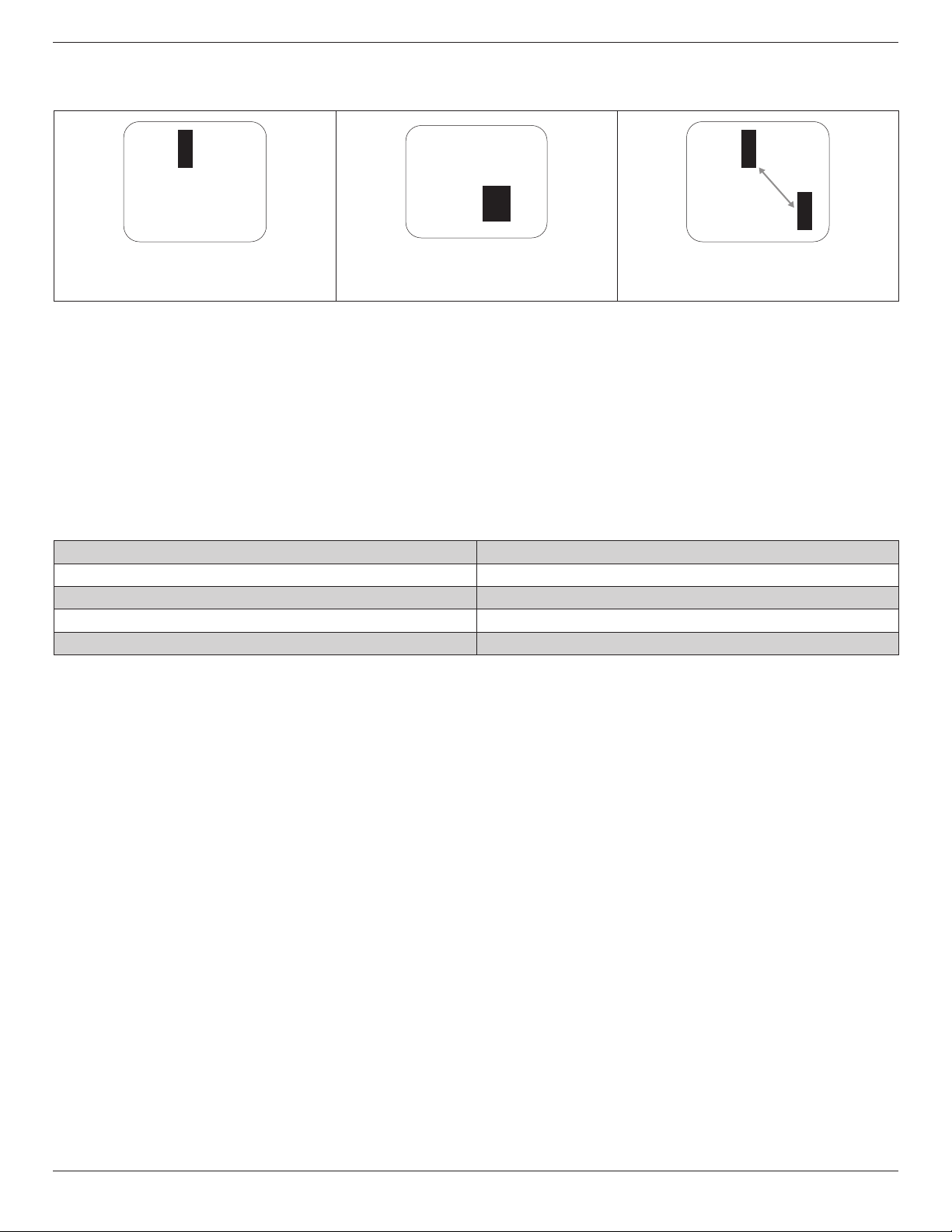
43BDL4051T
56
9.4. Dark Dot Defects
Blackdotdefectsappearaspixelsorsub-pixelsthatarealwaysdarkor“off”.Thesearetheexamplesofblackdotdefects:
Onedarkdot Twoadjacentdarkdots=1pairofdarkdots Twodarkdots,specicationsdenesthe
minimumdistancebetweendarkdots
9.5. Proximity of Pixel Defects
Becausepixelandsub-pixelsdefectsofthesametypethatarenearbyoneanothermaybemorenoticeable,Philipsalsospeciestolerancesforthe
proximityofpixeldefects.Inthetablebelowyoucanndspecicationsabout:
• Allowedamountofadjacentdarkdots=(adjacentdarkdots=1pairofdarkdots)
• Minimumdistancebetweendarkdots
• Totalno.ofalldefectivedots
9.6. Pixel Defect Tolerances
Inordertoqualifyforrepairduetopixeldefectsduringthewarrantyperiod,aPDP/TFTpanelinaPhilipsPlasma/LCD-displaymusthavepixelorsub-
pixeldefectsexceedingthetoleranceslistedinthefollowingtable.
BRIGHTDOTEFFECT ACCEPTABLELEVEL
1litsubpixel 2
BLACKDOTEFFECT ACCEPTABLELEVEL
1darksubpixel 10
TOTALDOTDEFECTSOFALLTYPES 12
NOTE:*1or2adjacentsubpixeldefects=1dotdefect
9.7. MURA
Darkspotsorpatchesmayoccasionallyappearonsomeliquidcrystaldisplay(LCD)panels.ThisisknownwithintheindustryasMura,whichisaJapanese
termfor“unevenness.”Itisusedtodescribeanirregularpatternorareainwhichunevenscreenuniformityappearsundercertainconditions.Muraisa
resultofthedeteriorationoftheliquidcrystalalignmentlayerandismostcommonlycausedbylong-termoperationunderhighambienttemperatures.It
isanindustry-widephenomenonandMuraisnotrepairable.Itisalsonotcoveredbyourwarrantyterms.
MurahasbeenaroundsincetheintroductionofLCDtechnologyandwithscreensgettingbiggerandinoperation24/7,manydisplaysarerunninginlow
lightconditions.ThisalladdstothepossibilityofMuraaffectingdisplays.
HOW TO SPOT MURA
TherearemanysymptomsofMuraandalsomultiplecauses.Severalofthesearelistedbelow:
• Impuritiesorforeignparticlesinthecrystalmatrix
• UnevendistributionofLCDmatrixduringmanufacturing
• Non-uniformluminancedistributionofthebacklight
• Panelassemblyinducedstress
• FlawswithintheLCDcells
• Thermalinducedstress-hightemperatureoperationoverlongperiodsoftime
HOW TO AVOID MURA
AlthoughwecannotguaranteethecompleteeradicationofMuraeverytime,ingeneraltheappearanceofMuracanbeminimizedbythesemethods:
• Lowerthebacklightbrightness
• Useascreensaver
• Reducetheambienttemperaturearoundtheunit

43BDL4051T
57
10. Cleaning and Troubleshooting
10.1. Cleaning
Caution When Using the Display
• Donotbringyourhands,faceorobjectsclosetotheventilationholesofthedisplay.Thetopofthedisplayisusuallyveryhotduetothehigh
temperatureofexhaustairbeingreleasedthroughtheventilationholes.Burnsorpersonalinjuriesmayoccurifanybodypartsarebroughttoo
close.Placinganyobjectnearthetopofthedisplaycouldalsoresultinheatrelateddamagetotheobjectaswellasthedisplayitself.
• Besuretodisconnectallcablesbeforemovingthedisplay.Movingthedisplaywithitscablesattachedmaydamagethecablesandthuscausere
orelectricshock.
• Disconnectthepowerplugfromthewalloutletasasafetyprecautionbeforecarryingoutanytypeofcleaningormaintenanceprocedure.
Front Panel Cleaning Instructions
• Thefrontofthedisplayhasbeenspeciallytreated.Wipethesurfacegentlyusingonlyacleaningclothorasoft,lint-freecloth.
• Ifthesurfacebecomesdirty,soakasoft,lint-freeclothinamilddetergentsolution.Wringtheclothtoremoveexcessliquid.Wipethesurfaceof
thedisplaytoremovedirt.Thenuseadryclothofthesametypetodry.
• Donotscratchorhitthesurfaceofthepanelwithngersorhardobjectsofanykind.
• Donotusevolatilesubstancessuchasinsertsprays,solventsandthinners.
Cabinet Cleaning Instructions
• Ifthecabinetbecomesdirty,wipethecabinetwithasoft,drycloth.
• Ifthecabinetisextremelydirty,soakalint-freeclothinamilddetergentsolution.Wringtheclothtoremoveasmuchmoistureaspossible.Wipe
thecabinet.Useanotherdryclothtowipeoveruntilthesurfaceisdry.
• Donotallowanywaterordetergenttocomeintocontactwiththesurfaceofthedisplay.Ifwaterormoisturegetsinsidetheunit,operating
problems,electricalandshockhazardsmayresult.
• Donotscratchorhitthecabinetwithngersorhardobjectsofanykind.
• Donotusevolatilesubstancessuchasinsertsprays,solventsandthinnersonthecabinet.
• DonotplaceanythingmadefromrubberorPVCnearthecabinetforanyextendedperiodsoftime.
43BDL4051T
58
10.2. Troubleshooting
Symptom Possible Cause Remedy
No picture is displayed 1. Thepowercordisdisconnected.
2. Themainpowerswitchonthebackofthe
displayisnotswitchedon.
3. Theselectedinputhasnoconnection.
4. Thedisplayisinstandbymode.
1. Pluginthepowercord.
2. Makesurethepowerswitchisswitchedon.
3. Connectasignalconnectiontothedisplay.
Interference displayed on the display or audible
noise is heard
Causedbysurroundingelectricalappliancesor
uorescentlights.
Movethedisplaytoanotherlocationtoseeisthe
interferenceisreduced.
Color is abnormal Thesignalcableisnotconnectedproperly. Makesurethatthesignalcableisattachedrmly
tothebackofthedisplay.
Picture is distorted with abnormal patterns 1. Thesignalcableisnotconnectedproperly.
2. Theinputsignalisbeyondthecapabilitiesof
thedisplay.
1. Makesurethatthesignalcableisattached
rmly.
2. Checkthevideosignalsourcetoseeifit
isbeyondtherangeofthedisplay.Please
verifyitsspecicationswiththisdisplay’s
specicationsection.
Display image doesn’t ll up the full size of the
screen
1. Thezoommodeisnotsetcorrectly.
2. ScanModemaybesetincorrectlyto
underscan.
3. Iftheimageexceedsthescreensize,Scan
ModemayneedtobesettoUnderscan.
UsetheZoommodeorCustomzoomfunction
intheScreenmenutonetunedisplaygeometry
andtimefrequencyparameter.
Can hear sound, but no picture Improperlyconnectedsourcesignalcable. Makesurethatbothvideoinputsandsound
inputsarecorrectlyconnected.
Can see picture but no sound is heard 1. Improperlyconnectedsourcesignalcable.
2. Volumeisturnedallthewaydown.
3. {Mute}isturnedon.
4. Noexternalspeakerconnected.
1. Makesurethatbothvideoinputsandsound
inputsarecorrectlyconnected.
2. Press[
]or[ ]buttontohearsound.
3. SwitchMUTEoffbyusingthe[
]button.
4. Connectexternalspeakersandadjustthe
volumetoasuitablelevel.
Some picture elements do not light up Somepixelsofthedisplaymaynotturnon. Thisdisplayismanufacturedusinganextremely
highlevelofprecisiontechnology:however,
sometimessomepixelsofthedisplaymaynot
display.Thisisnotamalfunction.
After-Images can still be seen on the display
after the display is powered off. (Examples
of still pictures include logos, video games,
computer images, and images displayed in 4:3
normal mode)
Astillpictureisdisplayedforanoverextended
periodoftime
Donotallowastillimagetobedisplayedfor
anextendedperiodoftimeasthiscancausea
permanentafter-imagetoremainonthedisplay.
43BDL4051T
59
11. Technical Specifications
Display:
Item Specications
ScreenSize(ActiveArea) 42.51Inches(1079.87mm)diagonalLCD
AspectRatio 16:9
Numberofpixels 1920(H)x1080(V)
Pixelpitch 0.4902(H)x0.4902(V)[mm]
Displayablecolors 8bits(D),16.7Millioncolors
Brightness(typical)
450
cd/m
2
(typ)
Contrastratio(typical) 1100:1
Viewingangle 178degrees
In/Out Terminals:
Item Specications
SpeakerOutput InternalSpeakers 10W(L)+10W(R)[RMS]/8Ω
1Way1SpeakerSystem
82dB/W/M/160Hz~13KHz
AudioOutput PhoneJackx1 0.5V[rms](Normal)/2Channel(L+R)
AudioInput 3.5mmStereox1 0.5V[rms](Normal)/2Channel(L+R)
RS232 2.5mmPhonejackx2 RS232in/RS232out
RJ-45 RJ-45Jackx1(8pin) 10/100LANPort
HDMIInput HDMIJackx2
(TypeA)(19pin)
DigitalRGB:TMDS(Video+Audio)
MAX:
Video-720p,1080p,1920x1080/60Hz(WUXGA)
Audio-48KHz/2Channel(L+R)
SupportsLPCMonly
DVI-I(DVI-D&VGA)
Input
DVI-Ijack DigitalRGB:TMDS(Video)
AnalogRGB:0.7V[p-p](75Ω),H/CS/V:TTL(2.2kΩ),SOG:1V[p-p](75Ω)
MAX:720p,1080p,1920x1080/60Hz(WUXGA)
DVI-I(DVI-D&VGA)
Output
DVI-IJackx1(29pin) DigitalRGB:TMDS(Video)
AnalogRGB:0.7V[p-p](75Ω),H/CS/V:TTL(2.2kΩ),SOG:1V[p-p](75Ω)
MAX:720p,1080p,1920x1080/60Hz(WUXGA)
Displayportin/out DisplayportJackx2
(20pin)
DigitalRGB:TMDS(Video+Audio)
MAX:
Video-720p,1080p,1920x1080/60Hz(WUXGA)
Audio-48KHz/2Channel(L+R)
SupportsLPCMonly
43BDL4051T
60
General:
Item Specications
Internalmemory 16GBeMMC(12GBusable)
PowerSupply AC100-240V,50-60Hz
PowerConsumption(Max) 114W
PowerConsumption(typ.) 59W
PowerConsumption(Standby&Off) <0.5W(RS232inactive)
Dimensions(WithoutStand)[WxHxD] 1002.6x590.8x64.0(VESA)/91.4(Handle)mm
Weight(WithoutStand) 19.4Kg
GrossWeight(WithoutStand) 24.6Kg
Product Fiche :
Item Specications
EnergyEfciencyClass A
VisibleScreenSize 108cm/42.5inch
OnModePowerConsumption(W) 56
AnnualEnergyConsumption(kWh) 82
StandbyPowerConsumption(W) 0.5W
OffModePowerConsumption(W) 0.5W
DisplayResolution(Pixels) 1920x1080p
NetworkStandby(W) 3W
Environmental Condition:
Item Specications
Temperature Operational 0~40°C
Storage -20~60°C
Humidity Operational 20~80%RH(Nocondensation)
Storage 5~95%RH(Nocondensation)
Altitude Operational 0~3,000m
Storage/Shipment 0~9,000m
Internal Speaker:
Item Specications
Type 1Way1Speaker
Input 10W(RMS)
Impedance 8Ω
OutputSoundPressure 82dB/W/M
FrequencyResponse 160Hz~13KHz

2016 © Koninklijke Philips N.V. All rights reserved.
Philips and the Philips Shield Emblem are registered trademarks of
Koninklijke Philips N.V. and are used under license from
Koninklijke Philips N.V.
Specications are subject to change without notice.