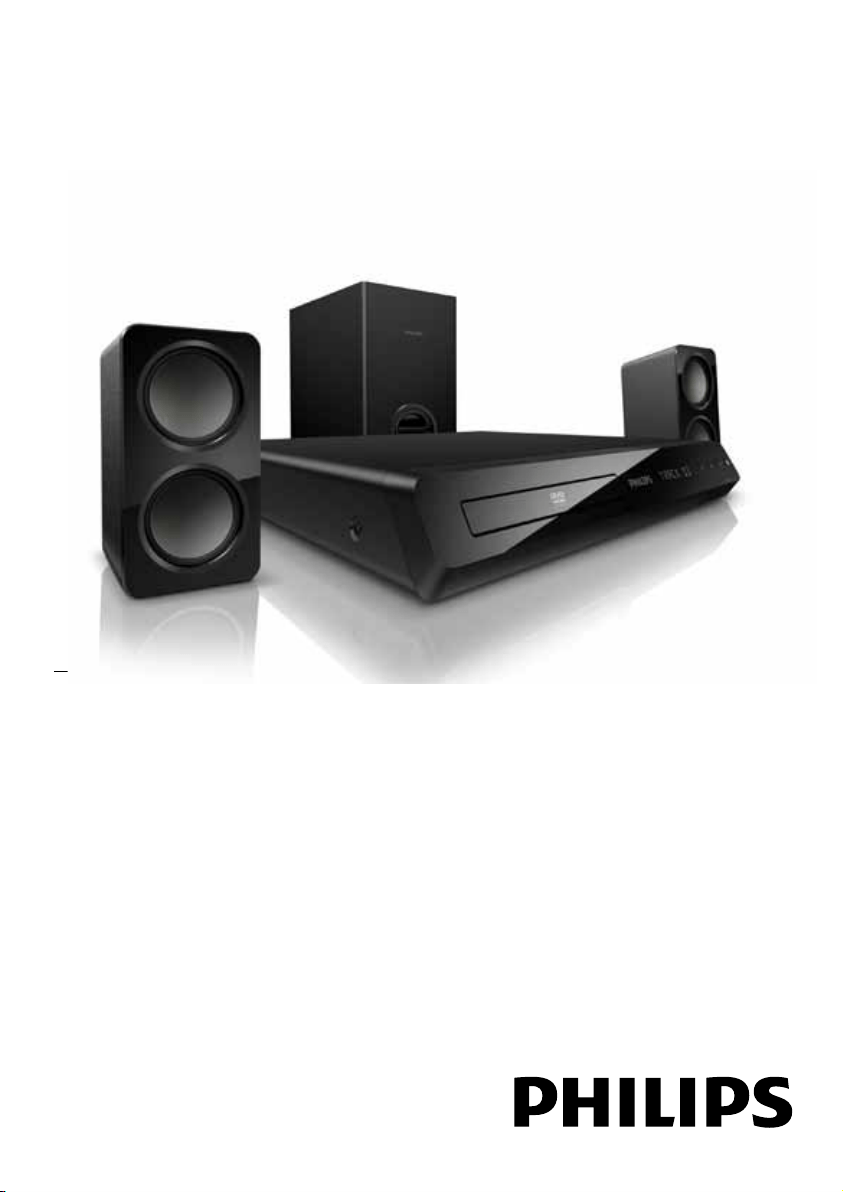
Register your product and get support at
www.philips.com/welcome
HTS3201

3
7 Update software 21
Check software version 21
Update software through USB or CD-R 21
8 Productspecications 22
9 Troubleshooting 23
10 Index 25
Contents
1 Notice 4
Copyright 4
Compliance 4
Mains fuse (UK only) 4
Trademarks 4
2 Important 5
Safety 5
Care for your product 5
Care of the environment 6
3 Your home theater 6
Main unit 6
Remote control 7
4 Connect your home theater 8
Speakers 8
Connectors 9
Connect to TV 10
Connect audio from TV and other devices 10
5 Use your home theater 12
Choose sound 12
Discs 12
USB storage devices 13
DivX 14
Audio, video, and picture options 14
Radio 15
MP3 player 16
Create MP3 les 16
EasyLink 17
6 Change settings 18
Picture 18
Sound 18
Language 19
Parental control 19
Energy saving 20
Apply factory settings 20
EN
4
Trademarks
Manufactured under license from Dolby
Laboratories. Dolby and the double-D symbol
are trademarks of Dolby Laboratories.
DivX , DivX Certied and associated logos are
registered trademarks of DivX, Inc. and are used
under license.
ABOUT DIVX VIDEO: DivX® is a digital
video format created by DivX, Inc. This is an
ofcial DivX Certied® device that plays DivX
video. Visit divx.com for more information and
software tools to convert your les into DivX
video.
ABOUT DIVX VIDEO-ON-DEMAND: This
DivX Certied
device must be registered
in order to play purchased DivX Video-on-
Demand (VOD) movies. To obtain your
registration code, locate the DivX VOD section
in your device setup menu. Go to vod.divx.com
for more information on how to complete your
registration.
HDMI, and HDMI logo, and High-Denition
Multimedia Interface are trademarks or
registered trademarks of HDMI licensing LLC in
the United States and other countries.
CLASS 1
LASER PRODUCT
1 Notice
This section contains the legal and trademark
notices.
Copyright
This item incorporates copy protection technology
that is protected by U.S. patents and other
intellectual property rights of Rovi Corporation.
Reverse engineering and disassembly are
prohibited.
Copyright in the UK
Recording and playback of material may require
consent. See Copyright Act 1956 and The
Performers Protection Acts 1958 to 1972.
Compliance
This product is in compliance with the essential
requirements and other relevant provisions of
Directives 2006/95/EC (Low Voltage), 2004/108/
EC (EMC).
Mains fuse (UK only)
This information applies only to products with a
UK mains plug.
This product is tted with an approved molded
plug. If you replace the fuse, use one with:
• the ratings shown on the plug,
• a BS 1362 approval, and
• the ASTA approval mark.
Contact your dealer if you are not sure about
what type of fuse to use.
Caution: To conform with the EMC directive
(2004/108/EC), do not detach the plug from the
power cord.
EN

5
• Never place the product or any objects
on power cords or on other electrical
equipment.
• If the product is transported in
temperatures below 5°C, unpack the
product and wait until its temperature
matches room temperature before
connecting it to the power outlet.
• Visible and invisible laser radiation when
open. Avoid exposure to beam.
• Do not touch the disc optical lens inside the
disc compartment.
• Parts of this product can be made of
glass. Handle with care to avoid injury and
damage.
Risk of overheating!
• Never install this product in a conned
space. Always leave a space of at least four
inches around the product for ventilation.
Ensure curtains or other objects never
cover the ventilation slots on the product.
Risk of contamination!
• Do not mix batteries (old and new or
carbon and alkaline, etc.).
• Remove batteries if they are exhausted or
if the remote control is not to be used for a
long time.
• Batteries contain chemical substances, they
should be disposed of properly.
Risk of swallowing batteries!
• The product/remote control may contain a
coin type battery, which can be swallowed.
Keep the battery out of reach of children at
all times!
Care for your product
• Do not insert any objects other than discs
into the disc compartment.
• Do not insert warped or cracked discs into
the disc compartment.
• Remove discs from the disc compartment
if you are not using the product for an
extended period of time.
• Use only microber cloth to clean the
product.
2 Important
Read and understand all instructions before you
use your home theater. If damage is caused by
failure to follow instructions, the warranty does
not apply.
Safety
Riskofelectricshockorre!
• Never expose the product and accessories
to rain or water. Never place liquid
containers, such as vases, near the product.
If liquids are spilt on or into the product,
disconnect it from the power outlet
immediately. Contact Philips Consumer
Care to have the product checked before
use.
• Never place the product and accessories
near naked ames or other heat sources,
including direct sunlight.
• Never insert objects into the ventilation
slots or other openings on the product.
• Where the mains plug or an appliance
coupler is used as the disconnect device,
the disconnect device shall remain readily
operable.
• Disconnect the product from the power
outlet before lightning storms.
• When you disconnect the power cord,
always pull the plug, never the cable.
Riskofshortcircuitorre!
• Before you connect the product to the
power outlet, ensure that the power
voltage matches the value printed on the
back or bottom of the product. Never
connect the product to the power outlet if
the voltage is different.
Risk of injury or damage to the home theater!
• For wall-mountable products, use only the
supplied wall mount bracket. Secure the
wall mount to a wall that can support the
combined weight of the product and the
wall mount. Koninklijke Philips Electronics
N.V. bears no responsibility for improper
wall mounting that results in accident, injury
or damage.
• For speakers with stands, use only the
supplied stands. Secure the stands to the
speakers tightly. Place the assembled stands
on at, level surfaces that can support the
combined weight of the speaker and stand.
EN
6
3 Your home theater
Congratulations on your purchase, and welcome
to Philips! To fully benet from the support that
Philips offers, register your home theater at www.
philips.com/welcome.
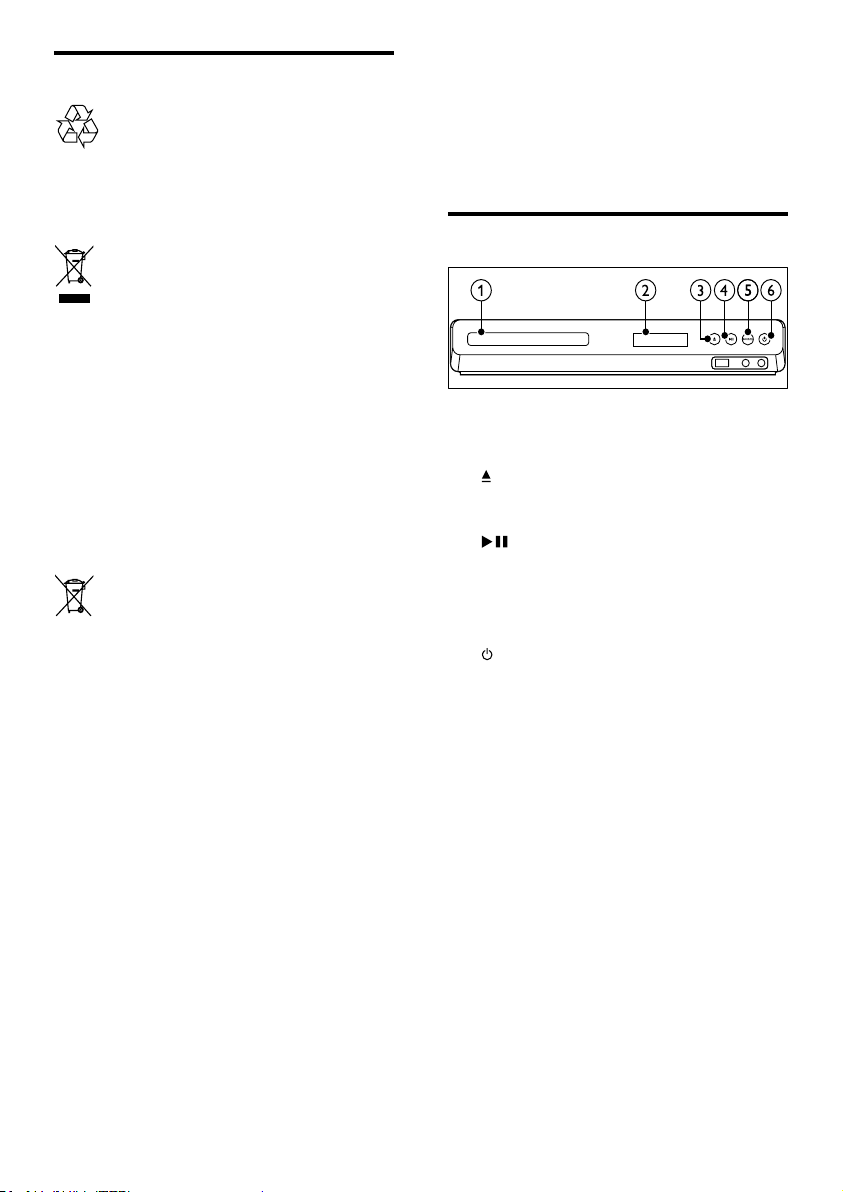
Main unit
a Disc compartment
b Display panel
c (Open/Close)
Open or close the disc compartment, or
eject the disc.
d (Play/Pause)
Start, pause or resume play.
e SOURCE
Select an audio or video source for the
home theater.
f (Standby-On)
Switch the home theater on or to standby.
Care of the environment
Your product is designed and manufactured with
high quality materials and components, which
can be recycled and reused.
When this crossed-out wheeled bin symbol is
attached to a product it means that the product
is covered by the European Directive 2002/96/
EC. Please inform yourself about the local
separate collection system for electrical and
electronic products.
Please act according to your local rules and
do not dispose of your old products with your
normal household waste.
Correct disposal of your old product helps to
prevent potential negative consequences for the
environment and human health.
Your product contains batteries covered by the
European Directive 2006/66/EC, which cannot
be disposed with normal household waste.
Please inform yourself about the local rules on
separate collection of batteries because correct
disposal helps to prevent negative consequences
for the environmental and human health.
EN
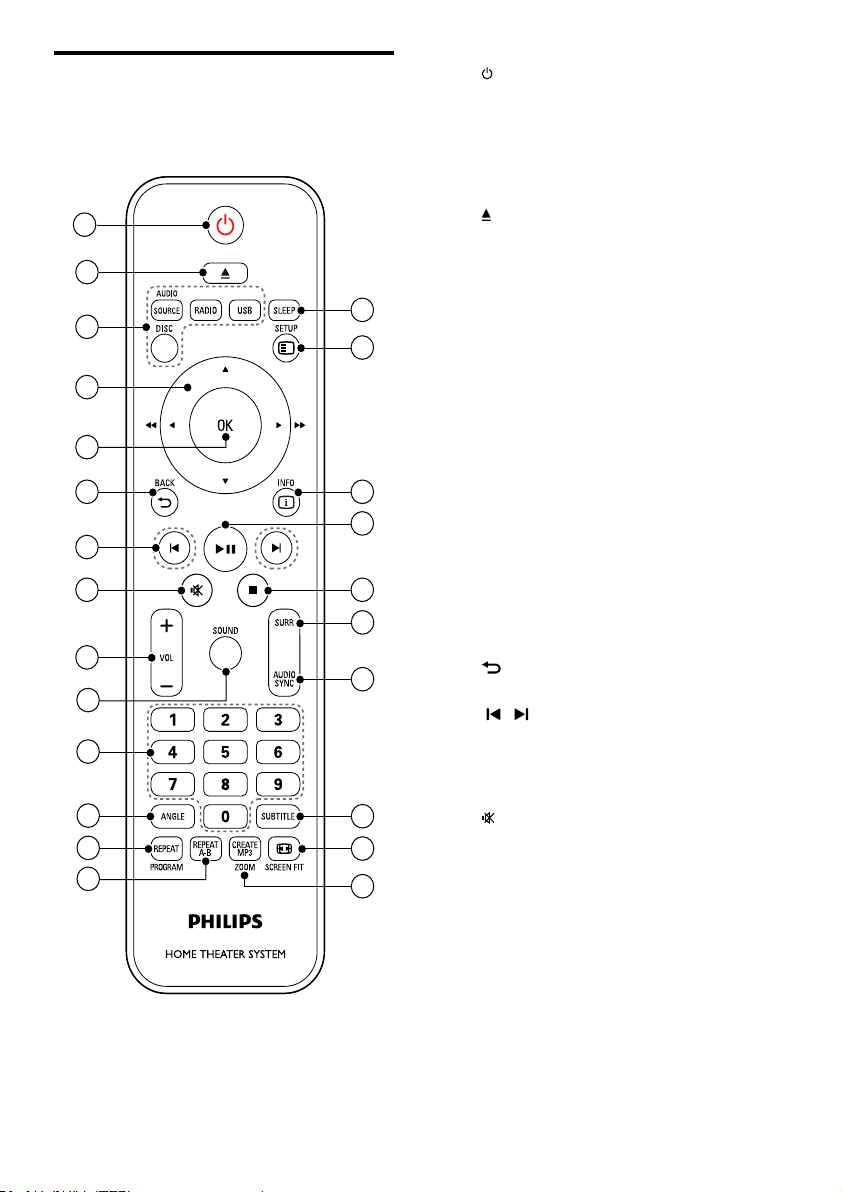
7
a (Standby-On)
• Switch the home theater on or to
standby.
• When EasyLink is enabled, press
and hold for at least three seconds
to switch all connected HDMI CEC
compliant devices to standby.
b (Open/Close)
Open or close the disc compartment, or
eject the disc.
c Source buttons
• DISC: Switch to disc source.Access
or exit the disc menu when you play
a disc.
• AUDIO SOURCE: Select an audio
input source.
• RADIO: Switch to FM radio.
• USB: Switch to USB storage device.
d Navigation buttons
• Navigate menus.
• In video mode, press left or right to
fast backward or fast forward; press
up or down to slow backward or slow
forward.
• In radio mode, press left or right to
search a radio station; press up or
down to ne tune a radio frequency.
e OK
Conrm an entry or selection.
f BACK
Return to a previous menu screen.
g / (Previous/Next)
• Skip to the previous or next track,
chapter or le.
• In radio mode, select a preset radio
station.
h (Mute)
Mute or restore volume.
i VOL +/-
Increase or decrease volume.
j SOUND
Select a sound mode.
k Numeric buttons
Select an item to play.
l ANGLE
Select video scenes recorded in different
camera angels.
Remote control
This section includes an overview of the remote
control.
1
2
3
4
5
6
7
8
20
9
10
11
12
13
14
15
16
17
18
19
21
22
23
24
EN
8
4 Connect your home
theater
This section helps you connect your home theater
to a TV and other devices.
For information about the basic connections of
your home theater and accessories, see the quick
start guide. For a comprehensive interactive guide,
see www.connectivityguide.philips.com.
Note
•
For identication and supply ratings, refer to the
type plate at the back or bottom of the product.
• Before you make or change any connections,
make sure that all devices are disconnected from
the power outlet.
Speakers
Position, connect, and set up your speakers for
best surround sound.
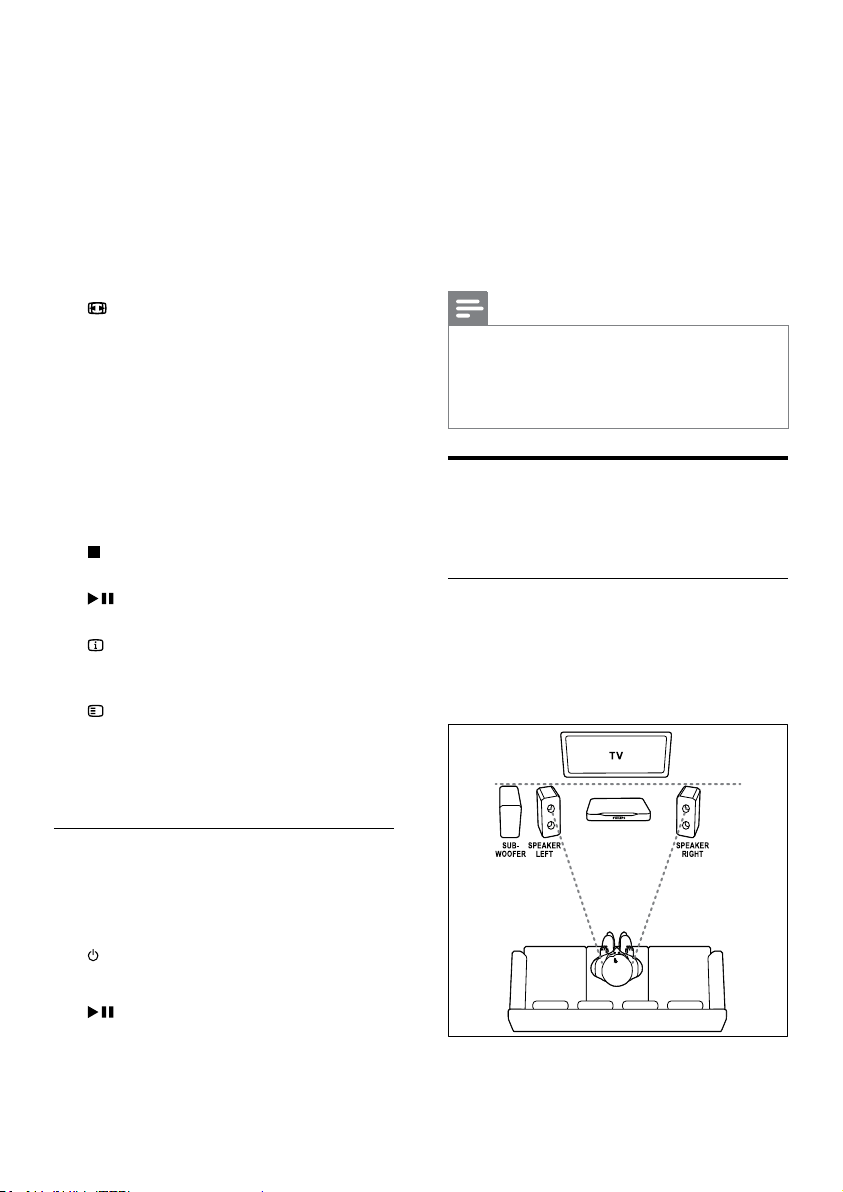
Position
Speaker position plays a critical role in setting up
a surround sound effect.
For best results, place your speakers and the
subwoofer as shown below.
m REPEAT / PROGRAM
• Select or turn off repeat mode.
• In radio mode, set a radio station.
n REPE AT A-B
Mark two points within a chapter or track
to repeat play, or turn off the repeat mode.
o CREATE MP3/ZOOM
• Access the create MP3 menu.
• Zoom into a video scene or picture.
Press the Navigation buttons (left/
right) to select a zoom factor.
p SCREEN FIT
Fit the picture format to the TV screen.
q SUBTITLE
Select subtitle language for video.
r AUDIO SYNC
• Select an audio language or channel.
• Press and hold to access audio delay
setting, then press +/- to delay the
audio to match the video.
s SURR
Select surround sound or stereo sound.
t (Stop)
Stop play.
u (Play/Pause)
Start, pause or resume play.
v INFO
Access more play options while playing a
disc or a USB storage device.
w SETUP
Access or exit the setup menu.
x SLEEP
Switch the home theater to standby after a
specied time.
EasyLink controls
With Easylink, you can control your home
theater and the TV with the following buttons
on your home theater remote control (see
‘EasyLink’ on page 17).
• (Standby-On): Press and hold to switch
your home theater, TV and the connected
devices to standby.
• (Play/Pause): When a video disc is in
the disc compartment, wake up the TV
from standby, and then play a disc.
EN
9
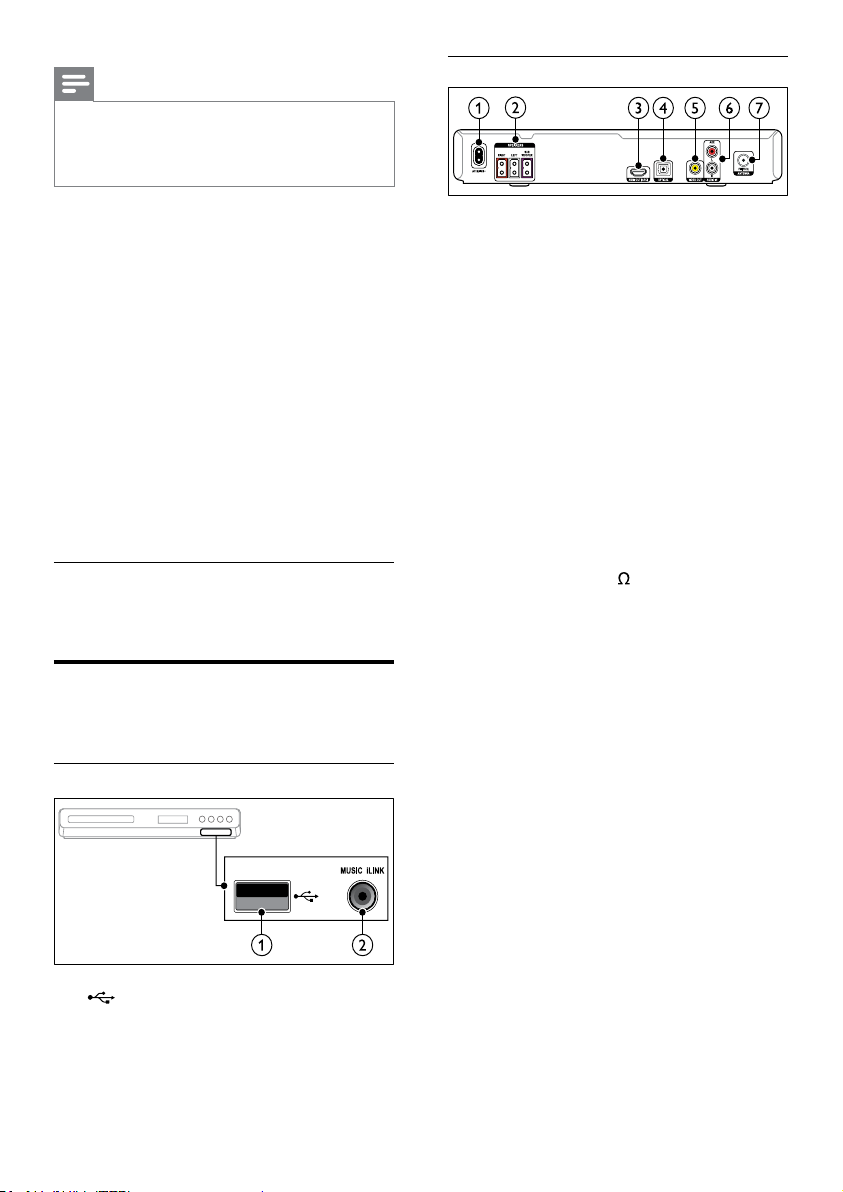
Back connectors
a AC MAINS
Connect to the power supply.
b SPEAKERS
Connect to the supplied speakers and
subwoofer.
c HDMI OUT
Connect to the HDMI input on the TV.
d OPTICAL
Connect to an optical audio output on the
TV or a digital device.
e VIDEO OUT
Connect to the composite video input on
the T V.
f AUDIO IN-AUX
Connect to an analog audio output on the
TV or an analog device.
g ANTENNA FM 75
Signal input from an antenna, cable or satellite.
Note
•
Surround sound depends on various factors
such as room shape and size, type of wall and
ceiling, windows and reective surfaces, and
speaker acoustics.
Follow these general guidelines, and then set up
your subwoofer.
1 Seating position:
This is the center of your listening area.
2 SPEAKER LEFT (speaker left) and
SPEAKER RIGHT (speaker right) speakers:
Placethe left and right speakers in the front,
and equidistant from the main unit in an
arc, so that the two speakers are at same
distance from your seating position. For best
effect, point the speakers towards the seating
position and place the speakers close to the
ear level (when seated).
3 SUBWOOFER (subwoofer):
Place the subwoofer at least one meter to
the left or right of the TV. Leave about ten
centimeter clearance from the wall.
Connect
Connect your speakers and the subwoofer to your
home theater as described in the quick start guide.
Connectors
Connect other devices to your home theater.
Front
a (USB)
Audio, video or picture input from a USB
storage device.
b MUSIC iLINK
Audio input from an MP3 player.
EN
10
Option 2: Connect to the TV through
composite video
Basic quality video
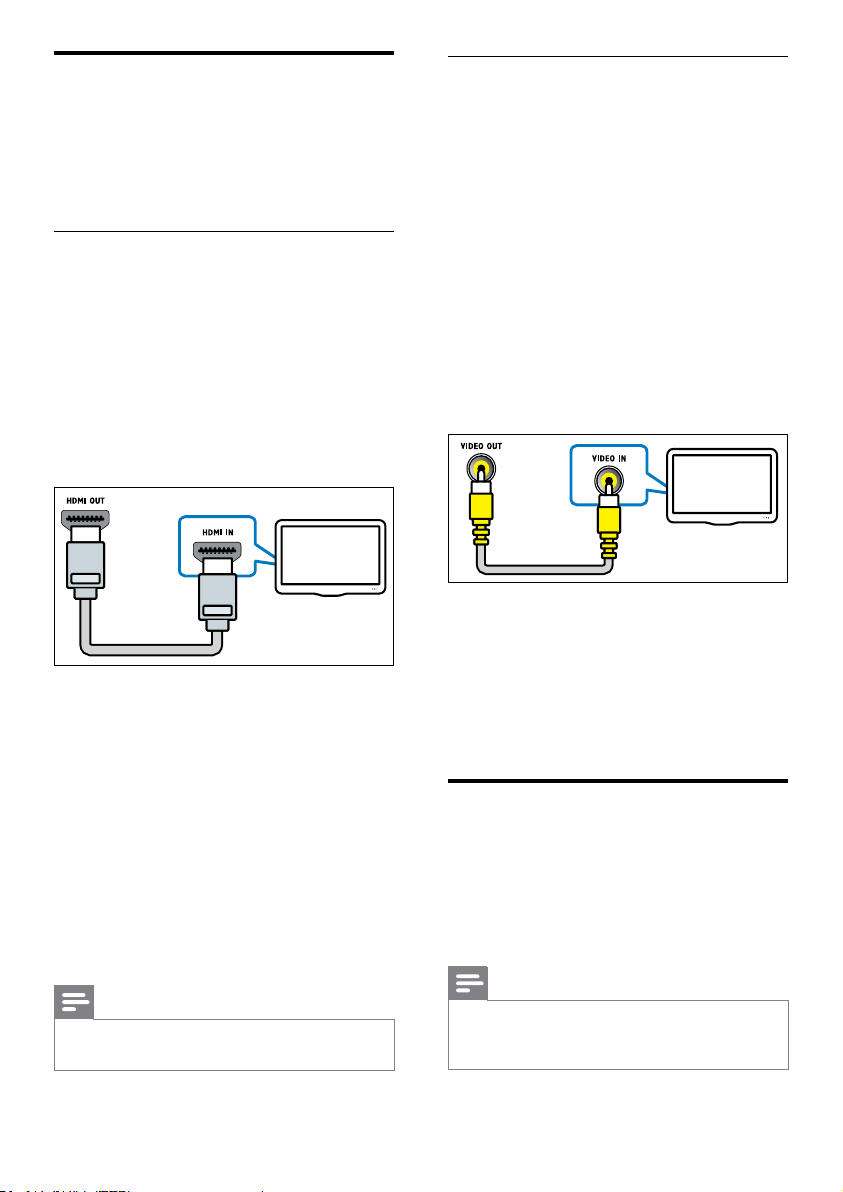
If your TV does not have HDMI connectors,
connect your home theater to the TV through a
composite connection. A composite connection
does not support high-denition video.
With a composite connection, you need an
additional audio cable to play the audio from the
TV through your home theater (see ‘Connect
audio from TV and other devices’ on page 10).
1 Using a composite video cable, connect the
VIDEO connector on your home theater to
the composite video connector on the TV.
The composite video connector might be
labeled AV IN, VIDEO IN, COMPOSITE,
or BASEBAND.
2 On your TV, switch to the correct video
input.
3 To play audio from TV programs through
your home theater, connect an additional
audio cable (see ‘Connect audio from TV
and other devices’ on page 10).
On your home theater, press SOURCE
repeatedly to select the correct audio input.
Connect audio from TV and
other devices
Play audio from TV or other devices through
your home theater.
Use the best quality connection available on your
TV, home theater, and other devices.
Note
•
The audio connections in this user manual are
only recommendations. You can use other
connections too.
TV
Connect to TV
Connect your home theater to a TV to watch
videos. You can listen to audio from TV programs
through your home theater speakers. Use the
best quality connection available on your home
theater and TV.
Option 1: Connect to TV through HDMI
Best quality video
With a standard HDMI connection, you need an
additional audio cable to play the audio from the
TV through your home theater (see ‘Connect
audio from TV and other devices’ on page 10).
1 Using a High Speed HDMI cable, connect
the HDMI OUT connector on your home
theater to the HDMI connector on the TV.
The HDMI connector on the TV might be
labeled HDMI IN.
2 On your TV, turn on HDMI-CEC. For
details, see the TV user manual.
» When you play a disc on your home
theater, the video is automatically
displayed on TV and the audio is
automatically played on the home theater.
3 To play audio from TV programs through
your home theater, connect an additional
audio cable (see ‘Connect audio from TV
and other devices’ on page 10).
4 If audio from the TV does not play
automatically on your home theater, set up
the audio manually (see ‘Set up audio for
connected devices’ on page 11).
Note
•
If your TV has a DVI connector, you can use an
HDMI/DVI adapter to connect to TV.
TV
EN
11
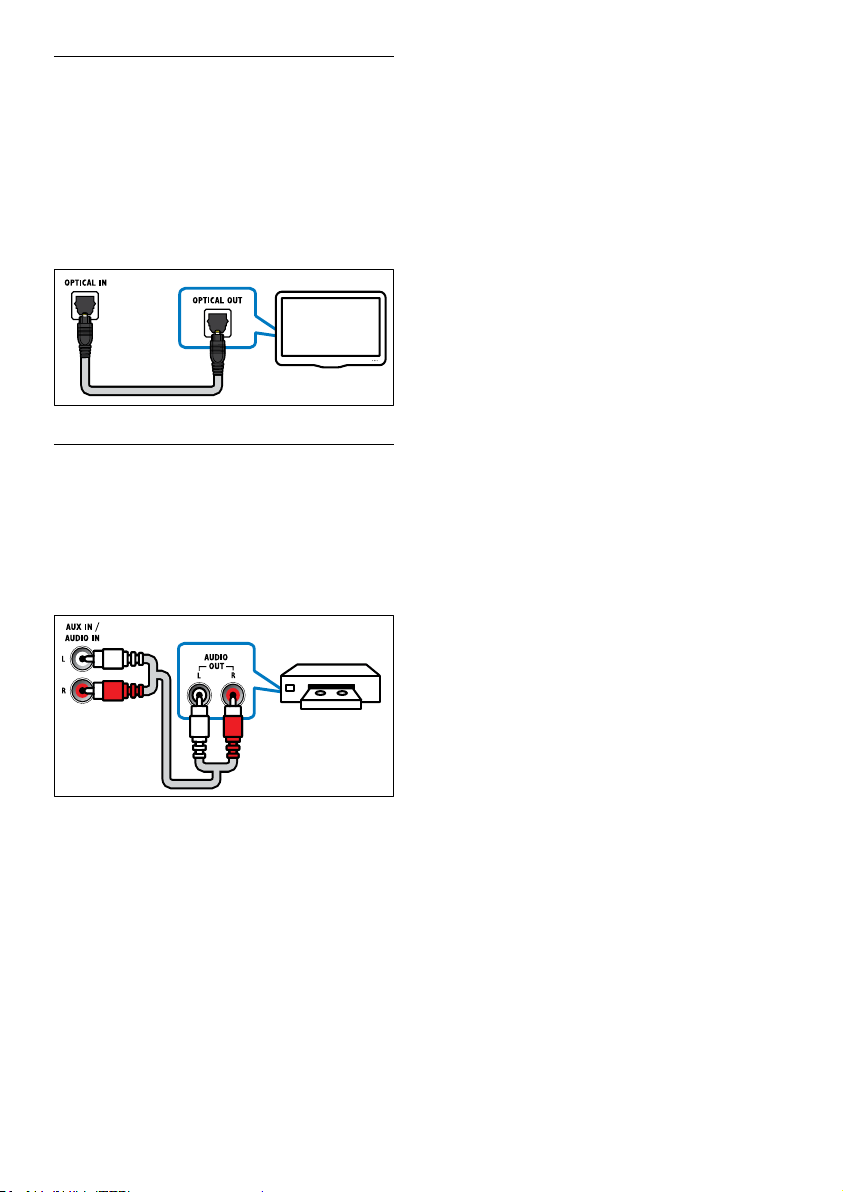
Option 1: Connect audio through a digital
optical cable
Best quality audio
Using an optical cable, connect the OPTICAL
connector on your home theater to the
OPTICAL OUT connector on the TV or other
device.
The digital optical connector might be labeled
SPDIF, SPDIF OUT, or OPTICAL.
Option 2: Connect audio through analog
audio cables
Basic quality audio
Using an analog cable, connect the AUX
connectors on your home theater to the
AUDIO OUT connectors on the TV or other
device.
TV
VCR
EN
12
Discs
Your home theater can play DVDs, VCDs, and
CDs. It can also play discs that you’ve made at
home, such as CD-R discs of photos and music.
What you need
• Audio and video connection between your
home theater and the TV.
• An audio or a video disc.
Play discs
1 Insert a disc into the home theater.
» Your TV switches to the correct source
and the disc plays automatically. If it does
not, press DISC.
2 Press the play buttons to control play (see
‘Play buttons’ on page 12).
Play buttons
Button Action
Navigation
buttons
Navigate menus.
OK Conrm an entry or selection.
(Play/
Pause)
Start, pause or resume play.
Stop play.
/
Skip to the previous or next
track, chapter or le.
/
Fast backwards or fast forwards.
Press repeatedly to change the
search speed.
Navigation
buttons (left/
right)
Rotate the picture clockwise or
counter-clockwise.
Navigation
buttons (up/
down)
Flip the picture vertically or
horizontally.
SUBTITLE Select subtitle language for
video.
DISC Access or exit the disc menu.
AUDIO
SYNC
Select an audio language or
channel.
SCREEN
FIT
Fit the picture format to the TV
screen.
ZOOM Zoom into a video scene or
picture.
5 Use your home
theater
This section helps you use the home theater to
play media from a wide range of sources.
Before you start
• Make the necessary connections described
in the Quick start guide and the user
manual.
• Switch the TV to the correct source for the
home theater.
Choose sound
This section helps you choose the ideal sound for
your video or music.
Sound mode
Select predened sound modes to suit your
video or music.
1 Press SOUND repeatedly to select a sound
mode.
• MOVIE: Enjoy a cinematic audio
experience, specially enhanced for
movies.
• MUSIC: Recreate the original recording
environment of your music, in the
studio or at a concert.
• ORIGINAL: Experience the original
sound of your movies and music,
without added sound effects.
• NEWS: Hear every word with
optimized speech and clear vocals.
• GAMING: Enjoy thrilling arcade
sounds, ideal for action-packed video
games or loud parties.
Surround sound mode
Experience an immersive audio experience with
surround sound modes.
1 Select SURR repeatedly to select a
surround mode.
• DOLBY VS: Creates a highly
compelling 5.1 channel listening
experience.
• STEREO: Two-channel stereo sound.
Ideal for listening to music.
EN
13
Synchronize picture and sound
If the audio and video are not synchronized,
delay the audio to match the video.
1 Press SETUP.
2 Select [Audio Setup], and then press OK.
3 Select [Audio Sync], and then press OK.
4 Press the Navigation buttons (left/right) to
synchronize the audio with the video.
5 Press OK to conrm.
Note
•
Press and hold AUDIO SYNC on the remote
control for quick access to the audio sync
setup menu.
USB storage devices
Enjoy pictures, audio and video on a USB storage
device.
What you need
• A USB storage device that is formatted for
FAT, and complies with the Mass Storage
Class.
• A USB extension cable, if the USB storage
device does not t into the connector.
Note
•
You can use digital cameras connected by USB
if they can play the les without using a special
computer program.
Playles
1 Connect the USB storage device to the
home theater.
2 Press USB.
» A content browser is displayed.
3 Select a le, and then press OK.
4 Press the playback buttons to control play
(see ‘Play buttons’ on page 12).
Button Action
REPE AT Select or turn off repeat mode.
REPE AT A-B Mark two points within a chapter
or track to repeat play, or turn
off the repeat mode.
ANGLE Select video scenes recorded in
different camera angels.
INFO
Access the advanced options
when you play your audio, video,
or media les (see ‘Audio, video,
and picture options’ on page 14).
Display menu for VCD and SVCD
Display the content menu on VCD and SVCD
discs.
1 Press SETUP.
2 Select [Preference Setup], and then press
OK.
3 Select [PBC] > [On], and then press OK.
Note
•
To skip the content menu, select [Off].
• While playing a VCD/SVCD, you can press
DISC to turn off or on the PBC (playback
control).
Display menu for MP3/JPEG
You can choose how you want the MP3 contents
to display.
1 Press SETUP.
2 Select [Preference Setup], and then press
OK.
3 Select [MP3/JPEG Display], and then press
OK.
4 Select the following options, then press OK.
• [View Folders]: Display the MP3
folders.
• [View Files]: Display the MP3 les.
EN
14
Character Set Language
[Standard] English, Albanian, Danish,
Dutch, Finnish, French,
Gaelic, German, Italian,
Kurdish (Latin), Norwegian,
Portuguese, Spanish, Swedish
and Turkish
[Central Europe] Albanian, Croat, Czech,
Dutch, English, German,
Hungarian, Irish, Polish,
Romanian, Slovak, Slovene
and Sorbian
[Cyrillic] Bulgarian, Belorussian,
English, Macedonian,
Moldavian, Russian, Serbian
and Ukrainian
[Greek] Greek
[Hebrew] Hebrew
[Chinese(Simp)] Simplied Chinese
Audio, video, and picture
options
Use advanced features when you play audio, video,
or media les from a disc or a USB storage device.
Audio options
1 Press INFO repeatedly to cycle through
the following options:
• Show the current track information
and time.
• [Off]: Press Navigation buttons (left/
right) to select a repeat mode.
• [Disc Go To:]: Skip to a specic part of
the disc by entering the disc time.
• [Track Go To:]: Skip to a specic part
of the track by entering the track time.
• [Select Track:]: Select a specic track.
DivX
Play DivX videos from :
• a disc (see ‘Discs’ on page 12),
• a USB storage device (see ‘USB storage
devices’ on page 13).
VOD code for DivX
Before you purchase DivX videos and play them
on your home theater, register the home theater
on www.divx.com using the DivX VOD code.
1 Press SETUP.
2 Select [General Setup], and then press OK.
3 Select [DivX(R) VOD Code], and then
press OK.
» The DivX VOD registration code for
your home theater is displayed.
Subtitles
If your video has subtitles in multiple languages,
select a subtitle language.
1 While playing video, press SUBTITLE to
select a language.
Note
•
Make sure that the subtitle le has the same
name as the video le. For example, if the
video le is named ‘movie.avi’, save the subtitle
le as ‘movie.srt’ or ‘movie.sub’.
• Your home theater can play subtitle les in the
following formats: .srt, .sub, .txt, .ssa, .ass, smi,
and .sami. These les do not appear in the le
navigation menu.
• If the subtitles do not appear correctly, change
the character set.
Subtitle character set
If the subtitles do not appear correctly, change
the character set that supports the DivX subtitle.
1 Press SETUP.
2 Select [Preference Setup], and then press
OK.
3 Select [DivX Subtitle], and then press OK.
4 Select a character set, and the press OK.
EN
15
Slideshows
While playing audio, access fun features such as
picture and musical slideshows.
Picture slideshows
View a slideshow of your pictures stored in your
disc or a USB storage device.
1 Select a picture from a disc or USB storage
device, and then press
.
2 Press to stop the slideshow.
Musical slideshows
Create a musical slideshow to play music and
pictures at the same time.
1 Select a music track, and then press OK.
2 Press BACK, and go to the picture
folder.
3 Select a picture, and then press (Play) to
start the slideshow.
4 Press to stop slideshow.
5 Press again to stop music.
Radio
Listen to FM radio on your home theater, and
store up to 40 radio stations.
What you need
• FM antenna.
Note
•
AM and digital radio are not supported.
• If no stereo signal is detected, you are
prompted to install the radio stations again.
• For the best reception, place the antenna away
from the TV or other sources of radiation.
Video options
1 Press INFO.
» The video options menu is displayed.
2 Press the Navigation buttons and OK to
select and change:
• [Title]: Select a specic title.
• [Chapter]: Select a specic chapter.
• [Track]: Select a specic track (for
VCD/SVCD only).
• [Audio]: Select audio language for
video.
• [Subtitle]: Select subtitle language for
video.
• [Angle]: Select video scenes recorded
in different camera angels.
• [TT Time]: Skip to a specic part of
the video by entering the title time.
• [Ch Time]: Skip to a specic part of
the video by entering the chapter time.
• [Disc Time]: Skip to a specic part of
the video by entering the disc time (for
VCD/SVCD only).
• [Track Time]: Skip to a specic part
of the video by entering the track time
(for VCD/SVCD only).
• [Repeat AB]: Mark two points within a
chapter or track to repeat play, or turn
off the repeat mode.
• [Preview]: Select a content preview
for disc.
• [Repeat]: Select a repeat mode.
• [Time Disp.]: Select the information of
time display.
Picture options
1 Press INFO to access picture preview
mode.
» 12 thumbnail pictures are displayed.
2 Press / to go to previous or next
preview page.
3 Press the Navigation buttons and OK to
select a picture.
EN
16
MP3 player
Connect your MP3 player to play your audio les
or music.
What you need
• An MP3 player.
• A 3.5mm stereo audio cable.
Play music
1 Connect the MP3 player to the home
theater as described in the Quick start
guide.
2 Press AUDIO SOURCE repeatedly until
‘MUSIC I-LINK’ appears on the display
panel.
3 Press the buttons on the MP3 player to
select and play audio les or music.
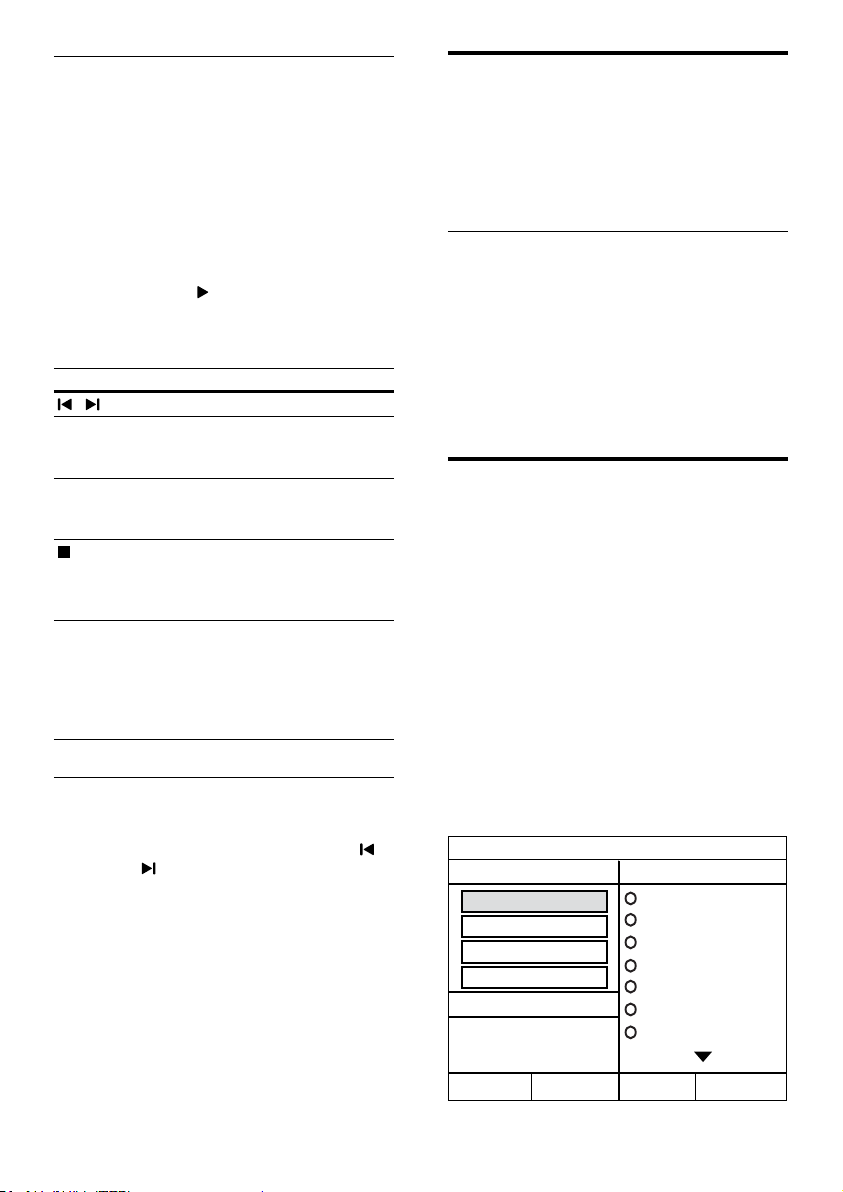
CreateMP3les
Use your home theater to convert audio CDs into
MP3 les.
What you need
• An audio disc.
• A USB storage device
1 Connect a USB storage device to the home
theater.
2 Play your audio CD (CDDA/HDCD).
3 Press CRE ATE MP3.
» A conrmation message is displayed.
4 Select [Yes], and then press OK.
» The create MP3 screen is displayed. The
right panel contains MP3 settings and the
left panel shows the audio tracks.
CREATE MP3
OPTIONS
TRACK
Bitrate 128kbps
SUMMARY
Select Track 0
Start Exit
Select All
Deselect All
Time 00:00
Track01 04:14
Track02 04:17
Track03 03:58
Track04 04:51
Track05 03:53
Track06 04:09
Track07 04:38
Speed Normal
CRT ID3 Yes
Device USB1
Tune stations
1 Connect the FM antenna as described in the
Quick start guide.
2 Press RADIO.
» If you have already installed the radio
stations, the last channel that you listened
to is played.
» If you have not installed any radio
stations, the message AUTO INSTALL...
PRESS PLAY appears on the display
panel. Press
(Play).
3 Press the following buttons to listen or to
change radio stations:
Button Action
/
Select a preset radio station.
Navigation
buttons
(left/right)
Search for a radio station.
Navigation
buttons
(up/down)
Fine tune a radio frequency.
Press to stop the installation of
radio stations.
Press and hold to erase the preset
radio station.
PROGRAM Manual: Press once to access
program mode, and press again to
store the radio station.
Automatic: Press and hold for
three seconds to reinstall the
radio stations.
Listen to radio
1 Press RADIO.
• To listen to a preset station, press
or
.
• To search for a radio station, and then
listen, press Navigation buttons (left/
right).
2 Press +/- (Volume) to change the volume.
EN
17
EasyLink
The home theater supports Philips EasyLink, which
uses the HDMI-CEC (Consumer Electronics
Control) protocol. EasyLink-compliant devices that
are connected through HDMI can be controlled
by a single remote control.
Philips does not guarantee 100% interoperability
with all HDMI-CEC devices.
What you need
• HDMI-CEC compliant devices.
• An HDMI connection between the
connected devices.
Switch on
1 On the TV and other connected devices,
turn on the HDMI-CEC operations. For
details, see the manual of the TV or other
devices.
2 Press SETUP.
3 Select [General Setup], and then press OK.
4 Select [EasyLink Setup] > [EasyLink], and
then press OK.
5 Select [On], and then press OK.
Control devices
Control the home theater and the other
connected HDMI-CEC compliant devices with a
single remote control.
One-touch play
If you enable One-touch play, the TV
automatically switches to the correct channel
when you play a disc in your home theater.
One-touch standby
When you press and hold
(Standby) on the
remote control, the home theater and all the
connected HDMI-CEC devices (that support
one-touch standby) switch to the standby
mode.
If one-touch standby is enabled on your home
theater, you can switch to standby with the
remote control of the TV or other HDMI-CEC
devices.
5 Press the Navigation buttons and OK to
select and change:
• [Speed]: Select the write-to-le speed.
• [Bitrate]: Select the conversion quality.
• [CRT ID3]: Copy the tracks
information when converting to MP3
les.
• [Device]: Select the USB storage
device which you use to store the MP3
les.
6 Navigate to the right panel, and then select
the audio tracks and press OK.
• To select all tracks, navigate to [Select
All], and then press OK.
7 Select [Start], and then press OK to start
the MP3 conversion.
» A new folder which contains the MP3
les is created in the USB storage device.
• To exit the menu, select [Exit], and
then press OK.
Note
•
When the conversion is in process, do not
press any buttons.
• DTS CDs and copy-protected CDs cannot be
converted.
• Write-protected or password-protected USB
storage device cannot be used to store MP3
les.
EN
18
Picture resolution
To enjoy high denition HDMI video output, set
the HDMI video settings that best match up with
your TV capability.
1 Press SETUP.
2 Select [Video Setup], and then press OK.
3 Select [HDMI Setup], and then press OK.
4 Change the following settings, and then
press OK:
• [Wide Screen Format]: For 16:9 wide
screen TV display setting.
• [HDMI Video]: HDMI resolution.
Highdenitionpicture
Support high denition JPEG pictures.
1 Press SETUP.
2 Select [Video Setup], and then press OK.
3 Select [HD JPEG] > [On], and then press
OK.
Sound
Change the sound settings to suit your preference.
HDMI audio
HDMI audio is automatically down-mixed to two
channel for TV speakers. If you do not want to
output audio through your TV, disable the HDMI
audio.
1 Press SETUP.
2 Select [Audio Setup], and then press OK.
3 Select [HDMI Audio] > [Off], and then
press OK.
6 Change settings
This section helps you to change the settings of
your home theater.
Caution
•
Most of the settings are already congured
with the best value for your home theater.
Unless you have a reason to change a setting, it
is best to leave it at the default value.
Note
•
You cannot change a setting that is grayed out.
• To return to the previous menu, press
BACK. To exit the menu, press
SETUP.
Picture
Change the picture settings to suit your
preferences.
Note
•
The best setting is automatically selected for
the TV. If you change the setting, make sure
that the TV supports the new settings.
Picture settings and format
1 Press SETUP.
2 Select [Video Setup], and then press OK.
3 Change the following settings, and then
press OK:
• [TV System]: For TV supported video
format.
• [TV Display]: For TV picture display
format.
• [Picture Settings]: Predened color
settings.
EN
19
4 Select a menu language for discs, and then
press OK.
Note
•
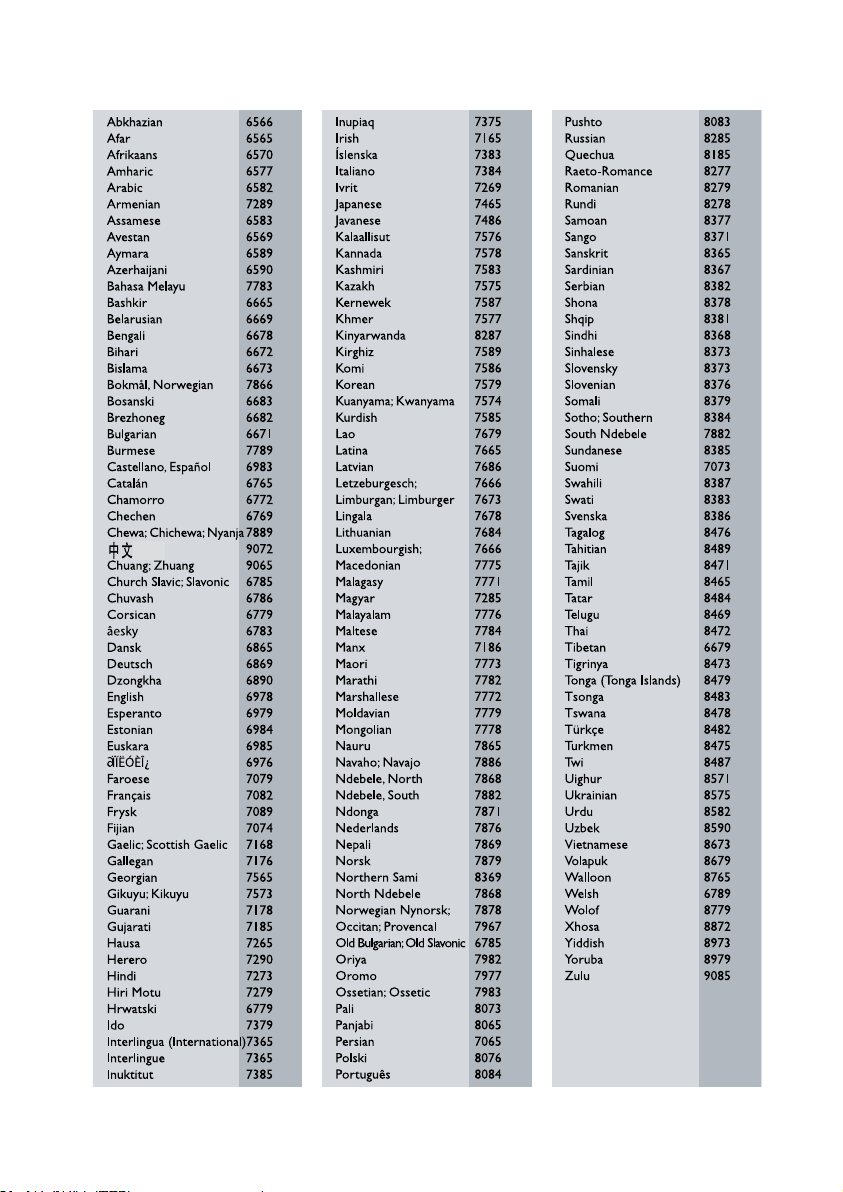
If your preferred disc language is not available,
select [Others] from the list, and enter the
4-digit language code found at the end of this
user manual.
• If you select a language that is not available
on a disc, the home theater uses the default
language of the disc.
Parental control
Restrict access to discs.
Password
You can set or change your password to play a
restricted disc.
1 Press SETUP.
2 Select [Preference Setup], and then press
OK.
3 Select [Password], and then press OK.
» A change password menu is displayed.
4 Follow the instructions on the TV to set or
change password.
• If you do not have a password or you
have forgotten, enter 0000.
5 Press OK.
Ratings
Some discs are recorded with ratings according
to age. You can set up your home theater to play
only discs with an age rating lower than your
child’s age.
1 Press SETUP.
2 Select [Preference Setup], and then press
OK.
3 Select [Parental], and then press OK.
» A message prompts you to enter the
password.
4 Enter the password with the Numeric
buttons.
5 Select an age rating, and then press OK.
• To play all discs irrespective of the
rating, select level 8 or [Off].
Language
Select a language for the home menu, audio, and
subtitles.
Home menu
1 Press SETUP.
2 Select [General Setup], and then press OK.
3 Select [OSD Language], and then press OK.
4 Select a menu language for your home
theater, and then press OK.
Disc audio
1 Press SETUP.
2 Select [Preference Setup], and then press
OK.
3 Select [Audio], and then press OK.
4 Select an audio language for discs, and then
press OK.
Note
•
If your preferred disc language is not available,
select [Others] from the list, and enter the
4-digit language code found at the end of this
user manual.
• If you select a language that is not available
on a disc, the home theater uses the default
language of the disc.
Disc subtitle
1 Press SETUP.
2 Select [Preference Setup], and then press
OK.
3 Select [Subtitle], and then press OK.
4 Select a subtitle language for discs, and then
press OK.
Disc menu
1 Press SETUP.
2 Select [Preference Setup], and then press
OK.
3 Select [Disc Menu], and then press OK.
EN
20
Screen saver
Automatically switch your home theater to
screen saver mode if:
• it is in pause or stop mode, and
• no button is pressed for 10 minutes.
1 Press SETUP.
2 Select [General Setup], and then press OK.
3 Select [Screen Saver] > [On], and then
press OK.
Display panel
Change the brightness of the home theater
display panel.
1 Press SETUP.
2 Select [General Setup], and then press OK.
3 Select [Display Dim], and then press OK.
4 Select the brightness, and then press OK.
Apply factory settings
Reset your home theater to the default settings.
You cannot reset the parental control settings.
1 Press SETUP.
2 Select [Preference Setup], and then press
OK.
3 Select [Default], and then press OK.
4 Select [Ok], and then press OK.
Lock disc
To restrict access to discs that are not encoded
with ratings and parental control, lock the disc
manually. You can lock upto 20 discs on your
home theater.
1 While playing a disc, press SETUP.
2 Select [General Setup], and then press OK.
3 Select [Disc Lock] > [Lock], and then press
OK.
» A message prompts you to enter the
password.
4 Enter the password with the Numeric
buttons.
» The disc is locked.
» To play the locked disc, enter the
password.
Energy saving
Save energy by changing the following settings.
Auto standby
When playing a disc or a USB storage device,
automatically switch your home theater to
standby if:
• it is in pause or stop mode, and
• no button is pressed for 30 minutes.
1 Press SETUP.
2 Select [General Setup], and then press OK.
3 Select [Auto Standby] > [On], and then
press OK.
Sleep timer
Set timers to switch the home theater to
standby after a specied time.
1 Press SETUP.
2 Select [General Setup], and then press OK.
3 Select [Sleep Timer], and then press OK.
4 Select the duration of the sleep timer.
» The sleep timer can be set up to 60
minutes. If the sleep timer is set to [Off],
it switches off.
5 Press OK to activate.
» The home theater switches to standby
after the specied time.
EN
21
Step 2: Update the software
Warning
•
If you use a USB fl ash drive, make sure that
there is no disc in the disc compartment, and
the disc compartment is closed.
1 Connect the USB fl ash drive or insert the
CD-R to your home theater.
2 Switch your TV to the correct source for
your home theater.
3 Follow the instructions on the TV to
complete the update.
» When the software update is complete,
the home theater automatically switches
off and restarts. If it does not, disconnect
the power cord for a few seconds, and
then reconnect it.
Note
•
When the software update is in progress, do
not turn off the power, or remove the USB
fl ash drive or CD-R.
7 Update software
To continue to get the best features and support for
your home theater, update the software regularly.
Compare the version of your current software with
the latest version on www.philips.com/support.
Check software version
1 Press SETUP .
2 Select [Preference Setup] , and then press OK .
3 Select [Version Info.] , and then press OK .
» The software version is displayed.
Update software through USB
or CD-R
What you need
• A CD-R or a USB fl ash drive with at least
75MB of memory. The USB fl ash drive must be
FAT formatted. Do not use a USB hard drive.
• A computer with Internet access.
• An archive utility that supports the ZIP
fi le format (for example, WinZip® for
Microsoft® Windows® or Stuffl t® for
Macintosh®).
Step 1: Download the latest software
1 Connect a USB fl ash drive or insert a CD-R
to your computer.
2 In your web browser, go to www.philips.
com/support.
3 At the Philips Support website, fi nd your
product and locate the Software and
drivers .
» The software update is available as a zip
fi le.
4 Save the zip fi le in the root directory of
your USB fl ash drive or CD-R.
5 Use the archive utility to extract the
software update fi le in the root director y.
6 Remove the USB fl ash drive or CD-R from
your computer.
EN
22
Amplier
• Total output power: 300W RMS (30%
THD)
• Frequency response: 20 Hz-20 kHz / ±3 dB
• Signal-to-noise ratio: > 65 dB (CCIR) /
(A-weighted)
• Input sensitivity:
• AUX: 2 V
• Music iLink: 1 V
Video
• Signal system: PAL / NTSC
• HDMI output: 480i/576i, 480p/576p, 720p,
1080i, 1080p
Audio
• S/PDIF Digital audio input:
• Optical: TOSLINK
• Sampling frequency:
• MP3: 32 kHz, 44.1 kHz, 48 kHz
• WMA: 44.1 kHz, 48 kHz
• Constant bit rate:
• MP3: 32 kbps - 320 kbps
• WMA: 64 kbps - 192 kbps
Radio
• Tuning range:
• Europe/Russia/China: FM 87.5-108
MHz (50 kHz)
• Asia Pacic/Latin America: FM 87.5-108
MHz (50/100 kHz)
• Signal-to-noise ratio: FM 50 dB
• Frequency response: FM 200 Hz-12.5 kHz
/ ±6 dB
USB
• Compatibility: Hi-Speed USB (2.0)
• Class support: USB Mass Storage Class
(MSC)
• File system: FAT16, FAT32
• Maximum memory support: < 160 GB
Main unit
• Power supply:
• Europe/China/Russia/India: 220-240V~,
50 Hz
• Latin America/Asia Pacic: 110-240V~,
50-60 Hz
8 Product
specifications
Note
•
Specications and design are subject to change
without notice.
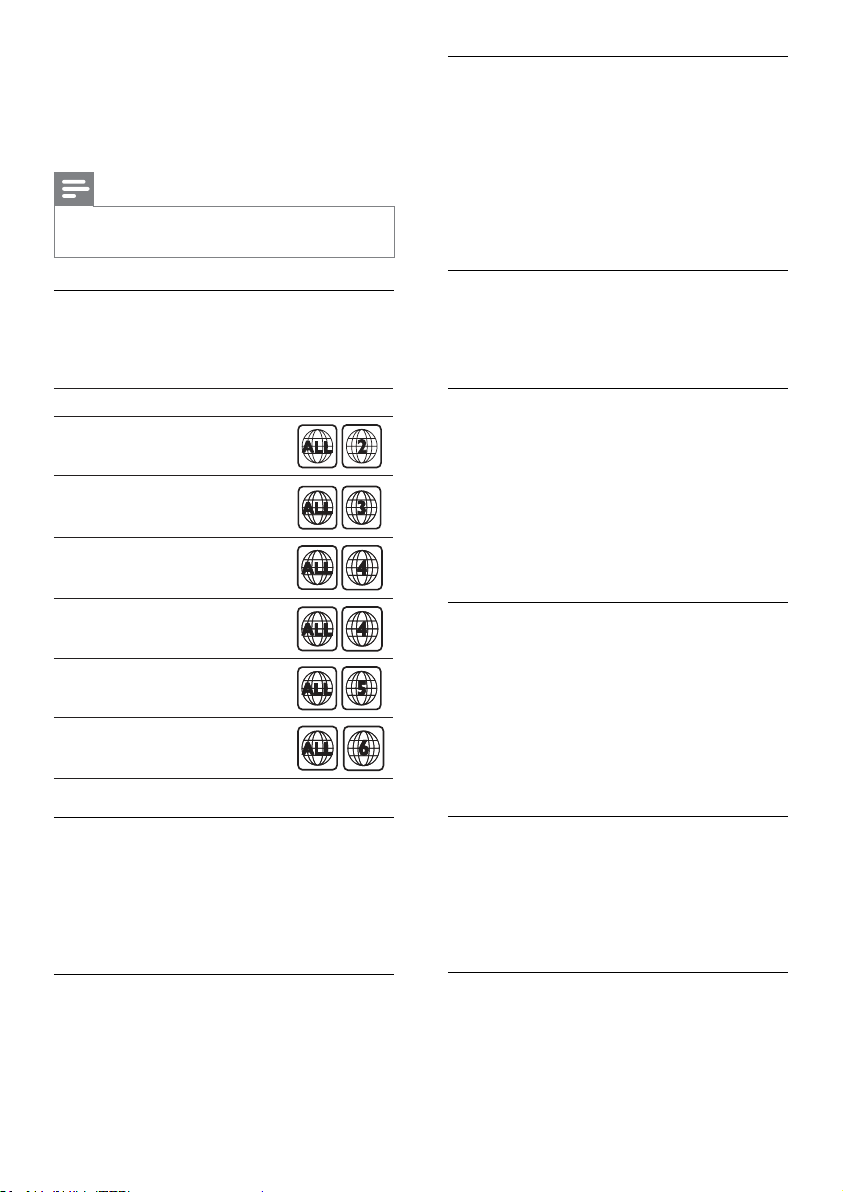
Region codes
The type plate on the back or bottom of the
home theater shows which regions it supports.
Media formats
• DVD-Video, DVD+R/+RW, DVD-R/-RW,
DVD+R/-R DL, CD-R/CD-RW, Audio CD,
Video CD/SVCD, Picture les, MP3 media,
WMA media, DivX media, USB storage
device
File formats
• Audio: .mp3, .wma
• Video: .avi, .divx, .mpg, .mpeg,
• Picture: .jpg, .jpeg
Country
DVD
Europe, United Kingdom
Latin America
Australia, New Zealand
Russia, India
China
Asia Pacific, Taiwan, Korea
EN
23
9 Troubleshooting
Warning
•
Risk of electric shock. Never remove the
casing of the product.
To keep the warranty valid, never try to repair the
product yourself.
If you have problems using this product, check the
following points before you request service. If you
still have a problem, register your product and get
support at www.philips.com/welcome.
Main unit
The buttons on the home theater do not work.
• Disconnect the home theater from the
power supply for a few minutes, then
reconnect.
Picture
No picture.
• Make sure that the TV is switched to the
correct source for the home theater.
• If this happens when you change the
TV system, press
to open the disc
compartment, and then 3 on the remote
control to restore the default TV system..
No picture on a TV connected through HDMI.
• Make sure that the HDMI cable is not faulty.
If it is faulty, replace it with a new cable.
• Press to open the disc compartment, and
then 1 on the remote control to restore the
default picture resolution.
• Wait for 10 seconds for auto recovery, or
change the HDMI video setting (see ‘Picture
resolution’ on page 18).
Discdoesnotplayhigh-denitionvideo.
• Make sure that the disc contains high-
denition video.
• Make sure that the TV supports high-
denition video.
• Use an HDMI cable to connect to the TV.
• Power consumption: 55 W
• Standby power consumption: ≤ 0.9 W
• Dimensions (WxHxD): 360 x 58 x 325 mm
• Weight: 2.50 kg
Subwoofer
• Output power: 150 W RMS (30% THD)
• Impedance: 4 ohm
• Speaker drivers: 165 mm (6.5”) woofer
• Dimensions (WxHxD): 195 x 265 x 265
mm
• Weight: 3.20 kg
• Cable length: 3 m
Speakers
• Output power: 2 x 75 W RMS (30% THD)
• Speaker impedance: 4 ohm
• Speaker drivers: 1 x 63.5 mm (2.5”) full
range
• Dimensions (WxHxD): 84.5 x159 x 80mm
• Weight: 0.35 kg/each
• Cable length: 3 m
Remote control batteries
• 2 x AAA-R03-1.5 V
Laser
• Type: Semiconductor laser GaAIAs (CD)
• Wave length: 645 - 665 nm (DVD), 770 -
800 nm (CD)
• Output power: 6 mW (DVD), 7 mW
(VCD/CD)
• Beam divergence: 60 degrees.
EN

24
Cannot read the contents of a USB storage
device.
• Make sure that the format of the USB
storage device is compatible with the home
theater.
• Make sure that the le system on the USB
storage device is supported by the home
theater.
‘No entry’ or ‘x’ sign appears on the TV.
• The operation is not possible.
EasyLink does not work.
• Make sure that the home theater is
connected to a Philips brand EasyLink TV,
and the EasyLink option is on (see ‘EasyLink’
on page 17).
When you switch on the TV, the home theater
automatically switches on.
• This behavior is normal when you are using
Philips EasyLink (HDMI-CEC). To make the
home theater work independently, switch
off EasyLink.
Sound
No sound from home theater speakers.
• Connect the audio cable from your home
theater to your TV or other devices (see
‘Connect audio from TV and other devices’
on page 10).
• Set up the audio for the connected device
(see ‘Set up audio for connected devices’ on
page 11).
• Reset your home theater to its factory
settings (see ‘Apply factory settings’ on page
20), then switch it off and switch on again.
• On your home theater, press SOURCE
repeatedly to select the correct audio input.
Distorted sound or echo.
• If you play audio from the TV through the
home theater, make sure that the TV is
muted.
Audio and video are not synchronized.
• 1) Press and hold AUDIO SYNC. 2) Press
+/- within ve seconds to synchronize the
audio with the video.
Play
Cannot play a disc.
• Clean the disc.
• Make sure that the home theater supports
the type of disc (see ‘Media formats’ on
page 22).
• Make sure that the home theater supports
the region code of the disc (see ‘Region
codes’ on page 22).
• If the disc is a DVD±RW or DVD±R disc,
make sure that it is nalized.
CannotplayaDivXle.
• Make sure that the DivX le is encoded
according to the ‘Home Theater Prole’
with the DivX encoder.
• Make sure that the DivX le is complete.
DivX subtitles do not display correctly.
• Make sure that the subtitle le name is the
same as the movie le name (see ‘Subtitles’
on page 14).
• Select the correct character set: 1) Press
SETUP. 2) Select [Preference Setup] >
[DivX Subtitle]. 3) Select the supported
character set. 4) Press OK.
EN
25
picture 15
play 12
subtitle 19
synchronize picture and sound 13
time search 15
titles 15
display
MP3/JPEG menu 13
VCD/SVCD menu 13
display panel 6
DivX
character set 14
subtitles 14
VOD code 14
E
EasyLink (HDMI-CEC)
control buttons 8
one-touch play 17
one-touch standby 17
play audio 17
enable
auto standby 20
HDMI-CEC 17
screen saver 20
energy
auto standby 20
brightness 20
screen saver 20
sleep timer 20
F
factory settings 20
FM antenna 9
H
HDMI
audio 18
video settings 18
HDMI-CEC 17
L
language
audio 19
disc menu 19
onscreen menu 19
subtitle 19
10 Index
A
amplier 22
audio
HDMI audio 18
predened modes 12
quality 10
settings 18
source 11
specications 22
audio language 19
audio options 14
auto standby 20
B
brightness 20
C
care
environment 6
product 5
connect
audio (analog cable) 11
audio (optical cable - digital) 11
audio from TV and other devices 10
speakers 9
TV (Composite) 10
TV (HDMI) 10
connectors
front connectors 9
control
disc play 12
Easylink (HDMI-CEC) 8
main unit 6
parental control 19
radio 16
copyright protection 4
create MP3 16
D
disable
HDMI-CEC 17
discs
audio language 19
audio options 14
control buttons 12
DivX 14
lock/unlock 20
menu language 19
options 14
EN
26
preference
audio 18
auto standby 20
change password 19
disc menu 19
display panel 20
menu language 19
screen saver 20
sleep timer 20
subtitle 19
productspecications 22
R
radio
control buttons 16
FM antenna 9
listen to radio 16
specications 22
tune stations 16
ratings 19
recycling 6
region codes 22
remote control
batteries 23
overview 7
repeat 14
S
safety
disposal 6
use of the product 5
screen saver 20
settings
audio 18
auto standby 20
default 20
disc language 19
HDMI audio 18
HDMI video 18
HDMI-CEC 17
menu language 19
parental rating 19
password 19
picture 18
power 20
restore 20
screen saver 20
sleep timer 20
subtitle language 19
video 18
sleep timer 20
M
main unit
overview 6
specications 22
troubleshooting 23
media formats 22
MP3
connector 9
create MP3 16
display contents 13
play 16
N
night mode 12
O
one-touch play 17
one-touch standby 17
options
picture 15
overview
connectors 9
HDMI-CEC 17
main unit 6
remote control 7
settings 18
P
parental control
lock disc 20
password 19
ratings 19
password 19
Philips Easylink 17
picture
high resolution JPEG 18
options 15
rotate 15
settings 18
slideshows 15
troubleshooting 23
zoom 15
picture options 15
play
discs 12
MP3 16
radio 22
slideshows 15
troubleshooting 24
USB 13
position
connectors 9
position 8
EN

27
V
video
picture settings 18
synchronize picture and sound 13
VOD code for DivX 14
video formats 22
video options 15
VOD code for DivX 14
slideshows
musical 15
picture 15
software
check current version 21
update 21
sound
predened sound mode 12
surround sound 12
synchronize picture and sound 13
troubleshooting 24
speakers
connect 9
position 8
specications 23
surround sound 12
subtitle
character set 14
language 19
subwoofer
specications 23
synchronize picture and sound 13
T
time search 15
titles 15
trademarks 4
troubleshooting
connection 23
main unit 23
picture 23
play 24
sound 24
U
update software
check current version 21
update 21
USB
format 22
USB storage device
options 14
play 13
specications 22
EN
Language Code

© 2011 Koninklijke Philips Electronics N.V.
All rights reserved.
sgpjp_1126/12_v1