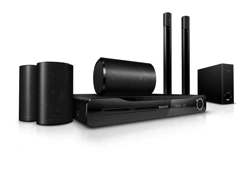
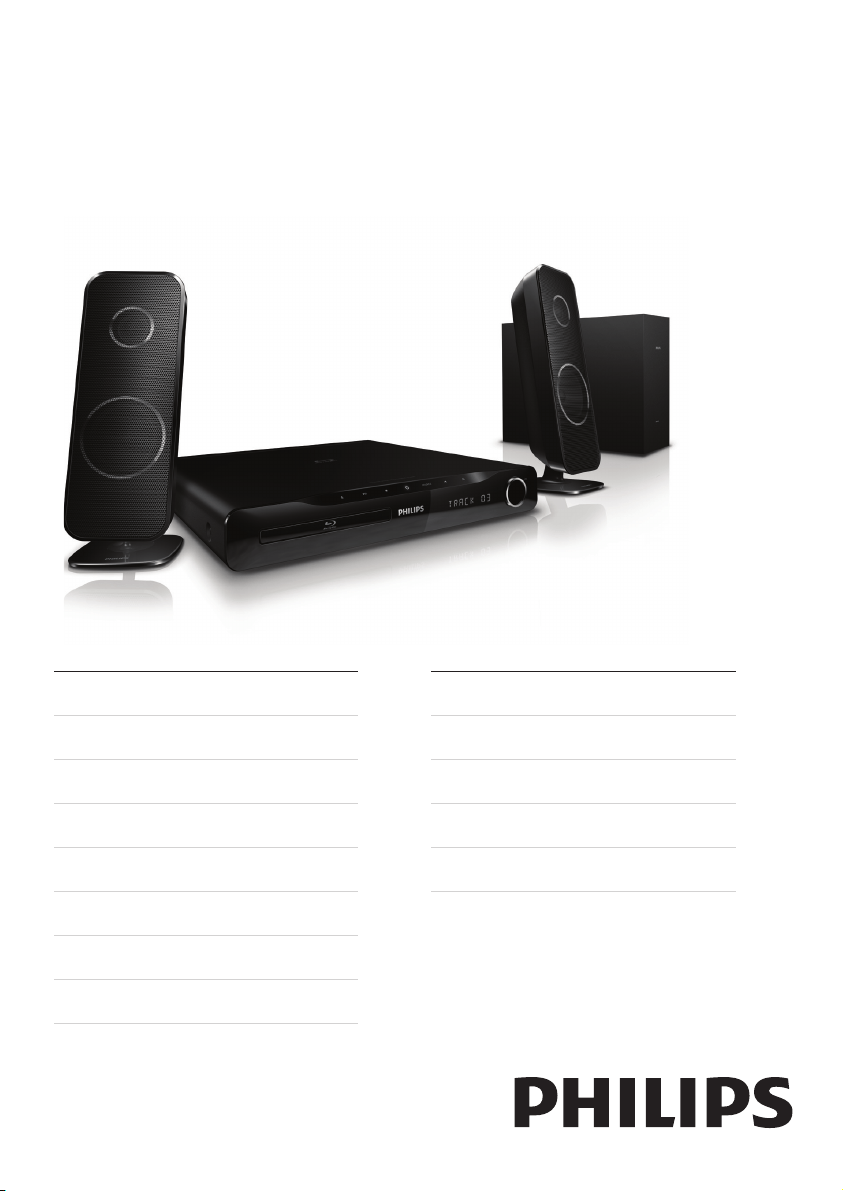
HTS3260
Register your product and get support at
www.philips.com/welcome
EN User manual
DA Brugervejledning
DE Benutzerhandbuch
EL Εγχειρίδιο χρήσης
ES Manual del usuario
FI Käyttöopas
FR Mode d’emploi
IT Manuale utente
NL Gebruiksaanwijzing
NO Brukerhåndbok
PT Manual do utilizador
SV Användarhandbok
TR Kullanım kılavuzu

1
6 Change settings 15
Access the setup menu 15
Change video settings 16
Change audio settings 16
Set up network 16
Set up EasyLink 16
Change preference settings 17
Change advanced settings 17
7 Update software 18
Check software version 18
Update software from the network 18
Update software from a USB 18
8 Product specications 19
9 Troubleshooting 20
10 Index 21
Contents
1 Notice 2
Copyright 2
Compliance 2
Mains fuse (UK only) 2
Open source software 2
Trademarks 2
2 Important 4
Safety 4
Product care 4
Health warning 4
Disposal of your old product and batteries 5
3 Your home theater 5
Main unit 5
Remote control 6
4 Connect your home theater 7
Connectors 7
Connect to the TV 8
Connect audio from TV or other devices 8
Connect to the internet 9
5 Use your home theater 10
Before you start 10
Access the home menu 10
Choose your sound 10
Play a disc 11
Use Bonus View on Blu-ray 11
Access BD-Live on Blu-ray 12
Play 3D video 12
Play from a USB storage device 12
More play features for disc or USB 13
Play from radio 14
Play audio from TV or other devices 14
Play from an MP3 player 14
Use Philips EasyLink 15
Engli s h
EN

2
Open source software
Philips Electronics Singapore Pte Ltd hereby offers
to deliver, upon request, a copy of the complete
corresponding source code for the copyrighted
open source software packages used in this
product for which such offer is requested by the
respective licenses. This offer is valid up to three
years after product purchase to anyone in receipt
of this information. To obtain source code, please
contact [email protected]. If you prefer not
to use email or if you do not receive conrmation
receipt within a week after mailing to this email
address, please write to “Open Source Team,
Philips Intellectual Property & Standards, P.O. Box
220, 5600 AE Eindhoven, The Netherlands”. If you
do not receive timely conrmation of your letter,
please email to the email address above. The texts
of the licenses and acknowledgements for open
source software used in this product are included
on a separate leaet.
Trademarks
“Blu-ray 3D” and “Blu-ray 3D” logo are
trademarks of Blu-ray Disc Association.
BONUSVIEW™
‘BD LIVE’ and ‘BONUSVIEW’ are trademarks of
Blu-ray Disc Association.
Java and all other Java trademarks and logos are
trademarks or registered trademarks of Sun
Microsystems, Inc. in the United States and/or
other countries.
‘x.v.Colour’ is a trademark of Sony Corporation.
1 Notice
Copyright
This item incorporates copy protection technology
that is protected by U.S. patents and other
intellectual property rights of Rovi Corporation.
Reverse engineering and disassembly are
prohibited.
Copyright in the UK
Recording and playback of material may require
consent. See Copyright Act 1956 and The
Performers Protection Acts 1958 to 1972.
Compliance
This product is in compliance with the essential
requirements and other relevant provisions of
Directives 2006/95/EC (Low Voltage), 2004/108/
EC (EMC).
Mains fuse (UK only)
This product is tted with an approved moulded
plug. Should it become necessary to replace the
mains fuse, this must be replaced with a fuse of
the same value as indicated on the plug (example
10A).
1 Remove fuse cover and fuse.
2 The replacement fuse must comply with BS
1362 and have the ASTA approval mark. If
the fuse is lost, contact your dealer in order
to verify the correct type.
3 Ret the fuse cover.
Note
• To conform with the EMC directive
(2004/108/EC), the mains plug on this product
must not be detached from the mains cord.
EN
3
LASER RADIATION
DO NOT VIEW DIRECTLY
WITH OPTICAL INSTRUMENTS
CLASS 1M LASER PRODUCT
Manufactured under license from Dolby
Laboratories. Dolby, Pro Logic, and the
double-D symbol are trademarks of Dolby
Laboratories.
Manufactured under license under U.S. Patent
#’s: 5,451,942; 5,956,674; 5,974,380; 5,978,762;
6,226,616; 6,487,535; 7,392,195; 7,272,567;
7,333,929; 7,212,872 & other U.S. and worldwide
patents issued & pending. DTS and the Symbol
are registered trademarks, & DTS-HD, and DTS-
HD Master Audio | Essential and the DTS logos
are trademarks of DTS, Inc. Product includes
software.
©
DTS, Inc. All Rights Reserved.
DivX
®
, DivX Certied
®
and associated logos are
registered trademarks of DivX, Inc. and are used
under license.
DivX Ultra
®
Certied to play DivX
®
video with
advanced features and premium content.
ABOUT DIVX VIDEO: DivX
®
is a digital video
format created by DivX, Inc. This is an ofcial
DivX Certied device that plays DivX video.
Visit www.divx.com for more information and
software tools to convert your les into DivX
video.
ABOUT DIVX VIDEO-ON-DEMAND: This
DivX Certied
®
device must be registered in
order to play DivX Video-on-Demand (VOD)
content. To generate the registration code,
locate the DivX VOD section in your device
setup menu. Go to vod.divx.com with this code
to complete the registration process and learn
more about DivX VOD.
HDMI, and HDMI logo and High-Denition
Multimedia Interface are trademarks or
registered trademarks of HDMI licensing LLC.
Engli s h
EN

4
• Never place the product or any objects
on power cords or on other electrical
equipment.
• If the product is transported in
temperatures below 5°C, unpack the
product and wait until its temperature
matches room temperature before
connecting it to the power outlet.
• Visible and invisible laser radiation when
open. Avoid exposure to beam.
• Do not touch the disc optical lens inside the
disc compartment.
Risk of overheating!
• Never install this product in a conned
space. Always leave a space of at least four
inches around the product for ventilation.
Ensure curtains or other objects never
cover the ventilation slots on the product.
Risk of contamination!
• Do not mix batteries (old and new or
carbon and alkaline, etc.).
• Remove batteries if they are exhausted or
if the remote control is not to be used for a
long time.
• Batteries contain chemical substances, they
should be disposed of properly.
Product care
• Do not insert any objects other than discs
into the disc compartment.
• Do not insert warped or cracked discs into
the disc compartment.
• Remove discs from the disc compartment
if you are not using the product for an
extended period of time.
• Only use microber cloth to clean the
product.
Health warning
If you or your family has a history of epilepsy
or photosensitive seizures, consult a medical
professional before exposing yourself to ashing
light sources, rapid image sequences or 3D
viewing.
2 Important
Read and understand all instructions before you use
your home theater. If damage is caused by failure to
follow instructions, the warranty does not apply.
Safety
Risk of electric shock or re!
• Never expose the product and accessories
to rain or water. Never place liquid
containers, such as vases, near the product.
If liquids are spilt on or into the product,
disconnect it from the power outlet
immediately. Contact Philips Consumer
Care to have the product checked before
use.
• Never place the product and accessories
near naked ames or other heat sources,
including direct sunlight.
• Never insert objects into the ventilation
slots or other openings on the product.
• Where the mains plug or an appliance
coupler is used as the disconnect device,
the disconnect device shall remain readily
operable.
• Disconnect the product from the power
outlet before lightning storms.
• When you disconnect the power cord,
always pull the plug, never the cable.
Risk of short circuit or re!
• Before you connect the product to the
power outlet, ensure that the power
voltage matches the value printed on the
back or bottom of the product. Never
connect the product to the power outlet if
the voltage is different.
Risk of injury or damage to the home theater!
• For wall-mountable products, use only the
supplied wall mount bracket. Secure the
wall mount to a wall that can support the
combined weight of the product and the
wall mount. Koninklijke Philips Electronics
N.V. bears no responsibility for improper
wall mounting that results in accident, injury
or damage.
• For speakers with stands, use only the
supplied stands. Secure the stands to the
speakers tightly. Place the assembled stands
on at, level surfaces that can support the
combined weight of the speaker and stand.
EN

5
3 Your home theater
Congratulations on your purchase, and welcome
to Philips! To fully benet from the support that
Philips offers, register your home theater at
www.philips.com/welcome.
Main unit
a Disc compartment
b (Open/Close)
Opens or closes the disc compartment.
c (Play/Pause)
Starts, pauses or resumes play.
d (Stop)
• Stops play.
• In radio mode, erases the current
preset radio station.
e (Standby-On)
Switches the home theater on or to
standby.
f SOURCE
Selects an audio/video source for the home
theater.
g /
• Skips to the previous or next track,
chapter or le.
• In radio mode, selects a preset radio
station.
h Display panel
i Volume control wheel
6
7
98
To avoid discomfort such as dizziness, headache
or disorientation, we recommend not watching
3D for extended periods of time. If you
experience any discomfort, stop watching 3D
and do not immediately engage in any potentially
hazardous activity (for example driving a car)
until your symptoms have disappeared. If
symptoms persist, do not resume watching 3D
without consulting a medical professional rst.
Parents should monitor their children during 3D
viewing and ensure they do not experience any
discomfort as mentioned above. Watching 3D is
not recommended for children under six years of
age as their visual system is not fully developed
yet.
Disposal of your old product
and batteries
Your product is designed and manufactured with
high quality materials and components, which can
be recycled and reused.
When this crossed-out wheeled bin symbol is
attached to a product it means that the product
is covered by the European Directive 2002/96/
EC. Please inform yourself about the local separate
collection system for electrical and electronic
products.
Please act according to your local rules and do not
dispose of your old products with your normal
household waste.
Correct disposal of your old product helps to
prevent potential negative consequences for the
environment and human health.
Your product contains batteries covered by the
European Directive 2006/66/EC, which cannot be
disposed with normal household waste.
Please inform yourself about the local rules on
separate collection of batteries because correct
disposal helps to prevent negative consequences
for the environmental and human health.
Engli s h
EN

6
b (Home)
Accesses the home menu.
c TOP MENU
Accesses the main menu of a video disc.
d (Options)
• Accesses more play options during
playback.
• In radio mode, programs radio stations.
e Navigation buttons
• Navigates menus.
• In radio mode, press left or right to
start auto search.
f OK
Conrms an entry or selection.
g / (Previous/Next)
• Skips to the previous or next track,
chapter or le.
• In radio mode, selects a preset radio
station.
h (Play)
Starts or resumes play.
i (Pause)
Pauses play.
j / (Fast Backward / Fast Forward)
Fast backwards or fast forwards. Press
repeatedly to change the search speed.
k (Mute)
Mutes or restores volume.
l AUDIO
In video mode, toggle between audio
languages.
In radio mode, toggle between stereo and
mono.
m Numeric buttons
Selects an item to play.
n SUBTITLE
Selects subtitle language for video.
o Color buttons
Blu-ray discs only: Select a task or option.
p REPEAT
Selects or turns off repeat mode.
q (Sound options)
Accesses or exits various sound options.
r +/- (Volume)
Increases or decreases volume.
Remote control
a (Standby-On)
• Switches the home theater on or to
standby.
• When EasyLink is enabled, press
and hold for at least three seconds
to switch all connected HDMI CEC
compliant devices to standby.
1
2
7
3
4
5
6
9
8
10
11
19
20
21
12
13
14
15
16
17
18
EN

7
4 Connect your home
theater
This section helps you connect your home theater
to a TV and other devices. The basic connections of
the home theater with its accessories are provided
in the Quick Start. For a comprehensive interactive
guide, see www.connectivityguide.philips.com.
Note
• Refer to the type plate at the back or bottom
of the product for identication and supply
ratings.
• Before you make or change any connections,
ensure that all devices are disconnected from
the power outlet.
Connectors
Back connectors
a AC MAINS~
Connects to the power supply.
b SPEAKERS
Connects to the supplied speakers and
subwoofer.
c LAN
Connects to the LAN input on a broadband
modem or router.
d HDMI OUT
Connects to the HDMI input on the TV.
e VIDEO OUT-VIDEO
Connects to the composite video input on
the TV.
f FM ANTENNA
Connects the FM antenna for radio reception.
g AUDIO IN
Connects to the analog audio output on the
TV or an analog device.
SPEAKER
RIGHT
SPEAKER
LEFT
SUB
WOOFER
s (Stop)
• Stops play.
• Press and hold to eject the disc or
open the disc compartment.
• In radio mode, erases the current
preset radio station.
t (Back)
Returns to a previous menu screen.
u Source buttons
• DISC / POP-UP MENU: Switch to disc
source. Access the disc menu of a DVD
disc or the pop-up menu of a Blu-ray
disc.
• RADIO : Switches to FM radio.
• AUDIO SOURCE : Selects an audio
input source.
Engli s h
EN
8
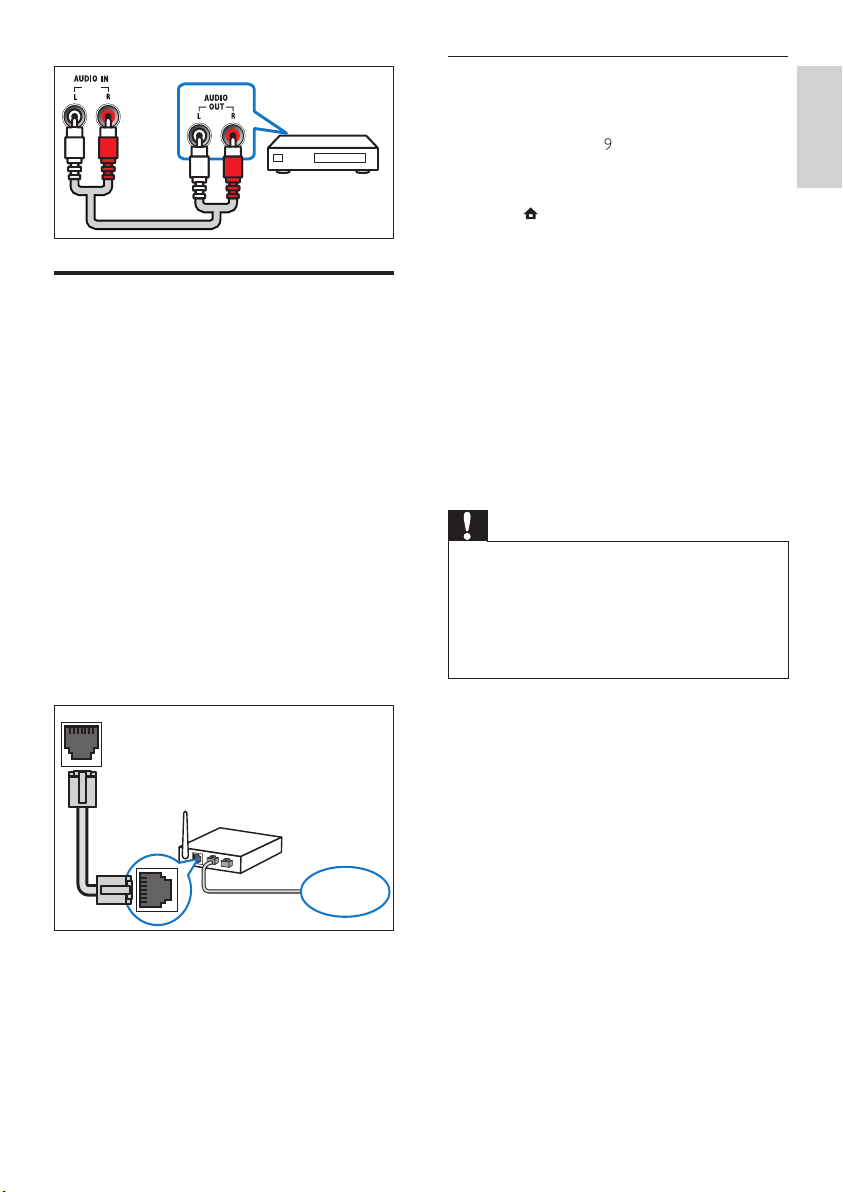
Option 2: Connect to the TV through
composite video (CVBS)
Note
• The composite video cable or connector might
be labeled AV IN, VIDEO IN, COMPOSITE or
BASEBAND.
Connect audio from TV or
other devices
Use your home theater to play audio from the
TV or other device such as a cable box.
Tip
• Press AUDIO SOURCE to select the audio
output of your connection.
Option 1: Connect audio through analog
audio cables
(Cable not supplied)
TV
TV
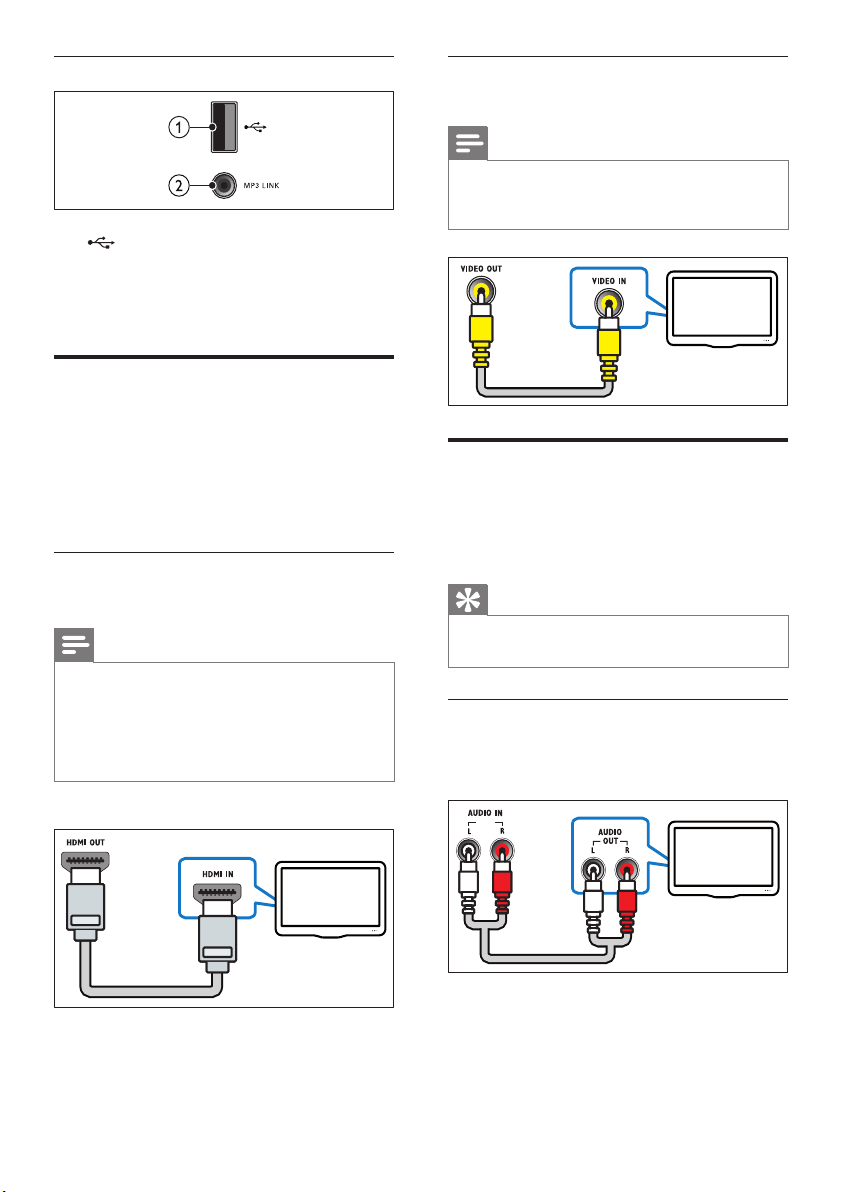
Side connectors
a (USB)
Audio, video or picture input from a USB
storage device.
b MP3 LINK
Audio input from an MP3 player.
Connect to the TV
Connect your home theater directly to a TV
through one of the following connectors (from
highest to basic quality video):
a HDMI
b Composite video
Option 1: Connect to the TV through
HDMI
Note
• If the HDTV has a DVI connector, connect
using an HDMI/DVI adapter.
• If the TV supports EasyLink HDMI CEC,
control the home theater and TV with one
remote control (see ‘Use Philips EasyLink’ on
page 15).
(Cable not supplied)
TV
EN
9
Set up network
1 Connect the home theater to a broadband
modem or router (see ‘Connect to the
internet’ on page 9).
2 Turn on your TV and switch to the correct
source for the home theater.
3 Press (Home).
4 Select [Setup], then press OK.
5 Select [Network] > [Network Installation],
then press OK.
6 Select [Wired (Ethernet)], then press OK.
7 Select [Auto (recommended)] or [Manual
(advanced)], then press OK.
8 Follow the instructions on the TV to
complete the setup.
» The home theater connects to the
internet. If connection fails, select [Retry],
then press OK.
9 Select [Finish], then press OK to exit.
Caution
• Familiarize yourself with the network router,
media server software and networking
principles before attempting to connect the
home theater to a computer network. If
necessary, read documentation accompanying
network components. Philips is not responsible
for lost, damaged or corrupt data.
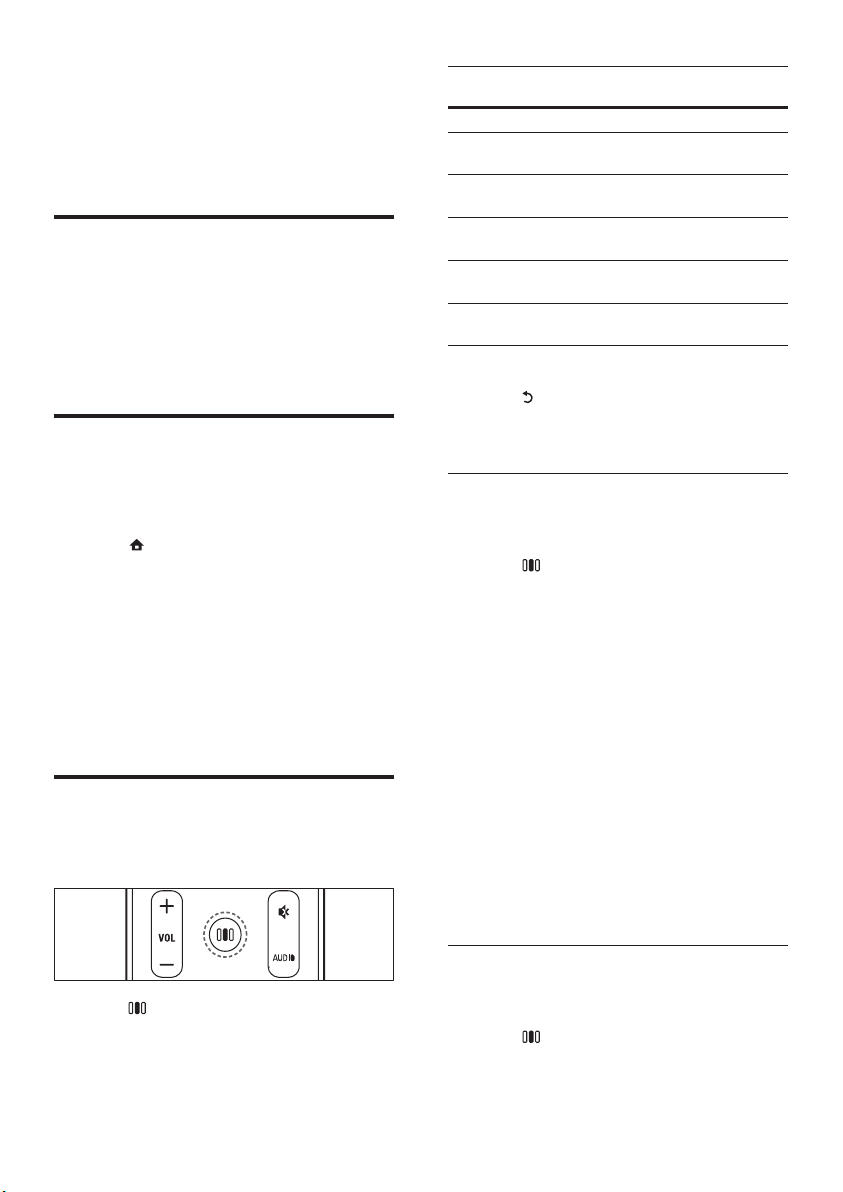
Connect to the internet
Connect the home theater to the internet
network and enjoy:
• BD-Live applications : access to some
exclusive services from the BD-Live enabled
Blu-ray discs (see ‘Access BD-Live on Blu-
ray’ on page 12).
• Software update : update the software of
the home theater through the network (see
‘Update software from the network’ on
page 18).
What you need:
• A network router (with DHCP enabled).
• A network cable (RJ45 straight cable).
• For BD-Live application and software
update, make sure that the network router
has access to the Internet and the rewall is
disabled.
(Cable not supplied)
LAN
www
Engli s h
EN
10
Sound
experience
Description
SOUND Selects a sound mode.
SURROUND Selects a surround sound or
stereo sound.
TREBLE Adjusts the high frequency
output.
MID Adjusts the middle frequency
output.
BASS Adjusts the low frequency
output.
AUDIO SYNC Delays the audio to match the
video.
3 Select an option, then press OK.
4 Press (Back) to exit.
If you do not press a button within ve seconds,
it automatically exits the menu.
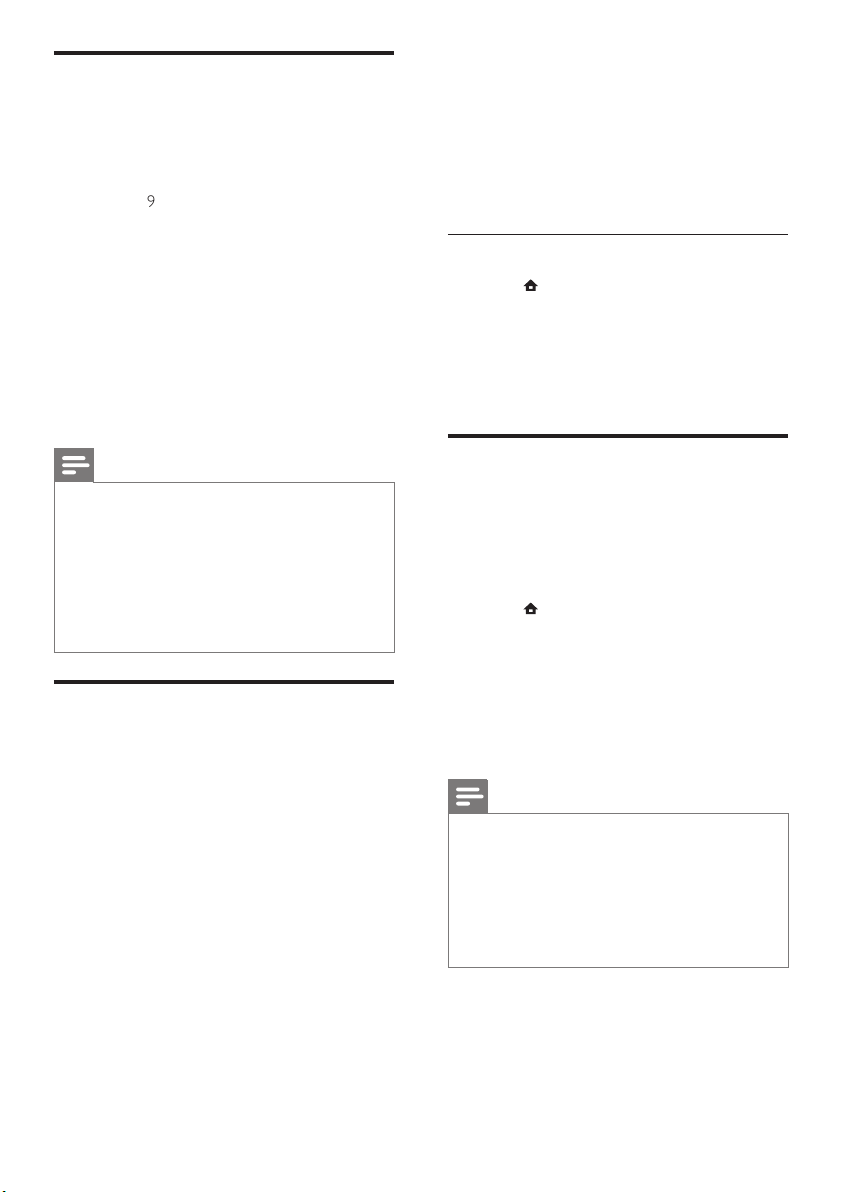
Change sound mode
Select predened sound modes to suit your
video or music.
1 Press (Sound options).
2 Select SOUND, then press OK.
3 Press the Navigation buttons (up/down) to
select the following settings:
• ACTION/ROCK : Enhanced low and
high-range. Ideal for action movies and
rock or pop music.
• DRAMA/JAZZ : Clear mid and high-
range. Ideal for drama movies and jazz
music.
• CONCERT/CLASSIC: Neutral sound.
Ideal for live concerts and classical
music.
• SPORTS : Moderate mid-range and
surround effects for clear vocals and
the atmosphere of a live sport venue.
4 Press OK to conrm your choice.
Change surround sound mode
Experience an immersive audio experience with
surround sound modes.
1 Press (Sound options).
2 Select SURROUND, then press OK.
5 Use your home
theater
This section helps you use the home theater to
play media from a wide range of sources.
Before you start
Check that you:
• Make the necessary connections and
complete the setup as described in the
Quick Start.
• Switch the TV to the correct source for the
home theater.
Access the home menu
The home menu gives you easy access to
connected devices, audio and video settings, and
other features.
1 Press (Home).
» The home menu appears.
2 Press the Navigation buttons and OK to
select the following:
• [play Disc] : Starts disc play.
• [browse USB] : Accesses the content
browser of the connected USB storage
device.
• [Setup] : Accesses menus to change
picture, sound and other settings.
Choose your sound
This section helps you choose the ideal sound for
your video or music.
1 Press (Sound options).
2 Press the Navigation buttons (left/right) to
access the sound options.
EN

11
Button Action
Navigation
buttons
Navigate menus.
OK Conrms an entry or selection.
(Play)
Starts or resumes play.
Pauses play.
Stops play.
/
Skips to the previous or next
track, chapter or le.
/
Fast backwards or fast
forwards. Press repeatedly to
change the search speed.
Navigation
buttons (up/
down)
Rotates the picture counter-
clockwise or clockwise.
SUBTITLE Selects subtitle language for
video.
DISC Accesses or exits the disc
menu.
(Options)
Accesses more play options
during playback.
Use Bonus View on Blu-ray
Blu-ray discs that support the Bonus View
feature (also known as Picture-In-Picture) allow
you to view special content such as a director’s
commentary while watching the main feature.
1 If necessary, enable BonusView (or Picture-
In-Picture) in the Blu-ray disc menu.
2 During playback of the main feature, press
(Options).
» The options menu is displayed.
3 Select [PIP Selection] > [PIP], then press OK.
» PIP options [1]/[2] depend on the video
contents.
» The picture-in-picture video appears in a
small window.
4 Select [2nd Audio Language] or [2nd
Subtitle Language], then press OK.
5 Select the language to play, then press OK.
Note
• To turn off the Bonus View (Picture-in-
Picture), press (Options), select [PIP
Selection] > [Off], then press OK.
3 Press the Navigation buttons (up/down) to
select the following settings:
• DOLBY VS : Dolby Virtual Speaker.
• STEREO : Two-channel stereo sound.
Ideal for listening to music.
4 Press OK to conrm your choice.
Change treble, mid and bass
Change the high frequency (treble), mid
frequency (mid) and low frequency (bass)
settings of the home theater to suit your video
or music.
1 Press (Sound options).
2 Select TREBLE, MID or BASS, then press
OK.
3 Press the Navigation buttons (up/down) to
adjust the frequency level.
4 Press OK to conrm.
Synchronize audio with video
If the audio and video are not synchronized, you
can delay the audio to match the video.
1 Press (Sound options).
2 Select AUDIO SYNC, then press OK.
3 Press the Navigation buttons (up/down) to
sync the audio with the video.
4 Press OK to conrm.
Note
• Audio Lip Sync is only available when you play
a video.
Play a disc
The home theater can play a wide variety of
discs, including video, audio and mixed media (for
example, a CD-R that contains JPEG pictures and
MP3 music).
1 Insert a disc into the home theater.
2 Press DISC, or select [play Disc] in the
home menu and press OK.
» The disc plays or the disc main menu
appears.
3 Press the following buttons to control play:
Engli s h
EN
12
3 Press the play buttons to control play.
When you search forward or backward,
and in some other play modes, the video
displays in 2D. It returns to 3D when you
play normally again.
4 Put on the 3D glasses to enjoy the 3D
effects.
Play 3D discs in 2D
1 Press (Home).
2 Select [Setup] > [Video] > [Blu-ray 3D
video] > [Off].
3 Press OK.
4 Play your Blu-ray 3D disc.
» The 3D video is displayed in 2D.
Play from a USB storage device
The home theater is tted with a USB connector
that allows you to view pictures, listen to music or
watch movies stored on a USB storage device.
1 Connect the USB storage device to the
home theater.
2 Press (Home).
» The home menu appears.
3 Select [browse USB], then press OK.
» A content browser appears.
4 Select a le, then press OK.
5 Press the playback buttons to control play
(see ‘Play a disc’ on page 11).
Note
• If the USB storage device does not t into the
connector, use a USB extension cable.
• The home theater does not support digital
cameras that need a computer program to
display photos.
• The USB storage device must be Mass Storage
Class compliant, and formatted to FAT, DOS
or NTFS le system.
Access BD-Live on Blu-ray
BD-Live enabled Blu-ray discs include exclusive
services such as movies and other online bonuses.
1 Prepare the internet connection and set up
the network (see ‘Connect to the internet’
on page 9).
2 Connect the USB storage device to the
home theater.
3 Select the BD-Live icon in the disc menu,
then press OK.
» BD-Live starts to load. The loading time
depends on the disc and your internet
connection.
4 Press the Navigation buttons to navigate
BD-Live.
5 Press OK to select an item.
Note
• The range of BD-Live services depends on
the disc.
• When you use BD-Live, data on the disc and
home theater are accessed by the content
provider.
• Use a USB storage device with at least 1GB of
free space to store the downloaded les.
• If there is insufcient memory to download
BD-Live content, clear memory space.
Play 3D video
Your home theater can play 3D videos on 3D TVs.
Before you start, make sure that:
• your TV is a 3D TV, and is connected to
your home theater through HDMI,
• your disc is a Blu-ray 3D disc, and
• you have 3D glasses that are compatible
with your 3D TV.
To play 3D video
1 Insert a Blu-ray 3D disc into your home
theater.
» Your TV switches to the correct HDMI
source, and the disc plays automatically.
2 If the disc does not play automatically, press
DISC or select [play Disc] in the home
menu, and then press OK.
EN
13
• [Repeat] : Repeats a chapter or title.
• [Repeat A-B] : Marks two points
within a chapter or track for repeat
play, or turns off repeat mode.
• [Picture Settings] : Selects a
predened color setting.
Use picture options
Access several useful features while viewing
pictures.
1 Press (Options).
» The pictures options menu appears.
2 Press the Navigation buttons and OK to
select and adjust:
• [Rotate +90] : Rotates the picture 90
degree clockwise.
• [Rotate -90] : Rotates the picture 90
degree counter-clockwise.
• [Zoom] : Zooms into a video scene or
picture. Press the Navigation buttons
(left/right) to select a zoom factor.
• [Info] : Displays picture information.
• [Duration per slide] : Sets the display
speed for each picture in a slide show.
• [Slide Animation] : Selects animation
for the slide show.
• [Picture Settings] : Selects a
predened color setting.
• [Repeat] : Repeats a selected folder.
Use audio options
Access several useful features while audio is
played.
1 Press (Options) repeatedly to cycle
through the following functions:
• REPEAT TRACK : Repeats the current
track.
• REPEAT DISC : Repeats all the tracks
on the disc or folder.
• REPEAT RANDOM : Plays audio
tracks in random order.
• REPEAT OFF : Turns off repeat mode.
More play features for disc or
USB
Several advanced features are available for video
or picture playback from a disc or USB storage
device.
Use video options
Access several useful features while viewing
video.
Note
• Available video options depend on the video
source.
1 Press (Options).
» The video options menu appears.
2 Press the Navigation buttons and OK to
select and adjust:
• [Audio Language] : Selects audio
language for video.
• [Subtitle Language] : Selects subtitle
language for video.
• [Subtitle Shift] : Adjusts the subtitle
position on the screen.
• [Info] : Displays information about
what is playing.
• [Character Set] : Selects a character
set that supports the DivX subtitle.
• [Time Search] : Skips to a specic part
of the video by entering the time of
the scene.
• [2nd Audio Language] : Selects the
second audio language to play.
• [2nd Subtitle Language] : Selects the
second subtitle language to play.
• [Titles] : Selects a specic title.
• [Chapters] : Selects a specic chapter.
• [Angle List] : Selects a different camera
angle.
• [Menus] : Displays the disc menu.
• [PIP Selection] : Displays Picture-in-
Picture window.
• [Zoom] : Zooms into a video scene or
picture. Press the Navigation buttons
(left/right) to select a zoom factor.
Engli s h
EN
14
Play audio from TV or other
devices
Press AUDIO SOURCE repeatedly to select the
audio output of the connected device.
Play from an MP3 player
Connect and play audio les from an MP3 player
or other external audio devices.
1 Connect the MP3 player to the home
theater.
2 Press AUDIO SOURCE repeatedly until
‘MP3 LINK’ appears on the display panel.
3 Press the buttons on the MP3 player to
select and play audio les.
Play a musical slideshow
Play music and pictures simultaneously to create
a musical slideshow.
1 Select a music track, then press OK.
2 Press (Back) and go to the picture folder.
3 Select a picture, then press OK to start
slideshow.
4 Press to stop slideshow.
5 Press again to stop music.
Play from radio
The home theater can store up to 40 radio
stations.
1 Check that the FM antenna is connected.
2 Press RADIO.
» “AUTO INSTALL...PRESS PLAY’ appears
on the display panel if you have not
installed any radio stations. Press (Play).
3 Press the following buttons to control play:
Button Action
/
Selects a preset radio station.
Navigation
buttons
(left/right)
Searches for a radio station.
Navigation
buttons
(up/down)
Fine tunes a radio frequency.
Press and hold to erase the preset
radio station.
Press to stop the installation of
radio stations.
(Options)
Manual: Press once to access
program mode, and press again to
store the radio station.
Automatic: Press and hold for ve
seconds to reinstall radio stations.
AUDIO Toggles between stereo and mono
sound.
Note
• AM and digital radio are not supported.
• If no stereo signal is detected, or if fewer than
ve stations are found, you are prompted to
install the radio stations again.
• For the best reception, place the antenna away
from the TV or other sources of radiation.
EN

15
6 Change settings
This section helps you to change the settings of
your home theater.
Caution
• Most of the settings are already congured
with the best value for the home theater.
Unless you have a specic reason to change a
setting, it is best to leave it at the default value.
Access the setup menu
1 Press (Home).
2 Select [Setup], then press OK.
» The setup menu appears.
3 Select a setup menu, then press OK.
See the following sections for information
about how to change the settings of your
home theater.
4 Press (Back) to return to the previous
menu, or press to exit.
Note
• You cannot change a setting that is grayed out.
Use Philips EasyLink
The home theater supports Philips EasyLink,
which uses the HDMI CEC (Consumer
Electronics Control) protocol. EasyLink-
compliant devices that are connected through
HDMI connectors can be controlled by a single
remote control.
Note
• Philips does not guarantee 100%
interoperability with all HDMI CEC devices.
1 Switch on the HDMI CEC operations on
the TV and other connected devices. See
the manual of the TV or other devices for
details.
2 Press (Home).
3 Select [Setup], then press OK.
4 Select [EasyLink] > [EasyLink], then press
OK.
5 Select [On], then press OK.
6 You can now enjoy the following Philips
EasyLink controls.
One-touch play
When you play a disc, the TV automatically
switches to the correct channel.
One-touch standby
When you press and hold (Standby) on the
remote control, the home theater and all the
connected HDMI CEC devices (if they support
one-touch standby) switch to standby mode
simultaneously.
System Audio Control
When you play a device that has its audio
output routed to the home theater, the home
theater switches to the corresponding audio
source automatically.
To use one-touch audio, enable this feature and
follow the instructions on the TV to map the
connected devices correctly to the audio input
jacks of the home theater.
Audio Input Mapping
Updates audio input mapping if there are new
devices connected.
Engli s h
EN
16
Note
• For settings related to HDMI, the TV must be
connected through HDMI.
• Night mode is available for Dolby encoded
DVD and Blu-ray discs (for models support
Blu-ray playback).
Set up network
1 Press (Home).
2 Select [Setup], then press OK.
3 Select [Network], then press OK.
4 Select and adjust the following settings:
• [Network Installation] : Starts
wired (Ethernet) setup. Follow the
instructions to set up the network
connection.
• [View Network Settings] : Displays
the current network settings.
5 Press OK to conrm your choice.
Set up EasyLink
1 Press (Home).
2 Select [Setup], then press OK.
3 Select [EasyLink], then press OK.
4 Select and adjust the following settings:
• [EasyLink] : Enables or disables EasyLink.
• [One Touch Play] : Enables or disables
One Touch Play.
If enabled, you can use the remote
control to start disc play in the
home theater and the TV switches
automatically to the correct channel.
• [One Touch Standby] : Enables or
disables One Touch Standby.
If enabled, the home theater can
be switched off to standby by a
remote control from the TV or other
connected HDMI CEC devices.
• [System Audio Control] : Enables or
disables System audio control.
If enabled, follow the instructions on
the TV to map the connected devices
correctly to the audio connectors of
the home theater. The home theater
switches automatically to the audio
source of the connected device.
Change video settings
1 Press (Home).
2 Select [Setup], then press OK.
3 Select [Video], then press OK.
4 Select and adjust the following settings:
• [TV Display] : Selects a picture display
format to t the TV screen.
• [HDMI Video] : Selects the HDMI
video resolution.
• [HDMI Deep Color] : Displays colors
with more shades and hues when
the video content is recorded in
Deep Color and the TV supports this
feature.
• [Blu-ray 3D video] : Selects the
3-dimensional video output when you
play a 3D video on your home theater.
The home theater must be connected
to a 3D TV through HDMI.
• [Picture Settings] : Selects a
predened color setting.
5 Press OK to conrm your choice.
Note
• The best setting is automatically selected for
the TV. If you need to change the setting,
ensure that the TV supports the new setting.
• For settings related to HDMI, the TV must be
connected through HDMI.
Change audio settings
1 Press (Home).
2 Select [Setup], then press OK.
3 Select [Audio], then press OK.
4 Select and adjust the following settings:
• [Night Mode] : Selects quiet or full
dynamic sound. Night mode decreases
the volume of loud sounds and
increases the volume of soft sounds
such as speech.
• [HDMI Audio] : Selects HDMI audio
format or disables HDMI audio output
for the TV.
5 Press OK to conrm your choice.
EN

17
• [Sleep Timer] : Sets a sleep timer to
switch the home theater to standby
after a specic time.
5 Press OK to conrm your choice.
Note
• If your preferred disc language is not available,
you can select [Other] from the list and enter
the 4-digit language code which can be found
at the back of this manual.
• If you select a language that is not available
on a disc, the home theater uses the default
language of the disc.
Change advanced settings
1 Press (Home).
2 Select [Setup], then press OK.
3 Select [Advanced], then press OK.
4 Select and adjust the following settings:
• [BD-Live Security] : Restricts or allows
access to BD-Live.
• [Enhanced Audio] : Enables or disables
the audio post processing at the
speaker output.
• [Software Update] : Selects to update
software from the network or from
USB storage device.
• [Clear memory] : Clears local memory,
delete the BD-Live les that you previously
downloaded. If using an USB storage
device, the local storage folder is ‘BUDA’.
• [DivX® VOD Code] : Displays the
DivX VOD registration code for the
home theater.
• [Version Info.] : Displays the software
version for the home theater.
• [Restore default settings] : Resets the
home theater to the default settings
programmed at the factory.
5 Press OK to conrm your choice.
Note
• You cannot restrict internet access on
commercial Blu-ray discs.
• Before you purchase DivX videos and play them
on the home theater, register the home theater
on www.divx.com using the DivX VOD code.
• You cannot reset parental control setting to its
default value.
• [Audio Input Mapping] : Updates audio
input mapping if there are new devices
connected.
5 Press OK to conrm your choice.
Note
• The connected devices must be connected
through HDMI and switched on.
Change preference settings
1 Press (Home).
2 Select [Setup], then press OK.
3 Select [Preference], then press OK.
4 Select and adjust the following settings:
• [Menu language] : Selects the on-
screen display menu language.
• [Audio] : Selects audio language for video.
• [Subtitle] : Selects subtitle language for
video.
• [Disc Menu] : Selects menu language
for video disc.
• [Parental Control] : Restricts access to
discs that are recorded with ratings. To
play all discs irrespective of the rating,
select level ‘8’.
• [Screen Saver] : Enables or disables
screen saver mode. If enabled, the
screen enters idle mode after 10
minutes of inactivity (for example, in
pause or stop mode).
• [Auto Subtitle Shift] : Enables or
disables shift subtitle. If enabled,
it adjusts the subtitle position
automatically to t the TV screen.
• [Change Password] : Sets or changes
a PIN code to play a restricted disc.
Enter ‘0000’ if you do not have a PIN
or if you have forgotten your PIN.
• [Display Panel] : Changes the
brightness of the display panel.
• [Auto Standby] : Enables or disables
auto standby. If enabled, the home
theater switches to standby after 30
minutes of inactivity (for example, in
pause or stop mode).
• [VCD PBC] : Displays or skips the
content menu for VCD and SVCD
discs.
Engli s h
EN

18
Update software from a USB
1 Check for the latest software version on
www.philips.com/support.
• Search for your model and click on
‘software and drivers’.
2 Create a folder named ‘UPG’ in the root
directory of your USB storage device.
3 Download the software into the ‘\UPG’
folder of the USB storage device.
4 Unzip the software in the ‘\UPG’ folder.
5 Connect the USB storage device to the
home theater.
6 Press (Home) and select [Setup].
7 Select [Advanced] > [Software Update] >
[USB].
8 Follow the instructions on the TV to
conrm the update.
» When complete, the home theater
automatically switches off and restarts.
• If not, disconnect the power cord for a
few seconds and then reconnect it.
Caution
• Do not turn off the power or remove the USB
storage device when the software update is in
progress because you might damage the home
theater.
7 Update software
To check for new updates, compare the current
software version of your home theater with the
latest software version (if available) on the Philips
web site.
Check software version
1 Press (Home).
2 Select [Setup], then press OK.
3 Select [Advanced] > [Version Info.], then
press OK.
» The software version is displayed.
Update software from the
network
1 Prepare the internet connection (see
‘Connect to the internet’ on page 9).
2 Press (Home) and select [Setup].
3 Select [Advanced] > [Software Update] >
[Network].
» If an upgrade media is detected, you are
prompted to start or cancel the update.
4 Follow the instruction on the TV to conrm
the update.
» When complete, the home theater
automatically switches off and on again.
• If not, disconnect the power cord for a
few seconds and then reconnect it.
Note
• If the home theater is unable to connect to the
Philips server, press (Home), select [Setup]
> [Network] > [Network Installation] to set
up the network.
EN
19
Video
• Signal system: PAL / NTSC
• HDMI output: 480i/576i, 480p/576p, 720p,
1080i, 1080p
Audio
• Sampling frequency:
• MP3: 32 kHz, 44.1 kHz, 48 kHz
• WMA: 44.1 kHz, 48 kHz
• Constant bit rate:
• MP3: 112 kbps - 320 kbps
• WMA: 48 kbps - 192 kbps
Radio
• Tuning range: FM 87.5-108 MHz (50 kHz)
• Signal-to-noise ratio: FM 55 dB
• Frequency response: FM 180 Hz-12.5 kHz
/ ±3dB
USB
• Compatibility: Hi-Speed USB (2.0)
• Class support: UMS (USB Mass Storage
Class)
• File system: FAT16, FAT32, NTFS
• Maximum memory support: < 160GB
Main Unit
• Power supply: 220-240V; ~50 Hz
• Power consumption: 55 W
• Standby power consumption: ≤ 0.9 W
• Dimensions (WxHxD): 360 x 58 x 351 (mm)
• Weight: 3.15 kg
Subwoofer
• Impedance: 4 ohm
• Speaker drivers: 165 mm (6.5”) woofer
• Frequency response: 40 Hz-150 Hz
• Dimensions (WxHxD): 123 x 309 x 369 (mm)
• Weight: 3.84 kg
• Cable length: 4 m
Speakers
• Speaker impedance: 8 ohm
• Speaker drivers: 1 x 3” woofer + 1” twitter
• Frequency response: 150 Hz-20 kHz
• Dimensions (WxHxD): 114 x 311 x 114
• Weight: 0.88 Kg
• Cable length: 2 m
Laser Specication
• Laser Type (Diode): InGaN/AIGaN (BD),
InGaAIP (DVD), A IGaAs (CD)
• Wave length: 405 +5nm/-5nm (BD), 650
+13nm/-10nm (DVD), 790 +15nm/-15nm (CD)
• Output power (Max. ratings): 20mW (BD),
7mW (DVD/CD)
8 Product specifications
Note
• Specication and design are subject to change
without notice.
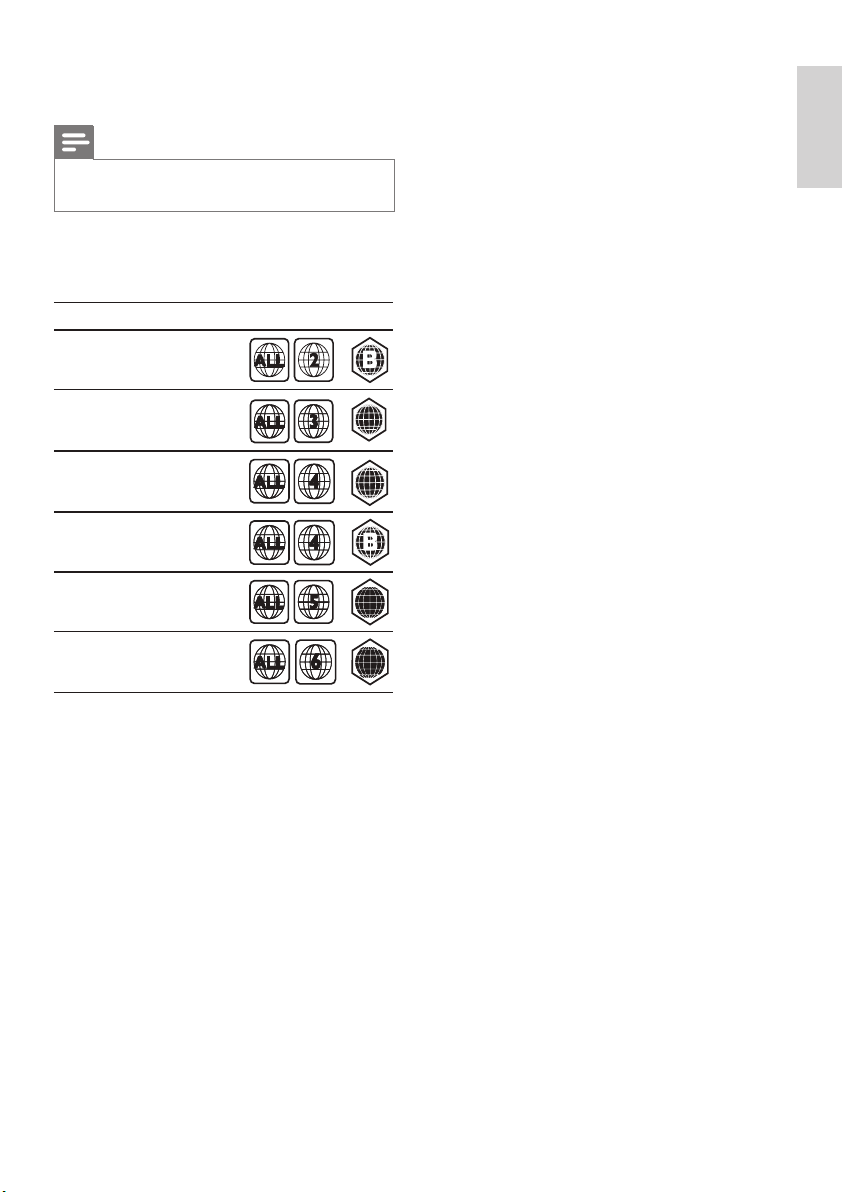
Region code
The type plate on the back or bottom of the
home theater shows which regions it supports
Playback media
• BD-Video, DVD-Video, DVD+R/+RW,
DVD-R/-RW, DVD+R/-R DL, CD-R/CD-
RW, Audio CD, Video CD/SVCD, Picture
CD, MP3-CD, WMA-CD, DivX (Ultra)-CD,
USB ash drive.
File Format
• Audio: .mp3, .wma
• Video: .avi, .divx, .mkv, .wmv
• Picture: .jpg, .gif, .png
Amplier
• Total output power: 300 W RMS (30% THD)
• Frequency response: 20 Hz-20 kHz / ±3dB
• Signal-to-noise ratio: > 65 dB (CCIR) /
(A-weighted)
• Input sensitivity:
• AUX: 500 mV
• MP3 LINK: 250 mV
Country
DVD BD
Europe,
United Kingdom
Korea
Latin America
Australia,
New Zealand
Russia, India
China
AA
AA
CC
CC
Asia Pacific, Taiwan,
Engli s h
EN
20
Sound
No sound.
• Ensure that the audio cables are connected
and select the correct input source (for
example, AUDIO SOURCE) for the device
you want to play.
No sound on HDMI connection.
• You might not hear any sound if the
connected device is not HDCP (High-
bandwidth Digital Content Protection)
compliant or only DVI compatible. Use an
analog or digital audio connection.
• Ensure that the [HDMI Audio] is enabled.
No sound from TV program.
• Connect an audio cable from the audio
input on the home theater to the audio
output on the TV, then press AUDIO
SOURCE repeatedly to select the correct
audio source.
Distorted sound or echo.
• Ensure that the TV volume is muted or set
to minimum if you are playing audio through
the home theater.
Audio and video are not synchronized.
• 1) Press (Sound options) . 2) Press the
Navigation buttons (left/right) repeatedly
until AUDIO SYNC is displayed, then press
OK. 3) Press the Navigation buttons (up/
down) to sync the audio with the video.
Play
Disc cannot be played.
• Clean the disc.
• Ensure that the home theater supports the
disc (see ‘Product specications’ on page
19).
• Ensure that the home theater supports the
region code of the disc.
• For DVD±RW or DVD±R, ensure that the
disc is nalized.
DivX video les cannot be played.
• Ensure that the DivX le is encoded
according to the ‘Home Theater Prole’
with the DivX encoder.
• Ensure that the DivX video le is complete.
9 Troubleshooting
Warning
• Risk of electric shock. Never remove the
casing of the product.
To keep the warranty valid, never try to repair the
product yourself.
If you have problems using this product, check the
following points before you request service. If you
still have a problem, register your product and get
support at www.philips.com/welcome.
If you contact Philips, you will be asked for the
model and serial number of your product. The
model number and serial number are on the back
or bottom of your product. Write the numbers
here:
Model No. __________________________
Serial No. ___________________________
Main unit
The buttons on this home theater do not work.
• Disconnect the home theater from the
power outlet for a few minutes, then
reconnect.
Picture
No picture.
• Ensure that the TV is switched to the
correct source for the home theater.
No picture on HDMI connection.
• Change the HDMI video setting or wait for
15 seconds for auto recover.
• Check if the HDMI cable is faulty. Replace
with a new HDMI cable.
No high-denition video signal on the TV.
• Ensure that the disc contains high-denition
video.
• Ensure that the TV supports high-denition
video.
EN
21
10 Index
3
3D video 12
A
amplier 19
audio
connection 8
language 17
synchronize with video 11
audio input mapping 15, 16
B
BD-Live
access 12
set up 9
Bonus View 11
C
care 4
change settings 15
chapter 13
connect
audio from TV 8, 14
guide 7
other devices 8
TV 8
connectors 7
contact us 20
D
disc
play 11
supported discs 19
disposal of your product 5
DivX
character set 13
E
EasyLink
settings 15, 16
F
le formats 19
H
HDMI CEC (see Easylink) 15
DivX subtitles do not display correctly.
• Ensure that the subtitle le name is the
same as the movie le name.
• Select the correct character set: 1) Press
(Options). 2) Select [Character Set].
3) Select the supported character set.
4) Press OK.
The contents of a USB storage device cannot be
read.
• Ensure that the format of the USB storage
device is compatible with the home theater
(see ‘Product specications’ on page 19).
• Ensure that the USB storage device
is formatted with a le system that is
supported by the home theater.
‘No entry’ or ‘x’ sign appears on the TV.
• The operation is not possible.
EasyLink feature does not work.
• Ensure that the home theater is connected
to a Philips brand EasyLink TV and that
EasyLink is on.
I do not want my home theater to be switched
on when I switch on my TV.
• This is the correct behavior for Philips
EasyLink (HDMI-CEC). To make the home
theater work independently, switch off
EasyLink.
I cannot access BD-Live features.
• Check the network connection or ensure
that the network has been set up (see ‘Set
up network’ on page 9).
• Clear memory storage. (see ‘Change
advanced settings’ on page 17)
• Ensure that the Blu-ray disc supports BD-
Live feature.
My 3D video plays in 2D mode.
• Ensure that your home theater is connected
to your 3D TV through HDMI.
• Ensure that your disc is a Blu-ray 3D disc.
• Ensure that the [Blu-ray 3D video] setting
is turned on.
I see black video on my TV screen.
• Ensure that your home theater is connected
to the TV through HDMI.
• Switch to the correct HDMI source on your
TV.
Engli s h
EN

22
play 14
program 14
tune 14
recycle 5
region code 19
remote control 6
repeat 13, 11
rotate pictures 13
S
safety 4
settings
EasyLink 16
parental control 17
preferences 17
slideshow
animation 13
duration 13
play musical slideshow 14
software
update 18
version 18
sound
mode 10
surround 10
treble and bass 11
troubleshooting 20
subtitle
language 13, 17
subtitle shift 13, 17
system audio control 15
T
time search video 13
title 13
troubleshooting 20
TV
audio from TV 8, 14
connect 8
U
USB
play 12
software update 18
V
video
options 13
synchronize with audio 11
W
wireless
I
Internet
BD-Live 12
L
language
audio 13, 17
disc menu 17
on-screen display 17
subtitle 13, 17
M
MP3
play 14
N
network
set up 9
O
one-touch play 15, 16
one-touch standby 15, 16
overview
connectors 7
main unit 5
remote control 6
P
password (PIN code) 17
picture
options 13
rotate 13
slide show 14, 13
troubleshooting 20
picture-in-picture
2nd audio language 11
2nd subtitle language 11
enable 11
play
2D video 12
3D video 12
disc 11
MP3 player 14
options 11
radio 14
troubleshooting 20
USB storage device 12
product care 4
product specications 19
R
radio
EN

Abkhazian 6566
Afar 6565
Afrikaans 6570
Amharic 6577
Arabic 6582
Armenian 7289
Assamese 6583
Avestan 6569
Aymara 6589
Azerhaijani 6590
Bahasa Melayu 7783
Bashkir 6665
Belarusian 6669
Bengali 6678
Bihari 6672
Bislama 6673
Bokmål, Norwegian 7866
Bosanski 6683
Brezhoneg 6682
Bulgarian 6671
Burmese 7789
Castellano, Español 6983
Catalán 6765
Chamorro 6772
Chechen 6769
Chewa; Chichewa; Nyanja 7889
9072
Chuang; Zhuang 9065
Church Slavic; Slavonic 6785
Chuvash 6786
Corsican 6779
esky 6783
Dansk 6865
Deutsch 6869
Dzongkha 6890
English 6978
Esperanto 6979
Estonian 6984
Euskara 6985
6976
Faroese 7079
Français 7082
Frysk 7089
Fijian 7074
Gaelic; Scottish Gaelic 7168
Gallegan 7176
Georgian 7565
Gikuyu; Kikuyu 7573
Guarani 7178
Gujarati 7185
Hausa 7265
Herero 7290
Hindi 7273
Hiri Motu 7279
Hrwatski 6779
Ido 7379
Interlingua (International)7365
Interlingue 7365
Inuktitut 7385
Inupiaq 7375
Irish 7165
Íslenska 7383
Italiano 7384
Ivrit 7269
Japanese 7465
Javanese 7486
Kalaallisut 7576
Kannada 7578
Kashmiri 7583
Kazakh 7575
Kernewek 7587
Khmer 7577
Kinyarwanda 8287
Kirghiz 7589
Komi 7586
Korean 7579
Kuanyama; Kwanyama 7574
Kurdish 7585
Lao 7679
Latina 7665
Latvian 7686
Letzeburgesch; 7666
Limburgan; Limburger 7673
Lingala 7678
Lithuanian 7684
Luxembourgish; 7666
Macedonian 7775
Malagasy 7771
Magyar 7285
Malayalam 7776
Maltese 7784
Manx 7186
Maori 7773
Marathi 7782
Marshallese 7772
Moldavian 7779
Mongolian 7778
Nauru 7865
Navaho; Navajo 7886
Ndebele, North 7868
Ndebele, South 7882
Ndonga 7871
Nederlands 7876
Nepali 7869
Norsk 7879
Northern Sami 8369
North Ndebele 7868
Norwegian Nynorsk; 7878
Occitan; Provencal 7967
Old Bulgarian; Old Slavonic 6785
Oriya 7982
Oromo 7977
Ossetian; Ossetic 7983
Pali 8073
Panjabi 8065
Persian 7065
Polski 8076
Português 8084
Pushto 8083
Russian 8285
Quechua 8185
Raeto-Romance 8277
Romanian 8279
Rundi 8278
Samoan 8377
Sango 8371
Sanskrit 8365
Sardinian 8367
Serbian 8382
Shona 8378
Shqip 8381
Sindhi 8368
Sinhalese 8373
Slovensky 8373
Slovenian 8376
Somali 8379
Sotho; Southern 8384
South Ndebele 7882
Sundanese 8385
Suomi 7073
Swahili 8387
Swati 8383
Svenska 8386
Tagalog 8476
Tahitian 8489
Tajik 8471
Tamil 8465
Tatar 8484
Telugu 8469
Thai 8472
Tibetan 6679
Tigrinya 8473
Tonga (Tonga Islands) 8479
Tsonga 8483
Tswana 8478
Türkçe 8482
Turkmen 8475
Twi 8487
Uighur 8571
Ukrainian 8575
Urdu 8582
Uzbek 8590
Vietnamese 8673
Volapuk 8679
Walloon 8765
Welsh 6789
Wolof 8779
Xhosa 8872
Yiddish 8973
Yoruba 8979
Zulu 9085
中文
Language Code

© 2010 Koninklijke Philips Electronics N.V.
All rights reserved.
Sgpam_1037/12WE_v2