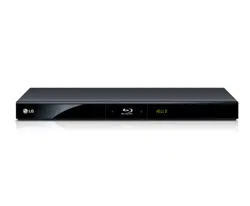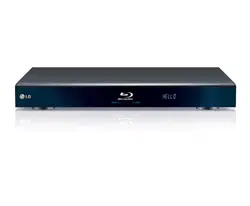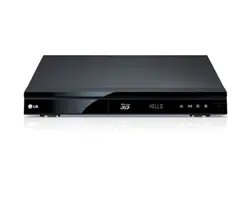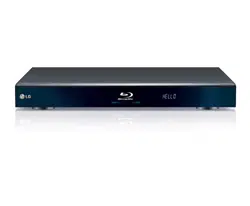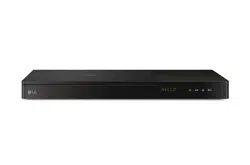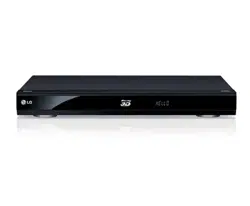

Please read this manual carefully before operating
your set and retain it for future reference.
OWNER’S MANUAL
Blu-ray Disc™ Player with
built-in HDD & HD Tuner
MODEL
HR536D/HR537D
P/NO : SAC35215601

3
Safety Information
Safety Information
1
CAUTION
RISK OF ELECTRIC SHOCK
DO NOT OPEN
CAUTION: TO REDUCE THE RISK OF ELECTRIC SHOCK
DO NOT REMOVE COVER (OR BACK) NO USER-
SERVICEABLE PARTS INSIDE REFER SERVICING TO
QUALIFIED SERVICE PERSONNEL.
This lightning ash with arrowhead
symbol within an equilateral triangle
is intended to alert the user to the
presence of uninsulated dangerous
voltage within the product’s
enclosure that may be of sucient magnitude to
constitute a risk of electric shock to persons.
The exclamation point within an
equilateral triangle is intended
to alert the user to the presence
of important operating and
maintenance (servicing) instructions
in the literature accompanying the product.
Cautions and Warnings
WARNING: TO PREVENT FIRE OR ELECTRIC SHOCK
HAZARD, DO NOT EXPOSE THIS PRODUCT TO RAIN
OR MOISTURE.
WARNING: Do not install this equipment in a
conned space such as a book case or similar unit.
CAUTION: Do not block any ventilation openings.
Install in accordance with the manufacturer’s
instructions.
Slots and openings in the cabinet are provided for
ventilation and to ensure reliable operation of the
product and to protect it from over heating. The
openings shall be never be blocked by placing
the product on a bed, sofa, rug or other similar
surface. This product shall not be placed in a built-
in installation such as a bookcase or rack unless
proper ventilation is provided or the manufacturer’s
instruction has been adhered to.
CAUTION: This product employs a Laser System.
To ensure proper use of this product, please read
this owner’s manual carefully and retain it for future
reference. Shall the unit require maintenance,
contact an authorized service center.
Use of controls, adjustments or the performance of
procedures other than those specied herein may
result in hazardous radiation exposure.
To prevent direct exposure to laser beam, do not try
to open the enclosure. Visible laser radiation when
opened. DO NOT STARE INTO BEAM.
CAUTION concerning the Power Cord
Most appliances recommend they be placed upon a
dedicated circuit;
That is, a single outlet circuit which powers only
that appliance and has no additional outlets or
branch circuits. Check the specication page of this
owner’s manual to be certain. Do not overload wall
outlets. Overloaded wall outlets, loose or damaged
wall outlets, extension cords, frayed power cords, or
damaged or cracked wire insulation are dangerous.
Any of these conditions could result in electric
shock or re. Periodically examine the cord of your
appliance, and if its appearance indicates damage
or deterioration, unplug it, discontinue use of the
appliance, and have the cord replaced with an exact
replacement part by an authorized service center.
Protect the power cord from physical or mechanical
abuse, such as being twisted, kinked, pinched, closed
in a door, or walked upon. Pay particular attention
to plugs, wall outlets, and the point where the cord
exits the appliance. To disconnect power from the
mains, pull out the mains cord plug. When installing
the product, ensure that the plug is easily accessible.
1
Safety Information

4 Safety Information
Safety Information
I
This device is equipped with a portable battery or
accumulator.
Safety way to remove the battery or the battery
from the equipment: Remove the old battery
or battery pack, follow the steps in reverse order
than the assembly. To prevent contamination of
the environment and bring on possible threat
to human and animal health, the old battery or
the battery put it in the appropriate container at
designated collection points. Do not dispose of
batteries or battery together with other waste.
It is recommended that you use local, free
reimbursement systems batteries and accumulators.
The battery shall not be exposed to excessive heat
such as sunshine, re or the direct sun light.
CAUTION: The apparatus shall not be exposed to
water (dripping or splashing) and no objects lled
with liquids, such as vases, shall be placed on the
apparatus.
• The appliance is not intended for use by young
children or inrm persons without supervision.
• Young Children should be supervised to ensure
that they do not play with appliance.
• If the appliance is supplied from a cord
extension set or an electrical portable outlet
device, the cord extension set on electrical
portable outlet device must be positioned so
that it is not subject to splashing or ingress of
moisture.
Notes on Copyrights
• Recording equipment should be used only for
lawful copying and you are advised to check
carefully what is lawful copying in the area
in which you are making a copy. Copying of
copyright material such as lms or music is
unlawful unless permitted by a legal exception or
consented to by the rights owner.
• This product incorporates copyright protection
technology that is protected by U.S. patents
and other intellectual property rights. Use of
this copyright protection technology must be
authorized by Rovi Corporation, and is intended
for home and other limited viewing uses only
unless otherwise authorized by Rovi Corporation.
Reverse engineering or disassembly is prohibited.
• CONSUMERS SHOULD NOTE THAT NOT ALL
HIGH DEFINITION TELEVISION SETS ARE FULLY
COMPATIBLE WITH THIS PRODUCT AND MAY
CAUSE ARTIFACTS TO BE DISPLAYED IN THE
PICTURE. IN CASE OF 625 PROGRESSIVE SCAN
PICTURE PROBLEMS, IT IS RECOMMENDED
THAT THE USER SWITCH THE CONNECTION
TO THE ‘STANDARD DEFINITION’ OUTPUT. IF
THERE ARE QUESTIONS REGARDING OUR TV SET
COMPATIBILITY WITH THIS MODEL 625p UNIT
PLEASE CONTACT OUR CUSTOMER SERVICE
CENTRE.
• Because AACS (Advanced Access Content System)
is approved as content protection system for BD
format, similar to use of CSS (Content Scramble
System) for DVD format, certain restrictions are
imposed on playback, analogue signal output,
etc., of AACS protected contents. The operation of
this product and restrictions on this product may
vary depending on your time of purchase as those
restrictions may be adopted and/or changed by
AACS after the production of this product.
• Furthermore, BD-ROM Mark and BD+ are
additionally used as content protection systems
for BD format, which imposes certain restrictions
including playback restrictions for BD-ROM
Mark and/or BD+ protected contents. To obtain
additional information on AACS, BD-ROM Mark,
BD+, or this product, please contact an authorized
Customer Service Centre.
• Many BD-ROM/DVD discs are encoded with
copy protection. Because of this, you should only
connect your player directly to your TV, not to a
VCR. Connecting to a VCR results in a distorted
picture from copy-protected discs.

5Safety Information
Safety Information
1
• Under the U.S. Copyright laws and Copyright
laws of other countries, unauthorized recording,
use, display, distribution, or revision of television
programs, videotapes, BD-ROM discs, DVDs, CDs
and other materials may subject you to civil and/
or criminal liability.
6 Contents
1
2
3
4
5
6
7
Contents
1
Safety Information
3 Cautions and Warnings
2
Preparation
8 Introduction
8 About the “ ” Symbol
Display
8 Symbols Used in this
Manual
8 Supplied Accessories
9 Playable Discs
10 File compatibility
11 Regional Code
11 AVCHD (Advanced Video
Codec High Definition)
11 System Requirements
11 Compatibility Notes
12 Remote control
13 Main Unit
3
Installation
14 Connections to Your TV
14 Antenna connection to your
TV and this unit
15 HDMI Connection
16 Component Video
Connection
16 Composite connection
17 Resolution Setting
18 Connecting to an Amplifier
18 Connecting to an Amplifier
via HDMI Output
19 Connecting to an Amplifier
via Digital Audio Output
19 Connecting to an Amplifier
via 2 Channel Audio Output
20 Connecting to your Home Network
20 Wired network connection
21 Wired Network Setup
23 USB device connection
23 Playback content in the USB
device
25 Auto Set UP
26 Home Menu Overview
26 Basic button operations
26 Settings
26 Adjust the Setup Settings
27 Settings for Digital TV
27 Scanning programmes
automatically (Auto Tuning)
28 Scanning programmes
manually (Manual Tuning)
28 Editing Programme List
(Channel Edit)
29 Setting the DTV Lock
29 Adjusting DTV Rating
30 Setting the antenna power
30 Setting the Timeshift
31 [DTV] Menu
31 [DISPLAY] Menu
33 [LANGUAGE] Menu
34 [AUDIO] Menu
36 [LOCK] Menu
37 [NETWORK] Menu
37 [OTHERS] Menu

7Contents
1
2
3
4
5
6
7
4
Operation
40 Using the Digital TV functions
45 Recording TV programmes
47 General Playback
53 Advanced Playback
56 On-Screen display
59 Copying
63 Enjoying BD-LIVE
64 Playing movie file and VR discs
65 Viewing a photo
68 Listening to music
73 Playing content via your home
network (Home Link)
78 Using the NetCast
5
Maintenance
79 Notes on Discs
79 Handling the Unit
80 About the internal hard disk
drive
6
Troubleshooting
81 General
82 Picture
82 Sound
83 Network
84 Recording
7
Appendix
85 Controlling a TV with the Supplied
Remote Control
85 Setting up the remote to
control your TV
86 Area Code List
87 Language code List
88 Trademarks and Licenses
90 Network Software Update
92 Audio Output Specifications
94 Video Output Resolution
95 Specifications
95 General
95 TV Recording
95 Connectors
95 System
96 Important Information Relating to
Network Services
8 Preparation
Preparation
2
2
Preparation
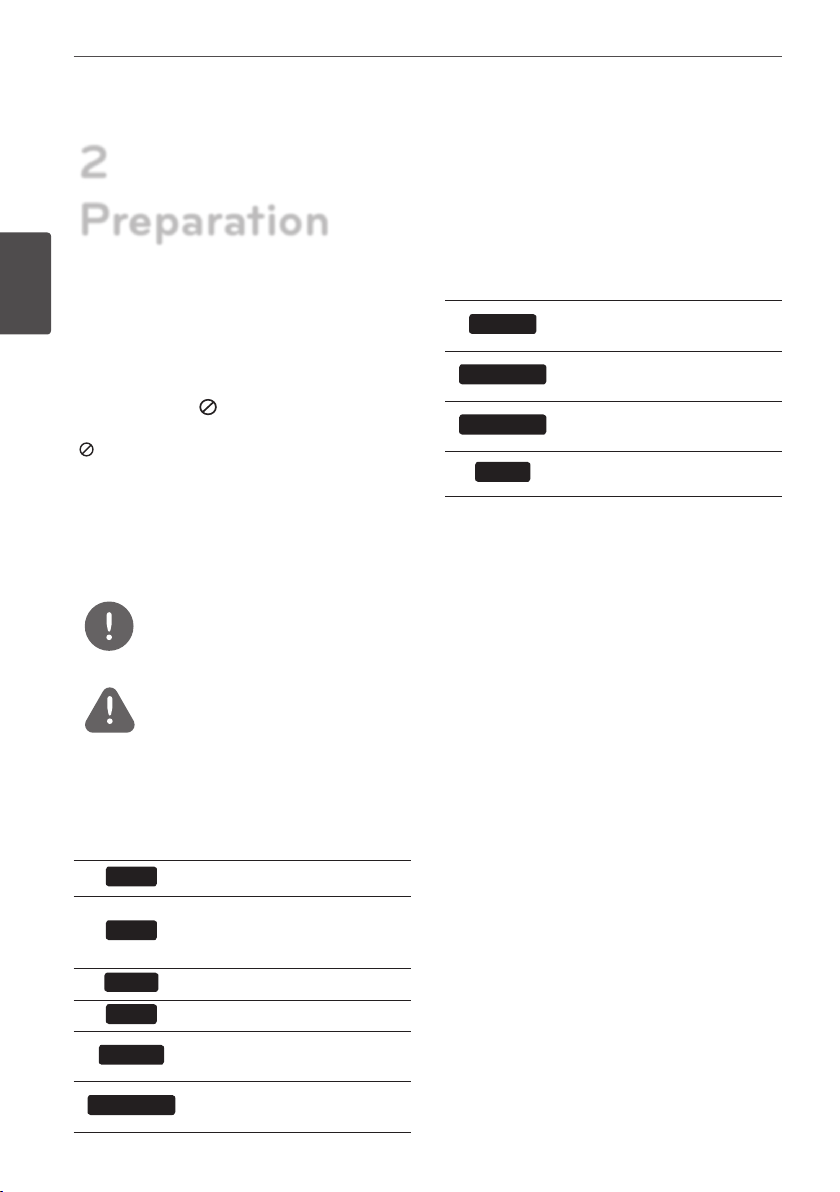
Introduction
About the “ ” Symbol Display
“ ” may appear on your TV display during
operation and indicates that the function
explained in this owner’s manual is not
available on that specic media.
Symbols Used in this Manual
NOTE
Indicates special notes and operating features.
CAUTION
Indicates caution for preventing possible
damages from abuse.
A section whose title has one of the following
symbols are applicable only to the disc
represented by the symbol.
BD
BD-ROM disc
DVD
DVD-Video, DVD
±
R/RW in
Video mode or VR mode and
nalized
AVCHD
DVD
±
R/RW in AVCHD format
ACD
Audio CDs
MOVIE
Movie les contained in the
Disc/USB/HDD
MOVIE-N
Movie les in the DLNA server
or PC
MUSIC
Music les contained on a Disc/
USB/HDD
MUSIC-N
Music les on a DLNA server or
PC
PHOTO
Photo les contained on a
DLNA server, PC or Disc
REC
Titles recorded via this unit
9Preparation
Preparation
2
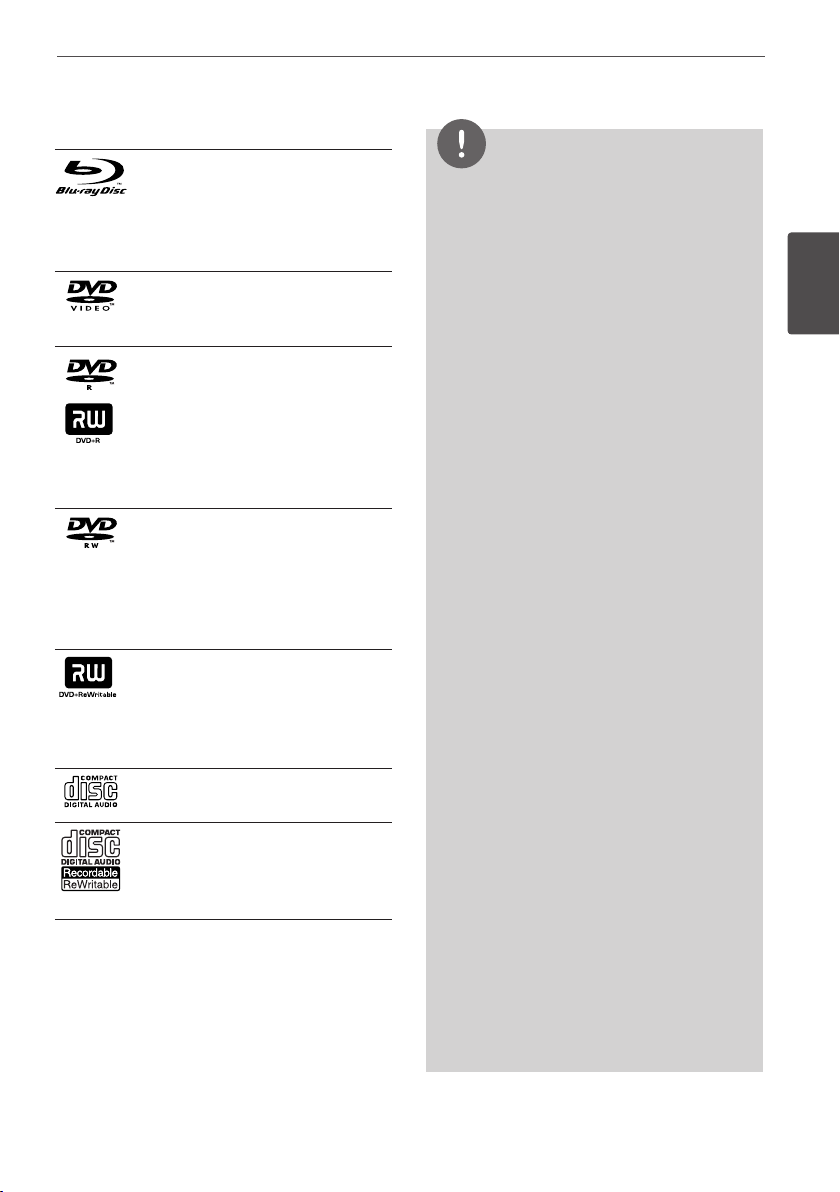
Playable Discs
Blu-ray Disc
- Discs such as movies that can
be purchased or rented.
- BD-R/RE discs that contain
Movie, Music or Photo les.
DVD-VIDEO (8 cm / 12 cm disc)
Discs such as movies that can be
purchased or rented.
DVD±R (8 cm / 12 cm disc)
- Video mode and nalized only
- Supports the dual layer disc
also
- Finalized AVCHD format
- DVD±R discs that contain
Movie, Music or Photo les.
DVD-RW (8 cm / 12 cm disc)
- VR mode, Video mode and
nalized only
- Finalized AVCHD format
- DVD-RW discs that contain
Movie, Music or Photo les.
DVD+RW (8 cm / 12 cm disc)
- Video mode and nalized only
- Finalized AVCHD format
- DVD+RW discs that contain
Movie, Music or Photo les.
Audio CD (8 cm / 12 cm disc)
CD-R/RW (8 cm / 12 cm disc)
- CD-R/RW discs that contain
audio titles, Movie, Music or
Photo les.
NOTE
• Depending on the conditions of the recording
equipment or the CD-R/RW (or DVD-R/RW)
disc itself, some CD-R/RW (or DVD
±
R/RW) discs
cannot be played on the unit.
• Depending on the recording software & the
nalization, some of recorded discs (CD-R/RW or
DVD
±
R/RW) may not be playable.
• BD-R/RE, DVD±R/RW and CD-R/RW discs
recorded using a personal computer or a DVD or
CD Recorder may not play if the disc is damaged
or dirty, or if there is dirt or condensation on the
player’s lens.
• If you record a disc using a personal computer,
even if it is recorded in a compatible format,
there are cases in which it may not play because
of the settings of the application software used
to create the disc. (Check with the software
publisher for more detailed information.)
• This unit requires discs and recordings to meet
certain technical standards in order to achieve
optimal playback quality.
• Pre-recorded DVDs are automatically set to
these standards. There are many dierent
types of recordable disc formats (including
CD-R containing MP3 or WMA les) and these
require certain pre-existing conditions to ensure
compatible playback.
• Hybrid disc have both BD-ROM and DVD (or CD)
layers on one side. On such discs, BD-ROM layer
will be only played back in this player.
• Customers should note that permission is
required in order to download MP3 / WMA les
and music from the Internet. Our company has
no right to grant such permission. Permission
should always be obtained from / guaranteed
by the copyright owner.
• You have to set the disc format option
to [Mastered] in order to make the discs
compatible with the LG players when formatting
rewritable discs. If you set the option to “Live
System”, the disc cannot be played on LG player.
(Mastered/Live File System : Disc format system
for windows Vista)
10 Preparation
Preparation
2
File compatibility
Overall
Available File extensions: “.jpg”, “.jpeg”, “.png”,
“.avi”, “.divx”, “.mpg”, “.mpeg”, “.mkv”, “.mp4”, “.mp3”,
“.wma”, “.ts”
• There could be a variance on the available
le extensions depending on DLNA server.
• The le name is limited to 180 characters.
• Depending on the size and number of the
les, it may take several minutes to read the
contents on the media.
Maximum Files/Folder: Less than 2000 (total
number of les and folders)
CD-R/RW, DVD±R/RW, BD-R/RE Format:
ISO 9660+JOLIET, UDF and UDF Bridge format
MOVIE
Available resolution: 1920 x 1080 (W x H)
pixels
Playable subtitle: SubRip (.srt / .txt), SAMI
(.smi), SubStation Alpha (.ssa/.txt), MicroDVD
(.sub/.txt), VobSub (.sub), SubViewer 1.0 (.sub),
SubViewer 2.0 (.sub/.txt), DVD Subtitle System
(.txt)
Playable Codec format: “DIVX3.xx”, “DIVX4.xx”,
“DIVX5.xx”, “XVID”, “DIVX6.xx” (Standard playback
only), H.264/MPEG-4 AVC, DIVX-HD, MPEG1 SS,
MPEG2 PS, MPEG2 TS
Playable Audio format: “Dolby Digital”, “DTS”,
“MP3”, “WMA”, “AAC”, “AC3”
• Not all the WMA and AAC Audio formats are
compatible with this unit.
Sampling frequency: within 32-48 kHz
(WMA), within 16-48 kHz (MP3)
Bit rate: within 20-320 kbps (WMA), within 32-
320 kbps (MP3)
NOTE
• HD movie les contained on the CD or USB
1.0/1.1 may not be played properly. BD, DVD
or USB 2.0 are recommended to play back HD
movie les.
• This player supports H.264/MPEG-4 AVC prole
Main, High at Level 4.1. For a le with higher
level, there will be an warning message on the
screen.
• This player does not support the le that are
recorded with GMC
*
1
or Qpel
*
2
. Those are video
encoding techniques in MPEG4 standard, like
DivX or XVID.
*1 GMC – Global Motion Compensation
*2 Qpel – Quarter pixel
• HD movie les that need high performance
playback could react slowly.
• The total playback time indicated on the screen
may not be correct for .ts les.
MUSIC
Sampling frequency: between 8 - 48 kHz
(WMA), within 11 - 48 kHz (MP3),
44.1 and 48 kHz (LPCM)
Bit rate: between 8 - 320 kbps (WMA, MP3),
768 kbps and 1.536 Mbps (LPCM)
NOTE
• This unit cannot support the ID3 Tag embedded
MP3 le.
• The total playback time indicated on the screen
may not be correct for VBR les.
PHOTO
Recommended size:
Less than 4,000 x 3,000 x 24 bit/pixel
Less than 3,000 x 3,000 x 32 bit/pixel
• Progressive and lossless compression photo
image les are not supported.
• Depending on the size and number of the
photo les, it may take several minutes to
read the contents of the media.

11Preparation
Preparation
2
Regional Code
This unit has a regional code printed on the
rear of the unit. This unit can play only BD-ROM
or DVD discs labelled same as the rear of the
unit or “ALL”.
AVCHD (Advanced Video Codec
High Definition)
• This player can playback AVCHD format
discs. These discs are normally recorded and
used in camcorders.
• The AVCHD format is a high denition
digital video camera format.
• The MPEG-4 AVC/H.264 format is capable
of compressing images at higher eciency
than the conventional image compressing
format.
• Some AVCHD discs use the “x.v.Color”
format.
• This player can playback AVCHD discs using
“x.v.Color” format.
• Some AVCHD format discs may not be
played, depending on the recording
condition.
• AVCHD format discs need to be nalized.
• “x.v.Color” oers a wider colour range than
normal DVD camcorder discs.
System Requirements
For high denition video playback:
• High denition display that has
COMPONENT or HDMI input jacks.
• BD-ROM disc with high denition content.
• HDMI or HDCP capable DVI input on your
display device is required for some content
(as specied by disc authors).
• For up-conversion of standard denition
DVD, a HDMI or HDCP capable DVI input
on your display device is required for copy-
protected content.
For Dolby® Digital Plus, Dolby TrueHD and DTS-
HD multi-channel audio playback:
• An amplier/receiver with a built-in (Dolby
Digital, Dolby Digital Plus, Dolby TrueHD,
DTS or DTS-HD) decoder.
• Main, centre, surround speakers and
subwoofer as necessary for chosen format.
Compatibility Notes
• Because BD-ROM is a new format, the can
be issues regarding certain disc, digital
connection and other compatibility issues.
If you experience compatibility problems,
please contact an authorized Customer
Service Center.
• Viewing high-denition content and up-
converting standard DVD content may
require a HDMI-capable input or HDCP-
capable DVI input on your display device.
• Some BD-ROM and DVD discs may restrict
the use of some operation commands or
features.
• Dolby TrueHD, Dolby Digital Plus and DTS-
HD are supported with maximum 7.1
channels if you use HDMI connection as the
audio output.
• You can use a USB device that is used
to store some disc related information,
including downloaded on-line content. The
disc you are using will control how long this
information is retained.
• While watching 3D contents, on-screen
displayed may not be displayed properly.
To display proper on-screen display, turn o
3D mode on TV.
12 Preparation
Preparation
2
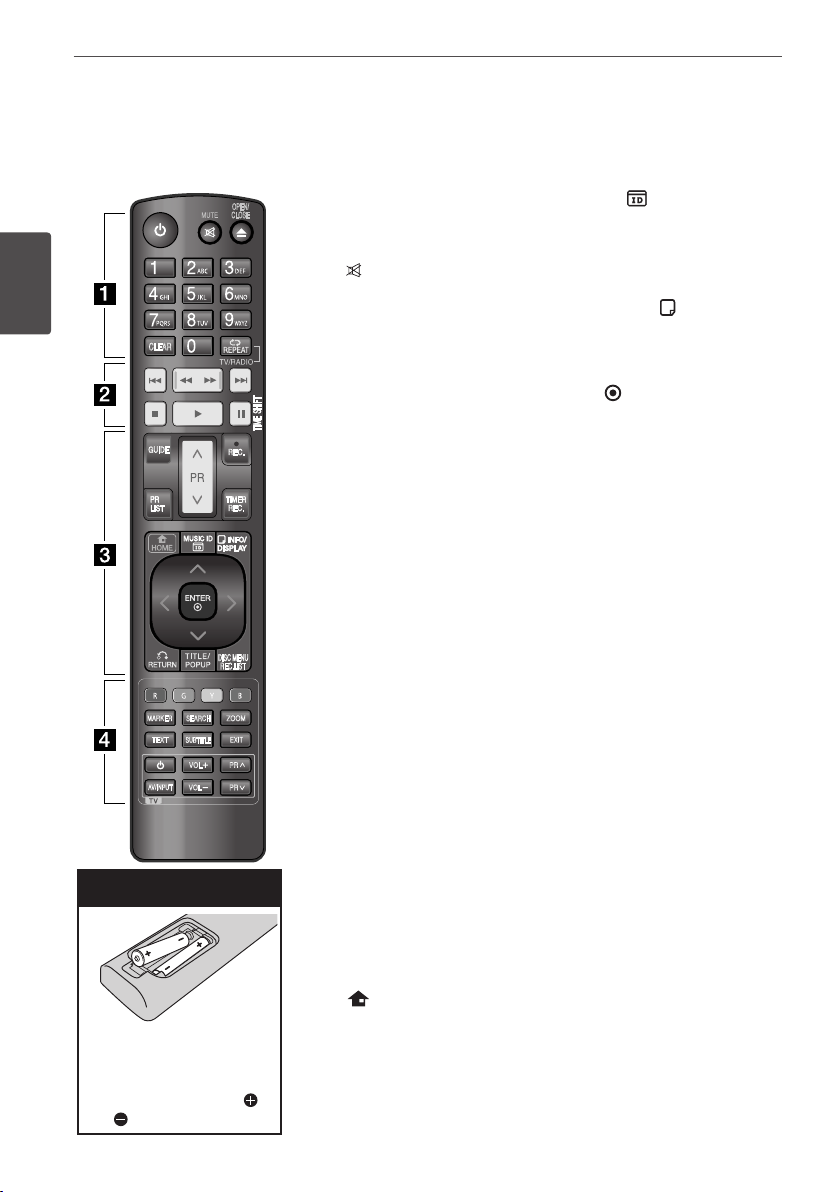
Remote control
• • • • • •
a
• • • • • •
1
(Power): Switches the unit ON
or OFF.
MUTE ( ): Mutes the sound.
OPEN/CLOSE (
Z
): Opens and
closes the disc tray.
0-9 numerical buttons: Selects
numbered options in a menu.
CLEAR: Removes a mark on the
search menu or a number when
setting the password.
REPEAT: Repeats a desired section
or sequence.
TV/RADIO: Switches between TV
and radio modes.
• • • • • •
b
• • • • • •
.
/
>
: Goes to next or
previous chapter/track/le.
m
/
M
: Searches backward or
forward.
x
: Stops playback.
B
: Starts playback.
X
: Pauses playback or recording.
TIME SHIFT: Activates pause live
TV/playback (timeshift) for a live TV
programme.
• • • • • •
c
• • • • • •
GUIDE: Displays the EPG menu.
PR (
U
/
u
): Scans up or down
through memorized programmes.
REC. (
z
): Starts recording.
PR LIST: Displays the Channel list.
TIMER REC.: Displays [Timer
Recording] menu.
HOME ( ): Accesses or removes
the HOME menu.
MUSIC ID
( ):
When the player
is connected to the network, it
can provide information about
the song played during movie
playback..
INFO/DISPLAY ( ): Displays or
exits On-Screen Display.
U
/
u
/
I
/
i
(left/right/up/down):
Navigates on-screen displays.
ENTER ( ): Acknowledges menu
selection or displays the TV info.
RETURN (
O
): Exits the menu or
back to previous step.
TITLE/POPUP: Displays the DVD
title menu or BD-ROM’s popup
menu, if available.
DISC MENU/REC.LIST: Accesses
menu on a disc or switches
between recording list menu.
• • • • • •
d
• • • • • •
Coloured (R, G, Y, B) buttons:
Use to navigate BD-ROM menus.
They are also used for [MOVIE],
[PHOTO], [MUSIC], [Home Link]
and [NetCast] menu
.
MARKER: Marks any point during
playback.
SEARCH: Displays or exits the
search menu.
ZOOM: Displays or exits the
[Zoom] menu.
TEXT: Switches between teletext
mode and normal TV viewing.
SUBTITLE: Selects a subtitle
language.
EXIT: Exits a menu or hides on-
screen information.
TV Control Buttons: See page 85
.
DISC MENU
REC.LIST
MARKER
SEARCH
ZOOM
TEXT
SUBTITLE
VOL
PR
AV/INPUT
VOL
PR
OPEN/
CLOSE
CLEAR
GUIDE
TIMER
REC.
REC.
Battery Installation
Remove the battery cover
on the rear of the Remote
Control, and insert two R03
(size AAA) batteries with
and matched correctly.
13Preparation
Preparation
2
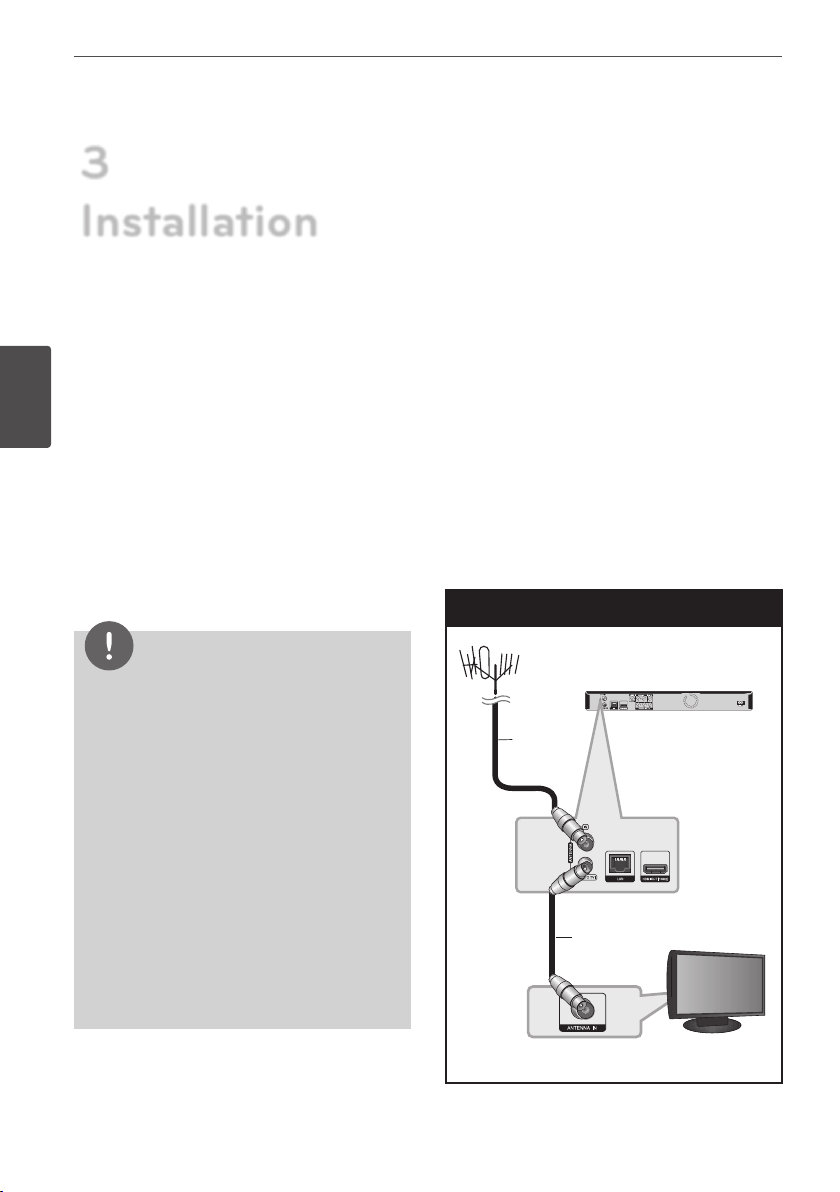
a
1
(Power)
b
Disc Tray
c
Remote Sensor
d
Display window
e
i
ll
(Play/Pause)
f
s
(Stop)
g
z
(Recording)
h
l
II
/
ii
l
(Skip)/PROG.(
V
/
v
)
i
Z
(Open/Close)
j
USB Port
Main Unit
a
ANTENNA IN
b
LAN port
c
HDMI OUT (1080p)
d
DIGITAL AUDIO OUT (COAXIAL)
e
2CH AUDIO OUT (Left/Right)
f
VIDEO OUT
g
AC IN connector
Connect the supplied power cord
h
ANTENNA OUT (TO TV)
i
COMPONENT VIDEO OUT (Y P
B
P
R
)
j
14 Installation
Installation
3
Connections to Your
TV
Make one of the following connections,
depending on the capabilities of your existing
equipment.
• Antenna connection (page 14)
• HDMI connection (page 15)
• Component Video connection (page 16)
• Composite connection (page 16)
NOTE
• Depending on your TV and other equipment
you wish to connect, there are various ways
you could connect the unit. Use only one of the
connections described in this manual.
• Please refer to the manuals of your TV, Stereo
System or other devices as necessary to make
the best connections.
• Make sure the player is connected directly to
the TV. Tune the TV to the correct video input
channel.
• Do not connect the player’s AUDIO OUT jack to
the phono in jack (record player) of your audio
system.
• Do not connect your player via your VCR. The
image could be distorted by the copy protection
system.
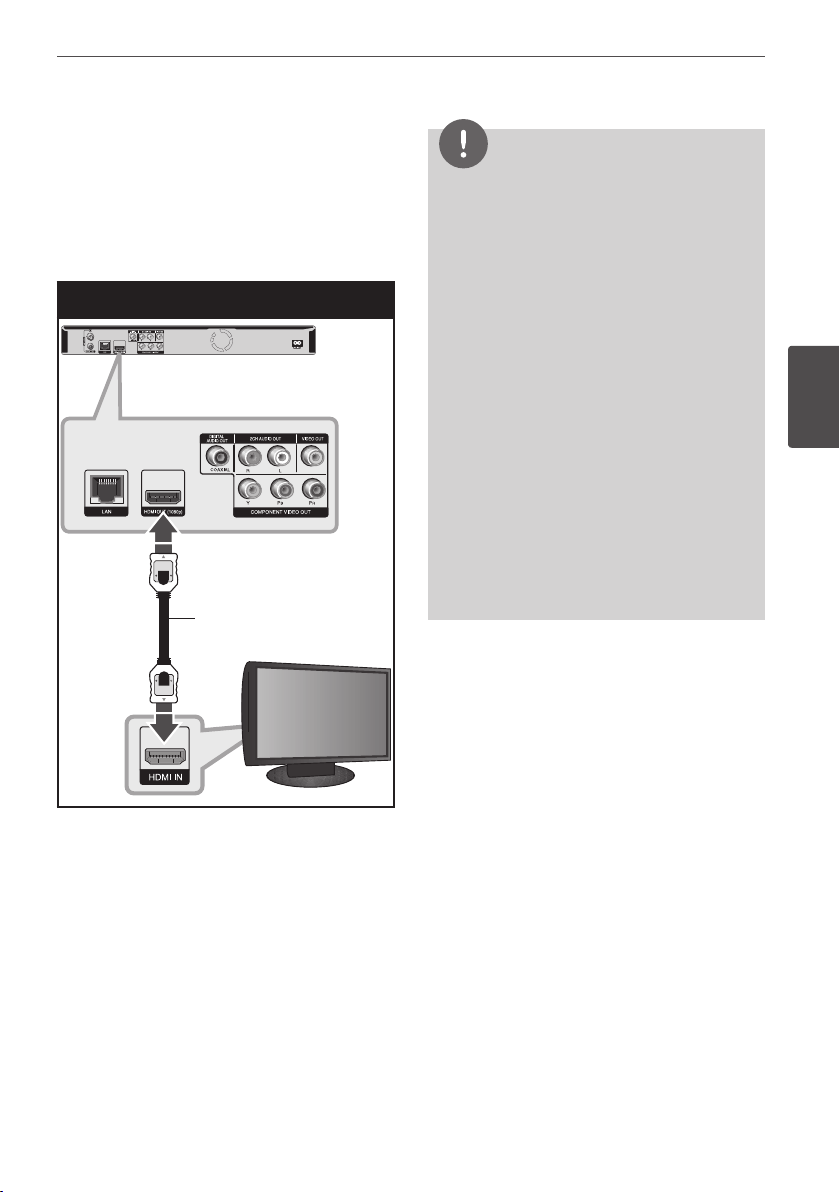
Antenna connection to your TV
and this unit
Connect one end of the RF cable to ANTENNA
OUT(TO TV) jack on the unit and other end to
ANTENNA IN jack on your TV. Passes the signal
from the ANTENNA IN jack to your TV/monitor.
Connect the Terrestrial TV antenna to the
ANTENNA IN jack on the unit. If you want to
use an indoor antenna, use one with a signal
amplier rated at 5V, 100mA and set [Antenna
5V] to [ON] in the setup menu (See page 30).
Antenna Connection
Rear of this unit
TV
ANTENNA
RF Cable
Rear of this unit
TV
3
Installation
15Installation
Installation
3
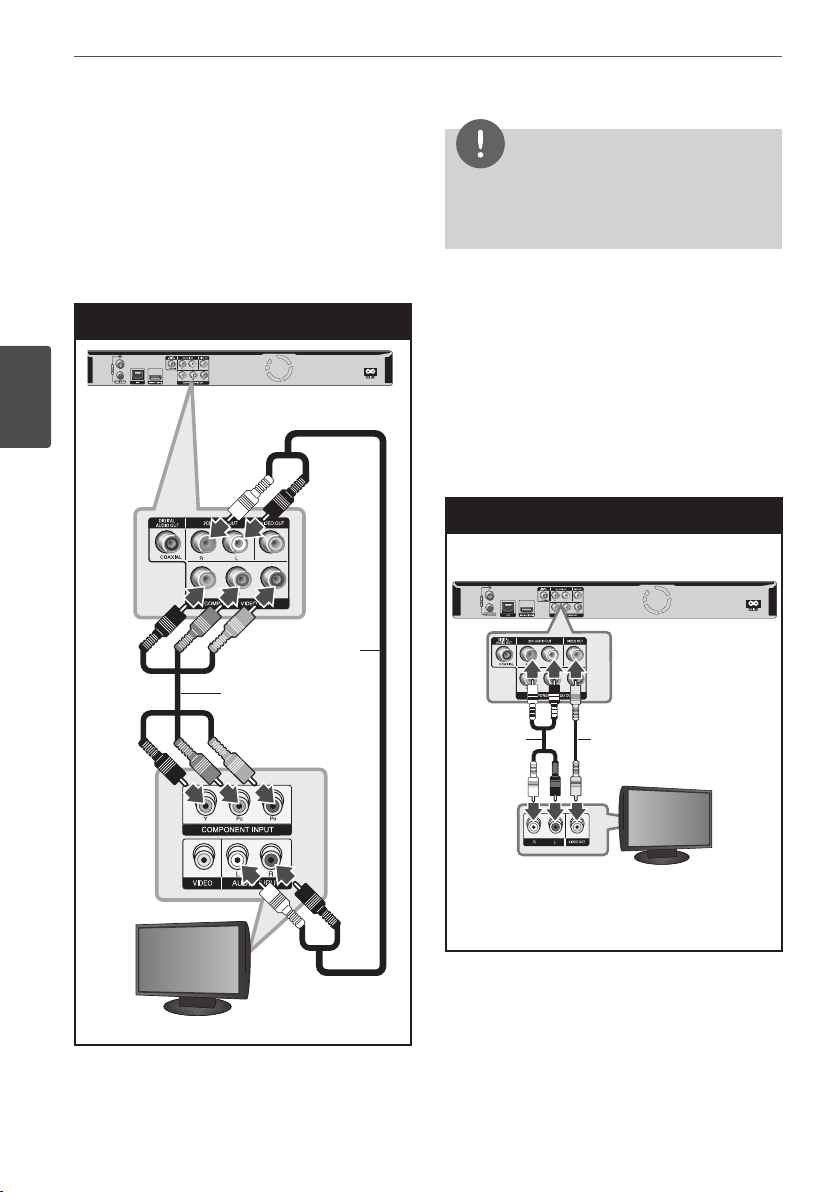
HDMI Connection
If you have a HDMI TV or monitor, you can
connect it to this unit using a HDMI cable
(Type A, High Speed HDMI™ Cable). Connect
the HDMI jack on the unit to the HDMI jack on
a HDMI compatible TV or monitor.
HDMI Connection
Rear of this unit
TV
Rear of this unit
TV
HDMI Cable
Set the TV’s source to HDMI (refer to TV’s
Owner’s manual).
NOTE
• If a connected HDMI device does not accept
the audio output of the unit, the HDMI device’s
audio sound may be distorted or may not
output.
• When you use HDMI connection, you can
change the resolution for the HDMI output.
(Refer to “Resolution Setting” on page 17.)
• Select the type of video output from the HDMI
OUT jack using [HDMI Color Setting] option on
the [Setup] menu (see page 32).
• Changing the resolution when the connection
has already been established may result in
malfunctions. To solve the problem, turn o the
player and then turn it on again.
• When the HDMI connection with HDCP is not
veried, TV screen is changed to black screen.
In this case, check the the HDMI connection, or
disconnect the HDMI cable.
• If there is noise or lines on the screen, please
check the HDMI cable (length is generally
limited to 4.5m).
Additional Information for HDMI
• When you connect a HDMI or DVI
compatible device make sure of the
following:
- Try switching o the HDMI/DVI device
and this player. Next, switch on the
HDMI/DVI device and leave it for around
30 seconds, then switch on this player.
- The connected device’s video input is set
correctly for this unit.
- The connected device is compatible with
720x576p, 1280x720p, 1920x1080i or
1920x1080p video input.
• Not all HDCP-compatible HDMI or DVI
devices will work with this player.
- The picture will not be displayed properly
with non-HDCP device.
- This player does not playback and TV
screen is changed to black screen.
16 Installation
Installation
3
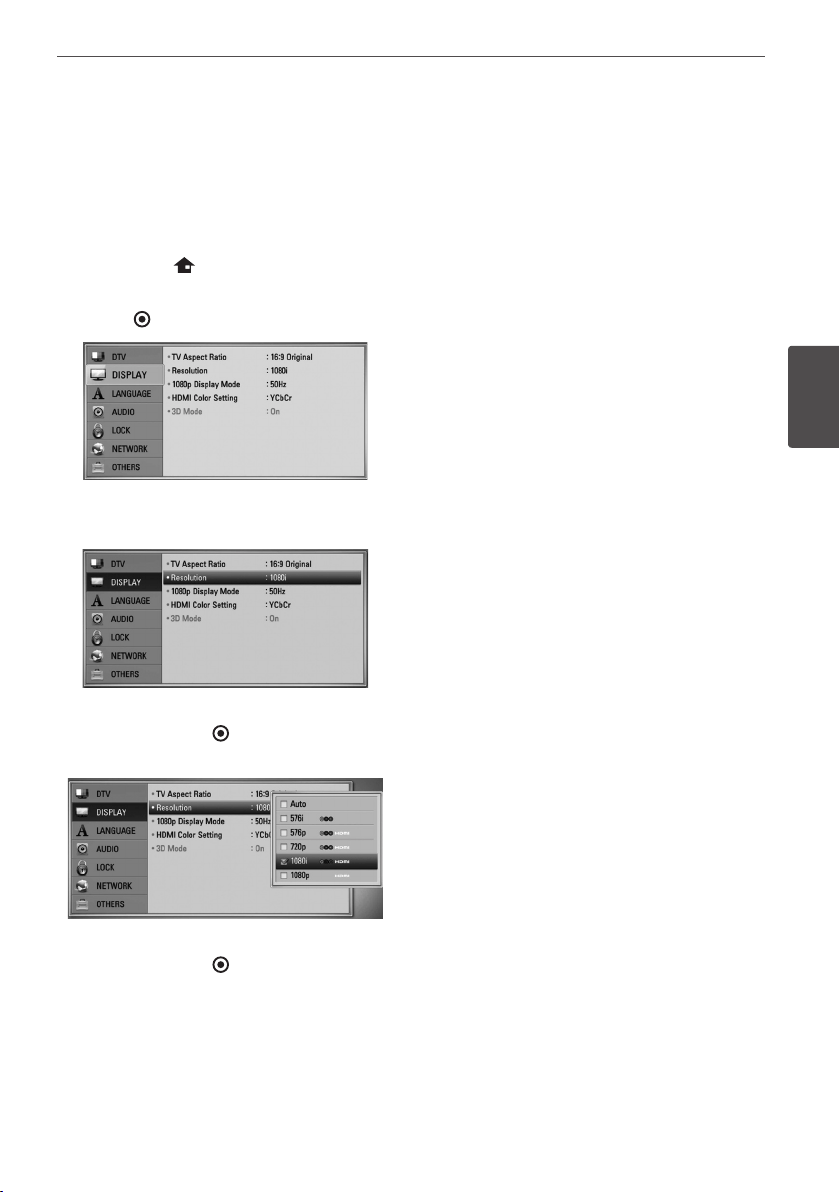
Component Video Connection
Connect the COMPONENT VIDEO OUT jacks
on the unit to the corresponding input jacks
on the TV using Y P
B
P
R
cables. Connect the left
and right AUDIO OUT jacks of the unit to the
audio left and right IN jacks on the TV using
the audio cables.
Component Connection
TV
Rear of this unit
Component
video Cable
Audio Cable
Rear of this unit
TV
NOTE
When you use COMPONENT VIDEO OUT
connection, you can change the resolution for the
output. (Refer to “Resolution setting” on page 17.)
Composite connection
Connect the VIDEO OUT jack on the Recorder
to the video in jack on the TV using the video
cable supplied. Connect the Left and Right
AUDIO OUT jacks on the Recorder to the audio
left/right in jacks on the TV using the supplied
audio cables.
Video/Audio Connection
Rear of this unit
TV
Video Cable
Audio
Cable
TV
Rear of this unit
17Installation
Installation
3
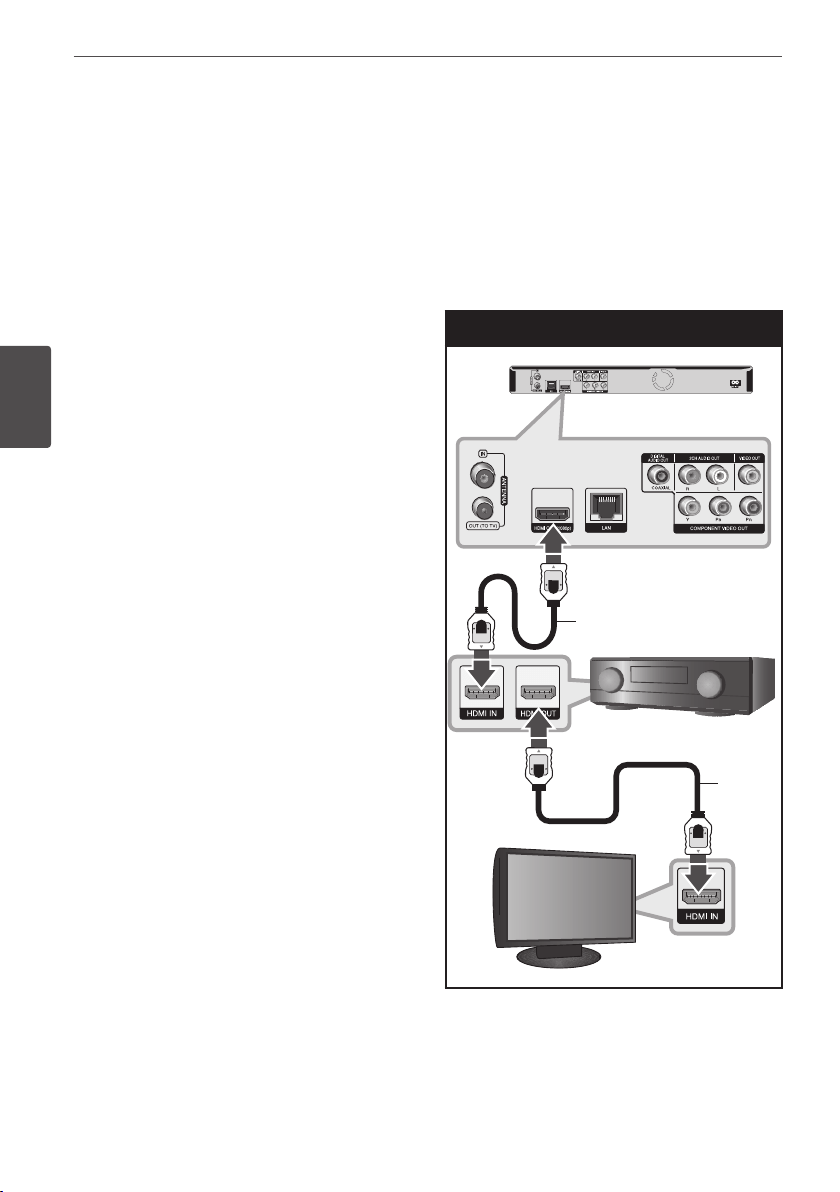
Resolution Setting
The player provides several output resolutions
for HDMI OUT and COMPONENT VIDEO OUT
jacks. You can change the resolution using
[Setup] menu.
1. Press HOME ( ).
2. Use
I
/
i
to select the [Setup] and press
ENTER ( ). The [Setup] menu appears.
3. Use
U
/
u
to select [DISPLAY] option then
press
i
to move to the second level.
4. Use
I
/
i
to select the [Resolution] option
then press ENTER ( ) to move to the third
level.
5. Use
U
/
u
to select the desired resolution
then press ENTER ( ) to conrm your
selection.
18 Installation
Installation
3
Connecting to an
Amplifier
Make one of the following connections,
depending on the capabilities of your existing
equipment.
• HDMI Audio connection (page 18)
• Digital Audio connection (page 19)
• 2CH Analogue Audio connection (page 19)
Since many factors aect the type of audio
output, see “Audio Output Specications” for
details (pages 92-93).
About Digital Multi-channel sound
A digital multi-channel connection provides
the best sound quality. For this, you need
a multi-channel Audio/Video Receiver that
supports one or more of the audio formats
supported by your unit. Check the receiver
manual and the logos on the front of the
receiver. (PCM Stereo, PCM Multi-Ch, Dolby
Digital, Dolby Digital Plus, Dolby TrueHD, DTS
and/or DTS-HD)
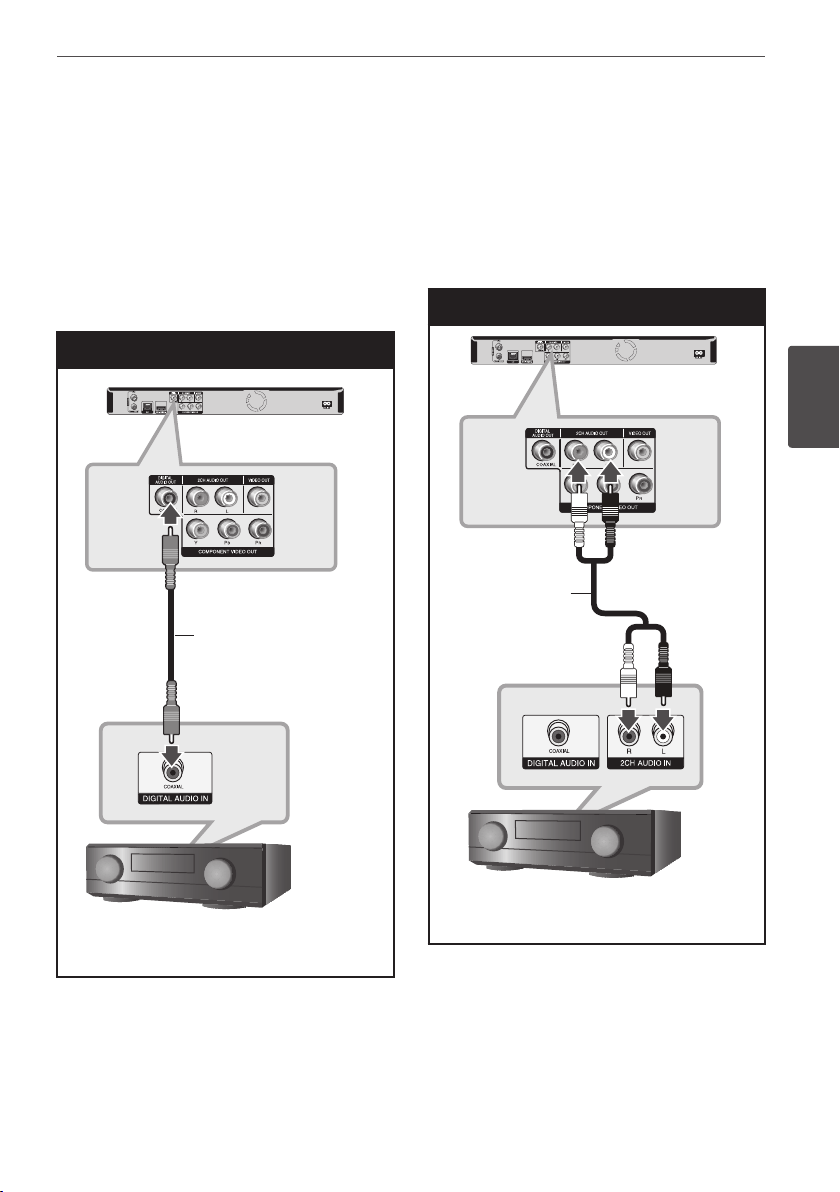
Connecting to an Amplifier via
HDMI Output
Connect the player’s HDMI OUT jack to the
corresponding in jack on your amplier using
a HDMI cable. You will need to activate the
player’s digital output. (See “[AUDIO] Menu” on
pages 34-35.)
HDMI Audio Connection
TV
Amplifier/Receiver
Rear of this unit
TV
HDMI Cable
HDMI
Cable
Amplier/Receiver
Connect the amplier’s HDMI output jack to
HDMI input jack on your TV using a HDMI cable
if your amplier has HDMI output jack.
19Installation
Installation
3
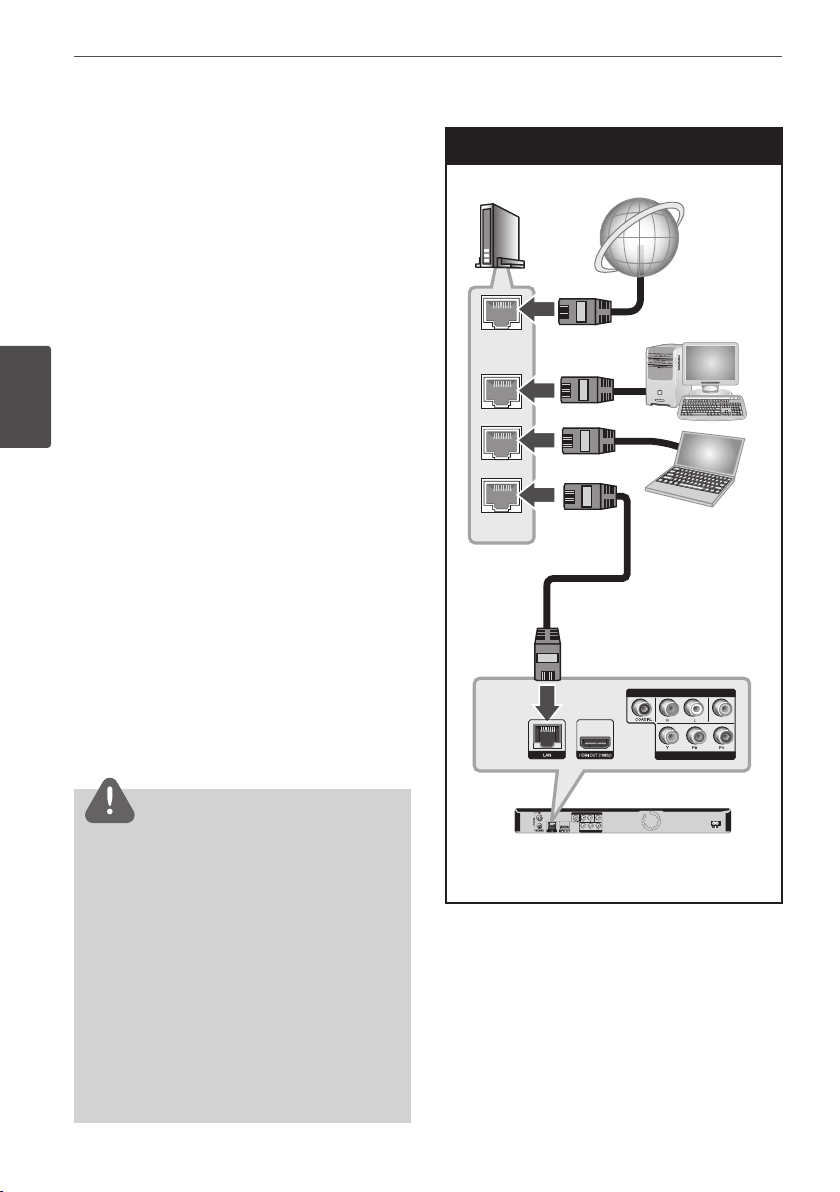
Connecting to an Amplifier via
Digital Audio Output
Connect the player’s DIGITAL AUDIO OUT
(COAXIAL) jack to the corresponding in jack
(COAXIAL) on your amplier.
Use an optional digital (coaxial) audio cable.
You will need to activate the unit’s digital
output. (See “[AUDIO] Menu” on page 34-35.)
Digital Audio Connection
Amplifier/Receiver
Coaxial Cable
Rear of this unit
Amplier/Receiver
Connecting to an Amplifier via
2 Channel Audio Output
Connect the Left and Right 2CH AUDIO OUT
jacks on the unit to the audio left and right
in jacks on your amplier, receiver, or stereo
system, using audio cables.
2CH Analogue Audio Connection
Amplifier/Receiver
Rear of this unit
Audio Cable
Amplier/Receiver
20 Installation
Installation
3
Connecting to your
Home Network
This unit can be connected to a local area
network (LAN) via the LAN port on the rear
panel.
By connecting the unit to a broadband home
network, you have access to services such
as software updates, Home Link, BD-Live
interactivity and streaming services.
Wired network connection
Using a wired network provides the best
performance, because the attached devices
connect directly to the network and are not
subject to radio frequency interference.
Please refer to the documentation for your
network device for further instructions.
Connect the player’s LAN port to the
corresponding port on your Modem or Router
using a commercially available LAN or Ethernet
cable (CAT5 or better with RJ45 connector).
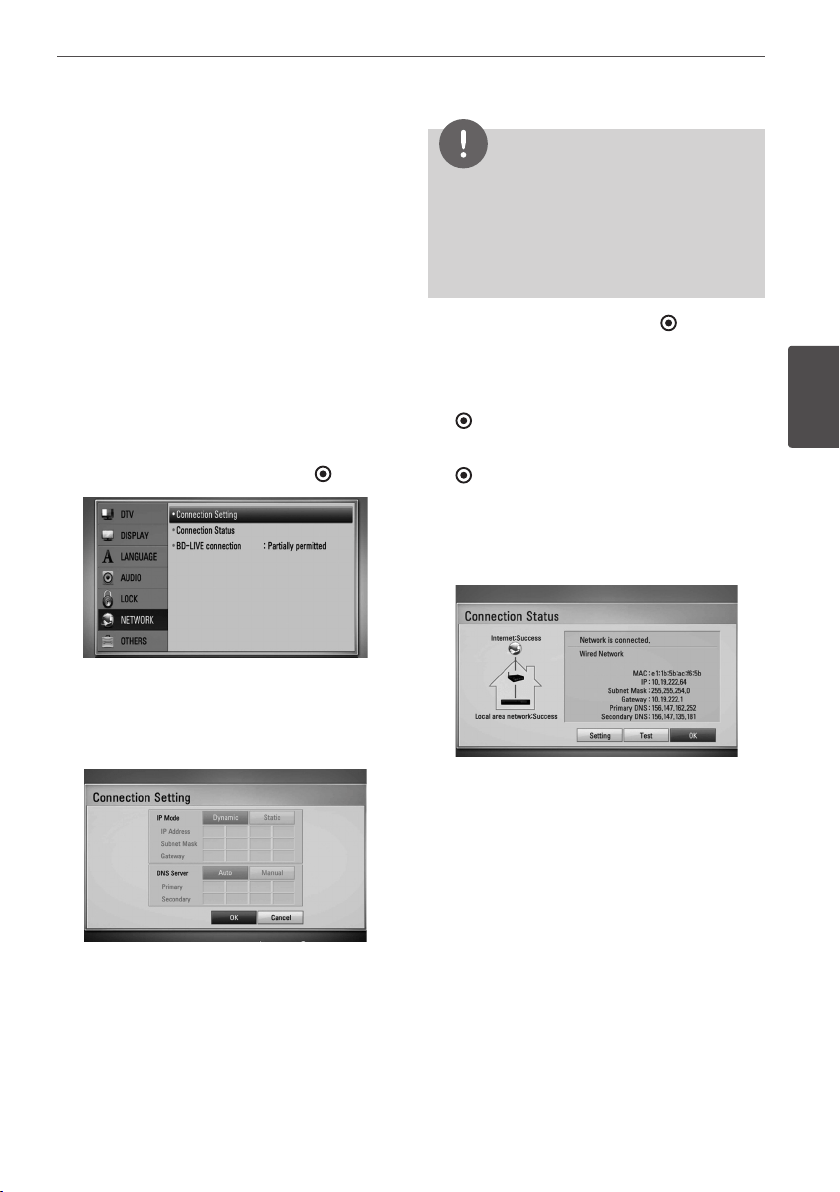
In the example conguration for wired
connection below, this player would be able to
access content from either of the PCs.
NOTE
• When plugging or unplugging the LAN cable,
hold the plug portion of the cable. When
unplugging, do not pull on the LAN cable but
unplug while pressing down on the lock.
• Do not connect a modular phone cable to the
LAN port.
• Since there are various connection
congurations, please follow the specications
of your telecommunication carrier or internet
service provider.
• If you want to access content from PCs or DLNA
servers, this unit must be connected to the same
local area network with them via a router.
Wired Network Connection
Rear of this unit
Broadband
Service
Router
WAN
LAN 1
LAN 2
LAN 3
PC
PC
LAN Cable
Rear of this unit
Router
PC
PC
Broadband
Service
21Installation
Installation
3
Wired Network Setup
If there is a DHCP server on the local area
network (LAN) via wired connection, this player
will automatically be allocated an IP address.
After making the physical connection, a small
number of home networks may require the
player’s network setting to be adjusted. Adjust
the [NETWORK] setting as follow.
Preparation
Before setting the wired network, you need to
connect the broadband internet to your home
network.
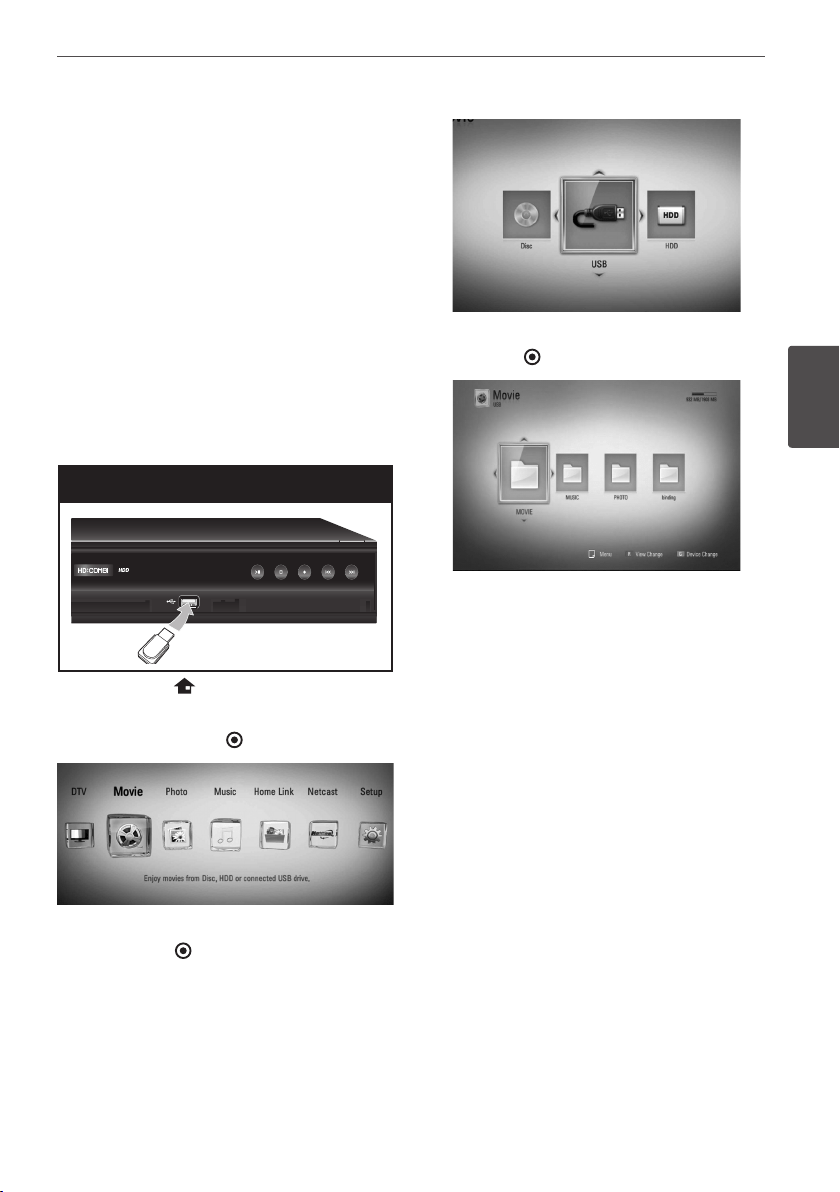
1. Select [Connection Setting] option in the
[Setup] menu then press ENTER ( ).
2. Use
U
/
u
/
I
/
i
to select the IP mode
between [Dynamic] and [Static].
Normally, select [Dynamic] to allocate an IP
address automatically.
NOTE
If there is no DHCP server on the network and you
want to set the IP address manually, select [Static]
then set [IP Address], [Subnet Mask], [Gateway]
and [DNS Server] using
U
/
u
/
I
/
i
and numerical
buttons. If you make a mistake while entering a
number, press CLEAR to clear the highlighted part.
3. Select [OK] and press ENTER ( ) to apply
network settings.
4. The player will ask you to test the network
connection. Select [OK] and press ENTER
( ) to complete the network connection.
5. If you select [Test] and press ENTER
( ) at step 5 above, the network
connection status is displayed on the
screen.
You can also test it on the [Connection
Status] in the [Setup] menu.

22 Installation
Installation
3
Notes on Network Connection:
• Many network connection problems during
set up can often be xed by re-setting the
router or modem. After connecting the
player to the home network, quickly power
o and/or disconnect the power cable of
the home network router or cable modem.
Then power on and/or connect the power
cable again.
• Depending on the internet service provider
(ISP), the number of devices that can
receive internet service may be limited by
the applicable terms of service. For details,
contact your ISP.
• Our company is not responsible for
any malfunction of the player and/or
the internet connection feature due to
communication errors/malfunctions
associated with your broadband internet
connection, or other connected equipment.
• The features of BD-ROM discs made
available through the Internet Connection
feature are not created or provided
by our company, and our company is
not responsible for their functionality
or continued availability. Some disc
related material available by the Internet
Connection may not be compatible with
this player. If you have questions about such
content, please contact the producer of the
disc.
• Some internet content may require a higher
bandwidth connection.
• Even if the player is properly connect and
congured, some internet content may
not operate properly because of internet
congestion, the quality or bandwidth of
your internet service, or problems at the
provider of the content.
• Some internet connection operations may
not be possible due to certain restrictions
set by the Internet service provider (ISP)
supplying your broadband Internet
connection.
• Any fees charged by an ISP including,
without limitation, connection charges are
your responsibility.
• A 10 Base-T or 100 Base-TX LAN port is
required for wired connection to this player.
If your internet service does not allow for
such a connection, you will not be able to
connect the player.
• You must use a Router to use xDSL service.
• A DSL modem is required to use DSL service
and a cable modem is required to use cable
modem service. Depending on the access
method of and subscriber agreement with
your ISP, you may not be able to use the
internet connection feature contained in
this player or you may be limited to the
number of devices you can connect at the
same time. (If your ISP limits subscription
to one device, this player may not be
allowed to connect when a PC is already
connected.)
• The use of a “Router” may not be allowed
or its usage may be limited depending on
the policies and restrictions of your ISP. For
details, contact your ISP directly.
• Turn o all unused network equipment in
your local home network. Some devices
may generate network trac.
23Installation
Installation
3
USB device
connection
This unit can play movie, music and photo les
contained on a USB device.
Playback content in the USB
device
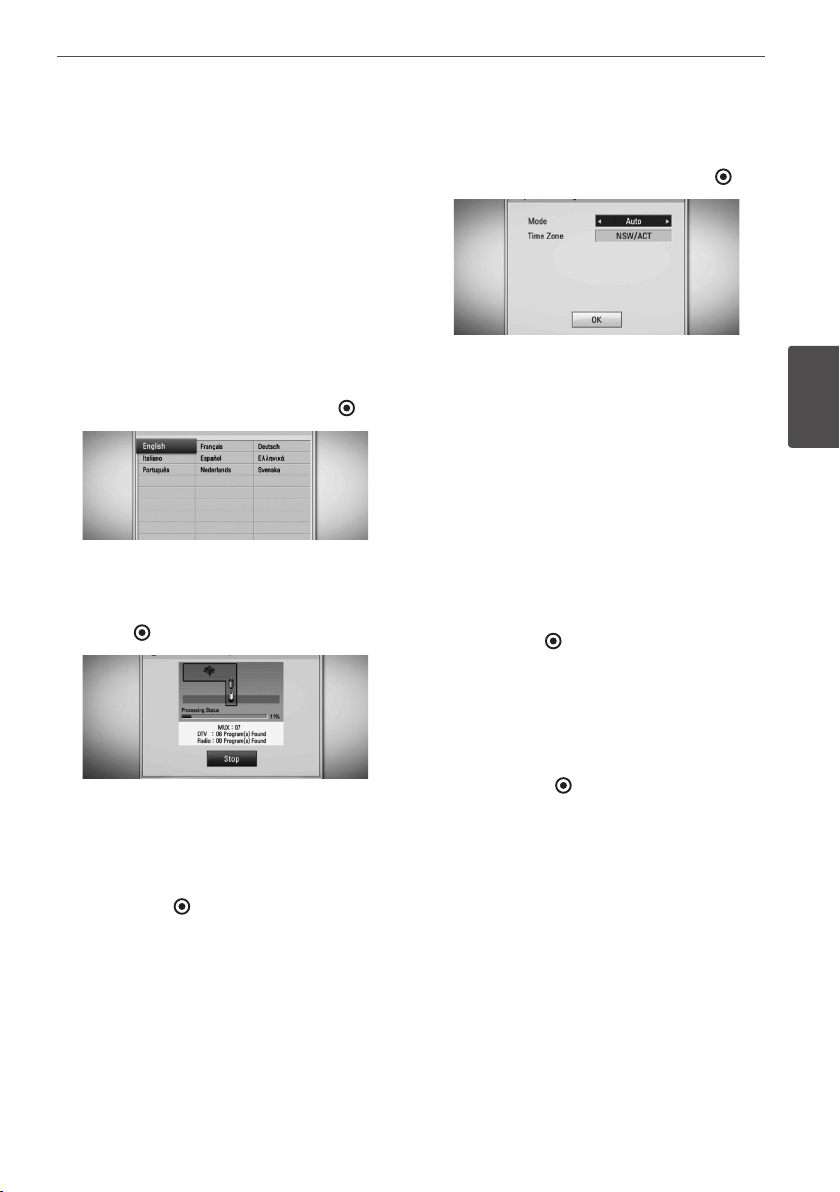
1. Insert a USB device into the USB port until it
ts into place.
USB device connection
2. Press HOME ( ).
3. Select [Movie], [Photo] or [Music] using
I
/
i
, and press ENTER ( ).
4. Select the [USB] option using
I
/
i
, and
press ENTER ( ).
5. Select a le using
U
/
u
/
I
/
i
, and press PLAY
or ENTER ( ) to play the le.
6. Withdraw the USB device carefully after
exiting the USB mode.

24 Installation
Installation
3
NOTE
• This unit supports USB ash memory/external
HDD formatted in FAT16, FAT32 and NTFS when
accessing les (music, photo, movie). However,
for BD-Live, only FAT16 and FAT32 formats are
supported. The USB device can be used for local
storage for enjoying BD-Live discs from the
Internet.
• Please use the Internal HDD or USB ash
memory/external HDD formatted in either FAT16
or FAT32 when using BD-Live.
• This unit can support up to 4 partitions of the
USB device.
• Do not extract the USB device during operation
(play, recording, etc.).
• A USB device which requires additional
programme installation when you have
connected it to a computer, is not supported.
• USB device: USB device that supports USB1.1
and USB2.0.
• Movie, Music and photo les can be played.
For details of operations on each le, refer to
relevant pages.
• Regular back up is recommended to prevent
data loss.
• If you use a USB extension cable or USB HUB, the
USB device may not be recognized.
• Some USB device may not work with this unit.
• Digital camera and mobile phone are not
supported.
• The USB Port on this unit cannot be connected
to a PC. The unit cannot be used as a storage
device.
• Unformatted media cannot be used. Please
format before using.
• If USB HDD cannot be recognized, try another
dierent USB cable.
• Some USB cables may not supply enough
current for normal USB operation.
25Installation
Installation
3
Auto Set UP
You can reset the recorder to all its factory
settings. Some options cannot be reset (Rating
and Password). The [Auto Setup] menu appears
on the screen after the factory settings.
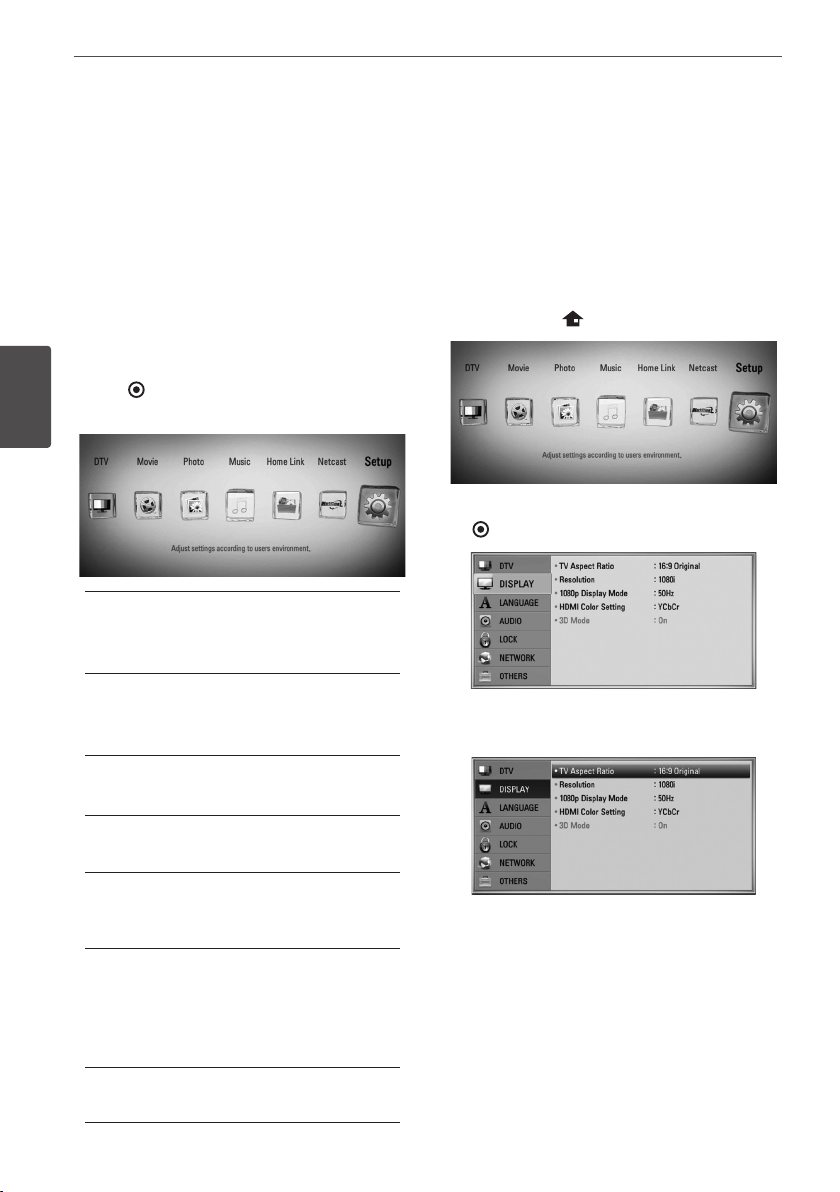
Step 1. Language Setting
1. Use
U
/
u
/
I
/
i
to select a language for the
on-screen display, and press ENTER ( ).
Step 2. Channel Setting
1. While the Start option is selected, and press
ENTER ( ) to begin the channel search.
The recorder automatically searches for and
saves the programmes.
If you select [Stop], the [Channel Setting]
function will be skipped.
2. Press ENTER ( ).
Step 3. Time Setting
1. Use
I
/
i
to select an option among
[Manual] or [Auto], and press ENTER ( ).
Auto: Set the programme that broadcasts
a clock signal and the clock will be set
automatically.
If the time that has automatically set is not
correct comparing your local time, you can
set additional time option.
Manual: If there is no channel that
broadcasts a clock signal in your area, you
can set the time and date manyally. Use
U
/
u
to select each eld, and input correct
time and date using
I
/
i
. You can use
numerical buttons.
2. Press ENTER ( ) to complete the time
setting.
Step 4. Network Setting
Refer to “Wired network connection” on page
20-21 to complete the [Wired] setup option,
and press ENTER ( ).
26 Installation
Installation
3
Home Menu Overview
To access numerous functions of the unit, press
HOME on the remote.
Basic button operations
HOME: Accesses or removes the Home Menu.
U
/
u
/
I
/
i
: Used to navigate on-screen displays.
ENTER ( ): Acknowledges menu selection.
RETURN (
O
): Exits the menu.
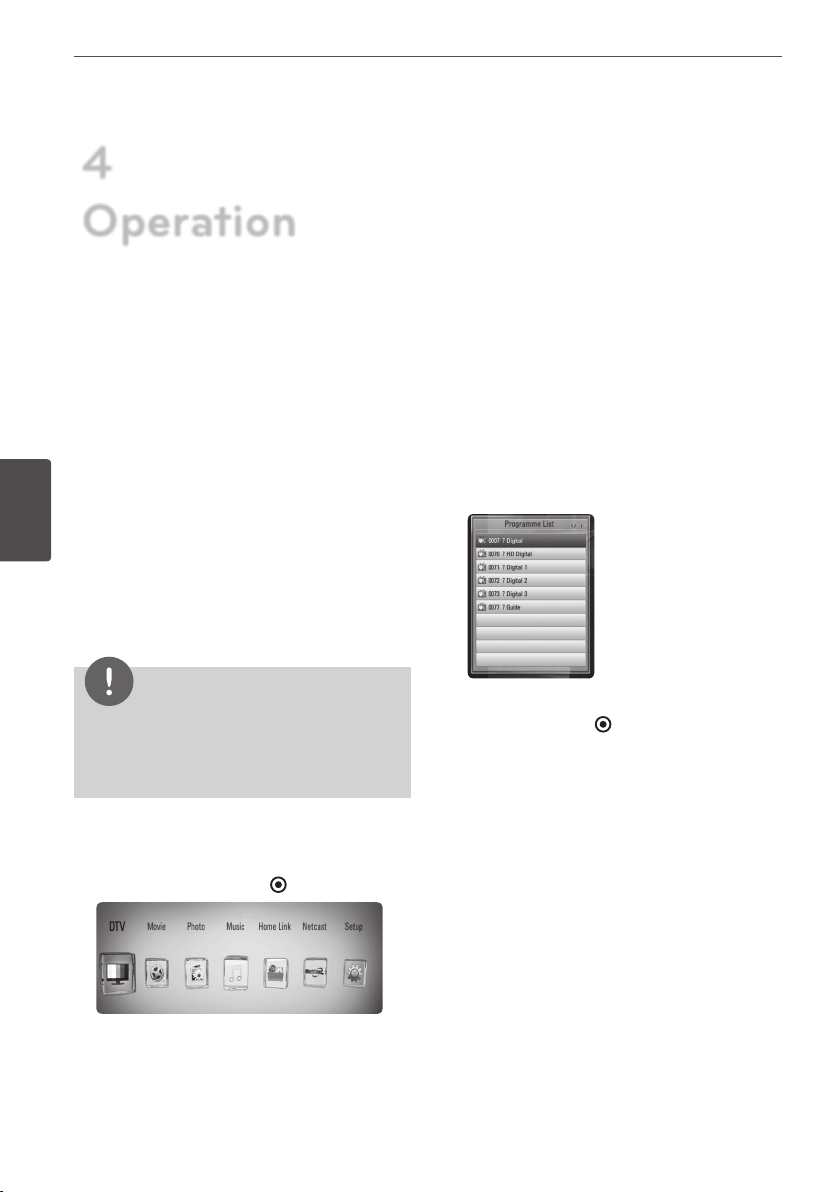
DTV
You can watch digital broadcasts.
(page 40-46)
Movie
Starts video media’s playback or displays
the [MOVIE] menu.
Photo
Displays [PHOTO] menu. (page 65-67)
Music
Displays [MUSIC] menu. (page 68-72)
Home Link
Displays and play the shared contents from
the selected server or PC. (page 73-77)
Netcast
Shows YouTube videos, Picasa Web Albums
and Accu Weather streamed from the
Youtube server via the internet to your TV.
(page 78)
Setup
Displays [Setup] menu. (page 31-39)
Settings
Adjust the Setup Settings
You can change the settings of the player in
the [Setup] menu.
1. Press HOME ( ).
2. Use
I
/
i
to select [Setup] and press ENTER
( ). The [Setup] menu appears.
3. Use
U
/
u
to select the rst setup option, and
press
i
to move to the second level.
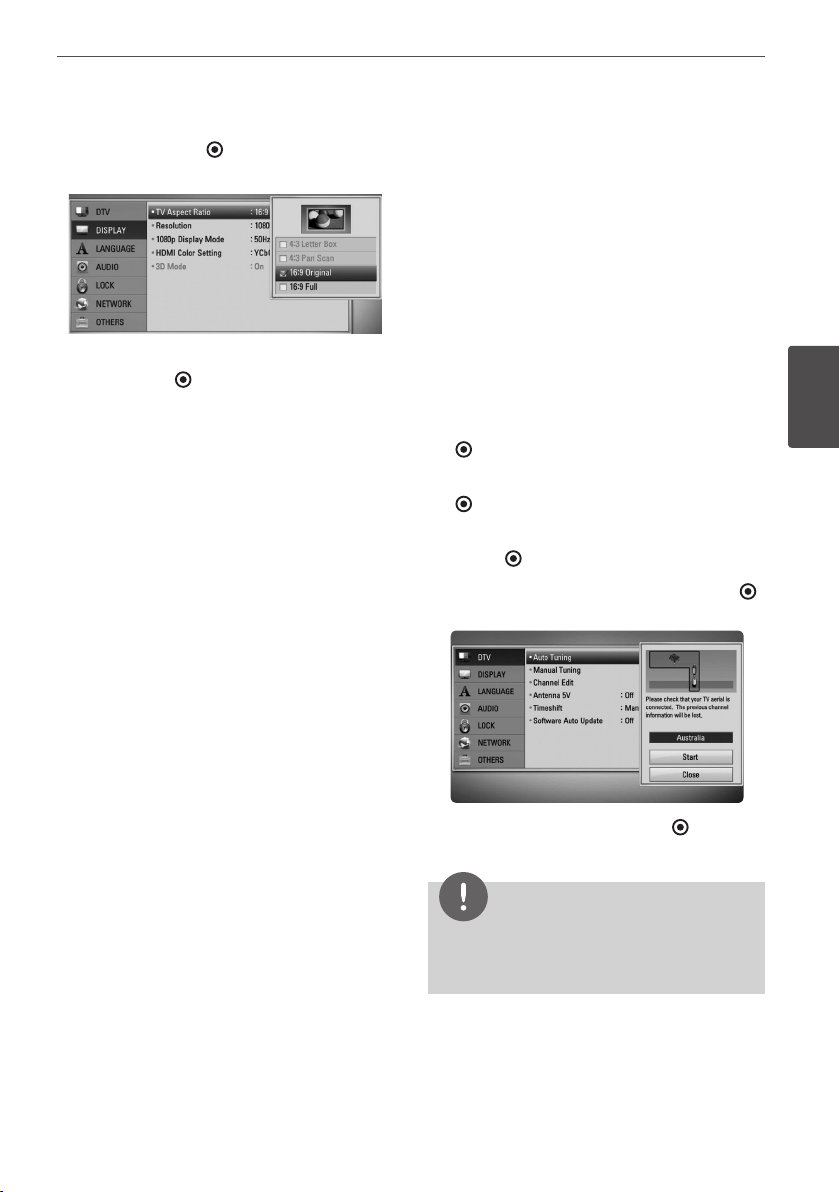
27Installation
Installation
3
4. Use
U
/
u
to select a second setup option,
and press ENTER ( ) or
i
to move to the
third level.
5. Use
U
/
u
to select a desired setting, and
press ENTER ( ) ) or
i
to conrm your
selection.
Settings for Digital TV
To use DTV functions, this recorder needs some
settings in advance.
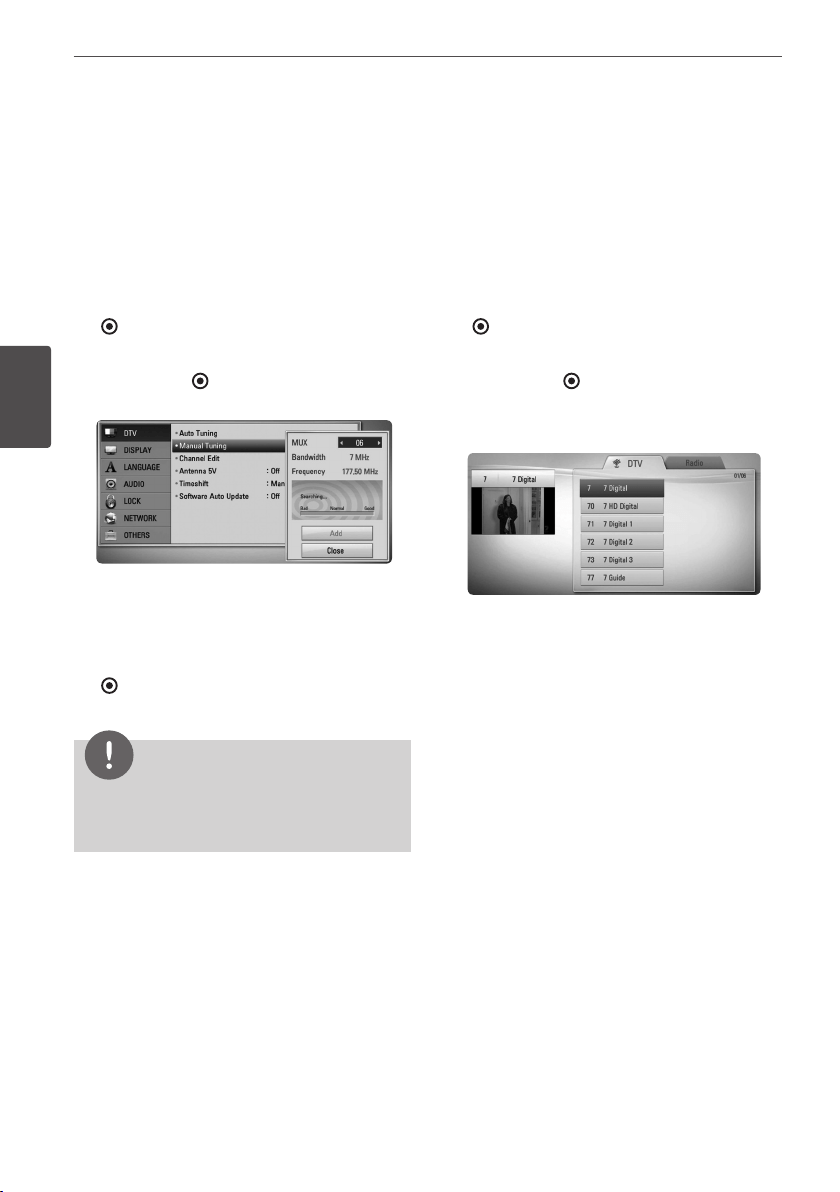
Scanning programmes
automatically (Auto Tuning)
All available digital TV or radio programmes are
searched for and stored automatically based
on the selected country.
1. Press HOME.
2. Use
I
/
i
to select [Setup], and press ENTER
( ).
3. Use
U
/
u
to select [DTV], and press ENTER
( ).
4. Use
U
/
u
to select [Auto Tuning] and press
ENTER ( ).
5. Use
u
to select [Start], and press ENTER ( )
to begin the channel search.
Select [Stop] and press ENTER ( ) to stop
the scanning programmes.
NOTE
If the [DTV Lock] option is set to [Lock], this
function is available when you enter the password
correctly. (see page 29.)
28 Installation
Installation
3
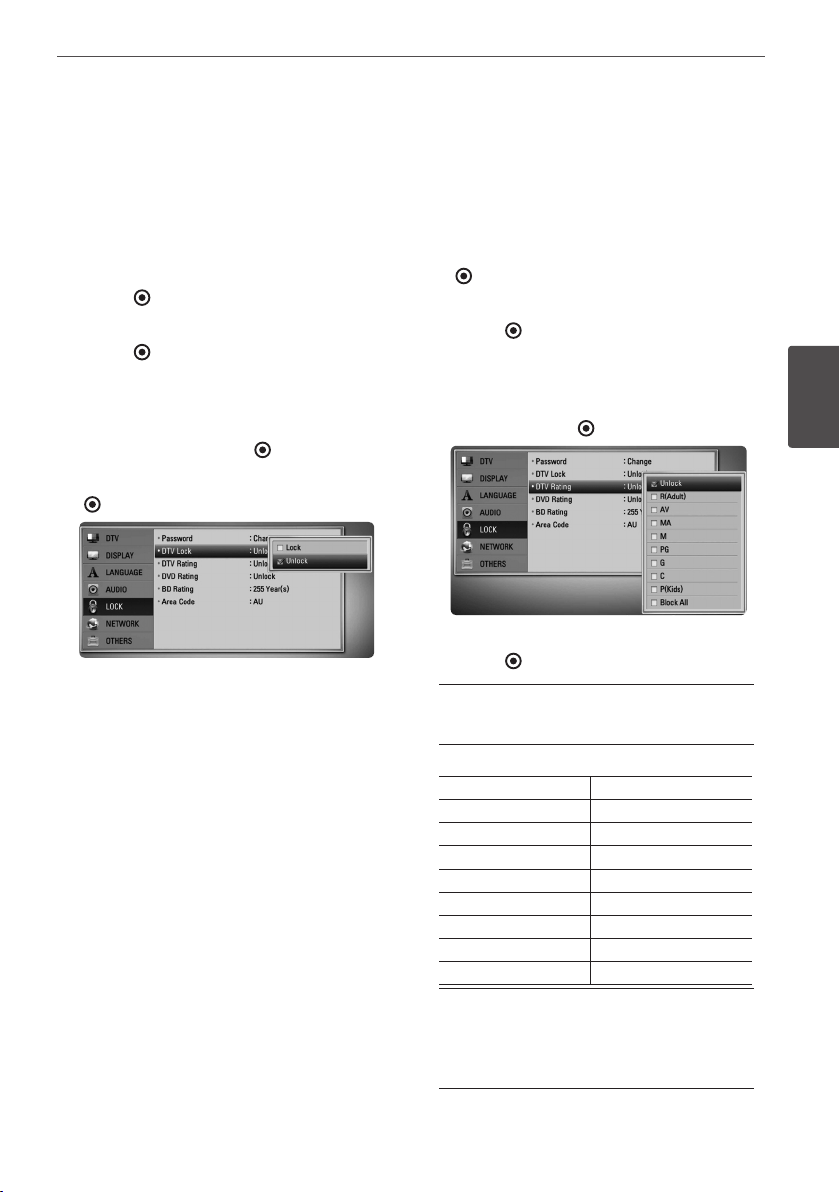
Scanning programmes
manually (Manual Tuning)
Scans digital TV or radio programmes and adds
the detected programmes to the programme
list.
1. Display [Setup] menu.
2. Use
U
/
u
to select [DTV], and press ENTER
( ).
3. Use
U
/
u
to select [Manual Tuning] and
press ENTER ( ) to display the [Manual
Tuning] menu.
4. Use
I
/
i
to select the desired multiplexer
(MUX), and the unit starts scanning
automatically.
5. Use
u
to select the [Add] and press ENTER
( ) to add the programme the unit scans
automatically.
NOTE
If the [DTV Lock] option is set to [Lock], this
function is available when you enter the password
correctly. (see page 29.)
Editing Programme List
(Channel Edit)
You can remove any digital TV or radio
programs stored on this recorder using the
[Channel Edit] menu.
1. Display [Setup] menu.
2. Use
U
/
u
to select [DTV], and press ENTER
( ).
3. Use
U
/
u
/
I
/
i
to select [Channel Edit] and
press ENTER ( ).
4. Press
U
to select [DTV] and use
I
/
i
to
select [DTV] or [Radio] programme list.
5. Use
U
/
u
/
I
/
i
to select a programme you
want to skip from the list, and press red
coloured (R) button.
If you do not want to skip the programme,
select the programme and press red
coloured (R) button again.
Use
U
/
u
/
I
/
i
to select a programme you
want to lock from the list, and press blue
coloured (B) button.
If you do not want to lock the programme,
select the programme and press blue
coloured (B) button again.
6. Press RETURN (
O
) to return to the previous
step.
Skip : If the programme is assigned to skip,
you can’t select that programme with PR
button in Remote control.
Block/unblock : If the programme is
assigned to block and
[DTV Lock] in the
[Setup] menu is set to [Lock]
, you should enter
the password to watch the programme.
29Installation
Installation
3
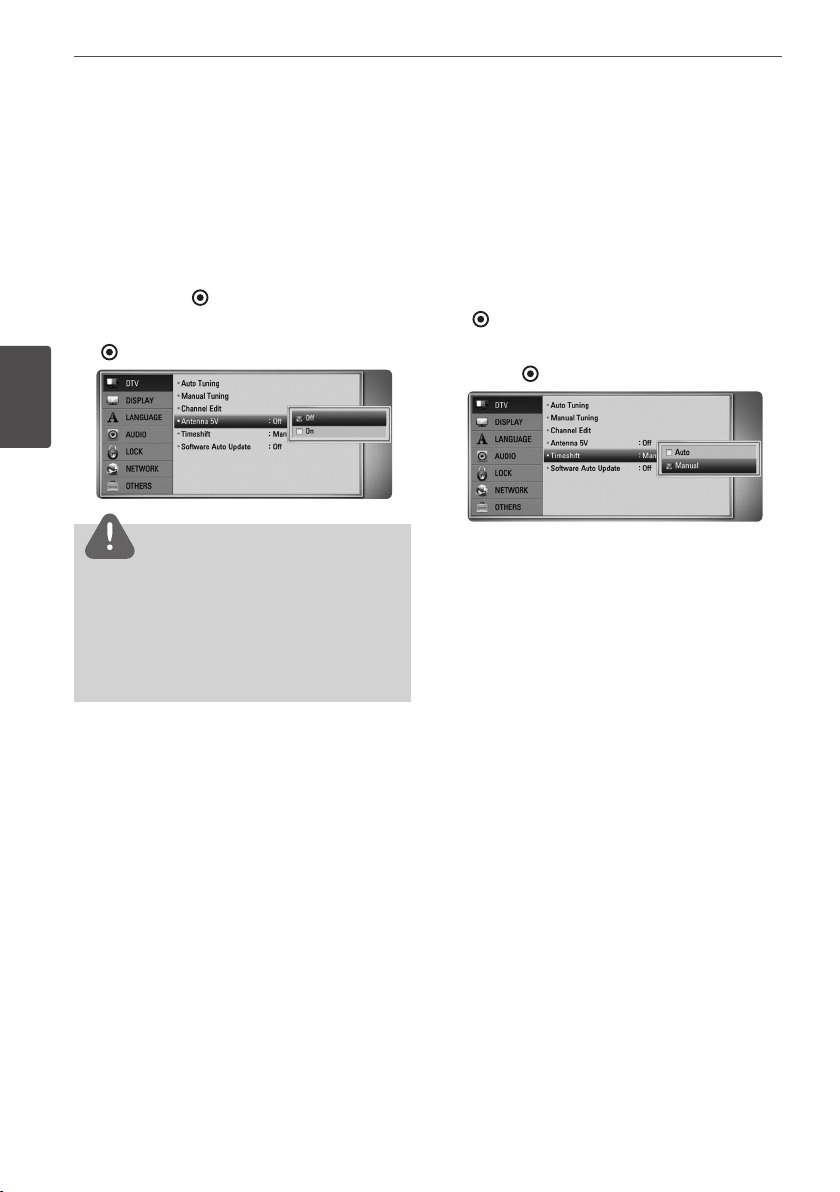
Setting the DTV Lock
Allows you to activate or deactivate all of the
lock schemes previously set. When the [DTV
Lock] is set to [Un
lock
].
1. Display [Setup] menu.
2. Use
U
/
u
/
I
/
i
to select [LOCK] and press
ENTER ( ).
3. Use
U
/
u
to select [DTV Lock] and press
ENTER ( ).
4. Input the password using numerical
buttons.
If you have not set your password yet, input
“1234” and press ENTER ( ).
5. Use
U
/
u
to select [Lock] and press ENTER
( ) to activate the DTV Lock.
Adjusting DTV Rating
Viewing of some digital TV programmes can
be limited according to the age limit you set.
1. Display [Setup] menu.
2. Use
U
/
u
to select [LOCK] and press ENTER
( ).
3. Use
U
/
u
to select [DTV Rating] and press
ENTER ( ).
4. Input the password using numerical
buttons.
If you have not set your password yet, input
and press ENTER ( ).
5. Use
U
/
u
to set the limitation level and press
ENTER ( ).
Unlock
You can view all programs.
Refer to the table below for the rating levels.
Rating Level Age
P(kids) 5-6
C 7-8
G 9-10
PG 11-12
M 13-14
MA 15-16
AV 17
R(Adult) 18
Block All
All programs are locked. To view a
programme, you must input the 4-digit
password you have created.
30 Installation
Installation
3
Setting the antenna power
If you are using indoor antenna with a signal
amplier rated at DC 5V, 100mA, the recorder
can supply power through ANTENNA IN jack.
1. Display [Setup] menu.
2. Use
U
/
u
/
I
/
i
to select [Antenna 5V] and
press ENTER ( ).
3. Use
U
/
u
to select [On], and press ENTER
( ) to supply antenna power.
NOTE
The [Antenna 5V] option must be set to [O ]
when your indoor antenna is supplied the power
from the mains. If you set the [Antenna 5V] option
to [On] for the indoor antenna which is supplied
power from the mains, it may cause serious defect
to this unit.
Setting the Timeshift
You can set the Time Shift function
automatically without pressing TIME SHIFT
button. The timeshift will start after Digital TV
tuner mode is started.
1. Display [Setup] menu.
2. Use
U
/
u
to select [DTV], and press ENTER
( ).
3. Use
U
/
u
to select [Timeshift] and press
ENTER ( ).
4. Use
U
/
u
to select [Auto] or [Manual] to
apply timeshift.
31Installation
Installation
3
[DTV] Menu
Auto Tuning
This option scans a programme and sets the
available programmes. Refer to page 27 for
more information.
Manual Tuning
Scans digital TV or radio programmes and adds
the found programmes to the programme list.
Refer to page 28 for more information
Channel Edit
This option allows you to edit the TV or Radio
programmes. Refer to page 28 for more
information.
Antenna 5V
If you are using an indoor antenna, use one
with a signal amplier rated at DC 5V, 100mA
and set this option to [On]. Refer to page 30 for
more information.
Timeshift
Set this option to [Auto] to use the Time Shift
function automatically without pressing TIME
SHIFT button. The timeshift will start after TV
viewing is started. Refer to page 30 for more
information.
Software Auto Update
If you set this option to [On], the unit updates
the latest software automatically through the
built-in digital tuner If the software update is
available from the broadcaster.
[DISPLAY] Menu
TV Aspect Ratio
Select a TV aspect ratio option according to
your TV type.
[4:3 Letter Box]
Select when a standard 4:3 TV is connected.
Displays theatrical images with masking
bars above and below the picture.
[4:3 Pan Scan]
Select when a standard 4:3 TV is connected.
Displays pictures cropped to ll your TV
screen. Both sides of the picture are cut o.
[16:9 Original]
Select when a 16:9 wide TV is connected.
The 4:3 picture is displayed with an original
4:3 aspect ratio, with black bars appearing
at the left and right sides.
[16:9 Full]
Select when a 16:9 wide TV is connected.
The 4:3 picture is adjusted horizontally (in a
linear proportion) to ll the entire screen.
NOTE
You cannot select [4:3 Letter Box] and [4:3 Pan
Scan] option when the resolution is set to higher
than 720p.
32 Installation
Installation
3
Resolution
Sets the output resolution of the Component
and HDMI video signal. Refer to page 17 and
94 for details about the resolution setting.
[Auto]
If the HDMI OUT jack is connected to
TVs providing display information (EDID),
this automatically selects the resolution
best suited to the connected TV. If the
COMPONENT VIDEO OUT only is connected,
this changes the resolution to 1080i as
default resolution.
[1080p]
Outputs 1080 lines of progressive video.
[1080i]
Outputs 1080 lines of interlaced video.
[720p]
Outputs 720 lines of progressive video.
[576p]
Outputs 576 lines of progressive video.
[576i]
Outputs 576 lines of interlaced video.
1080p Display Mode
When the resolution is set to 1080p, select
[24 Hz] for smooth presentation of lm material
(1080p/24 Hz) with a HDMI-equipped display
compatible with 1080p/24 Hz input.
NOTE
• When you select [24 Hz], you may experience
some picture disturbance when the video
switches video and lm material. In this case,
select [50 Hz].
• Even when [1080p Display Mode] is set to
[24 Hz], if your TV is not compatible with
1080p/24 Hz, the actual frame frequency of the
video output will be 50 Hz or 60 Hz to match
the video source format.
HDMI Color Setting
Select the type of output from the HDMI
OUT jack. For this setting, please refer to the
manuals of your display device.
[YCbCr]
Select when connecting to a HDMI display
device.
[RGB]
Select when connecting to a DVI display
device.
3D Mode
Select the type of output mode for Blu-ray 3D
disc playback. Refer to page 51-52 for more
information about Blu-ray 3D disc.
[O]
Blu-ray 3D disc playback will output as 2D
mode like a normal BD-ROM disc playback.
[On]
Blu-ray 3D disc playback will output as 3D
mode.
33Installation
Installation
3
[LANGUAGE] Menu
Display Menu
Select a language for the [Setup] menu and
on-screen display.
Disc Menu/Disc Audio/Disc Subtitle
Select the language you prefer for the audio
track (disc audio), subtitles, and the disc menu.
[Original]
Refers to the original language in which the
disc was recorded.
[Other]
Press ENTER ( ) to select another language.
Use number buttons then press ENTER ( )
to enter the corresponding 4-digit number
according to the language code list on
page 87.
[O] (Disc Subtitle only)
Turn o Subtitle.
NOTE
Depending on the disc, your language setting may
not work.
DTV Audio
Digital channels sometimes provide multiple
audio tracks, often in a dierent language
or format (Dolby Digital, Dolby Digital+,
AVC, Mpeg, etc.). You can set a default audio
language with this setting. If provided by the
broadcaster, you can also select a dierent
audio language while viewing TV by pressing
AUDIO repeatedly. (See “Selecting DTV audio
language” on page 41.)
DTV Subtitle
Digital channels sometimes provide subtitles,
often in a dierent language. You can set a
preferred subtitle language with this setting, if
DTV subtitles are provided by the broadcaster.
Press SUBTITLE repeatedly to select a subtitle
language while viewing digital TV. (See
“Selecting DTV subtitle language” on page 42.)
34 Installation
Installation
3
[AUDIO] Menu
Each disc has a variety of audio output options.
Set the player’s Audio options according to the
type of audio system you use.
NOTE
Since many factors aect the type of audio output,
see “Audio Output Specications” on page 92-93 for
details.
HDMI / Digital Output
Select the output sound format when a device
equipped with a HDMI or Digital Audio input
jack is connected to the HDMI OUT or DIGITAL
AUDIO OUT jack on this player.
[PCM Stereo]
Select if you connect this unit’s HDMI OUT
or DIGITAL AUDIO OUT jack to a device with
two-channel digital stereo decoder.
[PCM Multi-Ch] (HDMI only)
Select if you connect this unit’s HDMI OUT
jack to a device with multi-channel digital
decoder.
[DTS Re-Encode]
Select if you connect this unit’s HDMI OUT
or DIGITAL AUDIO OUT jack to a device with
a DTS decoder.
[Primary Pass-Thru]
Select if you connect this unit’s DIGITAL
AUDIO OUT and HDMI OUT jack to a device
with LPCM, Dolby Digital, Dolby Digital Plus,
Dolby TrueHD, DTS and DTS-HD decoder.
NOTE
• When [HDMI] option is set to [PCM Multi-Ch],
the audio may output as PCM Stereo if the PCM
Multi-Ch information is not detected from HDMI
device with EDID.
• If the [HDMI] or [Digital Output] option is set to
[DTS re-encode], the DTS Re-encode audio is
output for BD-ROM discs with secondary audio
and the original audio is output for the other
discs (like [Primary Pass-Thru]).
Sampling Freq.
(Digital Audio Output)
[192 kHz]
Select this if your A/V Receiver or Amplier
is capable of handling 192 kHz signals.
[96 kHz]
Select this if your A/V Receiver or Amplier
is not capable of handling 192 kHz signals.
When this choice is made, this unit
automatically converts any 192 kHz signals
to 96 kHz so your system can decode them.
[48 kHz]
Select this if your A/V Receiver or Amplier
is not capable of handling 192 kHz and
96 kHz signal. When this choice is made,
this unit automatically converts any 192 kHz
and 96 kHz signals to 48 kHz so your system
can decode them.
Check the documentation for your A/V
Receiver or Amplier to verify its capabilities.
35Installation
Installation
3
DRC (Dynamic Range Control)
This function allows you to listen to a movie at
a lower volume without losing clarity of sound.
[O]
Turns o this function.
[On]
Compress the dynamic range of the Dolby
Digital, Dolby Digital Plus or Dolby TrueHD
audio output.
[Auto]
The dynamic range of the Dolby TrueHD
audio output is specied by itself.
And the dynamic range of the Dolby Digital
and Dolby Digital Plus are operated as same
as the [On] mode.
NOTE
The DRC setting can be changed only when a
disc is not inserted or the unit is in complete stop
mode.
DTS Neo:6
If the player is connected to the multi-channel
Audio Receiver by HDMI connection, set this
option to enjoy the multi-channel surround
sound with the 2-channel audio source.
[O]
Outputs the stereo sound via front speakers.
[Music]
Outputs the multi-channel sounds that are
optimized for listening to music.
[Cinema]
Outputs the multi-channel sounds that are
optimized for watching movie.
NOTE
• This function is not available on an on-line
service.
• Only the audio source with less than 48 kHz
sampling frequency is available for this function.
• This function is available only when [HDMI]
option is set to [PCM Multi-Ch].
36 Installation
Installation
3
[LOCK] Menu
To access any features in the [LOCK] settings,
you must enter the 4-digit security code you
have created.
If you have not entered a password yet, you are
prompted to do so. Enter a 4-digit password
twice, and press ENTER ( ) to create a new
password.
Password
You can create, or change the password.
[None]
Enter a 4-digit password twice, and press
ENTER ( ) to create a new password.
[Change]
Enter the current password and press ENTER
( ). Enter a 4-digit password twice, and
press ENTER ( ) to create a new password.
If you forget your password
If you forget your password, you can clear it
using the following steps:
1. Remove any disc that might be in the
player.
2. Select [Password] option in the [Setup]
menu.
3. Use Number buttons to enter “210499”. The
password is cleared.
NOTE
If you make a mistake before pressing ENTER ( ),
press CLEAR. Then input the correct password.
DTV Lock
Allows you to set up specic programs and
through blocking schemes. Also allows you
to activate or disable all of the lock schemes
previously set up. A password is required to
gain access to the lock menu options. When
the DTV Lock is set to [unlock]. (See “Setting
the DTV Lock” on page 29.)
DTV Rating
You can set the rating to block out all the
programs with rating above a specied level.
(See “Adjusting DTV Rating” on pages 29.)
DVD Rating
Blocks playback of rated DVD based on their
content. (Not all discs are rated.)
[Rating 1-8]
Rating one (1) has the most restrictions and
rating eight (8) is the least restrictive.
[Unlock]
If you select [Unlock], parental control is not
active and the disc plays in full.
BD Rating
Sets an age limit for BD-ROM playback. Use
number buttons to input an age limit for BD-
ROM viewing.
[255]
All BD-ROM can be played.
[0-254]
Prohibits play of BD-ROM with
corresponding ratings recorded on them.
NOTE
The [BD rating] will be applied only for the BD disc
that containing the Advanced Rating Control.
37Installation
Installation
3
Area Code
Enter the code of the area whose standards
were used to rate the DVD video disc, based
on the list on page 86.
[NETWORK] Menu
The [NETWORK] settings are needed to use the
software update feature, BD Live, Home Link
and NetCast features.
Connection Setting
If your home network environment is ready to
be connected to the player, the player needs
to be set to the wired network connection for
network communication. (See “Connecting to
your Home Network” on pages 20-22.)
Connection Status
If you want to check the network status on
this player, select the [Connection Status]
option and press ENTER ( ) to check whether
a connection to the network and the internet
has been established.
BD-LIVE connection
You can restrict Internet access when BD-LIVE
functions are used.
[Permitted]
Internet access is permitted for all BD-LIVE
contents.
[Partially permitted]
Internet access is permitted only for BD-
LIVE contents which have content owner
certicates. Internet access and AACS
Online functions are prohibited for all BD-
LIVE contents without a certicate.
[Prohibited]
Internet access is prohibited for all BD-LIVE
contents.
[OTHERS] Menu
Time Setting
The clock must be set in order to use timer
recording.
[Auto]
Select a programme that broadcasts
a clock signal and the clock will be set
automatically. If the time that has been
automatically set is not correct when
compared your local time, you can set
additional time option. Select an option
relative to NSW/ACT in [Time Zone].
[Manual]
If there is no channel that broadcasts a
clock signal in your area, you can set the
time and date manually. Use
I
/
i
to select
each eld, and input correct time and date
using
U
/
u
, and press ENTER ( ).
BD Storage Select
This player can store some BD-ROM disc
related information, including downloaded on-
line content such as movie trailers and special
features into the internal Flash Memory or an
USB device.
[Built-In Storage]
Store the downloaded Blu-ray disc content
on the Internal Flash Memory.
[USB Storage]
Store the downloaded Blu-ray disc content
on the connected USB device.
38 Installation
Installation
3
BD Storage Clear
Removes the BD contents from the built-in
storage or the connected USB storage.
[Built-In Storage]
Delete all the downloaded contents from
the built-in storage.
[USB Storage]
Delete all the downloaded contents from
the connected USB storage.
NOTE
If you select USB Storage, playback, copying and
recording on the USB device is disabled.
DivX VOD
ABOUT DIVX VIDEO: DivX® is a digital video
format created by DivX, Inc. This is an ocial
DivX Certied device that plays DivX video.
Visit www.divx.com for more information and
software tools to convert your les into DivX
video.
ABOUT DIVX VIDEO-ON-DEMAND: This DivX
Certied® device must be registered in order to
play DivX Video-on-Demand (VOD) content.
To generate the registration code, locate the
DivX VOD section in the device setup menu.
Go to vod.divx.com with this code to complete
the registration process and learn more about
DivX VOD.
[Register] - Displays the registration code
of your player.
[Deregister] - Deactivate your player and
display the deactivation code.
NOTE
All the downloaded videos from DivX VOD with the
unit’s registration code can only be played on the
unit’s internal HDD or USB device.
Initialize
[Factory Set]
You can reset the recorder to all its factory
settings. Some options cannot be reset
(Rating and Password). The [Setup Wizard]
menu appears on the screen after the
factory settings.
NOTE
• If you reset the unit to its original factory
settings using [Factory Set] option, you have
to set the network settings activation again.
• The [Initialization] option is not available while
recording or [Lock] in the [Setup] menu is set
to [On].
• If you select [Factory Set] in the Setup menu,
All the channels will be deleted.
[Internal HDD Format]
Everything recorded on the HDD will be
erased.
1. Press HOME.
2. Use
U
/
u
/
I
/
i
to select [Setup] in the
[Home] menu, and press ENTER ( ).
3. Use
U
/
u
to select [OTHERS] option from the
[Setup] menu, and press ENTER ( ).
4. Use
U
/
u
to select [Initialize], and press
ENTER ( ) to display the sub-options.
5. Use
U
/
u
to select [Internal HDD Format],
and press ENTER ( ).
Select [No] and press ENTER to cancel.
6. Use
I
/
i
to select [Yes], and press ENTER
( ) to start the HDD format. Select [OK] and
press ENTER ( ) to return to the previous
step.

39Installation
Installation
3
Software
[Information]
Displays the current software version.
[Update]
You can update the software by connecting
the unit directly to the software update
server (see page 90-91).
Disclaimer Notice
Press ENTER ( ) to view the notice of Network
Service Disclaimer on page 96.
Auto Power Off
The screen saver appears when you leave
the player in Stop mode for about ve
minutes. If you set this option to [On], the unit
automatically turns itself o after the Screen
Saver is displayed for 25 minutes.
Set this option to [O ] to leave the screen
saver until the unit is operated by the user.
40 Operation
Operation
4
Using the Digital TV
functions
You can watch and record the digital TV
programmes or playback the recorded TV
programmes you want to watch using this
unit.
Viewing the Digital TV
Viewing the Digital TV broadcasting on the TV
screen.
NOTE
• DTV antenna connection is required. (page 14)
• DTV settings such as [Auto Tuning] in the [Setup]
menu may be required. (page 27)
1. Press
1
(POWER) to turn on the recorder.
2. Use
U
/
u
/
I
/
i
to select [DTV] on the HOME
menu and press ENTER ( ).
Changing Digital TV
programmes
Generally, press PR (
U
/
u
) to select the
programme position, or entering a programme
number using numerical buttons. If you want
to change the programme on the program me
list, follow the instruction as below.
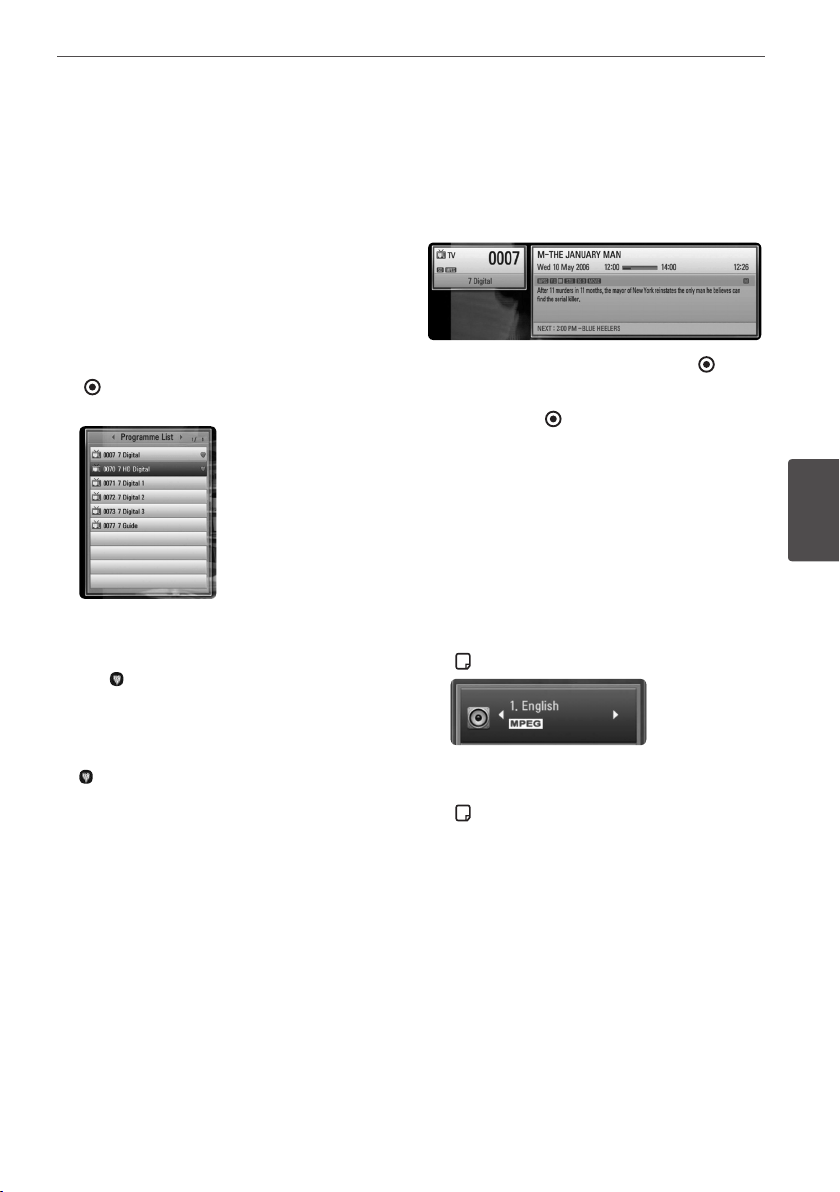
1. While watching DTV, press PR LIST.
2. Use
U
/
u
to select a desired programme,
and press ENTER ( ).
Press red coloured button (R) to sort the
programmes into alphabetical order. Press
green coloured button (G) to sort the
programmes into FTA - CAS Press yellow
colored (Y) button to sort the programmes
into number order.
3. Press RETURN (
O
) to exit the programme
list.
4
Operation
41Operation
Operation
4
Setting favourite programmes
You can set the storage location where you
want to store the DTV recordings.
1. While watching DTV, press PR LIST.
2. Use
U
/
u
to select a programme you want
to add on the Favourite List.
3. Press blue coloured (B) button to display
[Select Favorite Group] menu.
4. Use
U
/
u
to select a group and press ENTER
( ) to add the programme on the selected
group.
5. On the Programme List menu, use
I
/
i
to
move to the Favorite List menu.
The mark appears for the favourite
programmes on the Favorite List.
To cancel the favourite programmes from
the Favorite List, select a programme with
mark, and press blue coloured (B) button.
Viewing the programme
information
You can view a description of the programme
being broadcast.
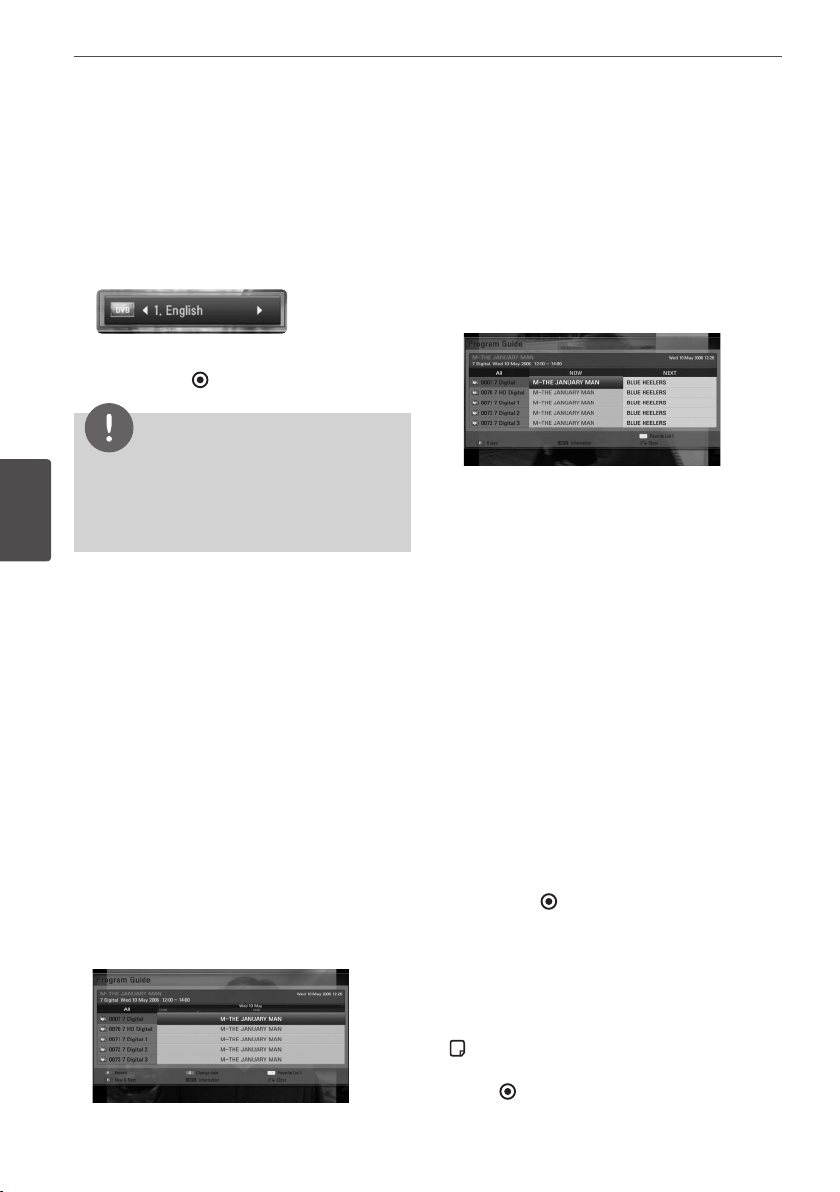
1. While watching DTV, press ENTER ( ) to
display the programme information.
2. Press ENTER ( ) or (RETURN or EXIT) again
to close the programme information.
Selecting DTV audio language
Some digital programmes may broadcast
several audio languages or encoding methods.
You can select an audio languages or an
encoding method when it is available.
1. While watching DTV, press INFO/DISPLAY
( ).
2. Use
I
/
i
to select an audio language or an
encoding method, and press INFO/DISPLAY
( ).
42 Operation
Operation
4
Selecting DTV subtitle
language
Some digital programmes may broadcast
several subtitle languages. You can select a
subtitle language when it is available.
1. While watching DTV, press SUBTITLE.
2. Use
I
/
i
to select a subtitle language, and
press ENTER ( ).
NOTE
You can nd a programme that supports subtitle
language on the programme information.
For the programmes with subtitle, SUB icon
appears on the programme information.
Programme Guide (Digital
program only)
The Program Guide contains schedule and
program information for digital programs.
They also provide local over-the-air programs
information including conventional digital
programs. Use the Program Guide to nd
programs easily and conveniently and to view
schedule and descriptive program information
for the programs.
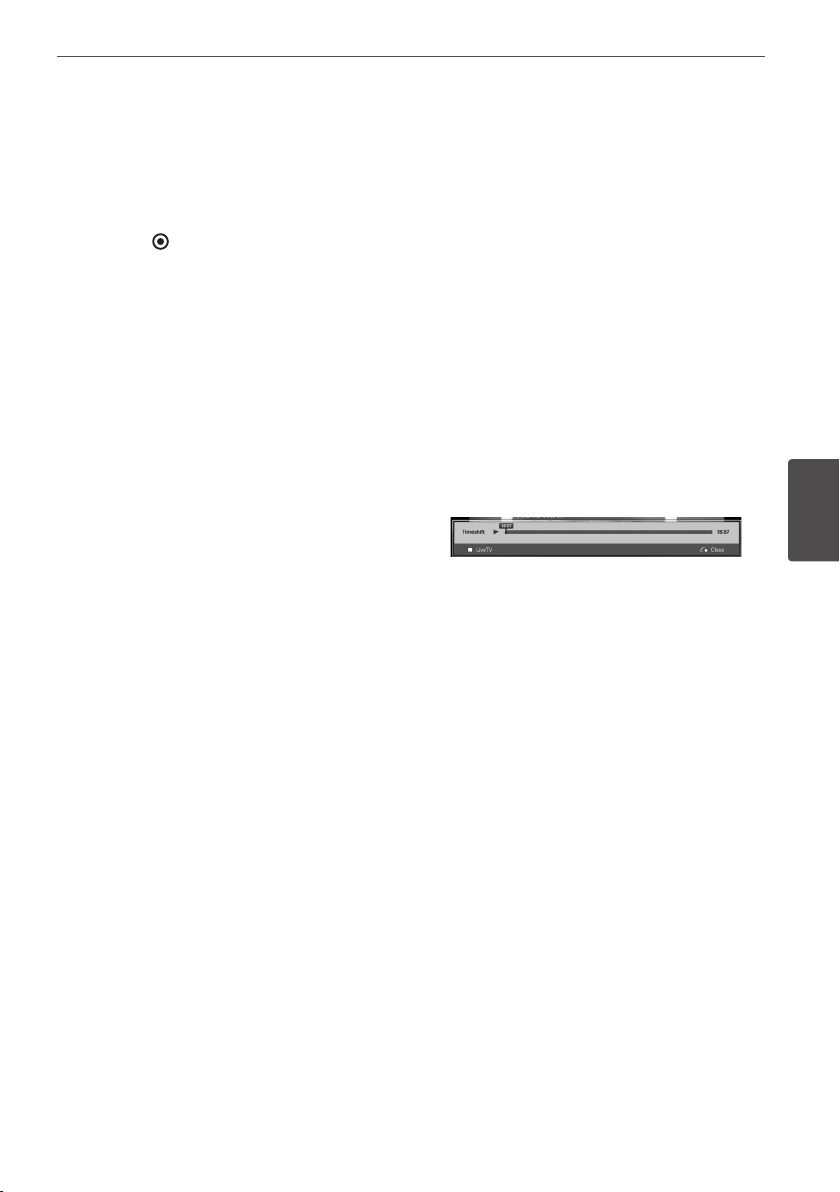
To Display the Program Guide
Press the GUIDE button on your remote
control.
To Exit the Program Guide
Press the RETURN (
O
) button to return to the
last program you tuned to.
To change guide menu
The guide screen provides two search menus.
Press blue colored (B) button when the
Programme Guide is displayed.
Now/Next: The screen shows now and next
programs.
8 Days: The screen shows programs within
8 days.
To navigate through programs on the
Guides
Use
U
/
u
/
I
/
i
on your remote control to
navigate the guide screen.
You can move faster through programs by
scrolling page-by-page with the PR
U
/
u
buttons on the remote control. Each button
stroke scrolls one page up or down.
To tune to another current channel
Use
U
/
u
/
I
/
i
to select a current channel then
press ENTER ( ). You can watch the channel.
To display the Full Information
window
You can view the detail information for the
highlighted program. Press INFO/DISPLAY
( ) to display detail information window.
To exit the detail information window, press
ENTER ( ) again.
43Operation
Operation
4
To change date
When the Program Guide with 8 days is
displayed, you can also change the date of the
Program Guide by pressing the green colour
button then use
I
/
i
to select a date then
press ENTER ( ).
After setting favorite channels from the PR
list, you can use the yellow button to toggle
between [All] and [Favorite] channel list.
Timer Recording with Program Guide
You can set a timer record using program
guide with 8 days.
1. Display Program Guide with 8 days.
2. Select a program then press red colour (R)
button. The red timer icon will be displayed
and the program will be memorized by the
recorder. You can check the programming
on the Timer Record List menu (see page.
45-47).
3. To release the timer recording, select the
program then press red colour (R) button.
The red timer icon disappears.
Using the timeshift function
manually
You can pause a Live TV broadcast, then
continue watching the programme at a
later time. This is useful when you receive an
unexpected call or visitor while watching TV.
The following are operating steps when the
[Timeshift] option is set to [Manual].
1. Press TIME SHIFT while watching a TV
broadcast. The recorder starts recording the
current TV programme to the HDD.
2. Press
X
to pause the programme your’re
watching the just now.
3. Press
B
to resume watching the
programme.
Press TIME SHIFT to display the progress of
timeshift.
Press
.
/
>
to move the starting
point or the ending point of timeshift.
Press
m
/
M
to playback of timeshift
fast forward or fast reverse.
4. Press
x
to cancel the timeshift.
Timeshift cannot be saved as a recorded
title.
44 Operation
Operation
4
Using the timeshift function
automatically
If you set the Timeshift option to [Auto], live TV
broadcast will automatically be recorded to the
HDD without pressing the TIME SHIFT button.
The timeshift will start automatically when the
Digital TV tuner mode is started.
Refer to “Setting the Timeshift” on page 30 to
set the [Timeshift] option.
1. Press
1
(POWER) to turn on the unit.
2. Use
U
/
u
/
I
/
i
to select [DTV] and press
ENTER ( ).
The timeshift function will automatically
start.
Press
.
/
>
to move the starting
point or the ending point of timeshift.
Press
m
/
M
to playback of timeshift
fast forward or fast reverse.
3. Press HOME to exit from the DTV viewing.
4. Press
x
, it’s not turning o the timeshift
function but going back to the DTV in
realtime.
NOTE
• Without changing a channel, the timeshift
function will go on.
• When you exit from the DTV mode, Timeshift
function automatically will be stopped.
Ex), Home menu, Power o, Record etc.
• If you change the channel during the timeshift
function, the unit will switch to Live TV
automatically.
• If the timeshift data exceeds the capacity, the
date will be deleted automatically from the
oldest one.
Using the teletext (Viewing
Teletext)
Many Digital TV programmes broadcast
information via their text service, and this
recorder has access to dedicated text
programmes transmitted by the broadcasters.
1. Press TEXT while watching TV.
2. Use coloured (R/G/Y/B) button to select a
page.
You can also select a page by entering a
three digit number with the numerical
buttons.
3. Press TEXT or EXIT to exit the teletext screen.
NOTE
Additionally, you now have four coloured buttons
to navigate through the content of the page. The
use of these coloured buttons will be displayed on
the screen.
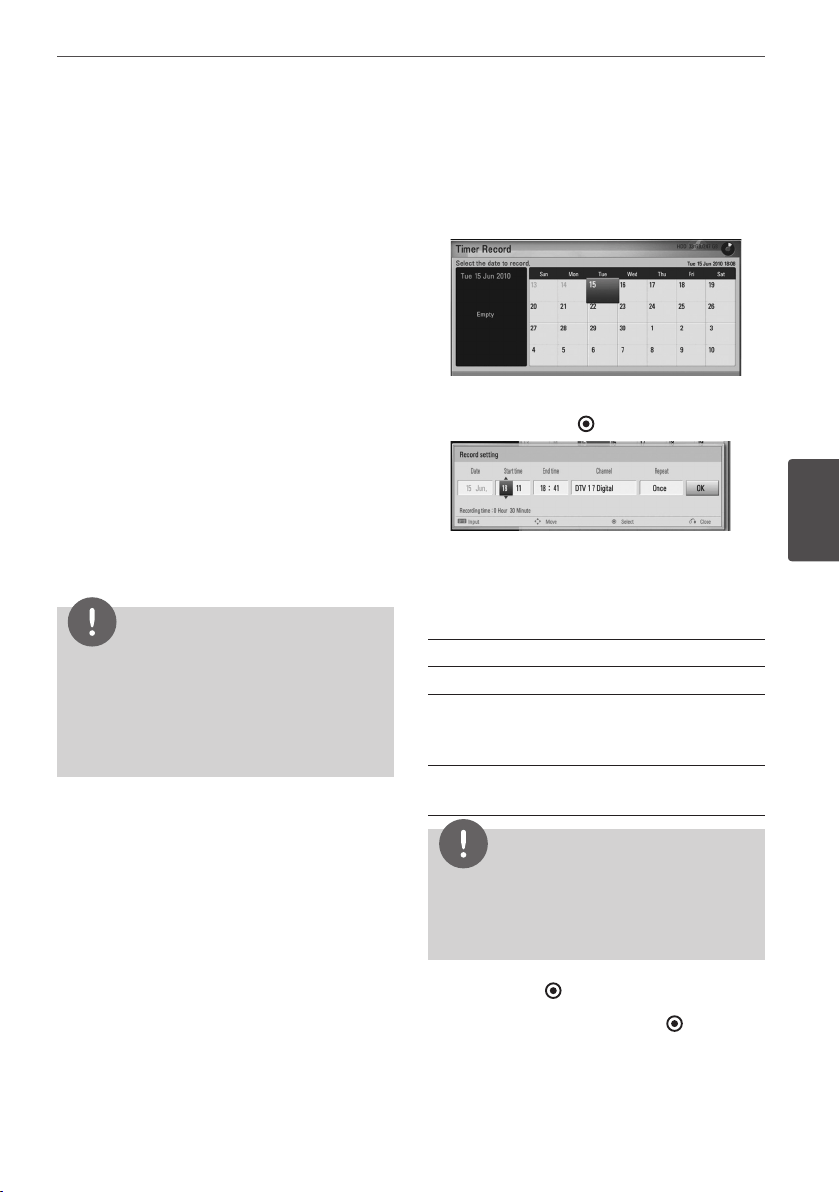
45Operation
Operation
4
Recording TV
programmes
You can record Digital TV programmes and
store them on the HDD.
Normal Recording
1. Use PR (
U
/
u
) to select a programme you
want to record.
2. Press
z
REC to start recording.
Press
X
to pause recording, press
X
again
to resume recording.
3. Press
x
to stop recording. To stop recording,
you must move to the programme being
recorded before pressing
x
.
NOTE
• The TV screen turns black with stop mark caused
by no signal, Scramble, rating lock recording is
not available.
• During the recording, it is unable to change
channel.
Timer Recording (Manual)
You can set the timer for a total of 32
programmes, up to 22-28 days in advance.
1. While watching TV, press TIMER REC.
2. Use
U
/
u
/
I
/
i
to select the date to record,
and press ENTER ( ).
3. Select an item using
I
/
i
and adjust it
using
U
/
u
. You can use numbered buttons
to change the setting.
The adjustable items are listed below.
Start time Sets the start time.
End time Sets the end time.
Channel Sets the programme position.
(If you want to display more
channels, press PR LIST)
Repeat Choose a desired repeat mode.
(Once, Daily, Weekly or Mon-Fri)
NOTE
• The timer recording can be set from 3 minutes
after the current time.
• Timer recording is not available on a USB device.
4. Press ENTER ( ).
5. Select [OK] then press ENTER ( ).
If you input the wrong information, an
error message will appear and the timer
recording cannot be made.
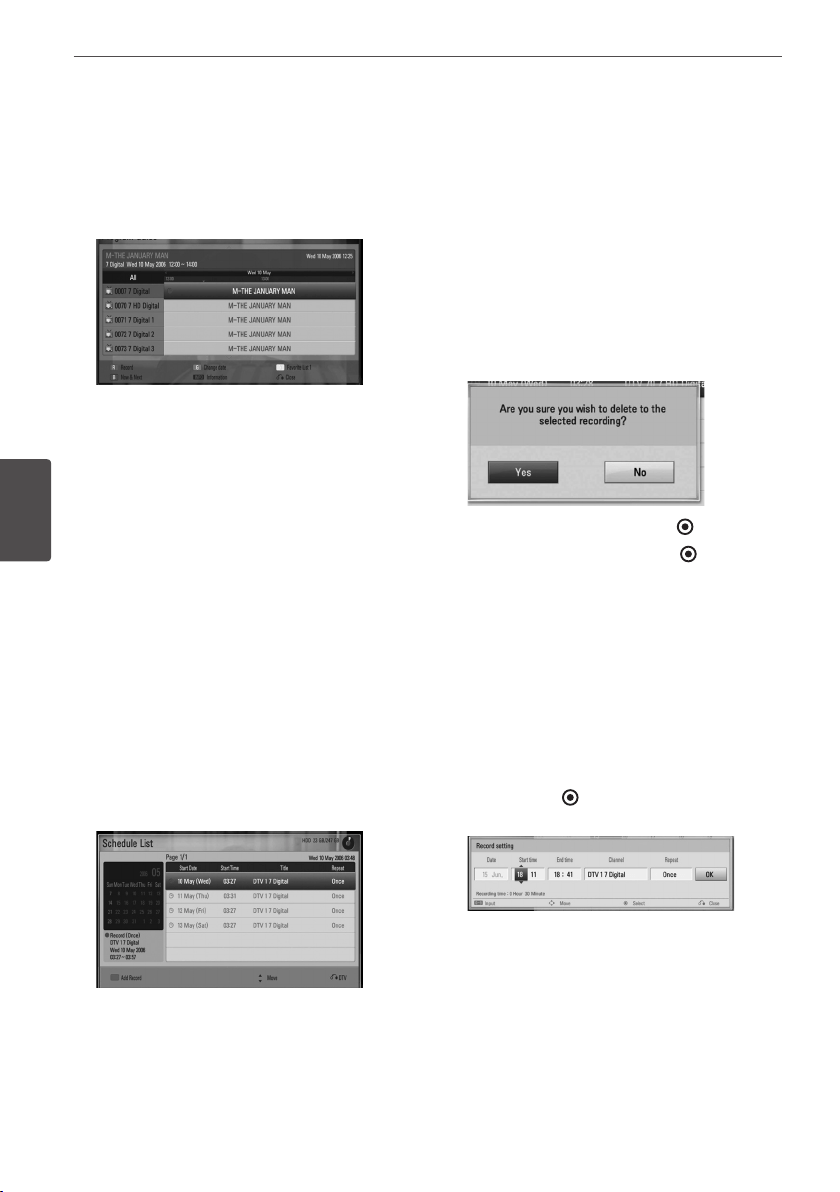
46 Operation
Operation
4
Timer Recording (EPG)
You can also set the timer based on the
information provided by the EPG.
1. While watching TV, press GUIDE.
2. Use
I
/
i
to select date eld, and select the
date of recording schedule using
U
/
u
.
3. Use
I
/
i
to select programme eld, and set
the programme using
U
/
u
.
4. Use
I
/
i
to select the programme list, and
select a programme you want to record
using
U
/
u
.
5. Press coloured (R) button.
For the successfully scheduled programme,
a red bullet mark appears.
A red bullet mark may not appear for
inavailable programme to record.
6. Press RETURN (
O
) to return to the TV
viewing.
7. Press TIMER REC, and check whether the
schedule is registered properly or not.
Canceling a timer recording
You can cancel a timer recording before the
timer recording actually starts.
1. While watching TV, press TIMER REC.
2. Press the red coloured (R) button.
3. Use
I
/
i
/
U
/
u
to select a schedule you want
to cancel.
4. Use
U
/
u
to select [Timer Record List], and
press the green coloured (G) button.
Select [No] and press ENTER ( ) to cancel.
Select [Yes] and press ENTER ( ) to delete
selected schedules (selected recording).
Editing a timer recording
You can edit a pre-scheduled timer recording
before the timer recording actually starts.
1. While watching TV, press TIMER REC.
2. Press the red coloured (R) button.
3. Press ENTER ( ) to display the [Record
setting] menu.
4. Follow the steps 3-5 from “Timer Recording
(Manual)” on page 45 to complete the
editing.
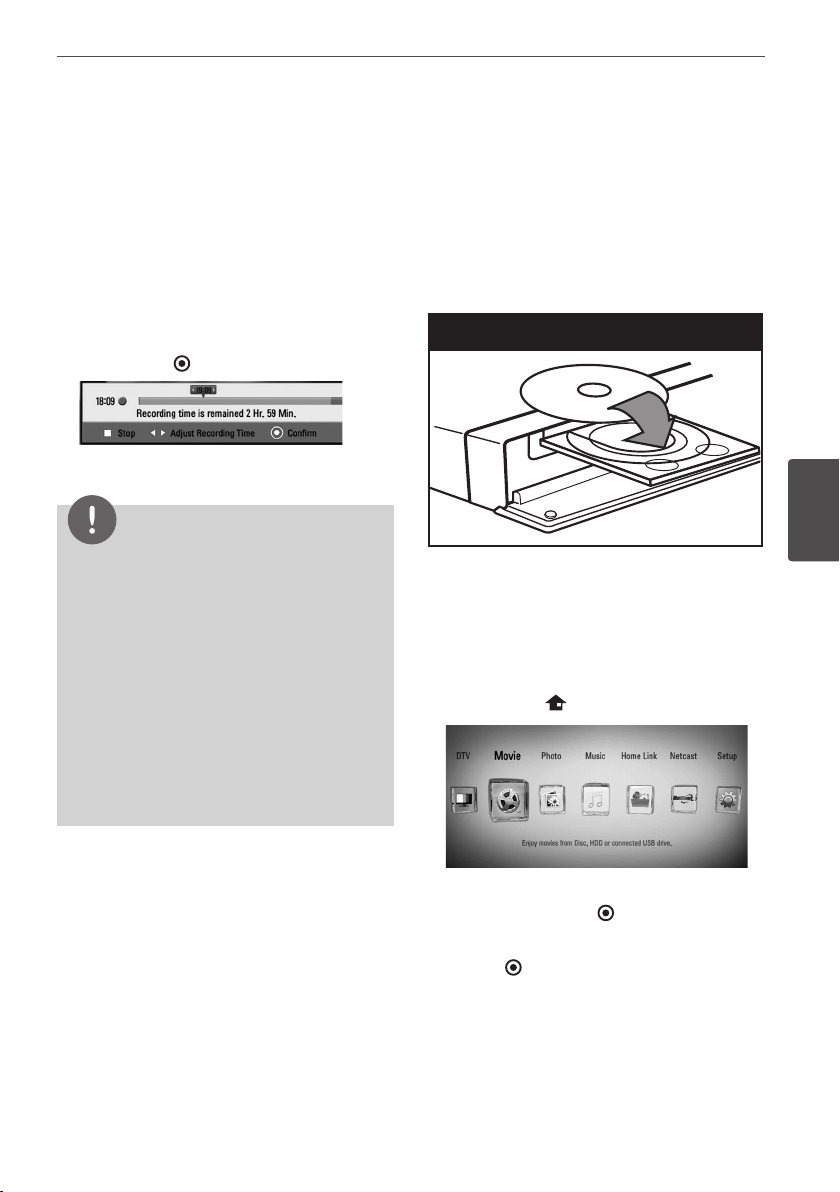
47Operation
Operation
4
Instant Timer Recording
You can set the recording time instantly to
stop the recording automatically.
1. Use PR (
U
/
u
) to select a programme you
want to record.
2. Press
z
REC. to start recording.
3. While recording, press
I
/
i
repeatedly to
set the recording duration
4. Press ENTER ( ).
5. Press
x
to stop recording.
NOTE
• The standard recording time is 3hours
(MAX=6hours). Depending on the remaining
capacity of HDD, the recording time is
somewhat flexible .
• If the unit cannot catch the signal, the recording
will be pause, actual recording time can be less
than the time set on timer.
• You cannot record radio or blocked channels.
• The quality of recording can be different on the
status of the broadcast signal.
• During the recording, Turning off by force can
cause a serious problem on hard disk drive.
General Playback
Playing Discs
1. Press
Z
(OPEN/CLOSE), and place a disc on
the disc tray.
Insert a disc
2. Press
Z
(OPEN/CLOSE) to close the disc
tray.
For most Audio CD, BD-ROM and
DVD-ROM discs, playback starts
automatically.
3. Press HOME ( ).
4. Select [Movie], [Photo] or [Music] using
I
/
i
, and press ENTER ( ).
5. Select the [Disc] using
I
/
i
, and press
ENTER ( ).
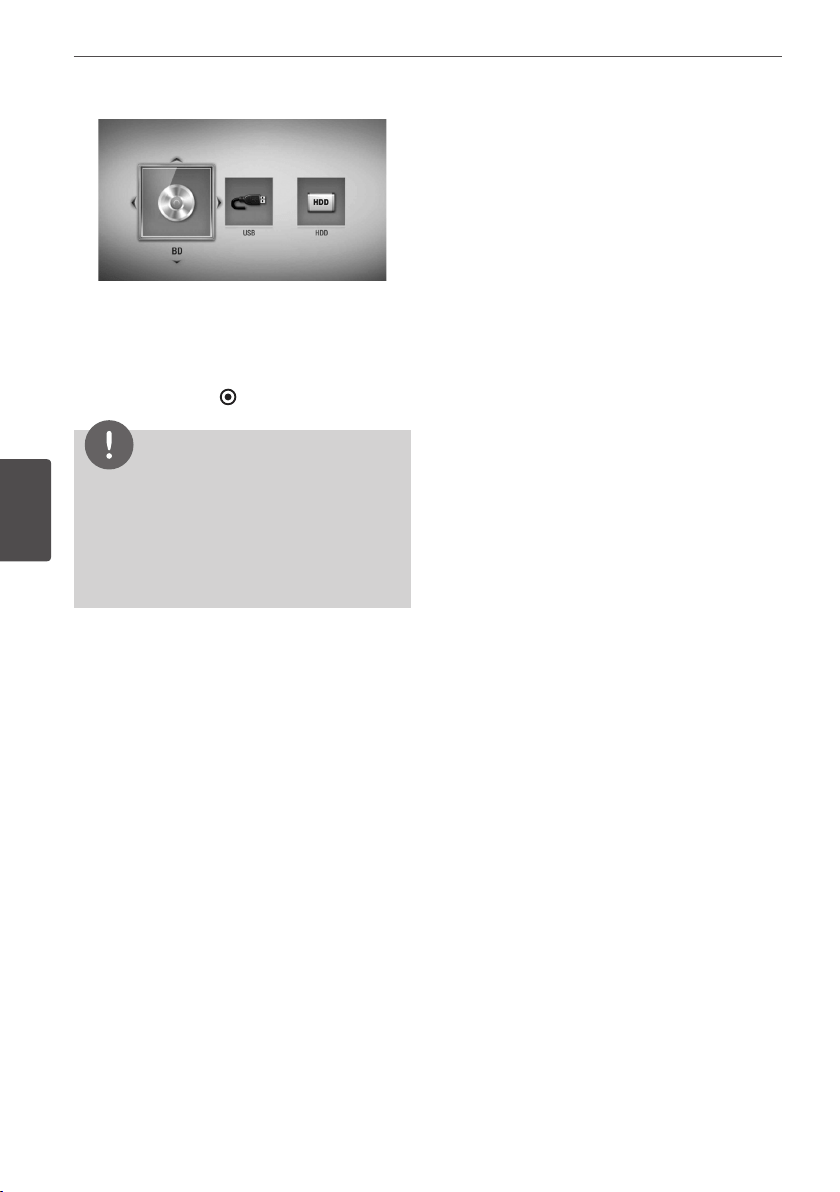
48 Operation
Operation
4
While navigating [Movie], [Photo] or [Music]
menu, press green(G) colored button to
change the device. (DISC, USB or HDD)
6. Select a le using
U
/
u
/
I
/
i
, and press
B
(PLAY) or ENTER ( ) to play the le.
NOTE
• Playback functions described in this manual are
not always available in every les and media.
Some functions can be restricted depending on
many factors.
• Depending on the BD-ROM titles, a USB device
connection may be needed for proper playback.
To stop playback
Press
x
(STOP) during playback.
To pause playback
Press
X
(PAUSE) during playback.
Press
B
(PLAY) to resume playback.
To play frame-by-frame
Press
X
(PAUSE) while movie playback.
Press
X
(PAUSE) repeatedly to playback Frame-
by-Frame.
To scan forward or backward
Press
m
or
M
to play fast forward or fast
reverse during playback.
You can change the various playback speeds
by pressing
m
or
M
repeatedly.
To slow down the playing speed
While the playback is paused, press
M
repeatedly to play various speeds of slow
motion.
To skip to the next/previous
chapter/track/file
During playback, press
.
or
>
to go to
the next chapter/track/le or to return to the
beginning of the current chapter/track/le.
Press
.
twice briey to step back to the
previous chapter/track/le.
In the [Home Link] menu, there may be many
types of media les in the current folder
together. In this case, press
.
or
>
to go
to the previous or next media les of the same
type.
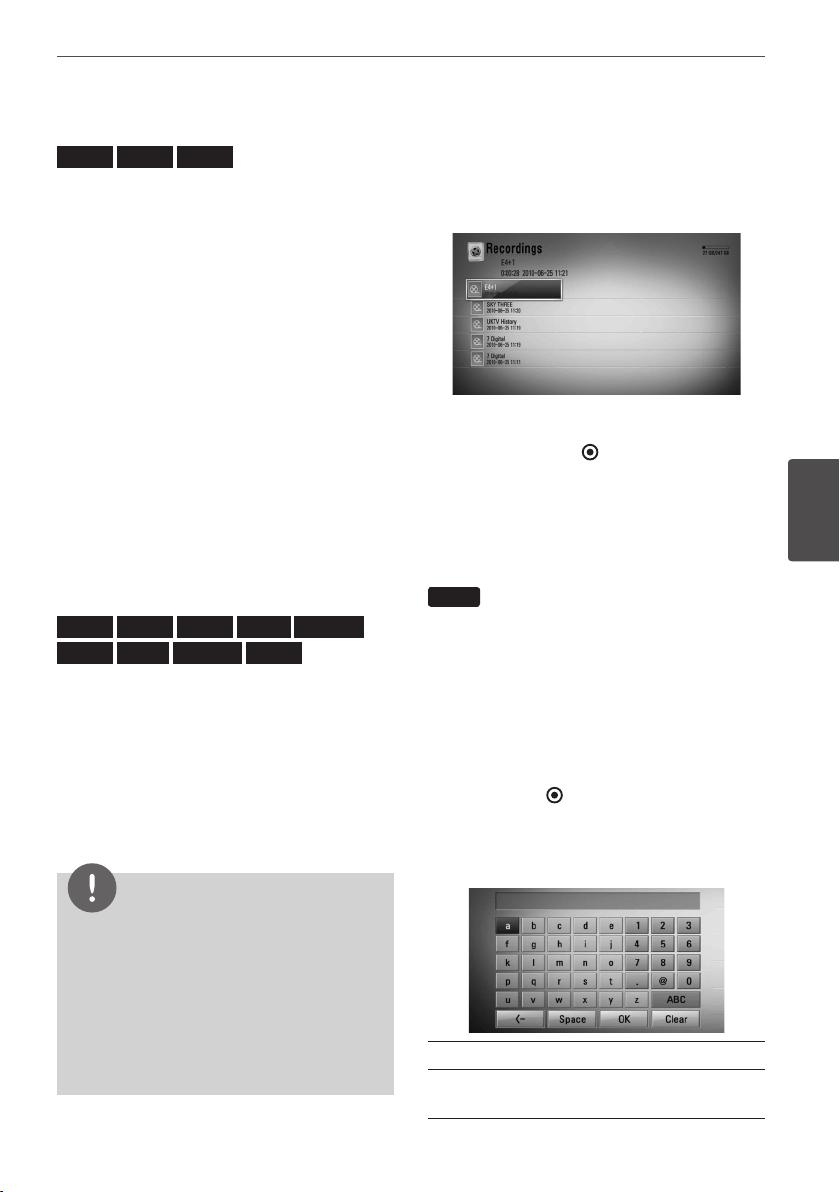
49Operation
Operation
4
Using the disc menu
BD
DVD
AVCHD
To display the disc menu
The menu screen may be displayed rst after
loading a disc which contains a menu. If you
want to display the disc menu during playback,
press DISC MENU.
Use
U
/
u
/
I
/
i
buttons to navigate through
menu items.
To display the Pop-up menu
Some BD-ROM discs contain a Pop-up menu
that appears during playback.
Press TITLE/POPUP during playback, and use
U
/
u
/
I
/
i
buttons to navigate through menu
items.
Resume playback
BD
DVD
AVCHD
MOVIE
MOVIE-N
ACD
MUSIC
MUSIC-N
REC
This unit remembers the point where you
pressed the
x
(STOP) depending on the disc.
If “
Xx
(Resume Stop)” appears on the screen
briey, press
B
(PLAY)
to resume playback
(from the scene point).
If you press
x
(STOP) twice or unload the disc,
“
x
(Complete Stop)” appears on the screen.
The unit will clear the stopped point.
NOTE
• The resume point may be cleared when a
button is pressed (for example;
1
(POWER),
Z
(OPEN/CLOSE), etc).
• On BD-Video discs with BD-J, the resume
playback function does not work.
• If you press
x
(STOP) once during BD-ROM
interactive title playback, the unit will be in
Complete Stop mode .
Playing the recorded titles
1. While watching TV, press REC LIST to display
the options menu or press REC LIST in
Home menu.
2. Use
U
/
u
/
I
/
i
to select recording title.
3. Press
B
or ENTER ( ) to play the recording
title.
4. Some of pay channels cannot be played.
Searching the recorded titles
REC
You can search for videos by entering search
words of up to 60 characters.
1. While watching TV, press REC LIST to display
the options menu.
2. Press SEARCH.
3. Use
U
/
u
/
I
/
i
to select a character then
press ENTER ( ) to conrm your selection
on the virtual keyboard.
To enter a letter with an accent mark, select
the letter from extended character set.
[Clear] – Clear all entered characters.
[Space] – Inserts a space at the cursor
position.
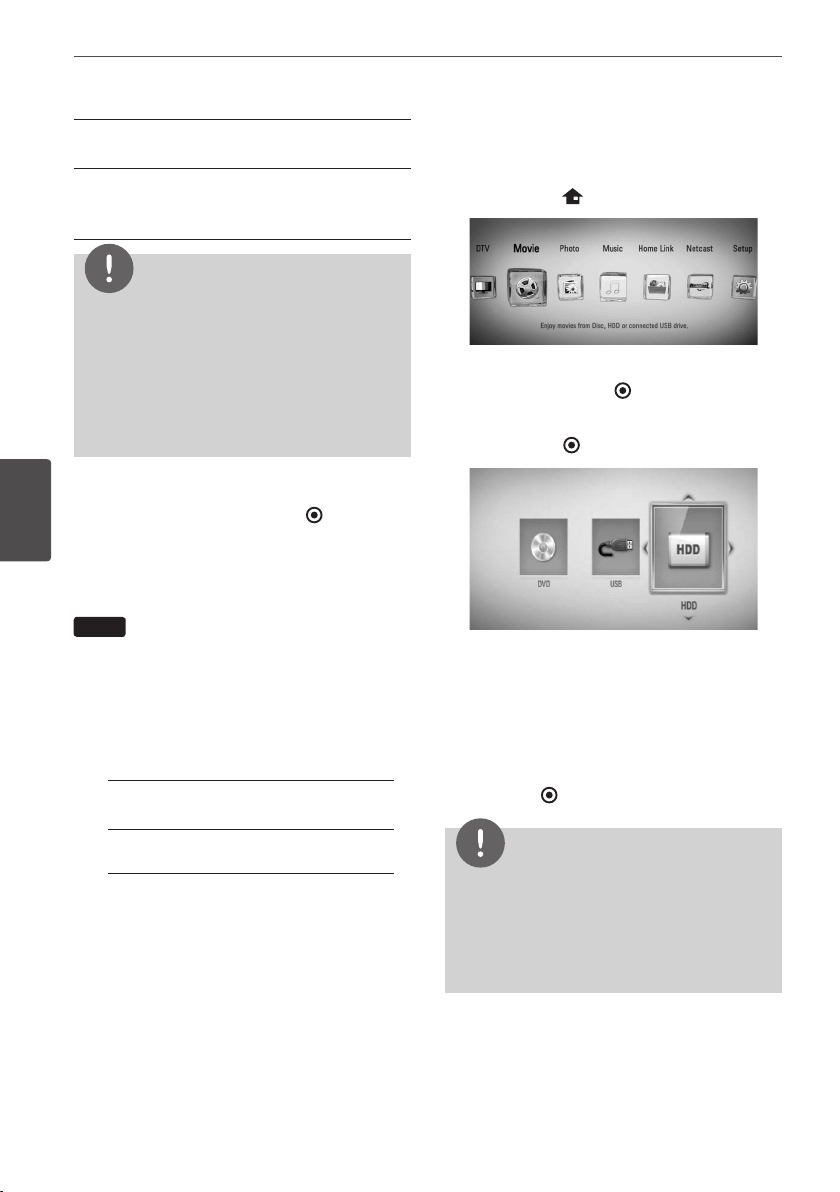
50 Operation
Operation
4
[<–] – Deletes the previous character at the
cursor position.
[ABC / abc / #+-=&] – Change the keyboard
menu settings to capital letters, small letters
or symbols.
NOTE
To enter a letter with an accent mark:
1. Select a letter using
U
/
u
/
I
/
i
on the keyboard
menu.
2. Press INFO/DISPLAY to display the extended
character set.
3. character set. Use
I
/
i
to select a character then
press ENTER.
4. When you nish entering the search words,
Select [OK] and press ENTER ( ) to display
the related videos list.
Sorting the recorded titles
REC
1. While watching TV, press REC LIST to display
the options menu.
2. Press blue coloured (B) button repeatedly
to sorted by recorded time in recent order
or title name in alphabetical order.
[ABC order] – by title name in
alphabetical order.
[Recent order] – sorted by recorded
date.
Playing content contained in
the internal hard disk drive
1. Press HOME ( ).
2. Select [Movie], [Photo] or [Music] using
I
/
i
, and press ENTER ( ).
3. Select the [HDD] option using
I
/
i
, and
press ENTER ( ).
This step is needed only when a disc or a
USB device is connected on this unit.
While navigating [Movie], [Photo] or [Music]
menu, press green(G) colored button to
change the device. (DISC, USB or HDD)
4. Select a le using
I
/
i
/
U
/
u
, and press PLAY
or ENTER ( ) to play the le.
NOTE
• The le requirements are described on page 10.
• You can use various playback functions. Refer to
pages 47-58.
• Recorded les are searchable only by searching
on the [Record List].
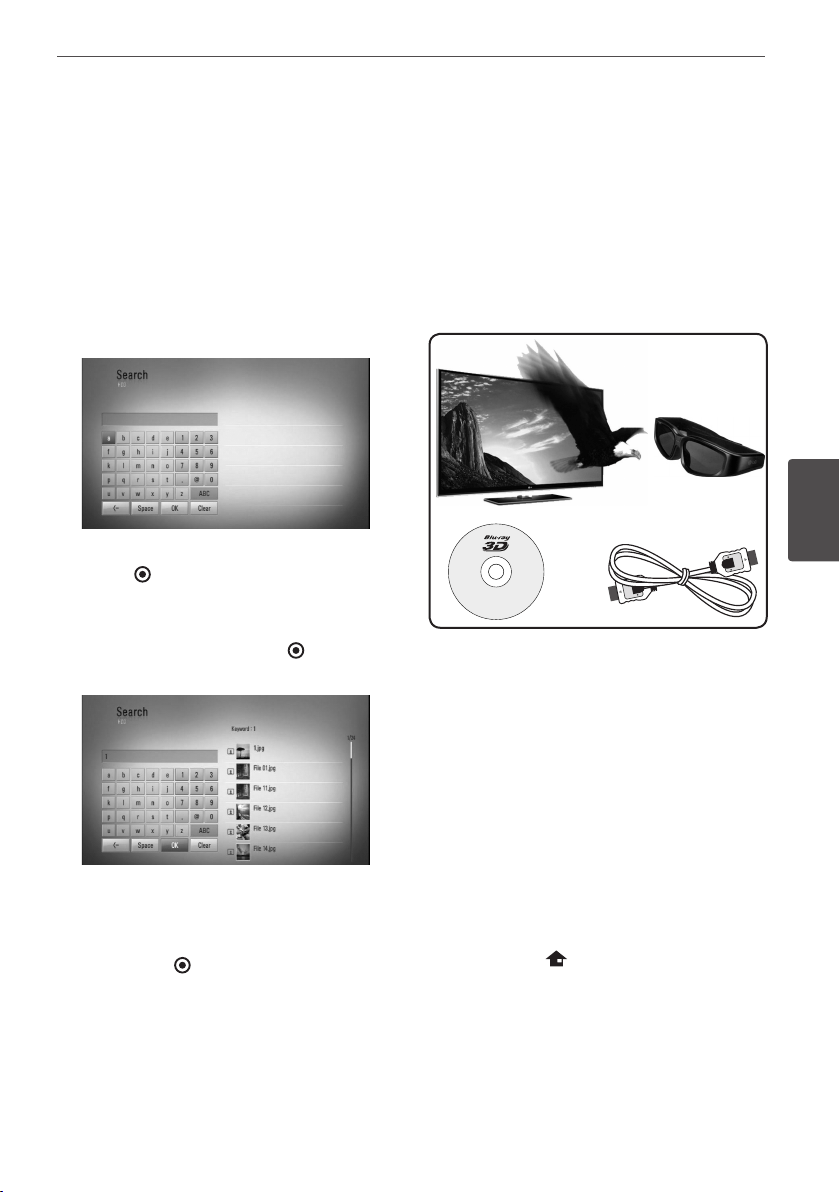
51Operation
Operation
4
Searching content in the hard
disk drive by entering file name
If you are having diculties nding content
in the hard disk drive, you can search for the
content by entering keyword with the virtual
keyboard
1. On the [Movie], [Photo], [Music] or Home
menu, press SEARCH to display the virtual
keyboard.
2. Use
I
/
i
/
U
/
u
to select letters then press
ENTER ( ) to conrm your selection on the
virtual keyboard.
3. When you nish entering the keyword,
select [OK] and press ENTER ( ) to display
search result.
4. Press
I
/
i
repeatedly until the search result
is selected, and use
U
/
u
to select a desired
content.
5. Press ENTER ( ) to play the content.
Playing Blu-ray 3D disc
This player can play the Blu-ray 3D discs which
contains separate views for the left and right
eyes.
Preparation
In order to playback Blu-ray 3D title in
stereoscopic 3D mode, you need to:
c
a b
d
a
Check if your TV is 3D capable and has
HDMI 1.4 input(s).
b
Wear 3D glasses to enjoy the 3D
experience if it is necessary.
If you want to purchase additional
3D-ready glasses, contact the dealer that
you purchased the 3D-ready TV from.
c
check whether the BD-ROM title is the
Blu-ray 3D disc or not (page 52).
d
connect an HDMI cable (version 1.3 or
higher) between the player’s HDMI output
and TV’s HDMI input.
1. Press HOME ( ), and set the [3D Mode]
option on the [Setup] menu to [On]
(page 32).
2. Press
Z
(OPEN/CLOSE), and place a disc on
the disc tray.
52 Operation
Operation
4
3. Press
Z
(OPEN/CLOSE) to close the disc tray.
The playback starts automatically.
The 3D icon appears on the screen when
3D content is in playback.
4. Refer to the owner’s manual of your
3D-ready TV for the further instruction.
You may need to adjust the display settings
and focus on your TV’s setting for the
improved 3D eect.
CAUTION
• Watching a 3D content for a long period time
may cause dizziness or tiredness.
• It is not recommended to watch a movie in 3D
mode for inrm, child and pregnant woman.
• If you are experiencing headache, tiredness
or dizziness while viewing contents in 3D, it is
strongly recommended to stop the playback
and rest until you feel normal.
3D available Blu-ray 3D Discs
The “Blu-ray 3D” logo labeled
BD-ROM disc can be played
on this player with 3D mode
output. If your TV is not the
Blu-ray 3D-ready TV*, 2D mode
output is available.
The “Blu-ray 3D ONLY” logo
labeled BD-ROM disc can be
played on this player with
3D mode output. The Blu-ray
3D ONLY disc playback is not
available, if your TV or player are
not the Blu-ray 3D-ready device.
* 3D-ready TV refers to TVs that are compliant
with “HDMI 1.4 3D mandatory format”
standard.
NOTE
The “Blu-ray 3D” and “Blu-ray 3D ONLY” may not
be printed on your BD-ROM disc, even if the disc
contains 3D contents.
53Operation
Operation
4
Advanced Playback
Repeat Playback
BD
DVD
AVCHD
ACD
MUSIC
MUSIC-N
During playback, press REPEAT repeatedly to
select a desired repeat mode.
BDs/DVDs
A- – Selected portion will be repeated
continually.
Chapter
– The current chapter will be
played back repeatedly.
Title
– The current title will be played
back repeatedly.
To return to normal playback, press REPEAT
repeatedly to select [O].
Audio CDs/Music les
Track
– The current track or le will be
played back repeatedly.
All
– All the tracks or les will be played
back repeatedly.
– The tracks or les will be played back
in random order.
All
– All the tracks or les will be
played back repeatedly in random order.
A-B
– Selected portion will be repeated
continually. (Audio CD only)
To return to normal playback, press CLEAR.
NOTE
• If you press
>
once during Repeat Chapter/
Track playback, the repeat playback cancels.
• This function may not work on some disc or title.
Repeating a specific portion
BD
DVD
AVCHD
ACD
This player can repeat a portion you have
selected.
1. During playback, press REPEAT to select [A-]
at the beginning of the portion you wish to
repeat.
2. Press ENTER ( ) at the end of the portion.
Your selected portion will be repeated
continually.
3. To return to normal playback, press REPEAT
repeatedly to select [O].
NOTE
• You cannot select a portion less than 3 seconds.
• This function may not work on some disc or title.
Enlarge the playback image
BD
DVD
AVCHD
MOVIE
MOVIE-N
PHOTO
REC
1. During playback or pause mode, press
ZOOM to display the [Zoom] menu.
2. Use red (R) or green (G) colored button to
zoom out or in on the still image.
You can move through the zoomed picture
using
U
/
u
/
I
/
i
buttons.
3. To return to the normal picture size, press
yellow (Y) colored button.
4. Press RETURN (
O
) to exit the [Zoom]
menu.
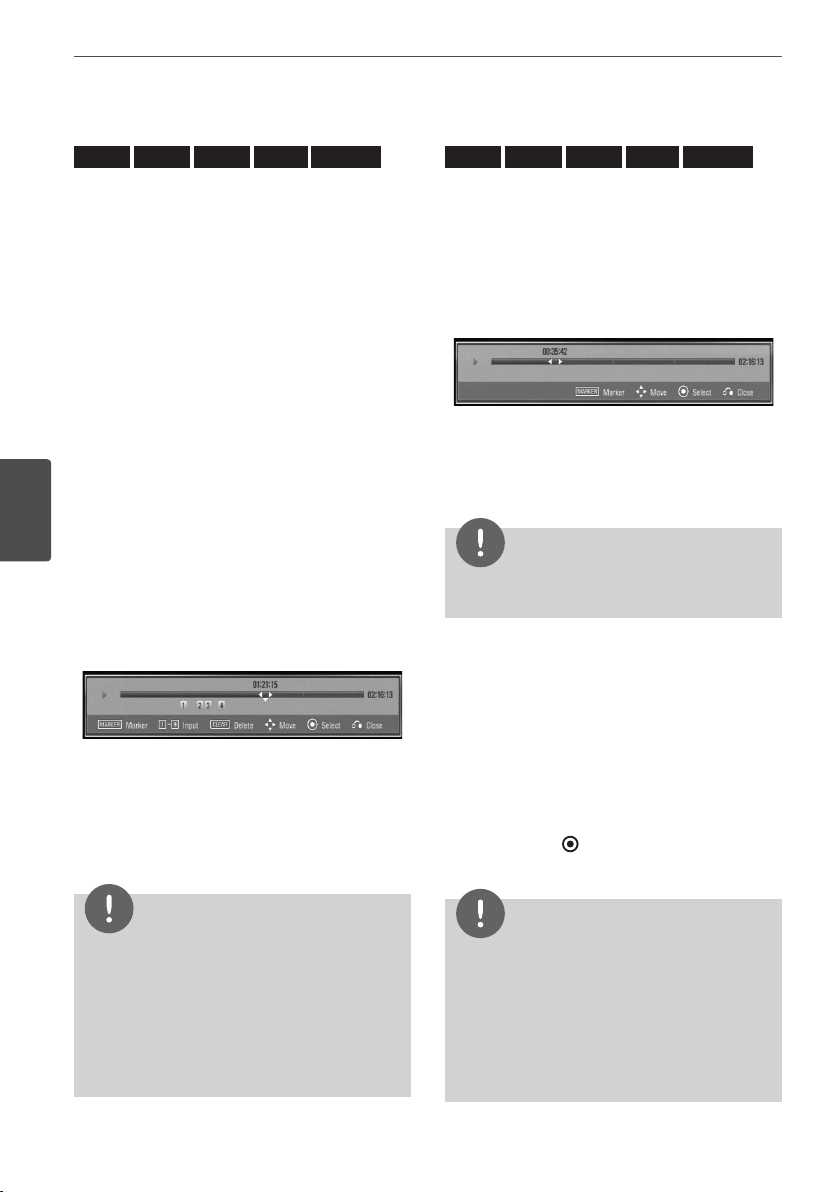
54 Operation
Operation
4
Marker Search
BD
DVD
AVCHD
MOVIE
MOVIE-N
You can start playback from up to nine
memorized points.
To enter a marker
1. During playback, press MARKER at the
desired point. The Marker icon appears on
the TV screen briey.
2. Repeat step 1 to add up to nine markers.
To recall a marked scene
1. Press SEARCH and the search menu appears
on the screen.
2. Press a number button to select a marker
number that you want to recall. Playback
starts from the marked scene.
To delete a Marker
1. Press SEARCH and the search menu appears
on the screen.
2. Press
u
to highlight a marker number. Use
I
/
i
to select a marked scene that you
want to delete.
3. Press CLEAR and the marked scene is erased
from the search menu.
NOTE
• This function may not work depending on discs,
titles, server ability.
• All marked points are cleared if the title is in
complete stop (
x
) mode, the title is changed or
if you unload the disc.
• If the total length of the title is less than 10
seconds, this function is not available.
Using the search menu
BD
DVD
AVCHD
MOVIE
MOVIE-N
Using search menu, you can easily to nd the
point where you want to start playback.
To search a point
1. During playback, press SEARCH to display
the search menu.
2. Press
I
/
i
to skip the playback 15 seconds
forward or backward. You can select a
point that you want to skip by pressing and
holding
I
/
i
button.
NOTE
This function may not work in is le playback and
on recording list.
To start playback from a marked
scene
1. Press SEARCH and the search menu appears
on the screen.
2. Press
u
to highlight a marker number. Use
I
/
i
to select a marked scene that you
want to playback.
3. Press ENTER ( ) to start playback from the
marked scene.
NOTE
• This function may not work depending on discs,
titles, server ability.
• This function may not work on some [Home
Link] content depending on the le type and
ability of the DLNA server
• This function may not work in is le playback
and on recording list.
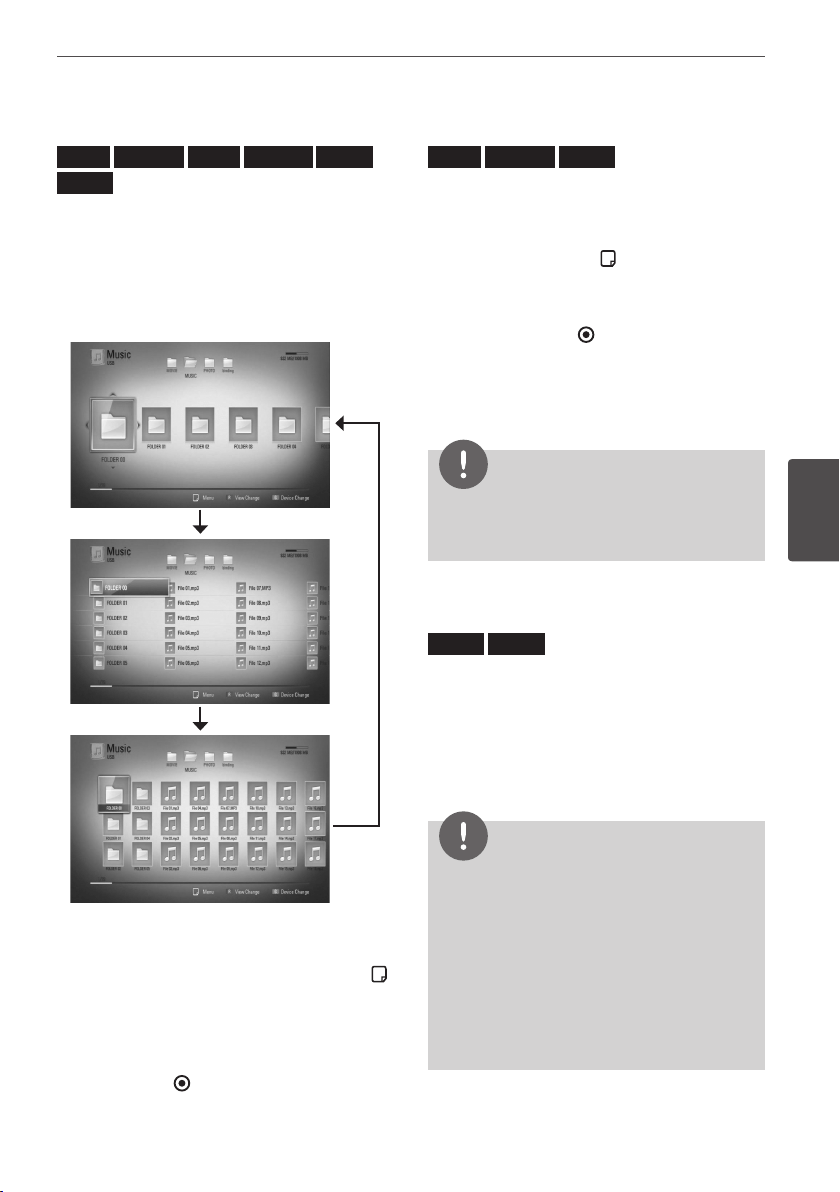
55Operation
Operation
4
Changing content list view
MOVIE
MOVIE-N
MUSIC
MUSIC-N
PHOTO
REC
On the [Movie], [Music], [Photo] or [Home Link]
menu, you can change the content list view.
Method 1
Press red (R) coloured button repeatedly.
Method 2
1. On the content list, press INFO/DISPLAY ( )
to display the option menu.
2. Use
U
/
u
to select the [View Change]
option.
3. Press ENTER ( ) to change the content list
view.
Viewing content information
MOVIE
MOVIE-N
REC
The player can display the content information.
1. Select a le using
U
/
u
/
I
/
i
.
2. Press INFO/DISPLAY ( ) to display the
option menu.
3. Select the [Information] option using
U
/
u
,
and press ENTER ( ).
The le information appears on the screen.
During movie playback, you can display the le
information by pressing TITLE/POPUP.
NOTE
The information displayed on the screen may
not be correct compared to the actual content
information.
Last Scene Memory
BD
DVD
This unit memorizes the last scene from the
last disc that is viewed. The last scene remains
in memory even if you remove the disc from
the unit or switch o the unit. If you load a disc
that has the scene memorized, the scene is
automatically recalled.
NOTE
• Last Scene Memory function for a previous disc
is erased once a dierent disc is played.
• This function may not work depending on the
disc.
• On BD-Video discs with BD-J, the last scene
memory function does not work.
• This unit does not memorize settings of a disc if
you switch o the unit before commencing to
play it.
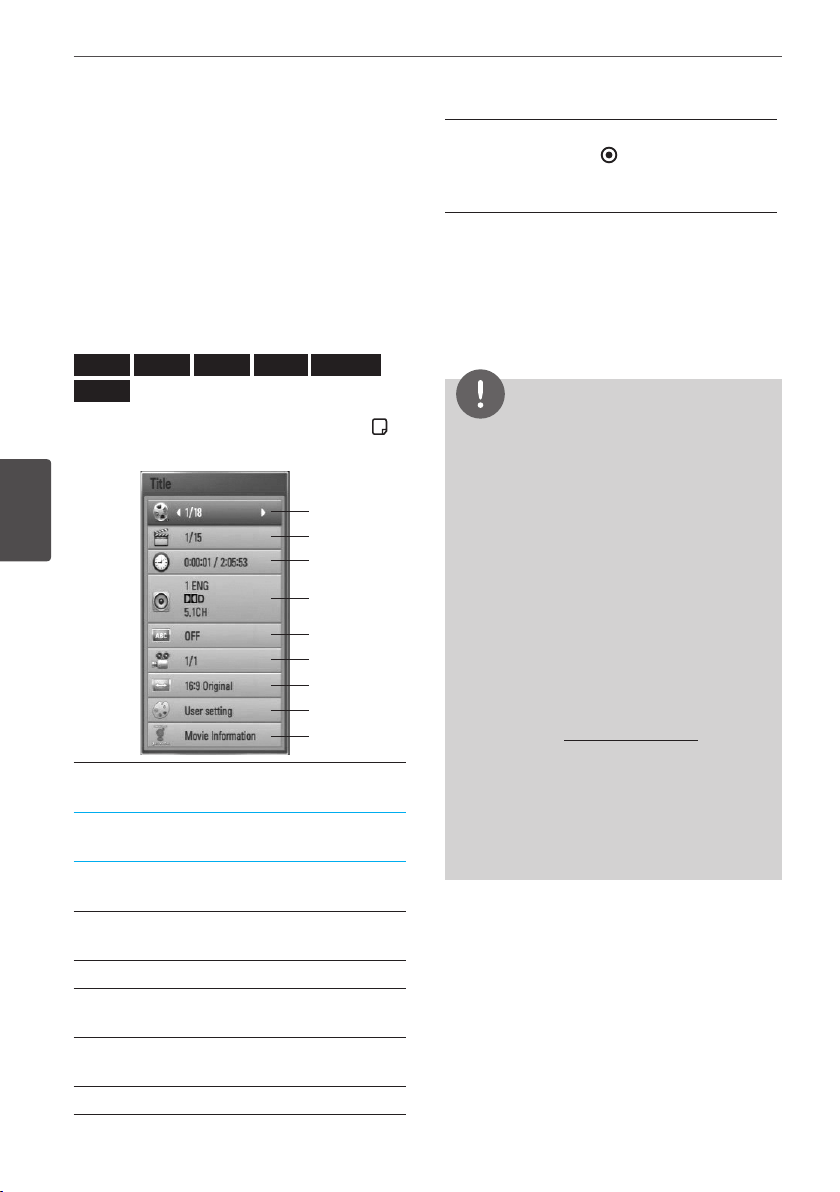
56 Operation
Operation
4
On-Screen display
You can display and adjust various information
and settings concerning the content.
Displaying content information
on-screen
BD
DVD
AVCHD
MOVIE
MOVIE-N
REC
1. During playback, press INFO/DISPLAY ( ) to
show various playback information.
a
h
g
f
e
d
c
b
i
a
Title – current title number/total number
of titles
b
Chapter – current chapter number/total
number of chapters
c
Time – elapsed playing time/total
playback time
d
Audio – selected audio language or
channel
e
Subtitle – selected subtitle
f
Angle – selected angle/total number of
angles
g
TV Aspect Ratio – selected TV aspect
Ratio
h
Picture Mode – selected picture mode
i
Movie Information – Select this option
and press ENTER ( ) to display movie
information from Gracenote Media
Database (BD/DVD only).
2. Select an option using
U
/
u
.
3. Use
I
/
i
to adjust the selected option
value.
4. Press RETURN (
O
) to exit the On-Screen
display.
NOTE
• If no button is pressed for a few seconds, the on-
screen display disappears.
• A title number cannot be selected on some
discs.
• Available items may dier depending on discs
or titles.
• If BD interactive title is playing back, some
setting information is displayed on the screen
but prohibited to be changed.
• To use the [Movie Information] option, the player
must be connected to the broadband internet
for accessing the Gracenote Media Database.
• If the information from the Gracenote Media
Database is either not correct or does not exist,
please contact www.gracenote.com for support.
• LG is a licensee of Gracenote technology and is
not responsible or reliable for information from
the Gracenote Media Database.
• The unit may not be able to display the music
information depending on the network
condition.
57Operation
Operation
4
Playing from selected time
BD
DVD
AVCHD
MOVIE
MOVIE-N
REC
1. Press INFO/DISPLAY ( ) during playback.
The time search box shows the elapsed
playing time.
2. Select the [Time] option and then input the
required start time in hours, minutes, and
seconds from left to right.
For example, to nd a scene at 2 hours, 10
minutes, and 20 seconds, enter “21020”.
Press
I
/
i
to skip the playback 60 seconds
forward or backward.
3. Press ENTER ( ) to start playback from
selected time.
NOTE
• This function may not work on some disc or
titles.
• This function may not work on some [Home
Link] content depending on the le type and
ability of the DLNA server.
Hearing different audio
BD
DVD
AVCHD
MOVIE
MOVIE-N
REC
1. During playback, press INFO/DISPLAY ( ) to
display the On-Screen display.
2. Use
U
/
u
to select the [Audio] option.
3. Use
I
/
i
to select desired audio language,
audio track or audio channel.
NOTE
• Some discs allow you to change audio selections
only via the disc menu. In this case, press TITLE/
POPUP or DISC MENU button and choose the
appropriate audio from the selections on the
disc menu.
• Immediately after you have switched sound,
there may be a temporary discrepancy between
the display and actual sound.
• On BD-ROM disc, the multi audio format (5.1CH
or 7.1CH) is displayed with [MultiCH] in the on-
screen display.
Selecting a subtitle language
BD
DVD
AVCHD
MOVIE
MOVIE-N
REC
1. During playback, press INFO/DISPLAY ( ) to
display the On-Screen display.
2. Use
U
/
u
to select the [Subtitle] option.
3. Use
I
/
i
to select the desired subtitle
language.
4. Press RETURN (
O
) to exit the On-Screen
display.
NOTE
Some discs allow you to change subtitle selections
only via the disc menu. If this is the case, press
TITLE/POPUP or DISC MENU button and choose
the appropriate subtitle from the selections on the
disc menu.
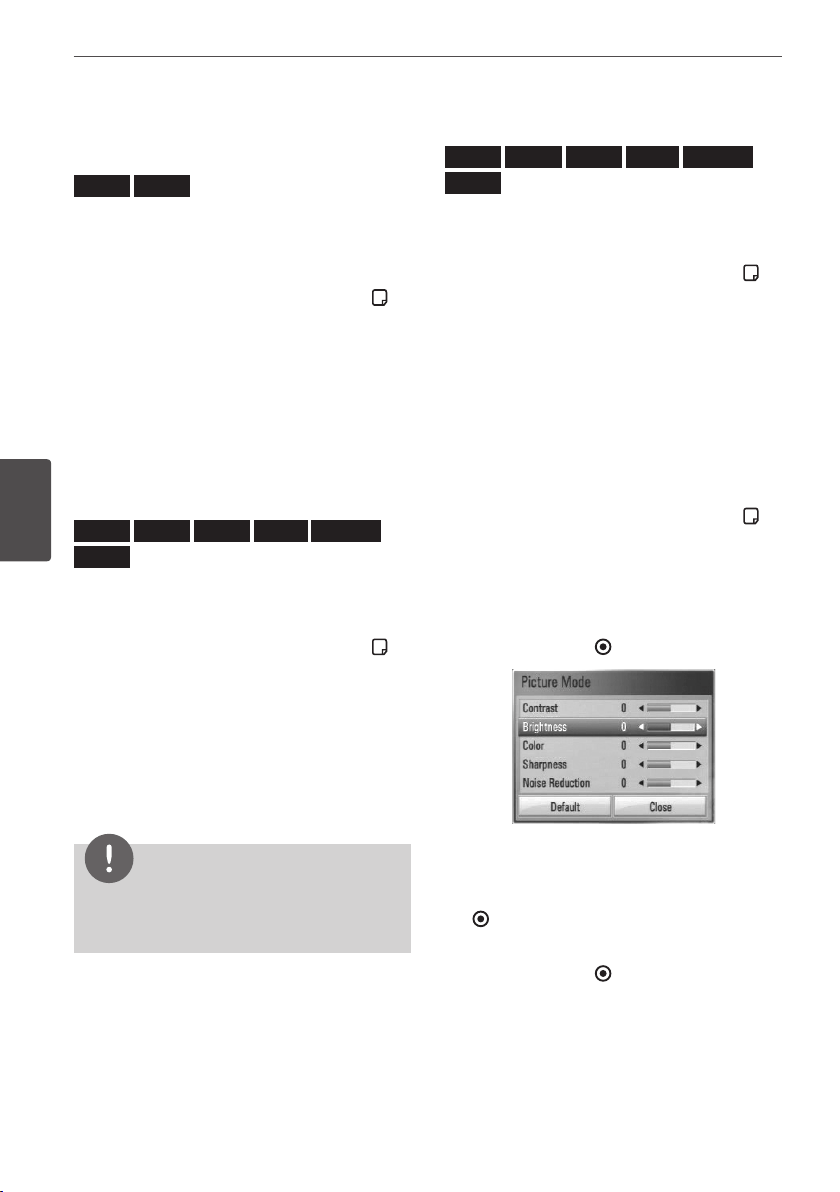
58 Operation
Operation
4
Watching from a different
angle
BD
DVD
If the disc contains scenes recorded at dierent
camera angles, you can change to a dierent
camera angle during playback.
1. During playback, press INFO/DISPLAY ( ) to
display the On-Screen display.
2. Use
U
/
u
to select the [Angle] option.
3. Use
I
/
i
to select the desired angle.
4. Press RETURN (
O
) to exit the On-Screen
display.
Changing the TV Aspect Ratio
BD
DVD
AVCHD
MOVIE
MOVIE-N
REC
You can change the TV aspect ratio setting
during playback.
1. During playback, press INFO/DISPLAY ( ) to
display the On-Screen display.
2. Use
U
/
u
to select the [TV Aspect Ratio]
option.
3. Use
I
/
i
to select desired option.
4. Press RETURN (
O
) to exit the On-Screen
display.
NOTE
Even if you change the value of the [TV Aspect
Ratio] option in On-Screen display, the [TV Aspect
Ratio] option in the [Setup] menu is not changed.
Changing the Picture Mode
BD
DVD
AVCHD
MOVIE
MOVIE-N
REC
You can change the [Picture mode] option
during playback.
1. During playback, press INFO/DISPLAY ( ) to
display the On-Screen display.
2. Use
U
/
u
to select the [Picture Mode]
option.
3. Use
I
/
i
to select desired option.
4. Press RETURN (
O
) to exit the On-Screen
display.
Setting the [User setting] option
1. During playback, press INFO/DISPLAY ( ) to
display the On-Screen display.
2. Use
U
/
u
to select the [Picture Mode]
option.
3. Use
I
/
i
to select the [User setting] option,
and press ENTER ( ).
4. Use
U
/
u
/
I
/
i
to adjust the [Picture Mode]
options.
Select [Default] option then press ENTER
( ) to reset the all video adjustments.
5. Use
U
/
u
/
I
/
i
to select the [Close] option,
and press ENTER ( ) to nish setting.
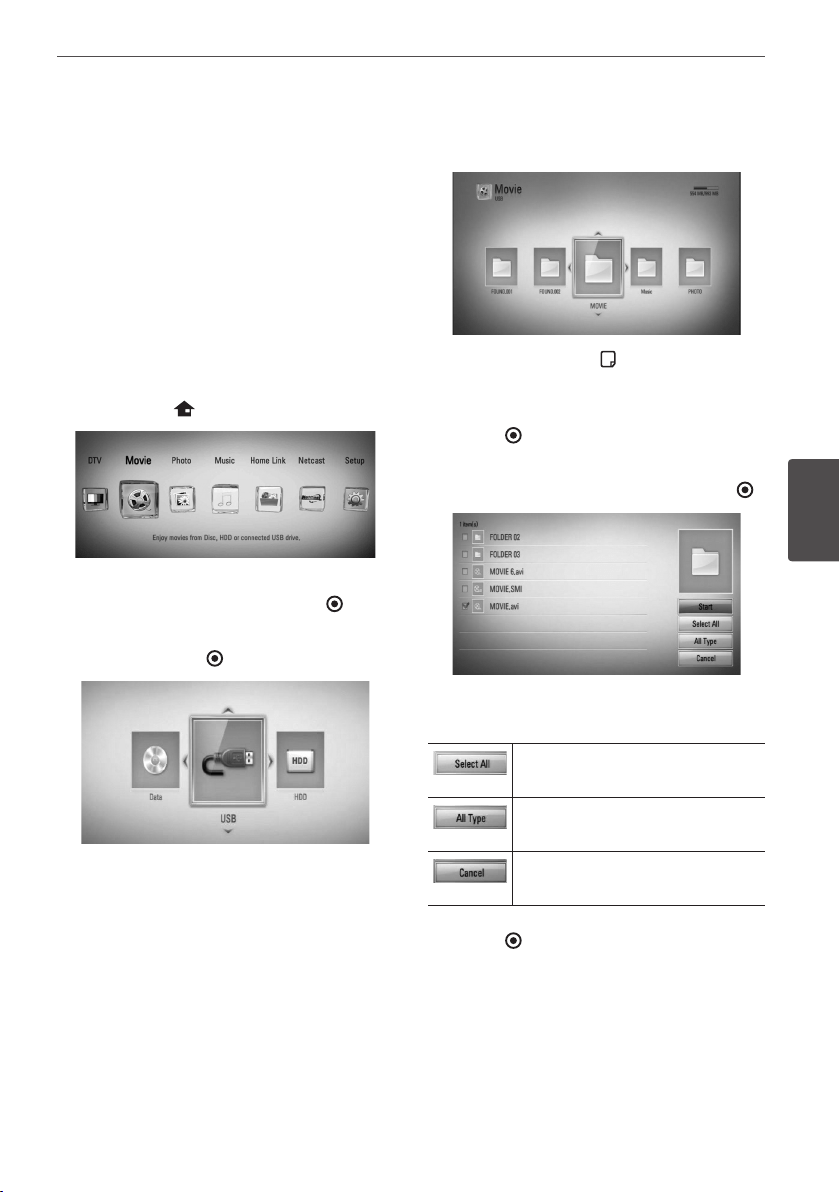
59Operation
Operation
4
Copying
Copying file(s)/folder(s) to the
internal hard disk drive
You can copy music, photo, video le(s)/
folder(s) from disc/USB storage device to the
internal hard disk drive.
1. Press HOME ( ).
2. Select [Movie], [Photo], [Music] or [Home
Link] using
I
/
i
, and press ENTER ( ).
3. Select the [Disc] or [USB] option using
I
/
i
,
and press ENTER ( ).
Selecting a server or a share folder is
needed for [Home Link] menu.
4. Use
U
/
u
/
I
/
i
to select a directory that les
or folders you want to copy are located.
5. Press INFO/DISPLAY ( ) to display the
option menu.
6. Use
U
/
u
to select [Copy] option, and press
ENTER ( ) to display the [Copy] menu.
7. Use
U
/
u
to select a le or a folder you wish
to copy on the menu, and press ENTER ( ).
Repeat this step to select les and folders as
many as you can.
Select all the les and folders on
the current directory.
Shows all type of les on the
screen. (Movie, Photo and Music)
Cancels the copying and returns
to the previous screen.
8. Use
U
/
u
/
I
/
i
to select [Start], and press
ENTER ( ).
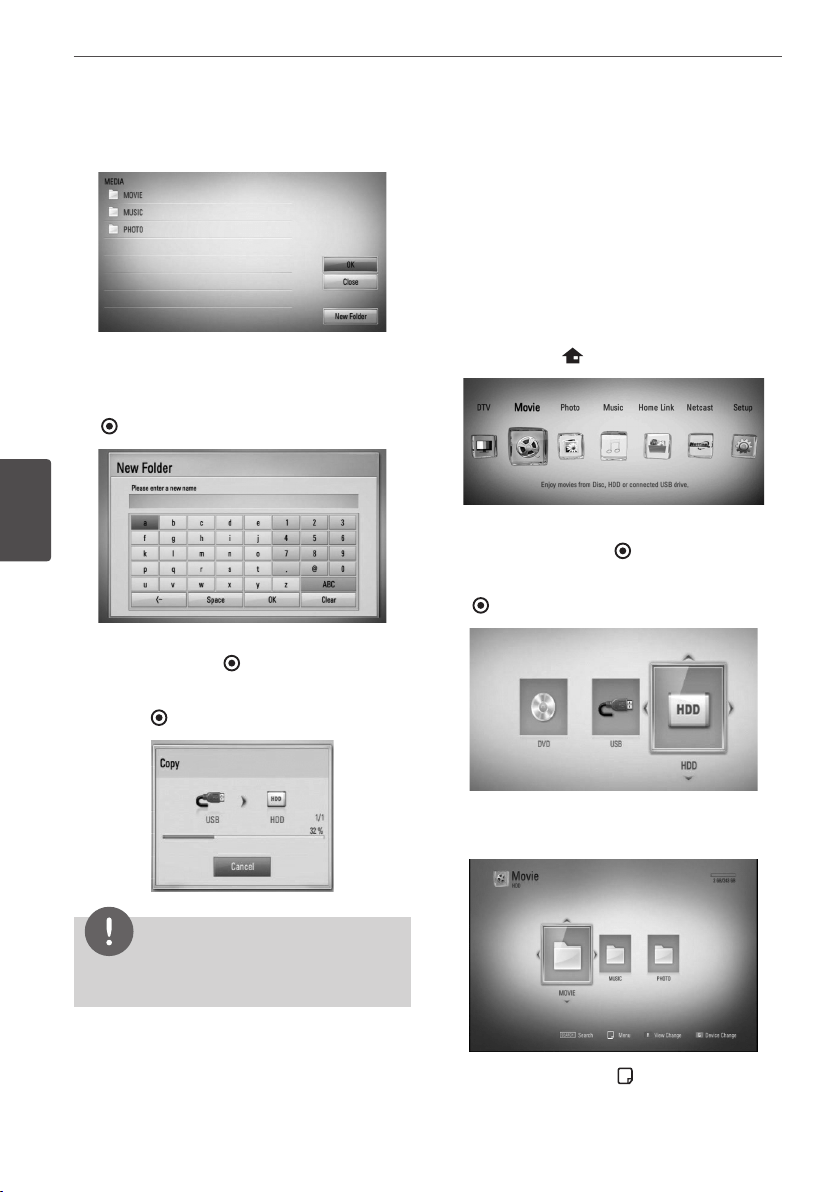
60 Operation
Operation
4
9. Use
U
/
u
/
I
/
i
to select the destination
folder to be copied.
10.
(Option)
If you want to create a new folder, use
U
/
u
/
I
/
i
to select [New Folder] and press ENTER
( ).
Enter folder name using virtual keyboard,
and press ENTER ( ) while [OK] is selected.
11.
Use
U
/
u
/
I
/
i
to select [OK], and press
ENTER ( ) to start copying.
NOTE
Copying speed may vary depending on the le
size, number of les and network condition.
Copying file(s)/folder(s) from
the internal hard disk drive to a
USB storage device
You can copy music, photo, video le(s)/
folder(s) from the internal hard disk drive to a
USB storage device.
1. Insert a USB device to the USB port until it
ts into place.
2. Press HOME ( ).
3. Select [Movie], [Photo] or [Music] using
I
/
i
, and press ENTER ( ).
4. Select [HDD] using
I
/
i
, and press ENTER
( ).
5. Use
U
/
u
/
I
/
i
to select a directory that les
or folders you want to copy are located.
6. Press INFO/DISPLAY ( ) to display the
option menu.
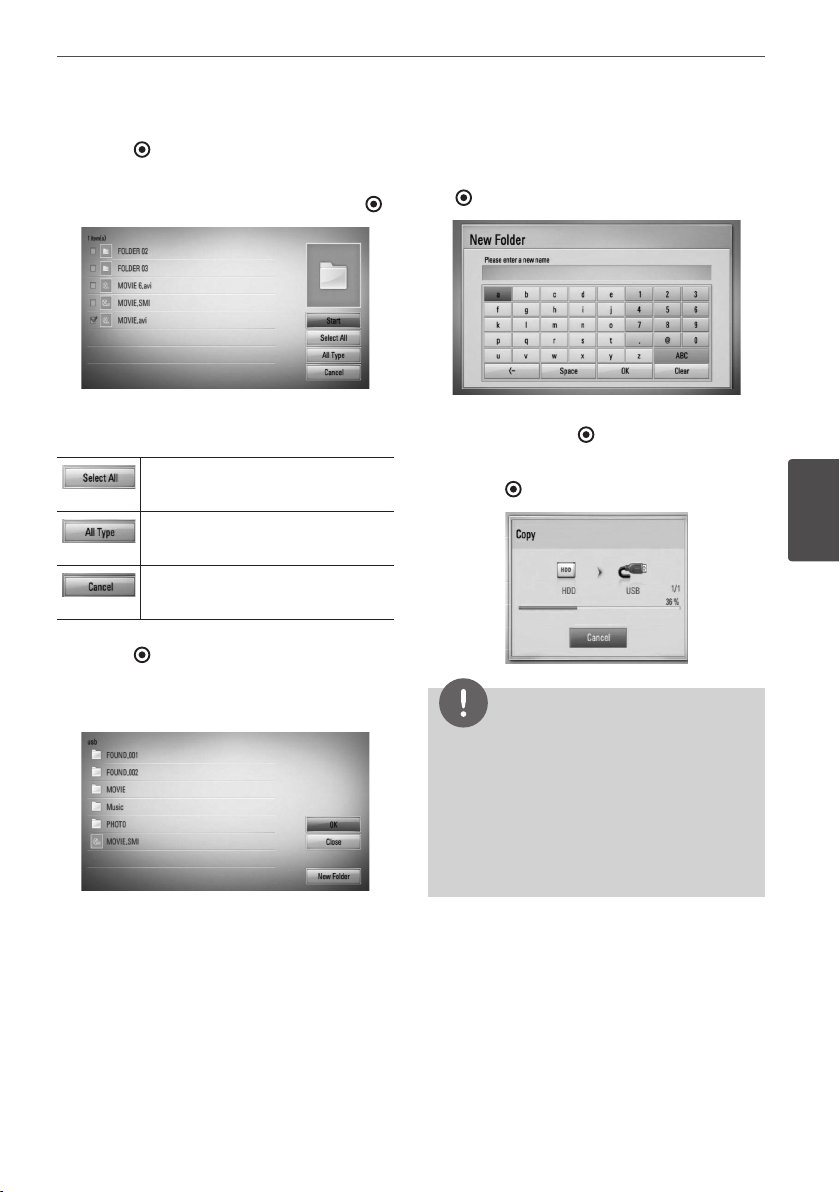
61Operation
Operation
4
7. Use
U
/
u
to select [Copy] option, and press
ENTER ( ) to display the [Copy] menu.
8. Use
U
/
u
to select a le or a folder you wish
to copy on the menu, and press ENTER ( ).
Repeat this step to select les and folders as
many as you can.
Select all the les and folders on
the current directory.
Shows all type of les on the
screen. (Movie, Photo and Music)
Cancels the copying and returns
to the previous screen.
9. Use
U
/
u
/
I
/
i
to select [Start], and press
ENTER ( ).
10.
Use
U
/
u
/
I
/
i
to select the destination
folder to be copied.
11.
(Option)
If you want to create a new folder, use
U
/
u
/
I
/
i
to select [New Folder] and press ENTER
( ).
Enter folder name using virtual keyboard,
and press ENTER ( ) while [OK] is selected.
12.
Use
U
/
u
/
I
/
i
to select [OK], and press
ENTER ( ) to start copying.
NOTE
• Copying speed may vary depending on the le
size, number of les and network condition.
• It is unable to do copy during the recording.
• When the reserved recording is proceeding with
copy, it can slow the copy.
• The name of copied les can be dierent from
that of original les.
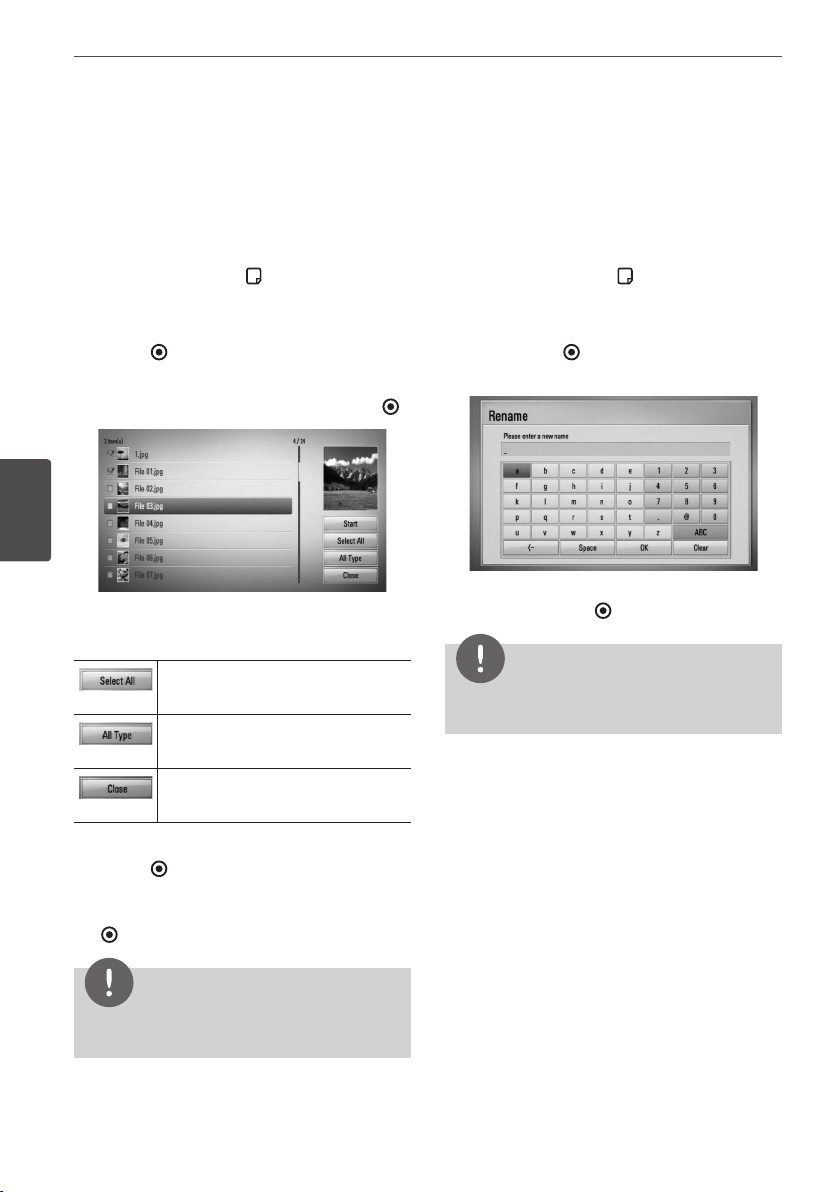
62 Operation
Operation
4
Deleting a file(s)/folder(s)
You can delete le(s)/folder(s) from the internal
hard disk drive.
1. Use
U
/
u
/
I
/
i
to select a directory that les
or a folders you want to delete are located.
2. Press INFO/DISPLAY ( ) to display the
option menu.
3. Use
U
/
u
to select [Delete] option, and press
ENTER ( ) to display the [Delete] menu.
4 Use
U
/
u
to select a le or a folder you wish
to copy on the menu, and press ENTER ( ).
Repeat this step to select les and folders as
many as you can.
Select all the les and folders on
the current directory.
Shows all type of les on the
screen. (Movie, Photo and Music)
Cancels the deletion and returns
to the previous screen.
5. Use
U
/
u
/
I
/
i
to select [Start], and press
ENTER ( ).
6. Use
I
/
i
to select [OK], and press ENTER
( ) to delete the selected les and folders.
NOTE
When the reserved recording is proceeding with
copy, it can slow the copy.
Naming a file/folder
You can re-name a le or a folder in the internal
hard disk drive.
1. Select a le or a folder contained in the
internal hard disk drive.
2. Press INFO/DISPLAY ( ) to display the
option menu.
3. Use
U
/
u
to select [Rename] option, and
press ENTER ( ) to display the virtual
keyboard.
Enter a new name using virtual keyboard,
and press ENTER ( ) while [OK] is selected.
NOTE
A just archived audio le(s) from an audio CD
may be unable to be renamed for a while.
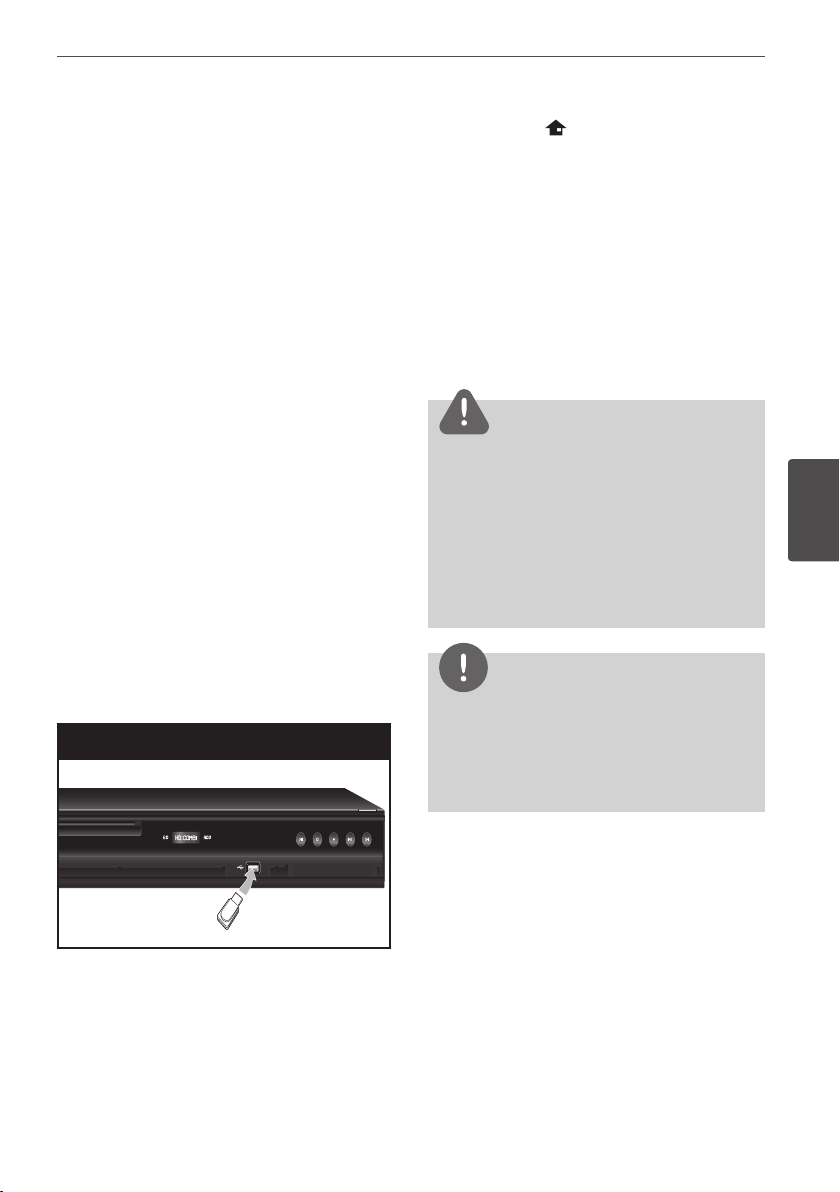
63Operation
Operation
4
Enjoying BD-LIVE
This unit allows you to enjoy functions such as
picture-in-picture, secondary audio and Virtual
packages, etc., with BD-Video supporting
BONUSVIEW (BD-ROM version 2 Prole 1
version 1.1/ Final Standard Prole). Secondary
video and audio can be played from a disc
compatible with the picture-in-picture
function. For the playback method, refer to the
instructions in the disc.
In addition to the BONUSVIEW function, BD-
Video supporting BD-LIVE (BD-ROM version
2 Prole 2) that has a network extension
function allows you to enjoy more functions
such as downloading new movie trailers by
connecting this unit to the internet.
1. Check the network connection and settings
(pages 20-22).
2. Insert a USB storage device to the USB port
on the front panel.
A USB storage device is needed to
download bonus content.
USB device connection
3. Press HOME ( ), and set the [BD-LIVE
connection] option on the [Setup] menu
(page 37).
Depending on the disc, the BD-LIVE
function may not operate if [BD-LIVE
connection] option is set to [Partially
Permitted].
4. Insert a BD-ROM with BD-LIVE.
The operations may dierent depending on
the disc. Refer to the manual supplied with
the disc.
CAUTION
Do not extract the connected USB device while
content is being downloaded or a Blu-ray disc is
still in the disc tray. Doing so may damage the
connected USB device and BD-LIVE features may
not operate properly with the damaged USB
device anymore. If the connected USB device
seems damaged from such an action, you can
format the connected USB device from the PC and
reuse it with this unit.
NOTE
• Some BD-LIVE contents may be restrictively
accessed in some territories by contents
provider’s own decision.
• It may take up to several minutes to load and
start enjoying BD-LIVE contents.
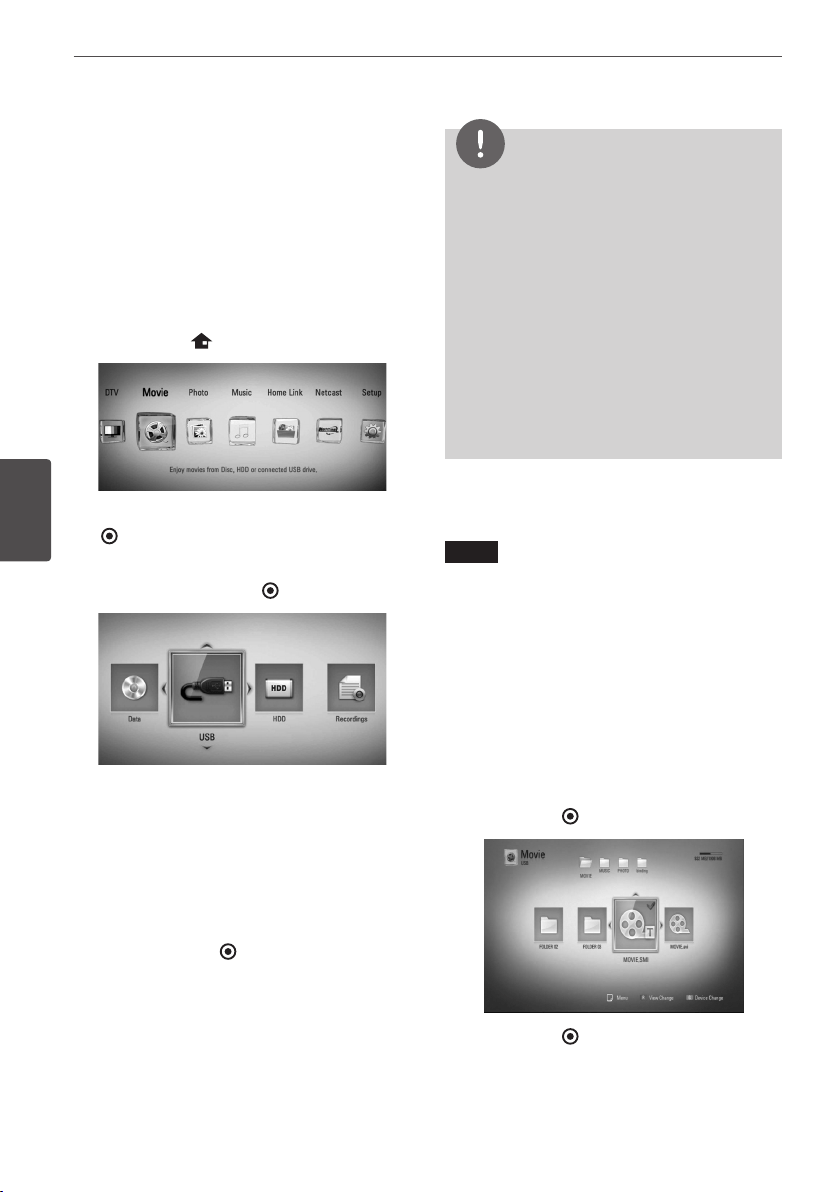
64 Operation
Operation
4
Playing movie file and
VR discs
You can play DVD-RW discs that are recorded
in Video Recording (VR) format and movie les
contained on a disc/HDD/USB device.
1. Press HOME ( ).
2. Select [Movie] using
I
/
i
, and press ENTER
( ).
3. Select [Disc], [USB] or [HDD] option using
I
/
i
, and press ENTER ( ).
This step is needed only when a disc or a
USB device is connected on this unit.
While navigating [Movie], [Photo] or [Music]
menu, press green (G) colored button to
change the device. (DISC, USB, HDD or
Recordings)
4. Select a le using
U
/
u
/
I
/
i
, and press
B
(PLAY) or ENTER ( ) to play the le.
NOTE
• The le requirements are described on page 10.
• You can use various playback functions. Refer to
pages 47-58.
• Unnalized DVD VR format discs may not be
played in this player.
• Some DVD-VR discs are made with CPRM data
by DVD RECORDER. This unit cannot support
these kinds of discs.
What is CPRM?
CPRM is a copy protection system (with
scramble system) only allowing the recording of
‘copy once’ broadcast programs. CPRM stands
for Content Protection for Recordable Media.
Selecting a subtitle file
MOVIE
If a movie le name and the subtitle le
name are the same, subtitle le is played
automatically when playing the movie le.
If the subtitle le name is dierent from the
movie le name, you need to select the subtitle
le on the [Movie] menu before playing the
movie.
1. Use
U
/
u
/
I
/
i
to select the subtitle le you
wish to play in the [Movie] menu.
2. Press ENTER ( ).
3. Press ENTER ( ) again to deselect the
subtitle le. Selected subtitle le will be
displayed when you play the movie le.
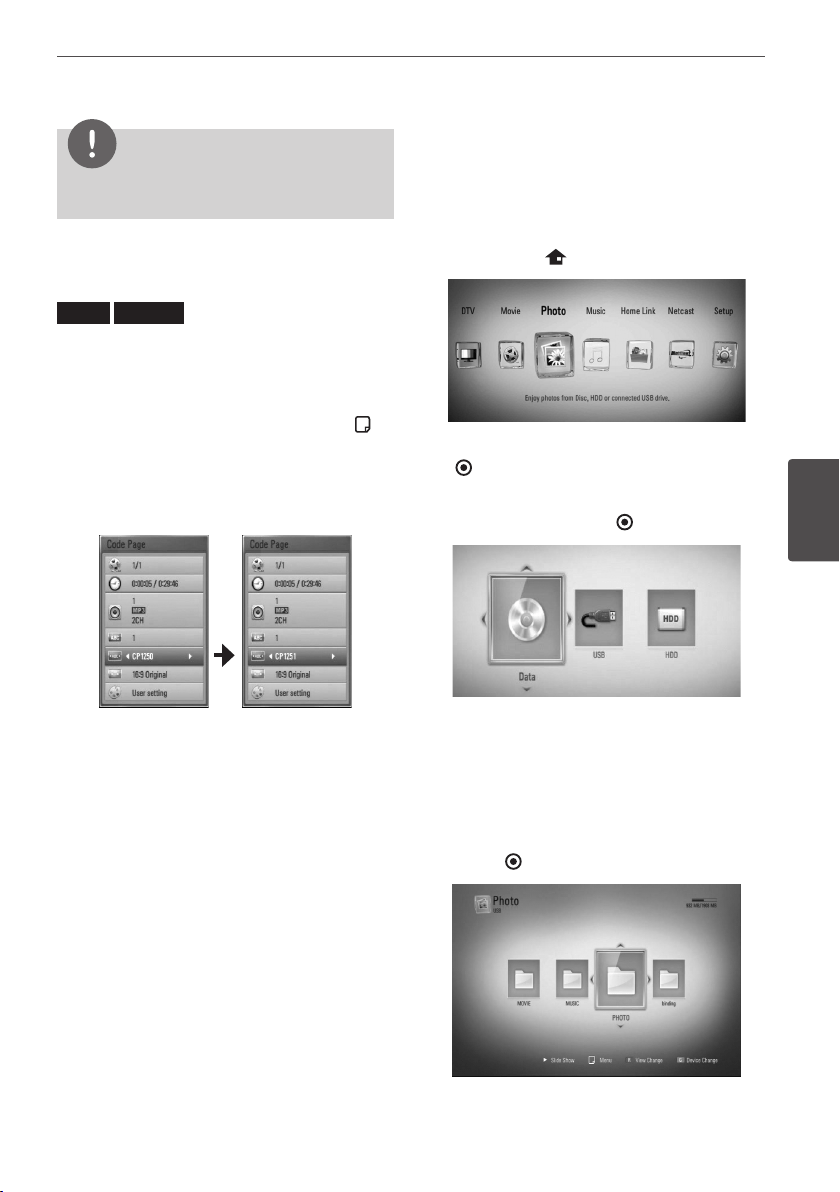
65Operation
Operation
4
NOTE
If you press
x
(STOP) during playback, the subtitle
selection is cancelled.
Changing subtitle code page
MOVIE
MOVIE-N
If the subtitle is not displayed properly, you
can change the subtitle code page to view the
subtitle le properly.
1. During playback, press INFO/DISPLAY ( ) to
display the On-Screen display.
2. Use
U
/
u
to select the [Code Page] option.
3. Use
I
/
i
to select desired code option.
4. Press RETURN (
O
) to exit the On-Screen
display.
Viewing a photo
You can view photo les using this player.
1. Press HOME ( ).
2. Select [Photo] using
I
/
i
, and press ENTER
( ).
3. Select [Disc], [USB] or [HDD] option using
I
/
i
, and press ENTER ( ).
This step is needed only when a disc or a
USB device is connected on this unit.
While navigating [Movie], [Photo] or [Music]
menu, press green (G) colored button to
change the device. (DISC, USB or HDD)
4. Select a le using
U
/
u
/
I
/
i
, and press
ENTER ( ) to view the photo in full screen.
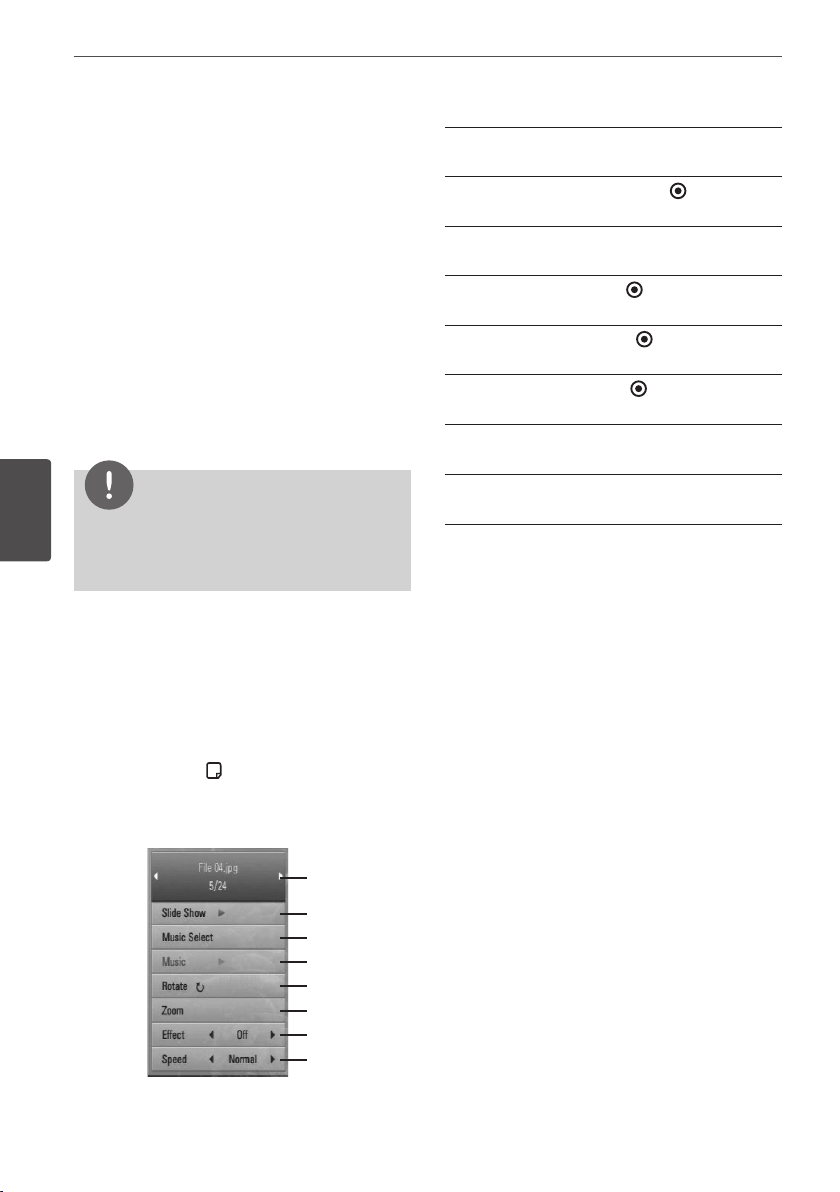
66 Operation
Operation
4
To play a slide show
Press
B
(PLAY) to start the slide show.
To stop a slide show
Press
x
(STOP) during slide show.
To pause a slide show
Press
X
(PAUSE) during slide show.
Press
B
(PLAY) to re-start the slide show.
To skip to the next/previous photo
While viewing a photo in full screen, press
I
or
i
to go to the previous or next photo.
NOTE
• The le requirements are described on page 10.
• You can use various playback functions. Refer to
pages 47-58.
Options while viewing a photo
You can use various options while viewing a
photo in full screen.
1. While viewing a photo in full screen, press
INFO/DISPLAY ( ) to display the option
menu.
2. Select an option using
U
/
u
.
a
g
f
e
d
c
b
h
a
Current photo/Total number of photos
– Use
I
/
i
to view previous/next photo.
b
Slide Show – Press ENTER ( ) to start or
pause slide show.
c
Music Select – Select the background
music for the slide show (page 67).
d
Music –Press ENTER ( ) to start or pause
background music.
e
Rotate – Press ENTER ( ) to rotate the
photo clockwise.
f
Zoom – Press ENTER ( ) to display the
[Zoom] menu.
g
Eect – Use
I
/
i
to select a transition
eect between photos in a slide show.
h
Speed – Use
I
/
i
to select a delaying
speed between photos in a slide show.
3. Press RETURN (
O
) to exit the option menu.
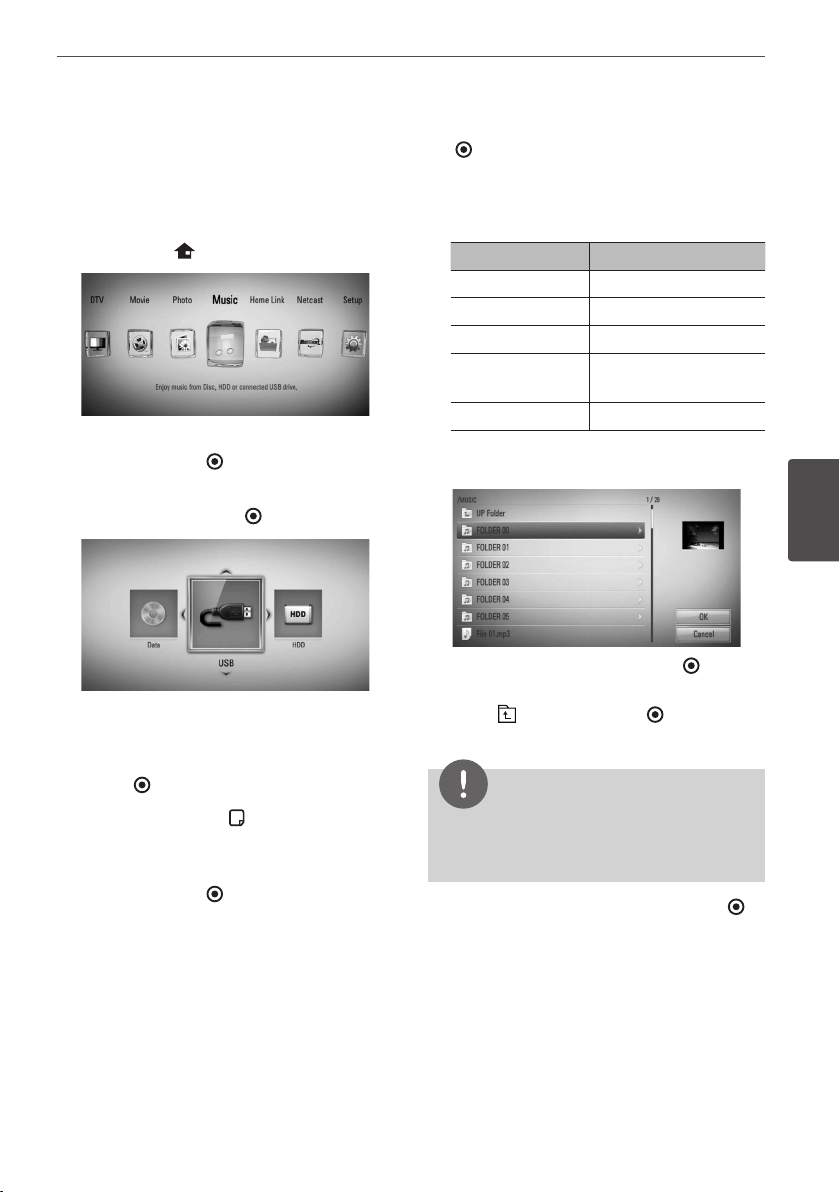
67Operation
Operation
4
Listening to music during a
slide show
You can display photo les while listening to
music les.
1. Press HOME ( ).
2. Select [Photo] or [Home Link] using
I
/
i
,
and press ENTER ( ).
3. Select [Disc], [USB] or [HDD] option using
I
/
i
, and press ENTER ( ).
Selecting a server or a share folder is
needed for [Home Link] menu.
4. Select a le using
U
/
u
/
I
/
i
, and press
ENTER ( ) to view the photo.
5. Press INFO/DISPLAY ( ) to display the
option menu.
6. Use
U
/
u
to select [Music Select] option,
and press ENTER ( ) to display the [Music
Select] menu.
7. Use
U
/
u
to select a device, and press ENTER
( ).
Devices that you can select may dier
depending on the location of the photo le
you are displaying in full screen.
Photo location Available Device
Disc Disc, USB, HDD
USB Disc, USB, HDD
Internal HDD Disc, USB, HDD
Share Folder on
your PC (CIFS)
CIFS
DLNA server DLNA server
8. Use
U
/
u
to select a le or a folder you wish
to play.
Select a folder and press ENTER ( ) to
display the lower directory.
Select and press ENTER ( ) to display
the upper directory.
NOTE
When selecting music from [Home Link], folder
selection is not available. Only le selection is
available on the [Home Link].
9. Use
i
to select [OK], and press ENTER ( )
to complete music selection.
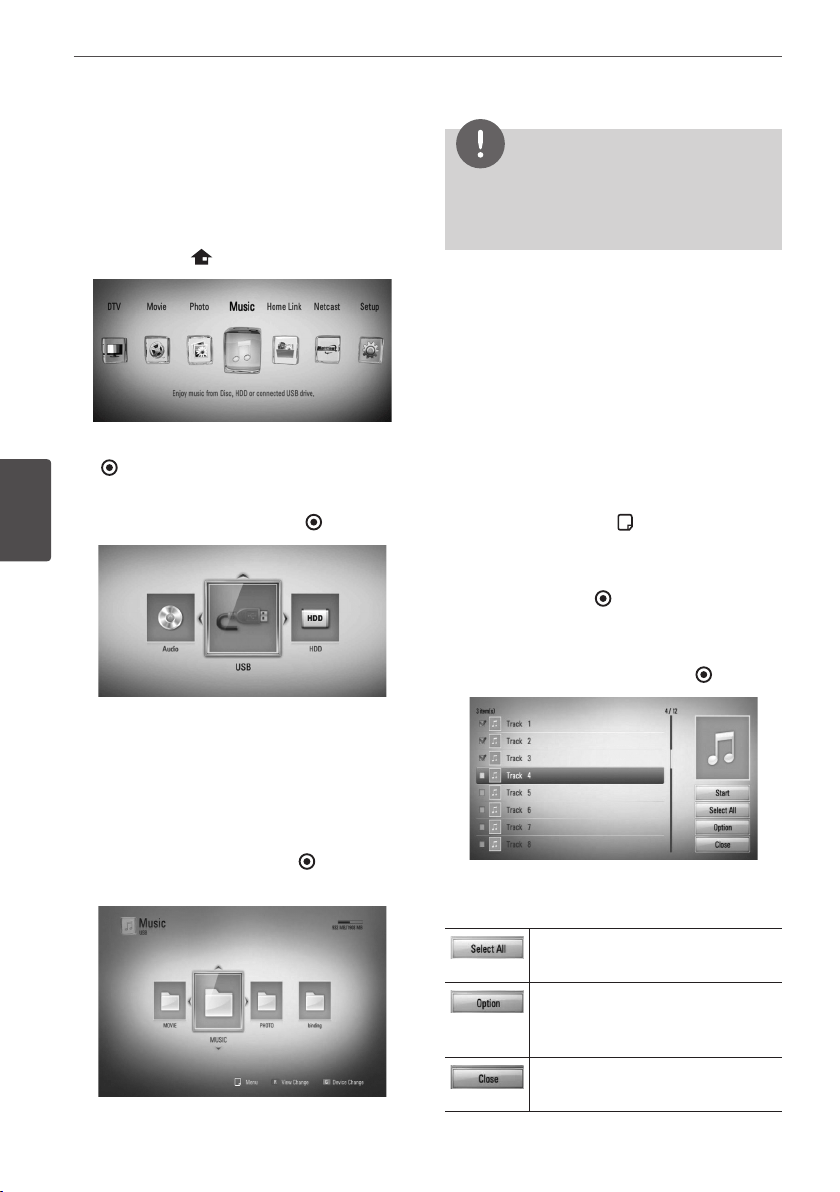
68 Operation
Operation
4
Listening to music
This player can play Audio CDs and music les.
1. Press HOME ( ).
2. Select [Music] using
I
/
i
, and press ENTER
( ).
3. Select the [Disc], [USB] or [HDD] option
using
I
/
i
, and press ENTER ( ).
This step is needed only when a disc or a
USB device is connected on this unit.
While navigating [Movie], [Photo] or [Music]
menu, press green(G) colored button to
change the device. (DISC, USB or HDD)
4. Select a music le or audio track using
U
/
u
/
I
/
i
, and press ENTER ( ) to play the
music.
NOTE
• The le requirements are described on page 10.
• You can use various playback functions. Refer to
pages 47-58.
Audio CD Archiving
You can record one desired track or all of the
tracks in Audio CD to the internal hard disk
drive or a USB storage device.
1. Press OPEN/CLOSE(
Z
), and place an Audio
CD on the disc tray.
Press OPEN/CLOSE(
Z
) to close the disc tray.
The playback starts automatically.
2. Press INFO/DISPLAY ( ) to display the
option menu.
3. Use
U
/
u
to select [CD Archiving] option,
and press ENTER ( ) to display the [CD
Archiving] menu.
4. Use
U
/
u
to select a track you wish to copy
on the menu, and press ENTER ( ).
Repeat this step to select tracks as many as
you can.
Select all the tracks on an Audio
CD.
Selects an encoding option from
the pop-up menu (128 kbps,
192 kbps, 320 kbps or Lossless).
Cancels the recording and
returns to the previous screen.
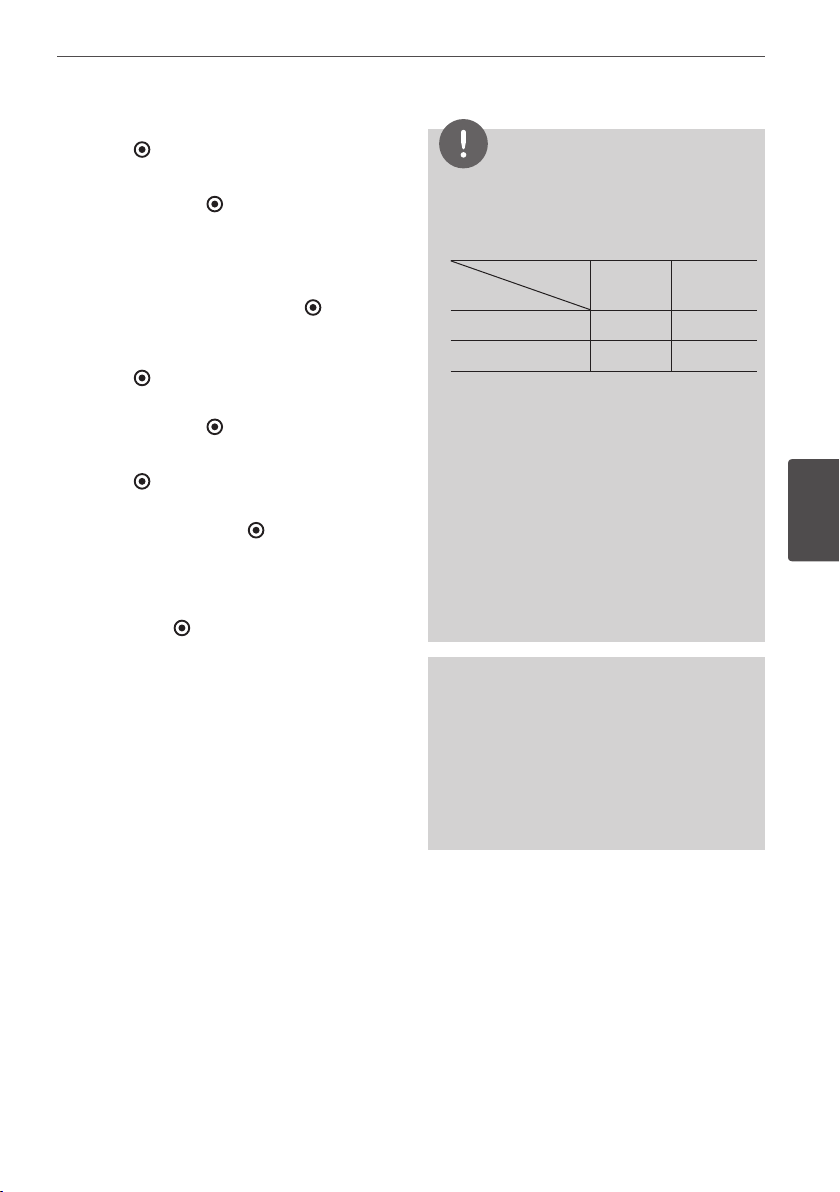
69Operation
Operation
4
5. Use
U
/
u
/
I
/
i
to select [Start], and press
ENTER ( ).
6. Select the [USB] or [HDD] option using
I
/
i
,
and press ENTER ( ).
This step is needed only when a USB
storage device is connected.
7. Use
U
/
u
/
I
/
i
to select a destination folder
to be copied, and press ENTER ( ).
If you want to create a new folder, use
U
/
u
/
I
/
i
to select [New Folder] and press
ENTER ( ).
Enter folder name using virtual keyboard,
and press ENTER ( ) while [OK] is selected.
8. Use
U
/
u
/
I
/
i
to select [OK], and press
ENTER ( ) to start Audio CD archiving.
If you want to stop in progressing Audio CD
archiving, press ENTER ( ) while [Cancel] is
highlighted.
9. A message appears when Audio CD
archiving is completed.
Press ENTER ( ) to check the audio le
created in the destination folder.
NOTE
• The table below shows the average recording
time from an audio track with 4 minutes of
playback time to an audio le with 192kbps as
an example.
Status
Device
stop
mode
while
playback
Internal HDD 15 sec. 23 sec.
USB 1.4 min. 2 min.
• All times in the above table are approximate.
• Actual recording time for USB storage device
varies depending on the USB storage device’s
ability.
• Make sure that there is minimum of 50MB free
space is needed when recording into the USB
storage device.
• The length of the music should be longer than
20 seconds for the proper recording.
• Do not turn o this player or extract the
connected USB storage device during Audio CD
recording.
The making of unauthorized copies of copy-
protected material, including computer programs,
les, broadcasts and sound recordings, may be
an infringement of copyrights and constitute a
criminal oense.
This equipment should not be used for such
purposes.
Be responsible
Respect copyrights
70 Operation
Operation
4
Viewing information from
Gracenote Media Database
The player can access the Gracenote Media
Database and loads the music information so
that Track name, Artist Name, Genre and other
text information can be displayed on the list.
Audio CD
When you insert an Audio CD, the player starts
playback automatically and load the music title
from the Gracenote Media Database.
If there is no music information in the database,
music titles will not be displayed on the screen.
Music file
1. Select a music le using
U
/
u
/
I
/
i
.
2. Press INFO/DISPLAY ( ) to display the
option menu.
3. Select the [Information] option using
U
/
u
,
and press ENTER ( ).
The player accesses Gracenote Media
Database for the music information.
BD/DVD/Movie file
While listening to music from the movie being
played, press MUSIC ID to start loading the
music information from the Gracenote Media
Database.
NOTE
• The player must be connected to the broadband
internet for accessing the Gracenote Media
Database.
• If the music information is not in the Gracenote
Media Database, message appears on the
screen.
• If the information from the Gracenote Media
Database is either not correct or does not exist,
please contact www.gracenote.com for support.
• Depending on the cases, it will takes a few
minutes to load music information from the
Gracenote Media Database.
• Information may be displayed in broken letters,
if the language you selected is not available on
the Gracenote Media Database.
• This function is not available for NetCast on-line
content and content in DLNA servers.
• LG is a licensee of Gracenote technology and is
not responsible or reliable for information from
the Gracenote Media Database.
• Audio CDs that users made for their only private
purposes cannot be supported in this feature
because they are not in the Gracenote Media
Database.
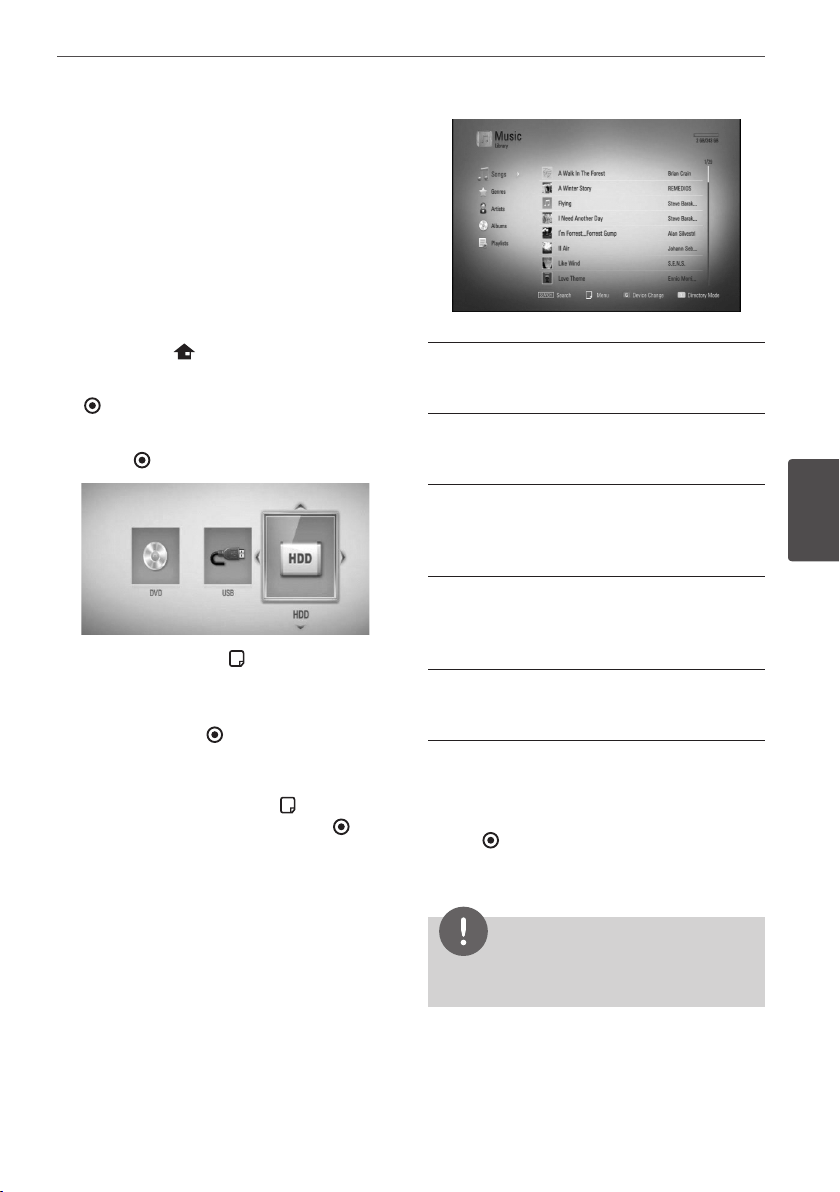
71Operation
Operation
4
Using the Music Library
The player oers Music Library menu for the
music contents stored in the internal hard disk
drive. The player accesses the Gracenote Media
Database and loads the music information for
all of the music contents in the internal hard
disk drive. You can also manage the music
contents by various categories from the Music
Library menu.
1. Press HOME ( ).
2. Select [Music] using
I
/
i
, and press ENTER
( ).
3. Select the [HDD] using
I
/
i
, and press
ENTER ( ).
4. Press INFO/DISPLAY ( ) to display the
option menu.
5. Use
U
/
u
to select [Library mode] option,
and press ENTER ( ) to display the [Library]
menu.
If you want to return to the directory
mode, press INFO/DISPLAY ( ) and select
[Directory mode] and press ENTER ( ).
6. All the audio les stored in the internal hard
disk drive are sorted by categories with the
music information loaded from Gracenote
Media Database. Use
U
/
u
to select a
category.
Songs – All audio les stored in the internal
hard disk drive are sorted by name in
alphabetical order.
Genres – Audio les stored in the internal
hard disk drive are sorted by genre
information from Gracenote Media Database.
Artists – Music stored in the internal hard
disk drive are sorted by artist name from
Gracenote Media Database in alphabetical
order.
Albums - All music stored in the internal
hard disk drive are sorted by album title from
Gracenote Media Database in alphabetical
order.
PlayLists – Displays audio les you have
added to your playlist or displays audio les
using several lter options.
You can search easily a content using power
scroll bar. Use
i
repeatedly to select the power
scroll bar on the right side of the screen.
Use
U
/
u
to select a letter, and press
ENTER ( ) to move the cursor to the music
title which start with the letter you were
selected.
NOTE
The player must be connected to the Internet
in order to use the Music Library.
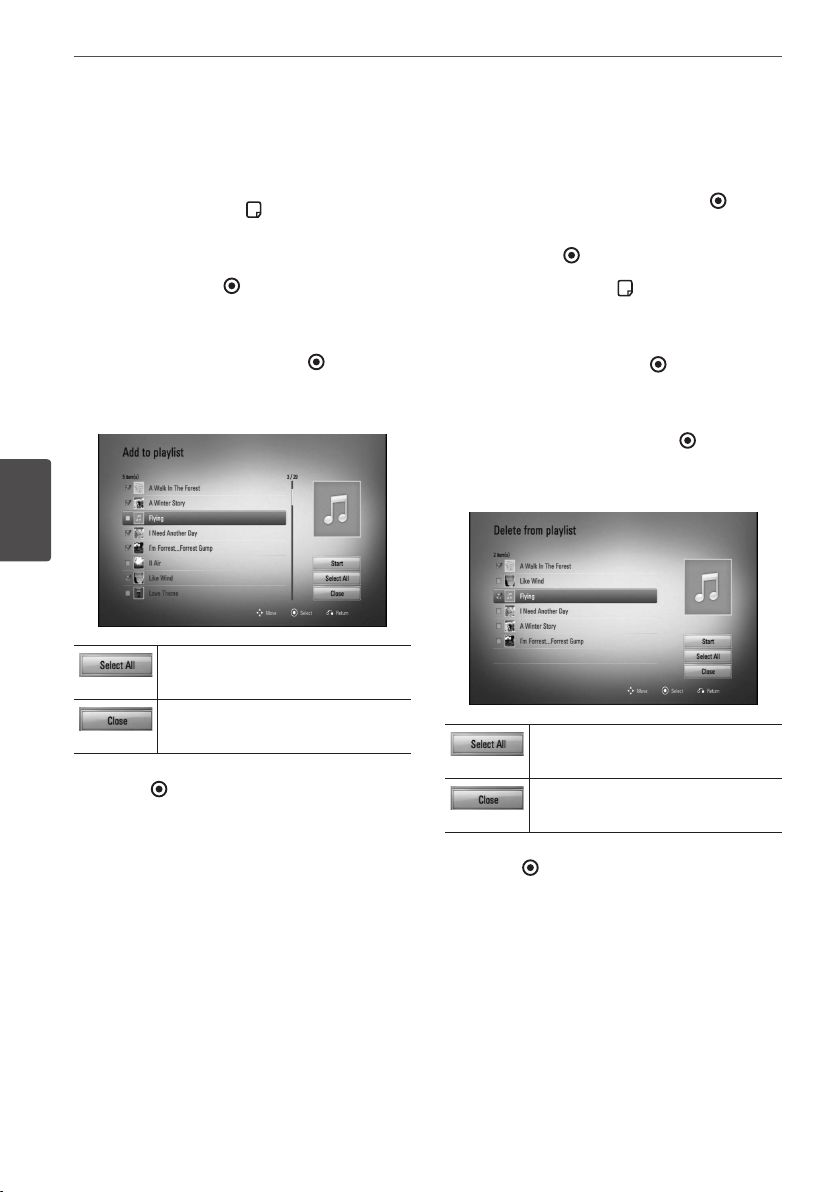
72 Operation
Operation
4
Adding an audio file to your playlist
1. Use
U
/
u
/
I
/
i
to select a directory that les
you want to add to the playlist are located.
2. Press INFO/DISPLAY ( ) to display the
option menu.
3. Use
U
/
u
to select [Add to playlist] option,
and press ENTER ( ) to display the [Add to
playlist] menu.
4. Use
U
/
u
to select a le you wish to add to
the playlist, and press ENTER ( ).
Repeat this step to select les as many as
you can.
Select all the les in the current
directory.
Cancels and returns to the
previous screen.
5. Use
U
/
u
/
I
/
i
to select [Start], and press
ENTER ( ).
Deleting an audio file from your
playlist
1. On the Music Library menu, use
U
/
u
to
select [PlayList], and press ENTER ( ).
2. Use
U
/
u
to select [My Playlist] option, and
press ENTER ( ) to display your playlist.
3. Press INFO/DISPLAY ( ) to display the
option menu.
4. Use
U
/
u
to select [Delete from playlist]
option, and press ENTER ( ) to display the
[Delete from Playlist] menu.
5 Use
U
/
u
to select a le you wish to add to
the playlist, and press ENTER ( ).
Repeat this step to select les as many as
you can.
Select all the les in the current
directory.
Cancels and returns to the
previous screen.
6. Use
U
/
u
/
I
/
i
to select [Start], and press
ENTER ( ).
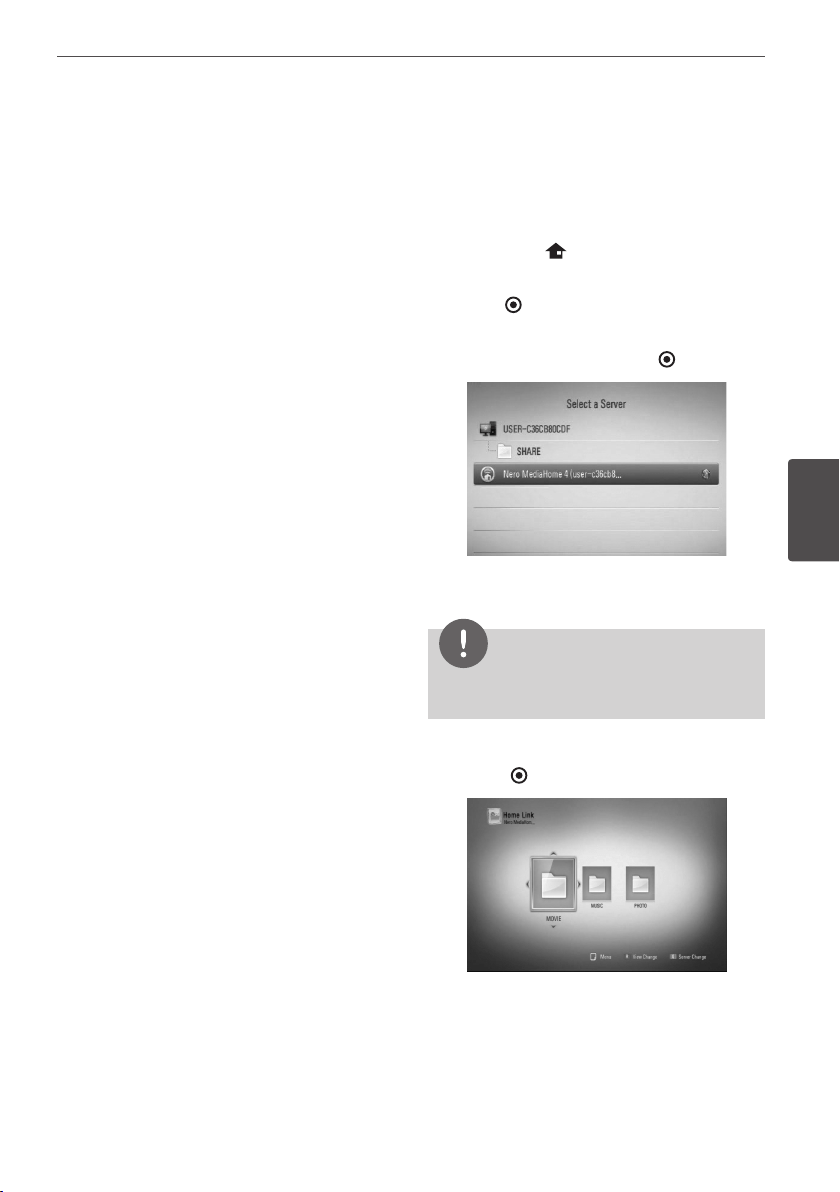
73Operation
Operation
4
Playing content via
your home network
(Home Link)
The player can browse and play content on
your PC and DLNA certied media servers
connected on your home network.
About DLNA
This Player is a DLNA Certied digital media
player that can display and play movie,
photo and music content from your DLNA-
compatible digital media server (PC and
Consumer Electronics).
The Digital Living Network Alliance (DLNA)
is a cross-industry organization of consumer
electronics, computing industry and mobile
device companies. Digital Living provides
consumers with easy sharing of digital media
through a wired network in the home.
The DLNA certication logo makes it easy
to nd products that comply with the DLNA
Interoperability Guidelines. This unit complies
with DLNA Interoperability Guidelines v1.5.
When a PC running DLNA server software or
other DLNA compatible device is connected to
this player, some setting changes of software
or other devices may be required. Please refer
to the operating instructions for the software
or device for more information.
Accessing a DLNA media
server
1. Check the network connection and settings
(pages 20-22).
2. Press HOME ( ).
3. Select [Home Link] using
I
/
i
, and press
ENTER ( ).
4. Select a DLNA media server from the list
using
U
/
u
, and press ENTER ( ).
If you want to rescan available media server,
press the green (G) coloured button.
NOTE
Depending on the media server, this player may
need to get permission from the server.
5. Select a le using
U
/
u
/
I
/
i
, and press
ENTER ( ) to play the le.

74 Operation
Operation
4
NOTE
• The le requirements are described on page 10.
• You can use various playback functions. Refer to
pages 47-58.
• Because the compatibility and available playback
functions on the [Home Link] menu are tested
on the bundle DLNA server (Nero MediaHome
4 Essentials) environment, le requirements and
playback functions on the [Home Link] menu
may dier depending on media servers.
• The le requirements on page 10 are not always
compatible. There may have some restrictions
by le features and media server’s ability.
• The thumbnail of the unplayable les can be
displayed in the [Home Link] menu, but those
cannot be played on this player.
• If there is an unplayable music le in the [Home
Link] menu, the player will skip the le and play
the next le.
• Playing movie subtitle les is only possible on
DLNA media server created by supplied Nero
MediaHome 4 Essentials software on this player
package.
• The subtitle le name and movie le name have
to be the same and located in the same folder.
• The playback and operating quality of the
[Home Link] function may be aected by your
home network condition.
• The les from removable media such as USB
drive, DVD-drive etc. on your media server may
not be shared properly.
About Nero MediaHome 4
Essentials
Nero MediaHome 4 Essentials is a software for
sharing movie, music and photo les stored
on your computer to this player as a DLNA-
compatiable digital media server.
NOTE
• The Nero MediaHome 4 Essentials CD-ROM is
designed for PCs and should not be inserted in
this player or in any product other than a PC.
• The supplied Nero MediaHome 4 Essentials CD-
ROM is a customized software edition only for
sharing les and folders to this player.
• The supplied Nero MediaHome 4 Essentials
software does not support the following
functions: Transcoding, Remote UI, TV control,
Internet services and Apple iTunes
• This manual explains operations with the
English version of Nero MediaHome 4 Essentials
as examples. Follow the explanation referring to
the actual operations of your language version.
Installing Nero MediaHome 4
Essentials
Before you install Nero MediaHome 4
Essentials, check the system requirement
shown below.
• Windows® XP (Service Pack 2 or higher),
Windows Vista® (no Service Pack required),
Windows® XP Media Center Edition 2005
(Service Pack 2 or higher), Windows Server®
2003
• Windows Vista® 64-bit edition (application
runs in 32-bit mode)
• Hard drive space: 200 MB hard drive space
for a typical installation of Nero MediaHome
stand-alone
• 1.2 GHz Intel® Pentium® III or AMD
Sempron™ 2200+ processors
• Memory: 256 MB RAM
75Operation
Operation
4
• Graphics card with at least 32 MB video
memory, minimum resolution of 800 x 600
pixels, and 16-bit colour settings
• Windows® Internet Explorer® 6.0 or higher
• DirectX® 9.0c revision 30 (August 2006) or
higher
• Network environment: 100 Mb Ethernet,
WLAN (IEEE 802.11b/g/n)
Start up your computer, and insert the Nero
MediaHome 4 Essentials CD-ROM into your
computer’s CD-ROM drive. An installation
wizard will walk you through the quick and
uncomplicated installation process. To install
Nero MediaHome 4 Essentials, proceed as
follows:
1. Close all Microsoft Windows programs and
exit any anti-virus software that may be
running.
2. Insert the Nero MediaHome 4 Essentials
CD-ROM into your computer’s CD-ROM
drive.
3. Click [Nero MediaHome 4 Essentials]. The
installation is prepared and the installation
wizard appears.
4. Click the [Next] button to display the serial
number input screen. Click [Next] to go to
the next step.
5. If you accept all conditions, click [I accept
the License Conditions] check box and click
[Next]. Installation is not possible without
this agreement.
6. Click [Typical] and click [Next]. The
installation process is started.
7. If you want to take part in the anonymous
collection of data, select the check box and
click the [Next] button.
8. Click the [Exit] button to complete the
installation.
Sharing files and folders
On your computer, you must share the folder
that contains the movie, music and/or photo
content to play them using [Home Link]
features.
This part explains the procedure for selecting
the shared folders on your computer.
1. Double-click the “Nero MediaHome 4
Essentials” icon on the desktop.
2. Click [Network] icon on the left and dene
your network name in the [Network name]
eld. The Network name you enter will be
recognized by your player.
3. Click [Shares] icon on the left.
4. Click [Local Folders] tab on the [Shares]
screen.
5. Click [Add] icon to open the [Browse Folder]
window.
6. Select the folder containing the les you
want to share. The selected folder is added
to the list of shared folders.
7. Click [Start Server] icon to start the server.
NOTE
• If the shared folders or les are not displayed on
the player, click the folder on the [Local Folders]
tab and click [Rescan Folder] at the [More]
button.
• Visit www.nero.com for more information and
software tools
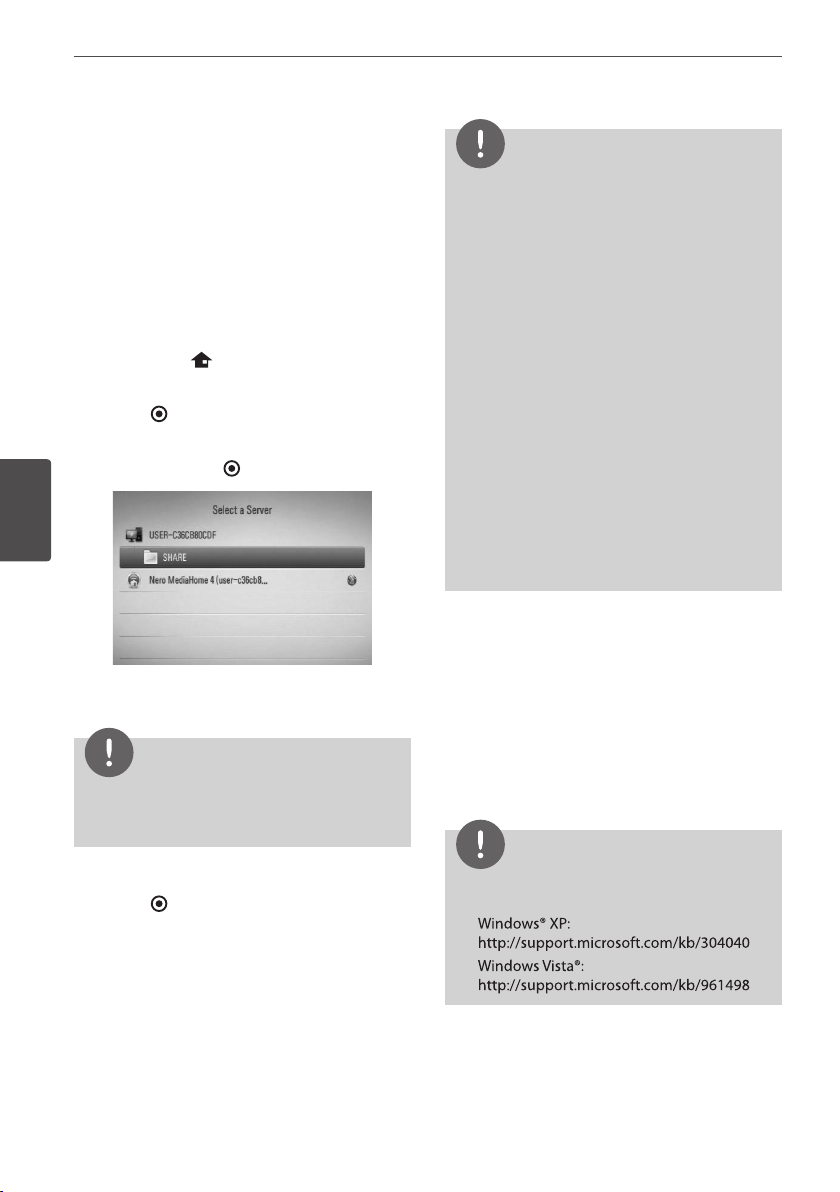
76 Operation
Operation
4
Accessing a share folder from
your PC
1. Start your PC that is connected on your
local area network.
2. On your PC, share folders which contain
movie, photo or music les.
3. On the player, check the network
connection and settings (pages 20-22).
4. Press HOME ( ).
5. Select [Home Link] using
I
/
i
, and press
ENTER ( ).
6. Select a share folder from the list using
U
/
u
,
and press ENTER ( ).
If you want to rescan available share folders,
press the green (G) coloured button.
NOTE
Depending on the share folder, this player may
need to input network user ID and password for
accessing the folder.
7. Select a le using
U
/
u
/
I
/
i
, and press
ENTER ( ) to play the le.
NOTE
• The le requirements are described on page 10.
• You can use various playback functions. Refer to
pages 47-58.
• The thumbnail of the unplayable les can be
displayed in the [Home Link] menu, but those
cannot be played on this player.
• If there is an unplayable music le in the [Home
Link] menu, the player will skips the le and play
the next le.
• The subtitle le name and movie le name have
to be the same and located at the same folder.
• The playback and operating quality of the
[Home Link] function may be aected by your
home network condition.
• The les on a removable media such as USB
drive, DVD-drive etc. on your PC may not be
shared properly.
• You may experience connection problems
depending on your PC’s environment.
PC requirements
• Windows® XP (Service Pack 2 or higher),
Windows Vista® (no Service Pack required)
Windows 7® (no Service Pack required)
• 1.2 GHz Intel® Pentium® III or AMD
Sempron™ 2200+ processors
• Network environment: 100 Mb Ethernet,
WLAN (IEEE 802.11b/g/n)
NOTE
If you use Windows® XP or Windows Vista®, visit link
below for more information on le share settings.
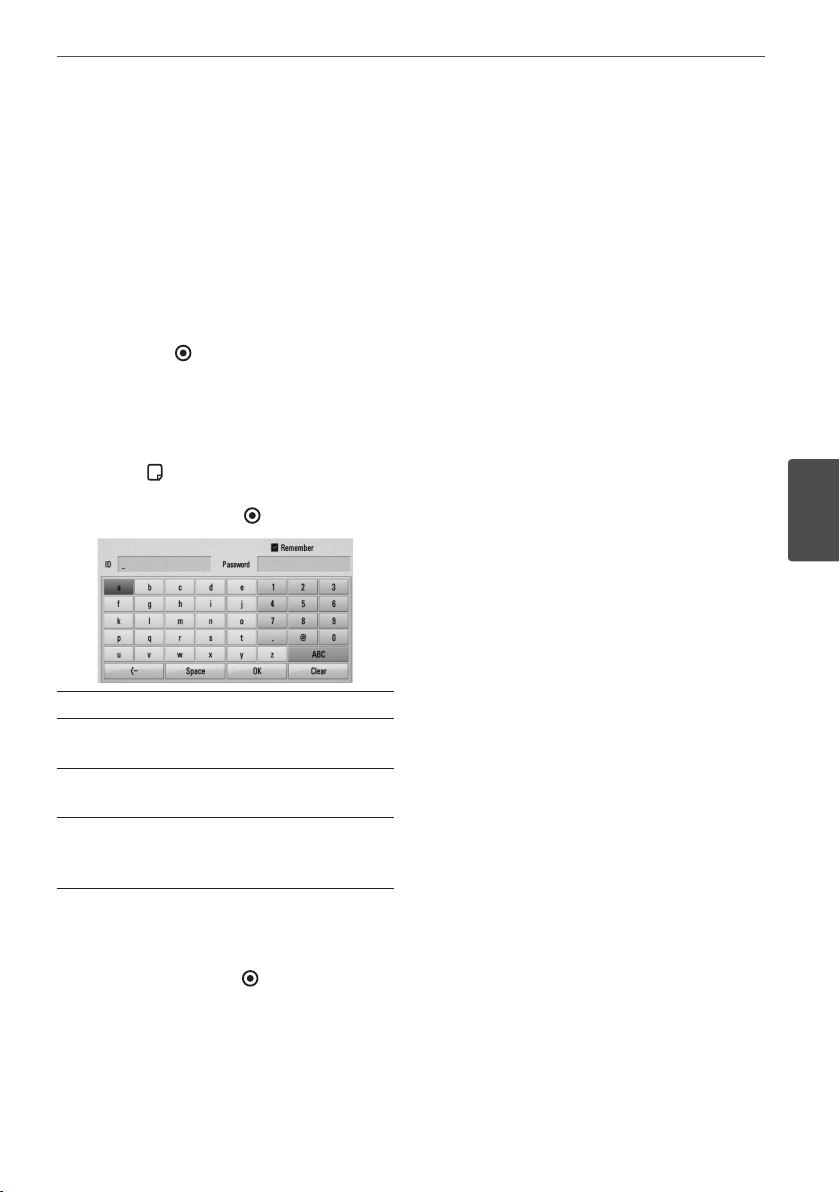
77Operation
Operation
4
Entering a network user ID and the
password
Depending on your PC’s environment, you
may need to enter a network user ID and the
password for accessing a shared folder.
1. The virtual keyboard appears automatically
if the network user ID and the password are
required.
2. Use
U
/
u
/
I
/
i
to select a character then
press ENTER ( ) to conrm your selection
on the virtual keyboard.
To enter a letter with an accent mark, select
the letter from the extended character set.
Example: Select “D” and then press INFO/
DISPLAY ( ) to display the extended
character set. Use
I
/
i
to select “D” or “Ď”
and then press ENTER ( ).
[Clear] – Clear all entered characters.
[Space] – Inserts a space at the cursor
position.
[<–] – Deletes the previous character at the
cursor position.
[ABC / abc / #+-=&] – Change the keyboard
menu settings to capital letters, small letters
or symbols.
3. When you nish entering the network user
ID and password, select [OK] using
U
/
u
/
I
/
i
and press ENTER ( ) to access the
folder. The network user ID and password
will be remembered after accessing the
folder for your convenience. If you do not
want the network user ID and password
to be remembered, press red (R) coloured
button to un-tick the [Remember] check
box before accessing the folder.
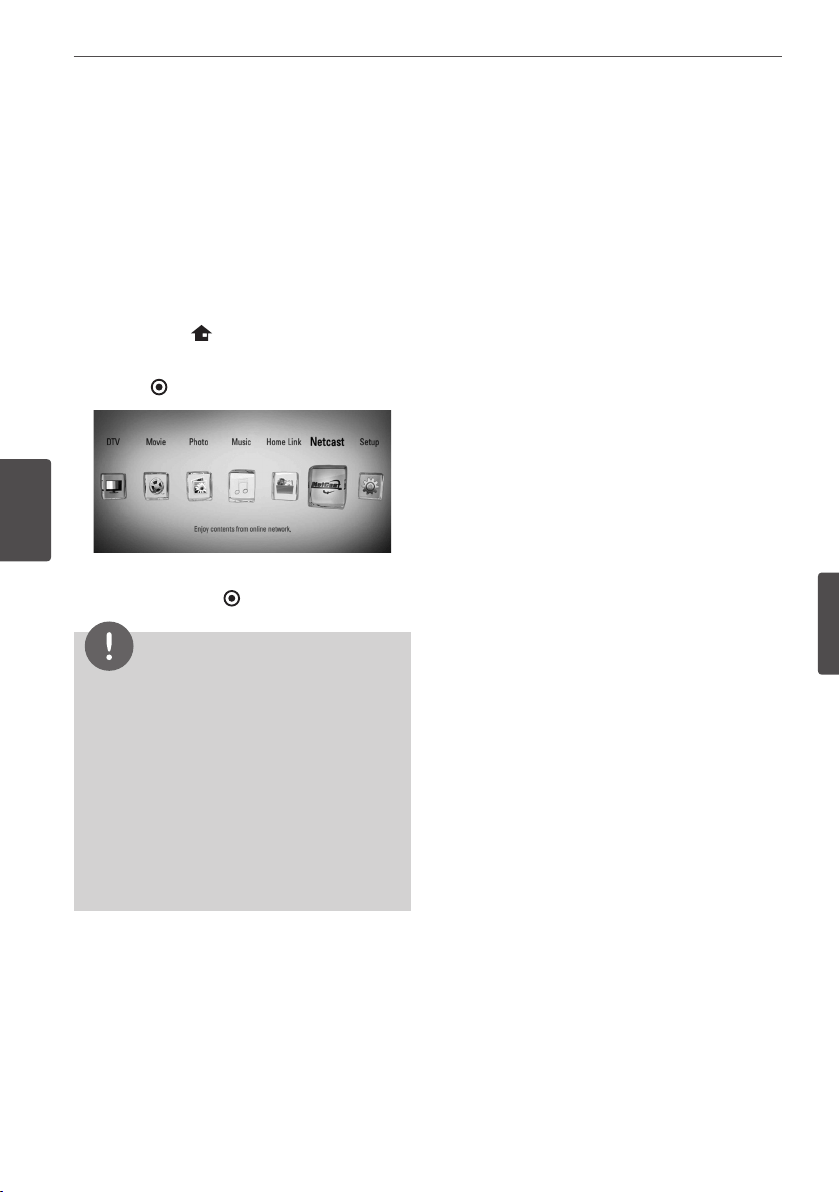
78 Operation
Operation
4
5
Using the NetCast
You can use various content services via
Internet with the Netcast feature.
1. Check the network connection and settings
(pages 20-22).
2. Press HOME ( ).
3. Select the [NetCast] using
I
/
i
, and press
ENTER ( ).
4. Select an on-line service using
U
/
u
/
I
/
i
,
and press ENTER ( ).
NOTE
• Detailed information of each service, contact to
the content provider or visit suppot link of the
service.
• The content of Netcast services and service
related information, including user interface, is
subject to changes. Please refer to the web site
of each service for most up-to-date information.
79 Maintenance
Maintenance
5
5
Maintenance
Notes on Discs
Handling Discs
Do not touch the playback side of the disc.
Hold the disc by the edges so that ngerprints
do not get on the surface. Never stick paper or
tape on the disc.
Storing Discs
After playing, store the disc in its case. Do not
expose the disc to direct sunlight or sources of
heat and never leave it in a parked car exposed
to direct sunlight.
Cleaning Discs
Fingerprints and dust on the disc can cause
poor picture quality and sound distortion.
Before playing, clean the disc with a clean
cloth. Wipe the disc from the centre to out.
Do not use strong solvents such as alcohol,
benzine, thinner, commercially available
cleaners, or anti-static spray intended for older
vinyl records.
Handling the Unit
When shipping the unit
Please save the original shipping carton and
packing materials. If you need to ship the unit,
for maximum protection, re-pack the unit as it
was originally packed at the factory.
Keeping the exterior surfaces clean
• Do not use volatile liquids such as
insecticide spray near the unit.
• Wiping with strong pressure may damage
the surface.
• Do not leave rubber or plastic products in
contact with the unit for a long period of
time.
Cleaning the unit
To clean the player, use a soft, dry cloth. If
the surfaces are extremely dirty, use a soft
cloth lightly moistened with a mild detergent
solution. Do not use strong solvents such as
alcohol, benzine, or thinner, as these might
damage the surface of the unit.
Maintaining the Unit
The unit is a high-tech, precision device. If
the optical pick-up lens and disc drive parts
are dirty or worn, the picture quality could be
diminished. For details, please contact your
nearest authorized service centre.

80 Maintenance
Maintenance
5
About the internal hard disk
drive
The internal hard disk drive (HDD) is a fragile
piece of equipment. Please use the player
following the guidelines below to protect
against possible HDD failure.
• Do not move the player while it is on.
• Install and use a player on a stable, leveled
surface.
• Do not use the player in excessively hot
or humid places, or in places that may be
subject to sudden changes in temperature.
Sudden changes in temperature can cause
condensation to form inside the player. This
can be a cause of HDD failure.
• While the player is powered on, do not
unplug from the wall socket or switch the
electricity o from the breaker switch.
• Do not move the player immediately after
switching it o. If you need to move the
player, please follow the steps below:
1. After the message “OFF” is shown in the
display, wait at least two minutes.
2. Unplug from the wall socket.
3. Move the player.
• If there’s a power failure while the player is
on, there is a chance that some data on the
HDD will be lost.
• The HDD is very delicate. If used improperly
or in an unsuitable environment, it is
possible that the HDD will fail after a few
years of use. Signs of problems include
playback unexpectedly freezing and
noticeable block noise (mosaic) in the
picture.
• However, sometimes there will be no
warning signs of HDD failure.
• If the HDD fails, playback of content will
not be possible. In this case, contact the LG
service center by following methods.
Web: http://lgservice.com
• The manufacturer disclaims responsibility
for loss of data contained in internal HDD.
81Maintenance
Maintenance
5
6
Troubleshooting
General
Symptoms Cause & Solution
The Power does not
turned on.
• Plug the power cord into the wall outlet securely.
The unit does not start
playback.
• Insert a playable disc. (Check the disc type, color system, and
regional code.)
• Place the disc with the playback side down.
• Place the disc on the disc tray correctly inside the guide.
• Clean the disc.
• Cancel the Rating function or change the rating level.
The angle cannot be
changed.
• Multi-angles are not recorded on the DVD Video being
played.
Cannot play movie, photo
or audio les.
• The les are not recorded in a format that the unit can play.
• The unit does not support the codec of the movie le.
The remote control does
not work properly.
• The remote control is not pointed at the remote sensor of
the unit.
• The remote control is too far from the unit.
• There is an obstacle in the path between the remote control
and the unit.
• The batteries in the remote control are exhausted.
82 Troubleshooting
Troubleshooting
6
Picture
Symptoms Cause & Solution
There is no picture. • Select the appropriate video input mode on the TV so the
picture from the unit appears on the TV screen.
• Connect the video connection securely.
• Check the [HDMI Color Setting] in the [Setup] menu is
set to the appropriate item that conforms to your video
connection.
• Your TV may not support the resolution you have set on the
unit. Change the resolution to one that your TV accepts.
• The player’s HDMI OUT jack is connected to a DVI device that
does not support copyright protection.
Picture noise appears • You are playing a disc recorded in a colour system that is
dierent from your TV.
• Set the resolution to one that your TV accepts.
Sound
Symptoms Cause & Solution
There is no sound or the
sound is distorted.
• Connect the audio connection securely.
• The input source setting on the amplier or the connection
to the amplier is incorrect.
• The unit is in scan, slow motion, or pause mode.
• The sound volume is low.
• Check that the connected amplier is compatible with the
audio format output from the player.
• The player’s HDMI OUT jack is connected to a DVI device. The
DVI jack does not accept audio signal.
• Check the device connected to the player’s HDMI OUT jack is
compatible with the audio format output from the unit.
83Troubleshooting
Troubleshooting
6
Network
Symptoms Cause & Solution
BD-LIVE feature does not
work.
• The connected USB storage may not have enough space.
Connect the USB storage with at least 1GB free space.
• Ensure that the unit is correctly connected to the local area
network and can access the internet (see pages 20-22).
• Your broadband speed may not be fast enough to use the
BD-Live features. Contact your Internet Service Provider
(ISP) and increase the broadband speed to suit the unit’s
requirements.
• The [BD-LIVE connection] option in the [Setup] menu is set
to [Prohibited]. Set the option to [Permitted].
Streaming video services
(such as YouTube™, etc.)
are often stop or “buer”
during playback.
• Your broadband service speed may not be fast enough to
stream video services. Contact your Internet Service Provider
(ISP) and increase the broadband speed is recommended.
Shared folder or les from
your PC or a media server
are not displayed on the
[Home Link] menu.
• The rewall or anti-virus software on your media server is
running. Turn o the rewall or anti-virus software running
on your PC or media server.
• The unit is not connected to the local area network that your
PC or the media server are connected.
Customer Support
You can update the unit using the latest software to enhance the products operation and/or
add new features. To obtain the latest software for this unit (if updates have been made), please
visit http://lgservice.com or contact LG Electronics customer care centre.
Open source software notice
To obtain the corresponding source code under GPL, LGPL and other open source licenses,
please visit http://opensource.lge.com. All referred license terms, warranty disclaimers and
copyright notices are available to download with the source code.
84 Troubleshooting
Troubleshooting
6
Recording
Symptoms Cause & Solution
Cannot record or does not
record successfully.
• Check the remaining space on the HDD.
• If your source is copy-protected, you cannot record it using
this recorder.
• If you set a DTV rating for the recorder and higher rated
digital programs are received, the programme cannot be
recorded. Change the DTV rating level in order to record it.
Timer record does not
record successfully.
• Clock is not set to correct time.
• The start time of the timer recording is past.
• Two timer recordings may have overlapped, in which case
only the earlier one will record completely.
• When setting the recording programme, make sure you set
the recorder’s built-in tuner, not the TV’s built-in tuner.
• If the the HDD is damaged, the recording may not complete
successfully.
Stereo Audio Record and/
Playback is not present.
• TV is not Stereo-compatible.
• Broadcast programme is not in stereo format.
You cannot enter a timer
programme when.
• A recording is already underway.
• The time you’re trying to set has already passed.
• There are already 32 timer programs set.
If two or more timer
programs overlap.
• The earlier programme takes priority.
• The recorder can record two channels simultaneously but do
not make overlapping timer recordings, if you do, the earlier
programme takes priority.
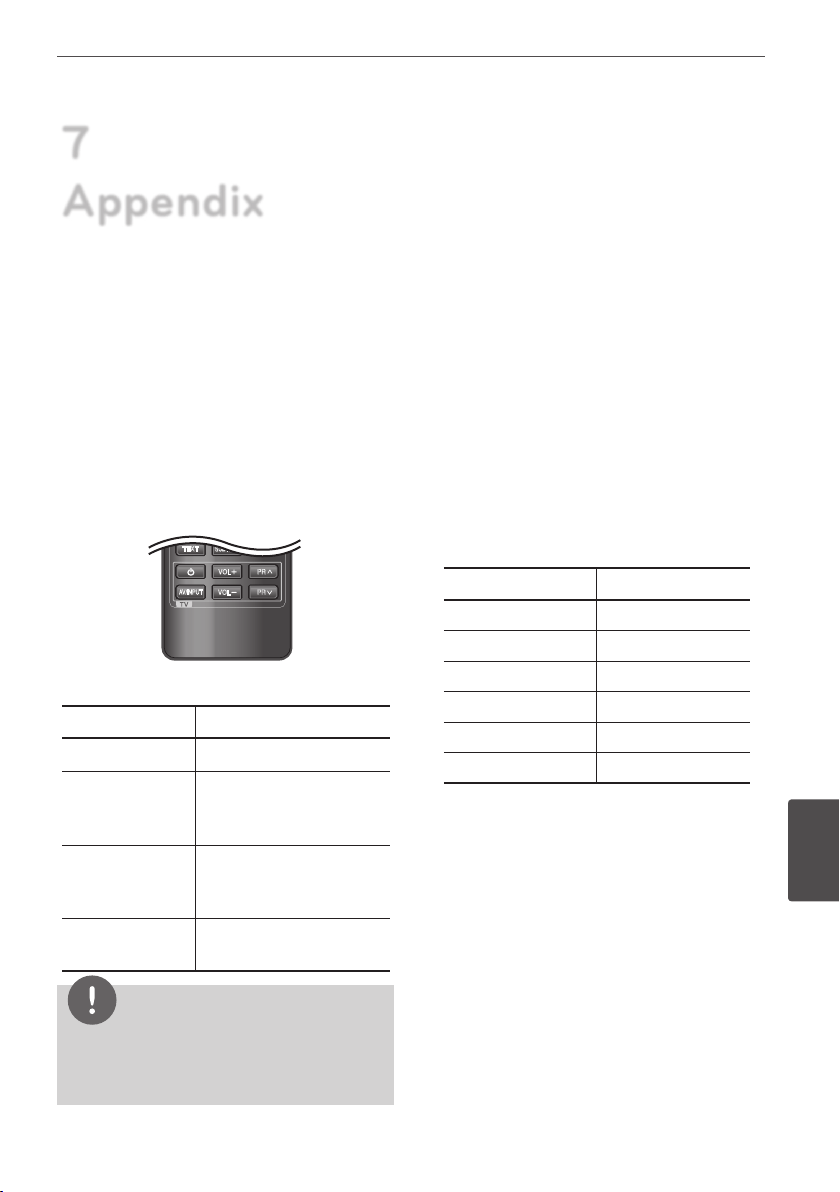
85Appendix
7
Appendix
7
Appendix
Controlling a TV with
the Supplied Remote
Control
You can control your TV using the buttons
below.
DISC MENU
REC.LIST
MARKER
SEARCH
ZOOM
TEXT
SUBTITLE
VOL
PR
AV/INPUT
VOL
PR
OPEN/
CLOSE
CLEAR
GUIDE
TIMER
REC.
REC.
By pressing You can
1 (TV POWER)
Turn the TV on or o.
AV/INPUT
Switch the TV’s input
source between the TV
and other input sources.
PR U/u
Scan up or down
through memorized
channels.
VOL +/–
Adjust the volume of
the TV
NOTE
Depending on the unit being connected, you may
not be able to control your TV using some of the
buttons.
Setting up the remote to
control your TV
You can operate your TV with the supplied
remote control.
If your TV is listed in the table below, set the
appropriate manufacturer code.
1. While holding down
1
(TV POWER) button,
press the manufacturer code for your TV
with the numerical buttons (see the table
below).
Manufacturer Code Number
LG 1(Default), 2
Zenith 1, 3, 4
GoldStar 1, 2
Samsung 6, 7
Sony 8, 9
Hitachi 4
2. Release the
1
(TV POWER) button to
complete setting.
Depending on your TV, some or all buttons
may not function on the TV, even after
entering the correct manufacturer code. When
you replace the batteries in the remote, the
code number you have set may be reset to
the default setting. Set the appropriate code
number again.
86 Appendix
Appendix
7
Area Code List
Choose an area code from this list.
Area Code Area Code Area Code Area Code
Afghanistan AF
Argentina AR
Australia AU
Austria AT
Belgium BE
Bhutan BT
Bolivia BO
Brazil BR
Cambodia KH
Canada CA
Chile CL
China CN
Colombia CO
Congo CG
Costa Rica CR
Croatia HR
Czech Republic CZ
Denmark DK
Ecuador EC
Egypt EG
El Salvador SV
Ethiopia ET
Fiji FJ
Finland FI
France FR
Germany DE
Great Britain GB
Greece GR
Greenland GL
Hong Kong HK
Hungary HU
India IN
Indonesia ID
Israel IL
Italy IT
Jamaica JM
Japan JP
Kenya KE
Kuwait KW
Libya LY
Luxembourg LU
Malaysia MY
Maldives MV
Mexico MX
Monaco MC
Mongolia MN
Morocco MA
Nepal NP
Netherlands NL
Netherlands
Antilles AN
New Zealand NZ
Nigeria NG
Norway NO
Oman OM
Pakistan PK
Panama PA
Paraguay PY
Philippines PH
Poland PL
Portugal PT
Romania RO
Russian
Federation RU
Saudi Arabia SA
Senegal SN
Singapore SG
Slovak Republic SK
Slovenia SI
South Africa ZA
South Korea KR
Spain ES
Sri Lanka LK
Sweden SE
Switzerland CH
Taiwan TW
Thailand TH
Turkey TR
Uganda UG
Ukraine UA
United States US
Uruguay UY
Uzbekistan UZ
Vietnam VN
Zimbabwe ZW
87Appendix
7
Appendix
Language code List
Use this list to input your desired language for the following initial settings: [Disc Audio],
[Disc Subtitle] and [Disc Menu].
Language Code Language Code Language Code Language Code
Afar 6565
Afrikaans 6570
Albanian 8381
Ameharic 6577
Arabic 6582
Armenian 7289
Assamese 6583
Aymara 6588
Azerbaijani 6590
Bashkir 6665
Basque 6985
Bengali; Bangla 6678
Bhutani 6890
Bihari 6672
Breton 6682
Bulgarian 6671
Burmese 7789
Byelorussian 6669
Chinese 9072
Croatian 7282
Czech 6783
Danish 6865
Dutch 7876
English 6978
Esperanto 6979
Estonian 6984
Faroese 7079
Fiji 7074
Finnish 7073
French 7082
Frisian 7089
Galician 7176
Georgian 7565
German 6869
Greek 6976
Greenlandic 7576
Guarani 7178
Gujarati 7185
Hausa 7265
Hebrew 7387
Hindi 7273
Hungarian 7285
Icelandic 7383
Indonesian 7378
Interlingua 7365
Irish 7165
Italian 7384
Japanese 7465
Kannada 7578
Kashmiri 7583
Kazakh 7575
Kirghiz 7589
Korean 7579
Kurdish 7585
Laothian 7679
Latin 7665
Latvian, Lettish 7686
Lingala 7678
Lithuanian 7684
Macedonian 7775
Malagasy 7771
Malay 7783
Malayalam 7776
Maori 7773
Marathi 7782
Moldavian 7779
Mongolian 7778
Nauru 7865
Nepali 7869
Norwegian 7879
Oriya 7982
Panjabi 8065
Pashto, Pushto 8083
Persian 7065
Polish 8076
Portuguese 8084
Quechua 8185
Rhaeto-Romance
8277
Rumanian 8279
Russian 8285
Samoan 8377
Sanskrit 8365
Scots Gaelic 7168
Serbian 8382
Serbo-Croatian 8372
Shona 8378
Sindhi 8368
Singhalese 8373
Slovak 8375
Slovenian 8376
Spanish 6983
Sudanese 8385
Swahili 8387
Swedish 8386
Tagalog 8476
Tajik 8471
Tamil 8465
Telugu 8469
Thai 8472
Tonga 8479
Turkish 8482
Turkmen 8475
Twi 8487
Ukrainian 8575
Urdu 8582
Uzbek 8590
Vietnamese 8673
Volapük 8679
Welsh 6789
Wolof 8779
Xhosa 8872
Yiddish 7473
Yoruba 8979
Zulu 9085
88 Appendix
Appendix
7
Trademarks and
Licenses
Blu-ray Disc™, Blu-ray™, Blu-ray 3D™, BD-Live™,
BONUSVIEW™ and the logos are trademarks of the
Blu-ray Disc Association.
Java and all Java-based trademarks and logos
are trademarks or registered trademarks of Sun
Microsystems, Inc. in the United States and other
countries.
Manufactured under license from Dolby Laboratories.
Dolby and the double-D symbol are trademarks of
Dolby Laboratories.
HDMI, the HDMI logo and High-Denition
Multimedia Interface are trademarks or registered
trademarks of HDMI licensing LLC.
“DVD Logo” is a trademark of DVD Format/Logo
Licensing Corporation.
DLNA®, the DLNA Logo and DLNA CERTIFIED® are
trademarks, service marks, or certication marks of
the Digital Living Network Alliance.
“AVCHD” and the “AVCHD” logo are trademarks of
Panasonic Corporation and Sony Corporation.
YouTube™ is a trademark of Google Inc.
Picasa™ Web Albums is a trademark of Google Inc.
Manufactured under license under U.S. Patent #’s:
5,451,942; 5,956,674; 5,974,380; 5,978,762; 6,226,616;
6,487,535; 7,212,872; 7,333,929; 7,392,195; 7,272,567 &
other U.S. and worldwide patents issued & pending. DTS
is a registered trademark and the DTS logos, Symbol,
DTS-HD and DTS-HD Master Audio are trademarks of
DTS, Inc. © 1996-2008 DTS, Inc. All Rights Reserved.
89Appendix
7
Appendix
DivX is a registered trademark of DivX, Inc., and is
used under license.
“x.v.Colour” is a trademark of Sony Corporation.
consumption system in stand-by mode is built.
Therefore, the small amounts of electricity are
consumed even though the power plug is inserted.
Gracenote®, Gracenote logo and logotype, and the
“Powered by Gracenote” logo are either registered
trademarks or trademarks of Gracenote, Inc. in the
United States and/or other countries.
Music recognition technology and related data are
provided by Gracenote®.
Portions of the content is copyright © Gracenote or
its providers.
Gracenote® End User License Agreement
This application or device contains software from
Gracenote, Inc. of Emeryville, California
(“Gracenote”). The software from Gracenote (the
“Gracenote Software”) enables this application to
perform disc and/or le identication and obtain
music-related information, including name, artist,
track, and title information (“Gracenote Data”) from
online servers or embedded databases (collectively,
“Gracenote Servers”) and to perform other functions.
You may use Gracenote Data only by means of the
intended End-User functions of this application or
device.
You agree that you will use Gracenote Data, the
Gracenote Software, and Gracenote Servers for your
own personal non-commercial use only. You agree
not to assign, copy, transfer or transmit the Gracenote
Software or any Gracenote Data to any third party.
YOU AGREE NOT TO USE OR EXPLOIT GRACENOTE
DATA, THE GRACENOTE SOFTWARE, OR GRACENOTE
SERVERS, EXCEPT AS EXPRESSLY PERMITTED HEREIN.
You agree that your non-exclusive license to use
the Gracenote Data, the Gracenote Software, and
Gracenote Servers will terminate if you violate
these restrictions. If your license terminates, you
agree to cease any and all use of the Gracenote
Data, the Gracenote Software, and Gracenote
Servers. Gracenote reserves all rights in Gracenote
Data, the Gracenote Software, and the Gracenote
Servers, including all ownership rights. Under no
circumstances will Gracenote become liable for any
payment to you for any information that you provide.
You agree that Gracenote, Inc. may enforce its rights
under this Agreement against you directly in its own
name.
The Gracenote service uses a unique identier to
track queries for statistical purposes. The purpose of a
randomly assigned numeric identier is to allow the
Gracenote service to count queries without knowing
anything about who you are. For more information,
see the web page for the Gracenote Privacy Policy for
the Gracenote service.
The Gracenote Software and each item of Gracenote
Data are licensed to you “AS IS.” Gracenote makes no
representations or warranties, express or implied,
regarding the accuracy of any Gracenote Data from
in the Gracenote Servers. Gracenote reserves the
right to delete data from the Gracenote Servers or to
change data categories for any cause that Gracenote
deems sucient. No warranty is made that the
Gracenote Software or Gracenote Servers are error-
free or that functioning of Gracenote Software or
Gracenote Servers will be uninterrupted. Gracenote
is not obligated to provide you with new enhanced
or additional data types or categories that Gracenote
may provide in the future and is free to discontinue
its services at any time.
GRACENOTE DISCLAIMS ALL WARRANTIES EXPRESS
OR IMPLIED, INCLUDING, BUT NOT LIMITED TO,
IMPLIED WARRANTIES OF MERCHANTABILITY, FITNESS
FOR A PARTICULAR PURPOSE, TITLE, AND NON-
INFRINGEMENT. GRACENOTE DOES NOT WARRANT
THE RESULTS THAT WILL BE OBTAINED BY YOUR USE
OF THE GRACENOTE SOFTWARE OR ANY GRACENOTE
SERVER. IN NO CASE WILL GRACENOTE BE LIABLE FOR
ANY CONSEQUENTIAL OR INCIDENTAL DAMAGES OR
FOR ANY LOST PROFITS OR LOST REVENUES.
© Gracenote, Inc. 2009
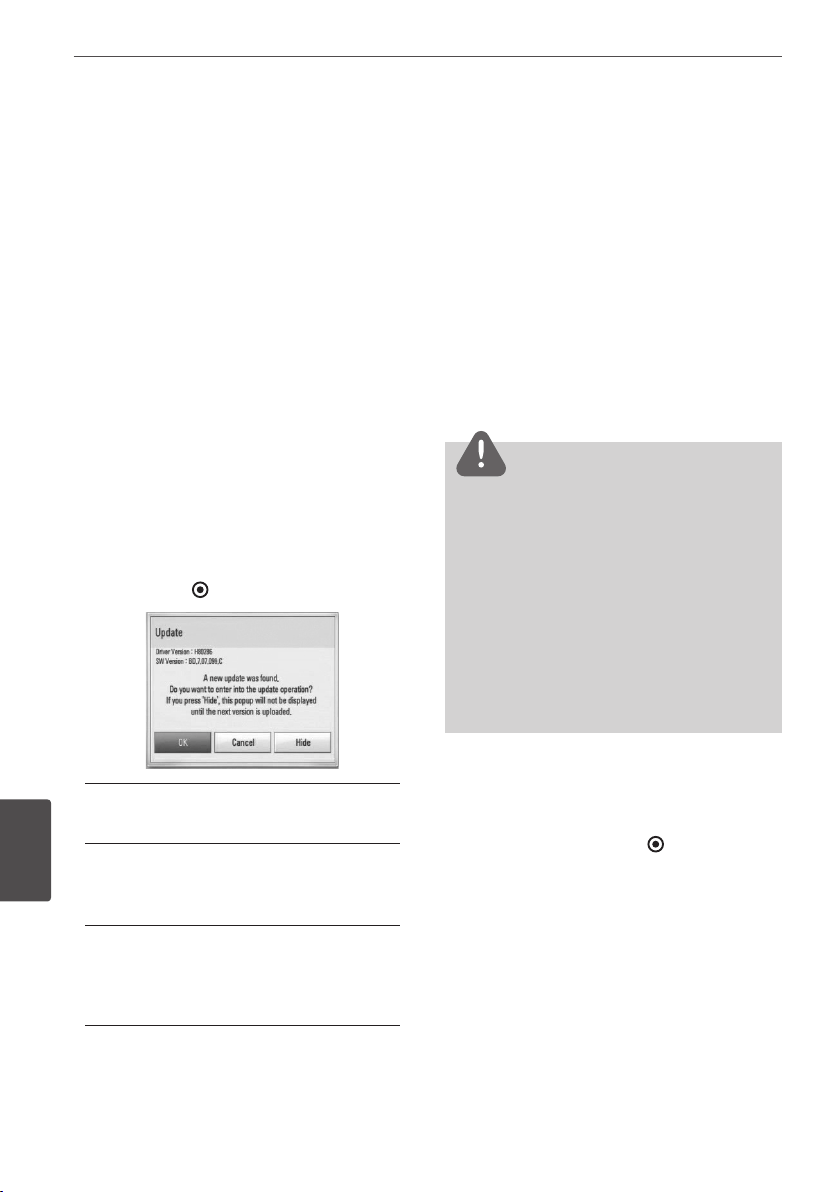
90 Appendix
Appendix
7
Network Software
Update
Network update notification
From time to time, performance improvements
and/or additional features or services may be
made available to units that are connected to
a broadband home network. If there is new
software available and the unit is connected
to a broadband home network, the player will
inform you about the update as follows.
Option 1:
1. The update menu will appear on the screen
when you turn on the player.
2. Use
I
/
i
to select a desired option and then
press ENTER ( ).
[OK]
Starts the software update.
[Cancel]
Exits the update menu and displays it next
booting.
[Hide]
Exits the update menu and it does not
appear until next software is uploaded in
the update server.
Option 2:
If the software update is available from the
update server, the “Update” icon appears at
the bottom of the Home menu. Press blue (B)
coloured button to start the update procedure.
Software Update
You can update the player using the latest
software to enhance the products operation
and/or add new features. You can update the
software by connecting the unit directly to the
software update server.
CAUTION
• Before updating the software in your player,
remove any disc and USB Device from the player.
• Before updating the software in your player, turn
the player o and then turn it back on.
• During the software update procedure, do
not turn o the player or disconnect AC
power, or do not press any button.
• If you cancel the update, turn o the power and
turn it on for stable performance.
• This unit cannot be updated to previous
software version.
1. Check the network connection and settings
(page 20-22).
2. Select [Software] option in the [Setup]
menu then press ENTER ( ).
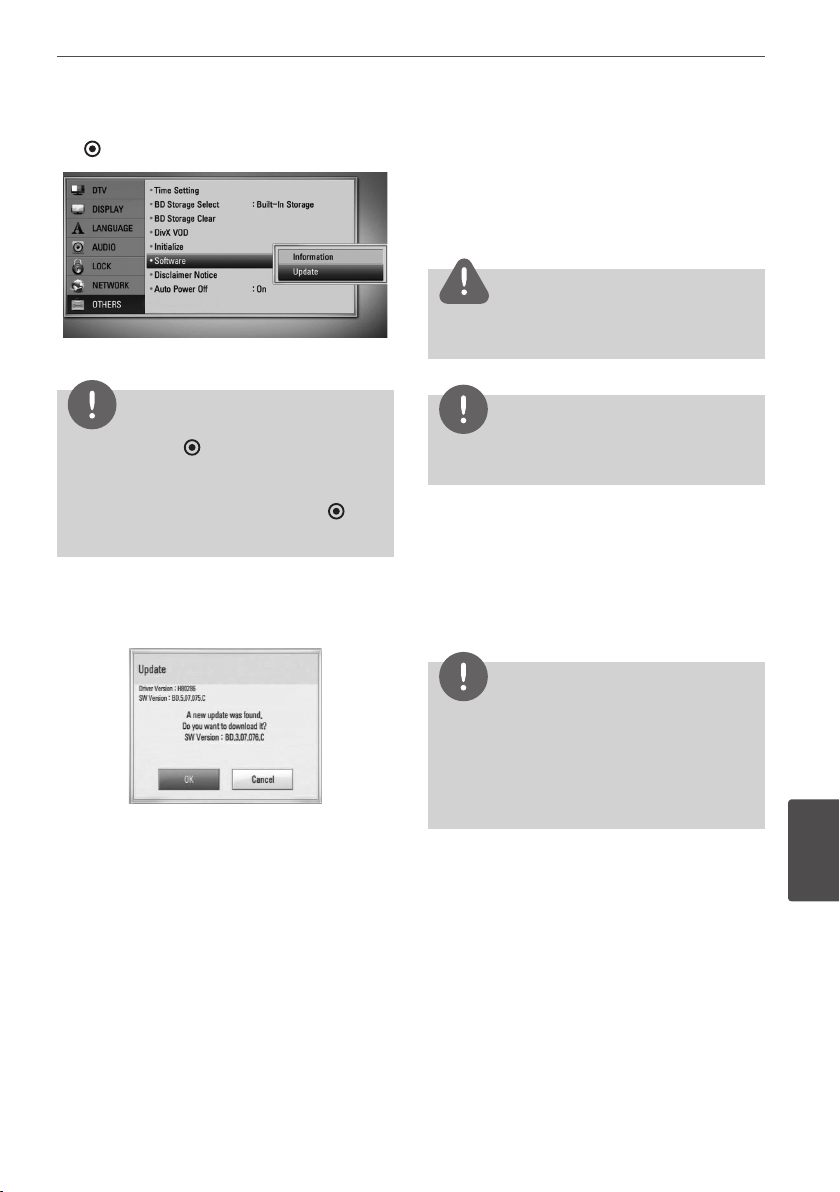
91Appendix
7
Appendix
3. Select [Update] option, and press ENTER
( ).
The player will check for the newest update.
NOTE
• Pressing ENTER ( ) while checking for the
update will end the process.
• If there is no update available, the Message, “No
update is found.” appears. Press ENTER (
) to
return to the [Home Menu].
4. If newer version exists, the message “A
new update was found. Do you want to
download it?” appears.
5. Select [OK] to download the update.
(Selecting [Cancel] will end the update.)
6. The player starts downloading the newest
update from the server. (Downloading will
takes several minutes depending on your
home network condition)
7. When downloading is completed, the
message, “Download is complete. Do you
want to update?” appears.
8. Select [OK] to start updating.
(Selecting [Cancel] will end the update and
downloaded le will not be re-usable. To
update software the next time, the software
update procedure has to be started from
the beginning again.)
CAUTION
Do not turn o the power during the software
update.
NOTE
If the software includes the driver update, disc tray
may open during the process.
9. When update is completed, the message,
“Update is complete.” will appear, and then
power will turn o automatically after 5
seconds.
10.
Turn the power back on. The system now
operates with the new version.
NOTE
The Software Update function may not work
properly depending on your internet environment.
In this case, you can obtain the latest software from
the authorized LG Electronics Service Centre then
update your player. Refer to “Customer Support” on
page 83.
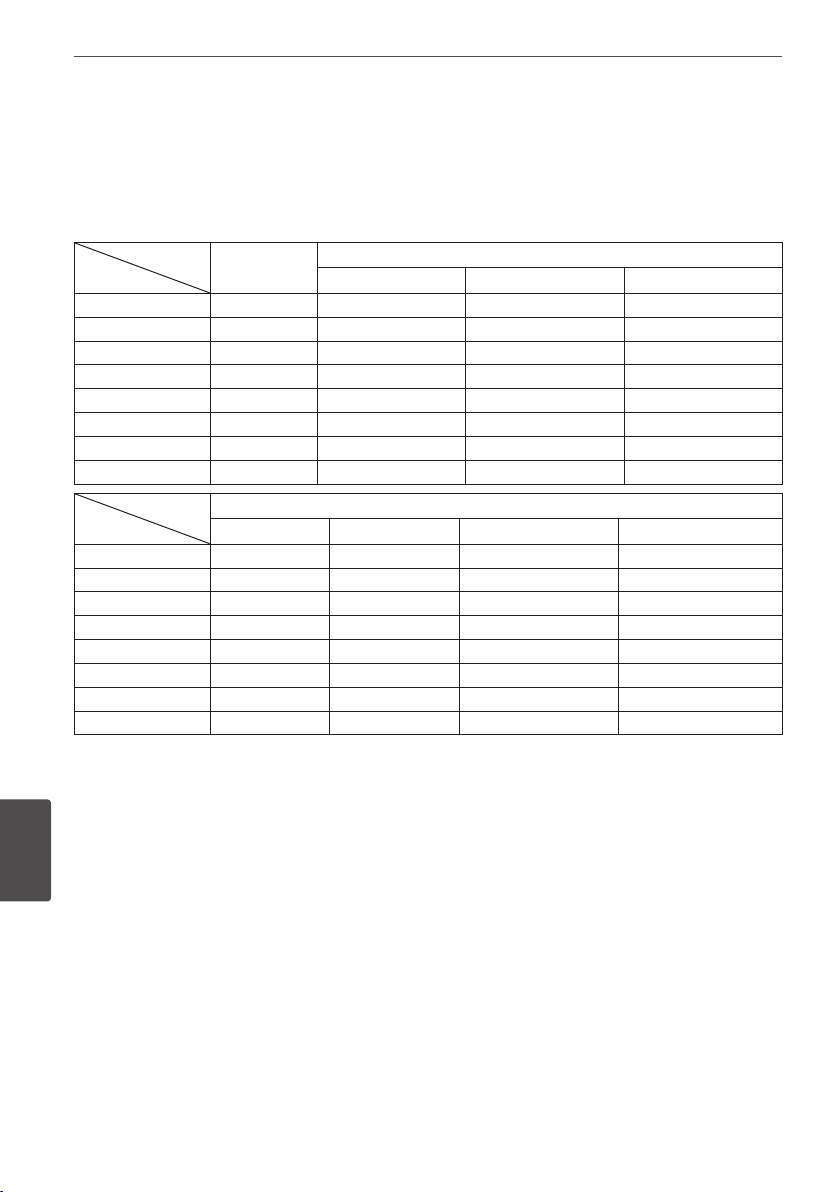
92 Appendix
Appendix
7
Audio Output Specifications
*1 The secondary and interactive audio may
not be included in the output bitstream if
[Digital Output] or [HDMI] option is set to
[Primary Pass-Thru]. (Except LPCM Codec :
the output always includes interactive and
secondary audio.)
*2 This player automatically selects the HDMI
audio according to the decoding capability
of the connected HDMI device even though
[HDMI] option is set to [Primary Pass-Thru].
*3 The [PCM Multi-CH]/[Primary Pass-Thru]
setting of the [HDMI] option and [DTS re-
encode] setting of the [Digital Output]
option cannot be set together. If you set
them together, the [HDMI] or [Digital
Output] option is set to [PCM Stereo]
automatically.
*4 On the PCM audio output, the sampling
frequency of DIGITAL AUDIO OUT is limited
to 96 kHz.
Jack/Setting
Source
Analog
2CH Output
Digital Output (DIGITAL AUDIO OUT)
*
4
PCM Stereo
DTS Re-encode
*
3
*
5
Primary Pass-Thru
Dolby Digital PCM 2ch PCM 2ch DTS Dolby Digital
Dolby Digital Plus PCM 2ch PCM 2ch DTS Dolby Digital
Dolby TrueHD PCM 2ch PCM 2ch DTS Dolby Digital
DTS PCM 2ch PCM 2ch DTS DTS
DTS-HD PCM 2ch PCM 2ch DTS DTS
Linear PCM 2ch PCM 2ch PCM 2ch DTS PCM 2ch
Linear PCM 5.1ch PCM 2ch PCM 2ch DTS PCM 2ch
Linear PCM 7.1ch PCM 2ch PCM 2ch DTS PCM 2ch
Jack/Setting
Source
HDMI OUT
PCM Stereo
PCM
Multi-Ch
*
3
DTS Re-encode
*
3
*
5
Primary Pass-Thru
*
1
*
2
*
3
Dolby Digital PCM 2ch PCM 5.1ch DTS Dolby Digital
Dolby Digital Plus PCM 2ch PCM 7.1ch DTS Dolby Digital Plus
Dolby TrueHD PCM 2ch PCM 7.1ch DTS Dolby TrueHD
DTS PCM 2ch PCM 5.1ch DTS DTS
DTS-HD PCM 2ch PCM 7.1ch DTS DTS-HD
Linear PCM 2ch PCM 2ch PCM 2ch DTS Linear PCM 2ch
Linear PCM 5.1ch PCM 2ch PCM 5.1ch DTS Linear PCM 5.1ch
Linear PCM 7.1ch PCM 2ch PCM 7.1ch DTS Linear PCM 7.1ch

93Appendix
7
Appendix
*5 If the [HDMI] or [Digital Output] option is
set to [DTS re-encode], the audio output is
limited to 48 kHz and 5.1Ch. If the [HDMI]
or [Digital Output] option is set to [DTS
re-encode], the DTS Re-encode audio is
output for BD-ROM discs, and the original
audio is output for the other discs (like
[Primary Pass-Thru]).
• If [HDMI] option is set to [PCM Multi-CH]
and [Digital Output] option is set to [Primary
Pass-Thru] while playback Dolby Digital Plus
or TrueHD audio, DIGITAL AUDIO OUT is
limited to “PCM 2ch”.
• If the HDMI connection is version 1.3 and
Dolby Digital Plus/Dolby TrueHD is output
from HDMI OUT jack, DIGITAL AUDIO OUT
jack is limited to “PCM 2ch” (When the HDMI
and DIGITAL AUDIO OUT are connected
simultaneously).
• The audio is outputted as PCM 48 kHz/
16 bit for MP3/WMA le and PCM
44.1 kHz/16 bit for Audio CD while playback.
• The Dolby TrueHD audio recorded on some
Blu-ray discs consists of Dolby Digital and
TrueHD audio. Dolby Digital audio is output
through DIGITAL AUDIO OUT jacks and “DD”
displays on the screen if TrueHD audio is
not output (for example, when [HDMI] is set
to [PCM Stereo] and [Digital Output] is set
to [Primary Pass-Thru]).
• You must select a digital audio output and
a maximum sampling frequency that your
Amplier (or AV receiver) accepts using
[Digital Output], [HDMI] and [Sampling
Freq.] options on the [Setup] menu (see
page 34-35).
• With digital audio connection (DIGITAL
AUDIO OUT or HDMI), Disc Menu button
sounds of BD-ROM may not be heard if the
[Digital Output] or [HDMI] option is set to
[Primary Pass-Thru].
• If the audio format of the digital output
does not match the capabilities of your
receiver, the receiver will produce a strong,
distorted sound or no sound at all.
• Multi-channel Digital Surround Sound via
digital connection can only be obtained
if your receiver is equipped with a Digital
Multi-channel decoder.
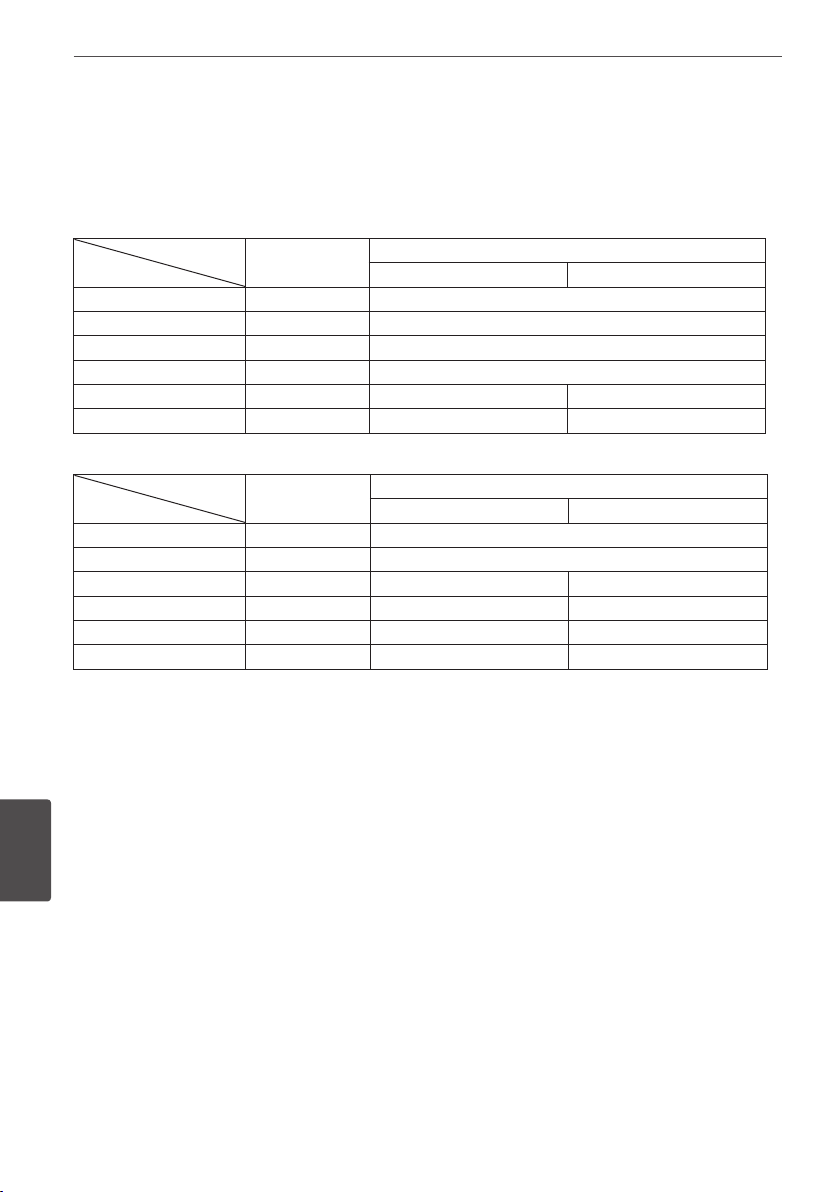
94 Appendix
Appendix
7
Video Output Resolution
When the non-copy protected media is playing back
Video Out
Resolution
HDMI OUT
COMPONENT VIDEO OUT
HDMI connected HDMI disconnected
576i 576p 576i
576p 576p 576p
720p 720p 720p
1080i 1080i 1080i
1080p/24Hz 1080p / 24Hz 576i 1080i
1080p / 50Hz 1080p / 50Hz 576i 1080i
When the copy protected media is playing back
Video Out
Resolution
HDMI OUT
COMPONENT VIDEO OUT
HDMI connected HDMI disconnected
576i 576p 576i
576p 576p 576p
720p 720p 576i 576p
1080i 1080i 576i 576p
1080p/24Hz 1080p / 24Hz 576i 576p
1080p / 50Hz 1080p / 50Hz 576i 576p
• This unit supports simultaneous output of
all video out jacks.
HDMI OUT connection
• For the 576i resolution setting, real output
resolution of HDMI OUT will change to
576p.
• If you select a resolution manually and then
connect the HDMI jack to TV and your TV
does not accept it, the resolution setting is
set to [Auto].
• If you select a resolution that your TV
does not accept, the warning message
will appear. After resolution change,
if you cannot see the screen, please
wait 20 seconds and the resolution will
automatically revert back to the previous
resolution.
• The 1080p video output frame rate may
be automatically set to either 24Hz or
50Hz depending both on the capability
and preference of the connected TV and
based on the native video frame rate of the
content on the BD-ROM disc.
COMPONENT VIDEO OUT
Connection
BD, DVD could prevent up-scaling on analogue
output.
VIDEO OUT connection
The resolution of the VIDEO OUT jack is always
outputted at 576i resolution.
95Appendix
7
Appendix
Specifications
General
Power requirements:
AC 200-240 V, 50/60 Hz
Power consumption:
45 W
Dimensions (W x H x D):
Approx. 430 x 49 x 295 mm) without foot
Net Weight (Approx.):
3.33 kg
Operating temperature:
5 °C to 35 °C
Operating humidity:
5 % to 90 %
Television system:
DVB-T Standard Compliant
TV Recording
Recording format:
TS (Transport Stream format)
Recordable media:
Hard Disk Drive (250GB/500GB), USB 2.0 HDD
Audio recording format:
Dolby Digital (2CH)
Connectors
VIDEO OUT:
1.0 V (p-p), 75 Ω, sync negative, RCA jack x 1
COMPONENT VIDEO OUT:
(Y) 1.0 V (p-p), 75 Ω, sync negative, RCA jack x 1,
(Pb)/(Pr) 0.7 V (p-p), 75 Ω, RCA jack x 2
HDMI OUT (video/audio):
19 pin (HDMI standard, Type A)
ANALOGUE AUDIO OUT:
2.0 Vrms (1 kHz, 0 dB), 600 Ω,
RCA jack (L, R) x 1
DIGITAL OUT (COAXIAL):
0.5 V (p-p), 75 Ω, RCA jack x 1
ANTENNA IN:
Antenna input, 75 Ω
USB Port:
4 pin (USB 2.0 standard)
System
Laser:
Semiconductor laser,
wavelength:
405nm / 650 nm
Signal system:
Standard PAL colour TV system
Frequency response:
20 Hz to 20 kHz
(48 kHz, 96 kHz, 192 kHz sampling)
Signal-to-noise ratio:
More than 100 dB
(Analogue OUT connectors only)
Harmonic distortion:
Less than 0.008 %
Dynamic range:
More than 95 dB
LAN port:
Ethernet jack x 1, 10BASE-T/100BASE-TX
Bus Power Supply (USB):
DC 5 V 500 mA
• Design and specications are subject to
change without notice.

96 Appendix
Appendix
7
Important Information
Relating to Network
Services
All information, data, documents, communications,
downloads, les, text, images, photographs, graphics,
videos, webcasts, publications, tools, resources,
software, code, programs, applets, widgets,
applications, products and other content (“Content”)
and all services and oerings (“Services”) provided or
made available by or through any third party (each
a “Service Provider”) is the sole responsibility of the
Service Provider from whom it originated.
The availability of and access to Content and
Services furnished by the Service Provider through
the LGE Device are subject to change at any time,
without prior notice, including, but not limited to the
suspension, removal or cessation of all or any part of
the Content or Services.
Should you have any inquiry or problem related
to the Content or Services, you may refer to the
Service Provider’s website for the most up-to-date
information. LGE is neither responsible nor liable
for customer service related to the Content and
Services. Any question or request for service relating
to the Content or Services should be made directly
to the respective Content and Service Providers.
Please note that LGE is not responsible for any
Content or Services provided by the Service Provider
or any changes to, removal of, or cessation of
such Content or Services and does not warrant or
guaranty the availability of or access to such Content
or Services.