3-080-307-11 (1)
Network Function/
Application
Operating Instructions
© 2003 Sony Corporation
Registration code (for a detailed explanation of this code, see page 32.)

2
On trademarks
•ImageStation is the registered trademark of Sony Corporation.
•“Memory Stick” and are registered trademarks of Sony Corporation.
•The BLUETOOTH trademarks are owned by their proprietor and used by Sony
Corporation under license.
•America Online, AOL, and the AOL Triangle logo are registered trademarks of
America Online, Inc.
•NetFront by Access Co., Ltd. is adopted for the Internet function of this product.
NetFront is a registered trademark of Access Co., Ltd in Japan.
Copyright © 1996 – 2003 ACCESS CO., LTD.
•Portions of the supplied software are based partially on the work of the Independent
JPEG Group.
All other product names mentioned herein may be the trademarks or registered
trademarks of their respective companies. Furthermore, “TM” and “®” are not
mentioned in each case in this manual.
No compensation for your recordings
Any recording contents or downloaded files cannot be compensated for being lost due
to recording/playback malfunction or storage media problems.
Precautions
•Before using the network function, make sure you set the clock on your camcorder.
For details, refer to the operating instructions of your camcorder. If you use the
network function without setting the clock, you may not be able to send/receive email
or view web pages.
•Do not remove the battery pack or disconnect the AC Adaptor while operating the
network function, or the setup for the network function may be lost. Also, exit the
network function when setting the POWER switch to OFF (CHG) or switching modes,
in order to prevent the network function setup from being lost.
•It is recommended that you make backup copies of your email messages and your
network preferences. These may be lost from time to time due to memory corruption.
To save the network preferences, write them down on paper, or use “Setup memo,”
described (p. 149). Also, this data may be lost when your camcorder is repaired by
services.
•Wireless connection function using Bluetooth technology can only be used in the U.S.
•The reset button cannot reset the network preferences.
Note on network operation when using the battery pack
When the remaining battery power is insufficient for network operation, use the AC
Adaptor or replace the battery pack with a fully charged battery pack. Before
connecting the AC Adaptor or replacing the battery pack, be sure to exit the network
function.
Note
Before shipment, your camcorder was configured for easy setup with “So-net” and
“AOL” services. Availability and features of these services are subject to change.
The illustrations used in this manual may be different from the actual set for
some models.
The DCR-TRV80 is the model used for illustration purposes.

3
Introduction
Table of contents
Introduction
The network function on your camcorder
................................................................... 4
The Bluetooth function on your
camcorder (DCR-TRV80 only) .............6
Basic operations of the
network function
On network operation ................................... 7
How to use the Network Menu ............7
How to use the stylus .............................8
Inputting characters .......................................9
How to input characters.........................9
The character input screen...................11
The available characters list.................12
Character input setting.........................17
Preparation for Network
Operation
Using the network functions ...................... 18
Setting up USB devices................................ 19
Before connection ..................................19
Connecting to a telephone line via
the USB-PSTN Modem Adaptor
..........................................................20
Connecting to LAN with the USB-
Ethernet Adaptor ...........................22
Registering Bluetooth devices
(DCR-TRV80 only) ................................ 24
Before communication .........................24
Registering a Bluetooth device............25
Using the Modem Adaptor with
Bluetooth Function ........................25
Changing the communication
devices .............................................30
Deleting a registered Bluetooth
device from the list ........................30
Customer registration .................................. 32
DI customer registration ......................32
Online registration with a computer
..........................................................32
Online registration with your
camcorder .......................................32
Registering your Album on the Web......... 35
Finish album registration separately
..........................................................35
Setting the Internet connection................... 36
Internet service provider......................36
Registering with “So-net” ........................... 37
Register for “So-net” separately..........37
Setting the network preferences................. 38
Setting your provider preferences for
“So-net” ...........................................38
Setting your provider preferences for
“AOL” .............................................48
Setting your provider preferences for
other providers...............................54
Setting other preferences .....................65
Network Operation
Making your Album on the Web ............... 68
Uploading still images and/or
moving pictures to your Album
on the Web ......................................68
Viewing or editing your Album on
the Web............................................75
Deleting still images and/or
moving pictures from your
Album on the Web.........................80
Finishing viewing or editing your
Album on the Web.........................81
Using email ................................................... 82
Sending email ........................................82
Using the address book ........................93
Receiving email .....................................99
Deleting received email......................104
Viewing web pages .................................... 106
Viewing web pages.............................106
How to use the menu bar of the
browser ..........................................108
Storing a web page on a “Memory
Stick” – Page Memo.....................114
Shutting down the browser ...............119
Bluetooth Application
Operation
Using as a Remote Camera
(DCR-TRV80 only) ..............................120
Preparation...........................................120
Operating the Remote Camera .........121
Ending the Remote Camera...............122
Transferring still images with Bluetooth
function – Image Transport
(DCR-TRV80 only) ..............................124
Sending a still image...........................124
Receiving still images .........................128
Additional Information
File storage destinations and file names
............................................................... 130
Troubleshooting ......................................... 131
Trouble accessing the Internet ..........131
Trouble with email..............................132
Trouble viewing web pages ..............133
Troubles about the Album on the
Web ................................................134
Troubles about sending a still
image (DCR-TRV80 only) ...........134
Troubles about receiving a still
image (DCR-TRV80 only) ...........135
Adjusting the LCD screen
(CALIBRATION) .........................136
Displaying information on your
camcorder .....................................137
Specifications .............................................. 139
Messages ...................................................... 140
General .................................................140
Album on the Web ..............................141
Email .....................................................142
Browser.................................................142
Sending a still image (DCR-TRV80
only) ...............................................143
Receiving a still image (DCR-TRV80
only) ...............................................144
Album error codes ..................................... 145
Glossary ....................................................... 146
Setup memo ................................................ 149
4
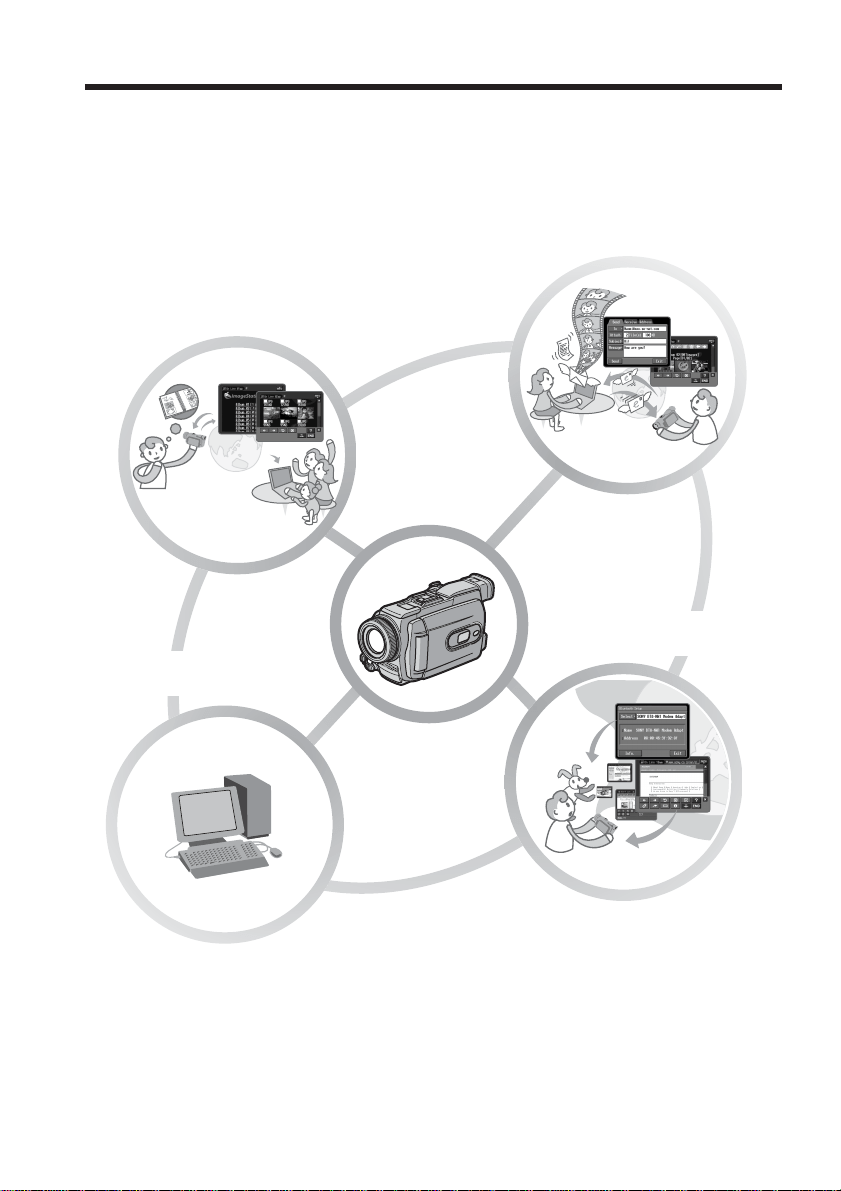
Congratulations on your purchase of this Sony Handycam. Your Handycam can access
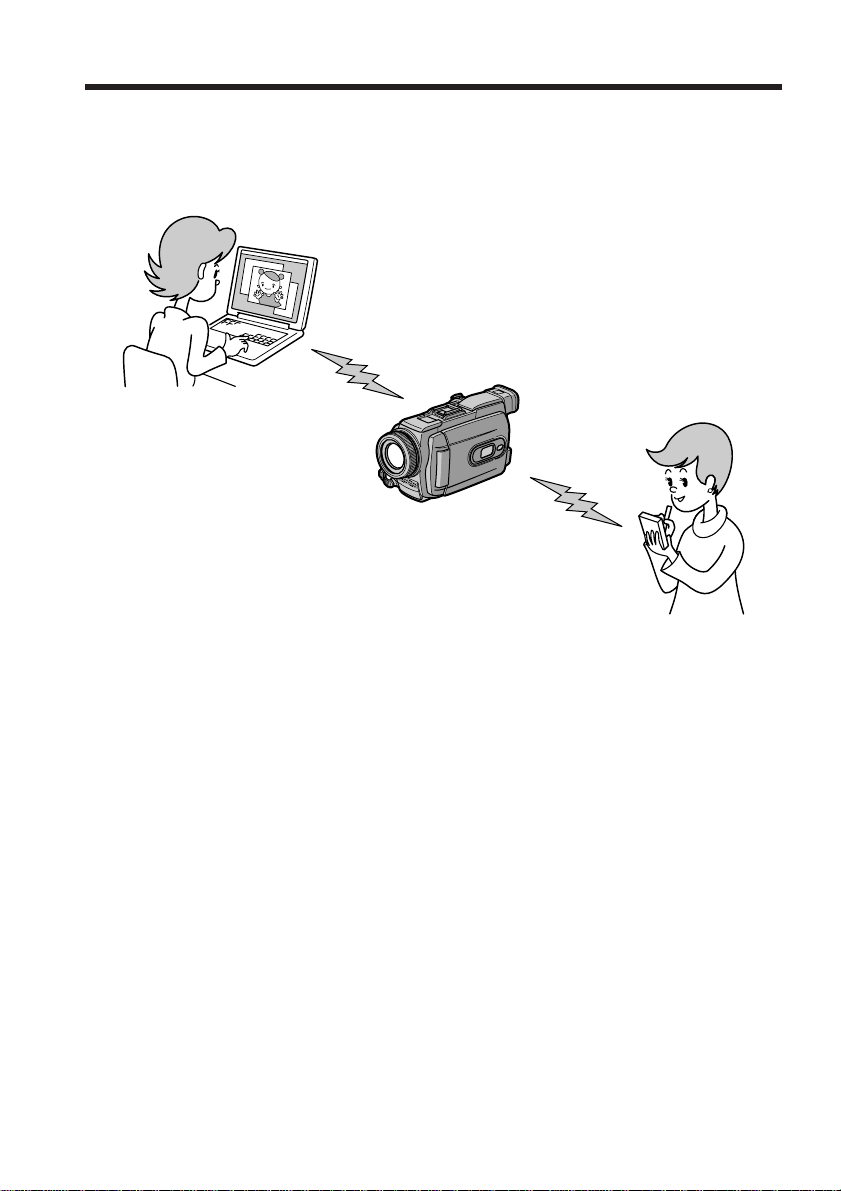
the Internet via a compatible communication device, allowing you the following:
– Introduction –
The network function on your camcorder
Easy access to
the Internet
Sending/receiving
email
Showing your still images
and moving pictures on
the Web
Easy network
preferences (So-net)

5
Introduction
Showing your still images and moving pictures on the Web
You can upload still images and moving pictures to your Album on the Web, store
them on the Internet, and show them to your friends.
Sending/receiving email*
You can send or receive email anytime, and attach still images and moving pictures to
email messages.
Easy access to the Internet
You can view web pages on the LCD screen of your camcorder.
Easy network preferences (So-net)
When using a dial-up connection, you can easily set the required Internet and email
preferences with the “So-net” option. For details of “So-net”, see “Using the
recommended provider (So-net)” (p. 36), or refer to the supplied flyer “Getting Online
with your Sony Network Handycam® camcorder”.
Notes
•Set your camcorder’s clock before using the network functions. (The default setting is
off.) If you do not set the clock, you cannot send/receive email or view web pages.
•You have to set up your camcorder and any peripheral devices, and finish the
required registrations (DI customer registration, etc.).
For details, refer to the supplied flyer “Getting Online with your Sony Network
Handycam® camcorder”.
(“DI” in “DI customer ID” stands for “Digital Imaging”.)
* As of March 2003, “AOL” does not support the receiving of email on this device. For
further clarification on this and other “AOL”-specific attributes, go to keyword:
Handycam on your computer.
The network function on your camcorder
6
– DCR-TRV80 only
Your camcorder is designed to communicate with another Bluetooth device, such as a
computer, or a PDA. Without connecting a cable, you can transfer still image, and can
use your camcorder as a remote camera and shoot remotely from a computer or a PDA.
Using as a Remote Camera
You can operate your camcorder remotely from a BIP* compatible computer or PDA
with Bluetooth function.
Transferring still images – Image Transport
You can transfer still images between your camcorder and a BIP* compatible computer
or PDA with Bluetooth function.
* About BIP (Basic Imaging Profile)
The “Basic Imaging Profile” (BIP) is the Bluetooth specification used when transferring
images between Bluetooth devices. To connect with your camcorder, the Bluetooth
device must be compatible with the “Image Push Feature” or the “Remote Camera
Feature” of the “Basic Imaging Profile” (BIP). Before using the Bluetooth device, check
the BIP specifications of the device.
For details of Bluetooth Function, see page 24.
The Bluetooth function on your
camcorder
7
Basic operations of the network function
This section describes the basic ways to operate your camcorder’s network function.
For details of how to hold your camcorder when operating the network function, refer
to the operating instructions supplied with your camcorder.
Note
Before using the network function, be sure to set the clock on your camcorder. For
details of clock setting, refer to “Setting the date and time“ in the operating instructions
of your camcorder.
How to use the Network Menu
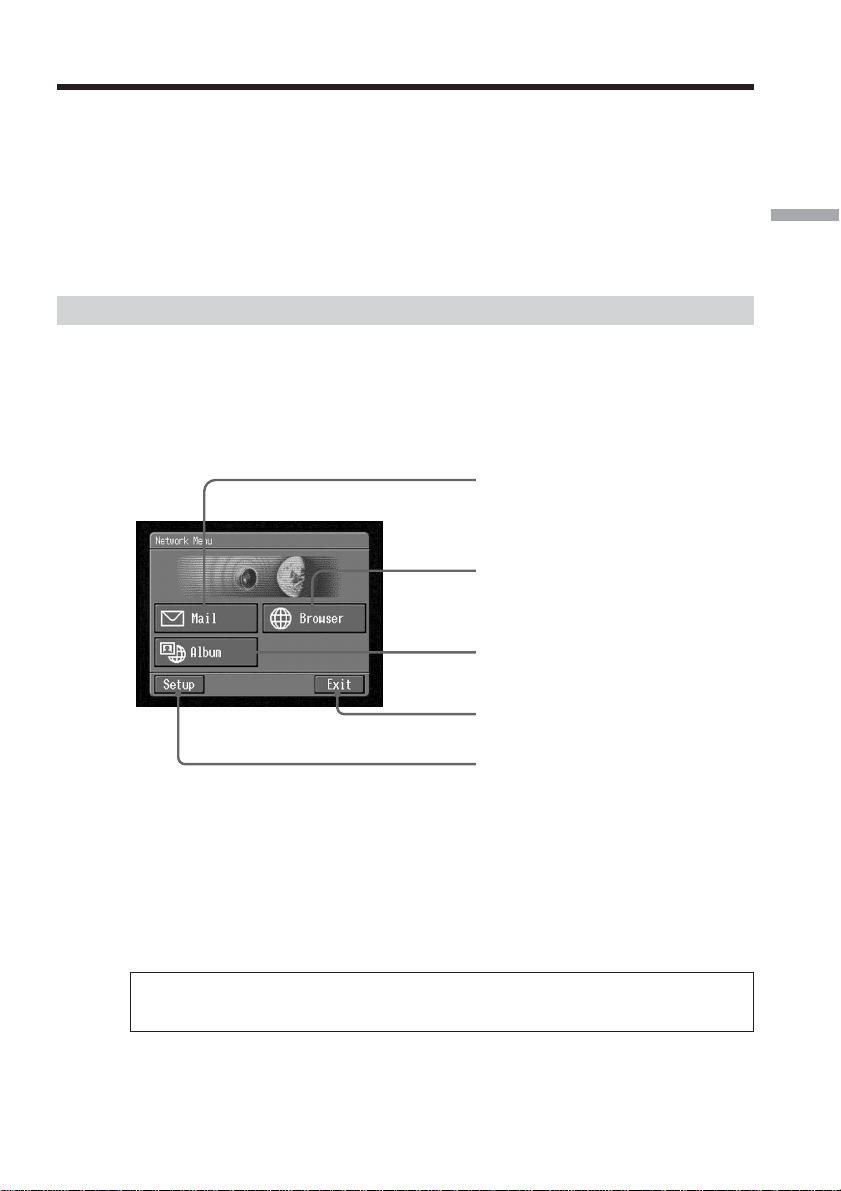
Tap the desired network function on the Network Menu.
To display the Network Menu, set the POWER switch to MEMORY/NETWORK and
tap NETWORK.
For details, refer to “Accessing the network” in the operating instructions supplied with
your camcorder.
[a]:For sending and/or receiving email, tap this button (p. 82).
[b]: For viewing a web page through the Internet, tap this button (p. 106).
[c]:For uploading still images and moving pictures to your Album on the Web and
storing them on the Internet, and for showing them to your friends, tap this button
(p. 68).
[d]: For exiting the Network Menu, tap this button.
[e]:For changing the settings, tap this button.
The actual screens may differ from the illustrations in Network Function/
Application Operating Instructions.
[a]
[b]
[c]
[d]
[e]
– Basic operations of the network function –
On network operation
8
How to use the stylus
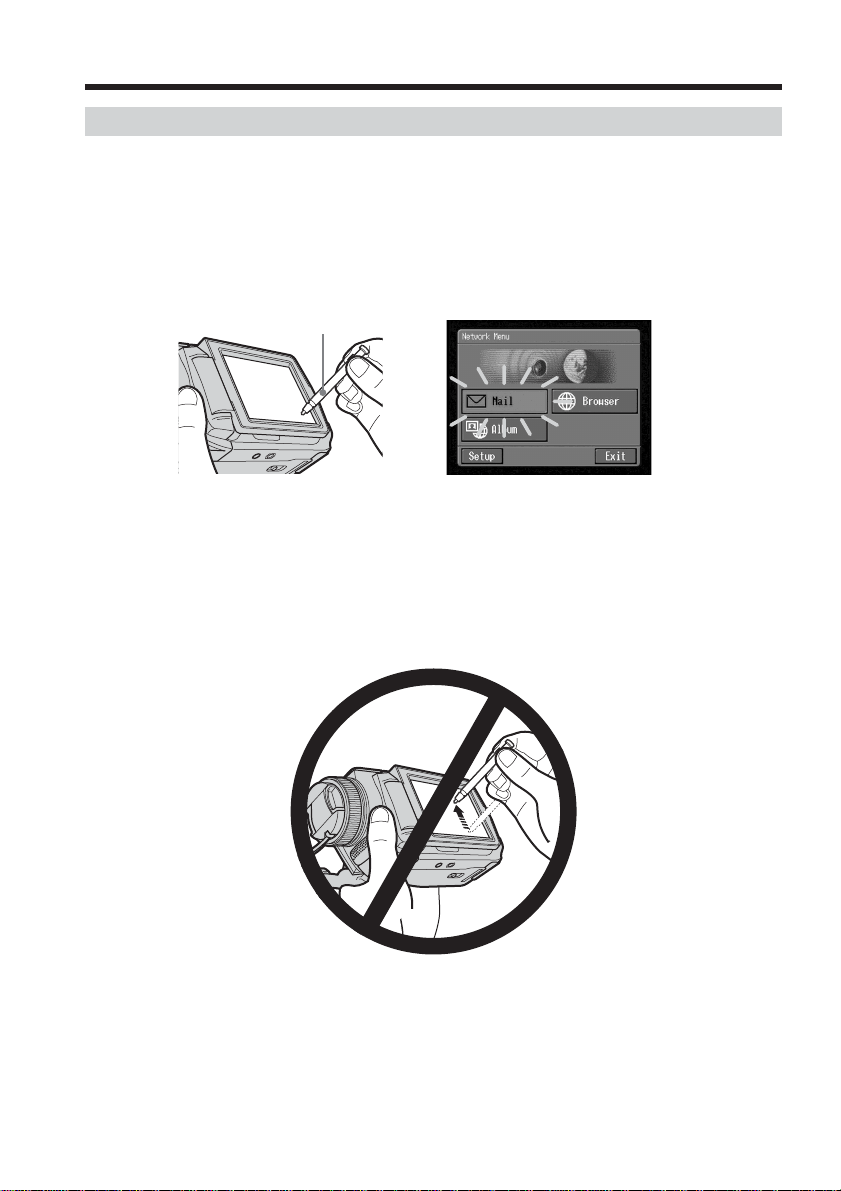
The buttons required for operating your camcorder appear on the LCD screen. Operate
by pressing the buttons on the screen directly but lightly with the stylus supplied. In
this manual, pressing the buttons in this way using the stylus is referred to as
“tapping”.
Tap the desired button on the screen with the stylus.
The selected button turns orange.
,
Notes
•Use the stylus supplied to tap the LCD screen.
•Do not tap the LCD screen too hard.
•Do not touch the LCD screen with wet hands.
•When the LCD screen gets dirty, clean it with the supplied cleaning cloth.
•You cannot drag icons, as on a computer, by touching and sliding across your
camcorder screen with the stylus.
•Refer to the operating instructions supplied with your camcorder for the stylus holder
location. To avoid losing the stylus, we recommend that you always return it to the
holder after use.
On network operation
stylus
9
Basic operations of the network function
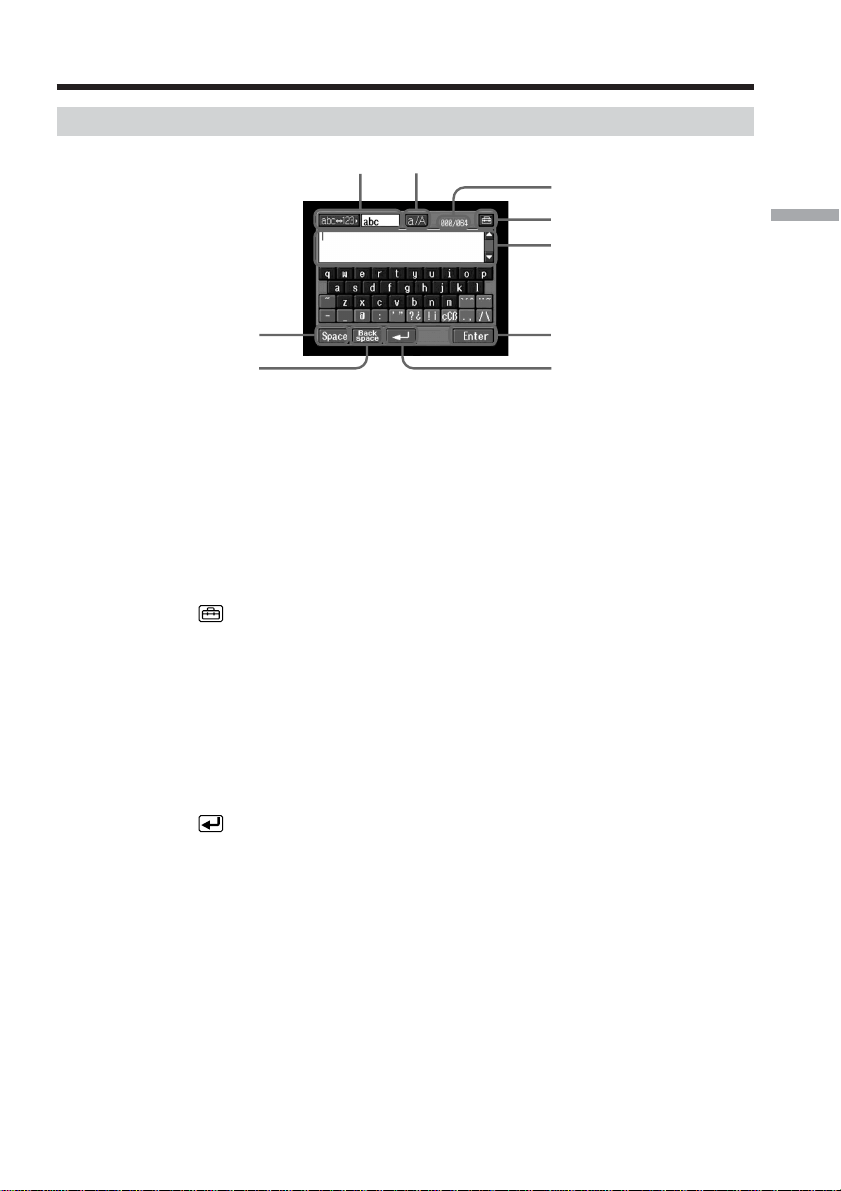
How to input characters
You have to frequently enter characters, such as email addresses or web pages
addresses (URLs), to use the network function. This section describes how to input
characters.
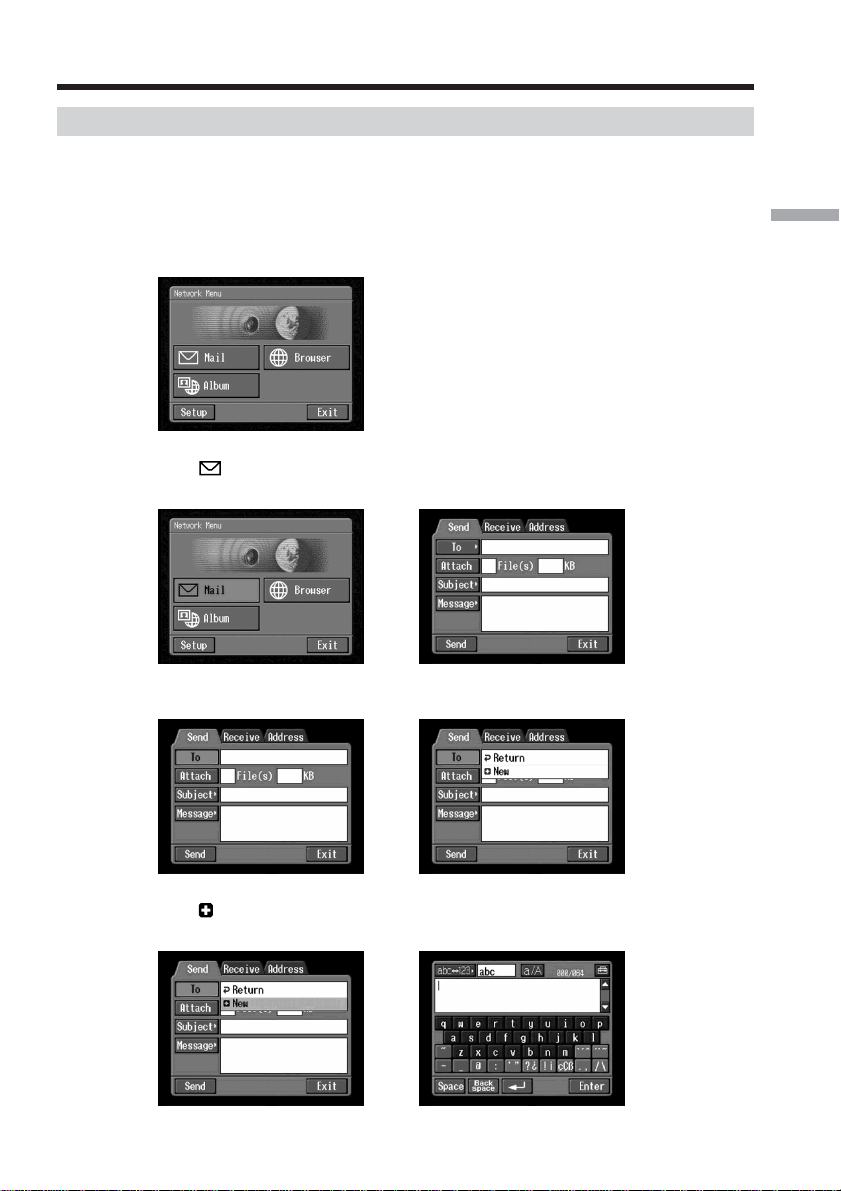
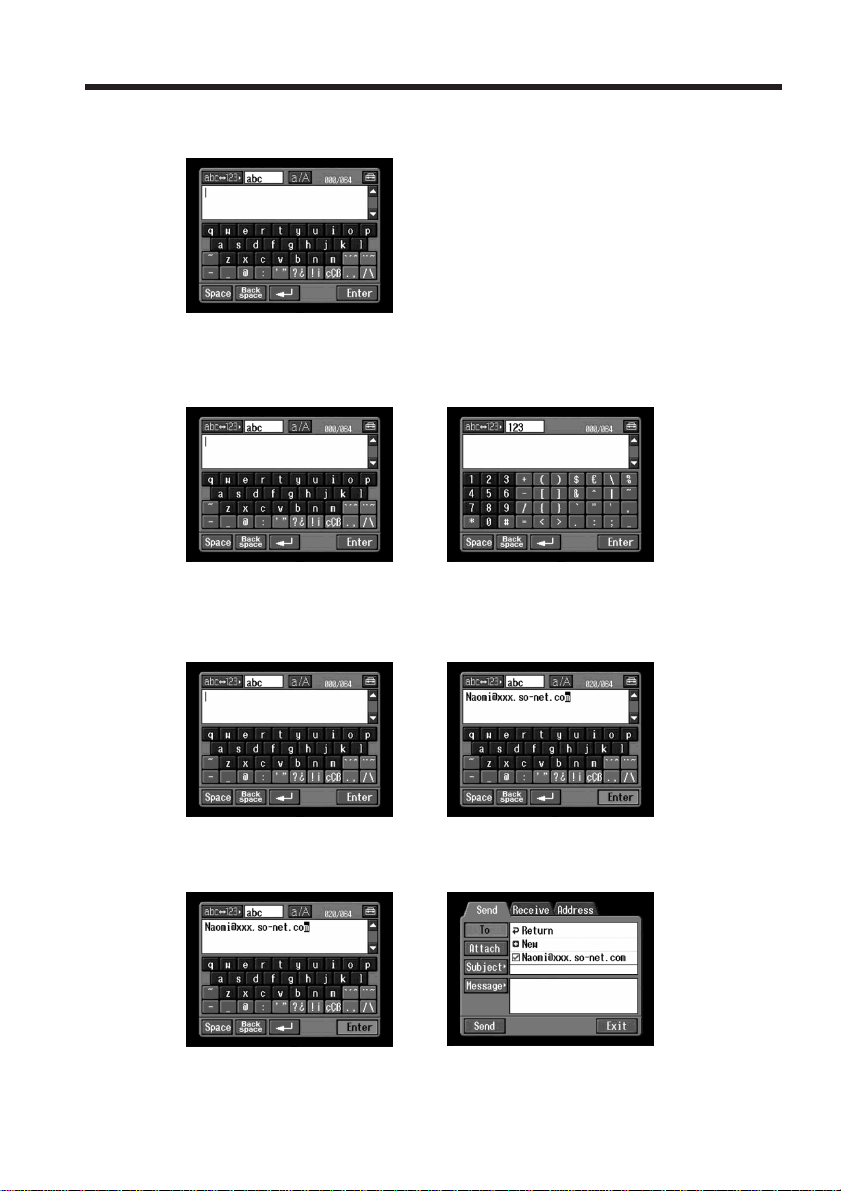
1
(1) Open the Network Menu.
For details of how to open the Network Menu, see page 7.
(2) Tap [
Mail].
The Send screen appears.
,
(3) Tap [To].
,
(4) Tap [ New].
The character input screen appears.
,
Inputting characters
10
2 Selecting the character type
Tap [abcy123], then tap the desired character type.
abc: When inputting alphabets.
123: When inputting numbers.
When you select abc When you select 123
3 Inputting characters
(1) Tap the characters you want to input.
,
(2) After you input the characters, tap [Enter].
The Send screen appears again.
,
Inputting characters
11
Basic operations of the network function
Inputting characters
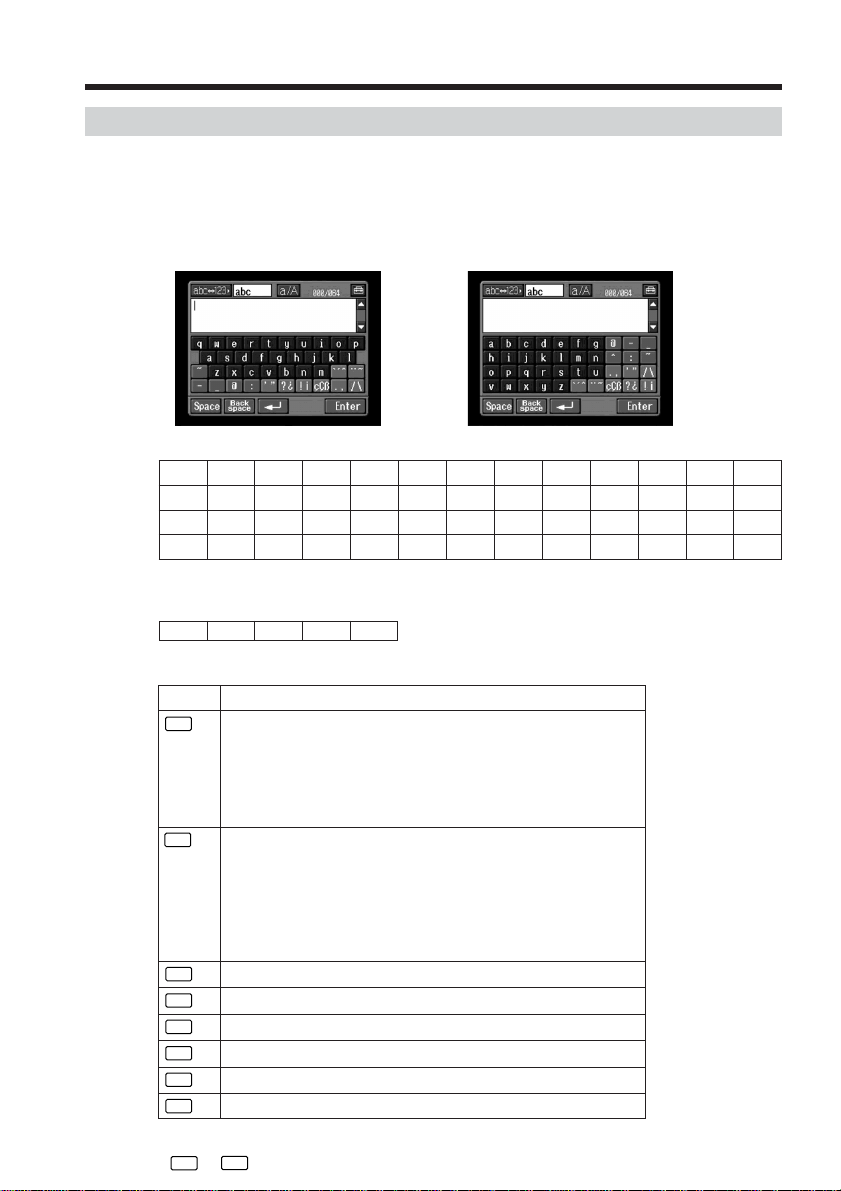
1 [abcy123] button
A list box appears when you tap the [abcy123] button. Tap the desired
type of character (alphabets or numbers) from the list box.
2 [a/A] button
The [a/A] button appears when you input alphabets.
You can switch between upper case and lower case.
3 Input byte number/maximum byte number
4
Preferences
You can change the keyboard arrangement for alphabets.
5 Text area
If the text is long, you can scroll up or down by tapping v or V (scroll
buttons) to display the hidden text.
6 [Enter] button
Tap this button to decide or close the character input screen.
7
button
Tap this button once to move the cursor to the next line.
8 [Back space] button
Tap this button, and the letter just before the cursor is deleted. If you tap
the button for about three seconds, all the characters before the cursor are
deleted.
9 [Space] button
Tap this button to insert a space.
9
87
6
5
4
3
12
The character input screen
12
Symbol characters
The symbol characters below are input by a single tap:
The green keys input the symbol characters.
Each tap on the key changes the symbol characters in the following orders:
Inputting characters
The available characters list
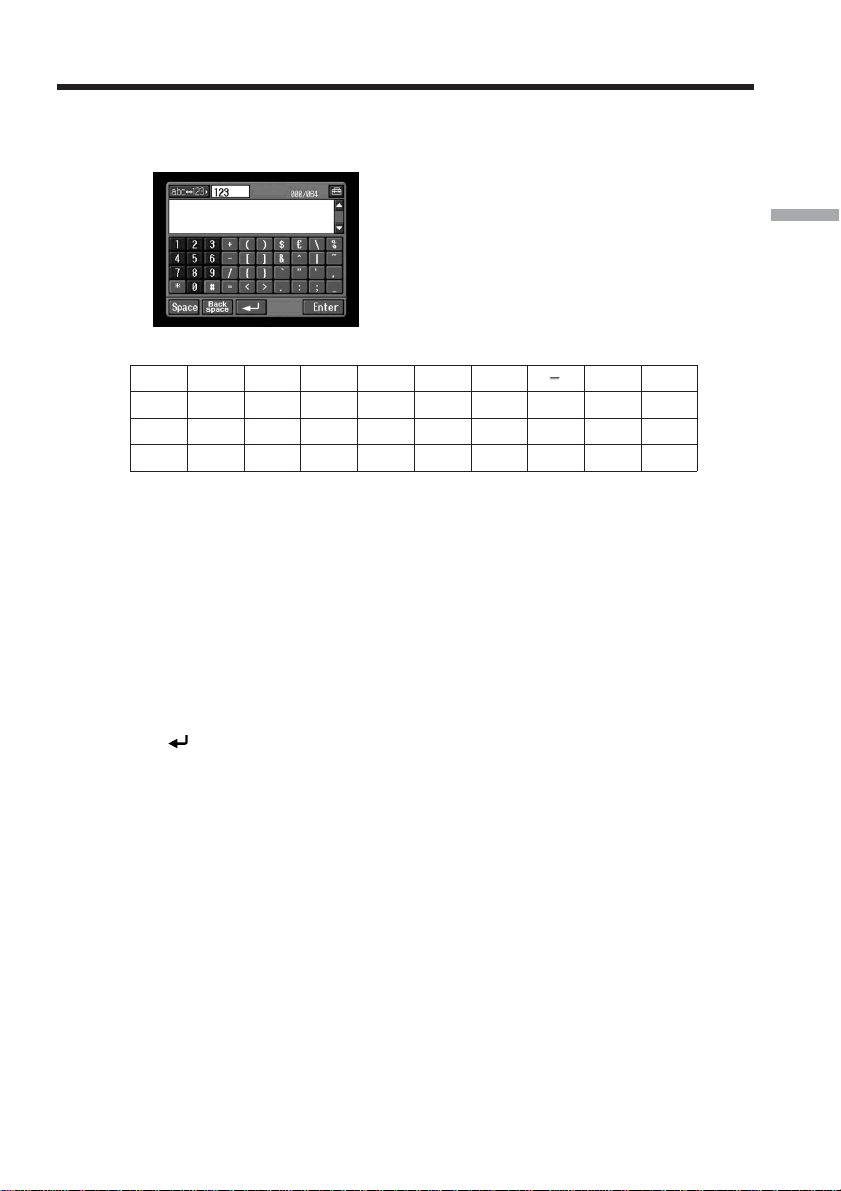
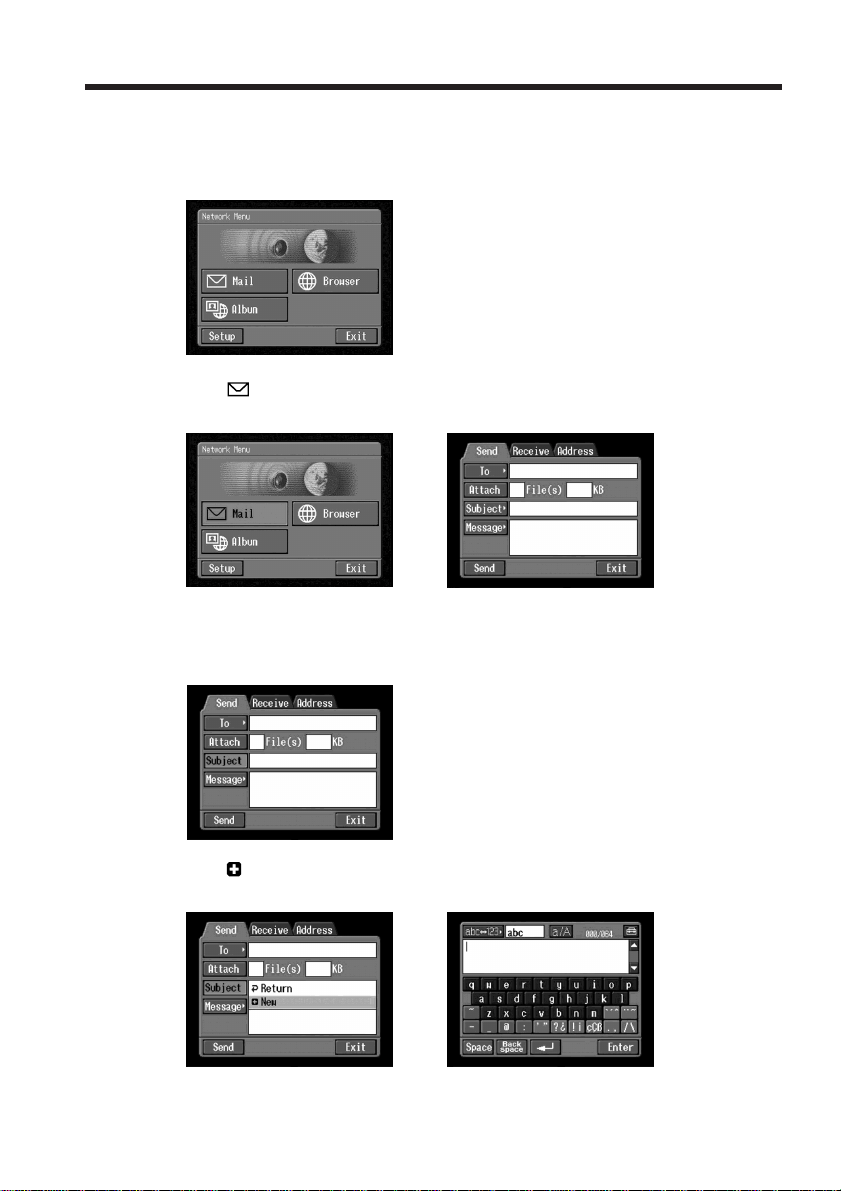
When [abc] is selected
The alphabet keyboard has two types of arrangement (PC Style and Alphabetical
order). The default setting is PC Style. To change the keyboard settings, see page 17 for
details.
(PC Style) (Alphabetical order)
Alphabetical characters
Key Character
` ´ ˆ
* a: à t á t â t a t... A: À t Á t  t A t...
e: è t é t ê t e t... E: È t É t Ê t E t...
i: ì t í t î t i t... I: Ì t Í t Î t I t...
o: ò t ó t ô t o t... O: Ò t Ó t Ô t O t...
u: ù t ú t û t u t... U: Ù t Ú t Û t U t...
y:
´y
t y t... Y:
´
Y
t Y t...
¨ ˜
* a: ä t ã t a t... A: Ä t à t A t...
e: ë t e t... E: Ë t E t...
i: ï t i t... I: Ï t I t...
n: ñ t n t... N: Ñ t N t...
o: ö t õ t o t... O: Ö t Õ t O t...
u: ü t u t... U: Ü t U t...
y: ÿ t y t...
’ ”
’ t ” t ’ t ...
? ¿
? t ¿ t ? t ...
! ¡
! t ¡ t ! t ...
ç
Ç
ß
ç t Ç t ß t ç t...
. ,
. t , t . t ...
/ \
/ t \ t / t ...
abcdefghi jklm
nopqrs tuvwxyz
ABCDEFGHI JKLM
NOPQR S TUVWXYZ
* You can input the alphabets with accent symbols. When you input the characters, tap
` ´ ˆ
or
¨ ˜
after inputting a, e, i, n, o, u, y, A, E, I, N, O, U or Y.
~–_
@
:
13
Basic operations of the network function
When [123] is selected
(Numerical order)
Numbers and symbol characters
Inputting characters
To switch between upper and lower case alphabet letters
Tap [a/A] to change the alphabetical keyboard, then enter characters.
To delete a character
Move the cursor with the stylus just to the right of the character that you want to delete,
and tap [Back space]. The character to the left of the cursor is deleted.
To add a character
Move the cursor with the stylus to the position at which you want to add a character,
then input the character.
To begin a new line
Tap [ ].
123+()$
C
\%
4 56–[]&ˆ|˜
789/{}`”’,
*0#=<>. : ; _
14
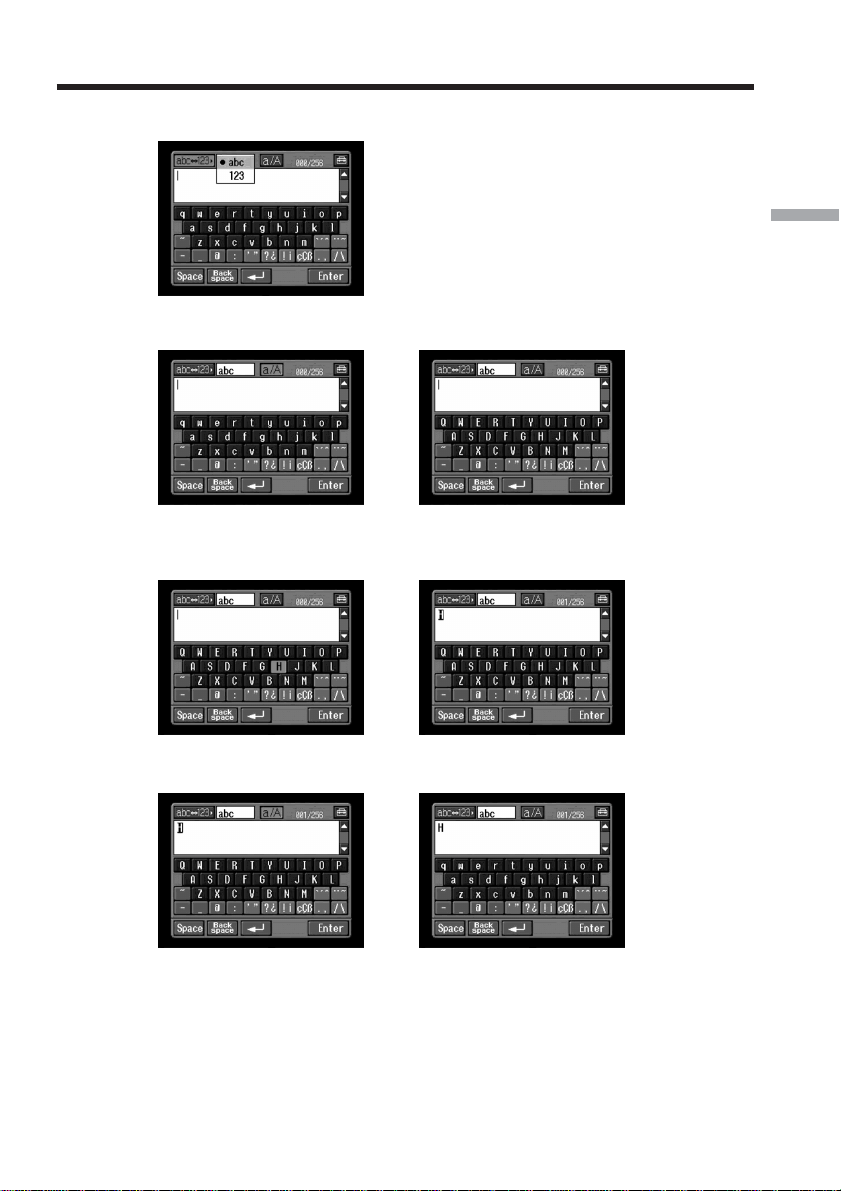
E.g., Enter “Hello” into the Subject item on the Send screen
1
(1) Open the Network Menu.
For details of how to open the Network Menu, see page 7.
(2) Tap [
Mail].
The Send screen appears.
,
2 Entering the subject of a message
(1) Tap [Subject].
(2) Tap [ New].
The character input screen appears.
,
Inputting characters
15
Basic operations of the network function
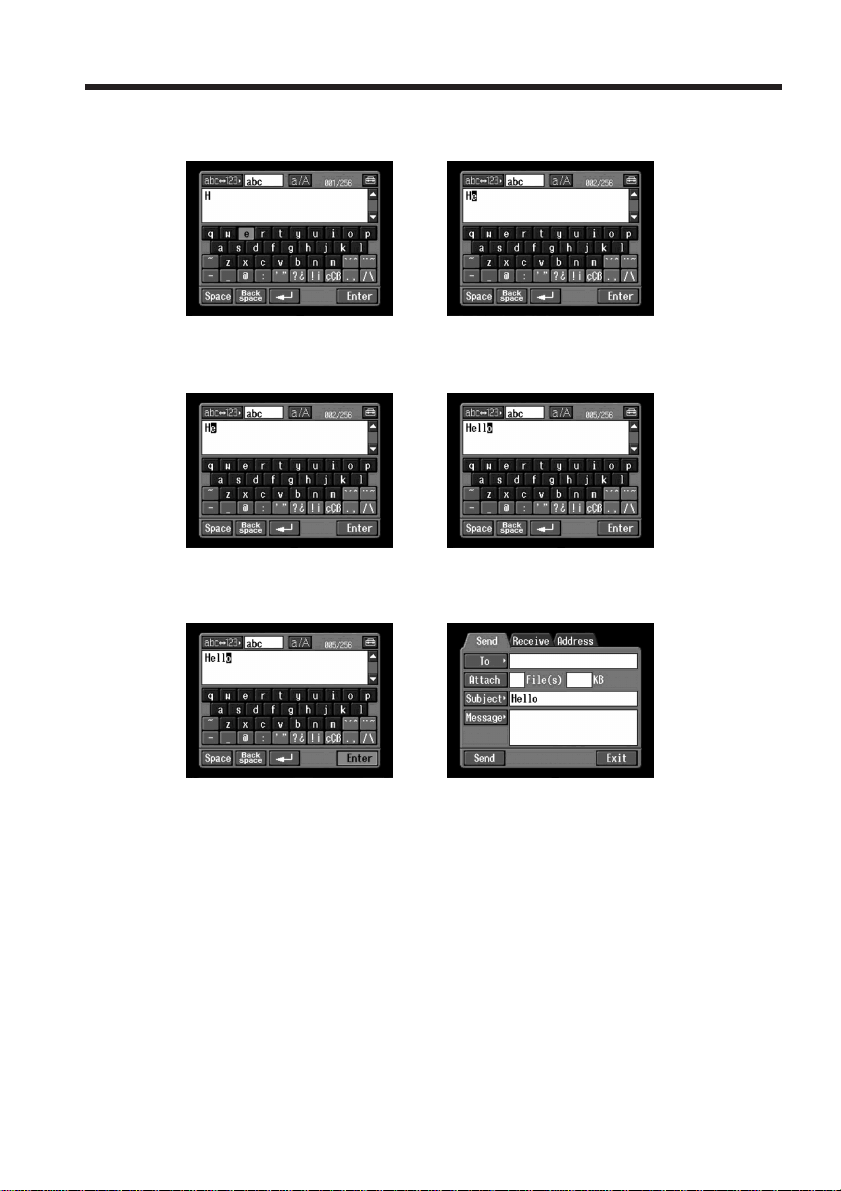
3
(1) Tap [abcy123], then tap [abc].
(2) Tap [a/A] to enable entry of upper-case letters.
,
(3) Tap [H].
“H” is entered.
,
(4) Tap [a/A] to enable entry of lower-case letters.
,
Inputting characters
16
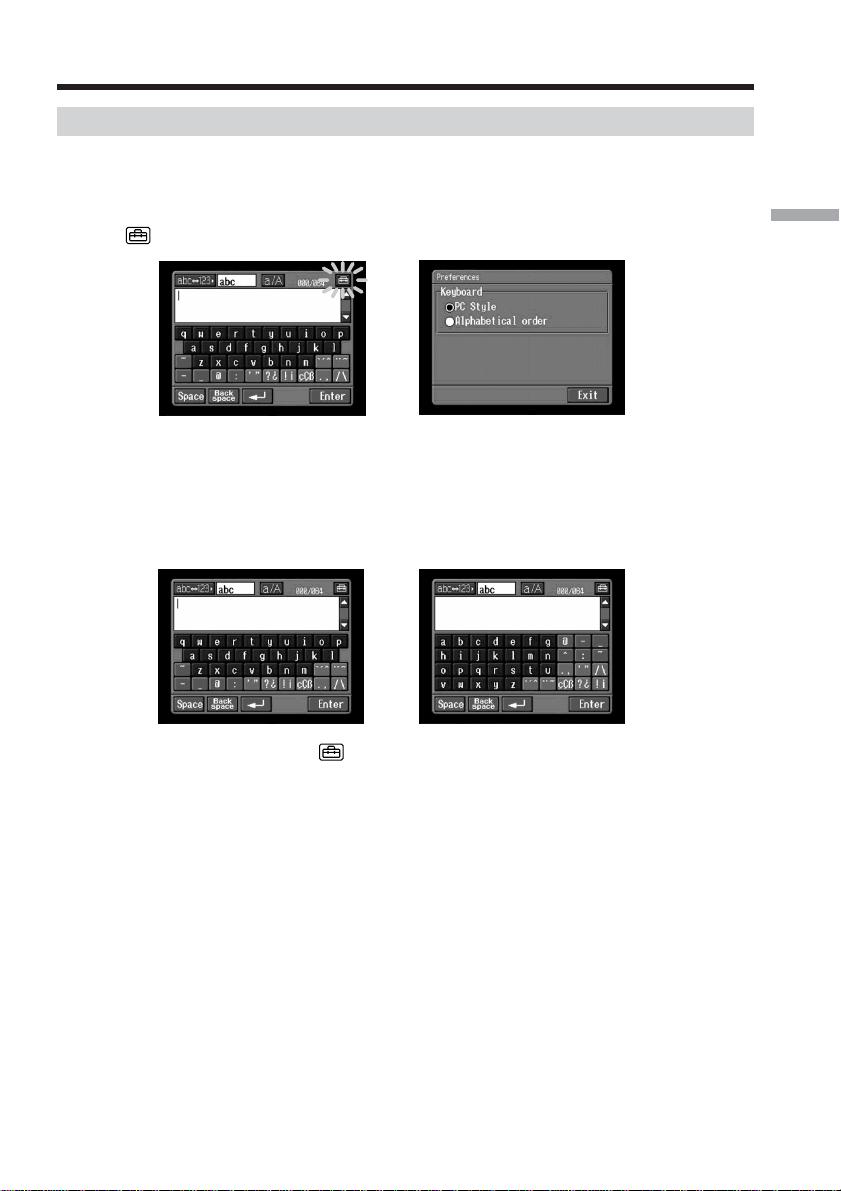
(5) Tap [e].
“e” is entered.
,
(6) Tap [l], [l] and [o].
“llo” is entered.
,
(7) Tap [Enter].
“Hello” is entered and the Send screen appears again.
,
Inputting characters
17
Basic operations of the network function
Inputting characters
Character input setting
Keyboard
When [abc] is selected on page 12, you can select between two types of keyboard
arrangement (PC Style or Alphabetical order). The default setting is PC Style.
1 Tap in the character input screen.
,
2 Tap the desired arrangement.
– PC Style (PC arrangement keyboard)
– Alphabetical order (ABC arrangement keyboard)
To switch the settings, tap on the upper right of the LCD screen.
Alphabetical orderPC Style
18
There are three network functions, namely Album on the Web, email, and browser. To
use the Album on the Web and “So-net” option, you need to finish customer
registration.
“So-net” is charged service. For details, refer to the supplied flyer “Getting Online with
your Sony Network Handycam® camcorder”.
To fully enjoy the network functions, you have to finish the following registrations and
setup tasks:
1 USB device Setup (p. 19) or Bluetooth device registration*
(p. 24)
2 DI customer registration (p. 32)
3 Album registration (p. 35)
4 So-net registration** (p. 37)
5 Network Setup (p. 38)
* You can carry out Bluetooth device registration with the DCR-TRV80 only.
** So-net registration is not necessary if you use other providers.
The above registration can also be done online with a computer. Access the following
URL: “http://www.myimagecam.com/”
– Preparation for Network Operation –
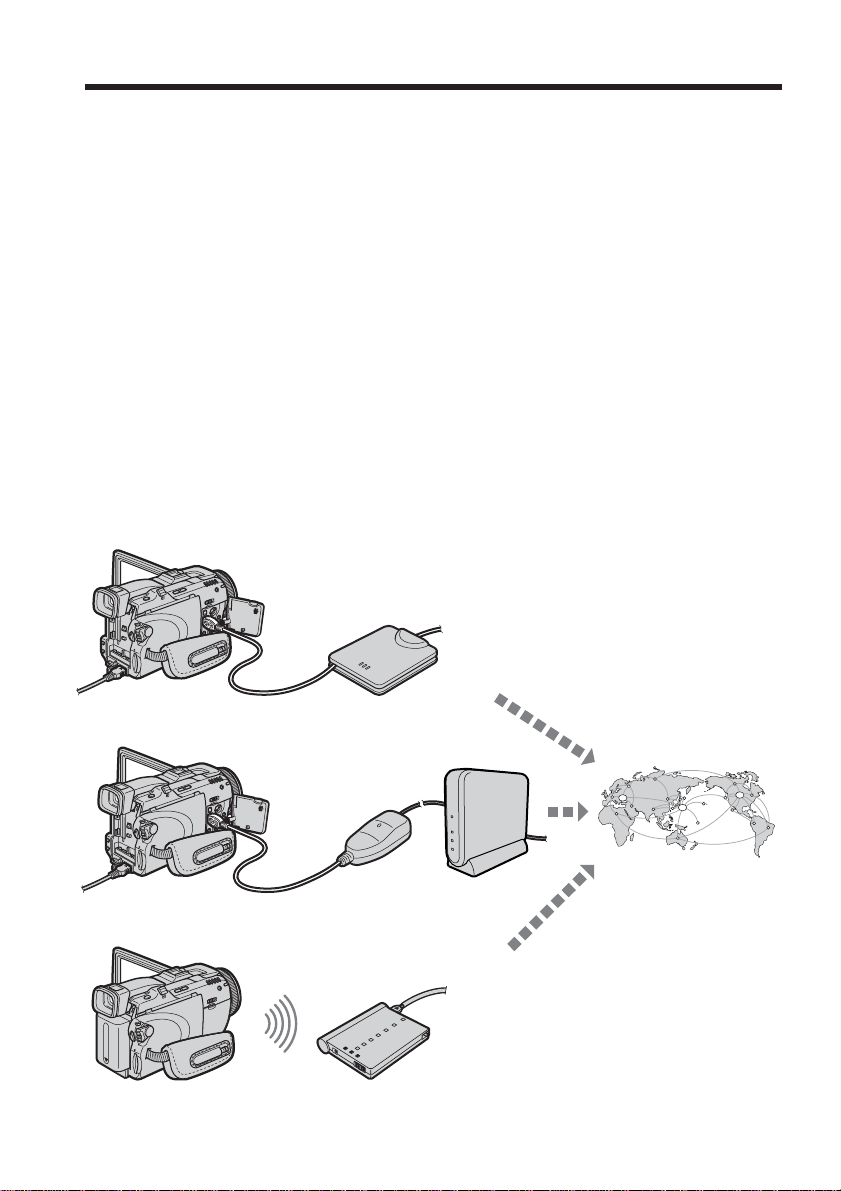
Using the network functions
Your camcorder
Your camcorder
Your camcorder
USB-PSTN Modem
Adaptor (optional)
To the Internet via
your provider
USB-Ethernet Modem
Adaptor (optional)
Modem Adaptor with Bluetooth
Function (optional)
Router
(optional)

19
Preparation for Network Operation
Here we describe how to connect to the Internet with the USB devices.
There are two optional USB devices that can connect to your camcorder below:
– USB-PSTN Modem Adaptor (supplied to DCR-TRV39) (p. 20)
– USB-Ethernet Adaptor (p. 22)
For details of using these USB devices connected to your camcorder, refer also to the
operating instructions of the USB devices.
What is USB?
USB stands for Universal Serial Bus. It is the specification for connecting various data
communication devices such as computers and their peripherals, PDAs and mobile
phones.
Before connection
Priority sequence of communication devices
– DCR-TRV80 only
When connected to a USB device but also within range of a Bluetooth device, your
camcorder automatically gives priority to communication with the USB device.
Notes
•Do not connect your camcorder with a USB device that is not a communication device.
Otherwise, “The Connected USB Device is not Compatible” appears on the screen and
your camcorder cannot communicate.
•Connect a USB device to your camcorder directly. Your camcorder cannot access the
Internet when connected through a USB hub.
•When using a Bluetooth device as a communication device, do not connect a USB
device to your camcorder (DCR-TRV80 only).
Setting up USB devices
20
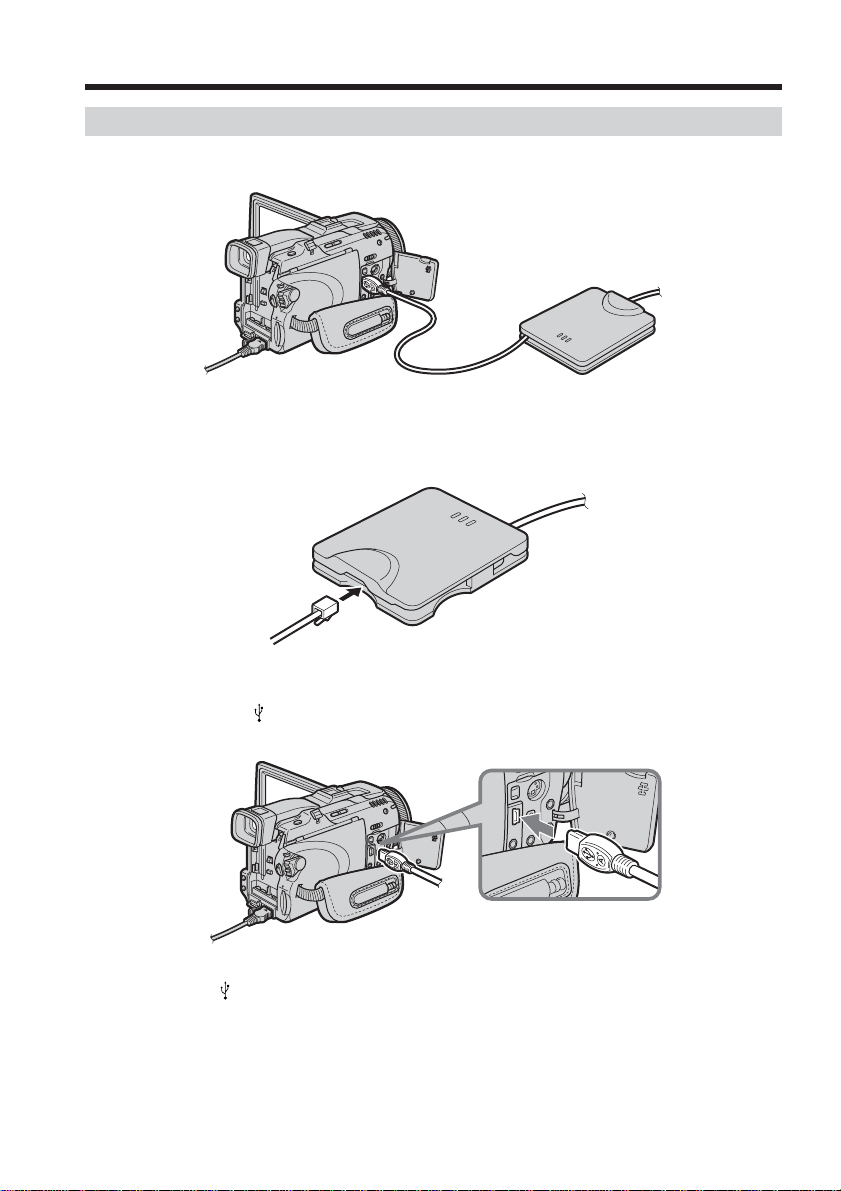
Connecting to a telephone line via the USB-PSTN Modem Adaptor
Connect your camcorder to a telephone line via a USB Modem Adaptor to access the
Internet.
The following procedure shows you how to connect to a telephone line via the Sony
USB-PSTN Modem Adaptor.
(1) Connect the USB-PSTN Modem Adaptor to the telephone line.
(2) Open the jack cover of your camcorder.
(3) Connect
(USB) jack of your camcorder and the USB connector of the USB-
PSTN Modem Adaptor.
Tip
The
(USB) jack location is different depending on the model.
For details, refer to the operating instructions supplied with your camcorder.
Setting up USB devices
21
Preparation for Network Operation
(4) Open the Network Menu.
For details of how to open the Network Menu, see page 7.
Note
Connect the USB-PSTN Modem Adaptor with your camcorder directly. Your camcorder
cannot access the Internet when connected through a USB hub.
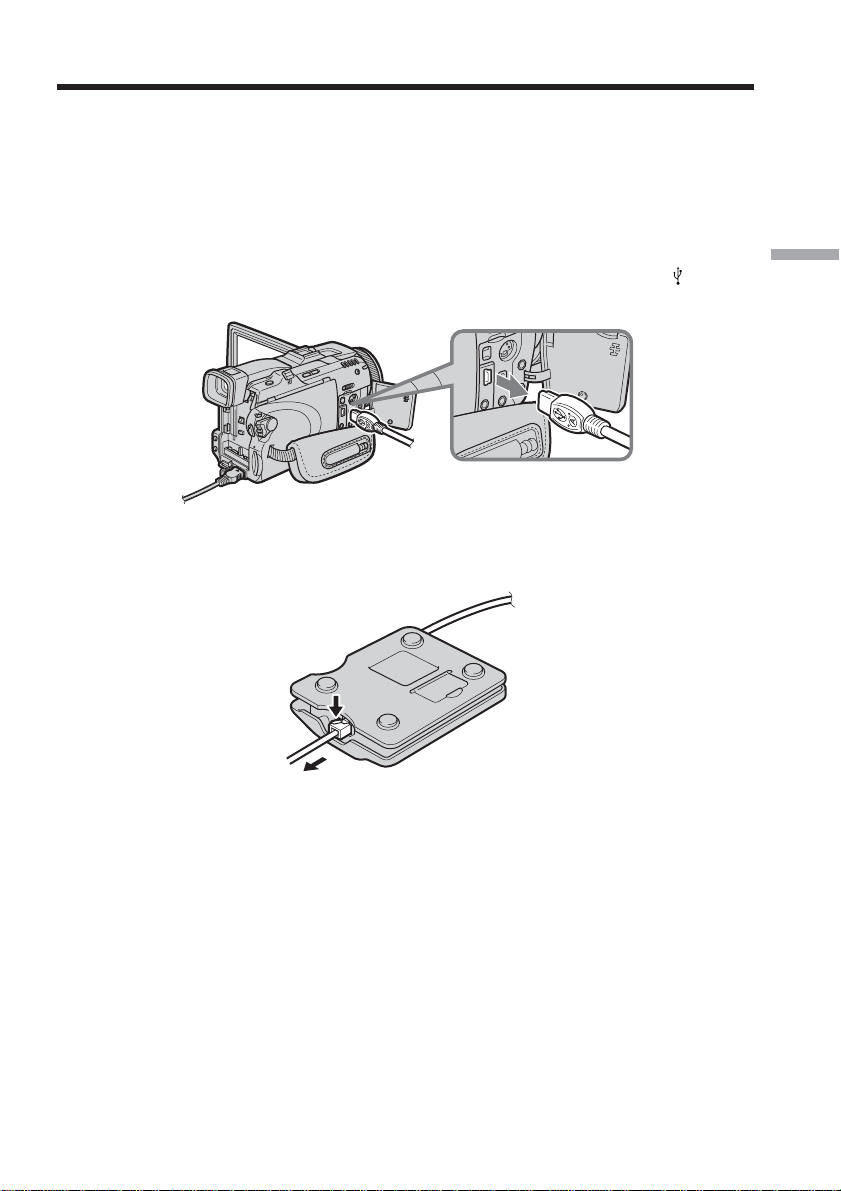
To disconnect your camcorder from the telephone line
(1) Remove the USB connector of the USB-PSTN Modem Adaptor from (USB)
jack of your camcorder.
(2) Close the jack cover of your camcorder.
(3) Remove the telephone line from the USB-PSTN Modem Adaptor.
Setting up USB devices
22
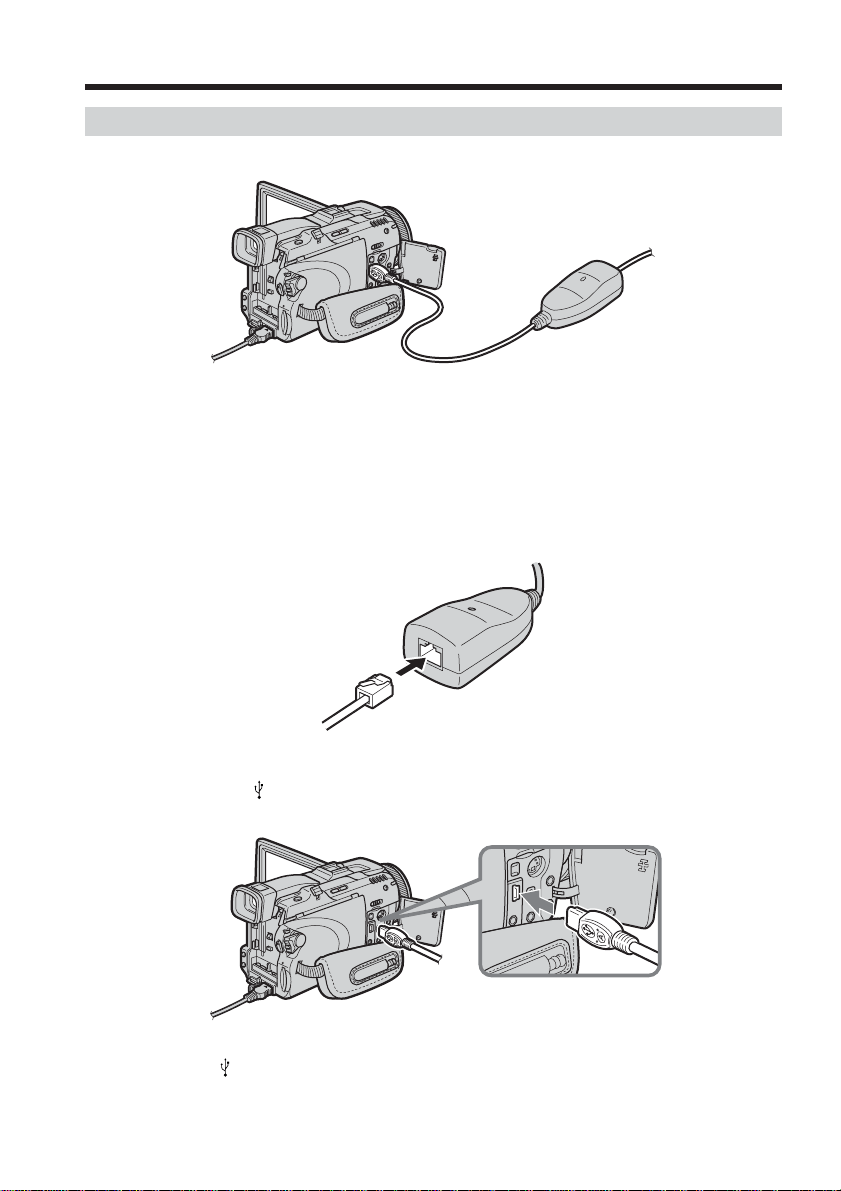
Connecting to LAN with the USB-Ethernet Adaptor
Connect your camcorder to the Internet via a LAN (Ethernet) adaptor.
The following procedure shows you how to connect to LAN via the Sony USB-Ethernet
Adaptor.
Notes
•You may not be able to use the email function, depending on your provider.
•If you use your camcorder in a company, for example, ask the network manager about
the proxy settings for the mail server and browser.
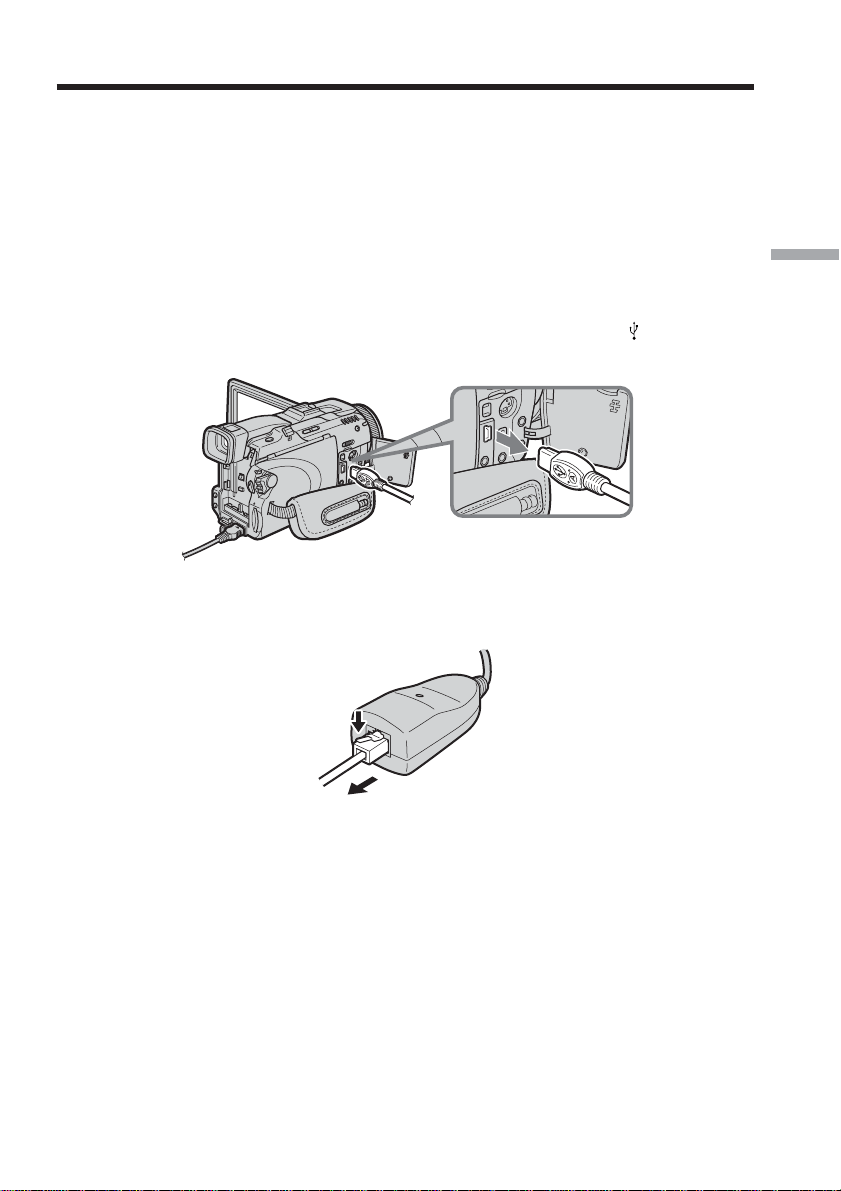
(1) Connect the USB-Ethernet Adaptor to a LAN cable.
(2) Open the jack cover of your camcorder.
(3) Connect
(USB) jack of your camcorder and the USB connector of the USB-
Ethernet Adaptor.
Tip
The
(USB) jack location is different depending on the model.
For details, refer to the operating instructions supplied with your camcorder.
Setting up USB devices
23
Preparation for Network Operation
(4) Open the Network Menu.
For details of how to open the Network Menu, see page 7.
Notes
•Directly connect the USB-Ethernet Adaptor with your camcorder. Your camcorder
cannot access the Internet when connected through a USB hub.
•Do not connect an unspecified network or telephone line to the USB-Ethernet
Adaptor. Doing so may cause a malfunction, overheating or fire. For details, refer to
the operating instructions supplied with the USB-Ethernet Adaptor.
To disconnect your camcorder from LAN
(1) Remove the USB connector of the USB Ethernet Adaptor from (USB) jack of
your camcorder.
(2) Close the jack cover of your camcorder.
(3) Remove the LAN cable from the USB Ethernet Adaptor.
Setting up USB devices

24
Registering Bluetooth devices
– DCR-TRV80 only
Before communication
What is Bluetooth wireless technology?
Bluetooth wireless technology allows communication between various Bluetooth
devices without using cables. Devices which can use this technology include PCs,
computer peripheral devices, PDAs, and mobile phones. This omnidirectional
communication system enables connection even if a Bluetooth device is in a bag, for
example, or there is an obstacle between devices.
Also, the Bluetooth wireless technology has advanced security functions, such as
scrambled frequencies and data encryption.
Authentication
The authentication routine can block unspecified users’ access to this network. When
attempting communication with an unregistered Bluetooth device, the devices must
first be registered with each other by entering a common passkey to each device. When
connecting with a previously registered Bluetooth device, communication starts
without you entering the passkey.
Tip on “Passkey”
The passkey is a 1 to 16 character identification number needed to allow two Bluetooth
devices to communicate with each other. The connection will be permitted after
entering the passkey. This “Passkey” is sometimes referred to as the “Bluetooth
passkey”, “PIN”, “Bluetooth PIN”, etc.
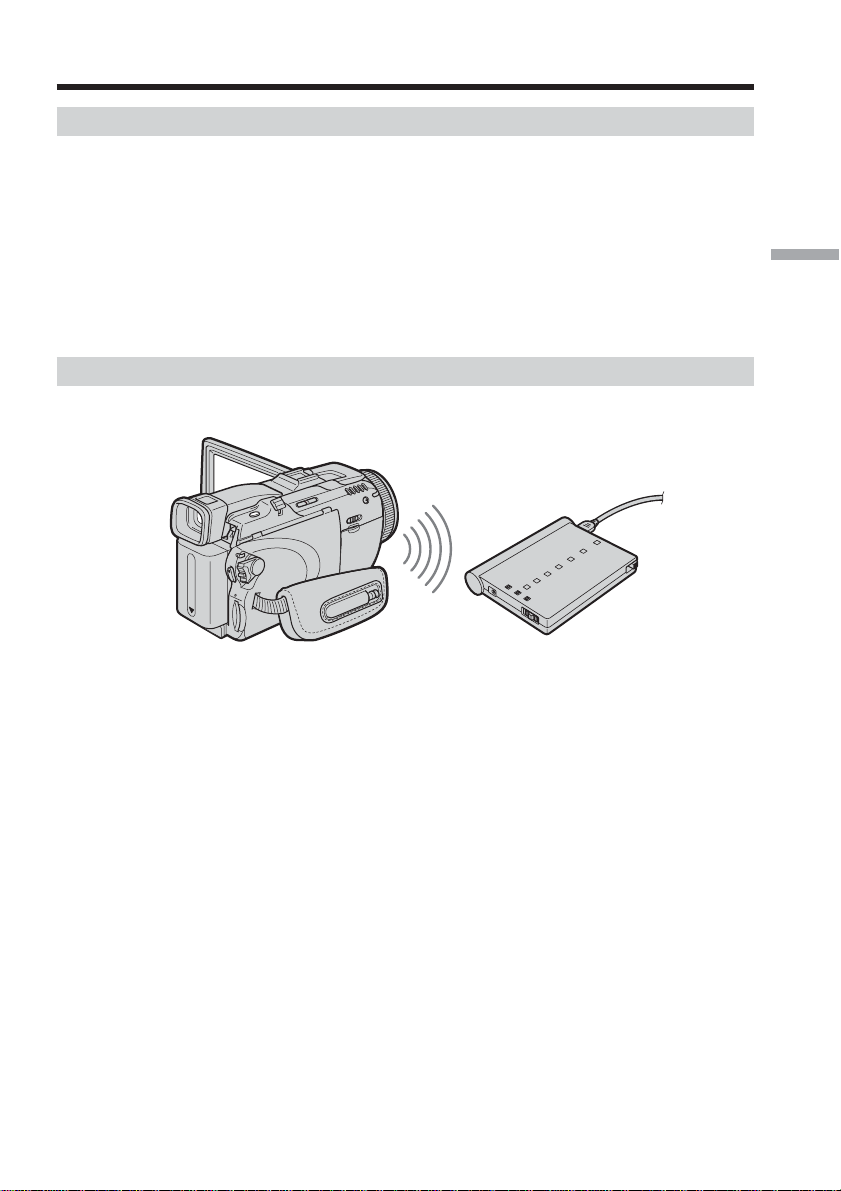
Radio wave indication
indicates the radio wave status of the connected Bluetooth device. (Use this
indication as a guide.)
25
Preparation for Network Operation
Registering a Bluetooth device
To enable your camcorder to communicate with a Bluetooth device, the devices should
be registered with each other. Here we describe how to register the Sony Modem
Adaptor with Bluetooth Function. Once registration is complete, you do not have to
reregister the Bluetooth device as long as you do not cancel registration. You can
register up to three Bluetooth devices to your camcorder. Refer also to the operating
instructions supplied with each Bluetooth device.
For details of Bluetooth devices compatible with your camcorder, access the following
URL: “http://www.myimagecam.com/”
Using the Modem Adaptor with Bluetooth Function
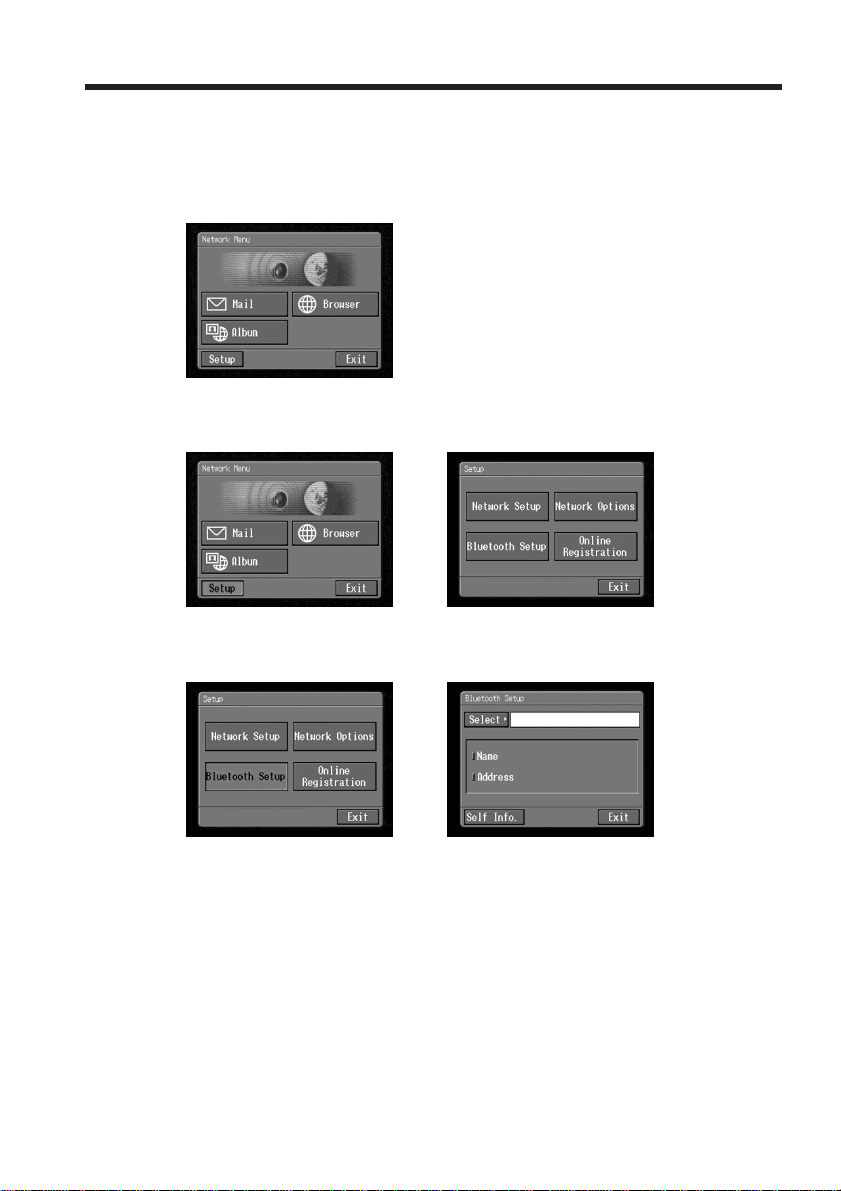
Connect your camcorder to a Bluetooth device by Bluetooth wireless technology.
Notes
•When using Sony BTA-NW1/BTA-NW1A Modem Adaptor with Bluetooth Function,
place it so that there are no obstacles between your camcorder and the device. The
distance between the devices must be within 10 m (33 feet).
•The connection may be interrupted depending on the communication conditions.
•When your camcorder is connected to a USB device, your camcorder cannot
communicate via a Bluetooth device.
•Do not remove the battery pack while your camcorder is communicating with
Bluetooth devices. Doing so may cause malfunction of your camcorder.
1 Preparing a Modem Adaptor with Bluetooth Function
Set a Modem Adaptor with Bluetooth Function to connection standby (BONDING). For
details, refer to the operating instructions supplied with the Modem Adaptor.
Registering Bluetooth devices
Modem Adaptor with Bluetooth
Function (not supplied)
your camcorder
26
2 Specifying your Modem Adaptor with Bluetooth Function as the
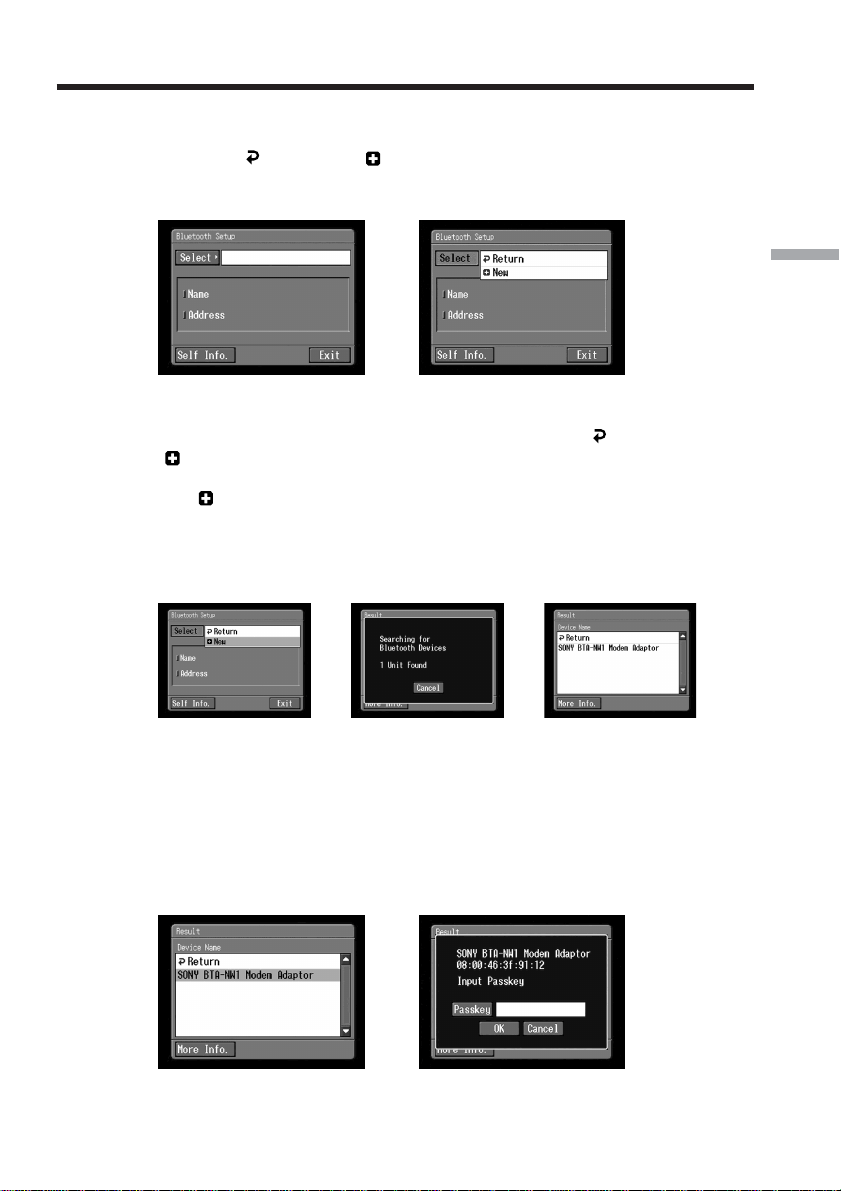
connection device
(1) Open the Network Menu.
For details of how to open the Network Menu, see page 7.
(2) Tap [Setup].
The Setup screen appears.
,
(3) Tap [Bluetooth Setup].
The Bluetooth Setup screen appears.
,
Registering Bluetooth devices
27
Preparation for Network Operation
(4) Tap [Select].
The registered Bluetooth device list appears. When registering for the first
time, only [
Return] and [ New] appear. The list shows up to three most
recently used Bluetooth devices. You can select one of the three Bluetooth
devices from the list.
,
Tip
The most recently used Bluetooth device is listed next to [
Return] and
[
New].
(5) Tap [
New].
Your camcorder starts searching for Bluetooth devices. When the search is
complete, the available Bluetooth devices are listed.
If more than one Bluetooth devices with the same name appear, display each
Bluetooth device address by tapping [More Info.].
,,
Notes
•The search takes about 10 to 60 seconds. The time depends on the number of
Bluetooth devices around your camcorder.
•If the Bluetooth device you want to register is not found, follow the procedure
again from step 4.
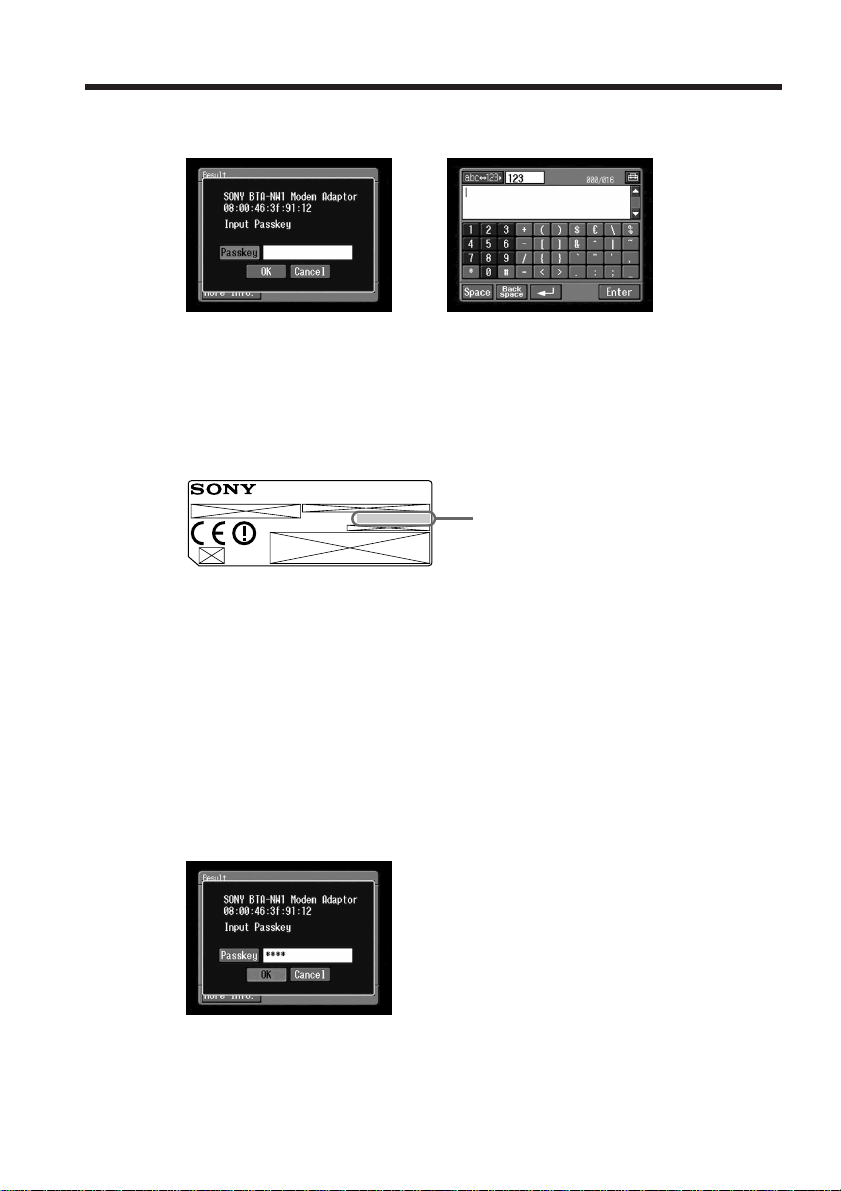
(6) Tap the desired Bluetooth device.
The passkey input screen appears.
,
Registering Bluetooth devices
28
(7) Tap [Passkey].
The character input screen appears.
,
(8) Enter the passkey.
For details of how to input characters, see “How to input characters” (p. 9).
For example, when using the BTA-NW1/BTA-NW1A Modem Adaptor, the
passkey is the same as its serial number indicated on the label on the rear
panel.
Tip on “Passkey”
The passkey is an identification number needed to allow two Bluetooth
devices to communicate with each other. The connection is permitted after you
enter the passkey. This “Passkey” is sometimes referred to as the “Bluetooth
passkey”, “PIN”, “Bluetooth PIN”, etc. For details, refer also to the operating
instructions supplied with the modem adaptor.
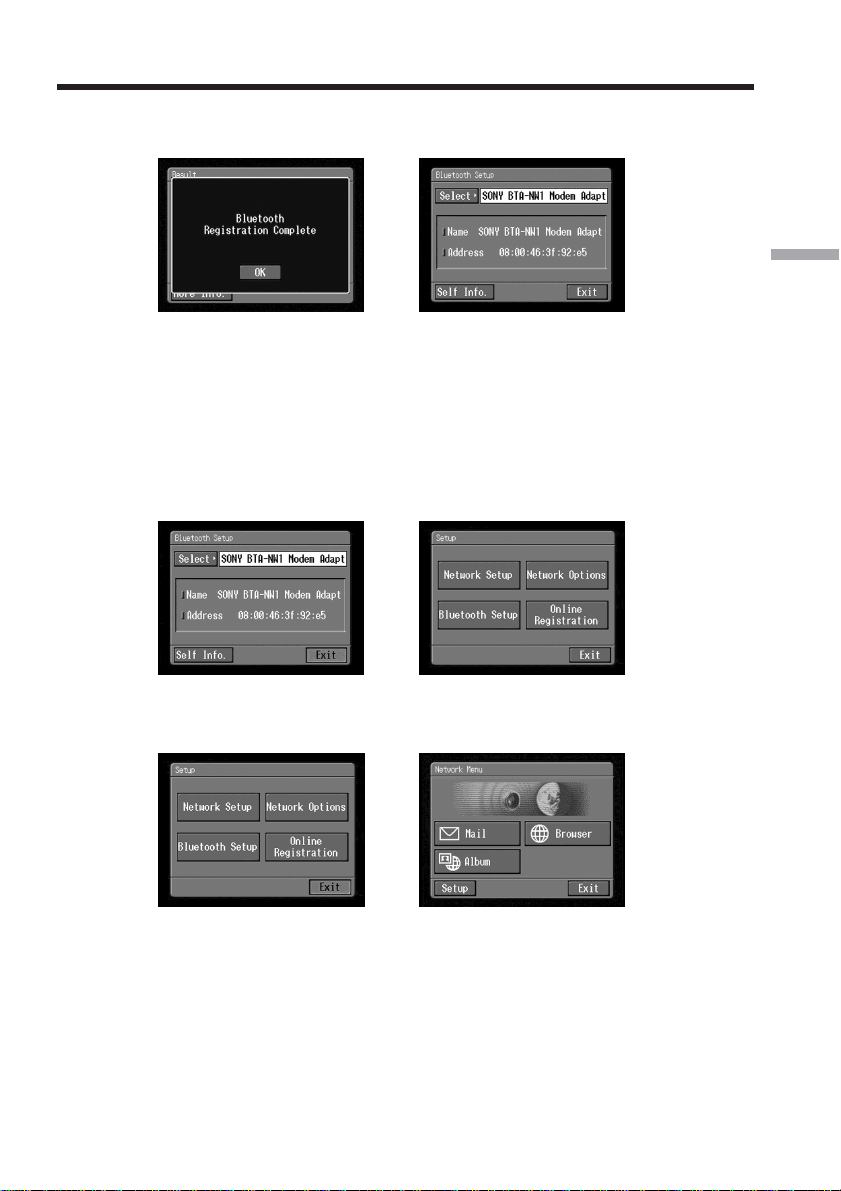
(9) Tap [Enter].
When registration is complete, the Bluetooth Setup screen appears again and
the message “Bluetooth Registration Complete” appears.
(10)Tap [OK].
MODEM ADAPTOR WITH BLUETOOTH
TM
FUNCTION
MODEL NO.
BTA-NW1
®
Passkey
The number used when registering a
Bluetooth device
Registering Bluetooth devices
29
Preparation for Network Operation
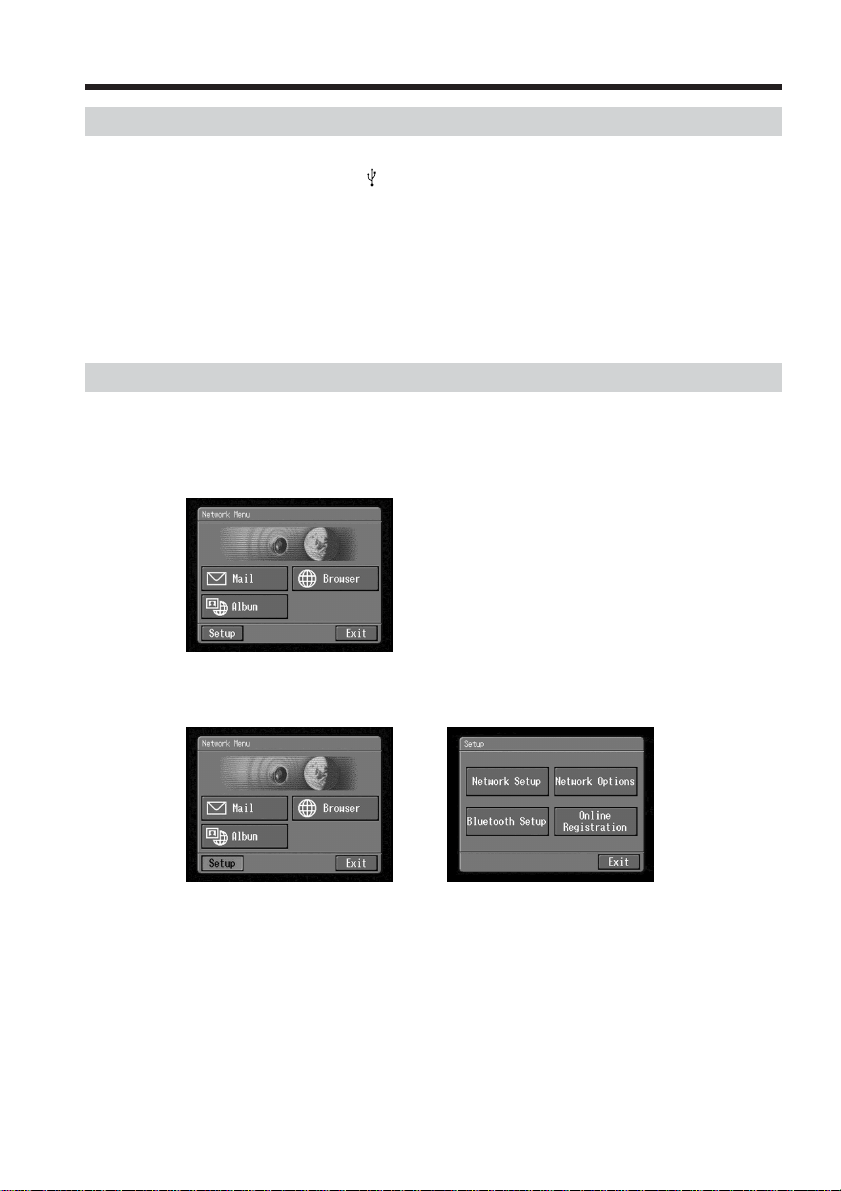
(11)Tap [OK].
The selected Bluetooth device is specified.
,
Note
If the message “Bluetooth Registration Error Check the Passkey” appears, tap
[OK], then follow the procedure again from step 4.
(12)Tap [Exit].
The Setup screen appears again. For details of how to turn off the Modem
Adaptor with Bluetooth Function, refer to the operating instructions supplied
with the Modem Adaptor.
,
(13)Tap [Exit].
The Network Menu appears again.
,
Registration is complete and your camcorder can communicate with the selected
Bluetooth device.
Registering Bluetooth devices
30
Changing the communication devices
Changing from a USB device to a Bluetooth device
Unplug the USB device from (USB) jack of your camcorder. When a Bluetooth device
is registered, your camcorder automatically selects the Bluetooth device as a
communication device.
Selecting other Bluetooth devices from the list
Tap the Bluetooth device you want to specify in step 4 of 2 on page 27. The device
information is indicated.
Tap [OK].
Deleting a registered Bluetooth device from the list
To delete a Bluetooth device from the list, follow the procedure below.
(1) Open the Network Menu.
For details of how to open the Network Menu, see page 7.
(2) Tap [Setup].
The Setup screen appears.
,
Registering Bluetooth devices
31
Preparation for Network Operation
(3) Tap [Bluetooth Setup].
The Bluetooth Setup screen appears.
,
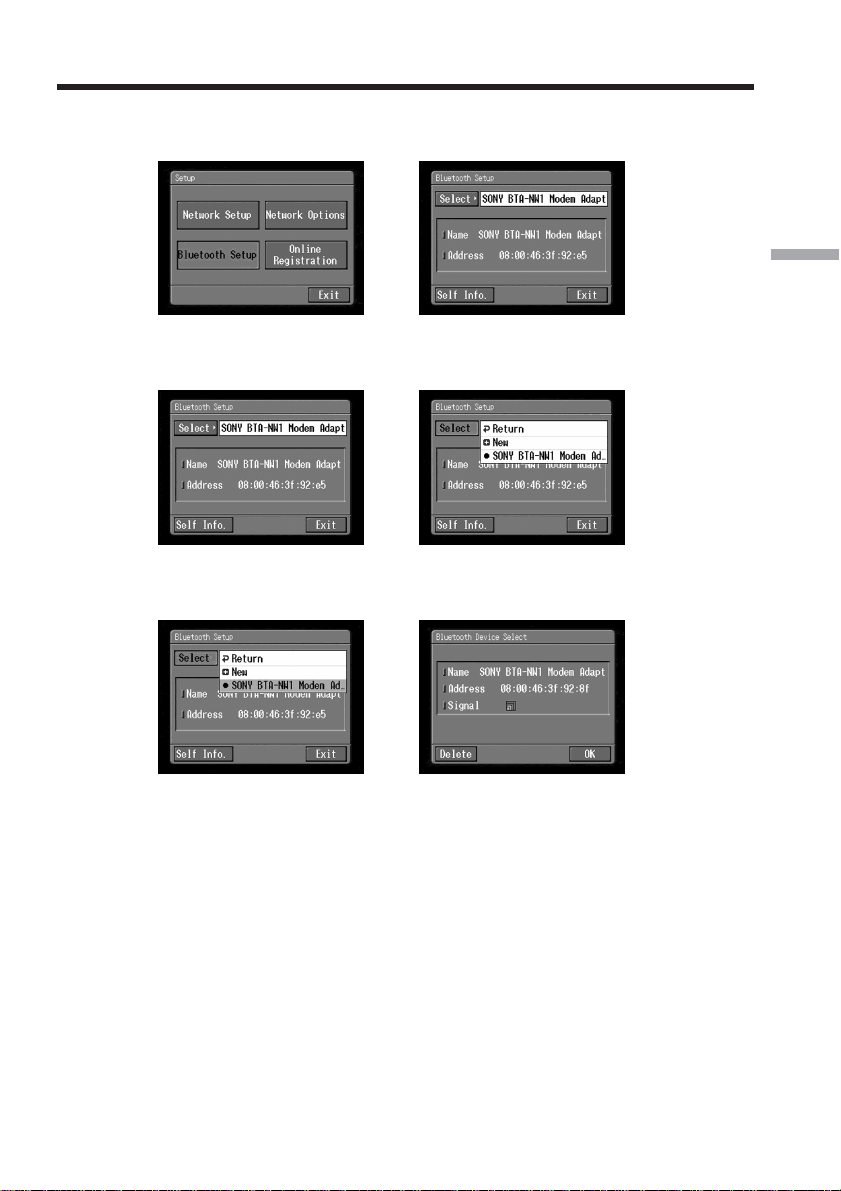
(4) Tap [Select].
The Bluetooth device list appears.
,
(5) Tap the device you want to delete.
The name and address of the selected device are indicated.
,
(6) Tap [Delete].
The selected device is deleted from the list.
Registering Bluetooth devices

32
Customer registration
DI customer registration
Your camcorder offers network functions in addition to its basic functions. To take full
advantage of these network functions, you should finish DI (Digital Imaging) customer
registration for the services provided. For details of services available, refer to the
supplied flyer “Getting Online now with your Sony Network Handycam
®
camcorder”.
Before carrying out DI customer registration, see “Online Privacy Policy” on page 151
and agree to the terms. For the latest information, refer to “http://www.sel.sony.com/
SEL/legal/privacy.html”.
You can carry out DI customer registration in one of the following ways:
1 Online registration with a computer (recommended)
2 Online registration with your camcorder
When you finish your DI customer registration, your DI customer ID and password are
issued immediately.
Tip
After DI customer registration, you can continue to register your Album on the Web
and “So-net”.
Online registration with a computer
You can carry out customer registration with a computer. The URL of the web site for
online registration is “http://www.myimagecam.com/”.
Tip
We recommend online registration with a computer if you have a computer and you do
not want to input many characters on your camcorder.
Online registration with your camcorder
You can carry out DI customer registration with your camcorder.
For online registration with your camcorder, you must use a private line. Since the
registration process is assigned a toll-free telephone number, the telephone charge for
online registration will not be added to your telephone bill if you use a dial-up
connection.
Notes
•Set up your camcorder and a communication device so that they are communicating
with each other beforehand. For details, refer to the operating instructions of the
communication device.
•It may take a while to finish online registration.
•Use the AC Adaptor when registering online with your camcorder.
•Be sure to set the clock of your camcorder beforehand. For details, refer to “Setting the
date and time” in the operating instructions supplied with your camcorder.
•If you use a LAN connection, you may need to perform certain settings before
carrying out online registration with your camcorder.
•You cannot carry out online registration with your camcorder in a LAN environment
that has a firewall, such as in a company.
The procedure for registering online with your camcorder is described from the next
page:
33
Preparation for Network Operation
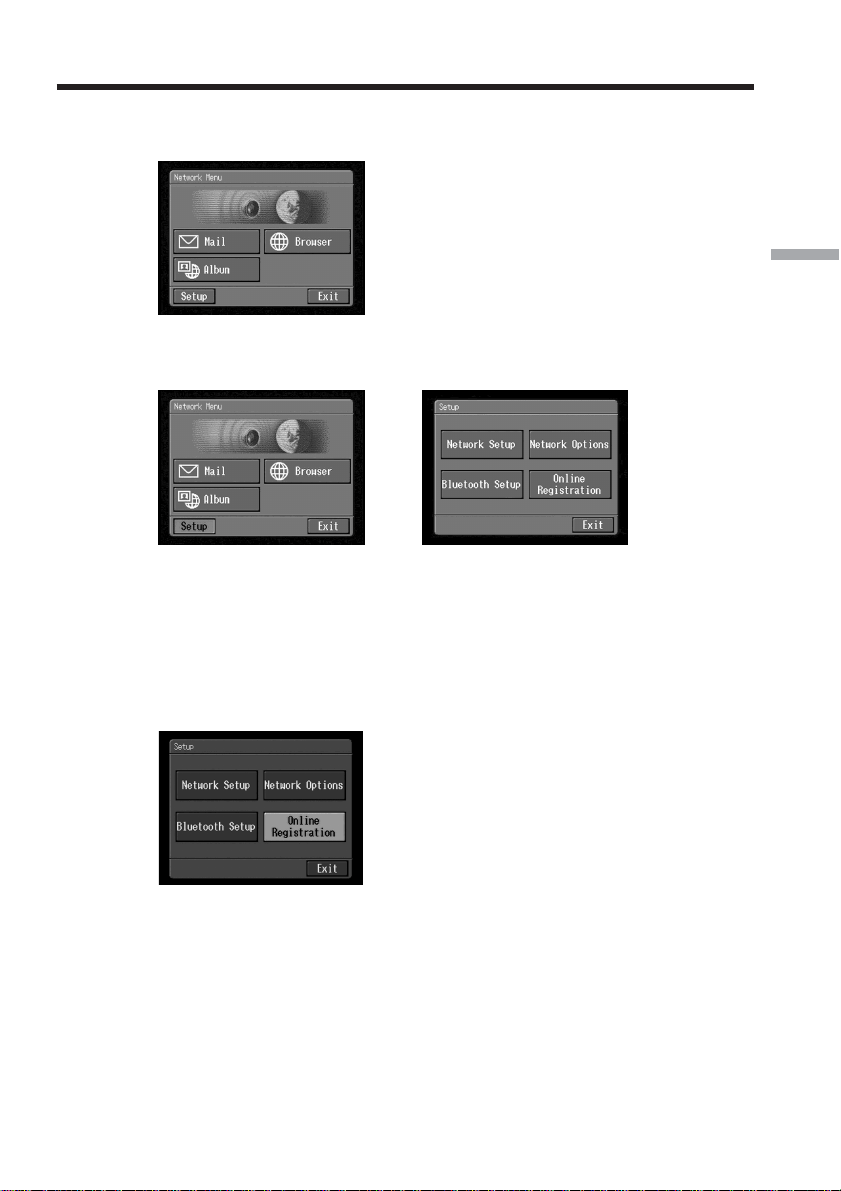
(1) Open the Network Menu.
For details of how to open the Network Menu, see page 7.
(2) Tap [Setup].
The Setup screen appears.
,
(3) Tap [Online Registration].
The screen for verifying the connection appears. Tap [Connect]. To connect to
an outside line, for example in a hotel, check the item “Prefix No.” and enter
the prefix number. Your camcorder starts connecting to the site. Once the
connection is complete, the online registration screen appears. Set a
communication device to connection standby with your camcorder. For details,
refer to the operating instructions supplied with the communication device.
(4) Register your information following the on-screen guidance.
When registering for the first time, tap [Registration link] from the menu.
Customer registration
34
Notes
•When registering, you will need the registration code located on the cover of your
operating instructions. After entering this code, follow the on-screen guidance.
•When registering online with your camcorder by a dial-up connection, the
connection may be disconnected after a certain length of time. However, data
entry can be done offline. When your camcorder needs to connect with the online
registration site, the screen for verifying the connection appears. Tap [Connect]
and the connection will be reestablished.
When the menu bar is not displayed, tap
menu
on the upper right of the LCD
screen. For details of the menu bar, see page 108.
About the DI customer ID and password
When DI customer registration is complete, a DI customer ID and password
will appear on the screen. The ID and password may often be required in the
future, so be sure to write them down in the “Setup memo” on page 149.
You can continue to register your Album on the Web and/or “So-net” after DI
customer registration
Before registering your Album on the Web, be sure to read “Online Privacy Policy”
(p. 151) and “ImageStation Membership Agreement” (p. 156).
Before registering with “So-net”, refer to the supplied flyer “Getting Online with your
Sony Network Handycam® camcorder”.
You can also register your Album on the Web and/or with “So-net” after online DI
customer registration is complete
For details, see the following pages:
• Album on the Web (p. 35)
• “So-net” (p. 37)
(5) Finish registration following the on-screen guidance.
(6) After completing registration, tap
menu
on the upper right of the LCD screen.
The menu bar appears.
(7) Tap
END
.
Customer registration

35
Preparation for Network Operation
Before you upload still images and/or moving pictures recorded with your camcorder
to your Album on the Web for the first time, you have to finish album registration.
Before registering, be sure to read “Online Privacy Policy” (p. 151) and “ImageStation
Membership Agreement” (p. 156). If you do not agree to the terms, you cannot finish
registration.
Album registration is done by either of the following ways:
– Complete album registration following DI customer registration (p. 34)
– Complete album registration separately after you obtained DI customer ID and
password (See below.)
Finish album registration separately
(1) Display the online registration screen following the procedure described in
“Online registration with your camcorder” (p. 32).
(2) Tap [Login link].
(3) Enter your DI customer ID and password to log in.
(4) Tap [Album sign-up link].
(5) Complete album registration following the on-screen guidance.
Tip on member name
Your member name is a nickname used on the ImageStation web site.
Once you register your member name, it appears on your album when it is viewed with
a computer, and it is also used on your invitation card (p. 68).
Tips
•If you do not have an email address, finish “So-net” registration before registering
your Album on the Web.
•To cancel your album registration, tap
menu
on the upper right of the LCD screen, and
tap
END
in the menu bar.
For details of how to display the menu bar, see page 108.
Registering your Album on the Web

36
Internet service provider
To access the Internet, you have to sign up with an Internet service provider (ISP). The
provider acts as an intermediary between your camcorder and the Internet. After you
sign up with a provider, you can view various web pages through the Internet, and you
can send/receive email with your email address. The email address is a destination
address in an email transmission. Various other services may be available depending on
your provider.
Notes
•A credit card number may be required to sign up with some providers.
•The connection fee differs depending on providers.
Using the recommended provider (So-net)
“So-net” is an Internet service provider. For details of “So-net” services, refer to the
supplied flyer “Getting Online with your Sony Network Handycam® camcorder”.
The “So-net” option makes it easy to set the Internet and email preferences. Once you
complete DI customer registration, your DI customer ID and password are issued. Enter
your DI customer ID, password, and the telephone number of an access point, and you
can access the Internet right away.
For details of setup, see “Setting your provider preferences for “So-net”” (p. 38).
Using America Online (AOL)
“AOL” is an Internet service provider. Before setting your provider preferences with
“AOL”, go to keyword: Handycam on your computer.
You cannot access the Internet via “AOL” when your camcorder is connected with a
USB-Ethernet Adaptor.
For details of setup, see “Setting your provider preferences for “AOL”” (p. 48).
Using other providers
When using another provider or when not using the “So-net” or “AOL” option, you
have to set the Internet and email preferences. For details of setup, see “Setting your
provider preferences for other providers” (p. 54).
Note
You cannot use the network function when using a provider other than AOL that
requires its own exclusive browser software.
Setting the Internet connection

37
Preparation for Network Operation
You can complete online “So-net” registration with your camcorder. You can also
signup with “So-net” in DI customer registration step. “So-net” registration is done by
either of the following ways:
– Register with “So-net” during DI customer registration (p. 34)
– Register with “So-net” separately after DI customer registration is complete (See
below.)
Note
You cannot use “So-net” option in a LAN environment that has a firewall, such as in a
company.
Register for “So-net” separately
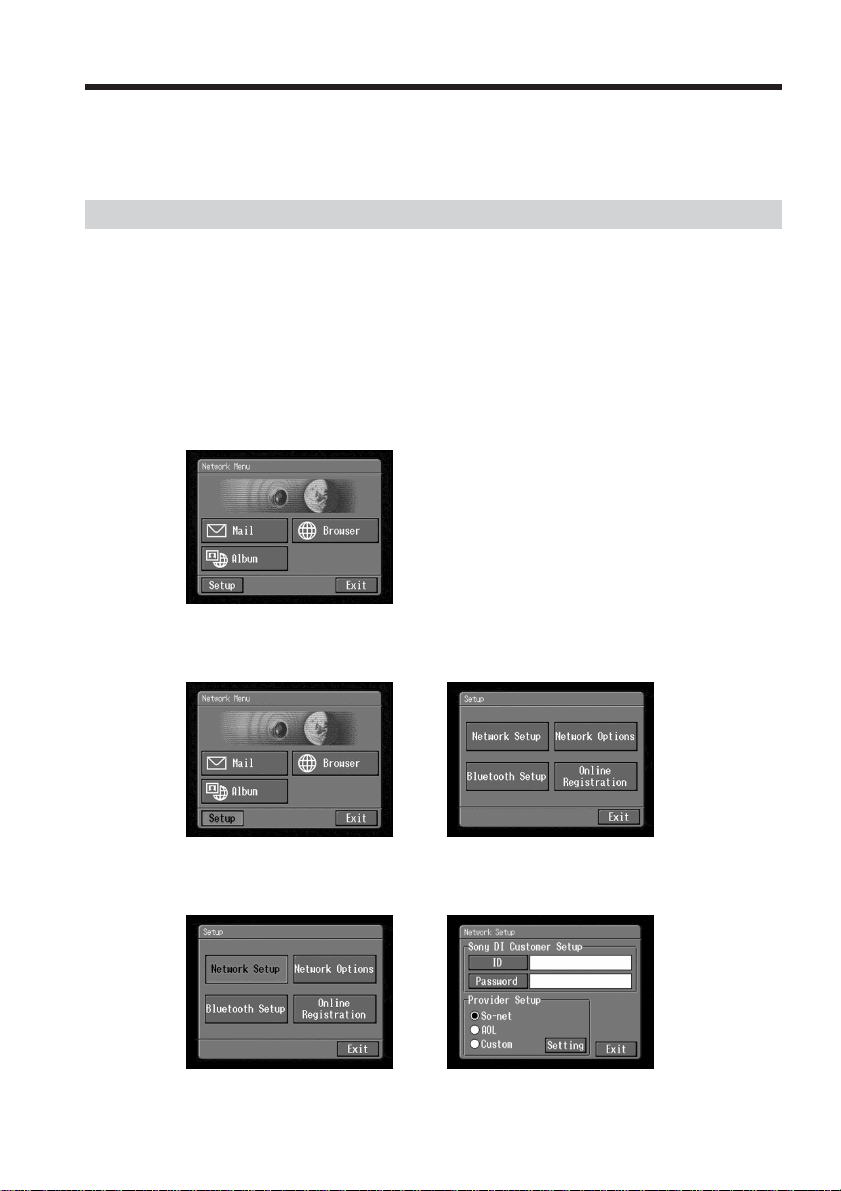
(1) Display the online registration screen following the procedure described in
“Online registration with your camcorder” (p. 32).
(2) Tap [Login link].
(3) Enter your DI customer ID and password to log in.
(4) Tap [So-net sign-up link].
(5) Input the required information for “So-net” registration following the on-
screen guidance.
You can search for information about access points on the registration web site. For
details, refer to the supplied flyer “Getting Online with your Sony Network
Handycam® camcorder”.
Tips
•Be sure to make a note of the telephone numbers of the access points shown on the
screen in the “Setup memo” if you use a dial-up connection (p. 149).
•To cancel registering with “So-net”, tap
menu
on the upper-right LCD screen, and tap
END
in the menu bar.
For details of how to display the menu bar, see page 108.
Registering with “So-net”
38
You have to access the Internet to make your Album on the Web, view web pages, or
send/receive email. This section describes how to set the network preferences to access
the Internet.
Setting your provider preferences for “So-net”
This setup is required to use “So-net” option and “Album on the Web”.
Note
You cannot use “So-net” option in a LAN environment that has a firewall, such as in a
company.
1 Entering your DI customer ID and password
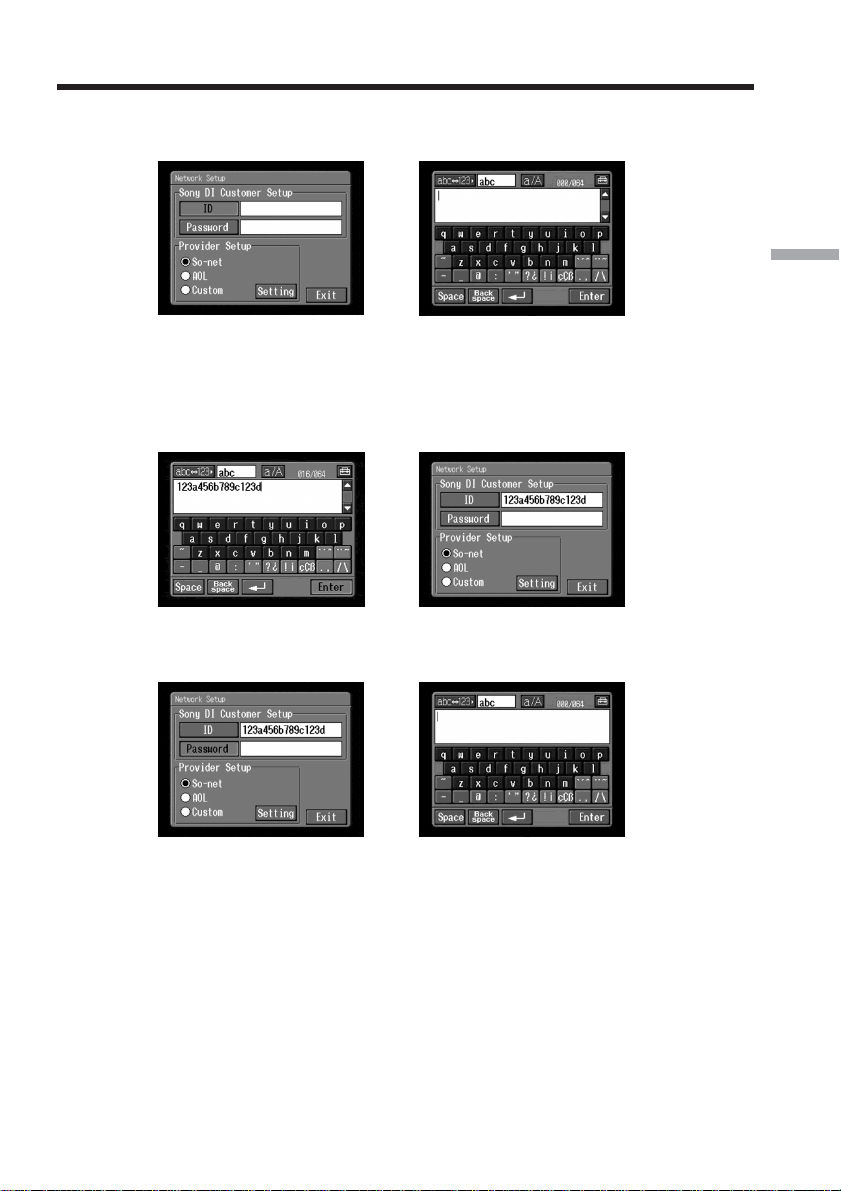
(1) Open the Network Menu.
For details of how to open the Network Menu, see page 7.
(2) Tap [Setup].
The Setup screen appears.
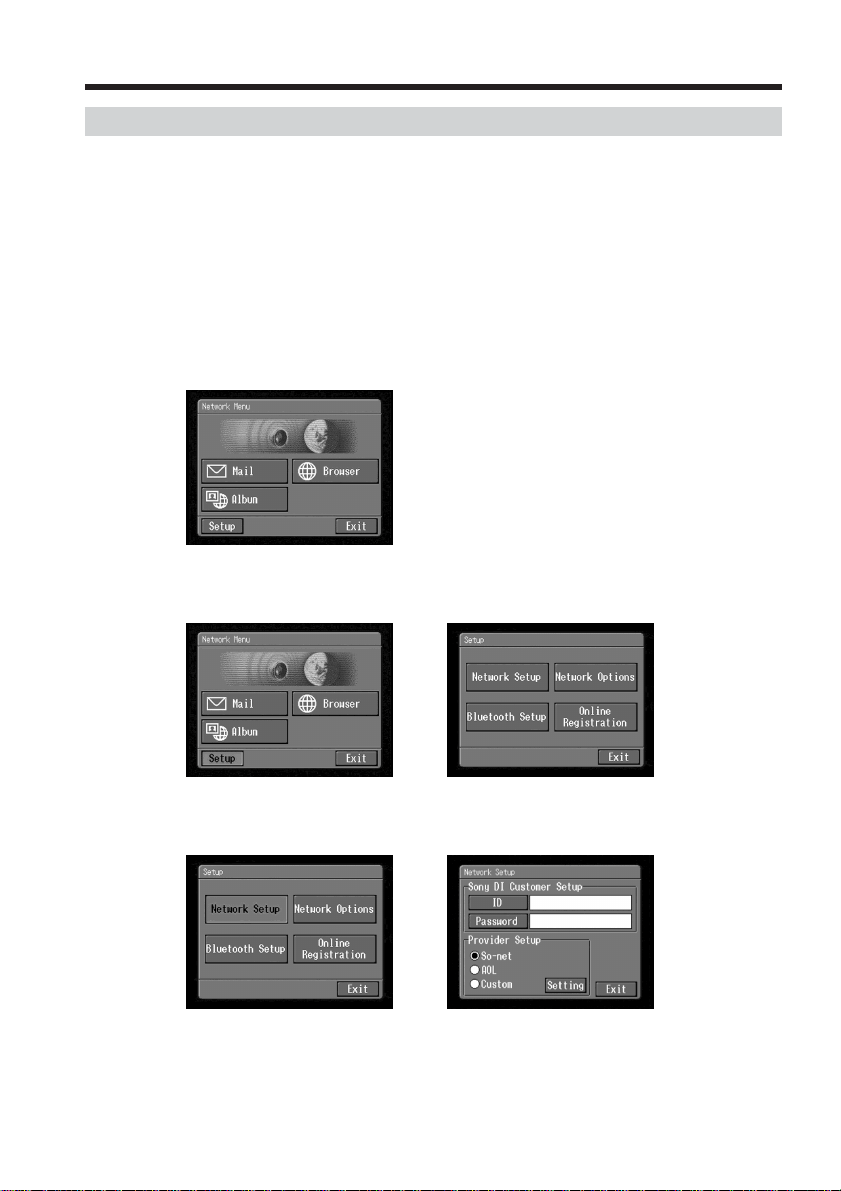
,
(3) Tap [Network Setup].
The Network Setup screen appears.
,
Setting the network preferences
39
Preparation for Network Operation
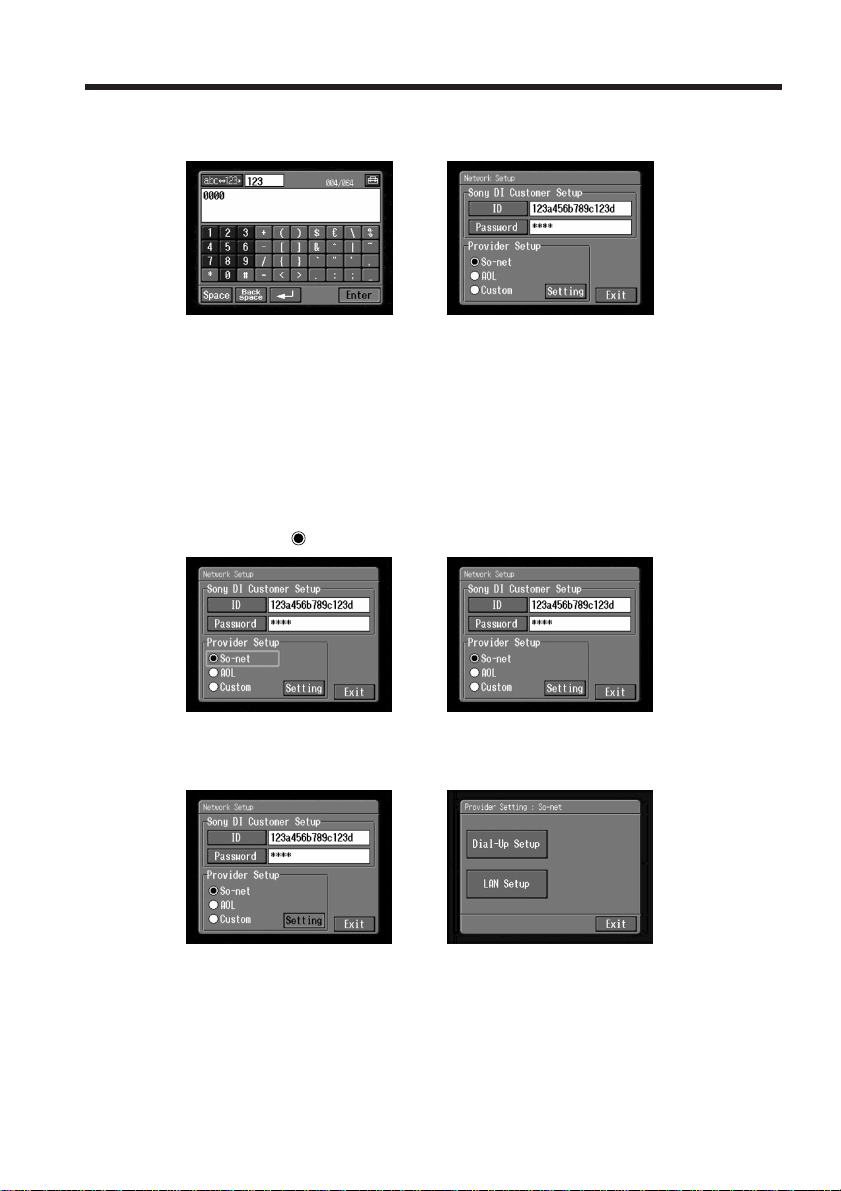
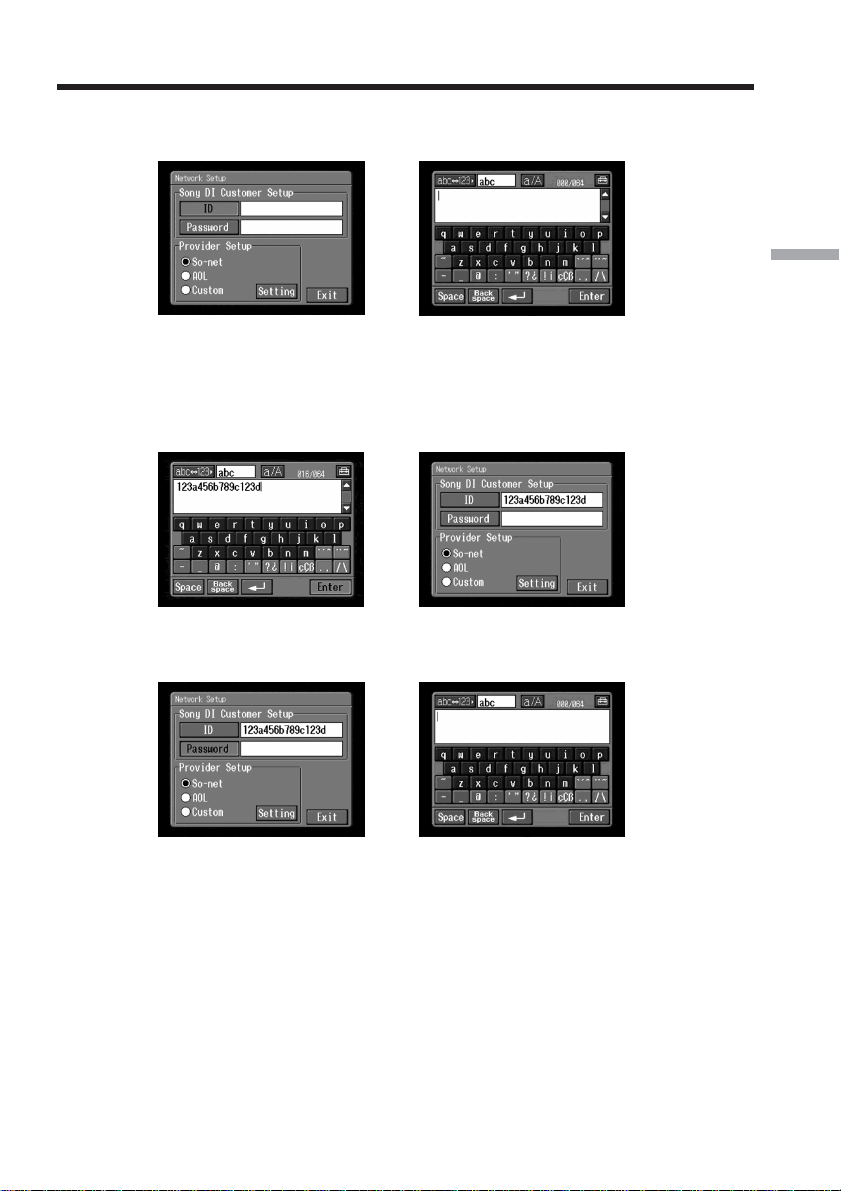
(4) Tap [ID].
The character input screen appears.
,
(5) Enter your DI customer ID.
For details of how to input characters, see “How to input characters” (p. 9).
(6) Tap [Enter].
The Network Setup screen appears again.
,
(7) Tap [Password].
The character input screen appears.
,
(8) Enter your password.
For details of how to input characters, see “How to input characters” (p. 9).
Note
If you check the item “Verify Password” in the Network Options screen (p. 65),
you cannot enter your password. When you try to enter it, the message
“Password Already Set Check the Password Profile” appears. To enable
password entry, tap “Verify Password” again to uncheck the item.
Setting the network preferences
40
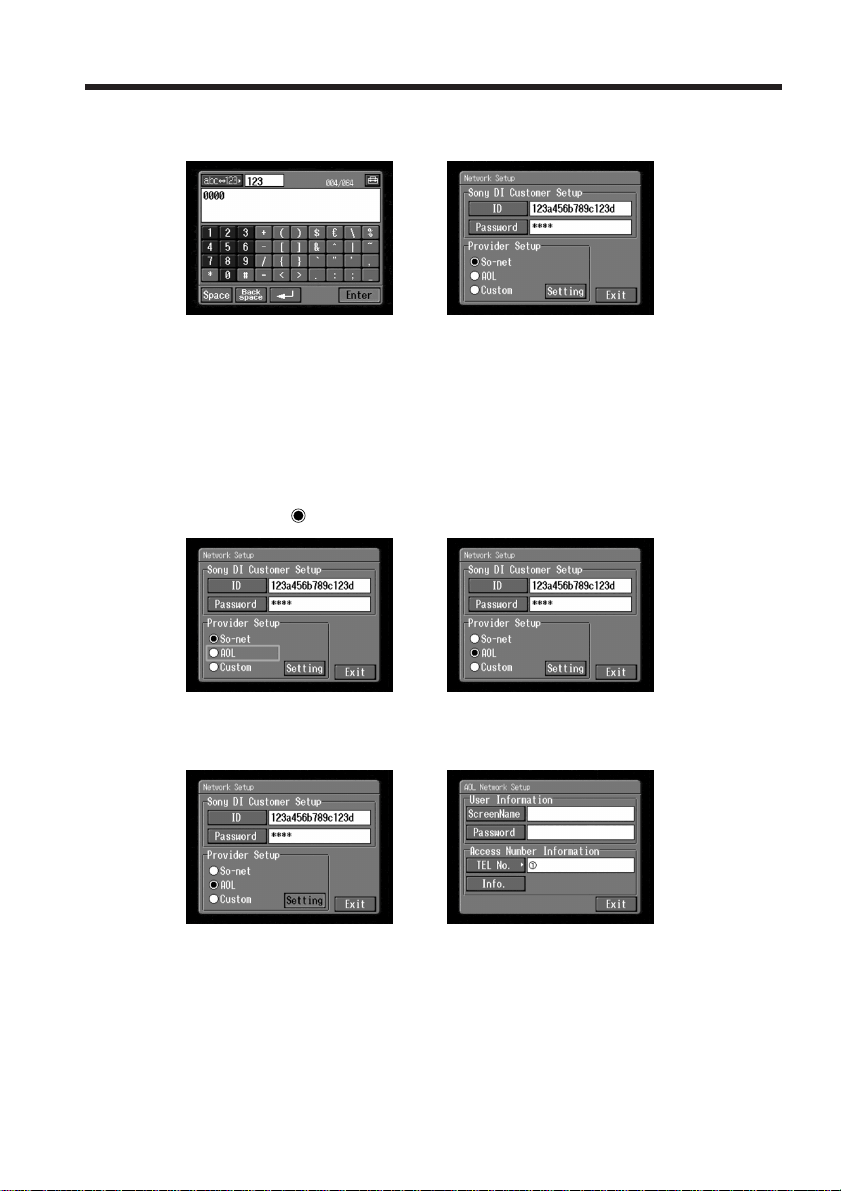
(9) Tap [Enter].
The Network Setup screen appears again.
,
Tip
While inputting password characters, they are indicated as they are. However,
after they have been entered, each character is indicated as “∗” (asterisk). If
you want to enter your password again, delete all asterisks first.
2 “So-net” settings
(1) Confirm that [So-net] is checked.
If [So-net] is not checked, tap [So-net] to check it.
a changes to
.
,
(2) Tap [Setting].
The Provider Setting : So-net screen appears.
,
If you use a dial-up connection, go to 3 on page 41.
If you use a LAN connection, go to 4 on page 42.
Setting the network preferences
41
Preparation for Network Operation
3 Setting your dial-up connection
If you use a dial-up connection, enter the telephone number of your access point. For
details of the telephone numbers of access points (p. 146), refer to the supplied flyer
“Getting Online with your Sony Network Handycam® camcorder”.
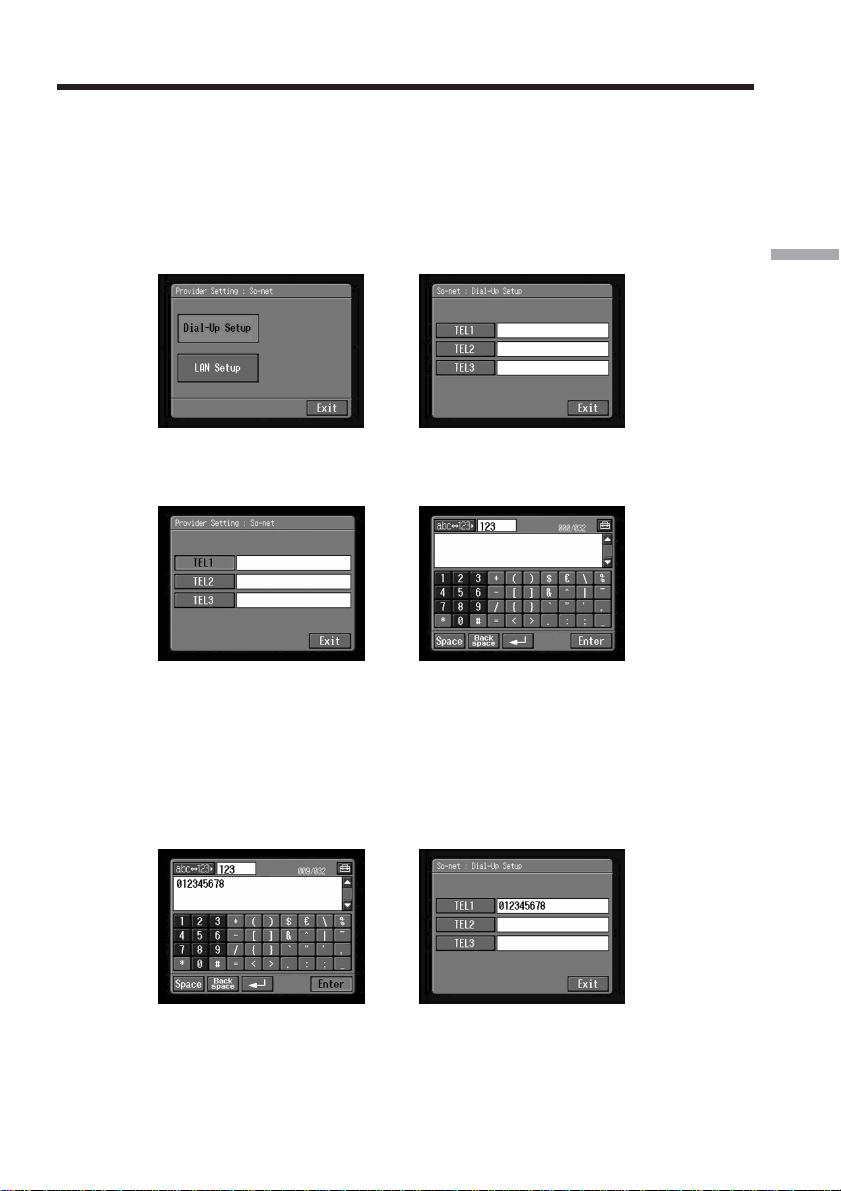
(1) Tap [Dial-Up Setup].
The So-net : Dial-Up Setup screen appears.
,
(2) Tap [TEL1].
The character input screen appears.
,
(3) Enter the telephone number of the access point.
For details of how to input characters, see “How to input characters”(p. 9).
Note
Do not insert hyphens or spaces in the telephone number. (e.g. 012345678)
(4) Tap [Enter].
The So-net : Dial-Up Setup screen appears again.
,
Tip
You can also register the telephone numbers of other access points, if
necessary, by entering them into [TEL2] and [TEL3].
Setting the network preferences
42
(5) Tap [Exit].
Telephone number registration is complete, and the Provider Setting : So-net
screen appears again.
(6) Tap [Exit].
Setup is complete, and the Network Setup screen appears again.
For a more detailed setup, go to “Setting other preferences” (p. 65).
4 Setting up your LAN connection
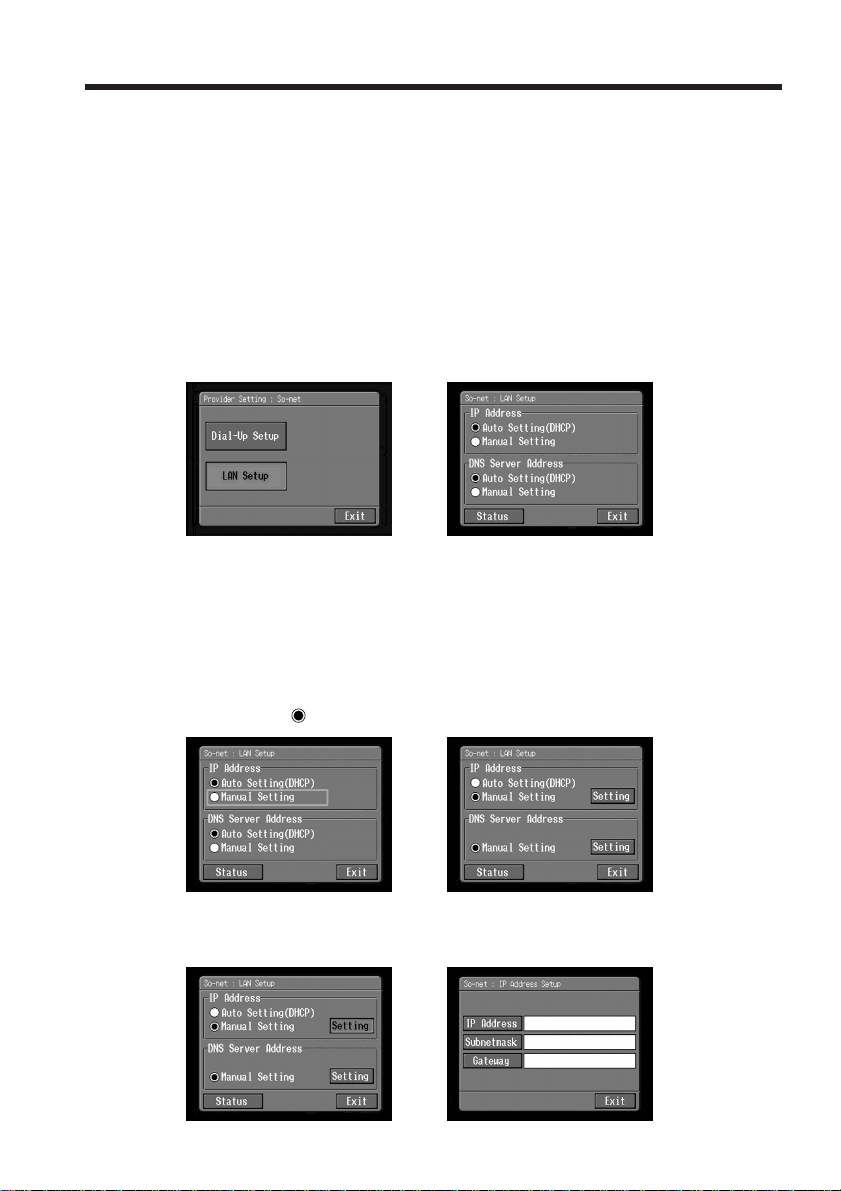
(1) Tap [LAN Setup].
The So-net : LAN Setup screen appears.
,
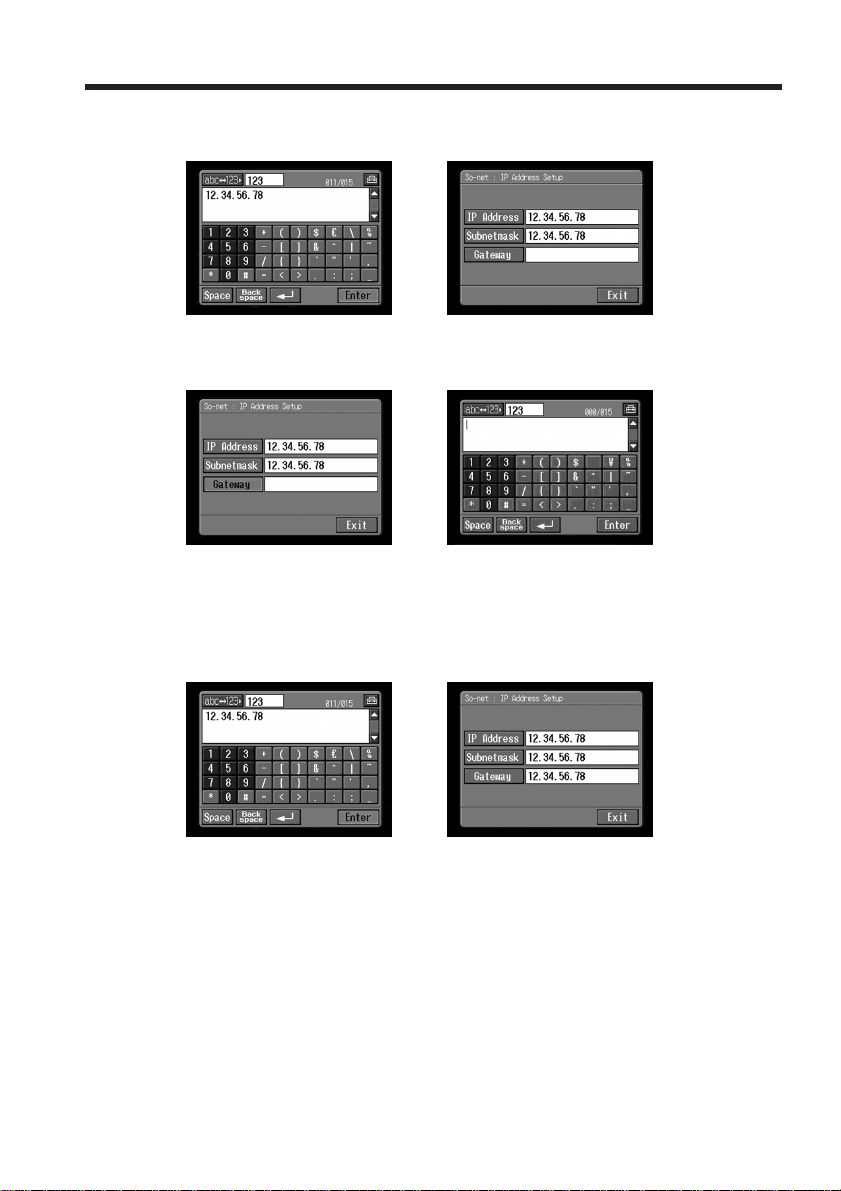
(2) Register your IP address.
To obtain your IP address automatically, confirm that [Auto Setting (DHCP)] is
selected and go to 5 (p. 45). You can confirm your detailed LAN settings by
tapping [Status]. To register your IP address manually, follow the procedure
below.
(3) Tap [Manual Setting].
a changes to
.
,
(4) Tap [Setting].
The So-net : IP Address Setup screen appears.
,
Setting the network preferences
43
Preparation for Network Operation
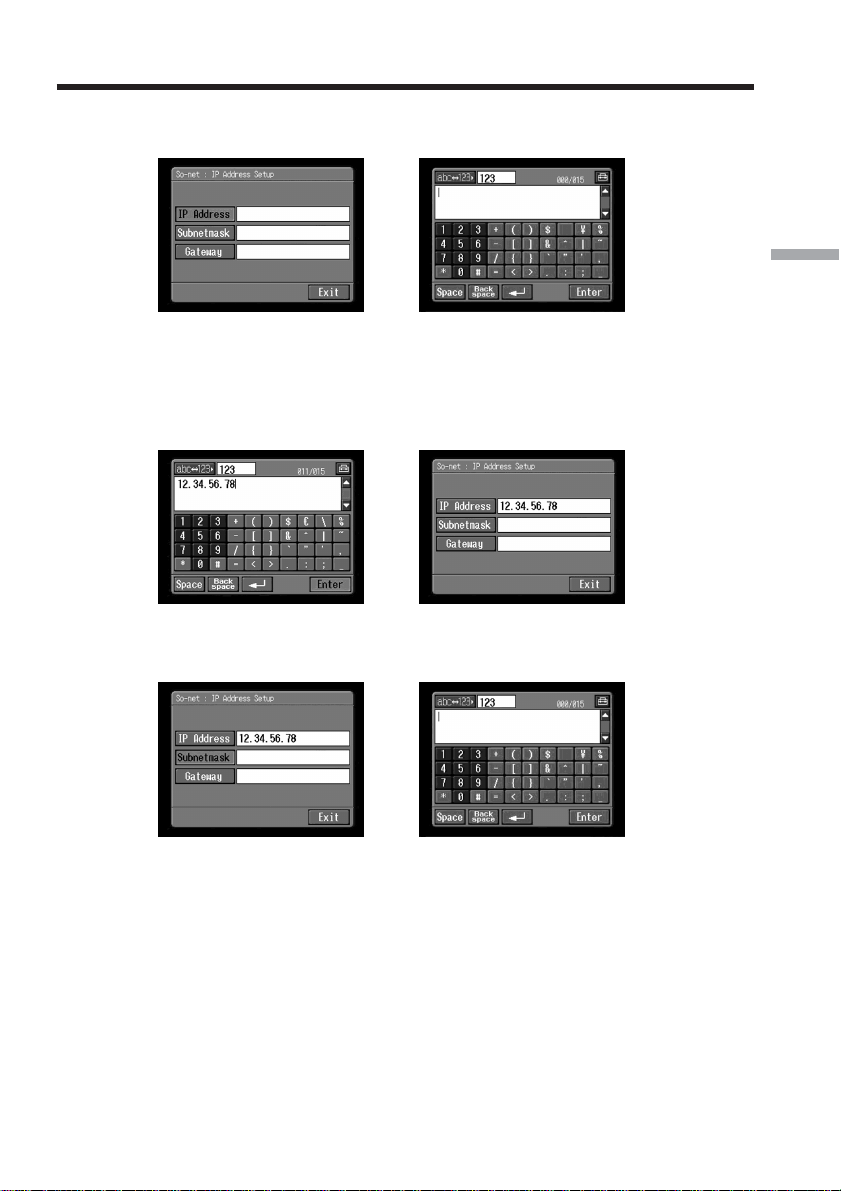
(5) Tap [IP Address].
The character input screen appears.
,
(6) Enter your IP address.
For details of how to input characters, see “How to input characters” (p. 9).
(7) Tap [Enter].
The So-net : IP Address Setup screen appears again.
,
(8) Tap [Subnetmask].
The character input screen appears again.
,
(9) Enter your subnet mask.
For details of how to input characters, see “How to input characters” (p. 9).
Setting the network preferences
44
(10)Tap [Enter].
The So-net : IP Address Setup screen appears again.
,
(11)Tap [Gateway].
The character input screen appears.
,
(12)Enter the gateway.
For details of how to input characters, see “How to input characters” (p. 9).
(13)Tap [Enter].
The So-net : IP Address Setup screen appears again.
,
(14)Tap [Exit].
The So-net : LAN Setup appears again.
Setting the network preferences
45
Preparation for Network Operation
5 Setting the DNS server
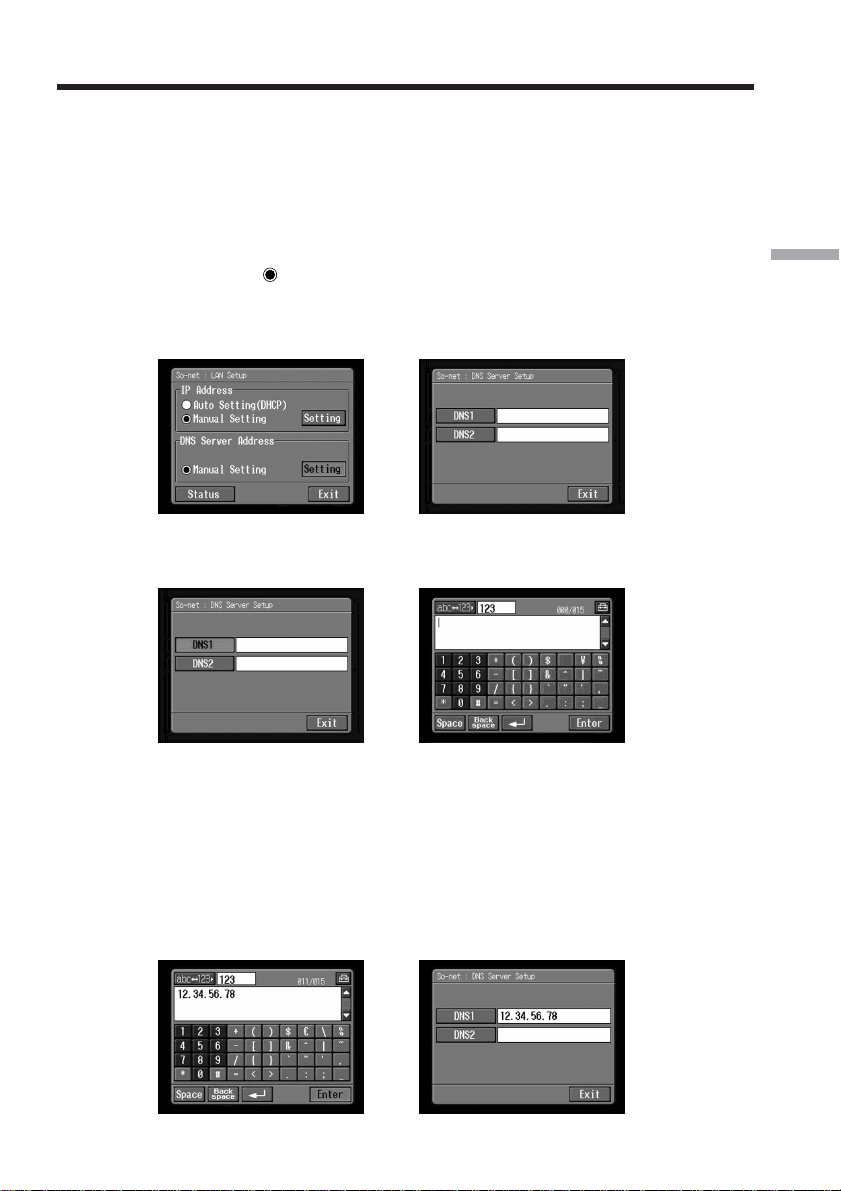
To obtain your DNS information automatically, confirm that [Auto Setting (DHCP)] is
selected and go to step 10. You can confirm your detailed settings by tapping [Status].
To set your DNS information manually, follow the procedure below.
(1) Confirm that [Manual Setting] is checked.
If [Manual Setting] is not checked, tap [Manual Setting] to check it.
a changes to
.
(2) Tap [Setting].
The So-net : DNS Server Setup screen appears.
,
(3) Tap [DNS1].
The character input screen appears.
,
(4) Enter DNS1.
For details of how to input characters, see “How to input characters” (p. 9).
Tip
This “DNS1” is sometimes referred to as the “name server”, ”primary DNS server”,
“primary name server”, etc.
(5) Tap [Enter].
The So-net : DNS Server Setup screen appears again.
,
Setting the network preferences
46
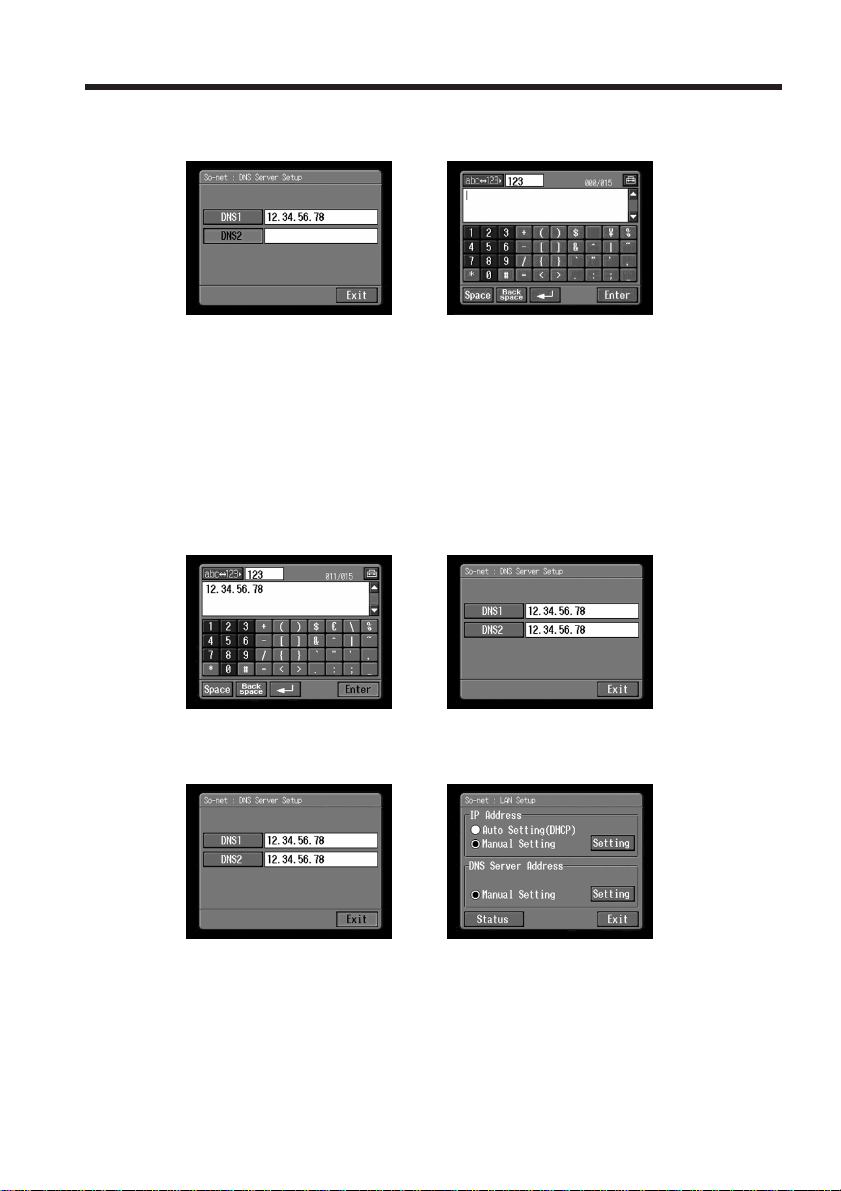
(6) Tap [DNS2].
The character input screen appears.
,
Tips
•This entry may be unnecessary, depending on your provider. For details, consult
your provider.
•This “DNS2” is sometimes referred to as the “secondary DNS server”, etc.
(7) Enter DNS2.
For details of how to input characters, see “How to input characters” (p. 9).
(8) Tap [Enter].
The So-net : DNS Server Setup screen appears again.
,
(9) Tap [Exit].
The So-net : LAN Setup screen appears again.
,
Setting the network preferences
47
Preparation for Network Operation
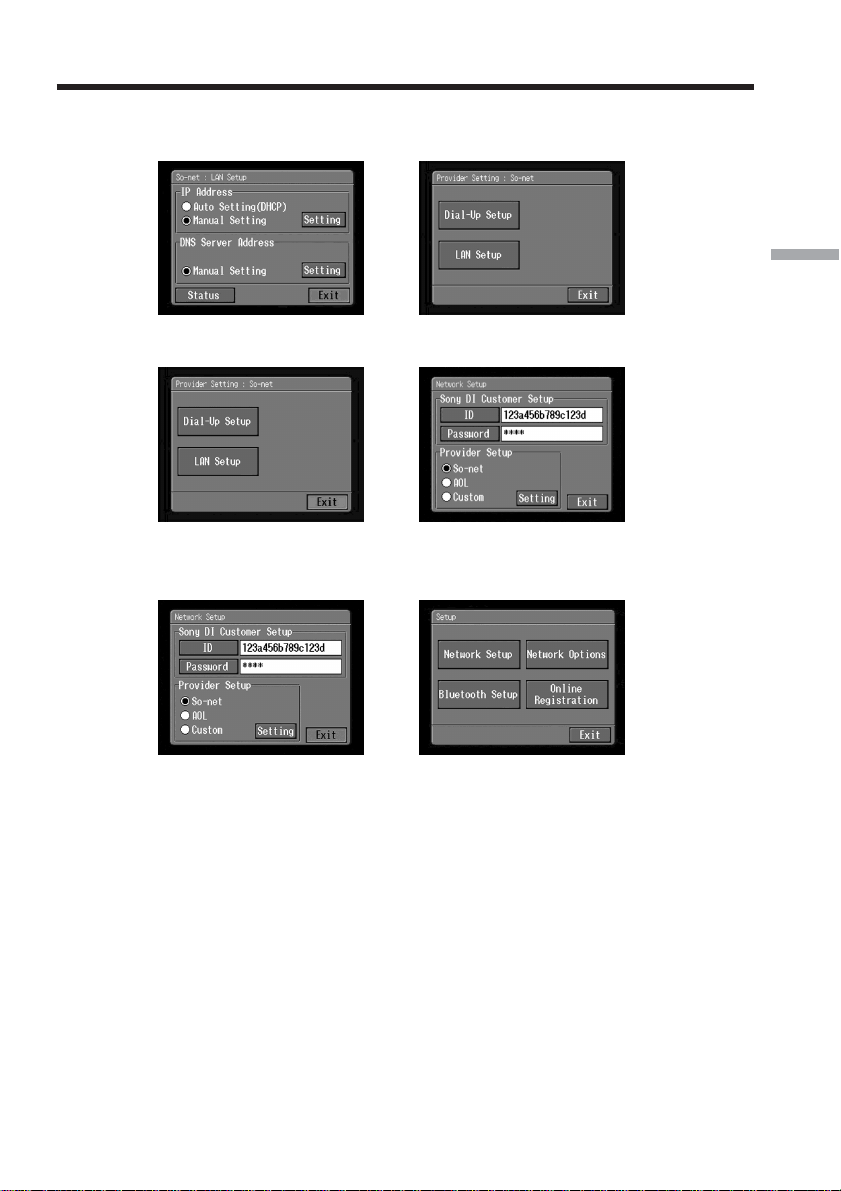
(10)Tap [Exit].
The Provider Setting : So-net screen appears again.
,
(11)Tap [Exit].
,
(12)Tap [Exit].
The Setup screen appears again.
,
For a more detailed setup, go to “Setting other preferences” (p. 65).
Setting the network preferences
48
Setting your provider preferences for “AOL”
This setup is required to use your Album on the Web. If you do not use the Album on
the Web, after following steps 1 to 3 of 1 below, go to “2 “AOL” settings”.
Before setting your provider preferences for “AOL”, go to keyword: Handycam on your
computer to learn how to simplify your setup procedure.
You cannot access the Internet via “AOL” when your camcorder is connected with a
USB-Ethernet Adaptor.
1 Entering your DI customer ID and password
(1) Open the Network Menu.
For details of how to open the Network Menu, see page 7.
(2) Tap [Setup].
The Setup screen appears.
,
(3) Tap [Network Setup].
The Network Setup screen appears.
,
Setting the network preferences
49
Preparation for Network Operation
(4) Tap [ID].
The character input screen appears.
,
(5) Enter your DI customer ID.
For details of how to input characters, see “How to input characters” (p. 9).
(6) Tap [Enter].
The Network Setup screen appears again.
,
(7) Tap [Password].
The character input screen appears.
,
(8) Enter your password.
For details of how to input characters, see “How to input characters” (p. 9).
Note
If you check the item “Verify Password” in the Network Options screen (p. 65),
you cannot enter your password. When you try to enter it, the message
“Password Already Set Check the Password Profile” appears. To enable
password entry, tap “Verify Password” again to uncheck the item.
Setting the network preferences
50
(9) Tap [Enter].
The Network Setup screen appears again.
,
Tip
While inputting password characters, they are indicated as they are. However,
after they have been entered, each character is indicated as “∗” (asterisk). If
you want to enter your password again, delete all asterisks first.
2 “AOL” settings
(1) Tap [AOL].
a changes to
.
,
(2) Tap [Setting].
The AOL Network Setup screen appears.
,
Setting the network preferences
51
Preparation for Network Operation
3 Setting your “AOL” preferences
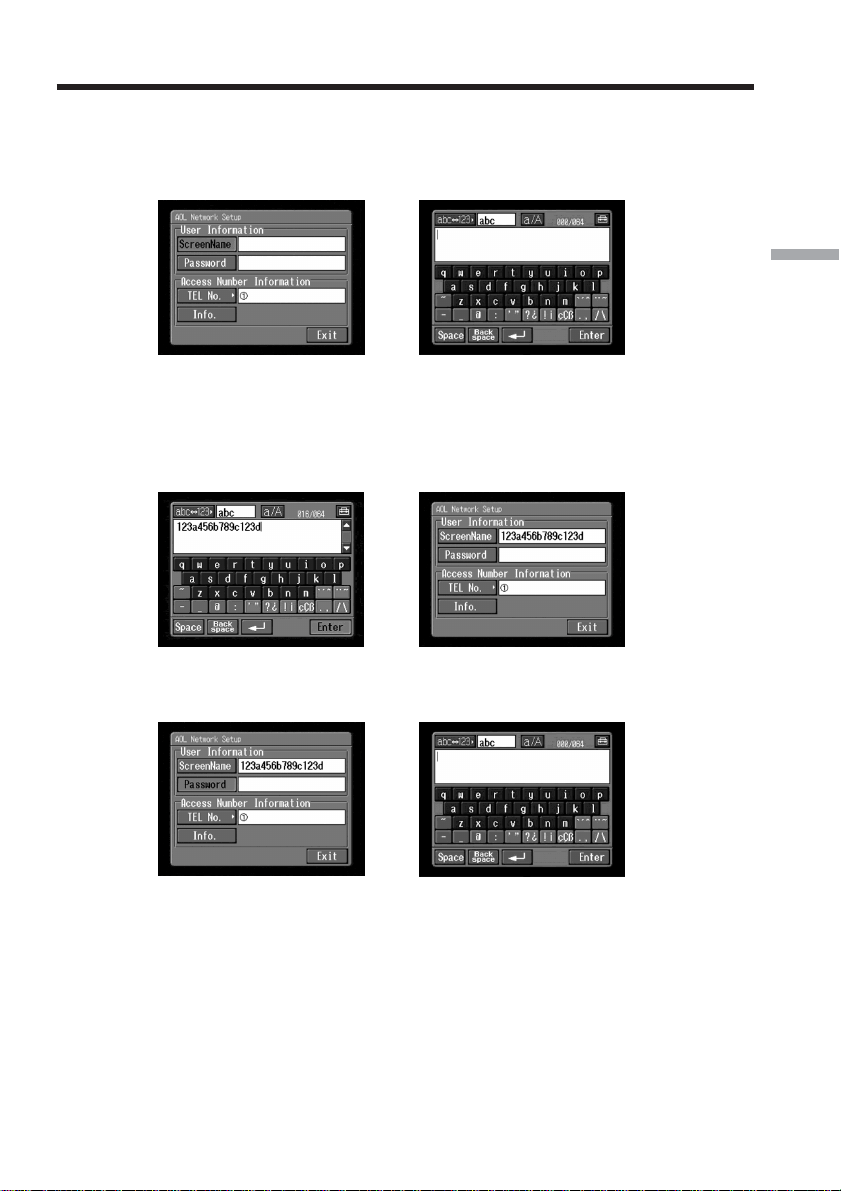
(1) Tap [ScreenName].
The character input screen appears.
,
(2) Enter your ScreenName.
For details of how to input characters, see “How to input characters” (p. 9).
(3) Tap [Enter].
The AOL Network Setup screen appears again.
,
(4) Tap [Password].
The character input screen appears.
,
(5) Enter your password.
For details of how to input characters, see “How to input characters” (p. 9).
Note
If you check the item “Verify Password” in the Network Options screen (p. 65),
you cannot enter your password. When you try to enter it, the message
“Password Already Set Check the Password Profile” appears. To enable
password entry, tap “Verify Password” again to uncheck the item.
Setting the network preferences
52
(6) Tap [Enter].
The Network Setup screen appears again.
,
Tip
While inputting password characters, they are indicated as they are. However,
after they have been entered, each character is indicated as “∗” (asterisk). If
you want to enter your password again, delete all asterisks first.
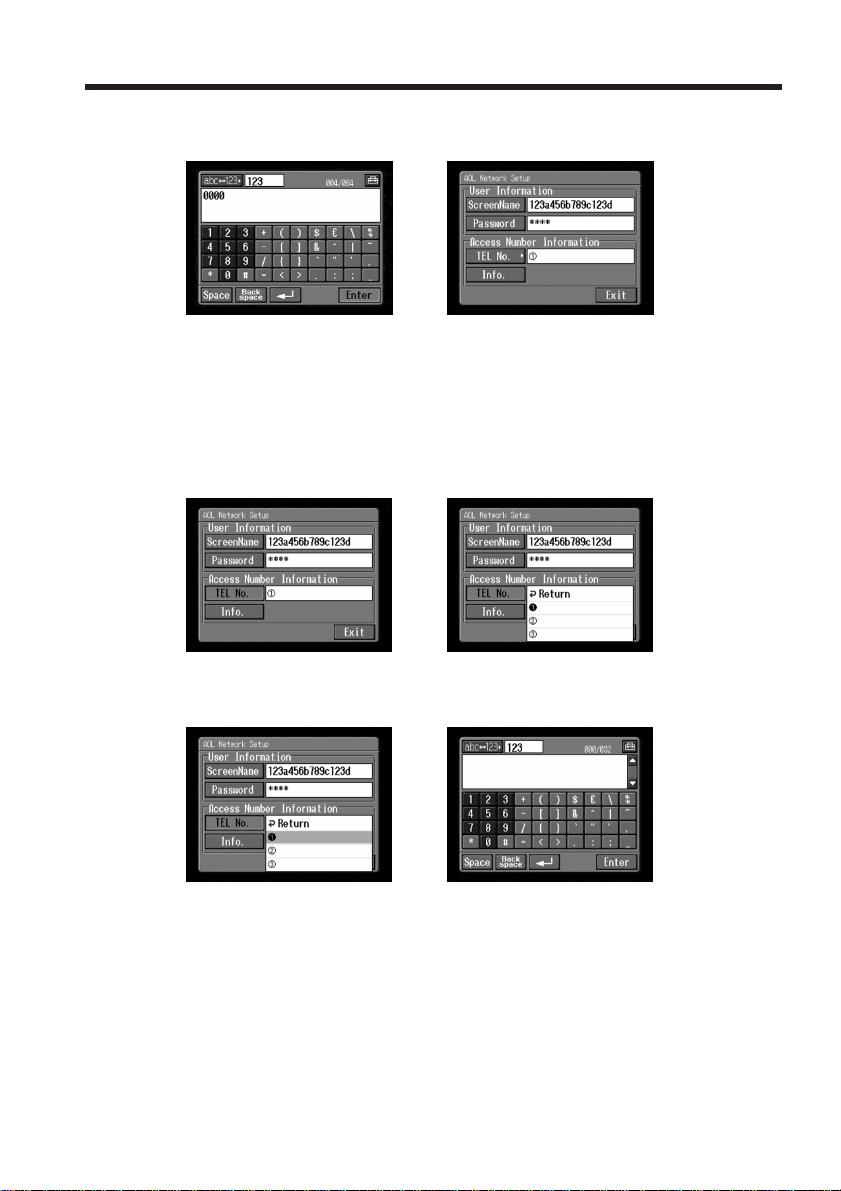
(7) Tap [TEL No.].
The telephone number list appears.
,
(8) Tap [TEL No. 1].
The character input screen appears.
,
(9) Enter the telephone number of the access point.
For details of how to input characters, see “How to input characters” (p. 9).
Notes
• Before setting your provider preferences with “AOL”, go to keyword:
Handycam on your computer to learn how to simplify the setup procedure.
• Do not insert hyphens or spaces in the telephone number. (e.g. 012345678)
Setting the network preferences
53
Preparation for Network Operation
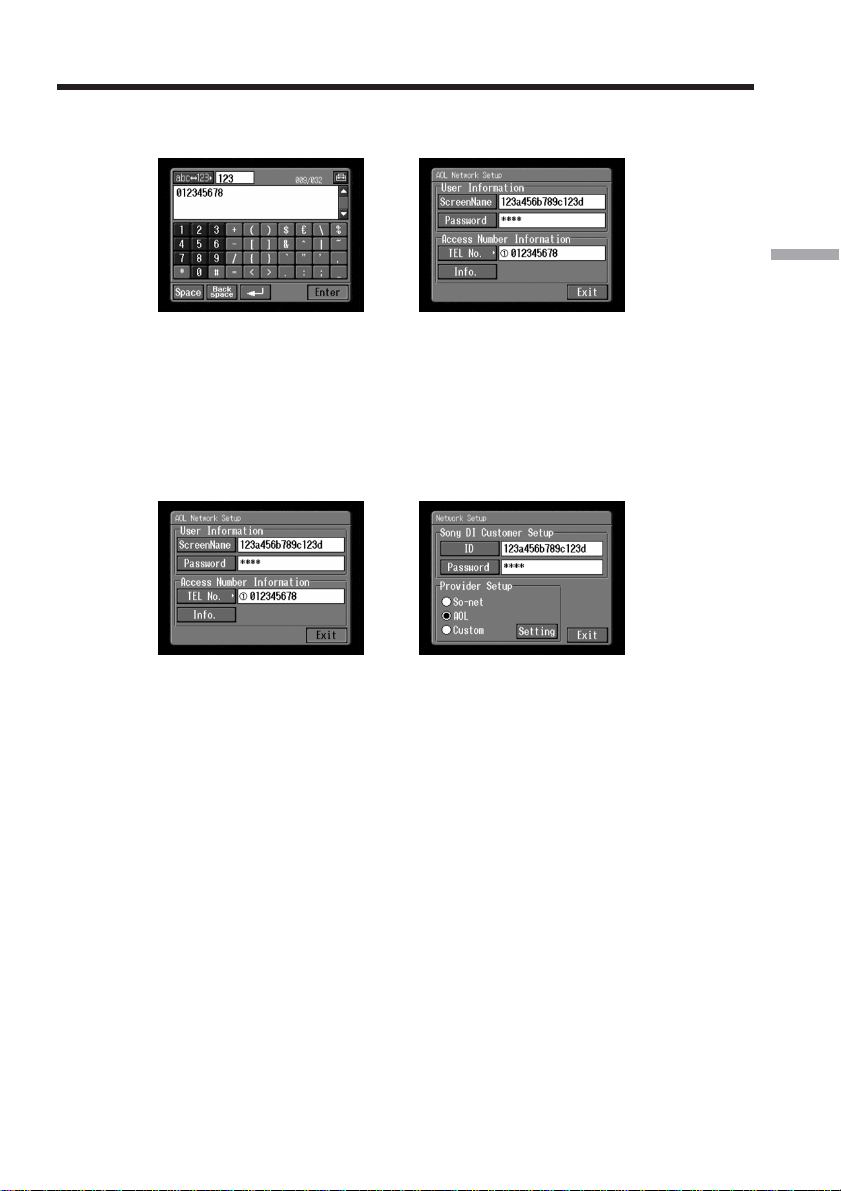
(10)Tap [Enter].
The AOL Network Setup screen appears again.
,
Tip
You can also register the telephone numbers of other access points, if
necessary, by entering them in [TEL No. 2] and [TEL No. 3].
(11)Tap [Exit].
“AOL” Network Setup is complete, and the Network Setup screen appears
again.
,
(12)Tap [Exit].
Setup is complete, and the Setup screen appears again.
For a more detailed setup, go to “Setting other preferences” (p. 65).
Setting the network preferences
54
Setting your provider preferences for other providers
This setup is required to use your Album on the Web. If you do not use the Album on
the Web, after following steps 1 to 3 of 1 below, go to “2 Selecting your provider”.
1 Entering your DI customer ID and password
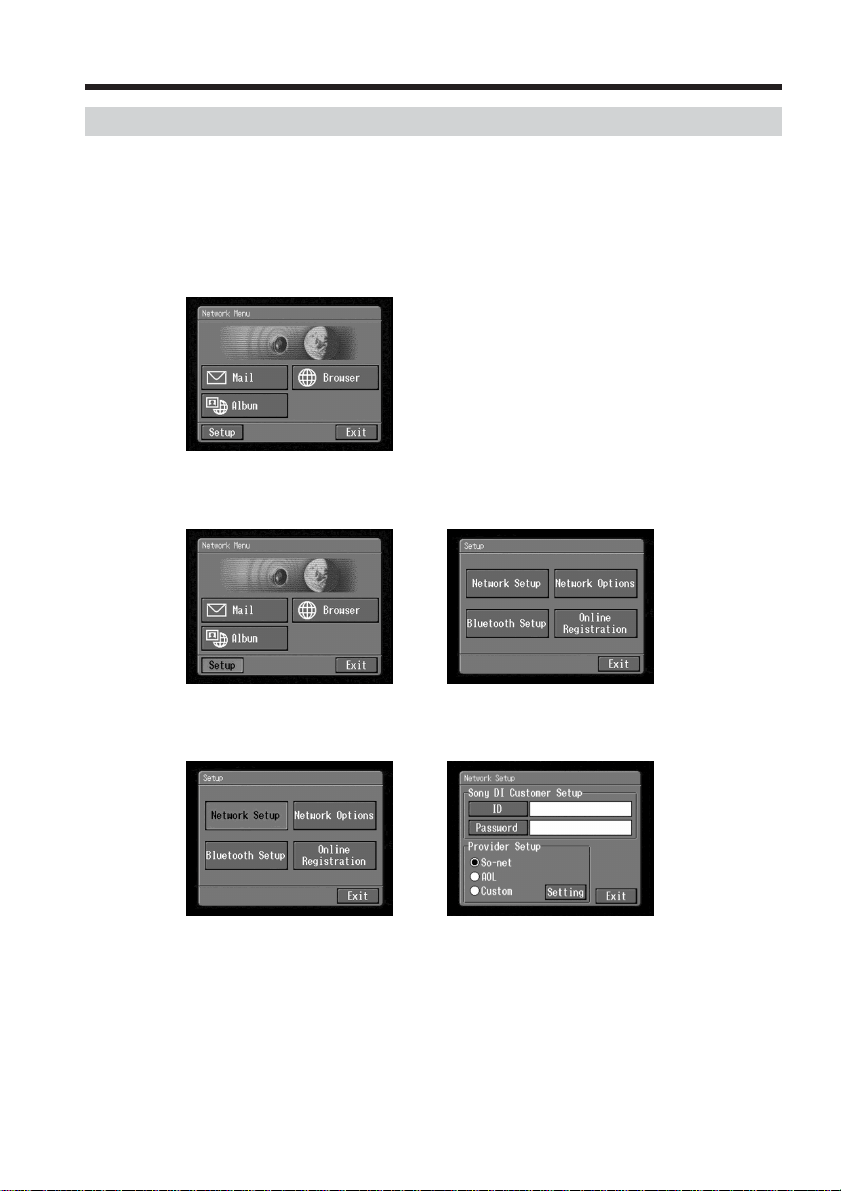
(1) Open the Network Menu.
For details of how to open the Network Menu, see page 7.
(2) Tap [Setup].
The Setup screen appears.
,
(3) Tap [Network Setup].
The Network Setup screen appears.
,
Setting the network preferences
55
Preparation for Network Operation
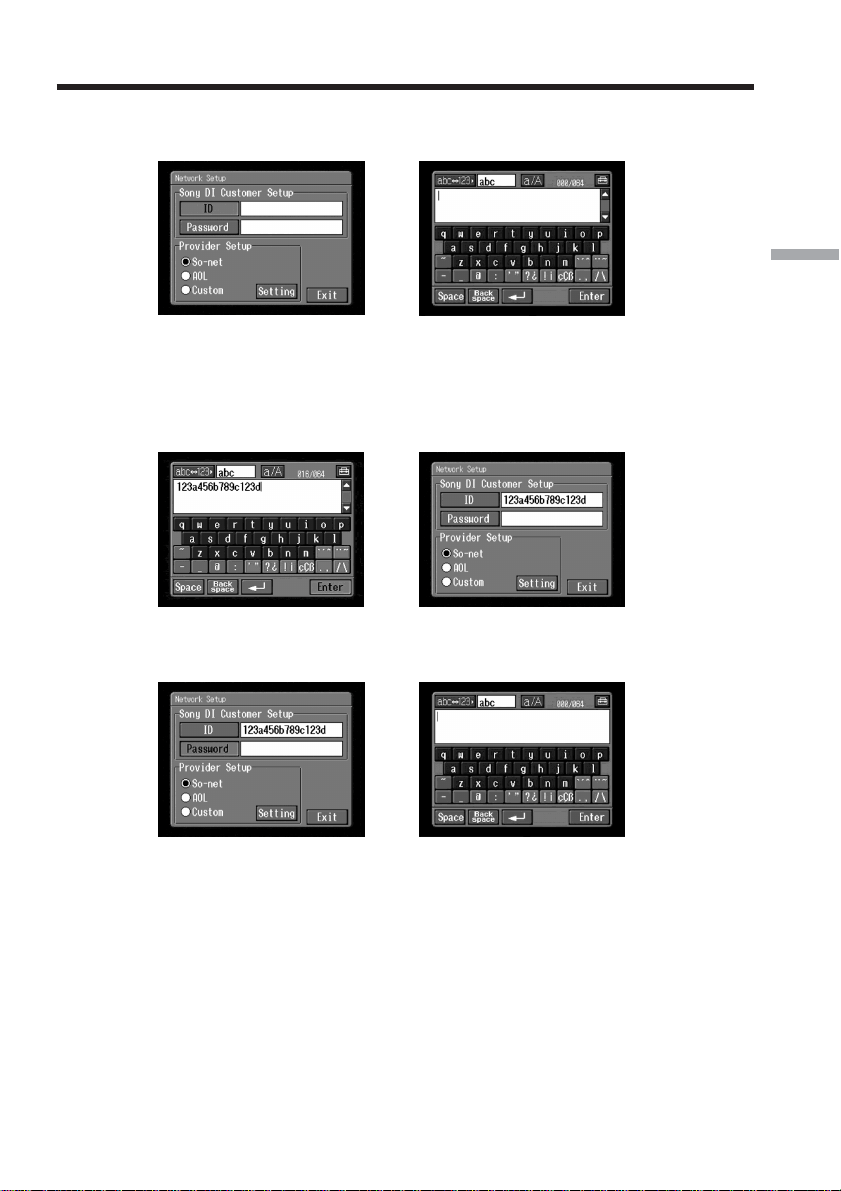
(4) Tap [ID].
The character input screen appears.
,
(5) Enter your DI customer ID.
For details of how to input characters, see “How to input characters” (p. 9).
(6) Tap [Enter].
The Network Setup screen appears again.
,
(7) Tap [Password].
The character input screen appears.
,
(8) Enter your password.
For details of how to input characters, see “How to input characters” (p. 9).
Note
If you check the item “Verify Password” in the Network Options screen (p. 65),
you cannot enter your password. When you try to enter it, the message
“Password Already Set Check the Password Profile” appears. To enable
password entry, tap “Verify Password” again to uncheck the item.
Setting the network preferences
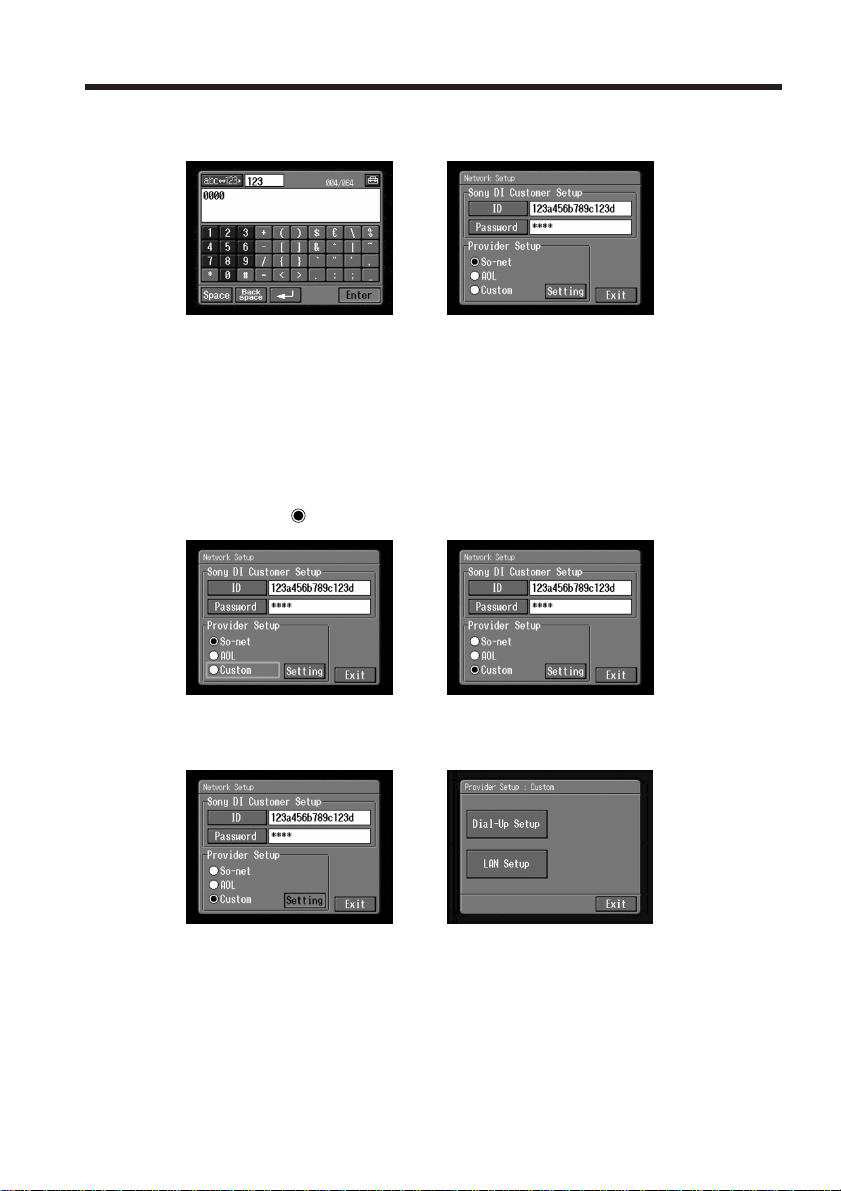
56
(9) Tap [Enter].
The Network Setup screen appears again.
,
Tip
While inputting password characters, they are indicated as they are. However,
after they have been entered, each character is indicated as “∗” (asterisk). If
you want to enter your password again, delete all asterisks first.
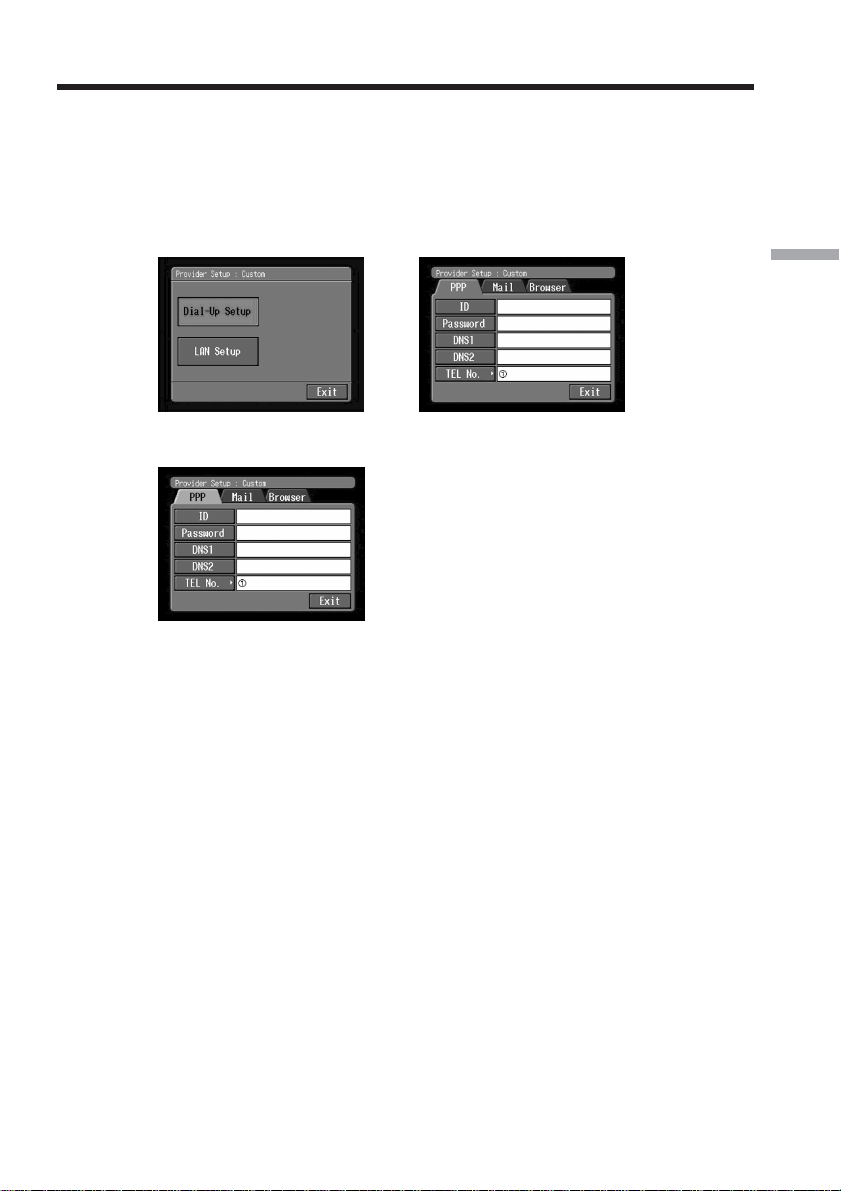
2 Selecting your provider
(1) Tap [Custom].
a changes to
.
,
(2) Tap [Setting].
The Provider Setup : Custom screen appears.
,
If you use a dial-up connection, go to 3 on page 57.
If you use a LAN connection, go to 4 on page 60.
Setting the network preferences
57
Preparation for Network Operation
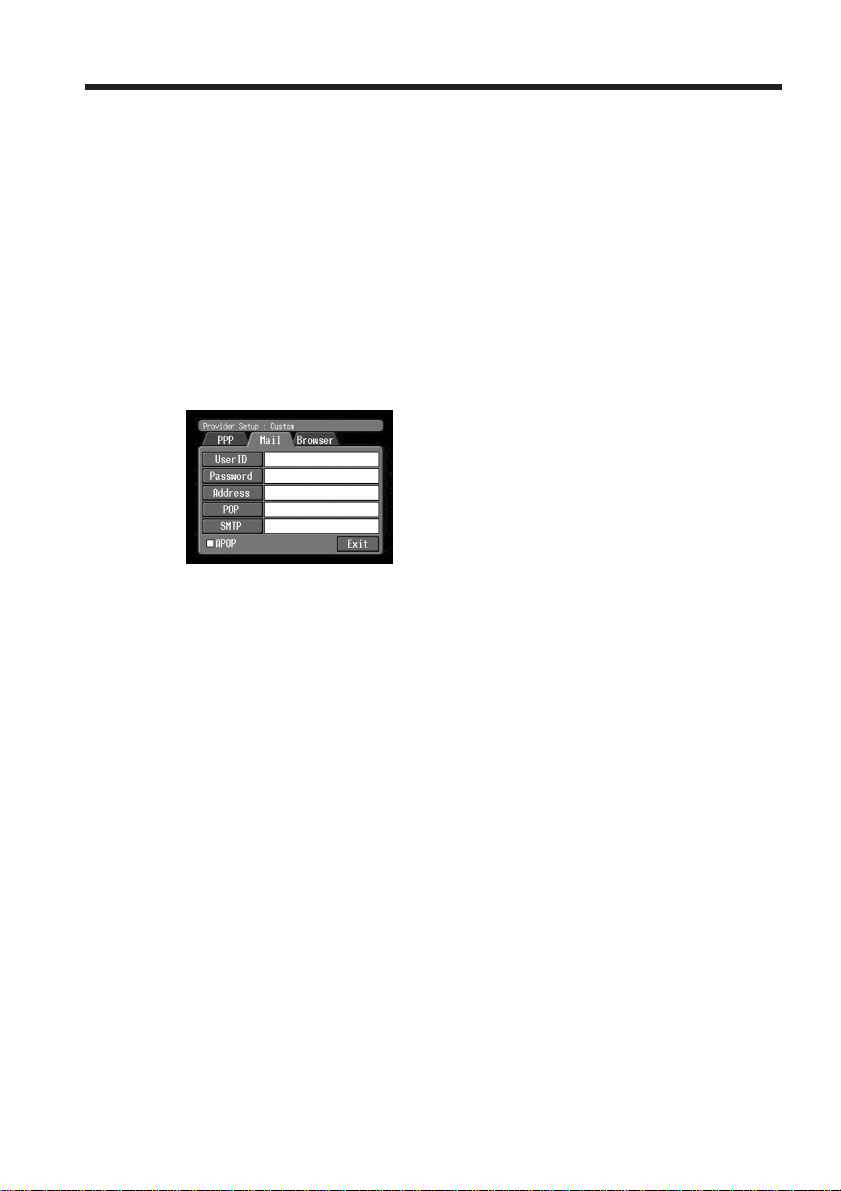
3 Setting your dial-up connection
Set your provider preferences depending on the requirements of your provider. If you
do not understand the setup items, consult your provider.
(1) Tap [Dial-Up Setup].
The Provider Setup : Custom screen appears.
,
(2) Tap [PPP].
(3) Set the following items:
ID: Enter the login name you use for accessing your provider with a dial-up
connection.
Tip
This “ID” is sometimes referred to as the “user ID”, “login name”, “PPP
login name”, “network ID”, “account name”, “logon name”, “user name”,
etc.
Password: Enter the password you use for accessing your provider with a
dial-up connection (p. 146).
Tip
This “Password” is sometimes referred to as the “PPP password”, “network
password”, “connection password”, etc.
DNS1: Enter the DNS (Domain Name System) server address of your provider.
Tips
•This “DNS1” is sometimes referred to as the “name server”, “primary DNS
server”, “primary name server”, etc.
•This entry may be unnecessary, depending on your provider. For details,
consult your provider.
Setting the network preferences
58
DNS2: Enter the secondary DNS server address of your provider, if necessary.
This entry may be unnecessary, depending on your provider. For details,
consult your provider.
Tip
This “DNS2” is sometimes referred to as the “secondary DNS server”, etc.
TEL No. 1: Enter the telephone number of your most convenient access point
(p. 146).
TEL No. 2/TEL No. 3: Enter second and third telephone numbers, if
necessary.
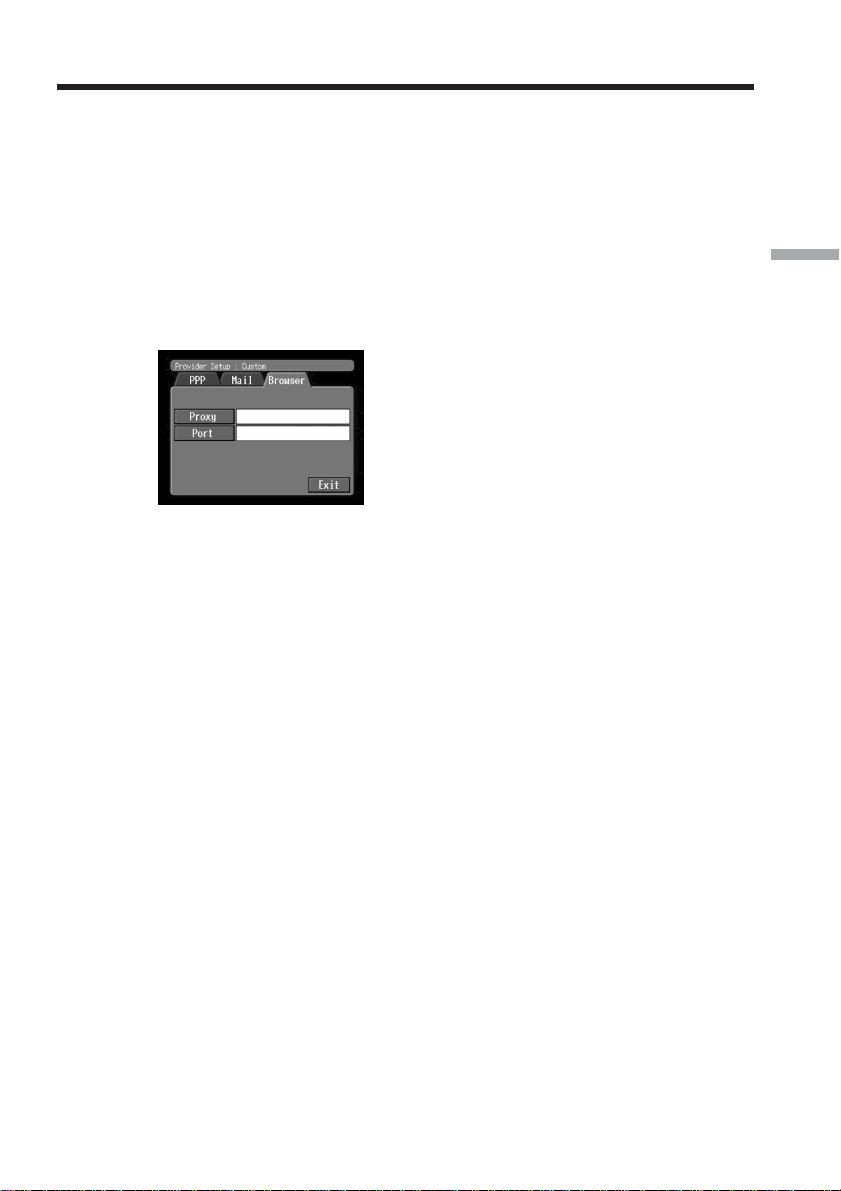
(4) Tap [Mail].
The Mail preference screen appears.
Note
The Mail preference screen and the Browser screen are shared by Dial-up
Setup and LAN Setup. You cannot set these two preferences at the same time.
(5) Set the following items:
User ID: Enter the user ID for accessing the POP server.
Password: Enter the password of your user ID for accessing the POP server.
Your user ID and password are required to use email.
Tip
This “Password” is sometimes referred to as the “mail password”, “mail
server password”, etc.
Address: Enter your email address.
Tip
This “Address” is sometimes referred to as the “mail address”, “email
address”, etc.
POP: Enter the POP (Post Office Protocol) server address of your provider. The
POP server is for receiving email.
Tip
This “POP server” is sometimes referred to as the “mail server”, “POP3
server”, etc.
Setting the network preferences
59
Preparation for Network Operation
SMTP: Enter the SMTP (Simple Mail Transfer Protocol) server address of your
provider. The SMTP server is for sending email.
Tip
This “SMTP server” is sometimes referred to as the “mail server”, “SMTP
mail server”, etc. The SMTP server may be the same as the POP server,
depending on the provider.
APOP: Select whether you want to use APOP (p. 146).
(6) Tap [Browser].
The Browser screen appears.
Note
The Mail preference screen and the Browser screen are shared by Dial-up
Setup and LAN Setup. You cannot set these two preferences at the same time.
(7) Set the following items:
Proxy: Enter the proxy server address of your provider.
Port: Enter the port number of the proxy server of your provider.
Tip
These entries may be unnecessary, depending on your provider. For details,
consult your provider.
(8) Tap [Exit].
Setup is complete, and the Network Setup screen appears again.
(9) Tap [Exit].
The Setup screen appears again.
For a more detailed setup, go to “Setting other preferences” (p. 65).
Setting the network preferences
60
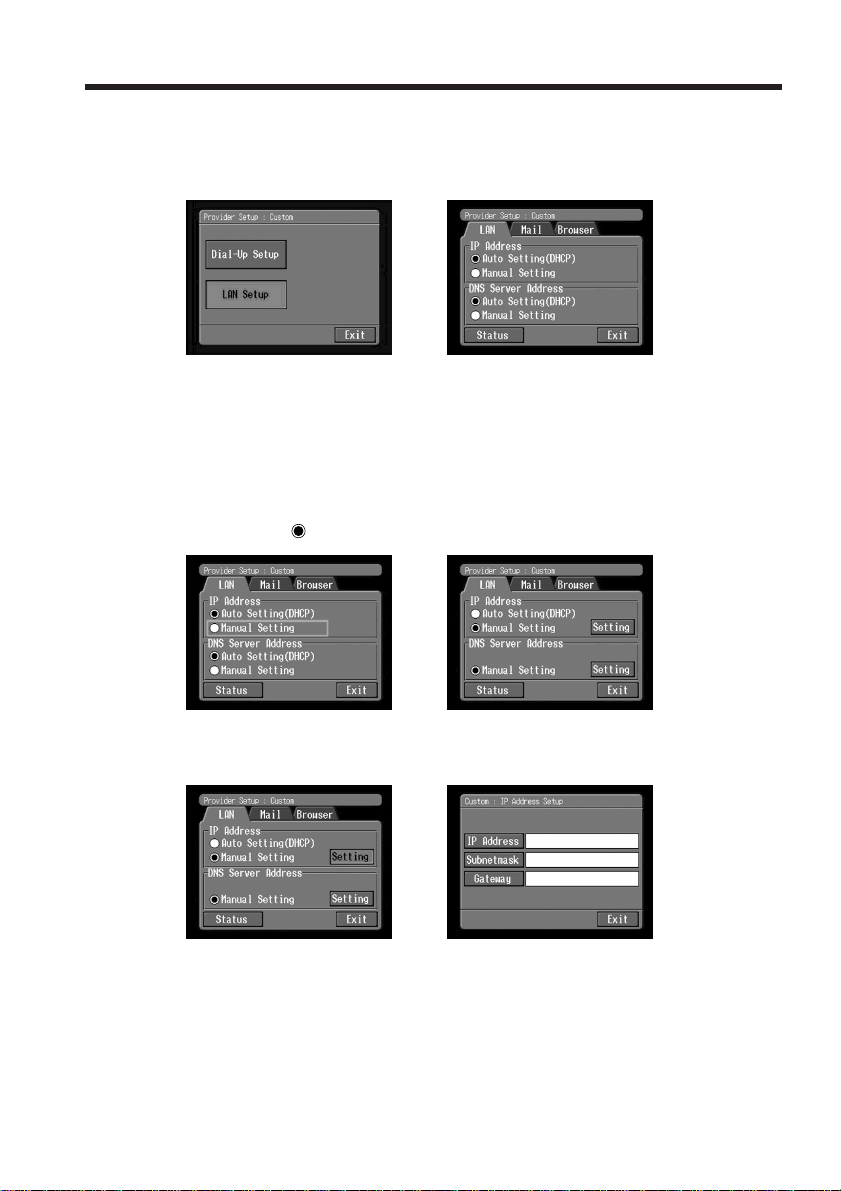
4 Setting your LAN connection
(1) Tap [LAN Set up] and tap [LAN].
The Provider Setup : Custom screen appears.
,
(2) Register your IP address.
To obtain your IP address automatically, confirm that [Auto Setting (DHCP)] is
selected and go to 5 (p. 63). You can confirm your detailed LAN settings by
tapping [Status]. To register your IP address manually, follow the procedure
below.
(3) Tap [Manual Setting].
a changes to
.
,
(4) Tap [Setting].
The Custom : IP Address Setup screen appears.
,
Setting the network preferences
61
Preparation for Network Operation
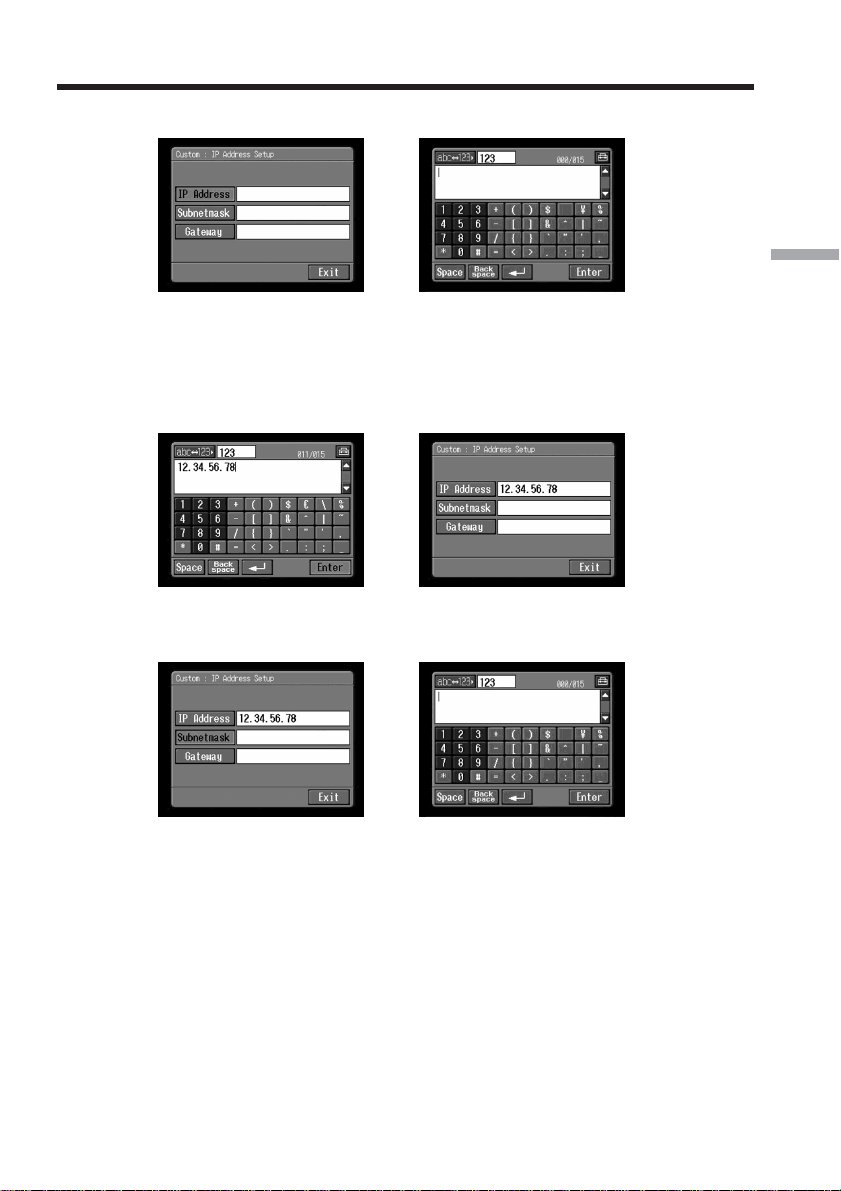
(5) Tap [IP Address].
,
(6) Enter your IP address.
For details of how to input characters, see “How to input characters” (p. 9).
(7) Tap [Enter].
The Custom : IP Address Setup screen appears again.
,
(8) Tap [Subnetmask].
The character input screen appears.
,
(9) Enter your subnet mask.
For details of how to input characters, see “How to input characters” (p. 9).
Setting the network preferences
62
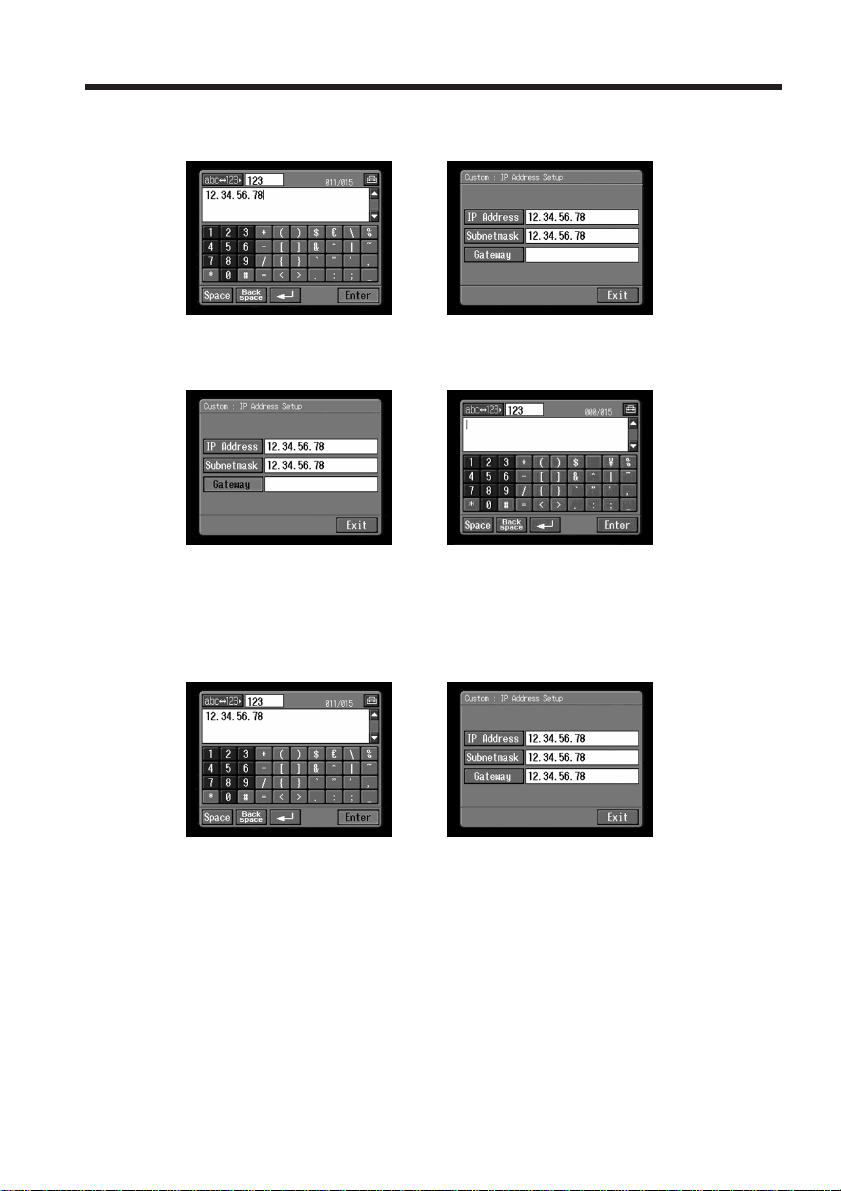
(10)Tap [Enter].
The Custom : IP Address Setup screen appears again.
,
(11)Tap [Gateway].
The character input screen appears.
,
(12)Enter the gateway.
For details of how to input characters, see “How to input characters” (p. 9).
(13)Tap [Enter].
The Custom : IP Address Setup screen appears again.
,
(14)Tap [Exit].
The Provider Setup : Custom screen appears again.
Setting the network preferences
63
Preparation for Network Operation
5 Setting the DNS server
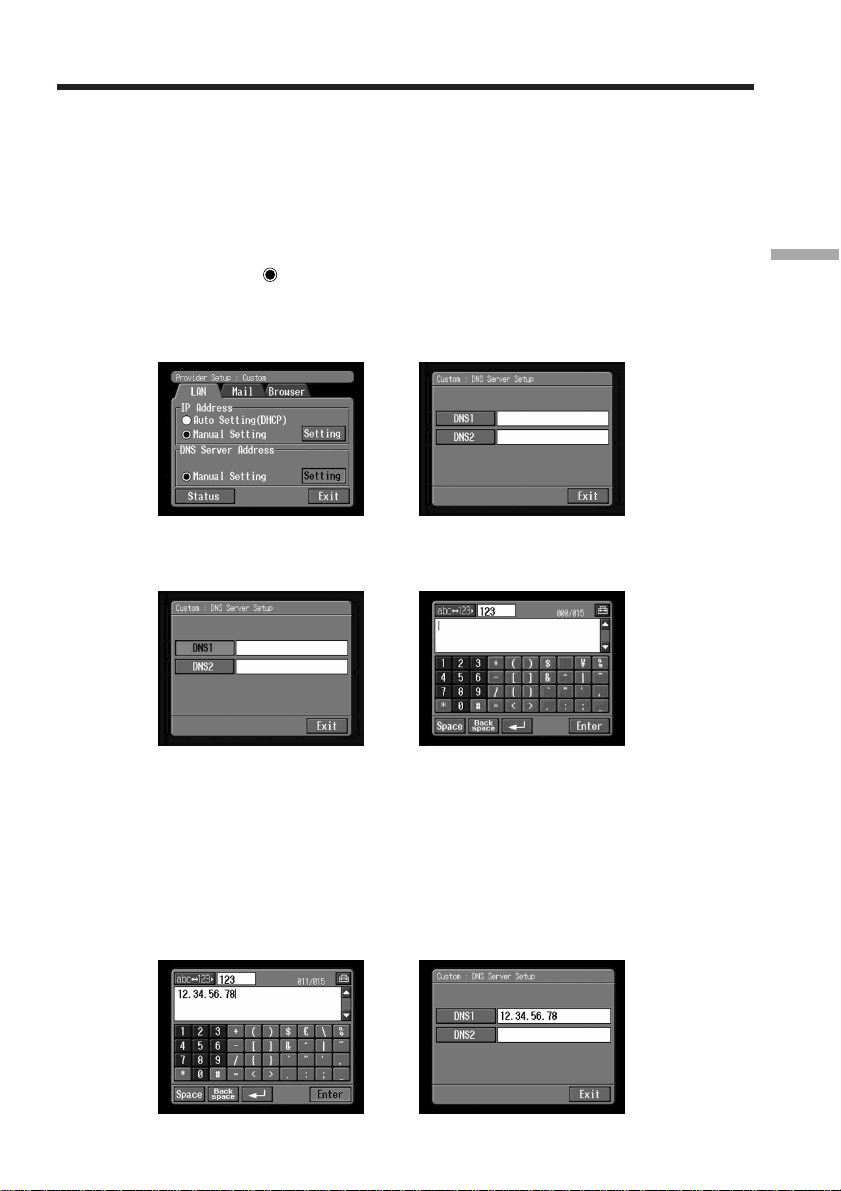
To obtain your DNS information automatically, confirm that [Auto Setting (DHCP)] is
selected and tap [Exit]. You can confirm your detailed settings by tapping [Status]. To
set your DNS information manually, follow the procedure below.
(1) Confirm that [Manual Setting] is checked.
If [Manual Setting] is not checked, tap [Manual Setting] to check it.
a changes to
.
(2) Tap [Setting].
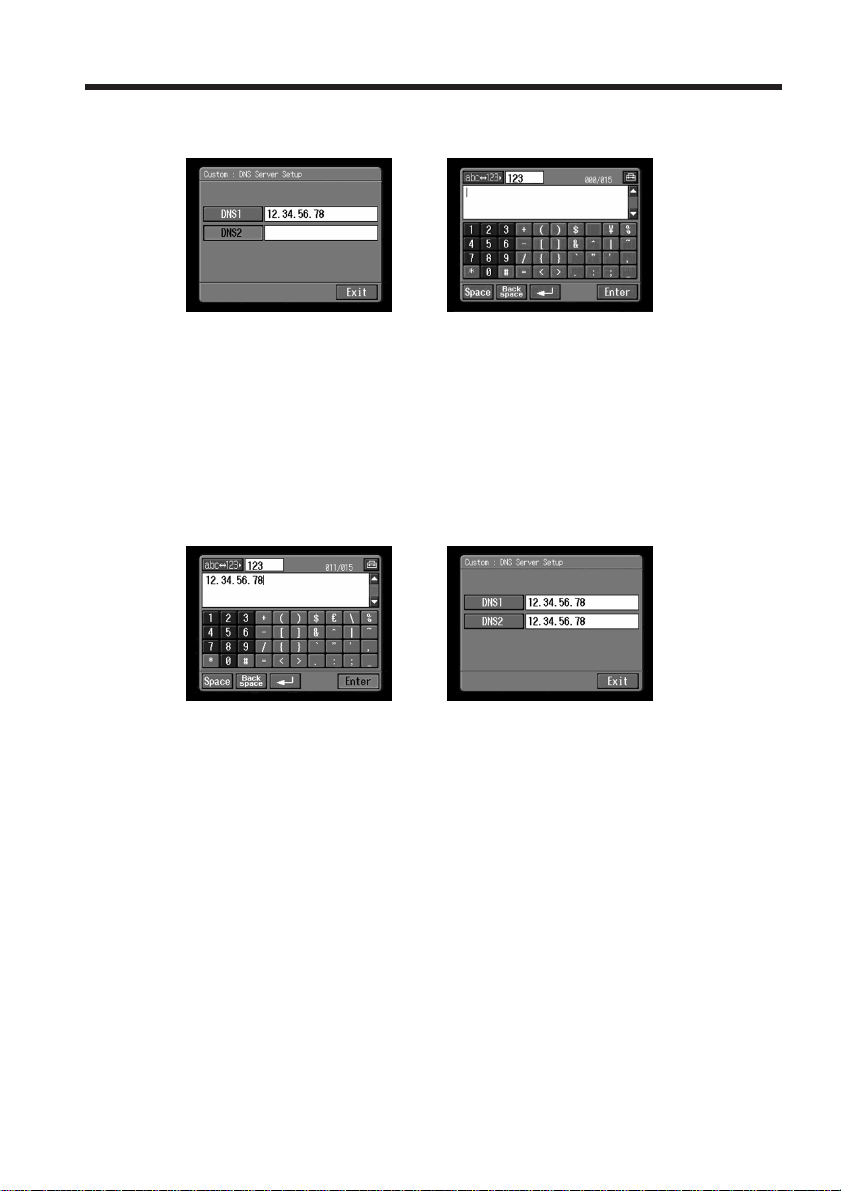
The Custom : DNS Server Setup screen appears.
,
(3) Tap [DNS1].
The character input screen appears.
,
(4) Enter DNS1.
For details of how to input characters, see “How to input characters” (p. 9).
Tip
This “DNS1” is sometimes referred to as the “name server”, ”primary DNS server”,
“primary name server”, etc.
(5) Tap [Enter].
The Custom : DNS Server Setup screen appears again.
,
Setting the network preferences
64
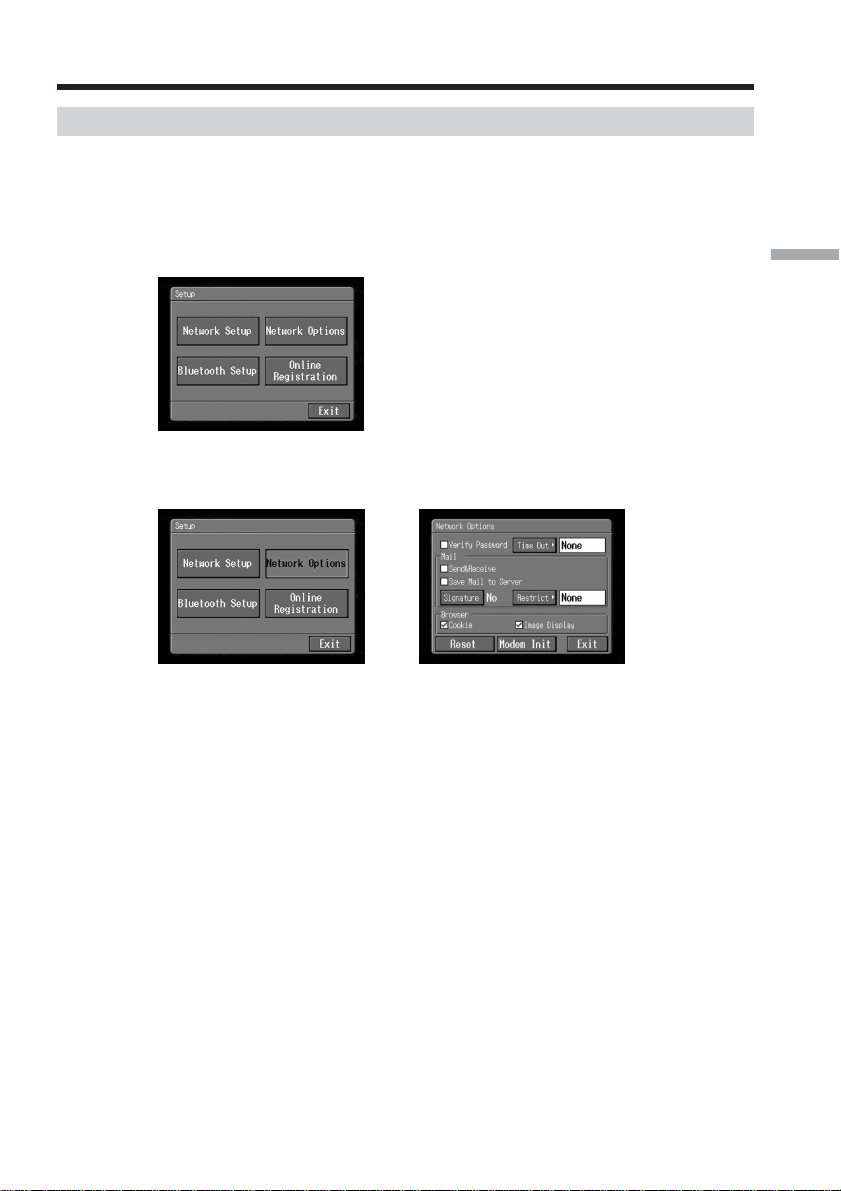
(6) Tap [DNS2].
The character input screen appears.
,
Tips
•This entry may be unnecessary, depending on your provider. For details, consult
your provider.
•This “DNS2” is sometimes referred to as the “secondary DNS server”, etc.
(7) Enter DNS2.
For details of how to input characters, see “How to input characters” (p. 9).
(8) Tap [Enter].
The Custom : DNS Server Setup screen appears again.
,
(9) Tap [Exit].
The Provider Setup : Custom screen appears again.
(10)Follow steps 4 to 9 on pages 58 to 59 for setting [Mail] and [Browser]
preferences.
Note
The Mail preference screen and the Browser screen are shared by Dial-up
Setup and LAN Setup. You cannot set these two preferences at the same time.
For a more detailed setup, go to “Setting other preferences” (p. 65).
Setting the network preferences
65
Preparation for Network Operation
Setting other preferences
You can access the Internet with your camcorder using the default settings explained on
previous pages. It is not necessary to make the following settings, however, see the
following when any changes are necessary in the future.
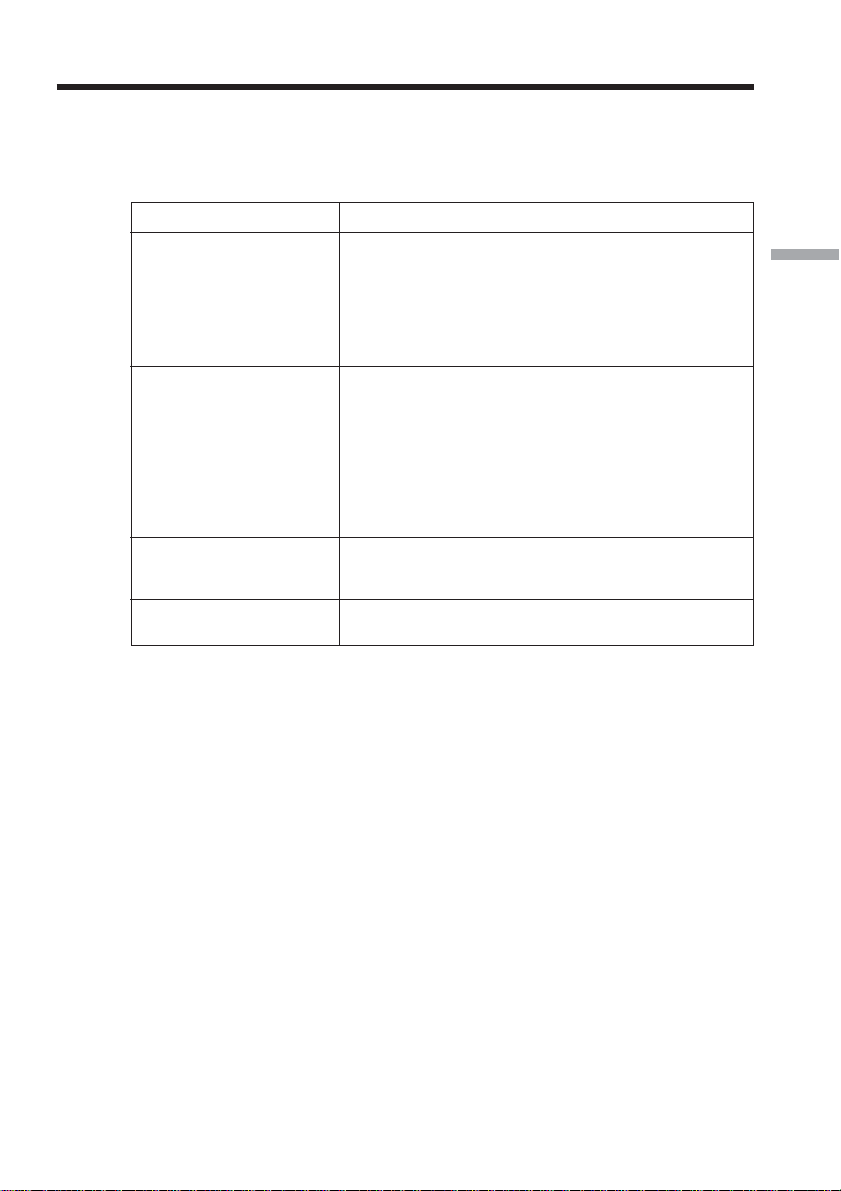
(1) Open the Network Menu and tap [Setup].
The Setup screen appears.
(2) Tap [Network Options].
The Network Options screen appears.
,
(3) Set the following items:
Verify Password: Check this item to delete your DI Customer Setup password,
“AOL” password, and PPP screen password. You will have to enter your
provider access password each time you access the Internet, for example,
when you use a dial-up connection to prevent anyone else from connecting
with your ID.
Note
If this item is checked, you cannot set the following passwords:
– Password for DI Customer Setup (when using “So-net”)
– Password for AOL Network Setup (when using “AOL”)
– Password for the PPP screen (when using other providers)
Time Out: Select whether the connection is to be automatically canceled if no
communication is made for a specified time (1 minute, 2 minutes, 5 minutes,
15 minutes, or 30 minutes) (When you use a LAN connection, the connection
is not disconnected automatically.).
Note
When you use a dial-up connection, the telephone line may not be
disconnected automatically when viewing certain web pages. In this case,
disconnect the telephone line manually (p. 81, 119).
Setting the network preferences

66
Mail
Send&Receive: Select whether to check the email inbox after sending email.
Save Mail to Server: Select whether to keep copies of the messages on the
server.
Note
If you try to receive email without checking this item, email messages may
not be downloaded and may be lost from your server, depending on the
type of the received email. For details, see “Note on “Save Mail to Server””
(p. 67).
Signature: Set this item if you want to attach your signature to your
email (p. 92).
Restrict: Select whether to skip an email message if its file size is larger than
50 KB, 200KB, or 500KB.
Browser
Cookie: Select whether to accept a cookie. If you do not want to send your
personal information, do not check this item. This item is checked by the
default setting.
Image Display: Select whether to display images on the screen when
viewing a web page. This item is checked by the default setting.
Reset: Reset all the items on the Network Options screen except “Signature”
and “Modem Init”.
Note
A verification message does not appear when you try to reset items.
Modem Init: Set the character string to be used for modem initialization. If no
setup is specified, you do not need to modify this item.
Note
If the setup is wrong, you cannot access the Internet. When you try to access
the Internet, the message “Connection Error No Response From PPP server”
appears.
(4) Tap [Exit].
The Setup screen appears again.
Setting the network preferences
67
Preparation for Network Operation
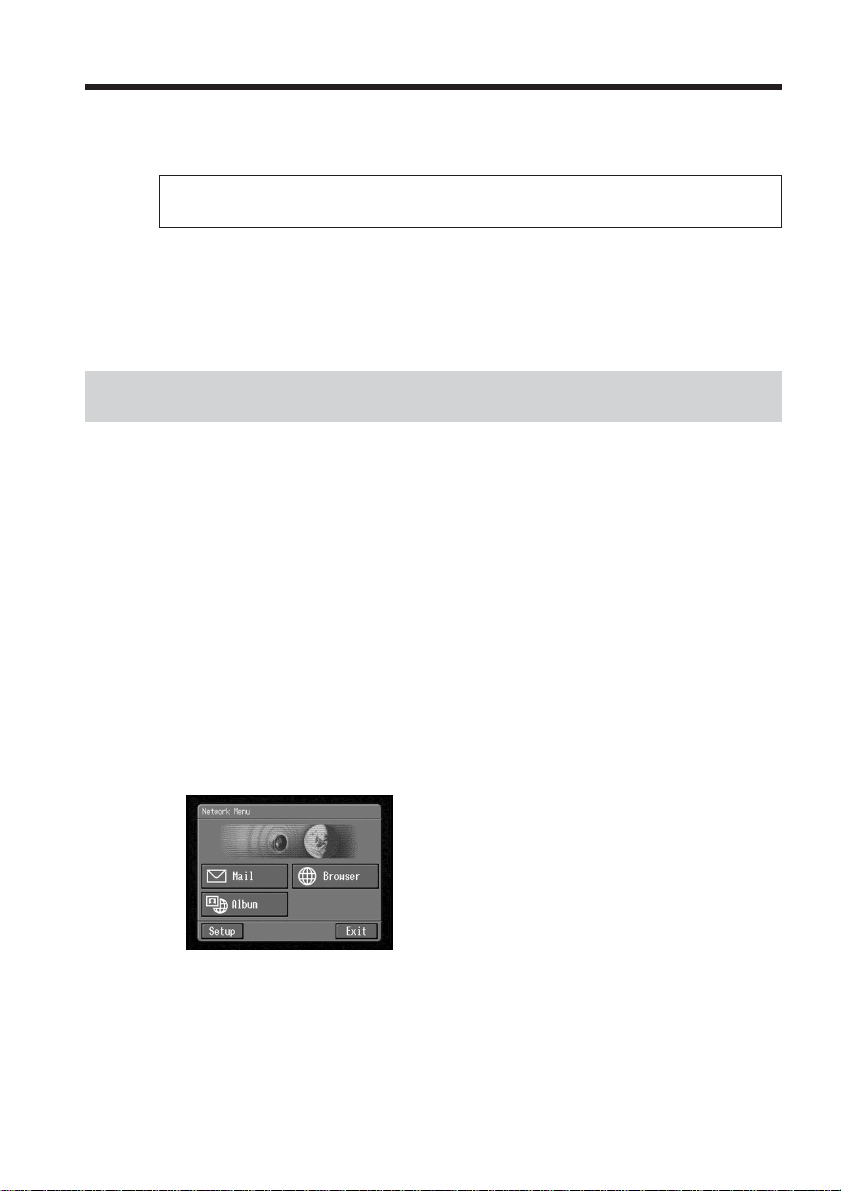
Note on “Save Mail to Server”
When “Save Mail to Server” is not checked, copies of email messages received will not
be stored on your server. However, the error messages described in the table below will
appear, depending on the type of email messages.
Error message
1)
Cause and/or Corrective Actions
Memory Stick Memory Full
Mail Over Size Limit
Attached Invalid File Deleted
Folder No. Full
1)
These error messages are indicated in an email message.
2)
This email message is stored on the server even if you did not check the item “Save
Mail to Server”. You can retrieve it with a computer, etc.
3)
The previously downloaded email is not stored on the server if you did not check the
item “Save Mail to Server”. You cannot retrieve it with a computer, etc.
4)
For an email message that has a lot of line breaks, the number of available characters is
less than 4,000.
You received email when the “Memory Stick” was already
full.
2)
c Delete the email containing this error message, and
delete unnecessary email messages or image files in the
“Memory Stick,” then download your email again.
c Insert another “Memory Stick” that has enough
memory, then download your email again.
• You received email larger than the size set in the item
“Restrict”.
2)
c You can download the email with a computer, etc.
c Delete the email, uncheck the item “Restrict”, and
download the email again.
• You received email with a message of 4,000 characters or
more.
3)
c Your camcorder cannot receive an email message that
has 4,000 characters or more.
4)
You received email that has an attached file with an invalid
file name extension.
3)
c Your camcorder can receive only JPEG or MPEG files.
c Insert another “Memory Stick” that has enough
memory, then download your email again.
Setting the network preferences
68
You can upload and store still images and/or moving pictures to your “Album on the
Web” on the Internet.
The Album on the Web is provided with “ImageStation”.
For details of “ImageStation”, access the “ImageStation” web site
“http://www.imagestation.com/us/PC/”.
You can make an Album on the Web and send email with its URL as an invitation card
to your friends.
You can also access your Album on the Web with a computer. To do so, log in to the
“ImageStation” web site with your DI customer ID and password.
Uploading still images and/or moving pictures to your Album on
the Web
Once you have an Album on the Web, you can upload still images and/or moving
pictures to the album, and send invitation cards (email) to your friends. This section
describes how to upload your still images and/or moving pictures and send invitation
cards (email).
Upload moving pictures within the file size constraints of “ImageStation”. For details,
access the “ImageStation” web site “http://www.imagestation.com/us/PC/”.
Before operation
Store the desired still images and/or moving pictures on a “Memory Stick” and insert it
into your camcorder.
1 Selecting an album
First, select an album to upload still images and/or moving pictures to.
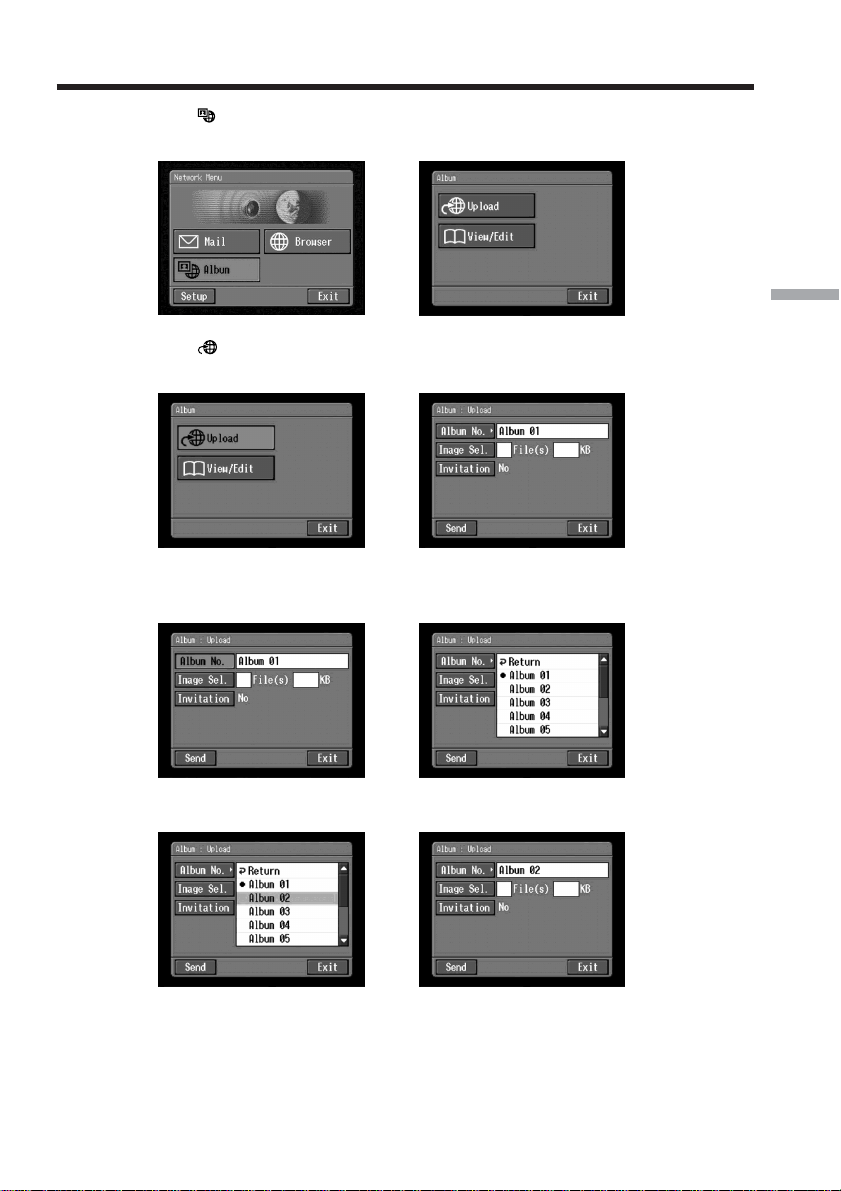
(1) Open the Network Menu.
For details of how to open the Network Menu, see page 7.
– Network Operation –
Making your Album on the Web
69
Network Operation
(2) Tap [ Album].
The Album screen appears.
,
(3) Tap [ Upload].
The Album : Upload screen appears.
,
(4) Tap [Album No.].
The album list page appears.
,
(5) Tap the desired album.
,
The number of available albums
You can use up to 10 albums (Album 01 to 10).
Making your Album on the Web
70
2 Selecting still images and/or moving pictures to upload
Next, select the still images and/or moving pictures you want to upload.
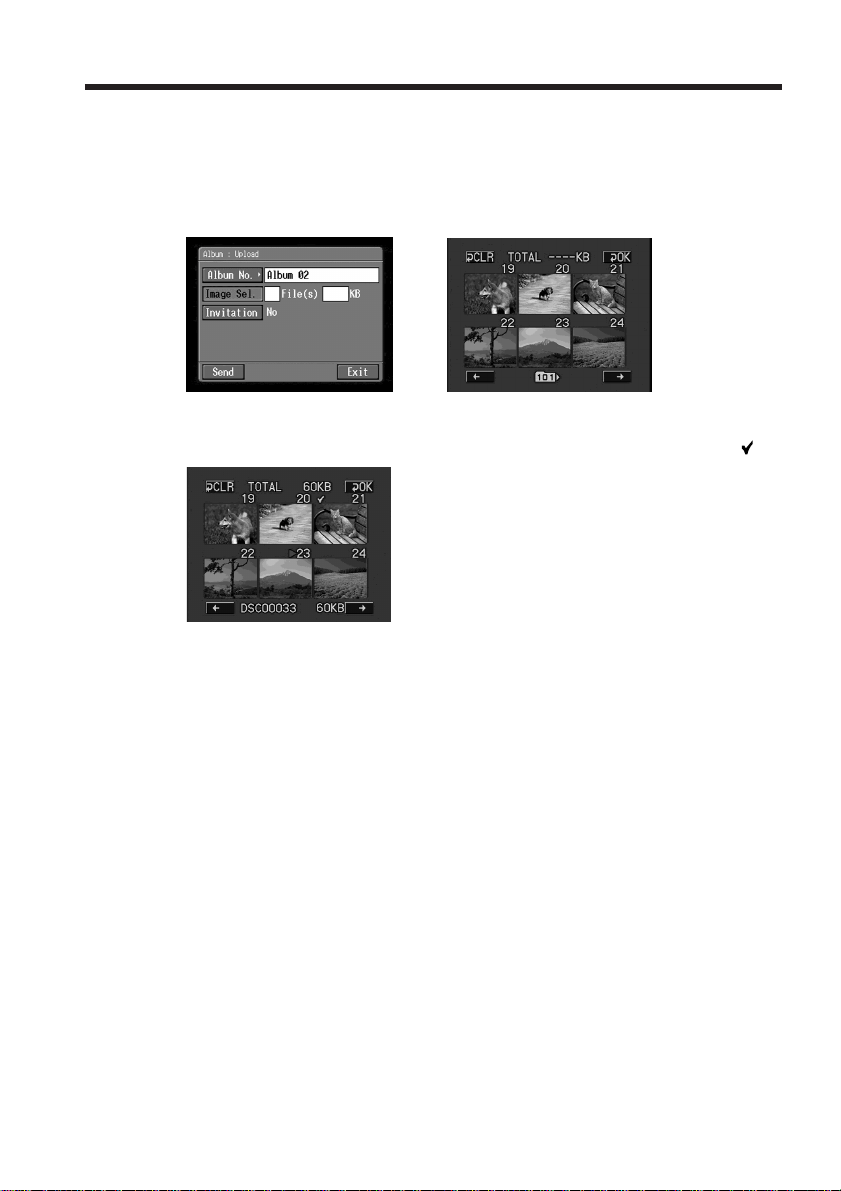
(1) Tap [Image Sel.].
The image index list appears.
,
(2) Tap the still image or moving picture you want to upload.
The selected still image or moving picture is indicated by the checkmark (
).
To page up or down the image index list
Tap [<] or [,]. The next or previous page containing six still images and/or
moving pictures appears.
(3) Repeat step 2 to select other still images and/or moving pictures.
Notes
•You can upload up to 99 still images and/or moving pictures or up to 3MB
(3,072KB) file size of still images and/or moving pictures.
•You can upload still images and/or moving pictures to only one album at one
time.
Making your Album on the Web
71
Network Operation
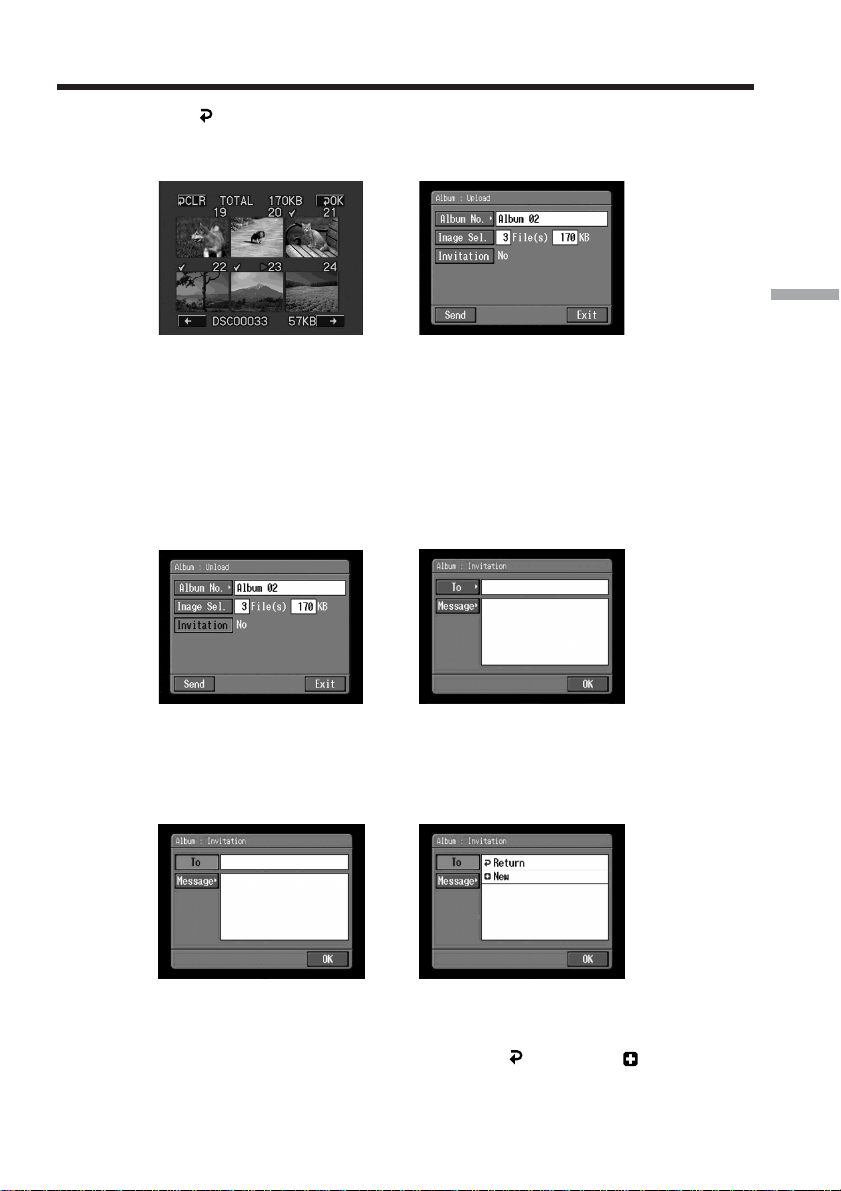
(4) Tap [ OK].
The Album : Upload screen appears again. The total number of selected still
images and/or moving pictures and the total file size are indicated.
,
If you only want to upload still images and/or moving pictures, go to
“5 Uploading still images and/or moving pictures” (p. 74).
3 Sending an invitation card (email)
Select the addressee to send the invitation card (email) to.
(1) Tap [Invitation].
The Album : Invitation screen appears.
,
(2) Tap [To].
The address list appears. The list shows the destination addresses that are
registered in the address book. For details of the address book, see “Using the
address book” (p. 93).
,
If you want to select an address listed in the address book, go to step 6.
Tips
•The most recently used address is listed under [ Return] and [ New].
•Addresses are listed in historical order.
Making your Album on the Web
72
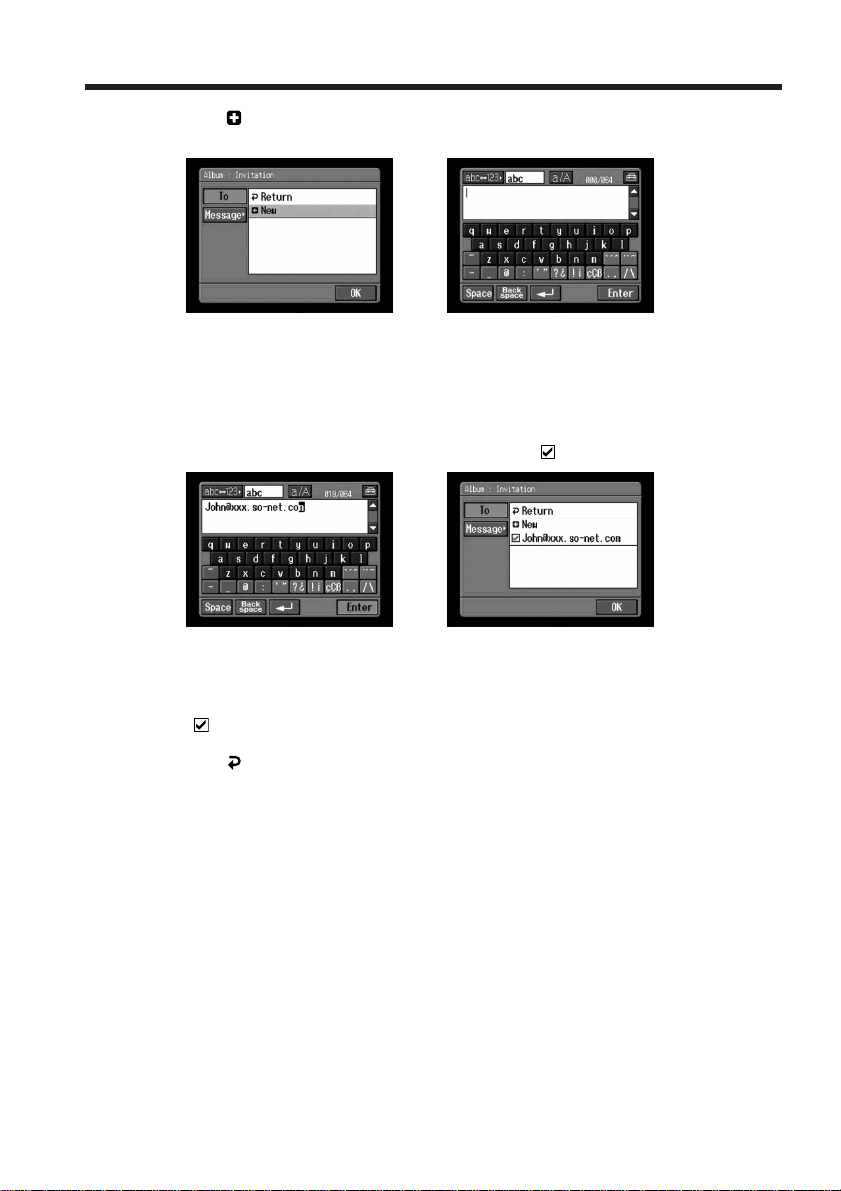
(3) Tap [ New].
The character input screen appears.
,
(4) Enter the destination email address.
For details of how to input characters, see “How to input characters” (p. 9).
(5) Tap [Enter].
The Album : Invitation screen appears again. The new email address is listed
and its check box is indicated by a checkmark (
).
,
(6) If you want to send the invitation card to other addressees, tap other email
addresses.
The check boxes of the selected email addresses are indicated by a checkmark
(
).
(7) Tap [
Return].
The Album : Invitation screen appears again.
Note
You can register up to 50 addresses in the address book. If you register a 51st address,
the least recently used address is overwritten. The message “Address Book Full
Overwrite the Data with Current Address?” appears for verification. To overwrite it,
tap [OK]. Otherwise, tap [Cancel] and delete an unnecessary address from the address
book, then enter and register the new address.
Making your Album on the Web
73
Network Operation
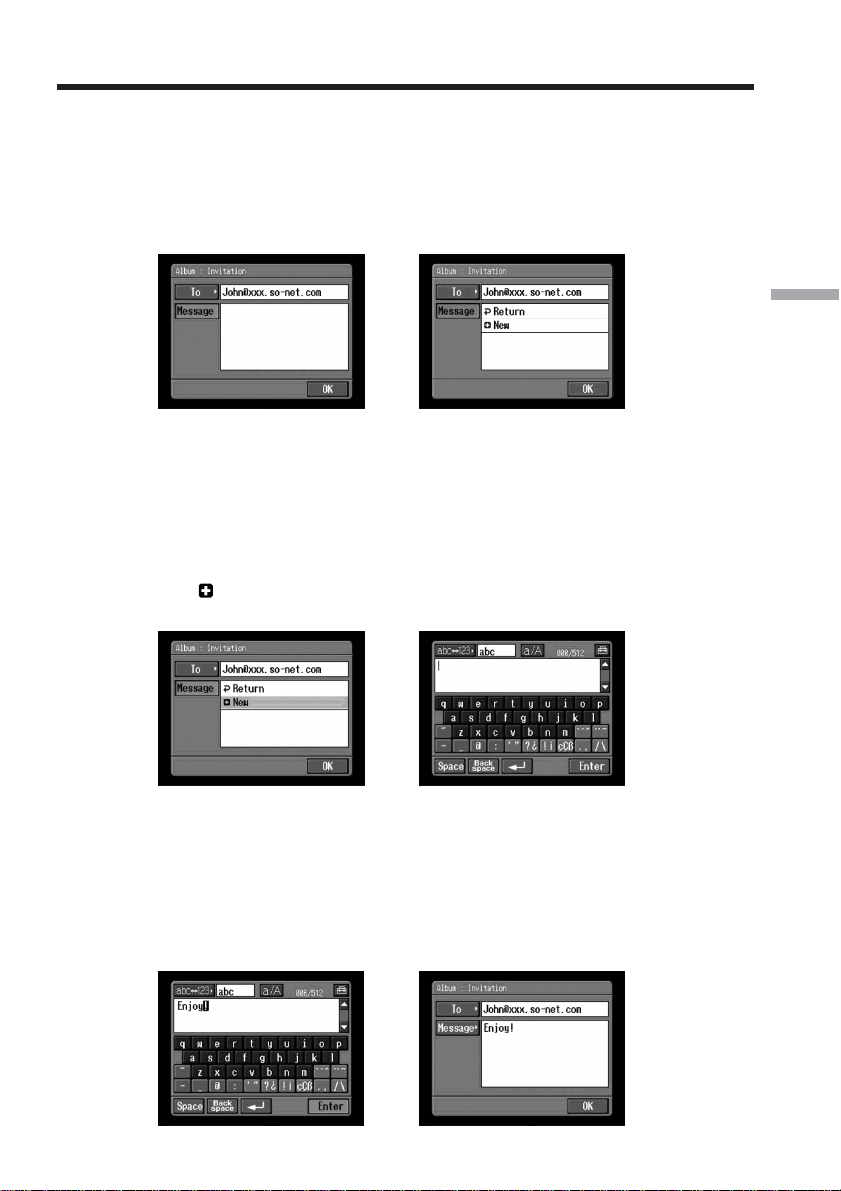
4 Entering the text of a message
Enter the text of the message. You can also select one of your six most recently written
messages from the message list and edit it.
(1) Tap [Message].
The message list appears.
,
The list shows previously written messages. Tap the message you want to use
from the list.
When the desired message is selected, tap [OK], and go to “5 Uploading still
images and/or moving pictures” (p. 74).
If you want to edit the selected text, tap [Edit]. The character input screen
appears. Go to step 3.
(2) Tap [
New].
The character input screen appears.
,
(3) Enter your text.
For details of how to input characters, see “How to input characters” (p. 9).
Note
You can enter up to 512 characters in a message.
(4) Tap [Enter].
The Album : Invitation screen appears again.
,
Making your Album on the Web
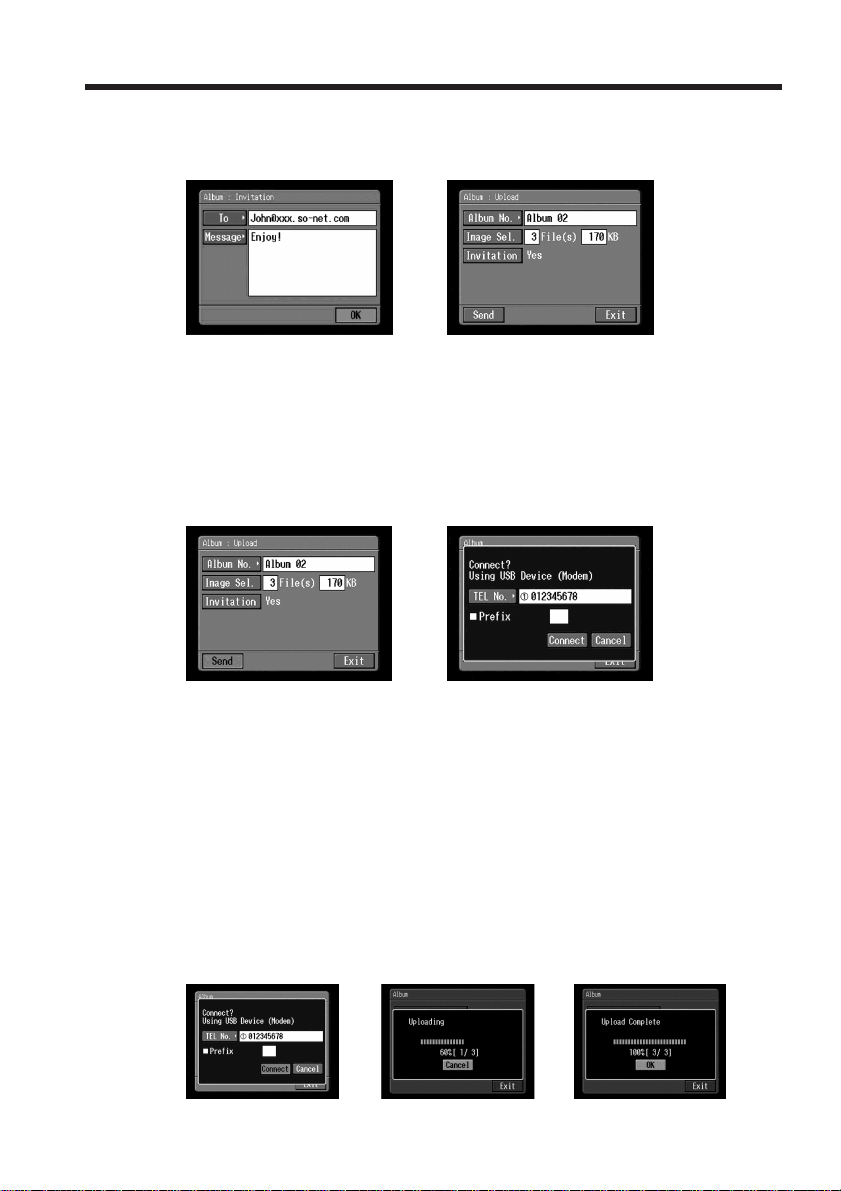
74
(5) Tap [OK].
The Album : Upload screen appears again.
“Yes” is indicated next to [Invitation].
,
5 Uploading still images and/or moving pictures
Before following the steps below, set a communication device to connection standby
with your camcorder. For details, refer to the operating instructions supplied with the
communication device.
(1) Tap [Send].
The screen for verifying the connection appears.
,
If you use a dial-up connection, dial the telephone number displayed on the
screen for verifying the connection. If you want to dial other telephone
numbers, tap [TEL No.] to display the list of registered telephone numbers.
Tap the desired telephone number to select it.
To connect to an outside line, for example in a hotel, check the item “Prefix
No.” and enter the prefix number.
When you use a LAN connection, the screen for verifying the connection may
not appear.
(2) Tap [Connect].
If you use a dial-up connection, your camcorder starts dialing the selected
telephone number. When uploading is complete, the message “Upload
Complete” appears.
,,
Making your Album on the Web
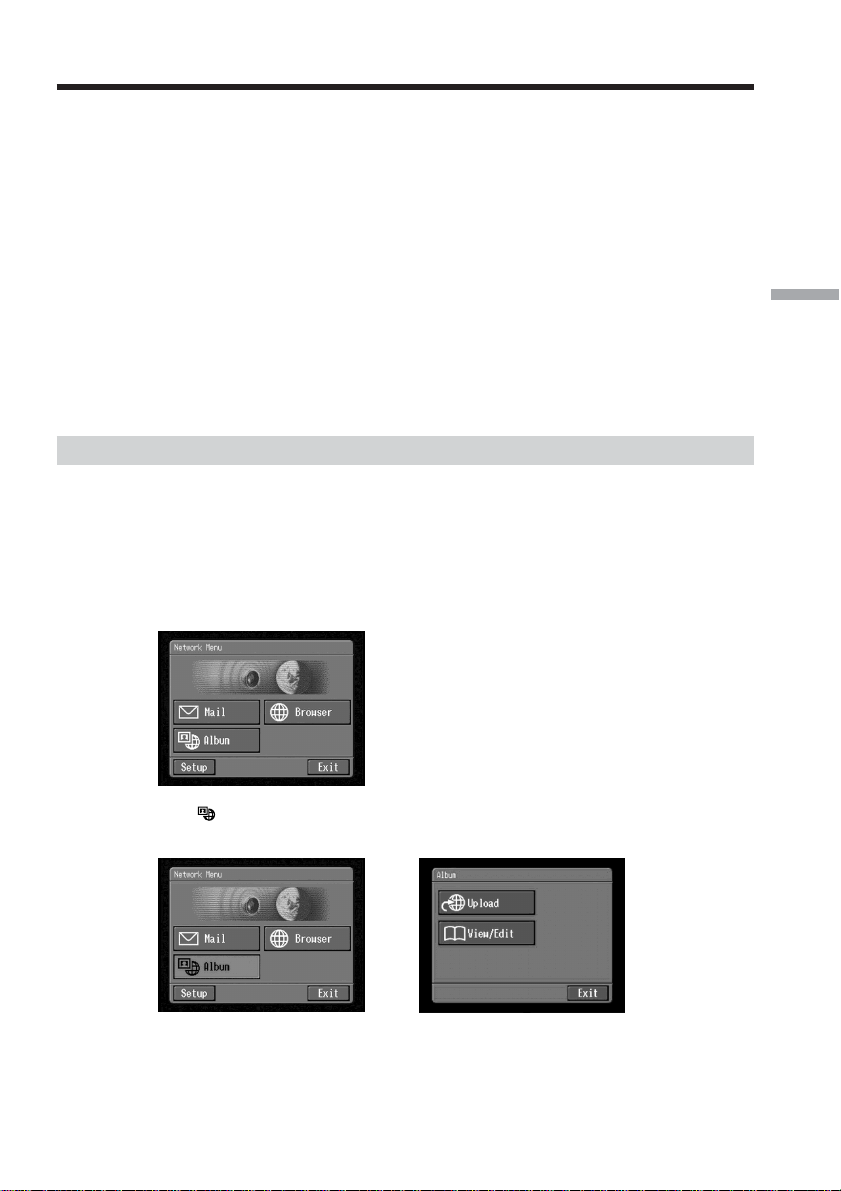
75
Network Operation
(3) Tap [OK].
The Album : Upload screen appears again.
To cancel uploading
While uploading, tap [Cancel].
To send only an invitation card (email)
You can send an invitation card without uploading still images and/or moving
pictures. Follow the steps below:
“1 Selecting an album” (p. 68)
“3 Sending an invitation card (email)” (p. 71)
“4 Entering the text of a message” (p. 73)
“5 Uploading still images and/or moving pictures” (p. 74)
After the invitation card has been sent, the message “Invitation Mail Complete”
appears.
Viewing or editing your Album on the Web
You can view or download (p. 146) still images and/or moving pictures from your
Album on the Web.
1 Viewing still images and/or moving pictures
(1) Open the Network Menu.
For details of how to open the Network Menu, see page 7.
(2) Tap [
Album].
The Album screen appears.
,
(3) Set a communication device to connection standby with your camcorder.
For details, refer to the operating instructions supplied with the
communication device.
Making your Album on the Web
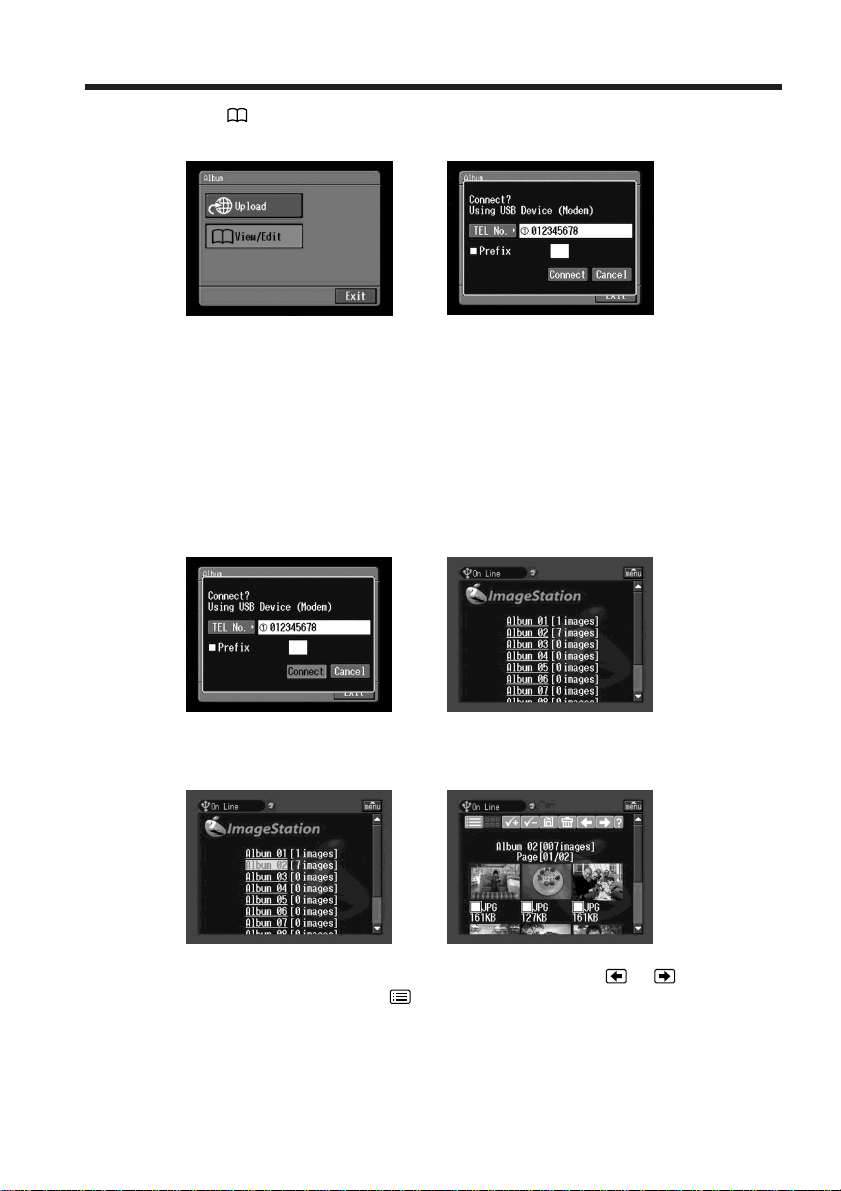
76
(4) Tap [ View/Edit].
The screen for verifying the connection appears.
,
(5) Tap [Connect].
If you use a dial-up connection, dial the telephone number displayed on the
screen for verifying the connection. If you want to dial other telephone
numbers, tap [TEL No.] to display the list of registered telephone numbers.
Tap the desired telephone number to select it.
To connect to an outside line, for example in a hotel, check the item “Prefix
No.” and enter the prefix number.
When you use a LAN connection, the screen for verifying the connection may
not appear.
After the connection is established, the album list page appears.
,
(6) Tap the album number that you want to view or edit.
The index page appears.
,
To view other still images and/or moving pictures, tap or .
To view other albums, tap
.
To see a description of each function button
Tap [?].
Making your Album on the Web
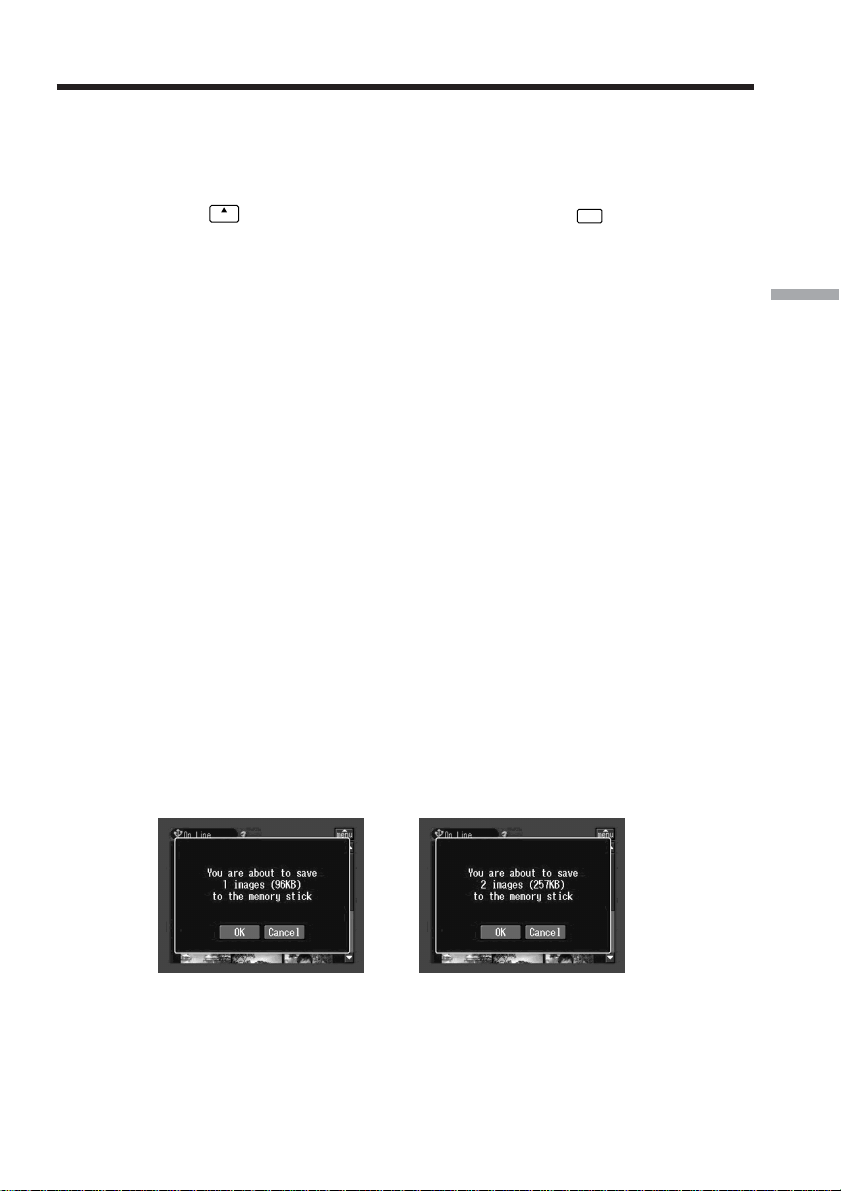
77
Network Operation
(7) Tap the desired still image or moving picture.
The still image or moving picture is enlarged to fill the screen.
Tips
•To quit viewing or editing still images and/or moving pictures in your Album on the
Web, tap
menu
on the upper right of the LCD screen, then tap
END
.
•The actual appearance of the screen may be different from those shown in this
manual.
2 Downloading still images and/or moving pictures from the album
Before operation
•Release the lock on the “Memory Stick.”
•Insert the “Memory Stick” into your camcorder, for storing still images and/or
moving pictures.
(1) Select the still images and/or moving pictures you want to download.
You can select the still images and/or moving pictures in the following two
ways:
Selecting still images and/or moving pictures from the index page:
You can select two or more still images and/or moving pictures and download
them at one time. For details, see “To select still images and/or moving
pictures from the index page” (p. 78).
Selecting one still image or moving picture displayed on the single-image
page:
You can select one still image or moving picture displayed on the single-image
page and download it. For details, see “To select one still image or moving
picture displayed on the single-image page” (p. 79).
(2) Check the number of still images and/or moving pictures and the total file
size.
When you selected one still When you selected two or more still
image or moving picture images and/or moving pictures
To cancel downloading the still images and/or moving pictures
Tap [Cancel].
Making your Album on the Web
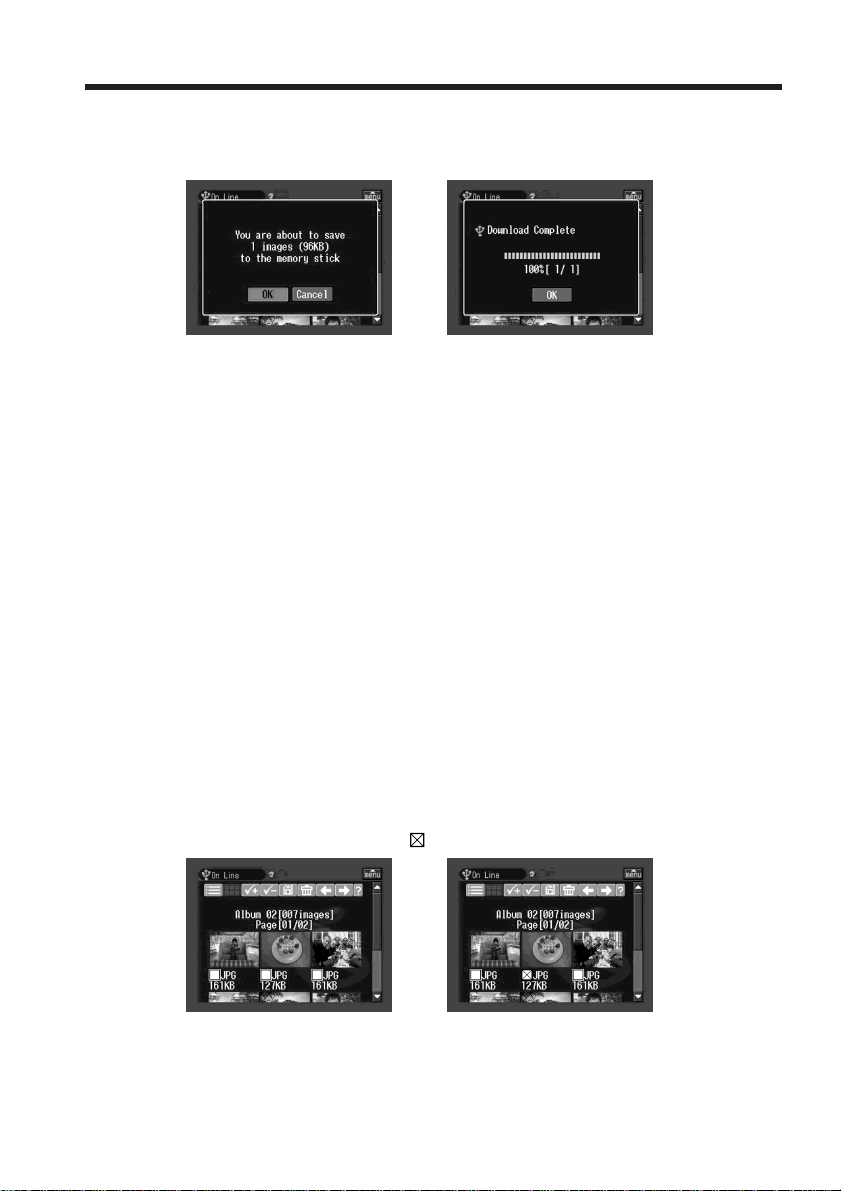
78
(3) Tap [OK].
The message “Downloading” appears. When downloading is complete, the
message “Download Complete” appears.
,
(4) Tap [OK].
The index page or single-image page appears.
To cancel downloading
While downloading, tap [Cancel].
To view a downloaded still image or moving picture
Exit the network function, then view the still image or moving picture following the
same procedure as that for viewing a still image or moving picture recorded on a
“Memory Stick.”
Notes
•Do not eject the “Memory Stick” during the downloading procedure.
•When the index page appears in step 4, the selected still images and/or moving
pictures remain checked.
•You can download only JPEG and MPEG files.
•If you download still images and/or moving pictures modified with a computer or
recorded with other devices, your camcorder may not be able to play back the still
images and/or moving pictures properly.
To select still images and/or moving pictures from the index page
(1) Tap the check box of the desired still images and/or moving pictures.
The check box under the selected still images and/or moving pictures is
indicated by the check mark (
).
,
(2) To select more still images and/or moving pictures, repeat step 1.
Making your Album on the Web
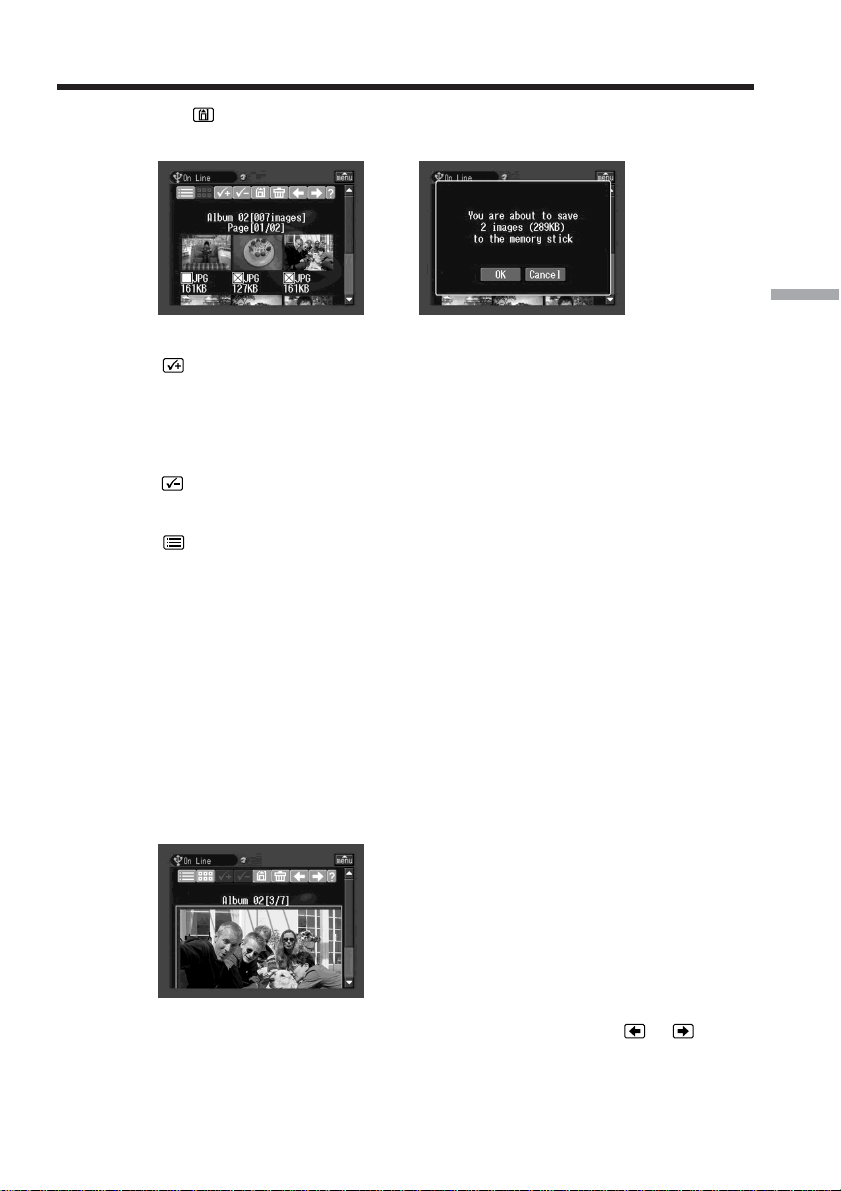
79
Network Operation
(3) Tap .
The screen for verification appears.
,
To select all the still images and/or moving pictures
Tap .
To cancel an image selection
Tap the check box of the still image or moving picture again.
To cancel all image selections
Tap .
To return to the album list page
Tap .
To select one still image or moving picture displayed on the single-
image page
You can select one still image or moving picture displayed on the full-screen and
download it.
When downloading is complete
The message “Download Complete” appears on the screen.
Tap [OK].
(1) If the index page is displayed, tap the still image or moving picture you want
to enlarge.
The still image or moving picture appears on the single-image page.
(2) If you want to view more still images or moving pictures, tap
or .
Making your Album on the Web
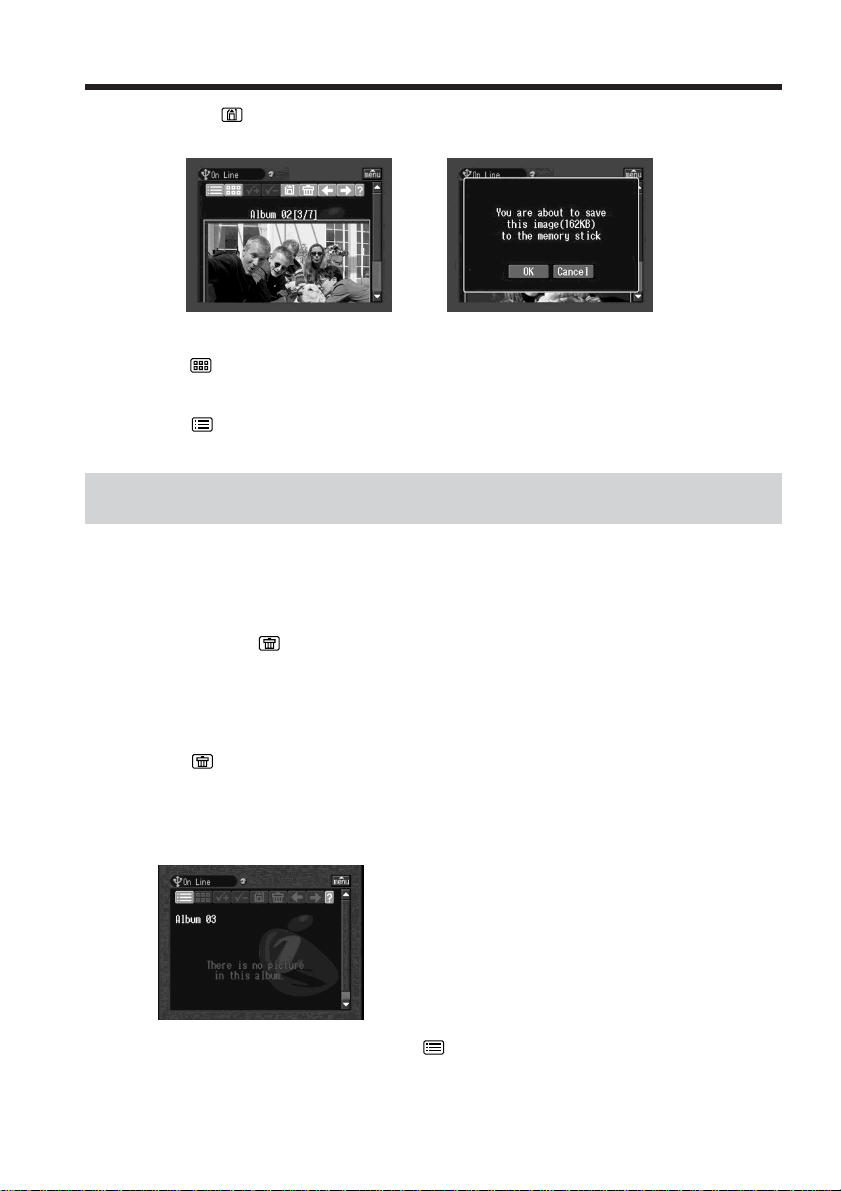
80
(3) Tap .
The screen for verification appears.
,
To return to the index page
Tap .
To return to the album list page
Tap .
Deleting still images and/or moving pictures from your Album
on the Web
You can delete still images and/or moving pictures from your Album on the Web.
To delete still images and/or moving pictures displayed on the
index page
You can select two or more still images and/or moving pictures and delete them
together. Tap after step 2 in “To select still images and/or moving pictures from the
index page” (p. 78). The screen for verification appears. Tap [OK]. The index page
appears again.
To delete one still image or moving picture displayed on the
single-image page
Tap after step 2 in “To select one still image or moving picture displayed on the
single-image page” (p. 79). The screen for verification appears. Tap [OK].
If the album is empty
The message “There is no picture in this album.” appears.
To return to the Album list page, tap .
Making your Album on the Web
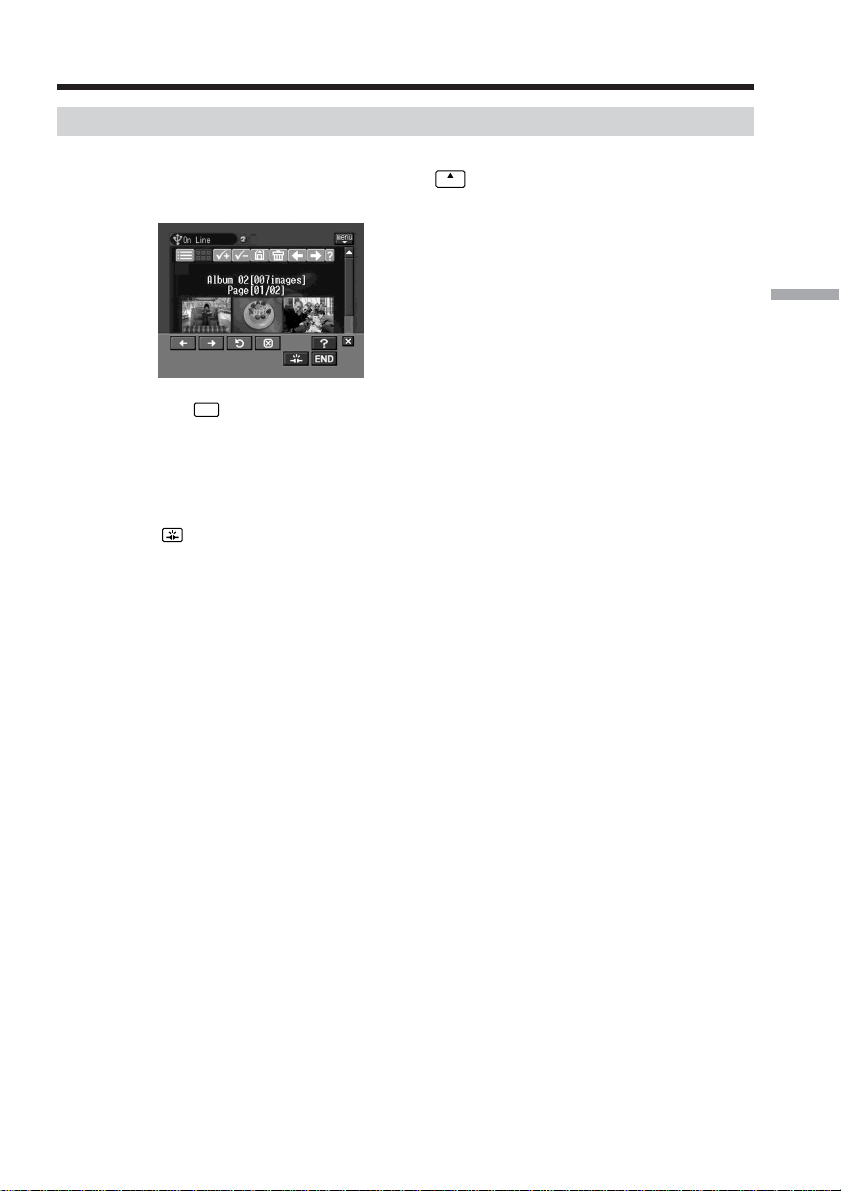
81
Network Operation
Finishing viewing or editing your Album on the Web
To finish viewing or editing your Album on the Web
(1) If the menu bar is not displayed, tap
menu
on the upper right of the LCD screen.
The menu bar appears.
(2) Tap
END
.
Your Album on the Web is closed.
When you use a dial-up connection, the telephone line is disconnected
automatically.
To only disconnect the line
Tap . Only the line is disconnected.
Tip
If you only disconnect the line, you can continue to view the album displayed on the
screen. If you try to download still images and/or moving pictures, delete still images
or moving pictures, or view another Album on the Web, the screen for verifying the
connection appears. Tap [Connect].
Making your Album on the Web
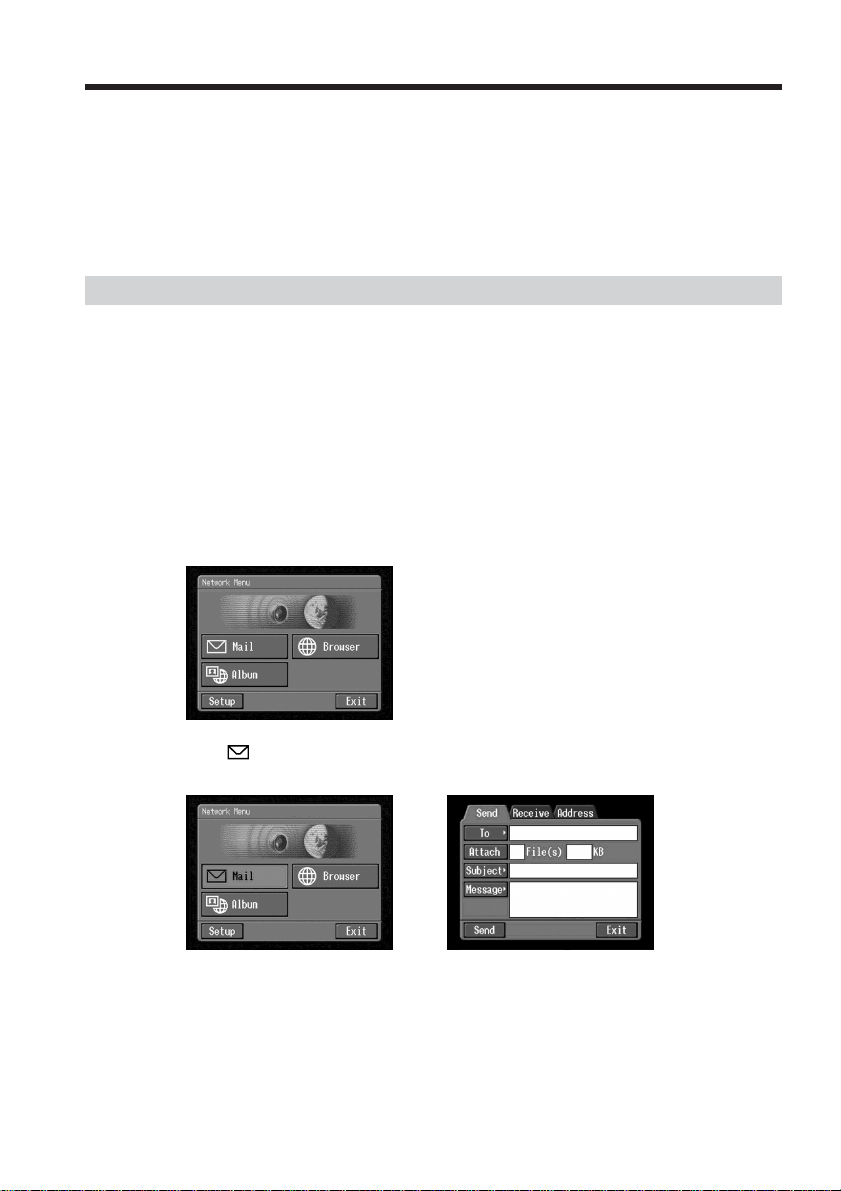
82
This section describes the basic procedure for sending/receiving email via the Internet.
Email is very convenient, since you can send it anytime, and you can also send still
images and/or moving pictures stored in a “Memory Stick” by attaching them to email.
As of March 2003, “AOL” does not support the receiving of email on this device. For
further clarification on this and other “AOL”-specific attributes, go to keyword:
Handycam on your computer.
Sending email
By entering the destination email address, you can send an email message instantly.
1 Specifying a destination address
Be careful to enter the address correctly.
Tip
You can select an email address from the address book. For details, see “Selecting a
destination address from the address book” (p. 98).
(1) Open the Network Menu.
For details of how to open the Network Menu, see page 7.
(2) Tap [
Mail].
The Send screen appears.
,
Using email
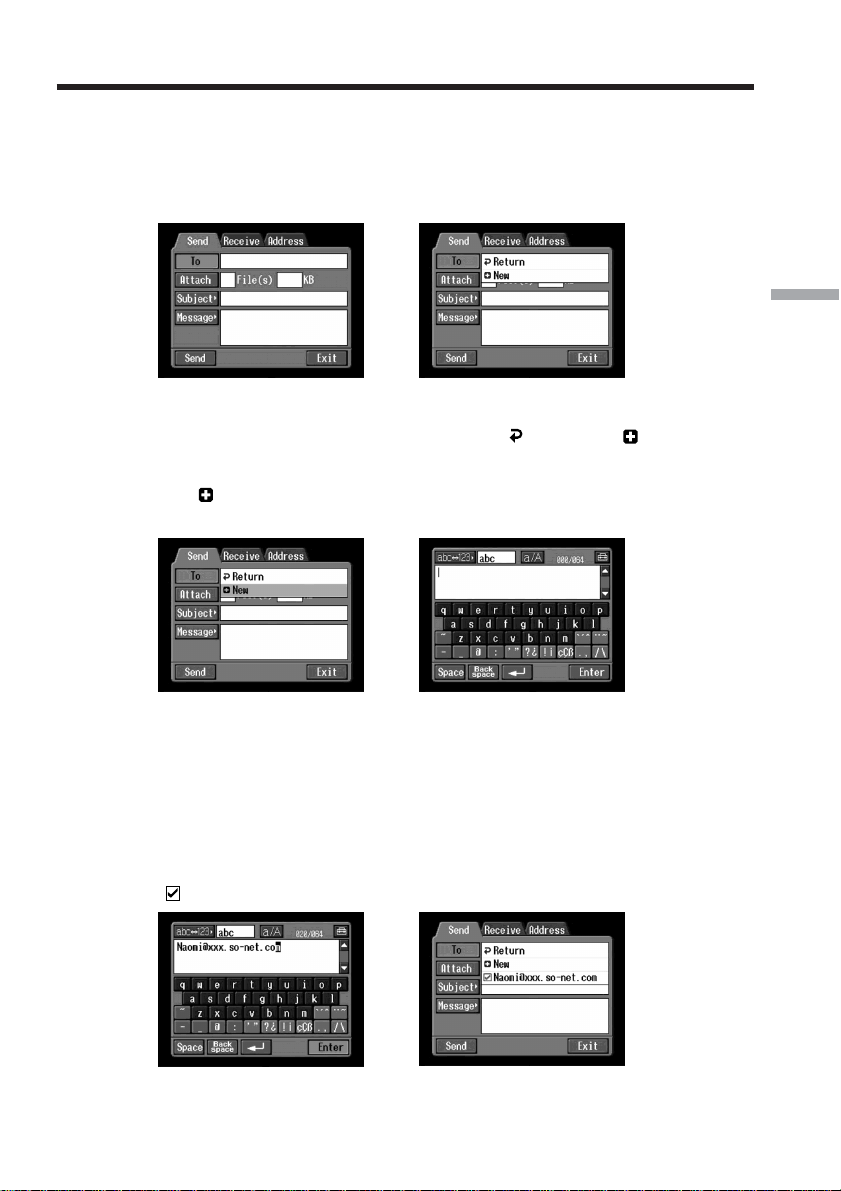
83
Network Operation
(3) Tap [To].
The address list appears. The list shows the six most recently used addresses in
the address book. For details of the address book, see “Using the address
book” (p. 93). If you want to select an address listed in the address book, go to
step 7.
,
Tips
•The most recently used address is listed under [ Return] and [ New].
•Addresses are listed in historical order.
(4) Tap [ New].
The character input screen appears.
,
(5) Enter the email address of the addressee.
For details of how to input characters, see “How to input characters” (p. 9).
When addressing email, including to other “AOL” members, be sure to enter
the recipients entire email address into the “To” field.
(e.g. [email protected])
(6) Tap [Enter].
The Send screen appears again. The new email address is listed and checked
(
).
,
Tip
You can correct or edit the email addresses in the address book. For details of
the address book, see “Editing or deleting the address book” (p. 96).
Using email

84
(7) If you want to send the email message to other addresses, tap other email
addresses.
Each tapped email address is checked (
).
(8) Tap [
Return].
The Send screen appears again.
Note
You can register up to 50 addresses in the address book. If you register a 51st address,
the least recently used address is overwritten. The message “Address Book Full
Overwrite the Data with Current Address?” appears for verification. If you want to
overwrite it, tap [OK]. Otherwise, tap [Cancel] and delete an unnecessary address from
the address book, then enter and register the new address.
Using email
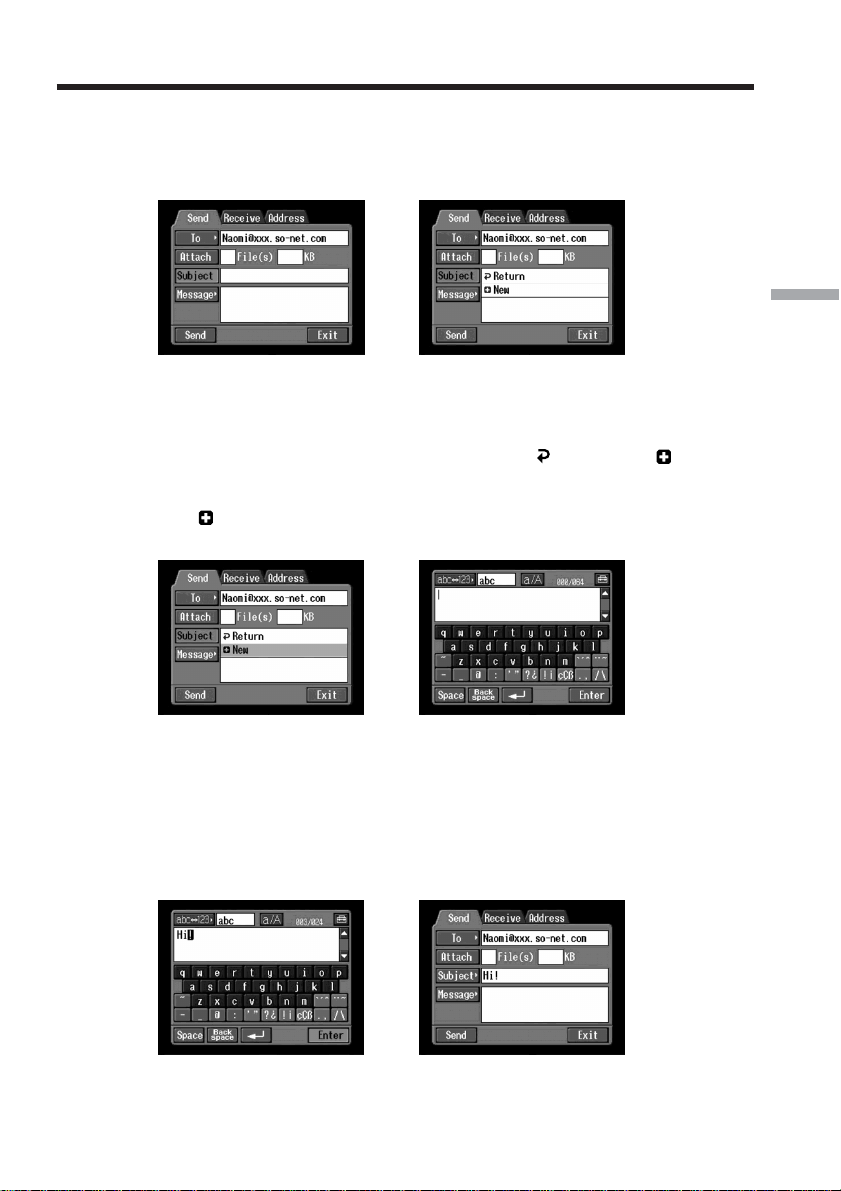
85
Network Operation
2 Entering the subject of a message
(1) Tap [Subject].
The subject list appears. The list shows the six most recently used subjects.
,
If you want to use a subject shown on the list, tap it. After selecting the subject,
go to “3 Entering the text of a message” (p. 86).
Tip
The most recently selected subject is listed under [
Return] and [ New].
You cannot edit or delete the subject.
(2) Tap [
New].
The character input screen appears.
,
(3) Enter the subject.
For details of how to input characters, see “How to input characters” (p. 9).
Note
You can enter up to 24 characters in a subject.
(4) Tap [Enter].
The Send screen appears again.
,
Using email
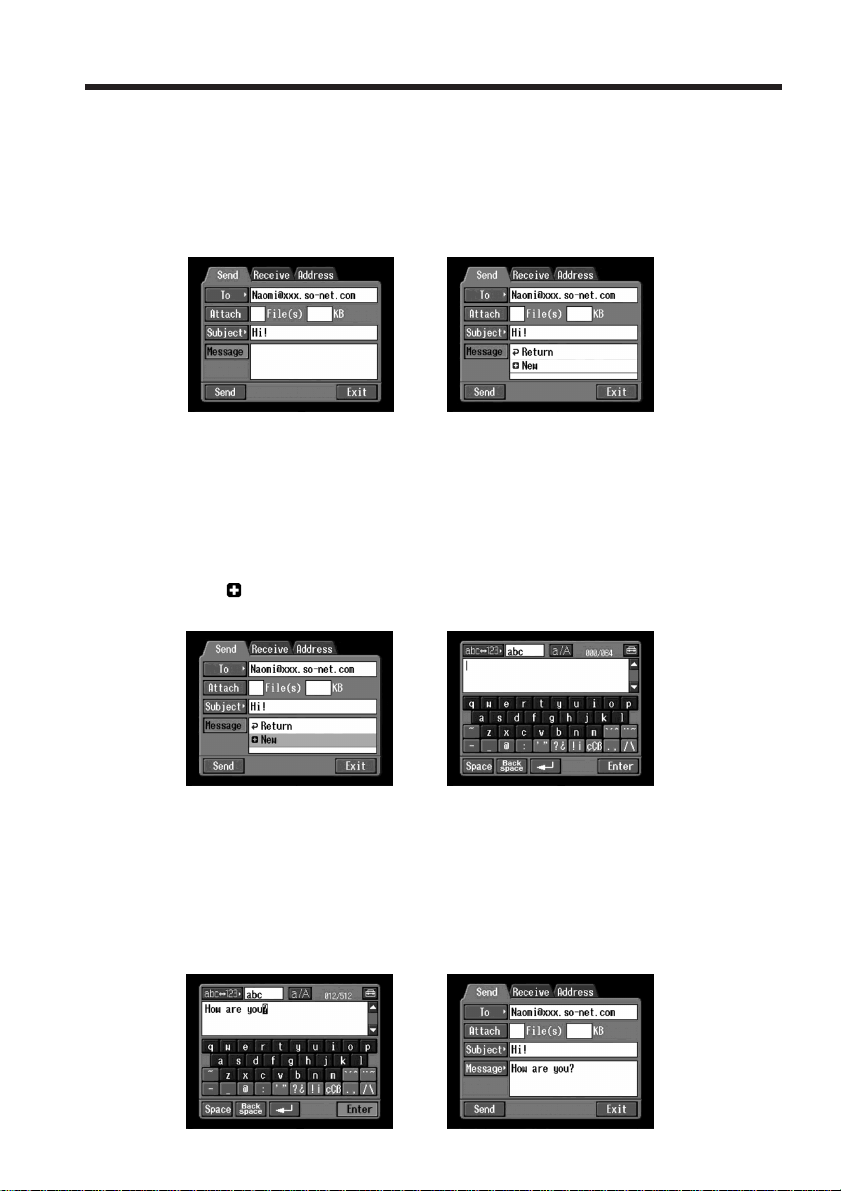
86
3 Entering the text of a message
Enter the text of the message. You can select one of your six most recently written
messages from the message list and edit it.
(1) Tap [Message].
The message list appears.
,
The list shows previously written messages. Tap the message you want to use
from the list.
When the desired message is selected, tap [OK], and go to “4 Sending email”
(p. 87).
If you want to edit the selected text, tap [Edit]. The character input screen
appears. Go to step 3.
(2) Tap [
New].
The character input screen appears.
,
(3) Enter your message.
For details of how to input characters, see “How to input characters” (p. 9).
Note
You can enter up to 512 characters in a message.
(4) Tap [Enter].
The Send screen appears again.
,
Using email
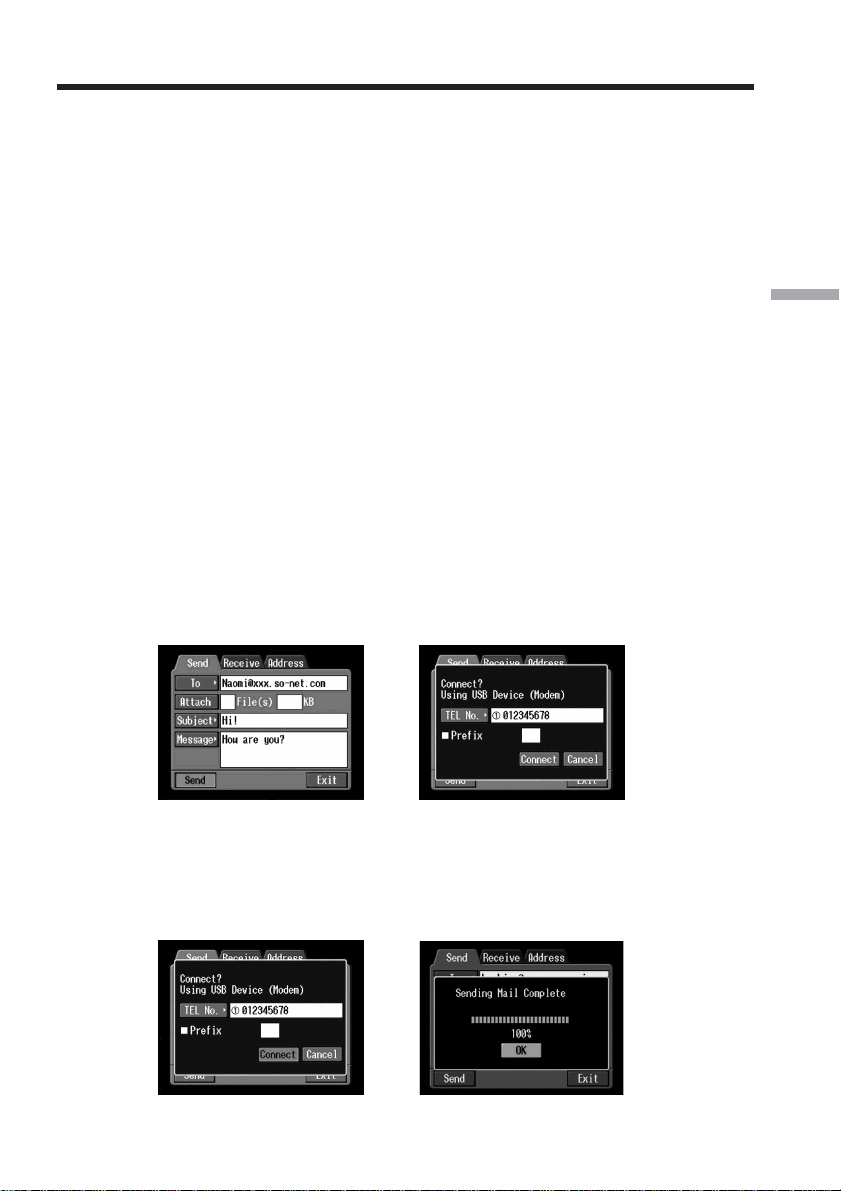
87
Network Operation
4 Sending email
Tip
You can send email messages with your signature. For details, see “Attaching your
signature to messages” (p. 92).
(1) Select the still images and/or moving pictures to attach to the email message.
For details, see “Attaching still images and/or moving pictures to email”
(p. 90).
(2) Check the message.
For details, see “Checking or editing a message” (p. 88).
(3) Set a communication device to connection standby with your camcorder.
For details, refer to the operating instructions supplied with the
communication device.
(4) Tap [Send].
If you use a dial-up connection, dial the telephone number displayed on the
screen for verifying the connection. If you want to dial other telephone
numbers, tap [TEL No.] to display the list of registered telephone numbers.
Tap the desired telephone number to select it.
To connect to an outside line, for example in a hotel, check the item “Prefix
No.” and enter the prefix number.
When you use a LAN connection, the screen for verifying the connection may
not appear.
,
(5) Tap [Connect].
If you use a dial-up connection, your camcorder starts dialing the selected
telephone number. After sending email is complete, the message “Sending
Mail Complete” appears. If you use a dial-up connection, the telephone line is
automatically disconnected.
,
Using email
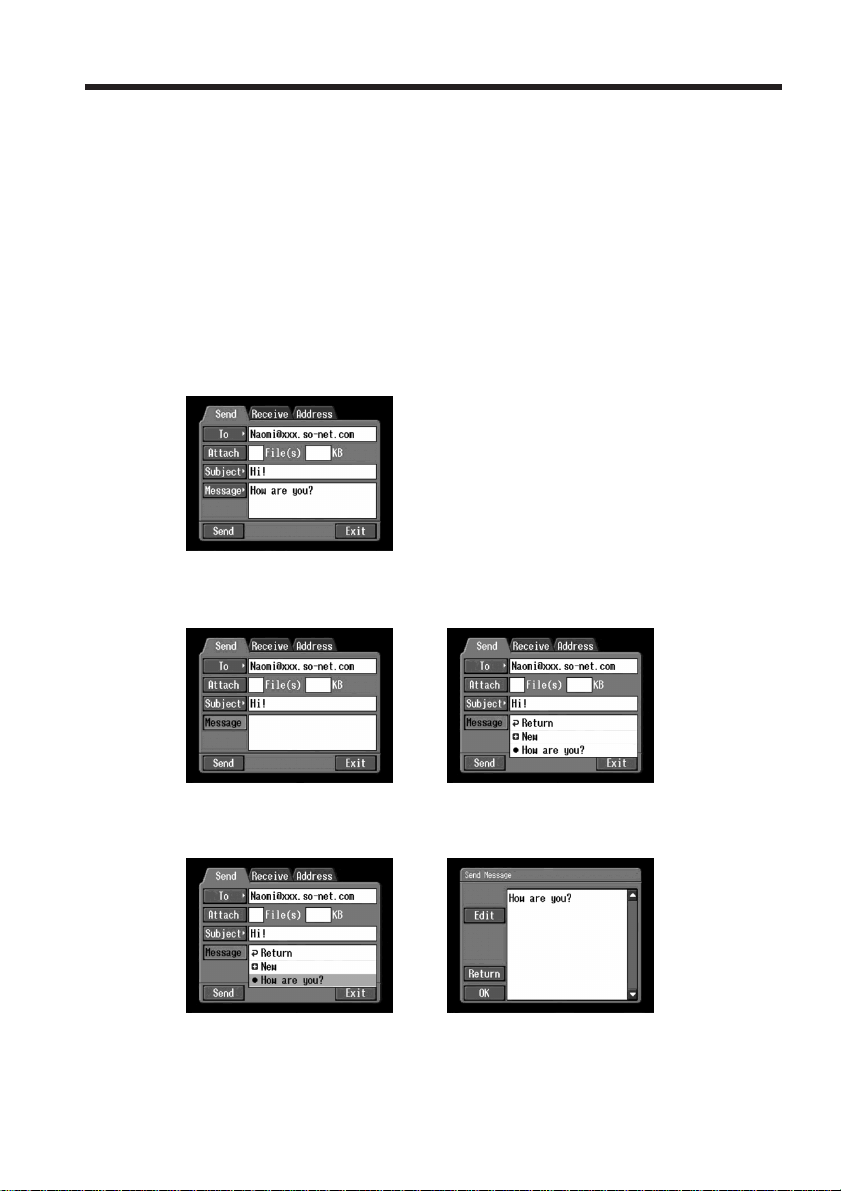
88
(6) Tap [OK].
The Send screen appears again.
To cancel sending email
While sending email, tap [Cancel].
Tip
You can have your camcorder check the email inbox automatically after sending email.
For details, see “Setting other preferences” (p. 65).
Checking or editing a message
(1) Follow steps 1 and 2 of 1 on page 82.
The Send screen appears.
(2) Tap [Message].
The message list appears.
,
(3) Tap the message you want to check or edit.
The following screen appears.
,
Using email
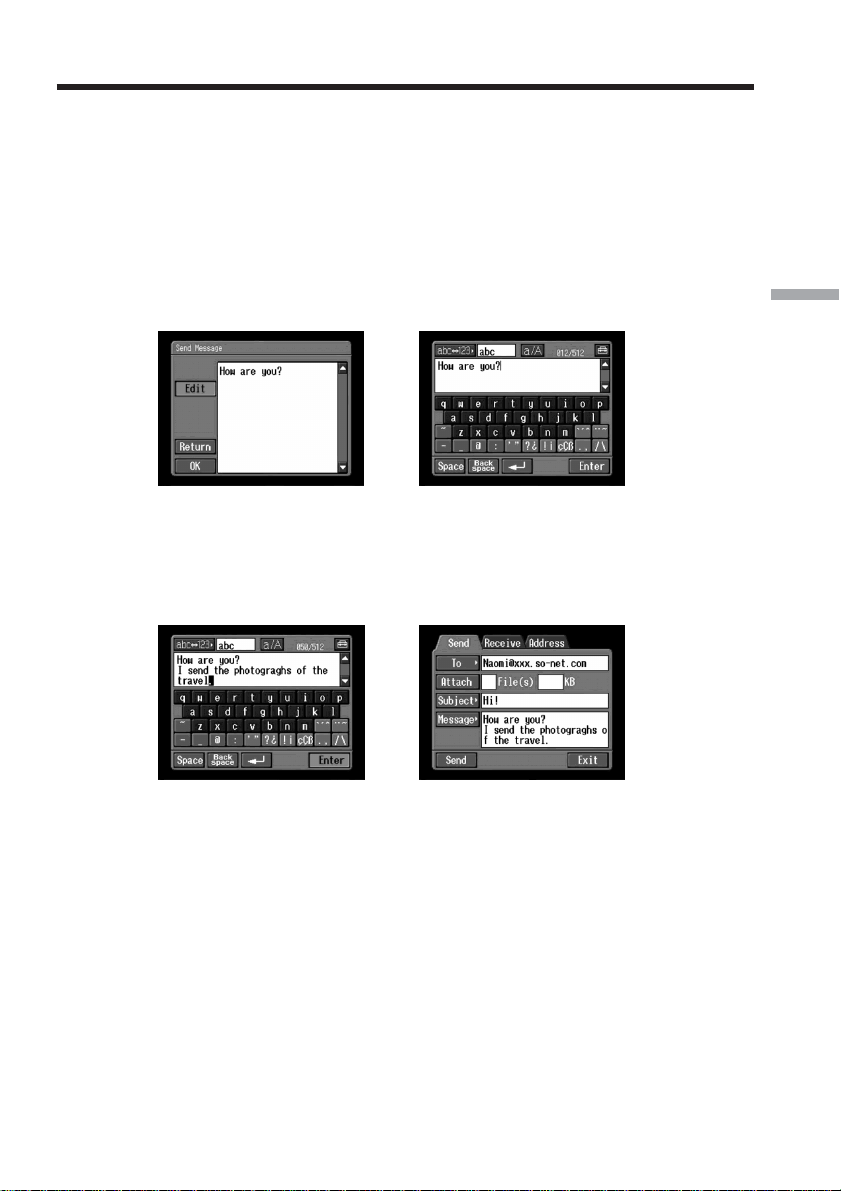
89
Network Operation
(4) Check or edit the message. If the message is long, tap the message area, then
tap the scroll button V to scroll the message.
To only check the message:
After checking the message, tap [OK]. The Send screen appears again.
To edit the message:
Follow steps 5 to 7 below.
(5) Tap [Edit].
The character input screen appears.
,
(6) Edit the message.
For details of how to input characters, see “How to input characters” (p. 9).
(7) Tap [Enter].
The Send screen appears again.
,
Using email
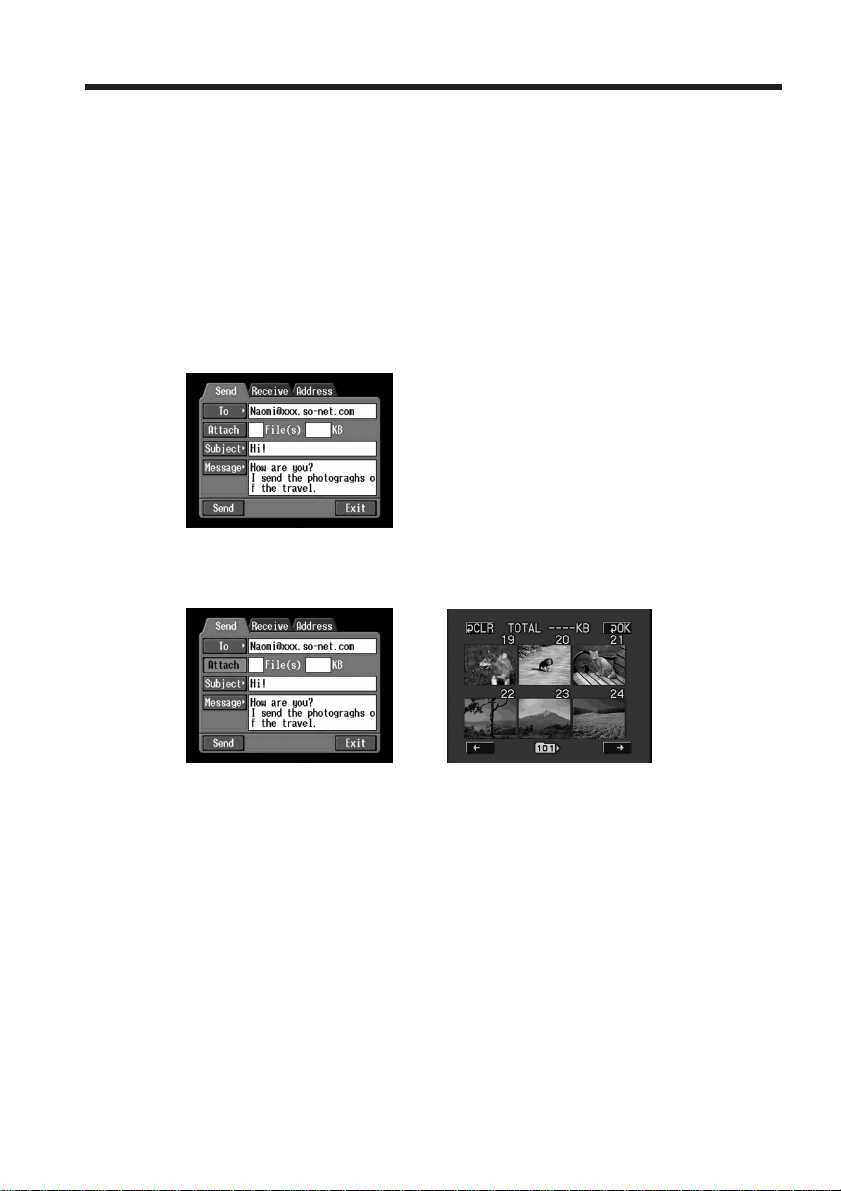
90
Attaching still images and/or moving pictures to email
You can send still images and/or moving pictures by attaching them to email messages.
Before operation
Insert the “Memory Stick” that contains the desired still images and/or moving pictures
into your camcorder.
(1) Finish the following procedure:
“1 Specifying a destination address” (p. 82)
“2 Entering the subject of a message” (p. 85)
“3 Entering the text of a message” (p. 86)
The Send screen appears.
(2) Tap [Attach].
The still images and/or moving pictures stored on the “Memory Stick” appear.
,
Using email
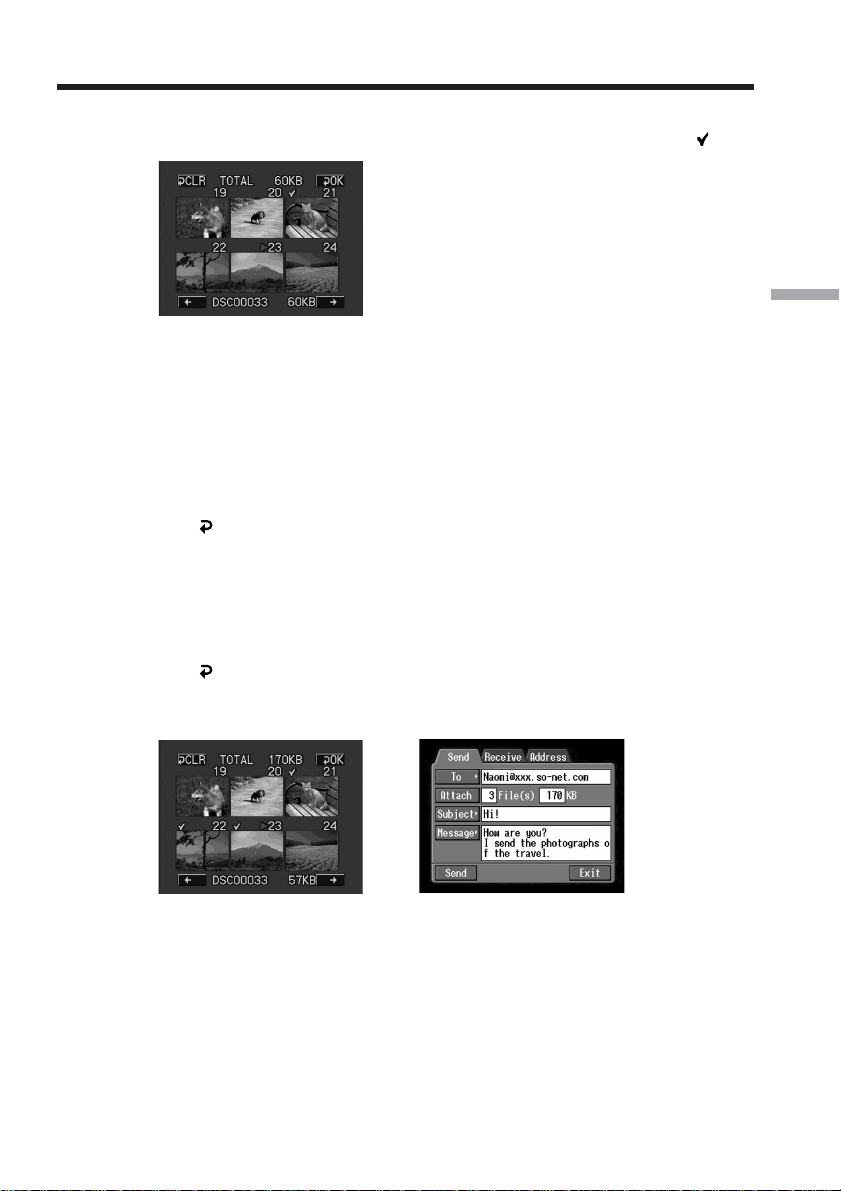
91
Network Operation
(3) Tap the still images and/or moving pictures you want to attach.
Selected still images or moving pictures are indicated by a check mark (
).
To page up or down the index list
Tap [<] or [,]. The next or previous page appears.
To cancel an image selection
Tap the still image or moving picture again. The check mark will disappear
from the still image or moving picture.
To cancel all the image selection
Tap [
CLR].
(4) Repeat step 3 to select other still images and/or moving pictures to attach.
Notes
•You can attach up to 99 still images and/or moving pictures to an email message.
•The maximum total file size you can attach to an email message is 3MB (3,072 KB).
(5) Tap [ OK].
The Send screen appears again. The total number of selected still images
and/or moving pictures and the total file size are indicated.
,
(6) Follow the procedure described in “4 Sending email” (p. 87) from step 3.
Note
Sending email may take a while, depending on the size of the still image or moving
picture.
Using email
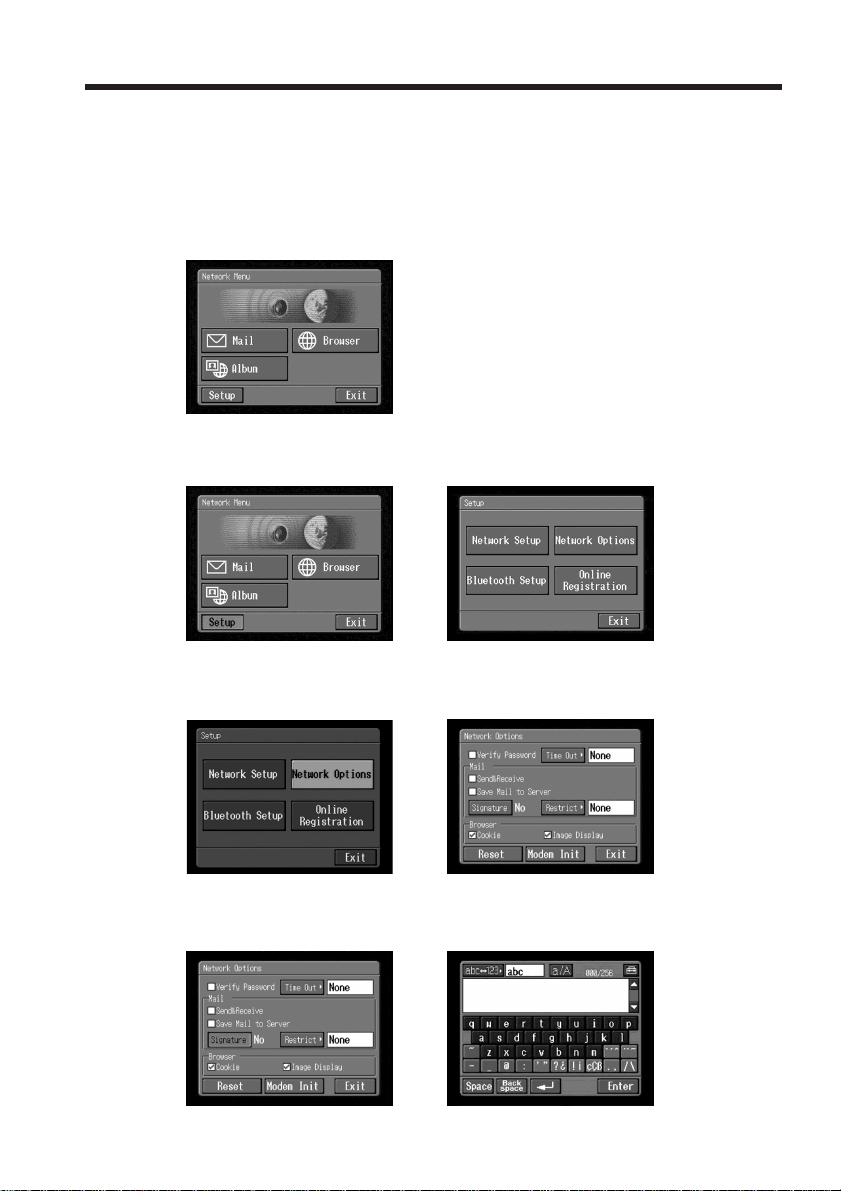
92
Attaching your signature to messages
You can attach your signature to the last column of the email message. You can enter
information such as your name, address and telephone number as a signature.
(1) Open the Network Menu.
For details of how to open the Network Menu, see page 7.
(2) Tap [Setup].
The Setup screen appears.
,
(3) Tap [Network Options].
The Network Options screen appears.
,
(4) Tap [Signature].
The character input screen appears.
,
Using email
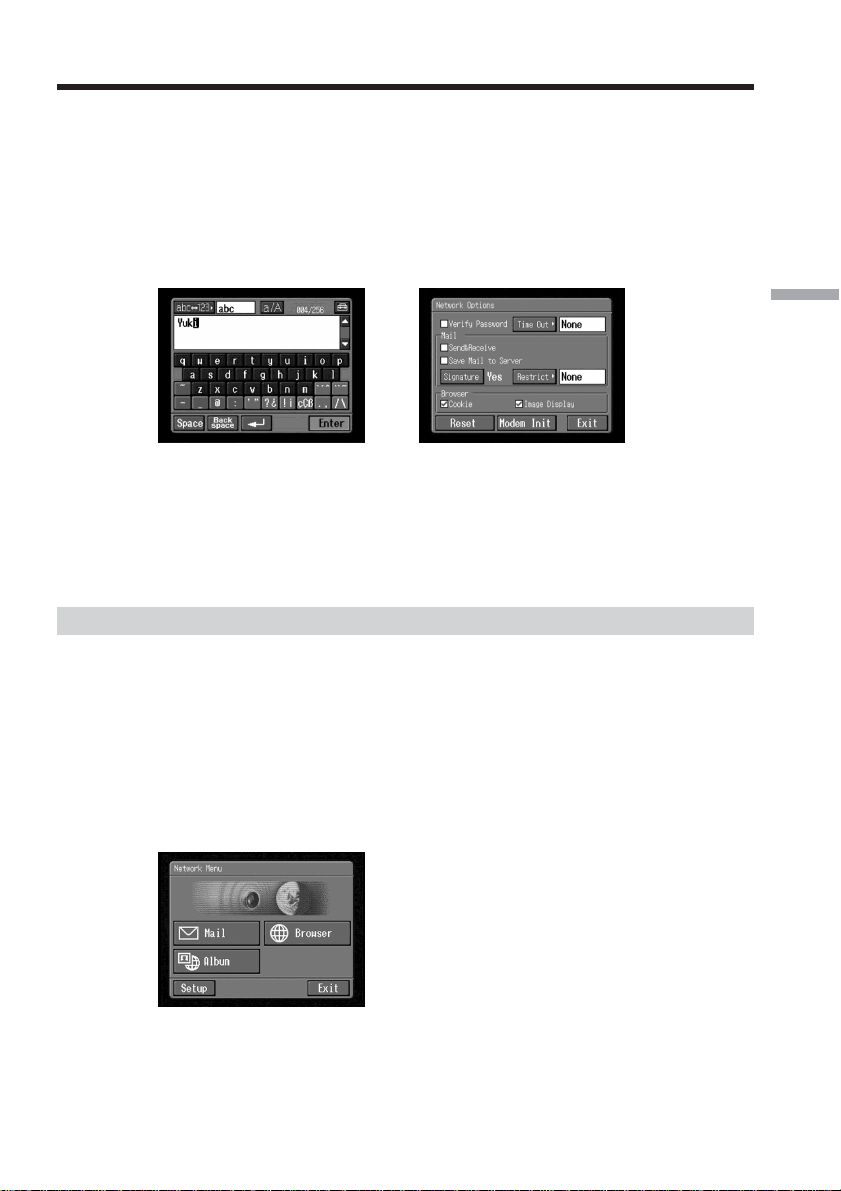
93
Network Operation
(5) Enter your signature.
For details of how to input characters, see “How to input characters” (p. 9).
Note
You can enter up to 256 characters in a signature.
(6) Tap [Enter].
The setup of your signature is complete, and the Network Options screen
appears again. “Yes” is indicated next to [Signature].
,
(7) Tap [Exit].
The Setup screen appears again.
(8) Tap [Exit].
The Network Menu appears again.
Using the address book
Once you register frequently used email addresses in the address book, you can send
email without entering those email addresses manually.
Registering destination addresses in the address book
You can register up to 50 frequently used email addresses in the address book. Be sure
to enter the address correctly.
(1) Open the Network Menu.
For details of how to open the Network Menu, see page 7.
Using email
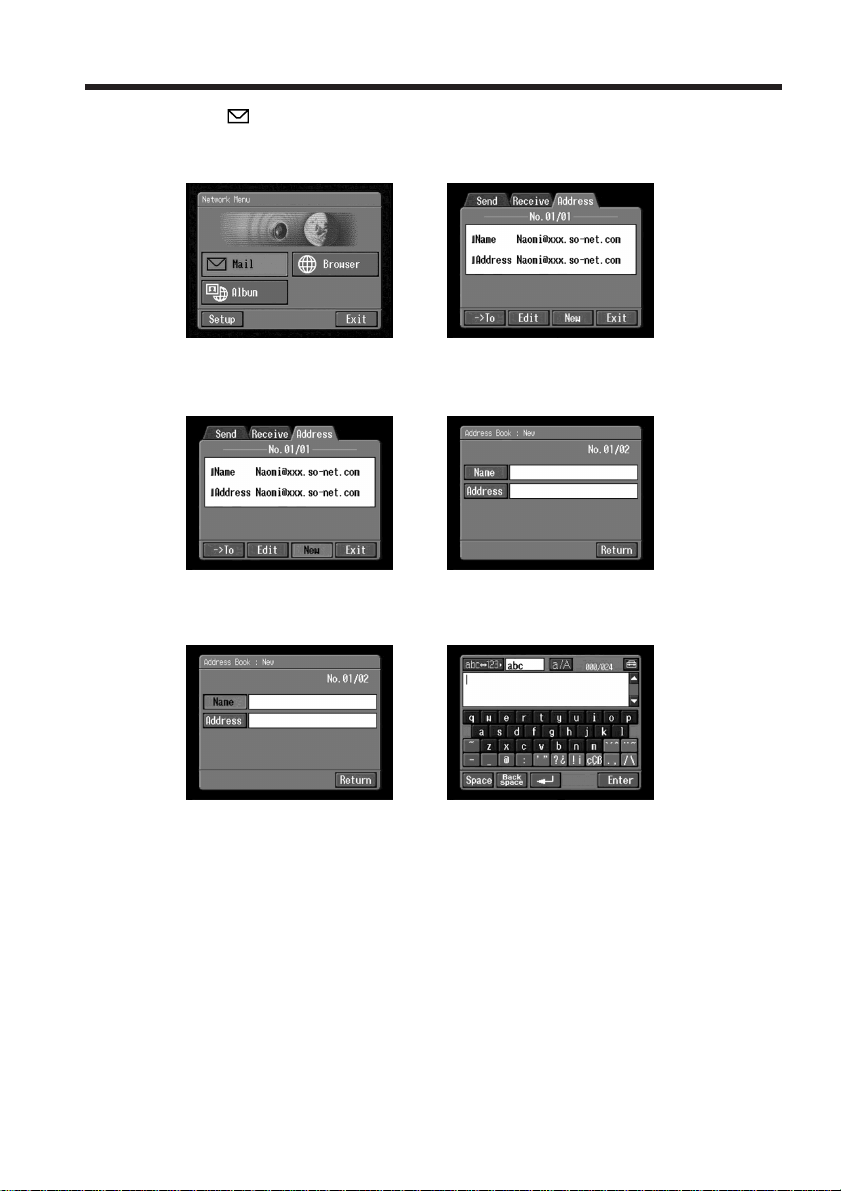
94
(2) Tap [ Mail].
If the Address screen does not appear, tap Address. The Address screen will
appear.
,
(3) Tap [New].
The Address Book : New screen appears.
,
(4) Tap [Name].
The character input screen appears.
,
(5) Enter the destination name.
For details of how to input characters, see “How to input characters” (p. 9).
Note
You can enter up to 24 characters in the [Name] box.
Using email
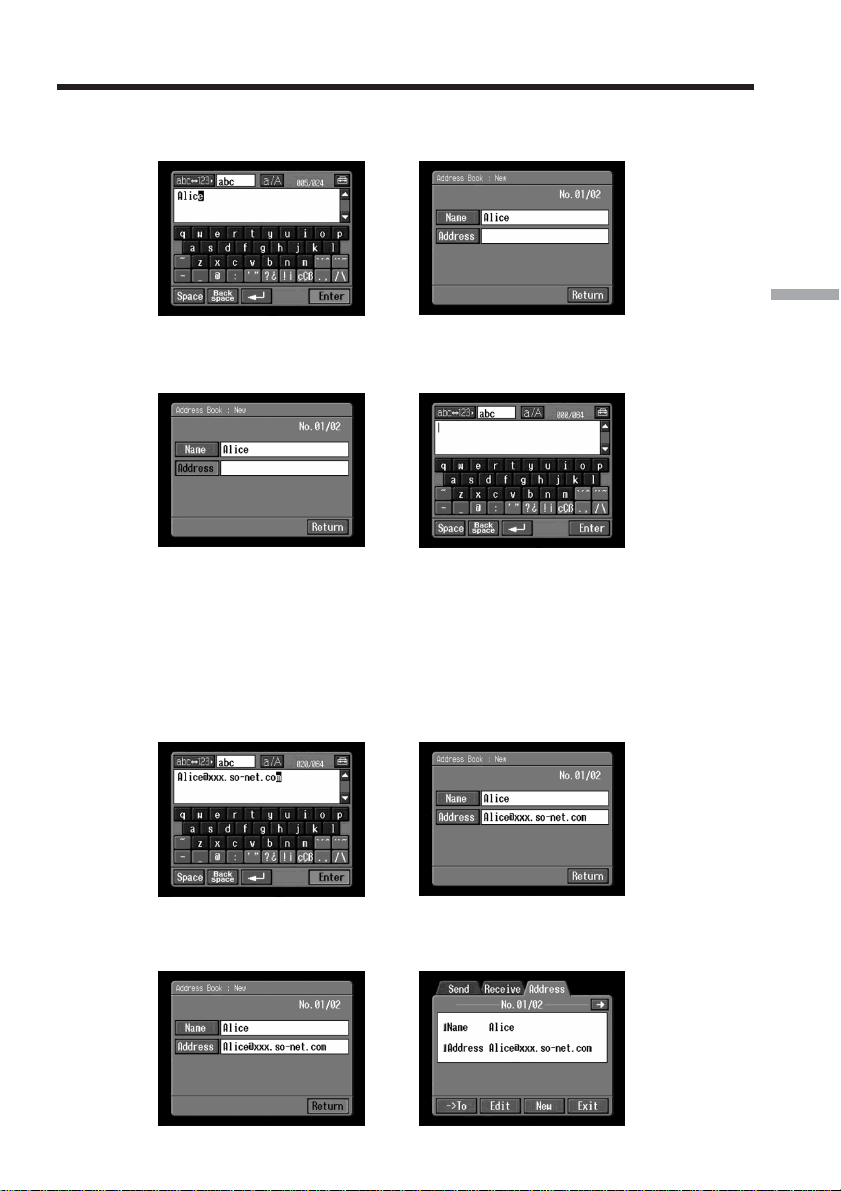
95
Network Operation
(6) Tap [Enter].
The Address Book : New screen appears again.
,
(7) Tap [Address].
The character input screen appears.
,
(8) Enter the email address.
For details of how to input characters, see “How to input characters” (p. 9).
When addressing email, including to other “AOL” members, be sure to enter
the recipients entire email address into the “To” field.
(e.g. [email protected])
(9) Tap [Enter].
The Address Book : New screen appears again.
,
(10)Tap [Return].
The Address screen appears again.
,
Using email
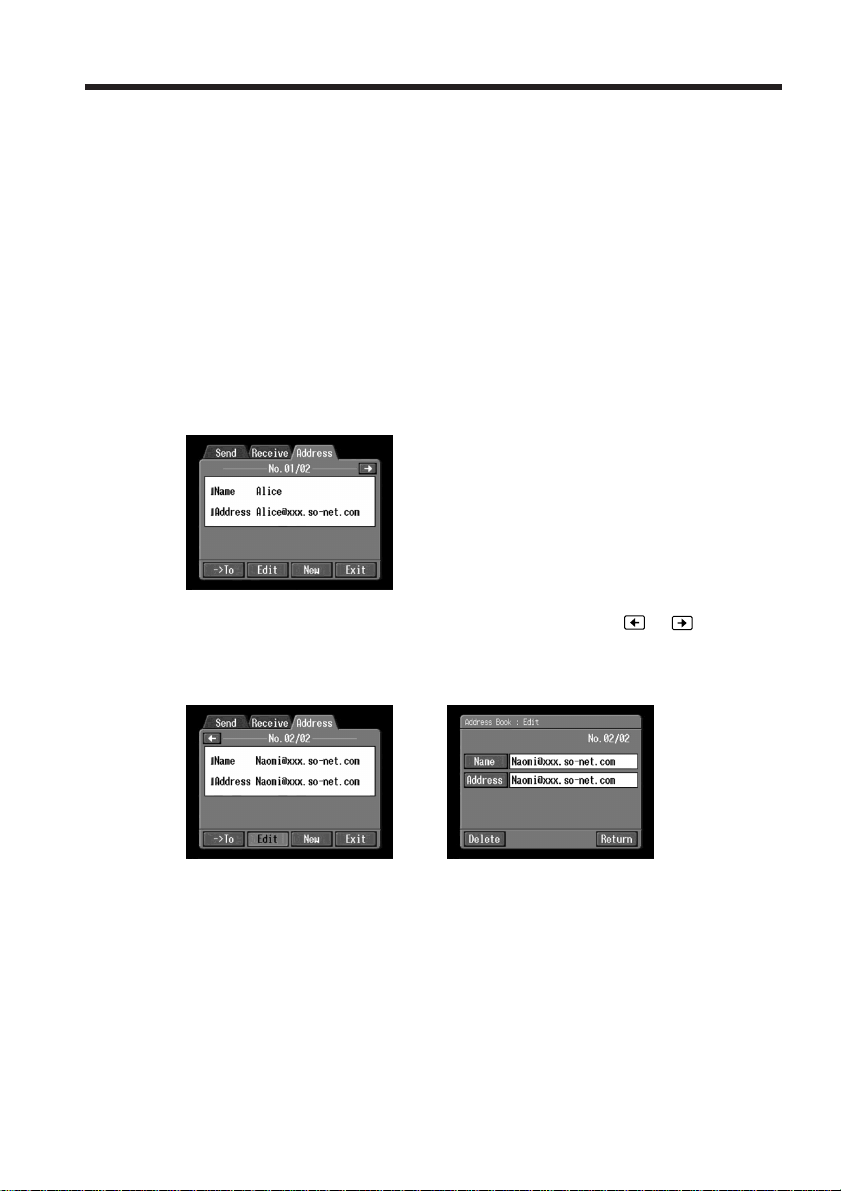
96
(11)Tap [Exit].
The Network Menu appears again.
Tips
•The addresses are listed in alphabetical order.
•When you reply to the address of a previously received email message (p. 102), the
address is automatically registered in the address book. To edit the address, see
“Editing or deleting the address book” below.
Editing or deleting the address book
You can edit or delete names or email addresses in the address book.
(1) Follow steps 1 and 2 in “Registering destination addresses in the address
book” (p. 93).
The Address screen appears.
(2) Display the address you want to edit or delete by tapping
or .
(3) Tap [Edit] to select the address.
The Address Book : Edit screen appears.
,
Using email
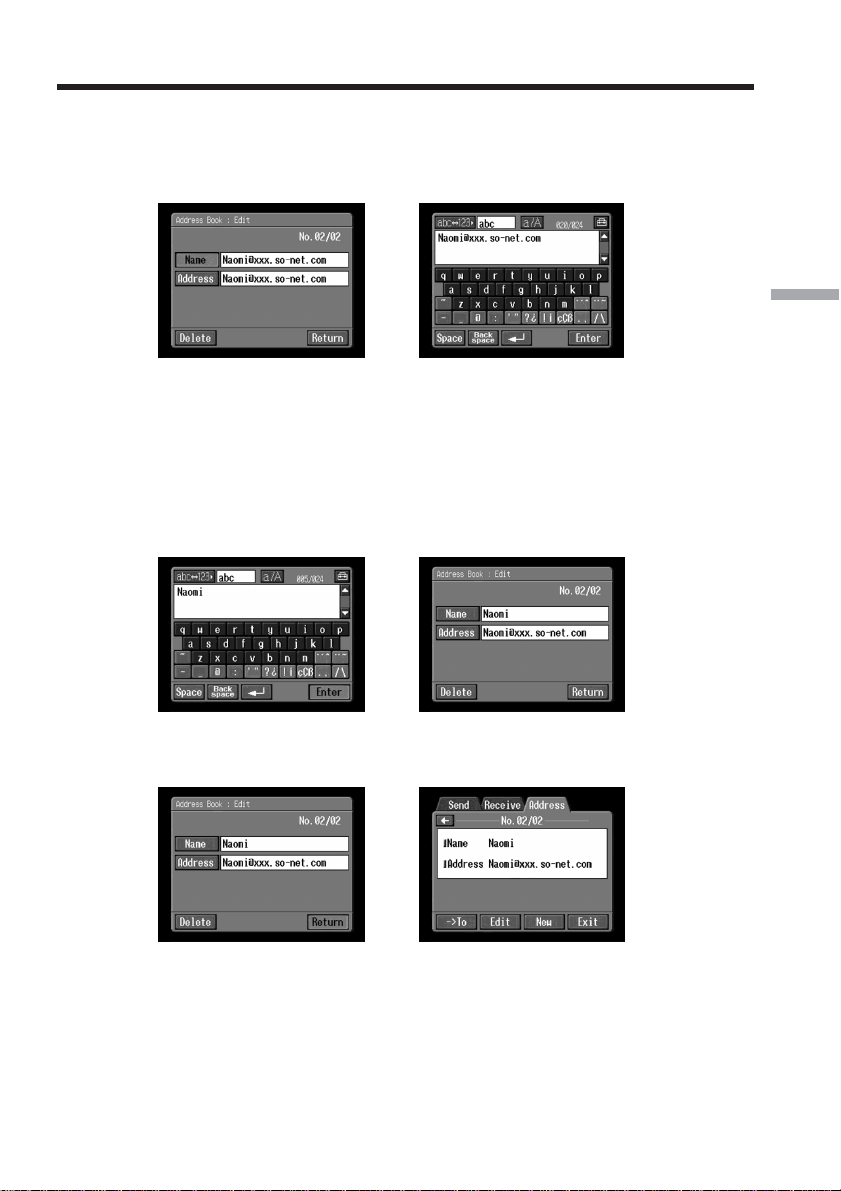
97
Network Operation
(4) Tap [Name] or [Address].
To edit the registered name, tap [Name], and to edit the registered address, tap
[Address].
The character input screen appears.
,
If you want to delete an address, tap [Delete]. When the verification screen
appears, tap [OK]. To stop deleting, tap [Cancel].
(5) Edit the name or address.
For details of how to input characters, see “How to input characters” (p. 9).
(6) Tap [Enter].
The Address Book : Edit screen appears again.
,
(7) Tap [Return].
The Address screen appears again.
,
(8) Check the name and address.
(9) Tap [Exit].
The Network Menu appears again.
Using email
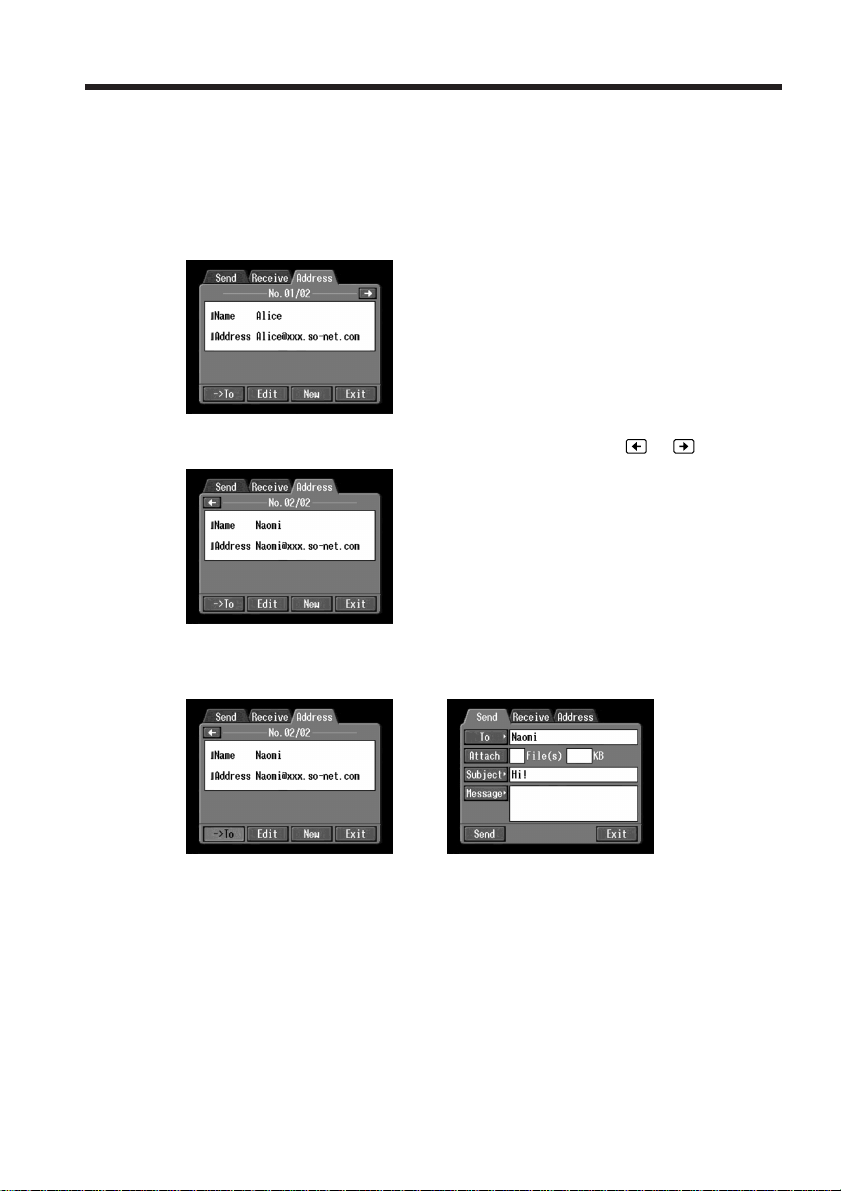
98
Selecting a destination address from the address book
You can select a destination address from the address book.
(1) Follow steps 1 and 2 in “Registering destination addresses in the address
book” (p. 93).
The Address screen appears.
(2) Display the address you want to send email to by tapping
or .
(3) Tap [-> To].
The Send screen appears. The selected address is set as the destination address.
,
(4) Follow the procedures described in “2 Entering the subject of a message”
(p. 85) through “4 Sending email” (p. 87), if you want to send email.
Using email
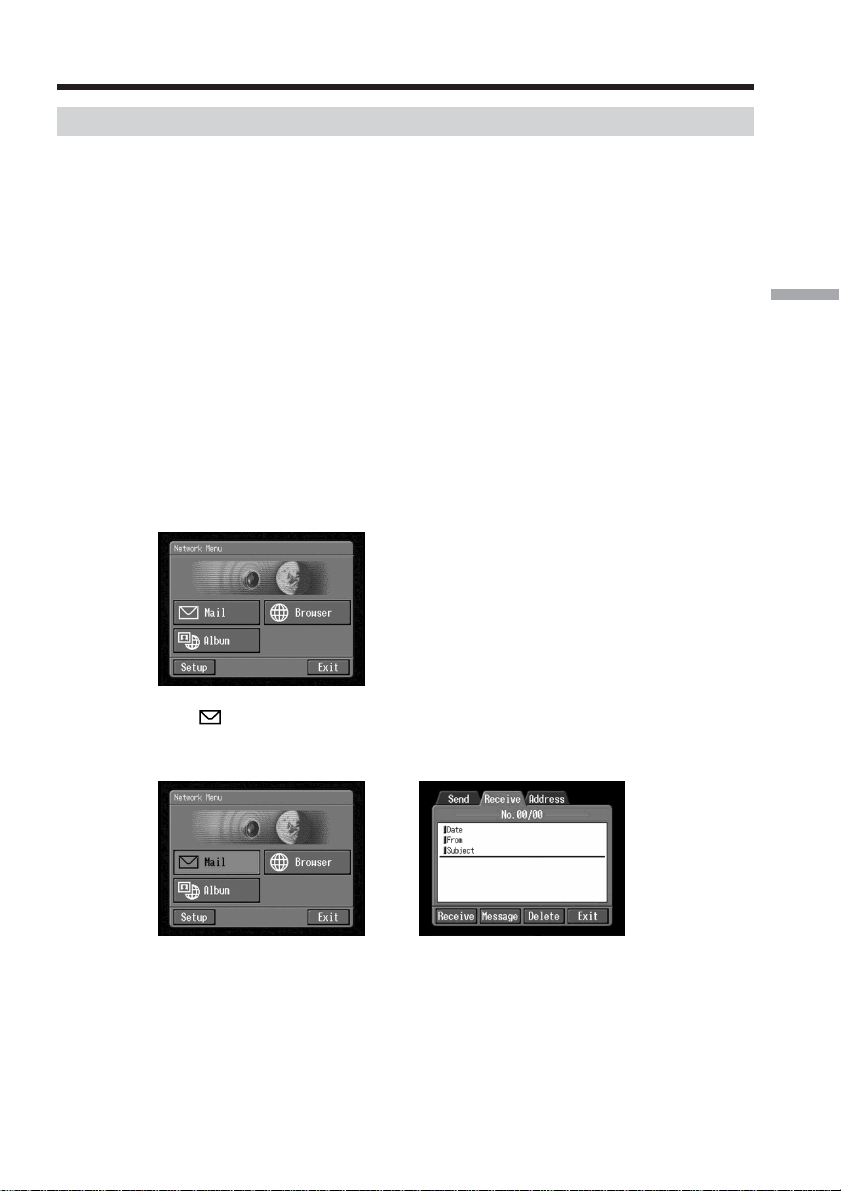
99
Network Operation
Receiving email
After receiving email, you can reply to it or forward it.
Before operation
•Release the lock on the “Memory Stick.”
•Insert the “Memory Stick” into your camcorder, for storing email.
Checking your email inbox
As of March 2003, “AOL” does not support the receiving of email on this device. For
further clarification on this and other “AOL”-specific attributes, go to keyword:
Handycam on your computer.
Tip
You can leave a copy of your incoming messages on the mail server even if you
download the message with your camcorder. For details, see “Setting other
preferences” (p. 65).
(1) Open the Network Menu.
For details of how to open the Network Menu, see page 7.
(2) Tap [
Mail].
If the Receive screen does not appear, tap Receive from Send, Receive and
Address. The Receive screen appears.
,
(3) Set a communication device to connection standby with your camcorder.
For details, refer to the operating instructions supplied with the
communication device.
Using email
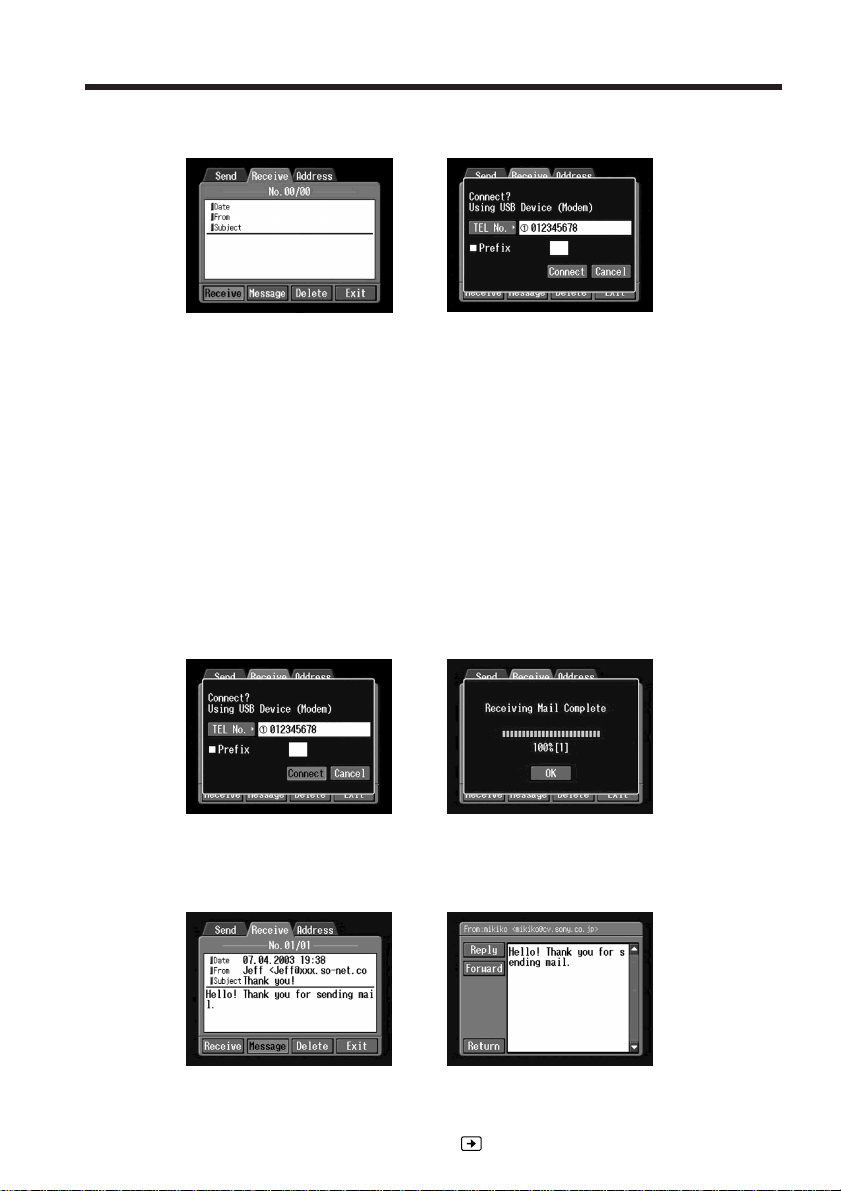
100
(4) Tap [Receive].
The screen for verifying the connection appears.
,
If you use a dial-up connection, dial the telephone number displayed on the
screen for verifying the connection. If you want to dial other telephone
numbers, tap [TEL No.] to display the list of registered telephone numbers.
Tap the desired telephone number to select it.
To connect to an outside line, for example in a hotel, check the item “Prefix
No.” and enter the prefix number.
When you use a LAN connection, the screen for verifying the connection may
not appear.
(5) Tap [Connect].
If you use a dial-up connection, your camcorder starts dialing the selected
telephone number. If an email message has been sent to you, your camcorder
downloads it, and the message “Receiving Mail Complete” appears. If you use
a dial-up connection, tap [OK]. The telephone line is automatically
disconnected after email is received.
,
(6) If an email message has been received, tap the area where the message is
displayed or [Message].
The message appears.
,
When two or more email messages are received, the number of email appears
above the message. (For example, No. 1/3 is the first of three email messages.)
To read the next email message, tap
.
Using email

101
Network Operation
(7) Tap [Return].
The Receive screen appears again.
To cancel receiving email
Tap [Cancel] while downloading. Email you did not download remains on the mail
server.
If the message is long
Tap the scroll button V to scroll the message.
If a file is attached to the email message
Your camcorder can receive files with the following extensions: .jpg, .mpg, .jpeg and
.mpeg. If you receive files other than these files, the message “Attached Invalid File
Deleted” is inserted in the email message. Your camcorder cannot play back an attached
still image or moving picture if the file is in an incompatible format.
To view an attached file
Exit the network function, then view the still image or moving picture following the
same procedure as that for viewing a still image or moving picture recorded on a
“Memory Stick.” For details of saving attached files, see page 130.
If no new messages have been sent to you
The message “No New Mail” appears.
URL included in an email message
If a URL (“http://...”) is typed in the message, tap it. The browser starts up
automatically and accesses the indicated web page.
Notes
•Up to 4,000 characters can be entered in an email message. If the number of characters
exceeds 4,000, the excess characters are deleted and a message telling you so appears
at the beginning of the text.
•The receiving procedure may take a while depending on the file size of the attached
still image or moving picture.
Tips
•You can have your camcorder check the email inbox automatically after sending
email. For details, see “Setting other preferences” (p. 65).
•You can skip an email message if its file size is larger than specified. For details, see
“Setting other preferences” (p. 65).
•The maximum number of characters for the subject and sender name of email is 24
each. You cannot read an email subject or sender name on your camcorder if it
contains more than 24 characters.
Using email
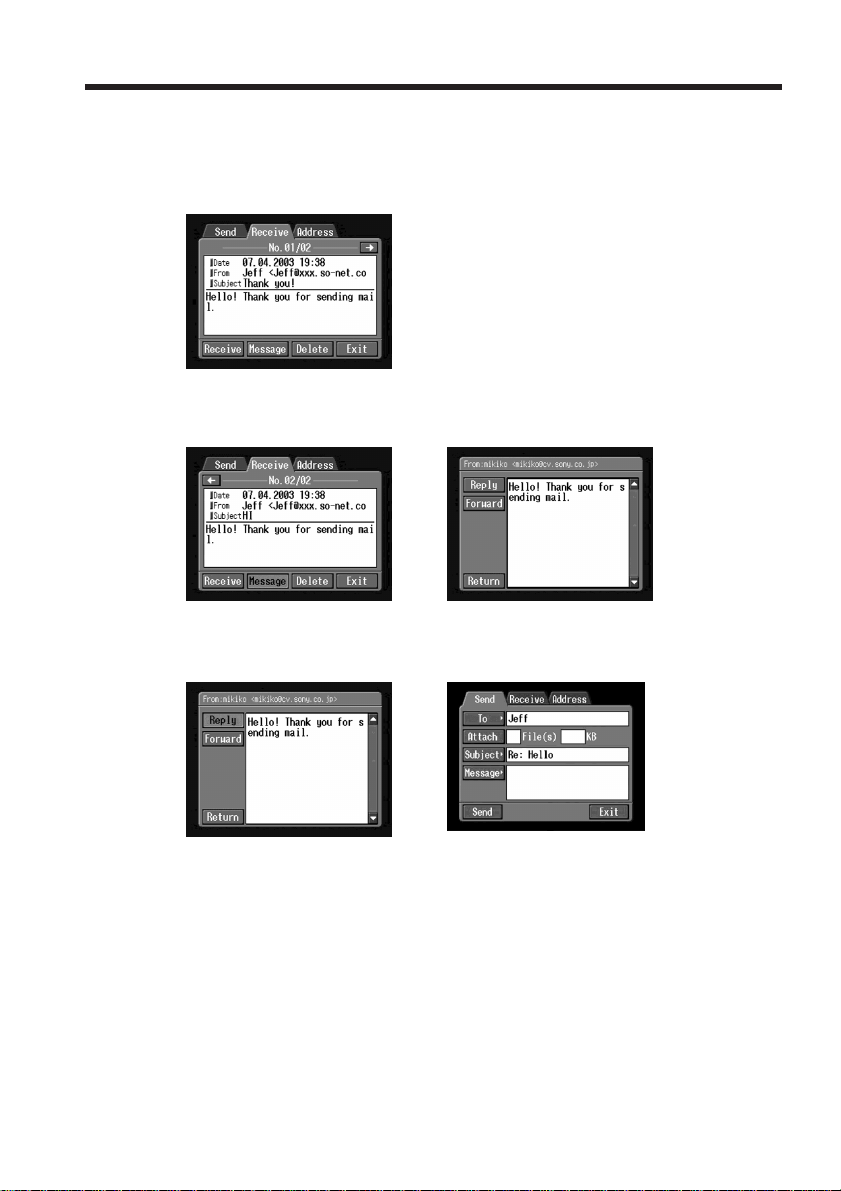
102
Sending your answer – Reply
You can reply to an email message promptly without entering the address.
(1) Display the Receive screen.
(2) Tap the area where the message is displayed or tap [Message].
The selected message is displayed.
,
(3) Tap [Reply].
The Send screen appears.
,
Tip
“Re:” is added to the beginning of the subject line.
(4) Follow the procedure described in “3 Entering the text of a message”
(p. 86) to enter the text of the message.
Tip
You cannot quote a received email message.
(5) Follow the procedure from step 3 described in “4 Sending email” (p. 87).
Using email
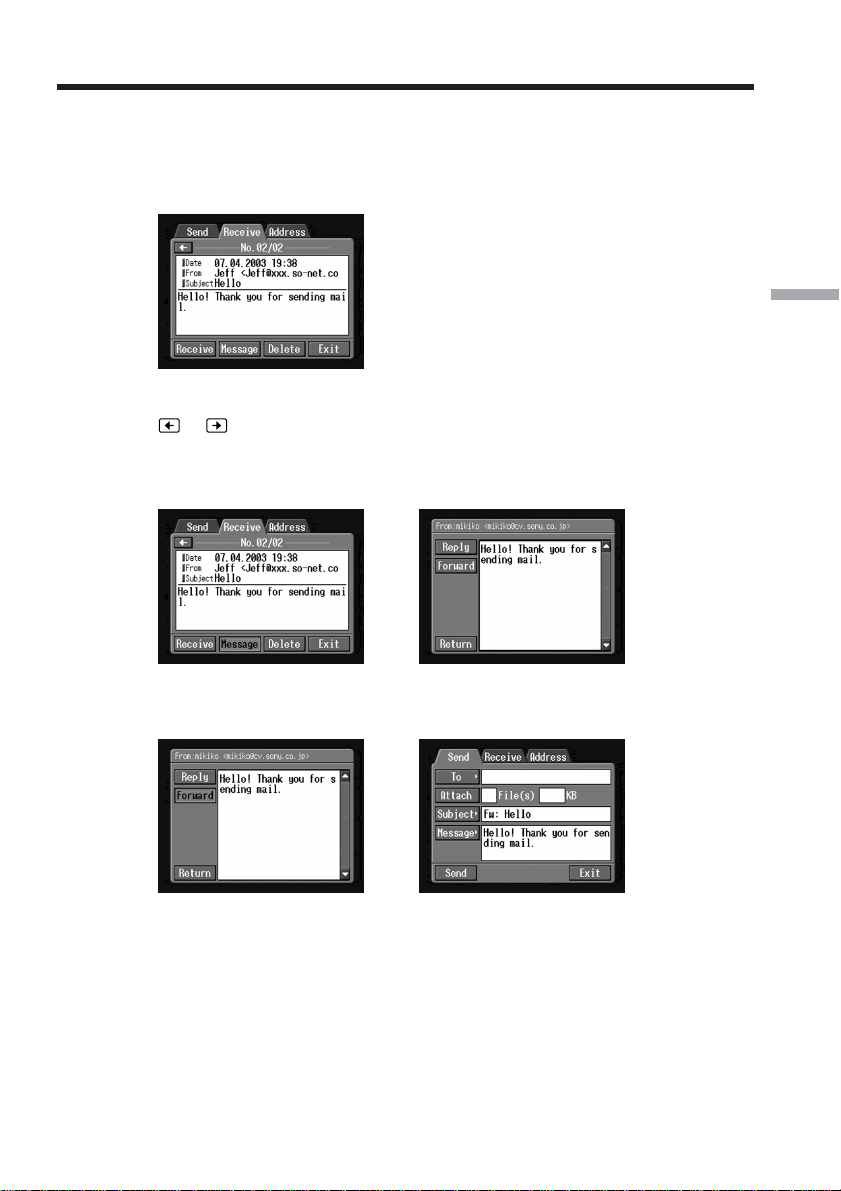
103
Network Operation
Forwarding a message to others – Forward
You can forward a received message to others.
(1) Display the Receive screen.
(2) Display the email containing the message that you want to forward by tapping
or .
(3) Tap the area where the message is displayed or tap [Message].
The selected message is displayed.
,
(4) Tap [Forward].
The Send screen appears.
,
Tips
•An attached file is not automatically forwarded. If you want to send an
attached file, see “Attaching still images and/or moving pictures to email”
(p. 90).
•“Fw:” is added to the beginning of the subject line.
(5) Follow from step 3 described in “1 Specifying a destination address”
(p. 82) or “Selecting a destination address from the address book” (p. 98) to
specify the destination address.
Using email
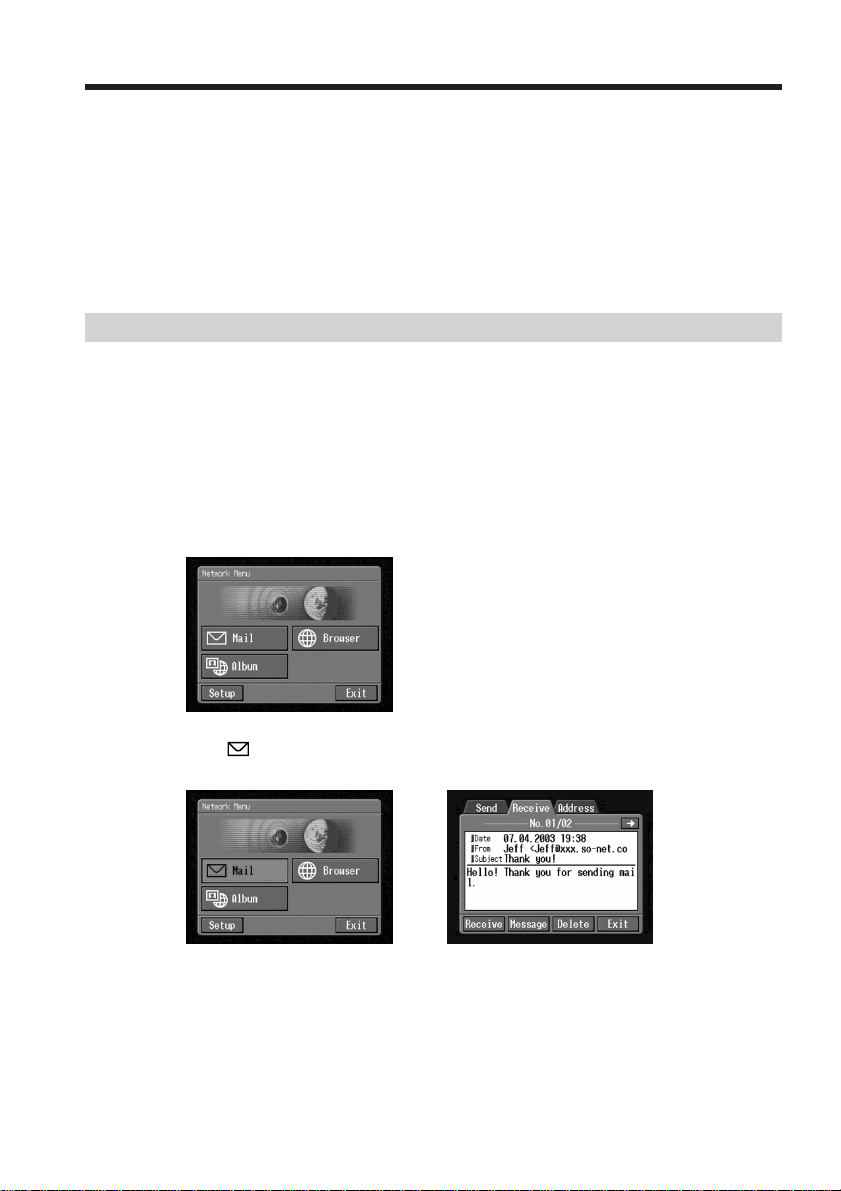
104
(6) Follow the procedure described in “3 Entering the text of a message”
(p. 86) to modify the message.
Tip
You can enter up to 512 characters in a message. The excess characters are
deleted.
(7) Follow the procedure described in “4 Sending email” (p. 87) from step 3.
Deleting received email
You can receive and store up to 50 email messages on a “Memory Stick.” The 51st email
message cannot be received and an error message appears.
Before operation
•Release the lock on the “Memory Stick.”
•Insert the “Memory Stick” that contains the email message you want to delete into
your camcorder.
(1) Open the Network Menu.
For details of how to open the Network Menu, see page 7.
(2) Tap [
Mail].
Select Receive from Send, Receive and Address. The Receive screen appears.
,
Using email
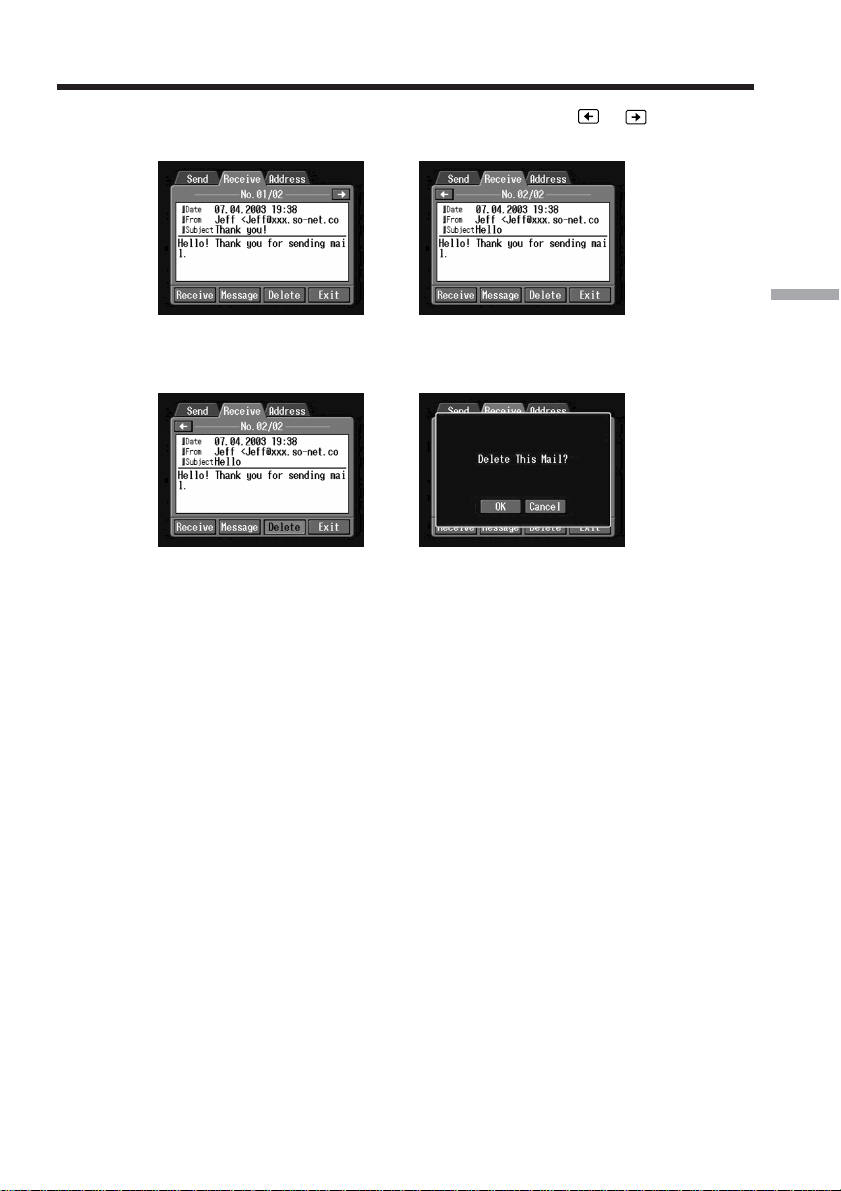
105
Network Operation
(3) Select the email message you want to delete by tapping or .
The selected message appears.
,
(4) Tap [Delete].
The verification message “Delete This Mail?” appears.
,
(5) Tap [OK].
The selected email message is deleted.
To cancel deleting email
Tap [Cancel] in step 5.
Using email
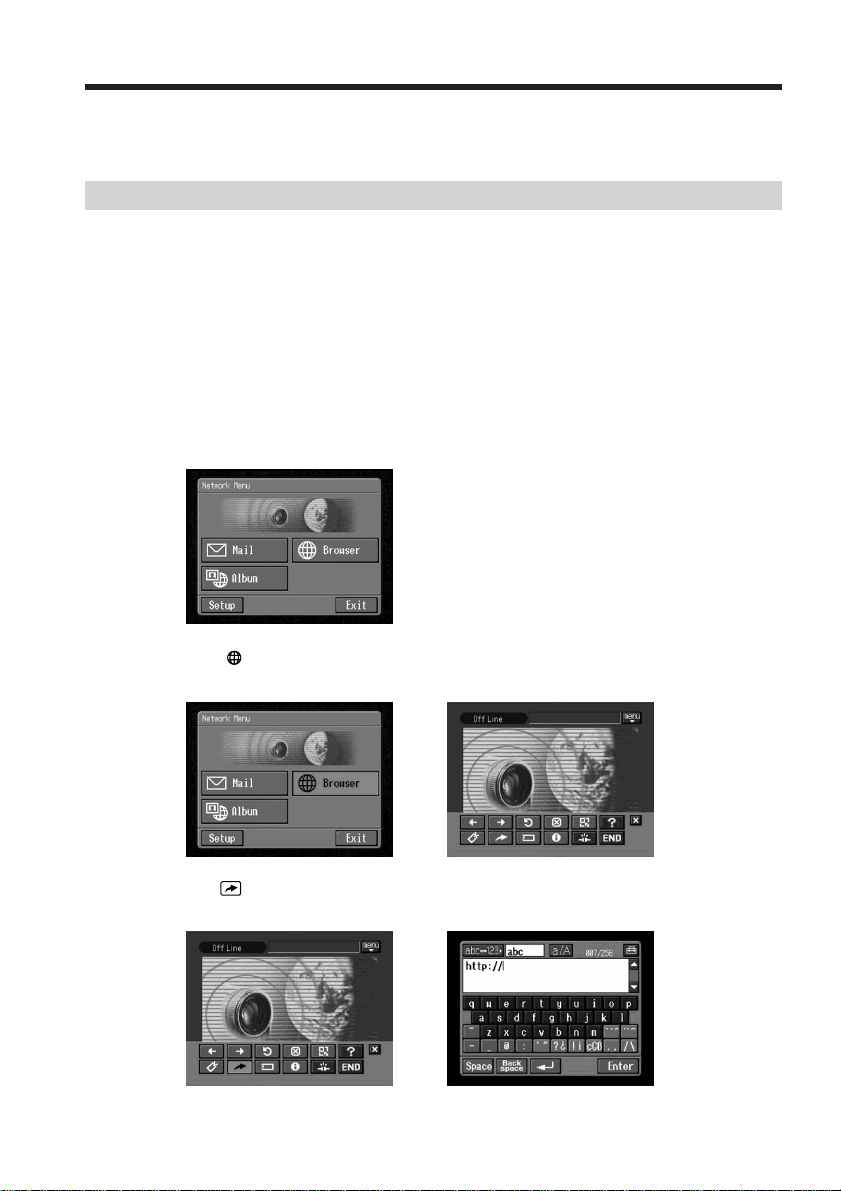
106
A site that posts information on the Internet is called a “web page” or “web site”. You
can easily retrieve information by accessing a web site on the Internet.
Viewing web pages
1 Entering the URL needed to access the web page
Enter the address of the web page, then access the Internet. Be sure to enter the address
correctly.
Tip on URLs
A web site has a unique address on the Internet. The address is called a URL. This URL
is required to access a web site.
(1) Open the Network Menu.
For details of how to open the Network Menu, see page 7.
(2) Tap [
Browser].
The following screen appears.
,
(3) Tap (New URL).
The character input screen appears.
,
Viewing web pages
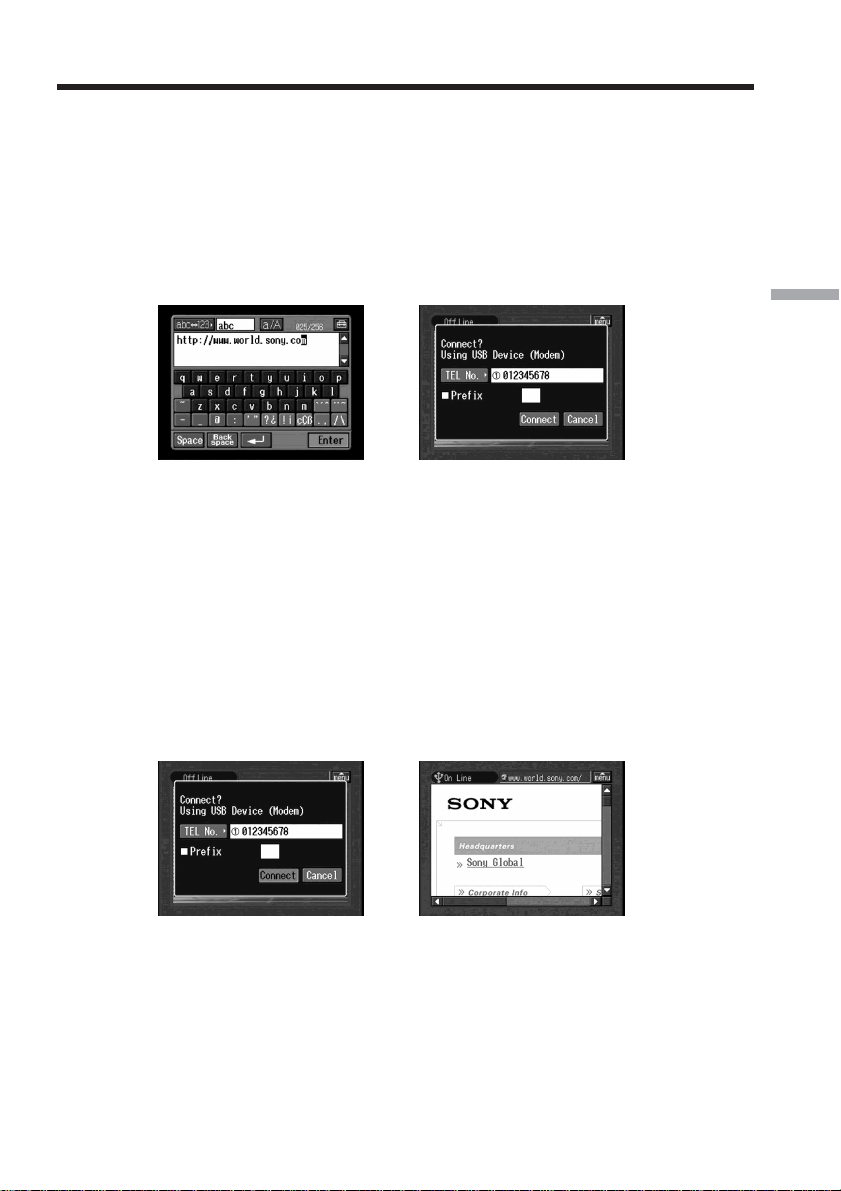
107
Network Operation
(4) Enter the URL.
For details of how to input characters, see “How to input characters” (p. 9).
(5) Set a communication device to connection standby with your camcorder.
For details, refer to the operating instructions supplied with the
communication device.
(6) Tap [Enter].
The screen for verifying the connection appears.
,
If you use a dial-up connection, dial the telephone number displayed on the
screen for verifying the connection. If you want to dial other telephone
numbers, tap [TEL No.] to display the registered telephone number list. Tap
the desired telephone number to select it.
To connect to an outside line, for example in a hotel, check the item “Prefix
No.” and enter the prefix number.
When you use a LAN connection, the screen for verifying the connection may
not appear.
(7) Tap [Connect].
If you use a dial-up connection, your camcorder starts dialing the selected
telephone number. After the connection is established, the web page selected
in step 4 is loaded.
,
(8) Operate the browser with the menu bar.
For details of the menu bar, see “How to use the menu bar of the browser”
(p. 108).
Viewing web pages
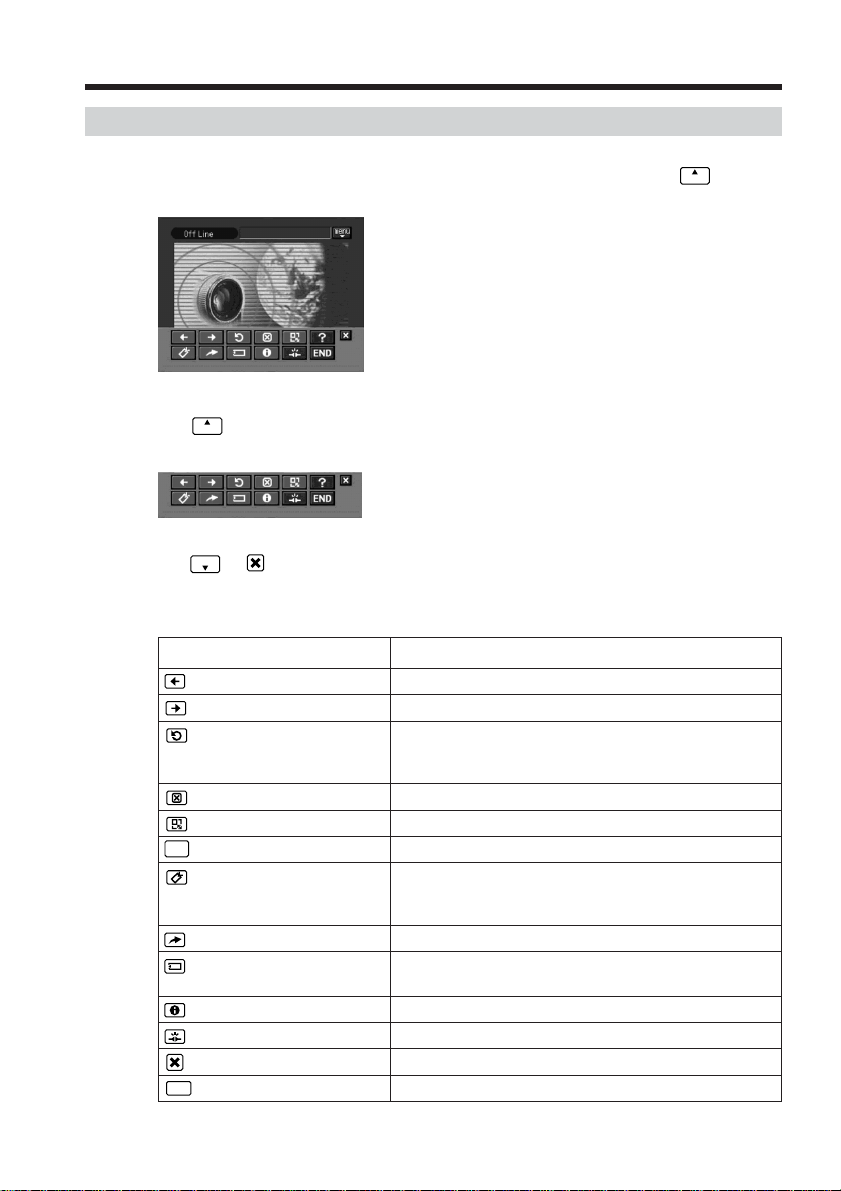
108
How to use the menu bar of the browser
When you access the Internet and view a web page, you can carry out various
operations with the menu bar. While the browser screen is displayed, tap
menu
on the
upper right of the LCD screen to display the menu bar.
To display the menu bar
Tap
menu
on the upper right of the LCD screen.
The following menu bar appears.
To hide the menu bar
Tap
menu
or on the menu bar. The menu bar disappears.
Viewing web pages
The buttons on the menu bar
Button Function
(Previous Page) Go to the previously viewed page.
(Next Page) Go to the next viewed page.
(Refresh) Refresh the current page.
Use this button if images or characters on the web page
are not displayed properly.
(Stop) Stop loading the current page.
(Zoom) Change the page size.
?
(Help) Display an explanation of each button.
(Bookmark) Bookmark the current page. (Bookmarks are stored in
your camcorder.) Bookmarking is useful if you want to
revisit web pages at a later date.
(New URL) Enter the URL of a web page.
(Page Memo) Store the current page on the “Memory Stick.” You can
view the page later without accessing the Internet.
(Page Information) Show the title and URL of the current page.
(Line Close) The connection is disconnected.
Hide the menu bar.
END
(END) Exit the browser.
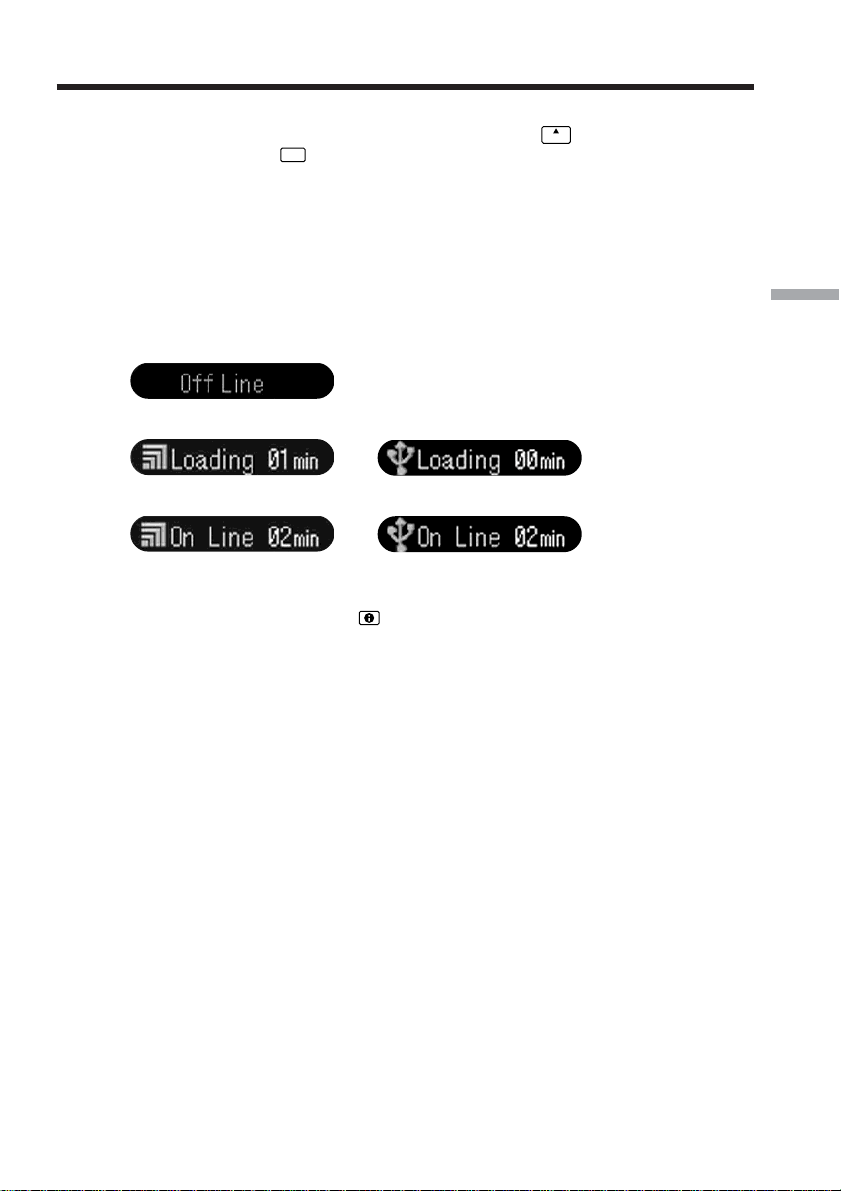
109
Network Operation
When you fail to load a web page
The message [Loading Error] appears. Tap [OK], then tap
menu
on the upper right of the
LCD screen, and tap
END
in the menu bar. The Network Menu appears again.
Note
The buttons may not function when viewing certain web pages.
Note on connection status indication
The connection status is indicated at the top of the screen. This item also shows the
connected time and the address of the web page. The connected time indicated should
only be used as a guide.
Off Line: being offline
Loading: Loading a web page
or
On Line: being online
or
Notes
•If the address is too long to display, it is not indicated in full. If you want to know the
entire address of the page, tap .
•A portion of the whole page appears on the screen.
•A large page takes more time to load, and its images or text may not be displayed
properly. This is not a malfunction of your camcorder.
•When you try to load a large page, the message “Data too Large for Full Display”
appears and the entire page may not be loaded.
•When viewing a scaled-down page, the screen may flicker or the colors may be
strange. This is not a malfunction of your camcorder.
•To prevent a malfunction, operate the menu bar buttons after the entire page is
loaded.
Tip
You can access the web page from a bookmark. For details, see “3 Jumping to a web
page specified by a bookmark” (p. 113).
Viewing web pages
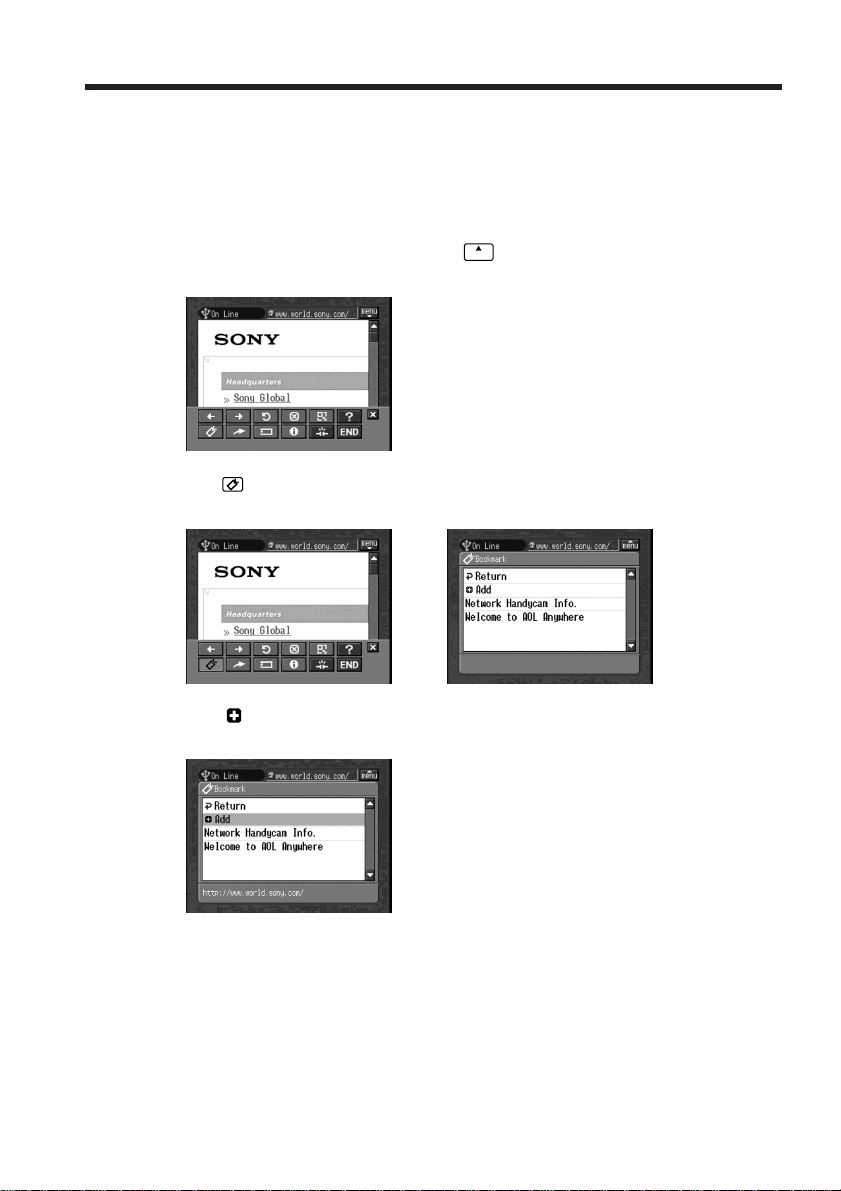
110
2 Bookmarking a web page – Bookmark
You can bookmark web pages you frequently access. You can bookmark up to 30 web
pages.
(1) Display the web page you want to bookmark.
(2) If the menu bar is not displayed, tap
menu
on the upper right of the LCD screen.
The menu bar appears.
(3) Tap
(Bookmark).
The bookmark list appears.
,
(4) Tap [ Add].
The bookmark is added, and the display returns to the web page.
Notes
•When you use a dial-up connection, the telephone line may not be disconnected
automatically. If this happens, disconnect the telephone line manually (p. 119).
•You cannot bookmark a web page with a URL of more than 256 characters.
Viewing web pages
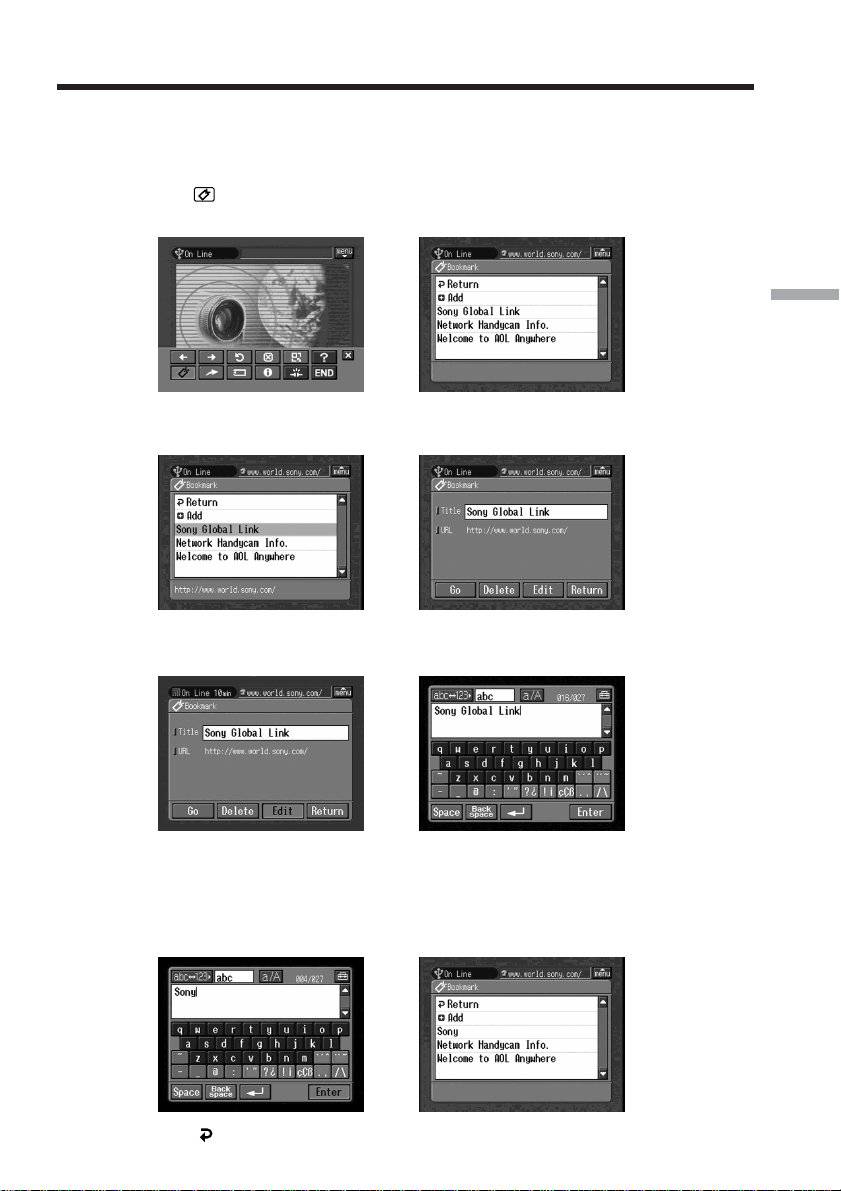
111
Network Operation
To edit a bookmark
You can edit the title of a bookmark.
(1) Tap (Bookmark).
The bookmark list appears.
,
(2) Tap the bookmark you want to edit.
The title and URL are indicated.
,
(3) Tap [Edit].
The character input screen appears.
,
(4) Edit the name.
For details of how to input characters, see “How to input characters” (p. 9).
(5) Tap [Enter].
The title of the bookmark is modified.
,
(6) Tap [ Return].
The browser screen appears again.
Viewing web pages
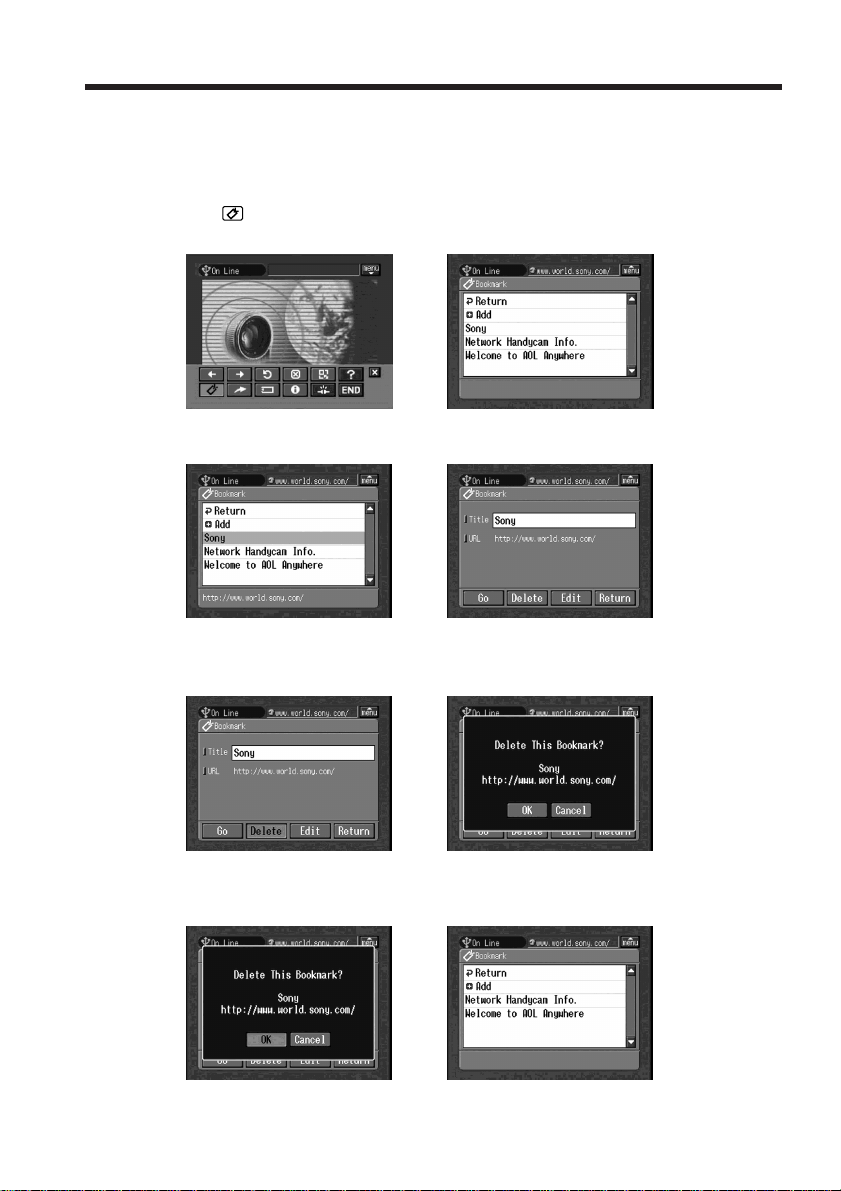
112
To delete bookmarks
You can delete bookmarks. We recommend that you delete unnecessary bookmarks
since you can only store up to 30 bookmarks.
(1) Tap (Bookmark).
The bookmark list appears.
,
(2) Tap the bookmark you want to delete.
,
(3) Tap [Delete].
The verification message “Delete This Bookmark?” appears.
,
(4) Tap [OK].
The selected bookmark is deleted.
,
To cancel deleting the bookmark
Tap [Cancel] in step 4.
Viewing web pages
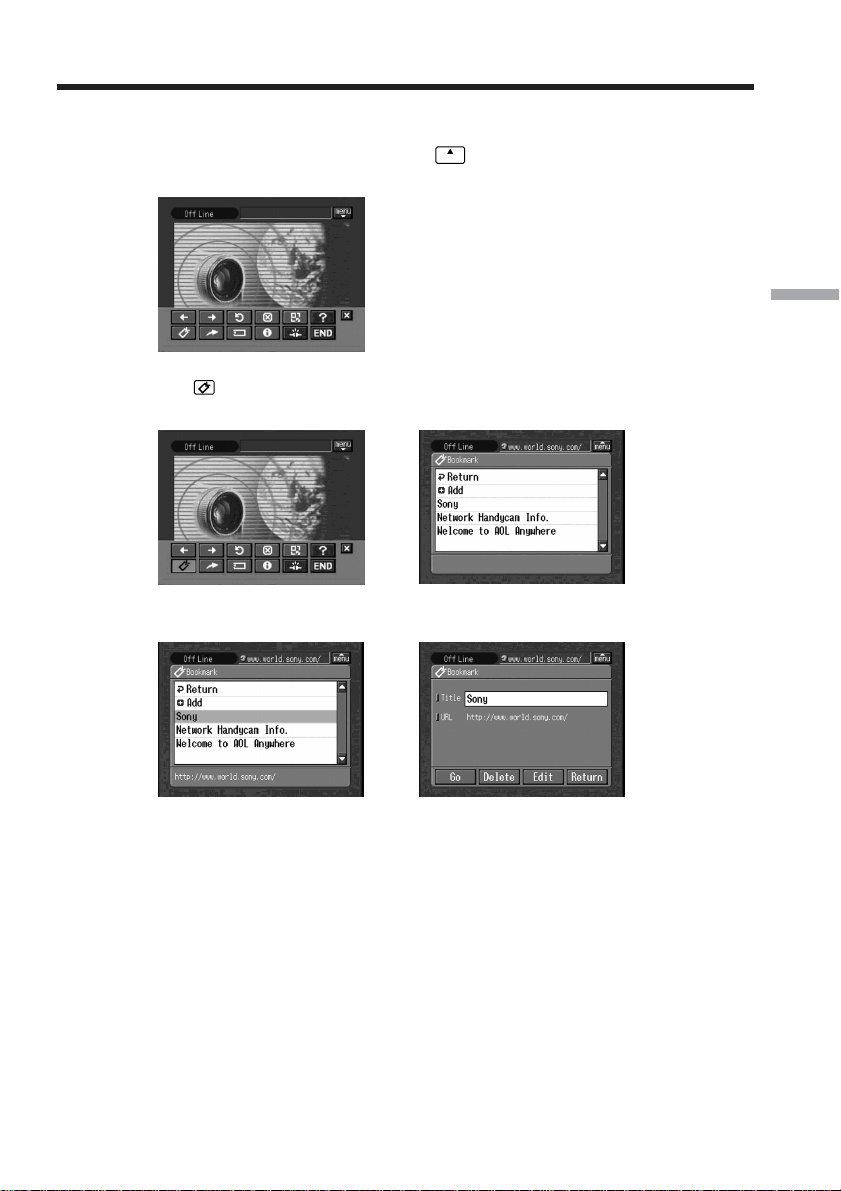
113
Network Operation
3 Jumping to a web page specified by a bookmark
(1) If the menu bar is not displayed, tap
menu
on the upper right of the LCD screen.
The menu bar appears.
(2) Tap
(Bookmark).
The bookmark list appears.
,
(3) Tap the bookmark.
,
(4) Set a communication device to connection standby with your camcorder.
For details, refer to the operating instructions supplied with the
communication device.
Viewing web pages
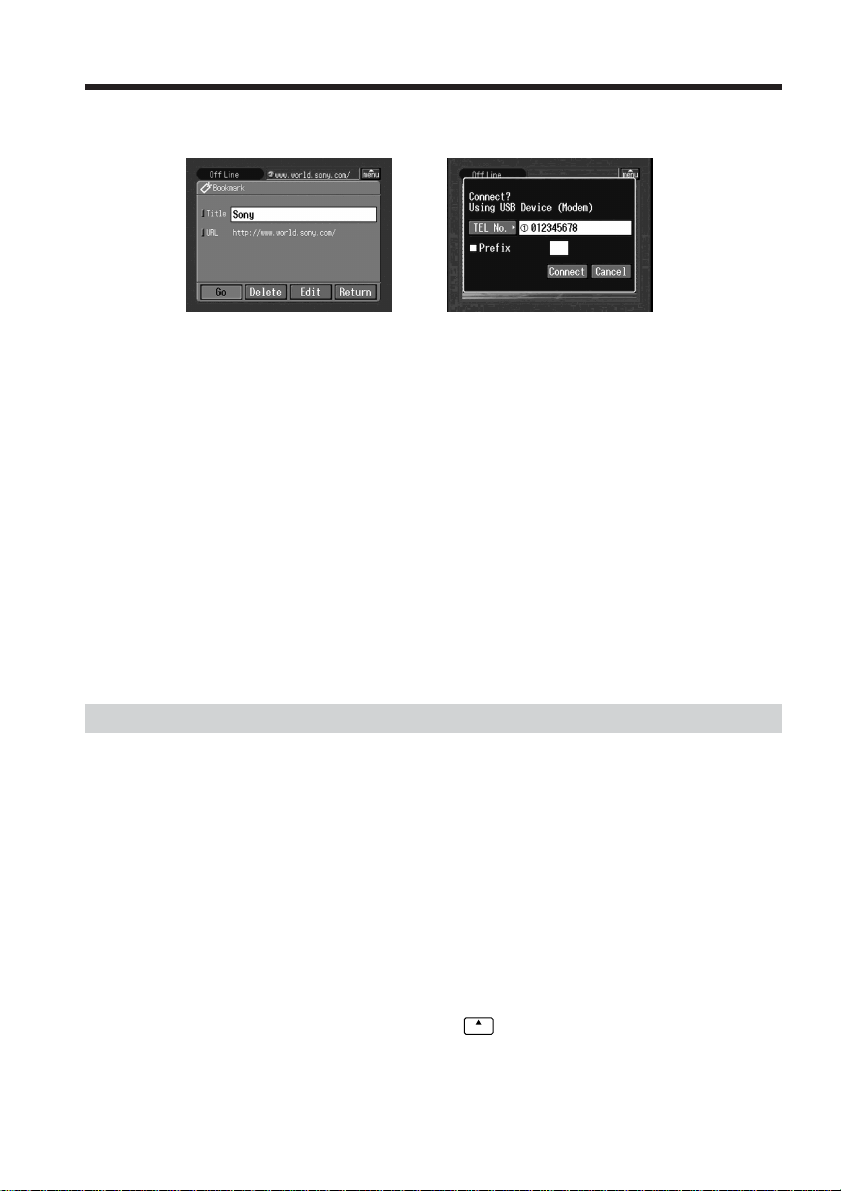
114
(5) Tap [Go].
The screen used for verifying the connection appears.
,
If you use a dial-up connection, dial the telephone number displayed on the
screen for verifying the connection. If you want to dial other telephone
numbers, tap [TEL No.] to display the registered telephone number list. Tap
the desired telephone number to select it.
To connect to an outside line, for example in a hotel, check the item “Prefix
No.” and enter the prefix number.
When you use a LAN connection, the screen for verifying the connection may
not appear.
(6) Tap [Connect].
If you use a dial-up connection, your camcorder starts dialing the selected
telephone number. After the connection is established, the web page specified
by the bookmark is displayed.
To select another bookmark
Tap [Return] in step 5. The bookmark list appears. Tap another bookmark.
Storing a web page on a “Memory Stick” – Page Memo
You can store your favorite web pages on a “Memory Stick.” Once you store the web
pages, you can view them without accessing the Internet.
You cannot store a web page with a URL of more than 256 characters.
Storing a web page on a “Memory Stick”
You can store up to 30 page memos on a “Memory Stick.”
Before operation
•Release the lock on the “Memory Stick.”
•Insert the “Memory Stick” into your camcorder, for storing web pages.
(1) Display the web page you want to store.
(2) If the menu bar is not displayed, tap
menu
on the upper right of the LCD screen.
The menu bar appears.
Viewing web pages
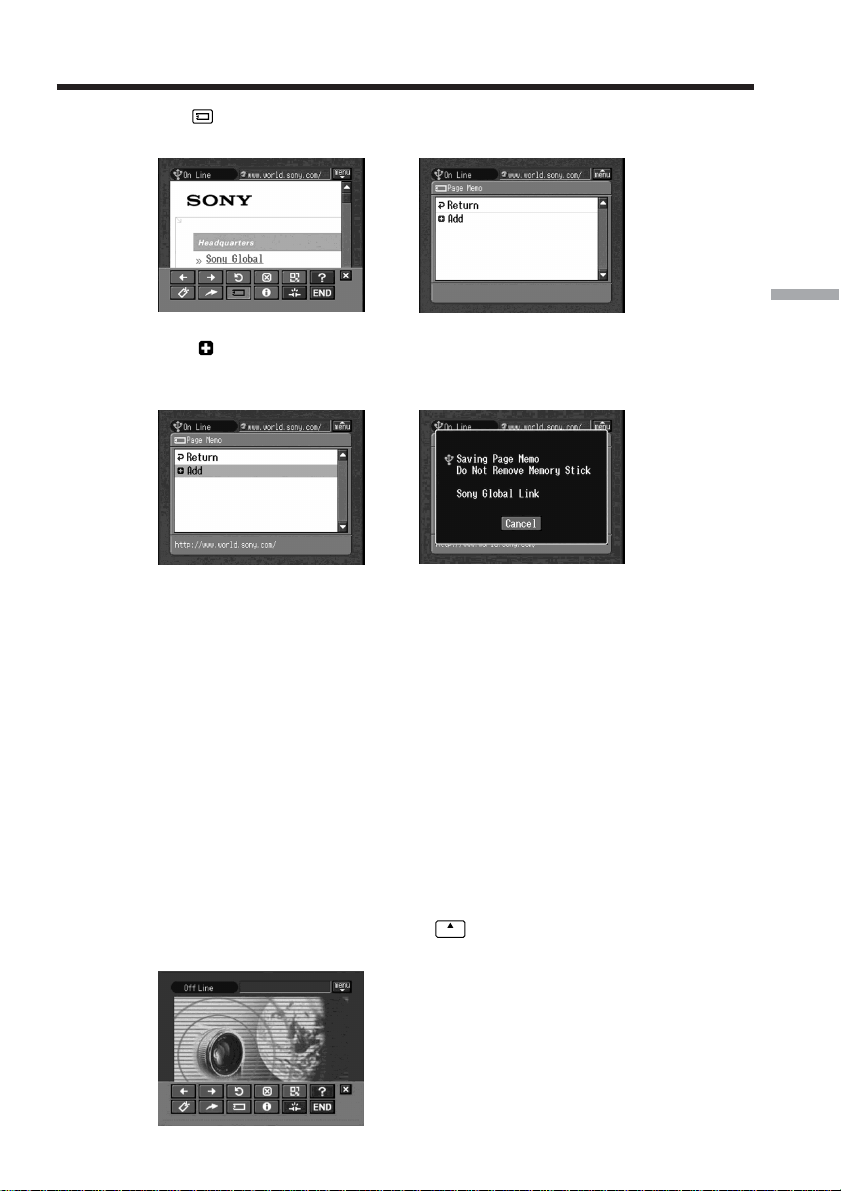
115
Network Operation
(3) Tap (Page Memo).
The page memo list appears.
,
(4) Tap [ Add].
The message “Saving Page Memo Do Not Remove Memory Stick” appears.
When the message disappears, storing is complete.
,
(5) The browser screen appears again.
To cancel storing the web page
While storing, tap [Cancel].
Note
You cannot store the web page while it is still being loaded.
Editing the title of a page memo
You can edit the title of a page memo stored on a “Memory Stick.”
Before operation
•Release the lock on the “Memory Stick.”
•Insert the “Memory Stick” that contains the page memo you want to edit into your
camcorder.
(1) If the menu bar is not displayed, tap
menu
on the upper right of the LCD screen.
The menu bar appears.
Viewing web pages
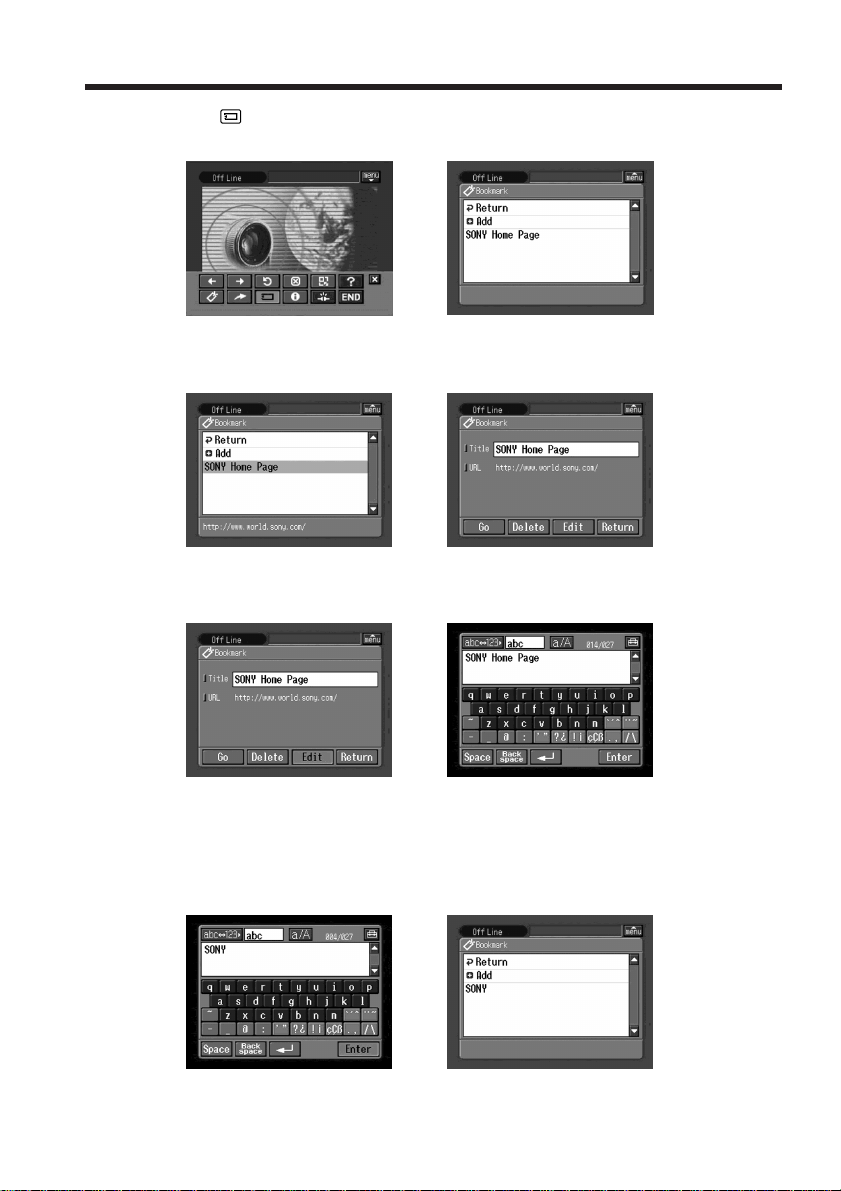
116
(2) Tap (Page Memo).
The page memo list appears.
,
(3) Tap the page memo you want to edit.
The title and URL of the selected page memo are indicated.
,
(4) Tap [Edit].
The character input screen appears.
,
(5) Edit the name.
For details of how to input characters, see “How to input characters” (p. 9).
(6) Tap [Enter].
The title of the page memo is modified.
,
Viewing web pages
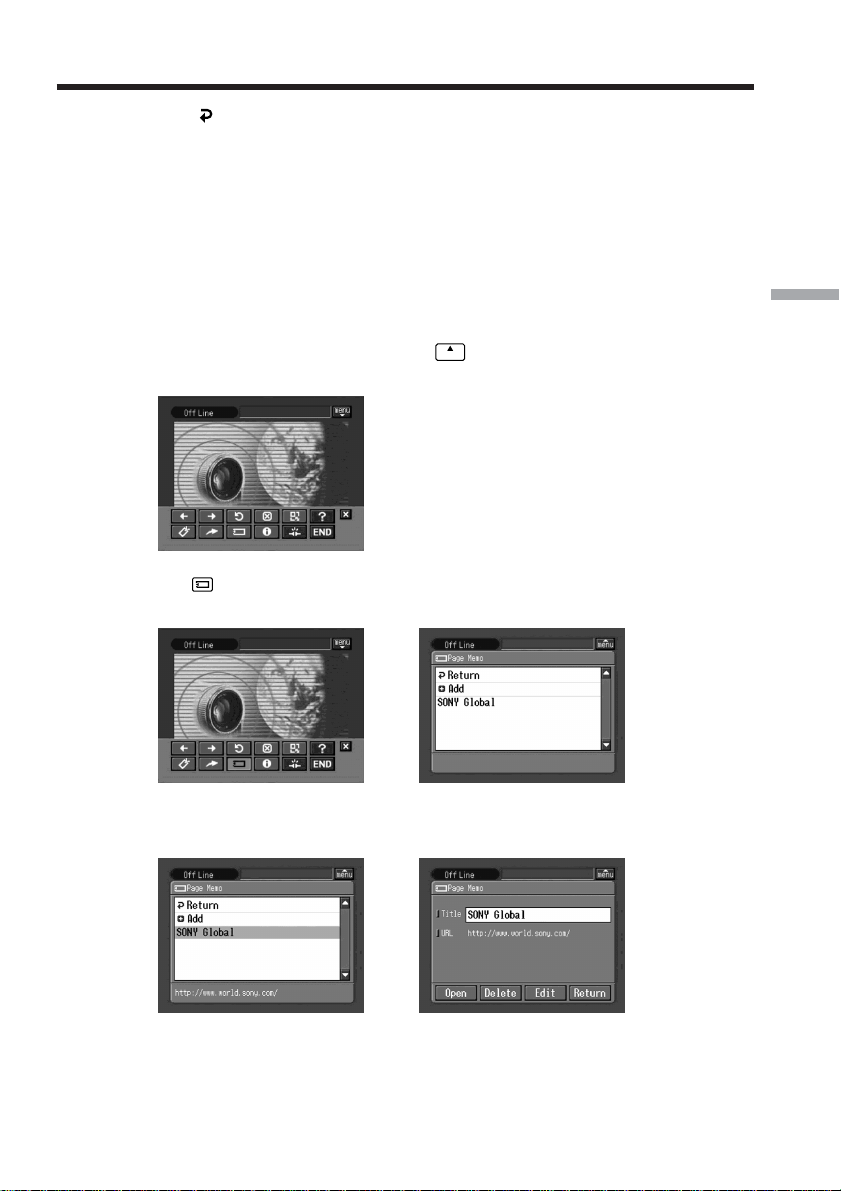
117
Network Operation
(7) Tap [ Return].
The browser screen appears again.
To delete a page memo
You can delete page memos. We recommend that you delete unnecessary page memos
since you can only store up to 30 page memos.
Before operation
•Release the lock on the “Memory Stick.”
•Insert the “Memory Stick” that contains the page memo you want to delete into your
camcorder.
(1) If the menu bar is not displayed, tap
menu
on the upper right of the LCD screen.
The menu bar appears.
(2) Tap
.
The page memo list appears.
,
(3) Tap the page memo you want to delete.
The following screen appears.
,
Viewing web pages
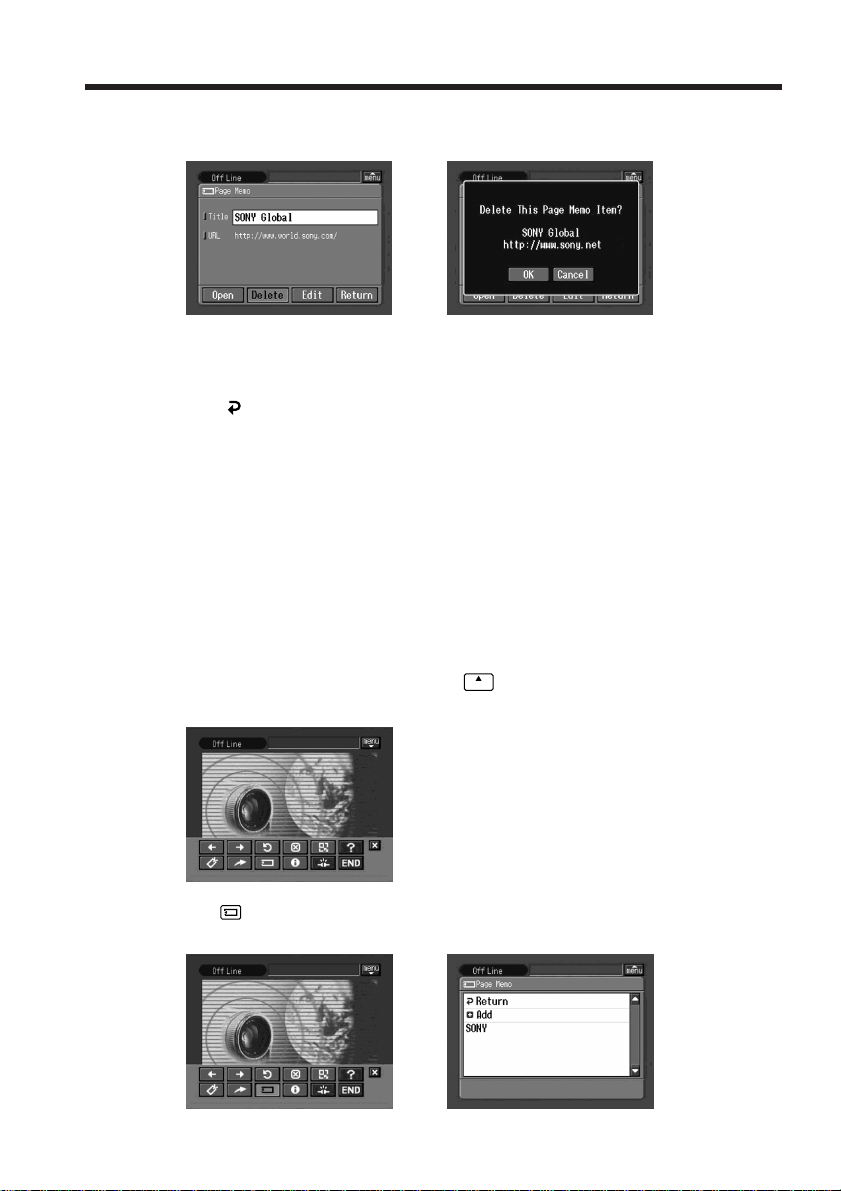
118
(4) Tap [Delete].
The verification message “Delete This Page Memo Item?” appears.
,
(5) Tap [OK].
The selected page memo is deleted and the page memo list appears again.
(6) Tap [
Return].
The browser screen appears again.
To cancel deleting the page memo
Tap [Cancel] in step 5.
Displaying a web page stored in a page memo
You can display a page memo stored on a “Memory Stick.”
Before operation
Insert the “Memory Stick” that contains the page memo you want to display into your
camcorder.
(1) If the menu bar is not displayed, tap
menu
on the upper right of the LCD screen.
The menu bar appears.
(2) Tap
.
The page memo list appears.
,
Viewing web pages
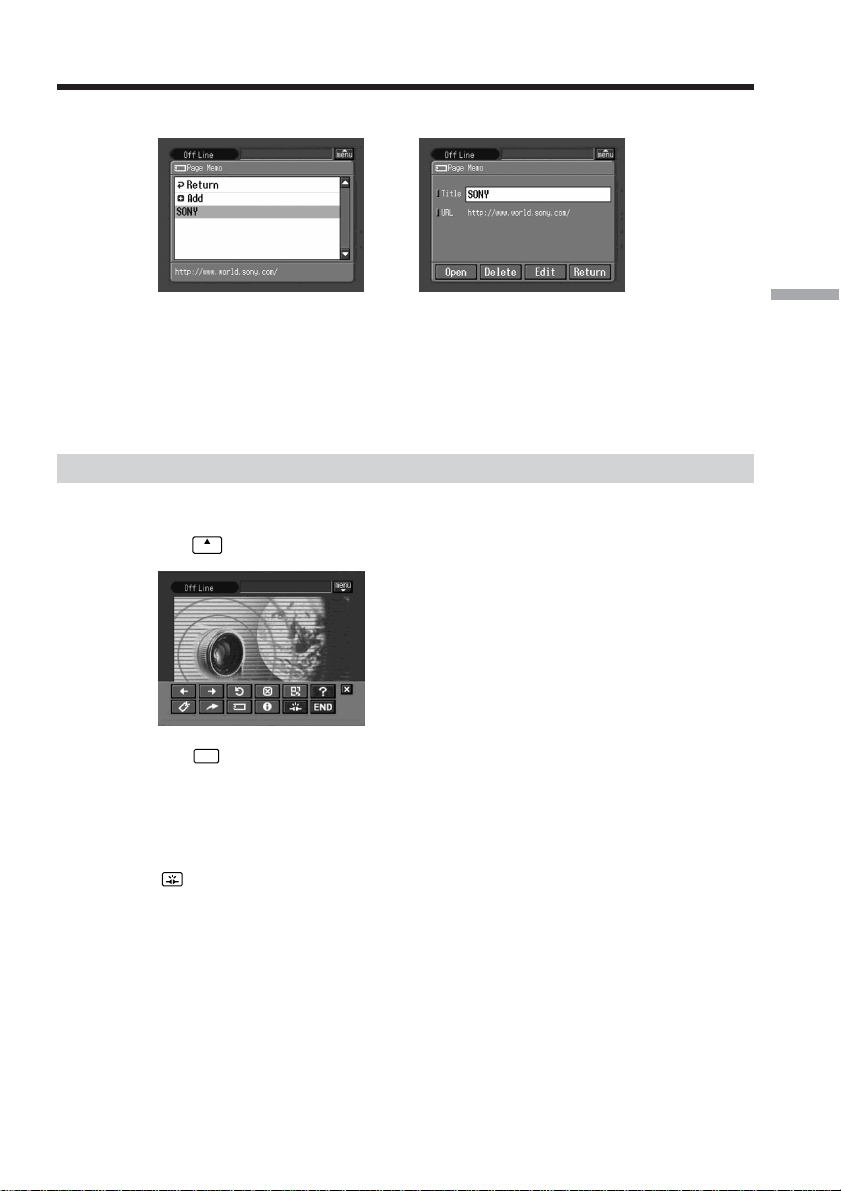
119
Network Operation
(3) Tap the page memo you want to display.
,
(4) Tap [Open].
The web page stored in the page memo appears.
To select another page memo
Tap [Return] in step 3. The page memo list appears. Tap another page memo.
Shutting down the browser
To finish viewing a web page
(1) Tap
menu
on the upper right of the LCD screen to display the menu bar.
(2) Tap
END
.
The browser is closed.
When you use a dial-up connection, the telephone line is disconnected
automatically.
To only disconnect the line
Tap . The line is disconnected.
Note
When shutting down the browser, a verification message may appear, depending on
your camcorder.
Viewing web pages
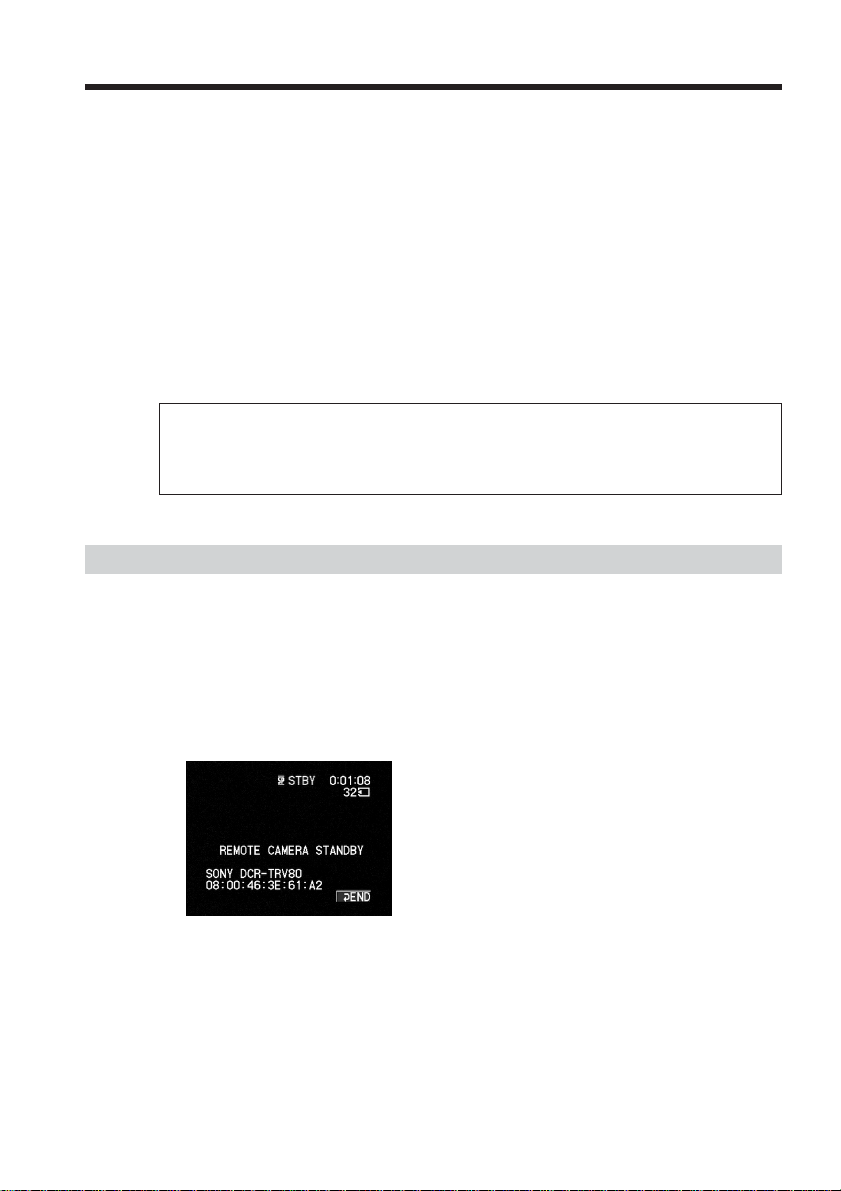
120
– DCR-TRV80 only
You can operate your camcorder remotely from a BIP compatible computer or PDA
with Bluetooth function.
You can use your camcorder as a remote camera and do the following:
•Recording the image with your camcorder while monitoring remotely with the screen
of a connected device
•Zoom (telephoto/wide)
•Recording a still image on “Memory Stick”
•Tape recording
•Pan/Tilt
(Using digital zoom function lets you perform Pan/Tilt even without a tripod, etc.)
The functions you can operate are different depending on the connected Bluetooth
device. For details, refer to the operating instructions of the connected Bluetooth device.
You can use your camcorder as a remote camera up to three hours.
Your camcorder automatically turns off after three hours.
Do not use your camcorder for hours as a surveillance camera and such.
Doing so may cause a malfunction.
Preparation
(1) Set the POWER switch of your camcorder to CAMERA.
(2) Tap FN and select PAGE3.
(3) Tap RMT CAM.
The message “REMOTE CAMERA STANDBY” appears on the screen.
When the connection is established, “REMOTE CAMERA” appears on the
screen.
Tips
• Certain Bluetooth devices require authentication to connect to your camcorder. When
the passkey input screen appears on the screen of your camcorder, enter the passkey
into the connected device.
• When the message “REMOTE CAMERA STANDBY” on the screen is displayed for
five minutes and connection is still not established, the screen returns to PAGE3.
• The time limit for entering the passkey is 30 seconds. If it takes more than 30 seconds
to finish entering the passkey, a passkey error occurs, authentication fails and your
camcorder returns to connection standby.
– Bluetooth Application Operation –
Using as a Remote Camera
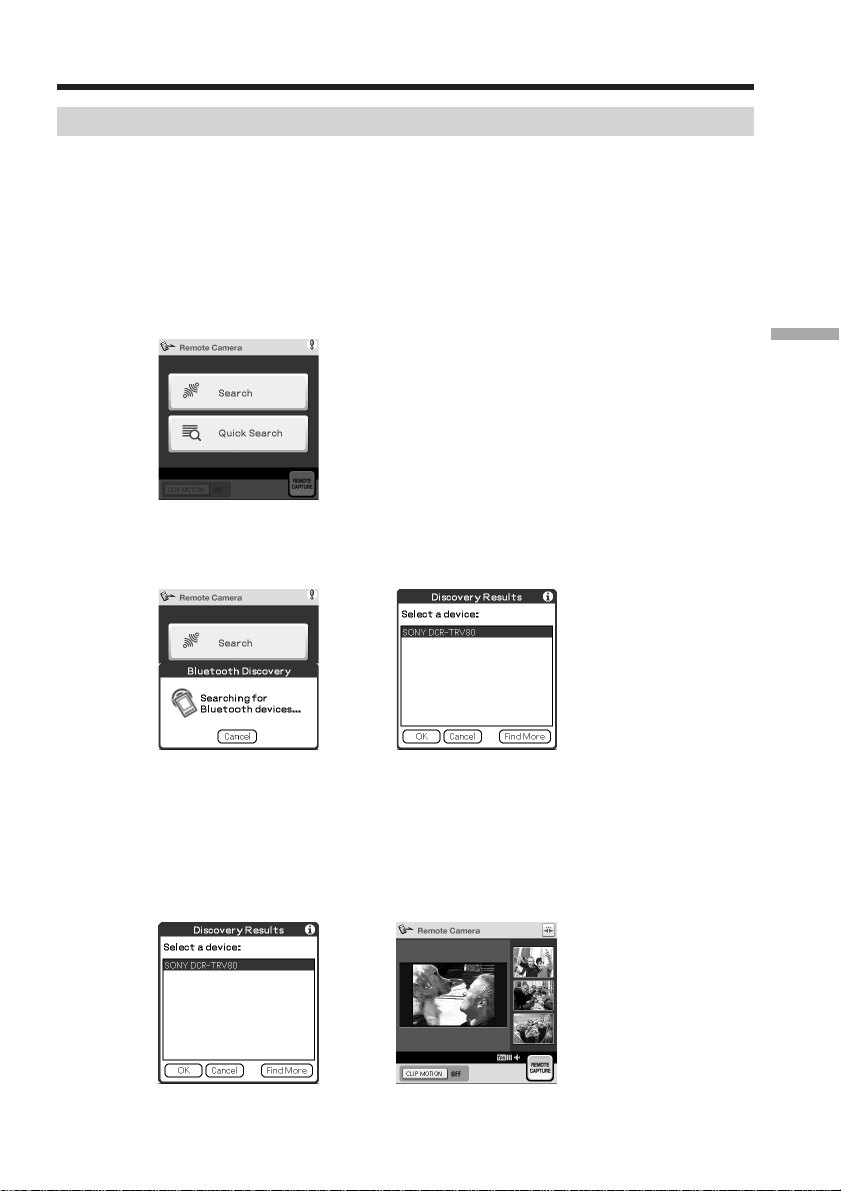
121
Bluetooth Application Operation
Operating the Remote Camera
For details of operating the Remote Camera, refer to the operating instructions of the
connected Bluetooth device.
The following procedure shows you how to operate the Remote Camera function using
a Sony PDA with Remote Camera Ver.1.1 installed.
(4) Turn on the PDA.
(5) Start up Remote Camera Ver.1.1 on the PDA.
For details, refer to the operating instructions of the PDA.
(6) Tap “Search”.
The PDA starts searching for Bluetooth devices. When the search is complete,
the available Bluetooth devices are listed.
,
Tips
•To select from among previously connected devices, tap “Quick Search”. A list of
previously connected devices appears.
•If nothing appears in the list, tap “Find More” to start another search.
(7) Select your camcorder name (e.g. DCR-TRV80), and tap “OK”.
The PDA goes into the Remote Camera mode.
,
For details, refer to the operating instructions of the connected Bluetooth device.
Using as a Remote Camera

122
Using as a Remote Camera
Ending the Remote Camera
(1) Tap END on the LCD screen of your camcorder to return to PAGE3.
(2) Tap EXIT on the LCD screen of your camcorder to return to FN.
Notes
•When START/STOP or PHOTO is pressed, melody or shutter sound is output even if
you set BEEP in to OFF in the menu settings.
•Camera recording lamp lights up during recording even if you set REC LAMP in
to OFF in the menu settings.
•You cannot select RMT CAM during the following operations:
– MEMORY MIX
– Tape recording
– Recording on “Memory Stick”
– Using USB Streaming function
•If you set Pan/Tilt to ON in RMTCAM SET in in the menu settings, you cannot
use the following:
– Digital zoom
– SteadyShot (The indicator flashes.)
•Remote Camera cannot be canceled during the following. After finishing recording,
cancel Remote Camera.
– Tape recording
– Recording on the “Memory Stick”
Notes on Pan/Tilt
• The range in which Pan/Tilt can be performed varies depending on the zoom
position. (Changing the zoom from Wide to Tele gives a wider Pan/Tile range.)
• If Pan/Tilt is set to ON in RMTCAM SET in in the menu setting when you turn
Remote Camera on or off, the zooming bar may appear in a different position. This is
not a malfunction.
•The picture quality deteriorates slightly. If low picture quality is a problem, set
Pan/Tilt to OFF in RMTCAM SET in in the menu settings on your camcorder, and
then try to operate the connected device again.
•Set Pan/Tilt to ON in RMTCAM SET in in the menu settings before operating
Remote Camera (The default setting is ON.). To change the Pan/Tilt setting during
remote operation of your camcorder, first quit Remote Camera and then change the
setting in the menu.
• When you exit Remote Camera after altering the view angle with Pan/Tilt operation,
the view angle returns to the center.
•If you set the zoom to Tele and change the view angle, and then set the zoom to Wide,
the angle of view may return towards the center.
• The pan range with the zoom set to wide angle is narrower in Wide mode than usual.
About Bluetooth devices you can connect
Refer to the following web page:
“http://www.myimagecam.com/”
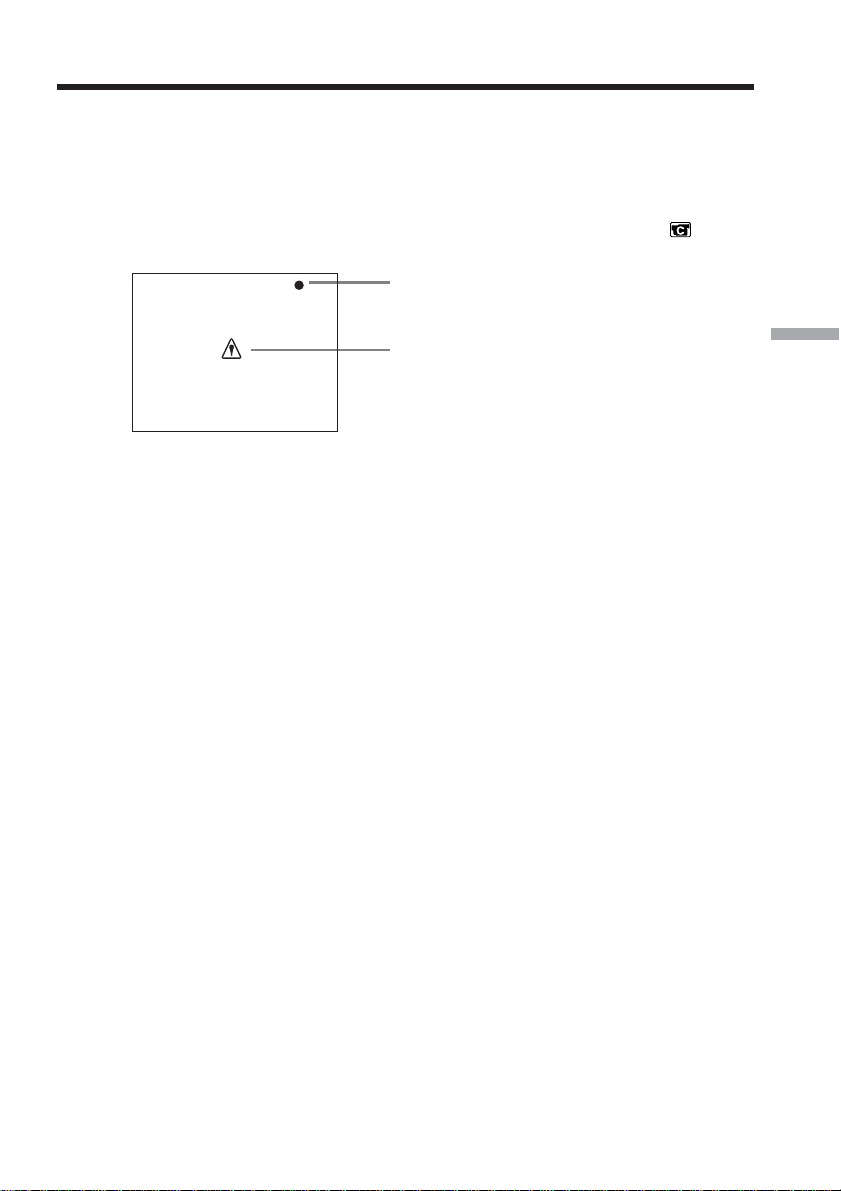
123
Bluetooth Application Operation
Tips
•If you leave your camcorder on standby for more than five minutes:
– While using Remote Camera, your camcorder does not turn off.
– Standby is canceled.
– Next time you record, it will take some time for recording to start.
•You can check the status of your camcorder from the connected device.
You can select DSPL ON or DSPL OFF in CAM INFO in RMTCAM SET in in the
menu settings.
Using as a Remote Camera
This appears during tape recording
This appears when an error occurs on your
camcorder.
Examples:
– You tried to start tape recording without
inserting a cassette.
– You tried to record a still image on “Memory
Stick” without inserting a “Memory Stick.”
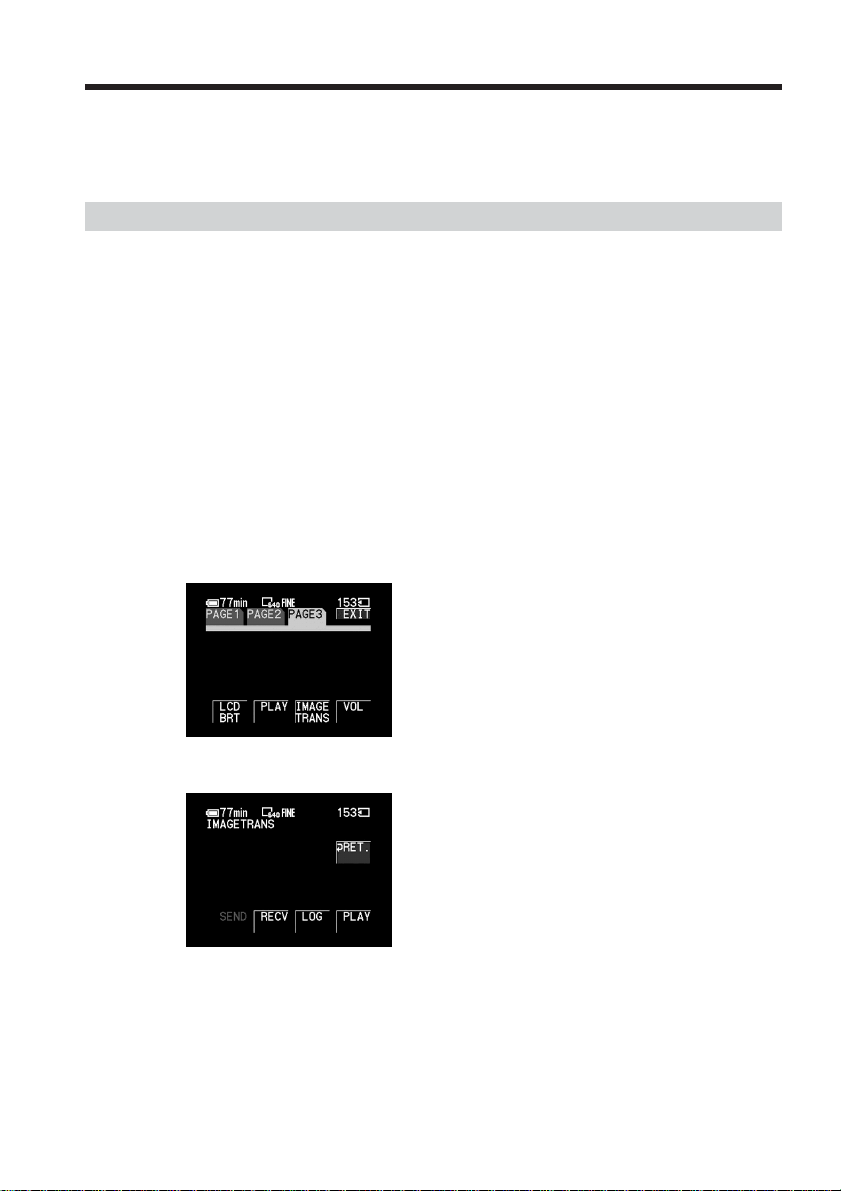
124
– DCR-TRV80 only
You can transfer still images between your camcorder and Bluetooth devices that are
compatible with BIP .
Sending a still image
Before operation
•Insert the “Memory Stick” that contains a still image you want to send to other
Bluetooth device into your camcorder.
•Set a Bluetooth device to connection standby with your camcorder.
Tips
• You can send only JPEG files.
• The image may be resized or only sent as a thumbnail file, depending on the
Bluetooth device connected.
• The protect and print mark settings become invalid in images received by the
Bluetooth device.
• The file name and storage destination differ depending on the specifications of the
connected device.
(1) Set the POWER switch of your camcorder to MEMORY/NETWORK.
(2) Tap FN and select PAGE3.
(3) Tap IMAGE TRANS.
(4) Tap PLAY.
The most recently recorded image is displayed.
Transferring still images with Bluetooth
function – Image Transport
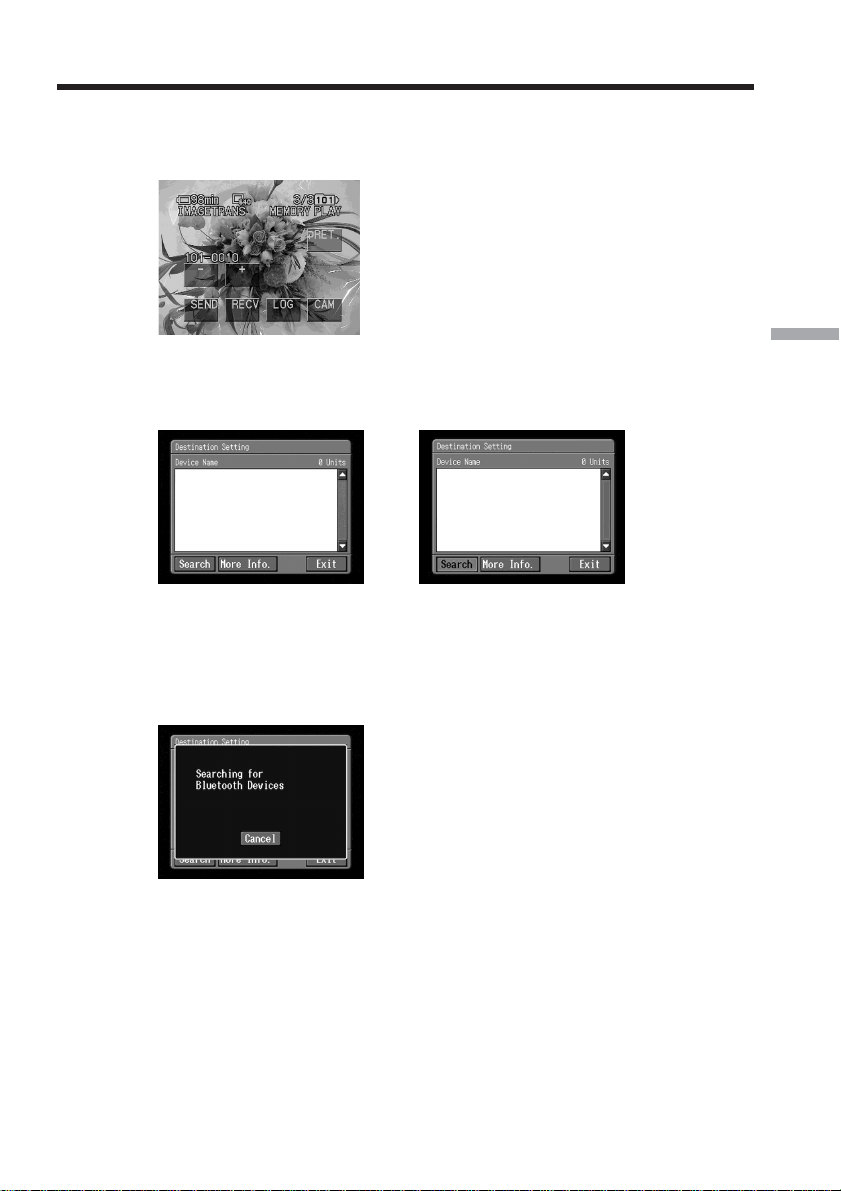
125
Bluetooth Application Operation
(5) Tap –/+ to display the desired still image.
–:To see the previous image
+:To see the next image
(6) Tap SEND.
The history of recently connected Bluetooth devices appears.
If the history does not appear, tap [Search].
,
The message “Searching for Bluetooth Devices” appears on the screen and
your camcorder starts searching for available Bluetooth devices. When the
search is complete, the list of available Bluetooth devices appears.
To display the addresses and the category of available devices, tap [More
Info.].
Search for the devices takes about 10 to 60 seconds.
If your camcorder cannot search any Bluetooth devices available, the list does
not appear. Check the devices, then tap [Search] again.
If you want to cancel the search, tap [Cancel].
Transferring still images with Bluetooth function
– Image Transport
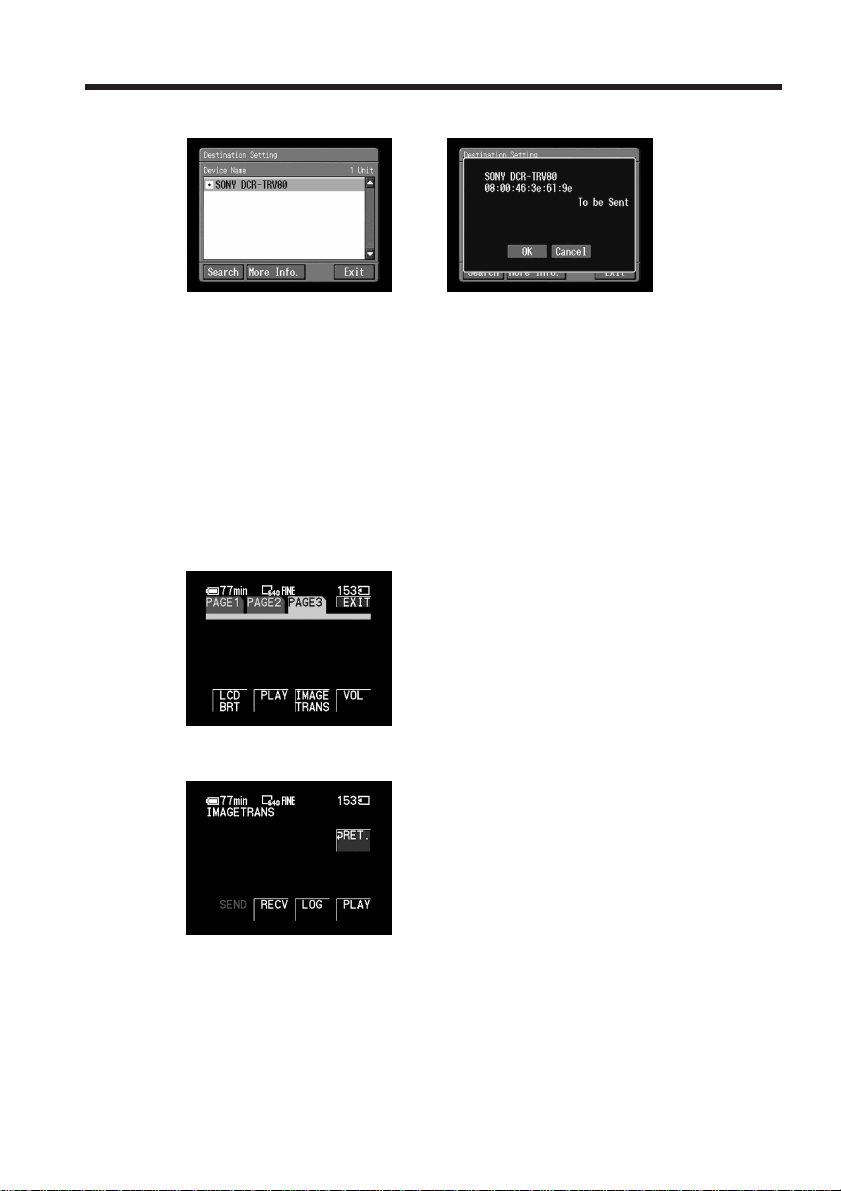
126
(7) Tap the Bluetooth device that you want to send a still image to.
,
(8) Tap [OK].
Your camcorder starts sending the still image. If the Bluetooth authentication is
required, tap [Passkey] and enter the passkey within 30 seconds.
(9) Tap [OK].
The screen in step 5 appears again.
Viewing the history
(1) Set the POWER switch of your camcorder to MEMORY/NETWORK.
(2) Tap FN and select PAGE3.
(3) Tap IMAGE TRANS.
(4) Tap LOG.
The history of up to 10 most recently used Bluetooth devices appears.
Tip
When you tap [More Info.], the device address and the device category appear on the
screen. To return to the previous screen, tap [More Info.] again.
Transferring still images with Bluetooth function
– Image Transport
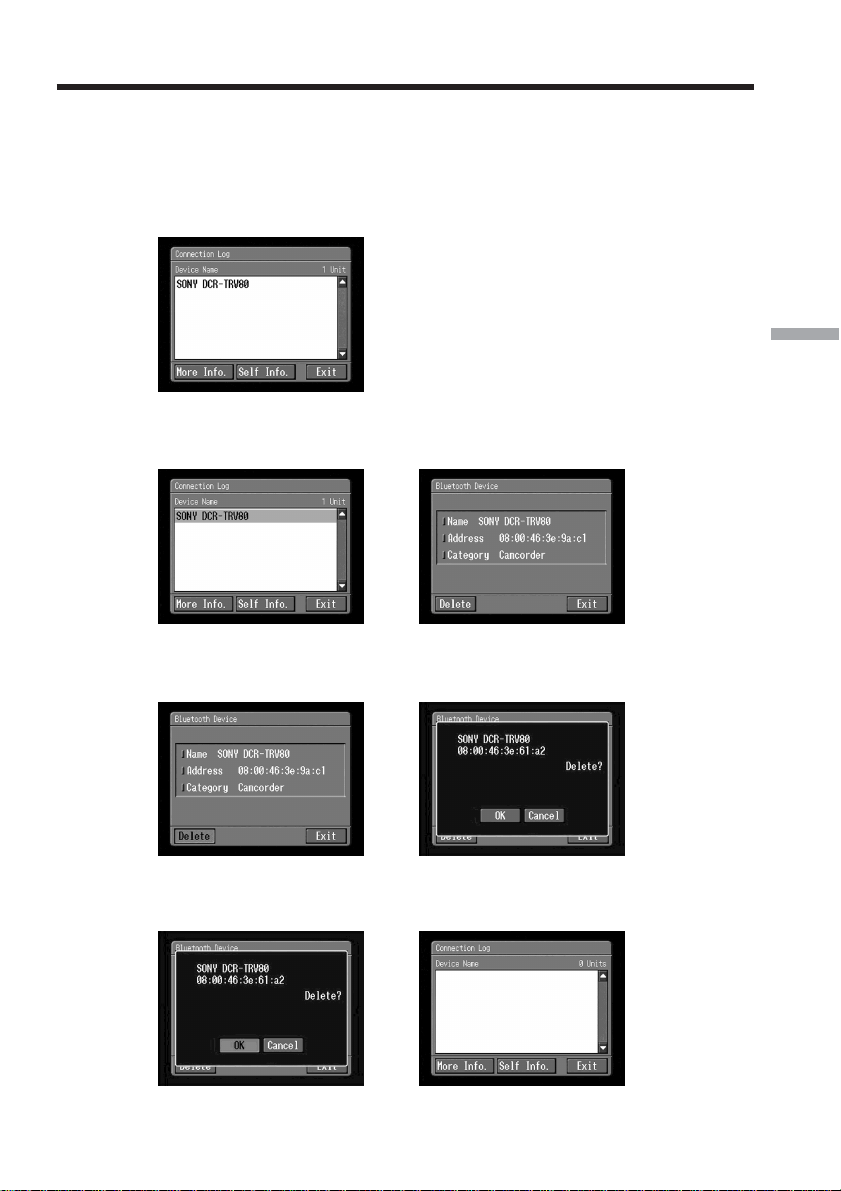
127
Bluetooth Application Operation
Deleting a Bluetooth device from the history
You can delete a Bluetooth device from the history.
(1) Follow steps 1 and 4 on page 126 and the Bluetooth Device History screen
appears.
The Connection Log screen appears.
(2) Tap the Bluetooth device that you want to delete from the history.
The Bluetooth Device screen appears.
,
(3) Tap [Delete].
The screen for verification appears.
,
(4) Tap [OK].
The selected Bluetooth device is deleted from the history.
,
Tip
If you delete the Bluetooth device from the history by mistake, you will have to search
for the device the next time you send a still image to the device.
Transferring still images with Bluetooth function
– Image Transport
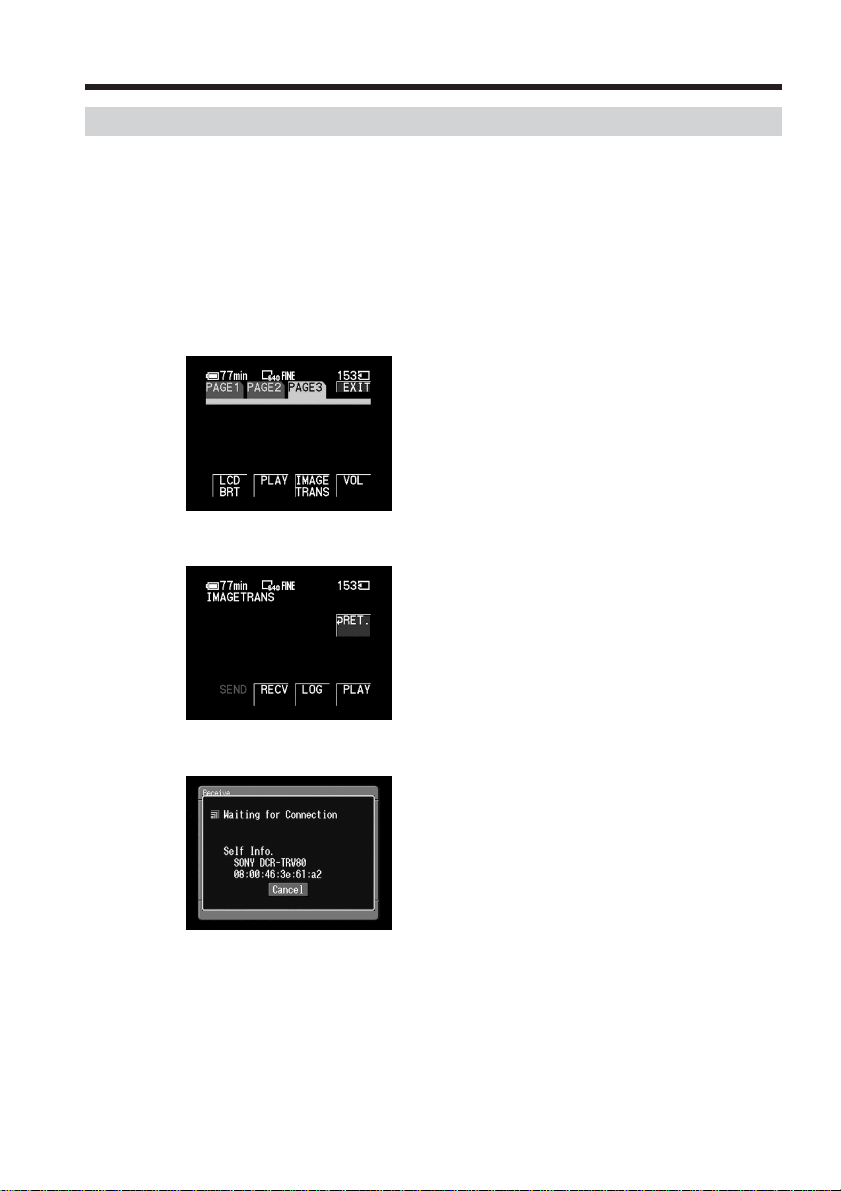
128
Receiving still images
Tip
You can receive only JPEG files.
Before operation
•Release the lock on the “Memory Stick.”
•Insert a “Memory Stick” into your camcorder, for storing a still image.
(1) Set the POWER switch of your camcorder to MEMORY/NETWORK.
(2) Tap FN and select PAGE3.
(3) Tap IMAGE TRANS.
(4) Tap RECV.
The message “Waiting for Connection” and information of your camcorder
appear.
If the Bluetooth authentication is required, tap [Passkey] and enter the passkey
within 30 seconds.
Transferring still images with Bluetooth function
– Image Transport

129
Bluetooth Application Operation
(5) Tap [Cancel] after receiving still images.
The screen in step 4 appears again.
To cancel receiving still images
Tap [Cancel] in step 4. The received image files are not saved.
Tip
If you leave your camcorder on standby for more than five minutes, the existing
connection may be discontinued or a new connection may not be possible. In this case,
connect your camcorder to the device again.
Note
You cannot select IMAGE TRANS during the following operations:
– MEMORY MIX
– Recording on a “Memory Stick”
Transferring still images with Bluetooth function
– Image Transport
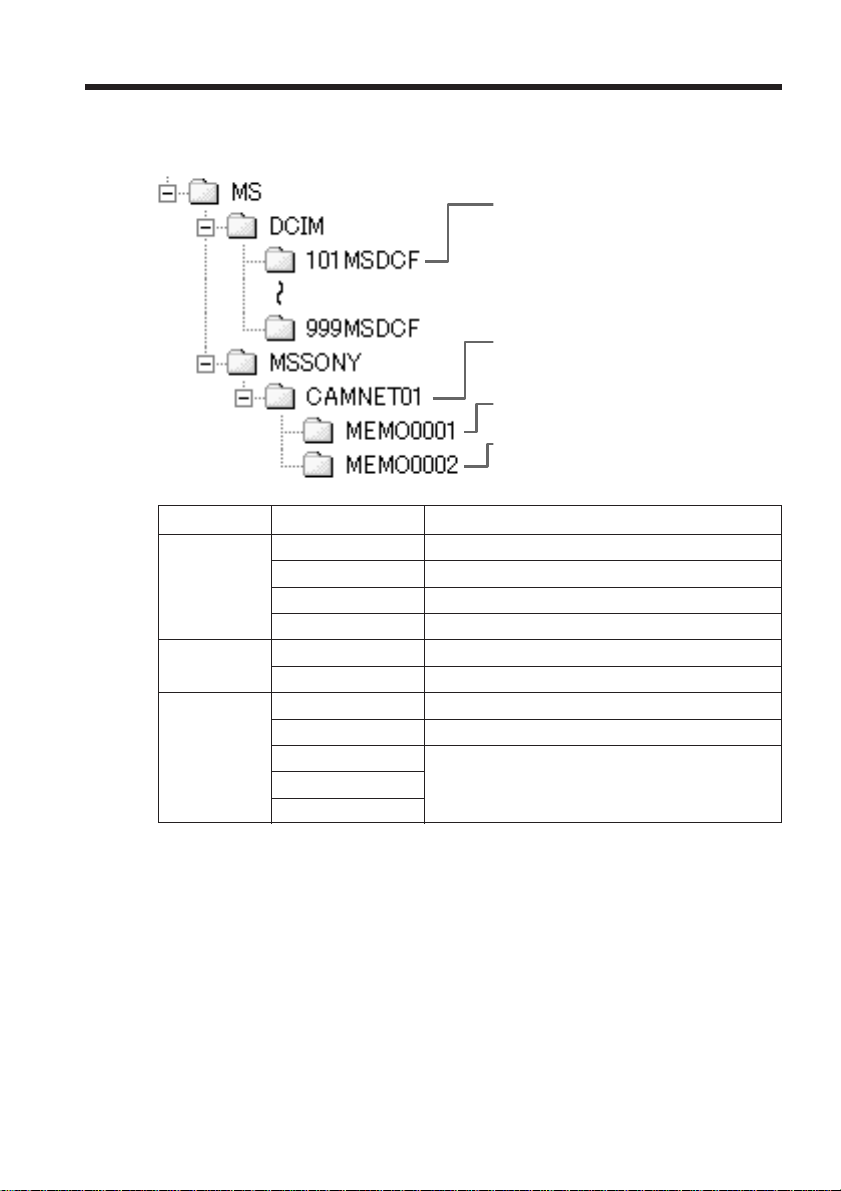
130
Files are grouped in the following folders. You can only view these folders on a
computer. The meanings of the file names are as follows.
ssss stands for any number within the range from 0001 to 9999.
Folder File name Meaning
101MSDCF DSC0ssss.JPG Still image file
(–999MSDCF)
MOV0ssss.MPG Moving image file
NET0ssss.JPG Still image file over the network or Bluetooth
NET0ssss.MPG Moving image file over the network or Bluetooth
CAMNET01 RCV.MBX Incoming email list*
IMAGEMEM.CNF Page memo management file*
MEMOssss MEMOssss.HTM Page memo HTML file
IMGssss.JPG Page memo still image file
IMGssss.GIF Page memo image file
IMGssss.PNG
IMGssss.XBM
* Do not delete these files. These are required files even though they cannot be verified
using a computer.
Tip
Images received by email or downloaded are stored in the folder set as the recording
folder. For details, refer to “Changing the recording folder” in the operating instructions
supplied with your camcorder.
– Additional Information –
File storage destinations and file names
Folder containing still image files,
moving picture files, files attached to
received email, files downloaded from
the Album on the Web and files
received by IMAGE TRANS.
Folder containing files of page memo
(2), etc.
Folder containing files of page memo
(1), etc.
Folder containing the text data of email,
etc.

131
Additional Information
Troubleshooting
Trouble accessing the Internet
The message “...Incomplete” or “Authentication Error...” appears and your camcorder cannot
access the Internet.
c When setting network preferences with the “So-net” option
Check your setup by the procedure described in “Setting your provider preferences
for “So-net”” (p. 38).
c When setting network preferences with the “AOL” option
Check your setup by the procedure described in “Setting your provider preferences
for “AOL”” (p. 48).
c When setting network preferences with the custom setup
Check your setup by the procedure described in “Setting your provider preferences
for other providers” (p. 54).
Your camcorder cannot access the Internet.
c Try accessing it again after a while.
The message “Line is Busy or Phone number may be Wrong” appears and your camcorder
cannot access the Internet.
c The telephone line of your provider is busy. Try connecting again after a while.
c The settings for the telephone number may be incorrect. Check the settings.
c The telephone signal type settings (tone/pulse) of the USB-PSTN Modem Adaptor or
the Modem Adaptor with Bluetooth Function may be wrong. Check the settings.
The message “Bluetooth Connection Error” appears and your camcorder cannot access the
Internet.
c Check that the Bluetooth device is turned on.
c Move the Bluetooth device closer to your camcorder.
The message “Phone Line Disconnected” appears when making an entry in the online
registration procedure.
c Data entry can be done offline. When your camcorder needs to connect with the site,
the screen for verifying the connection appears. Tap [Connect], then the connection
will be established again.
The message “Bluetooth Authentication Error Check the Certified Status” appears and your
camcorder cannot access the Internet.
c The Bluetooth device may have been deleted from the registration. Register it again
(p. 24).
The message “Bluetooth Connection Error Select Bluetooth Device” appears and your
camcorder cannot access the Internet.
c Check your setup by the procedure described in “Registering Bluetooth devices”
(p. 24).
The message “Low Battery” appears and your camcorder cannot access the Internet.
c Charge the battery pack or use the AC Adaptor, then connect again.
You forget your ID and/or password.
c Call Customer Support.

132
Troubleshooting
Trouble with email
The message “DNS Error The Requested URL Could Not Be Found” appears and your
camcorder cannot send or receive email.
c When setting network preferences with the custom setup
The DNS setup may be wrong. Check the PPP setting or LAN setting.
Your camcorder cannot send email.
c The clock of your camcorder is not set. Set the clock.
c When setting network preferences with the “So-net” option
Check your setup by the procedure described in “Setting your provider preferences
for “So-net”” (p. 38).
c When setting network preferences with the “AOL” option
Check your setup by the procedure described in “Setting your provider preferences
for “AOL”” (p. 48).
c When setting network preferences with the custom setup
Check your setup by the procedure described in “Setting your provider preferences
for other providers” (p. 54).
c Try sending the email after a while.
c If you use a LAN connection, you may not be able to use the email function,
depending on your provider.
Your camcorder cannot receive email.
c The clock of your camcorder is not set. Set the clock.
c When setting network preferences with the “So-net” option
Check your setup by the procedure described in “Setting your provider preferences
for “So-net”” (p. 38).
c When setting network preferences with the “AOL” option
As of March 2003, “AOL” does not support the receiving of email on this device. For
further clarification on this and other “AOL”-specific attributes, go to keyword:
Handycam on your computer.
c When setting network preferences with the custom setup
Check your setup by the procedure described in “Setting your provider preferences
for other providers” (p. 54).
c All of your downloaded email messages are stored on the “Memory Stick.” Insert a
new “Memory Stick” that has enough memory and download your email again. Also
check that the lock switch is released.
c You can restrict the file size of downloaded email messages. Check the setup of the
item “Restrict” on the Network Options screen.
c Up to 50 downloaded email messages can be stored on a “Memory Stick.” If you want
to store a 51st email message, delete unnecessary email or insert a new “Memory
Stick” that has enough memory, then download the email again.
c If you use a LAN connection, you may not be able to use the email function,
depending on your provider.
Not all of an email message can be received.
c The maximum size of an email is 4,000 characters. You cannot receive the entire text of
email that has more than 4,000 characters.
The message “PPP Authentication Error” appears.
c When setting network preferences with the “So-net” option
Check your setup by the procedure described in “Setting your provider preferences
for “So-net”” (p. 38).
c When setting network preferences with the “AOL” option
Check your setup by the procedure described in “Setting your provider preferences
for “AOL”” (p. 48).
c When setting network preferences with the custom setup
Check your setup by the procedure described in “Setting your provider preferences
for other providers” (p. 54).

133
Additional Information
Troubleshooting
You received an email message sent from Mailer Daemon.
c Email you sent has not been delivered to the addressee. Check the email address. If
you receive an email message from Mailer Daemon and the destination address is
correct, the server may be down, or the email address may have been changed.
Attached files are not saved on the “Memory Stick.”
c Your camcorder can receive files with the following extensions: .jpg, .mpg, .jpeg and
.mpeg. Check the file type.
c The message “Folder No. Full” appears when the “Memory Stick” is full. Delete any
unnecessary data or insert another “Memory Stick,” and then try to receive email
again.
c All of your downloaded email messages are stored on the “Memory Stick.” Insert a
new “Memory Stick” that has enough memory and download the email again. Also
check that the lock switch is released.
c You can restrict the file size of downloaded email messages. Check the item “Restrict”
on the Network Options screen.
Trouble viewing web pages
Images do not appear.
c Check the item “Image Display” on the Network Options screen.
Some or all of the web pages do not appear.
c A web page made with software such as Macromedia Flash may not be compatible
with the browser of your camcorder.
c The web page with JavaScript and Java Applets cannot be executed with incompatible
commands.
It takes some time to load the web page.
c The web page may be busy. Try connecting through another provider or access point,
or connect during off-peak times.
The web page is not loaded.
c When entering its URL
Check that the address is correct. (For example, did you enter “0” or “O”, “-” or “_” ?)
c When accessing through a bookmark or page memo
The address may have been changed or the link structure of the web site may have
been modified. If the link structure is modified, follow the address to its source. (For
example, when you cannot access “http://www.sony.co.jp/xxxx/”, then try to access
“http://www.sony.co.jp/”)
The web page cannot be displayed.
c The item “Cookie” may not be checked. Check the item “Cookie” on the Network
Options screen (p. 66).
The cookie is not saved.
c Exit the network function, and the cookie will be deleted.
The message “DNS Error The Requested URL Could Not Found” appears and the web page is
not displayed.
c The item “DNS” may not be set correctly. Check the setup of the PPP screen or LAN
screen.
c The item “Proxy” may not be set correctly. Check the setup of the Browser screen.

134
Troubleshooting
Troubles about the Album on the Web
The message “DI Customer ID profile Incomplete” appears and your camcorder cannot access
the Album on the Web.
c The DI customer ID is required to use the Album on the Web.
You cannot view or edit your album, send an invitation card, or upload still images and/or
moving pictures. (A four-digit error code appears.)
c See “Album error codes” (p. 145).
It takes some time to load the album.
c The web page may be busy. Try connecting through another provider or access point,
or connect during off-peak times.
A still image or moving picture cannot be deleted.
c There may be no still images and/or moving pictures. Tap .
A still image or moving picture cannot be downloaded.
c There may be no still images and/or moving pictures. Tap .
Troubles about sending a still image
– DCR-TRV80 only
SEND does not function.
c A still image is not being played back.
c An invalid image is being played back.
The message “Bluetooth Authentication Error” appears, and you cannot send a still image.
c The authentication time limit (30 seconds) is over.
c You did not enter the correct passkey.
c The connected device was disconnected.
c The passkey you entered is wrong. Enter the correct passkey.
The message “Bluetooth Connection Error” appears, and you cannot send a still image.
c The Bluetooth device you want to connect to is not turned on.
c The Bluetooth device is too far from your camcorder.
c The radio waves between your camcorder and the connected device were blocked.
c The Bluetooth device you want to connect to is already connected to other devices.
c The connected device was disconnected.
c The Bluetooth device you want to connect to is not compatible with BIP.
The message “Bluetooth Communication Disconnected” or “Send Error” appears, and you
cannot send a still image.
c The connected Bluetooth device is turned off.
c The Bluetooth device is too far from your camcorder.
c The radio waves between your camcorder and the connected device were blocked.
c The connected device was disconnected.
c The Bluetooth device you want to connect to is not compatible with BIP.
c The connection was rejected by the connected Bluetooth device. Check the settings or
operations of the connected device.
c You sent the still image that the connected Bluetooth device cannot receive.

135
Additional Information
Troubleshooting
Troubles about receiving a still image
– DCR-TRV80 only
The message “Bluetooth Authentication Error” appears, and you cannot receive a still
image.
c The authentication time limit (30 seconds) is over.
c You did not enter the correct passkey.
c The connected device disconnects or ends the connection.
c The passkey you entered is wrong. Enter the correct passkey.
The message “Bluetooth Communication Disconnected” or “Error Receiving” appears, and
you cannot send a still image.
c The connected Bluetooth device is turned off.
c The Bluetooth device is too far from your camcorder.
c The radio waves between your camcorder and the connected device were blocked.
c The connected device disconnects or ends the connection.
c The “Memory Stick” does not have enough capacity.
c The sent still image is not a JPG or JPEG file.
c The sent still image is too large.
The message “Bluetooth connection Timeout” appears.
c If your camcorder does not receive any requests from the connected device for five
minutes, the connection is disconnected or the camera becomes non-connectable.
Connect your camcorder and the Bluetooth device again.
No request from the connected device.
c The device you want to connect with your camcorder is connected to other device.
Disconnect the connection and connect the device with your camcorder.
c The time limit was exceeded. Set your camcorder to connection standby again.
The received still image cannot be played back.
c Your camcorder may not be able to play back incompatible JPEG files or files recorded
by other devices properly.
c The still image is corrupted.
The index screen becomes blue.
c The received files do not have thumbnails.
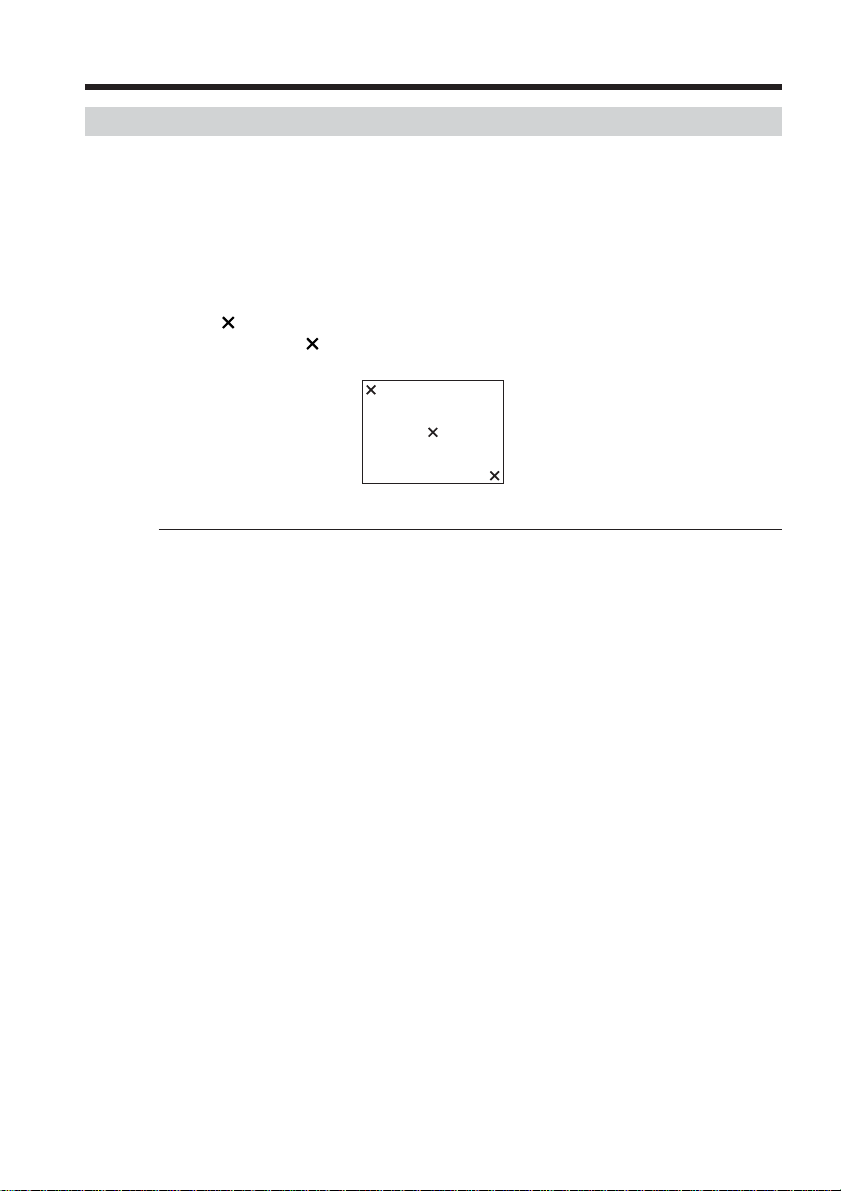
136
Adjusting the LCD screen (CALIBRATION)
If the buttons on the touch panel do not work correctly, follow the procedure below.
(1) Set the POWER switch to OFF (CHG).
(2) Eject the tape from your camcorder, then disconnect any connecting cable from
your camcorder.
(3) Set the POWER switch to VCR while pressing DISPLAY/BATTERY INFO on
your camcorder, then keep pressing DISPLAY/BATTERY INFO on your
camcorder for about five seconds.
(4) Tap
displayed on the screen with the supplied stylus.
The position of
changes.
Notes
•If you do not tap the right spot, you need to repeat step 4.
•You cannot calibrate the LCD screen when you close the LCD panel with the LCD
screen facing out.
For details of adjusting the LCD screen (CALIBRATION), refer to the operating
instructions supplied with your camcorder.
Troubleshooting
CALIBRATE
Troubleshooting
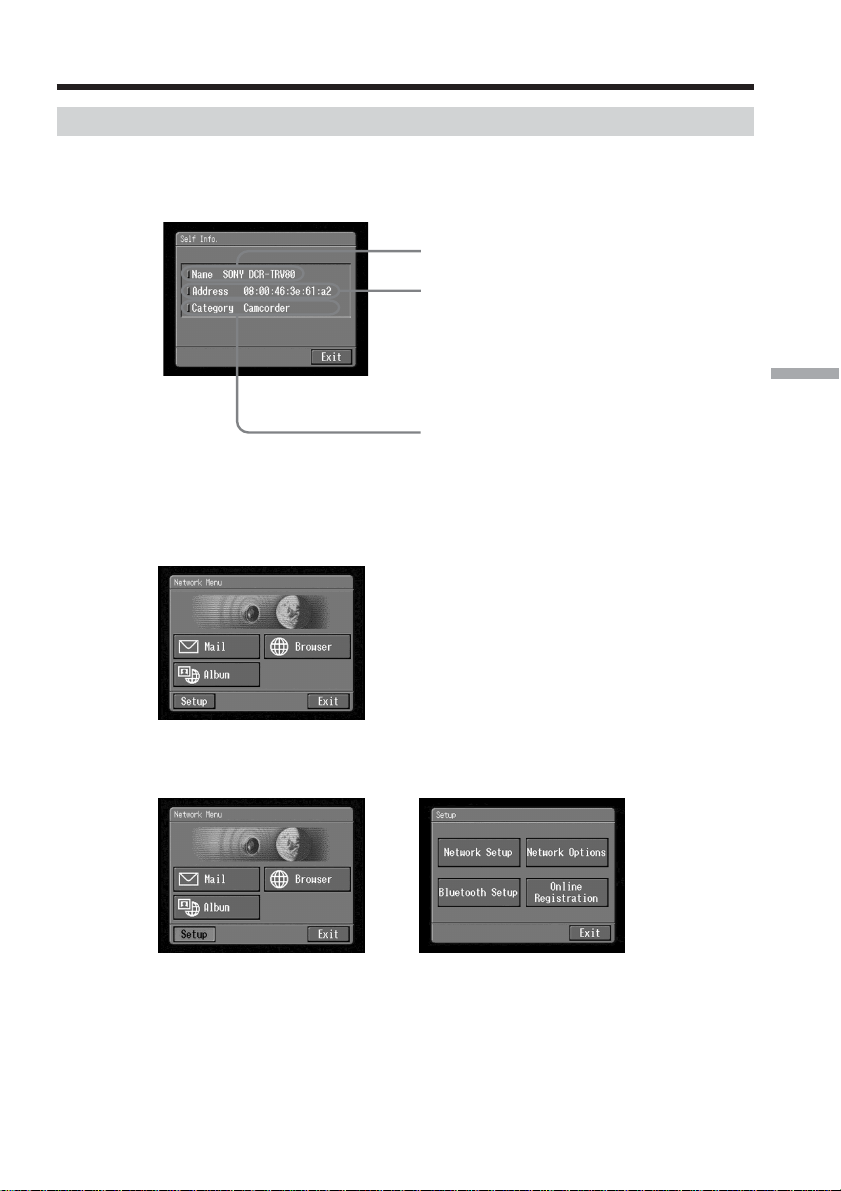
137
Additional Information
Displaying information on your camcorder
You can check information of your camcorder on the LCD screen.
The Self Info. screen
To display information of your camcorder from Network Menu
(1) Open the Network Menu.
For details of how to open the Network Menu, see page 7.
(2) Tap [Setup].
The Setup screen appears.
,
Troubleshooting
The model name
Device Address
This is the unique address assigned to each
camcorder at the factory. This address is used
when exchanging information between
devices. This address cannot be modified.
(The number indicated on the illustration is
an example number.)
Device category
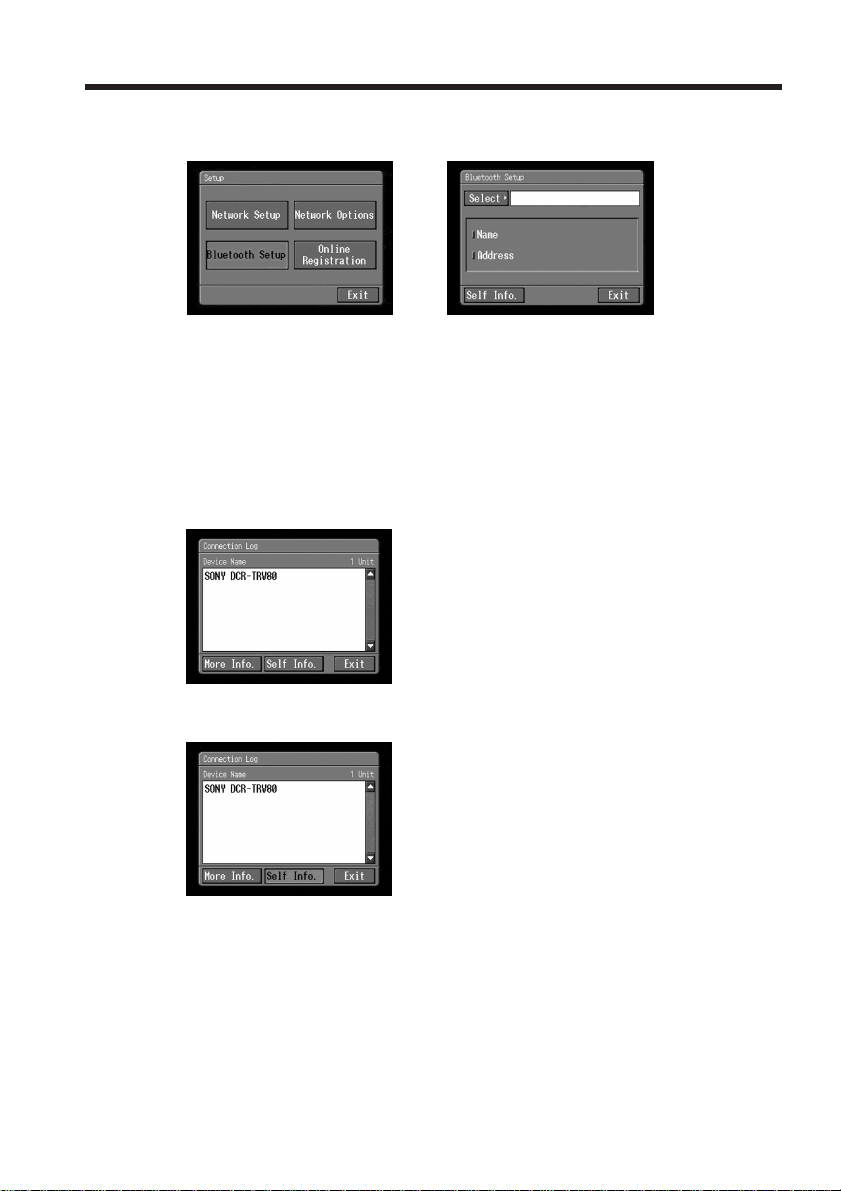
138
(3) Tap [Bluetooth Setup].
The Bluetooth Setup screen appears.
,
(4) Tap [Self Info.].
The Self Info. screen appears.
To return to the Bluetooth Setup screen
Tap [Exit].
To display information of your camcorder from the history
(1) Follow steps 1 to 4 on page 126 to display the Bluetooth Device History screen.
(2) Tap [Self Info.].
The Self Info. screen appears.
To return to the Connection Log screen
Tap [Exit].
Troubleshooting

139
Additional Information
Specifications
Bluetooth (DCR-TRV80 only)
The number of registered
devices available
For Dial-up: 3
For Transferring Images: 10
For details, refer to the operating
instructions of your camcorder.
Album on the Web
The number of albums
10
The maximum number of still
images and/or moving pictures
uploaded at one time
99
The maximum file size of still
images and/or moving pictures
uploaded at one time
3MB (3 072 KB)
Email
Sending
The maximum number of
email destination addresses to
which a message can be sent
at one time
50
The registrable number of
subjects
6
The maximum number of
characters of a subject
24
The registrable number of
messages
6
The maximum number of
characters of a message
512
The maximum number of still
images and/or moving
pictures attached to email
99
The maximum file size of still
images and/or moving
pictures attached to email
3 MB (3 072KB)
Signature
The maximum number of
characters
256
Address book
The registrable number of
destination addresses
50
The maximum number of
characters of a name
24
The maximum number of
characters of an email address
64
Receiving
Compatible attachment file
standards
Extension: .jpg, .mpg, .jpeg,
.mpeg
The maximum number of
characters of an email
message
Approx. 4 000
The maximum number of
email messages recordable in
a “Memory Stick”
50
Browser
The number of bookmarks
available
30
The maximum number of
characters of a bookmark title
27
The maximum number of page
memos recordable in a
“Memory Stick”
30
The maximum number of
characters of a page memo title
27
The maximum number of
characters of URL
255
Remote Camera
(DCR-TRV80 only)
The timeout of connected state
3 hours
Image Transport
(DCR-TRV80 only)
Sending
The maximum number of
images sent at one time
1
Compatible image file
standards
Extension: .jpg, .jpeg
The maximum file size of still
images to send
Approx. 1.4MB (1 417KB)
Receiving
Compatible image file
standards
Extension: .jpg, .jpeg
The maximum file size of still
images to receive
Approx. 1.4MB (1 417KB)

140
Various messages appear on the screen. Check the corresponding descriptions in the
following list to correct the problems.
General
Message Cause and/or Corrective Actions
USB Connection Error
USB Communication Error
The Connected USB Device
is not Compatible
Bluetooth Connection Error
Bluetooth
Authentication Error
Check the Certified Status
Bluetooth
Registration Error
Check the Passkey
Bluetooth Communication
Disconnected
Bluetooth
Connection Error
Select Bluetooth Device
PPP Authentication Error
Check ID or Password
Phone Line Disconnected
Connection Error
No Response From PPP Server
Connection Error
Check Phone Line
Low Battery
Profile Error
Reset Profile
DI Customer ID Profile
Incompleted
Unable to Gain IP Address
Memory Error
Messages
A USB device is not connected correctly.
c Connect correctly (p. 19).
• An invalid USB device is connected.
• The connection was interrupted by the USB device.
An incompatible USB device is connected.
• The Bluetooth device is too far from your camcorder.
• The Bluetooth device is busy.
Register the Bluetooth device again (p. 24).
• The entered passkey was not correct.
• The passkey transmission failed.
• The Bluetooth device is turned off.
• The Bluetooth device is too far from your camcorder.
• The Bluetooth device is not connectable.
No Bluetooth devices are registered. Register the Bluetooth device
(p. 24).
Your ID or password entered on the PPP screen during manual
setup may be wrong (p. 57).
Check the connection status.
• The telephone number entered on the PPP screen in manual setup
may be wrong.
• The Modem unit setup on the Network Options screen is wrong.
Check that the communication device is connected to the telephone
line.
The remaining power of the battery pack is not enough. Change the
battery pack or use the AC Adaptor.
Check the setup. If the settings were cleared, set up again referring to
your Setup memo (p. 149).
Check your DI customer ID or password entered on the Network
Setup screen.
IP address is not obtained automatically. The setting may be wrong
or the server may be down.
Exit the network function, then enter the network function again.
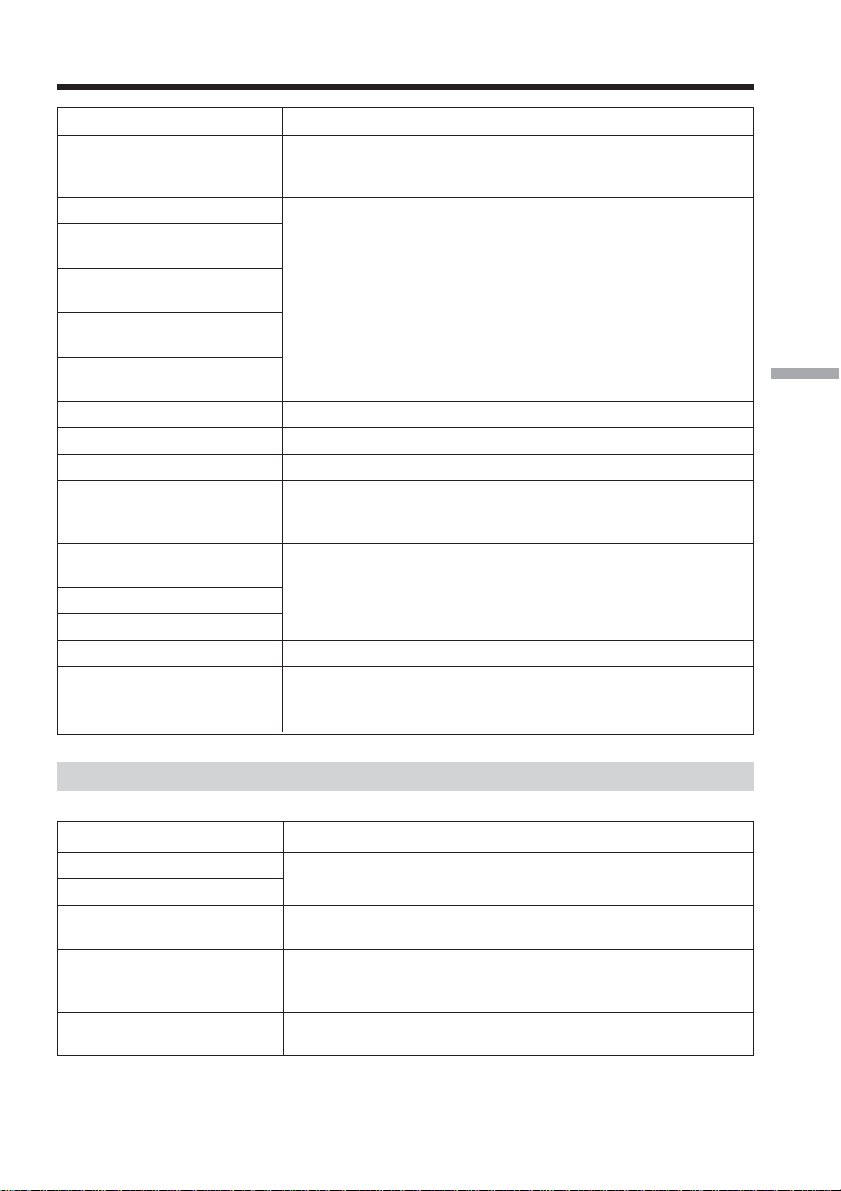
141
Additional Information
Message Cause and/or Corrective Actions
Password Already Set
Check the Password
Profile
Memory Stick Error
Memory Stick Error
Outgoing Mail Canceled
Memory Stick Error
Unable to Open the File
Memory Stick Error
Action Canceled
Memory Stick Error
Incoming Mail Canceled
Memory Stick Format Error
Incompatible Memory Stick
Read-Only Memory Stick
Folder No. Full
Enter Password for
DI Customer ID
Enter PPP Password
Enter AOL Password
Saving the Profile
Cannot Access the Internet via
AOL with USB-Ethernet
Adaptor
Album on the Web
Message Cause and/or Corrective Actions
Album Server Disconnected
Upload Error
Outgoing Mail Error
Select Pictures
Wrong File
Unable to Save This File
Check the File Type
No Picture Files
When a 4-digit error code appears, see “Album error codes” (p. 145).
Messages
For details of “Verify Password”, see “Setting other preferences”
(p. 65).
The “Memory Stick” may be broken. Do the following: exit the
network function, turn off your camcorder, remove and insert the
“Memory Stick,” then operate your camcorder. If the message still
appears, use another “Memory Stick.”
Format the “Memory Stick” with your camcorder.
The “Memory Stick” inserted is not compatible with your camcorder.
A read-only “Memory Stick” is inserted.
The “Memory Stick” is full. Delete any unnecessary data or insert
another “Memory Stick,” and then try to download the still images
and/or moving pictures again.
For details of “Verify Password,” see “Setting other preferences”
(p. 65).
Do not turn off your camcorder while the message is indicated.
You cannot access the Internet via “AOL” when your camcorder is
connected with a USB-Ethernet Adaptor.
Try again after a while.
Select the still image or moving picture or set up the invitation card
before uploading (p.
70
).
You tried to download a file that is not JPEG or MPEG format. You
can download only JPEG or MPEG files.
There are no still images and/or moving pictures on the “Memory
Stick.”
142
Email
Message Cause and/or Corrective Actions
POP Server Disconnected
POP Server Connection Error
SMTP Server Disconnected
SMTP Server Connection Error
PPP Profile Incomplete
Mail Profile Incomplete
No Picture Files
Browser
Message Cause and/or Corrective Actions
You are About to View
Pages Over a Secure Connection
Do You Want to Continue?
You are About to Leave
a Secure Internet Connection
Do You Want to Continue?
Warrant Date Expired
Invalid Data
Open Anyway?
Set the Date and Time
Invalid Data
Open Anyway?
Page Certification Error
Invalid Data
Open Anyway?
Opening Error
Invalid File Type
The POP server may be down. Connect to the page again after a
while.
• Your password entered on the Mail screen during manual setup
may be wrong. Check your password.
• Connect to the page after a while.
Connect to the page again after a while.
• Your password entered on the Mail screen during manual setup
may be wrong. Check your password.
• An email address you entered may be wrong.
Check the email address.
Check the “So-net” or Custom Setup in provider preferences.
Check the “So-net” or Custom Setup in provider preferences.
There are no still images and/or moving pictures on the “Memory
Stick.”
You tried to open an SSL (p. 148) page. If you know that the page is
safe, tap [OK].
You tried to open a page which is not SSL protected. If you know that
the page is safe, tap [OK].
The warrant of the page is no longer valid. If you know that the page
is safe, tap [OK].
The clock on your camcorder is not set. Set the clock.
The certification of the page may be broken, wrong, or it may be of
other pages. When you know that the page is safe, tap [OK].
You cannot display this page on your camcorder.
Messages
143
Additional Information
Messages
Message Cause and/or Corrective Actions
DNS Error
The Requested URL
Could Not Found
Loading Error
Read-Only File in Directory
Unable to Delete the File
Check the File Status
Opening File Error
Read-Only File
This File is Locked
Enter User Name
and Password
Timeout
Disconnected Automatically
Loading...
Retry Later
Sending a still image
– DCR-TRV80 only
Message Cause and/or Corrective Actions
Input at Least One Letter
Send Error
Unknown device
• The URL may be wrong.
• The DNS entry on the PPP screen during manual setup may be
wrong. Check this item.
• Connect to the page again after a while.
Tap
menu
on the upper right of the LCD screen, then tap
END
.
You may be unable to delete files modified with a computer by using
your camcorder.
User authentication is required to access the page. Enter your user
name and password.
Check the Network Options setup (p. 65).
The page memo cannot be stored while the unit is loading a web
page. Store it again after the web page has been loaded (p. 114).
Enter the passkey between one to 16 characters.
• Disconnected from the connected Bluetooth device
c After confirming the connection to the Bluetooth device, send the
still image again.
• The radio waves between your camcorder and the connected device
were blocked while sending a still image.
c Confirm the radio wave status, and send the still image to the
device again.
• The distance between your camcorder and the connected device
become too far to communicate each other while sending a still
image.
c The distance that your camcorder and the connected device is
within about 10 m (33 feet). Put your camcorder and the connected
device within the distance that they can communicate each other.
During search for a Bluetooth device, [Cancel] was tapped.
c Search for Bluetooth devices again.
144
Messages
Receiving a still image
– DCR-TRV80 only
Message Cause and/or Corrective Actions
Input at Least One Letter
Error Receiving
Enter the passkey between one to 16 characters.
• Disconnected from the connected Bluetooth device
c After confirming the connection to the Bluetooth device, receive the
still image again.
• The radio waves between your camcorder and the connected device
were blocked while receiving still images.
c Confirm the radio wave condition, and receive the still image to the
device again.
• The distance between your camcorder and the connected device
become too far to communicate each other while receiving still
images.
c The distance that your camcorder and the connected device is
within about 10 m (33 feet). Put your camcorder and the connected
device within the distance that they can communicate each other.
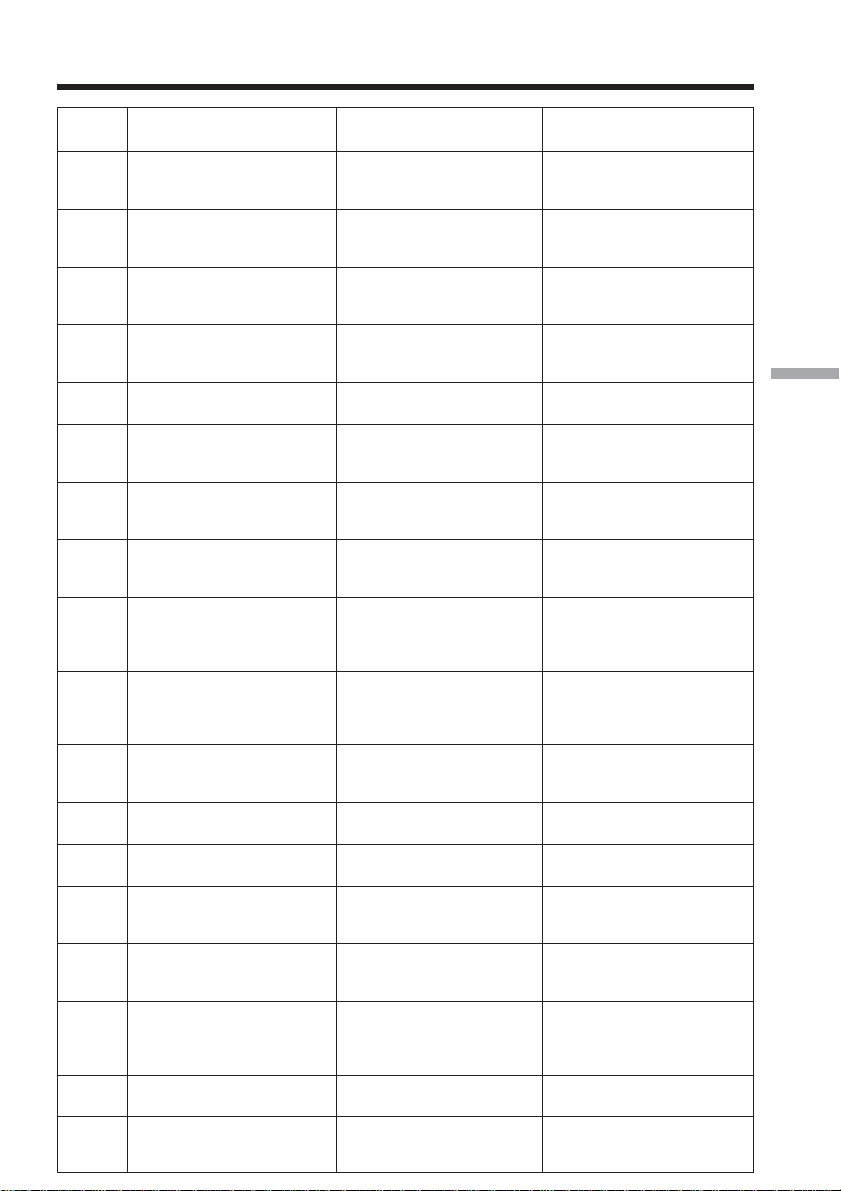
145
Additional Information
Error ImageStation Cause Corrective Actions
Number
1000
1001
1002
1003
1004
1006
1007
1008
1009
1010
1112
2100
2200
3094
3099
3131
6000
8025
Album error codes
Authentication error
occurred. Please check ID
and Password.
Upload error occurred.
Please try to upload again
later.
Your ID is not registered.
Please register.
Upload error occurred.
Please try to upload again
later.
Invitation error occurred.
Please try to send again later.
Invitation error occurred.
Please try to send again later.
Upload error occurred.
Please try to upload again
later.
Error occurred. Please re-
enter Album.
Upload error occurred. The
uploaded image was too
large.
Upload error occurred.
Please check the image file.
Authentication error
occurred. Please check ID
and password.
Your message could not
send. Please send again.
The server is temporarily
busy. Please try again later.
Upload error occurred.
Please check the image file.
Upload error occurred. The
uploaded video was too
large.
Upload error occurred. The
total size limit of video is
over.
Your ID validity is expired.
Please login again.
Authentication error
occurred. Please re-enter
Album.
Login error. ID or password
may be incorrect on your
camcorder.
Error in finding album.
ID is not registered.
There was an error in
saving the file in the album.
The email address you are
trying to send to is invalid.
There is no message in the
invitation.
There is an error with the
image file in the album.
Login error. Not logged into
album.
The still image or moving
picture is too large to
upload.
Unable to read the image
format.
Login error
The server is unable to send
now.
The authentication server is
temporarily busy.
Unable to read the moving
picture format.
The moving picture is too
large to upload.
You have exceeded the
storage limit of the moving
pictures.
The server validity time is
expired.
Login error
Check your ID and
password, and try to login
again.
Check your selection and try
again.
Try to register again with
the online registration
button on your camcorder.
Try uploading the file again.
Check the email address and
try again.
This error should not occur.
Call Customer Support if
you see this message.
Check the selected still
images and/or moving
pictures and try again.
Check your ID and
password, and try to login
again.
The still image or moving
picture cannot be uploaded.
Remove it from your
selection.
The still image or moving
picture cannot be uploaded.
Remove it from your
selection.
Check your ID and
password, and try to login
again.
Try to send the email again
after a while.
Try to login again later.
The file cannot be uploaded.
Remove it from your
selection.
The moving picture cannot
be uploaded. Remove it
from your selection.
Delete some of the other
moving picture(s) in your
albums and try to upload
again.
Try to login again.
Check your ID and
password, and try to login
again.

146
Glossary
Access point (p. 41, 58)
A telephone number used to access the Internet, which is provided by an Internet
service provider. Most providers install access points in various areas. We recommend
that you select the most convenient access point with the lowest telephone charges.
Address book (p. 93)
Used to register email destination addresses.
APOP (p. 59)
An abbreviation for Authenticated Post Office Protocol. APOP is an authentication
protocol for security. For details of whether your provider supports APOP or not,
consult your provider.
@ (At mark)
Used to separate the domain name and the user name.
Attachment (p. 90)
To attach a file to an email message.
BIP (p. 6)
BIP stands for Basic Imaging Profile, the specification for the simple exchange of still
images between Bluetooth devices, and remote camera operation from a Bluetooth
device.
Bluetooth
Bluetooth technology enables reciprocal wireless communication between compatible
devices via 2,4 GHz bandwidth radio, which is exempt from radio licensing
requirements. It is for installation in small-sized and portable devices and provides high
security and interconnectibility.
Bookmarks (p. 110)
Register your favorite or most frequently visited Internet web pages. Once you register
a web page, you can visit it without entering its URL.
Connect time (p. 109)
The time connected to an Internet service provider with a dial-up connection. Most
Internet service providers charge for the time connected.
Cookie (p. 66)
Used by the operator of an Internet site to identify the user. This is frequently used in
online shopping.
Device address (p. 137)
The address of a Bluetooth device. Every address in the world is unique.
Dial-up connection
The dial-up connection is used to access the Internet through a telephone line.
DNS (p. 45, 57, 63)
An abbreviation for Domain Name System. This “DNS” is sometimes referred to as the
“name server”, “primary DNS server”, “primary name server”, etc. This is a server that
replaces a domain name with an IP address. This is specified by an IP address.
Download (p. 75)
Load information from the server to your camcorder.

147
Additional Information
Glossary
Email (p. 82)
Using a network, such as the Internet, you can send and receive messages very quickly.
Email is easy to edit or store.
Email address (p. 58)
This is the destination address for email. There is no need to specify the country and the
house number. Every address in the world is unique. You can receive email even if you
are in another country.
Forward (p. 103)
To forward a received email message to another person. “Fw:” (Forward) is added to
the beginning of the title to indicate that the email is a forwarded email.
ID (p. 58)
Used to identify the user in combination with a password when accessing the Internet
through an Internet service provider.
Internet (p. 36)
A worldwide network of computers. You can use email, information retrieval services,
etc., over this network.
Internet service provider (p. 36)
Sometimes referred to as the “Provider”, “ISP”, etc. It is a company that provides access
to the Internet.
LAN
An abbreviation for Local Area Network. A LAN is a network of computers within a
limited area connected by a comparatively high speed data transmission method, such
as Ethernet.
Link
A related page address shown on another web page as a web link.
Login (p. 68)
Connect to a specific service by entering an ID and password.
Passkey (p. 24)
The passkey is an identification number needed to allow two Bluetooth devices to
communicate with each other. This “Passkey” is sometimes referred to as the
“Bluetooth passkey”, “PIN”, “Bluetooth PIN”, etc.
Password
Used to access the provider in combination with a user ID.
POP3 (p. 58)
An abbreviation for Post Office Protocol, Version 3. It is a server used to receive email.
PPP (p. 57)
An abbreviation for Point to Point Protocol, Version 3. It is a protocol for accessing a
provider with a dial-up connection.
Proxy (p. 59)
A server or program to allow a computer located inside a firewall pass through the
firewall.

148
Glossary
Reply (p. 102)
To reply to a previously received email message. When replying, “Re:” (Reply) is added
to the beginning of the title to indicate that the email is a reply.
Security
Computer security means the overall preservation of safety of a computer system. It
includes the protection of data against vandalism and accidents, and the prevention of
illegal use of data.
Signature (p. 92)
Used to add your name, address, etc., to the end of a message.
SMTP (p. 59)
An abbreviation for Simple Mail Transfer Protocol. It is a server used to send email.
SSL
An abbreviation for Secure Sockets Layer. It is a protocol for exchanging information
safely between web browsers and web servers. SSL is frequently used for credit card
transactions over the Internet. SSL also has ownership verification and to data
encryption functions.
Subject (p. 85)
The title of an email message. When replying, “Re:” (Reply) is added to the beginning of
the title to indicate that the email is a reply. When forwarding an email message, “Fw:”
(Forward) is added to the beginning of the title to indicate that the email is a forwarded
email message.
Upload (p. 68)
Load data such as still images and moving pictures from your camcorder to the server
through the telephone line.
URL (p. 106)
An abbreviation for Uniform Resource Locator. It is an address on the Internet. By
specifying this address, you can access the web page.
Web page (p. 106)
A web site that makes information available on the Internet. When the page includes
web links, you can select them to specify other pages.
Web page address (p. 106)
The address of a web page on the Internet. See also “URL”.
Wireless communication
Radio communication. Devices can be connected without using cables.
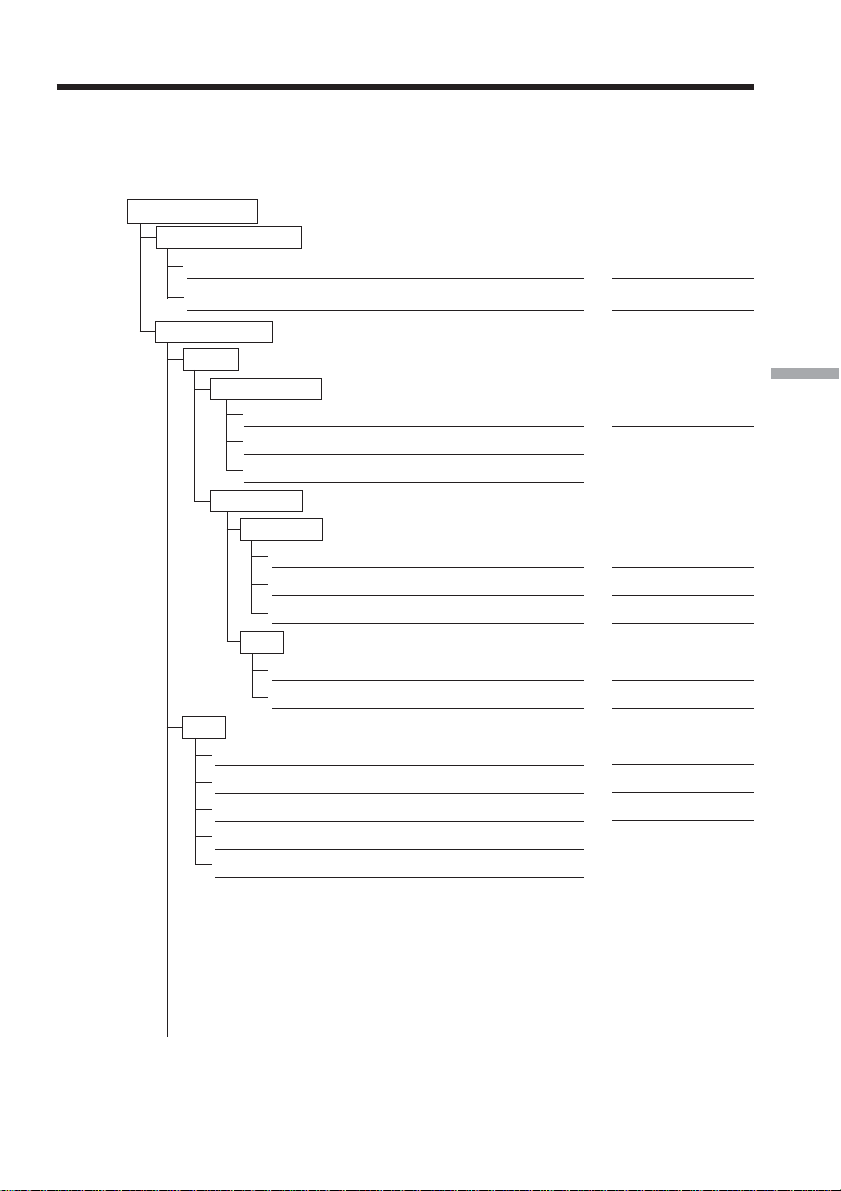
149
Additional Information
Setup memo
Write down information setting on your camcorder.
Be careful not to reveal these entries.
Network Menu
Network Setup
DI Customer Setup
ID
Password
Provider Setup
So-net
Dial-Up Setup
TEL1
TEL2
TEL3
LAN Setup
IP address
IP address
Subnet mask
Gateway
DNS
DNS1
DNS2
AOL
ScreenName
Password
TEL No. 1
TEL No. 2
TEL No. 3
Example
XXXXXXX
XXXXXXX
XXX.XXX.X.X
XXX.XXX.X.X
XXX.XXX.X.X
XXX.XXX.X.X
XXX.XXX.X.X
≈
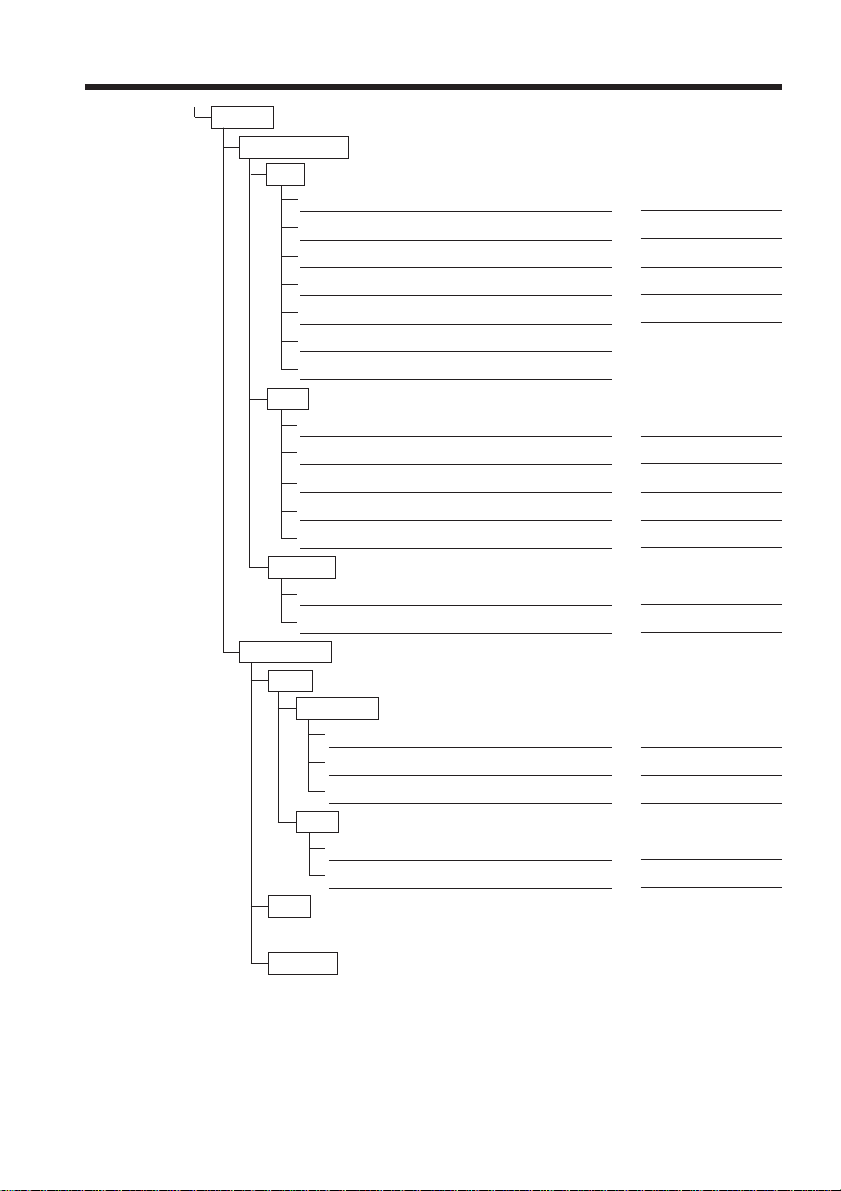
150
Setup memo
Custom
Dial-Up Setup
PPP
ID
Password
DNS1
DNS2
TEL No. 1
TEL No. 2
TEL No. 3
Mail
User ID
Password
Address
POP Server
SMTP Server
Browser
Proxy
Port
LAN Setup
LAN
IP address
IP address
Subnet mask
Gateway
DNS
DNS1
DNS2
Mail *
Browser *
* Use the spaces provided for Dial-Up Set up of Custom.
hcHZ7yd
192.168.0.1
192.168.0.2
XXXXXXX
abc123
hcHZ7yd
pop.xxx.so-net.com
smtp.xxx.so-net.com
proxy.xxx.so-net.com
8080
XXX.XXX.X.X
XXX.XXX.X.X
XXX.XXX.X.X
XXX.XXX.X.X
XXX.XXX.X.X

151
Additional Information
Online Privacy Policy
Sony Electronics Inc.
Effective: June 21, 2001
Last Update: June 3, 2002
Your Privacy
At Sony we believe our online visitors have a right to know our practices regarding the
information we may collect when you visit our Web sites and what type of information
is collected. The guidelines contained herein apply only to your visit to the Web sites
operated by or for Sony Electronics Inc. and the entities it controls (collectively, “SEL”).
These sites include, but are not limited to, those that contain “sel.sony.com” and those
that contain “sonystyle.com” in their URLs. Sites which are linked to/from these sites
(including sites of other Sony affiliated companies (e.g., Sony Music Entertainment,
Sony Pictures Entertainment, Sony Computer Entertainment America) and via banner
ads) may have different policies; therefore, please review the privacy policy notices on
those sites for details.
While SEL does not generally require that you provide us with personally identifiable
information in order to visit and use the SEL sites, please note that in order to
participate in some activities, it will be necessary for you to provide this information. If
you choose not to provide it for those activities, you may not be able to participate in
them.
Collection of Information:
For each visitor to an SEL Web site, SEL’s Web server automatically recognizes, collects
and/or stores information such as the visitor’s IP address/Domain name combination
and any referring sites. SEL may use several technologies to accomplish this. Examples
of such technologies are cookies and Web beacons.
When you visit SEL’s Web sites or advertisements appearing thereon, or use one or
more of the SEL Web site services, we may use an industry-wide technology called
“cookies” which stores certain information on your computer and which will allow us
to customize your experience to better match your interests and preferences or to
simply facilitate your signing in to use the services. Most browsers will allow you to
erase cookies from your computer hard drive, block acceptance of cookies, or receive a
warning before a cookie is stored. However, if you block or erase cookies, we may not
be able to restore any preferences or customization settings you previously specified
and our ability to personalize your online experience would be limited. Please refer to
your browser instructions or “help” screen to learn more about these functions.
SEL may also itself use, or engage third parties to use, Web beacons for researching
certain usage and activities on our Web site. The information collected by SEL or
requested from third parties through these Web beacons is in an aggregate, non-
individually identifiable form and is used to find out more about users including
demographic information and usage patterns for more accurate reporting and to
improve the effectiveness of our marketing.
SEL may ask you to provide “personal information”, meaning individually identifiable
information such as your email address, name, mailing address, telephone number,
social security number, credit card number, or persistent identifier (such as a customer

152
number held in a cookie) which is associated with individually identifiable information,
to enable you to participate in contests, chat rooms, on bulletin boards, to fill out a
registration, or to order products and services using these sites. SEL may combine the
information you provide on our Web sites with information we may collect offline from
you or from third parties so that we can more effectively tailor our site, services and
offerings to you.
SEL will not share the personal information you provide on the SEL Web sites with any
other parties, except (a) to other affiliated Sony companies (i.e., (i) Sony Corporation,
(ii) any company of which more than 50% of its outstanding shares are owned by Sony
Corporation, directly or indirectly, and (iii) any company with the name “SONY” as a
part of its trade name) who may want to contact you about products, services or other
offerings that may be of interest to you (SEL and such affiliates being collectively
referred to as “Sony”), (b) with your consent (see paragraph below), (c) as may be
required by law or court order, (d) to persons or companies with whom SEL engages to
carry out or provide support for the operations of the site or our business, or (e) under
exigent circumstances to protect the personal safety or property of our users, the public
or ourselves.
Unless you instruct us otherwise, SEL may contact you to provide information about
products, services, promotions, contests, or other activities or offerings that may be of
interest to you. You can instruct us whether or not you wish to be contacted by
checking or unchecking the box indicating your preference, as applicable, at the place
where your information is collected, or by clicking here and providing the requested
information. In addition, with each communication you receive from SEL, you will be
given the opportunity to indicate if you do not wish to receive future communications
from that company.
With your consent, SEL may share your personal information with third parties outside
of the Sony group of companies who may want to contact you about products, services
or other offerings that may be of interest to you. Each of these companies may have
their own privacy policies. SEL will seek to obtain your consent at the place where the
information is collected either by an “opt-out” or “opt-in” method, or by other means
(such as an email request). If you consent to receiving communications from any of
these third parties, you will need to communicate with them directly if you later decide
that you no longer wish to receive their communications. If you wish to withdraw your
consent from any further sharing of your personal information with third parties, you
may do so by clicking here and providing the requested information.
Use and Disclosure of Anonymous Aggregated Information
SEL may also collect, aggregate and maintain anonymous information about the visitors
to our Web sites, such as visitors hobbies, interests, purchasing habits, music
preferences, and the like. This data can then be used to tailor SEL’s Web site content and
advertising to deliver a better experience for our visitors. SEL may also share such
aggregate information about our visitors with advertisers, business partners, sponsors,
and other third parties; for example, to inform them about the percentage of male/
female visitors or percentage of visitors within a particular age range.
Security
SEL takes great care in maintaining the security of your personal information and in
preventing unauthorized access to it through the use of appropriate technology and
internal procedures. However, SEL does not guarantee that unauthorized access will
never occur.

153
Additional Information
Notice To/Regarding Children Under the Age of 13
SEL believes that children using the Internet require special protection, and we urge
parents or guardians to explain Internet safety to their children. Parents are urged to
spend time online with their children to become familiar with the types of content
available on the SEL sites and the Internet in general. Control tools are available from
online services and software manufacturers to help create a safer environment for
children.
If you are under 13 years of age, you should not provide any personally identifiable
information (for example, your last name, home address or e-mail address) on these
sites without the knowledge and permission of your parent or guardian. If SEL learns
that you are under 13 years of age, SEL will not maintain or use any personally
identifiable information about you without the verifiable consent of your parent or
guardian, except as allowed by law. This may mean that you will be unable to
participate in some activities on the sites without that verifiable consent.
If a child under 13 years of age wishes to participate in any SEL Web site activity, or
wishes to take advantage of a product or service offering, available to children, and to
do so necessitates the furnishing of any of the child’s personal information, please note
the following:
(i) The names, addresses, telephone numbers, and email addresses of the operators
collecting or maintaining personal information from children through this Web site
are:
Sony Electronics Inc.
1 Sony Drive
Park Ridge, New Jersey 07656
Telephone: 201-930-4800
e-mail address: [email protected]
Sony Electronics e-Solutions Company LLC
155 Tice Boulevard
Woodcliff Lake, New Jersey 07677
Telephone: 201-930-4800
e-mail address: [email protected]
(ii) The types of personal information collected from children may include the name,
email address, home address, telephone number and/or any other information
reasonably necessary for the child to participate in a particular activity. This
information may be collected directly and/or passively (e.g., through a web server
that automatically recognized and stores information such as a visitor’s IP address/
domain name combination).
(iii) The information collected may be used for purposes such as fulfillment of a
requested transaction, record keeping, marketing back to the child, or making it
publicly available through a chat room or by other means.
(iv) Unless specific consent is obtained from the child’s parent or guardian, the child’s
personal information will not be disclosed to third parties who are not contractors
hired to carry out the internal operations of the Web sites, other than as may be
required or permitted by law. We have required, or will require, such contractors to

154
agree to use personal information of site visitors only for the purposes of carrying
out these operations and to keep such information confidential. A parent or
guardian has the option of consenting to the collection and use of the child’s
personal information without consenting to the disclosure of that information to
third parties.
(v) SEL is prohibited from conditioning a child’s participation in an activity on the
child’s disclosing more personal information than is reasonably necessary to
participate in such activity; and
(vi) A parent can review and have deleted the child’s personal information, can refuse
to permit further collection or use of the child’s information, and can revoke or limit
consents previously given. For instructions on how to do so, please send an email
to: [email protected] or write to us at:
Sony Electronics Inc.
Personal Information Management Office
1 Sony Drive
MD TA3-12
Park Ridge, New Jersey 07656
Except as permitted by law, before any collection of a child’s personal information takes
place at a Web site directed to children or where SEL is knowingly collecting children’s
personal information, the child will be asked to provide his/her parent’s or guardian’s
e-mail address so that SEL can contact the child’s parent or guardian. SEL will then
send an email (the “Initial Notification”) to the parent/guardian indicating, among
other things, the information that the child is requested to provide, the intended use(s)
of the information and information on how the parent/guardian can, at their election,
delete the child’s information from SEL’s database or records. Upon receipt of the Initial
Notification, a parent or guardian may respond back to SEL to grant his/her consent or
to deny consent in which case SEL will delete the parent or guardian’s email address
and any other personal information, if any, previously obtained for securing parental
consent. Upon SEL’s receipt of the parent/guardian consent, SEL will send a confirming
email to the parent/guardian’s email address or take such other action as may be
required to verify the consent.
If SEL desires to use a child’s information for purposes other than that for which the
parent/guardian consent was previously given, SEL will not do so without first getting
the parent/guardian consent.
Consent to Processing:
By providing any personal information to the SEL Sites, all users, including without
limitation users in the member states of the European Union, fully understand and
unambiguously consent to the collection and processing of such information in the
United States of America.
Policy Governs Use; Changes to Privacy Policy
The terms of this policy will govern the use and any information collected while it is in
place. SEL reserves the right to change this policy at any time, so please re-visit this
page as often as you wish.

155
Additional Information
Questions:
If you have any questions or comments about our personal information practices or
about this Privacy Statement, please feel free to send us an email at [email protected]
or write us at:
Sony Electronics Inc.
Personal Information Management Office
1 Sony Drive
MD TA3-12
Park Ridge, New Jersey 07656
Please check “http://www.sel.sony.com/SEL/legal/privacy.html” for latest
information.

156
ImageStation Membership Agreement
Membership Agreement (paper copy of terms as of July 2002 provided for
convenience, please visit online for current terms).
This Membership Agreement sets forth the terms and conditions on which
ImageStation, a division of Sony Electronics Inc., offers products and services to
registered users (each a “Member”) of the website www.imagestation.com.
PLEASE READ THIS MEMBERSHIP AGREEMENT CAREFULLY BEFORE REGISTERING
TO BECOME A MEMBER. YOU WILL BE REQUIRED TO ACCEPT THIS AGREEMENT IN
ORDER TO BECOME A MEMBER.
By completing the Member registration process and clicking on the “I AGREE”
button, on your PC or Network Handycam camcorder, you (hereafter either “you”
or “Member”) agree to be bound by the terms and conditions of this Membership
Agreement
By clicking on the “I DECLINE” button on your PC or Network Handycam
camcorder, you will be returned to the previous page, and your application for
registration will be deleted.
1. Terms
The Membership Agreement is comprised of (a) all terms and conditions set forth
herein; (b) all operating rules and policies that are by published on the Site from
time to time, (c) Legal Notices and Trademarks and (d) the Sony Electronics Online
Privacy Policy, each as modified from time to time. In light of the evolving nature of
web-based offerings, ImageStation may post a notice on the Site, or broadcast
messages through the Service, to inform you of changes to this Membership
Agreement, the Service, or other matters of importance. Such posting or broadcast
will constitute notice to you. Any amendment to the Membership Agreement shall
be effective immediately upon posting of the notice, or broadcast of the message.
Your continued use of the Service after such notice or broadcast will reaffirm your
agreement to be bound and to abide by this Membership Agreement as amended.
2. The Service
The term “Service” includes all functionality made available by ImageStation on or
through the Site. ImageStation may add to, delete from, or modify the Service.
Unless explicitly stated otherwise, any new text, content, file, data, product,
services, information, software, software tool or other feature that augments or
enhances the current Service, will be subject to this Membership Agreement.
3. Member’s Privileges and Obligations
The Service is available only to individuals over the age of 13. The Service is not
available to corporations or other business entities. In order to use the Service, you
must first register as a Member. You agree to provide accurate information, as
prompted by the registration form, including an accurate email address where you
can be contacted. Each Member is allowed to have only one Membership.
Membership is intended for personal use only and is non-transferable. You must
choose a password. You are responsible for any activity that occurs under your user
ID. You agree to immediately notify ImageStation of any unauthorized use of your

157
Additional Information
user ID or another breach of security in relation to the Service. You may use the
Service only for your personal, non-commercial use. You may not take the results
from your use of the Service and link to them, or mirror pages from the Site on
another website, or create links from other websites onto any area of the Site.
4. Member Content; Member Private Area; Community Area
You may store, display and publish your “Member Content” on the Site. The
“Member Content” may include images, video, audio, music, sound files, and other
materials, data, or text. Your Member Content is linked to your user ID.
As a Member, you can display or publish your Member Content:
As “Private Member Content”, in a private area of the Site, which is accessible only
to you and your guests, and which requires the use of a password (the “Member
Private Area”) or
As “Public Member Content”, in the public area of the Site, which is accessible by
all users of the Site, whether or not they are Members, and which does not require
the use of a password (the “Community Area”).
You agree not to post, send, transmit, upload, display, publish or distribute through
any part of the Site, any Member Content that:
(a) Uses materials of others that are protected by copyright, trademark or trade
secrets, patent or other intellectual property law without the express permission
of the author or owner;
(b) Contains false or misleading statement of facts or description of the origin of the
material or communications;
(c) Violates anyone’s copyright, moral rights, author’s rights, trade secrets,
trademark rights, patent, or other intellectual property or other rights;
(d) Interferes with the privacy rights of any person, or impersonates any person;
(e) Contains a virus, may corrupt files or other content that may compromise or
harm the Site or any user thereof;
(f) Makes or purports to make any commercial use of the Site;
(g) Constitutes a criminal offense, gives rise to civil liability, or violates any
applicable laws or regulations, or encourages anyone to break the law; or
advocates illegal activity; or
(h) Contains links to your Member Private Area (defined below) that does any of
the above.
You are responsible for creating and maintaining copies of your Member Content,
as back-ups, prior to posting or uploading any material, data, text, image, video,
music, sound, audio file, or other content or materials on the Site.
5. Price and Payment
Certain content, products or services on the Site, such as photo printing and gift and

158
hardware sales, are subject to charges and specific terms and conditions, which are
explained in connection with such content and services. The Service and certain
other content, product, services or information on the Site are presently available
free of charge, exclusive of Internet or other telecommunications fees. ImageStation
may, at its discretion, elect to modify, delete, reduce, augment, or discontinue the
Service or any product, service, feature, functionality on the Site, or institute a fee.
ImageStation shall not be liable to you or any third party for any such change.
6. License Grant and Intellectual Property Rights
In consideration for the Service, and the potential benefits related thereto, you grant
ImageStation, its successors, licensees and assigns, a non-exclusive, worldwide,
perpetual, royalty free license to use, modify, reproduce, distribute, publish,
publicly perform, and publicly display your Member Content, by all means now
known, or later created, including but not limited to display on the Internet, and in
all forms of media, now known or later created.
With respect to your Public Member Content, such license includes, without
limitation, (a) the right for ImageStation and third parties to access and view the
portions of your Public Member Content on the Community Area; (b) the right to
access, display, reproduce, modify, and transmit any portions of your Public
Member Content, and to create, reproduce, display and distribute selected images,
frames, thumbnails or stills from such Public Member Content. You agree that
ImageStation may use the Member Content that you provide and make available on
the Community Area (by selecting such an option when uploading materials on the
Site, or at a later time), at any time for any other purposes.
With respect to your Private Member Content, such license includes, without
limitation, granting ImageStation and its contractors the right to access, display,
reproduce, modify, and transmit any portions of your Private Member Content in
order to store, host and display it on the Site, to improve site operations, and
comply with applicable laws.
You acknowledge and agree that certain technical processing or reformatting of
your Member Content may be required to (a) perform indexing functions; (b)
conform to connecting network technical requirements; (c) conform to the
limitations of the Service or other similar requirements.
As between ImageStation and you, you will own your Member Content, and
ImageStation owns all right, title and interest (including all intellectual property
rights) in and to the Site, the Service, the technology, information, documents, files,
WebPages and other product developed in connection with the Site or available on
the Site.
You agree not to translate, reverse engineer, reverse compile, disassemble or create
derivative works from software programming contained in the Site or the Service.
7. Member Profiles
Member Profiles are intended to be brief descriptions of a Member’s interest and
contact information. Any information you place on your Member Profile is
accessible to anyone visiting the Site, unless you have made it private by checking
the “Hide” box. You agree not to send transmissions through the Site that attempt
to hide your identity or represent yourself as someone else.

159
Additional Information
8. Responsibility for Member Content
ImageStation does not as a policy review or screen any images, video, text, music,
sound, audio files or other Member Content that a Member posts, displays or stores
before they appear on the Site. Generally, ImageStation’s automated machinery and
computers index the Member Content. ImageStation does not endorse the content
or views expressed in any Member Content and is not responsible or liable in any
manner for any conduct by any Member or for any Member Content.
You are solely responsible for the Member Content that you provide to
ImageStation for hosting, display or access on the Site, on the Community Area
and/or on your Private Member Area. This includes, without limitation,
responsibility for the nature, content, subject matter, views that you express,
display or publish in your Member Content.
You agree not to use the Service for illegal purposes. Your use of the Site, the
Service, and the products, services, information available on the Site, is subject to all
applicable local, state, national and foreign laws and regulations, and international
treaties, including, without limitation, U.S. laws regarding the transmission of
technical data exported from the United States.
You represent and warrant that (a) you have the right to enter into this Membership
Agreement without any other approvals; (b) you have the right to use, upload,
publish, display the Member Content linked to your user ID; (c) you have the right
to grant the licenses granted herein; and (d) the use by ImageStation of the rights
that you grant ImageStation in this Membership Agreement will not violate the
rights of any third parties, including without limitation your employer and your
clients.
9. Code of Conduct
ImageStation provides Members with storage space on the Site as a service to
Members. ImageStation encourages the free exchange of ideas, but has established
the following parameters for any Member Content. When using any area of the Site
you agree not to post, send, transmit, upload, or otherwise publish any data, text,
image, video, music, sound, audio file, text, or other content or material that:
(i) Contains or displays any expression of bigotry, racism, or hatred, or is
ethnically offensive, objectionable or inappropriate;
(ii) Is or might be perceived by ImageStation or ImageStation members or users, as
defamatory, libelous, disparaging, obscene, pornographic, profane, threatening,
abusive, deceptive, offensive, vulgar, ethnically offensive, objectionable or
inappropriate, including nudity, adult content, illegal content, content of a
sexual nature, and unacceptable language;
(iii) Is inconsistent with the values or the spirit of the ImageStation Community, as
determined by ImageStation in its sole discretion;
(iv) Interferes with anyone else’s use of this Site
(v) Contains links to your Member Private Area that promotes or does any of the
above.

160
10. Illegal Activities
It is ImageStation’s policy to report suspected illegal activities to law enforcement
agencies and to cooperate fully with their investigations.
11. Warranty, Disclaimer of Warranty
The Service and the Site, including all content, products, services and information
made available or accessed through the Site, are provided “AS IS”, with no
warranties of any kind. Uploading, downloading or transmitting any Member
Content or any other material, data, text, images, video, music, sound or audio files
on the Site or through the use of the Service is at your own risk and in your sole
discretion. You will be solely responsible for any damages to your computer system
or loss of data, or any other damages that result from such uploading, downloading
or transmittal, or otherwise
ImageStation makes no representation or warranty of any kind
(a) that the Site or Service will meet your requirements;
(b) that defects in the software for the Service will be corrected;
(c) that the Service will be timely, secure, error free, uninterrupted;
(d) that the Service or any content, product, services or information on the Site are
accurate, correct, reliable or complete;
(e) that Member Content or any material, data, text, images, video, music, sound,
audio file, content or materials posted, displayed or stored on or through the
Site will not be altered, deleted or damaged, or will be available for access,
upload or download at all times or indefinitely;
(f) as to the result that may be obtained from the use of the Service;
(g) that the Site or the Service is free of viruses or other components that may
infect, harm, or cause damage to computer equipment, data, software, or any
other property when you access, browse, download from, upload to, or
otherwise use the Service, the Site or any product or content on the Site.
ImageStation expressly disclaims all warranties of any kind, whether express or
implied, including but not limited to any warranty of merchantability, fitness for a
particular purpose or non-infringement of any products, content, information or
service published on, or available through the Site or the Service.
Some jurisdiction to not allow the exclusion of certain warranties, so some of the
above exclusions may not apply to you.
12. Disclaimer of Damages; Limitation of Liability
Even if ImageStation, or any of its authorized representatives have been advised of
the possibility of such damages, under no circumstances (including but not limited
to ImageStation’s negligence), shall ImageStation be liable for any direct, indirect,
consequential, incidental, special or punitive damages for any claim, loss and/or
causes of action, whether in contract, tort (including but not limited to negligence)
or otherwise. related to:

161
Additional Information
(a) the quality, reliability, accuracy, completeness, of the Service;
(b) any modification, alteration, publication, display, failure to store, failure to
index, loss, deletion, alteration, loss of access, or damages of or to your Member
Content, computer equipment, software, data, or any text, image, video, music,
sound, audio or other material that result from your use of the Site or the
Service;
(c) any harm, errors, omissions, cost, losses, or damages arising from the use of, or
inability to use (whether because of interruption, suspension, termination or
otherwise) of the Site, the Service, Member Content or any content, products,
services or information provided on the Site;
(d) any failures, delays, misdeliveries, or interruptions in the Service or any
content, products, services or information on the Site;
(e) any harm resulting from downloading or accessing any Member Content, or
any other content, products, services or information provided on the Site;
(f) any unauthorized access to or alteration of Member Content or any breach of
security related to any server used by the Site or the Service; or
(g) the cost of procurement of any substitute goods or services.
Some jurisdictions do not allow the exclusion or limitation of consequential or
incidental damages, and therefore, the above limitation may not apply to you. Some
Members may have additional rights.
If, despite the above limitations, Sony and/or ImageStation were found
responsible to a Member for any reason whatsoever, this liability will not exceed
one hundred dollars ($100).
13. Privacy
It is ImageStation’s policy to respect the privacy of all of its customers. For more
information, please see our full privacy policy.
14. Site Content
Domestic and foreign copyright, trademark, patents, and other intellectual property
rights law and international treaties, and other laws, protect all material, data, text,
images, photos, video, graphics, music, sound and audio files available on the Site
(“Site Content”), both as individual works and as a collection. Unless authorized,
you may not copy, reproduce, display, perform distribute, or create derivative
works from the Site Content, without being expressly authorized to do so by the
owners of the intellectual property or proprietary rights in such Content.
You may download or use individual images, photos, video, graphics, music,
sound, and audio files that are displayed in the Community Area of the Site only
for personal non-commercial use. You may not copy, reproduce, retransmit,
distribute, publish, commercially exploit, or otherwise transfer any part of the Site
Content in any format, electronic or otherwise.
15. Copyrighted Material
ImageStation respects the intellectual property of others, and requires that its users
and Members do the same.
You may not place any material protected by copyright anywhere on the Site
without the express permission of the author or owner of the copyright in that
material.

162
ImageStation will promptly take down or block access to infringing or allegedly
infringing material on its servers if ImageStation becomes aware that such material
infringes the copyright rights of a third party, whether ImageStation identifies such
infringement in the course of its ordinary and reasonable business activities, or
through notification by a third party. ImageStation will promptly contact the
Member responsible for the Member Content, and alert him or her of the allegations
of infringement, and of ImageStation’s take down or blocking of the allegedly
infringing material. If the Member believes that the removal or blocking of his or
her material was a result of a mistake or a misidentification of the material, the
Member shall provide ImageStation a counter-notification establishing the
Member’s rights to display the material in question, as well as any other
information ImageStation shall request. Upon receipt, ImageStation will promptly
forward the counter-notification to the party that claims to be the copyright owner.
If that party then does not file suit to enjoin the alleged infringement, ImageStation
will re-post or unblock the material within 14 days after receiving the counter
notification.
If you believe that your work has been copied in a way that constitutes copyright
infringement, and appears on the Site, please provide ImageStation’s copyright
agent, designated below, the following information:
1. an electronic or physical signature of the person authorized to act on behalf of
the owner of the copyright interest;
2. a description of the copyrighted work that you claim has been infringed;
3. a description of where the material that you claim is infringing is located on the
Site;
4. your address, telephone number and email address;
5. a statement by you that you have a good faith belief that the disputed use is no
authorized by the copyright owner, its agent or the law;
6. a statement by you, made under penalty of perjury, that the above information
in your notice is accurate and that you are the copyright owner or authorized to
act on behalf of the copyright owner.
ImageStation’s agent for notice of claims of copyright infringement on the Site is
David Heywood who can be reached as follows:
David Heywood
Sony Electronics e-Solutions Company LLC
c/o ImageStation
155 Tice Blvd., TA2-1Woodcliff Lake, NJ 07677
Phone: (201) 358-4981
Fax: (201) 930-7149
Email: [email protected]

163
Additional Information
16. Indemnity
Since you are responsible for your Member Content and the consequences of its use
and publication, you agree to indemnify and hold ImageStation, its parents,
subsidiaries, affiliates, officers, employees, licensors, contractors and users harmless
from and against any and all claims, demands, and expenses, including attorneys’
fees, made by any third party, due to or arising from: (a) your use of the Site or the
Service; (b) your violation of this Membership Agreement; (c) your violation of a
third party’s privacy rights; (d) your violation or infringement of a third party’s
copyright, trademark, trade secret, patent, or other intellectual property rights; (e)
any libelous or unlawful material contained within your Member Content; or (f)
your violation of this Membership Agreement.
17. Force Majeure
ImageStation is not liable for any delay or failure in performance resulting directly
or indirectly from causes beyond its reasonable control, including, without
limitation, failure of the Internet, power failure, failure of computer,
telecommunication or other equipment, strikes, labor disputes, riots, insurrections,
civil disturbances, shortage of labor or materials, fires, floods, storms, explosions,
act of God, war, governmental actions, orders of domestic or foreign courts, non-
performance of third parties.
18. Termination of Service
If you object to any portion of this Membership Agreement, or any subsequent
modification thereto, or become dissatisfied with the Service, the Site, or any
materials, data, text, images, video, audio, music, sound or other Site Content, or
any transaction entered into through the Site or Service, your only recourse is to
immediately discontinue use of the Service and notice ImageStation of such
termination. The preceding sentence sets forth your sole and exclusive remedy
regarding any objection to the terms of this Membership Agreement, or any
dissatisfaction with the Service or the Site.
ImageStation reserves the right, in its sole discretion, to terminate all or a portion of
the Service at any time and for any reason.
ImageStation reserves the right, in its sole discretion, to terminate your Membership
in the Site, or to remove your Member Content (including unlisted, password
protected and unassigned Member Content) or to edit, delete or remove any
postings from the Site without prior notice for any cause or no cause in its sole
discretion.
Any termination under any provision of this Membership Agreement may be
effected without prior notice, and ImageStation may immediately delete and
discard all of your Member Content, and/or bar any further access to such files on
the Site or through the Service. Upon any termination of your Membership, or of
this Membership Agreement, your right to use the Service will immediately cease.
ImageStation will have no obligation thereafter to host or provide access to your
Member Content, or to forward any materials stored through the Service or any
unread or unsent messages. ImageStation may retain certain materials for
administrative and other reasons.

164
19. Notices; Questions
All notices from a Member to ImageStation shall be in writing, and shall be made or
delivered to ImageStation via email or conventional mail.
If you have any question about the Service or this Membership Agreement, please
feel free to contact us at [email protected]
20. Choice of Law
This Membership Agreement shall be constructed and controlled by the laws of the
State of California, excluding its conflict of law provisions. With the exception of
ImageStation’s rights to pursue injunctive relief in any court of competent
jurisdiction, you agree to submit to the exclusive jurisdiction of the state and federal
courts of the State of California.
21. General
This Membership Agreement constitutes the entire agreement between you and
ImageStation with respect to the Service; and your Member Content, and it
supersedes any other agreement, proposals and communications, written or oral,
between you and any ImageStation representatives with respect to the Service and
your Member Content.
If a court of competent jurisdiction holds that any provision of this Membership
Agreement is illegal, unenforceable, or contrary to law, such provision shall be
construed, as nearly as possible to reflect the original intent of this Membership
Agreement, with the other provisions remaining in full force and effect.
Any failure by ImageStation to exercise or enforce any right or provision of this
Membership Agreement shall not constitute a waiver of such rights or provision
unless ImageStation acknowledges and agrees to it in writing.
ImageStation may assign this Membership Agreement to any third party at its sole
discretion. You shall not assign or sublicense the rights granted under this
Membership Agreement without the prior written authorization of ImageStation.
You and ImageStation agree that any cause of action arising out of, or related to the
Service or the Site must commence within one (1) year after the cause of action
arose, otherwise, such cause of action is permanently barred.
Please check “http://www.imagestation.com/” for the latest information.




Printed in Japan
308030711
Printed on 100% recycled paper using
VOC (Volatile Organic Compound)-free
vegetable oil based ink.