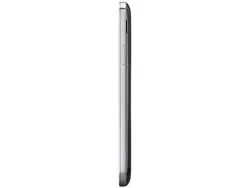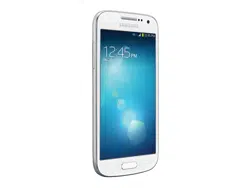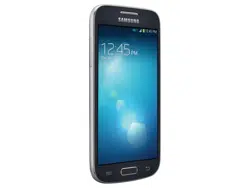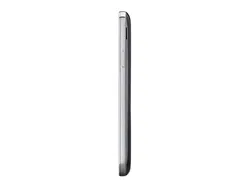
4G LTE SMARTPHONE
User Manual
Please read this manual before operating your
phone and keep it for future reference.

Warning!
This product contains chemicals known to the State of California to cause cancer and reproductive toxicity.
Intellectual Property
All Intellectual Property, as defined below, owned by or which is otherwise the property of Samsung or its respective suppliers
relating to the SAMSUNG Phone, including but not limited to, accessories, parts, or software relating there to (the “Phone
System”), is proprietary to Samsung and protected under federal laws, state laws, and international treaty provisions. Intellectual
Property includes, but is not limited to, inventions (patentable or unpatentable), patents, trade secrets, copyrights, software,
computer programs, and related documentation and other works of authorship. You may not infringe or otherwise violate the
rights secured by the Intellectual Property. Moreover, you agree that you will not (and will not attempt to) modify, prepare
derivative works of, reverse engineer, decompile, disassemble, or otherwise attempt to create source code from the software. No
title to or ownership in the Intellectual Property is transferred to you. All applicable rights of the Intellectual Property shall remain
with SAMSUNG and its suppliers.
Open Source Software
Some software components of this product incorporate source code covered under GNU General Public License (GPL), GNU Lesser
General Public License (LGPL), OpenSSL License, BSD License and other open source licenses. To obtain the source code covered
under the open source licenses, please visit:
http://opensource.samsung.com
.
Disclaimer of Warranties; Exclusion of Liability
EXCEPT AS SET FORTH IN THE EXPRESS WARRANTY CONTAINED ON THE WARRANTY PAGE ENCLOSED WITH THE PRODUCT, THE
PURCHASER TAKES THE PRODUCT "AS IS", AND SAMSUNG MAKES NO EXPRESS OR IMPLIED WARRANTY OF ANY KIND
WHATSOEVER WITH RESPECT TO THE PRODUCT, INCLUDING BUT NOT LIMITED TO THE MERCHANTABILITY OF THE PRODUCT OR
ATT_SGH-i257_UM_Eng_UCU2BNF5_TN_061314_F2

ITS FITNESS FOR ANY PARTICULAR PURPOSE OR USE; THE DESIGN, CONDITION OR QUALITY OF THE PRODUCT; THE
PERFORMANCE OF THE PRODUCT; THE WORKMANSHIP OF THE PRODUCT OR THE COMPONENTS CONTAINED THEREIN; OR
COMPLIANCE OF THE PRODUCT WITH THE REQUIREMENTS OF ANY LAW, RULE, SPECIFICATION OR CONTRACT PERTAINING
THERETO. NOTHING CONTAINED IN THE INSTRUCTION MANUAL SHALL BE CONSTRUED TO CREATE AN EXPRESS OR IMPLIED
WARRANTY OF ANY KIND WHATSOEVER WITH RESPECT TO THE PRODUCT. IN ADDITION, SAMSUNG SHALL NOT BE LIABLE FOR
ANY DAMAGES OF ANY KIND RESULTING FROM THE PURCHASE OR USE OF THE PRODUCT OR ARISING FROM THE BREACH OF
THE EXPRESS WARRANTY, INCLUDING INCIDENTAL, SPECIAL OR CONSEQUENTIAL DAMAGES, OR LOSS OF ANTICIPATED PROFITS
OR BENEFITS.
Modification of Software
SAMSUNG IS NOT LIABLE FOR PERFORMANCE ISSUES OR INCOMPATIBILITIES CAUSED BY YOUR EDITING OF REGISTRY SETTINGS,
OR YOUR MODIFICATION OF OPERATING SYSTEM SOFTWARE.
USING CUSTOM OPERATING SYSTEM SOFTWARE MAY CAUSE YOUR DEVICE AND APPLICATIONS TO WORK IMPROPERLY. YOUR
CARRIER MAY NOT PERMIT USERS TO DOWNLOAD CERTAIN SOFTWARE, SUCH AS CUSTOM OS.
IF YOUR CARRIER PROHIBITS THIS, IF YOU ATTEMPT TO DOWNLOAD SOFTWARE ONTO THE DEVICE WITHOUT AUTHORIZATION,
YOU WILL BE NOTIFIED ON THE SCREEN THAT UNAUTHORIZED SOFTWARE HAS BEEN DETECTED. YOU SHOULD THEN POWER
DOWN THE DEVICE AND CONTACT YOUR CARRIER TO RESTORE THE DEVICE TO THE CARRIER AUTHORIZED SETTINGS.
SAFE™ (Samsung Approved For Enterprise)
SAFE™: "SAFE™" (Samsung for Enterprise) is a mark for a Samsung device which has been tested against Samsung's own
internal criteria for interoperability with certain third party security-related solutions for MDM and VPN. The testing includes field
testing with local network connection and menu tree testing which tests functionality of the solutions in conjunction with the
Samsung device. During the testing, the device is tested with the security solutions to see if the solutions work with the device as
described by the third party security solution providers. The testing, for example, includes field testing with local network

connection and menu tree testing which tests functionality of the solutions in conjunction with the Samsung device. For more
information about Samsung's SAFE™ program, please refer to
www.samsung.com/us/safe
.
Disclaimer of Warranties: EXCEPT AS OTHERWISE PROVIDED IN THEIR STANDARD END USER LICENSE AND WARRANTY, TO THE
FULL EXTENT PERMITTED BY LAW SAMSUNG ELECTRONICS CO., LTD., SAMSUNG TELECOMMUNICATIONS AMERICA, LLC, AND
THEIR AFFILIATES (COLLECTIVELY REFERRED TO HEREIN AS THE "SAMSUNG ENTITIES") EXPRESSLY DISCLAIM ANY AND ALL
WARRANTIES, EXPRESS OR IMPLIED, INCLUDING ANY WARRANTY OF MERCHANTABILITY, FITNESS FOR A PARTICULAR PURPOSE,
INTEROPERABILITY OR NON-INFRINGEMENT, WITH RESPECT TO INFORMATION TECHNOLOGY SECURITY PROTECTION, SAFE™
DEVICES AND APPLICATIONS TESTED WITH SAFE™ DEVICES. IN NO EVENT SHALL THE SAMSUNG ENTITIES BE LIABLE FOR ANY
DIRECT, INDIRECT, INCIDENTAL, PUNITIVE, OR CONSEQUENTIAL DAMAGES OF ANY KIND WHATSOEVER WITH RESPECT TO
INFORMATION TECHNOLOGY SECURITY PROTECTION, SAFE™ DEVICES OR APPLICATIONS TESTED WITH SAFE™ DEVICES. In
addition, information technology security protection will be affected by features or functionality associated with, among other
things the e-mail platform, master data management, and virtual private network solutions selected by the software provider,
solution provider or user. Choice of an e-mail, master data management, and virtual private network solution is at the sole
discretion of the software provider, solution provider or user and any associated effect on information technology security
protection is solely the responsibility of the software provider, solution provider or user. For complete statement of limited
warranty, please refer to
www.samsung.com/us/safe
, available on the web and where Samsung smartphones and mobile devices
are sold. [051214]
Samsung Telecommunications America (STA), LLC
Headquarters:
1301 E. Lookout Drive
Richardson, TX 75082

Phone: 1-800-SAMSUNG (726-7864)
Phone: 1-888-987-HELP (4357)
Internet Address:
www.samsung.com
©2014 Samsung Telecommunications America, LLC. Samsung is a registered trademark of Samsung Electronics Co., Ltd.
Do you have questions about your Samsung Mobile Phone? For 24 hour information and assistance, we offer a new FAQ/ARS
System (Automated Response System) at:
http://www.samsung.com/us/support.
The actual available capacity of the internal memory is less than the specified capacity because the operating system and default
applications occupy part of the memory. The available capacity may change when you upgrade the device.
Nuance
®
, VSuite™, T9
®
Text Input, and the Nuance logo are trademarks or registered trademarks of Nuance Communications,
Inc., or its affiliates in the United States and/or other countries.
The Bluetooth
®
word mark, figure mark (stylized “B Design”), and combination mark (Bluetooth word mark and “B Design”) are
registered trademarks and are wholly owned by the Bluetooth SIG.
microSD™, microSDHC™, and the microSD logo are Trademarks of the SD Card Association.
Openwave
®
is a registered Trademark of Openwave, Inc.
LTE is a trademark of ETSI.
and are trademarks of SRS Labs, Inc. CS Headphone and WOW HD technologies are incorporated under license
from SRS Labs, Inc.

Google, the Google logo, Android, the Android logo, Google Play, Gmail, Google Hangouts, Google Local, Google Maps,
Google Play Books, Google Play Newsstand, Google Play Movies & TV, Google Play Music, Picasa, and YouTube and other
marks are trademarks of Google Inc.
Wi-Fi is a registered trademark of the Wireless Fidelity Allia
nce, Inc.
Swype and the Swype logos are trademarks of Swype, Inc.
©
2010 Swype, Inc. All rights reserved.
Devices purchased for use on AT&T's system are designed for use exclusively on AT&T's system. You agree that you won't make
any modifications to the Equipment or programming to enable the Equipment to operat
e on any other system. A voice plan is
required on all voice-capable devices, unless specifically noted otherwise in the terms governing your agreement. Some devices
or plans may require you to subscribe to a data plan.
Your phone is designed to make it easy for you to access a wide variety of content. For your protection, AT&T wants you to be
aware that some applications that you enable may involve the location of your phone being shared. For applications available
through AT&T, AT&T offers privacy controls that let you decide how an application may use the location of your phone and other
phones on your account. However, AT&T's privacy tools do not apply to applications available outside of AT&T. Please review the
terms and conditions and the associated privacy policy for each location-based service to learn how location information will be
used and protected.
Your phone may be used to access the Internet and to download, and/or purchase goods, applications, and services from AT&T or
elsewhere from third parties. AT&T provides tools for you to control access to the Internet and certain Internet content. These
controls may not be available for certain devices which bypass AT&T controls.
AT&T may collect certain types of information from your device when you use AT&T services to provide customer support and to
improve its services. For more information on AT&T's Privacy Policy, visit
http://www.att.com/privacy
.

Your phone features earSmart™, an intelligent voice processor that delivers a clear voice experience, allowing you to
hear and be
heard
™ in nearly any environment. earSmart technology uses the science of human hearing to distinguish sounds, identify your
voice and suppress surrounding noise, for clear conversations just about anywhere.
How Does It Work?
•
The earSmart voice processor in your phone captures your voice and all the sounds around you.
•
Working like the human ear, it processes and distinguishes these sounds, isolates your voice conversation, and removes background noise -
from both ends of a call.
•
It also automatically equalizes and adjusts voice volume so you can hear and talk naturally, even in the noisiest places.
•
With earSmart technology, you can talk where you want, and have clear conversations for mobile calls, video chats, even speakerphone calls,
without worrying about surrounding noise.
Online Legal Information
The online version of the Health/Safety and Warranty guide for your device can be found at:
English:
https://www.samsung.com/us/Legal/Phone_HSGuide
Spanish:
https://www.samsung.com/us/Legal/Phone_HSGuide_SP
The online version of the End User Licensing Agreement for your device can be found:
Online at:
https://www.samsung.com/us/Legal/SamsungLegal-EULA1
.

Table of Contents
Section 1: Getting Started ...........................6
Understanding This User Manual . . . . . . . . . . . . . 6
Removing the Back Cover
. . . . . . . . . . . . . . . . . . 7
Installing the SIM Card
. . . . . . . . . . . . . . . . . . . . 8
Installing a MicroSD Card
. . . . . . . . . . . . . . . . . . 9
Installing the Battery
. . . . . . . . . . . . . . . . . . . . . . 9
Replacing the Back Cover
. . . . . . . . . . . . . . . . . 10
Charging the Battery
. . . . . . . . . . . . . . . . . . . . . 11
Turning Your Phone On or Off
. . . . . . . . . . . . . . 13
Setting Up Your Phone
. . . . . . . . . . . . . . . . . . . 13
Setting Up Your Voice Mail
. . . . . . . . . . . . . . . . 14
Securing Your Device
. . . . . . . . . . . . . . . . . . . . 14
Troubleshooting
. . . . . . . . . . . . . . . . . . . . . . . . 15
Section 2: Understanding Your Phone .....16
Features of Your Phone . . . . . . . . . . . . . . . . . . . 16
Phone Front View
. . . . . . . . . . . . . . . . . . . . . . . 17
Phone Side Views
. . . . . . . . . . . . . . . . . . . . . . . 17
Phone Back View
. . . . . . . . . . . . . . . . . . . . . . . 18
Home Screen
. . . . . . . . . . . . . . . . . . . . . . . . . . 18
Navigating Your Device
. . . . . . . . . . . . . . . . . . . 21
Notifications
. . . . . . . . . . . . . . . . . . . . . . . . . . .24
Notification Bar
. . . . . . . . . . . . . . . . . . . . . . . . .26
Primary Shortcuts
. . . . . . . . . . . . . . . . . . . . . . .29
App Shortcuts
. . . . . . . . . . . . . . . . . . . . . . . . . .30
Widgets
. . . . . . . . . . . . . . . . . . . . . . . . . . . . . . .31
Folders
. . . . . . . . . . . . . . . . . . . . . . . . . . . . . . .31
Wallpapers
.
. . . . . . . . . . . . . . . . . . . . . . . . . . .32
Apps Screen
. . . . . . . . . . . . . . . . . . . . . . . . . . .33
Navigating Through the Home Screens
. . . . . . . 34
Navigating Through the Apps Screens
. . . . . . . . 34
Smart Screen
. . . . . . . . . . . . . . . . . . . . . . . . . .35
Pop-Up Video
. . . . . . . . . . . . . . . . . . . . . . . . . .35
Memory Card
. . . . . . . . . . . . . . . . . . . . . . . . . .35
Entering Text
. . . . . . . . . . . . . . . . . . . . . . . . . . .37
Section 3: Contacts and Your
Address Book .........................................43
Your Address Book . . . . . . . . . . . . . . . . . . . . . . 43
AT&T Address Book Activation
. . . . . . . . . . . . . 43
Adding a New Contact
. . . . . . . . . . . . . . . . . . . .45
Updating Contacts
. . . . . . . . . . . . . . . . . . . . . . .46
1

Using Contacts
. . . . . . . . . . . . . . . . . . . . . . . . .46
Linking Contacts
. . . . . . . . . . . . . . . . . . . . . . . .47
Synchronizing Accounts
. . . . . . . . . . . . . . . . . . .49
Address Book Options
. . . . . . . . . . . . . . . . . . . .50
Groups
.
. . . . . . . . . . . . . . . . . . . . . . . . . . . . . . .52
Address Book Favorites
. . . . . . . . . . . . . . . . . . .54
Managing Address Book Contacts
. . . . . . . . . . .55
Speed Dials
. . . . . . . . . . . . . . . . . . . . . . . . . . . .57
Section 4: Call Functions ......................... 59
Displaying Your Phone Number . . . . . . . . . . . . .59
Phone
. . . . . . . . . . . . . . . . . . . . . . . . . . . . . . . .59
Making a Call
. . . . . . . . . . . . . . . . . . . . . . . . . .59
Making Emergency Calls
. . . . . . . . . . . . . . . . . .61
Making a Call Using Speed Dial
. . . . . . . . . . . . .62
Making a Call from the Address Book
. . . . . . . .63
Answering a Call
. . . . . . . . . . . . . . . . . . . . . . . .63
Dialing Options
. . . . . . . . . . . . . . . . . . . . . . . . .64
Call Log
. . . . . . . . . . . . . . . . . . . . . . . . . . . . . . .64
Call Duration
. . . . . . . . . . . . . . . . . . . . . . . . . . .67
Options During a Call
. . . . . . . . . . . . . . . . . . . . .67
Call Settings
. . . . . . . . . . . . . . . . . . . . . . . . . . .75
Section 5: Messaging ................................76
Types of Messages . . . . . . . . . . . . . . . . . . . . . 76
Creating and Sending Messages
. . . . . . . . . . . 77
Message Options
. . . . . . . . . . . . . . . . . . . . . . . 78
Viewing New Received Messages
. . . . . . . . . . 80
Deleting Messages
. . . . . . . . . . . . . . . . . . . . . 82
Message Search
. . . . . . . . . . . . . . . . . . . . . . . 82
Messaging Settings
. . . . . . . . . . . . . . . . . . . . . 83
Email
. . . . . . . . . . . . . . . . . . . . . . . . . . . . . . . . 84
Gmail
. . . . . . . . . . . . . . . . . . . . . . . . . . . . . . . . 88
Messages
. . . . . . . . . . . . . . . . . . . . . . . . . . . . 89
ChatON
. . . . . . . . . . . . . . . . . . . . . . . . . . . . . . 90
Google+
. . . . . . . . . . . . . . . . . . . . . . . . . . . . . . 91
Hangouts
. . . . . . . . . . . . . . . . . . . . . . . . . . . . . 91
Section 6: Photos and Videos ...................92
Camera . . . . . . . . . . . . . . . . . . . . . . . . . . . . . . 92
Camera Modes
. . . . . . . . . . . . . . . . . . . . . . . . 94
Quick Settings
. . . . . . . . . . . . . . . . . . . . . . . . . 94
Camera and Camcorder Settings
. . . . . . . . . . . 95
Editing a Photo
. . . . . . . . . . . . . . . . . . . . . . . . . 97
Using the Camcorder
. . . . . . . . . . . . . . . . . . . . 98
Gallery
. . . . . . . . . . . . . . . . . . . . . . . . . . . . . . 100
2

Section 7: Connections ...........................103
Wi-Fi . . . . . . . . . . . . . . . . . . . . . . . . . . . . . . . . 103
Bluetooth
. . . . . . . . . . . . . . . . . . . . . . . . . . . . 108
NFC
. . . . . . . . . . . . . . . . . . . . . . . . . . . . . . . . 112
S Beam
. . . . . . . . . . . . . . . . . . . . . . . . . . . . . . 112
PC Connections
. . . . . . . . . . . . . . . . . . . . . . . . 112
Section 8: Applications ...........................114
Managing Applications . . . . . . . . . . . . . . . . . . 114
AT&T Apps Folder
. . . . . . . . . . . . . . . . . . . . . . 116
Accessing Applications
. . . . . . . . . . . . . . . . . . 117
Amazon Kindle
. . . . . . . . . . . . . . . . . . . . . . . . 117
AT&T FamilyMap
. . . . . . . . . . . . . . . . . . . . . . . 118
AT&T Locker
. . . . . . . . . . . . . . . . . . . . . . . . . . 118
AT&T Navigator
. . . . . . . . . . . . . . . . . . . . . . . . 119
AT&T Ready2Go
. . . . . . . . . . . . . . . . . . . . . . . 119
AT&T Smart Wi-Fi
. . . . . . . . . . . . . . . . . . . . . . 119
Beats Music
. . . . . . . . . . . . . . . . . . . . . . . . . . 120
Calculator
. . . . . . . . . . . . . . . . . . . . . . . . . . . . 120
Calendar
. . . . . . . . . . . . . . . . . . . . . . . . . . . . . 121
Camera
. . . . . . . . . . . . . . . . . . . . . . . . . . . . . . 122
ChatON
.
. . . . . . . . . . . . . . . . . . . . . . . . . . . . . 122
Chrome
. . . . . . . . . . . . . . . . . . . . . . . . . . . . . . 122
Clock
. . . . . . . . . . . . . . . . . . . . . . . . . . . . . . .122
Contacts
. . . . . . . . . . . . . . . . . . . . . . . . . . . . .126
DeviceHelp
.
. . . . . . . . . . . . . . . . . . . . . . . . . .126
Downloads
. . . . . . . . . . . . . . . . . . . . . . . . . . .126
Drive
. . . . . . . . . . . . . . . . . . . . . . . . . . . . . . . .126
DriveMode
. . . . . . . . . . . . . . . . . . . . . . . . . . .127
Email
. . . . . . . . . . . . . . . . . . . . . . . . . . . . . . .127
Flipboard
.
. . . . . . . . . . . . . . . . . . . . . . . . . . . .127
Gallery
. . . . . . . . . . . . . . . . . . . . . . . . . . . . . .128
Games
. . . . . . . . . . . . . . . . . . . . . . . . . . . . . .128
Gmail
. . . . . . . . . . . . . . . . . . . . . . . . . . . . . . .128
Google
. . . . . . . . . . . . . . . . . . . . . . . . . . . . . .128
Google Settings
. . . . . . . . . . . . . . . . . . . . . . . .129
Google+
. . . . . . . . . . . . . . . . . . . . . . . . . . . . .129
Group Play
. . . . . . . . . . . . . . . . . . . . . . . . . . .129
Hangouts
. . . . . . . . . . . . . . . . . . . . . . . . . . . .130
Internet
. . . . . . . . . . . . . . . . . . . . . . . . . . . . . .130
Maps
. . . . . . . . . . . . . . . . . . . . . . . . . . . . . . .133
Messages
. . . . . . . . . . . . . . . . . . . . . . . . . . . .133
Messaging
. . . . . . . . . . . . . . . . . . . . . . . . . . .133
Mobile Hotspot
. . . . . . . . . . . . . . . . . . . . . . . .133
Music
. . . . . . . . . . . . . . . . . . . . . . . . . . . . . . .134
3

My Files
. . . . . . . . . . . . . . . . . . . . . . . . . . . . . .138
myAT&T
. . . . . . . . . . . . . . . . . . . . . . . . . . . . .139
Phone
. . . . . . . . . . . . . . . . . . . . . . . . . . . . . . .139
Photos
. . . . . . . . . . . . . . . . . . . . . . . . . . . . . . .140
Play Books
. . . . . . . . . . . . . . . . . . . . . . . . . . . .140
Play Games
. . . . . . . . . . . . . . . . . . . . . . . . . . .140
Play Movies & TV
. . . . . . . . . . . . . . . . . . . . . . .140
Play Music
. . . . . . . . . . . . . . . . . . . . . . . . . . . .141
Play Newsstand
. . . . . . . . . . . . . . . . . . . . . . . .141
Play Store
. . . . . . . . . . . . . . . . . . . . . . . . . . . .141
POLARIS Office 5
. . . . . . . . . . . . . . . . . . . . . . .141
S Memo
. . . . . . . . . . . . . . . . . . . . . . . . . . . . . .142
S Translator
. . . . . . . . . . . . . . . . . . . . . . . . . . .143
S Voice
. . . . . . . . . . . . . . . . . . . . . . . . . . . . . .144
Samsung Apps
. . . . . . . . . . . . . . . . . . . . . . . .145
Samsung Link
. . . . . . . . . . . . . . . . . . . . . . . . .145
Settings
. . . . . . . . . . . . . . . . . . . . . . . . . . . . . .148
Story Album
. . . . . . . . . . . . . . . . . . . . . . . . . . .148
TripAdvisor
. . . . . . . . . . . . . . . . . . . . . . . . . . .148
Usage Manager
. . . . . . . . . . . . . . . . . . . . . . . .148
Video
. . . . . . . . . . . . . . . . . . . . . . . . . . . . . . . .149
Voice Recorder
. . . . . . . . . . . . . . . . . . . . . . . .150
Voice Search . . . . . . . . . . . . . . . . . . . . . . . . . 151
Wallet
. . . . . . . . . . . . . . . . . . . . . . . . . . . . . . 151
WatchON
. . . . . . . . . . . . . . . . . . . . . . . . . . . . 152
YouTube
. . . . . . . . . . . . . . . . . . . . . . . . . . . . 152
YP
. . . . . . . . . . . . . . . . . . . . . . . . . . . . . . . . . 152
Section 9: Settings ..................................153
Accessing Settings . . . . . . . . . . . . . . . . . . . . . 153
Settings Tabs
. . . . . . . . . . . . . . . . . . . . . . . . . 153
Wi-Fi
. . . . . . . . . . . . . . . . . . . . . . . . . . . . . . . 154
Bluetooth
. . . . . . . . . . . . . . . . . . . . . . . . . . . . 154
Data Usage
. . . . . . . . . . . . . . . . . . . . . . . . . . 155
More Networks
. . . . . . . . . . . . . . . . . . . . . . . 156
NFC
. . . . . . . . . . . . . . . . . . . . . . . . . . . . . . . . 161
S Beam
. . . . . . . . . . . . . . . . . . . . . . . . . . . . . 162
Nearby Devices
. . . . . . . . . . . . . . . . . . . . . . . 163
Screen Mirroring
. . . . . . . . . . . . . . . . . . . . . . 164
Lock Screen
. . . . . . . . . . . . . . . . . . . . . . . . . . 164
Display
. . . . . . . . . . . . . . . . . . . . . . . . . . . . . 166
LED Indicator
. . . . . . . . . . . . . . . . . . . . . . . . . 168
Sound
. . . . . . . . . . . . . . . . . . . . . . . . . . . . . . 168
Home Screen Mode
. . . . . . . . . . . . . . . . . . . . 170
Call
. . . . . . . . . . . . . . . . . . . . . . . . . . . . . . . . 170
4

Blocking Mode . . . . . . . . . . . . . . . . . . . . . . . . 175
Hands-Free Mode
. . . . . . . . . . . . . . . . . . . . . . 176
Power Saving Mode
. . . . . . . . . . . . . . . . . . . . 176
Accessories
. . . . . . . . . . . . . . . . . . . . . . . . . . 177
Accessibility
. . . . . . . . . . . . . . . . . . . . . . . . . . 177
Browser Bar
. . . . . . . . . . . . . . . . . . . . . . . . . . 180
Language and Input
. . . . . . . . . . . . . . . . . . . . 180
Motions and Gestures
. . . . . . . . . . . . . . . . . . . 185
Smart Screen
. . . . . . . . . . . . . . . . . . . . . . . . . 187
Voice Control
. . . . . . . . . . . . . . . . . . . . . . . . . 187
Accounts
. . . . . . . . . . . . . . . . . . . . . . . . . . . . . 188
Location
. . . . . . . . . . . . . . . . . . . . . . . . . . . . . 191
Security
. . . . . . . . . . . . . . . . . . . . . . . . . . . . . 193
Application Manager
. . . . . . . . . . . . . . . . . . . . 197
Default Applications
. . . . . . . . . . . . . . . . . . . . 199
Battery
. . . . . . . . . . . . . . . . . . . . . . . . . . . . . . 200
Storage
. . . . . . . . . . . . . . . . . . . . . . . . . . . . . . 200
Date and Time
. . . . . . . . . . . . . . . . . . . . . . . . 202
About Device
. . . . . . . . . . . . . . . . . . . . . . . . . 202
Section 10: Samsung Product
Registration .........................................204
Index .........................................................205
5

Section 1: Getting Started
This section explains how to start using your phone by
configuring your hardware, setting up accounts, and setting
up your voice mail.
Understanding This User Manual
The sections of this manual generally follow the features of
your device. A robust index for features begins on page 205.
This manual gives navigation instructions according to the
default display sett
ings. If you select other settings,
navigation steps may be different.
Unless otherwise specified, all instructions in this manual
assume that you are starting with the phone unlocked, at a
Home screen. To get to a Home screen, you may need to
unlock the device. For more information, refer to “Securing
Your Device” on page 14.
Note: Instructions in this manual are based on default settings
an
d may vary from your device depending on the
software version on your device and any changes to the
device’s settings.
Note: All screen images in this manual are simulated. Actual
displays may vary depending on the software version of
your device and any changes to the device’s settings.
Special Text
In this manual, some text is set apart from the rest. This
special text is intended to point out important information,
share quick methods for activating features, define terms,
and more. The definitions for these methods are as follows:
• Note: Presents alternative options for the current feature,
menu, or sub-menu.
• Tip: Provides quick or innovative methods or useful
shortcuts.
• Important!: Points out important information about the
current feature that could affect performance.
•
Caution!
: Provides information to avoid possible damage.
• Warning!: Brings important information to your attention
that can help to prevent loss of data or functionality or
damage to your device.
Getting Started 6
Text Conventions
This manual provides condensed information about how to
use your device. To make this possible, the following text
conventions are used to represent often-used steps:
Arrows are used to represent the sequence of
selecting successive options in longer, or
repetitive, procedures. For example:
From a Home screen, touch Apps
Settings My device tab Display
Screen timeout.
Certain features and options use an ON/OFF
button.
For example:
Touch the ON/OFF button to turn Bluetooth on or
off.
Removing the Back Cover
Prior to use it is necessary to install both the battery and SIM
into their corresponding internal compartments. The microSD
card slot is also located in this same internal area.
Caution! Do not bend or twist the back cover excessively.
Doing so may damage the cover.
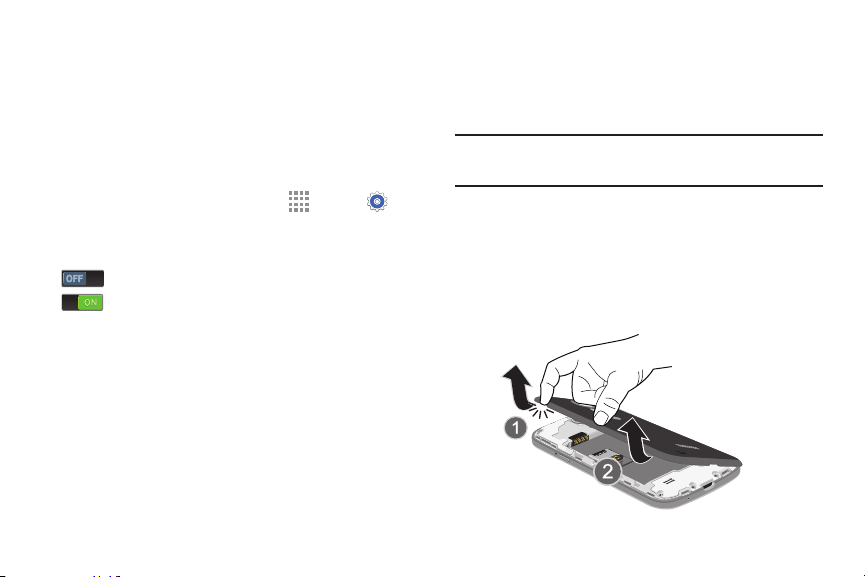
To remove the back cover:
1. Place your fingernail into the slot in the side of the
cover (1). If you have fragile nails, use a pointed object.
2. Pull the cover up and then lift up and away from the
phone (2).
7
Installing the SIM Card
When you subscribe to a cellular network, you are provided
with a plug-in SIM card loaded with your subscription details,
such as your PIN, available optional services, and many
others features.
Important! The plug-in SIM card information and its contacts
can be easily damaged by scratching or bending,
so be careful when handling, inserting, or
removing the card. Keep all SIM cards out of
reach of small children.
Note: If the card is not inserted correctly, the phone will not
detect the SIM card. Re-orient the card back into the
slot, if the SIM is not detected.
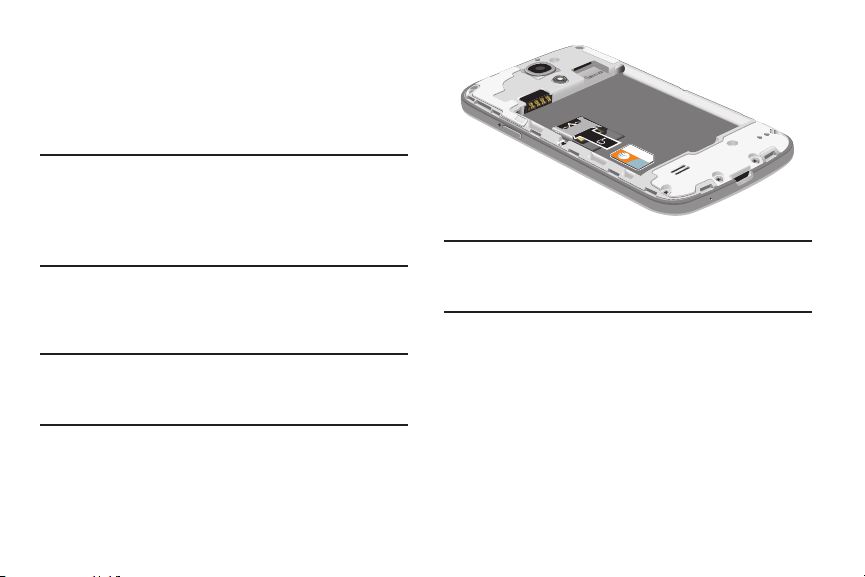
Carefully slide the SIM card under the bottom metal
plate into the SIM card socket, as shown, until the card
locks into place.
Caution! Make sure that the card’s gold contacts face into the
phone and that the angled corner of the card is
positioned as shown.
Getting Started 8
Installing a MicroSD Card
Your device supports removable microSD or microSDHC
memory cards with maximum capacities of 64 GB
(depending on the memory card manufacturer and type).
Memory cards are used to store music, photos, videos, and
other files.
Note: You can only store music files that you own (from a CD
or purchased with the device) on a memory card.
To insert an optional microSD memory card:
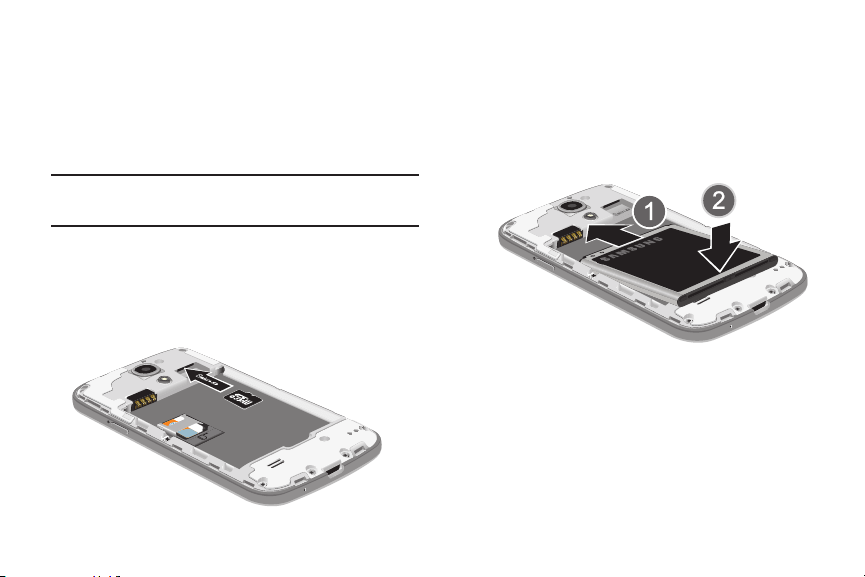
Carefully slide the memory card under the top metal
plate into the memory card socket, as shown, until the
card locks into place.
Installing the Battery
To install the battery:
1. Insert the battery into the opening on the back of the
phone, making sure the connectors align (1).
2. Gently press down to secure the battery (2).
9
Replacing the Back Cover
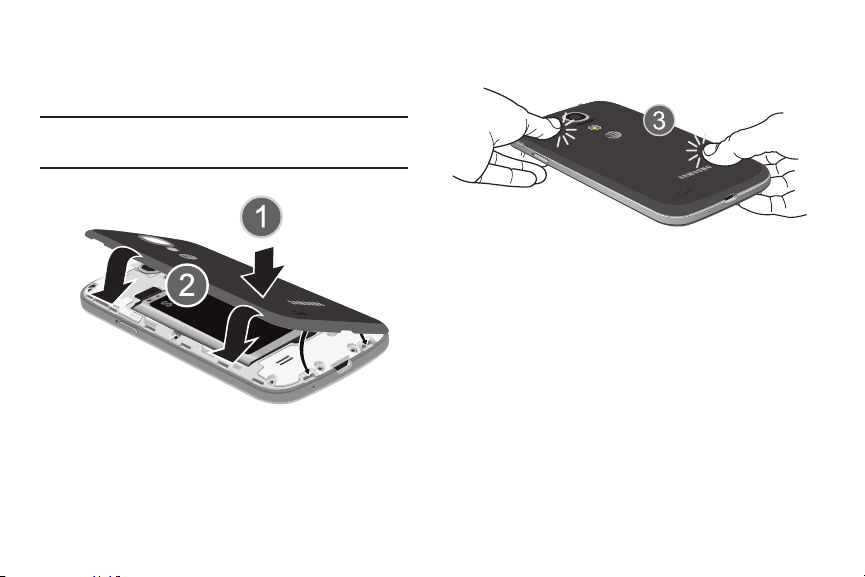
1. Place the battery cover onto the back of the phone (1)
and press down (2).
2. Press along the edge of the back cover (3) until you
have a secure seal.
Note: Make sure the battery is properly installed before
switching on the phone.
Getting Started 10
Charging the Battery
Your phone is powered by a rechargeable Li-ion battery. The
Travel Charger, which is used to charge the battery, is
included with your phone. Use only Samsung-approved
batteries and chargers.
Note: You must fully charge the battery before using your
phone for the first time. A discharged battery recharges
fully in approximately 4 hours.
Note: Long backlight settings, searching for service, vibrate
mode, web browser use, and other variables may
reduce the battery’s talk and standby times.
Although you can use the phone while the battery is
charging, doing so requires additional charging time.
Using the Travel Charger
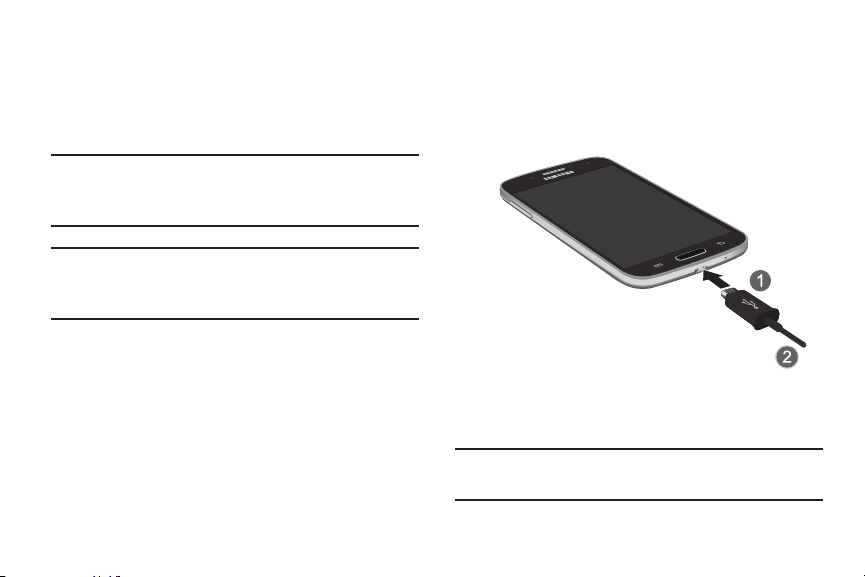
To use the Travel Charger:
1. Plug the flat end of the Travel Charger (1) into the
Power/Accessory Interface connector and the other
end (2) into a standard AC wall outlet.
2. When charging is finished, remove the flat end from
the interface connector jack on the phone.
Note: Failure to unplug the wall charger before you remove
the battery, can cause damage to the phone.
11
Important! Verify that the handset battery is installed prior to
connection. If the battery is not properly installed
and the wall charger is connected, the handset
may power off and on continuously, preventing
proper operation.
Warning! If your handset has a touch screen display, please
note that a touch screen responds best to a light
touch from the pad of your finger. Using excessive
force or a metallic object when pressing on the
touch screen may damage the tempered glass
surface and void the warranty.
Low Battery Indicator
When the battery is weak and only a few minutes of talk time
remain, the battery icon
(
) blinks and the device sounds a
warning tone at regular intervals. In this condition, your
phone conserves its remaining battery power, not by turning
off the backlight, but by entering the dimming mode.
For a quick check of your battery level, glance at the battery
charge indicator located in the upper-right
corner of your
device’s display. Solid color
(
) indicates a full charge.
When the battery level becomes too low, the phone
automatically turns off.
You can also choose to display a percentage value. Having a
percentage value onscreen can provide a better idea of the
remaining charge on the battery
.
From a Home screen, touch Apps
Settings
My device
My device Display
Show battery percentage.
Getting Started 12
Turning Your Phone On or Off
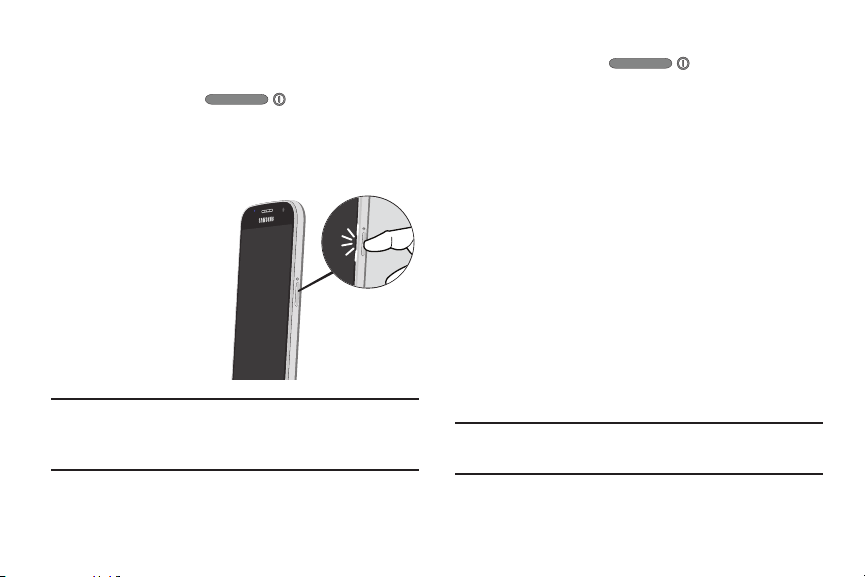
To turn your phone on:
Press and hold the
Power/Lock key until
the phone switches on.
For more information, refer to “Unlocking the Device” on
page 15.
Note: Your device’s
internal antenna is
located along the top
back of the device. Do
not block the antenna;
doing so may affect
signal quality and may
cause the device to
operate
at
a higher
power
level than is necessary.
Note: The display language is preset to English at the factory.
To change the language, use the Language menu. For
more information, refer to “Settings” on page 153.
T
o turn your phone off:
1. Press and hold the
Power/Lock key until
the Device options screen displays.
2. Touch Power off to turn off the phone.
3. At the Power off prompt, touch OK
Setting Up Your Phone
When you turn on your phone for the first time, you will be
prompted to set up your phone by using the AT&T Ready2Go
feature.
AT&T Ready2Go helps you quickly and easily setup your
phone by using the web browser on your PC. You can set up
email accounts, import contacts, set wallpaper, configure
Wi-Fi, and more.
Some screens can be skipped (touch Next) or re-displayed
(touch Back). Some screens display depending on the
options you choose.
Note: If your screen dims or turns off, press the Power/Lock
key to continue.
13

Setting Up Your Voice Mail
1. From a Home screen, touch Phone.
2. Touch
Voicemail.
3. Follow the tutorial to create a password, record a
greeting, and record your name.
Note: These steps may be different depending on your
network.
Accessing Your Voice Mail
1. From a Home screen, touch Phone.
2. Touch
Voicemail.
You may be prompted to enter a password.
3. When connected, follow the voice prompts from the
voice mail center.
Accessing Your Voice Mail from
Another Phone
1. Dial your wireless phone number.
2. When you hear your voicemail greeting, press the
asterisk key on the phone you are using.
3. Enter your password.
Securing Your Device
By default, the device locks automatically when the screen
times out or you can lock it manually. You can unlock the
device using one of the default Unlock screens or, for
increased security, use a personal screen unlock pattern.
For more information about creating and enabling a Screen
unlock pattern, see “Screen Lock” on page 164.
For other settings related to securing your device, see
“Location” on page 191.
Note: Unless stated otherwise, instructions
in this User
Manual start with the device unlocked, at the Home
screen.
Getting Started 14
Locking the Device Manually
Press the Power/Lock key.
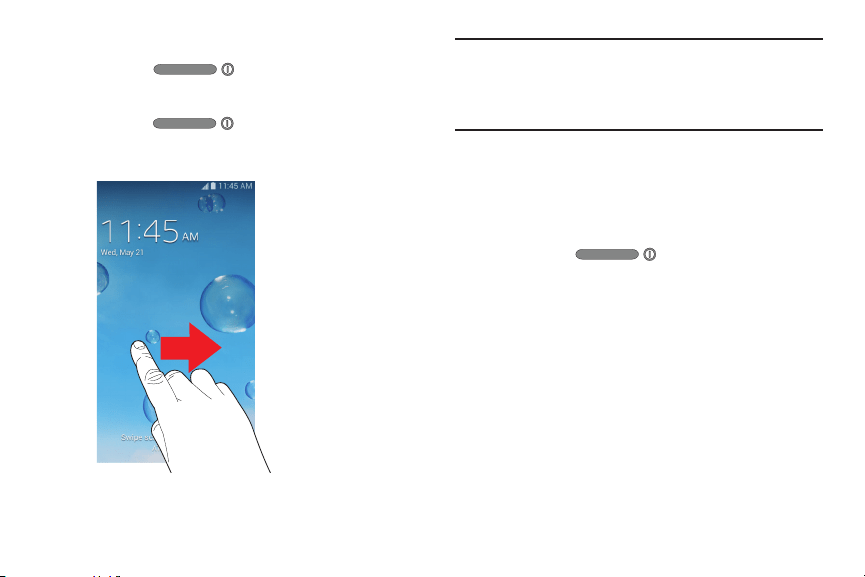
Unlocking the Device
1. Press the Power/Lock key.
2. Swipe across the screen as shown.
Note: You can customize the Lock screen and set the type of
Screen Unlock you want to use (Face unlock, Face and
voice, Pattern, PIN, or Password). For more information,
refer to “Lock Screen Options” on page 165.
Troubleshooting
If your device has fatal errors, hangs up, or freezes, you may
need to reset the device to regain functionality.
If your device is frozen and unresponsive, press
and hold the
Power/Lock key for 8 to
10 seconds.
15

Section 2: Understanding Your Phone
This section outlines some key features of your phone and
describes the screen and the icons that appear when the
phone is in use. It also shows how to navigate through the
phone and provides information on using a memory card.
Features of Your Phone
Your phone is lightweight, easy-to-use and offers many
useful features. The following list outlines a few of the
features included in your phone.
• LTE network with 1.7 GHz Dual-core processor
• Android Version 4.4.2
• Brilliant 4.3-inch qHD sAMOLED display
• Touch screen provides quick response to a variety of in-
phone menus and options including applications and up to
seven home screens.
• Virtual (onscreen) QWERTY keyboard
• Smart Switch™ compliant. For more information, see
samsungsmartswitch.com.
• Ready access to the Internet
• Built-in Bluetooth and advanced Wi-Fi technology
• Mobile Hotspot and USB Tethering capability
• 8 megapixel camera and camcorder with 1.9 megapixel
Front Facing camera
• Smart Remote using WatchON
• AT&T GPS Navigation functionality provides real-time
navigation
• Delivers data faster using 4G LTE and High Speed Packet
Access Plus (HSPA+).
• Up to 64GB expandable memory slot
• Microsoft Exchange ActiveSync and Personal Email
• Sync and update social network applications
• Over 750,000 Apps available to download from
Google Play Store and Samsung Apps
• Full Integration of Google Mobile™ Services (Gmail,
YouTube, Google Maps, Google Voice Search)
• Multiple Messaging Options: Text/Photo/Video Messaging,
and Instant Messaging with Google Hangouts
• Samsung Link to share your media content across DLNA
certified devices
Understanding Your Phone 16
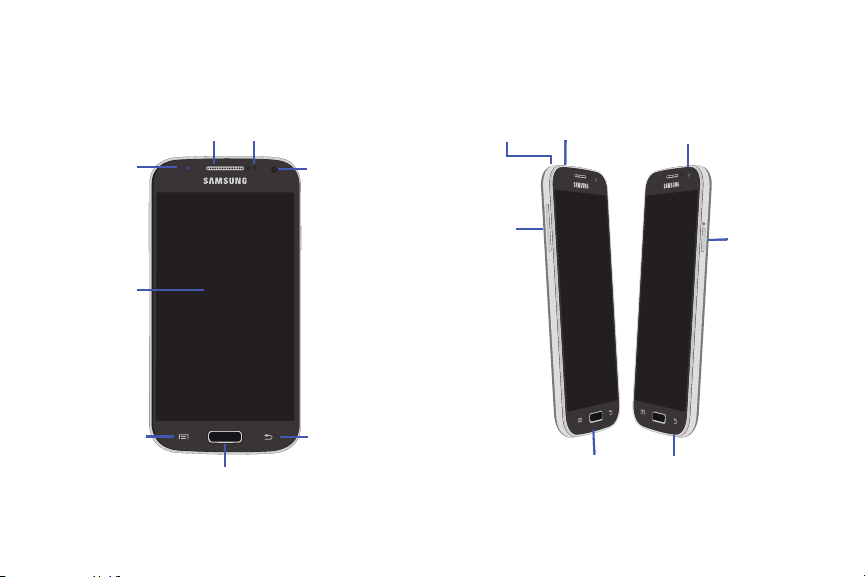
Phone Front View
The following items can be found on the front of your phone:
External
Speaker
Status
Light
Display
Screen
Menu
Home
Proximity and
Light Sensors
Front
Facing
Camera
Back
Phone Side Views
The following items can be found on the sides of your phone:
3.5mm
Headset
Infrared
Jack
Microphone
Blaster
Volume
Keys
Power/
Lock Key
Power/ Microphone
Accessory
Interface Port
17
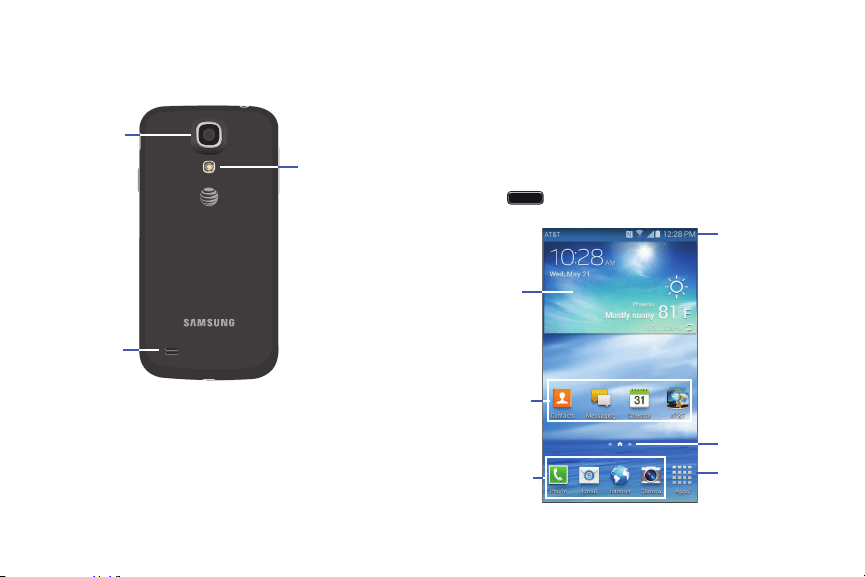
Phone Back View
The following items can be found on the back of your phone:
Camera
Lens
Flash
External
Speaker
Home Screen
The main Home screen is the starting point for many
applications and functions and it contains items like
application icons, shortcuts, folders, or Google widgets,
which gives you instant access to information and
applications.
This is the default page and accessible from any menu by
pressing
Home.
Notification
Bar
Widgets
Application
Shortcuts
Current
Screen
Indicator
Primary
Apps
Shortcuts
Understanding Your Phone 18

Note: Unless stated otherwise, instructions in this user
manual start with the device unlocked, at the Home
screen.
Extended Home Screen
The Home screen consists of the Home panel, plus additional
panels that extend beyond the display width to provide more
space for adding shortcuts and widgets.
Slide your finger horizontally across the screen to scroll to
the left or right side panels. As you scroll, the current screen
indicator, at the bottom of the display, shows your current
position.
Note: The Home screen displays when you press
Home.
Customizing the Home Screens
To customize the Home screens to suit your preferences:
1. Navigate to one of the Home screen panels.
2. Touch and hold on the screen until the Home screen
pop-up displays.
3. Touch Set wallpaper to change the Home screen
wallpaper. For more information, refer to “Wallpapers”
on page 32.
– or –
Under Add to home screen touch:
• Apps and widgets to add app or widget shortcuts on
the Home screen.
•Folder to add a folder on a Home screen. For more
information, refer to “Folders” on page 31.
•Page to add a Home screen.
19
Display Settings
You can customize display screen settings to your
preferences. For more information, refer to “Display” on
page 166.
Adding and Removing Home Screen
Panels
You can add and delete Home screens. You can have up to
seven Home screens.
To add a new Home screen:
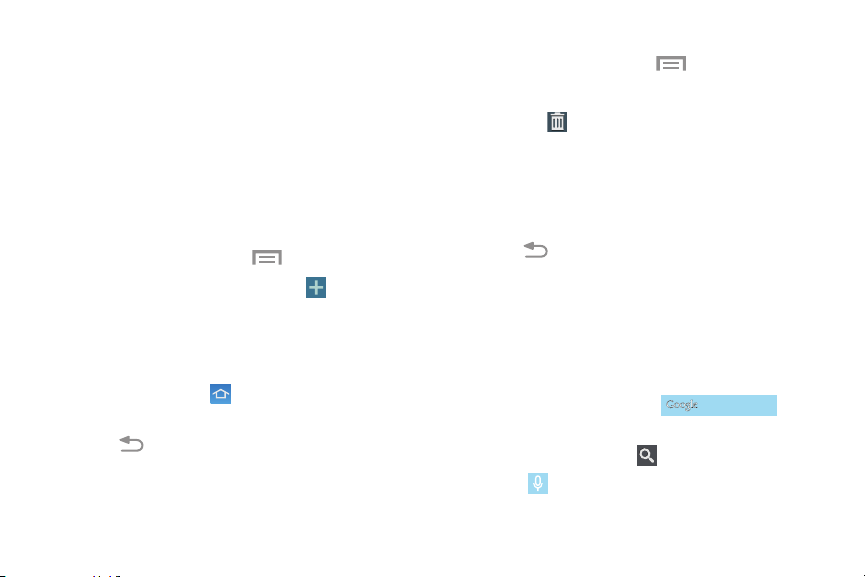
1. From a Home screen, touch
Menu Edit page.
2. Touch the Home screen that contains
.
A new screen is added.
3. If desired, touch and hold the new screen and drag it to
a different location.
4. Touch the Home icon to set it as the default home
screen.
5. Press
Back to return to the Home screen.
You can now add items to your new Home screen.
To delete a Home screen:
1. From a Home screen, touch
Menu Edit page.
2. Touch and hold the Home screen you want to delete.
3. Drag it to
Remove. The page will turn red.
4. If there are items on the Home screen, the
Remove home screen page prompt displays.
5. Touch OK to delete the page and its contents,
otherwise touch Cancel.
6. Press
Back to return to the Home screen.
Google Search Bar
The Google Search Bar provides an onscreen Internet search
engine powered by Google.
1. From the main Home screen, swipe the screen to the
left to bring up the next Home screen.
2. Touch the Google Search bar
.
3. Use the onscreen keyboard to enter the item you want
to search for, then touch
on the keyboard.
4. Touch
to use Google Voice Search. Follow the
onscreen instructions.
Understanding Your Phone 20

Navigating Your Device
Use command buttons and the touch screen to navigate.
Command Buttons
Context-Sensitive Menus
Context-sensitive menus offer options for features or
screens. To access context-sensitive menus:
• Touch
Menu to display a list of options.
• Touch an option in the list.
Home
Press Home to display the main Home screen, which
is usually the center Home screen.
Press and hold to open a list of thumbnail images of apps
you have worked with recently. Touch an App to open it.
Touch
to display the Task Manager.
To launch Google Search, touch
.
Touch
to clear all thumbnail images.
Back
Touch Back to return to the previous screen, option
or step.
Screen Navigation
Touch
Touch items to select or launch them. For example:
• Touch the onscreen keyboard to enter characters or text.
• Touch a menu item to select it.
• Touch an application’s icon to launch the application.
Touch and Hold
Activate onscreen items. For example:
• Touch and hold a widget on the Home screen to move it.
• Touch and hold on a field to display a pop-up menu of
options.
Swipe
To swipe, lightly drag your finger vertically or horizontally
across the screen. Use swipe when:
• Unlocking the screen
• Scrolling through the Home screen or a menu
21

Panning
To pan, touch and hold a selected icon, then move the device
to the left or right to reposition it to another page. You must
first activate Motion on your device. Use panning to:
• Move icons on your Home screens or Application Menus to
another page.
Tilt
To activate the tilt feature, touch and hold two points on the
screen then tilt the device back and forth to reduce or
enlarge the screen. Use tilt to:
• Reduce or enlarge the screen in the Gallery or Browser.
Turn Over
Turn your phone over so that the screen faces downward. For
example:
• Mute incoming calls and playing sounds by turning your
phone over.
Pinch
Use two fingers, such as your index finger
and thumb, to make an inward pinch
motion on the screen, as if you are picking
something up, or an outward motion by
sweeping your fingers out.
For example:
• Pinch a photo in Gallery to zoom in.
• Pinch a webpage to zoom in or out.
Understanding Your Phone 22
Screen Capture
Press and hold the Power/Lock key and Home
to capture and save an image of the current screen.
Note: A copy of the screenshot is automatically saved to the
clipboard.
To view the screen shots:
1. From a Home screen, touch Apps
My Files.
2. Touch All files Device storage Pictures
Screenshots.
3. Touch a screen capture file to display it.
Using Motions and Gestures
By activating the various motion and gesture features within
the Motions and gestures settings menu, you can access a
variety of time saving functions.
Activating Motions and Gestures
Your phone includes motion and gesture settings that allow
you to control your device with natural movements.
Caution! Excessive shaking or impact to the device may
cause unintended results.
23
To learn how to properly control motions:
From a Home screen, touch Apps
Settings
My device
My device Motions and
gestures.
The following options are available:
•Motion: Control your device by using natural
movements (on the screen).
• Palm motion: Control your device by touching the
screen with your entire hand.
Each of these options display additional settings.
When you touch a setting, an onscreen tutorial
demonstrates the motion or gesture.
Tip: At least one feature must be activated before Motion can
be activated.
For more information, refer to “Motions and Gestures”
on page 185.
Notifications
Notification icons appear on the Notification Bar at the top of
the screen to report new messages, calendar events, device
status, and more. For details about these notifications, open
the Notification Panel.
Notification Panel
To view the Notification Panel:
1. Swipe downward from the top of the screen.
2. Scroll down the list to see additional notification
details.
3. Touch an item to open it.
4. To clear a single notification, drag the notification left
or right.
To close the Notification Panel:
Swipe upward from the bottom of the screen or press
Back.
Understanding Your Phone 24

to display additi
onal options.
Accessing Additional Panel Functions
In addition to notifications, the Notification Panel also
provides quick and ready access to separate device
functions. These can be quickly activated or deactivated by
toggling them on or off. You can choose the functions that
display.
From the Notification Panel:
The following functions can either be activated (green)
or deactivated (gray): Wi-Fi, Location, Sound/Vibrate/
Mute, Screen rotation, Bluetooth, Screen Mirroring,
S Beam, NFC, Sync, Smart stay, Power saving,
Blocking mode, Airplane mode, and Hands-free mode.
Settings. For more
informa
tion, refer to “Setti
ngs” on page 153.
1. To go t
o Settings, touch
2. Touch
3. Touch and locate the Notification panel area at the
bottom of the Notification Panel screen.
• In a single motion, touch and hold a desired function,
such as Airplane mode, then drag it to the top two
rows.
• Touch Brightness adjustment to create a check mark
if you want to be able to adjust the screen brightness
and volume from the Notification Panel.
• Touc
h Reset to restore the edited menu to the default
setting.
• Press
Back to exit the Notification Panel.
4. Touch
to display only your primary functions.
5. To set the display brightness, touch the
Brightness
slider and drag it to set the brightness or touch Auto to
allow the device to set brightness automatically based
on available light and battery charge status. For more
information, refer to “Display” on page 166.
Notifications
Notifications displays system notifications.
Touch a notification entry to display the details. Drag a
notification left or right to remove it and remove
Notification Icons from the Status Bar.
Close the Notification Panel
Press Back or swipe up.
25
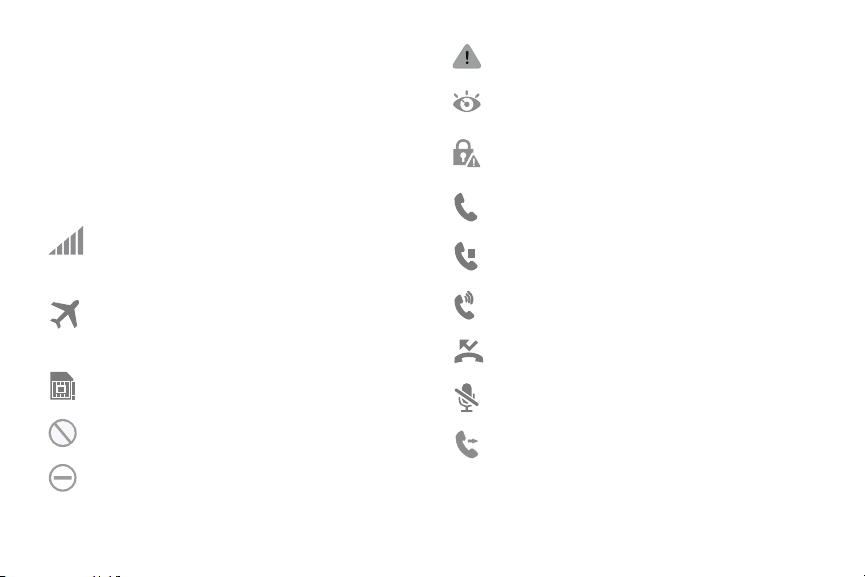
Notification Bar
The Notification Bar at the top of the Home screen provides
device information (such as network status, signal strength,
battery charge, and time) on the right side and notification
alerts on the left.
Indicator Icons
This list identifies the symbols that can display on your
phone’s display and Indicator area:
Displays your current signal strength. The
greater the number of bars, the stronger the
signal.
Indicates that the Airplane Mode is active. You
cannot send or receive any calls or access online
information.
There is no SIM card in the phone.
There is no network available.
Your phone is in Blocking mode.
There is a system error or alert.
The Smart stay feature is activated. The screen
stays on as long as you are looking at it.
Indicates a security warning. You are prompted
to set a screen lock password.
A call is in progress.
A call is on hold.
The speakerphone is on.
A call has been missed.
A call has been
muted.
Call forwarding is set to Always forward. For more
information, refer to “Call Forwarding” on
page 73
.
Understanding Your Phone 26
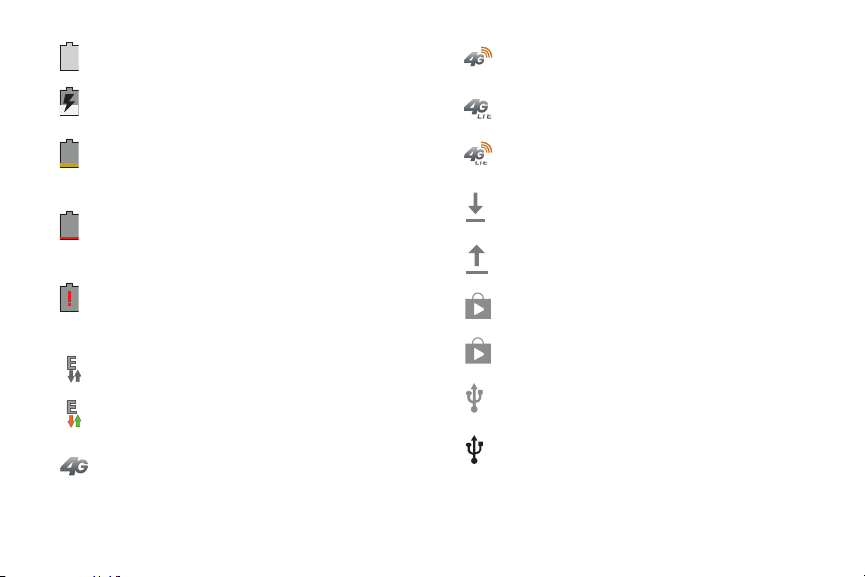
Battery charge level. Icon shown is fully charged.
The battery is charging. Also displays battery
charge level.
Battery Power Low – Shows your current battery
only has between 15 and 28 percent power
remaining.
Battery Power Very Low – Shows your current
battery only has between 5 and 15 percent
power remaining.
Device Power Critical – Shows your current
battery only has less than 5 percent power
remaining and will immediately shutdown.
Your connection to an EDGE network is active.
Your phone is communicating with the EDGE
network.
Your connection to a UTMS, HSDPA, HSPA, or
HSPA+ network is active.
Your phone is communicating with the UTMS,
HSDPA, HSPA, or HSPA+ network.
Your connection to a 4G LTE network is active.
Your phone is communicating with the 4G LTE
network.
Your phone is downloading or has downloaded a
file. It will blink green when it is installing.
An outbound file transfer is in progress.
A Play Store download has completed.
Updates are available for download.
The phone is connected to a computer via a
supported USB cable connection.
The phone is tethered via a supported USB cable
connection.
27
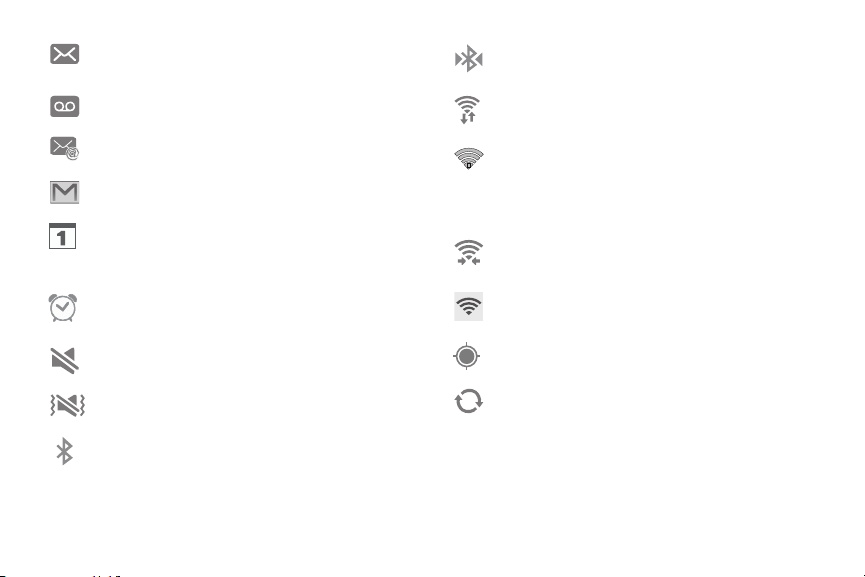
A new text or multimedia message has been
received.
A new voice mail has been received.
Email has been received.
Gmail has been received.
The time and date for a Calendar Event has
arrived.
For more information, refer to “Calendar”
on page 121.
An alarm is set to ring at a specified time. For
more information, refer to “Clock” on page 122.
The Sound profile is set to Mute.
The Sound profile is set t
o Vibrate.
Bluetooth is activated.
A Bluetooth device has been paired with
the phone.
Wi-Fi is connected, active, and communicating
with a Wireless Access Point (W
AP).
There is a Wi-Fi access point available but your
device is not connected to it. May also display if
there is a communication issue with the target
Wireless Access Point (WAP).
Wi-Fi Direct is active and your phone is
connected to another device.
Your phone as been configured as a mobile
hotspot.
GPS is active and acquiring a signal.
Data synchronization and application sync is
active and synchronization is in progress for
Gmail, Calendar, and Contacts.
Understanding Your Phone 28

Your phone is connecting to the Device
Management server when you first turn on
your phone.
Near Field Communication (NFC) has been
activated.
Your device is connected being used to control
streaming media and is connected to a
Digital Living Network Alliance (DLNA) certified
device using the Samsung Link application.
Your device is currently sharing/streaming media
to a paired device using the Samsung Link
application.
A TTY device has been inserted.
A screen capture has been taken.
The keyboard is active.
Hands-free mode is active.
Primary Shortcuts
Primary Shortcuts display at the bottom of each Home
screen.
The default Primary Shortcuts are: Phone, Email, Internet,
Camera, and Apps.
You can change the Phone, Email, Internet, and Camera
application shortcuts to any i
con that is displayed in the
Apps menu.
For more information, refer to “Adding and Removing
Primary Shortcuts” on page 30.
Other App Shortcuts
There are also other application shortcuts on the Home
screen: Contacts, Messaging, Calendar, and the AT&T apps
folder.
Application shortcuts can be added to any Home screen. For
more information, refer to “App Shortcuts” on page 30.
29
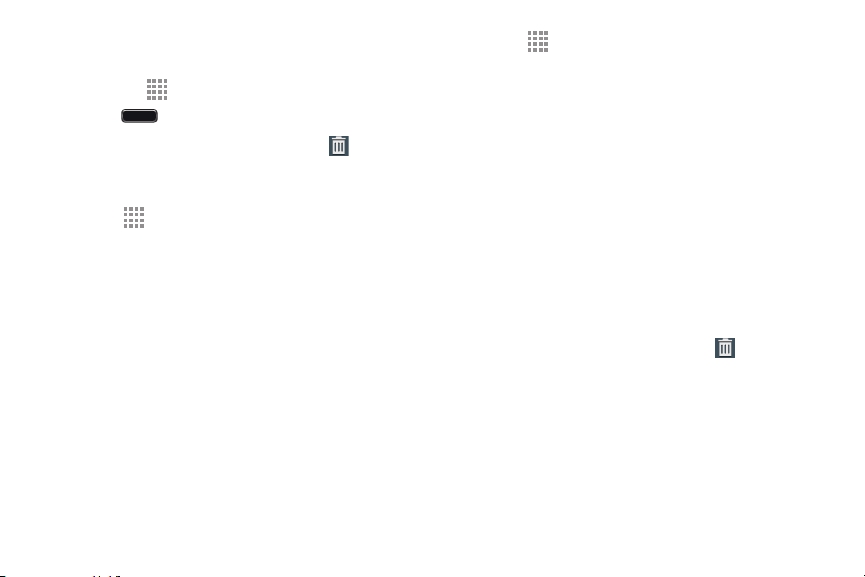
Adding and Removing Primary Shortcuts
You can change any of your Primary Shortcuts with the
exception of the Apps shortcut.
Home to activate the main Home screen. 1. Press
2. Touch and hold the Primary Shortcut until
Remove
displays, then drag the Primary Shortcut to the
Remove icon.
3. Touch Apps and scroll through the App menu to
find the shortcut you want to add as the new Primary
Shortcut.
4. Touch and hold the new shortcut, then drag it to the
empty space in the row of Primary Shortcuts.
The new Primary Shortcut displays on all Home
screens.
App Shortcuts
Use App Shortcuts for quick access to applications or
features, such as Email or other applications.
1. Navigate to the Home screen on which you want to
place the App Shortcut.
2. Touch Apps.
– or –
Touch and hold on the screen until the Home screen
options pop-up displays and then touch Apps and
widgets.
3. Touch the Apps tab.
4. Touch and hold the application icon until the Home
screen displays, then slide your finger where you want
to place the icon and release it.
5. Touch and hold the App Shortcut and then drag the
application icon to reposition it on the Home screen.
Removing App Shortcuts
Touch and hold the App Shortcut until Remove
displays, then drag the App Shortcut to the
Remove icon.
Understanding Your Phone 30
Widgets
Widgets are self-contained applications that you can place
on the Home screens to access your favorite features.
When you first turn on your phone, there are various widgets
on the center Home screen. Widgets can be added to all
Home screens.
Adding Widgets to a Home Screen
1. Navigate to the Home screen on which you want to
place the Widget and touch Apps.
2. Touch the Widgets tab.
Note: Swipe across the screen horizontally to view all
Widgets.
3. Touch and hold the widget’s icon until the Home screen
displays, then slide your finger where you want to
place the icon and release it.
Note: There must be room on the screen where you want to
place the widget, otherwise the widget will not add to
the Home screen.
Removing Widgets
Touch and hold the Widget until Remove displays,
then drag the widget to the Remove icon.
Note: This action does not actually delete the Widget—it just
removes it from the current Home screen.
Folders
Place Folders on a Home screen to organize items together.
Adding Folders
To create a folder on a Home page:
1. Navigate to the desired Home screen.
2. Touch and hold on the screen until the Home screen
pop-up displays and then touch Folder.
The Create folder pop-up displays.
3. Touch the Enter folder name field, use the keyboard to
enter a name for the folder, and touch OK.
A new folder displays on the Home screen.
31

Managing Folders
To rename a folder:
Touch the folder, touch the current name, and use the
keyboard to enter a new name for the folder.
To add an App shortcut to a folder:
1. Add the App shortcut to the Home screen that the
folder is on.
2. Touch and hold the App shortcut, drag it to the folder,
and drop it.
To remove an App shortcut from a folder:
1. Touch the folder to view the contents.
2. Touch the App shortcut, drag it out of the folder, and
drop it on the Home screen.
Removing a Folder
Touch and hold the folder until Remove displays,
then drag the folder to the Remove icon.
Note: Any App shortcuts in the folder are also removed.
Wallpapers
You can choose a picture to display on the Home Screen,
Lock screen, or on both the Home and Lock screens. Choose
from preloaded wallpaper images or select a photo you have
downloaded or taken with the Camera.
1. From a Home screen, touch and hold on the screen.
The Home screen options pop-up displays.
2. Touch Set wallpaper.
3. Touch Home screen, Lock screen, or Home and lock
screens.
The Select wallpaper from pop-up displays the
following options:
• Gallery: Access the Gallery to select a photo.
• Live wallpapers: Choose from pre-loaded interactive
animated wallpapers (Home screen only).
•Photos: Choose a photo from your Google Photos
account.
•Wallpapers: Choose from pre-loaded wallpaper
images.
Understanding Your Phone 32
Apps Screen
The Apps screen displays all applications installed on your
wireless device. Applications that you download and install
from Google Play or from the web are also added to a Home
screen.
The Apps icons can be arranged in various ways.
To change the arrangement of the Apps icons:
1. From a Home screen, touch
Apps.
2. Touch
Menu View type.
3. Touch Customizable grid, Alphabetical grid, or
Alphabetical list.
To manually change the order of the icons on the
Apps screen:
1. From a Home screen, touch
Apps.
2. Touch
Menu Edit.
3. Touch and hold an icon and drag it to a new position.
4. Touch Save to save the changes.
You can place shortcuts to applications on the Home screen
for quick access to the application. For more information,
refer to “App Shortcuts” on page 30.
To view your downloaded applications:
1. From a Home screen, touch
Apps.
2. Touch
Downloaded applications to view
downloaded apps.
3. Touch an icon on the Downloaded applications
screen to launch the application.
– or –
Add an App Shortcut to a Home screen by dragging the
App icon onto the Home Screen.
Application Information
To view information about an App, such as the amount of
storage it uses, force the App to stop, uninstall updates, and
clear data:
1. From a Home screen, touch
Apps
Settings
More More
More
Application manager.
2. Touch the ALL tab, scroll through the apps list, and
touch the app to open a screen with details about
the App.
33

Navigating Through the Home
Screens
Your phone originally has three home screens, but you can
expand up to seven home screens. If you like, you can place
different applications on each of the home screens.
From the main Home screen, sweep the screen with
your finger in either direction. The main Home Screen
is located in the middle with a Home screen on
each side.
Navigating Through the Apps
Screens
Your phone initially has four Apps screens available. Follow
these steps to navigate through the Apps screens:
1. From a Home screen, touch Apps.
The first Apps screen displays.
2. Sweep the screen left or right to access the other three
screens.
3. Touch an app icon to launch the app.
Note: As you add apps, the number of Application menus that
you have available will increase.
Navigating Using Sub-Menus
Sub-menus are available when you are at any Home screen
or have selected a feature or application such as Phone,
Contacts, Messaging, or Internet.
To access a sub-menu:
1. Touch
Menu.
A sub-menu displays at the bottom of the phone
screen.
2. Touch an option.
Understanding Your Phone 34

Smart Screen
With Smart screen activated your phone automatically
adjusts screen time-out and rotation when it detects you are
looking at the screen.
Smart screen features include:
• Smart stay: The screen does not time out as long as you
are looking at it.
Configure Smart Screen
To enable Smart screen features:
From a Home screen, touch Apps
Settings
My device
My device Smart screen.
For more information, refer to “Smart Screen” on page 187.
Pop-Up Video
Multitask with pop-up video by transforming your video
player into a pop-up window floating on the screen. The
video continues to play, and the pop-up window can be
resized or moved anywhere on the screen.
To use Pop-Up Video:
While watching a video, touch the
Pop-up Video
icon in the lower right corner of the screen.
Memory Card
Your device lets you use a microSD (SD) or microSDHC card
to expand available memory space. This secure digital card
enables you to exchange images, music, and data between
SD-compatible devices. This section addresses the features
and options of your device’s SD functionality. The device has
a USB SD card mode.
Mounting the SD Card
To store additional photos, music, videos, and other
applications, you must mount (install) the SD card prior to
use. Mounting the SD card establishes a USB connection
with your computer.
1.
Insert the SD card into the external
, SD card slot.
For
more information, refer to “Installing a MicroSD Card”
on page 9.
2. Your SD ca
rd is scanned to see the available
information on it.
35
Unmounting the SD Card
Unmounting the SD card prevents corruption and damage to
the SD card while removing it from the slot.
1. From a Home screen, touch
Apps Settings
More More
More Storage.
2. Scroll to the bottom of the display and touch
Unmount SD card.
3. Touch OK. For more information, refer to “Installing a
MicroSD Card” on page 9.
SD Card Available Memory Status
To view the memory allocation for your external SD card:
1. From a Home screen, touch
Apps Settings
More More
More Storage.
2.
The available memory for Device and SD card displays
under the Total space and Available space headings.
Erasing Files from the SD Card
You can erase files from the SD card using the phone.
1.
Ensure the SD card is mounted. For more information,
refer to “Mounting the SD Card” on page 35.
1. From a Home scr
een, touch Apps
Settings
More More
More Storage.
2. Touch Format SD card.
3. At the Format SD card confirmation prompt, touch
Format SD card.
Warning! Performing the next step erases all data stored on
the SD card.
4. Touch Delete all to format or press
Back to
cancel.
Understanding Your Phone 36

Entering Text
This section describes how to select the desired text input
method when entering characters into your phone. This
section also describes the predictive text entry system that
reduces the amount of key strokes associated with
entering text.
Your phone comes equipped with an orientation detector that
can tell if the phone is being held in an upright (Portrait) or
sideways (Landscape) orientation. This is useful when
entering text.
Text Input Methods
There are three text input methods available:
• Samsung keyboard (default): Samsung’s onscreen
QWERTY keyboard that can be used in both portrait and
landscape orientation.
• Swype: Instead of touching each key to enter text, use
your finger to trace over each letter of a word.
• Google voice typing: Enter text by speaking.
To change the input method, see “Keyboards and Input
Methods” on page 180.
To choose a text input method whi
le entering text:
1. Touch the top of the screen and swipe downward.
The Notification Panel displays.
2. Touch Choose input method.
The Choose input method pop-up displays.
3. Touch an input method to activate it.
For more information, refer to “Keyboards and Input
Methods” on page 180.
Using the Samsung Keyboard
The Samsung keyboard is a custom virtual QWERTY
keyboard, featuring optional predictive text. Input characters
by touching the onscreen keys with your finger or use
speech recognition.
You can enable predictive text, to have the Samsung
keyboard match your key touches to common words and
display them. The Personalization option learns from Gmail,
Facebook, and Twitter. Log into these applications to enable
the Samsung keyboard to learn from your text input.
37
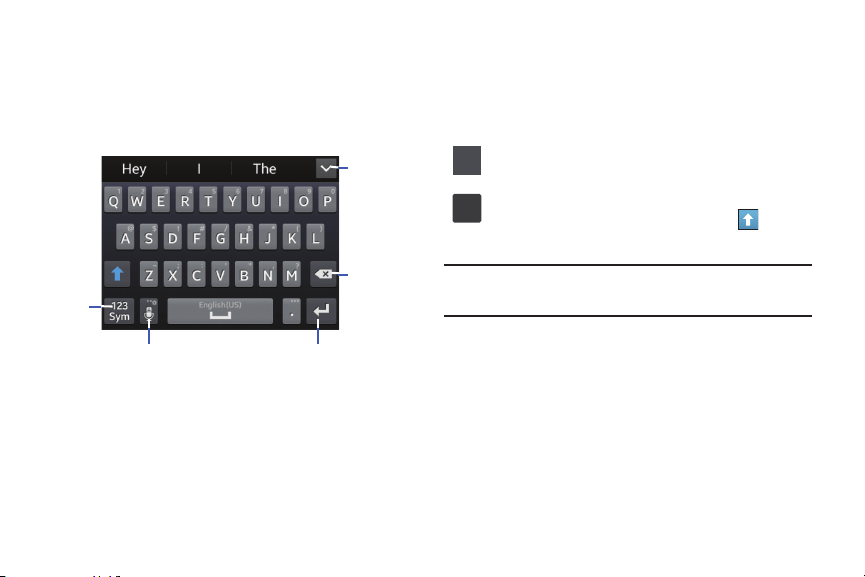
Entering Text Using the Samsung Keyboard
From a screen where you can enter text, rotate your phone
counterclockwise to a Landscape orientation. The onscreen
QWERTY keyboard displays.
Display
More
words
Delete
Key
Text
Input
Mode
New
Paragraph
Voice Typing and
More Options
Changing the Text Input Mode
There are two main keyboard layout keys that will change
the onscreen keys within the QWERTY keyboard.
The available Text Input modes are: Sym and Abc.
Symbol/Numeric Mode: Activates the number,
symbol, and emoticon keys.
123
Sy
123
m
Sym
ABC Mode: Activates the default alphabet keys. Can
also be set to Abc or abc by us
ing the shift
ABC
(
) key.
Note: When in Abc mode, the Sym button appears. When in
Sym mode, the Abc/ABC/abc button appears.
Understanding Your Phone 38

( ) will change to
and
to switch to ABC mode. The shift key
in ABC mode. All follow
ing le
tters
2. Touch
symbol
s mode.
3. Touch th
e desired number, symbol, or emoticon
character
s.
4. Touch the
5. Touch
to input another upper-case letter or
123
123
Sy
Sy
m
m
123
123
Sy
Sy
m
m
Using ABC Mode Using Symbol/Numeric Mode
1. If desired, rotate your phone counterclockwise to a
Landscape orientation.
Use Symbol/Numeric Mode to add numbers, symbols, or
emoticons.
2. When you touch the Enter message field, the following
screen displays:
1. Rotate your phone counterclockwise to a Landscape
orientation.
3. Touch the desir
ed alphabetic characters.
on the keyboard to change to numbers and
4. The screen initially opens in ABC mode. After typing the
first letter, the sh
ift key
following letters
will be lowercase.
ABC ABC
to return to Abc mode.
will change t
o
5. Touch
1/2 1/2
button to access additional symbols.
double-tap
Configuring the Samsung Keyboard
will be uppercase until you touch the shift key again.
Configure the Samsung keyboard to your preferences.
While entering text, touch and hold
Options, then
select Settings in the pop-up menu.
For more
information, refer to “Samsung Keyboard”
on page 181.
39

Predictive Text
The Predictive Text option provides next-letter prediction and
regional error correction, which compensates for touching
the wrong keys on the QWERTY keyboard. Predictive text is
turned on by default.
1. Touch and hold
Options on the keyboard, then
touch Settings
. The Samsung keyboard settings
screen displays.
2. Touch the OFF/ON button to turn Predictive text on.
3. While entering characters, potential word matches
display in the Predictive text area above the keyboard.
Touch a word to insert it into your text.
Note: Predictive Text mode is available for landscape or
portrait orientation.
Using the Google Voice Typing Feature
You can use your voice to enter text using the Google Voice
typing feature.
1. From the keyboard, touch the top of the screen and
swipe downward to display the Notification Panel.
2. Touch Choose input method.
3. Touch Google voice typing.
4. At the Speak now prompt, speak clearly and distinctly
into the microphone.
5. If the red microphone turns gray, then the feature has
timed out and you should touch the microphone icon to
start again.
The text displays in the message as you are speaking.
6.
After you have quit speaking for several seconds, touch
to return to the keyboard.
Note: The feature works best when you break your message
down into smaller segments.
Un
derstanding Your Phone 40
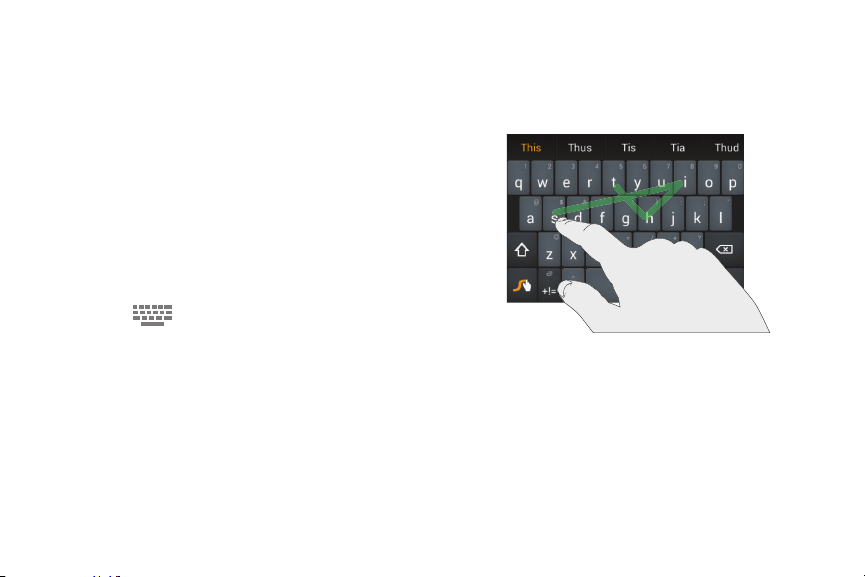
Entering Text Using Swype
Swype is a text input method that makes it possible to enter
a word by sliding your finger or stylus from letter to letter,
lifting your finger between words. Swype uses error
correcting algorithms and a language model to predict the
next word. Swype also includes a touch predictive text
system.
Enabling and Configuring Swype
To enable the Swype keyboard while entering text:
1. Touch the top of the screen and swipe downward, to
display the Notification Panel.
The Notification Panel displays.
2. Touch Choose input method.
The Choose input method pop-up displays.
3. Touch Swype.
The Swype keyboard displays.
Swype Tips
The following example shows how to enter the word “This”.
Put your finger down on the “T”, and without lifting, glide it
to the “h”, then to the “i” then over to the “s”.
41

Here are a few tips to get you started:
• Create a squiggle (like an S shape) to create a double letter
(such as pp in apple).
• Touch and hold a key to view the punctuation menu then
make a selection.
• Move your finger or stylus over the apostrophe to enter
contractions.
• Double-tap on the word you want to change to correct a
misspelled word, then touch the delete key to erase one
character. Touch and hold the delete key to erase an entire
word.
Swype Settings
To configure Swype to your preferences.
While entering text, touch and hold the
Swype key
to display the Settings screen.
For more information, refer to “Swype” on page 183.
Swype Help
While entering text, you can get information about Swype.
1. Touch and hold the
Swype key to access the
Swype options menu.
2. Touch Help How to Swype.
The Swype tutorial displays.
Understanding Your Phone 42

Section 3: Contacts and Your Address Book
This section explains how to manage your daily contacts by
storing their name and number in your Address Book.
Address Book entries can be sorted by name, entry, or group.
Your Address Book
You can store phone numbers and their corresponding
names onto your SIM card and phone’s onboard memory.
The two locations are physically separate, but are used as a
single entity called the Address Book.
Depending on your particular SIM card, the maximum
number of phone numbers the SIM card can store and how
they are stored may differ.
AT&T Address Book Activation
When you access the AT&T Address Book, the network
backup service, contacts are automatically synchronized
between your phone and online address book. The changes
you make are automatically saved and, if you ever upgrade,
damage, or lose your phone, you can easily restore your
contacts onto your new phone.
43
To activate the AT&T Address Book:
1. From the main Home screen, touch
Contacts.
– or –
From a Home screen, touch Apps
Contacts.
– or –
From a Home screen, touch
Contacts
Phone
Contacts.
Your Address Book displays.
2. If you have not synchronized your phone with your
online AT&T Address Book recently, the AT&T Address
Book screen displays. If you want to synchronize your
Address Book, touch Yes.
3. Follow the onscreen instructions.
4. At the Your AT&T Address Book is Ready for Use
prompt, touch OK.
Your Contact list displays.
Your AT&T Address Book is Ready to Use. You can now make
a call or send a message through your Address Book.
You can also manage your Address Book on the web
at
att.com/addressbook
.
Synchronizing Your AT&T Address Book
If you ever upgrade, damage, or lose your phone, you can
easily restore your contacts onto your new phone by
following these steps:
1. Touch
Contacts.
2.
Touch Menu Settings AT&T Address
Book.
3. At the AT&T Address Book screen, touch OK to
synchronize your phone with your online Address Book.
4. If there are existing contacts on your phone, you will be
prompted whether you would like to remove them first.
Touch Yes or No.
Note: You must first copy any contacts that exist on your SIM
card to your phone. For more information, refer to
“Copying Contacts to the Phone” on page 56.
Your phone is synchr
onized and your Contact list
displays.
Contacts and Your Address Book 44
Contacts

Adding a New Contact
Use the following procedure to add a new contact to your
Address Book.
Use the following procedure to add a new contact:
1. Touch
Contacts
Add.
2. At the top of the screen, touch
,
and then touch
Device, SIM, or an account, depending on where you
want to store the new contact.
3. Touch the Contact image to choose a picture to identify
the contact.
4. Touc
h contact fields to display the keyboard and enter
information:
•
Some fields have preset values. Touch the field and
touch the desired value. For example, touch the
Label tab and touch a label for the field.
• Other fields have to be input. Touch the field and use
the onscreen keyboard to input information.
• Touching the check box next to some fields may make
additional fields available.
• Touch
to add additional fields. Touch to remove
an unused field. Also, touch Add another field to add
other fields.
• Touch the screen and swipe up or down to display
additional fields or touch Next on the keyboard to move
to the next field.
5. When you finish entering information, touch Save.
Tip: Display a contact’s record and touch the Email field to
send an email, the Address field to display the address
on a map, or the Website field to link to the website.
Adding Pauses to Contact Numbers
When you call automated systems, you are often required to
enter a password or account number. Instead of manually
entering the numbers each time, you can store the numbers
in your Contacts along with special characters called pauses
and waits.
A pause stops the calling sequence for two seconds and a
wait pauses the calling sequence until you enter a number or
touch a key.
45
To add a pause or a wait to an existing Contact:
1. Touch
Contacts.
2. Touch the name or number to open the Contact.
3. Touch
Edit to edit.
4. Touch the phone number field.
5. Touch the screen at the position where the pause or
wait needs to be added.
6. Touch
Sy
Sy
m
m
Sy
Sy
m
m
.
7. Touch Pause(,) to add a two-second pause or touch
Wait(;) to add a wait. A pause displays as a , (comma)
and a wait displays as a ; (semicolon).
8. Touch
123 123
and use the keypad to enter the additional
numbers.
9. Touch Save to save your changes.
Updating Contacts
To update an existing contact:
1. Touch
Contacts.
2. Touch a contact in the Contacts list to view its
information.
3. Touch Edit.
4. Continue entering contact information. For more
information, refer to “Adding a New Contact” on
page 45.
Using Contacts
Dialing or Messaging from Address Book
Once you have stored phone numbers in the Address Book,
you can call those contacts easily and quickly by either using
their phone number or by using the Search field to locate a
contact entry.
You can also send messages from the Address book.
Contacts and Your Address Book 46
Finding an Address Book Entry
To find an Address Book entry:
1. Touch
Contacts.
2. Within the Contacts list (sorted alphabetically), touch a
letter on the right side of the display to quickly jump to
the contacts beginning with that letter.
3. Touch the contact you want to call or message.
4. To make a phone call, touch the phone icon
.
– or –
To send a message, touch the message icon
.
For more information, refer to “Creating and Sending
Messages” on page 77.
Tip: From the Contact list, swipe right over a listing to make a
call. Swipe left over a listing to send a message.
Linking Contacts
Linking Contact Information
Your device can synchronize with multiple accounts,
including Google, Corporate, and other providers, plus social
networking sites like Facebook. When you synchronize
contacts from these accounts with your device, you may
have multiple contacts for one person.
Link contact records to see all the contact’s numbers and
addresses together. Linking also helps you keep your
contacts updated because any changes to information in the
respective accounts is automatically updated the next time
you synchronize with the account.
The next time you synchronize your phone with your
accounts, any updates that contacts make to email account
names, email addresses, and so on, automatically update in
your contacts list.
For more information about synchronizing accounts, see
“Synchronizing Accounts” on page 49
.
47
To link Contacts:
1. Touch
Contacts.
2. Touch a contact name that you want to link to another
contact entry.
Note: Typically this is the same contact with a different
name or account information.
3. Touch
Menu Link contact.
The contact list displays.
Note: Only contacts stored on your phone can be linked.
4. Touch the second contact entry that you want to link
with the first contact entry.
The second contact is now linked with the first contact
and the account information is merged into one screen.
Note: When you link the contacts, the information is still
maintained in both entries, but displays in one record
for easier viewing.
5. Touch
in the Connection section to view the
linked contact information. The location of the contact,
such as Device or SIM, displays along with the
contact’s name.
Unlinking Contacts
1. Touch Contacts.
2. Touch the linked contact name.
In the Connection section, various icons show how
many contacts are linked in this record.
3. Touch
in the Connection section to display the
linked contacts list.
4. Touch
next to a contact to remove it from the linked
contact record.
5. At the Separate contact prompt, touch OK.
The contact is now separated and no longer displays in
the merged record screen.
Contacts and Your Address Book 48

Marking a Contact as Default
When you use messaging type applications, the application
needs to know which information is primary (default) in a
contact entry list. For example, you may have three different
contact records for John Smith, so the application will be
looking for the “default” number or entry.
1. Touch
Contacts.
2. Touch a Contact name.
3.
Touch Menu Mark as default.
The Mark as default screen displays radio buttons next
to the contact names or phone numbers of all the
linked contacts. The radio button next to the default
contact will be green.
4. To change the default contact, touch the radio button
next to another entry that you want to be the default.
The radio button turns green.
5. Touch Done.
Synchronizing Accounts
From the Accounts menu you decide whether you want
applications to synchronize, send, and receive data at any
given time, or if you want the applications to synchronize
automatically. After determining how you want the accounts
to synchronize, indicate which account to synchronize with
your Contacts list.
1. Touch
Contacts.
2.
Touch Menu Accounts.
If you have previously added any accounts, the
Sync settings screen displays with your current
accounts listed.
3. Touch an account that you would like to synchronize.
4. At the Sync settings screen, touch the options that
you would like to synchronize for that account.
5. Touch Sync now to synchronize the account.
The account is synchronized.
6. Touch
Back to return to the Contacts list.
49

Note: You can also synchronize your accounts using the
Settings menu. For more information, refer to
“Synchronizing Accounts” on page 188
.
Address Book Options
You can access Address Book options while at the main
Contacts screen or while in the details screen for a specific
entry.
Options in Address Book
Touch Contacts and then touch Menu:
The following options are displayed:
• Delete: Delete one or more contacts.
• SIM Management: Copy contacts from your phone to
your SIM card or from your SIM card to your phone. You
can also delete contacts from your SIM.
•Import/Export: Move contacts to or from your memory
card or USB storage.
• Share namecard via: Send one or more contact’s
information by using Bluetooth, ChatON, Drive, Email,
Gmail, Messaging, Samsung Link, or Wi-Fi Direct.
•Accounts: Display the accounts set up on your phone.
Touch Add account to add additional accounts or
touch an existing account to manage sync settings.
• Speed dial setting: Set up speed-dialing. For more
information, refer to “Making a Call Using Speed Dial”
on page 62.
• Send message/email: Send a text message or an
email to one or more contacts.
• Contacts to display: You can choose to display all of
your contacts or only display contacts on your Device,
SIM, or contacts stored to other accounts. You can also
touch Customized list to change other options on how
your contacts are displayed.
• Settings: Displays options for viewing contacts:
– Only contacts with phones: Only display contacts
that have phone numbers.
– List by: List contacts by First name or Last name.
– Display contacts by: Display contacts by First
name first or Last name first.
– Service numbers:
Display or edit your service numbers.
Contacts and Your Address Book 50

– Contact sharing settings: Touch Settings to
specify how contacts are transferred to another
device, either as a full group or individually.
– AT&T Address Book: Access the AT&T Address
Book so you can sync your contacts.
Contact Options
1. Touch Contacts.
2. Touch a contact and at the contact’s display screen,
touch
Menu.
3. The following options are displayed:
•History: View the phone and message history for the
contact.
•Edit: Edit the contact’s information.
• Delete: Delete the contact from your Address Book.
•Link contact: Link contacts with other contacts.
• Separate contact: Separate contacts that have been
linked. This option only appears if the contact has been
linked.
• Mark as default: When you have multiple contacts
linked together, you can mark one of them as default
(only displays when contact is saved to the phone). For
more information, refer to “Marking a Contact as
Default” on page 49.
• Assign speed dial: Assign this c
ontact to your speed
dial list. For more information, refer to “Making a Call
Using Speed Dial” on page 62.
• Share namecard via: Send the contact’s inf
ormation
by using Bluetooth, ChatON, Drive, Email, Gmail,
Messaging, Samsung Link, or Wi-Fi Direct.
• Add to/Remove from reject list: Add or remove the
contact from your reject list. If they call while being on
the reject list, the call will be sent directly to voice mail.
• Add shortcut to home: Place a shortcut for this
contact on your Home screen.
51

Groups GroupsGroups
Groups
Assign contacts to Groups to make searching for contacts
faster or to quickly call or send messages to group members.
There are several default groups that are predefined, which
you can use to add your contacts, or you can create new
groups.
Creating a New Group
1. Touch Contacts
Groups GroupsGroups
Groups Menu
Create.
2. Touch the Group name field and use the onscreen
keyboard to enter a new group name. Touch Done to
remove the keyboard.
3. Touch Group ringtone to choose a ringtone for
assignment to this new group. Touch a ringtone to hear
how it sounds, then touch OK.
– or –
Touch Add to select a ringtone from your music files.
4. Touch Message alert to choose an alert tone for
assignment to this new group, then touch OK.
5. Touch Vibration pattern to choose a vibration audio
file for assignment to this new group, then touch OK.
– or –
Touch Create and follow the onscreen instructions to
create your own vibration pattern.
6. Touch Add member to add contacts to the new group.
7. Touch each contact you want to add to create a check
mark. You can also touch Select all.
Touch Done to add the members.
8. Touch Save to save the new contact Group.
Adding Contacts to a Group
1. Touch Contacts Groups.
2. Touch a group entry.
3. Touch
Add to add to a member to the group.
4. Touch contacts to add to the group or touch Select all.
5. Touch Done. The contacts are added to the group.
Contacts and Your Address Book 52

Groups GroupsGroups
Groups GroupsGroups
Groups GroupsGroups
Removing a Contact from a Group
1. Touch Contacts Groups.
2. Touch a group entry.
3.
Touch Menu Remove member.
4. Touch contacts you want to remove from this group or
touch Select all.
5. Touch Done. The contacts are removed from the
group.
Editing a Group
To edit a Group entry, there must be at least one member as
part of the selected group.
1. Touch
Contacts Groups.
2. Touch a group entry.
3.
Touch Menu Edit group.
4. Make modifications to the Group name, Group
ringtone, Message alert, or Vibration pattern fields.
5. Touch Add member to add more contacts to this
group. Touch Done to add the members.
6. Touch Save to save the edited contact Group.
Deleting a Group
1. Touch Contacts Groups.
2. Touch Menu Delete groups.
3. Touch each group that you want to remove or touch
Select all. (You cannot delete default groups.)
4. Touch Delete, then choose Group only or Group and
group members, and touch OK.
53
Groups GroupsGroups
Sending a Message to Group Members
Create a new text or email message, addressed to a group’s
members.
1. Touch Contacts ➔ Groups
.
2. Touch a Group to display it.
3. Touch Menu ➔ Send message or Send email.
4. To
uch co
ntacts to mark them as recipients for the new
message or touch Select all, and then touch Done.
The new message opens with the marked contacts as
recipients. Continue creating the message, as desired.
For more information, see “Creating and Sending
Messages” on page 77, or see “Email” on page 84
.
Address Book Favorites
Mark contacts with a gold star to identify them as
Favorites.
Favorites display on the Favorites tab in the Phone and
Contacts apps for fast dialing or messaging, and are
indicated by the
.
To view your Favorites list:
Touch Contacts ➔ Favor
ites.
Favo rite s
Adding Favorites
1. Touch Contacts ➔ Favorites.
Favo rite s
2. Touch Menu ➔ Add to Favorites.
3. Touch contacts to mark them as favorites or touch
Select all, and then touch Done.
A gold star displays next to the contact in the
Address Book.
Tip: To mark one contact as a favorite, touch Contacts,
touch the contact, and then touch the star in the upper
right corner of the contact screen so that it turns
gold
.
Contacts and Your Address Book 54
Favo rite s
Favo rite s
Contacts
Menu Remove from Favorites.
Favo
Removing Favorites
1. Touch Favorites.
2. Touch
ri tes
3. Touch contacts to mark them for removal or touch
Select all, and then touch Done.
The gold star no longer displays next to the removed
contacts in the Address Book.
Managing Address Book Contacts
You can copy, delete, and view the memory status for the
Phone and SIM contacts on your phone.
Copying Contacts to the SIM Card
Note: When storing an Address Book entry into the SIM card,
only the name, phone number, and email address are
available as fields. Also, if you move the SIM card to
another phone that does not support additional fields on
the SIM card, this additional information may not be
available.
1. Touch Contacts Menu
SIM Management.
2. Touch Copy contacts to SIM. A list of your current
phone contacts displays.
3. Touch contacts to mark them to be copied or touch
Select all.
4. Touch Done to copy.
5. At the Copy to SIM display, touch OK.
The selected numbers are copied to the SIM card.
55
Favo rite s

Copying Contacts to the Phone
1. Touch Contacts Menu
SIM Management.
2. Touch Copy contacts from SIM.
3. At the Create contact under account prompt, touch
Device or an account name to which you would like to
copy the contact. A list of contacts stored on your SIM
card displays.
4. Touch contacts to mark them to be copied or touch
Select all.
5. Touch Done to copy.
The selected Contacts are copied.
Deleting Contacts from the SIM Card
1. Touch Contacts Menu
SIM Management.
2. Touch Delete contacts from SIM.
A list of contacts stored on your SIM card displays.
3. Touch contacts to mark them to be deleted or touch
Select all.
4. Touch Delete.
The Delete contacts from SIM pop-up displays the
number of contacts that will be deleted from your
SIM card.
5. Touch OK.
The selected contacts are deleted from your SIM card.
Contacts and Your Address Book 56
Deleting Contact Entries from the Phone
You can delete Phone or SIM entries from your phone’s
memory.
1. Touch
Contacts.
2. Touch and hold a contact that you want to delete
, then
touch Delete in the pop-up menu.
Note: Deleting contacts that are saved under an account will
be deleted from the account, if sync is turned on.
3. At the Delete contact prompt, touch OK to delete the
contact or Cancel to exit.
Speed Dials
Speed dials are 1-, 2-, or 3-digit shortcuts (1 to 100) you
assign to contacts, to allow you to quickly call the contact.
For more information about calling using speed dials, see
“Making a Call Using Speed Dial” on page 62.
Note: Speed dial 1 is reserved for Voicemail by default, and
cannot be assigned.
Assigning Speed Dials
1. Touch Contacts.
2. Touch
Menu Speed dial setting.
A list of speed dials displays.
3. Touch a Not assigned speed dial field, then touch a
contact to assign the contact to the speed dial location.
57
Removing or Reassigning a Speed Dial
1. Touch Contacts.
2. Touch
Menu Speed dial setting.
3. Touch Menu, then touch an option:
• Change order: Touch an assigned speed dial, then
touch a new speed dial location to change the order.
•Remove: Touch a speed dial to remove it.
Using the Service Dialing Numbers
You can view the list of Service Dialing Numbers (SDN)
assigned by your service provider. These numbers may
include emergency numbers, customer service numbers, and
directory inquiries.
1. Touch
Contacts.
2. Touch
Menu Settings Service numbers.
3. Scroll through the available numbers.
4. Touch a number and the call is made.
Note: This menu is available only when your SIM card
supports Service Dialing Numbers.
Contacts and Your Address Book 58
Section 4: Call Functions
This section describes how to make or answer a call. It also
includes the features and functionality associated with
making or answering a call.
For more information, refer to “Call” on page 170.
Displaying Your Phone Number
From a Home screen, touch Apps
Settings
More
More About device
Status.
Your phone number displays in the My phone number
field.
Phone
Use the Phone app to access the phone Keypad, Recent
calls, Favorites, and Contacts.
There are two ways to access Phone:
From a Home screen or Apps, touch
Phone.
– or –
From the Home screen, touch
Phone
Contacts
Phone
.
Making a Call
1. From a Home screen, touch Phone and use the
onscreen keypad to enter the number you want to dial.
2. Touch
Call to make the call.
Note: When you activate the Auto redial option in the Call
settings, the phone automatically redials up to 10 times
when the person does not answer the call or is already
on the phone. For more information, see Auto redial on
page 172.
59
More
Phone
Phone, then touch and hold
until the desired
to erase the entire string of
Making an International Call
Tip: You can create pauses longer than three seconds by
1. Touch
0
+
0
+
.
entering multiple three second pauses.
The + character appears.
4.
Touch Menu Add wait to add a wait. A wait
2. Use the onscreen keypad to enter the country code,
area code, and phone number.
will pause the calling sequence until you enter a
number or touch a key.
If you make a mistake, touch
5. Touch
Call to make the call.
numbers have been deleted.
For more information, refer to “A
dding Pauses to Contact
Touch and hold
Numbers” on page 45.
numbers.
Correcting an Entered Number
3. Touch Call to make the call.
Use the following steps to correct a mis-typed entry when
Manual Pause Dialing
dialing.
To manually call a number with pauses without storing them
After entering a number using the keypad:
in your Contacts list:
to erase a single If you make a mistake, touch
1. Touch Phone and use the onscreen keypad to
character.
enter the phone number.
Touch and hold
to erase the entire string of
2.
Touch Menu to display the dialer sub-menu.
numbers.
3. Touch Add 3-sec pause to add a three second pause,
and use the keypad to enter th
e additional numbers.
Call Functions 60
Call. Complete your call.
End call to exit this calling mode.
Ending a Call
To end a call:
Touch
End call.
Dialing a Recent Number
All incoming, outgoing and missed calls are recorded in the
Call log. If the number or caller is listed in your Address
Book, the associated name is also displayed.
1. Touch
Phone.
2. Touch
3. Touch the d
e
sired Contact to enter the Details page,
then touc
h
A list of recent calls displays.
Logs
.
Call to make a call.
Making Emergency Calls
If you do not have a SIM card installed the first time you turn
on the phone, the Insert SIM card to make calls message
displays and an animated tutorial shows you how to install
the SIM card.
Without a SIM card, you can only make an emergency call
with the phone. Normal cell phone service is not available.
Making an Emergency Call without a SIM Card
1. Touch
Emergency call from the onscreen display to
make an emergency call.
2.
During this type of call, you will have access to the
Speaker m ode, Keypad, and End Call features.
Enter 9-1-1 and touch
3. Touch
61
Phone.
Call.
1. From a Home screen, touch
Contacts.
Your Contacts List displays.
Menu Speed dial setting.
Making an Emergency Call with a SIM Card
The Emergency calling mode makes redialing an emergency
number a 1-touch process. Before you can resume normal
1. Touch
2.
touch
3. Complete your call. During this type of call, you will
have access to the Speaker mode, Keypad, and End
Call features.
calling operations, you should first exit this mode .
Enter the e
mergency number (example: 911) and then
2.
Touch
Note: This mode can drain your battery power more rapidly
than normal calling mode.
Making a Call Using Speed Dial
You can assign a shortcut number to a phone number in your
Contacts List for speed dialing.
Apps
The Speed dial setting screen displays showing the
numbers 1 through 100. The number 1 is reserved for
Voicemail.
3. Touch an unused number.
The Select contact screen displays.
4. Touch a contact to assign to the number.
The selected contact displays in the speed dial
numb
er box.
Call Functions 62
To remove a speed dial number or change the order:
1. From the Speed dial setting screen, touch
Menu.
2. In the pop-up menu, touch Change order or Remove.
To make a call using Speed Dial:
1. Touch
Phone.
2. Touch
Keypad
Keypad, if necessary.
3. From the onscreen keypad, touch and hold the speed
dial number.
If the speed dial number is more than 1 digit long,
enter the first digits, then hold the last digit.
Making a Call from the Address Book
You can store phone numbers that you use regularly on the
SIM card or in the phone’s memory. These entries are
collectively called the Address Book.
For further details about the Address Book
feature, see
“Finding an Address Book Entry” on page 47
.
Answering a Call
You can answer incoming calls when the device is locked or
unlocked. When you receive a call, an incoming call screen
displays. The caller’s phone number or name is displayed, if
stored in the Address Book.
To answer the call:
Touch and drag
in any direction.
To reject the call and send it to your voicemail:
Touch and drag
in any direction.
To reject the call with a message:
Touch and drag the Reject call with message tab
upward.
• Touch a predefined text message to send to the caller.
– or –
• Touch Create new message to compose a new
message.
Note: You can answer a call while using the Address Book or
other functions. After ending the call, the phone returns
to the previously active function screen.
63
Keypad
Keypad KeypadKeypad
Dialing Options
From a Home screen or the Apps menu, you have the option
to access the Dialer and initiate a call:
Touch
Phone Keypad, if necessary.
From the Dialer and the Contacts screen, the following tabs
are located at the top of the screen:
• Keypad: Dial the current number entered using the
onscreen keypad.
• Logs: Display a list of all dialed, received, and missed
calls.
• Favorites: Display your contacts that you have marked as
Favorites.
• Contacts: Go to your Address Book where you can select a
contact to call.
After you begin to enter numbers:
Touch
Menu Add to Contacts to save the
Contact, if needed.
– or –
Touch Add to Contacts, which appears below the
numbers that you are typing.
Call Log
The phone stores the numbers of the calls you have dialed,
received, or missed in the Call log. The Call log displays the
details of the call.
1. Touch
Phone.
2. Touch Logs.
A list of recent calls displays. If the number or caller is
listed in your Address Book, the associated name
displays.
All calls made, received, and missed are listed. Types of calls
are identified by the following icons:
• Incoming Calls:
• Outgoing Calls:
• Missed Calls:
• Rejected Calls:
• Auto Rejected Calls:
Call Functions 64
Viewing Missed Calls from the
Lock Screen
Calls you have missed display on the Lock screen.
Touch the missed call number to display the Call log.
The Call log displays. Missed calls are identified by the
icon next to the number
.
Note: If there is a voicemail sent by the same number,
associated icons are displayed and can then be
selected.
Calling or Messaging a Missed Call
1. Touch Phone Logs.
A list of recent calls displays. If the number or caller is
listed in your Address Book, the associated name
displays.
2. Swipe the desired missed call to the right to call.
– or –
Swipe the desired missed call to the left to message.
For more information, refer to “Creating and Sending
Messages” on page 77.
Saving a Recent Call to Your
Address Book
1. Touch Phone Logs.
A list of recent calls displays.
2. Touch the call you want to save to your Address Book.
The call detail page displays.
3. Touch Create contact to add the ca
ll to your
Address Book.
The Create contact screen displays.
– or –
If you want to replace the number for an existing
contact, touch Update existing.
65

see
45.
Logs.
1. Touch Phone Logs.
A list of recent calls displays.
2. Touch and hold the call you want to add to the
Reject List.
3. Touch Add to reject list.
4. Enter information into the various fields using the
keyboard.
5. Touch Save to save when yo
u are finished.
For further details about the Address Book feature,
“Adding a New Contact” on page
Deleting a Call Log Entry
1. Touch Phone
A list of recent calls displays.
2. Touch and hold the call you want to delete from the
Call log.
3. Touch Delete.
4. At the Delete log prompt, touch Delete.
The call is deleted from the Call log.
Adding a Call to the Reject List
4. At the Add to reject list prompt, touch OK.
Future calls from this number will be rejected and sent
to your voicemail.
Tip: Once a number has been added to the Reject list,
Remove from reject list displays and can be used to
remove the number.
Call Functions 66

Call Duration
1. Touch Phone Logs.
2. Touch
Menu Call duration.
The following times are displayed for Voice and Data:
•Last call: The length of time for the last call.
• Dialed calls: The total length of time for all calls made.
• Received calls: The total length of time for all calls
received.
• All calls: The total length of time for all calls made and
received.
3. To reset these times to zero, touch
Menu
Reset.
Options During a Call
Your phone provides a number of control functions that you
can use during a call.
Adjusting the Call Volume
During a call, to adjust the volume, use the Volume keys on
the left side of the phone.
Press the Up volume key to increase the volume level
and press the Down volume key to decrease the
volume level.
– or –
Quickly add more volume to the incoming audio by
touching the onscreen Extra volume button
.
From a Home screen, you can also adjust the ringer volume
using these same keys.
67

In-Call Options
During an active call there are several functions available by
touching a corresponding onscreen button.
• Hold: Place the current active call on hold.
• Add call: Display the dialer so you can call another person.
• Keypad: Display the onscreen keypad, where you can
enter a number using DTMF (Dual Tone Multi-Frequency).
• End call: Terminate the call.
• Speaker: Route the phone’s audio through either the
speaker or through the earpiece.
– Touch Speaker to route the audio through the speaker.
(You can adjust the speaker volume using the volume
keys.) A green line appears under the Speaker button.
– Touch Speaker again to use the phone’s earpiece (see
“Using the Speakerphone During an Active Call” on
page 72
). The green line disappears when Speaker is not
activated.
• Mute/Unmute: Turn the onboard microphone either on
or off.
– Touch Mute during a call to mute the microphone. A
green line appears under the Mute button.
– Touch Mute again to unmute the microphone. The green
line disappears when Mute is not activated.
• Headset: Connect to a Bluetooth headset.
– Touch Headset during a call to activate a Bluetooth
headset. A green line appears under the Headset button.
– Touch Headset again to de-activate the Bluetooth
headset. The green line disappears when the Headset is
not activated.
• Touch Menu for more options:
– Contacts: Go to your Contact list.
– Memo: Write a note using the S Memo app.
– Message: Write a message during a call.
Call Functions 68
.
.
1. While on a call, touch
the current caller on hold.
2. To reactivate this call, touch
Unhold.
Making a New Call During a
Call in Progress
To make a new call while you have a call in progress:
1.
Touch Hold.
2. Touch Add call to display the dialer.
3. Enter the new number and touch
Call
.
Once connected, the active call appears in a large box
at the top of your screen and the call on hold appears
in a smaller box in the middle of your screen.
to enable the feature.
Placing a Call on Hold
You can place the current call on hold at any point during a
conversation. You can also make another call while you have
a call in progress, if your network supports this service.
Hold. This action places
Add call
Personalizing the Call Sound Setting
During a call, it may be necessary to adjust the sound of the
incoming call by selecting an audio equalizer setting for the
current call.
1. From the call screen, touch
displays when the feature is enabled.
2. Select an available option. Choose from: Off,
Soft sound, Clear sound, Adapt sound left, and
Adapt sound right.
Activating Noise Reduction
During a call it may be necessary to activate the noise
reduction feature. Activating this feature can improve the
quality of your conversation by reducing ambient noise.
Noise reduction in on by default.
1. To turn Noise reduction off, touch
2. To turn
Noise reduction on, touch
Hold
Unhold
Hold
69
Hold
Unhold
Hold
Add call

Switching Between Calls
When you have an active call and a call on hold, you may
switch between the two calls, changing the one on hold to
active and placing the other on hold.
1. Touch Swap.
The current call (caller #2) is placed on hold and the
previous call on hold (caller #1) is then reactivated so
that you can continue conversing with that person. The
active call appears in a green box.
2. Touch
End call to end the currently active call.
Ending a Specific Call
1. Touch Swap until the call you want to end appears in a
green box.
2. Touch
End call to end the specific call.
3. Touch End call to end the remaining call.
Answering a Call During a Call in
Progress
You can answer another call while you have a call in
progress, if you have activated the Call waiting feature.
Otherwise, the other call goes to your Voicemail box. For
more information, refer to “Addit
ional Settings” on page 172.
To answer another call:
1. Touch
and slide to the right.
2. Touch Putting “Name/Number” on hold to put the
first call on hold.
– or –
Touch Ending call with “Name/Number” to end the
first call.
3. To switch between the two calls, touch Swap.
Swap places the current call on hold and then
activates the previous call. The active call appears
in a green box.
4. Touch Swap again to switch back.
Call Functions 70
Ending a Call On Hold
To end a call on hold:
1. Touch
End call to disconnect the active call.
The call on hold becomes the active call.
2. Touch
End call to end the remaining call.
3-Way Calling (Multi-Party Calling)
Use the 3-Way or Multi-Party feature to answer a series of
incoming calls and place them on hold. If this service is
supported by the network, all calls can be joined together.
You are notified of an incoming call by a call waiting tone.
Note: The Merge option combines all of the calls you have
established with your phone (both active and on hold).
Swap places the current call on hold and then activates
the previous call.
This feature joins all of the calls you have established with
your phone (both active and on hold) into a multi-party call.
1. To answer the call, touch
and slide to the right.
2. To answer the next call, touch
and slide to
the right.
3. Touch Putting “Name/Number” on hold to put the
first call on hold.
4. To join the first two callers into a single multi-party call,
touch
Merge.
Merge
5. To temporarily leave the conference call, touch
Hold.
Hold
6. To rejoin the conference call, touch
Unhold
Unhold.
7. Touch
End call to end the call.
71
Merge
Hold
Unhold

Speaker.
Speaker Speaker
Mute Mute
Headset Headset
Using the Speakerphone During an
Active Call
Muting Your Phone During a Call
To mute your phone during a call:
While in an active call, it is possible to enable the
speakerphone feature.
1. Touch
Mute
Mute.
The Mute button now appears as and Mute is
Speaker
1. Touch Speaker.
activated.
The Speaker button now appears as
and the
Mute
2. Touch Mute to deactivate the Mute function and
speakerphone is activated.
reactivate the microphone.
2. Use the Volume keys (located on the left side of your
Bluetooth Headset
phone) to adjust the volume.
Headset
1. Touch Headset.
Speaker
3. To deactivate the speakerphone, touch
2. The phone will scan for your Bluetooth headset. When
Switching Off the Microphone (Mute)
found, connect to the headset.
You can temporarily switch your phone’s microphone off, so
that the other person cannot hear you.
The Headset button now appears as
and the
Bluetooth headset is activated.
Headset
3. Touch Headset to deactivate the Bluetooth headset
and reactivate the phone speaker.
Call Functions 72
Speaker
Speaker
Mute
Mute
Headset
Headset

Searching for a Number in Address Book
1. During an active call, touch Menu then touch
Contacts.
2. Touch the Address Book entry.
For further details about the Address Book feature, see
“Finding an Address Book Entry” on page 47.
Call Waiting
The Call Waiting feature can be used to answer an incoming
call while you have a call in progress, if this service is
supported by the network.
To activate the Call Waiting feature:
1. Touch
Phone Menu Call settings
Additional settings Call waiting.
2. Touch the check box.
You are notified of an incoming call by a call
waiting tone.
Call Forwarding
To select when to forward incoming calls:
1. Touch
Phone Menu Call settings
Additional settings Call forwarding.
2. Touch one of the following options:
• Always forward: Forward all voice calls.
• Forward when busy: Forward voice calls to a
designated number instead of your voicemail number, if
you are on another phone call.
• Forward when unanswered: Forward voice calls to a
designated number instead of your voicemail number
when there is no answer on your phone. You can also
select the amount of time that the phone delays before
forwarding.
• Forward when unreachable: Forward voice calls to a
designated number instead of your voicemail number
when you are not in an area covered by your service
provider or when your phone is switched off.
73

Using Fixed Dialing Numbers
To turn FDN on:
1. From the Home screen, touch
Phone
Menu Call settings Additional settings
Fixed dialing numbers.
2. Touch Turn on FDN.
3. At the prompt, enter your PIN2 code and touch OK.
FDN is turned on.
To turn FDN off:
1. Touch Turn off FDN.
2. At the prompt, enter your PIN2 code and touch OK.
FDN is turned off.
Important! Not all SIM cards use a PIN2 code. If your SIM
card does not, this menu does not display.
The PIN2 code is provided by your carrier.
Entering an incorrect PIN2 code could cause the
phone to lock. Contact customer service for
assistance.
Changing the PIN2 Code
To change the PIN2 code:
1. From the Home screen, touch
Phone
Menu Call settings Additional settings
Fixed dialing numbers.
2. Touch Change PIN2.
3. At the prompt, enter your old PIN2 code.
4. At the prompt, enter a new PIN2 code.
5. Confirm your PIN2 code.
Call Functions 74
Managing the FDN List
When this feature is enabled, you can make calls only to
phone numbers stored in the FDN list on the SIM card.
Note: Before you can manage an FDN list a list must be
created.
1. From the Home screen, touch
Phone
Menu Call settings Additional settings
Fixed dialing numbers.
2. Touch FDN list.
3. A list of all existing FDN numbers displays
.
Call Settings
To access the Call settings menu:
Phone Menu Call settings.
– or –
Touch
From a Home screen, touch Apps
Settings
My device
My device Call.
For detailed information on all of the call set
tings,
see “Call”
on page 170.
75
My device

Section 5: Messaging
This section describes how to send and receive different
types of messages. It also includes the features and
functionality associated with messaging.
Types of Messages
Your phone provides the following message types:
• Text Messages
• Multimedia (Picture, Video, and Audio) Messages
• Email and Gmail Messages
• AT&T Messages
• ChatON
• Google+ Messages
• Hangouts
The Short Message Service (SMS) lets you send and receive
text messages to and from other mobile phones or email
addresses. To use this feature, you may need to subscribe to
your service provider’s message service.
The Multimedia Messaging Service (MMS) lets you send and
receive multimedia messages (such as photo, video, and
audio messages) to and from other mobile phones or email
addresses. To use this feature, you may need to subscribe to
your service provider’s multimedia message service.
Important! When creating a message, adding an image, a
sound file, or a video clip to a text message
changes the message from a text message to a
multimedia message.
Messaging icons are displayed at the top of the screen and
indicate when messages are received. For more information,
refer to “Indicator Icons” on page 26
.
Messaging 76
a
to select a recipient from your
7. Review your message and touch
Creating and Sending Messages
1. From the main Home screen, touch Messaging.
– or –
From a Home screen, touch Apps
Messaging
2.
Touch Compose.
3. Touch the Enter recipient field to manually enter
recip
ient or touch
Contacts. You can also select the recipient based on
Groups, Favorites, or Logs.
4. If adding a recipient fr
om your Contacts, touch the
contact to place a check mark
then touch Done.
The contact is placed in the recipient field.
Note: For the Group option, if the number of recipients is less
than 10, all members in the group will be added. You
will need to delete any unnecessary members in the list
by selecting the trash can icon and deleting unwanted
entries.
Note: Enter additional recipients by separating each entry
with a semicolon (;) then repeating Steps 3 and 4 of this
procedure.
5. Touch the Enter message field and use the onscreen
keyboard to enter a message.
6.
To add more recipients, touch the recipient field.
Send.
Note: If you exit a message before you send it, it will be
automatically saved as a draft.
Adding Attachments to a Message
To add an attachment to your message, touch Attach
and select one of the options: Image, Take picture, and so on.
77

Message Options
Options Before Composing a Message
1. Touch Messaging.
2. Before composing a message, touch Menu to
reveal additional messaging options:
•Search: Search through all of your messages for a
certain word or string of words. Enter a search string in
the Messaging Search window then touch
on the
keyboard.
• Delete threads: Delete any message thread. Select
the messages to delete and a green check mark
appears next to the message. Touch Delete.
• Draft messages: Display the draft messages folder
and its contents.
• Locked messages: Display the locked messages
folder and its contents.
• Scheduled messages: Display the scheduled
messages folder and its contents.
• Spam messages: Display the spam messages folder
and its contents.
•Font size: Set a default font size for messages.
• Settings: Access Messaging settings. For more
information, refer to “Messaging Settings” on page 83.
Messaging 78

Options While Composing a Message
While composing a message, touch Menu to
reveal additional messaging options.
Note: Available options will slightly differ between new
messages and messages composed within a thread.
• Insert smiley: Add emoticons, such as a happy face,
to your message.
•Add text: Copy text from your contacts, calendar, or
from a memo to add to your message. This is a
convenient feature for adding names, phone numbers,
events, and so on, to your message.
• Add to contacts: Add the recipient to your Contacts
list. This option only appears if the recipient is not
already in your Contacts list.
•View contact: See information on the recipient. This
option only appears if the recipient is in your Contacts
list.
• Add slide: Add a new page to a message.
• Remove slide: Remove a recently added page from a
message.
• Scheduling: Assign the current message for
scheduled delivery at a designated time.
•Discard: Delete the current message.
•Translate: Launch the S Translator app. Here you can
both assign the sender’s original language and assign a
target language for the recipient (they will receive your
message in the designated language). For more
information, refer to “S Translator” on page 143.
•Font size: Set a font size for this message.
79

Viewing New Received Messages
When you receive a new message, the new message
icon displays at the top of the screen.
To view a received message:
Open the Notification Panel and select the message.
For more information, refer to “Notification Panel” on
page 24.
– or –
Touch
Messaging and then touch the new
message to view it.
The selected message displays.
To play a multimedia message:
1. Touch
.
2. To pause playback of the multimedia message,
touch
.
To scroll through the message (if additional text pages
have been added):
Touch the screen and in a single motion, scroll up or
down the page.
Message Threads
Sent and received text and photo messages are grouped into
message threads. Threaded messages allow you to see all
the messages exchanged (similar to a chat program) and
displays a contact on the screen. Message threads are listed
in the order in which they were received, with the latest
message displayed at the top.
To access message thread options:
From the main Messaging screen, touch and hold the
message to display the following options:
•Delete: Display a confirmation dialog box that when
pressed, deletes the entire thread.
•View contact: Display the contact’s information. This
option only displays if the sender is in your Contacts list.
• Add to contacts: Display the Contacts information
screen. This option only displays if the sender is not in
your Contacts list.
Messaging 80

• Add to spam numbers: Add the current sender to a
spam list. Any new texts from this sender are
automatically blocked.
• Remove from spam numbers: Remove a number
from the spam number list. This option only appears if
the number was previously registered as spam.
To access additional Bubble options:
Touch and hold the message bubble within an active
message conversation to display the following options:
• Delete: Delete any currently selected message bubble
from the thread.
• View slideshow: View a slideshow of the attached
photos or videos.
•Copy text: Copy the currently selected message
bubble from the thread.
•Forward: Forward the currently selected message
bubble to an external recipient.
•Lock/Unlock: Lock or unlock the currently selected
message bubble from being accidentally deleted.
• Save attachment: Save attached photos or videos.
•Copy to SIM: Copy the currently selected message
bubble as a single text message within the SIM card.
• View message details: Display details for the
currently selected message bubble.
•Translate: Launch the S Translator app. Here you can
both assign the sender’s original language and assign a
target language for the recipient (they will receive your
message in the designated language). For more
information, refer to “S Translator” on page 143.
81

Deleting Messages
To delete a single message thread:
1. Touch
Messaging
.
2. Touch and hold a message, then touch Delete.
3. At the Delete prompt, touch OK to delete or Cancel to
cancel.
To delete multiple message threads:
1. Touch
Messaging
.
2. Touch Menu Delete threads.
3. Touch each message thread you want to delete or
touch Select all.
A check mark displays beside each message thread
you select.
4. Touch Delete.
5. At the Delete all prompt, touch OK to delete or Cancel
to cancel.
Message Search
You can search through your messages by using the
Message Search feature.
1. Touch
Messaging
.
2. Touch Menu Search.
3. Use the onscreen keyboard to enter a word or phrase
to search for, then touch
on the keyboard.
All messages that contain the search string you
entered are displayed.
Messaging 82

Messaging Settings
To configure the settings for text messages, multimedia
messages, Voice mails, and Push messages.
1. Touch
Messaging
Menu Settings.
2. Touch Default messaging app Default messaging
app to set your default messaging app. Select
Messaging or Hangouts.
3. General settings, Text message (SMS) settings,
Multimedia message (MMS) settings, Display,
Push message settings, Cell Broadcast (CB) settings,
Notifications, Emergency message settings, Signature
settings, and Spam message settings are listed.
4. Options are described on the screen.
Touch the check box to enable an option.
Touch
to set some options.
Touch other options, such as Emergency alerts, to
display additional instructions for setting the opti
on.
5. Touch
Menu Restore default settings to
restore all Messaging settings to their original state.
Emergency Alerts
This device is designed to receive wireless emergency alerts
from the Commercial Mobile Alerting System (CMAS) which
may also be known as the Personal Localized Alerting
Network (PLAN). If your wireless provider has chosen to
participate in CMAS/PLAN, alerts are available while in the
provider's coverage area. If you travel outside your provider's
coverage area, wireless emergency alerts may not be
available. For more information, please contact your wireless
provider.
Emergency Alerts allows customers to receive
geographically-targeted messages. Alert messages are
provided by the US Department of Homeland Security and
will alert customers of imminent threats to their safety within
their area. There is no charge for receiving an Emergency
Alert message.
There are three types of Emergency Alerts:
• Alerts issued by the President
• Alerts involving imminent threats to safety of life (Extreme
and Severe)
• AMBER Alerts (missing child alert)
83

Email.
Apps
➔
Email.
1. Touch
2. Ente
r your email address in the email address field.
3. Enter your
password in the Password field.
4. If you wan
t to see your password as it is being typed,
touch Sh
ow password to create a check mark.
5. Touch
Next or touch Done on the keyboard.
6. Review
and configure the settings.
7. Touch
Next.
8. Ente
r a name for this email account (optional).
9.
Touch
Done.
Customers may choose not to receive Imminent Threats
(Extreme and Severe) and AMBER Alerts. Alerts issued by the
President cannot be disabled. To disable Imminent Threats
and AMBER Alerts, follow the instructions below:
1. Touch
Messaging
.
2. Touch Menu ➔ Settings.
3. Scroll to Emergency message setting and touch
Emergency alerts.
All alerts are enabled (check marked) by default.
4. Touch an alert option to remove the check m ark and
disable the alert.
Email
Email enables you to review and create email using var ious
email services. You can also receive text message a lerts
when you receive an important email.
To access the Email app:
From the main Home screen, touch
– or –
From a Home screen, touch
Adding an Email Account
To add your first email account:
Email.
The Set up email screen displays.
The Account options screen displays.
Messaging 84

9. Touch
settings.
Adding Additional Email Accounts
Adding a Corporate Email Account
Use the following procedure to configure your phone to
synchronize with a corporate email account.
1. Touch Email.
The Set up email screen displays.
2. Enter your email address and password.
3. Touch Manual setup.
4. Touch the Microsoft Exchange ActiveSync field.
5. Enter all the Exchange server information, Domain,
User name, and Password, then touch Next.
6. At the Activation prompt, touch OK.
The Account options screen displays.
7. Enter the desired information in the different fields,
then touch Next.
8. Enter an Account name for this account (Optional) and
touch Done.
Wait for the Inbox to synchronize before use.
Menu Settings to change the account
To add additional email accounts after setting up your first
account, follow these steps:
1. Touch
Your Email screen displays showing your emails from
the active account.
Email.
2. Touch Menu Settings.
3. Touch Add ac
count.
4. Enter the information required to set up another
account.
Touch Send email from this account by default, if
you want to enable the option. Touch the check box to
create a check mark.
For more information, refer to “Adding an Email
Account” on page 84.
85

c
Email ➔
Refresh.
Switching Between Email Accounts
1. Touch
Syncing refreshes your phone with the account’s servers.
When you set up an email account, you can choose whether
the account syncs in the background or manually.
Syncing Email Accounts
The new Email account inbox or Combined inbox
displays.
– or –
Touch Combined inbox to display email messages
from all a counts.
3. Touch the Email account Inbox you would like to make
active.
Inbox at the top of the screen.
Your Email accounts screen displays.
Your Email screen displays showing your emails from
the acti
ve account.
Email.
2. Touch
Touch
Deleting Email Accounts from
Your Phone
1. Touch Email.
2. Press
Menu ➔ Settings ➔ Account settings.
3. Touch
Delete account.
4. Touch each account you want to delete.
5. Touch Delete and then touch OK.
Email Settings
Use the Email Settings to configure your Email preferences.
1. Touch
Email.
2. Press
Menu ➔ Settings.
Messaging 86
Email.
3. Touch
recipients and the email text.
4. While composing a message:
• Press
myself, Schedule email, Priority, Tracking options, and
Security options.
• Touch
Available options depend on the type of email account.
5. Touch the body of the email to enter the text of your
email. Touch the text option buttons t
o edit and format
your message text.
6. Touch Send to send the message.
– or –
Touch
Save to save the email to the Drafts folder.
– or
–
Touch
Cancel to discard the email.
The following options General settings display:
•Display: Set how email is shown in the email list and
when you open them.
• Comp
osing and sending: Set what functions are
available while comp
osing and sending email.
•Auto a
dvance: Set the screen to show after d
eleting a
message. Choices a
re: Next email, Previous email, or
Email list.
• Confirm de
letions: Ask for confirmation before
deleting email.
• Priorit
y senders: Enter email addresses that you want
treated as a pri
ority.
•Spam
addresses: Manage your spam address list.
• Rules
for filtering: Create rules for fil
ter
ing email
based on
names, address, or subject.
3. Touch an accoun
t to configure specific settings.
Note: Available setti
ngs depend on the email provider.
Composing and Sending Email
1. Touch
2. If you have multiple accounts set up, choose an
account from the menu at the top of the screen.
Compose, then touch fields to enter
Menu to display options: Send email to
Attach to add a file to the message.
87
Apps
Gmail.
Replying to an Email
1. Touch Email.
From a Home screen, touch
Send and receive em
ail with Gmail, w
hich is Google’s
web-based email.
To access Gm
ail:
contact
.
2. Open an email that you have received.
Touch
Forward to forwar
d the email to another
Forwarding an Email
2. Open an email that you have received.
3. Touch Reply to reply to the sender of the email.
1. Touch Email.
Gmail
Setting Up Your Gmail Account
Note: You must sign in to your Gmail account in order to
access Gmail.
1. Sign in to your Google account, if you are not already
signed on.
2. Touch
Gmail.
3. Follow the onscreen instructions.
The Inbox loads conversations and email.
Refreshing Your Gmail Account
Refresh your account to update your device from the Gmail
servers.
1. Touch
Gmail.
2. Touch
Menu Refresh.
Messaging 88
Gmail Settings
Use the Gmail Settings to configure your Gmail preferences.
1. Touch
Gmail.
2. Touch
Menu Settings for settings.
Tip: Press
Menu Help for more information.
Composing and Sending Gmail
1. Touch Gmail.
2. Touch
Compose, then touch fields to compose the
message.
While composing a message, touch
Menu for
options.
3. Touch
SEND to send this message.
– or –
Touch
Menu Save draft to save a draft of this
message.
Messages
AT&T Messages brings your texts, calls, and voicemail
messages together into a single conversation thread and is
accessible by phone or computer.
1. From a Home screen, touch Apps
Messages.
2. Sign in to your Google account, if you are not already
signed in.
For more information, refer to “S
etting Up
Your Gmail Account” on page 8
8.
Note: The first time you use the M
essages app, touch
Update AT&T Messages to download the updated
application from the Play Store. When the Play Store
page displays, touch UPDATE ACCEPT OPEN. For
more information, refer to “Play Store” on page 141.
3. Follow the onscreen instructions to use the
Messages app.
89

ChatON
ChatON provides a global mobile communication service
where you can chat with more than two buddies in a group
chat. Share things such as photos, videos, animation
messages (Scribbles), audio, Contacts, Calendar entries, and
Location information.
Note: This app requires a Samsung account.
1.
Sign in to your Google account. For more information,
refer to “Setting Up Your Gmail Account” on page 88.
2. Fro
m a Home screen, touch Apps ChatON.
The Terms and privacy screen displays.
3. Read the Terms and conditions and the Privacy policy
and then touch Accept.
Note: The first time you use the ChatON app, an upgrade
notification pop-up displays. Touch OK. When the
Play Store page displays, touch UPDATE ACCEPT
OPEN.
4. Follow the onscreen instructions to use ChatON.
5. Touch Menu Settings to configure your
ChatON preferences.
6. Touch Menu Help to display additional help
information.
– or –
Visit: web.samsungchaton.com for more information.
Messaging 90
Google+
Stay connected and share life as it happens with Google+.
Chat with friends and family, post photos, or see what others
are sharing while you’re on the go.
Visit google.com/mobile/+ to learn more.
Note: This app requires a Google Account.
From a Home screen, touch Apps
Google+.
Hangouts
Google Hangouts is an online place to meet friends and
family, share photos, and host video calls.
Visit google.com/+/learnmore/hangouts to learn more.
Note: This app requires a Google Account.
From a Home screen, touch Apps
Hangouts.
91

Section 6: Photos and Videos
This section explains features related to the use of the
camera and camcorder on your phone.
Camera
This section explains features related to the use of the
camera on your phone. You can take photographs and record
video by using the built-in camera functionality. Your
8 megapixel camera produces photos in JPEG format.
Important! Do not take photos of people without their
permission.
Do not take photos in places where cameras are
not allowed.
Do not take photos in places where you may
interfere with another person’s privacy.
Taking Photos
Taking photos with your device’s built-in camera is as simple
as choosing a subject, pointing the camera, then touching
the Camera button.
1. To activate the camera mode, from a Home screen,
touch Camera.
– or –
From a Home screen, touch Apps
Camera.
2. Using the phone’s main display screen as a viewfinder,
adjust the image by aiming the camera at the subject.
Photos and Videos 92
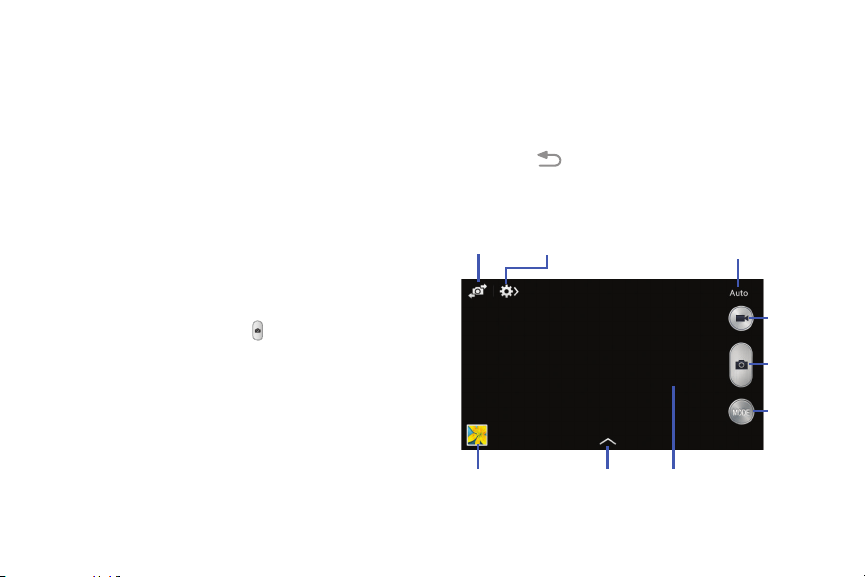
3. Before you take a photo, use the Up and Down Volume
keys to zoom in or out. You can magnify the photo up to
four times (400 percent).
– or –
Use two fingers to make an inward pinching motion on
the screen to zoom out or an outward spreading motion
to zoom in.
4. If desired, before taking the photo, you can touch
onscreen icons to access various camera options and
settings.
5. You can also touch the screen to move the focus to the
area you touch.
6. Touch the Camera button
(
) until the shutter sounds.
The photo is automatically stored within your
designated storage location. If no microSD is installed,
all photos are stored on the Phone.
7. Use two fingers to make an inward pinching motion on
the screen to zoom out or an outward spreading motion
to zoom in.
You can magnify the photo up to four times
(400 percent).
8. Touch
Back to return to the viewfinder.
Front
Facing
Quick
Camera
Camera
Settings
Mode
Record
Video
Camera
Button
Mode
Gallery Effects Viewfinder
93
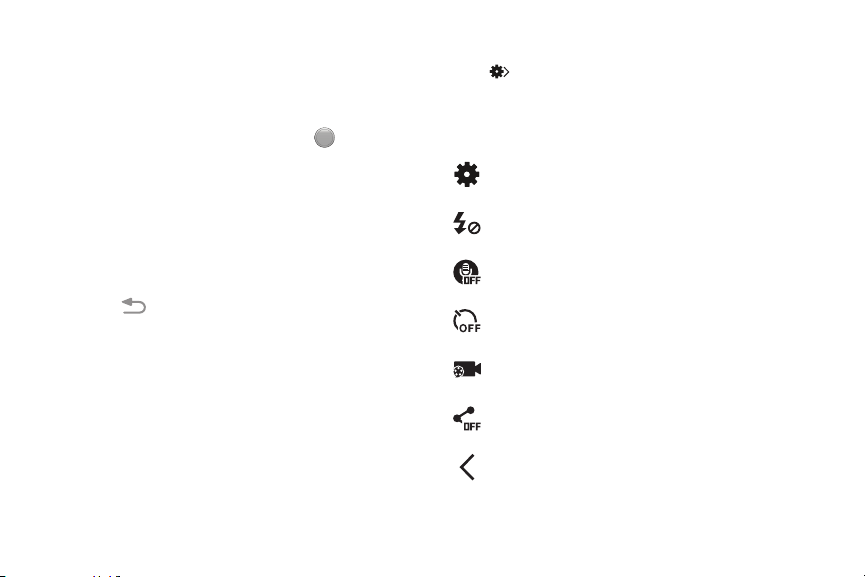
Camera Modes
There are many different camera modes that you can use to
help optimize your photos depending on the conditions and
your experience.
1. From the camera viewfinder, touch the
MODE
Mode
button to change the mode to one of the following:
Auto, Beauty face, Best photo, Continuous shot,
Best face, Sound & shot, Rich tone (HDR), Panorama,
Sports, or Night.
2. Touch and swipe through the list to view a definition of
each mode.
3. Touch
Back to return to the viewfinder.
Quick Settings
Touch at the top of the display to quickly change Camera
settings. Not all of the following options are available in both
still both camera and camcorder modes. The available
options vary by mode.
Configure camera settings.
Activate or deactivate the flash.
Activate or deactivate the voice control to take photos.
Set a timer.
Select a resolution for videos.
Activate or deactivate the sharing options.
Hide Quick settings.
Photos and Videos 94
MODE

Camera and Camcorder Settings
This section describes the different settings that you can
configure on your camera. Not all of the following options are
available in both still camera and camcorder modes. The
available options vary by mode.
1. From the viewfinder, touch
Quick Settings
Camera Settings.
2. The follow settings are located under the Camera,
Camcorder, and General tabs. The settings that are
displayed will depend on what camera mode you
are in.
Camera
•Photo size: Select a resolution for photos. Use higher
resolution for higher quality. Higher resolution photos
take up more memory.
• Face detection: Adjust the camera focus based on
face detection technology.
• Metering modes: Set how the camera measures or
meters the light source: Center-weighted, Matrix, or
Spot.
•ISO: Determine how sensitive the light meter is on your
digital camera. Choose from Auto, 100, 200, 400, or
800. Use a lower ISO number to make your camera less
sensitive to light, a higher ISO number to take photos
with less light, or Auto to let the camera automatically
adjust the ISO for each of your shots.
•Anti-shake
: Compensate for camera movement.
• Save as
: Assign rich tone usage to an image.
Camcorder
• Video size: Select a resolution for videos. Use higher
resolution for higher quality. Higher resolution videos
take up more memory.
95

Settings
•Location tag
: Attach a GPS location tag to the photo. To
improve GPS signals, avoid shooting in locations where the
signal may be obstructed, such as between buildings or in
low-lying areas, or in poor weather conditions. Your
location may appear on your photos when you upload
them to the Internet. To avoid this, deactivate the GPS tag
setting.
•Review
: Set this option if you want to view each photo
after you take it. Select a time value.
•Volume key
: Assign a function to the volume key.
Choose from The zoom key, The camera key, or The record
key.
•Timer
: Use this for delayed-time shots. You can set the
timer to Off, 2 sec, 5 sec, or 10 sec.
• White balance
: Select an appropriate white balance, so
images have a true-to-life colour range. The settings are
designed for specific lighting situations. These settings are
similar to the heat range for white-balance exposure in
professional cameras.
•Exposure value
: Adjust the brightness level by moving
the slider.
• Guidelines
: Display viewfinder guides to help
composition when selecting subjects.
•Flash
: Activate or deactivate the flash.
• Voice control
: Activate or deactivate the voice control
feature, which allows you to verbally take a photo.
• Contextual filename
: Add your location as part of the
filename. You must first activate GPS tag described above.
•Storage: Select the memory location for storage.
•Shutter sound: Turn the shutter sound on or off.
• Reset: Reset the camera settings.
Viewing Your Photos
After you take a photo, you can access various options from
the Image Viewer. The Image Viewer uses your Gal
lery.
For
more information, refer to “Gallery
” on page 100.
Photos and Videos 96
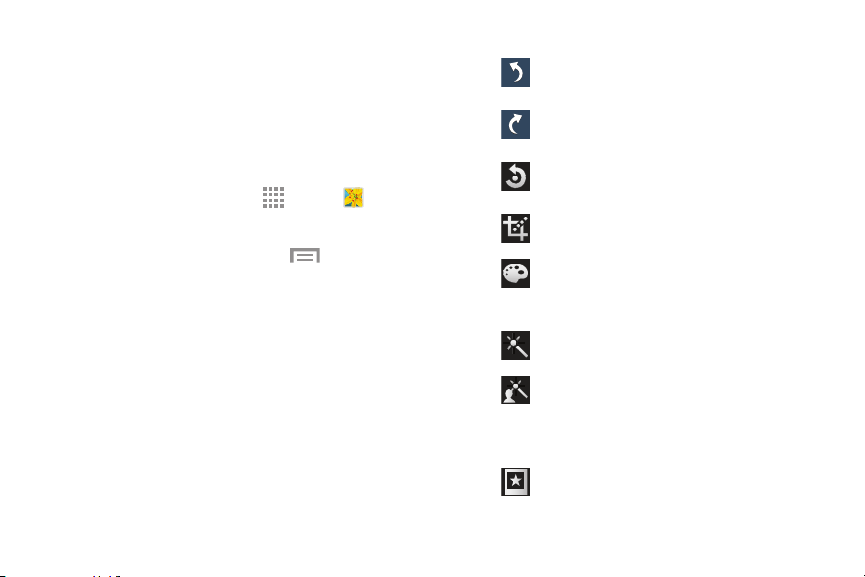
Editing a Photo
You can edit your photos using the built-in Photo editor
application on your device. The photo editor application
provides basic editing functions for photos that you take on
your phone. Along with basic image tuning like brightness,
contrast, and color it also provides a wide variety of effects
used for editing the photo.
1. From a Home screen, touch Apps Gallery.
2. Select a folder location and touch a file to open it.
3. With the image displayed, touch Menu Edit
to launch the Photo editor.
4. Select an image area by touching and holding the
image and then selecting an available option:
• Selection mode: Choose from several onscreen
selection options such as: Select area, Inverse
selection, Selection size, and Selection mode
(Magnetic, Lasso, Brush, Round, and Square).
• Select all: Select the entire area of the current image.
• Clipboard: Copy the currently selected area to your
device’s clipboard.
5. Use the following editor controls to edit your photo:
Undo: Undo the last operation made on
a photo.
Redo: Redo the last operat
ion made to a
photo after performing an Undo.
Rotate: Rotate a photo in all 4 directions. You
can also mirror image a photo.
Crop: Crop (cut-out) an area of a photo.
Color: Auto adjust color, Brightness,
Contrast, Saturation, Adjust RGB,
Temperature, Exposure, and Hue of a photo.
Effect: Add various effects to your photo.
Portrait: Apply various face correction effects
such as: Red-eye fix, Airbrush face, Face
brightness, Out-of-focus, Beauty face, Face
reshaping, or Spot healing.
Sticker: Place various pre-created onscreen
stickers atop your current image.
97
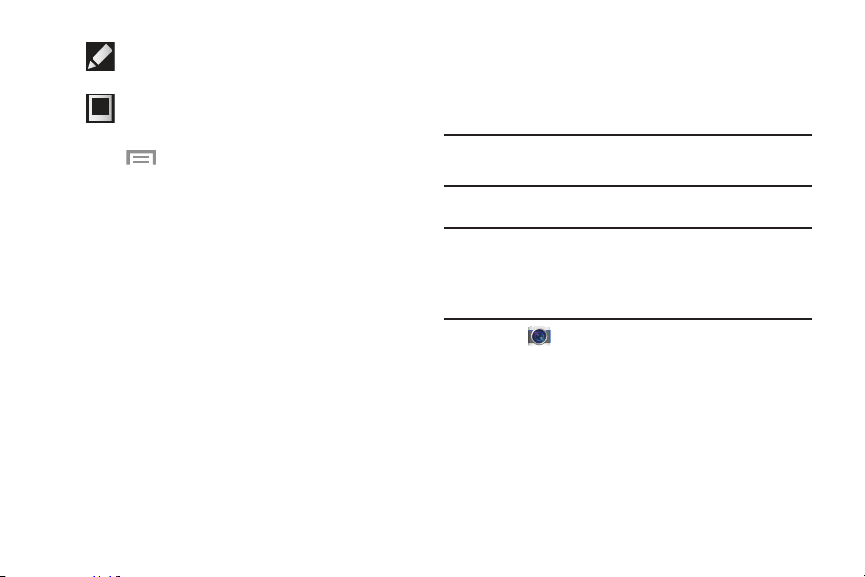
Drawing: Draw directly on your current photo
by using either a brush/pen or eraser.
Frame: Place a pre-created border style atop
your current imag
e.
6.
Touch Menu to access the following options:
• Save as: Rename your current image and save it to
your gallery
.
• Select image: Select a new image for editing.
•Take picture: Activate the camera and take a new
photo for editing.
•Share via: Share your saved photo by using
AT&T Locker, Bluetooth, and so on.
•Set as: Assign the currently saved image as either a
Contact photo, Home and/or lock screens wallpaper, or
add to Google Photos Wallpaper.
Using the Camcorder
In addition to taking photos, the camera also doubles as a
camcorder that also allows you to record, view, and send
videos.
Note: The camera may not be able to properly record videos
to a memory card with a slow transfer speed.
Recording Video
Tip: When recording video in direct sunlight or in bright
conditions, it is recommended that you provide your
subject with sufficient light by having the light source
behind you.
1. Touch
Camera to activate the camera mode.
2. Using the camera’s main display screen as a
viewfinder, adjust the image by aiming the camcorder
at the subject.
3. Before you record a video, use the Volume buttons to
zoom in or out. You can magnify the video up to four
times (400 percent).
Photos and Videos 98

4. To begin recording video, touch
) Video. The red
light blinks while recording.
You can touch the screen to move the focus to the area
you touch.
5. Target area.
To capture an image from the video while recording:
Touch
.
This feature is not available while the anti-shake
feature is activated.
To pause the recording:
Touch
Pause.
To continue recording:
Touch
Record.
To stop the recording and save the video file to your Camera
folder:
Touch
Stop.
Once the file has been saved:
Touch the image viewer, then touch
Play to play
your video.
6. Touch
Back twice to return to the camcorder.
Viewing Your Videos
After you record a video, you can access various options
from the Image Viewer. The Image Viewer uses your Gallery
and the Video player. For more information, see “Gallery”.
Also, see “Video” on page 149.
99
Gallery
The Gallery can be used to view photos and play back videos.
For photos, you can also perform basic editing tasks, view a
slideshow, set photos as wallpaper or contact image, and
share as a photo message.
To access the Gallery:
1. From a Home screen, touch Apps Gallery.
All of the Albums that hold your photos and videos
display with folder name and number of files.
2. Touch an Album.
Thumbnails of the contents display.
Note: If your device displays that the memory is full when
you access Gallery, delete some of the files by using
My Files or another file management application and
try again. For more information, refer to “My Files” on
page 138.
Viewing Photos
To view photos:
1. Touch a thumbnail to view a single photo.
Note: If no control icons are displayed on the screen in
addition to the photo, touch anywhere on the screen to
display them.
2. The following options are available:
Change player: Select a DLNA-enabled
device.
Share via: Share the photo by using ChatON,
Group Play, AT&T Locker, Bluetooth, and so
on.
Delete: Delete the photo.
Camera: Activate the camera.
3. Touch Menu for additional options.
Photos and Videos 100

Viewing Videos
Note: If no control icons are displayed on the screen in
addition to the photo, touch anywhere on the screen to
display them.
1. Touch a video to select it.
2. Touch
to play the video.
3.
Touch Menu for additional options.
For video player controls, see “Video” on page 149.
Using S Beam to Share Photos and
Videos
When this feature is activated with NFC (Near Field
Communication), you can transfer, or beam, large files such
as videos and HD photos directly to another compatible
device that is in direct contact.
You can beam images and videos from the Gallery, music
files from your Music, and so on.
Important! Neither device must be in Lock mode or
displaying the Lock screen. Both devices must be
active and unlocked. It is recommended that the
target device be on the Home screen.
101

1. From a Home screen, touch Apps 6. From the Touch to beam screen, touch the reduced
Settings Connections S Beam. image preview to begin the transfer.
2.
3.
Touch the ON/OFF button to turn S Beam ON .
(Turning S Beam on will automatically turn NFC on.)
On the source device, which contains the desired photo
or video, touch Apps Gallery.
7. When prompted, separate the two devices.
After a few seconds (depending on file size), the
tran
sferred file will display on the recipient’s screen.
4. Touch to view the desired photo or video.
– or –
While viewing thumbnails, touch to select each item to
share.
5. Place the two active NFC-enabled devices back to back
to begin.
Note: If the Touch to beam screen does not display on
the source device:
• Pull them apart.
• Verify the image is visible in the preview window on the
source device (providing the file).
• Place them together again.
Connections
Photos and Videos 102
Connections
Section 7: Connections
This section describes the various connections your phone
can make including accessing Wi-Fi, Bluetooth, and
Connecting your PC.
Wi-Fi
About Wi-Fi
Wi-Fi is a wireless networking technology that provides
access to local area networks.
Wi-Fi communication requires access to an existing Wi-Fi
network. Wi-Fi networks can be Open (unsecured), or
Secured (requiring you to provide login credentials).
Your device supports the 802.11 a/b/g/n Wi-Fi protocols.
Turning Wi-Fi On
By default, your device’s Wi-Fi feature is turned off. Turning
Wi-Fi on makes your device able to discover and connect to
compatible in-range WAPs.
1. From a Home screen, touch Apps
Settings
Connections
Connections Wi-Fi.
2. Touch the ON/OFF button to turn Wi-Fi on.
Connect to a Wi-Fi Network
1. From a Home screen, touch Apps
Settings
Connections
Connections Wi-Fi.
The network names and security settings (Open
network or Secured with WEP) of detected Wi-Fi
networks are displayed in the Wi-Fi networks section.
2. Touch the network you want to connect to.
Note: When you select an open network, you will be
automatically connected to the network.
3. Enter a wireless password, if necessary.
103
Connections
Connections
Manually Add a New Network
Note: The next time your device connects to a previously
accessed or secured wireless network, you are not
prompted to enter the WAP key again, unless you reset
your device back to its factory default set tings.
Connection
1. From a Home screen, touch Apps
Settings
Connections
Connections Wi-Fi.
2. Touch the ON/OFF button to turn Wi-Fi on.
Turning Wi-Fi Off
3. Touch Add Wi-Fi network.
1. From a Home screen, touch Apps
The following fields display:
Settings
Connections
Connections Wi-Fi.
• Network SSID: Enter the name of yo
ur Wireless
2. Touch the ON/OFF button to turn Wi-Fi off.
Access Point.
•Security: Select a security option. This must ma
tch the
Note: Use of wireless data connections such as Wi-Fi and
Bluetooth can cause an added drain to your battery and
reduce your use times.
current security setting on your target WAP.
If secured, enter your WAP’s password.
• Show advanced options: Check this box to add
advanced options such as Proxy settings, IP settings, or
Key management.
4. Touch Connect to store the new information and
connect
to your new WAP.
Connections 104
Connections
Connections
Manually Scan for a Wi-Fi Network
1. From a Home screen, touch Apps
Settings
Connections
Connections Wi-Fi.
2. Touch Scan.
All available Wi-Fi networks are displayed.
Wi-Fi Status Indicators
The following icons show your Wi-Fi connection status at a
glance:
Displays when Wi-Fi is connected, active, and
communicating with a Wireless Access Point (WAP).
Displays when there is a Wi-Fi access point
available, but you are not connected to it. May also
display if there is a communication issue with the
target Wireless Access Point (WAP).
Displays when connected to another device using
Wi-Fi Direct. For more information, refer to “Wi-Fi
Direct” on page 106.
Wi-Fi Settings
The advanced Wi-Fi settings allow you to set up and manage
wireless access points.
1. From a Home screen, touch
Apps
Settings
Connections
Connections Wi-Fi.
2. Touch
Menu for options:
• Advanced.
– Network notification
: Alerts you when a new WAP is
available.
– Passpoint
: Connect to passpoint-enabled Wi-Fi
Access Points automatically. Touch the check box to
create a check mark and activate the feature.
–
Sort by
: Sort Wi-Fi networks by alphabetical order or
signal strength.
– Keep Wi-Fi on during sleep
: Specify when to
disconnect from Wi-Fi.
–
Always allow scanning
: Allow Google location
service and other apps to scan for networks, even
when Wi-Fi is turned off.
105
Connections
Connections

– Auto connect: Automatically connected to an AT&T
Wi-Fi Hotspot as soon as your phone detects it.
–
Install certificates
: Install authentication certificates.
– MAC address: View your device’s MAC address,
required when connecting to some secured networks
(not configurable).
– IP address: View your device’s IP address.
• WPS push button: Set up a connection to a WPS
(Wi-Fi Protected Setup) router or other equipment.
• WPS PIN entry: View the PIN used by your device to
set up a PIN-secured connection to a Wi-Fi router or
other equipment (not configurable).
Wi-Fi Direct
Wi-Fi Direct allows device-to-device connections so you can
transfer large amounts of data over a Wi-Fi connection.
Note: See your service plan for applicable charges for
Wi-Fi Direct.
1. From a Home screen, touch Apps
Settings
Connections
Connections Wi-Fi.
2. Touch the ON/OFF button to turn Wi-Fi on.
3. At the bottom of the Wi-Fi screen, touch Wi-Fi Direct.
4. Enable Wi-Fi Direct on the other device. Consult the
other device’s documentation for more information.
5. On your phone, touch Scan.
The device scans for other Wi-Fi Direct devices.
6. Once the device you want to connect to displays,
touch it.
7. The other device has 1 minute to touch Connect for
the connection to be made.
Connections 106
Connections

8. Once connected, the other device will show as
Connected in your list of Wi-Fi Direct devices.
Note: When connected, the Wi-Fi Direct icon
displays in
the Notification Bar.
Sharing Information with Connected Device
To share Videos, Photos, or other information with the
connected device, follow these steps:
1. View the information that you want to share. For
example, if you want to share a photo, find the photo in
your camera viewer or My Files folder, then touch the
Share via option.
2. Touch the Wi-Fi Direct option.
3. Touch the connected device name.
4. Touch Done.
5. The file is transferred and the other device will receive
a notification that a Wi-Fi file has been received. The
file can be found in My Files All files Device
storage in the ShareViaWifi folder.
Note: Depending on the other device model, the prompts and
shared folder information may differ.
AT&T Smart Wi-Fi
Use AT&T Smart Wi-Fi to maximize your battery
performance, maximize your data, simplify access to
AT&T Hot Spots and Wi-Fi networks, automate your Wi-Fi
connections, and track your data use.
1. From a Home screen, touch Apps
AT&T Smart Wi-Fi.
Note: The first time you access the AT&T Smart Wi-Fi app, an
Install pop-up displays. Touch Ok to download the
application from the Play Store. When the Play Store
page displays, touch UPDATE ACCEPT OPEN.
2. Touch Continue to use AT&T Smart Wi-Fi or touch
No Thanks to quit.
3. Read the License Agreement and touch Accept to
continue.
4. At the Welcome screen, touch OK.
107

5. At the Initial Setting screen, touch Yes if you want AT&T
Smart Wi-Fi to automatically connect to any hotspot
that is available for public use. Otherwise, touch No.
6. Follow the onscreen instructions to use
AT&T Smart Wi-Fi.
For more information on how to use this application, go to
att.com/smartwifi.
Bluetooth
About Bluetooth
Bluetooth is a short-range communications technology that
is used to connect wirelessly to a number of Bluetooth
devices, such as headsets and hands-free car kits, and
Bluetooth-enabled handhelds, computers, printers, and
wireless devices. The Bluetooth communication range is
usually up to approximately 30 feet.
Turning Bluetooth On and Off
To turn Bluetooth on:
1. From a Home screen, touch
Apps
Settings
Connections
Connections Bluetooth.
2. Touch the ON/OFF button to turn Bluetooth on.
To turn Bluetooth off:
1. From a Home screen, touch
Apps
Settings
Connections
Connections Bluetooth.
2. Touch the ON/OFF button to turn Bluetooth off.
Bluetooth Status Indicators
The following icons show your Bluetooth connection status
at a glance:
Displays when Bluetooth is active.
Displays when Bluetooth is connected (paired)
and communicating with a device.
Connections 108
Connections
Connections

Bluetooth Settings
The Bluetooth settings menu is used to set up many of the
characteristics of your device’s Bluetooth service, including:
• Entering or changing the name your device uses for
Bluetooth communication and description
• Setting your device’s visibility (or “discoverability”) for
other Bluetooth devices
Bluetooth Settings Menu
To access the Bluetooth Settings menu:
1. From a Home screen, touch
Apps
Settings
Connections
Connections Bluetooth.
2. Touch the OFF/ON button to turn Bluetooth on.
3. Touch the check box next to SAMSUNG-SGH-I257, if
you want your phone to be visible to other Bluetooth
devices.
Change Bluetooth Name
To change your Bluetooth name:
1. From a Home screen, touch
Apps
Settings
More
More About device
Device name.
2. Use the keyboard to modify your device name and
touch OK.
Make Your Device Visible
Making your device visible allows it to be detected by other
devices for pairing and communication.
To make your device visible:
1. From the Bluetooth settings screen, touch
Menu
Visibility timeout.
2. Select a time that you would like your device visibility
to time-out.
109
Connections
More
Show Received Files
To show received files:
From the Bluetooth settings screen, touch
Menu
Received files.
A list of all files received from Bluetooth displays.
Scan for Bluetooth Devices
To scan for Bluetooth devices:
1. Verify that Bluetooth is enabled.
2. From the Bluetooth settings screen, touch Scan to
search for visible external Bluetooth-compatible
devices such as headsets, devices, printers, and
computers.
Pairing Bluetooth Devices
Use the Bluetooth pairing process to establish a trusted
connection between your device and another Bluetooth
device. When you pair devices, they share a passkey,
allowing for fast, secure connections while bypassing the
discovery and authentication process.
To pair your device with another Bluetooth device:
1. Verify that Bluetooth is enabled.
2. Touch Scan. Your device will display a list of
discovered in-range Bluetooth devices.
3. Touch a device from the list to initiate pairing.
4. Enter the passkey or PIN code, if needed, and
touch OK.
5. The external device will then have to also accept the
connection and enter your device’s PIN code.
Once successfully paired to an external device,
appears within the Status area.
Note: Due to different specifications and features of other
Bluetooth-compatible devices, display and operations
may be different, and functions such as transfer or
exchange may not be possible with all Bluetooth
compatible devices.
Note: Pairing between two Bluetooth devices is a one-time
process. Once a pairing has been created, the devices
will continue to recognize their partnership and
exchange information without having to re-enter a
passcode again.
Connections 110
Rename or Unpair a Paired Device
Unpair a paired device to break the connection between the
device and your phone, but retain the knowledge of the
pairing. At a later point when you want to reconnect the
device, there is no need to setup the connection
information again.
Note: Disconnections often occur automatically if the
paired device goes out of range of your phone or it
is powered off. Upon reconnection, you may be
required to re-enter all the previous pairing information.
1. Verify that your Bluetooth is active.
2. From the Bluetooth settings screen, touch next to
the previously paired device. This opens the connected
device’s menu options.
3. Touch Rename to change the name of the paired
device.
4. Touch Unpair to unpai
r from the paired device.
Sending Contacts with Bluetooth
Depending on your paired devices’ settings and capabilities,
you may be able to send photos, Contact information, or
other items using a Bluetooth connection.
Note: Prior to using this feature, Bluetooth must first be
enabled, and the recipient’s device must be visible.
1. Verify that your Bluetooth is active.
2. From the Home screen, touch
Contacts
.
3. Touch Menu Share namecard via.
4. Touch each contact that you would like to send via
Bluetooth, touch Done, and then touch Bluetooth.
5. Under Available devices, touch a target Bluetooth
device.
The contact information is sent to the target device
and a Bluetooth share notification will appear in your
notifications list.
Note: The external Bluetooth device must be visible and
communicating for the pairing to be successful.
111

NFC
NFC (Near Field Communication) allows data exchange when
you touch your device with another compatible device. This
is used for applications such as S Beam and Android Beam.
To activate NFC on your device, see “NFC” on page 161.
Android Beam
When Android Beam is activated, you can beam app content
to another NFC-capable device by holding the devices close
together. You can beam browser pages, YouTube videos,
contacts, and more. For more information, refer to “Android
Beam” on page 162.
S Beam
When S Beam is activated, you can beam files to another
NFC-capable device by holding the devices close together.
You can beam images and videos from your Gallery, music
files from your Music app, and more. For more information,
refer to “S Beam” on page 162.
PC Connections
You can connect your device to a PC using your PC data
cable using various USB connection modes.
Storage: Use the onboard storage capacity of the phone to
store and upload files. This option allows your computer to
detect the phone as a removable storage drive.
Kies: Use Kies to manage music, movies and photos. You
can also backup precious contacts and calendars, download
apps and podcasts and automatically upgrade device
firmware. Kies conveniently syncs your life across all your
devices.
Note: To sync your device to a PC, it is highly recommended
that you install Samsung Kies, which is available at
samsung.com/us/kies (for Windows or Mac).
Note: If you are a Windows XP user, ensure that you have
Windows XP Service Pack 3 or higher installed on your
computer. Also, ensure that you have Samsung Kies 3.0
or Windows Media Player 10 or higher installed on your
computer.
Connections 112

Connecting as a Storage Device
You can connect your device to a PC as a removable disk and
access the file directory. If you insert a memory card in the
device, you can also access the files directory from the
memory card by using the device as a memory card reader.
Note: The file directory of the memory card displays as a
removable disk, separate from the internal memory.
1. Connect the USB cable to the device and connect the
cable to the computer. After a few seconds, a pop-up
window displays on the PC when connected.
2. On the PC pop-up, click Open device to view files.
3. Copy files from the PC to the memory card.
113
Section 8: Applications
This section contains a description of each application that is
available on the Apps screen, its function, and how to
navigate through that particular application. If the application
is described in another section of this user manual, then a
cross reference to that description is provided.
Managing Applications
The Apps screen displays all applications installed on your
phone, including apps you download and install.
From Apps, you can change the way apps appear on the
screen, uninstall apps you have downloaded, and share apps
with friends. When you install new apps, new screens are
added to hold them.
Tip: To open applications quickly, add the icons of
frequently-used applications to one of the Home
screens, if it is not there by default
. For details,
see “App
Shortcuts” on page 30.
Updating Applications
Once you have registered your device (see “Software
Update” on
page 203) and signed into your Google account,
you may see the
Updates Available notification in the
Notification Bar if there is a new version of one or more apps
available or, when you open an application that is preloaded
on your device, an Update Available message may be
displayed.
To update the applications:
1. Touch the top of the screen and swipe downward to
display the Notification Panel.
2. Touch Updates available.
Applications 114
Uninstalling Apps
You can uninstall apps you download and install. Pre-loaded
apps cannot be uninstalled.
1. From a Home screen, touch Apps.
2. Touch
Menu Uninstall.
3. Apps that can be uninstalled show
on their icon.
Touch , and then follow the prompts to uninstall the
app. Pre-loaded apps cannot be uninstalled.
Customizing the Apps Screens
Choosing a View
By default, app icons appear in Grid view. You can change
the view to list view.
1. From a Home screen, touch Apps.
2. Touch
Menu, and then touch View type.
3. Choose an option:
• Customizable grid: The default view, which allows
you to touch and hold on apps to move them from
screen to screen.
• Alphabetical grid: Icons are arranged in a grid, in A-Z
order.
• Alphabetical list: Icons display in a list, sorted from
A-Z.
115

Apps Screen Options
1. From a Home screen, touch Apps.
2. Touch
Menu for these options:
•Edit: Touch and hold an app icon then drag it to Create
folder to create a new folder, Disable app to disable
the application, or App info to view information about
this app.
•Create folder: Create a new folder to hold the app
icon.
• Uninstall/disable apps: Remove an app that you
downloaded to your phone. Preloaded apps can only be
disabled. Touch
to remove or disable an app.
•View type: Configure the apps screen.
• Show disabled apps: Display disabled apps. Touch
an app to make it visible again.
AT&T Apps Folder
Several AT&T apps appear on the Apps screens. For your
convenience, those apps can also be found in the AT&T apps
folder, which can be accessed from the main Home screen.
To access apps from the AT&T apps folder:
1. From the main Home screen, touch
AT&T.
2. Touch an application’s icon to launch the application.
Applications 116

Accessing Applications
To access applications:
1. From a Home screen, touch Apps.
2. Locate the application’s icon and touch it to launch the
application.
3. To return to the main Home screen, press
Home
.
Note: This manual only addresses applications that have been
loaded on your device as of the date of purchase.
Information concerning third party applications that you
may choose to download from the Google Play Store or
otherwise should be obtained from the application
provider directly and not from Samsung.
Amazon Kindle
Use the Amazon Kindle application to download books,
magazines, and newspapers to read on your phone.
Note: You must be registered with Amazon to use the Kindle
application.
Touch
Amazon Kindle.
117

AT&T FamilyMap
AT&T FamilyMap provides peace of mind because you can
use it to conveniently locate a family member on a map from
your wireless device. Plus, AT&T FamilyMap is secure and
private. Only authorized users have permission to locate your
family members.
Note: FamilyMap requires a paid subscription. To sign up for
service, visit att.com/familymap for more information or
contact your AT&T Customer Service Representative.
1. Sign in to your Google account, if you are not already
signed in.
2. Touch
AT&T FamilyMap.
The AT&T FamilyMap screen displays.
3. Touch Get FamilyMap to update the software.
4. Touch UPDATE on the Play Store AT&T FamilyMap
screen, and then touch ACCEPT.
The AT&T FamilyMap app is downloaded and installed.
5. At the AT&T FamilyMap Sign In screen, touch
Get Started to create an account.
– or –
Touch Sign In if you already have an account.
6. Follow the onscreen instructions.
AT&T Locker
Use AT&T Locker to store, share, and sync all of your photos,
videos, and documents in one safe, convenient place – the
AT&T cloud.
1. Sign in to your Google account, if you are not already
signed in.
2. Touch
AT&T Locker.
3. Touch Get Started to create an access ID.
4. Touch Create and AT&T Access ID to create an
account.
– or –
Touch Already have AT&T Access ID, if you already
have an account.
5. Follow the onscreen instructions to use AT&T Locker.
Applications 118
Back, and then touch
AT&T Navigator
AT&T Navigator provides access to real-time GPS-driven
applications. These programs not only allow you to achieve
turn-by-turn navigation, but also access local searches.
Important! You must have a data
plan to use this feature.
Note: These services require the purchase of a subscription.
To launch the AT&T Navigator application:
2. Touch Terms and Conditions, r
ead the End User
1. Touch
AT&T Navigator.
The Terms o
f Service screen displays.
License Agreement, touch
I Accept.
3. Follow the onscreen instructions.
AT&T Ready2Go
AT&T Ready2Go is used to quickly and easily set up your
Google, Gmail, and email accounts, import contacts, and
configure Wi-Fi.
Touch
AT&T Ready2Go.
For more information, refer to “Setting Up Your Phone” on
page 13.
AT&T Smart Wi-Fi
With AT&T Smart Wi-Fi, you can maximize your battery
performance, maximize your data, simplify access to
AT&T Hot Spots and Wi-Fi networks, automate your Wi-Fi
connections, and track your data use.
Touch
AT&T Smart Wi-Fi.
For more information, refer to “AT&T Smart Wi-Fi” on
page 107.
119

to clear the result.
located at the
Beats Music
1. Touch
Beats Music
.
2. Sign in to your Google account, if you are not already
signed in.
3. Follow the onscreen instructions to use Beats Music.
Calculator
The calculator provides the basic arithmetic functions to
solve simple arithmetic problems and advanced operators to
solve more complex problems. The Calculator also keeps a
history of recent calculations.
1. Touch
Calculator.
2. Enter the first number using the numeric keys.
3. Enter the operation for your calculation by touching the
corresponding onscreen arithmetic function key.
4. Enter the next number.
5. To view the result, touch the = (equals) key.
6. Repeat Steps 3 through 5 as many times as required.
To clear the result:
Touch
To view calculator histo
ry:
To view calculator
history, touch
top of the calculator buttons. A history of your past
calculations displays.
Touch
again to display the calculator keypad.
To clear the calculator history:
To clear the calculator history, touch
Menu
Clear history.
For more advanced problems:
Rotate your device to landsca
pe mode and use the
advanced operators sin, ln, cos, log, tan, and so on,
just as you would on a pocket calculator.
To copy or cut the contents of the display:
Touch and hold entries in the Calculator’s display field.
Copied to clipboard displays. Paste the copied value
in another app.
Applications 120

New to create a new Calendar event.
5. Touch
Menu and select one of the following
options:
• Zoom
: In the Week and Day views, touch and drag a
slider to in
crease or decrease the size of the area being
viewed.
•Go to: Dis
play a specific date.
•Delete
: Delete All events, All events before today
, or an
individu
al event.
•Search
: Search within your current events.
•Sync
: Synchronize your calendar with one or all of your
accounts
.
This option
only appears when an account
has been
opened.
• Calendar
s: Display various information such as My
calend
ars, My task, your linked account
s, and Contact’s
birthdays.
•Settings
: Display a list of configurable settings.
Calendar
Your device includes a powerful Calendar to help you
organize your schedules more conveniently and effectively.
Learn to create and manage events and tasks, and set
alarms to remind yourself of important events and tasks.
To access the Calendar:
1. Touch
Calendar.
2. The follo
wing tabs are available on the right side of the
display:
•Year: Displa
y the Year view.
•Mont
h
: Display the Month view.
•Week
: Display the Week view.
•Day: Di
splay the Day view.
•List: Di
splay the List view.
•Task
: Search for tasks.
3. Touch
4. Touch Today to display the current date, which is
indicated by a blue box.
121

ChatON.
Chrome.
Camera.
1. Touch
Cloc
k Alarm
Create alarm.
The following options display:
•
Up or Time: Touch Down to set the new time
• Alarm repeat
: Set the repeating status for the alarm by
touching on the days that you want the alarm to sound.
Touch the
Repeat weekly
check box to have the alarm
repeat weekly.
•Alarm t
ype
: Set the way in which the alarm sounds when
activated: Melody, Vibration, or Vibration and melody.
• Alarm tone: Set the sound file, which is played when
the alarm is activated. Select an option or touch Add for
additional options.
Camera
Take photos and record video with your device’s built in
Camera.
Touch
For more information, refer to “Camera” on page 92.
ChatON
Use ChatON to send and receive instant messages from any
device that has a mobile phone number. You can interact
with friends and family with text, images, hand-written notes
and video shared instantly. You can chat in groups, while a
Web client allows the easy sharing of content and
conversations between your phone and PC.
Touch
Fo
r more information, refe
r to “ChatON” on page 90.
Chrome
The Google Chrom
e app uses the Google Chrome web
browser on your
phone.
Touch
Clock
Use the Clock application to access alarms, view the World
Clock, set a stopwatch, and use a timer.
Alarm
This feature can be used to set an alarm to ring at a
specific time.
for the alarm to sound. Touch AM or PM.
Applications 122

• Alarm volume: Drag the slider to adjust the alarm’s
volume.
• Location alarm: When activated, the alarm only
sounds when you are at a specific location. Touch the
ON/OFF button to enable, and then follow the onscreen
instructions to enter a location.
• Snooze: Use this option to set an Interval (3, 5, 10, 15,
or 30 Minutes) and Snooze repeat (1, 2, 3, 5, or 10
Times). Touch the ON/OFF button to activate.
• Smart alarm: Tracks body movements and calculates
the best time for sounding the alarm. Place the phone
somewhere on your bed then the phone's movement
sensor (also known as accelerometer) is sensitive
enough to work from any part of the bed. Set the
Interval and the Tone. Touch the ON/OFF button to
activate this option.
• Name: Use a specific name for the alarm. The name
displays when the alarm activates.
2. Touch Save to store the alarm details.
Turning Off an Alarm
To stop an alarm when it sounds, touch and sweep the
icon to the right.
Setting the Snooze Feature
To activate the Snooze feature after an alarm sounds,
touch and sweep the icon to the left. Snooze must
first be set in the alarm settings.
Z
Z
Z
Z
Deleting Alarms
To delete an alarm:
Menu Delete.1. Touch Clock Alarm
2. Touch the alarm or alarms you want to delete. A green
check mark appears next to each selection. Touch
Select all to delete all alarms.
3. Touch Delete.
123
Z
Z
Z
Z
Add city to add another city to the list.
World Clock
World Clock displays time in hundreds of different cities,
within all 24 time zones around the world.
1. Touch Clock World clock.
2. Touch
3. Scroll through the list of cities to find the city you want
to
add or touch the Search bar and use the keyboard to
enter the name of the city you want to add.
Tip:
Touch the firs
t letter of the city’s na
me, to the right
of
the
list, to find the city more quickly.
4. Touch the city.
The list of your locations displays including the city
just added.
5. To set Daylight Savings time, touch and hold a city,
then touch DST settings. Select Automatic, Off, or
1hour.
If Daylight Savings Time is active, a sun symb
ol
appears on the World Clock listing.
Deleting a World Clock Entry
1. Touch Clock World Clock.
2. Touch and hold a city, then touch Delete.
– or –
Touch
Menu Delete to delete one or more
entries.
Stopwatch
You can use this option to measure intervals of time.
1. Touch
Clock Stopwatch.
2. Touch Start to start the stopwatch and touch Lap to
mark a unit of time per lap.
3. Touch Stop to stop the stopwatch.
4. Touch Restart to continue or touch Reset to erase all
times recorded.
Applications 124

Timer
You can use this option to set a countdown timer. Use a timer
to count down to an event based on a preset time length
(hours, minutes, and seconds).
1. Touch
Clock Timer.
2. The Minutes field is highlighted and set to 1 minute.
Use the keypad to set the number of minutes you want.
3. Touch the Hours field to set hours, if desired. As you
touch different fields, they will become highlighted.
4. Touch the Seconds field to set seconds.
5. Touch Start to begin the timer and touch Stop to pause
the timer.
6. After stopping, touch Restart to continue or touch
Reset to set the timer back to the original setting.
Desk Clock
You can use the Desk clock when you have a desk dock and
you want your phone to display the time, day, date, location,
and weather conditions when it is docked.
1. Touch Clock Desk clock.
2. To display the Desk clock in full-screen mode,
touch
.
3. To make changes, touch Menu Settings.
The following options are displayed while in full-screen
mode:
•Hide status bar
: When this is checked, the status bar is
hidden from view.
• Wallpaper
: Touch to select Desk clock wallpaper from
Default, Gallery, or Same as home screen.
• Calendar: Display the calendar.
•Weather: Display the location, temperature, and
weather conditions. Touch the ON/OFF button to enable
this feature.
•Dock: Set your Dock settings such as Dock sound,
Audio output mode, Desk home screen display, and
Automatic unlock.
125

You can also synchronize your phone Address Book with
AT&T Address Book, the network backup service.
For more information, refer to “Contacts and Your Address
Book” on page 43.
DeviceHelp
DeviceHelp provides online information to help with your
device questions.
Use the Google Drive app to open, view, rename, and share
your
Google Docs and files.
Contacts.
1. Touch
Downloads.
All
of your
downloads ar
e listed.
2. Touch
Sort by size
to see your downloads sorted in
size order
.
3. Touch
Sort by date
to see your downloads sorted in
time orde
r.
4. Touch
Clear list
to remove all downloaded items.
Drive
Touch
Contacts
You can manage your daily contacts by storing their name
and number in your Address Book. Address Book entries can
be sorted by name, entry, or group.
Touch
1. Touch DeviceHelp.
2. Follow the onscreen instructions for accessing helpful
information.
Downloads
Use the Downloads application to manage all of your
downloads from the Play Store and the Browser.
Visit drive.google.com to learn more.
Note: This app requires a Google Account.
Driv
e.
Applications 126
DriveMode
With the AT&T DriveMode application, you can set your
phone to auto reply when you are driving and do not want to
answer the phone. You can set auto reply to Messages,
Emails, and Phone Calls. You can also allow up to five of your
contacts to contact you while you are in Drive mode.
1. Touch DriveMode.
The AT&T DriveMode screen displays.
2. Read the Terms and Conditions and Privacy Policy and
touch accept to continue.
3. Read the additional information and touch next.
4. Follow the onscreen instructions to set up your
AT&T DriveMode options.
Email
Send and receive email using popular email services.
Touch Email.
For more information, refer to “Email” on page
84.
Flipboard
Create a personalized digital magazine out of everything
being shared with you. Access news stories, personal feeds
and other related material. Flip through your Facebook
newsfeed, tweets from your Twitter account, photos from
friends and much more.
Touch Flipboard.
127
Gallery
Use Gallery to view, capture, and manage photos and videos.
Touch Gallery.
For more information, refer to “Gallery” on page 100.
Games
Access social and premium games. Join Game Hub to enjoy
free games with your friends.
1. Touch Games.
2. Touch a game and follow the onscreen instructions.
Gmail
Send and receive email with Gmail, which is Google’s
web-based email.
Touch Gmail.
For more information, refer to “Gmail” on page 88.
Google
Search the internet using the Google search engine.
Tip: Google Search appears by default on a Home screen.
1. From a Home screen, touch
Google.
– or –
Touch Google.
2. Use the keyboard to enter search crit
eria to display
matching searches.
– or –
Touch
and speak the search criteria slowly and
clearly. Google searches for the information and
displays results.
Suggestions display belo
w the text entry area.
3. Touch a suggest
ion to search for that term or touch
on the keyboard to start the search.
For more information, refer to “Google Search Bar” on
page 20.
Applications 128
Google Settings
Quickly and easily change Google app settings to suit
your preferences.
Note: You must be signed in to the application in which you
want to configure. (For example, sign in to Google+ in
order to configure Google+ settings).
Touch
Google Settings.
Google+
Stay connected and share life as it happens with Google+.
Chat with friends and family, post photos, or see what others
are sharing while you’re on the go.
Visit
google
.com/mobile/+
to learn more.
Note: This app requires a Google Account.
Touch Google+.
Group Play
Using Group Play, you can share documents or photos you
are viewing, or music you are listening to, with other devices
connected to the same Wi-Fi network as your device.
1. Touch
Group Play.
The first time you access Group Play, read the
Disclaimer and touch Agree.
The Group Play main screen displays.
2. Touch Create group to create a Group Play session or
touch Join group to join a Group Play session in
progress.
3. For instructions on using Group Play, touch
Menu Info.
129
Hangouts
Google Hangouts is an online place to meet friends and
family, share photos, and host video calls.
Visit google.com/+/learnmore/hangouts to learn more.
Note: This app requires a Google Account.
Touch Hangouts.
For more information, refer to “Hangouts” on page 91.
Internet
The Internet application is your access to the mobile web.
This section explains how to navigate the Internet app and
introduces you to the basic features.
From a Home screen, touch Internet
.
– or –
From a Home screen, touch Apps Internet
.
The AT&T/YAHOO! mobile homepage displays.
Navigating with the Internet App
1. To select an item, touch an entry.
2. To scroll through a website, sweep the screen with
your finger in an up or down motion.
3. Sweep the screen left to right to move laterally across
a web page.
4. To return to a previous page, touch .
5. To move forward to a web page, touch
.
Internet Options
From any web page, touch Menu to access your
Internet app options.
Applications 130

Using the Browser Bar
The Browser Bar enhances your browsing experience by
providing contextual tools and quick access to your favorite
content.
To access the Browser Bar:
1. Touch the tab
at the bottom of any web page to
display the Browser Bar.
2. Swipe the Browser Bar to the left or right to access
favorite shortcuts and tools.
To modify your Browser Bar settings:
From a Home screen, Apps
Settings
My device
My device Browser Bar.
For more information, refer to “Browser Bar” on page 180.
Enter a URL
You can access a website quickly by entering the URL.
Websites are optimized for viewing on your phone.
To enter a URL and go to a particular website:
1. Touch the URL field at the top of your screen
.
2. Enter the URL using the onscreen keyboard.
The website displays.
Search the Internet
To perform an internet search using keywords:
1. Touch the Search bar at the top of the browser.
2. Enter a search word or phrase using the onscreen
keyboard and touch
.
3. Touch a link to view the website.
131
My device
on the web page thumbnail to delete the
window.
windows.
2
Adding and Deleting Windows
To add a new incognito window:
1. From your browser, touch
Menu
You can have up to eight Internet windows open at one time
.
To add a new window, follow these steps:
Incognito mode
.
1. From your browser, touch Menu New 2. At the information prompt, touch OK.
window
.
A new browser window displays.
A new browser window is opened.
Note: The title bar will turn gray for window
s using Incognito
2. Touch (Windows) to see thumbnails of
all open
mode.
3. Touch a window listing to open up that Internet
To exit from the incognito window:
window.
1. From your browser window, touch
2
(Windows).
2. Scroll through the available windows and locate the
incognito window. The incognito icon appears in
the upper-left of the incognito browser window.
4. Touch
Going Incognito
3. Touch
next to the incognito listing to delete this
Use the Incognito feature to view Internet sites outsid
e of
normal browsing. Pages viewed in this incognito window do
not appear within your browser history or search history, and
no traces (such as cookies) are left on your device.
window.
Note: Any downloaded files will be
preserved and will stay on
your device after you exit the incognito mode.
Applications 132
2
2
Using Bookmarks
While navigating a website, you can bookmark a site to
quickly and easily access it at a future time. The URLs
(website addresses) of the bookmarked sites are displayed in
the Bookmarks page. From the Bookmarks page you can
also view your Most visited websites and view your History.
1. From the Home webpage, touch
Bookmarks.
The Bookmarks page displays.
2. Touch
Menu to display the Bookmark options.
Maps
Find your current location, get directions and traffic reports,
discover local businesses and attractions, and much more.
Visit google.com/maps/about/explore/mobile to learn more.
Touch
Maps.
Messages
The AT&T Messages app brings your texts, calls, and
voicemail messages together into a single conversation
thread and is accessible by phone or computer.
Touch
Messages.
For more information, refer to “Messages” on page 89.
Messaging
You can send and receive different types of messages.
Touch
Messaging.
For more information, refer to
“Messaging” on page 76
.
Mobile Hotspot
Use Mobile Hotspot to share your phones’s mobile data
connection by way of USB or as a portable Wi-Fi hotspot.
Touch
Mobile Hotspot.
For more information, refer to “Tethering and Wi-Fi Hotspot”
on page 159.
133
Music
Music is an application that can play music files. Music
supports files with extensions AAC, AAC+, eAAC+, MP3,
WMA, 3GP, MP4, and M4A. Launch Music to navigate
through your music library, play songs, and create playlists
(music files bigger than 300 KB are displayed).
Playing Music
1. Touch Music.
2. Touch a library category at the top of the screen
(Songs, Playlists, Albums, Artists, or Folders) to view
the available music files.
3. Scroll through the list of songs and touch an entry to
begin playback.
4. The following Music controls are available:
Streams the current music file to another device
via Samsung Link.
Volume control and SoundAlive.
Volume control showing volume mute
d.
Shuffles the current list of songs randomly.
Songs play in order and are not shuffled.
Assign the current song as a Favorite.
Plays the entire song list once.
Replays the current list
when the list ends.
Repeats the currently playing song.
Displays the current song in the player window.
Applications 134
Touch and hold to rewind the song. Touch to go to
previous song.
Pause the song.
Start the song after pausing.
Touch and hold to fast-forward the song. Touch
to go to next song.
Lists the current playlist songs.
Music Options
To access additional options, follow these steps:
1. Touch
Music.
2. Touch
Menu. The follow options are available
before you play music:
Note: The following options may or may not appear
depending on whether or not music is actually playing.
Also, options will be different if the song you are
listening to is in a playlist.
• Add to playlist: Add the current music file to a
selected playlist.
• Via Bluetooth: Scan for devices and pair with a
Bluetooth headset.
•Delete: Delete the music file.
•Search: Search your device for a certain song.
• Scan for nearby devices: Scan for nearby devices in
order to share music.
•
Settin
gs
: Change yo
ur Music settings.
For more
information, refer to “Music Settings”
on page 136.
•End: End the Music app.
135
Music Settings
The Music Settings menu allows you to set preferences for
the Music app such as whether you want the music to play in
the background, sound effects, and how the music menu
displays.
1. Touch
Music.
2. Touch
Menu Settings.
3. Select one of the following settings:
• Music menu: Select which categories you want to
display. Touch each item that you want to display in the
Music menu.
• Adapt Sound: Set Adapt sound on when your are
listening with earphones to alert of incoming calls and
notifications.
• SoundAlive: Set a type of equalization such as Normal,
Pop, Rock, Jazz, Dance, Classic, and so on.
• Play speed: Set the play speed anywhere between
0.5X and 2.0X using the slider.
• Music auto off: When activated, music will
automatically turn off after a set interval.
•Lyrics: When activated, displays lyrics when available.
• Smart volume: Automatically adjusts each track’s
volume to an equal level.
• Voice control: Use voice commands to control the
Music app.
Using Playlists
Playlists are used to assign songs to a list of preferred media
which can then be grouped into a list for later playback.
These Playlists can be created via either the handset’s Music
options menu or from within a 3rd party music application
(such as Windows Media Player) and then downloaded to the
handset.
Creating a Playlist
1. Touch Music.
2. Touch the Playlists tab.
3. Touch
Menu Create playlist.
4. Type a name for this playlist in the field and touch OK.
5. Add music to the playlist.
Applications 136

Adding Music to a Playlist
To add files to the playlist:
1. Touch
Music.
2. Touch the Playlists tab.
3. Touch the playlist name to which you want to
add music.
4. Touch
Add music.
5. Touch the check box to the left of each track you want
to add to this playlist. Touch Select all to add all the
music tracks to this playlist
6. Touch Done.
Removing Music from a Playlist
To remove music files from a playlist:
1. Touch
Music.
2. Touch the Playlists tab.
3. Touch the playlist name from which you want to
delete music.
4. Touch
Menu Remove.
5. Touch the check box to the left of each track you want
to remove from this playlist. Touch Select all to
remove all the music tracks from this playlist.
6. Touch Remove.
Editing a Playlist
Besides adding and removing music files in a playlist, you
can also rename the playlist.
1. Touch
Music.
2. Touch Playlists.
3. Touch
Menu Edit title.
4. Touch a playlist name to edit.
5. Enter a new name for the playlist then touch OK.
137
My Files
6. While browsing files, use these controls:
Manage your sounds, images, videos, bluetooth files,
Android files, and other memory card data in one convenient
location.
Home: Display the root directory.
Up: Display a higher directory.
1. Touch
My Files All files.
2. Touch Device storage to see the contents of your
internal SD card.
Menu: Displays the following options:
• Select all: Mark all files or folders.
• Create folder: Create a new folder.
Note: Different folders may appear depending on how your
phone is configured.
• Search: List files and folders that contain
the keywords you enter with the onscreen
keyboard.
3. If you have an external SD card inserted, touch
SD memory ca
rd to see the contents of your external
SD card (memory card).
• View by: Set how you want to view files
and folders.
• Sort by: Set the order in which you want
to view files and folders.
4. Touch a folder and scroll down or up until you locate
a file.
• Settings: Manage My Files settings.
Note: You may have to touch one or more sub-folders before
you encounter files.
5. Touch a file to launch it in the associated application, if
the file is associated with an application.
Applications 138
Delete in the Application
More options: On
ce files or folders are
marked, touch this icon to move, copy, or
rename the file or folder, or
view details about
the file or folder.
Mark files: Touch the box to the left of each file
or next to the folder to select all files in the
folder. Then touch
bar to delete the se
lected items. Touch
selected to
Select all or
Unselect all.
To view a photo file:
Touch the file.
The Gallery app is used to open the photo.
For more
information, refer to “Vie
wing Photos” on page 100.
To view a video file:
Touch the file.
The Video Player is launched and plays the vid
eo.
For
more information, refe
r to “Video” on page 149.
myAT&T
Use myAT&T to manage your own AT&T account. You can
review and pay your bill, check minutes and data usage,
upgrade to a new device, or change your rate plan.
Using myAT&T
1. Touch myAT&T.
2. Read the agreement and touch Accept to continue.
3. Enter your User ID and Password, using the onscreen
keyboard, and touch Login.
4. Follow the onscreen instructions.
Phone
Use the Phone application to access the dialer keypad, call
logs, and favorites.
Touch
Phone.
For more information, refer to “Call Functions” on page 59.
139
Photos
Automatically save every photo you take with your device to
your Google+ account. Then it is easy to view, organize, and
share them with friends and family of your choice.
Visit google.com/+/learnmore/photos to learn more.
Note: This app requires a Google Account.
Touch Photos.
Play Books
Discover more than 3 million free e-books and hundreds of
thousands more to buy in the eBookstore.
Visit play.google.com/store/books to learn more.
Note: This app requires a Google Account.
Tou
ch
Play Books.
Play Games
Discover hundreds of games for download and purchase
through the Google Play Store.
Visit play.google.com/store/apps/category/GAME to learn
more.
Note: This app requires a Google Account.
Touch Play Games.
Play Movies & TV
Watch movies and TV shows purchased from Google Play.
You can stream them instantly, or download them for viewing
when you’re not connected to the Internet. You can also view
videos saved on your device.
Visit play.google.com/store/movies to learn more.
Note: This app requires a Google Account.
Tou
ch
Play Movies & TV.
Applications 140
Play Music
With Google Play Music, you can play music you’ve
downloaded, and music you copied from your computer.
Visit play.google.com/about/music to learn more.
Note: This app requires a Google Account for some features.
Tou
ch
Play Music.
Play Newsstand
Subscribe to your favorite magazines so you can have them
available to read on your device at your leisure.
Visit play.google.com/store/newsstand to learn more.
Note: This app requires a Google Account.
Touch Play Newsstand.
Play Store
All your favorite apps, movies and tv shows, music, books,
magazines, and games are available in Google Play Store.
Visit play.google.com/store to learn more.
Note: This app requires a Google Account.
Touch Play Store
.
POLARIS Office 5
This application is a Microsoft Office compatible office suite
that provides a central place for managing your documents
online or offline.
The application can also open Adobe PDF (Portable
Document Format) files.
1. Touch Polaris Office 5.
2. Enter your Email information, if desired, and touch
Register to complete the process.
– or –
Touch Skip to ignore this registration.
The main Polaris Office screen displays.
141

To get help for using Polaris Office:
1.
Touch Menu Help.
2. Select Chrome or Internet and then touch User Guide.
S Memo
The S Memo application can be used to create memos using
the keyboard, your finger, or both. You can add images, voice
recordings, and text all in one place.
Creating a New Memo
1. Touch S Memo.
2. Touch an existing Memo to open it then touch the
screen to enter edit mode.
– or –
Touch
to start a new memo in text mode with the
keyboard displayed.
– or –
Touch
to start a new memo in drawing mode
using your finger or a compatible onscreen writing tool.
You can change back and forth in a memo to add text
with the keyboard and the pen.
Memo Viewing Options
While viewing your Memos:
1. Touch
Menu List view to view your memos
in a list mode.
– or –
Touch
Menu Thumbnail view to view your
memos in a thumbnail mode.
2. To delete one or more memos, touch
Menu
Delete, select one or all memos, and touch Delete.
3. Touch and hold a memo thumbnail or list entry to
display the following options: Delete, Share via, Export,
Copy, Rename, Lock/Unlock, and Print.
Memo Options
While viewing a Memo:
Touch
Options for the following options: Delete,
Share via, Export, Add to Favorites, Create event, Set
as, and Print.
Applications 142

S Translator
Use S Translator to translate text speech composed of any
of 9 written or spoken languages to or from UK English or
US English.
With the S Translator you can easily translate words and
phrases into many different languages.
1. Sign in with your Samsung Account if you have not
already done so.
2. Touch
S Translator.
3. At the S Translator screen, touch the top language bar
and enter a language.
4. Touch the language bar at the bottom of the screen to
select a different language.
5. Enter text into the upper box and touch
.
The translated text displays in the lower box translated
into that language.
– or –
Enter text into the lower box and touch
.
The translated text displays in the upper box translated
into that language.
6. Touch either of the Speak buttons at the bottom of the
screen to translate using either language by using your
voice. The translation displays automatically in the
appropriate box.
7.
Touch Menu for additional options.
143

9. At the S Voice screen, touch
S Voice
With the S Voice application you can use your voice to
perform operations that you would normally have to do by
hand such as dialing a phone number, texting a message,
playing music, and so on.
1. Touch
S Voice.
2.
3. Read the Vlingo Te
rms of Service then touch Agree to
continue.
4. R
ead the information on the
About S Voice screen,
then touch
Next.
5. Read the information on
the
Say what you want
screen, then touch Next.
Read the Samsung Disclaimer then touch Confirm to
continu
e.
6. Read the information on the Wake up S Voice screen,
then touch Next.
7. Read the information on the Edit what you said
screen, then touch Next.
8. Read the information on the Help screen, then touch
Finish.
or say “Hi Galaxy”
to wake up S voi
ce.
10. Speak into the phone and follow the onscreen
instructions.
11. Touch
Menu for additional
options.
Applications 144

Samsung Apps
With Samsung Apps, you can download hundreds of
applications from a variety of categories.
1. Sign in to your Samsung account, if you have not
already done so.
2. Touch Samsung Apps.
3. Touch an application that you would like, then follow
the onscreen instructions to download.
4.
Touch Menu Help for additional information.
Samsung Link
This application wirelessly synchronizes your Samsung
device with your TV, streams content, and even keeps tabs
on who calls or sends text messages with real-time,
onscreen monitoring. Samsung Link makes staying
connected easy.
Samsung Link allows users to share their in-device media
content with other external devices using DLNA certified™
(Digital Living Network Alliance) Devices. These external
devices must also be DLNA-compliant. Wi-Fi capability can
be provided to TVs via a digital multimedia streamer.
Important! You must first connect both of your
communicating devices to the same Wi-F
i.
For
more information, refer to “Wi-Fi” on page 103
.
1. Touch Samsung Li
nk.
2. If prompted, read the onscreen message about
network charges and touch Connect to continue and
return to the main Samsung Link screen.
3. Touch
Sign in to sign into your S
amsung Account, if
you have not already done so.
The Samsung Link All content screen displays.
4. The Samsung Link All content scr
een contains two
separate streaming media options:
• Registered devices: Stream/share selected
multimedia content from your device to DLNA compliant
device connected to the same Wireless Access Point.
•Registered storage: Receive and playback media
stored externally (server, laptop, and so on) directly on
your device by adding a Web storage service for
streaming content.
145

Configuring Samsung Link Settings
Samsung Link must first be configured prior to its initial use.
You must set up parameters such as connected Wi-Fi, Items
to share, source server address, and external device
acceptance rights.
1. Touch
Samsung Link.
2. Touch Menu Settings and configure the
following settings as desired:
•Registered storage: Add a Web storage location.
Without a storage service/location added, you will not
be able to use Samsung Link.
•Save to: Save your media to your internal phone
memory or to an SD card.
• Auto upload: Enable automatic upload of images from
your device to those storage locations specified within
the Web storage list. Touch the ON/OFF button to
enable this option.
• Video optimization: Set up the video quality for
streamed video content. Touch the ON/OFF button to
enable this option.
• Password lock: Restrict access to Samsung Link
by requiring a user enter the currently active
and associated Samsung account password. Touch the
ON/OFF button to enable this option.
• My account: Samsung account information.
• About this service: Display application information
Applications 146

Using Samsung Link to Share Media
with a Target Device
Make sure all communicating devices are connected to the
same Wi-Fi.
1. Launch Samsung Link on the target device, such as an
Internet TV or Samsung Tablet.
2. Touch Samsung Link.
Note: This app
lication requir
es a Samsung account.
3. Swipe the s
creen to
the right to display the All content
screen.
4. Touch your d
evice na
me in the Registered devices
area.
5. Touch an a
vailable cat
egory tab (Photo, Music, Video,
or Docum
e
nt) and select a file.
• A file mark
ed with
indicates it is stored remotely on
a W
eb storage location. Selecting this media causes
your device to access the file currently stored on your
services’ servers.
6. Touch
and hold a file for these options:
•Send to: Send files directly to a target device. On the
Send to screen, touch the target device.
•Share via: Share files by using AT&T Locker,
Bluetooth, ChatON, Drive, Email, Gmail, and so on.
• Change Player: Select an available target device and
stream files to it. On a target device, such as an
Internet TV, select the onscreen Allow button to
continue.
Note:
Nearby Devices appears in the Notification
area at the top of the device to indicate you are using
your device as the media source.
•Delete: Delete the file.
• Details: Display details about the file, such as file
name, file size, and so on.
For additional information,
touch Menu Help.
147

Settings
Configure your device to your preferences. It includes such
settings as: display, security, memory, and any extra settings
associated with your phone.
Touch
Settings.
For more information, refer to “Settings” on pa
ge 153.
Story Album
With Story Album, you can create a digital Album of your
story in media. Special moments will be on a timeline, and if
you want, you can have your album published as a hard
copy.
1. Touch
Story Album.
2. Read the introductory information and touch Next.
3. Touch Start to begin your Story Album.
4. Follow the onscreen instructions.
TripAdvisor
Use TripAdvisor to plan and have your perfect trip.
TripAdvisor gives you access to traveler reviews and
opinions, which makes it easier to find the best hotels,
restaurants, and fun things to do.
Note: This application requires a Samsung account.
1. Touch
TripAdvisor.
2. Follow the onscreen instructions to use TripAdvisor.
Usage Manager
This app is a shortcut to your data usage settings so you can
manage your data.
Touch
Usage Manager.
For more information, refer to “Data Usage” on page 155.
Applications 148
Video
Video identifies and plays video files stored on your phone or
on an optional microSD card.
1.
Streams the current video file to another device
via Samsung Link.
Volume control.
3. While the video plays, the following video controls are
a
v
ailable:
2.
T
ouch the video that you want to play.
T
he video will begin to play.
To
uch Video.
All videos that you have on your phone and memory
card display.
Volume control showing volume muted.
Full-screen in ratio view. The video is enlarged
as much as possible without becoming
distorted.
Full-screen view. The entire screen is used,
which may cause some minor distortion.
Original size view. The video is played in its
original size.
Stretch to fit. The video is enlarged to fit the
screen without becoming distorted.
Press and hold to rewind the video. Touch
to
go
to previous video.
Pause the video.
Start the video after being paused.
Press and hold to fast-forward the video. Touch
to go to next video.
PIP (Picture
In Picture)
view. The video is
played
in a small window so you can use your phone for
other purposes while watching the video.
Double-tap the screen to
return to previous size.
149
Recorded files to display a list of all your
Note: The screen view icons are a four-way toggle. The icon
tha
t is displayed, is the mode that will display after the
icon is touched.
Menu for additional options. 4. Touch
Voice Recorder
Record your voice or other sounds, and share recordings by
using Bluetooth, Messaging, Gmail, and so on. Recording
time varies based on the available memory within the phone.
1. Touch
Voice Recorder.
2. To start recording, touch
Record and speak into
the microphone.
3. During the recording process you can either touch
Stop to stop and save the recording or Pause
to temporarily halt the recording. After pausing, touch
Record to resume recording. Once the audio
recording has stopped, the message is automatically
saved. T
ouch
without savin
g.
Cancel to cancel the recording
4.
Touch
voice recordings. Touch a voice recording to play it.
5. Touc
h
Recording quality to adjust the recording
quality. Choose either Normal or High quality recording.
6. Touch
Menu for additional options.
Applications 150

Voice Search
The Google Voice Search application can be used to search
the web using only your voice.
1. Touch
Voice Search.
2. When the Google Voice Search screen displays, speak
the word or words that you would like to search for on
the internet.
3. If the timer expires and the mic icon changes from red
to gray, touch the mic icon and speak the word or
words that you would like to search for on the internet.
Results are displayed on your phone.
4. Examples display at the bottom of the screen. Touch
Show another example to display additional
examples.
5.
Press
Menu for options.
• To configure Voice Search settings, touch Settings and
follow the onscreen instructions.
• For more information, touch Help.
Wallet
Isis Mobile Wallet uses NFC technology to let you pay for
purchases with just a tap of your phone. The Wallet holds
credit, debit, and loyalty cards while organizing offers, deals,
and promotions. Isis helps you manage your spending by
showing you card balances and recent purchases for most
of the cards in your Wallet.
Note: Isis Mobile Wallet requires a special SIM card. See your
AT&T Customer Service representative for more
information.
1.
Make sure NFC is activate
d on your phone.
For more
information, refer to “NFC” on page 161
.
2. Touch
Wallet.
3. If you have not acquired your enhanced SIM card,
touch LEARN MORE to learn more about Isis Mobile
Wallet.
4. Follow the onscreen instructions to use Isis Mobile
Wallet.
151
and
WatchON
Use the Samsung WatchON application to use your phone as
a remote control for your TV, set top box, DVR, Blu-Ray/DVD,
stereo or other device.
Important! Before initiating use, verify you have an active
Internet connection available (either mobile
network or Wi-Fi connection).
Set Up WatchON
2. Follow the prompts to configure WatchON options,
such country/region, TV service provider, channel list
setup, so on.
WatchON. 1. Touch
Note: Touch Menu Help to learn more about
WatchON.
Configure Your Device as a Remote
1. From the toolbar, touch
Remote Control.
2. Touch Set up now at the prompt.
3. Follow the instructions to find your TV or other devices
and configure your phone to control their operation.
YouTube
YouTube is a video sharing website on which users can
upload and share videos. The site is used to display a wide
variety of user-generated video content, including movie
clips, TV clips, and music videos, as well as video content
such as video blogging, informational shorts and other
original videos.
Note: YouTube is a data-intensive feature. It is recommended
that you upgrade to a large data plan to avoid additional
data charges.
Touch
YouTube.
YP
The Yellowpages Mobile application provides quick and ready
access to businesses, map locations, and storage of your
favorite searches. Use YP to tap into local businesses,
locations, and events, and connect to your search in
real-time.
Touch
YP.
Applications 152
Section 9: Settings
This section explains the settings used for customizing your
device. If settings are described in another section of this
user manual, then a cross reference to that description is
provided.
Accessing Settings
From a Home screen, touch Apps Settings.
– or –
From a Home screen, touch Menu Settings.
– or –
From any screen, touch the top of the screen and
swipe downward, to display the Notification Panel, and
then touch Settings.
The Settings screen displays.
Settings Tabs
The Settings are divided into four main groups. When the
Settings screen displays, the following four tabs are located
at the top of the screen:
Connections: Touch this tab to see all settings
related to the connection of
your device to external
sources, such as, Wi-Fi, Bluetooth, and Nearby
devices.
Connections
My device
My device: Touch this tab to access device
configuration and customization features, such
as, Lock screen, Display, Sound, Power saving
mode, and Accessibility.
Accounts
Accounts: Touch this tab for both the ability to
create and modify your accounts (such as,
Samsung account, Email, and Google account)
and access Backup and reset features.
153

More More
More: Touch this tab to access the remaining set
of device settings not listed under the other three
tabs, such as, Location, Security, Application
manager, and About device.
Note: The settings for your device are described below in the
order that they appear within the Settings menu.
Options under the Connections tab are listed first,
followed by My device, Accounts, and More settings.
Wi-Fi
Wi-Fi is a wireless networking technology that provides
access to
local area networks.
Wi-Fi communication requires access to an existing Wi-Fi
network. Wi-Fi networks can be Open (unsecured), or
Secured (requiring you to provide login credentials).
For information on ho
w to use Wi-Fi,
see “Wi-Fi” on
page 103.
Wi-Fi Direct
Wi-Fi Direct allows device-to-device connections so you can
transfer large amounts of data over
a Wi-Fi connection.
For information on how to use Wi-Fi Direct, see “Wi-Fi
Direct” on page 106.
Bluetooth
Bluetooth is a short-range communications technology that
is used to connect wirelessly to a number of Bluetooth
devices, such as headsets and hands-free car kits, and
Bluetooth-enabled handhelds, computers, printers, and
wireless devices. The Bluetooth communication range is
usually up to approximately 30 feet.
For more information, refer to “Bluetooth” on page 108.
Settings 154
Data Usage
From this screen you can view your Mobile data usage and
turn your Mobile data capability On or Off.
1. From the Settings screen, touch
Connections
Connections
Data usage.
2. Touch Mobile data to create a check mark and turn
Mobile data usage on.
3. Touch Set mobile data limit to create a check mark
and allow a data limit to be set.
4. Touch and drag the red limit bar up or down to the
desired GB limit.
5. Touch the Data usage cycle drop-down menu and
select a date.
The data usage displays as a chart and also displays a
list of each application with a breakdown of how much
data was used per application.
Note: Data is measured by your device. Your service provider
may account for data usage differently.
6. Touch
Menu to display additional options. Touch
to activate.
• Data roaming: Enable data roaming on your device.
• Restrict background data: Restrict some apps and
services from working unless you are connected to a
Wi-Fi network.
• Auto sync data: Set your accounts to automatically
sync.
•Show Wi-Fi usage: Display a Wi-Fi tab that shows
Wi-Fi usage.
• Mobile hotspots: Display available mobile hotspots.
155
Connections
More networks.
The following options display.
More Networks
From a Home screen, touch the top of the screen and
swipe downward to display the Notification Panel.
This option displays additional connectivity information.
Connections
Touch to display additional options and then touch
From the Settings screen, touch
Airplane mode.
– or –
From the Settings screen, touch
Connections
Connections
Airplane Mode
More networks
and then touch the Airplane mode
check box to create a check mark and activate the
feature.
Use Airplane mode when you are in an airplane or in any
other area where making or receiving calls or data is
prohibited. When Airplane mode is active, you can still use
many of your phone’s features, such as Camera, Games,
and more.
Note: When enabled, the Airplane mode icon
displays in
the Notification Bar.
Important!
When your phone is in Airplane Mode, it can
not
send or receive any calls or access online
information or applications.
Default Messaging App
To select a default messa
ging app:
Connections
2. Touch Messages or Hangouts.
Press and hold the Power butt
on then touch
Airplane mode.
– or –
1. From the Settings screen, to
uch
Connections
More networks Default messaging app.
Settings 156
Printing
To manage your printers:
1. From the Settings screen, touch
Connections
Connections
More networks Printing.
2. Touch a print service to configure.
Mobile Networks
Before you use applications such as Google Maps and find
your location or search for places of interest, you must
enable the Mobile networks options.
Touch Mobile networks to display the following
options:
• Mobile data: Touch to create a check mark and
activate the feature. To enable data access over the
mobile network, this option must be selected. It is set
on by default.
• Data roaming: Touch to create a check mark and
activate the feature. Data roaming causes your device
to connect to your service provider’s partner networks
and access data services when you are out of your
service providers area of coverage.
• Enhanced 4G LTE services: Touch Enhanced 4G LTE
mode to enable enhanced voice and communications
using LTE data. Enabling this option is recommended.
• Access Point Names: To use Wi-Fi you need access
to a wireless access point (hotspot). Touch to display a
list of the Access Point names. The active access point
displays a green, filled circle to the right of the name.
• Network operators: Using this feature you can view
the current network connection. You can also scan and
select a network operator manually, or set the network
selection to Automatic. The current network connection
displays at the bottom of the list.
Important! You must deactivate data service prior to
searching for an available network.
Note: Connecting to 2G networks slows the data transfer
speed and time.
157

Connections
More networks Mobile networks.
Default Setup Options AT&T MicroCell
Your phone default is set to Automatic, which causes your
phone to automatically search for an available network.
To search for an AT&T MicroCell:
1. From the Settings screen, touch
Connections
Connections
To select a network each time you connect, set this opti
on to
Manual:
More networks Mobile networks.
Connections
2. Touch Network operators Search for
1. From the Settings screen, touch
AT&T MicroCell.
Your AT&T MicroCell must be installed and activated
2. Touch Network operators.
before you can connect to it. For more information, visit
att.com/esupport.
3. Touch Default setup.
4. Touch Manual to locate and connect to a network
manually or touch Automatic to allow the device to
automatically select a network.
Settings 158
Tethering and Wi-Fi Hotspot
Use this option to share your phones’s mobile data
connection with a Mobile Hotspot or USB tethering.
Mobile Hotspot
Note: To enable Mobile Hotspot on your phone, dial 611 or go
to att.com/mywireless to set up the service.
1. From a Home screen, touch Apps
Mobile Hotspot.
– or –
From the Settings screen, touch
Connections
Connections
More networks Tethering and Wi-Fi hotspot
Mobile Hotspot.
The Mobile Hotspot screen displays.
2. Touch the ON/OFF button to enable the feature.
Note: When enabled, the Mobile Hotspot icon
displays in
the Notification Bar.
3. Follow the onscreen instructions to use Mobile Hotspot.
USB Tethering
Note: To enable USB tethering on your phone, dial 611 or go
to att.com/mywireless to set up the service.
1. From the Settings screen, touch
Connections
Connections
More networks Tethering and Wi-Fi hotspot.
2. Connect your phone to your PC using a USB cable.
3. Touch USB tethering to add a check mark and activate
the feature.
Note: When enabled, the USB tethering icon
displays in
the Notification Bar.
4. Follow the onscreen instructions to use USB tethering.
Help
From the Tethering and Wi-Fi hotspot menu, touch
Help for additional information.
159
VPN
3. Touch
Add.
The VPN settings menu can be used to set up and manage
Virtual Pr
ivate Networks (VPNs).
• Enter a name for the VPN network in the Name field.
• Select a VPN type from the Type drop-down m
enu.
Before using VPN, you must fi
rst set up a screen unlock PIN
or password.
For more information, refer to “Lock Screen”
on page 164.
• Enter the Server address and any other required fields
that are dependent upon the Type you
entered
previously.
• Touch the Show advanced options check box to
display additional VPN
options.
Important!
Before you can use a VPN you must establish and
configure one.
4. Touch Save to save
your VPN settings.
Adding a Basic VPN
Before you add a VPN you must determine which VPN
protocol to use: PPTP, L2TP/IPSec PSK, L2TP/IPSec RSA,
IPSec Xauth PSK, IPSec Xauth RSA, or IPSec Hybrid RSA.
1. From the Settings screen, touch
Connections
Connections
More networks VPN.
2. Touch Basic VPN.
Settings 160

To activate NFC:
1. From the Settings scre
en, touch
Connections
NFC.
Adding an IPsec VPN
NFC
1. From the Settings screen, touch
Connections
Connections
Use NFC (Near Field Communication) to share information
between your phone
and another NFC device by touching the
devices together, typically back-to-back. This is used for
applications such as Android Beam and S Beam.
More networ
ks VPN.
2. Touch Advanced IPsec VPN.
3. Touch
Add VPN Connection.
• Enter a passwo
rd, confirm the password, and
touch OK.
Connections
• Enter a name for the VPN connection in the
VPN connection name field.
• Select a IPsec connection type from the drop-down
menu.
• Enter any other required information.
• Touch Show advanced options to display additional
VPN options.
4. Touch Save to save your VPN settings.
The NFC screen displays.
2. Touch the ON/OFF button to enable NFC.
Note: NFC must be turned on to use Android Beam or S Beam.
161

Connections
NFC Android Beam.
Android Beam
S Beam
When Android Beam is activated, you can beam app content
to another NFC-capable device by holding the devices close
together. You can beam browser pages, YouTube videos,
contacts, and more.
When S Beam is activated, you can beam files to another
NFC-capable device by holding the devices close together.
You can beam images and videos from your Gallery, music
files from your Music app, and more.
1. From the Settings screen, touch
Connections
1. From the Settings screen, touch
Connections
Connections
S Beam.
2. Touch the ON/OFF button to enable Android Beam.
2. Touch the ON/OFF button to enable S Beam.
3. Touch the back of your device with another
3. Touch the back of your device with another
NFC-capable device to transfer the cont
ent.
NFC-capable device to transfer the content.
Tap and Pay
Select your default payment application.
From the Settings screen, touch
Connections
Connections
NFC Tap and pay.
ISIS Wallet is the default method.
Settings 162
Nearby Devices
Share your media files with nearby devices using DLNA
(Digital Living Network Alliance) standards, over Wi-Fi.
1.
Connect t
o a Wi-Fi network.
For more information, refer
to “Connect to a Wi-Fi Network” on page 103.
2. F
rom the Settings screen, touch
Connections
Connections
Nearby devices.
The Nearby devices screen displays.
3. Touch the OFF/ON button at the top of the screen to
turn Nearby devices on, which activates file sharing.
The device name displays under Device name. The
default is the model number: SAMSUNG-SGH-I257.
Note: When enabled, t
he Nearby devices icon
displays in
the Notification Bar.
4. In the Advanced section, set the following options:
•Content to share: Select the content to share.
Choices are: Videos, Photos, and Music.
• Allowed devices: Indicate the devices accessible to
your device.
• Denied devices: Indicate the devices not accessible to
your device.
• Download to: Set whether to download data to Device
or SD card.
• Receive files from other phones: If a nearby device
attempts to upload data, this setting indicates the
response. Options are: Always accept, Always ask, and
Always reject.
163
Connections
Screen Mirroring.
Menu Help for more information.
Screen Mirroring
Screen Lock
1. From the Settings screen, touch
My device
My device
Use the Screen Mirroring feature to share media files on your
phone with an HDMI device, such as an HDMI TV.
Lock screen.
2. Touch
Screen lock for these options then follow the
onscr
een instructions to set up your Screen lock:
Note: This feature requires an optional AllShare Cast dongle
accessor
y. See your AT&T Customer Service
Representative for more information.
•Swipe: Swipe the screen to unlock it
.
• Face unlock: Look at your phone to unlock it.
Connections
• Face and voice: Look at your phone and speak to
1. From the Settings screen, touch
unlock.
• Pattern: A screen unlock pattern is a touch gesture you
2. Connect the AllShare Cast dongle to the HDMI device
using an HDMI A
-to-A cable.
create and use to unlock your device. Follow the
prompts to create or change your screen u
nlock
3.
Touch
pattern.
•PIN: Select a PIN to use for unlockin
g the screen.
Lock Screen
• Password: Create a password for unlocking the
Choose settings for unlocking your screen. For more
screen.
information about using the lock and unlock features, see
•None: No pattern, PIN, or password is required. The
“Securing Your Device” on page 14.
screen will never lock.
Settings 164

Lock Screen Options
The following options are available depending on the
Screen Lock type that you have selected.
Swipe Options
The options available when Screen lock is set to Swipe are:
• Multiple widgets: Display multiple widgets on your lock
screen. Appears as an option after a lock mode is enabled.
• Lock screen widgets: Lock the widgets that are displayed
on your home screens.
• Shortcuts: Set shortcuts to appear at the bottom of the
Lock screen. Touch the ON/OFF button to enable the
feature.
• Unlock effect: Set the effect you receive when unlocking
the phone. You can select None, Ripple effect, or Light
effect.
• Help text: Show help information on the Lock screen.
• Wake up in lock screen: Requires you to say a command
to wake-up your phone.
• Set wake-up command: Designate your wake-up
commands. Touch Set wake-up command and follow the
onscreen prompts to create a new verbal command.
Face Unlock and Face and Voice Options
These options are available when Screen lock is set to
Face unlock or Face and voice:
• Lock screen widgets: Lock the widgets that are displayed
on your home screens.
• Improve facial recognition: Improve your device’s face
matching capability by capturing your face in different
lighting, with or without glasses, and bearded or clean
shaven. Follow the onscreen instructions.
• Presence check: Requires you to blink when using the
Face unlock feature. This will increase the security of the
feature.
• Secured lock time: Set a time-out for lock screen.
165

Pattern Options
These options are available when Screen lock is set to
Pattern:
• Lock screen widgets: Lock the widgets that are displayed
on your home screens.
• Make pattern visible: See the pattern as you draw it.
• Secured lock time: Set a time-out for lock screen.
PIN and Password Options
These options are available when Screen lock is set to Pin or
Password:
• Lock screen widgets: Lock the widgets that are displayed
on your home screens.
• Secured lock time: Set a time-out for lock screen.
Display
In this menu, you can change various settings for the display.
My device
My device
Display.
From the Settings screen, touch
The following options display:
General
•Wallpaper: Set the Wallpaper for your Home screen,
Lock screen, or both. For more information, refer to
“Wallpapers” on page 32.
• Notification panel: Set the brightness of your
Notification Panel and also select the quick setting
buttons that you want to display at the top of the
Notification Panel. For more information, refer to
“Notification Panel” on page 24.
Settings 166

Screen
• Screen mode
: Select from several different color modes.
• Brightness: Configure the LCD Brightness levels.
Touch Automatic brightness to allow the phone to self-
adjust or drag the slider and touch OK.
• Auto rotate screen: Switch the display orientation
automatically when you rotate the phone.
• Screen timeout: Adjust the delay time before the
screen automatically turns off. Selections are: 15
seconds, 30 seconds, 1 minute, 3 minutes, 5 minutes,
and 10 minutes.
•Daydream: Control what your screen does when your
device is docked or sleeping. Touch the ON/OFF button
to turn it on. Follow the onscreen instructions.
Font
•Font style: Set the font style that your phone will use.
You can also touch Get fonts online to choose from a
wider selection.
•Font size: Select which size of font displays.
More settings
• Touch key light duration: Adjust the delay before the
Touch key light automatically turns off.
• Show battery percentage: Display the battery charge
percentage next to the battery charge icon at the top of
the display.
• Edit after screen capture: Go edit a screen
immediately after taking a screen capture.
• Auto adjust screen tone: Save power by adjusting
the screen tone according to an analysis of the images.
167

LED Indicator
This option is used to turn on your LED lights for charging,
missed events, and incoming notifications. The light will turn
on by default unless you turn them off.
From the Settings screen, touch
My device
My device
LED indicator.
3. Touch the following LED indicator options to turn them
on or off:
•Charging: LED lights up when the device is connected
to the charger.
•Low battery: LED lights up when the battery level is
low.
• Notifications: LED lights up when you have missed
calls, messages, or application events.
• Voice recording: LED lights up when you are
recording voice. The LED only lights up when the
screen is off.
Sound
From this menu you can control the sounds on the phone.
My device
My device From the Settings screen, touch
Sound.
The following options display:
•Volume: Change the volume for all phone sounds in
one easy location. Touch and drag the sliders to adjust
the sound volume for Music, video, games and other
media, Ringtone, Notifications, and System. Touch OK.
Ringtones and notifications
•Ringtones: Set the ringtone. Touch a ringtone and
touch OK.
– or –
Touch Add to select a file from your music files.
•Vibrations: Set your phone to vibrate and ring. Select a
vibration pattern and touch OK.
– or –
Touch Create and follow the onscreen instructions to
create your own vibration.
Settings 168

• Notifications: Set the ringtone that will sound for
notifications and alarms. Touch a ringtone and touch
OK.
• Vibrate when ringing: Enable your phone to vibrate
whenever it rings. Touch Vibrate when ringing to
create a check mark and enable the feature.
Feedback
Touch any of the following options to create a check
mark and activate the feature:
• Dialing keypad tone: Makes a sound when you touch
a key on the keyboard.
• Touch sounds: Makes a sound when you touch the
screen.
• Screen lock sound: Makes a sound when your screen
is locked or unlocked.
Samsung applications
Set the applications sounds.
Touch any of the following
options to display more options for the feature
:
•Call: Configure Call alerts, Call ringtones and keypad
tones, and Voicemail sounds.
•Message: Configure Messaging notifications,
ringtones, and message alert repetition.
•Email: Configure Email notifications, select a ringtone,
and set vibration.
• Calendar: Set Calendar alerts and notifications, select
a ringtone, and set vibration.
Samsung keyboard
Set the keyboard sounds.
Touch the following option to
create a check mark and activate the feature
:
• Sound when tapped: Enables auditory feedback
when you touch an onscreen key.
More Settings
• Adapt Sound: Customize your call sounds. Touch
Adapt Sound, read the instructions, and touch Start.
Follow the onscreen instructions to set up your personal
call sound.
169

Home Screen Mode
Home screen mode is used to set your display to the
conventional layout of Standard mode or provide an easier
user experience for the first-time smartphone users using
Easy mode.
1. From the Settings screen, touch
My device
My device
Home screen mode.
2. Touch the radio button to select one of these options:
• Standard mode: Use a conventional layout for the
apps and widgets on your home screens.
• Easy mode: Use an easier user experience for first-
time smartphone users on the home screens.
3. Touch Apply.
Call
To access the Call settings menu:
My device
My device From the Settings screen, touch
Call.
– or –
From a Home screen, touch
Phone, touch
Menu, and touch Call settings.
The following options display.
Call Rejection
1. Touch Auto reject mode and touch one of the
following options:
•Off: Turn Auto reject mode off.
• All numbers: Reject all calls.
• Auto reject numbers: Reject all calls in your Reject
list.
2. Touch Auto reject list and then touch
Create to
manually add numbers to the Reject list.
3. Touch Unknown, to create a check mark and
automatically reject all calls that are not in your
Contacts list.
Settings 170

Set Up Call Rejection Messages
1. Touch Create to manually add a reject message.
– or –
Touch one of the pre-written messages to be display
ed
when you
want
the call to be rejected. You can edit the
message, if desired.
2. Touch Save to
save the reject message.
3. Touch Delete to remove messages.
Answering/Ending Calls
The following options are available:
• The home key answers calls: Accept incoming calls by
pressing the Home key.
• Voice control: Accept incoming calls by using your voice.
• The power key ends calls: Press the Power/Lock key to
end a call without turning off the screen.
Turn Off Screen During Calls
This option turns on the proximity sensor during calls so that
your phone will know to turn the screen off to save power.
Touch Turn off screen during calls to create a check
mark and enable the feature.
Call Alerts
Touch the following options to create a check mark and
activate the features:
• Answer vibration: Set your phone to vibrate when the
called party answers the phone.
• Call-end vibration: Set your phone to vibrate when the
call ends.
• Call connect tone: Play a tone when a call is connected.
• Minute minder: Beep twice every minute that you are on a
call.
• Call end tone: Play a tone when a call is ended.
• Alerts on call: Turn on alarm and message notifications
during a call.
171

Call Accessories
The following options are available:
• Automatic answering: Automatically answer an incoming
call when a headset is detected.
• Automatic answering timer: Configure the time delay
before the device automatically accepts the incoming call.
• Outgoing call conditions: Make calls even when the
device is locked.
Additional Settings
Touch one of the following options:
• Caller ID: Choose how your Caller ID will be displayed.
Select Network default, Hide number, or Show number.
• Call forwarding: Forward your calls to another number.
• Auto area code: Automatically prepend a specific area
code to all outbound calls.
• Call waiting: The network service informs you when
someone is trying to reach you during another call. Touch
to activate.
• Auto redial: Automatically redial the last number, if the call
was either cut off or was unable to connect. Touch to
activate.
• Fixed dialing numbers: Restrict outgoing calls to a limited
set of phone
numbers.
For more information, refer to
“Using Fixed Dialing Numbers” on page
74.
Ringtones and Keypad Tones
1. Touch Ringtones, select a ringtone, and touch OK.
2. Touch Vibrations, select a vibration type, and touch
OK.
3. Touch Vibrate when ringing to create a check mark, if
you want your phone to vibrate when a call is
incoming.
4. Touch Dialing keypad tone to create a check mark, if
you want tones to play when the keypad is touched.
Settings 172

Personalize Call Sound
Use this option to personalize the sounds you hear during a
call with and without earphones.
At the Personalize call sound display, touch one of the
following options:
• In-call sound EQ: The In-call sound equalizer allows you
to set your call sound during calls. Select from Off,
Soft sound, Clear sound, Adapt Sound left, or
Adapt Sound right.
• Adapt Sound: Customize your sounds. Follow the
onscreen instructions to set up your personal call sound.
Noise Reduction
This option helps to suppress background noise from your
side during a call.
Touch Noise reduction to create a check mark and
enable the feature.
Increase Volume in Pocket
This option increases the ringtone volume when the device is
in a pocket or a bag. It uses the proximity sensor to detect its
location.
Touch Increase volume in pocket to create a check
mark and enable the feature.
Voicemail Service
1. Touch Voicemail service.
Voicemail service provided by your carrier is the
default.
2. Touch Voicemail to remove the carrier Voicemail
service.
Voicemail Settings
To view or modify your voicemail number:
1. Touch Voicemail settings.
2. Touch the Voicemail number field, backspace to erase
the digits, and enter a new voicemail number using the
keypad, then touch OK.
3. Touch OK.
173

Sound
To set your default ringtone:
1. Touch Sound.
2. Touch a ringtone to hear it played.
3. Select a ringtone and touch OK.
Vibrate
This option allows you select vibration settings.
Touch Vibrate to create a check mark and activate the
Vibrate feature.
TTY Mode
A TTY (also known as a TDD or Text Telephone) is a
telecommunications device that allows people who are deaf,
hard of hearing, or who have speech or language disabilities,
to communicate by telephone.
Your phone is compatible with select TTY devices. Please
check with the manufacturer of your TTY device to ensure
that it is compatible with digital cell phones.
Your phone and TTY device will connect via a special cable
that plugs into your phone’s headset jack. If this cable was
not provided with your TTY device, contact your TTY device
manufacturer to purchase the connector cable.
1. Touch TTY mode.
2. Touch TTY Full, TTY HCO, or TTY VCO.
A green circle displays next to your selection.
3. Touch TTY Off to turn it off.
Note: When enabled, the TTY mode icon
displays in the
Notification Bar.
Hearing Aids
To turn on Hearing aid compatibility on your device:
Touch Hearing aids to create a check mark and enable
the Hearing aid compatibility feature.
Settings 174
Blocking Mode
4. Configure a timeframe for these features to be active.
Remove the check mark from the Always field to
configure the From and To time fields.
When Blocking mode is enabled, notifications for selected
features ar
e disabled. You only receive notifications of
incoming calls from people on your allowed list.
5. Touch Allowed contacts to assign those contacts tha
t
are exempted from these rules. Choose from None,
All contacts, Favorites, Group, or Custom. Allowed
contacts will then appear in the Allowed contact list.
Allowed groups will then appear in Allowed contact
group.
My device
1. From the Settings screen, touch
My device
Blocking mode.
The Blocking mode screen displays.
2. Touch the ON/OFF button to turn Blocking mode on.
Note: When enabled, the Blocking mode active icon
displays in the Notification Bar.
3. Touch Block incoming calls, Turn off notifications,
Turn off alarm and timer, or Turn off LED indicator to
place a green check mark adjacent to those features
you would like to enable.
175
Hands-Free Mode
When Hands-free mode is enabled, incoming calls and
notifications are read out automatically.
1. From the Settings screen, touch
My device
My device
Hands-free mode.
The Hands-free mode screen displays.
2. Touch the ON/OFF button to turn Hands-free mode on.
Note: When enabled, the Hands-free mode active icon
displays in the Notification Bar.
3. Touch Incoming call, Messages, Alarm, or
Calendar event info to enable notifications to be read
out automatically.
Note: You can disable Hands-free mode by saying
“Hands-free mode off” while in S Voice, by accessing
the Settings menu and touching the ON/OFF button to
turn Hands-free mode off
, or by using the Notification
Panel.
Power Saving Mode
Use Power saving mode to manage your phone to
conserve power.
1. From the Settings screen, touch
My device
My device
Power saving mode.
The Power saving mode screen displays.
2. Touch the ON/OFF button to turn Power saving
mode on.
3. Touch
Select when turned on
to set
Always
or
Auto
enable
, which automatically turns on Power saving
mode when the battery falls below 20%.
4. Touch the following options to create a check mark and
conserve power:
•CPU performance: Limit the maximum performance
of the CPU.
• Screen output: Lower the screen power level.
5. Touch Learn about power saving to learn about
various ways to conserve battery power.
Settings 176
Accessories
To select the Audio output mode when using a car or desk
dock:
From the Settings screen, touch
My device
My device
Accessories.
The following options display:
• Dock sound: Play sounds when inserting or removing
the phone from the dock.
• Audio output mode: Use the external dock speakers
when the phone is docked.
• Desk home screen display: Display the desk home
screen whenever the phone is docked.
• Automatic unlock: If you are using a phone cover,
unlock the screen when you open the cover.
• Audio applications: If you connect earphones, audio
applications can be launched in the Notification Panel.
Accessibility
Accessibility services are special features to make using the
device easier for those with certain physical disabilities. Use
the Accessibility settings to activate these services.
Note: You can download additional accessibility applications
from Play Store and manage their use here.
1. From the Settings screen, touch My device
Accessibility.
My device
2. The following options are available:
• Auto rotate screen: Automatically rotate the screen
from landscape to portrait when you rotate your phone.
• Screen timeout: Set the length of delay between the
last key press or screen touch and the automatic
screen timeout (dim and lock).
• Secured lock time: Lock the screen after the selected
amount of inactivity time.
Note: The Secured lock time option only displays after you
set a Screen Lock other than Swipe or None. For more
information, refer to “Screen Lock” on page 164.
177

• Speak passwords: Read out password information.
• Answering/ending calls: Accept incoming calls
by pressing the Home key or end calls using the
Power key.
•Show shortcut: Add Accessibility and TalkBack as
shortcuts under the device options available after
pressing and holding the Power/Lock key.
• Manage accessibility: Save and update your
accessibility settings or share them with another
device. You can export your settings, import a
previously saved file, or share your file with another
device.
Services
•TalkBack: Activate the TalkBack feature.
Note: TalkBack, when installed and enabled, speaks feedback
to help blind and low-vision users.
Important! TalkBack can collect all of the text you enter,
except passwords, including personal data and
credit card numbers. It may also log your user
interface interactions with the device.
Vision
•Font size: Change the size of the fonts used on the
device within menus, options, and so on. Choose from:
Tiny, Small, Normal, Large, or Huge.
• Magnification gestures: Use exaggerated gestures
such as triple-tapping, double pinching, and dragging
two fingers across the screen.
• Negative colors: Reverse the display of onscreen
colors from White text on a Black background to Black
text on a White background.
•
Color adjustment
: Adjust the display colors if you are color
blind and have difficulty reading the display because of the
colors.
Touch the ON/OFF button to enable this feature.
Follow the onscreen instructions.
Settings 178

• Accessibility shortcut: Quickly enable accessibility
features in two quick steps. Touch the ON/OFF button
to enable this feature. Follow the onscreen instructions.
• Text-to-speech options: Adjust your text-to-speech
settings. For more information, refer to “Text-to-Speech
Options” on page 184.
Hearing
•
Sound balance
: Use the slider to set the Left and Right
balance when using a stereo device.
• Mono audio: Enable stereo audio to be compressed
into a single mono audio stream for use with a single
earbud or earphone.
• Turn off all sounds: Mute every sound made by the
device.
• Hearing aids: Improve the sound quality of your device
for use with hearing aids.
• Flash notification: Set your camera light to blink
whenever you receive a notification.
• Google subtitles (CC): Use Google subtitles with
multimedia files when available. Touch the OFF/ON
button to turn the feature on. Touch Google subtitles
(CC) for options.
• Samsung subtitles (CC): Use Samsung subtitles with
multimedia files when available. Touch the OFF/ON
button to turn the feature on. Touch Samsung
subtitles (CC) for options.
Dexterity
• Assistant menu: Improve the device accessibility for
users with reduced dexterity. Touch the ON/OFF button
to enable this feature. Follow the onscreen instructions.
• Press and hold delay: Select a time interval for this
action.
• Interaction control: Enable or disable motions and
screen timeout. You can also block areas of the screen
from touch interaction. Touch the ON/OFF button to
enable this feature. Follow the onscreen instructions.
179

My device
Browser Bar.
Browser Bar
Keyboards and Input Methods
The Browser Bar option allows you to set up a Browser Bar
for the web browser.
You can change the keyboard used by your device by
following these steps:
My device
1. From the Language and input screen, touch Default
and select a keyboard.
Select Samsung keyboard or Swype.
– or –
Touch Set up input methods.
1. From the Settings sc
reen, touch
2. Follow the onscreen instructions to set up or modify
your Browser Bar
.
Language and Input
Use this menu to configure the language used to display text
on your phone. You can also set onscreen keyboard options.
2. Touch
Settings next to the input method that you
would like to configure.
From the Settings screen, touch
My device
My device
Depending on the input method selected, the
appropriat
e settings display and are explained below.
Language and input.
The following options display.
Language
You can change the language used by your device by
following these steps:
1. From the Language and input screen, touch
Language.
2. Touch a language from the list.
Settings 180

Samsung Keyboard
To configure the Samsung keyboard:
From the Language and input screen, touch
next
to Samsung keyboard.
The following options are available:
Input languages
•
English(US)
: Set the keyboard type: Qwerty keyboard (default)
or 3x4 keyboard.
•
Select input languages
: Set the input language. Touch a
language from the available list. The keyboard is updated to the
selected language.
Smart typing
• Predictive text: Enable predictive text entry mode.
This must be enabled to gain access to the advanced
settings. Touch and hold to access the advanced
settings. Touch the ON/OFF button to enable this
feature.
The following options are available:
– Live word update: Automatically update predictive
text with popular new words daily.
– Personalized data: Use personal language that you
have added to make your prediction results better.
– Learn from Facebook: Log in to your Facebook
account so your phone can learn your Facebook
style.
– Learn from Gmail: Log in to your Gmail account so
your phone can learn your Gmail style.
– Learn from Twitter: Log in to your Twitter account
so your phone can learn your Twitter style.
– Learn from Messages: Allow your device to learn
from your Messages.
– Learn from Contacts: Allow your device to learn
from your Contacts.
– Clear remote data: Delete anonymous data that is
stored on the personalization server.
– Clear personal data: Remove all personalized data
that you have entered.
– Privacy policy: Read the privacy policy. Follow the
onscreen instructions.
181

•Auto replacement: Complete or replace the word you
are typing with the most probable word when you touch
the space bar. Touch the OFF/ON button to turn this
option on.
• Auto capitalization: Automatically capitalize the first
letter of the first word in each sentence (standard
English style).
•Auto spacing: Automatically insert spaces between
words.
• Auto punctuate: Automatically insert a full stop in a
sentence by touching the space bar twice when using
the onscreen QWERTY keyboard.
Keyboard swipe
Touch one of the following:
•None: Turn Keyboard swipe off.
• Continuous input: When enabled, you can enter text
by sliding your finger across the keyboard.
• Cursor control: Move the cursor by sliding your finger
across the keyboard.
Key-tap feedback
Select one or both of the following:
•Sound: Enable or disable auditory feedback when you
touch an onscreen key.
• Character preview: Provide an automatic preview of
the current character selection within the text string.
This is helpful when multiple characters are available
within one key.
More settings
• Reset settings: Reset the keyboard settings back to
their original configuration.
Settings 182

Swype
To configure Swype settings:
From the Language and input screen, touch
next
to Swype to display the following options:
•Settings: Configure basic Swype settings. When an
option is enabled, a check mark appears in the
check box.
•Themes: Set keyboard options.
•My Words: Set options for managing your dictionary
and data.
• Languages: Manage the language used for Swype.
The default language is English. Touch Download
languages, to download additional languages.
•Gestures: Display helpful information on using
gestures while using Swype.
•Help: Touch How to Swype to view an onscreen
manual for Swype. Touch Show helpful tips for more
Swype information.
•Updates: Check for available Swype updates.
Google Voice Typing
To configure Google voice typing:
From the Language and input screen, touch
next
to Google voice typing.
The following options are available:
• Choose input languages: Touch a language that you
want to input. Select Automatic to use the local
language or select a language from the list.
• Block offensive words: Create a check mark and
enable the blocking of recognized offensive words from
the results of your voice-input Google typing.
• Offline speech recognition: Enables voice input
while offline.
Voice Recognizer
To set the voice recognition app your phone uses:
1. From the Language and input screen, touch
Voice recognizer
.
2. Select
Samsung powered by Vlingo
or
Google
.
A green circle displays next to your selection.
183

Voice Search
From the Language and input screen, touch
Voice search to configure the following:
• Language: Choose a language for your voice input.
•
“Ok Google” hotword detection
: When e
nabled, launch
voice search by saying the word “OK Google”. Touch
the
OFF/ON
button to turn Hotword detection on.
• Speech output: Sets whether you will use speech
output always or only when using Hands-free mode.
• Block offensive words: Enable or disable blocking of
recognized offensive words from the results of your
voice-input Google searches.
• Offline speech recognition: Enables voice input
while offline.
• Bluetooth headset: Record audio through a Bluetooth
headset, if available.
Text-to-Speech Options
Voice output provides audible readout of text, for example,
the contents of email messages.
1. From the Language and input screen, touch
Text-to-speech options and select the preferred TTS
engine, Samsung text-to-speech engine or
Google Text-to-speech Engine.
2. Touch
next to the preferred TTS engine and
configure.
3. Under General, configure the following:
• Speech rate: Set the speed at which the text is
spoken.
• Listen to an example: Play a sample of speech
synthesis (available if voice data is installed).
• Default language status: Display the default
language in use.
Settings 184

Pointer Speed
This option sets your Pointer speed for your mouse or
trackpad when you are using a keyboard dock accessory.
1. From the Language and input screen, touch
Pointer speed.
2. Drag the slider to the right to go faster or to the left to
go slower.
3. Touch OK to save your setting.
Motions and Gestures
The Motions and Gestures settings allow you to set up
various Motion activation services. For more information on
using gestures, see “Using Motions and Gestures” on
page 23.
From the Settings screen, touch
My device
My device
Motions and gestures.
Motion
Motion allows you to control your device by performing
natural movements.
1. From the Motions and gestures screen, touch Motion.
The Motion screen displays.
2. Touch the ON/OFF button to turn Motion on.
3. Touch the ON/OFF button to enable each option:
• Direct call: Once enabled, the device will dial the
currently displayed onscreen Contact entry as soon as
you place the device to your ear.
•Smart alert: Once enabled, pickup the device to be
alerted and notified of you have missed any calls or
messages.
185

• Zoom: Once enabled, you must be on a screen where
content can be zoomed. In a single motion, touch and
hold two points on the display then tilt the tilt the device
back and forth to zoom in or out.
• Move an icon: Once enable, you can move an icon to
another page by holding the icon, then moving the
device to the left or right.
• Browse an image: Once enabled, touch and hold a
desired onscreen image to pan around it. Move the
device left or right to pan vertically or up and down to
pan horizontally.
• Mute/pause: Once enabled, mute incoming calls and
any playing sounds by turning the device display down
on a surface.
Palm Motion
Palm motion allows you to control your device by touching
your screen with the palm of your hand.
1. From the Motions and gestures screen, touch
Palm motion.
The Palm motion screen displays.
2. Touch the ON/OFF button to turn Palm motion on.
3. Touch the ON/OFF button to enable the following
option:
• Mute/pause: Once enabled, you can pause any
onscreen video or mute any current sound by simply
covering the screen with your hand. Once you remove
your hand from the screen, the device goes back to
normal by either continuing to play the current video or
unmuting the current sound.
Settings 186

Smart Screen
3. Touch the following options to create a check mark and
activate the feature:
The Smart screen options allow you to customize your
screen settings to make the sc
reen more responsive and
easier to use.
• Incoming calls: Answer or reject calls u
sing the
commands Answer and Reject.
My device
•Alarm: Stop or snooze an alarm by using the
commands Stop and Snooze.
1. From the Settings screen, touch
My device
Smart screen.
•Camera: Take photos by using voice commands, such
as Capture, Shoot, Smile, and Cheese. Record
videos by using the voice command Record video.
2. Touch the following options to create a check
mark and
activate the feature:
•Smart stay: Set the screen to stay on as long as you
look at it.
•Music: Control your Music app using the voice
commands Next, Previous, Play, Pause, Volume up,
and Volume down.
Voice Control
The Voice control settings allow you to set up voice
commands to control your device.
Note: If you set the alert type for calls or alarms to vibration,
voice control is not available.
1. From the Settings scree
n, touch
My device
My device
Voice control.
The Voice control screen displays.
2. Touch the ON/OFF button to turn Voice control on.
187

Accounts
Use this option to set up, manage, and synchronize accounts,
including your Google and email accounts.
Adding an Account
1. From the Settings screen, touch
Accounts
Accounts
Add account.
2. Touch one of the account types.
3. Use the keyboard and follow the prompts to enter your
credentials and set up the account.
A green button appears next to the account type once
you have created an account. Your accounts are also
displayed in the My accounts section of the main
Accounts menu.
Synchronizing Accounts
Select the items you want to synchronize on your account
such as Books, Calendar, Contacts, and more.
1. From the Settings screen, touch
Accounts
Accounts.
2. Touch the account type, which is located in the
My accounts section.
3. Touch Sync all to synchronize all accounts of this type.
4. For Google accounts, touch one of the items listed
under Privacy to view various settings for that item.
– or –
For Samsung accounts, touch Profile to manage
Samsung account settings.
– or –
For Email accounts, touch Settings to manage various
settings for that account.
5. Touch the account name.
• Touch the items you want to synchronize with your
account to create a check mark then touch Sync now.
This includes items such as app data, calendar,
contacts, gmail or email, photos, and so on. (The items
that are available to Sync depends on the type of
account.)
• Touch Cancel sync to stop the synchronization.
Settings 188
Removing an Account
Important! Removing an account also deletes all of its
messages, contacts, and other data from the
device.
1. From the Settings screen, touch
Accounts
Accounts.
2. Touch the account type, which is located in the
My accounts section.
3. Touch the account name.
4. Touch Remove account, then touch Remove account
at the prompt to remove the account and delete all its
messages, contacts, and other data.
Signing In to Your Samsung Account
Several applications and options require that you create and
sign in to a Samsung Account.
To sign in to your Samsung account:
1. From the Settings screen, touch
Accounts
Accounts
Add account.
2. Touch Samsung account.
3. Touch Learn more to displa
y information about
Samsung services that are available.
4. If you have no Samsung account, touch Create new
account.
– or –
If you do have a Samsung account, touch Sign in.
5. Use the keyboard to enter the required information and
touch Sign up or Sign in.
Tip: The password is for your Samsung account, not the
password you use for the email address you are entering.
Plus, you can use only letters, numbers, !, @, $, %, &, ^,
and * for your Samsung account password.
189

If you are creating a new account, the Terms and
Conditions screen displays. Read the Terms and
conditions, Special terms, and Privacy policy and touch
I accept all the terms above.
The Settings screen displays wi
th Samsung account
listed under Accounts.
Google.
From the Settings screen, touch
Accounts
Back up and reset.
The following options display:
• Back up my data: By setting th
is option, the Google
server will back up all of your settings
and data, such
as application data, WI-Fi pas
swords, and other
settings, to the Google server.
• Backup account: If you ha
ve enabled the Back up
my data option, then the Backup ac
count option is
available. Touch Backup account and touch your
Google Gmail account or touch Add account to set
your Google Gmail account to be backed up to the
Google server.
AccountsAccounts
6.
Google
Configure options fo
r Google accounts and privacy settings.
Note: To display these options, you must have a Google
account
set up on your phone.
1. Fro
m th
e Settings screen, touch Accounts.
2. Touch
Configure the following options:
•Accounts: View Google accounts set up on your
device. Touch a Google account to configure syncing or
to remove the account.
•Privacy: Configure Search, Location settings, Google+,
and Ads.
Back Up and Reset
The Back up and reset settings allow you to back up your
data, back up accounts, automatically restore your phone,
and reset your phone settings to the factory settings.
Accounts
• Automatic restore: By setting this option, when you
reinstall an application, all of your backed up settings
and data will be restored from the Google server.
Settings 190

More More
Factory Data Reset
From this menu you can reset your phone and sound settings
to the factory default settings.
1. From the Settings screen, touch
Accounts
Accounts
Back up and reset.
2. Touch Factory data reset.
3. Touch Reset device, then follow the prompts to
perform the reset.
Warning! Performing a Factory data reset erases all data
from your phone and internal SD card, including
your Google account, system and application data
and settings, and downloaded applications. It does
not erase current system software, bundled
applications, and external SD card files such as
music and photos.
Location
You must enable location services on your device for apps
(such as Google Maps) to use your location.
Note: Some apps may require one or more location services
be turned on for full functionality.
More
Location.
1. From the Setting
s screen, touch
2. Touch the OFF/ON button to turn Location services on
3. Touch Mode to select how your location is determined:
• High accuracy: Use GPS, Wi-Fi, and mobile networks.
• Power saving: Use Wi-Fi and mobile networks (no
GPS).
• GPS only: Use GPS only.
4. Apps that have requested your location are listed under
Recent location requests. Touch an entry to view its
settings.
191
More More
Location Reporting
Google uses Location Reporting to store and use your
device’s most recent location data. Google apps, such as
Google Maps, can use this data to improve your search
results based on places that you have visited.
To manage your Location Reporting settings:
1. From the Settings screen, touch
More
Location.
2. Touch the OFF/ON but
ton to turn Location services on.
3. Touch Google Location Reporting for options:
• Location Reporting: Allow Google apps to use your
device’s most recent location data. Touch the OFF/ON
button to turn Location Reporting on.
• Location History: Allow Google to store a history of
your location data. Touch the OFF/ON button to turn
Location History on. Touch DELETE LOCATION
HISTORY to permanently delete your location history.
• Press
Menu Help for more information.
My Places
You can save your favorite locations for use with services
that require location information. This information can
improve your search results and other location-related
activities.
1. From the Settings screen, touch
More More
More
Location.
2. Touch the OFF/ON button to turn Location services on.
3. Touch My places.
4. Touch a category (Home, Office, or Car) to add a
location:
• Touch Select method to select how your location is
determined for that particular place.
• Touch Save.
5. Touch
Add to add additional categories.
6. Press
Menu Delete to delete a custom
category.
Note: Home, Office, and Car cannot be deleted.
Settings 192

Security
The Security settings allow you to determine the security
level for your phone.
Encryption
To require a numeric PIN or password to decrypt your phone
each time you power it on or encrypt the data on your SD
card each time it is connected:
1. From the Settings screen, touch
More More
More
Security.
2. You must first set up a screen lock type, if you have not
already done s
o.
For more information, refer to “Screen
Lock” on page 164
.
3. Touch Encrypt device. Fo
r more information, read the
displayed help screen.
4. Touch Encrypt external SD card to enable the
encryption on SD card data that requires a password
be entered each time the microSD card is connected.
Tip: Make sure your battery is charged more than 80 percent.
Encryption may take an hour or more.
Set Up or Change Password
Use this option to set up your password when one is first
required or change your current password.
1. From the Settings screen, touch
More More
More
Security Set up/change password.
2. Enter a new password and touch Confirm.
3. Enter the new password again and touch Confirm.
Set Up SIM Card Lock
To prevent another person from using your SIM card to make
unauthorized calls or from accessing information stored on
your SIM card, you can protect the information by using a
PIN code.
When enabled, your phone asks for a PIN number each time
you use the phone. Using this option you can also change
your SIM PIN number.
1. From the Settings screen, touch
More More
More
Security Set up SIM card lock.
2. Touch Lock SIM card, enter your SIM PIN code, then
touch OK.
193

Note: You must activate Lock SIM card before you can change
your SIM PIN code.
To change your SIM PIN code:
1. Touch Change SIM PIN.
2. Enter your old SIM PIN code and touch OK.
3. Enter your new SIM PIN code and touch OK.
4. Re-type your new SIM PIN code and touch OK.
Forgotten SIM PIN Password
If you enter the wrong SIM PIN more than 3 times, you must
contact your AT&T Customer Service Representative to get
the PUK code for your device.
1. Each time you enter a wrong SIM PIN number the
phone displays how many attempts you have
remaining.
2. After the third incorrect attempt, SIM is now disabled,
Enter PUK code to continue. Contact carrier for
details displays and your SIM card is locked.
3. When you receive the new PUK code from your
AT&T Customer Service Representative, enter it in
the PUK code field.
4. Enter a new PIN code in the Enter a new PIN field and
touch OK.
5. Enter the new PIN code again in the Confirm your new
PIN field and touch OK.
Note: While your SIM PIN is locked, you can still make
Emergency calls, if necessary.
Make Passwords Visible
When enabled, password characters display briefly as you
touch them while entering passwords.
1. From the Settings screen, touch
More More
More
Security.
2. Touch Make passwords visible to enable or disable
brief displays of password characters.
When enabled, a check mark displays in the
check box.
Settings 194

Device Administration
Use the Device Administration feature to select one or more
administration applications that control your device for
security purposes (for example, if your phone is lost of
stolen). These applications enforce remote or local device
security policies.
Some of the features a device administration application
might control are:
• Setting the number of failed password attempts before the
device is restored to factory settings.
• Automatically locking the device.
• Restoring factory settings on the device.
Note: If a device uses multiple enabled administration
applications, the strictest policy is enforced.
1. From the Settings screen, touch More
Security.
More More
2. Touch Device administrators, to select a device
administrator, and follow the prompts.
If no device administrators are listed, you can
download them from the Play Store.
3. Touch Unknown sources to download and install
non-Market applications.
Warning! Enabling this option causes your phone and
personal data to be more vulnerable to attack by
applications from unknown sources.
4. Touch Verify Apps to cause your phone to either block
or warn you before installing apps that may cause
harm to your phone.
195

Security Update Service Credential Storage
To set security update service settings: If a certificate authority (CA) certificate gets compromised or
for some other reason you do not trust it, you can disable or
remove it.
1. From the Settings screen, touch
More More
More More
More
Security.
1. From the Settings screen, touch
More
2. Touch Security policy updates to automaticall
y check
for changes to the security policy and download any
updates to improve security and service.
Security.
2. Touch Storage type to set a stora
ge type for credential
contents.
3. Touch Send security reports to send sec
urity reports
to Samsung, using Wi-Fi, for threat analysis.
3. Touch Trust
ed credentials.
The trusted credentials screen has two tabs:
• System: Displays CA certificates that are permanently
installed in the ROM of your device.
•User: Displays any CA certificates that you installed, for
example, in the process of installing a client certificate.
4. Touch a CA certificate to examine its details.
A scrolling screen displays the details.
5. Scroll to the bottom of the details screen and touch
Turn off to disable a System certificate.
Settings 196

Caution! When you disable a system CA certificate, the
Turn off button changes to Turn on, so you can
enable the certificate again, if necessary.
Touch OK to return to the certificate list.
6. Touch Install from device storage, then choose a
certificate and follow the prompts to install encrypted
certificates stored on the USB storage.
Note: You must have installed a memory card containing
encrypted certificates to use this feature.
7. Touch Clear credentials to erase the credential
contents from the device and reset the password.
Note: This setting only appears if you have installed
encrypted certificates.
Application Manager
You can download and install applications from Play Store or
create applications using the Android SDK and install them
on your device. Use Application manager settings to manage
applications.
Warning! Because this device can be configured with system
software not provided by or supported by Google or
any other company, end-users operate these
devices at their own risk.
Memory Usage
See how memory is being used by Downloaded or Running
applications.
1. From the Settings screen, touch
More More
More
Application manager.
2. Touch DOWNLOADED, SD CARD, RUNNING, or ALL to
display memory usage for that category of
applications.
The graph at the bottom of the DOWNLOADED tab
shows used and free device memory. The graph at the
bottom of the RUNNING tab shows used and free RAM.
197
More More
Downloaded
Displays apps you have downloaded onto your device.
1. From the Settings screen, touch More
Application manager.
2. Touch th
e DOWNLOADED tab to view a list of all the
downloaded applications on your device.
3. To switch the order of the lists displayed in the
Downloaded tabs,
touch Menu Sort by size
or Sort by name.
4. To reset your application preferences,
touch
Menu Reset app preferences.
Note: This will reset the preferences for disabled apps,
disabled app notifications, default applications for
actions, and background data restrictions for apps. You
will not lose any app data.
5. Touch an application to view and update information
about the application, including memory usage, default
settings, and permissions.
SD Card
Displays apps you have downloaded onto your SD card.
1. From the Settings screen, touch
More More
More
Application manager.
2. Touch the SD CARD tab to view a list of all the
downloaded applications on your device.
3. To switch the order of the lists displayed in the
SD CARD tab, touch
Menu Sort by size or
Sort by name.
4. To reset your application preferences, touch
Menu Reset app preferences.
Note: When you Reset app preferences, you will not lose any
app data.
5. Touch an application to view and update information
about the application, including memory usage, default
settings, and permissions.
Settings 198
More More
More More
Running Services
View and control services running on your device.
1. From the Settings screen, touch More
Application manager.
2. Touch the RUNN
ING tab. All the applications that are
currently running on the device display.
3. Touch Show cached processes to display all the
cached processes that are running. Touch Show
services in use to switch back.
4. Touch one of the applications to view application
information. The following options display:
•Stop: Stops the application from running on the device.
This is usually done prior to uninstalling the application.
Warning! Not all services can be stopped. Stopping services
may have undesirable consequences on the
application or Android System.
•Report: Report failure and other application
information.
Note: Options vary by application.
Default Applications
Set and manage your default applications.
1. From the Settings screen, touch More
Default application
s.
2. Touch an app to set it as the default application.
– or –
Touch an app to remove it as the default application.
199
Touch Screen , Android System, Android OS, or any
other listed application to view how it is affecting
battery use.
From the Settings screen, touch
More
Storage.
The Device memory displays as Total space,
System memory, Used space, Cached data,
Miscellaneous files, and Available space.
Battery Storage
See how much battery power is used for device activities. From this menu you can view the memory allocation for the
memory card and USB as well as mount or unmount the
SD card.
More
More
More
More
1. From the Settings screen, touch More
Battery.
Device Memory
The battery level displays as a percentage. The amount
of time the battery has been used also displays.
Battery usage displays in percentages per application.
To view the memory allocation for your phone:
3.
Touch Refresh to update the list
ing.
2.
Note: Other applicat
ions may be run
ning that affect
battery u se.
4. Touch Show battery percen
tage to see the battery
charge percentage next to the battery charge icon at
the to
p of the display.
Settings 200
More
More
More
More
More
More
SD Card
Once a memory card has been installed in your device,
the SD card memory displays as Total space and
Available space.
Mounting an SD Card
1. Install an SD card. For more information, refer to
“Installing a MicroSD Card” on page 9
.
2. From the Settings scree
n, touch More
Storage.
3. Touch Mount SD card.
Unmounting an SD Card
1. From the Settings screen, touch More
Storage.
2. Touch Unmount SD card.
3. At the prompt, select OK to safely unmount the
memory card.
4. Remove the SD card from the slot.
Note: Unmounting an SD card will stop some applications
from functioning. Applications may not be available
until you mount the SD card again.
Formatting an SD Card
When formatting an SD card you will want to backup your
music and photo files that are stored on the card because
formatting the SD card deletes all the stored data.
1. From the Settings screen, touch
More
Storage.
2. Touch Format SD card and then tou
ch Format SD
card again on the warning screen.
3. Touch Delete all.
Note: The Format SD card option is only available when your
SD card is mounted.
201

More
More
More
More
Date and Time
To change the current time and date displayed:
More
Date and time.
From the Settings screen,
touch
The follo
wing options display:
• Automatic date and time: Allow the network to set
the date and time. Disable this option to set date and
time manually.
– Set date: Enter the current date.
– Set time: Enter the current time.
• Automatic time zone: When enabled, the phone
takes the time zone from the wireless network. Disable
this option to set time zone manually
– Select time zone: Choose your local time zone (only
available when the Automatic setting is disabled).
• Use 24-hour format: Set the format for time displays.
If this option is not selected, the phone automatically
uses a 12-hour format.
• Select date format: Set the format for date displays.
About Device
This menu contains legal information, system tutorial
information, and other phone information such as the model
number, firmware version, baseband version, kernal version,
and software build number.
To access phone information:
1. From the Settings screen, touch
More
About device.
2. The following informat
ion displays:
• Software update: Update your phone software, if
available. For more information, refer to “Software
Update” on page 203.
•Status: View the sta
tus of your device. Battery status,
Battery level, Network, Signal strength, and so on, are
displayed as described on the screen.
• Legal information: Display Open source licenses and
Google legal information.
•Device name: Enter the name for your device. The
default is the model number: SAMSUNG-SGH-I257.
• Model number: Phone’s model number.
Settings 202

• Android version: Android version loaded on this
phone.
• Baseband version: Baseband version loaded on this
phone.
• Kernel version: Kernel version loaded on this phone.
• Build number: Software build number.
• SE for Android status: Display Security
Enhancements for Android status information.
• Secure boot status: Status of the Secure boot.
Note: Baseband, kernal, and build numbers are usually used
for updates to the handset or support. For additional
information please contact your AT&T service
representative.
Software Update
The AT&T Software Update feature enables you to use your
phone to connect to the network and upload any new phone
software directly to your phone. The phone automatically
updates with the latest available software when you access
this option.
1. From the Settings screen, touch
More More
More
About device Software update.
2. Touch Check for updates.
3. At the AT&T Software update prompt, touch OK to
continue.
4. The phone automatically updates the software (if
available), otherwise, when the Current software is
up to date prompt displays, touch OK.
5. When updating software, once the update file is
downloaded, you can delay the update on the start
screen by postponing it for a certain period of time. If
you want to resume the update before the selected
time, touch Continue update.
203
Section 10: Samsung Product Registration
Samsung Product Registration 204
Register now at
www.samsung.com/register
Get More
• Latest info on promotions, events and special oers on related products
• Review Samsung products and share your opinion
• Great deals on downloads
Sign Up Now
Customize your Samsung device experience
• Activate product warranty
• Access to a personalized My Samsung Mobile account
• No monthly fees
Scan this code to go
directly to the registration page.

Index
A
Abc Mode 39
About Device 202
Accounts 188
Add Accounts 188
Address Book
adding a new contact 45
adding pauses 45
copying a contact to the phone 56
copying contacts to phone 56
copying contacts to SIM card 55
deleting contacts from SIM
card 56
deleting entries 57
dialing a number 46
Favorites 54
finding an entry 47
Group settings 52
managing Contacts 55
options 50
service Dialing Numbers 58
using Contacts List 46
Adobe PDF 141
Airplane Mode 156
Alarm 122
Amaz
on Kindle 117
Android Beam 112
, 162
App Shortcuts 30
Application Settings
managing 198
running services 199
Applications 33
list of 114
using the Camcorder 98
using the Camera 92
Apps
uninstalling 115
AT&T Apps Folder 116
AT&T DriveMode 127
AT&T FamilyMap 118
AT&T MicroCell 158
AT&T Navigator 119
AT&T Ready2Go 13
AT&T Smart Wi-Fi 107
B
Back Key 21
Backing Up Your Data 190
Battery
charging 11
display percentage 12
installing 9
Low Battery Indicator 12
Bigger Font
setting 178
Blocking Mode 175
Bluetooth
sending contact information 111
Browser 130
Browser Bar
settings 180
using 131
Bubble
options 81
205

C
Calculator 120
Calendar 121
Call Functions 59
3-Way Calling (Multi-Party
Calling)
71
Address Book 63
adjusting the call volume 67
answering a call 63
call back missed call 65
call Duration 67
call forwarding 73
call Log 64
call waiting 73
correcting the number 60
dialing a recent number 61
ending a call 61
international call 60
making a call 59
manual pause dialing 60
options during a call 67
putting a call on hold 69
saving a recent
call number to
Address Book
65
searching for a number
in Address
Book
73
using the speakerphone 72
viewing all calls 65
viewing missed calls 65
Call Rejection 170
Call Sound
adding more volu
me
67
personalize 69
Camcorder 98
settings 95
shooting video 98
Camcorder Options
after a video is recorded 99
Camera 92
modes 94
Quick Settings 94
settings 95
taking photos 92
Charging Batte
ry
11
ChatON 90
Chrome 122
Clock 122
Commercial Mobile Alerting System
(C
MAS) 83
Contacts 43
speed dials 57
updating 46
Contacts and Addr
ess Book 43
Creating a Playlist 136
Current Screen Indicator 18
D
Dialing Options 64
Disable Applications 116
Display
icons 26
using negative colors 178
Downloads 126
Draft Messages 78
Driv
e 126
DriveMode 127
206

E
Editing a Photo 97
Email 84
adding a corporate email
account 85
adding additional accou
nts
85
adding an account 84
combined Inbox 86
composing an
d sending
87
refreshing you
r accounts
86
switching between email
accounts 86
Emergency Alert Settings 83
Emer
gency Alerts (CMAS) 83
Emergency Calls
making 61
with a SIM card 62
without a SIM c
ard
61
Entering Text
changing the text entry mode 38
using 123Sym mode 39
using Abc mode 39
using Swype 41
using symbol/numeric mode 39
Extra Volume 67
F
Family Map 118
Fixed Dialing Numbers 74
Flipboard 127
Font Size
changing 178
G
Gallery 100, 128
viewing photos
100
viewing videos 101
Games 128
Gestures 185
overview 23
Getting Started 6
voicemail
14
Gmail 88
composing and sending 89
refreshing your account 88
setting up your account 88
settings 89
Google
Drive 126
Google Settings 129
Google+ 91
, 129
Hangouts 91
, 130
Maps 133
Play Movies & TV 140
Play Music 141
Google Chrome 122
Google Settings 129
Google Voice Typing 40
Google Voice Typing Settings 183
Google+ 91
, 129
Group
adding a contact 52
editing 53
removing a contact 53
Group Settin
gs
editing a Caller Group 53
Groups
sending a message 54
H
Hancom Viewer 130
Hands-Free Mode 176
Hangouts 91
, 130
Home Key 21
207

Home Screen
L
Messaging
folders 31
wallpaper
32
Home Screen Mode 170
Hotspot 133
, 155, 157, 159
I
Icons
description 26
indicator
26
In-Call Options 68
Incognito
create window 132
exit window 132
International Call 60
Internet 130
Isis Mobile Wallet 151
K
Keyboard
changing text input 38
Keyboard Input
Methods 180
Keyboard Settings 181
Kies 112
Kindle 117
Landscape 38
Language and Input
select language 180
LED Indicator 168
L
inking Contacts 47
Location Services 191
Lock Screen
say wake-up command 165
shortcuts 165
Locking and Unlocking
unlocking the keypad 15
M
Maps 133
Memory Card
available memory 36
formatting 36
mounting 35
unmounting 36
Message
thread options 80
Message Options 78
Message Search 82
creating and send
ing text
messages 77
deleting a message 82
draft 78
Gmail 88
locked 78
options 78
register a number as spam 81
scheduled messages 78
settings 83
spam 78
translate text 79
, 81
types of messages 76
MicroSD Card
installing 9
types 35
MicroSDHC Card 35
Mobile Hotspot 133
Mobile Wallet 151
Mobile Web 130
enter
ing text in the Mobile Web
browser
131
using bookmarks 133
208

Mono
audio setup 179
Motion 185
overview
23
Music
Play Music
141
Music (app) 134
adding music to
a playlist
137
creating a playlist 136
editing playlist 137
removing music from a
playlist
137
removing music from playlist 137
Music File Types 134
Mute 68
, 72
My Files 138
myAT&T 139
N
Navigation
command keys 21
context-sensitive menus 21
terms used 21
Navigator 119
Nearby Devices 163
Negative Colors 178
NFC
On
102
Noise Reduction 69
Notification
s 24
O
Outgoing Call Conditions 172
P
PC Connections 112
Personal Localized Alerting
Network (PLAN) 83
Phone
back view 18
icons 26
side views 17
switching On or Off 13
Photo
editing 97
face corrections 97
frame 98
Photos 100
, 128
Gallery
100
, 128
sharing with S Beam
101
Play Movies & TV 140
Play Music 141
Pointer Speed 185
Power Saving Mode 176
Power
ing
On or Off 13
Printing 157
Privacy Settings
factory data reset 191
Q
QWERTY Keyboard 38
R
Ready2Go 13
Red Eye
correction 97
Reject List 66
Reset
factory data 191
S
S Beam 162
sharing photos and videos 101
S Memo 142
creating a new memo 142
S Translator 143
209

S Voice 144
set wake-up command
165
Samsung Account
signing in 189
Samsung Keyboard
configuring
39
entering text 37
Samsung Link 145
sharing media 147
Samsung Link Settings 146
Sc
ientific Calculator 120
SD Card 35
Securing Your Device
locking and unlocking 14
Security 190
, 193
locking and unlocking 14
locking your
device
15
Security Settin
gs
device administration 195
Service Dialing Numbers 58
Setting
s 95
, 153
sound 168
Shortcuts 29
, 30
SIM Card
installing 8
Smart Screen 187
Smart Switch 16
Smart Wi-Fi 107
Snooze 123
Software U
pdate 203
Sound Settings 168
Spam
add number 81
settings 83
Spam Messages
assigning 78
Speakerpho
ne Key 72
Speed Dials
assigning 57
removing or reassigning 58
Stopwatch 124
Swap 70
Swype
entering text using 41
settings 42
Swype Keypad Settings 183
Symbol/Numeric Mode 39
Sy
nchronizing Accounts 188
T
Tethering 159
Text Input
Abc mode 39
methods 37
numeric mode 39
symbol mode 39
Timer 125
automatic answering
172
Transferring La
rge Files 101
Translate 79
, 81
Translator 143
Travel Charger 11
TTY Mode 174
210

U
Understanding Your Phone
back view 18
features of your ph
one
16
front view 17
side views 17
Uninstall Applications 116
Unmute 68
Updating Ap
plications 114
Usage Manager 148
USB Settings
mass storage device 113
USB Tethering 159
V
Video (app) 149
Voice Control 187
Voice Mail
accessing 14
from another phone 14
setup 14
Voice Recorder 150
Volume 168
W
WatchON 152
Web 130
Widgets 31
Wi-Fi 103
Wi-Fi Direct 106
, 154
Wi-Fi Hotspot 159
Wi-Fi Settings 154
World Clock
deleting an entry 124
Y
YouTube 152
YP (Yellowpages Mobile) 152
211