
Eastman Kodak Company
Rochester, New York 14650
© Eastman Kodak Company, 2005
All screen images are simulated.
Kodak and EasyShare are trademarks of Eastman Kodak Company.
Schneider-Kreuznach, Xenar, and Variogon are trademarks of Jos. Schneider
Optische Werke GmbH used under license by Eastman Kodak Company.
P/N 4J3110
Product features
www.kodak.com/go/support
i
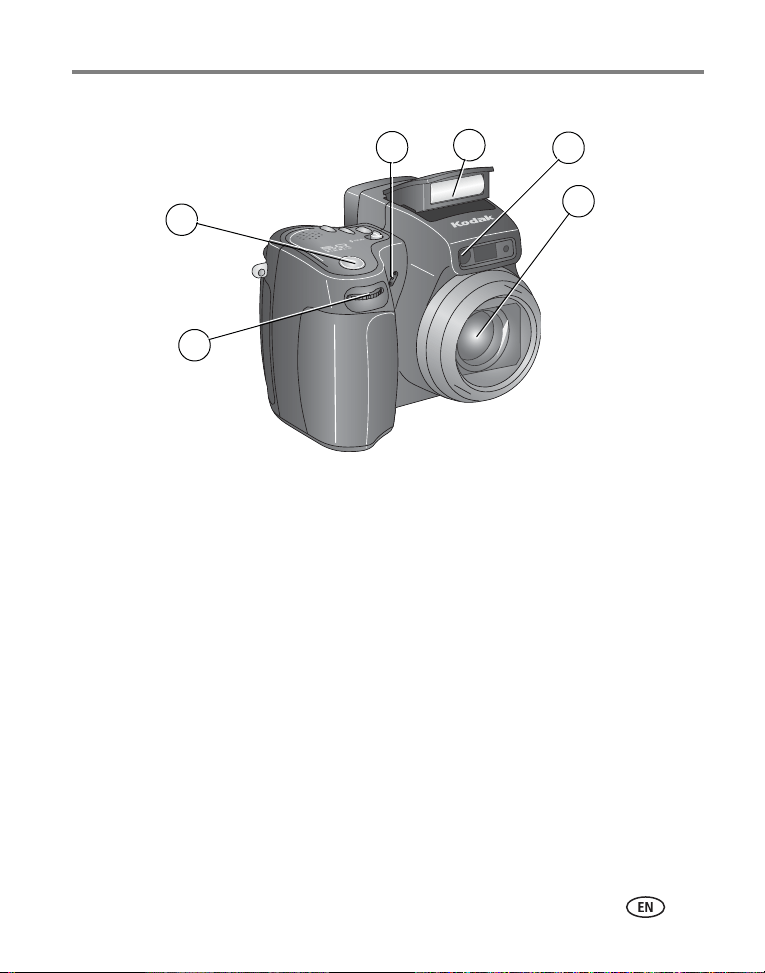
Top, front view
1 Jog dial 4 Flip-up flash
2 Shutter button 5 Self-Timer/Video light
3 Microphone 6 Lens
4
1
6
2
5
3

ii www.kodak.com/go/support
Product features
Side views
1 SD/MMC card slot 5 USB port/ DC-In/ A/V-Out cover
2 Diopter dial 6 USB port
3 External flash connector 7 DC-In (5V)
4 External-flash-connector cover 8 A/V Out (for TV viewing)
3
1
4
5
6
8
7
2

Product features
www.kodak.com/go/support
iii
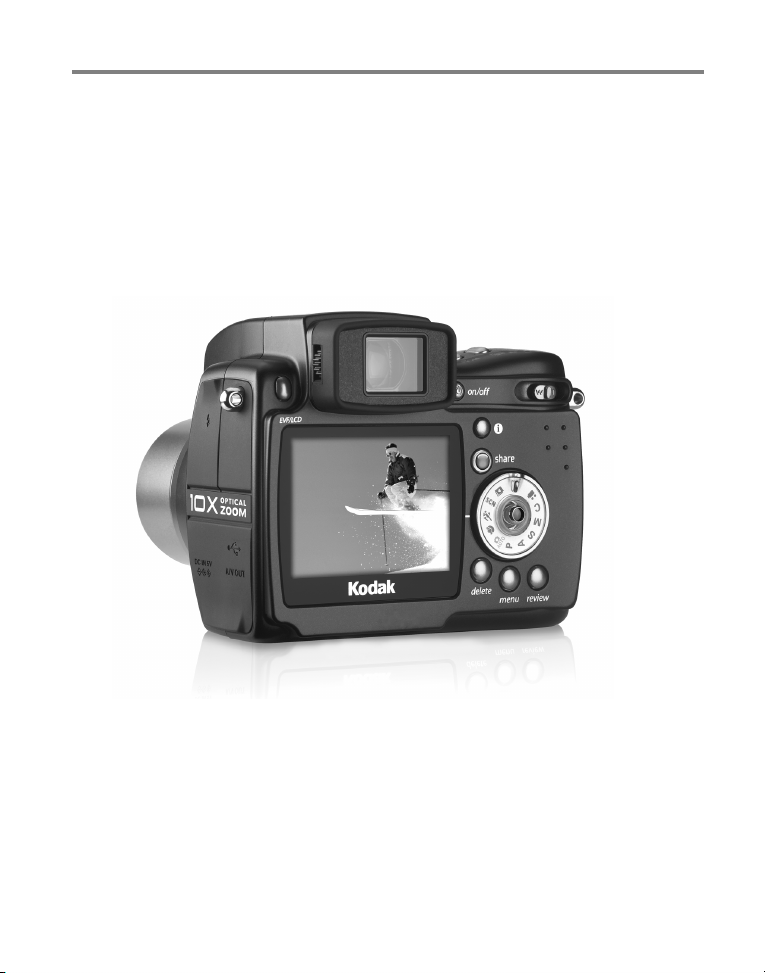
Back view
1 Neck strap post 10 Mode dial
2 EVF/LCD toggle button 11 Review button
3 EVF (Electronic Viewfinder) 12 Menu button
4 On/Off button 13 Delete button
5 Zoom (Wide Angle/Telephoto) 14 Power ring
6 Neck strap post 15 LCD screen (Liquid Crystal Display)
7 Status button
8 Share button
9 Joystick (move );
OK button (press)
32
6
7
8
1
5
10
13
11
4
15
12
14
9
iv www.kodak.com/go/support
Product features
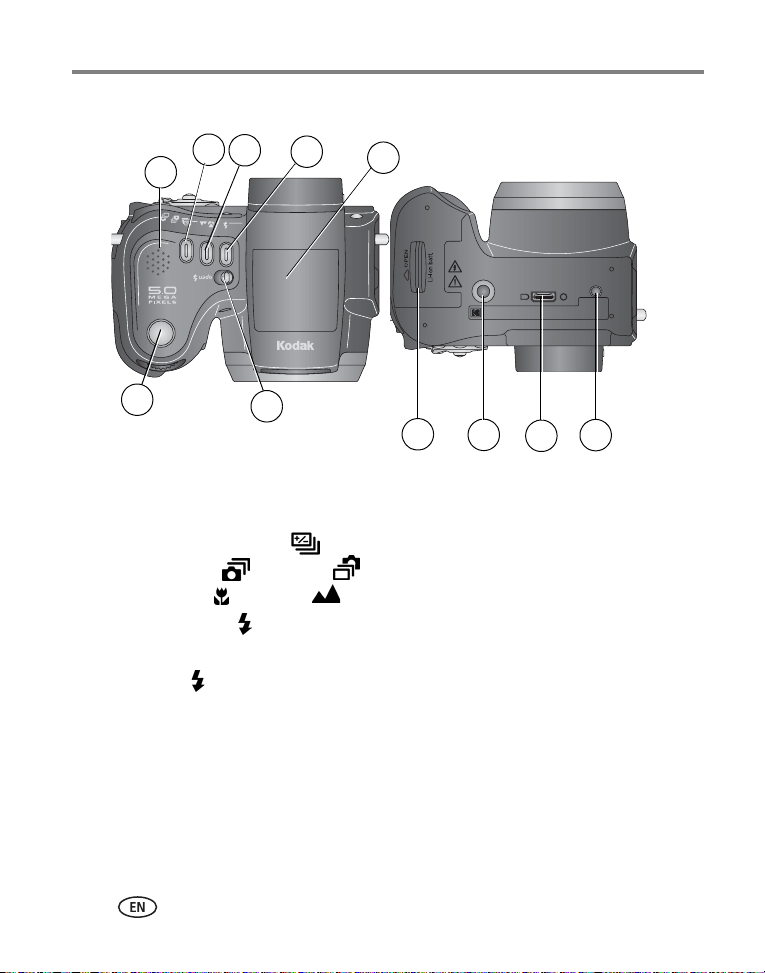
Top and bottom views
Top Bottom
1 Speaker 8 Battery door
2
3
Exposure bracketing /
First burst /Last burst button
Close-up /Landscape button
9 Tripod socket/locator for
EasyShare camera dock or
printer dock
4 Flash button 10 Dock connector
5
6
Flip-up flash
Open flash switch
11 Locator for EasyShare camera
dock or printer dock
7 Shutter button
3
4
1
7
2
5
9
8
10
11
6

www.kodak.com/go/support v
Table of contents 1
1 Getting started ......................................................................................1
Installing the software first ............................................................................1
Charging the battery .....................................................................................1
Inserting the battery......................................................................................2
Important battery information .......................................................................2
Battery safety and handling ...........................................................................4
Turning the camera on and off ......................................................................5
Setting the language.....................................................................................5
Setting the date and time.............................................................................. 6
Changing the display, EVF or LCD..................................................................7
Checking camera and picture status ..............................................................7
Storing pictures on a SD or MMC card ........................................................... 8
2 Taking pictures and videos ....................................................................9
Taking a picture ............................................................................................9
Taking a video ............................................................................................14
Quickview—Reviewing the picture or video just taken.................................15
Using optical zoom .....................................................................................16
Using advanced digital zoom.......................................................................16
Picture-taking modes ..................................................................................17
Using the flip-up flash.................................................................................23
Using an external flash unit.........................................................................27
Shooting close-up and landscape pictures....................................................27
Using exposure bracketing ..........................................................................28
Using burst ................................................................................................. 29
Changing picture-taking settings .................................................................30
Using setup to customize your camera.........................................................36
Putting yourself in the picture or video.........................................................38
Pre-tagging for album names ......................................................................39
Tips for better pictures ................................................................................40

vi www.kodak.com/go/support
Table of contents
3 Reviewing pictures and videos ............................................................45
Viewing single pictures and videos ..............................................................45
Viewing multiple pictures and videos...........................................................47
Playing a video............................................................................................47
Deleting pictures and videos........................................................................48
Magnifying pictures.....................................................................................48
Changing optional review settings...............................................................49
Protecting pictures and videos from deletion................................................49
Viewing picture/video information ...............................................................50
Tagging pictures/videos for albums..............................................................50
Running a slide show ..................................................................................51
Displaying pictures and videos on a television..............................................52
Copying pictures and videos........................................................................53
4 Installing the software ........................................................................54
Install the software .....................................................................................55
5 Sharing pictures and videos ................................................................56
When can I tag my pictures and videos? ......................................................56
Tagging pictures for printing........................................................................57
Tagging pictures and videos for emailing .....................................................58
Tagging pictures as favorites .......................................................................59
6 Transferring and printing pictures .......................................................62
Transferring pictures/videos with the USB cable ...........................................62
Printing from a Kodak EasyShare printer dock or your computer...................63
Printing from an optional SD or MMC card ..................................................63
Ordering prints online .................................................................................63
Direct printing with a PictBridge-enabled printer..........................................64
Dock compatibility for your camera..............................................................66

Table of contents
www.kodak.com/go/support
vii
7 Troubleshooting ..................................................................................67
Camera problems........................................................................................ 67
Computer/connectivity problems..................................................................70
Picture quality problems..............................................................................70
Power-ring-light status................................................................................72
Direct printing (PictBridge) problems............................................................73
8 Getting help ........................................................................................74
Helpful links................................................................................................74
Telephone customer support .......................................................................75
9 Appendix .............................................................................................76
Camera specifications .................................................................................76
Storage capacities.......................................................................................79
Power-saving features.................................................................................81
Accessories ................................................................................................82
Upgrading your software and firmware........................................................83
Additional care and maintenance ................................................................ 83
Warranty..................................................................................................... 84
Regulatory compliance ................................................................................86

viii www.kodak.com/go/support
www.kodak.com/go/support 1
1 Getting started
Installing the software first
IMPORTANT:
Install the software from the Kodak EasyShare software CD before
connecting the camera (or dock) to the computer. Otherwise, the software
may install incorrectly. See the Start Here! guide or
Install the software,
page 55.
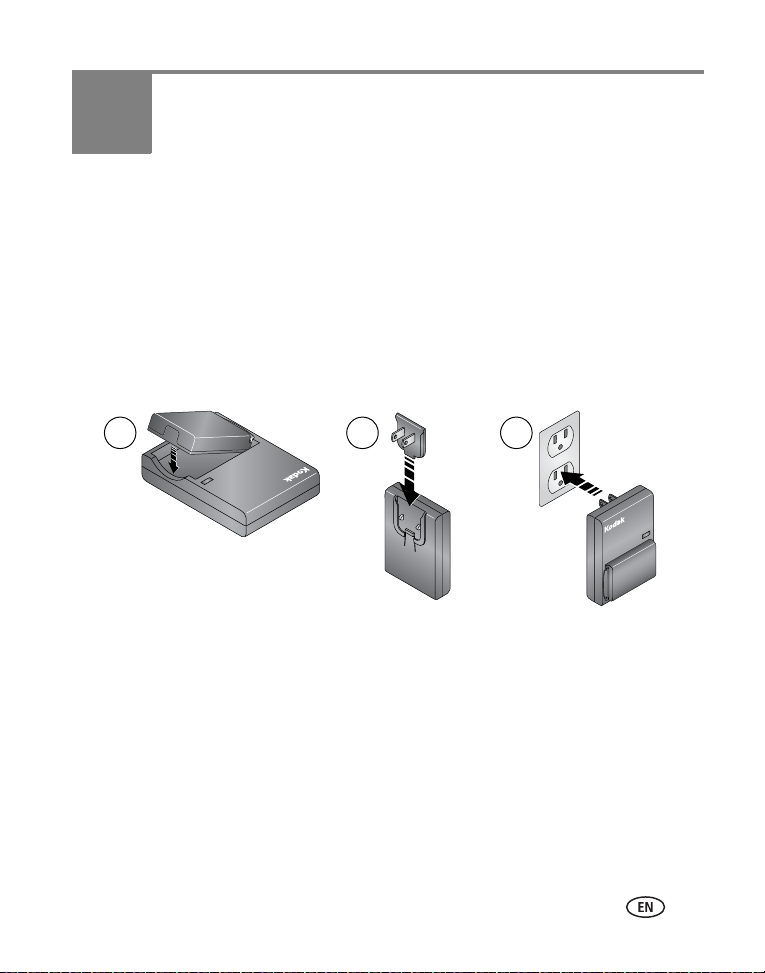
Charging the battery
The Li-Ion rechargeable battery requires charging before first use.
1 Insert the battery into the charger.
2 Insert the plug that matches your electrical outlet.
3 Plug the charger into the outlet.
The indicator light turns red. When the indicator light turns green, remove the battery
and unplug the charger. Charging takes approximately 3 hours.
You can also charge the battery using an optional Kodak EasyShare printer dock or
camera dock. Purchase these and other accessories at a dealer of Kodak products or
visit
www.kodak.com/go/z7590accessories.
1 2 3

2 www.kodak.com/go/support
Getting started
Inserting the battery
CAUTION:
Use only a Kodak EasyShare Li-Ion rechargeable battery.
1 Make sure the camera is turned off.
2 On the bottom of the camera, slide the battery door
and lift to open.
3 Insert the battery as shown. Push the battery
completely into the battery compartment.
4 Close the battery door.
Important battery information
Kodak battery replacement types/battery life
Actual battery life may vary based on usage.
We recommend using only a Kodak EasyShare Li-Ion rechargeable battery. Not all
manufacturers’ 3.7V Li-Ion rechargeable batteries are compatible with the camera.
Damage caused by unauthorized accessories is not covered under warranty.
Optional battery: You can use a Kodak EasyShare Li-Ion rechargeable battery, 1050
mAh, but it is a lower power battery. Expect approximately 30% fewer pictures per
full charge than with the 1700 mAh battery included with your camera.
0
400
275-325
Li-Ion rechargeable battery,
Battery Life (Approx. number o
f pictures)
1700 mAh (KLIC 5001)
(included with camera)

Getting started
www.kodak.com/go/support
3
Extending battery life
■ Limit the following activities that deplete battery power:
–Using Quickview (page 15)
– Excessive use of the flash
– Using the LCD screen; utilize the EVF screen instead.
■ Dirt on the battery contacts can affect battery life. Wipe the contacts with a clean,
dry cloth before inserting a battery in the camera.
■ Battery performance is reduced at temperatures below 41° F (5° C). When using
your camera in cold weather, carry spare batteries and keep them warm. Do not
discard cold batteries that do not work; when they return to room temperature,
they may be
usable.
Visit www.kodak.com/go/z7590accessories for:
Kodak EasyShare camera dock—powers your camera, transfers pictures to your
computer, and charges your battery.
Kodak EasyShare printer dock—powers your camera, makes
4 x 6 in. (10 x 15 cm) prints with or without a computer, transfers pictures, and
charges your battery.
Kodak 5-volt AC adapter—powers your camera.

4 www.kodak.com/go/support
Getting started
Battery safety and handling
CAUTION:
When removing batteries, allow them to cool first; batteries may
be hot.
■ Read and follow all warnings and instructions supplied by the battery
manufacturer.
■ Use only batteries that are approved for this product.
■ Keep batteries out of the reach of children.
■ Do not allow batteries to touch metal objects, including coins. Otherwise, a battery
may short circuit, discharge energy, become hot, or leak.
■ Do not disassemble, install backward, or expose batteries to liquid, moisture, fire,
or extreme temperature.
■ Remove battery when the product is stored for an extended period of time. In the
unlikely event that battery fluid leaks inside the product, contact your local Kodak
Customer Service representative.
■ In the unlikely event that battery fluid leaks onto your skin, wash immediately with
water and contact your local health provider. For additional health-related
information, contact your local Kodak Customer Service representative.
■ Dispose of batteries according to local and national regulations.
■ Do not charge non-rechargeable batteries.

Getting started
www.kodak.com/go/support
5
Turning the camera on and off
■ Press the On/Off button.
Your camera is ready to take pictures when the Power
ring stops blinking.
The EVF or the LCD screen turns on, depending on
which display was last used.
■ Press the On/Off button to turn off
the camera.
The camera completes operations that are
in process.
Setting the language
1 Turn on the camera. Press the Menu button.
2 Move the Joystick to highlight Setup Menu , then press the
OK button.
3 Move the Joystick to highlight Language , then press the
OK button.
4 Move the Joystick to choose a language: English, German, Spanish, French,
Italian, Portuguese, Chinese, Korean, or Japanese.
5 When finished, press the OK button.
6 Press the Menu button to exit the menu.
Power ring

6 www.kodak.com/go/support
Getting started
Setting the date and time
Setting the date & time, first time
The message
Date and Time have been reset
appears the first time you turn on the
camera or if the battery is removed for an extended time.
1 SET DATE & TIME is highlighted. Press the OK button.
2 Go to step 4 in Setting the date & time, anytime.
Setting the date & time, anytime
1 Turn on the camera. Press the Menu button.
2 Move the Joystick to highlight Setup Menu , then press the
OK button.
3 Move the Joystick to highlight Date & Time , then press the
OK button.
4 Move the Joystick to adjust the date and time. Move the
Joystick to advance to the next setting.
5 When finished, press the OK button.
6 Press the Menu button to exit the menu.
NOTE: Depending on your computer operating system, Kodak EasyShare software may update the camera
clock when you connect the camera. See the EasyShare software Help for details.
Getting started
www.kodak.com/go/support
7
Changing the display, EVF or LCD
Your camera has an Electronic Viewfinder (EVF). The EVF, like the LCD (Liquid Crystal
Display) screen, displays what the camera captures.
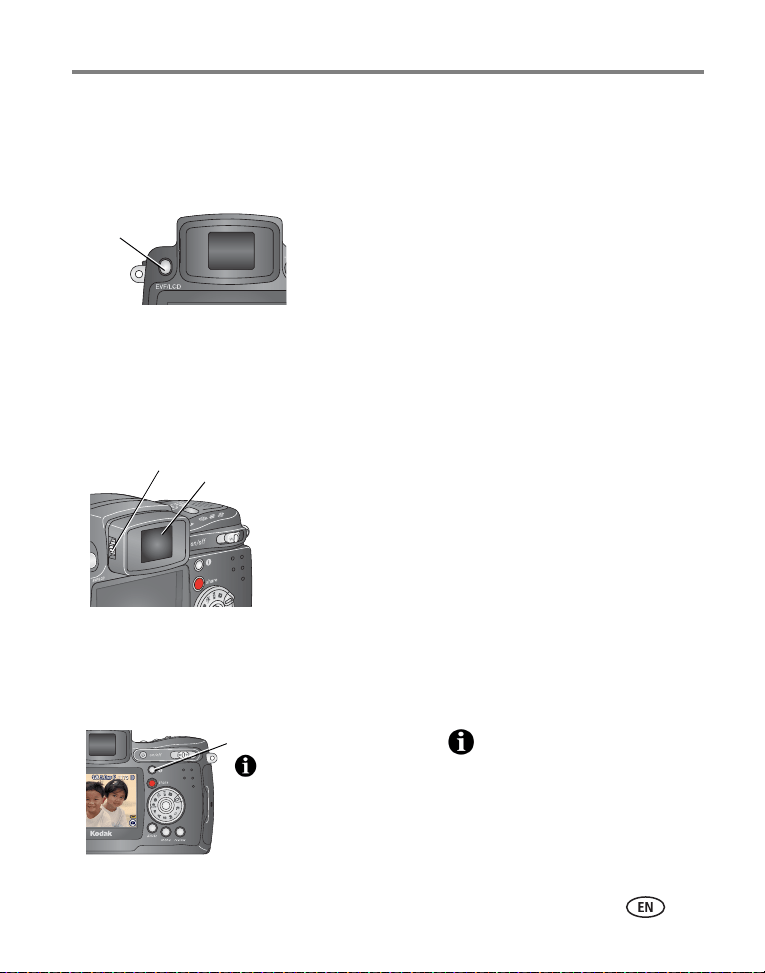
Press the EVF/LCD toggle button to change the
screen from EVF to LCD, and back.
The selection remains until you press
the button again.
NOTE: The EVF/LCD screen turns off after 1 minute if no pictures are taken. Press any button to turn the
display back on.
Using the diopter dial
You can adjust the EVF sharpness for your eyesight.
■ Look through the EVF.
■ Turn the Diopter dial until the viewfinder image is
sharp.
Checking camera and picture status
The icons that appear on the EVF/LCD screen indicate the active camera and picture
settings.
Press the Status button to turn the icons off
and on.
EVF/LCD
toggle
button
EVF
Diopter dial
Status
button

8 www.kodak.com/go/support
Getting started
Storing pictures on a SD or MMC card
Your camera has 32 MB of internal memory. You can purchase optional SD cards at a
dealer of Kodak products or at
www.kodak.com/global/en/digital/accessories for
removable, reusable storage for your pictures and videos.
NOTE: We recommend Kodak SD or MMC cards. Other SD brands are acceptable, but must possess the SD
logo. (The SD logo is a trademark of the SD Card Association.) When using the card for the
first time, format it in this camera before taking pictures (see page 38).
CAUTION:
The card can only be inserted one way; forcing it may damage the
camera or card. Do not insert or remove a card when the green
ready light is blinking; doing so may damage your pictures, card,
or camera.
1 Turn off the camera, then open the card door.
2 Orient the card as shown on the camera body.
3 Push the card all the way into the slot.
4 Close the door.
To remove the card, turn off the camera. Push the
card in, then release it. When the card is partially
ejected, pull it out.
See page 79 for storage capacities.

www.kodak.com/go/support 9
2 Taking pictures and videos
Taking a picture
The camera is always ready to take pictures—in Review, Share, or Setup but not in
Favorites. (In Video mode, the camera captures video.)
1 Press the On/Off button.
2 Turn the Mode dial to the desired setting.
NOTE: Use Auto for general picture-taking situations. (See page 17 for other camera-mode options.)
3 Use the EVF or LCD
screen to frame your subject. (Press the EVF/LCD toggle button
to switch to the other. See
page 7.)
The EVF/LCD screen displays a mode description and a live view.
NOTE: To take flash pictures, open the flip-up flash (see page 20). An Open Flash warning appears on the
EVF/LCD screen when the flash unit needs to be open.

10 www.kodak.com/go/support
Taking pictures and videos
4 Press the Shutter button halfway to set the Auto Focus (AF) and Auto
Exposure (AE).
The AF/AE indicator is displayed. If the focus and/or exposure fails, recompose the shot
and try again.
5 Continue pressing the Shutter button completely down to take the picture.
EVF screen
LCD screen
green—successful
red—failed
failed exposure
AF/AE indicator:
failed focus
AF/AE indicator

Taking pictures and videos
www.kodak.com/go/support
11
Using the auto-focus framing marks
When using the camera EVF/LCD screen as a viewfinder, framing marks indicate
where the camera is focusing. For the best pictures, the camera attempts to focus on
foreground subjects, even if the subjects are not centered in the scene.
1 Press the Shutter button halfway and hold.
When the framing marks turn from blue to green, focus is accomplished.
2 If the camera is not focusing on the desired subject (or if the framing marks
disappear), release the Shutter button and recompose the scene.
3 Press the Shutter button completely down to take the picture.
NOTE: Framing marks do not appear in Landscape or Video mode. When you use Focus
Zone (page 33) and set Center Zone, the framing marks are fixed at Center Wide.
While the shutter button is pressed halfway:
Center focus
Center wide focus
Side focus
Center and side focus
Left and right focus
Framing marks
12 www.kodak.com/go/support
Taking pictures and videos
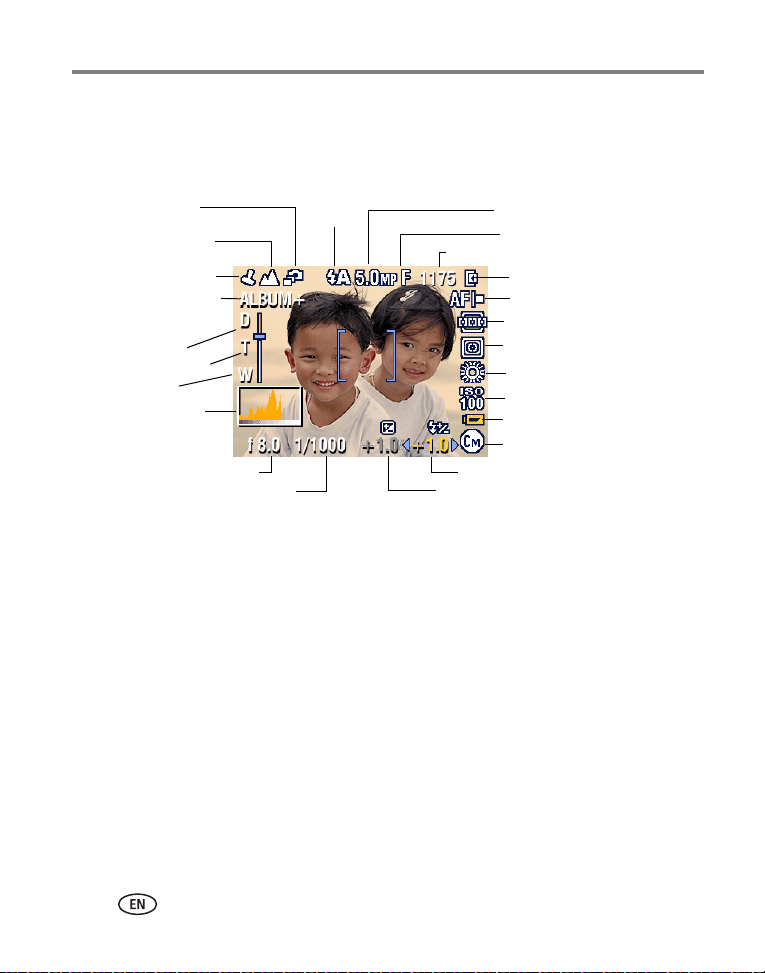
Capture modes
Only active camera settings are displayed:
NOTE:
A histogram shows the distribution of the subject’s brightness. If the peak is to
the far right of the graph, the subject is too bright; if it is to the left, it is too
dark. Optimal exposure is achieved when the peak is in the middle of the
histogram.
Exposure compensation
Camera mode
Low battery
Date stamp
Landscape/
Flash
Picture size
Pictures/time remaining
Storage location
ISO
White balance
Zoom:
digital
telephoto
wide
Album name
Exposure
metering
Burst/
Compression
Aperture
Shutter speed
Flash compensation
AF mode
Focus zone
Close-up
(flashing = exhausted)
Histogram
metering/
Self-timer
Exposure
mode

Taking pictures and videos
www.kodak.com/go/support
13
Capture modes—shutter pressed halfway
Press the Shutter button halfway to display the active manual settings:
Auto focus
Exposure compensation
Slow shutter speed warning
Shutter speed
Aperture
ISO
framing marks
Flash compensation
Auto Focus/
Auto Exposure
(AF/AE indicator)
Open flash
warning

14 www.kodak.com/go/support
Taking pictures and videos
Taking a video
NOTE: You can change optical zoom before (but not during) video recording.
1 Turn the Mode dial to Video .
2 Press the Menu button. Move the Joystick to highlight Video Size, then
press the OK button.
3 Move the Joystick to highlight the desired Size, then press the
OK button.
4 To eliminate camera noise during recording, turn off Continuous AF
(see page 34).
5 Use the EVF or LCD screen to frame your subject. (Press the EVF/LCD toggle button
to switch to the other screen, see
page 7.)
6 Press the Shutter button completely down and release. To stop recording, press
and release the Shutter button again.
During recording, REC blinks on the screen and the elapsed time is displayed.
NOTE: If you prefer, press the Shutter button completely down and hold it for more than
2 seconds to begin recording. To stop recording, release the Shutter button. Recording also stops if
the storage location is full. See
page 81 for video storage capacities.

Taking pictures and videos
www.kodak.com/go/support
15
Quickview—Reviewing the picture or video just
taken
After you take a picture or video, the EVF or LCD screen displays a Quickview for
approximately 5 seconds. While the picture or video is displayed, you can:
■ Review: If you take no action, the picture/video is
saved.
■ Play (video): Press the OK button to play the
video. Move the Joystick
to adjust the
volume. Press OK again to pause the video.
■ Share: Press the Share button to tag a
picture/video for email (see
page 58) or as a
favorite, or to tag a picture for print. (See page 57.)
■ Delete: Press the Delete button while the
picture/video and
are displayed.
NOTE: Only the final picture of exposure bracketing (see page 28) or
burst series (see page 29) is displayed during Quickview. If
you select Delete, all pictures in the burst series are deleted.
To delete selectively, do so in Review (see
page 48).
OK
Share
Delete

16 www.kodak.com/go/support
Taking pictures and videos
Using optical zoom
Use optical zoom to get up to 10X closer to your subject. Optical zoom is effective
when the lens is no closer than 2 ft (0.6 m) from the subject. (See Tips for better
pictures on
page 40.) You can change optical zoom before (but not during) video
recording.
IMPORTANT:
Place the camera on a sturdy surface or tripod when you take high-zoom
pictures.
1 Use the EVF or LCD screen to frame your subject.
2 Push the Zoom button toward Telephoto (T) to
zoom in. Push it toward Wide Angle (W) to zoom
out.
The EVF or LCD screen displays the zoomed image and
the zoom indicator.
3 Press the Shutter button halfway and hold to set
the exposure and focus, then press completely
down to take the picture. (When taking videos,
press and release the Shutter button.)
Using advanced digital zoom
Use advanced digital zoom in any Still mode to get an additional 3X magnification
beyond optical zoom; available settings are from 12X to 30X.
IMPORTANT:
Place the camera on a sturdy surface or tripod when you take high-zoom
pictures.
1 Push the Zoom button to the telephoto optical zoom limit (10X). Release the
button, then push it again.
The EVF or LCD screen displays the zoomed image and the zoom indicator.
Zoom indicator
Digital zoom range
Optical zoom range

Taking pictures and videos
www.kodak.com/go/support
17
2 Press the Shutter button halfway and hold to set the exposure and focus, then
press completely down to take the picture.
NOTE: You cannot use digital zoom for video recording.
IMPORTANT:
You may notice a decrease in printed image quality when using digital
zoom. The slider on the zoom indicator pauses, then turns red when the
picture size is approximately 1 MP. For an acceptable 4 x 6 in. (10 x 15 cm)
print, ensure that the slider remains blue.
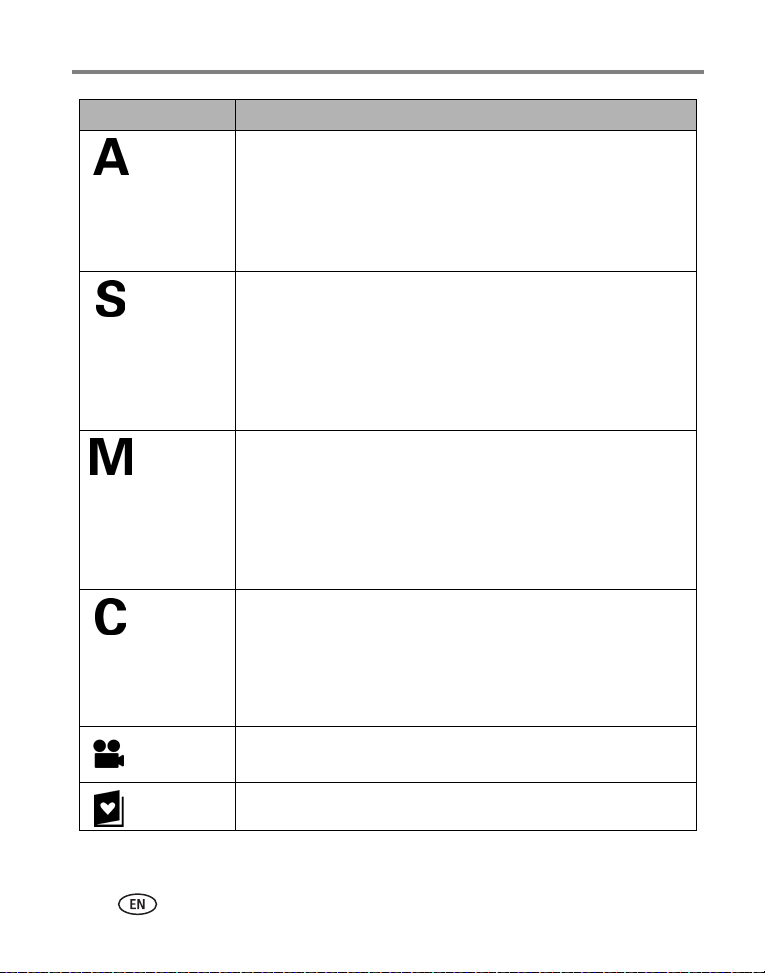
Picture-taking modes
Use this mode For
Auto General picture-taking—offers an excellent balance of image quality
and ease of use.
Program Controlling exposure compensation (how much light enters the
camera) and flash compensation. The camera automatically sets the
shutter speed and aperture (f-stop) based on the scene lighting.
Program mode offers the ease of auto shooting with full access to all
menu options. Use the jog dial to select settings. (See P, A, S, M, and
C modes, page 21.) Press the Menu button to change other settings.
Choose the mode that best suits your
subjects and surroundings.
Mode dial
18 www.kodak.com/go/support
Taking pictures and videos
Aperture
Priority
Controlling aperture, exposure compensation, flash compensation,
and ISO speed. Aperture priority mode is primarily used to control
depth of field (the range of sharpness).
NOTE: The aperture setting may be affected when using optical
zoom. Use the jog dial to select settings. (See
P, A, S, M, and C
modes, page 21.) Press the Menu button to change other settings.
Shutter
Priority
Controlling the shutter speed, exposure compensation, flash
compensation, and ISO speed. The camera automatically sets the
aperture for proper exposure. Shutter priority mode is primarily used
to prevent blur when your subject is moving. To prevent camera
shake, use a tripod for slow shutter speeds. Use the jog dial to select
settings. (See
P, A, S, M, and C modes, page 21.) Press the Menu
button to change other settings.
Manual Enjoying the highest level of creative control. You set the aperture,
flash compensation, shutter speed and ISO speed. Exposure
compensation acts as an exposure meter, recommending the proper
combination of aperture and shutter speed to produce an acceptable
exposure. To prevent camera shake, use a tripod for slow shutter
speeds. Use the jog dial to select settings. (See
P, A, S, M, and C
modes, page 21.) Press the Menu button to change other settings.
Custom The "user-created” mode. For applying P, A, S, M plus any Custom
settings (exposure compensation, flash compensation, ISO speed)
which are saved independent of other camera settings. Use the jog
dial to select settings. (See
P, A, S, M, and C modes, page 21.) Press
the Menu button to choose a capture mode. (See Custom Exposure
Mode, page 30.) Press the Menu button to change other settings.
Video Capturing video with sound. (See page 14.)
Favorites Viewing your favorites. (See page 59.)
Use this mode For

Taking pictures and videos
www.kodak.com/go/support
19
Scene modes
1 Turn the Mode dial to Scene .
2 Move the Joystick to display Scene mode descriptions.
NOTE: If the screen turns off, press the OK button.
3 Press the OK button to choose a Scene mode.
Scene Point-and-shoot simplicity when taking pictures under 14 special
conditions. (See
Scene modes, page 19.)
Sport Subjects that are in motion. Shutter speed is fast. The camera
pre-settings are f/2.8–f/3.7, Multi-Pattern Exposure Metering,
Multi-Zone Focus, ISO 100–ISO 200.
Portrait Full-frame portraits of people. Allows the subject to be sharp and the
background to be indistinct. For best results, position your subject at
least 6 ft (2 m) away and fill the frame with a head and shoulder
pose. Use Telephoto to exaggerate background blur. The camera
pre-settings are f/2.8–f/3.7, Multi-Pattern Exposure Metering,
Multi-Zone Focus, ISO 100.
Use this SCN mode For Camera pre-settings
Close-up Subjects closer than
28 in. (70 cm).
f/2.8–f/3.7, Macro Focus, Center-
Weight Metering, Center-Zone
Focus, ISO 100
Landscape Distant scenery. Flash does not
fire. Auto-focus framing marks
(
page 11) are not available in
Landscape.
f/2.8–f/3.7, Infinity Focus,
Multi-Pattern Exposure Metering,
Daylight White Balance, ISO 100
Night
Portrait
Reduces red eye of people in
night scenes or low-light
conditions. Place the camera on
a flat, steady surface or use a
tripod.
f/2.8–f/3.7, Multi-Pattern Exposure
Metering, Multi-Zone Focus, ISO 140
Use this mode For

20 www.kodak.com/go/support
Taking pictures and videos
Night
Landscape
Distant scenery at night. Flash
does not fire. Place the camera
on a flat, steady surface or use
a tripod.
f/2.8–f/3.7, Infinity Focus, Daylight
White Balance, Center-Weight
Metering, ISO 100
Snow Bright snow scenes. f/2.8–f/3.7, +1 Exposure
Compensation, Center-Weight
Metering, Multi-Zone Focus, ISO 100
Beach Bright beach scenes. f/2.8–f/3.7, +1 Exposure
Compensation, Center-Weight
Metering, Daylight White Balance,
ISO 100
Text Documents. f/2.8–f/3.7, Macro Focus, +1
Exposure Compensation,
Center-Weight Metering, ISO 140
Fireworks Flash does not fire. Place the
camera on a flat, steady surface
or use a tripod.
f/5.6, 2 second exposure, Infinity
Focus, Center-Weight Metering,
Daylight White Balance, ISO 100
Flower Close-ups of flowers or other
small subjects in bright light.
f/2.8–f/3.7, Macro Focus, Daylight
White Balance, Center-Zone Focus,
Center-Weight Metering, ISO 140
Manner/
Museum
Quiet occasions, like a wedding
or lecture. Flash and sound are
disabled.
f/2.8–f/3.7, no sounds, no flash,
Multi-Pattern Exposure Metering,
Multi-Zone Focus, ISO 100
Self-
Portrait
Close-ups of yourself. Assures
proper focus and minimizes red
eye.
f/2.8, Macro Focus, Multi-Pattern
Exposure Metering, Multi-Zone
Focus, Red-Eye Flash, ISO 100
Party People indoors. Minimizes red
eye.
f/2.8–f/3.7, Multi-Pattern Exposure
Metering, Multi-Zone Focus, Red-Eye
Flash, ISO 140
Use this SCN mode For Camera pre-settings

Taking pictures and videos
www.kodak.com/go/support
21
P, A, S, M, and C modes
Settings you change in P, A, S or M modes apply only to pictures taken in those
modes. Settings you change in C mode apply only to pictures taken in that mode.
For example, if you change the Color Mode to Sepia while in P, A, S, or M mode, you
still retain the default setting of Color for Auto and Scene modes.
NOTE: The settings, including Flash, are maintained for P, A, S, M, and C modes—even when you change
modes or turn off the camera. Use Reset to Default (see
page 34) to reset P, A, S, M, or C mode to
its default setting.
Aperture—also known as f-stop, controls the size
of the lens opening, which determines the depth of
field. Smaller f-numbers, for example f/2.8, refers to
a bigger lens opening. Larger f-numbers, for
example f/8, refers to a smaller lens opening.
Larger f-numbers keep the main subject sharp;
good for landscapes and well-lit conditions. Smaller
f-numbers are good for portraits and low-light
conditions. The highest and lowest aperture
numbers may be affected by optical zoom.
Children Action pictures of children in
bright light.
f/2.8–f/3.7, Multi-Pattern Exposure
Metering, Multi-Zone Focus, ISO 140
Backlight Subjects that are in shadow or
“backlit” (when light is behind
the subject).
f/2.8–f/3.7, Multi-Pattern Exposure
Metering, Multi-Zone Focus,
Fill-Flash, ISO 100
Use this SCN mode For Camera pre-settings
Aperture
Shutter
Exposure
ISO
compensation
Flash
compensation
speed
Mode setting

22 www.kodak.com/go/support
Taking pictures and videos
Shutter speed—controls how long the shutter stays open. A shaking hand icon
warns of slow shutter speeds. (Use a tripod for slow shutter speeds.)
Exposure Compensation—allows the user to manually adjust the exposure;
good for controlling backlit or non-standard scenes. If the picture is too light,
decrease the setting; if it’s too dark, increase the setting.
Flash Compensation—controls the flash brightness (+0.5, +1.0, –0.5, –1.0).
You must be within flash range. Unavailable if flash setting is Off.
ISO—controls sensitivity of the camera sensor (80,100, 200, 400, 800). Higher
settings are more sensitive to light, but may produce unwanted “noise” in a
picture. You can only use ISO 800 if you are in the 1.8 MP Picture Size setting. (See
Picture Size, page 31.)
See Tips for better pictures on
page 40
.
Using the jog dial to change P, A, S, M, or C mode settings
The Jog dial controls the f-number, shutter speed, exposure and flash compensations,
and ISO. Use the Menu button to control all other settings.
the cursor or
• Rotate to move
change settings.
• Press to open
or save settings.
Jog dial:
P, A, S, M, or C mode options
Yellow—changeable value
Red—out of range
White—selectable
Grey—non-selectable

Taking pictures and videos
www.kodak.com/go/support
23
1 Turn the Mode dial to P, A, S, M, or C.
The mode options are displayed.
2 Use the Jog dial:
■ Rotate the Jog dial to move the cursor between
the available settings.
■ Press the Jog dial to open a setting.
■ Rotate the Jog dial to change the setting .
■ Press the Jog dial to save the setting.
3 Press the Menu button to change other settings (see page 30).
4 Take a picture.
Using the flip-up flash
Use the flash when you take pictures at night, indoors, or outdoors in heavy shadows.
You can change the flash setting in most Still modes, except Burst; the default setting
is restored when you exit the mode or turn off the camera.
Turning on the flash
Slide the open flash switch to raise
the flash and to turn it on.
NOTE: The flash unit must be open
to use the flash and to change the flash
modes. An Open Flash warning appears
on the EVF/LCD screen when the flash unit
needs to be open.
open
switch

24 www.kodak.com/go/support
Taking pictures and videos
Changing the flash settings
Flash-to-subject distance
Zoom position Flash distance
Wide angle 2–16.1 ft (0.6–4.9 m) @ ISO 140
Telephoto 6.6–12.1 ft (2.0–3.7 m) @ ISO 140
Flash-icon
behavior
Cause Action
Blinking Flash is charging. Wait. Take picture when the icon stops
blinking.
Flash button is pressed, flash
unit is closed.
Open flash unit or take the picture without
flash.
Flash modes Flash fires
Auto
Flash
When the lighting conditions require it.
Fill Every time you take a picture, regardless of the lighting conditions. Use
when the subject is in shadow or is “backlit” (when the light is behind
the subject). In low light, hold the camera steady or use a tripod. See
Tips for better pictures on
page 40.
Press the flash button repeatedly to scroll
through the flash modes (see Flash modes
table).
NOTE: The active flash icon is displayed in
the EVF/LCD screen status area.
button

Taking pictures and videos
www.kodak.com/go/support
25
NOTE: Rear-curtain-flash sync
activates automatically when the flash is fired and the shutter speed is set at
1/30 second or longer. The flash fires just before the shutter closes to create a stream-of-light effect
behind a moving object for a more natural appearance. This feature prevails only in S, M, and C and
in Night portrait mode.
Flash settings in each mode
Flash settings are pre-set for each picture-taking mode.
Red-eye Once, so the subject’s eyes become accustomed to the flash, then fires
again when the picture is taken. (If the lighting conditions require flash
but do not require Red-eye reduction, the flash may fire only once.)
Off Never
Capture modes Default setting Available settings
Auto Auto* Auto, Off, Fill Flash, Red-eye
Portrait Auto* Auto, Off, Fill Flash, Red-eye
Sport Auto* Auto, Off, Fill Flash, Red-eye
P, A, S, M, or C Auto* Auto, Off, Fill Flash, Red-eye
Scene modes
Close-up Off Auto, Off, Fill Flash
Landscape Off Off
Night Portrait Red-eye* Auto, Off, Fill Flash, Red-eye
Night Landscape Off Off
P, A , S ,
M, C

26 www.kodak.com/go/support
Taking pictures and videos
* When you change to Auto or Red-eye in these modes, it becomes the default until
you change it.
Snow Auto* Auto, Off, Fill Flash, Red-eye
Beach Auto* Auto, Off, Fill Flash, Red-eye
Text Off Auto, Off
Fireworks Off Off
Flower Off Auto, Off, Fill Flash
Manner/Museum Off Off
Self-Portrait Red-eye* Auto, Off, Fill Flash, Red-eye
Party Red-eye* Auto, Off, Fill Flash, Red-eye
Children Auto* Auto, Off, Fill Flash, Red-eye
Backlight Fill Fill
Video Off Off
First burst Off Off
Last burst Off Off
Exposure
bracketing
Off Off
Capture modes Default setting Available settings

Taking pictures and videos
www.kodak.com/go/support
27
Using an external flash unit
Use an external flash unit when you want additional or specialized lighting. You can
use the camera’s built-in flash, as well, to provide extra fill flash.
1 Turn off the camera and flash unit.
2 Open the External-flash-connector cover.
3 Plug your external-flash-unit cable into the External
flash connector on the camera.
The external flash unit is live when connected to the
camera. The flash synchronizes at any shutter speed.
Refer to your external flash unit user’s guide for details.
NOTE: The connector accepts all standard external flash cables,
maximum 500 volts.
Shooting close-up and landscape pictures
Use the Close-up/Landscape button to take pictures of scenes that are very
close or very far away. (Not available in Scene modes.)
1 Set the Mode dial to any Capture mode.
2 Press the Close-up/Landscape button
repeatedly until the or icon appears in the
status bar.
3 Take a picture.
External-flash-
connector cover
External flash
connector
Close-up/Landscape

28 www.kodak.com/go/support
Taking pictures and videos
Close-up pictures
Use the Close-up setting to gain sharpness and detail in pictures at close range.
Use available light instead of flash if possible. The camera automatically sets the focus
distance depending on the zoom position:
See Tips for better pictures on
page 40
.
Landscape pictures
Use the Landscape setting to gain maximum sharpness of far away scenes. With
this setting, the camera uses infinity auto-focus. Auto-focus framing marks (see
page 11) are not available in Landscape.
Using exposure bracketing
1 Set the exposure bracketing interval. (See Exposure Bracketing Interval, page 32.)
2 In most Still modes, press the Exposure bracketing button repeatedly to choose
.
3 Press the Shutter button halfway and hold to set the auto focus and exposure.
4 Press the Shutter button completely down to take the pictures.
The camera takes 3 pictures. To evaluate them, press the Review button. Exposure
bracketing turns off after the pictures are taken.
Zoom position Close-up distance
Wide angle 4.7 to 27.6 in. (0.12 to 0.7 m)
Telephoto 3.9 to 6.9 ft (1.2 to 2.1 m)
Option Description Purpose
Exposure
Bracketing
The camera takes 3 pictures —
one at +, one at 0, and one
at –exposure.
Determine the best exposure level for
your conditions based on your evaluation
of 3 pictures.

Taking pictures and videos
www.kodak.com/go/support
29
Using exposure compensation with exposure bracketing
In P, A, and S modes, you can use exposure compensation in conjunction with
exposure bracketing.
Using burst
If exposure
compensation is
set to
And if the exposure
bracketing interval is
set to
Then the exposures taken
are
0.0
the default +/-0.3
–0.3, 0.0, +0.3
+1.0 +0.7, +1.0, +1.3
–1.0 –1.3, –1.0, –0.7
Option Description Purpose
First
Burst
Camera takes up to 5 pictures (2 per second) while the
Shutter button is pressed.
Capture an expected
event.
Example:
A person swinging a
golf club.
Last
Burst
Camera takes up to 30 pictures (2 per second for up to
15 seconds) while the Shutter button is pressed. When
the Shutter button is released, only the last 4 pictures
are saved.
Capture an event
when the precise
timing is uncertain.
Example:
A child blowing out
birthday candles.
First 5 pictures
are saved.
Last 4 pictures
are saved.

30 www.kodak.com/go/support
Taking pictures and videos
1 In most Still modes, press the Burst button repeatedly to choose an option.
2 Press the Shutter button halfway and hold to set the auto focus and exposure.
3 Press the Shutter button completely down and hold it to take the pictures.
The camera stops taking pictures when you release the Shutter button, when the
pictures are taken, or when there is no more storage space.
NOTE: The EVF/LCD screen will not display during burst.
Changing picture-taking settings
You can change settings to get the best results from your camera:
1 Turn the Mode dial to the desired mode.
2 Press the Menu button. (Some settings are unavailable in some modes.)
3 Move the Joystick to highlight a setting, then press the OK button.
4 Choose an option, then press the OK button.
5 Press the Menu button to exit.
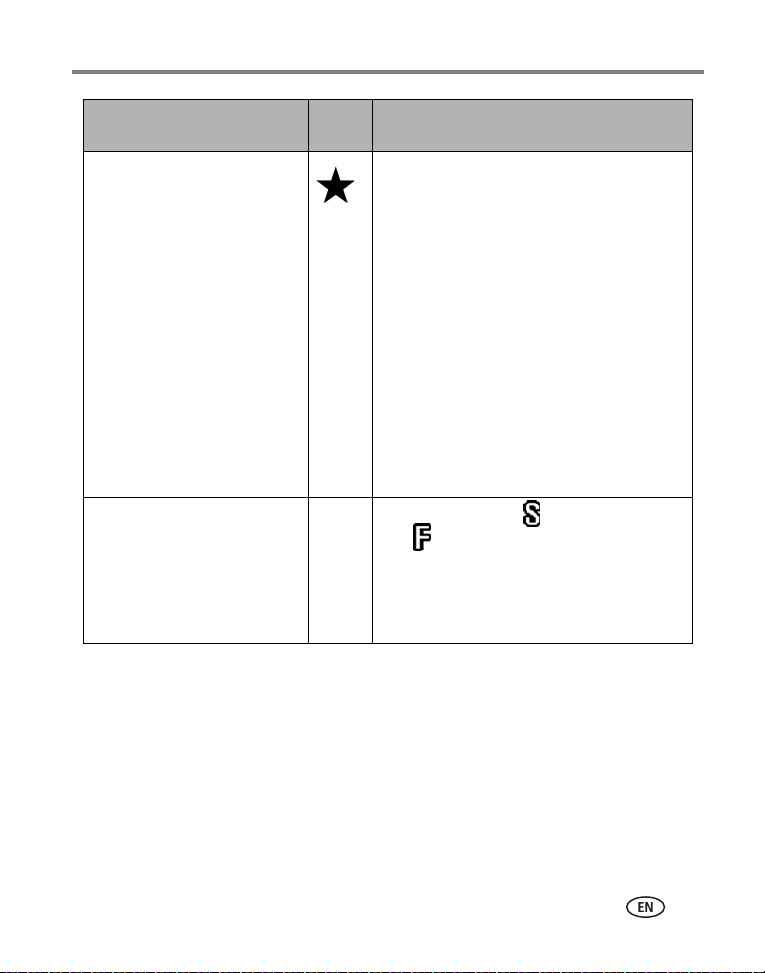
Setting Icon Options and icons
that appear in Liveview
Custom Exposure Mode
Choose a preferred capture
mode. (See
Custom, page 18.)
This setting remains until you
change it.
Program (default)
Aperture Priority
Shutter Priority
Manual
Available only in Custom (C) mode.
Self-Timer
Turn the Self-Timer on or off.
This setting remains until you take
the picture, turn the Mode dial, or
turn off the camera.
On
Off (default)
P
ASM
Taking pictures and videos
www.kodak.com/go/support
31
Picture Size
Choose a picture resolution.
This setting remains until you
change it.
5.0 MP (default)—for printing up to
20 x 30 in. (51 x 76 cm); pictures are highest
resolution and largest file size.
4.4 MP (3:2)— ideal for printing 4 x 6 in.
(10 x 15 cm) prints without cropping. Also for
printing up to 20 x 30 in. (51 x 76 cm)
4.0 MP— for printing up to 20 x 30 in.
(51 x 76 cm); pictures are medium resolution
with smaller file size.
3.1 MP—for printing up to 11 x 14 in.
(28 x 36 cm); pictures are medium resolution
with smaller file size.
1.8 MP—for printing 4 x 6 in.
(10 x 15 cm) prints, emailing, Internet, screen
display, or for conserving space.
Compression
Choose a compression.
This setting remains until you
change it. The setting is displayed
in the status area as
“S” or “F.”
Standard (default)
Fine
NOTE: The Fine setting renders a larger file size.
Setting Icon Options and icons
that appear in Liveview
JPG
32 www.kodak.com/go/support
Taking pictures and videos
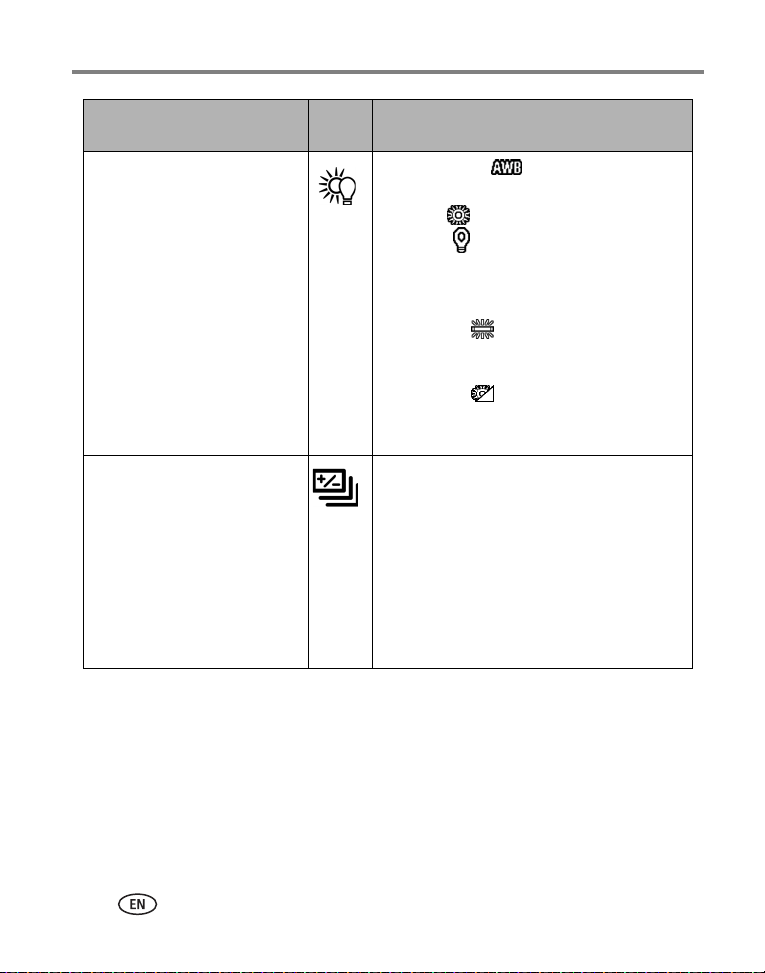
White Balance
Choose your lighting condition.
The EVF/LCD screen displays the
chosen White Balance. This setting
remains until you change it.
Auto (default) —automatically corrects
white balance. Ideal for general picture-taking.
Daylight —for pictures in natural lighting.
Tungsten —corrects the orange cast of
household light bulbs. Ideal for indoor pictures
under tungsten or halogen lighting without
flash.
Fluorescent —corrects the green cast of
fluorescent lighting. Ideal for indoor pictures
under fluorescent lighting without flash.
Open Shade —for pictures in the shade in
natural lighting.
Unavailable in Auto, Scene, or Video modes.
Exposure Bracketing
Interval
Choose an exposure bracketing
interval.
P, A, S, M, C: This setting remains
until you change it or take pictures.
Auto, Scene: This setting remains
until you turn the Mode dial or turn
off the camera.
+/– 0.3 EV (default)
+/– 0.7 EV
+/– 1.0 EV
See Using exposure bracketing, page 28.
Setting Icon Options and icons
that appear in Liveview
Taking pictures and videos
www.kodak.com/go/support
33
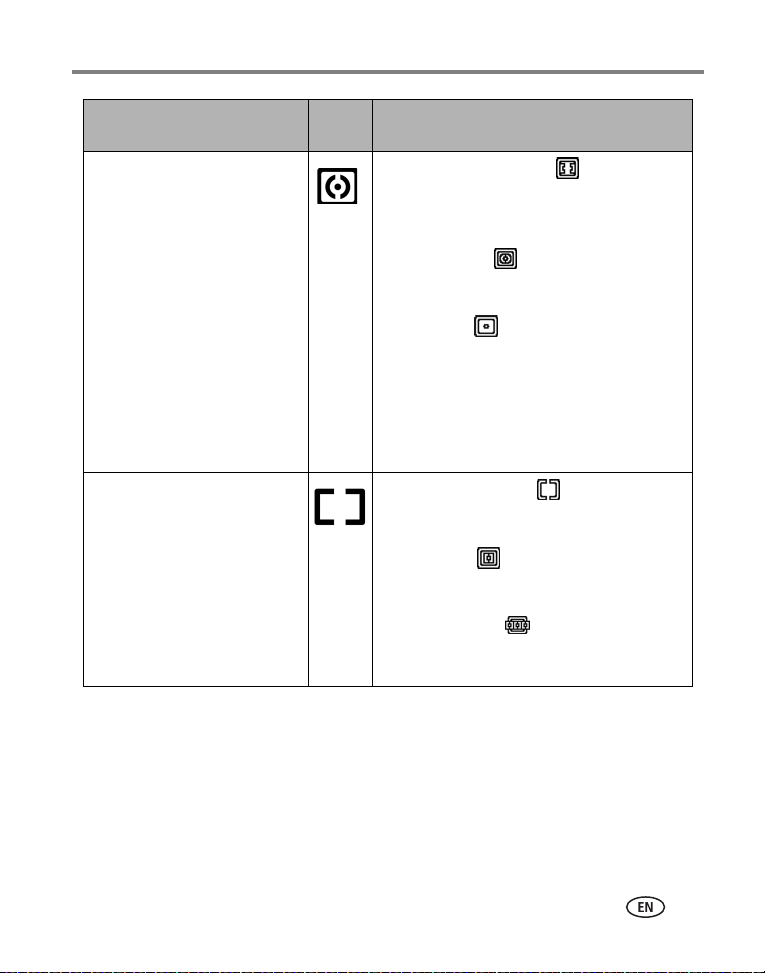
Exposure Metering
Evaluate light levels at specific
areas of a scene.
This setting remains until you
change it. The setting is displayed
on the right side of Liveview if set
to Center-weight or Center-spot.
Multi-Pattern (default) —evaluates
lighting conditions throughout the image to
give an optimum picture exposure. Ideal for
general picture-taking.
Center-Weight —evaluates the lighting
conditions of the subject centered in the
viewfinder. Ideal for backlit subjects.
Center-Spot —similar to Center-weight,
except the metering is concentrated on a
smaller area of the subject centered in the
viewfinder. (A circle indicates the metering
spot.) Ideal when you need an exact exposure
of a specific area in the picture.
Unavailable in Auto, Scene, or Video modes.
Focus Zone
Choose a large or concentrated
area of focus.
This setting remains until you
change it. The setting is displayed
on the right side of Liveview if set
to Center-zone or Selectable-zone.
Multi-Zone (default) —evaluates 3
zones to give an even picture focus. Ideal for
general picture-taking.
Center-Zone —evaluates the small area
centered in the viewfinder. Ideal when precise
focus of a specific area in the picture is needed.
Selectable-Zone —move the focus
brackets to center, left, or right.
Unavailable in Auto, Scene, or Video modes.
Setting Icon Options and icons
that appear in Liveview

34 www.kodak.com/go/support
Taking pictures and videos
AF Control
Choose an auto-focus setting.
This setting remains until you
change it.
Continuous AF (default)—uses external AF
sensor and TTL-AF (Through-The-Lens).
Because the camera is always focusing, there is
no need to press the Shutter button halfway
down to focus.
Single AF —uses external AF sensor and
TTL-AF when the Shutter button is pressed
halfway down.
Accessory Lens AF —uses TTL-AF.
Unavailable in Video mode.
Color Mode
Choose color tones.
In Auto and Scene modes, this
setting remains until you turn the
Mode dial or turn off the camera.
High Color
Natural Color (default)
Low Color
Black & White
Sepia (for pictures with a reddish-brown,
antique look.)
NOTE: EasyShare software also lets you change a
color picture to black-and-white or sepia, but
you cannot change a black-and-white or
sepia picture to color.
Unavailable in Video mode.
Sharpness
Control picture sharpness.
This setting remains until you
change it.
High
Normal (default)
Low
Unavailable in Auto, Scene, or Video modes.
Reset to Default
Reset all picture-taking settings
to the defaults.
Reset
P, A, S, M, or C
mode to its default setting.
Setting Icon Options and icons
that appear in Liveview

Taking pictures and videos
www.kodak.com/go/support
35
Set Album (Still)
Choose Album names.
This setting remains until you
change it.
On or Off
Pre-select album names before you take
pictures or videos. Then, all the pictures or
videos you take are tagged with those album
names. See
page 39.
Image Storage
Choose a storage location for
pictures and videos.
This setting remains until you
change it.
Auto (default) —the camera uses the card
if one is in the camera. If not, the camera uses
internal memory.
Internal Memory —the camera always
uses internal memory, even if a card is inserted.
Video Length (Video)
Choose a default video length
(useful in self-timer videos).
Continuous (default)—as long as there is
room on the card or internal memory, or until
you press the Shutter button. Choose 5, 15, or
30 seconds duration.
Setup Menu
Choose additional settings.
See Using setup to customize your camera.
Setting Icon Options and icons
that appear in Liveview

36 www.kodak.com/go/support
Taking pictures and videos
Using setup to customize your camera
1 In any mode, press the Menu button.
2 Move the Joystick to highlight Setup , then press the OK button.
3 Move the Joystick to highlight a setting, then press the OK button.
4 Choose an option, then press the OK button.
5 Press the Menu button to exit.
Setting Icon Options
Return to previous menu.
Quickview
Display a picture or video (for 5
seconds) after it is taken.
On (default)
Off
Advanced Digital Zoom
Choose how digital zoom is
employed.
Continuous —no pause between optical and
digital zoom.
Pause (default)—after reaching 10X optical
zoom, the zoom button must be released, then
activated again to begin digital zoom.
None—digital zoom is disabled.
Print Warning Pause (default)—when the blue slider on the
zoom indicator pauses during digital zoom, the
zoom lever must be released and reactivated.
The slider turns red when the picture may no
longer render an acceptable 4 x 6 in. (10 x 15
cm) print.
None—no pause.

Taking pictures and videos
www.kodak.com/go/support
37
Sound Themes Shutter Only
Default
Classical
Jazz
Sci-fi
Sound Volume Off
Low (default)
Medium
High
Mode Description
Display mode description when
entering a mode.
On (default)
Off
Date & Time See page 6.
Video Out
Choose the regional setting that
lets you connect the camera to a
television or other external device.
NTSC (default)—used in North America and
Japan.
PAL—used in Europe and China.
Orientation Sensor
Orient pictures so that they are
displayed with the correct side up.
On (default)
Off
Date Stamp
Imprint the date on pictures.
Choose date format, or turn off the feature.
(Default is off.)
Video Date Display On (default)— choose from 3 date formats
with or without hours and minutes.
Off
Language Choose a language (see page 5).
Setting Icon Options
38 www.kodak.com/go/support
Taking pictures and videos
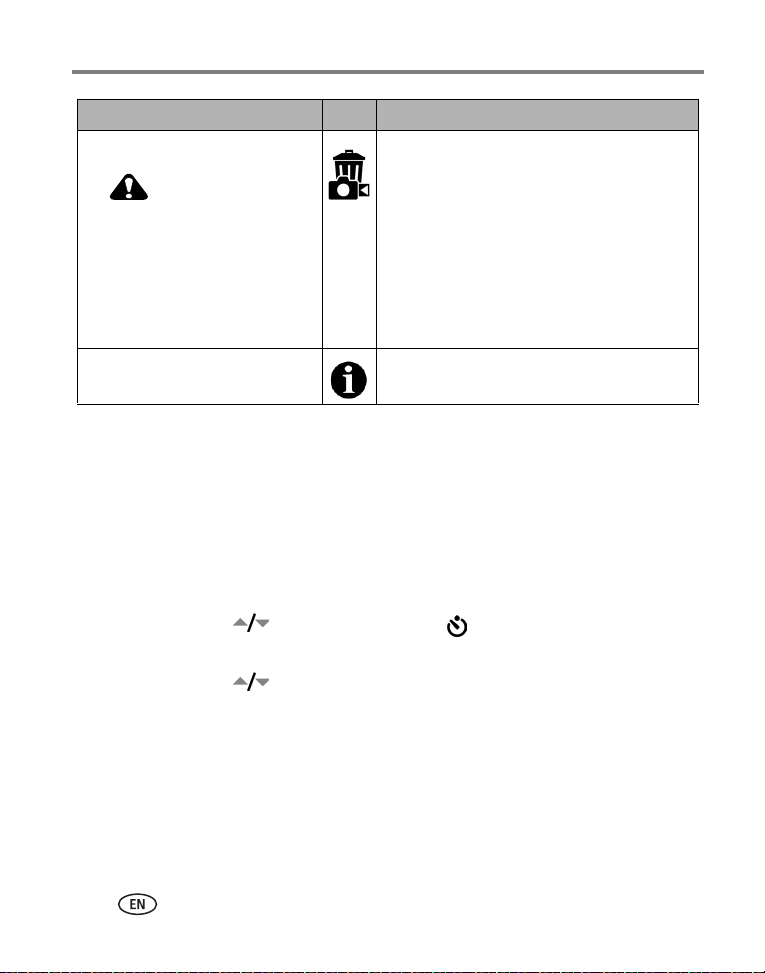
Putting yourself in the picture or video
Use the Self-Timer to create a 2- or 10-second delay between the time you press the
Shutter button and the time the picture or video is taken.
1 Place the camera on a flat surface or tripod.
2 Select the desired Still or Video mode.
3 Press the Menu button.
4 Move the Joystick to highlight Self-Timer , then press
the OK button.
5 Move the Joystick to highlight 10 seconds (so you have time to get into the
scene) or 2 seconds (for a steady, auto-shutter release on a tripod), then press the
OK button.
Format
CAUTION:
Formatting deletes all
pictures and videos,
including those that are
protected. Removing a
card during formatting
may damage the card.
Memory Card—deletes everything on the
card; formats the card.
Cancel—exits without making a change.
Internal Memory—deletes everything in
internal memory including email addresses,
album names, and favorites; formats the
internal memory.
About
View camera information.
Camera model/firmware information.
Setting Icon Options

Taking pictures and videos
www.kodak.com/go/support
39
6 Compose the scene. Then press the Shutter button halfway and hold to set the
exposure and focus, then press completely down. Quickly position yourself in
the scene.
The Self-Timer light on the front of the camera blinks slowly for 8 seconds
(then quickly for 2 seconds) before the picture/video is taken.
The Self-Timer turns off after you take the picture/video or if you
change modes.
NOTE: The default Video Length is Continuous. The video will stop when you press the Shutter button or
when no storage space remains. To change the video length, see
page 35. To turn off the Self-Timer
camera sounds, see page 37.
Pre-tagging for album names
Use the Set Album (Still or Video) feature to pre-select album names before you take
pictures or videos. Then, all the pictures or videos you take are tagged with those
album names.
First—on your computer
Use Kodak EasyShare software that came with your camera (see page 54) to create
album names on your computer. (To get the latest version of EasyShare software, go
to www.kodak.com/go/z7590downloads.) Then copy up to 32 album names to the
camera’s album name list the next time you connect the camera to the computer. See
Kodak EasyShare software Help for details.
Second—on your camera
1 In any mode, press the Menu button.
2 Move the Joystick to highlight Set Album , then press
the OK button.
3 Move the Joystick to highlight an album name, then press the OK button.
Repeat to select more than one album name.
Selected albums are noted with a check mark.
40 www.kodak.com/go/support
Taking pictures and videos
4 To remove a selection, highlight an album name and press the OK button. To
remove all album selections, move the Joystick
to highlight Clear All.
5 Highlight Exit, then press the OK button.
Your selections are saved. If you turn on the camera screen, your album selection is
displayed on the screen. A plus (+) after the album name means more than one album is
selected.
6 Press the Menu button to exit the menu.
Third—transfer to your computer
When you transfer the tagged pictures and videos to your computer (see page 62),
the Kodak EasyShare software opens and categorizes your pictures and videos in the
appropriate album. See the Kodak EasyShare software Help for details.
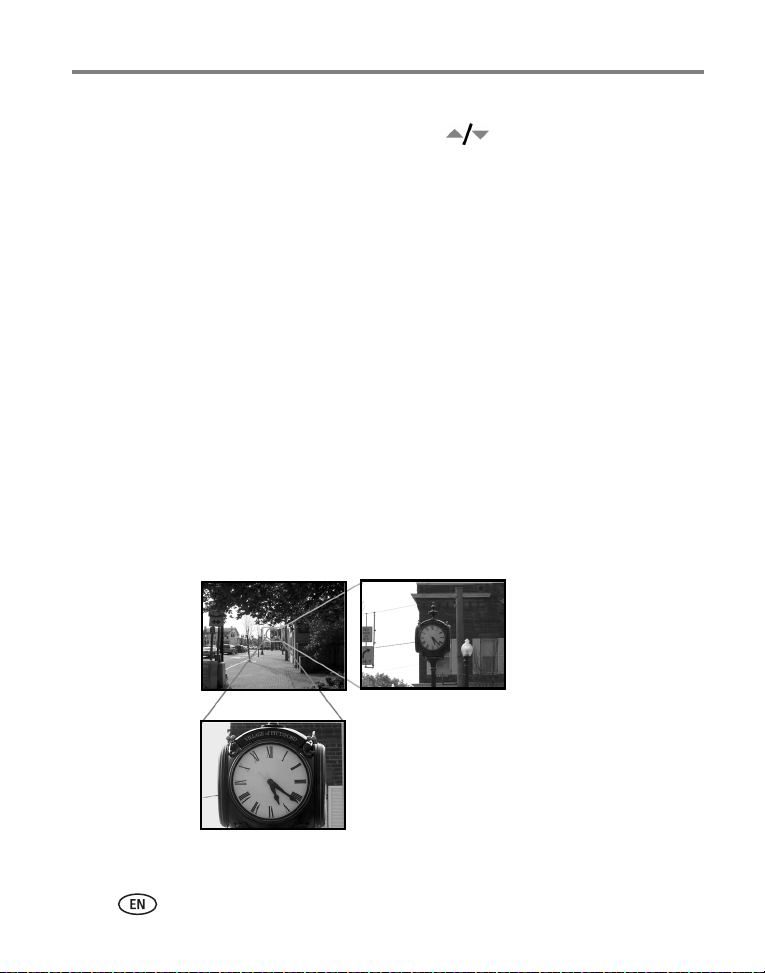
Tips for better pictures
Zoom
When you use longer zoom ranges, place the camera on a flat, steady surface or
ideally use a tripod.
1X
10X
30X (digital)
Images taken at f/3.7, 1/500 second

Taking pictures and videos
www.kodak.com/go/support
41
Exposure compensation
When you want to control the exposure of backlit subjects or take images in varied
light, use exposure compensation.
If the picture is too light, decrease (–) the setting; if it’s too dark, increase (+) the
setting. Use the Jog dial to access this function (see
page 22).
Exposure
Compensation

42 www.kodak.com/go/support
Taking pictures and videos
Aperture and shutter speed (Manual mode)
You can manually choose the best combination of lens aperture (f-number) and
shutter speed to obtain the appropriate exposure compensation for your particular
setting.
Images have a greater focus range with a larger f-number, such as f/8. But it is not the
best choice when shooting a moving object, so a smaller f-number is preferred, such
as f/2.8.
Wide Angle, f/2.8
10X Zoom, f/3.6
f/8
NOTE: Some of the shutter speeds are not shown.

Taking pictures and videos
www.kodak.com/go/support
43
Fill flash
Fill flash is included on your camera (see page 24), and is a popular feature. Use fill
flash for sunny-day portraits to fill in those dark shadows under the eyes, nose, or
under the rim of a baseball hat. It’s also useful for side- and back-lit scenes with
nearby people or objects with detail you want to reveal.
Use Exposure Compensation, or Flash Compensation when needed, by adjusting the
Jog dial (see
page 21).
Fill-flash on
Fill-flash off
Images taken in Portrait mode

44 www.kodak.com/go/support
Taking pictures and videos
Close ups with a close-up mode
The flower icon on the camera indicates you have Close-up mode. Once in
Close-up mode, your camera takes sharp pictures at close range (see page 28). The
camera automatically sets the focus distance depending on the zoom position. Use
available light instead of the flash, if possible.
Close-up telephoto lets you keep your distance from the subject (e.g., when you want
to capture butterflies and bees on flowers without disturbing them).
Close-up wide
at 5 in. (12.7 cm)
Close-up telephoto
at 30 in. (76.2 cm)
Images taken at f/5,1/500 second

www.kodak.com/go/support 45
3 Reviewing pictures and
videos
Press the Review button to view and work with your pictures and videos. To save
battery power, use the optional Kodak EasyShare camera or printer dock, or Kodak
5-volt AC adapter. (See
www.kodak.com/go/z7590accessories.)
Viewing single pictures and videos
1 Press the Review button.
2 Move the Joystick to scroll backward or forward through pictures and videos.
(For fast scrolling, hold the Joystick .)
3 Press the Review button to exit Review.
NOTE: Pictures taken at the 4.4 MP (3:2) quality setting are displayed at a 3:2 aspect ratio with a black bar
at the top of the screen.

46 www.kodak.com/go/support
Reviewing pictures and videos
Checking camera status review mode
Press the Review button. The applied features of the current picture or video are
displayed:
Email tag
Favorite tag
Print tag/number of prints
Protect
Picture/video number
Storage
Review
Album name
Scroll arrows
mode
location
Histogram
Reviewing pictures and videos
www.kodak.com/go/support
47
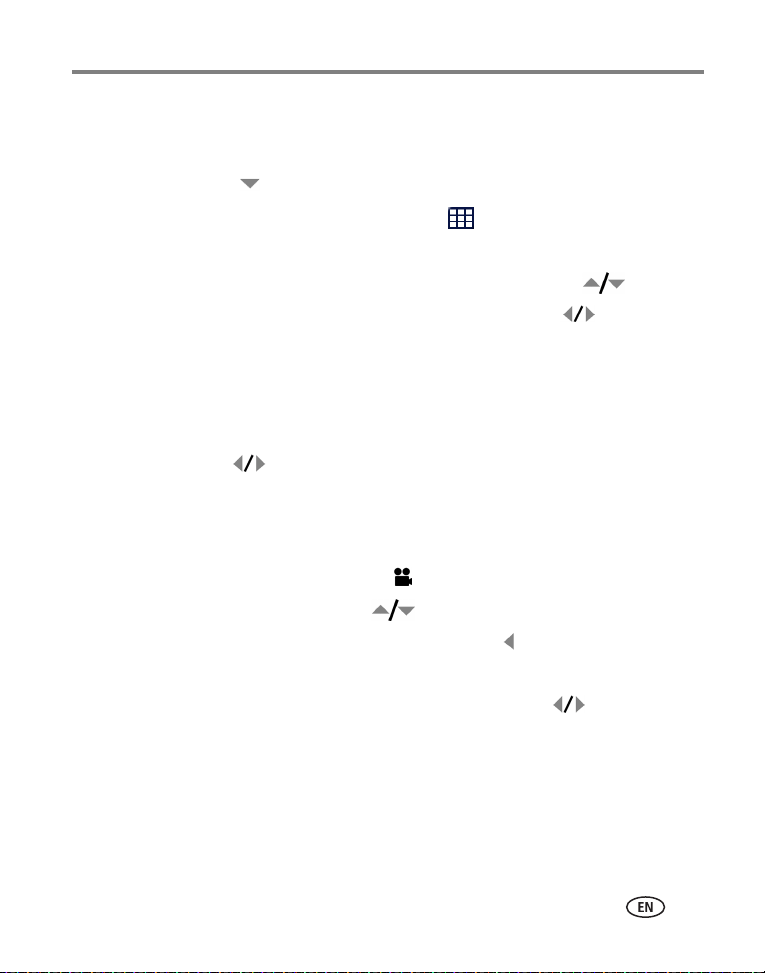
Viewing multiple pictures and videos
1 Press the Review button.
2 Move the Joystick .
NOTE: You can also press the Menu button, highlight Multi-up , then press the OK button.
Thumbnails of pictures and videos are displayed.
To display the previous or next row of thumbnails, move the Joystick .
To scroll through the thumbnails one at a time, move the Joystick .
To display a single view of the selected picture, press the OK button.
Playing a video
1 Press the Review button.
2 Move the Joystick to locate a video. (In Multi-up view, highlight a video, then
press the OK button. When a video is highlighted in Multi-up view, the video
duration is displayed at the top of the camera screen.)
3 To play or pause a video, press the OK button.
NOTE: You can also press the Menu button, highlight , then press the OK button.
To adjust the volume, move the Joystick .
To return to the beginning of the video, move the Joystick during playback.
To replay the video, press the OK button.
To go to the previous or next picture or video, move the Joystick .

48 www.kodak.com/go/support
Reviewing pictures and videos
Deleting pictures and videos
1 Press the Review button.
2 Move the Joystick to locate a picture or video (or highlight one in Multi-up
view), then press the Delete button.
3 Move the Joystick to highlight an option, then press the OK button:
PICTURE or VIDEO—deletes the displayed picture or video.
EXIT—exits the Delete screen.
ALL—deletes all pictures and videos from your current storage location.
To delete more pictures and videos, return to Step 2.
NOTE: You cannot delete protected pictures and videos this way. Remove protection before deleting (see
page 49).
Magnifying pictures
1 Press the Review button.
2 Push the Zoom button to magnify the picture
between 1X and 8X.
To see different parts of the picture, move the
Joystick
.
To redisplay the picture at the 1X (original) size,
press the OK button.
To exit Magnify, press the OK button.
To exit Review, press the Review button.

Reviewing pictures and videos
www.kodak.com/go/support
49
Changing optional review settings
In Review, press the Menu button to access optional review settings.
Protecting pictures and videos from deletion
1 Press the Review button.
2 Press the Menu button.
3 Move the Joystick to highlight Protect , then press the OK button.
The picture or video is protected and cannot be deleted. The Protect icon appears
with the protected picture or video.
4 To remove protection, press the OK button again.
5 Press the Menu button to exit the menu.
CAUTION:
Formatting internal memory or an SD or MMC card deletes all
(including protected) pictures, videos. (Formatting internal
memory also deletes email addresses, album names, and
favorites. To restore them, see EasyShare software Help.)
Album (page 50) Copy (page 53)
Protect (page 49) Multi-Up (page 47)
Image Storage (page 35) Picture/Video Information (page 50)
Slide Show (page 51) Setup Menu (page 36)

50 www.kodak.com/go/support
Reviewing pictures and videos
Viewing picture/video information
1 Press the Review button.
2 Move the Joystick to highlight a picture/video.
3 Press the Status button once or twice to see
information about the picture/video.
Tagging pictures/videos for albums
Use the Album feature in Review to tag the pictures and videos in your camera with
album names.
First—on your computer
Use Kodak EasyShare software that came with your camera (see page 54) to create
album names on your computer. (To get the latest version of EasyShare software, go
to www.kodak.com/go/z7590downloads.) Then copy up to 32 album names to the
camera’s internal memory. See Kodak EasyShare software Help for details.
Second—on your camera
1 Press the Review button.
2 Press the Menu button.
3 Move the Joystick to highlight Album , then press the OK button.
4 Move the Joystick to highlight an album, then press the OK button.
To add other pictures to the same album, move the Joystick to scroll through
pictures. When you see the picture you want, press the OK button.
To add the pictures to more than one album, repeat step 4 for each album.

Reviewing pictures and videos
www.kodak.com/go/support
51
The album name appears with the picture. A plus (+) after the album name means the
picture was added to more than one album.
To remove a selection, highlight an album name and press the OK button. To remove
all album selections, select Clear All.
Third—transfer to your computer
When you transfer the tagged pictures and videos to your computer (see page 62),
the Kodak EasyShare software opens and categorizes your pictures and videos in the
appropriate album. See Kodak EasyShare software Help for details.
Running a slide show
Use the Slide Show to display your pictures and videos on the camera screen. To run a
slide show on a television or on any external device, see
page 52. To save battery
power, use an optional Kodak 5V AC adapter.
(Visit www.kodak.com/goz7590accessories.)
Starting the slide show
1 Press the Review button, then press the Menu button.
2 Move the Joystick to highlight Slide Show , then press the OK button.
3 Move the Joystick to highlight Begin Show, then press the OK button.
Each picture and video is displayed once, in the order in which you took them.
To interrupt the Slide Show, press the OK button.
Changing the slide show display interval
The default interval setting displays each picture for 5 seconds. You can change the
display interval from 3 seconds to 60 seconds.
1 On the Slide Show menu, move the Joystick to highlight Interval, then press
the OK button.

52 www.kodak.com/go/support
Reviewing pictures and videos
2 Select a display interval.
To scroll through the seconds quickly, hold the Joystick .
3 Press the OK button.
The interval setting remains until you change it.
Running a continuous slide show loop
When you turn on Loop, the slide show is continuously repeated.
1 On the Slide Show menu, move the Joystick to highlight Loop, then press
the OK button.
2 Move the Joystick to highlight On, then press the OK button.
The slide show repeats until you press the OK button or until battery power is
exhausted.
Displaying pictures and videos on a television
You can display pictures and videos on a television, computer monitor, or any device
equipped with a video input. (Image quality on a television screen may not be as good
as on a computer monitor or when printed.)
NOTE: Ensure that the Video Out setting (NTSC or PAL) is correct (see page 37). The slide show stops if you
connect or disconnect the cable while the slide show is running.
1 Connect the audio/video cable (included) from the camera video-out port to the
television video-in port (yellow) and audio-in port (white). See your television
user’s guide for details.
2 Review pictures and videos on the television.
Reviewing pictures and videos
www.kodak.com/go/support
53
Copying pictures and videos
You can copy pictures and videos from a card to internal memory or from internal
memory to a card.
Before you copy, make sure that:
■ A card is inserted in the camera.
■ The camera’s picture storage location is set to the location from which you are
copying. See
page 35.
Copy pictures or videos:
1 Press the Review button, then press the Menu button.
2 Move the Joystick to highlight Copy , then press the OK button.
3 Move the Joystick to highlight an option:
PICTURE or VIDEO—copies the current picture or video.
EXIT—returns to the Review menu.
ALL—copies all pictures and videos from your selected storage location to the
other location.
4 Press the OK button.
NOTE: Pictures and videos are copied, not moved. To remove pictures and videos from the original location
after they are copied, delete them (see
page 48).
Tags that you applied for print, email, and favorites are not copied. Protection settings are not
copied. To apply protection to a picture or video, see
page 49.

54 www.kodak.com/go/support
4 Installing the software
Minimum system requirements Minimum hardware requirements
■ Windows 98, 98SE, ME, 2000 SPI,
or XP OS
Internet Explorer 5.01 or higher
233 MHz processor or greater
■ Macintosh OS X 10.2.3, 10.3
Safari 1.0 or higher
■ 128 MB RAM (64 MB RAM for
Windows 98, 98SE, 2000 SPI, or
ME OS)
■ 200 MB hard disk space available
■ CD-ROM drive
■ Available USB port

Installing the software
www.kodak.com/go/support
55
Install the software
CAUTION:
Install Kodak EasyShare software
before
connecting the camera or optional
dock to the computer. Failure to do so
may cause the software to install
incorrectly.
1 Close all software applications that are open on your computer (including
anti-virus software).
2 Place the Kodak EasyShare software CD into the CD-ROM drive.
3 Install the software:
Windows OS-based computer—if the install window does not appear, choose Run
from the Start menu and type d:\setup.exe where d is the drive letter that
contains the CD.
Mac OS X—double-click the CD icon on the desktop, then click the Install icon.
4 Follow the on-screen instructions to install the software.
Windows OS-based computer—select Complete to automatically install all the
applications. Select Custom to choose the applications you wish to install.
Mac OS X—follow the on-screen instructions.
NOTE: When prompted, take a few minutes to electronically register your camera and software. This lets
you receive information regarding software updates and registers some of the products included
with the camera. You must be connected to your Internet service provider to register electronically.
To register later, see
www.kodak.com/go/register.
5 Restart the computer. If you turned off anti-virus software, turn it back on. See the
anti-virus software manual for details.
For information on the software applications included on the Kodak EasyShare
software CD, click the Help button in the Kodak EasyShare software.

56 www.kodak.com/go/support
5 Sharing pictures and videos
NOTE: Share tags remain until removed. If a tagged picture/video is copied on the camera, the Share tag is
not
copied. (If a tagged picture/video is copied in EasyShare software, the Share tag is copied.) In a
burst series, only the last picture is tagged during Quickview.
When can I tag my pictures and videos?
Press the Share button to tag pictures/videos:
■ Any time (The most recent picture/video taken is displayed.)
■ Just after you take a picture/video, during Quickview (see page 15).
■ After pressing the Review button (see page 45).
Pictures Videos
Print (page 57) ✔
Email (page 58) ✔ ✔
Favorites (page 59)
for easy organization on your computer and for sharing
on your camera
✔ ✔
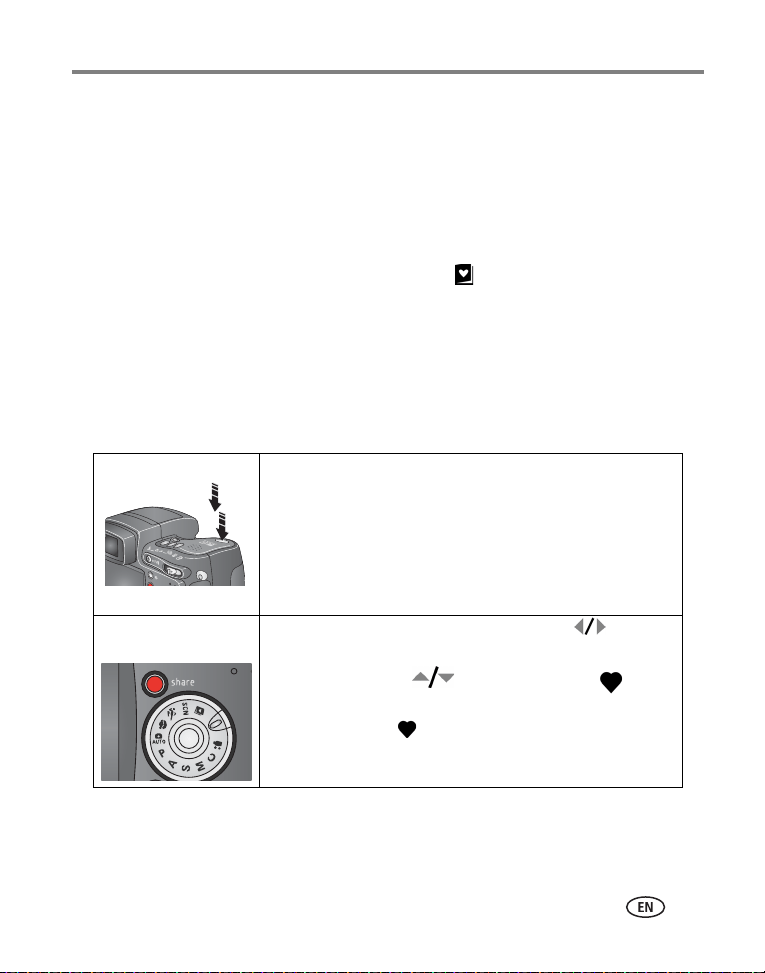
Press the Share button to
When they are transferred
share them by:
“tag” your pictures and videos.
to your computer, you can
Sharing pictures and videos
www.kodak.com/go/support
57
Tagging pictures for printing
1 Press the Share button. Move the Joystick to locate a picture.
2 Move the Joystick to highlight Print , then press the OK button.*
3 Move the Joystick to select the number of copies (0-99). Zero removes the
tag for that picture.
The Print icon appears in the status area. The default quantity is one.
4Optional: You can apply a print quantity to other pictures. Move the Joystick
to locate a picture. Keep the print quantity as is, or press to change it.
Repeat this step until the desired print quantity is applied to the pictures.
5 Press the OK button. Then press the Share button to exit the menu.
* To tag all pictures in the storage location, highlight Print All, press the OK button,
then indicate the number of copies as described above. Print All is not available in
Quickview.
To remove the print tagging for all pictures in the storage location:
■ Highlight Cancel Prints, then press the OK button.
■ Select either Yes or No to delete all prints.
■ Press the OK button.
Cancel Prints is not available in Quickview.
Printing tagged pictures
When you transfer the tagged pictures to your computer, the Kodak EasyShare
software print screen opens. For details on printing, click the Help button in the Kodak
EasyShare software. For more information on printing from your computer, printer
dock, or card, see
page 65.
NOTE: For the best 4 x 6 in. (10 x 15 cm) prints, set the camera to the 4.4 MP (3:2) print quality setting (see
page 31).

58 www.kodak.com/go/support
Sharing pictures and videos
Tagging pictures and videos for emailing
First—on your computer
Use Kodak EasyShare software that came with your camera to create an email address
book on your computer. (To get the latest version of EasyShare software, go to
www.kodak.com/go/z7590downloads.) Then copy up to 32 email addresses to the
camera’s internal memory. See the Kodak EasyShare software Help for details.
Second—tag pictures/videos on your camera
1 Press the Share button. Move the Joystick to locate a picture/video.
2 Move the Joystick to highlight Email , then press the OK button.
The Email icon appears in the status area.
3 Move the Joystick to highlight an email address, then press the
OK button.
To tag other pictures/videos with the same address, move the
Joystick to scroll through them. When the picture you want is displayed,
press OK.
To send the pictures/videos to more than one address, repeat step 3 for each
address.
Selected addresses are checked.
4 To remove a selection, highlight a checked address and press the OK button. To
remove all email selections, highlight Clear All.
5 Move the Joystick to highlight Exit, then press the OK button.
The Email icon appears in the status area.
6 Press the Share button to exit the menu.
Sharing pictures and videos
www.kodak.com/go/support
59
Third—transfer and email
When you transfer the tagged pictures and videos to your computer (see page 62),
the email screen opens and lets you send them to the addresses you specified. See the
Kodak EasyShare software Help for details.
Tagging pictures as favorites
You can store your favorite pictures in the Favorites section of your camera’s
internal memory, then share them with friends and family.
NOTE:
When you transfer pictures from your camera to your computer, all pictures
(including favorites) are stored on your computer at full size. Favorite
pictures—smaller copies of your originals—are loaded back to your camera, so
you can share and enjoy more.
Share your favorite pictures in 4 easy steps:
1. Take pictures
2. Tag pictures as
favorites
1 Press the Share button. Move the Joystick to
locate a picture.
2 Move the Joystick to highlight Favorite , then
press the OK button.
The Favorite icon appears in the status area.
To remove the tag, press the OK button again.
Press the Share button to exit the menu.
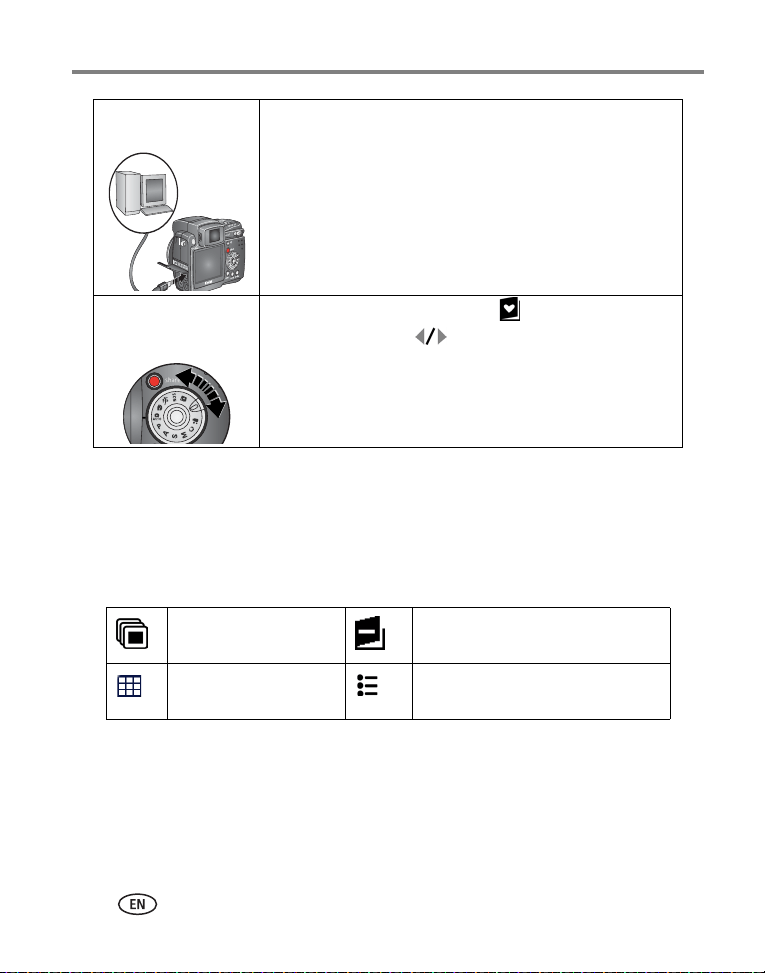
60 www.kodak.com/go/support
Sharing pictures and videos
NOTE: The camera holds a limited number of favorites. Use Camera Favorites in the EasyShare software to
customize the size of your camera Favorites section. For more information, click the Help button in
the Kodak EasyShare software.
Optional settings
In Favorites mode, press the Menu button to access optional settings.
NOTE: Pictures taken at the 4.4 MP (3:2) quality setting are displayed at a 3:2 aspect ratio with a black bar
at the top of the screen. (See
Picture Size, page 31.)
3. Transfer pictures
to your computer
1 To enjoy full functionality, load and use Kodak EasyShare
software that came with your camera (see page 54).
2 Connect the camera to the computer using the USB cable
(see page 62) or an EasyShare dock.
The first time you transfer pictures, a software wizard helps
you make choices about your favorite pictures. Then, your
pictures are transferred to the computer. Favorite pictures are
loaded to the Favorites section of your camera’s internal
memory.
4. View favorites on
your camera
1 Turn the Mode dial to Favorites .
2 Move the Joystick to scroll through favorites.
To exit Favorites mode, turn the Mode dial to any other
position.
To view pictures/videos on a card or in non-favorite internal
memory, press the Review button. (See
page 45.)
Slide Show (page 51) Remove all favorites (page 61)
Multi-up (page 47) Setup Menu (page 36)

Sharing pictures and videos
www.kodak.com/go/support
61
Removing all favorites from your camera
1 Turn the Mode dial to Favorites .
2 Press the Menu button.
3 Highlight , then press the OK button.
All pictures stored in the Favorites section of internal memory are removed. Favorites are
restored to your camera the next time you transfer pictures to the computer. To remove
single favorites, do so in EasyShare software.
4 Press the Menu button to exit the menu.
Preventing favorites from transferring to the camera
1 Open the Kodak EasyShare software. Click the My Collection tab.
2 Go to the Albums view.
3 Click the Camera Favorites Album for your camera.
4 Click Remove Album.
The next time you transfer pictures from your camera to the computer, use the Camera
Favorites Wizard/Assistant in EasyShare software to recreate your Camera Favorites
Album or to turn off the Camera Favorites feature.
Printing and emailing favorites
1 Turn the Mode dial to Favorites . Press to locate a picture.
2 Press the Share button.
3 Highlight Print or Email , then press the OK button.
NOTE: Favorites that were taken on this camera (not imported from another source) are good for a 4 x 6 in.
(10 x 15 cm) print.
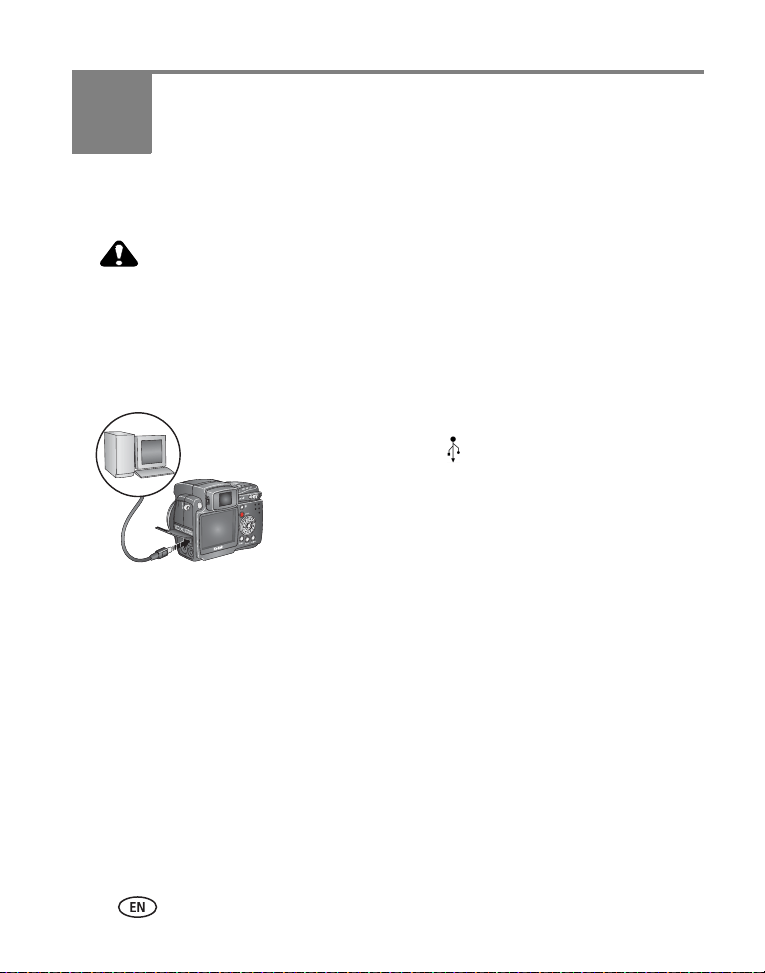
62 www.kodak.com/go/support
6 Transferring and printing
pictures
CAUTION:
Install Kodak EasyShare software
before
connecting the camera or
optional dock to the computer. Failure to do so may cause the
software to install incorrectly.
Transferring pictures/videos with the USB cable
1 Turn off the camera.
2 Plug the labeled end of the USB cable into the
labeled USB port on your computer. See your
computer user’s guide for details.
3 Plug the other end of the USB cable into the labeled
USB port on the camera.
4 Turn on the camera.
Kodak EasyShare software opens on your computer.
The software prompts you through the transfer
process.
NOTE: Visit
www.kodak.com/go/howto
for an online tutorial on connecting.
Also available for transferring
You can also use these Kodak products to transfer your pictures and videos:
■ Kodak EasyShare camera dock, Kodak EasyShare printer dock
■ Kodak multi-card reader, Kodak SD multimedia card reader-writer
Purchase these and other accessories at a dealer of Kodak products or
www.kodak.com/go/z7590accessories.

Transferring and printing pictures
www.kodak.com/go/support
63
Printing from a Kodak EasyShare printer dock or
your computer
Computer—Click the Help button in the Kodak EasyShare software for details on
printing from your computer.
Printer dock—Dock your camera to the Kodak EasyShare printer dock and print
directly with or without a computer. Purchase this and other accessories at a dealer of
Kodak products or
www.kodak.com/go/z7590accessories.
Printing from an optional SD or MMC card
■ Automatically print tagged pictures when you insert your card into a printer with
an SD or MMC card slot. See your printer user’s guide for details.
■ Make prints at an SD or MMC card-capable Kodak picture maker. (Contact a
location prior to visiting. See
www.kodak.com/go/picturemaker.)
■ Take the card to your local photo retailer for professional printing.
Ordering prints online
Kodak EasyShare print service (provided by Ofoto, www.ofoto.com) is one of the many
online print services offered in the Kodak EasyShare software. You can easily:
■ Upload your pictures.
■ Edit, enhance, and add borders to your pictures.
■ Store pictures, and share them with family and friends.
■ Order high-quality prints, photo greeting cards, frames, and albums—and have
them delivered to your door.

64 www.kodak.com/go/support
Transferring and printing pictures
Direct printing with a PictBridge-enabled printer
Your camera features PictBridge technology, which lets you print directly to
PictBridge-enabled printers, without a computer. You need:
Connecting the camera to the printer
1 Turn off the camera and printer.
2 Optional: If you have a Kodak 5-volt AC adapter (optional accessory), plug it into
the camera and into an electrical outlet.
3 Using the USB cable that came with your camera, connect the camera to the
printer. (See your printer user’s guide for details.)
■ Camera with fully charged batteries, or
with optional Kodak 5-volt AC adapter
■ PictBridge-enabled printer
■ USB cable included with your camera

Transferring and printing pictures
www.kodak.com/go/support
65
Printing pictures
1 Turn on the printer. Turn the camera Mode dial to Auto.
The PictBridge logo is displayed, followed by the current picture and menu. (If no
pictures are found, a message is displayed.) If the menu interface turns off, press any
button to redisplay it.
2 Move the Joystick to choose a printing option, then press the
OK button.
NOTE: During direct printing, pictures are not permanently transferred or saved to the computer or printer.
To transfer pictures to your computer, see
page 62. If you turned the Mode dial to Favorites, the
current favorite picture is displayed.
Disconnecting the camera from the printer
1 Turn off the camera and printer.
2 Disconnect the USB cable from the camera and the printer.
Current Picture Press to choose a picture. Choose the number of copies.
Tagged Pictures If your printer is capable, print pictures that you tagged for
printing (see
page 57) and choose a print size.
Index Print Print thumbnails of all pictures. This requires one or more sheets
of paper. If the printer is capable, choose a print size.
All Pictures Print all pictures in internal memory, on a card, or in Favorites.
Choose the number of copies.
Image Storage Access internal memory, a card, or Favorites.

66 www.kodak.com/go/support
Transferring and printing pictures
Dock compatibility for your camera
Purchase camera docks, printer docks, and other accessories at a dealer of Kodak
products or
www.kodak.com/go/z7590accessories.
Kodak EasyShare dock Docking configuration
■ printer dock 4000
■ camera dock II
■ LS420, LS 443 camera dock
Not compatible
■ printer dock
■ printer dock plus
■ printer dock 6000
■ camera dock 6000
■ others, including series 3 printer
docks and camera docks
Custom
camera insert
Adapter
Dock
Custom
camera insert
Dock

www.kodak.com/go/support 67
7 Troubleshooting
When you have questions about your camera, start here. Additional technical
information is available in the ReadMe file located on the Kodak EasyShare software
CD. For updates to Troubleshooting information, see
www.kodak.com/go/z7590support.
Camera problems
If... Try one or more of the following
Camera does not
turn on
■ Remove battery and verify that it’s the correct type, then
reinsert it.
■ Insert a charged battery.
■ Place the camera on a Kodak EasyShare camera or printer
dock (sold separately), then try again.
■ Connect the camera to a Kodak 5-volt AC adapter (sold
separately), then try again. See page 2 for more battery
information.
Camera does not
turn off and the lens
does not retract
Camera buttons and
controls do not
function
Lens does not extend
when camera turns
on or does not retract
■ Confirm that the battery in camera is charged.
■ Turn camera on and off again.
■ If problem still exists, get help (see page 74).
EVF/LCD screen is
black or does not
turn on
■ Remove the lens cap.
■ Push the EVF/LCD toggle button to change display.
In Review, a blue or
black screen is
displayed instead of
a picture
■ Transfer the picture to the computer.
■ Transfer all pictures to the computer (see page 62).
■ Take another picture. If problem still continues try internal
memory and/or another memory card.
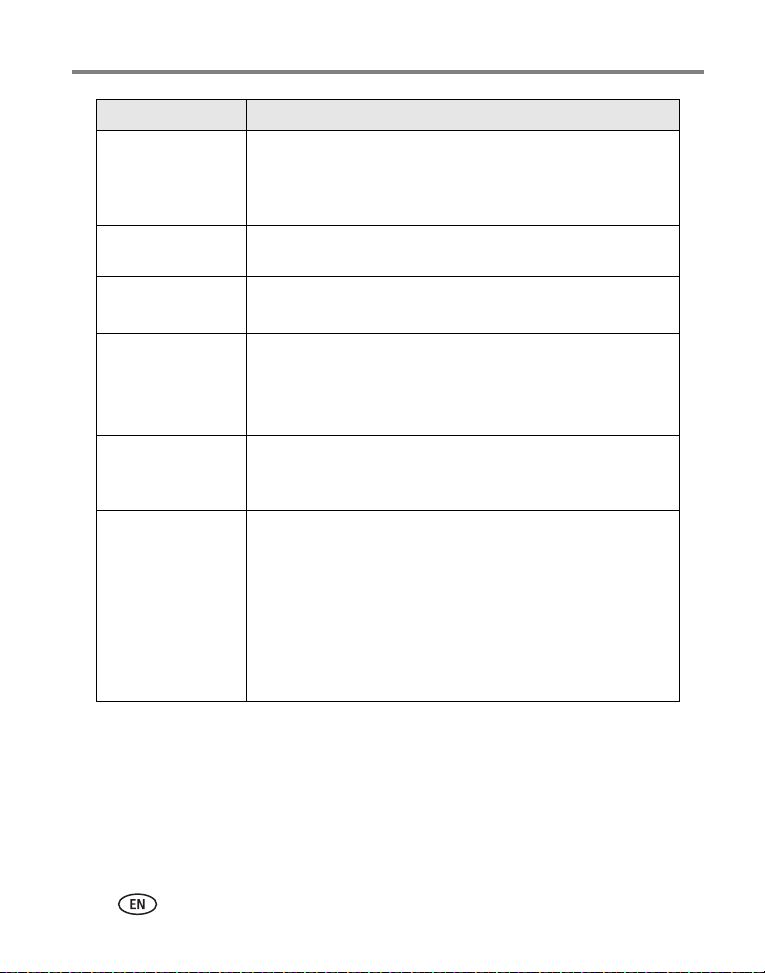
68 www.kodak.com/go/support
Troubleshooting
Pictures remaining
number does not
decrease after taking
a picture
■ Continue taking pictures. The camera is operating normally.
(The camera estimates the number of pictures remaining after
each picture is taken, based on picture size and content.)
Picture orientation is
not accurate
■ Set the Orientation Sensor to ON (page 37).
Flash does not fire ■ Open the flash unit (page 23).
■ Check the flash setting and change as needed (page 23).
Storage location is
almost or entirely full
■ Transfer pictures to the computer (page 62).
■ Delete pictures from the card or insert a new one (page 8).
■ Change image storage location to internal memory
(page 35).
Battery life is short ■ Wipe the contacts with a clean, dry cloth (page 83) before
inserting a battery in the camera.
■ Insert a charged battery (page 1).
You cannot take a
picture
■ Turn the camera off, then on again.
■ Depress shutter button all the way (page 9).
■ Insert a charged battery (page 1).
■ Wait until the AF/AE indicator turns green before attempting
to take another picture.
■ Memory full. Transfer pictures to the computer (page 62),
delete pictures from the camera (page 48) or card, change
image storage location, or insert a new card.
If... Try one or more of the following

Troubleshooting
www.kodak.com/go/support
69
Error message
appears on EVF/LCD
screen
■ Turn the camera off.
■ Remove memory card from the camera.
■ Remove the battery and wipe the contacts with a clean, dry
cloth (page 83).
■ Reinstall the battery.
■ Turn on the camera.
■ If all else fails, get customer support help (see page 75).
Memory card not
recognized or camera
freezes with card.
■ Card may be corrupted. Format card in camera (see page 8).
■ Use another memory card.
If... Try one or more of the following

70 www.kodak.com/go/support
Troubleshooting
Computer/connectivity problems
Picture quality problems
If... Try one or more of the following
Computer does not
communicate with
the camera
■ Turn on the camera.
■ Insert a charged battery (page 1).
■ Make sure USB cable is securely connected on camera and
computer port (page 62).
■ Make sure the EasyShare software is installed (page 54).
Pictures do not
transfer to computer
■ Click the Help button in the EasyShare software.
Slide Show does not
run on an external
video device
■ Adjust the camera Video Out setting (NTSC or PAL,
page 37).
■ Make sure the external device settings are correct (see the
device’s user’s guide).
If... Try one or more of the following
Picture is too dark
or underexposed
■ Reposition camera for more available light.
■ Use Fill flash (page 23) or change your position so light is not
behind the subject.
■ Move so that the distance between you and the subject is
within the effective flash range (page 23).
■ To automatically set exposure and focus, press the Shutter
button halfway and hold. When the AF/AE indicator turns
green, press the Shutter button completely down to take
the picture.
■ Use P mode to adjust the Exposure and Flash Compensations
(page 22).
■ Use P mode (page 22) and Selectable Zone (see Focus Zone on
page 33).

Troubleshooting
www.kodak.com/go/support
71
Picture is too light ■ Reposition camera to reduce the amount of available light.
■ Turn flash off (page 23).
■ Move so that the distance between you and the subject is
within the effective flash range (page 23).
■ To automatically set exposure and focus, press the Shutter
button halfway and hold. When the AF/AE indicator turns
green, press the Shutter button completely down to take
the picture.
■ Use P mode to adjust the Exposure and Flash Compensations
(page 22).
Picture is not clear ■ To automatically set exposure and focus, press the Shutter
button halfway and hold. When the AF/AE indicator turns
green, press the Shutter button completely down to take
the picture.
■ Clean the lens (page 83).
■ Make sure camera is not in Close-up mode if you are more
than 21 in. (0.7 m) from your subject.
■ Place the camera on a flat, steady surface or use a tripod,
especially in high-zoom settings or in low light.
If... Try one or more of the following

72 www.kodak.com/go/support
Troubleshooting
Power-ring-light status
Status Cause
Power ring does not
turn on and the
camera does not
work.
■ Turn on the camera.
■ Recharge the battery or install a new one (page 2).
■ Turn Mode dial off, then back on.
Power ring glows
steady green.
■ Camera is on and ready to take a picture or video.
Power ring glows
steady amber.
■ Camera is in Favorite mode.
■ Camera firmware update is in process.
■ Camera is connected to computer, USB connection
is active.
■ Date and time set with lens retracted.
Power ring
blinks green.
■ Camera turned off while picture is being processed and
saved. Camera operating normally. Processing is
completed before power off.
■ Do not remove the card while the light is blinking.
■ Camera operating normally at power up. Take pictures
when the blinking stops.
■ Camera operating normally during connect mode to
computer.
Power ring
blinks amber.
■ Battery is low or exhausted. Recharge the
battery (page 1).
■ Internal camera temperature is too high. Turn the camera
off for several minutes; then turn it back on. If the
condition continues, get help (page 75).
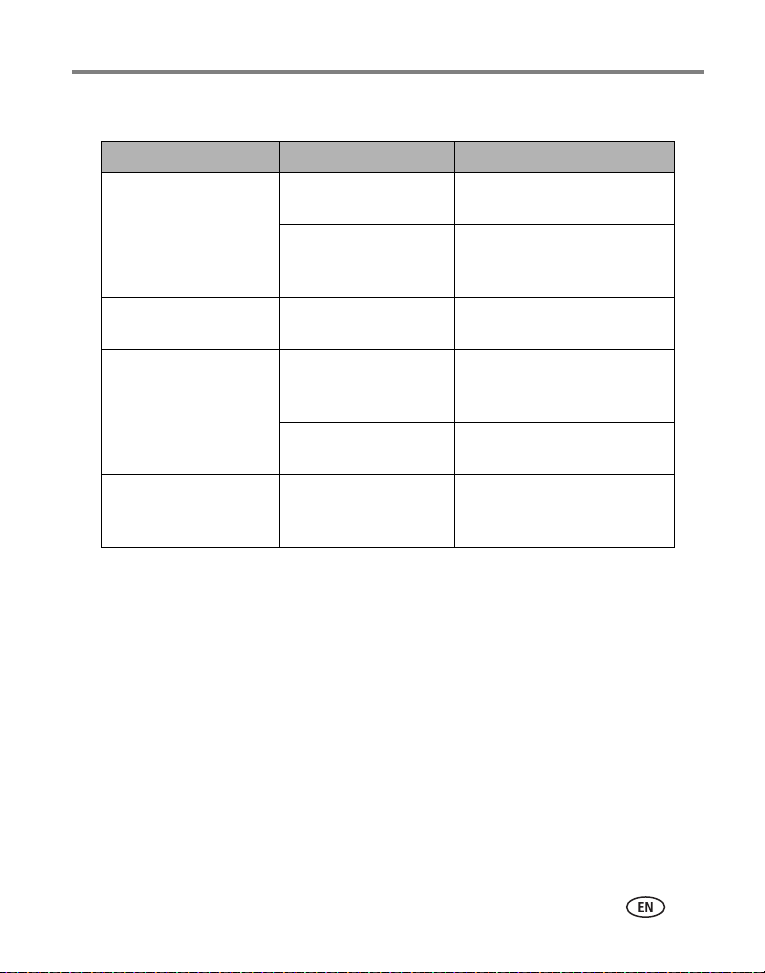
Troubleshooting
www.kodak.com/go/support
73
Direct printing (PictBridge) problems
Still having problems?
Visit www.kodak.com/go/z7590support, or see Chapter 8, Getting help.
For Direct printing issues, contact the printer manufacturer.
Status Cause Solution
Cannot locate desired
picture.
The Mode dial is set to
Favorites.
Turn the Mode dial to Auto.
Camera is accessing a
card or internal memory.
Use the Direct print menu to
change the image storage
location.
The Direct print menu
interface turns off.
The menu interface has
timed out.
Press any button to redisplay it.
Cannot print pictures. There is a connection
issue.
Ensure that there is a
connection between camera
and printer (
page 64).
There is a power issue. Ensure the printer and camera
have power (
page 64).
Camera or printer
displays an error
message.
There is a camera or
printer issue.
Follow the prompts to resolve
the issue.
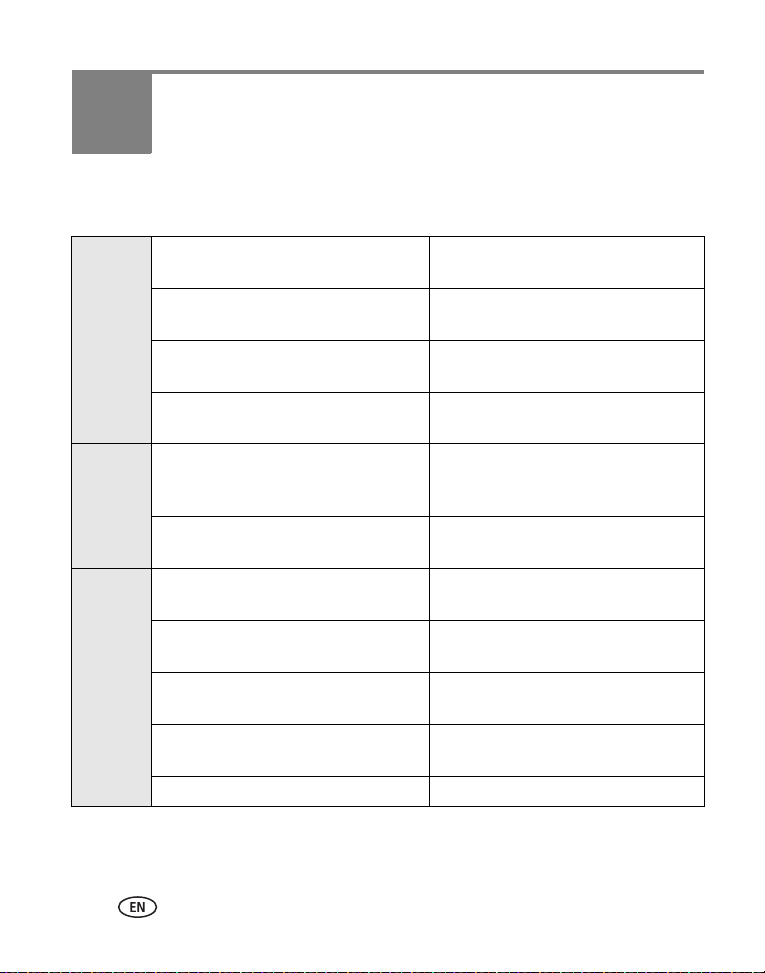
74 www.kodak.com/go/support
8 Getting help
Helpful links
Camera Get support for your product (FAQs,
troubleshooting information, etc.)
www.kodak.com/go/z7590support
Purchase camera accessories (camera
docks, printer docks, lenses, cards, etc.)
www.kodak.com/go/z7590accessories
Download the latest camera firmware
and software
www.kodak.com/go/z7590downloads
See online demonstrations of your
camera
www.kodak.com/go/howto
Software Get information on EasyShare software www.kodak.com/go/easysharesw
(or click the Help button in the
EasyShare software)
Get help with the Windows operating
system and working with digital pictures
www.kodak.com/go/pcbasics
Other Get support for other cameras, software,
accessories, more
www.kodak.com/go/support
Get information on Kodak EasyShare
printer docks
www.kodak.com/go/printerdocks
Get information on Kodak inkjet
products
www.kodak.com/go/inkjet
Optimize your printer for truer, more
vibrant colors
www.kodak.com/go/onetouch
Register your camera www.kodak.com/go/register
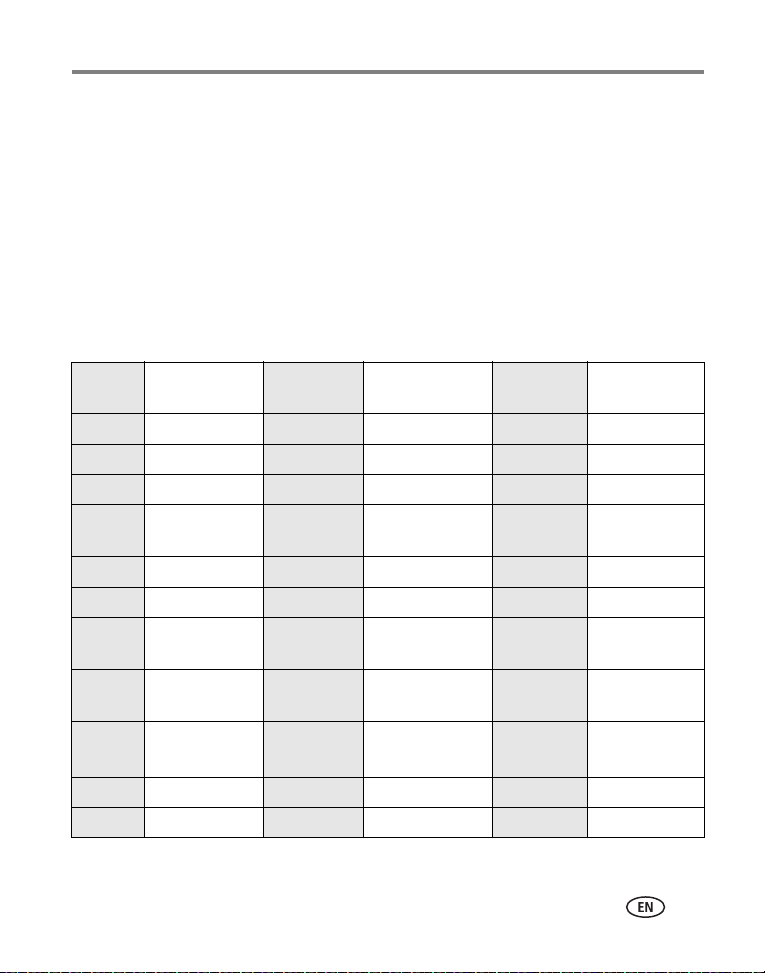
Getting help
www.kodak.com/go/support
75
Telephone customer support
If you have questions concerning the operation of the software or camera, you may
speak with a customer support representative. Before you call, have the camera or
dock connected to your computer. Be at your computer, and have the following
information available:
Visit: http://www.kodak.com/US/en/digital/contacts/DAIInternationalContacts.shtml
■ Computer model, Operating system
■ Processor type and speed (MHz)
■ Amount of memory (MB) & free hard
disk space
■ Camera serial number
■ Version of Kodak EasyShare software
■ Exact error message you received
Australia 1800 147 701 Greece 00800 441
25605
Spain 91 749 76 53
Austria 0179 567 357 Hong Kong 800 901 514 Sweden 08 587 704 21
Belgium 02 713 14 45 India 91 22 617 5823 Switzerland 01 838 53 51
Brazil 0800 150000 Italy 02 696 33452 Taiwan 0800 096 868
Canada 1 800 465 6325 Japan 03 5540 9002 Thailand 001 800 631
0017
China 800 820 6027 Korea 00798 631 0024 UK 0870 243 0270
Denmark 3 848 71 30 Netherlands 020 346 9372 US 1 800 235 6325
Indonesia 001 803 631
0010
New Zealand 0800 440 786 Outside US 585 726 7260
Ireland 01 407 3054 Norway 23 16 21 33 International
Toll Line
+44 131 458
6714
Finland 0800 1 17056 Philippines /
Metro Manila
1 800 1 888 9600
/ 632 6369600
International
Toll Fax
+44 131 458
6962
France 01 55 1740 77 Portugal 021 415 4125
Germany 069 5007 0035 Singapore 800 6363 036
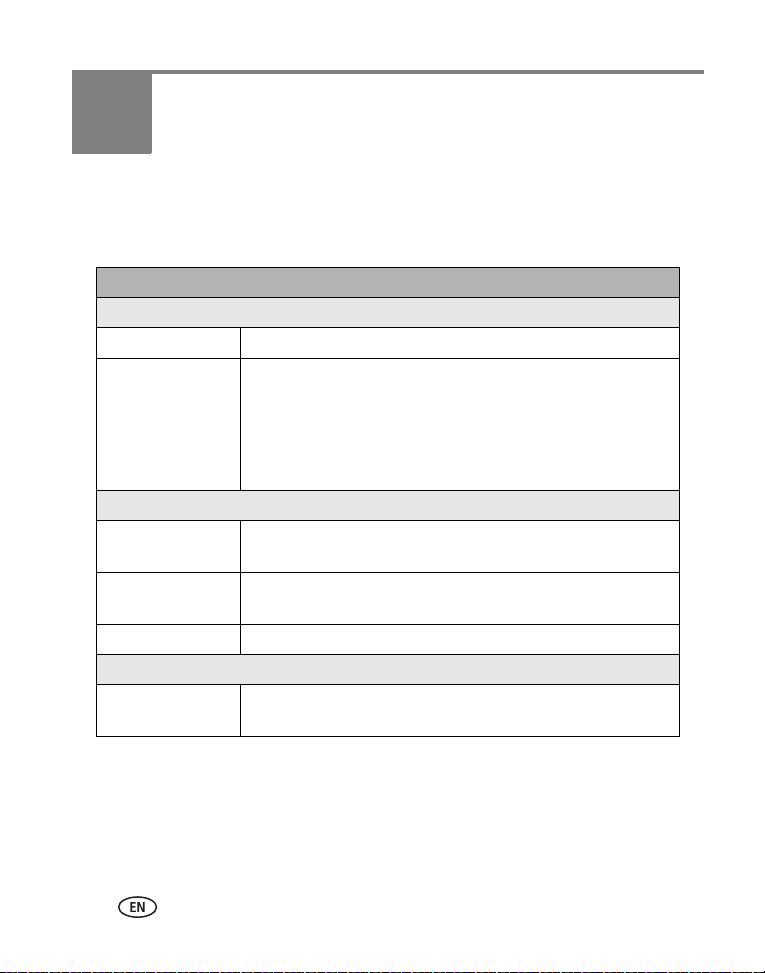
76 www.kodak.com/go/support
9 Appendix
Camera specifications
For more specifications, visit www.kodak.com/go/z7590support.
Kodak EasyShare Z7590 zoom digital camera
CCD (charge-coupled device)
CCD 1/2.5 in. CCD, 4:3 aspect ratio
Output image size
(picture size)
2576 x 1932 (5.0 M) pixels
2576 x 1716 (4.4 M) pixels
2304 x 1728 (4.0 M) pixels
2048 x 1536 (3.1 M) pixels
1552 x 1164 (1.8 M) pixels
Display
Color LCD Hybrid high-resolution display 2.2 in. (55.9 mm);
640 x 240 (153K) pixels
Color Viewfinder—
Electronic (EVF)
LCD and EVF not simultaneous;
0.26 in. (6.5 mm), (311k) pixels.
Preview (LCD/EVF) Frame rate: 30 fps
Lens
Taking lens 10X optical zoom lens, f/2.8–f/3.7,
38–380 mm (35 mm equivalent)

Appendix
www.kodak.com/go/support
77
Focus system Hybrid AF External Passive Sensor; Multi-, Center-, or
Selectable-Zones. Continuous AF in movie and preview modes.
Working range:
Standard wide: 2.0 ft (0.6 m) to infinity
Standard tele: 6.6 ft (2.0 m) to infinity
Close-up wide: 4.7 to 27.6 in. (0.12 to 0.7 m)
Close-up tele: 3.9 to 6.9 ft (1.2 to 2.1 m)
Wide and tele infinity: 65.6 ft (20 m) to infinity
Digital zoom 3.0X continuous advanced zoom, 0.2X increments that starts at
10X optical zoom (LCD display mode)
Optical zoom 10X, 38–380 mm (35 mm equivalent); F= 6.32–63.2 mm actual
Accessory lens
thread
Yes (inside lens ring)
Lens barrier Lens cap
Exposure
Exposure metering TTL–AE with program modes;
Multi-Pattern AE, Center-Weight AE, Center-Spot AE
Exposure range AE range: EV 5.3 to 16.0 (@ wide)
Full range: EV 0 to 16.0 (@ wide)
Exposure mode Programmed AE mode: Auto, P, A, S, M, and C, Scene modes.
Aperture Priority AE: f/2.8–f/8 @ wide
Shutter Priority AE: 16–1/1000 sec. @ wide
Full Manual Exposure (Noise Reduction: subtraction of black
image @ >0.7 sec.)
Exposure Compensation: +2.0 EV with 1/3 EV step
Shutter speed Mechanical shutter with CCD electrical. Auto 16–1/1700 sec.,
Manual 16–1/1000 sec.
Kodak EasyShare Z7590 zoom digital camera
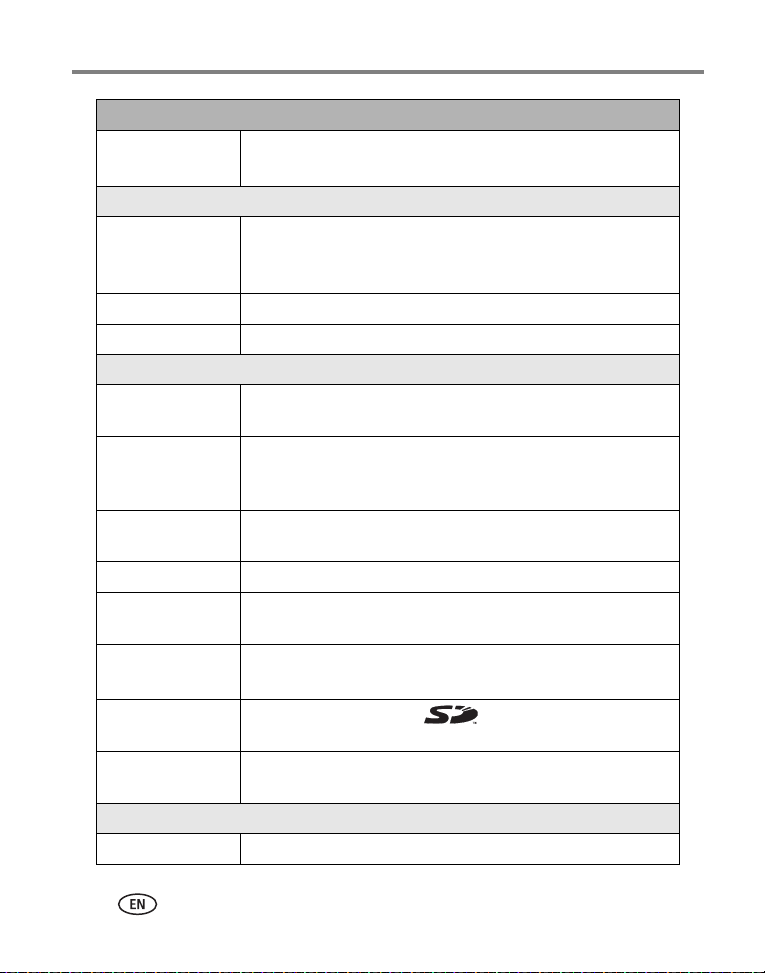
78 www.kodak.com/go/support
Appendix
ISO speed Auto: 80,100, 200, 400, and 800 (800 @ 1.8 MP)
Selectable: P, A, S, M, and C Mode
Flash
Electronic flash Guide no. 12 @ ISO 140; auto flash with photo sensor
Working range: Wide: 2–16.1 ft (0.6–4.9 m) @ ISO 140
Tele: 6.6–12.1 ft (2.0–3.7 m) @ ISO 140
Flash modes Auto, Fill, Red-eye, Off
External flash sync Yes, 500-volts maximum
Capture
Capture modes Auto, Program, Aperture Priority, Shutter Priority, Manual,
Custom, Sport, Portrait, Scenes (14), Burst, Video
Jog dial Used to adjust Exposure Compensation, Aperture Priority AE,
Shutter Priority AE, ISO, Flash Compensation, Full Manual
Exposure.
Burst mode First Burst 5 pictures; Last Burst 4 pictures; both @ 2.0 fps
(AE, AF, AWB executed for first shot only.)
Still image buffer 32 MB internal memory
Video capture Image size/frame rate: VGA (640 x 480) at 12 fps,
QVGA (320 x 240) at 20 fps
Image file format Still: EXIF 2.21 (JPEG compression), file organization DCF
Video: QuickTime (CODEC MPEG4)
Image storage Optional MMC or SD Card (The SD logo is a trademark
of the SD Card Association.)
Internal storage
capacity
32 MB internal memory
Review
Quickview Yes
Kodak EasyShare Z7590 zoom digital camera

Appendix
www.kodak.com/go/support
79
Storage capacities
File sizes can vary due to image content and exposure. You may be able to store more
or fewer pictures and videos. Favorites take up additional space in internal memory
and reduce storage capacity.
Video output NTSC or PAL
Power
Kodak EasyShare Li-Ion rechargeable battery (KLIC–5000); 5V AC adapter, optional
Communication with computer
USB, via USB cable; EasyShare camera dock or printer dock
Languages
English/German/Spanish/French/Italian/Portuguese/Chinese/Korean/Japanese
Other features
Self-timer 10 seconds
Sound feedback Power up, shutter, self-timer, error, sound modes
White balance Auto, Daylight, Tungsten, Fluorescent, Open Shade
Auto sleep mode Yes. 8 minutes
Color modes High Color, Natural Color, Low Color, Black & White, Sepia
Sharpness High, Normal, Low
Date stamp None, YYYY/MM/DD, MM/DD/YYYY, DD/MM/YYYY
Tripod mount 1/4 inch metal
Size 3.9 in. (99.6 mm) x 3.2 in. (81.2 mm) x 3.2 in. (79.9 mm)
Weight 12 oz (340 g) without battery and card
Kodak EasyShare Z7590 zoom digital camera

80 www.kodak.com/go/support
Appendix
Picture storage capacity—standard compression
Picture storage capacity—fine compression
Number of pictures
5.0 MP 4.4 MP (3:2) 4.0 MP 3.1 MP 1.8 MP
16 MB SD/MMC 9 11 12 15 24
32 MB internal memory 17 19 21 27 43
32 MB SD/MMC 19 22 24 30 48
64 MB SD/MMC 39 44 48 60 97
128 MB SD/MMC 79 88 97 121 195
256 MB SD/MMC 159 178 196 242 391
512 MB SD/MMC 319 356 392 485 783
Number of pictures
5.0 MP 4.4 MP (3:2) 4.0 MP 3.1 MP 1.8 MP
16 MB SD/MMC 4 5 5 7 12
32 MB internal memory 8 9 10 12 21
32 MB SD/MMC 9 10 11 14 24
64 MB SD/MMC 18 20 23 28 48
128 MB SD/MMC 37 41 46 57 97
256 MB SD/MMC 74 83 92 115 194
512 MB SD/MMC 149 167 185 231 389
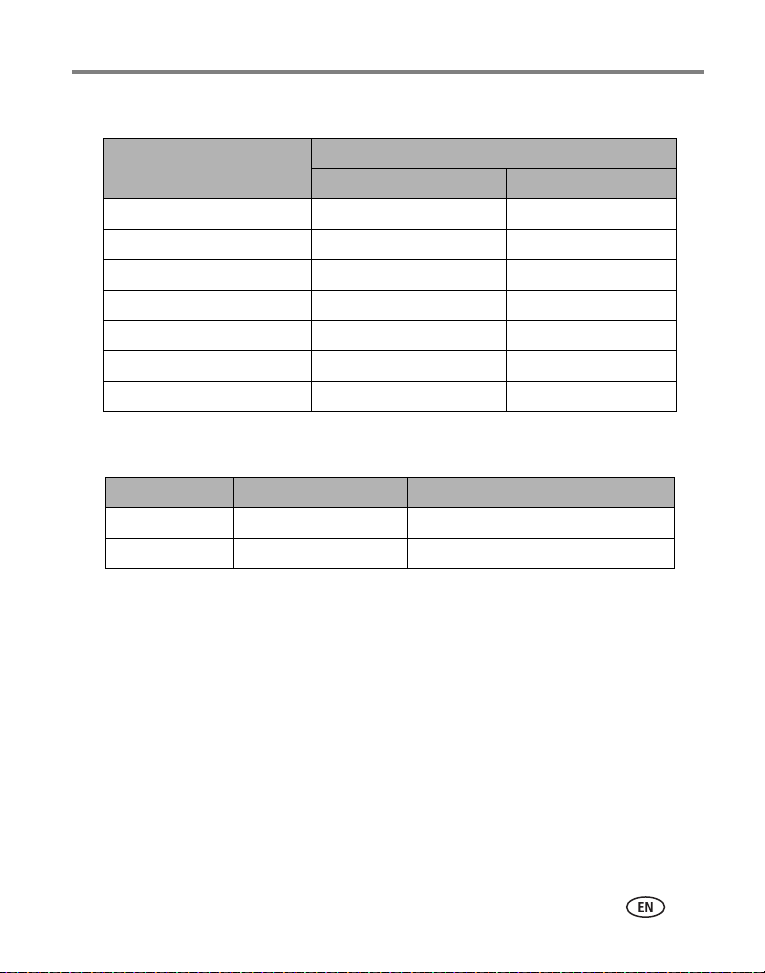
Appendix
www.kodak.com/go/support
81
Video storage capacity
Power-saving features
Minutes/seconds of video
VGA (640 x 480) QVGA (320 x 240)
16 MB SD/MMC 59 sec. 1 min. 53 sec.
32 MB internal memory 1 min. 47 sec. 3 min. 23 sec.
32 MB SD/MMC 1 min. 52 sec. 3 min. 46 sec.
64 MB SD/MMC 3 min. 59 sec. 7 min. 32 sec.
128 MB SD/MMC 7 min. 59 sec. 15 min. 4 sec.
256 MB SD/MMC 15 min. 58 sec. 30 min. 8 sec.
512 MB SD/MMC 31 min. 57 sec. 60 min. 17 sec.
If no action for The camera To turn it back on
1 minute EVF/LCD screen turns off Press the OK button.
8 minutes Enters auto power off Press any button or insert/remove card.

82 www.kodak.com/go/support
Appendix
Accessories
Item Description Where to buy
Schneider-
Kreuznach Xenar
0.7X wide-angle lens
Expand your creativity and
photographic options with the versatile
0.7X wide-angle lens.
www.kodak.com/go/
z7590accessories
Kodak
DX6490/Z7590 lens
adapter
Allows you to add 55 mm screw-on
lenses or filters
Lens filter
(black & white)
Neutral density filter 102. Reduces
light by 2 f-stops (log density 0.6),
55 mm threads
Circular Polarizing filter
(55 mm threads)
Kodak 5-volt AC
adapter
Easy way to extend battery life. Plug
your camera in while downloading
or viewing your pictures.
Kodak performance
series digital camera
case
Stylish, but rugged, for Kodak
EasyShare series digital cameras.
Kodak EasyShare
Li-Ion rechargeable
battery—1700 mAh
Delivers outstanding capacity and
charges up to 300 times in 3 hours
or less.
Kodak Li-Ion rapid
battery charger kit
Includes six worldwide plugs ranging
from 110–240 volts. Batteries sold
separately.
Check our Web site for the entire listing (batteries & chargers,
memory cards, tripods, camera bags, travel kits, cartridge &
photo paper kit, camera docks, printer docks, lenses, etc.)

Appendix
www.kodak.com/go/support
83
Upgrading your software and firmware
Download the latest versions of the software included on the EasyShare software CD
and the camera firmware (the software that runs on the camera). See
www.kodak.com/go/z7590downloads.
Additional care and maintenance
■ If the camera has been subjected to inclement weather or you suspect water has
gotten inside the camera, turn off the camera and remove the batteries and card.
Allow all components to air-dry for at least 24 hours before using the camera
again.
■ Blow gently on the lens or camera screen to remove dust and dirt. Wipe gently
with a soft, lint-free cloth or an untreated lens-cleaning tissue. Do not use cleaning
solutions unless designed specifically for camera lenses. Do not allow chemicals,
such as suntan lotion, to contact painted surfaces.
■ Do not place your camera near equipment, such as electric motors.
Electro-magnetic induction may corrupt pictures or cause camera malfunctions.
■ Rapid changes in temperature can cause harmful condensation. Keep your camera
in an airtight plastic bag and let it adjust to temperature before removing it from
the bag.
■ Service agreements are available in some countries. Contact a dealer of Kodak
products for more information.
■ For digital camera disposal or recycling information, contact your local authorities.
In the US, visit the Electronics Industry Alliance Web site at
www.eiae.org or the
Kodak Web site at www.kodak.com/go/z7590support.

84 www.kodak.com/go/support
Appendix
Warranty
Limited warranty
Kodak warrants Kodak digital cameras and accessories (excluding batteries) to be free
from malfunctions and defects in both materials and workmanship for one year from
the date of purchase.
Retain the original dated sales receipt. Proof of the date of purchase will be required
with any request for warranty repair.
Limited warranty coverage
This limited warranty will be honored only within the geographical
location that Kodak digital cameras and accessories were purchased.
Kodak will REPAIR or REPLACE Kodak digital cameras and accessories if they fail to
function properly during the warranty period, subject to any conditions and/or
limitations stated herein. Such repair service will include all labor as well as any
necessary adjustments and/or replacement parts. Such repair or replacement is the
sole remedy under this warranty.
If replacement parts are used in making repairs, these parts may be remanufactured,
or may contain remanufactured materials. If it is necessary to replace the entire
product, it may be replaced with a remanufactured product.
Limitations
Request for Warranty service will not be accepted without proof of date of purchase,
such as a copy of the original dated Kodak digital camera or accessory sales receipt.
(Always keep the original for your records.)
This warranty does not apply to the battery(s) used in digital cameras or accessories.
This warranty does not cover circumstances beyond Kodak’s control, nor problems
caused by failure to follow the operating instructions in the Kodak digital cameras and
accessories User’s Guides.
THIS WARRANTY DOES NOT APPLY WHEN FAILURE IS DUE TO SHIPPING DAMAGE,

Appendix
www.kodak.com/go/support
85
ACCIDENT, ALTERATION, MODIFICATION, UNAUTHORIZED SERVICE, MISUSE,
ABUSE, USE WITH INCOMPATIBLE ACCESSORIES OR ATTACHMENTS, FAILURE TO
FOLLOW KODAK’S OPERATION, MAINTENANCE OR REPACKING INSTRUCTIONS,
FAILURE TO USE ITEMS SUPPLIED BY KODAK (SUCH AS ADAPTERS AND CABLES), OR
CLAIMS MADE AFTER THE DURATION OF THIS WARRANTY.
Kodak makes no other express or implied warranty for this product. In the event that
the exclusion of any implied warranty is ineffective under the law, the duration of the
implied warranty will be one year from the purchase date.
The option of replacement is Kodak’s only obligation. Kodak will not be responsible
for any special, consequential or incidental damages resulting from the sale, purchase,
or use of this product, regardless of the cause. Liability for any special, consequential
or incidental damages (including but not limited to loss of revenue or profit,
downtime costs, loss of the use of the equipment, cost of substitute equipment,
facilities or services, or claims of your customers for such damages resulting from the
purchase, use or failure of the product), regardless of cause or for breach of any
written or implied warranty is expressly disclaimed and excluded here from.
Your rights
Some states or jurisdictions do not allow exclusion or limitation of incidental or
consequential damages, so the above limitation or exclusion may not apply to you.
Some states or jurisdictions do not allow limitations on how long an implied warranty
lasts, so the above limitation may not apply to you.
This warranty gives you specific rights, and you may have other rights which vary from
state to state or by jurisdiction.
Outside the United States and Canada
In countries other than the United States and Canada, the terms and conditions of
this warranty may be different. Unless specific Kodak warranty is communicated to the
purchaser in writing by a Kodak company, no warranty or liability exists beyond any
minimum requirements imposed by law, even though defect, damage, or loss may be
by negligence or other act.

86 www.kodak.com/go/support
Appendix
Regulatory compliance
FCC compliance and advisory
This equipment has been tested and found to comply with the limits for a Class B
digital device, pursuant to Part 15 of the FCC Rules. These limits are designed to
provide reasonable protection against harmful interference in a residential
installation.
This equipment generates, uses, and can radiate radio frequency energy and, if not
installed or used in accordance with the instructions, may cause harmful interference
to radio communications. However, there is no guarantee that interference will not
occur in a particular installation.
If this equipment does cause harmful interference to radio or television reception,
which can be determined by turning the equipment off and on, the user is encouraged
to try to correct the interference by one or more of the following measures: 1) reorient
or relocate the receiving antenna; 2) increase the separation between the equipment
and the receiver; 3) connect the equipment to an outlet on a circuit different from that
to which the receiver is connected; 4) consult the dealer or an experienced radio/TV
technician for additional suggestions.
Any changes or modifications not expressly approved by the party responsible for
compliance could void the user’s authority to operate the equipment. Where shielded
interface cables have been provided with the product or specified additional
components or accessories elsewhere defined to be used with the installation of the
product, they must be used in order to ensure compliance with FCC regulation.
Kodak EasyShare Z7590 zoom digital camera
Appendix
www.kodak.com/go/support
87
Canadian DOC statement
DOC Class B Compliance—This Class B digital apparatus complies with Canadian
ICES-003.
Observation des normes-Class B—Cet appareil numérique de la classe B est
conforme à la norme NMB-003 du Canada.
VCCI Class B ITE
English translation:
This is a Class B product based on the standard of the Voluntary Control Council for
Interference from Information Technology Equipment (VCCI). If this is used near a
radio or television receiver in a domestic environment, it may cause radio interference.
Install and use the equipment according to the instruction manual.
MPEG-4
Use of this product in any manner that complies with the MPEG-4 visual standard is
prohibited, except for use by a consumer engaging in personal and non-commercial
activities.

88 www.kodak.com/go/support
Index 1
A
A/V out, 52
A/V out (for TV viewing)
connection location, ii
about this camera, 38
AC adapter, 3
accessories
battery, 3
buying, 74
camera, 82
external flash, 27
printer dock, 63
SD or MMC card, 8
AF control, 34
album, 35
albums, tagging pictures for, 39, 50
aperture priority, 18
aperture, PASM mode, 21
auto, 17
flash, 23
focus framing marks, 11
power-down, 81
B
backlight, 21
battery
charge via charger, 1
expected life, 2
extending life, 3
inserting, 2
safety, 4
battery door, iv
beach, 20
bracketing interval, 32
burst first/last button, iv
burst,using, 29
button
burst, 29
close-up/landscape, 27
delete, 15
exposure bracketing, 28
flash/status, 23
On/Off, 5
on/off, iii
review, 45
share, iii, 56
zoom, 16
C
cable
audio/video, 52
USB, 62
camera accessories, 82
camera dock, 3
camera screen
reviewing pictures, 45
reviewing videos, 45
Canadian compliance, 87
caring for your camera, 83
charging
battery via charger, 1
lights, battery charger, 1
children, 21
clock, setting, 6

www.kodak.com/go/support 89
Index
close-up
scenes, 27
close-up button, iv
close-up pictures, 28
color mode, 34
compression, 31
computer
connecting camera, 62
transfer to, 62
copy pictures
card to memory, 53
memory to card, 53
to computer via USB cable, 62
custom, 18
custom exposure mode, 30
customer support, 75
D
date setting, 6
DC-In (5V)
connection location, ii
delete button, iii
deleting
during quickview, 15
from internal memory, 48
from MMC/SD Card, 48
digital zoom, 36
digital zoom, using, 16
displaying slide show, 51
disposal, recycling, 83
distant scenes, 27
dock
printer, 63
dock compatibility, 66
dock connector, iv
downloading pictures, 62
E
EasyShare software, 54
emailing pictures, videos, 58
er, 81
EVF/LCD toggle button, iii
exposure
compensation, PASM mode, 21
exposure bracketing button, iv
exposure metering, 33
external flash, 27
external flash connector location, ii
external video device
viewing pictures, videos, 52
external-flash-connector cover, ii
F
favorites, 18
removing, 61
settings, 60
tagging, 59
FCC compliance, 86
fireworks, 20
firmware, upgrading, 83
first burst/last burst button, iv
flash
compensation, PASM mode, 27
external, 27
off, 27
rear-curtain sync, 27
red-eye, 27
settings, 23

90 www.kodak.com/go/support
Index
flash button, iv
flip-up flash, i, iv
flower, 20
focus framing marks, 11
focus zone, 33
format, 38
H
help
troubleshooting, 67
web links, 74
histogram, 12
I
icons, mode dial, 17
image storage, 35
inserting
battery, 2
SD or MMC card, 8
installing software, 55
internal memory
storage capacity, 79
J
jog dial, i
joystick, iii
K
Kodak EasyShare software
installing, 55
upgrading, 83
Kodak web sites, 74
L
landscape, 19, 27
landscape button, iv
language, 37
LCD (Liquid Crystal Display) screen, iii
LCD/EVF toggle button, iii
lens, i
cleaning lens, 83
light
jog dial, i
power ring, iii, 72
locator for EasyShare camera dock or
printer dock, iv
M
Macintosh
installing software on, 55
macro mode, 44
magnify picture, 48
maintenance, camera, 83
manner, 20
manual, 18
memory
inserting card, 8
menu button, iii
microphone, i
mode dial, iii, 17
mode light, iii
modes
aperture priority, 18
auto, 17
backlight, 21
beach, 20
children, 21
custom, 18
custom exposure, 30

www.kodak.com/go/support 91
Index
favorites, 18
fireworks, 20
flower, 20
landscape, 19
manner, 20
manual, 18
night landscape, 20
night portrait, 19
party, 20
portrait, 19
program, 17
SCN, 19
self-portrait, 20
shutter priority, 18
snow, 20
text, 20
N
neckstrap post, iii
night landscape, 20
night portrait, 19
O
OK button, iii
on/off button, iii
online prints, ordering, 63
open flash lever, iv
optical zoom, 16
orientation sensor, 37
P
party, 20
PASM mode
screen options, 21
PictBridge printer, 64
picture size, 31
picture status, iii
pictures
copying, 53
deleting, 48
emailing tagged, 58
magnifying, 48
printing tagged, 57
reviewing, 45
storage capacity, 79
tagging, 50
taking, modes, 17
transfer via USB cable, 62
picture-taking tips, 40
portrait, 19
power
auto off, 81
camera, 5
ring, iii, 72
switch, iii
printer dock, 3, 63
printing
from a card, 63
optimizing printer, 74
order online, 63
PictBridge, 64
tagged pictures, 63
with EasyShare printer dock, 63
program, 17
protecting pictures, videos, 49
Q
quickview, 36
using, 15

92 www.kodak.com/go/support
Index
R
ReadMe file, 67
rear-curtain-flash sync, 25
recycling, disposal, 83
red-eye, flash, 23
regulatory information, 86
removing favorites, 61
reset to default, 34
review button, iii, 45
reviewing pictures
as you take them, 15
camera screen, 45
deleting, 48
magnifying, 48
slide show, 51
reviewing videos
camera screen, 45
deleting, 48
slide show, 51
running slide show, 51
S
safety
battery, 4
SCN, 19
SD or MMC card
inserting, 8
storage capacities, 79
SD/MMC card
printing from, 63
SD/MMC card slot, ii
self-portrait, 20
self-timer, 30
pictures/videos, 38
self-timer/video light, i
service and support
telephone numbers, 75
setting
AF control, 34
album, 35
bracketing interval, 32
color mode, 34
compression, 31
date and time, 6
digital zoom, 36
exposure metering, 33
flash, 23
focus zone, 33
image storage, 35
language, 37
picture size, 31
picture taking mode, 17
quickview, 36
self-timer, 30, 38
sharpness, 34
sound themes, 37
video length, 35
video out, 37
white balance, 32
share button, iii, 56
sharpness, 34
shutoff, auto, 81
shutter
self-timer delay, 38
shutter button, i, iv
shutter priority, 18
shutter speed, PASM mode, 21
shutter, problems, 68

www.kodak.com/go/support 93
Index
sleep mode, 81
slide show
problems, 70
running, 51
snow, 20
software
installing, 55
upgrading, 83
sound themes, 37
speaker, iv
specifications, 76
status button, iii
storage capacity, 79
support, technical, 75
T
tagging, 39
favorites, 59
for email, 58
for print, 57
when to tag, 56
tagging pictures
for albums, 39, 50
telephone support, 75
television, slide show, 52
text, 20
time, setting, 6
timer, shutter delay, 38
tips
battery guidelines, 3
care & maintenance, 83
picture-taking, 40
ReadMe file, 67
transfer, via USB cable, 62
trash can, deleting, 15
tripod socket, iv
troubleshooting, 67
turning camera on and off, 5
U
upgrading software, firmware, 83
URLs, Kodak web sites, 74
USB (universal serial bus)
connection location, ii
transferring pictures, 62
USB port/DC-in/A/V-out cover, ii
V
VCCI compliance, 87
video length, 35
video out, 37
videos
copying, 53
deleting, 48
emailing tagged, 58
reviewing, 45
storage capacities, 79
transfer to computer, 62
viewing, 45
viewing picture
after taking, 15, 45
magnified, 48
W
warranty, 84
white balance, 32
Windows computers
installing software, 55